MOUNT LIBRARY TUTORIALS
Searching For Articles Using An Article
Database
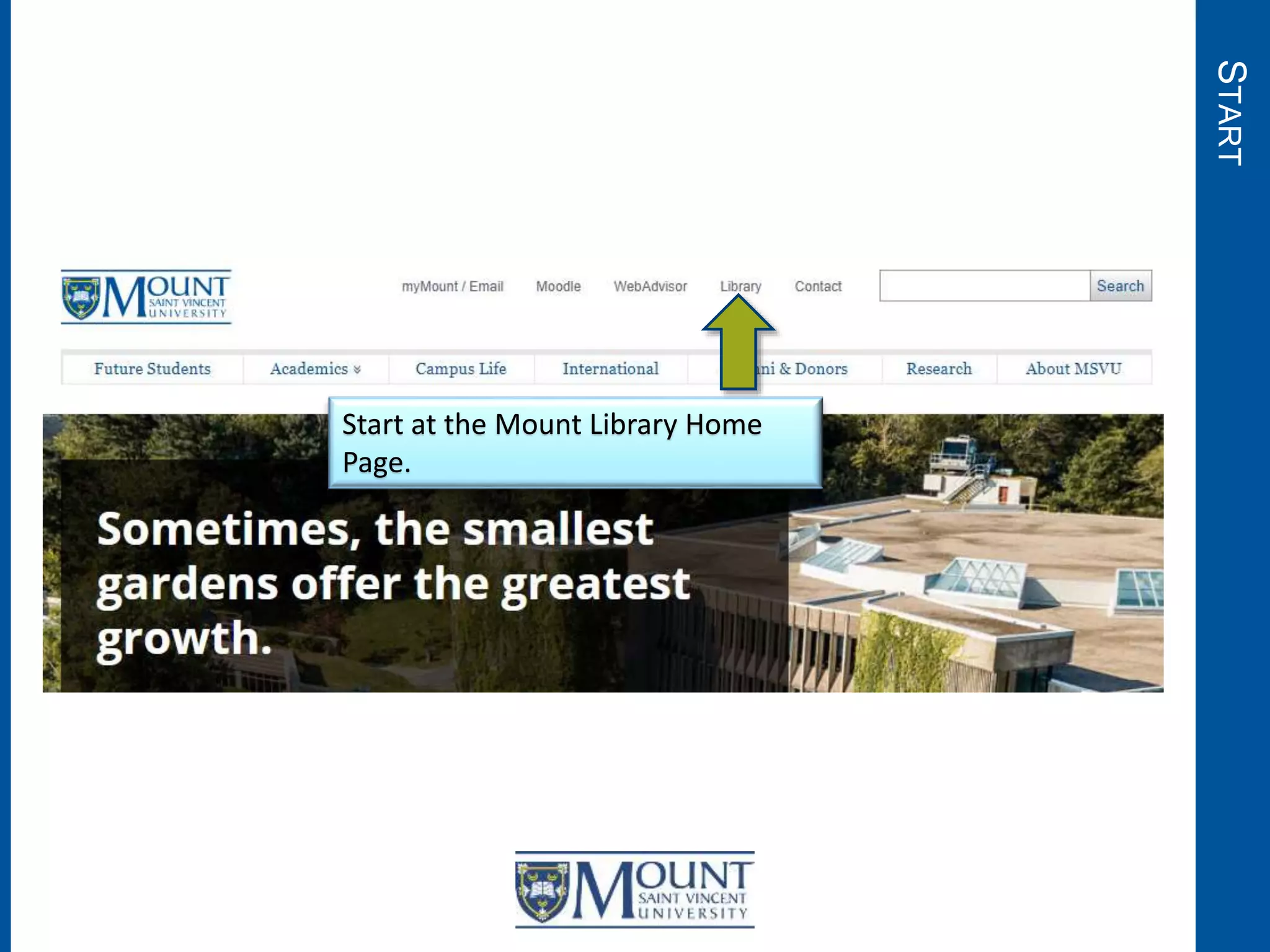
START
Start at the Mount Library Home
Page.
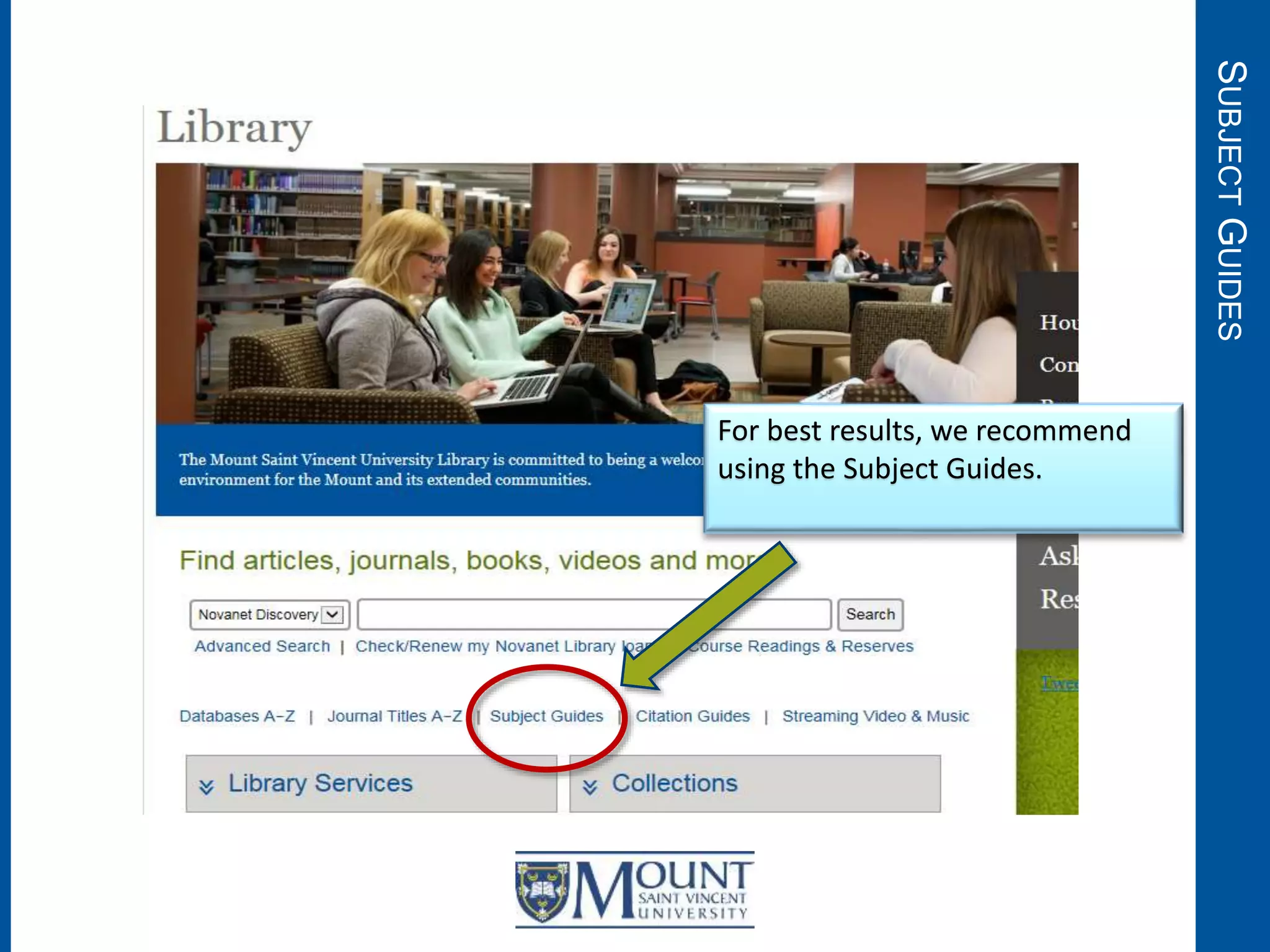
SUBJECTGUIDES
For best results, we recommend
using the Subject Guides.
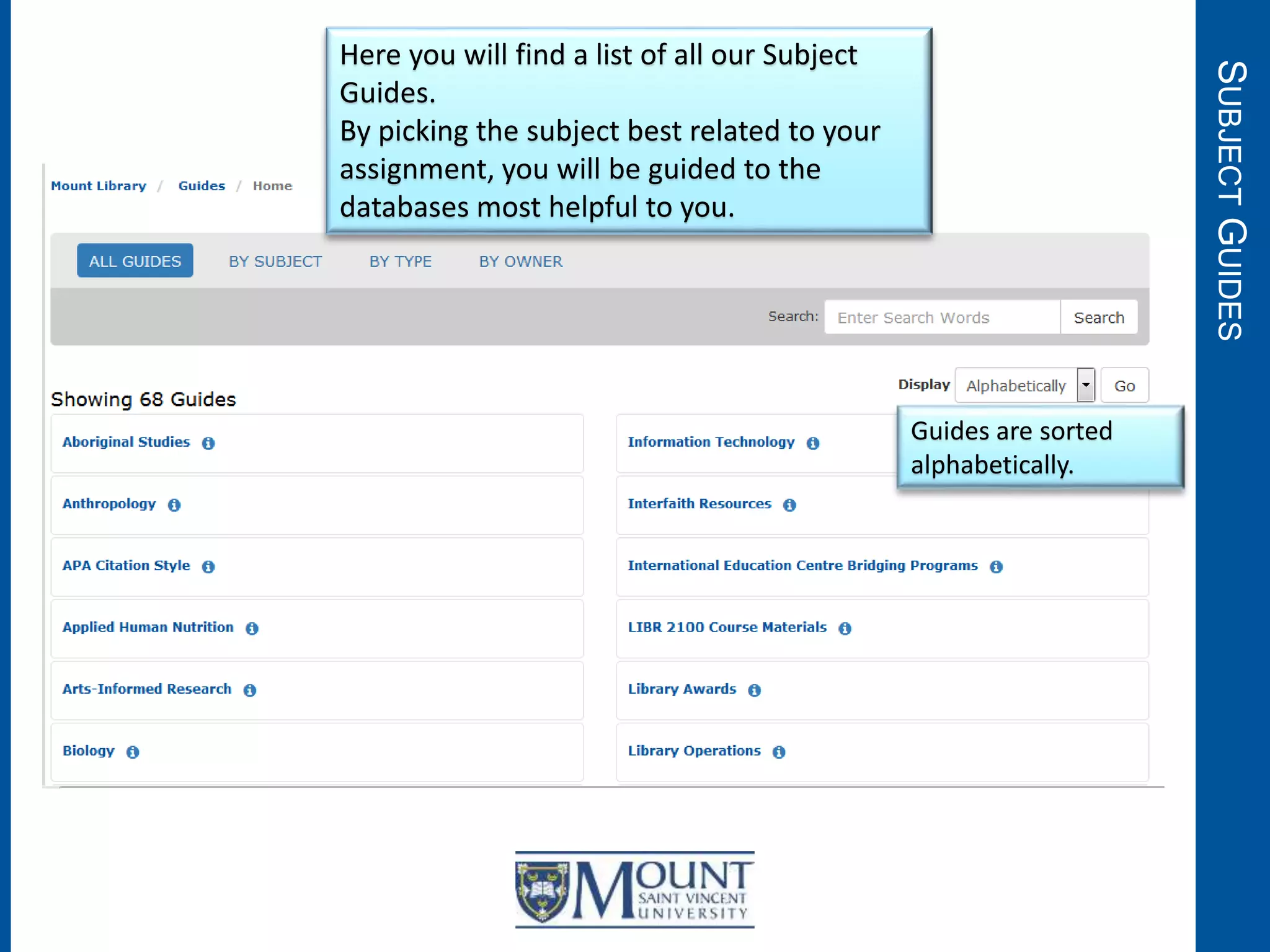
SUBJECTGUIDES
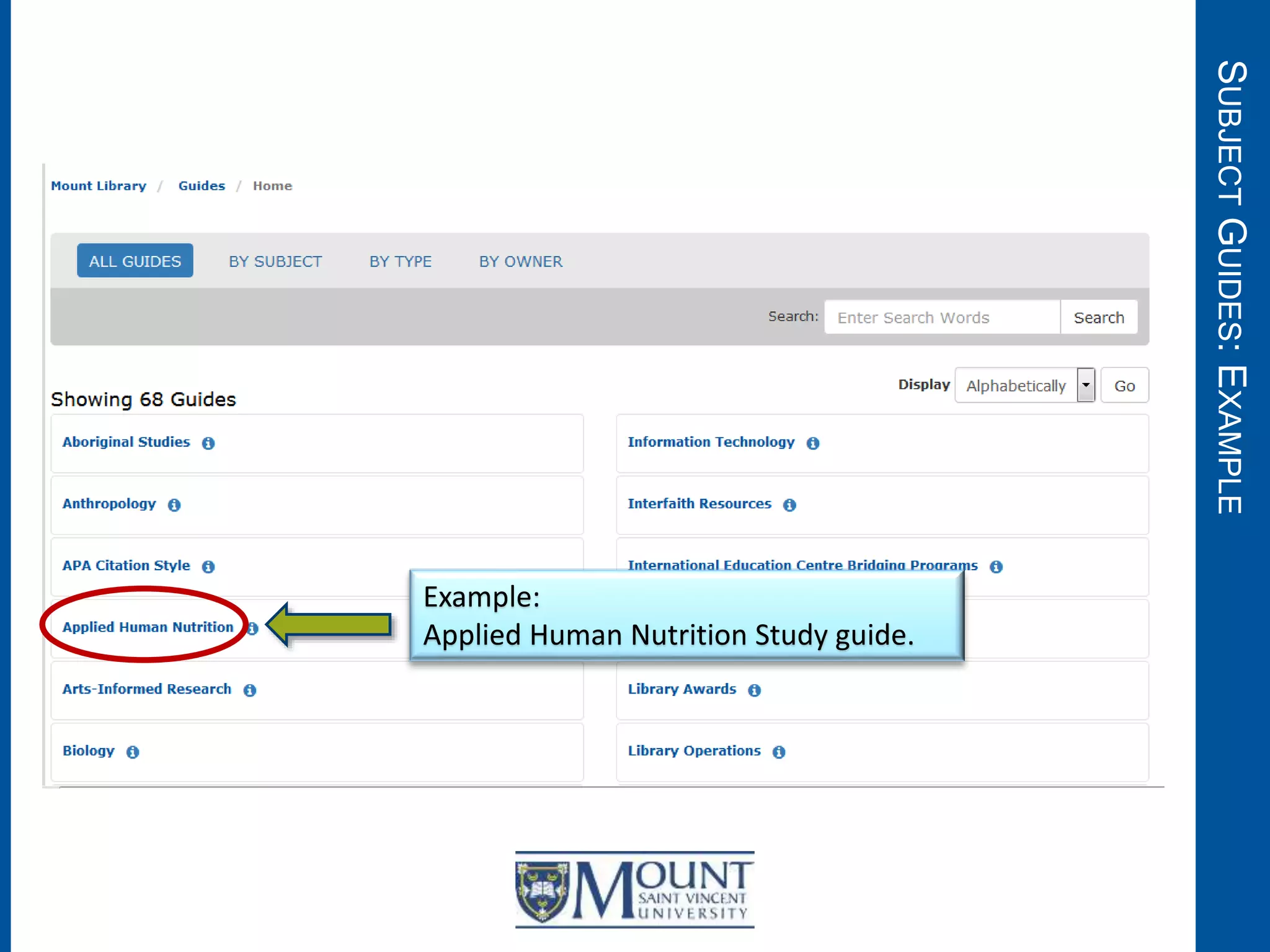
Here you will find a list of all our Subject
Guides.
By picking the subject best related to your
assignment, you will be guided to the
databases most helpful to you.
Guides are sorted
alphabetically.
SUBJECTGUIDES:EXAMPLE
Example:
Applied Human Nutrition Study guide.
SUBJECTGUIDES:EXAMPLE
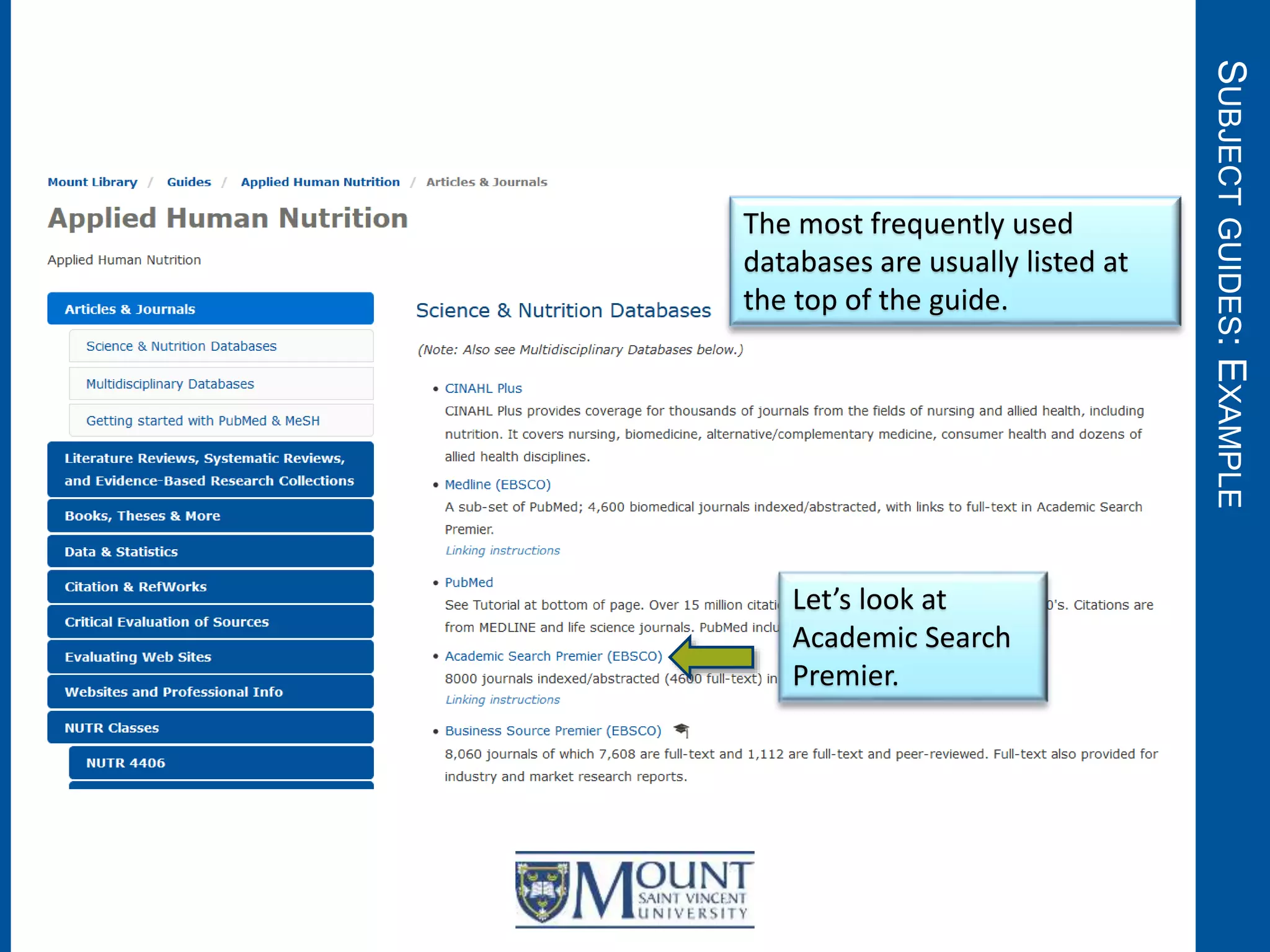
Let’s look at
Academic Search
Premier.
The most frequently used
databases are usually listed at
the top of the guide.
LOGIN
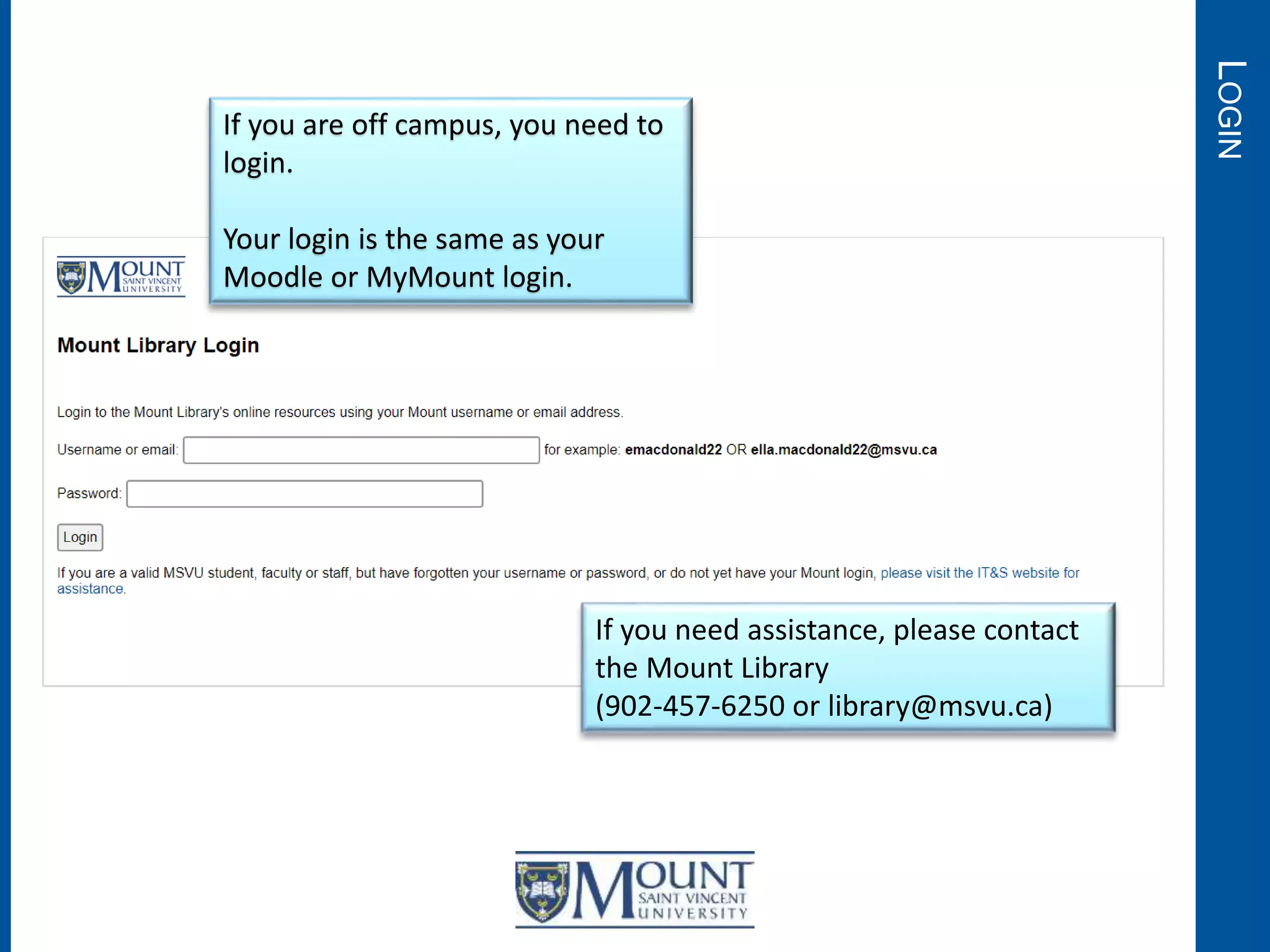
If you are off campus, you need to
login.
Your login is the same as your
Moodle or MyMount login.
If you need assistance, please contact
the Mount Library
(902-457-6250 or library@msvu.ca)
EXAMPLESEARCH
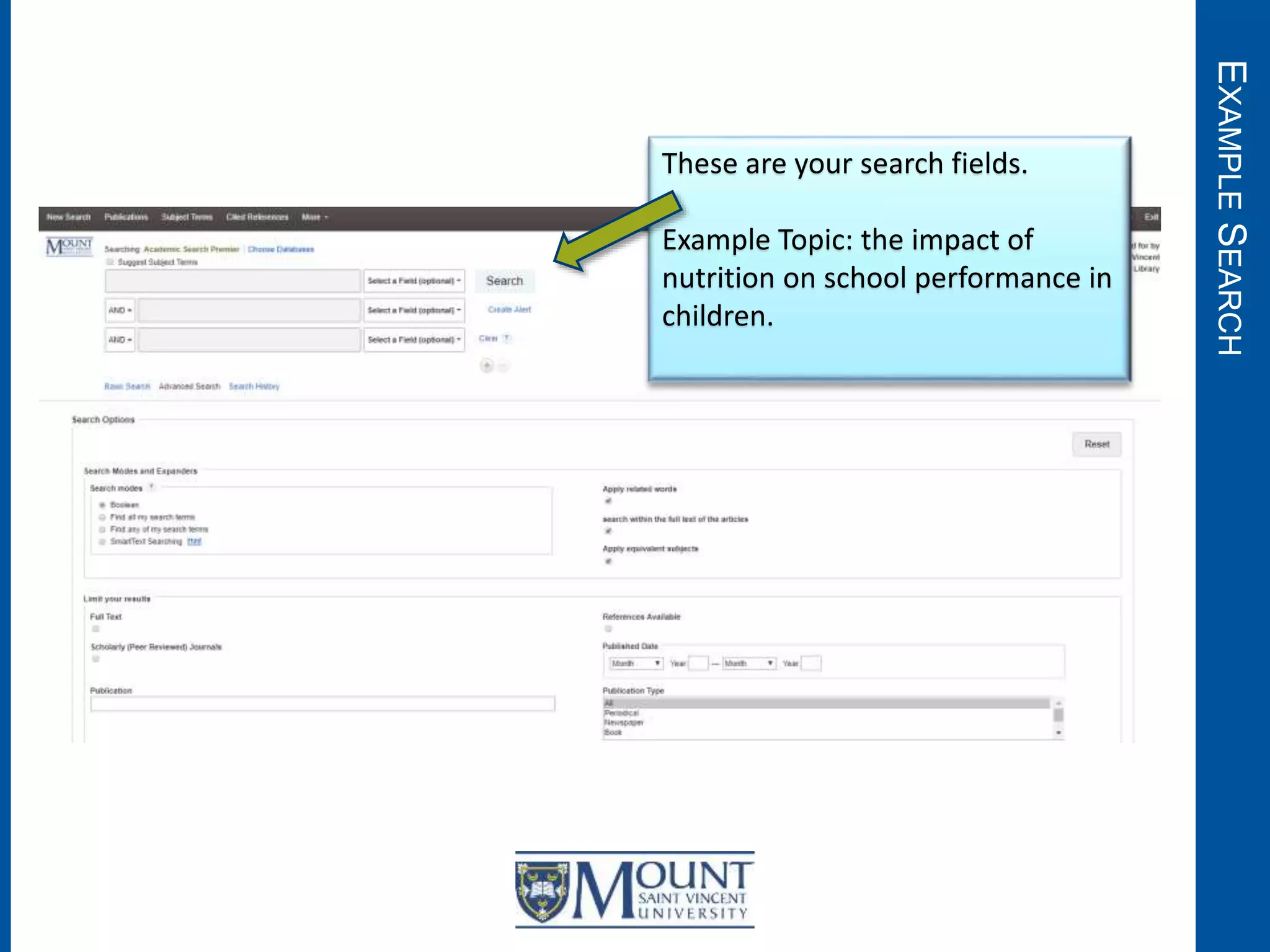
These are your search fields.
Example Topic: the impact of
nutrition on school performance in
children.
EXAMPLESEARCH
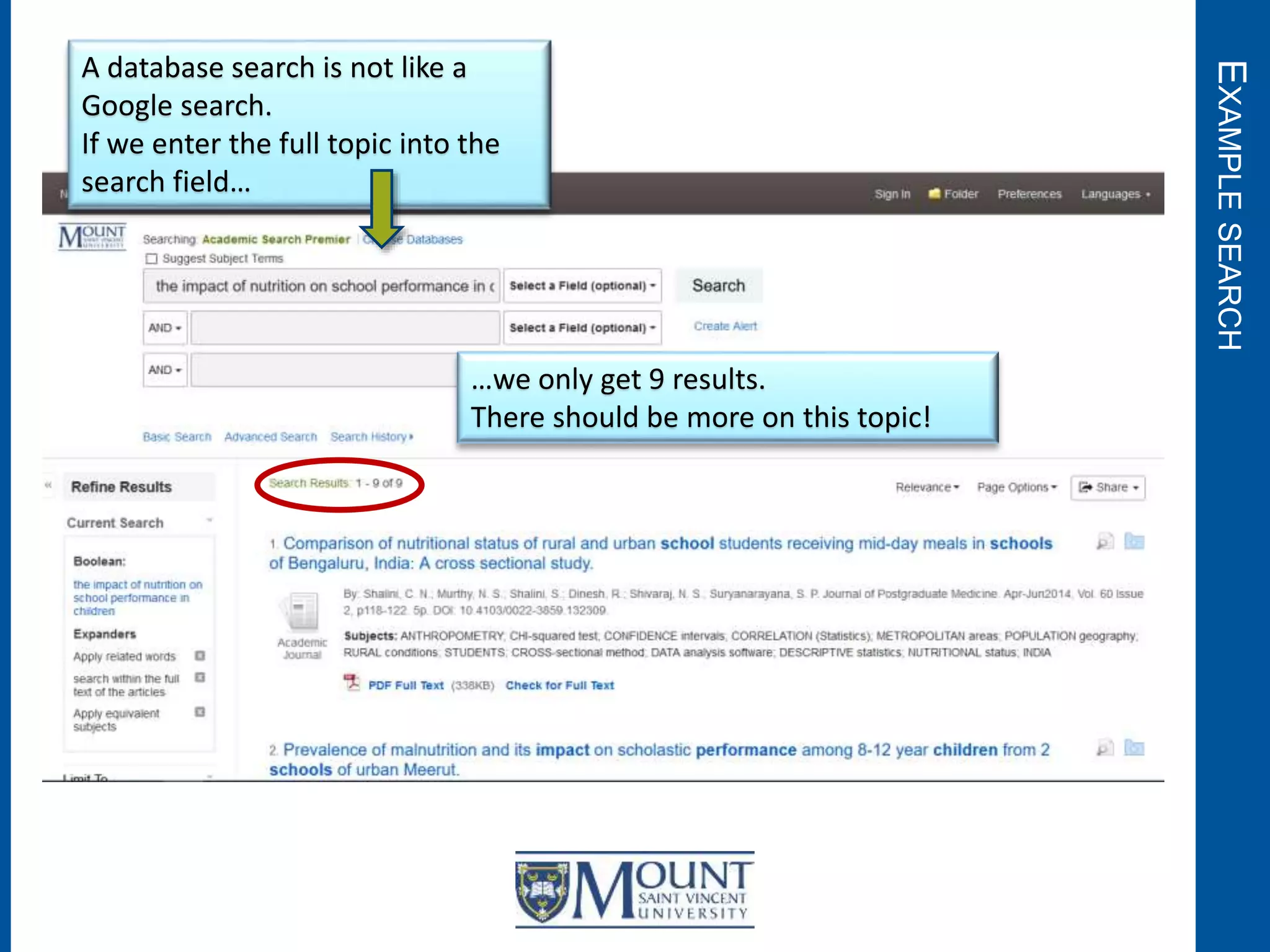
A database search is not like a
Google search.
If we enter the full topic into the
search field…
…we only get 9 results.
There should be more on this topic!
EXAMPLESEARCH
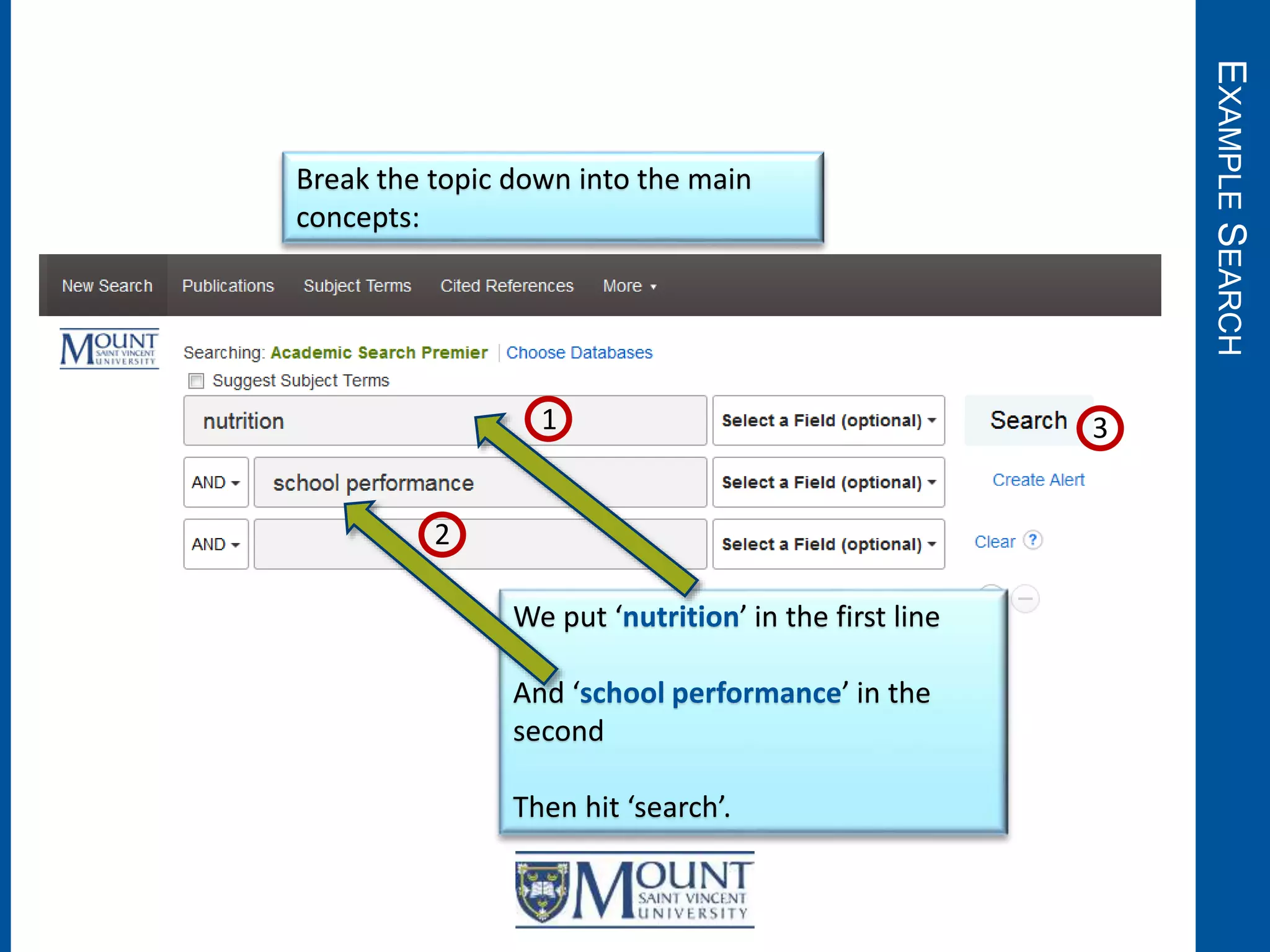
Break the topic down into the main
concepts:
We put ‘nutrition’ in the first line
And ‘school performance’ in the
second
Then hit ‘search’.
1
2
3
EXAMPLESEARCH
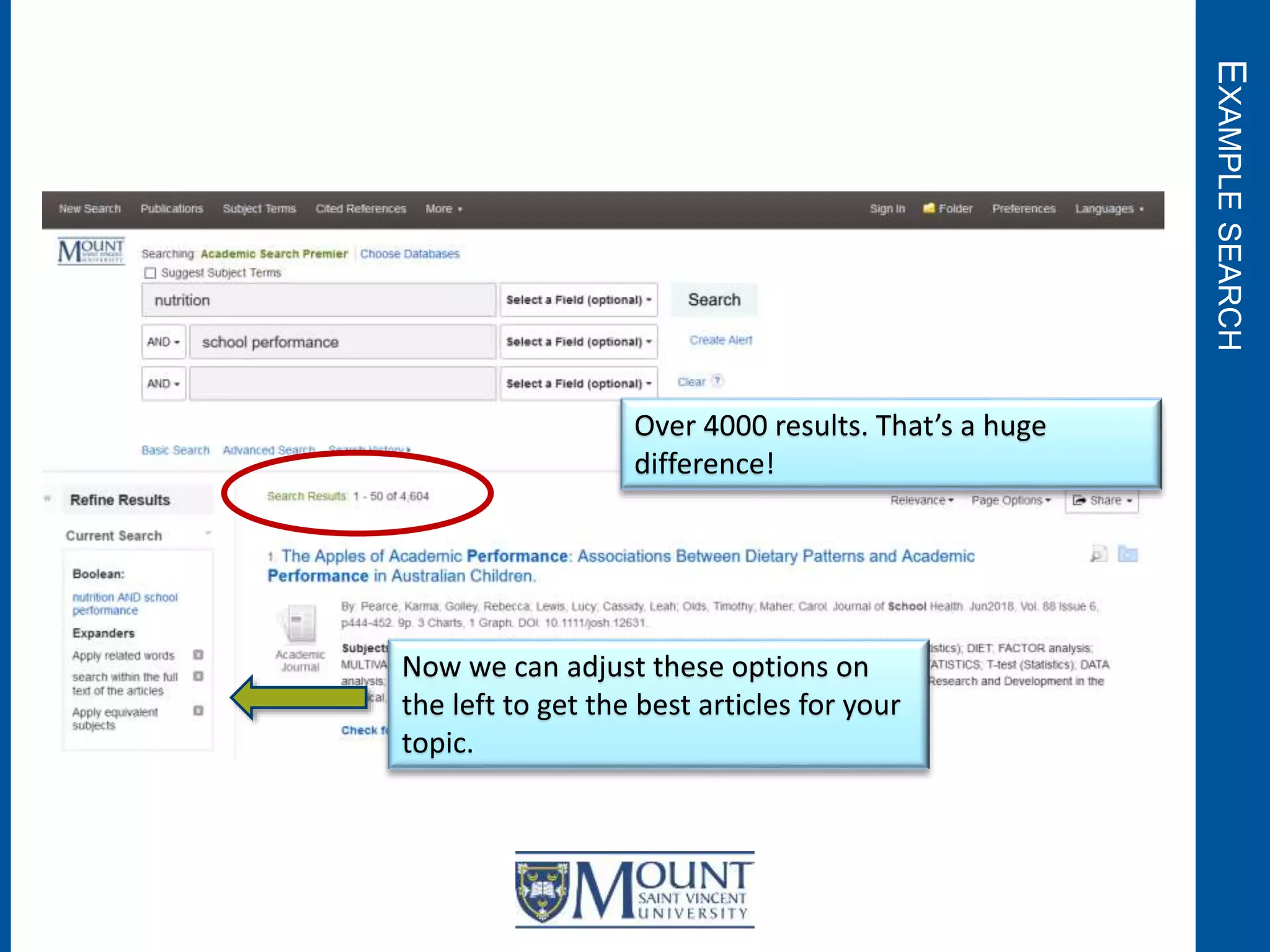
Over 4000 results. That’s a huge
difference!
Now we can adjust these options on
the left to get the best articles for your
topic.
REFININGRESULTS
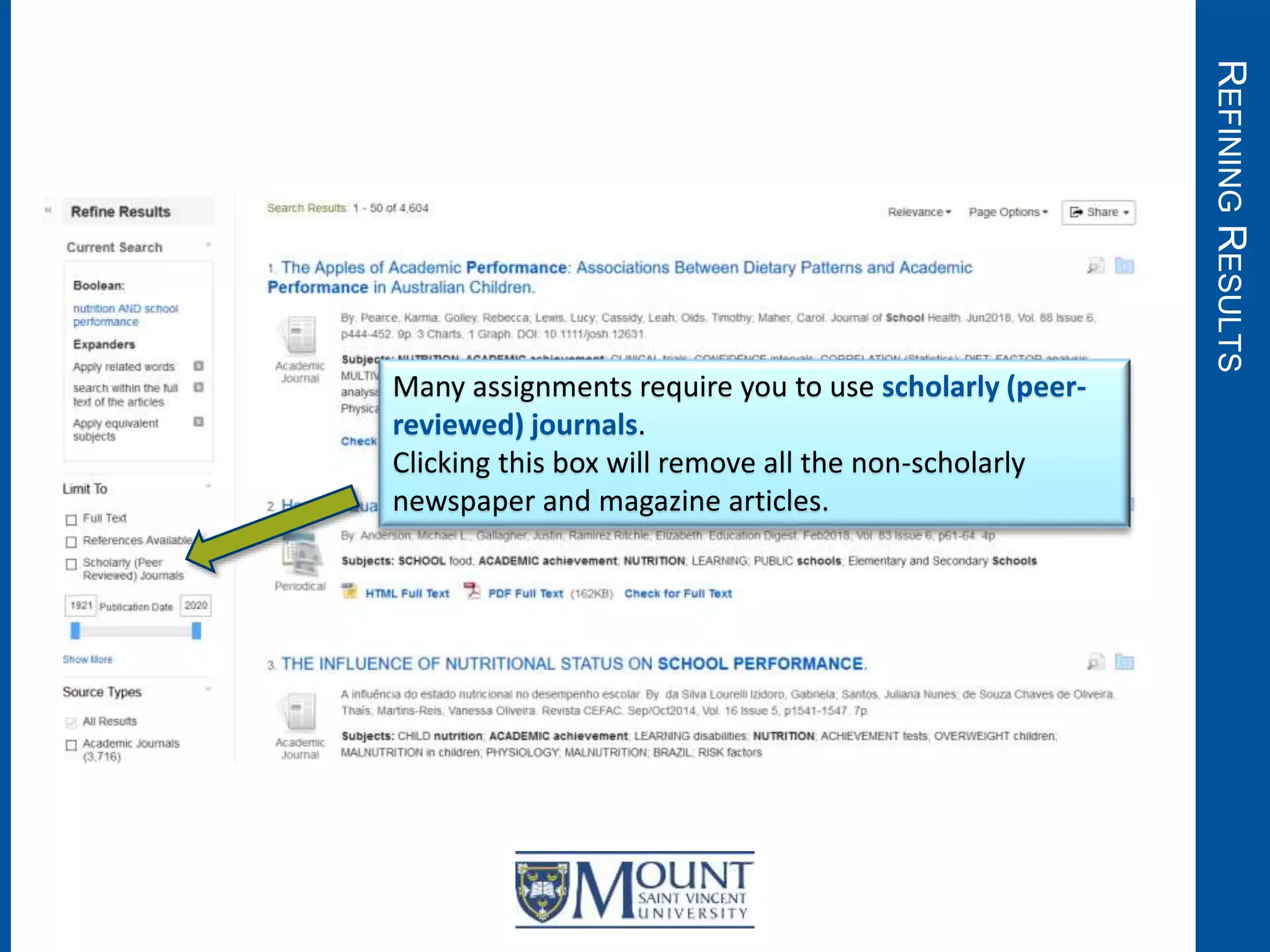
Many assignments require you to use scholarly (peer-
reviewed) journals.
Clicking this box will remove all the non-scholarly
newspaper and magazine articles.
REFININGRESULTS
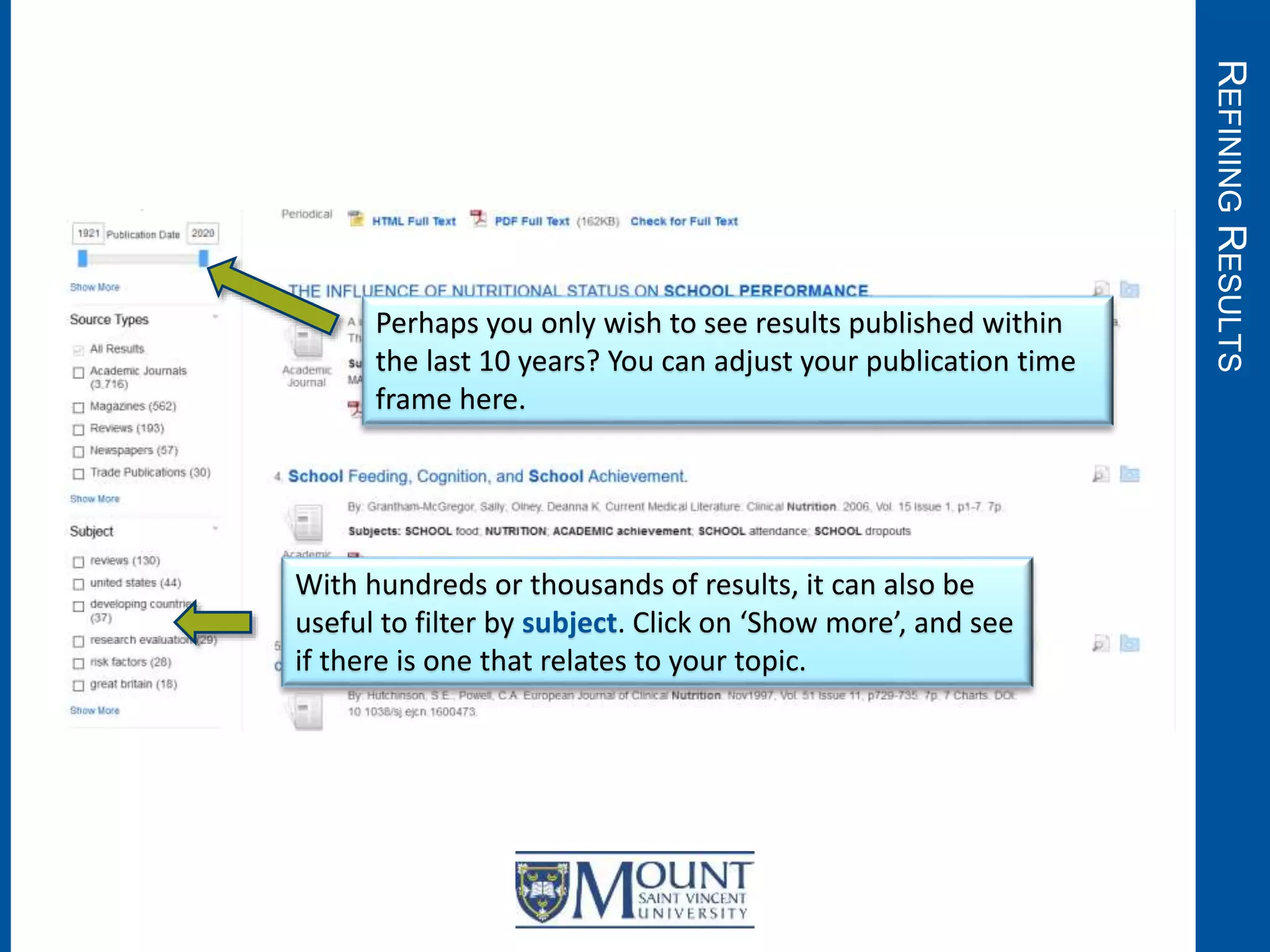
Perhaps you only wish to see results published within
the last 10 years? You can adjust your publication time
frame here.
With hundreds or thousands of results, it can also be
useful to filter by subject. Click on ‘Show more’, and see
if there is one that relates to your topic.
REFININGRESULTS
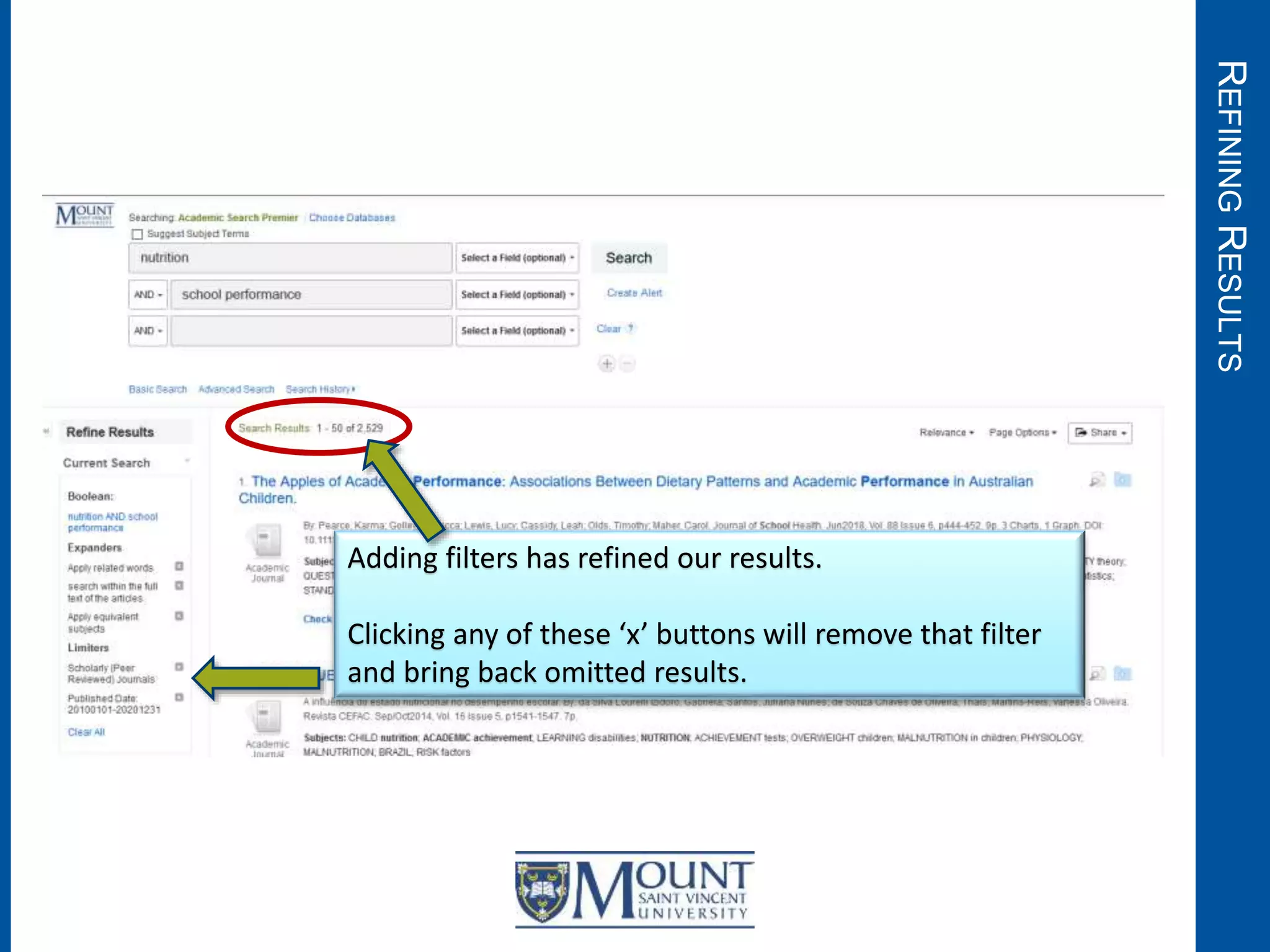
Adding filters has refined our results.
Clicking any of these ‘x’ buttons will remove that filter
and bring back omitted results.
EVALUATINGRESULTS
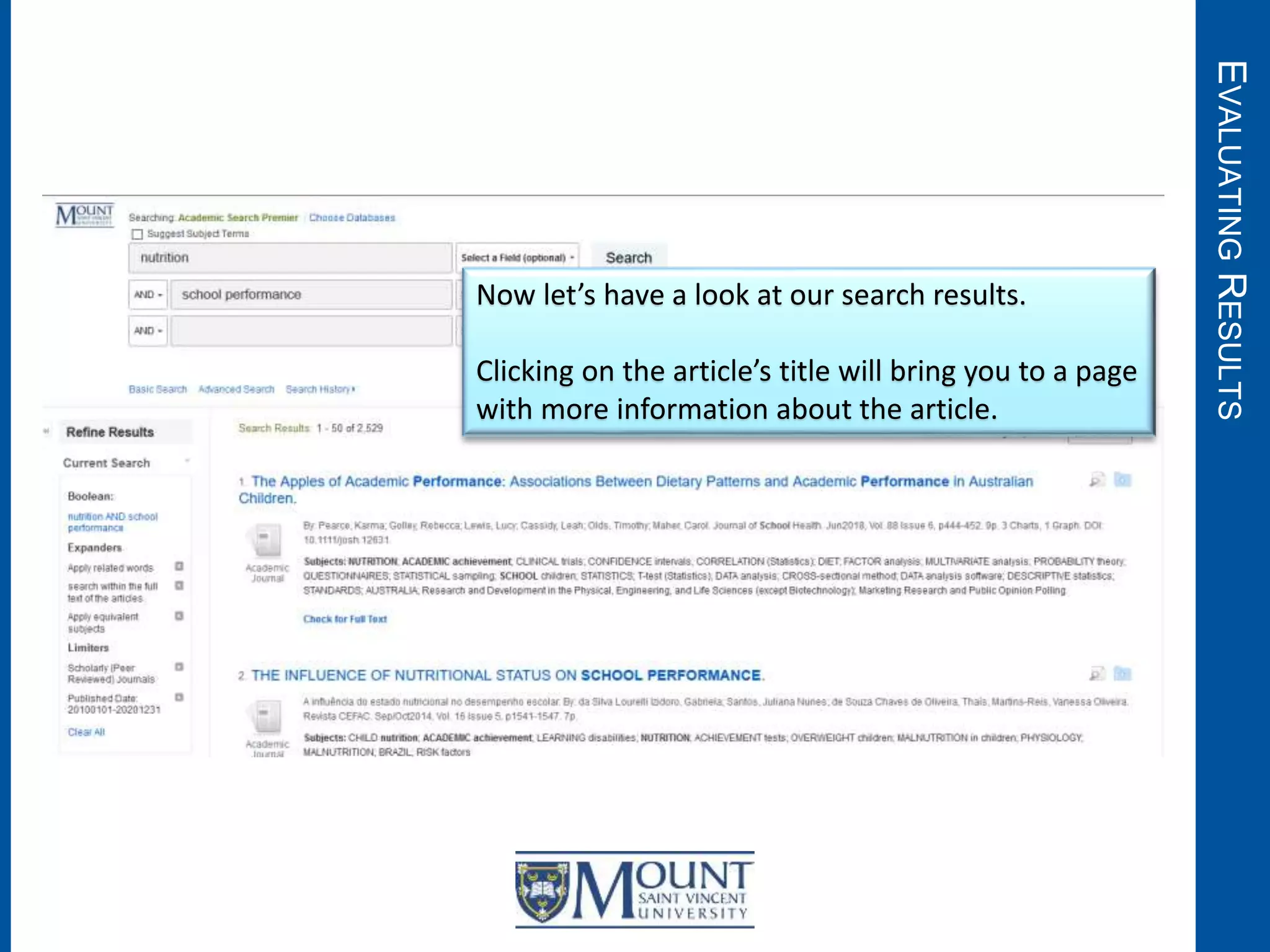
Now let’s have a look at our search results.
Clicking on the article’s title will bring you to a page
with more information about the article.
EVALUATINGRESULTS
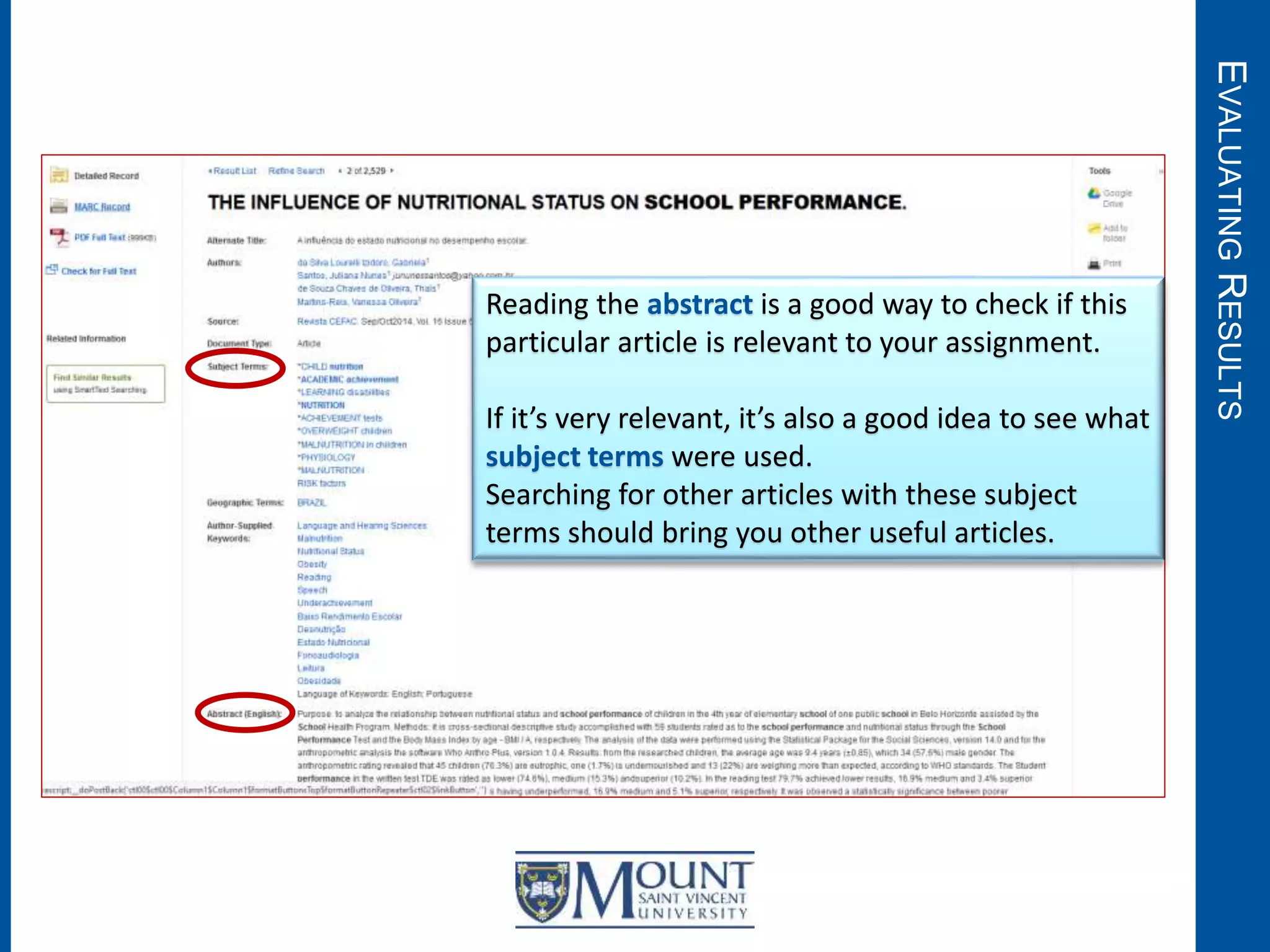
Reading the abstract is a good way to check if this
particular article is relevant to your assignment.
If it’s very relevant, it’s also a good idea to see what
subject terms were used.
Searching for other articles with these subject
terms should bring you other useful articles.
FULLTEXT
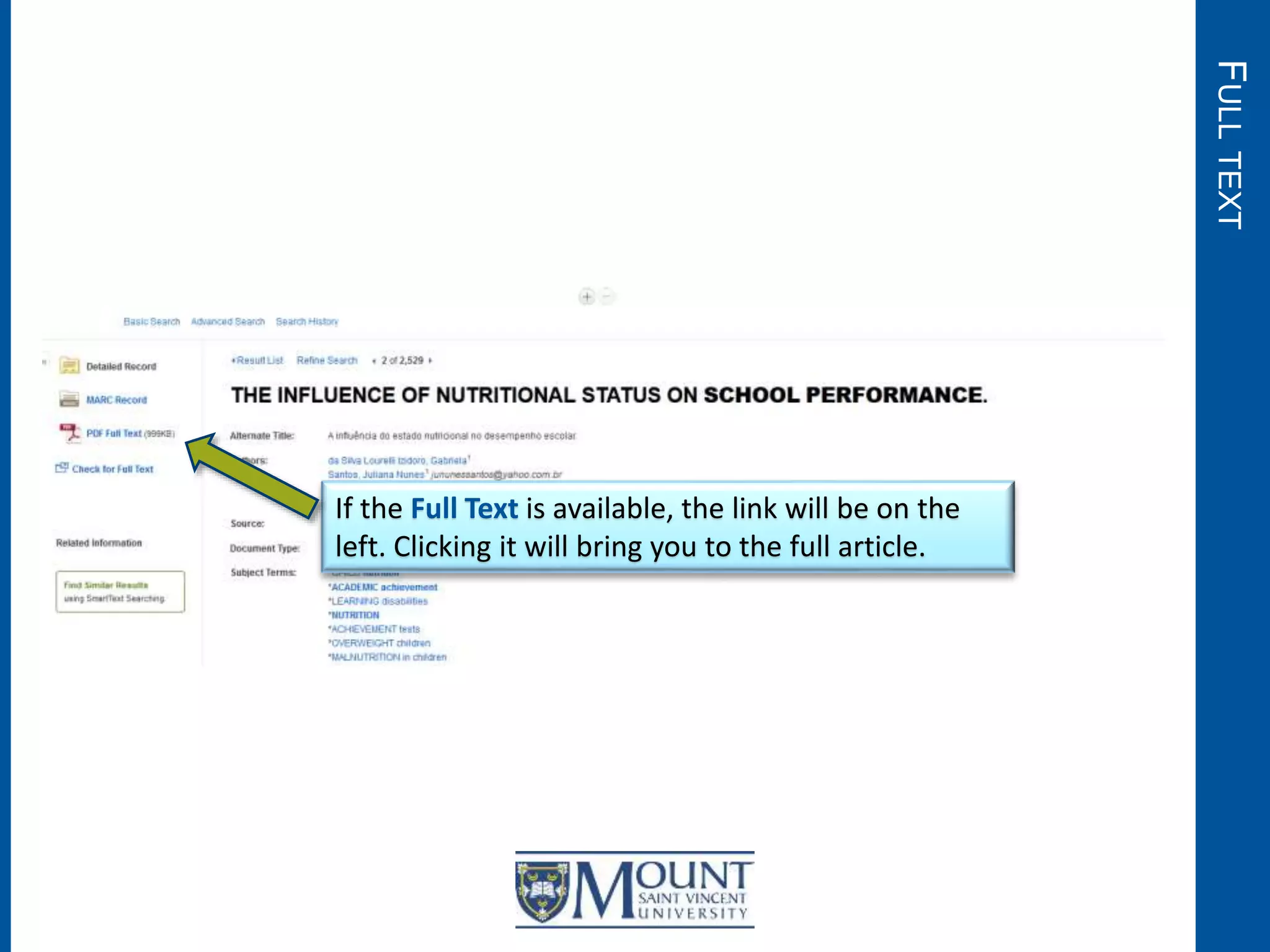
If the Full Text is available, the link will be on the
left. Clicking it will bring you to the full article.
FULLTEXT
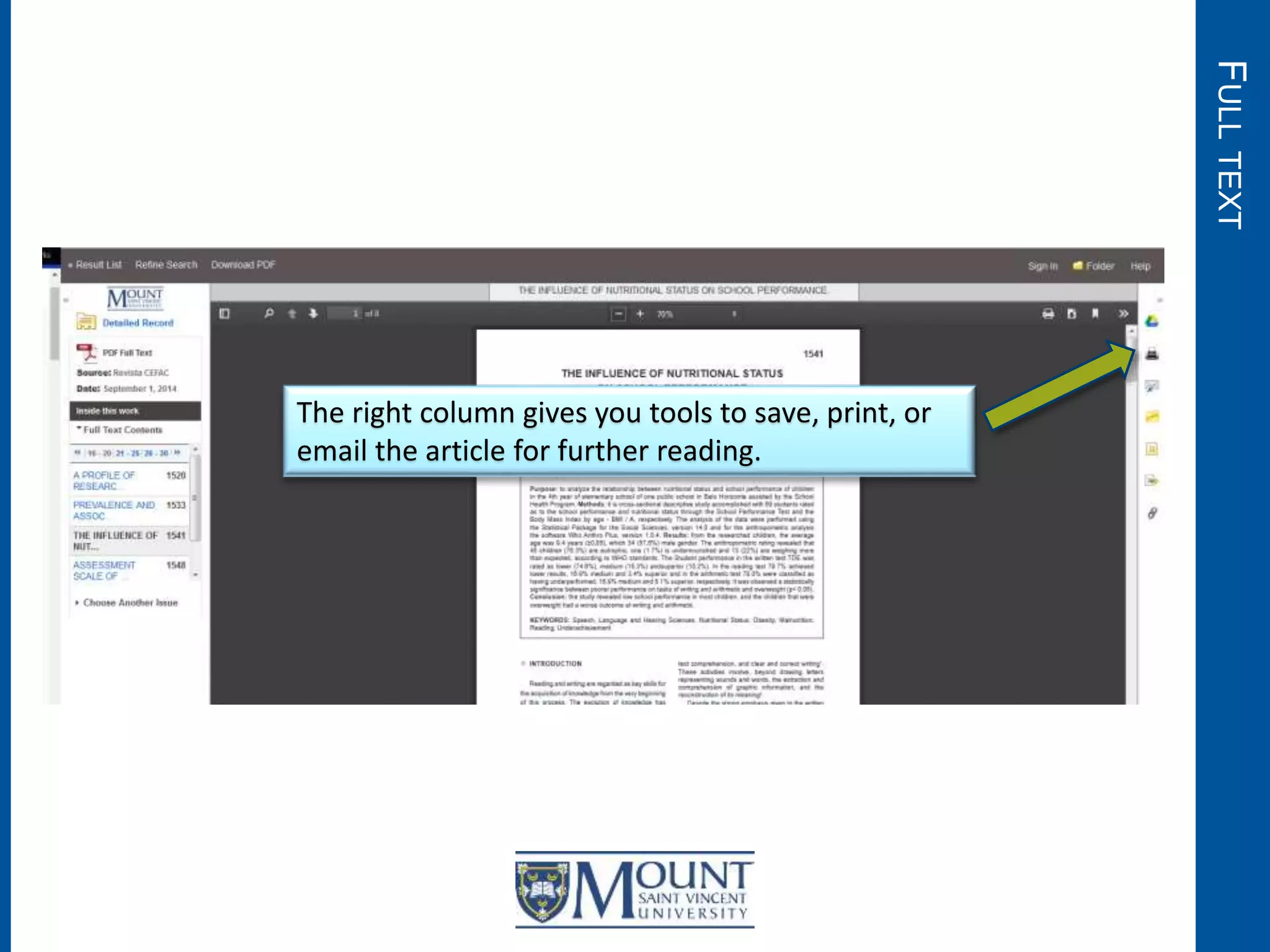
The right column gives you tools to save, print, or
email the article for further reading.
FULLTEXT
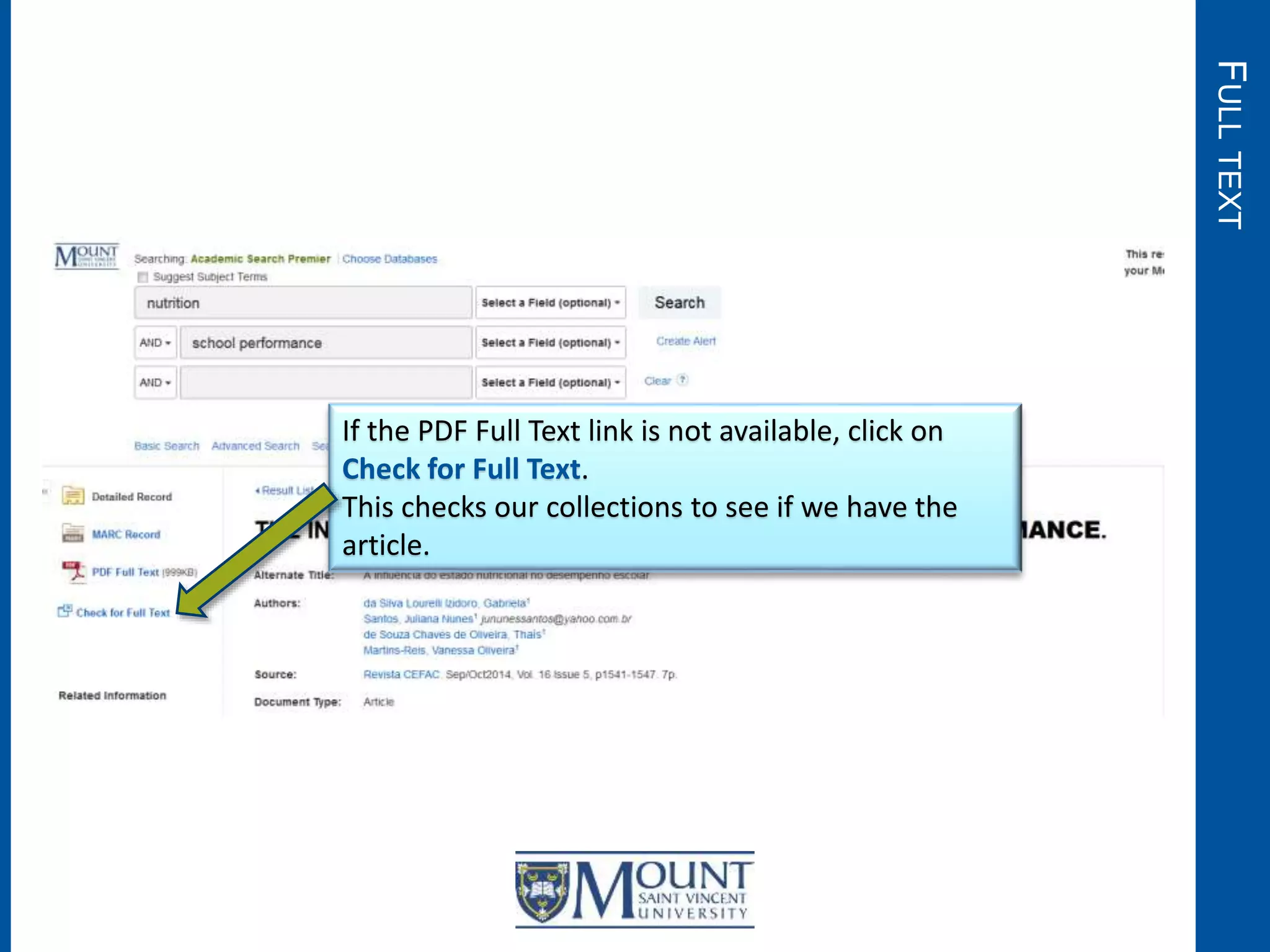
If the PDF Full Text link is not available, click on
Check for Full Text.
This checks our collections to see if we have the
article.
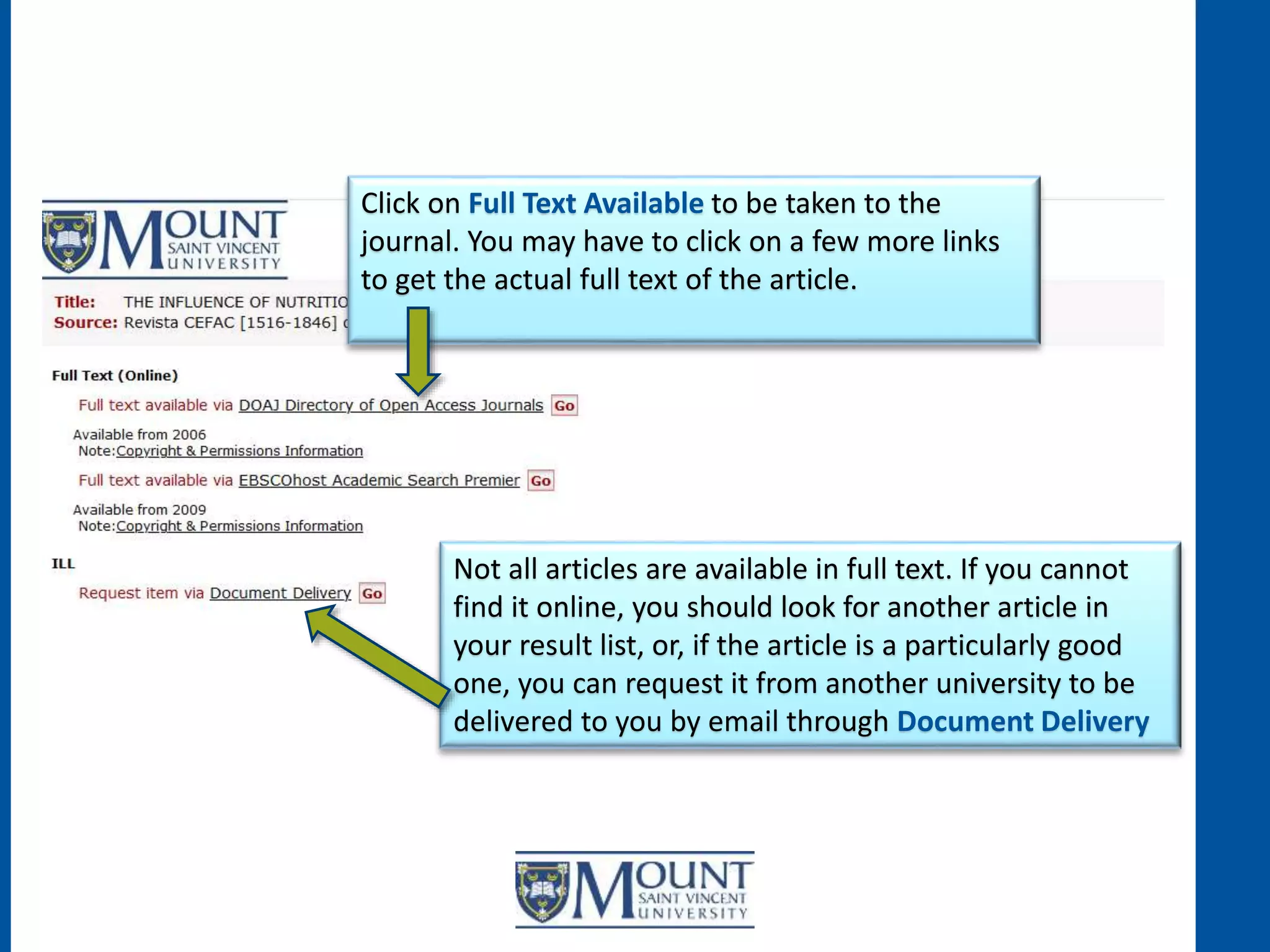
Click on Full Text Available to be taken to the
journal. You may have to click on a few more links
to get the actual full text of the article.
Not all articles are available in full text. If you cannot
find it online, you should look for another article in
your result list, or, if the article is a particularly good
one, you can request it from another university to be
delivered to you by email through Document Delivery
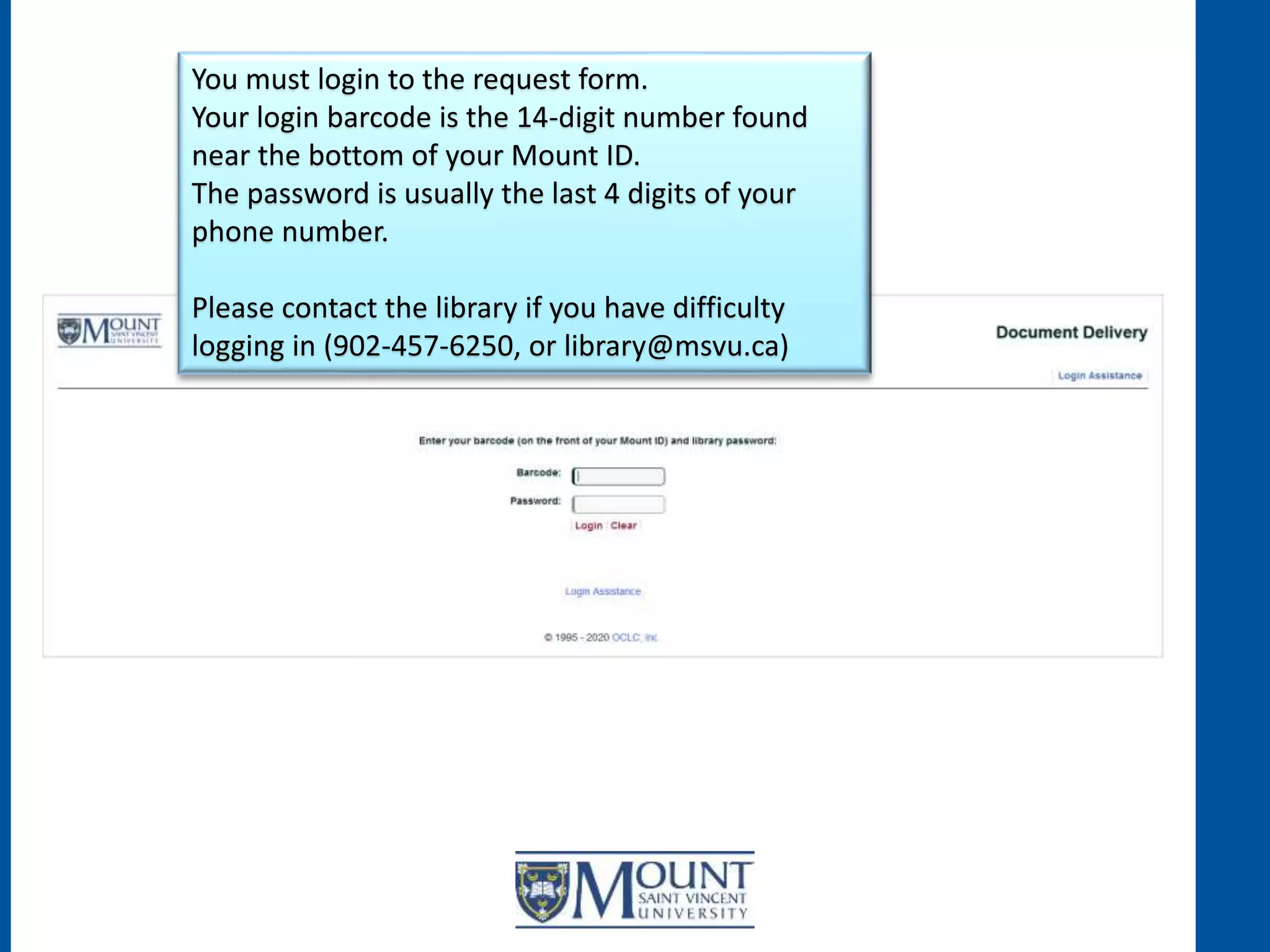
You must login to the request form.
Your login barcode is the 14-digit number found
near the bottom of your Mount ID.
The password is usually the last 4 digits of your
phone number.
Please contact the library if you have difficulty
logging in (902-457-6250, or library@msvu.ca)
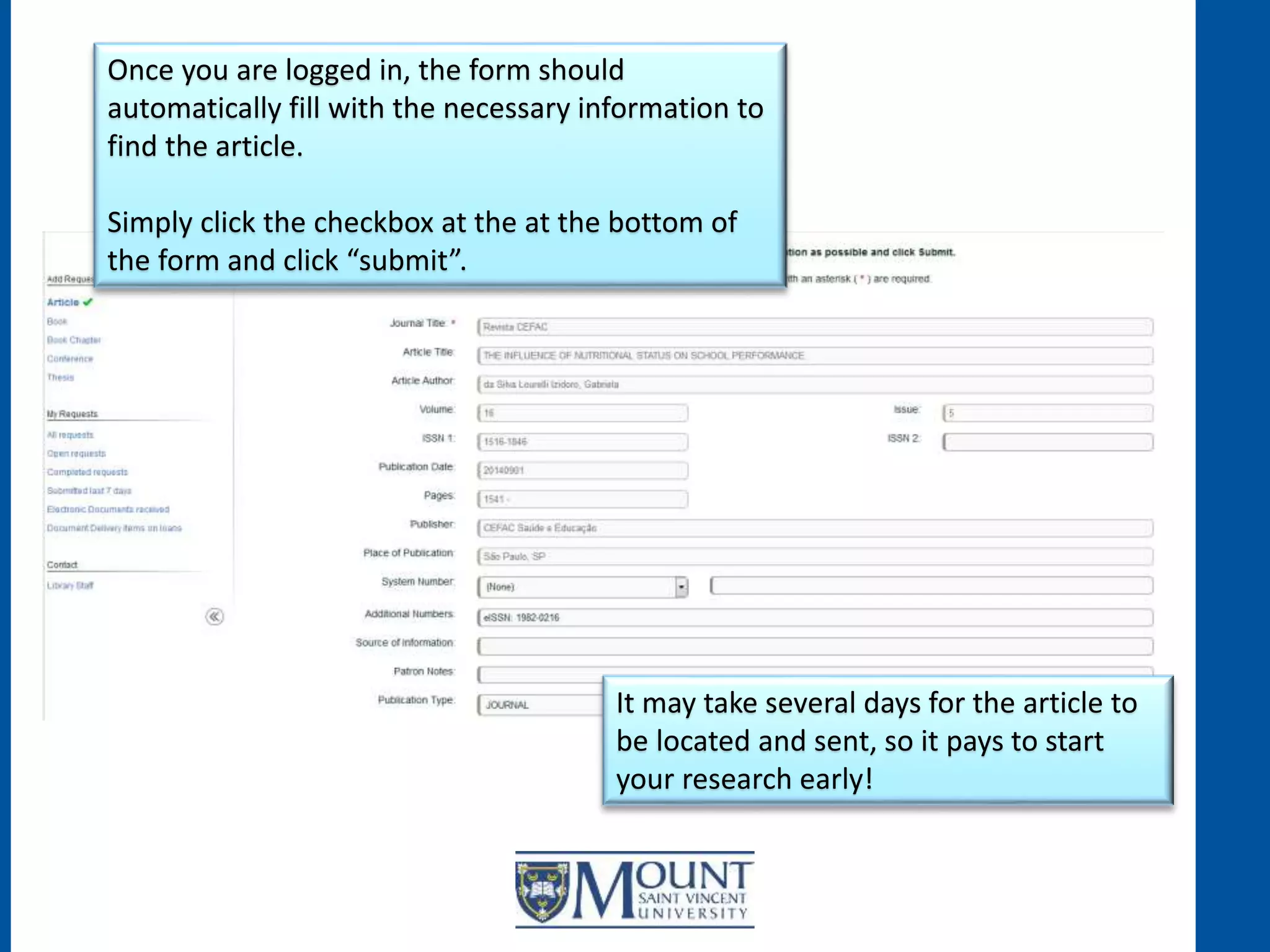
Once you are logged in, the form should
automatically fill with the necessary information to
find the article.
Simply click the checkbox at the at the bottom of
the form and click “submit”.
It may take several days for the article to
be located and sent, so it pays to start
your research early!
• Select a subject guide that best fits your topic
• Select a database from the guide
• Break your topic down into key words or ideas, i.e. “nutrition”, “school”,
“academic performance”, “children”.
• Adjust the filters to refine your search
• Access Full Text articles using ‘PDF Full Text’ or ‘Check for Full Text’. Articles
without full text may still be available to be emailed from other universities.
It is a good idea to run a couple of searches using the different terms you have
encountered while finding articles with your first search.
So, to summarize:
This has been a quick introduction to finding journal articles. For further assistance,
please contact the Mount Library. We will be happy to help!
Thank you!
The Mount Library
www.msvu.ca/library
library@msvu.ca
902-457-6250

Searching For Articles Using an Article Database

  • 1.
    MOUNT LIBRARY TUTORIALS SearchingFor Articles Using An Article Database
  • 2.
    START Start at theMount Library Home Page.
  • 3.
    SUBJECTGUIDES For best results,we recommend using the Subject Guides.
  • 4.
    SUBJECTGUIDES Here you willfind a list of all our Subject Guides. By picking the subject best related to your assignment, you will be guided to the databases most helpful to you. Guides are sorted alphabetically.
  • 5.
  • 6.
    SUBJECTGUIDES:EXAMPLE Let’s look at AcademicSearch Premier. The most frequently used databases are usually listed at the top of the guide.
  • 7.
    LOGIN If you areoff campus, you need to login. Your login is the same as your Moodle or MyMount login. If you need assistance, please contact the Mount Library (902-457-6250 or library@msvu.ca)
  • 8.
    EXAMPLESEARCH These are yoursearch fields. Example Topic: the impact of nutrition on school performance in children.
  • 9.
    EXAMPLESEARCH A database searchis not like a Google search. If we enter the full topic into the search field… …we only get 9 results. There should be more on this topic!
  • 10.
    EXAMPLESEARCH Break the topicdown into the main concepts: We put ‘nutrition’ in the first line And ‘school performance’ in the second Then hit ‘search’. 1 2 3
  • 11.
    EXAMPLESEARCH Over 4000 results.That’s a huge difference! Now we can adjust these options on the left to get the best articles for your topic.
  • 12.
    REFININGRESULTS Many assignments requireyou to use scholarly (peer- reviewed) journals. Clicking this box will remove all the non-scholarly newspaper and magazine articles.
  • 13.
    REFININGRESULTS Perhaps you onlywish to see results published within the last 10 years? You can adjust your publication time frame here. With hundreds or thousands of results, it can also be useful to filter by subject. Click on ‘Show more’, and see if there is one that relates to your topic.
  • 14.
    REFININGRESULTS Adding filters hasrefined our results. Clicking any of these ‘x’ buttons will remove that filter and bring back omitted results.
  • 15.
    EVALUATINGRESULTS Now let’s havea look at our search results. Clicking on the article’s title will bring you to a page with more information about the article.
  • 16.
    EVALUATINGRESULTS Reading the abstractis a good way to check if this particular article is relevant to your assignment. If it’s very relevant, it’s also a good idea to see what subject terms were used. Searching for other articles with these subject terms should bring you other useful articles.
  • 17.
    FULLTEXT If the FullText is available, the link will be on the left. Clicking it will bring you to the full article.
  • 18.
    FULLTEXT The right columngives you tools to save, print, or email the article for further reading.
  • 19.
    FULLTEXT If the PDFFull Text link is not available, click on Check for Full Text. This checks our collections to see if we have the article.
  • 20.
    Click on FullText Available to be taken to the journal. You may have to click on a few more links to get the actual full text of the article. Not all articles are available in full text. If you cannot find it online, you should look for another article in your result list, or, if the article is a particularly good one, you can request it from another university to be delivered to you by email through Document Delivery
  • 21.
    You must loginto the request form. Your login barcode is the 14-digit number found near the bottom of your Mount ID. The password is usually the last 4 digits of your phone number. Please contact the library if you have difficulty logging in (902-457-6250, or library@msvu.ca)
  • 22.
    Once you arelogged in, the form should automatically fill with the necessary information to find the article. Simply click the checkbox at the at the bottom of the form and click “submit”. It may take several days for the article to be located and sent, so it pays to start your research early!
  • 23.
    • Select asubject guide that best fits your topic • Select a database from the guide • Break your topic down into key words or ideas, i.e. “nutrition”, “school”, “academic performance”, “children”. • Adjust the filters to refine your search • Access Full Text articles using ‘PDF Full Text’ or ‘Check for Full Text’. Articles without full text may still be available to be emailed from other universities. It is a good idea to run a couple of searches using the different terms you have encountered while finding articles with your first search. So, to summarize: This has been a quick introduction to finding journal articles. For further assistance, please contact the Mount Library. We will be happy to help!
  • 24.
    Thank you! The MountLibrary www.msvu.ca/library library@msvu.ca 902-457-6250