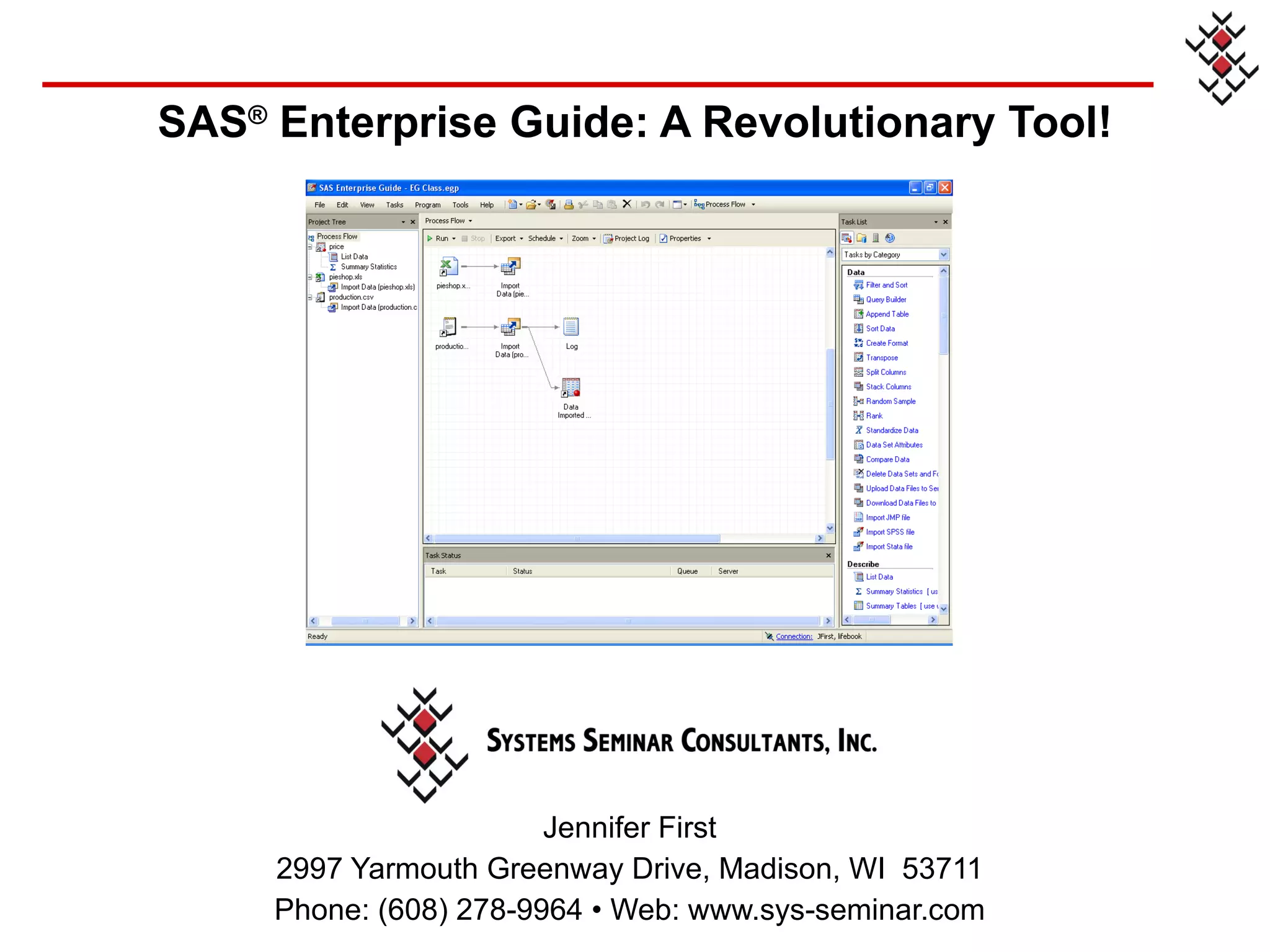
SAS ®  Enterprise Guide: A Revolutionary Tool! Jennifer First 2997 Yarmouth Greenway Drive, Madison, WI  53711 Phone: (608) 278-9964 • Web: www.sys-seminar.com
COPYRIGHT© 2011 Systems Seminar Consultants, Inc. All rights reserved. Printed in the United States of America. No part of this publication may be reproduced, stored in a retrieval system, or transmitted, in any form or by any means, electronic, mechanical, photocopying, or otherwise, without prior written permission of SSC. SAS is a registered trademark of SAS Institute Inc. in the USA and other countries.  The Missing Semicolon  is a trademark of Systems Seminar Consultants, Inc. SAS Enterprise Guide for All!     www.sys-seminar.com SAS ®  Enterprise Guide For All!
Welcome to Systems Seminar Consultants, Inc. Systems Seminar Consultants, Inc. is a SAS Alliance Quality Partner™ of  SAS.  Our team of SAS software experts has a broad  base of knowledge and experience working with a  variety of complex systems in a number of diverse industry settings.  This knowledge and experience is leveraged to help you effectively achieve your business goals. Free SAS Newsletter Our popular publication, The Missing Semicolon™, shares SAS software solutions developed by our staff and provides additional technical assistance to our customers. SAS Training Services For over 1,000 students each year, we make SAS software easier to understand, use, and support. Public training schedules are posted on our web site. Private on-site training options are also available. SAS Enterprise Guide for All!     www.sys-seminar.com
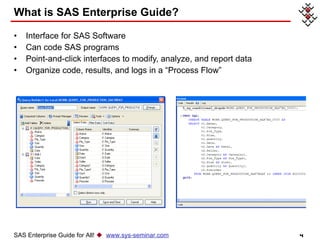
Interface for SAS Software Can code SAS programs Point-and-click interfaces to modify, analyze, and report data  Organize code, results, and logs in a “Process Flow” What is SAS Enterprise Guide? SAS Enterprise Guide for All!     www.sys-seminar.com
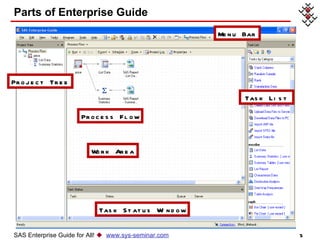
Parts of Enterprise Guide Menu Bar Project Tree Process Flow Task List Task Status Window Work Area SAS Enterprise Guide for All!     www.sys-seminar.com
Increase the efficiency of your programmers Empower analysts with SAS “Guided Analytics” Organize all SAS processes Easily create attractive, useful graphs Package and distribute reports EG is an Enterprise Wide Solution  that truly has something for everyone! SAS Enterprise Guide Is For Everyone! SAS Enterprise Guide for All!     www.sys-seminar.com
Liberate Analysts Many analysts don’t have an IT background  No time to learn expert coding  Conduct data manipulation, analysis, and distribute reports  Struggle to complete tasks without extensive knowledge of coding SAS Enterprise Guide for All!     www.sys-seminar.com
Liberate Analysts (continued) No IT staff dedicated to SAS support Busy IT staff, managing a heavy workload  Analysts create own SAS processes.  Analysts wait for simple queries, reports, and small modifications.  Analysts can complete many tasks on their own with EG.  SAS Enterprise Guide for All!     www.sys-seminar.com
Accessing Data for Analysts Access a variety of data sources, including SAS, Excel, and databases.  Access virtually any data source, across platforms, with the appropriate privileges and SAS products Can be done through a GUI SAS Enterprise Guide for All!     www.sys-seminar.com
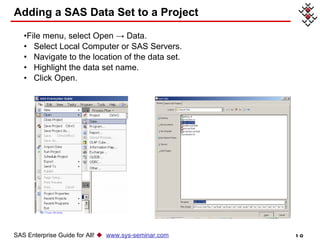
Adding a SAS Data Set to a Project File menu, select Open -> Data. Select Local Computer or SAS Servers.  Navigate to the location of the data set. Highlight the data set name. Click Open. SAS Enterprise Guide for All!     www.sys-seminar.com
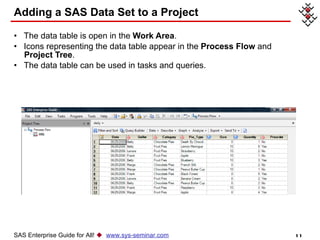
Adding a SAS Data Set to a Project The data table is open in the  Work Area . Icons representing the data table appear in the  Process Flow  and  Project Tree . The data table can be used in tasks and queries. SAS Enterprise Guide for All!     www.sys-seminar.com
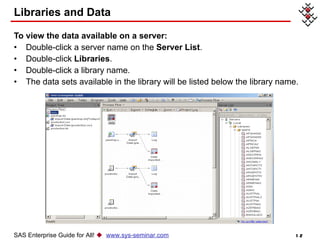
Libraries and Data To view the data available on a server: Double-click a server name on the  Server List .  Double-click  Libraries . Double-click a library name. The data sets available in the library will be listed below the library name.  SAS Enterprise Guide for All!     www.sys-seminar.com
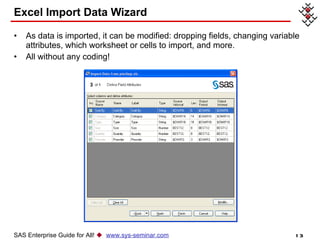
Excel Import Data Wizard As data is imported, it can be modified: dropping fields, changing variable attributes, which worksheet or cells to import, and more.  All without any coding! SAS Enterprise Guide for All!     www.sys-seminar.com
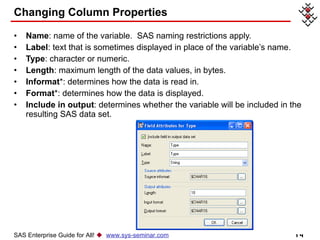
Changing Column Properties Name : name of the variable.  SAS naming restrictions apply. Label : text that is sometimes displayed in place of the variable’s name. Type : character or numeric. Length : maximum length of the data values, in bytes. Informat *: determines how the data is read in. Format *: determines how the data is displayed. Include in output : determines whether the variable will be included in the resulting SAS data set. SAS Enterprise Guide for All!     www.sys-seminar.com
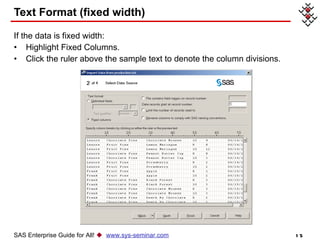
Text Format (fixed width) If the data is fixed width: Highlight Fixed Columns.  Click the ruler above the sample text to denote the column divisions. SAS Enterprise Guide for All!     www.sys-seminar.com
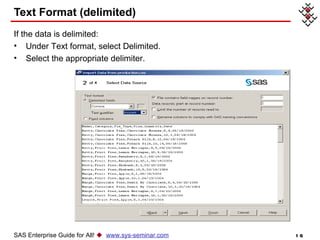
Text Format (delimited) If the data is delimited: Under Text format, select Delimited. Select the appropriate delimiter. SAS Enterprise Guide for All!     www.sys-seminar.com
Tasks A task: Is a specific action executed on data. Can be customized through a step-by-step process, then run or saved.  Is analogous to a procedure in SAS. Tasks can be used to: Analyze and classify data. Compute statistics and carry out statistical tests. Create tables and reports. Generate graphs. SAS Enterprise Guide for All!     www.sys-seminar.com
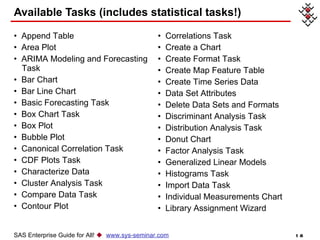
Available Tasks (includes statistical tasks!)  SAS Enterprise Guide for All!     www.sys-seminar.com Append Table Area Plot   ARIMA Modeling and Forecasting  Task   Bar Chart   Bar Line Chart   Basic Forecasting Task   Box Chart Task   Box Plot   Bubble Plot   Canonical Correlation Task   CDF Plots Task Characterize Data   Cluster Analysis Task   Compare Data Task   Contour Plot   Correlations Task Create a Chart   Create Format Task Create Map Feature Table  Create Time Series Data Data Set Attributes Delete Data Sets and Formats Discriminant Analysis Task   Distribution Analysis Task   Donut Chart   Factor Analysis Task   Generalized Linear Models Histograms Task   Import Data Task Individual Measurements Chart   Library Assignment Wizard
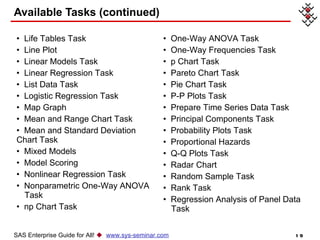
Available Tasks (continued) SAS Enterprise Guide for All!     www.sys-seminar.com Life Tables Task   Line Plot   Linear Models Task   Linear Regression Task   List Data Task   Logistic Regression Task   Map Graph   Mean and Range Chart Task   Mean and Standard Deviation  Chart Task   Mixed Models   Model Scoring Nonlinear Regression Task   Nonparametric One-Way ANOVA  Task   np Chart Task   One-Way ANOVA Task   One-Way Frequencies Task   p Chart Task   Pareto Chart Task   Pie Chart Task   P-P Plots Task   Prepare Time Series Data Task Principal Components Task   Probability Plots Task Proportional Hazards  Q-Q Plots Task   Radar Chart Random Sample Task   Rank Task Regression Analysis of Panel Data  Task
Available Tasks (continued) SAS Enterprise Guide for All!     www.sys-seminar.com Regression Analysis with  Autoregressive Errors Task   Scatter Plot   Sort Data Task   Split Columns Task   Stack Columns Task   Standardize Data Task   Summary Statistics Task   Summary Tables Task   Surface Plot   t Test Task   Table Analysis Task   Transpose Task   u Chart Task
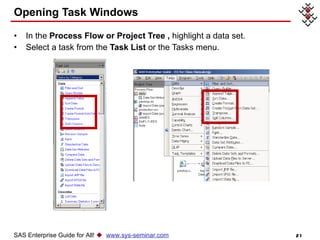
Opening Task Windows In the  Process Flow or Project Tree   ,  highlight a data set. Select a task from the  Task List  or the Tasks menu. SAS Enterprise Guide for All!     www.sys-seminar.com
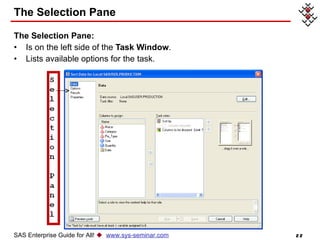
The Selection Pane The Selection Pane: Is on the left side of the  Task Window . Lists available options for the task. SAS Enterprise Guide for All!     www.sys-seminar.com
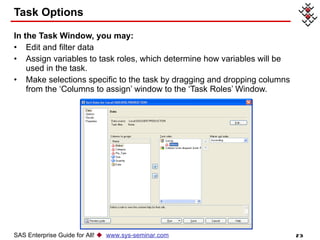
Task Options In the Task Window, you may: Edit and filter data Assign variables to task roles, which determine how variables will be used in the task. Make selections specific to the task by dragging and dropping columns from the ‘Columns to assign’ window to the ‘Task Roles’ Window. SAS Enterprise Guide for All!     www.sys-seminar.com
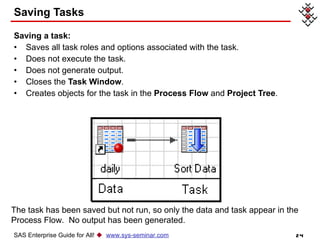
Saving Tasks Saving a task: Saves all task roles and options associated with the task. Does not execute the task. Does not generate output. Closes the  Task Window . Creates objects for the task in the  Process Flow  and  Project Tree . The task has been saved but not run, so only the data and task appear in the Process Flow.  No output has been generated. SAS Enterprise Guide for All!     www.sys-seminar.com
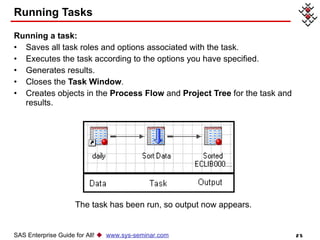
Running Tasks  Running a task: Saves all task roles and options associated with the task. Executes the task according to the options you have specified. Generates results. Closes the  Task Window . Creates objects in the  Process Flow  and  Project Tree  for the task and results. The task has been run, so output now appears. SAS Enterprise Guide for All!     www.sys-seminar.com
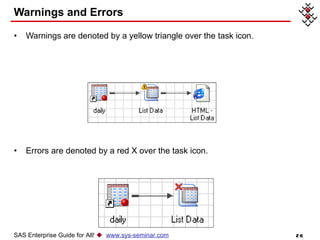
Warnings and Errors Warnings are denoted by a yellow triangle over the task icon. Errors are denoted by a red X over the task icon. SAS Enterprise Guide for All!     www.sys-seminar.com
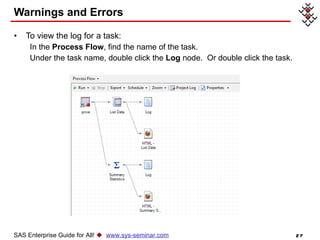
Warnings and Errors To view the log for a task: In the  Process Flow , find the name of the task. Under the task name, double click the  Log  node.  Or double click the task. SAS Enterprise Guide for All!     www.sys-seminar.com
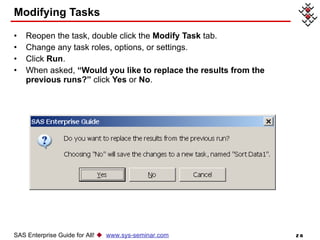
Modifying Tasks Reopen the task, double click the  Modify Task  tab. Change any task roles, options, or settings. Click  Run . When asked,  “Would you like to replace the results from the previous runs?”  click  Yes  or  No . SAS Enterprise Guide for All!     www.sys-seminar.com
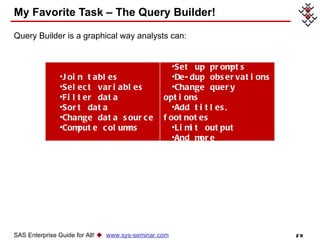
My Favorite Task – The Query Builder! Query Builder is a graphical way analysts can: SAS Enterprise Guide for All!     www.sys-seminar.com Join tables Select variables Filter data Sort data Change data source Compute columns Set up prompts De-dup observations Change query options Add titles, footnotes Limit output And more
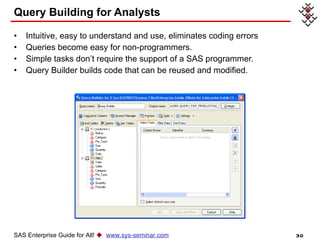
Query Building for Analysts Intuitive, easy to understand and use, eliminates coding errors Queries become easy for non-programmers.  Simple tasks don’t require the support of a SAS programmer.  Query Builder builds code that can be reused and modified.  SAS Enterprise Guide for All!     www.sys-seminar.com
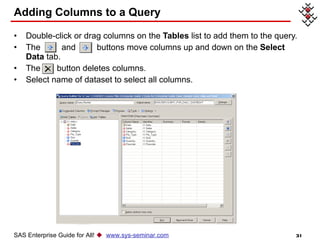
Adding Columns to a Query Double-click or drag columns on the  Tables  list to add them to the query. The  and  buttons move columns up and down on the  Select Data  tab. The  button deletes columns. Select name of dataset to select all columns. SAS Enterprise Guide for All!     www.sys-seminar.com
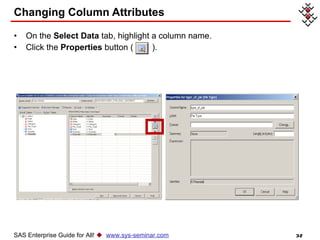
Changing Column Attributes On the  Select Data  tab, highlight a column name. Click the  Properties  button (  ). SAS Enterprise Guide for All!     www.sys-seminar.com
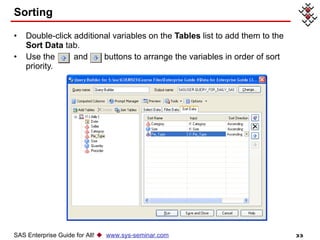
Sorting Double-click additional variables on the  Tables  list to add them to the  Sort Data  tab. Use the  and  buttons to arrange the variables in order of sort priority. SAS Enterprise Guide for All!     www.sys-seminar.com
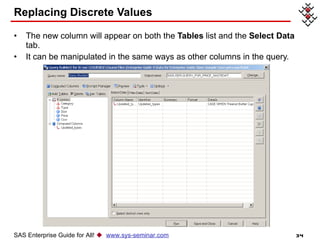
Replacing Discrete Values The new column will appear on both the  Tables  list and the  Select Data  tab. It can be manipulated in the same ways as other columns in the query. SAS Enterprise Guide for All!     www.sys-seminar.com
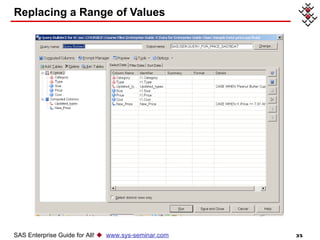
Replacing a Range of Values SAS Enterprise Guide for All!     www.sys-seminar.com
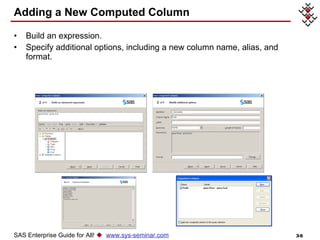
Adding a New Computed Column Build an expression. Specify additional options, including a new column name, alias, and format. SAS Enterprise Guide for All!     www.sys-seminar.com
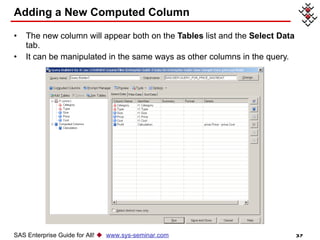
Adding a New Computed Column The new column will appear both on the  Tables  list and the  Select Data  tab. It can be manipulated in the same ways as other columns in the query. SAS Enterprise Guide for All!     www.sys-seminar.com
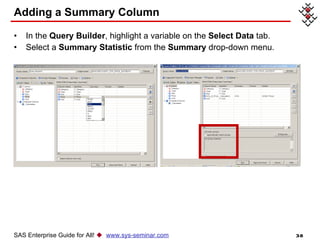
Adding a Summary Column In the  Query Builder , highlight a variable on the  Select Data  tab. Select a  Summary Statistic  from the  Summary  drop-down menu. SAS Enterprise Guide for All!     www.sys-seminar.com
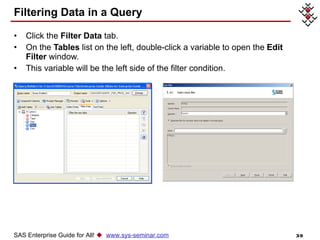
Filtering Data in a Query Click the  Filter Data  tab. On the  Tables  list on the left, double-click a variable to open the  Edit Filter  window. This variable will be the left side of the filter condition. SAS Enterprise Guide for All!     www.sys-seminar.com
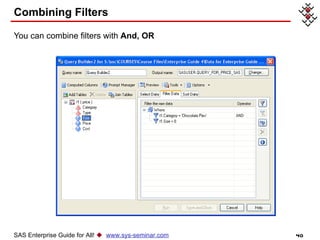
Combining Filters You can combine filters with  And, OR SAS Enterprise Guide for All!     www.sys-seminar.com
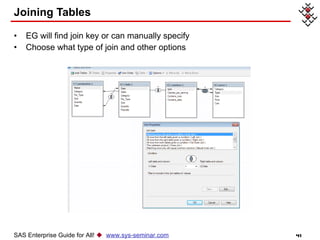
Joining Tables EG will find join key or can manually specify Choose what type of join and other options SAS Enterprise Guide for All!     www.sys-seminar.com
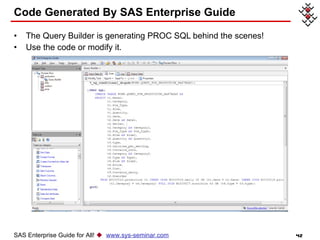
Code Generated By SAS Enterprise Guide  The Query Builder is generating PROC SQL behind the scenes! Use the code or modify it. SAS Enterprise Guide for All!     www.sys-seminar.com
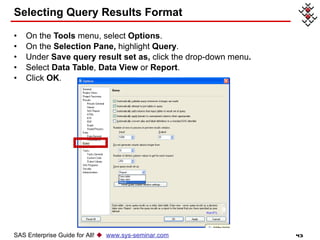
Selecting Query Results Format On the  Tools  menu, select  Options . On the  Selection Pane,  highlight  Query . Under  Save query result set as,  click the drop-down menu . Select  Data Table ,  Data View  or  Report . Click  OK . SAS Enterprise Guide for All!     www.sys-seminar.com
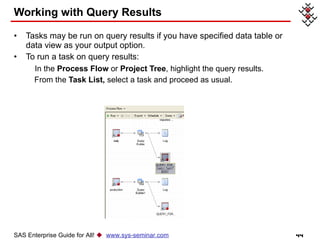
Working with Query Results Tasks may be run on query results if you have specified data table or data view as your output option. To run a task on query results: In the  Process Flow  or  Project Tree , highlight the query results. From the  Task List,  select a task and proceed as usual.  SAS Enterprise Guide for All!     www.sys-seminar.com
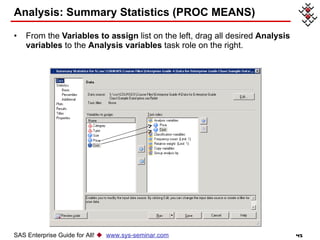
Analysis: Summary Statistics (PROC MEANS) From the  Variables to assign  list on the left, drag all desired  Analysis variables  to the  Analysis variables  task role on the right. SAS Enterprise Guide for All!     www.sys-seminar.com
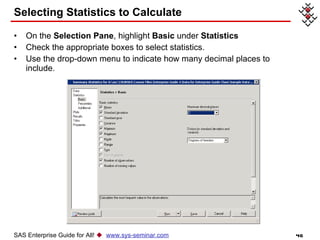
Selecting Statistics to Calculate On the  Selection Pane , highlight  Basic  under  Statistics   Check the appropriate boxes to select statistics. Use the drop-down menu to indicate how many decimal places to include. SAS Enterprise Guide for All!     www.sys-seminar.com
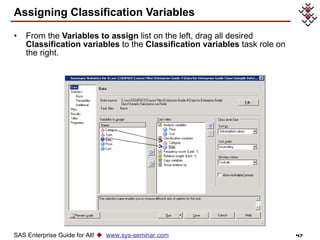
Assigning Classification Variables From the  Variables to assign  list on the left, drag all desired  Classification variables  to the  Classification variables  task role on the right. SAS Enterprise Guide for All!     www.sys-seminar.com
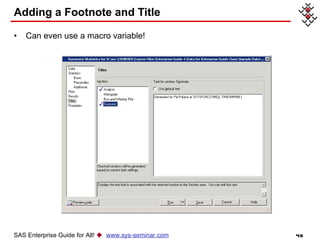
Adding a Footnote and Title Can even use a macro variable! SAS Enterprise Guide for All!     www.sys-seminar.com
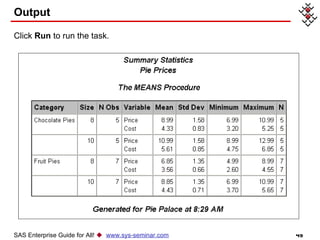
Output Click  Run  to run the task. SAS Enterprise Guide for All!     www.sys-seminar.com
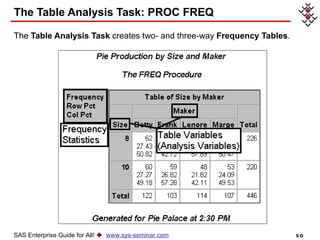
The Table Analysis Task: PROC FREQ The  Table Analysis Task  creates two- and three-way  Frequency Tables . SAS Enterprise Guide for All!     www.sys-seminar.com
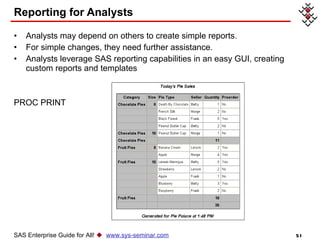
Reporting for Analysts Analysts may depend on others to create simple reports.  For simple changes, they need further assistance.  Analysts leverage SAS reporting capabilities in an easy GUI, creating custom reports and templates PROC PRINT SAS Enterprise Guide for All!     www.sys-seminar.com
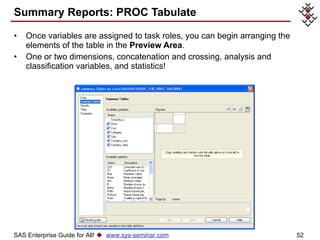
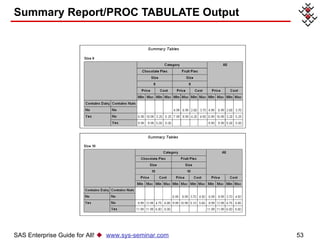
Summary Reports: PROC Tabulate Once variables are assigned to task roles, you can begin arranging the elements of the table in the  Preview Area . One or two dimensions, concatenation and crossing, analysis and classification variables, and statistics!  SAS Enterprise Guide for All!     www.sys-seminar.com
Summary Report/PROC TABULATE Output SAS Enterprise Guide for All!     www.sys-seminar.com
Easily Create Useful, Beautiful Graphs Creating graphs is simple with EG’s interface! No SAS/GRAPH syntax Completed in a fraction of the time SAS Enterprise Guide for All!     www.sys-seminar.com Bar charts Pie charts Line plots Scatter plots Area plots Donut charts Bubble plots Contour plots Box plots And more
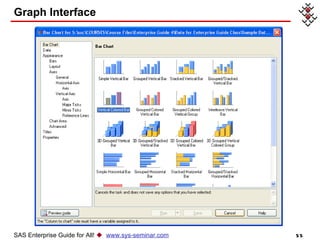
Graph Interface SAS Enterprise Guide for All!     www.sys-seminar.com
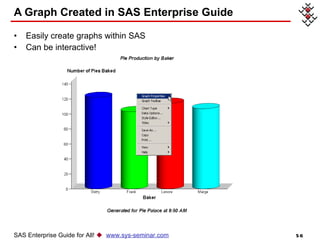
A Graph Created in SAS Enterprise Guide  Easily create graphs within SAS Can be interactive! SAS Enterprise Guide for All!     www.sys-seminar.com
Simple Reporting HTML, PDF, RTF, SAS Report, and Text  CSS’s that define styles, fonts, color, and include pictures Each element easy to manipulate Store and reuse templates.  Develop custom templates. Easily create attractive, consistent reports across enterprise SAS Enterprise Guide for All!     www.sys-seminar.com
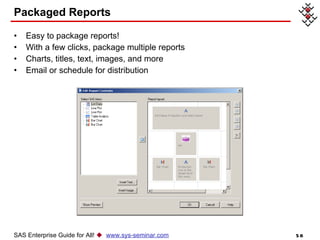
Packaged Reports Easy to package reports!  With a few clicks, package multiple reports Charts, titles, text, images, and more  Email or schedule for distribution  SAS Enterprise Guide for All!     www.sys-seminar.com
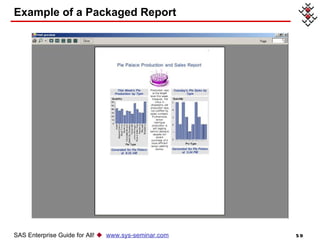
Example of a Packaged Report SAS Enterprise Guide for All!     www.sys-seminar.com
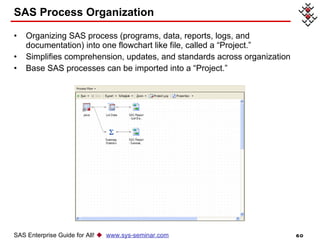
SAS Process Organization Organizing SAS process (programs, data, reports, logs, and documentation) into one flowchart like file, called a “Project.” Simplifies comprehension, updates, and standards across organization  Base SAS processes can be imported into a “Project.” SAS Enterprise Guide for All!     www.sys-seminar.com
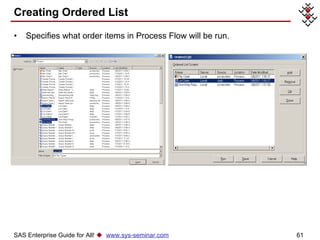
Creating Ordered List Specifies what order items in Process Flow will be run. SAS Enterprise Guide for All!     www.sys-seminar.com
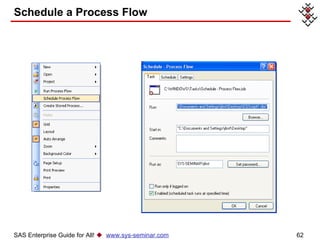
Schedule a Process Flow SAS Enterprise Guide for All!     www.sys-seminar.com
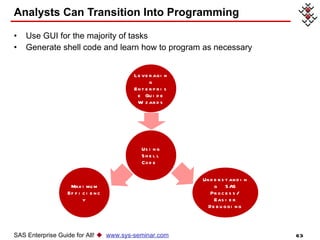
Analysts Can Transition Into Programming Use GUI for the majority of tasks Generate shell code and learn how to program as necessary SAS Enterprise Guide for All!     www.sys-seminar.com Leveraging Enterprise Guide Wizards Using Shell Code  Understanding  SAS Process/ Easier Debugging Maximum Efficiency
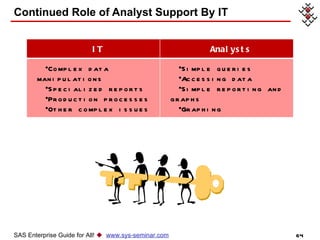
Continued Role of Analyst Support By IT SAS Enterprise Guide for All!     www.sys-seminar.com IT Analysts Complex data manipulations Specialized reports Production processes Other complex issues Simple queries Accessing data Simple reporting and graphs Graphing
Increase Programmer’s Efficiency EG for heavy lifting Wizards to join tables, creating reports, and querying data Quicker than coding from scratch  Less error prone SAS Enterprise Guide for All!     www.sys-seminar.com
Increase Programmer’s Efficiency Easy to misspell a word or miss a comma Cumbersome to join several tables (EG can do up to 32 tables at once!).  Join tables within a wizard in a fraction of the time.  SAS Enterprise Guide for All!     www.sys-seminar.com
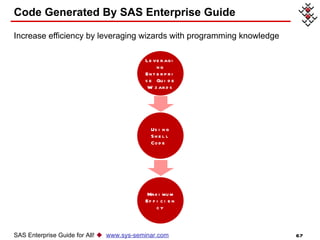
Code Generated By SAS Enterprise Guide  Increase efficiency by leveraging wizards with programming knowledge SAS Enterprise Guide for All!     www.sys-seminar.com Leveraging Enterprise Guide Wizards Using Shell Code  Maximum Efficiency
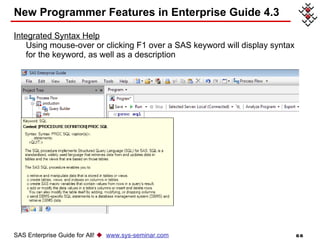
New Programmer Features in Enterprise Guide 4.3 Integrated Syntax Help Using mouse-over or clicking F1 over a SAS keyword will display syntax for the keyword, as well as a description  SAS Enterprise Guide for All!     www.sys-seminar.com
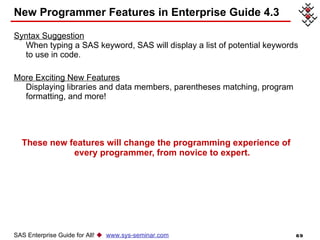
New Programmer Features in Enterprise Guide 4.3 Syntax Suggestion When   typing a SAS keyword, SAS will display a list of potential keywords to use in code.  More Exciting New Features Displaying libraries and data members, parentheses matching, program formatting, and more!  These new features will change the programming experience of  every programmer, from novice to expert.  SAS Enterprise Guide for All!     www.sys-seminar.com
Missing Functionality Some functionality is not available or is limited in EG: DDE  X STATEMENT AND SYSTASK (need special permission from administrator)  SAS/AF Applications  %WINDOW  Statements, PROMPT options on LIBNAME statements, and interactive environments such as the Report window  DATA step debugger  SAS statements that require user interaction and that do not work well in a SAS batch program  THE ENDSAS STATEMENT  Lots of documentation and ideas about how to address these items SAS Enterprise Guide for All!     www.sys-seminar.com
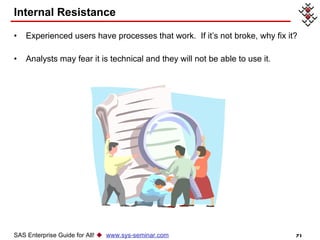
Internal Resistance Experienced users have processes that work.  If it’s not broke, why fix it?  Analysts may fear it is technical and they will not be able to use it.  SAS Enterprise Guide for All!     www.sys-seminar.com
Solution to Resistance – Hands-On Time! Programmers   Use current processes and streamline future development. Analysts Achieve results with ease Everyone will fall in love  SAS Enterprise Guide for All!     www.sys-seminar.com
Logistics of Implementation Part of Base SAS PC product Many have EG and aren’t aware  May need IT for installation or environment support  Additional products may be needed to access data and other platforms.  SAS Enterprise Guide for All!     www.sys-seminar.com
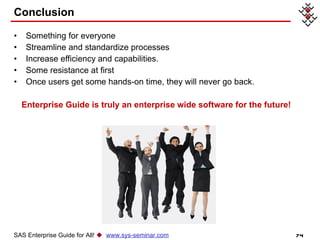
Conclusion Something for everyone Streamline and standardize processes Increase efficiency and capabilities.  Some resistance at first Once users get some hands-on time, they will never go back.  Enterprise Guide is truly an enterprise wide software for the future!  SAS Enterprise Guide for All!     www.sys-seminar.com
Additional Reading Bangi, Audimar. 2010. “SAS® Programmer's Paradise: New Goodies in SAS® Enterprise Guide® 4.” Proceedings of the SAS Global 2010 Conference. Cary, NC: SAS. Available at  http://support.sas.com/resources/papers/proceedings10/137-2010.pdf . The Little SAS Book for Enterprise Guide 4.2, Slaughter and Delwiche The SAS Dummy Blog:  http://blogs.sas.com/sasdummy/ The Missing Semicolon:  www.sys-seminar.com SAS Enterprise Guide for All!     www.sys-seminar.com
Contact Us SAS ®  Training, Consulting, & Help Desk Services 2997 Yarmouth Greenway Drive • Madison, WI  53711 (608) 278-9964 www.sys-seminar.com Jennifer First Director of Operations [email_address] SAS Enterprise Guide for All!     www.sys-seminar.com

Sas Enterprise Guide A Revolutionary Tool

  • 1.
    SAS ® Enterprise Guide: A Revolutionary Tool! Jennifer First 2997 Yarmouth Greenway Drive, Madison, WI 53711 Phone: (608) 278-9964 • Web: www.sys-seminar.com
  • 2.
    COPYRIGHT© 2011 SystemsSeminar Consultants, Inc. All rights reserved. Printed in the United States of America. No part of this publication may be reproduced, stored in a retrieval system, or transmitted, in any form or by any means, electronic, mechanical, photocopying, or otherwise, without prior written permission of SSC. SAS is a registered trademark of SAS Institute Inc. in the USA and other countries. The Missing Semicolon is a trademark of Systems Seminar Consultants, Inc. SAS Enterprise Guide for All!  www.sys-seminar.com SAS ® Enterprise Guide For All!
  • 3.
    Welcome to SystemsSeminar Consultants, Inc. Systems Seminar Consultants, Inc. is a SAS Alliance Quality Partner™ of SAS. Our team of SAS software experts has a broad base of knowledge and experience working with a variety of complex systems in a number of diverse industry settings. This knowledge and experience is leveraged to help you effectively achieve your business goals. Free SAS Newsletter Our popular publication, The Missing Semicolon™, shares SAS software solutions developed by our staff and provides additional technical assistance to our customers. SAS Training Services For over 1,000 students each year, we make SAS software easier to understand, use, and support. Public training schedules are posted on our web site. Private on-site training options are also available. SAS Enterprise Guide for All!  www.sys-seminar.com
  • 4.
    Interface for SASSoftware Can code SAS programs Point-and-click interfaces to modify, analyze, and report data Organize code, results, and logs in a “Process Flow” What is SAS Enterprise Guide? SAS Enterprise Guide for All!  www.sys-seminar.com
  • 5.
    Parts of EnterpriseGuide Menu Bar Project Tree Process Flow Task List Task Status Window Work Area SAS Enterprise Guide for All!  www.sys-seminar.com
  • 6.
    Increase the efficiencyof your programmers Empower analysts with SAS “Guided Analytics” Organize all SAS processes Easily create attractive, useful graphs Package and distribute reports EG is an Enterprise Wide Solution that truly has something for everyone! SAS Enterprise Guide Is For Everyone! SAS Enterprise Guide for All!  www.sys-seminar.com
  • 7.
    Liberate Analysts Manyanalysts don’t have an IT background No time to learn expert coding Conduct data manipulation, analysis, and distribute reports Struggle to complete tasks without extensive knowledge of coding SAS Enterprise Guide for All!  www.sys-seminar.com
  • 8.
    Liberate Analysts (continued)No IT staff dedicated to SAS support Busy IT staff, managing a heavy workload Analysts create own SAS processes. Analysts wait for simple queries, reports, and small modifications. Analysts can complete many tasks on their own with EG. SAS Enterprise Guide for All!  www.sys-seminar.com
  • 9.
    Accessing Data forAnalysts Access a variety of data sources, including SAS, Excel, and databases. Access virtually any data source, across platforms, with the appropriate privileges and SAS products Can be done through a GUI SAS Enterprise Guide for All!  www.sys-seminar.com
  • 10.
    Adding a SASData Set to a Project File menu, select Open -> Data. Select Local Computer or SAS Servers. Navigate to the location of the data set. Highlight the data set name. Click Open. SAS Enterprise Guide for All!  www.sys-seminar.com
  • 11.
    Adding a SASData Set to a Project The data table is open in the Work Area . Icons representing the data table appear in the Process Flow and Project Tree . The data table can be used in tasks and queries. SAS Enterprise Guide for All!  www.sys-seminar.com
  • 12.
    Libraries and DataTo view the data available on a server: Double-click a server name on the Server List . Double-click Libraries . Double-click a library name. The data sets available in the library will be listed below the library name. SAS Enterprise Guide for All!  www.sys-seminar.com
  • 13.
    Excel Import DataWizard As data is imported, it can be modified: dropping fields, changing variable attributes, which worksheet or cells to import, and more. All without any coding! SAS Enterprise Guide for All!  www.sys-seminar.com
  • 14.
    Changing Column PropertiesName : name of the variable. SAS naming restrictions apply. Label : text that is sometimes displayed in place of the variable’s name. Type : character or numeric. Length : maximum length of the data values, in bytes. Informat *: determines how the data is read in. Format *: determines how the data is displayed. Include in output : determines whether the variable will be included in the resulting SAS data set. SAS Enterprise Guide for All!  www.sys-seminar.com
  • 15.
    Text Format (fixedwidth) If the data is fixed width: Highlight Fixed Columns. Click the ruler above the sample text to denote the column divisions. SAS Enterprise Guide for All!  www.sys-seminar.com
  • 16.
    Text Format (delimited)If the data is delimited: Under Text format, select Delimited. Select the appropriate delimiter. SAS Enterprise Guide for All!  www.sys-seminar.com
  • 17.
    Tasks A task:Is a specific action executed on data. Can be customized through a step-by-step process, then run or saved. Is analogous to a procedure in SAS. Tasks can be used to: Analyze and classify data. Compute statistics and carry out statistical tests. Create tables and reports. Generate graphs. SAS Enterprise Guide for All!  www.sys-seminar.com
  • 18.
    Available Tasks (includesstatistical tasks!) SAS Enterprise Guide for All!  www.sys-seminar.com Append Table Area Plot ARIMA Modeling and Forecasting Task Bar Chart Bar Line Chart Basic Forecasting Task Box Chart Task Box Plot Bubble Plot Canonical Correlation Task CDF Plots Task Characterize Data Cluster Analysis Task Compare Data Task Contour Plot Correlations Task Create a Chart Create Format Task Create Map Feature Table Create Time Series Data Data Set Attributes Delete Data Sets and Formats Discriminant Analysis Task Distribution Analysis Task Donut Chart Factor Analysis Task Generalized Linear Models Histograms Task Import Data Task Individual Measurements Chart Library Assignment Wizard
  • 19.
    Available Tasks (continued)SAS Enterprise Guide for All!  www.sys-seminar.com Life Tables Task Line Plot Linear Models Task Linear Regression Task List Data Task Logistic Regression Task Map Graph Mean and Range Chart Task Mean and Standard Deviation Chart Task Mixed Models Model Scoring Nonlinear Regression Task Nonparametric One-Way ANOVA Task np Chart Task One-Way ANOVA Task One-Way Frequencies Task p Chart Task Pareto Chart Task Pie Chart Task P-P Plots Task Prepare Time Series Data Task Principal Components Task Probability Plots Task Proportional Hazards Q-Q Plots Task Radar Chart Random Sample Task Rank Task Regression Analysis of Panel Data Task
  • 20.
    Available Tasks (continued)SAS Enterprise Guide for All!  www.sys-seminar.com Regression Analysis with Autoregressive Errors Task Scatter Plot Sort Data Task Split Columns Task Stack Columns Task Standardize Data Task Summary Statistics Task Summary Tables Task Surface Plot t Test Task Table Analysis Task Transpose Task u Chart Task
  • 21.
    Opening Task WindowsIn the Process Flow or Project Tree , highlight a data set. Select a task from the Task List or the Tasks menu. SAS Enterprise Guide for All!  www.sys-seminar.com
  • 22.
    The Selection PaneThe Selection Pane: Is on the left side of the Task Window . Lists available options for the task. SAS Enterprise Guide for All!  www.sys-seminar.com
  • 23.
    Task Options Inthe Task Window, you may: Edit and filter data Assign variables to task roles, which determine how variables will be used in the task. Make selections specific to the task by dragging and dropping columns from the ‘Columns to assign’ window to the ‘Task Roles’ Window. SAS Enterprise Guide for All!  www.sys-seminar.com
  • 24.
    Saving Tasks Savinga task: Saves all task roles and options associated with the task. Does not execute the task. Does not generate output. Closes the Task Window . Creates objects for the task in the Process Flow and Project Tree . The task has been saved but not run, so only the data and task appear in the Process Flow. No output has been generated. SAS Enterprise Guide for All!  www.sys-seminar.com
  • 25.
    Running Tasks Running a task: Saves all task roles and options associated with the task. Executes the task according to the options you have specified. Generates results. Closes the Task Window . Creates objects in the Process Flow and Project Tree for the task and results. The task has been run, so output now appears. SAS Enterprise Guide for All!  www.sys-seminar.com
  • 26.
    Warnings and ErrorsWarnings are denoted by a yellow triangle over the task icon. Errors are denoted by a red X over the task icon. SAS Enterprise Guide for All!  www.sys-seminar.com
  • 27.
    Warnings and ErrorsTo view the log for a task: In the Process Flow , find the name of the task. Under the task name, double click the Log node. Or double click the task. SAS Enterprise Guide for All!  www.sys-seminar.com
  • 28.
    Modifying Tasks Reopenthe task, double click the Modify Task tab. Change any task roles, options, or settings. Click Run . When asked, “Would you like to replace the results from the previous runs?” click Yes or No . SAS Enterprise Guide for All!  www.sys-seminar.com
  • 29.
    My Favorite Task– The Query Builder! Query Builder is a graphical way analysts can: SAS Enterprise Guide for All!  www.sys-seminar.com Join tables Select variables Filter data Sort data Change data source Compute columns Set up prompts De-dup observations Change query options Add titles, footnotes Limit output And more
  • 30.
    Query Building forAnalysts Intuitive, easy to understand and use, eliminates coding errors Queries become easy for non-programmers. Simple tasks don’t require the support of a SAS programmer. Query Builder builds code that can be reused and modified. SAS Enterprise Guide for All!  www.sys-seminar.com
  • 31.
    Adding Columns toa Query Double-click or drag columns on the Tables list to add them to the query. The and buttons move columns up and down on the Select Data tab. The button deletes columns. Select name of dataset to select all columns. SAS Enterprise Guide for All!  www.sys-seminar.com
  • 32.
    Changing Column AttributesOn the Select Data tab, highlight a column name. Click the Properties button ( ). SAS Enterprise Guide for All!  www.sys-seminar.com
  • 33.
    Sorting Double-click additionalvariables on the Tables list to add them to the Sort Data tab. Use the and buttons to arrange the variables in order of sort priority. SAS Enterprise Guide for All!  www.sys-seminar.com
  • 34.
    Replacing Discrete ValuesThe new column will appear on both the Tables list and the Select Data tab. It can be manipulated in the same ways as other columns in the query. SAS Enterprise Guide for All!  www.sys-seminar.com
  • 35.
    Replacing a Rangeof Values SAS Enterprise Guide for All!  www.sys-seminar.com
  • 36.
    Adding a NewComputed Column Build an expression. Specify additional options, including a new column name, alias, and format. SAS Enterprise Guide for All!  www.sys-seminar.com
  • 37.
    Adding a NewComputed Column The new column will appear both on the Tables list and the Select Data tab. It can be manipulated in the same ways as other columns in the query. SAS Enterprise Guide for All!  www.sys-seminar.com
  • 38.
    Adding a SummaryColumn In the Query Builder , highlight a variable on the Select Data tab. Select a Summary Statistic from the Summary drop-down menu. SAS Enterprise Guide for All!  www.sys-seminar.com
  • 39.
    Filtering Data ina Query Click the Filter Data tab. On the Tables list on the left, double-click a variable to open the Edit Filter window. This variable will be the left side of the filter condition. SAS Enterprise Guide for All!  www.sys-seminar.com
  • 40.
    Combining Filters Youcan combine filters with And, OR SAS Enterprise Guide for All!  www.sys-seminar.com
  • 41.
    Joining Tables EGwill find join key or can manually specify Choose what type of join and other options SAS Enterprise Guide for All!  www.sys-seminar.com
  • 42.
    Code Generated BySAS Enterprise Guide The Query Builder is generating PROC SQL behind the scenes! Use the code or modify it. SAS Enterprise Guide for All!  www.sys-seminar.com
  • 43.
    Selecting Query ResultsFormat On the Tools menu, select Options . On the Selection Pane, highlight Query . Under Save query result set as, click the drop-down menu . Select Data Table , Data View or Report . Click OK . SAS Enterprise Guide for All!  www.sys-seminar.com
  • 44.
    Working with QueryResults Tasks may be run on query results if you have specified data table or data view as your output option. To run a task on query results: In the Process Flow or Project Tree , highlight the query results. From the Task List, select a task and proceed as usual. SAS Enterprise Guide for All!  www.sys-seminar.com
  • 45.
    Analysis: Summary Statistics(PROC MEANS) From the Variables to assign list on the left, drag all desired Analysis variables to the Analysis variables task role on the right. SAS Enterprise Guide for All!  www.sys-seminar.com
  • 46.
    Selecting Statistics toCalculate On the Selection Pane , highlight Basic under Statistics Check the appropriate boxes to select statistics. Use the drop-down menu to indicate how many decimal places to include. SAS Enterprise Guide for All!  www.sys-seminar.com
  • 47.
    Assigning Classification VariablesFrom the Variables to assign list on the left, drag all desired Classification variables to the Classification variables task role on the right. SAS Enterprise Guide for All!  www.sys-seminar.com
  • 48.
    Adding a Footnoteand Title Can even use a macro variable! SAS Enterprise Guide for All!  www.sys-seminar.com
  • 49.
    Output Click Run to run the task. SAS Enterprise Guide for All!  www.sys-seminar.com
  • 50.
    The Table AnalysisTask: PROC FREQ The Table Analysis Task creates two- and three-way Frequency Tables . SAS Enterprise Guide for All!  www.sys-seminar.com
  • 51.
    Reporting for AnalystsAnalysts may depend on others to create simple reports. For simple changes, they need further assistance. Analysts leverage SAS reporting capabilities in an easy GUI, creating custom reports and templates PROC PRINT SAS Enterprise Guide for All!  www.sys-seminar.com
  • 52.
    Summary Reports: PROCTabulate Once variables are assigned to task roles, you can begin arranging the elements of the table in the Preview Area . One or two dimensions, concatenation and crossing, analysis and classification variables, and statistics! SAS Enterprise Guide for All!  www.sys-seminar.com
  • 53.
    Summary Report/PROC TABULATEOutput SAS Enterprise Guide for All!  www.sys-seminar.com
  • 54.
    Easily Create Useful,Beautiful Graphs Creating graphs is simple with EG’s interface! No SAS/GRAPH syntax Completed in a fraction of the time SAS Enterprise Guide for All!  www.sys-seminar.com Bar charts Pie charts Line plots Scatter plots Area plots Donut charts Bubble plots Contour plots Box plots And more
  • 55.
    Graph Interface SASEnterprise Guide for All!  www.sys-seminar.com
  • 56.
    A Graph Createdin SAS Enterprise Guide Easily create graphs within SAS Can be interactive! SAS Enterprise Guide for All!  www.sys-seminar.com
  • 57.
    Simple Reporting HTML,PDF, RTF, SAS Report, and Text CSS’s that define styles, fonts, color, and include pictures Each element easy to manipulate Store and reuse templates. Develop custom templates. Easily create attractive, consistent reports across enterprise SAS Enterprise Guide for All!  www.sys-seminar.com
  • 58.
    Packaged Reports Easyto package reports! With a few clicks, package multiple reports Charts, titles, text, images, and more Email or schedule for distribution SAS Enterprise Guide for All!  www.sys-seminar.com
  • 59.
    Example of aPackaged Report SAS Enterprise Guide for All!  www.sys-seminar.com
  • 60.
    SAS Process OrganizationOrganizing SAS process (programs, data, reports, logs, and documentation) into one flowchart like file, called a “Project.” Simplifies comprehension, updates, and standards across organization Base SAS processes can be imported into a “Project.” SAS Enterprise Guide for All!  www.sys-seminar.com
  • 61.
    Creating Ordered ListSpecifies what order items in Process Flow will be run. SAS Enterprise Guide for All!  www.sys-seminar.com
  • 62.
    Schedule a ProcessFlow SAS Enterprise Guide for All!  www.sys-seminar.com
  • 63.
    Analysts Can TransitionInto Programming Use GUI for the majority of tasks Generate shell code and learn how to program as necessary SAS Enterprise Guide for All!  www.sys-seminar.com Leveraging Enterprise Guide Wizards Using Shell Code Understanding SAS Process/ Easier Debugging Maximum Efficiency
  • 64.
    Continued Role ofAnalyst Support By IT SAS Enterprise Guide for All!  www.sys-seminar.com IT Analysts Complex data manipulations Specialized reports Production processes Other complex issues Simple queries Accessing data Simple reporting and graphs Graphing
  • 65.
    Increase Programmer’s EfficiencyEG for heavy lifting Wizards to join tables, creating reports, and querying data Quicker than coding from scratch Less error prone SAS Enterprise Guide for All!  www.sys-seminar.com
  • 66.
    Increase Programmer’s EfficiencyEasy to misspell a word or miss a comma Cumbersome to join several tables (EG can do up to 32 tables at once!). Join tables within a wizard in a fraction of the time. SAS Enterprise Guide for All!  www.sys-seminar.com
  • 67.
    Code Generated BySAS Enterprise Guide Increase efficiency by leveraging wizards with programming knowledge SAS Enterprise Guide for All!  www.sys-seminar.com Leveraging Enterprise Guide Wizards Using Shell Code Maximum Efficiency
  • 68.
    New Programmer Featuresin Enterprise Guide 4.3 Integrated Syntax Help Using mouse-over or clicking F1 over a SAS keyword will display syntax for the keyword, as well as a description SAS Enterprise Guide for All!  www.sys-seminar.com
  • 69.
    New Programmer Featuresin Enterprise Guide 4.3 Syntax Suggestion When typing a SAS keyword, SAS will display a list of potential keywords to use in code. More Exciting New Features Displaying libraries and data members, parentheses matching, program formatting, and more! These new features will change the programming experience of every programmer, from novice to expert. SAS Enterprise Guide for All!  www.sys-seminar.com
  • 70.
    Missing Functionality Somefunctionality is not available or is limited in EG: DDE X STATEMENT AND SYSTASK (need special permission from administrator) SAS/AF Applications %WINDOW Statements, PROMPT options on LIBNAME statements, and interactive environments such as the Report window DATA step debugger SAS statements that require user interaction and that do not work well in a SAS batch program THE ENDSAS STATEMENT Lots of documentation and ideas about how to address these items SAS Enterprise Guide for All!  www.sys-seminar.com
  • 71.
    Internal Resistance Experiencedusers have processes that work. If it’s not broke, why fix it? Analysts may fear it is technical and they will not be able to use it. SAS Enterprise Guide for All!  www.sys-seminar.com
  • 72.
    Solution to Resistance– Hands-On Time! Programmers Use current processes and streamline future development. Analysts Achieve results with ease Everyone will fall in love SAS Enterprise Guide for All!  www.sys-seminar.com
  • 73.
    Logistics of ImplementationPart of Base SAS PC product Many have EG and aren’t aware May need IT for installation or environment support Additional products may be needed to access data and other platforms. SAS Enterprise Guide for All!  www.sys-seminar.com
  • 74.
    Conclusion Something foreveryone Streamline and standardize processes Increase efficiency and capabilities. Some resistance at first Once users get some hands-on time, they will never go back. Enterprise Guide is truly an enterprise wide software for the future! SAS Enterprise Guide for All!  www.sys-seminar.com
  • 75.
    Additional Reading Bangi,Audimar. 2010. “SAS® Programmer's Paradise: New Goodies in SAS® Enterprise Guide® 4.” Proceedings of the SAS Global 2010 Conference. Cary, NC: SAS. Available at http://support.sas.com/resources/papers/proceedings10/137-2010.pdf . The Little SAS Book for Enterprise Guide 4.2, Slaughter and Delwiche The SAS Dummy Blog: http://blogs.sas.com/sasdummy/ The Missing Semicolon: www.sys-seminar.com SAS Enterprise Guide for All!  www.sys-seminar.com
  • 76.
    Contact Us SAS® Training, Consulting, & Help Desk Services 2997 Yarmouth Greenway Drive • Madison, WI 53711 (608) 278-9964 www.sys-seminar.com Jennifer First Director of Operations [email_address] SAS Enterprise Guide for All!  www.sys-seminar.com

Editor's Notes