Safyr for SAP screen shots
from demonstration session
Safyr: Application Metadata Discovery
Safyr – a unique software proposition
• Software to make ERP/CRM metadata
easy to access, understand and share
• Data professionals can explore
metadata in large packaged applications
• Does this by extracting metadata from
the ERP/CRM data dictionary
• Not just an ’interface’ – more than just a
scanner for ERP or CRM’s
“The data in these (ERP) systems makes sense
and are useful, but only in the context of the hard-
coded processes.
In short, the data is trapped inside a complex web
of thousands of database tables whose integrity is
solely controlled by a rigid fossilized collection of
software algorithms.
If you don’t believe me, just ask your SAP support
staff for access to directly update (or even read) a
data table.”
John Schmidt (vice president of Global
Integration Services at Informatica
Corporation)
Why use Safyr?
• Shortens time to project value
• Cuts cost of data discovery
• Improves trust
• Reduces risk
• Gives control to data professionals
“As a result of our investment in Safyr
we are able to take a more agile
approach to meeting the demands for
new reports and data within acceptable
timescales and the business’ trust in
the information they provide is
growing”.
Scott Delaney
BI Team Leader
Demonstration session
• The following are screenshots captured from a live demonstration of Safyr
• Safyr works by extracting the meaningful metadata from ERP and CRM
packages and making it usable by data professionals who do not need to
be application specialists.
• The demonstration is based on an SAP ECC system with over 98,000
tables.
• Without Safyr the sort of analysis and results achieved would take much
longer, cost more in terms of money and resource and may not be
accurate
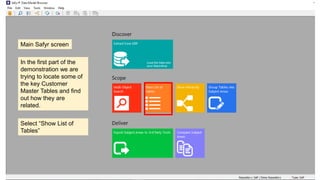
Main Safyr screen
In the first part of the
demonstration we are
trying to locate some of
the key Customer
Master Tables and find
out how they are
related.
Select “Show List of
Tables”
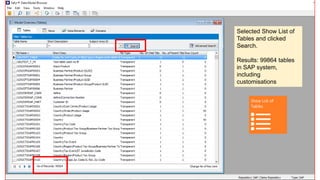
Selected Show List of
Tables and clicked
Search.
Results: 99864 tables
in SAP system,
including
customisations
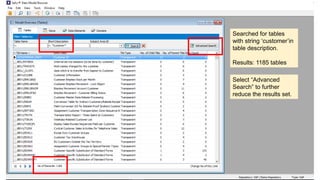
Searched for tables
with string ‘customer’in
table description.
Results: 1185 tables
Select “Advanced
Search” to further
reduce the results set.
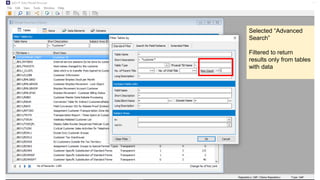
Selected “Advanced
Search”
Filtered to return
results only from tables
with data
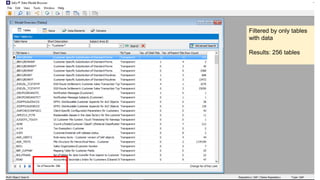
Filtered by only tables
with data
Results: 256 tables
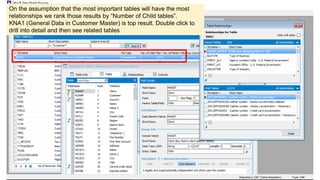
On the assumption that the most important tables will have the most
relationships we rank those results by “Number of Child tables”.
KNA1 (General Data in Customer Master) is top result. Double click to
drill into detail and then see related tables
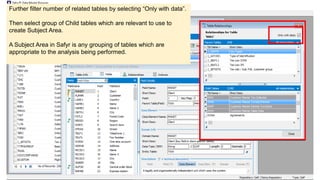
Further filter number of related tables by selecting “Only with data”.
Then select group of Child tables which are relevant to use to
create Subject Area.
A Subject Area in Safyr is any grouping of tables which are
appropriate to the analysis being performed.
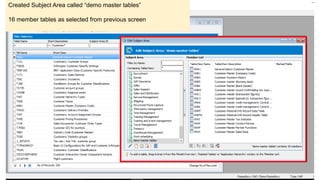
Created Subject Area called “demo master tables”
16 member tables as selected from previous screen
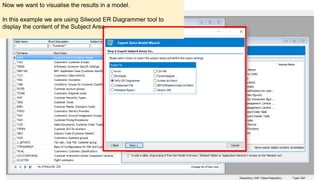
Now we want to visualise the results in a model.
In this example we are using Silwood ER Diagrammer tool to
display the content of the Subject Area.
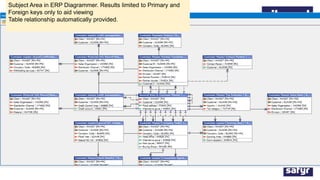
Subject Area in ERP Diagrammer. Results limited to Primary and
Foreign keys only to aid viewing
Table relationship automatically provided.
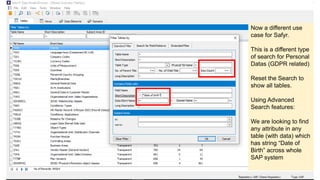
Now a different use
case for Safyr.
This is a different type
of search for Personal
Datas (GDPR related)
Reset the Search to
show all tables.
Using Advanced
Search features:
We are looking to find
any attribute in any
table (with data) which
has string “Date of
Birth” across whole
SAP system
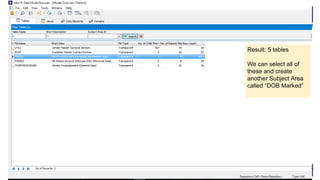
Result: 5 tables
We can select all of
these and create
another Subject Area
called “DOB Marked”
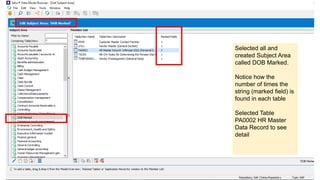
Selected all and
created Subject Area
called DOB Marked.
Notice how the
number of times the
string (marked field) is
found in each table
Selected Table
PA0002 HR Master
Data Record to see
detail
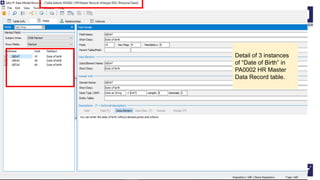
Detail of 3 instances
of “Date of Birth” in
PA0002 HR Master
Data Record table.
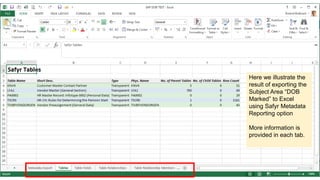
Here we illustrate the
result of exporting the
Subject Area “DOB
Marked” to Excel
using Safyr Metadata
Reporting option
More information is
provided in each tab.
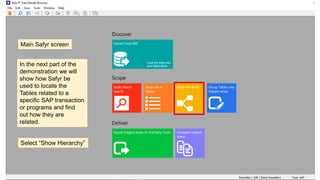
Main Safyr screen
In the next part of the
demonstration we will
show how Safyr be
used to locate the
Tables related to a
specific SAP transaction
or programs and find
out how they are
related.
Select “Show Hierarchy”
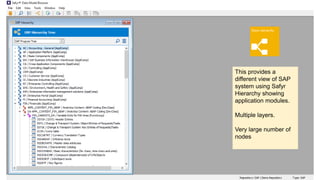
This provides a
different view of SAP
system using Safyr
Hierarchy showing
application modules.
Multiple layers.
Very large number of
nodes
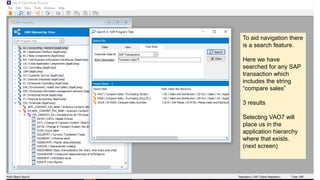
To aid navigation there
is a search feature.
Here we have
searched for any SAP
transaction which
includes the string
“compare sales”
3 results
Selecting VAO7 will
place us in the
application hierarchy
where that exists.
(next screen)
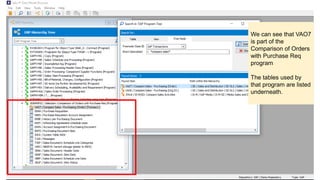
We can see that VAO7
is part of the
Comparison of Orders
with Purchase Req
program
The tables used by
that program are listed
underneath.
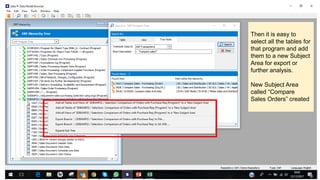
Then it is easy to
select all the tables for
that program and add
them to a new Subject
Area for export or
further analysis.
New Subject Area
called “Compare
Sales Orders” created
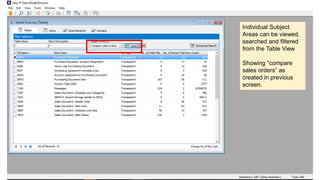
Individual Subject
Areas can be viewed,
searched and filtered
from the Table View
Showing “compare
sales orders” as
created in previous
screen.
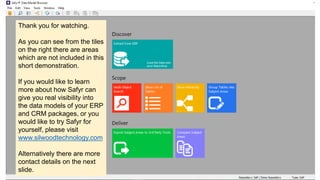
Thank you for watching.
As you can see from the tiles
on the right there are areas
which are not included in this
short demonstration.
If you would like to learn
more about how Safyr can
give you real visibility into
the data models of your ERP
and CRM packages, or you
would like to try Safyr for
yourself, please visit
www.silwoodtechnology.com
Alternatively there are more
contact details on the next
slide.
Contact
Roland Bullivant
rbullivant@silwoodtechnology.com
Tel: +44 7900 340257
Request a web call:
https://calendly.com/rbullivant
Visit www.silwoodtechnology.com
for more information,
downloads and trial software

Using Safyr to navigate and analyse SAP data model demonstration screen shots

  • 1.
    Safyr for SAPscreen shots from demonstration session Safyr: Application Metadata Discovery
  • 2.
    Safyr – aunique software proposition • Software to make ERP/CRM metadata easy to access, understand and share • Data professionals can explore metadata in large packaged applications • Does this by extracting metadata from the ERP/CRM data dictionary • Not just an ’interface’ – more than just a scanner for ERP or CRM’s “The data in these (ERP) systems makes sense and are useful, but only in the context of the hard- coded processes. In short, the data is trapped inside a complex web of thousands of database tables whose integrity is solely controlled by a rigid fossilized collection of software algorithms. If you don’t believe me, just ask your SAP support staff for access to directly update (or even read) a data table.” John Schmidt (vice president of Global Integration Services at Informatica Corporation)
  • 3.
    Why use Safyr? •Shortens time to project value • Cuts cost of data discovery • Improves trust • Reduces risk • Gives control to data professionals “As a result of our investment in Safyr we are able to take a more agile approach to meeting the demands for new reports and data within acceptable timescales and the business’ trust in the information they provide is growing”. Scott Delaney BI Team Leader
  • 4.
    Demonstration session • Thefollowing are screenshots captured from a live demonstration of Safyr • Safyr works by extracting the meaningful metadata from ERP and CRM packages and making it usable by data professionals who do not need to be application specialists. • The demonstration is based on an SAP ECC system with over 98,000 tables. • Without Safyr the sort of analysis and results achieved would take much longer, cost more in terms of money and resource and may not be accurate
  • 5.
    Main Safyr screen Inthe first part of the demonstration we are trying to locate some of the key Customer Master Tables and find out how they are related. Select “Show List of Tables”
  • 6.
    Selected Show Listof Tables and clicked Search. Results: 99864 tables in SAP system, including customisations
  • 7.
    Searched for tables withstring ‘customer’in table description. Results: 1185 tables Select “Advanced Search” to further reduce the results set.
  • 8.
    Selected “Advanced Search” Filtered toreturn results only from tables with data
  • 9.
    Filtered by onlytables with data Results: 256 tables
  • 10.
    On the assumptionthat the most important tables will have the most relationships we rank those results by “Number of Child tables”. KNA1 (General Data in Customer Master) is top result. Double click to drill into detail and then see related tables
  • 11.
    Further filter numberof related tables by selecting “Only with data”. Then select group of Child tables which are relevant to use to create Subject Area. A Subject Area in Safyr is any grouping of tables which are appropriate to the analysis being performed.
  • 12.
    Created Subject Areacalled “demo master tables” 16 member tables as selected from previous screen
  • 13.
    Now we wantto visualise the results in a model. In this example we are using Silwood ER Diagrammer tool to display the content of the Subject Area.
  • 14.
    Subject Area inERP Diagrammer. Results limited to Primary and Foreign keys only to aid viewing Table relationship automatically provided.
  • 15.
    Now a differentuse case for Safyr. This is a different type of search for Personal Datas (GDPR related) Reset the Search to show all tables. Using Advanced Search features: We are looking to find any attribute in any table (with data) which has string “Date of Birth” across whole SAP system
  • 16.
    Result: 5 tables Wecan select all of these and create another Subject Area called “DOB Marked”
  • 17.
    Selected all and createdSubject Area called DOB Marked. Notice how the number of times the string (marked field) is found in each table Selected Table PA0002 HR Master Data Record to see detail
  • 18.
    Detail of 3instances of “Date of Birth” in PA0002 HR Master Data Record table.
  • 19.
    Here we illustratethe result of exporting the Subject Area “DOB Marked” to Excel using Safyr Metadata Reporting option More information is provided in each tab.
  • 20.
    Main Safyr screen Inthe next part of the demonstration we will show how Safyr be used to locate the Tables related to a specific SAP transaction or programs and find out how they are related. Select “Show Hierarchy”
  • 21.
    This provides a differentview of SAP system using Safyr Hierarchy showing application modules. Multiple layers. Very large number of nodes
  • 22.
    To aid navigationthere is a search feature. Here we have searched for any SAP transaction which includes the string “compare sales” 3 results Selecting VAO7 will place us in the application hierarchy where that exists. (next screen)
  • 23.
    We can seethat VAO7 is part of the Comparison of Orders with Purchase Req program The tables used by that program are listed underneath.
  • 24.
    Then it iseasy to select all the tables for that program and add them to a new Subject Area for export or further analysis. New Subject Area called “Compare Sales Orders” created
  • 25.
    Individual Subject Areas canbe viewed, searched and filtered from the Table View Showing “compare sales orders” as created in previous screen.
  • 26.
    Thank you forwatching. As you can see from the tiles on the right there are areas which are not included in this short demonstration. If you would like to learn more about how Safyr can give you real visibility into the data models of your ERP and CRM packages, or you would like to try Safyr for yourself, please visit www.silwoodtechnology.com Alternatively there are more contact details on the next slide.
  • 27.
    Contact Roland Bullivant rbullivant@silwoodtechnology.com Tel: +447900 340257 Request a web call: https://calendly.com/rbullivant Visit www.silwoodtechnology.com for more information, downloads and trial software