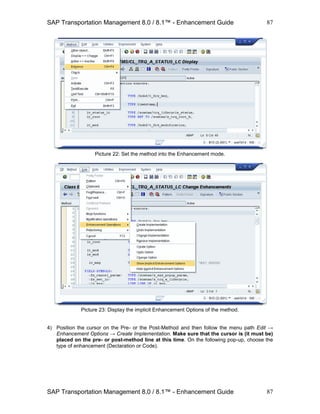
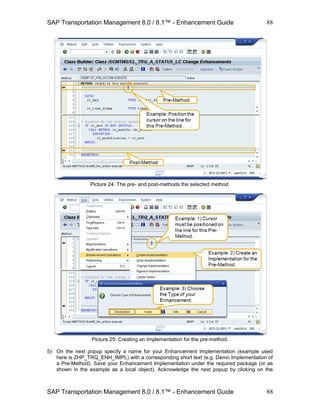
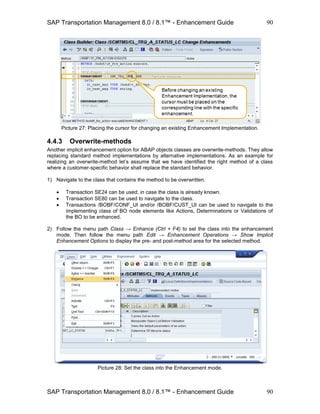
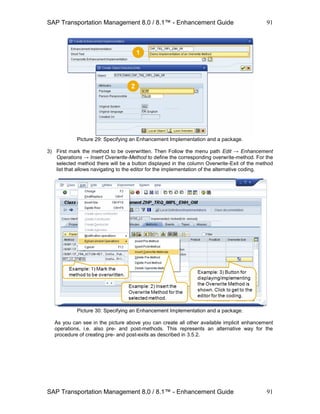
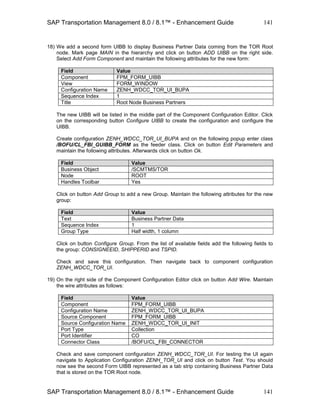
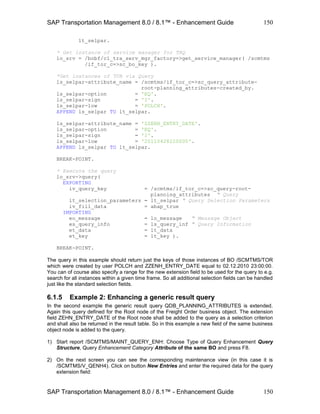
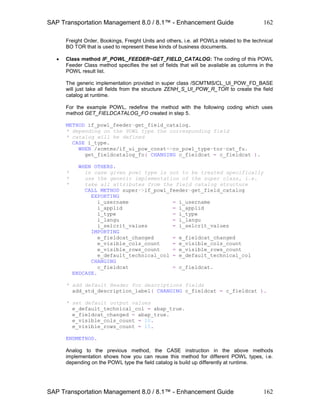
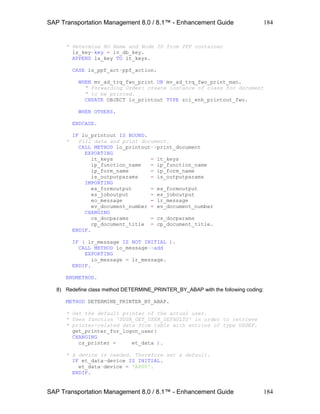
Author: Holger Polch (Version 2.0 - 11/2011)
Holger Polch
SAP Transportation Management 8.0 / 8.1
Enhancement Guide
 An overview on the available enhancement techniques
 Coding and Configuration examples
 Tips & Tricks
SAP Transportation Management 8.0 / 8.1™ - Enhancement Guide
2
2
Table of Content
1 INTRODUCTION ................................................................................................................7
2 GLOSSARY ...........................................................................................................................8
3 BOPF - OVERVIEW AND ARCHITECTURE .................................................................9
3.1 BOPF - Business Object Processing Framework............................................................................... 9
3.1.1 Architecture............................................................................................................................... 10
3.1.2 Business Object Model.............................................................................................................. 11
3.1.3 BOPF Modeling Tool.................................................................................................................. 14
3.2 BOPF Consumer Implementation Basics ....................................................................................... 17
3.2.1 Service Manager........................................................................................................................ 17
3.2.2 Query......................................................................................................................................... 17
3.2.3 Retrieve ..................................................................................................................................... 19
3.2.4 Retrieve By Association (Standard) ........................................................................................... 19
3.2.5 Retrieve By Association (XBO)................................................................................................... 20
3.2.6 Retrieve By Association (Dependent Objects)........................................................................... 20
3.2.7 Do Action (Standard)................................................................................................................. 22
3.2.8 Do Action (Action Parameters).................................................................................................. 22
3.2.9 Convert Alternative Key ............................................................................................................ 23
3.2.10 Modify ....................................................................................................................................... 23
3.3 BOPF Enhancement Workbench ................................................................................................... 26
3.3.1 Overview ................................................................................................................................... 26
3.3.2 First step: Creating an Enhancement Object............................................................................. 30
3.3.3 General remarks on creating enhancements ............................................................................ 31
3.3.4 Creating Field Extensions .......................................................................................................... 32
3.3.5 Creating Subnodes..................................................................................................................... 34
3.3.6 Creating Actions ........................................................................................................................ 38
3.3.7 Creating Action Validations ....................................................................................................... 40
3.3.8 Creating Pre- and Post-Action Enhancements .......................................................................... 41
3.3.9 Creating Consistency Validations .............................................................................................. 42
3.3.10 Creating Determinations ........................................................................................................... 44
3.3.11 Creating Queries........................................................................................................................ 48
4 TECHNIQUES FOR ENHANCING THE BUSINESS LOGIC...................................... 50
4.1 BAdIs ............................................................................................................................................ 50
4.1.1 Where and how to find BAdIs related to TM ............................................................................ 50
4.1.2 Implementing a BAdI................................................................................................................. 51
4.2 Process Controller Strategies ........................................................................................................ 54
4.2.1 Relevant parts of the Process Controller................................................................................... 54
4.2.2 Setting up a Process Controller Strategy................................................................................... 55
4.2.3 Using the Process Controller Framework for a new process .................................................... 60
4.2.4 Using Method Parameters ........................................................................................................ 68
4.3 Conditions .................................................................................................................................... 70
4.3.1 Customizing: Condition Types and Data Access Definitions...................................................... 70
4.3.2 Creating Data Access Definitions............................................................................................... 71
4.3.3 Creating Condition Types .......................................................................................................... 78
SAP Transportation Management 8.0 / 8.1™ - Enhancement Guide
3
3
4.3.4 Assign Data Access Definitions to Condition Types................................................................... 79
4.3.5 Creating Conditions................................................................................................................... 80
4.3.6 Simulating Conditions................................................................................................................ 82
4.3.7 Implementing a condition call in your coding ........................................................................... 84
4.4 Implicit Enhancements.................................................................................................................. 86
4.4.1 Use Implicit Enhancements with care ....................................................................................... 86
4.4.2 Pre- and post-methods for existing methods............................................................................ 86
4.4.3 Overwrite-methods................................................................................................................... 90
5 USER INTERFACE ENHANCEMENTS ........................................................................ 93
5.1 FPM – Floor Plan Manager............................................................................................................ 93
5.1.1 User Interface Building Blocks................................................................................................... 93
5.1.2 Feeder Classes ........................................................................................................................... 94
5.1.3 Wire Model................................................................................................................................ 95
5.2 FBI – Floor Plan Manager BOPF Integration .................................................................................. 97
5.2.1 FBI View (design time)............................................................................................................... 97
5.2.2 FBI View Instance (runtime) ...................................................................................................... 99
5.2.3 FBI Controller (runtime) ............................................................................................................ 99
5.2.4 Conversion Classes .................................................................................................................... 99
5.2.5 Exit Classes .............................................................................................................................. 100
5.3 General remarks on user interface enhancements...................................................................... 101
5.4 Enhancing the User Interface...................................................................................................... 104
5.4.1 Field Extensions....................................................................................................................... 104
5.4.2 Adding a new action to a toolbar ............................................................................................ 111
5.4.3 Adding a new tab with data from a new BO subnode............................................................. 115
5.4.4 Adding a new Action to the main tool bar .............................................................................. 122
5.4.5 Adding a new Parameter Action with a Popup ....................................................................... 125
5.4.6 Accessing and displaying data from external sources............................................................. 129
5.4.7 Building a simple new User Interface...................................................................................... 135
5.5 Transporting or removing UI enhancements............................................................................... 144
6 ENHANCING QUERIES AND POWL .........................................................................145
6.1 Queries ....................................................................................................................................... 145
6.1.1 General concept ...................................................................................................................... 145
6.1.2 Maintaining the standard query enhancement table ............................................................. 146
6.1.3 BAdI for creation of query enhancement table entries........................................................... 148
6.1.4 Example 1: Enhancing a standard query ................................................................................. 149
6.1.5 Example 2: Enhancing a generic result query.......................................................................... 150
6.2 Creating a new POWL ................................................................................................................. 153
6.2.1 The POWL Feeder Class........................................................................................................... 153
6.2.2 The POWL Action Class............................................................................................................ 164
6.2.3 The basic POWL Customizing .................................................................................................. 166
6.2.4 Creating POWL Queries........................................................................................................... 167
6.2.5 Additional POWL Customizing................................................................................................. 168
SAP Transportation Management 8.0 / 8.1™ - Enhancement Guide
4
4
6.3 Enhancing a standard POWL ....................................................................................................... 168
7 ENHANCING PRINT FORMS......................................................................................169
7.1 Enhancing the backend part of a form ........................................................................................ 169
7.1.1 Enhancing the involved BO(s).................................................................................................. 169
7.1.2 Copying the standard form...................................................................................................... 170
7.1.3 Enhancing the Print Structure of a Form................................................................................. 171
7.1.4 Providing Data to enhanced fields .......................................................................................... 173
7.2 Adjusting the Layout................................................................................................................... 174
7.2.1 Installing Adobe LiveCycle Designer........................................................................................ 174
7.2.2 Placing additional content on the form layout........................................................................ 174
7.3 Creating a new form ................................................................................................................... 175
7.3.1 Creating a print structure and table type................................................................................ 175
7.3.2 Creating a form interface ........................................................................................................ 176
7.3.3 Creating the Adobe form......................................................................................................... 177
7.3.4 Creating required coding in the backend ................................................................................ 180
7.4 Configuring PPF (Post Processing Framework) ............................................................................ 187
7.4.1 Maintaining PPF Settings......................................................................................................... 187
7.4.2 Maintaining Output Management Adapter Settings............................................................... 191
7.4.3 Maintaining an output device/printer for your user............................................................... 191
7.4.4 Preparing an example print document.................................................................................... 191
8 ENHANCING SERVICES...............................................................................................196
8.1 General remarks on Service Enhancements ................................................................................ 196
8.1.1 Example Service Enhancement ............................................................................................... 197
8.1.2 Basic steps to enhance an Enterprise Service ......................................................................... 199
8.2 Development in System Landscape Directory (SLD) .................................................................... 199
8.2.1 Creating a Product and Software Component ........................................................................ 199
8.2.2 Defining dependencies between EnSWCV and SWCV............................................................. 199
8.3 Development in Enterprise Service Repository (ESR) .................................................................. 199
8.3.1 Import an EnSWCV into ESR.................................................................................................... 199
8.3.2 Create a Namespace in EnSWCV. ............................................................................................ 200
8.3.3 Create an Enhancement Data Type in the SWC. ..................................................................... 200
8.3.4 Create an Enhancement Data Type for TM in the SWC. ......................................................... 200
8.3.5 Create an Enhancement Data Type for ECC in the SWC.......................................................... 200
8.3.6 Activate all objects. ................................................................................................................. 200
8.4 Development in the Backend Systems ........................................................................................ 200
8.4.1 Enhancements in ERP (ECC) .................................................................................................... 200
8.4.2 Enhancements in TM............................................................................................................... 200
9 ENHANCING FURTHER OBJECTS & FUNCTIONS................................................201
9.1 Transportation Charge Management Enhancements.................................................................. 201
9.1.1 Adding a new scale base.......................................................................................................... 201
9.1.2 Adding a new calculation base ................................................................................................ 201
9.1.3 Adding a new resolution base ................................................................................................. 201
SAP Transportation Management 8.0 / 8.1™ - Enhancement Guide
5
5
9.2 Change Controller (TOR) ............................................................................................................. 202
SAP Transportation Management 8.0 / 8.1™ - Enhancement Guide
6
6
Disclaimer:
This document outlines our general product direction and should not be relied on in making a
purchase decision.
This document is not subject to your license agreement or any other agreement with SAP. SAP
has no obligation to pursue any course of business outlined in this document or to develop or
release any functionality mentioned in this document / presentation. This document / presentation
and SAP's strategy and possible future developments are subject to change and may be changed
by SAP at any time for any reason without notice.
The information in this document is not a commitment, promise or legal obligation to deliver any
material, code or functionality. This document is provided without a warranty of any kind, either
express or implied, including but not limited to, the implied warranties of merchantability, fitness
for a particular purpose, or non-infringement. SAP assumes no responsibility for errors or
omissions in this document, and shall have no liability for damages of any kind including without
limitation direct, special, indirect, or consequential damages that may result from the use of this
document.
All forward-looking statements are subject to various risks and uncertainties that could cause
actual results to differ materially from expectations. Readers are cautioned not to place undue
reliance on these forward-looking statements, which speak only as for their dates, and they
should not be relied upon in making purchasing or any other decisions.
© Copyright 2012 SAP AG. All rights reserved.
No part of this publication may be reproduced or transmitted in any form or for any purpose
without the express permission of SAP AG. The information contained herein may be changed
without prior notice.
SAP Transportation Management 8.0 / 8.1™ - Enhancement Guide
7
7
1 Introduction
The target of this document is to describe the possibilities and used technologies
to enhance SAP Transportation Management 8.0™ / 8.1™. This document does
not intend to provide a complete and detailed description of all possible
enhancements.
Instead, it describes the usage of the available enhancement technologies based
on some basic examples. These examples are chosen to be representative for
similar enhancements in multiple areas of the application. In some cases, links to
more detailed descriptions are provided.
As the title of the document mentions, it is closely related to the SAP TM
releases 8.0 and 8.1 based on SAP NetWeaver 7.02. The following release TM
9.0 is based on SAP NetWeaver 7.03. Most of the content & described concepts
are independent of the TM release. A specific version for TM 9.0 and later
releases will follow to especially reflect the changes e.g. in the FPM/FBI area for
configuring the User Interface. In general these concepts are still the same as
per TM 9.0 but might look different and provide some more comfortable handling.
A follow-on version of this document will therefore contain adjusted screen shots
as well as revised descriptions where required.
SAP Transportation Management 8.0 / 8.1™ - Enhancement Guide
8
8
2 Glossary
The following abbreviations will be used in this document:
English Term English
Abbrev.
German
Term (if
applicable)
German
Abbrev. (if
applicable)
Definition
Business Object
Processing
Framework
BOPF BOPF
User Interface UI UI
Business Object BO BO
Business Object
Repository
BOR BOR
Business
Application
Development
Interface
BAdI BAdI
Transportation
Management
TM TM
Floor Plan
Manager
FPM FPM
Floor Plan
Manager BOPF
Integration
FBI FBI
Transportation
Management
TM TM
Transportation
Charges
Management
TCM TCM
Process Controller
Framework
PCF PCF
User Interface
Building Block
UIBB UIBB
Generic Interface
Building Block
GUIBB GUIBB
Post Processing
Framework
PPF PPF
Enterprise Service
Repository
ESR ESR
Software
Component
SWC SWC
Software
Component
Version
SWCV SWCV
Enhancement
Software
Component
Version
EnSWCV EnSWCV
SAP Transportation Management 8.0 / 8.1™ - Enhancement Guide
9
9
3 BOPF - Overview and Architecture
SAP TM 8.0 is based on a set of Frameworks that help to realize different aspects of the
application. The Business Objects are modeled and implemented with the Business Object
Processing Framework (BOPF). The User Interface is based on ABAP Web Dynpro and is
realized with the Floor Plan Manager (FPM) which supports modeling, implementing and
configuring the User Interfaces. The Floor Plan Manager BOPF Integration (FBI) is used to
connect the Backend with the User Interface. It provides the connection between the Business
Objects in the backend with the corresponding User Interface realized with the FPM.
To utilize the enhancement capabilities of SAP TM 8.0, some general knowledge on these
Frameworks is required. Besides these Frameworks, general knowledge on the following
implementation and configuration technologies are prerequisite for creating enhancements:
 BAdIs (Implementation)
 Process Controller Strategies (Configuration)
 Conditions (Configuration)
 Implicit Enhancements (Implementation)
 BOPF Enhancement Workbench (Configuration / Implementation, part of the BOPF
Framework)
The mentioned frameworks and technologies shall be described in the following sections to
provide a very basic insight on how they are involved in the SAP TM 8.0 application and how they
are used for creating enhancements. This document can for sure not cover all aspects. Therefore
links to more detailed information sources will be provided where appropriate.
3.1 BOPF - Business Object Processing Framework
Business Objects are the basis of the SAP TM 8.0 application. Each Business Object represents
a type of a uniquely identifiable business entity, described by a structural model, an internal
process model as well as one or more Service Interfaces. The business processes provided with
SAP TM 8.0 operate on these Business Objects. Examples for TM Business Objects are the
Forwarding Order or the Freight Order.
BOPF controls the application business logic as well as the data retrieval of the buffer and
persistency layer. The main design principles are a clear separation of the business logic and the
buffering of data as well as a clear structuring of the business logic into small parts with a clear
separation of changing and checking business logic. The BOPF approach for implementing
business objects breaks down business logic into the following four concepts (described in more
detail on the next pages):
 Actions
 Determinations
 Validations
 Queries
The reason for this breakdown is to avoid the mixing of the four types of functionality into one
single entity. This improves the potential for reusing implementations and simplifies maintenance
by reducing the complexity and dependencies, and thereby reducing the development effort.
SAP Transportation Management 8.0 / 8.1™ - Enhancement Guide
10
10
3.1.1 Architecture
The architecture of BOPF comprises two principal areas:
 Business Application, which is the heart of the application and provides an interface
between the business data, the business logic and the end user
 BOPF Model, where the runtime configuration parameters for each of the implemented
business objects are located.
The Business Application includes specific entities that support the configuration and runtime
operation of each business object, and offers access to the business object’s data via Buffer
Classes and Data Access Classes. Furthermore, the Business Application includes specific
determinations, validations, actions and associations that dictate the specific behavior for each
and every implemented business object.
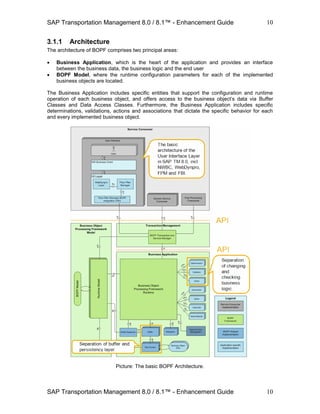
Picture: The basic BOPF Architecture.
SAP Transportation Management 8.0 / 8.1™ - Enhancement Guide
11
11
The Business Objects are accessed only via a defined API (Service Manager). Changing and
checking Business Logic of a BOPF Business Object is clearly separated. There is no mixture of
methods that change the business object with methods that have the purpose to check the
business objects consistency.
Moreover, business logic and data buffering are clearly separated. The business logic is built on
top of the Business Object and the buffer to behave independent of the way how data is buffered
and where data is buffered. BOPF allows replacing buffer and data access classes for Business
Objects. Both do not contain business Logic.
Data buffer and persistency are also clearly separated from each other as well as from the
business logic. This allows establish individual buffer and persistency implementations, i.e. both
are exchangeable (e.g. to achieve specific performance requirements).
Besides the basic BOPF architecture, the picture above also depicts the basic architecture of the
Transportation Management User Interface.
3.1.2 Business Object Model
A Business Object is a representation of a type of uniquely identifiable business entities
described by a structural model and an internal process model. Implemented business processes
operate on business objects. Most important for the context of this document: A Business Object
and its characteristics as well as its configuration settings can be enhanced. We’ll later see how
this is done. First, let’s take a brief look at the parts a BOPF Business Object consists of. A BOPF
Business Object model consists of the following entities:
Nodes:
A Node is a semantically related set of attributes of a business object. Nodes can be used to
define and structure your business object. The attributes of a business object node are defined by
dictionary data types.
Nodes can be hierarchically defined and related. Each business object has only one Root Node.
Nodes are defined via compositions in a tree, but nodes can also be related in an arbitrary
structure via associations that can be separate from the tree structure.
Business Object Representation nodes are placeholders for other business objects and the
associations to these. They are only for visualization of the association to other business objects.
Associations:
An association is a direct, unidirectional, binary relationship between two business object nodes.
Associations can be used to relate two nodes in a well-defined direction. The association can be
used to navigate from one node (source node) to the related node (target node). The associated
nodes can be nodes within one business object or in different business objects (cross business
object association).
Associations can have parameters to filter the result of the related nodes. They can only be
defined between two nodes and in one defined direction. Moreover, they have a defined
cardinality which gives information about the existence of an association and the number of
associated nodes.
Actions:
An action is an element of a business object node that describes an operation performed on that
node.
SAP Transportation Management 8.0 / 8.1™ - Enhancement Guide
12
12
An action can be used to allow the external triggering of business logic (in contrast to a
determination). When the action is performed, you must specify the key for the instances on
which it is to be performed (if it is not a static action) and any input parameters that the action
requires.
An action can only be performed with the number of instances that is configured in the cardinality
of the action. It is performed for all instances if an error in the action validation has not occurred. If
errors occur, then the behavior depends on the action settings.
Determinations:
An element of a business object node that describes internal changing business logic on the
business object. It can be used to trigger business logic based on internal changes (in contrast to
an action). There are two types of determinations: Transient and Persistent. This categorization
indicates whether a determination will alter persistent or only transient data. A determination is
mostly used to compute data that can be derived from the values of other attributes. Examples:
 Products (for example, item amount = quantity × list price) and ratios
 Totals of items (for example, invoice amount = Σ item amounts)
 Statuses
The determined attribute and the determining attributes can belong to the same node (example 1)
or to different nodes (example 2). There are also values that do not depend on any other value
but still have to be determined automatically upon creation or modification of a node instance, for
example, IDs, UUIDs, and GUIDs.
For each determination, it is necessary to specify which changes (such as create, update, delete
or load) on which nodes will trigger the determination at a specific time. A determination is called
at different points in time (determination time), depending on the model. The following
determination times exist:
Execution Time Use Case
After Loading Dependent fields that are not saved (redundant) have to be recalculated.
Before Retrieve Before Retrieve Determining contents of transient nodes before their first
retrieval. After the first retrieval of a node instance determinations for this
determination-time are not executed, as changes to data during retrieval
are not allowed.
After Modify Recalculation of fields that depend on changed fields. This is especially
useful for derived fields that are of interest to the “outside world” and need
to be updated immediately.
After Validation This point in time can be used to modify data based on the outcome of
consistency validations in the Determination & Validation cycle. A typical
use case is to perform some follow-up actions depending on whether there
were error messages in the consistency validations.
Before Save
(Finalize)
Determine data that must not be determined prior to saving or for data that
is not visible to the “outside world” (so it’s determination can be postponed
until saving for performance reasons).
Before Save
(Draw Numbers)
Determine data that must not be determined unless the transaction
succeeds but may be used by other Business Objects. A typical use case
for such very late changes is drawing numbers to assure gapless
numbering.
During Save Determine data that must not be determined unless the transaction
succeeds. Determinations for this determination-time will be executed at
most once in a LUW.
After Commit Determine data after a transaction was successfully committed. A typical
use case for this determination-time is starting asynchronous processes.
SAP Transportation Management 8.0 / 8.1™ - Enhancement Guide
13
13
After Failed Save
Attempt
Do cleanups after a try to save a transaction was rejected during the
Finalize or Check before Save stages. A determination is only triggered if
request nodes are assigned to it and instances of these request nodes are
changed.
Validations:
A validation is an element of a business object node that describes some internal checking
business logic on the business object.
A validation can be used to check if an action is allowed. Action validations can be assigned to
object-specific actions and to the framework actions create, update, delete and save. They can
be used to check if an action can be carried out. An action validation is carried out when an action
is called before it is performed. If some validations fail, the action is not performed for the
instances where the validation failed. Depending on the action settings, the action is also not
performed.
A validation can be used to check the consistency of a business object. Consistency validations
can be used to check the consistency of a business object. They can be assigned to the
framework actions check of each node. Consistency validations are carried out when this action
is called or automatically after a change is made if they are triggered via trigger nodes based on
the changes. It is only triggered if some of the trigger nodes are assigned and instances of these
trigger nodes are changed.
Queries:
Queries represent a defined set of attributes, such as search parameters, that return the queried
IDs of the business object node instances.
A query allows you to perform searches on a business object. They provide the initial point of
access to business objects. Each query has an associated parameter structure. The result of the
query is a set of all the record IDs in a business object that match the query criteria.
SAP Transportation Management 8.0 / 8.1™ - Enhancement Guide
14
14
3.1.3 BOPF Modeling Tool
The models of the TM business objects can be displayed with the BOPF Modeling Tool. It can be
started via transaction /BOBF/CONF_UI. It allows browsing through the list of the business
objects of the application. From here, you can navigate to the details of each business object to
display its node structure and hierarchy, the configuration, the DDIC structures for each node, the
node elements (e.g. Associations, Actions, Determinations, Validations and Queries), etc.
Moreover, it allows navigating to the implementing ABAP classes of the business object.
Picture: The Business Object Browser.
On the initial screen (Picture 2) the user can browse through the available TM business objects
as well as four other object categories which are used in the context of TM. These are:
 Dependent Objects:
Used in SAP TM for reusable parts of business objects that are not objects on their own, i.e.
they only exist in the context of a business objects (the hosting object). Examples are
address, attachment folder, text collection, and transportation charges.
 Master Data Objects:
Most master data BOs call the SCM Basis Master Data Layer (MDL) via an adapter in a read-
only way. The content of these master data objects is maintained via the standard
transactions in SCM Basis. The master data distribution between SAP ERP and SAP TM
follows the standard SCM middleware architecture of the SCM Core Interface (CIF). Within
SAP TM, access to master data occurs via master data BOs only. Examples are Location,
Business Partner, Material, etc.
 Meta Data Objects:
Examples are Freight Unit Building Rule, Planning Profile, etc.
SAP Transportation Management 8.0 / 8.1™ - Enhancement Guide
15
15
Picture: The Business Object Detail Browser - Node Structure.
In the Business Object Detail Browser, you can navigate through the node hierarchy of the
business object and display the node details. Besides other information, the node details show
the data model of the node.
 Combined Structure:
This DDIC structure includes the data structure of a nod. In addition it includes a fixed BOPF
DDIC structure which contains the node instance key (KEY), the key of the direct parent node
instance (PARENT_KEY) as well as the key of the related business object instance
(ROOT_KEY).
 Data Structure:
This DDIC structure contains the attributes of the node, representing the node data.
 Data Structure (tr.):
Contains the transient attributes of a node, i.e. attributes which do not get persisted but are
only filled and used during runtime.
 Extension Include & Extension Include (tr.):
Important for field extensions on a node is the Extension Include. With this include, all
extension fields are added (via Append Structures) which are to be persisted. Extension
fields which are only relevant at runtime and not relevant to be persisted are placed in the
corresponding transient Extension Include.
 Database Table:
Shows the database table where the persistent node information gets stored.
SAP Transportation Management 8.0 / 8.1™ - Enhancement Guide
16
16
Picture: The Business Object Detail Browser - Node Elements.
When expanding the Node Elements, you can further navigate to a node and the elements
assigned to it (e.g. Associations, Determinations, Validations, Actions and Queries as described
in the previous sections). Moreover, the details for each of these elements can be displayed from
here. For example the details of an Action include a link to the implementing class of this Action
and - if the Action has parameters - the corresponding parameter structure.
The details of the node elements like Actions, Validations, Determinations, etc. are the starting
point to identify places in the coding where a specific functionality of interest is implemented.
Within the implementing classes of the node elements, of course further classes and their
methods are used to realize its functionality.
SAP Transportation Management 8.0 / 8.1™ - Enhancement Guide
17
17
3.2 BOPF Consumer Implementation Basics
In this section, we give examples on how to implement BOPF consumers, i.e. how to use core
services that allow creating, accessing and modifying business object instances. In section 2.3
we take a look at how to implement BOPF entities such as actions, determinations and
validations (this can be also done with the BOPF Enhancement Workbench which is described in
section 3.4 of this document).
3.2.1 Service Manager
A business object can be accessed via a so called Service Manager. The following coding shows
how to get an instance of the service manager for e.g. the business object Forwarding Order:
*&--------------------------------------------------------------------*
*& Report ZREP_SRV_MGR
*&--------------------------------------------------------------------*
*& How to get a service manager instance and use it to access BOPF
*&--------------------------------------------------------------------*
REPORT zrep_srv_mgr.
DATA: lo_srv_mgr TYPE REF TO /bobf/if_tra_service_manager.
* Get an instance of a service manager for e.g. BO TRQ
lo_srv_mgr = /bobf/cl_tra_serv_mgr_factory=>
get_service_manager( /scmtms/if_trq_c=>sc_bo_key ).
Besides others, the service manager provides the following methods that can be used to access
the corresponding business object that it was instantiated for:
Method Description
QUERY Search, execute a BO query.
RETRIEVE Read data for a given set of node instance keys.
RETRIEVE_BY_ASSOCIATION Read data via association.
DO_ACTION Execute a given action of a BO node.
CONVERT_ALTERN_KEY Convert an alternative key to the technical key.
MODIFY Create, change and delete BO node instances.
The following coding examples and descriptions of the semantics of the corresponding method
parameters illustrate the usage of the service manager methods to access BOPF business
objects. We will add corresponding examples in a small demo report ZREP_BOPF_DEMO_1
step by step.
3.2.2 Query
The coding example shows how to call a BOPF query. To start a query, method QUERY of the
service manager instance is used:
*&--------------------------------------------------------------------*
*& Report ZREP_BOPF_DEMO_1
*&--------------------------------------------------------------------*
*& How to get a service manager instance and use it to access BOPF
*&---------------------------------------------------------------------
REPORT zrep_bopf_demo_1.
FIELD-SYMBOLS: <ls_root> TYPE /scmtms/s_trq_root_k,
<ls_item> TYPE /scmtms/s_trq_item_k,
SAP Transportation Management 8.0 / 8.1™ - Enhancement Guide
18
18
<ls_link> TYPE /bobf/s_frw_key_link,
<ls_loc> TYPE /scmtms/s_bo_loc_root_k,
<ls_txc> TYPE /bobf/s_txc_con_k,
<ls_msg> TYPE /bobf/s_frw_message_k.
DATA: lo_srv_trq TYPE REF TO /bobf/if_tra_service_manager,
ls_selpar TYPE /bobf/s_frw_query_selparam,
lt_selpar TYPE /bobf/t_frw_query_selparam,
lo_message TYPE REF TO /bobf/if_frw_message,
ls_query_inf TYPE /bobf/s_frw_query_info,
lt_key TYPE /bobf/t_frw_key,
lt_root TYPE /scmtms/t_trq_root_k,
lt_failed_key TYPE /bobf/t_frw_key,
lt_item TYPE /scmtms/t_trq_item_k,
lt_link TYPE /bobf/t_frw_key_link,
lt_item_key TYPE /bobf/t_frw_key,
lt_target_key TYPE /bobf/t_frw_key,
lt_loc_root TYPE /scmtms/t_bo_loc_root_k,
lv_text_assoc_key TYPE /bobf/conf_key,
lt_link_txctext TYPE /bobf/t_frw_key_link,
lt_txc_text_key TYPE /bobf/t_frw_key,
lv_text_node_key TYPE /bobf/conf_key,
lv_content_node_key TYPE /bobf/conf_key,
lv_content_assoc_key TYPE /bobf/conf_key,
lt_txc_content TYPE /bobf/t_txc_con_k,
lo_change TYPE REF TO /bobf/if_tra_change,
lr_action_param TYPE REF TO /scmtms/s_trq_a_confirm,
lt_msg TYPE /bobf/t_frw_message_k,
lv_str TYPE string,
lo_msg TYPE REF TO /bobf/cm_frw,
lt_trq_id TYPE /scmtms/t_trq_id,
lt_trq_root_key TYPE /bobf/t_frw_key.
* Get an instance of a service manager for e.g. BO TRQ
lo_srv_trq = /bobf/cl_tra_serv_mgr_factory=>get_service_manager(
/scmtms/if_trq_c=>sc_bo_key ).
BREAK-POINT.
* set an example query parameter
ls_selpar-attribute_name = /scmtms/if_trq_c=>sc_query_attribute-root-
query_by_attributes-created_by.
ls_selpar-option = 'EQ'.
ls_selpar-sign = 'I'.
ls_selpar-low = 'SCHIEBELER'.
APPEND ls_selpar TO lt_selpar.
BREAK-POINT.
* use method QUERY of the service manager to start the query
lo_srv_trq->query(
EXPORTING
iv_query_key = /scmtms/if_trq_c=>sc_query-root-
query_by_attributes
it_selection_parameters = lt_selpar
IMPORTING
eo_message = lo_message
SAP Transportation Management 8.0 / 8.1™ - Enhancement Guide
19
19
es_query_info = ls_query_inf
et_key = lt_key ).
BREAK-POINT.
3.2.3 Retrieve
The coding example shows how to retrieve the data for the Root node keys that were found by
the query in 2.2.2. Method RETRIEVE of the service manager instance is used:
…
BREAK-POINT.
* Use method RRETRIEVE to retrieve ROOT data
lo_srv_trq->retrieve(
EXPORTING
iv_node_key = /scmtms/if_trq_c=>sc_node-root
it_key = lt_key
iv_edit_mode = /bobf/if_conf_c=>sc_edit_read_only
IMPORTING
eo_message = lo_message
et_data = lt_root
et_failed_key = lt_failed_key ).
BREAK-POINT.
3.2.4 Retrieve By Association (Standard)
The coding example shows how to retrieve the data for the Item node keys that were found by the
query in 2.2.2. Method RETRIEVE_BY_ASSOCIATION of the service manager instance is used
with the composition association from Root to Item:
…
BREAK-POINT.
* Use method Retrieve by Association to retrieve ITEM node data
lo_srv_trq->retrieve_by_association(
EXPORTING
iv_node_key = /scmtms/if_trq_c=>sc_node-root
it_key = lt_key
iv_association = /scmtms/if_trq_c=>sc_association-root-
item
iv_fill_data = abap_true
iv_edit_mode = /bobf/if_conf_c=>sc_edit_read_only
IMPORTING
eo_message = lo_message
et_data = lt_item
et_key_link = lt_link
et_target_key = lt_item_key
et_failed_key = lt_failed_key ).
BREAK-POINT.
SAP Transportation Management 8.0 / 8.1™ - Enhancement Guide
20
20
3.2.5 Retrieve By Association (XBO)
The coding example shows how to retrieve the data for the Locations stored in the items whose
Item node keys were retrieved in 2.2.4. Again, method RETRIEVE_BY_ASSOCIATION of the
service manager instance is used with the Cross BO association (XBO) from Item to Source
Location Root that is defined on the item node of BO TRQ:
…
REAK-POINT.
* Following XBO Association ITEM -> Location
lo_srv_trq->retrieve_by_association(
EXPORTING
iv_node_key = /scmtms/if_trq_c=>sc_node-item
it_key = lt_item_key
iv_association = /scmtms/if_trq_c=>sc_association-item-
srcloc_root
iv_fill_data = abap_true
IMPORTING
eo_message = lo_message
et_data = lt_loc_root
et_key_link = lt_link ).
BREAK-POINT.
3.2.6 Retrieve By Association (Dependent Objects)
The coding example shows how to retrieve the data from the dependent object TextCollection
assigned to the Root node of BO TRQ. Besides method RETRIEVE_BY_ASSOCIATION of the
service manager instance, this requires calling helper method GET_DO_KEYS_4_RBA of class
/SCMTMS/CL_COMMON_HELPER to map the TextCollection Meta Data node keys into TRQ
runtime node keys:
…
BREAK-POINT.
* Retrieve by Association (To Dependent Object Nodes)
* Do RbA to ROOT TEXT Collection TEXT CONTENT node
* Get Text Collection ROOT keys
lo_srv_trq->retrieve_by_association(
EXPORTING
iv_node_key = /scmtms/if_trq_c=>sc_node-root
it_key = lt_key
iv_association = /scmtms/if_trq_c=>sc_association-root-
textcollection
IMPORTING
eo_message = lo_message
et_key_link = lt_link
et_target_key = lt_target_key ).
* Map TXC Meta model node keys into TRQ runtime node keys
* --> for all sub nodes of DO ROOT we have to use this helper
* method to get the correct runtime node keys of the DO nodes
/scmtms/cl_common_helper=>get_do_keys_4_rba(
EXPORTING
iv_host_bo_key = /scmtms/if_trq_c=>sc_bo_key
SAP Transportation Management 8.0 / 8.1™ - Enhancement Guide
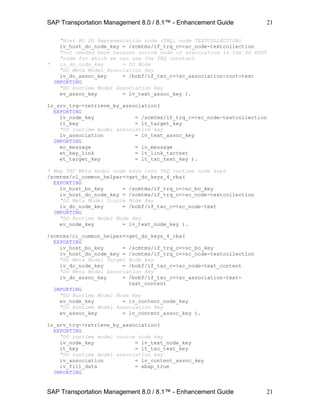
21
21
"Host BO DO Representation node (TRQ, node TEXTCOLLECTION)
iv_host_do_node_key = /scmtms/if_trq_c=>sc_node-textcollection
"not needed here because source node of association is the DO ROOT
"node for which we can use the TRQ constant
* iv_do_node_key = DO Node
"DO Meta Model Association Key
iv_do_assoc_key = /bobf/if_txc_c=>sc_association-root-text
IMPORTING
"DO Runtime Model Association Key
ev_assoc_key = lv_text_assoc_key ).
lo_srv_trq->retrieve_by_association(
EXPORTING
iv_node_key = /scmtms/if_trq_c=>sc_node-textcollection
it_key = lt_target_key
"DO runtime model association key
iv_association = lv_text_assoc_key
IMPORTING
eo_message = lo_message
et_key_link = lt_link_txctext
et_target_key = lt_txc_text_key ).
* Map TXC Meta model node keys into TRQ runtime node keys
/scmtms/cl_common_helper=>get_do_keys_4_rba(
EXPORTING
iv_host_bo_key = /scmtms/if_trq_c=>sc_bo_key
iv_host_do_node_key = /scmtms/if_trq_c=>sc_node-textcollection
"DO Meta Model Source Node Key
iv_do_node_key = /bobf/if_txc_c=>sc_node-text
IMPORTING
"DO Runtime Model Node Key
ev_node_key = lv_text_node_key ).
/scmtms/cl_common_helper=>get_do_keys_4_rba(
EXPORTING
iv_host_bo_key = /scmtms/if_trq_c=>sc_bo_key
iv_host_do_node_key = /scmtms/if_trq_c=>sc_node-textcollection
"DO Meta Model Target Node key
iv_do_node_key = /bobf/if_txc_c=>sc_node-text_content
"DO Meta Model Association Key
iv_do_assoc_key = /bobf/if_txc_c=>sc_association-text-
text_content
IMPORTING
"DO Runtime Model Node Key
ev_node_key = lv_content_node_key
"DO Runtime Model Association Key
ev_assoc_key = lv_content_assoc_key ).
lo_srv_trq->retrieve_by_association(
EXPORTING
"DO runtime model source node key
iv_node_key = lv_text_node_key
it_key = lt_txc_text_key
"DO runtime model association key
iv_association = lv_content_assoc_key
iv_fill_data = abap_true
IMPORTING
SAP Transportation Management 8.0 / 8.1™ - Enhancement Guide
22
22
eo_message = lo_messagect
et_data = lt_txc_content ).
3.2.7 Do Action (Standard)
The coding example shows how to start an action for a given set of TRQ instances represented
by the corresponding Root node keys. The action CONFIRM of the TRQ Root node is called:
…
BREAK-POINT.
* Calling action CONFIRM of the TRQ Root node
lo_srv_trq->do_action(
EXPORTING
iv_act_key = /scmtms/if_trq_c=>sc_action-root-confirm
it_key = lt_key
* is_parameters = Action Parameters if available & required
IMPORTING
eo_change = lo_change
eo_message = lo_message
et_failed_key = lt_failed_key ).
BREAK-POINT.
3.2.8 Do Action (Action Parameters)
Again, the coding example shows how to start an action for a given set of TRQ instances
represented by the corresponding Root node keys. In this example, the action CONFIRM of the
TRQ Root node is called with some of the available action parameters:
…
BREAK-POINT.
* fill the action parameters
CREATE DATA lr_action_param.
* Carry out check
lr_action_param->no_check = abap_true.
lr_action_param->automatic = abap_false.
* Calling action CONFIRM of the TRQ Root node with parameters
lo_srv_trq->do_action(
EXPORTING
iv_act_key = /scmtms/if_trq_c=>sc_action-root-confirm
it_key = lt_key
is_parameters = lr_action_param
IMPORTING
eo_change = lo_change
eo_message = lo_message
et_failed_key = lt_failed_key ).
BREAK-POINT.
SAP Transportation Management 8.0 / 8.1™ - Enhancement Guide
23
23
3.2.9 Convert Alternative Key
The coding example shows how to convert a list of TRQ IDs into the corresponding Root node
keys. Method CONVERT_ALTERN_KEY of the service manager instance is used:
…
BREAK-POINT.
* Prepare a set of TRQ IDs
CLEAR lt_trq_id.
LOOP AT lt_root ASSIGNING <ls_root>.
APPEND <ls_root>-trq_id TO lt_trq_id.
ENDLOOP.
* Convert IDs into BOPF keys
lo_srv_trq->convert_altern_key(
EXPORTING
iv_node_key = /scmtms/if_trq_c=>sc_node-root
iv_altkey_key = /scmtms/if_trq_c=>sc_alternative_key-root-trq_id
it_key = lt_trq_id
IMPORTING
et_key = lt_trq_root_key ).
BREAK-POINT.
3.2.10 Modify
While the coding examples of the previous sub sections demonstrated how to access BOPF
business objects, we now take a look at how to create, update and delete BO (node) instances.
For these purposes, method MODIFY of the service manager is used. To demonstrate different
possibilities of the method, we create a second demo report ZREP_BOPF_DEMO_2 and add
corresponding examples step by step.
*&--------------------------------------------------------------------*
*& Report ZREP_BOPF_DEMO_2
*& How to get a service manager instance and use it to access BOPF.
*& How to create update and delete BO (node) instances
*& How to use a transaction manager to save changes.
*&--------------------------------------------------------------------*
REPORT zrep_bopf_demo_2.
FIELD-SYMBOLS: <ls_root> TYPE /scmtms/s_trq_root_k,
<ls_trq_qdb> TYPE /scmtms/s_trq_q_result.
DATA: lo_srv_trq TYPE REF TO /bobf/if_tra_service_manager,
lt_mod TYPE /bobf/t_frw_modification,
ls_mod TYPE /bobf/s_frw_modification,
lv_trq_new_key TYPE /bobf/conf_key,
lo_chg TYPE REF TO /bobf/if_tra_change,
lo_message TYPE REF TO /bobf/if_frw_message,
lo_msg_all TYPE REF TO /bobf/if_frw_message,
lo_tra TYPE REF TO /bobf/if_tra_transaction_mgr,
lv_rejected TYPE abap_bool,
lt_rej_bo_key TYPE /bobf/t_frw_key2,
ls_selpar TYPE /bobf/s_frw_query_selparam,
lt_selpar TYPE /bobf/t_frw_query_selparam,
SAP Transportation Management 8.0 / 8.1™ - Enhancement Guide
24
24
lt_trq_qdb TYPE /scmtms/t_trq_q_result.
* Get instance of service manager for TRQ
lo_srv_trq = /bobf/cl_tra_serv_mgr_factory=>get_service_manager(
/scmtms/if_trq_c=>sc_bo_key ).
Create: As a first step, a new instance of business object TRQ (Forwarding Order) is created.
First the modification table is set up to contain an entry for the creation (change mode is set to
CREATE) of a new Root node instance. Then the data for the new Root node instance is
assembled. Finally, the modification table is passed to method MODIFY of the service manager
…
BREAK-POINT.
*--- Creating a new TRQ instance ---*
ls_mod-node = /scmtms/if_trq_c=>sc_node-root.
ls_mod-key = /bobf/cl_frw_factory=>get_new_key( ).
ls_mod-change_mode = /bobf/if_frw_c=>sc_modify_create.
CREATE DATA ls_mod-data TYPE /scmtms/s_trq_root_k.
ASSIGN ls_mod-data->* TO <ls_root>.
<ls_root>-trq_type = 'ZENH'.
APPEND ls_mod TO lt_mod.
lv_trq_new_key = ls_mod-key.
lo_srv_trq->modify(
EXPORTING
it_modification = lt_mod
IMPORTING
eo_change = lo_chg
eo_message = lo_message ).
The next step shows how to instantiate a transaction manager which is used for persisting
changes to the database. For this purpose, the SAVE method of the transaction manager is
called.
…
BREAK-POINT.
* Save transaction to get data persisted (NO COMMIT WORK!)
lo_tra = /bobf/cl_tra_trans_mgr_factory=>get_transaction_manager( ).
* Call the SAVE method of the transaction manager
lo_tra->save(
IMPORTING
ev_rejected = lv_rejected
eo_change = lo_chg
eo_message = lo_message
et_rejecting_bo_key = lt_rej_bo_key ).
Update: Now the newly created instance of the TRQ Root node is update with some additional
data. The example code shows how to prepare the modification table for an update (the change
mode will be set to UPDATE). Again, the modification table is then passed to method MODIFY of
the service manager (and in this example the update is directly persisted by using the SAVE
method of the transaction manager).
SAP Transportation Management 8.0 / 8.1™ - Enhancement Guide
25
25
…
BREAK-POINT.
*--- Update the new instance with a Shipper ID ---*
CLEAR lt_mod.
ls_mod-node = /scmtms/if_trq_c=>sc_node-root.
ls_mod-key = lv_trq_new_key.
ls_mod-change_mode = /bobf/if_frw_c=>sc_modify_update.
CREATE DATA ls_mod-data TYPE /scmtms/s_trq_root_k.
ASSIGN ls_mod-data->* TO <ls_root>.
<ls_root>-shipper_id = 'B00_CAR002'.
APPEND /scmtms/if_trq_c=>sc_node_attribute-root-shipper_id
TO ls_mod-changed_fields.
APPEND ls_mod TO lt_mod.
lo_srv_trq->modify(
EXPORTING
it_modification = lt_mod
IMPORTING
eo_change = lo_chg
eo_message = lo_message ).
BREAK-POINT.
lo_tra->save(
IMPORTING
ev_rejected = lv_rejected
eo_change = lo_chg
eo_message = lo_message
et_rejecting_bo_key = lt_rej_bo_key ).
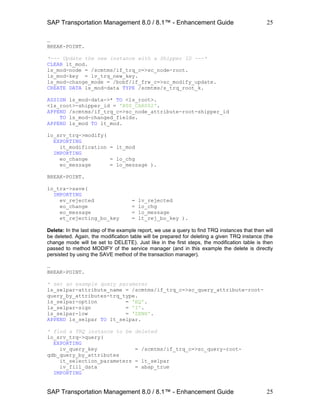
Delete: In the last step of the example report, we use a query to find TRQ instances that then will
be deleted. Again, the modification table will be prepared for deleting a given TRQ instance (the
change mode will be set to DELETE). Just like in the first steps, the modification table is then
passed to method MODIFY of the service manager (and in this example the delete is directly
persisted by using the SAVE method of the transaction manager).
…
BREAK-POINT.
* set an example query parameter
ls_selpar-attribute_name = /scmtms/if_trq_c=>sc_query_attribute-root-
query_by_attributes-trq_type.
ls_selpar-option = 'EQ'.
ls_selpar-sign = 'I'.
ls_selpar-low = 'ZENH'.
APPEND ls_selpar TO lt_selpar.
* find a TRQ instance to be deleted
lo_srv_trq->query(
EXPORTING
iv_query_key = /scmtms/if_trq_c=>sc_query-root-
qdb_query_by_attributes
it_selection_parameters = lt_selpar
iv_fill_data = abap_true
IMPORTING
SAP Transportation Management 8.0 / 8.1™ - Enhancement Guide
26
26
eo_message = lo_message
et_data = lt_trq_qdb ).
BREAK-POINT.
* Delete 1st found instance
READ TABLE lt_trq_qdb ASSIGNING <ls_trq_qdb> INDEX 1.
CLEAR lt_mod.
ls_mod-node = /scmtms/if_trq_c=>sc_node-root.
ls_mod-key = <ls_trq_qdb>-db_key.
ls_mod-change_mode = /bobf/if_frw_c=>sc_modify_delete.
APPEND ls_mod TO lt_mod.
lo_srv_trq->modify(
EXPORTING
it_modification = lt_mod
IMPORTING
eo_change = lo_chg
eo_message = lo_message ).
* Call the SAVE method of the transaction manager
lo_tra->save(
IMPORTING
ev_rejected = lv_rejected
eo_change = lo_chg
eo_message = lo_message
et_rejecting_bo_key = lt_rej_bo_key ).
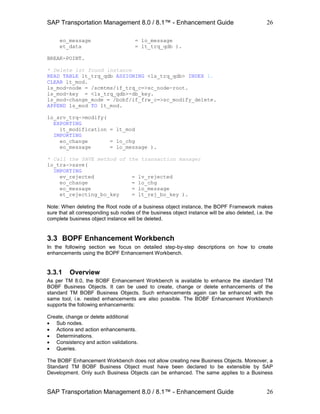
Note: When deleting the Root node of a business object instance, the BOPF Framework makes
sure that all corresponding sub nodes of the business object instance will be also deleted, i.e. the
complete business object instance will be deleted.
3.3 BOPF Enhancement Workbench
In the following section we focus on detailed step-by-step descriptions on how to create
enhancements using the BOPF Enhancement Workbench.
3.3.1 Overview
As per TM 8.0, the BOBF Enhancement Workbench is available to enhance the standard TM
BOBF Business Objects. It can be used to create, change or delete enhancements of the
standard TM BOBF Business Objects. Such enhancements again can be enhanced with the
same tool, i.e. nested enhancements are also possible. The BOBF Enhancement Workbench
supports the following enhancements:
Create, change or delete additional
 Sub nodes.
 Actions and action enhancements.
 Determinations.
 Consistency and action validations.
 Queries.
The BOBF Enhancement Workbench does not allow creating new Business Objects. Moreover, a
Standard TM BOBF Business Object must have been declared to be extensible by SAP
Development. Only such Business Objects can be enhanced. The same applies to a Business
SAP Transportation Management 8.0 / 8.1™ - Enhancement Guide
27
27
Object’s entities like nodes, actions, etc. They can only be enhanced if SAP Development has
declared them to be extensible.
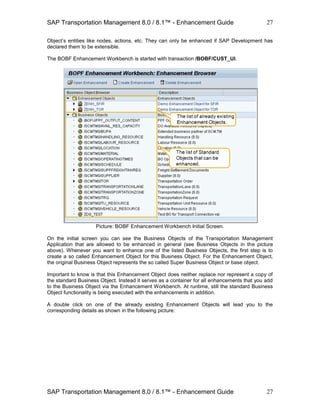
The BOBF Enhancement Workbench is started with transaction /BOBF/CUST_UI.
Picture: BOBF Enhancement Workbench Initial Screen.
On the initial screen you can see the Business Objects of the Transportation Management
Application that are allowed to be enhanced in general (see Business Objects in the picture
above). Whenever you want to enhance one of the listed Business Objects, the first step is to
create a so called Enhancement Object for this Business Object. For the Enhancement Object,
the original Business Object represents the so called Super Business Object or base object.
Important to know is that this Enhancement Object does neither replace nor represent a copy of
the standard Business Object. Instead it serves as a container for all enhancements that you add
to the Business Object via the Enhancement Workbench. At runtime, still the standard Business
Object functionality is being executed with the enhancements in addition.
A double click on one of the already existing Enhancement Objects will lead you to the
corresponding details as shown in the following picture:
SAP Transportation Management 8.0 / 8.1™ - Enhancement Guide
28
28
Picture: Details of an Enhancement Object.
The specific example here shows an Enhancement Object for the Freight Order BO (TOR). The
marked sections (1 - 3) show different entities of the Enhancement Object (double click on the
very first line in the Node Browser).
Section 1 shows the node structure of the Enhancement Object which includes all nodes (i.e. the
complete node hierarchy) of the super business object and all subnodes that might have been
added to the business object via the Enhancement Workbench. All nodes which are not grayed
out here are allowed to be enhanced. If a node is grayed out, it has been defined to be not
extensible. This is especially the case for standard dependent objects like Address, Attachment
Folder and Text Collection. On the other hand, dependent objects defined by Transportation
Management itself can be enhanced, provided that development has enabled them
correspondingly.
Section 2 shows all actions available at the Enhancement Object. This includes all standard
actions as well as actions that might have been added to the business object via the
Enhancement Workbench (All actions are only shown when you have marked the Enhancement
Object in this view. If you double click on one of the nodes, section 2 will only contain those
actions which belong to this specific node).
Section 3 shows the name of the Super Business Object associated with the selected
Enhancement Object as well as the so called constants interface of the Enhancement Object.
This interface will contain all constants which are generated for your enhancements.
A double click on one of the nodes (e.g. the Root Node) will show the following picture with
details related to this specific node.
SAP Transportation Management 8.0 / 8.1™ - Enhancement Guide
29
29
Picture: The node of an Enhancement Object with its details.
The picture above shows the possible enhancement options for the selected node (here: the Root
Node of the Freight Order BO) in section 1. Click the right mouse button to view the types of
enhancements that can be created for the selected node.
In Section 2, the available actions of the selected node are shown. You can select one of the
listed actions and then click the right mouse button to see the types of enhancements that can be
created for the selected action.
Moreover, in section 3, the node details (i.e. the data model) of the selected node is displayed,
similar to those already mentioned in section 2.1.3 on the BOBF Modeling Tool. Here in the
BOBF Enhancement Workbench you can see:
 Persistent Structure:
This DDIC structure contains the attributes of the node, representing the node data.
 Transient Structure:
Contains the transient attributes of a node, i.e. attributes which do not get persisted but are
only filled and used during runtime.
 Combined Structure & Combined Table Type:
This DDIC structure (table type) includes the data structure of a node. In addition it includes a
fixed BOPF DDIC structure which contains the node instance key (KEY), the key of the direct
parent node instance (PARENT_KEY) as well as the key of the related business object
instance (ROOT_KEY).
 Database Table:
Shows the database table where the persistent node information gets stored.
 Extension Includes (persistent & transient):
Important for field extensions on a node is the Extension Include. With this include, all
extension fields are added (via Append Structures) which are to be persisted. Extension
fields which are only relevant at runtime and not relevant to be persisted are placed in the
corresponding transient Extension Include.
By double click on the corresponding structures, tables or table types you can navigate to the
details of these DDIC objects. Especially the Extension Includes are most important for field
SAP Transportation Management 8.0 / 8.1™ - Enhancement Guide
30
30
extensions. Here you add the customer / partner specific persistent and transient fields in
corresponding append structures.
The procedure how to do this and how to create all other indicated enhancement options via the
BOBF Enhancement Workbench will be described more detailed in section 3.4 of this document.
3.3.2 First step: Creating an Enhancement Object
The first step to enhance a standard Transportation Management Business Object is to create a
so called Enhancement Object for this Business Object. The Business Object associated with this
Enhancement Object is also called the Super Business Object of an Enhancement Object.
As already mentioned in section 3.4.1, it is important to know that this Enhancement Object does
neither replace nor represent a copy of the standard Business Object. Instead it serves as a
container for all enhancements that you add to the Business Object via the Enhancement
Workbench. At runtime, still the standard Business Object functionality is being executed with the
enhancements in addition (moreover, all code corrections and changes on standard business
objects and its entities will of course be present at any time).
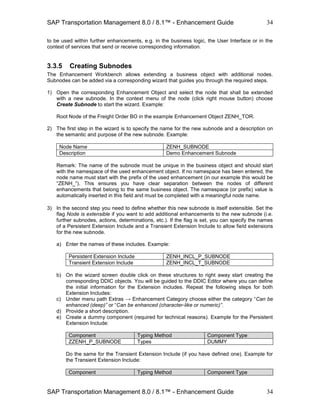
1) Start the BOBF Enhancement Workbench (/BOBF/CUST_UI) and select the Business Object
to be enhanced. Let’s assume we create an Enhancement Object for the Freight Order BO
(technical name is /SCMTMS/TOR).
2) Click the right mouse button on the selected BO and select the option “Create Enhancement”
in the upcoming popup menu.
3) A wizard will now guide you through the next steps to create the Enhancement Object.
Picture: Creating an Enhancement Object.
4) On the first wizard screen click on button “Continue”.
5) On the next wizard screen you can see the name of the Super BO and the following list of
fields ready for input:
 Enhancement Name: The name of your enhancement.
Example: ENH_TOR
 Description: A description of your enhancement.
SAP Transportation Management 8.0 / 8.1™ - Enhancement Guide
31
31
Example: Demo Enhancement Object for TOR
 Namespace: The namespace that your enhancement shall be associated with. It will be
added at the beginning of the final technical name for your Enhancement Object.
Example: Z (i.e. Customer Namespace).
 Prefix: A prefix that will be added between the Namespace and the Enhancement Name
in the final technical name of your enhancement. It is not a mandatory field and can be
left on “space” if not required.
Example: HP (this can of course also be left space)
6) Click on button “Continue”. With the entries made before, the next wizard step will propose
the name of your enhancement as well as the name of the constants interface that will be
created for the new Enhancement Object. Example (with the given entries):
Technical Name : ZHP_ENH_TOR
Constants Interface : ZIF_HP_ENH_TOR_C
On this screen you can manually adjust the two fields. As an example, let’s remove the prefix
from the names so that the final technical entities get the following names:
Technical Name : ZENH_TOR
Constants Interface : ZIF_ENH_TOR_C
7) Click on button “Continue” to get to the next wizard step. Here you define (yes/no) whether
you allow your enhancement to be enhanced in further enhancements (i.e. nested
enhancements are possible).
8) At any step of the wizard you can go back to all preceding steps again by clicking button
“Back”. With this, adjusting the entered data is of course possible until you have completed
the wizard. Click on button “Complete” to finally create your Enhancement Object with the
entered specification.
The new Enhancement Object can now be used to create enhancements of the corresponding
Super Business Object. The creation of the different types of enhancements on node and action
level is described in the following sections.
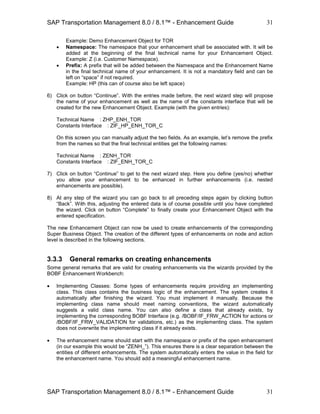
3.3.3 General remarks on creating enhancements
Some general remarks that are valid for creating enhancements via the wizards provided by the
BOBF Enhancement Workbench:
 Implementing Classes: Some types of enhancements require providing an implementing
class. This class contains the business logic of the enhancement. The system creates it
automatically after finishing the wizard. You must implement it manually. Because the
implementing class name should meet naming conventions, the wizard automatically
suggests a valid class name. You can also define a class that already exists, by
implementing the corresponding BOBF Interface (e.g. /BOBF/IF_FRW_ACTION for actions or
/BOBF/IF_FRW_VALIDATION for validations, etc.) as the implementing class. The system
does not overwrite the implementing class if it already exists.
 The enhancement name should start with the namespace or prefix of the open enhancement
(in our example this would be “ZENH_”). This ensures there is a clear separation between the
entities of different enhancements. The system automatically enters the value in the field for
the enhancement name. You should add a meaningful enhancement name.
SAP Transportation Management 8.0 / 8.1™ - Enhancement Guide
32
32
 When completing the wizard, further required objects will be generated automatically. The
system adds the new enhancement to the enhancement object. It displays the new
enhancement in the Entity Browser when you select the corresponding assigned node or
action. In case an implementing class is required for the enhancement, it is generated and
must be implemented manually afterwards. The constants interface of the enhancement
object is regenerated and contains a unique constant identifying the new enhancement.
 Every enhancement created with the BOBF Enhancement Workbench can also be deleted
again. For each create wizard a corresponding delete wizard is available which guides you
through the relevant step and also checks the preconditions to be fulfilled for a deletion.
3.3.4 Creating Field Extensions
Customers and Partners may require additional fields to be stored with the business objects, get
them entered and displayed on the User Interface or get them transferred between external
systems (e.g. ERP) and Transportation Management via corresponding services.
Creating field extensions on the Business Objects delivered with Transportation Management is
the basis for these kinds of enhancements. Such field extensions can be created using the BOBF
Enhancement Workbench.
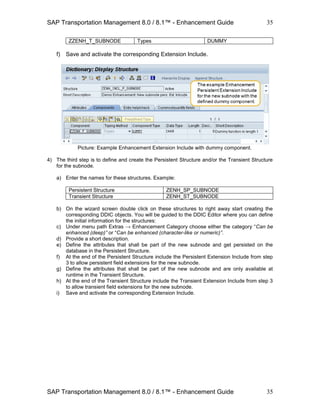
1) Start the BOBF Enhancement Workbench (/BOBF/CUST_UI) and select the Enhancement
Object for the Business to be enhanced with additional fields. Let’s assume we create a field
extension for the Freight Order BO (Enhancement Object ZENH_TOR created in section
3.4.2).
2) Double click on the node that shall be enhanced by additional fields (in our example the Root
Node of the Freight Order BO). In the details of the node in the right area you can see the
Extension Includes that will carry the additional fields. Field Extensions are always assigned
to such an Extension Include.
 Double click on the Persistent Extension Include to start adding fields that are to be
persisted on the database.
 Double click on the Transient Extension Include to start adding fields that are intended
to be only used during runtime and do not get persisted on the database.
Picture: The Extension Includes of a BO node.
SAP Transportation Management 8.0 / 8.1™ - Enhancement Guide
33
33
3) On the following screen you can see the DDIC Editor (analog to transaction SE11 for DDIC
objects). Here click on the menu button Append Structure… to create a new Append for the
chosen Extension Include.
This append will contain your extension fields. Usually, you just need one such append to
contain all your extension fields. But it is also possible to create additional Appends for the
Extension Include e.g. to separate extensions from different partners. Example append:
ZZENH_DEMO_TOR_ROOT.
Picture: Creating an Append for the Extension Include.
4) Enter a short description for the Append and add the extension fields to be included in this
Append (Component, Typing Method and Component Type). After the extension fields are
correctly specified, save and activate the Append.
Picture: Specifying the extension fields in the new Append.
With the described four steps, the new extension fields are now part of the corresponding node
structures, table types and the database table (provided that you have added the extension fields
in the Persistent Extension Include). Both, transient and persistent extension fields are now ready
SAP Transportation Management 8.0 / 8.1™ - Enhancement Guide
34
34
to be used within further enhancements, e.g. in the business logic, the User Interface or in the
context of services that send or receive corresponding information.
3.3.5 Creating Subnodes
The Enhancement Workbench allows extending a business object with additional nodes.
Subnodes can be added via a corresponding wizard that guides you through the required steps.
1) Open the corresponding Enhancement Object and select the node that shall be extended
with a new subnode. In the context menu of the node (click right mouse button) choose
Create Subnode to start the wizard. Example:
Root Node of the Freight Order BO in the example Enhancement Object ZENH_TOR.
2) The first step in the wizard is to specify the name for the new subnode and a description on
the semantic and purpose of the new subnode. Example:
Node Name ZENH_SUBNODE
Description Demo Enhancement Subnode
Remark: The name of the subnode must be unique in the business object and should start
with the namespace of the used enhancement object. If no namespace has been entered, the
node name must start with the prefix of the used enhancement (in our example this would be
“ZENH_”). This ensures you have clear separation between the nodes of different
enhancements that belong to the same business object. The namespace (or prefix) value is
automatically inserted in this field and must be completed with a meaningful node name.
3) In the second step you need to define whether this new subnode is itself extensible. Set the
flag Node is extensible if you want to add additional enhancements to the new subnode (i.e.
further subnodes, actions, determinations, etc.). If the flag is set, you can specify the names
of a Persistent Extension Include and a Transient Extension Include to allow field extensions
for the new subnode.
a) Enter the names of these includes. Example:
Persistent Extension Include ZENH_INCL_P_SUBNODE
Transient Extension Include ZENH_INCL_T_SUBNODE
b) On the wizard screen double click on these structures to right away start creating the
corresponding DDIC objects. You will be guided to the DDIC Editor where you can define
the initial information for the Extension includes. Repeat the following steps for both
Extension Includes:
c) Under menu path Extras → Enhancement Category choose either the category “Can be
enhanced (deep)” or “Can be enhanced (character-like or numeric)”.
d) Provide a short description.
e) Create a dummy component (required for technical reasons). Example for the Persistent
Extension Include:
Component Typing Method Component Type
ZZENH_P_SUBNODE Types DUMMY
Do the same for the Transient Extension Include (if you have defined one). Example for
the Transient Extension Include:
Component Typing Method Component Type
SAP Transportation Management 8.0 / 8.1™ - Enhancement Guide
35
35
ZZENH_T_SUBNODE Types DUMMY
f) Save and activate the corresponding Extension Include.
Picture: Example Enhancement Extension Include with dummy component.
4) The third step is to define and create the Persistent Structure and/or the Transient Structure
for the subnode.
a) Enter the names for these structures. Example:
Persistent Structure ZENH_SP_SUBNODE
Transient Structure ZENH_ST_SUBNODE
b) On the wizard screen double click on these structures to right away start creating the
corresponding DDIC objects. You will be guided to the DDIC Editor where you can define
the initial information for the structures:
c) Under menu path Extras → Enhancement Category choose either the category “Can be
enhanced (deep)” or “Can be enhanced (character-like or numeric)”.
d) Provide a short description.
e) Define the attributes that shall be part of the new subnode and get persisted on the
database in the Persistent Structure.
f) At the end of the Persistent Structure include the Persistent Extension Include from step
3 to allow persistent field extensions for the new subnode.
g) Define the attributes that shall be part of the new subnode and are only available at
runtime in the Transient Structure.
h) At the end of the Transient Structure include the Transient Extension Include from step 3
to allow transient field extensions for the new subnode.
i) Save and activate the corresponding Extension Include.
SAP Transportation Management 8.0 / 8.1™ - Enhancement Guide
36
36
Picture: Example Persistent Structure.
5) In step four, the database types are defined. For this, the name of the Combined Structure,
the Combined Table Type as well as the Database Table name is entered. Example:
Combined Structure ZENH_S_SUBNODE1
Combined Table Type ZENH_T_SUBNODE1
Database Table Name ZENH_D_SUBNODE1
The content of these three DDIC objects will be automatically generated by the system. The
combined structure will contain the attributes of the persistent and transient structure from
step 4 as well as BOBF-specific key attributes. Moreover, the combined structure will contain
the Extension Includes with corresponding extension fields (if available). The combined table
type and the database table will have the same structure like the combined structure.
Picture: The final combined structure of the new subnode.
6) Click on button Complete to finalize the creation of the new subnode. With this step, further
required objects for the subnode will be generated automatically. Afterwards, the subnode
can be used like any other node of the enhanced business object. If you have declared it to
SAP Transportation Management 8.0 / 8.1™ - Enhancement Guide
37
37
be extensible, any enhancements for the new node are done the same way like for the
standard nodes, i.e. you can add fields via field extensions, add actions, etc.
On completion of the subnode, also the constants interface of the enhancement is
regenerated and contains a unique constant identifying the subnode (this constant is
necessary in order to access the data of the node).
Picture: The final new subnode.
SAP Transportation Management 8.0 / 8.1™ - Enhancement Guide
38
38
3.3.6 Creating Actions
You can use an action to allow the explicit external triggering of business logic. Actions can be
added to extensible standard nodes and new sub nodes. The wizard for this task guides you
through the following required steps.
1) Open the corresponding Enhancement Object and select the node that shall be extended
with a new action. In the context menu of the node (click right mouse button) choose Create
Action to start the wizard. Example:
Root Node of the Freight Order BO in the example Enhancement Object ZENH_TOR.
2) The first step in the wizard is to specify the name for the new action and a description on the
semantic and purpose of the new name. Example:
Action Name ZENH_DEMO_ACTION
Description Demo Enh. Action for Freight Order Root
3) In the second step you need to define the following information on the new action.
a) Implementing Class: Example: ZCL_ENH_A_DEMO_ACTION.
The implementing class must implement interface /BOBF/IF_FRW_ACTION.
b) Action Cardinality:
Defines how many node instances the action can operate on during one action call. The
following are the action cardinality types:
 Multiple Node Instances: Select if the action always operates on one or more node
instances.
 Single Node Instance: Select if the action operates on exactly one single node
instance for each call.
 Static Action (No Node Instances): Select if the action does not operate on any node
instances.
c) Parameter Structure:
Some actions need an additional importing parameter. Enter a name for the parameter
structure and create the structure by double-clicking the name.
7) On the next wizard screen you can specify whether the new action shall be extensible or not.
Set the flag “Action can be enhanced” if you want to allow adding enhancements to the new
action (i.e. adding Pre- and Post Action Enhancements and Action Validations).
8) Click on button Complete to finalize the creation of the new action.
SAP Transportation Management 8.0 / 8.1™ - Enhancement Guide
39
39
Picture: The final new action assigned to the respective node.
9) Finally, you need to implement your business logic in the Action’s implementing class that
you have specified in the previous steps. Double click on the implementing class in the action
details to start the implementation.
Picture: Implementing the business logic of the new action
SAP Transportation Management 8.0 / 8.1™ - Enhancement Guide
40
40
3.3.7 Creating Action Validations
An action validation is referred to a certain action. It contains checking logic which is
automatically executed before the action is processed. It can be used to check if an action can be
carried out. An action validation is carried out when an action is called, and before it is performed.
If some validations fail, the action is not performed for the instances where the validation failed.
The BOBF Enhancement Workbench provides a corresponding wizard to create new action
validations for extensible standard actions and enhancement actions.
1) Open the corresponding Enhancement Object and navigate to the action that shall be
extended with a new action validation. In the context menu of the node (click right mouse
button) choose Create Action Validation to start the wizard. Example:
Action ZENH_DEMO_ACTION created in section 3.4.4 (Root Node of the Freight Order BO
in the example Enhancement Object ZENH_TOR).
2) The first step in the wizard is to specify the name for the new action validation and a
description on the semantic and purpose of this new entity. Example:
Validation Name ZENH_DEMO_ACTVAL
Description Demo Enh. Action Validation
3) In the second step you need to define the implementing class of the new action validation.
Example: ZCL_ENH_V_DEMO_ACTVAL.
The implementing class must implement interface /BOBF/IF_FRW_VALIDATION.
4) Click on button Complete to finalize the creation of the new action validation.
5) Finally, you need to implement your business logic in the action validation’s implementing
class that you have specified in the previous steps. Double click on the implementing class in
the action validation details to start the implementation.
Picture: The final new action validation assigned to the respective action.
SAP Transportation Management 8.0 / 8.1™ - Enhancement Guide
41
41
3.3.8 Creating Pre- and Post-Action Enhancements
A pre- or post-action enhancement can be used to extend the functionality of a certain action that
is located in the base object (i.e. they are created for extensible standard actions only).
 A pre action enhancement is automatically executed by the BOBF framework, before a
certain action of the base object is performed.
 A post action enhancement is automatically executed by the BOBF framework after a certain
action of the base business object was performed.
If an importing parameter structure is maintained on the base action, this parameter is also
handed over to the pre or post action enhancement and can be used in the implementation of the
corresponding business logic.
The BOBF Enhancement Workbench provides corresponding wizards for creating pre and post
action enhancements. As an example, we describe the creation of a pre action enhancement (the
procedure works analog for post action enhancements).
1) Open the corresponding Enhancement Object and navigate to the standard action that shall
be extended with a new pre action enhancement. In the context menu of the node (click right
mouse button) choose Create Pre Action Enhancement to start the wizard. Example:
Action ASSIGN_TSP assigned to the Freight Order BO Root Node (in the example
Enhancement Object ZENH_TOR).
2) The first step in the wizard is to specify the name for the new pre action enhancement and a
description on the semantic and purpose of this new entity. Example:
Action Name ZENH_PRE_ASSIGN_TSP
Description Demo Pre Action Enhancement
3) In the second step you need to define the implementing class of the new action validation.
Example: ZCL_ENH_A_PRE_ASSIGN_TSP.
The implementing class must implement the interface /BOBF/IF_FRW_ACTION.
4) Click on button Complete to finalize the creation of the new pre action enhancement.
Picture: The final new pre action enhancement assigned to the respective action.
SAP Transportation Management 8.0 / 8.1™ - Enhancement Guide
42
42
5) Finally, you need to implement your business logic in the consistency validation’s
implementing class that you have specified in the previous steps. Double click on the
implementing class in the consistency validation details to start the implementation.
3.3.9 Creating Consistency Validations
Consistency validations can be used to check the consistency of a business object. It is possible
to check whether or not a certain set of node instances of a certain node are consistent. The
consistency validation implementation returns a set of failed keys identifying all handed over node
instances that are inconsistent.
New enhancement consistency validations can be added to extensible standard nodes and new
subnodes. The wizard for this task guides you through the following required steps.
1) Open the corresponding Enhancement Object and select the node that shall be extended
with a new consistency validation. In the context menu of the node (click right mouse button)
choose Create Consistency Validation to start the wizard. Example:
The new subnode ZENH_SUBNODE of the Freight Order BO in the example Enhancement
Object ZENH_TOR created in section 3.4.3.
2) The first step in the wizard is to specify the name for the new consistency validation and a
description on the semantic and purpose of this new entity. Example:
Validation Name ZENH_DEMO_CONVAL
Description Demo Enh. Cons. Validation
3) In the second step you need to define the implementing class of the new consistency
validation. Example: ZCL_ENH_V_DEMO_CONVAL):
The implementing class must implement interface /BOBF/IF_FRW_VALIDATION.
4) Maintain Request Nodes: A consistency validation is automatically executed as soon as one
of the triggering conditions of its request nodes is fulfilled. In this wizard step, the request
nodes and the corresponding triggering condition are defined.
On this screen, all nodes are shown that are connected to the assigned node by an
association. To maintain a request node, select the request node checkbox and the
appropriate triggering condition (Create, Update or Delete). Example:
Request Node Node Create Update Delete
Yes ZENH_SUBNODE Yes Yes No
No ROOT No No No
With these settings, the consistency validation will be triggered when instances of node
ZENH_SUBNODE are created or updated. Assume we declared node ROOT as a request
node and marked the triggering condition Update. In this case, the consistency validation
would also be triggered when the Root node is updated.
SAP Transportation Management 8.0 / 8.1™ - Enhancement Guide
43
43
Picture: Request Nodes and Triggering Conditions.
5) Maintain the Impact: The consistency validation shall indicate changed node
instances that are inconsistent by the help of messages. You can prevent the system
from saving the entire transaction if a changed instance fails the consistency
validation, or fails to set a consistency status. You can maintain the type of reaction
on inconsistent node instances as validation impacts in this wizard screen. Options:
 Return messages:
This represents the default behavior of consistency validation. The validation
implementation returns messages for inconsistent instances to the consumer.
 Return messages and prevent saving:
Select this option for the validation impact if the inconsistency of a node instance must be
solved before saving the transaction.
 Return messages and set a consistency status:
If the base object (super object) contains a consistency status, this status can be
influenced by a consistency validation. Choose the appropriate status variable. When a
changed instance fails the consistency validation, this status is automatically set to
inconsistent.
6) Click on button Complete to finalize the creation of the new consistency validation.
Picture: The final new consistency validation assigned to the respective node.
SAP Transportation Management 8.0 / 8.1™ - Enhancement Guide
44
44
7) Finally, you need to implement your business logic in the consistency validation’s
implementing class that you have specified in the previous steps. Double click on the
implementing class in the consistency validation details to start the implementation.
Picture: Implementing the business logic of the new consistency validation.
3.3.10 Creating Determinations
A determination is mainly used to compute data that can be derived from the values of other
attributes. The determined attributes and the determining attributes of the triggering condition can
belong to the same node or to different nodes. There are also values that do not depend on any
other value but still have to be determined automatically on the creation or modification of a node
instance, for example IDs.
A determination is assigned to a business object node. It describes internal changing business
logic on the business object. A determination is automatically executed by the BOBF as soon as
the BOBF triggering condition is fulfilled. This triggering condition is checked by the framework at
different points in the transaction, depending on the pattern of the determination. For each
determination, it is necessary to specify the changes that build the triggering condition. Changes
can include creating, updating, deleting, or loading node instances.
As soon as the framework checks the trigger conditions of determinations and there is more than
one determination to be executed, the dependencies of the determinations are considered. With
the help of a determination dependency, a determination can be maintained either as a
predecessor or a successor of another determination.
The four supported determination patterns (in the following referenced with A, B, C and D) are:
A) Derive dependent data immediately after modification (After Modify):
The trigger condition of the determination is evaluated at the end of each modification. A
modification roundtrip is defined as one single modification core service call from the
consumer to the framework. The call contains arbitrary creations, updates, or deletions of
node instances. Additionally, the trigger condition is checked after each action core service
execution.
SAP Transportation Management 8.0 / 8.1™ - Enhancement Guide
45
45
The pattern shall be used if creating, updating, or deleting of node instances causes
unforeseen errors. These errors are handled during the same roundtrip. If there is no need to
react immediately on the modification, and the handling of the side effect is very time
consuming, we recommend you use the Derive dependent data before saving determination
pattern instead.
Example: As soon as a new ITEM node instance of the CUSTOMER_INVOICE business
object is added, the changed item amount (price x quantity) must be immediately recalculated
in order to show the new amount on the consumer’s user interface.
B) Derive dependent data before saving (Before Save):
The trigger condition is checked as soon as the consumer saves the whole transaction. If the
save of the transaction fails, these determinations could run multiple times.
In contrast to the “Derive dependent data immediately after modification” pattern, the
framework evaluates all changes done so far in the current transaction to check the trigger
condition. Because this evaluation only takes place at the save phase of the transaction, this
pattern is recommended for time consuming determinations.
Example: The data of each invoice must additionally be stored in a XML file. A determination
is configured to extract the XML code from each changed invoice. Because this is very time
consuming the determination does not run immediately after each change of an invoice.
Instead, it runs once before saving for all invoices changed during the current transaction.
C) Fill transient attributes of persistent nodes (After Loading):
The determination is automatically executed before the consumer accesses a transient node
attribute of the assigned node for the first time. This allows you to initially derive the values of
the attribute. In addition, these determinations are executed after each modification of a node
instance. This allows you to recalculate the transient field if its derivation source attribute has
been changed by the modification.
These determinations are used to derive the values of transient attributes of a node.
Example: The volume of a certain item of a customer invoice can be derived out of the length,
width, and depth of this item unit, and the quantity. The volume attribute is a transient
attribute of the item node, and its value can be derived as soon as an item is loaded from the
database. Therefore, you can use a determination that calculates and fills the volume at this
point in time.
D) Derive instances of transient nodes (Before Retrieve):
The determination is executed before the consumer accesses the assigned transient node of
the determination and allows the creation, update or deletion of transient node instances.
These determinations are used to create and update instances of transient nodes. Because
the determinations are executed before each access to their assigned transient node, they
must ensure that the requested instances are in a consistent state.
Example: The customer invoice business object does not store payment options. The
payment option node is a transient node buffering detail information that is located in another
system.
New enhancement determinations can be added to extensible standard nodes and new
subnodes. The wizard for this task guides you through the following required steps.
SAP Transportation Management 8.0 / 8.1™ - Enhancement Guide
46
46
1) Open the corresponding Enhancement Object and select the node that shall be extended
with a new determination. In the context menu of the node (click right mouse button) choose
Create Determination to start the wizard. Example:
The new subnode ZENH_SUBNODE of the Freight Order BO in the example Enhancement
Object ZENH_TOR created in section 3.4.3.
2) The first step in the wizard is to specify the name for the new determination and a description
on the semantic and purpose of this new entity. Example:
Determination Name ZENH_DEMO_DET
Description Demo Enhancement Determination
3) In the second step you need to define the implementing class of the new determination.
Example: ZCL_ENH_D_DEMO_DET):
The implementing class must implement interface /BOBF/IF_FRW_DETERMINATION.
4) Maintain the determination pattern: In this step you can choose one of the determination
patterns described before via a radio button.
5) Maintain Request Nodes (only required and done for determination patterns A and B):
A determination is automatically executed as soon as one of the triggering conditions of its
request nodes is fulfilled. In this wizard step, the request nodes and the corresponding
triggering condition are defined.
On this screen, all nodes are shown that are connected to the assigned node by an
association. To maintain a request node, select the request node checkbox and the
appropriate triggering condition (Create, Update or Delete). Example:
Request Node Node Create Update Delete
Yes ZENH_SUBNODE Yes Yes No
No ROOT No No No
With these settings, the determination will be triggered when instances of node
ZENH_SUBNODE are created or updated. Assume we declared node ROOT as a request
node and marked the triggering condition Update. In this case, the determination would also
be triggered when the Root node is updated.
Picture: Request Nodes and Triggering Conditions.
6) Maintain Transient Node (only required and done for determination pattern D):
Select the transient node whose instances shall be modified by the determination.
SAP Transportation Management 8.0 / 8.1™ - Enhancement Guide
47
47
Maintain Write Nodes: Select all the nodes whose instances are created or modified by the
determination. Example:
Write Node Node
Yes ZENH_SUBNODE
No ROOT
7) Maintain Determination Dependencies:
As mentioned before, enhancement determinations are only executed after all
standard determinations have been executed to ensure that the standard business
logic is not disrupted and leads to inconsistencies. Nevertheless, you can define
dependencies between enhancement determinations with the same determination pattern
(this can only be the case for pattern A and B), i.e. this step will only come up in the wizard in
case there is more than one determination of the same pattern present.
On the wizard screen select the determinations which must be processed before or after the
determination currently being created or configured. The triggering condition of the
determination must also be fulfilled to get executed.
For each determination you can define if it is either executed before (predecessor) or after
the current determination (successor). This allows defining an execution sequence of the
enhancement determinations.
Picture: Defining the execution sequence of a determination.
In the picture above our determination ZENH_DEMO_DET is assigned a successor
determination ZENH_DEMO_DETDEP (for this determination ZENH_DEMO_DET will
automatically be defined as a predecessor determination).
8) Click on button Complete to finalize the creation of the new determination.
9) Finally, you need to implement your business logic in the determination’s implementing class
that you have specified in the previous steps. Double click on the implementing class in the
determination details to start the implementation.
SAP Transportation Management 8.0 / 8.1™ - Enhancement Guide
48
48
3.3.11 Creating Queries
Queries are the initial point of access to business objects. They allow performing searches on a
business object to receive the keys or the data of certain or all node instances. Each query has
an associated parameter structure. To allow different search criteria at runtime, the consumer
may hand over the query data type. A query returns the queried keys and data of the business
object node instances, i.e. a set of all the record IDs in a business object that match the query
criteria.
The BOBF Enhancement Workbench allows creating new queries of two different types:
 Node Attribute Query:
The search parameters are equal to the assigned node of the query. The search criteria can
consist of value comparisons and value ranges on the attributes of the nodes. The query
returns the instances of the assigned node whose attributes match the provided search
parameters.
Node attribute queries are recommended for all cases that do not need complex query logic.
In contrast to custom queries, node attribute queries are only modeled and therefore do not
have to be implemented.
 Custom Query:
Queries of this type execute application specific logic. In contrast to the node attribute query,
this logic must be implemented in the implementing class of the query. The custom query can
have an arbitrary data type structure that is handed over by the consumer to the query
implementation at runtime.
Custom queries must be used if the recommended node attribute queries do not fulfill the
requirements, e.g. if specific query parameters must be handed over, or if the query logic is
more complex than comparing attribute values.
Note: The BOBF Enhancement Workbench does not support enhancing existing standard BO
queries. Moreover, it is e.g. not possible to assign a query to the ROOT node, which returns
instances or their keys of the ITEM node. How to enhance existing standard queries is
described in section 7.1 of this document.
New enhancement queries can be added to extensible standard nodes and new subnodes. The
wizard for this task guides you through the following required steps.
1) Open the corresponding Enhancement Object and select the node that the new query shall
be assigned to. In the context menu of the node (click right mouse button) choose Create
Query to start the wizard. Example:
The new subnode ZENH_SUBNODE of the Freight Order BO in the example Enhancement
Object ZENH_TOR created in section 3.4.3.
2) The first step in the wizard is to specify the name for the new query and a description on the
semantic and purpose of this new entity. Example:
Query Name ZENH_DEMO_DET
Description Demo Enhancement Determination
3) Maintain the Query Type: If you choose Node Attribute Query finalize the creation of the new
query with step 5. Otherwise continue with step 4.
SAP Transportation Management 8.0 / 8.1™ - Enhancement Guide
49
49
4) Define the implementing class and a query data type for the new Query (only required and
done in case of a Custom Query). Example:
Implementing Class ZCL_ENH_Q_DEMO_QUERY
Data Type ZENH_S_SUBNODE1
The implementing class must implement interface /BOBF/IF_FRW_QUERY.
In the example, we used the structure of the node that the query gets assigned to which is
the fixed standard query structure in case of a Node Attribute Query. If you create a Custom
Query, you can place an arbitrary structure that contains the required search parameters.
5) Click on button Complete to finalize the creation of the new query.
6) (Only required and done in case of a Custom Query) Finally you need to implement the
query logic in the query’s implementing class that you have specified in the previous steps.
Double click on the implementing class in the query details to start the implementation.
SAP Transportation Management 8.0 / 8.1™ - Enhancement Guide
50
50
4 Techniques for Enhancing the Business Logic
4.1 BAdIs
The Business Add-In (BAdI) concept is SAP’s object-oriented plug-in concept for ABAP. BAdIs
are a mechanism for planned extensibility. Planned means that the developer of the standard
software already anticipates that others may want to change or enhance the standard behavior at
certain points in the application. BAdIs are used to plug in custom behavior either in an additive
way or by replacing the standard behavior.
4.1.1 Where and how to find BAdIs related to TM
For Transportation Management 8.0, more than 70 BAdIs are available in all application areas.
They can be found in the IMG (transaction SPRO) under the following path:
SAP Transportation Management → Transportation Management → Business Add-Ins (BAdIs)
for Transportation Management.
Picture: TM BAdIs in the IMG.
SAP Transportation Management 8.0 / 8.1™ - Enhancement Guide
51
51
4.1.2 Implementing a BAdI
A BAdI implementation can be started directly from the IMG. As an alternative, transaction SE19
can be used to either edit existing enhancement implementations or create new ones. Besides
the initial screen, the other steps to implement a BAdI with SE19 are the same as the procedure
starting from the IMG.
Picture: Defining the required Enhancement Implementation.
When starting from the IMG, just click on the second icon next to the BAdI name (see picture 6).
This allows also the navigation to existing implementations of the corresponding BAdI.
1) When starting a BAdI Implementation directly from the IMG, the first step is to specify an
Enhancement Implementation and a Short Text for it. This Enhancement Implementation
serves as a container for your implementation steps done in the following.
Picture: Defining the required Enhancement Implementation.
SAP Transportation Management 8.0 / 8.1™ - Enhancement Guide
52
52
2) On the next popup, choose a package where you store your implementation and click on
SAVE.
Picture: Defining the required Enhancement Implementation.
On the following screen you need to enter a BAdI Implementation and an Implementation Class.
If you started your implementation from the IMG, the correct BAdI Definition is already defaulted.
Optionally, you could also choose another or additional BAdI Definitions here that belong to the
same Enhancement Spot. In this example you can choose from the group of BAdIs that belong to
the Enhancement Spot /SCMTMS/TEND which contains all Tendering related BAdIs.
Picture: Specifying a BAdI Implementation and the implementing Class.
SAP Transportation Management 8.0 / 8.1™ - Enhancement Guide
53
53
3) A BAdI can provide one or more methods that serve different purposes. So the next step is to
navigate to the implementing class to get the required methods implemented.
Picture: Navigating to the implementing Class of a BAdI.
4) Finally create an implementation for desired BAdI methods. Within this step it is helpful to
display the signature of the method to see what data it receives and what data it is able to
return as a result. The displayed signature allows direct navigation to the DDIC objects used
for its parameters.
Picture: Implementing a selected BAdI method.
Finally, after having implemented the required BAdI methods, the implementation needs to be
activated. This comprises activating the method implementations as well as activating the
Enhancement Implementation (see also picture in step 4 where the Enhancement Implementation
is still inactive). To get your implementation up and running, both need to be active.
SAP Transportation Management 8.0 / 8.1™ - Enhancement Guide
54
54
4.2 Process Controller Strategies
The Process Controller Framework (PCF) allows the flexible definition of application processes.
This is accomplished by defining a process as a sequence of methods which represent the single
process steps. Such a sequence of methods is called a Strategy.
Using the PCF means the definition of an application process as a sequence of methods (a
Strategy) in customizing by SAP, partners and customers. Pieces of functionality can be packed
into a method, which can then be included and used in a strategy. Partners and Customers can
define their own methods and combine them either to completely new strategies or they can
include their own methods in SAP standard strategies, i.e. they also can enhance them with their
customer specific functionality.
The following table with predefined services provides an overview of different application areas
and functionalities within Transportation Management 8.0 that make use of the Process Controller
Framework:
Service Description / Purpose
COPY_CONTR Copy Control
DDD_DET Distance and Duration Determination
GEO_DET Geo Coordinate Determination
GEO_ROUTE Geo Route Determination
RG_DYNAMIC Dynamic Routing Guide
RG_FIX Fixed Routing Guide
TM_DG TM Dangerous Goods
TM_GT_GRP Customs Groups
TM_INVOICE TM Invoicing
TM_TSPS TM Carrier Selection
TOR_CHACO TM Change Controller for Changes (Freight Order)
TOR_CREATE TM Change Controller for Creation (Freight Order)
TOR_DELETE TM Change Controller for Deletion (Freight Order)
TOR_DSO TM Direct Shipment Options (Freight Order)
TOR_SAVE TM Change Controller for Saving (Freight Order)
VSR TM VSR Optimizer
VSR_INTER TM VSR Interactive Planning
4.2.1 Relevant parts of the Process Controller
The Process Controller Framework comprises the following entities:
 Service:
A service is the definition of strategies and methods working on the same process. It is
used to clearly separate the maintenance.
 Method:
All methods share the same interface of an object for providing parameters and a list of
mutually independent requests. Some methods comprise functionality themselves,
whereas others mainly encapsulate existing functionality (like EH&S check within RGE).
There is a method pool for each process, and each method pool contains all methods
which the application process requires in order to define its strategies.
 Strategy:
A strategy serializes a selection of methods from the method pool. It brings them in the
sequence in which they shall be executed by the Controller.
SAP Transportation Management 8.0 / 8.1™ - Enhancement Guide
55
55
 Parameter:
Parameters influence the behavior of the respective methods, but do not change the
sequence in which the methods are executed. The Controller passes them on to each
method through its interface. A parameter may not only have different values in different
methods, but also in the same method as part of different strategies, or even in the same
method of the same strategy as part of different requests.
 Request:
The requests represent the various business demands (e.g. determination of a best
route) on an application process. The Controller processes the requests by passing them
on to the strategy methods through their interfaces. The requests may further allow
storing possible solutions.
 Application Class:
The methods in the pool of the Controller are provided by so-called application classes.
Method execution by the Controller works (dynamically) since the definition of a new
method includes the name of the providing application class. The results produced by a
method are either passed on to all succeeding methods with the corresponding requests
or they are stored externally, if the calling application, but not succeeding methods take
advantage of these results.
4.2.2 Setting up a Process Controller Strategy
The configuration of Process Controller Strategies is done in the IMG (Transaction SPRO),
located under the path shown below:
Picture: Configuration of PCF in IMG.
The path in IMG (Transaction SPRO) is: SAP Transportation Management → SCM Basis →
Process Controller. From here all required steps for defining a strategy can be triggered.
As an example for the configuration of a Process Controller Strategy and the implementation of
an example method, we create a new strategy for the SAP Standard Service TOR_SAVE. In the
application area Freight Oder Management you can assign a Save Strategy to a Freight Order
Type which allows executing follow-on functions when saving Freight Orders.
SAP Transportation Management 8.0 / 8.1™ - Enhancement Guide
56
56
1) The first step is to create a new strategy belonging to the service TOR_SAVE. In the
mentioned IMG path click on Define Strategy and on the following screen on New Entries
(you could also mark an existing strategy and copy it with a new name).
Picture: Creating a new strategy.
2) In the next step, we will define a class that provides a new method to be part of the method
pool for the used service TOR_SAVE. The example method shall do a Charge Calculation for
a Freight Order. For the definition of the class and its implementation, transaction SE24 is
used (for demo purposes, you should use the customer namespace and save as local
object).
Picture: Creating a new class with transaction SE24.
3) Within the class we define a method CALCULATE_CHARGES which has to provide specific
parameters so that the Process Controller Framework can execute it with the relevant data.
After the parameters have been defined, the implementation of the method can be started by
double clicking on the methods name in the methods overview (see picture 15). When the
class implementation is complete, save and activate it
SAP Transportation Management 8.0 / 8.1™ - Enhancement Guide
57
57
Picture: Defining a method with transaction SE24.
Picture: Defining method parameters with transaction SE24.
At runtime, the example method receives Process Controller Requests and executes the
action CALC_TRANSPORTATION_CHARGES of all instances of the business Object
TOR (e.g. Freight Orders) provided with each request. The example coding for the method
looks as follows:
METHOD calculate_charges.
DATA: lo_request TYPE REF TO /sctm/cl_request,
lo_tor_save_request TYPE REF TO /scmtms/cl_chaco_request,
lt_failed_key TYPE /bobf/t_frw_key,
lo_message TYPE REF TO /bobf/if_frw_message.
LOOP AT it_request INTO lo_request.
lo_tor_save_request = /scmtms/cl_tor_helper_chaco=>cast_request
( lo_request ).
CHECK lo_tor_save_request IS BOUND.
*******************************************************************
SAP Transportation Management 8.0 / 8.1™ - Enhancement Guide
58
58
* calc. the charges for the uncancelled and unfinalized instances
*******************************************************************
CALL METHOD
lo_tor_save_request->mo_tor_srvmgr->do_action(
EXPORTING
iv_act_key = /scmtms/if_tor_c=>sc_action-root-
calc_transportation_charges
it_key = lo_tor_save_request->mt_tor_key_active
IMPORTING
eo_message = lo_message
et_failed_key = lt_failed_key ).
APPEND LINES OF lt_failed_key TO lo_tor_save_request->
mt_failed_key.
* add messages to change controller request
/scmtms/cl_common_helper=>msg_helper_add_mo(
EXPORTING
io_new_message = lo_message
CHANGING
co_message = lo_tor_save_request->mo_message ).
ENDLOOP.
ENDMETHOD.
4) Now we can assign our new method to the method pool of the TOR_SAVE service. This is
again done in the IMG. In the IMG path click on Define Methods and on the following screen
on New Entries.
Picture: Assigning the method to the method pool of service TOR_SAVE.
SAP Transportation Management 8.0 / 8.1™ - Enhancement Guide
59
59
5) Finally, we assign the new method from the method pool to our new strategy which was
defined in the first step. In the mentioned IMG path click on Assign Methods to a Strategy and
on the following screen on New Entries.
Picture: Assigning the method from method pool to the strategy.
The example strategy is now ready to be used and allows triggering a Charge Calculation when
saving e.g. a Freight Order that has this save strategy assigned in its corresponding Freight Oder
Type. Further methods can be added to the strategy by repeating the described steps 3 - 5.
Further methods can be added and implemented in the defined class to realize additional
functionality that shall be executed on save of a Freight Order. These additional methods are then
assigned to the method pool of the underlying service and to the strategy. The execution of the
methods is done in the sequence defined in the strategy.
Now the new save strategy can be assigned to a Freight Order Type and is executed whenever a
Freight Order of this specific type is saved. This assignment is done in the IMG under the
following path: SAP Transportation Management → Transportation Management → Freight Order
Management → Freight Order → Define Freight Order Types.
Picture: Assigning the new strategy to a Freight Order Type.
With similar steps customers and partners can not only create their very own strategies but can
also enhance SAP standard strategies to execute additional, customer specific functionality.
SAP Transportation Management 8.0 / 8.1™ - Enhancement Guide
60
60
4.2.3 Using the Process Controller Framework for a new process
The following section describes an example how to use the Process Controller Framework for the
implementation of a new process. Running your own Process Controller application requires
corresponding customizing settings as described in the previous sections as well as a technical
implementation part.
1) Create a new Process Controller Service in customizing under the path: SAP Transportation
Management → SCM Basis → Process Controller → Define Service. Example:
Service Description
ZENHDEMO Enhancement Demo Service
2) Define an external and internal request and result structure: The request data must contain
the information on which process specific strategy shall be executed. An example set of the
required structures and table types:
Structure Description
ZENH_S_DEMO_REQUEST_STR Demo Request: Single Request (internal)
Component Typing
Method
Component Type
TOR_ID Types /SCMTMS/TOR_ID
TEXT Types /SCMTMS/STRING
APPROVAL Types BOOLEAN
APPROVALDATE Types /SCMTMS/DATETIME
Structure Description
ZENH_S_DEMO_RESULT Demo Request: Result (external)
Component Typing
Method
Component Type
ITEM_KEY Types /BOBF/CONF_KEY
ROOT_KEY Types /BOBF/CONF_KEY
GRO_WEI_VAL Types /SCMTMS/QUA_GRO_WEI_VAL
GRO_WEI_UNI Types /SCMTMS/QUA_GRO_WEI_UNI
Also define the corresponding table types:
Table Type Description
ZENH_T_DEMO_REQUEST_STR Demo Request: Request Table (internal)
Line Type
ZENH_S_DEMO_REQUEST_STR
Table Type Description
ZENH_T_DEMO_RESULT Demo Request: Result Table (external)
Line Type
ZENH_S_DEMO_RESULT
Define the internal request and result structure: These structures are used within the request
objects and could be the same as the external structures in a simple process.
Structure Description
ZENH_S_DEMO_REQUEST_INT Demo Request: Internal View
Component Typing
Method
Component Type
.INCLUDE Types ZENH_S_DEMO_REQUEST_STR
SAP Transportation Management 8.0 / 8.1™ - Enhancement Guide
61
61
.INCLUDE Types ZENH_S_DEMO_RESULT
RETURN_CODE Types /SCMTMS/STRING
Structure Description
ZENH_S_DEMO_REQUEST Demo Request: External View
Component Typing
Method
Component Type
STRATEGY Types /SCTM/DE_STRATEGY
REQUESTS Types ZENH_T_DEMO_REQUEST_INT
Also define the corresponding table types:
Table Type Description
ZENH_T_DEMO_REQUEST_INT Demo Request: Internal View Table
Line Type
ZENH_S_DEMO_REQUEST_INT
Table Type Description
ZENH_T_DEMO_REQUEST Demo Requests: External View Table
Line Type
ZENH_S_DEMO_REQUEST
3) Create a Request Object Class: The request object represents the container for request and
result data as well as process specific options. It will be filled by the controller and passed
through the Process Controller Framework from method to method (i.e. it is the generic
interface between the methods of a strategy).
 Create a class [namespace]CL_[process]_REQUEST which inherits from the super class
/SCTM/CL_REQUEST. Example: ZENH_CL_DEMO_REQUEST.
 Add public attributes for request and result data as well as (if required) process specific
options. In example class ZENH_CL_DEMO_REQUEST add the following attributes:
Attribute Level Visibility Typing Associated Type
MV_STRATEGY Instance
Attribute
Public Type /SCTM/DE_STRATEGY
MT_REQUESTS Instance
Attribute
Public Type ZENH_T_DEMO_REQUEST_INT
MT_RESULTS Instance
Attribute
Public Type ZENH_T_DEMO_RESULT
MO_MESSAGE_
HANDLER
Instance
Attribute
Public Type
Ref To
/BOBF/IF_FRW_MESSAGE
 Implement a constructor for the class with the following parameters (the method
CONSTRUCTOR is a public instance method):
Parameter Pass
Value
Optional Typing
Method
Associated Type
IV_REQUEST_ID Type /SCTM/DE_REQUEST_ID
IV_STRATEGY Type /SCTM/DE_STRATEGY
IT_REQUESTS Type ZENH_T_DEMO_REQUEST_INT
The example coding for the constructor looks as follows:
SAP Transportation Management 8.0 / 8.1™ - Enhancement Guide
62
62
METHOD constructor.
* call constructor of super class
super->constructor( iv_request_id ).
* assign constructor parameters to member varialbles
mv_strategy = iv_strategy.
mt_requests = it_requests.
ENDMETHOD.
4) Create a Controller Class: The controller object is responsible for mapping input data to
internal structures, creating requests, starting the Process Controller Framework and finally
mapping the results to the external structures.
 Create a class [namespace]CL_[process]_CONTROLLER which inherits from the super
class /SCTM/CL_CONTROLLER. Example: ZENH_CL_DEMO_CONTROLLER.
 Create a private instance method CREATE_REQUEST_OBJECTS with the following
parameters:
Parameter Type Pass
Value
Typing
Method
Associated Type
IT_REQUEST_DATA Importing Type ZENH_T_DEMO_REQUEST
ET_STRATEGY_RE
QUESTS
Exporting Yes Type /SCTM/TT_CON_REQUEST
_STRATEGY
MR_MESSAGE Changing Type
Ref To
/BOBF/IF_FRW_MESSAGE
The method is responsible for mapping the input data to internal structures, creating
requests and sorting them into the Process Controller Framework.
The example coding for method CREATE_REQUEST_OBJECTS looks as follows and
can be used as a “template”:
METHOD create_request_objects.
DATA: lv_message TYPE string, "#EC NEEDED
lo_request TYPE REF TO zenh_cl_demo_request,
lt_strategy_ids TYPE /sctm/tt_strategy_id,
lv_exists TYPE boole_d,
lv_request_id TYPE /sctm/de_request_id.
FIELD-SYMBOLS: <fs_request> TYPE zenh_s_demo_request.
CLEAR et_strategy_requests.
* Fill complete strategy, method sequence, parameter and detail
* buffer
CLEAR lt_strategy_ids.
LOOP AT it_request_data ASSIGNING <fs_request>.
INSERT <fs_request>-strategy INTO TABLE lt_strategy_ids.
ENDLOOP.
fill_strategy_buffer( lt_strategy_ids ).
* Create the requests according to their strategy
lv_request_id = 0.
SAP Transportation Management 8.0 / 8.1™ - Enhancement Guide
63
63
LOOP AT it_request_data ASSIGNING <fs_request>.
lv_exists = check_strategy( <fs_request>-strategy ).
IF lv_exists = abap_false.
* Given Strategy does not exist; all requests assigned can
* not be handled
* MESSAGE e033(/sctm/rg) WITH <fs_request>-
* request_id INTO lv_message.
CONTINUE.
ENDIF.
*###############################################
* Insert your data mapping here if required!!!
*###############################################
lv_request_id = lv_request_id + 1.
CREATE OBJECT lo_request
EXPORTING
iv_request_id = lv_request_id
iv_strategy = <fs_request>-strategy
it_requests = <fs_request>-requests.
assign_request_to_strategy(
EXPORTING
io_request = lo_request
iv_strategy = <fs_request>-strategy
CHANGING ct_strategy_requests = et_strategy_requests ).
ENDLOOP.
ENDMETHOD.
 Create a public instance method EXECUTE_DETERMINATION with the following
parameters:
Parameter Type Opt. Typing
Method
Associated Type
IT_REQUEST_DATA Importing Type ZENH_T_DEMO_REQUEST
IT_INPUT_METHPA
R
Importing Yes Type /SCTM/TT_CON_INPUT_ME
THPAR
ET_RESULT Exporting Type ZENH_T_DEMO_RESULT
CT_REQUEST Changing Yes Type ZENH_T_DEMO_REQUEST
CO_MESSAGE_HA
NDLER
Changing Yes Type
Ref To
/BOBF/IF_FRW_MESSAGE
The method is responsible Process Controller Framework execution including the data
mapping.
The example coding for method EXECUTE_DETERMINATION looks as follows and can
be used as a “template”:
METHOD execute_determination.
DATA: lt_strategy_requests TYPE /sctm/tt_con_request_strategy.
DATA: lo_request TYPE REF TO /sctm/cl_request,
SAP Transportation Management 8.0 / 8.1™ - Enhancement Guide
64
64
lo_demo_request TYPE REF TO zenh_cl_demo_request,
lt_bapiret2 TYPE bapirettab.
FIELD-SYMBOLS:
<fs_strategy_request> TYPE /sctm/s_con_request_strategy,
<fs_result> TYPE zenh_s_demo_result.
CLEAR et_result.
* Transform the supplied request data into request objects
CLEAR lt_strategy_requests.
create_request_objects(
EXPORTING it_request_data = it_request_data
IMPORTING et_strategy_requests = lt_strategy_requests
CHANGING mr_message = co_message_handler ).
* Fill created request objects into controller
clear_refill_attributes( it_input_methpar = it_input_methpar
it_strategy_requests = lt_strategy_requests ).
CLEAR lt_bapiret2.
start_perform_requests( IMPORTING et_bapiret2 = lt_bapiret2 ).
* Get results / messages from every single request
LOOP AT mt_strategy_requests ASSIGNING <fs_strategy_request>.
LOOP AT <fs_strategy_request>-t_request INTO lo_request.
lo_demo_request = zenh_cl_demo_methods=>
cast_request( lo_request ).
CHECK lo_demo_request IS BOUND.
* Take over results
LOOP AT lo_demo_request->mt_results ASSIGNING <fs_result>.
INSERT <fs_result> INTO TABLE et_result.
ENDLOOP.
* Take over request specific messages
ENDLOOP.
ENDLOOP.
ENDMETHOD.
5) Create a Method Pool Class: This class contains all the required functionality for the new
process, i.e. it contains the implementation of the methods that can be combined to strategies
 Create a class [namespace]CL_[process]_METHODS.
Example: ZENH_CL_DEMO_METHODS.
 Create a static public method CAST_REQUEST with the following parameters:
Parameter Type Pass
Value
Typing
Method
Associated Type
IO_REQUEST Importing Type
Ref To
/SCTM/CL_REQUEST
RO_REQUEST Returning Yes Type
Ref To
ZENH_CL_DEMO_REQUEST
SAP Transportation Management 8.0 / 8.1™ - Enhancement Guide
65
65
The method is responsible for casting the generic request into the process specific
request. The example coding for method CAST_REQUEST looks as follows and can be
used as a “template”:
METHOD cast_request.
TRY.
ro_request ?= io_request.
CATCH cx_sy_move_cast_error.
CLEAR ro_request.
ENDTRY.
ENDMETHOD.
 For each of the required steps for the new process create a public instance method with
the following parameters:
Parameter Type Typing
Method
Associated Type
IO_METHPAR Importing Type
Ref To
/SCTM/CL_METH_PARAMETER
IT_REQUEST Importing Type /SCTM/TT_REQUEST
A general template for an implementation of the methods looks as follows:
METHOD your_functionality.
DATA: lo_request TYPE REF TO /sctm/cl_request,
lo_[PROCESS]_request TYPE REF TO [YOUR REQUEST
OBJECT].
LOOP AT it_request INTO lo_request.
lo_[PROCESS]_request = cast_request( lo_request ).
CHECK lo_[PROCESS]_request IS NOT INITIAL.
*#################################################
*Execute your process here; take request data out
*of lo_[PROCESS]_request and put in result
*#################################################
ENDLOOP.
ENDMETHOD.
The process controller strategies can also include methods from other method pool
classes. This possibility can be used to combine standard method with customer specific
methods in a strategy where the customer specific methods are implemented in a
separate, customer method pool class.
Add the following two example methods to class ZENH_CL_DEMO_METHODS with the
following example code and the parameters as shown above.
METHOD first_enh_method.
DATA: lo_request TYPE REF TO /sctm/cl_request,
lo_demo_request TYPE REF TO zenh_cl_demo_request,
ls_result TYPE zenh_s_demo_result.
SAP Transportation Management 8.0 / 8.1™ - Enhancement Guide
66
66
BREAK-POINT.
* get the demo request object and execute it
LOOP AT it_request INTO lo_request.
TRY.
lo_demo_request ?= lo_request.
CATCH cx_sy_move_cast_error.
lo_request->mv_interrupt = abap_true.
RETURN.
ENDTRY.
ls_result-root_key = '2'.
ls_result-item_key = '10'.
ls_result-gro_wei_uni = 'PC'.
ls_result-gro_wei_val = 100.
APPEND ls_result TO lo_demo_request->mt_results.
ENDLOOP.
BREAK-POINT.
ENDMETHOD.
METHOD second_enh_method.
DATA: lo_request TYPE REF TO /sctm/cl_request,
lo_demo_request TYPE REF TO zenh_cl_demo_request,
ls_requests TYPE zenh_s_demo_request_int.
FIELD-SYMBOLS: <fs_result> TYPE zenh_s_demo_result.
BREAK-POINT.
* get the demo request object and execute it
LOOP AT it_request INTO lo_request.
TRY.
lo_demo_request ?= lo_request.
CATCH cx_sy_move_cast_error.
lo_request->mv_interrupt = abap_true.
RETURN.
ENDTRY.
LOOP AT lo_demo_request->mt_results ASSIGNING <fs_result>.
* Use the input data of the request to influence the result
READ TABLE lo_demo_request->mt_requests
INTO ls_requests INDEX 1.
IF ls_requests-approval = abap_true.
<fs_result>-gro_wei_val = <fs_result>-gro_wei_val * 10.
ENDIF.
ENDLOOP.
ENDLOOP.
BREAK-POINT.
ENDMETHOD.
SAP Transportation Management 8.0 / 8.1™ - Enhancement Guide
67
67
6) Configure a strategy in customizing as shown in the previous sections to test the new
process. The following report allows direct execution of a strategy which is based on the new
example process that was created with steps 1 - 5.
*&-----------------------------------------------------------------*
*& Report ZREP_PCF_DEMO_DIRECT
*&-----------------------------------------------------------------*
*& This demo report allows direct execution of a demo strategy.
*&-----------------------------------------------------------------*
REPORT zrep_pcf_demo_direct.
* declarations
DATA: lo_demo_controller TYPE REF TO zenh_cl_demo_controller,
ls_req TYPE zenh_s_demo_request,
lt_req TYPE zenh_t_demo_request,
lt_demo_result TYPE zenh_t_demo_result,
ls_data TYPE zenh_s_demo_request_int,
lt_data TYPE zenh_t_demo_request_int.
FIELD-SYMBOLS: <fs_result> TYPE zenh_s_demo_result.
BREAK-POINT.
* create an instance of the demo controller
CREATE OBJECT lo_demo_controller.
* define strategy to be executed (prepare in customizing!)
CLEAR ls_req.
* PLACE YOUR CONFIGURED TEST STRATEGY HERE!
ls_req-strategy = 'ZENHDEMO'.
* assemble some example input data for the strategy
CLEAR lt_data.
ls_data-tor_id = '2'.
ls_data-approval = abap_false.
ls_data-approvaldate = sy-datum.
ls_data-text = 'Test'.
INSERT ls_data INTO TABLE lt_data.
ls_req-requests = lt_data.
INSERT ls_req INTO TABLE lt_req.
* execute the
lo_demo_controller->execute_determination(
EXPORTING it_request_data = lt_req
IMPORTING et_result = lt_demo_result ).
BREAK-POINT.
WRITE: /,'A direct call of the Demo Controller'.
LOOP AT lt_demo_result ASSIGNING <fs_result>.
WRITE: / 'Gross Weight Value',<fs_result>-gro_wei_val.
ENDLOOP.
Execute the example report with a consistent example strategy and debug it to see how it finally
works in general. The example code contains implemented break-points at all relevant places in
the code to see the different aspects of the strategy being executed.
SAP Transportation Management 8.0 / 8.1™ - Enhancement Guide
68
68
4.2.4 Using Method Parameters
In case you define additional, similar strategies that only differ in minor parts of a method, you
can use method parameters to reuse the same method for several strategies with a deviating
logic. The logic of such a parameter must be implemented in the corresponding standard method.
1) In the IMG path for the Process Controller click on Define Parameters for defining method
parameters. As an example, we define the new parameter ZENH_TEST for service
TOR_SAVE which shall be a logical value defined by data element BOOLE_D. Save this
customizing entry.
Picture: Defining a new parameter.
2) Now click on Assign Parameters to a Method in the IMG path for assigning the new
parameter to our example method ZENH_CALC.
Picture: Assigning the new parameter to the method.
3) Parameter ZENH_TEST can now be used by the method ZENH_CALC in a strategy. Assume
we have multiple strategies defined for service TOR_SAVE and all of them make use of
example method ZENH_CALC. In the next step, we define that the parameter ZENH_TEST
of method ZENH_CALC shall have the value True in the context of our example strategy
ZENH_TORSV. In the IMG path click on Assign Method Parameters to a Strategy.
SAP Transportation Management 8.0 / 8.1™ - Enhancement Guide
69
69
Picture: Setting the value for a method parameter for a strategy.
In the implementation of the method the parameter value can be retrieved as follows (the
example code for reading the parameter is highlighted):
METHOD calculate_charges.
DATA: lo_request TYPE REF TO /sctm/cl_request,
lo_tor_save_request TYPE REF TO /scmtms/cl_chaco_request,
lt_failed_key TYPE /bobf/t_frw_key,
lo_message TYPE REF TO /bobf/if_frw_message.
DATA: lv_zenh_test TYPE boole_d.
LOOP AT it_request INTO lo_request.
lo_tor_save_request = /scmtms/cl_tor_helper_chaco=>
cast_request( lo_request ).
CHECK lo_tor_save_request IS BOUND.
********************************************************************
* read the parameters assigned to the method and take over the value
* depending on the parameter type you must use method
* - io_methpar->get_bool_par
* - io_methpar->get_float_par
* - io_methpar->get_int_par
* - io_methpar->get_string_par
* to get the corresponding parameter values returned
********************************************************************
lv_zenh_test = io_methpar->get_bool_par(
iv_request_id = lo_tor_save_request->mv_id
iv_method = 'ZENH_CALC'
iv_param = 'ZENH_TEST' ).
********************************************************************
* use the parameter to define/change the methods logic
********************************************************************
IF lv_zenh_test = abap_true.
…
ENDIF.
…
ENDLOOP.
ENDMETHOD.
SAP Transportation Management 8.0 / 8.1™ - Enhancement Guide
70
70
4.3 Conditions
In TM 8.0 conditions can be defined and configured to influence the business logic. Such
conditions are used as filters and for automated decision making in many areas of the TM
application.
Conditions use a set of input values which can e.g. come from attributes of the TM Business
Objects. These input values are then mapped onto corresponding output values. The output of a
condition can be a simple Boolean which indicates to select a business object instance (yes/no),
it can be a simple value like an ID of a business partner or it can be a set of output values which
are determined by the condition based on the input values.
Example: In the customizing for a Forwarding Order Type, you can place a condition that will
determine the Freight Unit Building Rule that shall be used when processing a Forwarding Order
of this type. The condition can e.g. determine a Freight Unit Building Rule to be used based on
source and destination location provided in the Forwarding Order. In the same customizing, you
can define a similar condition that determines the sales organization to be used with the
Forwarding Order.
4.3.1 Customizing: Condition Types and Data Access Definitions
A condition type defines possible input values as well as the output of conditions of that type. The
input values are defined by so called data access definitions.
Data access definitions define how the content of the input values is read during runtime. This
can e.g. be a generic access to a defined BO, BO node and BO node attribute (can be configured
in the data access definition) or a specific class method that will provide the data (implementation
required). A condition type gets assigned one or more such data access definitions. When
creating a condition of this type, the input can be build up from these assigned data access
definitions.
The output defined with a condition type can be single values like e.g. a simple Boolean or a
Product ID. It can also be a complete structure with multiple attributes as the output result.
Example:
 Condition type /SCMTMS/FUBR allows defining conditions to determine Freight Unit
Building Rules for Forwarding Orders. The data access definitions assigned to it is
/SCMTMS/TRQ (Forwarding Order Type) and /SCMTMS/TRQ_ITEM_PRD (Product ID in
the Forwarding Order Item). The output of this condition type is defined to be the Freight
Unit Building Rule ID.
 Conditions of this type can now be defined to use either the Forwarding Order Type or
the Product IDs of the Forwarding Order Items or even both to determine a Freight Unit
Building Rule.
 The condition can be assigned to a Forwarding Order Type in customizing. Whenever
creating a Forwarding Order of this type, condition will then determine a required Freight
Unit Building Rule.
TM 8.0 delivers a set of predefined condition types and data access definitions. Customers and
partners can also define their own condition types and data access definitions in the customizing
if required. You can find the customizing for condition types and data access definitions via
transaction SPRO under the following path: SAP Transportation Management → Transportation
Management → Basic Functions → Conditions.
SAP Transportation Management 8.0 / 8.1™ - Enhancement Guide
71
71
Picture: Conditions Customizing.
Besides the condition types and data access definitions delivered with TM 8.0, customers and
partners can define their own corresponding entities.
4.3.2 Creating Data Access Definitions
Data Access Definitions can be created using different approaches.
1) Defining a Data Access Definition by providing required Business Object data to access a
single attribute of a given node. In the customizing follow the path SAP Transportation
Management → Transportation Management → Basic Functions → Conditions → Data
Access Definition.
 Click on button New Entries.
 Define a name and a description for the new Data Access Definition and provide the
required details in section BO Data. Example: A Data Access Definition that returns the
attribute TOR_CAT from the Root node of Business Object /SCMTMS/TOR (used for
Freight Order, Freight Unit and others).
Field Content Comment
Data Access Def. ZENH_TOR_CAT The name of the new Data
Access Definition.
Description Enhancement DAD for TOR
Category
A description of the new
Data Access Definition.
Data Element for F4 help /SCMTMS/TOR_CATEGORY
Name of BO /SCMTMS/TOR Business Object Name
Name of BO Node ROOT The node of the Business
Object where the attribute
is read from.
BO Node Field Name TOR_CAT The name of the node
attribute on the provided
node.
Filter 1: BO Field Name CREATED_BY An additional filter attribute
that has to be available on
the same node.
Filter 1: Field Value POLCH The value for the filter.
SAP Transportation Management 8.0 / 8.1™ - Enhancement Guide
72
72
The Data Access Definition in this example realizes a generic access to the attribute
TOR_CAT on the Root node of business object /SCMTMS/TOR with a corresponding data
element assigned that provides a suitable F4 help during further usage of the Data Access
Definition. As indicated in the example, you can also define up to two further attributes of the
same specified node to serve as filters (example: only return the value for attribute TOR_CAT
if attribute CREATED_BY = “POLCH”). This type of Data Access Definition does not require
further implementation and can be used right away.
Picture: Creating a new Data Access Definition.
2) Define a Data Access Definition by defining a Data Crawler Profile. The Data Crawler is a
tool that allows to define a (cross BO) navigation path from a source node to a target node
and to retrieve required data from the nodes of the included nodes. Again, this type of Data
Access Definition does not require further implementation and can be used right away.
The Data Crawler Profile information can be maintained with transaction SM34. The
corresponding View Cluster is /SCMTMS/VC_DCPRF. In transaction SM34 click on button
Maintain to create or change profile data (note that the View Cluster represents client
independent data).
Picture: Maintaining View Cluster for Data Crawler Profiles.
SAP Transportation Management 8.0 / 8.1™ - Enhancement Guide
73
73
 Click on button New Entries (see picture above) to create the following example
Data Crawler Profile.
Picture: Example Data Crawler Profile.
 The example Data Crawler Profile shall simply allow navigation from the Forwarding
Order Root node to the Item Node. Enter the following data:
Field Content Comment
Profile ID ZENH_TRA_ITEM The name of the new Data Crawler Profile.
BO Name /SCMTMS/TRQ Name of the BO where the profile starts
reading data → Source BO.
Node Name ROOT Name of the BO node where the profile starts
reading data → Source BO node.
Fill Data (space) Optional. If this flag is set, the data of the
defined source node will be read during
execution of the profile.
Picture: An example path step of a Data Crawler Profile.
 In the dialog structure (see picture above) double click on Path Steps to add further
target nodes that shall be navigated to. For the example enter the following path
step:
SAP Transportation Management 8.0 / 8.1™ - Enhancement Guide
74
74
Field Content Comment
Step ID 010 The number of the step. A Data Crawler
Profile can have multiple steps that are
combined to a path through the involved BOs
and corresponding nodes.
Prev. Step ID (space) Allows specifying the previous step in the path
after which the new step shall be executed.
BO Name /SCMTMS/TRQ The name of the Business Object
Source Node ROOT Predefined by the source node defined in the
profile header.
Association ITEM_MAIN The association to be used for navigating to
the Item node.
Target Node ITEM Predefined by the association and its target
node.
Fill Data (flag is set) In case the flag is set, the data of the target
node instances will be read. Otherwise if the
flag is not set, it just returns source and target
node keys that are used for potential
navigation to further nodes in the node
hierarchy, i.e. further path steps.
When using the Data Crawler in your own coding, it can be accessed by creating an instance
of class /SCMTMS/CL_DATA_CRAWLER The class provides the implementation of all
methods that are required for the usage of Data Crawler Profiles. The following example
report shows how to read data with the Data Crawler Profile defined above:
*&------------------------------------------------------------------*
*& Report ZREP_DC_TEST
*&------------------------------------------------------------------*
*& This report demonstrates the usage of a Data Crawler Profile to
*& read and retrieve data from a business object.
*&------------------------------------------------------------------*
REPORT zrep_dc_test.
DATA: ls_dc_prof_id TYPE /scmtms/dc_profile_id,
lt_dc_prof_id TYPE /scmtms/t_dc_profile_id,
ls_bo_inst_key TYPE /bobf/s_frw_key,
lt_bo_inst_key TYPE /bobf/t_frw_key,
lo_crawler TYPE REF TO /scmtms/cl_data_crawler,
lt_dc_data TYPE /scmtms/cl_data_crawler=>tt_data,
lo_message TYPE REF TO /bobf/if_frw_message.
BREAK-POINT.
CLEAR: ls_dc_prof_id,
lt_dc_prof_id.
* Secify the Data Crawler Profile to be used
ls_dc_prof_id = 'ZENH_TRQ_ITEM'.
APPEND ls_dc_prof_id TO lt_dc_prof_id.
* Specify the key of an example BO instance (here: a TRQ instance)
ls_bo_inst_key-key = '4D08C2BEC9015E16E10000000A421A6A'.
APPEND ls_bo_inst_key TO lt_bo_inst_key.
* Create an instance of the Data Crawler class
SAP Transportation Management 8.0 / 8.1™ - Enhancement Guide
75
75
CREATE OBJECT lo_crawler
EXPORTING
it_profile_id = lt_dc_prof_id.
* Call the Data Crawler with the given profile and BO instance
CALL METHOD lo_crawler->get_data
EXPORTING
it_profile_id = lt_dc_prof_id
it_key = lt_bo_inst_key
IMPORTING
et_data = lt_dc_data
eo_message = lo_message.
* The resulting data can be found in LT_DC_DATA
BREAK-POINT.
Picture: A Data Access Definition with a Data Crawler Profile as data source.
The Data Access Definition example in the following table makes use of the Data Crawler Profile
ZENH_TRQ_ITEM defined above to read the Product ID from the items of a given Forwarding
Order.
Field Content Comment
Data Access Def. ZENH_TRQ_ITEM_PRD The name of the Data Access
Definition.
Description Enhancement DAD Description for the Data Access
Definition.
Data Element for F4
helps
/SCMTMS/PRODUCT_ID The data element that provides a
suitable F4 help for the field to be
returned.
Profile ID ZENH_TRQ_ITEM The Data Crawler Profile to be used.
Step ID 10 Defines that step in the path of the
profile that provides the content for the
field to be returned.
Field Name PRODUCT_ID The field/attribute to be returned by the
Data Access definition.
SAP Transportation Management 8.0 / 8.1™ - Enhancement Guide
76
76
3) Realizing a Data Access Definition by implementing a Determination Class. While the first
two options allow defining Data Access Definitions via configuration, this option requires
creating a new class that implements interface /SCMTMS/IF_COND_DETERM_CLASS. The
only method defined in this interface is EXTRACT_DATA_MASS.
Class /SCMTMS/CL_COND_CAPA_CHECK represents an example for an implementation of
such a determination class. Within method EXTRACT_DATA_MASS, the capacity utilization
of provided Freight Orders is read and compared with the maximum capacity. The result
returned by the method is a statement whether the capacity is sufficient (returned result = “S”)
or is the capacity is overloaded (returned result = “O”). Using Determination Classes as the
data source for a Data Access Definition especially makes sense when data needs to be read
and analyzed to return an aggregated result rather than the data itself.
The following example implementation can e.g. be used to define a Data Access Definition
that realizes the same functionality as the Data Crawler Profile example before. Create a
class ZCL_ENH_DET_CLASS that implements method EXTRACT_DATA_MASS as follows:
METHOD /scmtms/if_cond_determ_class~extract_data_mass.
FIELD-SYMBOLS: <fs_data> TYPE any.
DATA: lo_srvmgr TYPE REF TO /bobf/if_tra_service_manager,
lo_message TYPE REF TO /bobf/if_frw_message,
ls_item_data TYPE /scmtms/s_trq_item_k,
lt_item_data TYPE /scmtms/t_trq_item_k,
ls_dobo_link TYPE /scmtms/s_cond_do_data_k,
ls_key TYPE /bobf/s_frw_key,
ls_key_data TYPE /scmtms/s_bokey_dokey_data.
BREAK-POINT.
* Get a service manager to access the TRQ BO
lo_srvmgr = /bobf/cl_tra_serv_mgr_factory=>
get_service_manager( /scmtms/if_trq_c=>sc_bo_key ).
* Retrieve the Item Data for a given TRQ key
* via association ITEM_MAIN
lo_srvmgr->retrieve_by_association(
EXPORTING
iv_node_key = /scmtms/if_trq_c=>sc_node-root
it_key = it_boinst_key
iv_association = /scmtms/if_trq_c=>sc_association-root-
item_main
iv_fill_data = abap_true
IMPORTING
eo_message = lo_message
et_data = lt_item_data ).
* Build up the result data from the read bo data
LOOP AT it_boinst_key INTO ls_key.
UNASSIGN <fs_data>.
CREATE DATA ls_key_data-data TYPE /scmtms/product_id.
ASSIGN ls_key_data-data->* TO <fs_data>.
LOOP AT it_dobo_link INTO ls_dobo_link.
ls_key_data-bokey = ls_key-key.
SAP Transportation Management 8.0 / 8.1™ - Enhancement Guide
77
77
ls_key_data-dokey = ls_dobo_link-dobj_id.
" Example: Take over the first Product ID found
READ TABLE lt_item_data INTO ls_item_data INDEX 1.
IF sy-subrc = 0.
" Return the BO key, the link between Data Object
" and the BO as well as the resulting Prodcut ID
ls_key_data-bokey = ls_key-key.
ls_key_data-dokey = ls_dobo_link-dobj_id.
<fs_data> = ls_item_data-product_id.
ENDIF.
" Insert result data to the return patameter
INSERT ls_key_data INTO TABLE et_bokey_dokey_data.
ENDLOOP.
ENDLOOP.
BREAK-POINT.
ENDMETHOD.
Picture: A Data Access Definition with a Determination Class as data source.
Field Content Comment
Data Access Def. ZENH_TRQ_ITEM_PRD2 The name of the Data Access
Definition.
Description Enhancement DAD Description for the Data Access
Definition.
Data Element for F4
helps
/SCMTMS/PRODUCT_ID The data element that provides a
suitable F4 help for the field to be
returned.
Determination Class ZCL_ENH_DET_CLASS The name of the Determination Class.
Class Attribute (optional)
SAP Transportation Management 8.0 / 8.1™ - Enhancement Guide
78
78
4.3.3 Creating Condition Types
Just like Data Access definitions, customers and partners can define new Condition types. In the
customizing follow the path SAP Transportation Management → Transportation Management →
Basic Functions → Conditions → Define Condition Types.
 Click on button New Entries.
 Define a name and a description for the new Condition Type and provide the required
details in section Maintenance View for Condition Types. Example: The standard
Condition Type /SCMTMS/FUBR that returns a Freight Unit Building Rule ID. Conditions
of this type use the Forwarding Order Type and Forwarding Order Item Product (see
assignment of Data Access Definitions to this type in customizing).
Picture: A (standard) Condition Type.
Field Content Comment
Condition Type /SCMTMS/FUBR The name of the new
Data Access Definition.
Description FUB Rule Determination
Cond.
A description of the new
Data Access Definition.
Only one condition
allowed for this condition
type
[space] If this flag is set, only one
single condition can be
defined with this type.
Result is a structure [space] If this flag is set, the
condition is intended to
return a result structure
instead of a single
attribute. In this case
enter the structure name
in field Result DDIC
Type.
Result DDIC Type /SCMTMS/FUBR_ID The DDIC type for the
result of a condition of
this type.
Business Object /SCMTMS/TRQ The Business Object
node whose keys areBO Node Name ITEM
SAP Transportation Management 8.0 / 8.1™ - Enhancement Guide
79
79
used as input for the
condition (check for
consistency?).
4.3.4 Assign Data Access Definitions to Condition Types
In this step, Data Access Definitions are assigned to a Condition type. When defining a condition
of a given type, the assigned Data Access Definitions represent the pool of possible input data for
the condition.
In the customizing follow the path SAP Transportation Management → Transportation
Management → Basic Functions → Conditions → Assign Condition Type to Data Access
Definition.
 Click on button New Entries.
 Define the Condition Type and the Data Access Definition on the following screen.
 Repeat this for all Data Access Definitions to be assigned to the Condition type.
 Save your data.
Example: The standard Condition Type /SCMTMS/FUBR has assigned two Data Access
Definitions which serve as input and can be used for the definition of conditions of this type:
Condition Type Data Access Definition Comment
/SCMTMS/FUBR /SCMTMS/TRQ_TYPE The type of the Forwarding Order.
/SCMTMS/FUBR /SCMTMS/TRQ_ITEM_PRD The Forwarding Order Item Product ID.
Picture: Assigning Data Access Definitions to a Condition Type.
SAP Transportation Management 8.0 / 8.1™ - Enhancement Guide
80
80
4.3.5 Creating Conditions
Prerequisite for defining conditions is the proper setup and availability of the before mentioned
condition types and data access definitions. The following examples describe how to set up a
condition based on the standard condition types and data access definitions delivered with TM
8.0. The transactions for creating and editing conditions can be found in the user menu under the
following path: Application Administration → General Settings → Conditions.
1) Choose Create Condition to start the creation of a new condition.
2) On the initial screen, enter the Condition Type that shall be the basis for the new condition.
Picture: Enter condition type on the initial screen.
3) On the next screen enter the name of the new condition and a description. Moreover, select a
corresponding Origin of Condition. For our example, we choose Condition based on
BRFplus Decision Table which represents the default. In general, you can choose from
three options:
 Direct Business Object Access:
The system directly takes over the input values of a condition as the output values.
 Condition based on BRFplus Decision Table:
The system maps a set of input values onto corresponding output values. This mapping
is defined in a decision table (default).
 Condition based on BRFplus Expression:
(To be clarified)
Example values to enter in this step:
Field Value
Condition DEMO_FUBR_COND
Description Demo Condition for FUBR determination
Origin of Condition Condition based on BRFplus Decision Table
SAP Transportation Management 8.0 / 8.1™ - Enhancement Guide
81
81
Picture: Entering the first condition details.
4) The next step is to define the input values that shall be used by the new condition. On the tab
Data Access Definition (see picture above) click on button Create to define a data access
definition to be used by the new condition. You can choose any data access definition that
was assigned to the used condition type in customizing before. Example:
Data Access Definition for Condition Comment
/SCMTMS/TRQ_TYPE Forwarding Order Type
/SCMTMS/TRQ_ITEM_PRD Forwarding Order Item - Product ID
On the same screen you can also adjust and add further details for the currently selected
data access definition if required.
5) Change to tab Decision Table to maintain the entries in the decision table for the condition.
With this decision table, input values are mapped onto corresponding output values of the
condition. Example:
Input values as per the used data access definitions. Output values as defined in
the used condition type.
Comparison
Operation
Type Comparison
Operation
Product FUB Rule
Is equal to FWO Contains String GUI_FERT DEMO_FUBR1
Is equal to FWO Contains String B00_FERT DEMO_FUBR2
Is equal to TRO1 Contains String GUI_FERT DEMO_FUBR1
Is equal to TRO1 Contains String B00_FERT DEMO_FUBR3
SAP Transportation Management 8.0 / 8.1™ - Enhancement Guide
82
82
Is equal to 0001 Contains String B01_HAWA DEMO_FUBR1
… … … … …
Picture: Maintaining the content of the decision table.
6) Save the defined condition. The condition is now ready to be used. The described example
condition can be used in the customizing for Forwarding Order Types to define its way how to
determine a Freight Unit Building. The Freight Unit building rule is determined when creating
a Forwarding Order of a corresponding type (note: in case you enter a Freight Unit Building
Rule on the Forwarding Order UI, the system is implemented in a way that this will override
the rule determined by the condition).
Picture: The condition in customizing for FWO Type.
4.3.6 Simulating Conditions
Before using a newly created condition the function that it is supposed to realize can be
simulated. This allows verifying the expected functional correctness in advance of using the
condition in a production environment. This can help to prevent inconsistencies and unwanted
results.
1) Start transaction BRF+. The Business Rule Framework Plus (BRF+) is the technical
framework that is used within Transportation Management to handle conditions.
2) Click on tab Repository and then on button My Applications. You can find here a so called
BRF+ application that contains the condition you created as a function. Navigate to your
condition (Example: DEMO_FUBR_COND) in the Functions sub tree and double click on it. If
SAP Transportation Management 8.0 / 8.1™ - Enhancement Guide
83
83
the selected function is in status Active and already signed with a green traffic light, the
condition is already active and can be used.
Picture: Initial Screen of BRF+.
3) On the right side of the screen you can now see the details of the condition as represented in
the BRF+ framework. If the selected function does not yet show status Active, you can click
on button Activate to activate the condition. After activating, the condition should be signed
with a green traffic light. The active condition is now ready to be simulated or executed.
4) Click on button Start Simulation to get to the simulation screen. On the simulation screen you
can enter a set of input values that will be used for the simulation run. The fields to be
entered correspond to the input fields defined in the condition via its assigned data access
definitions.
Moreover, you can specify a simulation mode:
 Show only Results: The simulation returns only the result of the condition.
 Show also Results of Intermediate Steps: The simulation returns the result of the
condition as well as a detailed log on how the result got determined. This simulation
mode can be used for a more detailed analysis of the condition behavior
5) Click on button Run Simulation. The system displays either the result value or a detailed list
of input values and how they were used to determine the result, depending on the before
mentioned Simulation Mode that was used.
SAP Transportation Management 8.0 / 8.1™ - Enhancement Guide
84
84
Picture: General and detailed data of the condition in BRF+.
Picture: Preparing the simulation of the condition.
4.3.7 Implementing a condition call in your coding
To see the execution of a condition, you can set a breakpoint in method PROC_CONDITIONS of
class /SCMTMS/CL_COND_OL. This class provides a variety of methods that help to implement
condition calls. Especially, it helps to abstract from the more complex coding which is required to
call BRF+ (Business Rules Framework +) which is used for the realization of conditions in TM 8.0.
SAP Transportation Management 8.0 / 8.1™ - Enhancement Guide
85
85
The following example report implements the invocation of a condition for a given business object
instance. It calls the example condition created in section 3.3.3, i.e. the determination of a Freight
Unit Building rule for a given Forwarding Order instance. The condition must be assigned to the
Forwarding Order Type as also described in section 3.3.3.
*&-------------------------------------------------------------------*
*& Report ZREP_COND_TEST
*&-------------------------------------------------------------------*
*& This report demonstrates the usage of class /SCMTMS/CL_COND_OL,
*& methodPROC_CONDITIONS to execute conditions and receive back a
*& result.
*&--------------------------------------------------------------------*
REPORT zrep_cond_test.
DATA: ls_bo_inst_key TYPE /bobf/s_frw_key,
lt_bo_inst_key TYPE /bobf/t_frw_key,
ls_condition_id TYPE /scmtms/s_condition_id,
lt_condition_id TYPE /scmtms/t_condition_id,
co_message TYPE REF TO /bobf/if_frw_message,
lt_cond_result TYPE /scmtms/t_boid_cond_result,
lt_cond_result_all TYPE /scmtms/t_boid_cond_result.
CLEAR: ls_bo_inst_key,
ls_bo_inst_key,
ls_condition_id,
lt_condition_id.
BREAK-POINT.
* Specify the key of an example BO instance (here: a TRQ instance)
ls_bo_inst_key-key = '4D08C62BC9015E16E10000000A421A6A'.
APPEND ls_bo_inst_key TO lt_bo_inst_key.
* Specify the condition to be executed
ls_condition_id-condition_id = 'DEMO_FUBR_COND'.
APPEND ls_condition_id TO lt_condition_id.
* Call method PROC_CONDITIONS
CALL METHOD /scmtms/cl_cond_ol=>proc_conditions
EXPORTING
it_boinst_key = lt_bo_inst_key
it_cond_id = lt_condition_id
iv_do_not_return_no_hits = abap_true
IMPORTING
et_bokey_cond_result = lt_cond_result
CHANGING
co_message = co_message.
* Collect all results from condition for later processing
INSERT LINES OF lt_cond_result INTO TABLE lt_cond_result_all.
BREAK-POINT.
The report also allows debugging the processing of a condition to learn more details on how it is
actually executed during runtime. During execution, jump into method PROC_CONDITION and
set further breakpoints to see the different parts of the condition processing. For this, the method
calls further methods defined in class /SCMTMS/CL_COND_OL.
SAP Transportation Management 8.0 / 8.1™ - Enhancement Guide
86
86
4.4 Implicit Enhancements
For ABAP programs, a number of so called implicit enhancement options exist, for example:
 At the end of an include,
 At the end of a structure definition (types, data, constants, statics),
 At the start and at the end of a method or function module,
 Replacing method implementations by overwrite-methods.
These options provide very powerful means to alter standard code. In some cases, there are no
other ways to enhance, for example when adding a type or data definition. In other cases, SAP
strongly recommends to use BAdIs instead, since they provide a defined interface. Nevertheless,
some of the mentioned options shall be described here to be used as a means to enhance
Transportation Management 8.0.
4.4.1 Use Implicit Enhancements with care
Implicit Enhancements should be used with care. The following aspects should be kept in mind
when making use of this enhancement technique:
 Detailed knowledge on the application code is required for identifying the objects to be
enhanced for a specific purpose.
 In case of methods that are not part of a stable interface, the signature can potentially
change.
 This can lead to problems in case a pre- or post-method implementation relies on
parameters from the methods signature, especially when parameters might have been
removed.
 Enhancement SPAU might become necessary after updates to analyze conflict situations
related to your Enhancement Implementations.
 In case of overwriting methods by copying the code of a standard method and adjusting it
within an overwrite method implementation, you will not get the changes / corrections for
the standard portion of your implementation.
4.4.2 Pre- and post-methods for existing methods
ABAP objects classes or interfaces can be enhanced by pre- or post-methods that are executed
before or after the original method implementation. As an example on how to realize a pre- or
post-method let’s assume that we have identified the right method of a class where a customer-
specific behavior needs to be added.
1) Navigate to the class that shall be enhanced by the implementation of pre- or post methods
and display the class.
 Transaction SE24 can be used, in case the class is already known.
 Transaction SE80 can be used to navigate to the class.
 Transactions /BOBF/CONF_UI and/or /BOBF/CUST_UI can be used to navigate to the
implementing class of BO node elements like Actions, Determinations or Validations of
the BO to be enhanced.
2) Double click on the method that shall be enhanced to display its current implementation.
3) Follow the menu path Method → Enhance (Ctrl + F4) to set the method into the enhancement
mode. Then follow the menu path Edit → Enhancement Operations → Show Implicit
Enhancement Options to display the pre- and post-method area for the selected method.
SAP Transportation Management 8.0 / 8.1™ - Enhancement Guide
87
87
Picture 22: Set the method into the Enhancement mode.
Picture 23: Display the implicit Enhancement Options of the method.
4) Position the cursor on the Pre- or the Post-Method and then follow the menu path Edit →
Enhancement Options → Create Implementation. Make sure that the cursor is (it must be)
placed on the pre- or post-method line at this time. On the following pop-up, choose the
type of enhancement (Declaration or Code).
SAP Transportation Management 8.0 / 8.1™ - Enhancement Guide
88
88
Picture 24: The pre- and post-methods the selected method.
Picture 25: Creating an Implementation for the pre-method.
5) On the next popup specify a name for your Enhancement Implementation (example used
here is ZHP_TRQ_ENH_IMPL) with a corresponding short text (e.g. Demo Implementation of
a Pre-Method). Save your Enhancement Implementation under the required package (or as
shown in the example as a local object). Acknowledge the next popup by clicking on the
SAP Transportation Management 8.0 / 8.1™ - Enhancement Guide
89
89
button Continue (in the example we save our Enhancement Implementation in a package that
is not assigned to a switch).
Picture 25: Specifying an Enhancement Implementation and a package.
6) Now you can enter the coding for your Enhancement Implementation. When finished, save
and activate the Enhancement Implementation. It is now ready to be executed.
Picture 26: Entering the code of an Enhancement Implementation.
7) To change an existing Enhancement Implementation, follow the menu path Method →
Enhance (Ctrl + F4) to set the method into the enhancement mode as already mentioned in
step 3. Then follow the menu path Edit → Enhancement Options → Change Implementation
(menu path also shown in step 4).
SAP Transportation Management 8.0 / 8.1™ - Enhancement Guide
90
90
Picture 27: Placing the cursor for changing an existing Enhancement Implementation.
4.4.3 Overwrite-methods
Another implicit enhancement option for ABAP objects classes are overwrite-methods. They allow
replacing standard method implementations by alternative implementations. As an example for
realizing an overwrite-method let’s assume that we have identified the right method of a class
where a customer-specific behavior shall replace the standard behavior.
1) Navigate to the class that contains the method to be overwritten.
 Transaction SE24 can be used, in case the class is already known.
 Transaction SE80 can be used to navigate to the class.
 Transactions /BOBF/CONF_UI and/or /BOBF/CUST_UI can be used to navigate to the
implementing class of BO node elements like Actions, Determinations or Validations of
the BO to be enhanced.
2) Follow the menu path Class → Enhance (Ctrl + F4) to set the class into the enhancement
mode. Then follow the menu path Edit → Enhancement Operations → Show Implicit
Enhancement Options to display the pre- and post-method area for the selected method.
Picture 28: Set the class into the Enhancement mode.
SAP Transportation Management 8.0 / 8.1™ - Enhancement Guide
91
91
Picture 29: Specifying an Enhancement Implementation and a package.
3) First mark the method to be overwritten. Then Follow the menu path Edit → Enhancement
Operations → Insert Overwrite-Method to define the corresponding overwrite-method. For the
selected method there will be a button displayed in the column Overwrite-Exit of the method
list that allows navigating to the editor for the implementation of the alternative coding.
Picture 30: Specifying an Enhancement Implementation and a package.
As you can see in the picture above you can create all other available implicit enhancement
operations, i.e. also pre- and post-methods. This represents an alternative way for the
procedure of creating pre- and post-exits as described in 3.5.2.
SAP Transportation Management 8.0 / 8.1™ - Enhancement Guide
92
92
4) Implement the overwrite-method with the coding that will replace the standard implementation
during runtime. Before this, the system will ask whether you allow access from your
implementation to private and protected components of the original class containing the
standard implementation. At the end of the editor/include you can find the declaration of the
overwrite-method and can implement the corresponding coding that will replace the standard
implementation during runtime.
Picture 31: Implementation of the overwrite-method.
5) Finally, save and activate the Enhancement Implementation. Again, you should make sure to
handle the depicted implicit enhancements (pre- and post-methods as well as overwrite-
methods) with care. Keep in mind the potential problems and consequences mentioned at the
beginning of this chapter.
Moreover, it is highly recommended, to implement such enhancement code in your own local
class methods and just place the call of these methods into the enhancement
implementation. This will provide more transparency for customers and partners as well as
for SAP in case of problem analysis, etc.
SAP Transportation Management 8.0 / 8.1™ - Enhancement Guide
93
93
5 User Interface Enhancements
This chapter provides the basics on how to enhance the user interface of TM 8.0. As mentioned
in sections 2.2 and 2.3 the user interface is build with the help of the Floor Plan Manager (FPM)
and the Floor Plan Manager BOBF Integration (FBI). These two frameworks enable enhancing a
user interface via configuration rather than having to implement additional code.
This document can for sure not cover a complete description of FPM and FBI. It therefore
concentrates on the very basic things that customers and partners need to do basic and common
enhancements of the UI by adjusting the standard configurations of the TM user interface. The
examples used here are based on the Freight Order UI but the principles and techniques are
valid for any other TM user interface too. For more complex user interface enhancements, it is
recommended to build up more detailed FMP and FBI knowledge.
5.1 FPM – Floor Plan Manager
SAP Transportation Management 8.0 uses the Floor Plan Manager (FPM) to realize its User
Interfaces. FPM is a Web Dynpro ABAP application that provides a framework for developing new
Web Dynpro ABAP application interfaces consistent with the SAP UI guidelines. FPM allows a
modification-free composition of discrete User Interface Building Blocks (UIBBs) which are
compliant with the mentioned guidelines.
Picture: FPM Overview.
5.1.1 User Interface Building Blocks
The Web Dynpro ABAP Floorplan Manager (FPM) is a framework which composes application
specific views (UIBBs) to an application. This allows a homogeneous high-level application
structuring and interaction behavior. Instead of building the User Interface as an individual Web
Dynpro Application, FPM centrally provides predefined UIBBs, so called Generic UI Building
Blocks (GUIBBs) that can be reused to create UIBBs. GUIBBs used in the TM 8.0 User Interface
are:
 Overview Pages (FPM_OVP_COMPONENT): Defines the general layout of the screens. It
displays a title bar, a tool bar as well as one or more UIBBs.
SAP Transportation Management 8.0 / 8.1™ - Enhancement Guide
94
94
 Form GUIBB (FPM_FORM_UIBB): A flat collection of input elements which displays the
content of a (flat) structure → must use a form-compliant Feeder Class.
 List GUIBB (FPM_LIST_UIBB): Displays the content of an (internal) table → must use a list-
compliant Feeder Class.
 Tree GUIBB (FPM_TREE_UIBB): Displays the content of an (internal) table in a
hierarchically way → must use a tree-compliant Feeder Class.
 Tabbed GUIBB (FPM_TABBED_UIBB): Used to display a tab strip including further UIBBs
with an optional master UIBB on top of it → does not require a Feeder Class (sometimes
misused for layout purposes which it was not designed for).
The application only provides the data and a layout configuration to these GUIBBs. The rendering
is handled by the framework itself. Generic UI Building Blocks provide a comprehensive way of
creating or changing User Interface Compositions, without the necessity to change the underlying
application code base and thereby offering a concept for modification free customer UI
enhancements. The composition (configuration) of those building blocks takes place in a design
time application (in this case a Web Application) where all the necessary field attribute,
positioning and layout properties are assigned or composed.
GUIBBs are design templates for which, at design time, the application defines the data to be
displayed along with a configuration. The concrete display of the data on the user interface is not
determined and generated by the GUIBB until runtime. This is done automatically using the
configuration provided.
5.1.2 Feeder Classes
Necessary or mandatory application specific information will be supplied by the application itself
via a so called Feeder Class implementation. Feeder Classes are based on a predefined
interface definition providing all necessary methods and corresponding signatures for
standardizing the communication between the application and the GUIBB. With these Feeder
Classes the application
 Provides a field catalogue to the GUIBB design and runtime.
 Provides the data at runtime.
 Accepts UI changes at runtime by calling application middle ware.
 Handles user interactions (events) at runtime by calling application middle ware.
 Provides field control data to control visibility and changeability of UI elements.
The UI Administrator or Designer can
 Create UI layouts as a Web Dynpro Configuration for the standard GUIBBs.
 Put together such discrete GUIBB configurations in an application configuration.
In the traditional approach, the UI developer develops multiple Web Dynpro Components with
fixed view layouts and delivers a fully assembled application. With this approach, realizing
customer-installation specific UI variants requires modification of such applications.
With the FPM approach, it is possible to enhance application user interfaces and fit them to your
business needs, based on configuration instead of modifications. Besides the GUIBBs, FPM still
allows the implementation and usage of freestyle UIBBs that can be realized individually to serve
specific purposes that cannot be handled via GUIBBs.
SAP Transportation Management 8.0 / 8.1™ - Enhancement Guide
95
95
Picture: Traditional and FPM UI development approach.
At runtime, user interactions are handled by FPM events that pass an FPM phase model (Event
Loop). Within the FPM event loop specific methods are called that are based on a predefined
interface definition and corresponding signatures in order to standardize the communication
between the application and the GUIBB. A Feeder Class implements such a predefined interface
for a specific GUIBB, e.g. the interface IF_FPM_GUIBB_FORM for Form components. Important
methods are:
 INITIALIZE: Called at runtime when the form is created. It is the first feeder method which is
called from FPM.
 GET_DEFINITION: Allows the feeder to provide all necessary information for configuring a
form: the list of available fields and their properties and the list of actions (FPM events).
 FLUSH: The first feeder method which is called during an event loop. Whenever an FPM
event is triggered (this includes all round trips caused by the form itself) this method is called.
Use it to forward changed data from the form to other components in the same application.
 PROCESS_EVENT: Called within the FPM event loop. The FPM PROCESS_EVENT is
forwarded to the feeder class. Here the event processing can take place and this is where the
event can be canceled or deferred.
 GET_DATA: Called within the FPM event loop. The FPM PROCESS_BEFORE_OUTPUT
event is forwarded to the feeder class. Here you specify the form data after the event has
been processed.
There are two options when building an FPM-based application. First option: Individual Feeder
Classes. Each GUIBB has its own individually implemented feeder class. Second option: Usage
of Generic Feeder Classes that are provided with the contextual information via feeder
parameters. In SAP Transportation Management, the second option was chosen. The advantage
is that the feeders need to be implemented only once (high reuse) and enhancements in the
feeder logic are implemented in less feeder classes.
5.1.3 Wire Model
The wire model is used to create a running FPM application by pure configuration (or at least with
a minimal coding effort). The runtime interdependencies between UIBBs are defined by
configuration entities called “wires” which are based on reusable “connector” classes
SAP Transportation Management 8.0 / 8.1™ - Enhancement Guide
96
96
implementing the dependency semantics. The primary use cases for the wire model are object
models with generic access interfaces like BOPF.
A wire controls the runtime interdependencies between two UIBBs, i.e. they determine the data
content of the target UIBB depending on user interaction changing the “outport” of the source
UIBB. Outports can be of type lead selection, selection or collection. For example, changing the
lead selection in a list of Forwarding Order Items may change the data content of another list
displaying the associated Item Details.
Application areas or object models define their own namespaces for which their connector
classes, feeder model classes can be reused. Moreover, they typically need to provide a
transaction handler class which manages transaction events like “save”, “modify” or “check” and
global message handling.
Wires are defined on the level of the Floorplan Configuration. For each model UIBB contained in
the Floorplan Configuration, a source UIBB with specified outport can be defined. Furthermore, a
connector class and, potentially, connector parameters must be maintained. If the Floorplan
contains composite components (tabbed components), the model UIBBs contained in the tabbed
components can also be wired. However, in order to provide better reusability of composite
components, it is also possible to define intrinsic wiring for tabbed components. A tabbed
component can define a model UIBB as a “wire plug” (this is usually a master UIBB), which
serves as an entry point for the wiring of the tabbed component from the enveloping Floorplan
component. If a wire plug is configured for a tabbed UIBB, only the wire plug UIBB can be wired
from outside.
An example for using a wire is provided in section 5.4.3 where a new tab is added, based on an
extension sub node.
SAP Transportation Management 8.0 / 8.1™ - Enhancement Guide
97
97
5.2 FBI – Floor Plan Manager BOPF Integration
The Floor Plan Manager BOPF Integration (FBI) is used in SAP Transportation Management 8.0
to integrate FPM with the BOPF-based Business Objects. FBI provides generic FPM application
feeder classes together with the relevant application configuration that allows consuming services
of Business Objects modeled in BOPF. These BOPF services can be used seamlessly in a
modification-free UI environment.
FBI provides the following functionalities that support the communication and corporation
between FPM applications and BOPF-bases Business Objects:
 Editing data of BO node instances in the standard GUIBBs FORM and LIST.
 Accepting action parameter values and invoking corresponding actions on BO node
instances.
 Overview Search (OVS) based on BO node queries.
 Input of external IDs on initial screens and subsequent conversion of these external IDs into
internal (technical) IDs (Alternative Key Conversion).
 UI-specific services are supported:
o Navigation to multiple targets.
o Calling dialog boxes and editing application data in these dialog boxes.
o Support of UI-specific non-BOPF actions.
Picture: Technical relation between FPM, FBI and the BO layer.
Some concepts/entities of FBI that will be relevant for the UI enhancement topic described later in
this document:
5.2.1 FBI View (design time)
FBI Views are the place where the design time UI structure of a building block is defined.
Moreover, it contains the classes for conversion/mapping of BOBF BO data to this UI structure.
An FBI View is closely related to a single BO node. But “Related Views” are also supported. They
allow extracting data from multiple BO nodes into a single UI structure. Actions that are not
SAP Transportation Management 8.0 / 8.1™ - Enhancement Guide
98
98
related to the BO are also defined in the FBI View (FBI views are stored as a configuration of
Web Dynpro Component /BOFU/FBI_VIEW).
Picture: Example FBI View.
 Header:
- Contains the mandatory part: Business Object and Node.
- Optional UI Structure (if not specified, then node structure is used).
- Optional Mapper Class (if not specified, MOVE-CORRESPONDING is used).
- Optional Exit Interface Implementation Class (details later).
- Additional settings, like Read-Only, etc.
 Related Views (optional):
- Allows the definition of a chain of Views to read data from more nodes (e.g. when
information coming from several nodes shall be combined into on flat UI structure to be
displayed in a list).
- Each related view is included with a mandatory suffix.
 Field Descriptions (optional):
- Can be used to specify additional properties for structure attributes.
- These settings are passed to the FPM field catalogue.
- E.g. Sorting Allowed, Allow Filter, Domain Fixed Values, Fixed Values, F4-Values from
Code Value List etc.
 Actions (optional):
- Allows definition of new Event IDs.
- For the new Event IDs, as well as for the existing ones (Standard FBI and BO Actions,
which are taken into account automatically), you can specify additional settings:
o Set specific Name and Tooltip (via OTR aliases) – they will be passed to the
FPM action catalogue.
o Specify another Event ID, whose enable/disable properties are to be inherited.
o Specify whether the action is allowed to be triggered in read only mode.
o Specify whether the action is allowed to be executed only when a record is
selected.
o Specify navigation target (in this case, FBI calls Navigation Class instead of
Standard handling).
SAP Transportation Management 8.0 / 8.1™ - Enhancement Guide
99
99
5.2.2 FBI View Instance (runtime)
The instances of an FBI View hold the keys of the displayed instances (coming from the wires
that UIBBs are connected with). An instance e.g. prepares modifications, executes actions and
posts change notification to the controller. It reacts to the FBI-specific SYNCUP Event, i.e. it
evaluates change notifications and determines which of the keys must be refreshed.
Moreover it reads the data from node buffers or from the BO layer in case of modified keys.
Where required it also calls conversion classes for the modified records (e.g. to convert a
document ID into its corresponding technical key). A view instance calls available Exit methods at
the appropriate places.
5.2.3 FBI Controller (runtime)
The FBI controller is responsible to do the orchestration between FBI View instances and the BO
layer. It does not contain any application logic but only provides the technical framework for the
orchestration. It provides a Modification Buffer for changes done on the UI that are then
forwarded from there to the BO layer, i.e. it centralizes the BO Layer responses. It also collects
the change notifications coming from the BO layer that then need to trigger updates on the UI.
Further buffers hold the information on the nodes read from the BO layer and the properties of
nodes and their attributes. The properties determine e.g. whether an attribute is a mandatory field
or is ready for input. Moreover, these buffers help to avoid redundant BOPF service calls-
5.2.4 Conversion Classes
When data is send from the BO layer to the UI, the conversion class is called to convert technical
attributes into their clear text representation. The same conversion class is also called when data
is send from the UI back to the BO layer, i.e. it converts clear text information in to its technical
representation.
Conversions are done immediately after retrieval of data and shortly before sending modifications
to the buffer. A conversion class is specified in the FBI View definition. Implementations of
Conversion Classes do always inherit from TM super class /SCMTMS/CL_UI_CONVERSION.
Each redefinition of the super class must define its own mapping table in method
BUILD_MAP_TABLE. The super class already contains a few generic (bidirectional) mapping
rules which are based on field naming conversions:
- Mapping rule for Date-Time Conversion: The conversion rule maps a field of type
TIMESTAMP into its Date, Time and Time Zone part. A BO node attribute FIELD of type
TIMESTAMP is automatically converted with this rule if the UI structure contains the
attributes FIELD_D (Date), FIELD_T (Time) and FIELD_TZ (Time Zone).
- Mapping rule for Date-Time Conversion into String: The conversion rule maps a field of
type TIMESTAMP into a String. A BO node attribute FIELD of type TIMESTAMP is
automatically converted with this rule if the UI structure contains the attribute FIELD_TTT
(Formatted Date).
- Mapping Rule for Alternative Key Conversion: The conversion rule maps a BO node
foreign instance key into its corresponding foreign readable ID. For this, it uses e.g. the BO
key, the BO node name and the alternative key for this node defined in the node Meta Data.
- Mapping Rule for Code List Conversion: The conversion rule maps a BO code into a
readable UI code value. A BO attribute FIELD with its code value X is converted into its
readable UI code value if the UI structure contains the attribute FIELD_TXT.
SAP Transportation Management 8.0 / 8.1™ - Enhancement Guide
100
100
5.2.5 Exit Classes
The generic feeder classes usually take care of all communication aspects between the
corresponding GUIBB and the application. Nevertheless there might be use cases that require a
more specific implementation. For this, an Exit Class can be specified in the FBI View definition.
Exit Classes provide many extension options and are the recommended means for adapting the
standard FBI processing to customers and partner’s needs.
Exit Class implementations inherit from TM super class /SCMTMS/CL_UI_VIEWEXIT_CMN. An
Exit Class implements the following FBI Exit Interfaces:
- Core Interface /BOFU/IF_FBI_VIEW_EXIT_INTF: The interface does not have any interface
methods but the Exit Class implements it for enabling FBI to instantiate an object from this
class.
- Definition Interface /BOFU/IF_FBI_VIEW_EXITINTF_DEF: The methods of this interface
offer the possibility to influence the processing of FPM phases Initialization and Get Definition
(“one time” phases). Its implementation is optional.
o Method ADAPT_FIELDS: Modify the field catalogue.
o Method ADAPT_ACTIONS: Modify the action catalogue.
o Method ADAPT_DND_DEFINITON: Modify drag & drop definitions.
- Definition Interface /BOFU/IF_FBI_VIEW_EXITINTF_RUN: The methods of this interface
offer the possibility to influence the processing of User Interactions (at each round trip). Its
implementation is also optional.
o Method ADAPT_CHANGE_LOG: Modify the list of screen changes before converting
them into BO modification records.
o Method ADAPT_EVENT: Intercept and process any event that arrives in the
underlying FBI view. If custom event IDs were added to the FBI View, this is the
place to implement the action handling for them.
o Method ADAPT_MESSAGES: Modify the returned messages from the Modify and
DO_ACTION service calls.
o Method ADAPT_DATA: Modify the data before it is passed to FPM. The data is in the
concatenated format (all related views in the chain plus the reference fields). Thus,
the component of the UI structure must be accessed with ASSIGN COMPONENT...
o Method ADAPT_FIELD_PROPERTIES: Modify the field properties of this view (at
column level, these values are merged with the properties from the reference fields of
data structure).
o Method ADAPT_ACTION_PROPERTIES: Modify the enabled/disable properties of
this view's actions.
o Method ADAPT_SELECTION: Modify the selected lines (in list and tree).
SAP Transportation Management 8.0 / 8.1™ - Enhancement Guide
101
101
5.3 General remarks on user interface enhancements
Some general remarks for creating user interface enhancements:
 Basic enhancements ideally can be done without any coding. For more complex user
interfaces and enhancements, coding might be required. In focus of this document version
are enhancements that can be done with configuration only.
 Each TM user interface is build up from so called User Interface Building Blocks (UIBBs)
as already described in sections 5.1 and 5.2. Each of these building blocks has a
configuration that can be adapted by partners and customers.
 The standard configurations will remain untouched. When adapting a configuration, the
system will create a corresponding so called customizing record which contains your
enhancements. Adapted configurations can be created e.g. in a development system and get
transported to a test or production system. The client of the system where you do the UI
enhancements must be set up in a way that it allows transporting configurations.
 The adaptations can also be deleted again. After deleting e.g. an adapted configuration which
was maintained, the original standard configuration is used again for processing the
corresponding user interface.
 Before you can adapt any user interface configuration, you need to set the parameter
sap-config-mode = X in the URL of the user interface to be enhanced. Example: Assume
we want to enhance the user interface of business object Freight Order.
a) Start the user interface to be enhanced from your user menu to use it in your browser.
b) At the end of the URL enter the following additional parameter: “&sap-config-mode=X” to
enable the adaptation of configurations related to this user interface. On the screens you
will now find a link “Adapt Configuration” that you can follow to get to the Configuration
Editor for the corresponding UI configuration. Within the configuration Editor you need
then to navigate to the configuration of the UIBB that shall be enhanced.
c) Within the UI the system displays a button “Configure” for each UI Building Block that
allows a direct navigation to the configuration of the UIBB. Example: On the tab General
Data of the Freight Order UI you find the mentioned link. It will lead you directly to the
configuration of this tab. Clicking this link on a different tab will lead you to the
configuration of the corresponding tab.
Picture: Switching on the configuration mode.
SAP Transportation Management 8.0 / 8.1™ - Enhancement Guide
102
102
Picture: Direct navigation to UIBB configuration.
 To create enhancements, you need to start the corresponding user interface from the SAP
user menu. Currently, it is not possible to trigger the configuration mode from within NWBC.
 A UIBB might in turn include other UIBBs. So when entering the configuration of a UIBB, in
the configuration editor you may have to navigate to further configurations to get to the
specific UIBB’s configuration that shall carry the enhancements.
 When starting the configuration editor for a specific UIBB configuration that has not yet been
enhanced, the system will always ask you to create a so called customizing data record. On
the first popup, just click on button OK. On the second popup that comes up, enter a
description for the customizing data record and click on button OK.
Picture: Create a customizing data record.
Picture: Creating a customizing data record
 Enhancement configurations can be transported e.g. from the development system to the test
system and further to the production environment after successful test. If you create the
SAP Transportation Management 8.0 / 8.1™ - Enhancement Guide
103
103
enhancements e.g. in a client of the development system, the client must be configured
correspondingly to allow transports of enhancement configurations / customizing records.
 Transporting as well as deleting created customizing records is possible via a corresponding
Web Dynpro application that can be started with the following general link which has to be
enhanced with information on server and port, depending on where you want to start the tool.
http://[server]:[port]/sap/bc/webdynpro/sap/wd_analyze_config_comp
Example:
http://ukwtr9x.wdf.sap.corp:80089/sap/bc/webdynpro/sap/wd_analyze_config_comp
Here you can select the enhancement configuration/customizing record to either transport it
through the system landscape or if required to delete it. Details on this tool and its usage are
provided in section 4.3.
In the following sections the Freight Order UI will be the example UI to be enhanced. As
mentioned, the principles and techniques used in the following examples are can also be applied
for any other TM UI too. The next section describes how to do field extensions on the UI. This
section also describes some basic aspects of the configuration editor which will be used in
general, i.e. the descriptions provided here also hold for other UI configuration enhancements.
SAP Transportation Management 8.0 / 8.1™ - Enhancement Guide
104
104
5.4 Enhancing the User Interface
5.4.1 Field Extensions
A very basic and common example for extending the user interface is adding additional fields on
an identified building block that shall carry this additional information. The following example
shows how to get a group of extension fields onto the tab General Data of the Freight Order UI.
1) Start the Freight Order UI for displaying Freight Orders from the SAP user menu and set the
configuration mode in the URL for the UI as described in section 4.1.
2) Display an existing Freight Order and click on tab General Data (a FORM UIBB). On the left
side of the tab click on link/button Configure to start the UIBB configuration for this tab (see
also last picture above). The name of the standard configuration of tab General Data is:
/SCMTMS/WDCC_FRE_ORDER_GEN.
3) The system will start the configuration editor. If required create the customizing data record
for this configuration as described in section 4.1.
4) Standard configuration /SCMTMS/WDCC_FRE_ORDER_GEN includes the configurations of
two Form UIBBs.
Configuration Comment
/SCMTMS/WDCC_FRE_ORDER_GEN_GNINF Contains the configuration for the
general information displayed on the
General Data tab.
/SCMTMS/WDCC_FRE_ORDER_GEN_ROOTLOC Contains the Source and Destination
Location as well as pickup and
delivery dates/times.
Navigate to the configuration /SCMTMS/WDCC_FRE_ORDER_GEN_GNINF by clicking on
button Configure UIBB of this configuration. If required create the customizing data record for
this configuration as described in section 4.1.
SAP Transportation Management 8.0 / 8.1™ - Enhancement Guide
105
105
Picture: Navigation from a UUIB’s configuration to the configuration of a sub UUIB.
5) In the configuration /SCMTMS/WDCC_FRE_ORDER_GEN_GNINF click on button Edit
Parameter. Here you can find information which is relevant for the next steps:
 FBI View: The FBI view which is assigned to the current UI building block. As described
in section 2.3, the FBI view besides other information holds the information on the UI
structure of a building block as well as the related business object node.
 Business Object & Node: In some cases the UI building block is directly assigned or
related to a specific business object node. If so, extension fields can directly be added to
this node as described in section 3.4.3 and can afterwards directly get included in the UI
layout. In this case, just continue with step 7.
Picture: Feeder Parameters of the current UI building block configuration.
Example (see also picture above): FBI View /SCMTMS/FRE_ORDER_GEN is used, i.e. no
direct relation to a business object node. In this case we need to display the FBI View to find
out the business object node related to this UIBB (step 6).
6) Display the identified FBI View /SCMTMS/FRE_ORDER_GEN.
 Start transaction SE84 and follow the following path: Repository Information System →
Web Dynpro → Component Configurations.
 On the selection screen enter /SCMTMS/FRE_ORDER_GEN in field Component
Configuration. Press F8.
 In the following list mark the found entry. Press F7.
SAP Transportation Management 8.0 / 8.1™ - Enhancement Guide
106
106
 Click on button Start Configurator and then on button Display.
Picture: Header details of the FBI View.
Example: Our FBI View /SCMTMS/FRE_ORDER_GEN is related to the business object
/SCMTMS/TOR (Freight Order), ROOT node. The name of the corresponding Node UI
structure is /SCMTMS/S_UI_FRE_ORDER_GEN.
7) Add your extension fields to the identified business object node as described in section 3.4.3,
i.e. you create an append structure with the extension fields for the corresponding extension
include.
Example: Create extension fields for the ROOT node of business object /SCMTMS/TOR.
Business Object
Information
Comment
Business Object /SCMTMS/TOR Technical name of the
business object.
Extension Include /SCMTMS/INCL_EEW_TOR_R
OOT
The persistent Extension
Include.
Append Structure
Name ZZENH_DEMO_TOR_ROOT
Description Demo Field Extension for
Freight Order (TOR)
Component Typing Method Component Type
ZZENH_ENTRY_DATE Types /SCMTMS/DATETIME
ZZENH_PURORG_ID Types /SCMTMS/PURCH_ORG_ID
ZZENH_APPROVED Types FLAG
In the easiest case the new fields are now already available in the field catalog of the
required building block. This is only the case if the Node UI structure automatically includes
the extension includes of the business object node. If so, you can continue with step 9.
SAP Transportation Management 8.0 / 8.1™ - Enhancement Guide
107
107
8) Check and enhance the identified UI node structure if required.
Example: To display Node UI structure /SCMTMS/S_UI_FRE_ORDER_GEN, use
transaction SE11. Check if your extension fields are already available there. The mentioned
Node UI structure does not automatically include the required Extension Includes. To ensure
that the extension fields are available in the field catalog of the required building block, add
the Extension Include /SCMTMS/INCL_EEW_TOR_ROOT of the /SCMTMS/TOR, ROOT
node to this UI structure.
Picture: Enhancing the Node UI Structure.
9) Use the extension fields to enhance the configuration of the UIBB.
The extension fields are now available in the field catalog of the UIBB to be enhanced. In this
step, the configuration is enhanced by placing the new fields on the layout of the UIBB and
defining the required field properties.
Example: a) On the General Data tab, we add a new group to carry the new extension fields.
In the configuration /SCMTMS/WDCC_FRE_ORDER_GEN_GNINF click on button Add
Group. For this group, provide the following information.
Field Content Comment
Text Demo Enhancement
Group
The header text to be displayed for the new group.
Sequence
Index
3 The index of the new group in the relevant column.
Here: The new group will be the third one to be
displayed in column 2 (the example FORM UIBB is
set up to have two columns).
SAP Transportation Management 8.0 / 8.1™ - Enhancement Guide
108
108
Column 2 The new group is placed in column 2 of the FORM
UIBB.
Picture: Adding a new field group to the FORM UIBB.
Example: b) Now we add the extension fields to the new group. In the configuration
/SCMTMS/WDCC_FRE_ORDER_GEN_GNINF mark the new group in the hierarchy on the
left side and then click on button Configure Group.
On the following popup screen you can find the list of available fields, including the extension
fields that were added so far.
 Mark the extension fields required for the new group.
 Click on button Add Fields to take over the new fields in the groups list of displayed fields.
 Adjust the labels for each field in the list of displayed fields (optional; can be done also in
the configuration).
 Adjust the sequence of the fields in the group if required (buttons below the list of
displayed fields).
 Click button OK to finalize configuring the new group.
SAP Transportation Management 8.0 / 8.1™ - Enhancement Guide
109
109
Picture: Assigning extension fields to the new group.
10) Maintain the attributes of the new extension fields.
The extension fields are now available in the layout of the FORM UIBB. Open the
corresponding group in the hierarchy on the left side in the configuration tool. Now mark the
field element whose attributes shall be maintained.
Example: The first field in the new group is a flag. Change the display type to Check Box to
display the new field as a check box on the screen. In the field Text, enter the text for the
label of the field (e.g. “Approved”). In field Tooltip add a tool tip for the field (e.g. “Approval for
Enhancements”).
Picture: Maintain the attributes of the extension fields.
SAP Transportation Management 8.0 / 8.1™ - Enhancement Guide
110
110
11) Finally, save the configuration by clicking on button Save. The enhancement can now be
tested by restarting the UI.
Example: Display the same example Freight Order from step 2 again.
 Check if the new group is shown on the correct UIBB with the assigned fields.
 Bring the displayed document into edit mode and enter some data in the new fields.
 Save the document, close the UI and reopen it again by displaying the example Freight
Order again to check that the content of the new extension fields get persisted.
Picture: The new group with the extension fields on the UI.
SAP Transportation Management 8.0 / 8.1™ - Enhancement Guide
111
111
5.4.2 Adding a new action to a toolbar
A second example for extending the user interface is adding additional actions on a toolbar. The
following example shows how to get a new action onto the toolbar of the tab Items of the Freight
Order UI.
1) Start the Freight Order UI for displaying Freight Orders from the SAP user menu and set the
configuration mode in the URL for the UI as described in section 5.1.
2) Display an existing Freight Order and click on tab Items (a FORM UIBB). On the left side of
the tab click on link/button Configure to start the UIBB configuration for this tab (as described
in 4.1). The name of the standard configuration of tab Items is:
/SCMTMS/WDCC_FRE_ORDER_ITEMDET.
3) The system will start the configuration editor. If required create the customizing data record
for this configuration as described in section 5.1.
4) Standard configuration /SCMTMS/WDCC_FRE_ORDER_ITEMDET includes the
configurations of further UIBBs.
Configuration Comment
/SCMTMS/WDCC_FRE_ORDER_ITM Contains the configuration for the
item hierarchy realized as a tree
component.
/SCMTMS/WDCC_TOR_ITMTABXT Contains configuration for further
sub tabs on the item tab.
Navigate to the configuration /SCMTMS/WDCC_FRE_ORDER_ITM by clicking on button
Configure UIBB of this configuration. If required create the customizing data record for this
configuration as described in section 5.1.
5) In the configuration /SCMTMS/WDCC_FRE_ORDER_ITM click on button Edit Parameter.
Here you can find information which is relevant for the next steps:
FBI View: The FBI view which is assigned to the current UI building block. As described in
section 2.3, the FBI view besides other information holds the information on the UI structure
of a building block as well as the related business object node.
For our example the relevant FBI View is /SCMTMS/FRE_ORDER_ITM.
6) Take a look at the found FBI View (as described in section 5.2, step 6) to identify the BO and
its node that it is related to.
For our example, the BO is /SCMTMS/TOR (i.e. the Freight Order) and the node is ITEM_TR
(the item node of the Freight Order).
7) Now use the BOPF Enhancement Workbench to create a new enhancement action as
described in section 3.4.5. Example: Action ZENH_ITEM_ACTION with the following
implementation for method EXECUTE of the action class ZCL_ENH_A_ITEM_ACTION:
METHOD /bobf/if_frw_action~execute.
DATA: lv_temp TYPE c.
MESSAGE i008(/scmtms/ui_messages) INTO lv_temp.
CALL METHOD /scmtms/cl_common_helper=>msg_helper_add_symsg
EXPORTING
SAP Transportation Management 8.0 / 8.1™ - Enhancement Guide
112
112
iv_key = /scmtms/if_tor_c=>sc_bo_key " Instance Key
iv_node_key = /scmtms/if_tor_c=>sc_node-root " BO Key
CHANGING
co_message = eo_message. " Current message
object
ENDMETHOD.
This very simple example action implementation takes a simple info message from message
class /SCMTMS/UI_MESSAGES and puts it into the BOPF message object EO_MESSAGE.
When you execute the new enhancement action the issued message will also be shown on
the User Interface.
8) Use the new action to enhance the configuration of the toolbar.
The action is now available in the action catalog for the toolbar to be enhanced. In this step,
the configuration is enhanced by adding the new action to the toolbar and defining the
required action properties.
Picture: Adding a new action to the toolbar of a UIBB.
Example: Add the new action toolbar.
In the configuration /SCMTMS/WDCC_FRE_ORDER_ITEMDET click on button Configure
Toolbar.
On the following popup screen you can find the list of available actions, including our new
example action.
 Mark the action to be added (i.e. ZENH_ITEM_ACTION).
 Click on button Add Actions to take over the new action to the toolbar.
SAP Transportation Management 8.0 / 8.1™ - Enhancement Guide
113
113
 Adjust the action text in the list of displayed actions (optional; can be done also in the
configuration).
 Adjust the sequence of the actions in the list of actions if required (use the corresponding
buttons below the list of displayed fields).
Tipp: At the beginning of the list of available feeder actions on the left side of the popup,
you can also add separators if you would like to separate the enhancement action from
the other actions on the toolbar (as done in the example shown in the picture below).
 Click button OK to finalize configuring the toolbar.
Picture: Configuring the toolbar.
9) Maintain the attributes of the new action: The action is now available on the layout for the
toolbar of the TREE UIBB which displays the Freight Order items. Open the toolbar in the
hierarchy on the left side in the configuration tool. Now mark the toolbar element whose
attributes shall be maintained.
Example: In the field Text, enter the text for the action (e.g. “Enhancement Action Demo”). In
field Tooltip add a tool tip for the action. In field Image source you could specify an icon to be
displayed with the action.
Picture: Maintain the attributes of the new action on the toolbar.
SAP Transportation Management 8.0 / 8.1™ - Enhancement Guide
114
114
Picture: The new action on the toolbar.
SAP Transportation Management 8.0 / 8.1™ - Enhancement Guide
115
115
5.4.3 Adding a new tab with data from a new BO subnode
The third example will show a more complex configuration enhancement. A new subnode for the
Freight Order will be created. The data of this subnode shall be displayed as a list on a tab,
including a toolbar with actions that can be executed on the available data.
1) Create a new subnode for the Freight Order as a subnode of its Root Node with a cardinality
of 1:N. We will use the example subnode ZENH_SUBNODE as described in section 3.4.4 for
the next steps.
2) Start the editor for the Web Dynpro ABAP Component Configuration to create a new
configuration. The editor can be started via the following general link which has to be
enhanced with information on server and port, depending on where you want to start the tool.
https://[server]:[port]/sap/bc/webdynpro/sap/configure_component
Example:
https://uscia9x.wdf.sap.corp:44352/sap/bc/webdynpro/sap/configure_component
Here you can enter a component name and a new Configuration ID.
Component Name FPM_LIST_UIBB The new configuration shall
represent a list which will contain
data from a new sub node
Configuration ID ZENH_DEMO_LIST This will be the new configuration to
be integrated in the Freight Order UI.
Click on button Create to create the new configuration.
Picture: The initial screen of the Component Configuration Editor
3) On the first popup, specify a description for the new configuration as well as a package where
to store it (e.g. as a local object in case of just testing).
On the second popup specify the feeder class that shall be used for the new configuration
and the UIBB represented by it. For this example, we use a predefined feeder class for our
new configuration: Class /BOFU/CL_FBI_GUIBB_LIST.
SAP Transportation Management 8.0 / 8.1™ - Enhancement Guide
116
116
Picture: Create the configuration and define its feeder class.
4) On the same popup click on button Edit Parameters to configure further parameters of the
configuration. The following parameters define the data source from where our new list
configuration will take the information to be displayed. They define the parameters that will be
used by the feeder class in this configuration.
Business Object /SCMTMS/TOR The Freight Order BO.
Node ZENH_SUBNODE Our new subnode that was assigned
to the Freight Order Root Node in
step 1.
Empty Lines Yes In case this flag is set, the intended
List will be displayed with a number
of empty lines, i.e. a new entry in the
list will not have to be created
explicitly.
Picture: Parameters to be used by the feeder class.
Click on button OK to get to the next configuration step.
SAP Transportation Management 8.0 / 8.1™ - Enhancement Guide
117
117
Picture: The list after the first configuration steps
5) The next step is to further configure the list attributes, i.e. specifying a list text, defining the
actions to be available on the list toolbar and most important the columns to be displayed in
the list.
 Mark the List in the hierarchy (i.e. the topmost component) on the left side of the
configuration editor (see picture above) and maintain the text for the list. Example:
“Enhancement Demo List”.
 Click on button Configure Toolbar to add actions and separators to the list toolbar.
Afterwards, open the toolbar in the element hierarchy on the left side of the configuration
editor and maintain the attributes for each toolbar element, e.g. button texts, image
source for an action icon, etc.
Picture: Adding actions to the toolbar.
SAP Transportation Management 8.0 / 8.1™ - Enhancement Guide
118
118
Picture: Maintaining toolbar element attributes.
 Click on button Configure Columns to add columns to the list. Afterwards, open the
toolbar in the element hierarchy on the left side of the configuration editor and maintain
the attributes for each toolbar element, e.g. button texts, image source for an action icon,
etc.
Picture: Adding columns to the list.
 After having selected the required columns for the new list, the attributes for each column
can be maintained as shown in the next picture. Here you can e.g. define columns to be
ready for input and the corresponding display type. The example column Execution is
based on a Boolean data type which can be represented on the UI as a checkbox. You
can select the display type from the available list box.
SAP Transportation Management 8.0 / 8.1™ - Enhancement Guide
119
119
Picture: Maintaining list column attributes.
6) Save your configuration. In general you can execute a save for the configuration after each
step. In case of problems with the configuration UI or the browser, you do not lose any work
that was already done correctly and consistent.
7) The new configured UIBB will now integrated into the User Interface. Start the Freight Order
UI for displaying Freight Orders from the SAP user menu and set the configuration mode in
the URL for the UI as described in section 4.1.
Picture: Start the configuration Editor for the Freight Order UI.
Picture: Adding a new UIBB to the main page.
SAP Transportation Management 8.0 / 8.1™ - Enhancement Guide
120
120
 As shown in the picture above, open the main page of the OvpApplication and then mark
the content section in the hierarchy of elements on the left side of the configuration editor.
 On the right side open the selection button Add UIBB and add a new List Component by
choosing Add List Component.
8) Maintain the attributes of the new List Component (UIBB). First enter values for the following
mandatory attributes. Choose FPM_LIST_UIBB as the component and LIST_WINDOW as
the view for this UIBB.
In the field Configuration Name now enter the name of the new configuration we created with
the previous steps: ZENH_DEMO_LIST.
Picture: Maintain the attributes of the new List Component.
9) Add a wire for the new UIBB: In the final step, we need to define where our new UIBB gets
the data to be displayed from. This is done by declaring a so called wire which connects the
new UIBB with the UI parts which already carry information on the current BO instance that is
displayed. In our example, the new UIBB needs to know from which instance and which node
of the Freight Order BO the data to be displayed is taken.
Click on button Add Wire on the upper right side of the configuration editor. Then maintain the
attributes for the new wire (note: the correct wiring is essential to make the new UIBB work).
Picture: Maintaining the wire attributes.
The following table contains the wire attributes with their corresponding values for the given
example. In general, a wire has a target as well as source component and configuration. The
target is our new List UIBB with its configuration that is based on the new sub node
ZENH_SUBNODE. The source in this example is the initial screen of the Freight Order UI
which carries the Freight Order number as the initial information. This source is based on the
Root node of the Freight Order BO. At runtime the Root node contains the instance of the
Freight Order which is processed. Based on this instance, the wire allows navigation to the
corresponding sub node defined in the target. For this the BOBF association between the
SAP Transportation Management 8.0 / 8.1™ - Enhancement Guide
121
121
Root node and sub node ZENH_SUBNODE is used. With this, the new List UIBB can now
get the corresponding data from the sub node of the Freight Order instance.
Attribute Value Comment
Component FPM_LIST_UIBB The generic List UIBB provided by
FPM, i.e. the target component of the
wire.
Configuration
Name
ZENH_DEMO_LIST Our example configuration for the
new List UIBB, i.e. the target
configuration of the wire.
Source
Component
FPM_FORM_UIBB The source component of the wire. In
this example it is a FORM_UIBB.
Source Config.
Name
/SCMTMS/WDCC_TOR_INIT_
SCREEN
The source configuration of the wire.
In this example it is the configuration
for the initial screen form of the
Freight Order UI.
Port Type Collection (clarify detailed semantics)
Port Identifier CO (clarify detailed semantics)
Connector Class /BOFU/CL_FBI_CONNECTOR Provides basic functions to connect
FPM, FBI and BOBF.
SRC_NODE_ASS
OC
ZENH_SUBNODE This is the association that is defined
between the node of the wire source
and the node of the wire target. In
this example it is the composition
association between the Freight
Order (TOR) Root node and our new
subnode ZENH_SUBNODE.
As mentioned in the introduction of this section 4, it is recommended to build up more
detailed knowledge on FPM and FBI via separate trainings if required. This document cannot
replace such trainings nor can it cover all aspects in detail.
10) Save your configuration. The new List UIBB with its configuration is now ready to be used on
the Freight Order UI. The list is shown as a tab and allows displaying as well as editing
instances of sub node ZENH_SUBNODE for a given Freight Order instance.
Picture: The final List UIBB embedded in the Freight Order UI.
SAP Transportation Management 8.0 / 8.1™ - Enhancement Guide
122
122
5.4.4 Adding a new Action to the main tool bar
Adding a new action to the main tool bar of an FPM application works slightly different than
adding an action to a component tool bar as shown in section 5.4.2.
For the following first example let’s assume we have already added an enhancement action
ZENH_MAINTOOLBAR_ACTION on the Root node of the Freight Order BO (TOR) that we would
like to trigger from the main tool bar of the Freight Order UI. The coding for the action
implementation shall look as follows:
METHOD /bobf/if_frw_action~execute.
DATA: lv_temp TYPE c.
MESSAGE i008(/scmtms/ui_messages) INTO lv_temp.
CALL METHOD /scmtms/cl_common_helper=>msg_helper_add_symsg
EXPORTING
iv_key = /scmtms/if_tor_c=>sc_bo_key " Instance Key
iv_node_key = /scmtms/if_tor_c=>sc_node-root " BO Key
CHANGING
co_message = eo_message. " Current message ob
ject
ENDMETHOD.
1) Start the Freight Order UI for displaying Freight Orders from the SAP user menu and set the
configuration mode in the URL for the UI as described in section 5.1.
2) On the initial screen click on the link Adapt Configuration in the upper left corner to get to the
component configuration /SCMTMS/WDCC_FRE_ORDER of the Freight Order UI. In the
hierarchy tree on the left side of the configuration editor follow the path OvpApplication →
Page: MAIN → Toolbar and then double click on entry Toolbar.
Picture: The main tool bar of the FOR UI in the Conf. Editor.
Click on button Add Toolbar Element on the right side of the configuration editor and then
choose option Add to Page.
SAP Transportation Management 8.0 / 8.1™ - Enhancement Guide
123
123
3) On the following popup click on Button to add a new button to the main tool bar. Then click on
button OK to continue.
Picture: Add a new button.
4) A new button will appear in the list of tool bar elements. The attributes of this button can now
be maintained as follows:
Attribute Value
Text Enh. Main Toolbar Action
Tool Tip An Enhancement Action on the main toolbar
FPM Event ID ZENH_MAINTOOLBAR_ACTION
Action Type Standard
Moreover maintain the following Event Parameter:
Parameter Name Parameter Value
FBI_RAISED_BY_TOOLBAR X
5) Save your configuration. The new button is now ready to be used on the Freight Order UI via
its main tool bar.
Picture: The new button on the main tool bar.
With this first example the enhancement action will be triggered by the additional button on the
main tool bar. As we have chosen the FPM Event ID to be identical with the action name, the
execution of the action will be handled generically without any further coding required.
In case you don’t want to relate the button to a BO action as shown in the first example, you can
follow the second approach which allows you to implement arbitrary coding to be executed when
clicking the related button on the UI. This works as follows:
For each application configuration (e.g. /SCMTMS/FRE_ORDER) there is a FBI View available
that follows the naming convention [application configuration name]_HTLB. For the example this
is FBI View /SCMTMS/FRE_ORDER_HTLB. It is defined to handle the tool bar of the application
and the Exit Class defined there is called automatically.
Instead of providing an action name as the FPM Event ID (see step 4 above) you can provide an
arbitrary FPM Event ID (e.g. MyEventID) that will be handled by the Exit Class of the HTLB FBI
View. In the Exit Class you can add coding to method ADAPT_EVENT to react on and handle the
event. You can identify the corresponding Exit Class as follows:
SAP Transportation Management 8.0 / 8.1™ - Enhancement Guide
124
124
1) Start the Freight Order UI for displaying Freight Orders from the SAP user menu and set the
configuration mode in the URL for the UI as described in section 5.1.
2) On the initial screen click on the link Adapt Configuration in the upper left corner to get to the
component configuration /SCMTMS/WDCC_FRE_ORDER of the Freight Order UI. In the
upper left corner of the configuration editor you can see a link that points to the application
configuration /SCMTMS/FRE_ORDER.
Picture: Link to the application configuration.
3) Start transaction SE84 and follow the path Repository Information System → Web Dynpro →
Component Configuration. On the right side enter /SCMTMS/FRE_ORDER_HTLB in the
input field Component Configuration
4) Press F8 to start the selection and then double click on the found entry. On the right side you
can now see the general attributes of FBI View /SCMTMS/FRE_ORDER_HTLB. Now click on
button Start Configurator to start the Configurator for the FBI View.
5) On the next screen click on button Display to show the details of the FBI View.
6) On tab strip Header you can see the name of the relevant exit class in field Exit Interface
Class. For the example this is class /SCMTMS/CL_UI_VIEWEXIT_TOR.
In the standard implementation of the identified Exit Class method ADAPT_EVENT you can see
how to react on your own FPM Event IDs. The FPM Event ID that was configured for the new
button on the main tool bar will be available in method parameter IV_EVENTID. The coding can
then e.g. look as follows:
CASE iv_eventid.
WHEN /scmtms/if_ui_cmn_c=>sc_action-cmn-show_plan_blkdet OR
/scmtms/if_ui_cmn_c=>sc_action-cmn-show_exec_blkdet OR
/scmtms/if_ui_cmn_c=>sc_action-cmn-show_inv_blkdet.
handle_show_blkdet(
EXPORTING
iv_eventid = iv_eventid
ir_event_data = ir_event_data
it_selected_rows = it_selected_rows
CHANGING
cv_failed = cv_failed ).
* React on your own Event ID here.
WHEN MyEventId.
" The coding that handles the event should be placed in a separate
" method of e.g. a local class (in case of customer extensions).
CALL METHOD MyEventIdHandler().
WHEN OTHERS.
ENDCASE.
SAP Transportation Management 8.0 / 8.1™ - Enhancement Guide
125
125
5.4.5 Adding a new Parameter Action with a Popup
In the last section we added an action to the main tool bar of an FPM application. In the following
example, a parameter action is added that invokes a popup to enter the action’s parameter before
executing the action. Moreover the example indicates how a Confirmation Popup for actions can
be realized by configuring an OK and a Cancel button.
Execute the following steps to create this example:
1) Start the BOBF Enhancement Workbench (transaction /BOBF/CUST_UI) and create the
following enhancement action on the Root node of the Freight Order BO (TOR) (see also
section 3.3.6):
Attribute Value
Action Name ZENH_POPUP_PARAM_ACT
Description Enh. Parameter Action for UI Popup Demo
Implementing Class ZCL_ENH_A_POPUP_PARAM_ACT
Parameter Structure ZENH_S_A_POPUP_PARAM_ACT
Action Cardinality Multiple Node Instances
Extensible Yes
The example action parameter structure ZENH_S_A_POPUP_PARAM_ACT shall look as
follows:
Append Structure
Name ZENH_S_A_POPUP_PARAM_ACT
Description Enhancement Action Parameters
Component Typing Method Component Type
ZZENH_COMMENT Types /SCMTMS/STRING
ZZENH_WORKS_IND Types Boolean
Make sure that you have defined an enhancement category for the new structure. Then save
and activate the action parameter structure.
The attributes of this structure will later be available to be placed on the popup. When
executing the action via the UI, the popup will be displayed where you can enter
corresponding values. In the example, we will configure an OK and a Cancel button that lets
you execute or abort the execution of the action.
Use transaction SE91 to create message class ZENH_MESS with the following messages:
Message Message Short Text
001 Yes, it works! &1
002 No, it doesn’t work! &1
The coding for the action implementation shall look as follows (in method EXECUTE of
implementing class ZCL_ENH_A_POPUP_PARAM_ACT):
METHOD /bobf/if_frw_action~execute.
FIELD-SYMBOLS: <fs_parameters> TYPE zenh_s_a_popup_param_act.
DATA: ls_msg TYPE symsg,
lr_act_param TYPE REF TO /scmtms/s_tor_a_conf,
lv_temp TYPE c.
SAP Transportation Management 8.0 / 8.1™ - Enhancement Guide
126
126
* take over action parameters
ASSIGN is_parameters->* TO <fs_parameters>.
* prepare message text parameter
CLEAR ls_msg.
ls_msg-msgv1 = <fs_parameters>-zzenh_comment.
* use parameter Z_FLAG
IF <fs_parameters>-z_works_ind = abap_true.
MESSAGE s001(zenh_mess) WITH ls_msg-msgv1 INTO lv_temp.
ELSE.
MESSAGE e002(zenh_mess) WITH ls_msg-msgv1 INTO lv_temp.
ENDIF.
CALL METHOD /scmtms/cl_common_helper=>msg_helper_add_symsg(
EXPORTING
iv_key = /scmtms/if_tor_c=>sc_bo_key
iv_node_key = /scmtms/if_tor_c=>sc_node-root
CHANGING
co_message = eo_message ).
ENDMETHOD.
2) Start the editor for the Web Dynpro ABAP Component Configuration to create a new
configuration. As mentioned already in section 5.4.3, the editor can be started via the
following general link which has to be enhanced with information on server and port,
depending on where you want to start the tool.
https://[server]:[port]/sap/bc/webdynpro/sap/configure_component
Example:
https://uscia9x.wdf.sap.corp:44352/sap/bc/webdynpro/sap/configure_component
Here you can enter a component name and a new Configuration ID. This new configuration
will define a From UIBB that will contain the action parameters as available input fields.
Field Value Comment
Component Name FPM_FORM_UIBB The new configuration shall
represent a form which will
contain data of the action
parameter structure.
Configuration ID ZENH_WDCC_POPUP_ACTION This will be the new
configuration to be integrated in
the Freight Order UI.
Click on button Create to create the new configuration.
3) On the following popup provide a description and a package where to store the new
configuration. Then click on button OK to continue.
Field Value
Description FPM_FORM_UIBB
Package $TMP (or your own customer/partner specific package)
SAP Transportation Management 8.0 / 8.1™ - Enhancement Guide
127
127
4) The next popup requests to specify the FBI Feeder Class that shall be used for providing the
data to the Form UIBB displayed on the intended popup.
For this the Feeder Class /BOFU/CL_FBI_GUIBB_ACTPRM_FDR which represents a
generic Action Parameter Feeder class provided by the FBI framework. It makes use of the
parameters defined for the action that will be assigned to trigger the new popup. The
Assignment of the action created in step 1 to the new configuration is described in one of the
next steps.
5) In the next step you specify the parameters that the Feeder Class shall take into
consideration at runtime. Enter the following values in the mentioned fields and then click on
button OK.
Field Value Comment
Business Object /SCMTMS/TOR The Business Object that the
action is assigned to.
Node ROOT The node of the Business Object
that the action is assigned to.
Action ZENH_POPUP_PARAM_ACT The name of the action that will
be executed and delivers the
fields to be provided on the
popup based on its action
parameter structure.
6) On the configuration screen click on button Add Group to specify a new group that shall
contain the fields to be entered on the popup. In the attributes of the group enter the following
value in field text:
Field Value
Text Enhancement Parameter Action
7) In our example we now create a Melting Group to allow the 2 fields of the action parameter
structure to be displayed in one single line. Mark the created Group from step 6 in the
Element Hierarchy on the left side of the configuration editor and click on button Add Melting
Group.
This step is optional if you don’t need the fields in one single line, i.e. you could also click on
button Configure Group directly and assign the fields directly to the group instead of the
Melting Group which works exactly as described in the next step.
8) Mark the created Melting Group in the Element Hierarchy on the left side of the configuration
editor and click on button Configure Melting Group.
Here you can now take over the fields from the action parameter structure into the layout of
the new Form UIBB and specify a label as well as a display type for each field:
Field Text Display Type
ZZENH_COMMENT Comment Input Field
ZZENH_WORKS_IND Works? Check Box
9) Save the configuration for the Form UIBB.
10) Start the editor for the Web Dynpro ABAP Component Configuration to add a new page to
the Freight Order UI configuration /SCMTMS/WDCC_FRE_ORDER. As mentioned already in
section 5.4.3, the editor can be started via the following general link which has to be
SAP Transportation Management 8.0 / 8.1™ - Enhancement Guide
128
128
enhanced with information on server and port, depending on where you want to start the tool.
In this case we customize an already existing standard component configuration, i.e. we use
the following link to start the component customizing for /SCMTMS/WDCC_FRE_ORDER.
https://[server]:[port]/sap/bc/webdynpro/sap/customize_component
Example:
https://uscia9x.wdf.sap.corp:44352/sap/bc/webdynpro/sap/customize_component
Here you can enter a component name and a new Configuration ID. This new configuration
will define a From UIBB that will contain the action parameters as available input fields.
Field Value Comment
Component Name FPM_OVP_COMPONENT
Configuration ID /SCMTMS/WDCC_FRE_ORDER The standard Web Dynpro
Component Configuration of the
Freight Order UI.
Click on button Change to enhance the existing standard component configuration.
11) A new page is now added to component configuration /SCMTMS/WDCC_FREE_ORDER.
Click on button Add Page on the upper right side of the editor and specify the page attributes
as follows:
Attribute Value
Page ID ENH_POPUP_ACTION
Page Type Dialog
Title Enhancement Popup
Dialog buttons OK and CANCEL (OK is default button)
In the element hierarchy on the left side of the editor further drill down by following the path
Page: ENH_POPUP_ACTION → Section: SECTION_1 → UIBB_XXX and specify the
attributes of the UIBB listed there as follows:
Attribute Value
Component FPM_FORM_UIBB
Configuration Name ZENH_WDCC_POPUP_ACTION
View FORM_WINDOW
Title Enhancement Popup
With these settings we have assigned our configuration of the Form UIBB to represent the
popup to the newly created page. This new page represents now the complete definition of
the popup that shall come up when executing the action from the UI.
12) Click on button Save in the Editor Tool Bar to save the component customizing.
13) In the next step, start the editor for the Web Dynpro ABAP Component Configuration
/SCMTMS/WDCC_APPCC which represents the application controller configuration. Here,
the Action is finally assigned to the popup that was configured in the previous steps.
14) Click on button Change and on the next screen navigate to tab strip Component-Defined. In
section Configuration Context click on button Add and add a new Action Parameter
Configuration. Specify the following attributes:
SAP Transportation Management 8.0 / 8.1™ - Enhancement Guide
129
129
Attribute Value
cfgIndex A valid number representing the latest entry in the list, Final flag
set.
Business Object /SCMTMS/TOR, Final flag not set.
Node ROOT, Final flag not set.
Action ZENH_POPUP_PARAM_ACTION, Final flag not set.
Dialog window id ENH_POPUP_ACTION, Final flag not set.
15) Click on button Save in the Component Configuration Tool bar.
The resulting popup that comes up when executing the new action can be seen on the following
picture. The popup comes up after clicking on the corresponding button. You can then enter
values in the input fields and click on button Ok to start the execution of the action with the
entered values or click on button Cancel to abort the execution.
5.4.6 Accessing and displaying data from external sources
The following use case is based on a real world scenario where a customer wanted to display
external data on the TM UI, i.e. the data to be displayed does comes from a data source outside
the TM application / system.
Use Case:
On the Document Reference tab of the Freight Order UI shipment numbers (originally coming
from ERP) related to the displayed Freight Order are shown. For these shipments some details
shall be read from ERP and displayed with the related Freight Order on the Freight Order UI. In
the specific customer example the serial numbers for the products assigned to the shipments
shall be displayed. The serial numbers are not known on TM side but need to be read from the
shipments in ERP.
1) To “simulate” an external data source and simplify this example, we simply create the
following database table that serves as our external data source and can be populated with
example data: Start transaction SE11 and create data base table ZENH_D_SERNUM as
follows:
a. On the initial screen of transaction SE11 enter the table name ZENH_D_SERNUM in
field Database Table and click on button Create.
b. On the next screen enter the following short description for the new table: Database
Table to simulate external data access.
c. On tab strip Delivery and Maintenance specify Delivery Class A (Application Table –
master and transactional data) and specify Display Maintenance Allowed in field Data
Browser / Table View Maintenance.
d. On tab strip Fields enter the following fields that make up our “external data source”:
Field Key Initial
Values
Data Type Short Description
MANDT Yes Yes MANDT Client
BTD_ID Yes Yes /SCMTMS/BTD_ID Bus. Trans. Document ID
SERNUM_IDX Yes Yes /SCMTMS/INTEGER_VALUE Integer Value
SERNUM /SCMTMS/STRING String
INUSE BOOLEAN Boolean Variable (X=True, -
=False, Space=Unknown)
WEIGHT /SCMTMS/QUANTITY Quantity
WEIGHT_UOM /SCMTMS/DIM_WEIGHT_WT_UOM Weight Unit of Measure for
Dimensional Weight
SAP Transportation Management 8.0 / 8.1™ - Enhancement Guide
130
130
e. On tab strip Currency / Quantity Fields specify for field WEIGHT the reference table
ZENH_D_SERNUM, reference field WEIGHT_UOM.
f. Maintain enhancement category Can Be Enhanced (deep) under Extras →
Enhancement Category.
g. Click on button Technical Settings and maintain the technical settings of the new
database table as follows:
i. Data class : APPL1
ii. Size Category : 4
iii. Buffering not allowed : Yes
h. Finally save and activate the new database table.
The following steps illustrate how to realize an additional tab strip on the standard Freight Order
UI that contains a list with the shipments and related serial numbers.
2) Display FBI View /SCMTMS/TOR_DOCREF as follows:
a. Start transaction SE84 and choose Web Dynpro.
b. Double click on Component Configuration.
c. Enter /SCMTMS/TOR_DOCREF in field Component Configuration and press F8.
d. Double click on the found entry on the next screen and here click on button Start
Configurator.
e. Click on button Display.
3) On the FBI View you can find the defined UI Structure, Mapper Class and Exit Interface class
used for the tab strip Document Reference tab of the Freight Order UI. Create a copy of all
three objects as follows:
a. Create a copy of Mapper Class /SCMTMS/CL_UI_CONVERSION_TOR with
transaction SE24 and name it ZCL_ENH_UI_CONVERSION_SERNUM. Save and
activate the copy.
b. Create a copy of Exit Interface Class /SCMTMS/CL_UI_VIEWEXIT_TOR with
transaction SE24 and name it ZCL_ENH_UI_VIEWEXIT_SERNUM. Save and
activate the copy.
c. Create a copy of Node UI structure /SCMTMS/S_UI_CMN_DOCREF with transaction
SE11 and name it ZENH_S_UI_SERNUM. Save and activate the copy.
4) Add all external fields to the Node UI structure ZENH_S_UI_SERNUM that shall be read and
displayed from the external data source, i.e. in the example this would be all fields that we
have already used to define the database table in step 1, except field MANDT.
5) Create a new FBI View ZENH_SERNUM: Display FBI View /SCMTMS/TOR_DOCREF as
described in step 2.
a. On the first screen make sure that you specify the Component Name as
/BOFU/FBI_VIEW (already specified after displaying the mentioned standard FBI
View)
b. Clear field Configuration ID and enter ZENH_SERNUM as the name for the new FBI
View.
c. Click on button Create. On the Header tab of the following screen enter the following
data:
Field Value
Business Object /SCMTMS/TOR
Node DOCREFERENCE
SAP Transportation Management 8.0 / 8.1™ - Enhancement Guide
131
131
Node UI Structure ZENH_S_UI_SERNUM
Mapper Class ZCL_ENH_UI_CONVERSION_SERNUM
Exit Interface Class ZCL_ENH_UI_VIEWEXIT_SERNUM
d. Click on button Save.
6) In section 5.4.3 we described how to add a new List Component. We now add a new List
Component that will carry the external data. Add it to section Content of page Main in
Component Configuration /SCMTMS/WDCC_FRE_ORDER (you can access this Component
Configuration just like described for the FBI View in step 2).
a. Add a new UIBB at the mentioned place by choosing Add List Component from
selection button Add UIBB.
b. Create a new UIBB configuration ZENH_WDCC_SERNUM for the new List
Component. As Feeder Class assign /BOFU/CL_FBI_GUIBB_LIST.
c. In the Feeder Class Parameters assign FBI View ZENH_SERNUM that was created
in step 5.
d. Configure the columns etc. of the List UIBB. The fields of the new Node UI Structure
ZENH_S_UI_SERNUM are all available for representing columns in the new list.
Configure them all correspondingly and save the List UIBB configuration.
7) Now go back to Component Configuration /SCMTMS/WDCC_FRE_ORDER and add a new
wire that connects the initial screen of the Freight Order UI with the new List UIBB. On the
right side of the Component Configuration Editor click on button Add Wire. Maintain the wire
attributes as follows:
Field Value
Component FPM_LIST_UIBB
Configuration Name ZENH_WDCC_SERNUM
Source Component FPM_FORM_UIBB
Source Configuration Name /SCMTMS/WDCC_TOR_INIT_SCREEN
Port Type Collection
Port Identifier CO
Connector Class /BOFU/CL_FBI_CONNECTOR
8) Save Component Configuration /SCMTMS/WDCC_FRE_ORDER by clicking on button Save.
In the configuration of the Freight Order UI we have now added everything to display the external
data. Now coding is required to read, prepare and get the external data displayed correctly on the
new List UIBB.
1) In class ZCL_ENH_UI_CONVERSION_SERNUM method BUILD_MAP_TABLE add the
following lines of code at the beginning of the method implementation. The member variable
MV_CALL_EXIT is set to true. At runtime this setting will force the application to call method
CALL_EXIT_METHOD.
METHOD build_map_table.
DATA:
ls_map_data_ext TYPE ts_map_data_ext.
SET EXTENDED CHECK OFF.
SAP Transportation Management 8.0 / 8.1™ - Enhancement Guide
132
132
* call exit method where the extraction of the external data
* will take place.
mv_call_exit = abap_true.
CASE iv_ui_struct.
…
ENDCASE.
ENDMETHOD.
2) In class ZCL_ENH_UI_CONVERSION_SERNUM method CALL_EXIT_METHOD add the
place the following lines of code at the beginning of the CASE statement:
METHOD call_exit_meth.
CASE mv_ui_struct.
WHEN 'ZENH_S_UI_SERNUM'.
CALL METHOD zcl_enh_sernum_ext_access=>read_serial_numbers
CHANGING
ct_ui_data = ct_ui_data.
WHEN '/SCMTMS/S_UI_TOR_ITEM' OR
…
ENDCASE.
ENDMETHOD.
At runtime, when the new UI structure ZENH_S_UI_SERNUM is used, a method of an
external class is called that contains the coding to read data from the external data source.
When the method is called, the changing parameter CT_UI_DATA contains first of all the
data of the Document Reference Tab of the Freight Order UI (remember that we have
assigned /SCMTMS/TOR as the “source” BO and DOCREFERENCE as the “source” node in
the used FBI View ZENH_SERNUM.
3) Use transaction SE24 to create a simple static class ZCL_ENH_SERNUM_EXT_ACCESS
with a method READ_SERIAL_NUMBERS. The method shall have a changing parameter
CT_UI_DATA of type ANY_TABLE. Within this method, the data from the external data
source is read and used to rebuild and redefine the content of the initial data in CT_UI_DATA
that will then displayed in the new List UIBB that was added. The coding could look as
follows:
METHOD read_serial_numbers.
* declarations
TYPES: BEGIN OF ls_btd_id_range,
sign TYPE ddsign,
option TYPE ddoption,
low TYPE /scmtms/btd_id,
high TYPE /scmtms/btd_id.
TYPES: END OF ls_btd_id_range.
TYPES: lt_btd_id_range TYPE TABLE OF ls_btd_id_range.
DATA: lv_component_bo TYPE string,
SAP Transportation Management 8.0 / 8.1™ - Enhancement Guide
133
133
lv_component_ui TYPE string,
ls_sernum TYPE zenh_s_sernum,
lt_sernum TYPE TABLE OF zenh_s_sernum,
ls_btd_id TYPE ls_btd_id_range,
lt_btd_id TYPE lt_btd_id_range,
ls_sernum_ui TYPE zenh_s_ui_sernum,
lt_sernum_ui TYPE TABLE OF zenh_s_ui_sernum,
ls_sernum_data TYPE REF TO data.
FIELD-SYMBOLS: <fs_ui_data> TYPE any,
<fs_btd_tco> TYPE /scmtms/btd_type_code,
<fs_btd_id> TYPE /scmtms/btd_id,
<fs_sernum> TYPE zenh_s_sernum,
<fs_sernum_ui> TYPE zenh_s_ui_sernum,
<fs_key> TYPE /bobf/conf_key.
CLEAR: ls_btd_id,
lt_btd_id.
* collect all relevant BTD IDs to be used for
* accessing external data
LOOP AT ct_ui_data ASSIGNING <fs_ui_data>.
ASSIGN COMPONENT 'BTD_TCO' OF STRUCTURE <fs_ui_data>
TO <fs_btd_tco>.
IF <fs_btd_tco> = 'T57'.
ASSIGN COMPONENT 'BTD_ID' OF STRUCTURE <fs_ui_data>
TO <fs_btd_id>.
ls_btd_id-option = 'EQ'.
ls_btd_id-sign = 'I'.
ls_btd_id-low = <fs_btd_id>.
APPEND ls_btd_id TO lt_btd_id.
ENDIF.
ENDLOOP.
* read the data from the external source
* Example: A Select statement to access our “Simulation Table”
SELECT btd_id
sernum_idx
sernum
inuse
weight
weight_uom
FROM zenh_d_sernum
INTO CORRESPONDING FIELDS OF TABLE lt_sernum
WHERE btd_id IN lt_btd_id.
* take over the data into the TM UI structure
IF sy-subrc = 0.
CLEAR: ls_sernum_ui,
lt_sernum_ui.
* create a table with the complete UI information, including the
* keys of the original entries from DOCREF.
LOOP AT ct_ui_data ASSIGNING <fs_ui_data>.
ASSIGN COMPONENT 'KEY' OF STRUCTURE <fs_ui_data>
TO <fs_key>.
ASSIGN COMPONENT 'BTD_ID' OF STRUCTURE <fs_ui_data>
SAP Transportation Management 8.0 / 8.1™ - Enhancement Guide
134
134
TO <fs_btd_id>.
ASSIGN COMPONENT 'BTD_TCO' OF STRUCTURE <fs_ui_data>
TO <fs_btd_tco>.
LOOP AT lt_sernum ASSIGNING <fs_sernum>
WHERE btd_id = <fs_btd_id>.
ls_sernum_ui-key = <fs_key>.
ls_sernum_ui-btd_id = <fs_btd_id>.
ls_sernum_ui-btd_tco = <fs_btd_tco>.
ls_sernum_ui-sernum_idx = <fs_sernum>-sernum_idx.
ls_sernum_ui-sernum = <fs_sernum>-sernum.
ls_sernum_ui-inuse = <fs_sernum>-inuse.
ls_sernum_ui-weight = <fs_sernum>-weight.
ls_sernum_ui-weight_uom = <fs_sernum>-weight_uom.
APPEND ls_sernum_ui TO lt_sernum_ui.
ENDLOOP.
ENDLOOP.
* transfer the UI data to be passed to the List UIBB into CT_UI_DATA
IF NOT lt_sernum IS INITIAL.
CLEAR ct_ui_data.
CREATE DATA ls_sernum_data TYPE zenh_s_ui_sernum.
ASSIGN ls_sernum_data->* TO <fs_ui_data>.
LOOP AT lt_sernum_ui ASSIGNING <fs_sernum_ui>.
MOVE-CORRESPONDING <fs_sernum_ui> TO <fs_ui_data>.
INSERT <fs_ui_data> INTO TABLE ct_ui_data.
ENDLOOP.
ENDIF.
ENDIF.
ENDMETHOD.
Basically, the coding does the following. From the UI data in CT_UI_DATA that in the first
place contains just the same data as the Document Reference tab the entries are filtered out
for which serial numbers shall be read from the external data source. In the example, this
shall only happen for those document references that represent a Shipment, i.e. BTD_TCO =
T57.
For the relevant documents a SELECT statement reads the serial number from the external
data source which is in the example case the database table that we created in step 1. The
result of this SELECT statement will then be used to rebuild the content of changing
parameter CT_UI_DATA to then contain the list of relevant documents with their related serial
numbers. This “modified data” will then be provided to the new List UIBB that was added to
contain the serial number information.
4) If data from external data sources shall be displayed within the TM UI, please make sure that
the access to the external data source is implemented with the highest performance possible.
In the implementation you should also consider a buffer mechanism for the external data that
only reads data again from the external data source if really necessary.
SAP Transportation Management 8.0 / 8.1™ - Enhancement Guide
135
135
5.4.7 Building a simple new User Interface
SAP Transportation Management uses the Floor Plan Manager for Web Dynpro ABAP to build
the user interface. So building such a user interface is based on a standard technology which is
available in SAP NetWeaver.
For details on FPM and how to build user interfaces with it, please refer to the corresponding SAP
NetWeaver documentation under the following link:
http://help.sap.com/saphelp_nw73/helpdata/en/fc/182711c34a4684a7c0214b42554514/frameset.
htm
Further information can also be found in the SAP Developer Network under the following link
(search there for FPM):
http://www.sdn.sap.com/irj/sdn/index
To connect a FPM build user interfaces with the application, so called feeder classes are used.
Feeder class implementations are based on a predefined interface definition providing all
necessary methods and corresponding signatures in order to standardize the communication
between the application and the GUIBB.
Interface Comment
IF_FPM_GUIBB_FORM Interface for FORM components.
IF_FPM_GUIBB_LIST Interface for LIST components
IF_FPM_GUIBB_SEARCH Interface for SEARCH components
IF_FPM_GUIBB_TREE Interface for TREE components
Method GET_DEFINITION of a feeder class defines the field catalog of the component (GUIBB).
At runtime, method GET_DATA supplies the component with data from the application.
SAP Transportation Management uses FBI (Floor Plan Manager BOPF Integration) to connect
the FPM user interface with the application which is build up by BOPF business objects and the
corresponding business logic. Instead of having to implement individual feeder classes, FBI
provides a list of already implemented (generic) Feeder Classes that can be reused to connect a
FPM user interface with the BOPF based application.
These available, generic FBI feeder classes allow creating a new UI on an existing BOPF
business object without having to implement any own coding (of course there might be UIs with a
high complexity that require own coding).
The following example shows how to build a small and simple UI for the Freight Order BO (TOR)
from scratch (to be illustrated with corresponding screen shots). You should not be scared about
the number of steps. The intention is to show a variety of different configuration aspects for
realizing even specific and useful details. This will help to understand the configuration
possibilities from scratch.
1) Start transaction SE80, navigate e.g. to your local objects (we will store the example in
package $TMP) and create a new Web Dynpro Application with the following parameters:
Field Value
Application ZENH_TOR_UI
Description Enhancement Demo UI
Component FPM_OVP_COMPONENT
Interface View FPM_WINDOW
Plug Name DEFAULT
SAP Transportation Management 8.0 / 8.1™ - Enhancement Guide
136
136
2) Create an Application Configuration with the following parameters:
Field Value
Application Name ZENH_TOR_UI
Configuration ID ZENH_TOR_UI
Click on button Create to create the application configuration. A popup comes up where you
can specify a description and a package where to store the application configuration.
Field Value
Configuration ZENH_TOR_UI
Description Enhancement Demo UI for TOR BO
Package $TMP (or other package)
3) On the following screen click on tab Structure where you can see the assignment of
component configurations represented as a list (with one item). In column Configuration enter
the following configuration name.
Field Value
Component Usage ZENH_TOR_UI (defaulted)
Component FPM_OVP_COMPONENT (defaulted)
Implementation FPM_OVP_COMPONENT (defaulted)
Configuration ZENH_WDCC_TOR_UI
Click on button Go to Component Configuration to create the application configuration. On
the following screen, the system will issue an error message stating that configuration
ZENH_WDCC_TOR_UI does not yet exist. Click again on button Create to create the
configuration. On the next popup enter the following data:
Field Value
Configuration ZENH_WDCC_TOR_UI
Description Enhancement Demo UI Application Configuration
Package $TMP (or other package)
4) You can now see the Component Configuration Editor. Click on button Change and select
option Global Settings. On the following popup enter the following settings and click on button
Ok:
Field Value
Web Dynpro Component /BOFU/WDC_FBI_CONTROLLER
Configuration Name /SCMTMS/WDCC_APPCC
5) On the right side of the Component Configuration Editor click on button Add Page. Maintain
the following parameters for the new page:
Field Value
Page ID INIT
Page Type Initial Screen
Title Enhancement Demo UI Initial Screen
6) On the left side of the Component Configuration Editor you can see the hierarchy of
elements. Open the sub tree for page INIT and click on section SECTION_1. Maintain the
following attributes for the section:
SAP Transportation Management 8.0 / 8.1™ - Enhancement Guide
137
137
Field Value
Section ID SECTION_1
Layout Type One Column Layout (Standard Layout)
7) Mark section SECTION_1 of page INIT in the hierarchy and click on button Add UIBB on the
right side. Select Add Form Component and maintain the following attributes for the new
form:
Field Value
Component FPM_FORM_UIBB
View FORM_WINDOW
Configuration Name ZENH_WDCC_TOR_UI_ALTKEY
The new UIBB will be listed in the middle part of the Component Configuration Editor. Click
on the corresponding button Configure UIBB to create the configuration and configure the
UIBB.
8) On the following popup specify a description and a package for the new configuration:
Field Value
Configuration ZENH_WDCC_TOR_UI_ALTKEY
Description Enhancement Demo UI Alternative Key Configuration
Package $TMP (or other package)
Create configuration ZENH_WDCC_TOR_UI_ALTKEY and on the following popup enter
class /BOFU/CL_FBI_GUIBB_ALTKEY_FDR as the feeder class. Click on button Edit
Parameters and maintain the following attributes. Afterwards click on button Ok.
Field Value
Business Object /SCMTMS/TOR
Node ROOT
Alternative Key TOR_ID
Click on button Add Group to add a new Group. Then click on button Configure Group and
from the list of available fields add field TOR_ID to the group. Maintain the following attributes
for the field:
Field Value
Component Name TOR_ID
Display Type Input Field
Label Visibility Is visible
Text Document
FPM Event ID FPM_LEAVE_INITIAL_SCREEN(). (This will allow hitting ENTER
in the field instead of clicking on button Continue to get to the
main screen).
Check and save this configuration. Then navigate back to component configuration
ZENH_WDCC_TOR_UI.
9) Add a new Form UIBB as already described in step 7.
Field Value
Component FPM_FORM_UIBB
SAP Transportation Management 8.0 / 8.1™ - Enhancement Guide
138
138
View FORM_WINDOW
Configuration Name ZENH_WDCC_TOR_UI_INIT
Sequence Index 1
The new UIBB will be listed in the middle part of the Component Configuration Editor. Click
on the corresponding button Configure UIBB to create the configuration and configure the
UIBB. On the first popup enter the following data:
Field Value
Configuration ZENH_WDCC_TOR_UI_ALTKEY
Description Enhancement Demo UI Alternative Key Configuration
Package $TMP (or other package)
10) Create configuration ZENH_WDCC_TOR_UI_INIT and on the following popup enter class
/BOFU/CL_FBI_GUIBB_BOOTSTRAP as the feeder class. Click on button Edit Parameters
and maintain the following attributes. Afterwards click on button Ok.
Field Value
Business Object /SCMTMS/TOR
Node ROOT
URL Key Provider /BOFU/CL_FBI_URL_KEYPROVIDER
Preselection Key Provider /BOFU/CL_FBI_PRSEL_KEYPROVIDER
Check and save this configuration. Then navigate back to component configuration
ZENH_WDCC_TOR_UI.
11) On the right side of the Component Configuration Editor click on button Add Wire. Maintain
the wire attributes as follows:
Field Value
Component FPM_FORM_UIBB
Configuration Name ZENH_WDCC_TOR_UI_INIT
Source Component FPM_FORM_UIBB
Source Configuration Name ZENH_WDCC_TOR_UI_ALTKEY
Port Type Collection
Port Identifier CO
Connector Class /BOFU/CL_FBI_CONNECTOR
Click again on button Add Wire to maintain a second required wire:
Field Value
Component /BOFU/WDC_FBI_CONTROLLER
Configuration Name /SCMTMS/WDCC_APPCC
Source Component FPM_FORM_UIBB
Source Configuration Name ZENH_WDCC_TOR_UI_INIT
Port Type Collection
Port Identifier CO
Connector Class /BOFU/CL_FBI_CONNECTOR
12) Click on button Add Page and add a second page in configuration ZENH_WDCC_TOR_UI.
Maintain the attributes of the new page as follows:
Field Value
Page ID MAIN
SAP Transportation Management 8.0 / 8.1™ - Enhancement Guide
139
139
Page Type Main Screen
Title TOR Document Main Screen
13) Mark section SECTION_1 of page MAIN in the hierarchy and maintain the following
attributes:
Field Value
Section ID SECTION_1
Stacked Yes (ensures that any form, list, etc. of the section appears as a
separate tab strip).
Click on button ADD UIBB on the right side. Select Add Form Component and maintain the
following attributes for the new form:
Field Value
Component FPM_FORM_UIBB
View FORM_WINDOW
Configuration Name ZENH_WDCC_TOR_UI_ROOT
Sequence Index 1
Title Root Node Information
The new UIBB will be listed in the middle part of the Component Configuration Editor. Click
on the corresponding button Configure UIBB to create the configuration and configure the
UIBB.
14) Create configuration ZENH_WDCC_TOR_UI_ROOT and on the following popup enter class
/BOFU/CL_FBI_GUIBB_FORM as the feeder class. Click on button Edit Parameters and
maintain the following attributes. Afterwards click on button Ok.
Field Value
Business Object /SCMTMS/TOR
Node ROOT
Handles Toolbar Yes
Click on button Add Group to add a new Group. Maintain the following attributes for the new
group:
Field Value
Text Document Data
Sequence Index 1
Group Type Half width, 1 column
Click on button Configure Group. From the list of available fields add the following fields to
the group: TOR_ID, TOR_CAT and TOR_TYPE.
Click again on button Add Group to add a new group with the following attributes:
Field Value
Text Administrative Data
Sequence Index 2
Group Type Half width, 1 column
Then click on button Configure Group and from the list of available fields add the following
fields to the group: CREATED_BY, CREATED_ON, CHANGED_BY and CHANGED_ON.
SAP Transportation Management 8.0 / 8.1™ - Enhancement Guide
140
140
Check and save this configuration. Then navigate back to component configuration
ZENH_WDCC_TOR_UI.
15) On the right side of the Component Configuration Editor click on button Add Wire. Maintain
the wire attributes as follows:
Field Value
Component FPM_FORM_UIBB
Configuration Name ZENH_WDCC_TOR_UI_ROOT
Source Component FPM_FORM_UIBB
Source Configuration Name ZENH_WDCC_TOR_UI_INIT
Port Type Collection
Port Identifier CO
Connector Class /BOFU/CL_FBI_CONNECTOR
Check and save component configuration ZENH_WDCC_TOR_UI and navigate to
Application Configuration ZENH_TOR_UI.
16) Now the UI is ready for a first test. On the Application Configuration screen click on button
Test to test your new user interface. Enter an existing TOR ID and click non button Continue.
You should now see a screen like this:
You can now add further UIBBs with corresponding configurations and wires between them to
add more functionality to your user interface. The steps 1 – 16 show the very basics on how to
make use of the FBI feeder classes that are already implemented and available. In the next steps
we will add further functionality.
17) The next step is to create a button in the toolbar of the main screen that allows switching a
document into Edit Mode. Go back to component configuration ZENH_WDCC_TOR_UI and
open the path OvpApplication – Page: MAIN – Toolbar. On the right side of the editor click on
button Add Toolbar Element and choose Add to Page.
On the following popup click on Button. Add a new button to the toolbar and maintain the
following attributes for it:
Field Value
Element ID EDIT
Sequence Index 1
Text Edit
Add Separator Yes
FPM Event ID FPM_EDIT
Add another button with the following attributes:
Field Value
Element ID SAVE
Sequence Index 2
Text Save
Add Separator Yes
FPM Event ID FPM_SAVE
When data is displayed on the main screen, you can now click on button Edit to switch into
Edit Mode. Fields allowed to be changed can now be entered. Click on button Save to save
the changed data.
SAP Transportation Management 8.0 / 8.1™ - Enhancement Guide
141
141
18) We add a second form UIBB to display Business Partner Data coming from the TOR Root
node. Mark page MAIN in the hierarchy and click on button ADD UIBB on the right side.
Select Add Form Component and maintain the following attributes for the new form:
Field Value
Component FPM_FORM_UIBB
View FORM_WINDOW
Configuration Name ZENH_WDCC_TOR_UI_BUPA
Sequence Index 1
Title Root Node Business Partners
The new UIBB will be listed in the middle part of the Component Configuration Editor. Click
on the corresponding button Configure UIBB to create the configuration and configure the
UIBB.
Create configuration ZENH_WDCC_TOR_UI_BUPA and on the following popup enter class
/BOFU/CL_FBI_GUIBB_FORM as the feeder class. Click on button Edit Parameters and
maintain the following attributes. Afterwards click on button Ok.
Field Value
Business Object /SCMTMS/TOR
Node ROOT
Handles Toolbar Yes
Click on button Add Group to add a new Group. Maintain the following attributes for the new
group:
Field Value
Text Business Partner Data
Sequence Index 1
Group Type Half width, 1 column
Click on button Configure Group. From the list of available fields add the following fields to
the group: CONSIGNEEID, SHIPPERID and TSPID.
Check and save this configuration. Then navigate back to component configuration
ZENH_WDCC_TOR_UI.
19) On the right side of the Component Configuration Editor click on button Add Wire. Maintain
the wire attributes as follows:
Field Value
Component FPM_FORM_UIBB
Configuration Name ZENH_WDCC_TOR_UI_BUPA
Source Component FPM_FORM_UIBB
Source Configuration Name ZENH_WDCC_TOR_UI_INIT
Port Type Collection
Port Identifier CO
Connector Class /BOFU/CL_FBI_CONNECTOR
Check and save component configuration ZENH_WDCC_TOR_UI. For testing the UI again
navigate to Application Configuration ZENH_TOR_UI and click on button Test. You should
now see the second Form UIBB represented as a tab strip containing Business Partner Data
that is stored on the TOR Root node.
SAP Transportation Management 8.0 / 8.1™ - Enhancement Guide
142
142
20) Navigate back to component configuration ZENH_WDCC_TOR_UI and mark page MAIN in
the hierarchy on the left side of the editor.
Click button Add Section on the right side to add a new section and maintain the following
attributes for the new section:
Field Value
Section ID SECTION_2
Stacked Yes (ensures that any form, list, etc. of the section appears as a
separate tab strip).
Click on button ADD UIBB on the right side. Select Add Form Component and maintain the
following attributes for the new form:
Field Value
Component FPM_LIST_UIBB
View LIST_WINDOW
Configuration Name ZENH_WDCC_TOR_UI_ITEM
Sequence Index 1
Title Item Node Information
The new UIBB will be listed in the middle part of the Component Configuration Editor. Click
on the corresponding button Configure UIBB to create the configuration and configure the
UIBB.
21) Create configuration ZENH_WDCC_TOR_UI_ITEM and on the following popup enter class
/BOFU/CL_FBI_GUIBB_LIST as the feeder class. Click on button Edit Parameters and
maintain the following attributes. Afterwards click on button Ok.
Field Value
Business Object /SCMTMS/TOR
Node ITEM_TR
Handles Toolbar Yes
Click on button Configure Columns and add the following fields to represent the columns of
the item list: ITEM_ID, ITEM_DESCR, PRODUCT_ID, GRO_VOL_VAL, GRO_VOL_UNI,
GRO_WEI_VAL and GRO_WEI_UNI.
Check the attributes for each of these fields. Initially all added fields are defined to be Text
Views in attribute Display Type, i.e. they are defined to be display only fields. If you want any
of the listed fields to be input fields were data can be entered or adjusted in Edit Mode,
change the attribute Display Type of the field to Input Field.
Now click on button Configure Toolbar to add the following actions to the tool bar of the item
list: FBI_CREATE and FBI_DELETE (you can of course add any other action from the list of
available feeder actions).
Check and save this configuration. Then navigate back to component configuration
ZENH_WDCC_TOR_UI.
22) On the right side of the Component Configuration Editor click on button Add Wire. Maintain
the wire attributes as follows:
Field Value
SAP Transportation Management 8.0 / 8.1™ - Enhancement Guide
143
143
Component FPM_LIST_UIBB
Configuration Name ZENH_WDCC_TOR_UI_ITEM
Source Component FPM_FORM_UIBB
Source Configuration Name ZENH_WDCC_TOR_UI_INIT
Port Type Collection
Port Identifier CO
Connector Class /BOFU/CL_FBI_CONNECTOR
Check and save component configuration ZENH_WDCC_TOR_UI. For testing the UI again
navigate to Application Configuration ZENH_TOR_UI and click on button Test. You should
now see the second section with the configured List UIBB represented as a tab strip
containing Business Partner Data that is stored on the TOR Root node.
SAP Transportation Management 8.0 / 8.1™ - Enhancement Guide
144
144
5.5 Transporting or removing UI enhancements.
Transporting as well as deleting created customizing records is possible via a corresponding Web
Dynpro application that can be started with the following general link which has to be enhanced
with information on server and port, depending on where you want to start the tool.
http://[server]:[port]/sap/bc/webdynpro/sap/wd_analyze_config_comp
Example: http://ukwtr9x.wdf.sap.corp:80089/sap/bc/webdynpro/sap/wd_analyze_config_comp
Here you can select the enhancement configuration/customizing record to either transport it
through the system landscape or if required to delete it.
1) Start the tool as mentioned above. In field Find by select Configuration and in the next field
enter the name of a configuration that you want to take a look at.
Example: /SCMTMS/WDCC_FRE_ORDER_GEN_GNINF
Picture: The initial screen of the tool.
2) On the next screen mark the found configuration and click on button Goto Personalization.
Picture: Navigating to the Personalization of the configuration.
Moreover, the buttons Copy or Enhance allow creating a copy of a selected configuration that
can be reused when building a new user interface, e.g. for an existing BO. Or such a copy is
created, adjusted and replaces corresponding standard configurations in an existing user
interface.
3) The following screen shows the list of Component Personalizations. Here you can find
buttons to either transport an enhanced configuration (i.e. the corresponding customizing
records) or delete the enhancements again.
Picture: Transporting or deleting a Component Personalization (customizing record).
In the above mentioned example, you can see a customizing record for the standard
configuration /SCMTMS/WDCC_FRE_ORDER_GEN_GNINF which is valid for all users (*).
SAP Transportation Management 8.0 / 8.1™ - Enhancement Guide
145
145
6 Enhancing Queries and POWL
6.1 Queries
6.1.1 General concept
As described in section 3.4.10, the BOBF Enhancement Workbench does not support enhancing
existing standard BO queries. It is for example not possible to assign a query to the ROOT node,
which returns instances or the keys of the related ITEM node. The only way to extend queries in
the standard BOPF environment is to add further query node attributes to the query structure.
This section describes how to enhance also existing standard queries.
All queries of SAP TM are derived from super class /SCMTMS/CL_Q_SUPERCLASS. This super
class contains an enhancement mechanism which makes SAP TM queries extensible and helps
to make TM queries in a unified way. The mechanism is based on the query enhancement table
(QET) /SCMTMS/C_QENH which has the following structure:
Attribute Description
MANDT Filled
automatically
Client
QUERY_CAT Mandatory Value “space” = Standard Query, “G” = Generic Result
Query
BO_NAME Mandatory Name of the Business Object
NODE_NAME Mandatory Name of the Business Object node.
QUERY_NAME Mandatory Name of the query assigned to the specified BO node.
The first five components of the table identify the query
to be enhanced.
QUERY_ATTRIBUTE Mandatory Name of the new query attribute.
ATTR_NODE_NAME Mandatory Name of the node to which the additional query attribute
belongs to.
If an external BO node or a database table (or database
view) is used as the source of the additional query
attribute, this field contains the name of the query BO
node which contains the attribute used for the JOIN
between the query BO and the external BO node or
database table ("source node key of the Cross BO
Association").
NODE_ATTRIBUTE Mandatory Name of the additional query attribute as it is named on
its node.
EXT_BO_NAME Optional Name of Target Business Object in Cross BO
Association
EXT_NODE_NAME Optional Name of Node Containing Cross BO Association:
Together with EXT_BO_NAME this component
describes the node of an external BO to which the
additional query attribute belongs to.
EXT_DB_NAME Optional Table Name: Instead of an external BO node it is also
possible to define a database table (or view) directly, to
which the additional query attribute belongs to.
EXT_JOIN_ATTR Optional External Join Attribute (on Cross BO Assoc. Node or DB
Table): This component is needed if an external BO
node or a database table (or view) contains the
additional query attribute. It specifies the attribute within
this external BO node or database table (or view) which
SAP Transportation Management 8.0 / 8.1™ - Enhancement Guide
146
146
is used to join the ATTR_NODE_NAME node and the
external BO node or database table (or view) together.
NODE_JOIN_ATTR Optional Source Join Attribute (on Cross BO Assoc. Node of
Query BO). This component is needed if an external BO
node or a database table (or view) contains the
additional query attribute. It specifies the attribute of the
ATTR_NODE_NAME node of the query BO which is
used to join the ATTR_NODE_NAME node and the
external BO node or database table (or view) together.
NODE_JOIN_ATTR2 Optional Target Join Attribute (on Target DB Table, such as
LANGU).
ND_JN_ATTR2_VAL Optional Target Node Join Attribute Value.
ND_JN_ATTR2_C Optional Target Node Join Attribute Value from Constant or
Type.
The query super class provides an API for creating an optimized database SELECT statement to
execute the query and returning the requested result table. In case of a standard query, the result
table will be a list of keys for instances of the BO node that the query is assigned to. In case of a
generic result query it will return the data directly in a table having a predefined result structure.
At runtime the super class is creating the optimized database SELECT statement from the
content of query structure and the query enhancement table.
6.1.2 Maintaining the standard query enhancement table
To enter and maintain the required entries in the query enhancement table (QET), the report
/SCMTMS/MAINT_EQUERY_ENH can be used. It allows maintaining entries depending on the
use case and the type of enhancement that you want to realize.
Picture: Report for QET maintenance.
The list below shows the specific QET views available for each use case. On the selection screen
of the report you define the use case and then click or press F8. The corresponding maintenance
view will open and allows specifying the required entries for the query enhancement.
View Function / Use Case
/SCMTMS/V_QENH1 View for Query Extensions - additional attributes
/SCMTMS/V_QENH2 View for Query Extensions - additional attributes XBO
/SCMTMS/V_QENH3 View for Query Extensions - additional attributes from table
/SCMTMS/V_QENH4 View for Generic Result Query Extensions - additional attributes
/SCMTMS/V_QENH5 View for Generic Result Query Extensions - additional attributes XBO
/SCMTMS/V_QENH6 View for Generic Result Query Extensions - additional attributes from
SAP Transportation Management 8.0 / 8.1™ - Enhancement Guide
147
147
table.
Some general remarks on how to use the report to maintain query extensions:
1) Enhancing Standard Queries: A Standard Query is always related to a specific node of the
corresponding business object. As a result they just return the node instance keys of those
records that match the search criteria specified in the request structure.
 In the section Type of Query Enhancement, you only need to select option Query
Structure to define/declare additional attributes that shall serve as selection criteria.
 Chose a corresponding Query Enhancement Category and click/hit F8.
 The corresponding view of the QET will open. Here you can maintain entries for the
additional selection attributes. Maintain all required fields and save the new entry.
 In this use case you just need to enhance the query data structure by your additional
selection attributes.
Picture: An example entry for the QET, view /SCMTMS/V_QENH1.
2) Enhancing Generic Result Queries: A Generic Result Query (e.g. used for the POWLs)
returns its results as a table with a specific result structure, containing the discrete data, not
only node instance keys.
 In the section Type of Query Enhancement, you first need to select option Query
Structure to define/declare additional attributes that shall serve as selection criteria.
 Chose a corresponding Query Enhancement Category and click/hit F8.
 The corresponding view of the QET will open. Here you can maintain entries for the
additional selection attributes. Maintain all required fields and save the new entry.
 Finally, you need to add the additional result attributes in the corresponding DDIC object
for the structure of the result table (see example 2 in section 5.1.5). This is done by
defining an Append for the result structure with the new field included.
In case of Generic Result Queries being used e.g. for the POWL selection, also the origin of
the attributes of the result table needs to be specified. This is done the same way as shown
for the attributes of the query structure with the following differences which should also be
kept in mind when creating your very own Generic Result Queries from scratch:
 Assumption is, that all attributes of the result table structure for which no origin and
mapping was defined, belong to the query node.
SAP Transportation Management 8.0 / 8.1™ - Enhancement Guide
148
148
 The result table structure must contain attribute DB_KEY (corresponding to the DB_KEY
attribute of the query node database table). This is required to enable finding the link
between the query node instances and the found result records.
 If for the result table only the mandatory attribute DB_KEY was defined, it is assumed
that method GET_RESULT_DATA was overwritten. In this case only the DB_KEY
attribute will be selected from database per default. All further attributes have to be
selected within the GET_RESULT_DATA method.
 In general, it is always allowed and possible to overwrite the PROTECTED methods of
the query super class to realize individual query logic. Nevertheless it is important to keep
the query extensible. This can be accomplished if additional attributes are always defined
within the query and result enhancement tables. The best place to do this is within
method GET_QUERY_ENHANCE_TABLE. But as this is not always possible or feasible,
there are further methods called during generating the query SELECT statement at
runtime:
o EXTEND_SELECT_CLAUSES: This method is called right before the database
SELECT statement is executed. It provides the possibility to extend or modify all
parts of the SELECT statement to realize any kind of possible selection on the
TM backend.
o EXTEND_RESULT_DATA: This method is called after the query was completely
executed and the result data has been collected following the definitions from the
result enhancement table. It provides the possibility to select further data to
extend the result structure or to modify the result table in any way.
o SPLIT_SELECTION_PARAMETERS: This method is called before the real
query execution starts. It can be used to take parts of the selection parameters
out into an extra selection parameters table which shall not be taken into account
by the standard query. The selection parameters from the extra table can be
processed in method POST_KEY_FILTERING.
o POST_KEY_FILTERING: This method is called after database selection of the
query has been done. It can be used to filter the selected instance keys before
they are returned to the consumer. It is called with the selection parameters that
were processed by the query so far, and with the table of extra selection
parameters.
6.1.3 BAdI for creation of query enhancement table entries
Instead of using the mentioned report to provide entries for the query enhancement table, these
entries can also get provided by an implementation of BAdI /SCMTMS/FRW_QUERY. While the
report allows creation of the entries without coding, the use of the BAdI requires implementation
of corresponding code that provides additional entries.
The BAdI allows a programmatic provisioning of Query Enhancement information. Customers and
partners can implement the BAdI to provide corresponding information. With an implementation
you can use other tables than the standard QET (e.g. your own customer specific tables) that
contain the enhancement data. The default implementation of the BAdI takes the information from
the mentioned table /SCMTMS/C_QENH whose records were created with report
/SCMTMS/MAINT_EQUERY_ENH.
SAP Transportation Management 8.0 / 8.1™ - Enhancement Guide
149
149
6.1.4 Example 1: Enhancing a standard query
The following first example shows how to enhance the standard query PLANNING_ATTRIBUTES
defined for the Root node of the Freight Order business object. In this example the query shall be
enhanced by an extension field ZZENH_ENTRY_DATE that was added to the Root node of
Freight Order as described in section 4.2.1, step 7.
1) Start report /SCMTMS/MAINT_QUERY_ENH: Choose Query Type Standard Query, Query
Extension Type Attribute of the same BO and press F8.
2) On the next screen you can see the corresponding maintenance view (in this case it is
/SCMTMS/V_QENH1). Click on button New Entries and enter the required data for the query
extension field:
Field Value Comment
BO Name /SCMTMS/TOR The technical name for the Freight
Order BO.
Query Node Name ROOT The node of the BO that the query to be
enhanced is assigned to.
Query Name PLANNING_ATTRIBUTES The name of the query.
Attribute Node ROOT The node where the extension field can
be found.
Node Attribute ZZENH_ENTRY_DATE The name of the extension field which
will be available as a selection criterion.
Query Attribute ZZENH_ENTRY_DATE The name of the extension attribute as it
shall be used in the query. This name
can be different from the Node Attribute.
3) Save the new entry. The standard query has now an additional query attribute that can be
used.
4) Test the enhanced query.
Note that the query enhancements cannot be tested via the BOBF Test tool /BOBF/TEST_UI.
As the query enhancement concept is not part of the BOBF framework itself, any query
enhancements will not appear in the list of selection fields when testing with the test tool.
Instead, the query can be tested with a simple test report that executes the query with the
new query attribute. Code example:
*&----------------------------------------------------------------*
*& Report ZREP_STANDARD_QUERY_TEST
*&----------------------------------------------------------------*
*& Demonstration of a standard query enhancement
*&----------------------------------------------------------------*
REPORT zrep_standard_query_test.
DATA: lo_srv TYPE REF TO /bobf/if_tra_service_manager,
lt_selpar TYPE /bobf/t_frw_query_selparam,
ls_selpar TYPE /bobf/s_frw_query_selparam,
lo_message TYPE REF TO /bobf/if_frw_message,
lt_data TYPE /scmtms/t_tor_root_k,
ls_key TYPE /bobf/s_frw_key,
lt_key TYPE /bobf/t_frw_key,
ls_query_inf TYPE /bobf/s_frw_query_info.
CLEAR: ls_selpar,
SAP Transportation Management 8.0 / 8.1™ - Enhancement Guide
150
150
lt_selpar.
* Get instance of service manager for TRQ
lo_srv = /bobf/cl_tra_serv_mgr_factory=>get_service_manager( /scmtms
/if_tor_c=>sc_bo_key ).
*Get instances of TOR via Query
ls_selpar-attribute_name = /scmtms/if_tor_c=>sc_query_attribute-
root-planning_attributes-created_by.
ls_selpar-option = 'EQ'.
ls_selpar-sign = 'I'.
ls_selpar-low = 'POLCH'.
APPEND ls_selpar TO lt_selpar.
ls_selpar-attribute_name = 'ZZENH_ENTRY_DATE'.
ls_selpar-option = 'EQ'.
ls_selpar-sign = 'I'.
ls_selpar-low = '20110428220000'.
APPEND ls_selpar TO lt_selpar.
BREAK-POINT.
* Execute the query
lo_srv->query(
EXPORTING
iv_query_key = /scmtms/if_tor_c=>sc_query-root-
planning_attributes " Query
it_selection_parameters = lt_selpar " Query Selection Parameters
iv_fill_data = abap_true
IMPORTING
eo_message = lo_message " Message Object
es_query_info = ls_query_inf " Query Information
et_data = lt_data
et_key = lt_key ).
BREAK-POINT.
The query in this example should return just the keys of those instances of BO /SCMTMS/TOR
which were created by user POLCH and ZZENH_ENTRY_DATE equal to 02.12.2010 23:00:00.
You can of course also specify a range for the new extension field to be used for the query to e.g.
search for all instances within a given time frame. So all additional selection fields can be handled
just like the standard selection fields.
6.1.5 Example 2: Enhancing a generic result query
In the second example the generic result query QDB_PLANNING_ATTRIBUTES is extended.
Again this query defined for the Root node of the Freight Order business object. The extension
field ZEHN_ENTRY_DATE of the Root node shall be added to the query as a selection criterion
and shall also be returned in the result table. So in this example a new field of the same business
object node is added to the query.
1) Start report /SCMTMS/MAINT_QUERY_ENH: Choose Type of Query Enhancement Query
Structure, Query Enhancement Category Attribute of the same BO and press F8.
2) On the next screen you can see the corresponding maintenance view (in this case it is
/SCMTMS/V_QENH4). Click on button New Entries and enter the required data for the query
extension field:
SAP Transportation Management 8.0 / 8.1™ - Enhancement Guide
151
151
Field Value Comment
BO Name /SCMTMS/TOR The technical name for the
Freight Order BO.
Query Node Name ROOT The node of the BO that the
query to be enhanced is
assigned to.
Query Name QDB_PLANNING_ATTRIBUTES The name of the query.
Attribute Node ROOT The node where the extension
field can be found.
Node Attribute ZENH_ENTRY_DATE The name of the extension field
which will be available as a
selection criterion.
Query Attribute ZENH_ENTRY_DATE The name of the extension
attribute as it shall be used in
the query. This name can be
different from the Node Attribute.
With this entry in the Query Enhancement Table, the request structure is enhanced with an
additional selection criterion.
3) The next step is to enhance the query result structure with the additional field that shall be
returned by the query.
In transaction /BOBF/CONF_UI navigate to business object /SCMTMS/TOR (Freight Order)
and then navigate to the query QDB_PLANNING_ATTRIBUTES under the node elements of
the Root node. Double click on the query to display its details. Now double click on the
displayed Result Type /SCMTMS/S_TOR_Q_RESULT of the query and create an append
structure with the following information:
Append Structure ZENH_TOR_Q_RESULT
Description Generic Result Query Enhancement Test
Add the following component to the append structure.
Component Typing Method Component Type
ZENH_ENTRY_DATE Types /SCMTMS/DATETIME
Save and activate the append structure.
5) Test the enhanced query.
Note that the query enhancements cannot be tested via the BOBF Test tool /BOBF/TEST_UI.
As the query enhancement concept is not part of the BOBF framework itself, any query
enhancements will not appear in the list of selection fields when testing with the test tool.
Instead, the query can be tested with a simple test report that executes the query with the
new query attribute. Code example:
*&----------------------------------------------------------------*
*& Report ZREP_GENRES_QUERY_TEST
*&----------------------------------------------------------------*
*& Demonstartion of a generic result query enhancement
*&----------------------------------------------------------------*
REPORT zrep_genres_query_test.
SAP Transportation Management 8.0 / 8.1™ - Enhancement Guide
152
152
DATA: lo_srv TYPE REF TO /bobf/if_tra_service_manager,
lt_selpar TYPE /bobf/t_frw_query_selparam,
ls_selpar TYPE /bobf/s_frw_query_selparam,
lo_message TYPE REF TO /bobf/if_frw_message,
lt_data TYPE /scmtms/t_tor_q_result,
ls_key TYPE /bobf/s_frw_key,
lt_key TYPE /bobf/t_frw_key,
ls_query_inf TYPE /bobf/s_frw_query_info.
CLEAR: ls_selpar,
lt_selpar.
* Get instance of service manager for TOR
lo_srv = /bobf/cl_tra_serv_mgr_factory=>get_service_manager( /scmtms
/if_tor_c=>sc_bo_key ).
*Get instances of TOR via Query
ls_selpar-attribute_name = /scmtms/if_tor_c=>sc_query_attribute-
root-qdb_planning_attributes-created_by.
ls_selpar-option = 'EQ'.
ls_selpar-sign = 'I'.
ls_selpar-low = 'POLCH'.
APPEND ls_selpar TO lt_selpar.
ls_selpar-attribute_name = 'ZENH_ENTRY_DATE'.
ls_selpar-option = 'EQ'.
ls_selpar-sign = 'I'.
ls_selpar-low = '20110428220000'.
APPEND ls_selpar TO lt_selpar.
BREAK-POINT.
* Execute the query
lo_srv->query(
EXPORTING
iv_query_key = /scmtms/if_tor_c=>sc_query-root-
qdb_planning_attributes " Query
it_selection_parameters = lt_selpar " Query Selection Parameters
iv_fill_data = abap_true " Data element for domain BO
OLE: TRUE (='X') and
FALSE =' ')
IMPORTING
eo_message = lo_message " Message Object
es_query_info = ls_query_inf " Query Information
et_data = lt_data
et_key = lt_key ).
BREAK-POINT.
SAP Transportation Management 8.0 / 8.1™ - Enhancement Guide
153
153
6.2 Creating a new POWL
This section describes how to create a new TM specific Personal Object Work List (POWL) and
how to enhance existing standard POWLs provided with the standard TM application. As a first
step to learn about the basic technical concepts we will take a look at how to create a new
POWL.
The provided example will use generic result query QDB_PLANNING_ATTRIBUTES that was
already enhanced by an additional field ZENH_ENTRY_DATE in section 6.1.5. Generic Result
Queries are the basic data source for any POWL. With this example enhancement all POWLs
that make use of the mentioned query can make use of the additional field as a selection criteria
as well as an attribute in the result list.
6.2.1 The POWL Feeder Class
The main access point for a POWL is the POWL Feeder Class. It contains the definition of the
POWL’s field catalog, the selection criteria and the actions that can be executed for a selected
set of object instances from the POWL.
In TM, a POWL Feeder Class is based on a query of a Business Object. The relationship
between a Business Object query (a generic result query) and a POWL Feeder class is always
one to one. So whenever there is no POWL Feeder Class for an existing generic result query of a
BO, you need a new POWL Feeder Class.
You should also keep this in mind when you create BO Queries for POWL usage. If you have
two completely different requirements which lead to different BO Queries, of course two different
POWL Feeder Classes are required.
If you have different business categories/usages for POWL which share a lot of common parts
form a technical perspective, it makes sense to design one (technical) BO Query which has one
technical POWL Feeder class in the end. Based on this feeder class, you can separate your
different usages or categories with POWL types. An example is the TOR Feeder class, with
separated POWL types for each BO Category.
In the following example a new POWL for Freight Orders is created to describe how POWLs are
developed in general. The example POWL will make use of the enhanced Generic Result Query
from chapter 6.1.5.
1) Create a new POWL Feeder Class with e.g. transaction SE24: The general naming
convention followed in TM is /SCMTMS/CL_UI_POW_FD_[object name or abbreviation]. Our
example class will be: ZCL_ENH_UI_POW_FD_TOR.
Make sure that the new Feeder class inherits from class /SCMTMS/CL_UI_POW_FD_BASE.
Save and activate the new class.
2) As you will see in the coding of the POWL Feeder Class Constructor, constants are used to
specify the names or keys for all general attributes of a POWL. In the standard TM
implementation, the constants interface /SCMTMS/IF_UI_POW_CONST contains all the
definitions of these constants for all TM standard POWLs.
In the example a separate new constants interface is created to represent the constants used
for this customer/partner specific POWL (with this it will not be necessary to use implicit
enhancements to adjust the standard constants interface with your own customer/partner
specific constants). Create the example constants interface as follows:
 Start transaction SE24, enter the interface name ZIF_ENH_UI_POW_CONST in field
Object Type and click on button Create.
SAP Transportation Management 8.0 / 8.1™ - Enhancement Guide
154
154
 On tab strip Attributes enter the following constants:
Attribute Level Description
CO_OUTPUT_STRUCTURE_NAME Constant Output list Structure Names
CO_SELCRIT_STRUCTURE_NAME Constant Selection Criteria Structure names
CO_ACTION_CLASS_NAME Constant Action class names
CO_POWL_TYPE Constant POWL Types
 Switch to the Source Code-based view (toggle button in the Class Builder, transaction
SE24 tool bar) and make sure that the example constants interface is defined by the
following code:
*"* components of interface ZIF_ENH_UI_POW_CONST
INTERFACE zif_enh_ui_pow_const
PUBLIC .
CONSTANTS:
BEGIN OF co_output_structure_name,
zc_tor_resp TYPE struname VALUE 'ZENH_S_UI_POW_R_TOR',
END OF co_output_structure_name .
CONSTANTS:
BEGIN OF co_selcrit_structure_name,
zc_tor_req TYPE struname VALUE 'ZENH_S_UI_POW_S_TOR',
END OF co_selcrit_structure_name .
CONSTANTS:
BEGIN OF co_action_class_name,
zc_tor_act TYPE seoclsname VALUE 'ZCL_ENH_UI_ACTION_TOR',
END OF co_action_class_name .
CONSTANTS:
BEGIN OF co_powl_type,
BEGIN OF enh_type,
zenh_tor TYPE powl_type_ty VALUE 'ZENH_TOR',
END OF enh_type,
END OF co_powl_type.
ENDINTERFACE. "ZIF_ENH_UI_POW_CONST
3) In the next step, copy the following required structures from the standard TOR POWL and
create a new action class (This helps to shortcut the effort and time for this example. In your
own implementation, you can of course your very own corresponding objects).
 Selection Criteria: The structure will represent the POWL Search Structure for the new
POWL, i.e. it contains the list of attributes that will be available as selection criteria for the
POWL queries.
o Start transaction SE11 and enter /SCMTMS/S_UI_POW_S_TOR in field Data
type on the initial screen.
o Copy (Ctrl+F5) this structure to ZENH_R_UI_POW_S_TOR.
o Save and activate the new structure.
SAP Transportation Management 8.0 / 8.1™ - Enhancement Guide
155
155
 Result Structure: The structure will represent the POWL Result Structure for the new
POWL, i.e. it contains the list of attributes that will be available to be displayed in the
result list of the POWL.
o Start transaction SE11 and enter /SCMTMS/S_UI_POW_R_TOR in field Data
type on the initial screen.
o Copy (Ctrl+F5) this structure to ZENH_R_UI_POW_R_TOR.
o Save and activate the new structure.
Actions: The class will represent the POWL Action Class for the new POWL, i.e. it
contains the coding to handle all actions that can be executed on selected entries in the
POWL result list.
o Start transaction SE24 and enter class name ZCL_ENH_UI_ACTION_TOR in
field Object type and click on button Create (F5) to create this class.
o On tab Properties specify class /SCMTMS/CL_UI_ACTION_BASE as the super
class for the new class.
o Save and activate the new class.
Alternative: Copy standard action class /SCMTMS/CL_UI_ACTION_TOR to the new
class ZCL_ENH_UI_ACTION_TOR. In the class you simple reuse the action handling
as implemented in the standard. In section 6.2.2 you can find an implementation
example that shows how to implement the action class yourself.
4) Go back to the POWL Feeder Class ZCL_ENH_UI_POW_FD_TOR and create a method
CONSTRUCTOR as a public instance method. In the implementation of this POWL Feeder
Class constructor, the following information is defined and provided:
Attribute Description
BO_NAME The business object that is to be processed with
the POWL.
BO_QUERY_KEY The key of the business object query that will
provide the data for the POWL.
BO_ALTID_ATTRIBUTE_NAME Describes the attribute name of the result
structure which is the alternative identifier of the
business object. This attribute will be displayed
as the first column in the POWL result list.
Moreover, this column is fixed and will be
displayed as a link (for further object based
navigation).
POW_OUTPUT_STRUCTURE_NAME Represents the output structure for the field
catalog (based on the result structure of the
output query or the data structure of the root
node). All Standard POWL result structures start
with /SCMTMS/S_UI_POW_R*
POW_SELCRIT_STRUCTURE_NAME Represents the selection criteria structure for the
selection criteria catalog (based on the query
structure of the BO query). All Standard POWL
query structures start with
/SCMTMS/S_UI_POW_S*
ACTION_CLASS_NAME (Optional) The class can be specified in case you
want to use your very own action class to handle
the actions on the POWL.
BO_CATEGORY_ATTRIBUTE_NAME (Optional) Describes the attribute name of the
SAP Transportation Management 8.0 / 8.1™ - Enhancement Guide
156
156
result structure which contains a BO category
(e.g. required for TRQ and TOR as these objects
are used for different purposes represented by a
corresponding category → serves as a “filter”).
BO_KEY_ATTRIBUTE_NAME Describes the attribute name of the result
structure which is used for generic navigation.
This starts after you clicked on the generic link
which is based on
BO_ALTID_ATTRIBUTE_NAME.
CONVERSION_CLASS_NAME (Optional) The class can be specified in case you
want to use your very own conversion class.
Use the following example code to implement the constructor method. Then save and
activate the class. Within the coding you can see that it makes use of the constants defined in
step 2 to specify the above listed attributes of the feeder class.
METHOD CONSTRUCTOR.
* call the constructor of the super class
CALL METHOD super->constructor.
* define BO to be represented by the POWL
ms_pow_profile-bo_name = /scmtms/if_tor_c=>sc_bo_name.
* define the Generic Result Query to be used with the POWL
ms_pow_profile-bo_query_key = /scmtms/if_tor_c=>sc_query-root-
qdb_planning_attributes.
* define the attribute of the BO to represent the alternative id/key
on the POWL
ms_pow_profile-bo_altid_attribute_name = /scmtms/if_tor_c=>
sc_node_attribute-root-tor_id.
* define the attribute to represent the category of BO instances
* Use Case e.g.: Only TOR instances of category Booking shall be
* listed
ms_pow_profile-bo_category_attribute_name = /scmtms/if_tor_c=>
sc_node_attribute-root-tor_cat.
* define the DDIC structure that represents the set of attributes to
* be listed in the POWL result list
ms_pow_profile-pow_output_structure_name = zif_enh_ui_pow_const=>
co_output_structure_name-zc_tor_resp.
* define the DDIC structure that represents the set of selection
* criteria attributes to beused for the POWL Query
ms_pow_profile-pow_selcrit_structure_name = zif_enh_ui_pow_const=>
co_selcrit_structure_name-zc_tor_req.
* define the class that represents the action class for the POWL,
* i.e. the operations that can be triggered from the POWL for
* selected Business Document in the POWL result list
ms_pow_profile-action_class_name = zif_enh_ui_pow_const=>
co_action_class_name-zc_tor_act.
CALL METHOD init( ).
SAP Transportation Management 8.0 / 8.1™ - Enhancement Guide
157
157
ENDMETHOD.
5) Before we can redefine and implement some of the methods of the example feeder class,
create the following methods. They encapsulate the coding for building the list of selection
criteria and the field catalog for the POWL result list at runtime.
 Define a new method GET_SEL_CRITERIA_FO in class ZCL_ENH_UI_POW_FD_TOR
with the following settings:
Method Level Visibility Description
GET_SEL_CRITERIA_FO Instance
Method
Protected Return selection criteria for
category Freight Order.
Parameter Type Typing Method Associated Type
C_SELCRIT_DEFS Changing Type Ref To POWL_SELCRIT_TTY
C_DEFAULT_VALUES Changing Type RSPARAMS_TT
Use the following example coding to implement it:
METHOD get_sel_criteria_fo.
DATA: ls_selcrit_defs LIKE LINE OF c_selcrit_defs,
ls_default_values LIKE LINE OF c_default_values,
ls_selcrit_ddfields LIKE LINE OF mt_selcrit_ddfields,
ls_pow_selcrit_mapp LIKE LINE OF mt_pow_selcrit_mapp.
LOOP AT mt_selcrit_ddfields INTO ls_selcrit_ddfields.
* define the general properties of each selection field
CLEAR ls_selcrit_defs.
ls_selcrit_defs-param_type = /scmtms/if_ui_pow_const=>
co_param_type-input_field.
ls_selcrit_defs-kind = 'S'.
* P = Parameter, S = Select Option
ls_selcrit_defs-allow_admin_change = abap_true.
ls_selcrit_defs-ref_table = ms_pow_profile-
pow_selcrit_structure_name.
ls_selcrit_defs-ref_field = ls_selcrit_ddfields-fieldname.
ls_selcrit_defs-crittext = ls_selcrit_ddfields-scrtext_m.
ls_selcrit_defs-tooltip = ls_selcrit_ddfields-scrtext_l.
ls_selcrit_defs-datatype = ls_selcrit_ddfields-rollname.
ls_selcrit_defs-allow_admin_change = abap_true.
* define specific properties for each field
CASE ls_selcrit_ddfields-fieldname.
* Fields for identifying the TOR instance
WHEN /scmtms/if_tor_c=>sc_query_attribute-root-
qdb_planning_attributes-tor_id.
ls_selcrit_defs-selname = 'P0001'.
ls_selcrit_defs-header = cl_wd_utilities=>
get_otr_text_by_alias( '/SCMTMS/UI_CMN/GENERAL_DATA' ).
ls_selcrit_defs-quicksearch_crit = abap_true.
WHEN /scmtms/if_tor_c=>sc_query_attribute-root-
qdb_planning_attributes-tor_type.
ls_selcrit_defs-selname = 'P0002'.
ls_selcrit_defs-header = cl_wd_utilities=>
SAP Transportation Management 8.0 / 8.1™ - Enhancement Guide
158
158
get_otr_text_by_alias( '/SCMTMS/UI_CMN/GENERAL_DATA' ).
ls_selcrit_defs-quicksearch_crit = abap_true.
WHEN /scmtms/if_tor_c=>sc_query_attribute-root-
qdb_planning_attributes-tor_cat.
ls_default_values-selname = 'P0003'.
ls_default_values-kind = 'P'.
ls_default_values-sign = 'I'.
ls_default_values-low = /scmtms/if_tor_const=>
sc_tor_category-active.
INSERT ls_default_values INTO TABLE c_default_values.
ls_selcrit_defs-read_only = abap_true.
ls_selcrit_defs-hidden = abap_true.
ls_selcrit_defs-selname = 'P0003'.
ls_selcrit_defs-header = cl_wd_utilities=>
get_otr_text_by_alias( '/SCMTMS/UI_CMN/GENERAL_DATA' ).
ls_selcrit_defs-param_type = /scmtms/if_ui_pow_const=>
co_param_type-input_field.
* Organisational Data
WHEN /scmtms/if_tor_c=>sc_query_attribute-root-
qdb_planning_attributes-exec_org_id.
ls_selcrit_defs-selname = 'P0100'.
ls_selcrit_defs-header = cl_wd_utilities=>
get_otr_text_by_alias('/SCMTMS/UI_CMN/ORGANIZATIONAL_DATA').
WHEN /scmtms/if_tor_c=>sc_query_attribute-root-
qdb_planning_attributes-exec_grp_id.
ls_selcrit_defs-selname = 'P0101'.
ls_selcrit_defs-header = cl_wd_utilities=>
get_otr_text_by_alias('/SCMTMS/UI_CMN/ORGANIZATIONAL_DATA').
WHEN /scmtms/if_tor_c=>sc_query_attribute-root-
qdb_planning_attributes-purch_org_id.
ls_selcrit_defs-selname = 'P0102'.
ls_selcrit_defs-header = cl_wd_utilities=>
get_otr_text_by_alias('/SCMTMS/UI_CMN/ORGANIZATIONAL_DATA').
WHEN /scmtms/if_tor_c=>sc_query_attribute-root-
qdb_planning_attributes-purch_grp_id.
ls_selcrit_defs-selname = 'P0103'.
ls_selcrit_defs-header = cl_wd_utilities=>
get_otr_text_by_alias('/SCMTMS/UI_CMN/ORGANIZATIONAL_DATA').
* Admin data
WHEN /scmtms/if_tor_c=>sc_query_attribute-root-
qdb_planning_attributes-created_by.
ls_selcrit_defs-selname = 'P2000'.
ls_selcrit_defs-header = cl_wd_utilities=>
get_otr_text_by_alias('/SCMTMS/UI_CMN/ADM_INFO').
ls_selcrit_defs-quicksearch_crit = abap_true.
WHEN 'CREATED_ON_D'.
ls_selcrit_defs-selname = 'P2001'.
ls_selcrit_defs-header = cl_wd_utilities=>
get_otr_text_by_alias('/SCMTMS/UI_CMN/ADM_INFO').
WHEN /scmtms/if_tor_c=>sc_query_attribute-root-
qdb_planning_attributes-changed_by.
ls_selcrit_defs-selname = 'P2002'.
ls_selcrit_defs-header = cl_wd_utilities=>
get_otr_text_by_alias('/SCMTMS/UI_CMN/ADM_INFO').
WHEN 'CHANGED_ON_D'.
SAP Transportation Management 8.0 / 8.1™ - Enhancement Guide
159
159
ls_selcrit_defs-selname = 'P2003'.
ls_selcrit_defs-header = cl_wd_utilities=>
get_otr_text_by_alias('/SCMTMS/UI_CMN/ADM_INFO').
* Enhancement Selection Attribute
WHEN 'ZENH_ENTRY_DATE'.
ls_selcrit_defs-selname = 'P3003'.
ls_selcrit_defs-header = 'Enh. Entry Date'.
ls_selcrit_defs-quicksearch_crit = abap_true.
WHEN OTHERS.
CONTINUE.
ENDCASE.
* fill mapping table
ls_pow_selcrit_mapp-selname = ls_selcrit_defs-selname.
ls_pow_selcrit_mapp-fieldname = ls_selcrit_ddfields-
fieldname.
APPEND ls_pow_selcrit_mapp TO mt_pow_selcrit_mapp.
APPEND ls_selcrit_defs TO c_selcrit_defs.
ENDLOOP.
ENDMETHOD.
In the coding you can see especially in the WHEN sections of the CASE instruction how
to set the properties of the selection attributes.
 Define a new method GET_FIELDCATALOG_FO in class ZCL_ENH_UI_POW_FD_TOR
with the following settings:
Method Level Visibility Description
GET_FIELDCATALOG_FO Instance
Method
Protected Return output list for category
Freight Order
Parameter Type Typing Method Associated Type
C_FIELDCAT Changing Type POWL_FIELDCAT_TTY
Use the following example coding to implement it:
METHOD get_fieldcatalog_fo.
DATA: ls_output_ddfields LIKE LINE OF mt_output_ddfields,
ls_fieldcat LIKE LINE OF c_fieldcat.
LOOP AT mt_output_ddfields INTO ls_output_ddfields.
CLEAR ls_fieldcat.
* now set default layout for all other columns
ls_fieldcat-colid = ls_output_ddfields-fieldname.
ls_fieldcat-col_visible = abap_true.
ls_fieldcat-header_by_ddic = abap_true.
ls_fieldcat-enabled = abap_true.
ls_fieldcat-allow_filter = abap_true.
ls_fieldcat-allow_sort = abap_true.
ls_fieldcat-display_type = /scmtms/if_ui_pow_const=>
co_display_type-textview.
CASE ls_output_ddfields-fieldname.
SAP Transportation Management 8.0 / 8.1™ - Enhancement Guide
160
160
WHEN 'TOR_ID'.
ls_fieldcat-colpos = 1.
ls_fieldcat-col_visible = abap_true.
ls_fieldcat-fixed = abap_true.
ls_fieldcat-display_type = /scmtms/if_ui_pow_const=>
co_display_type-link_to_action.
ls_fieldcat-text_ref = ms_pow_profile-
bo_altid_attribute_name.
ls_fieldcat-sort_order = '01'.
WHEN 'TOR_TYPE'.
ls_fieldcat-colpos = 2.
ls_fieldcat-col_visible = abap_true.
* Organizational Units
WHEN 'PURCH_ORG_ID'.
ls_fieldcat-colpos = 3.
ls_fieldcat-col_visible = abap_true.
WHEN 'PURCH_GRP_ID'.
ls_fieldcat-colpos = 4.
ls_fieldcat-col_visible = abap_true.
WHEN 'EXEC_ORG_ID'.
ls_fieldcat-colpos = 5.
ls_fieldcat-display_type = /scmtms/if_ui_pow_const=>
co_display_type-dropdown_by_key.
ls_fieldcat-col_visible = abap_true.
WHEN 'EXEC_GRP_ID'.
ls_fieldcat-colpos = 6.
ls_fieldcat-display_type = /scmtms/if_ui_pow_const=>
co_display_type-dropdown_by_key.
ls_fieldcat-col_visible = abap_true.
* Administrative Data
WHEN 'CREATED_BY'.
ls_fieldcat-colpos = 7.
ls_fieldcat-col_visible = abap_true.
WHEN 'CREATED_ON'.
ls_fieldcat-colpos = 8.
ls_fieldcat-col_visible = abap_true.
WHEN 'CHANGED_BY'.
ls_fieldcat-colpos = 9.
ls_fieldcat-col_visible = abap_true.
WHEN 'CHANGED_ON'.
ls_fieldcat-colpos = 10.
ls_fieldcat-col_visible = abap_true.
* Enhancement Field
WHEN 'ZENH_ENTRY_DATE'.
ls_fieldcat-colpos = 11.
ls_fieldcat-col_visible = abap_true.
WHEN OTHERS.
ls_fieldcat-col_visible = abap_false.
ENDCASE.
INSERT ls_fieldcat INTO TABLE c_fieldcat.
ENDLOOP.
SAP Transportation Management 8.0 / 8.1™ - Enhancement Guide
161
161
ENDMETHOD.
Analog to the method for the selection criteria, you can see in the WHEN section of the
CASE instruction how to set the different properties of the fields that will be added to the
field catalog at runtime.
6) The next steps are to redefine some of the methods of the feeder class:
 Class method IF_POWL_FEEDER~GET_SEL_CRITERIA: The coding of this POWL
Feeder Class method specifies the set of selection criteria that will be available for
defining POWL queries.
The generic implementation provided in super class /SCMTMS/CL_UI_POW_FD_BASE
will just take all fields from the structure ZENH_S_UI_POW_S_TOR to create the list of
selection criteria at runtime.
For the example POWL, redefine the method with the following coding which uses
method GET_SEL_CRITERIA_FO created in step 5.
METHOD if_powl_feeder~get_sel_criteria.
* depending on the POWL type the corresponding selection
* criteria will be defined
CASE i_type.
WHEN zif_enh_ui_pow_const=>co_powl_type-enh_type-zenh_tor.
get_sel_criteria_fo( CHANGING
c_selcrit_defs = c_selcrit_defs
c_default_values = c_default_values ).
WHEN OTHERS.
* in case given powl type is not to be treated specifically
* use the generic implementation of the super class, i.e.
* take all attributes from the selection criteria structure
CALL METHOD super->if_powl_feeder~get_sel_criteria
EXPORTING
i_username = i_username
i_applid = i_applid
i_type = i_type
i_langu = sy-langu
IMPORTING
e_selcrit_defs_changed = e_selcrit_defs_changed
e_default_val_changed = e_default_val_changed
CHANGING
c_selcrit_defs = c_selcrit_defs
c_default_values = c_default_values.
ENDCASE.
ENDMETHOD.
The CASE instruction in the above method implementation shows how you can reuse this
method for different POWL types, i.e. depending on the POWL type the selection criteria
is build up differently at runtime. This allows a reuse of one and the same POWL Feeder
Class for different POWLs.
You will see in the later customizing steps that POWL Feeder Class can be assigned to
different POWL Types. E.g. standard class /SCMTMS/CL_UI_POW_FD_TOR serves for
SAP Transportation Management 8.0 / 8.1™ - Enhancement Guide
162
162
Freight Order, Bookings, Freight Units and others, i.e. all POWLs related to the technical
BO TOR that is used to represent these kinds of business documents.
 Class method IF_POWL_FEEDER~GET_FIELD_CATALOG: The coding of this POWL
Feeder Class method specifies the set of fields that will be available as columns in the
POWL result list.
The generic implementation provided in super class /SCMTMS/CL_UI_POW_FD_BASE
will just take all fields from the structure ZENH_S_UI_POW_R_TOR to create the field
catalog at runtime.
For the example POWL, redefine the method with the following coding which uses
method GET_FIELDCATALOG_FO created in step 5.
METHOD if_powl_feeder~get_field_catalog.
* depending on the POWL type the corresponding field
* catalog will be defined
CASE i_type.
WHEN /scmtms/if_ui_pow_const=>co_powl_type-tor-cat_fu.
get_fieldcatalog_fo( CHANGING c_fieldcat = c_fieldcat ).
WHEN OTHERS.
* in case given powl type is not to be treated specifically
* use the generic implementation of the super class, i.e.
* take all attributes from the field catalog structure
CALL METHOD super->if_powl_feeder~get_field_catalog
EXPORTING
i_username = i_username
i_applid = i_applid
i_type = i_type
i_langu = i_langu
i_selcrit_values = i_selcrit_values
IMPORTING
e_fieldcat_changed = e_fieldcat_changed
e_visible_cols_count = e_visible_cols_count
e_visible_rows_count = e_visible_rows_count
e_default_technical_col = e_default_technical_col
CHANGING
c_fieldcat = c_fieldcat.
ENDCASE.
* add default Header for descriptions fields
add_std_description_label( CHANGING c_fieldcat = c_fieldcat ).
* set default output values
e_default_technical_col = abap_true.
e_fieldcat_changed = abap_true.
e_visible_cols_count = 10.
e_visible_rows_count = 15.
ENDMETHOD.
Analog to the previous method, the CASE instruction in the above methods
implementation shows how you can reuse this method for different POWL types, i.e.
depending on the POWL type the field catalog is build up differently at runtime.
SAP Transportation Management 8.0 / 8.1™ - Enhancement Guide
163
163
 Class method IF_POWL_FEEDER~GET_ACTIONS: Within this method you place
coding that defines the set of actions that will be available to be executed via the tool bar
of the POWL result list.
For the example POWL, redefine the method with the following coding.
METHOD if_powl_feeder~get_actions.
DATA: ls_action_def LIKE LINE OF c_action_defs,
ls_act_choices TYPE powl_act_choice_sty,
lv_index TYPE int4.
* Define the availability of some standard actions. Their
* properties are finally defined in method GET_ACTIONS of
* the super class.
mv_action_open = abap_true.
mv_action_display = abap_true.
mv_action_copy = abap_true.
mv_action_create = abap_true.
mv_action_delete = abap_true.
mv_action_open_bd = abap_true.
* Disable or enable certain standard actions
CASE i_type.
WHEN zif_enh_ui_pow_const=>co_powl_type-enh_type-zenh_tor.
* there shall be e.g. no DELETE action on this POWL
mv_action_delete = abap_false.
WHEN OTHERS.
ENDCASE.
* call super class to take over default actions
CALL METHOD super->if_powl_feeder~get_actions
EXPORTING
i_username = i_username
i_applid = i_applid
i_type = i_type
i_selcrit_para = i_selcrit_para
i_langu = i_langu
IMPORTING
e_actions_changed = e_actions_changed
CHANGING
c_action_defs = c_action_defs.
* keep in mind, how many actions are alreday available
* at this point in time.
lv_index = lines( c_action_defs ).
* Define further actions depending on the POWL Type
CASE i_type.
WHEN zif_enh_ui_pow_const=>co_powl_type-enh_type-zenh_tor.
* add the action to claculate charges
CLEAR ls_action_def.
lv_index = lv_index + 1.
ls_action_def-placementindx = lv_index.
SAP Transportation Management 8.0 / 8.1™ - Enhancement Guide
164
164
ls_action_def-cardinality = 'S'.
ls_action_def-placement = 'B'.
ls_action_def-actionid =
/scmtms/if_ui_tor_c=>sc_action-calc_transp_charges.
ls_action_def-text = cl_wd_utilities=>
get_otr_text_by_alias( '/SCMTMS/UI_CMN/CALC_TRANSP_CHARGES' ).
ls_action_def-tooltip = cl_wd_utilities=>
get_otr_text_by_alias( '/SCMTMS/UI_CMN/CALC_TRANSP_CHARGES' ).
ls_action_def-enabled = abap_true.
INSERT ls_action_def INTO TABLE c_action_defs.
* add an enhancement action that was added to the TOR BO
CLEAR ls_action_def.
lv_index = lv_index + 1.
ls_action_def-placementindx = lv_index.
ls_action_def-cardinality = 'S'.
ls_action_def-placement = 'B'.
ls_action_def-actionid =
'ZENH_MAINTOOLBAR_ACTION'.
ls_action_def-text = 'Enhancement Action'.
ls_action_def-tooltip =
'Tooltip for the Enhancement Action'.
ls_action_def-enabled = abap_true.
INSERT ls_action_def INTO TABLE c_action_defs.
WHEN OTHERS.
ENDCASE.
ENDMETHOD.
6.2.2 The POWL Action Class
The POWL Action Class is used to handle the execution of the actions assigned to the tool bar of
the POWL result list. The name of the class to be used is defined in the constructor of the related
POWL feeder class (see step 2 & 4 in the last section 6.2.1).
In general, method HANDLE_ACTION is the only method to be implemented here. At runtime,
the Action ID and the data of the objects selected on the POWL result list is available. This can
be used to execute e.g. related BOBF actions that are either executed e.g. for all selected or only
the first selected object on the POWL result list.
In section 6.2.1 Action Class ZCL_ENH_UI_ACTION_TOR was created which inherits from the
Action Super Class /SCMTMS/CL_UI_ACTION_BASE. While standard actions like New, Copy,
Edit, Display, etc. are handled in method START_POWL_ACTION of the supper class, any other
actions care handled directly in method HANDLE_ACTION of the Action Class.
The following lines of code provide an example on how to implement the method to handle the
action CALCULATE_TRANSPORTATION_CHARGES and the Enhancement Action
ZENH_MAINTOOLBAR_ACTION that was described in the UI Enhancements section of this
document. Both actions have been also prepared in method GET_ACTIONS of the POWL
Feeder Class.
METHOD handle_action.
FIELD-SYMBOLS: <ls_tor_root_key> TYPE /bobf/s_frw_key.
SAP Transportation Management 8.0 / 8.1™ - Enhancement Guide
165
165
DATA: lv_error_exists TYPE boole_d,
lv_do_save TYPE boole_d,
lo_message TYPE REF TO /bobf/if_frw_message,
lt_key TYPE /bobf/t_frw_key.
CASE iv_action_id.
WHEN /scmtms/if_ui_tor_c=>sc_action-calc_transp_charges.
* Action / Button: Calculate Transportation Charges
* The calculation is executed for all documents marked
* in the POWL result list
IF it_keys IS INITIAL.
RETURN.
ENDIF.
* Execute the TOR action CALCULATE TRANSPORTATION CHARGES
do_action(
EXPORTING
iv_act_key = /scmtms/if_tor_c=>sc_action-root-
calc_transportation_charges
it_key = it_keys
IMPORTING
ev_error = lv_error_exists ).
* If all calculations were successfull,
* save the corresponding changes
IF lv_error_exists IS INITIAL AND iv_source = co_source_powl.
lv_do_save = abap_true.
ENDIF.
WHEN 'ZENH_MAINTOOLBAR_ACTION'.
* Action / Button: Enhancement Action. The action is only
* executed for the first document marked in the POWL result list
READ TABLE it_keys ASSIGNING <ls_tor_root_key> INDEX 1.
IF sy-subrc IS INITIAL.
CLEAR lt_key.
APPEND <ls_tor_root_key> TO lt_key.
* Execute the TOR action CALCULATE TRANSPORTATION CHARGES
do_action(
EXPORTING
iv_act_key = zif_enh_tor_c=>sc_action-root-
zenh_maintoolbar_action
it_key = lt_key
IMPORTING
ev_error = lv_error_exists ).
ENDIF.
WHEN OTHERS.
ENDCASE.
* In case a SAVE is required
IF lv_do_save IS NOT INITIAL.
mo_tramgr->save( IMPORTING eo_message = lo_message ).
mo_tramgr->cleanup( ).
add_message( io_message = lo_message ).
ENDIF.
SAP Transportation Management 8.0 / 8.1™ - Enhancement Guide
166
166
ENDMETHOD.
6.2.3 The basic POWL Customizing
In the previous sections, the coding foundation for a new POWL has been described and created.
To really see and use the new POWL on the TM UI, customizing settings need to be done which
will ensure that the POWL will be visible for users with a specific role and in the correct
application area. The POWL created in section 6.2 handles Freight Orders. We will therefore
assign it to the corresponding application area Freight Order Management.
1) Transaction POWL_TYPE: The transaction registers the POWL Feeder Class and adds a
description that is used in the POWL dialog for creating user specific POWL query definitions.
 Start transaction POWL_TYPE and create a new entry as follows:
Field Value
Type ZENH_TOR
Description Enhancement TOR POWL Type
Feeder Class ZCL_ENH_UI_POW_FD_TOR
Sync. Call (not set)
No Msg. Wrapping (not set)
 Save the new entry.
2) Transaction POWL_TYPER: The transaction assigns the POWL Type (see step 1) to a
PFCG Role, i.e. all users assigned to this role will be able to see the new POWL in the
application area to be specified.
 Start transaction POWL_TYPER and create a new entry as follows:
Field Value
Application SCMTMS_POWL_FO
Role SAP_QAP_TRANSPORTATION_MANAGER
Type ZENH_TOR
Description Enhancement TOR POWL Type
 Save the new entry.
You will only see the new POWL if your user is assigned to the role used in the above
customizing entry. There is also transaction POWL_TYPEU available which allows assigning
the POWL to a specific user, i.e. it allows further restricting the visibility of the POWL to a
specific set of users.
With this two customizing entries in place you can now specify a new POWL query on the TM UI.
How to do this is described in the next section.
SAP Transportation Management 8.0 / 8.1™ - Enhancement Guide
167
167
6.2.4 Creating POWL Queries
Start the NetWeaver Business Client (transaction NWBC) and navigate to Freight Order
Management → Overview Freight Orders. In the POWL Result List section you can now click on
the link Define New Query. The following guided procedure will request you to enter all relevant
parameters for specifying a new POWL Query.
Picture: Define a new POWL Query.
1) Select Object Type: In field Select Object Type choose the entry Enhancement TOR POWL
Type (which is nothing else but the description of the POWL type that was customized in
section 6.2.3. Click on button Next.
Picture: Select Object Type (POWL Type).
2) Maintain Criteria: On this screen of the guided procedure you can define default values for a
set of selection criteria. Here, all selection criteria are visible that were specified in method
GET_SEL_CRITERIA of the underlying POWL Feeder Class (in this example, we just leave
all fields blank by default except the Maximum Number of Hits which is set to 500). When all
required default / predefined values are specified, click on button Next again.
SAP Transportation Management 8.0 / 8.1™ - Enhancement Guide
168
168
Picture: Maintain Criteria.
3) Finish: On the final screen you enter a Query Description, e.g. New Enhancement Query
and set the flag Activate Query. Click on button Finish to get back to the POWL main screen.
Here you can now see the new POWL Query.
Picture: Finish the new POWL Query.
6.2.5 Additional POWL Customizing
(To be completed in the next version).
6.3 Enhancing a standard POWL
(To be completed in the next version).
SAP Transportation Management 8.0 / 8.1™ - Enhancement Guide
169
169
7 Enhancing Print Forms
SAP Transportation Management provides a number of standard print forms that can be printed
out. The available forms can be found in transaction SFP (Form Builder) by using the F4-Help in
field Form on the initial screen. Search for forms that start with /SCMTMS/*.
Form Name Description
/SCMTMS/FP_CFI_PF TM Pro Forma Customer Freight Invoice
/SCMTMS/FP_CMR TM Road Waybill (Europe)
/SCMTMS/FP_FAG TM Freight Agreement
/SCMTMS/FP_FBL TM Multimodal Transport Bill of Lading
/SCMTMS/FP_FFC_IN TM Confirmation of Forwarding Instructions
SCMTMS/FP_FFDOC TM Forwarding Instructions
/SCMTMS/FP_FFI TM Forwarding Instructions
/SCMTMS/FP_FFI_IN TM Forwarding Instructions
/SCMTMS/FP_HAWB TM House Air Waybill
/SCMTMS/FP_HBL TM House Sea Bill of Lading
/SCMTMS/FP_LABELS TM Label for Packaging
/SCMTMS/FP_MANIFEST TM Shipping Manifest
/SCMTMS/FP_MAWB TM Master Air Waybill
/SCMTMS/FP_MBL TM Master Sea Bill of Lading
/SCMTMS/FP_PACKLIST TM IATA Packing List
/SCMTMS/FP_SFI_PF TM Pro Forma Supplier Freight Invoice
/SCMTMS/FP_VICS TM Road Waybill (U.S.)
The provided standard forms may not contain all information required by customers or the layout
might not match the requirements. For example there are extension fields (customer specific) on
business object level that shall be also printed with a form or the layout needs to be adjusted, e.g.
changing the sequence of fields or adding a company logo.
It is recommended to copy the standard form to be extended so that the standard form layout and
configuration remains untouched and can still serve as a “template”. This copy can still have the
same Interface as the standard form, i.e. the print structure, etc. will be the same.
In the following sections we will use standard form /SCMTMS/FP_FFDOC (TM Forwarding
Instructions) as an example how to enhance print forms. Assuming that the corresponding
business object /SCMTMS/TRQ (Forwarding Order) has been enhanced by customer specific
fields, the example shows how to get these additional fields on the form and how to provide the
content of the fields for printing.
We will also see how to create form completely from scratch, i.e. how to create completely new
print forms. This will also include a description of how to set up the Post Processing Framework
(PPF) in customizing to get the form displayed in the preview and printed via a connected printer.
7.1 Enhancing the backend part of a form
7.1.1 Enhancing the involved BO(s)
There might be additional standard fields on a business object that shall be printed but have not
yet been included in the form or customers / partners have added customer-specific fields to a
business object that shall be printed with a related form. In our example the BO /SCMTMS/TRQ
(Forwarding Order) is the source of data where the form will get the content to be printed from.
SAP Transportation Management 8.0 / 8.1™ - Enhancement Guide
170
170
Add the following fields to the Root node of the BO (review section 3.3.4 to get an overview on
how to create extension fields on a business object):
Component Typing Method Component Type
ZENH_ENTRY_DATE Types /SCMTMS/DATETIME
ZENH_SALESORG_ID Types /SCMTMS/SALES_ORG_ID
ZENH_APPROVED Types FLAG
In the following steps we will bring these customer / partner specific field onto the mentioned print
form. In the described example, we follow a bottom-up approach, i.e. we start with some
additional fields on a BO to get them to the print form. Of course it is also possible to follow a top-
down approach by first of all placing additional fields on a form and add these fields to underlying
BOs in the second step.
7.1.2 Copying the standard form
First of all we create a copy of the standard form /SCMTMS/FP_FFDOC as follows:
1) Start transaction SFP, select radio button Form and enter the form to be copied in the
corresponding input field (or use the F4-Help of the field to find the form).
2) In the menu bar select Form Object → Copy… or press CTRL+F5.
3) On the following popup screen, enter the new name for your copy of the form. Example:
ZENH_FP_FFDOC.
Picture: Creating a copy of a standard form.
4) On the following popup, define a package where to store the new copy. Then save the form.
Back on the initial screen of transaction SFP, activate the new form.
Picture: Activating the new form.
5) The new form can now be used in the printing configuration (Output Management / PPF) just
like the original standard form (see also last sections for more details on this).
SAP Transportation Management 8.0 / 8.1™ - Enhancement Guide
171
171
7.1.3 Enhancing the Print Structure of a Form
In the next step of our example, we place the additional, customer specific fields in the DDIC
structure of the form from where it will get the data to be printed. To do this, we first of all need to
identify the underlying DDIC structure of the form.
1) Start transaction SFP and display your form.
Picture: Display a form via transaction SFP.
2) On the following screen, click on tab strip Properties and double click on the interface
mentioned here. This interface contains the data structures that the form uses to represent its
content.
Picture: Navigate to the underlying interface of the form.
3) On the next screen you can see the details of the interface. On the right side you can find the
content and details of the interface represented as a tree. The example interface is
/SCMTMS/FP_IF_FFDOC. In the tree open the path /SCMTMS/FP_IF_FFDOC → Form
Interface and then double click on the entry Import.
Here you can see now the parameter IS_PRINTOUT with its corresponding DDIC type
/SCMTMS/S_PRINT_FFDOC in column Type Name. Double click on this DDIC structure to
edit it as described in the next step.
SAP Transportation Management 8.0 / 8.1™ - Enhancement Guide
172
172
Picture: Identifying the content DDIC structure of the form.
4) After double clicking the DDIC structure /SCMTMS/S_PRINT_FFDOC, it will open in the
DDIC editor (transaction SE11). Here we can now add the customer specific fields to be
placed on the form. On the button bar, click on Append Structure… for creating a new
Append. On the following popup enter the Append name. Example:
Append Name ZENH_FP_FFDOC
Short Description Append for additional fields on form /SCMTMS/FP_FFDOC
Add following fields in the new Append. Then save and activate the Append.
Component Typing Method Component Type
ZENH_ENTRY_DATE Types /SCMTMS/DATETIME
ZENH_SALESORG_ID Types /SCMTMS/SALES_ORG_ID
ZENH_APPROVED Types FLAG
Picture: The DDIC structure of the form with the new Append.
5) Now return from the DDIC Editor and the Form Interface back to transaction SFP. Here click
on tab strip Context. Here you can see the Form Interface again. In the tree open the path
/SCMTMS/FP_IF_FFDOC → Import → IS_PRINTOUT. The fields of the new Append should
now be visible here as well.
SAP Transportation Management 8.0 / 8.1™ - Enhancement Guide
173
173
Picture: Adding the new fields to the Context of the form.
Switch into Edit mode (CTRL + F1). Now mark the additional fields and place them into the
form context via drag & drop as shown in the picture above. Finally, save and activate the
form again.
7.1.4 Providing Data to enhanced fields
Now the new fields added in the print structure need to be filled with content to be printed. For
this, we first of all need to identify the corresponding print document class which provides the
standard content of the form.
1) Start transaction SE24 (Class Builder) and use the F4-Help on the initial screen to search for
classes with the pattern /SCMTMS/*PRINT*. For our example form /SCMTMS/FP_FFDOC
(Forwarding Order) the following class is the right one:
/SCMTMS/CL_PRINTOUT_FWO
2) All print classes inherit from super class /SCMTMS/CL_PRINTOUT which provides in general
two methods:
- FILL_PRINTSTRUCTURE: This method will be overwritten by the implementation of print
class /SCMTMS/CL_PRINTOUT_CFIPF. It contains the coding that reads the data to be
printed at runtime.
SAP Transportation Management 8.0 / 8.1™ - Enhancement Guide
174
174
- PRINT_DOCUMENT: Contains coding to prepare the printing of a form and calls method
FILL_PRINT_STRUCTURE to get the data). Its implementation is taken over from the
mentioned super class.
In printing class /SCMTMS/CL_PRINTOUT_FWO you can find further methods implemented
that serve as data providers.
3) In our example, the fields added to the Root node of business object /SCMTMS/TRQ are
already read within method BUFFER_DATA of class /SCMTMS/CL_PRINTOUT_FWO. Here
helper class method /SCMTMS/CL_TRQ_HELPER=>READ_NODES returns the required
data from the corresponding BO instance.
In other examples this might not be the case. Then you need to add coding in method
FILL_PRINTSTRUCTURE to read the additional data and map this data to the corresponding
fields in the print structure.
In our example, we just need to add a few lines of code to map the available content of the
new fields coming from the BO onto the corresponding fields of the print structure. To do this,
you can e.g. create a post exit for method FILL_PRINTSTRUCTURE.
In any case, review the standard implementation of method FILL_PRINTSTRUCTURE to get to
know the way how data is read and mapped for the form. In general this is easy ABAP coding
that can be enhanced accordingly. When writing your own access methods for additional data to
be provided to the print form, always make sure that this is done in a way that ensures a
maximum of performance.
7.2 Adjusting the Layout
7.2.1 Installing Adobe LiveCycle Designer
In the next step we adjust the layout of the form. This requires Adobe LiveCycle Designer to be
installed on your local machine. Please review note 1522483 for instructions on how to download
this tool from the SAP Service Market Place and how to install it. As a customer or partner,
please make sure in advance that you have sufficient authorization to download software from the
service market place (SAP internally, you can get this authorization via the access enforcer as
described in note 1037575).
7.2.2 Placing additional content on the form layout
As shown in the previous picture, we now have the new fields available in the context of the form.
1) In transaction SFP Click on tab strip Layout to display the form definition in the Adobe
LiveCycle Designer. If installed correctly, you should now see a layout as shown below.
2) In the Adobe LiveCycle Designer, you can now drag & drop the new fields from the data view
into the layout view and maintain corresponding field properties.
SAP Transportation Management 8.0 / 8.1™ - Enhancement Guide
175
175
Picture: The form in the layout view of the Adobe LiveCycle Manager.
7.3 Creating a new form
In this section we will see how to build a print form from scratch. As an example, a very simple
form based on BO /SCMTMS/TRQ (Forwarding Order) is created. Before we create the actual
form, we first of all need to create a corresponding print structure (and table type) and a form
interface.
7.3.1 Creating a print structure and table type
In the first step we create a print structure that represents the content of the form. Remember that
the data source for our new form will again be BO /SCMTMS/TRQ (Forwarding Order). In our
example, we want to place data on the form that comes from the Root and Item node of the BO.
This means that the print structure is allowed to be and will be a deep structure as there can be
multiple items in a corresponding BO instance.
1) Start transaction SE11, select radio button Data type and enter the name of the print
structure in the input field next to it. Example: ZENH_S_PRINT_TRQ.
2) In the menu bar select Dictionary Object → Create… or press F5.
3) In the next step the fields and tables are specified in the new structure, representing the
content of the form, keeping in mind that the data will come from BO /SCMTMS/TRQ.
Two options to do this:
SAP Transportation Management 8.0 / 8.1™ - Enhancement Guide
176
176
a. You define your own list of fields and tables that make up the structure. This will
later require some coding to map the data of a BO instance onto the
corresponding parts in the BO structure.
b. You can reuse the node structures and table types that are used to specify the
corresponding BO nodes that deliver the data for the form. In our example, we
follow this approach.
4) Define the structure for the example as by including the combined structure of the TRQ
Root node and defining a component ITEM that is specified with the combined table type
for the TRQ Item node (with transaction /BOBF/CONF_UI you can browse the node
model and identify the used component types).
Structure Description
ZENH_S_PRINT_TRQ Enh. Demo: Print Structure for a new TRQ Form
Component Typing
Method
Component Type
.INCLUDE Types /SCMTMS/S_TRQ_ROOT_K
ITEM Types /SCMTMS/T_TRQ_ITEM_K
In the example, using the combined structures will allow placing all data on the form that
is coming from the Root node and the item node of a TRQ instance. As the combined
structure also contains the potentially available fields of the extension includes for the
nodes, they will also be available to be placed on the form.
5) Save and activate the new structure.
6) Use transaction SE11 to create table type ZENH_T_PRINT_TRQ with structure
ZENH_S_PRINT_TRQ as the line type.
7) Save and activate the new table type.
7.3.2 Creating a form interface
Now we can create the required form interface. The most important information in this interface is
the assignment of the print structure which represents the data that will be available to define the
content of the new form.
1) Start transaction SFP, select radio button Interface and in the menu bar select Form Object
→ Create… or press F5.
2) On the next popup screen enter the following data to specify the form interface:
Interface ZENH_FP_IF_TRQ
Description Demo Enhancement Interface for TRQ
Interface Type ABAP Dictionary-Based Interface
3) Click button Save (Enter) on the popup screen and specify the package where to place the
new interface (in the example we create the interface as a local object in package $TMP).
4) The form interface will be based on DDIC structure ZENH_S_PRINT_TRQ created in the
previous step. This is assigned to the form interface as follows:
a. Navigate to tab strip Interface.
SAP Transportation Management 8.0 / 8.1™ - Enhancement Guide
177
177
b. In the tree on the right side follow the path ZENH_FP_IF_TRQ → Form Interface
→ Import to define a new Importing Parameter for the form interface.
c. Click on button Append Row in the tool bar on the left side and create the
following entry:
Parameter Name IS_PRINTOUT
Type assignment TYPE
Type name ZENH_S_PRINT_TRQ
5) Save and activate the new form interface.
7.3.3 Creating the Adobe form
With the now available print structure and form interface we finally can create the actual form.
This is done by using Adobe LiveCycle Designer (see also section 7.2.1 and 7.2.2). Execute the
following steps to create a simple Adobe Form:
1) Start transaction SFP, select radio button Form and in the menu bar select Form Object →
Create… or press F5.
2) On the next popup screen enter the following data to specify the form:
Form ZENH_FP_TRQ
Description Demo Enhancement Form for TRQ
Interface ZENH_FP_IF_TRQ
3) Click button Save (Enter) on the popup screen and specify the package where to place the
new form (in the example we create the interface as a local object in package $TMP).
4) On the next screen go to tab strip Properties. Make sure that the Layout Type is set to
Standard Layout.
5) Change to tab strip Context. In the tree on the left side follow the path ZENH_FP_IF_TRQ →
Import → IS_PRINTOUT (make sure that you expand IS_PRINTOUT). The context on the left
side should be empty. Only the context root ZENH_FP_TRQ should be available.
With this step the mapping between the form interface and the form is defined. Structure
IS_PRINTOUT represents the set of potential fields on the form while the context represents
the list of actual fields that will be available when defining the layout of the form in the next
step.
You can drag & drop attributes of the print structure IS_PRINTOUT on the left side into the
context of the form on the right side. Click on an attribute on the left side (keep mouse button
pressed) and drag it to the context on the left side (drop the very first one directly on the root
ZENH_FP_TRQ of the context). For the example make the context contain the following:
TRQ_ID ID of Forwarding Order/Quotation or Trsp. Reqt
SRC_LOC_ID Source Location
DES_LOC_ID Destination Location
ORDER_PARTY_ID Ordering Party
SHIPPER_ID Shipper Shipper
CONSIGNEE_ID Consignee
GRO_WEI_VAL Gross Weight
GRO_WEI_UNI Gross Weight Unit of Measure
SAP Transportation Management 8.0 / 8.1™ - Enhancement Guide
178
178
GRO_VOL_VAL Gross Volume
GRO_VOL_UNI Gross Volume Unit of Measure
NET_WEI_VAL Net Weight
NET_WEI_UNI Net Weight Unit of Measure
CREATED_BY Created By
CREATED_ON Created on
CHANGED_BY Changed By
CHANGED_ON Changed On
ITEM Item
Picture: Specifying the Context of a form.
6) Change to tab strip Layout (make sure that you have installed Adobe LiveCycle Designer as
described in section 7.2.1). On the left side of the Adobe LiveCycle Designer navigate to tab
strip Hierarchy.
a. Define a master page with sub forms to represent different aspects of the form
content. In the example form we have created a master page that has two
content areas, one for the Root data and a second one for the item data.
b. Define a sub form for the Root data and assign it to the Root content area of the
main page. Then define a sub form for the Item data and assign it to the Items
content area of the main page
For more details on how to use the Adobe LiveCycle Designer review the corresponding help
documentation in your system and take a look at the master page and sub form definitions of
the standard forms provided by SAP to learn more. The following picture shows the final
elements hierarchy of the example form.
SAP Transportation Management 8.0 / 8.1™ - Enhancement Guide
179
179
Picture: The hierarchy of the example form.
7) On the left side of the Adobe LiveCycle Designer navigate to tab strip Data View.
Here the fields from the defined context are now available to be placed on the form layout.
You can drag & drop any of the fields from the tree representation of the context on the left
side Data View into the Design View in the middle section of the screen.
a. Drag & drop Root fields into the Root sub form area, arrange the fields as
required and maintain field properties (e.g. define fields to represent date/time
information if the content represents date/time information, etc.).
b. Drag & drop Item fields into the Item sub form area, arrange the fields as
required and maintain field properties (e.g. define fields to represent date/time
information if the content represents date/time information, etc.).
c. Add additional required elements on the form like Logos, separators etc.
8) Save and activate the new form.
SAP Transportation Management 8.0 / 8.1™ - Enhancement Guide
180
180
Picture: The data view of the example form.
7.3.4 Creating required coding in the backend
The form is now defined. In the next step, some ABAP coding is required to provide the data of a
BO instance to the form. For this we need to define Printing Class and a BO Service Class as
follows:
Define a Printing Class:
1) Start transaction SE24 and create a new class that represents the Printing Class for the
new form. This class will contain coding to fill the print structure of the form with data from
a discrete BO instance. Use the following definitions for the example class:
Create class ZCL_ENH_PRINTOUT_FWO which inherits from the super class
/SCMTMS/CL_PRINTOUT (the TM Super Class for printing documents).
2) Add the following attributes and constants to the class:
Attribute Level Visibility Typing Associated Type
MO_SRVMGR Instance
Attribute
Protected Type
Ref To
/BOBF/IF_TRA_SERVICE_MANA
GER
MT_TRQ_RO
OT
Static
Attribute
Protected Type /SCMTMS/T_TRQ_ROOT_K
MT_TRQ_ITE
M
Static
Attribute
Protected Type /SCMTMS/T_TRQ_ITEM_K
MT_STAGE Static
Attribute
Protected Type /SCMTMS/T_TRQ_STAGE_K
SAP Transportation Management 8.0 / 8.1™ - Enhancement Guide
181
181
MT_DOCREF
ERENCE
Static
Attribute
Protected Type /SCMTMS/T_TRQ_DOCREF_K
MT_PARTY Static
Attribute
Protected Type / SCMTMS/T_TRQ_PARTY_K
MT_PARTY_L
INK
Static
Attribute
Protected Type /BOBF/T_FRW_KEY_LINK
MT_ITEMCON
TENTID
Static
Attribute
Protected Type /SCMTMS/T_TRQ_CONTENT_ID
ENT_K
MT_DG_INFO
_ITEM
Static
Attribute
Protected Type /SCMTMS/T_TRQ_DGO_INFO_K
MT_ITEMPAR
TY
Static
Attribute
Protected Type /SCMTMS/T_TRQ_PARTY_K
MT_ITEMPAR
TY_LINK
Static
Attribute
Protected Type /BOBF/T_FRW_KEY_LINK
3) Redefine class method FILL_PRINTSTRUCTURE. This method will read the data form
the BO instance to be printed and does the mapping between the BO data structure and
the print structure. The example coding looks as follows:
METHOD fill_printstructure.
FIELD-SYMBOLS: <lt_printout_fwo> TYPE zenh_t_print_trq,
<ls_trq_root> TYPE /scmtms/s_trq_root_k.
DATA: ls_printout_fwo TYPE zenh_s_print_trq,
ls_printout_fwo_item TYPE /scmtms/s_trq_item_k,
lo_message TYPE REF TO /bobf/if_frw_message,
lr_trq_root TYPE REF TO /scmtms/s_trq_root_k,
lr_trq_item TYPE REF TO /scmtms/s_trq_item_k.
CREATE DATA et_printout LIKE <lt_printout_fwo>.
ASSIGN et_printout->* TO <lt_printout_fwo>.
* Use a TRQ helper class method to read the relevant TRQ data
CALL METHOD /scmtms/cl_trq_helper=>read_nodes
EXPORTING
it_key = it_keys
IMPORTING
et_root = mt_trq_root
et_item = mt_trq_item
et_stage = mt_stage
et_docreference = mt_docreference
et_party = mt_party
et_party_link = mt_party_link
et_itemcontentid = mt_itemcontentid
et_itemdanggoodsinfo = mt_dg_info_item
et_itemparty = mt_itemparty
et_itemparty_link = mt_itemparty_link.
* Fill the print structure with the data of the BO instance
LOOP AT mt_trq_root REFERENCE INTO lr_trq_root.
"mapping the root node information
ls_printout_fwo-trq_id = lr_trq_root->trq_id.
"Document Number
ls_printout_fwo-tsp_id = lr_trq_root->tsp_id.
SAP Transportation Management 8.0 / 8.1™ - Enhancement Guide
182
182
"Carrier Party
ls_printout_fwo-src_loc_id = lr_trq_root->src_loc_id.
"Source Location
ls_printout_fwo-des_loc_id = lr_trq_root->des_loc_id.
"Destination Location
ls_printout_fwo-order_party_id = lr_trq_root->order_party_id.
"Ordering Party
ls_printout_fwo-shipper_id = lr_trq_root->shipper_id.
"Shipper
ls_printout_fwo-consignee_id = lr_trq_root->consignee_id.
"Consignee
ls_printout_fwo-gro_wei_val = lr_trq_root->gro_wei_val.
"Gross Weight
ls_printout_fwo-gro_wei_uni = lr_trq_root->gro_wei_uni.
"Gross Weight Unit of Measure
ls_printout_fwo-gro_vol_val = lr_trq_root->gro_vol_val.
"Gross Volume
ls_printout_fwo-gro_vol_uni = lr_trq_root->gro_vol_uni.
"Gross Volume Unit of Measure
ls_printout_fwo-net_wei_val = lr_trq_root->net_wei_val.
"Net Weight
ls_printout_fwo-net_wei_uni = lr_trq_root->net_wei_uni.
"Net Weight Unit of Measure
ls_printout_fwo-created_by = lr_trq_root->created_by.
"Created By
ls_printout_fwo-created_on = lr_trq_root->created_on.
"Created on
ls_printout_fwo-changed_by = lr_trq_root->changed_by.
"Changed By
ls_printout_fwo-changed_on = lr_trq_root->changed_on.
"Changed On
"mapping the item information
CLEAR ls_printout_fwo-item.
LOOP AT mt_trq_item REFERENCE INTO lr_trq_item
WHERE parent_key = lr_trq_root->root_key.
CLEAR ls_printout_fwo_item.
ls_printout_fwo_item-item_id = lr_trq_item->item_id.
ls_printout_fwo_item-item_cat = lr_trq_item->item_cat.
ls_printout_fwo_item-product_id = lr_trq_item->product_id.
INSERT ls_printout_fwo_item
INTO TABLE ls_printout_fwo-item.
ENDLOOP.
INSERT ls_printout_fwo INTO TABLE <lt_printout_fwo>.
ENDLOOP.
ENDMETHOD.
SAP Transportation Management 8.0 / 8.1™ - Enhancement Guide
183
183
Define a BO Service Class:
4) Start transaction SE24 and create a new class that represents the BO Service class. This
class will contain coding to communicate with the PPF/Output Management. Use the
following definitions for the example class:
Create class ZCL_ENH_TRQ_PPF_SERVICE which inherits from the super class
/BOFU/CL_PPF_SERV_FOR_BO (PPF Services for BO).
5) Add the following attributes and constants to the class:
Attribute Level Visibility Typing Associated Type
MV_AD_TRQ_
FWO_PRINT
Instance
Attribute
Protected Type PPFDTT
MV_AD_TRQ_
FWO_PRINT_
MAN
Instance
Attribute
Protected Type PPFDTT
GC_AD_TRQ_
FWO_PRINT
Constant Private Type PPFDTT
Initial value:
ZENH_TRQ_FWO_PRINT
GC_AD_TRQ_
FWO_PRINT_
MAN
Constant Private Type PPFDTT
Initial value:
ZENH_TRQ_FWO_PRINT_MAN
6) Implement a constructor for the class (the method CONSTRUCTOR is a public instance
method). The example coding for the constructor looks as follows:
METHOD CONSTRUCTOR.
* call super constructor
CALL METHOD super->constructor.
* configure class with defalut action definitions
mv_ad_trq_fwo_print = gc_ad_trq_fwo_print.
mv_ad_trq_fwo_print_man = gc_ad_trq_fwo_print_man.
ENDMETHOD.
7) Redefine class method PERSONALIZE_DOC_BY_ABAP with the following coding:
METHOD personalize_doc_by_abap.
DATA: lo_printout TYPE REF TO /scmtms/cl_printout,
ls_key TYPE /bobf/s_frw_key,
lt_keys TYPE /bobf/t_frw_key,
lv_document_number TYPE /scmtms/trq_id.
* PPF specific variables
DATA: lv_db_key TYPE /bobf/conf_key.
DATA: lr_message TYPE REF TO /bobf/if_frw_message.
* Start. Via this container, determine the Root Node ID
CALL METHOD io_container->get_db_key
RECEIVING
result = lv_db_key.
SAP Transportation Management 8.0 / 8.1™ - Enhancement Guide
184
184
* Determine BO Name and Node ID from PPF container
ls_key-key = lv_db_key.
APPEND ls_key TO lt_keys.
CASE is_ppf_act-ppf_action.
WHEN mv_ad_trq_fwo_print OR mv_ad_trq_fwo_print_man.
" Forwarding Order: create instance of class for document
" to be printed.
CREATE OBJECT lo_printout TYPE zcl_enh_printout_fwo.
WHEN OTHERS.
ENDCASE.
IF lo_printout IS BOUND.
* Fill data and print document.
CALL METHOD lo_printout->print_document
EXPORTING
it_keys = lt_keys
ip_function_name = ip_function_name
ip_form_name = ip_form_name
is_outputparams = is_outputparams
IMPORTING
es_formoutput = es_formoutput
es_joboutput = es_joboutput
eo_message = lr_message
ev_document_number = ev_document_number
CHANGING
cs_docparams = cs_docparams
cp_document_title = cp_document_title.
ENDIF.
IF ( lr_message IS NOT INITIAL ).
CALL METHOD io_message->add
EXPORTING
io_message = lr_message.
ENDIF.
ENDMETHOD.
8) Redefine class method DETERMINE_PRINTER_BY_ABAP with the following coding:
METHOD DETERMINE_PRINTER_BY_ABAP.
* Get the default printer of the actual user.
* Uses function 'SUSR_GET_USER_DEFAULTS' in order to retrieve
* printer-related data from table with entries of type USDEF.
get_printer_for_logon_user(
CHANGING
cs_printer = et_data ).
* A device is needed. Therefore set a default.
IF et_data-device IS INITIAL.
et_data-device = 'A000'.
ENDIF.
SAP Transportation Management 8.0 / 8.1™ - Enhancement Guide
185
185
ENDMETHOD.
9) Redefine class method /BOFU/IF_PPF_SERV_FOR_BO~GET_PROFILES with the
following coding:
METHOD /BOFU/IF_PPF_SERV_FOR_BO~GET_PROFILES.
DATA: lo_trq_srv_mgr TYPE REF TO /bobf/if_tra_service_manager,
lt_trq_root TYPE /scmtms/t_trq_root_k,
lt_trq_root_bi TYPE /scmtms/t_trq_root_k,
lr_s_trq_root TYPE REF TO /scmtms/s_trq_root_k,
lt_trq_types TYPE /scmtms/t_trqty,
ls_trq_type LIKE LINE OF lt_trq_types,
lt_key LIKE it_key,
lt_key_deleted LIKE it_key_deleted,
ls_key LIKE LINE OF lt_key,
lt_ppf_profile TYPE /bofu/t_ppf_prof,
lt_data LIKE et_data,
ls_data LIKE LINE OF et_data.
* Clear return parameters
CLEAR et_data.
* Retrieve TRQ Root. The setting how to determine the relevant
* PPF Action Profiles is stored at the root node.
* For created/changed instances we need the current image, for
* deleted instances we need the before image
lo_trq_srv_mgr = /bobf/cl_tra_serv_mgr_factory=>
get_service_manager( /scmtms/if_trq_c=>sc_bo_key ).
lo_trq_srv_mgr->retrieve(
EXPORTING
iv_node_key = /scmtms/if_trq_c=>sc_node-root
it_key = it_key
IMPORTING
et_data = lt_trq_root ).
lo_trq_srv_mgr->retrieve(
EXPORTING
iv_node_key = /scmtms/if_trq_c=>sc_node-root
it_key = it_key_deleted
iv_before_image = abap_true
IMPORTING
et_data = lt_trq_root_bi ).
INSERT LINES OF lt_trq_root_bi INTO TABLE lt_trq_root.
* Retrieve all TRQ types.
CALL METHOD /scmtms/cl_trq_helper_cust=>get_trqtype_all
SAP Transportation Management 8.0 / 8.1™ - Enhancement Guide
186
186
IMPORTING
et_trqtype = lt_trq_types.
* Retrieve PPF Action Profiles of current output agent
conf_get_valid_ppf_prof(
EXPORTING
is_ppf_conf = is_ppf_conf
iv_kind_of_profile = iv_kind_of_profile
io_message = io_message
IMPORTING
et_data = lt_ppf_profile ).
* Determine relevant PPF Action Profiles Separate instances were
* the Output Profile is specified explicitly and were the PPF
* Action Profiles shall be determined automatically according to
* the settings in the output management adapter configuration
LOOP AT lt_trq_root REFERENCE INTO lr_s_trq_root.
READ TABLE lt_trq_types INTO ls_trq_type
WITH TABLE KEY type = lr_s_trq_root->trq_type.
IF sy-subrc NE 0.
CLEAR ls_trq_type.
ENDIF.
IF ls_trq_type-ppf_profile_auto = abap_true.
" PPF Action profiles are to be determined automatically
" by output management adapter configuration
" Collect key for automatic determination
CLEAR ls_key.
ls_key-key = lr_s_trq_root->key.
READ TABLE it_key WITH TABLE KEY key_sort
COMPONENTS key = lr_s_trq_root->key
TRANSPORTING NO FIELDS.
IF sy-subrc = 0.
INSERT ls_key INTO TABLE lt_key.
ELSE.
INSERT ls_key INTO TABLE lt_key_deleted.
ENDIF.
ELSE.
" Relevant PPF Action profile is stored in transportation
" request root
IF ls_trq_type-ppf_profile IS NOT INITIAL.
READ TABLE lt_ppf_profile
WITH TABLE KEY ppf_profile = ls_trq_type-ppf_profile
TRANSPORTING NO FIELDS.
IF sy-subrc = 0.
CLEAR ls_data.
ls_data-key = lr_s_trq_root->key.
ls_data-ppf_profile = ls_trq_type-ppf_profile.
ls_data-appl_key = lr_s_trq_root->key.
INSERT ls_data INTO TABLE et_data.
ENDIF.
ENDIF.
IF ls_trq_type-ppf_profile_add IS NOT INITIAL.
SAP Transportation Management 8.0 / 8.1™ - Enhancement Guide
187
187
READ TABLE lt_ppf_profile
WITH TABLE KEY ppf_profile =
ls_trq_type-ppf_profile_add
TRANSPORTING NO FIELDS.
IF sy-subrc = 0.
CLEAR ls_data.
ls_data-key = lr_s_trq_root->key.
ls_data-ppf_profile = ls_trq_type-ppf_profile_add.
ls_data-appl_key = lr_s_trq_root->key.
INSERT ls_data INTO TABLE et_data.
ENDIF.
ENDIF.
ENDIF.
ENDLOOP.
" For all instances in LT_KEY, LT_KEY_DELETED, determine the
" relevant PPF Action Profile automatically
IF lt_key IS NOT INITIAL OR lt_key_deleted IS NOT INITIAL.
super->/bofu/if_ppf_serv_for_bo~get_profiles(
EXPORTING
is_ppf_conf = is_ppf_conf
iv_kind_of_profile = iv_kind_of_profile
it_key = lt_key
it_key_deleted = lt_key_deleted
io_message = io_message
IMPORTING
et_data = lt_data ).
" Merge determined PPF Action Profiles
INSERT LINES OF lt_data INTO TABLE et_data.
ENDIF.
ENDMETHOD.
7.4 Configuring PPF (Post Processing Framework)
With the new form and the backend coding in place we can now configure the required Post
Processing Framework (PPF) settings to get the form displayed in the print preview and printed
out on paper.
7.4.1 Maintaining PPF Settings
SAP Transportation Management uses the output management framework PPF which is also
used by other Business Suite applications. It generates output triggers based on the settings
done for particular application data records. Based on the configuration settings, the system
subsequently processes these triggers to send the actual output.
1) Start customizing transaction SPRO and follow the path Cross-Application Components
→ Reusable Objects and Functions for BOPF Environment → PPF Adapter for Output
Management → Maintain PPF Settings.
2) On the first screen select application /SCMTMS/TRANSPORTATION and then click on
button Define Action Profile and Actions.
SAP Transportation Management 8.0 / 8.1™ - Enhancement Guide
188
188
Picture: Maintaining PPF Settings - Initial screen.
3) On the next screen switch to change mode (Crtl+F1), mark entry Action Profile in the
Dialog Structure tree and click on button New Entry to create a new Action Profile with
the following data:
Field Value
Action Profile ZENH_TRQ_FWO_PRINT
Description Enhancement Action Profile for TRQ
Category of Object Type Persistent Class
Object Type Name /BOFU/CL_PPF_CONTAINER
Context Class /BOFU/CL_PPF_CONTEXT
4) Mark entry Action Definition in the Dialog Structure tree and click on button New Entry to
create the new Action Definition ZENH_TRQ_FWO_PRINT_MAN with the following data:
Tab strip Field Value
Action Definition ZENH_TRQ_FWO_PRINT_MAN
Description Enhancement TRQ Manual Print Action
Action
Definition
Action Settings
Processing Time Processing using selection report
Processing Times Not
Permitted
No Restrictions
Schedule Automatically X
Changeable in Dialog X
Delete After Processing [blank]
Executable in Dialog X
Action Determination and Action Merging
Determination Technology Determination Using Conditions that Can Be Transported
Rule Type Conditions Using Business Add In (BAdI)
Action Merging Set Highest Number of Processed Actions
Action
Description
Description Enhancement TRQ Manual Print Action
SAP Transportation Management 8.0 / 8.1™ - Enhancement Guide
189
189
Action
Merging
Number of Unprocessed Actions
One Unprocessed Action for
each Action Definition
X
Number of Processed Actions
Allow Any Number of Actions X
To create Action Definition ZENH_TRQ_FWO_PRINT again click on button New Entry
and enter the following data:
Tab strip Field Value
Action Definition ZENH_TRQ_FWO_PRINT
Description Enhancement TRQ Print Action
Action
Definition
Action Settings
Processing Time Processing when saving document
Processing Times Not
Permitted
No Restrictions
Schedule Automatically X
Changeable in Dialog X
Delete After Processing [blank]
Executable in Dialog X
Action Determination and Action Merging
Determination Technology Determination Using Conditions that Can Be Transported
Rule Type Conditions Using Business Add In (BAdI)
Action Merging Set Highest Number of Processed Actions
Action
Description
Description Enhancement TRQ Print Action.
Action
Merging
Number of Unprocessed Actions
One Unprocessed Action for
each Action Definition
X
Number of Processed Actions
Allow Any Number of Actions X
5) Double click on entry Action Definition in the Dialog Structure tree. You should now see
the two action definitions displayed in a list. For both action definitions execute the
following steps.
6) Mark an action definition in the list and double click on entry Processing Type in the
Dialog Structure tree. Then click on button New Entry to create the new Processing Type
for the selected action definition with the following data:
In the list Permitted Processing Types of Action use the F4-Help in column Assignment /
Change Using Value Help in List and select value External Communication.
7) You can now see three tab strips which allow specifying further details for the processing
type. On tab strip Document enter the following data:
Field Value
Form Name ZENH_FP_TRQ
Form Type PDF-Based Forms
Format /BOFU/PPF_STANDARD
Personalization Type Recipient-Specific Variable Replacement
8) Double click on entry Action Definition in the Dialog Structure tree again to return to the
list of action definitions and repeat steps 6 and 7 for the second action definition.
SAP Transportation Management 8.0 / 8.1™ - Enhancement Guide
190
190
9) In the list of action definitions mark action definition ZENH_TRQ_FWO_PRINT as
inactive (will not be used for the time being but in a future example).
10) Save your settings. The action profile and assigned actions are now configured to be
used in the next configuration steps.
In the next steps we create the required condition configuration. This is done with the following
steps:
1) On the first screen select application /SCMTMS/TRANSPORTATION and then click on
button Condition Configuration (Transportable Conditions).
Picture: Maintaining PPF Settings - Initial screen.
2) On the next screen double click on entry Enhancement Action Profile for TRQ (which
represents the action profile that was created before) in the list on the left side. Then
switch to change mode (Ctrt+F1).
3) Click on button Create on the right side of the action profile list. Select the listed action
definitions one after the other to add them to the list. For both action definitions execute
the following steps.
4) Double click on an action definition in the list on the right side. Navigate to tab strip
Schedule Condition below the list. Use the F4-Help of field Schedule Condition to select
the value /BOFU/EVAL_SCHEDULE_CONDITION.
The schedule condition decides whether an action should be scheduled for processing.
An action is therefore only generated if the schedule condition is met. In our example a
standard default schedule condition is used. You could also create your own schedule
condition here with your own logic.
5) Navigate to tab strip Start Condition. Use the F4-Help of field Start Condition to select the
value /BOFU/EVAL_START_CONDITION.
SAP Transportation Management 8.0 / 8.1™ - Enhancement Guide
191
191
The start condition is checked before the action is executed. The action is only executed
when the start condition has been fulfilled. As for the schedule condition, we use a
standard default start condition for the example. You could also create your own start
condition here with your own logic.
6) Save your settings. The condition configuration is now complete and ready to be used in
the next steps.
7.4.2 Maintaining Output Management Adapter Settings
In this step the output management adapter settings are done. These settings determine output
for a given Business Object (BO) node. To finalize the example configuration execute the
following steps.
1) Start customizing transaction SPRO and follow the path Cross-Application Components
→ Reusable Objects and Functions for BOPF Environment → PPF Adapter for Output
Management → Maintain Output Management Adapter Settings.
2) On the first screen double click on entry PPF Output Agents for BO Nodes in the Dialog
Structure tree and then click on button New Entries. Enter the following data:
Field Value
Business Object /SCMTMS/TRQ
Node ROOT
Output Agent ZENH_TRQ_STANDARD
Agent Class for Node ZCL_ENH_TRQ_PPF_SERVICE
Enable X
3) In the Dialog Structure tree double click on entry Assign PPF Profiles and enter the
following data:
Field Value
Action Profile
Application for Action
Profile
[blank]
Enable X
Output Type Has Uncritical o/p: Process after Commit (background)
Create DB Image X
4) Save your settings.
7.4.3 Maintaining an output device/printer for your user
Open the menu path System → User Profile → Own Data and navigate to the tab strip Defaults.
In section Spool Control enter the output device name (e.g. T818_BW) in field Output Device or
select an existing one via the F4-Help. Also set the flag Output Immediately.
7.4.4 Preparing an example print document
The new form is based on the BO /SCMTMS/TRQ that provides its Root node and Item node
data as the content for form. For testing the new form proceed as follows:
SAP Transportation Management 8.0 / 8.1™ - Enhancement Guide
192
192
1) Start customizing transaction SPRO and follow the path SAP Transportation
Management → Forwarding Order Management → Forwarding Order → Define
Forwarding Order Types.
Switch into change mode (Ctrl+F4) Create a new Forwarding Order Type (click on button
New Entries) or choose an existing one from the list.
2) In section Process Control / Business Object Mode on the main screen enter the output
profile / action profile ZENH_TRQ_FWO_PRINT that was created in section 7.4.1, step 3.
Any Forwarding Order that you create now with this type will now make use of this output
profile with its settings and the example form.
Picture: Specifying the Output Profile in the Forwarding Order Type.
3) Maintain all other mandatory or required settings and save the Forwarding Order Type
settings.
4) Create a new Forwarding Order with the corresponding Forwarding Order Type.
You can do this via the TM UI in the Netweaver Business Client (NWBC) or the
standalone UI triggered via the user menu path User Menu for [user] → Forwarding
Order Management → Forwarding Order → Create Forwarding Order.
Provide all mandatory fields on tab strip General Data. Define the required business
partners on tab strip Business Partner and maintain the required location information on
tab strip Location and Dates / Times. Moreover, maintain item data in the item list of your
example document (e.g. an item hierarchy of Container, Package and Product).
5) Save the new document (Ctrl+S) and switch into Edit mode again (button Edit or Ctrl+E).
6) On the Forwarding Order UI go to tab strip Output Management and here navigate further
to tab strip Outputs. In the tool bar click on button Generate Actions.
In the list of generated actions you should now see an entry with the action definition
Enhancement TRQ Manual Print Action that was created in the example action profile.
SAP Transportation Management 8.0 / 8.1™ - Enhancement Guide
193
193
Picture: The generated action in an example document.
7) Mark this entry in the list. Below the list you can now see further tab strips with the details
of the generated action.
On tab strip Processing Details add/change the output device that shall be used for
further processing (use F4-Help of field Output Device if not yet filled with your default
printer name).
Picture: Action Definition Details.
Click on tab strip Document Preview. Here you can finally see the new document
populated with the data of the Forwarding Order.
SAP Transportation Management 8.0 / 8.1™ - Enhancement Guide
194
194
Picture: The new form in the document preview.
8) In the tool bar of tab strip Outputs click on selection button Execute and then choose
option Execute. With this, the form will finally be send to the specified printing device.
Picture: Executing an action in the example document with message log.
SAP Transportation Management 8.0 / 8.1™ - Enhancement Guide
195
195
9) In the list of actions you should now see your action in status Action Processed (indicated
with a green light). On tab strip Message Log below the action list you can see the list of
messages generated during the execution of the action.
SAP Transportation Management 8.0 / 8.1™ - Enhancement Guide
196
196
8 Enhancing Services
SAP TM 8.0 uses Enterprise Services for business process integration and the integration with
the outside world. This comprises A2A Services for the integration with other components and
applications within an enterprise as well as B2B Services for the communication across
enterprise boundaries. The standard A2A and B2B Services provided with TM are designed and
implemented for the most common standard use cases, i.e. they represent the core content of
related business objects.
Enhancements of Enterprise Services are required in case customers or partners have enhanced
the standard TM business functionality or applications integrated with TM and want to provide
these enhancements in existing services as well.
The following sections describe the necessary steps to create such service enhancements,
focusing on the procedure recommended by SAP for customers and partners: Enhancing the
standard service in a new enhancement name space.
In this approach, customers and partners define their enhancement elements in their own name
spaces. These enhancements nevertheless refer to the SAP standard service.
 Every SAP Enterprise Service can be enhanced.
 Customer can communicate additional fields to the Business Partner according own business
logic.
 The Enhancement Concept is modification free.
 The Enhancement structure and the backend implementation do not change by an upgrade,
if the Enterprise Service does not change or changes in compatible way.
 For a new version of the Enterprise Service a new enhancement should be developed.
8.1 General remarks on Service Enhancements
The first step is choosing the right part of the structure of the Enterprise Service to be enhanced.
A service message typically contains a message header, a business document and (optionally)
an attachment. The business document contains one or more nodes that again contain elements,
i.e. further nodes and/or attributes (message node hierarchy). It represents the actual business
related content of the message.
Picture: General structure of a message.
There are two options to enhance a message as shown in the next picture. The first one is to
enhance the message data type. You can add an enhancement data type to the message data
type that contains all your enhancement elements.
SAP Transportation Management 8.0 / 8.1™ - Enhancement Guide
197
197
The second one is to enhance the Business Document structure of the message. It is the
recommended approach to be used. This allows you adding your enhancement elements to a
section of the Business Document data type that it semantically belongs to. Adding an additional
party to a message should be done on the already existing party node in the business document
structure, i.e. you add your enhancement data type to the corresponding node data type. In case
your enhancement is semantically not represented in the existing nodes, you can of course
create your own enhancement node within the Business Document structure.
Picture: Two options for a service enhancement.
Similar to modeling a BOPF BO, there should be as few nodes as possible and as much as
necessary and it should be checked whether the enhancement information can be an attribute of
an existing node rather than introducing a new node.
Each message is represented by a message data type that consists of subcomponents (a
hierarchy of nodes and attributes) that are again represented by corresponding data types. These
data types are modeled in the Enterprise Service Repository (ESR). In general any of these data
types can be enhanced as long as they have an explicit ESR data type representation.
It is recommended to only enhance data types that are uniquely used in a single message as
otherwise your enhancement will also be included in other messages that reuse the same data
type. In case this is not possible the BAdIs for all affected messages should be implemented to
make sure that all services handle your enhancement in a consistent and common way. In ESR
you can create a “where-used” list of the data type to be enhanced to identify all affected places
where the data type to be enhanced is reused.
8.1.1 Example Service Enhancement
As an example for a service enhancement we take a look at the Sales Order Integration scenario
between ERP and TM. In this scenario, a sales order is send from an ERP system to a connected
TM system where it will be transferred into a corresponding transportation request. Let’s assume
there are already customer/partner specific fields added to the sales order on ERP side that now
shall also be taken into consideration in the processing of the related transportation request on
TM side.
SAP Transportation Management 8.0 / 8.1™ - Enhancement Guide
198
198
In the example, we will add a new attribute to the corresponding message that will allow
transferring a Route ID from an ERP Sales Order to TM that shall be used for further processing
of the resulting transportation request.
Picture: Schema of the example integration scenario.
On the sending side, the service operation (or action) Send Sales Order to Transportation
Management System of Outbound Interface SLO_TransportationRequestSUITERequest_Out
takes the data of a Sales Order created in ERP and puts this data into the related Output
Message of type TransportationRequestSUITERequest.
On the receiving side, the service operation (or action) Import Order from SAP ERP of Inbound
Interface IntracompanyTransportationRequestRequest_In receives the message and takes its
data into the related Input Message of type TransportationRequestSUITERequest.
Picture: The message type representation in ESR.
SAP Transportation Management 8.0 / 8.1™ - Enhancement Guide
199
199
In the above picture you can see the message type relevant for the example displayed in the
ESR. The example enhancement attribute Route will be added as an additional direct sub
element of the business document node TransportationRequest. The data type that specifies this
node is TranspReqSUITEReqTranspReq which represents the header level of the business
document. Placing the new attribute as a direct sub component of this level would fit from a
business perspective, i.e. this fits semantically.
8.1.2 Basic steps to enhance an Enterprise Service
In general it takes the following 10 steps in three different areas to create an enhancement for an
Enterprise Service. They will be described in more detail in the next sections:
Development in System Landscape Directory (SLD):
1) Create a Product and Software Component.
2) Define Dependencies between an EnSWCV and an underlying SWCV.
Development in Enterprise Service Repository (ESR):
3) Import an EnSWCV into ESR.
4) Create a Namespace in EnSWCV.
5) Create an Enhancement Data Type in the SWC.
6) Create an Enhancement Data Type for TM in the SWC.
7) Create an Enhancement Data Type for ERP (ECC) in the SWC.
8) Activate all objects.
Development in the Backend Systems:
9) Generate the Enhancement Proxy Structure in ERP (ECC) and Enhance the Outbound
Program.
10) Generate the Enhancement Proxy Structure in TM and Enhance the Inbound Program.
8.2 Development in System Landscape Directory (SLD)
For the following steps logon to the PI system which is connected to your ERP and TM system
and start the Integration Builder, transaction SXMB_IFR.
8.2.1 Creating a Product and Software Component
The first step is to create a non-SAP product, a product version. Choose a name that clearly
identifies the enhancements to be placed here.
(To be completed in the next version).
8.2.2 Defining dependencies between EnSWCV and SWCV
(To be completed in the next version).
8.3 Development in Enterprise Service Repository (ESR)
8.3.1 Import an EnSWCV into ESR.
(To be completed in the next version).
SAP Transportation Management 8.0 / 8.1™ - Enhancement Guide
200
200
8.3.2 Create a Namespace in EnSWCV.
(To be completed in the next version).
8.3.3 Create an Enhancement Data Type in the SWC.
(To be completed in the next version).
8.3.4 Create an Enhancement Data Type for TM in the SWC.
(To be completed in the next version).
8.3.5 Create an Enhancement Data Type for ECC in the SWC.
(To be completed in the next version).
8.3.6 Activate all objects.
(To be completed in the next version).
8.4 Development in the Backend Systems
(To be completed in the next version).
8.4.1 Enhancements in ERP (ECC)
(To be completed in the next version).
8.4.2 Enhancements in TM
(To be completed in the next version).
SAP Transportation Management 8.0 / 8.1™ - Enhancement Guide
201
201
9 Enhancing further Objects & Functions
9.1 Transportation Charge Management Enhancements
9.1.1 Adding a new scale base
(Short summary – detailed description with examples will follow soon).
1) Extend the Scale Item structure with the required extension fields in extension include
/SCMTMS/INCL_EEW_TC_SCALE_ITEM. Do the enhancements as described earlier within
a new append structure and add the required extension fields there.
2) Add a new scale base in customizing.
a. In the IMG (SPRO) follow the path Transportation management -> Basic Functions ->
Charge Calculation -> Data Source Binding for Charge Calculation -> Define Scale
Bases.
b. Add a new entry and use the new field for the field assignment.
c. Set the other properties accordingly.
3) Enhance the Scale UI: Open Web Dynpro Component configuration
/SCMTMS/WDCC_TCM_SCALE_ITM (package /SCMTMS/UI) Use the Web Dynpro
enhancement concept to add a new column - the new field from the scale item structure will
be available here The column visibility is controlled by TCM view exit class
/SCMTMS/CL_UI_VIEWEXIT_TCM, method SCALE_ITEM_PROP. No changes should be
necessary.
9.1.2 Adding a new calculation base
(Short summary – detailed description with examples will follow soon).
1) Extend communication structure: Use the Extension Include for the calculation base structure
/SCMTMS/INCL_EEW_TCC_CB Append a new field with the corresponding data element.
The component name must be the same as on the underlying document. The field will be
copied over to the internal communication structure and available in the engine automatically
2) Add calculation base in customizing In IMG go to Transportation Management - Basic
Functions - Charge Calculation - Data Source Binding for Charge Calculation - Define
Calculation Bases Add new entry and use the new field for the field assignment. Set scale
base and other properties
3) Optionally implement BAdI or helper class
If the calculation base needs additional logic, you can use the BAdI method
GET_CALC_BASE_VALUES of BAdI /SCMTMS/TCC_BO_DATA_ACCESS . Please refer to
the BAdI documentation for details. Set BAdI flag in calculation base customizing. You can
also use the helper class approach, which allows you to extend existing helper classes. The
interface /SCMTMS/IF_TCC_CALC_BASE is very similar to the BAdI interface. You can refer
to existing helper classes /SCMTMS/CL_TCC_CB_* for sample implementations. The BAdI
or helper class is called after the value has been retrieved from the communication structure
if a field assignment is provided as well.
9.1.3 Adding a new resolution base
(Short summary – detailed description with examples will follow soon).
SAP Transportation Management 8.0 / 8.1™ - Enhancement Guide
202
202
1) Adapt resolution base configuration. Add new resolution base to table
/SCMTMS/C_RES_BS. This used to be customizing but is now delivered as control table.
Only the resolution base name has to be maintained, all other fields are currently not used.
2) Implement logic in BAdI: The Data Access Object provides a BAdI
/SCMTMS/TCC_BO_DATA_ACCESS for customer implementations which will be called in
case no standard implementation for the resolution base is found. The method
GET_RES_BASE_KEYS needs to be implemented. Please refer to the BAdI documentation
or the standard implementation for details.
 
(To be completed in the next version).
9.2 Change Controller (TOR)
(To be completed in the next version).

Sap tm enhancement guide

  • 1.
    Author: Holger Polch(Version 2.0 - 11/2011) Holger Polch SAP Transportation Management 8.0 / 8.1 Enhancement Guide  An overview on the available enhancement techniques  Coding and Configuration examples  Tips & Tricks
  • 2.
    SAP Transportation Management8.0 / 8.1™ - Enhancement Guide SAP Transportation Management 8.0 / 8.1™ - Enhancement Guide 2 2 Table of Content 1 INTRODUCTION ................................................................................................................7 2 GLOSSARY ...........................................................................................................................8 3 BOPF - OVERVIEW AND ARCHITECTURE .................................................................9 3.1 BOPF - Business Object Processing Framework............................................................................... 9 3.1.1 Architecture............................................................................................................................... 10 3.1.2 Business Object Model.............................................................................................................. 11 3.1.3 BOPF Modeling Tool.................................................................................................................. 14 3.2 BOPF Consumer Implementation Basics ....................................................................................... 17 3.2.1 Service Manager........................................................................................................................ 17 3.2.2 Query......................................................................................................................................... 17 3.2.3 Retrieve ..................................................................................................................................... 19 3.2.4 Retrieve By Association (Standard) ........................................................................................... 19 3.2.5 Retrieve By Association (XBO)................................................................................................... 20 3.2.6 Retrieve By Association (Dependent Objects)........................................................................... 20 3.2.7 Do Action (Standard)................................................................................................................. 22 3.2.8 Do Action (Action Parameters).................................................................................................. 22 3.2.9 Convert Alternative Key ............................................................................................................ 23 3.2.10 Modify ....................................................................................................................................... 23 3.3 BOPF Enhancement Workbench ................................................................................................... 26 3.3.1 Overview ................................................................................................................................... 26 3.3.2 First step: Creating an Enhancement Object............................................................................. 30 3.3.3 General remarks on creating enhancements ............................................................................ 31 3.3.4 Creating Field Extensions .......................................................................................................... 32 3.3.5 Creating Subnodes..................................................................................................................... 34 3.3.6 Creating Actions ........................................................................................................................ 38 3.3.7 Creating Action Validations ....................................................................................................... 40 3.3.8 Creating Pre- and Post-Action Enhancements .......................................................................... 41 3.3.9 Creating Consistency Validations .............................................................................................. 42 3.3.10 Creating Determinations ........................................................................................................... 44 3.3.11 Creating Queries........................................................................................................................ 48 4 TECHNIQUES FOR ENHANCING THE BUSINESS LOGIC...................................... 50 4.1 BAdIs ............................................................................................................................................ 50 4.1.1 Where and how to find BAdIs related to TM ............................................................................ 50 4.1.2 Implementing a BAdI................................................................................................................. 51 4.2 Process Controller Strategies ........................................................................................................ 54 4.2.1 Relevant parts of the Process Controller................................................................................... 54 4.2.2 Setting up a Process Controller Strategy................................................................................... 55 4.2.3 Using the Process Controller Framework for a new process .................................................... 60 4.2.4 Using Method Parameters ........................................................................................................ 68 4.3 Conditions .................................................................................................................................... 70 4.3.1 Customizing: Condition Types and Data Access Definitions...................................................... 70 4.3.2 Creating Data Access Definitions............................................................................................... 71 4.3.3 Creating Condition Types .......................................................................................................... 78
  • 3.
    SAP Transportation Management8.0 / 8.1™ - Enhancement Guide SAP Transportation Management 8.0 / 8.1™ - Enhancement Guide 3 3 4.3.4 Assign Data Access Definitions to Condition Types................................................................... 79 4.3.5 Creating Conditions................................................................................................................... 80 4.3.6 Simulating Conditions................................................................................................................ 82 4.3.7 Implementing a condition call in your coding ........................................................................... 84 4.4 Implicit Enhancements.................................................................................................................. 86 4.4.1 Use Implicit Enhancements with care ....................................................................................... 86 4.4.2 Pre- and post-methods for existing methods............................................................................ 86 4.4.3 Overwrite-methods................................................................................................................... 90 5 USER INTERFACE ENHANCEMENTS ........................................................................ 93 5.1 FPM – Floor Plan Manager............................................................................................................ 93 5.1.1 User Interface Building Blocks................................................................................................... 93 5.1.2 Feeder Classes ........................................................................................................................... 94 5.1.3 Wire Model................................................................................................................................ 95 5.2 FBI – Floor Plan Manager BOPF Integration .................................................................................. 97 5.2.1 FBI View (design time)............................................................................................................... 97 5.2.2 FBI View Instance (runtime) ...................................................................................................... 99 5.2.3 FBI Controller (runtime) ............................................................................................................ 99 5.2.4 Conversion Classes .................................................................................................................... 99 5.2.5 Exit Classes .............................................................................................................................. 100 5.3 General remarks on user interface enhancements...................................................................... 101 5.4 Enhancing the User Interface...................................................................................................... 104 5.4.1 Field Extensions....................................................................................................................... 104 5.4.2 Adding a new action to a toolbar ............................................................................................ 111 5.4.3 Adding a new tab with data from a new BO subnode............................................................. 115 5.4.4 Adding a new Action to the main tool bar .............................................................................. 122 5.4.5 Adding a new Parameter Action with a Popup ....................................................................... 125 5.4.6 Accessing and displaying data from external sources............................................................. 129 5.4.7 Building a simple new User Interface...................................................................................... 135 5.5 Transporting or removing UI enhancements............................................................................... 144 6 ENHANCING QUERIES AND POWL .........................................................................145 6.1 Queries ....................................................................................................................................... 145 6.1.1 General concept ...................................................................................................................... 145 6.1.2 Maintaining the standard query enhancement table ............................................................. 146 6.1.3 BAdI for creation of query enhancement table entries........................................................... 148 6.1.4 Example 1: Enhancing a standard query ................................................................................. 149 6.1.5 Example 2: Enhancing a generic result query.......................................................................... 150 6.2 Creating a new POWL ................................................................................................................. 153 6.2.1 The POWL Feeder Class........................................................................................................... 153 6.2.2 The POWL Action Class............................................................................................................ 164 6.2.3 The basic POWL Customizing .................................................................................................. 166 6.2.4 Creating POWL Queries........................................................................................................... 167 6.2.5 Additional POWL Customizing................................................................................................. 168
  • 4.
    SAP Transportation Management8.0 / 8.1™ - Enhancement Guide SAP Transportation Management 8.0 / 8.1™ - Enhancement Guide 4 4 6.3 Enhancing a standard POWL ....................................................................................................... 168 7 ENHANCING PRINT FORMS......................................................................................169 7.1 Enhancing the backend part of a form ........................................................................................ 169 7.1.1 Enhancing the involved BO(s).................................................................................................. 169 7.1.2 Copying the standard form...................................................................................................... 170 7.1.3 Enhancing the Print Structure of a Form................................................................................. 171 7.1.4 Providing Data to enhanced fields .......................................................................................... 173 7.2 Adjusting the Layout................................................................................................................... 174 7.2.1 Installing Adobe LiveCycle Designer........................................................................................ 174 7.2.2 Placing additional content on the form layout........................................................................ 174 7.3 Creating a new form ................................................................................................................... 175 7.3.1 Creating a print structure and table type................................................................................ 175 7.3.2 Creating a form interface ........................................................................................................ 176 7.3.3 Creating the Adobe form......................................................................................................... 177 7.3.4 Creating required coding in the backend ................................................................................ 180 7.4 Configuring PPF (Post Processing Framework) ............................................................................ 187 7.4.1 Maintaining PPF Settings......................................................................................................... 187 7.4.2 Maintaining Output Management Adapter Settings............................................................... 191 7.4.3 Maintaining an output device/printer for your user............................................................... 191 7.4.4 Preparing an example print document.................................................................................... 191 8 ENHANCING SERVICES...............................................................................................196 8.1 General remarks on Service Enhancements ................................................................................ 196 8.1.1 Example Service Enhancement ............................................................................................... 197 8.1.2 Basic steps to enhance an Enterprise Service ......................................................................... 199 8.2 Development in System Landscape Directory (SLD) .................................................................... 199 8.2.1 Creating a Product and Software Component ........................................................................ 199 8.2.2 Defining dependencies between EnSWCV and SWCV............................................................. 199 8.3 Development in Enterprise Service Repository (ESR) .................................................................. 199 8.3.1 Import an EnSWCV into ESR.................................................................................................... 199 8.3.2 Create a Namespace in EnSWCV. ............................................................................................ 200 8.3.3 Create an Enhancement Data Type in the SWC. ..................................................................... 200 8.3.4 Create an Enhancement Data Type for TM in the SWC. ......................................................... 200 8.3.5 Create an Enhancement Data Type for ECC in the SWC.......................................................... 200 8.3.6 Activate all objects. ................................................................................................................. 200 8.4 Development in the Backend Systems ........................................................................................ 200 8.4.1 Enhancements in ERP (ECC) .................................................................................................... 200 8.4.2 Enhancements in TM............................................................................................................... 200 9 ENHANCING FURTHER OBJECTS & FUNCTIONS................................................201 9.1 Transportation Charge Management Enhancements.................................................................. 201 9.1.1 Adding a new scale base.......................................................................................................... 201 9.1.2 Adding a new calculation base ................................................................................................ 201 9.1.3 Adding a new resolution base ................................................................................................. 201
  • 5.
    SAP Transportation Management8.0 / 8.1™ - Enhancement Guide SAP Transportation Management 8.0 / 8.1™ - Enhancement Guide 5 5 9.2 Change Controller (TOR) ............................................................................................................. 202
  • 6.
    SAP Transportation Management8.0 / 8.1™ - Enhancement Guide SAP Transportation Management 8.0 / 8.1™ - Enhancement Guide 6 6 Disclaimer: This document outlines our general product direction and should not be relied on in making a purchase decision. This document is not subject to your license agreement or any other agreement with SAP. SAP has no obligation to pursue any course of business outlined in this document or to develop or release any functionality mentioned in this document / presentation. This document / presentation and SAP's strategy and possible future developments are subject to change and may be changed by SAP at any time for any reason without notice. The information in this document is not a commitment, promise or legal obligation to deliver any material, code or functionality. This document is provided without a warranty of any kind, either express or implied, including but not limited to, the implied warranties of merchantability, fitness for a particular purpose, or non-infringement. SAP assumes no responsibility for errors or omissions in this document, and shall have no liability for damages of any kind including without limitation direct, special, indirect, or consequential damages that may result from the use of this document. All forward-looking statements are subject to various risks and uncertainties that could cause actual results to differ materially from expectations. Readers are cautioned not to place undue reliance on these forward-looking statements, which speak only as for their dates, and they should not be relied upon in making purchasing or any other decisions. © Copyright 2012 SAP AG. All rights reserved. No part of this publication may be reproduced or transmitted in any form or for any purpose without the express permission of SAP AG. The information contained herein may be changed without prior notice.
  • 7.
    SAP Transportation Management8.0 / 8.1™ - Enhancement Guide SAP Transportation Management 8.0 / 8.1™ - Enhancement Guide 7 7 1 Introduction The target of this document is to describe the possibilities and used technologies to enhance SAP Transportation Management 8.0™ / 8.1™. This document does not intend to provide a complete and detailed description of all possible enhancements. Instead, it describes the usage of the available enhancement technologies based on some basic examples. These examples are chosen to be representative for similar enhancements in multiple areas of the application. In some cases, links to more detailed descriptions are provided. As the title of the document mentions, it is closely related to the SAP TM releases 8.0 and 8.1 based on SAP NetWeaver 7.02. The following release TM 9.0 is based on SAP NetWeaver 7.03. Most of the content & described concepts are independent of the TM release. A specific version for TM 9.0 and later releases will follow to especially reflect the changes e.g. in the FPM/FBI area for configuring the User Interface. In general these concepts are still the same as per TM 9.0 but might look different and provide some more comfortable handling. A follow-on version of this document will therefore contain adjusted screen shots as well as revised descriptions where required.
  • 8.
    SAP Transportation Management8.0 / 8.1™ - Enhancement Guide SAP Transportation Management 8.0 / 8.1™ - Enhancement Guide 8 8 2 Glossary The following abbreviations will be used in this document: English Term English Abbrev. German Term (if applicable) German Abbrev. (if applicable) Definition Business Object Processing Framework BOPF BOPF User Interface UI UI Business Object BO BO Business Object Repository BOR BOR Business Application Development Interface BAdI BAdI Transportation Management TM TM Floor Plan Manager FPM FPM Floor Plan Manager BOPF Integration FBI FBI Transportation Management TM TM Transportation Charges Management TCM TCM Process Controller Framework PCF PCF User Interface Building Block UIBB UIBB Generic Interface Building Block GUIBB GUIBB Post Processing Framework PPF PPF Enterprise Service Repository ESR ESR Software Component SWC SWC Software Component Version SWCV SWCV Enhancement Software Component Version EnSWCV EnSWCV
  • 9.
    SAP Transportation Management8.0 / 8.1™ - Enhancement Guide SAP Transportation Management 8.0 / 8.1™ - Enhancement Guide 9 9 3 BOPF - Overview and Architecture SAP TM 8.0 is based on a set of Frameworks that help to realize different aspects of the application. The Business Objects are modeled and implemented with the Business Object Processing Framework (BOPF). The User Interface is based on ABAP Web Dynpro and is realized with the Floor Plan Manager (FPM) which supports modeling, implementing and configuring the User Interfaces. The Floor Plan Manager BOPF Integration (FBI) is used to connect the Backend with the User Interface. It provides the connection between the Business Objects in the backend with the corresponding User Interface realized with the FPM. To utilize the enhancement capabilities of SAP TM 8.0, some general knowledge on these Frameworks is required. Besides these Frameworks, general knowledge on the following implementation and configuration technologies are prerequisite for creating enhancements:  BAdIs (Implementation)  Process Controller Strategies (Configuration)  Conditions (Configuration)  Implicit Enhancements (Implementation)  BOPF Enhancement Workbench (Configuration / Implementation, part of the BOPF Framework) The mentioned frameworks and technologies shall be described in the following sections to provide a very basic insight on how they are involved in the SAP TM 8.0 application and how they are used for creating enhancements. This document can for sure not cover all aspects. Therefore links to more detailed information sources will be provided where appropriate. 3.1 BOPF - Business Object Processing Framework Business Objects are the basis of the SAP TM 8.0 application. Each Business Object represents a type of a uniquely identifiable business entity, described by a structural model, an internal process model as well as one or more Service Interfaces. The business processes provided with SAP TM 8.0 operate on these Business Objects. Examples for TM Business Objects are the Forwarding Order or the Freight Order. BOPF controls the application business logic as well as the data retrieval of the buffer and persistency layer. The main design principles are a clear separation of the business logic and the buffering of data as well as a clear structuring of the business logic into small parts with a clear separation of changing and checking business logic. The BOPF approach for implementing business objects breaks down business logic into the following four concepts (described in more detail on the next pages):  Actions  Determinations  Validations  Queries The reason for this breakdown is to avoid the mixing of the four types of functionality into one single entity. This improves the potential for reusing implementations and simplifies maintenance by reducing the complexity and dependencies, and thereby reducing the development effort.
  • 10.
    SAP Transportation Management8.0 / 8.1™ - Enhancement Guide SAP Transportation Management 8.0 / 8.1™ - Enhancement Guide 10 10 3.1.1 Architecture The architecture of BOPF comprises two principal areas:  Business Application, which is the heart of the application and provides an interface between the business data, the business logic and the end user  BOPF Model, where the runtime configuration parameters for each of the implemented business objects are located. The Business Application includes specific entities that support the configuration and runtime operation of each business object, and offers access to the business object’s data via Buffer Classes and Data Access Classes. Furthermore, the Business Application includes specific determinations, validations, actions and associations that dictate the specific behavior for each and every implemented business object. Picture: The basic BOPF Architecture.
  • 11.
    SAP Transportation Management8.0 / 8.1™ - Enhancement Guide SAP Transportation Management 8.0 / 8.1™ - Enhancement Guide 11 11 The Business Objects are accessed only via a defined API (Service Manager). Changing and checking Business Logic of a BOPF Business Object is clearly separated. There is no mixture of methods that change the business object with methods that have the purpose to check the business objects consistency. Moreover, business logic and data buffering are clearly separated. The business logic is built on top of the Business Object and the buffer to behave independent of the way how data is buffered and where data is buffered. BOPF allows replacing buffer and data access classes for Business Objects. Both do not contain business Logic. Data buffer and persistency are also clearly separated from each other as well as from the business logic. This allows establish individual buffer and persistency implementations, i.e. both are exchangeable (e.g. to achieve specific performance requirements). Besides the basic BOPF architecture, the picture above also depicts the basic architecture of the Transportation Management User Interface. 3.1.2 Business Object Model A Business Object is a representation of a type of uniquely identifiable business entities described by a structural model and an internal process model. Implemented business processes operate on business objects. Most important for the context of this document: A Business Object and its characteristics as well as its configuration settings can be enhanced. We’ll later see how this is done. First, let’s take a brief look at the parts a BOPF Business Object consists of. A BOPF Business Object model consists of the following entities: Nodes: A Node is a semantically related set of attributes of a business object. Nodes can be used to define and structure your business object. The attributes of a business object node are defined by dictionary data types. Nodes can be hierarchically defined and related. Each business object has only one Root Node. Nodes are defined via compositions in a tree, but nodes can also be related in an arbitrary structure via associations that can be separate from the tree structure. Business Object Representation nodes are placeholders for other business objects and the associations to these. They are only for visualization of the association to other business objects. Associations: An association is a direct, unidirectional, binary relationship between two business object nodes. Associations can be used to relate two nodes in a well-defined direction. The association can be used to navigate from one node (source node) to the related node (target node). The associated nodes can be nodes within one business object or in different business objects (cross business object association). Associations can have parameters to filter the result of the related nodes. They can only be defined between two nodes and in one defined direction. Moreover, they have a defined cardinality which gives information about the existence of an association and the number of associated nodes. Actions: An action is an element of a business object node that describes an operation performed on that node.
  • 12.
    SAP Transportation Management8.0 / 8.1™ - Enhancement Guide SAP Transportation Management 8.0 / 8.1™ - Enhancement Guide 12 12 An action can be used to allow the external triggering of business logic (in contrast to a determination). When the action is performed, you must specify the key for the instances on which it is to be performed (if it is not a static action) and any input parameters that the action requires. An action can only be performed with the number of instances that is configured in the cardinality of the action. It is performed for all instances if an error in the action validation has not occurred. If errors occur, then the behavior depends on the action settings. Determinations: An element of a business object node that describes internal changing business logic on the business object. It can be used to trigger business logic based on internal changes (in contrast to an action). There are two types of determinations: Transient and Persistent. This categorization indicates whether a determination will alter persistent or only transient data. A determination is mostly used to compute data that can be derived from the values of other attributes. Examples:  Products (for example, item amount = quantity × list price) and ratios  Totals of items (for example, invoice amount = Σ item amounts)  Statuses The determined attribute and the determining attributes can belong to the same node (example 1) or to different nodes (example 2). There are also values that do not depend on any other value but still have to be determined automatically upon creation or modification of a node instance, for example, IDs, UUIDs, and GUIDs. For each determination, it is necessary to specify which changes (such as create, update, delete or load) on which nodes will trigger the determination at a specific time. A determination is called at different points in time (determination time), depending on the model. The following determination times exist: Execution Time Use Case After Loading Dependent fields that are not saved (redundant) have to be recalculated. Before Retrieve Before Retrieve Determining contents of transient nodes before their first retrieval. After the first retrieval of a node instance determinations for this determination-time are not executed, as changes to data during retrieval are not allowed. After Modify Recalculation of fields that depend on changed fields. This is especially useful for derived fields that are of interest to the “outside world” and need to be updated immediately. After Validation This point in time can be used to modify data based on the outcome of consistency validations in the Determination & Validation cycle. A typical use case is to perform some follow-up actions depending on whether there were error messages in the consistency validations. Before Save (Finalize) Determine data that must not be determined prior to saving or for data that is not visible to the “outside world” (so it’s determination can be postponed until saving for performance reasons). Before Save (Draw Numbers) Determine data that must not be determined unless the transaction succeeds but may be used by other Business Objects. A typical use case for such very late changes is drawing numbers to assure gapless numbering. During Save Determine data that must not be determined unless the transaction succeeds. Determinations for this determination-time will be executed at most once in a LUW. After Commit Determine data after a transaction was successfully committed. A typical use case for this determination-time is starting asynchronous processes.
  • 13.
    SAP Transportation Management8.0 / 8.1™ - Enhancement Guide SAP Transportation Management 8.0 / 8.1™ - Enhancement Guide 13 13 After Failed Save Attempt Do cleanups after a try to save a transaction was rejected during the Finalize or Check before Save stages. A determination is only triggered if request nodes are assigned to it and instances of these request nodes are changed. Validations: A validation is an element of a business object node that describes some internal checking business logic on the business object. A validation can be used to check if an action is allowed. Action validations can be assigned to object-specific actions and to the framework actions create, update, delete and save. They can be used to check if an action can be carried out. An action validation is carried out when an action is called before it is performed. If some validations fail, the action is not performed for the instances where the validation failed. Depending on the action settings, the action is also not performed. A validation can be used to check the consistency of a business object. Consistency validations can be used to check the consistency of a business object. They can be assigned to the framework actions check of each node. Consistency validations are carried out when this action is called or automatically after a change is made if they are triggered via trigger nodes based on the changes. It is only triggered if some of the trigger nodes are assigned and instances of these trigger nodes are changed. Queries: Queries represent a defined set of attributes, such as search parameters, that return the queried IDs of the business object node instances. A query allows you to perform searches on a business object. They provide the initial point of access to business objects. Each query has an associated parameter structure. The result of the query is a set of all the record IDs in a business object that match the query criteria.
  • 14.
    SAP Transportation Management8.0 / 8.1™ - Enhancement Guide SAP Transportation Management 8.0 / 8.1™ - Enhancement Guide 14 14 3.1.3 BOPF Modeling Tool The models of the TM business objects can be displayed with the BOPF Modeling Tool. It can be started via transaction /BOBF/CONF_UI. It allows browsing through the list of the business objects of the application. From here, you can navigate to the details of each business object to display its node structure and hierarchy, the configuration, the DDIC structures for each node, the node elements (e.g. Associations, Actions, Determinations, Validations and Queries), etc. Moreover, it allows navigating to the implementing ABAP classes of the business object. Picture: The Business Object Browser. On the initial screen (Picture 2) the user can browse through the available TM business objects as well as four other object categories which are used in the context of TM. These are:  Dependent Objects: Used in SAP TM for reusable parts of business objects that are not objects on their own, i.e. they only exist in the context of a business objects (the hosting object). Examples are address, attachment folder, text collection, and transportation charges.  Master Data Objects: Most master data BOs call the SCM Basis Master Data Layer (MDL) via an adapter in a read- only way. The content of these master data objects is maintained via the standard transactions in SCM Basis. The master data distribution between SAP ERP and SAP TM follows the standard SCM middleware architecture of the SCM Core Interface (CIF). Within SAP TM, access to master data occurs via master data BOs only. Examples are Location, Business Partner, Material, etc.  Meta Data Objects: Examples are Freight Unit Building Rule, Planning Profile, etc.
  • 15.
    SAP Transportation Management8.0 / 8.1™ - Enhancement Guide SAP Transportation Management 8.0 / 8.1™ - Enhancement Guide 15 15 Picture: The Business Object Detail Browser - Node Structure. In the Business Object Detail Browser, you can navigate through the node hierarchy of the business object and display the node details. Besides other information, the node details show the data model of the node.  Combined Structure: This DDIC structure includes the data structure of a nod. In addition it includes a fixed BOPF DDIC structure which contains the node instance key (KEY), the key of the direct parent node instance (PARENT_KEY) as well as the key of the related business object instance (ROOT_KEY).  Data Structure: This DDIC structure contains the attributes of the node, representing the node data.  Data Structure (tr.): Contains the transient attributes of a node, i.e. attributes which do not get persisted but are only filled and used during runtime.  Extension Include & Extension Include (tr.): Important for field extensions on a node is the Extension Include. With this include, all extension fields are added (via Append Structures) which are to be persisted. Extension fields which are only relevant at runtime and not relevant to be persisted are placed in the corresponding transient Extension Include.  Database Table: Shows the database table where the persistent node information gets stored.
  • 16.
    SAP Transportation Management8.0 / 8.1™ - Enhancement Guide SAP Transportation Management 8.0 / 8.1™ - Enhancement Guide 16 16 Picture: The Business Object Detail Browser - Node Elements. When expanding the Node Elements, you can further navigate to a node and the elements assigned to it (e.g. Associations, Determinations, Validations, Actions and Queries as described in the previous sections). Moreover, the details for each of these elements can be displayed from here. For example the details of an Action include a link to the implementing class of this Action and - if the Action has parameters - the corresponding parameter structure. The details of the node elements like Actions, Validations, Determinations, etc. are the starting point to identify places in the coding where a specific functionality of interest is implemented. Within the implementing classes of the node elements, of course further classes and their methods are used to realize its functionality.
  • 17.
    SAP Transportation Management8.0 / 8.1™ - Enhancement Guide SAP Transportation Management 8.0 / 8.1™ - Enhancement Guide 17 17 3.2 BOPF Consumer Implementation Basics In this section, we give examples on how to implement BOPF consumers, i.e. how to use core services that allow creating, accessing and modifying business object instances. In section 2.3 we take a look at how to implement BOPF entities such as actions, determinations and validations (this can be also done with the BOPF Enhancement Workbench which is described in section 3.4 of this document). 3.2.1 Service Manager A business object can be accessed via a so called Service Manager. The following coding shows how to get an instance of the service manager for e.g. the business object Forwarding Order: *&--------------------------------------------------------------------* *& Report ZREP_SRV_MGR *&--------------------------------------------------------------------* *& How to get a service manager instance and use it to access BOPF *&--------------------------------------------------------------------* REPORT zrep_srv_mgr. DATA: lo_srv_mgr TYPE REF TO /bobf/if_tra_service_manager. * Get an instance of a service manager for e.g. BO TRQ lo_srv_mgr = /bobf/cl_tra_serv_mgr_factory=> get_service_manager( /scmtms/if_trq_c=>sc_bo_key ). Besides others, the service manager provides the following methods that can be used to access the corresponding business object that it was instantiated for: Method Description QUERY Search, execute a BO query. RETRIEVE Read data for a given set of node instance keys. RETRIEVE_BY_ASSOCIATION Read data via association. DO_ACTION Execute a given action of a BO node. CONVERT_ALTERN_KEY Convert an alternative key to the technical key. MODIFY Create, change and delete BO node instances. The following coding examples and descriptions of the semantics of the corresponding method parameters illustrate the usage of the service manager methods to access BOPF business objects. We will add corresponding examples in a small demo report ZREP_BOPF_DEMO_1 step by step. 3.2.2 Query The coding example shows how to call a BOPF query. To start a query, method QUERY of the service manager instance is used: *&--------------------------------------------------------------------* *& Report ZREP_BOPF_DEMO_1 *&--------------------------------------------------------------------* *& How to get a service manager instance and use it to access BOPF *&--------------------------------------------------------------------- REPORT zrep_bopf_demo_1. FIELD-SYMBOLS: <ls_root> TYPE /scmtms/s_trq_root_k, <ls_item> TYPE /scmtms/s_trq_item_k,
  • 18.
    SAP Transportation Management8.0 / 8.1™ - Enhancement Guide SAP Transportation Management 8.0 / 8.1™ - Enhancement Guide 18 18 <ls_link> TYPE /bobf/s_frw_key_link, <ls_loc> TYPE /scmtms/s_bo_loc_root_k, <ls_txc> TYPE /bobf/s_txc_con_k, <ls_msg> TYPE /bobf/s_frw_message_k. DATA: lo_srv_trq TYPE REF TO /bobf/if_tra_service_manager, ls_selpar TYPE /bobf/s_frw_query_selparam, lt_selpar TYPE /bobf/t_frw_query_selparam, lo_message TYPE REF TO /bobf/if_frw_message, ls_query_inf TYPE /bobf/s_frw_query_info, lt_key TYPE /bobf/t_frw_key, lt_root TYPE /scmtms/t_trq_root_k, lt_failed_key TYPE /bobf/t_frw_key, lt_item TYPE /scmtms/t_trq_item_k, lt_link TYPE /bobf/t_frw_key_link, lt_item_key TYPE /bobf/t_frw_key, lt_target_key TYPE /bobf/t_frw_key, lt_loc_root TYPE /scmtms/t_bo_loc_root_k, lv_text_assoc_key TYPE /bobf/conf_key, lt_link_txctext TYPE /bobf/t_frw_key_link, lt_txc_text_key TYPE /bobf/t_frw_key, lv_text_node_key TYPE /bobf/conf_key, lv_content_node_key TYPE /bobf/conf_key, lv_content_assoc_key TYPE /bobf/conf_key, lt_txc_content TYPE /bobf/t_txc_con_k, lo_change TYPE REF TO /bobf/if_tra_change, lr_action_param TYPE REF TO /scmtms/s_trq_a_confirm, lt_msg TYPE /bobf/t_frw_message_k, lv_str TYPE string, lo_msg TYPE REF TO /bobf/cm_frw, lt_trq_id TYPE /scmtms/t_trq_id, lt_trq_root_key TYPE /bobf/t_frw_key. * Get an instance of a service manager for e.g. BO TRQ lo_srv_trq = /bobf/cl_tra_serv_mgr_factory=>get_service_manager( /scmtms/if_trq_c=>sc_bo_key ). BREAK-POINT. * set an example query parameter ls_selpar-attribute_name = /scmtms/if_trq_c=>sc_query_attribute-root- query_by_attributes-created_by. ls_selpar-option = 'EQ'. ls_selpar-sign = 'I'. ls_selpar-low = 'SCHIEBELER'. APPEND ls_selpar TO lt_selpar. BREAK-POINT. * use method QUERY of the service manager to start the query lo_srv_trq->query( EXPORTING iv_query_key = /scmtms/if_trq_c=>sc_query-root- query_by_attributes it_selection_parameters = lt_selpar IMPORTING eo_message = lo_message
  • 19.
    SAP Transportation Management8.0 / 8.1™ - Enhancement Guide SAP Transportation Management 8.0 / 8.1™ - Enhancement Guide 19 19 es_query_info = ls_query_inf et_key = lt_key ). BREAK-POINT. 3.2.3 Retrieve The coding example shows how to retrieve the data for the Root node keys that were found by the query in 2.2.2. Method RETRIEVE of the service manager instance is used: … BREAK-POINT. * Use method RRETRIEVE to retrieve ROOT data lo_srv_trq->retrieve( EXPORTING iv_node_key = /scmtms/if_trq_c=>sc_node-root it_key = lt_key iv_edit_mode = /bobf/if_conf_c=>sc_edit_read_only IMPORTING eo_message = lo_message et_data = lt_root et_failed_key = lt_failed_key ). BREAK-POINT. 3.2.4 Retrieve By Association (Standard) The coding example shows how to retrieve the data for the Item node keys that were found by the query in 2.2.2. Method RETRIEVE_BY_ASSOCIATION of the service manager instance is used with the composition association from Root to Item: … BREAK-POINT. * Use method Retrieve by Association to retrieve ITEM node data lo_srv_trq->retrieve_by_association( EXPORTING iv_node_key = /scmtms/if_trq_c=>sc_node-root it_key = lt_key iv_association = /scmtms/if_trq_c=>sc_association-root- item iv_fill_data = abap_true iv_edit_mode = /bobf/if_conf_c=>sc_edit_read_only IMPORTING eo_message = lo_message et_data = lt_item et_key_link = lt_link et_target_key = lt_item_key et_failed_key = lt_failed_key ). BREAK-POINT.
  • 20.
    SAP Transportation Management8.0 / 8.1™ - Enhancement Guide SAP Transportation Management 8.0 / 8.1™ - Enhancement Guide 20 20 3.2.5 Retrieve By Association (XBO) The coding example shows how to retrieve the data for the Locations stored in the items whose Item node keys were retrieved in 2.2.4. Again, method RETRIEVE_BY_ASSOCIATION of the service manager instance is used with the Cross BO association (XBO) from Item to Source Location Root that is defined on the item node of BO TRQ: … REAK-POINT. * Following XBO Association ITEM -> Location lo_srv_trq->retrieve_by_association( EXPORTING iv_node_key = /scmtms/if_trq_c=>sc_node-item it_key = lt_item_key iv_association = /scmtms/if_trq_c=>sc_association-item- srcloc_root iv_fill_data = abap_true IMPORTING eo_message = lo_message et_data = lt_loc_root et_key_link = lt_link ). BREAK-POINT. 3.2.6 Retrieve By Association (Dependent Objects) The coding example shows how to retrieve the data from the dependent object TextCollection assigned to the Root node of BO TRQ. Besides method RETRIEVE_BY_ASSOCIATION of the service manager instance, this requires calling helper method GET_DO_KEYS_4_RBA of class /SCMTMS/CL_COMMON_HELPER to map the TextCollection Meta Data node keys into TRQ runtime node keys: … BREAK-POINT. * Retrieve by Association (To Dependent Object Nodes) * Do RbA to ROOT TEXT Collection TEXT CONTENT node * Get Text Collection ROOT keys lo_srv_trq->retrieve_by_association( EXPORTING iv_node_key = /scmtms/if_trq_c=>sc_node-root it_key = lt_key iv_association = /scmtms/if_trq_c=>sc_association-root- textcollection IMPORTING eo_message = lo_message et_key_link = lt_link et_target_key = lt_target_key ). * Map TXC Meta model node keys into TRQ runtime node keys * --> for all sub nodes of DO ROOT we have to use this helper * method to get the correct runtime node keys of the DO nodes /scmtms/cl_common_helper=>get_do_keys_4_rba( EXPORTING iv_host_bo_key = /scmtms/if_trq_c=>sc_bo_key
  • 21.
    SAP Transportation Management8.0 / 8.1™ - Enhancement Guide SAP Transportation Management 8.0 / 8.1™ - Enhancement Guide 21 21 "Host BO DO Representation node (TRQ, node TEXTCOLLECTION) iv_host_do_node_key = /scmtms/if_trq_c=>sc_node-textcollection "not needed here because source node of association is the DO ROOT "node for which we can use the TRQ constant * iv_do_node_key = DO Node "DO Meta Model Association Key iv_do_assoc_key = /bobf/if_txc_c=>sc_association-root-text IMPORTING "DO Runtime Model Association Key ev_assoc_key = lv_text_assoc_key ). lo_srv_trq->retrieve_by_association( EXPORTING iv_node_key = /scmtms/if_trq_c=>sc_node-textcollection it_key = lt_target_key "DO runtime model association key iv_association = lv_text_assoc_key IMPORTING eo_message = lo_message et_key_link = lt_link_txctext et_target_key = lt_txc_text_key ). * Map TXC Meta model node keys into TRQ runtime node keys /scmtms/cl_common_helper=>get_do_keys_4_rba( EXPORTING iv_host_bo_key = /scmtms/if_trq_c=>sc_bo_key iv_host_do_node_key = /scmtms/if_trq_c=>sc_node-textcollection "DO Meta Model Source Node Key iv_do_node_key = /bobf/if_txc_c=>sc_node-text IMPORTING "DO Runtime Model Node Key ev_node_key = lv_text_node_key ). /scmtms/cl_common_helper=>get_do_keys_4_rba( EXPORTING iv_host_bo_key = /scmtms/if_trq_c=>sc_bo_key iv_host_do_node_key = /scmtms/if_trq_c=>sc_node-textcollection "DO Meta Model Target Node key iv_do_node_key = /bobf/if_txc_c=>sc_node-text_content "DO Meta Model Association Key iv_do_assoc_key = /bobf/if_txc_c=>sc_association-text- text_content IMPORTING "DO Runtime Model Node Key ev_node_key = lv_content_node_key "DO Runtime Model Association Key ev_assoc_key = lv_content_assoc_key ). lo_srv_trq->retrieve_by_association( EXPORTING "DO runtime model source node key iv_node_key = lv_text_node_key it_key = lt_txc_text_key "DO runtime model association key iv_association = lv_content_assoc_key iv_fill_data = abap_true IMPORTING
  • 22.
    SAP Transportation Management8.0 / 8.1™ - Enhancement Guide SAP Transportation Management 8.0 / 8.1™ - Enhancement Guide 22 22 eo_message = lo_messagect et_data = lt_txc_content ). 3.2.7 Do Action (Standard) The coding example shows how to start an action for a given set of TRQ instances represented by the corresponding Root node keys. The action CONFIRM of the TRQ Root node is called: … BREAK-POINT. * Calling action CONFIRM of the TRQ Root node lo_srv_trq->do_action( EXPORTING iv_act_key = /scmtms/if_trq_c=>sc_action-root-confirm it_key = lt_key * is_parameters = Action Parameters if available & required IMPORTING eo_change = lo_change eo_message = lo_message et_failed_key = lt_failed_key ). BREAK-POINT. 3.2.8 Do Action (Action Parameters) Again, the coding example shows how to start an action for a given set of TRQ instances represented by the corresponding Root node keys. In this example, the action CONFIRM of the TRQ Root node is called with some of the available action parameters: … BREAK-POINT. * fill the action parameters CREATE DATA lr_action_param. * Carry out check lr_action_param->no_check = abap_true. lr_action_param->automatic = abap_false. * Calling action CONFIRM of the TRQ Root node with parameters lo_srv_trq->do_action( EXPORTING iv_act_key = /scmtms/if_trq_c=>sc_action-root-confirm it_key = lt_key is_parameters = lr_action_param IMPORTING eo_change = lo_change eo_message = lo_message et_failed_key = lt_failed_key ). BREAK-POINT.
  • 23.
    SAP Transportation Management8.0 / 8.1™ - Enhancement Guide SAP Transportation Management 8.0 / 8.1™ - Enhancement Guide 23 23 3.2.9 Convert Alternative Key The coding example shows how to convert a list of TRQ IDs into the corresponding Root node keys. Method CONVERT_ALTERN_KEY of the service manager instance is used: … BREAK-POINT. * Prepare a set of TRQ IDs CLEAR lt_trq_id. LOOP AT lt_root ASSIGNING <ls_root>. APPEND <ls_root>-trq_id TO lt_trq_id. ENDLOOP. * Convert IDs into BOPF keys lo_srv_trq->convert_altern_key( EXPORTING iv_node_key = /scmtms/if_trq_c=>sc_node-root iv_altkey_key = /scmtms/if_trq_c=>sc_alternative_key-root-trq_id it_key = lt_trq_id IMPORTING et_key = lt_trq_root_key ). BREAK-POINT. 3.2.10 Modify While the coding examples of the previous sub sections demonstrated how to access BOPF business objects, we now take a look at how to create, update and delete BO (node) instances. For these purposes, method MODIFY of the service manager is used. To demonstrate different possibilities of the method, we create a second demo report ZREP_BOPF_DEMO_2 and add corresponding examples step by step. *&--------------------------------------------------------------------* *& Report ZREP_BOPF_DEMO_2 *& How to get a service manager instance and use it to access BOPF. *& How to create update and delete BO (node) instances *& How to use a transaction manager to save changes. *&--------------------------------------------------------------------* REPORT zrep_bopf_demo_2. FIELD-SYMBOLS: <ls_root> TYPE /scmtms/s_trq_root_k, <ls_trq_qdb> TYPE /scmtms/s_trq_q_result. DATA: lo_srv_trq TYPE REF TO /bobf/if_tra_service_manager, lt_mod TYPE /bobf/t_frw_modification, ls_mod TYPE /bobf/s_frw_modification, lv_trq_new_key TYPE /bobf/conf_key, lo_chg TYPE REF TO /bobf/if_tra_change, lo_message TYPE REF TO /bobf/if_frw_message, lo_msg_all TYPE REF TO /bobf/if_frw_message, lo_tra TYPE REF TO /bobf/if_tra_transaction_mgr, lv_rejected TYPE abap_bool, lt_rej_bo_key TYPE /bobf/t_frw_key2, ls_selpar TYPE /bobf/s_frw_query_selparam, lt_selpar TYPE /bobf/t_frw_query_selparam,
  • 24.
    SAP Transportation Management8.0 / 8.1™ - Enhancement Guide SAP Transportation Management 8.0 / 8.1™ - Enhancement Guide 24 24 lt_trq_qdb TYPE /scmtms/t_trq_q_result. * Get instance of service manager for TRQ lo_srv_trq = /bobf/cl_tra_serv_mgr_factory=>get_service_manager( /scmtms/if_trq_c=>sc_bo_key ). Create: As a first step, a new instance of business object TRQ (Forwarding Order) is created. First the modification table is set up to contain an entry for the creation (change mode is set to CREATE) of a new Root node instance. Then the data for the new Root node instance is assembled. Finally, the modification table is passed to method MODIFY of the service manager … BREAK-POINT. *--- Creating a new TRQ instance ---* ls_mod-node = /scmtms/if_trq_c=>sc_node-root. ls_mod-key = /bobf/cl_frw_factory=>get_new_key( ). ls_mod-change_mode = /bobf/if_frw_c=>sc_modify_create. CREATE DATA ls_mod-data TYPE /scmtms/s_trq_root_k. ASSIGN ls_mod-data->* TO <ls_root>. <ls_root>-trq_type = 'ZENH'. APPEND ls_mod TO lt_mod. lv_trq_new_key = ls_mod-key. lo_srv_trq->modify( EXPORTING it_modification = lt_mod IMPORTING eo_change = lo_chg eo_message = lo_message ). The next step shows how to instantiate a transaction manager which is used for persisting changes to the database. For this purpose, the SAVE method of the transaction manager is called. … BREAK-POINT. * Save transaction to get data persisted (NO COMMIT WORK!) lo_tra = /bobf/cl_tra_trans_mgr_factory=>get_transaction_manager( ). * Call the SAVE method of the transaction manager lo_tra->save( IMPORTING ev_rejected = lv_rejected eo_change = lo_chg eo_message = lo_message et_rejecting_bo_key = lt_rej_bo_key ). Update: Now the newly created instance of the TRQ Root node is update with some additional data. The example code shows how to prepare the modification table for an update (the change mode will be set to UPDATE). Again, the modification table is then passed to method MODIFY of the service manager (and in this example the update is directly persisted by using the SAVE method of the transaction manager).
  • 25.
    SAP Transportation Management8.0 / 8.1™ - Enhancement Guide SAP Transportation Management 8.0 / 8.1™ - Enhancement Guide 25 25 … BREAK-POINT. *--- Update the new instance with a Shipper ID ---* CLEAR lt_mod. ls_mod-node = /scmtms/if_trq_c=>sc_node-root. ls_mod-key = lv_trq_new_key. ls_mod-change_mode = /bobf/if_frw_c=>sc_modify_update. CREATE DATA ls_mod-data TYPE /scmtms/s_trq_root_k. ASSIGN ls_mod-data->* TO <ls_root>. <ls_root>-shipper_id = 'B00_CAR002'. APPEND /scmtms/if_trq_c=>sc_node_attribute-root-shipper_id TO ls_mod-changed_fields. APPEND ls_mod TO lt_mod. lo_srv_trq->modify( EXPORTING it_modification = lt_mod IMPORTING eo_change = lo_chg eo_message = lo_message ). BREAK-POINT. lo_tra->save( IMPORTING ev_rejected = lv_rejected eo_change = lo_chg eo_message = lo_message et_rejecting_bo_key = lt_rej_bo_key ). Delete: In the last step of the example report, we use a query to find TRQ instances that then will be deleted. Again, the modification table will be prepared for deleting a given TRQ instance (the change mode will be set to DELETE). Just like in the first steps, the modification table is then passed to method MODIFY of the service manager (and in this example the delete is directly persisted by using the SAVE method of the transaction manager). … BREAK-POINT. * set an example query parameter ls_selpar-attribute_name = /scmtms/if_trq_c=>sc_query_attribute-root- query_by_attributes-trq_type. ls_selpar-option = 'EQ'. ls_selpar-sign = 'I'. ls_selpar-low = 'ZENH'. APPEND ls_selpar TO lt_selpar. * find a TRQ instance to be deleted lo_srv_trq->query( EXPORTING iv_query_key = /scmtms/if_trq_c=>sc_query-root- qdb_query_by_attributes it_selection_parameters = lt_selpar iv_fill_data = abap_true IMPORTING
  • 26.
    SAP Transportation Management8.0 / 8.1™ - Enhancement Guide SAP Transportation Management 8.0 / 8.1™ - Enhancement Guide 26 26 eo_message = lo_message et_data = lt_trq_qdb ). BREAK-POINT. * Delete 1st found instance READ TABLE lt_trq_qdb ASSIGNING <ls_trq_qdb> INDEX 1. CLEAR lt_mod. ls_mod-node = /scmtms/if_trq_c=>sc_node-root. ls_mod-key = <ls_trq_qdb>-db_key. ls_mod-change_mode = /bobf/if_frw_c=>sc_modify_delete. APPEND ls_mod TO lt_mod. lo_srv_trq->modify( EXPORTING it_modification = lt_mod IMPORTING eo_change = lo_chg eo_message = lo_message ). * Call the SAVE method of the transaction manager lo_tra->save( IMPORTING ev_rejected = lv_rejected eo_change = lo_chg eo_message = lo_message et_rejecting_bo_key = lt_rej_bo_key ). Note: When deleting the Root node of a business object instance, the BOPF Framework makes sure that all corresponding sub nodes of the business object instance will be also deleted, i.e. the complete business object instance will be deleted. 3.3 BOPF Enhancement Workbench In the following section we focus on detailed step-by-step descriptions on how to create enhancements using the BOPF Enhancement Workbench. 3.3.1 Overview As per TM 8.0, the BOBF Enhancement Workbench is available to enhance the standard TM BOBF Business Objects. It can be used to create, change or delete enhancements of the standard TM BOBF Business Objects. Such enhancements again can be enhanced with the same tool, i.e. nested enhancements are also possible. The BOBF Enhancement Workbench supports the following enhancements: Create, change or delete additional  Sub nodes.  Actions and action enhancements.  Determinations.  Consistency and action validations.  Queries. The BOBF Enhancement Workbench does not allow creating new Business Objects. Moreover, a Standard TM BOBF Business Object must have been declared to be extensible by SAP Development. Only such Business Objects can be enhanced. The same applies to a Business
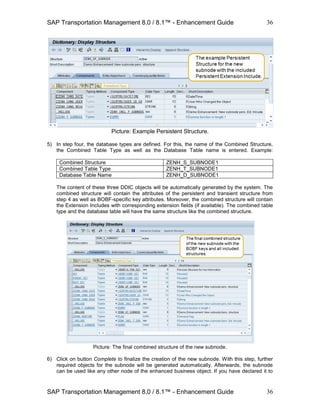
  • 27.
    SAP Transportation Management8.0 / 8.1™ - Enhancement Guide SAP Transportation Management 8.0 / 8.1™ - Enhancement Guide 27 27 Object’s entities like nodes, actions, etc. They can only be enhanced if SAP Development has declared them to be extensible. The BOBF Enhancement Workbench is started with transaction /BOBF/CUST_UI. Picture: BOBF Enhancement Workbench Initial Screen. On the initial screen you can see the Business Objects of the Transportation Management Application that are allowed to be enhanced in general (see Business Objects in the picture above). Whenever you want to enhance one of the listed Business Objects, the first step is to create a so called Enhancement Object for this Business Object. For the Enhancement Object, the original Business Object represents the so called Super Business Object or base object. Important to know is that this Enhancement Object does neither replace nor represent a copy of the standard Business Object. Instead it serves as a container for all enhancements that you add to the Business Object via the Enhancement Workbench. At runtime, still the standard Business Object functionality is being executed with the enhancements in addition. A double click on one of the already existing Enhancement Objects will lead you to the corresponding details as shown in the following picture:
  • 28.
    SAP Transportation Management8.0 / 8.1™ - Enhancement Guide SAP Transportation Management 8.0 / 8.1™ - Enhancement Guide 28 28 Picture: Details of an Enhancement Object. The specific example here shows an Enhancement Object for the Freight Order BO (TOR). The marked sections (1 - 3) show different entities of the Enhancement Object (double click on the very first line in the Node Browser). Section 1 shows the node structure of the Enhancement Object which includes all nodes (i.e. the complete node hierarchy) of the super business object and all subnodes that might have been added to the business object via the Enhancement Workbench. All nodes which are not grayed out here are allowed to be enhanced. If a node is grayed out, it has been defined to be not extensible. This is especially the case for standard dependent objects like Address, Attachment Folder and Text Collection. On the other hand, dependent objects defined by Transportation Management itself can be enhanced, provided that development has enabled them correspondingly. Section 2 shows all actions available at the Enhancement Object. This includes all standard actions as well as actions that might have been added to the business object via the Enhancement Workbench (All actions are only shown when you have marked the Enhancement Object in this view. If you double click on one of the nodes, section 2 will only contain those actions which belong to this specific node). Section 3 shows the name of the Super Business Object associated with the selected Enhancement Object as well as the so called constants interface of the Enhancement Object. This interface will contain all constants which are generated for your enhancements. A double click on one of the nodes (e.g. the Root Node) will show the following picture with details related to this specific node.
  • 29.
    SAP Transportation Management8.0 / 8.1™ - Enhancement Guide SAP Transportation Management 8.0 / 8.1™ - Enhancement Guide 29 29 Picture: The node of an Enhancement Object with its details. The picture above shows the possible enhancement options for the selected node (here: the Root Node of the Freight Order BO) in section 1. Click the right mouse button to view the types of enhancements that can be created for the selected node. In Section 2, the available actions of the selected node are shown. You can select one of the listed actions and then click the right mouse button to see the types of enhancements that can be created for the selected action. Moreover, in section 3, the node details (i.e. the data model) of the selected node is displayed, similar to those already mentioned in section 2.1.3 on the BOBF Modeling Tool. Here in the BOBF Enhancement Workbench you can see:  Persistent Structure: This DDIC structure contains the attributes of the node, representing the node data.  Transient Structure: Contains the transient attributes of a node, i.e. attributes which do not get persisted but are only filled and used during runtime.  Combined Structure & Combined Table Type: This DDIC structure (table type) includes the data structure of a node. In addition it includes a fixed BOPF DDIC structure which contains the node instance key (KEY), the key of the direct parent node instance (PARENT_KEY) as well as the key of the related business object instance (ROOT_KEY).  Database Table: Shows the database table where the persistent node information gets stored.  Extension Includes (persistent & transient): Important for field extensions on a node is the Extension Include. With this include, all extension fields are added (via Append Structures) which are to be persisted. Extension fields which are only relevant at runtime and not relevant to be persisted are placed in the corresponding transient Extension Include. By double click on the corresponding structures, tables or table types you can navigate to the details of these DDIC objects. Especially the Extension Includes are most important for field
  • 30.
    SAP Transportation Management8.0 / 8.1™ - Enhancement Guide SAP Transportation Management 8.0 / 8.1™ - Enhancement Guide 30 30 extensions. Here you add the customer / partner specific persistent and transient fields in corresponding append structures. The procedure how to do this and how to create all other indicated enhancement options via the BOBF Enhancement Workbench will be described more detailed in section 3.4 of this document. 3.3.2 First step: Creating an Enhancement Object The first step to enhance a standard Transportation Management Business Object is to create a so called Enhancement Object for this Business Object. The Business Object associated with this Enhancement Object is also called the Super Business Object of an Enhancement Object. As already mentioned in section 3.4.1, it is important to know that this Enhancement Object does neither replace nor represent a copy of the standard Business Object. Instead it serves as a container for all enhancements that you add to the Business Object via the Enhancement Workbench. At runtime, still the standard Business Object functionality is being executed with the enhancements in addition (moreover, all code corrections and changes on standard business objects and its entities will of course be present at any time). 1) Start the BOBF Enhancement Workbench (/BOBF/CUST_UI) and select the Business Object to be enhanced. Let’s assume we create an Enhancement Object for the Freight Order BO (technical name is /SCMTMS/TOR). 2) Click the right mouse button on the selected BO and select the option “Create Enhancement” in the upcoming popup menu. 3) A wizard will now guide you through the next steps to create the Enhancement Object. Picture: Creating an Enhancement Object. 4) On the first wizard screen click on button “Continue”. 5) On the next wizard screen you can see the name of the Super BO and the following list of fields ready for input:  Enhancement Name: The name of your enhancement. Example: ENH_TOR  Description: A description of your enhancement.
  • 31.
    SAP Transportation Management8.0 / 8.1™ - Enhancement Guide SAP Transportation Management 8.0 / 8.1™ - Enhancement Guide 31 31 Example: Demo Enhancement Object for TOR  Namespace: The namespace that your enhancement shall be associated with. It will be added at the beginning of the final technical name for your Enhancement Object. Example: Z (i.e. Customer Namespace).  Prefix: A prefix that will be added between the Namespace and the Enhancement Name in the final technical name of your enhancement. It is not a mandatory field and can be left on “space” if not required. Example: HP (this can of course also be left space) 6) Click on button “Continue”. With the entries made before, the next wizard step will propose the name of your enhancement as well as the name of the constants interface that will be created for the new Enhancement Object. Example (with the given entries): Technical Name : ZHP_ENH_TOR Constants Interface : ZIF_HP_ENH_TOR_C On this screen you can manually adjust the two fields. As an example, let’s remove the prefix from the names so that the final technical entities get the following names: Technical Name : ZENH_TOR Constants Interface : ZIF_ENH_TOR_C 7) Click on button “Continue” to get to the next wizard step. Here you define (yes/no) whether you allow your enhancement to be enhanced in further enhancements (i.e. nested enhancements are possible). 8) At any step of the wizard you can go back to all preceding steps again by clicking button “Back”. With this, adjusting the entered data is of course possible until you have completed the wizard. Click on button “Complete” to finally create your Enhancement Object with the entered specification. The new Enhancement Object can now be used to create enhancements of the corresponding Super Business Object. The creation of the different types of enhancements on node and action level is described in the following sections. 3.3.3 General remarks on creating enhancements Some general remarks that are valid for creating enhancements via the wizards provided by the BOBF Enhancement Workbench:  Implementing Classes: Some types of enhancements require providing an implementing class. This class contains the business logic of the enhancement. The system creates it automatically after finishing the wizard. You must implement it manually. Because the implementing class name should meet naming conventions, the wizard automatically suggests a valid class name. You can also define a class that already exists, by implementing the corresponding BOBF Interface (e.g. /BOBF/IF_FRW_ACTION for actions or /BOBF/IF_FRW_VALIDATION for validations, etc.) as the implementing class. The system does not overwrite the implementing class if it already exists.  The enhancement name should start with the namespace or prefix of the open enhancement (in our example this would be “ZENH_”). This ensures there is a clear separation between the entities of different enhancements. The system automatically enters the value in the field for the enhancement name. You should add a meaningful enhancement name.
  • 32.
    SAP Transportation Management8.0 / 8.1™ - Enhancement Guide SAP Transportation Management 8.0 / 8.1™ - Enhancement Guide 32 32  When completing the wizard, further required objects will be generated automatically. The system adds the new enhancement to the enhancement object. It displays the new enhancement in the Entity Browser when you select the corresponding assigned node or action. In case an implementing class is required for the enhancement, it is generated and must be implemented manually afterwards. The constants interface of the enhancement object is regenerated and contains a unique constant identifying the new enhancement.  Every enhancement created with the BOBF Enhancement Workbench can also be deleted again. For each create wizard a corresponding delete wizard is available which guides you through the relevant step and also checks the preconditions to be fulfilled for a deletion. 3.3.4 Creating Field Extensions Customers and Partners may require additional fields to be stored with the business objects, get them entered and displayed on the User Interface or get them transferred between external systems (e.g. ERP) and Transportation Management via corresponding services. Creating field extensions on the Business Objects delivered with Transportation Management is the basis for these kinds of enhancements. Such field extensions can be created using the BOBF Enhancement Workbench. 1) Start the BOBF Enhancement Workbench (/BOBF/CUST_UI) and select the Enhancement Object for the Business to be enhanced with additional fields. Let’s assume we create a field extension for the Freight Order BO (Enhancement Object ZENH_TOR created in section 3.4.2). 2) Double click on the node that shall be enhanced by additional fields (in our example the Root Node of the Freight Order BO). In the details of the node in the right area you can see the Extension Includes that will carry the additional fields. Field Extensions are always assigned to such an Extension Include.  Double click on the Persistent Extension Include to start adding fields that are to be persisted on the database.  Double click on the Transient Extension Include to start adding fields that are intended to be only used during runtime and do not get persisted on the database. Picture: The Extension Includes of a BO node.
  • 33.
    SAP Transportation Management8.0 / 8.1™ - Enhancement Guide SAP Transportation Management 8.0 / 8.1™ - Enhancement Guide 33 33 3) On the following screen you can see the DDIC Editor (analog to transaction SE11 for DDIC objects). Here click on the menu button Append Structure… to create a new Append for the chosen Extension Include. This append will contain your extension fields. Usually, you just need one such append to contain all your extension fields. But it is also possible to create additional Appends for the Extension Include e.g. to separate extensions from different partners. Example append: ZZENH_DEMO_TOR_ROOT. Picture: Creating an Append for the Extension Include. 4) Enter a short description for the Append and add the extension fields to be included in this Append (Component, Typing Method and Component Type). After the extension fields are correctly specified, save and activate the Append. Picture: Specifying the extension fields in the new Append. With the described four steps, the new extension fields are now part of the corresponding node structures, table types and the database table (provided that you have added the extension fields in the Persistent Extension Include). Both, transient and persistent extension fields are now ready
  • 34.
    SAP Transportation Management8.0 / 8.1™ - Enhancement Guide SAP Transportation Management 8.0 / 8.1™ - Enhancement Guide 34 34 to be used within further enhancements, e.g. in the business logic, the User Interface or in the context of services that send or receive corresponding information. 3.3.5 Creating Subnodes The Enhancement Workbench allows extending a business object with additional nodes. Subnodes can be added via a corresponding wizard that guides you through the required steps. 1) Open the corresponding Enhancement Object and select the node that shall be extended with a new subnode. In the context menu of the node (click right mouse button) choose Create Subnode to start the wizard. Example: Root Node of the Freight Order BO in the example Enhancement Object ZENH_TOR. 2) The first step in the wizard is to specify the name for the new subnode and a description on the semantic and purpose of the new subnode. Example: Node Name ZENH_SUBNODE Description Demo Enhancement Subnode Remark: The name of the subnode must be unique in the business object and should start with the namespace of the used enhancement object. If no namespace has been entered, the node name must start with the prefix of the used enhancement (in our example this would be “ZENH_”). This ensures you have clear separation between the nodes of different enhancements that belong to the same business object. The namespace (or prefix) value is automatically inserted in this field and must be completed with a meaningful node name. 3) In the second step you need to define whether this new subnode is itself extensible. Set the flag Node is extensible if you want to add additional enhancements to the new subnode (i.e. further subnodes, actions, determinations, etc.). If the flag is set, you can specify the names of a Persistent Extension Include and a Transient Extension Include to allow field extensions for the new subnode. a) Enter the names of these includes. Example: Persistent Extension Include ZENH_INCL_P_SUBNODE Transient Extension Include ZENH_INCL_T_SUBNODE b) On the wizard screen double click on these structures to right away start creating the corresponding DDIC objects. You will be guided to the DDIC Editor where you can define the initial information for the Extension includes. Repeat the following steps for both Extension Includes: c) Under menu path Extras → Enhancement Category choose either the category “Can be enhanced (deep)” or “Can be enhanced (character-like or numeric)”. d) Provide a short description. e) Create a dummy component (required for technical reasons). Example for the Persistent Extension Include: Component Typing Method Component Type ZZENH_P_SUBNODE Types DUMMY Do the same for the Transient Extension Include (if you have defined one). Example for the Transient Extension Include: Component Typing Method Component Type
  • 35.
    SAP Transportation Management8.0 / 8.1™ - Enhancement Guide SAP Transportation Management 8.0 / 8.1™ - Enhancement Guide 35 35 ZZENH_T_SUBNODE Types DUMMY f) Save and activate the corresponding Extension Include. Picture: Example Enhancement Extension Include with dummy component. 4) The third step is to define and create the Persistent Structure and/or the Transient Structure for the subnode. a) Enter the names for these structures. Example: Persistent Structure ZENH_SP_SUBNODE Transient Structure ZENH_ST_SUBNODE b) On the wizard screen double click on these structures to right away start creating the corresponding DDIC objects. You will be guided to the DDIC Editor where you can define the initial information for the structures: c) Under menu path Extras → Enhancement Category choose either the category “Can be enhanced (deep)” or “Can be enhanced (character-like or numeric)”. d) Provide a short description. e) Define the attributes that shall be part of the new subnode and get persisted on the database in the Persistent Structure. f) At the end of the Persistent Structure include the Persistent Extension Include from step 3 to allow persistent field extensions for the new subnode. g) Define the attributes that shall be part of the new subnode and are only available at runtime in the Transient Structure. h) At the end of the Transient Structure include the Transient Extension Include from step 3 to allow transient field extensions for the new subnode. i) Save and activate the corresponding Extension Include.
  • 36.
    SAP Transportation Management8.0 / 8.1™ - Enhancement Guide SAP Transportation Management 8.0 / 8.1™ - Enhancement Guide 36 36 Picture: Example Persistent Structure. 5) In step four, the database types are defined. For this, the name of the Combined Structure, the Combined Table Type as well as the Database Table name is entered. Example: Combined Structure ZENH_S_SUBNODE1 Combined Table Type ZENH_T_SUBNODE1 Database Table Name ZENH_D_SUBNODE1 The content of these three DDIC objects will be automatically generated by the system. The combined structure will contain the attributes of the persistent and transient structure from step 4 as well as BOBF-specific key attributes. Moreover, the combined structure will contain the Extension Includes with corresponding extension fields (if available). The combined table type and the database table will have the same structure like the combined structure. Picture: The final combined structure of the new subnode. 6) Click on button Complete to finalize the creation of the new subnode. With this step, further required objects for the subnode will be generated automatically. Afterwards, the subnode can be used like any other node of the enhanced business object. If you have declared it to
  • 37.
    SAP Transportation Management8.0 / 8.1™ - Enhancement Guide SAP Transportation Management 8.0 / 8.1™ - Enhancement Guide 37 37 be extensible, any enhancements for the new node are done the same way like for the standard nodes, i.e. you can add fields via field extensions, add actions, etc. On completion of the subnode, also the constants interface of the enhancement is regenerated and contains a unique constant identifying the subnode (this constant is necessary in order to access the data of the node). Picture: The final new subnode.
  • 38.
    SAP Transportation Management8.0 / 8.1™ - Enhancement Guide SAP Transportation Management 8.0 / 8.1™ - Enhancement Guide 38 38 3.3.6 Creating Actions You can use an action to allow the explicit external triggering of business logic. Actions can be added to extensible standard nodes and new sub nodes. The wizard for this task guides you through the following required steps. 1) Open the corresponding Enhancement Object and select the node that shall be extended with a new action. In the context menu of the node (click right mouse button) choose Create Action to start the wizard. Example: Root Node of the Freight Order BO in the example Enhancement Object ZENH_TOR. 2) The first step in the wizard is to specify the name for the new action and a description on the semantic and purpose of the new name. Example: Action Name ZENH_DEMO_ACTION Description Demo Enh. Action for Freight Order Root 3) In the second step you need to define the following information on the new action. a) Implementing Class: Example: ZCL_ENH_A_DEMO_ACTION. The implementing class must implement interface /BOBF/IF_FRW_ACTION. b) Action Cardinality: Defines how many node instances the action can operate on during one action call. The following are the action cardinality types:  Multiple Node Instances: Select if the action always operates on one or more node instances.  Single Node Instance: Select if the action operates on exactly one single node instance for each call.  Static Action (No Node Instances): Select if the action does not operate on any node instances. c) Parameter Structure: Some actions need an additional importing parameter. Enter a name for the parameter structure and create the structure by double-clicking the name. 7) On the next wizard screen you can specify whether the new action shall be extensible or not. Set the flag “Action can be enhanced” if you want to allow adding enhancements to the new action (i.e. adding Pre- and Post Action Enhancements and Action Validations). 8) Click on button Complete to finalize the creation of the new action.
  • 39.
    SAP Transportation Management8.0 / 8.1™ - Enhancement Guide SAP Transportation Management 8.0 / 8.1™ - Enhancement Guide 39 39 Picture: The final new action assigned to the respective node. 9) Finally, you need to implement your business logic in the Action’s implementing class that you have specified in the previous steps. Double click on the implementing class in the action details to start the implementation. Picture: Implementing the business logic of the new action
  • 40.
    SAP Transportation Management8.0 / 8.1™ - Enhancement Guide SAP Transportation Management 8.0 / 8.1™ - Enhancement Guide 40 40 3.3.7 Creating Action Validations An action validation is referred to a certain action. It contains checking logic which is automatically executed before the action is processed. It can be used to check if an action can be carried out. An action validation is carried out when an action is called, and before it is performed. If some validations fail, the action is not performed for the instances where the validation failed. The BOBF Enhancement Workbench provides a corresponding wizard to create new action validations for extensible standard actions and enhancement actions. 1) Open the corresponding Enhancement Object and navigate to the action that shall be extended with a new action validation. In the context menu of the node (click right mouse button) choose Create Action Validation to start the wizard. Example: Action ZENH_DEMO_ACTION created in section 3.4.4 (Root Node of the Freight Order BO in the example Enhancement Object ZENH_TOR). 2) The first step in the wizard is to specify the name for the new action validation and a description on the semantic and purpose of this new entity. Example: Validation Name ZENH_DEMO_ACTVAL Description Demo Enh. Action Validation 3) In the second step you need to define the implementing class of the new action validation. Example: ZCL_ENH_V_DEMO_ACTVAL. The implementing class must implement interface /BOBF/IF_FRW_VALIDATION. 4) Click on button Complete to finalize the creation of the new action validation. 5) Finally, you need to implement your business logic in the action validation’s implementing class that you have specified in the previous steps. Double click on the implementing class in the action validation details to start the implementation. Picture: The final new action validation assigned to the respective action.
  • 41.
    SAP Transportation Management8.0 / 8.1™ - Enhancement Guide SAP Transportation Management 8.0 / 8.1™ - Enhancement Guide 41 41 3.3.8 Creating Pre- and Post-Action Enhancements A pre- or post-action enhancement can be used to extend the functionality of a certain action that is located in the base object (i.e. they are created for extensible standard actions only).  A pre action enhancement is automatically executed by the BOBF framework, before a certain action of the base object is performed.  A post action enhancement is automatically executed by the BOBF framework after a certain action of the base business object was performed. If an importing parameter structure is maintained on the base action, this parameter is also handed over to the pre or post action enhancement and can be used in the implementation of the corresponding business logic. The BOBF Enhancement Workbench provides corresponding wizards for creating pre and post action enhancements. As an example, we describe the creation of a pre action enhancement (the procedure works analog for post action enhancements). 1) Open the corresponding Enhancement Object and navigate to the standard action that shall be extended with a new pre action enhancement. In the context menu of the node (click right mouse button) choose Create Pre Action Enhancement to start the wizard. Example: Action ASSIGN_TSP assigned to the Freight Order BO Root Node (in the example Enhancement Object ZENH_TOR). 2) The first step in the wizard is to specify the name for the new pre action enhancement and a description on the semantic and purpose of this new entity. Example: Action Name ZENH_PRE_ASSIGN_TSP Description Demo Pre Action Enhancement 3) In the second step you need to define the implementing class of the new action validation. Example: ZCL_ENH_A_PRE_ASSIGN_TSP. The implementing class must implement the interface /BOBF/IF_FRW_ACTION. 4) Click on button Complete to finalize the creation of the new pre action enhancement. Picture: The final new pre action enhancement assigned to the respective action.
  • 42.
    SAP Transportation Management8.0 / 8.1™ - Enhancement Guide SAP Transportation Management 8.0 / 8.1™ - Enhancement Guide 42 42 5) Finally, you need to implement your business logic in the consistency validation’s implementing class that you have specified in the previous steps. Double click on the implementing class in the consistency validation details to start the implementation. 3.3.9 Creating Consistency Validations Consistency validations can be used to check the consistency of a business object. It is possible to check whether or not a certain set of node instances of a certain node are consistent. The consistency validation implementation returns a set of failed keys identifying all handed over node instances that are inconsistent. New enhancement consistency validations can be added to extensible standard nodes and new subnodes. The wizard for this task guides you through the following required steps. 1) Open the corresponding Enhancement Object and select the node that shall be extended with a new consistency validation. In the context menu of the node (click right mouse button) choose Create Consistency Validation to start the wizard. Example: The new subnode ZENH_SUBNODE of the Freight Order BO in the example Enhancement Object ZENH_TOR created in section 3.4.3. 2) The first step in the wizard is to specify the name for the new consistency validation and a description on the semantic and purpose of this new entity. Example: Validation Name ZENH_DEMO_CONVAL Description Demo Enh. Cons. Validation 3) In the second step you need to define the implementing class of the new consistency validation. Example: ZCL_ENH_V_DEMO_CONVAL): The implementing class must implement interface /BOBF/IF_FRW_VALIDATION. 4) Maintain Request Nodes: A consistency validation is automatically executed as soon as one of the triggering conditions of its request nodes is fulfilled. In this wizard step, the request nodes and the corresponding triggering condition are defined. On this screen, all nodes are shown that are connected to the assigned node by an association. To maintain a request node, select the request node checkbox and the appropriate triggering condition (Create, Update or Delete). Example: Request Node Node Create Update Delete Yes ZENH_SUBNODE Yes Yes No No ROOT No No No With these settings, the consistency validation will be triggered when instances of node ZENH_SUBNODE are created or updated. Assume we declared node ROOT as a request node and marked the triggering condition Update. In this case, the consistency validation would also be triggered when the Root node is updated.
  • 43.
    SAP Transportation Management8.0 / 8.1™ - Enhancement Guide SAP Transportation Management 8.0 / 8.1™ - Enhancement Guide 43 43 Picture: Request Nodes and Triggering Conditions. 5) Maintain the Impact: The consistency validation shall indicate changed node instances that are inconsistent by the help of messages. You can prevent the system from saving the entire transaction if a changed instance fails the consistency validation, or fails to set a consistency status. You can maintain the type of reaction on inconsistent node instances as validation impacts in this wizard screen. Options:  Return messages: This represents the default behavior of consistency validation. The validation implementation returns messages for inconsistent instances to the consumer.  Return messages and prevent saving: Select this option for the validation impact if the inconsistency of a node instance must be solved before saving the transaction.  Return messages and set a consistency status: If the base object (super object) contains a consistency status, this status can be influenced by a consistency validation. Choose the appropriate status variable. When a changed instance fails the consistency validation, this status is automatically set to inconsistent. 6) Click on button Complete to finalize the creation of the new consistency validation. Picture: The final new consistency validation assigned to the respective node.
  • 44.
    SAP Transportation Management8.0 / 8.1™ - Enhancement Guide SAP Transportation Management 8.0 / 8.1™ - Enhancement Guide 44 44 7) Finally, you need to implement your business logic in the consistency validation’s implementing class that you have specified in the previous steps. Double click on the implementing class in the consistency validation details to start the implementation. Picture: Implementing the business logic of the new consistency validation. 3.3.10 Creating Determinations A determination is mainly used to compute data that can be derived from the values of other attributes. The determined attributes and the determining attributes of the triggering condition can belong to the same node or to different nodes. There are also values that do not depend on any other value but still have to be determined automatically on the creation or modification of a node instance, for example IDs. A determination is assigned to a business object node. It describes internal changing business logic on the business object. A determination is automatically executed by the BOBF as soon as the BOBF triggering condition is fulfilled. This triggering condition is checked by the framework at different points in the transaction, depending on the pattern of the determination. For each determination, it is necessary to specify the changes that build the triggering condition. Changes can include creating, updating, deleting, or loading node instances. As soon as the framework checks the trigger conditions of determinations and there is more than one determination to be executed, the dependencies of the determinations are considered. With the help of a determination dependency, a determination can be maintained either as a predecessor or a successor of another determination. The four supported determination patterns (in the following referenced with A, B, C and D) are: A) Derive dependent data immediately after modification (After Modify): The trigger condition of the determination is evaluated at the end of each modification. A modification roundtrip is defined as one single modification core service call from the consumer to the framework. The call contains arbitrary creations, updates, or deletions of node instances. Additionally, the trigger condition is checked after each action core service execution.
  • 45.
    SAP Transportation Management8.0 / 8.1™ - Enhancement Guide SAP Transportation Management 8.0 / 8.1™ - Enhancement Guide 45 45 The pattern shall be used if creating, updating, or deleting of node instances causes unforeseen errors. These errors are handled during the same roundtrip. If there is no need to react immediately on the modification, and the handling of the side effect is very time consuming, we recommend you use the Derive dependent data before saving determination pattern instead. Example: As soon as a new ITEM node instance of the CUSTOMER_INVOICE business object is added, the changed item amount (price x quantity) must be immediately recalculated in order to show the new amount on the consumer’s user interface. B) Derive dependent data before saving (Before Save): The trigger condition is checked as soon as the consumer saves the whole transaction. If the save of the transaction fails, these determinations could run multiple times. In contrast to the “Derive dependent data immediately after modification” pattern, the framework evaluates all changes done so far in the current transaction to check the trigger condition. Because this evaluation only takes place at the save phase of the transaction, this pattern is recommended for time consuming determinations. Example: The data of each invoice must additionally be stored in a XML file. A determination is configured to extract the XML code from each changed invoice. Because this is very time consuming the determination does not run immediately after each change of an invoice. Instead, it runs once before saving for all invoices changed during the current transaction. C) Fill transient attributes of persistent nodes (After Loading): The determination is automatically executed before the consumer accesses a transient node attribute of the assigned node for the first time. This allows you to initially derive the values of the attribute. In addition, these determinations are executed after each modification of a node instance. This allows you to recalculate the transient field if its derivation source attribute has been changed by the modification. These determinations are used to derive the values of transient attributes of a node. Example: The volume of a certain item of a customer invoice can be derived out of the length, width, and depth of this item unit, and the quantity. The volume attribute is a transient attribute of the item node, and its value can be derived as soon as an item is loaded from the database. Therefore, you can use a determination that calculates and fills the volume at this point in time. D) Derive instances of transient nodes (Before Retrieve): The determination is executed before the consumer accesses the assigned transient node of the determination and allows the creation, update or deletion of transient node instances. These determinations are used to create and update instances of transient nodes. Because the determinations are executed before each access to their assigned transient node, they must ensure that the requested instances are in a consistent state. Example: The customer invoice business object does not store payment options. The payment option node is a transient node buffering detail information that is located in another system. New enhancement determinations can be added to extensible standard nodes and new subnodes. The wizard for this task guides you through the following required steps.
  • 46.
    SAP Transportation Management8.0 / 8.1™ - Enhancement Guide SAP Transportation Management 8.0 / 8.1™ - Enhancement Guide 46 46 1) Open the corresponding Enhancement Object and select the node that shall be extended with a new determination. In the context menu of the node (click right mouse button) choose Create Determination to start the wizard. Example: The new subnode ZENH_SUBNODE of the Freight Order BO in the example Enhancement Object ZENH_TOR created in section 3.4.3. 2) The first step in the wizard is to specify the name for the new determination and a description on the semantic and purpose of this new entity. Example: Determination Name ZENH_DEMO_DET Description Demo Enhancement Determination 3) In the second step you need to define the implementing class of the new determination. Example: ZCL_ENH_D_DEMO_DET): The implementing class must implement interface /BOBF/IF_FRW_DETERMINATION. 4) Maintain the determination pattern: In this step you can choose one of the determination patterns described before via a radio button. 5) Maintain Request Nodes (only required and done for determination patterns A and B): A determination is automatically executed as soon as one of the triggering conditions of its request nodes is fulfilled. In this wizard step, the request nodes and the corresponding triggering condition are defined. On this screen, all nodes are shown that are connected to the assigned node by an association. To maintain a request node, select the request node checkbox and the appropriate triggering condition (Create, Update or Delete). Example: Request Node Node Create Update Delete Yes ZENH_SUBNODE Yes Yes No No ROOT No No No With these settings, the determination will be triggered when instances of node ZENH_SUBNODE are created or updated. Assume we declared node ROOT as a request node and marked the triggering condition Update. In this case, the determination would also be triggered when the Root node is updated. Picture: Request Nodes and Triggering Conditions. 6) Maintain Transient Node (only required and done for determination pattern D): Select the transient node whose instances shall be modified by the determination.
  • 47.
    SAP Transportation Management8.0 / 8.1™ - Enhancement Guide SAP Transportation Management 8.0 / 8.1™ - Enhancement Guide 47 47 Maintain Write Nodes: Select all the nodes whose instances are created or modified by the determination. Example: Write Node Node Yes ZENH_SUBNODE No ROOT 7) Maintain Determination Dependencies: As mentioned before, enhancement determinations are only executed after all standard determinations have been executed to ensure that the standard business logic is not disrupted and leads to inconsistencies. Nevertheless, you can define dependencies between enhancement determinations with the same determination pattern (this can only be the case for pattern A and B), i.e. this step will only come up in the wizard in case there is more than one determination of the same pattern present. On the wizard screen select the determinations which must be processed before or after the determination currently being created or configured. The triggering condition of the determination must also be fulfilled to get executed. For each determination you can define if it is either executed before (predecessor) or after the current determination (successor). This allows defining an execution sequence of the enhancement determinations. Picture: Defining the execution sequence of a determination. In the picture above our determination ZENH_DEMO_DET is assigned a successor determination ZENH_DEMO_DETDEP (for this determination ZENH_DEMO_DET will automatically be defined as a predecessor determination). 8) Click on button Complete to finalize the creation of the new determination. 9) Finally, you need to implement your business logic in the determination’s implementing class that you have specified in the previous steps. Double click on the implementing class in the determination details to start the implementation.
  • 48.
    SAP Transportation Management8.0 / 8.1™ - Enhancement Guide SAP Transportation Management 8.0 / 8.1™ - Enhancement Guide 48 48 3.3.11 Creating Queries Queries are the initial point of access to business objects. They allow performing searches on a business object to receive the keys or the data of certain or all node instances. Each query has an associated parameter structure. To allow different search criteria at runtime, the consumer may hand over the query data type. A query returns the queried keys and data of the business object node instances, i.e. a set of all the record IDs in a business object that match the query criteria. The BOBF Enhancement Workbench allows creating new queries of two different types:  Node Attribute Query: The search parameters are equal to the assigned node of the query. The search criteria can consist of value comparisons and value ranges on the attributes of the nodes. The query returns the instances of the assigned node whose attributes match the provided search parameters. Node attribute queries are recommended for all cases that do not need complex query logic. In contrast to custom queries, node attribute queries are only modeled and therefore do not have to be implemented.  Custom Query: Queries of this type execute application specific logic. In contrast to the node attribute query, this logic must be implemented in the implementing class of the query. The custom query can have an arbitrary data type structure that is handed over by the consumer to the query implementation at runtime. Custom queries must be used if the recommended node attribute queries do not fulfill the requirements, e.g. if specific query parameters must be handed over, or if the query logic is more complex than comparing attribute values. Note: The BOBF Enhancement Workbench does not support enhancing existing standard BO queries. Moreover, it is e.g. not possible to assign a query to the ROOT node, which returns instances or their keys of the ITEM node. How to enhance existing standard queries is described in section 7.1 of this document. New enhancement queries can be added to extensible standard nodes and new subnodes. The wizard for this task guides you through the following required steps. 1) Open the corresponding Enhancement Object and select the node that the new query shall be assigned to. In the context menu of the node (click right mouse button) choose Create Query to start the wizard. Example: The new subnode ZENH_SUBNODE of the Freight Order BO in the example Enhancement Object ZENH_TOR created in section 3.4.3. 2) The first step in the wizard is to specify the name for the new query and a description on the semantic and purpose of this new entity. Example: Query Name ZENH_DEMO_DET Description Demo Enhancement Determination 3) Maintain the Query Type: If you choose Node Attribute Query finalize the creation of the new query with step 5. Otherwise continue with step 4.
  • 49.
    SAP Transportation Management8.0 / 8.1™ - Enhancement Guide SAP Transportation Management 8.0 / 8.1™ - Enhancement Guide 49 49 4) Define the implementing class and a query data type for the new Query (only required and done in case of a Custom Query). Example: Implementing Class ZCL_ENH_Q_DEMO_QUERY Data Type ZENH_S_SUBNODE1 The implementing class must implement interface /BOBF/IF_FRW_QUERY. In the example, we used the structure of the node that the query gets assigned to which is the fixed standard query structure in case of a Node Attribute Query. If you create a Custom Query, you can place an arbitrary structure that contains the required search parameters. 5) Click on button Complete to finalize the creation of the new query. 6) (Only required and done in case of a Custom Query) Finally you need to implement the query logic in the query’s implementing class that you have specified in the previous steps. Double click on the implementing class in the query details to start the implementation.
  • 50.
    SAP Transportation Management8.0 / 8.1™ - Enhancement Guide SAP Transportation Management 8.0 / 8.1™ - Enhancement Guide 50 50 4 Techniques for Enhancing the Business Logic 4.1 BAdIs The Business Add-In (BAdI) concept is SAP’s object-oriented plug-in concept for ABAP. BAdIs are a mechanism for planned extensibility. Planned means that the developer of the standard software already anticipates that others may want to change or enhance the standard behavior at certain points in the application. BAdIs are used to plug in custom behavior either in an additive way or by replacing the standard behavior. 4.1.1 Where and how to find BAdIs related to TM For Transportation Management 8.0, more than 70 BAdIs are available in all application areas. They can be found in the IMG (transaction SPRO) under the following path: SAP Transportation Management → Transportation Management → Business Add-Ins (BAdIs) for Transportation Management. Picture: TM BAdIs in the IMG.
  • 51.
    SAP Transportation Management8.0 / 8.1™ - Enhancement Guide SAP Transportation Management 8.0 / 8.1™ - Enhancement Guide 51 51 4.1.2 Implementing a BAdI A BAdI implementation can be started directly from the IMG. As an alternative, transaction SE19 can be used to either edit existing enhancement implementations or create new ones. Besides the initial screen, the other steps to implement a BAdI with SE19 are the same as the procedure starting from the IMG. Picture: Defining the required Enhancement Implementation. When starting from the IMG, just click on the second icon next to the BAdI name (see picture 6). This allows also the navigation to existing implementations of the corresponding BAdI. 1) When starting a BAdI Implementation directly from the IMG, the first step is to specify an Enhancement Implementation and a Short Text for it. This Enhancement Implementation serves as a container for your implementation steps done in the following. Picture: Defining the required Enhancement Implementation.
  • 52.
    SAP Transportation Management8.0 / 8.1™ - Enhancement Guide SAP Transportation Management 8.0 / 8.1™ - Enhancement Guide 52 52 2) On the next popup, choose a package where you store your implementation and click on SAVE. Picture: Defining the required Enhancement Implementation. On the following screen you need to enter a BAdI Implementation and an Implementation Class. If you started your implementation from the IMG, the correct BAdI Definition is already defaulted. Optionally, you could also choose another or additional BAdI Definitions here that belong to the same Enhancement Spot. In this example you can choose from the group of BAdIs that belong to the Enhancement Spot /SCMTMS/TEND which contains all Tendering related BAdIs. Picture: Specifying a BAdI Implementation and the implementing Class.
  • 53.
    SAP Transportation Management8.0 / 8.1™ - Enhancement Guide SAP Transportation Management 8.0 / 8.1™ - Enhancement Guide 53 53 3) A BAdI can provide one or more methods that serve different purposes. So the next step is to navigate to the implementing class to get the required methods implemented. Picture: Navigating to the implementing Class of a BAdI. 4) Finally create an implementation for desired BAdI methods. Within this step it is helpful to display the signature of the method to see what data it receives and what data it is able to return as a result. The displayed signature allows direct navigation to the DDIC objects used for its parameters. Picture: Implementing a selected BAdI method. Finally, after having implemented the required BAdI methods, the implementation needs to be activated. This comprises activating the method implementations as well as activating the Enhancement Implementation (see also picture in step 4 where the Enhancement Implementation is still inactive). To get your implementation up and running, both need to be active.
  • 54.
    SAP Transportation Management8.0 / 8.1™ - Enhancement Guide SAP Transportation Management 8.0 / 8.1™ - Enhancement Guide 54 54 4.2 Process Controller Strategies The Process Controller Framework (PCF) allows the flexible definition of application processes. This is accomplished by defining a process as a sequence of methods which represent the single process steps. Such a sequence of methods is called a Strategy. Using the PCF means the definition of an application process as a sequence of methods (a Strategy) in customizing by SAP, partners and customers. Pieces of functionality can be packed into a method, which can then be included and used in a strategy. Partners and Customers can define their own methods and combine them either to completely new strategies or they can include their own methods in SAP standard strategies, i.e. they also can enhance them with their customer specific functionality. The following table with predefined services provides an overview of different application areas and functionalities within Transportation Management 8.0 that make use of the Process Controller Framework: Service Description / Purpose COPY_CONTR Copy Control DDD_DET Distance and Duration Determination GEO_DET Geo Coordinate Determination GEO_ROUTE Geo Route Determination RG_DYNAMIC Dynamic Routing Guide RG_FIX Fixed Routing Guide TM_DG TM Dangerous Goods TM_GT_GRP Customs Groups TM_INVOICE TM Invoicing TM_TSPS TM Carrier Selection TOR_CHACO TM Change Controller for Changes (Freight Order) TOR_CREATE TM Change Controller for Creation (Freight Order) TOR_DELETE TM Change Controller for Deletion (Freight Order) TOR_DSO TM Direct Shipment Options (Freight Order) TOR_SAVE TM Change Controller for Saving (Freight Order) VSR TM VSR Optimizer VSR_INTER TM VSR Interactive Planning 4.2.1 Relevant parts of the Process Controller The Process Controller Framework comprises the following entities:  Service: A service is the definition of strategies and methods working on the same process. It is used to clearly separate the maintenance.  Method: All methods share the same interface of an object for providing parameters and a list of mutually independent requests. Some methods comprise functionality themselves, whereas others mainly encapsulate existing functionality (like EH&S check within RGE). There is a method pool for each process, and each method pool contains all methods which the application process requires in order to define its strategies.  Strategy: A strategy serializes a selection of methods from the method pool. It brings them in the sequence in which they shall be executed by the Controller.
  • 55.
    SAP Transportation Management8.0 / 8.1™ - Enhancement Guide SAP Transportation Management 8.0 / 8.1™ - Enhancement Guide 55 55  Parameter: Parameters influence the behavior of the respective methods, but do not change the sequence in which the methods are executed. The Controller passes them on to each method through its interface. A parameter may not only have different values in different methods, but also in the same method as part of different strategies, or even in the same method of the same strategy as part of different requests.  Request: The requests represent the various business demands (e.g. determination of a best route) on an application process. The Controller processes the requests by passing them on to the strategy methods through their interfaces. The requests may further allow storing possible solutions.  Application Class: The methods in the pool of the Controller are provided by so-called application classes. Method execution by the Controller works (dynamically) since the definition of a new method includes the name of the providing application class. The results produced by a method are either passed on to all succeeding methods with the corresponding requests or they are stored externally, if the calling application, but not succeeding methods take advantage of these results. 4.2.2 Setting up a Process Controller Strategy The configuration of Process Controller Strategies is done in the IMG (Transaction SPRO), located under the path shown below: Picture: Configuration of PCF in IMG. The path in IMG (Transaction SPRO) is: SAP Transportation Management → SCM Basis → Process Controller. From here all required steps for defining a strategy can be triggered. As an example for the configuration of a Process Controller Strategy and the implementation of an example method, we create a new strategy for the SAP Standard Service TOR_SAVE. In the application area Freight Oder Management you can assign a Save Strategy to a Freight Order Type which allows executing follow-on functions when saving Freight Orders.
  • 56.
    SAP Transportation Management8.0 / 8.1™ - Enhancement Guide SAP Transportation Management 8.0 / 8.1™ - Enhancement Guide 56 56 1) The first step is to create a new strategy belonging to the service TOR_SAVE. In the mentioned IMG path click on Define Strategy and on the following screen on New Entries (you could also mark an existing strategy and copy it with a new name). Picture: Creating a new strategy. 2) In the next step, we will define a class that provides a new method to be part of the method pool for the used service TOR_SAVE. The example method shall do a Charge Calculation for a Freight Order. For the definition of the class and its implementation, transaction SE24 is used (for demo purposes, you should use the customer namespace and save as local object). Picture: Creating a new class with transaction SE24. 3) Within the class we define a method CALCULATE_CHARGES which has to provide specific parameters so that the Process Controller Framework can execute it with the relevant data. After the parameters have been defined, the implementation of the method can be started by double clicking on the methods name in the methods overview (see picture 15). When the class implementation is complete, save and activate it
  • 57.
    SAP Transportation Management8.0 / 8.1™ - Enhancement Guide SAP Transportation Management 8.0 / 8.1™ - Enhancement Guide 57 57 Picture: Defining a method with transaction SE24. Picture: Defining method parameters with transaction SE24. At runtime, the example method receives Process Controller Requests and executes the action CALC_TRANSPORTATION_CHARGES of all instances of the business Object TOR (e.g. Freight Orders) provided with each request. The example coding for the method looks as follows: METHOD calculate_charges. DATA: lo_request TYPE REF TO /sctm/cl_request, lo_tor_save_request TYPE REF TO /scmtms/cl_chaco_request, lt_failed_key TYPE /bobf/t_frw_key, lo_message TYPE REF TO /bobf/if_frw_message. LOOP AT it_request INTO lo_request. lo_tor_save_request = /scmtms/cl_tor_helper_chaco=>cast_request ( lo_request ). CHECK lo_tor_save_request IS BOUND. *******************************************************************
  • 58.
    SAP Transportation Management8.0 / 8.1™ - Enhancement Guide SAP Transportation Management 8.0 / 8.1™ - Enhancement Guide 58 58 * calc. the charges for the uncancelled and unfinalized instances ******************************************************************* CALL METHOD lo_tor_save_request->mo_tor_srvmgr->do_action( EXPORTING iv_act_key = /scmtms/if_tor_c=>sc_action-root- calc_transportation_charges it_key = lo_tor_save_request->mt_tor_key_active IMPORTING eo_message = lo_message et_failed_key = lt_failed_key ). APPEND LINES OF lt_failed_key TO lo_tor_save_request-> mt_failed_key. * add messages to change controller request /scmtms/cl_common_helper=>msg_helper_add_mo( EXPORTING io_new_message = lo_message CHANGING co_message = lo_tor_save_request->mo_message ). ENDLOOP. ENDMETHOD. 4) Now we can assign our new method to the method pool of the TOR_SAVE service. This is again done in the IMG. In the IMG path click on Define Methods and on the following screen on New Entries. Picture: Assigning the method to the method pool of service TOR_SAVE.
  • 59.
    SAP Transportation Management8.0 / 8.1™ - Enhancement Guide SAP Transportation Management 8.0 / 8.1™ - Enhancement Guide 59 59 5) Finally, we assign the new method from the method pool to our new strategy which was defined in the first step. In the mentioned IMG path click on Assign Methods to a Strategy and on the following screen on New Entries. Picture: Assigning the method from method pool to the strategy. The example strategy is now ready to be used and allows triggering a Charge Calculation when saving e.g. a Freight Order that has this save strategy assigned in its corresponding Freight Oder Type. Further methods can be added to the strategy by repeating the described steps 3 - 5. Further methods can be added and implemented in the defined class to realize additional functionality that shall be executed on save of a Freight Order. These additional methods are then assigned to the method pool of the underlying service and to the strategy. The execution of the methods is done in the sequence defined in the strategy. Now the new save strategy can be assigned to a Freight Order Type and is executed whenever a Freight Order of this specific type is saved. This assignment is done in the IMG under the following path: SAP Transportation Management → Transportation Management → Freight Order Management → Freight Order → Define Freight Order Types. Picture: Assigning the new strategy to a Freight Order Type. With similar steps customers and partners can not only create their very own strategies but can also enhance SAP standard strategies to execute additional, customer specific functionality.
  • 60.
    SAP Transportation Management8.0 / 8.1™ - Enhancement Guide SAP Transportation Management 8.0 / 8.1™ - Enhancement Guide 60 60 4.2.3 Using the Process Controller Framework for a new process The following section describes an example how to use the Process Controller Framework for the implementation of a new process. Running your own Process Controller application requires corresponding customizing settings as described in the previous sections as well as a technical implementation part. 1) Create a new Process Controller Service in customizing under the path: SAP Transportation Management → SCM Basis → Process Controller → Define Service. Example: Service Description ZENHDEMO Enhancement Demo Service 2) Define an external and internal request and result structure: The request data must contain the information on which process specific strategy shall be executed. An example set of the required structures and table types: Structure Description ZENH_S_DEMO_REQUEST_STR Demo Request: Single Request (internal) Component Typing Method Component Type TOR_ID Types /SCMTMS/TOR_ID TEXT Types /SCMTMS/STRING APPROVAL Types BOOLEAN APPROVALDATE Types /SCMTMS/DATETIME Structure Description ZENH_S_DEMO_RESULT Demo Request: Result (external) Component Typing Method Component Type ITEM_KEY Types /BOBF/CONF_KEY ROOT_KEY Types /BOBF/CONF_KEY GRO_WEI_VAL Types /SCMTMS/QUA_GRO_WEI_VAL GRO_WEI_UNI Types /SCMTMS/QUA_GRO_WEI_UNI Also define the corresponding table types: Table Type Description ZENH_T_DEMO_REQUEST_STR Demo Request: Request Table (internal) Line Type ZENH_S_DEMO_REQUEST_STR Table Type Description ZENH_T_DEMO_RESULT Demo Request: Result Table (external) Line Type ZENH_S_DEMO_RESULT Define the internal request and result structure: These structures are used within the request objects and could be the same as the external structures in a simple process. Structure Description ZENH_S_DEMO_REQUEST_INT Demo Request: Internal View Component Typing Method Component Type .INCLUDE Types ZENH_S_DEMO_REQUEST_STR
  • 61.
    SAP Transportation Management8.0 / 8.1™ - Enhancement Guide SAP Transportation Management 8.0 / 8.1™ - Enhancement Guide 61 61 .INCLUDE Types ZENH_S_DEMO_RESULT RETURN_CODE Types /SCMTMS/STRING Structure Description ZENH_S_DEMO_REQUEST Demo Request: External View Component Typing Method Component Type STRATEGY Types /SCTM/DE_STRATEGY REQUESTS Types ZENH_T_DEMO_REQUEST_INT Also define the corresponding table types: Table Type Description ZENH_T_DEMO_REQUEST_INT Demo Request: Internal View Table Line Type ZENH_S_DEMO_REQUEST_INT Table Type Description ZENH_T_DEMO_REQUEST Demo Requests: External View Table Line Type ZENH_S_DEMO_REQUEST 3) Create a Request Object Class: The request object represents the container for request and result data as well as process specific options. It will be filled by the controller and passed through the Process Controller Framework from method to method (i.e. it is the generic interface between the methods of a strategy).  Create a class [namespace]CL_[process]_REQUEST which inherits from the super class /SCTM/CL_REQUEST. Example: ZENH_CL_DEMO_REQUEST.  Add public attributes for request and result data as well as (if required) process specific options. In example class ZENH_CL_DEMO_REQUEST add the following attributes: Attribute Level Visibility Typing Associated Type MV_STRATEGY Instance Attribute Public Type /SCTM/DE_STRATEGY MT_REQUESTS Instance Attribute Public Type ZENH_T_DEMO_REQUEST_INT MT_RESULTS Instance Attribute Public Type ZENH_T_DEMO_RESULT MO_MESSAGE_ HANDLER Instance Attribute Public Type Ref To /BOBF/IF_FRW_MESSAGE  Implement a constructor for the class with the following parameters (the method CONSTRUCTOR is a public instance method): Parameter Pass Value Optional Typing Method Associated Type IV_REQUEST_ID Type /SCTM/DE_REQUEST_ID IV_STRATEGY Type /SCTM/DE_STRATEGY IT_REQUESTS Type ZENH_T_DEMO_REQUEST_INT The example coding for the constructor looks as follows:
  • 62.
    SAP Transportation Management8.0 / 8.1™ - Enhancement Guide SAP Transportation Management 8.0 / 8.1™ - Enhancement Guide 62 62 METHOD constructor. * call constructor of super class super->constructor( iv_request_id ). * assign constructor parameters to member varialbles mv_strategy = iv_strategy. mt_requests = it_requests. ENDMETHOD. 4) Create a Controller Class: The controller object is responsible for mapping input data to internal structures, creating requests, starting the Process Controller Framework and finally mapping the results to the external structures.  Create a class [namespace]CL_[process]_CONTROLLER which inherits from the super class /SCTM/CL_CONTROLLER. Example: ZENH_CL_DEMO_CONTROLLER.  Create a private instance method CREATE_REQUEST_OBJECTS with the following parameters: Parameter Type Pass Value Typing Method Associated Type IT_REQUEST_DATA Importing Type ZENH_T_DEMO_REQUEST ET_STRATEGY_RE QUESTS Exporting Yes Type /SCTM/TT_CON_REQUEST _STRATEGY MR_MESSAGE Changing Type Ref To /BOBF/IF_FRW_MESSAGE The method is responsible for mapping the input data to internal structures, creating requests and sorting them into the Process Controller Framework. The example coding for method CREATE_REQUEST_OBJECTS looks as follows and can be used as a “template”: METHOD create_request_objects. DATA: lv_message TYPE string, "#EC NEEDED lo_request TYPE REF TO zenh_cl_demo_request, lt_strategy_ids TYPE /sctm/tt_strategy_id, lv_exists TYPE boole_d, lv_request_id TYPE /sctm/de_request_id. FIELD-SYMBOLS: <fs_request> TYPE zenh_s_demo_request. CLEAR et_strategy_requests. * Fill complete strategy, method sequence, parameter and detail * buffer CLEAR lt_strategy_ids. LOOP AT it_request_data ASSIGNING <fs_request>. INSERT <fs_request>-strategy INTO TABLE lt_strategy_ids. ENDLOOP. fill_strategy_buffer( lt_strategy_ids ). * Create the requests according to their strategy lv_request_id = 0.
  • 63.
    SAP Transportation Management8.0 / 8.1™ - Enhancement Guide SAP Transportation Management 8.0 / 8.1™ - Enhancement Guide 63 63 LOOP AT it_request_data ASSIGNING <fs_request>. lv_exists = check_strategy( <fs_request>-strategy ). IF lv_exists = abap_false. * Given Strategy does not exist; all requests assigned can * not be handled * MESSAGE e033(/sctm/rg) WITH <fs_request>- * request_id INTO lv_message. CONTINUE. ENDIF. *############################################### * Insert your data mapping here if required!!! *############################################### lv_request_id = lv_request_id + 1. CREATE OBJECT lo_request EXPORTING iv_request_id = lv_request_id iv_strategy = <fs_request>-strategy it_requests = <fs_request>-requests. assign_request_to_strategy( EXPORTING io_request = lo_request iv_strategy = <fs_request>-strategy CHANGING ct_strategy_requests = et_strategy_requests ). ENDLOOP. ENDMETHOD.  Create a public instance method EXECUTE_DETERMINATION with the following parameters: Parameter Type Opt. Typing Method Associated Type IT_REQUEST_DATA Importing Type ZENH_T_DEMO_REQUEST IT_INPUT_METHPA R Importing Yes Type /SCTM/TT_CON_INPUT_ME THPAR ET_RESULT Exporting Type ZENH_T_DEMO_RESULT CT_REQUEST Changing Yes Type ZENH_T_DEMO_REQUEST CO_MESSAGE_HA NDLER Changing Yes Type Ref To /BOBF/IF_FRW_MESSAGE The method is responsible Process Controller Framework execution including the data mapping. The example coding for method EXECUTE_DETERMINATION looks as follows and can be used as a “template”: METHOD execute_determination. DATA: lt_strategy_requests TYPE /sctm/tt_con_request_strategy. DATA: lo_request TYPE REF TO /sctm/cl_request,
  • 64.
    SAP Transportation Management8.0 / 8.1™ - Enhancement Guide SAP Transportation Management 8.0 / 8.1™ - Enhancement Guide 64 64 lo_demo_request TYPE REF TO zenh_cl_demo_request, lt_bapiret2 TYPE bapirettab. FIELD-SYMBOLS: <fs_strategy_request> TYPE /sctm/s_con_request_strategy, <fs_result> TYPE zenh_s_demo_result. CLEAR et_result. * Transform the supplied request data into request objects CLEAR lt_strategy_requests. create_request_objects( EXPORTING it_request_data = it_request_data IMPORTING et_strategy_requests = lt_strategy_requests CHANGING mr_message = co_message_handler ). * Fill created request objects into controller clear_refill_attributes( it_input_methpar = it_input_methpar it_strategy_requests = lt_strategy_requests ). CLEAR lt_bapiret2. start_perform_requests( IMPORTING et_bapiret2 = lt_bapiret2 ). * Get results / messages from every single request LOOP AT mt_strategy_requests ASSIGNING <fs_strategy_request>. LOOP AT <fs_strategy_request>-t_request INTO lo_request. lo_demo_request = zenh_cl_demo_methods=> cast_request( lo_request ). CHECK lo_demo_request IS BOUND. * Take over results LOOP AT lo_demo_request->mt_results ASSIGNING <fs_result>. INSERT <fs_result> INTO TABLE et_result. ENDLOOP. * Take over request specific messages ENDLOOP. ENDLOOP. ENDMETHOD. 5) Create a Method Pool Class: This class contains all the required functionality for the new process, i.e. it contains the implementation of the methods that can be combined to strategies  Create a class [namespace]CL_[process]_METHODS. Example: ZENH_CL_DEMO_METHODS.  Create a static public method CAST_REQUEST with the following parameters: Parameter Type Pass Value Typing Method Associated Type IO_REQUEST Importing Type Ref To /SCTM/CL_REQUEST RO_REQUEST Returning Yes Type Ref To ZENH_CL_DEMO_REQUEST
  • 65.
    SAP Transportation Management8.0 / 8.1™ - Enhancement Guide SAP Transportation Management 8.0 / 8.1™ - Enhancement Guide 65 65 The method is responsible for casting the generic request into the process specific request. The example coding for method CAST_REQUEST looks as follows and can be used as a “template”: METHOD cast_request. TRY. ro_request ?= io_request. CATCH cx_sy_move_cast_error. CLEAR ro_request. ENDTRY. ENDMETHOD.  For each of the required steps for the new process create a public instance method with the following parameters: Parameter Type Typing Method Associated Type IO_METHPAR Importing Type Ref To /SCTM/CL_METH_PARAMETER IT_REQUEST Importing Type /SCTM/TT_REQUEST A general template for an implementation of the methods looks as follows: METHOD your_functionality. DATA: lo_request TYPE REF TO /sctm/cl_request, lo_[PROCESS]_request TYPE REF TO [YOUR REQUEST OBJECT]. LOOP AT it_request INTO lo_request. lo_[PROCESS]_request = cast_request( lo_request ). CHECK lo_[PROCESS]_request IS NOT INITIAL. *################################################# *Execute your process here; take request data out *of lo_[PROCESS]_request and put in result *################################################# ENDLOOP. ENDMETHOD. The process controller strategies can also include methods from other method pool classes. This possibility can be used to combine standard method with customer specific methods in a strategy where the customer specific methods are implemented in a separate, customer method pool class. Add the following two example methods to class ZENH_CL_DEMO_METHODS with the following example code and the parameters as shown above. METHOD first_enh_method. DATA: lo_request TYPE REF TO /sctm/cl_request, lo_demo_request TYPE REF TO zenh_cl_demo_request, ls_result TYPE zenh_s_demo_result.
  • 66.
    SAP Transportation Management8.0 / 8.1™ - Enhancement Guide SAP Transportation Management 8.0 / 8.1™ - Enhancement Guide 66 66 BREAK-POINT. * get the demo request object and execute it LOOP AT it_request INTO lo_request. TRY. lo_demo_request ?= lo_request. CATCH cx_sy_move_cast_error. lo_request->mv_interrupt = abap_true. RETURN. ENDTRY. ls_result-root_key = '2'. ls_result-item_key = '10'. ls_result-gro_wei_uni = 'PC'. ls_result-gro_wei_val = 100. APPEND ls_result TO lo_demo_request->mt_results. ENDLOOP. BREAK-POINT. ENDMETHOD. METHOD second_enh_method. DATA: lo_request TYPE REF TO /sctm/cl_request, lo_demo_request TYPE REF TO zenh_cl_demo_request, ls_requests TYPE zenh_s_demo_request_int. FIELD-SYMBOLS: <fs_result> TYPE zenh_s_demo_result. BREAK-POINT. * get the demo request object and execute it LOOP AT it_request INTO lo_request. TRY. lo_demo_request ?= lo_request. CATCH cx_sy_move_cast_error. lo_request->mv_interrupt = abap_true. RETURN. ENDTRY. LOOP AT lo_demo_request->mt_results ASSIGNING <fs_result>. * Use the input data of the request to influence the result READ TABLE lo_demo_request->mt_requests INTO ls_requests INDEX 1. IF ls_requests-approval = abap_true. <fs_result>-gro_wei_val = <fs_result>-gro_wei_val * 10. ENDIF. ENDLOOP. ENDLOOP. BREAK-POINT. ENDMETHOD.
  • 67.
    SAP Transportation Management8.0 / 8.1™ - Enhancement Guide SAP Transportation Management 8.0 / 8.1™ - Enhancement Guide 67 67 6) Configure a strategy in customizing as shown in the previous sections to test the new process. The following report allows direct execution of a strategy which is based on the new example process that was created with steps 1 - 5. *&-----------------------------------------------------------------* *& Report ZREP_PCF_DEMO_DIRECT *&-----------------------------------------------------------------* *& This demo report allows direct execution of a demo strategy. *&-----------------------------------------------------------------* REPORT zrep_pcf_demo_direct. * declarations DATA: lo_demo_controller TYPE REF TO zenh_cl_demo_controller, ls_req TYPE zenh_s_demo_request, lt_req TYPE zenh_t_demo_request, lt_demo_result TYPE zenh_t_demo_result, ls_data TYPE zenh_s_demo_request_int, lt_data TYPE zenh_t_demo_request_int. FIELD-SYMBOLS: <fs_result> TYPE zenh_s_demo_result. BREAK-POINT. * create an instance of the demo controller CREATE OBJECT lo_demo_controller. * define strategy to be executed (prepare in customizing!) CLEAR ls_req. * PLACE YOUR CONFIGURED TEST STRATEGY HERE! ls_req-strategy = 'ZENHDEMO'. * assemble some example input data for the strategy CLEAR lt_data. ls_data-tor_id = '2'. ls_data-approval = abap_false. ls_data-approvaldate = sy-datum. ls_data-text = 'Test'. INSERT ls_data INTO TABLE lt_data. ls_req-requests = lt_data. INSERT ls_req INTO TABLE lt_req. * execute the lo_demo_controller->execute_determination( EXPORTING it_request_data = lt_req IMPORTING et_result = lt_demo_result ). BREAK-POINT. WRITE: /,'A direct call of the Demo Controller'. LOOP AT lt_demo_result ASSIGNING <fs_result>. WRITE: / 'Gross Weight Value',<fs_result>-gro_wei_val. ENDLOOP. Execute the example report with a consistent example strategy and debug it to see how it finally works in general. The example code contains implemented break-points at all relevant places in the code to see the different aspects of the strategy being executed.
  • 68.
    SAP Transportation Management8.0 / 8.1™ - Enhancement Guide SAP Transportation Management 8.0 / 8.1™ - Enhancement Guide 68 68 4.2.4 Using Method Parameters In case you define additional, similar strategies that only differ in minor parts of a method, you can use method parameters to reuse the same method for several strategies with a deviating logic. The logic of such a parameter must be implemented in the corresponding standard method. 1) In the IMG path for the Process Controller click on Define Parameters for defining method parameters. As an example, we define the new parameter ZENH_TEST for service TOR_SAVE which shall be a logical value defined by data element BOOLE_D. Save this customizing entry. Picture: Defining a new parameter. 2) Now click on Assign Parameters to a Method in the IMG path for assigning the new parameter to our example method ZENH_CALC. Picture: Assigning the new parameter to the method. 3) Parameter ZENH_TEST can now be used by the method ZENH_CALC in a strategy. Assume we have multiple strategies defined for service TOR_SAVE and all of them make use of example method ZENH_CALC. In the next step, we define that the parameter ZENH_TEST of method ZENH_CALC shall have the value True in the context of our example strategy ZENH_TORSV. In the IMG path click on Assign Method Parameters to a Strategy.
  • 69.
    SAP Transportation Management8.0 / 8.1™ - Enhancement Guide SAP Transportation Management 8.0 / 8.1™ - Enhancement Guide 69 69 Picture: Setting the value for a method parameter for a strategy. In the implementation of the method the parameter value can be retrieved as follows (the example code for reading the parameter is highlighted): METHOD calculate_charges. DATA: lo_request TYPE REF TO /sctm/cl_request, lo_tor_save_request TYPE REF TO /scmtms/cl_chaco_request, lt_failed_key TYPE /bobf/t_frw_key, lo_message TYPE REF TO /bobf/if_frw_message. DATA: lv_zenh_test TYPE boole_d. LOOP AT it_request INTO lo_request. lo_tor_save_request = /scmtms/cl_tor_helper_chaco=> cast_request( lo_request ). CHECK lo_tor_save_request IS BOUND. ******************************************************************** * read the parameters assigned to the method and take over the value * depending on the parameter type you must use method * - io_methpar->get_bool_par * - io_methpar->get_float_par * - io_methpar->get_int_par * - io_methpar->get_string_par * to get the corresponding parameter values returned ******************************************************************** lv_zenh_test = io_methpar->get_bool_par( iv_request_id = lo_tor_save_request->mv_id iv_method = 'ZENH_CALC' iv_param = 'ZENH_TEST' ). ******************************************************************** * use the parameter to define/change the methods logic ******************************************************************** IF lv_zenh_test = abap_true. … ENDIF. … ENDLOOP. ENDMETHOD.
  • 70.
    SAP Transportation Management8.0 / 8.1™ - Enhancement Guide SAP Transportation Management 8.0 / 8.1™ - Enhancement Guide 70 70 4.3 Conditions In TM 8.0 conditions can be defined and configured to influence the business logic. Such conditions are used as filters and for automated decision making in many areas of the TM application. Conditions use a set of input values which can e.g. come from attributes of the TM Business Objects. These input values are then mapped onto corresponding output values. The output of a condition can be a simple Boolean which indicates to select a business object instance (yes/no), it can be a simple value like an ID of a business partner or it can be a set of output values which are determined by the condition based on the input values. Example: In the customizing for a Forwarding Order Type, you can place a condition that will determine the Freight Unit Building Rule that shall be used when processing a Forwarding Order of this type. The condition can e.g. determine a Freight Unit Building Rule to be used based on source and destination location provided in the Forwarding Order. In the same customizing, you can define a similar condition that determines the sales organization to be used with the Forwarding Order. 4.3.1 Customizing: Condition Types and Data Access Definitions A condition type defines possible input values as well as the output of conditions of that type. The input values are defined by so called data access definitions. Data access definitions define how the content of the input values is read during runtime. This can e.g. be a generic access to a defined BO, BO node and BO node attribute (can be configured in the data access definition) or a specific class method that will provide the data (implementation required). A condition type gets assigned one or more such data access definitions. When creating a condition of this type, the input can be build up from these assigned data access definitions. The output defined with a condition type can be single values like e.g. a simple Boolean or a Product ID. It can also be a complete structure with multiple attributes as the output result. Example:  Condition type /SCMTMS/FUBR allows defining conditions to determine Freight Unit Building Rules for Forwarding Orders. The data access definitions assigned to it is /SCMTMS/TRQ (Forwarding Order Type) and /SCMTMS/TRQ_ITEM_PRD (Product ID in the Forwarding Order Item). The output of this condition type is defined to be the Freight Unit Building Rule ID.  Conditions of this type can now be defined to use either the Forwarding Order Type or the Product IDs of the Forwarding Order Items or even both to determine a Freight Unit Building Rule.  The condition can be assigned to a Forwarding Order Type in customizing. Whenever creating a Forwarding Order of this type, condition will then determine a required Freight Unit Building Rule. TM 8.0 delivers a set of predefined condition types and data access definitions. Customers and partners can also define their own condition types and data access definitions in the customizing if required. You can find the customizing for condition types and data access definitions via transaction SPRO under the following path: SAP Transportation Management → Transportation Management → Basic Functions → Conditions.
  • 71.
    SAP Transportation Management8.0 / 8.1™ - Enhancement Guide SAP Transportation Management 8.0 / 8.1™ - Enhancement Guide 71 71 Picture: Conditions Customizing. Besides the condition types and data access definitions delivered with TM 8.0, customers and partners can define their own corresponding entities. 4.3.2 Creating Data Access Definitions Data Access Definitions can be created using different approaches. 1) Defining a Data Access Definition by providing required Business Object data to access a single attribute of a given node. In the customizing follow the path SAP Transportation Management → Transportation Management → Basic Functions → Conditions → Data Access Definition.  Click on button New Entries.  Define a name and a description for the new Data Access Definition and provide the required details in section BO Data. Example: A Data Access Definition that returns the attribute TOR_CAT from the Root node of Business Object /SCMTMS/TOR (used for Freight Order, Freight Unit and others). Field Content Comment Data Access Def. ZENH_TOR_CAT The name of the new Data Access Definition. Description Enhancement DAD for TOR Category A description of the new Data Access Definition. Data Element for F4 help /SCMTMS/TOR_CATEGORY Name of BO /SCMTMS/TOR Business Object Name Name of BO Node ROOT The node of the Business Object where the attribute is read from. BO Node Field Name TOR_CAT The name of the node attribute on the provided node. Filter 1: BO Field Name CREATED_BY An additional filter attribute that has to be available on the same node. Filter 1: Field Value POLCH The value for the filter.
  • 72.
    SAP Transportation Management8.0 / 8.1™ - Enhancement Guide SAP Transportation Management 8.0 / 8.1™ - Enhancement Guide 72 72 The Data Access Definition in this example realizes a generic access to the attribute TOR_CAT on the Root node of business object /SCMTMS/TOR with a corresponding data element assigned that provides a suitable F4 help during further usage of the Data Access Definition. As indicated in the example, you can also define up to two further attributes of the same specified node to serve as filters (example: only return the value for attribute TOR_CAT if attribute CREATED_BY = “POLCH”). This type of Data Access Definition does not require further implementation and can be used right away. Picture: Creating a new Data Access Definition. 2) Define a Data Access Definition by defining a Data Crawler Profile. The Data Crawler is a tool that allows to define a (cross BO) navigation path from a source node to a target node and to retrieve required data from the nodes of the included nodes. Again, this type of Data Access Definition does not require further implementation and can be used right away. The Data Crawler Profile information can be maintained with transaction SM34. The corresponding View Cluster is /SCMTMS/VC_DCPRF. In transaction SM34 click on button Maintain to create or change profile data (note that the View Cluster represents client independent data). Picture: Maintaining View Cluster for Data Crawler Profiles.
  • 73.
    SAP Transportation Management8.0 / 8.1™ - Enhancement Guide SAP Transportation Management 8.0 / 8.1™ - Enhancement Guide 73 73  Click on button New Entries (see picture above) to create the following example Data Crawler Profile. Picture: Example Data Crawler Profile.  The example Data Crawler Profile shall simply allow navigation from the Forwarding Order Root node to the Item Node. Enter the following data: Field Content Comment Profile ID ZENH_TRA_ITEM The name of the new Data Crawler Profile. BO Name /SCMTMS/TRQ Name of the BO where the profile starts reading data → Source BO. Node Name ROOT Name of the BO node where the profile starts reading data → Source BO node. Fill Data (space) Optional. If this flag is set, the data of the defined source node will be read during execution of the profile. Picture: An example path step of a Data Crawler Profile.  In the dialog structure (see picture above) double click on Path Steps to add further target nodes that shall be navigated to. For the example enter the following path step:
  • 74.
    SAP Transportation Management8.0 / 8.1™ - Enhancement Guide SAP Transportation Management 8.0 / 8.1™ - Enhancement Guide 74 74 Field Content Comment Step ID 010 The number of the step. A Data Crawler Profile can have multiple steps that are combined to a path through the involved BOs and corresponding nodes. Prev. Step ID (space) Allows specifying the previous step in the path after which the new step shall be executed. BO Name /SCMTMS/TRQ The name of the Business Object Source Node ROOT Predefined by the source node defined in the profile header. Association ITEM_MAIN The association to be used for navigating to the Item node. Target Node ITEM Predefined by the association and its target node. Fill Data (flag is set) In case the flag is set, the data of the target node instances will be read. Otherwise if the flag is not set, it just returns source and target node keys that are used for potential navigation to further nodes in the node hierarchy, i.e. further path steps. When using the Data Crawler in your own coding, it can be accessed by creating an instance of class /SCMTMS/CL_DATA_CRAWLER The class provides the implementation of all methods that are required for the usage of Data Crawler Profiles. The following example report shows how to read data with the Data Crawler Profile defined above: *&------------------------------------------------------------------* *& Report ZREP_DC_TEST *&------------------------------------------------------------------* *& This report demonstrates the usage of a Data Crawler Profile to *& read and retrieve data from a business object. *&------------------------------------------------------------------* REPORT zrep_dc_test. DATA: ls_dc_prof_id TYPE /scmtms/dc_profile_id, lt_dc_prof_id TYPE /scmtms/t_dc_profile_id, ls_bo_inst_key TYPE /bobf/s_frw_key, lt_bo_inst_key TYPE /bobf/t_frw_key, lo_crawler TYPE REF TO /scmtms/cl_data_crawler, lt_dc_data TYPE /scmtms/cl_data_crawler=>tt_data, lo_message TYPE REF TO /bobf/if_frw_message. BREAK-POINT. CLEAR: ls_dc_prof_id, lt_dc_prof_id. * Secify the Data Crawler Profile to be used ls_dc_prof_id = 'ZENH_TRQ_ITEM'. APPEND ls_dc_prof_id TO lt_dc_prof_id. * Specify the key of an example BO instance (here: a TRQ instance) ls_bo_inst_key-key = '4D08C2BEC9015E16E10000000A421A6A'. APPEND ls_bo_inst_key TO lt_bo_inst_key. * Create an instance of the Data Crawler class
  • 75.
    SAP Transportation Management8.0 / 8.1™ - Enhancement Guide SAP Transportation Management 8.0 / 8.1™ - Enhancement Guide 75 75 CREATE OBJECT lo_crawler EXPORTING it_profile_id = lt_dc_prof_id. * Call the Data Crawler with the given profile and BO instance CALL METHOD lo_crawler->get_data EXPORTING it_profile_id = lt_dc_prof_id it_key = lt_bo_inst_key IMPORTING et_data = lt_dc_data eo_message = lo_message. * The resulting data can be found in LT_DC_DATA BREAK-POINT. Picture: A Data Access Definition with a Data Crawler Profile as data source. The Data Access Definition example in the following table makes use of the Data Crawler Profile ZENH_TRQ_ITEM defined above to read the Product ID from the items of a given Forwarding Order. Field Content Comment Data Access Def. ZENH_TRQ_ITEM_PRD The name of the Data Access Definition. Description Enhancement DAD Description for the Data Access Definition. Data Element for F4 helps /SCMTMS/PRODUCT_ID The data element that provides a suitable F4 help for the field to be returned. Profile ID ZENH_TRQ_ITEM The Data Crawler Profile to be used. Step ID 10 Defines that step in the path of the profile that provides the content for the field to be returned. Field Name PRODUCT_ID The field/attribute to be returned by the Data Access definition.
  • 76.
    SAP Transportation Management8.0 / 8.1™ - Enhancement Guide SAP Transportation Management 8.0 / 8.1™ - Enhancement Guide 76 76 3) Realizing a Data Access Definition by implementing a Determination Class. While the first two options allow defining Data Access Definitions via configuration, this option requires creating a new class that implements interface /SCMTMS/IF_COND_DETERM_CLASS. The only method defined in this interface is EXTRACT_DATA_MASS. Class /SCMTMS/CL_COND_CAPA_CHECK represents an example for an implementation of such a determination class. Within method EXTRACT_DATA_MASS, the capacity utilization of provided Freight Orders is read and compared with the maximum capacity. The result returned by the method is a statement whether the capacity is sufficient (returned result = “S”) or is the capacity is overloaded (returned result = “O”). Using Determination Classes as the data source for a Data Access Definition especially makes sense when data needs to be read and analyzed to return an aggregated result rather than the data itself. The following example implementation can e.g. be used to define a Data Access Definition that realizes the same functionality as the Data Crawler Profile example before. Create a class ZCL_ENH_DET_CLASS that implements method EXTRACT_DATA_MASS as follows: METHOD /scmtms/if_cond_determ_class~extract_data_mass. FIELD-SYMBOLS: <fs_data> TYPE any. DATA: lo_srvmgr TYPE REF TO /bobf/if_tra_service_manager, lo_message TYPE REF TO /bobf/if_frw_message, ls_item_data TYPE /scmtms/s_trq_item_k, lt_item_data TYPE /scmtms/t_trq_item_k, ls_dobo_link TYPE /scmtms/s_cond_do_data_k, ls_key TYPE /bobf/s_frw_key, ls_key_data TYPE /scmtms/s_bokey_dokey_data. BREAK-POINT. * Get a service manager to access the TRQ BO lo_srvmgr = /bobf/cl_tra_serv_mgr_factory=> get_service_manager( /scmtms/if_trq_c=>sc_bo_key ). * Retrieve the Item Data for a given TRQ key * via association ITEM_MAIN lo_srvmgr->retrieve_by_association( EXPORTING iv_node_key = /scmtms/if_trq_c=>sc_node-root it_key = it_boinst_key iv_association = /scmtms/if_trq_c=>sc_association-root- item_main iv_fill_data = abap_true IMPORTING eo_message = lo_message et_data = lt_item_data ). * Build up the result data from the read bo data LOOP AT it_boinst_key INTO ls_key. UNASSIGN <fs_data>. CREATE DATA ls_key_data-data TYPE /scmtms/product_id. ASSIGN ls_key_data-data->* TO <fs_data>. LOOP AT it_dobo_link INTO ls_dobo_link. ls_key_data-bokey = ls_key-key.
  • 77.
    SAP Transportation Management8.0 / 8.1™ - Enhancement Guide SAP Transportation Management 8.0 / 8.1™ - Enhancement Guide 77 77 ls_key_data-dokey = ls_dobo_link-dobj_id. " Example: Take over the first Product ID found READ TABLE lt_item_data INTO ls_item_data INDEX 1. IF sy-subrc = 0. " Return the BO key, the link between Data Object " and the BO as well as the resulting Prodcut ID ls_key_data-bokey = ls_key-key. ls_key_data-dokey = ls_dobo_link-dobj_id. <fs_data> = ls_item_data-product_id. ENDIF. " Insert result data to the return patameter INSERT ls_key_data INTO TABLE et_bokey_dokey_data. ENDLOOP. ENDLOOP. BREAK-POINT. ENDMETHOD. Picture: A Data Access Definition with a Determination Class as data source. Field Content Comment Data Access Def. ZENH_TRQ_ITEM_PRD2 The name of the Data Access Definition. Description Enhancement DAD Description for the Data Access Definition. Data Element for F4 helps /SCMTMS/PRODUCT_ID The data element that provides a suitable F4 help for the field to be returned. Determination Class ZCL_ENH_DET_CLASS The name of the Determination Class. Class Attribute (optional)
  • 78.
    SAP Transportation Management8.0 / 8.1™ - Enhancement Guide SAP Transportation Management 8.0 / 8.1™ - Enhancement Guide 78 78 4.3.3 Creating Condition Types Just like Data Access definitions, customers and partners can define new Condition types. In the customizing follow the path SAP Transportation Management → Transportation Management → Basic Functions → Conditions → Define Condition Types.  Click on button New Entries.  Define a name and a description for the new Condition Type and provide the required details in section Maintenance View for Condition Types. Example: The standard Condition Type /SCMTMS/FUBR that returns a Freight Unit Building Rule ID. Conditions of this type use the Forwarding Order Type and Forwarding Order Item Product (see assignment of Data Access Definitions to this type in customizing). Picture: A (standard) Condition Type. Field Content Comment Condition Type /SCMTMS/FUBR The name of the new Data Access Definition. Description FUB Rule Determination Cond. A description of the new Data Access Definition. Only one condition allowed for this condition type [space] If this flag is set, only one single condition can be defined with this type. Result is a structure [space] If this flag is set, the condition is intended to return a result structure instead of a single attribute. In this case enter the structure name in field Result DDIC Type. Result DDIC Type /SCMTMS/FUBR_ID The DDIC type for the result of a condition of this type. Business Object /SCMTMS/TRQ The Business Object node whose keys areBO Node Name ITEM
  • 79.
    SAP Transportation Management8.0 / 8.1™ - Enhancement Guide SAP Transportation Management 8.0 / 8.1™ - Enhancement Guide 79 79 used as input for the condition (check for consistency?). 4.3.4 Assign Data Access Definitions to Condition Types In this step, Data Access Definitions are assigned to a Condition type. When defining a condition of a given type, the assigned Data Access Definitions represent the pool of possible input data for the condition. In the customizing follow the path SAP Transportation Management → Transportation Management → Basic Functions → Conditions → Assign Condition Type to Data Access Definition.  Click on button New Entries.  Define the Condition Type and the Data Access Definition on the following screen.  Repeat this for all Data Access Definitions to be assigned to the Condition type.  Save your data. Example: The standard Condition Type /SCMTMS/FUBR has assigned two Data Access Definitions which serve as input and can be used for the definition of conditions of this type: Condition Type Data Access Definition Comment /SCMTMS/FUBR /SCMTMS/TRQ_TYPE The type of the Forwarding Order. /SCMTMS/FUBR /SCMTMS/TRQ_ITEM_PRD The Forwarding Order Item Product ID. Picture: Assigning Data Access Definitions to a Condition Type.
  • 80.
    SAP Transportation Management8.0 / 8.1™ - Enhancement Guide SAP Transportation Management 8.0 / 8.1™ - Enhancement Guide 80 80 4.3.5 Creating Conditions Prerequisite for defining conditions is the proper setup and availability of the before mentioned condition types and data access definitions. The following examples describe how to set up a condition based on the standard condition types and data access definitions delivered with TM 8.0. The transactions for creating and editing conditions can be found in the user menu under the following path: Application Administration → General Settings → Conditions. 1) Choose Create Condition to start the creation of a new condition. 2) On the initial screen, enter the Condition Type that shall be the basis for the new condition. Picture: Enter condition type on the initial screen. 3) On the next screen enter the name of the new condition and a description. Moreover, select a corresponding Origin of Condition. For our example, we choose Condition based on BRFplus Decision Table which represents the default. In general, you can choose from three options:  Direct Business Object Access: The system directly takes over the input values of a condition as the output values.  Condition based on BRFplus Decision Table: The system maps a set of input values onto corresponding output values. This mapping is defined in a decision table (default).  Condition based on BRFplus Expression: (To be clarified) Example values to enter in this step: Field Value Condition DEMO_FUBR_COND Description Demo Condition for FUBR determination Origin of Condition Condition based on BRFplus Decision Table
  • 81.
    SAP Transportation Management8.0 / 8.1™ - Enhancement Guide SAP Transportation Management 8.0 / 8.1™ - Enhancement Guide 81 81 Picture: Entering the first condition details. 4) The next step is to define the input values that shall be used by the new condition. On the tab Data Access Definition (see picture above) click on button Create to define a data access definition to be used by the new condition. You can choose any data access definition that was assigned to the used condition type in customizing before. Example: Data Access Definition for Condition Comment /SCMTMS/TRQ_TYPE Forwarding Order Type /SCMTMS/TRQ_ITEM_PRD Forwarding Order Item - Product ID On the same screen you can also adjust and add further details for the currently selected data access definition if required. 5) Change to tab Decision Table to maintain the entries in the decision table for the condition. With this decision table, input values are mapped onto corresponding output values of the condition. Example: Input values as per the used data access definitions. Output values as defined in the used condition type. Comparison Operation Type Comparison Operation Product FUB Rule Is equal to FWO Contains String GUI_FERT DEMO_FUBR1 Is equal to FWO Contains String B00_FERT DEMO_FUBR2 Is equal to TRO1 Contains String GUI_FERT DEMO_FUBR1 Is equal to TRO1 Contains String B00_FERT DEMO_FUBR3
  • 82.
    SAP Transportation Management8.0 / 8.1™ - Enhancement Guide SAP Transportation Management 8.0 / 8.1™ - Enhancement Guide 82 82 Is equal to 0001 Contains String B01_HAWA DEMO_FUBR1 … … … … … Picture: Maintaining the content of the decision table. 6) Save the defined condition. The condition is now ready to be used. The described example condition can be used in the customizing for Forwarding Order Types to define its way how to determine a Freight Unit Building. The Freight Unit building rule is determined when creating a Forwarding Order of a corresponding type (note: in case you enter a Freight Unit Building Rule on the Forwarding Order UI, the system is implemented in a way that this will override the rule determined by the condition). Picture: The condition in customizing for FWO Type. 4.3.6 Simulating Conditions Before using a newly created condition the function that it is supposed to realize can be simulated. This allows verifying the expected functional correctness in advance of using the condition in a production environment. This can help to prevent inconsistencies and unwanted results. 1) Start transaction BRF+. The Business Rule Framework Plus (BRF+) is the technical framework that is used within Transportation Management to handle conditions. 2) Click on tab Repository and then on button My Applications. You can find here a so called BRF+ application that contains the condition you created as a function. Navigate to your condition (Example: DEMO_FUBR_COND) in the Functions sub tree and double click on it. If
  • 83.
    SAP Transportation Management8.0 / 8.1™ - Enhancement Guide SAP Transportation Management 8.0 / 8.1™ - Enhancement Guide 83 83 the selected function is in status Active and already signed with a green traffic light, the condition is already active and can be used. Picture: Initial Screen of BRF+. 3) On the right side of the screen you can now see the details of the condition as represented in the BRF+ framework. If the selected function does not yet show status Active, you can click on button Activate to activate the condition. After activating, the condition should be signed with a green traffic light. The active condition is now ready to be simulated or executed. 4) Click on button Start Simulation to get to the simulation screen. On the simulation screen you can enter a set of input values that will be used for the simulation run. The fields to be entered correspond to the input fields defined in the condition via its assigned data access definitions. Moreover, you can specify a simulation mode:  Show only Results: The simulation returns only the result of the condition.  Show also Results of Intermediate Steps: The simulation returns the result of the condition as well as a detailed log on how the result got determined. This simulation mode can be used for a more detailed analysis of the condition behavior 5) Click on button Run Simulation. The system displays either the result value or a detailed list of input values and how they were used to determine the result, depending on the before mentioned Simulation Mode that was used.
  • 84.
    SAP Transportation Management8.0 / 8.1™ - Enhancement Guide SAP Transportation Management 8.0 / 8.1™ - Enhancement Guide 84 84 Picture: General and detailed data of the condition in BRF+. Picture: Preparing the simulation of the condition. 4.3.7 Implementing a condition call in your coding To see the execution of a condition, you can set a breakpoint in method PROC_CONDITIONS of class /SCMTMS/CL_COND_OL. This class provides a variety of methods that help to implement condition calls. Especially, it helps to abstract from the more complex coding which is required to call BRF+ (Business Rules Framework +) which is used for the realization of conditions in TM 8.0.
  • 85.
    SAP Transportation Management8.0 / 8.1™ - Enhancement Guide SAP Transportation Management 8.0 / 8.1™ - Enhancement Guide 85 85 The following example report implements the invocation of a condition for a given business object instance. It calls the example condition created in section 3.3.3, i.e. the determination of a Freight Unit Building rule for a given Forwarding Order instance. The condition must be assigned to the Forwarding Order Type as also described in section 3.3.3. *&-------------------------------------------------------------------* *& Report ZREP_COND_TEST *&-------------------------------------------------------------------* *& This report demonstrates the usage of class /SCMTMS/CL_COND_OL, *& methodPROC_CONDITIONS to execute conditions and receive back a *& result. *&--------------------------------------------------------------------* REPORT zrep_cond_test. DATA: ls_bo_inst_key TYPE /bobf/s_frw_key, lt_bo_inst_key TYPE /bobf/t_frw_key, ls_condition_id TYPE /scmtms/s_condition_id, lt_condition_id TYPE /scmtms/t_condition_id, co_message TYPE REF TO /bobf/if_frw_message, lt_cond_result TYPE /scmtms/t_boid_cond_result, lt_cond_result_all TYPE /scmtms/t_boid_cond_result. CLEAR: ls_bo_inst_key, ls_bo_inst_key, ls_condition_id, lt_condition_id. BREAK-POINT. * Specify the key of an example BO instance (here: a TRQ instance) ls_bo_inst_key-key = '4D08C62BC9015E16E10000000A421A6A'. APPEND ls_bo_inst_key TO lt_bo_inst_key. * Specify the condition to be executed ls_condition_id-condition_id = 'DEMO_FUBR_COND'. APPEND ls_condition_id TO lt_condition_id. * Call method PROC_CONDITIONS CALL METHOD /scmtms/cl_cond_ol=>proc_conditions EXPORTING it_boinst_key = lt_bo_inst_key it_cond_id = lt_condition_id iv_do_not_return_no_hits = abap_true IMPORTING et_bokey_cond_result = lt_cond_result CHANGING co_message = co_message. * Collect all results from condition for later processing INSERT LINES OF lt_cond_result INTO TABLE lt_cond_result_all. BREAK-POINT. The report also allows debugging the processing of a condition to learn more details on how it is actually executed during runtime. During execution, jump into method PROC_CONDITION and set further breakpoints to see the different parts of the condition processing. For this, the method calls further methods defined in class /SCMTMS/CL_COND_OL.
  • 86.
    SAP Transportation Management8.0 / 8.1™ - Enhancement Guide SAP Transportation Management 8.0 / 8.1™ - Enhancement Guide 86 86 4.4 Implicit Enhancements For ABAP programs, a number of so called implicit enhancement options exist, for example:  At the end of an include,  At the end of a structure definition (types, data, constants, statics),  At the start and at the end of a method or function module,  Replacing method implementations by overwrite-methods. These options provide very powerful means to alter standard code. In some cases, there are no other ways to enhance, for example when adding a type or data definition. In other cases, SAP strongly recommends to use BAdIs instead, since they provide a defined interface. Nevertheless, some of the mentioned options shall be described here to be used as a means to enhance Transportation Management 8.0. 4.4.1 Use Implicit Enhancements with care Implicit Enhancements should be used with care. The following aspects should be kept in mind when making use of this enhancement technique:  Detailed knowledge on the application code is required for identifying the objects to be enhanced for a specific purpose.  In case of methods that are not part of a stable interface, the signature can potentially change.  This can lead to problems in case a pre- or post-method implementation relies on parameters from the methods signature, especially when parameters might have been removed.  Enhancement SPAU might become necessary after updates to analyze conflict situations related to your Enhancement Implementations.  In case of overwriting methods by copying the code of a standard method and adjusting it within an overwrite method implementation, you will not get the changes / corrections for the standard portion of your implementation. 4.4.2 Pre- and post-methods for existing methods ABAP objects classes or interfaces can be enhanced by pre- or post-methods that are executed before or after the original method implementation. As an example on how to realize a pre- or post-method let’s assume that we have identified the right method of a class where a customer- specific behavior needs to be added. 1) Navigate to the class that shall be enhanced by the implementation of pre- or post methods and display the class.  Transaction SE24 can be used, in case the class is already known.  Transaction SE80 can be used to navigate to the class.  Transactions /BOBF/CONF_UI and/or /BOBF/CUST_UI can be used to navigate to the implementing class of BO node elements like Actions, Determinations or Validations of the BO to be enhanced. 2) Double click on the method that shall be enhanced to display its current implementation. 3) Follow the menu path Method → Enhance (Ctrl + F4) to set the method into the enhancement mode. Then follow the menu path Edit → Enhancement Operations → Show Implicit Enhancement Options to display the pre- and post-method area for the selected method.
  • 87.
    SAP Transportation Management8.0 / 8.1™ - Enhancement Guide SAP Transportation Management 8.0 / 8.1™ - Enhancement Guide 87 87 Picture 22: Set the method into the Enhancement mode. Picture 23: Display the implicit Enhancement Options of the method. 4) Position the cursor on the Pre- or the Post-Method and then follow the menu path Edit → Enhancement Options → Create Implementation. Make sure that the cursor is (it must be) placed on the pre- or post-method line at this time. On the following pop-up, choose the type of enhancement (Declaration or Code).
  • 88.
    SAP Transportation Management8.0 / 8.1™ - Enhancement Guide SAP Transportation Management 8.0 / 8.1™ - Enhancement Guide 88 88 Picture 24: The pre- and post-methods the selected method. Picture 25: Creating an Implementation for the pre-method. 5) On the next popup specify a name for your Enhancement Implementation (example used here is ZHP_TRQ_ENH_IMPL) with a corresponding short text (e.g. Demo Implementation of a Pre-Method). Save your Enhancement Implementation under the required package (or as shown in the example as a local object). Acknowledge the next popup by clicking on the
  • 89.
    SAP Transportation Management8.0 / 8.1™ - Enhancement Guide SAP Transportation Management 8.0 / 8.1™ - Enhancement Guide 89 89 button Continue (in the example we save our Enhancement Implementation in a package that is not assigned to a switch). Picture 25: Specifying an Enhancement Implementation and a package. 6) Now you can enter the coding for your Enhancement Implementation. When finished, save and activate the Enhancement Implementation. It is now ready to be executed. Picture 26: Entering the code of an Enhancement Implementation. 7) To change an existing Enhancement Implementation, follow the menu path Method → Enhance (Ctrl + F4) to set the method into the enhancement mode as already mentioned in step 3. Then follow the menu path Edit → Enhancement Options → Change Implementation (menu path also shown in step 4).
  • 90.
    SAP Transportation Management8.0 / 8.1™ - Enhancement Guide SAP Transportation Management 8.0 / 8.1™ - Enhancement Guide 90 90 Picture 27: Placing the cursor for changing an existing Enhancement Implementation. 4.4.3 Overwrite-methods Another implicit enhancement option for ABAP objects classes are overwrite-methods. They allow replacing standard method implementations by alternative implementations. As an example for realizing an overwrite-method let’s assume that we have identified the right method of a class where a customer-specific behavior shall replace the standard behavior. 1) Navigate to the class that contains the method to be overwritten.  Transaction SE24 can be used, in case the class is already known.  Transaction SE80 can be used to navigate to the class.  Transactions /BOBF/CONF_UI and/or /BOBF/CUST_UI can be used to navigate to the implementing class of BO node elements like Actions, Determinations or Validations of the BO to be enhanced. 2) Follow the menu path Class → Enhance (Ctrl + F4) to set the class into the enhancement mode. Then follow the menu path Edit → Enhancement Operations → Show Implicit Enhancement Options to display the pre- and post-method area for the selected method. Picture 28: Set the class into the Enhancement mode.
  • 91.
    SAP Transportation Management8.0 / 8.1™ - Enhancement Guide SAP Transportation Management 8.0 / 8.1™ - Enhancement Guide 91 91 Picture 29: Specifying an Enhancement Implementation and a package. 3) First mark the method to be overwritten. Then Follow the menu path Edit → Enhancement Operations → Insert Overwrite-Method to define the corresponding overwrite-method. For the selected method there will be a button displayed in the column Overwrite-Exit of the method list that allows navigating to the editor for the implementation of the alternative coding. Picture 30: Specifying an Enhancement Implementation and a package. As you can see in the picture above you can create all other available implicit enhancement operations, i.e. also pre- and post-methods. This represents an alternative way for the procedure of creating pre- and post-exits as described in 3.5.2.
  • 92.
    SAP Transportation Management8.0 / 8.1™ - Enhancement Guide SAP Transportation Management 8.0 / 8.1™ - Enhancement Guide 92 92 4) Implement the overwrite-method with the coding that will replace the standard implementation during runtime. Before this, the system will ask whether you allow access from your implementation to private and protected components of the original class containing the standard implementation. At the end of the editor/include you can find the declaration of the overwrite-method and can implement the corresponding coding that will replace the standard implementation during runtime. Picture 31: Implementation of the overwrite-method. 5) Finally, save and activate the Enhancement Implementation. Again, you should make sure to handle the depicted implicit enhancements (pre- and post-methods as well as overwrite- methods) with care. Keep in mind the potential problems and consequences mentioned at the beginning of this chapter. Moreover, it is highly recommended, to implement such enhancement code in your own local class methods and just place the call of these methods into the enhancement implementation. This will provide more transparency for customers and partners as well as for SAP in case of problem analysis, etc.
  • 93.
    SAP Transportation Management8.0 / 8.1™ - Enhancement Guide SAP Transportation Management 8.0 / 8.1™ - Enhancement Guide 93 93 5 User Interface Enhancements This chapter provides the basics on how to enhance the user interface of TM 8.0. As mentioned in sections 2.2 and 2.3 the user interface is build with the help of the Floor Plan Manager (FPM) and the Floor Plan Manager BOBF Integration (FBI). These two frameworks enable enhancing a user interface via configuration rather than having to implement additional code. This document can for sure not cover a complete description of FPM and FBI. It therefore concentrates on the very basic things that customers and partners need to do basic and common enhancements of the UI by adjusting the standard configurations of the TM user interface. The examples used here are based on the Freight Order UI but the principles and techniques are valid for any other TM user interface too. For more complex user interface enhancements, it is recommended to build up more detailed FMP and FBI knowledge. 5.1 FPM – Floor Plan Manager SAP Transportation Management 8.0 uses the Floor Plan Manager (FPM) to realize its User Interfaces. FPM is a Web Dynpro ABAP application that provides a framework for developing new Web Dynpro ABAP application interfaces consistent with the SAP UI guidelines. FPM allows a modification-free composition of discrete User Interface Building Blocks (UIBBs) which are compliant with the mentioned guidelines. Picture: FPM Overview. 5.1.1 User Interface Building Blocks The Web Dynpro ABAP Floorplan Manager (FPM) is a framework which composes application specific views (UIBBs) to an application. This allows a homogeneous high-level application structuring and interaction behavior. Instead of building the User Interface as an individual Web Dynpro Application, FPM centrally provides predefined UIBBs, so called Generic UI Building Blocks (GUIBBs) that can be reused to create UIBBs. GUIBBs used in the TM 8.0 User Interface are:  Overview Pages (FPM_OVP_COMPONENT): Defines the general layout of the screens. It displays a title bar, a tool bar as well as one or more UIBBs.
  • 94.
    SAP Transportation Management8.0 / 8.1™ - Enhancement Guide SAP Transportation Management 8.0 / 8.1™ - Enhancement Guide 94 94  Form GUIBB (FPM_FORM_UIBB): A flat collection of input elements which displays the content of a (flat) structure → must use a form-compliant Feeder Class.  List GUIBB (FPM_LIST_UIBB): Displays the content of an (internal) table → must use a list- compliant Feeder Class.  Tree GUIBB (FPM_TREE_UIBB): Displays the content of an (internal) table in a hierarchically way → must use a tree-compliant Feeder Class.  Tabbed GUIBB (FPM_TABBED_UIBB): Used to display a tab strip including further UIBBs with an optional master UIBB on top of it → does not require a Feeder Class (sometimes misused for layout purposes which it was not designed for). The application only provides the data and a layout configuration to these GUIBBs. The rendering is handled by the framework itself. Generic UI Building Blocks provide a comprehensive way of creating or changing User Interface Compositions, without the necessity to change the underlying application code base and thereby offering a concept for modification free customer UI enhancements. The composition (configuration) of those building blocks takes place in a design time application (in this case a Web Application) where all the necessary field attribute, positioning and layout properties are assigned or composed. GUIBBs are design templates for which, at design time, the application defines the data to be displayed along with a configuration. The concrete display of the data on the user interface is not determined and generated by the GUIBB until runtime. This is done automatically using the configuration provided. 5.1.2 Feeder Classes Necessary or mandatory application specific information will be supplied by the application itself via a so called Feeder Class implementation. Feeder Classes are based on a predefined interface definition providing all necessary methods and corresponding signatures for standardizing the communication between the application and the GUIBB. With these Feeder Classes the application  Provides a field catalogue to the GUIBB design and runtime.  Provides the data at runtime.  Accepts UI changes at runtime by calling application middle ware.  Handles user interactions (events) at runtime by calling application middle ware.  Provides field control data to control visibility and changeability of UI elements. The UI Administrator or Designer can  Create UI layouts as a Web Dynpro Configuration for the standard GUIBBs.  Put together such discrete GUIBB configurations in an application configuration. In the traditional approach, the UI developer develops multiple Web Dynpro Components with fixed view layouts and delivers a fully assembled application. With this approach, realizing customer-installation specific UI variants requires modification of such applications. With the FPM approach, it is possible to enhance application user interfaces and fit them to your business needs, based on configuration instead of modifications. Besides the GUIBBs, FPM still allows the implementation and usage of freestyle UIBBs that can be realized individually to serve specific purposes that cannot be handled via GUIBBs.
  • 95.
    SAP Transportation Management8.0 / 8.1™ - Enhancement Guide SAP Transportation Management 8.0 / 8.1™ - Enhancement Guide 95 95 Picture: Traditional and FPM UI development approach. At runtime, user interactions are handled by FPM events that pass an FPM phase model (Event Loop). Within the FPM event loop specific methods are called that are based on a predefined interface definition and corresponding signatures in order to standardize the communication between the application and the GUIBB. A Feeder Class implements such a predefined interface for a specific GUIBB, e.g. the interface IF_FPM_GUIBB_FORM for Form components. Important methods are:  INITIALIZE: Called at runtime when the form is created. It is the first feeder method which is called from FPM.  GET_DEFINITION: Allows the feeder to provide all necessary information for configuring a form: the list of available fields and their properties and the list of actions (FPM events).  FLUSH: The first feeder method which is called during an event loop. Whenever an FPM event is triggered (this includes all round trips caused by the form itself) this method is called. Use it to forward changed data from the form to other components in the same application.  PROCESS_EVENT: Called within the FPM event loop. The FPM PROCESS_EVENT is forwarded to the feeder class. Here the event processing can take place and this is where the event can be canceled or deferred.  GET_DATA: Called within the FPM event loop. The FPM PROCESS_BEFORE_OUTPUT event is forwarded to the feeder class. Here you specify the form data after the event has been processed. There are two options when building an FPM-based application. First option: Individual Feeder Classes. Each GUIBB has its own individually implemented feeder class. Second option: Usage of Generic Feeder Classes that are provided with the contextual information via feeder parameters. In SAP Transportation Management, the second option was chosen. The advantage is that the feeders need to be implemented only once (high reuse) and enhancements in the feeder logic are implemented in less feeder classes. 5.1.3 Wire Model The wire model is used to create a running FPM application by pure configuration (or at least with a minimal coding effort). The runtime interdependencies between UIBBs are defined by configuration entities called “wires” which are based on reusable “connector” classes
  • 96.
    SAP Transportation Management8.0 / 8.1™ - Enhancement Guide SAP Transportation Management 8.0 / 8.1™ - Enhancement Guide 96 96 implementing the dependency semantics. The primary use cases for the wire model are object models with generic access interfaces like BOPF. A wire controls the runtime interdependencies between two UIBBs, i.e. they determine the data content of the target UIBB depending on user interaction changing the “outport” of the source UIBB. Outports can be of type lead selection, selection or collection. For example, changing the lead selection in a list of Forwarding Order Items may change the data content of another list displaying the associated Item Details. Application areas or object models define their own namespaces for which their connector classes, feeder model classes can be reused. Moreover, they typically need to provide a transaction handler class which manages transaction events like “save”, “modify” or “check” and global message handling. Wires are defined on the level of the Floorplan Configuration. For each model UIBB contained in the Floorplan Configuration, a source UIBB with specified outport can be defined. Furthermore, a connector class and, potentially, connector parameters must be maintained. If the Floorplan contains composite components (tabbed components), the model UIBBs contained in the tabbed components can also be wired. However, in order to provide better reusability of composite components, it is also possible to define intrinsic wiring for tabbed components. A tabbed component can define a model UIBB as a “wire plug” (this is usually a master UIBB), which serves as an entry point for the wiring of the tabbed component from the enveloping Floorplan component. If a wire plug is configured for a tabbed UIBB, only the wire plug UIBB can be wired from outside. An example for using a wire is provided in section 5.4.3 where a new tab is added, based on an extension sub node.
  • 97.
    SAP Transportation Management8.0 / 8.1™ - Enhancement Guide SAP Transportation Management 8.0 / 8.1™ - Enhancement Guide 97 97 5.2 FBI – Floor Plan Manager BOPF Integration The Floor Plan Manager BOPF Integration (FBI) is used in SAP Transportation Management 8.0 to integrate FPM with the BOPF-based Business Objects. FBI provides generic FPM application feeder classes together with the relevant application configuration that allows consuming services of Business Objects modeled in BOPF. These BOPF services can be used seamlessly in a modification-free UI environment. FBI provides the following functionalities that support the communication and corporation between FPM applications and BOPF-bases Business Objects:  Editing data of BO node instances in the standard GUIBBs FORM and LIST.  Accepting action parameter values and invoking corresponding actions on BO node instances.  Overview Search (OVS) based on BO node queries.  Input of external IDs on initial screens and subsequent conversion of these external IDs into internal (technical) IDs (Alternative Key Conversion).  UI-specific services are supported: o Navigation to multiple targets. o Calling dialog boxes and editing application data in these dialog boxes. o Support of UI-specific non-BOPF actions. Picture: Technical relation between FPM, FBI and the BO layer. Some concepts/entities of FBI that will be relevant for the UI enhancement topic described later in this document: 5.2.1 FBI View (design time) FBI Views are the place where the design time UI structure of a building block is defined. Moreover, it contains the classes for conversion/mapping of BOBF BO data to this UI structure. An FBI View is closely related to a single BO node. But “Related Views” are also supported. They allow extracting data from multiple BO nodes into a single UI structure. Actions that are not
  • 98.
    SAP Transportation Management8.0 / 8.1™ - Enhancement Guide SAP Transportation Management 8.0 / 8.1™ - Enhancement Guide 98 98 related to the BO are also defined in the FBI View (FBI views are stored as a configuration of Web Dynpro Component /BOFU/FBI_VIEW). Picture: Example FBI View.  Header: - Contains the mandatory part: Business Object and Node. - Optional UI Structure (if not specified, then node structure is used). - Optional Mapper Class (if not specified, MOVE-CORRESPONDING is used). - Optional Exit Interface Implementation Class (details later). - Additional settings, like Read-Only, etc.  Related Views (optional): - Allows the definition of a chain of Views to read data from more nodes (e.g. when information coming from several nodes shall be combined into on flat UI structure to be displayed in a list). - Each related view is included with a mandatory suffix.  Field Descriptions (optional): - Can be used to specify additional properties for structure attributes. - These settings are passed to the FPM field catalogue. - E.g. Sorting Allowed, Allow Filter, Domain Fixed Values, Fixed Values, F4-Values from Code Value List etc.  Actions (optional): - Allows definition of new Event IDs. - For the new Event IDs, as well as for the existing ones (Standard FBI and BO Actions, which are taken into account automatically), you can specify additional settings: o Set specific Name and Tooltip (via OTR aliases) – they will be passed to the FPM action catalogue. o Specify another Event ID, whose enable/disable properties are to be inherited. o Specify whether the action is allowed to be triggered in read only mode. o Specify whether the action is allowed to be executed only when a record is selected. o Specify navigation target (in this case, FBI calls Navigation Class instead of Standard handling).
  • 99.
    SAP Transportation Management8.0 / 8.1™ - Enhancement Guide SAP Transportation Management 8.0 / 8.1™ - Enhancement Guide 99 99 5.2.2 FBI View Instance (runtime) The instances of an FBI View hold the keys of the displayed instances (coming from the wires that UIBBs are connected with). An instance e.g. prepares modifications, executes actions and posts change notification to the controller. It reacts to the FBI-specific SYNCUP Event, i.e. it evaluates change notifications and determines which of the keys must be refreshed. Moreover it reads the data from node buffers or from the BO layer in case of modified keys. Where required it also calls conversion classes for the modified records (e.g. to convert a document ID into its corresponding technical key). A view instance calls available Exit methods at the appropriate places. 5.2.3 FBI Controller (runtime) The FBI controller is responsible to do the orchestration between FBI View instances and the BO layer. It does not contain any application logic but only provides the technical framework for the orchestration. It provides a Modification Buffer for changes done on the UI that are then forwarded from there to the BO layer, i.e. it centralizes the BO Layer responses. It also collects the change notifications coming from the BO layer that then need to trigger updates on the UI. Further buffers hold the information on the nodes read from the BO layer and the properties of nodes and their attributes. The properties determine e.g. whether an attribute is a mandatory field or is ready for input. Moreover, these buffers help to avoid redundant BOPF service calls- 5.2.4 Conversion Classes When data is send from the BO layer to the UI, the conversion class is called to convert technical attributes into their clear text representation. The same conversion class is also called when data is send from the UI back to the BO layer, i.e. it converts clear text information in to its technical representation. Conversions are done immediately after retrieval of data and shortly before sending modifications to the buffer. A conversion class is specified in the FBI View definition. Implementations of Conversion Classes do always inherit from TM super class /SCMTMS/CL_UI_CONVERSION. Each redefinition of the super class must define its own mapping table in method BUILD_MAP_TABLE. The super class already contains a few generic (bidirectional) mapping rules which are based on field naming conversions: - Mapping rule for Date-Time Conversion: The conversion rule maps a field of type TIMESTAMP into its Date, Time and Time Zone part. A BO node attribute FIELD of type TIMESTAMP is automatically converted with this rule if the UI structure contains the attributes FIELD_D (Date), FIELD_T (Time) and FIELD_TZ (Time Zone). - Mapping rule for Date-Time Conversion into String: The conversion rule maps a field of type TIMESTAMP into a String. A BO node attribute FIELD of type TIMESTAMP is automatically converted with this rule if the UI structure contains the attribute FIELD_TTT (Formatted Date). - Mapping Rule for Alternative Key Conversion: The conversion rule maps a BO node foreign instance key into its corresponding foreign readable ID. For this, it uses e.g. the BO key, the BO node name and the alternative key for this node defined in the node Meta Data. - Mapping Rule for Code List Conversion: The conversion rule maps a BO code into a readable UI code value. A BO attribute FIELD with its code value X is converted into its readable UI code value if the UI structure contains the attribute FIELD_TXT.
  • 100.
    SAP Transportation Management8.0 / 8.1™ - Enhancement Guide SAP Transportation Management 8.0 / 8.1™ - Enhancement Guide 100 100 5.2.5 Exit Classes The generic feeder classes usually take care of all communication aspects between the corresponding GUIBB and the application. Nevertheless there might be use cases that require a more specific implementation. For this, an Exit Class can be specified in the FBI View definition. Exit Classes provide many extension options and are the recommended means for adapting the standard FBI processing to customers and partner’s needs. Exit Class implementations inherit from TM super class /SCMTMS/CL_UI_VIEWEXIT_CMN. An Exit Class implements the following FBI Exit Interfaces: - Core Interface /BOFU/IF_FBI_VIEW_EXIT_INTF: The interface does not have any interface methods but the Exit Class implements it for enabling FBI to instantiate an object from this class. - Definition Interface /BOFU/IF_FBI_VIEW_EXITINTF_DEF: The methods of this interface offer the possibility to influence the processing of FPM phases Initialization and Get Definition (“one time” phases). Its implementation is optional. o Method ADAPT_FIELDS: Modify the field catalogue. o Method ADAPT_ACTIONS: Modify the action catalogue. o Method ADAPT_DND_DEFINITON: Modify drag & drop definitions. - Definition Interface /BOFU/IF_FBI_VIEW_EXITINTF_RUN: The methods of this interface offer the possibility to influence the processing of User Interactions (at each round trip). Its implementation is also optional. o Method ADAPT_CHANGE_LOG: Modify the list of screen changes before converting them into BO modification records. o Method ADAPT_EVENT: Intercept and process any event that arrives in the underlying FBI view. If custom event IDs were added to the FBI View, this is the place to implement the action handling for them. o Method ADAPT_MESSAGES: Modify the returned messages from the Modify and DO_ACTION service calls. o Method ADAPT_DATA: Modify the data before it is passed to FPM. The data is in the concatenated format (all related views in the chain plus the reference fields). Thus, the component of the UI structure must be accessed with ASSIGN COMPONENT... o Method ADAPT_FIELD_PROPERTIES: Modify the field properties of this view (at column level, these values are merged with the properties from the reference fields of data structure). o Method ADAPT_ACTION_PROPERTIES: Modify the enabled/disable properties of this view's actions. o Method ADAPT_SELECTION: Modify the selected lines (in list and tree).
  • 101.
    SAP Transportation Management8.0 / 8.1™ - Enhancement Guide SAP Transportation Management 8.0 / 8.1™ - Enhancement Guide 101 101 5.3 General remarks on user interface enhancements Some general remarks for creating user interface enhancements:  Basic enhancements ideally can be done without any coding. For more complex user interfaces and enhancements, coding might be required. In focus of this document version are enhancements that can be done with configuration only.  Each TM user interface is build up from so called User Interface Building Blocks (UIBBs) as already described in sections 5.1 and 5.2. Each of these building blocks has a configuration that can be adapted by partners and customers.  The standard configurations will remain untouched. When adapting a configuration, the system will create a corresponding so called customizing record which contains your enhancements. Adapted configurations can be created e.g. in a development system and get transported to a test or production system. The client of the system where you do the UI enhancements must be set up in a way that it allows transporting configurations.  The adaptations can also be deleted again. After deleting e.g. an adapted configuration which was maintained, the original standard configuration is used again for processing the corresponding user interface.  Before you can adapt any user interface configuration, you need to set the parameter sap-config-mode = X in the URL of the user interface to be enhanced. Example: Assume we want to enhance the user interface of business object Freight Order. a) Start the user interface to be enhanced from your user menu to use it in your browser. b) At the end of the URL enter the following additional parameter: “&sap-config-mode=X” to enable the adaptation of configurations related to this user interface. On the screens you will now find a link “Adapt Configuration” that you can follow to get to the Configuration Editor for the corresponding UI configuration. Within the configuration Editor you need then to navigate to the configuration of the UIBB that shall be enhanced. c) Within the UI the system displays a button “Configure” for each UI Building Block that allows a direct navigation to the configuration of the UIBB. Example: On the tab General Data of the Freight Order UI you find the mentioned link. It will lead you directly to the configuration of this tab. Clicking this link on a different tab will lead you to the configuration of the corresponding tab. Picture: Switching on the configuration mode.
  • 102.
    SAP Transportation Management8.0 / 8.1™ - Enhancement Guide SAP Transportation Management 8.0 / 8.1™ - Enhancement Guide 102 102 Picture: Direct navigation to UIBB configuration.  To create enhancements, you need to start the corresponding user interface from the SAP user menu. Currently, it is not possible to trigger the configuration mode from within NWBC.  A UIBB might in turn include other UIBBs. So when entering the configuration of a UIBB, in the configuration editor you may have to navigate to further configurations to get to the specific UIBB’s configuration that shall carry the enhancements.  When starting the configuration editor for a specific UIBB configuration that has not yet been enhanced, the system will always ask you to create a so called customizing data record. On the first popup, just click on button OK. On the second popup that comes up, enter a description for the customizing data record and click on button OK. Picture: Create a customizing data record. Picture: Creating a customizing data record  Enhancement configurations can be transported e.g. from the development system to the test system and further to the production environment after successful test. If you create the
  • 103.
    SAP Transportation Management8.0 / 8.1™ - Enhancement Guide SAP Transportation Management 8.0 / 8.1™ - Enhancement Guide 103 103 enhancements e.g. in a client of the development system, the client must be configured correspondingly to allow transports of enhancement configurations / customizing records.  Transporting as well as deleting created customizing records is possible via a corresponding Web Dynpro application that can be started with the following general link which has to be enhanced with information on server and port, depending on where you want to start the tool. http://[server]:[port]/sap/bc/webdynpro/sap/wd_analyze_config_comp Example: http://ukwtr9x.wdf.sap.corp:80089/sap/bc/webdynpro/sap/wd_analyze_config_comp Here you can select the enhancement configuration/customizing record to either transport it through the system landscape or if required to delete it. Details on this tool and its usage are provided in section 4.3. In the following sections the Freight Order UI will be the example UI to be enhanced. As mentioned, the principles and techniques used in the following examples are can also be applied for any other TM UI too. The next section describes how to do field extensions on the UI. This section also describes some basic aspects of the configuration editor which will be used in general, i.e. the descriptions provided here also hold for other UI configuration enhancements.
  • 104.
    SAP Transportation Management8.0 / 8.1™ - Enhancement Guide SAP Transportation Management 8.0 / 8.1™ - Enhancement Guide 104 104 5.4 Enhancing the User Interface 5.4.1 Field Extensions A very basic and common example for extending the user interface is adding additional fields on an identified building block that shall carry this additional information. The following example shows how to get a group of extension fields onto the tab General Data of the Freight Order UI. 1) Start the Freight Order UI for displaying Freight Orders from the SAP user menu and set the configuration mode in the URL for the UI as described in section 4.1. 2) Display an existing Freight Order and click on tab General Data (a FORM UIBB). On the left side of the tab click on link/button Configure to start the UIBB configuration for this tab (see also last picture above). The name of the standard configuration of tab General Data is: /SCMTMS/WDCC_FRE_ORDER_GEN. 3) The system will start the configuration editor. If required create the customizing data record for this configuration as described in section 4.1. 4) Standard configuration /SCMTMS/WDCC_FRE_ORDER_GEN includes the configurations of two Form UIBBs. Configuration Comment /SCMTMS/WDCC_FRE_ORDER_GEN_GNINF Contains the configuration for the general information displayed on the General Data tab. /SCMTMS/WDCC_FRE_ORDER_GEN_ROOTLOC Contains the Source and Destination Location as well as pickup and delivery dates/times. Navigate to the configuration /SCMTMS/WDCC_FRE_ORDER_GEN_GNINF by clicking on button Configure UIBB of this configuration. If required create the customizing data record for this configuration as described in section 4.1.
  • 105.
    SAP Transportation Management8.0 / 8.1™ - Enhancement Guide SAP Transportation Management 8.0 / 8.1™ - Enhancement Guide 105 105 Picture: Navigation from a UUIB’s configuration to the configuration of a sub UUIB. 5) In the configuration /SCMTMS/WDCC_FRE_ORDER_GEN_GNINF click on button Edit Parameter. Here you can find information which is relevant for the next steps:  FBI View: The FBI view which is assigned to the current UI building block. As described in section 2.3, the FBI view besides other information holds the information on the UI structure of a building block as well as the related business object node.  Business Object & Node: In some cases the UI building block is directly assigned or related to a specific business object node. If so, extension fields can directly be added to this node as described in section 3.4.3 and can afterwards directly get included in the UI layout. In this case, just continue with step 7. Picture: Feeder Parameters of the current UI building block configuration. Example (see also picture above): FBI View /SCMTMS/FRE_ORDER_GEN is used, i.e. no direct relation to a business object node. In this case we need to display the FBI View to find out the business object node related to this UIBB (step 6). 6) Display the identified FBI View /SCMTMS/FRE_ORDER_GEN.  Start transaction SE84 and follow the following path: Repository Information System → Web Dynpro → Component Configurations.  On the selection screen enter /SCMTMS/FRE_ORDER_GEN in field Component Configuration. Press F8.  In the following list mark the found entry. Press F7.
  • 106.
    SAP Transportation Management8.0 / 8.1™ - Enhancement Guide SAP Transportation Management 8.0 / 8.1™ - Enhancement Guide 106 106  Click on button Start Configurator and then on button Display. Picture: Header details of the FBI View. Example: Our FBI View /SCMTMS/FRE_ORDER_GEN is related to the business object /SCMTMS/TOR (Freight Order), ROOT node. The name of the corresponding Node UI structure is /SCMTMS/S_UI_FRE_ORDER_GEN. 7) Add your extension fields to the identified business object node as described in section 3.4.3, i.e. you create an append structure with the extension fields for the corresponding extension include. Example: Create extension fields for the ROOT node of business object /SCMTMS/TOR. Business Object Information Comment Business Object /SCMTMS/TOR Technical name of the business object. Extension Include /SCMTMS/INCL_EEW_TOR_R OOT The persistent Extension Include. Append Structure Name ZZENH_DEMO_TOR_ROOT Description Demo Field Extension for Freight Order (TOR) Component Typing Method Component Type ZZENH_ENTRY_DATE Types /SCMTMS/DATETIME ZZENH_PURORG_ID Types /SCMTMS/PURCH_ORG_ID ZZENH_APPROVED Types FLAG In the easiest case the new fields are now already available in the field catalog of the required building block. This is only the case if the Node UI structure automatically includes the extension includes of the business object node. If so, you can continue with step 9.
  • 107.
    SAP Transportation Management8.0 / 8.1™ - Enhancement Guide SAP Transportation Management 8.0 / 8.1™ - Enhancement Guide 107 107 8) Check and enhance the identified UI node structure if required. Example: To display Node UI structure /SCMTMS/S_UI_FRE_ORDER_GEN, use transaction SE11. Check if your extension fields are already available there. The mentioned Node UI structure does not automatically include the required Extension Includes. To ensure that the extension fields are available in the field catalog of the required building block, add the Extension Include /SCMTMS/INCL_EEW_TOR_ROOT of the /SCMTMS/TOR, ROOT node to this UI structure. Picture: Enhancing the Node UI Structure. 9) Use the extension fields to enhance the configuration of the UIBB. The extension fields are now available in the field catalog of the UIBB to be enhanced. In this step, the configuration is enhanced by placing the new fields on the layout of the UIBB and defining the required field properties. Example: a) On the General Data tab, we add a new group to carry the new extension fields. In the configuration /SCMTMS/WDCC_FRE_ORDER_GEN_GNINF click on button Add Group. For this group, provide the following information. Field Content Comment Text Demo Enhancement Group The header text to be displayed for the new group. Sequence Index 3 The index of the new group in the relevant column. Here: The new group will be the third one to be displayed in column 2 (the example FORM UIBB is set up to have two columns).
  • 108.
    SAP Transportation Management8.0 / 8.1™ - Enhancement Guide SAP Transportation Management 8.0 / 8.1™ - Enhancement Guide 108 108 Column 2 The new group is placed in column 2 of the FORM UIBB. Picture: Adding a new field group to the FORM UIBB. Example: b) Now we add the extension fields to the new group. In the configuration /SCMTMS/WDCC_FRE_ORDER_GEN_GNINF mark the new group in the hierarchy on the left side and then click on button Configure Group. On the following popup screen you can find the list of available fields, including the extension fields that were added so far.  Mark the extension fields required for the new group.  Click on button Add Fields to take over the new fields in the groups list of displayed fields.  Adjust the labels for each field in the list of displayed fields (optional; can be done also in the configuration).  Adjust the sequence of the fields in the group if required (buttons below the list of displayed fields).  Click button OK to finalize configuring the new group.
  • 109.
    SAP Transportation Management8.0 / 8.1™ - Enhancement Guide SAP Transportation Management 8.0 / 8.1™ - Enhancement Guide 109 109 Picture: Assigning extension fields to the new group. 10) Maintain the attributes of the new extension fields. The extension fields are now available in the layout of the FORM UIBB. Open the corresponding group in the hierarchy on the left side in the configuration tool. Now mark the field element whose attributes shall be maintained. Example: The first field in the new group is a flag. Change the display type to Check Box to display the new field as a check box on the screen. In the field Text, enter the text for the label of the field (e.g. “Approved”). In field Tooltip add a tool tip for the field (e.g. “Approval for Enhancements”). Picture: Maintain the attributes of the extension fields.
  • 110.
    SAP Transportation Management8.0 / 8.1™ - Enhancement Guide SAP Transportation Management 8.0 / 8.1™ - Enhancement Guide 110 110 11) Finally, save the configuration by clicking on button Save. The enhancement can now be tested by restarting the UI. Example: Display the same example Freight Order from step 2 again.  Check if the new group is shown on the correct UIBB with the assigned fields.  Bring the displayed document into edit mode and enter some data in the new fields.  Save the document, close the UI and reopen it again by displaying the example Freight Order again to check that the content of the new extension fields get persisted. Picture: The new group with the extension fields on the UI.
  • 111.
    SAP Transportation Management8.0 / 8.1™ - Enhancement Guide SAP Transportation Management 8.0 / 8.1™ - Enhancement Guide 111 111 5.4.2 Adding a new action to a toolbar A second example for extending the user interface is adding additional actions on a toolbar. The following example shows how to get a new action onto the toolbar of the tab Items of the Freight Order UI. 1) Start the Freight Order UI for displaying Freight Orders from the SAP user menu and set the configuration mode in the URL for the UI as described in section 5.1. 2) Display an existing Freight Order and click on tab Items (a FORM UIBB). On the left side of the tab click on link/button Configure to start the UIBB configuration for this tab (as described in 4.1). The name of the standard configuration of tab Items is: /SCMTMS/WDCC_FRE_ORDER_ITEMDET. 3) The system will start the configuration editor. If required create the customizing data record for this configuration as described in section 5.1. 4) Standard configuration /SCMTMS/WDCC_FRE_ORDER_ITEMDET includes the configurations of further UIBBs. Configuration Comment /SCMTMS/WDCC_FRE_ORDER_ITM Contains the configuration for the item hierarchy realized as a tree component. /SCMTMS/WDCC_TOR_ITMTABXT Contains configuration for further sub tabs on the item tab. Navigate to the configuration /SCMTMS/WDCC_FRE_ORDER_ITM by clicking on button Configure UIBB of this configuration. If required create the customizing data record for this configuration as described in section 5.1. 5) In the configuration /SCMTMS/WDCC_FRE_ORDER_ITM click on button Edit Parameter. Here you can find information which is relevant for the next steps: FBI View: The FBI view which is assigned to the current UI building block. As described in section 2.3, the FBI view besides other information holds the information on the UI structure of a building block as well as the related business object node. For our example the relevant FBI View is /SCMTMS/FRE_ORDER_ITM. 6) Take a look at the found FBI View (as described in section 5.2, step 6) to identify the BO and its node that it is related to. For our example, the BO is /SCMTMS/TOR (i.e. the Freight Order) and the node is ITEM_TR (the item node of the Freight Order). 7) Now use the BOPF Enhancement Workbench to create a new enhancement action as described in section 3.4.5. Example: Action ZENH_ITEM_ACTION with the following implementation for method EXECUTE of the action class ZCL_ENH_A_ITEM_ACTION: METHOD /bobf/if_frw_action~execute. DATA: lv_temp TYPE c. MESSAGE i008(/scmtms/ui_messages) INTO lv_temp. CALL METHOD /scmtms/cl_common_helper=>msg_helper_add_symsg EXPORTING
  • 112.
    SAP Transportation Management8.0 / 8.1™ - Enhancement Guide SAP Transportation Management 8.0 / 8.1™ - Enhancement Guide 112 112 iv_key = /scmtms/if_tor_c=>sc_bo_key " Instance Key iv_node_key = /scmtms/if_tor_c=>sc_node-root " BO Key CHANGING co_message = eo_message. " Current message object ENDMETHOD. This very simple example action implementation takes a simple info message from message class /SCMTMS/UI_MESSAGES and puts it into the BOPF message object EO_MESSAGE. When you execute the new enhancement action the issued message will also be shown on the User Interface. 8) Use the new action to enhance the configuration of the toolbar. The action is now available in the action catalog for the toolbar to be enhanced. In this step, the configuration is enhanced by adding the new action to the toolbar and defining the required action properties. Picture: Adding a new action to the toolbar of a UIBB. Example: Add the new action toolbar. In the configuration /SCMTMS/WDCC_FRE_ORDER_ITEMDET click on button Configure Toolbar. On the following popup screen you can find the list of available actions, including our new example action.  Mark the action to be added (i.e. ZENH_ITEM_ACTION).  Click on button Add Actions to take over the new action to the toolbar.
  • 113.
    SAP Transportation Management8.0 / 8.1™ - Enhancement Guide SAP Transportation Management 8.0 / 8.1™ - Enhancement Guide 113 113  Adjust the action text in the list of displayed actions (optional; can be done also in the configuration).  Adjust the sequence of the actions in the list of actions if required (use the corresponding buttons below the list of displayed fields). Tipp: At the beginning of the list of available feeder actions on the left side of the popup, you can also add separators if you would like to separate the enhancement action from the other actions on the toolbar (as done in the example shown in the picture below).  Click button OK to finalize configuring the toolbar. Picture: Configuring the toolbar. 9) Maintain the attributes of the new action: The action is now available on the layout for the toolbar of the TREE UIBB which displays the Freight Order items. Open the toolbar in the hierarchy on the left side in the configuration tool. Now mark the toolbar element whose attributes shall be maintained. Example: In the field Text, enter the text for the action (e.g. “Enhancement Action Demo”). In field Tooltip add a tool tip for the action. In field Image source you could specify an icon to be displayed with the action. Picture: Maintain the attributes of the new action on the toolbar.
  • 114.
    SAP Transportation Management8.0 / 8.1™ - Enhancement Guide SAP Transportation Management 8.0 / 8.1™ - Enhancement Guide 114 114 Picture: The new action on the toolbar.
  • 115.
    SAP Transportation Management8.0 / 8.1™ - Enhancement Guide SAP Transportation Management 8.0 / 8.1™ - Enhancement Guide 115 115 5.4.3 Adding a new tab with data from a new BO subnode The third example will show a more complex configuration enhancement. A new subnode for the Freight Order will be created. The data of this subnode shall be displayed as a list on a tab, including a toolbar with actions that can be executed on the available data. 1) Create a new subnode for the Freight Order as a subnode of its Root Node with a cardinality of 1:N. We will use the example subnode ZENH_SUBNODE as described in section 3.4.4 for the next steps. 2) Start the editor for the Web Dynpro ABAP Component Configuration to create a new configuration. The editor can be started via the following general link which has to be enhanced with information on server and port, depending on where you want to start the tool. https://[server]:[port]/sap/bc/webdynpro/sap/configure_component Example: https://uscia9x.wdf.sap.corp:44352/sap/bc/webdynpro/sap/configure_component Here you can enter a component name and a new Configuration ID. Component Name FPM_LIST_UIBB The new configuration shall represent a list which will contain data from a new sub node Configuration ID ZENH_DEMO_LIST This will be the new configuration to be integrated in the Freight Order UI. Click on button Create to create the new configuration. Picture: The initial screen of the Component Configuration Editor 3) On the first popup, specify a description for the new configuration as well as a package where to store it (e.g. as a local object in case of just testing). On the second popup specify the feeder class that shall be used for the new configuration and the UIBB represented by it. For this example, we use a predefined feeder class for our new configuration: Class /BOFU/CL_FBI_GUIBB_LIST.
  • 116.
    SAP Transportation Management8.0 / 8.1™ - Enhancement Guide SAP Transportation Management 8.0 / 8.1™ - Enhancement Guide 116 116 Picture: Create the configuration and define its feeder class. 4) On the same popup click on button Edit Parameters to configure further parameters of the configuration. The following parameters define the data source from where our new list configuration will take the information to be displayed. They define the parameters that will be used by the feeder class in this configuration. Business Object /SCMTMS/TOR The Freight Order BO. Node ZENH_SUBNODE Our new subnode that was assigned to the Freight Order Root Node in step 1. Empty Lines Yes In case this flag is set, the intended List will be displayed with a number of empty lines, i.e. a new entry in the list will not have to be created explicitly. Picture: Parameters to be used by the feeder class. Click on button OK to get to the next configuration step.
  • 117.
    SAP Transportation Management8.0 / 8.1™ - Enhancement Guide SAP Transportation Management 8.0 / 8.1™ - Enhancement Guide 117 117 Picture: The list after the first configuration steps 5) The next step is to further configure the list attributes, i.e. specifying a list text, defining the actions to be available on the list toolbar and most important the columns to be displayed in the list.  Mark the List in the hierarchy (i.e. the topmost component) on the left side of the configuration editor (see picture above) and maintain the text for the list. Example: “Enhancement Demo List”.  Click on button Configure Toolbar to add actions and separators to the list toolbar. Afterwards, open the toolbar in the element hierarchy on the left side of the configuration editor and maintain the attributes for each toolbar element, e.g. button texts, image source for an action icon, etc. Picture: Adding actions to the toolbar.
  • 118.
    SAP Transportation Management8.0 / 8.1™ - Enhancement Guide SAP Transportation Management 8.0 / 8.1™ - Enhancement Guide 118 118 Picture: Maintaining toolbar element attributes.  Click on button Configure Columns to add columns to the list. Afterwards, open the toolbar in the element hierarchy on the left side of the configuration editor and maintain the attributes for each toolbar element, e.g. button texts, image source for an action icon, etc. Picture: Adding columns to the list.  After having selected the required columns for the new list, the attributes for each column can be maintained as shown in the next picture. Here you can e.g. define columns to be ready for input and the corresponding display type. The example column Execution is based on a Boolean data type which can be represented on the UI as a checkbox. You can select the display type from the available list box.
  • 119.
    SAP Transportation Management8.0 / 8.1™ - Enhancement Guide SAP Transportation Management 8.0 / 8.1™ - Enhancement Guide 119 119 Picture: Maintaining list column attributes. 6) Save your configuration. In general you can execute a save for the configuration after each step. In case of problems with the configuration UI or the browser, you do not lose any work that was already done correctly and consistent. 7) The new configured UIBB will now integrated into the User Interface. Start the Freight Order UI for displaying Freight Orders from the SAP user menu and set the configuration mode in the URL for the UI as described in section 4.1. Picture: Start the configuration Editor for the Freight Order UI. Picture: Adding a new UIBB to the main page.
  • 120.
    SAP Transportation Management8.0 / 8.1™ - Enhancement Guide SAP Transportation Management 8.0 / 8.1™ - Enhancement Guide 120 120  As shown in the picture above, open the main page of the OvpApplication and then mark the content section in the hierarchy of elements on the left side of the configuration editor.  On the right side open the selection button Add UIBB and add a new List Component by choosing Add List Component. 8) Maintain the attributes of the new List Component (UIBB). First enter values for the following mandatory attributes. Choose FPM_LIST_UIBB as the component and LIST_WINDOW as the view for this UIBB. In the field Configuration Name now enter the name of the new configuration we created with the previous steps: ZENH_DEMO_LIST. Picture: Maintain the attributes of the new List Component. 9) Add a wire for the new UIBB: In the final step, we need to define where our new UIBB gets the data to be displayed from. This is done by declaring a so called wire which connects the new UIBB with the UI parts which already carry information on the current BO instance that is displayed. In our example, the new UIBB needs to know from which instance and which node of the Freight Order BO the data to be displayed is taken. Click on button Add Wire on the upper right side of the configuration editor. Then maintain the attributes for the new wire (note: the correct wiring is essential to make the new UIBB work). Picture: Maintaining the wire attributes. The following table contains the wire attributes with their corresponding values for the given example. In general, a wire has a target as well as source component and configuration. The target is our new List UIBB with its configuration that is based on the new sub node ZENH_SUBNODE. The source in this example is the initial screen of the Freight Order UI which carries the Freight Order number as the initial information. This source is based on the Root node of the Freight Order BO. At runtime the Root node contains the instance of the Freight Order which is processed. Based on this instance, the wire allows navigation to the corresponding sub node defined in the target. For this the BOBF association between the
  • 121.
    SAP Transportation Management8.0 / 8.1™ - Enhancement Guide SAP Transportation Management 8.0 / 8.1™ - Enhancement Guide 121 121 Root node and sub node ZENH_SUBNODE is used. With this, the new List UIBB can now get the corresponding data from the sub node of the Freight Order instance. Attribute Value Comment Component FPM_LIST_UIBB The generic List UIBB provided by FPM, i.e. the target component of the wire. Configuration Name ZENH_DEMO_LIST Our example configuration for the new List UIBB, i.e. the target configuration of the wire. Source Component FPM_FORM_UIBB The source component of the wire. In this example it is a FORM_UIBB. Source Config. Name /SCMTMS/WDCC_TOR_INIT_ SCREEN The source configuration of the wire. In this example it is the configuration for the initial screen form of the Freight Order UI. Port Type Collection (clarify detailed semantics) Port Identifier CO (clarify detailed semantics) Connector Class /BOFU/CL_FBI_CONNECTOR Provides basic functions to connect FPM, FBI and BOBF. SRC_NODE_ASS OC ZENH_SUBNODE This is the association that is defined between the node of the wire source and the node of the wire target. In this example it is the composition association between the Freight Order (TOR) Root node and our new subnode ZENH_SUBNODE. As mentioned in the introduction of this section 4, it is recommended to build up more detailed knowledge on FPM and FBI via separate trainings if required. This document cannot replace such trainings nor can it cover all aspects in detail. 10) Save your configuration. The new List UIBB with its configuration is now ready to be used on the Freight Order UI. The list is shown as a tab and allows displaying as well as editing instances of sub node ZENH_SUBNODE for a given Freight Order instance. Picture: The final List UIBB embedded in the Freight Order UI.
  • 122.
    SAP Transportation Management8.0 / 8.1™ - Enhancement Guide SAP Transportation Management 8.0 / 8.1™ - Enhancement Guide 122 122 5.4.4 Adding a new Action to the main tool bar Adding a new action to the main tool bar of an FPM application works slightly different than adding an action to a component tool bar as shown in section 5.4.2. For the following first example let’s assume we have already added an enhancement action ZENH_MAINTOOLBAR_ACTION on the Root node of the Freight Order BO (TOR) that we would like to trigger from the main tool bar of the Freight Order UI. The coding for the action implementation shall look as follows: METHOD /bobf/if_frw_action~execute. DATA: lv_temp TYPE c. MESSAGE i008(/scmtms/ui_messages) INTO lv_temp. CALL METHOD /scmtms/cl_common_helper=>msg_helper_add_symsg EXPORTING iv_key = /scmtms/if_tor_c=>sc_bo_key " Instance Key iv_node_key = /scmtms/if_tor_c=>sc_node-root " BO Key CHANGING co_message = eo_message. " Current message ob ject ENDMETHOD. 1) Start the Freight Order UI for displaying Freight Orders from the SAP user menu and set the configuration mode in the URL for the UI as described in section 5.1. 2) On the initial screen click on the link Adapt Configuration in the upper left corner to get to the component configuration /SCMTMS/WDCC_FRE_ORDER of the Freight Order UI. In the hierarchy tree on the left side of the configuration editor follow the path OvpApplication → Page: MAIN → Toolbar and then double click on entry Toolbar. Picture: The main tool bar of the FOR UI in the Conf. Editor. Click on button Add Toolbar Element on the right side of the configuration editor and then choose option Add to Page.
  • 123.
    SAP Transportation Management8.0 / 8.1™ - Enhancement Guide SAP Transportation Management 8.0 / 8.1™ - Enhancement Guide 123 123 3) On the following popup click on Button to add a new button to the main tool bar. Then click on button OK to continue. Picture: Add a new button. 4) A new button will appear in the list of tool bar elements. The attributes of this button can now be maintained as follows: Attribute Value Text Enh. Main Toolbar Action Tool Tip An Enhancement Action on the main toolbar FPM Event ID ZENH_MAINTOOLBAR_ACTION Action Type Standard Moreover maintain the following Event Parameter: Parameter Name Parameter Value FBI_RAISED_BY_TOOLBAR X 5) Save your configuration. The new button is now ready to be used on the Freight Order UI via its main tool bar. Picture: The new button on the main tool bar. With this first example the enhancement action will be triggered by the additional button on the main tool bar. As we have chosen the FPM Event ID to be identical with the action name, the execution of the action will be handled generically without any further coding required. In case you don’t want to relate the button to a BO action as shown in the first example, you can follow the second approach which allows you to implement arbitrary coding to be executed when clicking the related button on the UI. This works as follows: For each application configuration (e.g. /SCMTMS/FRE_ORDER) there is a FBI View available that follows the naming convention [application configuration name]_HTLB. For the example this is FBI View /SCMTMS/FRE_ORDER_HTLB. It is defined to handle the tool bar of the application and the Exit Class defined there is called automatically. Instead of providing an action name as the FPM Event ID (see step 4 above) you can provide an arbitrary FPM Event ID (e.g. MyEventID) that will be handled by the Exit Class of the HTLB FBI View. In the Exit Class you can add coding to method ADAPT_EVENT to react on and handle the event. You can identify the corresponding Exit Class as follows:
  • 124.
    SAP Transportation Management8.0 / 8.1™ - Enhancement Guide SAP Transportation Management 8.0 / 8.1™ - Enhancement Guide 124 124 1) Start the Freight Order UI for displaying Freight Orders from the SAP user menu and set the configuration mode in the URL for the UI as described in section 5.1. 2) On the initial screen click on the link Adapt Configuration in the upper left corner to get to the component configuration /SCMTMS/WDCC_FRE_ORDER of the Freight Order UI. In the upper left corner of the configuration editor you can see a link that points to the application configuration /SCMTMS/FRE_ORDER. Picture: Link to the application configuration. 3) Start transaction SE84 and follow the path Repository Information System → Web Dynpro → Component Configuration. On the right side enter /SCMTMS/FRE_ORDER_HTLB in the input field Component Configuration 4) Press F8 to start the selection and then double click on the found entry. On the right side you can now see the general attributes of FBI View /SCMTMS/FRE_ORDER_HTLB. Now click on button Start Configurator to start the Configurator for the FBI View. 5) On the next screen click on button Display to show the details of the FBI View. 6) On tab strip Header you can see the name of the relevant exit class in field Exit Interface Class. For the example this is class /SCMTMS/CL_UI_VIEWEXIT_TOR. In the standard implementation of the identified Exit Class method ADAPT_EVENT you can see how to react on your own FPM Event IDs. The FPM Event ID that was configured for the new button on the main tool bar will be available in method parameter IV_EVENTID. The coding can then e.g. look as follows: CASE iv_eventid. WHEN /scmtms/if_ui_cmn_c=>sc_action-cmn-show_plan_blkdet OR /scmtms/if_ui_cmn_c=>sc_action-cmn-show_exec_blkdet OR /scmtms/if_ui_cmn_c=>sc_action-cmn-show_inv_blkdet. handle_show_blkdet( EXPORTING iv_eventid = iv_eventid ir_event_data = ir_event_data it_selected_rows = it_selected_rows CHANGING cv_failed = cv_failed ). * React on your own Event ID here. WHEN MyEventId. " The coding that handles the event should be placed in a separate " method of e.g. a local class (in case of customer extensions). CALL METHOD MyEventIdHandler(). WHEN OTHERS. ENDCASE.
  • 125.
    SAP Transportation Management8.0 / 8.1™ - Enhancement Guide SAP Transportation Management 8.0 / 8.1™ - Enhancement Guide 125 125 5.4.5 Adding a new Parameter Action with a Popup In the last section we added an action to the main tool bar of an FPM application. In the following example, a parameter action is added that invokes a popup to enter the action’s parameter before executing the action. Moreover the example indicates how a Confirmation Popup for actions can be realized by configuring an OK and a Cancel button. Execute the following steps to create this example: 1) Start the BOBF Enhancement Workbench (transaction /BOBF/CUST_UI) and create the following enhancement action on the Root node of the Freight Order BO (TOR) (see also section 3.3.6): Attribute Value Action Name ZENH_POPUP_PARAM_ACT Description Enh. Parameter Action for UI Popup Demo Implementing Class ZCL_ENH_A_POPUP_PARAM_ACT Parameter Structure ZENH_S_A_POPUP_PARAM_ACT Action Cardinality Multiple Node Instances Extensible Yes The example action parameter structure ZENH_S_A_POPUP_PARAM_ACT shall look as follows: Append Structure Name ZENH_S_A_POPUP_PARAM_ACT Description Enhancement Action Parameters Component Typing Method Component Type ZZENH_COMMENT Types /SCMTMS/STRING ZZENH_WORKS_IND Types Boolean Make sure that you have defined an enhancement category for the new structure. Then save and activate the action parameter structure. The attributes of this structure will later be available to be placed on the popup. When executing the action via the UI, the popup will be displayed where you can enter corresponding values. In the example, we will configure an OK and a Cancel button that lets you execute or abort the execution of the action. Use transaction SE91 to create message class ZENH_MESS with the following messages: Message Message Short Text 001 Yes, it works! &1 002 No, it doesn’t work! &1 The coding for the action implementation shall look as follows (in method EXECUTE of implementing class ZCL_ENH_A_POPUP_PARAM_ACT): METHOD /bobf/if_frw_action~execute. FIELD-SYMBOLS: <fs_parameters> TYPE zenh_s_a_popup_param_act. DATA: ls_msg TYPE symsg, lr_act_param TYPE REF TO /scmtms/s_tor_a_conf, lv_temp TYPE c.
  • 126.
    SAP Transportation Management8.0 / 8.1™ - Enhancement Guide SAP Transportation Management 8.0 / 8.1™ - Enhancement Guide 126 126 * take over action parameters ASSIGN is_parameters->* TO <fs_parameters>. * prepare message text parameter CLEAR ls_msg. ls_msg-msgv1 = <fs_parameters>-zzenh_comment. * use parameter Z_FLAG IF <fs_parameters>-z_works_ind = abap_true. MESSAGE s001(zenh_mess) WITH ls_msg-msgv1 INTO lv_temp. ELSE. MESSAGE e002(zenh_mess) WITH ls_msg-msgv1 INTO lv_temp. ENDIF. CALL METHOD /scmtms/cl_common_helper=>msg_helper_add_symsg( EXPORTING iv_key = /scmtms/if_tor_c=>sc_bo_key iv_node_key = /scmtms/if_tor_c=>sc_node-root CHANGING co_message = eo_message ). ENDMETHOD. 2) Start the editor for the Web Dynpro ABAP Component Configuration to create a new configuration. As mentioned already in section 5.4.3, the editor can be started via the following general link which has to be enhanced with information on server and port, depending on where you want to start the tool. https://[server]:[port]/sap/bc/webdynpro/sap/configure_component Example: https://uscia9x.wdf.sap.corp:44352/sap/bc/webdynpro/sap/configure_component Here you can enter a component name and a new Configuration ID. This new configuration will define a From UIBB that will contain the action parameters as available input fields. Field Value Comment Component Name FPM_FORM_UIBB The new configuration shall represent a form which will contain data of the action parameter structure. Configuration ID ZENH_WDCC_POPUP_ACTION This will be the new configuration to be integrated in the Freight Order UI. Click on button Create to create the new configuration. 3) On the following popup provide a description and a package where to store the new configuration. Then click on button OK to continue. Field Value Description FPM_FORM_UIBB Package $TMP (or your own customer/partner specific package)
  • 127.
    SAP Transportation Management8.0 / 8.1™ - Enhancement Guide SAP Transportation Management 8.0 / 8.1™ - Enhancement Guide 127 127 4) The next popup requests to specify the FBI Feeder Class that shall be used for providing the data to the Form UIBB displayed on the intended popup. For this the Feeder Class /BOFU/CL_FBI_GUIBB_ACTPRM_FDR which represents a generic Action Parameter Feeder class provided by the FBI framework. It makes use of the parameters defined for the action that will be assigned to trigger the new popup. The Assignment of the action created in step 1 to the new configuration is described in one of the next steps. 5) In the next step you specify the parameters that the Feeder Class shall take into consideration at runtime. Enter the following values in the mentioned fields and then click on button OK. Field Value Comment Business Object /SCMTMS/TOR The Business Object that the action is assigned to. Node ROOT The node of the Business Object that the action is assigned to. Action ZENH_POPUP_PARAM_ACT The name of the action that will be executed and delivers the fields to be provided on the popup based on its action parameter structure. 6) On the configuration screen click on button Add Group to specify a new group that shall contain the fields to be entered on the popup. In the attributes of the group enter the following value in field text: Field Value Text Enhancement Parameter Action 7) In our example we now create a Melting Group to allow the 2 fields of the action parameter structure to be displayed in one single line. Mark the created Group from step 6 in the Element Hierarchy on the left side of the configuration editor and click on button Add Melting Group. This step is optional if you don’t need the fields in one single line, i.e. you could also click on button Configure Group directly and assign the fields directly to the group instead of the Melting Group which works exactly as described in the next step. 8) Mark the created Melting Group in the Element Hierarchy on the left side of the configuration editor and click on button Configure Melting Group. Here you can now take over the fields from the action parameter structure into the layout of the new Form UIBB and specify a label as well as a display type for each field: Field Text Display Type ZZENH_COMMENT Comment Input Field ZZENH_WORKS_IND Works? Check Box 9) Save the configuration for the Form UIBB. 10) Start the editor for the Web Dynpro ABAP Component Configuration to add a new page to the Freight Order UI configuration /SCMTMS/WDCC_FRE_ORDER. As mentioned already in section 5.4.3, the editor can be started via the following general link which has to be
  • 128.
    SAP Transportation Management8.0 / 8.1™ - Enhancement Guide SAP Transportation Management 8.0 / 8.1™ - Enhancement Guide 128 128 enhanced with information on server and port, depending on where you want to start the tool. In this case we customize an already existing standard component configuration, i.e. we use the following link to start the component customizing for /SCMTMS/WDCC_FRE_ORDER. https://[server]:[port]/sap/bc/webdynpro/sap/customize_component Example: https://uscia9x.wdf.sap.corp:44352/sap/bc/webdynpro/sap/customize_component Here you can enter a component name and a new Configuration ID. This new configuration will define a From UIBB that will contain the action parameters as available input fields. Field Value Comment Component Name FPM_OVP_COMPONENT Configuration ID /SCMTMS/WDCC_FRE_ORDER The standard Web Dynpro Component Configuration of the Freight Order UI. Click on button Change to enhance the existing standard component configuration. 11) A new page is now added to component configuration /SCMTMS/WDCC_FREE_ORDER. Click on button Add Page on the upper right side of the editor and specify the page attributes as follows: Attribute Value Page ID ENH_POPUP_ACTION Page Type Dialog Title Enhancement Popup Dialog buttons OK and CANCEL (OK is default button) In the element hierarchy on the left side of the editor further drill down by following the path Page: ENH_POPUP_ACTION → Section: SECTION_1 → UIBB_XXX and specify the attributes of the UIBB listed there as follows: Attribute Value Component FPM_FORM_UIBB Configuration Name ZENH_WDCC_POPUP_ACTION View FORM_WINDOW Title Enhancement Popup With these settings we have assigned our configuration of the Form UIBB to represent the popup to the newly created page. This new page represents now the complete definition of the popup that shall come up when executing the action from the UI. 12) Click on button Save in the Editor Tool Bar to save the component customizing. 13) In the next step, start the editor for the Web Dynpro ABAP Component Configuration /SCMTMS/WDCC_APPCC which represents the application controller configuration. Here, the Action is finally assigned to the popup that was configured in the previous steps. 14) Click on button Change and on the next screen navigate to tab strip Component-Defined. In section Configuration Context click on button Add and add a new Action Parameter Configuration. Specify the following attributes:
  • 129.
    SAP Transportation Management8.0 / 8.1™ - Enhancement Guide SAP Transportation Management 8.0 / 8.1™ - Enhancement Guide 129 129 Attribute Value cfgIndex A valid number representing the latest entry in the list, Final flag set. Business Object /SCMTMS/TOR, Final flag not set. Node ROOT, Final flag not set. Action ZENH_POPUP_PARAM_ACTION, Final flag not set. Dialog window id ENH_POPUP_ACTION, Final flag not set. 15) Click on button Save in the Component Configuration Tool bar. The resulting popup that comes up when executing the new action can be seen on the following picture. The popup comes up after clicking on the corresponding button. You can then enter values in the input fields and click on button Ok to start the execution of the action with the entered values or click on button Cancel to abort the execution. 5.4.6 Accessing and displaying data from external sources The following use case is based on a real world scenario where a customer wanted to display external data on the TM UI, i.e. the data to be displayed does comes from a data source outside the TM application / system. Use Case: On the Document Reference tab of the Freight Order UI shipment numbers (originally coming from ERP) related to the displayed Freight Order are shown. For these shipments some details shall be read from ERP and displayed with the related Freight Order on the Freight Order UI. In the specific customer example the serial numbers for the products assigned to the shipments shall be displayed. The serial numbers are not known on TM side but need to be read from the shipments in ERP. 1) To “simulate” an external data source and simplify this example, we simply create the following database table that serves as our external data source and can be populated with example data: Start transaction SE11 and create data base table ZENH_D_SERNUM as follows: a. On the initial screen of transaction SE11 enter the table name ZENH_D_SERNUM in field Database Table and click on button Create. b. On the next screen enter the following short description for the new table: Database Table to simulate external data access. c. On tab strip Delivery and Maintenance specify Delivery Class A (Application Table – master and transactional data) and specify Display Maintenance Allowed in field Data Browser / Table View Maintenance. d. On tab strip Fields enter the following fields that make up our “external data source”: Field Key Initial Values Data Type Short Description MANDT Yes Yes MANDT Client BTD_ID Yes Yes /SCMTMS/BTD_ID Bus. Trans. Document ID SERNUM_IDX Yes Yes /SCMTMS/INTEGER_VALUE Integer Value SERNUM /SCMTMS/STRING String INUSE BOOLEAN Boolean Variable (X=True, - =False, Space=Unknown) WEIGHT /SCMTMS/QUANTITY Quantity WEIGHT_UOM /SCMTMS/DIM_WEIGHT_WT_UOM Weight Unit of Measure for Dimensional Weight
  • 130.
    SAP Transportation Management8.0 / 8.1™ - Enhancement Guide SAP Transportation Management 8.0 / 8.1™ - Enhancement Guide 130 130 e. On tab strip Currency / Quantity Fields specify for field WEIGHT the reference table ZENH_D_SERNUM, reference field WEIGHT_UOM. f. Maintain enhancement category Can Be Enhanced (deep) under Extras → Enhancement Category. g. Click on button Technical Settings and maintain the technical settings of the new database table as follows: i. Data class : APPL1 ii. Size Category : 4 iii. Buffering not allowed : Yes h. Finally save and activate the new database table. The following steps illustrate how to realize an additional tab strip on the standard Freight Order UI that contains a list with the shipments and related serial numbers. 2) Display FBI View /SCMTMS/TOR_DOCREF as follows: a. Start transaction SE84 and choose Web Dynpro. b. Double click on Component Configuration. c. Enter /SCMTMS/TOR_DOCREF in field Component Configuration and press F8. d. Double click on the found entry on the next screen and here click on button Start Configurator. e. Click on button Display. 3) On the FBI View you can find the defined UI Structure, Mapper Class and Exit Interface class used for the tab strip Document Reference tab of the Freight Order UI. Create a copy of all three objects as follows: a. Create a copy of Mapper Class /SCMTMS/CL_UI_CONVERSION_TOR with transaction SE24 and name it ZCL_ENH_UI_CONVERSION_SERNUM. Save and activate the copy. b. Create a copy of Exit Interface Class /SCMTMS/CL_UI_VIEWEXIT_TOR with transaction SE24 and name it ZCL_ENH_UI_VIEWEXIT_SERNUM. Save and activate the copy. c. Create a copy of Node UI structure /SCMTMS/S_UI_CMN_DOCREF with transaction SE11 and name it ZENH_S_UI_SERNUM. Save and activate the copy. 4) Add all external fields to the Node UI structure ZENH_S_UI_SERNUM that shall be read and displayed from the external data source, i.e. in the example this would be all fields that we have already used to define the database table in step 1, except field MANDT. 5) Create a new FBI View ZENH_SERNUM: Display FBI View /SCMTMS/TOR_DOCREF as described in step 2. a. On the first screen make sure that you specify the Component Name as /BOFU/FBI_VIEW (already specified after displaying the mentioned standard FBI View) b. Clear field Configuration ID and enter ZENH_SERNUM as the name for the new FBI View. c. Click on button Create. On the Header tab of the following screen enter the following data: Field Value Business Object /SCMTMS/TOR Node DOCREFERENCE
  • 131.
    SAP Transportation Management8.0 / 8.1™ - Enhancement Guide SAP Transportation Management 8.0 / 8.1™ - Enhancement Guide 131 131 Node UI Structure ZENH_S_UI_SERNUM Mapper Class ZCL_ENH_UI_CONVERSION_SERNUM Exit Interface Class ZCL_ENH_UI_VIEWEXIT_SERNUM d. Click on button Save. 6) In section 5.4.3 we described how to add a new List Component. We now add a new List Component that will carry the external data. Add it to section Content of page Main in Component Configuration /SCMTMS/WDCC_FRE_ORDER (you can access this Component Configuration just like described for the FBI View in step 2). a. Add a new UIBB at the mentioned place by choosing Add List Component from selection button Add UIBB. b. Create a new UIBB configuration ZENH_WDCC_SERNUM for the new List Component. As Feeder Class assign /BOFU/CL_FBI_GUIBB_LIST. c. In the Feeder Class Parameters assign FBI View ZENH_SERNUM that was created in step 5. d. Configure the columns etc. of the List UIBB. The fields of the new Node UI Structure ZENH_S_UI_SERNUM are all available for representing columns in the new list. Configure them all correspondingly and save the List UIBB configuration. 7) Now go back to Component Configuration /SCMTMS/WDCC_FRE_ORDER and add a new wire that connects the initial screen of the Freight Order UI with the new List UIBB. On the right side of the Component Configuration Editor click on button Add Wire. Maintain the wire attributes as follows: Field Value Component FPM_LIST_UIBB Configuration Name ZENH_WDCC_SERNUM Source Component FPM_FORM_UIBB Source Configuration Name /SCMTMS/WDCC_TOR_INIT_SCREEN Port Type Collection Port Identifier CO Connector Class /BOFU/CL_FBI_CONNECTOR 8) Save Component Configuration /SCMTMS/WDCC_FRE_ORDER by clicking on button Save. In the configuration of the Freight Order UI we have now added everything to display the external data. Now coding is required to read, prepare and get the external data displayed correctly on the new List UIBB. 1) In class ZCL_ENH_UI_CONVERSION_SERNUM method BUILD_MAP_TABLE add the following lines of code at the beginning of the method implementation. The member variable MV_CALL_EXIT is set to true. At runtime this setting will force the application to call method CALL_EXIT_METHOD. METHOD build_map_table. DATA: ls_map_data_ext TYPE ts_map_data_ext. SET EXTENDED CHECK OFF.
  • 132.
    SAP Transportation Management8.0 / 8.1™ - Enhancement Guide SAP Transportation Management 8.0 / 8.1™ - Enhancement Guide 132 132 * call exit method where the extraction of the external data * will take place. mv_call_exit = abap_true. CASE iv_ui_struct. … ENDCASE. ENDMETHOD. 2) In class ZCL_ENH_UI_CONVERSION_SERNUM method CALL_EXIT_METHOD add the place the following lines of code at the beginning of the CASE statement: METHOD call_exit_meth. CASE mv_ui_struct. WHEN 'ZENH_S_UI_SERNUM'. CALL METHOD zcl_enh_sernum_ext_access=>read_serial_numbers CHANGING ct_ui_data = ct_ui_data. WHEN '/SCMTMS/S_UI_TOR_ITEM' OR … ENDCASE. ENDMETHOD. At runtime, when the new UI structure ZENH_S_UI_SERNUM is used, a method of an external class is called that contains the coding to read data from the external data source. When the method is called, the changing parameter CT_UI_DATA contains first of all the data of the Document Reference Tab of the Freight Order UI (remember that we have assigned /SCMTMS/TOR as the “source” BO and DOCREFERENCE as the “source” node in the used FBI View ZENH_SERNUM. 3) Use transaction SE24 to create a simple static class ZCL_ENH_SERNUM_EXT_ACCESS with a method READ_SERIAL_NUMBERS. The method shall have a changing parameter CT_UI_DATA of type ANY_TABLE. Within this method, the data from the external data source is read and used to rebuild and redefine the content of the initial data in CT_UI_DATA that will then displayed in the new List UIBB that was added. The coding could look as follows: METHOD read_serial_numbers. * declarations TYPES: BEGIN OF ls_btd_id_range, sign TYPE ddsign, option TYPE ddoption, low TYPE /scmtms/btd_id, high TYPE /scmtms/btd_id. TYPES: END OF ls_btd_id_range. TYPES: lt_btd_id_range TYPE TABLE OF ls_btd_id_range. DATA: lv_component_bo TYPE string,
  • 133.
    SAP Transportation Management8.0 / 8.1™ - Enhancement Guide SAP Transportation Management 8.0 / 8.1™ - Enhancement Guide 133 133 lv_component_ui TYPE string, ls_sernum TYPE zenh_s_sernum, lt_sernum TYPE TABLE OF zenh_s_sernum, ls_btd_id TYPE ls_btd_id_range, lt_btd_id TYPE lt_btd_id_range, ls_sernum_ui TYPE zenh_s_ui_sernum, lt_sernum_ui TYPE TABLE OF zenh_s_ui_sernum, ls_sernum_data TYPE REF TO data. FIELD-SYMBOLS: <fs_ui_data> TYPE any, <fs_btd_tco> TYPE /scmtms/btd_type_code, <fs_btd_id> TYPE /scmtms/btd_id, <fs_sernum> TYPE zenh_s_sernum, <fs_sernum_ui> TYPE zenh_s_ui_sernum, <fs_key> TYPE /bobf/conf_key. CLEAR: ls_btd_id, lt_btd_id. * collect all relevant BTD IDs to be used for * accessing external data LOOP AT ct_ui_data ASSIGNING <fs_ui_data>. ASSIGN COMPONENT 'BTD_TCO' OF STRUCTURE <fs_ui_data> TO <fs_btd_tco>. IF <fs_btd_tco> = 'T57'. ASSIGN COMPONENT 'BTD_ID' OF STRUCTURE <fs_ui_data> TO <fs_btd_id>. ls_btd_id-option = 'EQ'. ls_btd_id-sign = 'I'. ls_btd_id-low = <fs_btd_id>. APPEND ls_btd_id TO lt_btd_id. ENDIF. ENDLOOP. * read the data from the external source * Example: A Select statement to access our “Simulation Table” SELECT btd_id sernum_idx sernum inuse weight weight_uom FROM zenh_d_sernum INTO CORRESPONDING FIELDS OF TABLE lt_sernum WHERE btd_id IN lt_btd_id. * take over the data into the TM UI structure IF sy-subrc = 0. CLEAR: ls_sernum_ui, lt_sernum_ui. * create a table with the complete UI information, including the * keys of the original entries from DOCREF. LOOP AT ct_ui_data ASSIGNING <fs_ui_data>. ASSIGN COMPONENT 'KEY' OF STRUCTURE <fs_ui_data> TO <fs_key>. ASSIGN COMPONENT 'BTD_ID' OF STRUCTURE <fs_ui_data>
  • 134.
    SAP Transportation Management8.0 / 8.1™ - Enhancement Guide SAP Transportation Management 8.0 / 8.1™ - Enhancement Guide 134 134 TO <fs_btd_id>. ASSIGN COMPONENT 'BTD_TCO' OF STRUCTURE <fs_ui_data> TO <fs_btd_tco>. LOOP AT lt_sernum ASSIGNING <fs_sernum> WHERE btd_id = <fs_btd_id>. ls_sernum_ui-key = <fs_key>. ls_sernum_ui-btd_id = <fs_btd_id>. ls_sernum_ui-btd_tco = <fs_btd_tco>. ls_sernum_ui-sernum_idx = <fs_sernum>-sernum_idx. ls_sernum_ui-sernum = <fs_sernum>-sernum. ls_sernum_ui-inuse = <fs_sernum>-inuse. ls_sernum_ui-weight = <fs_sernum>-weight. ls_sernum_ui-weight_uom = <fs_sernum>-weight_uom. APPEND ls_sernum_ui TO lt_sernum_ui. ENDLOOP. ENDLOOP. * transfer the UI data to be passed to the List UIBB into CT_UI_DATA IF NOT lt_sernum IS INITIAL. CLEAR ct_ui_data. CREATE DATA ls_sernum_data TYPE zenh_s_ui_sernum. ASSIGN ls_sernum_data->* TO <fs_ui_data>. LOOP AT lt_sernum_ui ASSIGNING <fs_sernum_ui>. MOVE-CORRESPONDING <fs_sernum_ui> TO <fs_ui_data>. INSERT <fs_ui_data> INTO TABLE ct_ui_data. ENDLOOP. ENDIF. ENDIF. ENDMETHOD. Basically, the coding does the following. From the UI data in CT_UI_DATA that in the first place contains just the same data as the Document Reference tab the entries are filtered out for which serial numbers shall be read from the external data source. In the example, this shall only happen for those document references that represent a Shipment, i.e. BTD_TCO = T57. For the relevant documents a SELECT statement reads the serial number from the external data source which is in the example case the database table that we created in step 1. The result of this SELECT statement will then be used to rebuild the content of changing parameter CT_UI_DATA to then contain the list of relevant documents with their related serial numbers. This “modified data” will then be provided to the new List UIBB that was added to contain the serial number information. 4) If data from external data sources shall be displayed within the TM UI, please make sure that the access to the external data source is implemented with the highest performance possible. In the implementation you should also consider a buffer mechanism for the external data that only reads data again from the external data source if really necessary.
  • 135.
    SAP Transportation Management8.0 / 8.1™ - Enhancement Guide SAP Transportation Management 8.0 / 8.1™ - Enhancement Guide 135 135 5.4.7 Building a simple new User Interface SAP Transportation Management uses the Floor Plan Manager for Web Dynpro ABAP to build the user interface. So building such a user interface is based on a standard technology which is available in SAP NetWeaver. For details on FPM and how to build user interfaces with it, please refer to the corresponding SAP NetWeaver documentation under the following link: http://help.sap.com/saphelp_nw73/helpdata/en/fc/182711c34a4684a7c0214b42554514/frameset. htm Further information can also be found in the SAP Developer Network under the following link (search there for FPM): http://www.sdn.sap.com/irj/sdn/index To connect a FPM build user interfaces with the application, so called feeder classes are used. Feeder class implementations are based on a predefined interface definition providing all necessary methods and corresponding signatures in order to standardize the communication between the application and the GUIBB. Interface Comment IF_FPM_GUIBB_FORM Interface for FORM components. IF_FPM_GUIBB_LIST Interface for LIST components IF_FPM_GUIBB_SEARCH Interface for SEARCH components IF_FPM_GUIBB_TREE Interface for TREE components Method GET_DEFINITION of a feeder class defines the field catalog of the component (GUIBB). At runtime, method GET_DATA supplies the component with data from the application. SAP Transportation Management uses FBI (Floor Plan Manager BOPF Integration) to connect the FPM user interface with the application which is build up by BOPF business objects and the corresponding business logic. Instead of having to implement individual feeder classes, FBI provides a list of already implemented (generic) Feeder Classes that can be reused to connect a FPM user interface with the BOPF based application. These available, generic FBI feeder classes allow creating a new UI on an existing BOPF business object without having to implement any own coding (of course there might be UIs with a high complexity that require own coding). The following example shows how to build a small and simple UI for the Freight Order BO (TOR) from scratch (to be illustrated with corresponding screen shots). You should not be scared about the number of steps. The intention is to show a variety of different configuration aspects for realizing even specific and useful details. This will help to understand the configuration possibilities from scratch. 1) Start transaction SE80, navigate e.g. to your local objects (we will store the example in package $TMP) and create a new Web Dynpro Application with the following parameters: Field Value Application ZENH_TOR_UI Description Enhancement Demo UI Component FPM_OVP_COMPONENT Interface View FPM_WINDOW Plug Name DEFAULT
  • 136.
    SAP Transportation Management8.0 / 8.1™ - Enhancement Guide SAP Transportation Management 8.0 / 8.1™ - Enhancement Guide 136 136 2) Create an Application Configuration with the following parameters: Field Value Application Name ZENH_TOR_UI Configuration ID ZENH_TOR_UI Click on button Create to create the application configuration. A popup comes up where you can specify a description and a package where to store the application configuration. Field Value Configuration ZENH_TOR_UI Description Enhancement Demo UI for TOR BO Package $TMP (or other package) 3) On the following screen click on tab Structure where you can see the assignment of component configurations represented as a list (with one item). In column Configuration enter the following configuration name. Field Value Component Usage ZENH_TOR_UI (defaulted) Component FPM_OVP_COMPONENT (defaulted) Implementation FPM_OVP_COMPONENT (defaulted) Configuration ZENH_WDCC_TOR_UI Click on button Go to Component Configuration to create the application configuration. On the following screen, the system will issue an error message stating that configuration ZENH_WDCC_TOR_UI does not yet exist. Click again on button Create to create the configuration. On the next popup enter the following data: Field Value Configuration ZENH_WDCC_TOR_UI Description Enhancement Demo UI Application Configuration Package $TMP (or other package) 4) You can now see the Component Configuration Editor. Click on button Change and select option Global Settings. On the following popup enter the following settings and click on button Ok: Field Value Web Dynpro Component /BOFU/WDC_FBI_CONTROLLER Configuration Name /SCMTMS/WDCC_APPCC 5) On the right side of the Component Configuration Editor click on button Add Page. Maintain the following parameters for the new page: Field Value Page ID INIT Page Type Initial Screen Title Enhancement Demo UI Initial Screen 6) On the left side of the Component Configuration Editor you can see the hierarchy of elements. Open the sub tree for page INIT and click on section SECTION_1. Maintain the following attributes for the section:
  • 137.
    SAP Transportation Management8.0 / 8.1™ - Enhancement Guide SAP Transportation Management 8.0 / 8.1™ - Enhancement Guide 137 137 Field Value Section ID SECTION_1 Layout Type One Column Layout (Standard Layout) 7) Mark section SECTION_1 of page INIT in the hierarchy and click on button Add UIBB on the right side. Select Add Form Component and maintain the following attributes for the new form: Field Value Component FPM_FORM_UIBB View FORM_WINDOW Configuration Name ZENH_WDCC_TOR_UI_ALTKEY The new UIBB will be listed in the middle part of the Component Configuration Editor. Click on the corresponding button Configure UIBB to create the configuration and configure the UIBB. 8) On the following popup specify a description and a package for the new configuration: Field Value Configuration ZENH_WDCC_TOR_UI_ALTKEY Description Enhancement Demo UI Alternative Key Configuration Package $TMP (or other package) Create configuration ZENH_WDCC_TOR_UI_ALTKEY and on the following popup enter class /BOFU/CL_FBI_GUIBB_ALTKEY_FDR as the feeder class. Click on button Edit Parameters and maintain the following attributes. Afterwards click on button Ok. Field Value Business Object /SCMTMS/TOR Node ROOT Alternative Key TOR_ID Click on button Add Group to add a new Group. Then click on button Configure Group and from the list of available fields add field TOR_ID to the group. Maintain the following attributes for the field: Field Value Component Name TOR_ID Display Type Input Field Label Visibility Is visible Text Document FPM Event ID FPM_LEAVE_INITIAL_SCREEN(). (This will allow hitting ENTER in the field instead of clicking on button Continue to get to the main screen). Check and save this configuration. Then navigate back to component configuration ZENH_WDCC_TOR_UI. 9) Add a new Form UIBB as already described in step 7. Field Value Component FPM_FORM_UIBB
  • 138.
    SAP Transportation Management8.0 / 8.1™ - Enhancement Guide SAP Transportation Management 8.0 / 8.1™ - Enhancement Guide 138 138 View FORM_WINDOW Configuration Name ZENH_WDCC_TOR_UI_INIT Sequence Index 1 The new UIBB will be listed in the middle part of the Component Configuration Editor. Click on the corresponding button Configure UIBB to create the configuration and configure the UIBB. On the first popup enter the following data: Field Value Configuration ZENH_WDCC_TOR_UI_ALTKEY Description Enhancement Demo UI Alternative Key Configuration Package $TMP (or other package) 10) Create configuration ZENH_WDCC_TOR_UI_INIT and on the following popup enter class /BOFU/CL_FBI_GUIBB_BOOTSTRAP as the feeder class. Click on button Edit Parameters and maintain the following attributes. Afterwards click on button Ok. Field Value Business Object /SCMTMS/TOR Node ROOT URL Key Provider /BOFU/CL_FBI_URL_KEYPROVIDER Preselection Key Provider /BOFU/CL_FBI_PRSEL_KEYPROVIDER Check and save this configuration. Then navigate back to component configuration ZENH_WDCC_TOR_UI. 11) On the right side of the Component Configuration Editor click on button Add Wire. Maintain the wire attributes as follows: Field Value Component FPM_FORM_UIBB Configuration Name ZENH_WDCC_TOR_UI_INIT Source Component FPM_FORM_UIBB Source Configuration Name ZENH_WDCC_TOR_UI_ALTKEY Port Type Collection Port Identifier CO Connector Class /BOFU/CL_FBI_CONNECTOR Click again on button Add Wire to maintain a second required wire: Field Value Component /BOFU/WDC_FBI_CONTROLLER Configuration Name /SCMTMS/WDCC_APPCC Source Component FPM_FORM_UIBB Source Configuration Name ZENH_WDCC_TOR_UI_INIT Port Type Collection Port Identifier CO Connector Class /BOFU/CL_FBI_CONNECTOR 12) Click on button Add Page and add a second page in configuration ZENH_WDCC_TOR_UI. Maintain the attributes of the new page as follows: Field Value Page ID MAIN
  • 139.
    SAP Transportation Management8.0 / 8.1™ - Enhancement Guide SAP Transportation Management 8.0 / 8.1™ - Enhancement Guide 139 139 Page Type Main Screen Title TOR Document Main Screen 13) Mark section SECTION_1 of page MAIN in the hierarchy and maintain the following attributes: Field Value Section ID SECTION_1 Stacked Yes (ensures that any form, list, etc. of the section appears as a separate tab strip). Click on button ADD UIBB on the right side. Select Add Form Component and maintain the following attributes for the new form: Field Value Component FPM_FORM_UIBB View FORM_WINDOW Configuration Name ZENH_WDCC_TOR_UI_ROOT Sequence Index 1 Title Root Node Information The new UIBB will be listed in the middle part of the Component Configuration Editor. Click on the corresponding button Configure UIBB to create the configuration and configure the UIBB. 14) Create configuration ZENH_WDCC_TOR_UI_ROOT and on the following popup enter class /BOFU/CL_FBI_GUIBB_FORM as the feeder class. Click on button Edit Parameters and maintain the following attributes. Afterwards click on button Ok. Field Value Business Object /SCMTMS/TOR Node ROOT Handles Toolbar Yes Click on button Add Group to add a new Group. Maintain the following attributes for the new group: Field Value Text Document Data Sequence Index 1 Group Type Half width, 1 column Click on button Configure Group. From the list of available fields add the following fields to the group: TOR_ID, TOR_CAT and TOR_TYPE. Click again on button Add Group to add a new group with the following attributes: Field Value Text Administrative Data Sequence Index 2 Group Type Half width, 1 column Then click on button Configure Group and from the list of available fields add the following fields to the group: CREATED_BY, CREATED_ON, CHANGED_BY and CHANGED_ON.
  • 140.
    SAP Transportation Management8.0 / 8.1™ - Enhancement Guide SAP Transportation Management 8.0 / 8.1™ - Enhancement Guide 140 140 Check and save this configuration. Then navigate back to component configuration ZENH_WDCC_TOR_UI. 15) On the right side of the Component Configuration Editor click on button Add Wire. Maintain the wire attributes as follows: Field Value Component FPM_FORM_UIBB Configuration Name ZENH_WDCC_TOR_UI_ROOT Source Component FPM_FORM_UIBB Source Configuration Name ZENH_WDCC_TOR_UI_INIT Port Type Collection Port Identifier CO Connector Class /BOFU/CL_FBI_CONNECTOR Check and save component configuration ZENH_WDCC_TOR_UI and navigate to Application Configuration ZENH_TOR_UI. 16) Now the UI is ready for a first test. On the Application Configuration screen click on button Test to test your new user interface. Enter an existing TOR ID and click non button Continue. You should now see a screen like this: You can now add further UIBBs with corresponding configurations and wires between them to add more functionality to your user interface. The steps 1 – 16 show the very basics on how to make use of the FBI feeder classes that are already implemented and available. In the next steps we will add further functionality. 17) The next step is to create a button in the toolbar of the main screen that allows switching a document into Edit Mode. Go back to component configuration ZENH_WDCC_TOR_UI and open the path OvpApplication – Page: MAIN – Toolbar. On the right side of the editor click on button Add Toolbar Element and choose Add to Page. On the following popup click on Button. Add a new button to the toolbar and maintain the following attributes for it: Field Value Element ID EDIT Sequence Index 1 Text Edit Add Separator Yes FPM Event ID FPM_EDIT Add another button with the following attributes: Field Value Element ID SAVE Sequence Index 2 Text Save Add Separator Yes FPM Event ID FPM_SAVE When data is displayed on the main screen, you can now click on button Edit to switch into Edit Mode. Fields allowed to be changed can now be entered. Click on button Save to save the changed data.
  • 141.
    SAP Transportation Management8.0 / 8.1™ - Enhancement Guide SAP Transportation Management 8.0 / 8.1™ - Enhancement Guide 141 141 18) We add a second form UIBB to display Business Partner Data coming from the TOR Root node. Mark page MAIN in the hierarchy and click on button ADD UIBB on the right side. Select Add Form Component and maintain the following attributes for the new form: Field Value Component FPM_FORM_UIBB View FORM_WINDOW Configuration Name ZENH_WDCC_TOR_UI_BUPA Sequence Index 1 Title Root Node Business Partners The new UIBB will be listed in the middle part of the Component Configuration Editor. Click on the corresponding button Configure UIBB to create the configuration and configure the UIBB. Create configuration ZENH_WDCC_TOR_UI_BUPA and on the following popup enter class /BOFU/CL_FBI_GUIBB_FORM as the feeder class. Click on button Edit Parameters and maintain the following attributes. Afterwards click on button Ok. Field Value Business Object /SCMTMS/TOR Node ROOT Handles Toolbar Yes Click on button Add Group to add a new Group. Maintain the following attributes for the new group: Field Value Text Business Partner Data Sequence Index 1 Group Type Half width, 1 column Click on button Configure Group. From the list of available fields add the following fields to the group: CONSIGNEEID, SHIPPERID and TSPID. Check and save this configuration. Then navigate back to component configuration ZENH_WDCC_TOR_UI. 19) On the right side of the Component Configuration Editor click on button Add Wire. Maintain the wire attributes as follows: Field Value Component FPM_FORM_UIBB Configuration Name ZENH_WDCC_TOR_UI_BUPA Source Component FPM_FORM_UIBB Source Configuration Name ZENH_WDCC_TOR_UI_INIT Port Type Collection Port Identifier CO Connector Class /BOFU/CL_FBI_CONNECTOR Check and save component configuration ZENH_WDCC_TOR_UI. For testing the UI again navigate to Application Configuration ZENH_TOR_UI and click on button Test. You should now see the second Form UIBB represented as a tab strip containing Business Partner Data that is stored on the TOR Root node.
  • 142.
    SAP Transportation Management8.0 / 8.1™ - Enhancement Guide SAP Transportation Management 8.0 / 8.1™ - Enhancement Guide 142 142 20) Navigate back to component configuration ZENH_WDCC_TOR_UI and mark page MAIN in the hierarchy on the left side of the editor. Click button Add Section on the right side to add a new section and maintain the following attributes for the new section: Field Value Section ID SECTION_2 Stacked Yes (ensures that any form, list, etc. of the section appears as a separate tab strip). Click on button ADD UIBB on the right side. Select Add Form Component and maintain the following attributes for the new form: Field Value Component FPM_LIST_UIBB View LIST_WINDOW Configuration Name ZENH_WDCC_TOR_UI_ITEM Sequence Index 1 Title Item Node Information The new UIBB will be listed in the middle part of the Component Configuration Editor. Click on the corresponding button Configure UIBB to create the configuration and configure the UIBB. 21) Create configuration ZENH_WDCC_TOR_UI_ITEM and on the following popup enter class /BOFU/CL_FBI_GUIBB_LIST as the feeder class. Click on button Edit Parameters and maintain the following attributes. Afterwards click on button Ok. Field Value Business Object /SCMTMS/TOR Node ITEM_TR Handles Toolbar Yes Click on button Configure Columns and add the following fields to represent the columns of the item list: ITEM_ID, ITEM_DESCR, PRODUCT_ID, GRO_VOL_VAL, GRO_VOL_UNI, GRO_WEI_VAL and GRO_WEI_UNI. Check the attributes for each of these fields. Initially all added fields are defined to be Text Views in attribute Display Type, i.e. they are defined to be display only fields. If you want any of the listed fields to be input fields were data can be entered or adjusted in Edit Mode, change the attribute Display Type of the field to Input Field. Now click on button Configure Toolbar to add the following actions to the tool bar of the item list: FBI_CREATE and FBI_DELETE (you can of course add any other action from the list of available feeder actions). Check and save this configuration. Then navigate back to component configuration ZENH_WDCC_TOR_UI. 22) On the right side of the Component Configuration Editor click on button Add Wire. Maintain the wire attributes as follows: Field Value
  • 143.
    SAP Transportation Management8.0 / 8.1™ - Enhancement Guide SAP Transportation Management 8.0 / 8.1™ - Enhancement Guide 143 143 Component FPM_LIST_UIBB Configuration Name ZENH_WDCC_TOR_UI_ITEM Source Component FPM_FORM_UIBB Source Configuration Name ZENH_WDCC_TOR_UI_INIT Port Type Collection Port Identifier CO Connector Class /BOFU/CL_FBI_CONNECTOR Check and save component configuration ZENH_WDCC_TOR_UI. For testing the UI again navigate to Application Configuration ZENH_TOR_UI and click on button Test. You should now see the second section with the configured List UIBB represented as a tab strip containing Business Partner Data that is stored on the TOR Root node.
  • 144.
    SAP Transportation Management8.0 / 8.1™ - Enhancement Guide SAP Transportation Management 8.0 / 8.1™ - Enhancement Guide 144 144 5.5 Transporting or removing UI enhancements. Transporting as well as deleting created customizing records is possible via a corresponding Web Dynpro application that can be started with the following general link which has to be enhanced with information on server and port, depending on where you want to start the tool. http://[server]:[port]/sap/bc/webdynpro/sap/wd_analyze_config_comp Example: http://ukwtr9x.wdf.sap.corp:80089/sap/bc/webdynpro/sap/wd_analyze_config_comp Here you can select the enhancement configuration/customizing record to either transport it through the system landscape or if required to delete it. 1) Start the tool as mentioned above. In field Find by select Configuration and in the next field enter the name of a configuration that you want to take a look at. Example: /SCMTMS/WDCC_FRE_ORDER_GEN_GNINF Picture: The initial screen of the tool. 2) On the next screen mark the found configuration and click on button Goto Personalization. Picture: Navigating to the Personalization of the configuration. Moreover, the buttons Copy or Enhance allow creating a copy of a selected configuration that can be reused when building a new user interface, e.g. for an existing BO. Or such a copy is created, adjusted and replaces corresponding standard configurations in an existing user interface. 3) The following screen shows the list of Component Personalizations. Here you can find buttons to either transport an enhanced configuration (i.e. the corresponding customizing records) or delete the enhancements again. Picture: Transporting or deleting a Component Personalization (customizing record). In the above mentioned example, you can see a customizing record for the standard configuration /SCMTMS/WDCC_FRE_ORDER_GEN_GNINF which is valid for all users (*).
  • 145.
    SAP Transportation Management8.0 / 8.1™ - Enhancement Guide SAP Transportation Management 8.0 / 8.1™ - Enhancement Guide 145 145 6 Enhancing Queries and POWL 6.1 Queries 6.1.1 General concept As described in section 3.4.10, the BOBF Enhancement Workbench does not support enhancing existing standard BO queries. It is for example not possible to assign a query to the ROOT node, which returns instances or the keys of the related ITEM node. The only way to extend queries in the standard BOPF environment is to add further query node attributes to the query structure. This section describes how to enhance also existing standard queries. All queries of SAP TM are derived from super class /SCMTMS/CL_Q_SUPERCLASS. This super class contains an enhancement mechanism which makes SAP TM queries extensible and helps to make TM queries in a unified way. The mechanism is based on the query enhancement table (QET) /SCMTMS/C_QENH which has the following structure: Attribute Description MANDT Filled automatically Client QUERY_CAT Mandatory Value “space” = Standard Query, “G” = Generic Result Query BO_NAME Mandatory Name of the Business Object NODE_NAME Mandatory Name of the Business Object node. QUERY_NAME Mandatory Name of the query assigned to the specified BO node. The first five components of the table identify the query to be enhanced. QUERY_ATTRIBUTE Mandatory Name of the new query attribute. ATTR_NODE_NAME Mandatory Name of the node to which the additional query attribute belongs to. If an external BO node or a database table (or database view) is used as the source of the additional query attribute, this field contains the name of the query BO node which contains the attribute used for the JOIN between the query BO and the external BO node or database table ("source node key of the Cross BO Association"). NODE_ATTRIBUTE Mandatory Name of the additional query attribute as it is named on its node. EXT_BO_NAME Optional Name of Target Business Object in Cross BO Association EXT_NODE_NAME Optional Name of Node Containing Cross BO Association: Together with EXT_BO_NAME this component describes the node of an external BO to which the additional query attribute belongs to. EXT_DB_NAME Optional Table Name: Instead of an external BO node it is also possible to define a database table (or view) directly, to which the additional query attribute belongs to. EXT_JOIN_ATTR Optional External Join Attribute (on Cross BO Assoc. Node or DB Table): This component is needed if an external BO node or a database table (or view) contains the additional query attribute. It specifies the attribute within this external BO node or database table (or view) which
  • 146.
    SAP Transportation Management8.0 / 8.1™ - Enhancement Guide SAP Transportation Management 8.0 / 8.1™ - Enhancement Guide 146 146 is used to join the ATTR_NODE_NAME node and the external BO node or database table (or view) together. NODE_JOIN_ATTR Optional Source Join Attribute (on Cross BO Assoc. Node of Query BO). This component is needed if an external BO node or a database table (or view) contains the additional query attribute. It specifies the attribute of the ATTR_NODE_NAME node of the query BO which is used to join the ATTR_NODE_NAME node and the external BO node or database table (or view) together. NODE_JOIN_ATTR2 Optional Target Join Attribute (on Target DB Table, such as LANGU). ND_JN_ATTR2_VAL Optional Target Node Join Attribute Value. ND_JN_ATTR2_C Optional Target Node Join Attribute Value from Constant or Type. The query super class provides an API for creating an optimized database SELECT statement to execute the query and returning the requested result table. In case of a standard query, the result table will be a list of keys for instances of the BO node that the query is assigned to. In case of a generic result query it will return the data directly in a table having a predefined result structure. At runtime the super class is creating the optimized database SELECT statement from the content of query structure and the query enhancement table. 6.1.2 Maintaining the standard query enhancement table To enter and maintain the required entries in the query enhancement table (QET), the report /SCMTMS/MAINT_EQUERY_ENH can be used. It allows maintaining entries depending on the use case and the type of enhancement that you want to realize. Picture: Report for QET maintenance. The list below shows the specific QET views available for each use case. On the selection screen of the report you define the use case and then click or press F8. The corresponding maintenance view will open and allows specifying the required entries for the query enhancement. View Function / Use Case /SCMTMS/V_QENH1 View for Query Extensions - additional attributes /SCMTMS/V_QENH2 View for Query Extensions - additional attributes XBO /SCMTMS/V_QENH3 View for Query Extensions - additional attributes from table /SCMTMS/V_QENH4 View for Generic Result Query Extensions - additional attributes /SCMTMS/V_QENH5 View for Generic Result Query Extensions - additional attributes XBO /SCMTMS/V_QENH6 View for Generic Result Query Extensions - additional attributes from
  • 147.
    SAP Transportation Management8.0 / 8.1™ - Enhancement Guide SAP Transportation Management 8.0 / 8.1™ - Enhancement Guide 147 147 table. Some general remarks on how to use the report to maintain query extensions: 1) Enhancing Standard Queries: A Standard Query is always related to a specific node of the corresponding business object. As a result they just return the node instance keys of those records that match the search criteria specified in the request structure.  In the section Type of Query Enhancement, you only need to select option Query Structure to define/declare additional attributes that shall serve as selection criteria.  Chose a corresponding Query Enhancement Category and click/hit F8.  The corresponding view of the QET will open. Here you can maintain entries for the additional selection attributes. Maintain all required fields and save the new entry.  In this use case you just need to enhance the query data structure by your additional selection attributes. Picture: An example entry for the QET, view /SCMTMS/V_QENH1. 2) Enhancing Generic Result Queries: A Generic Result Query (e.g. used for the POWLs) returns its results as a table with a specific result structure, containing the discrete data, not only node instance keys.  In the section Type of Query Enhancement, you first need to select option Query Structure to define/declare additional attributes that shall serve as selection criteria.  Chose a corresponding Query Enhancement Category and click/hit F8.  The corresponding view of the QET will open. Here you can maintain entries for the additional selection attributes. Maintain all required fields and save the new entry.  Finally, you need to add the additional result attributes in the corresponding DDIC object for the structure of the result table (see example 2 in section 5.1.5). This is done by defining an Append for the result structure with the new field included. In case of Generic Result Queries being used e.g. for the POWL selection, also the origin of the attributes of the result table needs to be specified. This is done the same way as shown for the attributes of the query structure with the following differences which should also be kept in mind when creating your very own Generic Result Queries from scratch:  Assumption is, that all attributes of the result table structure for which no origin and mapping was defined, belong to the query node.
  • 148.
    SAP Transportation Management8.0 / 8.1™ - Enhancement Guide SAP Transportation Management 8.0 / 8.1™ - Enhancement Guide 148 148  The result table structure must contain attribute DB_KEY (corresponding to the DB_KEY attribute of the query node database table). This is required to enable finding the link between the query node instances and the found result records.  If for the result table only the mandatory attribute DB_KEY was defined, it is assumed that method GET_RESULT_DATA was overwritten. In this case only the DB_KEY attribute will be selected from database per default. All further attributes have to be selected within the GET_RESULT_DATA method.  In general, it is always allowed and possible to overwrite the PROTECTED methods of the query super class to realize individual query logic. Nevertheless it is important to keep the query extensible. This can be accomplished if additional attributes are always defined within the query and result enhancement tables. The best place to do this is within method GET_QUERY_ENHANCE_TABLE. But as this is not always possible or feasible, there are further methods called during generating the query SELECT statement at runtime: o EXTEND_SELECT_CLAUSES: This method is called right before the database SELECT statement is executed. It provides the possibility to extend or modify all parts of the SELECT statement to realize any kind of possible selection on the TM backend. o EXTEND_RESULT_DATA: This method is called after the query was completely executed and the result data has been collected following the definitions from the result enhancement table. It provides the possibility to select further data to extend the result structure or to modify the result table in any way. o SPLIT_SELECTION_PARAMETERS: This method is called before the real query execution starts. It can be used to take parts of the selection parameters out into an extra selection parameters table which shall not be taken into account by the standard query. The selection parameters from the extra table can be processed in method POST_KEY_FILTERING. o POST_KEY_FILTERING: This method is called after database selection of the query has been done. It can be used to filter the selected instance keys before they are returned to the consumer. It is called with the selection parameters that were processed by the query so far, and with the table of extra selection parameters. 6.1.3 BAdI for creation of query enhancement table entries Instead of using the mentioned report to provide entries for the query enhancement table, these entries can also get provided by an implementation of BAdI /SCMTMS/FRW_QUERY. While the report allows creation of the entries without coding, the use of the BAdI requires implementation of corresponding code that provides additional entries. The BAdI allows a programmatic provisioning of Query Enhancement information. Customers and partners can implement the BAdI to provide corresponding information. With an implementation you can use other tables than the standard QET (e.g. your own customer specific tables) that contain the enhancement data. The default implementation of the BAdI takes the information from the mentioned table /SCMTMS/C_QENH whose records were created with report /SCMTMS/MAINT_EQUERY_ENH.
  • 149.
    SAP Transportation Management8.0 / 8.1™ - Enhancement Guide SAP Transportation Management 8.0 / 8.1™ - Enhancement Guide 149 149 6.1.4 Example 1: Enhancing a standard query The following first example shows how to enhance the standard query PLANNING_ATTRIBUTES defined for the Root node of the Freight Order business object. In this example the query shall be enhanced by an extension field ZZENH_ENTRY_DATE that was added to the Root node of Freight Order as described in section 4.2.1, step 7. 1) Start report /SCMTMS/MAINT_QUERY_ENH: Choose Query Type Standard Query, Query Extension Type Attribute of the same BO and press F8. 2) On the next screen you can see the corresponding maintenance view (in this case it is /SCMTMS/V_QENH1). Click on button New Entries and enter the required data for the query extension field: Field Value Comment BO Name /SCMTMS/TOR The technical name for the Freight Order BO. Query Node Name ROOT The node of the BO that the query to be enhanced is assigned to. Query Name PLANNING_ATTRIBUTES The name of the query. Attribute Node ROOT The node where the extension field can be found. Node Attribute ZZENH_ENTRY_DATE The name of the extension field which will be available as a selection criterion. Query Attribute ZZENH_ENTRY_DATE The name of the extension attribute as it shall be used in the query. This name can be different from the Node Attribute. 3) Save the new entry. The standard query has now an additional query attribute that can be used. 4) Test the enhanced query. Note that the query enhancements cannot be tested via the BOBF Test tool /BOBF/TEST_UI. As the query enhancement concept is not part of the BOBF framework itself, any query enhancements will not appear in the list of selection fields when testing with the test tool. Instead, the query can be tested with a simple test report that executes the query with the new query attribute. Code example: *&----------------------------------------------------------------* *& Report ZREP_STANDARD_QUERY_TEST *&----------------------------------------------------------------* *& Demonstration of a standard query enhancement *&----------------------------------------------------------------* REPORT zrep_standard_query_test. DATA: lo_srv TYPE REF TO /bobf/if_tra_service_manager, lt_selpar TYPE /bobf/t_frw_query_selparam, ls_selpar TYPE /bobf/s_frw_query_selparam, lo_message TYPE REF TO /bobf/if_frw_message, lt_data TYPE /scmtms/t_tor_root_k, ls_key TYPE /bobf/s_frw_key, lt_key TYPE /bobf/t_frw_key, ls_query_inf TYPE /bobf/s_frw_query_info. CLEAR: ls_selpar,
  • 150.
    SAP Transportation Management8.0 / 8.1™ - Enhancement Guide SAP Transportation Management 8.0 / 8.1™ - Enhancement Guide 150 150 lt_selpar. * Get instance of service manager for TRQ lo_srv = /bobf/cl_tra_serv_mgr_factory=>get_service_manager( /scmtms /if_tor_c=>sc_bo_key ). *Get instances of TOR via Query ls_selpar-attribute_name = /scmtms/if_tor_c=>sc_query_attribute- root-planning_attributes-created_by. ls_selpar-option = 'EQ'. ls_selpar-sign = 'I'. ls_selpar-low = 'POLCH'. APPEND ls_selpar TO lt_selpar. ls_selpar-attribute_name = 'ZZENH_ENTRY_DATE'. ls_selpar-option = 'EQ'. ls_selpar-sign = 'I'. ls_selpar-low = '20110428220000'. APPEND ls_selpar TO lt_selpar. BREAK-POINT. * Execute the query lo_srv->query( EXPORTING iv_query_key = /scmtms/if_tor_c=>sc_query-root- planning_attributes " Query it_selection_parameters = lt_selpar " Query Selection Parameters iv_fill_data = abap_true IMPORTING eo_message = lo_message " Message Object es_query_info = ls_query_inf " Query Information et_data = lt_data et_key = lt_key ). BREAK-POINT. The query in this example should return just the keys of those instances of BO /SCMTMS/TOR which were created by user POLCH and ZZENH_ENTRY_DATE equal to 02.12.2010 23:00:00. You can of course also specify a range for the new extension field to be used for the query to e.g. search for all instances within a given time frame. So all additional selection fields can be handled just like the standard selection fields. 6.1.5 Example 2: Enhancing a generic result query In the second example the generic result query QDB_PLANNING_ATTRIBUTES is extended. Again this query defined for the Root node of the Freight Order business object. The extension field ZEHN_ENTRY_DATE of the Root node shall be added to the query as a selection criterion and shall also be returned in the result table. So in this example a new field of the same business object node is added to the query. 1) Start report /SCMTMS/MAINT_QUERY_ENH: Choose Type of Query Enhancement Query Structure, Query Enhancement Category Attribute of the same BO and press F8. 2) On the next screen you can see the corresponding maintenance view (in this case it is /SCMTMS/V_QENH4). Click on button New Entries and enter the required data for the query extension field:
  • 151.
    SAP Transportation Management8.0 / 8.1™ - Enhancement Guide SAP Transportation Management 8.0 / 8.1™ - Enhancement Guide 151 151 Field Value Comment BO Name /SCMTMS/TOR The technical name for the Freight Order BO. Query Node Name ROOT The node of the BO that the query to be enhanced is assigned to. Query Name QDB_PLANNING_ATTRIBUTES The name of the query. Attribute Node ROOT The node where the extension field can be found. Node Attribute ZENH_ENTRY_DATE The name of the extension field which will be available as a selection criterion. Query Attribute ZENH_ENTRY_DATE The name of the extension attribute as it shall be used in the query. This name can be different from the Node Attribute. With this entry in the Query Enhancement Table, the request structure is enhanced with an additional selection criterion. 3) The next step is to enhance the query result structure with the additional field that shall be returned by the query. In transaction /BOBF/CONF_UI navigate to business object /SCMTMS/TOR (Freight Order) and then navigate to the query QDB_PLANNING_ATTRIBUTES under the node elements of the Root node. Double click on the query to display its details. Now double click on the displayed Result Type /SCMTMS/S_TOR_Q_RESULT of the query and create an append structure with the following information: Append Structure ZENH_TOR_Q_RESULT Description Generic Result Query Enhancement Test Add the following component to the append structure. Component Typing Method Component Type ZENH_ENTRY_DATE Types /SCMTMS/DATETIME Save and activate the append structure. 5) Test the enhanced query. Note that the query enhancements cannot be tested via the BOBF Test tool /BOBF/TEST_UI. As the query enhancement concept is not part of the BOBF framework itself, any query enhancements will not appear in the list of selection fields when testing with the test tool. Instead, the query can be tested with a simple test report that executes the query with the new query attribute. Code example: *&----------------------------------------------------------------* *& Report ZREP_GENRES_QUERY_TEST *&----------------------------------------------------------------* *& Demonstartion of a generic result query enhancement *&----------------------------------------------------------------* REPORT zrep_genres_query_test.
  • 152.
    SAP Transportation Management8.0 / 8.1™ - Enhancement Guide SAP Transportation Management 8.0 / 8.1™ - Enhancement Guide 152 152 DATA: lo_srv TYPE REF TO /bobf/if_tra_service_manager, lt_selpar TYPE /bobf/t_frw_query_selparam, ls_selpar TYPE /bobf/s_frw_query_selparam, lo_message TYPE REF TO /bobf/if_frw_message, lt_data TYPE /scmtms/t_tor_q_result, ls_key TYPE /bobf/s_frw_key, lt_key TYPE /bobf/t_frw_key, ls_query_inf TYPE /bobf/s_frw_query_info. CLEAR: ls_selpar, lt_selpar. * Get instance of service manager for TOR lo_srv = /bobf/cl_tra_serv_mgr_factory=>get_service_manager( /scmtms /if_tor_c=>sc_bo_key ). *Get instances of TOR via Query ls_selpar-attribute_name = /scmtms/if_tor_c=>sc_query_attribute- root-qdb_planning_attributes-created_by. ls_selpar-option = 'EQ'. ls_selpar-sign = 'I'. ls_selpar-low = 'POLCH'. APPEND ls_selpar TO lt_selpar. ls_selpar-attribute_name = 'ZENH_ENTRY_DATE'. ls_selpar-option = 'EQ'. ls_selpar-sign = 'I'. ls_selpar-low = '20110428220000'. APPEND ls_selpar TO lt_selpar. BREAK-POINT. * Execute the query lo_srv->query( EXPORTING iv_query_key = /scmtms/if_tor_c=>sc_query-root- qdb_planning_attributes " Query it_selection_parameters = lt_selpar " Query Selection Parameters iv_fill_data = abap_true " Data element for domain BO OLE: TRUE (='X') and FALSE =' ') IMPORTING eo_message = lo_message " Message Object es_query_info = ls_query_inf " Query Information et_data = lt_data et_key = lt_key ). BREAK-POINT.
  • 153.
    SAP Transportation Management8.0 / 8.1™ - Enhancement Guide SAP Transportation Management 8.0 / 8.1™ - Enhancement Guide 153 153 6.2 Creating a new POWL This section describes how to create a new TM specific Personal Object Work List (POWL) and how to enhance existing standard POWLs provided with the standard TM application. As a first step to learn about the basic technical concepts we will take a look at how to create a new POWL. The provided example will use generic result query QDB_PLANNING_ATTRIBUTES that was already enhanced by an additional field ZENH_ENTRY_DATE in section 6.1.5. Generic Result Queries are the basic data source for any POWL. With this example enhancement all POWLs that make use of the mentioned query can make use of the additional field as a selection criteria as well as an attribute in the result list. 6.2.1 The POWL Feeder Class The main access point for a POWL is the POWL Feeder Class. It contains the definition of the POWL’s field catalog, the selection criteria and the actions that can be executed for a selected set of object instances from the POWL. In TM, a POWL Feeder Class is based on a query of a Business Object. The relationship between a Business Object query (a generic result query) and a POWL Feeder class is always one to one. So whenever there is no POWL Feeder Class for an existing generic result query of a BO, you need a new POWL Feeder Class. You should also keep this in mind when you create BO Queries for POWL usage. If you have two completely different requirements which lead to different BO Queries, of course two different POWL Feeder Classes are required. If you have different business categories/usages for POWL which share a lot of common parts form a technical perspective, it makes sense to design one (technical) BO Query which has one technical POWL Feeder class in the end. Based on this feeder class, you can separate your different usages or categories with POWL types. An example is the TOR Feeder class, with separated POWL types for each BO Category. In the following example a new POWL for Freight Orders is created to describe how POWLs are developed in general. The example POWL will make use of the enhanced Generic Result Query from chapter 6.1.5. 1) Create a new POWL Feeder Class with e.g. transaction SE24: The general naming convention followed in TM is /SCMTMS/CL_UI_POW_FD_[object name or abbreviation]. Our example class will be: ZCL_ENH_UI_POW_FD_TOR. Make sure that the new Feeder class inherits from class /SCMTMS/CL_UI_POW_FD_BASE. Save and activate the new class. 2) As you will see in the coding of the POWL Feeder Class Constructor, constants are used to specify the names or keys for all general attributes of a POWL. In the standard TM implementation, the constants interface /SCMTMS/IF_UI_POW_CONST contains all the definitions of these constants for all TM standard POWLs. In the example a separate new constants interface is created to represent the constants used for this customer/partner specific POWL (with this it will not be necessary to use implicit enhancements to adjust the standard constants interface with your own customer/partner specific constants). Create the example constants interface as follows:  Start transaction SE24, enter the interface name ZIF_ENH_UI_POW_CONST in field Object Type and click on button Create.
  • 154.
    SAP Transportation Management8.0 / 8.1™ - Enhancement Guide SAP Transportation Management 8.0 / 8.1™ - Enhancement Guide 154 154  On tab strip Attributes enter the following constants: Attribute Level Description CO_OUTPUT_STRUCTURE_NAME Constant Output list Structure Names CO_SELCRIT_STRUCTURE_NAME Constant Selection Criteria Structure names CO_ACTION_CLASS_NAME Constant Action class names CO_POWL_TYPE Constant POWL Types  Switch to the Source Code-based view (toggle button in the Class Builder, transaction SE24 tool bar) and make sure that the example constants interface is defined by the following code: *"* components of interface ZIF_ENH_UI_POW_CONST INTERFACE zif_enh_ui_pow_const PUBLIC . CONSTANTS: BEGIN OF co_output_structure_name, zc_tor_resp TYPE struname VALUE 'ZENH_S_UI_POW_R_TOR', END OF co_output_structure_name . CONSTANTS: BEGIN OF co_selcrit_structure_name, zc_tor_req TYPE struname VALUE 'ZENH_S_UI_POW_S_TOR', END OF co_selcrit_structure_name . CONSTANTS: BEGIN OF co_action_class_name, zc_tor_act TYPE seoclsname VALUE 'ZCL_ENH_UI_ACTION_TOR', END OF co_action_class_name . CONSTANTS: BEGIN OF co_powl_type, BEGIN OF enh_type, zenh_tor TYPE powl_type_ty VALUE 'ZENH_TOR', END OF enh_type, END OF co_powl_type. ENDINTERFACE. "ZIF_ENH_UI_POW_CONST 3) In the next step, copy the following required structures from the standard TOR POWL and create a new action class (This helps to shortcut the effort and time for this example. In your own implementation, you can of course your very own corresponding objects).  Selection Criteria: The structure will represent the POWL Search Structure for the new POWL, i.e. it contains the list of attributes that will be available as selection criteria for the POWL queries. o Start transaction SE11 and enter /SCMTMS/S_UI_POW_S_TOR in field Data type on the initial screen. o Copy (Ctrl+F5) this structure to ZENH_R_UI_POW_S_TOR. o Save and activate the new structure.
  • 155.
    SAP Transportation Management8.0 / 8.1™ - Enhancement Guide SAP Transportation Management 8.0 / 8.1™ - Enhancement Guide 155 155  Result Structure: The structure will represent the POWL Result Structure for the new POWL, i.e. it contains the list of attributes that will be available to be displayed in the result list of the POWL. o Start transaction SE11 and enter /SCMTMS/S_UI_POW_R_TOR in field Data type on the initial screen. o Copy (Ctrl+F5) this structure to ZENH_R_UI_POW_R_TOR. o Save and activate the new structure. Actions: The class will represent the POWL Action Class for the new POWL, i.e. it contains the coding to handle all actions that can be executed on selected entries in the POWL result list. o Start transaction SE24 and enter class name ZCL_ENH_UI_ACTION_TOR in field Object type and click on button Create (F5) to create this class. o On tab Properties specify class /SCMTMS/CL_UI_ACTION_BASE as the super class for the new class. o Save and activate the new class. Alternative: Copy standard action class /SCMTMS/CL_UI_ACTION_TOR to the new class ZCL_ENH_UI_ACTION_TOR. In the class you simple reuse the action handling as implemented in the standard. In section 6.2.2 you can find an implementation example that shows how to implement the action class yourself. 4) Go back to the POWL Feeder Class ZCL_ENH_UI_POW_FD_TOR and create a method CONSTRUCTOR as a public instance method. In the implementation of this POWL Feeder Class constructor, the following information is defined and provided: Attribute Description BO_NAME The business object that is to be processed with the POWL. BO_QUERY_KEY The key of the business object query that will provide the data for the POWL. BO_ALTID_ATTRIBUTE_NAME Describes the attribute name of the result structure which is the alternative identifier of the business object. This attribute will be displayed as the first column in the POWL result list. Moreover, this column is fixed and will be displayed as a link (for further object based navigation). POW_OUTPUT_STRUCTURE_NAME Represents the output structure for the field catalog (based on the result structure of the output query or the data structure of the root node). All Standard POWL result structures start with /SCMTMS/S_UI_POW_R* POW_SELCRIT_STRUCTURE_NAME Represents the selection criteria structure for the selection criteria catalog (based on the query structure of the BO query). All Standard POWL query structures start with /SCMTMS/S_UI_POW_S* ACTION_CLASS_NAME (Optional) The class can be specified in case you want to use your very own action class to handle the actions on the POWL. BO_CATEGORY_ATTRIBUTE_NAME (Optional) Describes the attribute name of the
  • 156.
    SAP Transportation Management8.0 / 8.1™ - Enhancement Guide SAP Transportation Management 8.0 / 8.1™ - Enhancement Guide 156 156 result structure which contains a BO category (e.g. required for TRQ and TOR as these objects are used for different purposes represented by a corresponding category → serves as a “filter”). BO_KEY_ATTRIBUTE_NAME Describes the attribute name of the result structure which is used for generic navigation. This starts after you clicked on the generic link which is based on BO_ALTID_ATTRIBUTE_NAME. CONVERSION_CLASS_NAME (Optional) The class can be specified in case you want to use your very own conversion class. Use the following example code to implement the constructor method. Then save and activate the class. Within the coding you can see that it makes use of the constants defined in step 2 to specify the above listed attributes of the feeder class. METHOD CONSTRUCTOR. * call the constructor of the super class CALL METHOD super->constructor. * define BO to be represented by the POWL ms_pow_profile-bo_name = /scmtms/if_tor_c=>sc_bo_name. * define the Generic Result Query to be used with the POWL ms_pow_profile-bo_query_key = /scmtms/if_tor_c=>sc_query-root- qdb_planning_attributes. * define the attribute of the BO to represent the alternative id/key on the POWL ms_pow_profile-bo_altid_attribute_name = /scmtms/if_tor_c=> sc_node_attribute-root-tor_id. * define the attribute to represent the category of BO instances * Use Case e.g.: Only TOR instances of category Booking shall be * listed ms_pow_profile-bo_category_attribute_name = /scmtms/if_tor_c=> sc_node_attribute-root-tor_cat. * define the DDIC structure that represents the set of attributes to * be listed in the POWL result list ms_pow_profile-pow_output_structure_name = zif_enh_ui_pow_const=> co_output_structure_name-zc_tor_resp. * define the DDIC structure that represents the set of selection * criteria attributes to beused for the POWL Query ms_pow_profile-pow_selcrit_structure_name = zif_enh_ui_pow_const=> co_selcrit_structure_name-zc_tor_req. * define the class that represents the action class for the POWL, * i.e. the operations that can be triggered from the POWL for * selected Business Document in the POWL result list ms_pow_profile-action_class_name = zif_enh_ui_pow_const=> co_action_class_name-zc_tor_act. CALL METHOD init( ).
  • 157.
    SAP Transportation Management8.0 / 8.1™ - Enhancement Guide SAP Transportation Management 8.0 / 8.1™ - Enhancement Guide 157 157 ENDMETHOD. 5) Before we can redefine and implement some of the methods of the example feeder class, create the following methods. They encapsulate the coding for building the list of selection criteria and the field catalog for the POWL result list at runtime.  Define a new method GET_SEL_CRITERIA_FO in class ZCL_ENH_UI_POW_FD_TOR with the following settings: Method Level Visibility Description GET_SEL_CRITERIA_FO Instance Method Protected Return selection criteria for category Freight Order. Parameter Type Typing Method Associated Type C_SELCRIT_DEFS Changing Type Ref To POWL_SELCRIT_TTY C_DEFAULT_VALUES Changing Type RSPARAMS_TT Use the following example coding to implement it: METHOD get_sel_criteria_fo. DATA: ls_selcrit_defs LIKE LINE OF c_selcrit_defs, ls_default_values LIKE LINE OF c_default_values, ls_selcrit_ddfields LIKE LINE OF mt_selcrit_ddfields, ls_pow_selcrit_mapp LIKE LINE OF mt_pow_selcrit_mapp. LOOP AT mt_selcrit_ddfields INTO ls_selcrit_ddfields. * define the general properties of each selection field CLEAR ls_selcrit_defs. ls_selcrit_defs-param_type = /scmtms/if_ui_pow_const=> co_param_type-input_field. ls_selcrit_defs-kind = 'S'. * P = Parameter, S = Select Option ls_selcrit_defs-allow_admin_change = abap_true. ls_selcrit_defs-ref_table = ms_pow_profile- pow_selcrit_structure_name. ls_selcrit_defs-ref_field = ls_selcrit_ddfields-fieldname. ls_selcrit_defs-crittext = ls_selcrit_ddfields-scrtext_m. ls_selcrit_defs-tooltip = ls_selcrit_ddfields-scrtext_l. ls_selcrit_defs-datatype = ls_selcrit_ddfields-rollname. ls_selcrit_defs-allow_admin_change = abap_true. * define specific properties for each field CASE ls_selcrit_ddfields-fieldname. * Fields for identifying the TOR instance WHEN /scmtms/if_tor_c=>sc_query_attribute-root- qdb_planning_attributes-tor_id. ls_selcrit_defs-selname = 'P0001'. ls_selcrit_defs-header = cl_wd_utilities=> get_otr_text_by_alias( '/SCMTMS/UI_CMN/GENERAL_DATA' ). ls_selcrit_defs-quicksearch_crit = abap_true. WHEN /scmtms/if_tor_c=>sc_query_attribute-root- qdb_planning_attributes-tor_type. ls_selcrit_defs-selname = 'P0002'. ls_selcrit_defs-header = cl_wd_utilities=>
  • 158.
    SAP Transportation Management8.0 / 8.1™ - Enhancement Guide SAP Transportation Management 8.0 / 8.1™ - Enhancement Guide 158 158 get_otr_text_by_alias( '/SCMTMS/UI_CMN/GENERAL_DATA' ). ls_selcrit_defs-quicksearch_crit = abap_true. WHEN /scmtms/if_tor_c=>sc_query_attribute-root- qdb_planning_attributes-tor_cat. ls_default_values-selname = 'P0003'. ls_default_values-kind = 'P'. ls_default_values-sign = 'I'. ls_default_values-low = /scmtms/if_tor_const=> sc_tor_category-active. INSERT ls_default_values INTO TABLE c_default_values. ls_selcrit_defs-read_only = abap_true. ls_selcrit_defs-hidden = abap_true. ls_selcrit_defs-selname = 'P0003'. ls_selcrit_defs-header = cl_wd_utilities=> get_otr_text_by_alias( '/SCMTMS/UI_CMN/GENERAL_DATA' ). ls_selcrit_defs-param_type = /scmtms/if_ui_pow_const=> co_param_type-input_field. * Organisational Data WHEN /scmtms/if_tor_c=>sc_query_attribute-root- qdb_planning_attributes-exec_org_id. ls_selcrit_defs-selname = 'P0100'. ls_selcrit_defs-header = cl_wd_utilities=> get_otr_text_by_alias('/SCMTMS/UI_CMN/ORGANIZATIONAL_DATA'). WHEN /scmtms/if_tor_c=>sc_query_attribute-root- qdb_planning_attributes-exec_grp_id. ls_selcrit_defs-selname = 'P0101'. ls_selcrit_defs-header = cl_wd_utilities=> get_otr_text_by_alias('/SCMTMS/UI_CMN/ORGANIZATIONAL_DATA'). WHEN /scmtms/if_tor_c=>sc_query_attribute-root- qdb_planning_attributes-purch_org_id. ls_selcrit_defs-selname = 'P0102'. ls_selcrit_defs-header = cl_wd_utilities=> get_otr_text_by_alias('/SCMTMS/UI_CMN/ORGANIZATIONAL_DATA'). WHEN /scmtms/if_tor_c=>sc_query_attribute-root- qdb_planning_attributes-purch_grp_id. ls_selcrit_defs-selname = 'P0103'. ls_selcrit_defs-header = cl_wd_utilities=> get_otr_text_by_alias('/SCMTMS/UI_CMN/ORGANIZATIONAL_DATA'). * Admin data WHEN /scmtms/if_tor_c=>sc_query_attribute-root- qdb_planning_attributes-created_by. ls_selcrit_defs-selname = 'P2000'. ls_selcrit_defs-header = cl_wd_utilities=> get_otr_text_by_alias('/SCMTMS/UI_CMN/ADM_INFO'). ls_selcrit_defs-quicksearch_crit = abap_true. WHEN 'CREATED_ON_D'. ls_selcrit_defs-selname = 'P2001'. ls_selcrit_defs-header = cl_wd_utilities=> get_otr_text_by_alias('/SCMTMS/UI_CMN/ADM_INFO'). WHEN /scmtms/if_tor_c=>sc_query_attribute-root- qdb_planning_attributes-changed_by. ls_selcrit_defs-selname = 'P2002'. ls_selcrit_defs-header = cl_wd_utilities=> get_otr_text_by_alias('/SCMTMS/UI_CMN/ADM_INFO'). WHEN 'CHANGED_ON_D'.
  • 159.
    SAP Transportation Management8.0 / 8.1™ - Enhancement Guide SAP Transportation Management 8.0 / 8.1™ - Enhancement Guide 159 159 ls_selcrit_defs-selname = 'P2003'. ls_selcrit_defs-header = cl_wd_utilities=> get_otr_text_by_alias('/SCMTMS/UI_CMN/ADM_INFO'). * Enhancement Selection Attribute WHEN 'ZENH_ENTRY_DATE'. ls_selcrit_defs-selname = 'P3003'. ls_selcrit_defs-header = 'Enh. Entry Date'. ls_selcrit_defs-quicksearch_crit = abap_true. WHEN OTHERS. CONTINUE. ENDCASE. * fill mapping table ls_pow_selcrit_mapp-selname = ls_selcrit_defs-selname. ls_pow_selcrit_mapp-fieldname = ls_selcrit_ddfields- fieldname. APPEND ls_pow_selcrit_mapp TO mt_pow_selcrit_mapp. APPEND ls_selcrit_defs TO c_selcrit_defs. ENDLOOP. ENDMETHOD. In the coding you can see especially in the WHEN sections of the CASE instruction how to set the properties of the selection attributes.  Define a new method GET_FIELDCATALOG_FO in class ZCL_ENH_UI_POW_FD_TOR with the following settings: Method Level Visibility Description GET_FIELDCATALOG_FO Instance Method Protected Return output list for category Freight Order Parameter Type Typing Method Associated Type C_FIELDCAT Changing Type POWL_FIELDCAT_TTY Use the following example coding to implement it: METHOD get_fieldcatalog_fo. DATA: ls_output_ddfields LIKE LINE OF mt_output_ddfields, ls_fieldcat LIKE LINE OF c_fieldcat. LOOP AT mt_output_ddfields INTO ls_output_ddfields. CLEAR ls_fieldcat. * now set default layout for all other columns ls_fieldcat-colid = ls_output_ddfields-fieldname. ls_fieldcat-col_visible = abap_true. ls_fieldcat-header_by_ddic = abap_true. ls_fieldcat-enabled = abap_true. ls_fieldcat-allow_filter = abap_true. ls_fieldcat-allow_sort = abap_true. ls_fieldcat-display_type = /scmtms/if_ui_pow_const=> co_display_type-textview. CASE ls_output_ddfields-fieldname.
  • 160.
    SAP Transportation Management8.0 / 8.1™ - Enhancement Guide SAP Transportation Management 8.0 / 8.1™ - Enhancement Guide 160 160 WHEN 'TOR_ID'. ls_fieldcat-colpos = 1. ls_fieldcat-col_visible = abap_true. ls_fieldcat-fixed = abap_true. ls_fieldcat-display_type = /scmtms/if_ui_pow_const=> co_display_type-link_to_action. ls_fieldcat-text_ref = ms_pow_profile- bo_altid_attribute_name. ls_fieldcat-sort_order = '01'. WHEN 'TOR_TYPE'. ls_fieldcat-colpos = 2. ls_fieldcat-col_visible = abap_true. * Organizational Units WHEN 'PURCH_ORG_ID'. ls_fieldcat-colpos = 3. ls_fieldcat-col_visible = abap_true. WHEN 'PURCH_GRP_ID'. ls_fieldcat-colpos = 4. ls_fieldcat-col_visible = abap_true. WHEN 'EXEC_ORG_ID'. ls_fieldcat-colpos = 5. ls_fieldcat-display_type = /scmtms/if_ui_pow_const=> co_display_type-dropdown_by_key. ls_fieldcat-col_visible = abap_true. WHEN 'EXEC_GRP_ID'. ls_fieldcat-colpos = 6. ls_fieldcat-display_type = /scmtms/if_ui_pow_const=> co_display_type-dropdown_by_key. ls_fieldcat-col_visible = abap_true. * Administrative Data WHEN 'CREATED_BY'. ls_fieldcat-colpos = 7. ls_fieldcat-col_visible = abap_true. WHEN 'CREATED_ON'. ls_fieldcat-colpos = 8. ls_fieldcat-col_visible = abap_true. WHEN 'CHANGED_BY'. ls_fieldcat-colpos = 9. ls_fieldcat-col_visible = abap_true. WHEN 'CHANGED_ON'. ls_fieldcat-colpos = 10. ls_fieldcat-col_visible = abap_true. * Enhancement Field WHEN 'ZENH_ENTRY_DATE'. ls_fieldcat-colpos = 11. ls_fieldcat-col_visible = abap_true. WHEN OTHERS. ls_fieldcat-col_visible = abap_false. ENDCASE. INSERT ls_fieldcat INTO TABLE c_fieldcat. ENDLOOP.
  • 161.
    SAP Transportation Management8.0 / 8.1™ - Enhancement Guide SAP Transportation Management 8.0 / 8.1™ - Enhancement Guide 161 161 ENDMETHOD. Analog to the method for the selection criteria, you can see in the WHEN section of the CASE instruction how to set the different properties of the fields that will be added to the field catalog at runtime. 6) The next steps are to redefine some of the methods of the feeder class:  Class method IF_POWL_FEEDER~GET_SEL_CRITERIA: The coding of this POWL Feeder Class method specifies the set of selection criteria that will be available for defining POWL queries. The generic implementation provided in super class /SCMTMS/CL_UI_POW_FD_BASE will just take all fields from the structure ZENH_S_UI_POW_S_TOR to create the list of selection criteria at runtime. For the example POWL, redefine the method with the following coding which uses method GET_SEL_CRITERIA_FO created in step 5. METHOD if_powl_feeder~get_sel_criteria. * depending on the POWL type the corresponding selection * criteria will be defined CASE i_type. WHEN zif_enh_ui_pow_const=>co_powl_type-enh_type-zenh_tor. get_sel_criteria_fo( CHANGING c_selcrit_defs = c_selcrit_defs c_default_values = c_default_values ). WHEN OTHERS. * in case given powl type is not to be treated specifically * use the generic implementation of the super class, i.e. * take all attributes from the selection criteria structure CALL METHOD super->if_powl_feeder~get_sel_criteria EXPORTING i_username = i_username i_applid = i_applid i_type = i_type i_langu = sy-langu IMPORTING e_selcrit_defs_changed = e_selcrit_defs_changed e_default_val_changed = e_default_val_changed CHANGING c_selcrit_defs = c_selcrit_defs c_default_values = c_default_values. ENDCASE. ENDMETHOD. The CASE instruction in the above method implementation shows how you can reuse this method for different POWL types, i.e. depending on the POWL type the selection criteria is build up differently at runtime. This allows a reuse of one and the same POWL Feeder Class for different POWLs. You will see in the later customizing steps that POWL Feeder Class can be assigned to different POWL Types. E.g. standard class /SCMTMS/CL_UI_POW_FD_TOR serves for
  • 162.
    SAP Transportation Management8.0 / 8.1™ - Enhancement Guide SAP Transportation Management 8.0 / 8.1™ - Enhancement Guide 162 162 Freight Order, Bookings, Freight Units and others, i.e. all POWLs related to the technical BO TOR that is used to represent these kinds of business documents.  Class method IF_POWL_FEEDER~GET_FIELD_CATALOG: The coding of this POWL Feeder Class method specifies the set of fields that will be available as columns in the POWL result list. The generic implementation provided in super class /SCMTMS/CL_UI_POW_FD_BASE will just take all fields from the structure ZENH_S_UI_POW_R_TOR to create the field catalog at runtime. For the example POWL, redefine the method with the following coding which uses method GET_FIELDCATALOG_FO created in step 5. METHOD if_powl_feeder~get_field_catalog. * depending on the POWL type the corresponding field * catalog will be defined CASE i_type. WHEN /scmtms/if_ui_pow_const=>co_powl_type-tor-cat_fu. get_fieldcatalog_fo( CHANGING c_fieldcat = c_fieldcat ). WHEN OTHERS. * in case given powl type is not to be treated specifically * use the generic implementation of the super class, i.e. * take all attributes from the field catalog structure CALL METHOD super->if_powl_feeder~get_field_catalog EXPORTING i_username = i_username i_applid = i_applid i_type = i_type i_langu = i_langu i_selcrit_values = i_selcrit_values IMPORTING e_fieldcat_changed = e_fieldcat_changed e_visible_cols_count = e_visible_cols_count e_visible_rows_count = e_visible_rows_count e_default_technical_col = e_default_technical_col CHANGING c_fieldcat = c_fieldcat. ENDCASE. * add default Header for descriptions fields add_std_description_label( CHANGING c_fieldcat = c_fieldcat ). * set default output values e_default_technical_col = abap_true. e_fieldcat_changed = abap_true. e_visible_cols_count = 10. e_visible_rows_count = 15. ENDMETHOD. Analog to the previous method, the CASE instruction in the above methods implementation shows how you can reuse this method for different POWL types, i.e. depending on the POWL type the field catalog is build up differently at runtime.
  • 163.
    SAP Transportation Management8.0 / 8.1™ - Enhancement Guide SAP Transportation Management 8.0 / 8.1™ - Enhancement Guide 163 163  Class method IF_POWL_FEEDER~GET_ACTIONS: Within this method you place coding that defines the set of actions that will be available to be executed via the tool bar of the POWL result list. For the example POWL, redefine the method with the following coding. METHOD if_powl_feeder~get_actions. DATA: ls_action_def LIKE LINE OF c_action_defs, ls_act_choices TYPE powl_act_choice_sty, lv_index TYPE int4. * Define the availability of some standard actions. Their * properties are finally defined in method GET_ACTIONS of * the super class. mv_action_open = abap_true. mv_action_display = abap_true. mv_action_copy = abap_true. mv_action_create = abap_true. mv_action_delete = abap_true. mv_action_open_bd = abap_true. * Disable or enable certain standard actions CASE i_type. WHEN zif_enh_ui_pow_const=>co_powl_type-enh_type-zenh_tor. * there shall be e.g. no DELETE action on this POWL mv_action_delete = abap_false. WHEN OTHERS. ENDCASE. * call super class to take over default actions CALL METHOD super->if_powl_feeder~get_actions EXPORTING i_username = i_username i_applid = i_applid i_type = i_type i_selcrit_para = i_selcrit_para i_langu = i_langu IMPORTING e_actions_changed = e_actions_changed CHANGING c_action_defs = c_action_defs. * keep in mind, how many actions are alreday available * at this point in time. lv_index = lines( c_action_defs ). * Define further actions depending on the POWL Type CASE i_type. WHEN zif_enh_ui_pow_const=>co_powl_type-enh_type-zenh_tor. * add the action to claculate charges CLEAR ls_action_def. lv_index = lv_index + 1. ls_action_def-placementindx = lv_index.
  • 164.
    SAP Transportation Management8.0 / 8.1™ - Enhancement Guide SAP Transportation Management 8.0 / 8.1™ - Enhancement Guide 164 164 ls_action_def-cardinality = 'S'. ls_action_def-placement = 'B'. ls_action_def-actionid = /scmtms/if_ui_tor_c=>sc_action-calc_transp_charges. ls_action_def-text = cl_wd_utilities=> get_otr_text_by_alias( '/SCMTMS/UI_CMN/CALC_TRANSP_CHARGES' ). ls_action_def-tooltip = cl_wd_utilities=> get_otr_text_by_alias( '/SCMTMS/UI_CMN/CALC_TRANSP_CHARGES' ). ls_action_def-enabled = abap_true. INSERT ls_action_def INTO TABLE c_action_defs. * add an enhancement action that was added to the TOR BO CLEAR ls_action_def. lv_index = lv_index + 1. ls_action_def-placementindx = lv_index. ls_action_def-cardinality = 'S'. ls_action_def-placement = 'B'. ls_action_def-actionid = 'ZENH_MAINTOOLBAR_ACTION'. ls_action_def-text = 'Enhancement Action'. ls_action_def-tooltip = 'Tooltip for the Enhancement Action'. ls_action_def-enabled = abap_true. INSERT ls_action_def INTO TABLE c_action_defs. WHEN OTHERS. ENDCASE. ENDMETHOD. 6.2.2 The POWL Action Class The POWL Action Class is used to handle the execution of the actions assigned to the tool bar of the POWL result list. The name of the class to be used is defined in the constructor of the related POWL feeder class (see step 2 & 4 in the last section 6.2.1). In general, method HANDLE_ACTION is the only method to be implemented here. At runtime, the Action ID and the data of the objects selected on the POWL result list is available. This can be used to execute e.g. related BOBF actions that are either executed e.g. for all selected or only the first selected object on the POWL result list. In section 6.2.1 Action Class ZCL_ENH_UI_ACTION_TOR was created which inherits from the Action Super Class /SCMTMS/CL_UI_ACTION_BASE. While standard actions like New, Copy, Edit, Display, etc. are handled in method START_POWL_ACTION of the supper class, any other actions care handled directly in method HANDLE_ACTION of the Action Class. The following lines of code provide an example on how to implement the method to handle the action CALCULATE_TRANSPORTATION_CHARGES and the Enhancement Action ZENH_MAINTOOLBAR_ACTION that was described in the UI Enhancements section of this document. Both actions have been also prepared in method GET_ACTIONS of the POWL Feeder Class. METHOD handle_action. FIELD-SYMBOLS: <ls_tor_root_key> TYPE /bobf/s_frw_key.
  • 165.
    SAP Transportation Management8.0 / 8.1™ - Enhancement Guide SAP Transportation Management 8.0 / 8.1™ - Enhancement Guide 165 165 DATA: lv_error_exists TYPE boole_d, lv_do_save TYPE boole_d, lo_message TYPE REF TO /bobf/if_frw_message, lt_key TYPE /bobf/t_frw_key. CASE iv_action_id. WHEN /scmtms/if_ui_tor_c=>sc_action-calc_transp_charges. * Action / Button: Calculate Transportation Charges * The calculation is executed for all documents marked * in the POWL result list IF it_keys IS INITIAL. RETURN. ENDIF. * Execute the TOR action CALCULATE TRANSPORTATION CHARGES do_action( EXPORTING iv_act_key = /scmtms/if_tor_c=>sc_action-root- calc_transportation_charges it_key = it_keys IMPORTING ev_error = lv_error_exists ). * If all calculations were successfull, * save the corresponding changes IF lv_error_exists IS INITIAL AND iv_source = co_source_powl. lv_do_save = abap_true. ENDIF. WHEN 'ZENH_MAINTOOLBAR_ACTION'. * Action / Button: Enhancement Action. The action is only * executed for the first document marked in the POWL result list READ TABLE it_keys ASSIGNING <ls_tor_root_key> INDEX 1. IF sy-subrc IS INITIAL. CLEAR lt_key. APPEND <ls_tor_root_key> TO lt_key. * Execute the TOR action CALCULATE TRANSPORTATION CHARGES do_action( EXPORTING iv_act_key = zif_enh_tor_c=>sc_action-root- zenh_maintoolbar_action it_key = lt_key IMPORTING ev_error = lv_error_exists ). ENDIF. WHEN OTHERS. ENDCASE. * In case a SAVE is required IF lv_do_save IS NOT INITIAL. mo_tramgr->save( IMPORTING eo_message = lo_message ). mo_tramgr->cleanup( ). add_message( io_message = lo_message ). ENDIF.
  • 166.
    SAP Transportation Management8.0 / 8.1™ - Enhancement Guide SAP Transportation Management 8.0 / 8.1™ - Enhancement Guide 166 166 ENDMETHOD. 6.2.3 The basic POWL Customizing In the previous sections, the coding foundation for a new POWL has been described and created. To really see and use the new POWL on the TM UI, customizing settings need to be done which will ensure that the POWL will be visible for users with a specific role and in the correct application area. The POWL created in section 6.2 handles Freight Orders. We will therefore assign it to the corresponding application area Freight Order Management. 1) Transaction POWL_TYPE: The transaction registers the POWL Feeder Class and adds a description that is used in the POWL dialog for creating user specific POWL query definitions.  Start transaction POWL_TYPE and create a new entry as follows: Field Value Type ZENH_TOR Description Enhancement TOR POWL Type Feeder Class ZCL_ENH_UI_POW_FD_TOR Sync. Call (not set) No Msg. Wrapping (not set)  Save the new entry. 2) Transaction POWL_TYPER: The transaction assigns the POWL Type (see step 1) to a PFCG Role, i.e. all users assigned to this role will be able to see the new POWL in the application area to be specified.  Start transaction POWL_TYPER and create a new entry as follows: Field Value Application SCMTMS_POWL_FO Role SAP_QAP_TRANSPORTATION_MANAGER Type ZENH_TOR Description Enhancement TOR POWL Type  Save the new entry. You will only see the new POWL if your user is assigned to the role used in the above customizing entry. There is also transaction POWL_TYPEU available which allows assigning the POWL to a specific user, i.e. it allows further restricting the visibility of the POWL to a specific set of users. With this two customizing entries in place you can now specify a new POWL query on the TM UI. How to do this is described in the next section.
  • 167.
    SAP Transportation Management8.0 / 8.1™ - Enhancement Guide SAP Transportation Management 8.0 / 8.1™ - Enhancement Guide 167 167 6.2.4 Creating POWL Queries Start the NetWeaver Business Client (transaction NWBC) and navigate to Freight Order Management → Overview Freight Orders. In the POWL Result List section you can now click on the link Define New Query. The following guided procedure will request you to enter all relevant parameters for specifying a new POWL Query. Picture: Define a new POWL Query. 1) Select Object Type: In field Select Object Type choose the entry Enhancement TOR POWL Type (which is nothing else but the description of the POWL type that was customized in section 6.2.3. Click on button Next. Picture: Select Object Type (POWL Type). 2) Maintain Criteria: On this screen of the guided procedure you can define default values for a set of selection criteria. Here, all selection criteria are visible that were specified in method GET_SEL_CRITERIA of the underlying POWL Feeder Class (in this example, we just leave all fields blank by default except the Maximum Number of Hits which is set to 500). When all required default / predefined values are specified, click on button Next again.
  • 168.
    SAP Transportation Management8.0 / 8.1™ - Enhancement Guide SAP Transportation Management 8.0 / 8.1™ - Enhancement Guide 168 168 Picture: Maintain Criteria. 3) Finish: On the final screen you enter a Query Description, e.g. New Enhancement Query and set the flag Activate Query. Click on button Finish to get back to the POWL main screen. Here you can now see the new POWL Query. Picture: Finish the new POWL Query. 6.2.5 Additional POWL Customizing (To be completed in the next version). 6.3 Enhancing a standard POWL (To be completed in the next version).
  • 169.
    SAP Transportation Management8.0 / 8.1™ - Enhancement Guide SAP Transportation Management 8.0 / 8.1™ - Enhancement Guide 169 169 7 Enhancing Print Forms SAP Transportation Management provides a number of standard print forms that can be printed out. The available forms can be found in transaction SFP (Form Builder) by using the F4-Help in field Form on the initial screen. Search for forms that start with /SCMTMS/*. Form Name Description /SCMTMS/FP_CFI_PF TM Pro Forma Customer Freight Invoice /SCMTMS/FP_CMR TM Road Waybill (Europe) /SCMTMS/FP_FAG TM Freight Agreement /SCMTMS/FP_FBL TM Multimodal Transport Bill of Lading /SCMTMS/FP_FFC_IN TM Confirmation of Forwarding Instructions SCMTMS/FP_FFDOC TM Forwarding Instructions /SCMTMS/FP_FFI TM Forwarding Instructions /SCMTMS/FP_FFI_IN TM Forwarding Instructions /SCMTMS/FP_HAWB TM House Air Waybill /SCMTMS/FP_HBL TM House Sea Bill of Lading /SCMTMS/FP_LABELS TM Label for Packaging /SCMTMS/FP_MANIFEST TM Shipping Manifest /SCMTMS/FP_MAWB TM Master Air Waybill /SCMTMS/FP_MBL TM Master Sea Bill of Lading /SCMTMS/FP_PACKLIST TM IATA Packing List /SCMTMS/FP_SFI_PF TM Pro Forma Supplier Freight Invoice /SCMTMS/FP_VICS TM Road Waybill (U.S.) The provided standard forms may not contain all information required by customers or the layout might not match the requirements. For example there are extension fields (customer specific) on business object level that shall be also printed with a form or the layout needs to be adjusted, e.g. changing the sequence of fields or adding a company logo. It is recommended to copy the standard form to be extended so that the standard form layout and configuration remains untouched and can still serve as a “template”. This copy can still have the same Interface as the standard form, i.e. the print structure, etc. will be the same. In the following sections we will use standard form /SCMTMS/FP_FFDOC (TM Forwarding Instructions) as an example how to enhance print forms. Assuming that the corresponding business object /SCMTMS/TRQ (Forwarding Order) has been enhanced by customer specific fields, the example shows how to get these additional fields on the form and how to provide the content of the fields for printing. We will also see how to create form completely from scratch, i.e. how to create completely new print forms. This will also include a description of how to set up the Post Processing Framework (PPF) in customizing to get the form displayed in the preview and printed via a connected printer. 7.1 Enhancing the backend part of a form 7.1.1 Enhancing the involved BO(s) There might be additional standard fields on a business object that shall be printed but have not yet been included in the form or customers / partners have added customer-specific fields to a business object that shall be printed with a related form. In our example the BO /SCMTMS/TRQ (Forwarding Order) is the source of data where the form will get the content to be printed from.
  • 170.
    SAP Transportation Management8.0 / 8.1™ - Enhancement Guide SAP Transportation Management 8.0 / 8.1™ - Enhancement Guide 170 170 Add the following fields to the Root node of the BO (review section 3.3.4 to get an overview on how to create extension fields on a business object): Component Typing Method Component Type ZENH_ENTRY_DATE Types /SCMTMS/DATETIME ZENH_SALESORG_ID Types /SCMTMS/SALES_ORG_ID ZENH_APPROVED Types FLAG In the following steps we will bring these customer / partner specific field onto the mentioned print form. In the described example, we follow a bottom-up approach, i.e. we start with some additional fields on a BO to get them to the print form. Of course it is also possible to follow a top- down approach by first of all placing additional fields on a form and add these fields to underlying BOs in the second step. 7.1.2 Copying the standard form First of all we create a copy of the standard form /SCMTMS/FP_FFDOC as follows: 1) Start transaction SFP, select radio button Form and enter the form to be copied in the corresponding input field (or use the F4-Help of the field to find the form). 2) In the menu bar select Form Object → Copy… or press CTRL+F5. 3) On the following popup screen, enter the new name for your copy of the form. Example: ZENH_FP_FFDOC. Picture: Creating a copy of a standard form. 4) On the following popup, define a package where to store the new copy. Then save the form. Back on the initial screen of transaction SFP, activate the new form. Picture: Activating the new form. 5) The new form can now be used in the printing configuration (Output Management / PPF) just like the original standard form (see also last sections for more details on this).
  • 171.
    SAP Transportation Management8.0 / 8.1™ - Enhancement Guide SAP Transportation Management 8.0 / 8.1™ - Enhancement Guide 171 171 7.1.3 Enhancing the Print Structure of a Form In the next step of our example, we place the additional, customer specific fields in the DDIC structure of the form from where it will get the data to be printed. To do this, we first of all need to identify the underlying DDIC structure of the form. 1) Start transaction SFP and display your form. Picture: Display a form via transaction SFP. 2) On the following screen, click on tab strip Properties and double click on the interface mentioned here. This interface contains the data structures that the form uses to represent its content. Picture: Navigate to the underlying interface of the form. 3) On the next screen you can see the details of the interface. On the right side you can find the content and details of the interface represented as a tree. The example interface is /SCMTMS/FP_IF_FFDOC. In the tree open the path /SCMTMS/FP_IF_FFDOC → Form Interface and then double click on the entry Import. Here you can see now the parameter IS_PRINTOUT with its corresponding DDIC type /SCMTMS/S_PRINT_FFDOC in column Type Name. Double click on this DDIC structure to edit it as described in the next step.
  • 172.
    SAP Transportation Management8.0 / 8.1™ - Enhancement Guide SAP Transportation Management 8.0 / 8.1™ - Enhancement Guide 172 172 Picture: Identifying the content DDIC structure of the form. 4) After double clicking the DDIC structure /SCMTMS/S_PRINT_FFDOC, it will open in the DDIC editor (transaction SE11). Here we can now add the customer specific fields to be placed on the form. On the button bar, click on Append Structure… for creating a new Append. On the following popup enter the Append name. Example: Append Name ZENH_FP_FFDOC Short Description Append for additional fields on form /SCMTMS/FP_FFDOC Add following fields in the new Append. Then save and activate the Append. Component Typing Method Component Type ZENH_ENTRY_DATE Types /SCMTMS/DATETIME ZENH_SALESORG_ID Types /SCMTMS/SALES_ORG_ID ZENH_APPROVED Types FLAG Picture: The DDIC structure of the form with the new Append. 5) Now return from the DDIC Editor and the Form Interface back to transaction SFP. Here click on tab strip Context. Here you can see the Form Interface again. In the tree open the path /SCMTMS/FP_IF_FFDOC → Import → IS_PRINTOUT. The fields of the new Append should now be visible here as well.
  • 173.
    SAP Transportation Management8.0 / 8.1™ - Enhancement Guide SAP Transportation Management 8.0 / 8.1™ - Enhancement Guide 173 173 Picture: Adding the new fields to the Context of the form. Switch into Edit mode (CTRL + F1). Now mark the additional fields and place them into the form context via drag & drop as shown in the picture above. Finally, save and activate the form again. 7.1.4 Providing Data to enhanced fields Now the new fields added in the print structure need to be filled with content to be printed. For this, we first of all need to identify the corresponding print document class which provides the standard content of the form. 1) Start transaction SE24 (Class Builder) and use the F4-Help on the initial screen to search for classes with the pattern /SCMTMS/*PRINT*. For our example form /SCMTMS/FP_FFDOC (Forwarding Order) the following class is the right one: /SCMTMS/CL_PRINTOUT_FWO 2) All print classes inherit from super class /SCMTMS/CL_PRINTOUT which provides in general two methods: - FILL_PRINTSTRUCTURE: This method will be overwritten by the implementation of print class /SCMTMS/CL_PRINTOUT_CFIPF. It contains the coding that reads the data to be printed at runtime.
  • 174.
    SAP Transportation Management8.0 / 8.1™ - Enhancement Guide SAP Transportation Management 8.0 / 8.1™ - Enhancement Guide 174 174 - PRINT_DOCUMENT: Contains coding to prepare the printing of a form and calls method FILL_PRINT_STRUCTURE to get the data). Its implementation is taken over from the mentioned super class. In printing class /SCMTMS/CL_PRINTOUT_FWO you can find further methods implemented that serve as data providers. 3) In our example, the fields added to the Root node of business object /SCMTMS/TRQ are already read within method BUFFER_DATA of class /SCMTMS/CL_PRINTOUT_FWO. Here helper class method /SCMTMS/CL_TRQ_HELPER=>READ_NODES returns the required data from the corresponding BO instance. In other examples this might not be the case. Then you need to add coding in method FILL_PRINTSTRUCTURE to read the additional data and map this data to the corresponding fields in the print structure. In our example, we just need to add a few lines of code to map the available content of the new fields coming from the BO onto the corresponding fields of the print structure. To do this, you can e.g. create a post exit for method FILL_PRINTSTRUCTURE. In any case, review the standard implementation of method FILL_PRINTSTRUCTURE to get to know the way how data is read and mapped for the form. In general this is easy ABAP coding that can be enhanced accordingly. When writing your own access methods for additional data to be provided to the print form, always make sure that this is done in a way that ensures a maximum of performance. 7.2 Adjusting the Layout 7.2.1 Installing Adobe LiveCycle Designer In the next step we adjust the layout of the form. This requires Adobe LiveCycle Designer to be installed on your local machine. Please review note 1522483 for instructions on how to download this tool from the SAP Service Market Place and how to install it. As a customer or partner, please make sure in advance that you have sufficient authorization to download software from the service market place (SAP internally, you can get this authorization via the access enforcer as described in note 1037575). 7.2.2 Placing additional content on the form layout As shown in the previous picture, we now have the new fields available in the context of the form. 1) In transaction SFP Click on tab strip Layout to display the form definition in the Adobe LiveCycle Designer. If installed correctly, you should now see a layout as shown below. 2) In the Adobe LiveCycle Designer, you can now drag & drop the new fields from the data view into the layout view and maintain corresponding field properties.
  • 175.
    SAP Transportation Management8.0 / 8.1™ - Enhancement Guide SAP Transportation Management 8.0 / 8.1™ - Enhancement Guide 175 175 Picture: The form in the layout view of the Adobe LiveCycle Manager. 7.3 Creating a new form In this section we will see how to build a print form from scratch. As an example, a very simple form based on BO /SCMTMS/TRQ (Forwarding Order) is created. Before we create the actual form, we first of all need to create a corresponding print structure (and table type) and a form interface. 7.3.1 Creating a print structure and table type In the first step we create a print structure that represents the content of the form. Remember that the data source for our new form will again be BO /SCMTMS/TRQ (Forwarding Order). In our example, we want to place data on the form that comes from the Root and Item node of the BO. This means that the print structure is allowed to be and will be a deep structure as there can be multiple items in a corresponding BO instance. 1) Start transaction SE11, select radio button Data type and enter the name of the print structure in the input field next to it. Example: ZENH_S_PRINT_TRQ. 2) In the menu bar select Dictionary Object → Create… or press F5. 3) In the next step the fields and tables are specified in the new structure, representing the content of the form, keeping in mind that the data will come from BO /SCMTMS/TRQ. Two options to do this:
  • 176.
    SAP Transportation Management8.0 / 8.1™ - Enhancement Guide SAP Transportation Management 8.0 / 8.1™ - Enhancement Guide 176 176 a. You define your own list of fields and tables that make up the structure. This will later require some coding to map the data of a BO instance onto the corresponding parts in the BO structure. b. You can reuse the node structures and table types that are used to specify the corresponding BO nodes that deliver the data for the form. In our example, we follow this approach. 4) Define the structure for the example as by including the combined structure of the TRQ Root node and defining a component ITEM that is specified with the combined table type for the TRQ Item node (with transaction /BOBF/CONF_UI you can browse the node model and identify the used component types). Structure Description ZENH_S_PRINT_TRQ Enh. Demo: Print Structure for a new TRQ Form Component Typing Method Component Type .INCLUDE Types /SCMTMS/S_TRQ_ROOT_K ITEM Types /SCMTMS/T_TRQ_ITEM_K In the example, using the combined structures will allow placing all data on the form that is coming from the Root node and the item node of a TRQ instance. As the combined structure also contains the potentially available fields of the extension includes for the nodes, they will also be available to be placed on the form. 5) Save and activate the new structure. 6) Use transaction SE11 to create table type ZENH_T_PRINT_TRQ with structure ZENH_S_PRINT_TRQ as the line type. 7) Save and activate the new table type. 7.3.2 Creating a form interface Now we can create the required form interface. The most important information in this interface is the assignment of the print structure which represents the data that will be available to define the content of the new form. 1) Start transaction SFP, select radio button Interface and in the menu bar select Form Object → Create… or press F5. 2) On the next popup screen enter the following data to specify the form interface: Interface ZENH_FP_IF_TRQ Description Demo Enhancement Interface for TRQ Interface Type ABAP Dictionary-Based Interface 3) Click button Save (Enter) on the popup screen and specify the package where to place the new interface (in the example we create the interface as a local object in package $TMP). 4) The form interface will be based on DDIC structure ZENH_S_PRINT_TRQ created in the previous step. This is assigned to the form interface as follows: a. Navigate to tab strip Interface.
  • 177.
    SAP Transportation Management8.0 / 8.1™ - Enhancement Guide SAP Transportation Management 8.0 / 8.1™ - Enhancement Guide 177 177 b. In the tree on the right side follow the path ZENH_FP_IF_TRQ → Form Interface → Import to define a new Importing Parameter for the form interface. c. Click on button Append Row in the tool bar on the left side and create the following entry: Parameter Name IS_PRINTOUT Type assignment TYPE Type name ZENH_S_PRINT_TRQ 5) Save and activate the new form interface. 7.3.3 Creating the Adobe form With the now available print structure and form interface we finally can create the actual form. This is done by using Adobe LiveCycle Designer (see also section 7.2.1 and 7.2.2). Execute the following steps to create a simple Adobe Form: 1) Start transaction SFP, select radio button Form and in the menu bar select Form Object → Create… or press F5. 2) On the next popup screen enter the following data to specify the form: Form ZENH_FP_TRQ Description Demo Enhancement Form for TRQ Interface ZENH_FP_IF_TRQ 3) Click button Save (Enter) on the popup screen and specify the package where to place the new form (in the example we create the interface as a local object in package $TMP). 4) On the next screen go to tab strip Properties. Make sure that the Layout Type is set to Standard Layout. 5) Change to tab strip Context. In the tree on the left side follow the path ZENH_FP_IF_TRQ → Import → IS_PRINTOUT (make sure that you expand IS_PRINTOUT). The context on the left side should be empty. Only the context root ZENH_FP_TRQ should be available. With this step the mapping between the form interface and the form is defined. Structure IS_PRINTOUT represents the set of potential fields on the form while the context represents the list of actual fields that will be available when defining the layout of the form in the next step. You can drag & drop attributes of the print structure IS_PRINTOUT on the left side into the context of the form on the right side. Click on an attribute on the left side (keep mouse button pressed) and drag it to the context on the left side (drop the very first one directly on the root ZENH_FP_TRQ of the context). For the example make the context contain the following: TRQ_ID ID of Forwarding Order/Quotation or Trsp. Reqt SRC_LOC_ID Source Location DES_LOC_ID Destination Location ORDER_PARTY_ID Ordering Party SHIPPER_ID Shipper Shipper CONSIGNEE_ID Consignee GRO_WEI_VAL Gross Weight GRO_WEI_UNI Gross Weight Unit of Measure
  • 178.
    SAP Transportation Management8.0 / 8.1™ - Enhancement Guide SAP Transportation Management 8.0 / 8.1™ - Enhancement Guide 178 178 GRO_VOL_VAL Gross Volume GRO_VOL_UNI Gross Volume Unit of Measure NET_WEI_VAL Net Weight NET_WEI_UNI Net Weight Unit of Measure CREATED_BY Created By CREATED_ON Created on CHANGED_BY Changed By CHANGED_ON Changed On ITEM Item Picture: Specifying the Context of a form. 6) Change to tab strip Layout (make sure that you have installed Adobe LiveCycle Designer as described in section 7.2.1). On the left side of the Adobe LiveCycle Designer navigate to tab strip Hierarchy. a. Define a master page with sub forms to represent different aspects of the form content. In the example form we have created a master page that has two content areas, one for the Root data and a second one for the item data. b. Define a sub form for the Root data and assign it to the Root content area of the main page. Then define a sub form for the Item data and assign it to the Items content area of the main page For more details on how to use the Adobe LiveCycle Designer review the corresponding help documentation in your system and take a look at the master page and sub form definitions of the standard forms provided by SAP to learn more. The following picture shows the final elements hierarchy of the example form.
  • 179.
    SAP Transportation Management8.0 / 8.1™ - Enhancement Guide SAP Transportation Management 8.0 / 8.1™ - Enhancement Guide 179 179 Picture: The hierarchy of the example form. 7) On the left side of the Adobe LiveCycle Designer navigate to tab strip Data View. Here the fields from the defined context are now available to be placed on the form layout. You can drag & drop any of the fields from the tree representation of the context on the left side Data View into the Design View in the middle section of the screen. a. Drag & drop Root fields into the Root sub form area, arrange the fields as required and maintain field properties (e.g. define fields to represent date/time information if the content represents date/time information, etc.). b. Drag & drop Item fields into the Item sub form area, arrange the fields as required and maintain field properties (e.g. define fields to represent date/time information if the content represents date/time information, etc.). c. Add additional required elements on the form like Logos, separators etc. 8) Save and activate the new form.
  • 180.
    SAP Transportation Management8.0 / 8.1™ - Enhancement Guide SAP Transportation Management 8.0 / 8.1™ - Enhancement Guide 180 180 Picture: The data view of the example form. 7.3.4 Creating required coding in the backend The form is now defined. In the next step, some ABAP coding is required to provide the data of a BO instance to the form. For this we need to define Printing Class and a BO Service Class as follows: Define a Printing Class: 1) Start transaction SE24 and create a new class that represents the Printing Class for the new form. This class will contain coding to fill the print structure of the form with data from a discrete BO instance. Use the following definitions for the example class: Create class ZCL_ENH_PRINTOUT_FWO which inherits from the super class /SCMTMS/CL_PRINTOUT (the TM Super Class for printing documents). 2) Add the following attributes and constants to the class: Attribute Level Visibility Typing Associated Type MO_SRVMGR Instance Attribute Protected Type Ref To /BOBF/IF_TRA_SERVICE_MANA GER MT_TRQ_RO OT Static Attribute Protected Type /SCMTMS/T_TRQ_ROOT_K MT_TRQ_ITE M Static Attribute Protected Type /SCMTMS/T_TRQ_ITEM_K MT_STAGE Static Attribute Protected Type /SCMTMS/T_TRQ_STAGE_K
  • 181.
    SAP Transportation Management8.0 / 8.1™ - Enhancement Guide SAP Transportation Management 8.0 / 8.1™ - Enhancement Guide 181 181 MT_DOCREF ERENCE Static Attribute Protected Type /SCMTMS/T_TRQ_DOCREF_K MT_PARTY Static Attribute Protected Type / SCMTMS/T_TRQ_PARTY_K MT_PARTY_L INK Static Attribute Protected Type /BOBF/T_FRW_KEY_LINK MT_ITEMCON TENTID Static Attribute Protected Type /SCMTMS/T_TRQ_CONTENT_ID ENT_K MT_DG_INFO _ITEM Static Attribute Protected Type /SCMTMS/T_TRQ_DGO_INFO_K MT_ITEMPAR TY Static Attribute Protected Type /SCMTMS/T_TRQ_PARTY_K MT_ITEMPAR TY_LINK Static Attribute Protected Type /BOBF/T_FRW_KEY_LINK 3) Redefine class method FILL_PRINTSTRUCTURE. This method will read the data form the BO instance to be printed and does the mapping between the BO data structure and the print structure. The example coding looks as follows: METHOD fill_printstructure. FIELD-SYMBOLS: <lt_printout_fwo> TYPE zenh_t_print_trq, <ls_trq_root> TYPE /scmtms/s_trq_root_k. DATA: ls_printout_fwo TYPE zenh_s_print_trq, ls_printout_fwo_item TYPE /scmtms/s_trq_item_k, lo_message TYPE REF TO /bobf/if_frw_message, lr_trq_root TYPE REF TO /scmtms/s_trq_root_k, lr_trq_item TYPE REF TO /scmtms/s_trq_item_k. CREATE DATA et_printout LIKE <lt_printout_fwo>. ASSIGN et_printout->* TO <lt_printout_fwo>. * Use a TRQ helper class method to read the relevant TRQ data CALL METHOD /scmtms/cl_trq_helper=>read_nodes EXPORTING it_key = it_keys IMPORTING et_root = mt_trq_root et_item = mt_trq_item et_stage = mt_stage et_docreference = mt_docreference et_party = mt_party et_party_link = mt_party_link et_itemcontentid = mt_itemcontentid et_itemdanggoodsinfo = mt_dg_info_item et_itemparty = mt_itemparty et_itemparty_link = mt_itemparty_link. * Fill the print structure with the data of the BO instance LOOP AT mt_trq_root REFERENCE INTO lr_trq_root. "mapping the root node information ls_printout_fwo-trq_id = lr_trq_root->trq_id. "Document Number ls_printout_fwo-tsp_id = lr_trq_root->tsp_id.
  • 182.
    SAP Transportation Management8.0 / 8.1™ - Enhancement Guide SAP Transportation Management 8.0 / 8.1™ - Enhancement Guide 182 182 "Carrier Party ls_printout_fwo-src_loc_id = lr_trq_root->src_loc_id. "Source Location ls_printout_fwo-des_loc_id = lr_trq_root->des_loc_id. "Destination Location ls_printout_fwo-order_party_id = lr_trq_root->order_party_id. "Ordering Party ls_printout_fwo-shipper_id = lr_trq_root->shipper_id. "Shipper ls_printout_fwo-consignee_id = lr_trq_root->consignee_id. "Consignee ls_printout_fwo-gro_wei_val = lr_trq_root->gro_wei_val. "Gross Weight ls_printout_fwo-gro_wei_uni = lr_trq_root->gro_wei_uni. "Gross Weight Unit of Measure ls_printout_fwo-gro_vol_val = lr_trq_root->gro_vol_val. "Gross Volume ls_printout_fwo-gro_vol_uni = lr_trq_root->gro_vol_uni. "Gross Volume Unit of Measure ls_printout_fwo-net_wei_val = lr_trq_root->net_wei_val. "Net Weight ls_printout_fwo-net_wei_uni = lr_trq_root->net_wei_uni. "Net Weight Unit of Measure ls_printout_fwo-created_by = lr_trq_root->created_by. "Created By ls_printout_fwo-created_on = lr_trq_root->created_on. "Created on ls_printout_fwo-changed_by = lr_trq_root->changed_by. "Changed By ls_printout_fwo-changed_on = lr_trq_root->changed_on. "Changed On "mapping the item information CLEAR ls_printout_fwo-item. LOOP AT mt_trq_item REFERENCE INTO lr_trq_item WHERE parent_key = lr_trq_root->root_key. CLEAR ls_printout_fwo_item. ls_printout_fwo_item-item_id = lr_trq_item->item_id. ls_printout_fwo_item-item_cat = lr_trq_item->item_cat. ls_printout_fwo_item-product_id = lr_trq_item->product_id. INSERT ls_printout_fwo_item INTO TABLE ls_printout_fwo-item. ENDLOOP. INSERT ls_printout_fwo INTO TABLE <lt_printout_fwo>. ENDLOOP. ENDMETHOD.
  • 183.
    SAP Transportation Management8.0 / 8.1™ - Enhancement Guide SAP Transportation Management 8.0 / 8.1™ - Enhancement Guide 183 183 Define a BO Service Class: 4) Start transaction SE24 and create a new class that represents the BO Service class. This class will contain coding to communicate with the PPF/Output Management. Use the following definitions for the example class: Create class ZCL_ENH_TRQ_PPF_SERVICE which inherits from the super class /BOFU/CL_PPF_SERV_FOR_BO (PPF Services for BO). 5) Add the following attributes and constants to the class: Attribute Level Visibility Typing Associated Type MV_AD_TRQ_ FWO_PRINT Instance Attribute Protected Type PPFDTT MV_AD_TRQ_ FWO_PRINT_ MAN Instance Attribute Protected Type PPFDTT GC_AD_TRQ_ FWO_PRINT Constant Private Type PPFDTT Initial value: ZENH_TRQ_FWO_PRINT GC_AD_TRQ_ FWO_PRINT_ MAN Constant Private Type PPFDTT Initial value: ZENH_TRQ_FWO_PRINT_MAN 6) Implement a constructor for the class (the method CONSTRUCTOR is a public instance method). The example coding for the constructor looks as follows: METHOD CONSTRUCTOR. * call super constructor CALL METHOD super->constructor. * configure class with defalut action definitions mv_ad_trq_fwo_print = gc_ad_trq_fwo_print. mv_ad_trq_fwo_print_man = gc_ad_trq_fwo_print_man. ENDMETHOD. 7) Redefine class method PERSONALIZE_DOC_BY_ABAP with the following coding: METHOD personalize_doc_by_abap. DATA: lo_printout TYPE REF TO /scmtms/cl_printout, ls_key TYPE /bobf/s_frw_key, lt_keys TYPE /bobf/t_frw_key, lv_document_number TYPE /scmtms/trq_id. * PPF specific variables DATA: lv_db_key TYPE /bobf/conf_key. DATA: lr_message TYPE REF TO /bobf/if_frw_message. * Start. Via this container, determine the Root Node ID CALL METHOD io_container->get_db_key RECEIVING result = lv_db_key.
  • 184.
    SAP Transportation Management8.0 / 8.1™ - Enhancement Guide SAP Transportation Management 8.0 / 8.1™ - Enhancement Guide 184 184 * Determine BO Name and Node ID from PPF container ls_key-key = lv_db_key. APPEND ls_key TO lt_keys. CASE is_ppf_act-ppf_action. WHEN mv_ad_trq_fwo_print OR mv_ad_trq_fwo_print_man. " Forwarding Order: create instance of class for document " to be printed. CREATE OBJECT lo_printout TYPE zcl_enh_printout_fwo. WHEN OTHERS. ENDCASE. IF lo_printout IS BOUND. * Fill data and print document. CALL METHOD lo_printout->print_document EXPORTING it_keys = lt_keys ip_function_name = ip_function_name ip_form_name = ip_form_name is_outputparams = is_outputparams IMPORTING es_formoutput = es_formoutput es_joboutput = es_joboutput eo_message = lr_message ev_document_number = ev_document_number CHANGING cs_docparams = cs_docparams cp_document_title = cp_document_title. ENDIF. IF ( lr_message IS NOT INITIAL ). CALL METHOD io_message->add EXPORTING io_message = lr_message. ENDIF. ENDMETHOD. 8) Redefine class method DETERMINE_PRINTER_BY_ABAP with the following coding: METHOD DETERMINE_PRINTER_BY_ABAP. * Get the default printer of the actual user. * Uses function 'SUSR_GET_USER_DEFAULTS' in order to retrieve * printer-related data from table with entries of type USDEF. get_printer_for_logon_user( CHANGING cs_printer = et_data ). * A device is needed. Therefore set a default. IF et_data-device IS INITIAL. et_data-device = 'A000'. ENDIF.
  • 185.
    SAP Transportation Management8.0 / 8.1™ - Enhancement Guide SAP Transportation Management 8.0 / 8.1™ - Enhancement Guide 185 185 ENDMETHOD. 9) Redefine class method /BOFU/IF_PPF_SERV_FOR_BO~GET_PROFILES with the following coding: METHOD /BOFU/IF_PPF_SERV_FOR_BO~GET_PROFILES. DATA: lo_trq_srv_mgr TYPE REF TO /bobf/if_tra_service_manager, lt_trq_root TYPE /scmtms/t_trq_root_k, lt_trq_root_bi TYPE /scmtms/t_trq_root_k, lr_s_trq_root TYPE REF TO /scmtms/s_trq_root_k, lt_trq_types TYPE /scmtms/t_trqty, ls_trq_type LIKE LINE OF lt_trq_types, lt_key LIKE it_key, lt_key_deleted LIKE it_key_deleted, ls_key LIKE LINE OF lt_key, lt_ppf_profile TYPE /bofu/t_ppf_prof, lt_data LIKE et_data, ls_data LIKE LINE OF et_data. * Clear return parameters CLEAR et_data. * Retrieve TRQ Root. The setting how to determine the relevant * PPF Action Profiles is stored at the root node. * For created/changed instances we need the current image, for * deleted instances we need the before image lo_trq_srv_mgr = /bobf/cl_tra_serv_mgr_factory=> get_service_manager( /scmtms/if_trq_c=>sc_bo_key ). lo_trq_srv_mgr->retrieve( EXPORTING iv_node_key = /scmtms/if_trq_c=>sc_node-root it_key = it_key IMPORTING et_data = lt_trq_root ). lo_trq_srv_mgr->retrieve( EXPORTING iv_node_key = /scmtms/if_trq_c=>sc_node-root it_key = it_key_deleted iv_before_image = abap_true IMPORTING et_data = lt_trq_root_bi ). INSERT LINES OF lt_trq_root_bi INTO TABLE lt_trq_root. * Retrieve all TRQ types. CALL METHOD /scmtms/cl_trq_helper_cust=>get_trqtype_all
  • 186.
    SAP Transportation Management8.0 / 8.1™ - Enhancement Guide SAP Transportation Management 8.0 / 8.1™ - Enhancement Guide 186 186 IMPORTING et_trqtype = lt_trq_types. * Retrieve PPF Action Profiles of current output agent conf_get_valid_ppf_prof( EXPORTING is_ppf_conf = is_ppf_conf iv_kind_of_profile = iv_kind_of_profile io_message = io_message IMPORTING et_data = lt_ppf_profile ). * Determine relevant PPF Action Profiles Separate instances were * the Output Profile is specified explicitly and were the PPF * Action Profiles shall be determined automatically according to * the settings in the output management adapter configuration LOOP AT lt_trq_root REFERENCE INTO lr_s_trq_root. READ TABLE lt_trq_types INTO ls_trq_type WITH TABLE KEY type = lr_s_trq_root->trq_type. IF sy-subrc NE 0. CLEAR ls_trq_type. ENDIF. IF ls_trq_type-ppf_profile_auto = abap_true. " PPF Action profiles are to be determined automatically " by output management adapter configuration " Collect key for automatic determination CLEAR ls_key. ls_key-key = lr_s_trq_root->key. READ TABLE it_key WITH TABLE KEY key_sort COMPONENTS key = lr_s_trq_root->key TRANSPORTING NO FIELDS. IF sy-subrc = 0. INSERT ls_key INTO TABLE lt_key. ELSE. INSERT ls_key INTO TABLE lt_key_deleted. ENDIF. ELSE. " Relevant PPF Action profile is stored in transportation " request root IF ls_trq_type-ppf_profile IS NOT INITIAL. READ TABLE lt_ppf_profile WITH TABLE KEY ppf_profile = ls_trq_type-ppf_profile TRANSPORTING NO FIELDS. IF sy-subrc = 0. CLEAR ls_data. ls_data-key = lr_s_trq_root->key. ls_data-ppf_profile = ls_trq_type-ppf_profile. ls_data-appl_key = lr_s_trq_root->key. INSERT ls_data INTO TABLE et_data. ENDIF. ENDIF. IF ls_trq_type-ppf_profile_add IS NOT INITIAL.
  • 187.
    SAP Transportation Management8.0 / 8.1™ - Enhancement Guide SAP Transportation Management 8.0 / 8.1™ - Enhancement Guide 187 187 READ TABLE lt_ppf_profile WITH TABLE KEY ppf_profile = ls_trq_type-ppf_profile_add TRANSPORTING NO FIELDS. IF sy-subrc = 0. CLEAR ls_data. ls_data-key = lr_s_trq_root->key. ls_data-ppf_profile = ls_trq_type-ppf_profile_add. ls_data-appl_key = lr_s_trq_root->key. INSERT ls_data INTO TABLE et_data. ENDIF. ENDIF. ENDIF. ENDLOOP. " For all instances in LT_KEY, LT_KEY_DELETED, determine the " relevant PPF Action Profile automatically IF lt_key IS NOT INITIAL OR lt_key_deleted IS NOT INITIAL. super->/bofu/if_ppf_serv_for_bo~get_profiles( EXPORTING is_ppf_conf = is_ppf_conf iv_kind_of_profile = iv_kind_of_profile it_key = lt_key it_key_deleted = lt_key_deleted io_message = io_message IMPORTING et_data = lt_data ). " Merge determined PPF Action Profiles INSERT LINES OF lt_data INTO TABLE et_data. ENDIF. ENDMETHOD. 7.4 Configuring PPF (Post Processing Framework) With the new form and the backend coding in place we can now configure the required Post Processing Framework (PPF) settings to get the form displayed in the print preview and printed out on paper. 7.4.1 Maintaining PPF Settings SAP Transportation Management uses the output management framework PPF which is also used by other Business Suite applications. It generates output triggers based on the settings done for particular application data records. Based on the configuration settings, the system subsequently processes these triggers to send the actual output. 1) Start customizing transaction SPRO and follow the path Cross-Application Components → Reusable Objects and Functions for BOPF Environment → PPF Adapter for Output Management → Maintain PPF Settings. 2) On the first screen select application /SCMTMS/TRANSPORTATION and then click on button Define Action Profile and Actions.
  • 188.
    SAP Transportation Management8.0 / 8.1™ - Enhancement Guide SAP Transportation Management 8.0 / 8.1™ - Enhancement Guide 188 188 Picture: Maintaining PPF Settings - Initial screen. 3) On the next screen switch to change mode (Crtl+F1), mark entry Action Profile in the Dialog Structure tree and click on button New Entry to create a new Action Profile with the following data: Field Value Action Profile ZENH_TRQ_FWO_PRINT Description Enhancement Action Profile for TRQ Category of Object Type Persistent Class Object Type Name /BOFU/CL_PPF_CONTAINER Context Class /BOFU/CL_PPF_CONTEXT 4) Mark entry Action Definition in the Dialog Structure tree and click on button New Entry to create the new Action Definition ZENH_TRQ_FWO_PRINT_MAN with the following data: Tab strip Field Value Action Definition ZENH_TRQ_FWO_PRINT_MAN Description Enhancement TRQ Manual Print Action Action Definition Action Settings Processing Time Processing using selection report Processing Times Not Permitted No Restrictions Schedule Automatically X Changeable in Dialog X Delete After Processing [blank] Executable in Dialog X Action Determination and Action Merging Determination Technology Determination Using Conditions that Can Be Transported Rule Type Conditions Using Business Add In (BAdI) Action Merging Set Highest Number of Processed Actions Action Description Description Enhancement TRQ Manual Print Action
  • 189.
    SAP Transportation Management8.0 / 8.1™ - Enhancement Guide SAP Transportation Management 8.0 / 8.1™ - Enhancement Guide 189 189 Action Merging Number of Unprocessed Actions One Unprocessed Action for each Action Definition X Number of Processed Actions Allow Any Number of Actions X To create Action Definition ZENH_TRQ_FWO_PRINT again click on button New Entry and enter the following data: Tab strip Field Value Action Definition ZENH_TRQ_FWO_PRINT Description Enhancement TRQ Print Action Action Definition Action Settings Processing Time Processing when saving document Processing Times Not Permitted No Restrictions Schedule Automatically X Changeable in Dialog X Delete After Processing [blank] Executable in Dialog X Action Determination and Action Merging Determination Technology Determination Using Conditions that Can Be Transported Rule Type Conditions Using Business Add In (BAdI) Action Merging Set Highest Number of Processed Actions Action Description Description Enhancement TRQ Print Action. Action Merging Number of Unprocessed Actions One Unprocessed Action for each Action Definition X Number of Processed Actions Allow Any Number of Actions X 5) Double click on entry Action Definition in the Dialog Structure tree. You should now see the two action definitions displayed in a list. For both action definitions execute the following steps. 6) Mark an action definition in the list and double click on entry Processing Type in the Dialog Structure tree. Then click on button New Entry to create the new Processing Type for the selected action definition with the following data: In the list Permitted Processing Types of Action use the F4-Help in column Assignment / Change Using Value Help in List and select value External Communication. 7) You can now see three tab strips which allow specifying further details for the processing type. On tab strip Document enter the following data: Field Value Form Name ZENH_FP_TRQ Form Type PDF-Based Forms Format /BOFU/PPF_STANDARD Personalization Type Recipient-Specific Variable Replacement 8) Double click on entry Action Definition in the Dialog Structure tree again to return to the list of action definitions and repeat steps 6 and 7 for the second action definition.
  • 190.
    SAP Transportation Management8.0 / 8.1™ - Enhancement Guide SAP Transportation Management 8.0 / 8.1™ - Enhancement Guide 190 190 9) In the list of action definitions mark action definition ZENH_TRQ_FWO_PRINT as inactive (will not be used for the time being but in a future example). 10) Save your settings. The action profile and assigned actions are now configured to be used in the next configuration steps. In the next steps we create the required condition configuration. This is done with the following steps: 1) On the first screen select application /SCMTMS/TRANSPORTATION and then click on button Condition Configuration (Transportable Conditions). Picture: Maintaining PPF Settings - Initial screen. 2) On the next screen double click on entry Enhancement Action Profile for TRQ (which represents the action profile that was created before) in the list on the left side. Then switch to change mode (Ctrt+F1). 3) Click on button Create on the right side of the action profile list. Select the listed action definitions one after the other to add them to the list. For both action definitions execute the following steps. 4) Double click on an action definition in the list on the right side. Navigate to tab strip Schedule Condition below the list. Use the F4-Help of field Schedule Condition to select the value /BOFU/EVAL_SCHEDULE_CONDITION. The schedule condition decides whether an action should be scheduled for processing. An action is therefore only generated if the schedule condition is met. In our example a standard default schedule condition is used. You could also create your own schedule condition here with your own logic. 5) Navigate to tab strip Start Condition. Use the F4-Help of field Start Condition to select the value /BOFU/EVAL_START_CONDITION.
  • 191.
    SAP Transportation Management8.0 / 8.1™ - Enhancement Guide SAP Transportation Management 8.0 / 8.1™ - Enhancement Guide 191 191 The start condition is checked before the action is executed. The action is only executed when the start condition has been fulfilled. As for the schedule condition, we use a standard default start condition for the example. You could also create your own start condition here with your own logic. 6) Save your settings. The condition configuration is now complete and ready to be used in the next steps. 7.4.2 Maintaining Output Management Adapter Settings In this step the output management adapter settings are done. These settings determine output for a given Business Object (BO) node. To finalize the example configuration execute the following steps. 1) Start customizing transaction SPRO and follow the path Cross-Application Components → Reusable Objects and Functions for BOPF Environment → PPF Adapter for Output Management → Maintain Output Management Adapter Settings. 2) On the first screen double click on entry PPF Output Agents for BO Nodes in the Dialog Structure tree and then click on button New Entries. Enter the following data: Field Value Business Object /SCMTMS/TRQ Node ROOT Output Agent ZENH_TRQ_STANDARD Agent Class for Node ZCL_ENH_TRQ_PPF_SERVICE Enable X 3) In the Dialog Structure tree double click on entry Assign PPF Profiles and enter the following data: Field Value Action Profile Application for Action Profile [blank] Enable X Output Type Has Uncritical o/p: Process after Commit (background) Create DB Image X 4) Save your settings. 7.4.3 Maintaining an output device/printer for your user Open the menu path System → User Profile → Own Data and navigate to the tab strip Defaults. In section Spool Control enter the output device name (e.g. T818_BW) in field Output Device or select an existing one via the F4-Help. Also set the flag Output Immediately. 7.4.4 Preparing an example print document The new form is based on the BO /SCMTMS/TRQ that provides its Root node and Item node data as the content for form. For testing the new form proceed as follows:
  • 192.
    SAP Transportation Management8.0 / 8.1™ - Enhancement Guide SAP Transportation Management 8.0 / 8.1™ - Enhancement Guide 192 192 1) Start customizing transaction SPRO and follow the path SAP Transportation Management → Forwarding Order Management → Forwarding Order → Define Forwarding Order Types. Switch into change mode (Ctrl+F4) Create a new Forwarding Order Type (click on button New Entries) or choose an existing one from the list. 2) In section Process Control / Business Object Mode on the main screen enter the output profile / action profile ZENH_TRQ_FWO_PRINT that was created in section 7.4.1, step 3. Any Forwarding Order that you create now with this type will now make use of this output profile with its settings and the example form. Picture: Specifying the Output Profile in the Forwarding Order Type. 3) Maintain all other mandatory or required settings and save the Forwarding Order Type settings. 4) Create a new Forwarding Order with the corresponding Forwarding Order Type. You can do this via the TM UI in the Netweaver Business Client (NWBC) or the standalone UI triggered via the user menu path User Menu for [user] → Forwarding Order Management → Forwarding Order → Create Forwarding Order. Provide all mandatory fields on tab strip General Data. Define the required business partners on tab strip Business Partner and maintain the required location information on tab strip Location and Dates / Times. Moreover, maintain item data in the item list of your example document (e.g. an item hierarchy of Container, Package and Product). 5) Save the new document (Ctrl+S) and switch into Edit mode again (button Edit or Ctrl+E). 6) On the Forwarding Order UI go to tab strip Output Management and here navigate further to tab strip Outputs. In the tool bar click on button Generate Actions. In the list of generated actions you should now see an entry with the action definition Enhancement TRQ Manual Print Action that was created in the example action profile.
  • 193.
    SAP Transportation Management8.0 / 8.1™ - Enhancement Guide SAP Transportation Management 8.0 / 8.1™ - Enhancement Guide 193 193 Picture: The generated action in an example document. 7) Mark this entry in the list. Below the list you can now see further tab strips with the details of the generated action. On tab strip Processing Details add/change the output device that shall be used for further processing (use F4-Help of field Output Device if not yet filled with your default printer name). Picture: Action Definition Details. Click on tab strip Document Preview. Here you can finally see the new document populated with the data of the Forwarding Order.
  • 194.
    SAP Transportation Management8.0 / 8.1™ - Enhancement Guide SAP Transportation Management 8.0 / 8.1™ - Enhancement Guide 194 194 Picture: The new form in the document preview. 8) In the tool bar of tab strip Outputs click on selection button Execute and then choose option Execute. With this, the form will finally be send to the specified printing device. Picture: Executing an action in the example document with message log.
  • 195.
    SAP Transportation Management8.0 / 8.1™ - Enhancement Guide SAP Transportation Management 8.0 / 8.1™ - Enhancement Guide 195 195 9) In the list of actions you should now see your action in status Action Processed (indicated with a green light). On tab strip Message Log below the action list you can see the list of messages generated during the execution of the action.
  • 196.
    SAP Transportation Management8.0 / 8.1™ - Enhancement Guide SAP Transportation Management 8.0 / 8.1™ - Enhancement Guide 196 196 8 Enhancing Services SAP TM 8.0 uses Enterprise Services for business process integration and the integration with the outside world. This comprises A2A Services for the integration with other components and applications within an enterprise as well as B2B Services for the communication across enterprise boundaries. The standard A2A and B2B Services provided with TM are designed and implemented for the most common standard use cases, i.e. they represent the core content of related business objects. Enhancements of Enterprise Services are required in case customers or partners have enhanced the standard TM business functionality or applications integrated with TM and want to provide these enhancements in existing services as well. The following sections describe the necessary steps to create such service enhancements, focusing on the procedure recommended by SAP for customers and partners: Enhancing the standard service in a new enhancement name space. In this approach, customers and partners define their enhancement elements in their own name spaces. These enhancements nevertheless refer to the SAP standard service.  Every SAP Enterprise Service can be enhanced.  Customer can communicate additional fields to the Business Partner according own business logic.  The Enhancement Concept is modification free.  The Enhancement structure and the backend implementation do not change by an upgrade, if the Enterprise Service does not change or changes in compatible way.  For a new version of the Enterprise Service a new enhancement should be developed. 8.1 General remarks on Service Enhancements The first step is choosing the right part of the structure of the Enterprise Service to be enhanced. A service message typically contains a message header, a business document and (optionally) an attachment. The business document contains one or more nodes that again contain elements, i.e. further nodes and/or attributes (message node hierarchy). It represents the actual business related content of the message. Picture: General structure of a message. There are two options to enhance a message as shown in the next picture. The first one is to enhance the message data type. You can add an enhancement data type to the message data type that contains all your enhancement elements.
  • 197.
    SAP Transportation Management8.0 / 8.1™ - Enhancement Guide SAP Transportation Management 8.0 / 8.1™ - Enhancement Guide 197 197 The second one is to enhance the Business Document structure of the message. It is the recommended approach to be used. This allows you adding your enhancement elements to a section of the Business Document data type that it semantically belongs to. Adding an additional party to a message should be done on the already existing party node in the business document structure, i.e. you add your enhancement data type to the corresponding node data type. In case your enhancement is semantically not represented in the existing nodes, you can of course create your own enhancement node within the Business Document structure. Picture: Two options for a service enhancement. Similar to modeling a BOPF BO, there should be as few nodes as possible and as much as necessary and it should be checked whether the enhancement information can be an attribute of an existing node rather than introducing a new node. Each message is represented by a message data type that consists of subcomponents (a hierarchy of nodes and attributes) that are again represented by corresponding data types. These data types are modeled in the Enterprise Service Repository (ESR). In general any of these data types can be enhanced as long as they have an explicit ESR data type representation. It is recommended to only enhance data types that are uniquely used in a single message as otherwise your enhancement will also be included in other messages that reuse the same data type. In case this is not possible the BAdIs for all affected messages should be implemented to make sure that all services handle your enhancement in a consistent and common way. In ESR you can create a “where-used” list of the data type to be enhanced to identify all affected places where the data type to be enhanced is reused. 8.1.1 Example Service Enhancement As an example for a service enhancement we take a look at the Sales Order Integration scenario between ERP and TM. In this scenario, a sales order is send from an ERP system to a connected TM system where it will be transferred into a corresponding transportation request. Let’s assume there are already customer/partner specific fields added to the sales order on ERP side that now shall also be taken into consideration in the processing of the related transportation request on TM side.
  • 198.
    SAP Transportation Management8.0 / 8.1™ - Enhancement Guide SAP Transportation Management 8.0 / 8.1™ - Enhancement Guide 198 198 In the example, we will add a new attribute to the corresponding message that will allow transferring a Route ID from an ERP Sales Order to TM that shall be used for further processing of the resulting transportation request. Picture: Schema of the example integration scenario. On the sending side, the service operation (or action) Send Sales Order to Transportation Management System of Outbound Interface SLO_TransportationRequestSUITERequest_Out takes the data of a Sales Order created in ERP and puts this data into the related Output Message of type TransportationRequestSUITERequest. On the receiving side, the service operation (or action) Import Order from SAP ERP of Inbound Interface IntracompanyTransportationRequestRequest_In receives the message and takes its data into the related Input Message of type TransportationRequestSUITERequest. Picture: The message type representation in ESR.
  • 199.
    SAP Transportation Management8.0 / 8.1™ - Enhancement Guide SAP Transportation Management 8.0 / 8.1™ - Enhancement Guide 199 199 In the above picture you can see the message type relevant for the example displayed in the ESR. The example enhancement attribute Route will be added as an additional direct sub element of the business document node TransportationRequest. The data type that specifies this node is TranspReqSUITEReqTranspReq which represents the header level of the business document. Placing the new attribute as a direct sub component of this level would fit from a business perspective, i.e. this fits semantically. 8.1.2 Basic steps to enhance an Enterprise Service In general it takes the following 10 steps in three different areas to create an enhancement for an Enterprise Service. They will be described in more detail in the next sections: Development in System Landscape Directory (SLD): 1) Create a Product and Software Component. 2) Define Dependencies between an EnSWCV and an underlying SWCV. Development in Enterprise Service Repository (ESR): 3) Import an EnSWCV into ESR. 4) Create a Namespace in EnSWCV. 5) Create an Enhancement Data Type in the SWC. 6) Create an Enhancement Data Type for TM in the SWC. 7) Create an Enhancement Data Type for ERP (ECC) in the SWC. 8) Activate all objects. Development in the Backend Systems: 9) Generate the Enhancement Proxy Structure in ERP (ECC) and Enhance the Outbound Program. 10) Generate the Enhancement Proxy Structure in TM and Enhance the Inbound Program. 8.2 Development in System Landscape Directory (SLD) For the following steps logon to the PI system which is connected to your ERP and TM system and start the Integration Builder, transaction SXMB_IFR. 8.2.1 Creating a Product and Software Component The first step is to create a non-SAP product, a product version. Choose a name that clearly identifies the enhancements to be placed here. (To be completed in the next version). 8.2.2 Defining dependencies between EnSWCV and SWCV (To be completed in the next version). 8.3 Development in Enterprise Service Repository (ESR) 8.3.1 Import an EnSWCV into ESR. (To be completed in the next version).
  • 200.
    SAP Transportation Management8.0 / 8.1™ - Enhancement Guide SAP Transportation Management 8.0 / 8.1™ - Enhancement Guide 200 200 8.3.2 Create a Namespace in EnSWCV. (To be completed in the next version). 8.3.3 Create an Enhancement Data Type in the SWC. (To be completed in the next version). 8.3.4 Create an Enhancement Data Type for TM in the SWC. (To be completed in the next version). 8.3.5 Create an Enhancement Data Type for ECC in the SWC. (To be completed in the next version). 8.3.6 Activate all objects. (To be completed in the next version). 8.4 Development in the Backend Systems (To be completed in the next version). 8.4.1 Enhancements in ERP (ECC) (To be completed in the next version). 8.4.2 Enhancements in TM (To be completed in the next version).
  • 201.
    SAP Transportation Management8.0 / 8.1™ - Enhancement Guide SAP Transportation Management 8.0 / 8.1™ - Enhancement Guide 201 201 9 Enhancing further Objects & Functions 9.1 Transportation Charge Management Enhancements 9.1.1 Adding a new scale base (Short summary – detailed description with examples will follow soon). 1) Extend the Scale Item structure with the required extension fields in extension include /SCMTMS/INCL_EEW_TC_SCALE_ITEM. Do the enhancements as described earlier within a new append structure and add the required extension fields there. 2) Add a new scale base in customizing. a. In the IMG (SPRO) follow the path Transportation management -> Basic Functions -> Charge Calculation -> Data Source Binding for Charge Calculation -> Define Scale Bases. b. Add a new entry and use the new field for the field assignment. c. Set the other properties accordingly. 3) Enhance the Scale UI: Open Web Dynpro Component configuration /SCMTMS/WDCC_TCM_SCALE_ITM (package /SCMTMS/UI) Use the Web Dynpro enhancement concept to add a new column - the new field from the scale item structure will be available here The column visibility is controlled by TCM view exit class /SCMTMS/CL_UI_VIEWEXIT_TCM, method SCALE_ITEM_PROP. No changes should be necessary. 9.1.2 Adding a new calculation base (Short summary – detailed description with examples will follow soon). 1) Extend communication structure: Use the Extension Include for the calculation base structure /SCMTMS/INCL_EEW_TCC_CB Append a new field with the corresponding data element. The component name must be the same as on the underlying document. The field will be copied over to the internal communication structure and available in the engine automatically 2) Add calculation base in customizing In IMG go to Transportation Management - Basic Functions - Charge Calculation - Data Source Binding for Charge Calculation - Define Calculation Bases Add new entry and use the new field for the field assignment. Set scale base and other properties 3) Optionally implement BAdI or helper class If the calculation base needs additional logic, you can use the BAdI method GET_CALC_BASE_VALUES of BAdI /SCMTMS/TCC_BO_DATA_ACCESS . Please refer to the BAdI documentation for details. Set BAdI flag in calculation base customizing. You can also use the helper class approach, which allows you to extend existing helper classes. The interface /SCMTMS/IF_TCC_CALC_BASE is very similar to the BAdI interface. You can refer to existing helper classes /SCMTMS/CL_TCC_CB_* for sample implementations. The BAdI or helper class is called after the value has been retrieved from the communication structure if a field assignment is provided as well. 9.1.3 Adding a new resolution base (Short summary – detailed description with examples will follow soon).
  • 202.
    SAP Transportation Management8.0 / 8.1™ - Enhancement Guide SAP Transportation Management 8.0 / 8.1™ - Enhancement Guide 202 202 1) Adapt resolution base configuration. Add new resolution base to table /SCMTMS/C_RES_BS. This used to be customizing but is now delivered as control table. Only the resolution base name has to be maintained, all other fields are currently not used. 2) Implement logic in BAdI: The Data Access Object provides a BAdI /SCMTMS/TCC_BO_DATA_ACCESS for customer implementations which will be called in case no standard implementation for the resolution base is found. The method GET_RES_BASE_KEYS needs to be implemented. Please refer to the BAdI documentation or the standard implementation for details.   (To be completed in the next version). 9.2 Change Controller (TOR) (To be completed in the next version).