Samsung Mobile
function guide
i
Copyright © 2009 Samsung. All right reserved.
Samsung Mobile
function guideIntroduction
About this function guide for Samsung mobile
phones
This online guide contains common topics about features that appear in many
different models of Samsung mobile phones. Because the terms that appear in
the user interface vary from one mobile phone to the next, these topics provide
general information, but may not always match your phone exactly. However, this
online guide includes several useful topics that can help you learn about many of
the features on your mobile phone.
The topics and options in this guide are listed alphabetically, instead of being
grouped into categories. To locate a topic, look for the name of the feature,
application, or function that you wish to learn about. Inside each main topic, you
will find links to related subtopics where you can learn about additional functions
and capabilities of your mobile phone.
Near the end of this manual, you will find Frequently Asked Questions (FAQs) and
Troubleshooting sections. Refer to these sections if you have any trouble using
your mobile phone.
About network services
You must obtain service from a wireless service provider to use your Samsung
mobile phone. Depending on your service provider, region, network, and local
regulations, available features and their costs may vary. To learn about available
services and their costs, contact your service provider.
Some networks may limit the functionality of some services or provide limited
support for some technologies and features. In other cases, your service provider
may have requested that a particular feature be disabled or not activated on your
device. Your device may also feature custom menu names or icons to indicate
specific services offered by your service provider. To learn more about these
features, refer to the user guide that is supplied with your mobile phone or contact
your service provider.
ii
Copyright © 2009 Samsung. All right reserved.
Samsung Mobile
function guide
Camera 	 20
Capture a single photo ................... 21
Capture a series of photos ............. 22
Create a photo mosaic ................... 23
Capture a video .............................. 24
Camera options .............................. 25
Customise camera and camcorder
settings ........................................... 26
Converter 	 27
Perform a conversion ..................... 27
Update exchange rates .................. 28
Email 	 29
Setup an email account .................. 29
Read email ..................................... 29
Change sending options ................ 30
Change receiving options ............... 31
Create an email profile ................... 32
Block unwanted email .................... 33
Automatically delete old email ........ 34
Fake call 	 35
Configure fake calls ........................ 35
Initiate a fake call ............................ 35
FM radio 	 36
Listen to the FM radio .................... 36
FM radio options ............................ 37
Games 	 38
Access and play games ................. 38
Purchase and download games ..... 39
Image editor 	 40
Crop images ................................... 40
Add effects to images ..................... 41
Alarms 	 1
Create an alarm ............................... 1
Stop an alarm ................................... 2
Bluetooth 	 3
Turn on the Bluetooth wireless
feature .............................................. 3
Find and pair with other Bluetooth-
enabled devices ............................... 4
Send data ......................................... 5
Receive data .................................... 5
Print data .......................................... 5
Bluetooth options ............................. 6
Calculator 	 7
Calendar 	 8
Create an event ................................ 8
View events ...................................... 9
Calendar options ............................ 10
Call barring 	 11
Activate call barring ......................... 11
Deactivate call barring .................... 12
Change the call barring password . 13
Call diverting 	 14
Activate call diverting ..................... 14
Deactivate call diverting ................. 15
Call log 	 16
View call logs .................................. 16
Call log options ............................... 17
Call waiting 	 18
Activate call waiting ........................ 18
Deactivate call waiting .................... 19
Contents
iii
Copyright © 2009 Samsung. All right reserved.
Samsung Mobile
function guide» Contents
Music player 	 64
Play music ...................................... 64
Create a playlist .............................. 65
Music player options ...................... 66
Music recognition 	 67
My files 	 68
View files ........................................ 68
File options ..................................... 69
Phonebook 	 70
Create a contact ............................. 70
Find a contact ................................. 71
Contact options .............................. 72
Create a group ............................... 73
Group options ................................. 73
Phone lock 	 74
Activate the phone lock feature ...... 74
Unlock the phone ........................... 75
Change the phone lock password .. 75
PIN lock 	 76
Activate the PIN lock feature .......... 76
Unlock the SIM card ....................... 77
Change the PIN .............................. 77
Settings 	 78
Phone profiles ................................ 78
Display and light ............................. 80
Time and date ................................ 81
Phone settings ................................ 81
Application settings ........................ 82
Adjust images (brightness, contrast,
and colour) ..................................... 42
Transform images (resize, rotate, or
flip) .................................................. 43
Internet 	 44
Launch the web browser ................ 44
Browser options ............................. 45
Add bookmarks .............................. 46
View saved pages .......................... 47
View history .................................... 47
Customise browser settings ........... 48
Memos 	 49
Create a memo .............................. 49
Memo options ................................. 50
Messages 	 51
Create and send a text message ... 51
Create and send a multimedia
message ......................................... 52
Message composing options .......... 53
View messages .............................. 54
Message viewing options ............... 54
Manage messages in folders ......... 55
Create a text message template .... 56
Create a multimedia message
template .......................................... 57
Send a multimedia message
template .......................................... 58
Chat with the Bluetooth
messenger ...................................... 59
Customise message settings ......... 60
Mobile tracker 	 63
iv
Copyright © 2009 Samsung. All right reserved.
Samsung Mobile
function guide» Contents
World clock 	 101
Create world clocks ...................... 101
World clock options ...................... 102
Troubleshooting 	 103
Responding to error messages .... 103
The phone is frozen or
unresponsive ................................ 104
The touchscreen responds slowly
or improperly ................................ 104
Calls are being dropped ............... 105
Outgoing calls not connected ....... 105
Incoming calls not connected ....... 105
When dialling from contacts,
the call is not connected ............... 106
Others cannot hear you speaking
on a call ........................................ 106
The phone beeps and the battery
icon flashes .................................. 106
The battery does not charge
properly or the phone turns off ..... 107
Audio quality is poor ..................... 107
Your phone is hot to the touch ..... 107
Frequently asked
questions (FAQs) 	 108
Phone FAQs ................................. 108
Multimedia application FAQs ........ 110
Connectivity FAQs ........................ 112
Safety and usage
information 	 113
Safety warnings ............................ 113
Safety precautions ....................... 115
Important usage information ........ 117
Security .......................................... 84
Network settings ............................. 84
PC connections .............................. 84
Setup wizard ................................... 85
Memory settings ............................. 85
Reset settings ................................. 85
SOS messages 	 86
Configuring SOS messages ........... 86
Sending SOS messages ................ 87
Stopwatch 	 88
Tasks 	 89
Create a task .................................. 89
Task options ................................... 90
Text input 	 91
Change the text input mode ........... 91
T9 mode ......................................... 92
ABC mode ...................................... 93
Symbol mode ................................. 93
Numeric mode ................................ 93
Timer 	 94
USB connections 	 95
Samsung PC Studio ....................... 95
Windows Media Player ................... 96
Mass storage .................................. 97
Voice recorder 	 98
Record a voice memo .................... 98
Play a voice memo ......................... 99
Voice recorder options ................. 100
1
Copyright © 2009 Samsung. All right reserved.
Samsung Mobile
function guideAlarms
The alarm application allows you to set multiple standard alarms to remind you of
important events or act as a wake-up alarm to wake you up every morning (you
can select the days for the alarm to sound). When you activate an alarm, you can
configure the alarm time and specify whether the alarm should recur everyday
or only occur on certain days. You can also customise the alarm type (melody,
vibration, or both), alarm tone, alarm volume, snooze, and repeat settings. In
some cases, you can also set the alarm to automatically power up your phone at
the designated time if the phone is turned off.
Create an alarm
Create an alarm to remind you of an important event or wake you at a specified
time. To create an alarm,
In Idle mode, access Menu mode and open the alarms menu.1	
Scroll to an select a type of alarm (wake-up alarm or standard alarm), or2	
access the options and select the option to create an alarm.
Set your alarm preferences:3	
Alarm activation●● : turn on or off the alarm
Alarm name●● : enter a name for the alarm (unavailable for a wake-up alarm)
Alarm time●● : set the time for the alarm to sound
Alarm tone●● : select a ringtone for the alarm
Alarm type●● : select the alert type for the alarm (melody, vibration, or both)
Alarm volume●● : select the volume level of the alarm ringtone
Auto power-up●● : turn the auto power-up feature on or off. If you activate this
feature, the phone will automatically turn on and sound an alarm
Recurrence●● : select the days for the alarm to sound
Repeat●● : select how many times the snooze feature will be available, if you
activated the snooze feature
Snooze●● : set whether to use the snooze feature for the alarm
When you are finished customising the settings, save the alarm.4
2
Copyright © 2009 Samsung. All right reserved.
Samsung Mobile
function guide» Alarms
Stop an alarm
When an alarm sounds, you can either stop the alarm or activate the snooze
feature to delay the alarm. To stop an alarm,
When an alarm sounds, press the appropriate softkey to end the alarm or1	
activate the snooze feature.
If you use the snooze feature, repeat step 1 when the alarm sounds again (up2	
to ten times on most phone models).
N If you activated the power-up setting and the phone is turned off when the●●
time for the alarm comes, the phone automatically turns on and sounds the
alarm. Once you confirm the alarm, the phone will ask you whether or not you
want the phone to stay on.
A wake-up alarm will not be affected by your phone's profile settings. For●●
example, even if the silent profile in which all phone sounds are muted is
activated, a wake-up alarm will sound.
3
Copyright © 2009 Samsung. All right reserved.
Samsung Mobile
function guideBluetooth
The Bluetooth wireless feature is a short-range wireless transmission standard
that allows you to transfer data between Bluetooth-enabled devices. If your mobile
phone is equipped with the Bluetooth feature, you can talk on the phone and
listen to music hands-free; send and receive music files, documents, images, and
other data to your friends and family; or move your files from your mobile phone to
a device or computer at your home or office.
Depending on your mobile phone and the other Bluetooth-enabled devices you
wish to connect to, you may be required to enter a password or Bluetooth code
as part of the pairing process. The owner of the other device may be required to
accept the wireless connection and/or enter a password or similar Bluetooth code
before you can share data.
N Samsung is not responsible for the loss, interception, or misuse of data sent●●
or received via the Bluetooth wireless feature. Always ensure that you share
and receive data with devices that are trusted and properly secured.
If there are obstacles between the devices, the operating distance may be●●
reduced.
Some devices, especially those that are not tested or approved by Bluetooth●●
SIG, may be incompatible with your phone.
Turn on the Bluetooth wireless feature
Before you can send or receive data, you must activate the Bluetooth wireless
feature. Once the feature is activated, you can pair with other devices. To turn on
the Bluetooth wireless feature,
In Idle mode, access Menu mode and open the application menu.1	
Access the Bluetooth menu.2	
Access the options menu and select the option to activate or enable the3	
Bluetooth wireless feature.
4
Copyright © 2009 Samsung. All right reserved.
Samsung Mobile
function guide» Bluetooth
Find and pair with other Bluetooth-enabled
devices
Before searching for other devices, ensure that you have activated the Bluetooth
wireless feature. To find and pair with other Bluetooth-enabled devices,
In Idle mode, access Menu mode and open the application menu.1	
Access the Bluetooth menu.2	
Select the function to search for new devices (or search again, if you have3	
recently perforemd a search for Bluetooth-enabled devices).
The device will search for and list Bluetooth-enabled devices in the area.NN
Select a device name.4	
If necessary, enter a Bluetooth PIN or the preset PIN of the selected device.5	
When the owner of the other device enters the same code, pairing is
complete.
Some devices, especially headsets or hands-free car kits, may have a fixedNN
Bluetooth PIN, such as 0000. If the other device has a PIN, you must enter
it.
If the pairing is successful, the device will automatically search for available
services, such as file transfer.
5
Copyright © 2009 Samsung. All right reserved.
Samsung Mobile
function guide» Bluetooth
Send data
Before you can send data via a Bluetooth wireless connection, you must activate
the Bluetooth wireless feature and pair with another Bluetooth-enabled device.
Once you are paired with another device, you can access the options menu
and select a sending option (Send via, Send URL via, Send namecard via >
Bluetooth) from your file folders or applications. When sending data, the file
transfer may require the recipient to confirm the transfer.
Receive data
When you are paired with another device, the user of the other device may
send data to your phone via the Bluetooth wireless connection. When a prompt
appears, confirm that the data transfer should begin. You can access any files
received via a Bluetooth wireless connection in the My Files menu.
Print data
If your phone supports the Basic Printing Profile (BPP), you can print data, such
as messages, contact details, event details, or images, via Bluetooth. To check
Bluetooth services available on your phone, access the options and select the
Bluetooth service option.
To print data or images,
Open the item you wish to print from your file folder or application.1	
Access the options and select the option to print via Bluetooth.2	
Search for and pair with a Bluetooth-compatible printer.3	
Set printing options.4	
Print the item.5
6
Copyright © 2009 Samsung. All right reserved.
Samsung Mobile
function guide» Bluetooth
Bluetooth options
The following options are available for the Bluetooth wireless feature. Options will
vary depending on what function you are currently performing with the Bluetooth
application (for example, searching for new devices or viewing a connected
device).
Activation on/off●● : enable or disable the Bluetooth wireless feature
Authorise device/Unauthorise device●● : authorise or unauthorise a Bluetooth-enabled
device. Once you authorise a device, it can access your phone without your
confirmation
Bluetooth services●● : access descriptions of Bluetooth services
Browse files●● : view files on a paired device, if the device is a file server, such as a
phone, PDA, or PC
Connect/Disconnect●● : connect to or disconnect from a paired device, if the device is
a headset or hands-free car kit
Delete●● : delete the selected Bluetooth-enabled device, multiple Bluetooth-enabled
devices, or all Bluetooth-enabled devices from the list of available devices
Search●● : search for Bluetooth-enabled devices in the area
Settings●● : change Bluetooth settings, such as phone name, activation, visibility, and
secure mode
Service list●● : view a list of services available for a paired device
Rename●● : rename a Bluetooth-enabled device
7
Copyright © 2009 Samsung. All right reserved.
Samsung Mobile
function guideCalculator
The calculator allows you to perform mathematical calculations directly on your
phone. The application works just like a typical handheld or desktop calculator.
Depending on your phone model, the calculator may also include scientific
calculation functions. To perform a calculation,
In Idle mode, access Menu mode and open the organiser menu.1	
Access the calculator.2	
Press the numeric keys to enter the first number.3	
Press theNN
*key to enter a decimal point and the # key to enter brackets.
Press the appropriate keys to enter mathematical symbols.4	
Press the numeric keys to enter the second number.5	
Press the appropriate key to view the result.6
8
Copyright © 2009 Samsung. All right reserved.
Samsung Mobile
function guideCalendar
With the calendar application, you can use your mobile phone to manage your
schedule and keep track of important events. Depending on your phone model,
the calendar application allows you to create and view events, change the
calendar view, and manage reminders for your events.
Create an event
Create events in your calendar to remind yourself of important dates, such as
appointments, birthdays, or anniversaries. To create an event,
In Idle mode, access Menu mode and open the organiser menu.1	
Access the calendar.2	
Access the calendar options.3	
Select the option for creating a new event.4	
Select an event type.5	
Set or enter the event details. Depending on the event type, available options6	
vary:
Alarm●● : select to set the alarm to alert you to the event
Alarm time●● : set the time for the event alarm will sound
Before●● : set when the alarm will sound before the staring time of the event
Date●● : enter the date for the event
Details●● : enter the detailed description for the event
End date●● : set the ending date of the event
End time●● : set the ending time of the event
Location●● : enter the location for the event
Repeat●● : set the event to repeat daily, weekly, or monthly
9
Copyright © 2009 Samsung. All right reserved.
Samsung Mobile
function guide» Calendar
Repeat every year●● : set the event to repeat annually
Start date●● : set the starting date of the event
Start time●● : set the starting time of the event
Title●● : enter a title for the event
Until●● : set until when the event will repeat
When you are finished entering the event details, save the event.7	
View events
View events you have previously added to the calendar. To view events,
In Idle mode, access Menu mode and open the organiser menu.1	
Access the calendar.2	
Select a date to view events for that date.3	
Select an event to view details.4	
You can also view events by type. From the calendar view, access the optionsNN
and select the event list option. Select an event type to view all future events of
that type.
10
Copyright © 2009 Samsung. All right reserved.
Samsung Mobile
function guide» Calendar
Calendar options
From the calendar screen or event details view, you can access the following
options:
Create●● : create a new appointment, anniversary, holiday, important, private event.
Available event types may vary depending on your phone model
Default view by●● : choose a default calendar view (month, week, or day)
Delete●● : delete the selected event or all events. You can also delete events for a
specified period, for the current month, or before the current date
Edit●● : edit the details of the selected calendar event
Event list●● : view all calendar events by type. Available event types may vary
depending on your phone model
Go to●● : view events for the current day or a specific date
Missed alarm events●● : view events that you missed
Save in My files●● : save the selected calendar event as VCS format. You can access
it in Other files in My files
Send via●● : send a calendar event via message or Bluetooth wireless connection
Settings●● : customise the calendar settings
Starting day●● : select which day should begin the week (Sunday or Monday)
View●● : view events for the selected date
View by●● : view calendar events by day, week, or month
11
Copyright © 2009 Samsung. All right reserved.
Samsung Mobile
function guideCall barring
Your Samsung mobile phone includes a call barring feature that allows you to
prevent outgoing or incoming calls, based on your preferences. You can use this
feature to restrict certain types of calling or to prevent others from making calls
with your phone. Availability of this feature may vary, depending on your service
provider.
Activate call barring
When you activate call barring, anyone using the phone must enter a password to
make or receive the type of call(s) you have barred.
To activate the call barring feature,
In Idle mode, access Menu mode and open the setting menu.1	
Select the application setting menu.2	
Select the call menu.3	
Select a call type.4	
You must set call barring for voice and data calls separately.NN
Select the call barring function.5	
Select a call type (incoming calls, outgoing calls, or international calls).6	
Select the option to enable call barring.7	
Enter the call barring password.8	
Save your settings.9
12
Copyright © 2009 Samsung. All right reserved.
Samsung Mobile
function guide» Call barring
Deactivate call barring
Deactivating call barring removes the password requirement for the types of calls
that you previously barred.
To deactivate the call barring feature,
In Idle mode, access Menu mode and open the setting menu.1	
Select the application setting menu.2	
Select the call menu.3	
Select a call type.4	
You must deactivate call barring for voice and data calls separately.NN
Select the call barring function.5	
Select a call type (incoming calls, outgoing calls, or international calls).6	
Select the option to disable call barring.7	
Enter the call barring password.8	
Save your settings.9
13
Copyright © 2009 Samsung. All right reserved.
Samsung Mobile
function guide» Call barring
Change the call barring password
To change the call barring password,
In Idle mode, access Menu mode and open the setting menu.1	
Select the application setting menu.2	
Select the call menu.3	
Scroll to and select a call type.4	
You must change the call barring password for voice and data callsNN
separately.
Select the change call barring password function.5	
Enter the old password.6	
Enter the new password twice.7	
The password will be changed to the new four to eight-digit password.
14
Copyright © 2009 Samsung. All right reserved.
Samsung Mobile
function guideCall diverting
Your Samsung mobile phone includes a call diverting feature to send incoming
calls to another number that you specify. By activating this feature, you can
redirect calls to another number, such as your home or office phone or voicemail
server when you are not able to answer calls. Availability of this feature may vary
depending on your service provider.
Activate call diverting
Call diverting redirects incoming calls to another number. You must remember to
deactivate call diverting when you want to receive calls on your phone again.
To activate the call diverting feature,
In Idle mode, access Menu mode and open the setting menu.1	
Select the application setting menu.2	
Select the call menu.3	
Select a call type.4	
You must set call diverting for voice and data calls separately.NN
Select the call diverting function.5	
Select a call diverting condition, such as when the line is busy, when you do6	
not answer, or when you are out of reach.
Select the option to enable call diverting.7	
Enter the number where you calls will be diverted.8	
For call diverting when you do not answer, set how long your phone will wait
before diverting a call.
Save your settings.9
15
Copyright © 2009 Samsung. All right reserved.
Samsung Mobile
function guide» Call diverting
Deactivate call diverting
To deactivate the call diverting feature,
In Idle mode, access Menu mode and open the setting menu.1	
Select the application setting menu.2	
Select the call menu.3	
Select a call type.4	
You must deactivate call diverting for voice and data calls separately.NN
Select the call diverting function.5	
Select a call diverting condition to deactivate.6	
Select the option to disable call diverting.7	
Save your settings.8
16
Copyright © 2009 Samsung. All right reserved.
Samsung Mobile
function guideCall log
The call log includes details for calls and messages you send or receive. With the
call log, you can view and manage records of calls you have dialled, received, or
missed and messages you have sent or received. Call and message records are
displayed in reverse chronological order (most recent record first). Calls to or from
the same number are saved as one entry that shows how many times calls or
messages were sent to or received from that number.
If the number of your records exceeds the maximum number of records allowed
for your phone, the oldest record will be deleted automatically. The maximum
number of records may vary depending on your SIM card.
View call logs
To view call logs,
In Idle mode, access Menu mode and open the call log menu.1	
Scroll left or right to a call log type (recent calls, dialled calls, missed calls,2	
received calls, sent messages, or received messages).
Select a call log to view details.3	
You can access your call records by pressing the Dial key in Idle mode.NN
17
Copyright © 2009 Samsung. All right reserved.
Samsung Mobile
function guide» Call log
Call log options
From the call log or call details view, you can access the following options:
Add to phonebook●● : create a new contact with the number in the call record
(refer to Phonebook)
Add to reject list●● : add a number to the reject list to automatically reject future calls
from that number
Call cost●● : view cost records for your calls, such as cost of the last call and the total
cost for all calls. You can also set a cost limit and price per unit. If the total cost of
your calls reaches the cost limit you set, further calls will be prevented until you
reset the call cost counter. To set the cost limit or price per unit, or reset the call cost
counter, you need to enter the PIN2 supplied with your SIM card
Call manager●● : view additional call details, such as call cost or call time
Call time●● : view time data for your calls, such as the duration of the last call and the
total time of dialled or received calls. You can also reset the call time counter. To
reset, you need to enter your phone password
Copy to dialling screen●● : insert the number from a call record into the dialling screen
so that you can edit the number before dialling
Delete●● : delete the selected call record or all call records
Send message●● : Send a text or multimedia message to the selected number
(refer to Messages)
View●● : view details for the selected call record, such as the contact's name and
number and the time and date of the call
18
Copyright © 2009 Samsung. All right reserved.
Samsung Mobile
function guideCall waiting
Your Samsung mobile phone includes a call waiting feature to alert you of an
incoming call while you are on a previous call. Availability of this feature may vary,
depending on your service provider.
Activate call waiting
To activate the call waiting feature,
In Idle mode, access Menu mode and open the setting menu.1	
Select the application setting menu.2	
Select the call menu.3	
Select a call type.4	
You must set call waiting for voice and data calls separately.NN
Select the call waiting function.5	
Select the option to enable call waiting.6	
Save your settings.7
19
Copyright © 2009 Samsung. All right reserved.
Samsung Mobile
function guide» Call waiting
Deactivate call waiting
To deactivate the call waiting feature,
In Idle mode, access Menu mode and open the setting menu.1	
Select the application setting menu.2	
Select the call menu.3	
Scroll to and select a call type.4	
You must deactivate call waiting for voice and data calls separately.NN
Select the call waiting function.5	
Select the option to disable call waiting.6	
Save your settings.7
20
Copyright © 2009 Samsung. All right reserved.
Samsung Mobile
function guideCamera
Most Samsung mobile phones include a digital camera feature that allows you to
capture still images and videos. Camera capabilities, image quality, features and
settings will vary by phone model. In most cases, your camera will allow you to
capture photos in JPEG format and videos in 3GP format.
N Do not take photos or record videos of people without their permission.●●
Do not take photos or record videos in a place where cameras are not●●
allowed.
Do not take photos or record videos in a place where you may interfere with●●
another person’s privacy.
When you take a photo in direct sunlight or in bright conditions, shadows may●●
appear on the image.
Depending on your phone model, the Camera application allows you a range of
options, including capturing single images, capturing a series of photos, capturing
divided photos (creating a storyboard of multiple images), capturing video, and
applying various effects.
To capture good quality images and videos, ensure that the camera lens is free of
dirt or smudges. To avoid scratching the lens, wipe it only with a soft, dry, lint-free
cloth.
21
Copyright © 2009 Samsung. All right reserved.
Samsung Mobile
function guide» Camera
Capture a single photo
To capture a single still image,
In Idle mode, access Menu mode and launch the camera application.1	
Depending on your phone model, you can use the camera button or aNN
shortcut key to launch the camera application.
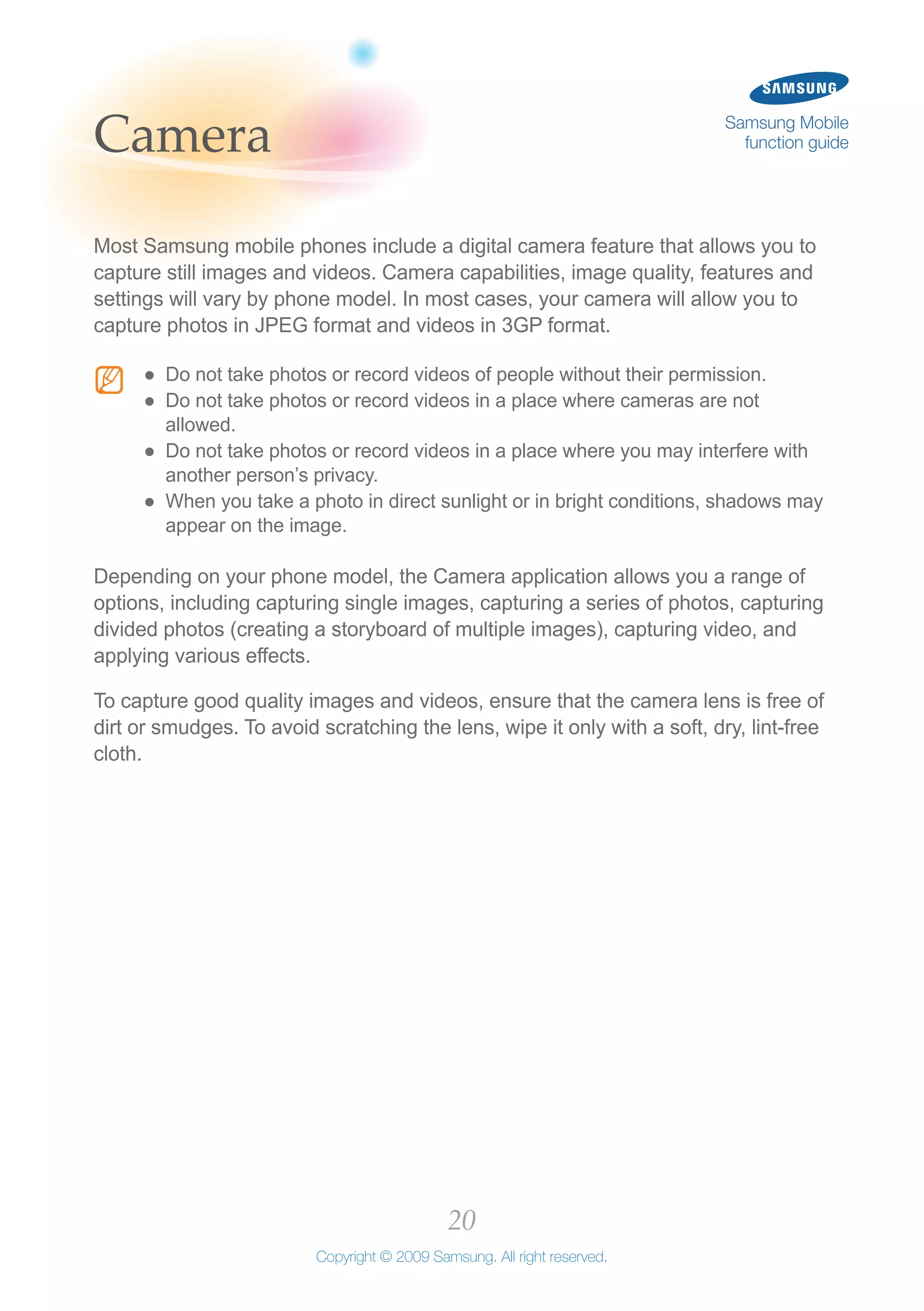
If the viewfinder appears in Landscape mode, rotate your phone anti-2	
clockwise.
Align the subject in the viewfinder as desired and adjust any settings as3	
needed (see Camera options and Customise camera and camcorder settings).
Press the camera button or the appropriate shortcut key to capture the image.4	
Hold the phone still while the image is being saved.NN
If your phone shows the review screen after capturing, press the camera5	
button or the appropriate shortcut key to return to the viewfinder and take
another photo.
22
Copyright © 2009 Samsung. All right reserved.
Samsung Mobile
function guide» Camera
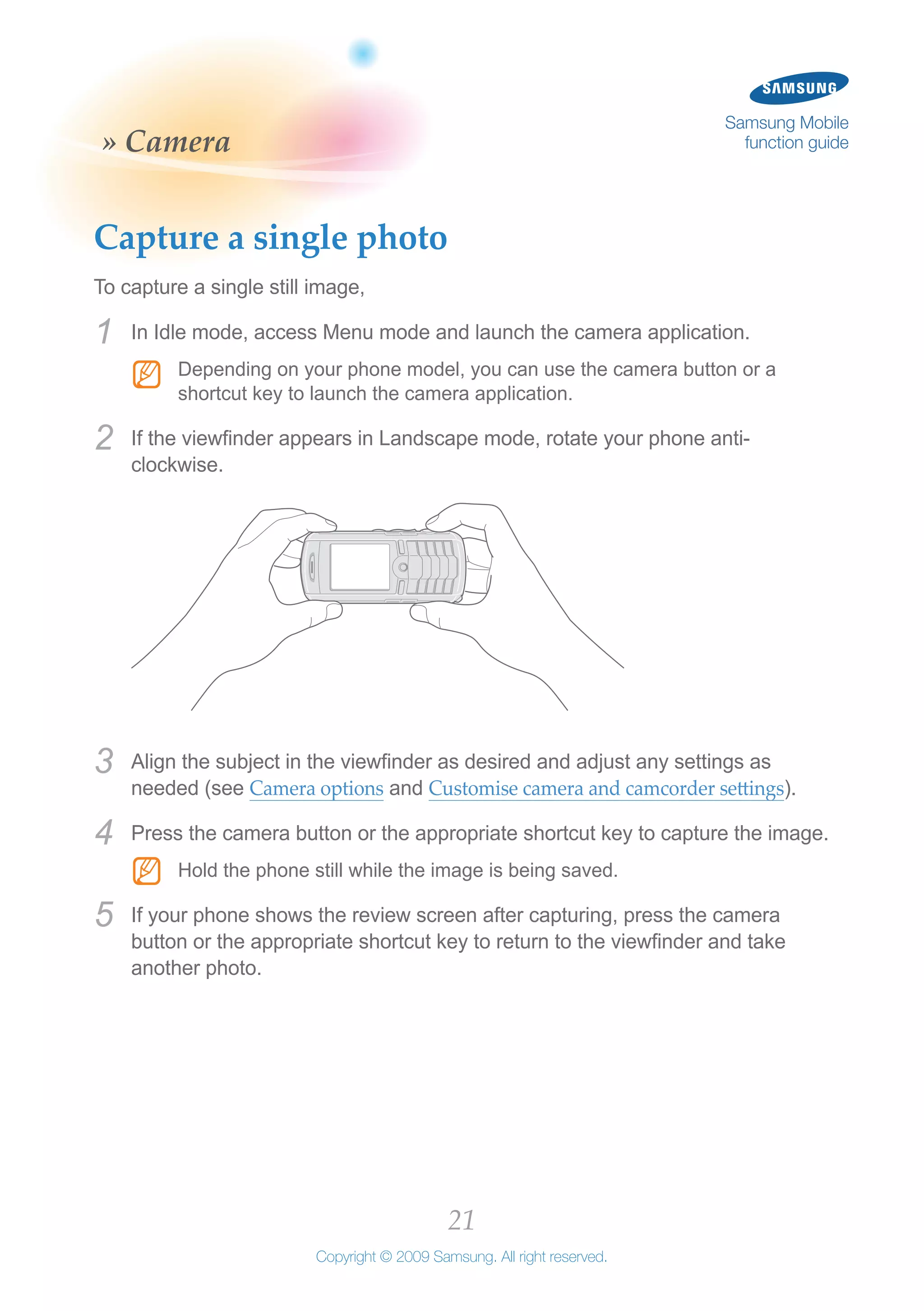
Capture a series of photos
With this feature, you can capture photos of a moving subject in succession.
To capture a series of photos,
In Idle mode, access Menu mode and launch the camera application.1	
Depending on your phone model, you can use the camera button or aNN
shortcut key to launch the camera application.
If the viewfinder appears in Landscape mode, rotate your phone anti-2	
clockwise.
Access the camera options and select the shooting mode for multiple photos.3	
Select the number of photos to capture.4	
Return to the viewfinder.5	
Align the subject in the viewfinder as desired and adjust any settings as6	
needed (see Camera options and Customise camera and camcorder settings).
Press the camera button or the appropriate shortcut key to capture the image.7	
The camera application will automatically capture the specified number of
photos.
23
Copyright © 2009 Samsung. All right reserved.
Samsung Mobile
function guide» Camera
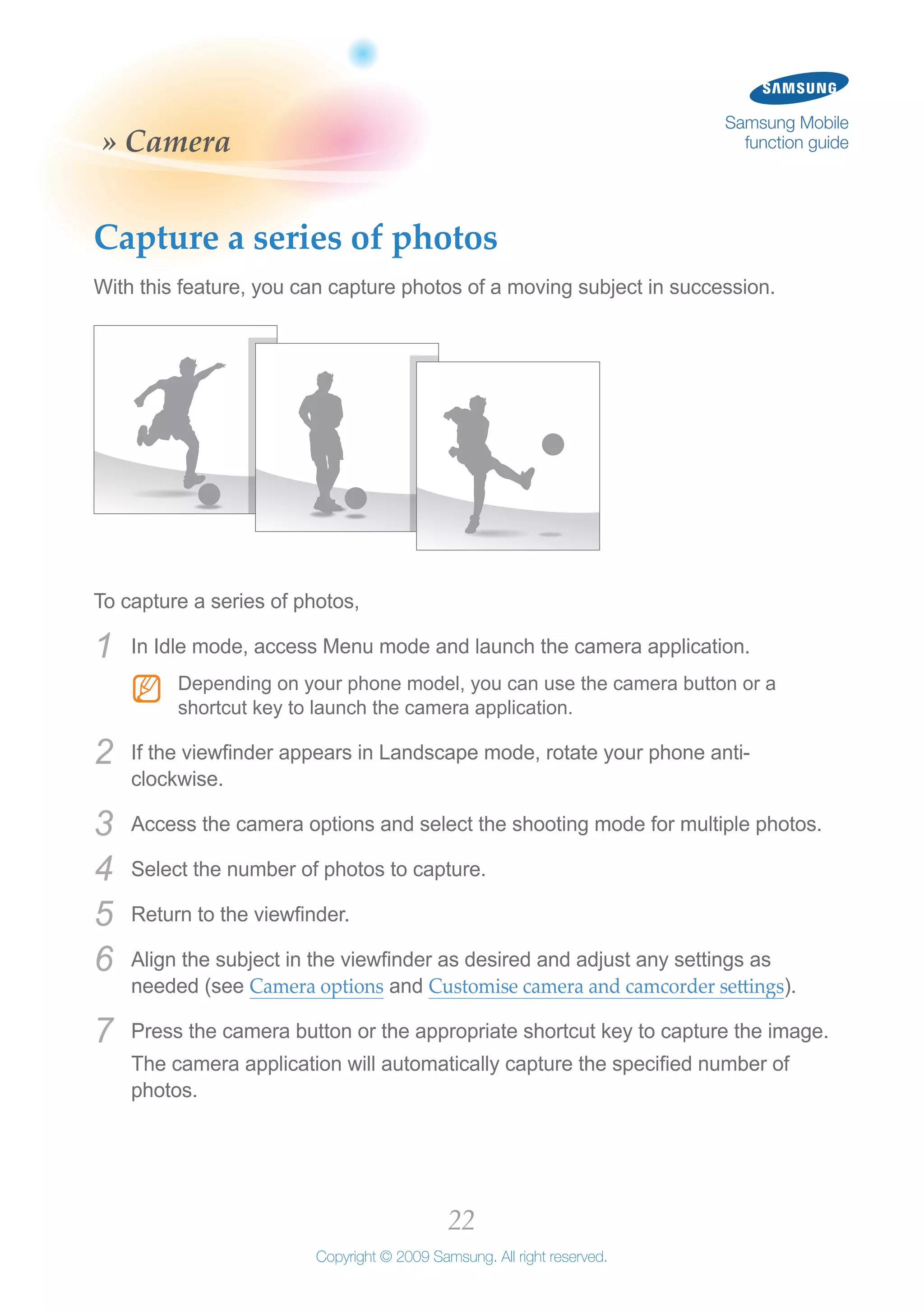
Create a photo mosaic
With this feature, you can capture a series of photos and combine them into a
mosaic.
To create a photo mosaic,
In Idle mode, access Menu mode and launch the camera application.1	
Depending on your phone model, you can use the camera button or aNN
shortcut key to launch the camera application.
If the viewfinder appears in Landscape mode, rotate your phone anti-2	
clockwise.
Access the camera options and select the shooting mode for a photo mosaic.3	
Select the style of mosaic to create.4	
Return to the viewfinder.5	
Align the subject in the viewfinder as desired and adjust any settings as6	
needed (see Camera options and Customise camera and camcorder settings).
Press the camera button or the appropriate shortcut key to capture each7	
image.
The camera application will display each image you capture in part of the
mosaic. Continue capturing images until the mosaic is complete.
24
Copyright © 2009 Samsung. All right reserved.
Samsung Mobile
function guide» Camera
Capture a video
To capture a video,
In Idle mode, access Menu mode and launch the camera application.1	
Depending on your phone model, you can use the camera button or aNN
shortcut key to launch the camera application.
If the viewfinder appears in Landscape mode, rotate your phone anti-2	
clockwise.
Access the camera mode menu and select the camcorder mode.3	
Align the subject in the viewfinder as desired and adjust any settings as4	
needed (see Camera options and Customise camera and camcorder settings).
Press the camera button or the appropriate shortcut key to begin recording.5	
Press the camera button or the appropriate shortcut key again to end the6	
recording.
If your phone shows the review screen after capturing, press the camera7	
button or the appropriate shortcut key to return to the viewfinder and capture
another video.
25
Copyright © 2009 Samsung. All right reserved.
Samsung Mobile
function guide» Camera
Camera options
From the camera viewfinder, you can access the following options:
Audio recording●● : turn audio recording on or off for videos
Effects●● : apply various effects to your images or videos
Frames●● : add frames to your images or videos
Night mode●● : turn on or off the night mode, which enhances photos captured at night
Resolution●● : select an image resolution
Recording mode●● : select a recording mode to record videos for attaching them
multimedia messages or just for saving them
Shooting mode●● : select a shooting mode to capture single images, multiple images,
or photo mosaics
Shortcuts●● : display camera or camcorder shortcuts
Timer●● : set a timer to delay the shutter when capturing an image
White balance●● : select the appropriate white balance setting for the light source
Viewfinder mode●● : select a viewfinder mode that provides additional information
While reviewing an image or video after capturing, you can access the following
options:
Delete●● : delete an image or video
Details●● : view details of an image or video
Go to My photos/Go to My video clips●● : access the list of images or videos you have
captured
Protection on/Protection off●● : protect an image or video to prevent accidental deletion
or unprotect the image or video
Rename●● : rename an image or video
Send via●● : send an image or video via a multimedia message or Bluetooth wireless
connection
Set as●● : set an image as the wallpaper for your phone’s idle screen or a caller ID
image for a contact
Viewfinder●● : return to the viewfinder screen to capture a new image or video
26
Copyright © 2009 Samsung. All right reserved.
Samsung Mobile
function guide» Camera
Customise camera and camcorder settings
You can customise various settings to control the functions of the camera and
camcorder applications. To customise settings, launch the camera application
and access the camera mode menu. Select the setting menu and customise the
following settings:
Brightness sound●● : enable or disable a sound for the brightness adjustment
Default storage●● : choose a default storage location for your images and videos
(phone memory or memory card)
Quality●● : set the quality of your images or videos
Shutter sound●● : enable or disable a sound for the shutter (multiple preset options or
no sound)
Zoom sound●● : enable or disable a sound for the zoom
27
Copyright © 2009 Samsung. All right reserved.
Samsung Mobile
function guideConverter
The converter application allows you to convert currencies and units of measure
from one form to another. You can convert currencies, lengths, weights, volumes,
areas, and temperatures with this handy application.
The currency converter may come pre-loaded with exchange rate for variousNN
major currencies. However, these rates may not be accurate at the time of use.
To ensure proper currency conversion, always retrieve current rates from a
reputable source and update the rates before performing currency conversions.
Samsung is not responsible for inaccurate or incomplete currency data.
Perform a conversion
To convert currency values,
In Idle mode, access Menu mode and open the organiser menu.1	
Access the convertor.2	
Select a conversion type.3	
Select the unit to convert from and enter the amount to convert.4	
Press theNN
*key to enter a decimal point. For the temperature conversion,
press the # key to switch the amount to below 0.
Select the unit to convert to.5	
The result will appear automatically.
To reverse the target unit and the designated unit, access the options and selectNN
the reverse option.
28
Copyright © 2009 Samsung. All right reserved.
Samsung Mobile
function guide» Converter
Update exchange rates
You should always check the current exchange rates before performing a
conversion, as these rates can change numerous times in a single day. Ensure
that you retrieve rates from a reliable source and accurately update the rates
before performing a conversion.
In Idle mode, access Menu mode and open the organiser menu.1	
Access the convertor.2	
Select the the currency convertor.3	
Access the options and select the option to view rates.4	
Scroll left or right to select the starting currency.5	
Scroll down to a target currency.6	
Access the options and select the option to edit the exchange rate.7	
If you do not see the desired currency listed, select the option to add anNN
exchange rate and enter the details for the new currency and new rate.
Enter new exchange values and save the rates.8
29
Copyright © 2009 Samsung. All right reserved.
Samsung Mobile
function guideEmail
Most Samsung mobile phones have the capability to keep you in touch on the go
via your email accounts. Depending on your phone model, you can use a wizard
to easily setup an email mailbox, change receiving and sending options, block
unwanted email, and keep your mailbox clutter-free by automatically deleting old
email.
Setup an email account
Depending on your phone model, setting up an email account is made easy with a
Mailbox setup wizard. To setup an email account,
In Idle mode, access Menu mode and open the Messages menu.1	
Access the message settings menu.2	
Access the email settings menu.3	
Select the Mailbox setup wizard and follow the easy step-by-step instructions4	
to complete the email mailbox setup.
Ensure that you use the correct mail server address and protocol informationNN
that is used by your email account provider.
Read email
Once you have created an email account, you can read email on your mobile
phone. To read your email,
In Idle mode, access Menu mode and open the Messages menu.1	
Access My messages and select the Email inbox.2
30
Copyright © 2009 Samsung. All right reserved.
Samsung Mobile
function guide» Email
Select the option to check new email.3	
Additional charges may apply to connect to the internet and download emailNN
messages. Refer to your mobile service contract for details.
After the phone has connected to the network and retrieved email messages,4	
scroll to a message header and open the message to view its contents.
Change sending options
Customise the way outgoing email is handled by your mobile phone. To change
sending options,
In Idle mode, access Menu mode and open the Messages menu.1	
Access the message settings menu.2	
Access the email settings menu.3	
Access the sending options and change the following settings, as desired4	
(available options may vary depending on your phone model):
Priority●● : set the priority to apply to your outgoing messages (Low, Normal, or
High)
Send me a copy●● : send a copy of the outgoing message to your email address
Request delivery receipt●● : request a message stating that the outgoing message
was received by the addressee
Not all email systems and services will support delivery receipts.NN
Additionally, the recipient may have the option to prevent a delivery
receipt from being provided to you.
Request read receipt●● : request a message that the outgoing message was read
by the addressee
Not all email systems and services will support read receipts. Additionally,NN
the recipient may have the option to prevent a read receipt from being
provided to you.
31
Copyright © 2009 Samsung. All right reserved.
Samsung Mobile
function guide» Email
Add signature●● : automatically attach a signature to your outgoing messages. If
you choose this option, you can specify the name, telephone number, and a
brief note to be included in the email signature
When you are finished changing receiving options, save your settings.5	
Change receiving options
Customise the way incoming email is handled by your mobile phone. To change
receiving options,
In Idle mode, access Menu mode and open the Messages menu.1	
Access the message settings menu.2	
Access the email settings menu.3	
Access the receiving options and change the following settings, as desired4	
(available options may vary depending on your phone model):
Auto polling●● : set the mobile phone to automatically check for new email
messages at specified intervals. Depending on your phone model, you can set
the Auto polling option to On, Off, or Home network only (this will check for new
email messages only when you are in your home network service area)
Additional charges may apply each time the mobile phone connectsNN
to the internet to check for new email messages. Refer to your mobile
service contract for details.
Auto polling time●● : when you activate Auto polling, you can use this setting to
specify how often the mobile will connect to the internet to check for new email
messages
Send read receipt●● : provide a receipt to the sender when you read an email
message
Not all email systems and services will support read receipts.NN
32
Copyright © 2009 Samsung. All right reserved.
Samsung Mobile
function guide» Email
Receiving option●● : specify what parts of new email messages should be
downloaded to your mobile (select Header to download just the message
header or Normal to download the entire message)
Delete option●● : specify when to delete read messages; immediately after reading
them or the next time the mobile phone connects to your internet email account
Download limit●● : to prevent unexpected charges, you can select the maximum
amount of data to download during one connection (100Kb, 300Kb, 500Kb, or
Unlimited)
Keep in server●● : set this option to leave a copy of the original email on the email
server
When you are finished changing sending options, save your settings.5	
Create an email profile
If you have more than one email account, you can create email profiles to easily
configure account settings and switch between configurations. To create an email
profile,
Customise the way outgoing email is handled by your mobile phone. To change
sending options,
In Idle mode, access Menu mode and open the Messages menu.1	
Access the message settings menu.2	
Access the email settings menu.3	
Access the Email profiles menu.4	
Access the profiles options and select the option to create a new profile.5
33
Copyright © 2009 Samsung. All right reserved.
Samsung Mobile
function guide» Email
Give the profile a name and specify the URL, Bearer, Proxy, Address, Port,6	
Domain name server (DNS) 1 and 2, GPRS, and GSM settings as required.
For details about how to specify these settings, contact your email serviceNN
provider.
When you are finished specifying the profile settings, access the options and7	
select the option to save the profile.
You can repeat this procedure to create additional email profiles as necessary.
To switch between profiles, access the Email profiles menu and select the
appropriate profile.
Block unwanted email
Prevent unwanted email, such as spam, by specifying addresses or subjects to
block. To block unwanted email,
In Idle mode, access Menu mode and open the Messages menu.1	
Access the message settings menu.2	
Access the email settings menu.3	
Access the Block list menu.4	
Select a method of blocking unwanted mail (by email address or by subject).5	
Enter email addresses or subjects to block.6	
When you are finished, access the options and save your changes.7	
Incoming email from the specified addresses or containing the specified subjects
will be blocked.
34
Copyright © 2009 Samsung. All right reserved.
Samsung Mobile
function guide» Email
Automatically delete old email
Keep your mailbox free of clutter by specifying when to delete old email. To
automatically delete old email,
In Idle mode, access Menu mode and open the Messages menu.1	
Access the message settings menu.2	
Access the email settings menu.3	
Access the Automatic deletion menu.4	
Set the following options as desired:5	
Activation●● : enable or disable the automatic deletion feature
Deleting options●● : select the interval for automatic deletion. Once email reaches
the age that you specify, it will be automatically deleted
Custom time●● : if you select a custom time to delete email, enter the desired
number of days to hold email before deleting
When you are finished configuring automatic deletion, access the options and6	
save your changes.
35
Copyright © 2009 Samsung. All right reserved.
Samsung Mobile
function guideFake call
Most Samsung mobile phones include a fake call feature that allows you to
simulate an incoming call. You can use this feature to excuse yourself from a
meeting or create an interruption to end a conversation.
Configure fake calls
You can configure the fake call features to sound more like an actual call by
recording a voice message that will be played back when you answer the fake
call. To make your fake call sound more authentic, have someone else record the
voice message.
To configure the fake call feature,
In Idle mode, access Menu mode and open the setting menu.1	
Access the application setting menu.2	
Select the fake call function.3	
Select whether or not to play a fake call voice when receiving a fake call.4	
Your setting is saved automatically.
If you choose to use a fake voice, record a voice memo to play back when5	
receiving a fake call.
Initiate a fake call
To simulate an incoming call, press and hold the appropriate key (the Volume
key down or Navigation key down). You may need to set a shortcut key for fake
calls using the shortcut setting in the phone setting menu. See your phone user
manual.
Within a few seconds, you will receive a fake incoming call, which you can accept
or reject.
36
Copyright © 2009 Samsung. All right reserved.
Samsung Mobile
function guideFM radio
Some Samsung mobiles include an FM radio application that allows you to
receive, listen to, and even record audio from FM radio stations. This feature
requires that you connect a headset, which will allow you to listen to the radio
while doubling as an antenna. See your user manual to determine what types of
headsets (S20 pin headsets or micro USB headsets) are compatible with your
phone model.
Listen to the FM radio
When listening to the FM radio, you must have the headset connected. To listen
to the FM radio,
Connect a headset, which will act as an antenna, into your phone's headset1	
jack or multifunction jack to listen to the FM radio.
In Idle mode, access Menu mode and launch the FM radio application.2	
Turn on the FM radio. For some phone models, launching the FM radio will3	
automatically turn on the FM radio.
If you turn on the FM radio for the first time, confirm the automatic tuning to4	
scan and save all available radio stations.
Scroll left or right to a radio station by pressing or pressing and holding the5	
Navigation key.
Use the Volume key to adjust the volume.6
37
Copyright © 2009 Samsung. All right reserved.
Samsung Mobile
function guide» FM radio
FM radio options
While using the FM radio, you can access the following options:
Add to channel list●● : add the current radio station to a list of favourite stations or a list
of all stations. For the favourite list, select a hotkey for the station, if this feature is
available (Once you save a favourite station, you can access the station by pressing
the hotkey.)
Background playing●● : select whether or not to play the FM radio in the background
while using other applications
Open channel list:●● access a list of your favourite stations or a list of all stations
Record●● : record songs from the FM radio. You can access recorded sound clips in
the FM radio clip folder under Sounds of My files
Self-tuning●● : scan and auto tune all available radio stations
Settings●● : customise the FM radio settings
Show station ID●● : select whether or not to show the station ID on the FM radio
screen
Speaker on/Earphone on●● : activate the phone’s built-in speaker or the headset
38
Copyright © 2009 Samsung. All right reserved.
Samsung Mobile
function guideGames
Most Samsung mobile phones include some pre-installed Java-based games for
your entertainment. In some cases the pre-installed games may be limited, free
trial versions. To play the game beyond the trial period, you must purchase the
game from your network provider (certain fees and restrictions will apply).
Access and play games
Access the games that are pre-installed on your mobile phone. To access games,
In Idle mode, access Menu mode and open the Applications menu.1	
Access the Games menu.2	
Scroll to and select a game.3	
Read and acknowledge the disclaimer and any terms or conditions that apply.4	
Depending on the game interface, choose your language and whether or not5	
to enable the game sounds.
Follow the on-screen instructions to play the game.6	
To unlock the full version of a trial game, refer to Purchase and download games.
39
Copyright © 2009 Samsung. All right reserved.
Samsung Mobile
function guide» Games
Purchase and download games
Many exciting games are available through your service provider. To purchase
and download a full version of a game,
In Idle mode, access Menu mode and open the Applications menu.1	
Access the Games menu.2	
Scroll to and select a game.3	
Read and acknowledge the disclaimer and any terms or conditions that apply.4	
Depending on the game interface, choose your language and whether or not5	
to enable the game sounds.
Locate and select the option in the game menu to purchase the game.6	
Follow the on-screen instructions to purchase the game and enter the7	
unlocking code. You will be charged for game purchases according to the
terms and conditions of your service contract.
40
Copyright © 2009 Samsung. All right reserved.
Samsung Mobile
function guideImage editor
With the Image editor application, you can alter your captured images in
numerous ways. Depending on your phone model, the Image editor includes
various adjustments, frames, and effects that you can manipulate to enhance your
images.
Crop images
Crop your images to remove unnecessary details in the outer edges. To crop
images,
In Idle mode, access Menu mode and open My files.1	
Access an images or photos folder.2	
Open an image.3	
Access the image or photo options and open the Edit menu.4	
Access the Image editor options and select the crop option.5	
Use the arrow keys to move the cropping frame to the desired location.6	
Access the cropping options and select the option to crop the image.7	
When you are finished cropping the image, access the Image editor options8	
and select the option to save the image.
41
Copyright © 2009 Samsung. All right reserved.
Samsung Mobile
function guide» Image editor
Add effects to images
The Image editor application includes various effects that you can apply to your
images to alter their appearance. To add effects to images,
In Idle mode, access Menu mode and open My files.1	
Access an images or photos folder.2	
Open an image.3	
Access the image or photo options and open the Edit menu.4	
Access the Image editor options and select the effects options.5	
Select the type of effect you wish to apply. Depending on your phone model,6	
the following effects may be available:
Filter●● : select one of several filters to apply to the image, such as sepia tone or
negative
Style●● : select one of several styles to apply to the image, such as emboss or
mirror
Warp●● : select one of several warp effects to apply to the image, such as bloat
centre or warp at the bottom
Partial Blur●● : use the arrow keys to move the blur frame to the desired location
and then apply the effect to partially blur the selected area
When you are finished adding effects to the image, access the Image editor7	
options and select the option to save the image.
42
Copyright © 2009 Samsung. All right reserved.
Samsung Mobile
function guide» Image editor
Adjust images (brightness, contrast, and
colour)
Adjust your images to improve the brightness, contrast, or colour. To adjust
images,
In Idle mode, access Menu mode and open My files.1	
Access an images or photos folder.2	
Open an image you wish to adjust.3	
Access the image or photo options and open the Edit menu.4	
Access the Image editor options and select the adjust options.5	
Select the type of adjustment you wish to make. Depending on your phone6	
model, the following adjustments may be available:
Auto levels●● : allow the Image editor to automatically adjust the brightness,
contrast, and colour of your image
Brightness●● : adjust the sliding scale to increase or decrease the brightness of
the image
Contrast●● : use the sliding scale to increase or decrease the contrast of the
image
Colour●● : adjust the sliding scales to change the balances between Cyan vs.
Red, Maroon vs. Green, and Yellow vs. Blue colours
When you are finished adjusting the image, access the Image editor options7	
and select the option to save the image.
43
Copyright © 2009 Samsung. All right reserved.
Samsung Mobile
function guide» Image editor
Transform images (resize, rotate, or flip)
Transform your images to change their size or orientation. To transform images,
In Idle mode, access Menu mode and open My files.1	
Access an images or photos folder.2	
Open an image you wish to transform.3	
Access the image or photo options and open the Edit menu.4	
Access the Image editor options and select the transform options.5	
Select the type of adjustment you wish to make. Depending on your phone6	
model, the following transformations may be available:
Resize●● : select one of the preset dimensions to scale the photo to that size or
select customize to manually adjust the height and width of the image
Rotate●● : use the arrow keys to rotate the image clockwise or anti-clockwise
Flip●● : use the arrow keys to flip the image horizontally or vertically
When you are finished transforming the image, access the Image editor7	
options and select the option to save the image.
44
Copyright © 2009 Samsung. All right reserved.
Samsung Mobile
function guideInternet
Many Samsung mobiles are equipped with built-in web browsers that allow you
to surf the web to keep in touch with friends and family or find information. Costs
and availability of internet services will vary depending on your region, country,
service provider, and phone model. Browser functions and features may also vary
by model.
Launch the web browser
Use your built-in web browser to access websites and navigate the internet. To
launch the web browser,
In Idle mode, access Menu mode and open the internet menu.1	
Scroll to a method for accessing the browser, such as starting at the2	
homepage, entering a URL, or opening a bookmarked page.
Depending on the access method, enter a URL, select a bookmark, or select3	
a page from your saved pages or browsing history.
You must have a service plan that includes internet access to use the webNN
browser. Contact your service provider for more details.
45
Copyright © 2009 Samsung. All right reserved.
Samsung Mobile
function guide» Internet
Browser options
While browsing web pages, you can access the following options:
Add to Bookmarks●● : bookmark the current web page
Advanced●● : access other applications
Copy URL to●● : copy the URL to a message
Enter URL●● : enter a URL address you want to access
Go●● : move backward or forward through pages in history
Go to homepage●● : return to the homepage
History●● : access the list of the web pages you have accessed
Open●● : access the linked web page
Page details●● : access details of the current page
Page size●● : change to large, normal, or small page size
Reload●● : reload the current page with updated information
Save image●● : save the selected image
Search text●● : search for text in the current web page
Settings●● : customise the browser settings
View Bookmarks●● : access the bookmark list
46
Copyright © 2009 Samsung. All right reserved.
Samsung Mobile
function guide» Internet
Add bookmarks
Bookmarks are convenient ways to remember the locations of your favourite web
pages. Once you have bookmarked a page, you can easily revisit it in the future.
To add bookmarks.
In Idle mode, access Menu mode and open the internet menu.1	
Access the bookmark menu.2	
Access the options and select the option for adding a bookmark.3	
Enter a title for the bookmarked page and the web address (URL).4	
Save the bookmark.5	
From the bookmark screen, you can access the following options:
Add bookmark●● : create a new bookmark
Copy URL to●● : copy the URL to a message (refer to Messages)
Delete●● : delete the selected bookmark, multiple bookmarks to delete, or all saved
bookmarks
Edit●● : change the web address for a default or saved bookmark
47
Copyright © 2009 Samsung. All right reserved.
Samsung Mobile
function guide» Internet
View saved pages
Once you have bookmarked a page, you can return to that page via the saved
pages menu. To open a bookmarked page,
In Idle mode, access Menu mode and open the internet menu.1	
Access the saved page menu.2	
Select a saved page to connect to the internet and view the page.3	
View history
By viewing your browsing history, you can see the pages you have recently
visited and, if desired, revisit a page by clicking the link in the history. To view your
browsing history,
In Idle mode, access Menu mode and open the internet menu.1	
Access the history menu.2	
If desired, scroll to and select a page to connect to the internet and view the3	
page.
48
Copyright © 2009 Samsung. All right reserved.
Samsung Mobile
function guide» Internet
Customise browser settings
You can customise your browser settings to improve performance and increase
your online safety. To customise your browser settings,
In Idle mode, access Menu mode and open the internet menu.1	
Access the settings menu.2	
Customise browser settings as desired.3	
About browser●● : access version and copyright information about the browser
Browser profiles●● : select a connection profile to use for internet connections
Certificates●● : access the web browser certificates
Clear cache●● : clear the cache. The cache is a temporary memory that saves
recently accessed web pages
Cookie options●● : set whether or not cookies are saved. Cookies are pieces
of personal information sent to a web server while navigating the web. If you
select to be prompted, the phone will ask you to save the cookies of the current
page
Empty cookies●● : delete cookies saved in the phone. Cookies are pieces of
personal information sent to a web server while navigating the web
Preferences●● : change the browser display and sound settings
49
Copyright © 2009 Samsung. All right reserved.
Samsung Mobile
function guideMemos
With the memo application, you can record important information to save and
view at a later date. The memo application is a convenient way to remind yourself
of something important or add a few items to your grocery list.
Create a memo
To create a memo,
In Idle mode, access Menu mode and open the organiser menu.1	
Access the memo application.2	
Access the options and select the option to create a new memo.3	
Enter your memo text.4	
Save the memo.5
50
Copyright © 2009 Samsung. All right reserved.
Samsung Mobile
function guide» Memos
Memo options
While working with memos, you can access the following options:
Add symbol●● : insert a symbol into a memo
Create●● : create a new memo
Delete●● : delete the selected memo, multiple memos, or all memos
Edit●● : edit the selected memo
Predictive text on/Predictive text off●● : enable or disable the T9 mode that suggests
words based on the characters your enter
Save●● : save the memo
Save in My files●● : save the selected memo as VNT format. You can access it in
Other files in My files
Send via●● : send the selected memo via message or Bluetooth wireless connection
(refer to Messages or Bluetooth)
Send via Bluetooth●● : send the selected memo via Bluetooth wireless connection
(refer to Bluetooth)
Writing options●● : change the input method or select a language for your memo
View●● : view the selected memo
51
Copyright © 2009 Samsung. All right reserved.
Samsung Mobile
function guideMessages
With your mobile phone, you can create and send text, multimedia, or email
messages, and view or manage messages you have sent or received. Costs
will vary for different types of messages. Refer to the contract with your service
provider for details about messaging costs, limits, and other details.
For text messages, you can add simple images or emoticons, as well as text. If
you add a subject or media files or enter text of more than a specified number
of characters, your message will be automatically converted to a multimedia
message. The maximum number of characters allowed for a text message and
the maximum size of files allowed for a multimedia message may vary depending
on your service provider.
Create and send a text message
Text messages allow for easy communication with your contacts. Text messages
are limited to a specified number of characters (refer to your user manual). If you
exceed the limit or add attachments to a text message, it will automatically convert
to a multimedia message, which may result in additional charges from your
service provider.
To create and send a text message,
In Idle mode, access Menu mode and open the message menu.1	
Open the new message screen.2	
Enter the recipient's number (or select a contact from your phonebook) and3	
the text for your message.
Send the message.4
52
Copyright © 2009 Samsung. All right reserved.
Samsung Mobile
function guide» Messages
Create and send a multimedia message
Multimedia messages allow you to combine text, images, videos, music, and
other files in a handy format. To create and send a multimedia message,
In Idle mode, access Menu mode and open the message menu.1	
Open the new message screen.2	
Enter the recipient's number or email address and the text for your message.3	
Access the options and select the option for adding multimedia files.4	
Add an image, video or sound file.5	
Send the message.6	
N If you decide not to send the message immediately, you can save it to the●●
draft folder for future use.
If an error occurs while you are sending a message, the message will be●●
saved in the outbox so you can try to resend it later.
If a message is sent successfully, the message will be saved in the sentbox.●●
53
Copyright © 2009 Samsung. All right reserved.
Samsung Mobile
function guide» Messages
Message composing options
While creating a message, you can access the following options. Depending on
the message type or the selected field, available options may vary:
Add attachment●● : add multimedia files–this will convert a text message to a
multimedia message
Add recipients●● : add recipients from the recent calls log, contact list, or group list
Add subject●● : add a subject–this will convert a text message to a multimedia
message
Add symbol●● : enter a symbol
Add text●● : add a text template, emoticon, contact, calendar event, task, or memo
Advanced●● : access additional options for adding items
Change to multimedia message/Change to text message●● : convert the current
message to a multimedia message or text message
Copy●● : copy the highlighted text
Cut●● : cut the highlighted text
Display address fields●● : show additional address fields, such as Cc (carbon copy) or
Bcc (blind carbon copy) fields
Edit page●● : add or delete a page or set the duration a page should be displayed
Edit text●● : access text editing options
Send●● : send the message
Paste●● : paste text from the clipboard (text you have previously cut or copied)
Predictive text off/Predictive text on●● : deactivate or activate the T9 mode that
suggests words based on the characters you enter
Preview●● : preview the message before sending
Recipient list●● : open the recipient list
Remove●● : delete the highlighted text
Save in●● : save the message as a draft or template
Sending options●● : customise options for sending messages
Text selection on/Text selection off●● : activate or deactivate the Text selection mode.
Once you activate the Text selection mode and scroll or press a navigation key in a
text field, this feature will highlight text instead of moving the cursor
Writing options●● : change the input method or select a language for your message
54
Copyright © 2009 Samsung. All right reserved.
Samsung Mobile
function guide» Messages
View messages
Most Samsung mobile phones will alert you via the Idle screen when you have
received a new message. In that case, you can use a shortcut to access the
message directly from the Idle screen. In other cases, such as when you missed
the message or wish to view an older message, you can view messages via the
message menu. To view a message from the message menu,
In Idle mode, access Menu mode and open the message menu.1	
Select a message folder (inbox, outbox, sentbox, or drafts).2	
Select a message from the list.3	
Scroll left or right to view other messages in the selected message folder.4	
Message viewing options
While viewing a message, you can access the following options. Depending on
the message type or the selected field, available options may vary:
Delete●● : delete the selected message, multiple messages, or all messages
Edit●● : edit a draft message
List by●● : sort messages by various category, such as date, type, subject, etc.
Move to my folders●● : move the message to a folder you have created
Move to SIM●● : move the message to the SIM card
Protection on/Protection off●● : protect the message to prevent accidental deletion or
unprotect the message
Send●● : send a draft message
Send again●● : resend a message
55
Copyright © 2009 Samsung. All right reserved.
Samsung Mobile
function guide» Messages
Manage messages in folders
You can create folders to organize and store your messages. To manage
messages in folders,
In Idle mode, access Menu mode and open the message menu.1	
Access the my folder menu.2	
Select the option to create a new folder.3	
Enter a name for your folder.4	
Save the folder.5	
Once you have created your own folders, you can move messages to and from
the folder, delete messages, and sort them with the message options (refer to
Message viewing options). You can also create new folders, rename folders, and
delete folders with the options available on the My folders screen.
56
Copyright © 2009 Samsung. All right reserved.
Samsung Mobile
function guide» Messages
Create a text message template
Message templates provide you with a convenient way to send multiple messages
with the same or similar formatting. To create a text message template,
In Idle mode, access Menu mode and open the message menu.1	
Access the template menu.2	
Select the text template option.3	
Access the options and select an option, or press the softkey to create a text4	
template.
Enter text.5	
Save the template.6	
Once you create text templates, you can add them while creating text, multimedia,
or email messages by selecting an option to add or insert text items.
57
Copyright © 2009 Samsung. All right reserved.
Samsung Mobile
function guide» Messages
Create a multimedia message template
Message templates provide you with a convenient way to send multiple messages
with the same or similar formatting or elements. To create a multimedia message
template,
In Idle mode, access Menu mode and open the message menu.1	
Access the template menu.2	
Select the multimedia template option.3	
Access the options and select the option to create a multimedia template, or4	
select a preset multimedia template.
Create a multimedia template by entering subject, text for your message, and5	
multimedia files.
Save the template.6
58
Copyright © 2009 Samsung. All right reserved.
Samsung Mobile
function guide» Messages
Send a multimedia message template
To send a multimedia message template that you have previously composed,
In Idle mode, access Menu mode and open the message menu.1	
Access the template menu.2	
Select the multimedia template option.3	
Select a template.4	
Access the options and select the option to send the template.5	
Enter the recipient's number or address.6	
If desired, enter a subject and additional text in the message body.7	
Send the message.8
59
Copyright © 2009 Samsung. All right reserved.
Samsung Mobile
function guide» Messages
Chat with the Bluetooth messenger
Some Samsung mobile phones include an instant messenger that you can use
via the Bluetooth wireless connection. This allows you to have live chats with
other users nearby. Keep in mind that you must be within the maximum range of
the Bluetooth feature (10 metres/30 feet) and paired with the other device to use
this feature (refer to Bluetooth). To chat with the Bluetooth messenger,
In Idle mode, access Menu mode and open the message menu.1	
Access the Bluetooth messenger menu.2	
Search for and pair with a Bluetooth-enabled device that has Bluetooth3	
messenger.
Enter text and send the message.4	
While chatting, you can access the following options:
Add symbol●● : insert a symbol into a message
End chat●● : end the current chat session
Predictive text on/Predictive text off●● : enable or disable the T9 mode that suggests
words based on the characters you enter
Save chat●● : save the chat messages
Send message●● : send the chat message
Send My files●● : send images, videos, music, sounds, or another types of files stored
on your phone or memory card
Writing options●● : change the input method or select a language to use for your chat
messages
60
Copyright © 2009 Samsung. All right reserved.
Samsung Mobile
function guide» Messages
Customise message settings
You must have a SIM card inserted to access the message settings. To customise
message settings,
In Idle mode, access Menu mode and open the message menu.1	
Access the setting menu.2	
Change the settings as desired.3	
General settings
Block messages●● : set addresses and subjects to block messages that are received
from the specifed addresses or that contain the specified subjects
Delete by folder●● : delete messages by folder
Keep a copy●● : set whether to save a copy of sent messages in the sentbox
Text messages
Centre address●● : store or change the number of your text message server
Character support●● : select a character encoding type. Using Unicode encoding will
reduce the maximum number of characters in a message to about half
Default type●● : set the default message type. The network can convert messages into
the selected format
Network selection●● : select network bearer type for sending text messages
Reply path●● : allow recipients to reply to you through your text message server
Request delivery report●● : set the network to inform you when your messages are
delivered
Validity period●● : set the length of time your messages are stored in the text message
server
61
Copyright © 2009 Samsung. All right reserved.
Samsung Mobile
function guide» Messages
Multimedia messages
Allow advertisment●● : accept advertisements
Allow anonymous●● : accept message from anonymous senders
Creation mode●● : select a mode for creating multimedia messages. You can set
whether to create a message with any type of content and of any size or to receive
an alert message about content type or size
Default style●● : set the default message attributes, such as font style, size, colour, and
background colour
Delivery time●● : set a time delay before your messages are sent
Expiry●● : set the length of time your messages are stored in the multimedia message
server
Home network●● : determine if your phone retrieves new messages automatically
when you are in your home service area
Message size●● : select a maximum size allowed for messages. Available message
size may vary depending on your country
Multimedia profiles●● : select a connection profile to use for sending or receiving
multimedia messages
Priority●● : set the priority level of your messages
Request delivery report●● : send a request for a delivery report along with your
message to be informed when your messages are delivered
Request read reply●● : send a read-reply request along with your messages to be
informed when your messages are read
Receiving options●● : set options for receiving messages
Roaming network●● : determine if your phone retrieves new messages automatically
when you are roaming on another network
Send delivery report●● : set the network to inform senders when messages are
delivered to you
Send read report●● : set the network to inform senders when you read messages
Sending options●● : set options for sending messages
62
Copyright © 2009 Samsung. All right reserved.
Samsung Mobile
function guide» Messages
Push messages
Direct launch●● : set whether or not your phone automatically launches the web
browser when a service loading push message is delivered
Receiving options●● : set whether to receive push messages from the web server
Broadcast messages
Channel list●● : indicate the channels from which you wish to receive broadcast
messages. Contact your service provider for further details
Language●● : select the preferred languages in which broadcast messages display
Receive●● : set whether to receive broadcast messages from your service provider
Voice mail server
Voice mail server●● : connect to the voice mail server to listen to your voice messages
SOS messages
Customise the settings for sending and receiving SOS messages when you are in
an emergency (refer to SOS messages).
63
Copyright © 2009 Samsung. All right reserved.
Samsung Mobile
function guideMobile tracker
Most Samsung mobile phones include the Mobile tracker feature, which helps
you to locate your phone if it is lost or stolen. When someone inserts a new SIM
card in your phone, the Mobile tracker feature automatically sends a message to
preset recipients, so that you can alert the authorities of the number and retrieve
your phone.
To activate the Mobile tracker feature,
In Idle mode, access Menu mode and open the setting menu.1	
Select the security menu.2	
Access the Mobile tracker feature.3	
You will be required to enter your phone lock password (or create one) toNN
access the Mobile tracker feature.
Set the following options:4	
Mobile tracker●● : enable or disable the Mobile tracker feature
Recipients●● : designate recipients for your mobile tracker messages (up to two)
You can enter phone numbers manually or select contacts from the phonebook
Sender●● : enter your name, so that the recipient can identify the Mobile tracker
message
Message●● : view a message to alert the recipient to save and share the mobile
phone number with you
Save your settings.5
64
Copyright © 2009 Samsung. All right reserved.
Samsung Mobile
function guideMusic player
With the music player you can listen to your favourite MP3s while on the go.
Most Samsung mobiles with the Music player feature allow you to transfer MP3
files from a PC, a Bluetooth-enabled device, or a memory card (depending on
your model’s capabilities) and then listen to music via a supplied or aftermarket
headset. Because the music player supports background playback, you can use
other phone features while listening to music.
Depending on the features available on your phone, you can synchronise your
music files with Windows Media Player, create custom playlists, and customise
music settings. If your model is equipped with an FM radio, you may also record
audio from a radio station. Depending on your service provider, you may be able
to search for artist and track information via a music recognition service.
Play music
Many Samsung mobile phones include excellent music playing capabilities. To
play music on your mobile phone,
In Idle mode, access Menu mode and open the music player menu.1	
Select a category of music and then select a track.2	
The music player automatically begins playing music.
Control playback using the following keys:3	
Press the Confirm key to pause or resume playback.●●
Press the Navigation key left or right to skip backward or forward, or scan●●
backward or forward (press and hold).
Press the Navigation key down to stop playback.●●
The music control keys may differ depending on your phone model. SeeNN
your phone user manual.
65
Copyright © 2009 Samsung. All right reserved.
Samsung Mobile
function guide» Music player
Adjust the volume and other settings by accessing the music player options4	
(refer to Music player options).
Most music players include various default music categories, such as All tracks,NN
Playlists, Albums, Recently played, Most played, Artists, Genres, and so on. The
tracks available in each of these categories will vary depending on the tracks
available and your usage history.
Create a playlist
Playlists allow you to specify the tracks you want to hear and the order you want
them to be played. To create a playlist,
In Idle mode, access Menu mode and open the music player menu.1	
Access the playlist category.2	
Access the playlist menu options and select the option to create a new3	
playlist.
Enter a name for the playlist.4	
Save the playlist.5	
To add tracks to a new playlist,
In Idle mode, access Menu mode and open the music player menu.1	
Access the playlist menu options and select a playlist.2	
Access the options and select the option to add music.3	
Select an option to add tracks or a playlist.4	
Select a playlist, or select individual tracks and add the selected tracks.5
66
Copyright © 2009 Samsung. All right reserved.
Samsung Mobile
function guide» Music player
To add tracks to a playlist during playback,
In Idle mode, access Menu mode and open the music player menu.1	
Select the playlisy category and then select a track.2	
Access the options and select the option for adding the track to a playlist.3	
Select a playlist.4	
Confirm the addition of the track to the playlist.5	
Music player options
From the music player view or playlist view, you can access the following options:
Add to playlist●● : add the current music to a playlist
Background●● : set whether or not to play music in the background while you use other
features or applications of your phone
Details●● : access details of the current music
Music auto off●● : set a timer to automatically end the music player after a specified
period of time
Open playlist●● : open the current playlist or music library
Play via●● : choose to play music via the phone or a paired and connected Bluetooth-
enabled stereo headset
Player settings●● : customise the music player settings
Repeat mode●● : select a repeat mode (repeat one, repeat all, off)
Send via●● : send the current music file to multimedia message or Bluetooth wireless
connection (refer to Messages or Bluetooth)
Set as●● : set the current music as your call ringtone or the caller ringtone for a contact
Settings●● : customise the music player settings
Shuffle on●● : Activate Shuffle mode on to play music randomly
Sound effects●● : select a pre-defined equaliser setting to enhance your music
Transfer to●● : transfer the song to a paired and connected Bluetooth-enabled stereo
headset
67
Copyright © 2009 Samsung. All right reserved.
Samsung Mobile
function guideMusic recognition
Some service providers offer a music recognition service to help you locate artist
and track information for your music. This is helpful when you want to find out
information about music you hear from other sources while on the go. This service
may vary in cost and availability, depending on your country, region, service
provider, and phone model.
The music recognition service can be used to identify a track by comparing it to
various online databases. These databases may not have information about all
tracks and, therefore, a match may not always be available for your music. To
locate information about a piece of music,
In Idle mode, access Menu mode and open the music player menu.1	
Select a music recognition function.2	
Once you are registered to the service, record music from the audio source3	
and follow the on-screen instructions.
68
Copyright © 2009 Samsung. All right reserved.
Samsung Mobile
function guideMy files
In My files, you can quickly and easily access all of your images, videos, music,
sounds, and other types of files in a central location. In addition, you can check
the amount of memory consumed by each type of file and how much memory
your phone has available.
As a result of the Digital Rights Management (DRM) system, some of the media
items you download from the internet or receive by multimedia messages may
require a licence key to access them. You can acquire the key from the website
which owns the rights to the content.
View files
To view files,
In Idle mode, access Menu mode and open the My files menu.1	
Select a file type. If you inserted a memory card into your phone, select the2	
memory card folder to access files saved in the memory card.
Select a folder and a file to view.3	
For an image, you can zoom in or out in the image●●
For a video, playback automatically begins. Press the Navigation key left or●●
right to skip backward or forward, or scan backward or forward (press and hold)
For music, the music player launches. Skipping or scanning is not available●●
For a sound, playback automatically begins. If you are playing a voice memo,●●
press the Navigation key left or right to skip backward or forward, or scan
backward or forward (press and hold). For a FM radio clip, the music player
launches, but skiping or scanning is not available
Supported file formats may vary depending on your phone model.NN
69
Copyright © 2009 Samsung. All right reserved.
Samsung Mobile
function guide» My files
File options
While viewing a file or a file list, you can access the following options:
Available options may differ by file type.NN
Bluetooth visibility●● : enable the selected file or multiple files to be visible to other
devices connected via Bluetooth
Copy to memory card●● : copy the selected file to a memory card (available when a
memory card is inserted)
Delete●● : delete the selected file, multiple files, or all files
Details●● : view details of the file
Hide controller/Show controller●● : hide or show the controller for video playback
List●● : return to the file list
Move to●● : move an image to another folder or move a file to a memory card
(available when a memory card is inserted)
Move to memory card●● : move the selected file to a memory card (available when a
memory card is inserted)
Play●● : play the selected video or sound
Play via●● : play a music file on the phone’s built-in speaker or on a connected
Bluetooth stereo headset
Protection on/Protection off●● : protect the file to prevent accidental deletion or
unprotect the file
Register to Calendar/Register to Phonebook/Register to Memo/Register to Task●● :
register a file to an appropriate application
Rename●● : rename the file
Send via●● : send a file via multimedia message or Bluetooth wireless connection
(refer to Messages or Bluetooth)
Set as●● : set an image as the wallpaper for your Idle screen or the caller ID for a
contact, or set a music or sound as your call ringtone or the caller ringtone for a
contact
Slide show●● : view images in a slide show
Unlock●● : unlock a DRM-protected file (a license or access key may be required to
unlock DRM-protected content)
View●● : view the selected image or document file
View by●● : view a list of file names or thumbnails of files
70
Copyright © 2009 Samsung. All right reserved.
Samsung Mobile
function guidePhonebook
The phonebook allows you to store and manage manage information about your
personal or business contacts. You can save contact information that includes
name, mobile phone number, home phone number, email addresses, birthday,
and more. When creating a new phonebook entry, you can choose whether to
save the contact to the phone's memory or a SIM card. The phonebook also
provides convenient ways to organise your contacts into groups and search for
contacts.
Create a contact
To add new contact info to the phonebook,
In Idle mode, access Menu mode and open the phonebook menu.1	
From the contact list, access the options and select the option to create a new2	
contact.
Select a memory location (your phone's memory or a SIM card).3	
Enter the information for your contact and, if desired, assign a ringtone, caller4	
ID image, or group.
If you are saving the contact on a SIM card, you can only save the contact’sNN
name and a phone number.
Save the contact.5
71
Copyright © 2009 Samsung. All right reserved.
Samsung Mobile
function guide» Phonebook
Find a contact
The phonebook includes a search function that allows you to quickly locate a
contact's information by typing a few letters of his or her name. To find a contact,
In Idle mode, access Menu mode and open the phonebook menu.1	
From the contact list, enter the first few letters of the contact name you want2	
in the input field.
The first contact that matches your input is highlighted.
Scroll up or down as necessary to select a contact.3	
Once you have located a contact, you can place a call, send a message, or edit
the contact information.
On some phone models, you can search for contact names by enteringNN
characters directly on the dialling screen. In Idle mode, use the keypad to enter
the numerical digits that correspond to the first few letters of a contact's name,
access options, and then select Search as spelling.
72
Copyright © 2009 Samsung. All right reserved.
Samsung Mobile
function guide» Phonebook
Contact options
On the contact list or contact details view, you can access the following options:
Call●● : make a call to the selected contact
Copy to●● : copy the selected contact to the phone's memory or a SIM card
Copy to SIM/Copy to phone●● : copy the selected contact or all contacts to the phone's
memory or a SIM card
Create contact●● : create a new contact in the phone's memory or on a SIM card
Delete●● : delete the selected contact, multiple contacts, or all contacts
Edit●● : edit the information of the selected contact
Send message●● : send a text or multimedia message to the selected contact (refer to
Messages)
Send namecard via●● : send the selected contact information to other people via a
message or Bluetooth wireless connection
Memory status●● : view how many contacts you have saved and how many more
contacts you have room to save
Move to●● : move the contact to the phone's memory or a SIM card
Move to SIM/Move to phone●● : move the selected contact or all contacts to the
phone's memory or a SIM card
My namecard●● : save your contact information. You can send it to other people via
message or Bluetooth
Order of display name●● : set whether or not to display contacts by first or last names
Own numbers●● : save your own phone numbers. These numbers do not affect your
actual phone number
Save new contact to●● : set which memory will be used for saving new contacts
Settings●● : customise phonebook settings
Speed dial●● : set a speed dial number for dialling the contact with a single key from
the Idle mode; select a speed dial number and then a number to assign. Afterward,
to dial the assigned number, press and hold the key corresponding to the speed dial
number from Idle mode
View●● : view the details of the selected contact
View contacts from●● : set which memory location to access when viewing contacts in
the contact list
73
Copyright © 2009 Samsung. All right reserved.
Samsung Mobile
function guide» Phonebook
Create a group
You can create groups of contacts to organise your contact information (for
example, all of your family members) or to make it easier to send messages to
several contacts at once (for example, all the members of your sports team). To
create a group,
In Idle mode, access Menu mode and open the phonebook menu.1	
From the contact list, scroll left to access the group list.2	
Access options and select the option for creating a group.3	
Enter a group name and set the group ID image and group ringtone.4	
Save the group.5	
Once you create groups, you can assign new members to groups when creatingNN
or editing contacts.
Group options
From the group list, you can access the following options:
Create group●● : create a new group
Delete●● : delete the selected group, multiple groups, or all groups
Edit●● : edit the settings for the selected group, such as group name, ID image, and
ringtone
Send message●● : send a text or multimedia message to all members of the selected
group (refer to Messages)
View●● : view the member list for the selected group
74
Copyright © 2009 Samsung. All right reserved.
Samsung Mobile
function guidePhone lock
Your Samsung mobile phone includes a phone lock feature to protect your phone
from unauthorized use. By activating this feature, you can set your phone to
require a four to eight-digit password when it is powered on. When the phone is
powered on, all functions will remain locked until the correct password is entered.
Activate the phone lock feature
To activate the phone lock and specify the phone lock password,
In Idle mode, access Menu mode and open the setting menu.1	
Select the security setting menu.2	
Access the phone lock function.3	
Enable the phone lock.4	
Enter your phone lock password.5	
You will be required to create a phone lock password if you have notNN
created one.
Your phone will now require you to enter a password when the phone is powered
on.
To deactivate the phone lock feature, follow the steps above and select the option
to disable the phone lock. You will be required to enter the phone lock password.
75
Copyright © 2009 Samsung. All right reserved.
Samsung Mobile
function guide» Phone lock
Unlock the phone
When you turn on your phone with the phone lock feature activated, the phone
will require you to enter the four to eight-digit password. To unlock your phone,
enter the password you set when you activated the phone lock feature.
Do not forget or lose your password. If you cannot remember the phone lockNN
password, you must take your phone to a Samsung Service Centre to have it
unlocked.
Change the phone lock password
You can easily change your phone lock password, as long as you know the
current password. To change the password,
In Idle mode, access Menu mode and open the setting menu.1	
Select the security setting menu.2	
Access the change password function.3	
Enter the old password.4	
Enter the new password twice.5	
Your password is changed to the new code.
76
Copyright © 2009 Samsung. All right reserved.
Samsung Mobile
function guidePIN lock
Your Samsung mobile phone includes a PIN lock feature to provide an additional
layer of protection. By activating this feature, you can set your phone to require
a four to eight-digit PIN supplied with your SIM card to access your phone’s
features. When the PIN lock is active, you phone will require you to enter the PIN
when you power on the phone.
Activate the PIN lock feature
To activate the PIN lock feature, you will need the PIN supplied with your SIM
card. If you have lost or misplaced the PIN, contact a Samsung Service Centre.
To activate the PIN lock feature,
In Idle mode, access Menu mode and open the setting menu.1	
Select the security setting menu.2	
Access the PIN lock function.3	
Enable the PIN lock.4	
Enter the four to eight-digit PIN supplied with your SIM card.5	
Your phone will now require you to enter the PIN when the phone is powered
on.
If you enter an incorrect PIN more than a specified number of times, the PINNN
will be blocked and it will block your SIM card. To unblock the SIM card you
need to enter the PUK supplied with the SIM card. If you block the SIM card
permanently by entering an incorrect PUK, you need to ontact your service
provider to unblock the SIM card.
To deactivate the PIN lock feature, follow the steps above and select the option to
disable the PIN lock. You will be required to enter the PIN.
77
Copyright © 2009 Samsung. All right reserved.
Samsung Mobile
function guide» PIN lock
Unlock the SIM card
When you power on your phone with the PIN lock feature activated, the phone
will require you to enter the four to eight-digit PIN. To unlock your phone, enter the
PIN you received from your service provider.
Change the PIN
You can easily change your PIN, as long as you know the old PIN. To change the
PIN,
In Idle mode, access Menu mode and open the setting menu.1	
Select the security setting menu.2	
Access the change PIN function.3	
Enter the old PIN.4	
Enter the new PIN twice.5	
Your PIN is changed to the new four to eight-digit PIN.
78
Copyright © 2009 Samsung. All right reserved.
Samsung Mobile
function guideSettings
Depending on your phone model, you can customise settings for a wide range of
functions and applications. These settings determine how your phone operates,
affect the visual style of your menus and screens, and protect your sensitive data
from theft. With the amount of settings available, you can fully customise your
mobile phone experience to suit your individual tastes and needs.
Phone profiles
Your mobile phone offers several pre-set phone profiles, which you can use
to control basic functions, such as call alert type, ringtone, call alert volume,
message alert volume, and vibration settings. You can customise pre-set profiles
or create new phone profiles.
To choose a phone profile,
In Idle mode, access Menu mode and open the setting menu.1	
Select the profile menu.2	
Choose one of the following profiles:3	
Driving●● : uses tones at high volume for incoming calls, message alerts, and
power on/off
Meeting●● : mutes tones for incoming calls, message alerts, and power on/off
Normal●● : uses tones at moderate volume for incoming calls, message alerts,
and power on/off
Offline●● : mutes power on/off sounds and disables phone sounds. In this mode,
all network functions are deactivated. Use this mode in a place where wireless
connections are prohibited, such as a hospital or aeroplane
Outdoor●● : uses vibration and high volume for incoming calls, message alerts,
and power on/off
Silent●● : uses vibration only for incoming calls, message alerts, and power on/off
79
Copyright © 2009 Samsung. All right reserved.
Samsung Mobile
function guide» Settings
To edit sound properties of a phone profile,
In Idle mode, access Menu mode and open the setting menu.1	
Select the profile menu.2	
Scroll to a profile you wish to edit.3	
Access the profile options and select the option to edit the profile.4	
Scroll left or right to sound categories, or scroll up or down to customise the5	
following options. Available options may vary by phone profile:
Alert tone volume●● : adjust the volume level for the message ringtone
Auto reply●● : set whether to automatically reject incoming calls with a text
message. If you choose to reject calls, enter your message to be sent to callers
Call alert type●● : select how the phone will alert you to incoming calls (melody,
vibration, or both)
Call alert volume●● : adjust the volume level for the call ringtone
Keypad tone●● : select a tone to sound when you press a key
Message alert repetition●● : set how often the phone will alert you to new
messages
Message alert tone●● : select a ringtone to use, if you set the phone to alert you to
incoming messages by playing a melody
Message alert type●● : select how the phone will alert you to incoming messages
(melody, vibration, or both)
Phone sound volume●● : adjust the volume level for other phone sounds
Power on/off type●● : select how the phone will alert you when the phone turns on
or off
Voice call ringtone●● : select a ringtone to use, if you set the phone to alert you to
incoming calls by playing a melody
Save the profile.6	
To create a profile, access the profile options, select the option to create aNN
profile, and modify the profile to suit your preferences as described above.
80
Copyright © 2009 Samsung. All right reserved.
Samsung Mobile
function guide» Settings
Display and light
From the setting menu, you can access and alter the following settings to control
the display and usage of light on your mobile phone:
Backlight time●● : set the normal and dimmed backlight times for the display
Brightness●● : set the brightness of the display
Dialling display●● : set font size and font colour
Font●● : set font size and font type
Greeting message●● : edit the message that greets you when you turn on your mobile
phone
Home screen●● : customise the images and display items for the idle screen
Use theme-- : set the display to use the settings predefined in the theme
Images-- : set wallpaper, calendar, and clock images or styles
Random wallpaper-- : set the display to show random wallpapers from an image
source that you choose
Keypad light●● : specify when to use the keypad light (always, only at night, or at
custom times)
Menu transition effect●● : set the type of transition to use when changing menus
My theme●● : choose a preset theme
81
Copyright © 2009 Samsung. All right reserved.
Samsung Mobile
function guide» Settings
Time and date
From the setting menu, you can access and alter the following settings to control
how time and date are displayed on your mobile phone:
Automatic time update●● : automatically updates the time when you move across time
zones
Date●● : directly set the current date
Date format●● : select a date format
Home zone●● : set your home time zone
Time●● : directly set the current time
Time format●● : select a time format (12 or 24 hours)
Phone settings
From the setting menu, you can access and alter the following settings to control
general settings for your mobile phone:
Caller information●● : show or hide caller and sender information for incoming calls or
messages
Language●● : select the language to use on the phone’s display
Shortcuts●● : customise actions for the shortcut keys (when pressed while viewing the
idle screen)
82
Copyright © 2009 Samsung. All right reserved.
Samsung Mobile
function guide» Settings
Application settings
From the setting menu, you can access and alter the following settings to control
your phone’s applications.
Call
All calls●●
Alert on call-- : activate or deactivate an alert for incoming calls
Answering mode-- : set how to answer calls, depending on your phone
Auto reject-- : enable or disable the auto reject feature and specify a list of callers to
automatically reject
Call status tones-- : activate or deactivate connection, minute minder, or call end
tones
Show my number-- : show your mobile phone number to recipients (must have SIM
card inserted to use this feature)
Voice calls●●
Auto redial-- : specify options for automatically redialing a call which was not
connected
Call barring-- : block calls from specified numbers
Call diverting-- : divert incoming calls to another number
Call waiting-- : specify options for handling an incoming call when already on a call
Data call●●
Call barring-- : block calls from specified numbers
Call diverting-- : divert incoming calls to another number
Call waiting-- : specify options for handling an incoming call when already on a call
Message
Customise the settings for sending and receiving message (refer to Customise
message settings).
83
Copyright © 2009 Samsung. All right reserved.
Samsung Mobile
function guide» Settings
Phonebook
Order of display name●● : set how to display contact names
Own numbers●● : store and mange your own numbers
Speed dial●● : set speed dial numbers for your favourite contacts
Save new contact to●● : specify where and how to save new contacts
View contacts from●● : specify where to access contact information when using the
Phonebook
Calendar
Default view by●● : set the default calendar view (month, week, or day)
Starting day●● : set which day should begin the week (Sunday or Monday)
Internet
Customise the settings for accessing the internet and browsing web pages
(refer to Customise browser settings).
Music player
Background playing●● : set whether or not to play music in the background while you
use other applications
Music●● auto off: set the music player to automatically end playback after a specified
length of time
Sound effects●● : apply effects or select an equalizer setting for your music
Fake call
Set whether or not to play a voice recording when using a fake call
(refer to Fake call).
84
Copyright © 2009 Samsung. All right reserved.
Samsung Mobile
function guide» Settings
Security
From the setting menu, you can access and alter the following setting to secure
your phone and data.
Change password●● : change the phone password (refer to Change the phone lock
password)
Change PIN code●● : change the PIN used to access phone data
Change PIN2 code●● : change the PIN2, which is used to protect the primary PIN
Mobile tracker●● : activate or deactivate the mobile tracker features, which helps you
locate your phone when lost or stolen (refer to Mobile tracker)
PIN lock●● : activate or deactivate the PIN lock feature to require a PIN before
accessing data (refer to PIN lock)
Phone lock●● : activate or deactivate the phone lock feature to require a password
before using the phone (refer to Phone lock)
Privacy lock●● : make various types of data private
SIM lock●● : activate or deactivate the SIM lock feature to require a password before
accessing the SIM card
Network settings
From the setting menu, you can access or alter the following settings to control
how your phone selects and connects to networks:
Connection settings●● : specify settings for network connections
Network selection●● : set the network selection method to automatical or manual
PC connections
From the settings menu, you can access or alter the PC connections settings to
control how you phone behaves when connected to a PC. With this setting, you
can choose to manage your files and data via the Samsung PC Studio, Windows
Media Player, or as a mass storage device. Refer to USB connections.
85
Copyright © 2009 Samsung. All right reserved.
Samsung Mobile
function guide» Settings
Setup wizard
You can run the setup wizard for a to quickly and conveniently set the basic
settings for your mobile phone, such as the theme, time zone, and phone profile.
To use the setup wizard, select it from the settings menu and follow the on-screen
prompts.
Memory settings
From the setting menu, you can access and alter the following settings to control
your phone’s memory use:
Clear phone memory●● : erase selected data from your phone’s memory
(WARNING: this will permanently erase all selected data from the phone’s memory)
Default memory●● : select the default memory location to use when transferring data,
capturing images and videos, or recording voice memos or the FM radio
Format memory card●● : format an inserted memory card
(WARNING: this will permanently erase all data on the memory card)
Memory status●● : view the used and available memory for various types of files
Reset settings
From the settings menu, you can reset various settings to the factory default
values. To reset settings, access the reset menu and select which settings to
reset.
86
Copyright © 2009 Samsung. All right reserved.
Samsung Mobile
function guideSOS messages
Most Samsung mobile phones include the SOS Message feature, which allows
you to send a text message to preset contacts when you are in trouble. With the
SOS message feature, you can discreetly alert friends or family members of your
situation so they can attempt to help you.
Configuring SOS messages
Your mobile phone includes options for sending and receiving SOS messages. To
configure the sending options,
In Idle mode, access Menu mode and open the message menu.1	
Select the setting menu.2	
Select the SOS message menu.3	
Access the sending options and set the following options according to your4	
preferences:
Sending SOS●● : enable or disable SOS messages
Recipients●● : designate recipients for your SOS messages. You can enter phone
numbers manually or select contacts from the phonebook
Repeat●● : set this option to automatically resend the SOS message a specified
number of times
Save your settings.5
87
Copyright © 2009 Samsung. All right reserved.
Samsung Mobile
function guide» SOS messages
To configure the receiving options,
In Idle mode, access Menu mode and open the message menu.1	
Select the setting menu.2	
Select the SOS message menu.3	
Access the receiving options and set an alert type.4	
Save your settings.5	
Sending SOS messages
When you are in danger, you can send an SOS message to your preset contacts.
To send an SOS message, press either end of the Volume key (up or down) four
times. You may use the Dial key or Clear key depending on your phone model.
See your phone user manual.
Your preset message will be sent automatically to the designated recipients and
your phone switches to SOS mode to answer calls from the recipients. When a
recipient returns your call from an SOS message, the call will be automatically
connected.
To exit SOS mode, press the Power/Menu exit key.NN
88
Copyright © 2009 Samsung. All right reserved.
Samsung Mobile
function guideStopwatch
The stopwatch application allows you to record the time of an event as you would
with a traditional stopwatch and lap timer. The application has a simple operation
that allows you to begin timing and capture separate lap times. Maximum number
of lap times you can capture may vary depending on your phone model.
In Idle mode, access Menu mode and open the application menu.1	
Select the stopwatch application.2	
Press the appropriate softkey to begin the stopwatch.3	
Press the appropriate softkey again to record lap times or end the stopwatch4	
(when you are finished).
89
Copyright © 2009 Samsung. All right reserved.
Samsung Mobile
function guideTasks
The task application allows you to create a virtual task list and set alarms to
remind yourself of important tasks. The application allows you to give your tasks a
title and an additional field for recording details. You can set a start date, end date,
and alarm for each task to help you remember important tasks and manage your
schedule. In addition, you can prioritise tasks on a scale of 1-5 to make sure your
important tasks are given the attention they require.
Create a task
Tasks are easy ways to remind yourself of things you need to do. To create a task,
In Idle mode, access Menu mode and open the organiser menu.1	
Access the task application.2	
Access the options and select the option for creating a new task.3	
Enter a title for the task and the task details.4	
Save the task.5
90
Copyright © 2009 Samsung. All right reserved.
Samsung Mobile
function guide» Tasks
Task options
While working with tasks, you can access the following options:
Add symbol●● : insert a symbol
Create●● : create a new task
Done/Not done●● : make a task as completed or not completed
Edit●● : edit the selected task
List by●● : sort the task by their status, due date, or priority
Missed alarm events●● : view alarm events you have missed
Predictive text on/off●● : enable or disable the predictive text function
Save●● : save the task
Save in My files●● : save the task as a VCS format. You can access it in Other files in
My files
Send via●● : send the task via a message or Bluetooth wireless connection
View●● : View details of a task
Writing options●● : change the input method or select a language for your task
91
Copyright © 2009 Samsung. All right reserved.
Samsung Mobile
function guideText input
The text input feature allows you to control how you enter text when creating
messages, contact records, or memos. Depending on your phone model,
various text input modes are available to help you enter text more quickly and
conveniently. By choosing the text input mode that is right for you and your
situation, you can enjoy faster, more accurate text entry.
Change the text input mode
While creating a message or entering text for another purpose, such as creating
a memo, you can change the text input mode to suit your preferences for entering
text. To change the text input mode,
Access the options and select the writing option.1	
Choose from one of four different modes: T9, ABC, symbol, or numeric mode.2	
When entering text, you can switch between some modes via appropriate shortcut
keys (usually the
*key and # key). For more information about each mode, see
the following topics.
92
Copyright © 2009 Samsung. All right reserved.
Samsung Mobile
function guide» Text input
T9 mode
The T9 mode is a predictive text input mode. When you use the keypad in T9
mode, your mobile phone attempts to determing the most likely word you are
entering from a dictionary of common terms. To enter text in T9 mode, simply
press the alphanumeric keys that correspond to the letters in a word. There is
no need to press the key multiple times to specify exactly which letter you are
trying to enter. Instead, press each key only once and the T9 mode will suggest
common words made up from all the characters on the keys you press.
For example, if you want to enter the word “bill,” you simply press 2, 4, 5, 5. The
T9 mode will suggest possible matches for your word and you can then select
the appropriate word. If the T9 mode does not suggest the correct word, you can
correct the text directly by selecting individual letters or add a new word to the T9
dictionary.
To add a new word to the T9 dictionary,
Select an option for adding words while scrolling through the possible1	
matches the T9 mode suggested.
Enter the word to add using ABC mode.2	
Save the word.3	
To use the T9 mode, the predictive text option must be enabled. To enable orNN
disable the predictive text option (and the T9 mode), access the options and
select the option for predictive text.
93
Copyright © 2009 Samsung. All right reserved.
Samsung Mobile
function guide» Text input
ABC mode
The ABC mode allows you to enter text by pressing the alphanumeric keys
repeatedly to select individual letters or characters. The ABC mode is made up
of three styles: all capital letters (ABC), initial capital letter (Abc), or all lowercase
letters (abc). To change the style, access the options, select the writing option,
and select an ABC mode and style or use the appropriate shortcut key (usually
the # key) to cycle through the styles while you enter text.
For example, if you want to enter the name “Bill,” you can choose the initial cap
style (Abc) and then press the 2 key twice (B), the 4 key three times (i), the 5
key three times (l), and the 5 key three times again (l). The initial cap style will
capitalise the first letter and render the remaining letters in lowercase.
Symbol mode
The symbol mode allows you to enter punctuation and numerous other
characters, including currency and mathematical symbols. To use symbol mode,
access the options, select the writing option, and choose the symbol mode. Then,
scroll to and select a symbol or series of symbols. When you are finished, use the
softkeys to confirm the selected symbols and you will be returned to the text input
screen.
Numeric mode
The numeric mode allows you to enter numbers. To use the numeric mode,
access the options, select the writing option, and choose the numeric mode.
Alternately, you can use a shortcut key in some text input screens. Next, enter a
number or series of numbers. When you are finished entering numbers, switch
the mode again to continue entering text.
You can also enter numbers in the T9 mode or ABC mode by pressing and holdNN
the appropriate numberic keys.
94
Copyright © 2009 Samsung. All right reserved.
Samsung Mobile
function guideTimer
The timer application allows you to count down to an event. You can set the
timer to count down from any length of time up to 99 hours, 59 minutes, and 59
seconds. When the timer reaches zero, your mobile phone will sound an alert.
You can receive timer alerts while using other features of your phone, because
the timer can work in the background.
In Idle mode, access Menu mode and open the application menu.1	
Select the timer application.2	
Select the option to set the timer.3	
Enter the time you wish to count down in hours, minutes, and seconds.4	
Press the appropriate key to begin the timer.5	
Press the Power/Menu exit key to exit the timer and use other features.6	
The timer will count down the time you entered and sound an alarm when the
timer reaches zero.
Press the appropriate key to stop the alert.7	
To stop the timer before it reaches zero, access the timer and press theNN
appropriate key.
95
Copyright © 2009 Samsung. All right reserved.
Samsung Mobile
function guideUSB connections
Depending on your phone model, you can use a variety of methods to connect
your phone to a PC with a PC data cable. By connecting your mobile to a PC, you
can synchronise music files with Windows Media Player, transfer data to and from
your mobile, and manage files, data, and wireless connections via the Samsung
PC Studio program. For specific information about the type of connections
available for your mobile phone, consult the user manual.
Samsung PC Studio
Samsung mobile phones are compatible with the Samsung PC Studio program,
which allows you to conveniently access and manage files and data on your
mobile phone via a PC. If your mobile phone is shipped with this program, install
it on your PC by inserting the supplied CD-ROM and following the on-screen
instructions. If the CD-ROM is not supplied, you can download the Samsung PC
Studio program from the Samsung website. Once the program is installed, you
can copy files from your PC to your mobile phone and vice versa.
To use the program with your mobile phone,
In Idle mode, access Menu mode and open the setting menu.1	
Select the PC connection menu.2	
Select the Samsung PC Studio option.3	
Connect your mobile phone to your PC with a PC data cable.4	
If a PC data cable is not supplied with your phone, you can buy one fromNN
your local Samsung dealer.
Launch the Samsung PC Studio program and use various features of the5	
program.
For more information about Samsung PC Studio, refer to the program help.
96
Copyright © 2009 Samsung. All right reserved.
Samsung Mobile
function guide» USB connections
Windows Media Player
Some Samsung mobile phones can be connected with Windows Media Player to
synchronise music files. To copy music files between the program and your mobile
phone,
In Idle mode, access Menu mode and open the setting menu.1	
Select the PC connection menu.2	
Select the media player option.3	
Press the Power/Menu exit key to return to Idle mode.4	
Connect your mobile phone to your PC with a PC data cable.5	
If a PC data cable is not supplied with your phone, you can buy one fromNN
your local Samsung dealer.
Launch Windows Media Player.6	
Edit or enter your phone's name in the pop-up window (if necessary).7	
On the sync tab in Windows Media Player, select and drag music files to the8	
sync list.
Start synchronisation.9
97
Copyright © 2009 Samsung. All right reserved.
Samsung Mobile
function guide» USB connections
Mass storage
Once connected to a PC, you can use your mobile phone as a mass storage
device. This connection type allows you to easily drag and drop files from one
location to another, just as you would with a USB drive or other mass storage
device connected to your computer. In some phone models, you may need insert
a memory card into your phone for the mass storage connection. To connect your
mobile phone as a mass storage device,
In Idle mode, access Menu mode and open the setting menu.1	
Select the PC connection menu.2	
Select the mass storage option.3	
Press the Power/Menu exit key to return to Idle mode.4	
Connect your mobile phone to your PC with a PC data cable.5	
If a PC data cable is not supplied with your phone, you can buy one fromNN
your local Samsung dealer.
Manage your files as you would with a connected mass storage device.6
98
Copyright © 2009 Samsung. All right reserved.
Samsung Mobile
function guideVoice recorder
The voice recorder application allows you to record short audio clips. You can use
the Voice recorder to create reminders for important information, store a quote
from a presenter, or capture a greeting from a loved one. Depending on your
phone model and your situation, you can adjust the Voice recorder settings to limit
the length of your audio clips to fit a multimedia message or a certain period of
time.
Record a voice memo
When recording voice memos, be aware of background noise that may make your
memo difficult to hear. It is best to record voice memos in a quiet location and
speak clearly and directly into the built-in microphone. To record a voice memo,
In Idle mode, access Menu mode and open the application menu.1	
Select the voice recorder.2	
Press the Confirm key to begin the recording.3	
Speak your memo into the built-in microphone.4	
When you are finished, press the Navigation key down or the appropriate5	
softkey to stop the recording.
Your voice memo will be saved automatically.
To record another voice memo, press the Navigation up key or the6	
appropriate softkey and repeat from step 3 above.
99
Copyright © 2009 Samsung. All right reserved.
Samsung Mobile
function guide» Voice recorder
Play a voice memo
To play a voice memo,
In Idle mode, access Menu mode and open the application menu.1	
Select the voice recorder.2	
Access the options and select the option to go to the voice clip folder.3	
Select a voice clip to begin playback.4	
Control playback using the following keys:5	
Press the Confirm key to pause or resume playback.●●
Press the Navigation key left or right to scan backward or forward, or skip●●
backward or forward (press and hold).
Skipping backward or forward may be unavailable depending on yourNN
phone model.
Press the Volume key to adjust the volume level.●●
100
Copyright © 2009 Samsung. All right reserved.
Samsung Mobile
function guide» Voice recorder
Voice recorder options
While using the voice recorder, you can access the following options. Options will
vary depending on the current action you are performing with the voice recorder.
Bluetooth visibility●● : enable the selected clip or multiple clips to be visible to other
devices when connected via a Bluetooth wireless connection
Copy to memory card●● : copy the selected voice clip to the memory card (available
when a memory card is inserted)
Delete●● : delete the selected voice clip, multiple voice clips, or all voice clips
Details●● : view details of the voice clip
List●● : view a list of saved voice clips
Move to●● : move the selected voice clip to another list or to the memory card
(available when a memory card is inserted)
My voice clips●● : access a list of saved voice clips
Play●● : play the selected voice clip
Protection on/Protection off●● : protect a voice clip to prevent accidental deletion or
unprotect the voice clip
Record●● : record a new voice clip
Rename●● : rename the file
Send via●● : send the selected clip via a multimedia message or Bluetooth wireless
connection (refer to Messages or Bluetooth)
Set as●● : use the selected voice clip as your call ringtone or a caller ringtone for a
contact
Settings●● : customise the voice recorder settings
101
Copyright © 2009 Samsung. All right reserved.
Samsung Mobile
function guideWorld clock
The world clock application allows you to keep up with other time zones around
the world. This application helps you conveniently determine the current time in
important locations, such as those where relatives or business associates live and
work. Depending on your phone model, you may be able to create and monitor
multiple world clocks and you may even be able to add an additional time display
to your phone’s idle screen.
Create world clocks
When creating world clocks, be aware of time differences due to summer time in
some countries. To create world clock,
In Idle mode, access Menu mode and open the organiser menu.1	
Access the world clock.2	
Access the world clock options.3	
Select the option for adding a new world clock.4	
Scroll left or right to the appropriate time zone.5	
If necessary, select the option for summer time.6	
Save the world clock.7	
To create more world clocks, repeat from stop 4 above.8
102
Copyright © 2009 Samsung. All right reserved.
Samsung Mobile
function guide» World clock
World clock options
While working with world clocks, you can access the following options:
Add●● : add a new world clock
Delete●● : delete the current world clock from the list
Edit●● : edit the current world clock
Set as second clock●● : set the current world clock as the second clock. If you set to
display the dual clock in the idle screen, this world clock will be displayed with the
home clock
103
Copyright © 2009 Samsung. All right reserved.
Samsung Mobile
function guideTroubleshooting
If you have trouble using your mobile phone, try the following tips to solve the
problem before you contact Samsung support or your mobile phone dealer.
Additional help topics can be found in the Frequently asked questions (FAQs)
section.
Responding to error messages
While using your phone, the following messages may appear.
These messages may vary slightly depending by phone model.NN
Message Try this to solve the problem
Insert SIM card/
Insert SIM card to
access network
services
Ensure that the SIM or USIM card is installed correctly.
Phone lock/
Phone password
When the phone lock feature is enabled, you must enter the
password you set for the phone.
Enter PIN/
PIN code
When using the phone for the first time or when the PIN
requirement is enabled, you must enter the PIN supplied
with the SIM or USIM card. You can disable this feature in
the PIN lock menu.
Enter PUK/
PUK code
Your SIM or USIM card is blocked, usually as a result of
entering your PIN incorrectly several times. You must enter
the PUK supplied by your service provider.
Service unavailable/
Network error/
Not done
When you are in areas with weak signals or poor●●
reception, you may lose your connection to the network.
Move to another area and try again.
You cannot access some options without a subscription.●●
Contact your service provider for more details.
104
Copyright © 2009 Samsung. All right reserved.
Samsung Mobile
function guide» Troubleshooting
The phone is frozen or unresponsive
If your phone is frozen or unresponsive, try the following:
Restart your phone by pressing and holding the power key until the phone turns off●●
and then pressing the power key again to turn on the phone.
If restarting your phone does not solve the problem, turn off the phone again,●●
remove and replace the battery, and turn on the phone.
The touchscreen responds slowly or
improperly
If your phone has a touchscreen and the touchscreen is not responding properly,
try the following:
Remove any protective covers from the touchscreen. Protective covers may prevent●●
the phone from recognising your inputs and are not recommended for touchscreen
phones.
Depending on the type of touchscreen on your phone, only certain inputs may be●●
recognised. Try touching an icon with your fingertip, your fingernail, or the stylus
(if provided). Use the method that works best with your phone (refer to your user
manual for more details).
Ensure that your hands are clean and dry when touching the touchscreen.●●
Do not use foreign objects, such as pens or pencils to tap the touchscreen.●●
Restart your phone to clear any temporary software bugs.●●
Ensure that your phone software is upgraded to the latest version●●
(visit www.samsung.com to check for software upgrades).
If the touchscreen is scratched or damaged, take it to your local Samsung Service●●
Centre.
105
Copyright © 2009 Samsung. All right reserved.
Samsung Mobile
function guide» Troubleshooting
Calls are being dropped
When you are in areas with weak signals or poor reception, you may lose your
connection to the network. Move to another area and try again.
Outgoing calls not connected
If you enter a number, but the call is not dialled, try the following:
Ensure that you have pressed the Dial key.●●
Ensure that you have accessed the correct cellular network.●●
Ensure that the phone is not in Offline mode.●●
Ensure that you have not set call barring for the phone number you are dialling.●●
Incoming calls not connected
If a caller reports that calls are not coming through to your phone, try the
following:
Ensure that your phone is powered on.●●
Ensure that you have accessed the correct cellular network.●●
Ensure that the phone is not in Offline mode.●●
Ensure that you have not set call barring for the incoming phone number.●●
106
Copyright © 2009 Samsung. All right reserved.
Samsung Mobile
function guide» Troubleshooting
When dialling from contacts, the call is not
connected
If a call is not connected when dialling from the contact list, try the following:
Ensure that the correct number is stored in the contact list.●●
Re-enter and save the number, if necessary.●●
Ensure that you have not set call barring for the contact’s phone number.●●
Others cannot hear you speaking on a call
If others report that they cannot hear you speaking on a call, try the following:
Ensure that you are not covering the built-in microphone.●●
Ensure that the microphone is close to your mouth.●●
If using a headset, ensure that it is properly connected.●●
The phone beeps and the battery icon flashes
If your phone beeps and the battery icon flashes, your battery is low. Recharge or
replace the battery to continue using the phone.
107
Copyright © 2009 Samsung. All right reserved.
Samsung Mobile
function guide» Troubleshooting
The battery does not charge properly or the
phone turns off
If your battery is not receiving a charge or the phone repeatedly turns off even
after you have charged the battery, try the following:
The battery terminals may be dirty. Wipe both gold-coloured contacts with a clean,●●
soft cloth and try charging the battery again.
If the battery will no longer charge completely, properly dispose of the old battery●●
and replace it with a new battery (refer to your local ordinances for proper disposal
instructions).
Audio quality is poor
If the audio quality of your call is poor, try the following:
Ensure that you are not blocking the phone’s internal antenna.●●
When you are in areas with weak signals or poor reception, you may lose your●●
connection to the network. Move to another area and try again.
Your phone is hot to the touch
When you use several applications at once or use applications on your phone for
an extended period of time, your phone requires more power and may feel hot to
the touch. This is normal and should affect your phone’s life span or performance.
108
Copyright © 2009 Samsung. All right reserved.
Samsung Mobile
function guideFrequently asked
questions (FAQs)
This section includes additional general tips and suggestions for using your
Samsung mobile phone. Refer to your user manual for more information about
your phone’s specific features and applications.
Phone FAQs
Where can I find a user manual for my phone?
Your Samsung mobile phone is shipped with a user manual. If you wish to view
or download the user manual online, visit the Samsung website (samsungmobile.
com) and click the Support and Software & Manuals links to locate the manual for
your phone model.
How do I activate Silent mode (vibrate mode)?
The common shortcut for accessing Silent mode is to press and hold the # key for
approximately one second. To exit Silent mode, repeat this step.
What do I do if I forgot my phone password?
If you have forgotten your phone’s password, you must return your phone to a
Samsung Service Centre to have it unlocked.
How do I change the display language?
To change the display language, access the settings menu and select the option
for phone settings and change the language option. For more information, refer to
Phone settings.
109
Copyright © 2009 Samsung. All right reserved.
Samsung Mobile
function guide» Frequently asked questions (FAQs)
Why does my battery lose its charge so quickly?
Your phone may consume power quickly if you frequently run multiple
applications, leave applications running in the background (such as the Bluetooth
wireless feature), or use power-hungry settings, such as the brightest backlight
setting. To reduce the amount of power consumed by your phone, try the
following:
When not using your phone, press the lock key to put the phone in Sleep mode.●●
Close unnecessary applications.●●
Disable the Bluetooth wireless feature when it is not in use.●●
Choose a shorter backlight time (see●● Display and light).
Reduce the backlight brightness (see●● Display and light).
How do I back up my data?
Depending on your phone, you may be able to use Samsung applications, such
as Samsung PC Studio to manage and back up your mobile data to a PC or you
may be able to connect your phone to a PC and copy files to a PC manually.
Refer to USB connections.
How do I change the wallpaper or background image?
Most Samsung mobile phones include numerous wallpapers that you can use
to customise the way your display appears. You can also use your photos and
images as the background for the idle screen in most cases. To change the
wallpaper or background image, refer to Display and light.
How do I send a message to a group of contacts?
To send a message to a group of contacts, you must first create a contact group
(refer to Create a group). Once your group is created, you can choose the group
while addressing your message (refer to Messages).
How do I check call timers?
To view the duration of your calls, access the Call log menu and then the Call log
options. From the Call log options, select the Call time option (refer to Call log
options).
110
Copyright © 2009 Samsung. All right reserved.
Samsung Mobile
function guide» Frequently asked questions (FAQs)
Multimedia application FAQs
Why do I get error messages when launching the camera?
Your Samsung mobile phone must have sufficient available memory and battery
power to operate the camera application. If you receive error messages when
launching the camera, try the following:
Charge the battery or replace it with a battery that is fully charged.●●
Free some memory by transferring files to a PC or deleting files from your phone.●●
Restart the phone.●●
If you are still having trouble with the camera application after trying these tips,
contact a Samsung Service Centre.
Why do I get error messages when launching the FM radio?
The FM radio application on your Samsung mobile phone uses the headset
cable as an antenna. Without a headset connected, the FM radio will be unable
to receive radio stations. To use the FM radio, first ensure that the headset is
properly connected. Next, scan for and save the available radio stations (refer to
FM radio options).
If you still cannot use the FM radio after performing these steps, try accessing
your desired station with another radio receiver. If you can hear the station with
another receiver, your phone may require service. Contact a Samsung Service
Centre.
111
Copyright © 2009 Samsung. All right reserved.
Samsung Mobile
function guide» Frequently asked questions (FAQs)
Why do I get error messages when opening music files?
Some music files may not play on your Samsung mobile phone for a variety of
reasons. If you receive error messages when opening music files on your phone,
try the following:
Free some memory by transferring files to a PC or deleting files from your phone.●●
Ensure that the music file is not Digital Rights Management (DRM) protected. If the●●
file is DRM-protected, ensure that you have the appropriate license or key to play
the file.
Ensure that your phone supports the file type.●●
How do I play several music files in order?
To choose the order of several music files, you must create a playlist (refer to
Create a playlist).
How do I set a music file as my ringtone?
Some Samsung mobile phones will allow you to use an MP3 file as a ringtone. To
determine if your phone supports this capability, refer to your user manual.
To set an MP3 file as a ringtone, you can customise one of the pre-defined phone
profiles (refer to Phone profiles).
112
Copyright © 2009 Samsung. All right reserved.
Samsung Mobile
function guide» Frequently asked questions (FAQs)
Connectivity FAQs
How do I change the Bluetooth name for my device?
You can change the name that is shown to connected Bluetooth devices by
customising the Bluetooth options (refer to Bluetooth options).
Why can’t I locate another Bluetooth device?
If you cannot locate another Bluetooth device, try the following:
Ensure that the Bluetooth wireless feature is activated on your phone.●●
Ensure that the Bluetooth wireless feature is activated on the device you wish to●●
connect to, if necessary.
Ensure that your phone and the other Bluetooth device are with the maximum●●
Bluetooth range (10 metres/30 feet).
If the tips above do not solve the problem, contact a Samsung Service Centre.
Why won’t my data cable work?
If your device supports connection to a PC via a data cable and you are
experiencing trouble setting up the connection between your phone and the PC,
try the following:
Ensure that the cable you are using is compatible with your phone.●●
Ensure that you have the proper drivers installed and updated on your PC.●●
113
Copyright © 2009 Samsung. All right reserved.
Samsung Mobile
function guideSafety and usage
information
Safety warnings
Keep your phone away from small children and pets
Keep your phone and all accessories out of the reach of small children or animals.
Small parts may cause choking or serious injury if swallowed.
Protect your hearing
Excessive exposure to sound at high volumes can cause hearing
damage. Always turn the volume down before plugging the earphones
into an audio source and use only the minimum volume setting
necessary to hear your conversation or music.
Install mobile phones and equipment with caution
Ensure that any mobile phones or related equipment installed in your vehicle are
securely mounted. Avoid placing your phone and accessories near or in an air
bag deployment area. Improperly installed wireless equipment can cause serious
injury when air bags inflate rapidly.
Handle and dispose of batteries and chargers with care
Use only Samsung-approved batteries and chargers specifically designed for●●
your phone. Incompatible batteries and chargers can cause serious injuries or
damage to your phone.
Never dispose of batteries or phones in a fire. Follow all local regulations when●●
disposing of used batteries or phones.
Never place batteries or phones on or in heating devices, such as microwave●●
ovens, stoves, or radiators. Batteries may explode when overheated.
Never crush or puncture the battery. Avoid exposing the battery to high external●●
pressure, which can lead to an internal short circuit and overheating.
114
Copyright © 2009 Samsung. All right reserved.
Samsung Mobile
function guide» Safety and usage information
Avoid interference with pacemakers
Maintain a minimum of 15 cm (6 inches) between mobile phones and pacemakers
to avoid potential interference, as recommended by manufacturers and the
independent research group, Wireless Technology Research.
If you have any reason to suspect that your phone is interfering with a pacemaker
or other medical device, turn off the phone immediately and contact the
manufacturer of the pacemaker or medical device for guidance.
Turn off the phone in potentially explosive environments
Do not use your phone at refuelling points (service stations) or near fuels
or chemicals. Turn off your phone whenever directed by warning signs or
instructions. Your phone could cause explosions or fire in and around fuel or
chemical storage and transfer areas or blasting areas. Do not store or carry
flammable liquids, gases, or explosive materials in the same compartment as the
phone, its parts, or accessories.
Reduce the risk of repetitive motion injuries
While using your phone, hold the phone with a relaxed grip, press the keys lightly,
use special features that reduce the number of keys you have to press (such as
templates and predictive text), and take frequent breaks.
Do not use the phone if the screen is cracked or broken
Broken glass or acrylic could cause injury to your hand and face. Bring the phone
to a Samsung service centre to replace the screen. Damage caused by careless
handling will void your manufacturer’s warranty.
115
Copyright © 2009 Samsung. All right reserved.
Samsung Mobile
function guide» Safety and usage information
Safety precautions
Drive safely at all times
Avoid using your phone while driving and obey all regulations that restrict the
use of mobile phones while driving. Use hands-free accessories to increase your
safety when possible.
Follow all safety warnings and regulations
Comply with any regulations that restrict the use of a mobile phone in a certain
area.
Use only Samsung-approved accessories
Using incompatible accessories may damage your phone or cause injury.
Turn off the phone near medical equipment
Your phone can interfere with medical equipment in hospitals or health care
facilities. Follow all regulations, posted warnings, and directions from medical
personnel.
Turn off the phone or disable the wireless functions when in an
aircraft
Your phone can cause interference with aircraft equipment. Follow all airline
regulations and turn off your phone or switch to a mode that disables the wireless
functions when directed by airline personnel.
Protect the phone and batteries from damage
Avoid exposing your phone and batteries to very cold or very hot temperatures●●
(below 0° C/32° F or above 45° C/113° F).
Extreme temperatures can cause the deformation of the phone and reduce the●●
charging capacity and life of your phone and batteries.
116
Copyright © 2009 Samsung. All right reserved.
Samsung Mobile
function guide» Safety and usage information
Prevent batteries from contacting metal objects, as this can create a connection●●
between the + and - terminals of your batteries and lead to temporary or
permanent battery damage.
Never use a damaged charger or battery.●●
Handle your phone carefully and sensibly
Do not disassemble your phone due to a risk of electric shock.●●
Do not allow your phone to get wet—liquids can cause serious damage and will●●
change the colour of the label that indicates water damage inside the phone.
Do not handle your phone with wet hands. Water damage to your phone can
void your manufacturer’s warranty.
Avoid using or storing your phone in dusty, dirty areas to prevent damage to●●
moving parts.
Your phone is a complex electronic device—protect it from impacts and rough●●
handling to avoid serious damage.
Do not paint your phone, as paint can clog moving parts and prevent proper●●
operation.
If your phone has a camera flash or light, avoid using it close to the eyes of●●
children or animals.
Your phone may be damaged by exposure to magnetic fields. Do not use●●
carrying cases or accessories with magnetic closures or allow your phone to
come in contact with magnetic fields for extended periods of time.
Avoid interference with other electronic devices
Your phone emits radio frequency (RF) signals that may interfere with unshielded
or improperly shielded electronic equipment, such as pacemakers, hearing aids,
medical devices, and other electronic devices in homes or vehicles. Consult the
manufacturers of your electronic devices to solve any interference problems you
experience.
117
Copyright © 2009 Samsung. All right reserved.
Samsung Mobile
function guide» Safety and usage information
NN Important usage information
Use your phone in the normal position
Avoid contact with your phone’s internal antenna.
Allow only qualified personnel to service your phone
Allowing unqualified personnel to service your phone may result in damage to
your phone and will void your manufacturer’s warranty.
Ensure maximum battery and charger life
Avoid charging batteries for more than a week, as overcharging may shorten●●
battery life.
Over time, unused batteries will discharge and must be recharged before use.●●
Disconnect chargers from power sources when not in use.●●
Use batteries only for their intended purpose.●●
Handle SIM cards or memory cards with care
Do not remove a card while the phone is transferring or accessing information,●●
as this could result in loss of data and/or damage to the card or phone.
Protect cards from strong shocks, static electricity, and electrical noise from●●
other devices.
Frequent writing and erasing will shorten the life span of memory cards.●●
Do not touch gold-coloured contacts or terminals with your fingers or metal●●
objects. If dirty, wipe the card with a soft cloth.
Ensure access to emergency services
Emergency calls from your phone may not be possible in some areas or
circumstances. Before travelling in remote or undeveloped areas, plan an
alternate method of contacting emergency services personnel.
118
Copyright © 2009 Samsung. All right reserved.
Samsung Mobile
function guide» Safety and usage information
Disclaimer
Some content and services accessible through this device belong to third parties
and are protected by copyright, patent, trademark and/or other intellectual
property laws. Such content and services are provided solely for your personal
noncommercial use. You may not use any content or services in a manner that
has not been authorised by the content owner or service provider. Without limiting
the foregoing, unless expressly authorised by the applicable content owner or
service provider, you may not modify, copy, republish, upload, post, transmit,
translate, sell, create derivative works, exploit, or distribute in any manner or
medium any content or services displayed through this device.
“THIRD PARTY CONTENT AND SERVICES ARE PROVIDED “AS IS.”
SAMSUNG DOES NOT WARRANT CONTENT OR SERVICES SO PROVIDED,
EITHER EXPRESSLY OR IMPLIEDLY, FOR ANY PURPOSE. SAMSUNG
EXPRESSLY DISCLAIMS ANY IMPLIED WARRANTIES, INCLUDING BUT
NOT LIMITED TO, WARRANTIES OF MERCHANTABILITY OR FITNESS
FOR A PARTICULAR PURPOSE. SAMSUNG DOES NOT GUARANTEE THE
ACCURACY, VALIDITY, TIMELINESS, LEGALITY, OR COMPLETENESS OF
ANY CONTENT OR SERVICE MADE AVAILABLE THROUGH THIS DEVICE
AND UNDER NO CIRCUMSTANCES, INCLUDING NEGLIGENCE, SHALL
SAMSUNG BE LIABLE, WHETHER IN CONTRACT OR TORT, FOR ANY
DIRECT, INDIRECT, INCIDENTAL, SPECIAL OR CONSEQUENTIAL DAMAGES,
ATTORNEY FEES, EXPENSES, OR ANY OTHER DAMAGES ARISING OUT
OF, OR IN CONNECTION WITH, ANY INFORMATION CONTAINED IN, OR
AS A RESULT OF THE USE OF ANY CONTENT OR SERVICE BY YOU OR
ANY THIRD PARTY, EVEN IF ADVISED OF THE POSSIBILITY OF SUCH
DAMAGES.”
119
Copyright © 2009 Samsung. All right reserved.
Samsung Mobile
function guide» Safety and usage information
Third party services may be terminated or interrupted at any time, and Samsung
makes no representation or warranty that any content or service will remain
available for any period of time. Content and services are transmitted by third
parties by means of networks and transmission facilities over which Samsung has
no control. Without limiting the generality of this disclaimer, Samsung expressly
disclaims any responsibility or liability for any interruption or suspension of any
content or service made available through this device.
Samsung is neither responsible nor liable for customer service related to the
content and services. Any question or request for service relating to the content or
services should be made directly to the respective content and service providers.
World Wide Web
http://www.samsungmobile.com English. 04/2010. Rev. 1.1

Samsung chat-322 - Samsung GT 3222 function guide

  • 1.
  • 2.
    i Copyright © 2009Samsung. All right reserved. Samsung Mobile function guideIntroduction About this function guide for Samsung mobile phones This online guide contains common topics about features that appear in many different models of Samsung mobile phones. Because the terms that appear in the user interface vary from one mobile phone to the next, these topics provide general information, but may not always match your phone exactly. However, this online guide includes several useful topics that can help you learn about many of the features on your mobile phone. The topics and options in this guide are listed alphabetically, instead of being grouped into categories. To locate a topic, look for the name of the feature, application, or function that you wish to learn about. Inside each main topic, you will find links to related subtopics where you can learn about additional functions and capabilities of your mobile phone. Near the end of this manual, you will find Frequently Asked Questions (FAQs) and Troubleshooting sections. Refer to these sections if you have any trouble using your mobile phone. About network services You must obtain service from a wireless service provider to use your Samsung mobile phone. Depending on your service provider, region, network, and local regulations, available features and their costs may vary. To learn about available services and their costs, contact your service provider. Some networks may limit the functionality of some services or provide limited support for some technologies and features. In other cases, your service provider may have requested that a particular feature be disabled or not activated on your device. Your device may also feature custom menu names or icons to indicate specific services offered by your service provider. To learn more about these features, refer to the user guide that is supplied with your mobile phone or contact your service provider.
  • 3.
    ii Copyright © 2009Samsung. All right reserved. Samsung Mobile function guide Camera 20 Capture a single photo ................... 21 Capture a series of photos ............. 22 Create a photo mosaic ................... 23 Capture a video .............................. 24 Camera options .............................. 25 Customise camera and camcorder settings ........................................... 26 Converter 27 Perform a conversion ..................... 27 Update exchange rates .................. 28 Email 29 Setup an email account .................. 29 Read email ..................................... 29 Change sending options ................ 30 Change receiving options ............... 31 Create an email profile ................... 32 Block unwanted email .................... 33 Automatically delete old email ........ 34 Fake call 35 Configure fake calls ........................ 35 Initiate a fake call ............................ 35 FM radio 36 Listen to the FM radio .................... 36 FM radio options ............................ 37 Games 38 Access and play games ................. 38 Purchase and download games ..... 39 Image editor 40 Crop images ................................... 40 Add effects to images ..................... 41 Alarms 1 Create an alarm ............................... 1 Stop an alarm ................................... 2 Bluetooth 3 Turn on the Bluetooth wireless feature .............................................. 3 Find and pair with other Bluetooth- enabled devices ............................... 4 Send data ......................................... 5 Receive data .................................... 5 Print data .......................................... 5 Bluetooth options ............................. 6 Calculator 7 Calendar 8 Create an event ................................ 8 View events ...................................... 9 Calendar options ............................ 10 Call barring 11 Activate call barring ......................... 11 Deactivate call barring .................... 12 Change the call barring password . 13 Call diverting 14 Activate call diverting ..................... 14 Deactivate call diverting ................. 15 Call log 16 View call logs .................................. 16 Call log options ............................... 17 Call waiting 18 Activate call waiting ........................ 18 Deactivate call waiting .................... 19 Contents
  • 4.
    iii Copyright © 2009Samsung. All right reserved. Samsung Mobile function guide» Contents Music player 64 Play music ...................................... 64 Create a playlist .............................. 65 Music player options ...................... 66 Music recognition 67 My files 68 View files ........................................ 68 File options ..................................... 69 Phonebook 70 Create a contact ............................. 70 Find a contact ................................. 71 Contact options .............................. 72 Create a group ............................... 73 Group options ................................. 73 Phone lock 74 Activate the phone lock feature ...... 74 Unlock the phone ........................... 75 Change the phone lock password .. 75 PIN lock 76 Activate the PIN lock feature .......... 76 Unlock the SIM card ....................... 77 Change the PIN .............................. 77 Settings 78 Phone profiles ................................ 78 Display and light ............................. 80 Time and date ................................ 81 Phone settings ................................ 81 Application settings ........................ 82 Adjust images (brightness, contrast, and colour) ..................................... 42 Transform images (resize, rotate, or flip) .................................................. 43 Internet 44 Launch the web browser ................ 44 Browser options ............................. 45 Add bookmarks .............................. 46 View saved pages .......................... 47 View history .................................... 47 Customise browser settings ........... 48 Memos 49 Create a memo .............................. 49 Memo options ................................. 50 Messages 51 Create and send a text message ... 51 Create and send a multimedia message ......................................... 52 Message composing options .......... 53 View messages .............................. 54 Message viewing options ............... 54 Manage messages in folders ......... 55 Create a text message template .... 56 Create a multimedia message template .......................................... 57 Send a multimedia message template .......................................... 58 Chat with the Bluetooth messenger ...................................... 59 Customise message settings ......... 60 Mobile tracker 63
  • 5.
    iv Copyright © 2009Samsung. All right reserved. Samsung Mobile function guide» Contents World clock 101 Create world clocks ...................... 101 World clock options ...................... 102 Troubleshooting 103 Responding to error messages .... 103 The phone is frozen or unresponsive ................................ 104 The touchscreen responds slowly or improperly ................................ 104 Calls are being dropped ............... 105 Outgoing calls not connected ....... 105 Incoming calls not connected ....... 105 When dialling from contacts, the call is not connected ............... 106 Others cannot hear you speaking on a call ........................................ 106 The phone beeps and the battery icon flashes .................................. 106 The battery does not charge properly or the phone turns off ..... 107 Audio quality is poor ..................... 107 Your phone is hot to the touch ..... 107 Frequently asked questions (FAQs) 108 Phone FAQs ................................. 108 Multimedia application FAQs ........ 110 Connectivity FAQs ........................ 112 Safety and usage information 113 Safety warnings ............................ 113 Safety precautions ....................... 115 Important usage information ........ 117 Security .......................................... 84 Network settings ............................. 84 PC connections .............................. 84 Setup wizard ................................... 85 Memory settings ............................. 85 Reset settings ................................. 85 SOS messages 86 Configuring SOS messages ........... 86 Sending SOS messages ................ 87 Stopwatch 88 Tasks 89 Create a task .................................. 89 Task options ................................... 90 Text input 91 Change the text input mode ........... 91 T9 mode ......................................... 92 ABC mode ...................................... 93 Symbol mode ................................. 93 Numeric mode ................................ 93 Timer 94 USB connections 95 Samsung PC Studio ....................... 95 Windows Media Player ................... 96 Mass storage .................................. 97 Voice recorder 98 Record a voice memo .................... 98 Play a voice memo ......................... 99 Voice recorder options ................. 100
  • 6.
    1 Copyright © 2009Samsung. All right reserved. Samsung Mobile function guideAlarms The alarm application allows you to set multiple standard alarms to remind you of important events or act as a wake-up alarm to wake you up every morning (you can select the days for the alarm to sound). When you activate an alarm, you can configure the alarm time and specify whether the alarm should recur everyday or only occur on certain days. You can also customise the alarm type (melody, vibration, or both), alarm tone, alarm volume, snooze, and repeat settings. In some cases, you can also set the alarm to automatically power up your phone at the designated time if the phone is turned off. Create an alarm Create an alarm to remind you of an important event or wake you at a specified time. To create an alarm, In Idle mode, access Menu mode and open the alarms menu.1 Scroll to an select a type of alarm (wake-up alarm or standard alarm), or2 access the options and select the option to create an alarm. Set your alarm preferences:3 Alarm activation●● : turn on or off the alarm Alarm name●● : enter a name for the alarm (unavailable for a wake-up alarm) Alarm time●● : set the time for the alarm to sound Alarm tone●● : select a ringtone for the alarm Alarm type●● : select the alert type for the alarm (melody, vibration, or both) Alarm volume●● : select the volume level of the alarm ringtone Auto power-up●● : turn the auto power-up feature on or off. If you activate this feature, the phone will automatically turn on and sound an alarm Recurrence●● : select the days for the alarm to sound Repeat●● : select how many times the snooze feature will be available, if you activated the snooze feature Snooze●● : set whether to use the snooze feature for the alarm When you are finished customising the settings, save the alarm.4
  • 7.
    2 Copyright © 2009Samsung. All right reserved. Samsung Mobile function guide» Alarms Stop an alarm When an alarm sounds, you can either stop the alarm or activate the snooze feature to delay the alarm. To stop an alarm, When an alarm sounds, press the appropriate softkey to end the alarm or1 activate the snooze feature. If you use the snooze feature, repeat step 1 when the alarm sounds again (up2 to ten times on most phone models). N If you activated the power-up setting and the phone is turned off when the●● time for the alarm comes, the phone automatically turns on and sounds the alarm. Once you confirm the alarm, the phone will ask you whether or not you want the phone to stay on. A wake-up alarm will not be affected by your phone's profile settings. For●● example, even if the silent profile in which all phone sounds are muted is activated, a wake-up alarm will sound.
  • 8.
    3 Copyright © 2009Samsung. All right reserved. Samsung Mobile function guideBluetooth The Bluetooth wireless feature is a short-range wireless transmission standard that allows you to transfer data between Bluetooth-enabled devices. If your mobile phone is equipped with the Bluetooth feature, you can talk on the phone and listen to music hands-free; send and receive music files, documents, images, and other data to your friends and family; or move your files from your mobile phone to a device or computer at your home or office. Depending on your mobile phone and the other Bluetooth-enabled devices you wish to connect to, you may be required to enter a password or Bluetooth code as part of the pairing process. The owner of the other device may be required to accept the wireless connection and/or enter a password or similar Bluetooth code before you can share data. N Samsung is not responsible for the loss, interception, or misuse of data sent●● or received via the Bluetooth wireless feature. Always ensure that you share and receive data with devices that are trusted and properly secured. If there are obstacles between the devices, the operating distance may be●● reduced. Some devices, especially those that are not tested or approved by Bluetooth●● SIG, may be incompatible with your phone. Turn on the Bluetooth wireless feature Before you can send or receive data, you must activate the Bluetooth wireless feature. Once the feature is activated, you can pair with other devices. To turn on the Bluetooth wireless feature, In Idle mode, access Menu mode and open the application menu.1 Access the Bluetooth menu.2 Access the options menu and select the option to activate or enable the3 Bluetooth wireless feature.
  • 9.
    4 Copyright © 2009Samsung. All right reserved. Samsung Mobile function guide» Bluetooth Find and pair with other Bluetooth-enabled devices Before searching for other devices, ensure that you have activated the Bluetooth wireless feature. To find and pair with other Bluetooth-enabled devices, In Idle mode, access Menu mode and open the application menu.1 Access the Bluetooth menu.2 Select the function to search for new devices (or search again, if you have3 recently perforemd a search for Bluetooth-enabled devices). The device will search for and list Bluetooth-enabled devices in the area.NN Select a device name.4 If necessary, enter a Bluetooth PIN or the preset PIN of the selected device.5 When the owner of the other device enters the same code, pairing is complete. Some devices, especially headsets or hands-free car kits, may have a fixedNN Bluetooth PIN, such as 0000. If the other device has a PIN, you must enter it. If the pairing is successful, the device will automatically search for available services, such as file transfer.
  • 10.
    5 Copyright © 2009Samsung. All right reserved. Samsung Mobile function guide» Bluetooth Send data Before you can send data via a Bluetooth wireless connection, you must activate the Bluetooth wireless feature and pair with another Bluetooth-enabled device. Once you are paired with another device, you can access the options menu and select a sending option (Send via, Send URL via, Send namecard via > Bluetooth) from your file folders or applications. When sending data, the file transfer may require the recipient to confirm the transfer. Receive data When you are paired with another device, the user of the other device may send data to your phone via the Bluetooth wireless connection. When a prompt appears, confirm that the data transfer should begin. You can access any files received via a Bluetooth wireless connection in the My Files menu. Print data If your phone supports the Basic Printing Profile (BPP), you can print data, such as messages, contact details, event details, or images, via Bluetooth. To check Bluetooth services available on your phone, access the options and select the Bluetooth service option. To print data or images, Open the item you wish to print from your file folder or application.1 Access the options and select the option to print via Bluetooth.2 Search for and pair with a Bluetooth-compatible printer.3 Set printing options.4 Print the item.5
  • 11.
    6 Copyright © 2009Samsung. All right reserved. Samsung Mobile function guide» Bluetooth Bluetooth options The following options are available for the Bluetooth wireless feature. Options will vary depending on what function you are currently performing with the Bluetooth application (for example, searching for new devices or viewing a connected device). Activation on/off●● : enable or disable the Bluetooth wireless feature Authorise device/Unauthorise device●● : authorise or unauthorise a Bluetooth-enabled device. Once you authorise a device, it can access your phone without your confirmation Bluetooth services●● : access descriptions of Bluetooth services Browse files●● : view files on a paired device, if the device is a file server, such as a phone, PDA, or PC Connect/Disconnect●● : connect to or disconnect from a paired device, if the device is a headset or hands-free car kit Delete●● : delete the selected Bluetooth-enabled device, multiple Bluetooth-enabled devices, or all Bluetooth-enabled devices from the list of available devices Search●● : search for Bluetooth-enabled devices in the area Settings●● : change Bluetooth settings, such as phone name, activation, visibility, and secure mode Service list●● : view a list of services available for a paired device Rename●● : rename a Bluetooth-enabled device
  • 12.
    7 Copyright © 2009Samsung. All right reserved. Samsung Mobile function guideCalculator The calculator allows you to perform mathematical calculations directly on your phone. The application works just like a typical handheld or desktop calculator. Depending on your phone model, the calculator may also include scientific calculation functions. To perform a calculation, In Idle mode, access Menu mode and open the organiser menu.1 Access the calculator.2 Press the numeric keys to enter the first number.3 Press theNN *key to enter a decimal point and the # key to enter brackets. Press the appropriate keys to enter mathematical symbols.4 Press the numeric keys to enter the second number.5 Press the appropriate key to view the result.6
  • 13.
    8 Copyright © 2009Samsung. All right reserved. Samsung Mobile function guideCalendar With the calendar application, you can use your mobile phone to manage your schedule and keep track of important events. Depending on your phone model, the calendar application allows you to create and view events, change the calendar view, and manage reminders for your events. Create an event Create events in your calendar to remind yourself of important dates, such as appointments, birthdays, or anniversaries. To create an event, In Idle mode, access Menu mode and open the organiser menu.1 Access the calendar.2 Access the calendar options.3 Select the option for creating a new event.4 Select an event type.5 Set or enter the event details. Depending on the event type, available options6 vary: Alarm●● : select to set the alarm to alert you to the event Alarm time●● : set the time for the event alarm will sound Before●● : set when the alarm will sound before the staring time of the event Date●● : enter the date for the event Details●● : enter the detailed description for the event End date●● : set the ending date of the event End time●● : set the ending time of the event Location●● : enter the location for the event Repeat●● : set the event to repeat daily, weekly, or monthly
  • 14.
    9 Copyright © 2009Samsung. All right reserved. Samsung Mobile function guide» Calendar Repeat every year●● : set the event to repeat annually Start date●● : set the starting date of the event Start time●● : set the starting time of the event Title●● : enter a title for the event Until●● : set until when the event will repeat When you are finished entering the event details, save the event.7 View events View events you have previously added to the calendar. To view events, In Idle mode, access Menu mode and open the organiser menu.1 Access the calendar.2 Select a date to view events for that date.3 Select an event to view details.4 You can also view events by type. From the calendar view, access the optionsNN and select the event list option. Select an event type to view all future events of that type.
  • 15.
    10 Copyright © 2009Samsung. All right reserved. Samsung Mobile function guide» Calendar Calendar options From the calendar screen or event details view, you can access the following options: Create●● : create a new appointment, anniversary, holiday, important, private event. Available event types may vary depending on your phone model Default view by●● : choose a default calendar view (month, week, or day) Delete●● : delete the selected event or all events. You can also delete events for a specified period, for the current month, or before the current date Edit●● : edit the details of the selected calendar event Event list●● : view all calendar events by type. Available event types may vary depending on your phone model Go to●● : view events for the current day or a specific date Missed alarm events●● : view events that you missed Save in My files●● : save the selected calendar event as VCS format. You can access it in Other files in My files Send via●● : send a calendar event via message or Bluetooth wireless connection Settings●● : customise the calendar settings Starting day●● : select which day should begin the week (Sunday or Monday) View●● : view events for the selected date View by●● : view calendar events by day, week, or month
  • 16.
    11 Copyright © 2009Samsung. All right reserved. Samsung Mobile function guideCall barring Your Samsung mobile phone includes a call barring feature that allows you to prevent outgoing or incoming calls, based on your preferences. You can use this feature to restrict certain types of calling or to prevent others from making calls with your phone. Availability of this feature may vary, depending on your service provider. Activate call barring When you activate call barring, anyone using the phone must enter a password to make or receive the type of call(s) you have barred. To activate the call barring feature, In Idle mode, access Menu mode and open the setting menu.1 Select the application setting menu.2 Select the call menu.3 Select a call type.4 You must set call barring for voice and data calls separately.NN Select the call barring function.5 Select a call type (incoming calls, outgoing calls, or international calls).6 Select the option to enable call barring.7 Enter the call barring password.8 Save your settings.9
  • 17.
    12 Copyright © 2009Samsung. All right reserved. Samsung Mobile function guide» Call barring Deactivate call barring Deactivating call barring removes the password requirement for the types of calls that you previously barred. To deactivate the call barring feature, In Idle mode, access Menu mode and open the setting menu.1 Select the application setting menu.2 Select the call menu.3 Select a call type.4 You must deactivate call barring for voice and data calls separately.NN Select the call barring function.5 Select a call type (incoming calls, outgoing calls, or international calls).6 Select the option to disable call barring.7 Enter the call barring password.8 Save your settings.9
  • 18.
    13 Copyright © 2009Samsung. All right reserved. Samsung Mobile function guide» Call barring Change the call barring password To change the call barring password, In Idle mode, access Menu mode and open the setting menu.1 Select the application setting menu.2 Select the call menu.3 Scroll to and select a call type.4 You must change the call barring password for voice and data callsNN separately. Select the change call barring password function.5 Enter the old password.6 Enter the new password twice.7 The password will be changed to the new four to eight-digit password.
  • 19.
    14 Copyright © 2009Samsung. All right reserved. Samsung Mobile function guideCall diverting Your Samsung mobile phone includes a call diverting feature to send incoming calls to another number that you specify. By activating this feature, you can redirect calls to another number, such as your home or office phone or voicemail server when you are not able to answer calls. Availability of this feature may vary depending on your service provider. Activate call diverting Call diverting redirects incoming calls to another number. You must remember to deactivate call diverting when you want to receive calls on your phone again. To activate the call diverting feature, In Idle mode, access Menu mode and open the setting menu.1 Select the application setting menu.2 Select the call menu.3 Select a call type.4 You must set call diverting for voice and data calls separately.NN Select the call diverting function.5 Select a call diverting condition, such as when the line is busy, when you do6 not answer, or when you are out of reach. Select the option to enable call diverting.7 Enter the number where you calls will be diverted.8 For call diverting when you do not answer, set how long your phone will wait before diverting a call. Save your settings.9
  • 20.
    15 Copyright © 2009Samsung. All right reserved. Samsung Mobile function guide» Call diverting Deactivate call diverting To deactivate the call diverting feature, In Idle mode, access Menu mode and open the setting menu.1 Select the application setting menu.2 Select the call menu.3 Select a call type.4 You must deactivate call diverting for voice and data calls separately.NN Select the call diverting function.5 Select a call diverting condition to deactivate.6 Select the option to disable call diverting.7 Save your settings.8
  • 21.
    16 Copyright © 2009Samsung. All right reserved. Samsung Mobile function guideCall log The call log includes details for calls and messages you send or receive. With the call log, you can view and manage records of calls you have dialled, received, or missed and messages you have sent or received. Call and message records are displayed in reverse chronological order (most recent record first). Calls to or from the same number are saved as one entry that shows how many times calls or messages were sent to or received from that number. If the number of your records exceeds the maximum number of records allowed for your phone, the oldest record will be deleted automatically. The maximum number of records may vary depending on your SIM card. View call logs To view call logs, In Idle mode, access Menu mode and open the call log menu.1 Scroll left or right to a call log type (recent calls, dialled calls, missed calls,2 received calls, sent messages, or received messages). Select a call log to view details.3 You can access your call records by pressing the Dial key in Idle mode.NN
  • 22.
    17 Copyright © 2009Samsung. All right reserved. Samsung Mobile function guide» Call log Call log options From the call log or call details view, you can access the following options: Add to phonebook●● : create a new contact with the number in the call record (refer to Phonebook) Add to reject list●● : add a number to the reject list to automatically reject future calls from that number Call cost●● : view cost records for your calls, such as cost of the last call and the total cost for all calls. You can also set a cost limit and price per unit. If the total cost of your calls reaches the cost limit you set, further calls will be prevented until you reset the call cost counter. To set the cost limit or price per unit, or reset the call cost counter, you need to enter the PIN2 supplied with your SIM card Call manager●● : view additional call details, such as call cost or call time Call time●● : view time data for your calls, such as the duration of the last call and the total time of dialled or received calls. You can also reset the call time counter. To reset, you need to enter your phone password Copy to dialling screen●● : insert the number from a call record into the dialling screen so that you can edit the number before dialling Delete●● : delete the selected call record or all call records Send message●● : Send a text or multimedia message to the selected number (refer to Messages) View●● : view details for the selected call record, such as the contact's name and number and the time and date of the call
  • 23.
    18 Copyright © 2009Samsung. All right reserved. Samsung Mobile function guideCall waiting Your Samsung mobile phone includes a call waiting feature to alert you of an incoming call while you are on a previous call. Availability of this feature may vary, depending on your service provider. Activate call waiting To activate the call waiting feature, In Idle mode, access Menu mode and open the setting menu.1 Select the application setting menu.2 Select the call menu.3 Select a call type.4 You must set call waiting for voice and data calls separately.NN Select the call waiting function.5 Select the option to enable call waiting.6 Save your settings.7
  • 24.
    19 Copyright © 2009Samsung. All right reserved. Samsung Mobile function guide» Call waiting Deactivate call waiting To deactivate the call waiting feature, In Idle mode, access Menu mode and open the setting menu.1 Select the application setting menu.2 Select the call menu.3 Scroll to and select a call type.4 You must deactivate call waiting for voice and data calls separately.NN Select the call waiting function.5 Select the option to disable call waiting.6 Save your settings.7
  • 25.
    20 Copyright © 2009Samsung. All right reserved. Samsung Mobile function guideCamera Most Samsung mobile phones include a digital camera feature that allows you to capture still images and videos. Camera capabilities, image quality, features and settings will vary by phone model. In most cases, your camera will allow you to capture photos in JPEG format and videos in 3GP format. N Do not take photos or record videos of people without their permission.●● Do not take photos or record videos in a place where cameras are not●● allowed. Do not take photos or record videos in a place where you may interfere with●● another person’s privacy. When you take a photo in direct sunlight or in bright conditions, shadows may●● appear on the image. Depending on your phone model, the Camera application allows you a range of options, including capturing single images, capturing a series of photos, capturing divided photos (creating a storyboard of multiple images), capturing video, and applying various effects. To capture good quality images and videos, ensure that the camera lens is free of dirt or smudges. To avoid scratching the lens, wipe it only with a soft, dry, lint-free cloth.
  • 26.
    21 Copyright © 2009Samsung. All right reserved. Samsung Mobile function guide» Camera Capture a single photo To capture a single still image, In Idle mode, access Menu mode and launch the camera application.1 Depending on your phone model, you can use the camera button or aNN shortcut key to launch the camera application. If the viewfinder appears in Landscape mode, rotate your phone anti-2 clockwise. Align the subject in the viewfinder as desired and adjust any settings as3 needed (see Camera options and Customise camera and camcorder settings). Press the camera button or the appropriate shortcut key to capture the image.4 Hold the phone still while the image is being saved.NN If your phone shows the review screen after capturing, press the camera5 button or the appropriate shortcut key to return to the viewfinder and take another photo.
  • 27.
    22 Copyright © 2009Samsung. All right reserved. Samsung Mobile function guide» Camera Capture a series of photos With this feature, you can capture photos of a moving subject in succession. To capture a series of photos, In Idle mode, access Menu mode and launch the camera application.1 Depending on your phone model, you can use the camera button or aNN shortcut key to launch the camera application. If the viewfinder appears in Landscape mode, rotate your phone anti-2 clockwise. Access the camera options and select the shooting mode for multiple photos.3 Select the number of photos to capture.4 Return to the viewfinder.5 Align the subject in the viewfinder as desired and adjust any settings as6 needed (see Camera options and Customise camera and camcorder settings). Press the camera button or the appropriate shortcut key to capture the image.7 The camera application will automatically capture the specified number of photos.
  • 28.
    23 Copyright © 2009Samsung. All right reserved. Samsung Mobile function guide» Camera Create a photo mosaic With this feature, you can capture a series of photos and combine them into a mosaic. To create a photo mosaic, In Idle mode, access Menu mode and launch the camera application.1 Depending on your phone model, you can use the camera button or aNN shortcut key to launch the camera application. If the viewfinder appears in Landscape mode, rotate your phone anti-2 clockwise. Access the camera options and select the shooting mode for a photo mosaic.3 Select the style of mosaic to create.4 Return to the viewfinder.5 Align the subject in the viewfinder as desired and adjust any settings as6 needed (see Camera options and Customise camera and camcorder settings). Press the camera button or the appropriate shortcut key to capture each7 image. The camera application will display each image you capture in part of the mosaic. Continue capturing images until the mosaic is complete.
  • 29.
    24 Copyright © 2009Samsung. All right reserved. Samsung Mobile function guide» Camera Capture a video To capture a video, In Idle mode, access Menu mode and launch the camera application.1 Depending on your phone model, you can use the camera button or aNN shortcut key to launch the camera application. If the viewfinder appears in Landscape mode, rotate your phone anti-2 clockwise. Access the camera mode menu and select the camcorder mode.3 Align the subject in the viewfinder as desired and adjust any settings as4 needed (see Camera options and Customise camera and camcorder settings). Press the camera button or the appropriate shortcut key to begin recording.5 Press the camera button or the appropriate shortcut key again to end the6 recording. If your phone shows the review screen after capturing, press the camera7 button or the appropriate shortcut key to return to the viewfinder and capture another video.
  • 30.
    25 Copyright © 2009Samsung. All right reserved. Samsung Mobile function guide» Camera Camera options From the camera viewfinder, you can access the following options: Audio recording●● : turn audio recording on or off for videos Effects●● : apply various effects to your images or videos Frames●● : add frames to your images or videos Night mode●● : turn on or off the night mode, which enhances photos captured at night Resolution●● : select an image resolution Recording mode●● : select a recording mode to record videos for attaching them multimedia messages or just for saving them Shooting mode●● : select a shooting mode to capture single images, multiple images, or photo mosaics Shortcuts●● : display camera or camcorder shortcuts Timer●● : set a timer to delay the shutter when capturing an image White balance●● : select the appropriate white balance setting for the light source Viewfinder mode●● : select a viewfinder mode that provides additional information While reviewing an image or video after capturing, you can access the following options: Delete●● : delete an image or video Details●● : view details of an image or video Go to My photos/Go to My video clips●● : access the list of images or videos you have captured Protection on/Protection off●● : protect an image or video to prevent accidental deletion or unprotect the image or video Rename●● : rename an image or video Send via●● : send an image or video via a multimedia message or Bluetooth wireless connection Set as●● : set an image as the wallpaper for your phone’s idle screen or a caller ID image for a contact Viewfinder●● : return to the viewfinder screen to capture a new image or video
  • 31.
    26 Copyright © 2009Samsung. All right reserved. Samsung Mobile function guide» Camera Customise camera and camcorder settings You can customise various settings to control the functions of the camera and camcorder applications. To customise settings, launch the camera application and access the camera mode menu. Select the setting menu and customise the following settings: Brightness sound●● : enable or disable a sound for the brightness adjustment Default storage●● : choose a default storage location for your images and videos (phone memory or memory card) Quality●● : set the quality of your images or videos Shutter sound●● : enable or disable a sound for the shutter (multiple preset options or no sound) Zoom sound●● : enable or disable a sound for the zoom
  • 32.
    27 Copyright © 2009Samsung. All right reserved. Samsung Mobile function guideConverter The converter application allows you to convert currencies and units of measure from one form to another. You can convert currencies, lengths, weights, volumes, areas, and temperatures with this handy application. The currency converter may come pre-loaded with exchange rate for variousNN major currencies. However, these rates may not be accurate at the time of use. To ensure proper currency conversion, always retrieve current rates from a reputable source and update the rates before performing currency conversions. Samsung is not responsible for inaccurate or incomplete currency data. Perform a conversion To convert currency values, In Idle mode, access Menu mode and open the organiser menu.1 Access the convertor.2 Select a conversion type.3 Select the unit to convert from and enter the amount to convert.4 Press theNN *key to enter a decimal point. For the temperature conversion, press the # key to switch the amount to below 0. Select the unit to convert to.5 The result will appear automatically. To reverse the target unit and the designated unit, access the options and selectNN the reverse option.
  • 33.
    28 Copyright © 2009Samsung. All right reserved. Samsung Mobile function guide» Converter Update exchange rates You should always check the current exchange rates before performing a conversion, as these rates can change numerous times in a single day. Ensure that you retrieve rates from a reliable source and accurately update the rates before performing a conversion. In Idle mode, access Menu mode and open the organiser menu.1 Access the convertor.2 Select the the currency convertor.3 Access the options and select the option to view rates.4 Scroll left or right to select the starting currency.5 Scroll down to a target currency.6 Access the options and select the option to edit the exchange rate.7 If you do not see the desired currency listed, select the option to add anNN exchange rate and enter the details for the new currency and new rate. Enter new exchange values and save the rates.8
  • 34.
    29 Copyright © 2009Samsung. All right reserved. Samsung Mobile function guideEmail Most Samsung mobile phones have the capability to keep you in touch on the go via your email accounts. Depending on your phone model, you can use a wizard to easily setup an email mailbox, change receiving and sending options, block unwanted email, and keep your mailbox clutter-free by automatically deleting old email. Setup an email account Depending on your phone model, setting up an email account is made easy with a Mailbox setup wizard. To setup an email account, In Idle mode, access Menu mode and open the Messages menu.1 Access the message settings menu.2 Access the email settings menu.3 Select the Mailbox setup wizard and follow the easy step-by-step instructions4 to complete the email mailbox setup. Ensure that you use the correct mail server address and protocol informationNN that is used by your email account provider. Read email Once you have created an email account, you can read email on your mobile phone. To read your email, In Idle mode, access Menu mode and open the Messages menu.1 Access My messages and select the Email inbox.2
  • 35.
    30 Copyright © 2009Samsung. All right reserved. Samsung Mobile function guide» Email Select the option to check new email.3 Additional charges may apply to connect to the internet and download emailNN messages. Refer to your mobile service contract for details. After the phone has connected to the network and retrieved email messages,4 scroll to a message header and open the message to view its contents. Change sending options Customise the way outgoing email is handled by your mobile phone. To change sending options, In Idle mode, access Menu mode and open the Messages menu.1 Access the message settings menu.2 Access the email settings menu.3 Access the sending options and change the following settings, as desired4 (available options may vary depending on your phone model): Priority●● : set the priority to apply to your outgoing messages (Low, Normal, or High) Send me a copy●● : send a copy of the outgoing message to your email address Request delivery receipt●● : request a message stating that the outgoing message was received by the addressee Not all email systems and services will support delivery receipts.NN Additionally, the recipient may have the option to prevent a delivery receipt from being provided to you. Request read receipt●● : request a message that the outgoing message was read by the addressee Not all email systems and services will support read receipts. Additionally,NN the recipient may have the option to prevent a read receipt from being provided to you.
  • 36.
    31 Copyright © 2009Samsung. All right reserved. Samsung Mobile function guide» Email Add signature●● : automatically attach a signature to your outgoing messages. If you choose this option, you can specify the name, telephone number, and a brief note to be included in the email signature When you are finished changing receiving options, save your settings.5 Change receiving options Customise the way incoming email is handled by your mobile phone. To change receiving options, In Idle mode, access Menu mode and open the Messages menu.1 Access the message settings menu.2 Access the email settings menu.3 Access the receiving options and change the following settings, as desired4 (available options may vary depending on your phone model): Auto polling●● : set the mobile phone to automatically check for new email messages at specified intervals. Depending on your phone model, you can set the Auto polling option to On, Off, or Home network only (this will check for new email messages only when you are in your home network service area) Additional charges may apply each time the mobile phone connectsNN to the internet to check for new email messages. Refer to your mobile service contract for details. Auto polling time●● : when you activate Auto polling, you can use this setting to specify how often the mobile will connect to the internet to check for new email messages Send read receipt●● : provide a receipt to the sender when you read an email message Not all email systems and services will support read receipts.NN
  • 37.
    32 Copyright © 2009Samsung. All right reserved. Samsung Mobile function guide» Email Receiving option●● : specify what parts of new email messages should be downloaded to your mobile (select Header to download just the message header or Normal to download the entire message) Delete option●● : specify when to delete read messages; immediately after reading them or the next time the mobile phone connects to your internet email account Download limit●● : to prevent unexpected charges, you can select the maximum amount of data to download during one connection (100Kb, 300Kb, 500Kb, or Unlimited) Keep in server●● : set this option to leave a copy of the original email on the email server When you are finished changing sending options, save your settings.5 Create an email profile If you have more than one email account, you can create email profiles to easily configure account settings and switch between configurations. To create an email profile, Customise the way outgoing email is handled by your mobile phone. To change sending options, In Idle mode, access Menu mode and open the Messages menu.1 Access the message settings menu.2 Access the email settings menu.3 Access the Email profiles menu.4 Access the profiles options and select the option to create a new profile.5
  • 38.
    33 Copyright © 2009Samsung. All right reserved. Samsung Mobile function guide» Email Give the profile a name and specify the URL, Bearer, Proxy, Address, Port,6 Domain name server (DNS) 1 and 2, GPRS, and GSM settings as required. For details about how to specify these settings, contact your email serviceNN provider. When you are finished specifying the profile settings, access the options and7 select the option to save the profile. You can repeat this procedure to create additional email profiles as necessary. To switch between profiles, access the Email profiles menu and select the appropriate profile. Block unwanted email Prevent unwanted email, such as spam, by specifying addresses or subjects to block. To block unwanted email, In Idle mode, access Menu mode and open the Messages menu.1 Access the message settings menu.2 Access the email settings menu.3 Access the Block list menu.4 Select a method of blocking unwanted mail (by email address or by subject).5 Enter email addresses or subjects to block.6 When you are finished, access the options and save your changes.7 Incoming email from the specified addresses or containing the specified subjects will be blocked.
  • 39.
    34 Copyright © 2009Samsung. All right reserved. Samsung Mobile function guide» Email Automatically delete old email Keep your mailbox free of clutter by specifying when to delete old email. To automatically delete old email, In Idle mode, access Menu mode and open the Messages menu.1 Access the message settings menu.2 Access the email settings menu.3 Access the Automatic deletion menu.4 Set the following options as desired:5 Activation●● : enable or disable the automatic deletion feature Deleting options●● : select the interval for automatic deletion. Once email reaches the age that you specify, it will be automatically deleted Custom time●● : if you select a custom time to delete email, enter the desired number of days to hold email before deleting When you are finished configuring automatic deletion, access the options and6 save your changes.
  • 40.
    35 Copyright © 2009Samsung. All right reserved. Samsung Mobile function guideFake call Most Samsung mobile phones include a fake call feature that allows you to simulate an incoming call. You can use this feature to excuse yourself from a meeting or create an interruption to end a conversation. Configure fake calls You can configure the fake call features to sound more like an actual call by recording a voice message that will be played back when you answer the fake call. To make your fake call sound more authentic, have someone else record the voice message. To configure the fake call feature, In Idle mode, access Menu mode and open the setting menu.1 Access the application setting menu.2 Select the fake call function.3 Select whether or not to play a fake call voice when receiving a fake call.4 Your setting is saved automatically. If you choose to use a fake voice, record a voice memo to play back when5 receiving a fake call. Initiate a fake call To simulate an incoming call, press and hold the appropriate key (the Volume key down or Navigation key down). You may need to set a shortcut key for fake calls using the shortcut setting in the phone setting menu. See your phone user manual. Within a few seconds, you will receive a fake incoming call, which you can accept or reject.
  • 41.
    36 Copyright © 2009Samsung. All right reserved. Samsung Mobile function guideFM radio Some Samsung mobiles include an FM radio application that allows you to receive, listen to, and even record audio from FM radio stations. This feature requires that you connect a headset, which will allow you to listen to the radio while doubling as an antenna. See your user manual to determine what types of headsets (S20 pin headsets or micro USB headsets) are compatible with your phone model. Listen to the FM radio When listening to the FM radio, you must have the headset connected. To listen to the FM radio, Connect a headset, which will act as an antenna, into your phone's headset1 jack or multifunction jack to listen to the FM radio. In Idle mode, access Menu mode and launch the FM radio application.2 Turn on the FM radio. For some phone models, launching the FM radio will3 automatically turn on the FM radio. If you turn on the FM radio for the first time, confirm the automatic tuning to4 scan and save all available radio stations. Scroll left or right to a radio station by pressing or pressing and holding the5 Navigation key. Use the Volume key to adjust the volume.6
  • 42.
    37 Copyright © 2009Samsung. All right reserved. Samsung Mobile function guide» FM radio FM radio options While using the FM radio, you can access the following options: Add to channel list●● : add the current radio station to a list of favourite stations or a list of all stations. For the favourite list, select a hotkey for the station, if this feature is available (Once you save a favourite station, you can access the station by pressing the hotkey.) Background playing●● : select whether or not to play the FM radio in the background while using other applications Open channel list:●● access a list of your favourite stations or a list of all stations Record●● : record songs from the FM radio. You can access recorded sound clips in the FM radio clip folder under Sounds of My files Self-tuning●● : scan and auto tune all available radio stations Settings●● : customise the FM radio settings Show station ID●● : select whether or not to show the station ID on the FM radio screen Speaker on/Earphone on●● : activate the phone’s built-in speaker or the headset
  • 43.
    38 Copyright © 2009Samsung. All right reserved. Samsung Mobile function guideGames Most Samsung mobile phones include some pre-installed Java-based games for your entertainment. In some cases the pre-installed games may be limited, free trial versions. To play the game beyond the trial period, you must purchase the game from your network provider (certain fees and restrictions will apply). Access and play games Access the games that are pre-installed on your mobile phone. To access games, In Idle mode, access Menu mode and open the Applications menu.1 Access the Games menu.2 Scroll to and select a game.3 Read and acknowledge the disclaimer and any terms or conditions that apply.4 Depending on the game interface, choose your language and whether or not5 to enable the game sounds. Follow the on-screen instructions to play the game.6 To unlock the full version of a trial game, refer to Purchase and download games.
  • 44.
    39 Copyright © 2009Samsung. All right reserved. Samsung Mobile function guide» Games Purchase and download games Many exciting games are available through your service provider. To purchase and download a full version of a game, In Idle mode, access Menu mode and open the Applications menu.1 Access the Games menu.2 Scroll to and select a game.3 Read and acknowledge the disclaimer and any terms or conditions that apply.4 Depending on the game interface, choose your language and whether or not5 to enable the game sounds. Locate and select the option in the game menu to purchase the game.6 Follow the on-screen instructions to purchase the game and enter the7 unlocking code. You will be charged for game purchases according to the terms and conditions of your service contract.
  • 45.
    40 Copyright © 2009Samsung. All right reserved. Samsung Mobile function guideImage editor With the Image editor application, you can alter your captured images in numerous ways. Depending on your phone model, the Image editor includes various adjustments, frames, and effects that you can manipulate to enhance your images. Crop images Crop your images to remove unnecessary details in the outer edges. To crop images, In Idle mode, access Menu mode and open My files.1 Access an images or photos folder.2 Open an image.3 Access the image or photo options and open the Edit menu.4 Access the Image editor options and select the crop option.5 Use the arrow keys to move the cropping frame to the desired location.6 Access the cropping options and select the option to crop the image.7 When you are finished cropping the image, access the Image editor options8 and select the option to save the image.
  • 46.
    41 Copyright © 2009Samsung. All right reserved. Samsung Mobile function guide» Image editor Add effects to images The Image editor application includes various effects that you can apply to your images to alter their appearance. To add effects to images, In Idle mode, access Menu mode and open My files.1 Access an images or photos folder.2 Open an image.3 Access the image or photo options and open the Edit menu.4 Access the Image editor options and select the effects options.5 Select the type of effect you wish to apply. Depending on your phone model,6 the following effects may be available: Filter●● : select one of several filters to apply to the image, such as sepia tone or negative Style●● : select one of several styles to apply to the image, such as emboss or mirror Warp●● : select one of several warp effects to apply to the image, such as bloat centre or warp at the bottom Partial Blur●● : use the arrow keys to move the blur frame to the desired location and then apply the effect to partially blur the selected area When you are finished adding effects to the image, access the Image editor7 options and select the option to save the image.
  • 47.
    42 Copyright © 2009Samsung. All right reserved. Samsung Mobile function guide» Image editor Adjust images (brightness, contrast, and colour) Adjust your images to improve the brightness, contrast, or colour. To adjust images, In Idle mode, access Menu mode and open My files.1 Access an images or photos folder.2 Open an image you wish to adjust.3 Access the image or photo options and open the Edit menu.4 Access the Image editor options and select the adjust options.5 Select the type of adjustment you wish to make. Depending on your phone6 model, the following adjustments may be available: Auto levels●● : allow the Image editor to automatically adjust the brightness, contrast, and colour of your image Brightness●● : adjust the sliding scale to increase or decrease the brightness of the image Contrast●● : use the sliding scale to increase or decrease the contrast of the image Colour●● : adjust the sliding scales to change the balances between Cyan vs. Red, Maroon vs. Green, and Yellow vs. Blue colours When you are finished adjusting the image, access the Image editor options7 and select the option to save the image.
  • 48.
    43 Copyright © 2009Samsung. All right reserved. Samsung Mobile function guide» Image editor Transform images (resize, rotate, or flip) Transform your images to change their size or orientation. To transform images, In Idle mode, access Menu mode and open My files.1 Access an images or photos folder.2 Open an image you wish to transform.3 Access the image or photo options and open the Edit menu.4 Access the Image editor options and select the transform options.5 Select the type of adjustment you wish to make. Depending on your phone6 model, the following transformations may be available: Resize●● : select one of the preset dimensions to scale the photo to that size or select customize to manually adjust the height and width of the image Rotate●● : use the arrow keys to rotate the image clockwise or anti-clockwise Flip●● : use the arrow keys to flip the image horizontally or vertically When you are finished transforming the image, access the Image editor7 options and select the option to save the image.
  • 49.
    44 Copyright © 2009Samsung. All right reserved. Samsung Mobile function guideInternet Many Samsung mobiles are equipped with built-in web browsers that allow you to surf the web to keep in touch with friends and family or find information. Costs and availability of internet services will vary depending on your region, country, service provider, and phone model. Browser functions and features may also vary by model. Launch the web browser Use your built-in web browser to access websites and navigate the internet. To launch the web browser, In Idle mode, access Menu mode and open the internet menu.1 Scroll to a method for accessing the browser, such as starting at the2 homepage, entering a URL, or opening a bookmarked page. Depending on the access method, enter a URL, select a bookmark, or select3 a page from your saved pages or browsing history. You must have a service plan that includes internet access to use the webNN browser. Contact your service provider for more details.
  • 50.
    45 Copyright © 2009Samsung. All right reserved. Samsung Mobile function guide» Internet Browser options While browsing web pages, you can access the following options: Add to Bookmarks●● : bookmark the current web page Advanced●● : access other applications Copy URL to●● : copy the URL to a message Enter URL●● : enter a URL address you want to access Go●● : move backward or forward through pages in history Go to homepage●● : return to the homepage History●● : access the list of the web pages you have accessed Open●● : access the linked web page Page details●● : access details of the current page Page size●● : change to large, normal, or small page size Reload●● : reload the current page with updated information Save image●● : save the selected image Search text●● : search for text in the current web page Settings●● : customise the browser settings View Bookmarks●● : access the bookmark list
  • 51.
    46 Copyright © 2009Samsung. All right reserved. Samsung Mobile function guide» Internet Add bookmarks Bookmarks are convenient ways to remember the locations of your favourite web pages. Once you have bookmarked a page, you can easily revisit it in the future. To add bookmarks. In Idle mode, access Menu mode and open the internet menu.1 Access the bookmark menu.2 Access the options and select the option for adding a bookmark.3 Enter a title for the bookmarked page and the web address (URL).4 Save the bookmark.5 From the bookmark screen, you can access the following options: Add bookmark●● : create a new bookmark Copy URL to●● : copy the URL to a message (refer to Messages) Delete●● : delete the selected bookmark, multiple bookmarks to delete, or all saved bookmarks Edit●● : change the web address for a default or saved bookmark
  • 52.
    47 Copyright © 2009Samsung. All right reserved. Samsung Mobile function guide» Internet View saved pages Once you have bookmarked a page, you can return to that page via the saved pages menu. To open a bookmarked page, In Idle mode, access Menu mode and open the internet menu.1 Access the saved page menu.2 Select a saved page to connect to the internet and view the page.3 View history By viewing your browsing history, you can see the pages you have recently visited and, if desired, revisit a page by clicking the link in the history. To view your browsing history, In Idle mode, access Menu mode and open the internet menu.1 Access the history menu.2 If desired, scroll to and select a page to connect to the internet and view the3 page.
  • 53.
    48 Copyright © 2009Samsung. All right reserved. Samsung Mobile function guide» Internet Customise browser settings You can customise your browser settings to improve performance and increase your online safety. To customise your browser settings, In Idle mode, access Menu mode and open the internet menu.1 Access the settings menu.2 Customise browser settings as desired.3 About browser●● : access version and copyright information about the browser Browser profiles●● : select a connection profile to use for internet connections Certificates●● : access the web browser certificates Clear cache●● : clear the cache. The cache is a temporary memory that saves recently accessed web pages Cookie options●● : set whether or not cookies are saved. Cookies are pieces of personal information sent to a web server while navigating the web. If you select to be prompted, the phone will ask you to save the cookies of the current page Empty cookies●● : delete cookies saved in the phone. Cookies are pieces of personal information sent to a web server while navigating the web Preferences●● : change the browser display and sound settings
  • 54.
    49 Copyright © 2009Samsung. All right reserved. Samsung Mobile function guideMemos With the memo application, you can record important information to save and view at a later date. The memo application is a convenient way to remind yourself of something important or add a few items to your grocery list. Create a memo To create a memo, In Idle mode, access Menu mode and open the organiser menu.1 Access the memo application.2 Access the options and select the option to create a new memo.3 Enter your memo text.4 Save the memo.5
  • 55.
    50 Copyright © 2009Samsung. All right reserved. Samsung Mobile function guide» Memos Memo options While working with memos, you can access the following options: Add symbol●● : insert a symbol into a memo Create●● : create a new memo Delete●● : delete the selected memo, multiple memos, or all memos Edit●● : edit the selected memo Predictive text on/Predictive text off●● : enable or disable the T9 mode that suggests words based on the characters your enter Save●● : save the memo Save in My files●● : save the selected memo as VNT format. You can access it in Other files in My files Send via●● : send the selected memo via message or Bluetooth wireless connection (refer to Messages or Bluetooth) Send via Bluetooth●● : send the selected memo via Bluetooth wireless connection (refer to Bluetooth) Writing options●● : change the input method or select a language for your memo View●● : view the selected memo
  • 56.
    51 Copyright © 2009Samsung. All right reserved. Samsung Mobile function guideMessages With your mobile phone, you can create and send text, multimedia, or email messages, and view or manage messages you have sent or received. Costs will vary for different types of messages. Refer to the contract with your service provider for details about messaging costs, limits, and other details. For text messages, you can add simple images or emoticons, as well as text. If you add a subject or media files or enter text of more than a specified number of characters, your message will be automatically converted to a multimedia message. The maximum number of characters allowed for a text message and the maximum size of files allowed for a multimedia message may vary depending on your service provider. Create and send a text message Text messages allow for easy communication with your contacts. Text messages are limited to a specified number of characters (refer to your user manual). If you exceed the limit or add attachments to a text message, it will automatically convert to a multimedia message, which may result in additional charges from your service provider. To create and send a text message, In Idle mode, access Menu mode and open the message menu.1 Open the new message screen.2 Enter the recipient's number (or select a contact from your phonebook) and3 the text for your message. Send the message.4
  • 57.
    52 Copyright © 2009Samsung. All right reserved. Samsung Mobile function guide» Messages Create and send a multimedia message Multimedia messages allow you to combine text, images, videos, music, and other files in a handy format. To create and send a multimedia message, In Idle mode, access Menu mode and open the message menu.1 Open the new message screen.2 Enter the recipient's number or email address and the text for your message.3 Access the options and select the option for adding multimedia files.4 Add an image, video or sound file.5 Send the message.6 N If you decide not to send the message immediately, you can save it to the●● draft folder for future use. If an error occurs while you are sending a message, the message will be●● saved in the outbox so you can try to resend it later. If a message is sent successfully, the message will be saved in the sentbox.●●
  • 58.
    53 Copyright © 2009Samsung. All right reserved. Samsung Mobile function guide» Messages Message composing options While creating a message, you can access the following options. Depending on the message type or the selected field, available options may vary: Add attachment●● : add multimedia files–this will convert a text message to a multimedia message Add recipients●● : add recipients from the recent calls log, contact list, or group list Add subject●● : add a subject–this will convert a text message to a multimedia message Add symbol●● : enter a symbol Add text●● : add a text template, emoticon, contact, calendar event, task, or memo Advanced●● : access additional options for adding items Change to multimedia message/Change to text message●● : convert the current message to a multimedia message or text message Copy●● : copy the highlighted text Cut●● : cut the highlighted text Display address fields●● : show additional address fields, such as Cc (carbon copy) or Bcc (blind carbon copy) fields Edit page●● : add or delete a page or set the duration a page should be displayed Edit text●● : access text editing options Send●● : send the message Paste●● : paste text from the clipboard (text you have previously cut or copied) Predictive text off/Predictive text on●● : deactivate or activate the T9 mode that suggests words based on the characters you enter Preview●● : preview the message before sending Recipient list●● : open the recipient list Remove●● : delete the highlighted text Save in●● : save the message as a draft or template Sending options●● : customise options for sending messages Text selection on/Text selection off●● : activate or deactivate the Text selection mode. Once you activate the Text selection mode and scroll or press a navigation key in a text field, this feature will highlight text instead of moving the cursor Writing options●● : change the input method or select a language for your message
  • 59.
    54 Copyright © 2009Samsung. All right reserved. Samsung Mobile function guide» Messages View messages Most Samsung mobile phones will alert you via the Idle screen when you have received a new message. In that case, you can use a shortcut to access the message directly from the Idle screen. In other cases, such as when you missed the message or wish to view an older message, you can view messages via the message menu. To view a message from the message menu, In Idle mode, access Menu mode and open the message menu.1 Select a message folder (inbox, outbox, sentbox, or drafts).2 Select a message from the list.3 Scroll left or right to view other messages in the selected message folder.4 Message viewing options While viewing a message, you can access the following options. Depending on the message type or the selected field, available options may vary: Delete●● : delete the selected message, multiple messages, or all messages Edit●● : edit a draft message List by●● : sort messages by various category, such as date, type, subject, etc. Move to my folders●● : move the message to a folder you have created Move to SIM●● : move the message to the SIM card Protection on/Protection off●● : protect the message to prevent accidental deletion or unprotect the message Send●● : send a draft message Send again●● : resend a message
  • 60.
    55 Copyright © 2009Samsung. All right reserved. Samsung Mobile function guide» Messages Manage messages in folders You can create folders to organize and store your messages. To manage messages in folders, In Idle mode, access Menu mode and open the message menu.1 Access the my folder menu.2 Select the option to create a new folder.3 Enter a name for your folder.4 Save the folder.5 Once you have created your own folders, you can move messages to and from the folder, delete messages, and sort them with the message options (refer to Message viewing options). You can also create new folders, rename folders, and delete folders with the options available on the My folders screen.
  • 61.
    56 Copyright © 2009Samsung. All right reserved. Samsung Mobile function guide» Messages Create a text message template Message templates provide you with a convenient way to send multiple messages with the same or similar formatting. To create a text message template, In Idle mode, access Menu mode and open the message menu.1 Access the template menu.2 Select the text template option.3 Access the options and select an option, or press the softkey to create a text4 template. Enter text.5 Save the template.6 Once you create text templates, you can add them while creating text, multimedia, or email messages by selecting an option to add or insert text items.
  • 62.
    57 Copyright © 2009Samsung. All right reserved. Samsung Mobile function guide» Messages Create a multimedia message template Message templates provide you with a convenient way to send multiple messages with the same or similar formatting or elements. To create a multimedia message template, In Idle mode, access Menu mode and open the message menu.1 Access the template menu.2 Select the multimedia template option.3 Access the options and select the option to create a multimedia template, or4 select a preset multimedia template. Create a multimedia template by entering subject, text for your message, and5 multimedia files. Save the template.6
  • 63.
    58 Copyright © 2009Samsung. All right reserved. Samsung Mobile function guide» Messages Send a multimedia message template To send a multimedia message template that you have previously composed, In Idle mode, access Menu mode and open the message menu.1 Access the template menu.2 Select the multimedia template option.3 Select a template.4 Access the options and select the option to send the template.5 Enter the recipient's number or address.6 If desired, enter a subject and additional text in the message body.7 Send the message.8
  • 64.
    59 Copyright © 2009Samsung. All right reserved. Samsung Mobile function guide» Messages Chat with the Bluetooth messenger Some Samsung mobile phones include an instant messenger that you can use via the Bluetooth wireless connection. This allows you to have live chats with other users nearby. Keep in mind that you must be within the maximum range of the Bluetooth feature (10 metres/30 feet) and paired with the other device to use this feature (refer to Bluetooth). To chat with the Bluetooth messenger, In Idle mode, access Menu mode and open the message menu.1 Access the Bluetooth messenger menu.2 Search for and pair with a Bluetooth-enabled device that has Bluetooth3 messenger. Enter text and send the message.4 While chatting, you can access the following options: Add symbol●● : insert a symbol into a message End chat●● : end the current chat session Predictive text on/Predictive text off●● : enable or disable the T9 mode that suggests words based on the characters you enter Save chat●● : save the chat messages Send message●● : send the chat message Send My files●● : send images, videos, music, sounds, or another types of files stored on your phone or memory card Writing options●● : change the input method or select a language to use for your chat messages
  • 65.
    60 Copyright © 2009Samsung. All right reserved. Samsung Mobile function guide» Messages Customise message settings You must have a SIM card inserted to access the message settings. To customise message settings, In Idle mode, access Menu mode and open the message menu.1 Access the setting menu.2 Change the settings as desired.3 General settings Block messages●● : set addresses and subjects to block messages that are received from the specifed addresses or that contain the specified subjects Delete by folder●● : delete messages by folder Keep a copy●● : set whether to save a copy of sent messages in the sentbox Text messages Centre address●● : store or change the number of your text message server Character support●● : select a character encoding type. Using Unicode encoding will reduce the maximum number of characters in a message to about half Default type●● : set the default message type. The network can convert messages into the selected format Network selection●● : select network bearer type for sending text messages Reply path●● : allow recipients to reply to you through your text message server Request delivery report●● : set the network to inform you when your messages are delivered Validity period●● : set the length of time your messages are stored in the text message server
  • 66.
    61 Copyright © 2009Samsung. All right reserved. Samsung Mobile function guide» Messages Multimedia messages Allow advertisment●● : accept advertisements Allow anonymous●● : accept message from anonymous senders Creation mode●● : select a mode for creating multimedia messages. You can set whether to create a message with any type of content and of any size or to receive an alert message about content type or size Default style●● : set the default message attributes, such as font style, size, colour, and background colour Delivery time●● : set a time delay before your messages are sent Expiry●● : set the length of time your messages are stored in the multimedia message server Home network●● : determine if your phone retrieves new messages automatically when you are in your home service area Message size●● : select a maximum size allowed for messages. Available message size may vary depending on your country Multimedia profiles●● : select a connection profile to use for sending or receiving multimedia messages Priority●● : set the priority level of your messages Request delivery report●● : send a request for a delivery report along with your message to be informed when your messages are delivered Request read reply●● : send a read-reply request along with your messages to be informed when your messages are read Receiving options●● : set options for receiving messages Roaming network●● : determine if your phone retrieves new messages automatically when you are roaming on another network Send delivery report●● : set the network to inform senders when messages are delivered to you Send read report●● : set the network to inform senders when you read messages Sending options●● : set options for sending messages
  • 67.
    62 Copyright © 2009Samsung. All right reserved. Samsung Mobile function guide» Messages Push messages Direct launch●● : set whether or not your phone automatically launches the web browser when a service loading push message is delivered Receiving options●● : set whether to receive push messages from the web server Broadcast messages Channel list●● : indicate the channels from which you wish to receive broadcast messages. Contact your service provider for further details Language●● : select the preferred languages in which broadcast messages display Receive●● : set whether to receive broadcast messages from your service provider Voice mail server Voice mail server●● : connect to the voice mail server to listen to your voice messages SOS messages Customise the settings for sending and receiving SOS messages when you are in an emergency (refer to SOS messages).
  • 68.
    63 Copyright © 2009Samsung. All right reserved. Samsung Mobile function guideMobile tracker Most Samsung mobile phones include the Mobile tracker feature, which helps you to locate your phone if it is lost or stolen. When someone inserts a new SIM card in your phone, the Mobile tracker feature automatically sends a message to preset recipients, so that you can alert the authorities of the number and retrieve your phone. To activate the Mobile tracker feature, In Idle mode, access Menu mode and open the setting menu.1 Select the security menu.2 Access the Mobile tracker feature.3 You will be required to enter your phone lock password (or create one) toNN access the Mobile tracker feature. Set the following options:4 Mobile tracker●● : enable or disable the Mobile tracker feature Recipients●● : designate recipients for your mobile tracker messages (up to two) You can enter phone numbers manually or select contacts from the phonebook Sender●● : enter your name, so that the recipient can identify the Mobile tracker message Message●● : view a message to alert the recipient to save and share the mobile phone number with you Save your settings.5
  • 69.
    64 Copyright © 2009Samsung. All right reserved. Samsung Mobile function guideMusic player With the music player you can listen to your favourite MP3s while on the go. Most Samsung mobiles with the Music player feature allow you to transfer MP3 files from a PC, a Bluetooth-enabled device, or a memory card (depending on your model’s capabilities) and then listen to music via a supplied or aftermarket headset. Because the music player supports background playback, you can use other phone features while listening to music. Depending on the features available on your phone, you can synchronise your music files with Windows Media Player, create custom playlists, and customise music settings. If your model is equipped with an FM radio, you may also record audio from a radio station. Depending on your service provider, you may be able to search for artist and track information via a music recognition service. Play music Many Samsung mobile phones include excellent music playing capabilities. To play music on your mobile phone, In Idle mode, access Menu mode and open the music player menu.1 Select a category of music and then select a track.2 The music player automatically begins playing music. Control playback using the following keys:3 Press the Confirm key to pause or resume playback.●● Press the Navigation key left or right to skip backward or forward, or scan●● backward or forward (press and hold). Press the Navigation key down to stop playback.●● The music control keys may differ depending on your phone model. SeeNN your phone user manual.
  • 70.
    65 Copyright © 2009Samsung. All right reserved. Samsung Mobile function guide» Music player Adjust the volume and other settings by accessing the music player options4 (refer to Music player options). Most music players include various default music categories, such as All tracks,NN Playlists, Albums, Recently played, Most played, Artists, Genres, and so on. The tracks available in each of these categories will vary depending on the tracks available and your usage history. Create a playlist Playlists allow you to specify the tracks you want to hear and the order you want them to be played. To create a playlist, In Idle mode, access Menu mode and open the music player menu.1 Access the playlist category.2 Access the playlist menu options and select the option to create a new3 playlist. Enter a name for the playlist.4 Save the playlist.5 To add tracks to a new playlist, In Idle mode, access Menu mode and open the music player menu.1 Access the playlist menu options and select a playlist.2 Access the options and select the option to add music.3 Select an option to add tracks or a playlist.4 Select a playlist, or select individual tracks and add the selected tracks.5
  • 71.
    66 Copyright © 2009Samsung. All right reserved. Samsung Mobile function guide» Music player To add tracks to a playlist during playback, In Idle mode, access Menu mode and open the music player menu.1 Select the playlisy category and then select a track.2 Access the options and select the option for adding the track to a playlist.3 Select a playlist.4 Confirm the addition of the track to the playlist.5 Music player options From the music player view or playlist view, you can access the following options: Add to playlist●● : add the current music to a playlist Background●● : set whether or not to play music in the background while you use other features or applications of your phone Details●● : access details of the current music Music auto off●● : set a timer to automatically end the music player after a specified period of time Open playlist●● : open the current playlist or music library Play via●● : choose to play music via the phone or a paired and connected Bluetooth- enabled stereo headset Player settings●● : customise the music player settings Repeat mode●● : select a repeat mode (repeat one, repeat all, off) Send via●● : send the current music file to multimedia message or Bluetooth wireless connection (refer to Messages or Bluetooth) Set as●● : set the current music as your call ringtone or the caller ringtone for a contact Settings●● : customise the music player settings Shuffle on●● : Activate Shuffle mode on to play music randomly Sound effects●● : select a pre-defined equaliser setting to enhance your music Transfer to●● : transfer the song to a paired and connected Bluetooth-enabled stereo headset
  • 72.
    67 Copyright © 2009Samsung. All right reserved. Samsung Mobile function guideMusic recognition Some service providers offer a music recognition service to help you locate artist and track information for your music. This is helpful when you want to find out information about music you hear from other sources while on the go. This service may vary in cost and availability, depending on your country, region, service provider, and phone model. The music recognition service can be used to identify a track by comparing it to various online databases. These databases may not have information about all tracks and, therefore, a match may not always be available for your music. To locate information about a piece of music, In Idle mode, access Menu mode and open the music player menu.1 Select a music recognition function.2 Once you are registered to the service, record music from the audio source3 and follow the on-screen instructions.
  • 73.
    68 Copyright © 2009Samsung. All right reserved. Samsung Mobile function guideMy files In My files, you can quickly and easily access all of your images, videos, music, sounds, and other types of files in a central location. In addition, you can check the amount of memory consumed by each type of file and how much memory your phone has available. As a result of the Digital Rights Management (DRM) system, some of the media items you download from the internet or receive by multimedia messages may require a licence key to access them. You can acquire the key from the website which owns the rights to the content. View files To view files, In Idle mode, access Menu mode and open the My files menu.1 Select a file type. If you inserted a memory card into your phone, select the2 memory card folder to access files saved in the memory card. Select a folder and a file to view.3 For an image, you can zoom in or out in the image●● For a video, playback automatically begins. Press the Navigation key left or●● right to skip backward or forward, or scan backward or forward (press and hold) For music, the music player launches. Skipping or scanning is not available●● For a sound, playback automatically begins. If you are playing a voice memo,●● press the Navigation key left or right to skip backward or forward, or scan backward or forward (press and hold). For a FM radio clip, the music player launches, but skiping or scanning is not available Supported file formats may vary depending on your phone model.NN
  • 74.
    69 Copyright © 2009Samsung. All right reserved. Samsung Mobile function guide» My files File options While viewing a file or a file list, you can access the following options: Available options may differ by file type.NN Bluetooth visibility●● : enable the selected file or multiple files to be visible to other devices connected via Bluetooth Copy to memory card●● : copy the selected file to a memory card (available when a memory card is inserted) Delete●● : delete the selected file, multiple files, or all files Details●● : view details of the file Hide controller/Show controller●● : hide or show the controller for video playback List●● : return to the file list Move to●● : move an image to another folder or move a file to a memory card (available when a memory card is inserted) Move to memory card●● : move the selected file to a memory card (available when a memory card is inserted) Play●● : play the selected video or sound Play via●● : play a music file on the phone’s built-in speaker or on a connected Bluetooth stereo headset Protection on/Protection off●● : protect the file to prevent accidental deletion or unprotect the file Register to Calendar/Register to Phonebook/Register to Memo/Register to Task●● : register a file to an appropriate application Rename●● : rename the file Send via●● : send a file via multimedia message or Bluetooth wireless connection (refer to Messages or Bluetooth) Set as●● : set an image as the wallpaper for your Idle screen or the caller ID for a contact, or set a music or sound as your call ringtone or the caller ringtone for a contact Slide show●● : view images in a slide show Unlock●● : unlock a DRM-protected file (a license or access key may be required to unlock DRM-protected content) View●● : view the selected image or document file View by●● : view a list of file names or thumbnails of files
  • 75.
    70 Copyright © 2009Samsung. All right reserved. Samsung Mobile function guidePhonebook The phonebook allows you to store and manage manage information about your personal or business contacts. You can save contact information that includes name, mobile phone number, home phone number, email addresses, birthday, and more. When creating a new phonebook entry, you can choose whether to save the contact to the phone's memory or a SIM card. The phonebook also provides convenient ways to organise your contacts into groups and search for contacts. Create a contact To add new contact info to the phonebook, In Idle mode, access Menu mode and open the phonebook menu.1 From the contact list, access the options and select the option to create a new2 contact. Select a memory location (your phone's memory or a SIM card).3 Enter the information for your contact and, if desired, assign a ringtone, caller4 ID image, or group. If you are saving the contact on a SIM card, you can only save the contact’sNN name and a phone number. Save the contact.5
  • 76.
    71 Copyright © 2009Samsung. All right reserved. Samsung Mobile function guide» Phonebook Find a contact The phonebook includes a search function that allows you to quickly locate a contact's information by typing a few letters of his or her name. To find a contact, In Idle mode, access Menu mode and open the phonebook menu.1 From the contact list, enter the first few letters of the contact name you want2 in the input field. The first contact that matches your input is highlighted. Scroll up or down as necessary to select a contact.3 Once you have located a contact, you can place a call, send a message, or edit the contact information. On some phone models, you can search for contact names by enteringNN characters directly on the dialling screen. In Idle mode, use the keypad to enter the numerical digits that correspond to the first few letters of a contact's name, access options, and then select Search as spelling.
  • 77.
    72 Copyright © 2009Samsung. All right reserved. Samsung Mobile function guide» Phonebook Contact options On the contact list or contact details view, you can access the following options: Call●● : make a call to the selected contact Copy to●● : copy the selected contact to the phone's memory or a SIM card Copy to SIM/Copy to phone●● : copy the selected contact or all contacts to the phone's memory or a SIM card Create contact●● : create a new contact in the phone's memory or on a SIM card Delete●● : delete the selected contact, multiple contacts, or all contacts Edit●● : edit the information of the selected contact Send message●● : send a text or multimedia message to the selected contact (refer to Messages) Send namecard via●● : send the selected contact information to other people via a message or Bluetooth wireless connection Memory status●● : view how many contacts you have saved and how many more contacts you have room to save Move to●● : move the contact to the phone's memory or a SIM card Move to SIM/Move to phone●● : move the selected contact or all contacts to the phone's memory or a SIM card My namecard●● : save your contact information. You can send it to other people via message or Bluetooth Order of display name●● : set whether or not to display contacts by first or last names Own numbers●● : save your own phone numbers. These numbers do not affect your actual phone number Save new contact to●● : set which memory will be used for saving new contacts Settings●● : customise phonebook settings Speed dial●● : set a speed dial number for dialling the contact with a single key from the Idle mode; select a speed dial number and then a number to assign. Afterward, to dial the assigned number, press and hold the key corresponding to the speed dial number from Idle mode View●● : view the details of the selected contact View contacts from●● : set which memory location to access when viewing contacts in the contact list
  • 78.
    73 Copyright © 2009Samsung. All right reserved. Samsung Mobile function guide» Phonebook Create a group You can create groups of contacts to organise your contact information (for example, all of your family members) or to make it easier to send messages to several contacts at once (for example, all the members of your sports team). To create a group, In Idle mode, access Menu mode and open the phonebook menu.1 From the contact list, scroll left to access the group list.2 Access options and select the option for creating a group.3 Enter a group name and set the group ID image and group ringtone.4 Save the group.5 Once you create groups, you can assign new members to groups when creatingNN or editing contacts. Group options From the group list, you can access the following options: Create group●● : create a new group Delete●● : delete the selected group, multiple groups, or all groups Edit●● : edit the settings for the selected group, such as group name, ID image, and ringtone Send message●● : send a text or multimedia message to all members of the selected group (refer to Messages) View●● : view the member list for the selected group
  • 79.
    74 Copyright © 2009Samsung. All right reserved. Samsung Mobile function guidePhone lock Your Samsung mobile phone includes a phone lock feature to protect your phone from unauthorized use. By activating this feature, you can set your phone to require a four to eight-digit password when it is powered on. When the phone is powered on, all functions will remain locked until the correct password is entered. Activate the phone lock feature To activate the phone lock and specify the phone lock password, In Idle mode, access Menu mode and open the setting menu.1 Select the security setting menu.2 Access the phone lock function.3 Enable the phone lock.4 Enter your phone lock password.5 You will be required to create a phone lock password if you have notNN created one. Your phone will now require you to enter a password when the phone is powered on. To deactivate the phone lock feature, follow the steps above and select the option to disable the phone lock. You will be required to enter the phone lock password.
  • 80.
    75 Copyright © 2009Samsung. All right reserved. Samsung Mobile function guide» Phone lock Unlock the phone When you turn on your phone with the phone lock feature activated, the phone will require you to enter the four to eight-digit password. To unlock your phone, enter the password you set when you activated the phone lock feature. Do not forget or lose your password. If you cannot remember the phone lockNN password, you must take your phone to a Samsung Service Centre to have it unlocked. Change the phone lock password You can easily change your phone lock password, as long as you know the current password. To change the password, In Idle mode, access Menu mode and open the setting menu.1 Select the security setting menu.2 Access the change password function.3 Enter the old password.4 Enter the new password twice.5 Your password is changed to the new code.
  • 81.
    76 Copyright © 2009Samsung. All right reserved. Samsung Mobile function guidePIN lock Your Samsung mobile phone includes a PIN lock feature to provide an additional layer of protection. By activating this feature, you can set your phone to require a four to eight-digit PIN supplied with your SIM card to access your phone’s features. When the PIN lock is active, you phone will require you to enter the PIN when you power on the phone. Activate the PIN lock feature To activate the PIN lock feature, you will need the PIN supplied with your SIM card. If you have lost or misplaced the PIN, contact a Samsung Service Centre. To activate the PIN lock feature, In Idle mode, access Menu mode and open the setting menu.1 Select the security setting menu.2 Access the PIN lock function.3 Enable the PIN lock.4 Enter the four to eight-digit PIN supplied with your SIM card.5 Your phone will now require you to enter the PIN when the phone is powered on. If you enter an incorrect PIN more than a specified number of times, the PINNN will be blocked and it will block your SIM card. To unblock the SIM card you need to enter the PUK supplied with the SIM card. If you block the SIM card permanently by entering an incorrect PUK, you need to ontact your service provider to unblock the SIM card. To deactivate the PIN lock feature, follow the steps above and select the option to disable the PIN lock. You will be required to enter the PIN.
  • 82.
    77 Copyright © 2009Samsung. All right reserved. Samsung Mobile function guide» PIN lock Unlock the SIM card When you power on your phone with the PIN lock feature activated, the phone will require you to enter the four to eight-digit PIN. To unlock your phone, enter the PIN you received from your service provider. Change the PIN You can easily change your PIN, as long as you know the old PIN. To change the PIN, In Idle mode, access Menu mode and open the setting menu.1 Select the security setting menu.2 Access the change PIN function.3 Enter the old PIN.4 Enter the new PIN twice.5 Your PIN is changed to the new four to eight-digit PIN.
  • 83.
    78 Copyright © 2009Samsung. All right reserved. Samsung Mobile function guideSettings Depending on your phone model, you can customise settings for a wide range of functions and applications. These settings determine how your phone operates, affect the visual style of your menus and screens, and protect your sensitive data from theft. With the amount of settings available, you can fully customise your mobile phone experience to suit your individual tastes and needs. Phone profiles Your mobile phone offers several pre-set phone profiles, which you can use to control basic functions, such as call alert type, ringtone, call alert volume, message alert volume, and vibration settings. You can customise pre-set profiles or create new phone profiles. To choose a phone profile, In Idle mode, access Menu mode and open the setting menu.1 Select the profile menu.2 Choose one of the following profiles:3 Driving●● : uses tones at high volume for incoming calls, message alerts, and power on/off Meeting●● : mutes tones for incoming calls, message alerts, and power on/off Normal●● : uses tones at moderate volume for incoming calls, message alerts, and power on/off Offline●● : mutes power on/off sounds and disables phone sounds. In this mode, all network functions are deactivated. Use this mode in a place where wireless connections are prohibited, such as a hospital or aeroplane Outdoor●● : uses vibration and high volume for incoming calls, message alerts, and power on/off Silent●● : uses vibration only for incoming calls, message alerts, and power on/off
  • 84.
    79 Copyright © 2009Samsung. All right reserved. Samsung Mobile function guide» Settings To edit sound properties of a phone profile, In Idle mode, access Menu mode and open the setting menu.1 Select the profile menu.2 Scroll to a profile you wish to edit.3 Access the profile options and select the option to edit the profile.4 Scroll left or right to sound categories, or scroll up or down to customise the5 following options. Available options may vary by phone profile: Alert tone volume●● : adjust the volume level for the message ringtone Auto reply●● : set whether to automatically reject incoming calls with a text message. If you choose to reject calls, enter your message to be sent to callers Call alert type●● : select how the phone will alert you to incoming calls (melody, vibration, or both) Call alert volume●● : adjust the volume level for the call ringtone Keypad tone●● : select a tone to sound when you press a key Message alert repetition●● : set how often the phone will alert you to new messages Message alert tone●● : select a ringtone to use, if you set the phone to alert you to incoming messages by playing a melody Message alert type●● : select how the phone will alert you to incoming messages (melody, vibration, or both) Phone sound volume●● : adjust the volume level for other phone sounds Power on/off type●● : select how the phone will alert you when the phone turns on or off Voice call ringtone●● : select a ringtone to use, if you set the phone to alert you to incoming calls by playing a melody Save the profile.6 To create a profile, access the profile options, select the option to create aNN profile, and modify the profile to suit your preferences as described above.
  • 85.
    80 Copyright © 2009Samsung. All right reserved. Samsung Mobile function guide» Settings Display and light From the setting menu, you can access and alter the following settings to control the display and usage of light on your mobile phone: Backlight time●● : set the normal and dimmed backlight times for the display Brightness●● : set the brightness of the display Dialling display●● : set font size and font colour Font●● : set font size and font type Greeting message●● : edit the message that greets you when you turn on your mobile phone Home screen●● : customise the images and display items for the idle screen Use theme-- : set the display to use the settings predefined in the theme Images-- : set wallpaper, calendar, and clock images or styles Random wallpaper-- : set the display to show random wallpapers from an image source that you choose Keypad light●● : specify when to use the keypad light (always, only at night, or at custom times) Menu transition effect●● : set the type of transition to use when changing menus My theme●● : choose a preset theme
  • 86.
    81 Copyright © 2009Samsung. All right reserved. Samsung Mobile function guide» Settings Time and date From the setting menu, you can access and alter the following settings to control how time and date are displayed on your mobile phone: Automatic time update●● : automatically updates the time when you move across time zones Date●● : directly set the current date Date format●● : select a date format Home zone●● : set your home time zone Time●● : directly set the current time Time format●● : select a time format (12 or 24 hours) Phone settings From the setting menu, you can access and alter the following settings to control general settings for your mobile phone: Caller information●● : show or hide caller and sender information for incoming calls or messages Language●● : select the language to use on the phone’s display Shortcuts●● : customise actions for the shortcut keys (when pressed while viewing the idle screen)
  • 87.
    82 Copyright © 2009Samsung. All right reserved. Samsung Mobile function guide» Settings Application settings From the setting menu, you can access and alter the following settings to control your phone’s applications. Call All calls●● Alert on call-- : activate or deactivate an alert for incoming calls Answering mode-- : set how to answer calls, depending on your phone Auto reject-- : enable or disable the auto reject feature and specify a list of callers to automatically reject Call status tones-- : activate or deactivate connection, minute minder, or call end tones Show my number-- : show your mobile phone number to recipients (must have SIM card inserted to use this feature) Voice calls●● Auto redial-- : specify options for automatically redialing a call which was not connected Call barring-- : block calls from specified numbers Call diverting-- : divert incoming calls to another number Call waiting-- : specify options for handling an incoming call when already on a call Data call●● Call barring-- : block calls from specified numbers Call diverting-- : divert incoming calls to another number Call waiting-- : specify options for handling an incoming call when already on a call Message Customise the settings for sending and receiving message (refer to Customise message settings).
  • 88.
    83 Copyright © 2009Samsung. All right reserved. Samsung Mobile function guide» Settings Phonebook Order of display name●● : set how to display contact names Own numbers●● : store and mange your own numbers Speed dial●● : set speed dial numbers for your favourite contacts Save new contact to●● : specify where and how to save new contacts View contacts from●● : specify where to access contact information when using the Phonebook Calendar Default view by●● : set the default calendar view (month, week, or day) Starting day●● : set which day should begin the week (Sunday or Monday) Internet Customise the settings for accessing the internet and browsing web pages (refer to Customise browser settings). Music player Background playing●● : set whether or not to play music in the background while you use other applications Music●● auto off: set the music player to automatically end playback after a specified length of time Sound effects●● : apply effects or select an equalizer setting for your music Fake call Set whether or not to play a voice recording when using a fake call (refer to Fake call).
  • 89.
    84 Copyright © 2009Samsung. All right reserved. Samsung Mobile function guide» Settings Security From the setting menu, you can access and alter the following setting to secure your phone and data. Change password●● : change the phone password (refer to Change the phone lock password) Change PIN code●● : change the PIN used to access phone data Change PIN2 code●● : change the PIN2, which is used to protect the primary PIN Mobile tracker●● : activate or deactivate the mobile tracker features, which helps you locate your phone when lost or stolen (refer to Mobile tracker) PIN lock●● : activate or deactivate the PIN lock feature to require a PIN before accessing data (refer to PIN lock) Phone lock●● : activate or deactivate the phone lock feature to require a password before using the phone (refer to Phone lock) Privacy lock●● : make various types of data private SIM lock●● : activate or deactivate the SIM lock feature to require a password before accessing the SIM card Network settings From the setting menu, you can access or alter the following settings to control how your phone selects and connects to networks: Connection settings●● : specify settings for network connections Network selection●● : set the network selection method to automatical or manual PC connections From the settings menu, you can access or alter the PC connections settings to control how you phone behaves when connected to a PC. With this setting, you can choose to manage your files and data via the Samsung PC Studio, Windows Media Player, or as a mass storage device. Refer to USB connections.
  • 90.
    85 Copyright © 2009Samsung. All right reserved. Samsung Mobile function guide» Settings Setup wizard You can run the setup wizard for a to quickly and conveniently set the basic settings for your mobile phone, such as the theme, time zone, and phone profile. To use the setup wizard, select it from the settings menu and follow the on-screen prompts. Memory settings From the setting menu, you can access and alter the following settings to control your phone’s memory use: Clear phone memory●● : erase selected data from your phone’s memory (WARNING: this will permanently erase all selected data from the phone’s memory) Default memory●● : select the default memory location to use when transferring data, capturing images and videos, or recording voice memos or the FM radio Format memory card●● : format an inserted memory card (WARNING: this will permanently erase all data on the memory card) Memory status●● : view the used and available memory for various types of files Reset settings From the settings menu, you can reset various settings to the factory default values. To reset settings, access the reset menu and select which settings to reset.
  • 91.
    86 Copyright © 2009Samsung. All right reserved. Samsung Mobile function guideSOS messages Most Samsung mobile phones include the SOS Message feature, which allows you to send a text message to preset contacts when you are in trouble. With the SOS message feature, you can discreetly alert friends or family members of your situation so they can attempt to help you. Configuring SOS messages Your mobile phone includes options for sending and receiving SOS messages. To configure the sending options, In Idle mode, access Menu mode and open the message menu.1 Select the setting menu.2 Select the SOS message menu.3 Access the sending options and set the following options according to your4 preferences: Sending SOS●● : enable or disable SOS messages Recipients●● : designate recipients for your SOS messages. You can enter phone numbers manually or select contacts from the phonebook Repeat●● : set this option to automatically resend the SOS message a specified number of times Save your settings.5
  • 92.
    87 Copyright © 2009Samsung. All right reserved. Samsung Mobile function guide» SOS messages To configure the receiving options, In Idle mode, access Menu mode and open the message menu.1 Select the setting menu.2 Select the SOS message menu.3 Access the receiving options and set an alert type.4 Save your settings.5 Sending SOS messages When you are in danger, you can send an SOS message to your preset contacts. To send an SOS message, press either end of the Volume key (up or down) four times. You may use the Dial key or Clear key depending on your phone model. See your phone user manual. Your preset message will be sent automatically to the designated recipients and your phone switches to SOS mode to answer calls from the recipients. When a recipient returns your call from an SOS message, the call will be automatically connected. To exit SOS mode, press the Power/Menu exit key.NN
  • 93.
    88 Copyright © 2009Samsung. All right reserved. Samsung Mobile function guideStopwatch The stopwatch application allows you to record the time of an event as you would with a traditional stopwatch and lap timer. The application has a simple operation that allows you to begin timing and capture separate lap times. Maximum number of lap times you can capture may vary depending on your phone model. In Idle mode, access Menu mode and open the application menu.1 Select the stopwatch application.2 Press the appropriate softkey to begin the stopwatch.3 Press the appropriate softkey again to record lap times or end the stopwatch4 (when you are finished).
  • 94.
    89 Copyright © 2009Samsung. All right reserved. Samsung Mobile function guideTasks The task application allows you to create a virtual task list and set alarms to remind yourself of important tasks. The application allows you to give your tasks a title and an additional field for recording details. You can set a start date, end date, and alarm for each task to help you remember important tasks and manage your schedule. In addition, you can prioritise tasks on a scale of 1-5 to make sure your important tasks are given the attention they require. Create a task Tasks are easy ways to remind yourself of things you need to do. To create a task, In Idle mode, access Menu mode and open the organiser menu.1 Access the task application.2 Access the options and select the option for creating a new task.3 Enter a title for the task and the task details.4 Save the task.5
  • 95.
    90 Copyright © 2009Samsung. All right reserved. Samsung Mobile function guide» Tasks Task options While working with tasks, you can access the following options: Add symbol●● : insert a symbol Create●● : create a new task Done/Not done●● : make a task as completed or not completed Edit●● : edit the selected task List by●● : sort the task by their status, due date, or priority Missed alarm events●● : view alarm events you have missed Predictive text on/off●● : enable or disable the predictive text function Save●● : save the task Save in My files●● : save the task as a VCS format. You can access it in Other files in My files Send via●● : send the task via a message or Bluetooth wireless connection View●● : View details of a task Writing options●● : change the input method or select a language for your task
  • 96.
    91 Copyright © 2009Samsung. All right reserved. Samsung Mobile function guideText input The text input feature allows you to control how you enter text when creating messages, contact records, or memos. Depending on your phone model, various text input modes are available to help you enter text more quickly and conveniently. By choosing the text input mode that is right for you and your situation, you can enjoy faster, more accurate text entry. Change the text input mode While creating a message or entering text for another purpose, such as creating a memo, you can change the text input mode to suit your preferences for entering text. To change the text input mode, Access the options and select the writing option.1 Choose from one of four different modes: T9, ABC, symbol, or numeric mode.2 When entering text, you can switch between some modes via appropriate shortcut keys (usually the *key and # key). For more information about each mode, see the following topics.
  • 97.
    92 Copyright © 2009Samsung. All right reserved. Samsung Mobile function guide» Text input T9 mode The T9 mode is a predictive text input mode. When you use the keypad in T9 mode, your mobile phone attempts to determing the most likely word you are entering from a dictionary of common terms. To enter text in T9 mode, simply press the alphanumeric keys that correspond to the letters in a word. There is no need to press the key multiple times to specify exactly which letter you are trying to enter. Instead, press each key only once and the T9 mode will suggest common words made up from all the characters on the keys you press. For example, if you want to enter the word “bill,” you simply press 2, 4, 5, 5. The T9 mode will suggest possible matches for your word and you can then select the appropriate word. If the T9 mode does not suggest the correct word, you can correct the text directly by selecting individual letters or add a new word to the T9 dictionary. To add a new word to the T9 dictionary, Select an option for adding words while scrolling through the possible1 matches the T9 mode suggested. Enter the word to add using ABC mode.2 Save the word.3 To use the T9 mode, the predictive text option must be enabled. To enable orNN disable the predictive text option (and the T9 mode), access the options and select the option for predictive text.
  • 98.
    93 Copyright © 2009Samsung. All right reserved. Samsung Mobile function guide» Text input ABC mode The ABC mode allows you to enter text by pressing the alphanumeric keys repeatedly to select individual letters or characters. The ABC mode is made up of three styles: all capital letters (ABC), initial capital letter (Abc), or all lowercase letters (abc). To change the style, access the options, select the writing option, and select an ABC mode and style or use the appropriate shortcut key (usually the # key) to cycle through the styles while you enter text. For example, if you want to enter the name “Bill,” you can choose the initial cap style (Abc) and then press the 2 key twice (B), the 4 key three times (i), the 5 key three times (l), and the 5 key three times again (l). The initial cap style will capitalise the first letter and render the remaining letters in lowercase. Symbol mode The symbol mode allows you to enter punctuation and numerous other characters, including currency and mathematical symbols. To use symbol mode, access the options, select the writing option, and choose the symbol mode. Then, scroll to and select a symbol or series of symbols. When you are finished, use the softkeys to confirm the selected symbols and you will be returned to the text input screen. Numeric mode The numeric mode allows you to enter numbers. To use the numeric mode, access the options, select the writing option, and choose the numeric mode. Alternately, you can use a shortcut key in some text input screens. Next, enter a number or series of numbers. When you are finished entering numbers, switch the mode again to continue entering text. You can also enter numbers in the T9 mode or ABC mode by pressing and holdNN the appropriate numberic keys.
  • 99.
    94 Copyright © 2009Samsung. All right reserved. Samsung Mobile function guideTimer The timer application allows you to count down to an event. You can set the timer to count down from any length of time up to 99 hours, 59 minutes, and 59 seconds. When the timer reaches zero, your mobile phone will sound an alert. You can receive timer alerts while using other features of your phone, because the timer can work in the background. In Idle mode, access Menu mode and open the application menu.1 Select the timer application.2 Select the option to set the timer.3 Enter the time you wish to count down in hours, minutes, and seconds.4 Press the appropriate key to begin the timer.5 Press the Power/Menu exit key to exit the timer and use other features.6 The timer will count down the time you entered and sound an alarm when the timer reaches zero. Press the appropriate key to stop the alert.7 To stop the timer before it reaches zero, access the timer and press theNN appropriate key.
  • 100.
    95 Copyright © 2009Samsung. All right reserved. Samsung Mobile function guideUSB connections Depending on your phone model, you can use a variety of methods to connect your phone to a PC with a PC data cable. By connecting your mobile to a PC, you can synchronise music files with Windows Media Player, transfer data to and from your mobile, and manage files, data, and wireless connections via the Samsung PC Studio program. For specific information about the type of connections available for your mobile phone, consult the user manual. Samsung PC Studio Samsung mobile phones are compatible with the Samsung PC Studio program, which allows you to conveniently access and manage files and data on your mobile phone via a PC. If your mobile phone is shipped with this program, install it on your PC by inserting the supplied CD-ROM and following the on-screen instructions. If the CD-ROM is not supplied, you can download the Samsung PC Studio program from the Samsung website. Once the program is installed, you can copy files from your PC to your mobile phone and vice versa. To use the program with your mobile phone, In Idle mode, access Menu mode and open the setting menu.1 Select the PC connection menu.2 Select the Samsung PC Studio option.3 Connect your mobile phone to your PC with a PC data cable.4 If a PC data cable is not supplied with your phone, you can buy one fromNN your local Samsung dealer. Launch the Samsung PC Studio program and use various features of the5 program. For more information about Samsung PC Studio, refer to the program help.
  • 101.
    96 Copyright © 2009Samsung. All right reserved. Samsung Mobile function guide» USB connections Windows Media Player Some Samsung mobile phones can be connected with Windows Media Player to synchronise music files. To copy music files between the program and your mobile phone, In Idle mode, access Menu mode and open the setting menu.1 Select the PC connection menu.2 Select the media player option.3 Press the Power/Menu exit key to return to Idle mode.4 Connect your mobile phone to your PC with a PC data cable.5 If a PC data cable is not supplied with your phone, you can buy one fromNN your local Samsung dealer. Launch Windows Media Player.6 Edit or enter your phone's name in the pop-up window (if necessary).7 On the sync tab in Windows Media Player, select and drag music files to the8 sync list. Start synchronisation.9
  • 102.
    97 Copyright © 2009Samsung. All right reserved. Samsung Mobile function guide» USB connections Mass storage Once connected to a PC, you can use your mobile phone as a mass storage device. This connection type allows you to easily drag and drop files from one location to another, just as you would with a USB drive or other mass storage device connected to your computer. In some phone models, you may need insert a memory card into your phone for the mass storage connection. To connect your mobile phone as a mass storage device, In Idle mode, access Menu mode and open the setting menu.1 Select the PC connection menu.2 Select the mass storage option.3 Press the Power/Menu exit key to return to Idle mode.4 Connect your mobile phone to your PC with a PC data cable.5 If a PC data cable is not supplied with your phone, you can buy one fromNN your local Samsung dealer. Manage your files as you would with a connected mass storage device.6
  • 103.
    98 Copyright © 2009Samsung. All right reserved. Samsung Mobile function guideVoice recorder The voice recorder application allows you to record short audio clips. You can use the Voice recorder to create reminders for important information, store a quote from a presenter, or capture a greeting from a loved one. Depending on your phone model and your situation, you can adjust the Voice recorder settings to limit the length of your audio clips to fit a multimedia message or a certain period of time. Record a voice memo When recording voice memos, be aware of background noise that may make your memo difficult to hear. It is best to record voice memos in a quiet location and speak clearly and directly into the built-in microphone. To record a voice memo, In Idle mode, access Menu mode and open the application menu.1 Select the voice recorder.2 Press the Confirm key to begin the recording.3 Speak your memo into the built-in microphone.4 When you are finished, press the Navigation key down or the appropriate5 softkey to stop the recording. Your voice memo will be saved automatically. To record another voice memo, press the Navigation up key or the6 appropriate softkey and repeat from step 3 above.
  • 104.
    99 Copyright © 2009Samsung. All right reserved. Samsung Mobile function guide» Voice recorder Play a voice memo To play a voice memo, In Idle mode, access Menu mode and open the application menu.1 Select the voice recorder.2 Access the options and select the option to go to the voice clip folder.3 Select a voice clip to begin playback.4 Control playback using the following keys:5 Press the Confirm key to pause or resume playback.●● Press the Navigation key left or right to scan backward or forward, or skip●● backward or forward (press and hold). Skipping backward or forward may be unavailable depending on yourNN phone model. Press the Volume key to adjust the volume level.●●
  • 105.
    100 Copyright © 2009Samsung. All right reserved. Samsung Mobile function guide» Voice recorder Voice recorder options While using the voice recorder, you can access the following options. Options will vary depending on the current action you are performing with the voice recorder. Bluetooth visibility●● : enable the selected clip or multiple clips to be visible to other devices when connected via a Bluetooth wireless connection Copy to memory card●● : copy the selected voice clip to the memory card (available when a memory card is inserted) Delete●● : delete the selected voice clip, multiple voice clips, or all voice clips Details●● : view details of the voice clip List●● : view a list of saved voice clips Move to●● : move the selected voice clip to another list or to the memory card (available when a memory card is inserted) My voice clips●● : access a list of saved voice clips Play●● : play the selected voice clip Protection on/Protection off●● : protect a voice clip to prevent accidental deletion or unprotect the voice clip Record●● : record a new voice clip Rename●● : rename the file Send via●● : send the selected clip via a multimedia message or Bluetooth wireless connection (refer to Messages or Bluetooth) Set as●● : use the selected voice clip as your call ringtone or a caller ringtone for a contact Settings●● : customise the voice recorder settings
  • 106.
    101 Copyright © 2009Samsung. All right reserved. Samsung Mobile function guideWorld clock The world clock application allows you to keep up with other time zones around the world. This application helps you conveniently determine the current time in important locations, such as those where relatives or business associates live and work. Depending on your phone model, you may be able to create and monitor multiple world clocks and you may even be able to add an additional time display to your phone’s idle screen. Create world clocks When creating world clocks, be aware of time differences due to summer time in some countries. To create world clock, In Idle mode, access Menu mode and open the organiser menu.1 Access the world clock.2 Access the world clock options.3 Select the option for adding a new world clock.4 Scroll left or right to the appropriate time zone.5 If necessary, select the option for summer time.6 Save the world clock.7 To create more world clocks, repeat from stop 4 above.8
  • 107.
    102 Copyright © 2009Samsung. All right reserved. Samsung Mobile function guide» World clock World clock options While working with world clocks, you can access the following options: Add●● : add a new world clock Delete●● : delete the current world clock from the list Edit●● : edit the current world clock Set as second clock●● : set the current world clock as the second clock. If you set to display the dual clock in the idle screen, this world clock will be displayed with the home clock
  • 108.
    103 Copyright © 2009Samsung. All right reserved. Samsung Mobile function guideTroubleshooting If you have trouble using your mobile phone, try the following tips to solve the problem before you contact Samsung support or your mobile phone dealer. Additional help topics can be found in the Frequently asked questions (FAQs) section. Responding to error messages While using your phone, the following messages may appear. These messages may vary slightly depending by phone model.NN Message Try this to solve the problem Insert SIM card/ Insert SIM card to access network services Ensure that the SIM or USIM card is installed correctly. Phone lock/ Phone password When the phone lock feature is enabled, you must enter the password you set for the phone. Enter PIN/ PIN code When using the phone for the first time or when the PIN requirement is enabled, you must enter the PIN supplied with the SIM or USIM card. You can disable this feature in the PIN lock menu. Enter PUK/ PUK code Your SIM or USIM card is blocked, usually as a result of entering your PIN incorrectly several times. You must enter the PUK supplied by your service provider. Service unavailable/ Network error/ Not done When you are in areas with weak signals or poor●● reception, you may lose your connection to the network. Move to another area and try again. You cannot access some options without a subscription.●● Contact your service provider for more details.
  • 109.
    104 Copyright © 2009Samsung. All right reserved. Samsung Mobile function guide» Troubleshooting The phone is frozen or unresponsive If your phone is frozen or unresponsive, try the following: Restart your phone by pressing and holding the power key until the phone turns off●● and then pressing the power key again to turn on the phone. If restarting your phone does not solve the problem, turn off the phone again,●● remove and replace the battery, and turn on the phone. The touchscreen responds slowly or improperly If your phone has a touchscreen and the touchscreen is not responding properly, try the following: Remove any protective covers from the touchscreen. Protective covers may prevent●● the phone from recognising your inputs and are not recommended for touchscreen phones. Depending on the type of touchscreen on your phone, only certain inputs may be●● recognised. Try touching an icon with your fingertip, your fingernail, or the stylus (if provided). Use the method that works best with your phone (refer to your user manual for more details). Ensure that your hands are clean and dry when touching the touchscreen.●● Do not use foreign objects, such as pens or pencils to tap the touchscreen.●● Restart your phone to clear any temporary software bugs.●● Ensure that your phone software is upgraded to the latest version●● (visit www.samsung.com to check for software upgrades). If the touchscreen is scratched or damaged, take it to your local Samsung Service●● Centre.
  • 110.
    105 Copyright © 2009Samsung. All right reserved. Samsung Mobile function guide» Troubleshooting Calls are being dropped When you are in areas with weak signals or poor reception, you may lose your connection to the network. Move to another area and try again. Outgoing calls not connected If you enter a number, but the call is not dialled, try the following: Ensure that you have pressed the Dial key.●● Ensure that you have accessed the correct cellular network.●● Ensure that the phone is not in Offline mode.●● Ensure that you have not set call barring for the phone number you are dialling.●● Incoming calls not connected If a caller reports that calls are not coming through to your phone, try the following: Ensure that your phone is powered on.●● Ensure that you have accessed the correct cellular network.●● Ensure that the phone is not in Offline mode.●● Ensure that you have not set call barring for the incoming phone number.●●
  • 111.
    106 Copyright © 2009Samsung. All right reserved. Samsung Mobile function guide» Troubleshooting When dialling from contacts, the call is not connected If a call is not connected when dialling from the contact list, try the following: Ensure that the correct number is stored in the contact list.●● Re-enter and save the number, if necessary.●● Ensure that you have not set call barring for the contact’s phone number.●● Others cannot hear you speaking on a call If others report that they cannot hear you speaking on a call, try the following: Ensure that you are not covering the built-in microphone.●● Ensure that the microphone is close to your mouth.●● If using a headset, ensure that it is properly connected.●● The phone beeps and the battery icon flashes If your phone beeps and the battery icon flashes, your battery is low. Recharge or replace the battery to continue using the phone.
  • 112.
    107 Copyright © 2009Samsung. All right reserved. Samsung Mobile function guide» Troubleshooting The battery does not charge properly or the phone turns off If your battery is not receiving a charge or the phone repeatedly turns off even after you have charged the battery, try the following: The battery terminals may be dirty. Wipe both gold-coloured contacts with a clean,●● soft cloth and try charging the battery again. If the battery will no longer charge completely, properly dispose of the old battery●● and replace it with a new battery (refer to your local ordinances for proper disposal instructions). Audio quality is poor If the audio quality of your call is poor, try the following: Ensure that you are not blocking the phone’s internal antenna.●● When you are in areas with weak signals or poor reception, you may lose your●● connection to the network. Move to another area and try again. Your phone is hot to the touch When you use several applications at once or use applications on your phone for an extended period of time, your phone requires more power and may feel hot to the touch. This is normal and should affect your phone’s life span or performance.
  • 113.
    108 Copyright © 2009Samsung. All right reserved. Samsung Mobile function guideFrequently asked questions (FAQs) This section includes additional general tips and suggestions for using your Samsung mobile phone. Refer to your user manual for more information about your phone’s specific features and applications. Phone FAQs Where can I find a user manual for my phone? Your Samsung mobile phone is shipped with a user manual. If you wish to view or download the user manual online, visit the Samsung website (samsungmobile. com) and click the Support and Software & Manuals links to locate the manual for your phone model. How do I activate Silent mode (vibrate mode)? The common shortcut for accessing Silent mode is to press and hold the # key for approximately one second. To exit Silent mode, repeat this step. What do I do if I forgot my phone password? If you have forgotten your phone’s password, you must return your phone to a Samsung Service Centre to have it unlocked. How do I change the display language? To change the display language, access the settings menu and select the option for phone settings and change the language option. For more information, refer to Phone settings.
  • 114.
    109 Copyright © 2009Samsung. All right reserved. Samsung Mobile function guide» Frequently asked questions (FAQs) Why does my battery lose its charge so quickly? Your phone may consume power quickly if you frequently run multiple applications, leave applications running in the background (such as the Bluetooth wireless feature), or use power-hungry settings, such as the brightest backlight setting. To reduce the amount of power consumed by your phone, try the following: When not using your phone, press the lock key to put the phone in Sleep mode.●● Close unnecessary applications.●● Disable the Bluetooth wireless feature when it is not in use.●● Choose a shorter backlight time (see●● Display and light). Reduce the backlight brightness (see●● Display and light). How do I back up my data? Depending on your phone, you may be able to use Samsung applications, such as Samsung PC Studio to manage and back up your mobile data to a PC or you may be able to connect your phone to a PC and copy files to a PC manually. Refer to USB connections. How do I change the wallpaper or background image? Most Samsung mobile phones include numerous wallpapers that you can use to customise the way your display appears. You can also use your photos and images as the background for the idle screen in most cases. To change the wallpaper or background image, refer to Display and light. How do I send a message to a group of contacts? To send a message to a group of contacts, you must first create a contact group (refer to Create a group). Once your group is created, you can choose the group while addressing your message (refer to Messages). How do I check call timers? To view the duration of your calls, access the Call log menu and then the Call log options. From the Call log options, select the Call time option (refer to Call log options).
  • 115.
    110 Copyright © 2009Samsung. All right reserved. Samsung Mobile function guide» Frequently asked questions (FAQs) Multimedia application FAQs Why do I get error messages when launching the camera? Your Samsung mobile phone must have sufficient available memory and battery power to operate the camera application. If you receive error messages when launching the camera, try the following: Charge the battery or replace it with a battery that is fully charged.●● Free some memory by transferring files to a PC or deleting files from your phone.●● Restart the phone.●● If you are still having trouble with the camera application after trying these tips, contact a Samsung Service Centre. Why do I get error messages when launching the FM radio? The FM radio application on your Samsung mobile phone uses the headset cable as an antenna. Without a headset connected, the FM radio will be unable to receive radio stations. To use the FM radio, first ensure that the headset is properly connected. Next, scan for and save the available radio stations (refer to FM radio options). If you still cannot use the FM radio after performing these steps, try accessing your desired station with another radio receiver. If you can hear the station with another receiver, your phone may require service. Contact a Samsung Service Centre.
  • 116.
    111 Copyright © 2009Samsung. All right reserved. Samsung Mobile function guide» Frequently asked questions (FAQs) Why do I get error messages when opening music files? Some music files may not play on your Samsung mobile phone for a variety of reasons. If you receive error messages when opening music files on your phone, try the following: Free some memory by transferring files to a PC or deleting files from your phone.●● Ensure that the music file is not Digital Rights Management (DRM) protected. If the●● file is DRM-protected, ensure that you have the appropriate license or key to play the file. Ensure that your phone supports the file type.●● How do I play several music files in order? To choose the order of several music files, you must create a playlist (refer to Create a playlist). How do I set a music file as my ringtone? Some Samsung mobile phones will allow you to use an MP3 file as a ringtone. To determine if your phone supports this capability, refer to your user manual. To set an MP3 file as a ringtone, you can customise one of the pre-defined phone profiles (refer to Phone profiles).
  • 117.
    112 Copyright © 2009Samsung. All right reserved. Samsung Mobile function guide» Frequently asked questions (FAQs) Connectivity FAQs How do I change the Bluetooth name for my device? You can change the name that is shown to connected Bluetooth devices by customising the Bluetooth options (refer to Bluetooth options). Why can’t I locate another Bluetooth device? If you cannot locate another Bluetooth device, try the following: Ensure that the Bluetooth wireless feature is activated on your phone.●● Ensure that the Bluetooth wireless feature is activated on the device you wish to●● connect to, if necessary. Ensure that your phone and the other Bluetooth device are with the maximum●● Bluetooth range (10 metres/30 feet). If the tips above do not solve the problem, contact a Samsung Service Centre. Why won’t my data cable work? If your device supports connection to a PC via a data cable and you are experiencing trouble setting up the connection between your phone and the PC, try the following: Ensure that the cable you are using is compatible with your phone.●● Ensure that you have the proper drivers installed and updated on your PC.●●
  • 118.
    113 Copyright © 2009Samsung. All right reserved. Samsung Mobile function guideSafety and usage information Safety warnings Keep your phone away from small children and pets Keep your phone and all accessories out of the reach of small children or animals. Small parts may cause choking or serious injury if swallowed. Protect your hearing Excessive exposure to sound at high volumes can cause hearing damage. Always turn the volume down before plugging the earphones into an audio source and use only the minimum volume setting necessary to hear your conversation or music. Install mobile phones and equipment with caution Ensure that any mobile phones or related equipment installed in your vehicle are securely mounted. Avoid placing your phone and accessories near or in an air bag deployment area. Improperly installed wireless equipment can cause serious injury when air bags inflate rapidly. Handle and dispose of batteries and chargers with care Use only Samsung-approved batteries and chargers specifically designed for●● your phone. Incompatible batteries and chargers can cause serious injuries or damage to your phone. Never dispose of batteries or phones in a fire. Follow all local regulations when●● disposing of used batteries or phones. Never place batteries or phones on or in heating devices, such as microwave●● ovens, stoves, or radiators. Batteries may explode when overheated. Never crush or puncture the battery. Avoid exposing the battery to high external●● pressure, which can lead to an internal short circuit and overheating.
  • 119.
    114 Copyright © 2009Samsung. All right reserved. Samsung Mobile function guide» Safety and usage information Avoid interference with pacemakers Maintain a minimum of 15 cm (6 inches) between mobile phones and pacemakers to avoid potential interference, as recommended by manufacturers and the independent research group, Wireless Technology Research. If you have any reason to suspect that your phone is interfering with a pacemaker or other medical device, turn off the phone immediately and contact the manufacturer of the pacemaker or medical device for guidance. Turn off the phone in potentially explosive environments Do not use your phone at refuelling points (service stations) or near fuels or chemicals. Turn off your phone whenever directed by warning signs or instructions. Your phone could cause explosions or fire in and around fuel or chemical storage and transfer areas or blasting areas. Do not store or carry flammable liquids, gases, or explosive materials in the same compartment as the phone, its parts, or accessories. Reduce the risk of repetitive motion injuries While using your phone, hold the phone with a relaxed grip, press the keys lightly, use special features that reduce the number of keys you have to press (such as templates and predictive text), and take frequent breaks. Do not use the phone if the screen is cracked or broken Broken glass or acrylic could cause injury to your hand and face. Bring the phone to a Samsung service centre to replace the screen. Damage caused by careless handling will void your manufacturer’s warranty.
  • 120.
    115 Copyright © 2009Samsung. All right reserved. Samsung Mobile function guide» Safety and usage information Safety precautions Drive safely at all times Avoid using your phone while driving and obey all regulations that restrict the use of mobile phones while driving. Use hands-free accessories to increase your safety when possible. Follow all safety warnings and regulations Comply with any regulations that restrict the use of a mobile phone in a certain area. Use only Samsung-approved accessories Using incompatible accessories may damage your phone or cause injury. Turn off the phone near medical equipment Your phone can interfere with medical equipment in hospitals or health care facilities. Follow all regulations, posted warnings, and directions from medical personnel. Turn off the phone or disable the wireless functions when in an aircraft Your phone can cause interference with aircraft equipment. Follow all airline regulations and turn off your phone or switch to a mode that disables the wireless functions when directed by airline personnel. Protect the phone and batteries from damage Avoid exposing your phone and batteries to very cold or very hot temperatures●● (below 0° C/32° F or above 45° C/113° F). Extreme temperatures can cause the deformation of the phone and reduce the●● charging capacity and life of your phone and batteries.
  • 121.
    116 Copyright © 2009Samsung. All right reserved. Samsung Mobile function guide» Safety and usage information Prevent batteries from contacting metal objects, as this can create a connection●● between the + and - terminals of your batteries and lead to temporary or permanent battery damage. Never use a damaged charger or battery.●● Handle your phone carefully and sensibly Do not disassemble your phone due to a risk of electric shock.●● Do not allow your phone to get wet—liquids can cause serious damage and will●● change the colour of the label that indicates water damage inside the phone. Do not handle your phone with wet hands. Water damage to your phone can void your manufacturer’s warranty. Avoid using or storing your phone in dusty, dirty areas to prevent damage to●● moving parts. Your phone is a complex electronic device—protect it from impacts and rough●● handling to avoid serious damage. Do not paint your phone, as paint can clog moving parts and prevent proper●● operation. If your phone has a camera flash or light, avoid using it close to the eyes of●● children or animals. Your phone may be damaged by exposure to magnetic fields. Do not use●● carrying cases or accessories with magnetic closures or allow your phone to come in contact with magnetic fields for extended periods of time. Avoid interference with other electronic devices Your phone emits radio frequency (RF) signals that may interfere with unshielded or improperly shielded electronic equipment, such as pacemakers, hearing aids, medical devices, and other electronic devices in homes or vehicles. Consult the manufacturers of your electronic devices to solve any interference problems you experience.
  • 122.
    117 Copyright © 2009Samsung. All right reserved. Samsung Mobile function guide» Safety and usage information NN Important usage information Use your phone in the normal position Avoid contact with your phone’s internal antenna. Allow only qualified personnel to service your phone Allowing unqualified personnel to service your phone may result in damage to your phone and will void your manufacturer’s warranty. Ensure maximum battery and charger life Avoid charging batteries for more than a week, as overcharging may shorten●● battery life. Over time, unused batteries will discharge and must be recharged before use.●● Disconnect chargers from power sources when not in use.●● Use batteries only for their intended purpose.●● Handle SIM cards or memory cards with care Do not remove a card while the phone is transferring or accessing information,●● as this could result in loss of data and/or damage to the card or phone. Protect cards from strong shocks, static electricity, and electrical noise from●● other devices. Frequent writing and erasing will shorten the life span of memory cards.●● Do not touch gold-coloured contacts or terminals with your fingers or metal●● objects. If dirty, wipe the card with a soft cloth. Ensure access to emergency services Emergency calls from your phone may not be possible in some areas or circumstances. Before travelling in remote or undeveloped areas, plan an alternate method of contacting emergency services personnel.
  • 123.
    118 Copyright © 2009Samsung. All right reserved. Samsung Mobile function guide» Safety and usage information Disclaimer Some content and services accessible through this device belong to third parties and are protected by copyright, patent, trademark and/or other intellectual property laws. Such content and services are provided solely for your personal noncommercial use. You may not use any content or services in a manner that has not been authorised by the content owner or service provider. Without limiting the foregoing, unless expressly authorised by the applicable content owner or service provider, you may not modify, copy, republish, upload, post, transmit, translate, sell, create derivative works, exploit, or distribute in any manner or medium any content or services displayed through this device. “THIRD PARTY CONTENT AND SERVICES ARE PROVIDED “AS IS.” SAMSUNG DOES NOT WARRANT CONTENT OR SERVICES SO PROVIDED, EITHER EXPRESSLY OR IMPLIEDLY, FOR ANY PURPOSE. SAMSUNG EXPRESSLY DISCLAIMS ANY IMPLIED WARRANTIES, INCLUDING BUT NOT LIMITED TO, WARRANTIES OF MERCHANTABILITY OR FITNESS FOR A PARTICULAR PURPOSE. SAMSUNG DOES NOT GUARANTEE THE ACCURACY, VALIDITY, TIMELINESS, LEGALITY, OR COMPLETENESS OF ANY CONTENT OR SERVICE MADE AVAILABLE THROUGH THIS DEVICE AND UNDER NO CIRCUMSTANCES, INCLUDING NEGLIGENCE, SHALL SAMSUNG BE LIABLE, WHETHER IN CONTRACT OR TORT, FOR ANY DIRECT, INDIRECT, INCIDENTAL, SPECIAL OR CONSEQUENTIAL DAMAGES, ATTORNEY FEES, EXPENSES, OR ANY OTHER DAMAGES ARISING OUT OF, OR IN CONNECTION WITH, ANY INFORMATION CONTAINED IN, OR AS A RESULT OF THE USE OF ANY CONTENT OR SERVICE BY YOU OR ANY THIRD PARTY, EVEN IF ADVISED OF THE POSSIBILITY OF SUCH DAMAGES.”
  • 124.
    119 Copyright © 2009Samsung. All right reserved. Samsung Mobile function guide» Safety and usage information Third party services may be terminated or interrupted at any time, and Samsung makes no representation or warranty that any content or service will remain available for any period of time. Content and services are transmitted by third parties by means of networks and transmission facilities over which Samsung has no control. Without limiting the generality of this disclaimer, Samsung expressly disclaims any responsibility or liability for any interruption or suspension of any content or service made available through this device. Samsung is neither responsible nor liable for customer service related to the content and services. Any question or request for service relating to the content or services should be made directly to the respective content and service providers.
  • 125.