

MC University
SA03|Overview of Access Groups
MC University
Access Groups and Rights Defined
Access Group Tabs
Rights and Permissions
Cloning Access Groups
Agenda
MC University
Access Groups and Rights Overview
Access Groups and Rights Defined
MC University
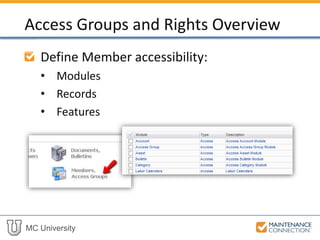
Define Member accessibility:
• Modules
• Records
• Features
Access Groups and Rights Overview
MC University
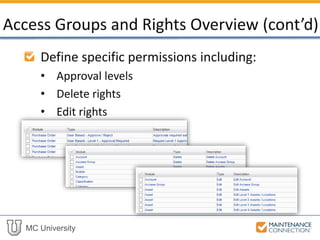
Define specific permissions including:
• Approval levels
• Delete rights
• Edit rights
Access Groups and Rights Overview (cont’d)
MC University
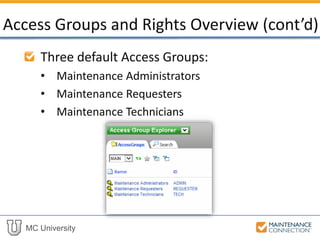
Three default Access Groups:
• Maintenance Administrators
• Maintenance Requesters
• Maintenance Technicians
Access Groups and Rights Overview (cont’d)
MC University
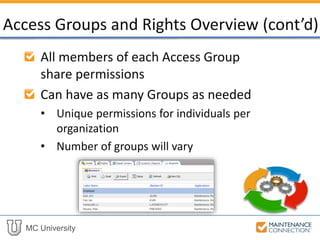
All members of each Access Group
share permissions
Can have as many Groups as needed
• Unique permissions for individuals per
organization
• Number of groups will vary
Access Groups and Rights Overview (cont’d)
MC University
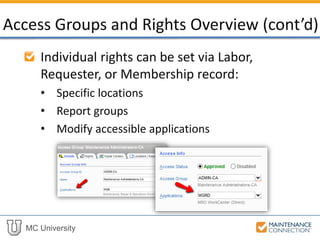
Individual rights can be set via Labor,
Requester, or Membership record:
• Specific locations
• Report groups
• Modify accessible applications
Access Groups and Rights Overview (cont’d)
MC University
Details
Repair Centers
Locations / Reports
Reports
Access Group Tabs
MC University
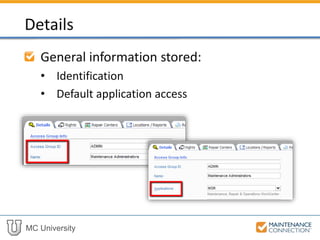
General information stored:
• Identification
• Default application access
Details
MC University
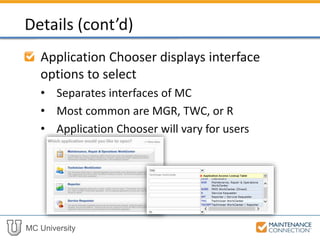
Application Chooser displays interface
options to select
• Separates interfaces of MC
• Most common are MGR, TWC, or R
• Application Chooser will vary for users
Details (cont’d)
MC University
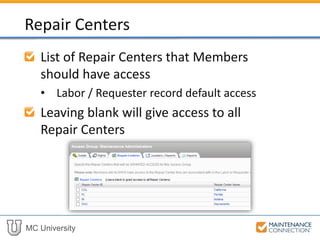
List of Repair Centers that Members
should have access
• Labor / Requester record default access
Leaving blank will give access to all
Repair Centers
Repair Centers
MC University
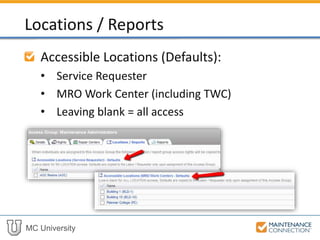
Accessible Locations (Defaults):
• Service Requester
• MRO Work Center (including TWC)
• Leaving blank = all access
Locations / Reports
MC University
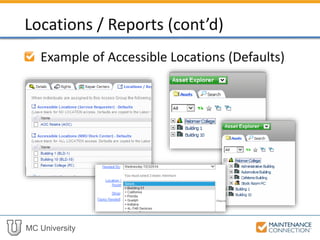
Example of Accessible Locations (Defaults)
Locations / Reports (cont’d)
MC University
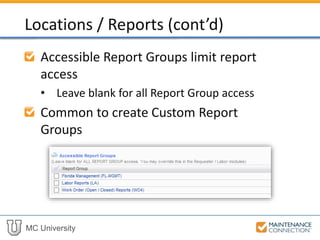
Accessible Report Groups limit report
access
• Leave blank for all Report Group access
Common to create Custom Report
Groups
Locations / Reports (cont’d)
MC University
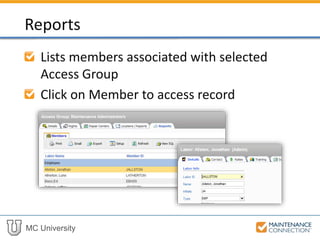
Lists members associated with selected
Access Group
Click on Member to access record
Reports
MC University
Module and Type Filters
Description of Rights
Enabling and Disabling Rights
Rights and Permissions
MC University
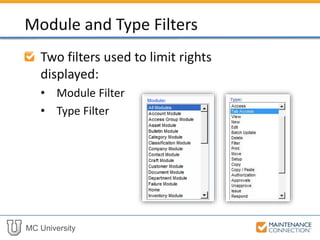
Two filters used to limit rights
displayed:
• Module Filter
• Type Filter
Module and Type Filters
MC University
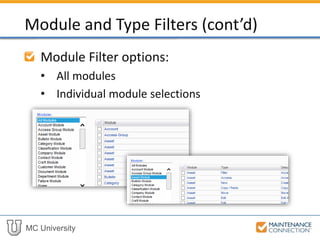
Module Filter options:
• All modules
• Individual module selections
Module and Type Filters (cont’d)
MC University
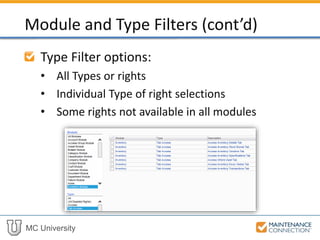
Type Filter options:
• All Types or rights
• Individual Type of right selections
• Some rights not available in all modules
Module and Type Filters (cont’d)
MC University
Many different types of Rights available
Most important rights include:
• Delete
• Access (General and Tab)
• Edit
• Authorization / Approvals
Description of Rights
MC University
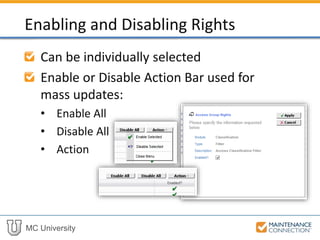
Can be individually selected
Enable or Disable Action Bar used for
mass updates:
• Enable All
• Disable All
• Action
Enabling and Disabling Rights
MC University
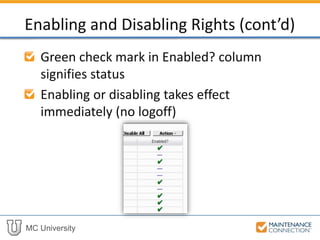
Green check mark in Enabled? column
signifies status
Enabling or disabling takes effect
immediately (no logoff)
Enabling and Disabling Rights (cont’d)
MC University
Cloning Access Groups Overview
Adjust Rights
Edit Repair Centers
Limit Locations / Reports
Cloning Access Groups
MC University
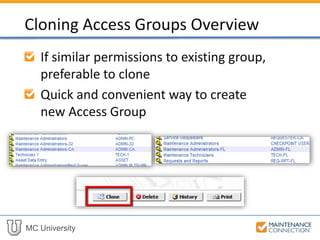
If similar permissions to existing group,
preferable to clone
Quick and convenient way to create
new Access Group
Cloning Access Groups Overview
MC University
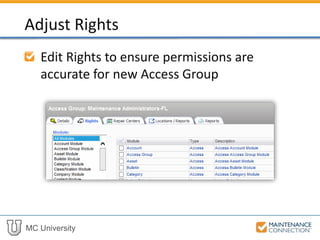
Edit Rights to ensure permissions are
accurate for new Access Group
Adjust Rights
MC University
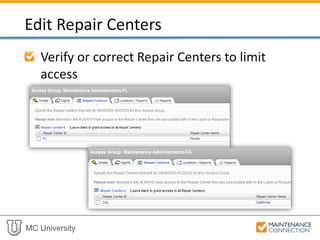
Verify or correct Repair Centers to limit
access
Edit Repair Centers
MC University
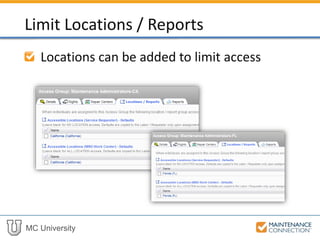
Locations can be added to limit access
Limit Locations / Reports
MC University
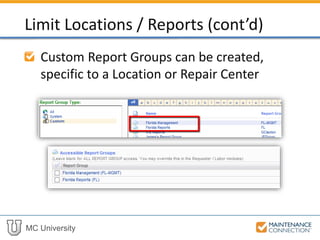
Custom Report Groups can be created,
specific to a Location or Repair Center
Limit Locations / Reports (cont’d)
MC University
Now let’s practice cloning an Access
Group and editing Rights!
Clone Access Group: Hands-On
MC University
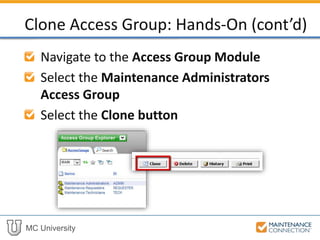
Navigate to the Access Group Module
Select the Maintenance Administrators
Access Group
Select the Clone button
Clone Access Group: Hands-On (cont’d)
MC University
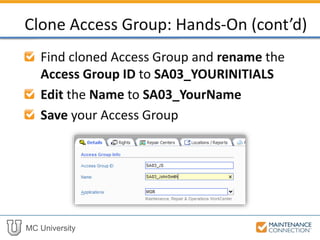
Find cloned Access Group and rename the
Access Group ID to SA03_YOURINITIALS
Edit the Name to SA03_YourName
Save your Access Group
Clone Access Group: Hands-On (cont’d)
MC University
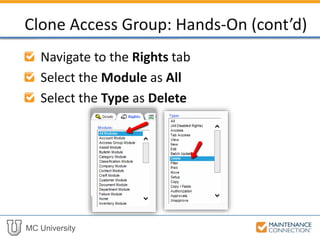
Navigate to the Rights tab
Select the Module as All
Select the Type as Delete
Clone Access Group: Hands-On (cont’d)
MC University
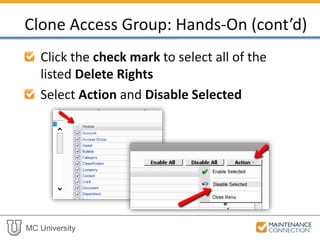
Click the check mark to select all of the
listed Delete Rights
Select Action and Disable Selected
Clone Access Group: Hands-On (cont’d)
MC University
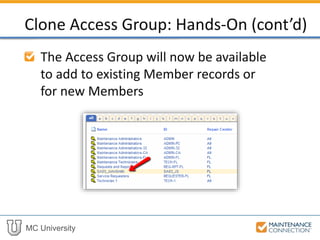
The Access Group will now be available
to add to existing Member records or
for new Members
Clone Access Group: Hands-On (cont’d)
MC University
You have now successfully completed
creating a new Access Group and
editing Rights!
Clone Access Group: Hands-On (cont’d)
Thank You for
Watching!

SA03 - Overview of Access Groups (MCU)

  • 1.
  • 2.
    MC University Access Groupsand Rights Defined Access Group Tabs Rights and Permissions Cloning Access Groups Agenda
  • 3.
    MC University Access Groupsand Rights Overview Access Groups and Rights Defined
  • 4.
    MC University Define Memberaccessibility: • Modules • Records • Features Access Groups and Rights Overview
  • 5.
    MC University Define specificpermissions including: • Approval levels • Delete rights • Edit rights Access Groups and Rights Overview (cont’d)
  • 6.
    MC University Three defaultAccess Groups: • Maintenance Administrators • Maintenance Requesters • Maintenance Technicians Access Groups and Rights Overview (cont’d)
  • 7.
    MC University All membersof each Access Group share permissions Can have as many Groups as needed • Unique permissions for individuals per organization • Number of groups will vary Access Groups and Rights Overview (cont’d)
  • 8.
    MC University Individual rightscan be set via Labor, Requester, or Membership record: • Specific locations • Report groups • Modify accessible applications Access Groups and Rights Overview (cont’d)
  • 9.
    MC University Details Repair Centers Locations/ Reports Reports Access Group Tabs
  • 10.
    MC University General informationstored: • Identification • Default application access Details
  • 11.
    MC University Application Chooserdisplays interface options to select • Separates interfaces of MC • Most common are MGR, TWC, or R • Application Chooser will vary for users Details (cont’d)
  • 12.
    MC University List ofRepair Centers that Members should have access • Labor / Requester record default access Leaving blank will give access to all Repair Centers Repair Centers
  • 13.
    MC University Accessible Locations(Defaults): • Service Requester • MRO Work Center (including TWC) • Leaving blank = all access Locations / Reports
  • 14.
    MC University Example ofAccessible Locations (Defaults) Locations / Reports (cont’d)
  • 15.
    MC University Accessible ReportGroups limit report access • Leave blank for all Report Group access Common to create Custom Report Groups Locations / Reports (cont’d)
  • 16.
    MC University Lists membersassociated with selected Access Group Click on Member to access record Reports
  • 17.
    MC University Module andType Filters Description of Rights Enabling and Disabling Rights Rights and Permissions
  • 18.
    MC University Two filtersused to limit rights displayed: • Module Filter • Type Filter Module and Type Filters
  • 19.
    MC University Module Filteroptions: • All modules • Individual module selections Module and Type Filters (cont’d)
  • 20.
    MC University Type Filteroptions: • All Types or rights • Individual Type of right selections • Some rights not available in all modules Module and Type Filters (cont’d)
  • 21.
    MC University Many differenttypes of Rights available Most important rights include: • Delete • Access (General and Tab) • Edit • Authorization / Approvals Description of Rights
  • 22.
    MC University Can beindividually selected Enable or Disable Action Bar used for mass updates: • Enable All • Disable All • Action Enabling and Disabling Rights
  • 23.
    MC University Green checkmark in Enabled? column signifies status Enabling or disabling takes effect immediately (no logoff) Enabling and Disabling Rights (cont’d)
  • 24.
    MC University Cloning AccessGroups Overview Adjust Rights Edit Repair Centers Limit Locations / Reports Cloning Access Groups
  • 25.
    MC University If similarpermissions to existing group, preferable to clone Quick and convenient way to create new Access Group Cloning Access Groups Overview
  • 26.
    MC University Edit Rightsto ensure permissions are accurate for new Access Group Adjust Rights
  • 27.
    MC University Verify orcorrect Repair Centers to limit access Edit Repair Centers
  • 28.
    MC University Locations canbe added to limit access Limit Locations / Reports
  • 29.
    MC University Custom ReportGroups can be created, specific to a Location or Repair Center Limit Locations / Reports (cont’d)
  • 30.
    MC University Now let’spractice cloning an Access Group and editing Rights! Clone Access Group: Hands-On
  • 31.
    MC University Navigate tothe Access Group Module Select the Maintenance Administrators Access Group Select the Clone button Clone Access Group: Hands-On (cont’d)
  • 32.
    MC University Find clonedAccess Group and rename the Access Group ID to SA03_YOURINITIALS Edit the Name to SA03_YourName Save your Access Group Clone Access Group: Hands-On (cont’d)
  • 33.
    MC University Navigate tothe Rights tab Select the Module as All Select the Type as Delete Clone Access Group: Hands-On (cont’d)
  • 34.
    MC University Click thecheck mark to select all of the listed Delete Rights Select Action and Disable Selected Clone Access Group: Hands-On (cont’d)
  • 35.
    MC University The AccessGroup will now be available to add to existing Member records or for new Members Clone Access Group: Hands-On (cont’d)
  • 36.
    MC University You havenow successfully completed creating a new Access Group and editing Rights! Clone Access Group: Hands-On (cont’d)
  • 37.