Based on Roll-a-ball video tutorial from Unity Technologies
Part 1
@shahedC
WakeUpAndCode.com
Getting Started
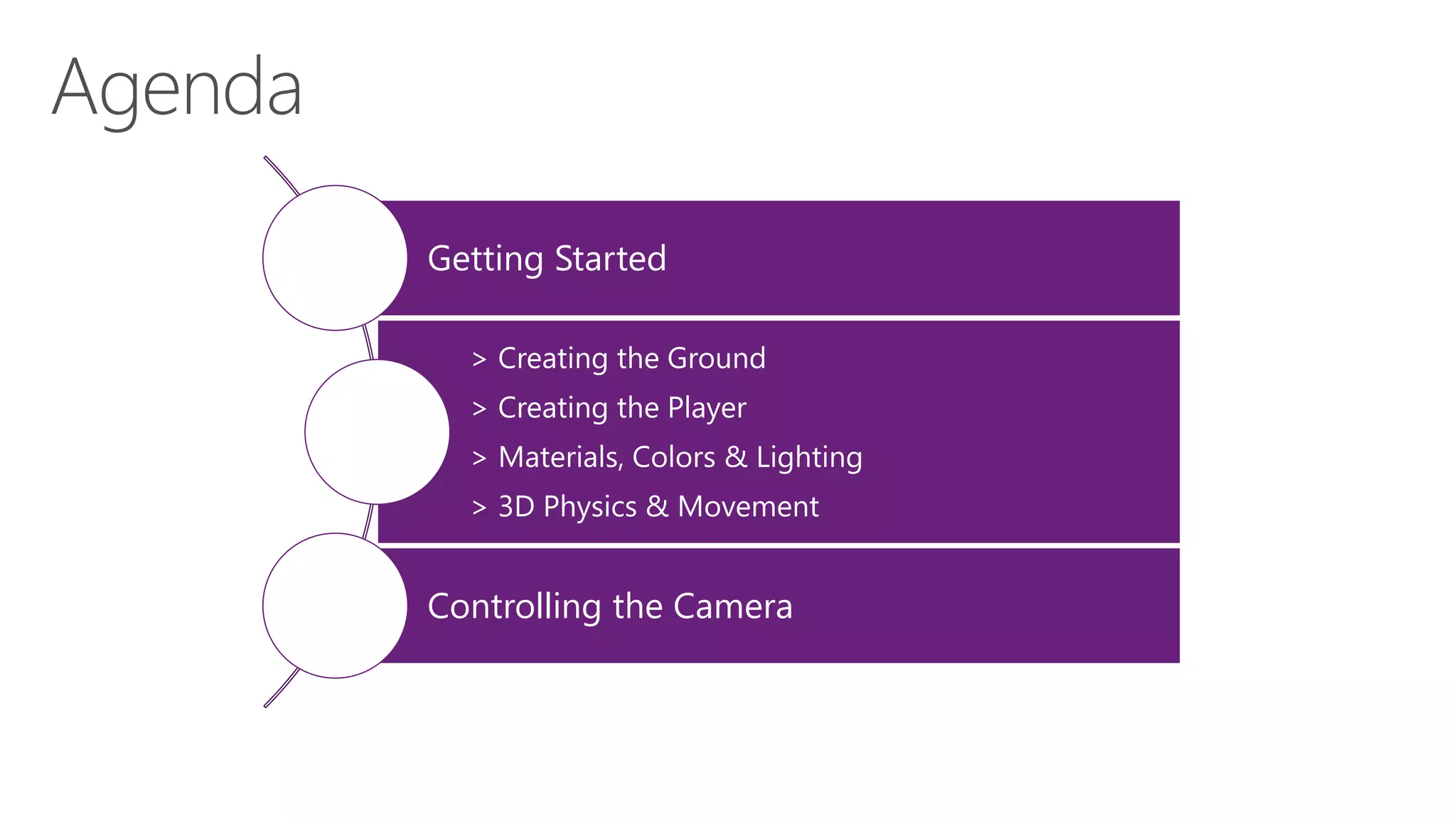
> Creating the Ground
> Creating the Player
> Materials, Colors & Lighting
> 3D Physics & Movement
Controlling the Camera
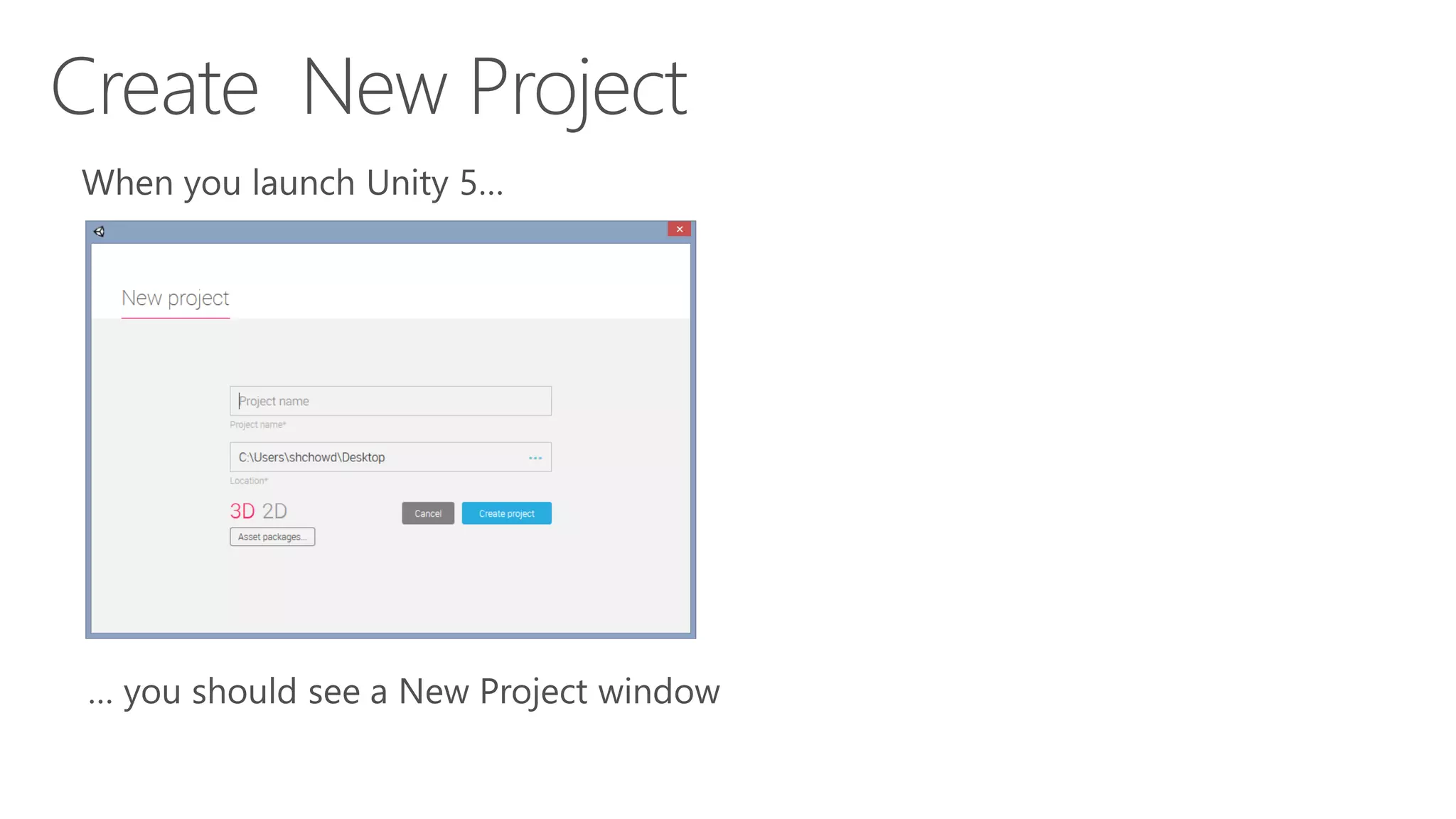
Select 3D (not 2D) Click [Create project]
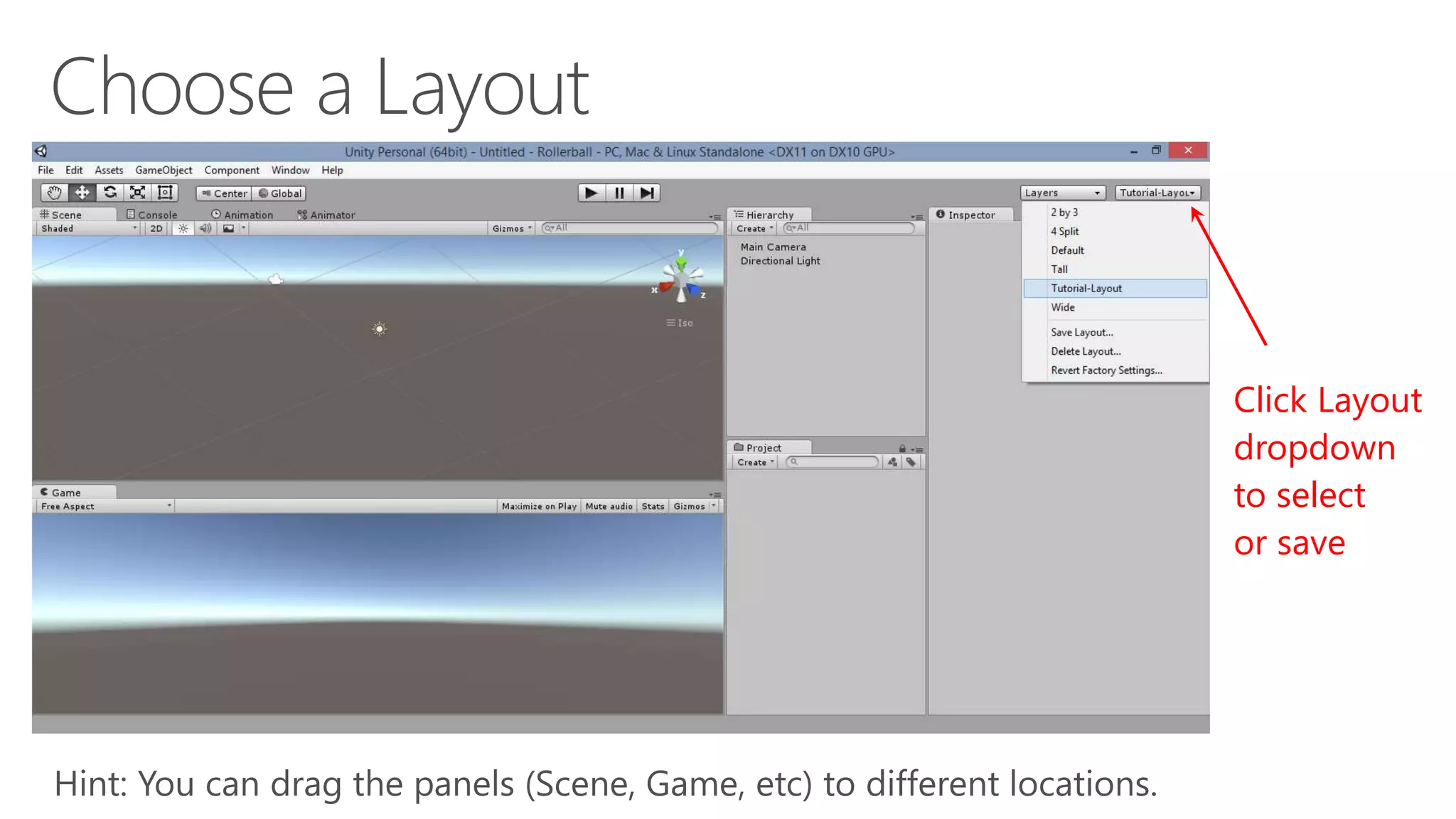
Click Layout
dropdown
to select
or save
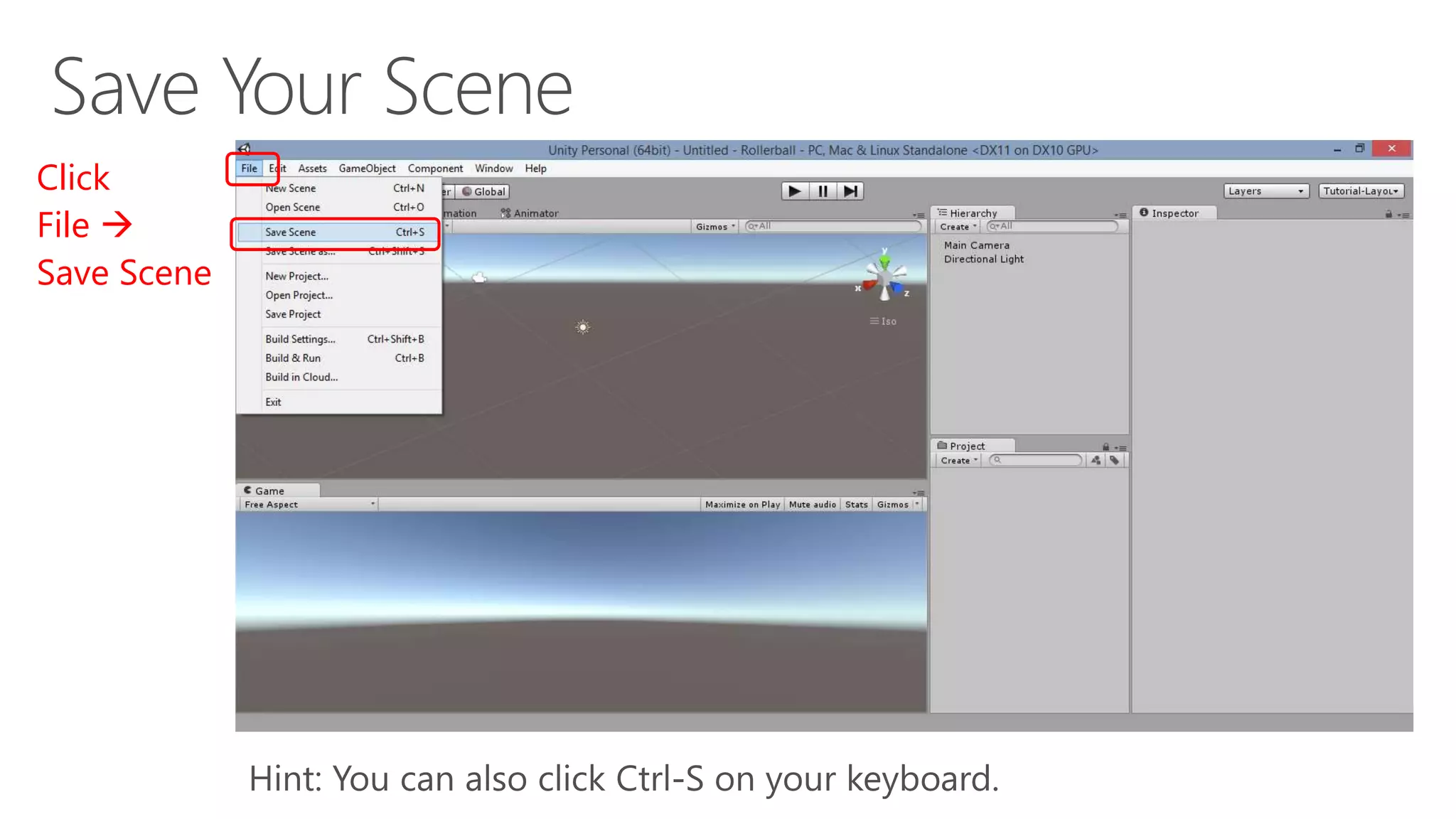
Click
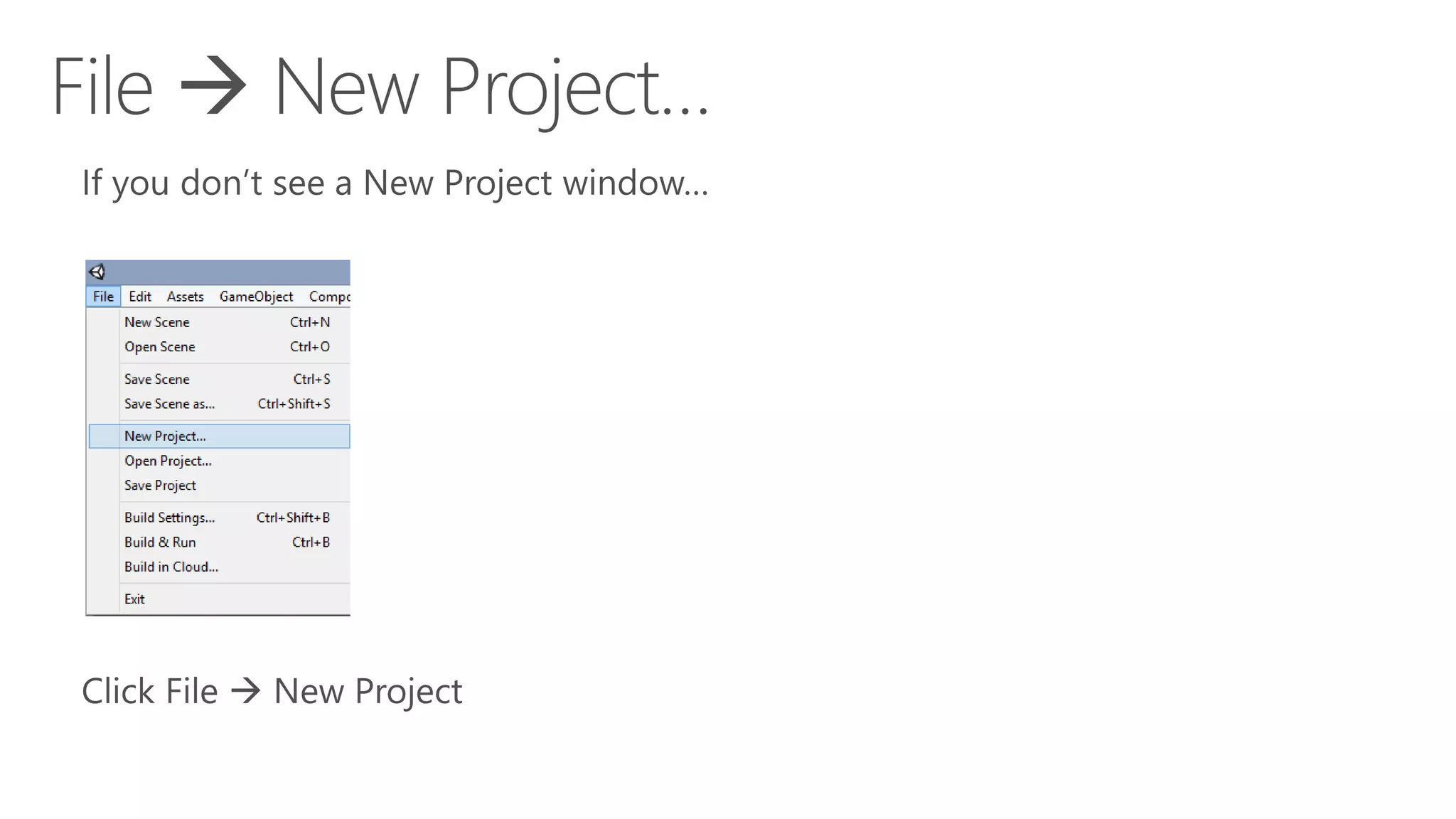
File 
Save Scene
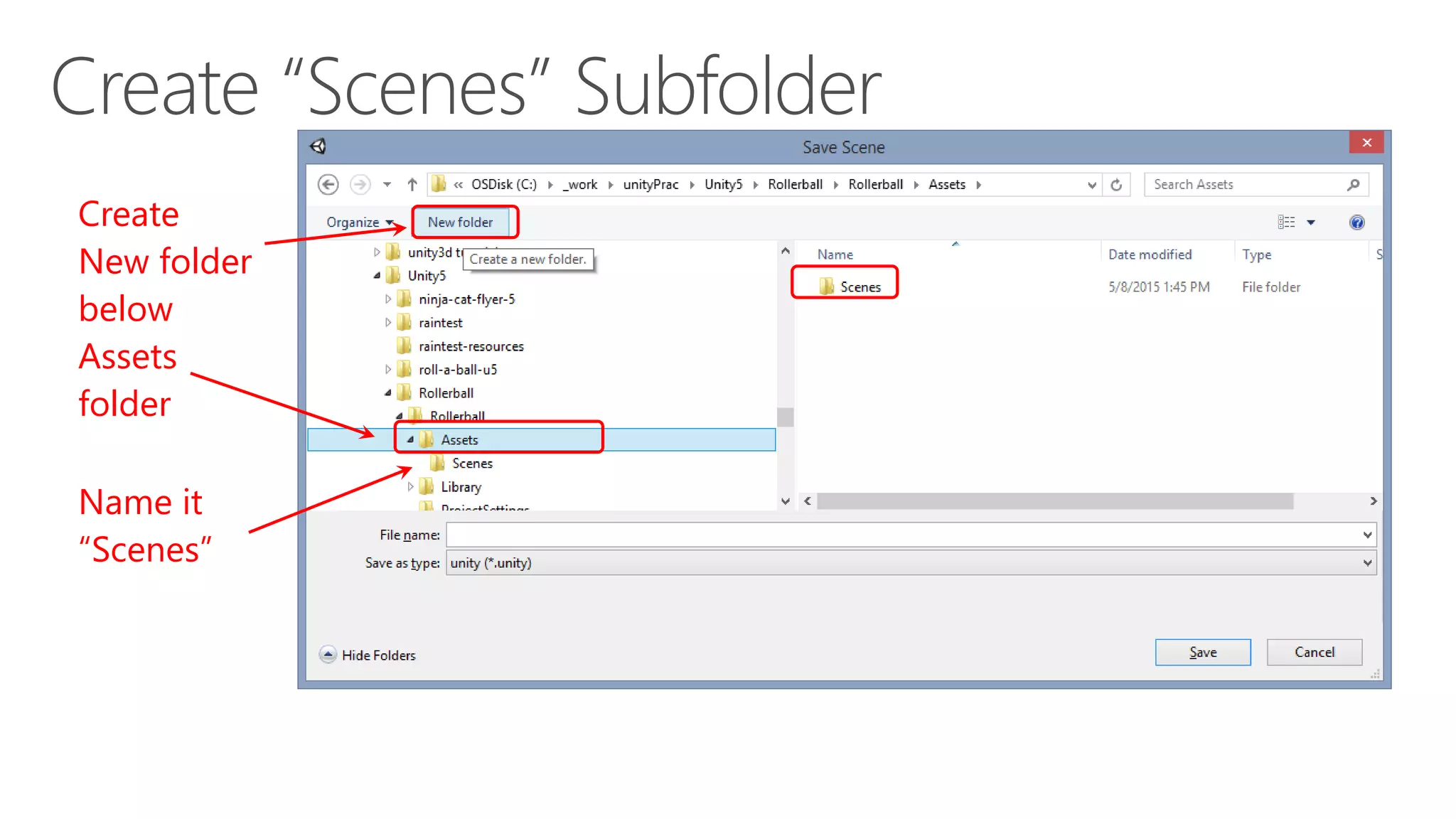
Create
New folder
below
Assets
folder
Name it
“Scenes”
, then click [Save]… Name your scene “PlayingField.unity”
Inside
“Scenes”
Subfolder…
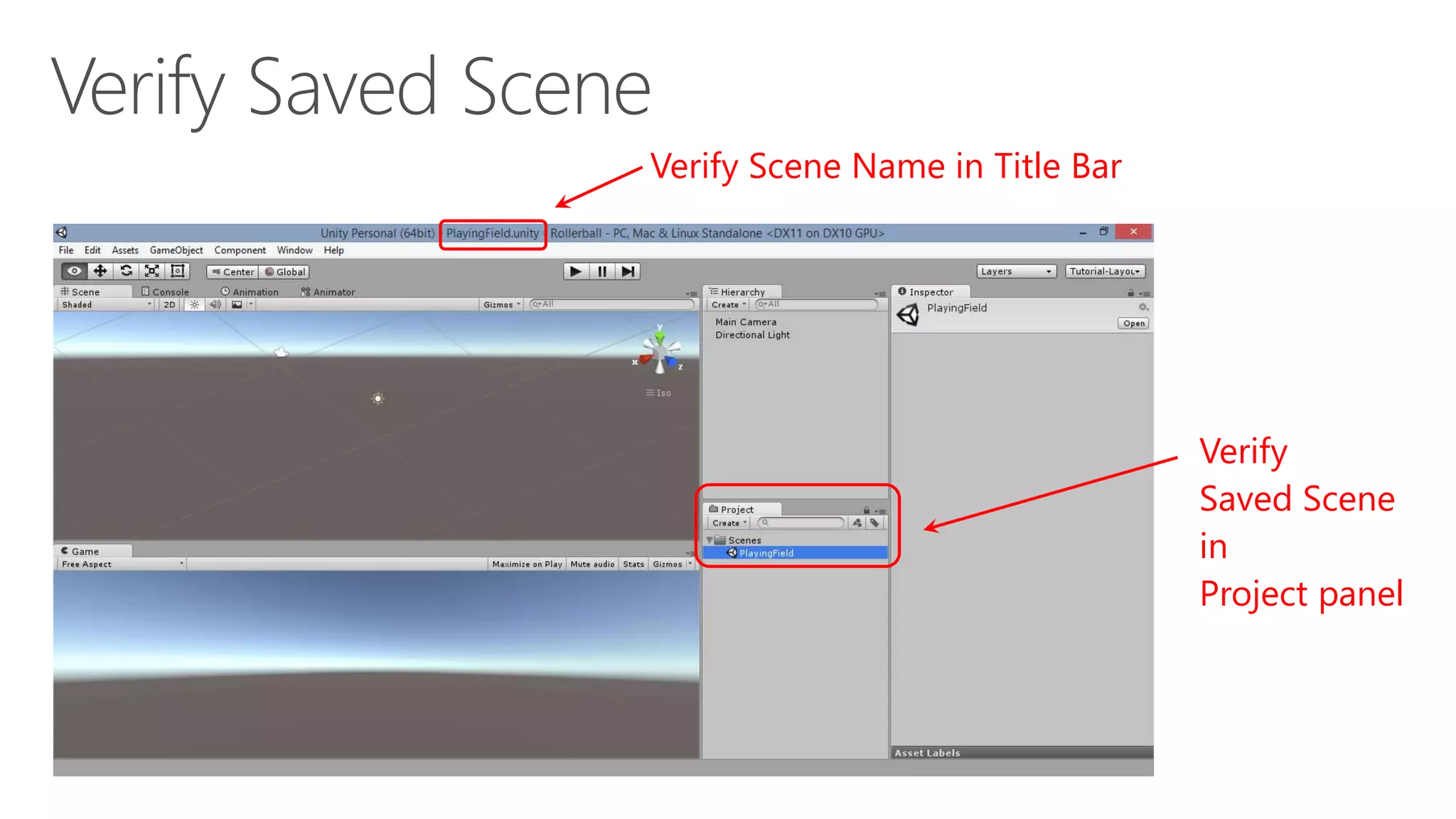
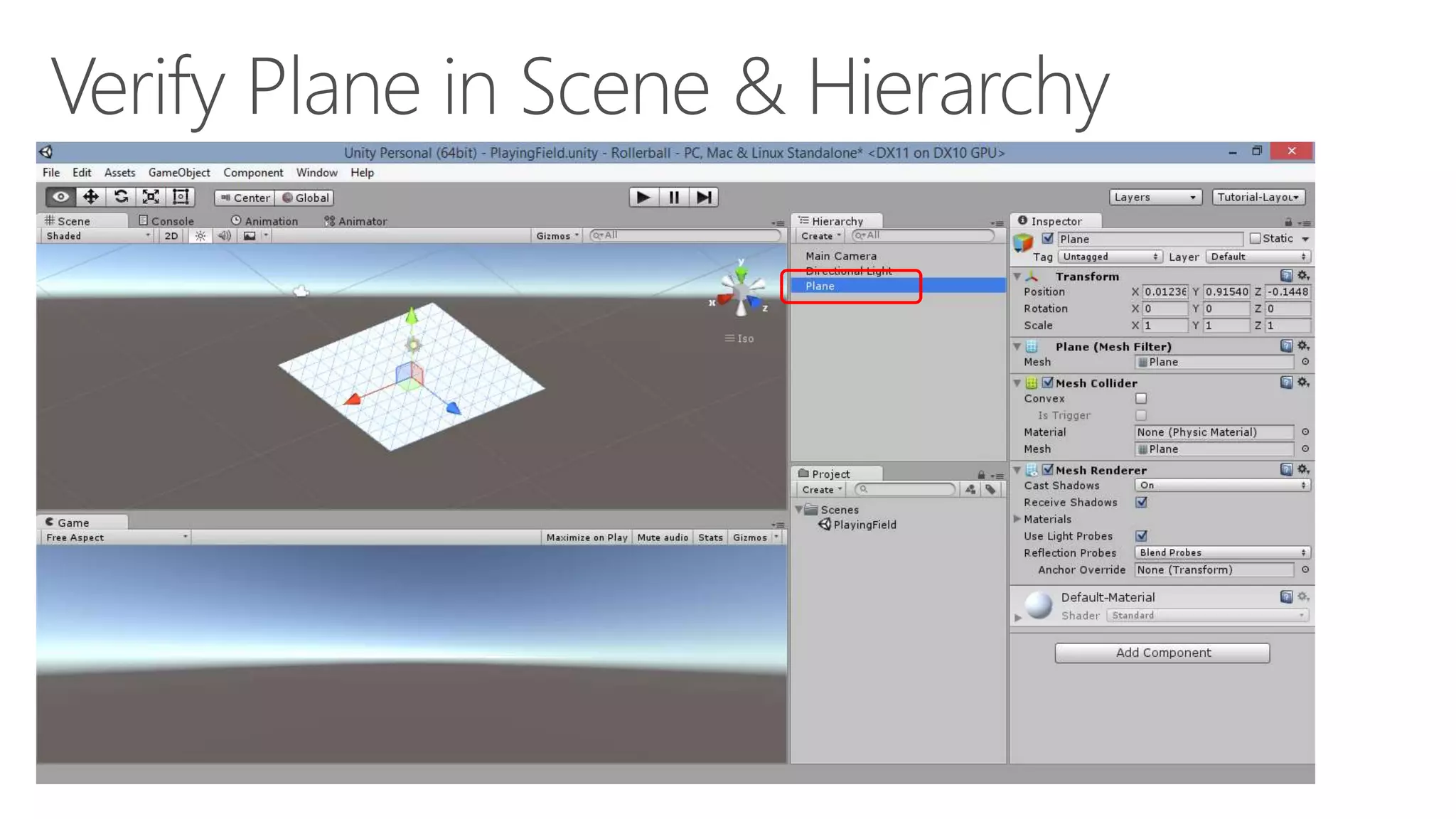
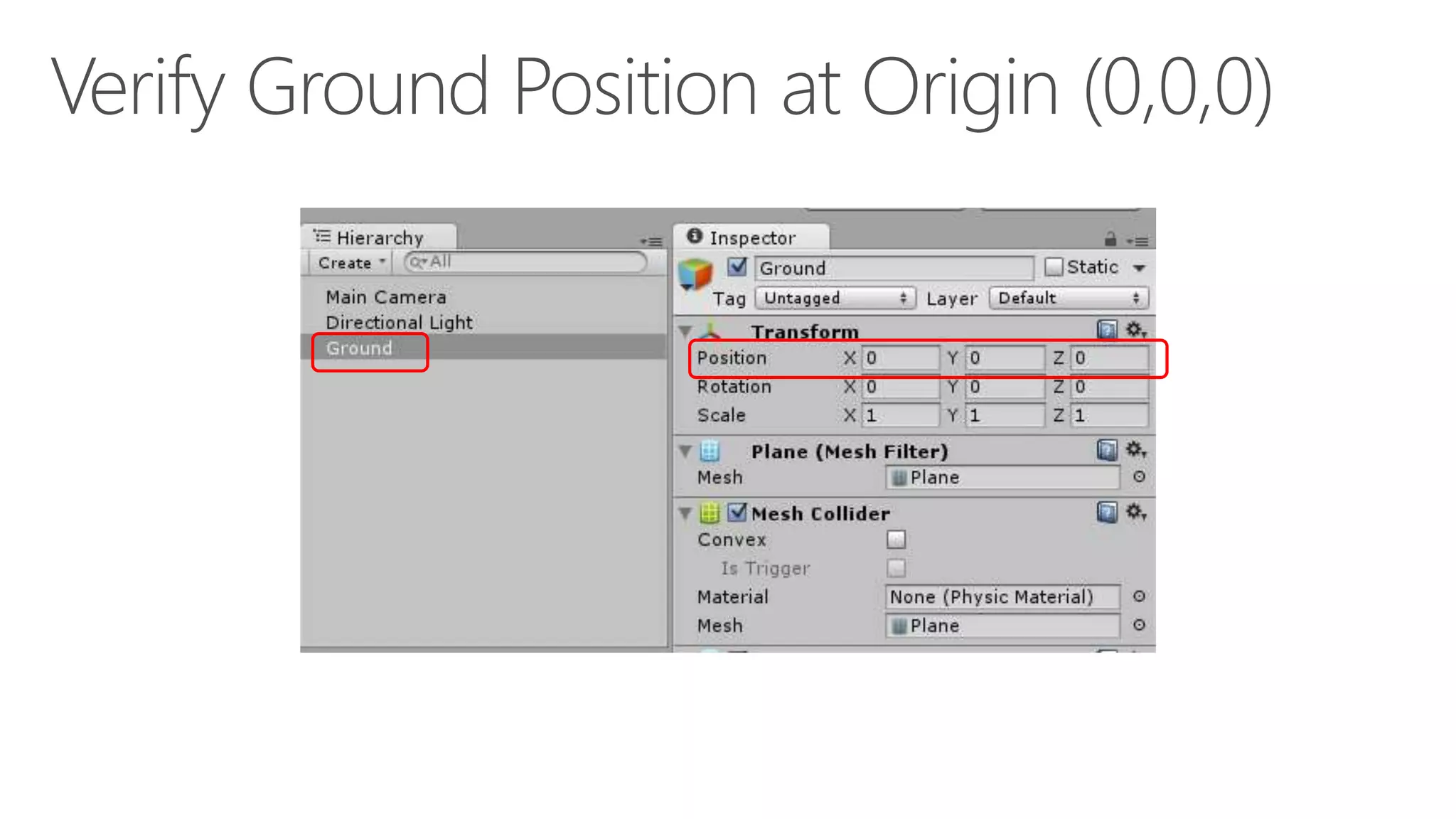
Verify
Saved Scene
in
Project panel
Verify Scene Name in Title Bar
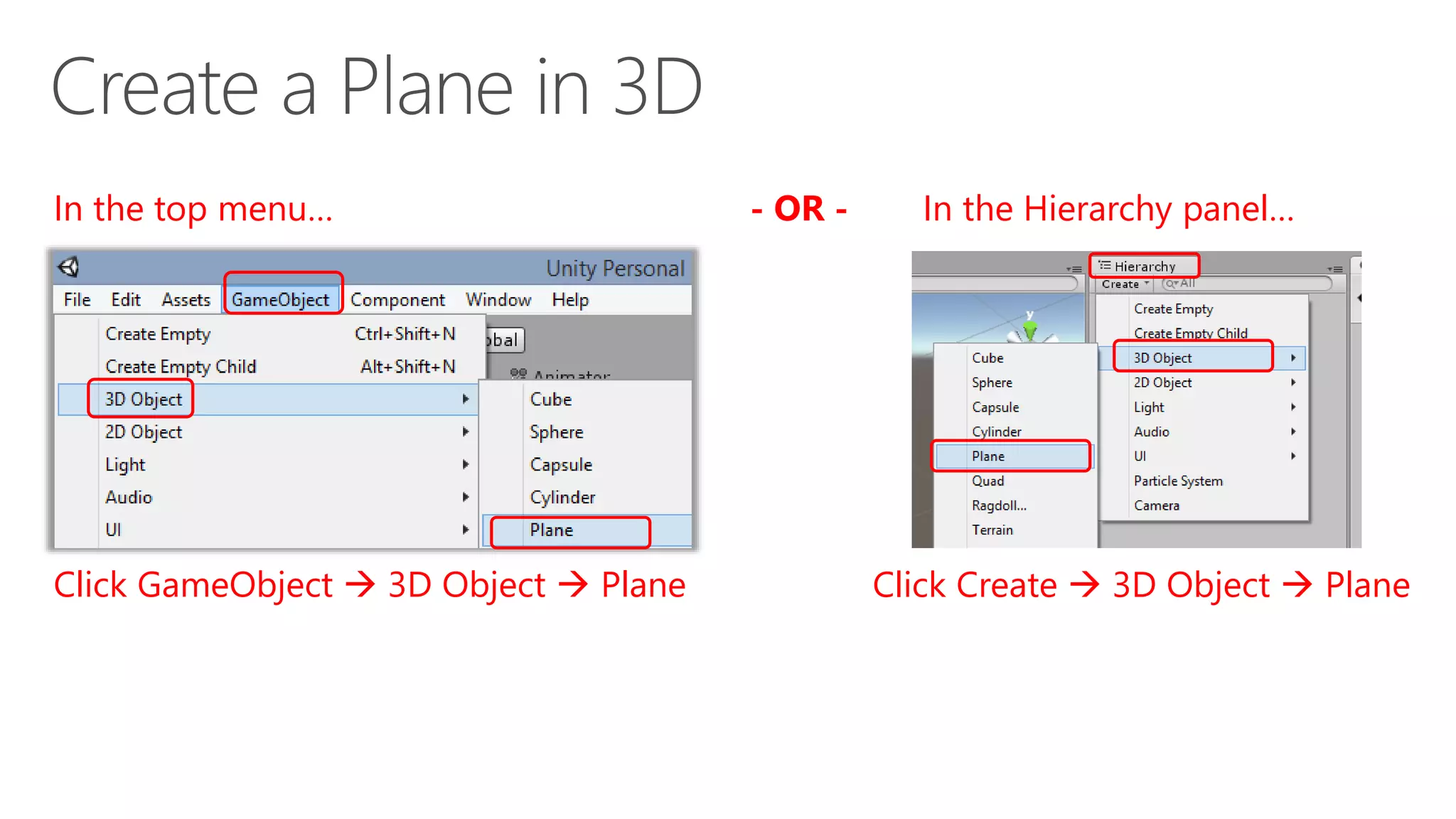
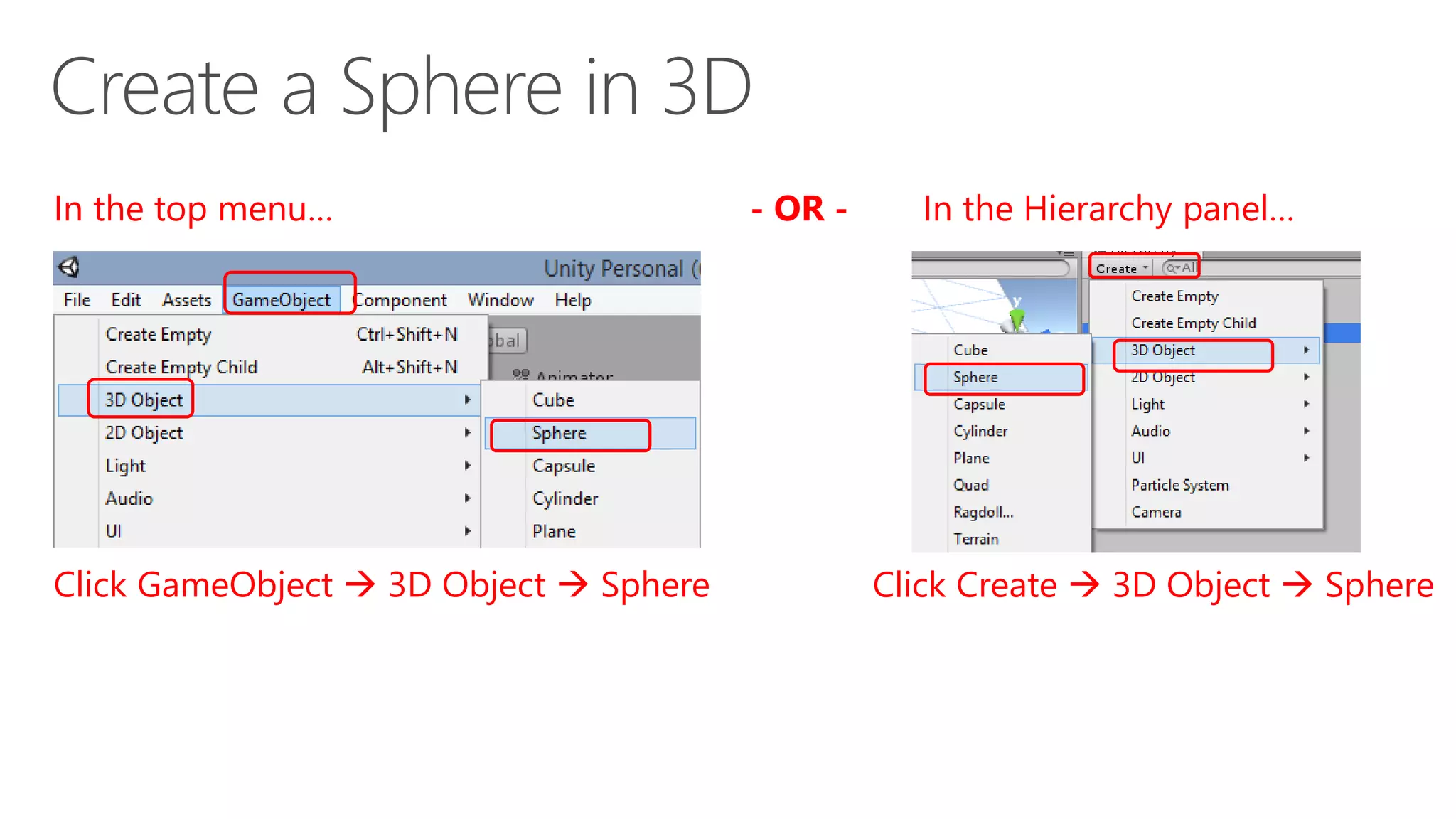
Click GameObject  3D Object  Plane Click Create  3D Object  Plane
In the top menu… In the Hierarchy panel…- OR -
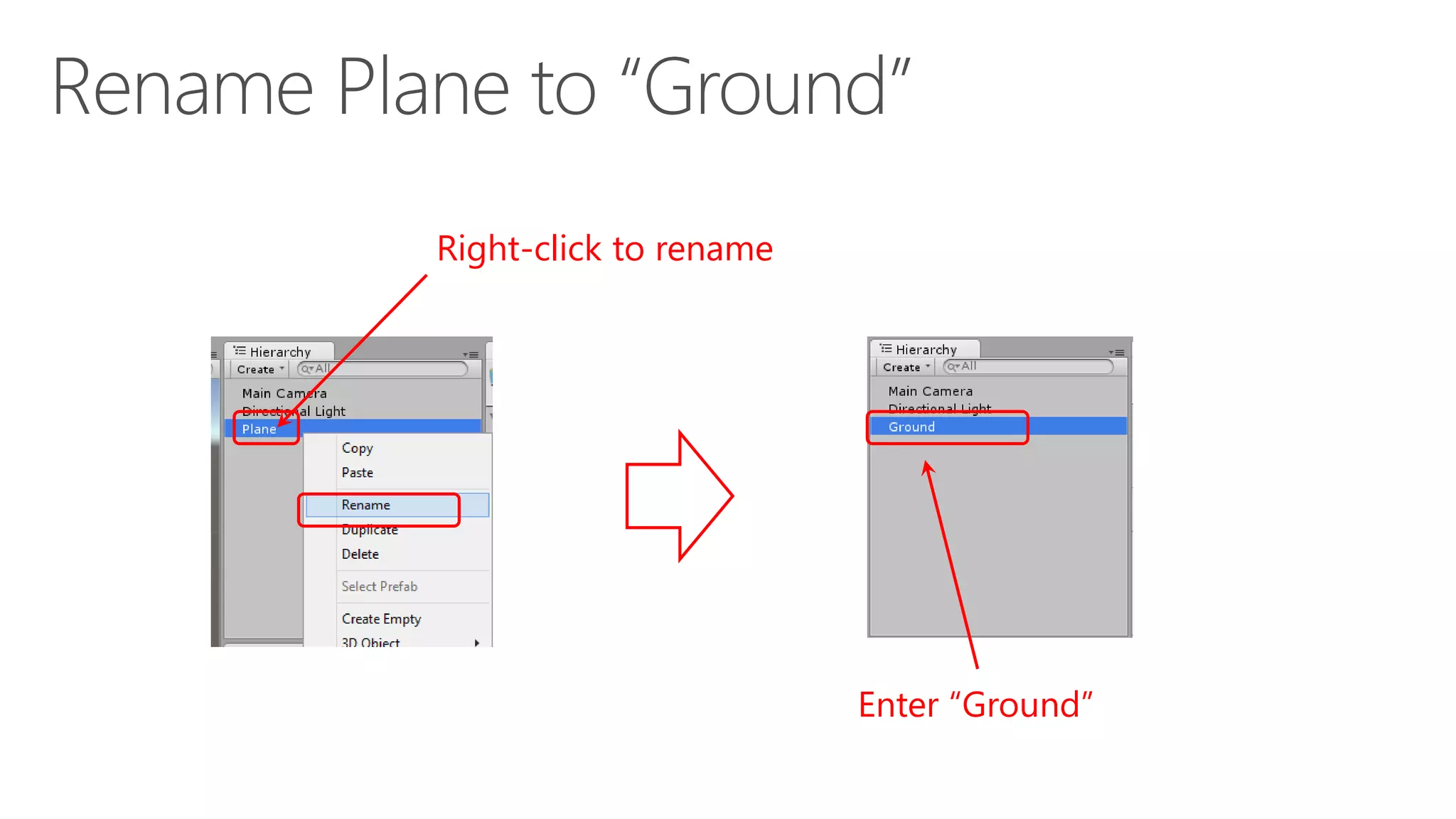
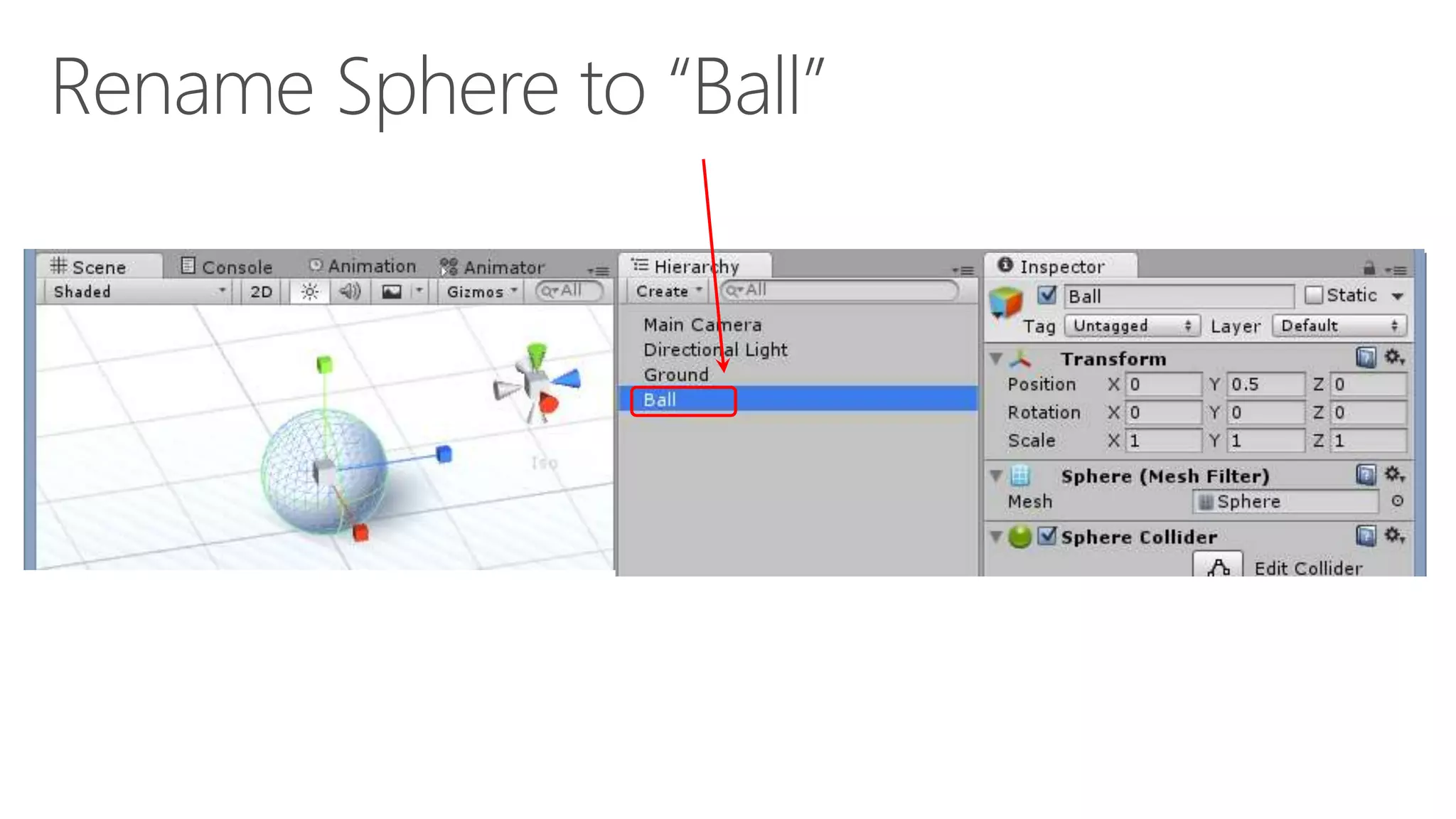
Right-click to rename
Enter “Ground”
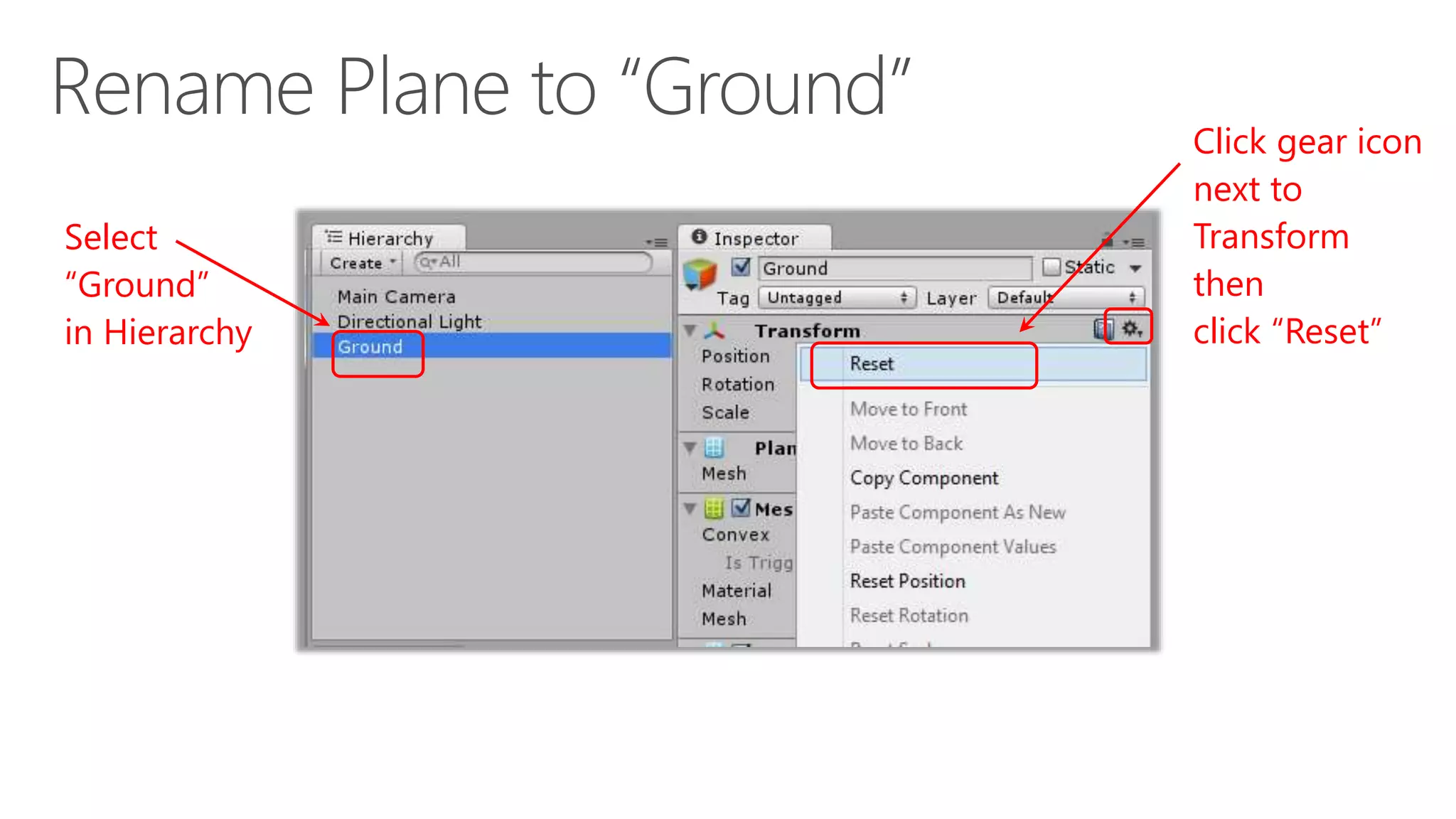
Select
“Ground”
in Hierarchy
Click gear icon
next to
Transform
then
click “Reset”
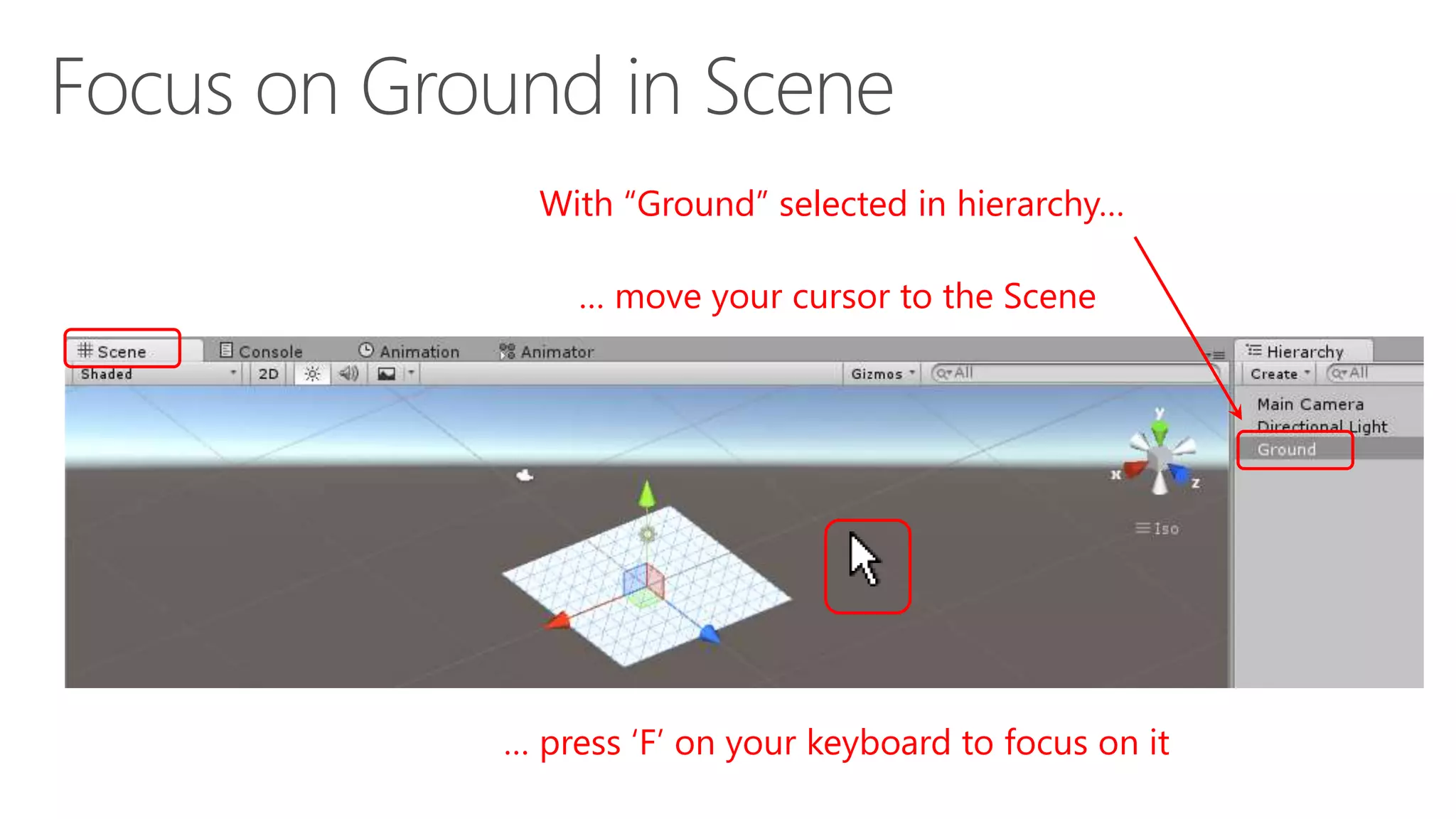
With “Ground” selected in hierarchy…
… press ‘F’ on your keyboard to focus on it
… move your cursor to the Scene
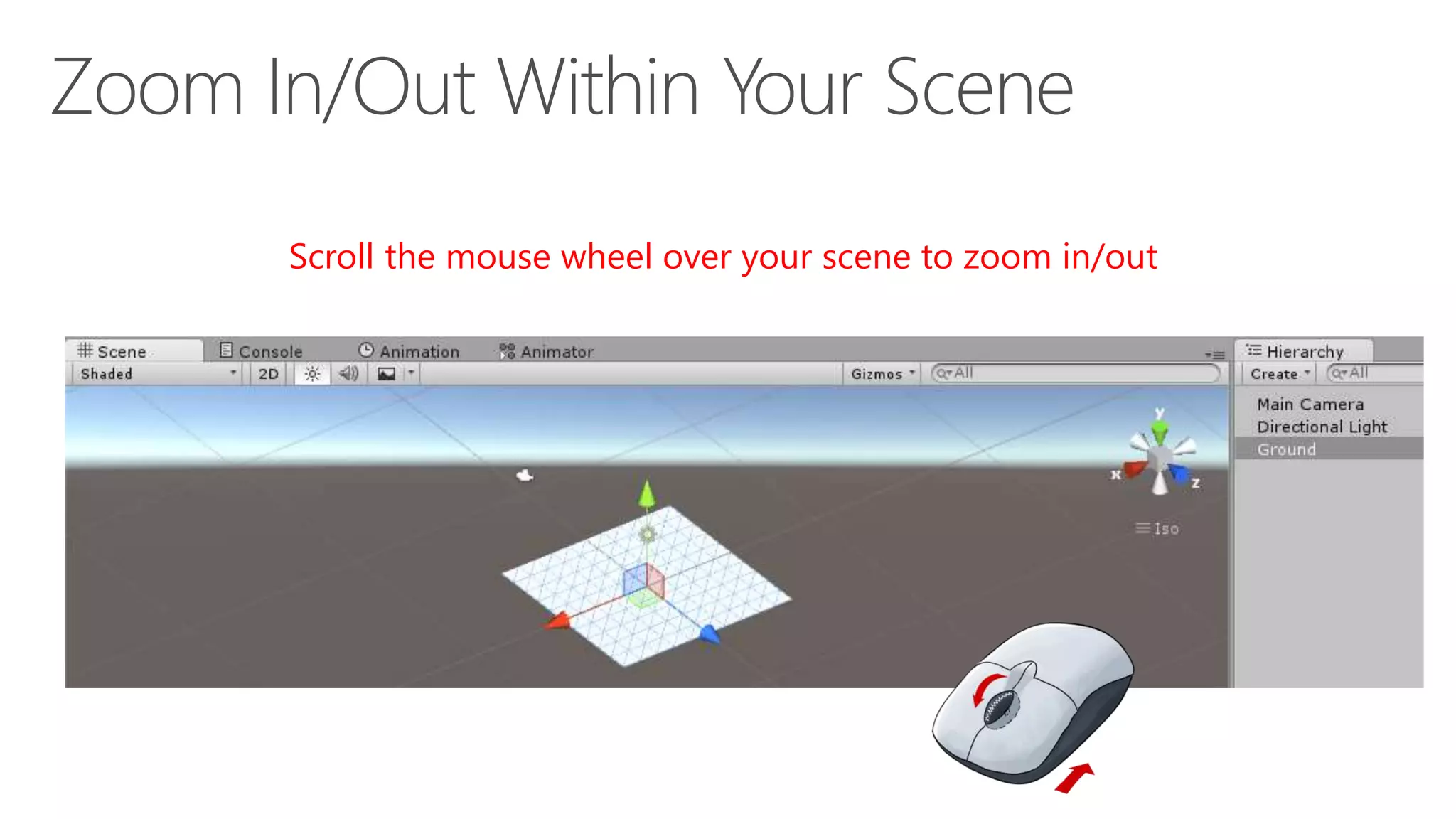
Scroll the mouse wheel over your scene to zoom in/out
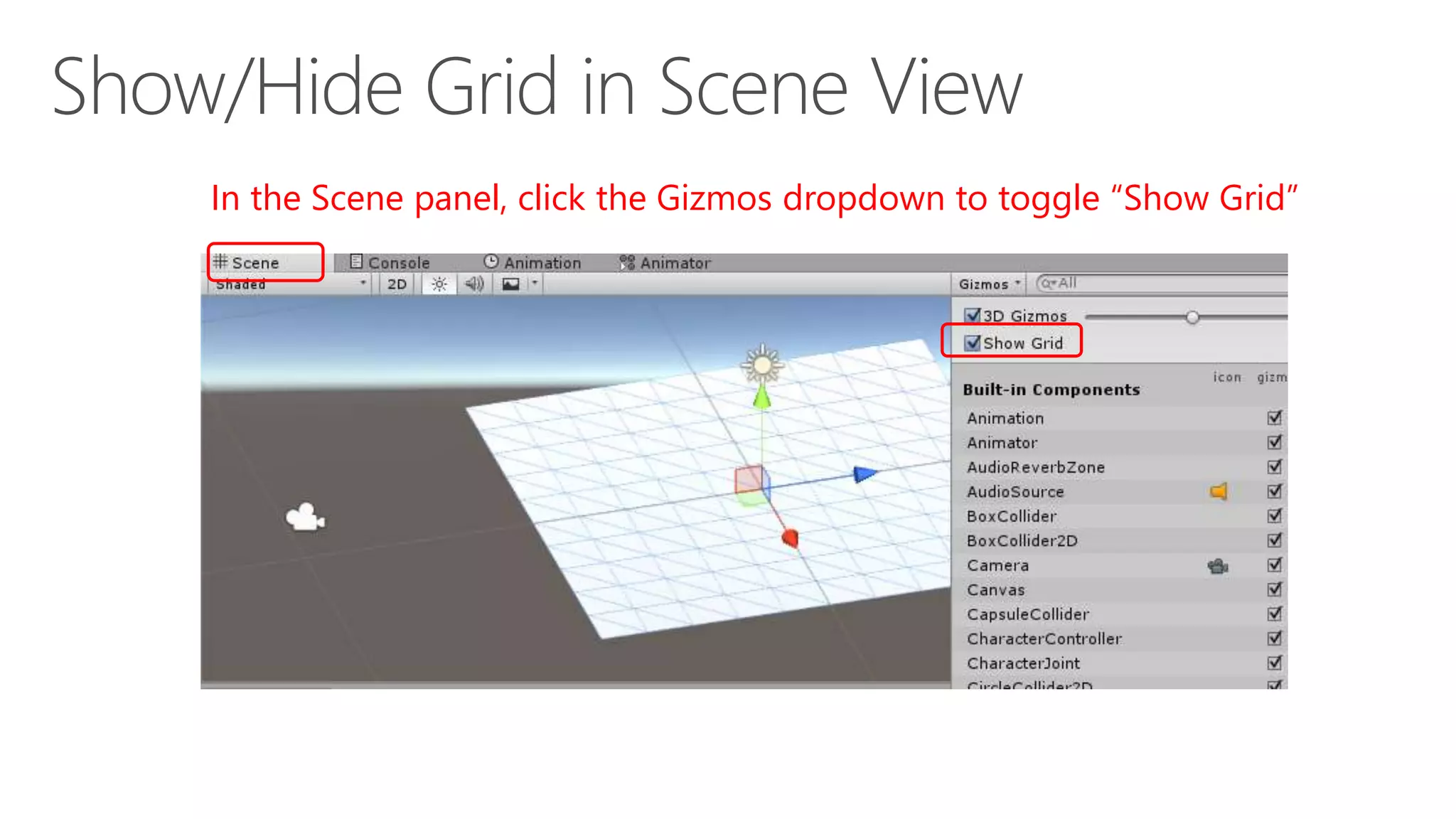
In the Scene panel, click the Gizmos dropdown to toggle “Show Grid”
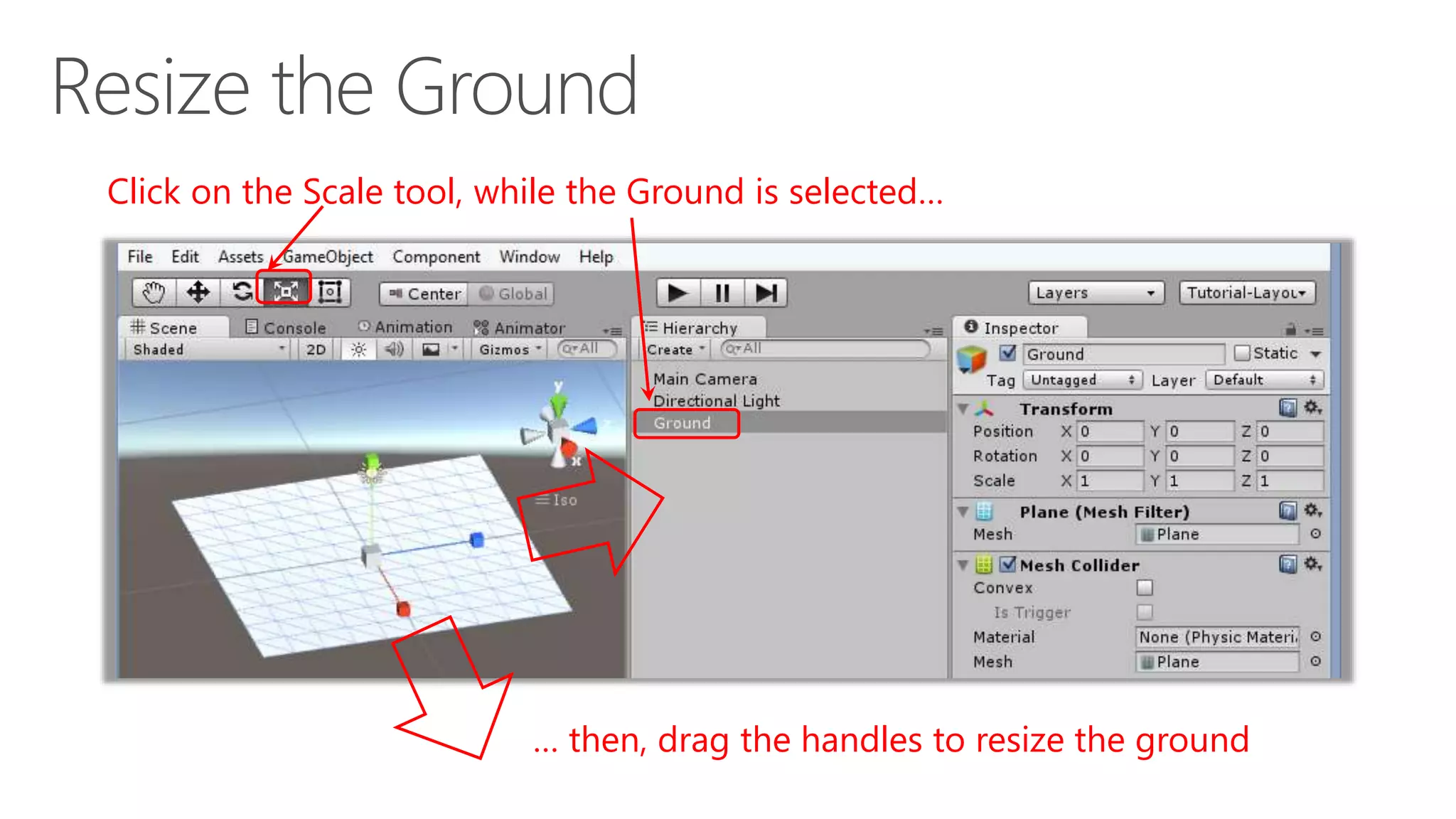
Click on the Scale tool, while the Ground is selected…
… then, drag the handles to resize the ground
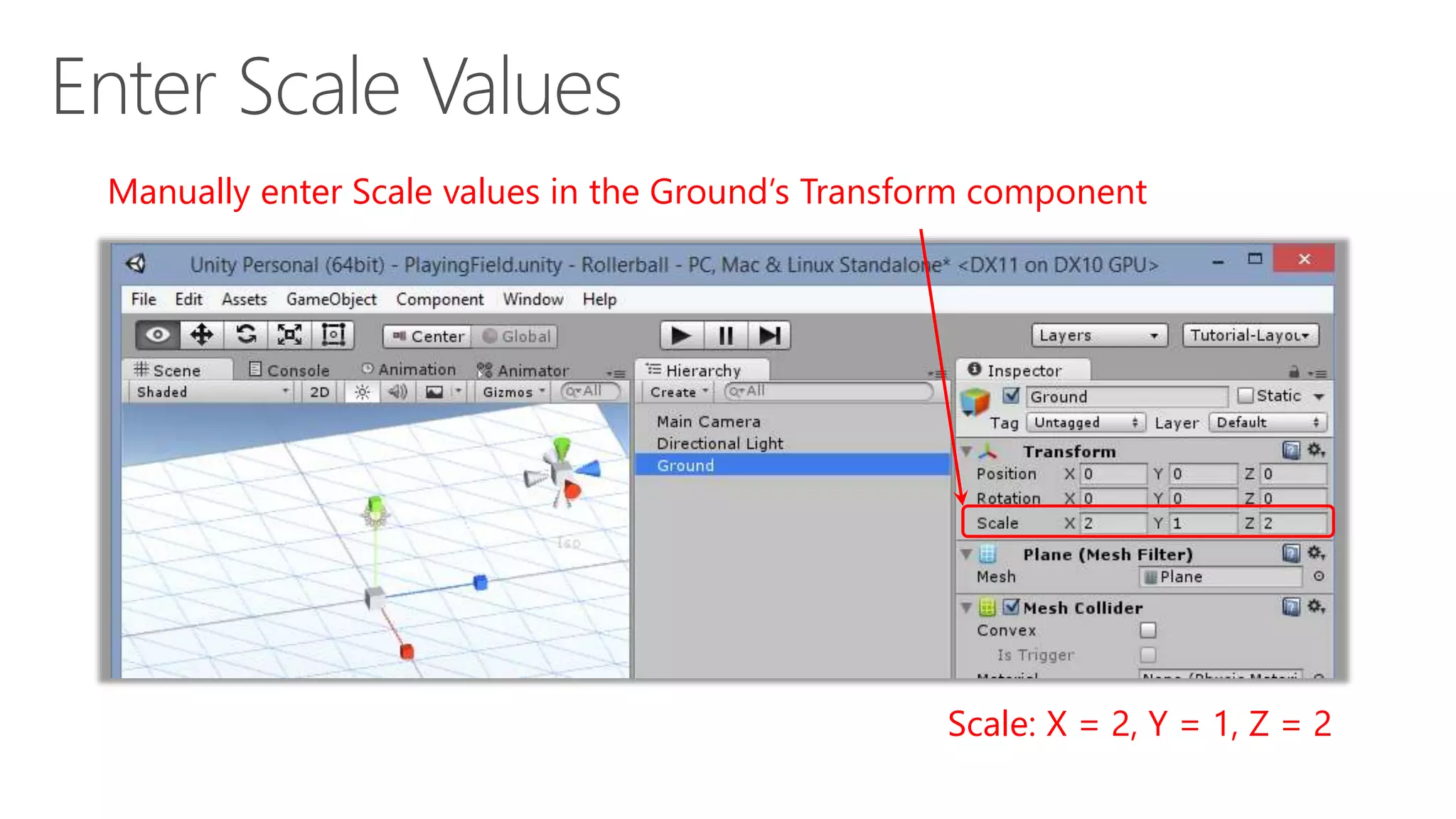
Manually enter Scale values in the Ground’s Transform component
Scale: X = 2, Y = 1, Z = 2
Click GameObject  3D Object  Sphere Click Create  3D Object  Sphere
In the top menu… In the Hierarchy panel…- OR -
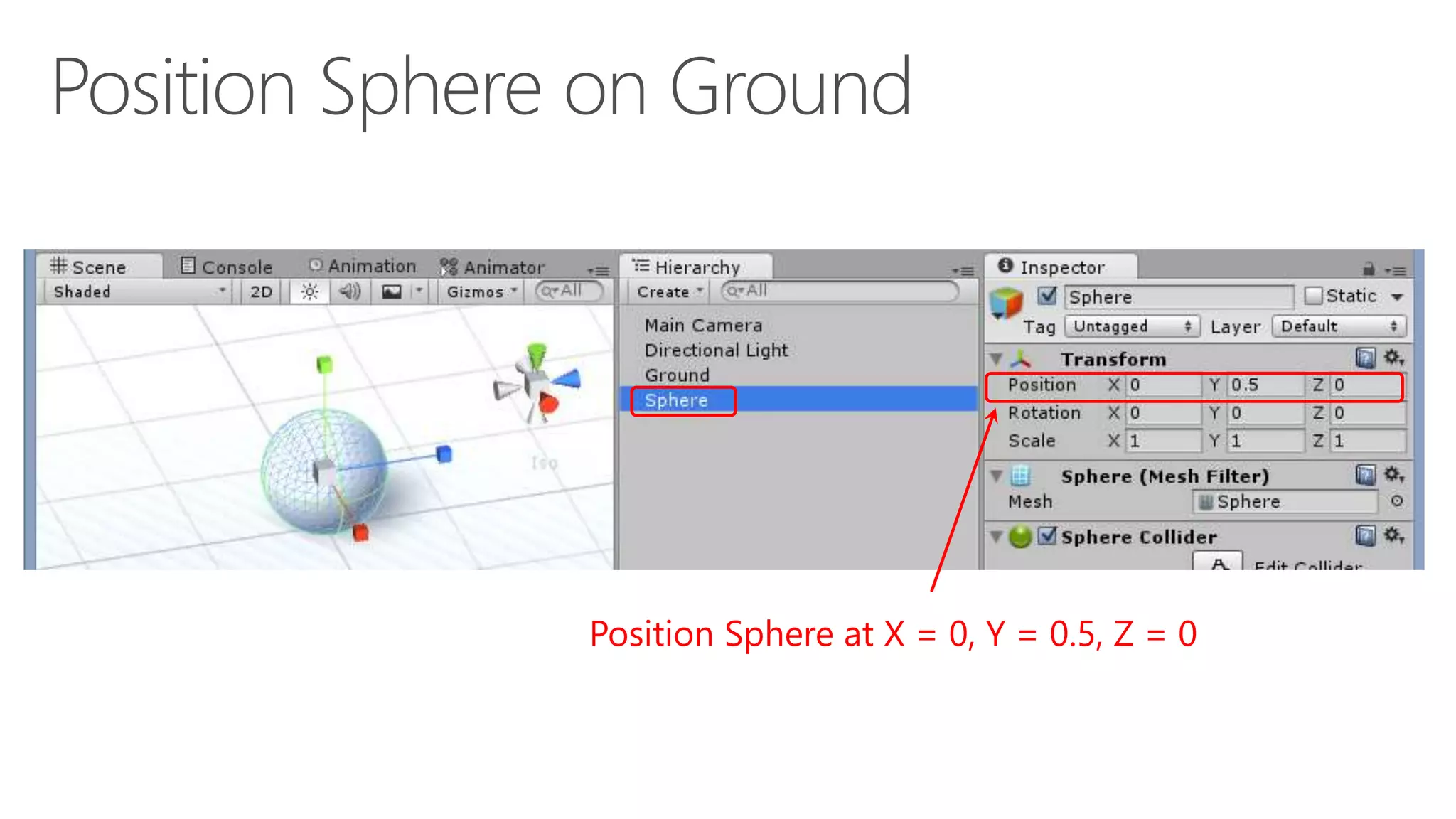
Position Sphere at X = 0, Y = 0.5, Z = 0
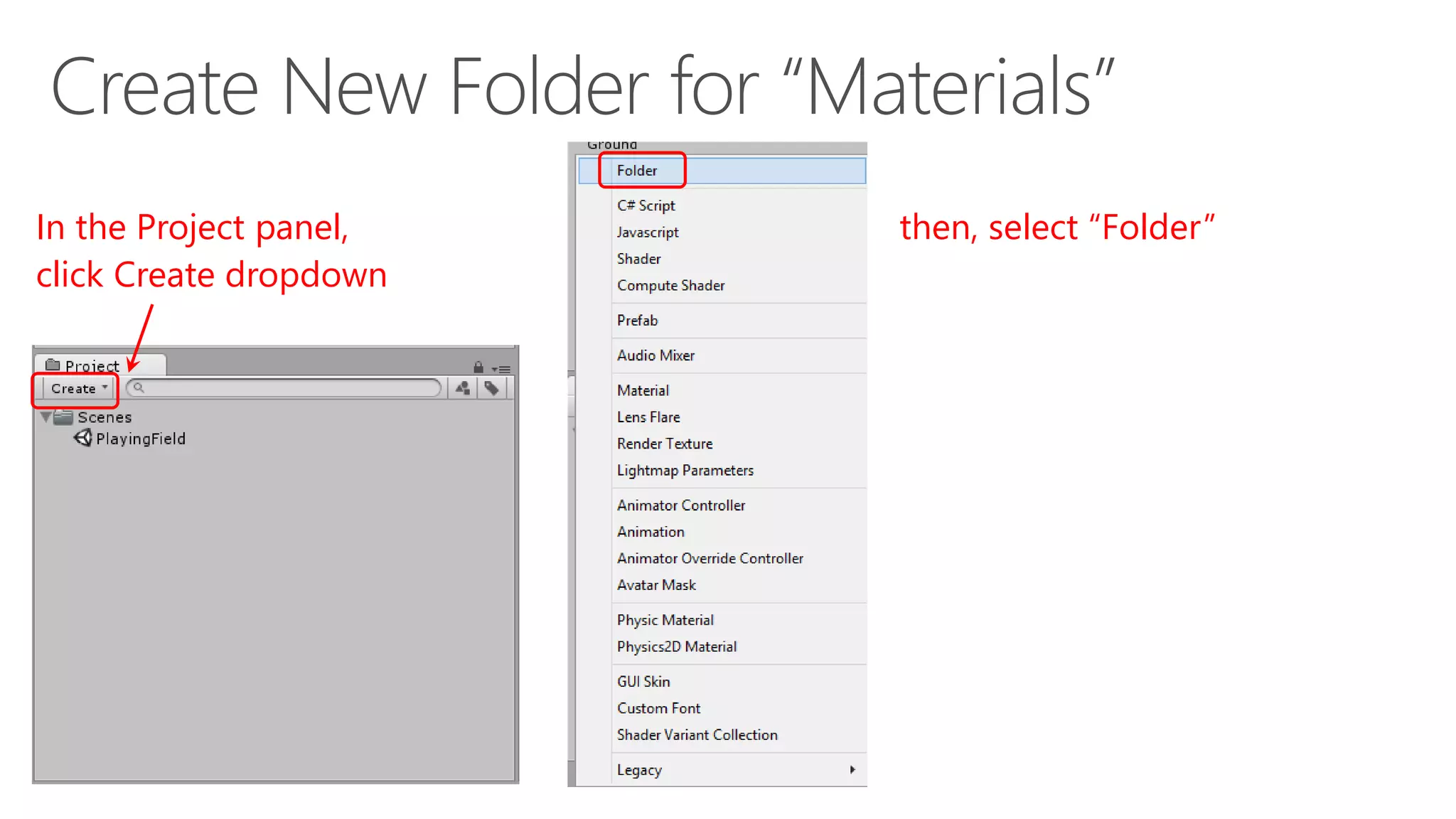
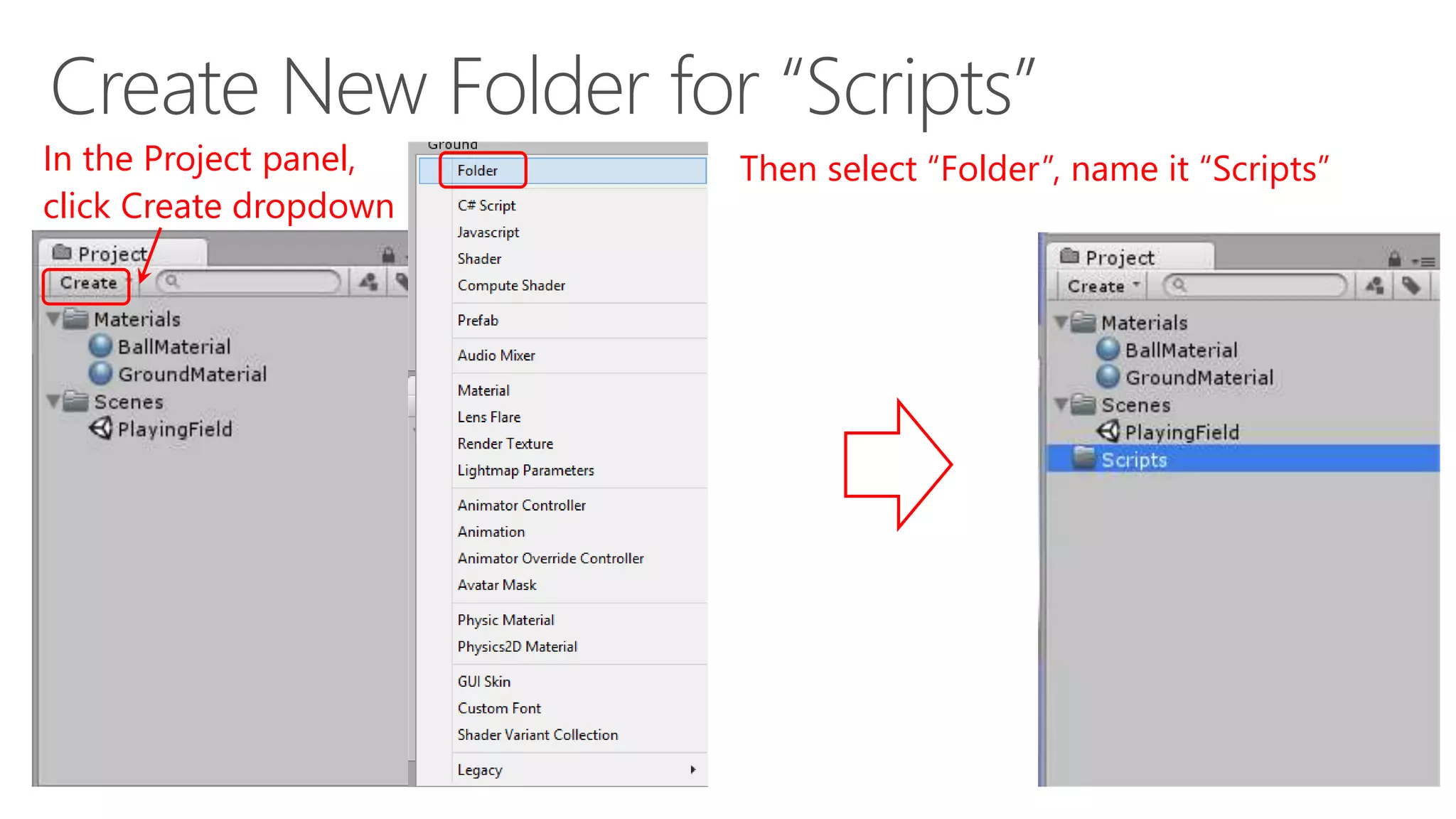
In the Project panel,
click Create dropdown
then, select “Folder”
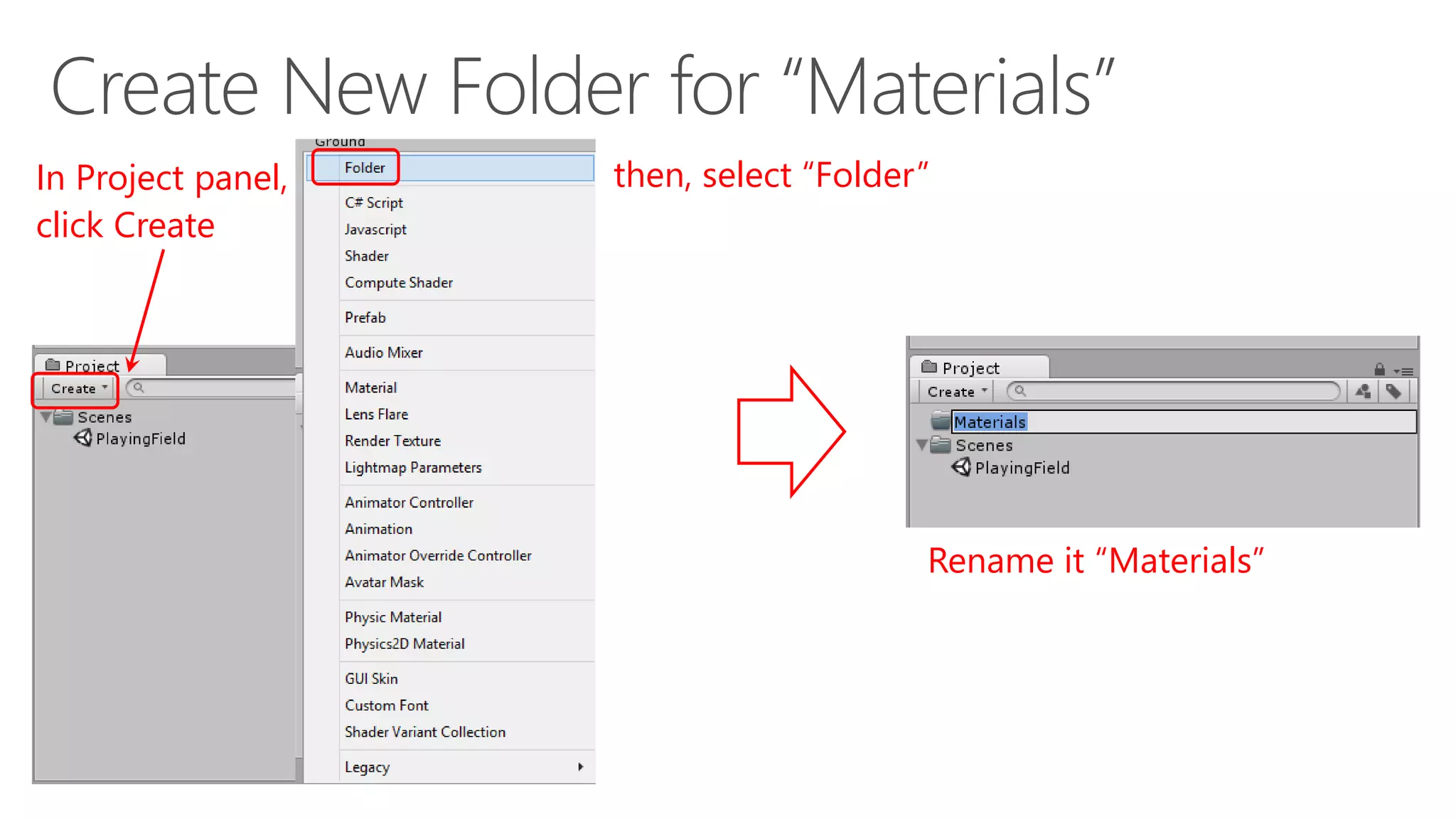
In Project panel,
click Create
then, select “Folder”
Rename it “Materials”
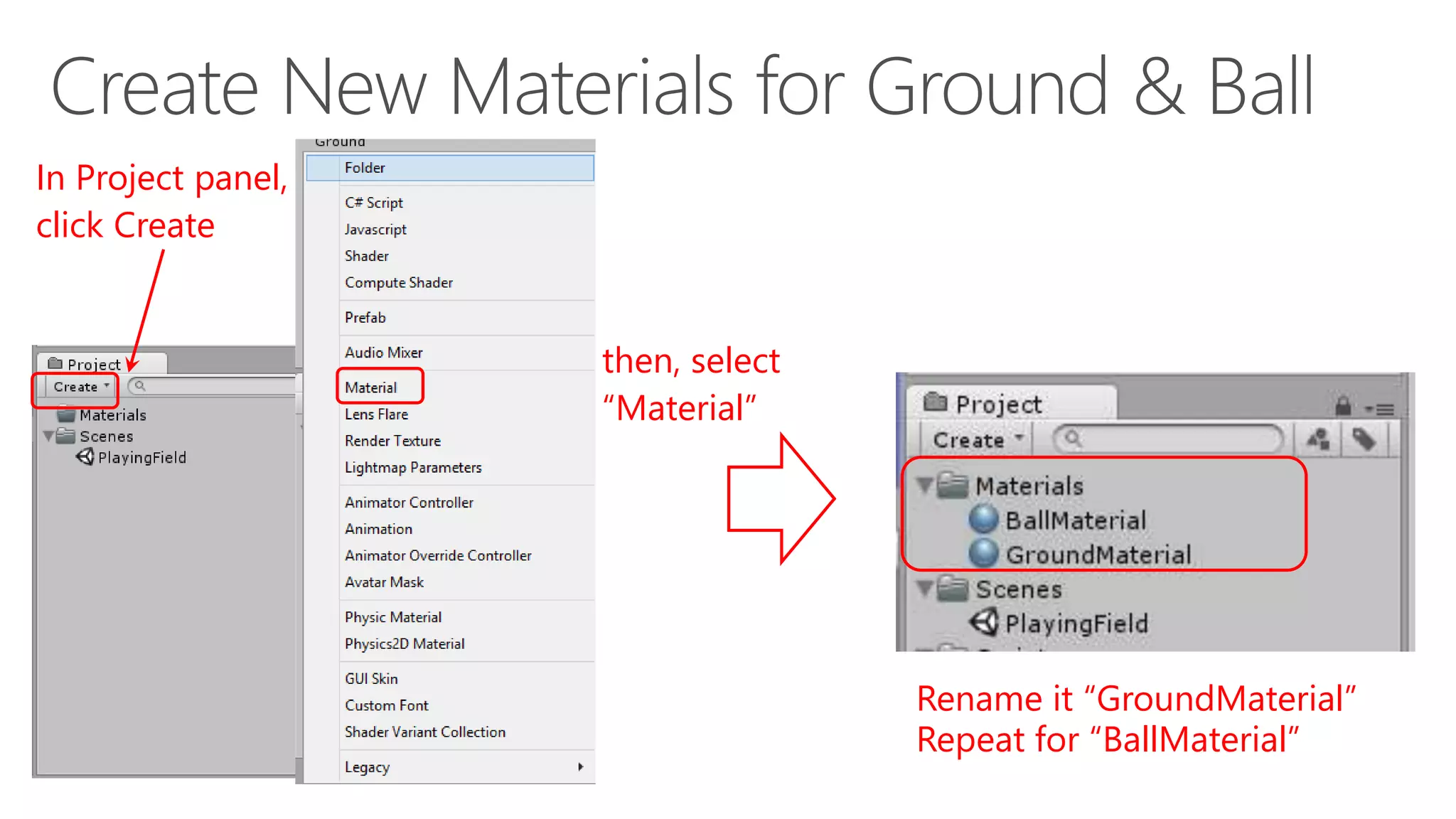
In Project panel,
click Create
then, select
“Material”
Rename it “GroundMaterial”
Repeat for “BallMaterial”
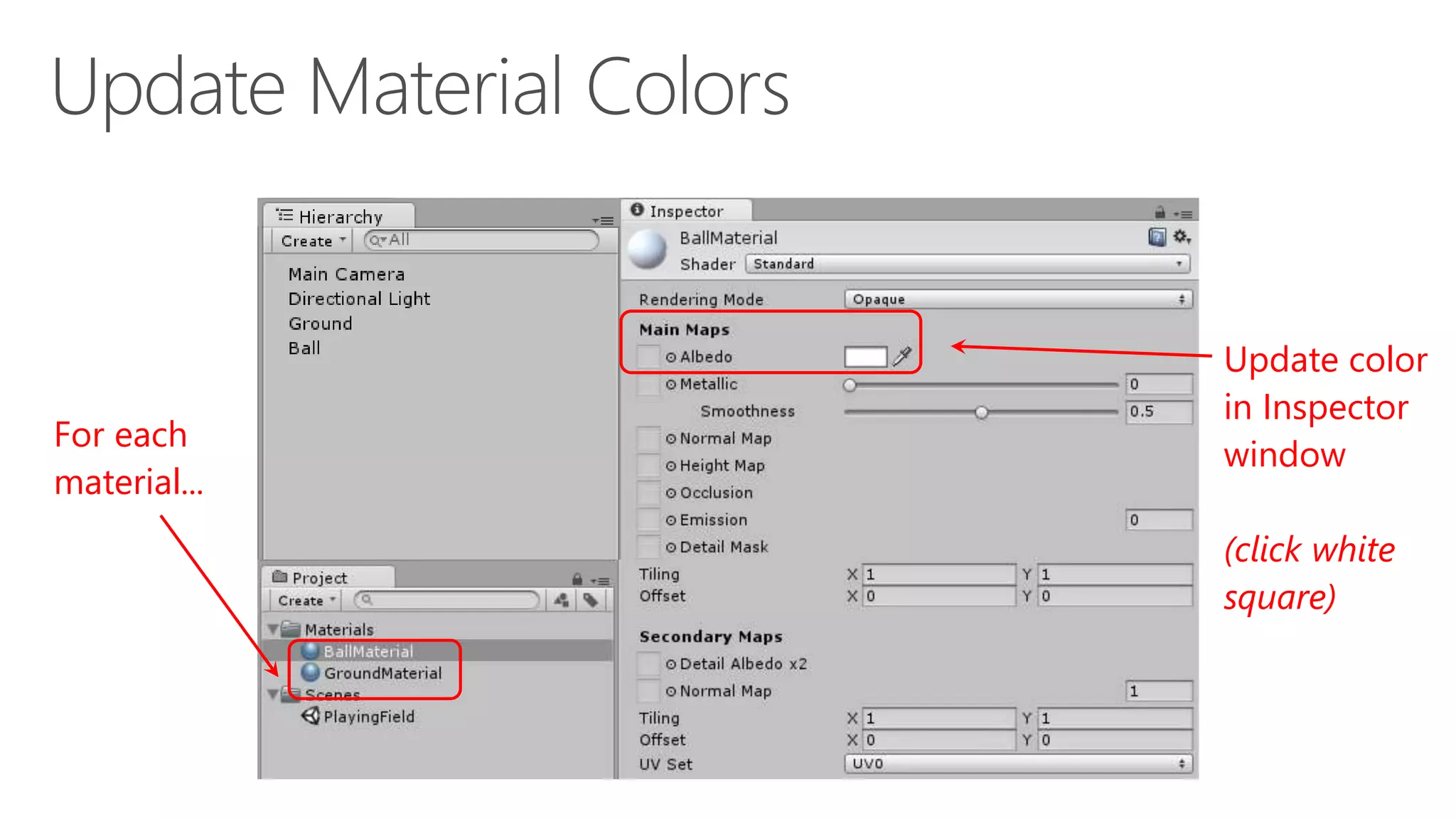
For each
material...
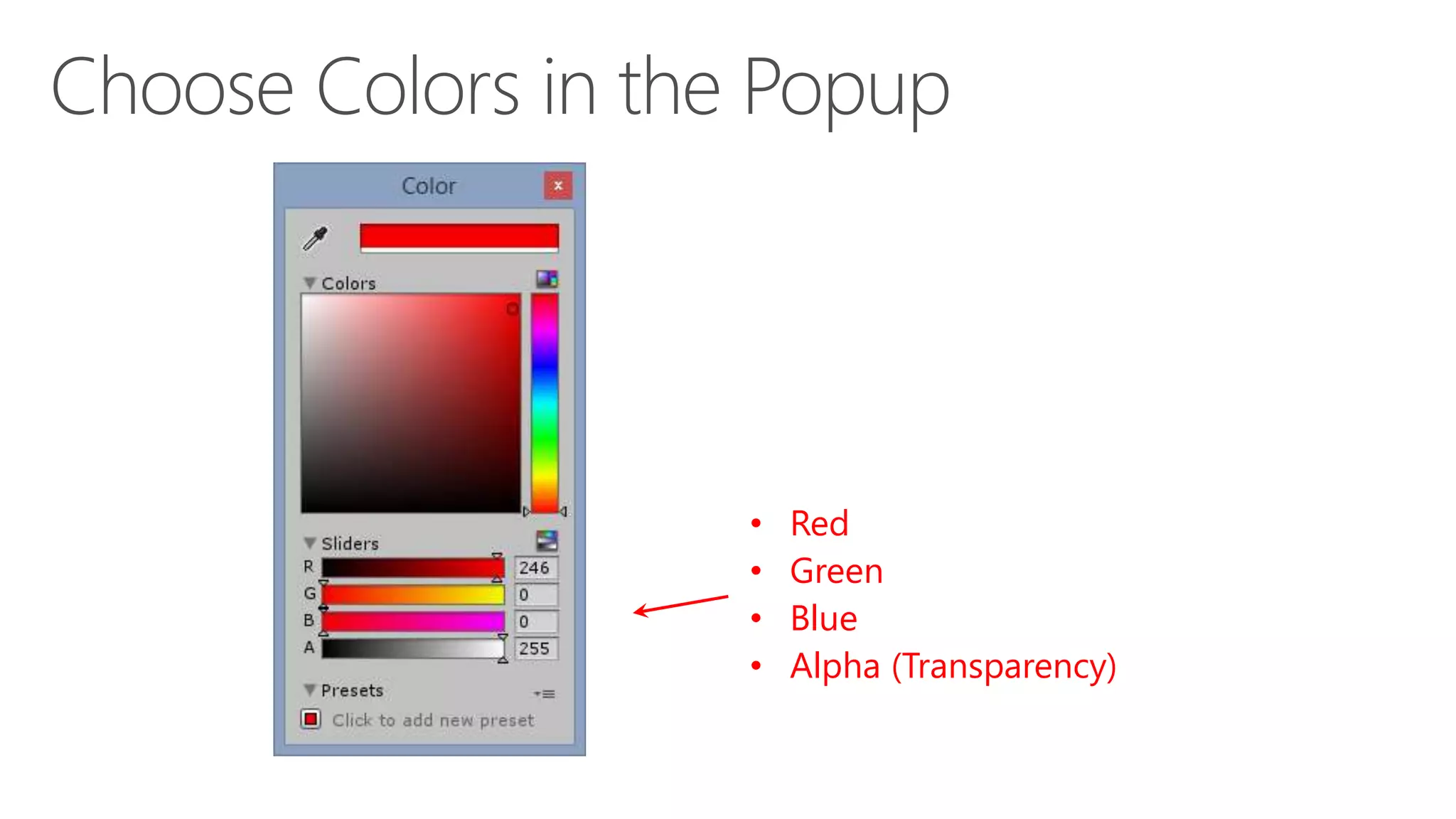
Update color
in Inspector
window
(click white
square)
• Red
• Green
• Blue
• Alpha (Transparency)
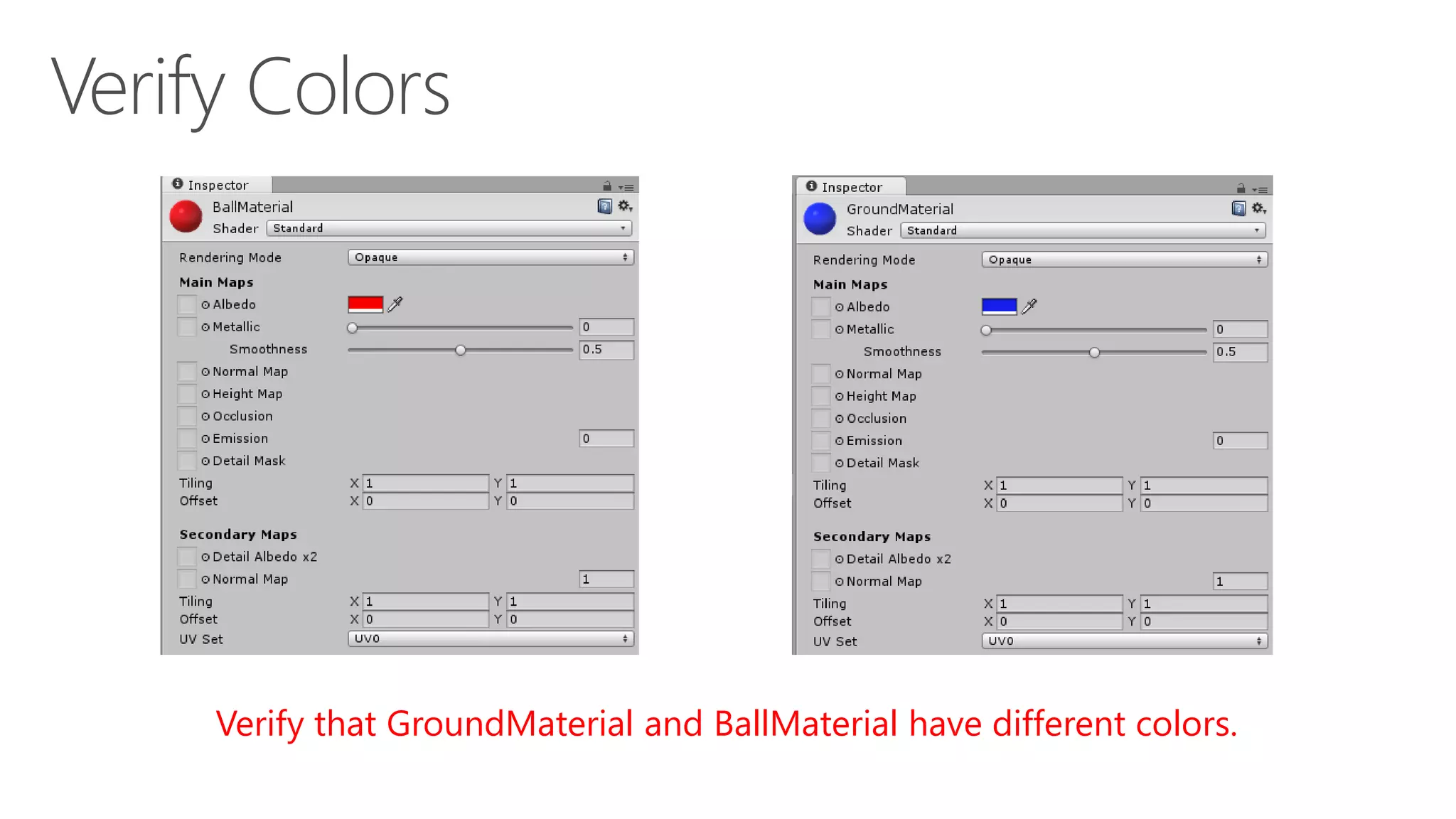
Verify that GroundMaterial and BallMaterial have different colors.
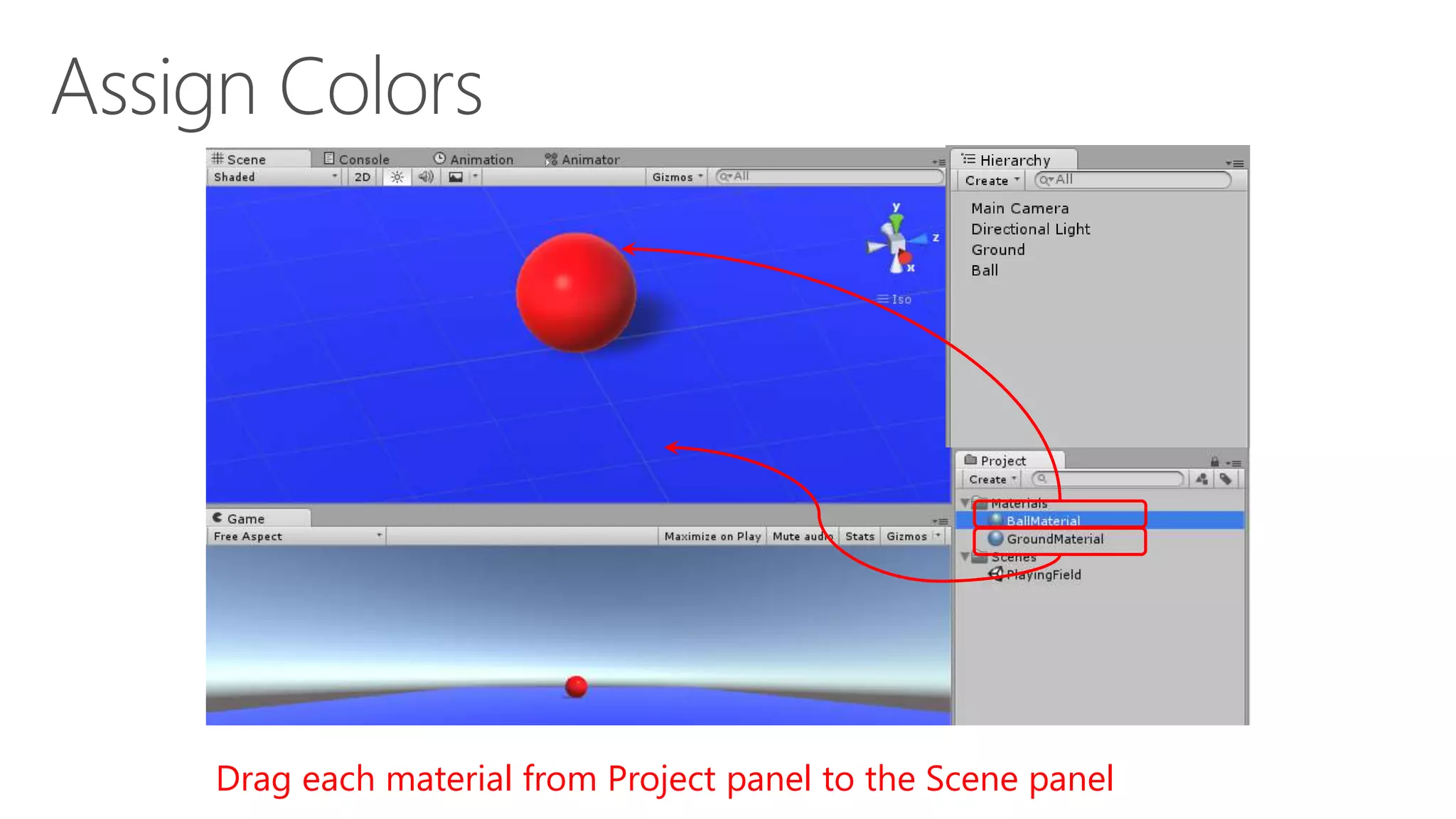
Drag each material from Project panel to the Scene panel
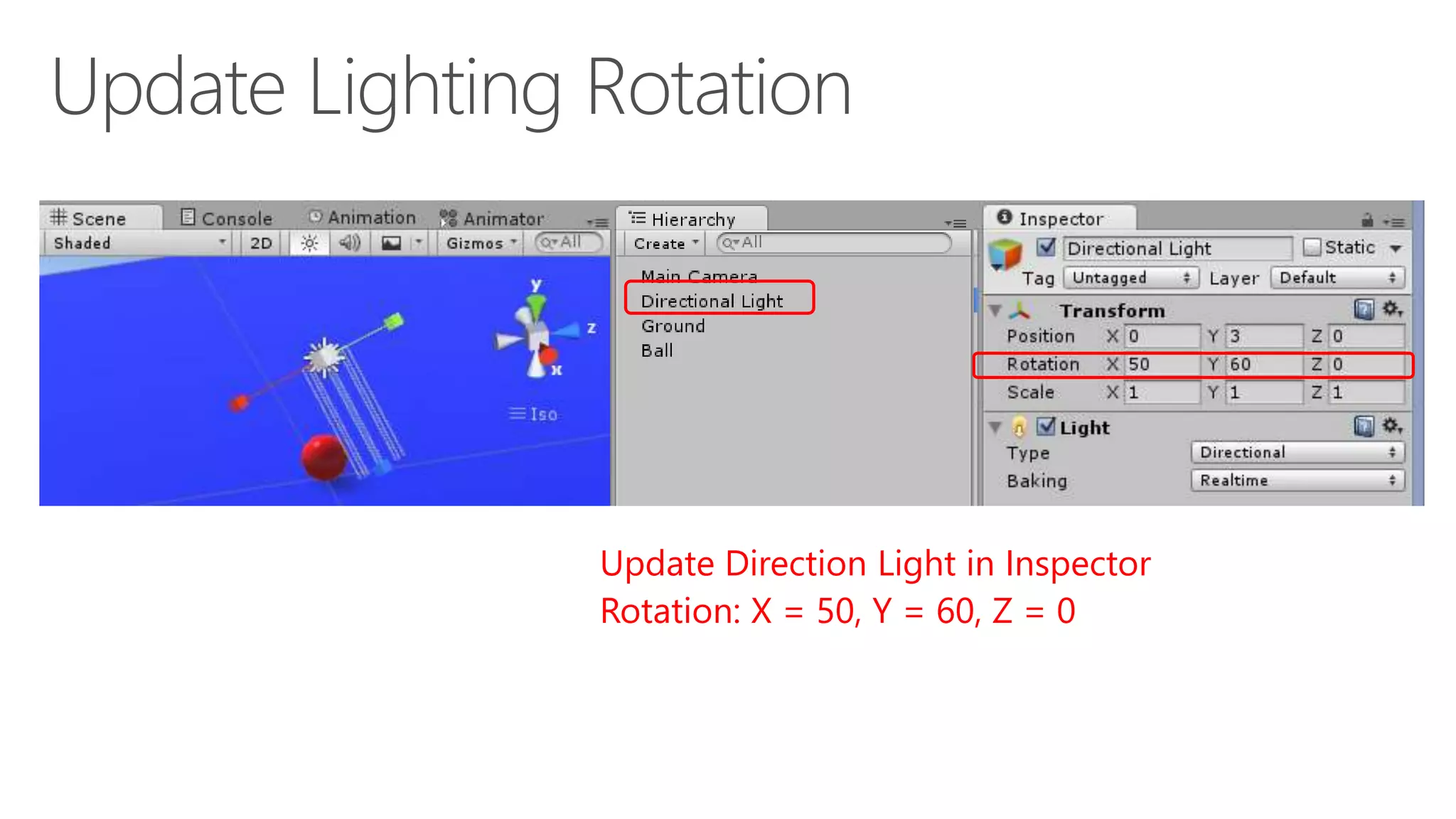
Update Direction Light in Inspector
Rotation: X = 50, Y = 60, Z = 0
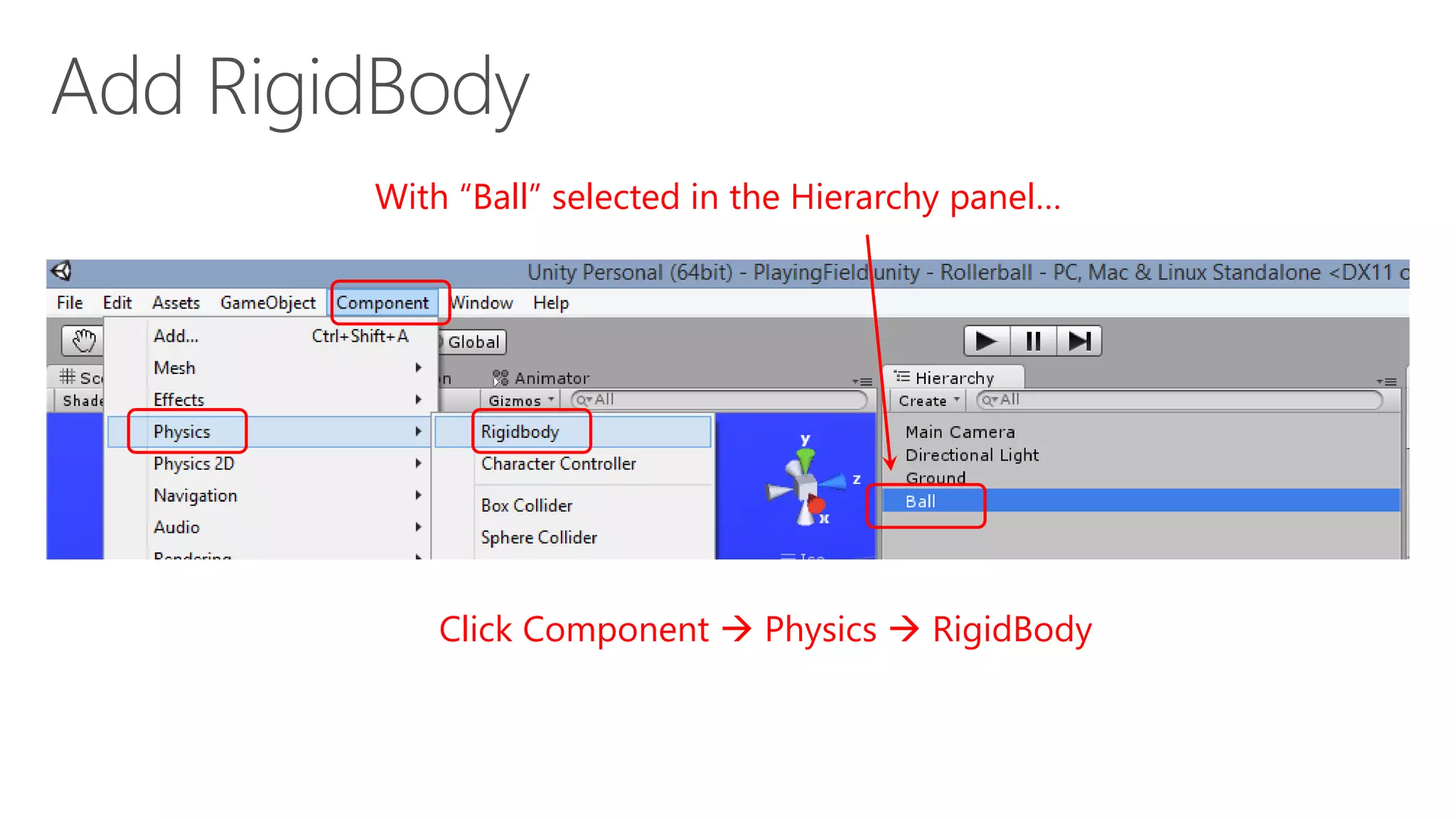
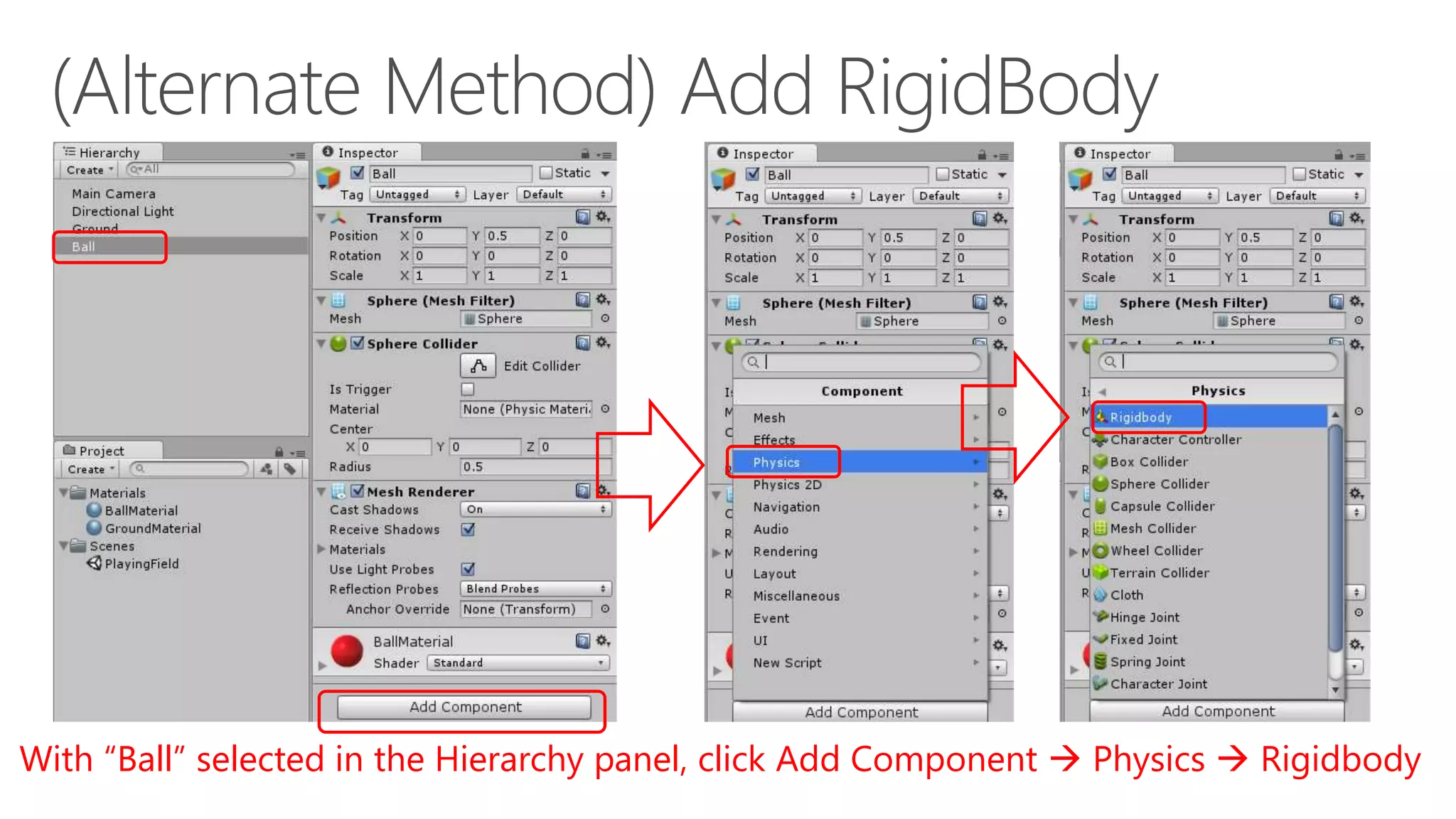
With “Ball” selected in the Hierarchy panel…
Click Component  Physics  RigidBody
With “Ball” selected in the Hierarchy panel, click Add Component  Physics  Rigidbody
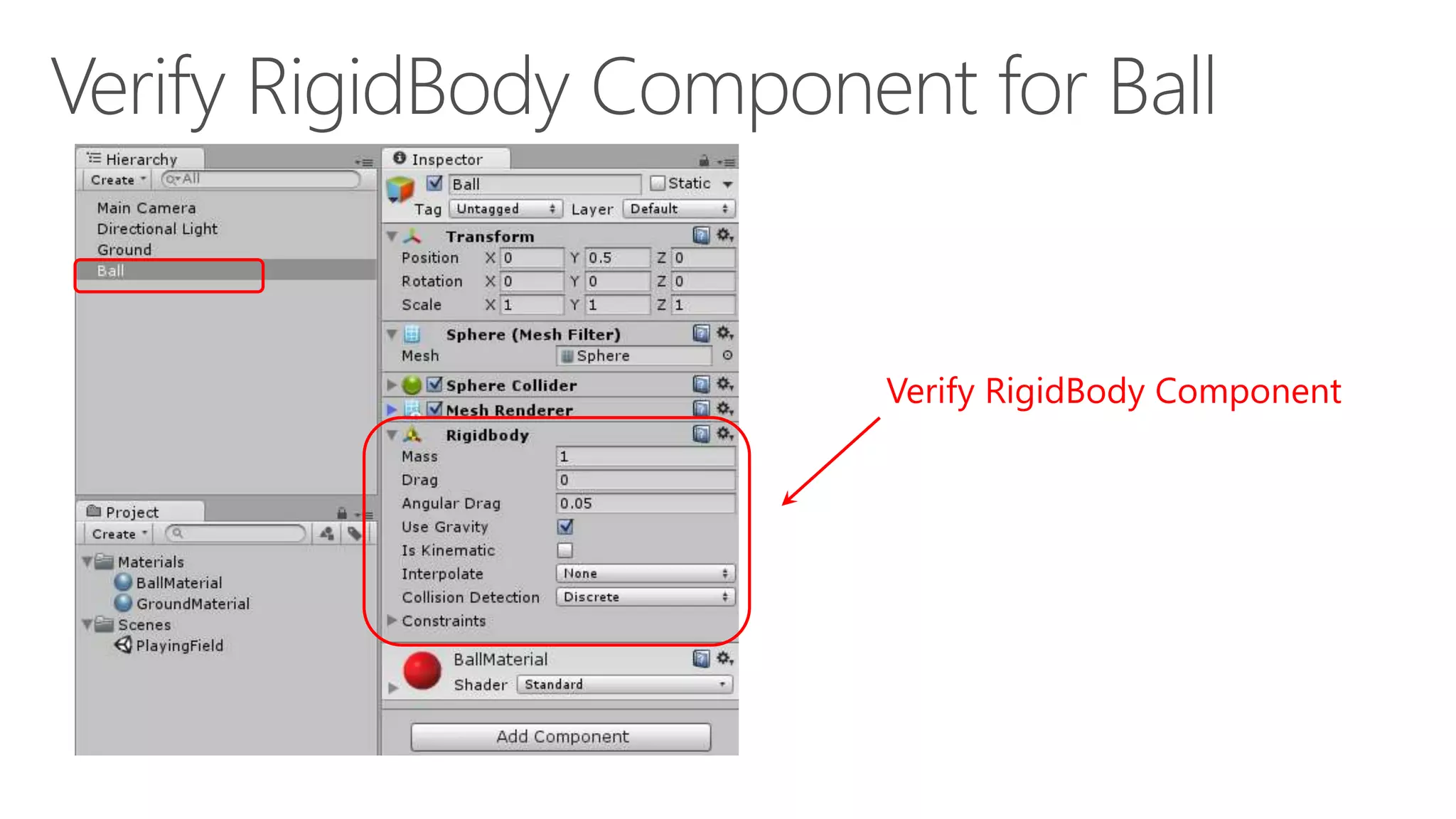
Verify RigidBody Component
In the Project panel,
click Create dropdown
Then select “Folder”, name it “Scripts”
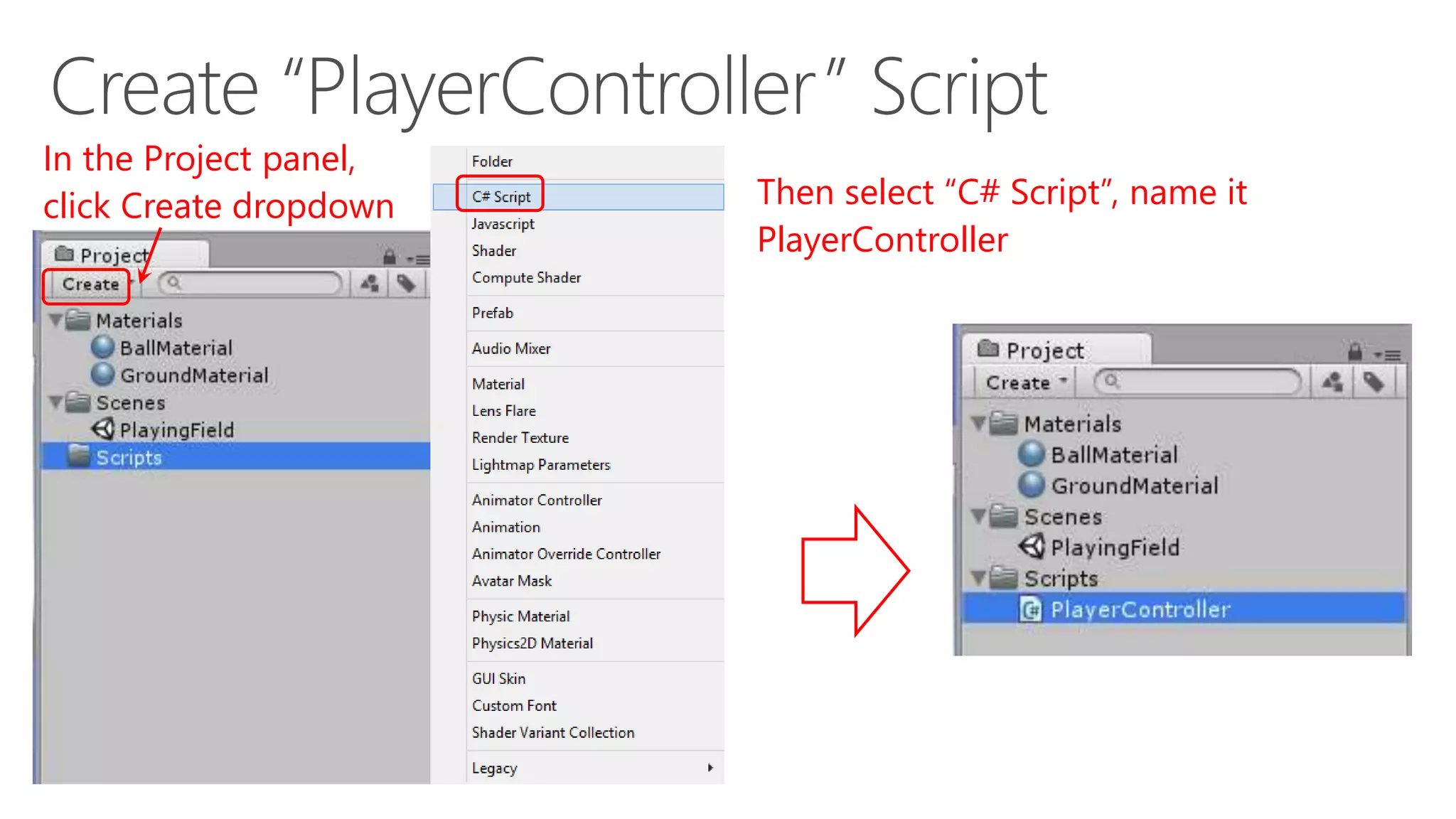
In the Project panel,
click Create dropdown Then select “C# Script”, name it
PlayerController
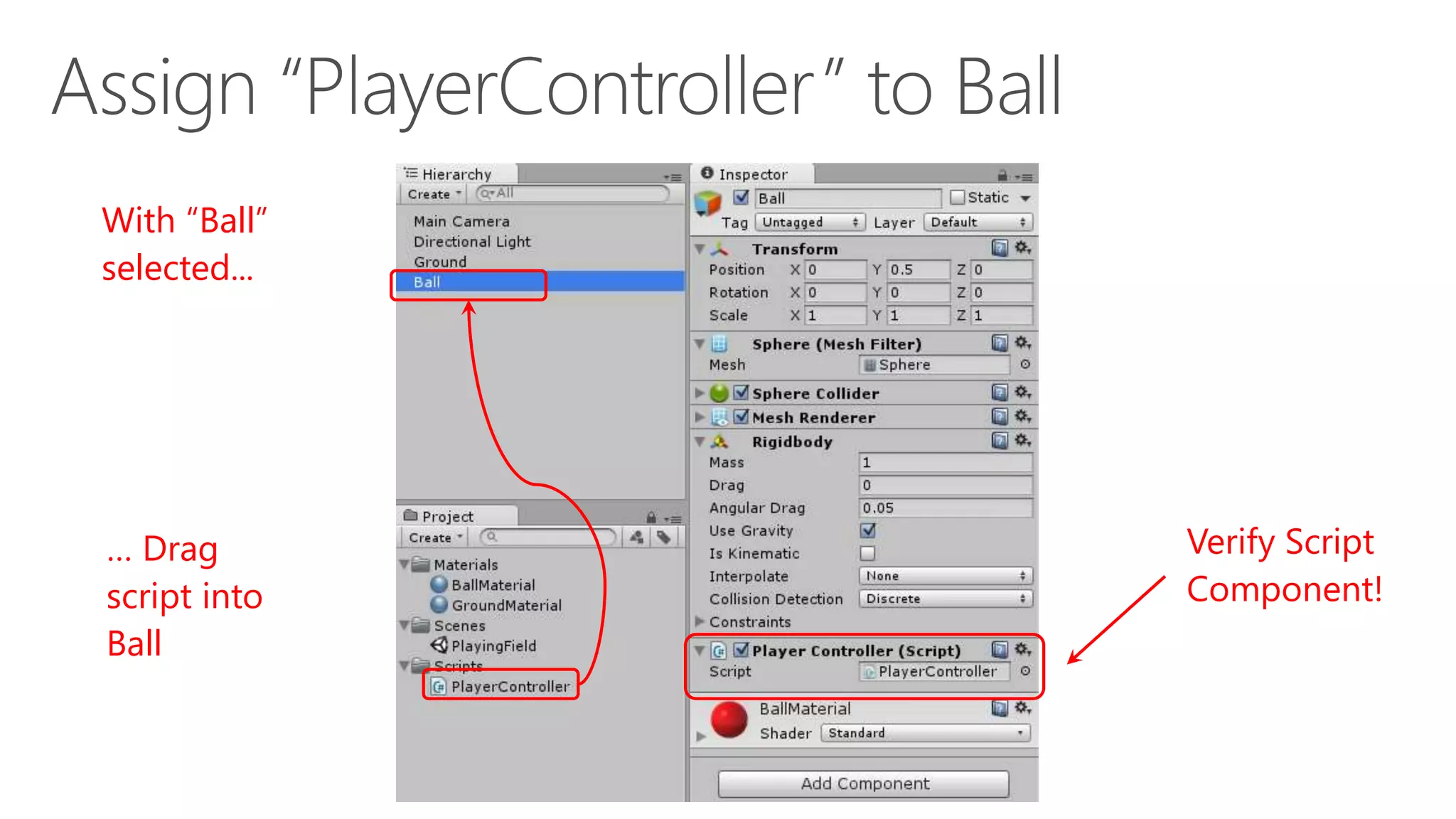
With “Ball”
selected...
… Drag
script into
Ball
Verify Script
Component!
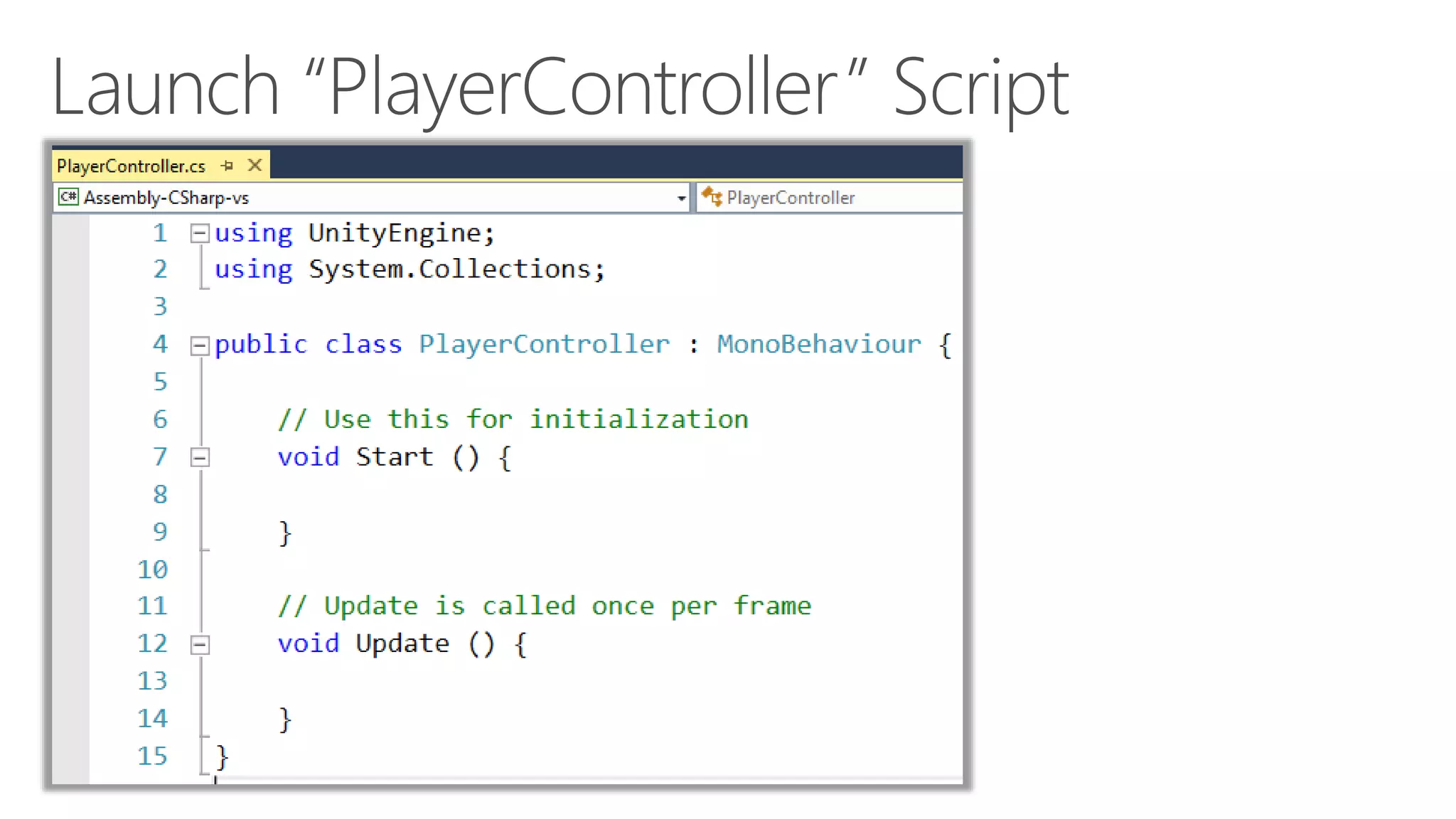
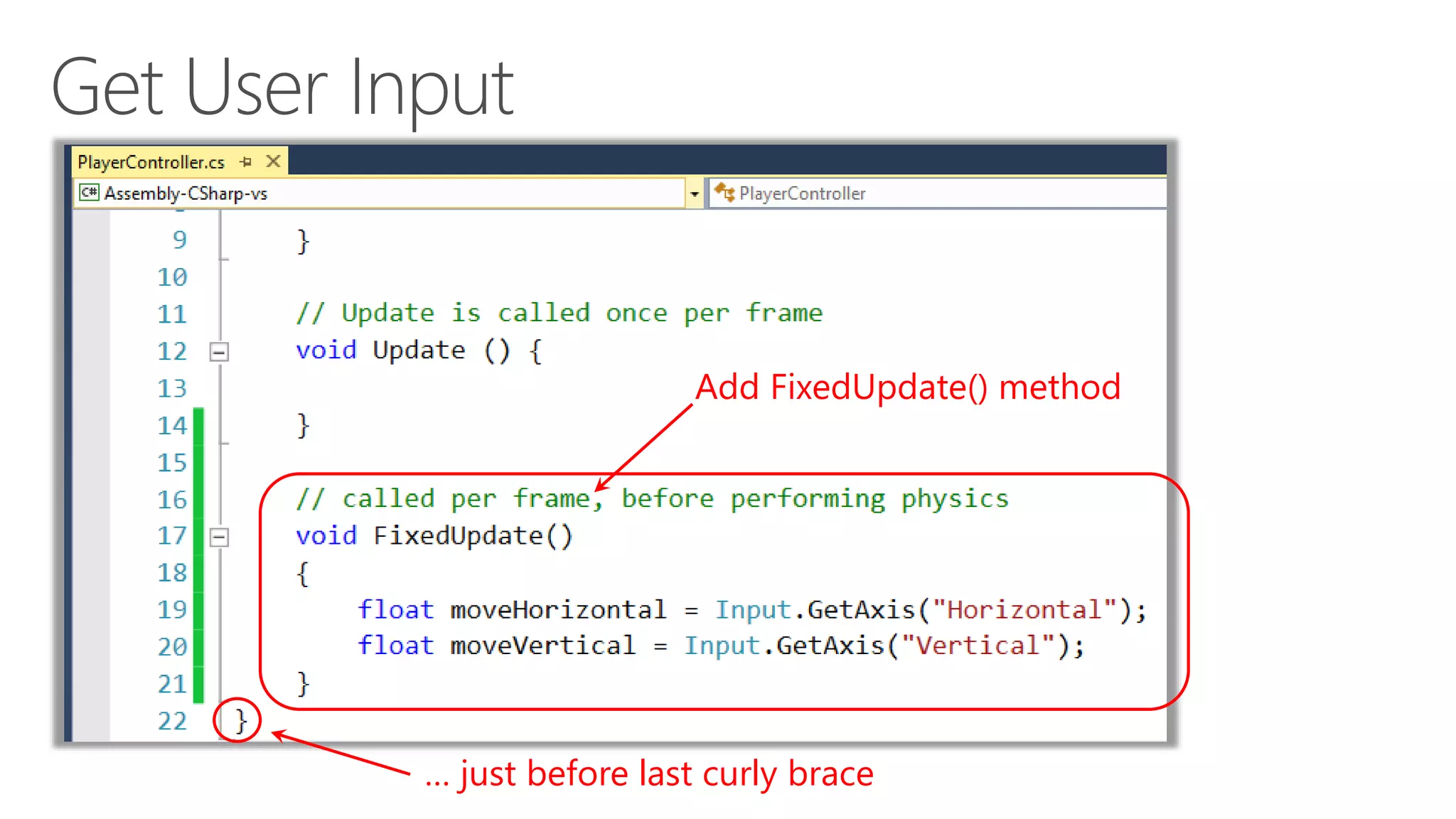
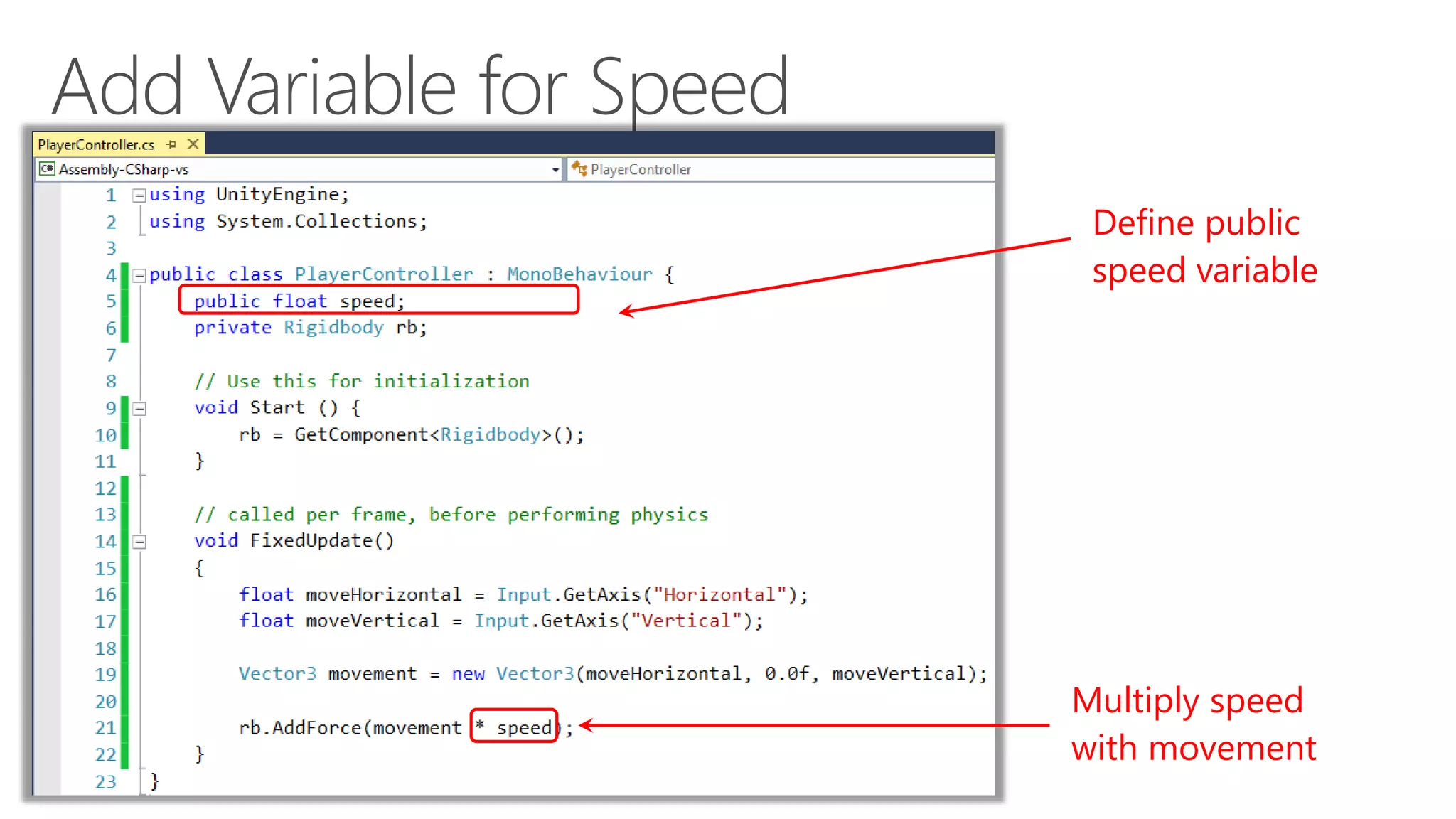
Add FixedUpdate() method
… just before last curly brace
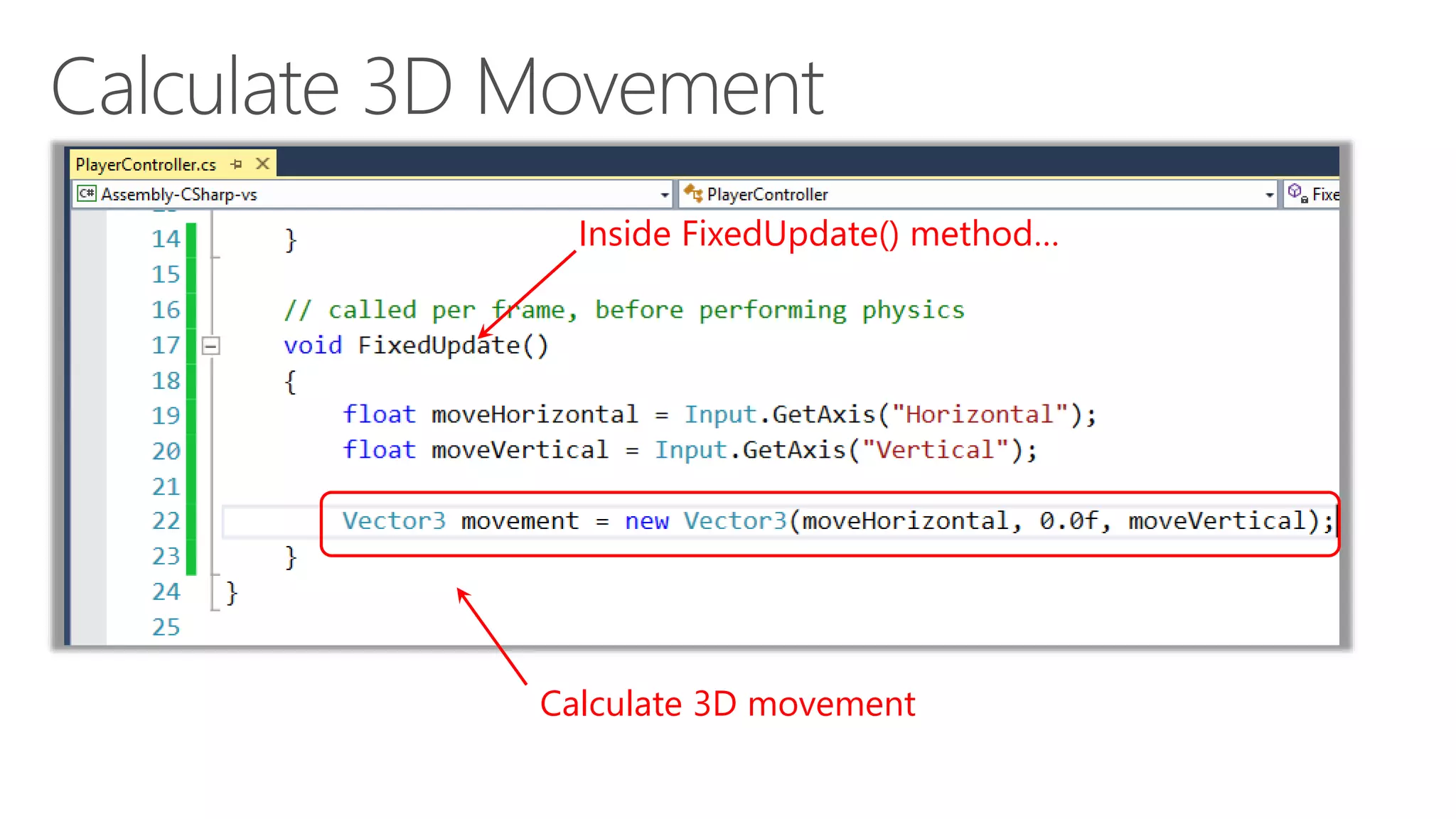
Inside FixedUpdate() method…
Calculate 3D movement
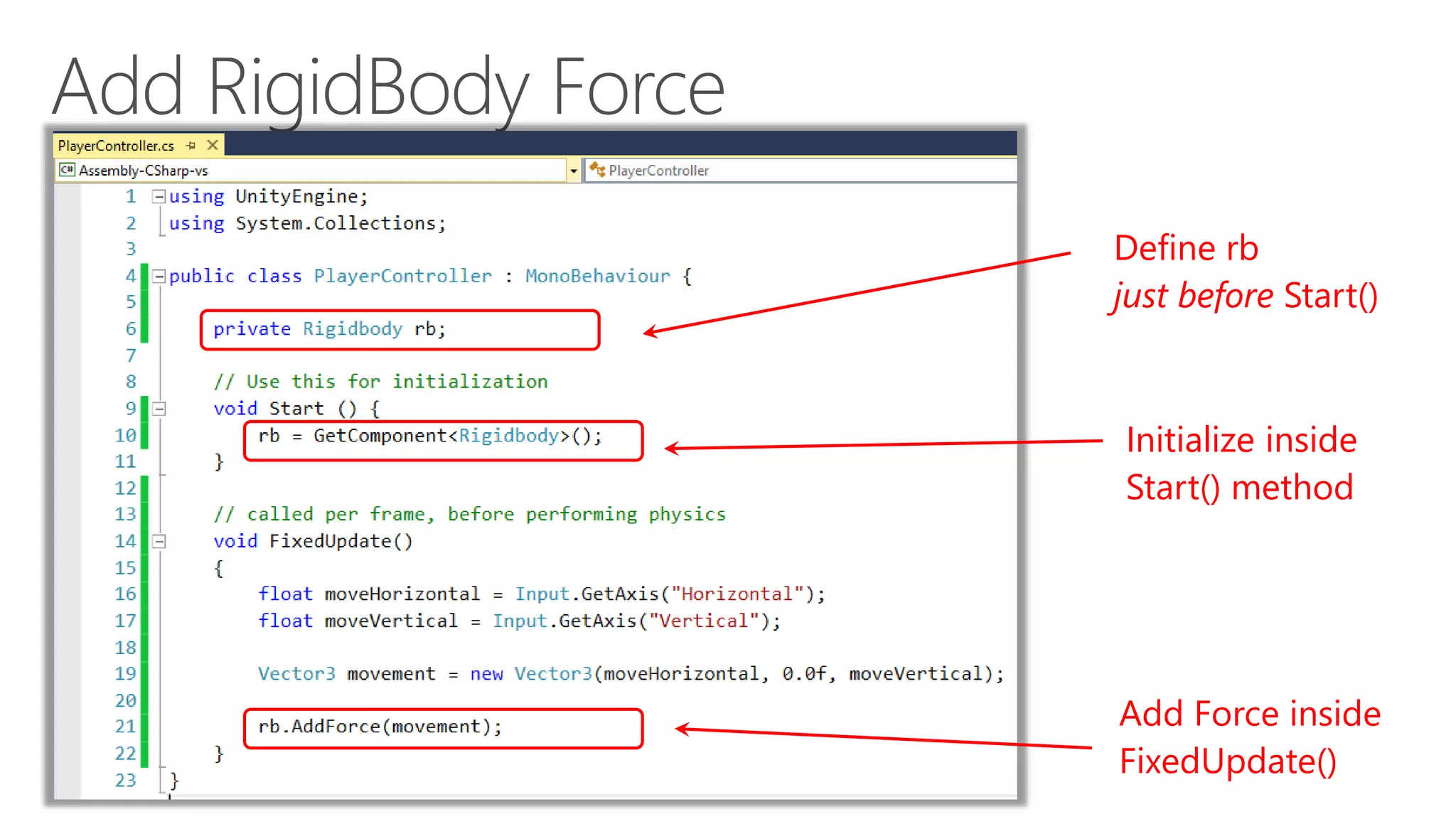
Define rb
just before Start()
Initialize inside
Start() method
Add Force inside
FixedUpdate()
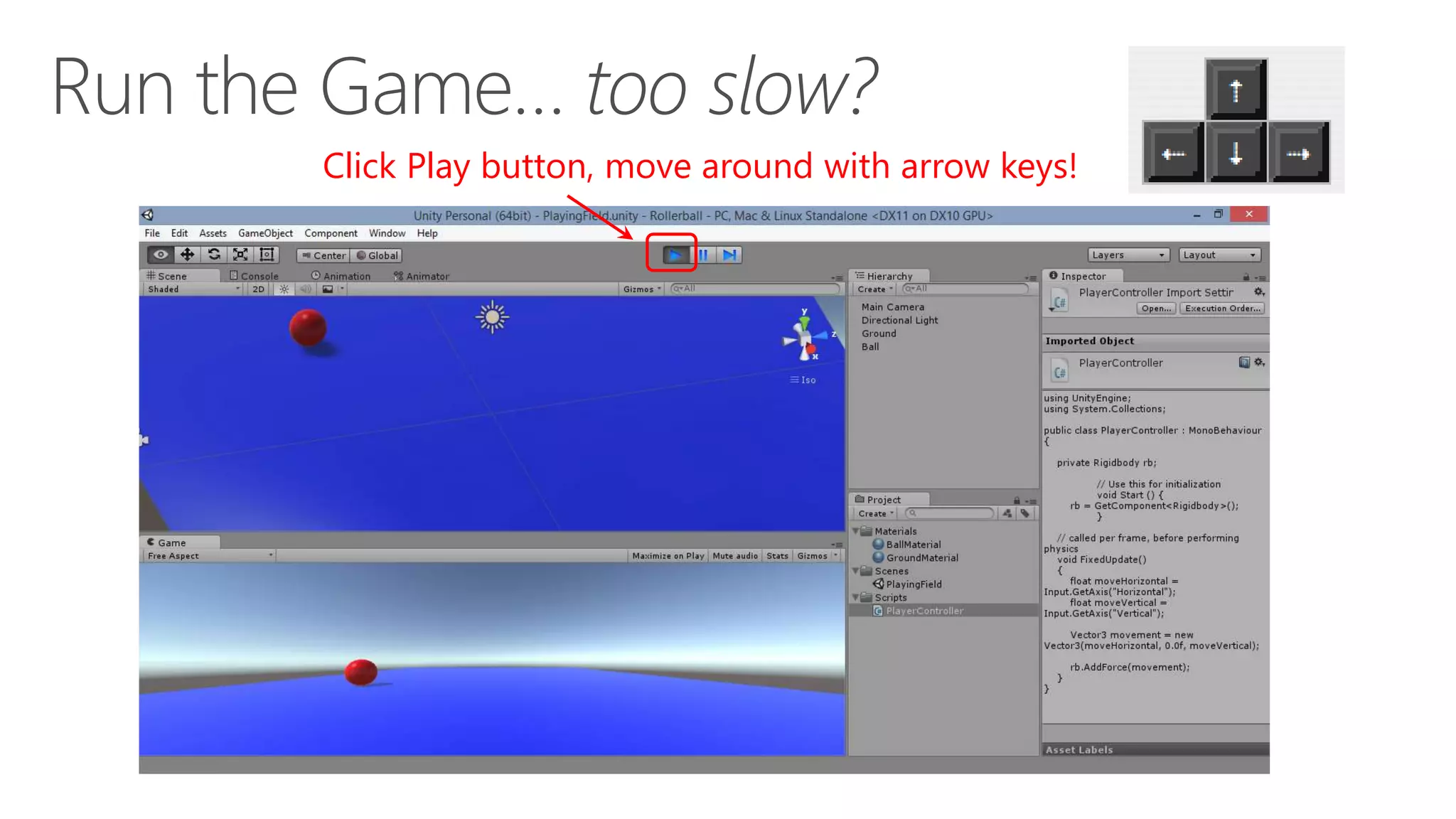
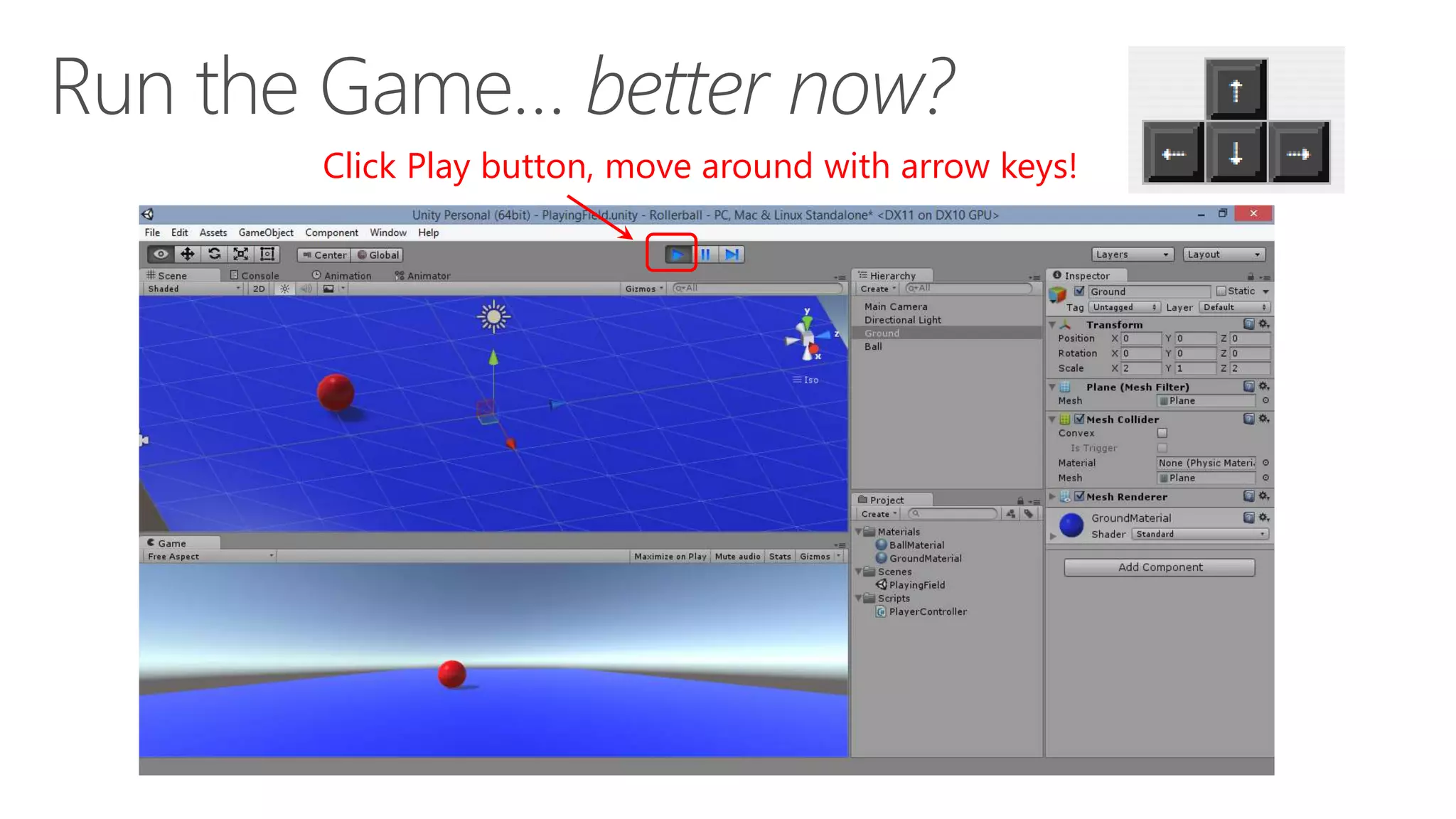
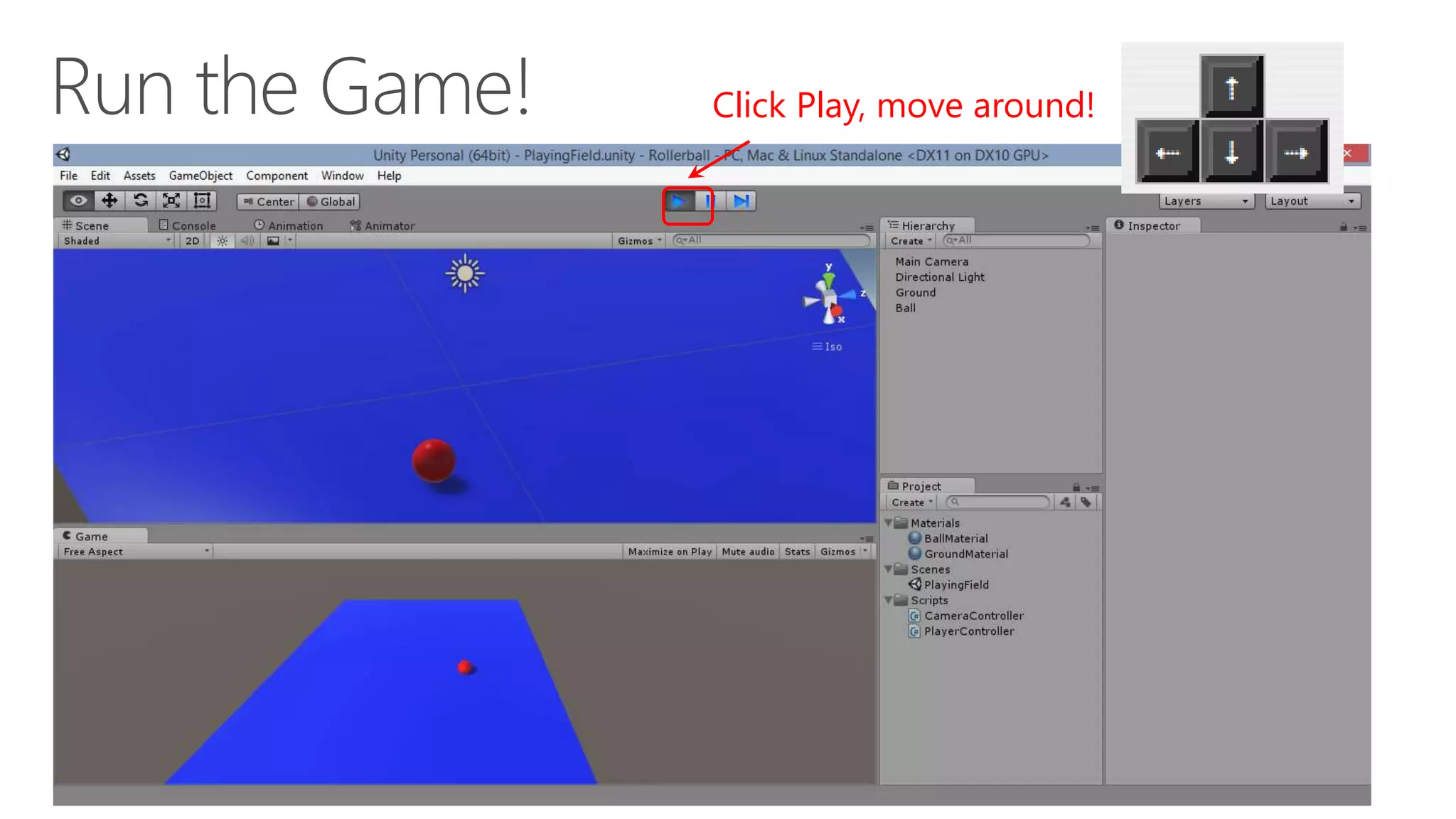
Click Play button, move around with arrow keys!
Define public
speed variable
Multiply speed
with movement
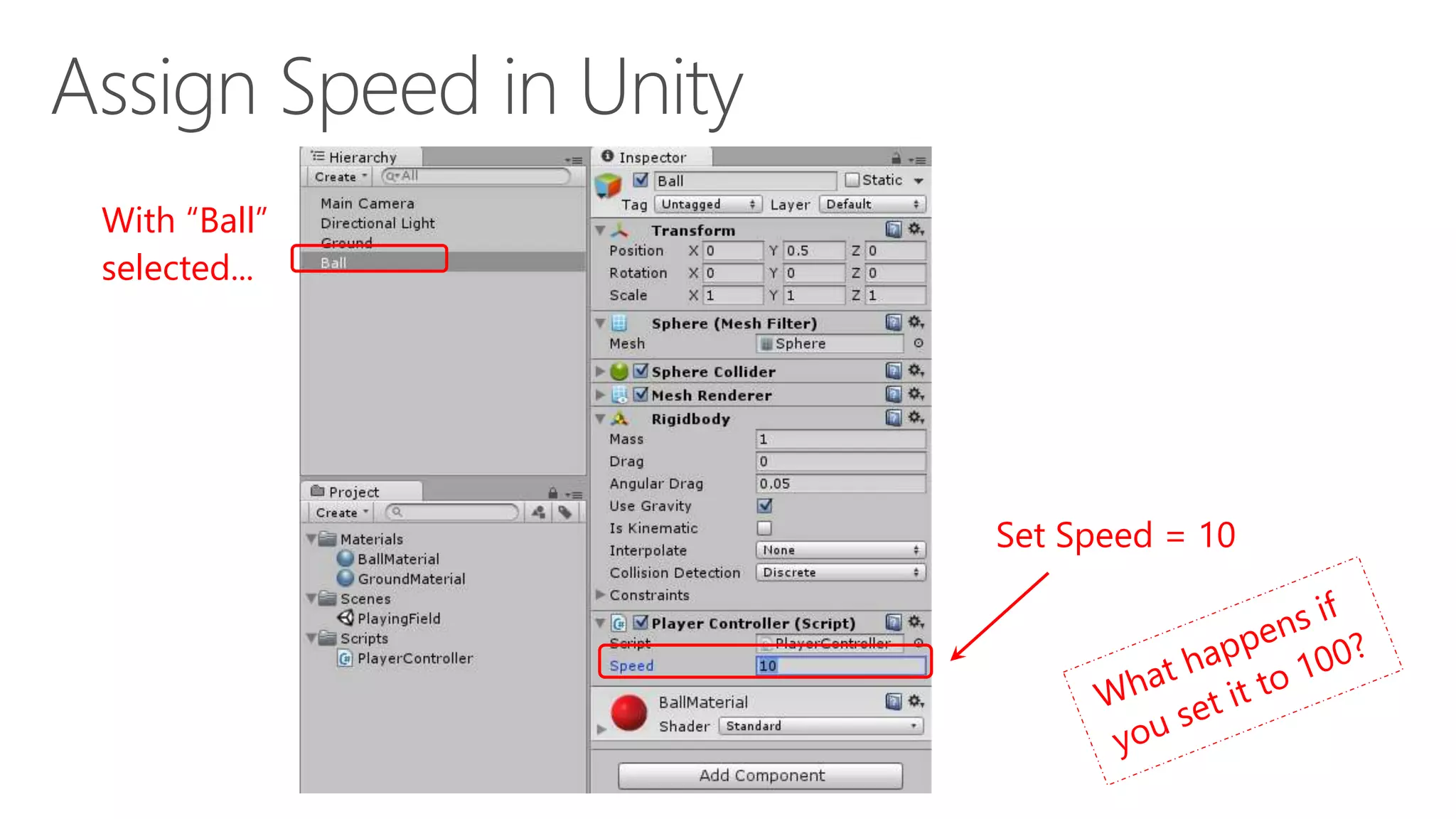
With “Ball”
selected...
Set Speed = 10
Click Play button, move around with arrow keys!
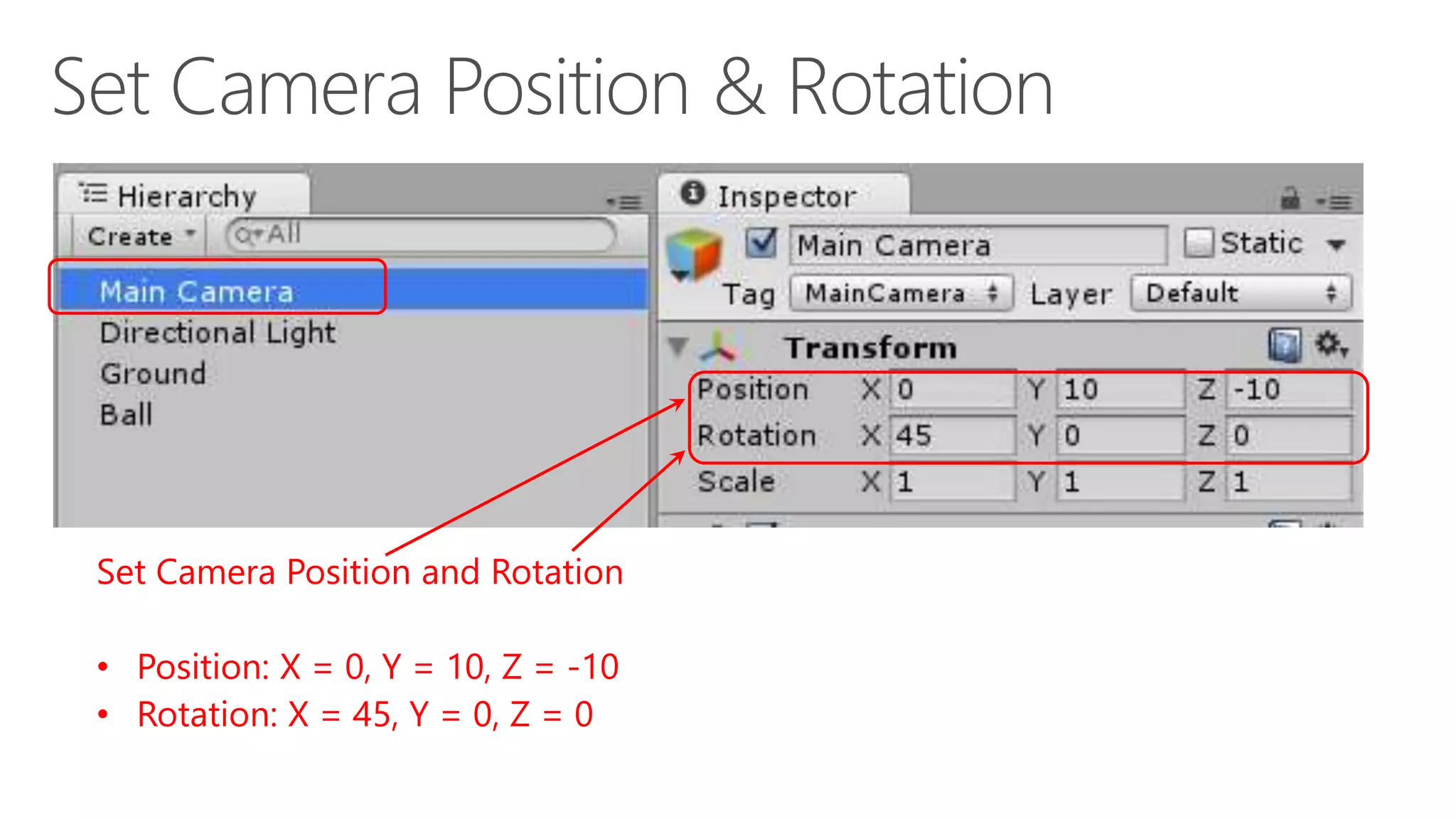
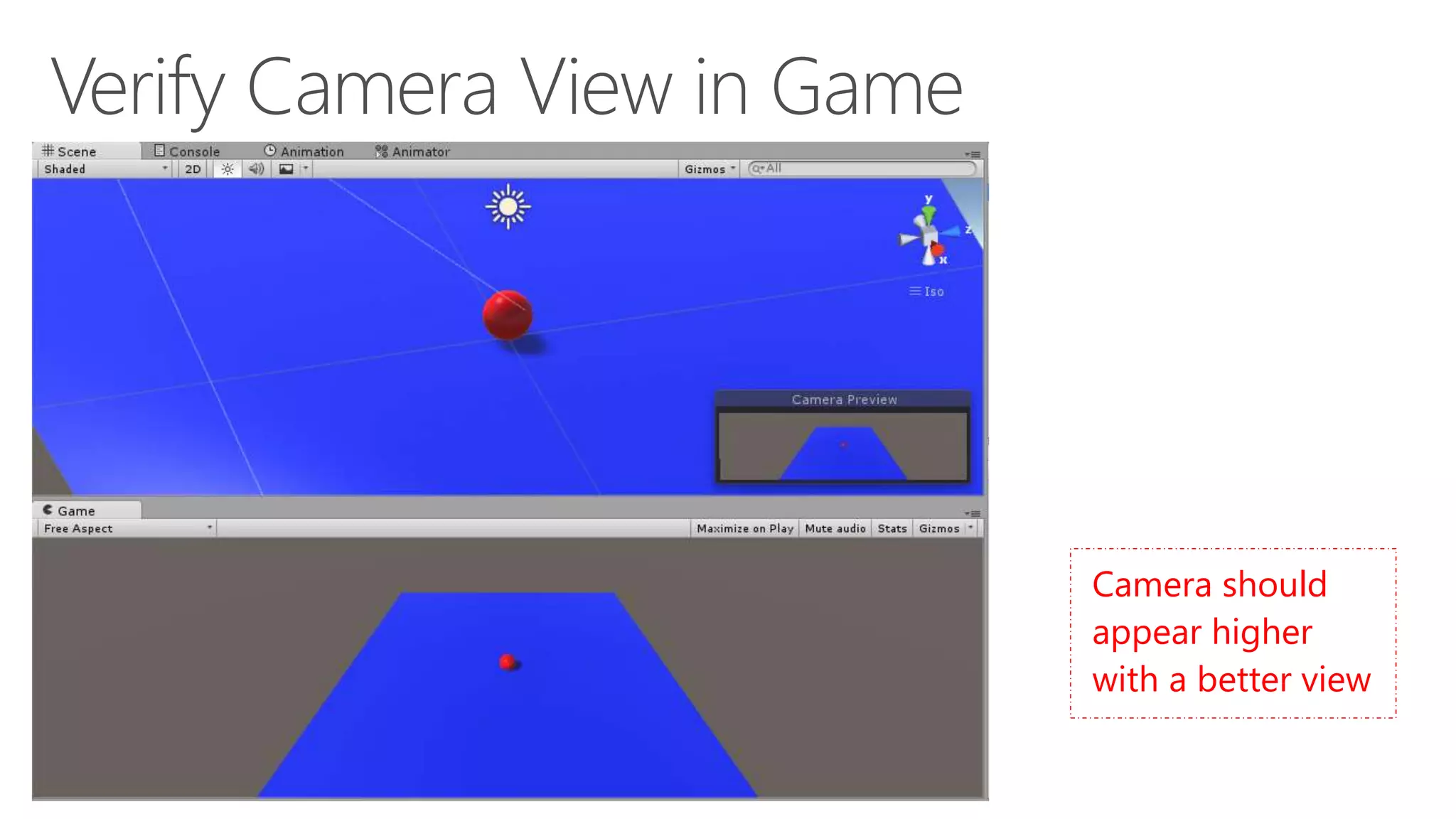
Set Camera Position and Rotation
• Position: X = 0, Y = 10, Z = -10
• Rotation: X = 45, Y = 0, Z = 0
Camera should
appear higher
with a better view
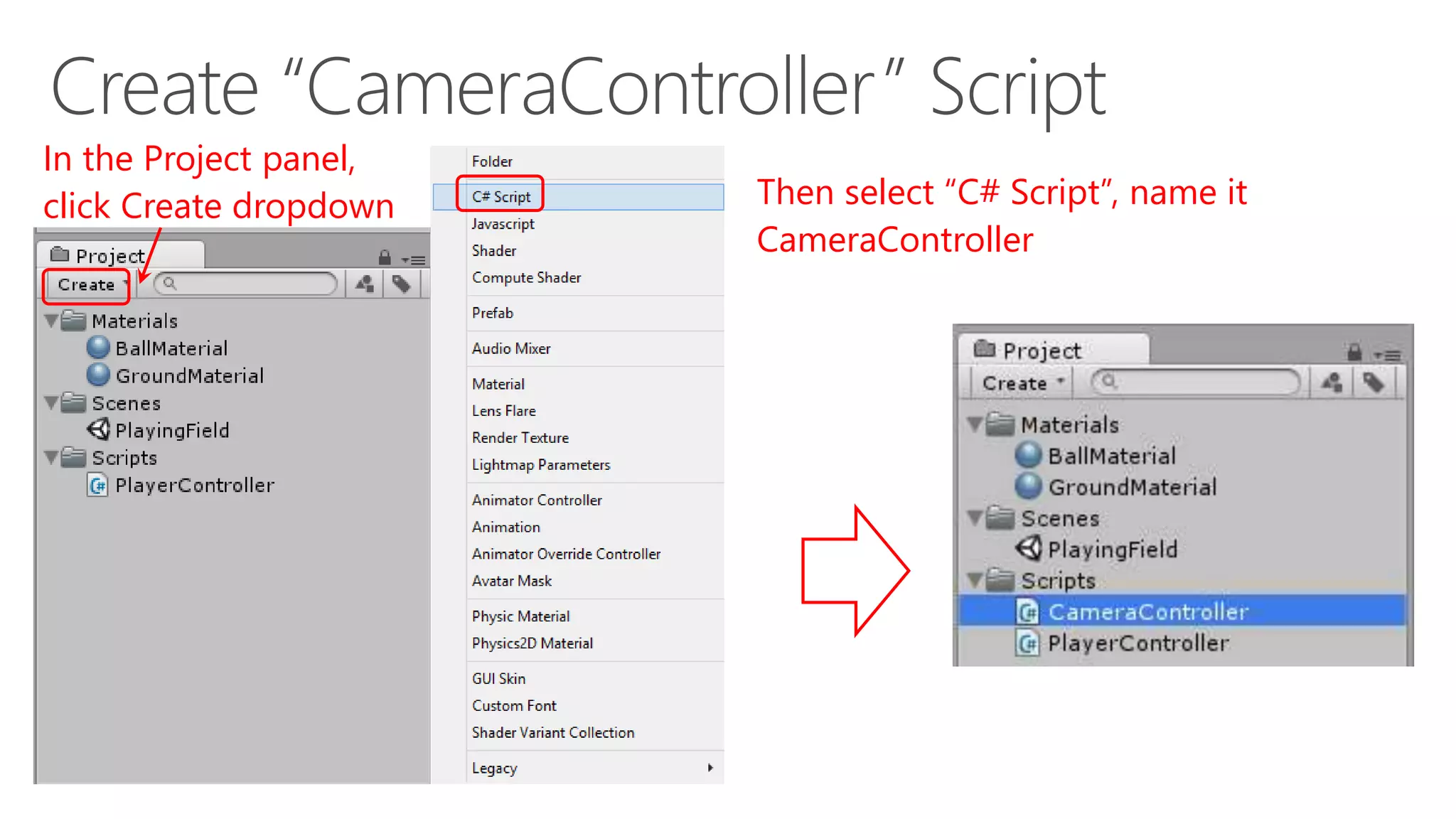
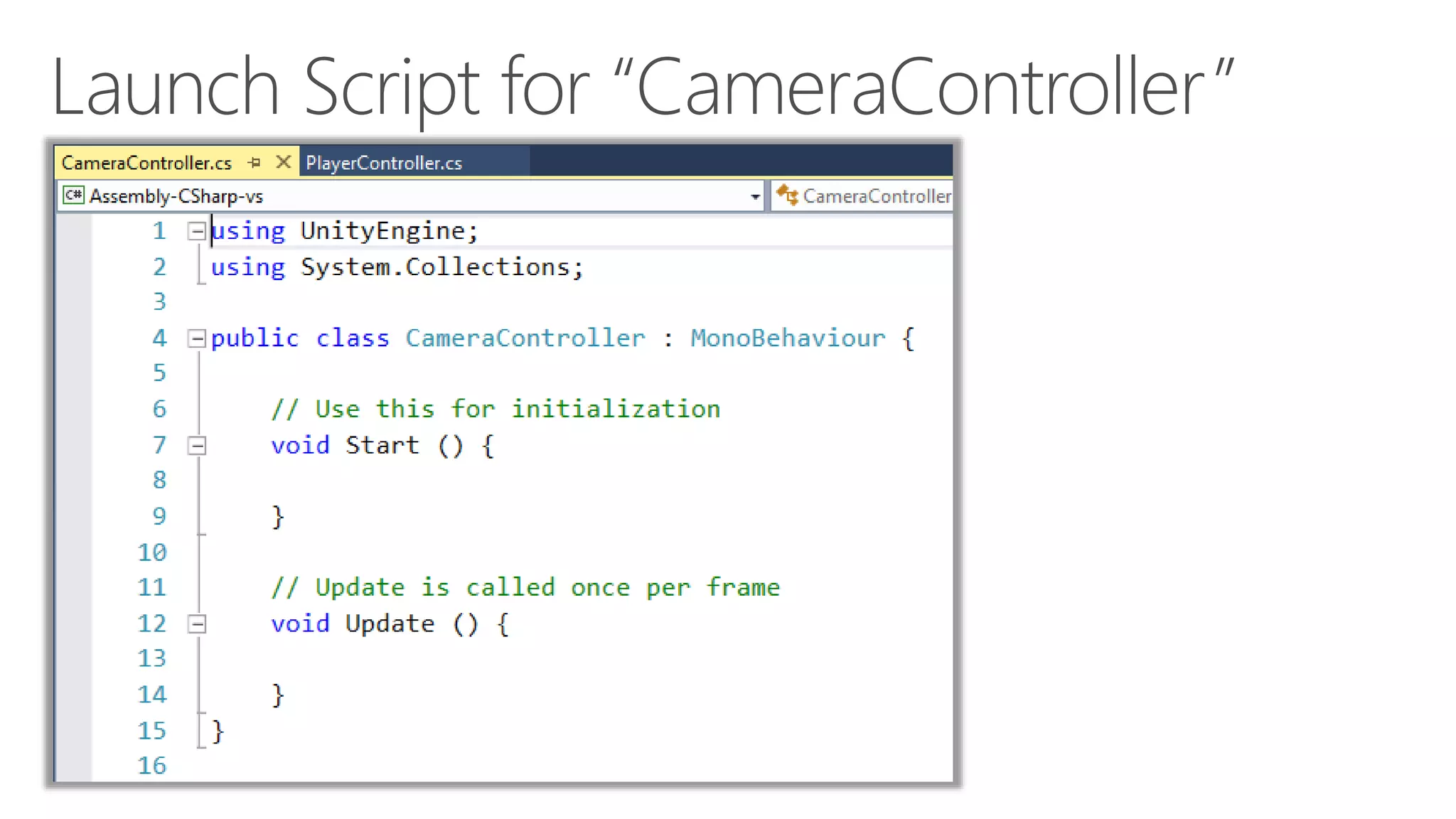
In the Project panel,
click Create dropdown Then select “C# Script”, name it
CameraController
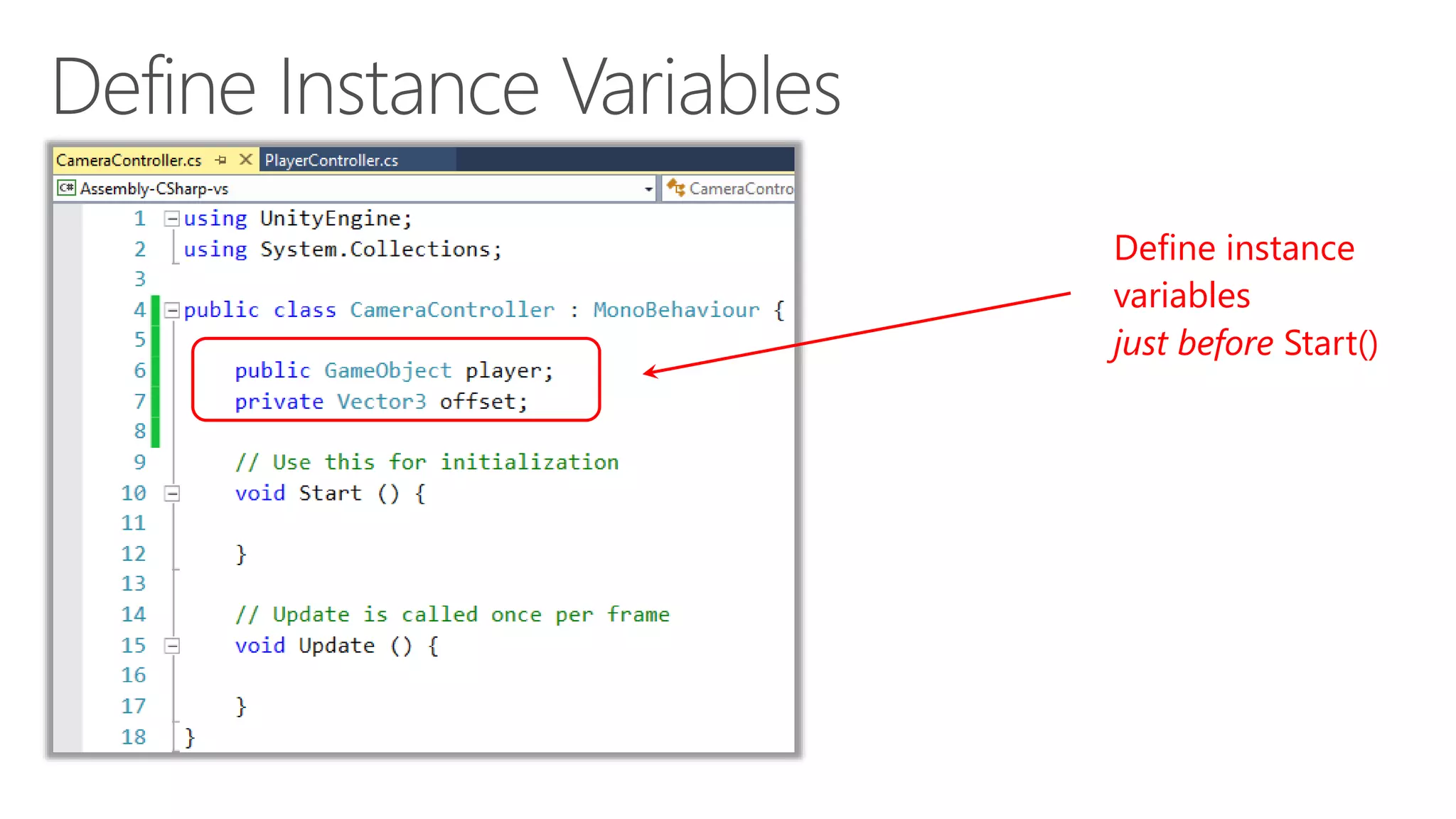
Define instance
variables
just before Start()
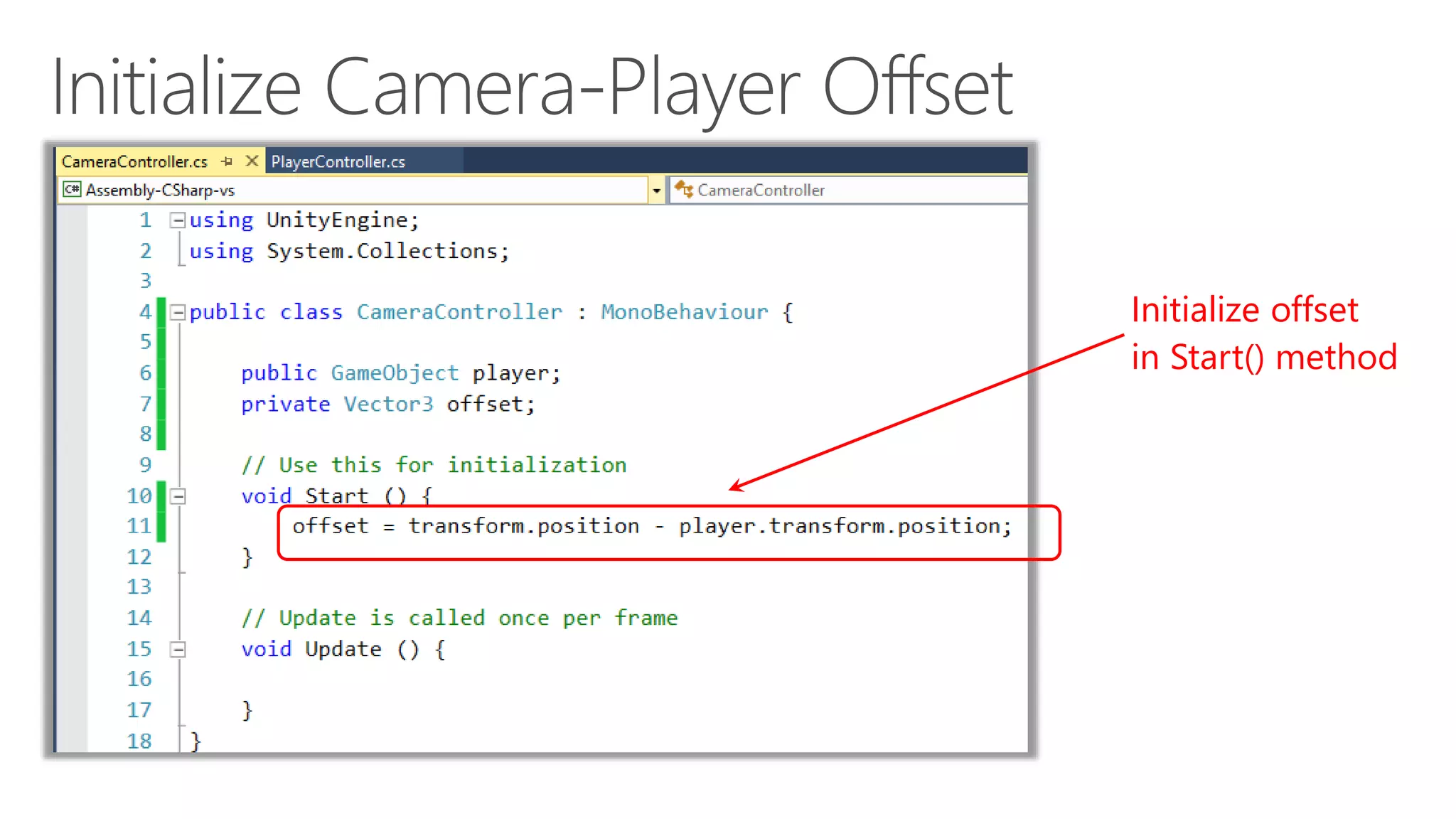
Initialize offset
in Start() method
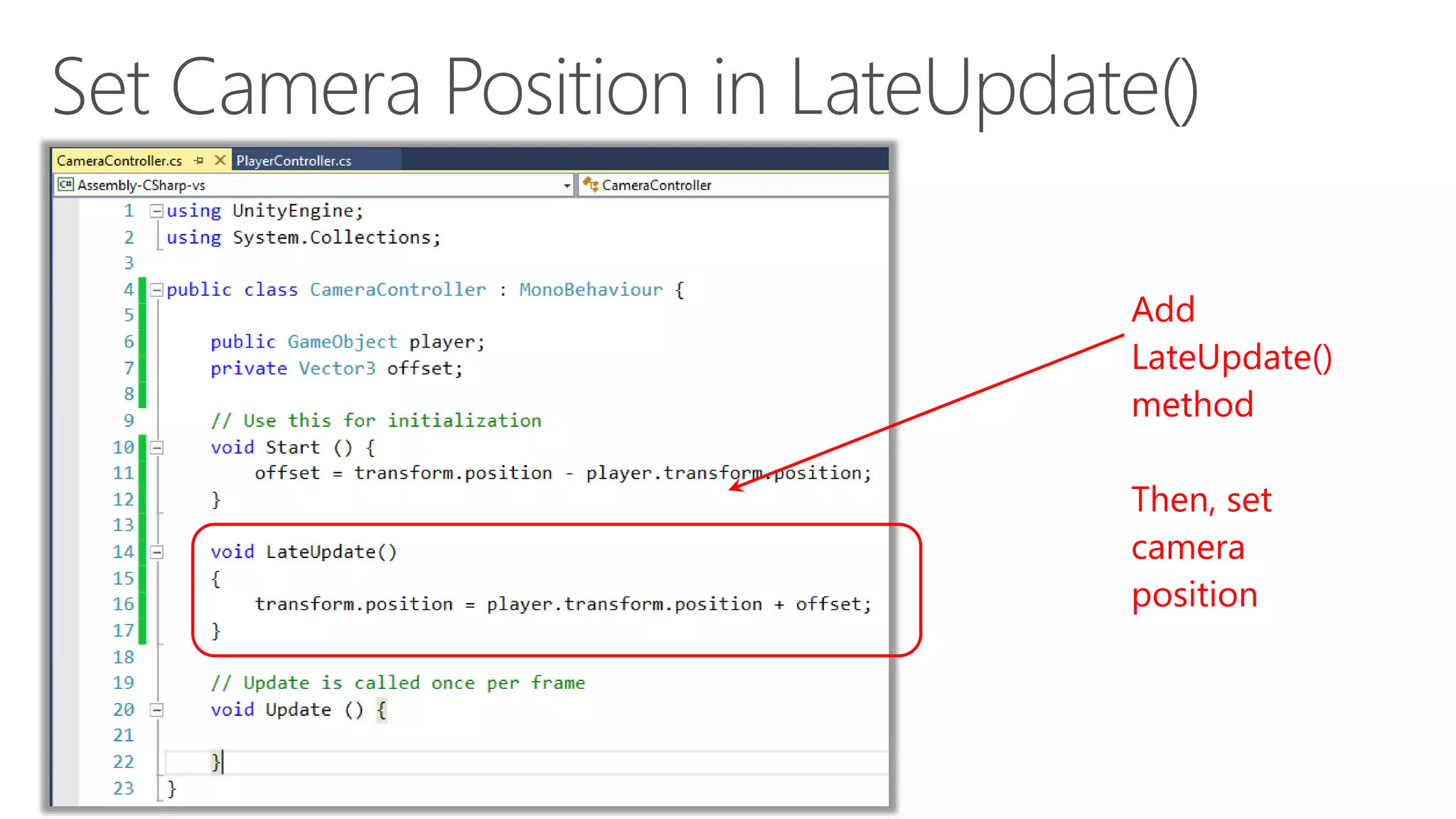
Add
LateUpdate()
method
Then, set
camera
position
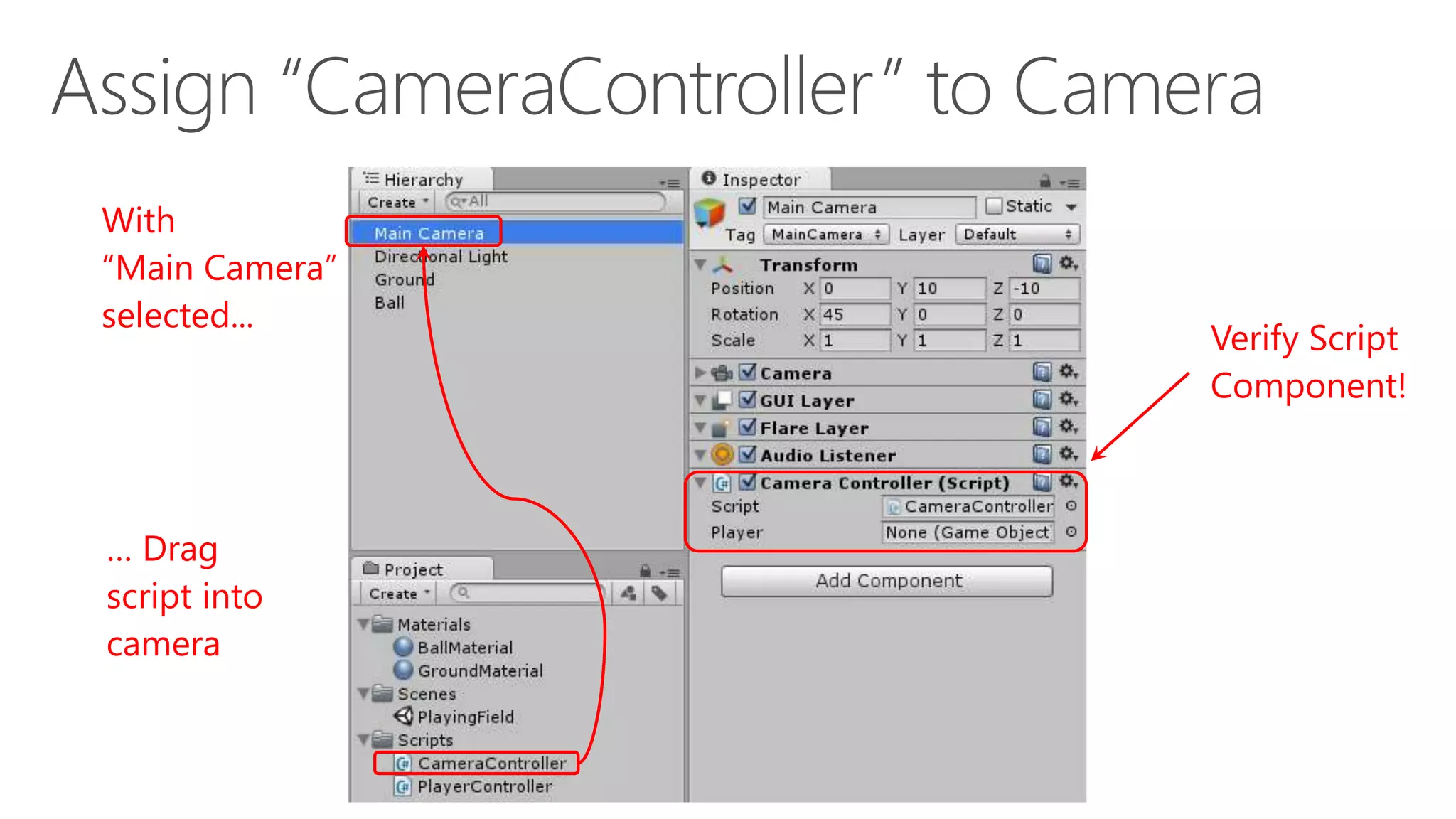
With
“Main Camera”
selected...
… Drag
script into
camera
Verify Script
Component!
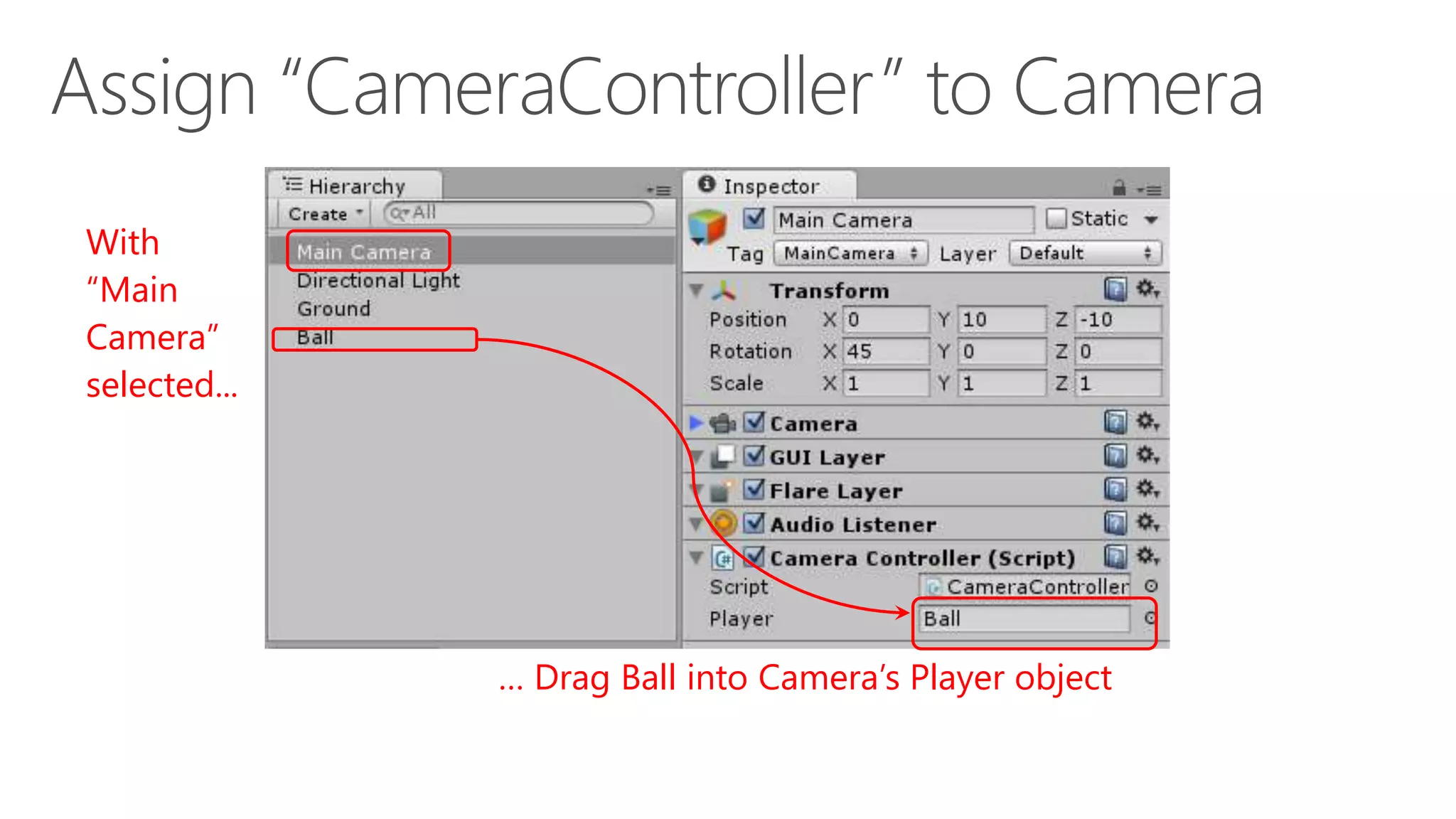
With
“Main
Camera”
selected...
… Drag Ball into Camera’s Player object
Click Play, move around!
Rollerball: 1 of 2

Rollerball: 1 of 2

Editor's Notes

  • #2 Title Page: Game Development with Unity 5 and C# Windows  Web  Xbox  Mobile  … and more! By Shahed Chowdhuri Technical Evangelist Blog: WakeUpAndCode.com Twitter: @shahedC
  • #3 Agenda