



Autodesk Robot Structural Analysis
Metric Getting Started Guide
October 2008546A1-050000-PM03A
This manual text is printed
on 40 percent postconsumer
waste recycled paper
© 2010 Autodesk, Inc. All Rights Reserved. Except as otherwise permitted by Autodesk, Inc., this publication, or parts thereof, may not be
reproduced in any form, by any method, for any purpose.
Certain materials included in this publication are reprinted with the permission of the copyright holder.
Trademarks
The following are registered trademarks or trademarks of Autodesk, Inc., in the USA and other countries: 3DEC (design/logo), 3December,
3December.com, 3ds Max, ActiveShapes, Actrix, ADI, Alias, Alias (swirl design/logo), AliasStudio, Alias|Wavefront (design/logo), ATC, AUGI,
AutoCAD, AutoCAD Learning Assistance, AutoCAD LT, AutoCAD Simulator, AutoCAD SQL Extension, AutoCAD SQL Interface, Autodesk, Autodesk
Envision, Autodesk Insight, Autodesk Intent, Autodesk Inventor, Autodesk Map, Autodesk MapGuide, Autodesk Streamline, AutoLISP, AutoSnap,
AutoSketch, AutoTrack, Backdraft, Built with ObjectARX (logo), Burn, Buzzsaw, CAiCE, Can You Imagine, Character Studio, Cinestream, Civil
3D, Cleaner, Cleaner Central, ClearScale, Colour Warper, Combustion, Communication Specification, Constructware, Content Explorer,
Create>what’s>Next> (design/logo), Dancing Baby (image), DesignCenter, Design Doctor, Designer’s Toolkit, DesignKids, DesignProf, DesignServer,
DesignStudio, Design|Studio (design/logo), Design Your World, Design Your World (design/logo), DWF, DWG, DWG (logo), DWG TrueConvert,
DWG TrueView, DXF, EditDV, Education by Design, Exposure, Extending the Design Team, FBX, Filmbox, FMDesktop, Freewheel, GDX Driver,
Gmax, Heads-up Design, Heidi, HOOPS, HumanIK, i-drop, iMOUT, Incinerator, IntroDV, Inventor, Inventor LT, Kaydara, Kaydara (design/logo),
LocationLogic, Lustre, Maya, Mechanical Desktop, MotionBuilder, Mudbox, NavisWorks, ObjectARX, ObjectDBX, Open Reality, Opticore,
Opticore Opus, PolarSnap, PortfolioWall, Powered with Autodesk Technology, Productstream, ProjectPoint, ProMaterials, Reactor, RealDWG,
Real-time Roto, Recognize, Render Queue, Reveal, Revit, Showcase, ShowMotion, SketchBook, SteeringWheels, StudioTools, Topobase, Toxik,
ViewCube, Visual, Visual Bridge, Visual Construction, Visual Drainage, Visual Hydro, Visual Landscape, Visual Roads, Visual Survey, Visual Syllabus,
Visual Toolbox, Visual Tugboat, Visual LISP, Voice Reality, Volo, Wiretap, and WiretapCentral
The following are registered trademarks or trademarks of Autodesk Canada Co. in the USA and/or Canada and other countries: Backburner,
Discreet, Fire, Flame, Flint, Frost, Inferno, Multi-Master Editing, River, Smoke, Sparks, Stone, and Wire
All other brand names, product names or trademarks belong to their respective holders.
Third Party Software Program Credits
ACIS Copyright© 1989-2001 Spatial Corp. Portions Copyright© 2002 Autodesk, Inc.
Flash ® is a registered trademark of Macromedia, Inc. in the United States and/or other countries.
International CorrectSpell™ Spelling Correction System© 1995 by Lernout & Hauspie Speech Products, N.V. All rights reserved.
InstallShield™ 3.0. Copyright© 1997 InstallShield Software Corporation. All rights reserved.
PANTONE® Colors displayed in the software application or in the user documentation may not match PANTONE-identified standards. Consult
current PANTONE Color Publications for accurate color. PANTONE Color Data and/or Software shall not be copied onto another disk or into
memory unless as part of the execution of this Autodesk software product.
Portions Copyright© 1991-1996 Arthur D. Applegate. All rights reserved.
Portions of this software are based on the work of the Independent JPEG Group.
RAL DESIGN© RAL, Sankt Augustin, 2002
RAL CLASSIC© RAL, Sankt Augustin, 2002
Representation of the RAL Colors is done with the approval of RAL Deutsches Institut für Gütesicherung und Kennzeichnung e.V. (RAL German
Institute for Quality Assurance and Certification, re. Assoc.), D-53757 Sankt Augustin.
Typefaces from the Bitstream® typeface library copyright 1992.
Typefaces from Payne Loving Trust© 1996. All rights reserved.
Printed manual and help produced with Idiom WorldServer™.
WindowBlinds: DirectSkin™ OCX © Stardock®
AnswerWorks 4.0 ©; 1997-2003 WexTech Systems, Inc. Portions of this software © Vantage-Knexys. All rights reserved.
The Director General of the Geographic Survey Institute has issued the approval for the coordinates exchange numbered TKY2JGD for Japan
Geodetic Datum 2000, also known as technical information No H1-N0.2 of the Geographic Survey Institute, to be installed and used within
this software product (Approval No.: 646 issued by GSI, April 8, 2002).
Portions of this computer program are copyright © 1995-1999 LizardTech, Inc. All rights reserved. MrSID is protected by U.S. Patent No.
5,710,835. Foreign Patents Pending.
Portions of this computer program are Copyright ©; 2000 Earth Resource Mapping, Inc.
OSTN97 © Crown Copyright 1997. All rights reserved.
OSTN02 © Crown copyright 2002. All rights reserved.
OSGM02 © Crown copyright 2002, © Ordnance Survey Ireland, 2002.
FME Objects Engine © 2005 SAFE Software. All rights reserved.
AutoCAD 2009 is produced under a license of data derived from DIC Color Guide® from Dainippon Ink and Chemicals, Inc. Copyright ©
Dainippon Ink and Chemicals, Inc. All rights reserved.
Government Use
Use, duplication, or disclosure by the U.S. Government is subject to restrictions as set forth in FAR 12.212 (Commercial Computer
Software-Restricted Rights) and DFAR 227.7202 (Rights in Technical Data and Computer Software), as applicable.
iTABLE OF CONTENTS
Autodesk Robot Structural Analysis - Getting Started Guide
TABLE OF CONTENTS
AUTODESK ROBOT STRUCTURAL ANALYSIS
FAST OVERVIEW .............................................................. 1
General description of the program ......................................................................... 3
Robot modules ......................................................................................................... 3
Robot screen layout................................................................................................... 5
Basic configuration of the program........................................................................... 6
Preferences..............................................................................................................6
Job Preferences........................................................................................................7
Navigation techniques............................................................................................... 8
Methods of working with Robot interface............................................................... 10
System menu.......................................................................................................... 10
File menuƒƒ ........................................................................................................ 11
Edit menuƒƒ ....................................................................................................... 11
View menuƒƒ ...................................................................................................... 12
Geometry menuƒƒ .............................................................................................. 12
Loads menuƒƒ .................................................................................................... 12
Analysis menuƒƒ ................................................................................................ 13
Results menuƒƒ ................................................................................................. 13
Design menuƒƒ .................................................................................................. 13
Tools menuƒƒ ..................................................................................................... 14
Window menuƒƒ ................................................................................................. 14
Help menuƒƒ ...................................................................................................... 14
Layout System........................................................................................................ 15
Entering the structural analysis data ..................................................................... 18
Analyzing the structure........................................................................................... 22
Results preview....................................................................................................... 24
Graphical results for beams................................................................................... 24
Graphical results for surfaces................................................................................ 26
Tabular results....................................................................................................... 28
Design of elements of a structure........................................................................... 29
Steel and Timber Design........................................................................................ 29
Steel Connections Design...................................................................................... 32
RC Design............................................................................................................... 34
ii TABLE OF CONTENTS
Autodesk Robot Structural Analysis - Getting Started Guide
Calculation of the Required (Theoretical) Reinforcement Areaƒƒ .................... 34
Calculation of the Provided Reinforcement Areaƒƒ .......................................... 35
Reports and printout composition .......................................................................... 37
List of shortcuts...................................................................................................... 39
3D FRAME STRUCTURE.................................................. 41
Configuration of the program.................................................................................. 43
Model Definition...................................................................................................... 44
Bars definition (frame 2D)ƒƒ .............................................................................. 44
Supports definitionƒƒ ......................................................................................... 45
2-bay frame definitionƒƒ .................................................................................... 46
Load case definitionƒƒ ....................................................................................... 47
Loads definition for particular load casesƒƒ ..................................................... 48
Copying existing frameƒƒ ................................................................................... 52
Definition of lateral beamƒƒ .............................................................................. 53
Definition of cross bracingsƒƒ ........................................................................... 54
Copying defined bars (lateral beam and bracings)ƒƒ ....................................... 56
Structure Analysis................................................................................................... 57
Results Preview....................................................................................................... 58
Displaying beam results graphicallyƒƒ ............................................................. 58
Displaying results on bars in tabular formƒƒ .................................................... 60
Stress analysisƒƒ ............................................................................................... 61
Preparation of printouts.......................................................................................... 64
“Capturing” views and data for the calculation noteƒƒ ..................................... 64
Preparing printout compositionƒƒ ..................................................................... 65
Printing and exporting the calculation reportƒƒ ............................................... 67
RC AND STEEL MIXED STRUCTURE................................. 71
Configuration of the program.................................................................................. 73
Model definition....................................................................................................... 74
Definition of structural axesƒƒ .......................................................................... 74
Section definitionƒƒ ............................................................................................ 77
Bars definitionƒƒ ................................................................................................ 80
Supports definitionƒƒ ......................................................................................... 86
Load cases definitionƒƒ ..................................................................................... 87
Definition of loads for predefined load casesƒƒ ................................................ 89
iiiTABLE OF CONTENTS
Autodesk Robot Structural Analysis - Getting Started Guide
Changing the structure typeƒƒ .......................................................................... 99
Definition of additional structural axisƒƒ .......................................................... 99
Copying existing frameƒƒ ................................................................................. 101
Definition of lateral beamsƒƒ .......................................................................... 103
Definition of slabƒƒ .......................................................................................... 106
Offset definitionƒƒ ............................................................................................ 109
Definition of a wallƒƒ ....................................................................................... 114
Definition of wall supportƒƒ ............................................................................. 119
Meshing parameters definitionƒƒ .................................................................... 120
Definition of slab loadsƒƒ ................................................................................. 124
Structure Analysis................................................................................................. 125
Results Preview..................................................................................................... 128
Panels results in map formƒƒ ......................................................................... 128
Deformation of the structureƒƒ ....................................................................... 131
Results on panels in tabular formƒƒ ............................................................... 133
Integration of Autodesk Robot Structural Analysis with
Revit®
 Structure.......................................................... 139
Export Revit model to Robot................................................................................. 141
Opening project in Revitƒƒ ®
Structure............................................................. 141
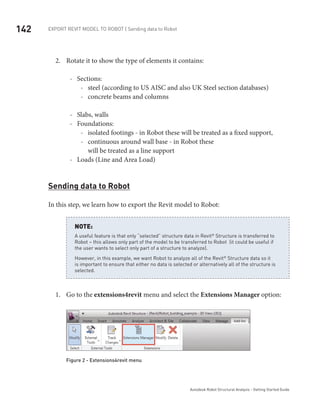
Sending data to Robotƒƒ .................................................................................. 142
Structure Analysis in Robot................................................................................... 149
Displaying items on the screenƒƒ .................................................................... 150
Presentation of load cases transferred from Revitƒƒ ®
Structure.................. 151
Meshing parameters definitionƒƒ .................................................................... 153
Calculationsƒƒ .................................................................................................. 156
Results preview - displaying panel results in map formƒƒ ............................. 157
Results preview - displaying results on bars in diagram formƒƒ ................... 160
Modification of the Structure in Robot.................................................................. 163
Replacing sectionsƒƒ ....................................................................................... 163
Deleting barsƒƒ ................................................................................................ 166
Adding new elementsƒƒ ................................................................................... 167
Update Revit Model from Robot............................................................................ 172
Updating Revitƒƒ ®
Structure project............................................................... 172
Model changes presentationƒƒ ........................................................................ 177
AUTODESK ROBOT
STRUCTURAL ANALYSIS
FAST OVERVIEW
Synopsis:
	 The purpose of this Manual is introduce the novice user to the Autodesk Robot
Structural Analysis system and to provide some guidance into the program configura-
tion, menu system and navigation techniques. It will also show the many and varied
methods of input of data and extraction of results.
It is assumed that Autodesk Robot Structural Analysis 2011 is installed on the PC.
3GENERAL DESCRIPTION OF THE PROGRAM
Autodesk Robot Structural Analysis - Getting Started Guide
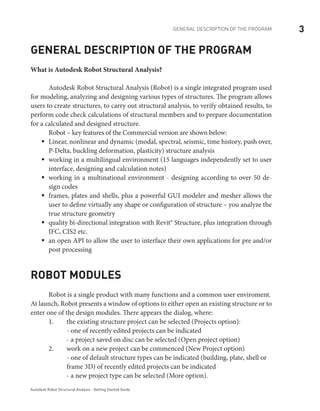
General description of the program
What is Autodesk Robot Structural Analysis?
	 Autodesk Robot Structural Analysis (Robot) is a single integrated program used
for modeling, analyzing and designing various types of structures. The program allows
users to create structures, to carry out structural analysis, to verify obtained results, to
perform code check calculations of structural members and to prepare documentation
for a calculated and designed structure.
	 Robot – key features of the Commercial version are shown below:
Linear, nonlinear and dynamic (modal, spectral, seismic, time history, push over,ƒƒ
P-Delta, buckling deformation, plasticity) structure analysis
working in a multilingual environment (15 languages independently set to userƒƒ
interface, designing and calculation notes)
working in a multinational environment - designing according to over 50 de-ƒƒ
sign codes
frames, plates and shells, plus a powerful GUI modeler and mesher allows theƒƒ
user to define virtually any shape or configuration of structure – you analyze the
true structure geometry
quality bi-directional integration with Revit® Structure, plus integration throughƒƒ
IFC, CIS2 etc.
an open API to allow the user to interface their own applications for pre and/orƒƒ
post processing
Robot modules
Robot is a single product with many functions and a common user enviroment.
At launch, Robot presents a window of options to either open an existing structure or to
enter one of the design modules. There appears the dialog, where:
	 1.	 the existing structure project can be selected (Projects option):
		 - one of recently edited projects can be indicated
		 - a project saved on disc can be selected (Open project option)
	 2.	 work on a new project can be commenced (New Project option)
		 - one of default structure types can be indicated (building, plate, shell or 	
		 frame 3D) of recently edited projects can be indicated
		 - a new project type can be selected (More option).
4 ROBOT MODULES
Autodesk Robot Structural Analysis - Getting Started Guide
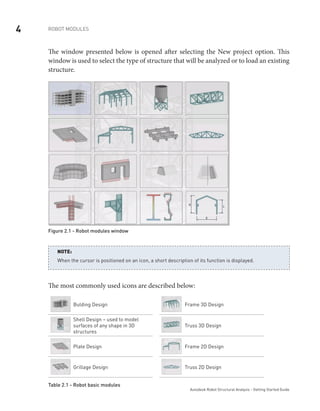
The window presented below is opened after selecting the New project option. This
window is used to select the type of structure that will be analyzed or to load an existing
structure.
Figure 2.1 - Robot modules window
When the cursor is positioned on an icon, a short description of its function is displayed.
NOTE:
The most commonly used icons are described below:
Bulding Design Frame 3D Design
Shell Design – used to model
surfaces of any shape in 3D
structures
Truss 3D Design
Plate Design Frame 2D Design
Grillage Design Truss 2D Design
Table 2.1 - Robot basic modules
5ROBOT SCREEN LAYOUT
Autodesk Robot Structural Analysis - Getting Started Guide
Robot screen layout
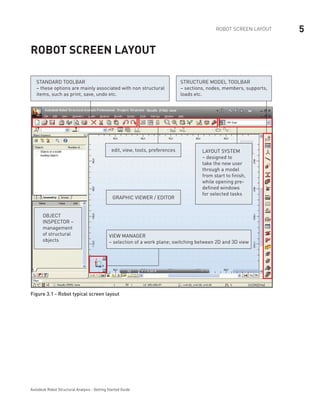
GRAPHIC VIEWER / EDITOR
edit, view, tools, preferences
STANDARD toolbar
– these options are mainly associated with non structural
items, such as print, save, undo etc.
Layout System
– designed to
take the new user
through a model
from start to finish,
while opening pre-
defined windows
for selected tasks
STRUCTURE MODEL toolbar
– sections, nodes, members, supports,
loads etc.
OBJECT
INSPECTOR –
management
of structural
objects
VIEW MANAGER
– selection of a work plane; switching between 2D and 3D view
Figure 3.1 - Robot typical screen layout
6 BASIC CONFIGURATION OF THE PROGRAM | Preferences
Autodesk Robot Structural Analysis - Getting Started Guide
Basic configuration of the program
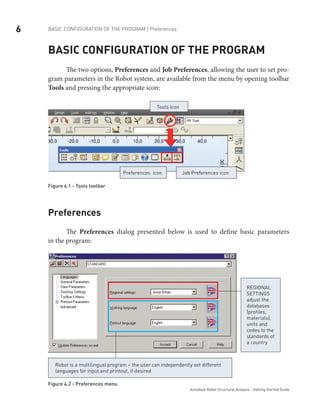
	 The two options, Preferences and Job Preferences, allowing the user to set pro-
gram parameters in the Robot system, are available from the menu by opening toolbar
Tools and pressing the appropriate icon:
Tools icon
Job Preferences iconPreferences icon
Figure 4.1 - Tools toolbar
Preferences
The Preferences dialog presented below is used to define basic parameters
in the program:
Regional
settings
adjust the
databases
(profiles,
materials),
units and
codes to the
standards of
a country
Robot is a multilingual program – the user can independently set different
languages for input and printout, if desired
Figure 4.2 - Preferences menu
7BASIC CONFIGURATION OF THE PROGRAM | Job Preferences
Autodesk Robot Structural Analysis - Getting Started Guide
The most regularly used options are:
languages - selection of regional settings (definition of the country whose codesƒƒ
materials and regulations - e.g. code combination regulations - will be used dur-
ing the design process, calculations and structure design) and working and print-
out language
general parameters (saving parameters, number of recently used structures,ƒƒ
sound on/off etc.)
display parameters (colors and fonts for screen components)ƒƒ
toolbar and menu (menu type and the type of toolbars)ƒƒ
printout parameters (colors and fonts for printouts, scale and symbols,ƒƒ
line thickness)
protection parameters (protection, authorization) - for changingƒƒ
the system protection
COM interface - presentation of the registered additional programs/modulesƒƒ
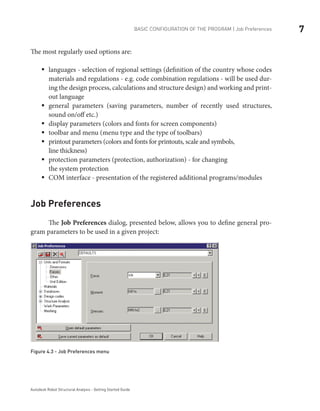
Job Preferences
	 The Job Preferences dialog, presented below, allows you to define general pro-
gram parameters to be used in a given project:
Figure 4.3 - Job Preferences menu
8 NAVIGATION TECHNIQUES
Autodesk Robot Structural Analysis - Getting Started Guide
The most important functions are:
number units and formats (dimensions, forces, possibility of unit edition)ƒƒ
materials (selection of material set, according to the country and the possibilityƒƒ
of creating user-defined material)
section database (selection of the appropriate database with member sections)ƒƒ
structure analysis parameters (selection of the static analysis method and defini-ƒƒ
tion of basic parameters for dynamic and non-linear analysis; selection of analy-
sis types, possibility of saving results for seismic analysis – combination of seis-
mic cases)
parameters for generation of surface finite element meshes for plates and shellsƒƒ
Navigation techniques
	 In the Robot software, various mechanisms have been introduced to make struc-
ture definition simple and more efficient. According to the type of operation performed,
the mouse cursor changes its shape to:
“hand” – a selection mode for highlighting entitiesƒƒ
“cross pointer” - during node and bar definition, to define precise points e.g. startƒƒ
and end points of members
shape of the appropriate feature e.g. when adding sections the cursor is in shapeƒƒ
of an I section, when adding supports a support icon appears etc.
The cursor operation in a viewer by means of the third mouse button (or wheel) is
identical to that in the AutoCAD® program. The following cursor support modes
are available:
wheel rotation – zoom in / outƒƒ
wheel rotation + Ctrl key – horizontal panƒƒ
wheel rotation + Shift key – vertical panƒƒ
pressing the third button - panƒƒ
double-click with the third button – initial viewƒƒ
9NAVIGATION TECHNIQUES
Autodesk Robot Structural Analysis - Getting Started Guide
The user should take note of the work capabilities in 3D views when the menu option
Dynamic View (View → Dynamic View → Dynamic View) is switched on. 3D viewing
enables work in one of five modes:
four simple modes: 3D rotation, 2D rotation, zoom and panƒƒ
one multi-function modeƒƒ
The user may switch from one work mode to another by selecting an appropriate option
in the View / Dynamic View menu, on the View toolbar and in the context menu. After
choosing a work mode, the mouse cursor movement (with mouse left button pressed)
brings about the relevant change in the 3D view:
3D Rotation – rotates a structure in all planesƒƒ
2D Rotation - rotates a structure in the plane parallel to the screen planeƒƒ
Zoom – movement down the view – zooming in / zooming out a structure to /ƒƒ
from the screen plane
Pan – movement in the view plane (structure shift with respect to theƒƒ
screen center)
The multi-function mode (Rotation / Zoom / Pan) enables work using all the modes
at the same time. The viewer of 3D view is divided into quarters and each of them is
ascribed one of the modes:
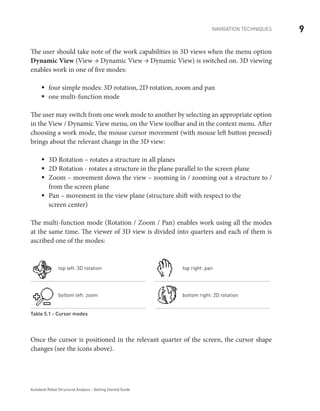
top left: 3D rotation top right: pan
bottom left: zoom bottom right: 2D rotation
Table 5.1 - Cursor modes
Once the cursor is positioned in the relevant quarter of the screen, the cursor shape
changes (see the icons above).
10 METHODS OF WORKING WITH ROBOT INTERFACE | System menu
Autodesk Robot Structural Analysis - Getting Started Guide
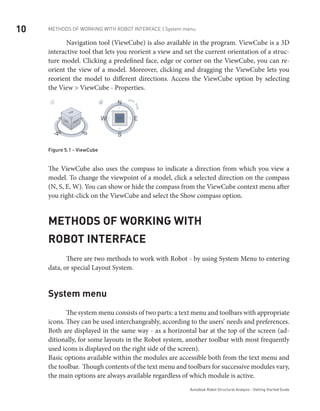
	 Navigation tool (ViewCube) is also available in the program. ViewCube is a 3D
interactive tool that lets you reorient a view and set the current orientation of a struc-
ture model. Clicking a predefined face, edge or corner on the ViewCube, you can re-
orient the view of a model. Moreover, clicking and dragging the ViewCube lets you
reorient the model to different directions. Access the ViewCube option by selecting
the View > ViewCube - Properties.
Figure 5.1 - ViewCube
The ViewCube also uses the compass to indicate a direction from which you view a
model. To change the viewpoint of a model, click a selected direction on the compass
(N, S, E, W). You can show or hide the compass from the ViewCube context menu after
you right-click on the ViewCube and select the Show compass option.
Methods of working with
Robot interface
	 There are two methods to work with Robot - by using System Menu to entering
data, or special Layout System.
System menu
	 The system menu consists of two parts: a text menu and toolbars with appropriate
icons. They can be used interchangeably, according to the users’ needs and preferences.
Both are displayed in the same way - as a horizontal bar at the top of the screen (ad-
ditionally, for some layouts in the Robot system, another toolbar with most frequently
used icons is displayed on the right side of the screen).
Basic options available within the modules are accessible both from the text menu and
the toolbar. Though contents of the text menu and toolbars for successive modules vary,
the main options are always available regardless of which module is active.
11METHODS OF WORKING WITH ROBOT INTERFACE | System menu
Autodesk Robot Structural Analysis - Getting Started Guide
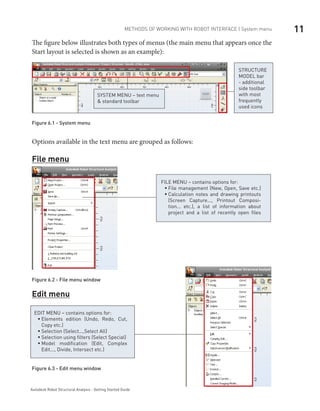
The figure below illustrates both types of menus (the main menu that appears once the
Start layout is selected is shown as an example):
STRUCTURE
MODEL bar
- additional
side toolbar
with most
frequently
used icons
SYSTEM MENU – text menu
& standard toolbar
Figure 6.1 - System menu
Options available in the text menu are grouped as follows:
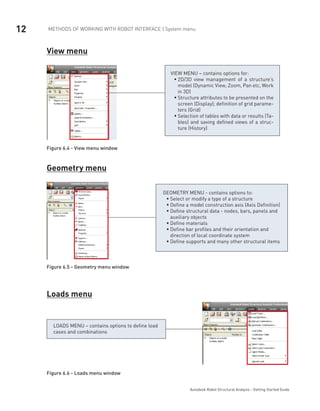
File menu
FILE MENU – contains options for:
File management (New, Open, Save etc.)ƒƒ
Calculation notes and drawing printoutsƒƒ
(Screen Capture..., Printout Composi-
tion... etc.), a list of information about
project and a list of recently open files
Figure 6.2 - File menu window
Edit menu
Figure 6.3 - Edit menu window
EDIT MENU – contains options for:
Elements edition (Undo, Redo, Cut,ƒƒ
Copy etc.)
Selection (Select...,Select All)ƒƒ
Selection using filters (Select Special)ƒƒ
Model modification (Edit, Complexƒƒ
Edit..., Divide, Intersect etc.)
12 METHODS OF WORKING WITH ROBOT INTERFACE | System menu
Autodesk Robot Structural Analysis - Getting Started Guide
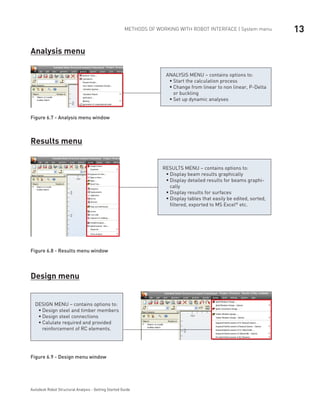
View menu
VIEW MENU – contains options for:
2D/3D view management of a structure’sƒƒ
model (Dynamic View, Zoom, Pan etc, Work
in 3D)
Structure attributes to be presented on theƒƒ
screen (Display); definition of grid parame-
ters (Grid)
Selection of tables with data or results (Ta-ƒƒ
bles) and saving defined views of a struc-
ture (History)
Figure 6.4 - View menu window
Geometry menu
GEOMETRY MENU - contains options to:
Select or modify a type of a structureƒƒ
Define a model construction axis (Axis Definition)ƒƒ
Define structural data - nodes, bars, panels andƒƒ
auxiliary objects
Define materialsƒƒ
Define bar profiles and their orientation andƒƒ
direction of local coordinate system
Define supports and many other structural itemsƒƒ
Figure 6.5 - Geometry menu window
Loads menu
LOADS MENU – contains options to define load
cases and combinations
Figure 6.6 - Loads menu window
13METHODS OF WORKING WITH ROBOT INTERFACE | System menu
Autodesk Robot Structural Analysis - Getting Started Guide
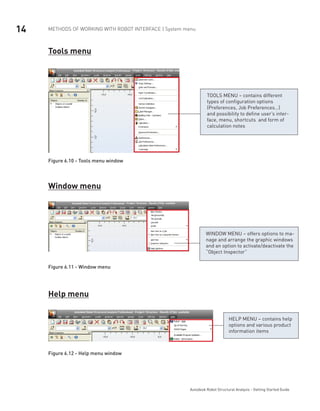
Analysis menu
ANALYSIS MENU – contains options to:
Start the calculation processƒƒ
Change from linear to non linear, P-Deltaƒƒ
or buckling
Set up dynamic analysesƒƒ
Figure 6.7 - Analysis menu window
Results menu
RESULTS MENU – contains options to:
Display beam results graphicallyƒƒ
Display detailed results for beams graphi-ƒƒ
cally
Display results for surfacesƒƒ
Display tables that easily be edited, sorted,ƒƒ
filtered, exported to MS Excel®
etc.
Figure 6.8 - Results menu window
Design menu
DESIGN MENU – contains options to:
Design steel and timber membersƒƒ
Design steel connectionsƒƒ
Calulate required and providedƒƒ
reinforcement of RC elements.
Figure 6.9 - Design menu window
14 METHODS OF WORKING WITH ROBOT INTERFACE | System menu
Autodesk Robot Structural Analysis - Getting Started Guide
Tools menu
TOOLS MENU – contains different
types of configuration options
(Preferences, Job Preferences…)
and possibility to define user’s inter-
face, menu, shortcuts and form of
calculation notes
Figure 6.10 - Tools menu window
Window menu
WINDOW MENU – offers options to ma-
nage and arrange the graphic windows
and an option to activate/deactivate the
“Object Inspector”
Figure 6.11 - Window menu
Help menu
HELP MENU – contains help
options and various product
information items
Figure 6.12 - Help menu window
15METHODS OF WORKING WITH ROBOT INTERFACE | Layout System
Autodesk Robot Structural Analysis - Getting Started Guide
Layout System
	 The second method of work with Robot is by using the special layout system.
Robot has been equipped with a layout mechanism that simplifies the design process.
The layouts in Robot are specially designed systems of dialog boxes, viewers and tables
that are used to perform specific defined operations.
Layouts available in Robot were created to make consecutive operations leading to defin-
ing, calculating, and designing the structure easier – the layouts guide the user through
the process from model generation to results.
In order to make the system as easy to use as possible, each layout has its own predefined
set of windows which are automatically opened on entering the layout and closed
on exit.
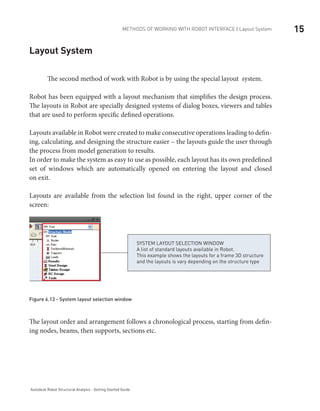
Layouts are available from the selection list found in the right, upper corner of the
screen:
SYSTEM LAYOUT SELECTION WINDOW
A list of standard layouts available in Robot.
This example shows the layouts for a frame 3D structure
and the layouts is vary depending on the structure type
Figure 6.13 - System layout selection window
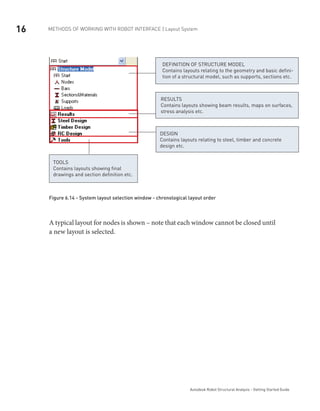
The layout order and arrangement follows a chronological process, starting from defin-
ing nodes, beams, then supports, sections etc.
16 METHODS OF WORKING WITH ROBOT INTERFACE | Layout System
Autodesk Robot Structural Analysis - Getting Started Guide
RESULTS
Contains layouts showing beam results, maps on surfaces,
stress analysis etc.
DEFINITION OF STRUCTURE MODEL
Contains layouts relating to the geometry and basic defini-
tion of a structural model, such as supports, sections etc.
DESIGN
Contains layouts relating to steel, timber and concrete
design etc.
TOOLS
Contains layouts showing final
drawings and section definition etc.
Figure 6.14 - System layout selection window - chronological layout order
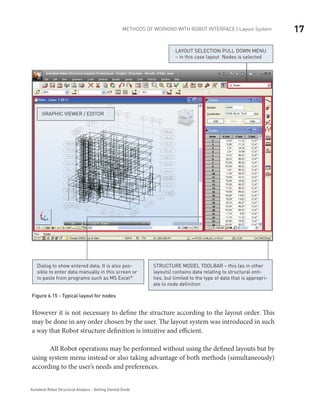
A typical layout for nodes is shown – note that each window cannot be closed until
a new layout is selected.
17METHODS OF WORKING WITH ROBOT INTERFACE | Layout System
Autodesk Robot Structural Analysis - Getting Started Guide
Dialog to show entered data. It is also pos-
sible to enter data manually in this screen or
to paste from programs such as MS Excel®
STRUCTURE MODEL toolbar – this (as in other
layouts) contains data relating to structural enti-
ties, but limited to the type of data that is appropri-
ate to node definition
Layout selection pull down menu
– in this case layout Nodes is selected
graphic viewer / editor
Figure 6.15 - Typical layout for nodes
However it is not necessary to define the structure according to the layout order. This
may be done in any order chosen by the user. The layout system was introduced in such
a way that Robot structure definition is intuitive and efficient.
	 All Robot operations may be performed without using the defined layouts but by
using system menu instead or also taking advantage of both methods (simultaneously)
according to the user’s needs and preferences.
18 ENTERING THE STRUCTURAL ANALYSIS DATA
Autodesk Robot Structural Analysis - Getting Started Guide
Entering the structural analysis data
There are 3 ways to enter data:
By entering data using the appropriate text dialog or direct in a table (or pasted1.	
from MS Excel®)
By entering data in the Robot GUI – using tools for graphic structure definition -2.	
i.e. snap grids or structural axes.
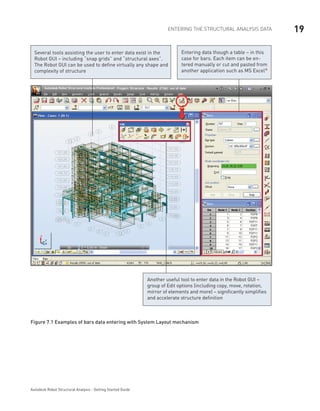
Examples of data entering using the System Layout mechanism (for Bars and
Loads options) are presented below:
19ENTERING THE STRUCTURAL ANALYSIS DATA
Autodesk Robot Structural Analysis - Getting Started Guide
Entering data though a table – in this
case for bars. Each item can be en-
tered manually or cut and pasted from
another application such as MS Excel®
Several tools assisting the user to enter data exist in the
Robot GUI – including “snap grids” and “structural axes”.
The Robot GUI can be used to define virtually any shape and
complexity of structure
Another useful tool to enter data in the Robot GUI –
group of Edit options (including copy, move, rotation,
mirror of elements and more) – significantly simplifies
and accelerate structure definition
Figure 7.1 Examples of bars data entering with System Layout mechanism
20 ENTERING THE STRUCTURAL ANALYSIS DATA
Autodesk Robot Structural Analysis - Getting Started Guide
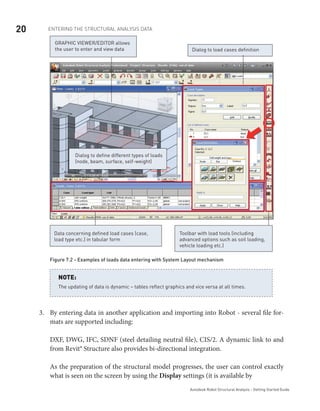
Graphic viewer/editor allows
the user to enter and view data Dialog to load cases definition
Toolbar with load tools (including
advanced options such as soil loading,
vehicle loading etc.)
Dialog to define different types of loads
(node, beam, surface, self-weight)
Data concerning defined load cases (case,
load type etc.) in tabular form
Figure 7.2 - Examples of loads data entering with System Layout mechanism
The updating of data is dynamic – tables reflect graphics and vice versa at all times.
NOTE:
By entering data in another application and importing into Robot - several file for-3.	
mats are supported including:
DXF, DWG, IFC, SDNF (steel detailing neutral file), CIS/2. A dynamic link to and
from Revit® Structure also provides bi-directional integration.
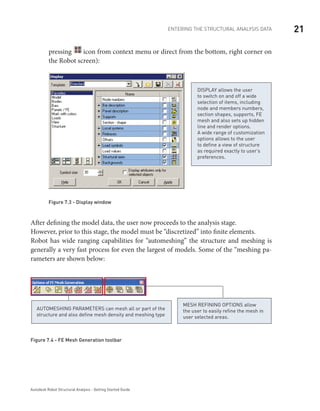
As the preparation of the structural model progresses, the user can control exactly
what is seen on the screen by using the Display settings (it is available by
21ENTERING THE STRUCTURAL ANALYSIS DATA
Autodesk Robot Structural Analysis - Getting Started Guide
pressing icon from context menu or direct from the bottom, right corner on
the Robot screen):
DISPLAY allows the user
to switch on and off a wide
selection of items, including
node and members numbers,
section shapes, supports, FE
mesh and also sets up hidden
line and render options.
A wide range of customization
options allows to the user
to define a view of structure
as required exactly to user’s
preferences.
Figure 7.3 - Display window
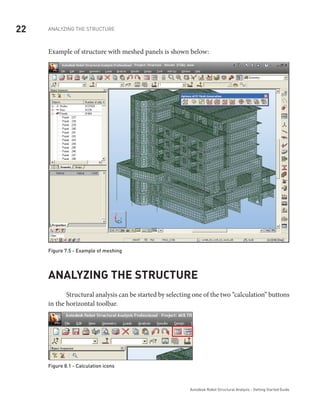
After defining the model data, the user now proceeds to the analysis stage.
However, prior to this stage, the model must be “discretized” into finite elements.
Robot has wide ranging capabilities for “automeshing” the structure and meshing is
generally a very fast process for even the largest of models. Some of the “meshing pa-
rameters are shown below:
Mesh refining options allow
the user to easily refine the mesh in
user selected areas.
Automeshing parameters can mesh all or part of the
structure and also define mesh density and meshing type
Figure 7.4 - FE Mesh Generation toolbar
22 ANALYZING THE STRUCTURE
Autodesk Robot Structural Analysis - Getting Started Guide
Example of structure with meshed panels is shown below:
Figure 7.5 - Example of meshing
Analyzing the structure
	 Structural analysis can be started by selecting one of the two “calculation” buttons
in the horizontal toolbar.
Figure 8.1 - Calculation icons
23ANALYZING THE STRUCTURE
Autodesk Robot Structural Analysis - Getting Started Guide
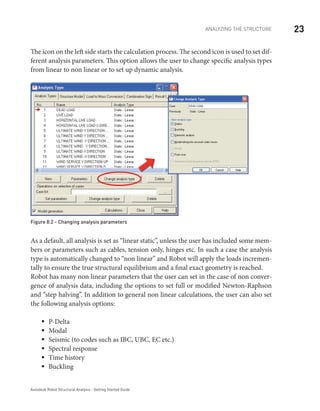
The icon on the left side starts the calculation process. The second icon is used to set dif-
ferent analysis parameters. This option allows the user to change specific analysis types
from linear to non linear or to set up dynamic analysis.
Figure 8.2 - Changing analysis parameters
As a default, all analysis is set as “linear static”, unless the user has included some mem-
bers or parameters such as cables, tension only, hinges etc. In such a case the analysis
type is automatically changed to “non linear” and Robot will apply the loads incremen-
tally to ensure the true structural equilibrium and a final exact geometry is reached.
Robot has many non linear parameters that the user can set in the case of non conver-
gence of analysis data, including the options to set full or modified Newton-Raphson
and “step halving”. In addition to general non linear calculations, the user can also set
the following analysis options:
P-Deltaƒƒ
Modalƒƒ
Seismic (to codes such as IBC, UBC, EC etc.)ƒƒ
Spectral responseƒƒ
Time historyƒƒ
Bucklingƒƒ
24 RESULTS PREVIEW | Graphical results for beams
Autodesk Robot Structural Analysis - Getting Started Guide
Results preview
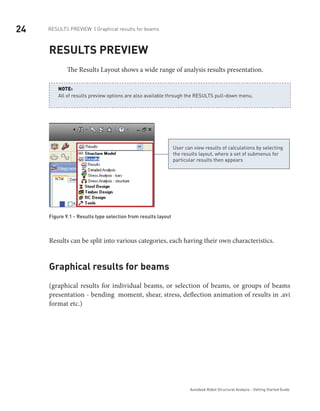
The Results Layout shows a wide range of analysis results presentation.
All of results preview options are also available through the RESULTS pull-down menu.
NOTE:
User can view results of calculations by selecting
the results layout, where a set of submenus for
particular results then appears
Figure 9.1 - Results type selection from results layout
Results can be split into various categories, each having their own characteristics.
Graphical results for beams
(graphical results for individual beams, or selection of beams, or groups of beams
presentation - bending moment, shear, stress, deflection animation of results in .avi
format etc.)
25RESULTS PREVIEW | Graphical results for beams
Autodesk Robot Structural Analysis - Getting Started Guide
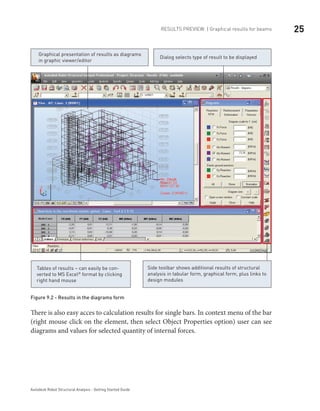
Dialog selects type of result to be displayed
Graphical presentation of results as diagrams
in graphic viewer/editor
Side toolbar shows additional results of structural
analysis in tabular form, graphical form, plus links to
design modules
Tables of results – can easily be con-
verted to MS Excel®
format by clicking
right hand mouse
Figure 9.2 - Results in the diagrams form
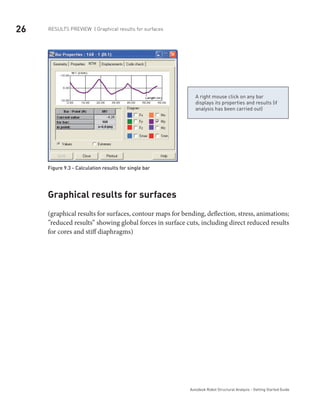
There is also easy acces to calculation results for single bars. In context menu of the bar
(right mouse click on the element, then select Object Properties option) user can see
diagrams and values for selected quantity of internal forces.
26 RESULTS PREVIEW | Graphical results for surfaces
Autodesk Robot Structural Analysis - Getting Started Guide
A right mouse click on any bar
displays its properties and results (if
analysis has been carried out)
Figure 9.3 - Calculation results for single bar
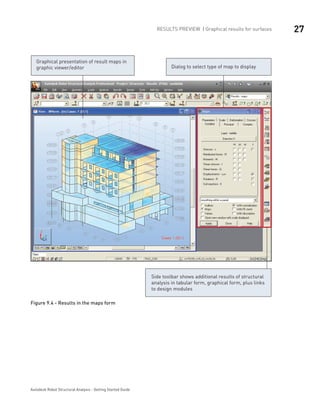
Graphical results for surfaces
(graphical results for surfaces, contour maps for bending, deflection, stress, animations;
”reduced results” showing global forces in surface cuts, including direct reduced results
for cores and stiff diaphragms)
27RESULTS PREVIEW | Graphical results for surfaces
Autodesk Robot Structural Analysis - Getting Started Guide
Graphical presentation of result maps in
graphic viewer/editor Dialog to select type of map to display
Side toolbar shows additional results of structural
analysis in tabular form, graphical form, plus links
to design modules
Figure 9.4 - Results in the maps form
28 RESULTS PREVIEW | Tabular results
Autodesk Robot Structural Analysis - Getting Started Guide
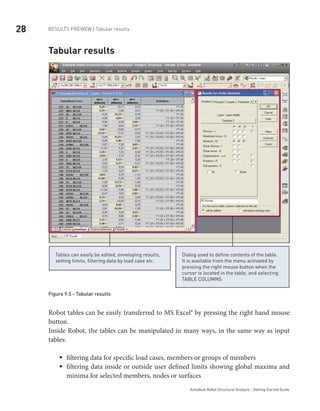
Tabular results
Tables can easily be edited, enveloping results,
setting limits, filtering data by load case etc.
Dialog used to define contents of the table.
It is available from the menu activated by
pressing the right mouse button when the
cursor is located in the table, and selecting
TABLE COLUMNS
Figure 9.5 - Tabular results
Robot tables can be easily transferred to MS Excel® by pressing the right hand mouse
button.
Inside Robot, the tables can be manipulated in many ways, in the same way as input
tables:
filtering data for specific load cases, members or groups of membersƒƒ
filtering data inside or outside user defined limits showing global maxima andƒƒ
minima for selected members, nodes or surfaces
29DESIGN OF ELEMENTS OF A STRUCTURE | Steel and Timber Design
Autodesk Robot Structural Analysis - Getting Started Guide
Design of elements of a structure
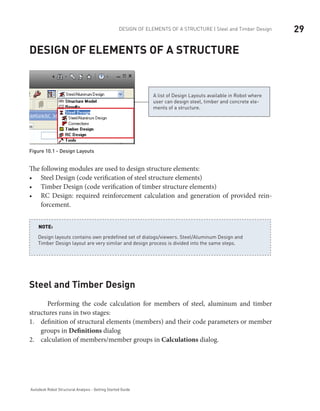
A list of Design Layouts available in Robot where
user can design steel, timber and concrete ele-
ments of a structure.
Figure 10.1 - Design Layouts	
The following modules are used to design structure elements:
Steel Design (code verification of steel structure elements)•	
Timber Design (code verification of timber structure elements)•	
RC Design: required reinforcement calculation and generation of provided rein-•	
forcement.
Design layouts contains own predefined set of dialogs/viewers. Steel/Aluminum Design and
Timber Design layout are very similar and design process is divided into the same steps.
NOTE:
Steel and Timber Design
Performing the code calculation for members of steel, aluminum and timber
structures runs in two stages:
definition of structural elements (members) and their code parameters or member1.	
groups in Definitions dialog
calculation of members/member groups in2.	 Calculations dialog.
30 DESIGN OF ELEMENTS OF A STRUCTURE | Steel and Timber Design
Autodesk Robot Structural Analysis - Getting Started Guide
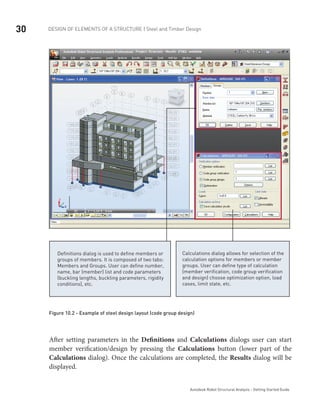
Definitions dialog is used to define members or
groups of members. It is composed of two tabs:
Members and Groups. User can define number,
name, bar (member) list and code parameters
(buckling lengths, buckling parameters, rigidity
conditions), etc.
Calculations dialog allows for selection of the
calculation options for members or member
groups. User can define type of calculation
(member verification, code group verification
and design) choose optimization option, load
cases, limit state, etc.
Figure 10.2 - Example of steel design layout (code group design)
After setting parameters in the Definitions and Calculations dialogs user can start
member verification/design by pressing the Calculations button (lower part of the
Calculations dialog). Once the calculations are completed, the Results dialog will be
displayed.
31DESIGN OF ELEMENTS OF A STRUCTURE | Steel and Timber Design
Autodesk Robot Structural Analysis - Getting Started Guide
Calculations results can be presented as:
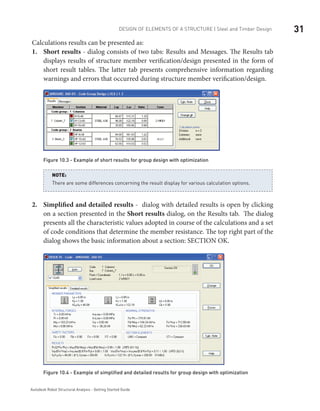
Short results1.	 - dialog consists of two tabs: Results and Messages. The Results tab
displays results of structure member verification/design presented in the form of
short result tables. The latter tab presents comprehensive information regarding
warnings and errors that occurred during structure member verification/design.
Figure 10.3 - Example of short results for group design with optimization
There are some differences concerning the result display for various calculation options.
NOTE:
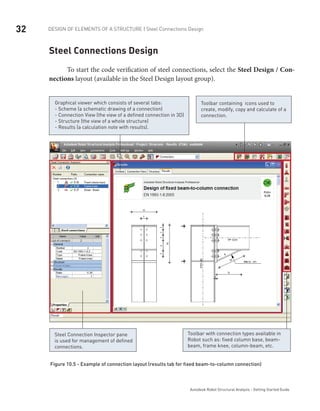
Simplified and detailed results2.	 - dialog with detailed results is open by clicking
on a section presented in the Short results dialog, on the Results tab. The dialog
presents all the characteristic values adopted in course of the calculations and a set
of code conditions that determine the member resistance. The top right part of the
dialog shows the basic information about a section: SECTION OK.
Figure 10.4 - Example of simplified and detailed results for group design with optimization
32 DESIGN OF ELEMENTS OF A STRUCTURE | Steel Connections Design
Autodesk Robot Structural Analysis - Getting Started Guide
Steel Connections Design
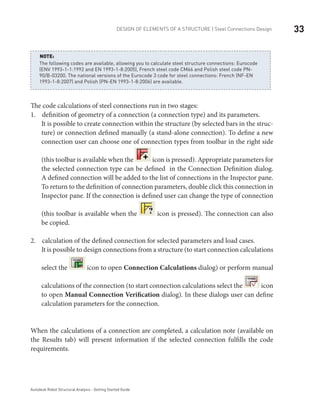
To start the code verification of steel connections, select the Steel Design / Con-
nections layout (available in the Steel Design layout group).
Graphical viewer which consists of several tabs:
- Scheme (a schematic drawing of a connection)
- Connection View (the view of a defined connection in 3D)
- Structure (the view of a whole structure)
- Results (a calculation note with results).
Toolbar containing icons used to
create, modify, copy and calculate of a
connection.
Steel Connection Inspector pane
is used for management of defined
connections.
Toolbar with connection types available in
Robot such as: fixed column base, beam-
beam, frame knee, column-beam, etc.
Figure 10.5 - Example of connection layout (results tab for fixed beam-to-column connection)
33DESIGN OF ELEMENTS OF A STRUCTURE | Steel Connections Design
Autodesk Robot Structural Analysis - Getting Started Guide
The following codes are available, allowing you to calculate steel structure connections: Eurocode
(ENV 1993-1-1:1992 and EN 1993-1-8:2005), French steel code CM66 and Polish steel code PN-
90/B-03200. The national versions of the Eurocode 3 code for steel connections: French (NF-EN
1993-1-8:2007) and Polish (PN-EN 1993-1-8:2006) are available.
NOTE:
The code calculations of steel connections run in two stages:
definition of geometry of a connection (a connection type) and its parameters.1.	
It is possible to create connection within the structure (by selected bars in the struc-
ture) or connection defined manually (a stand-alone connection). To define a new
connection user can choose one of connection types from toolbar in the right side
(this toolbar is available when the icon is pressed). Appropriate parameters for
the selected connection type can be defined in the Connection Definition dialog.
A defined connection will be added to the list of connections in the Inspector pane.
To return to the definition of connection parameters, double click this connection in
Inspector pane. If the connection is defined user can change the type of connection
(this toolbar is available when the icon is pressed). The connection can also
be copied.
calculation of the defined connection for selected parameters and load cases.2.	
It is possible to design connections from a structure (to start connection calculations
select the icon to open Connection Calculations dialog) or perform manual
calculations of the connection (to start connection calculations select the icon
to open Manual Connection Verification dialog). In these dialogs user can define
calculation parameters for the connection.
When the calculations of a connection are completed, a calculation note (available on
the Results tab) will present information if the selected connection fulfills the code
requirements.
34 DESIGN OF ELEMENTS OF A STRUCTURE | RC Design
Autodesk Robot Structural Analysis - Getting Started Guide
RC Design
The Robot offers two possibilities for a design of RC structure members:
calculation of the required reinforcement area needed for the RC member•	
generation of the provided reinforcement for the RC member.•	
Calculation of the Required (Theoretical) Reinforcement Area
Calculation of the required (theoretical) reinforcement area for RC members is possible
by selecting the RC Members - required reinforcement layout (available in the RC
Design layout group).
Calculations of the required reinforcement run in two stages:
1. definition of code parameters of RC members.
The option used for definition of the RC member type in a structure is available•	
from the right toolbar, by selecting the icon (RC Member Type dialog).
Double-clicking on the icon that represents an existing RC member type calls up
a Member Type Definition dialog where the parameters assigned to the selected
member type are set. In this dialog user can define geometrical parameters of
elements of an RC structure such as: buckling parameters, allowable values of
deflection and displacements at member ends, etc.
The option used for definition of the calculation parameters is available from•	
the right toolbar, by selecting the icon (Calculation Parameters dialog).
When the icon is pressed then Calculation Parameter Definition dialog is
opened. This dialog contains parameters, needed for the design of RC elements,
that are not connected with the their geometry such as: steel and concrete proper-
ties, types of used members, covers, etc.
2. calculation of the reinforcement area.
Calculation parameters of the required reinforcement can be defined in Calcula-
tions... dialog. This dialog is available in the top right side of RC Members - required
reinforcement layout. In this dialog is possible to choose calculation type, elements
taken into account in calculations, design cases, etc.
35DESIGN OF ELEMENTS OF A STRUCTURE | RC Design
Autodesk Robot Structural Analysis - Getting Started Guide
After setting all necessary parameters user can start the calculations of the
required reinforcement by pressing the Calculate button (lower part of the
Calculations... dialog). Results for calculations of the required reinforcement are
available in the table form. They can also be presented in the form of diagrams
along the member length.
Calculation of the Provided Reinforcement Area
The module for the code design of member elements of RC structures (RC beams,
RC columns, spread footings etc.) allows for calculation of the provided reinforce-
ment for a selected element of an RC structure.
This module can be activated in two ways:
in the stand-alone mode by selecting the•	 Provided reinforcement layout
(available in the RC Design layout group) and pressing one of the RC element
icon from right side toolbar. Then the module for the design of a bar structure’s
element will operate as an independent program (stand-alone) without con-
nection (data exchange) to other parts of the Robot program. After selection
of this work mode, the user defines geometry of the RC structure element, its
properties (cross-section, length, reinforcement parameters, etc.), loads and
performs the static calculation of the structure element.
work on RC elements within the defined structure model. The RC element di-•	
mensions, the loads and the calculation results are transferred to the designing
module. In order to activate the module in such mode, the user should select
RC element from structure (by highlighting in the graphic editor) and next se-
lect the appropriate command from Design / Provided Reinforcement of RC
Elements menu. It will launch the relevant module of the Robot program.
36 DESIGN OF ELEMENTS OF A STRUCTURE | RC Design
Autodesk Robot Structural Analysis - Getting Started Guide
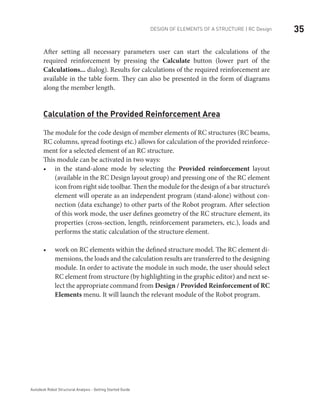
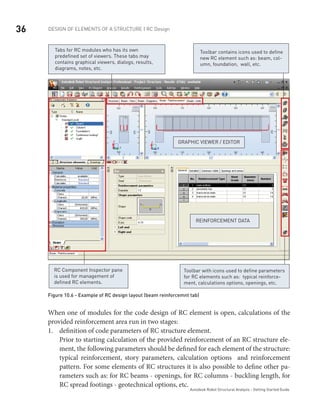
GRAPHIC VIEWER / EDITOR
Tabs for RC modules who has its own
predefined set of viewers. These tabs may
contains graphical viewers, dialogs, results,
diagrams, notes, etc.
Reinforcement data
Toolbar contains icons used to define
new RC element such as: beam, col-
umn, foundation, wall, etc.
RC Component Inspector pane
is used for management of
defined RC elements.
Toolbar with icons used to define parameters
for RC elements such as: typical reinforce-
ment, calculations options, openings, etc.
Figure 10.6 - Example of RC design layout (beam reinforcemnt tab)
When one of modules for the code design of RC element is open, calculations of the
provided reinforcement area run in two stages:
definition of code parameters of RC structure element.1.	
Prior to starting calculation of the provided reinforcement of an RC structure ele-
ment, the following parameters should be defined for each element of the structure:
typical reinforcement, story parameters, calculation options and reinforcement
pattern. For some elements of RC structures it is also possible to define other pa-
rameters such as: for RC beams - openings, for RC columns - buckling length, for
RC spread footings - geotechnical options, etc.
37REPORTS AND PRINTOUT COMPOSITION
Autodesk Robot Structural Analysis - Getting Started Guide
calculation of the provided reinforcement area.2.	
Once the parameters are defined for an RC structure element, calculations of the
provided reinforcement area may start by selecting the icon. Press Calculate
button in the Calculation dialog to start generation of the reinforcement distribu-
tion in a selected element of an RC structure.
When calculations of the provided reinforcement are complete, the calculation results
are presented in the graphical and tabular form.
Reports and printout composition
	 Robot has a built in “report generator” which permits the user to create a user
defined printout for a Project.
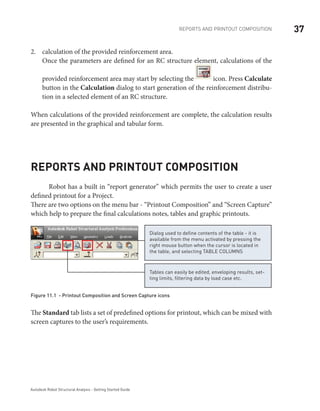
There are two options on the menu bar - “Printout Composition” and “Screen Capture”
which help to prepare the final calculations notes, tables and graphic printouts.
Tables can easily be edited, enveloping results, set-
ting limits, filtering data by load case etc.
Dialog used to define contents of the table - it is
available from the menu activated by pressing the
right mouse button when the cursor is located in
the table, and selecting TABLE COLUMNS
Figure 11.1 - Printout Composition and Screen Capture icons
The Standard tab lists a set of predefined options for printout, which can be mixed with
screen captures to the user’s requirements.
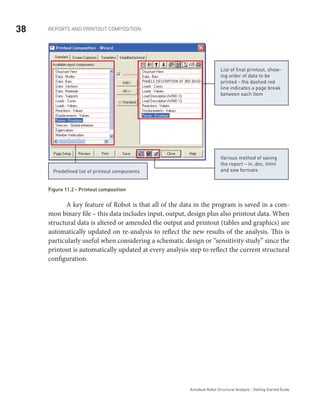
38 REPORTS AND PRINTOUT COMPOSITION
Autodesk Robot Structural Analysis - Getting Started Guide
List of final printout, show-
ing order of data to be
printed - the dashed red
line indicates a page break
between each item
Predefined list of printout components
Various method of saving
the report – in .doc, html
and sxw formats
Figure 11.2 - Printout composition
	 A key feature of Robot is that all of the data in the program is saved in a com-
mon binary file – this data includes input, output, design plus also printout data. When
structural data is altered or amended the output and printout (tables and graphics) are
automatically updated on re-analysis to reflect the new results of the analysis. This is
particularly useful when considering a schematic design or “sensitivity study” since the
printout is automatically updated at every analysis step to reflect the current structural
configuration.
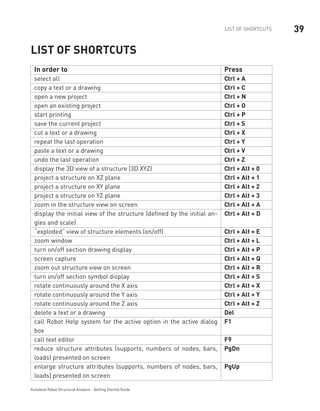
39LIST OF SHORTCUTS
Autodesk Robot Structural Analysis - Getting Started Guide
List of shortcuts
In order to	 Press
select all Ctrl + A
copy a text or a drawing Ctrl + C
open a new project Ctrl + N
open an existing project Ctrl + O
start printing Ctrl + P
save the current project Ctrl + S
cut a text or a drawing Ctrl + X
repeat the last operation Ctrl + Y
paste a text or a drawing Ctrl + V
undo the last operation Ctrl + Z
display the 3D view of a structure (3D XYZ) Ctrl + Alt + 0
project a structure on XZ plane Ctrl + Alt + 1
project a structure on XY plane Ctrl + Alt + 2
project a structure on YZ plane Ctrl + Alt + 3
zoom in the structure view on screen Ctrl + Alt + A
display the initial view of the structure (defined by the initial an-
gles and scale)
Ctrl + Alt + D
“exploded” view of structure elements (on/off) Ctrl + Alt + E
zoom window Ctrl + Alt + L
turn on/off section drawing display Ctrl + Alt + P
screen capture Ctrl + Alt + Q
zoom out structure view on screen Ctrl + Alt + R
turn on/off section symbol display Ctrl + Alt + S
rotate continuously around the X axis Ctrl + Alt + X
rotate continuously around the Y axis Ctrl + Alt + Y
rotate continuously around the Z axis Ctrl + Alt + Z
delete a text or a drawing Del
call Robot Help system for the active option in the active dialog
box
F1
call text editor F9
reduce structure attributes (supports, numbers of nodes, bars,
loads) presented on screen
PgDn
enlarge structure attributes (supports, numbers of nodes, bars,
loads) presented on screen
PgUp
3D FRAME STRUCTURE
Synopsis:
The purpose of this example is to show the ease of definition, analysis and report
generation for a simple steel 3D frame in Robot.
For this example, it is assumed that Autodesk Robot Structural Analysis 2011 is
installed on the PC.
43CONFIGURATION OF THE PROGRAM
Autodesk Robot Structural Analysis - Getting Started Guide
Configuration of the program
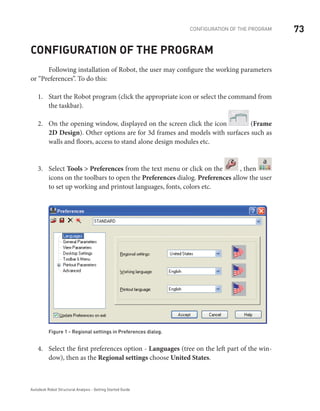
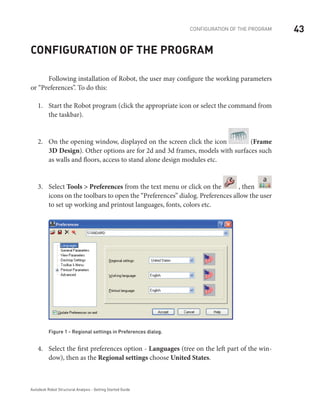
	 Following installation of Robot, the user may configure the working parameters
or “Preferences”. To do this:
Start the Robot program (click the appropriate icon or select the command from1.	
the taskbar).
On the opening window, displayed on the screen click the icon2.	 (Frame
3D Design). Other options are for 2d and 3d frames, models with surfaces such
as walls and floors, access to stand alone design modules etc.
Select3.	 Tools > Preferences from the text menu or click on the , then
a
icons on the toolbars to open the “Preferences” dialog. Preferences allow the user
to set up working and printout languages, fonts, colors etc.
Figure 1 - Regional settings in Preferences dialog.
Select the first preferences option -4.	 Languages (tree on the left part of the win-
dow), then as the Regional settings choose United States.
44 MODEL DEFINITION | Bars definition
Autodesk Robot Structural Analysis - Getting Started Guide
Regional settings set the default databases (profiles, materials), units and codes to the stan-
dards of a country. In the example above, we have chosen American section database (AISC)
and metric data units: [m],[cm], [kN].
NOTE:
Click5.	 Accept to close the window.
You can check active units in right, bottom corner of the screen. In this example should be
the display: [m] [kN] [Deg].
NOTE:
Model Definition
Bars definition (frame 2D)
In this step, you create frame members consisting of 2 columns and a beam.
Click1.	 icon (right side of the screen) to open the Bars dialog.
Set2.	 Bar type: as Column – whatever is selected is not important for analysis, but
affects the design parameters for subsequent member design, such a buckling
length, position of restraint etc.
Define3.	 Section: as W14x211.
45MODEL DEFINITION | Supports definition
Autodesk Robot Structural Analysis - Getting Started Guide
If the W14x211 section is not available on the list, you should click the (…) button located
beside the Section field and add this section from the database. In opened New section
dialog, in Section selection field for Database: AISC – choose Family: W then Section:
W14x211. Click Add and Close the dialog.
NOTE:
There are many extra options that may be entered for fabricated mem-
bers, tapering sections and also for beams that the user wants to define
as able to exhibit plasticity.
INFO
Enter the following points in the4.	 Beginning and End field:
to define first column of frame: (0;0;0) and (0;0;3)-- Add
to define second column: (7;0;0) and (7;0;3)-- Add
Set5.	 Bar type: as Beam.
Define6.	 Section: as W14x211.
To define a beam in the structure, enter the following points in the7.	 Beginning
and End field: (0;0;3) and (7;0;3) Add.
Close8.	 the Section window.
Supports definition
In this step, you create supports for the frame structure.
Click1.	 icon (right side of the screen) to open the Supports dialog.
To choose structure nodes, the user can either select a support type from the list2.	
and then select a node or nodes by click or window, or the user can directly input
46
Autodesk Robot Structural Analysis - Getting Started Guide
MODEL DEFINITION | 2-bay frame definition
the node number and apply. To make a window selection, press the right hand
mouse key and then the Select menu option and window around the nodes to be
supported and click inside the selection box.
From the3.	 Supports dialog select the Fixed support icon.
Click4.	 Apply.
2-bay frame definition
In this step, we create a 2 bay frame by mirroring the existing frame.
Select all bars (by window or1.	 CTRL+A) and mirror them Edit > Edit > Vertical
Mirror by vertical axis of the right column (just click on this axis).
There are many editing possibilities: copy, move, divide, intersect,
rotation etc. to make modeling of structure easier and more effective.
INFO
Click2.	 icon (top of the screen) to show the whole structure.
To display bars and nodes numbers click3.	 icon (bottom left corner of the
screen) then in the Display dialog tick on Favorites > Node numbers and Favor-
ites > Bar description > Bar numbers.
Click4.	 Apply and OK.
Click5.	 , icon at the bottom of the screen to display supports symbol and
sections shape.
47Model definition | Load case definition
Autodesk Robot Structural Analysis - Getting Started Guide
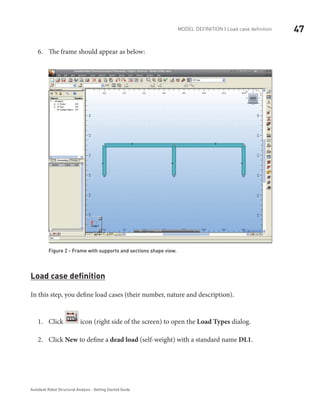
The frame should appear as below:6.	
Figure 2 - Frame with supports and sections shape view.
Load case definition
In this step, you define load cases (their number, nature and description).
Click1.	 icon (right side of the screen) to open the Load Types dialog.
Click2.	 New to define a dead load (self-weight) with a standard name DL1.
48 Model definition | Loads definition for particular load cases
Autodesk Robot Structural Analysis - Getting Started Guide
The self-weight load is automatically applied in the first row to all structure bars (in the “Z”
direction).
NOTE:
Choose in the3.	 Nature field live, then New to define a live load with a standard
name LL1. We have now defined 2 load cases.
Choose in the4.	 Nature field wind, then New to define a wind load with a stan-
dard name WIND1 (in the same way define WIND2). We have now defined
4 load cases.
Close5.	 the dialog.
Loads definition for particular load cases
In this step, you define loads for each created load case.
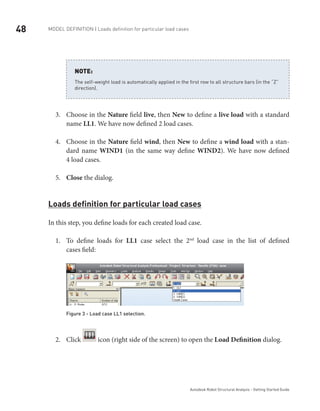
To define loads for1.	 LL1 case select the 2nd
load case in the list of defined
cases field:
Figure 3 - Load case LL1 selection.
Click2.	 icon (right side of the screen) to open the Load Definition dialog.
49Model definition | Loads definition for particular load cases
Autodesk Robot Structural Analysis - Getting Started Guide
On the3.	 Bar tab click icon to open the Uniform load dialog, then type value
of load -45.0 in the pZ field, click Add (Uniform load dialog is automatically
closed).
Select beam span (no.3) – indicate them or just type4.	 3 in field Apply to.
Click5.	 Apply.
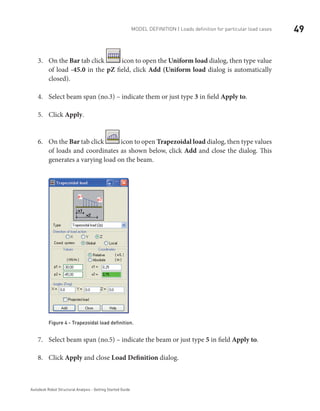
On the6.	 Bar tab click icon to open Trapezoidal load dialog, then type values
of loads and coordinates as shown below, click Add and close the dialog. This
generates a varying load on the beam.
Figure 4 - Trapezoidal load definition.
Select beam span (no.5) – indicate the beam or just type7.	 5 in field Apply to.
Click8.	 Apply and close Load Definition dialog.
50 Model definition | Loads definition for particular load cases
Autodesk Robot Structural Analysis - Getting Started Guide
To define loads for9.	 WIND1 case select the 3rd
load case in the list of defined cases field.
On the10.	 Node tab in Load Definition dialog click icon to open Nodal Force
dialog, then type value of load 9.0 in the FX field, click Add and close the dia-
log.
Select the upper node of the left column (no.2) – graphically or by cross-window11.	
or just type 2 in field Apply to.
Click12.	 Apply and close Load Definition dialog.
To define loads for13.	 WIND2 case select the 4th
load case in the list of defined cases field.
On the14.	 Bar tab in Load Definition dialog click icon to open Uniform load
dialog, then type value of load -20.0 in the pX field (pY=0; pZ=0), click Add and
close the dialog.
Select the right column (no.4) – indicate it or just type15.	 4 in field Apply to.
Click16.	 Apply and close Load Definition dialog.
Close the17.	 Load Types dialog.
Click18.	 , icons at the bottom of the screen to turn displaying loads sym-
bols and loads values description on.
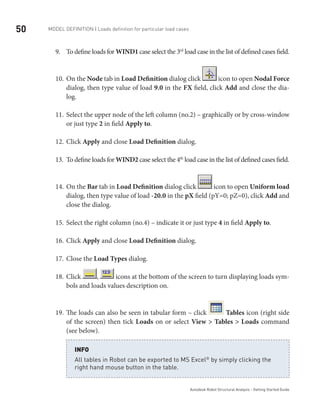
The loads can also be seen in tabular form – click19.	 Tables icon (right side
of the screen) then tick Loads on or select View > Tables > Loads command
(see below).
All tables in Robot can be exported to MS Excel®
by simply clicking the
right hand mouse button in the table.
INFO
51Model definition | Loads definition for particular load cases
Autodesk Robot Structural Analysis - Getting Started Guide
	
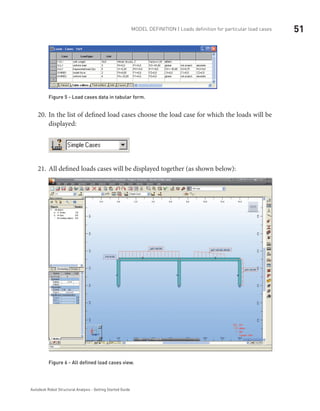
Figure 5 - Load cases data in tabular form.
In the list of defined load cases choose the load case for which the loads will be20.	
displayed:
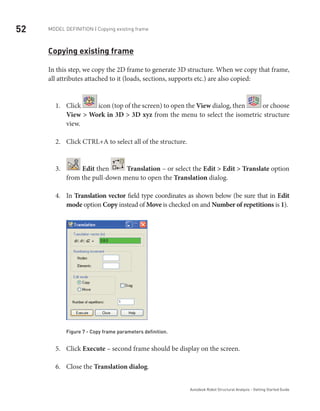
All defined loads cases will be displayed together (as shown below):21.	
Figure 6 - All defined load cases view.
52 Model definition | Copying existing frame
Autodesk Robot Structural Analysis - Getting Started Guide
Copying existing frame
In this step, we copy the 2D frame to generate 3D structure. When we copy that frame,
all attributes attached to it (loads, sections, supports etc.) are also copied:
Click1.	 icon (top of the screen) to open the View dialog, then or choose
View > Work in 3D > 3D xyz from the menu to select the isometric structure
view.
Click CTRL+A to select all of the structure.2.	
3.	 Edit then Translation – or select the Edit > Edit > Translate option
from the pull-down menu to open the Translation dialog.
In4.	 Translation vector field type coordinates as shown below (be sure that in Edit
mode option Copy instead of Move is checked on and Number of repetitions is 1).
Figure 7 - Copy frame parameters definition.
Click5.	 Execute – second frame should be display on the screen.
Close the6.	 Translation dialog.
53Model definition | Definition of lateral beam
Autodesk Robot Structural Analysis - Getting Started Guide
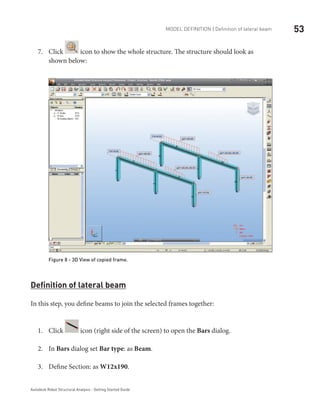
Click7.	 icon to show the whole structure. The structure should look as
shown below:
Figure 8 - 3D View of copied frame.
Definition of lateral beam
In this step, you define beams to join the selected frames together:
Click1.	 icon (right side of the screen) to open the Bars dialog.
In2.	 Bars dialog set Bar type: as Beam.
Define Section: as3.	 W12x190.
54 Model definition | Definition of cross bracings
Autodesk Robot Structural Analysis - Getting Started Guide
If the W12x190 section is not available on the list, one should click the (…) button located be-
side the Section field and add this section to the active section list in the New section dialog.
NOTE:
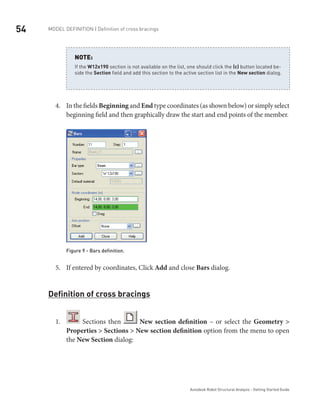
In the fields4.	 Beginning and End type coordinates (as shown below) or simply select
beginning field and then graphically draw the start and end points of the member.
Figure 9 - Bars definition.
If entered by coordinates, Click5.	 Add and close Bars dialog.
Definition of cross bracings
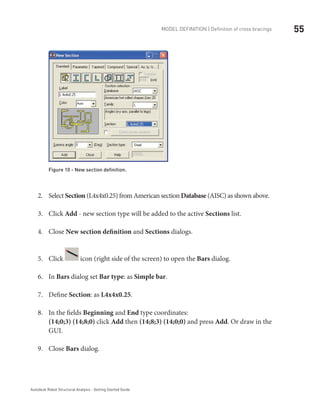
1.	 Sections then New section definition – or select the Geometry >
Properties > Sections > New section definition option from the menu to open
the New Section dialog:
55Model definition | Definition of cross bracings
Autodesk Robot Structural Analysis - Getting Started Guide
Figure 10 - New section definition.
Select2.	 Section (L4x4x0.25) from American section Database (AISC) as shown above.
Click3.	 Add - new section type will be added to the active Sections list.
Close4.	 New section definition and Sections dialogs.
Click5.	 icon (right side of the screen) to open the Bars dialog.
In6.	 Bars dialog set Bar type: as Simple bar.
Define7.	 Section: as L4x4x0.25.
In the fields8.	 Beginning and End type coordinates:
(14;0;3) (14;8;0) click Add then (14;8;3) (14;0;0) and press Add. Or draw in the
GUI.
Close9.	 Bars dialog.
56 Model definition | Copying defined bars
Autodesk Robot Structural Analysis - Getting Started Guide
Copying defined bars (lateral beam and bracings)
In this step, you copy the recently defined bars to finish the definition of the frame:
Select the three recently defined bars – just indicate them (bars no.11,12,13) -1.	
multiple selections can be made by holding down CTRL key.
2.	 Edit then Translation – or select the Edit > Edit > Translate option
from the menu to open the Translation dialog.
In3.	 Translation vector field type coordinates: (-7;0;0) or select 2 points on the
screen that represent the translation vector such as the bottom of 2 columns (be
sure that in Edit mode option Copy is checked on) and in Number of repeti-
tions type 2.
If entered by coordinate, click4.	 Execute button then close Translation and Edit
dialogs.
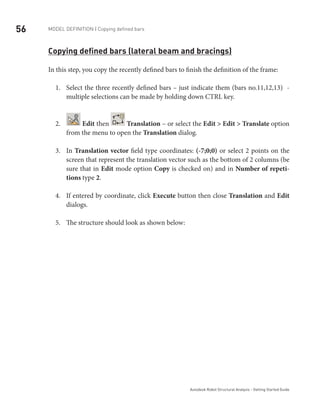
The structure should look as shown below:5.
57Structure Analysis
Autodesk Robot Structural Analysis - Getting Started Guide
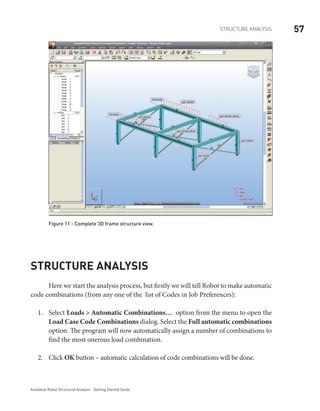
Figure 11 - Complete 3D frame structure view.
Structure Analysis
Here we start the analysis process, but firstly we will tell Robot to make automatic
code combinations (from any one of the list of Codes in Job Preferences):
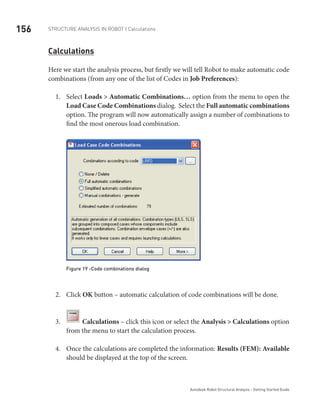
Select1.	 Loads > Automatic Combinations… option from the menu to open the
Load Case Code Combinations dialog. Select the Full automatic combinations
option. The program will now automatically assign a number of combinations to
find the most onerous load combination.
Click2.	 OK button – automatic calculation of code combinations will be done.
58
Autodesk Robot Structural Analysis - Getting Started Guide
Results Preview | Displaying beam results graphically
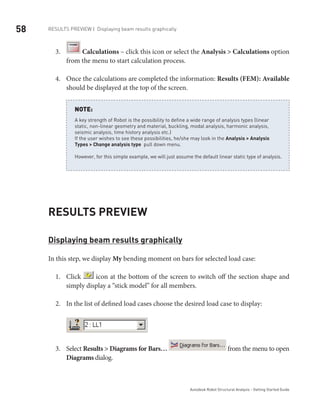
3.	 Calculations – click this icon or select the Analysis > Calculations option
from the menu to start calculation process.
Once the calculations are completed the information:4.	 Results (FEM): Available
should be displayed at the top of the screen.
A key strength of Robot is the possibility to define a wide range of analysis types (linear
static, non-linear geometry and material, buckling, modal analysis, harmonic analysis,
seismic analysis, time history analysis etc.)
If the user wishes to see these possibilities, he/she may look in the Analysis > Analysis
Types > Change analysis type pull down menu.
However, for this simple example, we will just assume the default linear static type of analysis.
NOTE:
Results Preview
Displaying beam results graphically
In this step, we display My bending moment on bars for selected load case:
Click1.	 icon at the bottom of the screen to switch off the section shape and
simply display a “stick model” for all members.
In the list of defined load cases choose the desired load case to display:2.	
Select3.	 Results > Diagrams for Bars… from the menu to open
Diagrams dialog.
59Results Preview | Displaying beam results graphically
Autodesk Robot Structural Analysis - Getting Started Guide
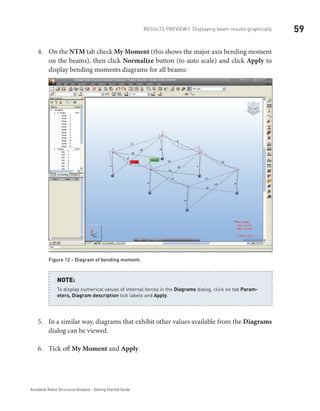
On the4.	 NTM tab check My Moment (this shows the major axis bending moment
on the beams), then click Normalize button (to auto scale) and click Apply to
display bending moments diagrams for all beams:
Figure 12 - Diagram of bending moment.
To display numerical values of internal forces in the Diagrams dialog, click on tab Param-
eters, Diagram description tick labels and Apply.
NOTE:
In a similar way, diagrams that exhibit other values available from the5.	 Diagrams
dialog can be viewed.
Tick off6.	 My Moment and Apply.
60
Autodesk Robot Structural Analysis - Getting Started Guide
Results Preview | Displaying results on bars in tabular form
Displaying results on bars in tabular form
In this step, you display internal forces for bars for particular load cases and combinations:
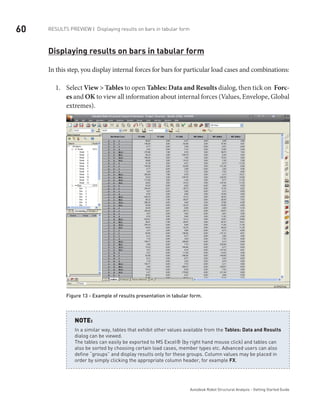
Select1.	 View > Tables to open Tables: Data and Results dialog, then tick on Forc-
es and OK to view all information about internal forces (Values, Envelope, Global
extremes).
Figure 13 - Example of results presentation in tabular form.
In a similar way, tables that exhibit other values available from the Tables: Data and Results
dialog can be viewed.
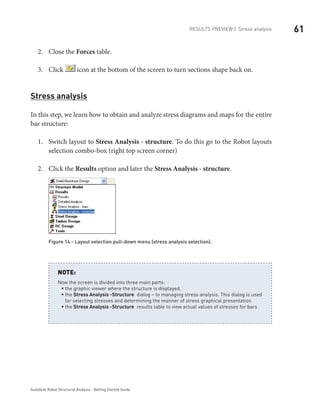
The tables can easily be exported to MS Excel® (by right hand mouse click) and tables can
also be sorted by choosing certain load cases, member types etc. Advanced users can also
define “groups” and display results only for these groups. Column values may be placed in
order by simply clicking the appropriate column header, for example FX.
NOTE:
61Results Preview | Stress analysis
Autodesk Robot Structural Analysis - Getting Started Guide
Close the2.	 Forces table.
Click3.	 icon at the bottom of the screen to turn sections shape back on.
Stress analysis
In this step, we learn how to obtain and analyze stress diagrams and maps for the entire
bar structure:
Switch layout to1.	 Stress Analysis - structure. To do this go to the Robot layouts
selection combo-box (right top screen corner)
Click the2.	 Results option and later the Stress Analysis - structure.
Figure 14 - Layout selection pull-down menu (stress analysis selection).
Now the screen is divided into three main parts:
the graphic viewer where the structure is displayed,ƒƒ
theƒƒ Stress Analysis -Structure dialog – to managing stress analysis. This dialog is used
for selecting stresses and determining the manner of stress graphical presentation
theƒƒ Stress Analysis -Structure results table to view actual values of stresses for bars
NOTE:
62
Autodesk Robot Structural Analysis - Getting Started Guide
Results Preview | Stress analysis
In the list of defined load cases choose the load case for which the results will be3.	
displayed:
On the4.	 Diagrams tab located in the Stress Analysis - Structure dialog select the Max
option from the Mises field, then Apply (the result should look as shown below):
Figure 15 - Stress analysis in diagram form.
This dialog allows selecting a user-defined stress and a set of basic stress types: normal,
tangent, Mises and Tresca.
NOTE:
63Results Preview | Stress analysis
Autodesk Robot Structural Analysis - Getting Started Guide
On the5.	 Stress Analysis - Structure dialog tick off the Max option from the Mises
field, then Apply.
On the6.	 Maps - Deformation tab located in the Stress Analysis - Structure dialog
tick the Deformation option on, then Apply.
7.	 Stress Analysis for structure - maps - click this icon or select the Results
> Stress Analysis > Stress Maps option from the menu to view the structure
together with section shapes and accurate detailed stress maps on these sections
(as shown in the figure below).
Figure 16 - Stress analysis in maps form.
The size of member sections in stress maps is by default greater than the real size of
member sections so that the stress maps presented for these sections are more readable.
Real proportions between the member length and dimensions of the member cross section
can be obtained after pressing the Home key on the keyboard. These proportions can be
modified using the following keys on the keyboard: PgUp and PgDn.
NOTE:
Close the8.	 Stress Analysis – structure (3D View) window.
64
Autodesk Robot Structural Analysis - Getting Started Guide
Preparation of printouts | “Capturing” views and data
Preparation of printouts
Robot has a powerful built in report generator that allows the user to compile and
manipulate standard data, plus screen captures of graphical and tabular data.
“Capturing” views and data for the calculation note
In layouts selection combo-box (right top screen corner) switch to1.	 Start layout.
The picture of the model is shown on the screen with no other windows. Let’s as-
sume we want to print this image.
Click2.	 icon (top of the screen on the standard toolbar) to open the Screen
Capture dialog.
Figure 17 - Screen capture parameters definition.
In the above dialog change3.	 Screen capture orientation to Horizontal and type
name of the picture as a Structure View.
65Preparation of printouts | Preparing printout composition
Autodesk Robot Structural Analysis - Getting Started Guide
The Screen capture update enables the user to choose automatic update of screenshots
– this means that the images and data are automatically updated should the structure be
changed. Alternatively, they can be saved in JPG format.
NOTE:
Click4.	 OK to close the dialog.
In the list of defined load cases choose the5.	 2:LL1 load case.
Click6.	 icon (top of the screen on the standard toolbar) to open the Screen
Capture dialog.
In this dialog change7.	 Screen capture orientation to Horizontal and leave name
of the picture as a Structure – Cases 2: (LL1).
Click8.	 OK to close the dialog.
In the same way prepare pictures:9.	 Structure – Cases 3: (WIND1) and Structure
– Cases 4: (WIND2)
Preparing printout composition
Here we prepare the layout of the report:
Click1.	 icon (top of the screen on the standard toolbar) to open the Printout
Composition - Wizard dialog.
On the2.	 Standard tab, select report components (click them while pressing CTRL
key) as shown below:
66
Autodesk Robot Structural Analysis - Getting Started Guide
Preparation of printouts | Preparing printout composition
Figure 18 - Report components selection.
Click3.	 Add to transfer the marked components to the right panel which shows the
actual layout of the printout.
On the4.	 Screen Captures tab select all screenshots.
Click5.	 Add to transfer marked components to the right panel.
Using icons6.	 move particular components to the order shown below:
67Preparation of printouts | Printing and exporting the calculation report
Autodesk Robot Structural Analysis - Getting Started Guide
Figure 19 - Screen captures selection.
Printing and exporting the calculation report
In this step, we learn how to print and save the calculation note:
Click1.	 Preview to display the report:
68
Autodesk Robot Structural Analysis - Getting Started Guide
Preparation of printouts | Printing and exporting the calculation report
Figure 20 - Report preview.
Before printing of the report, save your project. In this case we save it as “Frame 3D”.
Thanks to this operation actual information about project will be used to generate the docu-
mentation (i.e. project name on the title page – as shown above). To change this information
(and many more) later we can use File > Project properties option from the top menu.
NOTE:
Using buttons2.	 browse each page of the Report.
If you need to make some corrections to the layout or tabular content you can edit them
directly in this preview window. To do this, you should press icon (top bar) and double
click on the appropriate item to be edited. The general Robot window will be open, which al-
lows the user to make changes or corrections. After that press button Return to Preview to
continue the preview of the calculation report.
NOTE:
69Preparation of printouts | Printing and exporting the calculation report
Autodesk Robot Structural Analysis - Getting Started Guide
Click3.	 Page setup. The Page and Margins tab allows the user to set various pa-
rameters.
Click4.	 Header/footer tab. In this tab you can define the look of the title page,
header and footer.
Figure 21 - Page setup settings.
Click5.	 OK to close the dialog.
Close the preview of report printout window.6.	
If desired, In7.	 Printout Composition – Wizard dialog click on Print button to
print all reports.
To save the calculation note, click on icon8.	 to export the report to .html
format, to export to .rtf (MS Word®) format or to save in .sxw (Open
Office) format.
RC AND STEEL MIXED STRUCTURE
Synopsis:
The purpose of this example is to show the ease of definition, analysis and
presentation of results for a 3D frame and shell structure (mixed RC and steel) in
Robot.
For this example, it is assumed that Autodesk Robot Structural Analysis 2011 is installed
on the PC.
73CONFIGURATION OF THE PROGRAM
Autodesk Robot Structural Analysis - Getting Started Guide
Configuration of the program
	 Following installation of Robot, the user may configure the working parameters
or “Preferences”. To do this:
Start the Robot program (click the appropriate icon or select the command from1.	
the taskbar).
On the opening window, displayed on the screen click the icon2.	 (Frame
2D Design). Other options are for 3d frames and models with surfaces such as
walls and floors, access to stand alone design modules etc.
Select3.	 Tools > Preferences from the text menu or click on the , then
a
icons on the toolbars to open the Preferences dialog. Preferences allow the user
to set up working and printout languages, fonts, colors etc.
Figure 1 - Regional settings in Preferences dialog.
Select the first preferences option -4.	 Languages (tree on the left part of the win-
dow), then as the Regional settings choose United States.
74 Model definition | Definition of structural axes
Autodesk Robot Structural Analysis - Getting Started Guide
Regional settings set the default databases (profiles, materials), units and codes to the stan-
dards of a country. In the example above, we have chosen American section database (AISC)
and metric data units: [m],[cm], [kN].
NOTE:
Click5.	 Accept to close the window
You can check active units in right, bottom corner of the screen. In this example should be
the display: [m] [kN] [Deg].
NOTE:
Model definition
Definition of structural axes
In this step, we define a rectangular axis grid in the Cartesian coordinate system.
The axes of the structure create an additional grid which can be used to
define different elements of the structure and select structure compo-
nents.
The grid intersections form points that facilitate the users work by guiding
cursor movements during graphical structure definition.
INFO
Press1.	 icon (right side of the Robot screen) or select Geometry > Axis Defi-
nition… from the menu to open the Structural Axis dialog.
75Model definition | Definition of structural axes
Autodesk Robot Structural Analysis - Getting Started Guide
On the2.	 X tab in the Position field type -1 and press Insert button, in the same
way enter following axis coordinates as shown below (Figure 2):
Set3.	 Numbering as A B C…
On the4.	 Z tab in the Position field type 0 and press Insert button, in the same way
enter following axis coordinates as shown below (Figure 3):
Set5.	 Numbering as 1 2 3…
	
Figure 2 - Definition of structural axis in X direction.
76 Model definition | Definition of structural axes
Autodesk Robot Structural Analysis - Getting Started Guide
Figure 3 - Definition of structural axis in Z direction.
Apply6.	 and Close the Structural Axis dialog.
Defined axes should appear as shown below:7.
77Model definition | Section definition
Autodesk Robot Structural Analysis - Getting Started Guide
Figure 4 - View of defined structural axis.
Section definition
In this step, we learn how to add new sections to the list of available sections.
Press1.	 icon (right side of the screen) or select Geometry > Properties > Sec-
tions from the menu to open the Sections dialog.
Check presence of the following sections:2.	
CR30x30, BR30x60, W8x28, W10x45.
If the above sections are not present in the list of available sections press the3.	 New
section definition icon to open New Section dialog.
78 Model definition | Section definition
Autodesk Robot Structural Analysis - Getting Started Guide
In the4.	 Section type pull-down menu choose RC Column.
Figure 5 - New RC column definition.
Set5.	 30 in the b and h field, in the Label field column name: CR30x30 will be au-
tomatically created and click Add (see above).
In the6.	 Section type pull-down menu choose RC Beam.
Set7.	 30 in the b and 60 in the h field, in the Label field column name: BR30x60
will be automatically created, then press Add.
In the8.	 Section type field select Steel.
Set9.	 AISC in the Database field, W in the Family field and W 8X28 in the
Section field.
79Model definition | Bars definition
Autodesk Robot Structural Analysis - Getting Started Guide
Figure 6 - New steel section definition.
Press10.	 Add to add defined section to the list of the active sections.
As before, set11.	 AISC in the Database field, W in the Family field and W 10x45 in
the Section field.
Press12.	 Add, close New Section and Sections dialogs.
80 Model definition | Bars definition
Autodesk Robot Structural Analysis - Getting Started Guide
Bars definition
In this step, we define a 2D frame using the previously defined sections.
Go to the Robot layouts selection box (right top corner of screen) and switch1.	
layout to the Bars:
Figure 7 - Bars layout selection.
Go to the2.	 Bars dialog and set: RC Column (Bar Type field), CR30x30 (Section
field).
Place the cursor in the3.	 Node Coordinates > Beginning field, switch to the graph-
ic viewer and select graphically the beginning and end of the columns by means
of the coordinates of the intersection point of the defined axes: B1-B2, C1-C2,
D1-D2 (see below):
81Model definition | Bars definition
Autodesk Robot Structural Analysis - Getting Started Guide
Figure 8 - View of defined columns.
Set the following options:4.	 RC Beam (Bar Type field), BR30x60 (Section field).
Go to the5.	 Node Coordinates > Beginning and, as before, indicate the beginning
and end of the beams: A2-B2, B2-C2, C2-D2, D2-E2 (see below):
82 Model definition | Bars definition
Autodesk Robot Structural Analysis - Getting Started Guide
Figure 9 - View of added beams.
Set the following options:6.	 Column (Bar Type field), W8x28 (Section field).
Go to the7.	 Node Coordinates > Beginning and, as before, indicate the beginning
and end of the columns: A2-A3, C2-C5, E2-E3 (see below):
83Model definition | Bars definition
Autodesk Robot Structural Analysis - Getting Started Guide
Figure 10 - View of added columns on the 2nd­
storey­
.
Set the following options:8.	 Beam (Bar Type field), W10x45 (Section field).
Go to the9.	 Node Coordinates > Beginning and, as before, indicate the beginning
and end of the beams: A3-C5, E3-C4 (see below):
84 Model definition | Bars definition
Autodesk Robot Structural Analysis - Getting Started Guide
Figure 11 - Finished 2D frame view­
.
Press10.	 , icons at the bottom of the screen to display supports symbols and
sections shapes.
Press11.	 icon at the bottom of the screen to open the Display dialog.
Select the12.	 Bars option (left panel) and tick Symbols off (right panel) to turn off
display of cross sections.
85Model definition | Bars definition
Autodesk Robot Structural Analysis - Getting Started Guide
Figure 12 - Switch off bars symbols displaying­
.
Click13.	 Apply and OK to close the dialog. Frame 2D should look as shown below:
	
		
Figure 13 - 2D frame view with additional attributes - section shapes­
.
86 Model definition | Supports definition
Autodesk Robot Structural Analysis - Getting Started Guide
Supports definition
In this step, we create supports for the frame structure.
Go to the Robot layouts selection box (right top screen corner) and switch layout1.	
to Supports.
Go to the2.	 Supports dialog and select Fixed in the list of supports.
Move the cursor to the graphical view. Note that a support symbol is shown that3.	
will allow the user to add supports to discrete nodes. To add to all nodes, press
right mouse button and “select” and drag window round the nodes that have
supports.
Click inside “current selection” box and apply.4.	
Notice that the supports are also now shown in the tab.
Figure 14 - Nodes selection to supports definition­
.
87Model definition | Load cases definition
Autodesk Robot Structural Analysis - Getting Started Guide
You may also type the relevant supports numbers (1 3 5) into the Current Selection field and
apply.
NOTE:
Defined frame with supports should look as shown below:5.	
Figure 15 - Frame with defined supports view.
Load cases definition
In this step, we define names and natures of all load cases.
Go to the Robot layouts selection box (right top screen corner) and switch layout1.	
to the Loads.
88 Model definition | Load cases definition
Autodesk Robot Structural Analysis - Getting Started Guide
Figure 16 - Loads layout.
In the2.	 Load Types dialog click New to define a dead load (self-weight) with a
standard name DL1.
The self-weight load is automatically applied – see the table (in the “Z” direction).
NOTE:
Click3.	 New once again to define a dead load with a standard name DL2.
Choose in the4.	 Nature field live, then New to define a live load with a standard
name LL1.
89Model definition | Load cases definition
Autodesk Robot Structural Analysis - Getting Started Guide
Click5.	 New once again to define a live load with a standard name LL2.
Choose in the6.	 Nature field wind, then New to define a wind load with a standard
name WIND1.
Choose in the7.	 Nature field snow, then New to define a snow load with a standard
name SN1:
Figure 17 - Load types definition.
Definition of loads for predefined load cases
In this step, we define types and values of loads for particular load cases. Each load case
can have several loads applied within it.
To define loads for1.	 DL2 case select the 2nd
load case in the list of defined load
cases field (see below):
90 Model definition | Definition of loads for predefined load cases
Autodesk Robot Structural Analysis - Getting Started Guide
Figure 18 - DL2 load type selection.
Press2.	 icon (right side of the screen) to open the Load Definition dialog.
On the3.	 Bar tab press icon to open Uniform load dialog, then type value of
load –10 [kN/m] in the pZ field, click Add and close the dialog:
Figure 19 - Uniform load definition for DL2 case.
Select beams4.	 (no. 4 5 6 7) – indicate them or just type 4to7 in field Apply to and
click Apply (as before its possible to window them too).
91Model definition | Definition of loads for predefined load cases
Autodesk Robot Structural Analysis - Getting Started Guide
Press5.	 icon at the bottom of the screen to turn display Load value
descriptions on.
Figure 20 - DL2 load case view.
To define loads for6.	 LL1 case select the 3rd
load case in the list of defined load
cases field.
On the7.	 Bar tab press icon to open Bar Force dialog, then type value of load
–20 [kN] in the FZ field.
On the8.	 Coordinate field leave x=0,50 value (defined force will be applied halfway
along the member), click Add and Close the dialog.
92 Model definition | Definition of loads for predefined load cases
Autodesk Robot Structural Analysis - Getting Started Guide
Figure 21 - Bar force definition for LL1 case.
Select beams9.	 (no.5) – indicate them or just type 5 in field Apply to and click
Apply.
93Model definition | Definition of loads for predefined load cases
Autodesk Robot Structural Analysis - Getting Started Guide
Figure 22 - LL1 load case view.
In the same way you may define for10.	 4th
: LL2 load case bar force –30 [kN] on the
half length of the bar No.6.
94 Model definition | Definition of loads for predefined load cases
Autodesk Robot Structural Analysis - Getting Started Guide
Figure 23 - LL2 load case view.
To define loads for11.	 WIND1 case select the 5th
load case in the list of defined load
cases field.
On the12.	 Bar tab press icon to open Uniform Load dialog, then type value of
load –1,5 [kN/m] in the pZ field, tick Coord. system – Local on, then click Add
and close the dialog.
95Model definition | Definition of loads for predefined load cases
Autodesk Robot Structural Analysis - Getting Started Guide
Figure 24 - Uniform load definition for WIND1 case.
Select beam13.	 (no.1) – indicate them or just type 1 in field Apply to and click
Apply.
In the same way define uniform loads:14.	 -2,50 [kN/m] for bar no. 8 and -3 [kN/m]
for bar no. 11.
96 Model definition | Definition of loads for predefined load cases
Autodesk Robot Structural Analysis - Getting Started Guide
Figure 25 - WIND1 load case view.
To define loads for15.	 SN1 case select the 6th
load case in the list of defined load
cases field.
On the16.	 Bar tab press icon to open Uniform Load dialog, then type value
of load –2,50 [kN/m] in the pZ field, tick Projected load on, then click Add and
close the dialog.
97Model definition | Definition of loads for predefined load cases
Autodesk Robot Structural Analysis - Getting Started Guide
Figure 26 - Uniform load definition for SN1 case.
Select beams17.	 (no.11 and 12) – indicate them or just type 11 12 in field Apply to
and click Apply.
98 Model definition | Definition of loads for predefined load cases
Autodesk Robot Structural Analysis - Getting Started Guide
Figure 27 - SN1 load case view.
Close the18.	 Load Definition dialog.
Go to the Robot layouts selection box (right top screen corner) and switch layout19.	
to Start.
Now, using the existing 2D frame, we define a 3D frame structure with slabs and walls.
99Model definition | Definition of loads for predefined load cases
Autodesk Robot Structural Analysis - Getting Started Guide
Changing the structure type
So far we have worked in 2D. In this step, we open new module Shell Design to enable
wall and slab definition and work in 3D.
Select1.	 Geometry > Structure Type from the menu, which opens the window
presented below:
Figure 28 - Structure type selection window.
Select2.	 Shell Design icon (the third one from the left in the second row) to change
structure type from 2D frame to shell. The program prompts you to save your
work so far.
Definition of additional structural axis
In this step, w define additional structural axes on in the third axis - the Y direction.
Press1.	 icon (right side of the Robot screen) or select Geometry > Axis Defi-
nition… from the menu to open the Structural Axis dialog.
Set2.	 Numbering as Define and type in the next field (on the right side) L1.
100 Model definition | Definition of additional structural axis
Autodesk Robot Structural Analysis - Getting Started Guide
On the3.	 Y tab in the Position field type 0 and press Insert button, in the same way
enter following axis coordinates as shown below:
Figure 29 - Definition of structural axis in Y direction.
Press4.	 Apply and close the Structural Axis dialog.
101Model definition | Copying existing frame
Autodesk Robot Structural Analysis - Getting Started Guide
Copying existing frame
In this step, we copy the 2D frame to generate a 3D structure. When we copy that frame,
all attributes attached to it (loads, sections, supports etc) are also copied:
Press1.	 icon (top of the Robot screen) to open the View dialog, then
or choose View > Work in 3D > 3D xyz from the menu to select the isometric
structure view (see picture below):
Figure 30 - 3D view of defined frame.
Press2.	 CTRL+A to select all of the structure.
102 Model definition | Copying existing frame
Autodesk Robot Structural Analysis - Getting Started Guide
3.	 Edit then Translation – press this icons or select the Edit/Edit/
Translate option from the menu to open the Translation dialog.
In4.	 Translation vector type the value to copy in each axis as shown below:
In5.	 Edit mode tick option Copy on and Number of repetitions set as 2 (see
below):
Figure 31 - Copy of the frame - translaction vector definition.
You may define translation vector graphically by indicating the beginning and end of the
translation vector (in isometric structure view).
NOTE:
Copied frames should look as shown below:6.
103Model definition | Definition of lateral beams
Autodesk Robot Structural Analysis - Getting Started Guide
Figure 32 - Copied frame view.
Definition of lateral beams
In this step, we define beams to join the selected frames together:
Go to the Robot layouts selection box (right top screen corner) and switch layout1.	
to the Bars.
Click2.	 , icons at the bottom of the screen to turn node and bars numbers
display off.
In3.	 Bars dialog set Bar type: as Beam.
Define4.	 Section: as W8x15.
104 Model definition | Definition of lateral beams
Autodesk Robot Structural Analysis - Getting Started Guide
If the W8x15 section is not available on the list, you should click the (…) button located beside
the Section field and add this section from the database. In opened New section dialog, in
Section selection field for Database: AISC – choose Family: W then Section: W8x15. Click Add
and close the dialog (see below)
NOTE:
Figure 33 - New steel section definition.
Press5.	 Add - new section type to be added to the active Sections list.
Close6.	 New Section dialog.
Place the cursor in the7.	 Node Coordinates > Beginning field, then switch to the
graphic viewer and select graphically the beginning and end of the bars by means
of the coordinates of the intersection point of defined axes:
(E,L1,3) and (E,L2,3)--
(E,L2,3) and (E,L3,3)--
(C,L1,5) and (C,L2,5)--
(C,L2,5) and (C,L3,5)--
(A,L1,3) and (A,L2,3)--
(A,L2,3) and (A,L3,3)--
105Model definition | Definition of lateral beams
Autodesk Robot Structural Analysis - Getting Started Guide
The structure with lateral tie beams should look as shown below:8.	
Figure 34 - View of structure with lateral tie beams added.
Go to the Robot layouts selection box (right top screen corner) and switch layout9.	
to the Geometry.
106 Model definition | Definition of slab
Autodesk Robot Structural Analysis - Getting Started Guide
Definition of slab
In this step, we learn how to define a slab, first we define a contour (shape) of the plate
then we assign physical properties to it. Firstly, we need to define the elevation of the
structure that we wish to work on – we do this with a “work plane”.
To set new a work plane press the icon1.	 provided in the bottom left cor-
ner of the screen which represents the active work plane – a View dialog will be
opened.
Press2.	 2D and XY buttons and select “Structure axis 2” 4,00 (m) – as shown
below. Once these options are selected the structure is set on the XY plane at the
recently defined Z coordinate (e.g. Z=12); only structure components from this
plane are displayed.
Figure 35 - New work plane definition (in axis no 2).
Close the3.	 View dialog.
Press4.	 icon (right side of the Robot screen) or select Geometry > Objects >
Polyline-contour from the menu to open the Polyline-Contour dialog.
Indicate required points of the contour in the graphic viewer by cursor as follow:5.	
(A,L1); (E,L1); (E,L3); (A,L3); (A,L1) – note, always select the start and end point
to “close”the contour.
107Model definition | Definition of slab
Autodesk Robot Structural Analysis - Getting Started Guide
Close the6.	 Polyline-Contour dialog, the defined contour should look as shown
below:
Figure 36 - Defined contour of panel view.
Press7.	 icon (right side of the Robot screen) or select Geometry > Panels
from the menu to open the Panel dialog.
A surface in Robot is called a “panel”. So if you want to create a slab or
wall, you must define an appropriate panel.
INFO
In the8.	 Panel dialog set parameters: Panel in Contour type field, Internal point
(Creation with field), none (Reinforcement field), TH12_CONCR (Thickness
field) and Shell (Model field) - see picture below:
108 Model definition | Definition of slab
Autodesk Robot Structural Analysis - Getting Started Guide
Figure 37 - Panel definition settings.
In the Reinforcement option you can define a reinforcement type. However this option is
unavailable in Robot Free, in the Slab design module, in the full commercial version of the
program, you can perform a complete design process of an RC slab (including calculation of
provided reinforcement and deflection verification with reinforcement and cracking taken into
consideration).
NOTE:
To assign the recently defined panel to the selected contour set the cursor in the9.	
Internal Point field then move it to the graphical viewer and click on a point
located within the area of the slab.
Close the10.	 Panel dialog.
To set the 3D view of the structure, click the icon11.	 (bottom left corner of
the screen), then in View dialog press 3D button and close the dialog.
109Model definition | Definition of slab
Autodesk Robot Structural Analysis - Getting Started Guide
Press12.	 , icons at the bottom of the screen to turn on appropriate display of
supports and sections shapes.
The defined structure with slabs should look as shown below:13.	
Figure 38 - Structure with slab view.
Offset definition
In this step we define offset between axis slab and RC beams:
Press1.	 icon at the bottom of the screen to open Display dialog.
Select the2.	 Panels/FE option (left panel) and tick Panel thickness on (right panel)
to turn displaying thickness of panels on.
110 Model definition | Offset definition
Autodesk Robot Structural Analysis - Getting Started Guide
Figure 39 - Switch thickness of panel display on.
On the structure drawing, which appears on the screen we can see that neutral3.	
axis of the RC beams and RC slab are on the same level with no eccentricity by
default.
111Model definition | Offset definition
Autodesk Robot Structural Analysis - Getting Started Guide
Figure 40 - Default view of RC beams and RC slab on the same level with no eccentricity.
Select4.	 Geometry > Additional Attributes > Offsets… from the menu then press
New offset definition button to open the New Offset dialog.
In the5.	 New Offset dialog set parameters: Offset_1 in Label field, -45,24 [cm]
(this is half of RC slab height plus half of RC beams height) in the Beginning
– UZ: and End - UZ: fields and tick Global (Coordinate system field) on - see
picture below:
112 Model definition | Offset definition
Autodesk Robot Structural Analysis - Getting Started Guide
Figure 41 - New offset (between beams and slab) definition.
Add6.	 and close the New Offset dialog.
Press7.	 icon (left,top corner of the Robot screen) to open the Selection dialog.
Figure 42 - Selection of RC beams by filters.
113Model definition | Offset definition
Autodesk Robot Structural Analysis - Getting Started Guide
Indicate8.	 Section as selection criterion and click B R30x60 in the list-		
box above.
Press the9.	 button to enter defined selection to the edit field and mark red con-
crete beams, to which offsets will be attributed. Close the dialog.
In the10.	 Offsets dialog place the cursor in the Current Selection field – numbers
of selected beams will appear.
Press11.	 Apply and Close to finish offset definition.
To display defined offset beams press12.	 icon at the bottom of the screen to open
Display dialog.
Select the13.	 Favorites option (left panel) and tick Offsets on (right panel), then
press Apply and OK – result should look as shown below:
Figure 43 - Switch offsets display on.
114 Model definition | Definition of wall
Autodesk Robot Structural Analysis - Getting Started Guide
	
Figure 44 - View of RC beams and RC slab with offset defined.
Definition of a wall
In this step, we learn how to define a wall, first we define a contour then we assign physi-
cal properties to it:
To set a new work plane press the icon1.	 provided in the bottom left corner
of the screen – View dialog will be open.
Press2.	 2D and YZ buttons and select “Structure axis D” 14,00 (m). Once these
options are selected the structure is set on the YZ plane at the recently defined X
coordinate (e.g. X=40); only structure components from this plane are displayed.
115Model definition | Definition of wall
Autodesk Robot Structural Analysis - Getting Started Guide
Figure 45 - New work plane definition (in axis D).
Close3.	 the View dialog.
Press4.	 , icons at the bottom of the screen to turn display of supports symbol
and sections shape off.
Press5.	 icon (right side of the Robot screen) or select Geometry > Objects >
Polyline-contour from the menu to open the Polyline-Contour dialog.
Indicate required points of the contour in the graphic viewer by cursor as6.	
follow:
(14; 0; 0)--
(14; 2; 0)--
(14; 2; 3)--
(14; 4; 3)--
(14; 4; 0)--
(14; 10; 0)--
(14; 10; 3)--
(14; 12; 3)--
(14; 12; 0)--
(14; 14; 0)--
(14; 14; 4)--
(14; 0; 4)--
Press7.	 Apply and close the Polyline-Contour dialog.
116 Model definition | Definition of wall
Autodesk Robot Structural Analysis - Getting Started Guide
Defined contour should look as shown below:8.	
Figure 46 - Contour of defined panel view.
Press9.	 icon (right side of the Robot screen) or select Geometry/Panels from
the menu to open the Panel dialog.
In the10.	 Panel dialog set parameters: Panel in Contour type field, Internal point
(Creation with field), none (Reinforcement:) and Shell (Model field).
117Model definition | Definition of wall
Autodesk Robot Structural Analysis - Getting Started Guide
Figure 47 - Panel definition settings.
To define thickness of the panel press11.	 button (right to the Thickness field),
then in the Th = field type 30 (cm), in Label: field name TH30,00 will be auto-
matically updated, Add and close the New Thickness dialog (see below).
118 Model definition | Definition of wall
Autodesk Robot Structural Analysis - Getting Started Guide
Figure 48 - New panel thickness definition.
To apply chosen panel properties to the recently defined contour, in the12.	 Panel
dialog, set the cursor in the Internal point field, then move the cursor to the
graphical viewer and indicate a point within the boundaries of the panel con-
tour.
Close the dialog.13.
119Model definition | Definition of wall support
Autodesk Robot Structural Analysis - Getting Started Guide
Definition of wall support
In this step, we create a line support underneath the wall.
Press1.	 icon (right side of the Robot screen) to open the Supports dialog.
Go to the2.	 Linear tab then select the Fixed support type.
Figure 49 - Linear support of the wall definition.
Switch to the graphical viewer, point at the bottom slab edges and click once3.	
(when it is highlighted) on the edge.
Close the dialog.4.	
To set 3D view of structure click the icon5.	 (bottom left corner of the
screen), then in View dialog press 3D button and close the dialog.
Press6.	 , icons at the bottom of the screen to turn on display of supports
symbol and sections shapes.
120 Model definition | Meshing parameters definition
Autodesk Robot Structural Analysis - Getting Started Guide
Defined structure with slab and wall should look as shown below:7.	
Figure 50 - View of entire structure (with slab and wall defined).
Meshing parameters definition
In this step, we learn how to mesh the panels, since Robot is finite element solution.
Robot has extremely powerful meshing algorithms to cope with virtually any shape of
structure or mesh requirement.
The meshing of the plates and shells are made automatically (with standard parameters),
after starting the calculation process. However it is often desirable to mesh the structure
manually - often to obtain better quality meshing we should to modify the standard settings.
NOTE:
121Model definition | Meshing parameters definition
Autodesk Robot Structural Analysis - Getting Started Guide
1.	 Options of FE Mesh Generation then Meshing Options – click
these icons or select the Analysis > Calculation model > Meshing Options op-
tion from the menu to open the Meshing Options dialog.
	
Select2.	 Complex mesh generation (Delaunay) to choose meshing method.
Type3.	 0,5 [m] to define size of finite elements (as shown below):
Because there were no panels selected, the program will ask you the question:
Answer Yes to select all panels.
NOTE:
122 Model definition | Meshing parameters definition
Autodesk Robot Structural Analysis - Getting Started Guide
Figure 51 - Meshing method and parametrs definition.
Click4.	 OK to close Meshing Options dialog.
From5.	 Options of FE Mesh Generation toolbar click Generation icon or
select the Analysis > Calculation model > Generation option to generate the
mesh.
Close the6.	 Options of FE Mesh Generation toolbar.
Meshed slab and wall should look as shown below:7.
123Model definition | Meshing parameters definition
Autodesk Robot Structural Analysis - Getting Started Guide
Figure 52 - Structure with meshed panels view.
Meshing parameters may be defined separately for each panel. This is s
times useful if the Engineer is interested in results in a set area and can
therefore mesh this area more densely than other areas.
INFO
124 Model definition | Definition of slab loads
Autodesk Robot Structural Analysis - Getting Started Guide
Definition of slab loads
In this step, we define additional loads to be applied to the slab.
Press1.	 icon (right side of the Robot screen) to open the Load Types dialog.
Choose in the2.	 Nature field live, then New to define a live load with a standard
name LL3.
To define loads for3.	 LL3 case select this load case in the List of defined cases
field.
Close the4.	 Load Types dialog.
Press5.	 icon (right side of the Robot screen) to open the Load Definition
dialog.
On the6.	 Surface tab press icon to open Uniform Planar Load dialog, then
type value of load –10 (kN/m2) in the pZ field, click Add and close the dialog.
In the7.	 Load Definition dialog set the cursor in the Apply to field, then indicate
panel (click when it is highlighted).
Press8.	 Apply and close Load definition dialog.
125STRUCTURE ANALYSIS
Autodesk Robot Structural Analysis - Getting Started Guide
Structure Analysis
Here we start the analysis process, but firstly we will define load case
combinations:
Select1.	 Loads > Manual Combinations… option from the menu to open the
Combination Definition > Modification dialog. Leave Combination name and
Combination type as set default.
Figure 53 - Definition of combination type.
Click2.	 OK button to open Combinations dialog.
126 STRUCTURE ANALYSIS
Autodesk Robot Structural Analysis - Getting Started Guide
Figure 54 - Definition of cases in combination.
	
Combination factors may be defined manually for each nature of load case
(Factor definition button) or applied automatically for the selected load
nature (option auto in Factor field).
INFO
In this case we use automatic definition of factors (option auto in3.	 Factor field) so
in the Combinations dialog press button to transfer all defined load cases
(left panel) to the list of cases in combination (right panel):
127STRUCTURE ANALYSIS
Autodesk Robot Structural Analysis - Getting Started Guide
Figure 55 - List of cases in combination with automatically assigned factors.
Apply4.	 and close the dialog.
Defined load combination5.	 COMB1 was added to the list of defined load cases:
Figure 56 - List of defined load cases updated by load combination COMB1.
6.	 Calculations – click this icon or select the Analysis > Calculations option
from the menu to start the calculation process.
128 RESULTS PREVIEW | Panels results in map form
Autodesk Robot Structural Analysis - Getting Started Guide
Once the calculations are completed the information:7.	 Results (FEM): Available
should be displayed at the top of the screen.
	
A key strength of Robot is the possibility to define a wide range of analysis
types (linear static, non-linear geometry and material, buckling, modal
analysis, harmonic analysis, seismic analysis, time history analysis etc.)
If the user wishes to see these possibilities, he/she may look in the Analy-
sis > Analysis Types > Change analysis type pull down menu.
However, for this simple example, we will just assume the default linear
static type of analysis.
INFO
Results Preview
Panels results in map form
In this step, we learn how to display calculation results on panels as “maps” for selected
load cases:
In the list of defined load cases choose the load case for which the results will be1.	
displayed:
	
Select2.	 Results > Maps… from the menu to open Maps dialog.
In the3.	 Detailed tab check Displacements – u,w for z direction box.
Tick4.	 With FE mesh on (bottom part of the dialog):
129RESULTS PREVIEW | Panels results in map form
Autodesk Robot Structural Analysis - Getting Started Guide
Figure 57 - Parameters of maps on panels definition.
To display scale of colors, on the Detailed tab tick the “Open new window
with scale” displayed box . On the Scale tab you can change parameters of
map presentation (color palette, scale type), in this example, choose Color
palette: 256 colors.
INFO
Click5.	 Apply and close the Maps dialog then enlarge the graphical viewer (by
stretching) and click Zoom All icon to maximize model view.
130 RESULTS PREVIEW | Deformation of the structure
Autodesk Robot Structural Analysis - Getting Started Guide
Map of deflection of the plate should look as shown below:6.	
Figure 58 - Panels displacements in z direction in map form.
Press7.	 Exit to close additional window. To switch off the map display, go back to
the maps dialog, remove the tick and apply
	
In the similar way, maps that show other values available from the Detailed dialog can also be
displayed.
NOTE:
131RESULTS PREVIEW | Deformation of the structure
Autodesk Robot Structural Analysis - Getting Started Guide
Deformation of the structure
In this step, we learn how to display deformation of the structure.
Press1.	 icon at the bottom of the screen to turn displaying sections shape off.
Select2.	 Results > Diagrams for Bars… from the menu to open Diagrams dialog.
Figure 59 - Presentation parameters of structure deformation.
On the3.	 Deformation tab tick Deformation box on, then press Normalize button
(to auto scale). Deformation of the structure should look as shown below:
132 RESULTS PREVIEW | Deformation of the structure
Autodesk Robot Structural Analysis - Getting Started Guide
Figure 60 -Deformation of the structure.
In a similar way, diagrams that exhibit other values available from the NTM dialog can be
viewed (see below):
NOTE:
133RESULTS PREVIEW | Results on panels in tabular form
Autodesk Robot Structural Analysis - Getting Started Guide
Figure 61 - Diagrams for bars dialog.
Tick off4.	 Deformation and Apply, then close the Diagrams dialog.
Results on panels in tabular form
In this step, you learn how to display calculation results as tables:
Select1.	 Results > Panel and Shell Results from the menu to open FE Results dia-
log, or click Tables icon (toolbar on the right side of the screen) and tick
Results for Plates and Shells option on, then OK to close the dialog.
134 RESULTS PREVIEW | Results on panels in tabular form
Autodesk Robot Structural Analysis - Getting Started Guide
Figure 62 - Selection of data to tabular presentation.
Click the right mouse button and select2.	 Table Columns option to open Results
for Plates and Shells dialog.
In the3.	 Detailed tab tick the following options in:
Membrane forces – N:-- in direction xx
Shear forces – Q:-- in direction xx
Displacements – u,w:-- in direction z (as shown below):
135RESULTS PREVIEW | Results on panels in tabular form
Autodesk Robot Structural Analysis - Getting Started Guide
Figure 63 - Table content composition.
Click the4.	 Direction X button and in the opened Selection of Direction dialog
tick the Automatic option in:
136 RESULTS PREVIEW | Results on panels in tabular form
Autodesk Robot Structural Analysis - Getting Started Guide
Figure 64 - Definition of the X direction of the local co-ordinate system of panels.
Selection of Direction window allows the user to define the main direction
of the co-ordinate system (more precisely, to define the X-axis), which will
be utilized by the user during surface FE result presentation. In this case
we using Automatic option so the local element system will be automati-
cally adopted according to the system defined for each of the panels.
INFO
Press5.	 OK to close Selection of Direction dialog then OK to close the Results for
finite elements dialog.
In the list of defined load cases choose the6.	 8:COMB1 for which the results will be
displayed, the results for selected values in tabular form is shown below:
137RESULTS PREVIEW | Results on panels in tabular form
Autodesk Robot Structural Analysis - Getting Started Guide
Figure 65 - Example of data presentation in tabular form.
There are few tabs on the bottom of the window to display additional data
such as Envelope, Global Extremes and info about Panels.
INFO
In the table, press right mouse button, then “convert to Excel” to extract all data7.	
to a spreadsheet
Close the8.	 FE Results table.
Integration of Autodesk Robot
Structural Analysis
with Revit®
 Structure
This example of a five storey concrete building shows the importance of using
a capable analysis solution as part of the BIM process. Such a model cannot be described
as “architecturally demanding”, yet the analysis model produced from Revit® 
Structure
poses some challenges for a lot of structural analysis solutions - including non-rectan-
gular openings, curved slab edges and cores. However, Robot is ideally suited to such
structures and will directly calculate the Revit® Structure generated data, without the
need to “hack” the geometry as would be necessary to satisfy the limitations of some
other structural software, thereby compromising the overall BIM integrity.
Synopsis:
The purpose of this example is to show the ease of transfer of data from Re-
vit® Structure to Robot and also to show how changes in the model made in Robot can
be reflected again in Revit® Structure, thereby maintaining the integrity of the overall
Building Information Model. In particular, this example looks at the import of floors
and walls from Revit® Structure, in the form of finite element surfaces in Robot.
In addition to showing the user how to interact with and display basic data in Robot,
this example also highlights the display of FE results and making a basic FE mesh, plus
amending the mesh to suit the Engineer’s preferences
For this example, it is assumed that Autodesk Robot Structural Analysis 2011, plus the
Extensions For Revit (Integration with Robot Structural Analysis) are installed on the
same PC.
141Export Revit Model to ROBOT | Opening project in Revit® Structure
Autodesk Robot Structural Analysis - Getting Started Guide
Export Revit model to Robot
Opening project in Revit®
Structure
In this step, we open and examine the model in Revit
Structure:
Press the1.	 icon to run the Revit
Structure program then open the Revit
Structure project: Revit2Robot building example.rvt:
Figure 1 - Model of building in Revit­
Structure
142 Export Revit Model to ROBOT | Sending data to Robot
Autodesk Robot Structural Analysis - Getting Started Guide
Rotate it to show the type of elements it contains:2.	
Sections:--
steel (according to US AISC and also UK Steel section databases)--
concrete beams and columns--
Slabs, walls--
Foundations:--
isolated footings - in Robot these will be treated as a fixed support,--
continuous around wall base - in Robot these--
will be treated as a line support
Loads (Line and Area Load)--
Sending data to Robot
In this step, we learn how to export the Revit model to Robot:
A useful feature is that only “selected” structure data in Revit®
 Structure is transferred to
Robot – this allows only part of the model to be transferred to Robot (it could be useful if
the user wants to select only part of a structure to analyze).
However, in this example, we want Robot to analyze all of the Revit®
 Structure data so it
is important to ensure that either no data is selected or alternatively all of the structure is
selected.
NOTE:
Go to the1.	 extensions4revit menu and select the Extensions Manager option:
Figure 2 - Extensions4revit menu
143Export Revit Model to ROBOT | Sending data to Robot
Autodesk Robot Structural Analysis - Getting Started Guide
Revit®
 Structure: Modify option should be selected.
NOTE:
Extensions Manager2.	 dialog will appear:
Figure 3 - Extensions Manager dialog
To open3.	 Integration with Robot Structural Analysis double click the appropri-
ate option (see above).
In dialog shown below leave4.	 Send model to Autodesk Robot Structural Analy-
sis option active (it is chosen by default) and click OK.
Figure 4 -Integration with Robot Structural Analysis (send model option)
144 Export Revit Model to ROBOT | Sending data to Robot
Autodesk Robot Structural Analysis - Getting Started Guide
There are 2 ways to send data to Robot:
dynamic –ƒƒ Send model to Autodesk Robot Structural Analysis –this is a dymanic
transfer of data between programs
by file –ƒƒ Use Autodesk Robot Structural Analysis RTD file – useful if, for example,
Revit®
 Structure and Robot are on different computers
NOTE:
During the transfer process the following splash screen is displayed:5.	
Figure 5 -Send model to Robot splash screen
Next,6.	 Integration with Robot Structural Analysis – Send Options dialog will
appear:
Figure 6 -Integration with Robot Structural Analysis - Send Options dialog
Leave default settings as shown above and click OK.7.
145Export Revit Model to ROBOT | Sending data to Robot
Autodesk Robot Structural Analysis - Getting Started Guide
Integration with Robot Structural Analysis - Send Options dialog allows
you to configure export parameters
Basic Opitons tab:
Scope and correction group – enables the user to:
Send entire Revit project (ignore current selection) - sends wholeƒƒ
model (this option is selected by default – it prevents exporting of an
accidentally selected element or elements.
Send current selection only - sends only selected elementsƒƒ
Execute model correction in Robot - decides whether to run “draw-ƒƒ
ing model correction” in Robot automatically, which will serve to join
nodes to gether that fall within a certain tolerance
Specify the case that contains self-weight - option allows for defining
which load case will be considered in RSA as a self-weight case
If the first option is chosen, then User is able to specify Revit loadƒƒ
case, which will be used in RSA for definition of self-weight. All loads
defined in this case remain unchanged – self-weight will be added.
It is possible to ignore definition of self-weight with using Revit loadƒƒ
cases – by choosing second option
Bar end releases group - allows the user to select the way of handling
end releases:
Do not use Revit settings (assign end releases in Robot) – endƒƒ releas-
es are manually defined in Robot
Use Revit settings – recognizes and assigns bar end releases definedƒƒ
in Revit® 
Structure
Change Pinned-Pinned to Fixed-Fixed – all Pinned-Pinned end re-ƒƒ
leases defined in Revit® 
Structure are changed to Fixed-Fixed. This is
often set to avoid mechanisms in the structural model.
INFO
146 Export Revit Model to ROBOT | Sending data to Robot
Autodesk Robot Structural Analysis - Getting Started Guide
Integration with Robot Structural Analysis - Send Options dialog allows
you to configure export parameters
Additional Opitons tab:
Materials group - allows you to select the way of handling materials:
Use Robot default materials – for each element’sƒƒ material type (steel,
concrete, timber) Robot will assign material from Robot database
with standard properties
Define new materials in Robot – creates new materials in Robot withƒƒ
such physical properties as defined in Revit® 
Structure
Select material of the best matching parameters - assigns materialƒƒ
properties from Robot data base with the nearest values to those
defined in Revit® 
Structure
Curtain walls - option allows for setting sending parameters for Curtain
walls. Panels created in RSA have a property (triangular method of load
distribution in panel calculation model is set), which allows load distribu-
tion to other elements.
Analytical model only (no system panels, no mullions) – creates oneƒƒ
panel in RSA without interior elements (system panels and mullions)
– differences in singular panels are neglected
Analytical model and mullions (no system panels) – creates oneƒƒ
panel in RSA (no division to system panels) but also mullions are
transferred – differences in singular panels are neglected
System panels and mullions (detailed model) – sends all interior ele-ƒƒ
ments – system panels and mullions are created in RSA – differences
in singular panels are considered
Transfer (optionally) – set of additional options of sending
Use drawing model offsets as analytical – an offset parameter isƒƒ
defined for bar elements in RSA according to Revit’s definition
Use plan views as backgrounds - plan views defined in the Autodeskƒƒ
Revit program will be used as backgrounds in Robot
Reinforcement projects (beams, columns, spread footings) – definedƒƒ
reinforcement in listed elements is transferred to concrete design
modules in RSA
Steel connections – the steel connections defined in the Autodeskƒƒ
Revit program will be transferred to the steel connections design
module in the Robot program.
INFO
147Export Revit Model to ROBOT | Sending data to Robot
Autodesk Robot Structural Analysis - Getting Started Guide
The Send model to Robot splash screen is displayed once again. In8.	 formation
about Robot launching appears. A progress information shows each step of the
transfer process (such as reading of necessary Revit® 
Structure data, creation of
Robot project, export of elements and creation of corresponding Robot struc-
tural elements).
Figure 7 -Send model to Robot splash screen
Occasionally sections may be defined in Revit
Structure that are not recognized in the active
section database of Robot. Then the Mapping of elements (see below) dialog may appear
and display information about unknown sections. This dialog allows the user to add such
databases into Robot without disturbing the transfer of data between programs. Click Not
assigned to open additional dialog to define map section.
NOTE:
Figure 8 - Mapping of elements - information about unknown sections
148 Export Revit Model to ROBOT | Sending data to Robot
Autodesk Robot Structural Analysis - Getting Started Guide
After data transfer, we can see an events report, to do this click9.	 Yes.
Figure 9 - Events report after exporting data selection.
List of messages (and eventual warnings) will appear (see below):10.	
Figure 10 -Warning and messages list
Close the11.	 Warning list to finish sending data to Robot process.
149Structure Analysis in ROBOT
Autodesk Robot Structural Analysis - Getting Started Guide
Structure Analysis in Robot
Change units from imperial to metric: Tools/Job Preferences/Units and Formats/Metric.
You can check active units in right, bottom corner of the screen. In this example should be
the display: [m] [kN] [Deg].
NOTE:
Exported Revit®
model of structure should appear in Robot as shown below:
Figure 11 -Exported model of structure in Robot
150 Structure Analysis in ROBOT | Displaying items on the screen
Autodesk Robot Structural Analysis - Getting Started Guide
Displaying items on the screen
In this step, we learn how to display additional attributes on the screen.
By selecting icons of the toolbar located under the graphic field display a few more items
can be displayed:
- Support symbols
- Section shapes
- Load symbols
Figure 12 -Model of structure in Robot with additional display attributes
151Structure Analysis in ROBOT | Presentation of load cases...
Autodesk Robot Structural Analysis - Getting Started Guide
Presentation of load cases transferred from Revit®
Structure
In this step, we display the load cases defined in Revit® Structure:
From the list of defined load cases choose1.	 2: LL1
Figure 13 -List of defined load cases
Loads belonging to the case2.	 2:LL1 case are shown in the graphic viewer (in the
same way display next cases: 3: WIND1 and 4: SNOW1):
Figure 14 -2:LL1 Load case
152 Structure Analysis in ROBOT | Presentation of load cases...
Autodesk Robot Structural Analysis - Getting Started Guide
Figure 15 -3:WIND1 Load case
Figure 16 -4:SNOW1 Load case
153Structure Analysis in ROBOT | Meshing parameters definition
Autodesk Robot Structural Analysis - Getting Started Guide
To display numerical values of loads click3.	 icon (bottom left corner of the
screen).
4.	 Display the View submenu.
5.	 By means of 3D Orbit option from the View toolbar rotate the model to
show all the details: Profiles, Panels, Supports, Loads.
Click one more time the icons:6.	 to turn loads display off.
Click one more time the icons:7.	 to turn support and sections display off.
Meshing parameters definition
In this step, we learn how to mesh the panels.
The meshing of the plates and shells are made automatically (with stan-
dard parameters). A key strength of Robot is the ability to rapidly auto-
mesh virtually any shape of surface and to edit and refine the mesh as
required.
INFO
1.	 Options of FE Mesh Generation then Meshing Options – click these
icons or select the Analysis > Calculation model > Meshing Options option
from the menu to open the Meshing Options dialog.
154 Structure Analysis in ROBOT | Meshing parameters definition
Autodesk Robot Structural Analysis - Getting Started Guide
NOTE:
Because there were no panels selected, the program will ask you the question:
Answer Yes to select all panels.
Select2.	 Complex mesh generation (Delaunay) to choose meshing method.
Type3.	 0,61 [m] to define size of finite elements (as shown below):
Figure 17 -Meshing method selection
Click OK to close4.	 Meshing Options dialog.
From5.	 OptionsofFEMeshGenerationtoolbarclick Generationsicon orselect
the Analysis > Calculation model > Generation option to generate the FE mesh.
155Structure Analysis in ROBOT | Meshing parameters definition
Autodesk Robot Structural Analysis - Getting Started Guide
Close the6.	 Options of FE Mesh Generation toolbar.
Meshed slabs and core walls should appear as shown below:7.	
Figure 18 -Example of meshed structure
Press8.	 icon at the bottom of the screen to hide the finite element mesh.
Meshing parameters may be defined separately for each panel.
INFO
156 Structure Analysis in ROBOT | Calculations
Autodesk Robot Structural Analysis - Getting Started Guide
Calculations
Here we start the analysis process, but firstly we will tell Robot to make automatic code
combinations (from any one of the list of Codes in Job Preferences):
Select1.	 Loads > Automatic Combinations… option from the menu to open the
Load Case Code Combinations dialog. Select the Full automatic combinations
option. The program will now automatically assign a number of combinations to
find the most onerous load combination.
Figure 19 -Code combinations dialog
Click2.	 OK button – automatic calculation of code combinations will be done.
3.	 Calculations – click this icon or select the Analysis > Calculations option
from the menu to start the calculation process.
Once the calculations are completed the information:4.	 Results (FEM): Available
should be displayed at the top of the screen.
157Structure Analysis in ROBOT | Results preview - displaying panel results in map form
Autodesk Robot Structural Analysis - Getting Started Guide
A key strength of Robot is the possibility to define a wide range of analysis
types (linear static, non-linear geometry and material, buckling, modal
analysis, harmonic analysis, seismic analysis, time history analysis etc.)
If the user wishes to see these possibilities, he/she may look in the Analy-
sis > Analysis Types > Change analysis type pull down menu.
However, for this simple example, we will just assume the default linear
static type of analysis.
INFO
Results preview - displaying panel results in map form
In this step, we learn how to display calculation results on panels as contour maps for
selected load cases:
In the list of defined load cases choose the load case for which the results will be1.	
displayed:
Select2.	 Results > Maps… from the menu to open Maps dialog.
In the3.	 Detailed tab check Displacements – u,w for z direction box in.
Tick4.	 With FE mesh on (bottom part of the dialog):
158 Structure Analysis in ROBOT | Results preview - displaying panel results in map form
Autodesk Robot Structural Analysis - Getting Started Guide
Figure 20 -Maps for surface finite elements (panels) definition
To display scale of colors, on the Detailed tab tick the Open new window with scale dis-
played box on. On the Scale tab you can change parameters of map presentation (color
palette, scale type), in this example choose Color palette: 256 colors.
NOTE:
Click5.	 Apply and Close the Maps dialog then enlarge the graphical viewer (by
stretching) and click Zoom All icon to maximize the model view.
Maps for selected value should look as shown below:6.
159Structure Analysis in ROBOT | Results preview - displaying panel results in map form
Autodesk Robot Structural Analysis - Getting Started Guide
Figure 21 -Example of displacements presentation in map form.
Tick off the7.	 Displacement z check-box and click Apply to switch the maps off.
Close the8.	 Maps dialog.
Click9.	 Exit button (upper, left corner of the Robot screen) to close the window
with the scale.
160 Structure Analysis in ROBOT | Results preview - displaying results on bars in diagram form
Autodesk Robot Structural Analysis - Getting Started Guide
Results preview - displaying results on bars in diagram form
In this step, we learn how to display calculation results on bars as diagrams for selected
load cases:
In the list of defined load cases choose the load case for which the results will1.	
be displayed:
Press2.	 icon at the bottom of the screen to turn off display of panel interiors.
Select3.	 Results > Diagrams for Bars option from the menu to open the Diagrams
dialog.
Select4.	 MY Moment (this shows the major axis bending moment on the beams)
as shown below:
Figure 22 -Diagrams on bars definition (force selection)
161Structure Analysis in ROBOT | Results preview - displaying results on bars in diagram form
Autodesk Robot Structural Analysis - Getting Started Guide
On the5.	 Parameters tab tick differentiated option (on Positive and negative val-
ues field) on (see below) and return to NTM tab:
Figure 23 -Diagrams on bars definition (parameters of diagrams displaying)
On the6.	 NTM tab press Normalize button (to autoscale) to display bending mo-
ment diagrams for bars:
162 Structure Analysis in ROBOT | Results preview - displaying results on bars in diagram form
Autodesk Robot Structural Analysis - Getting Started Guide
Figure 24 -Example of bending moment presentation in diagram form
Tick off7.	 My Moment and apply to remove the diagram.
Close8.	 the dialog.
Press9.	 , , icons at the bottom of the screen to turn on display of the
supports, section shapes and panel interior.
163Modification of the Structure in ROBOT | Replacing sections
Autodesk Robot Structural Analysis - Getting Started Guide
Modification of the Structure in Robot
Replacing sections
In this step, we learn how to replace section shapes:
Press1.	 icon on top toolbar to open the Selection dialog.
Indicate2.	 Section as selection criterion and click 178x102x19UB.
Press the3.	 button to enter defined selection to the edit field and mark red steel
beams (see picture below):
Figure 25 -Selection of beams by filters.
164 Modification of the Structure in ROBOT | Replacing sections
Autodesk Robot Structural Analysis - Getting Started Guide
Go to the toolbar on the right side of the screen and click4.	 Bar Sections icon.
In5.	 Sections dialog select W 8x10 section:
Figure 26 -Section selection.
Apply6.	 and Close the dialog. This changes all the selected sections to W 8x10
Because the section exchange implicates changes in the structure stiffness, the program
will ask you the question:
Answer Yes
NOTE:
In the same way we can replace concrete columns 18x24 by sections C18x18.
Press7.	 icon to open the Selection dialog.
Indicate8.	 Sections as selection criterion and click 18x24.
165Modification of the Structure in ROBOT | Replacing sections
Autodesk Robot Structural Analysis - Getting Started Guide
Press the9.	 button to enter defined selection to the edit field and mark red
concrete columns:
Figure 27 -Selection of columns by filters.
Click10.	 Close.
In the11.	 Sections dialog choose C18x18 section as shown below:
166 Modification of the Structure in ROBOT | Deleting bars
Autodesk Robot Structural Analysis - Getting Started Guide
Figure 28 -Section selection.
Click12.	 Apply in Sections dialog to give the new section type to bars
Close the13.	 Sections dialog.
Deleting bars
In this step, we learn how to delete elements:
Indicate bars (just click bar when is highlighted) as shown below. To make a1.	
multi selection, click while holding down the ctrl button:
167Modification of the Structure in ROBOT | Adding new elements
Autodesk Robot Structural Analysis - Getting Started Guide
Figure 29 -Selection of beams by coursor.
2.	 Delete – press this icon or select the Edit > Delete option from the menu to
delete selected elements.
Adding new elements
In this step, we learn how to create new elements (in this case we will add cross bracing):
Press the icon1.	 to turn sections display off.
Press right mouse button on the graphics screen, then in the context menu select2.	
Window option:
168 Modification of the Structure in ROBOT | Adding new elements
Autodesk Robot Structural Analysis - Getting Started Guide
Select by dragging window the view of the highest storey as shown below:3.	
Figure 30 -Top storey view.
Select the4.	 Geometry > Bars option from the menu to open the Bars dialog.
169Modification of the Structure in ROBOT | Adding new elements
Autodesk Robot Structural Analysis - Getting Started Guide
Set5.	 Bar type: as Simple bar (whatever is selected is not important for analysis,
but affects the design parameters for subsequent member design, such a buckling
length, position of restraint etc)
Figure 31 -Bar type definition.
Define Section: as6.	 L4x4x0.375.
If the7.	 L4x4x0.375 section is not available on the list, you should click the (…)
button located beside the Section field.
In8.	 New section dialog, in Section selection field for Database: select AISC, for
Family: select L then in the Section: set L4x4x0.375:
170 Modification of the Structure in ROBOT | Adding new elements
Autodesk Robot Structural Analysis - Getting Started Guide
Figure 32 -New section definition
Click9.	 Add and Close the dialog.
There are many extra options that may be entered for fabricated mem-
bers, tapering sections and also for beams that the user wants to define
as able to exhibit plasticity.
INFO
Click the following points (their numbers are shown in the picture below) to10.	
draw new bracing:
137 126 to create 1-- st
bar
124 125 to create 2-- nd
bar
126 136 to create 3-- rd
bar
127 128 to create 4-- th
bar
171Modification of the Structure in ROBOT | Adding new elements
Autodesk Robot Structural Analysis - Getting Started Guide
Figure 33 -Nodes numbers necessary to bracing definition.
Close11.	 the Bars dialog.
Press the icon12.	 to turn sections display on.
Bracings should look as shown below:13.
172 Update Revit Model from ROBOT | Updating Revit®
Structure Project
Autodesk Robot Structural Analysis - Getting Started Guide
Figure 34 -View of defined bracings.
Update Revit Model from Robot
Updating Revit®
Structure project
In this step, we learn how to update model data after analysis and changes in
Robot:
Go back to Revit® Structure.1.	
Choose the2.	 extensions4revit menu and select the Extensions Manager option:
173Update Revit Model from ROBOT | Updating Revit®
Structure Project
Autodesk Robot Structural Analysis - Getting Started Guide
Figure 35 - Extensions4revit menu
Extensions Manager3.	 dialog will appear (see below):
Figure 36 - Extensions Manager dialog.	
To open4.	 Integration with Robot Structural Analysis double click appropriate op-
tion (see above)
In dialog shown below click5.	 Update model from Autodesk Robot Structural
Analysis option and click OK:
174 Update Revit Model from ROBOT | Updating Revit®
Structure Project
Autodesk Robot Structural Analysis - Getting Started Guide
Figure 37 -Integration with Robot Structural Analysis (update model option).
Next,6.	 Integration with Robot Structural Analysis – Update Options dialog will
appear:
Figure 38 -Integration with Robot Structural Analysis - Update Options dialog
Leave default settings as shown above and click OK.7.
175Update Revit Model from ROBOT | Updating Revit®
Structure Project
Autodesk Robot Structural Analysis - Getting Started Guide
Integration with Robot Structural Analysis - Update Options dialog
allows you to configure update parameters
Scope - consider current selection – possibility of update whole structure
or selected elements
Update the whole project (ignore current selection) – all elements willƒƒ
be taken into account in update process
Update only the structure part selected in Robot – only selected ele-ƒƒ
ments in RSA will be updated
Update only the structure part selected in Revit Structure – only select-ƒƒ
ed elements in Revit will be updated
Select modified elements in Revit Structure – if some elements are newƒƒ
or changed then they will be selected in Revit after update process
Transfer (optionally)
Results (reactions and internal forces) – allows to transfer internalƒƒ
forces for Revit load cases in elements (option available only if the
structure is calculated in RSA)
Reinforcement projects (beams, columns, spread footings) – definedƒƒ
reinforcement in listed elements is transferred from concrete design
modules in RSA to Revit
Required reinforcement results - saves the required reinforcement inƒƒ
the RC elements of the Autodesk Revit®; the option is not available in
the above dialog if the results of the required reinforcement calcula-
tions are not available; the option is available for:
- RC beams (longitudinal reinforcement - top and bottom)
- RC columns (longitudinal reinforcement - along b and h side)
Steel connections – transfers steel connections to the Autodesk Revit®.ƒƒ
INFO
During sending process the following splash screen is displayed:8.	
Figure 39 -Update model from Robot splash screen
176 Update Revit Model from ROBOT | Updating Revit®
Structure Project
Autodesk Robot Structural Analysis - Getting Started Guide
After finish sending data you can see an events report, to do this click9.	 Yes.
Figure 40 -Events report after updating data selection.
List of messages (and also warnings, if any will appear - see below):10.	
Figure 41 -Events report.
Close11.	 the dialog.
177Update Revit Model from ROBOT | Model Changes Presentation
Autodesk Robot Structural Analysis - Getting Started Guide
Updated model of structure should look as shown below:12.	
Figure 42 -Updated model of building in Revit­
Structure.
Model changes presentation
In this step, we can check and display changes in the model:
Zoom to view upper storey as shown below, notice that lateral beams1.	 W 8x10 has
been deleted and new bracings added (as changed in Robot):
178 Update Revit Model from ROBOT | Model Changes Presentation
Autodesk Robot Structural Analysis - Getting Started Guide
Figure 43 -View of added bracings.
Go with the mouse cursor to the one of the new beams and select it to check the2.	
section (L4x4x0.375 should be displayed).
Zoom to view second storey on the left side of the building as shown below:3.
179Update Revit Model from ROBOT | Model Changes Presentation
Autodesk Robot Structural Analysis - Getting Started Guide
Figure 44 -View of changed beams.
Go with the mouse cursor to the one of the updated steel beams to show that sec-4.	
tions have been successfully updated (new sections W 8x10 instead of 178x102x-
19UB should be displayed).
In the same way check changed concrete columns on the first floor -5.	 C 18x18 sec-
tions instead of old 18x24 should be displayed:
180 Update Revit Model from ROBOT | Model Changes Presentation
Autodesk Robot Structural Analysis - Getting Started Guide
Figure 45 -View of changed columns.
We have seen how we have taken virgin Revit® Structure project and directly ana-
lyzed the structure in Robot, then passing data back to Revit® Structure in a single
process, without manipulating the BIM.
181Update Revit Model from ROBOT | Model Changes Presentation
Autodesk Robot Structural Analysis - Getting Started Guide
It’s also possible to start the model in Robot and then generate a Re-
vit® 
Structure model from the Robot data, using the same principles as
described in this example.
Users can also check out a lot of other transferred data which can be
seen in the Properties of the Revit®
Structure beams. Such data includes:
Member numbersƒƒ
Releasesƒƒ
Steel design parameters etcƒƒ
In fact the goal is to ensure transfer of exact Revit®
Structure data,
analysis, edition of structural data and updating of the Revit®
Structure
model in a seamless and dynamic way. This includes data that is “visible”
(sections, loads etc) but also “cosmetic data” such as member numbers,
releases etc – without the transfer of this data the user risks compromis-
ing the integrity of the Building Information Model.
INFO
Robot khmer engineer

Robot khmer engineer

  • 1.
    Autodesk Robot StructuralAnalysis Metric Getting Started Guide October 2008546A1-050000-PM03A This manual text is printed on 40 percent postconsumer waste recycled paper
  • 2.
    © 2010 Autodesk,Inc. All Rights Reserved. Except as otherwise permitted by Autodesk, Inc., this publication, or parts thereof, may not be reproduced in any form, by any method, for any purpose. Certain materials included in this publication are reprinted with the permission of the copyright holder. Trademarks The following are registered trademarks or trademarks of Autodesk, Inc., in the USA and other countries: 3DEC (design/logo), 3December, 3December.com, 3ds Max, ActiveShapes, Actrix, ADI, Alias, Alias (swirl design/logo), AliasStudio, Alias|Wavefront (design/logo), ATC, AUGI, AutoCAD, AutoCAD Learning Assistance, AutoCAD LT, AutoCAD Simulator, AutoCAD SQL Extension, AutoCAD SQL Interface, Autodesk, Autodesk Envision, Autodesk Insight, Autodesk Intent, Autodesk Inventor, Autodesk Map, Autodesk MapGuide, Autodesk Streamline, AutoLISP, AutoSnap, AutoSketch, AutoTrack, Backdraft, Built with ObjectARX (logo), Burn, Buzzsaw, CAiCE, Can You Imagine, Character Studio, Cinestream, Civil 3D, Cleaner, Cleaner Central, ClearScale, Colour Warper, Combustion, Communication Specification, Constructware, Content Explorer, Create>what’s>Next> (design/logo), Dancing Baby (image), DesignCenter, Design Doctor, Designer’s Toolkit, DesignKids, DesignProf, DesignServer, DesignStudio, Design|Studio (design/logo), Design Your World, Design Your World (design/logo), DWF, DWG, DWG (logo), DWG TrueConvert, DWG TrueView, DXF, EditDV, Education by Design, Exposure, Extending the Design Team, FBX, Filmbox, FMDesktop, Freewheel, GDX Driver, Gmax, Heads-up Design, Heidi, HOOPS, HumanIK, i-drop, iMOUT, Incinerator, IntroDV, Inventor, Inventor LT, Kaydara, Kaydara (design/logo), LocationLogic, Lustre, Maya, Mechanical Desktop, MotionBuilder, Mudbox, NavisWorks, ObjectARX, ObjectDBX, Open Reality, Opticore, Opticore Opus, PolarSnap, PortfolioWall, Powered with Autodesk Technology, Productstream, ProjectPoint, ProMaterials, Reactor, RealDWG, Real-time Roto, Recognize, Render Queue, Reveal, Revit, Showcase, ShowMotion, SketchBook, SteeringWheels, StudioTools, Topobase, Toxik, ViewCube, Visual, Visual Bridge, Visual Construction, Visual Drainage, Visual Hydro, Visual Landscape, Visual Roads, Visual Survey, Visual Syllabus, Visual Toolbox, Visual Tugboat, Visual LISP, Voice Reality, Volo, Wiretap, and WiretapCentral The following are registered trademarks or trademarks of Autodesk Canada Co. in the USA and/or Canada and other countries: Backburner, Discreet, Fire, Flame, Flint, Frost, Inferno, Multi-Master Editing, River, Smoke, Sparks, Stone, and Wire All other brand names, product names or trademarks belong to their respective holders. Third Party Software Program Credits ACIS Copyright© 1989-2001 Spatial Corp. Portions Copyright© 2002 Autodesk, Inc. Flash ® is a registered trademark of Macromedia, Inc. in the United States and/or other countries. International CorrectSpell™ Spelling Correction System© 1995 by Lernout & Hauspie Speech Products, N.V. All rights reserved. InstallShield™ 3.0. Copyright© 1997 InstallShield Software Corporation. All rights reserved. PANTONE® Colors displayed in the software application or in the user documentation may not match PANTONE-identified standards. Consult current PANTONE Color Publications for accurate color. PANTONE Color Data and/or Software shall not be copied onto another disk or into memory unless as part of the execution of this Autodesk software product. Portions Copyright© 1991-1996 Arthur D. Applegate. All rights reserved. Portions of this software are based on the work of the Independent JPEG Group. RAL DESIGN© RAL, Sankt Augustin, 2002 RAL CLASSIC© RAL, Sankt Augustin, 2002 Representation of the RAL Colors is done with the approval of RAL Deutsches Institut für Gütesicherung und Kennzeichnung e.V. (RAL German Institute for Quality Assurance and Certification, re. Assoc.), D-53757 Sankt Augustin. Typefaces from the Bitstream® typeface library copyright 1992. Typefaces from Payne Loving Trust© 1996. All rights reserved. Printed manual and help produced with Idiom WorldServer™. WindowBlinds: DirectSkin™ OCX © Stardock® AnswerWorks 4.0 ©; 1997-2003 WexTech Systems, Inc. Portions of this software © Vantage-Knexys. All rights reserved. The Director General of the Geographic Survey Institute has issued the approval for the coordinates exchange numbered TKY2JGD for Japan Geodetic Datum 2000, also known as technical information No H1-N0.2 of the Geographic Survey Institute, to be installed and used within this software product (Approval No.: 646 issued by GSI, April 8, 2002). Portions of this computer program are copyright © 1995-1999 LizardTech, Inc. All rights reserved. MrSID is protected by U.S. Patent No. 5,710,835. Foreign Patents Pending. Portions of this computer program are Copyright ©; 2000 Earth Resource Mapping, Inc. OSTN97 © Crown Copyright 1997. All rights reserved. OSTN02 © Crown copyright 2002. All rights reserved. OSGM02 © Crown copyright 2002, © Ordnance Survey Ireland, 2002. FME Objects Engine © 2005 SAFE Software. All rights reserved. AutoCAD 2009 is produced under a license of data derived from DIC Color Guide® from Dainippon Ink and Chemicals, Inc. Copyright © Dainippon Ink and Chemicals, Inc. All rights reserved. Government Use Use, duplication, or disclosure by the U.S. Government is subject to restrictions as set forth in FAR 12.212 (Commercial Computer Software-Restricted Rights) and DFAR 227.7202 (Rights in Technical Data and Computer Software), as applicable.
  • 3.
    iTABLE OF CONTENTS AutodeskRobot Structural Analysis - Getting Started Guide TABLE OF CONTENTS AUTODESK ROBOT STRUCTURAL ANALYSIS FAST OVERVIEW .............................................................. 1 General description of the program ......................................................................... 3 Robot modules ......................................................................................................... 3 Robot screen layout................................................................................................... 5 Basic configuration of the program........................................................................... 6 Preferences..............................................................................................................6 Job Preferences........................................................................................................7 Navigation techniques............................................................................................... 8 Methods of working with Robot interface............................................................... 10 System menu.......................................................................................................... 10 File menuƒƒ ........................................................................................................ 11 Edit menuƒƒ ....................................................................................................... 11 View menuƒƒ ...................................................................................................... 12 Geometry menuƒƒ .............................................................................................. 12 Loads menuƒƒ .................................................................................................... 12 Analysis menuƒƒ ................................................................................................ 13 Results menuƒƒ ................................................................................................. 13 Design menuƒƒ .................................................................................................. 13 Tools menuƒƒ ..................................................................................................... 14 Window menuƒƒ ................................................................................................. 14 Help menuƒƒ ...................................................................................................... 14 Layout System........................................................................................................ 15 Entering the structural analysis data ..................................................................... 18 Analyzing the structure........................................................................................... 22 Results preview....................................................................................................... 24 Graphical results for beams................................................................................... 24 Graphical results for surfaces................................................................................ 26 Tabular results....................................................................................................... 28 Design of elements of a structure........................................................................... 29 Steel and Timber Design........................................................................................ 29 Steel Connections Design...................................................................................... 32 RC Design............................................................................................................... 34
  • 4.
    ii TABLE OFCONTENTS Autodesk Robot Structural Analysis - Getting Started Guide Calculation of the Required (Theoretical) Reinforcement Areaƒƒ .................... 34 Calculation of the Provided Reinforcement Areaƒƒ .......................................... 35 Reports and printout composition .......................................................................... 37 List of shortcuts...................................................................................................... 39 3D FRAME STRUCTURE.................................................. 41 Configuration of the program.................................................................................. 43 Model Definition...................................................................................................... 44 Bars definition (frame 2D)ƒƒ .............................................................................. 44 Supports definitionƒƒ ......................................................................................... 45 2-bay frame definitionƒƒ .................................................................................... 46 Load case definitionƒƒ ....................................................................................... 47 Loads definition for particular load casesƒƒ ..................................................... 48 Copying existing frameƒƒ ................................................................................... 52 Definition of lateral beamƒƒ .............................................................................. 53 Definition of cross bracingsƒƒ ........................................................................... 54 Copying defined bars (lateral beam and bracings)ƒƒ ....................................... 56 Structure Analysis................................................................................................... 57 Results Preview....................................................................................................... 58 Displaying beam results graphicallyƒƒ ............................................................. 58 Displaying results on bars in tabular formƒƒ .................................................... 60 Stress analysisƒƒ ............................................................................................... 61 Preparation of printouts.......................................................................................... 64 “Capturing” views and data for the calculation noteƒƒ ..................................... 64 Preparing printout compositionƒƒ ..................................................................... 65 Printing and exporting the calculation reportƒƒ ............................................... 67 RC AND STEEL MIXED STRUCTURE................................. 71 Configuration of the program.................................................................................. 73 Model definition....................................................................................................... 74 Definition of structural axesƒƒ .......................................................................... 74 Section definitionƒƒ ............................................................................................ 77 Bars definitionƒƒ ................................................................................................ 80 Supports definitionƒƒ ......................................................................................... 86 Load cases definitionƒƒ ..................................................................................... 87 Definition of loads for predefined load casesƒƒ ................................................ 89
  • 5.
    iiiTABLE OF CONTENTS AutodeskRobot Structural Analysis - Getting Started Guide Changing the structure typeƒƒ .......................................................................... 99 Definition of additional structural axisƒƒ .......................................................... 99 Copying existing frameƒƒ ................................................................................. 101 Definition of lateral beamsƒƒ .......................................................................... 103 Definition of slabƒƒ .......................................................................................... 106 Offset definitionƒƒ ............................................................................................ 109 Definition of a wallƒƒ ....................................................................................... 114 Definition of wall supportƒƒ ............................................................................. 119 Meshing parameters definitionƒƒ .................................................................... 120 Definition of slab loadsƒƒ ................................................................................. 124 Structure Analysis................................................................................................. 125 Results Preview..................................................................................................... 128 Panels results in map formƒƒ ......................................................................... 128 Deformation of the structureƒƒ ....................................................................... 131 Results on panels in tabular formƒƒ ............................................................... 133 Integration of Autodesk Robot Structural Analysis with Revit®  Structure.......................................................... 139 Export Revit model to Robot................................................................................. 141 Opening project in Revitƒƒ ® Structure............................................................. 141 Sending data to Robotƒƒ .................................................................................. 142 Structure Analysis in Robot................................................................................... 149 Displaying items on the screenƒƒ .................................................................... 150 Presentation of load cases transferred from Revitƒƒ ® Structure.................. 151 Meshing parameters definitionƒƒ .................................................................... 153 Calculationsƒƒ .................................................................................................. 156 Results preview - displaying panel results in map formƒƒ ............................. 157 Results preview - displaying results on bars in diagram formƒƒ ................... 160 Modification of the Structure in Robot.................................................................. 163 Replacing sectionsƒƒ ....................................................................................... 163 Deleting barsƒƒ ................................................................................................ 166 Adding new elementsƒƒ ................................................................................... 167 Update Revit Model from Robot............................................................................ 172 Updating Revitƒƒ ® Structure project............................................................... 172 Model changes presentationƒƒ ........................................................................ 177
  • 7.
    AUTODESK ROBOT STRUCTURAL ANALYSIS FASTOVERVIEW Synopsis: The purpose of this Manual is introduce the novice user to the Autodesk Robot Structural Analysis system and to provide some guidance into the program configura- tion, menu system and navigation techniques. It will also show the many and varied methods of input of data and extraction of results. It is assumed that Autodesk Robot Structural Analysis 2011 is installed on the PC.
  • 9.
    3GENERAL DESCRIPTION OFTHE PROGRAM Autodesk Robot Structural Analysis - Getting Started Guide General description of the program What is Autodesk Robot Structural Analysis? Autodesk Robot Structural Analysis (Robot) is a single integrated program used for modeling, analyzing and designing various types of structures. The program allows users to create structures, to carry out structural analysis, to verify obtained results, to perform code check calculations of structural members and to prepare documentation for a calculated and designed structure. Robot – key features of the Commercial version are shown below: Linear, nonlinear and dynamic (modal, spectral, seismic, time history, push over,ƒƒ P-Delta, buckling deformation, plasticity) structure analysis working in a multilingual environment (15 languages independently set to userƒƒ interface, designing and calculation notes) working in a multinational environment - designing according to over 50 de-ƒƒ sign codes frames, plates and shells, plus a powerful GUI modeler and mesher allows theƒƒ user to define virtually any shape or configuration of structure – you analyze the true structure geometry quality bi-directional integration with Revit® Structure, plus integration throughƒƒ IFC, CIS2 etc. an open API to allow the user to interface their own applications for pre and/orƒƒ post processing Robot modules Robot is a single product with many functions and a common user enviroment. At launch, Robot presents a window of options to either open an existing structure or to enter one of the design modules. There appears the dialog, where: 1. the existing structure project can be selected (Projects option): - one of recently edited projects can be indicated - a project saved on disc can be selected (Open project option) 2. work on a new project can be commenced (New Project option) - one of default structure types can be indicated (building, plate, shell or frame 3D) of recently edited projects can be indicated - a new project type can be selected (More option).
  • 10.
    4 ROBOT MODULES AutodeskRobot Structural Analysis - Getting Started Guide The window presented below is opened after selecting the New project option. This window is used to select the type of structure that will be analyzed or to load an existing structure. Figure 2.1 - Robot modules window When the cursor is positioned on an icon, a short description of its function is displayed. NOTE: The most commonly used icons are described below: Bulding Design Frame 3D Design Shell Design – used to model surfaces of any shape in 3D structures Truss 3D Design Plate Design Frame 2D Design Grillage Design Truss 2D Design Table 2.1 - Robot basic modules
  • 11.
    5ROBOT SCREEN LAYOUT AutodeskRobot Structural Analysis - Getting Started Guide Robot screen layout GRAPHIC VIEWER / EDITOR edit, view, tools, preferences STANDARD toolbar – these options are mainly associated with non structural items, such as print, save, undo etc. Layout System – designed to take the new user through a model from start to finish, while opening pre- defined windows for selected tasks STRUCTURE MODEL toolbar – sections, nodes, members, supports, loads etc. OBJECT INSPECTOR – management of structural objects VIEW MANAGER – selection of a work plane; switching between 2D and 3D view Figure 3.1 - Robot typical screen layout
  • 12.
    6 BASIC CONFIGURATIONOF THE PROGRAM | Preferences Autodesk Robot Structural Analysis - Getting Started Guide Basic configuration of the program The two options, Preferences and Job Preferences, allowing the user to set pro- gram parameters in the Robot system, are available from the menu by opening toolbar Tools and pressing the appropriate icon: Tools icon Job Preferences iconPreferences icon Figure 4.1 - Tools toolbar Preferences The Preferences dialog presented below is used to define basic parameters in the program: Regional settings adjust the databases (profiles, materials), units and codes to the standards of a country Robot is a multilingual program – the user can independently set different languages for input and printout, if desired Figure 4.2 - Preferences menu
  • 13.
    7BASIC CONFIGURATION OFTHE PROGRAM | Job Preferences Autodesk Robot Structural Analysis - Getting Started Guide The most regularly used options are: languages - selection of regional settings (definition of the country whose codesƒƒ materials and regulations - e.g. code combination regulations - will be used dur- ing the design process, calculations and structure design) and working and print- out language general parameters (saving parameters, number of recently used structures,ƒƒ sound on/off etc.) display parameters (colors and fonts for screen components)ƒƒ toolbar and menu (menu type and the type of toolbars)ƒƒ printout parameters (colors and fonts for printouts, scale and symbols,ƒƒ line thickness) protection parameters (protection, authorization) - for changingƒƒ the system protection COM interface - presentation of the registered additional programs/modulesƒƒ Job Preferences The Job Preferences dialog, presented below, allows you to define general pro- gram parameters to be used in a given project: Figure 4.3 - Job Preferences menu
  • 14.
    8 NAVIGATION TECHNIQUES AutodeskRobot Structural Analysis - Getting Started Guide The most important functions are: number units and formats (dimensions, forces, possibility of unit edition)ƒƒ materials (selection of material set, according to the country and the possibilityƒƒ of creating user-defined material) section database (selection of the appropriate database with member sections)ƒƒ structure analysis parameters (selection of the static analysis method and defini-ƒƒ tion of basic parameters for dynamic and non-linear analysis; selection of analy- sis types, possibility of saving results for seismic analysis – combination of seis- mic cases) parameters for generation of surface finite element meshes for plates and shellsƒƒ Navigation techniques In the Robot software, various mechanisms have been introduced to make struc- ture definition simple and more efficient. According to the type of operation performed, the mouse cursor changes its shape to: “hand” – a selection mode for highlighting entitiesƒƒ “cross pointer” - during node and bar definition, to define precise points e.g. startƒƒ and end points of members shape of the appropriate feature e.g. when adding sections the cursor is in shapeƒƒ of an I section, when adding supports a support icon appears etc. The cursor operation in a viewer by means of the third mouse button (or wheel) is identical to that in the AutoCAD® program. The following cursor support modes are available: wheel rotation – zoom in / outƒƒ wheel rotation + Ctrl key – horizontal panƒƒ wheel rotation + Shift key – vertical panƒƒ pressing the third button - panƒƒ double-click with the third button – initial viewƒƒ
  • 15.
    9NAVIGATION TECHNIQUES Autodesk RobotStructural Analysis - Getting Started Guide The user should take note of the work capabilities in 3D views when the menu option Dynamic View (View → Dynamic View → Dynamic View) is switched on. 3D viewing enables work in one of five modes: four simple modes: 3D rotation, 2D rotation, zoom and panƒƒ one multi-function modeƒƒ The user may switch from one work mode to another by selecting an appropriate option in the View / Dynamic View menu, on the View toolbar and in the context menu. After choosing a work mode, the mouse cursor movement (with mouse left button pressed) brings about the relevant change in the 3D view: 3D Rotation – rotates a structure in all planesƒƒ 2D Rotation - rotates a structure in the plane parallel to the screen planeƒƒ Zoom – movement down the view – zooming in / zooming out a structure to /ƒƒ from the screen plane Pan – movement in the view plane (structure shift with respect to theƒƒ screen center) The multi-function mode (Rotation / Zoom / Pan) enables work using all the modes at the same time. The viewer of 3D view is divided into quarters and each of them is ascribed one of the modes: top left: 3D rotation top right: pan bottom left: zoom bottom right: 2D rotation Table 5.1 - Cursor modes Once the cursor is positioned in the relevant quarter of the screen, the cursor shape changes (see the icons above).
  • 16.
    10 METHODS OFWORKING WITH ROBOT INTERFACE | System menu Autodesk Robot Structural Analysis - Getting Started Guide Navigation tool (ViewCube) is also available in the program. ViewCube is a 3D interactive tool that lets you reorient a view and set the current orientation of a struc- ture model. Clicking a predefined face, edge or corner on the ViewCube, you can re- orient the view of a model. Moreover, clicking and dragging the ViewCube lets you reorient the model to different directions. Access the ViewCube option by selecting the View > ViewCube - Properties. Figure 5.1 - ViewCube The ViewCube also uses the compass to indicate a direction from which you view a model. To change the viewpoint of a model, click a selected direction on the compass (N, S, E, W). You can show or hide the compass from the ViewCube context menu after you right-click on the ViewCube and select the Show compass option. Methods of working with Robot interface There are two methods to work with Robot - by using System Menu to entering data, or special Layout System. System menu The system menu consists of two parts: a text menu and toolbars with appropriate icons. They can be used interchangeably, according to the users’ needs and preferences. Both are displayed in the same way - as a horizontal bar at the top of the screen (ad- ditionally, for some layouts in the Robot system, another toolbar with most frequently used icons is displayed on the right side of the screen). Basic options available within the modules are accessible both from the text menu and the toolbar. Though contents of the text menu and toolbars for successive modules vary, the main options are always available regardless of which module is active.
  • 17.
    11METHODS OF WORKINGWITH ROBOT INTERFACE | System menu Autodesk Robot Structural Analysis - Getting Started Guide The figure below illustrates both types of menus (the main menu that appears once the Start layout is selected is shown as an example): STRUCTURE MODEL bar - additional side toolbar with most frequently used icons SYSTEM MENU – text menu & standard toolbar Figure 6.1 - System menu Options available in the text menu are grouped as follows: File menu FILE MENU – contains options for: File management (New, Open, Save etc.)ƒƒ Calculation notes and drawing printoutsƒƒ (Screen Capture..., Printout Composi- tion... etc.), a list of information about project and a list of recently open files Figure 6.2 - File menu window Edit menu Figure 6.3 - Edit menu window EDIT MENU – contains options for: Elements edition (Undo, Redo, Cut,ƒƒ Copy etc.) Selection (Select...,Select All)ƒƒ Selection using filters (Select Special)ƒƒ Model modification (Edit, Complexƒƒ Edit..., Divide, Intersect etc.)
  • 18.
    12 METHODS OFWORKING WITH ROBOT INTERFACE | System menu Autodesk Robot Structural Analysis - Getting Started Guide View menu VIEW MENU – contains options for: 2D/3D view management of a structure’sƒƒ model (Dynamic View, Zoom, Pan etc, Work in 3D) Structure attributes to be presented on theƒƒ screen (Display); definition of grid parame- ters (Grid) Selection of tables with data or results (Ta-ƒƒ bles) and saving defined views of a struc- ture (History) Figure 6.4 - View menu window Geometry menu GEOMETRY MENU - contains options to: Select or modify a type of a structureƒƒ Define a model construction axis (Axis Definition)ƒƒ Define structural data - nodes, bars, panels andƒƒ auxiliary objects Define materialsƒƒ Define bar profiles and their orientation andƒƒ direction of local coordinate system Define supports and many other structural itemsƒƒ Figure 6.5 - Geometry menu window Loads menu LOADS MENU – contains options to define load cases and combinations Figure 6.6 - Loads menu window
  • 19.
    13METHODS OF WORKINGWITH ROBOT INTERFACE | System menu Autodesk Robot Structural Analysis - Getting Started Guide Analysis menu ANALYSIS MENU – contains options to: Start the calculation processƒƒ Change from linear to non linear, P-Deltaƒƒ or buckling Set up dynamic analysesƒƒ Figure 6.7 - Analysis menu window Results menu RESULTS MENU – contains options to: Display beam results graphicallyƒƒ Display detailed results for beams graphi-ƒƒ cally Display results for surfacesƒƒ Display tables that easily be edited, sorted,ƒƒ filtered, exported to MS Excel® etc. Figure 6.8 - Results menu window Design menu DESIGN MENU – contains options to: Design steel and timber membersƒƒ Design steel connectionsƒƒ Calulate required and providedƒƒ reinforcement of RC elements. Figure 6.9 - Design menu window
  • 20.
    14 METHODS OFWORKING WITH ROBOT INTERFACE | System menu Autodesk Robot Structural Analysis - Getting Started Guide Tools menu TOOLS MENU – contains different types of configuration options (Preferences, Job Preferences…) and possibility to define user’s inter- face, menu, shortcuts and form of calculation notes Figure 6.10 - Tools menu window Window menu WINDOW MENU – offers options to ma- nage and arrange the graphic windows and an option to activate/deactivate the “Object Inspector” Figure 6.11 - Window menu Help menu HELP MENU – contains help options and various product information items Figure 6.12 - Help menu window
  • 21.
    15METHODS OF WORKINGWITH ROBOT INTERFACE | Layout System Autodesk Robot Structural Analysis - Getting Started Guide Layout System The second method of work with Robot is by using the special layout system. Robot has been equipped with a layout mechanism that simplifies the design process. The layouts in Robot are specially designed systems of dialog boxes, viewers and tables that are used to perform specific defined operations. Layouts available in Robot were created to make consecutive operations leading to defin- ing, calculating, and designing the structure easier – the layouts guide the user through the process from model generation to results. In order to make the system as easy to use as possible, each layout has its own predefined set of windows which are automatically opened on entering the layout and closed on exit. Layouts are available from the selection list found in the right, upper corner of the screen: SYSTEM LAYOUT SELECTION WINDOW A list of standard layouts available in Robot. This example shows the layouts for a frame 3D structure and the layouts is vary depending on the structure type Figure 6.13 - System layout selection window The layout order and arrangement follows a chronological process, starting from defin- ing nodes, beams, then supports, sections etc.
  • 22.
    16 METHODS OFWORKING WITH ROBOT INTERFACE | Layout System Autodesk Robot Structural Analysis - Getting Started Guide RESULTS Contains layouts showing beam results, maps on surfaces, stress analysis etc. DEFINITION OF STRUCTURE MODEL Contains layouts relating to the geometry and basic defini- tion of a structural model, such as supports, sections etc. DESIGN Contains layouts relating to steel, timber and concrete design etc. TOOLS Contains layouts showing final drawings and section definition etc. Figure 6.14 - System layout selection window - chronological layout order A typical layout for nodes is shown – note that each window cannot be closed until a new layout is selected.
  • 23.
    17METHODS OF WORKINGWITH ROBOT INTERFACE | Layout System Autodesk Robot Structural Analysis - Getting Started Guide Dialog to show entered data. It is also pos- sible to enter data manually in this screen or to paste from programs such as MS Excel® STRUCTURE MODEL toolbar – this (as in other layouts) contains data relating to structural enti- ties, but limited to the type of data that is appropri- ate to node definition Layout selection pull down menu – in this case layout Nodes is selected graphic viewer / editor Figure 6.15 - Typical layout for nodes However it is not necessary to define the structure according to the layout order. This may be done in any order chosen by the user. The layout system was introduced in such a way that Robot structure definition is intuitive and efficient. All Robot operations may be performed without using the defined layouts but by using system menu instead or also taking advantage of both methods (simultaneously) according to the user’s needs and preferences.
  • 24.
    18 ENTERING THESTRUCTURAL ANALYSIS DATA Autodesk Robot Structural Analysis - Getting Started Guide Entering the structural analysis data There are 3 ways to enter data: By entering data using the appropriate text dialog or direct in a table (or pasted1. from MS Excel®) By entering data in the Robot GUI – using tools for graphic structure definition -2. i.e. snap grids or structural axes. Examples of data entering using the System Layout mechanism (for Bars and Loads options) are presented below:
  • 25.
    19ENTERING THE STRUCTURALANALYSIS DATA Autodesk Robot Structural Analysis - Getting Started Guide Entering data though a table – in this case for bars. Each item can be en- tered manually or cut and pasted from another application such as MS Excel® Several tools assisting the user to enter data exist in the Robot GUI – including “snap grids” and “structural axes”. The Robot GUI can be used to define virtually any shape and complexity of structure Another useful tool to enter data in the Robot GUI – group of Edit options (including copy, move, rotation, mirror of elements and more) – significantly simplifies and accelerate structure definition Figure 7.1 Examples of bars data entering with System Layout mechanism
  • 26.
    20 ENTERING THESTRUCTURAL ANALYSIS DATA Autodesk Robot Structural Analysis - Getting Started Guide Graphic viewer/editor allows the user to enter and view data Dialog to load cases definition Toolbar with load tools (including advanced options such as soil loading, vehicle loading etc.) Dialog to define different types of loads (node, beam, surface, self-weight) Data concerning defined load cases (case, load type etc.) in tabular form Figure 7.2 - Examples of loads data entering with System Layout mechanism The updating of data is dynamic – tables reflect graphics and vice versa at all times. NOTE: By entering data in another application and importing into Robot - several file for-3. mats are supported including: DXF, DWG, IFC, SDNF (steel detailing neutral file), CIS/2. A dynamic link to and from Revit® Structure also provides bi-directional integration. As the preparation of the structural model progresses, the user can control exactly what is seen on the screen by using the Display settings (it is available by
  • 27.
    21ENTERING THE STRUCTURALANALYSIS DATA Autodesk Robot Structural Analysis - Getting Started Guide pressing icon from context menu or direct from the bottom, right corner on the Robot screen): DISPLAY allows the user to switch on and off a wide selection of items, including node and members numbers, section shapes, supports, FE mesh and also sets up hidden line and render options. A wide range of customization options allows to the user to define a view of structure as required exactly to user’s preferences. Figure 7.3 - Display window After defining the model data, the user now proceeds to the analysis stage. However, prior to this stage, the model must be “discretized” into finite elements. Robot has wide ranging capabilities for “automeshing” the structure and meshing is generally a very fast process for even the largest of models. Some of the “meshing pa- rameters are shown below: Mesh refining options allow the user to easily refine the mesh in user selected areas. Automeshing parameters can mesh all or part of the structure and also define mesh density and meshing type Figure 7.4 - FE Mesh Generation toolbar
  • 28.
    22 ANALYZING THESTRUCTURE Autodesk Robot Structural Analysis - Getting Started Guide Example of structure with meshed panels is shown below: Figure 7.5 - Example of meshing Analyzing the structure Structural analysis can be started by selecting one of the two “calculation” buttons in the horizontal toolbar. Figure 8.1 - Calculation icons
  • 29.
    23ANALYZING THE STRUCTURE AutodeskRobot Structural Analysis - Getting Started Guide The icon on the left side starts the calculation process. The second icon is used to set dif- ferent analysis parameters. This option allows the user to change specific analysis types from linear to non linear or to set up dynamic analysis. Figure 8.2 - Changing analysis parameters As a default, all analysis is set as “linear static”, unless the user has included some mem- bers or parameters such as cables, tension only, hinges etc. In such a case the analysis type is automatically changed to “non linear” and Robot will apply the loads incremen- tally to ensure the true structural equilibrium and a final exact geometry is reached. Robot has many non linear parameters that the user can set in the case of non conver- gence of analysis data, including the options to set full or modified Newton-Raphson and “step halving”. In addition to general non linear calculations, the user can also set the following analysis options: P-Deltaƒƒ Modalƒƒ Seismic (to codes such as IBC, UBC, EC etc.)ƒƒ Spectral responseƒƒ Time historyƒƒ Bucklingƒƒ
  • 30.
    24 RESULTS PREVIEW| Graphical results for beams Autodesk Robot Structural Analysis - Getting Started Guide Results preview The Results Layout shows a wide range of analysis results presentation. All of results preview options are also available through the RESULTS pull-down menu. NOTE: User can view results of calculations by selecting the results layout, where a set of submenus for particular results then appears Figure 9.1 - Results type selection from results layout Results can be split into various categories, each having their own characteristics. Graphical results for beams (graphical results for individual beams, or selection of beams, or groups of beams presentation - bending moment, shear, stress, deflection animation of results in .avi format etc.)
  • 31.
    25RESULTS PREVIEW |Graphical results for beams Autodesk Robot Structural Analysis - Getting Started Guide Dialog selects type of result to be displayed Graphical presentation of results as diagrams in graphic viewer/editor Side toolbar shows additional results of structural analysis in tabular form, graphical form, plus links to design modules Tables of results – can easily be con- verted to MS Excel® format by clicking right hand mouse Figure 9.2 - Results in the diagrams form There is also easy acces to calculation results for single bars. In context menu of the bar (right mouse click on the element, then select Object Properties option) user can see diagrams and values for selected quantity of internal forces.
  • 32.
    26 RESULTS PREVIEW| Graphical results for surfaces Autodesk Robot Structural Analysis - Getting Started Guide A right mouse click on any bar displays its properties and results (if analysis has been carried out) Figure 9.3 - Calculation results for single bar Graphical results for surfaces (graphical results for surfaces, contour maps for bending, deflection, stress, animations; ”reduced results” showing global forces in surface cuts, including direct reduced results for cores and stiff diaphragms)
  • 33.
    27RESULTS PREVIEW |Graphical results for surfaces Autodesk Robot Structural Analysis - Getting Started Guide Graphical presentation of result maps in graphic viewer/editor Dialog to select type of map to display Side toolbar shows additional results of structural analysis in tabular form, graphical form, plus links to design modules Figure 9.4 - Results in the maps form
  • 34.
    28 RESULTS PREVIEW| Tabular results Autodesk Robot Structural Analysis - Getting Started Guide Tabular results Tables can easily be edited, enveloping results, setting limits, filtering data by load case etc. Dialog used to define contents of the table. It is available from the menu activated by pressing the right mouse button when the cursor is located in the table, and selecting TABLE COLUMNS Figure 9.5 - Tabular results Robot tables can be easily transferred to MS Excel® by pressing the right hand mouse button. Inside Robot, the tables can be manipulated in many ways, in the same way as input tables: filtering data for specific load cases, members or groups of membersƒƒ filtering data inside or outside user defined limits showing global maxima andƒƒ minima for selected members, nodes or surfaces
  • 35.
    29DESIGN OF ELEMENTSOF A STRUCTURE | Steel and Timber Design Autodesk Robot Structural Analysis - Getting Started Guide Design of elements of a structure A list of Design Layouts available in Robot where user can design steel, timber and concrete ele- ments of a structure. Figure 10.1 - Design Layouts The following modules are used to design structure elements: Steel Design (code verification of steel structure elements)• Timber Design (code verification of timber structure elements)• RC Design: required reinforcement calculation and generation of provided rein-• forcement. Design layouts contains own predefined set of dialogs/viewers. Steel/Aluminum Design and Timber Design layout are very similar and design process is divided into the same steps. NOTE: Steel and Timber Design Performing the code calculation for members of steel, aluminum and timber structures runs in two stages: definition of structural elements (members) and their code parameters or member1. groups in Definitions dialog calculation of members/member groups in2. Calculations dialog.
  • 36.
    30 DESIGN OFELEMENTS OF A STRUCTURE | Steel and Timber Design Autodesk Robot Structural Analysis - Getting Started Guide Definitions dialog is used to define members or groups of members. It is composed of two tabs: Members and Groups. User can define number, name, bar (member) list and code parameters (buckling lengths, buckling parameters, rigidity conditions), etc. Calculations dialog allows for selection of the calculation options for members or member groups. User can define type of calculation (member verification, code group verification and design) choose optimization option, load cases, limit state, etc. Figure 10.2 - Example of steel design layout (code group design) After setting parameters in the Definitions and Calculations dialogs user can start member verification/design by pressing the Calculations button (lower part of the Calculations dialog). Once the calculations are completed, the Results dialog will be displayed.
  • 37.
    31DESIGN OF ELEMENTSOF A STRUCTURE | Steel and Timber Design Autodesk Robot Structural Analysis - Getting Started Guide Calculations results can be presented as: Short results1. - dialog consists of two tabs: Results and Messages. The Results tab displays results of structure member verification/design presented in the form of short result tables. The latter tab presents comprehensive information regarding warnings and errors that occurred during structure member verification/design. Figure 10.3 - Example of short results for group design with optimization There are some differences concerning the result display for various calculation options. NOTE: Simplified and detailed results2. - dialog with detailed results is open by clicking on a section presented in the Short results dialog, on the Results tab. The dialog presents all the characteristic values adopted in course of the calculations and a set of code conditions that determine the member resistance. The top right part of the dialog shows the basic information about a section: SECTION OK. Figure 10.4 - Example of simplified and detailed results for group design with optimization
  • 38.
    32 DESIGN OFELEMENTS OF A STRUCTURE | Steel Connections Design Autodesk Robot Structural Analysis - Getting Started Guide Steel Connections Design To start the code verification of steel connections, select the Steel Design / Con- nections layout (available in the Steel Design layout group). Graphical viewer which consists of several tabs: - Scheme (a schematic drawing of a connection) - Connection View (the view of a defined connection in 3D) - Structure (the view of a whole structure) - Results (a calculation note with results). Toolbar containing icons used to create, modify, copy and calculate of a connection. Steel Connection Inspector pane is used for management of defined connections. Toolbar with connection types available in Robot such as: fixed column base, beam- beam, frame knee, column-beam, etc. Figure 10.5 - Example of connection layout (results tab for fixed beam-to-column connection)
  • 39.
    33DESIGN OF ELEMENTSOF A STRUCTURE | Steel Connections Design Autodesk Robot Structural Analysis - Getting Started Guide The following codes are available, allowing you to calculate steel structure connections: Eurocode (ENV 1993-1-1:1992 and EN 1993-1-8:2005), French steel code CM66 and Polish steel code PN- 90/B-03200. The national versions of the Eurocode 3 code for steel connections: French (NF-EN 1993-1-8:2007) and Polish (PN-EN 1993-1-8:2006) are available. NOTE: The code calculations of steel connections run in two stages: definition of geometry of a connection (a connection type) and its parameters.1. It is possible to create connection within the structure (by selected bars in the struc- ture) or connection defined manually (a stand-alone connection). To define a new connection user can choose one of connection types from toolbar in the right side (this toolbar is available when the icon is pressed). Appropriate parameters for the selected connection type can be defined in the Connection Definition dialog. A defined connection will be added to the list of connections in the Inspector pane. To return to the definition of connection parameters, double click this connection in Inspector pane. If the connection is defined user can change the type of connection (this toolbar is available when the icon is pressed). The connection can also be copied. calculation of the defined connection for selected parameters and load cases.2. It is possible to design connections from a structure (to start connection calculations select the icon to open Connection Calculations dialog) or perform manual calculations of the connection (to start connection calculations select the icon to open Manual Connection Verification dialog). In these dialogs user can define calculation parameters for the connection. When the calculations of a connection are completed, a calculation note (available on the Results tab) will present information if the selected connection fulfills the code requirements.
  • 40.
    34 DESIGN OFELEMENTS OF A STRUCTURE | RC Design Autodesk Robot Structural Analysis - Getting Started Guide RC Design The Robot offers two possibilities for a design of RC structure members: calculation of the required reinforcement area needed for the RC member• generation of the provided reinforcement for the RC member.• Calculation of the Required (Theoretical) Reinforcement Area Calculation of the required (theoretical) reinforcement area for RC members is possible by selecting the RC Members - required reinforcement layout (available in the RC Design layout group). Calculations of the required reinforcement run in two stages: 1. definition of code parameters of RC members. The option used for definition of the RC member type in a structure is available• from the right toolbar, by selecting the icon (RC Member Type dialog). Double-clicking on the icon that represents an existing RC member type calls up a Member Type Definition dialog where the parameters assigned to the selected member type are set. In this dialog user can define geometrical parameters of elements of an RC structure such as: buckling parameters, allowable values of deflection and displacements at member ends, etc. The option used for definition of the calculation parameters is available from• the right toolbar, by selecting the icon (Calculation Parameters dialog). When the icon is pressed then Calculation Parameter Definition dialog is opened. This dialog contains parameters, needed for the design of RC elements, that are not connected with the their geometry such as: steel and concrete proper- ties, types of used members, covers, etc. 2. calculation of the reinforcement area. Calculation parameters of the required reinforcement can be defined in Calcula- tions... dialog. This dialog is available in the top right side of RC Members - required reinforcement layout. In this dialog is possible to choose calculation type, elements taken into account in calculations, design cases, etc.
  • 41.
    35DESIGN OF ELEMENTSOF A STRUCTURE | RC Design Autodesk Robot Structural Analysis - Getting Started Guide After setting all necessary parameters user can start the calculations of the required reinforcement by pressing the Calculate button (lower part of the Calculations... dialog). Results for calculations of the required reinforcement are available in the table form. They can also be presented in the form of diagrams along the member length. Calculation of the Provided Reinforcement Area The module for the code design of member elements of RC structures (RC beams, RC columns, spread footings etc.) allows for calculation of the provided reinforce- ment for a selected element of an RC structure. This module can be activated in two ways: in the stand-alone mode by selecting the• Provided reinforcement layout (available in the RC Design layout group) and pressing one of the RC element icon from right side toolbar. Then the module for the design of a bar structure’s element will operate as an independent program (stand-alone) without con- nection (data exchange) to other parts of the Robot program. After selection of this work mode, the user defines geometry of the RC structure element, its properties (cross-section, length, reinforcement parameters, etc.), loads and performs the static calculation of the structure element. work on RC elements within the defined structure model. The RC element di-• mensions, the loads and the calculation results are transferred to the designing module. In order to activate the module in such mode, the user should select RC element from structure (by highlighting in the graphic editor) and next se- lect the appropriate command from Design / Provided Reinforcement of RC Elements menu. It will launch the relevant module of the Robot program.
  • 42.
    36 DESIGN OFELEMENTS OF A STRUCTURE | RC Design Autodesk Robot Structural Analysis - Getting Started Guide GRAPHIC VIEWER / EDITOR Tabs for RC modules who has its own predefined set of viewers. These tabs may contains graphical viewers, dialogs, results, diagrams, notes, etc. Reinforcement data Toolbar contains icons used to define new RC element such as: beam, col- umn, foundation, wall, etc. RC Component Inspector pane is used for management of defined RC elements. Toolbar with icons used to define parameters for RC elements such as: typical reinforce- ment, calculations options, openings, etc. Figure 10.6 - Example of RC design layout (beam reinforcemnt tab) When one of modules for the code design of RC element is open, calculations of the provided reinforcement area run in two stages: definition of code parameters of RC structure element.1. Prior to starting calculation of the provided reinforcement of an RC structure ele- ment, the following parameters should be defined for each element of the structure: typical reinforcement, story parameters, calculation options and reinforcement pattern. For some elements of RC structures it is also possible to define other pa- rameters such as: for RC beams - openings, for RC columns - buckling length, for RC spread footings - geotechnical options, etc.
  • 43.
    37REPORTS AND PRINTOUTCOMPOSITION Autodesk Robot Structural Analysis - Getting Started Guide calculation of the provided reinforcement area.2. Once the parameters are defined for an RC structure element, calculations of the provided reinforcement area may start by selecting the icon. Press Calculate button in the Calculation dialog to start generation of the reinforcement distribu- tion in a selected element of an RC structure. When calculations of the provided reinforcement are complete, the calculation results are presented in the graphical and tabular form. Reports and printout composition Robot has a built in “report generator” which permits the user to create a user defined printout for a Project. There are two options on the menu bar - “Printout Composition” and “Screen Capture” which help to prepare the final calculations notes, tables and graphic printouts. Tables can easily be edited, enveloping results, set- ting limits, filtering data by load case etc. Dialog used to define contents of the table - it is available from the menu activated by pressing the right mouse button when the cursor is located in the table, and selecting TABLE COLUMNS Figure 11.1 - Printout Composition and Screen Capture icons The Standard tab lists a set of predefined options for printout, which can be mixed with screen captures to the user’s requirements.
  • 44.
    38 REPORTS ANDPRINTOUT COMPOSITION Autodesk Robot Structural Analysis - Getting Started Guide List of final printout, show- ing order of data to be printed - the dashed red line indicates a page break between each item Predefined list of printout components Various method of saving the report – in .doc, html and sxw formats Figure 11.2 - Printout composition A key feature of Robot is that all of the data in the program is saved in a com- mon binary file – this data includes input, output, design plus also printout data. When structural data is altered or amended the output and printout (tables and graphics) are automatically updated on re-analysis to reflect the new results of the analysis. This is particularly useful when considering a schematic design or “sensitivity study” since the printout is automatically updated at every analysis step to reflect the current structural configuration.
  • 45.
    39LIST OF SHORTCUTS AutodeskRobot Structural Analysis - Getting Started Guide List of shortcuts In order to Press select all Ctrl + A copy a text or a drawing Ctrl + C open a new project Ctrl + N open an existing project Ctrl + O start printing Ctrl + P save the current project Ctrl + S cut a text or a drawing Ctrl + X repeat the last operation Ctrl + Y paste a text or a drawing Ctrl + V undo the last operation Ctrl + Z display the 3D view of a structure (3D XYZ) Ctrl + Alt + 0 project a structure on XZ plane Ctrl + Alt + 1 project a structure on XY plane Ctrl + Alt + 2 project a structure on YZ plane Ctrl + Alt + 3 zoom in the structure view on screen Ctrl + Alt + A display the initial view of the structure (defined by the initial an- gles and scale) Ctrl + Alt + D “exploded” view of structure elements (on/off) Ctrl + Alt + E zoom window Ctrl + Alt + L turn on/off section drawing display Ctrl + Alt + P screen capture Ctrl + Alt + Q zoom out structure view on screen Ctrl + Alt + R turn on/off section symbol display Ctrl + Alt + S rotate continuously around the X axis Ctrl + Alt + X rotate continuously around the Y axis Ctrl + Alt + Y rotate continuously around the Z axis Ctrl + Alt + Z delete a text or a drawing Del call Robot Help system for the active option in the active dialog box F1 call text editor F9 reduce structure attributes (supports, numbers of nodes, bars, loads) presented on screen PgDn enlarge structure attributes (supports, numbers of nodes, bars, loads) presented on screen PgUp
  • 47.
    3D FRAME STRUCTURE Synopsis: Thepurpose of this example is to show the ease of definition, analysis and report generation for a simple steel 3D frame in Robot. For this example, it is assumed that Autodesk Robot Structural Analysis 2011 is installed on the PC.
  • 49.
    43CONFIGURATION OF THEPROGRAM Autodesk Robot Structural Analysis - Getting Started Guide Configuration of the program Following installation of Robot, the user may configure the working parameters or “Preferences”. To do this: Start the Robot program (click the appropriate icon or select the command from1. the taskbar). On the opening window, displayed on the screen click the icon2. (Frame 3D Design). Other options are for 2d and 3d frames, models with surfaces such as walls and floors, access to stand alone design modules etc. Select3. Tools > Preferences from the text menu or click on the , then a icons on the toolbars to open the “Preferences” dialog. Preferences allow the user to set up working and printout languages, fonts, colors etc. Figure 1 - Regional settings in Preferences dialog. Select the first preferences option -4. Languages (tree on the left part of the win- dow), then as the Regional settings choose United States.
  • 50.
    44 MODEL DEFINITION| Bars definition Autodesk Robot Structural Analysis - Getting Started Guide Regional settings set the default databases (profiles, materials), units and codes to the stan- dards of a country. In the example above, we have chosen American section database (AISC) and metric data units: [m],[cm], [kN]. NOTE: Click5. Accept to close the window. You can check active units in right, bottom corner of the screen. In this example should be the display: [m] [kN] [Deg]. NOTE: Model Definition Bars definition (frame 2D) In this step, you create frame members consisting of 2 columns and a beam. Click1. icon (right side of the screen) to open the Bars dialog. Set2. Bar type: as Column – whatever is selected is not important for analysis, but affects the design parameters for subsequent member design, such a buckling length, position of restraint etc. Define3. Section: as W14x211.
  • 51.
    45MODEL DEFINITION |Supports definition Autodesk Robot Structural Analysis - Getting Started Guide If the W14x211 section is not available on the list, you should click the (…) button located beside the Section field and add this section from the database. In opened New section dialog, in Section selection field for Database: AISC – choose Family: W then Section: W14x211. Click Add and Close the dialog. NOTE: There are many extra options that may be entered for fabricated mem- bers, tapering sections and also for beams that the user wants to define as able to exhibit plasticity. INFO Enter the following points in the4. Beginning and End field: to define first column of frame: (0;0;0) and (0;0;3)-- Add to define second column: (7;0;0) and (7;0;3)-- Add Set5. Bar type: as Beam. Define6. Section: as W14x211. To define a beam in the structure, enter the following points in the7. Beginning and End field: (0;0;3) and (7;0;3) Add. Close8. the Section window. Supports definition In this step, you create supports for the frame structure. Click1. icon (right side of the screen) to open the Supports dialog. To choose structure nodes, the user can either select a support type from the list2. and then select a node or nodes by click or window, or the user can directly input
  • 52.
    46 Autodesk Robot StructuralAnalysis - Getting Started Guide MODEL DEFINITION | 2-bay frame definition the node number and apply. To make a window selection, press the right hand mouse key and then the Select menu option and window around the nodes to be supported and click inside the selection box. From the3. Supports dialog select the Fixed support icon. Click4. Apply. 2-bay frame definition In this step, we create a 2 bay frame by mirroring the existing frame. Select all bars (by window or1. CTRL+A) and mirror them Edit > Edit > Vertical Mirror by vertical axis of the right column (just click on this axis). There are many editing possibilities: copy, move, divide, intersect, rotation etc. to make modeling of structure easier and more effective. INFO Click2. icon (top of the screen) to show the whole structure. To display bars and nodes numbers click3. icon (bottom left corner of the screen) then in the Display dialog tick on Favorites > Node numbers and Favor- ites > Bar description > Bar numbers. Click4. Apply and OK. Click5. , icon at the bottom of the screen to display supports symbol and sections shape.
  • 53.
    47Model definition |Load case definition Autodesk Robot Structural Analysis - Getting Started Guide The frame should appear as below:6. Figure 2 - Frame with supports and sections shape view. Load case definition In this step, you define load cases (their number, nature and description). Click1. icon (right side of the screen) to open the Load Types dialog. Click2. New to define a dead load (self-weight) with a standard name DL1.
  • 54.
    48 Model definition| Loads definition for particular load cases Autodesk Robot Structural Analysis - Getting Started Guide The self-weight load is automatically applied in the first row to all structure bars (in the “Z” direction). NOTE: Choose in the3. Nature field live, then New to define a live load with a standard name LL1. We have now defined 2 load cases. Choose in the4. Nature field wind, then New to define a wind load with a stan- dard name WIND1 (in the same way define WIND2). We have now defined 4 load cases. Close5. the dialog. Loads definition for particular load cases In this step, you define loads for each created load case. To define loads for1. LL1 case select the 2nd load case in the list of defined cases field: Figure 3 - Load case LL1 selection. Click2. icon (right side of the screen) to open the Load Definition dialog.
  • 55.
    49Model definition |Loads definition for particular load cases Autodesk Robot Structural Analysis - Getting Started Guide On the3. Bar tab click icon to open the Uniform load dialog, then type value of load -45.0 in the pZ field, click Add (Uniform load dialog is automatically closed). Select beam span (no.3) – indicate them or just type4. 3 in field Apply to. Click5. Apply. On the6. Bar tab click icon to open Trapezoidal load dialog, then type values of loads and coordinates as shown below, click Add and close the dialog. This generates a varying load on the beam. Figure 4 - Trapezoidal load definition. Select beam span (no.5) – indicate the beam or just type7. 5 in field Apply to. Click8. Apply and close Load Definition dialog.
  • 56.
    50 Model definition| Loads definition for particular load cases Autodesk Robot Structural Analysis - Getting Started Guide To define loads for9. WIND1 case select the 3rd load case in the list of defined cases field. On the10. Node tab in Load Definition dialog click icon to open Nodal Force dialog, then type value of load 9.0 in the FX field, click Add and close the dia- log. Select the upper node of the left column (no.2) – graphically or by cross-window11. or just type 2 in field Apply to. Click12. Apply and close Load Definition dialog. To define loads for13. WIND2 case select the 4th load case in the list of defined cases field. On the14. Bar tab in Load Definition dialog click icon to open Uniform load dialog, then type value of load -20.0 in the pX field (pY=0; pZ=0), click Add and close the dialog. Select the right column (no.4) – indicate it or just type15. 4 in field Apply to. Click16. Apply and close Load Definition dialog. Close the17. Load Types dialog. Click18. , icons at the bottom of the screen to turn displaying loads sym- bols and loads values description on. The loads can also be seen in tabular form – click19. Tables icon (right side of the screen) then tick Loads on or select View > Tables > Loads command (see below). All tables in Robot can be exported to MS Excel® by simply clicking the right hand mouse button in the table. INFO
  • 57.
    51Model definition |Loads definition for particular load cases Autodesk Robot Structural Analysis - Getting Started Guide Figure 5 - Load cases data in tabular form. In the list of defined load cases choose the load case for which the loads will be20. displayed: All defined loads cases will be displayed together (as shown below):21. Figure 6 - All defined load cases view.
  • 58.
    52 Model definition| Copying existing frame Autodesk Robot Structural Analysis - Getting Started Guide Copying existing frame In this step, we copy the 2D frame to generate 3D structure. When we copy that frame, all attributes attached to it (loads, sections, supports etc.) are also copied: Click1. icon (top of the screen) to open the View dialog, then or choose View > Work in 3D > 3D xyz from the menu to select the isometric structure view. Click CTRL+A to select all of the structure.2. 3. Edit then Translation – or select the Edit > Edit > Translate option from the pull-down menu to open the Translation dialog. In4. Translation vector field type coordinates as shown below (be sure that in Edit mode option Copy instead of Move is checked on and Number of repetitions is 1). Figure 7 - Copy frame parameters definition. Click5. Execute – second frame should be display on the screen. Close the6. Translation dialog.
  • 59.
    53Model definition |Definition of lateral beam Autodesk Robot Structural Analysis - Getting Started Guide Click7. icon to show the whole structure. The structure should look as shown below: Figure 8 - 3D View of copied frame. Definition of lateral beam In this step, you define beams to join the selected frames together: Click1. icon (right side of the screen) to open the Bars dialog. In2. Bars dialog set Bar type: as Beam. Define Section: as3. W12x190.
  • 60.
    54 Model definition| Definition of cross bracings Autodesk Robot Structural Analysis - Getting Started Guide If the W12x190 section is not available on the list, one should click the (…) button located be- side the Section field and add this section to the active section list in the New section dialog. NOTE: In the fields4. Beginning and End type coordinates (as shown below) or simply select beginning field and then graphically draw the start and end points of the member. Figure 9 - Bars definition. If entered by coordinates, Click5. Add and close Bars dialog. Definition of cross bracings 1. Sections then New section definition – or select the Geometry > Properties > Sections > New section definition option from the menu to open the New Section dialog:
  • 61.
    55Model definition |Definition of cross bracings Autodesk Robot Structural Analysis - Getting Started Guide Figure 10 - New section definition. Select2. Section (L4x4x0.25) from American section Database (AISC) as shown above. Click3. Add - new section type will be added to the active Sections list. Close4. New section definition and Sections dialogs. Click5. icon (right side of the screen) to open the Bars dialog. In6. Bars dialog set Bar type: as Simple bar. Define7. Section: as L4x4x0.25. In the fields8. Beginning and End type coordinates: (14;0;3) (14;8;0) click Add then (14;8;3) (14;0;0) and press Add. Or draw in the GUI. Close9. Bars dialog.
  • 62.
    56 Model definition| Copying defined bars Autodesk Robot Structural Analysis - Getting Started Guide Copying defined bars (lateral beam and bracings) In this step, you copy the recently defined bars to finish the definition of the frame: Select the three recently defined bars – just indicate them (bars no.11,12,13) -1. multiple selections can be made by holding down CTRL key. 2. Edit then Translation – or select the Edit > Edit > Translate option from the menu to open the Translation dialog. In3. Translation vector field type coordinates: (-7;0;0) or select 2 points on the screen that represent the translation vector such as the bottom of 2 columns (be sure that in Edit mode option Copy is checked on) and in Number of repeti- tions type 2. If entered by coordinate, click4. Execute button then close Translation and Edit dialogs. The structure should look as shown below:5.
  • 63.
    57Structure Analysis Autodesk RobotStructural Analysis - Getting Started Guide Figure 11 - Complete 3D frame structure view. Structure Analysis Here we start the analysis process, but firstly we will tell Robot to make automatic code combinations (from any one of the list of Codes in Job Preferences): Select1. Loads > Automatic Combinations… option from the menu to open the Load Case Code Combinations dialog. Select the Full automatic combinations option. The program will now automatically assign a number of combinations to find the most onerous load combination. Click2. OK button – automatic calculation of code combinations will be done.
  • 64.
    58 Autodesk Robot StructuralAnalysis - Getting Started Guide Results Preview | Displaying beam results graphically 3. Calculations – click this icon or select the Analysis > Calculations option from the menu to start calculation process. Once the calculations are completed the information:4. Results (FEM): Available should be displayed at the top of the screen. A key strength of Robot is the possibility to define a wide range of analysis types (linear static, non-linear geometry and material, buckling, modal analysis, harmonic analysis, seismic analysis, time history analysis etc.) If the user wishes to see these possibilities, he/she may look in the Analysis > Analysis Types > Change analysis type pull down menu. However, for this simple example, we will just assume the default linear static type of analysis. NOTE: Results Preview Displaying beam results graphically In this step, we display My bending moment on bars for selected load case: Click1. icon at the bottom of the screen to switch off the section shape and simply display a “stick model” for all members. In the list of defined load cases choose the desired load case to display:2. Select3. Results > Diagrams for Bars… from the menu to open Diagrams dialog.
  • 65.
    59Results Preview |Displaying beam results graphically Autodesk Robot Structural Analysis - Getting Started Guide On the4. NTM tab check My Moment (this shows the major axis bending moment on the beams), then click Normalize button (to auto scale) and click Apply to display bending moments diagrams for all beams: Figure 12 - Diagram of bending moment. To display numerical values of internal forces in the Diagrams dialog, click on tab Param- eters, Diagram description tick labels and Apply. NOTE: In a similar way, diagrams that exhibit other values available from the5. Diagrams dialog can be viewed. Tick off6. My Moment and Apply.
  • 66.
    60 Autodesk Robot StructuralAnalysis - Getting Started Guide Results Preview | Displaying results on bars in tabular form Displaying results on bars in tabular form In this step, you display internal forces for bars for particular load cases and combinations: Select1. View > Tables to open Tables: Data and Results dialog, then tick on Forc- es and OK to view all information about internal forces (Values, Envelope, Global extremes). Figure 13 - Example of results presentation in tabular form. In a similar way, tables that exhibit other values available from the Tables: Data and Results dialog can be viewed. The tables can easily be exported to MS Excel® (by right hand mouse click) and tables can also be sorted by choosing certain load cases, member types etc. Advanced users can also define “groups” and display results only for these groups. Column values may be placed in order by simply clicking the appropriate column header, for example FX. NOTE:
  • 67.
    61Results Preview |Stress analysis Autodesk Robot Structural Analysis - Getting Started Guide Close the2. Forces table. Click3. icon at the bottom of the screen to turn sections shape back on. Stress analysis In this step, we learn how to obtain and analyze stress diagrams and maps for the entire bar structure: Switch layout to1. Stress Analysis - structure. To do this go to the Robot layouts selection combo-box (right top screen corner) Click the2. Results option and later the Stress Analysis - structure. Figure 14 - Layout selection pull-down menu (stress analysis selection). Now the screen is divided into three main parts: the graphic viewer where the structure is displayed,ƒƒ theƒƒ Stress Analysis -Structure dialog – to managing stress analysis. This dialog is used for selecting stresses and determining the manner of stress graphical presentation theƒƒ Stress Analysis -Structure results table to view actual values of stresses for bars NOTE:
  • 68.
    62 Autodesk Robot StructuralAnalysis - Getting Started Guide Results Preview | Stress analysis In the list of defined load cases choose the load case for which the results will be3. displayed: On the4. Diagrams tab located in the Stress Analysis - Structure dialog select the Max option from the Mises field, then Apply (the result should look as shown below): Figure 15 - Stress analysis in diagram form. This dialog allows selecting a user-defined stress and a set of basic stress types: normal, tangent, Mises and Tresca. NOTE:
  • 69.
    63Results Preview |Stress analysis Autodesk Robot Structural Analysis - Getting Started Guide On the5. Stress Analysis - Structure dialog tick off the Max option from the Mises field, then Apply. On the6. Maps - Deformation tab located in the Stress Analysis - Structure dialog tick the Deformation option on, then Apply. 7. Stress Analysis for structure - maps - click this icon or select the Results > Stress Analysis > Stress Maps option from the menu to view the structure together with section shapes and accurate detailed stress maps on these sections (as shown in the figure below). Figure 16 - Stress analysis in maps form. The size of member sections in stress maps is by default greater than the real size of member sections so that the stress maps presented for these sections are more readable. Real proportions between the member length and dimensions of the member cross section can be obtained after pressing the Home key on the keyboard. These proportions can be modified using the following keys on the keyboard: PgUp and PgDn. NOTE: Close the8. Stress Analysis – structure (3D View) window.
  • 70.
    64 Autodesk Robot StructuralAnalysis - Getting Started Guide Preparation of printouts | “Capturing” views and data Preparation of printouts Robot has a powerful built in report generator that allows the user to compile and manipulate standard data, plus screen captures of graphical and tabular data. “Capturing” views and data for the calculation note In layouts selection combo-box (right top screen corner) switch to1. Start layout. The picture of the model is shown on the screen with no other windows. Let’s as- sume we want to print this image. Click2. icon (top of the screen on the standard toolbar) to open the Screen Capture dialog. Figure 17 - Screen capture parameters definition. In the above dialog change3. Screen capture orientation to Horizontal and type name of the picture as a Structure View.
  • 71.
    65Preparation of printouts| Preparing printout composition Autodesk Robot Structural Analysis - Getting Started Guide The Screen capture update enables the user to choose automatic update of screenshots – this means that the images and data are automatically updated should the structure be changed. Alternatively, they can be saved in JPG format. NOTE: Click4. OK to close the dialog. In the list of defined load cases choose the5. 2:LL1 load case. Click6. icon (top of the screen on the standard toolbar) to open the Screen Capture dialog. In this dialog change7. Screen capture orientation to Horizontal and leave name of the picture as a Structure – Cases 2: (LL1). Click8. OK to close the dialog. In the same way prepare pictures:9. Structure – Cases 3: (WIND1) and Structure – Cases 4: (WIND2) Preparing printout composition Here we prepare the layout of the report: Click1. icon (top of the screen on the standard toolbar) to open the Printout Composition - Wizard dialog. On the2. Standard tab, select report components (click them while pressing CTRL key) as shown below:
  • 72.
    66 Autodesk Robot StructuralAnalysis - Getting Started Guide Preparation of printouts | Preparing printout composition Figure 18 - Report components selection. Click3. Add to transfer the marked components to the right panel which shows the actual layout of the printout. On the4. Screen Captures tab select all screenshots. Click5. Add to transfer marked components to the right panel. Using icons6. move particular components to the order shown below:
  • 73.
    67Preparation of printouts| Printing and exporting the calculation report Autodesk Robot Structural Analysis - Getting Started Guide Figure 19 - Screen captures selection. Printing and exporting the calculation report In this step, we learn how to print and save the calculation note: Click1. Preview to display the report:
  • 74.
    68 Autodesk Robot StructuralAnalysis - Getting Started Guide Preparation of printouts | Printing and exporting the calculation report Figure 20 - Report preview. Before printing of the report, save your project. In this case we save it as “Frame 3D”. Thanks to this operation actual information about project will be used to generate the docu- mentation (i.e. project name on the title page – as shown above). To change this information (and many more) later we can use File > Project properties option from the top menu. NOTE: Using buttons2. browse each page of the Report. If you need to make some corrections to the layout or tabular content you can edit them directly in this preview window. To do this, you should press icon (top bar) and double click on the appropriate item to be edited. The general Robot window will be open, which al- lows the user to make changes or corrections. After that press button Return to Preview to continue the preview of the calculation report. NOTE:
  • 75.
    69Preparation of printouts| Printing and exporting the calculation report Autodesk Robot Structural Analysis - Getting Started Guide Click3. Page setup. The Page and Margins tab allows the user to set various pa- rameters. Click4. Header/footer tab. In this tab you can define the look of the title page, header and footer. Figure 21 - Page setup settings. Click5. OK to close the dialog. Close the preview of report printout window.6. If desired, In7. Printout Composition – Wizard dialog click on Print button to print all reports. To save the calculation note, click on icon8. to export the report to .html format, to export to .rtf (MS Word®) format or to save in .sxw (Open Office) format.
  • 77.
    RC AND STEELMIXED STRUCTURE Synopsis: The purpose of this example is to show the ease of definition, analysis and presentation of results for a 3D frame and shell structure (mixed RC and steel) in Robot. For this example, it is assumed that Autodesk Robot Structural Analysis 2011 is installed on the PC.
  • 79.
    73CONFIGURATION OF THEPROGRAM Autodesk Robot Structural Analysis - Getting Started Guide Configuration of the program Following installation of Robot, the user may configure the working parameters or “Preferences”. To do this: Start the Robot program (click the appropriate icon or select the command from1. the taskbar). On the opening window, displayed on the screen click the icon2. (Frame 2D Design). Other options are for 3d frames and models with surfaces such as walls and floors, access to stand alone design modules etc. Select3. Tools > Preferences from the text menu or click on the , then a icons on the toolbars to open the Preferences dialog. Preferences allow the user to set up working and printout languages, fonts, colors etc. Figure 1 - Regional settings in Preferences dialog. Select the first preferences option -4. Languages (tree on the left part of the win- dow), then as the Regional settings choose United States.
  • 80.
    74 Model definition| Definition of structural axes Autodesk Robot Structural Analysis - Getting Started Guide Regional settings set the default databases (profiles, materials), units and codes to the stan- dards of a country. In the example above, we have chosen American section database (AISC) and metric data units: [m],[cm], [kN]. NOTE: Click5. Accept to close the window You can check active units in right, bottom corner of the screen. In this example should be the display: [m] [kN] [Deg]. NOTE: Model definition Definition of structural axes In this step, we define a rectangular axis grid in the Cartesian coordinate system. The axes of the structure create an additional grid which can be used to define different elements of the structure and select structure compo- nents. The grid intersections form points that facilitate the users work by guiding cursor movements during graphical structure definition. INFO Press1. icon (right side of the Robot screen) or select Geometry > Axis Defi- nition… from the menu to open the Structural Axis dialog.
  • 81.
    75Model definition |Definition of structural axes Autodesk Robot Structural Analysis - Getting Started Guide On the2. X tab in the Position field type -1 and press Insert button, in the same way enter following axis coordinates as shown below (Figure 2): Set3. Numbering as A B C… On the4. Z tab in the Position field type 0 and press Insert button, in the same way enter following axis coordinates as shown below (Figure 3): Set5. Numbering as 1 2 3… Figure 2 - Definition of structural axis in X direction.
  • 82.
    76 Model definition| Definition of structural axes Autodesk Robot Structural Analysis - Getting Started Guide Figure 3 - Definition of structural axis in Z direction. Apply6. and Close the Structural Axis dialog. Defined axes should appear as shown below:7.
  • 83.
    77Model definition |Section definition Autodesk Robot Structural Analysis - Getting Started Guide Figure 4 - View of defined structural axis. Section definition In this step, we learn how to add new sections to the list of available sections. Press1. icon (right side of the screen) or select Geometry > Properties > Sec- tions from the menu to open the Sections dialog. Check presence of the following sections:2. CR30x30, BR30x60, W8x28, W10x45. If the above sections are not present in the list of available sections press the3. New section definition icon to open New Section dialog.
  • 84.
    78 Model definition| Section definition Autodesk Robot Structural Analysis - Getting Started Guide In the4. Section type pull-down menu choose RC Column. Figure 5 - New RC column definition. Set5. 30 in the b and h field, in the Label field column name: CR30x30 will be au- tomatically created and click Add (see above). In the6. Section type pull-down menu choose RC Beam. Set7. 30 in the b and 60 in the h field, in the Label field column name: BR30x60 will be automatically created, then press Add. In the8. Section type field select Steel. Set9. AISC in the Database field, W in the Family field and W 8X28 in the Section field.
  • 85.
    79Model definition |Bars definition Autodesk Robot Structural Analysis - Getting Started Guide Figure 6 - New steel section definition. Press10. Add to add defined section to the list of the active sections. As before, set11. AISC in the Database field, W in the Family field and W 10x45 in the Section field. Press12. Add, close New Section and Sections dialogs.
  • 86.
    80 Model definition| Bars definition Autodesk Robot Structural Analysis - Getting Started Guide Bars definition In this step, we define a 2D frame using the previously defined sections. Go to the Robot layouts selection box (right top corner of screen) and switch1. layout to the Bars: Figure 7 - Bars layout selection. Go to the2. Bars dialog and set: RC Column (Bar Type field), CR30x30 (Section field). Place the cursor in the3. Node Coordinates > Beginning field, switch to the graph- ic viewer and select graphically the beginning and end of the columns by means of the coordinates of the intersection point of the defined axes: B1-B2, C1-C2, D1-D2 (see below):
  • 87.
    81Model definition |Bars definition Autodesk Robot Structural Analysis - Getting Started Guide Figure 8 - View of defined columns. Set the following options:4. RC Beam (Bar Type field), BR30x60 (Section field). Go to the5. Node Coordinates > Beginning and, as before, indicate the beginning and end of the beams: A2-B2, B2-C2, C2-D2, D2-E2 (see below):
  • 88.
    82 Model definition| Bars definition Autodesk Robot Structural Analysis - Getting Started Guide Figure 9 - View of added beams. Set the following options:6. Column (Bar Type field), W8x28 (Section field). Go to the7. Node Coordinates > Beginning and, as before, indicate the beginning and end of the columns: A2-A3, C2-C5, E2-E3 (see below):
  • 89.
    83Model definition |Bars definition Autodesk Robot Structural Analysis - Getting Started Guide Figure 10 - View of added columns on the 2nd­ storey­ . Set the following options:8. Beam (Bar Type field), W10x45 (Section field). Go to the9. Node Coordinates > Beginning and, as before, indicate the beginning and end of the beams: A3-C5, E3-C4 (see below):
  • 90.
    84 Model definition| Bars definition Autodesk Robot Structural Analysis - Getting Started Guide Figure 11 - Finished 2D frame view­ . Press10. , icons at the bottom of the screen to display supports symbols and sections shapes. Press11. icon at the bottom of the screen to open the Display dialog. Select the12. Bars option (left panel) and tick Symbols off (right panel) to turn off display of cross sections.
  • 91.
    85Model definition |Bars definition Autodesk Robot Structural Analysis - Getting Started Guide Figure 12 - Switch off bars symbols displaying­ . Click13. Apply and OK to close the dialog. Frame 2D should look as shown below: Figure 13 - 2D frame view with additional attributes - section shapes­ .
  • 92.
    86 Model definition| Supports definition Autodesk Robot Structural Analysis - Getting Started Guide Supports definition In this step, we create supports for the frame structure. Go to the Robot layouts selection box (right top screen corner) and switch layout1. to Supports. Go to the2. Supports dialog and select Fixed in the list of supports. Move the cursor to the graphical view. Note that a support symbol is shown that3. will allow the user to add supports to discrete nodes. To add to all nodes, press right mouse button and “select” and drag window round the nodes that have supports. Click inside “current selection” box and apply.4. Notice that the supports are also now shown in the tab. Figure 14 - Nodes selection to supports definition­ .
  • 93.
    87Model definition |Load cases definition Autodesk Robot Structural Analysis - Getting Started Guide You may also type the relevant supports numbers (1 3 5) into the Current Selection field and apply. NOTE: Defined frame with supports should look as shown below:5. Figure 15 - Frame with defined supports view. Load cases definition In this step, we define names and natures of all load cases. Go to the Robot layouts selection box (right top screen corner) and switch layout1. to the Loads.
  • 94.
    88 Model definition| Load cases definition Autodesk Robot Structural Analysis - Getting Started Guide Figure 16 - Loads layout. In the2. Load Types dialog click New to define a dead load (self-weight) with a standard name DL1. The self-weight load is automatically applied – see the table (in the “Z” direction). NOTE: Click3. New once again to define a dead load with a standard name DL2. Choose in the4. Nature field live, then New to define a live load with a standard name LL1.
  • 95.
    89Model definition |Load cases definition Autodesk Robot Structural Analysis - Getting Started Guide Click5. New once again to define a live load with a standard name LL2. Choose in the6. Nature field wind, then New to define a wind load with a standard name WIND1. Choose in the7. Nature field snow, then New to define a snow load with a standard name SN1: Figure 17 - Load types definition. Definition of loads for predefined load cases In this step, we define types and values of loads for particular load cases. Each load case can have several loads applied within it. To define loads for1. DL2 case select the 2nd load case in the list of defined load cases field (see below):
  • 96.
    90 Model definition| Definition of loads for predefined load cases Autodesk Robot Structural Analysis - Getting Started Guide Figure 18 - DL2 load type selection. Press2. icon (right side of the screen) to open the Load Definition dialog. On the3. Bar tab press icon to open Uniform load dialog, then type value of load –10 [kN/m] in the pZ field, click Add and close the dialog: Figure 19 - Uniform load definition for DL2 case. Select beams4. (no. 4 5 6 7) – indicate them or just type 4to7 in field Apply to and click Apply (as before its possible to window them too).
  • 97.
    91Model definition |Definition of loads for predefined load cases Autodesk Robot Structural Analysis - Getting Started Guide Press5. icon at the bottom of the screen to turn display Load value descriptions on. Figure 20 - DL2 load case view. To define loads for6. LL1 case select the 3rd load case in the list of defined load cases field. On the7. Bar tab press icon to open Bar Force dialog, then type value of load –20 [kN] in the FZ field. On the8. Coordinate field leave x=0,50 value (defined force will be applied halfway along the member), click Add and Close the dialog.
  • 98.
    92 Model definition| Definition of loads for predefined load cases Autodesk Robot Structural Analysis - Getting Started Guide Figure 21 - Bar force definition for LL1 case. Select beams9. (no.5) – indicate them or just type 5 in field Apply to and click Apply.
  • 99.
    93Model definition |Definition of loads for predefined load cases Autodesk Robot Structural Analysis - Getting Started Guide Figure 22 - LL1 load case view. In the same way you may define for10. 4th : LL2 load case bar force –30 [kN] on the half length of the bar No.6.
  • 100.
    94 Model definition| Definition of loads for predefined load cases Autodesk Robot Structural Analysis - Getting Started Guide Figure 23 - LL2 load case view. To define loads for11. WIND1 case select the 5th load case in the list of defined load cases field. On the12. Bar tab press icon to open Uniform Load dialog, then type value of load –1,5 [kN/m] in the pZ field, tick Coord. system – Local on, then click Add and close the dialog.
  • 101.
    95Model definition |Definition of loads for predefined load cases Autodesk Robot Structural Analysis - Getting Started Guide Figure 24 - Uniform load definition for WIND1 case. Select beam13. (no.1) – indicate them or just type 1 in field Apply to and click Apply. In the same way define uniform loads:14. -2,50 [kN/m] for bar no. 8 and -3 [kN/m] for bar no. 11.
  • 102.
    96 Model definition| Definition of loads for predefined load cases Autodesk Robot Structural Analysis - Getting Started Guide Figure 25 - WIND1 load case view. To define loads for15. SN1 case select the 6th load case in the list of defined load cases field. On the16. Bar tab press icon to open Uniform Load dialog, then type value of load –2,50 [kN/m] in the pZ field, tick Projected load on, then click Add and close the dialog.
  • 103.
    97Model definition |Definition of loads for predefined load cases Autodesk Robot Structural Analysis - Getting Started Guide Figure 26 - Uniform load definition for SN1 case. Select beams17. (no.11 and 12) – indicate them or just type 11 12 in field Apply to and click Apply.
  • 104.
    98 Model definition| Definition of loads for predefined load cases Autodesk Robot Structural Analysis - Getting Started Guide Figure 27 - SN1 load case view. Close the18. Load Definition dialog. Go to the Robot layouts selection box (right top screen corner) and switch layout19. to Start. Now, using the existing 2D frame, we define a 3D frame structure with slabs and walls.
  • 105.
    99Model definition |Definition of loads for predefined load cases Autodesk Robot Structural Analysis - Getting Started Guide Changing the structure type So far we have worked in 2D. In this step, we open new module Shell Design to enable wall and slab definition and work in 3D. Select1. Geometry > Structure Type from the menu, which opens the window presented below: Figure 28 - Structure type selection window. Select2. Shell Design icon (the third one from the left in the second row) to change structure type from 2D frame to shell. The program prompts you to save your work so far. Definition of additional structural axis In this step, w define additional structural axes on in the third axis - the Y direction. Press1. icon (right side of the Robot screen) or select Geometry > Axis Defi- nition… from the menu to open the Structural Axis dialog. Set2. Numbering as Define and type in the next field (on the right side) L1.
  • 106.
    100 Model definition| Definition of additional structural axis Autodesk Robot Structural Analysis - Getting Started Guide On the3. Y tab in the Position field type 0 and press Insert button, in the same way enter following axis coordinates as shown below: Figure 29 - Definition of structural axis in Y direction. Press4. Apply and close the Structural Axis dialog.
  • 107.
    101Model definition |Copying existing frame Autodesk Robot Structural Analysis - Getting Started Guide Copying existing frame In this step, we copy the 2D frame to generate a 3D structure. When we copy that frame, all attributes attached to it (loads, sections, supports etc) are also copied: Press1. icon (top of the Robot screen) to open the View dialog, then or choose View > Work in 3D > 3D xyz from the menu to select the isometric structure view (see picture below): Figure 30 - 3D view of defined frame. Press2. CTRL+A to select all of the structure.
  • 108.
    102 Model definition| Copying existing frame Autodesk Robot Structural Analysis - Getting Started Guide 3. Edit then Translation – press this icons or select the Edit/Edit/ Translate option from the menu to open the Translation dialog. In4. Translation vector type the value to copy in each axis as shown below: In5. Edit mode tick option Copy on and Number of repetitions set as 2 (see below): Figure 31 - Copy of the frame - translaction vector definition. You may define translation vector graphically by indicating the beginning and end of the translation vector (in isometric structure view). NOTE: Copied frames should look as shown below:6.
  • 109.
    103Model definition |Definition of lateral beams Autodesk Robot Structural Analysis - Getting Started Guide Figure 32 - Copied frame view. Definition of lateral beams In this step, we define beams to join the selected frames together: Go to the Robot layouts selection box (right top screen corner) and switch layout1. to the Bars. Click2. , icons at the bottom of the screen to turn node and bars numbers display off. In3. Bars dialog set Bar type: as Beam. Define4. Section: as W8x15.
  • 110.
    104 Model definition| Definition of lateral beams Autodesk Robot Structural Analysis - Getting Started Guide If the W8x15 section is not available on the list, you should click the (…) button located beside the Section field and add this section from the database. In opened New section dialog, in Section selection field for Database: AISC – choose Family: W then Section: W8x15. Click Add and close the dialog (see below) NOTE: Figure 33 - New steel section definition. Press5. Add - new section type to be added to the active Sections list. Close6. New Section dialog. Place the cursor in the7. Node Coordinates > Beginning field, then switch to the graphic viewer and select graphically the beginning and end of the bars by means of the coordinates of the intersection point of defined axes: (E,L1,3) and (E,L2,3)-- (E,L2,3) and (E,L3,3)-- (C,L1,5) and (C,L2,5)-- (C,L2,5) and (C,L3,5)-- (A,L1,3) and (A,L2,3)-- (A,L2,3) and (A,L3,3)--
  • 111.
    105Model definition |Definition of lateral beams Autodesk Robot Structural Analysis - Getting Started Guide The structure with lateral tie beams should look as shown below:8. Figure 34 - View of structure with lateral tie beams added. Go to the Robot layouts selection box (right top screen corner) and switch layout9. to the Geometry.
  • 112.
    106 Model definition| Definition of slab Autodesk Robot Structural Analysis - Getting Started Guide Definition of slab In this step, we learn how to define a slab, first we define a contour (shape) of the plate then we assign physical properties to it. Firstly, we need to define the elevation of the structure that we wish to work on – we do this with a “work plane”. To set new a work plane press the icon1. provided in the bottom left cor- ner of the screen which represents the active work plane – a View dialog will be opened. Press2. 2D and XY buttons and select “Structure axis 2” 4,00 (m) – as shown below. Once these options are selected the structure is set on the XY plane at the recently defined Z coordinate (e.g. Z=12); only structure components from this plane are displayed. Figure 35 - New work plane definition (in axis no 2). Close the3. View dialog. Press4. icon (right side of the Robot screen) or select Geometry > Objects > Polyline-contour from the menu to open the Polyline-Contour dialog. Indicate required points of the contour in the graphic viewer by cursor as follow:5. (A,L1); (E,L1); (E,L3); (A,L3); (A,L1) – note, always select the start and end point to “close”the contour.
  • 113.
    107Model definition |Definition of slab Autodesk Robot Structural Analysis - Getting Started Guide Close the6. Polyline-Contour dialog, the defined contour should look as shown below: Figure 36 - Defined contour of panel view. Press7. icon (right side of the Robot screen) or select Geometry > Panels from the menu to open the Panel dialog. A surface in Robot is called a “panel”. So if you want to create a slab or wall, you must define an appropriate panel. INFO In the8. Panel dialog set parameters: Panel in Contour type field, Internal point (Creation with field), none (Reinforcement field), TH12_CONCR (Thickness field) and Shell (Model field) - see picture below:
  • 114.
    108 Model definition| Definition of slab Autodesk Robot Structural Analysis - Getting Started Guide Figure 37 - Panel definition settings. In the Reinforcement option you can define a reinforcement type. However this option is unavailable in Robot Free, in the Slab design module, in the full commercial version of the program, you can perform a complete design process of an RC slab (including calculation of provided reinforcement and deflection verification with reinforcement and cracking taken into consideration). NOTE: To assign the recently defined panel to the selected contour set the cursor in the9. Internal Point field then move it to the graphical viewer and click on a point located within the area of the slab. Close the10. Panel dialog. To set the 3D view of the structure, click the icon11. (bottom left corner of the screen), then in View dialog press 3D button and close the dialog.
  • 115.
    109Model definition |Definition of slab Autodesk Robot Structural Analysis - Getting Started Guide Press12. , icons at the bottom of the screen to turn on appropriate display of supports and sections shapes. The defined structure with slabs should look as shown below:13. Figure 38 - Structure with slab view. Offset definition In this step we define offset between axis slab and RC beams: Press1. icon at the bottom of the screen to open Display dialog. Select the2. Panels/FE option (left panel) and tick Panel thickness on (right panel) to turn displaying thickness of panels on.
  • 116.
    110 Model definition| Offset definition Autodesk Robot Structural Analysis - Getting Started Guide Figure 39 - Switch thickness of panel display on. On the structure drawing, which appears on the screen we can see that neutral3. axis of the RC beams and RC slab are on the same level with no eccentricity by default.
  • 117.
    111Model definition |Offset definition Autodesk Robot Structural Analysis - Getting Started Guide Figure 40 - Default view of RC beams and RC slab on the same level with no eccentricity. Select4. Geometry > Additional Attributes > Offsets… from the menu then press New offset definition button to open the New Offset dialog. In the5. New Offset dialog set parameters: Offset_1 in Label field, -45,24 [cm] (this is half of RC slab height plus half of RC beams height) in the Beginning – UZ: and End - UZ: fields and tick Global (Coordinate system field) on - see picture below:
  • 118.
    112 Model definition| Offset definition Autodesk Robot Structural Analysis - Getting Started Guide Figure 41 - New offset (between beams and slab) definition. Add6. and close the New Offset dialog. Press7. icon (left,top corner of the Robot screen) to open the Selection dialog. Figure 42 - Selection of RC beams by filters.
  • 119.
    113Model definition |Offset definition Autodesk Robot Structural Analysis - Getting Started Guide Indicate8. Section as selection criterion and click B R30x60 in the list- box above. Press the9. button to enter defined selection to the edit field and mark red con- crete beams, to which offsets will be attributed. Close the dialog. In the10. Offsets dialog place the cursor in the Current Selection field – numbers of selected beams will appear. Press11. Apply and Close to finish offset definition. To display defined offset beams press12. icon at the bottom of the screen to open Display dialog. Select the13. Favorites option (left panel) and tick Offsets on (right panel), then press Apply and OK – result should look as shown below: Figure 43 - Switch offsets display on.
  • 120.
    114 Model definition| Definition of wall Autodesk Robot Structural Analysis - Getting Started Guide Figure 44 - View of RC beams and RC slab with offset defined. Definition of a wall In this step, we learn how to define a wall, first we define a contour then we assign physi- cal properties to it: To set a new work plane press the icon1. provided in the bottom left corner of the screen – View dialog will be open. Press2. 2D and YZ buttons and select “Structure axis D” 14,00 (m). Once these options are selected the structure is set on the YZ plane at the recently defined X coordinate (e.g. X=40); only structure components from this plane are displayed.
  • 121.
    115Model definition |Definition of wall Autodesk Robot Structural Analysis - Getting Started Guide Figure 45 - New work plane definition (in axis D). Close3. the View dialog. Press4. , icons at the bottom of the screen to turn display of supports symbol and sections shape off. Press5. icon (right side of the Robot screen) or select Geometry > Objects > Polyline-contour from the menu to open the Polyline-Contour dialog. Indicate required points of the contour in the graphic viewer by cursor as6. follow: (14; 0; 0)-- (14; 2; 0)-- (14; 2; 3)-- (14; 4; 3)-- (14; 4; 0)-- (14; 10; 0)-- (14; 10; 3)-- (14; 12; 3)-- (14; 12; 0)-- (14; 14; 0)-- (14; 14; 4)-- (14; 0; 4)-- Press7. Apply and close the Polyline-Contour dialog.
  • 122.
    116 Model definition| Definition of wall Autodesk Robot Structural Analysis - Getting Started Guide Defined contour should look as shown below:8. Figure 46 - Contour of defined panel view. Press9. icon (right side of the Robot screen) or select Geometry/Panels from the menu to open the Panel dialog. In the10. Panel dialog set parameters: Panel in Contour type field, Internal point (Creation with field), none (Reinforcement:) and Shell (Model field).
  • 123.
    117Model definition |Definition of wall Autodesk Robot Structural Analysis - Getting Started Guide Figure 47 - Panel definition settings. To define thickness of the panel press11. button (right to the Thickness field), then in the Th = field type 30 (cm), in Label: field name TH30,00 will be auto- matically updated, Add and close the New Thickness dialog (see below).
  • 124.
    118 Model definition| Definition of wall Autodesk Robot Structural Analysis - Getting Started Guide Figure 48 - New panel thickness definition. To apply chosen panel properties to the recently defined contour, in the12. Panel dialog, set the cursor in the Internal point field, then move the cursor to the graphical viewer and indicate a point within the boundaries of the panel con- tour. Close the dialog.13.
  • 125.
    119Model definition |Definition of wall support Autodesk Robot Structural Analysis - Getting Started Guide Definition of wall support In this step, we create a line support underneath the wall. Press1. icon (right side of the Robot screen) to open the Supports dialog. Go to the2. Linear tab then select the Fixed support type. Figure 49 - Linear support of the wall definition. Switch to the graphical viewer, point at the bottom slab edges and click once3. (when it is highlighted) on the edge. Close the dialog.4. To set 3D view of structure click the icon5. (bottom left corner of the screen), then in View dialog press 3D button and close the dialog. Press6. , icons at the bottom of the screen to turn on display of supports symbol and sections shapes.
  • 126.
    120 Model definition| Meshing parameters definition Autodesk Robot Structural Analysis - Getting Started Guide Defined structure with slab and wall should look as shown below:7. Figure 50 - View of entire structure (with slab and wall defined). Meshing parameters definition In this step, we learn how to mesh the panels, since Robot is finite element solution. Robot has extremely powerful meshing algorithms to cope with virtually any shape of structure or mesh requirement. The meshing of the plates and shells are made automatically (with standard parameters), after starting the calculation process. However it is often desirable to mesh the structure manually - often to obtain better quality meshing we should to modify the standard settings. NOTE:
  • 127.
    121Model definition |Meshing parameters definition Autodesk Robot Structural Analysis - Getting Started Guide 1. Options of FE Mesh Generation then Meshing Options – click these icons or select the Analysis > Calculation model > Meshing Options op- tion from the menu to open the Meshing Options dialog. Select2. Complex mesh generation (Delaunay) to choose meshing method. Type3. 0,5 [m] to define size of finite elements (as shown below): Because there were no panels selected, the program will ask you the question: Answer Yes to select all panels. NOTE:
  • 128.
    122 Model definition| Meshing parameters definition Autodesk Robot Structural Analysis - Getting Started Guide Figure 51 - Meshing method and parametrs definition. Click4. OK to close Meshing Options dialog. From5. Options of FE Mesh Generation toolbar click Generation icon or select the Analysis > Calculation model > Generation option to generate the mesh. Close the6. Options of FE Mesh Generation toolbar. Meshed slab and wall should look as shown below:7.
  • 129.
    123Model definition |Meshing parameters definition Autodesk Robot Structural Analysis - Getting Started Guide Figure 52 - Structure with meshed panels view. Meshing parameters may be defined separately for each panel. This is s times useful if the Engineer is interested in results in a set area and can therefore mesh this area more densely than other areas. INFO
  • 130.
    124 Model definition| Definition of slab loads Autodesk Robot Structural Analysis - Getting Started Guide Definition of slab loads In this step, we define additional loads to be applied to the slab. Press1. icon (right side of the Robot screen) to open the Load Types dialog. Choose in the2. Nature field live, then New to define a live load with a standard name LL3. To define loads for3. LL3 case select this load case in the List of defined cases field. Close the4. Load Types dialog. Press5. icon (right side of the Robot screen) to open the Load Definition dialog. On the6. Surface tab press icon to open Uniform Planar Load dialog, then type value of load –10 (kN/m2) in the pZ field, click Add and close the dialog. In the7. Load Definition dialog set the cursor in the Apply to field, then indicate panel (click when it is highlighted). Press8. Apply and close Load definition dialog.
  • 131.
    125STRUCTURE ANALYSIS Autodesk RobotStructural Analysis - Getting Started Guide Structure Analysis Here we start the analysis process, but firstly we will define load case combinations: Select1. Loads > Manual Combinations… option from the menu to open the Combination Definition > Modification dialog. Leave Combination name and Combination type as set default. Figure 53 - Definition of combination type. Click2. OK button to open Combinations dialog.
  • 132.
    126 STRUCTURE ANALYSIS AutodeskRobot Structural Analysis - Getting Started Guide Figure 54 - Definition of cases in combination. Combination factors may be defined manually for each nature of load case (Factor definition button) or applied automatically for the selected load nature (option auto in Factor field). INFO In this case we use automatic definition of factors (option auto in3. Factor field) so in the Combinations dialog press button to transfer all defined load cases (left panel) to the list of cases in combination (right panel):
  • 133.
    127STRUCTURE ANALYSIS Autodesk RobotStructural Analysis - Getting Started Guide Figure 55 - List of cases in combination with automatically assigned factors. Apply4. and close the dialog. Defined load combination5. COMB1 was added to the list of defined load cases: Figure 56 - List of defined load cases updated by load combination COMB1. 6. Calculations – click this icon or select the Analysis > Calculations option from the menu to start the calculation process.
  • 134.
    128 RESULTS PREVIEW| Panels results in map form Autodesk Robot Structural Analysis - Getting Started Guide Once the calculations are completed the information:7. Results (FEM): Available should be displayed at the top of the screen. A key strength of Robot is the possibility to define a wide range of analysis types (linear static, non-linear geometry and material, buckling, modal analysis, harmonic analysis, seismic analysis, time history analysis etc.) If the user wishes to see these possibilities, he/she may look in the Analy- sis > Analysis Types > Change analysis type pull down menu. However, for this simple example, we will just assume the default linear static type of analysis. INFO Results Preview Panels results in map form In this step, we learn how to display calculation results on panels as “maps” for selected load cases: In the list of defined load cases choose the load case for which the results will be1. displayed: Select2. Results > Maps… from the menu to open Maps dialog. In the3. Detailed tab check Displacements – u,w for z direction box. Tick4. With FE mesh on (bottom part of the dialog):
  • 135.
    129RESULTS PREVIEW |Panels results in map form Autodesk Robot Structural Analysis - Getting Started Guide Figure 57 - Parameters of maps on panels definition. To display scale of colors, on the Detailed tab tick the “Open new window with scale” displayed box . On the Scale tab you can change parameters of map presentation (color palette, scale type), in this example, choose Color palette: 256 colors. INFO Click5. Apply and close the Maps dialog then enlarge the graphical viewer (by stretching) and click Zoom All icon to maximize model view.
  • 136.
    130 RESULTS PREVIEW| Deformation of the structure Autodesk Robot Structural Analysis - Getting Started Guide Map of deflection of the plate should look as shown below:6. Figure 58 - Panels displacements in z direction in map form. Press7. Exit to close additional window. To switch off the map display, go back to the maps dialog, remove the tick and apply In the similar way, maps that show other values available from the Detailed dialog can also be displayed. NOTE:
  • 137.
    131RESULTS PREVIEW |Deformation of the structure Autodesk Robot Structural Analysis - Getting Started Guide Deformation of the structure In this step, we learn how to display deformation of the structure. Press1. icon at the bottom of the screen to turn displaying sections shape off. Select2. Results > Diagrams for Bars… from the menu to open Diagrams dialog. Figure 59 - Presentation parameters of structure deformation. On the3. Deformation tab tick Deformation box on, then press Normalize button (to auto scale). Deformation of the structure should look as shown below:
  • 138.
    132 RESULTS PREVIEW| Deformation of the structure Autodesk Robot Structural Analysis - Getting Started Guide Figure 60 -Deformation of the structure. In a similar way, diagrams that exhibit other values available from the NTM dialog can be viewed (see below): NOTE:
  • 139.
    133RESULTS PREVIEW |Results on panels in tabular form Autodesk Robot Structural Analysis - Getting Started Guide Figure 61 - Diagrams for bars dialog. Tick off4. Deformation and Apply, then close the Diagrams dialog. Results on panels in tabular form In this step, you learn how to display calculation results as tables: Select1. Results > Panel and Shell Results from the menu to open FE Results dia- log, or click Tables icon (toolbar on the right side of the screen) and tick Results for Plates and Shells option on, then OK to close the dialog.
  • 140.
    134 RESULTS PREVIEW| Results on panels in tabular form Autodesk Robot Structural Analysis - Getting Started Guide Figure 62 - Selection of data to tabular presentation. Click the right mouse button and select2. Table Columns option to open Results for Plates and Shells dialog. In the3. Detailed tab tick the following options in: Membrane forces – N:-- in direction xx Shear forces – Q:-- in direction xx Displacements – u,w:-- in direction z (as shown below):
  • 141.
    135RESULTS PREVIEW |Results on panels in tabular form Autodesk Robot Structural Analysis - Getting Started Guide Figure 63 - Table content composition. Click the4. Direction X button and in the opened Selection of Direction dialog tick the Automatic option in:
  • 142.
    136 RESULTS PREVIEW| Results on panels in tabular form Autodesk Robot Structural Analysis - Getting Started Guide Figure 64 - Definition of the X direction of the local co-ordinate system of panels. Selection of Direction window allows the user to define the main direction of the co-ordinate system (more precisely, to define the X-axis), which will be utilized by the user during surface FE result presentation. In this case we using Automatic option so the local element system will be automati- cally adopted according to the system defined for each of the panels. INFO Press5. OK to close Selection of Direction dialog then OK to close the Results for finite elements dialog. In the list of defined load cases choose the6. 8:COMB1 for which the results will be displayed, the results for selected values in tabular form is shown below:
  • 143.
    137RESULTS PREVIEW |Results on panels in tabular form Autodesk Robot Structural Analysis - Getting Started Guide Figure 65 - Example of data presentation in tabular form. There are few tabs on the bottom of the window to display additional data such as Envelope, Global Extremes and info about Panels. INFO In the table, press right mouse button, then “convert to Excel” to extract all data7. to a spreadsheet Close the8. FE Results table.
  • 145.
    Integration of AutodeskRobot Structural Analysis with Revit®  Structure This example of a five storey concrete building shows the importance of using a capable analysis solution as part of the BIM process. Such a model cannot be described as “architecturally demanding”, yet the analysis model produced from Revit®  Structure poses some challenges for a lot of structural analysis solutions - including non-rectan- gular openings, curved slab edges and cores. However, Robot is ideally suited to such structures and will directly calculate the Revit® Structure generated data, without the need to “hack” the geometry as would be necessary to satisfy the limitations of some other structural software, thereby compromising the overall BIM integrity. Synopsis: The purpose of this example is to show the ease of transfer of data from Re- vit® Structure to Robot and also to show how changes in the model made in Robot can be reflected again in Revit® Structure, thereby maintaining the integrity of the overall Building Information Model. In particular, this example looks at the import of floors and walls from Revit® Structure, in the form of finite element surfaces in Robot. In addition to showing the user how to interact with and display basic data in Robot, this example also highlights the display of FE results and making a basic FE mesh, plus amending the mesh to suit the Engineer’s preferences For this example, it is assumed that Autodesk Robot Structural Analysis 2011, plus the Extensions For Revit (Integration with Robot Structural Analysis) are installed on the same PC.
  • 147.
    141Export Revit Modelto ROBOT | Opening project in Revit® Structure Autodesk Robot Structural Analysis - Getting Started Guide Export Revit model to Robot Opening project in Revit® Structure In this step, we open and examine the model in Revit Structure: Press the1. icon to run the Revit Structure program then open the Revit Structure project: Revit2Robot building example.rvt: Figure 1 - Model of building in Revit­ Structure
  • 148.
    142 Export RevitModel to ROBOT | Sending data to Robot Autodesk Robot Structural Analysis - Getting Started Guide Rotate it to show the type of elements it contains:2. Sections:-- steel (according to US AISC and also UK Steel section databases)-- concrete beams and columns-- Slabs, walls-- Foundations:-- isolated footings - in Robot these will be treated as a fixed support,-- continuous around wall base - in Robot these-- will be treated as a line support Loads (Line and Area Load)-- Sending data to Robot In this step, we learn how to export the Revit model to Robot: A useful feature is that only “selected” structure data in Revit®  Structure is transferred to Robot – this allows only part of the model to be transferred to Robot (it could be useful if the user wants to select only part of a structure to analyze). However, in this example, we want Robot to analyze all of the Revit®  Structure data so it is important to ensure that either no data is selected or alternatively all of the structure is selected. NOTE: Go to the1. extensions4revit menu and select the Extensions Manager option: Figure 2 - Extensions4revit menu
  • 149.
    143Export Revit Modelto ROBOT | Sending data to Robot Autodesk Robot Structural Analysis - Getting Started Guide Revit®  Structure: Modify option should be selected. NOTE: Extensions Manager2. dialog will appear: Figure 3 - Extensions Manager dialog To open3. Integration with Robot Structural Analysis double click the appropri- ate option (see above). In dialog shown below leave4. Send model to Autodesk Robot Structural Analy- sis option active (it is chosen by default) and click OK. Figure 4 -Integration with Robot Structural Analysis (send model option)
  • 150.
    144 Export RevitModel to ROBOT | Sending data to Robot Autodesk Robot Structural Analysis - Getting Started Guide There are 2 ways to send data to Robot: dynamic –ƒƒ Send model to Autodesk Robot Structural Analysis –this is a dymanic transfer of data between programs by file –ƒƒ Use Autodesk Robot Structural Analysis RTD file – useful if, for example, Revit®  Structure and Robot are on different computers NOTE: During the transfer process the following splash screen is displayed:5. Figure 5 -Send model to Robot splash screen Next,6. Integration with Robot Structural Analysis – Send Options dialog will appear: Figure 6 -Integration with Robot Structural Analysis - Send Options dialog Leave default settings as shown above and click OK.7.
  • 151.
    145Export Revit Modelto ROBOT | Sending data to Robot Autodesk Robot Structural Analysis - Getting Started Guide Integration with Robot Structural Analysis - Send Options dialog allows you to configure export parameters Basic Opitons tab: Scope and correction group – enables the user to: Send entire Revit project (ignore current selection) - sends wholeƒƒ model (this option is selected by default – it prevents exporting of an accidentally selected element or elements. Send current selection only - sends only selected elementsƒƒ Execute model correction in Robot - decides whether to run “draw-ƒƒ ing model correction” in Robot automatically, which will serve to join nodes to gether that fall within a certain tolerance Specify the case that contains self-weight - option allows for defining which load case will be considered in RSA as a self-weight case If the first option is chosen, then User is able to specify Revit loadƒƒ case, which will be used in RSA for definition of self-weight. All loads defined in this case remain unchanged – self-weight will be added. It is possible to ignore definition of self-weight with using Revit loadƒƒ cases – by choosing second option Bar end releases group - allows the user to select the way of handling end releases: Do not use Revit settings (assign end releases in Robot) – endƒƒ releas- es are manually defined in Robot Use Revit settings – recognizes and assigns bar end releases definedƒƒ in Revit®  Structure Change Pinned-Pinned to Fixed-Fixed – all Pinned-Pinned end re-ƒƒ leases defined in Revit®  Structure are changed to Fixed-Fixed. This is often set to avoid mechanisms in the structural model. INFO
  • 152.
    146 Export RevitModel to ROBOT | Sending data to Robot Autodesk Robot Structural Analysis - Getting Started Guide Integration with Robot Structural Analysis - Send Options dialog allows you to configure export parameters Additional Opitons tab: Materials group - allows you to select the way of handling materials: Use Robot default materials – for each element’sƒƒ material type (steel, concrete, timber) Robot will assign material from Robot database with standard properties Define new materials in Robot – creates new materials in Robot withƒƒ such physical properties as defined in Revit®  Structure Select material of the best matching parameters - assigns materialƒƒ properties from Robot data base with the nearest values to those defined in Revit®  Structure Curtain walls - option allows for setting sending parameters for Curtain walls. Panels created in RSA have a property (triangular method of load distribution in panel calculation model is set), which allows load distribu- tion to other elements. Analytical model only (no system panels, no mullions) – creates oneƒƒ panel in RSA without interior elements (system panels and mullions) – differences in singular panels are neglected Analytical model and mullions (no system panels) – creates oneƒƒ panel in RSA (no division to system panels) but also mullions are transferred – differences in singular panels are neglected System panels and mullions (detailed model) – sends all interior ele-ƒƒ ments – system panels and mullions are created in RSA – differences in singular panels are considered Transfer (optionally) – set of additional options of sending Use drawing model offsets as analytical – an offset parameter isƒƒ defined for bar elements in RSA according to Revit’s definition Use plan views as backgrounds - plan views defined in the Autodeskƒƒ Revit program will be used as backgrounds in Robot Reinforcement projects (beams, columns, spread footings) – definedƒƒ reinforcement in listed elements is transferred to concrete design modules in RSA Steel connections – the steel connections defined in the Autodeskƒƒ Revit program will be transferred to the steel connections design module in the Robot program. INFO
  • 153.
    147Export Revit Modelto ROBOT | Sending data to Robot Autodesk Robot Structural Analysis - Getting Started Guide The Send model to Robot splash screen is displayed once again. In8. formation about Robot launching appears. A progress information shows each step of the transfer process (such as reading of necessary Revit®  Structure data, creation of Robot project, export of elements and creation of corresponding Robot struc- tural elements). Figure 7 -Send model to Robot splash screen Occasionally sections may be defined in Revit Structure that are not recognized in the active section database of Robot. Then the Mapping of elements (see below) dialog may appear and display information about unknown sections. This dialog allows the user to add such databases into Robot without disturbing the transfer of data between programs. Click Not assigned to open additional dialog to define map section. NOTE: Figure 8 - Mapping of elements - information about unknown sections
  • 154.
    148 Export RevitModel to ROBOT | Sending data to Robot Autodesk Robot Structural Analysis - Getting Started Guide After data transfer, we can see an events report, to do this click9. Yes. Figure 9 - Events report after exporting data selection. List of messages (and eventual warnings) will appear (see below):10. Figure 10 -Warning and messages list Close the11. Warning list to finish sending data to Robot process.
  • 155.
    149Structure Analysis inROBOT Autodesk Robot Structural Analysis - Getting Started Guide Structure Analysis in Robot Change units from imperial to metric: Tools/Job Preferences/Units and Formats/Metric. You can check active units in right, bottom corner of the screen. In this example should be the display: [m] [kN] [Deg]. NOTE: Exported Revit® model of structure should appear in Robot as shown below: Figure 11 -Exported model of structure in Robot
  • 156.
    150 Structure Analysisin ROBOT | Displaying items on the screen Autodesk Robot Structural Analysis - Getting Started Guide Displaying items on the screen In this step, we learn how to display additional attributes on the screen. By selecting icons of the toolbar located under the graphic field display a few more items can be displayed: - Support symbols - Section shapes - Load symbols Figure 12 -Model of structure in Robot with additional display attributes
  • 157.
    151Structure Analysis inROBOT | Presentation of load cases... Autodesk Robot Structural Analysis - Getting Started Guide Presentation of load cases transferred from Revit® Structure In this step, we display the load cases defined in Revit® Structure: From the list of defined load cases choose1. 2: LL1 Figure 13 -List of defined load cases Loads belonging to the case2. 2:LL1 case are shown in the graphic viewer (in the same way display next cases: 3: WIND1 and 4: SNOW1): Figure 14 -2:LL1 Load case
  • 158.
    152 Structure Analysisin ROBOT | Presentation of load cases... Autodesk Robot Structural Analysis - Getting Started Guide Figure 15 -3:WIND1 Load case Figure 16 -4:SNOW1 Load case
  • 159.
    153Structure Analysis inROBOT | Meshing parameters definition Autodesk Robot Structural Analysis - Getting Started Guide To display numerical values of loads click3. icon (bottom left corner of the screen). 4. Display the View submenu. 5. By means of 3D Orbit option from the View toolbar rotate the model to show all the details: Profiles, Panels, Supports, Loads. Click one more time the icons:6. to turn loads display off. Click one more time the icons:7. to turn support and sections display off. Meshing parameters definition In this step, we learn how to mesh the panels. The meshing of the plates and shells are made automatically (with stan- dard parameters). A key strength of Robot is the ability to rapidly auto- mesh virtually any shape of surface and to edit and refine the mesh as required. INFO 1. Options of FE Mesh Generation then Meshing Options – click these icons or select the Analysis > Calculation model > Meshing Options option from the menu to open the Meshing Options dialog.
  • 160.
    154 Structure Analysisin ROBOT | Meshing parameters definition Autodesk Robot Structural Analysis - Getting Started Guide NOTE: Because there were no panels selected, the program will ask you the question: Answer Yes to select all panels. Select2. Complex mesh generation (Delaunay) to choose meshing method. Type3. 0,61 [m] to define size of finite elements (as shown below): Figure 17 -Meshing method selection Click OK to close4. Meshing Options dialog. From5. OptionsofFEMeshGenerationtoolbarclick Generationsicon orselect the Analysis > Calculation model > Generation option to generate the FE mesh.
  • 161.
    155Structure Analysis inROBOT | Meshing parameters definition Autodesk Robot Structural Analysis - Getting Started Guide Close the6. Options of FE Mesh Generation toolbar. Meshed slabs and core walls should appear as shown below:7. Figure 18 -Example of meshed structure Press8. icon at the bottom of the screen to hide the finite element mesh. Meshing parameters may be defined separately for each panel. INFO
  • 162.
    156 Structure Analysisin ROBOT | Calculations Autodesk Robot Structural Analysis - Getting Started Guide Calculations Here we start the analysis process, but firstly we will tell Robot to make automatic code combinations (from any one of the list of Codes in Job Preferences): Select1. Loads > Automatic Combinations… option from the menu to open the Load Case Code Combinations dialog. Select the Full automatic combinations option. The program will now automatically assign a number of combinations to find the most onerous load combination. Figure 19 -Code combinations dialog Click2. OK button – automatic calculation of code combinations will be done. 3. Calculations – click this icon or select the Analysis > Calculations option from the menu to start the calculation process. Once the calculations are completed the information:4. Results (FEM): Available should be displayed at the top of the screen.
  • 163.
    157Structure Analysis inROBOT | Results preview - displaying panel results in map form Autodesk Robot Structural Analysis - Getting Started Guide A key strength of Robot is the possibility to define a wide range of analysis types (linear static, non-linear geometry and material, buckling, modal analysis, harmonic analysis, seismic analysis, time history analysis etc.) If the user wishes to see these possibilities, he/she may look in the Analy- sis > Analysis Types > Change analysis type pull down menu. However, for this simple example, we will just assume the default linear static type of analysis. INFO Results preview - displaying panel results in map form In this step, we learn how to display calculation results on panels as contour maps for selected load cases: In the list of defined load cases choose the load case for which the results will be1. displayed: Select2. Results > Maps… from the menu to open Maps dialog. In the3. Detailed tab check Displacements – u,w for z direction box in. Tick4. With FE mesh on (bottom part of the dialog):
  • 164.
    158 Structure Analysisin ROBOT | Results preview - displaying panel results in map form Autodesk Robot Structural Analysis - Getting Started Guide Figure 20 -Maps for surface finite elements (panels) definition To display scale of colors, on the Detailed tab tick the Open new window with scale dis- played box on. On the Scale tab you can change parameters of map presentation (color palette, scale type), in this example choose Color palette: 256 colors. NOTE: Click5. Apply and Close the Maps dialog then enlarge the graphical viewer (by stretching) and click Zoom All icon to maximize the model view. Maps for selected value should look as shown below:6.
  • 165.
    159Structure Analysis inROBOT | Results preview - displaying panel results in map form Autodesk Robot Structural Analysis - Getting Started Guide Figure 21 -Example of displacements presentation in map form. Tick off the7. Displacement z check-box and click Apply to switch the maps off. Close the8. Maps dialog. Click9. Exit button (upper, left corner of the Robot screen) to close the window with the scale.
  • 166.
    160 Structure Analysisin ROBOT | Results preview - displaying results on bars in diagram form Autodesk Robot Structural Analysis - Getting Started Guide Results preview - displaying results on bars in diagram form In this step, we learn how to display calculation results on bars as diagrams for selected load cases: In the list of defined load cases choose the load case for which the results will1. be displayed: Press2. icon at the bottom of the screen to turn off display of panel interiors. Select3. Results > Diagrams for Bars option from the menu to open the Diagrams dialog. Select4. MY Moment (this shows the major axis bending moment on the beams) as shown below: Figure 22 -Diagrams on bars definition (force selection)
  • 167.
    161Structure Analysis inROBOT | Results preview - displaying results on bars in diagram form Autodesk Robot Structural Analysis - Getting Started Guide On the5. Parameters tab tick differentiated option (on Positive and negative val- ues field) on (see below) and return to NTM tab: Figure 23 -Diagrams on bars definition (parameters of diagrams displaying) On the6. NTM tab press Normalize button (to autoscale) to display bending mo- ment diagrams for bars:
  • 168.
    162 Structure Analysisin ROBOT | Results preview - displaying results on bars in diagram form Autodesk Robot Structural Analysis - Getting Started Guide Figure 24 -Example of bending moment presentation in diagram form Tick off7. My Moment and apply to remove the diagram. Close8. the dialog. Press9. , , icons at the bottom of the screen to turn on display of the supports, section shapes and panel interior.
  • 169.
    163Modification of theStructure in ROBOT | Replacing sections Autodesk Robot Structural Analysis - Getting Started Guide Modification of the Structure in Robot Replacing sections In this step, we learn how to replace section shapes: Press1. icon on top toolbar to open the Selection dialog. Indicate2. Section as selection criterion and click 178x102x19UB. Press the3. button to enter defined selection to the edit field and mark red steel beams (see picture below): Figure 25 -Selection of beams by filters.
  • 170.
    164 Modification ofthe Structure in ROBOT | Replacing sections Autodesk Robot Structural Analysis - Getting Started Guide Go to the toolbar on the right side of the screen and click4. Bar Sections icon. In5. Sections dialog select W 8x10 section: Figure 26 -Section selection. Apply6. and Close the dialog. This changes all the selected sections to W 8x10 Because the section exchange implicates changes in the structure stiffness, the program will ask you the question: Answer Yes NOTE: In the same way we can replace concrete columns 18x24 by sections C18x18. Press7. icon to open the Selection dialog. Indicate8. Sections as selection criterion and click 18x24.
  • 171.
    165Modification of theStructure in ROBOT | Replacing sections Autodesk Robot Structural Analysis - Getting Started Guide Press the9. button to enter defined selection to the edit field and mark red concrete columns: Figure 27 -Selection of columns by filters. Click10. Close. In the11. Sections dialog choose C18x18 section as shown below:
  • 172.
    166 Modification ofthe Structure in ROBOT | Deleting bars Autodesk Robot Structural Analysis - Getting Started Guide Figure 28 -Section selection. Click12. Apply in Sections dialog to give the new section type to bars Close the13. Sections dialog. Deleting bars In this step, we learn how to delete elements: Indicate bars (just click bar when is highlighted) as shown below. To make a1. multi selection, click while holding down the ctrl button:
  • 173.
    167Modification of theStructure in ROBOT | Adding new elements Autodesk Robot Structural Analysis - Getting Started Guide Figure 29 -Selection of beams by coursor. 2. Delete – press this icon or select the Edit > Delete option from the menu to delete selected elements. Adding new elements In this step, we learn how to create new elements (in this case we will add cross bracing): Press the icon1. to turn sections display off. Press right mouse button on the graphics screen, then in the context menu select2. Window option:
  • 174.
    168 Modification ofthe Structure in ROBOT | Adding new elements Autodesk Robot Structural Analysis - Getting Started Guide Select by dragging window the view of the highest storey as shown below:3. Figure 30 -Top storey view. Select the4. Geometry > Bars option from the menu to open the Bars dialog.
  • 175.
    169Modification of theStructure in ROBOT | Adding new elements Autodesk Robot Structural Analysis - Getting Started Guide Set5. Bar type: as Simple bar (whatever is selected is not important for analysis, but affects the design parameters for subsequent member design, such a buckling length, position of restraint etc) Figure 31 -Bar type definition. Define Section: as6. L4x4x0.375. If the7. L4x4x0.375 section is not available on the list, you should click the (…) button located beside the Section field. In8. New section dialog, in Section selection field for Database: select AISC, for Family: select L then in the Section: set L4x4x0.375:
  • 176.
    170 Modification ofthe Structure in ROBOT | Adding new elements Autodesk Robot Structural Analysis - Getting Started Guide Figure 32 -New section definition Click9. Add and Close the dialog. There are many extra options that may be entered for fabricated mem- bers, tapering sections and also for beams that the user wants to define as able to exhibit plasticity. INFO Click the following points (their numbers are shown in the picture below) to10. draw new bracing: 137 126 to create 1-- st bar 124 125 to create 2-- nd bar 126 136 to create 3-- rd bar 127 128 to create 4-- th bar
  • 177.
    171Modification of theStructure in ROBOT | Adding new elements Autodesk Robot Structural Analysis - Getting Started Guide Figure 33 -Nodes numbers necessary to bracing definition. Close11. the Bars dialog. Press the icon12. to turn sections display on. Bracings should look as shown below:13.
  • 178.
    172 Update RevitModel from ROBOT | Updating Revit® Structure Project Autodesk Robot Structural Analysis - Getting Started Guide Figure 34 -View of defined bracings. Update Revit Model from Robot Updating Revit® Structure project In this step, we learn how to update model data after analysis and changes in Robot: Go back to Revit® Structure.1. Choose the2. extensions4revit menu and select the Extensions Manager option:
  • 179.
    173Update Revit Modelfrom ROBOT | Updating Revit® Structure Project Autodesk Robot Structural Analysis - Getting Started Guide Figure 35 - Extensions4revit menu Extensions Manager3. dialog will appear (see below): Figure 36 - Extensions Manager dialog. To open4. Integration with Robot Structural Analysis double click appropriate op- tion (see above) In dialog shown below click5. Update model from Autodesk Robot Structural Analysis option and click OK:
  • 180.
    174 Update RevitModel from ROBOT | Updating Revit® Structure Project Autodesk Robot Structural Analysis - Getting Started Guide Figure 37 -Integration with Robot Structural Analysis (update model option). Next,6. Integration with Robot Structural Analysis – Update Options dialog will appear: Figure 38 -Integration with Robot Structural Analysis - Update Options dialog Leave default settings as shown above and click OK.7.
  • 181.
    175Update Revit Modelfrom ROBOT | Updating Revit® Structure Project Autodesk Robot Structural Analysis - Getting Started Guide Integration with Robot Structural Analysis - Update Options dialog allows you to configure update parameters Scope - consider current selection – possibility of update whole structure or selected elements Update the whole project (ignore current selection) – all elements willƒƒ be taken into account in update process Update only the structure part selected in Robot – only selected ele-ƒƒ ments in RSA will be updated Update only the structure part selected in Revit Structure – only select-ƒƒ ed elements in Revit will be updated Select modified elements in Revit Structure – if some elements are newƒƒ or changed then they will be selected in Revit after update process Transfer (optionally) Results (reactions and internal forces) – allows to transfer internalƒƒ forces for Revit load cases in elements (option available only if the structure is calculated in RSA) Reinforcement projects (beams, columns, spread footings) – definedƒƒ reinforcement in listed elements is transferred from concrete design modules in RSA to Revit Required reinforcement results - saves the required reinforcement inƒƒ the RC elements of the Autodesk Revit®; the option is not available in the above dialog if the results of the required reinforcement calcula- tions are not available; the option is available for: - RC beams (longitudinal reinforcement - top and bottom) - RC columns (longitudinal reinforcement - along b and h side) Steel connections – transfers steel connections to the Autodesk Revit®.ƒƒ INFO During sending process the following splash screen is displayed:8. Figure 39 -Update model from Robot splash screen
  • 182.
    176 Update RevitModel from ROBOT | Updating Revit® Structure Project Autodesk Robot Structural Analysis - Getting Started Guide After finish sending data you can see an events report, to do this click9. Yes. Figure 40 -Events report after updating data selection. List of messages (and also warnings, if any will appear - see below):10. Figure 41 -Events report. Close11. the dialog.
  • 183.
    177Update Revit Modelfrom ROBOT | Model Changes Presentation Autodesk Robot Structural Analysis - Getting Started Guide Updated model of structure should look as shown below:12. Figure 42 -Updated model of building in Revit­ Structure. Model changes presentation In this step, we can check and display changes in the model: Zoom to view upper storey as shown below, notice that lateral beams1. W 8x10 has been deleted and new bracings added (as changed in Robot):
  • 184.
    178 Update RevitModel from ROBOT | Model Changes Presentation Autodesk Robot Structural Analysis - Getting Started Guide Figure 43 -View of added bracings. Go with the mouse cursor to the one of the new beams and select it to check the2. section (L4x4x0.375 should be displayed). Zoom to view second storey on the left side of the building as shown below:3.
  • 185.
    179Update Revit Modelfrom ROBOT | Model Changes Presentation Autodesk Robot Structural Analysis - Getting Started Guide Figure 44 -View of changed beams. Go with the mouse cursor to the one of the updated steel beams to show that sec-4. tions have been successfully updated (new sections W 8x10 instead of 178x102x- 19UB should be displayed). In the same way check changed concrete columns on the first floor -5. C 18x18 sec- tions instead of old 18x24 should be displayed:
  • 186.
    180 Update RevitModel from ROBOT | Model Changes Presentation Autodesk Robot Structural Analysis - Getting Started Guide Figure 45 -View of changed columns. We have seen how we have taken virgin Revit® Structure project and directly ana- lyzed the structure in Robot, then passing data back to Revit® Structure in a single process, without manipulating the BIM.
  • 187.
    181Update Revit Modelfrom ROBOT | Model Changes Presentation Autodesk Robot Structural Analysis - Getting Started Guide It’s also possible to start the model in Robot and then generate a Re- vit®  Structure model from the Robot data, using the same principles as described in this example. Users can also check out a lot of other transferred data which can be seen in the Properties of the Revit® Structure beams. Such data includes: Member numbersƒƒ Releasesƒƒ Steel design parameters etcƒƒ In fact the goal is to ensure transfer of exact Revit® Structure data, analysis, edition of structural data and updating of the Revit® Structure model in a seamless and dynamic way. This includes data that is “visible” (sections, loads etc) but also “cosmetic data” such as member numbers, releases etc – without the transfer of this data the user risks compromis- ing the integrity of the Building Information Model. INFO