AutoCAD® Land Desktop 2009


    Getting Started


                      2009
        April 2008
Copyright © 2008 Autodesk, Inc.

© 2008 Autodesk, Inc. All Rights Reserved. Except as otherwise permitted by Autodesk, Inc., this publication, or parts thereof,
may not bereproduced in any form, by any method, for any purpose.

Certain materials included in this publication are reprinted with the permission of the copyright holder.
Trademarks
The following are registered trademarks or trademarks of Autodesk, Inc., in the USA and other countries: 3DEC (design/logo),
3December,3December.com, 3ds Max, ActiveShapes, Actrix, ADI, Alias, Alias (swirl design/logo), AliasStudio, Alias|Wavefront
     (design/logo), ATC, AUGI,AutoCAD, AutoCAD Learning Assistance, AutoCAD LT, AutoCAD Simulator, AutoCAD SQL
   Extension, AutoCAD SQL Interface, Autodesk, AutodeskEnvision, Autodesk Insight, Autodesk Intent, Autodesk Inventor,
Autodesk Map, Autodesk MapGuide, Autodesk Streamline, AutoLISP, AutoSnap,AutoSketch, AutoTrack, Backdraft, Built with
ObjectARX (logo), Burn, Buzzsaw, CAiCE, Can You Imagine, Character Studio, Cinestream, Civil3D, Cleaner, Cleaner Central,
               ClearScale, Colour Warper, Combustion, Communication Specification, Constructware, Content
   Explorer,Create>what's>Next> (design/logo), Dancing Baby (image), DesignCenter, Design Doctor, Designer's Toolkit,
  DesignKids, DesignProf, DesignServer,DesignStudio, Design|Studio (design/logo), Design Your World, Design Your World
 (design/logo), DWF, DWG, DWG (logo), DWG TrueConvert,DWG TrueView, DXF, EditDV, Education by Design, Exposure,
  Extending the Design Team, FBX, Filmbox, FMDesktop, Freewheel, GDX Driver,Gmax, Heads-up Design, Heidi, HOOPS,
HumanIK, i-drop, iMOUT, Incinerator, IntroDV, Inventor, Inventor LT, Kaydara, Kaydara (design/logo),LocationLogic, Lustre,
 Maya, Mechanical Desktop, MotionBuilder, Mudbox, NavisWorks, ObjectARX, ObjectDBX, Open Reality, Opticore,Opticore
  Opus, PolarSnap, PortfolioWall, Powered with Autodesk Technology, Productstream, ProjectPoint, ProMaterials, Reactor,
  RealDWG,Real-time Roto, Recognize, Render Queue, Reveal, Revit, Showcase, ShowMotion, SketchBook, SteeringWheels,
   StudioTools, Topobase, Toxik,ViewCube, Visual, Visual Bridge, Visual Construction, Visual Drainage, Visual Hydro, Visual
Landscape, Visual Roads, Visual Survey, Visual Syllabus,Visual Toolbox, Visual Tugboat, Visual LISP, Voice Reality, Volo, Wiretap,
                                                      and WiretapCentral

The following are registered trademarks or trademarks of Autodesk Canada Co. in the USA and/or Canada and other countries:
 Backburner,Discreet, Fire, Flame, Flint, Frost, Inferno, Multi-Master Editing, River, Smoke, Sparks, Stone, and WireAll other
                        brand names, product names or trademarks belong to their respective holders.
                                                              Disclaimer

   THIS PUBLICATION AND THE INFORMATION CONTAINED HEREIN IS MADE AVAILABLE BY AUTODESK, INC. "AS IS."
  AUTODESK, INC. DISCLAIMSALL WARRANTIES, EITHER EXPRESS OR IMPLIED, INCLUDING BUT NOT LIMITED TO ANY
 IMPLIED WARRANTIES OF MERCHANTABILITY OR FITNESS FOR A PARTICULAR PURPOSE REGARDING THESE MATERIALS.


                                                       Third Party Trademarks
All other brand names, product names or trademarks belong to their respective holders.
                                               Third Party Software Program Credits
ACIS Copyright © 1989-2001 Spatial Corp.
Copyright © 1999-2000 The Apache Software Foundation. All rights reserved. This product includes software developed by the Apache
Software Foundation (http://www.apache.org) subject to its license terms and conditions (http://xml.apache.org/dist/LICENSE.txt).
Typefaces from the Bitstream® typeface library © 1992.
HLM © Copyright D-Cubed Ltd. 1996-2006. HLM is a trademark of D-Cubed Ltd.
AutoCAD 2008 and AutoCAD LT 2008 are produced under a license of data derived from DIC Color Guide® from Dainippon Ink and
Chemicals, Inc. Copyright © Dainippon Ink and Chemicals, Inc. All rights reserved.
DIC Color Guide computer color simulations used in this product may not exactly match DIC Color Guide, DIC color Guide Part 2
identified solid color standards. Use current DIC Color Guide Manuals for exact color reference.
DIC and DIC Color Guide are registered trademarks of Dainippon Ink and Chemicals, Inc.
Portions of this software are based on the work of the Independent JPEG Group.
Active Delivery™ 2.0. © 1999-2004 Inner Media, Inc. All rights reserved.
ISYS and the ISYS logo are registered trademarks or trademarks of ISYS® Search Software Inc.
Copyright © 1988-1997 Sam Leffler.
Copyright © 1991-1997 Silicon Graphics, Inc.
Copyright © Lingea s.r.o. 2006.


                                                     1 2 3 4 5 6 7 8 9 10
The New Features Workshop contains Macromedia Flash™ Player software by Macromedia, Inc., Copyright © 1995-2005
Macromedia, Inc. All rights reserved. Macromedia® and Flash® are registered trademarks or trademarks of Adobe Systems
Incorporated in the United States or other countries.
Copyright © 1996-2006 Macrovision Corporation. All rights reserved.
Copyright © 1996-2006 Microsoft Corporation. All rights reserved.
Copyright © 2002 Joseph M. O’Leary.
PANTONE® Colors displayed in the software application or in the user documentation may not match PANTONE-identified
standards. Consult current PANTONE Color Publications for accurate color.
PANTONE® and other Pantone, Inc. trademarks are the property of Pantone, Inc. © Pantone, Inc., 2004
Pantone, Inc. is the copyright owner of color data and/or software which are licensed to Autodesk, Inc., to distribute for use only
in combination with certain Autodesk software products. PANTONE Color Data and/or Software shall not be copied onto another
disk or into memory unless as part of the execution of this Autodesk software product.
Typefaces from Payne Loving Trust © 1992, 1996. All rights reserved.
RAL DESIGN © RAL, Sankt Augustin, 2004
RAL CLASSIC © RAL, Sankt Augustin, 2004
Representation of the RAL Colors is done with the approval of RAL Deutsches Institut fuer Guetesicherung und Kennzeichnung
e.V. (RAL - German Institute for Quality Assurance and Certification, reg. Assoc.), D-53757 Sankt Augustin.
Please note that the representation of colors on monitors can only approximate the actual color shades as they are registered as
lacquered samples. Neither the quality of the present software nor the hardware used is responsible for it.
This product includes code licensed from RSA Security, Inc.              Some portions licensed from IBM are available at
http://oss.software.ibm.com/icu4j/.
The Sentry Spelling-Checker Engine Copyright © 1994-2003 Wintertree Software, Inc.
Portions of this software includes one or more Boost libraries. Use of the Boost libraries is subject to its license agreement:
http://www.boost.org/LICENSE_1_0.txt.
Stingray® is Copyright © 1995-2005, Quovadx, Inc. All Rights Reserved. Protected by copyright and licenses restricting use,
copying, distribution and decompilation. The Rogue Wave name and logo and the Stingray name and logo are either registered
trademarks or trademarks of Quovadx,Inc. in the United States and/or other countries.
Xerces and Xalan are Copyright © 1999-2005, The Apache Software Foundation. Licensed under the Apache License, Version
2.0; you may not use this file except in compliance with the license. You may obtain a copy of the license at the following web
address: http://www.apache.org/licenses/LICENSE-2.0.
Copyright © 1998-2006 The OpenSSL Project. All rights reserved.
This product includes software written by Tim Hudson (tjh@cryptsoft.com). This product includes cryptographic software written
by Eric Young (eay@cryptsoft.com). Copyright © 1995-1998 Eric Young (eay@cryptsoft.com). All rights reserved.
ACE™ is copyrighted by Douglas C. Schmidt and his research group at Washington University, University of California, Irvine,
and Vanderbilt University, Copyright ©1993-2006, all rights reserved.
The Director General of the Geographic Survey Institute has issued the approval for the coordinates exchange numbered
TKY2JGD for Japan Geodetic Datum 2000, also known as technical information No H1-N0.2 of the Geographic Survey Institute,
to be installed and used within this software product (Approval No.: 646 issued by GSI, April 8, 2002).
MrSID image compression format is Copyright © 2005, LizardTech, a division of Celartem, Inc. All rights reserved. MrSID
technology is protected by U.S. Patent No 5,710,835 and patents pending.
Portions of this computer program are Copyright © 2000 Earth Resource Mapping, Inc.
The OSTN97 coordinate transformation is © Crown Copyright 1997. All rights reserved.
The OSTN02 coordinate transformation is © Crown copyright 2002. All rights reserved.
The OSGM02 coordinate transformation is © Crown copyright 2002, © Ordnance Survey Ireland, 2002.
FME Objects Engine © 2005 SAFE Software. All rights reserved.
Libcurl is Copyright © 1996 - 2007, Daniel Stenberg, <daniel@haxx.se>. All rights reserved.
The Redland RDF Application Framework is Copyright © 2000-2005 Institute for Learning and Research Technology, University
of Bristol. Licensed under the Apache License, Version 2.0; you may not use this file except in compliance with the license. You
may obtain a copy of the license at the following web address: http://www.apache.org/licenses/LICENSE-2.0.
GDAL is Copyright © 2000, Frank Warmerdam.
Portions of sample data provided by NAVTEQ. Copyright © NAVTEQ 2001-2006, All rights reserved.
International CorrectSpell™ Spelling Correction System © 1995 by Lernout & Hauspie Speech Products, N.V. All rights reserved.
Portions © 1991-1996 Arthur D. Applegate. All rights reserved.
TDS Survey Link™ © Tripod Data Systems, and Geodimeter TDS is a trademark of Tripod Data Systems. Copyright © Tripod Data
Systems 2006


                                                       GOVERNMENT USE
Use, duplication, or disclosure by the U.S. Government is subject to restrictions as set forth in FAR 12.212 (Commercial Computer
Software-Restricted Rights) and DFAR 227.7202 (Rights in Technical Data and Computer Software), as applicable.
                                                   Published By: Autodesk, Inc.
                                                      111 Mclnnis Parkway
                                                   San Rafael, CA 94903, USA


                                                    1 2 3 4 5 6 7 8 9 10
Contents


Chapter 1   Introduction .    .   .   .   .   .   .   .   .   .   .   .   .   .     .       .       .       .1
            AutoCAD Land Desktop . . . . . . . . . . . . .                              .       .       . 2
            The Installation Wizard . . . . . . . . . . . . .                           .       .       . 2
                   Installing on a Single Computer . . . . . . . . .                    .       .       . 2
                   Installing on a Network . . . . . . . . . . .                        .       .       . 2
            First Things to Know . . . . . . . . . . . . . .                            .       .       . 3
                   Projects . . . . . . . . . . . . . . . .                             .       .       . 3
                   Prototypes . . . . . . . . . . . . . . .                             .       .       . 4
                   Templates . . . . . . . . . . . . . . . .                            .       .       . 5
                   Setup Profiles. . . . . . . . . . . . . . .                          .       .       . 5
                   Settings . . . . . . . . . . . . . . . .                             .       .       . 6
            How to Use the Documentation Set . . . . . . . . .                          .       .       . 6
                   Recommendations for New Users . . . . . . . .                        .       .       . 7
                   Path Naming Conventions . . . . . . . . . .                          .       .       . 8
            Finding Information . . . . . . . . . . . . . .                             .       .       . 8
                   Accessing Help . . . . . . . . . . . . . .                           .       .       . 8
                   Help Navigation . . . . . . . . . . . . . .                          .       .       . 9
                   Concepts, Procedures, and Reference Information in Help              .       .       . 10
                   Using the Tutorial . . . . . . . . . . . . .                         .       .       . 11
                   Using this Getting Started Guide . . . . . . . .                     .       .       . 11


Chapter 2   Getting Started with AutoCAD Land Desktop                 .   .   .     .       .       . 15
            Starting AutoCAD Land Desktop . . . . . . .                   .   .    .    .       .       . 16
            The AutoCAD Land Desktop Drawing Environment .                .   .    .    .       .       . 17


                                                                                  Contents              |   iii
Accessing AutoCAD Land Desktop Commands . . . . . . . .                                                       18
                          Toolbars. . . . . . . . . . . . . . . . . . .                                                           19
                          Transparent Commands . . . . . . . . . . . . .                                                          20
                    Establishing Settings. . . . . . . . . . . . . . . . .                                                        20
                          User Preferences . . . . . . . . . . . . . . . .                                                        20
                          Drawing Settings . . . . . . . . . . . . . . . .                                                        21
                          Prototype Settings . . . . . . . . . . . . . . .                                                        22
                          Data File Settings . . . . . . . . . . . . . . . .                                                      22
                          Using the World Coordinate System for Creating Data . . . .                                             24
                    Working with Projects . . . . . . . . . . . . . . . .                                                         24
                          Creating Projects . . . . . . . . . . . . . . . .                                                       24
                          Managing Projects with the Project Management Dialog Box . .                                            26
                          Managing Prototypes with the Prototype Management Dialog Box                                            27
                    Working with Drawings . . . . . . . . . . . . . . .                                                           28
                          Creating New Drawings . . . . . . . . . . . . . .                                                       28
                          Setting Up Drawings . . . . . . . . . . . . . . .                                                       30
                          Opening Drawings . . . . . . . . . . . . . . .                                                          31
                          Opening Drawings in Other Types of AutoCAD . . . . . .                                                  31
                    Exiting AutoCAD Land Desktop . . . . . . . . . . . . .                                                        32


Chapter 3           Working with COGO Points .               .       .       .       .       .       .       .   .   .   .       . 33
                    Introduction . . . . . . . . . . . . . . . . . . . 34
                    Point Markers and Labels . . . . . . . . . . . . . . . 35
                    Points and CAD Commands . . . . . . . . . . . . . . 36
                    Working with the Project Point Database . . . . . . . . . . 36
                          Setting Up the Point Database . . . . . . . . . . . . 37
                    Establishing Point Settings . . . . . . . . . . . . . . . 39
                          Changing the Point Creation Settings . . . . . . . . . 39
                          Changing the Point Marker and Point Text Settings . . . . . 40
                    Creating Points . . . . . . . . . . . . . . . . . . 41
                    Importing Points . . . . . . . . . . . . . . . . . . 42
                    Using Point Filters . . . . . . . . . . . . . . . . . 47
                    Editing Points . . . . . . . . . . . . . . . . . . . 48
                    Point Synchronization . . . . . . . . . . . . . . . . 49
                    Working with Point Groups . . . . . . . . . . . . . . 50
                    Working with Description Keys . . . . . . . . . . . . . 53
                          Creating a Utility Pole Description Key . . . . . . . . . 54
                    Performing Geodetic Transformations on Points . . . . . . . . 57
                          Calculating State Plane Coordinates from a Known Latitude and Lon-
                                       gitude . . . . . . . . . . . . . . . 58


Chapter 4           Working with Surfaces .          .   .   .       .       .       .       .       .       .   .   .   .       . 63
                    Introduction .   .   .   .   .   .   .   .   .       .       .       .       .       .   .   .   .   .   .    64


iv   |   Contents
Using Point, DEM, Contour, Breakline, and Boundary Data in Surfaces
                               64
            Working with the Terrain Model Explorer . . . . . . . . . . 65
            Creating Surface Data . . . . . . . . . . . . . . . . . 66
                  Creating Breaklines to Use in Surface Generation . . . . . . 67
                  Creating Contours to Use in Surface Generation . . . . . . 68
                  Creating Boundaries to Use in Surface Generation . . . . . . 69
            Building Surfaces . . . . . . . . . . . . . . . . . . 70
            Creating Finished Ground Data for Surfaces . . . . . . . . . . 73
            Editing Surfaces . . . . . . . . . . . . . . . . . . . 74
                  Edit History . . . . . . . . . . . . . . . . . . 75
            Creating Contours . . . . . . . . . . . . . . . . . . 75
                  Creating Contours from a Surface . . . . . . . . . . . 76
            Calculating Volumes . . . . . . . . . . . . . . . . . 79


Chapter 5   Working with Alignments and Parcels .         .       .       .   .   .    .       .       . 83
            Introduction . . . . . . . . . . .                .       .   .   .   .    .   .       .    . 84
            Working with Alignments . . . . . .               .       .   .   .   .    .   .       .    . 84
                  Multi-User Alignment Database . . .         .       .   .   .   .    .   .       .    . 84
                  Drawing Alignment Geometry . . .            .       .   .   .   .    .   .       .    . 85
                  Defining an Object as a Road Alignment      .       .   .   .   .    .   .       .    . 86
                  Making an Alignment Current . . .           .       .   .   .   .    .   .       .    . 87
                  Editing a Road Alignment. . . . .           .       .   .   .   .    .   .       .    . 88
                  Drafting Road Results . . . . . .           .       .   .   .   .    .   .       .    . 89
            Working with Parcels . . . . . . . .              .       .   .   .   .    .   .       .    . 92
                  Drawing Parcel Geometry . . . . .           .       .   .   .   .    .   .       .    . 93
                  Defining Parcels to the Parcel Database     .       .   .   .   .    .   .       .    . 94
                  Managing Parcels . . . . . . .              .       .   .   .   .    .   .       .    . 96


Chapter 6   Listing and Annotating Plans      .   .   .   .       .       .   .   .    .       .       . 99
            Introduction . . . . . . . . . . . . .                        .   .   .    .   .       .    100
            Listing Object Data. . . . . . . . . . .                      .   .   .    .   .       .    100
                  CAD-Based Inquiry Commands . . . . .                    .   .   .    .   .       .    100
                  AutoCAD Land Desktop Inquiry Commands.                  .   .   .    .   .       .    101
            Labeling Objects . . . . . . . . . . .                        .   .   .    .   .       .    103
                  Label Styles . . . . . . . . . . .                      .   .   .    .   .       .    103
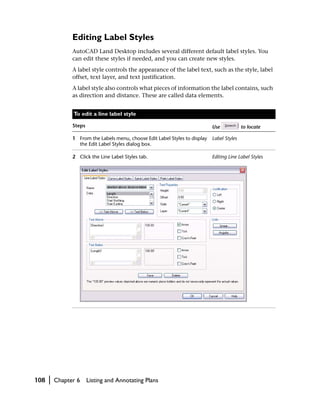
                  Editing Label Styles . . . . . . . . .                  .   .   .    .   .       .    108


Chapter 7   Importing and Exporting Data in LandXML Format                        .    .       .       . 111
            Using the LandXML Import and Export Commands .                    .   .    .   .       .    112
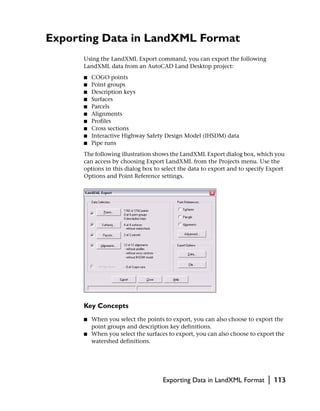
            Exporting Data in LandXML Format . . . . . .                      .   .    .   .       .    113
            Importing LandXML Data . . . . . . . . .                          .   .    .   .       .    115


                                                                                      Contents           |   v
Chapter 8           Introduction to the Civil Engineering Tools .                                 .       .   .   .   .       119
                    Civil Engineering Tools . . . . . .               .       .       .       .       .   .   .   .   .   . 120
                    Accessing the Civil Engineering Tools .           .       .       .       .       .   .   .   .   .   . 120
                          Menus . . . . . . . . .                     .       .       .       .       .   .   .   .   .   . 121


Chapter 9           Using Grading Commands.           .   .       .       .       .       .       .       .   .   .   .       123
                    Overview of Grading . . . . . . . . . . . .                                               .   .   .   .   124
                          Finished Ground Data . . . . . . . . . .                                            .   .   .   .   124
                    Using Grading Objects and Daylighting Commands . .                                        .   .   .   .   125
                    Creating a Grading Object . . . . . . . . . . .                                           .   .   .   .   126
                    Editing a Grading Object . . . . . . . . . . .                                            .   .   .   .   129
                    Creating Contours and Surface Data from a Grading Object                                  .   .   .   .   131
                    Creating a Grading Plan Using Daylighting Commands .                                      .   .   .   .   133
                    Working with Ponds . . . . . . . . . . . .                                                .   .   .   .   136


Chapter 10          Hydrology and Hydraulics .        .   .       .       .       .       .       .       .   .   .   .       139
                    Hydrology and Hydraulics . . . . . .                      .       .       .       .   .   .   .   .   .   140
                         Sample Hydrology Files . . . . .                     .       .       .       .   .   .   .   .   .   141
                    Gathering Data for Hydrologic Analysis .                  .       .       .       .   .   .   .   .   .   142
                    Using the Hydrology Calculators . . . .                   .       .       .       .   .   .   .   .   .   143
                    Calculating Runoff . . . . . . . .                        .       .       .       .   .   .   .   .   .   145
                    Using the Hydraulic Structure Calculators .               .       .       .       .   .   .   .   .   .   147
                    Routing Ponds . . . . . . . . .                           .       .       .       .   .   .   .   .   .   148


Chapter 11          Working with the Layout Commands .                            .       .       .       .   .   .   .       149
                    Using the Layout Menu. .      .   .   .   .       .       .       .       .       .   .   .   .   .   .   150
                    Creating Intersections . .    .   .   .   .       .       .       .       .       .   .   .   .   .   .   150
                    Creating Cul-de-Sacs . .      .   .   .   .       .       .       .       .       .   .   .   .   .   .   151
                    Creating Parking Stalls . .   .   .   .   .       .       .       .       .       .   .   .   .   .   .   152
                    Creating Sports Fields . .    .   .   .   .       .       .       .       .       .   .   .   .   .   .   152
                    Creating Walks and Patios .   .   .   .   .       .       .       .       .       .   .   .   .   .   .   153


Chapter 12          Viewing and Editing Roads in Profile View                             .       .       .   .   .   .       155
                    Viewing and Editing Roads in Profile View . . . . . . .                                           .   .   156
                          Storage Location of Alignment and Profile Data . . . .                                      .   .   156
                    Changing the Profile Settings . . . . . . . . . . . .                                             .   .   157
                    Sampling the Existing Ground to Create Profile Data . . . .                                       .   .   157
                          Sampling the Existing Ground Profile Data from a Surface .                                  .   .   157
                    Creating Existing Ground Profiles . . . . . . . . . .                                             .   .   158
                    Creating Finished Ground Profiles . . . . . . . . . .                                             .   .   161
                    Superimposing Vertical Alignment Data . . . . . . . .                                             .   .   162


vi   |   Contents
Editing Vertical Alignments . . . . . . . . . .                         .   .   .       .    164
                   Vertical Curve Calculator . . . . . . . . .                       .   .   .       .    164
                   Editing Vertical Alignments Graphically . . . .                   .   .   .       .    165
                   Generating Reports From Vertical Alignment Data .                 .   .   .       .    166
             Calculating Vertical Curve Length . . . . . . . .                       .   .   .       .    166


Chapter 13   Viewing and Editing Roads in Section View .                     .   .   .   .       .       . 169
             Viewing and Editing Roads in Section View . . . . . .                       .   .       .    170
                   Cross Section Database Files . . . . . . . . .                        .   .       .    171
             Creating Existing Ground Cross Sections . . . . . . .                       .   .       .    172
             Working with Templates . . . . . . . . . . . .                              .   .       .    174
                   Drawing Templates . . . . . . . . . . . .                             .   .       .    175
                   Defining Templates. . . . . . . . . . . .                             .   .       .    176
                   Editing Templates . . . . . . . . . . . .                             .   .       .    177
                   Working with Subassemblies . . . . . . . . .                          .   .       .    179
             Creating Finished Ground Cross Sections . . . . . .                         .   .       .    179
                   Applying Templates to Existing Ground Cross Sections                  .   .       .    179
                   Modifying Roadway Slope . . . . . . . . .                             .   .       .    181
             Viewing and Editing Sections . . . . . . . . . .                            .   .       .    183
             Transitioning a Roadway . . . . . . . . . . . .                             .   .       .    184
             Superelevating a Roadway . . . . . . . . . . .                              .   .       .    186
             Creating Surfaces and 3D Data from Road Design Data . .                     .   .       .    187


Chapter 14   Designing Pipe Runs .       .   .   .   .   .   .       .       .   .   .   .       .       . 189
             Overview of Designing Pipe Runs . . . .             .       .   .   .   .   .   .       .    190
             Drawing and Defining Conceptual Pipe Runs           .       .   .   .   .   .   .       .    191
             Drafting Conceptual Pipe Runs in Profile View       .       .   .   .   .   .   .       .    194
             Editing Pipe Runs Graphically . . . . .             .       .   .   .   .   .   .       .    196
             Working with the Pipes Run Editor . . .             .       .   .   .   .   .   .       .    197
             Drafting Finished Pipe Runs in Plan View .          .       .   .   .   .   .   .       .    198
             Drafting Finished Pipe Runs in Profile View .       .       .   .   .   .   .   .       .    200


Chapter 15   Creating Plan, Profile, and Cross Section Sheets                    .   .   .       .       . 201
             Creating Plan, Profile, and Cross Section Sheets            .   .   .   .   .   .       .    202
             Getting Started with Plan/Profile Sheets . . .              .   .   .   .   .   .       .    203
             Sheet Manager Terminology . . . . . . .                     .   .   .   .   .   .       .    205
             Setting Up a Plan/Profile Sheet Style . . . .               .   .   .   .   .   .       .    206
                   Text Label Styles. . . . . . . . .                    .   .   .   .   .   .       .    209
             Frames. . . . . . . . . . . . . .                           .   .   .   .   .   .       .    209
             Creating a Plan/Profile Sheet Series . . . .                .   .   .   .   .   .       .    211
             Creating a Section Sheet Series . . . . . .                 .   .   .   .   .   .       .    213


                                                                                     Contents             |   vii
Chapter 16        Introduction to the Survey Tools.                .       .       .       .       .       .   .   .   .       217
                  The Survey Tools .   .   .   .   .   .   .   .       .       .       .       .       .   .   .   .   .   . 218


Chapter 17        Getting Started with the Survey Tools .                          .       .       .       .   .   .   .       219
                  Survey Settings . . . . . . .                .       .       .       .       .       .   .   .   .   .   . 220
                       Establishing Drawing Settings .         .       .       .       .       .       .   .   .   .   .   . 220
                       Establishing Data File Settings .       .       .       .       .       .       .   .   .   .   .   . 222


Chapter 18        Entering Observations .          .   .   .       .       .       .       .       .       .   .   .   .       223
                  Entering Survey Data . . . . . . . . . .                                             .   .   .   .   .   .   224
                  The Survey Observation Database . . . . . .                                          .   .   .   .   .   .   224
                  Entering Observed Data . . . . . . . . .                                             .   .   .   .   .   .   225
                        Using a Data Collector . . . . . . . .                                         .   .   .   .   .   .   226
                        Using the Menu Commands . . . . . .                                            .   .   .   .   .   .   227
                        Using the Survey Command Line. . . . .                                         .   .   .   .   .   .   228
                  Using the Traverse and Sideshot Editors . . . .                                      .   .   .   .   .   .   231
                        Inputting Sideshots using the Sideshot Editor .                                .   .   .   .   .   .   232


Chapter 19        Adjusting Data and Working with Figures .                                .       .       .   .   .   .       233
                  Editing and Adjusting Survey Data .          .       .       .       .       .       .   .   .   .   .   .   234
                  Adjusting a Traverse . . . . . .             .       .       .       .       .       .   .   .   .   .   .   234
                  Working with Figures . . . . .               .       .       .       .       .       .   .   .   .   .   .   235
                  Creating Breaklines from Figures . .         .       .       .       .       .       .   .   .   .   .   .   237
                  Drawing the Traverse Topology/Route          .       .       .       .       .       .   .   .   .   .   .   237


viii   |   Contents
Introduction
                                                                       1
AutoCAD® Land Desktop is based on AutoCAD and                In this chapter
some components of AutoCADΤΜ Map 3D. Using                   ■ AutoCAD Land Desktop
                                                             ■ The Installation Wizard
AutoCAD Land Desktop, you can create, maintain, out-
                                                             ■ First things to know
put, and analyze all the data in your land development
                                                             ■ How to use the
projects.                                                       documentation set
                                                             ■ Finding information
This Getting Started guide contains information for

both AutoCAD Land Desktop 2009 and AutoCAD Civil

3D Land Desktop Companion 2009. For both products,

you can refer to chapters 1 through 7 of this guide for

information on the basic Land Desktop product fea-

tures.

If you have AutoCAD Civil 3D Land Desktop Compan-

ion 2009 installed, then you automatically have the

civil engineering and survey tool features built into your

product. Chapters 8 through 19 of this guide contain

information on the civil engineering and surveying

tools that are available with the AutoCAD Civil 3D Land

Desktop Companion 2009 product.

                                                                                         1
AutoCAD Land Desktop
                AutoCAD Land Desktop is designed for professionals in the land planning
                and development industries, and includes the following products:
                AutoCAD® Land Desktop: This is the AutoCAD for land development profes-
                sionals. It provides a base level of functionality for land planners, surveyors,
                civil engineers, drafters, and anyone who creates supporting documents.
                AutoCAD Land Desktop contains all the functionality of AutoCAD and some
                components of AutoCAD Map 3D.
                AutoCAD® Civil 3D Land Desktop Companion: This version of Land Desktop
                also includes surveying tools which can be used to communicate survey data
                to and from the field and civil engineering tools that can be used for trans-
                portation design and analysis.
                The product provides an application programming interface (API), so that
                other add-on products can be designed to work with AutoCAD Land Desktop
                and AutoCAD Civil 3D Land Desktop Companion.


The Installation Wizard
                You install AutoCAD Land Desktop from the Installation Wizard that opens
                automatically when you insert the product media. The Installation Wizard
                gives you access to links, from which you can open online versions of the
                documentation, find information about technical support, and access other
                useful extras.

                Installing on a Single Computer
                If you want to install AutoCAD Land Desktop on a single computer, simply
                click the Install Products link on the first page of the Installation Wizard.
                Then follow the instructions on screen.

                Installing on a Network
                If you need more extensive information about deploying AutoCAD Land
                Desktop on a network, consult the Network Administrator's Guide. To access
                this guide, in the Installation Wizard, click the Create Deployments link,
                then click the Documentation link.


2   |   Chapter 1   Introduction
First Things to Know
      This section is designed to introduce you to the elements that form the foun-
      dation of AutoCAD Land Desktop: projects, prototypes, templates, setup
      profiles, settings, and loading menus.

      Projects
      The project is a basic unit of AutoCAD Land Desktop. It is a directory structure
      that contains all the data and settings relevant in designing a job. Data
      includes points, surfaces, drawings, and any other data created or referenced
      in your work. Drawings within a single project might illustrate separate
      aspects of the design yet share a common database and use common styles.
      When you install AutoCAD Land Desktop, a project folder (c:Land
      Projects <Version Number>, by default) is created. Each time you create a
      project, a subfolder named <project name> is created within the project folder.
      For example, if you create a project named 97201, then AutoCAD Land Desk-
      top creates the following folder:
      c:Land Projects <Version Number>97201
      AutoCAD Land Desktop requires that drawings be associated with projects so
      that it has a location in which to store its external files. When you start a new
      drawing, you are prompted to select a project for the drawing. You can either
      create a new project or assign the drawing to an existing project. The drawing
      remains associated with that project as long as the project exists in the cur-
      rent Project Path. If you delete the project or if you change the project path,
      then you are prompted to select a project the next time you open the draw-
      ing. You can also associate an existing drawing (already assigned to a project)
      with a different project by using the Reassociate Drawing command.


      Note If you open a drawing, or create a new drawing, without using the
      AutoCAD Land Desktop versions of the New and Open commands, you are
      prompted to select a project with which to associate the drawing. If you decline
      to select a project, then AutoCAD Land Desktop automatically creates a project
      called _scratch and links the drawing to it.


      When you create a new project, you must specify a name and a prototype
      (default settings for new drawings that are associated with the project) for the
      project. You can also add a description of the project and any keywords that
      help you identify the project. When you are searching for a project, you can
      filter the list of projects based on the keywords to find a particular project.


                                                         First Things to Know      |   3
For more information, see “Working with Projects” on page 24.


                Tip Although it is not required, we suggest that you save the drawings in the
                dwg subfolder that is created in the project folder. This keeps the drawing and
                the project files together for easier archiving.


                Prototypes
                Prototypes provide a convenient way for you to maintain standard settings for
                the drawings. After you set up the drawing settings by using the Drawing
                Settings command on the Projects menu, you can save them back to a proto-
                type. When you create a new project, you can select a prototype to use for
                the default settings for new drawing creation.
                At first, prototypes may seem similar to templates. However, each serves a
                distinct purpose:

                ■   Templates are comprised of drawing setup values that control the
                    elements of a drawing. These might include standard layers, text styles,
                    line types, dimension styles, and AutoCAD variables like Aperture. They
                    can also store blocks, such as a border or a company logo. For more infor-
                    mation, see the following section, “Templates.”
                ■   Prototypes store settings that determine how AutoCAD Land Desktop
                    behaves. For instance, a prototype might control point settings, output
                    settings, and standard point groups.

                When you install AutoCAD Land Desktop, a root prototype folder
                (C:Documents and SettingsAll UsersApplication DataAutodeskAutoCAD
                Land Desktop <Version Number><Release Number>DataPrototypes) is cre-
                ated. Each prototype is represented by a subfolder of this root prototype
                folder. For example, if you create a prototype named MYPROTO, then
                AutoCAD Land Desktop creates the following folder:
                C:Documents and SettingsAll UsersApplication DataAutodeskAutoCAD
                Land Desktop <Version Number><Release Number>DataPrototypesmyproto
                AutoCAD Land Desktop always maintains default prototypes, one for feet
                and the other for meters. If you delete these prototypes, then they are
                recreated, using the default system settings, the next time you start
                AutoCAD Land Desktop. For more information about prototype settings,
                see “Prototype Settings” on page 22.


4   |   Chapter 1   Introduction
Tip When you base a new project on a prototype, the entire prototype folder
is copied to the new project folder. You may want to store commonly-used files
in a prototype folder so they are automatically copied to new projects.


Templates
When you create a new drawing, you can base it on a drawing template.
A drawing template is a drawing file with pre-established settings for new
drawings and has the extension .dwt. For example, you can set up all
standard layers in a drawing and save the drawing as a .dwt file. If you base a
new drawing on this template, then the new drawing is created with all the
standard layers. Templates also store text styles, line types, dimension styles,
and AutoCAD variables like Aperture. They can also store blocks, such as a
border or a company logo.
A template also stores drawing setup values. For example, if you use the
Drawing Setup wizard or the Drawing Setup command to set up a drawing,
and then you save that drawing as a .dwt file, then the next time you create
a new drawing based on the drawing template, all the drawing setup values
are added.

Setup Profiles
Each new drawing can have different units, scale, zone, orientation, text
style, sheet size, and border settings. These settings are collectively known as
a setup profile.
Several setup profiles are included with AutoCAD Land Desktop. You can
load one of these profiles, or you can customize a setup profile by using the
Drawing Setup wizard or the Drawing Setup command.
You have three options for drawing setup:

■   The Drawing Setup wizard guides you through the setup process by using
    tips and context-sensitive help that describe each option on each page of
    the wizard. At the end of the wizard, you can save the settings to a setup
    profile you can use again.
■   The Drawing Setup command presents all the drawing settings necessary
    for setting up a drawing, such as units, text style, current zone, and so on,
    including saving and loading setup profiles.
■   The User Preferences command has an option you can select to load a pre-
    existing setup profile automatically.


                                                    First Things to Know     |   5
Settings
                AutoCAD Land Desktop settings are comprised primarily of two types: user
                preferences and drawing settings.
                ■   The User Preferences control program-wide preferences such as the project
                    paths for various files, the AutoCAD overrides, and the drawing setup
                    method.
                    The preference settings are stored in the following folder:
                    C:Documents and SettingsAll UsersApplication DataAutodeskAutoCAD
                    Land Desktop <Version Number><Release Number>Datapref
                    The file name is <AutoCAD login name>.dfm. The preference path settings
                    are stored in the sdsk.dfm file in the program folder.

                ■   Drawing settings control many different parameters in AutoCAD Land
                    Desktop, such as output settings, label settings, and point settings. When
                    you create a new drawing in a project, the drawing is assigned default
                    drawing settings based on the prototype.
                    After you change the drawing settings, you can save the settings to a pro-
                    totype so the settings can be used by other drawings in the project. When
                    you create a new drawing in a project that is based on that prototype, then
                    the drawing settings that you saved to the prototype are used for the draw-
                    ing. If you changed settings and you want to restore them to the original
                    drawing settings, then you can reload the prototype settings.
                    The drawing settings file is stored in the project’s dwg folder. The current
                    drawing name is used as the file name with a .dfm extension. For more
                    information, see “Establishing Settings” on page 20.


How to Use the Documentation Set
                Because AutoCAD Land Desktop combines the features of AutoCAD and
                AutoCAD Map 3D along with the Land Desktop features, the online
                AutoCAD and AutoCAD Map 3D documentation is also included in the doc-
                umentation set.

                ■   AutoCAD Land Desktop documentation provides help with commands in
                    the Projects, Points, Lines/Curves, Alignments, Parcels, Labels, Terrain,
                    Inquiry, and Utilities menus.
                ■   AutoCAD documentation provides help with commands in the File, Edit,
                    View, Insert, Format, Tools, Draw, Dimension, and Modify menus.


6   |   Chapter 1   Introduction
■   AutoCAD Map 3D documentation provides help with commands in the
    Map menu.


Note If you install Trimble Link or Carlson Connect software, you can access
Help for each of these programs from the product menu.


The AutoCAD Land Desktop documentation set includes the following
documents:

■   AutoCAD Land Desktop Network Administrator’s Guide (online)
■   AutoCAD Land Desktop Getting Started (in Adobe® PDF format)
■   AutoCAD Land Desktop User’s Guide (online)
■   AutoCAD Land Desktop Tutorial (online)
■   AutoCAD Map 3D Tutorials (online)
■   AutoCAD Land ActiveX and VBA Developer’s Guide and AutoCAD Land
    ActiveX and VBA Reference (online)
■   AutoCAD New Features Workshop (online)
■   AutoCAD documentation (online)
■   AutoCAD Map 3D documentation (online)

Recommendations for New Users
Learning AutoCAD Land Desktop
Use this guide and the AutoCAD Land Desktop tutorial to learn the main
concepts and functionality of the program. For more in-depth information,
see AutoCAD Land Desktop Help.
The AutoCAD Land Desktop tutorial is an excellent way to become familiar
with tasks that you can perform with the program. The AutoCAD Land
Desktop tutorial has step-by-step lessons that you can do independently of
each other. You can access the AutoCAD Land Desktop tutorial by choosing
AutoCAD Land Desktop Tutorials from the Help menu.

Learning AutoCAD Map
AutoCAD Land Desktop has a Map menu that contains all the functionality
of AutoCAD Map 3D. If you have never used AutoCAD Map 3D, then you can
start learning the program by using the online AutoCAD Map tutorials. You
can access the AutoCAD Map 3D tutorials by choosing AutoCAD Map
Tutorials from the Help menu.


                                 How to Use the Documentation Set         |    7
Path Naming Conventions
                When referring to the AutoCAD Land Desktop program folder, the documen-
                tation uses the following convention to represent the program path:
                c:Program FilesLand Desktop <Version Number>
                If you installed the program on another drive or if you used another folder
                name, please substitute that path for the path described in
                the documentation.
                When you install the program, a folder for storing the project data is
                also created. The documentation uses the following convention for the
                project path:
                c:AutoCAD Land Projects <Version Number>
                If you installed the program on another drive, or you renamed the
                project folder, please substitute that path for the path described in the
                documentation.


Finding Information
                The following sections describe how to access the online Help, how to find
                information in Help, how to use the online tutorial, and how to use this
                Getting Started guide.

                Accessing Help
                You can access Help files for AutoCAD Land Desktop by using the
                following methods:


                    Accessing Help files

                    Method                       Result                      Benefits

                    From within AutoCAD Land     Displays an introductory    This Help file displays a
                    Desktop, choose AutoCAD      topic in the online Help.   combined index and
                    Land Desktop Help from the   Includes links to AutoCAD   table of contents, as well as
                    Help menu, type Help on      Help and AutoCAD Map        two search mechanisms so
                    the command line, or press   3D Help.                    you can find the Help topics
                    F1.                                                      you need.


8   |   Chapter 1    Introduction
Accessing Help files (continued)

Method                        Result                      Benefits

Move the pointer over a       Displays the Help topic     This topic has links to
command in a menu using       that describes the          specific Help topics for the
the up and down keyboard      commands in the menu.       commands in the menu.
arrows and press F1.

From a dialog box, click a    Displays the Help topic     This topic provides the
Help button.                  that describes how to use   information you need
                              the dialog box.             without having to search
                                                          for it.


Key Concepts
■    Within a Help topic, you can move to other relevant topics or definitions
     by selecting the blue underlined text.

■    Click       on the navigation bar to move to the previous topics that you
     viewed. Only those topics that you have already viewed in the current
     instance of online Help are included in this Back button sequence.

■    Click       to hide the navigation pane of the Help system. Click                   to
     redisplay the navigation pane.


Help Navigation
The Help system has a variety of methods that you can use to locate informa-
tion about AutoCAD Land Desktop commands, including the table of con-
tents, index, and search tabs. There is also a Favorites tab to which you can
add frequently used topics. Each of these methods has its own tab in the left
pane of the Help system.

■    The Contents tab has books with topic pages listed below each book. To
     view a topic, click a book or a page.
■    The Index tab lists words organized numerically and alphabetically. Enter
     a keyword to display the index entries, select a topic to view, and then
     click Display. If more than one topic shares the same index entry, you can
     choose the topic that you want to view. Only those topics that are indexed
     are listed on the Index tab.


                                                          Finding Information        |   9
Tip For the most accurate results, select the Search Titles Only check box at
                the bottom of the Search tab.


                ■    The Favorites tab is a location where you can store frequently accessed
                     Help topics. When you are viewing a Help topic you want to add to your
                     favorites, click the Favorites tab, and then click Add.
                     In addition, you can limit the search to specific parts of Help, such as only
                     AutoCAD Land Desktop features or only AutoCAD or AutoCAD Map 3D
                     features. For more information about using this tab, click Query Tips on
                     the Search tab.


                Concepts, Procedures, and Reference
                Information in Help
                Many of the topics in Help are organized into concept, procedure, and refer-
                ence information, making it easier to find relevant information. When such
                a topic is open, you can switch between concept, procedure, and reference
                information by clicking the tabs in the right pane of the Help window.

                ■    Concept tabs contain overview information and links to subtopics.
                ■    Procedure tabs contain step-by-step procedures or contain links to
                     subtopics.
                ■    Reference tabs contain information about how to access AutoCAD Land
                     Desktop commands and what the commands do. If there is more than one
                     command listed on the Reference tab, move your mouse over the com-
                     mand name to dynamically update the information.


10   |   Chapter 1    Introduction
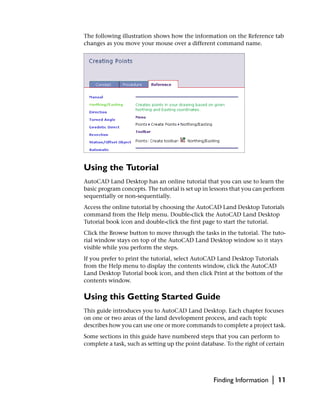
The following illustration shows how the information on the Reference tab
changes as you move your mouse over a different command name.


Using the Tutorial
AutoCAD Land Desktop has an online tutorial that you can use to learn the
basic program concepts. The tutorial is set up in lessons that you can perform
sequentially or non-sequentially.
Access the online tutorial by choosing the AutoCAD Land Desktop Tutorials
command from the Help menu. Double-click the AutoCAD Land Desktop
Tutorial book icon and double-click the first page to start the tutorial.
Click the Browse button to move through the tasks in the tutorial. The tuto-
rial window stays on top of the AutoCAD Land Desktop window so it stays
visible while you perform the steps.
If you prefer to print the tutorial, select AutoCAD Land Desktop Tutorials
from the Help menu to display the contents window, click the AutoCAD
Land Desktop Tutorial book icon, and then click Print at the bottom of the
contents window.

Using this Getting Started Guide
This guide introduces you to AutoCAD Land Desktop. Each chapter focuses
on one or two areas of the land development process, and each topic
describes how you can use one or more commands to complete a project task.
Some sections in this guide have numbered steps that you can perform to
complete a task, such as setting up the point database. To the right of certain


                                                   Finding Information    |   11
steps in a task are titles of relevant Help topics. For example, you can use the
                Search tab in the Help to locate the topic, “Changing the Point Database
                Setup Settings.”


                 To set up the point database

                Step                                                         Use          to locate

                1 From the Points menu, choose Point Management ➤          Changing the Point
                  Point Database Setup to display the Point Database Setup Database Setup Settings
                  dialog box.


                The following example describes how you can locate a specific topic title in
                the Help.


                 To use Help to locate a topic title

                Steps

                1 Start Help by using one of the methods listed in “Accessing Help” on page 8.

                2 Click           .
                     The following illustration shows the Search tab.


                3 In the edit box on the Search tab, enter a question and then press Enter.

                4 Select a Help option in from the List of Components to Search, for example AutoCAD
                  Land Desktop User’s Guide.


12   |   Chapter 1    Introduction
To use Help to locate a topic title (continued)

Steps

5 Double-click the name of the topic to view the Help topic.


                                                        Finding Information   |   13
14   |   Chapter 1   Introduction
Getting Started with
AutoCAD Land Desktop
                                                                   2
To start working with AutoCAD® Land Desktop, you        In this chapter
need to know the basics of operating the program.       ■ Starting AutoCAD Land
                                                           Desktop
These basics include loading menu files, and project,
                                                        ■ The AutoCAD Land Desktop
prototype, and drawing management.                         drawing environment
                                                        ■ Accessing AutoCAD Land
                                                           Desktop commands
                                                        ■ Establishing settings
                                                        ■ Working with projects
                                                        ■ Working with drawings
                                                        ■ Exiting AutoCAD Land
                                                           Desktop


                                                                                  15
Starting AutoCAD Land Desktop
                To start AutoCAD Land Desktop, select the Land Desktop icon from the
                AutoCAD program group or from the Windows desktop, the Start Up
                dialog box is displayed.
                If you do not want to see this dialog box every time you open AutoCAD Land
                Desktop, then clear the Show This Dialog At Start Up check box. To redisplay
                this dialog box, click User Preferences on the Projects menu and select the
                Use Land Desktop Startup check box.
                To use AutoCAD Land Desktop, you must be working in a project. If you do
                not create a new drawing or open an existing drawing when you start up the
                program, then you are prompted to select or create a project the first time
                that you select an AutoCAD Land Desktop command.

                Note When you install AutoCAD Land Desktop, an AutoCAD Land Enabled
                Map 3D icon is created. Use this icon to start an object-enabled version of
                AutoCAD Map. You can use this version of AutoCAD Map 3D to open AutoCAD
                Land Desktop drawings and to view custom objects without having to select a
                project. Using this version, you cannot use AutoCAD Land Desktop commands,
                but you can open multiple drawings at a time and use all the AutoCAD and
                AutoCAD Map 3D commands.


16   |   Chapter 2   Getting Started with AutoCAD Land Desktop
The AutoCAD Land Desktop Drawing
Environment
       The AutoCAD Land Desktop drawing environment is shown in the following
       illustration.

     Map Explorer           Menu bar


    Command line                             Status bar


       To display the menus in the AutoCAD Land Desktop, select Land Desktop in
       the Workspaces toolbar list.


                    The AutoCAD Land Desktop Drawing Environment          |   17
When you start AutoCAD Land Desktop, the AutoCAD Map 3D Workspace
                is displayed by default. You can use the Project Workspace to attach drawings
                to the current Map drawing, to define queries, and to attach databases.


                Note You can run multiple sessions of AutoCAD Land Desktop on one com-
                puter. Within each session, however, only one drawing can be open at a time.


                The following section describes how to access AutoCAD Land Desktop
                commands using Workspaces, shortcut menus, toolbars, the status bar, and
                the command line.


Accessing AutoCAD Land
Desktop Commands
                You can access AutoCAD Land Desktop commands in a variety of ways. All
                commands are available from the pull-down menus, and you can select some
                commands from toolbars, shortcut menus, or by typing them on the com-
                mand line. Many AutoCAD Map 3D commands are available from shortcut
                menus in the Map Workspace, as well as from the Map pull-down menu.
                You can control the pull-down menus and toolbars that are displayed using
                Workspaces. When you first start AutoCAD Land Desktop, select Land Desk-
                top in the Workspace toolbar list to make the Land Desktop workspace cur-
                rent and to display the Land Desktop menus. There are also workspaces for
                the civil engineering tools (named Civil Design) and the surveying tools
                (named Survey). Select a product workspace from the Workspaces toolbar list
                to make that workspace current and to display menus for that set of features.
                In the Customize User Interface dialog box, you can create customized work-
                spaces that contain the menus and toolbars you want to use. For more infor-
                mation, see the Customization Guide in the AutoCAD Help.

                Key Concepts
                ■    When you carry out a command, prompts and messages display on the
                     command line. You can view a complete history of the prompts and
                     messages of the current drawing session by pressing F2 to open the
                     AutoCAD text window which records the commands.
                ■    To quit a command at any time, press ESC.


18   |   Chapter 2   Getting Started with AutoCAD Land Desktop
■   AutoCAD Land Desktop has additional context-sensitive menus that you
    can access by selecting an object and right-clicking.

To change the menu display, change the current workspace.

■   In the Workspace toolbar list, select another workspace from the list.
■   To display the Workspaces toolbar, click Projects menu and choose Work-
    spaces.
■   Enter WSCURRENT at the command line, and then enter the workspace
    name.

Toolbars
When you start AutoCAD Land Desktop, the AutoCAD Standard and Object
Properties toolbars are displayed at the top of the window, and the Modify
and Draw toolbars are displayed on the left side of the graphics screen.
You can display other toolbars with various tool categories. Each toolbar
contains a set of tools that represents specific commands in a category. Start
a command by clicking a tool. To identify a tool, move the pointer slowly
over the tool. A small label, or ToolTip, displays the tool name, as shown in
the following illustration.


To display AutoCAD Land Desktop toolbars

Steps                                                     Use       to locate

1 Right-click in an empty toolbar space and select Land   Toolbar Command
  from the list.The Land toolbars are listed.

2 Specify a toolbar. A checkmark displays next to your
  selection.


                     Accessing AutoCAD Land Desktop Commands                    |   19
Transparent Commands
                You can use the command line to access a second command without leaving
                the first command. To use a command transparently, type an apostrophe (’)
                before the command name on the command line. For example, if you are
                using LINE to draw a line, you can type ’zoom (’z) or ’pan (’p) to change the
                view of the drawing and the LINE command remains active. After you have
                finished using a command transparently, the suspended command
                continues.


                Note The only commands that you can use transparently are commands that
                do not select or create objects, or commands that do not regenerate or end
                drawings.


Establishing Settings
                Early in a project you should establish the following settings:

                ■    User preferences
                ■    Drawing settings
                ■    Prototype settings
                ■    Data file settings


                Note When you start a new drawing, you also set up the drawing for units,
                zone, sheet size, and so on. For more information, see “Setting Up Drawings” on
                page 30.


                User Preferences
                The User Preferences control three main aspects of the program: file paths,
                drawing setup method, and AutoCAD overrides.


20   |   Chapter 2    Getting Started with AutoCAD Land Desktop
Establish file
Specify the                                                                     paths.
dialog box dis-
played by the
Open and                                                                        Select the
New com-                                                                        method you
mands, or at                                                                    want to use for
the start of a                                                                  Drawing Setup.
session.


                  Drawing Settings
                  The Edit Settings dialog box is a centralized location from which you can
                  modify settings that are specific to each drawing. To display the Edit Settings
                  dialog box, select the Edit Drawing Settings command on the Projects menu.
                  The settings are arranged by program so you can more easily locate the set-
                  tings that apply to a project. There are settings for AutoCAD Land Desktop,
                  civil engineering tools (Civil Design), and surveying tools (Survey).

1. Choose
the program
that has the                                                                    2. Choose the
settings you                                                                    settings you
want to                                                                         want to edit.
modify.

3. Click Edit
Settings.


                  These settings are all available elsewhere in the program. The Edit Settings
                  dialog box provides an easy way to change different settings simultaneously
                  and then save them back to a prototype. By saving the settings to a proto-
                  type, they are used automatically whenever you create a new drawing in a


                                                                    Establishing Settings        |   21
project that is based on that prototype. You can establish the settings once
                and then apply them to each new drawing.

                Prototype Settings
                Every AutoCAD Land Desktop project must be based on a prototype. A pro-
                totype stores drawing settings. These settings are copied to each drawing that
                is created in the project. AutoCAD Land Desktop includes a prototype for
                meters and a prototype for feet.
                The Prototype Settings dialog box provides a centralized location from which
                you can modify prototype settings. To display the Prototype Settings dialog
                box, select Prototype Settings from the Projects menu, select the prototype
                you want to modify, and then click OK.


                                                                          1. Choose
                                                                          the program
                                                                          that has the
                                                                          settings you
                                                                          want to edit.


                                                                          2. Choose the setting
                                                                          you want to edit.


                                                                          3. Click Edit
                                                                          Settings.


                You can establish the prototype settings in two ways:

                ■    You can use the Edit Prototype Settings dialog box.
                ■    You can use the Drawing Settings command to establish settings and then
                     save them to a prototype.

                Data File Settings
                You can use the Edit Data Files dialog box to access data files for AutoCAD
                Land Desktop, civil engineering tools (Civil Design), and surveying tools
                (Survey). This dialog box provides a centralized location from which you


22   |   Chapter 2   Getting Started with AutoCAD Land Desktop
can access and modify import/export formats, speed tables, label styles, tag
styles, and contour styles.
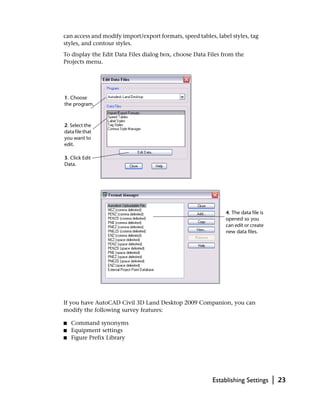
To display the Edit Data Files dialog box, choose Data Files from the
Projects menu.


1. Choose
the program.


2. Select the
data file that
you want to
edit.

3. Click Edit
Data.


                                                               4. The data file is
                                                               opened so you
                                                               can edit or create
                                                               new data files.


If you have AutoCAD Civil 3D Land Desktop 2009 Companion, you can
modify the following survey features:

■   Command synonyms
■   Equipment settings
■   Figure Prefix Library


                                                          Establishing Settings      |   23
and the following civil engineering features
                ■    Sheet Manager label and grid styles

                Using the World Coordinate System
                for Creating Data
                When you use a default drawing template to start a new drawing in AutoCAD
                Land Desktop, you are in the world coordinate system (WCS) automatically.
                The X axis is horizontal, the Y axis is vertical, and the Z axis is perpendicular
                to the XY plane.

                Warning! If you create data with AutoCAD Land Desktop, it is very important
                that the coordinate system be set to World. If you create data in AutoCAD Land
                Desktop in a coordinate system other than World, that data is not processed cor-
                rectly.


                To change the coordinate system to World, type UCS on the command line,
                and then type World.


Working with Projects
                Each AutoCAD Land Desktop drawing must be associated with a project. This
                section describes in detail the function of projects and how to manage them.

                ■    To work with AutoCAD Land Desktop commands, you must have a
                     project. You can, however, run AutoCAD or AutoCAD Map 3D commands
                     without having a project selected.
                ■    You can assign a drawing to only one project. If you want to later associate
                     the drawing with a different project, you can re-associate the drawing by
                     using the Reassociate Drawing command from the Projects menu.
                ■    Projects can contain multiple drawings. All the drawings in a project share
                     data files, such as the point database.
                ■    If you open an existing drawing that is not assigned to a project, then you
                     are prompted to select a project. This assignment is saved when you save
                     the drawing.

                Creating Projects
                You can create a new project when you create a new drawing, or you can
                create a new project from the Project Manager. As you create a new project,


24   |   Chapter 2    Getting Started with AutoCAD Land Desktop
use the Project Details dialog box to establish the project name, description,
                   and keywords, as well as a prototype on which to base the drawing settings
                   and a location for the drawing files.


Select a prototype
to establish initial
                                                                                Type an optional
drawing settings.
                                                                                description for the
                                                                                project.
Type a name for
the project.                                                                    Type optional
                                                                                keywords for the
                                                                                project.
Choose a location
for the project's
drawing files.


                   Basing a Project on a Prototype
                   When you create a new project, you must specify a prototype (default set-
                   tings for the project) and a name for the project. AutoCAD Land Desktop uses
                   prototypes as a convenient way for you to maintain standard drawing set-
                   tings for project drawings. These standards are important and probably vary
                   from project to project. For example, the standards that you use for state
                   projects may be significantly different from the standards for local or town-
                   related jobs.
                   You can select a prototype to use for the default drawing settings. All settings
                   from the prototype are copied into the drawings associated with the project.

                   Project Description and Keywords
                   When you create a project, you can also add a description and any keywords
                   to help you identify the project. The description and keywords can be helpful
                   when you have multiple projects. You can search on the keywords to find a
                   particular project, and check the description to make sure it is the project
                   that you are looking for.


                                                                   Working with Projects       |   25
Project Drawing Location
                Each project must have a location for all the drawing files that you create
                within a project. It is recommended that you store drawing files in the
                project dwg folder, for example, c:Land Projects <Version Number>new-
                projdwg. You can, however, also establish a different, fixed path for the draw-
                ing storage location.
                By saving the drawings in a project drawing folder, you keep the drawings
                and the project files together, which makes the project easier to archive or
                transfer to someone else.
                Managing Projects with the Project Management
                Dialog Box
                As you work with more and more projects, you may need to delete an old
                project, copy a project, rename an existing project, view project locks, or
                change an inaccurate description. You can do all this and more from the
                Project Management dialog box.
                To display the Project Management dialog box, choose Project Manager from
                the Projects menu.


26   |   Chapter 2   Getting Started with AutoCAD Land Desktop
From the Project Management dialog box, you can

■   Create new projects. If you are a CAD Manager, then you may want to
    create the projects from within the Project Management dialog box so
    that others can start their drawings and reference the same project data.
■   Create new project paths. By default, the project path is
    c:Land Projects <Version Number>, but you can create new project paths if
    desired.
■   View the project details, including project description, keywords, and
    drawing storage location.
■   View and manage the file locks. On a network, you can view the file locks
    to see who has files open.
■   Copy, rename, and delete projects. It is recommended that you use the
    Project Management dialog box for copying, renaming, and deleting
    project data.

Managing Prototypes with the Prototype
Management Dialog Box
You may need to maintain different prototypes for different clients. You can
copy, delete, and rename prototypes by using the Prototype Management
dialog box. To display the Prototype Management dialog box, choose
Prototype Manager from the Projects menu.


Default prototypes for feet and meters are included with AutoCAD Land
Desktop. If you delete the default prototypes, then they are recreated,
using the default system settings, the next time that you start AutoCAD
Land Desktop.


                                               Working with Projects     |   27
When you install AutoCAD Land Desktop, a prototype folder
                (C:Documents and SettingsAll UsersApplication DataAutodeskAutoCAD
                Land Desktop <Version Number><Release Number>DataPrototypes)
                is created by default. Each default prototype, and each prototype that you
                create, is represented by a subfolder of this root prototype folder. For exam-
                ple, if you create a prototype named MYPROTO, then the following folder is
                created:
                C:Documents and SettingsAll UsersApplication DataAutodeskAutoCAD
                Land Desktop <Version Number><Release Number>DataPrototypesmyproto


Working with Drawings
                All AutoCAD Land Desktop documents are AutoCAD drawings saved with a
                .dwg file name extension. This section explains how to create drawings,
                establish the drawing settings, and open drawings.

                Creating New Drawings
                You can create a new drawing by selecting the New command from the File
                menu or by typing new at the command line.
                When you create a new drawing, you name it and associate it with a project.
                Every time you create a new drawing, you are automatically prompted to set
                up the drawing. Depending on which option you select for “First Time
                Drawing Setup” (see “User Preferences” on page 20) either the New Drawing
                wizard or the Drawing Setup dialog box is displayed, or a setup profile is
                loaded automatically.
                The New Drawing wizard steps you through each setting that you must estab-
                lish for a drawing. The Drawing Setup dialog box contains all the settings
                available in the New Drawing wizard, but does not step you through the
                setup procedure.
                Whenever you set up a drawing, you can save the setup options to a setup
                profile that you can load later. AutoCAD Land Desktop includes several setup
                profiles. If you use a setup profile, then you do not have to step through the
                drawing setup procedure each time you create a new drawing.


28   |   Chapter 2   Getting Started with AutoCAD Land Desktop
To create a new drawing

               Steps                                                     Use         to locate

               1 From the AutoCAD program group, choose the AutoCAD
                 Land Desktop icon.

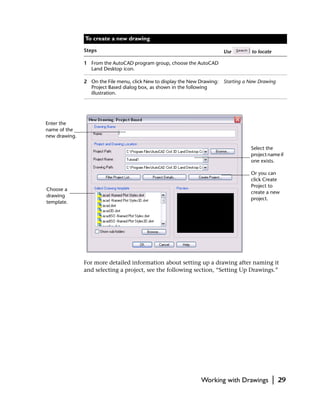
               2 On the File menu, click New to display the New Drawing: Starting a New Drawing
                 Project Based dialog box, as shown in the following
                 illustration.


Enter the
name of the
new drawing.

                                                                                    Select the
                                                                                    project name if
                                                                                    one exists.

                                                                                    Or you can
                                                                                    click Create
                                                                                    Project to
Choose a
                                                                                    create a new
drawing
                                                                                    project.
template.


               For more detailed information about setting up a drawing after naming it
               and selecting a project, see the following section, “Setting Up Drawings.”


                                                               Working with Drawings             |   29
Setting Up Drawings
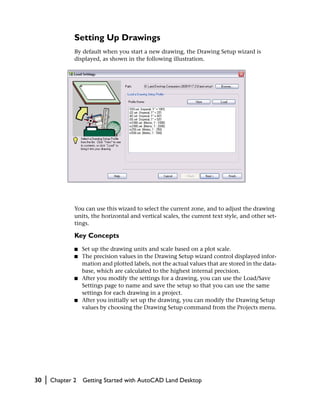
                 By default when you start a new drawing, the Drawing Setup wizard is
                 displayed, as shown in the following illustration.


                 You can use this wizard to select the current zone, and to adjust the drawing
                 units, the horizontal and vertical scales, the current text style, and other set-
                 tings.

                 Key Concepts
                 ■   Set up the drawing units and scale based on a plot scale.
                 ■   The precision values in the Drawing Setup wizard control displayed infor-
                     mation and plotted labels, not the actual values that are stored in the data-
                     base, which are calculated to the highest internal precision.
                 ■   After you modify the settings for a drawing, you can use the Load/Save
                     Settings page to name and save the setup so that you can use the same
                     settings for each drawing in a project.
                 ■   After you initially set up the drawing, you can modify the Drawing Setup
                     values by choosing the Drawing Setup command from the Projects menu.


30   |   Chapter 2   Getting Started with AutoCAD Land Desktop
Opening Drawings
You can open an existing drawing by selecting the Open command from the
File menu or by typing open at the command line.
If you open a drawing that is associated with an existing project, then the
drawing is linked automatically to that project. If you open a drawing that is
not associated with a project, then you must select a project or create a new
project for the drawing to work with AutoCAD Land Desktop commands.

Opening Drawings in Other Types of AutoCAD
Some of the objects, such as points, contours, and labels, that are created
in AutoCAD Land Desktop are called ARX objects. ARX objects cannot be
modified if the drawing is opened in another AutoCAD program, such as
regular AutoCAD or AutoCAD Mechanical Desktop.
To share an AutoCAD Land Desktop drawing with someone using another
AutoCAD program, it is recommended that the person use Object Enabler
from the AutoCAD Land Desktop product media or the Autodesk website.
There are three other options to share AutoCAD Land Desktop drawings in
another AutoCAD program:

■   Use proxy graphics.
■   Use the Export to AutoCAD command on the File menu.
■   Explode custom objects to polylines by using the EXPLODE command.

Proxy Graphics
Proxy graphics, which represent the custom objects, are used to indicate the
locations of custom objects in the drawing.


Note If you share a drawing with another person who uses proxy graphics,
then make sure when you save the drawing that the PROXYGRAPHICS variable
is set to 1.


                                             Working with Drawings       |   31
When an AutoCAD Land Desktop drawing is opened in another AutoCAD
                program, the Proxy Information dialog box is displayed.
                The Proxy Information dialog box identifies the missing application and the
                number of proxy objects in the drawing. The dialog box also contains three
                options:

                ■    Do not show proxy graphics: Does not display proxy graphics.
                ■    Show proxy graphics: Replaces custom ARX objects as proxy graphics.
                ■    Show proxy bounding box: Displays a box surrounding custom ARX
                     objects called a bounding box.


Exiting AutoCAD Land Desktop
                You can exit the AutoCAD Land Desktop program by using the following
                methods:

                ■    From the File menu, choose Exit.
                ■    Type exit or quit.
                ■    Click the close box in the upper-right corner of the AutoCAD Land
                     Desktop window.

                Key Concepts
                ■    When you quit a drawing, you are prompted to save any changes that you
                     have made but not yet saved.
                ■    To allow multi-user read/write access to the point database and the align-
                     ment database, the point and alignment information is written directly to
                     the databases, so they never need to be saved.


32   |   Chapter 2    Getting Started with AutoCAD Land Desktop
Working with
COGO Points
                                                                    3
COGO points are used in almost every land                In this chapter
development project to identify locations in space.      ■ Point markers and labels
                                                         ■ Points and CAD commands
COGO points contain northing, easting, elevation,
                                                         ■ Working with the
description, and name information that is stored in an      project point database

external point database.                                 ■ Establishing point settings
                                                         ■ Creating points
                                                         ■ Importing points
                                                         ■ Using point filters
                                                         ■ Editing points
                                                         ■ Point synchronization
                                                         ■ Working with point groups
                                                         ■ Working with description keys
                                                         ■ Geodetic transformations


                                                                                         33
Introduction
                Points that AutoCAD Land Desktop creates are called COGO points. COGO
                stands for Coordinate Geometry. COGO points are stored in an external
                database and are organized by their point numbers. COGO points have
                extended entity data associated with the points that includes point number,
                point name, description, elevation, northing, and easting.
                COGO point data is stored in an external database file called points.mdb,
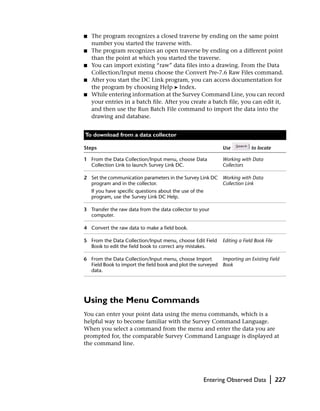
                which is referenced by all drawings in a project. Because project points are
                stored externally, you can reference them without drafting them in a
                drawing. Point data can be accessed by multiple people on a network.
                To add points to the point database, you can do the following:

                ■    Create points using the Create Points commands on the Points menu.
                ■    Import ASCII files.
                ■    Import data from a Microsoft® Access database file.
                ■    Download from a data collector.

                The following diagram illustrates the several ways to add points to a project.


34   |   Chapter 3   Working with COGO Points
Point Markers and Labels
      When you create points, you have the option to display point markers or
      point labels, or both. Point markers can include point number, elevation,
      and either raw or full description, and are controlled by settings on the Text
      and Marker tabs in the Point Settings dialog box. If you want to label points
      with additional data and insert description key symbols, you must use
      point labels.
      Point markers can stay the same size relative to the AutoCAD graphics
      window, or they can be a fixed size in the drawing. The following illustration
      shows point markers that are sized relative to the graphics window zoom
      level.


      Point markers include a point marker node and point marker text for point
      number, description, and elevation. Although you must use labels to achieve
      full description key substitution, you can substitute full descriptions for raw
      descriptions using point markers.
      In contrast, point labels can label any number of items. You can customize
      point labels to display any type of information about points. You can label
      points with data from external databases by using External Data References
      (XDRefs). You can also set up point label styles that perform description key
      substitution.
      For more information about point markers, see “Changing the Point Marker
      and Point Text Settings” on page 40. For more information about description
      keys and point labels, see “Working with Description Keys” on page 53.


                                                   Point Markers and Labels     |   35
Points and CAD Commands
                The commands from the Points menu create COGO point objects that have
                extended entity data. These objects are different from the simple CAD point
                nodes that you can create with the POINT command.
                The following illustration shows a CAD point node created with the POINT
                command on the left. On the right is a COGO point object created with a
                command from the Points menu. The point text was dragged away from the
                marker and a leader was created automatically.


                The COGO points are usually assigned description and elevation data as well
                as a required point number and northing and easting coordinates. This point
                data is stored in the point database. In contrast, a point node exists only in
                a drawing file, and it has only X, Y, and Z data associated with it.
                You can convert CAD point nodes to COGO points by using the Convert
                from AutoCAD Points command from the Points ➤ Point Utilities menu.


Working with the Project Point Database
                AutoCAD Land Desktop uses a project point database to store the point infor-
                mation for a project. This file is named points.mdb and is stored in the project
                cogo folder.
                (For example, c:Land Projects <Version Number>newprojcogopoints.mdb.)
                You are prompted to set up this point database whenever you start a new
                project.
                The Points commands in AutoCAD Land Desktop, and any commands in the
                civil engineering tools or surveying tools that create points, add points to a
                point database. If you use the surveying tools to import a fieldbook file, then


36   |   Chapter 3   Working with COGO Points
the point data is added to the point database and the observation data is
added to the observation database.

■   All programs included with AutoCAD Land Desktop use the point data-
    base.
■   You can set up the point database so multiple people can access it over a
    network.
■   The point database stores all the point information outside of the draw-
    ings, which keeps the size of the drawing files smaller.

Because all the project point information is stored in one file, it is easier to
manage point data for a project. This is especially true when you work on a
large project that contains several different drawings or when you work on
the same project with other people on a network.
All commands that use point data, such as when you draw a line between
points, refer to the point database, not to the drawing. Therefore, you can
perform these functions even when the points are not drafted in the drawing.
This gives you added flexibility when you work on large projects with thou-
sands of points. By keeping the points out of the drawing, you can speed up
redraw time significantly.
Because all point information is stored in a database, you can create a new
drawing and insert only the project points that meet specific criteria, such as
region, point number range, or description. For example, you can insert
points with descriptions associated with the boundary, such as iron pipes,
corner points, or fence points.
You can limit access to the point database to one person, or you can share it
with other people. If you share the point database with other people, then
you can use the Lock Points command from the Points menu to protect
against unwanted edits to the database.

Key Concepts
■   All drawings in a project share a single point database file.
■   AutoCAD Land Desktop protects against duplicate point numbers. You are
    prompted for how to resolve any duplicates that may arise.

Setting Up the Point Database
When you start a new AutoCAD Land Desktop project, you are prompted to
create the point database before placing any points in the drawing.


                           Working with the Project Point Database         |   37
Creating the point database involves

                ■    Setting the character limit for point descriptions (2 to 254).
                ■    Choosing whether to use point names, and then setting the character
                     limit for point names (2 to 254).

                After you create the point database, you can choose the database open mode
                by running the Point Database Setup command. To run this command,
                choose the Point Database Setup command from the Points ➤ Point
                Management menu.


                You can open the database so that only you have write access to it, or you can
                open it in multi-user mode so that multiple people can open and write to the
                point database.
                If other people are using the point database, then you cannot switch from
                multi-user to single-user mode until the other people close the point
                database. To identify the users currently using the point database, click
                Other Users.


38   |   Chapter 3   Working with COGO Points
Establishing Point Settings
                   Before you create or import any COGO points into a drawing, you should set
                   up the point settings.


                   Note Changing the point settings does not affect points that are already
                   inserted into the drawing. To update points in the drawing with changes to the
                   point settings (such as marker style or automatic leaders, for example), re-insert
                   the points into the drawing.


                   Changing the Point Creation Settings
                   The Point Creation settings affect how COGO points are created in a project
                   and how you are prompted for information as you create points. For exam-
                   ple, you can create points with automatically generated elevations, or you
                   can choose to be prompted for elevations. You can create points that are
                   numbered sequentially, or you can choose to manually number the points
                   that you create.
                   To display the Point Settings dialog box, choose Point Settings from the
                   Points menu.


To insert points                                                                    Each person can set
into the draw-                                                                      a different Current
ing, select this                                                                    Point Number.
check box.


                                                                                     If you choose the
To create points
                                                                                     Automatic option,
with elevations,
                                                                                     enter a value in
select the
                                                                                     the Default
Automatic or
                                                                                     Elevation box.
Manual option.


                                                                 Establishing Point Settings    |   39
When you import points, the Insert To Drawing As Created setting is used,
                but certain point settings, such as elevation, point number, and description,
                are not applied. The Import Points command uses the information in the file
                that you are importing.
                If more than one person working on a project over a network is creating
                points, then each person can adjust the current point number to avoid con-
                fusion. One person could set 100 as the current point number, and another
                person could set 200 as the current point number. The same point number
                cannot be used twice in a project.

                Changing the Point Marker and Point
                Text Settings
                When you create, insert, or import points into a drawing, the appearance of
                the points varies depending on the Point Marker and Point Text settings.
                Use the Marker tab to control the style and size of the point marker (the
                symbol that marks the location of the point in the drawing).

                Use a custom marker
                or the AutoCAD
                POINT node style.

                Choose a custom
                marker style for the
                point node.


                Set the marker size
                relative to the screen
                or an absolute size.


                Align the marker
                with the point text
                rotation.


40   |   Chapter 3   Working with COGO Points
Use the Text tab to control how the point text is displayed.


       Control the visibility
       of number, elevation,
       and description.


       Show full or raw
       point descriptions.

       Set the test size rela-
       tive to the screen or
       an absolute size.

       Create leaders auto-
       matically when
       moving point text.


Creating Points
      Use AutoCAD Land Desktop point creation commands to create points in
      many ways, such as by northing/easting, along an object, by turned angle,
      and so on. You can create points at intersections, on a slope, on alignments,
      by referencing a surface, and by interpolating.

      Key Concepts
      ■   Points created by using the commands on the Points menu are always
          added to the point database.
      ■   Point prompts can differ, depending on how you set up the Point Creation
          Settings. Use these settings to assign elevations and descriptions to points.
      ■   To create points by referencing geodetic directions, you must first choose
          the current zone for the drawing from the Drawing Setup dialog box.


       To create points by northing/easting

      Steps                                                      Use     to locate

      1 From the Points menu, choose Point Settings to display
        the Point Settings dialog box.


                                                                 Creating Points     |   41
To create points by northing/easting (continued)

                Steps                                                         Use        to locate

                2 Click the Create tab to change the Point Creation settings. Changing the Point
                  These settings determine the data you are prompted for, Creation Settings
                  the data created automatically for the points, and
                  whether the points you create are inserted into the
                  drawing.

                3 Click OK to close the Point Settings dialog box.

                4 From the Points menu, choose Create Points ➤ Northing/ Creating Points at
                  Easting.                                                   Northing/Easting
                                                                             Coordinates
                  ■ Enter the northing of the point you want to create.
                  ■ Enter the easting of the point you want to create.
                  ■ Enter the description and elevation for the point if you
                     are prompted for them.

                5 Continue to enter the northing and easting for additional
                  points, or press ENTER to end the command.


Importing Points
                A quick and effective way to place points in a project is to import them. You
                can use the Import Points command to import the following:

                ■    Point ASCII files
                ■    Data from a Microsoft Access database file
                ■    Points from another project point database

                For example, if a surveyor collected point data by using a data collector, the
                data can be downloaded as an ASCII file and then imported into the
                AutoCAD Land Desktop project by doing the following:
                1 Download the point data from a data collector as an ASCII text file using
                  data collector software.
                2 Create an import/export format that specifies information in the ASCII
                  file.
                3 Import the points using the import/export format.


42   |   Chapter 3   Working with COGO Points
All points you import are added to the project point database.


To create an import/export format and import points

Steps                                                         Use         to locate

1 From the Points menu, choose Import/Export            Creating a Point Import/
  Points ➤ Format Manager to display the Format Manager Export Format
  dialog box.


2 You can choose from several default import/export
  formats. You can select one and then click View to see
  how the format is set up.

3 Click Add to display the Select Format Type dialog box.


4 Choose the type of import/export format you want to         Point File Format Dialog Box
  create. For example, to import an ASCII file, select User
  Point File and click OK.


                                                              Importing Points        |   43
To create an import/export format and import points (continued)

                Steps                                                   Use        to locate

                     The Point File Format dialog box is displayed.


                5 Click the column headings (the <unused> buttons) to   Select Column Name Dialog
                  establish the format.                                 Box
                     The Select Column Name dialog box is displayed.


44   |   Chapter 3    Working with COGO Points
To create an import/export format and import points (continued)

Steps                                                               Use   to locate

6 Select the name of the column. For example, if the first
  column in an ASCII file contains the point number, then
  the first column must be set up for point numbers.
   Each column must be unique—after you use one column
   name option, it is removed from the list of available
   column names.
   TIP If you cannot remember the order of the information
   in the ASCII file, then click Load to load the ASCII file into
   the dialog box so you can see the information that it
   contains.

7 Click OK to return to the Point File Format dialog box.

8 Select the Delimited By option and choose the file delimit
  method. For example, if you set up the ASCII file so that
  each piece of information is separated by commas, then
  type a comma (,) in the Delimit box.

9 Name the format, and then close the Point File Format
  dialog box.

10 Click Close to close the Format Manager dialog box.

11 From the Points menu, choose Point Settings and click the Adding Points to the
   Create tab.                                               Drawing as Points Are
   To import the points into only the database, clear the    Created
   Insert to Drawing as Created check box. This significantly
   increases the speed of the import. You can specify the
   points that you can later bring into the drawing from the
   project point database by using the Insert Points to
   Drawing command from the Points menu.


                                                                Importing Points      |   45
To create an import/export format and import points (continued)

                Steps                                                         Use         to locate

                12 From the Points menu, choose Import/
                   Export Points ➤ Import Options to display the
                   COGO Database Import Options dialog box.


                13 Use the options in the COGO Database Import Options        Changing the COGO
                   dialog box to determine the following:                     Database Import Options
                     ■   How to resolve duplicate incoming points.
                     ■   What to do when point numbers are assigned by the
                         source file.
                     ■   What to do when point numbers need to be assigned.
                     Click OK to continue.

                14 From the Points menu, choose Import/Export                 Importing Points into the
                   Points ➤ Import Points to display the Format Manager -     COGO Point Database
                   Import Points dialog box.


                15 Select the format and the source file that you want to
                   import.


46   |   Chapter 3    Working with COGO Points
To create an import/export format and import points (continued)

       Steps                                                          Use     to locate

       16 Select the Add Points to Point Group check box to add the
          imported points to a point group, then select or create a
          point group.

       17 Click OK to display the Import Options dialog box.

       18 Click OK to import the points.


       Coordinate Zone Transformations
       You can perform coordinate zone transformations while you import points.
       For example, if you import points based on latitude and longitude into a
       drawing that uses a Universal Transverse Mercator (UTM) zone, then you
       can specify the zone from which the points are being imported. When the
       points are imported, they are converted to the drawing’s coordinate zone.
       For more information about performing coordinate zone transformations,
       see “Performing Geodetic Transformations on Points” on page 57.


Using Point Filters
       When you are using an AutoCAD Land Desktop command that prompts you
       to select a point in the drawing, you can

       ■   Select any point on the screen by using object snaps or by typing
           X,Y coordinates.
       ■   Use an AutoCAD Land Desktop point filter.

       Point filters make it easy for you to accurately retrieve coordinate points from
       the point database or to accurately select points from the drawing. Point
       filters are a letter preceded by a period that you can enter at any “Select
       Points” prompt.

       ■   Type .p, press ENTER, and then enter a specific point number.
       ■   Type .g, press ENTER, and then select the point in the drawing.
       ■   Type .n, press ENTER, and then enter the point’s northing and easting
           coordinates.

       For example, you could use the .g graphical selection filter to select any part
       of a point object on screen. This retrieves the exact coordinates of the point
       object from the point database.


                                                                  Using Point Filters     |   47
Key Concepts
                ■    Point filters remain active until you turn them off by typing the filter
                     again, or until you select another filter.
                ■    You can use the .p filter to select points that are in either the drawing or
                     in the project database.
                ■    Points must be displayed in the drawing in order to use the .g graphical
                     selection filter.


Editing Points
                The recommended method to edit COGO points is to use the Edit Points
                commands on the Points menu. These commands update the project point
                file and the points in the drawing. Use these commands to automatically
                update the point database to match the graphic changes, or to edit points in
                the project point database that are not visible in the drawing.


                Note You can also use AutoCAD commands, such as MOVE or ERASE, to edit
                the points in the drawing. However, by default these commands do not update
                the project point database. To update the project point database use the Modify
                Project command from the Points ➤ Check Points menu.


                Key Concepts
                ■    The commands in the Edit Points menu, such as Points ➤ Edit
                     Points ➤ Erase, change both the drawing and database. AutoCAD editing
                     commands, such as ERASE, change only the drawing and not the data-
                     base.
                ■    You can lock points to prevent unwanted edits by choosing Points ➤ Lock/
                     Unlock Points ➤ Lock Points.
                ■    To edit points using MOVE, select the Allow Points to be MOVE’d in Draw-
                     ing check box on the Update tab in the Point Settings dialog box. Select
                     the Update Point Database After MOVE Command check box to update
                     the project point database.


48   |   Chapter 3    Working with COGO Points
To edit points using AutoCAD Land Desktop commands

      Steps                                                         Use          to locate

      1 With points in the drawing (or in the point database only), Editing Points
        choose a point editing command, such as Move, from the
        Points ➤ Edit Points menu.

      2 Select the points you want to move.

      3 Select a base point and a point of displacement to move     Move Objects
        the point(s).


       To edit points using CAD commands

      Steps                                                         Use          to locate

      1 With points in the drawing, select an editing command,      ERASE Command
        such as ERASE, and select the point to edit.

      2 After you edit the points, choose Modify Project from the Updating the Project Point
        Points ➤ Check Points menu to update the project with     Database with Drawing Point
        the changes that you made to the points in the drawing. Information

      3 In the Modify Project Database Points from Drawing
        dialog box, select the options to modify the project, and
        then click OK.


Point Synchronization
      In some situations the project points may not match the drawing points. For
      example, the project database does not match the drawing points when you
      do any of the following:

      ■   Use commands such as ERASE or COPY to modify the points.
      ■   Edit points in the drawing and database, and then quit the drawing with-
          out saving it.
      ■   Restore an old version of a drawing.
      ■   Edit points in one drawing and then open another drawing that contains
          the same points.


                                                             Point Synchronization           |   49
To change the drawing so that it matches the project point database, or to
                change project points to match the drawing, you can use the Check Points
                commands on the Points menu. You can use these commands to

                ■    Add project points to a drawing, or remove them from a drawing, so the
                     drawing matches the project.
                ■    Add points in the drawing to the project, or remove points from the
                     project that are not in the drawing, so the project matches the drawing.

                For example, if more than one person is working on the project and adding
                points to the point database, then the points in the drawing may not match
                the project points. You can update the drawing with the project points by
                using the Modify Drawing command from the Points ➤ Check Points menu.
                The following illustration shows the options available when you use this
                command:


Working with Point Groups
                Point groups are named collections of point numbers that you can select when
                you edit and insert points and when you use points as surface data in the
                Terrain Model Explorer. By saving a collection of points to a group, you do
                not need to manually select the points each time you perform an operation.
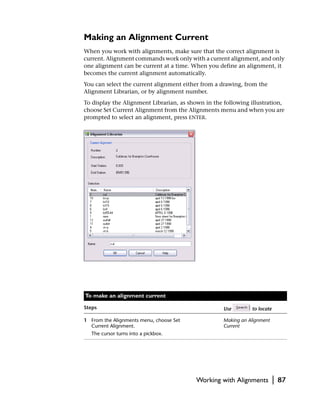
                A point group does not store point information; the point database always
                handles point storage. The point group feature can help you organize the
                points into smaller, more manageable groups.
                To create and manage point groups, use the Point Group Manager, shown in
                the following illustration. Access the Point Group Manager by choosing
                Point Group Manager from the Points ➤ Point Management menu.


50   |   Chapter 3   Working with COGO Points
Point group features in AutoCAD Land Desktop include the following:
■   Persistent Properties: Point groups have persistent properties. This means
    that if points that match the properties of a point group are modified in
    some way, or if points were added to or removed from the point database,
    you can be alerted to update the point group. By using the Check Status,
    Show Changes, and Update features, you can check for changes to the
    point groups, show exactly which points that have changed, and update
    the point groups.
■   Point Selection by Raw Description Matching: You can select the points
    to include in a point group by specifying raw description matches from
    the Raw Desc Matching tab. The list that appears on this tab is derived
    from the defined description key codes in the project. All points in the
    point database with raw descriptions that match the selected raw descrip-
    tion are included in the point group.


    NOTE The list on the Raw Desc Matching tab is derived from the defined
    description keys in the project, but this tab does not use Description Key
    settings, such as the ascending/descending sort order setting. Be sure to
    check the point list derived from selected raw descriptions, especially when
    using wildcard characters.


■   Saving To and Loading From a Prototype: You can save a standard point
    group file to a prototype that you can load into other projects.
■   Simplified Point Selection Methods: The Create Point Group dialog box
    has separate Include and Exclude tabs for specifying the points to include
    or exclude from the point group. A Summary tab summarizes the proper-
    ties you define for the group and lists the total number of points in the
    group.
■   Additional Point Commands: Insert points into the drawing, remove
    points from the drawing, erase points, lock, and unlock points in the
    Point Group Manager dialog box. Select the points and right-click to dis-
    play these options in the shortcut menu.


                                           Working with Point Groups        |   51
Key Concepts
                ■    You can show additional columns of data in the Point Group Manager. To
                     show all columns (including point name, grid northing, and grid easting,
                     which are not shown by default), right-click a column heading and choose
                     Show All Columns from the shortcut menu.
                ■    When you assign overrides, point groups can override existing point data
                     that is contained in the point database.
                ■    From within the Point Group Manager, you can lock a point group to
                     prevent it from being updated. You can also lock the points in a point
                     group so they cannot be edited.


                 To create point groups

                Steps                                                       Use        to locate

                1 From the Points menu, choose Point                        Creating a Point Group
                  Management ➤ Point Group Manager to display the
                  Point Group Manager dialog box.

                2 Click     to display the Create Point Group dialog box.


                3 Enter a name and description for the point group.


52   |   Chapter 3   Working with COGO Points
To create point groups (continued)

      Steps                                                            Use        to locate

      4 Select the points for the point group by using the Raw
        Desc Matching tab, the Include tab, and the Exclude tab.
          Click Apply to update the Point List box at the top of the
          dialog box. All the points in the Point List box are
          included in the point group when you click OK.

      5 Define overrides for the point groups by using the             Point Group Overrides
        Overrides tab.

      6 Click the Summary tab to view a summary of the
        properties you defined for the point group.

      7 Click OK to create the point group and return to the Point
        Group Manager.


Working with Description Keys
      You can use description keys to associate symbols with points and to control
      point and symbol layers. Use the Description Key Manager, shown in the
      following illustration, to define new description keys and create new descrip-
      tion key files.


      By using description keys, you can

      ■   Insert symbols to visually distinguish the different types of points in the
          drawing.
      ■   Specify layers on which to insert the points and the symbols.
      ■   Scale and rotate symbols that are inserted with the points.
      ■   Replace a “raw” (original) point description with a full description.


                                                  Working with Description Keys                |   53
When you define description keys, you assign a description key code, a
                description format (or “full” description), a symbol, a point layer, and a sym-
                bol layer. When you create or import a point with a raw description that
                matches a description key code, the point is placed in the drawing with the
                symbol, the point and symbol are placed on the specified layers, and the raw
                description is replaced with the full description.
                When you create points, you are prompted for the point number, point ele-
                vation, and point description. A description key is essentially a replacement
                for the point description. For example, if you type TREE as the description for
                a tree point, and if TREE has been defined as a description key and it has a
                symbol associated with it, then a tree symbol is created for that point.
                AutoCAD Land Desktop includes many symbols that you can use for
                description keys. Imperial and metric symbols are stored in subfolders of the
                following folder:
                C:Documents and SettingsAll UsersApplication DataAutodeskAutoCAD
                Land Desktop <Version Number><Release Number>DataSymbol Manager
                You can also create a custom symbol to use in the drawing, and then you can
                use WBLOCK to save the block to the symbol folder.
                If you edit description keys, you can update the drawing with the new set-
                tings by using the Modify Drawing command from the Points ➤ Check
                Points menu.

                Creating a Utility Pole Description Key
                The following example shows how you can create a description key using a
                symbol included with AutoCAD Land Desktop.
                The example describes how to create points that represent utility poles using
                a description prefix “UP.” By using wild card characters, you do not need to
                create a description key for each point description—you only need to create
                a description key that references the “UP” prefix.


                 To create description keys

                Steps                                                      Use        to locate

                1 From the Points menu, choose Point Settings to display
                  the Point Settings dialog box.

                2 Click the Insert tab.                                    Changing the Point
                                                                           Insertion Settings


54   |   Chapter 3   Working with COGO Points
To create description keys (continued)

Steps                                                      Use         to locate

3 Under Search Path for Symbol Block drawing files,
   click Browse, and locate the following folder.
C:Documents and SettingsAll UsersApplication DataAutodesk
AutoCAD Land Desktop <Version Number><Release Number>DataSymbol Managercogo

4 Under Point Labeling, select the Use the Current Point
  Label Style When Inserting Points check box.
   NOTE In subsequent steps, you create the point label
   style to use for the new points.

5 Click the Create tab.                                    Changing the Point
                                                           Creation Settings

6 Under Descriptions, select Manual.

7 Click OK to close the Point Settings dialog box.

8 From the Points menu, choose Point                       Using the Description Key
  Management ➤ Description Key Manager to display the      Manager
  Description Key Manager dialog box.


                                          Working with Description Keys            |   55
To create description keys (continued)

                Steps                                                             Use          to locate

                9 Click        to display the Create Description Key dialog box. Creating a Description Key


                10 For this example, type UP* as the DescKey Code.
                     The asterisk (*) matches any point description that starts
                     with UP. For example, UP5A or UP5B.

                11 Type $* as the Description Format.                         Using Wildcard Characters
                     These wildcard characters keep the point description the in Description Keys
                     same as when you enter it, so you can distinguish
                     between UP5A and UP5B. However, you can assign a new,
                     full description and this description would then be used
                     for all the utility poles.

                12 Type PTS_UP as the Point Layer. This places the point
                   objects on the PTS_UP layer.

                13 From the Symbol Block Name list, select U_POLE.

                14 In the Symbol Layer box, enter the layer for the symbol.

                15 Click OK, and then close the Description Key Manager
                   dialog box.

                16 From the Labels menu, choose Edit Label Styles and then        Editing Point Label Styles
                   click the Point Label Style tab.

                17 In the Name box, type Desckey style.


56   |   Chapter 3    Working with COGO Points
To create description keys (continued)

      Steps                                                           Use         to locate

      18 In the Data list, choose Point Number and click the Text
         button.

      19 After {Number} in the text box, press ENTER to insert a
         carriage return.

      20 In the Data list, choose Description and click the Text
         button.

      21 Under Description Keys, select the DescKey Matching On
         check box, select the description key file, and select the
         Insert DescKey Symbol check box.

      22 Click Save and then click OK.

      23 From the Labels menu, choose Show Dialog Bar and make Selecting the Current Label
         the Desckey point label style that you created the current Style from the Style
         point label style.                                         Properties Dialog Bar

      24 From the Points menu, choose Create Points ➤ Manual.         Creating Points at Selected
                                                                      Coordinates

      25 Select a location in the drawing for the new point.

      26 When you are prompted for the description, type UP1A.
          The description, UP1A, and the utility pole symbol are
          placed with the point, and the point and the symbol are
          placed on the specified layers.


Performing Geodetic Transformations
on Points
      Use the AutoCAD Land Desktop geodesy commands to relate survey data to
      mathematical models of the earth.
      Using the geodesy commands you can

      ■   Calculate the latitude and longitude, State Plane, or UTM coordinates of
          a point.
      ■   Convert point data that is in another coordinate zone into the current
          drawing’s coordinate zone when you import points.
      ■   Convert point data in a project from one coordinate system to another.


                            Performing Geodetic Transformations on Points                     |   57
Hundreds of different zones are provided in AutoCAD Land Desktop, includ-
                ing UTM projections, and NAD27 and NAD83 State Plane grids. You can also
                use commands to edit zones and create new zones.
                You can use geodetic calculations, related to the current zone, whenever you
                have any high-order survey calculations to complete, or if you must tie a
                survey into either state plane coordinates or UTM map projections.
                To relate the assumed local northing/easting coordinates of a survey to the
                selected current zone, you must set the Transformation Settings for the
                drawing.

                Key Concepts
                ■    The State Plane coordinates are expressed as grid northing and grid easting
                     coordinates.
                ■    The assumed coordinates, local northing and local easting coordinates,
                     are equivalent to the COGO point coordinates in the point database.
                ■    The Geodetic Calculator supplies “missing” information related to the
                     current zone. For example, if you know the latitude and longitude of a
                     point, then you can enter this information into the calculator to compute
                     the grid northing/easting coordinates. You can then use this information
                     to set the Transformation Settings for the drawing.
                ■    After you set the Transformation Settings for a drawing, you can enter the
                     local northing/easting coordinates into the Geodetic Calculator to com-
                     pute either the grid coordinates or latitude and longitude of any point.

                Calculating State Plane Coordinates from a
                Known Latitude and Longitude
                You can use the Geodetic Calculator to relate local northing and easting coor-
                dinates to a State Plane coordinate system by using a known latitude and
                longitude that you collect using a Global Positioning System (GPS) receiver.
                After you calculate the grid coordinates, you can set the transformation set-
                tings for the drawing. This lets you calculate the grid coordinates or latitude
                and longitude of any point in the survey.


58   |   Chapter 3    Working with COGO Points
In the following task, two separate GPS latitude/ longitude readings are taken
on two different points, and the local northing and easting readings of these
points are recorded.


To calculate State Plane coordinates from GPS data

Steps                                                       Use        to locate

1 From the Projects menu, choose Drawing Setup to display
  the Drawing Setup dialog box.

2 Click the Zone tab and select the current zone            Changing the Current
  for the drawing.                                          Zone for a Drawing

3 Click OK to close the Drawing Setup dialog box.

4 From the Points menu choose Point Utilities ➤ Geodetic Using the Geodetic
  Calculator to display the Geodetic Calculator dialog box. Calculator


                     Performing Geodetic Transformations on Points                 |   59
To calculate State Plane coordinates from GPS data (continued)

                Steps                                                            Use        to locate

                5 Enter the latitude and longitude of the first point that you
                  observed with the GPS. The calculator automatically
                  displays the grid northing and grid easting coordinates for
                  the point that is related to the current zone that you
                  selected in step 2. Make a note of these coordinates.

                6 Enter the latitude and longitude of the second point that
                  you collected and make a note of the grid northing and
                  grid easting coordinates.
                     You can now use these grid northing and easting
                     coordinates to set the transformation settings for
                     the drawing.

                7 Click OK to close the Geodetic Calculator dialog box.

                8 From the Projects menu choose Transformation                   Changing the Geodetic
                  Settings to display the Geodetic Transformation Settings       Zone Transformation
                  dialog box.                                                    Settings


                9 Select the Apply Transform Settings check box.


60   |   Chapter 3    Working with COGO Points
To calculate State Plane coordinates from GPS data (continued)

Steps                                                           Use        to locate

10 the Reference Point section, enter the grid northing and
   grid easting coordinates for the first point that you
   calculated with the Geodetic Calculator. Enter the local
   northing and easting coordinates for the same point. Or,
   if you already placed that point in the drawing, you can
   click the Reference Point button and select the point from
   the drawing. You can also enter the point number to
   retrieve the local northing and easting coordinates.

11 Repeat step 10 using the second set of grid northing and
   easting coordinates, but enter the information in the
   Rotation Point section.

12 Click OK to apply the transformation settings.

13 From the Points menu choose Point                            Using the Geodetic
   Utilities ➤ Geodetic Calculator.                             Calculator
   Now you can use the Geodetic Calculator to query the
   grid northing/easting and latitude/longitude of any point
   in the survey.

14 Enter the local northing and easting coordinates, and the
   grid coordinates and latitude/longitude are calculated
   automatically.


                      Performing Geodetic Transformations on Points                    |   61
62   |   Chapter 3   Working with COGO Points
Working with Surfaces
                                                                       4
You can use points, DEM files (digital elevation models),   In this chapter
contours, breaklines, and boundaries to generate a          ■ Working with the
                                                               Terrain Model Explorer
model of the earth’s surface. From this model, you can
                                                            ■ Creating surface data
create contours and sections, and by comparing two          ■ Building surfaces

surfaces, you can calculate volumes.                        ■ Calculating finished ground data
                                                            ■ Editing surfaces
                                                            ■ Working with surface output
                                                               and visualization tools
                                                            ■ Creating contours
                                                            ■ Calculating volumes


                                                                                         63
Introduction
                After you have entered data into a project, you can create a surface model
                from that data. A surface model is a three-dimensional geometric representa-
                tion of the surface of an area of land. Surface models in AutoCAD Land
                Desktop are made up of triangles, which are created when AutoCAD Land
                Desktop connects the points that make up the surface data.
                The triangles form a triangulated irregular network (TIN) surface. A TIN line is
                one of the lines that makes up the surface triangulation, as shown in the
                following illustration.


                To create TIN lines, AutoCAD Land Desktop connects the surface points that
                are closest together. These TIN lines interpolate surface elevations, filling in
                the gaps where no survey data or contour data is known, to create an approx-
                imation of the surface.

                Using Point, DEM, Contour, Breakline, and
                Boundary Data in Surfaces
                Random point data, points taken at a variety of elevations and coordinates
                as opposed to interpolated contour data, often makes the best surface data.
                To use points for a surface, you can select point groups, select COGO points
                from the drawing, or import point files. You can create point groups from the
                points in the COGO point database. Point files can be ASCII text files or
                Microsoft® Access database files. If you have blocks or lines at elevations in a
                drawing, then their coordinates can also be selected as point data to use in
                surfaces.


64   |   Chapter 4   Working with Surfaces
In addition to points, you can also build surfaces from DEM files (Digital
      Elevation Models), contour, breakline, and boundary data. You can have the
      contours treated as individual points where the contour vertices are used as
      surface points, or you can have the contours treated as breaklines that
      prevent triangulation lines from crossing the contours. Surface TIN lines
      typically do not cross contour lines.
      To build a surface accurately, you must provide more information than
      points and contours. For example, to prevent surface triangulation across
      features such as roads or streams, you can define breaklines. Breaklines are
      constraint lines used by the model that represent abrupt changes in the
      surface. TIN lines can be drawn to and from breakline vertices, but they do
      not cross the breakline.
      By including boundaries in the surface definition, you can control how the
      surface extends to its outer limits, and you can hide internal areas to prevent
      triangulation from occurring.


Working with the Terrain Model Explorer
      The Terrain Model Explorer consolidates all the surface creation and manage-
      ment features in one place. You can use the Terrain Model Explorer to create,
      open, build, and view surfaces.
      The left pane of the Terrain Model Explorer contains a Terrain and a Volume
      folder. To create a new surface, right-click the Terrain folder and choose
      Create New Surface from the shortcut menu. After you create a surface, a
      surface folder with icon is created below the Terrain folder. Click the surface
      icon to display the surface data icons. You can access commands by right-
      clicking the icons to display a shortcut menu.


                                Working with the Terrain Model Explorer         |   65
Use the shortcut menus to add the surface data to the surface folder, and then
                build the surface.
                The Volume folder in the left pane of the Terrain Model Explorer contains
                information about grid and composite volume surfaces that are created from
                the volume calculations commands on the Terrain menu. Use the Terrain
                Model Explorer to view properties about the volume surfaces, as well as open,
                close, and view volume surfaces.
                You can keep the Terrain Model Explorer open while you use other com-
                mands. Use the buttons in the upper-right corner of the dialog box to
                minimize, maximize, and close the Terrain Model Explorer.


Creating Surface Data
                Before you can build a surface, you must create surface data in the Terrain
                Model Explorer by using the shortcut menu commands, such as Add Point
                Group.


                When you add the surface data into the Terrain Model Explorer, you are
                determining the objects to include in the surface. These objects can be point
                groups, point files, points, DEM files, breaklines, contours, and boundaries.


66   |   Chapter 4   Working with Surfaces
Key Concepts
■   When you import a point file into the Terrain Model Explorer, the point
    data is not added to the point database. The data is used exclusively for
    building the surface.
■   To add contour data to a surface, you must have contour objects or
    polylines in the drawing.
■   To add breaklines, you must use the commands on the Breaklines shortcut
    menu in the Terrain Model Explorer.

Creating Breaklines to Use in Surface Generation
Breaklines are constraint lines that represent abrupt changes in a surface,
such as retaining walls, stream banks, and curb; or breaklines represent
objects with known elevations, such as contours. You can use breaklines to
prevent surface triangulation across these objects.
Breaklines prevent TIN lines from crossing the breakline. This is essential if
the breakline represents a constant elevation, and you do not want eleva-
tions to be interpolated across such a breakline. The breakline also forces
retriangulation of the surface based on the breakline vertices.
The following illustration shows how a surface triangulates before and after
breaklines are created. When you define breaklines, you can control triangu-
lation with regard to abrupt changes in the terrain.


                                               Creating Surface Data     |   67
You can define three types of breaklines.

                ■    Proximity breaklines: Defines breaklines using the surface points nearest
                     to the breakline that you draw. You do not have to snap to exact points.
                ■    Wall breaklines: Defines the elevations of a wall-type object on both
                     sides of the wall. For example, triangulation is linked to the bottom of
                     the wall on one side, and then begins again from the top of the wall on
                     the other side.
                ■    Standard breaklines: Defines the breaklines using the exact points or
                     polylines that you select.

                Creating Contours to Use in Surface Generation
                You can use vector contours, either polylines or contour objects, in surface
                generation. However, contour data differs greatly from data taken randomly
                in the field. Since contour map data is interpolated, the information may be
                less accurate than direct field data. The accuracy of the final surface model
                depends on the quality of both the contour map and the contour interval.
                Unlike breaklines, which you create directly from within the Terrain Model
                Explorer, contours (as contour objects or polylines) must already be in the
                drawing in order to select them as surface data.


68   |   Chapter 4    Working with Surfaces
You can use contour data either as breaklines or as points when you add the
contour data to the Terrain Model Explorer. When you add contour data to
the surface folder, the Contour Weeding dialog box is displayed.


When the Create as Contour Data check box is selected, the contours are
treated as breakline data, so no triangulation occurs across contours. When
the Create as Contour Data check box is cleared, the contour vertices are
treated as point data for the purposes of triangulation.

Creating Boundaries to Use in
Surface Generation
Boundaries can help eliminate certain surface editing tasks.

■   Boundaries control how the surface TIN lines extend to the outer limits of
    a surface.
■   Boundaries hide internal areas of a surface.

For example, if a pond exists on the surface, you can either build the surface
and then delete the triangulation lines that cross the pond, or you can create
a boundary around the pond before building the surface so that the area of
the pond is hidden. The same applies to outer surface boundary lines. You
can either delete the TIN lines that extend beyond the survey limits after you
build the surface, or you can create a boundary around the survey limits
before building the surface.


                                                Creating Surface Data    |   69
The following illustration shows the effect of an outer boundary.


Building Surfaces
                After you choose the information to include in a surface, you can build the
                surface. When you build a surface, all the surface data is processed and the
                program calculates the surface triangulation. The triangulation is calculated
                by combining the breakline, contour, DEM file data, and boundary data with
                the surface point data and interpolating the results.
                Everything that you add to a surface folder in the Terrain Model Explorer can
                be used in the surface, but you can exclude certain data from build to build
                to examine different results.

                Key Concepts
                ■    You can have an unlimited number of surfaces in a project or drawing.
                ■    Surfaces are stored in the following folder:
                     c:Land Projects <Version Number><project name>dtm


70   |   Chapter 4   Working with Surfaces
■   You can access surfaces simultaneously across a network. The first user
    who opens the surface has read/write access to it. All other users have read-
    only access.


To build a surface

Steps                                                          Use         to locate

1 From the Terrain menu, choose Terrain Model Explorer         Using the Terrain Model
  to display the Terrain Model Explorer dialog box.            Explorer

2 Right-click the Terrain folder and choose Create             Creating a New Surface
  New Surface from the shortcut menu.

3 Open the new surface folder to display the icons.


4 Add the data to be included in the surface. This data can    Creating Surface Data and
  be points, DEM files, contours, boundaries, or breaklines.   Adding It to the Surface
  To add a point group to the surface, right-click the Point   Folders
  Groups icon and select the point group.
    To add contour data to the surface, Right-click the
    Contours icon and generate the contour data.


                                                               Building Surfaces       |   71
To build a surface (continued)

                Steps                                                         Use          to locate

                5 After you add all the surface data, Right-click the surface Building a Surface
                  name and choose Build from the shortcut menu to display
                  the Build Surface dialog box.


                6 Enter a description for the surface.

                7 Choose the surface data to use in the surface by
                  modifying the Surface Data Options. You can also choose
                  to build the watershed model, calculate extended
                  statistics, and create an error file when building the
                  surface.

                8 Click OK to build the surface. A message box is displayed
                  when the surface has been built. Click OK to continue.


72   |   Chapter 4   Working with Surfaces
Creating Finished Ground Data for Surfaces
      AutoCAD Land Desktop has many commands that you can use for creating
      finished ground data to use for surfaces. The following table summarizes a
      few of the point, 3D polyline, and contour grading methods you can use for
      creating finished ground surface data.

       Methods for creating finished ground surface data

      Point Grading                   3D Polyline Grading            Contour Grading

      Create points at the vertices   Create 3D polylines by         Create contours along a
      of a 3D polyline                specifying an elevation or a   proposed slope or grade
                                      slope

      Create points where two         Fillet 3D polylines            Create multiple offsets of a
      slopes or grades intersect                                     contour at a specified interval
                                                                     and grade until a specified
                                                                     distance or elevation is reached

      Interpolate points between    Offset existing polylines in     Copy existing contours that
      two selected points, based on the drawing and apply            you can update with new
      total distance                elevational changes to the       grading data
                                    offset polylines


      When you are ready to create the surface based on this grading data, you
      must add the surface data to the surface folder in Terrain Model Explorer. The
      following table shows how to process each type of grading data.


       Processing different types of surface data

      Object                   How to process as surface data

      2D Polylines             Select as contours

      3D Polylines             Select as breaklines or as contours

      Points                   Select as points or point groups


                                   Creating Finished Ground Data for Surfaces              |   73
Editing Surfaces
                After building a surface, you should evaluate its accuracy. Did the TIN lines
                generate as expected? If not, you can go back and define new surface data like
                points, breaklines, and boundaries. Or, if the changes are small, you can edit
                the surface TIN directly.
                For example, you can

                ■    Flip the faces of triangles to match ridges or depression areas.
                ■    Add TIN lines to force retriangulation.
                ■    Delete TIN lines that extend beyond survey boundaries.
                ■    Add, delete, move, and edit points.
                ■    Add breaklines.
                ■    Paste surfaces together.
                ■    Change the overall elevation of the surface by an increment.

                For example, you can add a TIN line, which forces the other TIN lines that it
                crosses to retriangulate. You can add points to a surface, which also forces the
                surface to retriangulate. You can also trim out surface TIN lines that are
                drawn across a building pad or pond. The following illustration is an example
                of flipping TIN faces.


                To combine two or more surfaces into one surface, paste them together. For
                example, you can create a surface that represents only part of a site, such as
                a surface that contains the grading data for a building pad. After you build
                this surface, you can paste it into the existing ground surface to create a fin-
                ished ground surface that represents the entire site.
                The surface TIN lines must be in the drawing in order for you to use the Edit
                Surface commands. Use the Import 3D Lines command from the Edit
                Surface menu to import surface lines you can edit. Be sure to set the surface
                you are working with as current. Only the data for the current surface is
                used when editing.


74   |   Chapter 4    Working with Surfaces
Edit History
      Whenever you rebuild a surface, you must reapply the edits that you made
      to it. To save time, all edits that you make to a surface are saved in the Edit
      History folder in the Terrain Model Explorer.


      The Edit History folder stores all the edits that you make to a surface so you
      can automatically repeat them when you rebuild the surface later.
      You can open the Edit History folder to view the edits you have made to a
      surface, as shown in the following illustration.


      When you select the Apply Edit History check box as you rebuild the surface,
      all previous edits are repeated in the order that you made them. You can also
      change the edit history list. To not repeat a step in the edit history, delete the
      item from the list.


Creating Contours
      Contours portray the elevational values of a surface at specified intervals, as
      shown in the following illustration.


                                                           Creating Contours      |   75
You can use AutoCAD Land Desktop to create existing ground or finished
                ground contours. To create contours, you can

                ■    Generate contours from the current      ■   Convert polylines to contours.
                     surface model.
                ■    Vectorize contours on a raster image.   ■   Digitize a paper contour map.
                ■    Copy contours.                          ■   Offset contours.


                Note You can use contours to represent features other than elevations.
                For example, contours can represent rainfall intensity, soil contamination lines,
                and so on.


                Creating Contours from a Surface
                As you create contours from a surface, use a contour style that controls how
                the contour and contour labels display. For example, a contour style controls
                ■    smoothing
                ■    grip display (for editing contours and contour labels)
                ■    label text style
                ■    label position

                When you create contours, you must choose a style. You can also specify
                elevation ranges, contour intervals, and whether to create the contours as
                AEC contour objects or polylines. All contour definition, editing, and label-
                ing commands work on both contour objects and polylines.


                Note To edit AEC contour objects in another AutoCAD program (other than
                AutoCAD Land Desktop), you must explode the contour objects because they
                are custom objects. Or, you can install the Object Enabler, which is available on
                the AutoCAD Land Desktop product media.

                When you create contours from a surface, you base the contours on a
                contour style. Use the Contour Style Manager to define and modify
                contour styles.


76   |   Chapter 4    Working with Surfaces
Key Concepts
■   Contour styles store groups of settings in the drawing so you can use them
    again without having to redefine the settings you want to use.
■   Choose a contour style when you run the Create Contours command
    from the Terrain menu.
■   You can use the Manage Styles tab to save contour styles to an external file
    and also to add contour styles from an external file. This is helpful when
    you use the same contour styles in more than one drawing or in different
    projects.
■   You can click inside the Preview window on the Contour Style Manager
    and adjust the view angle of the previewed contours by moving the
    pointing device.


                                                    Creating Contours      |   77
To create contours from a surface

                Steps                                                             Use          to locate

                1 From the Terrain menu, choose Create Contours to                Creating Contours from a
                  display the Create Contours dialog box.                         Surface


                2 Select the surface from which you can create contours. By
                  default, the current surface is displayed in the Surface box.

                3 Specify the elevation range.

                4 Specify the vertical scale.

                5 Specify the minor and major contour intervals.

                6 Under Properties, choose either contour objects or
                  polylines.

                7 To create contour objects, under Properties, click Style        Managing Contour Styles
                  Manager to display the Contour Style Manager dialog
                  box.                                                            Using the Contour Styles
                                                                                  Manager


78   |   Chapter 4   Working with Surfaces
To create contours from a surface (continued)

      Steps                                                         Use         to locate

      8 Use the Contour Style Manager dialog box to smooth
        contours, and to specify the contour appearance, the text
        style for contour labels, and the label position. You can
        also use this dialog box to save contour styles and add
        styles from other drawings.

      9 Click OK to return to the Contour Style Manager dialog
        box, and then click OK to generate the contours.

      10 You can label the contours using the commands in the       Labeling Contours
         Terrain ➤ Contour Labels menu.


Calculating Volumes
      You can calculate volumes or depths between surfaces by comparing them.
      For example, you may want to compare existing ground surface data with as-
      built data. Or, if you have borehole data, then you may want to calculate the
      volumes between the top surface and rock.
      AutoCAD Land Desktop includes three volume calculation methods:

      ■   Grid method: Creates a volume surface that is based on a grid that com-
          pares elevational information between the first and second surface.
      ■   Composite method: Creates a volume surface that includes all the surface
          points from the first and second surface. The Z values in the new surface
          are the elevational difference between the first and second surface.
      ■   Section method: Calculates volumes based on sampled cross sections.

      You can also calculate parcel volumes, which are based on parcels that exist
      within the larger site.
      In all cases, you need two surface models. From the two surfaces, you must
      define a stratum, which specifies the two surfaces used in volume
      calculations. Before you can calculate volumes, you must define a site that
      represents the stratum area for which you want to calculate volumes.


                                                              Calculating Volumes           |   79
To calculate volumes

                Steps                                                               Use          to locate

                1 Define at least two surfaces, such as existing ground and         Building a Surface
                  proposed ground.

                2 From the Terrain menu, choose Select Current Stratum to Defining a Stratum
                  create a stratum that defines the two surfaces that you
                  compare.

                3 From the Terrain menu choose Site Definition ➤ Define             Defining a Site for Volume
                  Site to define the site area.                                     Calculations
                     A site is essentially a rectangular area in which all volume
                     calculations are performed. It also defines the grid size
                     that is used when creating a grid surface.

                4 To calculate volumes using the section method, select   Sampling Section Data for
                  Terrain ➤ Section Volumes ➤ Sample Sections to generate Volume Calculations
                  the cross section data.

                5 Calculate cut/fill volumes for the site. Volumes are              Calculating Total Site
                  calculated based on the method that you choose.                   Volumes Using the Grid
                                                                                    Method
                     ■   To use the grid method, select Terrain ➤ Grid
                         Volumes ➤ Calculate Total Site Volume.
                                                                                    Calculating Total Site
                     ■   To use the composite method, select
                                                                                    Volumes Using the
                         Terrain ➤ Composite Volumes ➤ Calculate Total
                                                                                    Composite Method
                         Site Volume.
                     ■   To use the section method, select Terrain ➤ Section
                                                                                    Calculating Total Site
                         Volumes ➤ Calculate Volume Total.
                                                                                    Volumes Using the Section
                                                                                    Method


80   |   Chapter 4    Working with Surfaces
To calculate volumes (continued)

Steps                                                         Use          to locate

6 You can create volume reports, print the results, or include Creating a Total Volume
  them in a table in the drawing by using commands from Table for a Site
  the Terrain ➤ Volume Reports menu, as shown in the
  following illustration.


7 If you used the section volume calculation methods, then Plotting a Single Volume
  you can plot the cross sections in the drawing by selecting Section
  Terrain ➤ Section Volumes ➤ Plot Single.


                                                         Calculating Volumes           |   81
82   |   Chapter 4   Working with Surfaces
Working with
Alignments and Parcels
                                                                 5
Creating alignments and parcels with AutoCAD Land      In this chapter
Desktop is a two-step process. First, you create the   ■ Working with alignments
                                                       ■ Working with parcels
geometry, such as the roadway centerlines and parcel

boundaries, and then you define the geometry as

alignments and parcels.


                                                                                   83
Introduction
                You can draft horizontal alignments and parcels at any time during the
                project process. You can begin by drawing objects, such as lines, curves,
                spirals, or polylines, to represent the geometry of an alignment or parcel.
                Then, you can define an alignment or parcel to a database. All data is stored
                in an external database and all drawings in a project can access that data.
                Because of the external database, you do not need to draft alignments or
                parcels in a drawing to reference them. After you define objects, you can
                delete them from the drawing. Then, if you must visually reference
                alignments or parcels, you can import them into the drawing.


Working with Alignments
                The plan view of roadway geometry is called a horizontal alignment. For align-
                ments, you can define roadway centerlines and create offsets that represent
                lanes, shoulders, and rights-of-way. You can create station labels along an
                alignment, and generate stakeout reports for surveyors.
                Because alignment definitions are stored in a database outside the drawing,
                you have the following added flexibility when managing alignments:
                ■    If other projects contain alignments that you want to include in a current
                     project, then you can merge alignment databases and import alignments
                     into a drawing.
                ■    If someone on a network needs write access to the alignment you have set
                     as current, then you can close the alignment database or select a different
                     current alignment while you keep a drawing open.
                ■    It is not necessary to keep alignment objects in a drawing. You can delete
                     them and import the alignments only when needed.

                You can edit the data in the alignment database by using the Alignment
                Editor. Any changes that you make to an alignment in the Alignment Editor
                are updated in the drawing. The Alignment Editor can also generate reports.
                The civil engineering tools provide advanced roadway design capabilities,
                such as profile and cross section design.

                Multi-User Alignment Database
                The alignment database can be accessed by multiple people working over a
                network. Locking works on a per-alignment basis. To release the lock on an


84   |   Chapter 5    Working with Alignments and Parcels
alignment, you can set a different alignment current or you can close the
Alignment database.
To share an alignment database with someone using Release 1 of AutoCAD
Land Development Desktop, you can save the alignment database in the
previous format of the alignment database as a project.adb file. Choose the
Save as .adb command from the Alignments ➤ Alignment Commands menu.

Drawing Alignment Geometry
Begin an alignment design by drawing alignment geometry. You need to
draw an alignment centerline only—you can create offsets later by using an
automated offset routine. To draw an alignment centerline, you can use line,
arc, and spiral commands from the Lines/Curves menu, as well as AutoCAD
commands such as ARC, LINE, PLINE, and FILLET. You can also draw align-
ments as Survey Figures either in the field using the Survey Command Lan-
guage to input the data in a data collector, or on the Survey command line.
When you draw the alignment, use object snaps to ensure that no gaps exist
between each object that makes up an alignment.
To create spirals, use the Spiral commands from the Lines/Curves menu. If
you know the intended speed for an alignment, then you can draw spirals
using an AASHTO or user-defined speed table, which automatically calcu-
lates superelevation information for an alignment.

Key Concepts
■   If you use the Lines/Curves menu commands instead of PLINE or LINE,
    then the lines, curves, and spirals are drawn tangent to their adjacent
    object.
■   You can define more than one alignment from the same alignment
    geometry.


                                           Working with Alignments     |   85
To create alignment geometry

                Steps                                                           Use         to locate

                1 Create a layer on which the alignment centerline is to be     Create and Name Layers
                  drawn. Use a name such as “CL” for Centerline.

                2 Use one of the line drawing options from the Lines/           Drawing Lines
                  Curves menu.

                3 To add curves, use the curve commands from the Lines/         Drawing Curves
                  Curves menu.
                     You can add a curve between two tangents, from the end
                     of a tangent, and more. These options ensure that the
                     curve is drawn tangent to the selected lines.

                4 To draw a spiral, use one of the spiral commands from the Drawing Spirals
                  Lines/Curves menu.


                Defining an Object as a Road Alignment
                By defining figure geometry as an alignment, all individual geometric com-
                ponents (lines, arcs, and spirals) become linked as a single object, and align-
                ment data is saved to the database in the project folder.
                Because this data is stored in an external database, you can access the align-
                ments from all drawings in the project. After you define and alignment, it in
                not necessary to draft the alignment in the drawing. All commands that refer
                to the alignment geometry reference the database.


                 To define an alignment

                Steps                                                           Use         to locate

                1 Draw the alignment geometry.                                  Defining Alignments

                2 If you drew an alignment geometry using lines, curves,        Defining an Alignment from
                  and spirals, then select Define From Objects from the         Objects
                  Alignments menu to define the alignment.
                     If you drew an alignment using a polyline, then select     Defining an Alignment from
                     Define From Polyline from the Alignments menu.             a Polyline
                     When you define the alignment, you are prompted for
                     essential information such as the alignment name,
                     description, starting station, and objects that comprise
                     the alignment.


86   |   Chapter 5    Working with Alignments and Parcels
Making an Alignment Current
When you work with alignments, make sure that the correct alignment is
current. Alignment commands work only with a current alignment, and only
one alignment can be current at a time. When you define an alignment, it
becomes the current alignment automatically.
You can select the current alignment either from a drawing, from the
Alignment Librarian, or by alignment number.
To display the Alignment Librarian, as shown in the following illustration,
choose Set Current Alignment from the Alignments menu and when you are
prompted to select an alignment, press ENTER.


To make an alignment current

Steps                                               Use        to locate

1 From the Alignments menu, choose Set              Making an Alignment
  Current Alignment.                                Current
   The cursor turns into a pickbox.


                                          Working with Alignments          |   87
To make an alignment current (continued)

                Steps                                                             Use   to locate

                2 Select the alignment using one of the following methods:
                     ■   If the alignment is drafted in the drawing, then click
                         the alignment with the pickbox.
                     ■   When prompted to select an alignment, press ENTER,
                         and then select the alignment from the Alignment
                         Librarian.
                     ■   When prompted to select an alignment, press ENTER.
                         Click Cancel to close the Alignment Librarian, and
                         then enter the number of the alignment to make it
                         current.


                Editing a Road Alignment
                To edit an alignment, you can either modify the geometry and redefine the
                alignment, or you can modify the alignment data from within the
                Horizontal Alignment Editor.


                Use the Horizontal Alignment Editor to modify individual curve, tangent,
                and spiral geometry, and to generate reports based on the alignment. After
                you save the changes, drawing objects are automatically updated, so you do
                not need to redefine the alignment geometry.


88   |   Chapter 5   Working with Alignments and Parcels
Key Concepts
■   The Horizontal Alignment Editor is linked dynamically to the drawing.
    Changes that you make in the Editor update the alignment automatically
    in the drawing.
■   You can use the Horizontal Alignment Editor to modify PIs (Points of
    Intersection) and alignment curves and spirals.
■   The editor is similar to a spreadsheet. You must select inside the cell that
    you want to modify.
■   To change the alignment properties, such as the alignment layer, color,
    linetype, or description, use the Modify Properties command from the
    Alignments ➤ Alignment Commands menu.


To edit a road alignment

Steps                                                              Use          to locate

1 Select the current alignment.                                    Making an Alignment
                                                                   Current

2 From the Alignments menu, choose Edit to display the             Editing Horizontal
  Horizontal Alignment Editor dialog box.                          Alignments

3 To edit a curve, place the cursor in a cell at a curve point     Editing a Horizontal
  of intersection (PI), and then click Edit Curve.                 Alignment Curve

4 To edit a spiral, place the cursor in a cell at a spiral point   Editing a Horizontal
  of intersection, and then click Edit Spiral.                     Alignment Spiral

5 After you have finished editing, click OK to save all
  changes in the database and update the graphics.


Drafting Road Results
As you create a base map, you can complete a final drafting of an alignment
by adding roadway offsets, roadway stationing, and station and offset spot
labels.
You can also use the AutoCAD Map 3D commands to create a network topol-
ogy of the alignments from which you can calculate the shortest paths to
destinations, or show graphically the traffic volumes that travel along each
alignment.


                                                     Working with Alignments                |   89
Key Concepts
                ■    All annotation is based on the current alignment in the database.
                ■    To station or create offsets for an alignment, it must be defined to the
                     database.


                 To draft road results

                Steps                                                          Use          to locate

                1 Select the current alignment.                                Making an Alignment
                                                                               Current

                2 From the Alignments menu, choose Create Offsets to           Creating Offsets for an
                  display the Alignments Offset Settings dialog box.           Alignment


                3 Select the offsets that you want to create, and then enter
                  names for them.

                4 To define the offsets to the Horizontal Alignment
                  Database, select the Define Offset Alignments check box.

                5 Click OK to create the offsets.


90   |   Chapter 5    Working with Alignments and Parcels
To draft road results (continued)

Steps                                                     Use         to locate

6 From the Alignments menu, choose Station Display        Changing the Station
  Format.                                                 Display Format


7 Select the station format options, and click OK.

8 From the Alignments menu, choose Station Label Settings Changing the Alignment
  to change the station label settings.                   Station Label Settings


                                                 Working with Alignments          |   91
To draft road results (continued)

                Steps                                                      Use         to locate

                9 From the Alignments menu, choose Create Station Labels Creating Station Labels on
                  to create station labels. The labels are displayed as shown an Alignment
                  in the following illustration.


Working with Parcels
                When you create base maps or work with subdivisions, you must define
                parcels of land. You can define parcels from survey figures, points, lines,
                curves, or polylines. Parcel boundaries define the area and the limits of each
                parcel. If you define parcels by area, then you can use the Parcel Sizing
                commands to create parcels of exact areas.
                Like alignments, parcel definitions are stored in an external database so mul-
                tiple people can access them. Because parcel definitions are stored externally,
                you can delete the geometry in the drawing and still reference the parcel.
                When defining parcels, you can label them with a parcel number, area, and
                description. To manage parcels, use the Parcel Manager command from the
                Parcels menu. You can use this command to report map check and inverse
                data, as well as to import, delete, and rename parcels.


92   |   Chapter 5   Working with Alignments and Parcels
After you define a parcel, you can calculate its earthwork volumes using the
grid and composite volume methods. For more information about earth-
work, see “Calculating Volumes” on page 79.
You can use the AutoCAD Map 3D commands to create a database of parcel
numbers, owners, cost, and so on to help manage parcel maps.

Drawing Parcel Geometry
To draw the parcel boundaries, you can use the commands from the Lines/
Curves menu, or other AutoCAD commands such as LINE or PLINE. You can
also define parcel boundaries from points.


Note Do not use spirals in parcel boundaries. Spirals cause incorrect areas to
be reported.


You can also use Survey to draw parcel boundaries as Survey Figures. You can
use the Survey Command Language to input the data in a data collector, or
you can input the data using the Survey command line.


Note Be sure to draw the parcels as closed regions. If any of the joining lines
has a break, then you cannot calculate areas.


If you use polylines to draw parcel geometry, then you must break crossing
polylines before defining the parcels. Also, delete any duplicate lines that you
may have drawn where two parcels abut each other. You can break crossing
lines and erase duplicate lines by using the AutoCAD Map 3D Cleanup
command.

Draw Parcel Geometry Based on Area
To draw a parcel as an exact area, use the Parcel Sizing commands. Draw the
parcel with only one open segment, and then use one of the Parcel Sizing
commands to close the segment. Parcel Sizing commands include Slide
Bearing, Radial, Swing on Line, and Swing on Curve.


                                                 Working with Parcels      |   93
The following illustration shows how a parcel is defined by using the Slide
                Bearing command.


                Depending on the parcel settings, these commands can define the parcel to
                the parcel database, and they can also label the parcel that is calculated.
                You cannot use the Parcel Sizing commands to modify a parcel that is already
                defined to the parcel database. To change a parcel definition, you must delete
                the existing parcel definition and redefine the parcel. For more information
                about deleting parcels, see “Managing Parcels” on page 96.

                Defining Parcels to the Parcel Database
                As with alignments, you must define parcels to the parcel database so that
                the individual geometric component points, lines, arcs, or polylines,
                become linked as a single object. This parcel data is stored in a database in
                the project folder.
                When you define parcels to the database, you can label them and perform
                map check calculations on them, depending on what you specify in Parcel
                Settings.


                 To define parcels to the parcel database

                Steps                                                 Use         to locate

                1 Draw a parcel using the PLINE command.              Drawing Parcels


94   |   Chapter 5   Working with Alignments and Parcels
To define parcels to the parcel database (continued)

Steps                                                           Use          to locate

2 From the Parcels menu, choose Parcel Settings to display      Changing the Parcel
  the Parcel Settings dialog box.                               Settings


3 Under Options, select the Label Parcels as Defined and the
  Automatic Label Placement check boxes.

4 Under Parcel Numbering, select the Sequential On check
  box to number the parcels sequentially.
   If you clear this check box, then you are prompted for the
   parcel number each time you define a parcel. You can use
   alpha-numeric characters for parcel numbers.

5 Under Parcel Numbering, select the Labels On check box
  to label each parcel with its number.

6 Under Square Feet/Meters Labeling, select the Labels On
  check box to label each parcel with its area.

7 Click OK.

8 From the Parcels menu, choose Define from Polylines.          Defining a Parcel from a
                                                                Polyline


                                                        Working with Parcels             |   95
To define parcels to the parcel database (continued)

                Steps                                                             Use   to locate

                9 Select the polyline that represents the parcel. The parcel is
                  then defined to the parcel database.


                Managing Parcels
                You can use the Parcel Manager to

                ■    Import, delete, and rename parcels.
                ■    Report area, inverse, and map check information.

                To access the Parcel Manager, shown in the following illustration, choose
                Parcel Manager from the Parcels menu.


                Key Concepts
                ■    Use the Rename option to assign alpha-numeric names to the parcels.
                ■    Use the Import option to import parcels into a drawing if you have erased
                     the parcel lines or if you want the parcels to be visible in a different project
                     drawing. Erasing the parcels with the ERASE command does not remove
                     the parcel database definitions. To redisplay the parcels in the drawing,
                     import them with the Parcel Manager.
                ■    Use the Delete option to permanently delete the parcels. This option
                     deletes the parcel from the parcel database.


96   |   Chapter 5    Working with Alignments and Parcels
■   You can report parcel information such as area, perimeter, map check, and
    inverse results. After you review the results, you can either print them or
    save them to a text file for final reports.
■   If you created a parcel definition from a Survey figure, then you can report
    additional data about the parcels by using the Survey figure display,
    inverse, map check, and perimeter closure commands.


To report parcel areas

Steps                                                           Use          to locate

1 Define the parcel to the parcel database.                     Defining Parcels

2 From the Parcels menu, choose Parcel Manager to display Managing Parcels
  the Parcel Manager dialog box.

3 In the Select Parcel list, select one or more parcels about
  which you want to report information.
    When you select a parcel, it is marked with an asterisk.

4 Click Output Settings and select the report options, such     Changing the Output
  as the report name and destination.                           Settings - concept
    Click OK to close the Output Settings dialog box.

5 Click Area to create an area report.                          Reporting Parcel Area,
                                                                Inverse, or Map Check Data


                                                         Working with Parcels            |   97
98   |   Chapter 5   Working with Alignments and Parcels
Listing and
Annotating Plans
                                                                       6
To check object characteristics, you can perform inquir-    In this chapter
ies which list object data at the command line or in a      ■ Listing object data
                                                            ■ Labeling objects
dialog box. To label objects with selected information,

you can create dynamic and static labels, and you can

create object tables that list detailed information about

tagged objects in the drawing.


                                                                                    99
Introduction
                To check object characteristics, you can perform an inquiry on a drawing
                object. An inquiry shows you information about the selected object on the
                command line, the status bar, or in a tracking window.
                If you want a more permanent solution for identifying drawing objects—
                especially when you are ready to plot the drawing—you can label the draw-
                ing objects at any time during the drawing process. AutoCAD Land Desktop
                can create dynamic labels, which update whenever you edit the drawing
                objects. If you do not want labels to update automatically, then you can
                create static labels.
                To annotate a drawing manually, then you can create text (TEXT), multi-line
                text (MTEXT), or text on a curve (CTEXT). Both text and multi-line text do
                not move or update when a drawing changes; however, as a curve is modi-
                fied, the curve text moves with it.


Listing Object Data
                To quickly view data about objects, use the Inquiry commands. AutoCAD
                Land Desktop has two types of inquiry commands:

                ■      CAD-based
                ■      AutoCAD Land Desktop-specific

                CAD-Based Inquiry Commands
                These commands include the following commonly used commands that you
                can select from the Tools ➤ Inquiry menu:


                Inquiry commands

                Command                  Function

                Distance                 Measures the distance between two points.

                Area                     Calculates the area and perimeter of objects or defined areas.

                Region/Mass Properties Calculates and displays the mass properties of regions or solids.

                List                     Displays information of selected objects.


100   |   Chapter 6      Listing and Annotating Plans
Inquiry commands (continued)

Command               Function

ID Point              Displays the coordinate values of a location.

Time                  Displays the date and time statistics of a drawing.

Status                Displays drawing statistics, mode, and extents.

Set Variable          Lists or changes the values of system variables.


AutoCAD Land Desktop Inquiry Commands
To query AutoCAD Land Desktop-specific objects, use the Inquiry com-
mands. Most commands on the Inquiry menu are list-based, meaning that
the information is displayed on the command line. Track North/East,
however, uses a dynamic tracking window that updates when you move the
pointing device.
AutoCAD Land Desktop has several other specific, reporting and listing
commands. For example, you can

■   List the raster images that are inserted into a drawing and locate the source
    files by using the Manage command from the Map ➤ Image menu.
■   List the alignments that are defined in the project by using the List
    Defined command from the Alignments ➤ Alignment Commands menu.
■   List the breaklines that are defined in the project by using the List
    Breaklines command from the Breaklines shortcut menu in the Terrain
    Model Explorer.
■   Show statistics for a surface model in the Terrain Model Explorer.
■   Create alignment, stakeout, volume, and parcel reports.


                                                      Listing Object Data   |   101
To track the elevation of a surface

                Steps                                                                Use          to locate

                1 Build a surface.                                                   Building a Surface

                2 Make that surface the current surface.                             Making a Surface Current

                3 From the Inquiry menu, choose Track Elevation.                     Tracking Elevations

                4 Move the pointing device over the surface.
                      The surface elevation is displayed on the status bar. If you
                      move the pointing device outside the surface area, then
                      an out-of-bounds message is displayed.


                To list the station and offset of a location in relation to the current alignment

                Steps                                                                Use          to locate

                1 Define an alignment.                                               Defining Alignments

                2 From the Inquiry menu, choose Station/Offset Alignment. Listing the Station and
                                                                          Offset of a Location in
                                                                          Relation to the Current
                                                                          Alignment

                3 Select a location in the drawing area that is adjacent to the
                  current alignment.
                      The station and offset of the location is listed on the
                      command line.


                To list the alignments that are defined in the project

                Steps                                                                Use          to locate

                1 Define at least one alignment.                                     Defining Alignments

                2 From the Alignments menu, choose Alignment                         Listing the Alignments
                  Commands ➤ List Defined.                                           Defined in the Current
                      The defined alignments are listed in the AutoCAD               Project
                      Text Window.

                3     To continue, press any key.


102   |   Chapter 6     Listing and Annotating Plans
Labeling Objects
      You can label the lines, curves, spirals, and polylines in drawings by using the
      AutoCAD Land Desktop labeling commands. Each object can have more
      than one label. You can customize label styles to apply to the drawing
      objects, or you can use one of the predefined label styles included with
      AutoCAD Land Desktop. You can include the information either along an
      object, at a point next to the object, or in a table.
      Depending on your requirements, you can choose from three different
      labeling methods:

      ■   Dynamic labels: Creates labels that update automatically.
      ■   Static labels: Creates labels that never change as you move an object or
          modify a style.
      ■   Tag labels: Tags each object with a tag label and places detailed informa-
          tion in a table.

      All methods require you to select a label style, and then label the object.

      Label Styles
      To control the display of labels, and to specify the type of information that
      is labeled, you can set up label styles. For example, you can set up a label style
      which labels the distance and direction of a line and displays on top of the
      line. Whenever you modify a style that was used to create dynamic labels, the
      labels are updated to reflect the edited style.
      Point label styles control the use of description keys for points, and they can
      also be formatted to label points with information that is located in external
      Microsoft® Access databases.
      For more information about label styles, see “Editing Label Styles” on page
      108.


      Object Shortcut Menu
      By using the Object shortcut menu, you can have quick access to the labeling
      commands. Select the objects that you want to label, right-click, and then
      select a labeling command from the shortcut menu.


                                                            Labeling Objects     |   103
Style Properties Dialog Bar
                To choose the current label styles, you can use the Style Properties dialog bar
                to switch between tag and normal label styles, to change the label settings,
                and to edit label styles.


                To display the Style Properties dialog bar, select Show Dialog Bar from the
                Labels menu. You can dock the dialog bar either on the top or bottom, but
                not to the side, of the graphics window.


                Tip To move the dialog bar into either the menu or the command line areas,
                but to not dock it, hold down CTRL as you move the dialog bar.


                Key Concepts
                ■     You can label objects individually or as a group, and you can label any
                      combination of lines, curves, spirals, and polylines simultaneously.
                ■     Polylines use the current line label style for straight segments, and the
                      current curve style for curved segments. Only lightweight polylines can be
                      labeled.
                ■     You can control label details, such as arrows, spacing, alternate units, and
                      angle units, when you set up the label styles.
                ■     To label alignments, contours, and parcels, use the labeling commands
                      from the Alignments, Terrain, and Parcels menus.


                To label lines with dynamic labels

                Steps                                                       Use          to locate

                1 Draw some lines by using the LINE or PLINE command.       Draw Lines

                2 From the Labels menu, choose Show Dialog Bar to display Using the Style Properties
                  the Style Properties dialog bar.                        Dialog Bar


104   |   Chapter 6     Listing and Annotating Plans
To label lines with dynamic labels (continued)

Steps                                                               Use          to locate

3 Verify that the    icon is displayed. When this icon is           Selecting the Current Label
  displayed, the Current Label Style list shows only regular        Style from the Style
  label styles.                                                     Properties Dialog Bar

   If the      icon is displayed, the list of styles shows only
   tag label styles. You can click the tag icon to display the
   labels icon.

4 Click the Line tab.

5 Select a style from the list, such as Direction Above,
  Distance Below.

6 Click      to display the Label Settings dialog box.

7 Click the General tab.

8 Verify that the Update Labels When Style Changes and the Specifying How Labels Are
  Update Labels When Objects Change check boxes are        Updated
  selected.
   These check boxes control whether the labels are updated
   when you edit an object or label style.
   The Update Labels When Objects Change check box must
   be selected if you want to create dynamic labels.

9 Click OK to return to the drawing.

10 Select the lines that you want to label.


                                                                  Labeling Objects      |    105
To label lines with dynamic labels (continued)

                Steps                                                             Use   to locate

                11 Right-click, and then choose Add Dynamic Label from the Creating Dynamic Labels
                   shortcut menu.
                      Labels are added, as shown in the following illustration.


                12 If you click a grip on one of the lines and drag it to a new
                   location, the labels are updated with the new distances
                   and angles.


106   |   Chapter 6     Listing and Annotating Plans
To label lines with tag labels and create a table

Steps                                                              Use          to locate

1 Draw some lines by using the LINE or PLINE command.              Draw Lines

2 From the Labels menu, choose Show Dialog Bar to display Using the Style Properties
  the Style Properties dialog bar.                        Dialog Bar

3 Verify that the     icon is displayed. When this icon is     Selecting the Current Label
  displayed, the Current Label Style list shows only tag label Style from the Style
  styles.                                                      Properties Dialog Bar
   If the    icon is displayed, then the list of styles shows
   only regular label styles. You can click the label icon to
   display the tag icon.

4 Click the Line tab.

5 Select the Tag Number style.

6 Select the lines that you want to label.

7 Right-click, and then choose Add Tag Label from the
  shortcut menu.

8 From the Labels menu, choose Add Tables ➤ Line Table to Creating a Line Table
  display the Line Table Definition dialog box.
  By default, the Column Definitions are set up to place line Changing the Column
  number, line length, and bearing in the table.              Definitions of a Line Table


9 Click OK to create the table.

10 Select an insertion point for the table. This is the upper-
   left corner of the table.
   The table is placed in the drawing.


                                                                 Labeling Objects      |    107
Editing Label Styles
                AutoCAD Land Desktop includes several different default label styles. You
                can edit these styles if needed, and you can create new styles.
                A label style controls the appearance of the label text, such as the style, label
                offset, text layer, and text justification.
                A label style also controls what pieces of information the label contains, such
                as direction and distance. These are called data elements.


                To edit a line label style

                Steps                                                        Use           to locate

                1 From the Labels menu, choose Edit Label Styles to display Label Styles
                  the Edit Label Styles dialog box.

                2 Click the Line Label Styles tab.                           Editing Line Label Styles


108   |   Chapter 6     Listing and Annotating Plans
To edit a line label style (continued)

Steps                                                              Use    to locate

3 From the Name list, choose the name of the Label Style
  that you want to edit.

4 When you select a style, the Text Above and Text Below
  sections of the dialog box display the selected data
  elements. The Preview area on the right shows you a
  preview image of this label.
   If you want to modify any elements of the selected style,
   then you can enter modifications in the Text Above and
   Text Below text boxes, or delete existing text in these
   boxes. You can also select different data elements to place
   in the label.

5 To add an arrow, tick marks, or crows feet to the objects
  you are labeling, select the appropriate check boxes.

6 Under Text Properties, select a text style, specify an offset,
  select a layer, and specify the justification method for the
  label.

7 Click Save to save the label.

8 Click OK.


                                                               Labeling Objects   |   109
110   |   Chapter 6   Listing and Annotating Plans
Importing and Exporting
Data in LandXML
Format
                                                                   7
When you use the Import LandXML and Export             In this chapter
LandXML commands, you can export and import            ■ Using the LandXML Import and
                                                          Export commands
points, surfaces, parcels, and alignments in LandXML
                                                       ■ Exporting data in LandXML
format using the LandXML schema.                          format
                                                       ■ Importing LandXML data


                                                                               111
Using the LandXML Import and Export
Commands
                LandXML is a data exchange standard for managing data, such as points,
                alignment geometry, and other information. It is based on the Extensible
                Markup Language (XML), a global standard for exchanging data via the
                Internet.
                You can use the Import LandXML and Export LandXML commands to export
                and import point, surface, alignment, and parcel data in LandXML format,
                and to export pipe run data.
                By transforming project data to LandXML format, you can do the following:

                ■     Exchange data. For example, you can import LandXML data into other
                      software applications that support imported XML. The data can then be
                      modified and delivered to customers and agencies in the required formats.
                ■     Transfer and archive data. For example, you can transfer data to another
                      AutoCAD Land Desktop project, or archive project data in a non-
                      proprietary format.
                ■     Create custom reports. For example, you can transform the data into
                      custom reports by applying XSL style sheets. See the www.landxml.org
                      website for examples. You can also generate reports using Autodesk
                      LandXML Reporting, a stand-alone reporting tool that is included with
                      AutoCAD Land Desktop.
                ■     Convert units. For example, you can export data from an imperial project,
                      and then import it into a metric project to scale and convert values.
                ■     Translate and rotate coordinates. For example, you can use the Import
                      LandXML and Export LandXML commands to globally adjust the eleva-
                      tions of project data.
                ■     Identify project data that has changed. For example, if you change a
                      project after exporting it, you can use the LandXML Import command
                      (without actually importing data) to compare the current project to the
                      exported LandXML file. Any differences between the project data are
                      listed in the LandXML Import Comparison Results dialog box.

                The Import LandXML and Export LandXML commands are based on the
                LandXML schema. For more information about the LandXML schema, go to
                www.landxml.org.


112   |   Chapter 7     Importing and Exporting Data in LandXML Format
Exporting Data in LandXML Format
      Using the LandXML Export command, you can export the following
      LandXML data from an AutoCAD Land Desktop project:
      ■   COGO points
      ■   Point groups
      ■   Description keys
      ■   Surfaces
      ■   Parcels
      ■   Alignments
      ■   Profiles
      ■   Cross sections
      ■   Interactive Highway Safety Design Model (IHSDM) data
      ■   Pipe runs
      The following illustration shows the LandXML Export dialog box, which you
      can access by choosing Export LandXML from the Projects menu. Use the
      options in this dialog box to select the data to export and to specify Export
      Options and Point Reference settings.


      Key Concepts
      ■   When you select the points to export, you can also choose to export the
          point groups and description key definitions.
      ■   When you select the surfaces to export, you can also choose to export the
          watershed definitions.


                                     Exporting Data in LandXML Format       |   113
■     When you select the alignments to export, you can also choose to export
                      profiles, cross sections, and Interactive Highway Safety Design Model
                      (IHSDM) data.
                ■     Use the Export Data Options to control the data precision, the imperial
                      unit foot type, the units of exported angles and directions, and whether
                      to export raw descriptions, full descriptions, or both.
                ■     Use the Export File Options to control the level of detail contained in the
                      exported file.
                ■     You can export point references for surfaces, alignments, and parcels.
                      Point references substitute references to COGO points instead of using
                      coordinates for the geometric points on an alignment or parcel.

                To export data in LandXML format

                Steps                                                           Use         to locate

                1 From the Projects menu, choose Export LandXML to              Exporting LandXML Data
                  display the LandXML Export dialog box.                        from AutoCAD Land
                                                                                Desktop

                2 Select the data to export by using the Points, Surfaces,      Selecting the Point Data to
                  Parcels, and Alignments buttons.                              Export
                      NOTE To export the specified data, the check boxes next
                      to the Points, Surfaces, Parcels, and Alignments buttons Selecting the Surface Data
                      must be selected. To export pipe run data, the All Pipe  to Export
                      Runs check box must be selected.
                                                                               Selecting the Parcel Data to
                                                                               Export

                                                                                Selecting the Alignment
                                                                                Data to Export

                                                                                Selecting the Pipe Data to
                                                                                Export

                3 To export point references for surface, parcel, and     Changing the Point
                  alignment geometry, select the Surfaces, Parcels, and   Reference Options
                  Alignments check boxes under Point References, and then
                  click Advanced to set the tolerance value.

                4 To set the data precision, the foot type (for imperial       Changing the LandXML
                  projects only), the units of exported angles and directions, Export Data Options
                  and how point descriptions are exported, click Data under
                  Export Options.


114   |   Chapter 7     Importing and Exporting Data in LandXML Format
To export data in LandXML format (continued)

      Steps                                                            Use       to locate

      5 To specify the location and detail of the exported file, the   Changing LandXML Export
        default schema location, and to select an XSL style sheet      File Options
        to apply to the data, click File under Export Options.
          NOTE You can use Autodesk LandXML Reporting, a
          stand-alone application that is installed when you install
          AutoCAD Land Desktop, to produce reports from
          LandXML data.

      6 Click Export, specify a file name, and click Save to export
        the data.
          As the data is exported, the export progress is indicated
          on status bar at the bottom of the LandXML Export dialog
          box.


Importing LandXML Data
      Use the LandXML Import command to import the following data into the
      current AutoCAD Land Desktop project:

      ■   COGO points
      ■   Point groups
      ■   Description keys
      ■   Surfaces
      ■   Parcels
      ■   Alignments
      ■   Profiles


      Note The LandXML Import command does not support cross sections or pipe
      data.


      Key Concepts
      ■   You can specify the data to import in two phases. First, in the LandXML
          Import dialog box, specify the general data types to import, such as points.
          Then, in the LandXML Import Selection dialog box, use the options to
          specify exactly the points (or other data) to import.


                                                        Importing LandXML Data           |   115
■     By using the LandXML Import Region Selection dialog box, you can limit
                      the import of data to a specified region in the project. Use a polyline or a
                      window selection to specify coordinates in the current drawing..


                To import LandXML data

                Steps                                                             Use       to locate

                1 From the Projects menu, choose Import LandXML to                Importing LandXML Data
                  display the LandXML Import Select File dialog box.              into AutoCAD Land Desktop

                2 Select the LandXML file to import and click Open to
                  display the LandXML Import dialog box.


                3 Under File Contents, select the check boxes for the data
                  types you want to import.
                      If the file does not contain a data type, then that check
                      box is unavailable for selection.


116   |   Chapter 7     Importing and Exporting Data in LandXML Format
To import LandXML data (continued)

Steps                                                          Use        to locate

4 Under Data Processing, select the Translate/Rotate check
  box to translate or rotate the values in the LandXML file.
  Select the Select Region Boundary check box to limit the
  import to a specified region in the project.


5 Under Options, click Data to specify the data to be         Changing the LandXML
  imported into the drawing, how surface and profile data Data Options
  are imported, whether point descriptions are imported
  using the “code” or “desc” attribute, and the foot type for
  imperial drawings.

6 Click OK to close the LandXML Import Data Options
  dialog box, and then click OK again to continue.

7 Depending on the options you selected and depending          Converting Units When
  on the file units, the following dialog boxes may be         Importing LandXML Data
  displayed:
                                                               Translating and Rotating
   ■    LandXML Import Unit Conversion
                                                               LandXML Data
   ■    LandXML Import Translate/Rotate
   ■    LandXML Import Region Selection
                                                               Importing LandXML Data
                                                               Within a Region

8 Finally, the LandXML Import Comparison Results dialog       LandXML Import
  box is displayed, which shows you the data in the file that Comparison Results
  is new or different compared to the current project. Click
  OK to continue.

9 In the LandXML Import Selection dialog box, specify the Selecting LandXML Data to
  points, point groups, description keys, surfaces, parcels, Import
  and alignments to import, and then click Import to import
  the data.


                                                Importing LandXML Data             |   117
118   |   Chapter 7   Importing and Exporting Data in LandXML Format
Introduction to the Civil
Engineering Tools
                                                                      8
The features described in this chapter are available when   In this chapter
you install AutoCAD Civil 3D Land Desktop Compan-           ■ Civil Engineering Tools

ion 2009. The stand-alone version of AutoCAD Land

Desktop does not include these features.


                                                                                        119
Civil Engineering Tools
                The civil engineering tools are included with the AutoCAD Civil 3D Land
                Desktop Companion 2009. The stand alone version of AutoCAD Land Desk-
                top 2009 does not include these features. To access the civil engineering
                tools, start Land Desktop and load the CivilDesign workspace.
                The civil engineering tools are for people who need advanced civil engineer-
                ing commands for site grading, hydrological studies, road design, sheet plot-
                ting, and pipe design.
                The civil engineering tools simplify the creation of

                ■     Grading plans
                ■     Proposed site plans
                ■     Watershed analysis
                ■     Culvert, weir, and riser design
                ■     Existing ground profile extraction and drafting
                ■     Proposed vertical alignment design
                ■     Roadway sectional design
                ■     Subdivision layout plans
                ■     Proposed roadway plans
                ■     Septic design plans
                ■     Roadway plan, profile, and cross section sheets
                ■     Pipe design plans


Accessing the Civil Engineering Tools
                Access the civil engineering tools by selecting the AutoCAD Land Desktop
                icon in the AutoCAD program group. To make the civil engineering tools
                menus and commands available, select Civil Design in the Workspaces tool-
                bar to make the Civil Design workspace current.


                To start the civil engineering tools

                Steps                                                          Use   to locate

                1 Select the AutoCAD Land Desktop icon from the AutoCAD
                  program group, or select the AutoCAD Land Desktop icon
                  from your Windows desktop.

                2 In the Workspaces toolbar, select Civil Design to make the
                  Civil Design workspace current


120   |   Chapter 8     Introduction to the Civil Engineering Tools
Menus
The Civil Design workspace adds the following menus to AutoCAD Land
Desktop:


Pull-down menus included in the Civil Design workspace

Menu                  Functionality

Grading               Perform site grading using grading objects, points, and
                      daylighting; create grading plans for detention ponds

Layout                Create intersections, cul-de-sacs, parking stalls, and sports
                      fields

Profiles              Create existing ground and finished ground profiles

Cross Sections        Create existing ground and finished ground sections

Hydrology             Perform hydrologic site studies using runoff, pipe, channel,
                      culvert, weir, and orifice calculators

Pipes                 Create pipes and pipe nodes

Sheet Manager         Set up plan, profile, and section sheets for plotting


For more information about starting new drawings and projects, see Working
with Drawings.


                                  Accessing the Civil Engineering Tools         |   121
122   |   Chapter 8   Introduction to the Civil Engineering Tools
Using Grading
Commands
                                                                     9
Use the commands on the Grading menu to create             In this chapter
finished ground surfaces for a site. You can create and    ■ Overview of grading
                                                           ■ Using grading objects and
edit grading objects, calculate daylighting information,
                                                              daylighting commands
calculate volumes, and create and shape detention pond     ■ Creating a grading object

definitions.                                               ■ Editing a grading object
                                                           ■ Creating contours and surface
                                                              data from a grading object
                                                           ■ Creating a grading plan using
                                                              Daylighting commands
                                                           ■ Working with ponds


                                                                                        123
Overview of Grading
                When you add or remove soil, rock, and other materials to shape the land for
                a project, you generally develop a grading plan to indicate how the finished
                surface appears. The grading tools enable you to model the existing and pro-
                posed ground surfaces and analyze the design.
                After you develop a grading plan, you can then create a proposed surface
                model. You can use the surface model to analyze a site efficiently and
                accurately and to create reports, graphics, and 3D presentation materials that
                are necessary for the completion of the project.
                When you use the finished ground model, you can do the following:

                ■     Calculate cut and fill volumes
                ■     Determine grading limits
                ■     Generate proposed grade and cut and fill contours
                ■     Calculate the watershed areas for the surface
                ■     Create post-development runoff models

                Finished Ground Data
                An existing ground surface is generally based on surveyed points and existing
                contours, whereas a finished ground surface is based on grading data that
                you create. One goal is to create enough grading data, such as points,
                3D polylines, contours, pond models, daylight lines, and breaklines, so that
                the finished ground surface is as accurate as possible.
                AutoCAD Land Desktop includes several commands that you can use to
                create grading data, including points, contours, and 3D polylines.
                Using the civil engineering tools you can create the following grading data:

                ■     Grading objects: Provides a fast, efficient 3D modeling tool that
                      accurately represents such design elements as roadways, embankments,
                      parking areas, excavations, or ponds. For more information about grading
                      objects, see “Creating a Grading Object” on page 126.
                ■     Daylight points, lines, and breaklines: Elevational points and breaklines
                      can be generated to represent daylight slopes. You can draw a resultant
                      daylight polyline to connect the daylight points. The daylight polyline is
                      a 3D polyline that represents the match line of the slopes to the surface.
                      It can be used as a breakline and a border in surface definition. It can also
                      be used to represent a work limit line.


124   |   Chapter 9     Using Grading Commands
■   Finished grade labels: Labels surface elevations.
      ■   Stratum: Defines a group of two surfaces where the differences between
          the two surfaces can be used to calculate volumes and elevation.
      ■   Pond models: Used in planning stormwater management and in
          hydrology calculations.

      After you have created all finished ground grading data, you can then create
      a finished ground surface.


      NOTE It is recommended that you create new layers for the finished ground
      data. Before you define the surface data when creating the new surface, you can
      freeze or turn off all unnecessary layers. By using separate layers, it is easy to
      select only the information for a specific surface. You can create separate layers
      for finished ground points, contours, and breaklines, or place them all on the
      same layer.


Using Grading Objects and Daylighting
Commands
      You can create grading plans using either the Grading Object commands or
      the Daylighting commands.
      Using the Grading Object commands, you can:

      ■   Direct water ways between grading pads for a subdivision.
      ■   Add and update curb islands.
      ■   Facilitate “what-if” designing by creating interactive projects that are
          easily updated.

      Daylighting commands provide a backward compatibility that may be
      familiar to many users.
      Using the Daylighting commands, you can:

      ■   Design a parking lot that has a ditch.
      ■   Add step slopes to a design.
      ■   Provide updating flexibility to a large and complex design.


                           Using Grading Objects and Daylighting Commands         |   125
Creating a Grading Object
                A grading object is a three-dimensional object that represents finished ground
                grading schemes. It is designed specifically to provide a fast, efficient
                3D-modeling tool that accurately represents such design elements as road-
                ways, embankments, parking areas, excavations, and ponds. You can create
                a grading object by drawing a footprint, defining slopes, and defining grad-
                ing targets, which are elevations, distances, or a surface that you want to
                grade to. After you’ve generated a grading object, you can create contours,
                breaklines, and surfaces from the 3D information.
                The first step in creating a grading object is to draw a footprint, which repre-
                sents the outline of the object you want to grade from. It can be a 2D or
                3D polyline, line, or arc. You can also grade from the daylight of an existing
                grading object.
                The footprint stores elevational information at the vertices and interpolates
                elevations along the segments between the vertices. After you draw a foot-
                print, you can use the Grading Wizard to define footprint elevations, and
                then you can select the target you want to grade to. You can also define target
                regions, which are sections along the footprint that establish the target to
                which the slope projects. With multiple target regions, you have the option
                to grade to various targets, such as a surface, an elevation, and a distance.
                Grading objects also include slope tags, which define a location along the
                footprint where a specific slope is applied. When you use slope tags, you can
                create slopes that transition smoothly from one grade to another.

                Key Concepts
                ■     Grading objects can be created from open or closed footprints.
                ■     You can create a grading object using one of two methods. The Grading
                      Wizard steps you through every setting you need to establish, and then
                      creates the grading object. Or, you can use the two-step process of chang-
                      ing the settings, and then applying grading.
                ■     After you create a grading object, you can make changes in the grading
                      properties, or you can use grips to modify the grading object.
                ■     You can create surfaces and breaklines from a grading object.


126   |   Chapter 9     Using Grading Commands
■   You can calculate general volume statistics and balance volumes for a
    grading object when its grading target is a terrain surface or an absolute
    elevation.


To create a grading object using the Grading Wizard

Steps                                                         Use          to locate

1 From the Grading menu, choose Slope                         Creating a Grading Object
  Grading ➤ Grading Wizard. Click Next and Back to move       Using the Grading Wizard
  through the pages.


2 On the Footprint page, enter a Grading Scheme Name           Configuring the Grading
  and Description for the footprint. Select Inside or Outside Footprint Settings
  or, when the footprint is open, select Right or Left for the
  direction you want to grade from the footprint. Change
  the Base Elevation of the footprint and edit vertex
  elevations as necessary.

3 On the Targets page, select the target you want to grade Configuring the Grading
  to, a surface, an elevation, or a distance. You can add and Targets Settings
  delete target regions as necessary.


                                                   Creating a Grading Object       |   127
To create a grading object using the Grading Wizard (continued)

                Steps                                                         Use         to locate

                4 On the Slopes page, enter the Cut Slope and Fill Slope.     Configuring the Grading
                  You can add and delete slope tags and edit stations.        Slopes Settings

                5 On the Corners page, choose a corner treatment for all      Configuring the Grading
                  corners, or enter corner treatments for individual corners. Corners Settings

                6 On the Accuracy page, select a method for spacing, and      Configuring the Grading
                  enter increment values for the projection lines.            Accuracy Settings

                7 On the Appearance page, select the color, visibility, and   Configuring the Grading
                  linetype for the grading object components, and then        Appearance Settings
                  select the grips you want visible in the drawing. Click
                  Finish to complete the process.


                NOTE The pages in the Grading Wizard correspond to the tabs in the Grading
                Properties and Settings dialog boxes.


                To create a grading object using menu commands

                Steps                                                         Use         to locate

                1 From the Grading menu, choose Slope                         Creating Grading Objects
                  Grading ➤ Settings.

                2 Using the tabs in the dialog box, enter settings for the    Grading Settings
                  footprint, targets, slopes, corner treatments, accuracy,
                  and appearance.

                3 From the Grading menu, choose Slope Grading ➤ Apply Creating Grading Objects
                  Grading to apply the settings and create a grading object.


128   |   Chapter 9     Using Grading Commands
Editing a Grading Object
      After you create a grading object, you can modify it in the following ways:

      ■   Change the grading properties.
      ■   Use grips to edit the grading object.
      ■   Edit the grading object by right-clicking the object, and choosing
          commands from a shortcut menu.

      To edit a grading object, it must be unlocked to update automatically. If the
      grading object is locked, you can make changes, but they do not take effect
      until you unlock the grading object.


       To edit a grading object’s properties using menu commands

      Steps                                                      Use         to locate

      1 From the Grading menu, choose Slope
        Grading ➤ Grading Properties.

      2 Select a grading object. The Grading Properties dialog
        box is displayed.

      3 Modify the properties as needed. When you exit the       Grading Settings
        Grading Properties dialog box, the grading object is
        updated with the changes.


                                                         Editing a Grading Object   |    129
To grip-edit a grading object

                Steps                                                             Use          to locate

                1 Select a grading object in the drawing.                         Using Grips to Edit Grading
                                                                                  Objects

                2 Select the grip you want to edit.
                      The following illustration shows the location of grading
                      object grips.


                      TIP You can choose the grips to be displayed on a grading
                      object by changing the appearance settings in the Grading
                      Properties.


                3 Move the grip to edit the grading object. The data in the
                  Grading Properties dialog box reflect the changes you
                  made using grips.


130   |   Chapter 9     Using Grading Commands
Creating Contours and Surface Data from a
Grading Object
      To use the 3D information for a grading object in a terrain model surface, you
      have the following options:

      ■   You can create a new surface from the grading object.
      ■   You can create contours.
      ■   You can create breakline data from the grading object for any new or
          existing surface.

      Key Concepts
      ■   Surfaces are created using 3D information from the grading object foot-
          print, daylight lines, and projection lines. The footprint and projection
          lines are treated as breaklines. The daylight line is treated as a boundary.
          After you have created the surface it has the same functions as other sur-
          faces. You can then manage the surface from within the Terrain Model
          Explorer.
      ■   By using the Create Contours command, you can create contours directly
          from a grading object without having to first create a terrain model sur-
          face.
      ■   Breaklines can be created from a grading object and added to the current
          surface, to a new surface, or to any existing surface.


      To create a surface from a grading object

      Steps                                                            Use         to locate

      1 Create a grading object.                                       Creating Grading Objects

      2 From the Grading menu, choose Slope Grading ➤ Create Creating a Surface from a
        Surface to display the New Surface dialog box.       Grading Object

      3 Enter a name and an optional description for the surface,
        and click OK. The surface is created and built.

      4 To view the surface details, use the Terrain Model Explorer.
        From the Terrain menu, choose Terrain Model Explorer.

      5 To see the surface details, in the left pane of the Terrain
        Model Explorer, open the folder of the surface you created
        from the grading object.


                  Creating Contours and Surface Data from a Grading Object                 |   131
To create contours from a grading object

                Steps                                                              Use         to locate

                1 Create a grading object.                                         Creating Grading Objects

                2 From the Grading menu, choose Slope Grading ➤ Create Creating Contours from a
                  Contours.                                            Grading Object

                3 In the Create Contours dialog box, change the settings as Creating Contours from a
                  needed and click OK to create the contours. The Create Surface
                  Contours dialog box is used to create contours from a
                  surface as well as from a grading object.


                To create breaklines from a grading object

                Steps                                                              Use         to locate

                1 Create a grading object.                                         Creating Grading Objects

                2 From the Grading menu, choose Slope Grading ➤ Create Creating Breaklines from a
                  Breaklines.                                          Grading Object

                3 Do one of the following:
                      ■   Type Current to add breaklines to the current surface.
                          Select the grading object and enter a description for
                          the breaklines.
                      ■   Type New to add the breaklines to a new surface. The
                          New Surface dialog box is displayed. Enter a name and
                          a description for the new surface, and click OK.
                      ■   Type Select to add the breaklines to an existing
                          surface. The Select Surface dialog box is displayed.
                          Select the surface you want the breaklines to be added
                          to and click OK.

                      Rebuild the surface to incorporate the breakline data.


132   |   Chapter 9       Using Grading Commands
The following illustration shows footprint and daylight line locations.


Creating a Grading Plan Using
Daylighting Commands
      To create grading plans, you can use the Daylighting commands, which
      determine slope daylighting from a polyline footprint to a surface based on
      slope criteria. These commands calculate the daylight match line, which is
      drawn as a 3D polyline. Elevational points and breaklines, representing the
      daylight slopes, can also be generated. Use all these elements to generate a
      surface.
      To represent a footprint, use a 2D or 3D polyline with elevational
      information. Assign cut and fill slope information to each vertex on the
      polyline. You can add more vertices to the polyline for increased daylight line
      sampling. Based on the polyline footprint elevations and the assigned slope
      information, the daylight line is calculated at each vertex of the footprint
      polyline for a selected daylight target surface.


                       Creating a Grading Plan Using Daylighting Commands     |   133
Key Concepts
                ■     To use the Daylighting commands, an existing ground surface model is
                      required.
                ■     You can use either lightweight, 2D, or 3D polylines to draw the footprint
                      outline.
                ■     A match line is projected perpendicularly from each vertex on the
                      polyline to the surface model. The more vertices, the better the proposed
                      daylight match line.


                To create grading plans using daylighting commands

                Steps                                                            Use           to locate

                1 From the Grading menu, choose Daylighting ➤ Select             Selecting the Daylight
                  Daylight Surface to select into which surface the slopes       Surface
                  match.

                2 Use the 3D polylines commands in the                        Creating 3D Polylines
                  Terrain ➤ 3D Polylines menu to create the proposed
                  design. Draft the proposed outline using 3D polylines
                  either at a continuous elevation or at changing elevations.

                3 From the Terrain menu, choose 3D Polylines ➤ Fillet            Filleting 3D Polyline Vertices
                  3D Polyline to fillet (round) the corners of the outline, as
                  necessary. This creates more daylight projections radially
                  around each corner.

                4 From the Grading menu, choose Daylighting ➤ Add                Adding Vertices to a Polyline
                  Vertices to add more vertices to the polyline outline. The     for Daylighting
                  closer the vertices, the more accurate the daylight slopes.


134   |   Chapter 9     Using Grading Commands
To create grading plans using daylighting commands (continued)

Steps                                                          Use          to locate

5 From the Grading menu, choose Daylighting ➤ Create           Calculating Daylight Points
  Single to determine the daylight match line at a specified   Based on a Single Slope
  slope. This command applies a constant slope to the
  entire polyline footprint.
   The command checks for both cut and fill automatically.
   It also draws temporary objects that represent the
   location where the projected slope matches into existing
   ground.

    OR
                                                              Calculating Daylight Points
   From the Grading menu, choose Daylighting ➤ Create         Based on Multiple Slopes
   Multiple when you need to daylight using different slopes.
   For example, when one area of the proposed plan falls
   outside of the construction limits (such as the property
   line or building), you can change an individual slope or
   group of projected slopes. The command draws
   temporary objects that show the new daylight match line
   location, as shown in the following illustration.


6 To insert objects into the drawing that represent the        Inserting Daylight Points,
  grading plans, you can use the Daylight All command to       Breaklines, and Polylines
  import a 3D daylight match line and proposed grading         into a Drawing
  points and breaklines. You can then use these objects to
  create the proposed ground surface model.


                   Creating a Grading Plan Using Daylighting Commands                |   135
Working with Ponds
                The Grading menu contains commands to design and define ponds. You can
                use these commands with Hydrology commands to create and edit ponds or
                any type of water-retention structure.
                The first step in a detention design is to use Runoff commands from the
                Hydrology menu to calculate the runoff from the watershed and to create the
                inflow hydrograph for the design storms. For more information, see
                Chapter 4, “Hydrology and Hydraulics.” You can estimate the size of a
                detention pond by using the Detention Basin Storage method. Based on the
                inflow runoff and the allowable peak discharge, this method calculates the
                size needed for a detention pond.
                You can then establish the preliminary pond location and size by drawing
                and editing the pond perimeter until the shape and size are satisfactory. The
                pond perimeter is a polyline. You can then calculate subsequent slopes from
                each vertex in the polyline.
                The next step in pond design is a preliminary design of the outflow
                structures. You can then calculate routed hydrographs using the Storage
                Indication Method. For more information, see Chapter 4, “Hydrology and
                Hydraulics.”
                The following illustration shows a shaped pond with normal and highlight
                contours.


136   |   Chapter 9   Using Grading Commands
There are six groups of commands on the Grading menu that you can use to
define ponds and shape them:

■   Pond Settings: Changes settings for contours, slope control lines, and
    benches.
■   Pond Perimeter: Draws a pond perimeter, changes its elevation, adds
    vertices to the perimeter, fillets the perimeter, and saves and imports
    perimeter shapes.
■   Define Pond: Names or renames a pond, defines pond geometry by select-
    ing existing polylines or contours, or deletes a pond from the drawing.
■   Pond Slopes: Grades the bank of the pond.
■   Shape Pond: Shapes the pond, by creating the contours, slope control
    lines, and the bottom polyline, after you have created the pond slope
    design.
■   List/Label Pond: Lists information about ponds and labels them in the
    drawing.


To design a detention pond

Steps                                                        Use         to locate

1 Determine the specific watershed characteristics and
  design criteria, including the peak flow rate volume.

2 Draw the pond perimeter polyline.                          Drawing a Pond Perimeter

3 From the Grading menu, choose Define Pond ➤ By             Defining a Pond Perimeter
  Polyline to define the pond perimeter polyline.            from a Polyline


                                                          Working with Ponds     |   137
To design a detention pond (continued)

                Steps                                                               Use          to locate

                4 From the Grading menu, choose Pond Slopes ➤ Draw         Drawing a Pond Slope
                  Slope Template to draw the pond slope template polyline. Template
                      There are several ways to shape the pond. One method is
                      to use a pond slope template, as shown below.


                      The pond slope template is essentially a cross section view
                      of the pond perimeter. You draw the pond slope template
                      at a 1:1 scale, and then you can apply it to the pond
                      perimeter.

                5 To define the pond template, from the Grading menu,               Defining a Pond Slope
                  choose Pond Slopes ➤ Define Template.                             Template

                6 To designate the current template, from the Grading               Selecting the Current Pond
                  menu, choose Pond Slopes ➤ Set Current.                           Slope Template

                7 From the Grading menu, choose Pond Slopes ➤ By                    Applying a Slope Template
                  Template to apply the current pond slope template to all          to a Pond
                  the vertices of the pond perimeter polyline.

                8 Type Yes when you are prompted to Shape Pond.
                  Shaping the pond brings pond slope data and contours
                  into the drawing.

                9 Verify that the detention pond design meets the design
                  criteria and conditions.


138   |   Chapter 9     Using Grading Commands
Hydrology and
Hydraulics
                                                              10
The civil engineering tools provide a variety of methods   In this chapter
you can use to calculate runoff from a site, perform       ■ Hydrology and hydraulics
                                                           ■ Gathering data for
routing, and design detention basin inflow and outflow
                                                              hydrologic analysis
structures.                                                ■ Using the hydrology calculators
                                                           ■ Calculating runoff
                                                           ■ Using the hydraulic structure
                                                              calculators
                                                           ■ Routing ponds


                                                                                      139
Hydrology and Hydraulics
                Early in the process of evaluating a site, you must evaluate how the proposed
                development affects watershed runoff. In general, most urban and rural
                developments alter the runoff characteristics of a site by reducing the pervi-
                ous surface area, which ultimately decreases infiltration and travel times.
                Since the amount of runoff is directly related to the infiltration characteris-
                tics of the site, any development that decreases the pervious surface area
                generally results in higher peak discharges and higher runoff volumes. In
                addition, decreasing travel times causes the peak discharge to occur earlier in
                the storm water event. To evaluate the impact on the watershed runoff, you
                can establish pre-development and post-development runoff models, and
                then compare the results.
                To control post-development peak discharges, you can calculate the required
                storage volume for one or more selected storm frequencies, and then design
                a detention pond to accommodate increases in storm water runoff for the
                selected storm events.
                You can use the Hydrology commands to:

                ■   Calculate runoff from watershed areas using the Rational, the TR-55
                    Graphical Peak Discharge and Tabular Hydrograph Methods, and the
                    TR-20 method.
                ■   Develop pre- and post-development runoff models.
                ■   Design various types of retention/detention facilities to store excess
                    runoff.
                ■   Design and analyze hydraulic conveyance structures such as channels,
                    culverts, and weirs.


140   |   Chapter 10   Hydrology and Hydraulics
Sample Hydrology Files
If you have AutoCAD Civil 3D Land Desktop Companion 2009 installed ,
sample hydrology files are installed into the following folder:
c:C:Documents and SettingsAll UsersApplication DataAutodeskAutoCAD
Civil 3D Land Desktop Companion <Version Number><release num-
ber>datahd
Use these files to help you learn how to use the Hydrology commands.
The following table lists some of the file names and descriptions. You can add
these files into the appropriate dialog box (for example, add the sample.clt file
into the Culvert Calculator) to see the data.


Sample hydrology files

county.rf       Sample rainfall frequency file

example.idf     Intensity Duration Frequency file

hec205.dat      HEC-2 Cross Sections (not processed by HEC)

orange.idf      Intensity Duration Frequency file

post-dev.tab    TR-55 Tabular Hydrograph Method file

postdev.hdc     Post-Development Hydrograph

predev.hdc      Pre-Development Hydrograph

sample.clt      Culvert file

sample.gpd      Graphical Peak Discharge file (TR-55 Graphical)

sample.rat      Rational Method file

sample.sim      Storage Indication Method file

sample.tab      TR-55 Tabular Hydrograph Method file

stgdis.sdc      Stage Discharge Curve

stgstr.ssc      Stage Storage Curve


                                                    Hydrology and Hydraulics   |   141
Gathering Data for Hydrologic Analysis
                As you evaluate a site to determine whether development is feasible, you
                must consider what effect the development of the site has on area runoff. The
                first step in this process is to gather hydrologic data about the site, primarily
                for the pre-development model. To use the civil engineering tools for this,
                you must have an existing ground surface, and you must know the soil types
                and current land use of the site.
                You can start a watershed hydrologic analysis by using the Terrain Model
                Explorer, located in AutoCAD Land Desktop, to create an existing ground
                surface model of the site. Then, you can use the watershed command (also
                within the Terrain Model Explorer) to create polylines that outline principal
                watershed areas on the surface model. Later, you can select these polylines
                when you are prompted to choose a watershed area when using the
                Hydrology commands. You can also add soil type information, including soil
                boundary information, to the surface model.

                Key Concepts
                ■   Before starting a hydrologic analysis of a site, determine the soil groups
                    existent at the site, the cover type, treatment, and hydrologic condition.
                    These features affect the results of the pre-development runoff
                    calculations.
                ■   A good way to start the hydrologic analysis of a site is to use the Terrain
                    Model Explorer to create a surface model, complete with topographical
                    information, watershed boundaries, subarea flow paths, slope arrows, and
                    relevant hydrologic data.
                ■   The compiled topographic and hydrologic data should extend sufficiently
                    off-site to provide adequate coverage of the drainage area affected by the
                    proposed development.


142   |   Chapter 10   Hydrology and Hydraulics
To add watershed and drainage data to the drawing

      Steps                                                            Use          to locate

      1 Create an existing ground surface for the proposed site.       Using the Terrain Model
                                                                       Explorer

      2 Generate watershed data for the existing ground surface        Creating a Watershed
        model.                                                         Model After Building the
                                                                       Surface

      3 From the Terrain menu, choose Surface Display ➤ Slope Drawing Arrows on a
        Arrows to draw arrows that follow the slope of the existing Surface that Show Surface
        surface.                                                    Slopes

      4 From the Terrain menu, choose Surface Utilities ➤ Water        Drawing Water Drop Paths
        Drop to draw flow paths.                                       on the Current Surface
         The Water Drop command traces the path of a drop of
         water from the origin point to the point where it outflows.
         This can help you determine where the major outflow
         points are and where you may need to add hydraulic
         structures.


      Data generated with the Water Drop command can help you visualize the
      surface slopes and determine where water flows and accumulates during a
      storm. You can use this information to decide the best way of controlling the
      flow. After you’ve visualized the runoff paths on the surface, you can calcu-
      late the peak runoff flow for different storm events.


Using the Hydrology Calculators
      Many of the features in the Hydrology menu use calculator-type dialog boxes
      to solve for an unknown value. For each calculator, you must enter the
      known values in the appropriate field for the particular value, or use the
      corresponding Select button to select the value from the drawing or from
      another dialog box. You can select the unknown value that you want to
      determine from a list at the top of the calculator. If you do not enter all
      values, then the calculation is not completed.


                                                   Using the Hydrology Calculators          |    143
An error message is displayed at the bottom of the dialog box whenever you
                make an error entering data.
                The civil engineering tools include the following hydrology calculators:

                ■   Time of travel
                ■   Time of concentration
                ■   Runoff (Rational, TR-55, and TR-20)

                You can use the calculators in two different ways: independently or nested.
                If you use the calculators independently, you use only one dialog box at a
                time. If you use them in a nested fashion, you can access certain calculators
                from within other dialog boxes. For example, while calculating time of
                concentration (Tc), you may want to calculate the sheet flow component of
                Tc. A separate calculator is displayed to perform these calculations and trans-
                fer the results to the other dialog box. Each calculator has its own command
                to run the calculator and save the values to a file.
                The hydrology calculators all use a similar data-entry methodology. The fol-
                lowing illustration shows a time of concentration calculator. To solve for the
                total Tc, you enter values for Sheet, Shallow, and Channel flow in the boxes,
                or click Select to display separate calculators for these components.


                As an additional feature, you can enter values as mathematical equations.
                For example, if the first sheet flow component is the sum of two
                sub-components, 10 and 5 minutes, you can type 10+5, and 15 is displayed.


144   |   Chapter 10   Hydrology and Hydraulics
Calculating Runoff
      Runoff is the water that flows out of a watershed subarea as a result of a storm
      event. It is typically expressed as a flow rate in cubic feet per second, or as a
      volume in cubic feet or acre-feet. The runoff volume is equal to the volume
      of rainfall that occurs on the area, minus the volume of rainfall that is infil-
      trated by the ground, is intercepted by foliage, or is held in small depressions.
      Runoff is calculated by examining the following:

      ■   Rainfall intensity, duration, and distribution
      ■   Soil conditions
      ■   Antecedent moisture conditions (how much moisture is already present in
          the soil before the storm occurs)
      ■   Land use

      Sometimes a runoff volume within a specified time period is adequate for
      design purposes, but a peak flow rate is generally needed also. In many cases,
      a hydrograph is required to show a flow-versus-time relationship.
      The civil engineering tools provide the following methods for calculating
      peak runoff flow rates from watershed areas:

      ■   Rational
      ■   TR-55 Graphical Peak Discharge
      ■   TR-55 Tabular Hydrograph
      ■   TR-20


      NOTE It is important that you have some familiarity with the methods and
      terminology described above. For more information about NRCS (Natural
      Resources Conservation Service) methods, you can obtain documents from your
      local NRCS or county Soil & Water Conservation District office, most college
      libraries, or the National Technical Information Service in Washington, D.C.


                                                            Calculating Runoff   |   145
Before calculating runoff you should check with your local city or county for
                their applicable requirements. For a general guide refer to the following table.


                If you want to …                          Then use …

                size a storm pipe or culvert              the Rational Method or TR-55 Methods.

                calculate runoff from multiple subareas   the Rational Method or TR-55 Tabular
                                                          Method.

                create a hydrograph for a storm event     the TR-55 Tabular Method or the TR-20
                with a 24-hour duration                   Method.

                create a hydrograph for a storm event     the TR-20 Method.
                of different length than 24 hours

                calculate runoff volume for designing     a hydrograph method, like the Tabular
                storage facilities using the storage      method or the TR-20 method.
                indication method (reservoir routing)

                calculate runoff volume for designing     TR-55 methods.
                storage facilities


                Key Concepts
                You can use the commands from the Hydrology menu to determine

                    ■   Applicable rainfall distribution type
                    ■   Size of the drainage area (A)
                    ■   Runoff curve number (RCN)
                    ■   Runoff coefficient (C)
                    ■   Adjustment factor, the time of concentration (Tc)
                    ■   Time of travel (Tt)
                    ■   Size of the pond and swamp area
                    ■   Rainfall frequency
                    ■   Rainfall intensity for each subarea

                ■   Slopes and elevations across a site can be extracted from a surface model.
                    You can also build a surface and model the watershed before calculating
                    runoff by using Terrain Model Explorer in AutoCAD Land Desktop.
                ■   Establish an intensity duration frequency (IDF) curve file (.idf extension)
                    for the project location.


146   |   Chapter 10    Hydrology and Hydraulics
Using the Hydraulic Structure Calculators
      In addition to the Hydrology calculators described previously (see page 143),
      the Hydrology menu provides calculator-type dialog boxes for analyzing and
      designing various hydraulic structures, including the following:

      ■   Pipes (both pressure and gravity flow)
      ■   Channel
      ■   Orifice
      ■   Weir
      ■   Riser
      ■   Culvert

      The following illustration shows a Manning’s n gravity pipe calculator. To
      solve for the flow rate, enter values in the Slope, Manning’s n, Depth of Flow,
      and Diameter boxes.


      As with the hydrology calculators, you can enter values as mathematical
      equations. For example, if the required diameter is 36 inches and the
      required flow percentage in a particular pipe is 75%, then type 36*0.75, and
      the value 27.0 is displayed. You can also specify the value in any units and
      the value is automatically converted to units that are specified in the settings.
      For example, if the settings units are inches, type 2ft, and the value 24 is
      displayed. Or, if the settings units are meters, type 2ft, and the value 0.6096
      is displayed. The value and units may be separated by a space, but this is not
      required.


                                    Using the Hydraulic Structure Calculators   |   147
Routing Ponds
                One of the most common requirements for post-development storm water
                management is that the post-development discharges not exceed the
                pre-development discharges for one or more storm frequencies. The deten-
                tion basin is generally the least expensive and most reliable measure for
                controlling post-development peak discharges.
                To begin the process of designing a detention pond, start by calculating the
                post-development runoff using one of the runoff calculation methods. The
                hydrograph of the post-development runoff flow is called the inflow
                hydrograph because it represents the flow rate of water entering the
                detention pond.
                Using this inflow hydrograph (and other runoff data), you can calculate the
                required storage volume for a pond. In addition, you can generate the out-
                flow hydrograph that represents the flow rate of water exiting the detention
                pond. This process of calculating the outflow hydrograph for a detention
                basin based on the inflow is called routing.

                Key Concepts
                ■   The program provides two commands to calculate routing data. Use the
                    Detention Basin Storage command to calculate the required storage
                    volume for a pond, and use the Storage Indication method command to
                    calculate a routed hydrograph.
                ■   You can create the routed hydrograph for the detention pond by using the
                    Storage Indication Method. This command uses a post-development
                    hydrograph, stage-storage curve, and stage-discharge curve (as well as an
                    optional pre-development hydrograph for viewing in the multiple
                    hydrographs plot) to route runoff.


148   |   Chapter 10   Hydrology and Hydraulics
Working with the Layout
Commands
                                                               11
Use the commands from the Layout menu to automate           In this chapter
the process of creating intersections and to add details    ■ Using the Layout menu
                                                            ■ Creating intersections
to site plans. Details can include intersections,
                                                            ■ Creating cul-de-sacs
cul-de-sacs, parking stalls, sports fields, and walks and
                                                            ■ Creating parking stalls
patios.                                                     ■ Creating sports fields
                                                            ■ Creating walks and patios


                                                                                        149
Using the Layout Menu
                You can use the commands from the Layout menu to add finishing touches,
                such as intersections and cul-de-sacs, to alignments that you created using
                AutoCAD Land Desktop. As you plan a site layout, design efforts focus on the
                identification, sizing, organization, and location of site elements. These site
                elements can include open space areas, walks, and paths. You can also use the
                Layout commands to add details to site plans, such as parking stalls and
                sports fields.


Creating Intersections
                The Intersection commands from the Layout menu clean up lines where road
                alignments cross. Several intersection commands can be used to automate
                the intersection-creation procedure by breaking lines, where necessary, and
                filleting curves.
                Several geometric design issues need to be considered in creating intersec-
                tions, including the horizontal and vertical alignment of the adjoining roads,
                location of sidewalks and utilities, and provision for adequate sight distance.
                The minimum distance for the driver to react and stop the vehicle before
                reaching an object in the road is known as stopping sight distance (SSD), and
                should be considered not only on horizontal and vertical curves, but on
                intersections as well.


                TIP When you use the Intersection commands, linetypes that are not continu-
                ous, such as dotted or dashed lines, can cause problems. If a point of tangency
                falls at a line space, the command can fail. The commands are also sensitive to
                a zoom location. If all the offsets and distances appear correct, but an Intersec-
                tion command is failing, you may need to zoom in or out of the intersection for
                the command to function properly.


150   |   Chapter 11   Working with the Layout Commands
Key Concepts
      ■   Use continuous linetypes, instead of dotted or dashed lines, as you design
          alignments that meet in intersections.
      ■   The Intersection commands can be used only for alignments with
          symmetrical left and right offsets. The width of intersecting roads must be
          the same.
      ■   You can use AutoCAD commands, such as BREAK, TRIM, and FILLET, to
          create intersections when you do not want to use the automated
          Intersection commands, or when the intersecting roads are asymmetrical
          or have varying widths.
      ■   You can place points manually along intersection geometry by using
          commands from the Points menu to create stakeout reports.


Creating Cul-de-Sacs
      Cul-de-sacs are streets that are closed at one end, with a turnaround area at
      the closed end. You can use the Cul-de-sacs commands to create horizontal
      geometry automatically for the end of a cul-de-sac and to modify the setup
      and creation of cul-de-sacs off roadway tangents and curves.
      The Cul-de-sacs commands work only on line and arc objects, and not on
      polylines. If the alignment is a polyline, therefore, use the Alignment Import
      command to import the alignment as line and arc objects.

      Key Concepts
      ■   The alignment used to create a cul-de-sac should be drawn using
          continuous linetypes.
      ■   All cul-de-sac commands treat a single offset as the outer offset. The offset
          widths that you specify in the Cul-de-sac Settings dialog box must match
          the widths of the alignment offsets.


                                                          Creating Cul-de-Sacs   |   151
Creating Parking Stalls
                The Parking Stalls commands from the Layout menu configure how the pro-
                gram draws and labels parking stalls in a drawing. With these commands,
                you can draw a specific number of stalls and then label them, modify the
                length and width of the parking stall, and fit several stalls within a given
                space.
                All stalls are drawn using the length and width dimensions you specify and
                these values are valid for the current drawing session only. You must specify
                these values each time you open a drawing.

                Key Concepts
                ■   Parking Stall dimensions are set with the Parking Stalls ➤ Data command.
                ■   The Parking Stalls ➤ Fit-On/Off command determines whether to fit the
                    maximum number of stalls into a selected area.
                ■   The Parking Stalls ➤ Label-On/Off command determines whether to label
                    the stalls.
                ■   Parking Stalls are created with the Parking Stalls ➤ Style command, which
                    displays the Parking Stall Layout dialog box. From the dialog box, you can
                    select the desired style and click OK to create the parking stalls.


Creating Sports Fields
                When you use the Sports Fields commands from the Layout menu, you can
                choose from a wide array of sports fields to insert into a drawing, including
                baseball, football, basketball, and soccer fields.

                Key Concepts
                ■   Sports fields are inserted as a combination of blocks, lines, and polylines.
                    If you need to access or edit specific elements of sports fields, you can
                    explode the blocks to break them into their component objects.
                ■   In addition to the Sports Fields commands, the program includes addi-
                    tional commands to draw various track and field elements, such as long
                    jump, triple jump, and pole vault areas. To access these commands from
                    the Layout menu, choose Track and Field and select the track and field
                    element you want to insert.


152   |   Chapter 11   Working with the Layout Commands
Creating Walks and Patios
      When you use the Walks and Patios commands from the Layout menu, you
      can create paver walks and patios, as well as brick walks, patios, and hatch-
      ing. The centerline of the walkway, the hatch pattern, and the boundary line
      are placed on the current layer.

      Key Concepts
      ■   For Paver Walks and Brick Walks, you draw a centerline and assign a width
          to define the walk geometry.
      ■   For Paver Patios and Brick Patios, you draw a boundary to define the patio
          geometry. If you do not create a closed boundary, the program closes the
          boundary for you.
      ■   You must create at least two line segments for patio boundaries.
      ■   You may need to experiment with hatch patterns and scales. Some hatch
          patterns may not function properly when the scales are set incorrectly; for
          example, when a walk width is too narrow for a certain hatch scale, the
          hatch may not be drawn.
      ■   If you already have a boundary drawn, you can use the Walks and
          Patios ➤ Brick Hatching command.


                                                   Creating Walks and Patios   |   153
154   |   Chapter 11   Working with the Layout Commands
Viewing and Editing
Roads in Profile View
                                                             12
You can generate a roadway profile by using an existing   In this chapter
ground profile from a horizontal alignment and an         ■ Viewing and editing roads in
                                                             profile view
existing ground surface. After you have created a
                                                          ■ Changing the profile settings
roadway profile, you can modify and label it, and then    ■ Sampling the existing ground to
                                                             create profile data
create output files that export profile information.
                                                          ■ Creating existing ground
                                                             profiles
                                                          ■ Creating finished ground
                                                             profiles
                                                          ■ Superimposing vertical
                                                             alignment data
                                                          ■ Editing vertical alignments
                                                          ■ Calculating vertical curve length


                                                                                       155
Viewing and Editing Roads in Profile View
                After you draft and define a horizontal alignment for a road, you can create
                a road profile (also known as a vertical alignment or long section) that repre-
                sents the existing and finished grades along the roadway centerline. To work
                in profile view, create an existing ground profile for a defined alignment by
                sampling elevation data from a surface. You can then create the existing
                ground profile in the drawing, and draw the vertical alignments and vertical
                curves that represent the finished ground profile design.
                After you draw a finished ground vertical alignment, you must define it in
                the same way you define a horizontal alignment. The finished ground eleva-
                tions are used later to calculate the elevations for the roadway cross sections.

                Storage Location of Alignment and Profile Data
                The alignment folder (c:Land Projects<Version Number><project
                name>align) contains all the files for the horizontal alignments in the
                project. Each alignment that has a profile or cross section has a unique sub-
                folder under the align folder. This subfolder contains all the profile and cross
                section files for the alignment. For example, if you have an alignment called
                MAIN ST in the project P101, you can find all the profile and cross section
                files in the P101ALIGNMAIN ST folder.
                Additional profile settings are located in the <dwgname>.dfm file that is
                located in the <project name>dwg folder. The profile settings contain the
                drawing defaults for profile layer names, scales, and label increments.


156   |   Chapter 12   Viewing and Editing Roads in Profile View
Changing the Profile Settings
       To change profile settings, choose Profile Settings from the Profiles menu.
       Before you work with profiles, set up the following profile settings:


       These settings …         Control …

       Sampling                 How the existing ground data is sampled.

       Existing ground layer    Layers on which the existing ground profile graphics are
                                placed.

       Finished ground layer    Layers on which the finished ground profile graphics and
                                labels are placed.

       Labels and prefix        ■   Layer prefix for profile layers
                                ■   Text used in profile labels

       Values                   ■   Label increments
                                ■   Vertical curve K values
                                ■   Passing, stopping, and headlight sight settings
                                ■   Label precision


Sampling the Existing Ground to Create
Profile Data
       To create a profile, you must first sample the existing ground from a surface,
       a file, or from cross sections. You can also create existing ground data in the
       Vertical Alignment Editor. Sampling the existing ground creates elevational
       values for the profile.

       Sampling the Existing Ground Profile Data from
       a Surface
       If you have an existing ground surface on which a horizontal alignment is
       located, then you can use this existing ground surface to sample elevations
       for the profile. You can sample one or more surfaces at the same time when
       sampling the existing ground data from surfaces. To sample multiple


                                                    Changing the Profile Settings     |    157
surfaces, you must first create a file of the surface names using the Select
                Multiple Surfaces command. Then, before sampling the data, enable the
                multiple surfaces by selecting Toggle Multiple Surfaces. The Sample From
                Surface command accesses the files that were created when you originally
                generated the surface, and then creates a file containing existing ground
                elevations along the defined alignment. You can use the existing ground
                elevations to create an existing ground profile.
                The Sample From Surface command processes the profile information for a
                specified station range and displays the distance sampled in a statement
                similar to the following:
                You have sampled profile for 3856.25 feet of alignment
                The command creates a file for the current alignment with a .vrt extension in
                the following folder:
                c:Land Projects <Version Number><project name>align <alignment name>
                If a file with the same name already exists, then the command displays a
                confirmation prompt to overwrite the previous definition.


Creating Existing Ground Profiles
                You can create an existing ground profile in a drawing, and then add finished
                ground roadway design geometry to represent the roadway in profile view.


                Before you create a profile, configure the profile settings. For more informa-
                tion, see “Changing the Profile Settings” on page 157. When you create a
                profile, an invisible block is inserted at the profile insertion point. This block
                contains information specific to that particular plot of the profile, including
                its location in the drawing, the vertical exaggeration, and the layer settings.
                This block also contains the Values settings for the profile; therefore, you
                must configure the settings before you use the Full Profile, Surface Profile, or
                Quick Profile commands.


158   |   Chapter 12   Viewing and Editing Roads in Profile View
After you create the existing ground data for an alignment, you can generate
a profile. Create a full profile to define a finished ground alignment, or to
annotate the profile. A full profile, as shown in the following illustration,
includes a datum line, datum elevation, existing ground, existing ground
text, and grid base.


Or, you can create a quick profile, which is created without a horizontal or
vertical grid base or station elevations, as shown in the following illustration.


If you sampled multiple surfaces, then you can create subsurface profiles.
Usually you should create a full profile of the existing ground top surface,
and then create subsurface profiles for any other surfaces you sampled using
the Surface Profile command.


                                      Creating Existing Ground Profiles   |   159
When you generate a profile, you can do the following:

                ■   Import the left and right profiles (if you sampled left and right offsets for
                    the existing ground).
                ■   Specify the station range and datum elevation for the profile.
                ■   Control whether the profile is created from left to right, or from right
                    to left.
                ■   Control whether a grid is inserted with the profile.


                    NOTE By specifying the station range, you can import a subset of the entire
                    profile. When you define the finished ground profile definition, you should
                    work with the entire length of the profile. A subset of the entire profile should
                    be imported only for plotting purposes.


                To create an existing ground profile

                Steps                                                             Use          to locate

                1 From the Alignments menu, choose Set Current                    Making an Alignment
                  Alignment to make sure that the proper alignment is set         Current
                  as current.

                2 Sample the existing ground data (either from a terrain          Sampling the Existing
                  model surface, an ASCII text file, or manual input) by          Ground Profile Data from a
                  using one of the commands in the Profiles ➤ Existing            Surface
                  Ground menu.

                3 From the Profiles menu, choose Create Profile ➤ Full            Creating a Complete Profile
                  Profile to draft the profile. In the Profile Generator dialog
                  box, you can select to draw the profile from left to right
                  or from right to left. You can also control the profile
                  datum, scale, and use of a grid.
                    You can draw the entire profile at one time or you can
                    import stages of the alignment.


160   |   Chapter 12    Viewing and Editing Roads in Profile View
Creating Finished Ground Profiles
      After you create an existing ground profile, you can draw the proposed
      finished ground profile elements that include the finished ground centerline,
      offsets, and ditches and transitions.
      The profile view of the roadway geometry is called a vertical alignment.
      Vertical alignments are composed of vertical tangents and vertical curves.
      The procedure for defining a vertical alignment for a ditch or transition is
      similar to defining a finished ground centerline. The only difference is that
      you must specify the alignment you are defining so that you can save the
      elevational data to a database.


       To create a finished ground profile centerline

      Steps                                                             Use          to locate

      1 Create the existing ground profile.                             Creating Existing Ground
                                                                        Profiles

      2 From the Profiles menu, choose FG Centerline                    Setting the Current Layer
        Tangents ➤ Set Current Layer to set the current layer.          for the Finished Ground
                                                                        Centerline

      3 From the Profiles menu, choose FG Centerline
        Tangents ➤ Create Tangents to draw proposed
        tangents based on stations, elevations, lengths, and
        grades.
         You can adjust the AutoCAD crosshairs to a selected
         grade, if needed. To adjust the crosshairs, from the
         Profiles menu, choose FG Centerline
         Tangents ➤ Crosshairs @ Grade. This command affects
         the AutoCAD snap angle variable and turns Ortho
         mode on.
         It is important to remember that the vertical scale is based
         on the current setting in Drawing Setup. The program
         factors in this scale exaggeration automatically when you
         use the Create Tangents command.

      4 From the Profiles menu, choose FG Vertical Curves to            Creating Vertical Curves for
        draw vertical curves for the finished ground centerline.        the Finished Ground
         Before creating vertical curves, set the current profile       Centerline
         and draw the tangents for the finished ground
         centerline. All vertical curve commands place the curve
         on the same layer as the selected tangents.


                                                  Creating Finished Ground Profiles           |   161
To create a finished ground profile centerline (continued)

                Steps                                                         Use         to locate

                5 From the Profiles menu, choose FG Vertical                  Defining the Finished
                  Alignment ➤ Define FG Centerline to define the finished     Ground Centerline as a
                  ground centerline.                                          Vertical Alignment
                   When you select this command, all layers, other than the
                   FG Centerline layer, are turned off so you can quickly
                   select only the FG Centerline objects.


Superimposing Vertical Alignment Data
                You can use the Utilities ➤ Superimpose Profiles command to plot the
                elevations from one vertical alignment onto the profile of another adjacent
                alignment.
                The program reads the elevations and stations of the source vertical align-
                ment you select and finds the corresponding offset station from the destina-
                tion alignment. The program then plots the resulting elevations as a polyline
                on the destination profile. You can use the vertical alignment information to
                perform various tasks, such as define the lines as a vertical transition profile
                to control template transition elevations, or use as a reference or representa-
                tion for a design.


162   |   Chapter 12    Viewing and Editing Roads in Profile View
Before you use the Superimpose Profiles command, you must complete the
following minimum requirements:

■   The destination profile must be plotted in the current drawing.
■   The source alignment must be adjacent to the destination alignment and
    must have vertical alignment data defined for it.

Key Concepts
■   The Superimpose Profiles command provides a method to control the
    template transition elevations along a transition alignment as well as a
    method to show the relationship between profiles.
■   There are two sections in the Superimpose Vertical Alignment dialog box:
    source vertical alignment and destination profile. In the source vertical
    alignment section, you select the horizontal alignment, an associated
    vertical alignment, and the spacing and station limits. In the destination
    profile section, you select the profile layer.


To superimpose alignments

Steps                                                               Use          to locate

1 From the Alignments menu, choose Set Current Alignment Making an Alignment
  to make the correct alignment current.                 Current

2 If more than one drawing profile for the current alignment
  exists in the current drawing, then you are prompted to
  select the profile on which you want to plot the
  information.
    If only one drawing profile exists for the current alignment,
    it is selected automatically.

3 From the Profiles menu, choose Utilities ➤ Superimpose            Superimposing a Vertical
  Profiles.                                                         Alignment onto a Different
    In the Superimpose Vertical Alignment dialog box, you           Profile
    can select the horizontal alignment, the associated
    vertical alignment to plot on the destination profile, and
    the destination layer on which you want the profile lines
    plotted.


                                       Superimposing Vertical Alignment Data            |    163
Editing Vertical Alignments
                You can use the Vertical Alignment Editor dialog box to create and edit exist-
                ing ground or finished ground profile points of vertical intersection (PVIs)
                and vertical curves, as well as to generate vertical alignment reports. If you
                have sampled the existing ground surface, then you can use this tabular
                editor to view or edit the generated information.
                You can open the Vertical Alignment Editor, by choosing Edit Vertical Align-
                ments from the Profiles menu.
                You can use the grid area to edit PVI data, and use the editing tool buttons to
                copy selected or all PVIs, and to insert, delete, and offset PVIs.

                Vertical Curve Calculator
                The Vertical Alignment Editor expands to display the vertical curve
                calculator. The geometric calculator section is on the left, and the lookup
                table section is on the right.


164   |   Chapter 12   Viewing and Editing Roads in Profile View
■   Use the geometric calculator section to calculate vertical curve length
    based on empirical formulas.
■   Use the lookup table section to calculate vertical curve length based on
    defined design speed and lookup tables. To use the lookup table section,
    you must first assign one or more design speeds to the alignment by using
    the Design Speed button in the top part of the Vertical Alignment Editor.

For more information about the vertical curve calculator, see “Calculating
Vertical Curve Length” on page 166.

Editing Vertical Alignments Graphically
In addition to editing PVI data directly in the Vertical Alignment Editor, you
can edit PVI data in the drawing using the graphical editing commands. You
can use graphical editing commands to move PVIs, to create new PVIs, and
to create finished ground vertical curves, making it possible to design the
entire vertical alignment graphically.
To use the graphical editing commands, a profile must be plotted in the
drawing, and the Show Profile Preview check box must be selected in the
Vertical Alignment Editor Options dialog box. If multiple profiles are plotted
in the drawing, you must select a working profile.
The current PVI is marked with a triangle in the drawing. When you click on
a different PVI in the Vertical Alignment Editor, or use the up and down
arrow keys to move between PVIs, the PVI marker in the drawing is updated.
The following illustration shows a selected vertical alignment, the current
PVI marker, and the bounding box that surrounds the working profile.


If the horizontal alignment is visible in the drawing, then the current PVI
marker appears on the horizontal alignment as well as on the profile, making
it easy to compare plan and profile PVI locations.


                                            Editing Vertical Alignments   |   165
You can control the display of the profile preview graphics, adjust the size
                and color of the current PVI marker, and adjust the color of the working
                profile and bounding boxes.


                IMPORTANT The Vertical Alignment Editor is not linked dynamically to the
                drawing. You are prompted to import the finished ground centerline after you
                modify it, but you must manually re-import any other alignment offset you
                modify to update the drawing.


                Generating Reports From Vertical Alignment
                Data
                Using the Vertical Alignment Editor, you can also generate reports by clicking
                the Reports button. For example, you can generate a report that lists the
                station, elevation, and curve length at each PVI for the currently displayed
                vertical alignment. This report also lists the percent grade that exists between
                each PVI. If a vertical curve exists at a PVI, then the report also lists the
                vertical curve length.


Calculating Vertical Curve Length
                You can use the Curve Calculator section of the Vertical Alignment Editor to
                analyze information about the current PVI to determine an appropriate ver-
                tical curve length. The Curve Calculator is divided into two
                sections: a geometric calculator on the left side and a lookup table on
                the right.
                You must assign a design speed to the alignment (by using the Design Speed
                button in the Vertical Alignment Editor) in order to use the lookup table sec-
                tion. Double-click a value in the Length column of the lookup table section
                to send that value to the Curve Length box on the left side. Then you can
                round the value, if needed, and commit the value to the vertical alignment
                by clicking the button next to the Curve Length box.


166   |   Chapter 12   Viewing and Editing Roads in Profile View
Geometric calculator     Lookup table
                               section                  section
Click this
button to
commit the
curve
length                                                                             Double-click
value to the                                                                       a length
vertical                                                                           value to send
alignment.                                                                         it to the
                                                                                   geometric
                                                                                   calculator on
                                                                                   the left.


               In the geometric calculator section of the curve calculator, you can review
               information about crest and sag vertical curves for a selected PVI. For crest
               curves, the calculated K value, as well as passing and stopping sight distances,
               are shown for a specified curve length. For sag curves, the headlight sight
               distance is shown. You can enter a value for a stopping or passing sight
               distance and a K value, and the program calculates a corresponding curve
               length.
               The lookup table section of the calculator uses a series of separate ASCII text
               files, which you can edit, to compare vertical curve design information
               regarding the current finished ground PVI against the associated alignment-
               based speed values. From these lookup tables, a list of minimum and maxi-
               mum curve lengths are shown for the currently selected PVI.

               Key Concepts
               ■   The geometric calculator section of the curve calculator calculates vertical
                   curve length based on empirical values.
               ■   If you know the intended design speed for the alignment, you can assign
                   design speed values to the alignment and then use the lookup table
                   section of the calculator to calculate curve length.
               ■   To select a curve length that was calculated using a lookup table, double-
                   click the value in the Length column. This sends the value to the Curve
                   Length box in the geometric calculator section of the calculator, where
                   you can round the value up or down and then commit the value to the
                   vertical alignment.


                                                      Calculating Vertical Curve Length   |   167
168   |   Chapter 12   Viewing and Editing Roads in Profile View
Viewing and Editing
Roads in Section View
                                                             13
To design a roadway in cross-sectional view, you can      In this chapter
create a roadway template and then apply it to the plan   ■ Viewing and editing roads in
                                                             section view
alignment and profiles. As you work in section view,
                                                          ■ Creating existing ground
you can superelevate and transition the road to meet         cross sections
                                                          ■ Working with templates
design requirements.
                                                          ■ Creating finished ground
                                                             cross sections
                                                          ■ Viewing and editing cross
                                                             sections
                                                          ■ Transitioning a roadway
                                                          ■ Superelevating a roadway


                                                                                       169
Viewing and Editing Roads in Section View
                After you have created a roadway alignment and profile, you can generate
                cross sections. Cross sections are cut at specific stations along an alignment.
                When you use the Cross Sections commands, you can

                ■   Create existing ground cross sections for the alignment
                ■   Create finished ground roadway surface templates
                ■   Establish design parameters for ditches, superelevation, and transitions
                ■   Extract, view, modify, and plot cross sections
                ■   Insert cross sections in a drawing for plotting
                ■   Output volumes using Average End Area or Prismoidal methods
                ■   Place design roadway points in a drawing or external file for field staking
                ■   Create a surface or other 3D data from a finished ground road design
                ■   Create a 3D road grid of the alignment

                The following is a brief summary of the design process for alignment
                cross sections:


                Design process for creating a cross section for an alignment

                Step                            Description

                Creating existing ground data   ■   Sample the data from one or more surfaces.
                                                ■   Import the data from a text file.
                                                ■   Enter the data into the Existing Ground Section
                                                    Editor.

                Creating existing ground        ■   You can create them at the same time as the top
                subsurfaces (optional)              surface by sampling multiple surfaces or by
                                                    sampling them from a text file.
                                                ■   If you create cross sections from a single existing
                                                    surface, then you can define the subsurfaces later
                                                    by entering borehole data with Interpolation
                                                    Control in the Existing Ground Section Editor.


170   |   Chapter 13   Viewing and Editing Roads in Section View
Design process for creating a cross section for an alignment (continued)

Step                               Description

Drawing and defining templates     A template represents the finished ground surfaces,
                                   such as the asphalt and granular surfaces, and may
                                   contain predefined subassemblies for curb and
                                   shoulder surfaces.

Editing templates                  Use the Edit Template command to add information
                                   to the templates, including superelevation regions,
                                   transition control, and point codes.

Using slope tables                 To use Depth, Stepped, or Surface slopes, you must
                                   fill in the appropriate slope table.

Creating finished ground data      Use the Edit Design Control command to apply the
                                   finished ground design—the templates, ditches, and
                                   slopes—to the existing ground cross sections. You
                                   can apply transition control at this step after you
                                   have defined the appropriate horizontal or vertical
                                   alignments.

Superelevations                    After you have applied the templates to the cross
                                   sections, you can define the superelevation
                                   parameters, and then apply additional sections at
                                   key superelevation stations.

Viewing and editing sections       Use the View/Edit Sections command to view the
                                   cross sections and to make modifications to the
                                   design of individual sections.


Cross Section Database Files
Horizontal alignments are defined by a name and are stored in the alignment
database for reference. All commands that work with alignments refer to the
information from this database.
Profile and cross section data is also stored in data files in the following
folder:
c:Land Projects <Version Number><project name>align<alignment name>
Cross section settings for options such as the template control, sampling
increments, and plotting layers are stored in the <dwgname>.dfm file in the
following folder along with the rest of the settings for the current drawing:
c:Land Projects<Version Number><project name>dwg


                                 Viewing and Editing Roads in Section View        |    171
Creating Existing Ground Cross Sections
                The first step in working with cross sections is to establish the existing
                ground surface information. You can create the existing ground cross section
                data in one of three ways:

                ■   Sample the data from one or more surfaces
                ■   Sample the data from a text file that contains station/offset/elevation data
                ■   Enter the data manually by using the Existing Ground Section Editor

                As you sample the existing ground, elevational values for the cross sections
                are created. If you sample multiple surfaces, then you must first create a file
                of the surface names you want to sample using the Select Multiple Surfaces
                command, and then you can use multiple surfaces for sampling by using the
                Toggle Multiple Surfaces command.
                To control how the existing ground is sampled for cross section data, specify
                the section sampling settings, such as how much of the existing ground is
                sampled (the swath width), whether you are prompted to enter additional
                stations to sample, and whether sample lines are imported onto the plan
                view of the alignment. To specify sampling settings, choose Cross
                Sections ➤ Existing Ground ➤ Sample From Surface. The Section Sampling
                Settings dialog box is displayed, as shown in the following illustration.


172   |   Chapter 13   Viewing and Editing Roads in Section View
Key Concepts
■   You can plot sections that show existing ground conditions along the
    roadway.
■   To create existing ground cross sections, you must define a road
    alignment. A design profile, however, is not required until you apply a
    template to the sections.


 To generate existing ground cross sections

Steps                                                          Use          to locate

1 From the Alignments menu, choose Set Current                 Making an Alignment
  Alignment to make sure that the proper alignment is set      Current
  as current.

2 Generate existing ground section data using one of the       Sampling the Existing
  commands in the Cross Sections ➤ Existing Ground             Ground Section Data from
  menu.                                                        One Surface
    The data can be extracted from a terrain model, from a
    station/offset/elevation ASCII text file, or from manual   Creating the Existing
    data entry.                                                Ground Cross Section Data
                                                               From a Text File

3 View the cross sections by selecting Cross                   Choosing Which Cross
  Sections ➤ View/Edit Sections. Cross sections are            Section Station to Edit or
  displayed as temporary lines, as shown in the following      View
  illustration.


    Use the Next option to view the cross sections as they
    progress along the alignment.


                                   Creating Existing Ground Cross Sections           |   173
To generate existing ground cross sections (continued)

                Steps                                                         Use          to locate

                4 From the Cross Sections menu, choose Existing               Editing the Existing Ground
                  Ground ➤ Edit Sections to modify the cross section data     Cross Section Data
                  in a tabular editor.


                5 You can plot a single section, a page of sections, or all   Plotting a Single Cross
                  sections by selecting a command from the Cross              Section
                  Sections ➤ Section Plot menu. Sections are plotted into
                  the drawing based on the current horizontal and vertical    Plotting Multiple Cross
                  scales.                                                     Sections


Working with Templates
                To create finished ground cross sections, you must use a template. A template
                represents a finished surface, such as a road, channel, dam, or railway bed
                surface and its subsurface layers, such as asphalt, concrete, and granular
                materials, with optional subassemblies for shoulders and curbs.
                You can draw a template using an exaggerated scale (based on the drawing’s
                vertical scale) to better visualize the surfaces. After drawing a template, define
                the template and the design control, and then generate the cross sections.
                Sections are generated wherever an existing ground cross section has been
                sampled.
                All templates have a defined finished ground reference point that can posi-
                tion the template on the cross section using the horizontal alignment and
                the finished ground vertical alignment (the finished ground centerline
                profile) for control. This reference point is usually the crown of the roadway,
                as shown in the following illustration.


174   |   Chapter 13    Viewing and Editing Roads in Section View
After you have created a template, you must define datum, superelevation,
and transition points. You can also edit the template to change settings, such
as subgrade depths and the shape of the template.

Drawing Templates
You can draw template surfaces using the Draw Template command or
PLINE. As you use the Draw Template command, the vertical exaggeration of
the drawing is automatically taken into account. If you use PLINE, however,
you must keep in mind the vertical exaggeration as you draw the polylines.
You can use the Draw Template command to draw both templates and
subassemblies. This command uses 2D polylines based on offset, depth,
grade, and slope parameters. You can draw either the template or the
subassembly first. When you use the Define Template command, however, it
attaches the subassembly to the template; therefore, you must define the sub-
assembly first. For more information about the Define Template command,
see “Defining Templates” on page 176.


NOTE Turn off running object snaps before using the Draw Template
command.


As you draw template surfaces, you must consider whether the surfaces are
normal or subgrade, and you must consider whether the template is
symmetrical or asymmetrical. The following illustration shows an example of
symmetrical and asymmetrical templates.


In a symmetrical template, the left and right halves are identical. As you
define the template, you need to draw surfaces only on the left half. The left
half is mirrored about a vertical plane that passes through the finished
ground reference point and it creates the surfaces on the right half.
A typical template can consist of normal surfaces, subgrade surfaces, or a
combination of both. You can draw these surfaces symmetrically or asym-
metrically. How they are drawn affects how you define the templates later


                                              Working with Templates    |   175
on. Normal surfaces are the elements of the template that make up the upper
                part of the template, such as pavement surfaces, median islands, shoulders
                and curbs. A typical subgrade surface is made up of granular substances, such
                as gravel.
                The following illustration shows normal and subgrade surfaces on a
                template. Many of the subgrade surface parameters are defined using the
                Define Template command instead of the Draw Template command.


                Defining Templates
                After you draw a template, you can define it by using the Define Template
                command. This command can have varying prompts, depending on whether
                the template you are defining is composed of normal or subgrade surfaces.
                If you define a template with only normal surfaces, specify a finished ground
                reference point, a datum line, and connection-points-out. You can also add
                subassemblies to the template definition.
                The reference point is the point on the template that controls the placement
                of the template horizontally and vertically on the sections. This is usually the
                crown of the road. The datum line is compared against the existing ground
                surface to calculate the cut and fill areas. The connection-point-out is a point
                on each side of the roadway, usually the furthest point from the centerline,
                where the defined template stops and match slopes or ditch slopes begin,
                based on design control and existing conditions. The following illustration
                identifies these elements for a template with only a normal surface.


                When you define a template with a subgrade surface, you are not prompted
                to define connection points, a datum line, or whether to attach subassem-
                blies. The connection points are defined automatically at the outer end of the
                drawn portion of the subgrade, and the datum lines are generated automati-


176   |   Chapter 13   Viewing and Editing Roads in Section View
cally along the bottom of each subgrade layer. Each datum line is numbered
in ascending order, starting from the lowest subgrade on the template.
Before you define templates, do the following:

■   Set the template storage path by using the Set Template Path command.
    This is a project-based setting that ensures all drawings associated with a
    project use the same path.
■   Draw the template surfaces as 2D polylines with either the Draw Template
    command or PLINE.
■   When templates consist of only normal surfaces, define the subassemblies
    to be attached. Draw subassemblies as if they were being attached to the
    left side of the template.

After you define templates and subassemblies, you can then use them in any
project. If you use previously-defined templates, make sure to specify the
correct template path.
To view the completed template, use the Import Template command. To add
transition and superelevation regions to a template, or to add datum lines
and top surfaces, use the Edit Template command.

Editing Templates
You can redefine a cross section template, or you can create a new template
from an existing template, using the Edit Template command. After the
command imports the template into the drawing, you can do the following:

■   Modify connection, superelevation, transition, top surface, or breakline
    and datum points
■   Add or delete surfaces
■   Modify surface points
■   Add point codes
■   Attach subassemblies

The template is drawn on the current layer using the vertical scale factor
determined by the vertical scale that you specified with the Drawing Setup
command when you created the drawing.


NOTE If you use the Edit Template command to define template features such
as point codes, transitions or superelevation, you can save time by using the
Endpoint (endp) running object snap.


                                               Working with Templates     |   177
When you use the Edit Template command to add surfaces, it creates two
                polylines for each surface: one for the left side and one for the right side. The
                command also displays any attached subassemblies. Although they cannot
                be modified, subassemblies can be attached to the current template. To use
                the Edit Template command, the template and its subassemblies must be in
                the folder that you specified with the Set Template Path command.


                NOTE Use the Edit Template command for both symmetrical and asymmetri-
                cal templates. In symmetrical templates, the command does not mirror the
                surface edits from the left to right side. If you want it to remain a symmetrical
                template, you must change both sides of the template.


                Key Concepts
                ■   To apply transition and superelevation regions on a template, you must
                    modify the template after you define it.
                ■   To insert points into a drawing based on template points, such as the
                    right-of-way and edge-of-pavement, you can use template point codes.


                To work with templates

                Steps                                                            Use          to locate

                1 From the Cross Sections menu, choose Draw Template to          Drawing a New Template
                  draw the finished ground template.                             Surface

                2 To use a subassembly for a curb or shoulder, use the Draw Defining Subassemblies
                  Template command to draw the subassembly. Then, from
                  the Cross Sections menu, choose Templates ➤ Define
                  Subassembly to define the subassembly.

                3 From the Cross Sections menu, choose Templates ➤ Edit          Defining and Editing a
                  Material Table to set up the Material Table.                   Material Table
                    A material table is a collection of surface material names
                    that you can select as you are defining template surfaces.

                4 From the Cross Sections menu, choose                           Defining Templates
                  Templates ➤ Define Template to define the template.
                    In this step, you can define the finished ground reference
                    point, the template geometry, the surface materials, and
                    the depths of subgrade surfaces. You also attach
                    subassemblies (optional) to the template at this point.


178   |   Chapter 13    Viewing and Editing Roads in Section View
To work with templates (continued)

      Steps                                                          Use         to locate

      5 From the Cross Sections menu, choose Templates ➤ Edit        Editing Templates
        Template to add transition points and superelevation
        points, as necessary, to the template.
          You can also add top surface points to the template that
          you can later import into the drawing to use as finished
          ground data.


      Working with Subassemblies
      Subassemblies represent optional design elements, such as shoulders or curbs.
      You can attach subassemblies to a template at the connection-point-out.
      Subassemblies differ from normal template surfaces in that they vary
      depending on whether the template is in a cut or fill situation.
      The basic design process for a subassembly is to draw and define it, and then
      attach it to a template. For more information, see Working with Subassem-
      blies in the online Help.


Creating Finished Ground Cross Sections
      After you draw and define a template, you can use it to generate finished
      ground cross sections using the Design Control dialog box.
      In addition to controlling the template, use the Design Control dialog box to
      make changes to ditches, slopes, and benches, as well as transition align-
      ments and profiles. Use other design commands in the dialog box to config-
      ure slope settings and superelevation.

      Applying Templates to Existing Ground Cross
      Sections
      Before applying the template to the existing ground cross sections, you must
      complete the following minimum requirements:

      ■   Define a horizontal alignment
      ■   Sample the existing ground profile from either a surface or from a file
      ■   Define the vertical alignment for the finished centerline
      ■   Sample the existing ground cross sections from either the surface or a file


                                        Creating Finished Ground Cross Sections          |   179
■   Draw, define, and modify the necessary templates and subassemblies

                Key Concepts
                ■   You can use two methods to modify the cross sections after you process
                    them. You can use the Edit Design Control command to modify a range
                    of cross sections, or you can use the View/Edit Sections command to
                    change individual sections.
                ■   If you want to apply superelevation or transition control to finished
                    ground cross sections, the template must contain transition and superele-
                    vation control locations. You define these locations using the Edit
                    Template command. You can then apply superelevation factors and
                    specify vertical and horizontal transitions when widening or altering the
                    roadways characteristics.
                ■   You can use two methods to process cross sections. If you change any of
                    the cross section design control when you are using the Edit Design
                    Control command, then the sections are processed automatically as you
                    exit the command. You can also process cross sections manually by choos-
                    ing Cross Sections ➤ Design Control ➤ Process Sections.


                To create finished ground cross sections

                Steps                                                         Use          to locate

                1 From the Alignments menu, choose Set Current                Making an Alignment
                  Alignment to make the correct alignment current.            Current

                2 If you are applying superelevation to the alignment, then   Changing the
                  set up the superelevation parameters. From the Cross        Superelevation Settings
                  Sections menu, choose Design Control ➤ Superelevation
                  Parameters.
                    NOTE You can set up the superelevation parameters at
                    any time during the design process.

                3 In the Superelevation Control dialog box, click OK to
                  display the Save Status dialog box, and then click Yes to
                  apply superelevation parameters to all existing cross
                  sections. The Superelevation Section Sampling dialog box
                  is displayed.

                4 In the Superelevation Section Sampling dialog box, you Adding Sampled Cross
                  can choose to sample sections at key superelevation          Sections to Key
                  stations. Select the Sample These Stations check box, set Superelevation Stations
                  the swath widths, select the surface(s) to sample, and click
                  OK.


180   |   Chapter 13    Viewing and Editing Roads in Section View
To create finished ground cross sections (continued)

Steps                                                        Use          to locate

5 From the Cross Sections menu, choose Design              Using the Edit Design
  Control ➤ Edit Design Control to set up the design       Control Command to
  control parameters and process the sections.             Process and Edit the Cross
    These parameters control the template you can use when Sections
    processing cross sections, ditch values, slope control
    values, transitions, and superelevation.
    Whenever you modify the design control parameters, the
    cross sections are processed automatically.

6 You can view and modify individual cross sections by       Choosing Which Cross
  selecting Cross Sections ➤ View/Edit Sections.             Section Station to Edit or
    This is the recommended method for modifying             View
    superelevation regions.

7 Plot the cross sections using one of the Cross             Plotting a Single Cross
  Sections ➤ Section Plot commands.                          Section

                                                             Plotting Multiple Cross
                                                             Sections


Modifying Roadway Slope
There are several methods that you can use to create match slopes for cross
sections. For each section, you can apply different cut and fill slope condi-
tions to the left and right sides. You can apply simple slopes that follow a
linear slope projection (3:1 in cut and 4:1 in fill). You can also use benching
for areas of substantial cut or fill.
More advanced slope calculation methods vary the design slope based on
conditions, such as the surface material that you are cutting into and the
depth of cut/fill. When you use these more advanced options, it is a two-step
process to apply slope control to cross sections. First, set up the slope tables
with slope values you want to using the Depth Control Editor.
Display the Slope Control dialog box, by using the Edit Design Control com-
mand.
After you set up the slope tables, apply these values to the cross sections using
the Edit Design Control command.

Key Concepts
■   Simple slopes have typical cut and fill slope values.


                                 Creating Finished Ground Cross Sections           |   181
■   Depth control slopes use different slopes in cut and fill for various depth
                    ranges. These are based on the depth slope tables that you can create by
                    choosing Design Control ➤ Depth Slope from the Cross Sections menu.
                    This option determines the depth of cut or fill for each section, and then
                    uses the appropriate slope.
                ■   You can apply benching to simple slopes or depth control slopes based on
                    height criteria. You can define the width and grade of the bench.
                ■   Stepped control slopes are a variation on depth control slopes. This slope,
                    instead of finding the appropriate value for the current depth and apply-
                    ing it as a constant, changes as it passes through each depth range.
                ■   Surface control slopes can be applied only in cut situations and are based
                    on the different existing ground surfaces that they pass through.


                To design slopes for a roadway

                Steps                                                               Use          to locate

                1 Create finished ground cross sections for the roadway.

                2 If you want to use stepped, surface, or depth control             Changing the Depth Slope
                  slopes, then you must define the slope tables.                    Settings
                    Select either Depth Slopes, Stepped Slopes, or Surface
                    Slopes from the Cross Sections ➤ Design Control menu.           Changing the Stepped
                                                                                    Slope Settings

                                                                                    Changing the Surface Slope
                                                                                    Settings

                3 From the Cross Sections menu, choose Design                       Specifying the Design
                  Control ➤ Edit Design Control and then click Slopes to            Control Values for
                  modify the cross section slope control.                           Sideslopes
                    In this step, select a type of slope you want to apply in cut
                    and fill situations. After you exit the Slope Control dialog
                    box, the cross sections are processed and updated with
                    the new slope information.

                4 You can modify the slopes for individual cross sections, if Changing the Slope Control
                  needed, by selecting Cross Sections ➤ View/Edit Sections.


182   |   Chapter 13    Viewing and Editing Roads in Section View
Viewing and Editing Sections
                Use the View/Edit Sections command to view and modify sections one-by-
                one. The following illustrations show how sections are displayed when you
                use the View/Edit Sections command.


What you see using the View/Edit Sections command

Station 42+00                    Station 42+50                   Station 43+00


                The following command prompt is displayed when you use the View/Edit
                Sections command. You can use the Next, Previous, and Station options to
                move to a section you want to view or modify.


                Edits that you make to individual cross sections with the View/Edit Sections
                command are not overridden when you apply different cross section factors
                to a range of sections with the Edit Design Control command. For example,
                if you modify the superelevation of three cross sections, and then apply ditch
                control to the entire range of sections, the superelevation changes you made
                are not lost. However, if you modify the superelevation of three cross sections
                and then apply superelevation parameters to the entire range of cross sec-
                tions, the changes that you made to the three cross sections are overridden.


                                                           Viewing and Editing Sections   |   183
Transitioning a Roadway
                To transition a road from one set of dimensions to another, you can create
                plan and profile transition regions on the finished roadway design. For
                example, if the highway design includes a passing lane on a hill, you can add
                the additional lane to the plan view of the roadway, define the edge of pave-
                ment as a transition alignment, and then update the cross sections using the
                Edit Design Control command.
                You can also design vertical alignments in profile view that represent vertical
                transitions, subgrade surfaces, or ditch elevations, and then you can attach
                these vertical alignments to the cross sections, updating them with the new
                elevations.

                Key Concepts
                ■   Define transition control points on the template using the Edit Template
                    command.
                ■   You can create horizontal and vertical transition alignments, and then
                    attach them to the cross sections using the Edit Design Control command.
                ■   You can use commands in the Cross Sections ➤ Ditch/Transition menu to
                    define plan and profile transition alignments. You can also use commands
                    in the Alignments and Profiles menus to define and modify these transi-
                    tion alignments.
                ■   If you make changes to the transition alignments using the View/Edit
                    Sections command or the Edit Design Control command, then you can
                    use the Cross Sections ➤ Ditch/Transition ➤ Import commands to import
                    these transition alignments back into the plan or profile views.


                To transition a roadway

                Steps                                                     Use          to locate

                1 Draw and define the finished ground template.           Defining Templates

                2 From the Cross Sections menu, choose Templates ➤ Edit   Defining the Template
                  Template to place transition points on the template.    Transition Regions

                3 To apply the template to the cross sections, from the   Specifying the Design
                  Cross Sections menu, choose Design Control ➤ Edit       Control Values for
                  Design Control and then click Template Control.         Templates


184   |   Chapter 13    Viewing and Editing Roads in Section View
To transition a roadway (continued)

Steps                                                          Use           to locate

4 Draw and define horizontal or vertical transition            Defining a Ditch or
  alignments.                                                  Transition as a Horizontal
   For example, you can draw a horizontal transition           Alignment
   alignment for a passing lane, or you can draw a vertical
   transition alignment for a ditch.                           Defining a Ditch or
                                                               Transition as a Vertical
                                                               Alignment

5 To apply the transition alignments to the template, from     Attaching the Horizontal
  the Cross Sections menu, choose Design Control ➤ Edit        Transitions to Cross
  Design Control.                                              Sections
   To attach horizontal alignments, click Attach Alignments.
   To attach profiles, click Attach Profiles.                  Using Ditch or Transition
                                                               Profiles when Processing
   Click OK to exit the Edit Design Control dialog box, and    the Cross Sections
   the cross sections are updated automatically with the
   transition information.

6 You can modify individual cross sections, if needed, using Changing the Left and
  the Cross Sections ➤ View/Edit Sections command.           Right Transition Regions

7 To update the vertical alignment with the changes that    Importing a Ditch or
  you made to the cross sections, you can choose Ditch/     Transition from the Sections
  Transition ➤ Import Profile from the Cross Sections menu, into a Profile
  and then import the transition line into the profile.
  To update the horizontal alignment with the changes that Importing a Ditch or
  you made to the cross sections, you can choose Ditch/     Transition from the Sections
  Transition ➤ Import Plan Lines from the Cross Sections    into the Plan View
   menu and import the horizontal transition into the plan
   view.

8 To update the alignment database, redefine the imported Defining a Ditch or a
  horizontal and vertical alignments.                     Transition as a Horizontal
                                                          Alignment

                                                               Defining a Ditch or a
                                                               Transition as a Vertical
                                                               Alignment


                                                      Transitioning a Roadway        |    185
Superelevating a Roadway
                Superelevation occurs on roadways where the horizontal alignment curves
                and the road must bank to accommodate the speeds of automobiles. As a car
                approaches a curve, the roadway cross slope changes until the roadway
                reaches a full superelevated state, and then the cross slope returns to normal
                as the car exits the curve.
                To define superelevation for roads, define superelevation regions on a road-
                way template. You can also use the Superelevation Parameters command to
                modify the design control for superelevation. To modify superelevation one
                cross section at a time, you can use the View/Edit Sections command.

                Key Concepts
                ■   To apply superelevation to cross sections, you must use the Edit Template
                    command to place superelevation control points on the roadway surface
                    template.
                ■   To add sampled cross sections at key superelevation stations, you must
                    sample cross sections prior to applying superelevation, apply supereleva-
                    tion parameters, and then use the Superelevation Section Sampling dialog
                    box.


                To superelevate a roadway

                Steps                                                          Use          to locate

                1 From the Cross Sections menu, choose Templates ➤ Edit        Defining the Template
                  Template to define the superelevation regions on the         Superelevation Regions
                  finished ground template.

                2 To apply the template to the cross sections, from the        Specifying the Design
                  Cross Sections menu, choose Design Control ➤ Edit            Control Values for
                  Design Control, and then click Template Control.             Templates

                3 To modify the superelevation curve parameters, from the      Changing the
                  Cross Sections menu, choose Design                           Superelevation Control
                  Control ➤ Superelevation Parameters.                         Values
                    In the Superelevation Control dialog box, you can select a
                    method of superelevation to use, change the subgrade       Editing, Inserting, or
                    superelevation values, and so on.                          Deleting a Superelevated
                                                                               Curve

                4 You can generate a report of cross section information by Outputting the
                  clicking Output in the Superelevation Control dialog box. Superelevation Data


186   |   Chapter 13    Viewing and Editing Roads in Section View
To superelevate a roadway (continued)

      Steps                                                               Use          to locate

      5 In the Superelevation Control dialog box, click OK to
        display the Save Status dialog box, and then click Yes to
        apply superelevation parameters to all existing cross
        sections. The Superelevation Section Sampling dialog box
        is displayed.

      6 In the Superelevation Section Sampling dialog box, you Adding Sampled Cross
        can choose to sample sections at key superelevation          Sections to Key
        stations. Select the Sample These Stations check box, set Superelevation Stations
        the swath widths, select the surface(s) to sample, and click
        OK.

      7 To view and modify the superelevation at individual cross         Editing the Superelevation
        section, from the Cross Sections menu, choose View/Edit
        Sections.

      8 Although profiles do not support superelevation directly,         Importing Superelevation
        you can convert the superelevation information to a               into a Profile
        transition to import it into the profile.
         From the Cross Sections menu, choose Templates ➤ Edit
         Template to define transition points at the same location
         as the superelevation points on the template. From the
         Cross Sections menu, choose Ditch/Transition ➤ Import
         Profile to import superelevation as a transition line into the
         profile.


Creating Surfaces and 3D Data from Road
Design Data
      You can use the Road Output commands on the Cross Section menu to sim-
      plify the process of creating surfaces and other 3D data from finished ground
      road designs.


      Use the Create Road Surface command to create surface data from a road
      design. You can either create a new surface from the data or add the data to
      an existing surface.


                        Creating Surfaces and 3D Data from Road Design Data                    |   187
Use the Draw 3D Polylines From Point Codes command to create
                3D polylines that connect all points that have the same point code along an
                alignment.
                Use the Draw Daylight 3D Polyline command to create a closed 3D polyline
                that represents the locations where the road top surface matches into the
                existing ground surface. The 3D polyline is created by connecting the cross
                section catch points along the alignment.
                You can also create a 3D grid of the roadway by selecting Cross
                Sections ➤ 3D Grid. You can use the grid data in a surface by selecting it as
                3D Faces.

                Key Concepts
                ■   The surface data that is created when you use the Create Road Surface
                    command can be created as breaklines, a point file, or both. The surface
                    boundary is created by connecting the catch points along the alignment.
                ■   You can use the Draw 3D Polylines From Point Codes command in con-
                    junction with the Draw Daylight 3D Polyline command to create a surface
                    using the Terrain Model Explorer Define by Polyline command to define
                    the 3D polylines as breaklines. Use the polyline created by the Draw
                    Daylight 3D Polyline command to define the surface boundary.


188   |   Chapter 13   Viewing and Editing Roads in Section View
Designing Pipe Runs
                                                           14
Use the Pipes commands to create conceptual and         In this chapter
finished pipe runs in plan and profile views. Begin a   ■ Overview of designing
                                                           pipe runs
pipe design by laying out conceptual plan and profile
                                                        ■ Drawing and defining
pipe runs. Then, import finished draft pipe runs to        conceptual pipe runs
                                                        ■ Drafting conceptual pipe runs in
create symbols and labels.
                                                           profile view
                                                        ■ Editing pipe runs graphically
                                                        ■ Working with the Pipes
                                                           Run Editor
                                                        ■ Drafting finished pipe runs in
                                                           plan view
                                                        ■ Drafting finished pipe runs in
                                                           profile view


                                                                                    189
Overview of Designing Pipe Runs
                The Pipes menu in contains commands to design and draft pipe runs of
                storm water or sanitary sewer collection systems.
                You can start a design by drawing conceptual pipe runs, represented by single
                lines, or you can import predefined pipe runs into the drawing. You can use
                terrain models to obtain elevational data for the pipe runs and you can asso-
                ciate a pipe run with a roadway alignment for horizontal location data. After
                you have sized and configured a pipe run, you can draft finished plan and
                profile pipe runs with customized labels, node structures, and graphical pipe
                designations.
                You can use the Pipes commands to

                ■   Design and draft sanitary and storm water sewer systems in both plan and
                    profile views.
                ■   Perform flow, velocity, depth, slope, and other types of analyses to satisfy
                    a variety of design conditions using the Pipes Run Editor.
                ■   Determine hydraulic and energy grade line elevations for a system.
                ■   Size the pipe segments and adjust run variables with the Pipes Run Editor.

                Some terms used in this chapter are described below.

                Node                  An intersection of individual pipes, or the end of one
                                      individual pipe, in a defined pipe run. In a sanitary
                                      sewer design, the node is typically represented by a
                                      structure such as a manhole.
                Pipe                  An entity that connects two unique nodes.
                Run                   A collective group of pipes and nodes. A pipe run has a
                                      minimum of two nodes connected by a pipe.
                Structure             The physical definition of a node, such as a catch basin,
                                      manhole, or an item at the end of a pipe.


190   |   Chapter 14   Designing Pipe Runs
Drawing and Defining Conceptual Pipe Runs
      The first step in designing the pipe run is to lay out the conceptual pipe run
      in a drawing. Conceptual pipe runs are single-line representations of plan
      and profile view pipe runs. They serve as quick sketches of pipe run configu-
      rations, which you can use to check a particular pipe run for proper layout
      and location.


      To draw and define a pipe run

      Steps                                                           Use         to locate

      1 From the Pipes menu, choose Settings ➤ Edit to display        Changing the Pipe Settings
        the Pipes Settings Editor.
         These settings control the pipe diameter, name, material,
         coefficient, the formula for calculating pipe flow volume,
         and the invert depths.


                                    Drawing and Defining Conceptual Pipe Runs             |   191
To draw and define a pipe run (continued)

                Steps                                                             Use         to locate

                2 Click Node to display the Node Data Settings dialog box. Changing the Default Node
                  These settings control the node name and structure       Data Settings
                   reference description and node head losses.
                   Make changes to the settings, as necessary, and then
                   click OK.

                3 After you have made all the changes to the pipe settings,
                  click OK.

                4 From the Pipes menu, choose Define Pipe Runs ➤ Draw             Drawing and Defining Pipe
                  Pipe Run, and then enter a new pipe run name.                   Runs
                   Select a terrain model (when a surface is defined in a
                   project).
                   You can use this surface to extract rim elevations for the
                   manhole structures located at each pipe run node.
                   You are prompted to turn the current surface on or off. If
                   you want to enter elevations manually, click Off to turn off
                   the surface. If you want to extract elevations from the
                   surface, click On.

                5 If you are basing the run on an existing roadway
                  horizontal alignment, then select an alignment and place
                  the first point of the pipe run by specifying the station and
                  offset from the alignment.
                   If you are drawing the run manually, then specify the first
                   point by picking a point in the drawing or by entering its
                   northing/easting coordinates.


192   |   Chapter 14    Designing Pipe Runs
To draw and define a pipe run (continued)

Steps                                                            Use   to locate

6 After you specify each point, press ENTER to Add the
  point to the pipe run.
   An “X” is temporarily displayed at the current point, and
   a triangle is temporarily displayed at each node, as
   shown in the following illustration.


7 Enter the first point’s rim elevation (when it is not being
  extracted from the current terrain model).

8 Add the next point by station and offset or by manually
  picking the point.

9 Continue adding points in the pipe run.

10 Type S to save your changes to the database.
   The Run Alignment Association dialog box is displayed

11 Select an alignment option. You can create an alignment
   from the pipe run you just drew, or you can associate the
   pipe run with an existing alignment or the current
   alignment.
   If you select the Create an Alignment from Run option,
   then you are prompted to select the alignment start point
   and the entities that make up the pipe run alignment. This
   alignment is saved to the alignment database, and you
   can use this alignment for drafting the pipe run in profile
   view.


                               Drawing and Defining Conceptual Pipe Runs       |   193
Drafting Conceptual Pipe Runs in
Profile View
                You can draft a conceptual pipe run in profile view if you associated the plan
                pipe run with an alignment or defined an alignment from the pipe run. You
                can use the conceptual profile view of the pipe run to check for problems
                with inverts and to make graphical changes to the run in profile view.

                Key Concepts
                ■   Before you define a profile, you must have a defined alignment for the
                    pipe run.
                ■   Draft a profile in a drawing for the alignment that you are associating with
                    the pipe run.
                ■   The profile is drawn based on default pipe depths and dimensions listed
                    in the Pipe Data Settings dialog box, which can be accessed from the Pipes
                    Settings Editor dialog box.
                ■   Pipe runs are stationed in the same direction in which they are drawn.


                To draft a conceptual profile pipe run

                Steps                                                          Use          to locate

                1 Define a conceptual plan pipe run.                           Defining Polylines as Pipe
                                                                               Runs

                2 From the Alignments menu, choose Set Current                 Making an Alignment
                  Alignment to select the alignment that you associated        Current
                  with the pipe run or that you created from the pipe run.

                3 From the Profiles menu, choose Create Profile ➤ Full         Creating a Complete Profile
                  Profile to create a full profile of the defined alignment.

                4 From the Pipes menu, choose Settings ➤ Edit to display       Changing the Pipe Settings
                  the Pipes Settings Editor.


194   |   Chapter 14    Designing Pipe Runs
To draft a conceptual profile pipe run (continued)

Steps                                                           Use          to locate

5 Click Profile in the Layer Data section to display the Profile Changing the Profile Layer
  Layer Settings dialog box, and review the names to be          Settings for Pipes
  used for the profile layers.

6 From the Pipes menu, choose Conceptual                        Importing Conceptual Pipe
  Profile ➤ Import Run to import the run into the profile.      Runs into Profile View
   A conceptual profile is drawn, as shown in the following
   illustration.


7 You can modify the pipes and nodes of the conceptual          Editing Conceptual Pipe
  profile view from the Pipes menu, by choosing                 Runs in Profile View
  Conceptual Profile ➤ Edit Graphical.
   If you prefer to modify data using a tabular editor, then    Editing Conceptual Profile
   from the Pipes menu, choose Conceptual Profile ➤ Edit        Pipe Runs Using the Pipe
   Data.                                                        Run Editor


                             Drafting Conceptual Pipe Runs in Profile View            |   195
Editing Pipe Runs Graphically
                After you lay out a pipe run, there are two ways to modify it in plan and
                profile views. You can make changes to it on screen, adjusting the entities
                that make up the pipe run, or you can make changes to it in tabular editors.
                This section describes how you can use the Edit Graphical command to edit
                a plan view pipe run in a drawing.


                To modify a conceptual plan pipe run

                Steps                                                           Use         to locate

                1 Define a conceptual plan pipe run.                            Drawing and Defining Pipe
                                                                                Runs

                2 From the Pipes menu, choose Conceptual Plan ➤ Edit            Editing Conceptual Pipe
                  Graphical.                                                    Runs in Plan View

                3 Select the run that you want to modify by selecting it from
                  the drawing, or by pressing ENTER and selecting its name
                  from the dialog box.
                   In this example, you are using the DBase option to change
                   a node name.

                4 Move to the node that you want to change by using the
                  Next or Prev options.

                5 Type DB to display the Edit Run Node dialog box.

                6 Select the NAME: <name> row.

                7 Enter a new name for the node in the Edit box, and then
                  click OK.
                   You can use the DBase option to modify elevations, pipe
                   materials, dimensions, and so on.

                8 Type S to save the change to the pipe run database.


196   |   Chapter 14    Designing Pipe Runs
Working with the Pipes Run Editor
      You can use the Pipes Run Editor to modify a conceptual pipe run in a
      dynamic spreadsheet format dialog box. You can use this dialog box to adjust
      pipe sizing and flow rate parameters of the pipe runs.


      You can choose the columns of information that you want to display in the
      Pipes Run Editor. You can select one of the defined views from the View list
      to view specific column groupings. For example, you can pick the Node view
      to view the columns that only pertain to nodes.
      Changes that you make in relevant cells of the spreadsheet affect data in
      other parts of the spreadsheet. For example, increasing the flow rate values
      in the Pipe Flow column results in increases in the values found in the Pipe
      Size column, as well as changes to values in the Design Flow, Design Velocity,
      and Design Depth columns.

      Key Concepts
      ■   Pipe run nodes are listed by northing/easting coordinates, station and
          offset (if applicable), and node labels.
      ■   Structures at nodes are listed with rim and sump elevations, node and
          sump drop values, and structure type and dimensions, including structure
          wall thickness values.


                                         Working with the Pipes Run Editor    |   197
■   Pipe segments are listed with pipe size (diameter), start and finish invert
                    elevations, slope, drop, and flow values, as well as roughness coefficients
                    for use in Manning, Darcy-Weisbach, and Hazen-Williams pipe flow
                    calculations formulae. Critical flow and depth values for each pipe
                    segment are listed.
                ■   Contributing flow data from one or two laterals is listed, with lateral
                    names, discharge point invert elevations, and flow values.


Drafting Finished Pipe Runs in Plan View
                After you have configured the final details of a pipe run with the Pipes Run
                Editor, you can draft the finished plan pipe run into a drawing. Illustrative
                structure blocks and labels for nodes are inserted, and then pipes are drawn
                and labeled between nodes. The following illustration shows a finish draft
                plan run detail.


                To draft a finished plan pipe run

                Steps                                                        Use          to locate

                1 From the Pipes menu, choose Settings ➤ Edit to display
                  the Pipes Settings Editor dialog box.

                2 Under Pipes Drafting Labels, click Plan to establish the   Changing the Label
                  finished plan pipe settings.                               Settings for Finished Draft
                                                                             Pipes in Plan View

                3 Under Node Drafting Labels, click Plan to establish the    Changing the Label
                  finished plan node settings.                               Settings for Finished Draft
                                                                             Nodes in Plan View


198   |   Chapter 14    Designing Pipe Runs
To draft a finished plan pipe run (continued)

Steps                                                            Use          to locate

4 From the Pipes menu, choose Finish Draft Plan ➤ Draw           Creating Finished Draft
  Pipes, and then select the pipe run.                           Runs in Plan View
   You can select the pipe run from the drawing by clicking
   on it, or you can press ENTER to display the Defined Runs
   dialog box where you can select the run.

5 Specify the layers for the finished plan pipe run labels.

6 Specify the option for placing the structure labels: Picking
  or Offset.
   If you choose the picking option, then you are prompted
   to locate each structure label as it is drawn.

7 Specify whether or not you want to rotate each structure
  as it is inserted in the drawing.
   The finished plan pipe run is drawn, as shown in the
   following illustration.


                                    Drafting Finished Pipe Runs in Plan View          |    199
Drafting Finished Pipe Runs in Profile View
                After you configure= final details of a pipe run with the Pipes Run Editor, you
                can draft a finished profile pipe run in the current profile. Illustrative struc-
                ture blocks and labels for nodes are inserted, and then pipes are drawn and
                labeled between nodes.


                To draft a finished profile pipe run

                Steps                                                           Use          to locate

                1 If you do not have a profile currently drafted in a drawing Creating a Complete Profile
                  for the pipe run alignment (or the alignment that you
                  associated with the pipe run), then from the Profile menu,
                  choose Create Profile ➤ Full Profile to draw the profile.

                2 From the Pipes menu, choose Settings ➤ Edit to display
                  the Pipes Settings Editor dialog box.

                3 Under Pipes Drafting Labels, click Profile to establish the   Changing the Label
                  finished profile pipe settings.                               Settings for Finished Draft
                                                                                Pipes in Profile View

                4 Under Node Drafting Labels, click Profile to establish the
                  finished profile node settings.

                5 From the Pipes menu, choose Finish Draft Profile ➤ Draw       Creating Finished Draft
                  Pipe Run. Select the pipe run or press ENTER to display the   Runs in Profile View
                  Defined Runs dialog box, then select the run.


200   |   Chapter 14    Designing Pipe Runs
Creating Plan, Profile,
and Cross Section Sheets
                                                               15
You can use Sheet Manager commands to automate the          In this chapter
creation of plan, profile, and cross section sheets. When   ■ Creating plan, profile, and cross
                                                               section sheets
you use a sheet style customized for the project, you can
                                                            ■ Getting started with plan/
quickly generate updated sheets with complete annota-          profile sheets
                                                            ■ Sheet Manager terminology
tion as the project data changes.
                                                            ■ Setting up a plan/profile
                                                               sheet style
                                                            ■ Frames
                                                            ■ Creating a plan/profile
                                                               sheet series
                                                            ■ Creating a section sheet series


                                                                                          201
Creating Plan, Profile, and Cross
Section Sheets
                You can create sheets that show the current project’s alignments, profiles,
                and cross sections by using the Sheet Manager commands.
                You can create three types of sheets.

                ■   Plan/Profile Sheets: A series of sheets generated for an alignment and
                    profile. Each plan/profile sheet contains a station range of the profile and
                    the corresponding plan view.
                ■   Profile Sheets: A series of sheets generated for sequential station ranges of
                    a profile.
                ■   Cross Section Sheets: A series of sheets generated for cross sections. Each
                    cross section sheet contains multiple cross sections, based on the number
                    of cross sections that fit within a section frame for the specified scale.

                To create plan and profile sheets, the alignment and profile must be present
                in the drawing. To correctly label finish draft pipe runs, they must also be
                present in the drawing. In contrast, cross section sheets are based on the cross
                sections that exist in the project database, not on cross sections that may be
                plotted in the drawing.
                The process of creating sheets can be simple or advanced, depending on
                whether you use sheet style templates that are provided with the program or
                whether you customize a sheet style to use additional label styles.


202   |   Chapter 15   Creating Plan, Profile, and Cross Section Sheets
Getting Started with Plan/Profile Sheets
       The simplest way to get started with sheets is to generate a plan/profile sheet
       series based on a default sheet style. To create plan/profile sheets, you lay out
       the series, then you generate the sheets, which creates a separate .dwg file for
       each sheet. The following illustration shows a representative plan/profile
       sheet.


       You can load these sheets in AutoCAD Land Desktop and use the standard
       AutoCAD plot commands to plot the sheets, or you can set up a batch plot
       to plot multiple sheets at a time.
       The generated sheets reference the entities in the project from which they are
       generated. Therefore, to open the sheets, you must open a drawing associated
       with the project from which the sheets were generated, and then use the
       Load Sheet commands from the Sheet Manager menu to view the generated
       sheets.

       Laying Out a Sheet Series
       To create plan/profile and profile sheets, you start by laying out the series
       in the drawing. When you lay out a sheet series, you determine the
       segments of the alignment and profile that are plotted on each sheet by
       adjusting rectangles called view definitions.


                                       Getting Started with Plan/Profile Sheets   |   203
In plan/profile sheet series, the view definitions are positioned over the hor-
                izontal alignment, as shown in the following illustration.


                The dimensions of the view definitions are based on the viewport
                dimensions of the sheet style you select. Default sheets styles provided with
                the program are located in the AutoCAD Land Desktop datasheets folder.

                Generating a Plan/Profile Sheet Series
                When you generate the sheet series, AutoCAD Land Desktop switches to a
                layout tab and generates the plan and profile views and labels. The last
                generated sheet in the series stays visible on a layout tab when the command
                has finished generating the series, and the individual sheets are saved as .dwg
                files to the project’s cddata<series name> folder. The sheet drawings are
                named sequentially, such as s001.dwg and s002.dwg.
                The process of creating a plan/profile sheet series is covered in more detail in
                “Setting Up a Plan/Profile Sheet Style” on page 206 and “Creating a Plan/Pro-
                file Sheet Series” on page 211.


204   |   Chapter 15   Creating Plan, Profile, and Cross Section Sheets
Sheet Manager Terminology
      When you are using the Sheet Manager commands, you may come across the
      following terminology. Many of these terms are described in further detail in
      following topics.

      Frame                Frames are part of a sheet style. They are rectangular
                           polylines that position labels on the sheets as the sheets
                           are generated. Label styles (also called frame
                           components) are attached to frames. Frames can
                           correspond exactly with the plan viewport in order to
                           label plan stations, for example, or they can be set up
                           below the profile viewport to label profile stations
                           beneath the profile. You set up cross section sheets by
                           using frames rather than view definitions.
      Frame                Frame components include text label styles, blocks,
      Component            distance label styles, and grids. You attach frame
                           components to frames using the Create/Edit Frame
                           command.
      Laying Out           You lay out, or arrange, the profile and plan/profile
                           sheet series in model space. When you lay out a series,
                           rectangles called view definitions are positioned over the
                           alignment or profile. You can move these view
                           definitions to control the sections of the alignment and
                           profile that are generated on each sheet.
      Layout Mode          The AutoCAD drawing editor contains two modes of
                           working with drawings: Layout and Model. Layout
                           mode is where you edit sheet styles. You switch
                           between the two modes by clicking the Model and
                           Layout tabs at the bottom of the AutoCAD window.
                           Layout mode is also known as paper space.
      Model Space          Model space is where you create drawing entities, such
                           as alignments and profiles.
      Paper Space          See Layout Mode.
      Sheet Series         A group of sheets generated from the current
                           alignment, saved as .dwg files. Sheets in a series may
                           contain views of a horizontal alignment, a profile, or
                           cross sections.


                                                 Sheet Manager Terminology    |   205
Sheet Style              A pre-defined template used for generating sheets. A
                                         sheet style determines the location and scale of the
                                         alignment, profile, or cross sections, and also
                                         determines how they are labeled. You set up sheet styles
                                         in paper space at 1:1 scale. A sheet style typically
                                         contains a border, a title block, viewports, frames, and
                                         label styles.
                View Definition          A rectangular polyline that is placed over the plan or
                                         profile when you lay out a sheet series. A view
                                         definition controls what sections of the alignment and
                                         profile are plotted on each sheet. The dimensions of the
                                         view definition are based on the dimensions of the
                                         associated sheet style viewport.
                Viewport                 Viewports are part of a plan/profile or profile sheet
                                         style. A viewport is a paper space entity that
                                         corresponds to the model space view definition, and is
                                         assigned a category that determines whether it is a plan
                                         or profile viewport.


Setting Up a Plan/Profile Sheet Style
                When you want to customize the appearance of generated sheets, you can
                modify a default sheet style or create a new sheet style.
                The key benefit of a sheet style is its ability to create a wide variety of auto-
                matic labels. By spending some time at the beginning of a project to set up a
                sheet style, you can quickly generate sheets that contain the annotation that
                is crucial to the project. You, or anyone else working on the project, can use
                this sheet style template again and again whenever you need updated sheets.
                The following process describes the steps for customizing a plan/profile sheet
                style. The concepts introduced in this process are described in greater detail
                in following sections, and can also be applied to creating profile sheet styles.


                To customize an existing plan/profile sheet style

                Steps                                                            Use   to locate

                1 Start a new drawing and a new project.
                   When working with sheet styles, it is best to work in a new
                   project that contains no data.


206   |   Chapter 15    Creating Plan, Profile, and Cross Section Sheets
To customize an existing plan/profile sheet style (continued)

Steps                                                            Use         to locate

2 Open the sheet style that you want to edit by choosing         Loading a Sheet Style
  Sheet Styles ➤ Load Sheet Style from the Sheet Manager
  menu.
   In the Load Sheet Style dialog box, select a sheet style
   (*.dwg) to open. For plan/profile sheets, you can select
   sdskplpr.dwg.
   The sheet style is opened in paper space. For this example,
   you may want to delete one of the viewports and its
   corresponding frames so you can recreate them using the
   following steps.

3 From the Sheet Manager menu, choose Sheet                      Creating a Viewport
  Styles ➤ Create Viewport to draw a new viewport.
   The viewports on a sheet style control the location and
   dimensions of the plan and profile on the generated
   sheets, as shown in the following illustration.


4 From the Sheet Manager menu, choose Sheet                      Choosing a Viewport
  Styles ➤ Set Viewport Category to set the viewport             Category
  category to either plan or profile. This specifies the
  viewport for plan and the viewport for profile.
   Use this command to also set the scale of the viewport.
   The scale should match the scale of the drawing in which
   the plan and profile are drafted.


                                         Setting Up a Plan/Profile Sheet Style         |   207
To customize an existing plan/profile sheet style (continued)

                Steps                                                             Use          to locate

                5 From the Sheet Manager menu, choose Sheet                       Creating a Text Label
                  Styles ➤ Text Label to edit or to create label styles.
                   Sheet Manager provides a sampling of text label styles         Categories and Codes for
                   that you can modify, or you can create new styles with         Text, Block, and Distance
                   many different codes and code categories (such as cross        Labels
                   section cut centroid labels).


                6 From the Sheet Manager menu, choose Sheet                       Working with Frames
                  Styles ➤ Create/Edit Frame to draw frames.
                   You attach the text labels to the frames in order to
                   generate annotation. Frames can be co-linear with
                   viewports, or they can be positioned elsewhere on the
                   sheet style, such as below the profile viewport.
                   For example, in the following illustration, a label frame is
                   located below the profile viewport to label stations.


                7 From the Sheet Manager menu, choose Sheet                       Attaching Label and Grid
                  Styles ➤ Create/Edit Frame to attach label styles to the        Styles to a Frame
                  frames.

                8 From the Sheet Manager menu, choose Sheet                       Saving a Sheet Style
                  Styles ➤ Save Sheet Style to save the sheet style to the
                  sheet style directory.
                   Be sure to give the sheet style a unique name so you don’t
                   overwrite the sheet style you opened originally.
                   You can then select the sheet style when you lay out a new
                   sheet series.


208   |   Chapter 15    Creating Plan, Profile, and Cross Section Sheets
Text Label Styles
     When you customize sheet style annotation, you work mainly with text label
     styles. A text label style controls what is labeled on each sheet in a series, as
     well as how the label is positioned on the sheet.
     When you are create and edit text label styles, you will come across the
     following terminology.
     Code Category         The category of data to label. For example, Alignment,
                           Profile, and Cross Section are different code categories.
                           You can think of code categories as the general type of
                           entity to label.
     Code                  The specific part of the entity to label. For example,
                           codes can include tangent length, curve radius,
                           stations, and many others.
     To get started with text label styles, try examining and using the label styles
     and sheet styles provided with the program to see how the label styles are set
     up and attached to frames. For more information about frames, see the fol-
     lowing section.
     Additional styles or frame components that you can set up include Block,
     Distance, and Grid styles. Block labels insert symbols, distance labels insert
     dimension labels, and grid styles insert grids onto generated sheets.


Frames
     To use label styles you must attach them to the frames on the sheet styles.
     Typically you attach labels to two different types of frames: label frames and
     view frames. Label frames are frames positioned adjacent to viewports on the
     sheet. View frames are frames that are co-linear with the viewports on the
     sheet. You attach labels to view frames when you want to create labels on the
     model space entities, such as when you want to create alignment station
     labels.


                                                                       Frames   |   209
The following illustration shows view frames for the plan and profile view-
                ports, and label frames positioned adjacent to the profile viewport.


                Two other frame types, table and section, are used when creating section
                sheet styles and when labeling non-graphical data, such as volumes.
                The following is a brief summary of the various frame types.

                Label Frame           Positions labels to the sides, above, or below profiles
                                      and cross sections. Typical labels inserted in label
                                      frames include station and elevation along the bottom
                                      of a profile or the grid elevations on the sides of the
                                      profile.
                View Frame            Positions labels directly over the alignment or profile.
                                      Typical labels inserted in view frames include plan view
                                      alignment stationing or profile vertical curve
                                      information.
                Table Frame           Used to create non-graphical labels on sheets, such as
                                      area and volume information about cross section
                                      sheets.
                Section Frame         Defines how cross sections are positioned on a sheet.


210   |   Chapter 15   Creating Plan, Profile, and Cross Section Sheets
Creating a Plan/Profile Sheet Series
       In addition to laying out and generating sheets, you must take other steps
       when you create plan/profile sheets, such as customizing settings and
       selecting the current alignment and profile in the drawing.

       Key Concepts
       ■   The layout of a plan/profile sheet is determined by the length of profile
           that can be displayed per sheet. The plan view is then aligned to coincide
           with the profile view.
       ■   After you generate sheets, you can use commands in the Sheet Tools
           menu to copy model space entities to paper space, to rotate annotation,
           and to update labels based on changes to the label styles or to the model
           space entities.

       The following steps describe the process of creating a plan/profile sheet series
       in greater detail.


       To create a plan/profile sheet series

       Steps                                                             Use          to locate

       1 From the Sheet Manager menu, choose Settings to set the Changing Sheet Manager
         Sheet Manager settings.                                 Settings
           For plan/profile sheets, you can specify the layer names,
           whether the sheets are generated with fixed profile
           stations, and so on.

       2 Select the current alignment and profile.                       Making an Alignment
                                                                         Current

                                                                         Making a Profile Current

       3 From the Sheet Manager menu, choose Plan/Profile                Laying Out a Plan/Profile
         Sheets ➤ Layout Sheet Series to display the Set Current         Sheet Series
         Sheet Series Name dialog box.

       4 Enter a name for the new series, and then click OK to
         display the Edit Sheet Series dialog box.

       5 Set up the sheet series options.
           These options include the sheet style that you want to use,
           the starting sheet number, and the sheet overlap distance.


                                                 Creating a Plan/Profile Sheet Series         |   211
To create a plan/profile sheet series (continued)

                Steps                                                           Use          to locate

                6 Click OK to place the view definition rectangles along the
                  alignment.
                   Each view definition represents one sheet that is created,
                   as shown in the following illustration.


                7 Edit the layout, if necessary, from the Sheet Manager         Editing a Plan/Profile Sheet
                  menu, by choosing Plan/Profile Sheets ➤ Edit Sheet            Layout
                  Layout.
                   You can move and rotate the view definitions that were
                   placed over the alignment to control the parts of the
                   alignment and profile that appear on each sheet.

                8 From the Sheet Manager menu, choose Plan/Profile              Generating a Series of Plan/
                  Sheets ➤ Generate Sheet – Series to generate the sheet        Profile Sheets
                  series.

                9 You can view one sheet at a time by loading it. From the      Loading a Generated Plan/
                  Sheet Manager menu, choose Plan/Profile Sheets ➤ Load         Profile Sheet
                  Sheet – Individual.
                   The Sheet Manager ➤ Plan/Profile ➤ Load Sheet – Series       Loading a Plan/Profile Sheet
                   command can load up to 255 sheets into the current           Series
                   drawing. Each sheet is placed on its own layout tab.

                10 From the Sheet Manager menu, choose Plot ➤ Edit Batch        Batching Plot Sheets
                   Plot Job to select a group of sheets to plot.

                11 From the Sheet Manager menu, choose Plot ➤ Run Batch         Running a Batch Plot Job
                   Plot Job to plot the sheets.


212   |   Chapter 15    Creating Plan, Profile, and Cross Section Sheets
Creating a Section Sheet Series
      When you create a section sheet series, you do not lay out the series as you
      do for plan/profile and profile sheets. This is because section sheets are based
      on cross sections that are stored in the database rather than drawing entities
      that you can view through viewports. A section sheet style, therefore, does
      not contain viewports. Instead, you use a section frame to control where the
      cross sections are placed on a sheet.
      The following illustration shows the frames on a section sheet style.


      Key Concepts
      ■   A section sheet style must have one Section/View frame and one Section/
          Section frame. A section sheet style can have any number of label and
          table frames.
      ■   You can use table frames to position labels on section sheets that do not
          have design-specific locations, such as volume calculations.
      ■   The easiest way to generate section sheets is to use a predefined section
          sheet style. There are predefined sheet styles in the datasheets folder. For
          example, you can use the cross section sheet named xs100m.dwg in the
          datasheetsmetric folder.

      It is very important to define the section sheet settings when you are gener-
      ating section sheets. For example, make sure to configure the horizontal scale
      correctly so that the section swath width that you sampled fits on the sheets.


                                               Creating a Section Sheet Series   |   213
The following illustration shows the settings that affect the layout of
                generated cross section sheets.


                To create a section sheet series

                Steps                                                           Use         to locate

                1 Create finished ground cross sections using the               Working With Cross
                  commands in the Cross Sections menu.                          Sections
                   You do not need to plot the cross sections in the drawing.

                2 Select the current alignment and profile.                     Making an Alignment
                                                                                Current

                                                                                Making a Profile Current

                3 From the Sheet Manager menu, choose Settings, and             Changing Cross Section
                  then click Section Preferences to set the cross section       Sheet Preferences
                  sheet settings.
                   These settings control margins, scales, and volume
                   calculation methods.

                4 From the Sheet Manager menu, choose Section                   Generating a Cross Section
                  Sheets ➤ Generate Section Sheets to display the Set           Sheet Series
                  Current Series Name dialog box.

                5 Enter a name for the series and then click OK to display
                  the Edit Section Sheet Series Data dialog box.


214   |   Chapter 15    Creating Plan, Profile, and Cross Section Sheets
To create a section sheet series (continued)

Steps                                                             Use   to locate

6 Select the sheet style to use, set the starting sheet number,
  the starting section number, and the starting and ending
  stations.

7 Click OK to generate the sheets.
   The following illustration shows a representative cross
   section sheet.


                                               Creating a Section Sheet Series   |   215
216   |   Chapter 15   Creating Plan, Profile, and Cross Section Sheets
Introduction to the
Survey Tools
                                                               16
The features described in this chapter are available when   In this chapter
you install AutoCAD Civil 3D Land Desktop Compan-           ■ Survey features

ion 2009. The stand-alone version of AutoCAD Land

Desktop does not include these features.


                                                                                217
The Survey Tools
                You can use the survey functionality to download, create, and analyze sur-
                vey data. The survey features extend the base functionality of the AutoCAD
                Land Desktop by streamlining the process of transferring field-captured
                survey data to and from the office.
                The survey features provide a complete set of tools to collect survey data, per-
                form surveying calculations, and automate symbol placement and line work.
                You can communicate with over 60 different types of instruments including
                data collectors, total stations, and digital lasers. You have the ability to
                convert ASCII and coordinate data to and from a wide range of data formats.
                Using the survey standard traverse balance routines and the 2D and 3D Least
                Squares adjustments, you can reduce field data for analysis. In addition, you
                can draw and control field-located line work by using either point descrip-
                tions or the figure commands.
                Coding point data in the field, within a data collector, makes the mapping
                process much more efficient. You can add points and set up description keys
                to automatically add detailed descriptions and symbols. You can use figure
                commands to automatically draw lines and curves, which you can later
                define as breakline data for a surface. Then, when the design project is done,
                the field crew can upload proposed grade points back to the data collector for
                stakeout.


218   |   Chapter 16   Introduction to the Survey Tools
Getting Started with the
Survey Tools
                                                           17
This chapter describes how to access the survey tools   In this chapter
and establish the drawing and data file settings.       ■ Accessing Survey Tools
                                                        ■ Survey settings


                                                                                   219
Survey Settings
                    You can establish the settings for a Survey drawing from the Edit Settings
                    dialog box and Data Files Settings dialog box.


                    TIP The survey tools have an interface that you can use for managing and edit-
                    ing survey control point data, survey setup data, survey observation data, and
                    survey figure data. For more information, see Survey Toolspace and Panorama in
                    the online Help.


                    Establishing Drawing Settings
                    The Edit Settings dialog box is a centralized location where you can edit
                    settings that are specific to each drawing. To display the Edit Settings dialog
                    box, choose Projects ➤ Edit Drawing Settings.


1. Select the
program that has                                                                   2. Select the
the settings you                                                                   settings you want
want to edit.                                                                      to edit.


3. Click the Edit
Settings button.


                    The settings are arranged by program so that you can easily locate the set-
                    tings that apply to a project. There are settings for AutoCAD Land Desktop,
                    civil engineering tools (Civil Design) settings, and survey tools (Survey) set-
                    tings.
                    These settings are available elsewhere in the program; however, the Edit
                    Settings dialog box provides an easy way to change different settings simul-
                    taneously and then save them back to a prototype. By saving the settings to


220   |   Chapter 17      Getting Started with the Survey Tools
a prototype, the settings are used automatically whenever you create a new
drawing in a project that is based on that prototype. You can establish the
settings once and then apply them to each new drawing.

Key Concepts
■   The drawing settings are controlled on a drawing-by-drawing basis
    unless you save them back to the prototype on which the project is
    based. This is designed so that individual drawings in a project can have
    different settings.
■   The default drawing settings are based on the project prototype that you
    select when you create a project.
■   If you change the drawing settings, then you can save them back to the
    prototype and use them for new drawings that you create.
■   If you change the drawing settings for a drawing, only new objects are
    affected. Existing objects are not updated with the new drawing settings.


                                                       Survey Settings   |   221
Establishing Data File Settings
                You can use the Edit Data Files dialog box to access data files for AutoCAD
                Land Desktop, and the civil engineering(Civil Design) and surveying (Sur-
                vey) tools.
                Using the surveying tools, you can edit

                ■   Command synonyms
                ■   Equipment settings
                ■   Figure Prefix Library


                    1. Select the program.


                    2. Select the data file that
                       you want to edit.


                    3. Click the Edit Data button.


222   |   Chapter 17    Getting Started with the Survey Tools
Entering Observations
                                                             18
This chapter has information about the different          In this chapter
methods provided in the survey feature that you can use   ■ Entering survey data
                                                          ■ The Survey observation
to enter data into a drawing.
                                                             database
                                                          ■ Entering observed data
                                                          ■ Using the Traverse and
                                                             Sideshot Editors


                                                                                     223
Entering Survey Data
                There are several survey options that you can use to enter data into the Sur-
                vey Observation database. One observation database holds all the observed
                angles and distances for each point.
                To enter survey data, you can

                ■   Download data from a data collector.
                ■   Create field book files—text files that contain the observed point data—
                    which you can import into a drawing.
                ■   Convert raw files, created using previous versions of survey, into field
                    book files, and then import the files into a drawing.
                ■   Use menu commands to define baselines, centerlines, and intersections.
                ■   Input survey data and create figures using the Survey Command Line.

                After you enter observations, you can

                ■   Process and correct the information, and then balance and adjust the
                    traverses and sideshot data.
                ■   Display angle and bearing information about existing points.
                ■   Create figures.
                ■   Identify and query these figures for closure, bearing, and distance report
                    information, or use the figures as surface breaklines.


                TIP The Survey Toolspace interface enables you to view, manage, and edit the
                traverse network and figures as well as edit individual observations. For more
                information, see Survey Toolspace and Panorama in the online Help.


The Survey Observation Database
                The Survey observation database <project name>.odb contains all the measure-
                ments, traverse definitions, sideshots, and equipment data that you enter for
                each project, including the following:

                ■   The station points where you set up the instrument and obtained sight-
                    ings of other locations around the traverse, recording direction and
                    distance (which gives you the point locations).


224   |   Chapter 18   Entering Observations
■   The sideshot data, such as manhole and hydrant locations, positions
          along features such as driveways, top and bottom of slopes, drainage
          ditches, and corner locations of buildings.
      ■   Equipment settings for the survey instrument.

      You can enter observations from a data collector or total station, Traverse or
      Sideshot Editor dialog boxes, menu commands, or the Survey Command
      Line. Regardless of the method you use, all the observation data used to
      create the points is stored in the observation database. The observation data-
      base is stored in the project folder, c:Land Projects <Version Number><project
      name>survey<project name>.odb. All the point data (northing, easting, ele-
      vation, and description) goes into the point database, c:Land Projects <Ver-
      sion Number><project name>cogopoints.mdb.
      You can modify observation data. For example, if you need to make adjust-
      ments to the traverse loop for closure, you can adjust the observations by
      using a traverse adjustment or Least Squares methods. When you make
      traverse adjustments, the coordinates you reduce from the field book file are
      updated in the drawing and in the project point database.


Entering Observed Data
      You can enter survey information into both the Survey observation database
      and the project point database in the following ways.

      ■   Download data from a data collector, making a field book file that you
          can import.
      ■   Import a batch file of point and observation data.
      ■   Use the Survey Command Line to enter information using the Survey
          Command Language.
      ■   Use the Survey Toolspace.
      ■   Use the Traverse and Sideshot Editors.
      ■   Use the menu commands.

      You may want to experiment with several methods to find the one best
      for you.


                                                     Entering Observed Data    |   225
Using a Data Collector
                If you capture field observations with a data collector, then you can down-
                load that information directly into a drawing using one of the data collector
                programs included with Survey, Survey Link DC or Geodimeter. You can also
                use the Data Collection/Input ➤ Other command to customize your menu to
                run other data collection software programs.
                The Survey Link DC and Geodimeter data collection programs take the obser-
                vations entered into your data collector (traverses, sideshots, linework, and
                point symbols), and convert the raw data files into field book files automat-
                ically. The field book files, which you can import into a drawing and point
                database, are ASCII text files that organize your observed data using the
                Survey Command Language. Survey supports data transfer from Leica/WILD,
                TDS, Sokkia/Leitz SDR, Topcon FC4, and Geodimeter data collectors. You can
                set up these data collectors to use Survey figure descriptions, description
                keys, and Survey Command Language.
                To provide maximum flexibility, the collector should be set to record raw
                angles and distances. Data Collectors set up with description key codes plot
                symbols at point locations and provide layer control for points and symbols
                when you import a field book file. If you enter figure commands into your
                data collector when collecting field data, then you can use point codes in
                your data collector to both match the figure prefixes and plot the figures that
                you collected. To successfully download the data collector and convert the
                raw data file into a Survey field book file, set the communication parameters
                that are particular to your data collector.
                To eliminate data entry errors, creating a field book is the best way to import
                survey information. It is important to note that field book data is stored in
                the same format as would be entered with the Survey Command Line.
                After you are familiar with the Survey Command Language you can
                manually create field book files in a text editor and then import these files
                into a drawing. You can also edit field book files to correct information that
                may have been missed in the field.

                Key Concepts
                ■   When locating survey data, make sure the collector is recording raw angles
                    and distances.
                ■   You can use description key codes in the field to automatically plot
                    symbols at point locations.
                ■   When setting up the communication, the settings for the collector and
                    the collector program that you are using in Survey (Survey Link DC, or
                    Geodimeter) must be set the same.


226   |   Chapter 18   Entering Observations
■   The program recognizes a closed traverse by ending on the same point
    number you started the traverse with.
■   The program recognizes an open traverse by ending on a different point
    than the point at which you started the traverse.
■   You can import existing “raw” data files into a drawing. From the Data
    Collection/Input menu choose the Convert Pre-7.6 Raw Files command.
■   After you start the DC Link program, you can access documentation for
    the program by choosing Help ➤ Index.
■   While entering information at the Survey Command Line, you can record
    your entries in a batch file. After you create a batch file, you can edit it,
    and then use the Run Batch File command to import the data into the
    drawing and database.


To download from a data collector

Steps                                                           Use           to locate

1 From the Data Collection/Input menu, choose Data              Working with Data
  Collection Link to launch Survey Link DC.                     Collectors

2 Set the communication parameters in the Survey Link DC Working with Data
  program and in the collector.                          Collection Link
    If you have specific questions about the use of the
    program, use the Survey Link DC Help.

3 Transfer the raw data from the data collector to your
  computer.

4 Convert the raw data to make a field book.

5 From the Data Collection/Input menu, choose Edit Field        Editing a Field Book File
  Book to edit the field book to correct any mistakes.

6 From the Data Collection/Input menu, choose Import        Importing an Existing Field
  Field Book to import the field book and plot the surveyed Book
  data.


Using the Menu Commands
You can enter your point data using the menu commands, which is a
helpful way to become familiar with the Survey Command Language.
When you select a command from the menu and enter the data you are
prompted for, the comparable Survey Command Language is displayed at
the command line.


                                                          Entering Observed Data       |    227
.


                To define a baseline using menu commands

                Steps                                                 Use        to locate

                1 From the Data Collection/Input menu, choose         Using Baseline Commands
                  Baseline ➤ Define Baseline.

                2 On the Survey Command Line you are prompted to
                  enter the baseline origin point number.


                Using the Survey Command Line
                To enter data by typing command names, use the Survey Command Line
                method by choosing Data Collection/Input ➤ Survey Command Line. The
                command line prompt changes to SURVEY>, and you can enter commands
                using the Survey Command Language. Once you become proficient with the
                Survey Command Language, you may find that this is the most efficient way
                to enter and query data.
                The Survey Command Language has commands that you can use to

                ■   Establish equipment settings.
                ■   Create, edit, and list points.
                ■   Create figures, intersections, and centerlines.
                ■   Enter traverse and side shot observations.

                To quickly access the Survey Command Language when the Survey
                Command Line is active, type help to display a list of commands that you
                can use to enter your information. This file lists the following command
                syntax you must use to complete the command:

                ■   Anything in ( ) parentheses is optional.
                ■   Anything in [ ] brackets is required.
                ■   You must separate each item with a space.

                For example, the Angle Distance command syntax is:
                AD VA (point) [angle] [distance] [vert angle] (descript)

                If you type AD VA, then a point number (optional), you must include the
                angle, distance, and vertical angle. You can also enter an optional description
                for the point.


228   |   Chapter 18    Entering Observations
Key Concepts
■   When you enter observations using the Survey Command Language, you
    can start by setting up your station and backsight points on existing
    points in your drawing. If the points do not exist, then you are prompted
    to enter known northing/easting/elevation coordinates.
■   You can enter observation data directly into a text file. Type the infor-
    mation into a text editor, such as Microsoft® Notepad, using the Survey
    Command Language. From the Data Collection/Input menu, choose
    the Import Field Book File command to place the observations into
    your drawing.
■   To record each entry you make at the Survey Command Line, select the
    Use Batch File check box in the Survey Command Settings dialog box
    (available from the Edit Settings dialog box). This creates a file that you
    can edit if you make mistakes. You can then “run” the batch file to update
    the drawing with the correct information.


To use the Survey command line

Steps                                                     Use          to locate

1 From the Data Collection/Input menu, choose             Observation Input at the Survey
  Survey Command Line to begin using the Survey           Command Line
  Command Language.
    The command line prompt changes to SURVEY>.

2 Type NE, and then type the point number, northing, Using the Survey Command Line
  easting, and description to place a beginning point Syntax
  using coordinates. The syntax for this command is
  NE (point) [northing] [easting] (descript). Place
  spaces between each item that you type.

3 Type BD, and then type the point number, bearing,       Creating a Point Using a Bearing
  quadrant, distance, and description to place a point    and a Distance
  using a bearing and a distance.
    The syntax for this command is BD (point) [bearing]
    [quadrant] [distance] (description).

4 Continue to use the Survey Command Language to
  place points, or type exit to return to the AutoCAD
  command line prompt.


                                                     Entering Observed Data         |   229
To use a batch file

                Steps                                                    Use          to locate

                1 From the Projects menu, choose Edit Drawing Settings
                  to access the Edit Settings dialog box.

                2 From the Program list, select Survey, and from the     Changing the Survey
                  Settings list, select Command Settings.                Command Settings

                3 Click Edit Settings to display the Survey Command
                  Settings dialog box.


                4 Select the Use Batch File check box.                   Creating a Batch File

                5 Enter a batch file name.

                6 Click OK.


230   |   Chapter 18    Entering Observations
To view the batch file

      Steps                                                    Use          to locate

      1 From the Data Collection/Input menu, choose Batch      Editing a Survey Batch File
        File ➤ Edit Batch File. This opens the batch file in
        Notepad where you can edit the observations you
        entered.

      2 From the Data Collection/Input menu, choose Batch      Running a Survey Batch File
        File ➤ Run Batch File to automatically update your
        drawing.

      3 From the Data Collection/Input menu, choose Batch      Running a Survey Batch File
        File ➤ Slow Motion to view each change.                in Slow Motion

      4 From the Data Collection/Input menu, choose Batch      Walking Through a Survey
        File ➤ Walk Through to watch your drawing update       Batch File
        point by point.


Using the Traverse and Sideshot Editors
      From the Analysis/Figures menu you can open the Traverse and Sideshot
      editors to make modifications in your survey data. The Traverse and Sideshot
      editors have a spreadsheet-like interface, and display the data you enter line
      by line. Changes that you make using the Traverse and Sideshot editors are
      made in the observation database.


      TIP The new Survey Toolspace interface enables you to view, manage, and edit
      the traverse network and figures as well as edit individual observations. For more
      information, see Survey Toolspace and Panorama in the online Help.


      Key Concepts
      ■   The Traverse Editor can work with open or closed traverses.
      ■   You can use this editor to calculate level loops with no distances.
      ■   You can use different observation techniques such as turned angles or
          observed bearings to locate different points.
      ■   You can enter multiple observations.
      ■   Points do not have to exist in the project to create a traverse. You can
          define the points as you begin.


                                        Using the Traverse and Sideshot Editors         |   231
■   The Traverse Editor has an option you can use to create a field book file
                    from the data that you enter into the dialog box.
                ■   You can enter traverse data through the Traverse Editor, Survey Command
                    Line, field books, batch files, data collectors, and Traverse entry menu
                    selections.

                Inputting Sideshots using the Sideshot Editor
                You can use the Sideshot Editor to make changes in sideshot data. The
                Sideshot Editor is a dialog box, set up like a spreadsheet, where you can
                enter sideshot information. To open the Sideshot Editor choose Analysis/
                Figures ➤ Sideshot Editor.
                As you enter information, you can see the data entered on the previous line.
                The data from the previous shot is also copied automatically to the next line
                to help speed up entry of multiple shots. You can enter sideshots at any
                station in the traverse, and have multiple setups per station.

                Key Concepts
                ■   You can use different observation techniques to locate different points.
                    For example, some observations can be turned angles, and others can be
                    observed bearings.
                ■   You can enter multiple observations for each setup and station.
                ■   You can enter sideshot data through the Sideshot Editor, Survey
                    Command Line, field books, batch files, data collectors, and Sideshot
                    menu selections.


232   |   Chapter 18   Entering Observations
Adjusting Data and
Working with Figures
                                                               19
This chapter describes different methods for adjusting a    In this chapter
traverse and how to use figures to represent the linework   ■ Editing and adjusting
                                                               survey data
in a survey project.
                                                            ■ Adjusting a traverse
                                                            ■ Working with figures
                                                            ■ Creating breaklines from figures
                                                            ■ Drawing the traverse/
                                                               topology route


                                                                                       233
Editing and Adjusting Survey Data
                You can use several methods to edit and adjust your survey data for closure.
                The traverse adjustment tools use the data you entered in the observation
                database. These adjustments can update both your project points and the
                line work entered with your survey.
                Figures represent the line work from the survey. You can use these lines to
                check bearings and distances, and to provide descriptions for boundary areas
                or linear features. You can also use figures to make breaklines for the terrain
                modeling functions in your project.


                TIP The Survey Toolspace interface enables you to view, manage, and edit the
                traverse network and figures as well as edit individual observations. You can pre-
                view figures and also flag specific figures to use as surface modeling breaklines.
                For more information, see Survey Toolspace and Panorama in the online Help.


Adjusting a Traverse
                When you adjust a traverse, all the directions and distances along the
                traverse loop are calculated to establish traverse point coordinates. For a
                closed traverse loop, the endpoint should match the start point. The
                traverse loop may not close exactly because of instrument inaccuracy and
                human error, but if it closes within a user-specified tolerance, then you can
                adjust the traverse.
                Survey provides four methods to adjust traverse information:

                ■   Compass Rule: A corrections method where the closing errors are
                    assumed to be as much due to errors in observed angles as errors in mea-
                    sured distances. The closing errors in latitude and departure are distrib-
                    uted according to the ratio of the length of the line to the total length of
                    the traverse.
                ■   Crandall Rule: A method of balancing a traverse where all the angular
                    error is distributed throughout the traverse and all adjustments to the
                    traverse are due to modifying the traverse distances. The modification
                    distance made to each leg is such that the sum of the squares is a mini-
                    mum. Corrections corresponding to the closing errors assume that the
                    closing errors are random and normally distributed, and that all the angu-
                    lar error has been adjusted prior to the adjustment routine.


234   |   Chapter 19   Adjusting Data and Working with Figures
■   Transit Rule: A method of balancing a traverse where the closing errors are
          assumed to be caused less by the errors in the observed angles than by the
          errors in measured distance. Corrections are distributed according to the
          ratio of the latitude and departure of each leg of the traverse to the sums
          of the latitude and departures of the entire traverse.
      ■   Least Squares: A method of balancing a traverse. The squares of the dif-
          ferences between the unadjusted and adjusted measurements (angles and
          distances) are summed and reduced to a minimum.
          This method weights the individual measurements according to the spec-
          ifications set in the Equipment Correction settings to determine the
          source of error. You can adjust the data for either an individual traverse
          loop or a traverse network, if located from multiple observations.

      Key Concepts
      ■   Traverses can be adjusted to correct closure error.
      ■   Any adjustment can update sideshots and figures located from that
          traverse.
      ■   At each step in the adjustment process, you can print the results to analyze
          and review.
      ■   Least Square adjustments can be two dimensional or three dimensional.
      ■   You can manually adjust traverse data that you enter using the Traverse
          Editor, Survey Command Line, field books, batch files, data collector, or
          Traverse/Sideshot menu commands.


Working with Figures
      You can use the Survey Figure commands to draw lines and arcs that repre-
      sent important line features in your survey. Each figure consists of points or
      locations that have some sort of relationship to one another. They may
      represent edges of pavement, roadway centerlines, ditches, streams, or
      parcel boundaries.


      TIP Using the Survey Toolspace interface, you can preview figures and also
      obtain inverse and mapcheck information for figures. For more information, see
      Survey Toolspace and Panorama in the online Help.


      You can easily create figures as you enter data into your data collector. The
      format for figure entry differs for various data collectors but you can enter all
      figure commands into your data collector and then transfer this information
      into a field book file.


                                                         Working with Figures   |   235
By using figure names with figure prefixes, you can simplify the process of
                turning observed data into lines and curves in a drawing. If you plan to query
                a figure, such as perform a mapcheck on a figure that represents a particular
                parcel, then you should give it a unique name. By referring to the figure
                name, you can use the figure commands to do the following:

                ■   Continue a figure
                ■   Offset a figure
                ■   Inverse a figure to list its courses and area
                ■   Mapcheck the figure to determine its closure
                ■   List the figure area

                Figure prefixes control which layer each figure is drawn on. You can establish
                figure prefixes in the Survey Prefix Library. When you assign a name to a
                figure and a prefix match is found in the Figure Prefix Library, the figure is
                automatically placed on the correct layer.
                Using the Survey Toolspace Figure Inquiry commands you can display the
                figures, list figure names, and check the figure for closure information. For
                more information see, Survey Toolspace and Panorama in the online Help.

                Key Concepts
                ■   To begin a figure, either select Analysis/Figures ➤ Figure Creation or
                    type Figure Creation commands directly at the Survey Command Line.
                    You can also enter Figure commands and figure names directly into a
                    data collector.
                ■   All figures are polylines with extended entity data.
                ■   If more than one figure has the same name, then some commands may
                    not be able to find the correct figure. For example, to use the Centerline
                    or Baseline commands, a figure must have a unique name.
                ■   You can use figures as surface breaklines.
                ■   You can use figures to calculate closure information.
                ■   You can create figures by referencing observed points in point-to-point
                    mode (as if you were walking around the figure), or you can create figures
                    by entering data in cross section format. For example, you can collect
                    points for edge of pavement, centerline, and edge of pavement, and then
                    move up 50 feet and collect points for the next cross section.


236   |   Chapter 19   Adjusting Data and Working with Figures
Creating Breaklines from Figures
      You can use figures located in your survey drawing, such as a centerline of a
      road, edge of pavement, or centerline of a ditch, as surface breaklines. In the
      process of making a surface model, you can easily select the figures to use as
      breaklines. After you define breaklines, the surface triangulation follows the
      breaklines by placing triangle edges coincident with the breakline segments.


       To create breaklines from figures

      Steps                                                           Use          to locate

      1 Create at least one figure.

      2 From the Analysis/Figures menu, choose Create                 Creating Breaklines from
        Breaklines from Figures.                                      Figures

      3 Type the name for the surface.

      4 Select the figures by doing one of the following:
          Press ENTER, or type A, to select all the figures in your
          drawing.
          Type S, and then select the figures that you want to
          process.


Drawing the Traverse Topology/Route
      You can quickly view the location of all the traverse points in your drawing
      as a polygon figure. From the Analysis/Figures menu, choose Draw Traverse
      Topology/Route. This command connects all the traverse points, and then
      displays them as a polygon figure.

      Key Concepts
      ■   Using the Draw Traverse Topology Route command, you can distinguish
          the key set up points from the other shots on your drawing and visually
          confirm the correct points are occupied.
      ■   You can right click on a Network Collection in the Survey Toolspace to
          draw the topology.


                                                     Creating Breaklines from Figures            |   237
238   |   Chapter 19   Adjusting Data and Working with Figures
civil engineering tools, 120
3D grid, roadway, 188                                 accessing, 120
                                                      menus, 121
                                                closure error, traverses, 234
A                                               COGO points, 34
accessing commands, 18                                creating, 36
     civil engineering tools menus, 121               exporting as LandXML data, 113
alignment                                             from CAD points, 36
     editing, 164                                     importing as LandXML data, 115
     profile, 161, 164                                point creation settings, 39
     superimposing profiles, 162                      See also points
alignment database, 84                          commands, accessing, 18
alignments, 84                                        civil engineering tools menus, 121
     editing, 88                                      Terrain Model Explorer, 142
     exporting as LandXML data, 113                   toolbars, 19
     importing as LandXML data, 115             Compass Rule, 234
     listing, 101                               connection-point-out, roadway templates, 176
     making current, 87                         contours (surfaces), 68
     making into one object, 86                       creating, 75
     offsetting, 89                                   creating from surfaces, 76
     stationing, 89                                   grading methods, 73
annotation, sheet styles, 209                   contours, grading object, 131
ARX objects, 31                                 converting units with LandXML, 112
     bounding box, 32                           coordinate geometry. See COGO points
ASCII point files, importing into project, 42   coordinate zone transformations, importing
associating drawings with projects, 3                       points, 47
AutoCAD Land Desktop, 2                         Crandall Rule, 234
     accessing commands, 18                     creating profiles, 158
     documentation, 7                           cross section templates, 175
     drawing environment, 17                    cross sections
     exiting, 32                                      creating, 172
     preference settings, 20                          database files, 171
     preferences, 6                                   editing, 183
     projects, 3, 24                                  exporting as LandXML data, 113
     prototypes, 4                                    subassemblies, 179
     starting the program, 16                   cross sections alignment data folder, 156
     templates, 5                               cul-de-sacs
     toolbars, 19                                     creating, 151
                                                curbs. See subassemblies
B                                               Curve Calculator, 164, 166
baseball fields, 152                            custom objects
basketball courts, 152                                and proxy graphics, 32
boundaries (surfaces), 69
breaklines, 237                                 D
     3D polyline, 124                           data collectors, 226, 235
     creating from grading object, 131               description key codes, 226
breaklines in surfaces, 65, 67                       Geodimeter, 226
breaklines, listing, 101                             Leica/WILD, 226
brick walks, creating, 153                           Survey Command Language, 226
                                                     Survey Link DC, 226
C                                                    TDS, 226
CAD point nodes, 36                                  Topcon FC4, 226
CAD points, converting to COGO points, 36       data file settings, 222
calculators, hydrology, 145                     data files, settings, 22
     See also hydrology calculators             data, editing and adjusting, 234
checking points, 50                             data, entering, 224


                                                                                Index   |   239
creating figures, 235                       Existing Ground Section Editor, 172
     downloading data collectors, 226            exiting the programs, 32
     field book files, 225                       exporting LandXML data, 113
     sideshot data, 232                               alignments, 113
     Survey Command Line, 228                         cross sections, 113
     using menu commands, 227                         parcels, 113
data, exporting in LandXML, 113                       points, 113
database, points, 36                                  profiles, 113
daylighting commands, 125                             surfaces, 113
     creating grading plans, 133
defining
     surface templates, 176
                                                 F
DEM files, 65, 70                                field books, 225
     in surfaces, 64                                   creating files, 224
deployment, network, 2                                 downloading, 226
description key codes, 226                       figure commands
description keys, 53                                   continue, 236
     example, 54                                       inquiry, 236
     exporting as LandXML data, 113                    list area, 236
     importing as LandXML data, 115                    mapcheck, 236
designing                                              offset, 236
     intersections, 150                          figure prefixes, 236
     pipe runs, 190                              figures, 235
dialog bar, label style properties, 104                creating breaklines from, 237
Digital Elevation Models. See DEM files          filters
displaying toolbars, 19                                points, 47
drawing                                          finished ground (profiles)
     setup, 5                                          alignment data folder, 156
drawing environment, setting up, 17                    editing, 164
drawing settings, 6, 21, 220                     finished ground data (surfaces), 73
     points, 39                                  flow rates
     prototypes, 25                                    Manning’s n calculator, 144, 147
drawing template (roadway cross sections), 175   folders for prototypes, 28
drawings                                         football fields, 152
     associating with projects, 3                footprint, grading object, 126
     creating, 28                                frames, creating, 205, 210
     modifying settings, 21                            label frames, 209
     opening, 31
     setup, 30                                   G
     sharing with other AutoCAD programs, 31     Geodetic Calculator, 57
dynamic labels, 103                                   calculating state plane coordinates, 58
                                                 geodetic transformation (points), 57
E                                                Geodimeter data collector, 226
editing label styles, 108                        grading, 124–125
editing points, 48                                    daylighting, 133
editing surfaces, 74                                  developing a grading plan, 124
     edit history, 75                                 finished ground surface, 124
elevations in profiles, 157                           object. See grading object
entering data, 224                               grading object, 126
     See also data, entering                          breaklines, 131
existing ground (profiles), 158                       commands, 125
     alignment data folder, 156                       contours, 131
     creating, 158                                    creating, 126–128
     creating vertical alignment data, 157            editing, 129–130
     editing, 164                                     footprint, 126
     sampling, 157                                    slope tags, 126
                                                      surfaces, 131


240   |   Index
grading plans, creating                        M
      using daylighting commands, 133          Manning’s n gravity pipe calculator, 147
Grading Wizard, 127                            Map project workspace
grips                                              drawing environment, 17
      editing grading objects, 130             menu commands, 227
                                               menu display, 19
H                                              menus, workspace, 121
Help                                           multi-user alignment database, 84
     accessing, 8
     how to use, 9–10                          N
horizontal data files, storing, 156            Natural Resources Conservation Service (NRCS),
hydrologic analysis in site development, 142            145
hydrologic studies, 140                        network
hydrology                                          installation on a, 2
     introduction to hydrology tools, 140      normal surface template, 175
     routing, 148
          See also pond routing
     using Hydrology commands, 140, 146        O
hydrology calculators, 143, 147                object data, listing, 100
     methods for calculation, 146              Object Enabler, 31
     runoff from watershed areas, 145          objects
                                                    and proxy graphics, 32
                                                    custom, 32
I                                                   defining as road alignment, 86
importing                                           labeling, 103–104
     alignments, 115                                proxy objects, 31
     LandXML data, 115                              querying, 101
     parcels, 115                              observation database, 224–225, 234
     points, 42, 115                           online Help, accessing, 8
     profiles, 115
     surfaces, 115
inquiry commands, 100–101                      P
installation                                   parcels, 92
     overview, 2                                    calculating volumes, 79
intersections                                       exporting as LandXML data, 113
     designing, 150                                 geometry, 93
                                                    importing as LandXML data, 115
                                                    managing, 96
L                                              parking stalls, creating, 152
label styles in sheet series, 209              patios, creating, 153
labeling parking stalls, 152                   persistent properties in point groups, 51
labels, 103–104                                pipe runs
      editing, 108                                  conceptual profile, 194
      label styles, 103                             designing, 190
      point labels, 35                              drawing and defining, 191
      style properties dialog bar, 104              editing graphically, 196
LandXML schema, 112                                 finished plan, 198
LandXML, using, 112                                 finished profile, 200
      exporting data, 113                      Pipes Run Editor, 197
      importing data, 115                      plan/profile sheet series, 203
laying out sheet series, 205                        creating, 211
Layout commands, 150                                generating, 204
Least Squares, 235                                  laying out, 203
Leica/WILD data collector, 226                 plotting. See Sheet Manager
listing object data, 100                       point codes
long section. See roadway profile                   creating polyline from, 188
lookup tables, 164, 166                        point database, 36, 225


                                                                                 Index     |   241
matching drawing points, 49                     projects, 3, 24
     multi-users, 38                                      associating drawings, 3
     setting up, 37                                       drawing setup, 30
point groups, 50                                          file locks, 26
     exporting as LandXML data, 113                       managing, 26
     importing as LandXML data, 115                       prototypes, 22
     new features in Land Desktop, 51                     renaming, 26
     persistent properties, 51                       prototype, saving settings to, 220
     saving to prototype, 51                         prototypes, 4
point labels, 35                                          default folder, 28
point markers, 35                                         introduction, 25
     changing settings, 40                                managing, 27
points                                                    saving point groups to, 51
     COGO point objects, 36                               settings, 22
     creating, 41                                    proxy graphics, 31
     creating point groups, 50
     creation settings, 39
     description keys, 53
                                                     Q
     editing, 48                                     querying drawing objects, 101
     geodetic transformation, 57
     importing, 42                                   R
     marker settings, 40                             raster images
     point database, 36–37                                listing, 101
     point filters, 47                               raw descriptions
     point labels, 35                                     point selection, 51
     point markers, 35                               reporting data with LandXML, 112
     settings, 39                                    reports, from queries, 101
     synchronizing, 49                               Road Output commands, 187
     text settings, 41                               roadway
polygon figure, from traverse points, 237                 3D grid, 188
polylines                                                 creating cross sections, 172
     creating from road design, 187                       editing, 164
pond routing, 148                                         editing in section view, 170
ponds, 136–137                                            modifying slopes, 181
     detention basin outflow hydrograph, 148              profile, 161, 164
     routing, 148                                    roadway alignments, 84
preference settings, 20                                   defining objects, 86
     data files, 22                                       editing, 88
     drawings, 21                                         offsetting, 89
     prototype, 22                                        stationing, 89
preference settings for drawings, 220                runoff, 145
profile, 158                                              calculating, 146
     changing settings. See also profile settings,        calculating from watershed areas, 145
                157                                       hydrologic analysis, 142
     creating, 161
     data files, 156
     editing vertical alignments, 164                S
     horizontal alignment data folder, 156           sampling existing ground (profiles), 157
     sampling existing ground data, 157              sampling settings
     superimposing profiles, 162                          cross sections, 172
profile settings, 157                                schema, LandXML, 112
profiles                                             section sheet series, creating, 213
     exporting as LandXML data, 113                  selecting points
     importing as LandXML data, 115                       methods, 51
project point databases, 36                          settings, 20
     matching points to, 50                               data files, 22, 222
     setting up, 37                                       drawings, 220


242   |   Index
file paths, 20                              showing statistics, 101
      modifying in drawing, 21                    using Terrain Model Explorer, 65
      point creation, 39                     surfaces, 70
      point marker, 40                            adding breaklines to, 131
      point text, 41                              breaklines, 67
      points, 39                                  calculating volumes, 79
      prototypes, 22, 25                          creating contours, 76
      saving to a prototype, 220                  data, 66, 73
settings for profiles, changing, 157              editing, 74
setup profiles, 5                                 exporting as LandXML data, 113
Sheet Manager, 202                                finished ground data, 73
      cross section sheets, 202                   importing as LandXML data, 115
      definition of terms, 205               surfaces, creating, 64
      frames, 210                                 boundaries, 69
      label styles, 209                           breaklines, 65
      plan and profile sheets, 202                contours, 68
      profile sheets, 202                         surface data, 66
sheet series, 205                                 Terrain Model Explorer, 65
      plan/profile, 203, 211                      triangulated irregular networks. See TIN
      section, 213                                using various data, 64
sheet styles, 206                            Survey Command Language, 226–227
      annotation, 209                        Survey Command Line
      frames, 209–210                             accessing, 228
      plan/profile, 206                           angle distance command, 228
      types, 202                                  syntax, 228
shoulders. See subassemblies, 179            Survey Link DC, 226
Sideshot editor                              Survey Prefix Library, 236
      changing sideshot data, 232            symbols
site development                                  associating with points, 53
      hydrologic analysis, 142                    using for description keys, 54
slopes
      roadway, 181
soccer fields, 152
                                             T
sports fields, creating, 152                 tag labels, 103
starting AutoCAD Land Desktop, 16            target regions, 126
static labels, 103                           TDS data collector, 226
stopping sight distance (SSD), 150           technical support, 2
storage volume                               templates, 5
      detention basin (calculating), 148     templates (cross sections), 175
storm water                                        defining, 176
      detention basins, 148                        reference points, 176
      management, 148                        templates (normal surfaces), 175
styles, sheets. See sheet styles             templates (subgrade surfaces), 175
subareas in watersheds, 145                  Terrain Model Explorer, 65, 142
subassemblies, 179                                 edit history (surfaces), 75
      templates, 175                         text labels, sheet styles, 209
subdivisions                                 time of concentration, calculating, 144
      parcels, 92                            TIN (triangular irregular networks), 64
subgrade surface template, 175               toolbars, displaying in Land Desktop, 19
superimposing alignment profiles, 162–163    Topcon FC4 data collector, 226
support, technical, 2                        transferring and archiving data with LandXML,
surface (template), 175                                 112
surface breaklines, using figures for, 237   transformations, geodetic, 57
surface data                                 Transit Rule, 235
      creating from road design, 187         translating and rotating coordinates with
surface data, grading object, 131                       LandXML, 112
surface models, 64                           transparent commands, 20


                                                                                Index   |    243
traverse adjustment tools, 234                            generating reports, 166
traverse loops, closing, 234                              horizontal data files, 156
traverse points, displaying as polygon figure, 237        sampling existing ground data, 157
triangulation from breaklines, 237                        See also roadway profile
turnarounds in cul-de-sacs, 151                      vertical curves
tutorial, AutoCAD Land Desktop, 7, 11                     calculating length, 166
                                                          creating, 164
                                                          lookup table, 164
U                                                    view definitions, sheets, 203
updating                                             view frames, sheet styles, 209
     points, 50                                      volumes
user preferences, 6                                       calculating cut and fill, 79
                                                          calculating methods, 79
V
Vertical Alignment Editor                            W
     creating existing ground data, 157              walks and patios, creating, 153
     design speed, 165–166                           watershed hydrologic analysis, 142
     generating reports, 166                         watershed subareas
     lookup table, 164–165                               calculating runoff, 145
     vertical curve calculator, 164, 166             Workspaces, 19
vertical alignments
     existing ground profiles, 158


244   |   Index

Lan 200999999

  • 1.
    AutoCAD® Land Desktop2009 Getting Started 2009 April 2008
  • 2.
    Copyright © 2008Autodesk, Inc. © 2008 Autodesk, Inc. All Rights Reserved. Except as otherwise permitted by Autodesk, Inc., this publication, or parts thereof, may not bereproduced in any form, by any method, for any purpose. Certain materials included in this publication are reprinted with the permission of the copyright holder. Trademarks The following are registered trademarks or trademarks of Autodesk, Inc., in the USA and other countries: 3DEC (design/logo), 3December,3December.com, 3ds Max, ActiveShapes, Actrix, ADI, Alias, Alias (swirl design/logo), AliasStudio, Alias|Wavefront (design/logo), ATC, AUGI,AutoCAD, AutoCAD Learning Assistance, AutoCAD LT, AutoCAD Simulator, AutoCAD SQL Extension, AutoCAD SQL Interface, Autodesk, AutodeskEnvision, Autodesk Insight, Autodesk Intent, Autodesk Inventor, Autodesk Map, Autodesk MapGuide, Autodesk Streamline, AutoLISP, AutoSnap,AutoSketch, AutoTrack, Backdraft, Built with ObjectARX (logo), Burn, Buzzsaw, CAiCE, Can You Imagine, Character Studio, Cinestream, Civil3D, Cleaner, Cleaner Central, ClearScale, Colour Warper, Combustion, Communication Specification, Constructware, Content Explorer,Create>what's>Next> (design/logo), Dancing Baby (image), DesignCenter, Design Doctor, Designer's Toolkit, DesignKids, DesignProf, DesignServer,DesignStudio, Design|Studio (design/logo), Design Your World, Design Your World (design/logo), DWF, DWG, DWG (logo), DWG TrueConvert,DWG TrueView, DXF, EditDV, Education by Design, Exposure, Extending the Design Team, FBX, Filmbox, FMDesktop, Freewheel, GDX Driver,Gmax, Heads-up Design, Heidi, HOOPS, HumanIK, i-drop, iMOUT, Incinerator, IntroDV, Inventor, Inventor LT, Kaydara, Kaydara (design/logo),LocationLogic, Lustre, Maya, Mechanical Desktop, MotionBuilder, Mudbox, NavisWorks, ObjectARX, ObjectDBX, Open Reality, Opticore,Opticore Opus, PolarSnap, PortfolioWall, Powered with Autodesk Technology, Productstream, ProjectPoint, ProMaterials, Reactor, RealDWG,Real-time Roto, Recognize, Render Queue, Reveal, Revit, Showcase, ShowMotion, SketchBook, SteeringWheels, StudioTools, Topobase, Toxik,ViewCube, Visual, Visual Bridge, Visual Construction, Visual Drainage, Visual Hydro, Visual Landscape, Visual Roads, Visual Survey, Visual Syllabus,Visual Toolbox, Visual Tugboat, Visual LISP, Voice Reality, Volo, Wiretap, and WiretapCentral The following are registered trademarks or trademarks of Autodesk Canada Co. in the USA and/or Canada and other countries: Backburner,Discreet, Fire, Flame, Flint, Frost, Inferno, Multi-Master Editing, River, Smoke, Sparks, Stone, and WireAll other brand names, product names or trademarks belong to their respective holders. Disclaimer THIS PUBLICATION AND THE INFORMATION CONTAINED HEREIN IS MADE AVAILABLE BY AUTODESK, INC. "AS IS." AUTODESK, INC. DISCLAIMSALL WARRANTIES, EITHER EXPRESS OR IMPLIED, INCLUDING BUT NOT LIMITED TO ANY IMPLIED WARRANTIES OF MERCHANTABILITY OR FITNESS FOR A PARTICULAR PURPOSE REGARDING THESE MATERIALS. Third Party Trademarks All other brand names, product names or trademarks belong to their respective holders. Third Party Software Program Credits ACIS Copyright © 1989-2001 Spatial Corp. Copyright © 1999-2000 The Apache Software Foundation. All rights reserved. This product includes software developed by the Apache Software Foundation (http://www.apache.org) subject to its license terms and conditions (http://xml.apache.org/dist/LICENSE.txt). Typefaces from the Bitstream® typeface library © 1992. HLM © Copyright D-Cubed Ltd. 1996-2006. HLM is a trademark of D-Cubed Ltd. AutoCAD 2008 and AutoCAD LT 2008 are produced under a license of data derived from DIC Color Guide® from Dainippon Ink and Chemicals, Inc. Copyright © Dainippon Ink and Chemicals, Inc. All rights reserved. DIC Color Guide computer color simulations used in this product may not exactly match DIC Color Guide, DIC color Guide Part 2 identified solid color standards. Use current DIC Color Guide Manuals for exact color reference. DIC and DIC Color Guide are registered trademarks of Dainippon Ink and Chemicals, Inc. Portions of this software are based on the work of the Independent JPEG Group. Active Delivery™ 2.0. © 1999-2004 Inner Media, Inc. All rights reserved. ISYS and the ISYS logo are registered trademarks or trademarks of ISYS® Search Software Inc. Copyright © 1988-1997 Sam Leffler. Copyright © 1991-1997 Silicon Graphics, Inc. Copyright © Lingea s.r.o. 2006. 1 2 3 4 5 6 7 8 9 10
  • 3.
    The New FeaturesWorkshop contains Macromedia Flash™ Player software by Macromedia, Inc., Copyright © 1995-2005 Macromedia, Inc. All rights reserved. Macromedia® and Flash® are registered trademarks or trademarks of Adobe Systems Incorporated in the United States or other countries. Copyright © 1996-2006 Macrovision Corporation. All rights reserved. Copyright © 1996-2006 Microsoft Corporation. All rights reserved. Copyright © 2002 Joseph M. O’Leary. PANTONE® Colors displayed in the software application or in the user documentation may not match PANTONE-identified standards. Consult current PANTONE Color Publications for accurate color. PANTONE® and other Pantone, Inc. trademarks are the property of Pantone, Inc. © Pantone, Inc., 2004 Pantone, Inc. is the copyright owner of color data and/or software which are licensed to Autodesk, Inc., to distribute for use only in combination with certain Autodesk software products. PANTONE Color Data and/or Software shall not be copied onto another disk or into memory unless as part of the execution of this Autodesk software product. Typefaces from Payne Loving Trust © 1992, 1996. All rights reserved. RAL DESIGN © RAL, Sankt Augustin, 2004 RAL CLASSIC © RAL, Sankt Augustin, 2004 Representation of the RAL Colors is done with the approval of RAL Deutsches Institut fuer Guetesicherung und Kennzeichnung e.V. (RAL - German Institute for Quality Assurance and Certification, reg. Assoc.), D-53757 Sankt Augustin. Please note that the representation of colors on monitors can only approximate the actual color shades as they are registered as lacquered samples. Neither the quality of the present software nor the hardware used is responsible for it. This product includes code licensed from RSA Security, Inc. Some portions licensed from IBM are available at http://oss.software.ibm.com/icu4j/. The Sentry Spelling-Checker Engine Copyright © 1994-2003 Wintertree Software, Inc. Portions of this software includes one or more Boost libraries. Use of the Boost libraries is subject to its license agreement: http://www.boost.org/LICENSE_1_0.txt. Stingray® is Copyright © 1995-2005, Quovadx, Inc. All Rights Reserved. Protected by copyright and licenses restricting use, copying, distribution and decompilation. The Rogue Wave name and logo and the Stingray name and logo are either registered trademarks or trademarks of Quovadx,Inc. in the United States and/or other countries. Xerces and Xalan are Copyright © 1999-2005, The Apache Software Foundation. Licensed under the Apache License, Version 2.0; you may not use this file except in compliance with the license. You may obtain a copy of the license at the following web address: http://www.apache.org/licenses/LICENSE-2.0. Copyright © 1998-2006 The OpenSSL Project. All rights reserved. This product includes software written by Tim Hudson (tjh@cryptsoft.com). This product includes cryptographic software written by Eric Young (eay@cryptsoft.com). Copyright © 1995-1998 Eric Young (eay@cryptsoft.com). All rights reserved. ACE™ is copyrighted by Douglas C. Schmidt and his research group at Washington University, University of California, Irvine, and Vanderbilt University, Copyright ©1993-2006, all rights reserved. The Director General of the Geographic Survey Institute has issued the approval for the coordinates exchange numbered TKY2JGD for Japan Geodetic Datum 2000, also known as technical information No H1-N0.2 of the Geographic Survey Institute, to be installed and used within this software product (Approval No.: 646 issued by GSI, April 8, 2002). MrSID image compression format is Copyright © 2005, LizardTech, a division of Celartem, Inc. All rights reserved. MrSID technology is protected by U.S. Patent No 5,710,835 and patents pending. Portions of this computer program are Copyright © 2000 Earth Resource Mapping, Inc. The OSTN97 coordinate transformation is © Crown Copyright 1997. All rights reserved. The OSTN02 coordinate transformation is © Crown copyright 2002. All rights reserved. The OSGM02 coordinate transformation is © Crown copyright 2002, © Ordnance Survey Ireland, 2002. FME Objects Engine © 2005 SAFE Software. All rights reserved. Libcurl is Copyright © 1996 - 2007, Daniel Stenberg, <daniel@haxx.se>. All rights reserved. The Redland RDF Application Framework is Copyright © 2000-2005 Institute for Learning and Research Technology, University of Bristol. Licensed under the Apache License, Version 2.0; you may not use this file except in compliance with the license. You may obtain a copy of the license at the following web address: http://www.apache.org/licenses/LICENSE-2.0. GDAL is Copyright © 2000, Frank Warmerdam. Portions of sample data provided by NAVTEQ. Copyright © NAVTEQ 2001-2006, All rights reserved. International CorrectSpell™ Spelling Correction System © 1995 by Lernout & Hauspie Speech Products, N.V. All rights reserved.
  • 4.
    Portions © 1991-1996Arthur D. Applegate. All rights reserved. TDS Survey Link™ © Tripod Data Systems, and Geodimeter TDS is a trademark of Tripod Data Systems. Copyright © Tripod Data Systems 2006 GOVERNMENT USE Use, duplication, or disclosure by the U.S. Government is subject to restrictions as set forth in FAR 12.212 (Commercial Computer Software-Restricted Rights) and DFAR 227.7202 (Rights in Technical Data and Computer Software), as applicable. Published By: Autodesk, Inc. 111 Mclnnis Parkway San Rafael, CA 94903, USA 1 2 3 4 5 6 7 8 9 10
  • 5.
    Contents Chapter 1 Introduction . . . . . . . . . . . . . . . . . .1 AutoCAD Land Desktop . . . . . . . . . . . . . . . . 2 The Installation Wizard . . . . . . . . . . . . . . . . 2 Installing on a Single Computer . . . . . . . . . . . . 2 Installing on a Network . . . . . . . . . . . . . . 2 First Things to Know . . . . . . . . . . . . . . . . . 3 Projects . . . . . . . . . . . . . . . . . . . 3 Prototypes . . . . . . . . . . . . . . . . . . 4 Templates . . . . . . . . . . . . . . . . . . . 5 Setup Profiles. . . . . . . . . . . . . . . . . . 5 Settings . . . . . . . . . . . . . . . . . . . 6 How to Use the Documentation Set . . . . . . . . . . . . 6 Recommendations for New Users . . . . . . . . . . . 7 Path Naming Conventions . . . . . . . . . . . . . 8 Finding Information . . . . . . . . . . . . . . . . . 8 Accessing Help . . . . . . . . . . . . . . . . . 8 Help Navigation . . . . . . . . . . . . . . . . . 9 Concepts, Procedures, and Reference Information in Help . . . 10 Using the Tutorial . . . . . . . . . . . . . . . . 11 Using this Getting Started Guide . . . . . . . . . . . 11 Chapter 2 Getting Started with AutoCAD Land Desktop . . . . . . 15 Starting AutoCAD Land Desktop . . . . . . . . . . . . . 16 The AutoCAD Land Desktop Drawing Environment . . . . . . . 17 Contents | iii
  • 6.
    Accessing AutoCAD LandDesktop Commands . . . . . . . . 18 Toolbars. . . . . . . . . . . . . . . . . . . 19 Transparent Commands . . . . . . . . . . . . . 20 Establishing Settings. . . . . . . . . . . . . . . . . 20 User Preferences . . . . . . . . . . . . . . . . 20 Drawing Settings . . . . . . . . . . . . . . . . 21 Prototype Settings . . . . . . . . . . . . . . . 22 Data File Settings . . . . . . . . . . . . . . . . 22 Using the World Coordinate System for Creating Data . . . . 24 Working with Projects . . . . . . . . . . . . . . . . 24 Creating Projects . . . . . . . . . . . . . . . . 24 Managing Projects with the Project Management Dialog Box . . 26 Managing Prototypes with the Prototype Management Dialog Box 27 Working with Drawings . . . . . . . . . . . . . . . 28 Creating New Drawings . . . . . . . . . . . . . . 28 Setting Up Drawings . . . . . . . . . . . . . . . 30 Opening Drawings . . . . . . . . . . . . . . . 31 Opening Drawings in Other Types of AutoCAD . . . . . . 31 Exiting AutoCAD Land Desktop . . . . . . . . . . . . . 32 Chapter 3 Working with COGO Points . . . . . . . . . . . . 33 Introduction . . . . . . . . . . . . . . . . . . . 34 Point Markers and Labels . . . . . . . . . . . . . . . 35 Points and CAD Commands . . . . . . . . . . . . . . 36 Working with the Project Point Database . . . . . . . . . . 36 Setting Up the Point Database . . . . . . . . . . . . 37 Establishing Point Settings . . . . . . . . . . . . . . . 39 Changing the Point Creation Settings . . . . . . . . . 39 Changing the Point Marker and Point Text Settings . . . . . 40 Creating Points . . . . . . . . . . . . . . . . . . 41 Importing Points . . . . . . . . . . . . . . . . . . 42 Using Point Filters . . . . . . . . . . . . . . . . . 47 Editing Points . . . . . . . . . . . . . . . . . . . 48 Point Synchronization . . . . . . . . . . . . . . . . 49 Working with Point Groups . . . . . . . . . . . . . . 50 Working with Description Keys . . . . . . . . . . . . . 53 Creating a Utility Pole Description Key . . . . . . . . . 54 Performing Geodetic Transformations on Points . . . . . . . . 57 Calculating State Plane Coordinates from a Known Latitude and Lon- gitude . . . . . . . . . . . . . . . 58 Chapter 4 Working with Surfaces . . . . . . . . . . . . . . 63 Introduction . . . . . . . . . . . . . . . . . . . 64 iv | Contents
  • 7.
    Using Point, DEM,Contour, Breakline, and Boundary Data in Surfaces 64 Working with the Terrain Model Explorer . . . . . . . . . . 65 Creating Surface Data . . . . . . . . . . . . . . . . . 66 Creating Breaklines to Use in Surface Generation . . . . . . 67 Creating Contours to Use in Surface Generation . . . . . . 68 Creating Boundaries to Use in Surface Generation . . . . . . 69 Building Surfaces . . . . . . . . . . . . . . . . . . 70 Creating Finished Ground Data for Surfaces . . . . . . . . . . 73 Editing Surfaces . . . . . . . . . . . . . . . . . . . 74 Edit History . . . . . . . . . . . . . . . . . . 75 Creating Contours . . . . . . . . . . . . . . . . . . 75 Creating Contours from a Surface . . . . . . . . . . . 76 Calculating Volumes . . . . . . . . . . . . . . . . . 79 Chapter 5 Working with Alignments and Parcels . . . . . . . . . 83 Introduction . . . . . . . . . . . . . . . . . . . . 84 Working with Alignments . . . . . . . . . . . . . . . 84 Multi-User Alignment Database . . . . . . . . . . . . 84 Drawing Alignment Geometry . . . . . . . . . . . . 85 Defining an Object as a Road Alignment . . . . . . . . . 86 Making an Alignment Current . . . . . . . . . . . . 87 Editing a Road Alignment. . . . . . . . . . . . . . 88 Drafting Road Results . . . . . . . . . . . . . . . 89 Working with Parcels . . . . . . . . . . . . . . . . . 92 Drawing Parcel Geometry . . . . . . . . . . . . . . 93 Defining Parcels to the Parcel Database . . . . . . . . . 94 Managing Parcels . . . . . . . . . . . . . . . . 96 Chapter 6 Listing and Annotating Plans . . . . . . . . . . . 99 Introduction . . . . . . . . . . . . . . . . . . . 100 Listing Object Data. . . . . . . . . . . . . . . . . 100 CAD-Based Inquiry Commands . . . . . . . . . . . 100 AutoCAD Land Desktop Inquiry Commands. . . . . . . 101 Labeling Objects . . . . . . . . . . . . . . . . . 103 Label Styles . . . . . . . . . . . . . . . . . 103 Editing Label Styles . . . . . . . . . . . . . . . 108 Chapter 7 Importing and Exporting Data in LandXML Format . . . . 111 Using the LandXML Import and Export Commands . . . . . . 112 Exporting Data in LandXML Format . . . . . . . . . . . 113 Importing LandXML Data . . . . . . . . . . . . . . 115 Contents | v
  • 8.
    Chapter 8 Introduction to the Civil Engineering Tools . . . . . . 119 Civil Engineering Tools . . . . . . . . . . . . . . . . 120 Accessing the Civil Engineering Tools . . . . . . . . . . . 120 Menus . . . . . . . . . . . . . . . . . . . 121 Chapter 9 Using Grading Commands. . . . . . . . . . . . 123 Overview of Grading . . . . . . . . . . . . . . . . 124 Finished Ground Data . . . . . . . . . . . . . . 124 Using Grading Objects and Daylighting Commands . . . . . . 125 Creating a Grading Object . . . . . . . . . . . . . . . 126 Editing a Grading Object . . . . . . . . . . . . . . . 129 Creating Contours and Surface Data from a Grading Object . . . . 131 Creating a Grading Plan Using Daylighting Commands . . . . . 133 Working with Ponds . . . . . . . . . . . . . . . . 136 Chapter 10 Hydrology and Hydraulics . . . . . . . . . . . . 139 Hydrology and Hydraulics . . . . . . . . . . . . . . . 140 Sample Hydrology Files . . . . . . . . . . . . . . 141 Gathering Data for Hydrologic Analysis . . . . . . . . . . 142 Using the Hydrology Calculators . . . . . . . . . . . . . 143 Calculating Runoff . . . . . . . . . . . . . . . . . 145 Using the Hydraulic Structure Calculators . . . . . . . . . . 147 Routing Ponds . . . . . . . . . . . . . . . . . . 148 Chapter 11 Working with the Layout Commands . . . . . . . . 149 Using the Layout Menu. . . . . . . . . . . . . . . . 150 Creating Intersections . . . . . . . . . . . . . . . . 150 Creating Cul-de-Sacs . . . . . . . . . . . . . . . . 151 Creating Parking Stalls . . . . . . . . . . . . . . . . 152 Creating Sports Fields . . . . . . . . . . . . . . . . 152 Creating Walks and Patios . . . . . . . . . . . . . . . 153 Chapter 12 Viewing and Editing Roads in Profile View . . . . . . 155 Viewing and Editing Roads in Profile View . . . . . . . . . 156 Storage Location of Alignment and Profile Data . . . . . . 156 Changing the Profile Settings . . . . . . . . . . . . . . 157 Sampling the Existing Ground to Create Profile Data . . . . . . 157 Sampling the Existing Ground Profile Data from a Surface . . . 157 Creating Existing Ground Profiles . . . . . . . . . . . . 158 Creating Finished Ground Profiles . . . . . . . . . . . . 161 Superimposing Vertical Alignment Data . . . . . . . . . . 162 vi | Contents
  • 9.
    Editing Vertical Alignments. . . . . . . . . . . . . . 164 Vertical Curve Calculator . . . . . . . . . . . . . 164 Editing Vertical Alignments Graphically . . . . . . . . 165 Generating Reports From Vertical Alignment Data . . . . . 166 Calculating Vertical Curve Length . . . . . . . . . . . . 166 Chapter 13 Viewing and Editing Roads in Section View . . . . . . . 169 Viewing and Editing Roads in Section View . . . . . . . . . 170 Cross Section Database Files . . . . . . . . . . . . 171 Creating Existing Ground Cross Sections . . . . . . . . . . 172 Working with Templates . . . . . . . . . . . . . . . 174 Drawing Templates . . . . . . . . . . . . . . . 175 Defining Templates. . . . . . . . . . . . . . . 176 Editing Templates . . . . . . . . . . . . . . . 177 Working with Subassemblies . . . . . . . . . . . . 179 Creating Finished Ground Cross Sections . . . . . . . . . 179 Applying Templates to Existing Ground Cross Sections . . . 179 Modifying Roadway Slope . . . . . . . . . . . . 181 Viewing and Editing Sections . . . . . . . . . . . . . 183 Transitioning a Roadway . . . . . . . . . . . . . . . 184 Superelevating a Roadway . . . . . . . . . . . . . . 186 Creating Surfaces and 3D Data from Road Design Data . . . . . 187 Chapter 14 Designing Pipe Runs . . . . . . . . . . . . . . 189 Overview of Designing Pipe Runs . . . . . . . . . . . . 190 Drawing and Defining Conceptual Pipe Runs . . . . . . . . 191 Drafting Conceptual Pipe Runs in Profile View . . . . . . . . 194 Editing Pipe Runs Graphically . . . . . . . . . . . . . 196 Working with the Pipes Run Editor . . . . . . . . . . . 197 Drafting Finished Pipe Runs in Plan View . . . . . . . . . 198 Drafting Finished Pipe Runs in Profile View . . . . . . . . . 200 Chapter 15 Creating Plan, Profile, and Cross Section Sheets . . . . . 201 Creating Plan, Profile, and Cross Section Sheets . . . . . . . 202 Getting Started with Plan/Profile Sheets . . . . . . . . . . 203 Sheet Manager Terminology . . . . . . . . . . . . . . 205 Setting Up a Plan/Profile Sheet Style . . . . . . . . . . . 206 Text Label Styles. . . . . . . . . . . . . . . . 209 Frames. . . . . . . . . . . . . . . . . . . . . 209 Creating a Plan/Profile Sheet Series . . . . . . . . . . . 211 Creating a Section Sheet Series . . . . . . . . . . . . . 213 Contents | vii
  • 10.
    Chapter 16 Introduction to the Survey Tools. . . . . . . . . . 217 The Survey Tools . . . . . . . . . . . . . . . . . . 218 Chapter 17 Getting Started with the Survey Tools . . . . . . . . 219 Survey Settings . . . . . . . . . . . . . . . . . . 220 Establishing Drawing Settings . . . . . . . . . . . . 220 Establishing Data File Settings . . . . . . . . . . . . 222 Chapter 18 Entering Observations . . . . . . . . . . . . . 223 Entering Survey Data . . . . . . . . . . . . . . . . 224 The Survey Observation Database . . . . . . . . . . . . 224 Entering Observed Data . . . . . . . . . . . . . . . 225 Using a Data Collector . . . . . . . . . . . . . . 226 Using the Menu Commands . . . . . . . . . . . . 227 Using the Survey Command Line. . . . . . . . . . . 228 Using the Traverse and Sideshot Editors . . . . . . . . . . 231 Inputting Sideshots using the Sideshot Editor . . . . . . . 232 Chapter 19 Adjusting Data and Working with Figures . . . . . . . 233 Editing and Adjusting Survey Data . . . . . . . . . . . . 234 Adjusting a Traverse . . . . . . . . . . . . . . . . . 234 Working with Figures . . . . . . . . . . . . . . . . 235 Creating Breaklines from Figures . . . . . . . . . . . . . 237 Drawing the Traverse Topology/Route . . . . . . . . . . . 237 viii | Contents
  • 11.
    Introduction 1 AutoCAD® Land Desktop is based on AutoCAD and In this chapter some components of AutoCADΤΜ Map 3D. Using ■ AutoCAD Land Desktop ■ The Installation Wizard AutoCAD Land Desktop, you can create, maintain, out- ■ First things to know put, and analyze all the data in your land development ■ How to use the projects. documentation set ■ Finding information This Getting Started guide contains information for both AutoCAD Land Desktop 2009 and AutoCAD Civil 3D Land Desktop Companion 2009. For both products, you can refer to chapters 1 through 7 of this guide for information on the basic Land Desktop product fea- tures. If you have AutoCAD Civil 3D Land Desktop Compan- ion 2009 installed, then you automatically have the civil engineering and survey tool features built into your product. Chapters 8 through 19 of this guide contain information on the civil engineering and surveying tools that are available with the AutoCAD Civil 3D Land Desktop Companion 2009 product. 1
  • 12.
    AutoCAD Land Desktop AutoCAD Land Desktop is designed for professionals in the land planning and development industries, and includes the following products: AutoCAD® Land Desktop: This is the AutoCAD for land development profes- sionals. It provides a base level of functionality for land planners, surveyors, civil engineers, drafters, and anyone who creates supporting documents. AutoCAD Land Desktop contains all the functionality of AutoCAD and some components of AutoCAD Map 3D. AutoCAD® Civil 3D Land Desktop Companion: This version of Land Desktop also includes surveying tools which can be used to communicate survey data to and from the field and civil engineering tools that can be used for trans- portation design and analysis. The product provides an application programming interface (API), so that other add-on products can be designed to work with AutoCAD Land Desktop and AutoCAD Civil 3D Land Desktop Companion. The Installation Wizard You install AutoCAD Land Desktop from the Installation Wizard that opens automatically when you insert the product media. The Installation Wizard gives you access to links, from which you can open online versions of the documentation, find information about technical support, and access other useful extras. Installing on a Single Computer If you want to install AutoCAD Land Desktop on a single computer, simply click the Install Products link on the first page of the Installation Wizard. Then follow the instructions on screen. Installing on a Network If you need more extensive information about deploying AutoCAD Land Desktop on a network, consult the Network Administrator's Guide. To access this guide, in the Installation Wizard, click the Create Deployments link, then click the Documentation link. 2 | Chapter 1 Introduction
  • 13.
    First Things toKnow This section is designed to introduce you to the elements that form the foun- dation of AutoCAD Land Desktop: projects, prototypes, templates, setup profiles, settings, and loading menus. Projects The project is a basic unit of AutoCAD Land Desktop. It is a directory structure that contains all the data and settings relevant in designing a job. Data includes points, surfaces, drawings, and any other data created or referenced in your work. Drawings within a single project might illustrate separate aspects of the design yet share a common database and use common styles. When you install AutoCAD Land Desktop, a project folder (c:Land Projects <Version Number>, by default) is created. Each time you create a project, a subfolder named <project name> is created within the project folder. For example, if you create a project named 97201, then AutoCAD Land Desk- top creates the following folder: c:Land Projects <Version Number>97201 AutoCAD Land Desktop requires that drawings be associated with projects so that it has a location in which to store its external files. When you start a new drawing, you are prompted to select a project for the drawing. You can either create a new project or assign the drawing to an existing project. The drawing remains associated with that project as long as the project exists in the cur- rent Project Path. If you delete the project or if you change the project path, then you are prompted to select a project the next time you open the draw- ing. You can also associate an existing drawing (already assigned to a project) with a different project by using the Reassociate Drawing command. Note If you open a drawing, or create a new drawing, without using the AutoCAD Land Desktop versions of the New and Open commands, you are prompted to select a project with which to associate the drawing. If you decline to select a project, then AutoCAD Land Desktop automatically creates a project called _scratch and links the drawing to it. When you create a new project, you must specify a name and a prototype (default settings for new drawings that are associated with the project) for the project. You can also add a description of the project and any keywords that help you identify the project. When you are searching for a project, you can filter the list of projects based on the keywords to find a particular project. First Things to Know | 3
  • 14.
    For more information,see “Working with Projects” on page 24. Tip Although it is not required, we suggest that you save the drawings in the dwg subfolder that is created in the project folder. This keeps the drawing and the project files together for easier archiving. Prototypes Prototypes provide a convenient way for you to maintain standard settings for the drawings. After you set up the drawing settings by using the Drawing Settings command on the Projects menu, you can save them back to a proto- type. When you create a new project, you can select a prototype to use for the default settings for new drawing creation. At first, prototypes may seem similar to templates. However, each serves a distinct purpose: ■ Templates are comprised of drawing setup values that control the elements of a drawing. These might include standard layers, text styles, line types, dimension styles, and AutoCAD variables like Aperture. They can also store blocks, such as a border or a company logo. For more infor- mation, see the following section, “Templates.” ■ Prototypes store settings that determine how AutoCAD Land Desktop behaves. For instance, a prototype might control point settings, output settings, and standard point groups. When you install AutoCAD Land Desktop, a root prototype folder (C:Documents and SettingsAll UsersApplication DataAutodeskAutoCAD Land Desktop <Version Number><Release Number>DataPrototypes) is cre- ated. Each prototype is represented by a subfolder of this root prototype folder. For example, if you create a prototype named MYPROTO, then AutoCAD Land Desktop creates the following folder: C:Documents and SettingsAll UsersApplication DataAutodeskAutoCAD Land Desktop <Version Number><Release Number>DataPrototypesmyproto AutoCAD Land Desktop always maintains default prototypes, one for feet and the other for meters. If you delete these prototypes, then they are recreated, using the default system settings, the next time you start AutoCAD Land Desktop. For more information about prototype settings, see “Prototype Settings” on page 22. 4 | Chapter 1 Introduction
  • 15.
    Tip When youbase a new project on a prototype, the entire prototype folder is copied to the new project folder. You may want to store commonly-used files in a prototype folder so they are automatically copied to new projects. Templates When you create a new drawing, you can base it on a drawing template. A drawing template is a drawing file with pre-established settings for new drawings and has the extension .dwt. For example, you can set up all standard layers in a drawing and save the drawing as a .dwt file. If you base a new drawing on this template, then the new drawing is created with all the standard layers. Templates also store text styles, line types, dimension styles, and AutoCAD variables like Aperture. They can also store blocks, such as a border or a company logo. A template also stores drawing setup values. For example, if you use the Drawing Setup wizard or the Drawing Setup command to set up a drawing, and then you save that drawing as a .dwt file, then the next time you create a new drawing based on the drawing template, all the drawing setup values are added. Setup Profiles Each new drawing can have different units, scale, zone, orientation, text style, sheet size, and border settings. These settings are collectively known as a setup profile. Several setup profiles are included with AutoCAD Land Desktop. You can load one of these profiles, or you can customize a setup profile by using the Drawing Setup wizard or the Drawing Setup command. You have three options for drawing setup: ■ The Drawing Setup wizard guides you through the setup process by using tips and context-sensitive help that describe each option on each page of the wizard. At the end of the wizard, you can save the settings to a setup profile you can use again. ■ The Drawing Setup command presents all the drawing settings necessary for setting up a drawing, such as units, text style, current zone, and so on, including saving and loading setup profiles. ■ The User Preferences command has an option you can select to load a pre- existing setup profile automatically. First Things to Know | 5
  • 16.
    Settings AutoCAD Land Desktop settings are comprised primarily of two types: user preferences and drawing settings. ■ The User Preferences control program-wide preferences such as the project paths for various files, the AutoCAD overrides, and the drawing setup method. The preference settings are stored in the following folder: C:Documents and SettingsAll UsersApplication DataAutodeskAutoCAD Land Desktop <Version Number><Release Number>Datapref The file name is <AutoCAD login name>.dfm. The preference path settings are stored in the sdsk.dfm file in the program folder. ■ Drawing settings control many different parameters in AutoCAD Land Desktop, such as output settings, label settings, and point settings. When you create a new drawing in a project, the drawing is assigned default drawing settings based on the prototype. After you change the drawing settings, you can save the settings to a pro- totype so the settings can be used by other drawings in the project. When you create a new drawing in a project that is based on that prototype, then the drawing settings that you saved to the prototype are used for the draw- ing. If you changed settings and you want to restore them to the original drawing settings, then you can reload the prototype settings. The drawing settings file is stored in the project’s dwg folder. The current drawing name is used as the file name with a .dfm extension. For more information, see “Establishing Settings” on page 20. How to Use the Documentation Set Because AutoCAD Land Desktop combines the features of AutoCAD and AutoCAD Map 3D along with the Land Desktop features, the online AutoCAD and AutoCAD Map 3D documentation is also included in the doc- umentation set. ■ AutoCAD Land Desktop documentation provides help with commands in the Projects, Points, Lines/Curves, Alignments, Parcels, Labels, Terrain, Inquiry, and Utilities menus. ■ AutoCAD documentation provides help with commands in the File, Edit, View, Insert, Format, Tools, Draw, Dimension, and Modify menus. 6 | Chapter 1 Introduction
  • 17.
    AutoCAD Map 3D documentation provides help with commands in the Map menu. Note If you install Trimble Link or Carlson Connect software, you can access Help for each of these programs from the product menu. The AutoCAD Land Desktop documentation set includes the following documents: ■ AutoCAD Land Desktop Network Administrator’s Guide (online) ■ AutoCAD Land Desktop Getting Started (in Adobe® PDF format) ■ AutoCAD Land Desktop User’s Guide (online) ■ AutoCAD Land Desktop Tutorial (online) ■ AutoCAD Map 3D Tutorials (online) ■ AutoCAD Land ActiveX and VBA Developer’s Guide and AutoCAD Land ActiveX and VBA Reference (online) ■ AutoCAD New Features Workshop (online) ■ AutoCAD documentation (online) ■ AutoCAD Map 3D documentation (online) Recommendations for New Users Learning AutoCAD Land Desktop Use this guide and the AutoCAD Land Desktop tutorial to learn the main concepts and functionality of the program. For more in-depth information, see AutoCAD Land Desktop Help. The AutoCAD Land Desktop tutorial is an excellent way to become familiar with tasks that you can perform with the program. The AutoCAD Land Desktop tutorial has step-by-step lessons that you can do independently of each other. You can access the AutoCAD Land Desktop tutorial by choosing AutoCAD Land Desktop Tutorials from the Help menu. Learning AutoCAD Map AutoCAD Land Desktop has a Map menu that contains all the functionality of AutoCAD Map 3D. If you have never used AutoCAD Map 3D, then you can start learning the program by using the online AutoCAD Map tutorials. You can access the AutoCAD Map 3D tutorials by choosing AutoCAD Map Tutorials from the Help menu. How to Use the Documentation Set | 7
  • 18.
    Path Naming Conventions When referring to the AutoCAD Land Desktop program folder, the documen- tation uses the following convention to represent the program path: c:Program FilesLand Desktop <Version Number> If you installed the program on another drive or if you used another folder name, please substitute that path for the path described in the documentation. When you install the program, a folder for storing the project data is also created. The documentation uses the following convention for the project path: c:AutoCAD Land Projects <Version Number> If you installed the program on another drive, or you renamed the project folder, please substitute that path for the path described in the documentation. Finding Information The following sections describe how to access the online Help, how to find information in Help, how to use the online tutorial, and how to use this Getting Started guide. Accessing Help You can access Help files for AutoCAD Land Desktop by using the following methods: Accessing Help files Method Result Benefits From within AutoCAD Land Displays an introductory This Help file displays a Desktop, choose AutoCAD topic in the online Help. combined index and Land Desktop Help from the Includes links to AutoCAD table of contents, as well as Help menu, type Help on Help and AutoCAD Map two search mechanisms so the command line, or press 3D Help. you can find the Help topics F1. you need. 8 | Chapter 1 Introduction
  • 19.
    Accessing Help files(continued) Method Result Benefits Move the pointer over a Displays the Help topic This topic has links to command in a menu using that describes the specific Help topics for the the up and down keyboard commands in the menu. commands in the menu. arrows and press F1. From a dialog box, click a Displays the Help topic This topic provides the Help button. that describes how to use information you need the dialog box. without having to search for it. Key Concepts ■ Within a Help topic, you can move to other relevant topics or definitions by selecting the blue underlined text. ■ Click on the navigation bar to move to the previous topics that you viewed. Only those topics that you have already viewed in the current instance of online Help are included in this Back button sequence. ■ Click to hide the navigation pane of the Help system. Click to redisplay the navigation pane. Help Navigation The Help system has a variety of methods that you can use to locate informa- tion about AutoCAD Land Desktop commands, including the table of con- tents, index, and search tabs. There is also a Favorites tab to which you can add frequently used topics. Each of these methods has its own tab in the left pane of the Help system. ■ The Contents tab has books with topic pages listed below each book. To view a topic, click a book or a page. ■ The Index tab lists words organized numerically and alphabetically. Enter a keyword to display the index entries, select a topic to view, and then click Display. If more than one topic shares the same index entry, you can choose the topic that you want to view. Only those topics that are indexed are listed on the Index tab. Finding Information | 9
  • 20.
    Tip For themost accurate results, select the Search Titles Only check box at the bottom of the Search tab. ■ The Favorites tab is a location where you can store frequently accessed Help topics. When you are viewing a Help topic you want to add to your favorites, click the Favorites tab, and then click Add. In addition, you can limit the search to specific parts of Help, such as only AutoCAD Land Desktop features or only AutoCAD or AutoCAD Map 3D features. For more information about using this tab, click Query Tips on the Search tab. Concepts, Procedures, and Reference Information in Help Many of the topics in Help are organized into concept, procedure, and refer- ence information, making it easier to find relevant information. When such a topic is open, you can switch between concept, procedure, and reference information by clicking the tabs in the right pane of the Help window. ■ Concept tabs contain overview information and links to subtopics. ■ Procedure tabs contain step-by-step procedures or contain links to subtopics. ■ Reference tabs contain information about how to access AutoCAD Land Desktop commands and what the commands do. If there is more than one command listed on the Reference tab, move your mouse over the com- mand name to dynamically update the information. 10 | Chapter 1 Introduction
  • 21.
    The following illustrationshows how the information on the Reference tab changes as you move your mouse over a different command name. Using the Tutorial AutoCAD Land Desktop has an online tutorial that you can use to learn the basic program concepts. The tutorial is set up in lessons that you can perform sequentially or non-sequentially. Access the online tutorial by choosing the AutoCAD Land Desktop Tutorials command from the Help menu. Double-click the AutoCAD Land Desktop Tutorial book icon and double-click the first page to start the tutorial. Click the Browse button to move through the tasks in the tutorial. The tuto- rial window stays on top of the AutoCAD Land Desktop window so it stays visible while you perform the steps. If you prefer to print the tutorial, select AutoCAD Land Desktop Tutorials from the Help menu to display the contents window, click the AutoCAD Land Desktop Tutorial book icon, and then click Print at the bottom of the contents window. Using this Getting Started Guide This guide introduces you to AutoCAD Land Desktop. Each chapter focuses on one or two areas of the land development process, and each topic describes how you can use one or more commands to complete a project task. Some sections in this guide have numbered steps that you can perform to complete a task, such as setting up the point database. To the right of certain Finding Information | 11
  • 22.
    steps in atask are titles of relevant Help topics. For example, you can use the Search tab in the Help to locate the topic, “Changing the Point Database Setup Settings.” To set up the point database Step Use to locate 1 From the Points menu, choose Point Management ➤ Changing the Point Point Database Setup to display the Point Database Setup Database Setup Settings dialog box. The following example describes how you can locate a specific topic title in the Help. To use Help to locate a topic title Steps 1 Start Help by using one of the methods listed in “Accessing Help” on page 8. 2 Click . The following illustration shows the Search tab. 3 In the edit box on the Search tab, enter a question and then press Enter. 4 Select a Help option in from the List of Components to Search, for example AutoCAD Land Desktop User’s Guide. 12 | Chapter 1 Introduction
  • 23.
    To use Helpto locate a topic title (continued) Steps 5 Double-click the name of the topic to view the Help topic. Finding Information | 13
  • 24.
    14 | Chapter 1 Introduction
  • 25.
    Getting Started with AutoCADLand Desktop 2 To start working with AutoCAD® Land Desktop, you In this chapter need to know the basics of operating the program. ■ Starting AutoCAD Land Desktop These basics include loading menu files, and project, ■ The AutoCAD Land Desktop prototype, and drawing management. drawing environment ■ Accessing AutoCAD Land Desktop commands ■ Establishing settings ■ Working with projects ■ Working with drawings ■ Exiting AutoCAD Land Desktop 15
  • 26.
    Starting AutoCAD LandDesktop To start AutoCAD Land Desktop, select the Land Desktop icon from the AutoCAD program group or from the Windows desktop, the Start Up dialog box is displayed. If you do not want to see this dialog box every time you open AutoCAD Land Desktop, then clear the Show This Dialog At Start Up check box. To redisplay this dialog box, click User Preferences on the Projects menu and select the Use Land Desktop Startup check box. To use AutoCAD Land Desktop, you must be working in a project. If you do not create a new drawing or open an existing drawing when you start up the program, then you are prompted to select or create a project the first time that you select an AutoCAD Land Desktop command. Note When you install AutoCAD Land Desktop, an AutoCAD Land Enabled Map 3D icon is created. Use this icon to start an object-enabled version of AutoCAD Map. You can use this version of AutoCAD Map 3D to open AutoCAD Land Desktop drawings and to view custom objects without having to select a project. Using this version, you cannot use AutoCAD Land Desktop commands, but you can open multiple drawings at a time and use all the AutoCAD and AutoCAD Map 3D commands. 16 | Chapter 2 Getting Started with AutoCAD Land Desktop
  • 27.
    The AutoCAD LandDesktop Drawing Environment The AutoCAD Land Desktop drawing environment is shown in the following illustration. Map Explorer Menu bar Command line Status bar To display the menus in the AutoCAD Land Desktop, select Land Desktop in the Workspaces toolbar list. The AutoCAD Land Desktop Drawing Environment | 17
  • 28.
    When you startAutoCAD Land Desktop, the AutoCAD Map 3D Workspace is displayed by default. You can use the Project Workspace to attach drawings to the current Map drawing, to define queries, and to attach databases. Note You can run multiple sessions of AutoCAD Land Desktop on one com- puter. Within each session, however, only one drawing can be open at a time. The following section describes how to access AutoCAD Land Desktop commands using Workspaces, shortcut menus, toolbars, the status bar, and the command line. Accessing AutoCAD Land Desktop Commands You can access AutoCAD Land Desktop commands in a variety of ways. All commands are available from the pull-down menus, and you can select some commands from toolbars, shortcut menus, or by typing them on the com- mand line. Many AutoCAD Map 3D commands are available from shortcut menus in the Map Workspace, as well as from the Map pull-down menu. You can control the pull-down menus and toolbars that are displayed using Workspaces. When you first start AutoCAD Land Desktop, select Land Desk- top in the Workspace toolbar list to make the Land Desktop workspace cur- rent and to display the Land Desktop menus. There are also workspaces for the civil engineering tools (named Civil Design) and the surveying tools (named Survey). Select a product workspace from the Workspaces toolbar list to make that workspace current and to display menus for that set of features. In the Customize User Interface dialog box, you can create customized work- spaces that contain the menus and toolbars you want to use. For more infor- mation, see the Customization Guide in the AutoCAD Help. Key Concepts ■ When you carry out a command, prompts and messages display on the command line. You can view a complete history of the prompts and messages of the current drawing session by pressing F2 to open the AutoCAD text window which records the commands. ■ To quit a command at any time, press ESC. 18 | Chapter 2 Getting Started with AutoCAD Land Desktop
  • 29.
    AutoCAD Land Desktop has additional context-sensitive menus that you can access by selecting an object and right-clicking. To change the menu display, change the current workspace. ■ In the Workspace toolbar list, select another workspace from the list. ■ To display the Workspaces toolbar, click Projects menu and choose Work- spaces. ■ Enter WSCURRENT at the command line, and then enter the workspace name. Toolbars When you start AutoCAD Land Desktop, the AutoCAD Standard and Object Properties toolbars are displayed at the top of the window, and the Modify and Draw toolbars are displayed on the left side of the graphics screen. You can display other toolbars with various tool categories. Each toolbar contains a set of tools that represents specific commands in a category. Start a command by clicking a tool. To identify a tool, move the pointer slowly over the tool. A small label, or ToolTip, displays the tool name, as shown in the following illustration. To display AutoCAD Land Desktop toolbars Steps Use to locate 1 Right-click in an empty toolbar space and select Land Toolbar Command from the list.The Land toolbars are listed. 2 Specify a toolbar. A checkmark displays next to your selection. Accessing AutoCAD Land Desktop Commands | 19
  • 30.
    Transparent Commands You can use the command line to access a second command without leaving the first command. To use a command transparently, type an apostrophe (’) before the command name on the command line. For example, if you are using LINE to draw a line, you can type ’zoom (’z) or ’pan (’p) to change the view of the drawing and the LINE command remains active. After you have finished using a command transparently, the suspended command continues. Note The only commands that you can use transparently are commands that do not select or create objects, or commands that do not regenerate or end drawings. Establishing Settings Early in a project you should establish the following settings: ■ User preferences ■ Drawing settings ■ Prototype settings ■ Data file settings Note When you start a new drawing, you also set up the drawing for units, zone, sheet size, and so on. For more information, see “Setting Up Drawings” on page 30. User Preferences The User Preferences control three main aspects of the program: file paths, drawing setup method, and AutoCAD overrides. 20 | Chapter 2 Getting Started with AutoCAD Land Desktop
  • 31.
    Establish file Specify the paths. dialog box dis- played by the Open and Select the New com- method you mands, or at want to use for the start of a Drawing Setup. session. Drawing Settings The Edit Settings dialog box is a centralized location from which you can modify settings that are specific to each drawing. To display the Edit Settings dialog box, select the Edit Drawing Settings command on the Projects menu. The settings are arranged by program so you can more easily locate the set- tings that apply to a project. There are settings for AutoCAD Land Desktop, civil engineering tools (Civil Design), and surveying tools (Survey). 1. Choose the program that has the 2. Choose the settings you settings you want to want to edit. modify. 3. Click Edit Settings. These settings are all available elsewhere in the program. The Edit Settings dialog box provides an easy way to change different settings simultaneously and then save them back to a prototype. By saving the settings to a proto- type, they are used automatically whenever you create a new drawing in a Establishing Settings | 21
  • 32.
    project that isbased on that prototype. You can establish the settings once and then apply them to each new drawing. Prototype Settings Every AutoCAD Land Desktop project must be based on a prototype. A pro- totype stores drawing settings. These settings are copied to each drawing that is created in the project. AutoCAD Land Desktop includes a prototype for meters and a prototype for feet. The Prototype Settings dialog box provides a centralized location from which you can modify prototype settings. To display the Prototype Settings dialog box, select Prototype Settings from the Projects menu, select the prototype you want to modify, and then click OK. 1. Choose the program that has the settings you want to edit. 2. Choose the setting you want to edit. 3. Click Edit Settings. You can establish the prototype settings in two ways: ■ You can use the Edit Prototype Settings dialog box. ■ You can use the Drawing Settings command to establish settings and then save them to a prototype. Data File Settings You can use the Edit Data Files dialog box to access data files for AutoCAD Land Desktop, civil engineering tools (Civil Design), and surveying tools (Survey). This dialog box provides a centralized location from which you 22 | Chapter 2 Getting Started with AutoCAD Land Desktop
  • 33.
    can access andmodify import/export formats, speed tables, label styles, tag styles, and contour styles. To display the Edit Data Files dialog box, choose Data Files from the Projects menu. 1. Choose the program. 2. Select the data file that you want to edit. 3. Click Edit Data. 4. The data file is opened so you can edit or create new data files. If you have AutoCAD Civil 3D Land Desktop 2009 Companion, you can modify the following survey features: ■ Command synonyms ■ Equipment settings ■ Figure Prefix Library Establishing Settings | 23
  • 34.
    and the followingcivil engineering features ■ Sheet Manager label and grid styles Using the World Coordinate System for Creating Data When you use a default drawing template to start a new drawing in AutoCAD Land Desktop, you are in the world coordinate system (WCS) automatically. The X axis is horizontal, the Y axis is vertical, and the Z axis is perpendicular to the XY plane. Warning! If you create data with AutoCAD Land Desktop, it is very important that the coordinate system be set to World. If you create data in AutoCAD Land Desktop in a coordinate system other than World, that data is not processed cor- rectly. To change the coordinate system to World, type UCS on the command line, and then type World. Working with Projects Each AutoCAD Land Desktop drawing must be associated with a project. This section describes in detail the function of projects and how to manage them. ■ To work with AutoCAD Land Desktop commands, you must have a project. You can, however, run AutoCAD or AutoCAD Map 3D commands without having a project selected. ■ You can assign a drawing to only one project. If you want to later associate the drawing with a different project, you can re-associate the drawing by using the Reassociate Drawing command from the Projects menu. ■ Projects can contain multiple drawings. All the drawings in a project share data files, such as the point database. ■ If you open an existing drawing that is not assigned to a project, then you are prompted to select a project. This assignment is saved when you save the drawing. Creating Projects You can create a new project when you create a new drawing, or you can create a new project from the Project Manager. As you create a new project, 24 | Chapter 2 Getting Started with AutoCAD Land Desktop
  • 35.
    use the ProjectDetails dialog box to establish the project name, description, and keywords, as well as a prototype on which to base the drawing settings and a location for the drawing files. Select a prototype to establish initial Type an optional drawing settings. description for the project. Type a name for the project. Type optional keywords for the project. Choose a location for the project's drawing files. Basing a Project on a Prototype When you create a new project, you must specify a prototype (default set- tings for the project) and a name for the project. AutoCAD Land Desktop uses prototypes as a convenient way for you to maintain standard drawing set- tings for project drawings. These standards are important and probably vary from project to project. For example, the standards that you use for state projects may be significantly different from the standards for local or town- related jobs. You can select a prototype to use for the default drawing settings. All settings from the prototype are copied into the drawings associated with the project. Project Description and Keywords When you create a project, you can also add a description and any keywords to help you identify the project. The description and keywords can be helpful when you have multiple projects. You can search on the keywords to find a particular project, and check the description to make sure it is the project that you are looking for. Working with Projects | 25
  • 36.
    Project Drawing Location Each project must have a location for all the drawing files that you create within a project. It is recommended that you store drawing files in the project dwg folder, for example, c:Land Projects <Version Number>new- projdwg. You can, however, also establish a different, fixed path for the draw- ing storage location. By saving the drawings in a project drawing folder, you keep the drawings and the project files together, which makes the project easier to archive or transfer to someone else. Managing Projects with the Project Management Dialog Box As you work with more and more projects, you may need to delete an old project, copy a project, rename an existing project, view project locks, or change an inaccurate description. You can do all this and more from the Project Management dialog box. To display the Project Management dialog box, choose Project Manager from the Projects menu. 26 | Chapter 2 Getting Started with AutoCAD Land Desktop
  • 37.
    From the ProjectManagement dialog box, you can ■ Create new projects. If you are a CAD Manager, then you may want to create the projects from within the Project Management dialog box so that others can start their drawings and reference the same project data. ■ Create new project paths. By default, the project path is c:Land Projects <Version Number>, but you can create new project paths if desired. ■ View the project details, including project description, keywords, and drawing storage location. ■ View and manage the file locks. On a network, you can view the file locks to see who has files open. ■ Copy, rename, and delete projects. It is recommended that you use the Project Management dialog box for copying, renaming, and deleting project data. Managing Prototypes with the Prototype Management Dialog Box You may need to maintain different prototypes for different clients. You can copy, delete, and rename prototypes by using the Prototype Management dialog box. To display the Prototype Management dialog box, choose Prototype Manager from the Projects menu. Default prototypes for feet and meters are included with AutoCAD Land Desktop. If you delete the default prototypes, then they are recreated, using the default system settings, the next time that you start AutoCAD Land Desktop. Working with Projects | 27
  • 38.
    When you installAutoCAD Land Desktop, a prototype folder (C:Documents and SettingsAll UsersApplication DataAutodeskAutoCAD Land Desktop <Version Number><Release Number>DataPrototypes) is created by default. Each default prototype, and each prototype that you create, is represented by a subfolder of this root prototype folder. For exam- ple, if you create a prototype named MYPROTO, then the following folder is created: C:Documents and SettingsAll UsersApplication DataAutodeskAutoCAD Land Desktop <Version Number><Release Number>DataPrototypesmyproto Working with Drawings All AutoCAD Land Desktop documents are AutoCAD drawings saved with a .dwg file name extension. This section explains how to create drawings, establish the drawing settings, and open drawings. Creating New Drawings You can create a new drawing by selecting the New command from the File menu or by typing new at the command line. When you create a new drawing, you name it and associate it with a project. Every time you create a new drawing, you are automatically prompted to set up the drawing. Depending on which option you select for “First Time Drawing Setup” (see “User Preferences” on page 20) either the New Drawing wizard or the Drawing Setup dialog box is displayed, or a setup profile is loaded automatically. The New Drawing wizard steps you through each setting that you must estab- lish for a drawing. The Drawing Setup dialog box contains all the settings available in the New Drawing wizard, but does not step you through the setup procedure. Whenever you set up a drawing, you can save the setup options to a setup profile that you can load later. AutoCAD Land Desktop includes several setup profiles. If you use a setup profile, then you do not have to step through the drawing setup procedure each time you create a new drawing. 28 | Chapter 2 Getting Started with AutoCAD Land Desktop
  • 39.
    To create anew drawing Steps Use to locate 1 From the AutoCAD program group, choose the AutoCAD Land Desktop icon. 2 On the File menu, click New to display the New Drawing: Starting a New Drawing Project Based dialog box, as shown in the following illustration. Enter the name of the new drawing. Select the project name if one exists. Or you can click Create Project to Choose a create a new drawing project. template. For more detailed information about setting up a drawing after naming it and selecting a project, see the following section, “Setting Up Drawings.” Working with Drawings | 29
  • 40.
    Setting Up Drawings By default when you start a new drawing, the Drawing Setup wizard is displayed, as shown in the following illustration. You can use this wizard to select the current zone, and to adjust the drawing units, the horizontal and vertical scales, the current text style, and other set- tings. Key Concepts ■ Set up the drawing units and scale based on a plot scale. ■ The precision values in the Drawing Setup wizard control displayed infor- mation and plotted labels, not the actual values that are stored in the data- base, which are calculated to the highest internal precision. ■ After you modify the settings for a drawing, you can use the Load/Save Settings page to name and save the setup so that you can use the same settings for each drawing in a project. ■ After you initially set up the drawing, you can modify the Drawing Setup values by choosing the Drawing Setup command from the Projects menu. 30 | Chapter 2 Getting Started with AutoCAD Land Desktop
  • 41.
    Opening Drawings You canopen an existing drawing by selecting the Open command from the File menu or by typing open at the command line. If you open a drawing that is associated with an existing project, then the drawing is linked automatically to that project. If you open a drawing that is not associated with a project, then you must select a project or create a new project for the drawing to work with AutoCAD Land Desktop commands. Opening Drawings in Other Types of AutoCAD Some of the objects, such as points, contours, and labels, that are created in AutoCAD Land Desktop are called ARX objects. ARX objects cannot be modified if the drawing is opened in another AutoCAD program, such as regular AutoCAD or AutoCAD Mechanical Desktop. To share an AutoCAD Land Desktop drawing with someone using another AutoCAD program, it is recommended that the person use Object Enabler from the AutoCAD Land Desktop product media or the Autodesk website. There are three other options to share AutoCAD Land Desktop drawings in another AutoCAD program: ■ Use proxy graphics. ■ Use the Export to AutoCAD command on the File menu. ■ Explode custom objects to polylines by using the EXPLODE command. Proxy Graphics Proxy graphics, which represent the custom objects, are used to indicate the locations of custom objects in the drawing. Note If you share a drawing with another person who uses proxy graphics, then make sure when you save the drawing that the PROXYGRAPHICS variable is set to 1. Working with Drawings | 31
  • 42.
    When an AutoCADLand Desktop drawing is opened in another AutoCAD program, the Proxy Information dialog box is displayed. The Proxy Information dialog box identifies the missing application and the number of proxy objects in the drawing. The dialog box also contains three options: ■ Do not show proxy graphics: Does not display proxy graphics. ■ Show proxy graphics: Replaces custom ARX objects as proxy graphics. ■ Show proxy bounding box: Displays a box surrounding custom ARX objects called a bounding box. Exiting AutoCAD Land Desktop You can exit the AutoCAD Land Desktop program by using the following methods: ■ From the File menu, choose Exit. ■ Type exit or quit. ■ Click the close box in the upper-right corner of the AutoCAD Land Desktop window. Key Concepts ■ When you quit a drawing, you are prompted to save any changes that you have made but not yet saved. ■ To allow multi-user read/write access to the point database and the align- ment database, the point and alignment information is written directly to the databases, so they never need to be saved. 32 | Chapter 2 Getting Started with AutoCAD Land Desktop
  • 43.
    Working with COGO Points 3 COGO points are used in almost every land In this chapter development project to identify locations in space. ■ Point markers and labels ■ Points and CAD commands COGO points contain northing, easting, elevation, ■ Working with the description, and name information that is stored in an project point database external point database. ■ Establishing point settings ■ Creating points ■ Importing points ■ Using point filters ■ Editing points ■ Point synchronization ■ Working with point groups ■ Working with description keys ■ Geodetic transformations 33
  • 44.
    Introduction Points that AutoCAD Land Desktop creates are called COGO points. COGO stands for Coordinate Geometry. COGO points are stored in an external database and are organized by their point numbers. COGO points have extended entity data associated with the points that includes point number, point name, description, elevation, northing, and easting. COGO point data is stored in an external database file called points.mdb, which is referenced by all drawings in a project. Because project points are stored externally, you can reference them without drafting them in a drawing. Point data can be accessed by multiple people on a network. To add points to the point database, you can do the following: ■ Create points using the Create Points commands on the Points menu. ■ Import ASCII files. ■ Import data from a Microsoft® Access database file. ■ Download from a data collector. The following diagram illustrates the several ways to add points to a project. 34 | Chapter 3 Working with COGO Points
  • 45.
    Point Markers andLabels When you create points, you have the option to display point markers or point labels, or both. Point markers can include point number, elevation, and either raw or full description, and are controlled by settings on the Text and Marker tabs in the Point Settings dialog box. If you want to label points with additional data and insert description key symbols, you must use point labels. Point markers can stay the same size relative to the AutoCAD graphics window, or they can be a fixed size in the drawing. The following illustration shows point markers that are sized relative to the graphics window zoom level. Point markers include a point marker node and point marker text for point number, description, and elevation. Although you must use labels to achieve full description key substitution, you can substitute full descriptions for raw descriptions using point markers. In contrast, point labels can label any number of items. You can customize point labels to display any type of information about points. You can label points with data from external databases by using External Data References (XDRefs). You can also set up point label styles that perform description key substitution. For more information about point markers, see “Changing the Point Marker and Point Text Settings” on page 40. For more information about description keys and point labels, see “Working with Description Keys” on page 53. Point Markers and Labels | 35
  • 46.
    Points and CADCommands The commands from the Points menu create COGO point objects that have extended entity data. These objects are different from the simple CAD point nodes that you can create with the POINT command. The following illustration shows a CAD point node created with the POINT command on the left. On the right is a COGO point object created with a command from the Points menu. The point text was dragged away from the marker and a leader was created automatically. The COGO points are usually assigned description and elevation data as well as a required point number and northing and easting coordinates. This point data is stored in the point database. In contrast, a point node exists only in a drawing file, and it has only X, Y, and Z data associated with it. You can convert CAD point nodes to COGO points by using the Convert from AutoCAD Points command from the Points ➤ Point Utilities menu. Working with the Project Point Database AutoCAD Land Desktop uses a project point database to store the point infor- mation for a project. This file is named points.mdb and is stored in the project cogo folder. (For example, c:Land Projects <Version Number>newprojcogopoints.mdb.) You are prompted to set up this point database whenever you start a new project. The Points commands in AutoCAD Land Desktop, and any commands in the civil engineering tools or surveying tools that create points, add points to a point database. If you use the surveying tools to import a fieldbook file, then 36 | Chapter 3 Working with COGO Points
  • 47.
    the point datais added to the point database and the observation data is added to the observation database. ■ All programs included with AutoCAD Land Desktop use the point data- base. ■ You can set up the point database so multiple people can access it over a network. ■ The point database stores all the point information outside of the draw- ings, which keeps the size of the drawing files smaller. Because all the project point information is stored in one file, it is easier to manage point data for a project. This is especially true when you work on a large project that contains several different drawings or when you work on the same project with other people on a network. All commands that use point data, such as when you draw a line between points, refer to the point database, not to the drawing. Therefore, you can perform these functions even when the points are not drafted in the drawing. This gives you added flexibility when you work on large projects with thou- sands of points. By keeping the points out of the drawing, you can speed up redraw time significantly. Because all point information is stored in a database, you can create a new drawing and insert only the project points that meet specific criteria, such as region, point number range, or description. For example, you can insert points with descriptions associated with the boundary, such as iron pipes, corner points, or fence points. You can limit access to the point database to one person, or you can share it with other people. If you share the point database with other people, then you can use the Lock Points command from the Points menu to protect against unwanted edits to the database. Key Concepts ■ All drawings in a project share a single point database file. ■ AutoCAD Land Desktop protects against duplicate point numbers. You are prompted for how to resolve any duplicates that may arise. Setting Up the Point Database When you start a new AutoCAD Land Desktop project, you are prompted to create the point database before placing any points in the drawing. Working with the Project Point Database | 37
  • 48.
    Creating the pointdatabase involves ■ Setting the character limit for point descriptions (2 to 254). ■ Choosing whether to use point names, and then setting the character limit for point names (2 to 254). After you create the point database, you can choose the database open mode by running the Point Database Setup command. To run this command, choose the Point Database Setup command from the Points ➤ Point Management menu. You can open the database so that only you have write access to it, or you can open it in multi-user mode so that multiple people can open and write to the point database. If other people are using the point database, then you cannot switch from multi-user to single-user mode until the other people close the point database. To identify the users currently using the point database, click Other Users. 38 | Chapter 3 Working with COGO Points
  • 49.
    Establishing Point Settings Before you create or import any COGO points into a drawing, you should set up the point settings. Note Changing the point settings does not affect points that are already inserted into the drawing. To update points in the drawing with changes to the point settings (such as marker style or automatic leaders, for example), re-insert the points into the drawing. Changing the Point Creation Settings The Point Creation settings affect how COGO points are created in a project and how you are prompted for information as you create points. For exam- ple, you can create points with automatically generated elevations, or you can choose to be prompted for elevations. You can create points that are numbered sequentially, or you can choose to manually number the points that you create. To display the Point Settings dialog box, choose Point Settings from the Points menu. To insert points Each person can set into the draw- a different Current ing, select this Point Number. check box. If you choose the To create points Automatic option, with elevations, enter a value in select the the Default Automatic or Elevation box. Manual option. Establishing Point Settings | 39
  • 50.
    When you importpoints, the Insert To Drawing As Created setting is used, but certain point settings, such as elevation, point number, and description, are not applied. The Import Points command uses the information in the file that you are importing. If more than one person working on a project over a network is creating points, then each person can adjust the current point number to avoid con- fusion. One person could set 100 as the current point number, and another person could set 200 as the current point number. The same point number cannot be used twice in a project. Changing the Point Marker and Point Text Settings When you create, insert, or import points into a drawing, the appearance of the points varies depending on the Point Marker and Point Text settings. Use the Marker tab to control the style and size of the point marker (the symbol that marks the location of the point in the drawing). Use a custom marker or the AutoCAD POINT node style. Choose a custom marker style for the point node. Set the marker size relative to the screen or an absolute size. Align the marker with the point text rotation. 40 | Chapter 3 Working with COGO Points
  • 51.
    Use the Texttab to control how the point text is displayed. Control the visibility of number, elevation, and description. Show full or raw point descriptions. Set the test size rela- tive to the screen or an absolute size. Create leaders auto- matically when moving point text. Creating Points Use AutoCAD Land Desktop point creation commands to create points in many ways, such as by northing/easting, along an object, by turned angle, and so on. You can create points at intersections, on a slope, on alignments, by referencing a surface, and by interpolating. Key Concepts ■ Points created by using the commands on the Points menu are always added to the point database. ■ Point prompts can differ, depending on how you set up the Point Creation Settings. Use these settings to assign elevations and descriptions to points. ■ To create points by referencing geodetic directions, you must first choose the current zone for the drawing from the Drawing Setup dialog box. To create points by northing/easting Steps Use to locate 1 From the Points menu, choose Point Settings to display the Point Settings dialog box. Creating Points | 41
  • 52.
    To create pointsby northing/easting (continued) Steps Use to locate 2 Click the Create tab to change the Point Creation settings. Changing the Point These settings determine the data you are prompted for, Creation Settings the data created automatically for the points, and whether the points you create are inserted into the drawing. 3 Click OK to close the Point Settings dialog box. 4 From the Points menu, choose Create Points ➤ Northing/ Creating Points at Easting. Northing/Easting Coordinates ■ Enter the northing of the point you want to create. ■ Enter the easting of the point you want to create. ■ Enter the description and elevation for the point if you are prompted for them. 5 Continue to enter the northing and easting for additional points, or press ENTER to end the command. Importing Points A quick and effective way to place points in a project is to import them. You can use the Import Points command to import the following: ■ Point ASCII files ■ Data from a Microsoft Access database file ■ Points from another project point database For example, if a surveyor collected point data by using a data collector, the data can be downloaded as an ASCII file and then imported into the AutoCAD Land Desktop project by doing the following: 1 Download the point data from a data collector as an ASCII text file using data collector software. 2 Create an import/export format that specifies information in the ASCII file. 3 Import the points using the import/export format. 42 | Chapter 3 Working with COGO Points
  • 53.
    All points youimport are added to the project point database. To create an import/export format and import points Steps Use to locate 1 From the Points menu, choose Import/Export Creating a Point Import/ Points ➤ Format Manager to display the Format Manager Export Format dialog box. 2 You can choose from several default import/export formats. You can select one and then click View to see how the format is set up. 3 Click Add to display the Select Format Type dialog box. 4 Choose the type of import/export format you want to Point File Format Dialog Box create. For example, to import an ASCII file, select User Point File and click OK. Importing Points | 43
  • 54.
    To create animport/export format and import points (continued) Steps Use to locate The Point File Format dialog box is displayed. 5 Click the column headings (the <unused> buttons) to Select Column Name Dialog establish the format. Box The Select Column Name dialog box is displayed. 44 | Chapter 3 Working with COGO Points
  • 55.
    To create animport/export format and import points (continued) Steps Use to locate 6 Select the name of the column. For example, if the first column in an ASCII file contains the point number, then the first column must be set up for point numbers. Each column must be unique—after you use one column name option, it is removed from the list of available column names. TIP If you cannot remember the order of the information in the ASCII file, then click Load to load the ASCII file into the dialog box so you can see the information that it contains. 7 Click OK to return to the Point File Format dialog box. 8 Select the Delimited By option and choose the file delimit method. For example, if you set up the ASCII file so that each piece of information is separated by commas, then type a comma (,) in the Delimit box. 9 Name the format, and then close the Point File Format dialog box. 10 Click Close to close the Format Manager dialog box. 11 From the Points menu, choose Point Settings and click the Adding Points to the Create tab. Drawing as Points Are To import the points into only the database, clear the Created Insert to Drawing as Created check box. This significantly increases the speed of the import. You can specify the points that you can later bring into the drawing from the project point database by using the Insert Points to Drawing command from the Points menu. Importing Points | 45
  • 56.
    To create animport/export format and import points (continued) Steps Use to locate 12 From the Points menu, choose Import/ Export Points ➤ Import Options to display the COGO Database Import Options dialog box. 13 Use the options in the COGO Database Import Options Changing the COGO dialog box to determine the following: Database Import Options ■ How to resolve duplicate incoming points. ■ What to do when point numbers are assigned by the source file. ■ What to do when point numbers need to be assigned. Click OK to continue. 14 From the Points menu, choose Import/Export Importing Points into the Points ➤ Import Points to display the Format Manager - COGO Point Database Import Points dialog box. 15 Select the format and the source file that you want to import. 46 | Chapter 3 Working with COGO Points
  • 57.
    To create animport/export format and import points (continued) Steps Use to locate 16 Select the Add Points to Point Group check box to add the imported points to a point group, then select or create a point group. 17 Click OK to display the Import Options dialog box. 18 Click OK to import the points. Coordinate Zone Transformations You can perform coordinate zone transformations while you import points. For example, if you import points based on latitude and longitude into a drawing that uses a Universal Transverse Mercator (UTM) zone, then you can specify the zone from which the points are being imported. When the points are imported, they are converted to the drawing’s coordinate zone. For more information about performing coordinate zone transformations, see “Performing Geodetic Transformations on Points” on page 57. Using Point Filters When you are using an AutoCAD Land Desktop command that prompts you to select a point in the drawing, you can ■ Select any point on the screen by using object snaps or by typing X,Y coordinates. ■ Use an AutoCAD Land Desktop point filter. Point filters make it easy for you to accurately retrieve coordinate points from the point database or to accurately select points from the drawing. Point filters are a letter preceded by a period that you can enter at any “Select Points” prompt. ■ Type .p, press ENTER, and then enter a specific point number. ■ Type .g, press ENTER, and then select the point in the drawing. ■ Type .n, press ENTER, and then enter the point’s northing and easting coordinates. For example, you could use the .g graphical selection filter to select any part of a point object on screen. This retrieves the exact coordinates of the point object from the point database. Using Point Filters | 47
  • 58.
    Key Concepts ■ Point filters remain active until you turn them off by typing the filter again, or until you select another filter. ■ You can use the .p filter to select points that are in either the drawing or in the project database. ■ Points must be displayed in the drawing in order to use the .g graphical selection filter. Editing Points The recommended method to edit COGO points is to use the Edit Points commands on the Points menu. These commands update the project point file and the points in the drawing. Use these commands to automatically update the point database to match the graphic changes, or to edit points in the project point database that are not visible in the drawing. Note You can also use AutoCAD commands, such as MOVE or ERASE, to edit the points in the drawing. However, by default these commands do not update the project point database. To update the project point database use the Modify Project command from the Points ➤ Check Points menu. Key Concepts ■ The commands in the Edit Points menu, such as Points ➤ Edit Points ➤ Erase, change both the drawing and database. AutoCAD editing commands, such as ERASE, change only the drawing and not the data- base. ■ You can lock points to prevent unwanted edits by choosing Points ➤ Lock/ Unlock Points ➤ Lock Points. ■ To edit points using MOVE, select the Allow Points to be MOVE’d in Draw- ing check box on the Update tab in the Point Settings dialog box. Select the Update Point Database After MOVE Command check box to update the project point database. 48 | Chapter 3 Working with COGO Points
  • 59.
    To edit pointsusing AutoCAD Land Desktop commands Steps Use to locate 1 With points in the drawing (or in the point database only), Editing Points choose a point editing command, such as Move, from the Points ➤ Edit Points menu. 2 Select the points you want to move. 3 Select a base point and a point of displacement to move Move Objects the point(s). To edit points using CAD commands Steps Use to locate 1 With points in the drawing, select an editing command, ERASE Command such as ERASE, and select the point to edit. 2 After you edit the points, choose Modify Project from the Updating the Project Point Points ➤ Check Points menu to update the project with Database with Drawing Point the changes that you made to the points in the drawing. Information 3 In the Modify Project Database Points from Drawing dialog box, select the options to modify the project, and then click OK. Point Synchronization In some situations the project points may not match the drawing points. For example, the project database does not match the drawing points when you do any of the following: ■ Use commands such as ERASE or COPY to modify the points. ■ Edit points in the drawing and database, and then quit the drawing with- out saving it. ■ Restore an old version of a drawing. ■ Edit points in one drawing and then open another drawing that contains the same points. Point Synchronization | 49
  • 60.
    To change thedrawing so that it matches the project point database, or to change project points to match the drawing, you can use the Check Points commands on the Points menu. You can use these commands to ■ Add project points to a drawing, or remove them from a drawing, so the drawing matches the project. ■ Add points in the drawing to the project, or remove points from the project that are not in the drawing, so the project matches the drawing. For example, if more than one person is working on the project and adding points to the point database, then the points in the drawing may not match the project points. You can update the drawing with the project points by using the Modify Drawing command from the Points ➤ Check Points menu. The following illustration shows the options available when you use this command: Working with Point Groups Point groups are named collections of point numbers that you can select when you edit and insert points and when you use points as surface data in the Terrain Model Explorer. By saving a collection of points to a group, you do not need to manually select the points each time you perform an operation. A point group does not store point information; the point database always handles point storage. The point group feature can help you organize the points into smaller, more manageable groups. To create and manage point groups, use the Point Group Manager, shown in the following illustration. Access the Point Group Manager by choosing Point Group Manager from the Points ➤ Point Management menu. 50 | Chapter 3 Working with COGO Points
  • 61.
    Point group featuresin AutoCAD Land Desktop include the following: ■ Persistent Properties: Point groups have persistent properties. This means that if points that match the properties of a point group are modified in some way, or if points were added to or removed from the point database, you can be alerted to update the point group. By using the Check Status, Show Changes, and Update features, you can check for changes to the point groups, show exactly which points that have changed, and update the point groups. ■ Point Selection by Raw Description Matching: You can select the points to include in a point group by specifying raw description matches from the Raw Desc Matching tab. The list that appears on this tab is derived from the defined description key codes in the project. All points in the point database with raw descriptions that match the selected raw descrip- tion are included in the point group. NOTE The list on the Raw Desc Matching tab is derived from the defined description keys in the project, but this tab does not use Description Key settings, such as the ascending/descending sort order setting. Be sure to check the point list derived from selected raw descriptions, especially when using wildcard characters. ■ Saving To and Loading From a Prototype: You can save a standard point group file to a prototype that you can load into other projects. ■ Simplified Point Selection Methods: The Create Point Group dialog box has separate Include and Exclude tabs for specifying the points to include or exclude from the point group. A Summary tab summarizes the proper- ties you define for the group and lists the total number of points in the group. ■ Additional Point Commands: Insert points into the drawing, remove points from the drawing, erase points, lock, and unlock points in the Point Group Manager dialog box. Select the points and right-click to dis- play these options in the shortcut menu. Working with Point Groups | 51
  • 62.
    Key Concepts ■ You can show additional columns of data in the Point Group Manager. To show all columns (including point name, grid northing, and grid easting, which are not shown by default), right-click a column heading and choose Show All Columns from the shortcut menu. ■ When you assign overrides, point groups can override existing point data that is contained in the point database. ■ From within the Point Group Manager, you can lock a point group to prevent it from being updated. You can also lock the points in a point group so they cannot be edited. To create point groups Steps Use to locate 1 From the Points menu, choose Point Creating a Point Group Management ➤ Point Group Manager to display the Point Group Manager dialog box. 2 Click to display the Create Point Group dialog box. 3 Enter a name and description for the point group. 52 | Chapter 3 Working with COGO Points
  • 63.
    To create pointgroups (continued) Steps Use to locate 4 Select the points for the point group by using the Raw Desc Matching tab, the Include tab, and the Exclude tab. Click Apply to update the Point List box at the top of the dialog box. All the points in the Point List box are included in the point group when you click OK. 5 Define overrides for the point groups by using the Point Group Overrides Overrides tab. 6 Click the Summary tab to view a summary of the properties you defined for the point group. 7 Click OK to create the point group and return to the Point Group Manager. Working with Description Keys You can use description keys to associate symbols with points and to control point and symbol layers. Use the Description Key Manager, shown in the following illustration, to define new description keys and create new descrip- tion key files. By using description keys, you can ■ Insert symbols to visually distinguish the different types of points in the drawing. ■ Specify layers on which to insert the points and the symbols. ■ Scale and rotate symbols that are inserted with the points. ■ Replace a “raw” (original) point description with a full description. Working with Description Keys | 53
  • 64.
    When you definedescription keys, you assign a description key code, a description format (or “full” description), a symbol, a point layer, and a sym- bol layer. When you create or import a point with a raw description that matches a description key code, the point is placed in the drawing with the symbol, the point and symbol are placed on the specified layers, and the raw description is replaced with the full description. When you create points, you are prompted for the point number, point ele- vation, and point description. A description key is essentially a replacement for the point description. For example, if you type TREE as the description for a tree point, and if TREE has been defined as a description key and it has a symbol associated with it, then a tree symbol is created for that point. AutoCAD Land Desktop includes many symbols that you can use for description keys. Imperial and metric symbols are stored in subfolders of the following folder: C:Documents and SettingsAll UsersApplication DataAutodeskAutoCAD Land Desktop <Version Number><Release Number>DataSymbol Manager You can also create a custom symbol to use in the drawing, and then you can use WBLOCK to save the block to the symbol folder. If you edit description keys, you can update the drawing with the new set- tings by using the Modify Drawing command from the Points ➤ Check Points menu. Creating a Utility Pole Description Key The following example shows how you can create a description key using a symbol included with AutoCAD Land Desktop. The example describes how to create points that represent utility poles using a description prefix “UP.” By using wild card characters, you do not need to create a description key for each point description—you only need to create a description key that references the “UP” prefix. To create description keys Steps Use to locate 1 From the Points menu, choose Point Settings to display the Point Settings dialog box. 2 Click the Insert tab. Changing the Point Insertion Settings 54 | Chapter 3 Working with COGO Points
  • 65.
    To create descriptionkeys (continued) Steps Use to locate 3 Under Search Path for Symbol Block drawing files, click Browse, and locate the following folder. C:Documents and SettingsAll UsersApplication DataAutodesk AutoCAD Land Desktop <Version Number><Release Number>DataSymbol Managercogo 4 Under Point Labeling, select the Use the Current Point Label Style When Inserting Points check box. NOTE In subsequent steps, you create the point label style to use for the new points. 5 Click the Create tab. Changing the Point Creation Settings 6 Under Descriptions, select Manual. 7 Click OK to close the Point Settings dialog box. 8 From the Points menu, choose Point Using the Description Key Management ➤ Description Key Manager to display the Manager Description Key Manager dialog box. Working with Description Keys | 55
  • 66.
    To create descriptionkeys (continued) Steps Use to locate 9 Click to display the Create Description Key dialog box. Creating a Description Key 10 For this example, type UP* as the DescKey Code. The asterisk (*) matches any point description that starts with UP. For example, UP5A or UP5B. 11 Type $* as the Description Format. Using Wildcard Characters These wildcard characters keep the point description the in Description Keys same as when you enter it, so you can distinguish between UP5A and UP5B. However, you can assign a new, full description and this description would then be used for all the utility poles. 12 Type PTS_UP as the Point Layer. This places the point objects on the PTS_UP layer. 13 From the Symbol Block Name list, select U_POLE. 14 In the Symbol Layer box, enter the layer for the symbol. 15 Click OK, and then close the Description Key Manager dialog box. 16 From the Labels menu, choose Edit Label Styles and then Editing Point Label Styles click the Point Label Style tab. 17 In the Name box, type Desckey style. 56 | Chapter 3 Working with COGO Points
  • 67.
    To create descriptionkeys (continued) Steps Use to locate 18 In the Data list, choose Point Number and click the Text button. 19 After {Number} in the text box, press ENTER to insert a carriage return. 20 In the Data list, choose Description and click the Text button. 21 Under Description Keys, select the DescKey Matching On check box, select the description key file, and select the Insert DescKey Symbol check box. 22 Click Save and then click OK. 23 From the Labels menu, choose Show Dialog Bar and make Selecting the Current Label the Desckey point label style that you created the current Style from the Style point label style. Properties Dialog Bar 24 From the Points menu, choose Create Points ➤ Manual. Creating Points at Selected Coordinates 25 Select a location in the drawing for the new point. 26 When you are prompted for the description, type UP1A. The description, UP1A, and the utility pole symbol are placed with the point, and the point and the symbol are placed on the specified layers. Performing Geodetic Transformations on Points Use the AutoCAD Land Desktop geodesy commands to relate survey data to mathematical models of the earth. Using the geodesy commands you can ■ Calculate the latitude and longitude, State Plane, or UTM coordinates of a point. ■ Convert point data that is in another coordinate zone into the current drawing’s coordinate zone when you import points. ■ Convert point data in a project from one coordinate system to another. Performing Geodetic Transformations on Points | 57
  • 68.
    Hundreds of differentzones are provided in AutoCAD Land Desktop, includ- ing UTM projections, and NAD27 and NAD83 State Plane grids. You can also use commands to edit zones and create new zones. You can use geodetic calculations, related to the current zone, whenever you have any high-order survey calculations to complete, or if you must tie a survey into either state plane coordinates or UTM map projections. To relate the assumed local northing/easting coordinates of a survey to the selected current zone, you must set the Transformation Settings for the drawing. Key Concepts ■ The State Plane coordinates are expressed as grid northing and grid easting coordinates. ■ The assumed coordinates, local northing and local easting coordinates, are equivalent to the COGO point coordinates in the point database. ■ The Geodetic Calculator supplies “missing” information related to the current zone. For example, if you know the latitude and longitude of a point, then you can enter this information into the calculator to compute the grid northing/easting coordinates. You can then use this information to set the Transformation Settings for the drawing. ■ After you set the Transformation Settings for a drawing, you can enter the local northing/easting coordinates into the Geodetic Calculator to com- pute either the grid coordinates or latitude and longitude of any point. Calculating State Plane Coordinates from a Known Latitude and Longitude You can use the Geodetic Calculator to relate local northing and easting coor- dinates to a State Plane coordinate system by using a known latitude and longitude that you collect using a Global Positioning System (GPS) receiver. After you calculate the grid coordinates, you can set the transformation set- tings for the drawing. This lets you calculate the grid coordinates or latitude and longitude of any point in the survey. 58 | Chapter 3 Working with COGO Points
  • 69.
    In the followingtask, two separate GPS latitude/ longitude readings are taken on two different points, and the local northing and easting readings of these points are recorded. To calculate State Plane coordinates from GPS data Steps Use to locate 1 From the Projects menu, choose Drawing Setup to display the Drawing Setup dialog box. 2 Click the Zone tab and select the current zone Changing the Current for the drawing. Zone for a Drawing 3 Click OK to close the Drawing Setup dialog box. 4 From the Points menu choose Point Utilities ➤ Geodetic Using the Geodetic Calculator to display the Geodetic Calculator dialog box. Calculator Performing Geodetic Transformations on Points | 59
  • 70.
    To calculate StatePlane coordinates from GPS data (continued) Steps Use to locate 5 Enter the latitude and longitude of the first point that you observed with the GPS. The calculator automatically displays the grid northing and grid easting coordinates for the point that is related to the current zone that you selected in step 2. Make a note of these coordinates. 6 Enter the latitude and longitude of the second point that you collected and make a note of the grid northing and grid easting coordinates. You can now use these grid northing and easting coordinates to set the transformation settings for the drawing. 7 Click OK to close the Geodetic Calculator dialog box. 8 From the Projects menu choose Transformation Changing the Geodetic Settings to display the Geodetic Transformation Settings Zone Transformation dialog box. Settings 9 Select the Apply Transform Settings check box. 60 | Chapter 3 Working with COGO Points
  • 71.
    To calculate StatePlane coordinates from GPS data (continued) Steps Use to locate 10 the Reference Point section, enter the grid northing and grid easting coordinates for the first point that you calculated with the Geodetic Calculator. Enter the local northing and easting coordinates for the same point. Or, if you already placed that point in the drawing, you can click the Reference Point button and select the point from the drawing. You can also enter the point number to retrieve the local northing and easting coordinates. 11 Repeat step 10 using the second set of grid northing and easting coordinates, but enter the information in the Rotation Point section. 12 Click OK to apply the transformation settings. 13 From the Points menu choose Point Using the Geodetic Utilities ➤ Geodetic Calculator. Calculator Now you can use the Geodetic Calculator to query the grid northing/easting and latitude/longitude of any point in the survey. 14 Enter the local northing and easting coordinates, and the grid coordinates and latitude/longitude are calculated automatically. Performing Geodetic Transformations on Points | 61
  • 72.
    62 | Chapter 3 Working with COGO Points
  • 73.
    Working with Surfaces 4 You can use points, DEM files (digital elevation models), In this chapter contours, breaklines, and boundaries to generate a ■ Working with the Terrain Model Explorer model of the earth’s surface. From this model, you can ■ Creating surface data create contours and sections, and by comparing two ■ Building surfaces surfaces, you can calculate volumes. ■ Calculating finished ground data ■ Editing surfaces ■ Working with surface output and visualization tools ■ Creating contours ■ Calculating volumes 63
  • 74.
    Introduction After you have entered data into a project, you can create a surface model from that data. A surface model is a three-dimensional geometric representa- tion of the surface of an area of land. Surface models in AutoCAD Land Desktop are made up of triangles, which are created when AutoCAD Land Desktop connects the points that make up the surface data. The triangles form a triangulated irregular network (TIN) surface. A TIN line is one of the lines that makes up the surface triangulation, as shown in the following illustration. To create TIN lines, AutoCAD Land Desktop connects the surface points that are closest together. These TIN lines interpolate surface elevations, filling in the gaps where no survey data or contour data is known, to create an approx- imation of the surface. Using Point, DEM, Contour, Breakline, and Boundary Data in Surfaces Random point data, points taken at a variety of elevations and coordinates as opposed to interpolated contour data, often makes the best surface data. To use points for a surface, you can select point groups, select COGO points from the drawing, or import point files. You can create point groups from the points in the COGO point database. Point files can be ASCII text files or Microsoft® Access database files. If you have blocks or lines at elevations in a drawing, then their coordinates can also be selected as point data to use in surfaces. 64 | Chapter 4 Working with Surfaces
  • 75.
    In addition topoints, you can also build surfaces from DEM files (Digital Elevation Models), contour, breakline, and boundary data. You can have the contours treated as individual points where the contour vertices are used as surface points, or you can have the contours treated as breaklines that prevent triangulation lines from crossing the contours. Surface TIN lines typically do not cross contour lines. To build a surface accurately, you must provide more information than points and contours. For example, to prevent surface triangulation across features such as roads or streams, you can define breaklines. Breaklines are constraint lines used by the model that represent abrupt changes in the surface. TIN lines can be drawn to and from breakline vertices, but they do not cross the breakline. By including boundaries in the surface definition, you can control how the surface extends to its outer limits, and you can hide internal areas to prevent triangulation from occurring. Working with the Terrain Model Explorer The Terrain Model Explorer consolidates all the surface creation and manage- ment features in one place. You can use the Terrain Model Explorer to create, open, build, and view surfaces. The left pane of the Terrain Model Explorer contains a Terrain and a Volume folder. To create a new surface, right-click the Terrain folder and choose Create New Surface from the shortcut menu. After you create a surface, a surface folder with icon is created below the Terrain folder. Click the surface icon to display the surface data icons. You can access commands by right- clicking the icons to display a shortcut menu. Working with the Terrain Model Explorer | 65
  • 76.
    Use the shortcutmenus to add the surface data to the surface folder, and then build the surface. The Volume folder in the left pane of the Terrain Model Explorer contains information about grid and composite volume surfaces that are created from the volume calculations commands on the Terrain menu. Use the Terrain Model Explorer to view properties about the volume surfaces, as well as open, close, and view volume surfaces. You can keep the Terrain Model Explorer open while you use other com- mands. Use the buttons in the upper-right corner of the dialog box to minimize, maximize, and close the Terrain Model Explorer. Creating Surface Data Before you can build a surface, you must create surface data in the Terrain Model Explorer by using the shortcut menu commands, such as Add Point Group. When you add the surface data into the Terrain Model Explorer, you are determining the objects to include in the surface. These objects can be point groups, point files, points, DEM files, breaklines, contours, and boundaries. 66 | Chapter 4 Working with Surfaces
  • 77.
    Key Concepts ■ When you import a point file into the Terrain Model Explorer, the point data is not added to the point database. The data is used exclusively for building the surface. ■ To add contour data to a surface, you must have contour objects or polylines in the drawing. ■ To add breaklines, you must use the commands on the Breaklines shortcut menu in the Terrain Model Explorer. Creating Breaklines to Use in Surface Generation Breaklines are constraint lines that represent abrupt changes in a surface, such as retaining walls, stream banks, and curb; or breaklines represent objects with known elevations, such as contours. You can use breaklines to prevent surface triangulation across these objects. Breaklines prevent TIN lines from crossing the breakline. This is essential if the breakline represents a constant elevation, and you do not want eleva- tions to be interpolated across such a breakline. The breakline also forces retriangulation of the surface based on the breakline vertices. The following illustration shows how a surface triangulates before and after breaklines are created. When you define breaklines, you can control triangu- lation with regard to abrupt changes in the terrain. Creating Surface Data | 67
  • 78.
    You can definethree types of breaklines. ■ Proximity breaklines: Defines breaklines using the surface points nearest to the breakline that you draw. You do not have to snap to exact points. ■ Wall breaklines: Defines the elevations of a wall-type object on both sides of the wall. For example, triangulation is linked to the bottom of the wall on one side, and then begins again from the top of the wall on the other side. ■ Standard breaklines: Defines the breaklines using the exact points or polylines that you select. Creating Contours to Use in Surface Generation You can use vector contours, either polylines or contour objects, in surface generation. However, contour data differs greatly from data taken randomly in the field. Since contour map data is interpolated, the information may be less accurate than direct field data. The accuracy of the final surface model depends on the quality of both the contour map and the contour interval. Unlike breaklines, which you create directly from within the Terrain Model Explorer, contours (as contour objects or polylines) must already be in the drawing in order to select them as surface data. 68 | Chapter 4 Working with Surfaces
  • 79.
    You can usecontour data either as breaklines or as points when you add the contour data to the Terrain Model Explorer. When you add contour data to the surface folder, the Contour Weeding dialog box is displayed. When the Create as Contour Data check box is selected, the contours are treated as breakline data, so no triangulation occurs across contours. When the Create as Contour Data check box is cleared, the contour vertices are treated as point data for the purposes of triangulation. Creating Boundaries to Use in Surface Generation Boundaries can help eliminate certain surface editing tasks. ■ Boundaries control how the surface TIN lines extend to the outer limits of a surface. ■ Boundaries hide internal areas of a surface. For example, if a pond exists on the surface, you can either build the surface and then delete the triangulation lines that cross the pond, or you can create a boundary around the pond before building the surface so that the area of the pond is hidden. The same applies to outer surface boundary lines. You can either delete the TIN lines that extend beyond the survey limits after you build the surface, or you can create a boundary around the survey limits before building the surface. Creating Surface Data | 69
  • 80.
    The following illustrationshows the effect of an outer boundary. Building Surfaces After you choose the information to include in a surface, you can build the surface. When you build a surface, all the surface data is processed and the program calculates the surface triangulation. The triangulation is calculated by combining the breakline, contour, DEM file data, and boundary data with the surface point data and interpolating the results. Everything that you add to a surface folder in the Terrain Model Explorer can be used in the surface, but you can exclude certain data from build to build to examine different results. Key Concepts ■ You can have an unlimited number of surfaces in a project or drawing. ■ Surfaces are stored in the following folder: c:Land Projects <Version Number><project name>dtm 70 | Chapter 4 Working with Surfaces
  • 81.
    You can access surfaces simultaneously across a network. The first user who opens the surface has read/write access to it. All other users have read- only access. To build a surface Steps Use to locate 1 From the Terrain menu, choose Terrain Model Explorer Using the Terrain Model to display the Terrain Model Explorer dialog box. Explorer 2 Right-click the Terrain folder and choose Create Creating a New Surface New Surface from the shortcut menu. 3 Open the new surface folder to display the icons. 4 Add the data to be included in the surface. This data can Creating Surface Data and be points, DEM files, contours, boundaries, or breaklines. Adding It to the Surface To add a point group to the surface, right-click the Point Folders Groups icon and select the point group. To add contour data to the surface, Right-click the Contours icon and generate the contour data. Building Surfaces | 71
  • 82.
    To build asurface (continued) Steps Use to locate 5 After you add all the surface data, Right-click the surface Building a Surface name and choose Build from the shortcut menu to display the Build Surface dialog box. 6 Enter a description for the surface. 7 Choose the surface data to use in the surface by modifying the Surface Data Options. You can also choose to build the watershed model, calculate extended statistics, and create an error file when building the surface. 8 Click OK to build the surface. A message box is displayed when the surface has been built. Click OK to continue. 72 | Chapter 4 Working with Surfaces
  • 83.
    Creating Finished GroundData for Surfaces AutoCAD Land Desktop has many commands that you can use for creating finished ground data to use for surfaces. The following table summarizes a few of the point, 3D polyline, and contour grading methods you can use for creating finished ground surface data. Methods for creating finished ground surface data Point Grading 3D Polyline Grading Contour Grading Create points at the vertices Create 3D polylines by Create contours along a of a 3D polyline specifying an elevation or a proposed slope or grade slope Create points where two Fillet 3D polylines Create multiple offsets of a slopes or grades intersect contour at a specified interval and grade until a specified distance or elevation is reached Interpolate points between Offset existing polylines in Copy existing contours that two selected points, based on the drawing and apply you can update with new total distance elevational changes to the grading data offset polylines When you are ready to create the surface based on this grading data, you must add the surface data to the surface folder in Terrain Model Explorer. The following table shows how to process each type of grading data. Processing different types of surface data Object How to process as surface data 2D Polylines Select as contours 3D Polylines Select as breaklines or as contours Points Select as points or point groups Creating Finished Ground Data for Surfaces | 73
  • 84.
    Editing Surfaces After building a surface, you should evaluate its accuracy. Did the TIN lines generate as expected? If not, you can go back and define new surface data like points, breaklines, and boundaries. Or, if the changes are small, you can edit the surface TIN directly. For example, you can ■ Flip the faces of triangles to match ridges or depression areas. ■ Add TIN lines to force retriangulation. ■ Delete TIN lines that extend beyond survey boundaries. ■ Add, delete, move, and edit points. ■ Add breaklines. ■ Paste surfaces together. ■ Change the overall elevation of the surface by an increment. For example, you can add a TIN line, which forces the other TIN lines that it crosses to retriangulate. You can add points to a surface, which also forces the surface to retriangulate. You can also trim out surface TIN lines that are drawn across a building pad or pond. The following illustration is an example of flipping TIN faces. To combine two or more surfaces into one surface, paste them together. For example, you can create a surface that represents only part of a site, such as a surface that contains the grading data for a building pad. After you build this surface, you can paste it into the existing ground surface to create a fin- ished ground surface that represents the entire site. The surface TIN lines must be in the drawing in order for you to use the Edit Surface commands. Use the Import 3D Lines command from the Edit Surface menu to import surface lines you can edit. Be sure to set the surface you are working with as current. Only the data for the current surface is used when editing. 74 | Chapter 4 Working with Surfaces
  • 85.
    Edit History Whenever you rebuild a surface, you must reapply the edits that you made to it. To save time, all edits that you make to a surface are saved in the Edit History folder in the Terrain Model Explorer. The Edit History folder stores all the edits that you make to a surface so you can automatically repeat them when you rebuild the surface later. You can open the Edit History folder to view the edits you have made to a surface, as shown in the following illustration. When you select the Apply Edit History check box as you rebuild the surface, all previous edits are repeated in the order that you made them. You can also change the edit history list. To not repeat a step in the edit history, delete the item from the list. Creating Contours Contours portray the elevational values of a surface at specified intervals, as shown in the following illustration. Creating Contours | 75
  • 86.
    You can useAutoCAD Land Desktop to create existing ground or finished ground contours. To create contours, you can ■ Generate contours from the current ■ Convert polylines to contours. surface model. ■ Vectorize contours on a raster image. ■ Digitize a paper contour map. ■ Copy contours. ■ Offset contours. Note You can use contours to represent features other than elevations. For example, contours can represent rainfall intensity, soil contamination lines, and so on. Creating Contours from a Surface As you create contours from a surface, use a contour style that controls how the contour and contour labels display. For example, a contour style controls ■ smoothing ■ grip display (for editing contours and contour labels) ■ label text style ■ label position When you create contours, you must choose a style. You can also specify elevation ranges, contour intervals, and whether to create the contours as AEC contour objects or polylines. All contour definition, editing, and label- ing commands work on both contour objects and polylines. Note To edit AEC contour objects in another AutoCAD program (other than AutoCAD Land Desktop), you must explode the contour objects because they are custom objects. Or, you can install the Object Enabler, which is available on the AutoCAD Land Desktop product media. When you create contours from a surface, you base the contours on a contour style. Use the Contour Style Manager to define and modify contour styles. 76 | Chapter 4 Working with Surfaces
  • 87.
    Key Concepts ■ Contour styles store groups of settings in the drawing so you can use them again without having to redefine the settings you want to use. ■ Choose a contour style when you run the Create Contours command from the Terrain menu. ■ You can use the Manage Styles tab to save contour styles to an external file and also to add contour styles from an external file. This is helpful when you use the same contour styles in more than one drawing or in different projects. ■ You can click inside the Preview window on the Contour Style Manager and adjust the view angle of the previewed contours by moving the pointing device. Creating Contours | 77
  • 88.
    To create contoursfrom a surface Steps Use to locate 1 From the Terrain menu, choose Create Contours to Creating Contours from a display the Create Contours dialog box. Surface 2 Select the surface from which you can create contours. By default, the current surface is displayed in the Surface box. 3 Specify the elevation range. 4 Specify the vertical scale. 5 Specify the minor and major contour intervals. 6 Under Properties, choose either contour objects or polylines. 7 To create contour objects, under Properties, click Style Managing Contour Styles Manager to display the Contour Style Manager dialog box. Using the Contour Styles Manager 78 | Chapter 4 Working with Surfaces
  • 89.
    To create contoursfrom a surface (continued) Steps Use to locate 8 Use the Contour Style Manager dialog box to smooth contours, and to specify the contour appearance, the text style for contour labels, and the label position. You can also use this dialog box to save contour styles and add styles from other drawings. 9 Click OK to return to the Contour Style Manager dialog box, and then click OK to generate the contours. 10 You can label the contours using the commands in the Labeling Contours Terrain ➤ Contour Labels menu. Calculating Volumes You can calculate volumes or depths between surfaces by comparing them. For example, you may want to compare existing ground surface data with as- built data. Or, if you have borehole data, then you may want to calculate the volumes between the top surface and rock. AutoCAD Land Desktop includes three volume calculation methods: ■ Grid method: Creates a volume surface that is based on a grid that com- pares elevational information between the first and second surface. ■ Composite method: Creates a volume surface that includes all the surface points from the first and second surface. The Z values in the new surface are the elevational difference between the first and second surface. ■ Section method: Calculates volumes based on sampled cross sections. You can also calculate parcel volumes, which are based on parcels that exist within the larger site. In all cases, you need two surface models. From the two surfaces, you must define a stratum, which specifies the two surfaces used in volume calculations. Before you can calculate volumes, you must define a site that represents the stratum area for which you want to calculate volumes. Calculating Volumes | 79
  • 90.
    To calculate volumes Steps Use to locate 1 Define at least two surfaces, such as existing ground and Building a Surface proposed ground. 2 From the Terrain menu, choose Select Current Stratum to Defining a Stratum create a stratum that defines the two surfaces that you compare. 3 From the Terrain menu choose Site Definition ➤ Define Defining a Site for Volume Site to define the site area. Calculations A site is essentially a rectangular area in which all volume calculations are performed. It also defines the grid size that is used when creating a grid surface. 4 To calculate volumes using the section method, select Sampling Section Data for Terrain ➤ Section Volumes ➤ Sample Sections to generate Volume Calculations the cross section data. 5 Calculate cut/fill volumes for the site. Volumes are Calculating Total Site calculated based on the method that you choose. Volumes Using the Grid Method ■ To use the grid method, select Terrain ➤ Grid Volumes ➤ Calculate Total Site Volume. Calculating Total Site ■ To use the composite method, select Volumes Using the Terrain ➤ Composite Volumes ➤ Calculate Total Composite Method Site Volume. ■ To use the section method, select Terrain ➤ Section Calculating Total Site Volumes ➤ Calculate Volume Total. Volumes Using the Section Method 80 | Chapter 4 Working with Surfaces
  • 91.
    To calculate volumes(continued) Steps Use to locate 6 You can create volume reports, print the results, or include Creating a Total Volume them in a table in the drawing by using commands from Table for a Site the Terrain ➤ Volume Reports menu, as shown in the following illustration. 7 If you used the section volume calculation methods, then Plotting a Single Volume you can plot the cross sections in the drawing by selecting Section Terrain ➤ Section Volumes ➤ Plot Single. Calculating Volumes | 81
  • 92.
    82 | Chapter 4 Working with Surfaces
  • 93.
    Working with Alignments andParcels 5 Creating alignments and parcels with AutoCAD Land In this chapter Desktop is a two-step process. First, you create the ■ Working with alignments ■ Working with parcels geometry, such as the roadway centerlines and parcel boundaries, and then you define the geometry as alignments and parcels. 83
  • 94.
    Introduction You can draft horizontal alignments and parcels at any time during the project process. You can begin by drawing objects, such as lines, curves, spirals, or polylines, to represent the geometry of an alignment or parcel. Then, you can define an alignment or parcel to a database. All data is stored in an external database and all drawings in a project can access that data. Because of the external database, you do not need to draft alignments or parcels in a drawing to reference them. After you define objects, you can delete them from the drawing. Then, if you must visually reference alignments or parcels, you can import them into the drawing. Working with Alignments The plan view of roadway geometry is called a horizontal alignment. For align- ments, you can define roadway centerlines and create offsets that represent lanes, shoulders, and rights-of-way. You can create station labels along an alignment, and generate stakeout reports for surveyors. Because alignment definitions are stored in a database outside the drawing, you have the following added flexibility when managing alignments: ■ If other projects contain alignments that you want to include in a current project, then you can merge alignment databases and import alignments into a drawing. ■ If someone on a network needs write access to the alignment you have set as current, then you can close the alignment database or select a different current alignment while you keep a drawing open. ■ It is not necessary to keep alignment objects in a drawing. You can delete them and import the alignments only when needed. You can edit the data in the alignment database by using the Alignment Editor. Any changes that you make to an alignment in the Alignment Editor are updated in the drawing. The Alignment Editor can also generate reports. The civil engineering tools provide advanced roadway design capabilities, such as profile and cross section design. Multi-User Alignment Database The alignment database can be accessed by multiple people working over a network. Locking works on a per-alignment basis. To release the lock on an 84 | Chapter 5 Working with Alignments and Parcels
  • 95.
    alignment, you canset a different alignment current or you can close the Alignment database. To share an alignment database with someone using Release 1 of AutoCAD Land Development Desktop, you can save the alignment database in the previous format of the alignment database as a project.adb file. Choose the Save as .adb command from the Alignments ➤ Alignment Commands menu. Drawing Alignment Geometry Begin an alignment design by drawing alignment geometry. You need to draw an alignment centerline only—you can create offsets later by using an automated offset routine. To draw an alignment centerline, you can use line, arc, and spiral commands from the Lines/Curves menu, as well as AutoCAD commands such as ARC, LINE, PLINE, and FILLET. You can also draw align- ments as Survey Figures either in the field using the Survey Command Lan- guage to input the data in a data collector, or on the Survey command line. When you draw the alignment, use object snaps to ensure that no gaps exist between each object that makes up an alignment. To create spirals, use the Spiral commands from the Lines/Curves menu. If you know the intended speed for an alignment, then you can draw spirals using an AASHTO or user-defined speed table, which automatically calcu- lates superelevation information for an alignment. Key Concepts ■ If you use the Lines/Curves menu commands instead of PLINE or LINE, then the lines, curves, and spirals are drawn tangent to their adjacent object. ■ You can define more than one alignment from the same alignment geometry. Working with Alignments | 85
  • 96.
    To create alignmentgeometry Steps Use to locate 1 Create a layer on which the alignment centerline is to be Create and Name Layers drawn. Use a name such as “CL” for Centerline. 2 Use one of the line drawing options from the Lines/ Drawing Lines Curves menu. 3 To add curves, use the curve commands from the Lines/ Drawing Curves Curves menu. You can add a curve between two tangents, from the end of a tangent, and more. These options ensure that the curve is drawn tangent to the selected lines. 4 To draw a spiral, use one of the spiral commands from the Drawing Spirals Lines/Curves menu. Defining an Object as a Road Alignment By defining figure geometry as an alignment, all individual geometric com- ponents (lines, arcs, and spirals) become linked as a single object, and align- ment data is saved to the database in the project folder. Because this data is stored in an external database, you can access the align- ments from all drawings in the project. After you define and alignment, it in not necessary to draft the alignment in the drawing. All commands that refer to the alignment geometry reference the database. To define an alignment Steps Use to locate 1 Draw the alignment geometry. Defining Alignments 2 If you drew an alignment geometry using lines, curves, Defining an Alignment from and spirals, then select Define From Objects from the Objects Alignments menu to define the alignment. If you drew an alignment using a polyline, then select Defining an Alignment from Define From Polyline from the Alignments menu. a Polyline When you define the alignment, you are prompted for essential information such as the alignment name, description, starting station, and objects that comprise the alignment. 86 | Chapter 5 Working with Alignments and Parcels
  • 97.
    Making an AlignmentCurrent When you work with alignments, make sure that the correct alignment is current. Alignment commands work only with a current alignment, and only one alignment can be current at a time. When you define an alignment, it becomes the current alignment automatically. You can select the current alignment either from a drawing, from the Alignment Librarian, or by alignment number. To display the Alignment Librarian, as shown in the following illustration, choose Set Current Alignment from the Alignments menu and when you are prompted to select an alignment, press ENTER. To make an alignment current Steps Use to locate 1 From the Alignments menu, choose Set Making an Alignment Current Alignment. Current The cursor turns into a pickbox. Working with Alignments | 87
  • 98.
    To make analignment current (continued) Steps Use to locate 2 Select the alignment using one of the following methods: ■ If the alignment is drafted in the drawing, then click the alignment with the pickbox. ■ When prompted to select an alignment, press ENTER, and then select the alignment from the Alignment Librarian. ■ When prompted to select an alignment, press ENTER. Click Cancel to close the Alignment Librarian, and then enter the number of the alignment to make it current. Editing a Road Alignment To edit an alignment, you can either modify the geometry and redefine the alignment, or you can modify the alignment data from within the Horizontal Alignment Editor. Use the Horizontal Alignment Editor to modify individual curve, tangent, and spiral geometry, and to generate reports based on the alignment. After you save the changes, drawing objects are automatically updated, so you do not need to redefine the alignment geometry. 88 | Chapter 5 Working with Alignments and Parcels
  • 99.
    Key Concepts ■ The Horizontal Alignment Editor is linked dynamically to the drawing. Changes that you make in the Editor update the alignment automatically in the drawing. ■ You can use the Horizontal Alignment Editor to modify PIs (Points of Intersection) and alignment curves and spirals. ■ The editor is similar to a spreadsheet. You must select inside the cell that you want to modify. ■ To change the alignment properties, such as the alignment layer, color, linetype, or description, use the Modify Properties command from the Alignments ➤ Alignment Commands menu. To edit a road alignment Steps Use to locate 1 Select the current alignment. Making an Alignment Current 2 From the Alignments menu, choose Edit to display the Editing Horizontal Horizontal Alignment Editor dialog box. Alignments 3 To edit a curve, place the cursor in a cell at a curve point Editing a Horizontal of intersection (PI), and then click Edit Curve. Alignment Curve 4 To edit a spiral, place the cursor in a cell at a spiral point Editing a Horizontal of intersection, and then click Edit Spiral. Alignment Spiral 5 After you have finished editing, click OK to save all changes in the database and update the graphics. Drafting Road Results As you create a base map, you can complete a final drafting of an alignment by adding roadway offsets, roadway stationing, and station and offset spot labels. You can also use the AutoCAD Map 3D commands to create a network topol- ogy of the alignments from which you can calculate the shortest paths to destinations, or show graphically the traffic volumes that travel along each alignment. Working with Alignments | 89
  • 100.
    Key Concepts ■ All annotation is based on the current alignment in the database. ■ To station or create offsets for an alignment, it must be defined to the database. To draft road results Steps Use to locate 1 Select the current alignment. Making an Alignment Current 2 From the Alignments menu, choose Create Offsets to Creating Offsets for an display the Alignments Offset Settings dialog box. Alignment 3 Select the offsets that you want to create, and then enter names for them. 4 To define the offsets to the Horizontal Alignment Database, select the Define Offset Alignments check box. 5 Click OK to create the offsets. 90 | Chapter 5 Working with Alignments and Parcels
  • 101.
    To draft roadresults (continued) Steps Use to locate 6 From the Alignments menu, choose Station Display Changing the Station Format. Display Format 7 Select the station format options, and click OK. 8 From the Alignments menu, choose Station Label Settings Changing the Alignment to change the station label settings. Station Label Settings Working with Alignments | 91
  • 102.
    To draft roadresults (continued) Steps Use to locate 9 From the Alignments menu, choose Create Station Labels Creating Station Labels on to create station labels. The labels are displayed as shown an Alignment in the following illustration. Working with Parcels When you create base maps or work with subdivisions, you must define parcels of land. You can define parcels from survey figures, points, lines, curves, or polylines. Parcel boundaries define the area and the limits of each parcel. If you define parcels by area, then you can use the Parcel Sizing commands to create parcels of exact areas. Like alignments, parcel definitions are stored in an external database so mul- tiple people can access them. Because parcel definitions are stored externally, you can delete the geometry in the drawing and still reference the parcel. When defining parcels, you can label them with a parcel number, area, and description. To manage parcels, use the Parcel Manager command from the Parcels menu. You can use this command to report map check and inverse data, as well as to import, delete, and rename parcels. 92 | Chapter 5 Working with Alignments and Parcels
  • 103.
    After you definea parcel, you can calculate its earthwork volumes using the grid and composite volume methods. For more information about earth- work, see “Calculating Volumes” on page 79. You can use the AutoCAD Map 3D commands to create a database of parcel numbers, owners, cost, and so on to help manage parcel maps. Drawing Parcel Geometry To draw the parcel boundaries, you can use the commands from the Lines/ Curves menu, or other AutoCAD commands such as LINE or PLINE. You can also define parcel boundaries from points. Note Do not use spirals in parcel boundaries. Spirals cause incorrect areas to be reported. You can also use Survey to draw parcel boundaries as Survey Figures. You can use the Survey Command Language to input the data in a data collector, or you can input the data using the Survey command line. Note Be sure to draw the parcels as closed regions. If any of the joining lines has a break, then you cannot calculate areas. If you use polylines to draw parcel geometry, then you must break crossing polylines before defining the parcels. Also, delete any duplicate lines that you may have drawn where two parcels abut each other. You can break crossing lines and erase duplicate lines by using the AutoCAD Map 3D Cleanup command. Draw Parcel Geometry Based on Area To draw a parcel as an exact area, use the Parcel Sizing commands. Draw the parcel with only one open segment, and then use one of the Parcel Sizing commands to close the segment. Parcel Sizing commands include Slide Bearing, Radial, Swing on Line, and Swing on Curve. Working with Parcels | 93
  • 104.
    The following illustrationshows how a parcel is defined by using the Slide Bearing command. Depending on the parcel settings, these commands can define the parcel to the parcel database, and they can also label the parcel that is calculated. You cannot use the Parcel Sizing commands to modify a parcel that is already defined to the parcel database. To change a parcel definition, you must delete the existing parcel definition and redefine the parcel. For more information about deleting parcels, see “Managing Parcels” on page 96. Defining Parcels to the Parcel Database As with alignments, you must define parcels to the parcel database so that the individual geometric component points, lines, arcs, or polylines, become linked as a single object. This parcel data is stored in a database in the project folder. When you define parcels to the database, you can label them and perform map check calculations on them, depending on what you specify in Parcel Settings. To define parcels to the parcel database Steps Use to locate 1 Draw a parcel using the PLINE command. Drawing Parcels 94 | Chapter 5 Working with Alignments and Parcels
  • 105.
    To define parcelsto the parcel database (continued) Steps Use to locate 2 From the Parcels menu, choose Parcel Settings to display Changing the Parcel the Parcel Settings dialog box. Settings 3 Under Options, select the Label Parcels as Defined and the Automatic Label Placement check boxes. 4 Under Parcel Numbering, select the Sequential On check box to number the parcels sequentially. If you clear this check box, then you are prompted for the parcel number each time you define a parcel. You can use alpha-numeric characters for parcel numbers. 5 Under Parcel Numbering, select the Labels On check box to label each parcel with its number. 6 Under Square Feet/Meters Labeling, select the Labels On check box to label each parcel with its area. 7 Click OK. 8 From the Parcels menu, choose Define from Polylines. Defining a Parcel from a Polyline Working with Parcels | 95
  • 106.
    To define parcelsto the parcel database (continued) Steps Use to locate 9 Select the polyline that represents the parcel. The parcel is then defined to the parcel database. Managing Parcels You can use the Parcel Manager to ■ Import, delete, and rename parcels. ■ Report area, inverse, and map check information. To access the Parcel Manager, shown in the following illustration, choose Parcel Manager from the Parcels menu. Key Concepts ■ Use the Rename option to assign alpha-numeric names to the parcels. ■ Use the Import option to import parcels into a drawing if you have erased the parcel lines or if you want the parcels to be visible in a different project drawing. Erasing the parcels with the ERASE command does not remove the parcel database definitions. To redisplay the parcels in the drawing, import them with the Parcel Manager. ■ Use the Delete option to permanently delete the parcels. This option deletes the parcel from the parcel database. 96 | Chapter 5 Working with Alignments and Parcels
  • 107.
    You can report parcel information such as area, perimeter, map check, and inverse results. After you review the results, you can either print them or save them to a text file for final reports. ■ If you created a parcel definition from a Survey figure, then you can report additional data about the parcels by using the Survey figure display, inverse, map check, and perimeter closure commands. To report parcel areas Steps Use to locate 1 Define the parcel to the parcel database. Defining Parcels 2 From the Parcels menu, choose Parcel Manager to display Managing Parcels the Parcel Manager dialog box. 3 In the Select Parcel list, select one or more parcels about which you want to report information. When you select a parcel, it is marked with an asterisk. 4 Click Output Settings and select the report options, such Changing the Output as the report name and destination. Settings - concept Click OK to close the Output Settings dialog box. 5 Click Area to create an area report. Reporting Parcel Area, Inverse, or Map Check Data Working with Parcels | 97
  • 108.
    98 | Chapter 5 Working with Alignments and Parcels
  • 109.
    Listing and Annotating Plans 6 To check object characteristics, you can perform inquir- In this chapter ies which list object data at the command line or in a ■ Listing object data ■ Labeling objects dialog box. To label objects with selected information, you can create dynamic and static labels, and you can create object tables that list detailed information about tagged objects in the drawing. 99
  • 110.
    Introduction To check object characteristics, you can perform an inquiry on a drawing object. An inquiry shows you information about the selected object on the command line, the status bar, or in a tracking window. If you want a more permanent solution for identifying drawing objects— especially when you are ready to plot the drawing—you can label the draw- ing objects at any time during the drawing process. AutoCAD Land Desktop can create dynamic labels, which update whenever you edit the drawing objects. If you do not want labels to update automatically, then you can create static labels. To annotate a drawing manually, then you can create text (TEXT), multi-line text (MTEXT), or text on a curve (CTEXT). Both text and multi-line text do not move or update when a drawing changes; however, as a curve is modi- fied, the curve text moves with it. Listing Object Data To quickly view data about objects, use the Inquiry commands. AutoCAD Land Desktop has two types of inquiry commands: ■ CAD-based ■ AutoCAD Land Desktop-specific CAD-Based Inquiry Commands These commands include the following commonly used commands that you can select from the Tools ➤ Inquiry menu: Inquiry commands Command Function Distance Measures the distance between two points. Area Calculates the area and perimeter of objects or defined areas. Region/Mass Properties Calculates and displays the mass properties of regions or solids. List Displays information of selected objects. 100 | Chapter 6 Listing and Annotating Plans
  • 111.
    Inquiry commands (continued) Command Function ID Point Displays the coordinate values of a location. Time Displays the date and time statistics of a drawing. Status Displays drawing statistics, mode, and extents. Set Variable Lists or changes the values of system variables. AutoCAD Land Desktop Inquiry Commands To query AutoCAD Land Desktop-specific objects, use the Inquiry com- mands. Most commands on the Inquiry menu are list-based, meaning that the information is displayed on the command line. Track North/East, however, uses a dynamic tracking window that updates when you move the pointing device. AutoCAD Land Desktop has several other specific, reporting and listing commands. For example, you can ■ List the raster images that are inserted into a drawing and locate the source files by using the Manage command from the Map ➤ Image menu. ■ List the alignments that are defined in the project by using the List Defined command from the Alignments ➤ Alignment Commands menu. ■ List the breaklines that are defined in the project by using the List Breaklines command from the Breaklines shortcut menu in the Terrain Model Explorer. ■ Show statistics for a surface model in the Terrain Model Explorer. ■ Create alignment, stakeout, volume, and parcel reports. Listing Object Data | 101
  • 112.
    To track theelevation of a surface Steps Use to locate 1 Build a surface. Building a Surface 2 Make that surface the current surface. Making a Surface Current 3 From the Inquiry menu, choose Track Elevation. Tracking Elevations 4 Move the pointing device over the surface. The surface elevation is displayed on the status bar. If you move the pointing device outside the surface area, then an out-of-bounds message is displayed. To list the station and offset of a location in relation to the current alignment Steps Use to locate 1 Define an alignment. Defining Alignments 2 From the Inquiry menu, choose Station/Offset Alignment. Listing the Station and Offset of a Location in Relation to the Current Alignment 3 Select a location in the drawing area that is adjacent to the current alignment. The station and offset of the location is listed on the command line. To list the alignments that are defined in the project Steps Use to locate 1 Define at least one alignment. Defining Alignments 2 From the Alignments menu, choose Alignment Listing the Alignments Commands ➤ List Defined. Defined in the Current The defined alignments are listed in the AutoCAD Project Text Window. 3 To continue, press any key. 102 | Chapter 6 Listing and Annotating Plans
  • 113.
    Labeling Objects You can label the lines, curves, spirals, and polylines in drawings by using the AutoCAD Land Desktop labeling commands. Each object can have more than one label. You can customize label styles to apply to the drawing objects, or you can use one of the predefined label styles included with AutoCAD Land Desktop. You can include the information either along an object, at a point next to the object, or in a table. Depending on your requirements, you can choose from three different labeling methods: ■ Dynamic labels: Creates labels that update automatically. ■ Static labels: Creates labels that never change as you move an object or modify a style. ■ Tag labels: Tags each object with a tag label and places detailed informa- tion in a table. All methods require you to select a label style, and then label the object. Label Styles To control the display of labels, and to specify the type of information that is labeled, you can set up label styles. For example, you can set up a label style which labels the distance and direction of a line and displays on top of the line. Whenever you modify a style that was used to create dynamic labels, the labels are updated to reflect the edited style. Point label styles control the use of description keys for points, and they can also be formatted to label points with information that is located in external Microsoft® Access databases. For more information about label styles, see “Editing Label Styles” on page 108. Object Shortcut Menu By using the Object shortcut menu, you can have quick access to the labeling commands. Select the objects that you want to label, right-click, and then select a labeling command from the shortcut menu. Labeling Objects | 103
  • 114.
    Style Properties DialogBar To choose the current label styles, you can use the Style Properties dialog bar to switch between tag and normal label styles, to change the label settings, and to edit label styles. To display the Style Properties dialog bar, select Show Dialog Bar from the Labels menu. You can dock the dialog bar either on the top or bottom, but not to the side, of the graphics window. Tip To move the dialog bar into either the menu or the command line areas, but to not dock it, hold down CTRL as you move the dialog bar. Key Concepts ■ You can label objects individually or as a group, and you can label any combination of lines, curves, spirals, and polylines simultaneously. ■ Polylines use the current line label style for straight segments, and the current curve style for curved segments. Only lightweight polylines can be labeled. ■ You can control label details, such as arrows, spacing, alternate units, and angle units, when you set up the label styles. ■ To label alignments, contours, and parcels, use the labeling commands from the Alignments, Terrain, and Parcels menus. To label lines with dynamic labels Steps Use to locate 1 Draw some lines by using the LINE or PLINE command. Draw Lines 2 From the Labels menu, choose Show Dialog Bar to display Using the Style Properties the Style Properties dialog bar. Dialog Bar 104 | Chapter 6 Listing and Annotating Plans
  • 115.
    To label lineswith dynamic labels (continued) Steps Use to locate 3 Verify that the icon is displayed. When this icon is Selecting the Current Label displayed, the Current Label Style list shows only regular Style from the Style label styles. Properties Dialog Bar If the icon is displayed, the list of styles shows only tag label styles. You can click the tag icon to display the labels icon. 4 Click the Line tab. 5 Select a style from the list, such as Direction Above, Distance Below. 6 Click to display the Label Settings dialog box. 7 Click the General tab. 8 Verify that the Update Labels When Style Changes and the Specifying How Labels Are Update Labels When Objects Change check boxes are Updated selected. These check boxes control whether the labels are updated when you edit an object or label style. The Update Labels When Objects Change check box must be selected if you want to create dynamic labels. 9 Click OK to return to the drawing. 10 Select the lines that you want to label. Labeling Objects | 105
  • 116.
    To label lineswith dynamic labels (continued) Steps Use to locate 11 Right-click, and then choose Add Dynamic Label from the Creating Dynamic Labels shortcut menu. Labels are added, as shown in the following illustration. 12 If you click a grip on one of the lines and drag it to a new location, the labels are updated with the new distances and angles. 106 | Chapter 6 Listing and Annotating Plans
  • 117.
    To label lineswith tag labels and create a table Steps Use to locate 1 Draw some lines by using the LINE or PLINE command. Draw Lines 2 From the Labels menu, choose Show Dialog Bar to display Using the Style Properties the Style Properties dialog bar. Dialog Bar 3 Verify that the icon is displayed. When this icon is Selecting the Current Label displayed, the Current Label Style list shows only tag label Style from the Style styles. Properties Dialog Bar If the icon is displayed, then the list of styles shows only regular label styles. You can click the label icon to display the tag icon. 4 Click the Line tab. 5 Select the Tag Number style. 6 Select the lines that you want to label. 7 Right-click, and then choose Add Tag Label from the shortcut menu. 8 From the Labels menu, choose Add Tables ➤ Line Table to Creating a Line Table display the Line Table Definition dialog box. By default, the Column Definitions are set up to place line Changing the Column number, line length, and bearing in the table. Definitions of a Line Table 9 Click OK to create the table. 10 Select an insertion point for the table. This is the upper- left corner of the table. The table is placed in the drawing. Labeling Objects | 107
  • 118.
    Editing Label Styles AutoCAD Land Desktop includes several different default label styles. You can edit these styles if needed, and you can create new styles. A label style controls the appearance of the label text, such as the style, label offset, text layer, and text justification. A label style also controls what pieces of information the label contains, such as direction and distance. These are called data elements. To edit a line label style Steps Use to locate 1 From the Labels menu, choose Edit Label Styles to display Label Styles the Edit Label Styles dialog box. 2 Click the Line Label Styles tab. Editing Line Label Styles 108 | Chapter 6 Listing and Annotating Plans
  • 119.
    To edit aline label style (continued) Steps Use to locate 3 From the Name list, choose the name of the Label Style that you want to edit. 4 When you select a style, the Text Above and Text Below sections of the dialog box display the selected data elements. The Preview area on the right shows you a preview image of this label. If you want to modify any elements of the selected style, then you can enter modifications in the Text Above and Text Below text boxes, or delete existing text in these boxes. You can also select different data elements to place in the label. 5 To add an arrow, tick marks, or crows feet to the objects you are labeling, select the appropriate check boxes. 6 Under Text Properties, select a text style, specify an offset, select a layer, and specify the justification method for the label. 7 Click Save to save the label. 8 Click OK. Labeling Objects | 109
  • 120.
    110 | Chapter 6 Listing and Annotating Plans
  • 121.
    Importing and Exporting Datain LandXML Format 7 When you use the Import LandXML and Export In this chapter LandXML commands, you can export and import ■ Using the LandXML Import and Export commands points, surfaces, parcels, and alignments in LandXML ■ Exporting data in LandXML format using the LandXML schema. format ■ Importing LandXML data 111
  • 122.
    Using the LandXMLImport and Export Commands LandXML is a data exchange standard for managing data, such as points, alignment geometry, and other information. It is based on the Extensible Markup Language (XML), a global standard for exchanging data via the Internet. You can use the Import LandXML and Export LandXML commands to export and import point, surface, alignment, and parcel data in LandXML format, and to export pipe run data. By transforming project data to LandXML format, you can do the following: ■ Exchange data. For example, you can import LandXML data into other software applications that support imported XML. The data can then be modified and delivered to customers and agencies in the required formats. ■ Transfer and archive data. For example, you can transfer data to another AutoCAD Land Desktop project, or archive project data in a non- proprietary format. ■ Create custom reports. For example, you can transform the data into custom reports by applying XSL style sheets. See the www.landxml.org website for examples. You can also generate reports using Autodesk LandXML Reporting, a stand-alone reporting tool that is included with AutoCAD Land Desktop. ■ Convert units. For example, you can export data from an imperial project, and then import it into a metric project to scale and convert values. ■ Translate and rotate coordinates. For example, you can use the Import LandXML and Export LandXML commands to globally adjust the eleva- tions of project data. ■ Identify project data that has changed. For example, if you change a project after exporting it, you can use the LandXML Import command (without actually importing data) to compare the current project to the exported LandXML file. Any differences between the project data are listed in the LandXML Import Comparison Results dialog box. The Import LandXML and Export LandXML commands are based on the LandXML schema. For more information about the LandXML schema, go to www.landxml.org. 112 | Chapter 7 Importing and Exporting Data in LandXML Format
  • 123.
    Exporting Data inLandXML Format Using the LandXML Export command, you can export the following LandXML data from an AutoCAD Land Desktop project: ■ COGO points ■ Point groups ■ Description keys ■ Surfaces ■ Parcels ■ Alignments ■ Profiles ■ Cross sections ■ Interactive Highway Safety Design Model (IHSDM) data ■ Pipe runs The following illustration shows the LandXML Export dialog box, which you can access by choosing Export LandXML from the Projects menu. Use the options in this dialog box to select the data to export and to specify Export Options and Point Reference settings. Key Concepts ■ When you select the points to export, you can also choose to export the point groups and description key definitions. ■ When you select the surfaces to export, you can also choose to export the watershed definitions. Exporting Data in LandXML Format | 113
  • 124.
    When you select the alignments to export, you can also choose to export profiles, cross sections, and Interactive Highway Safety Design Model (IHSDM) data. ■ Use the Export Data Options to control the data precision, the imperial unit foot type, the units of exported angles and directions, and whether to export raw descriptions, full descriptions, or both. ■ Use the Export File Options to control the level of detail contained in the exported file. ■ You can export point references for surfaces, alignments, and parcels. Point references substitute references to COGO points instead of using coordinates for the geometric points on an alignment or parcel. To export data in LandXML format Steps Use to locate 1 From the Projects menu, choose Export LandXML to Exporting LandXML Data display the LandXML Export dialog box. from AutoCAD Land Desktop 2 Select the data to export by using the Points, Surfaces, Selecting the Point Data to Parcels, and Alignments buttons. Export NOTE To export the specified data, the check boxes next to the Points, Surfaces, Parcels, and Alignments buttons Selecting the Surface Data must be selected. To export pipe run data, the All Pipe to Export Runs check box must be selected. Selecting the Parcel Data to Export Selecting the Alignment Data to Export Selecting the Pipe Data to Export 3 To export point references for surface, parcel, and Changing the Point alignment geometry, select the Surfaces, Parcels, and Reference Options Alignments check boxes under Point References, and then click Advanced to set the tolerance value. 4 To set the data precision, the foot type (for imperial Changing the LandXML projects only), the units of exported angles and directions, Export Data Options and how point descriptions are exported, click Data under Export Options. 114 | Chapter 7 Importing and Exporting Data in LandXML Format
  • 125.
    To export datain LandXML format (continued) Steps Use to locate 5 To specify the location and detail of the exported file, the Changing LandXML Export default schema location, and to select an XSL style sheet File Options to apply to the data, click File under Export Options. NOTE You can use Autodesk LandXML Reporting, a stand-alone application that is installed when you install AutoCAD Land Desktop, to produce reports from LandXML data. 6 Click Export, specify a file name, and click Save to export the data. As the data is exported, the export progress is indicated on status bar at the bottom of the LandXML Export dialog box. Importing LandXML Data Use the LandXML Import command to import the following data into the current AutoCAD Land Desktop project: ■ COGO points ■ Point groups ■ Description keys ■ Surfaces ■ Parcels ■ Alignments ■ Profiles Note The LandXML Import command does not support cross sections or pipe data. Key Concepts ■ You can specify the data to import in two phases. First, in the LandXML Import dialog box, specify the general data types to import, such as points. Then, in the LandXML Import Selection dialog box, use the options to specify exactly the points (or other data) to import. Importing LandXML Data | 115
  • 126.
    By using the LandXML Import Region Selection dialog box, you can limit the import of data to a specified region in the project. Use a polyline or a window selection to specify coordinates in the current drawing.. To import LandXML data Steps Use to locate 1 From the Projects menu, choose Import LandXML to Importing LandXML Data display the LandXML Import Select File dialog box. into AutoCAD Land Desktop 2 Select the LandXML file to import and click Open to display the LandXML Import dialog box. 3 Under File Contents, select the check boxes for the data types you want to import. If the file does not contain a data type, then that check box is unavailable for selection. 116 | Chapter 7 Importing and Exporting Data in LandXML Format
  • 127.
    To import LandXMLdata (continued) Steps Use to locate 4 Under Data Processing, select the Translate/Rotate check box to translate or rotate the values in the LandXML file. Select the Select Region Boundary check box to limit the import to a specified region in the project. 5 Under Options, click Data to specify the data to be Changing the LandXML imported into the drawing, how surface and profile data Data Options are imported, whether point descriptions are imported using the “code” or “desc” attribute, and the foot type for imperial drawings. 6 Click OK to close the LandXML Import Data Options dialog box, and then click OK again to continue. 7 Depending on the options you selected and depending Converting Units When on the file units, the following dialog boxes may be Importing LandXML Data displayed: Translating and Rotating ■ LandXML Import Unit Conversion LandXML Data ■ LandXML Import Translate/Rotate ■ LandXML Import Region Selection Importing LandXML Data Within a Region 8 Finally, the LandXML Import Comparison Results dialog LandXML Import box is displayed, which shows you the data in the file that Comparison Results is new or different compared to the current project. Click OK to continue. 9 In the LandXML Import Selection dialog box, specify the Selecting LandXML Data to points, point groups, description keys, surfaces, parcels, Import and alignments to import, and then click Import to import the data. Importing LandXML Data | 117
  • 128.
    118 | Chapter 7 Importing and Exporting Data in LandXML Format
  • 129.
    Introduction to theCivil Engineering Tools 8 The features described in this chapter are available when In this chapter you install AutoCAD Civil 3D Land Desktop Compan- ■ Civil Engineering Tools ion 2009. The stand-alone version of AutoCAD Land Desktop does not include these features. 119
  • 130.
    Civil Engineering Tools The civil engineering tools are included with the AutoCAD Civil 3D Land Desktop Companion 2009. The stand alone version of AutoCAD Land Desk- top 2009 does not include these features. To access the civil engineering tools, start Land Desktop and load the CivilDesign workspace. The civil engineering tools are for people who need advanced civil engineer- ing commands for site grading, hydrological studies, road design, sheet plot- ting, and pipe design. The civil engineering tools simplify the creation of ■ Grading plans ■ Proposed site plans ■ Watershed analysis ■ Culvert, weir, and riser design ■ Existing ground profile extraction and drafting ■ Proposed vertical alignment design ■ Roadway sectional design ■ Subdivision layout plans ■ Proposed roadway plans ■ Septic design plans ■ Roadway plan, profile, and cross section sheets ■ Pipe design plans Accessing the Civil Engineering Tools Access the civil engineering tools by selecting the AutoCAD Land Desktop icon in the AutoCAD program group. To make the civil engineering tools menus and commands available, select Civil Design in the Workspaces tool- bar to make the Civil Design workspace current. To start the civil engineering tools Steps Use to locate 1 Select the AutoCAD Land Desktop icon from the AutoCAD program group, or select the AutoCAD Land Desktop icon from your Windows desktop. 2 In the Workspaces toolbar, select Civil Design to make the Civil Design workspace current 120 | Chapter 8 Introduction to the Civil Engineering Tools
  • 131.
    Menus The Civil Designworkspace adds the following menus to AutoCAD Land Desktop: Pull-down menus included in the Civil Design workspace Menu Functionality Grading Perform site grading using grading objects, points, and daylighting; create grading plans for detention ponds Layout Create intersections, cul-de-sacs, parking stalls, and sports fields Profiles Create existing ground and finished ground profiles Cross Sections Create existing ground and finished ground sections Hydrology Perform hydrologic site studies using runoff, pipe, channel, culvert, weir, and orifice calculators Pipes Create pipes and pipe nodes Sheet Manager Set up plan, profile, and section sheets for plotting For more information about starting new drawings and projects, see Working with Drawings. Accessing the Civil Engineering Tools | 121
  • 132.
    122 | Chapter 8 Introduction to the Civil Engineering Tools
  • 133.
    Using Grading Commands 9 Use the commands on the Grading menu to create In this chapter finished ground surfaces for a site. You can create and ■ Overview of grading ■ Using grading objects and edit grading objects, calculate daylighting information, daylighting commands calculate volumes, and create and shape detention pond ■ Creating a grading object definitions. ■ Editing a grading object ■ Creating contours and surface data from a grading object ■ Creating a grading plan using Daylighting commands ■ Working with ponds 123
  • 134.
    Overview of Grading When you add or remove soil, rock, and other materials to shape the land for a project, you generally develop a grading plan to indicate how the finished surface appears. The grading tools enable you to model the existing and pro- posed ground surfaces and analyze the design. After you develop a grading plan, you can then create a proposed surface model. You can use the surface model to analyze a site efficiently and accurately and to create reports, graphics, and 3D presentation materials that are necessary for the completion of the project. When you use the finished ground model, you can do the following: ■ Calculate cut and fill volumes ■ Determine grading limits ■ Generate proposed grade and cut and fill contours ■ Calculate the watershed areas for the surface ■ Create post-development runoff models Finished Ground Data An existing ground surface is generally based on surveyed points and existing contours, whereas a finished ground surface is based on grading data that you create. One goal is to create enough grading data, such as points, 3D polylines, contours, pond models, daylight lines, and breaklines, so that the finished ground surface is as accurate as possible. AutoCAD Land Desktop includes several commands that you can use to create grading data, including points, contours, and 3D polylines. Using the civil engineering tools you can create the following grading data: ■ Grading objects: Provides a fast, efficient 3D modeling tool that accurately represents such design elements as roadways, embankments, parking areas, excavations, or ponds. For more information about grading objects, see “Creating a Grading Object” on page 126. ■ Daylight points, lines, and breaklines: Elevational points and breaklines can be generated to represent daylight slopes. You can draw a resultant daylight polyline to connect the daylight points. The daylight polyline is a 3D polyline that represents the match line of the slopes to the surface. It can be used as a breakline and a border in surface definition. It can also be used to represent a work limit line. 124 | Chapter 9 Using Grading Commands
  • 135.
    Finished grade labels: Labels surface elevations. ■ Stratum: Defines a group of two surfaces where the differences between the two surfaces can be used to calculate volumes and elevation. ■ Pond models: Used in planning stormwater management and in hydrology calculations. After you have created all finished ground grading data, you can then create a finished ground surface. NOTE It is recommended that you create new layers for the finished ground data. Before you define the surface data when creating the new surface, you can freeze or turn off all unnecessary layers. By using separate layers, it is easy to select only the information for a specific surface. You can create separate layers for finished ground points, contours, and breaklines, or place them all on the same layer. Using Grading Objects and Daylighting Commands You can create grading plans using either the Grading Object commands or the Daylighting commands. Using the Grading Object commands, you can: ■ Direct water ways between grading pads for a subdivision. ■ Add and update curb islands. ■ Facilitate “what-if” designing by creating interactive projects that are easily updated. Daylighting commands provide a backward compatibility that may be familiar to many users. Using the Daylighting commands, you can: ■ Design a parking lot that has a ditch. ■ Add step slopes to a design. ■ Provide updating flexibility to a large and complex design. Using Grading Objects and Daylighting Commands | 125
  • 136.
    Creating a GradingObject A grading object is a three-dimensional object that represents finished ground grading schemes. It is designed specifically to provide a fast, efficient 3D-modeling tool that accurately represents such design elements as road- ways, embankments, parking areas, excavations, and ponds. You can create a grading object by drawing a footprint, defining slopes, and defining grad- ing targets, which are elevations, distances, or a surface that you want to grade to. After you’ve generated a grading object, you can create contours, breaklines, and surfaces from the 3D information. The first step in creating a grading object is to draw a footprint, which repre- sents the outline of the object you want to grade from. It can be a 2D or 3D polyline, line, or arc. You can also grade from the daylight of an existing grading object. The footprint stores elevational information at the vertices and interpolates elevations along the segments between the vertices. After you draw a foot- print, you can use the Grading Wizard to define footprint elevations, and then you can select the target you want to grade to. You can also define target regions, which are sections along the footprint that establish the target to which the slope projects. With multiple target regions, you have the option to grade to various targets, such as a surface, an elevation, and a distance. Grading objects also include slope tags, which define a location along the footprint where a specific slope is applied. When you use slope tags, you can create slopes that transition smoothly from one grade to another. Key Concepts ■ Grading objects can be created from open or closed footprints. ■ You can create a grading object using one of two methods. The Grading Wizard steps you through every setting you need to establish, and then creates the grading object. Or, you can use the two-step process of chang- ing the settings, and then applying grading. ■ After you create a grading object, you can make changes in the grading properties, or you can use grips to modify the grading object. ■ You can create surfaces and breaklines from a grading object. 126 | Chapter 9 Using Grading Commands
  • 137.
    You can calculate general volume statistics and balance volumes for a grading object when its grading target is a terrain surface or an absolute elevation. To create a grading object using the Grading Wizard Steps Use to locate 1 From the Grading menu, choose Slope Creating a Grading Object Grading ➤ Grading Wizard. Click Next and Back to move Using the Grading Wizard through the pages. 2 On the Footprint page, enter a Grading Scheme Name Configuring the Grading and Description for the footprint. Select Inside or Outside Footprint Settings or, when the footprint is open, select Right or Left for the direction you want to grade from the footprint. Change the Base Elevation of the footprint and edit vertex elevations as necessary. 3 On the Targets page, select the target you want to grade Configuring the Grading to, a surface, an elevation, or a distance. You can add and Targets Settings delete target regions as necessary. Creating a Grading Object | 127
  • 138.
    To create agrading object using the Grading Wizard (continued) Steps Use to locate 4 On the Slopes page, enter the Cut Slope and Fill Slope. Configuring the Grading You can add and delete slope tags and edit stations. Slopes Settings 5 On the Corners page, choose a corner treatment for all Configuring the Grading corners, or enter corner treatments for individual corners. Corners Settings 6 On the Accuracy page, select a method for spacing, and Configuring the Grading enter increment values for the projection lines. Accuracy Settings 7 On the Appearance page, select the color, visibility, and Configuring the Grading linetype for the grading object components, and then Appearance Settings select the grips you want visible in the drawing. Click Finish to complete the process. NOTE The pages in the Grading Wizard correspond to the tabs in the Grading Properties and Settings dialog boxes. To create a grading object using menu commands Steps Use to locate 1 From the Grading menu, choose Slope Creating Grading Objects Grading ➤ Settings. 2 Using the tabs in the dialog box, enter settings for the Grading Settings footprint, targets, slopes, corner treatments, accuracy, and appearance. 3 From the Grading menu, choose Slope Grading ➤ Apply Creating Grading Objects Grading to apply the settings and create a grading object. 128 | Chapter 9 Using Grading Commands
  • 139.
    Editing a GradingObject After you create a grading object, you can modify it in the following ways: ■ Change the grading properties. ■ Use grips to edit the grading object. ■ Edit the grading object by right-clicking the object, and choosing commands from a shortcut menu. To edit a grading object, it must be unlocked to update automatically. If the grading object is locked, you can make changes, but they do not take effect until you unlock the grading object. To edit a grading object’s properties using menu commands Steps Use to locate 1 From the Grading menu, choose Slope Grading ➤ Grading Properties. 2 Select a grading object. The Grading Properties dialog box is displayed. 3 Modify the properties as needed. When you exit the Grading Settings Grading Properties dialog box, the grading object is updated with the changes. Editing a Grading Object | 129
  • 140.
    To grip-edit agrading object Steps Use to locate 1 Select a grading object in the drawing. Using Grips to Edit Grading Objects 2 Select the grip you want to edit. The following illustration shows the location of grading object grips. TIP You can choose the grips to be displayed on a grading object by changing the appearance settings in the Grading Properties. 3 Move the grip to edit the grading object. The data in the Grading Properties dialog box reflect the changes you made using grips. 130 | Chapter 9 Using Grading Commands
  • 141.
    Creating Contours andSurface Data from a Grading Object To use the 3D information for a grading object in a terrain model surface, you have the following options: ■ You can create a new surface from the grading object. ■ You can create contours. ■ You can create breakline data from the grading object for any new or existing surface. Key Concepts ■ Surfaces are created using 3D information from the grading object foot- print, daylight lines, and projection lines. The footprint and projection lines are treated as breaklines. The daylight line is treated as a boundary. After you have created the surface it has the same functions as other sur- faces. You can then manage the surface from within the Terrain Model Explorer. ■ By using the Create Contours command, you can create contours directly from a grading object without having to first create a terrain model sur- face. ■ Breaklines can be created from a grading object and added to the current surface, to a new surface, or to any existing surface. To create a surface from a grading object Steps Use to locate 1 Create a grading object. Creating Grading Objects 2 From the Grading menu, choose Slope Grading ➤ Create Creating a Surface from a Surface to display the New Surface dialog box. Grading Object 3 Enter a name and an optional description for the surface, and click OK. The surface is created and built. 4 To view the surface details, use the Terrain Model Explorer. From the Terrain menu, choose Terrain Model Explorer. 5 To see the surface details, in the left pane of the Terrain Model Explorer, open the folder of the surface you created from the grading object. Creating Contours and Surface Data from a Grading Object | 131
  • 142.
    To create contoursfrom a grading object Steps Use to locate 1 Create a grading object. Creating Grading Objects 2 From the Grading menu, choose Slope Grading ➤ Create Creating Contours from a Contours. Grading Object 3 In the Create Contours dialog box, change the settings as Creating Contours from a needed and click OK to create the contours. The Create Surface Contours dialog box is used to create contours from a surface as well as from a grading object. To create breaklines from a grading object Steps Use to locate 1 Create a grading object. Creating Grading Objects 2 From the Grading menu, choose Slope Grading ➤ Create Creating Breaklines from a Breaklines. Grading Object 3 Do one of the following: ■ Type Current to add breaklines to the current surface. Select the grading object and enter a description for the breaklines. ■ Type New to add the breaklines to a new surface. The New Surface dialog box is displayed. Enter a name and a description for the new surface, and click OK. ■ Type Select to add the breaklines to an existing surface. The Select Surface dialog box is displayed. Select the surface you want the breaklines to be added to and click OK. Rebuild the surface to incorporate the breakline data. 132 | Chapter 9 Using Grading Commands
  • 143.
    The following illustrationshows footprint and daylight line locations. Creating a Grading Plan Using Daylighting Commands To create grading plans, you can use the Daylighting commands, which determine slope daylighting from a polyline footprint to a surface based on slope criteria. These commands calculate the daylight match line, which is drawn as a 3D polyline. Elevational points and breaklines, representing the daylight slopes, can also be generated. Use all these elements to generate a surface. To represent a footprint, use a 2D or 3D polyline with elevational information. Assign cut and fill slope information to each vertex on the polyline. You can add more vertices to the polyline for increased daylight line sampling. Based on the polyline footprint elevations and the assigned slope information, the daylight line is calculated at each vertex of the footprint polyline for a selected daylight target surface. Creating a Grading Plan Using Daylighting Commands | 133
  • 144.
    Key Concepts ■ To use the Daylighting commands, an existing ground surface model is required. ■ You can use either lightweight, 2D, or 3D polylines to draw the footprint outline. ■ A match line is projected perpendicularly from each vertex on the polyline to the surface model. The more vertices, the better the proposed daylight match line. To create grading plans using daylighting commands Steps Use to locate 1 From the Grading menu, choose Daylighting ➤ Select Selecting the Daylight Daylight Surface to select into which surface the slopes Surface match. 2 Use the 3D polylines commands in the Creating 3D Polylines Terrain ➤ 3D Polylines menu to create the proposed design. Draft the proposed outline using 3D polylines either at a continuous elevation or at changing elevations. 3 From the Terrain menu, choose 3D Polylines ➤ Fillet Filleting 3D Polyline Vertices 3D Polyline to fillet (round) the corners of the outline, as necessary. This creates more daylight projections radially around each corner. 4 From the Grading menu, choose Daylighting ➤ Add Adding Vertices to a Polyline Vertices to add more vertices to the polyline outline. The for Daylighting closer the vertices, the more accurate the daylight slopes. 134 | Chapter 9 Using Grading Commands
  • 145.
    To create gradingplans using daylighting commands (continued) Steps Use to locate 5 From the Grading menu, choose Daylighting ➤ Create Calculating Daylight Points Single to determine the daylight match line at a specified Based on a Single Slope slope. This command applies a constant slope to the entire polyline footprint. The command checks for both cut and fill automatically. It also draws temporary objects that represent the location where the projected slope matches into existing ground. OR Calculating Daylight Points From the Grading menu, choose Daylighting ➤ Create Based on Multiple Slopes Multiple when you need to daylight using different slopes. For example, when one area of the proposed plan falls outside of the construction limits (such as the property line or building), you can change an individual slope or group of projected slopes. The command draws temporary objects that show the new daylight match line location, as shown in the following illustration. 6 To insert objects into the drawing that represent the Inserting Daylight Points, grading plans, you can use the Daylight All command to Breaklines, and Polylines import a 3D daylight match line and proposed grading into a Drawing points and breaklines. You can then use these objects to create the proposed ground surface model. Creating a Grading Plan Using Daylighting Commands | 135
  • 146.
    Working with Ponds The Grading menu contains commands to design and define ponds. You can use these commands with Hydrology commands to create and edit ponds or any type of water-retention structure. The first step in a detention design is to use Runoff commands from the Hydrology menu to calculate the runoff from the watershed and to create the inflow hydrograph for the design storms. For more information, see Chapter 4, “Hydrology and Hydraulics.” You can estimate the size of a detention pond by using the Detention Basin Storage method. Based on the inflow runoff and the allowable peak discharge, this method calculates the size needed for a detention pond. You can then establish the preliminary pond location and size by drawing and editing the pond perimeter until the shape and size are satisfactory. The pond perimeter is a polyline. You can then calculate subsequent slopes from each vertex in the polyline. The next step in pond design is a preliminary design of the outflow structures. You can then calculate routed hydrographs using the Storage Indication Method. For more information, see Chapter 4, “Hydrology and Hydraulics.” The following illustration shows a shaped pond with normal and highlight contours. 136 | Chapter 9 Using Grading Commands
  • 147.
    There are sixgroups of commands on the Grading menu that you can use to define ponds and shape them: ■ Pond Settings: Changes settings for contours, slope control lines, and benches. ■ Pond Perimeter: Draws a pond perimeter, changes its elevation, adds vertices to the perimeter, fillets the perimeter, and saves and imports perimeter shapes. ■ Define Pond: Names or renames a pond, defines pond geometry by select- ing existing polylines or contours, or deletes a pond from the drawing. ■ Pond Slopes: Grades the bank of the pond. ■ Shape Pond: Shapes the pond, by creating the contours, slope control lines, and the bottom polyline, after you have created the pond slope design. ■ List/Label Pond: Lists information about ponds and labels them in the drawing. To design a detention pond Steps Use to locate 1 Determine the specific watershed characteristics and design criteria, including the peak flow rate volume. 2 Draw the pond perimeter polyline. Drawing a Pond Perimeter 3 From the Grading menu, choose Define Pond ➤ By Defining a Pond Perimeter Polyline to define the pond perimeter polyline. from a Polyline Working with Ponds | 137
  • 148.
    To design adetention pond (continued) Steps Use to locate 4 From the Grading menu, choose Pond Slopes ➤ Draw Drawing a Pond Slope Slope Template to draw the pond slope template polyline. Template There are several ways to shape the pond. One method is to use a pond slope template, as shown below. The pond slope template is essentially a cross section view of the pond perimeter. You draw the pond slope template at a 1:1 scale, and then you can apply it to the pond perimeter. 5 To define the pond template, from the Grading menu, Defining a Pond Slope choose Pond Slopes ➤ Define Template. Template 6 To designate the current template, from the Grading Selecting the Current Pond menu, choose Pond Slopes ➤ Set Current. Slope Template 7 From the Grading menu, choose Pond Slopes ➤ By Applying a Slope Template Template to apply the current pond slope template to all to a Pond the vertices of the pond perimeter polyline. 8 Type Yes when you are prompted to Shape Pond. Shaping the pond brings pond slope data and contours into the drawing. 9 Verify that the detention pond design meets the design criteria and conditions. 138 | Chapter 9 Using Grading Commands
  • 149.
    Hydrology and Hydraulics 10 The civil engineering tools provide a variety of methods In this chapter you can use to calculate runoff from a site, perform ■ Hydrology and hydraulics ■ Gathering data for routing, and design detention basin inflow and outflow hydrologic analysis structures. ■ Using the hydrology calculators ■ Calculating runoff ■ Using the hydraulic structure calculators ■ Routing ponds 139
  • 150.
    Hydrology and Hydraulics Early in the process of evaluating a site, you must evaluate how the proposed development affects watershed runoff. In general, most urban and rural developments alter the runoff characteristics of a site by reducing the pervi- ous surface area, which ultimately decreases infiltration and travel times. Since the amount of runoff is directly related to the infiltration characteris- tics of the site, any development that decreases the pervious surface area generally results in higher peak discharges and higher runoff volumes. In addition, decreasing travel times causes the peak discharge to occur earlier in the storm water event. To evaluate the impact on the watershed runoff, you can establish pre-development and post-development runoff models, and then compare the results. To control post-development peak discharges, you can calculate the required storage volume for one or more selected storm frequencies, and then design a detention pond to accommodate increases in storm water runoff for the selected storm events. You can use the Hydrology commands to: ■ Calculate runoff from watershed areas using the Rational, the TR-55 Graphical Peak Discharge and Tabular Hydrograph Methods, and the TR-20 method. ■ Develop pre- and post-development runoff models. ■ Design various types of retention/detention facilities to store excess runoff. ■ Design and analyze hydraulic conveyance structures such as channels, culverts, and weirs. 140 | Chapter 10 Hydrology and Hydraulics
  • 151.
    Sample Hydrology Files Ifyou have AutoCAD Civil 3D Land Desktop Companion 2009 installed , sample hydrology files are installed into the following folder: c:C:Documents and SettingsAll UsersApplication DataAutodeskAutoCAD Civil 3D Land Desktop Companion <Version Number><release num- ber>datahd Use these files to help you learn how to use the Hydrology commands. The following table lists some of the file names and descriptions. You can add these files into the appropriate dialog box (for example, add the sample.clt file into the Culvert Calculator) to see the data. Sample hydrology files county.rf Sample rainfall frequency file example.idf Intensity Duration Frequency file hec205.dat HEC-2 Cross Sections (not processed by HEC) orange.idf Intensity Duration Frequency file post-dev.tab TR-55 Tabular Hydrograph Method file postdev.hdc Post-Development Hydrograph predev.hdc Pre-Development Hydrograph sample.clt Culvert file sample.gpd Graphical Peak Discharge file (TR-55 Graphical) sample.rat Rational Method file sample.sim Storage Indication Method file sample.tab TR-55 Tabular Hydrograph Method file stgdis.sdc Stage Discharge Curve stgstr.ssc Stage Storage Curve Hydrology and Hydraulics | 141
  • 152.
    Gathering Data forHydrologic Analysis As you evaluate a site to determine whether development is feasible, you must consider what effect the development of the site has on area runoff. The first step in this process is to gather hydrologic data about the site, primarily for the pre-development model. To use the civil engineering tools for this, you must have an existing ground surface, and you must know the soil types and current land use of the site. You can start a watershed hydrologic analysis by using the Terrain Model Explorer, located in AutoCAD Land Desktop, to create an existing ground surface model of the site. Then, you can use the watershed command (also within the Terrain Model Explorer) to create polylines that outline principal watershed areas on the surface model. Later, you can select these polylines when you are prompted to choose a watershed area when using the Hydrology commands. You can also add soil type information, including soil boundary information, to the surface model. Key Concepts ■ Before starting a hydrologic analysis of a site, determine the soil groups existent at the site, the cover type, treatment, and hydrologic condition. These features affect the results of the pre-development runoff calculations. ■ A good way to start the hydrologic analysis of a site is to use the Terrain Model Explorer to create a surface model, complete with topographical information, watershed boundaries, subarea flow paths, slope arrows, and relevant hydrologic data. ■ The compiled topographic and hydrologic data should extend sufficiently off-site to provide adequate coverage of the drainage area affected by the proposed development. 142 | Chapter 10 Hydrology and Hydraulics
  • 153.
    To add watershedand drainage data to the drawing Steps Use to locate 1 Create an existing ground surface for the proposed site. Using the Terrain Model Explorer 2 Generate watershed data for the existing ground surface Creating a Watershed model. Model After Building the Surface 3 From the Terrain menu, choose Surface Display ➤ Slope Drawing Arrows on a Arrows to draw arrows that follow the slope of the existing Surface that Show Surface surface. Slopes 4 From the Terrain menu, choose Surface Utilities ➤ Water Drawing Water Drop Paths Drop to draw flow paths. on the Current Surface The Water Drop command traces the path of a drop of water from the origin point to the point where it outflows. This can help you determine where the major outflow points are and where you may need to add hydraulic structures. Data generated with the Water Drop command can help you visualize the surface slopes and determine where water flows and accumulates during a storm. You can use this information to decide the best way of controlling the flow. After you’ve visualized the runoff paths on the surface, you can calcu- late the peak runoff flow for different storm events. Using the Hydrology Calculators Many of the features in the Hydrology menu use calculator-type dialog boxes to solve for an unknown value. For each calculator, you must enter the known values in the appropriate field for the particular value, or use the corresponding Select button to select the value from the drawing or from another dialog box. You can select the unknown value that you want to determine from a list at the top of the calculator. If you do not enter all values, then the calculation is not completed. Using the Hydrology Calculators | 143
  • 154.
    An error messageis displayed at the bottom of the dialog box whenever you make an error entering data. The civil engineering tools include the following hydrology calculators: ■ Time of travel ■ Time of concentration ■ Runoff (Rational, TR-55, and TR-20) You can use the calculators in two different ways: independently or nested. If you use the calculators independently, you use only one dialog box at a time. If you use them in a nested fashion, you can access certain calculators from within other dialog boxes. For example, while calculating time of concentration (Tc), you may want to calculate the sheet flow component of Tc. A separate calculator is displayed to perform these calculations and trans- fer the results to the other dialog box. Each calculator has its own command to run the calculator and save the values to a file. The hydrology calculators all use a similar data-entry methodology. The fol- lowing illustration shows a time of concentration calculator. To solve for the total Tc, you enter values for Sheet, Shallow, and Channel flow in the boxes, or click Select to display separate calculators for these components. As an additional feature, you can enter values as mathematical equations. For example, if the first sheet flow component is the sum of two sub-components, 10 and 5 minutes, you can type 10+5, and 15 is displayed. 144 | Chapter 10 Hydrology and Hydraulics
  • 155.
    Calculating Runoff Runoff is the water that flows out of a watershed subarea as a result of a storm event. It is typically expressed as a flow rate in cubic feet per second, or as a volume in cubic feet or acre-feet. The runoff volume is equal to the volume of rainfall that occurs on the area, minus the volume of rainfall that is infil- trated by the ground, is intercepted by foliage, or is held in small depressions. Runoff is calculated by examining the following: ■ Rainfall intensity, duration, and distribution ■ Soil conditions ■ Antecedent moisture conditions (how much moisture is already present in the soil before the storm occurs) ■ Land use Sometimes a runoff volume within a specified time period is adequate for design purposes, but a peak flow rate is generally needed also. In many cases, a hydrograph is required to show a flow-versus-time relationship. The civil engineering tools provide the following methods for calculating peak runoff flow rates from watershed areas: ■ Rational ■ TR-55 Graphical Peak Discharge ■ TR-55 Tabular Hydrograph ■ TR-20 NOTE It is important that you have some familiarity with the methods and terminology described above. For more information about NRCS (Natural Resources Conservation Service) methods, you can obtain documents from your local NRCS or county Soil & Water Conservation District office, most college libraries, or the National Technical Information Service in Washington, D.C. Calculating Runoff | 145
  • 156.
    Before calculating runoffyou should check with your local city or county for their applicable requirements. For a general guide refer to the following table. If you want to … Then use … size a storm pipe or culvert the Rational Method or TR-55 Methods. calculate runoff from multiple subareas the Rational Method or TR-55 Tabular Method. create a hydrograph for a storm event the TR-55 Tabular Method or the TR-20 with a 24-hour duration Method. create a hydrograph for a storm event the TR-20 Method. of different length than 24 hours calculate runoff volume for designing a hydrograph method, like the Tabular storage facilities using the storage method or the TR-20 method. indication method (reservoir routing) calculate runoff volume for designing TR-55 methods. storage facilities Key Concepts You can use the commands from the Hydrology menu to determine ■ Applicable rainfall distribution type ■ Size of the drainage area (A) ■ Runoff curve number (RCN) ■ Runoff coefficient (C) ■ Adjustment factor, the time of concentration (Tc) ■ Time of travel (Tt) ■ Size of the pond and swamp area ■ Rainfall frequency ■ Rainfall intensity for each subarea ■ Slopes and elevations across a site can be extracted from a surface model. You can also build a surface and model the watershed before calculating runoff by using Terrain Model Explorer in AutoCAD Land Desktop. ■ Establish an intensity duration frequency (IDF) curve file (.idf extension) for the project location. 146 | Chapter 10 Hydrology and Hydraulics
  • 157.
    Using the HydraulicStructure Calculators In addition to the Hydrology calculators described previously (see page 143), the Hydrology menu provides calculator-type dialog boxes for analyzing and designing various hydraulic structures, including the following: ■ Pipes (both pressure and gravity flow) ■ Channel ■ Orifice ■ Weir ■ Riser ■ Culvert The following illustration shows a Manning’s n gravity pipe calculator. To solve for the flow rate, enter values in the Slope, Manning’s n, Depth of Flow, and Diameter boxes. As with the hydrology calculators, you can enter values as mathematical equations. For example, if the required diameter is 36 inches and the required flow percentage in a particular pipe is 75%, then type 36*0.75, and the value 27.0 is displayed. You can also specify the value in any units and the value is automatically converted to units that are specified in the settings. For example, if the settings units are inches, type 2ft, and the value 24 is displayed. Or, if the settings units are meters, type 2ft, and the value 0.6096 is displayed. The value and units may be separated by a space, but this is not required. Using the Hydraulic Structure Calculators | 147
  • 158.
    Routing Ponds One of the most common requirements for post-development storm water management is that the post-development discharges not exceed the pre-development discharges for one or more storm frequencies. The deten- tion basin is generally the least expensive and most reliable measure for controlling post-development peak discharges. To begin the process of designing a detention pond, start by calculating the post-development runoff using one of the runoff calculation methods. The hydrograph of the post-development runoff flow is called the inflow hydrograph because it represents the flow rate of water entering the detention pond. Using this inflow hydrograph (and other runoff data), you can calculate the required storage volume for a pond. In addition, you can generate the out- flow hydrograph that represents the flow rate of water exiting the detention pond. This process of calculating the outflow hydrograph for a detention basin based on the inflow is called routing. Key Concepts ■ The program provides two commands to calculate routing data. Use the Detention Basin Storage command to calculate the required storage volume for a pond, and use the Storage Indication method command to calculate a routed hydrograph. ■ You can create the routed hydrograph for the detention pond by using the Storage Indication Method. This command uses a post-development hydrograph, stage-storage curve, and stage-discharge curve (as well as an optional pre-development hydrograph for viewing in the multiple hydrographs plot) to route runoff. 148 | Chapter 10 Hydrology and Hydraulics
  • 159.
    Working with theLayout Commands 11 Use the commands from the Layout menu to automate In this chapter the process of creating intersections and to add details ■ Using the Layout menu ■ Creating intersections to site plans. Details can include intersections, ■ Creating cul-de-sacs cul-de-sacs, parking stalls, sports fields, and walks and ■ Creating parking stalls patios. ■ Creating sports fields ■ Creating walks and patios 149
  • 160.
    Using the LayoutMenu You can use the commands from the Layout menu to add finishing touches, such as intersections and cul-de-sacs, to alignments that you created using AutoCAD Land Desktop. As you plan a site layout, design efforts focus on the identification, sizing, organization, and location of site elements. These site elements can include open space areas, walks, and paths. You can also use the Layout commands to add details to site plans, such as parking stalls and sports fields. Creating Intersections The Intersection commands from the Layout menu clean up lines where road alignments cross. Several intersection commands can be used to automate the intersection-creation procedure by breaking lines, where necessary, and filleting curves. Several geometric design issues need to be considered in creating intersec- tions, including the horizontal and vertical alignment of the adjoining roads, location of sidewalks and utilities, and provision for adequate sight distance. The minimum distance for the driver to react and stop the vehicle before reaching an object in the road is known as stopping sight distance (SSD), and should be considered not only on horizontal and vertical curves, but on intersections as well. TIP When you use the Intersection commands, linetypes that are not continu- ous, such as dotted or dashed lines, can cause problems. If a point of tangency falls at a line space, the command can fail. The commands are also sensitive to a zoom location. If all the offsets and distances appear correct, but an Intersec- tion command is failing, you may need to zoom in or out of the intersection for the command to function properly. 150 | Chapter 11 Working with the Layout Commands
  • 161.
    Key Concepts ■ Use continuous linetypes, instead of dotted or dashed lines, as you design alignments that meet in intersections. ■ The Intersection commands can be used only for alignments with symmetrical left and right offsets. The width of intersecting roads must be the same. ■ You can use AutoCAD commands, such as BREAK, TRIM, and FILLET, to create intersections when you do not want to use the automated Intersection commands, or when the intersecting roads are asymmetrical or have varying widths. ■ You can place points manually along intersection geometry by using commands from the Points menu to create stakeout reports. Creating Cul-de-Sacs Cul-de-sacs are streets that are closed at one end, with a turnaround area at the closed end. You can use the Cul-de-sacs commands to create horizontal geometry automatically for the end of a cul-de-sac and to modify the setup and creation of cul-de-sacs off roadway tangents and curves. The Cul-de-sacs commands work only on line and arc objects, and not on polylines. If the alignment is a polyline, therefore, use the Alignment Import command to import the alignment as line and arc objects. Key Concepts ■ The alignment used to create a cul-de-sac should be drawn using continuous linetypes. ■ All cul-de-sac commands treat a single offset as the outer offset. The offset widths that you specify in the Cul-de-sac Settings dialog box must match the widths of the alignment offsets. Creating Cul-de-Sacs | 151
  • 162.
    Creating Parking Stalls The Parking Stalls commands from the Layout menu configure how the pro- gram draws and labels parking stalls in a drawing. With these commands, you can draw a specific number of stalls and then label them, modify the length and width of the parking stall, and fit several stalls within a given space. All stalls are drawn using the length and width dimensions you specify and these values are valid for the current drawing session only. You must specify these values each time you open a drawing. Key Concepts ■ Parking Stall dimensions are set with the Parking Stalls ➤ Data command. ■ The Parking Stalls ➤ Fit-On/Off command determines whether to fit the maximum number of stalls into a selected area. ■ The Parking Stalls ➤ Label-On/Off command determines whether to label the stalls. ■ Parking Stalls are created with the Parking Stalls ➤ Style command, which displays the Parking Stall Layout dialog box. From the dialog box, you can select the desired style and click OK to create the parking stalls. Creating Sports Fields When you use the Sports Fields commands from the Layout menu, you can choose from a wide array of sports fields to insert into a drawing, including baseball, football, basketball, and soccer fields. Key Concepts ■ Sports fields are inserted as a combination of blocks, lines, and polylines. If you need to access or edit specific elements of sports fields, you can explode the blocks to break them into their component objects. ■ In addition to the Sports Fields commands, the program includes addi- tional commands to draw various track and field elements, such as long jump, triple jump, and pole vault areas. To access these commands from the Layout menu, choose Track and Field and select the track and field element you want to insert. 152 | Chapter 11 Working with the Layout Commands
  • 163.
    Creating Walks andPatios When you use the Walks and Patios commands from the Layout menu, you can create paver walks and patios, as well as brick walks, patios, and hatch- ing. The centerline of the walkway, the hatch pattern, and the boundary line are placed on the current layer. Key Concepts ■ For Paver Walks and Brick Walks, you draw a centerline and assign a width to define the walk geometry. ■ For Paver Patios and Brick Patios, you draw a boundary to define the patio geometry. If you do not create a closed boundary, the program closes the boundary for you. ■ You must create at least two line segments for patio boundaries. ■ You may need to experiment with hatch patterns and scales. Some hatch patterns may not function properly when the scales are set incorrectly; for example, when a walk width is too narrow for a certain hatch scale, the hatch may not be drawn. ■ If you already have a boundary drawn, you can use the Walks and Patios ➤ Brick Hatching command. Creating Walks and Patios | 153
  • 164.
    154 | Chapter 11 Working with the Layout Commands
  • 165.
    Viewing and Editing Roadsin Profile View 12 You can generate a roadway profile by using an existing In this chapter ground profile from a horizontal alignment and an ■ Viewing and editing roads in profile view existing ground surface. After you have created a ■ Changing the profile settings roadway profile, you can modify and label it, and then ■ Sampling the existing ground to create profile data create output files that export profile information. ■ Creating existing ground profiles ■ Creating finished ground profiles ■ Superimposing vertical alignment data ■ Editing vertical alignments ■ Calculating vertical curve length 155
  • 166.
    Viewing and EditingRoads in Profile View After you draft and define a horizontal alignment for a road, you can create a road profile (also known as a vertical alignment or long section) that repre- sents the existing and finished grades along the roadway centerline. To work in profile view, create an existing ground profile for a defined alignment by sampling elevation data from a surface. You can then create the existing ground profile in the drawing, and draw the vertical alignments and vertical curves that represent the finished ground profile design. After you draw a finished ground vertical alignment, you must define it in the same way you define a horizontal alignment. The finished ground eleva- tions are used later to calculate the elevations for the roadway cross sections. Storage Location of Alignment and Profile Data The alignment folder (c:Land Projects<Version Number><project name>align) contains all the files for the horizontal alignments in the project. Each alignment that has a profile or cross section has a unique sub- folder under the align folder. This subfolder contains all the profile and cross section files for the alignment. For example, if you have an alignment called MAIN ST in the project P101, you can find all the profile and cross section files in the P101ALIGNMAIN ST folder. Additional profile settings are located in the <dwgname>.dfm file that is located in the <project name>dwg folder. The profile settings contain the drawing defaults for profile layer names, scales, and label increments. 156 | Chapter 12 Viewing and Editing Roads in Profile View
  • 167.
    Changing the ProfileSettings To change profile settings, choose Profile Settings from the Profiles menu. Before you work with profiles, set up the following profile settings: These settings … Control … Sampling How the existing ground data is sampled. Existing ground layer Layers on which the existing ground profile graphics are placed. Finished ground layer Layers on which the finished ground profile graphics and labels are placed. Labels and prefix ■ Layer prefix for profile layers ■ Text used in profile labels Values ■ Label increments ■ Vertical curve K values ■ Passing, stopping, and headlight sight settings ■ Label precision Sampling the Existing Ground to Create Profile Data To create a profile, you must first sample the existing ground from a surface, a file, or from cross sections. You can also create existing ground data in the Vertical Alignment Editor. Sampling the existing ground creates elevational values for the profile. Sampling the Existing Ground Profile Data from a Surface If you have an existing ground surface on which a horizontal alignment is located, then you can use this existing ground surface to sample elevations for the profile. You can sample one or more surfaces at the same time when sampling the existing ground data from surfaces. To sample multiple Changing the Profile Settings | 157
  • 168.
    surfaces, you mustfirst create a file of the surface names using the Select Multiple Surfaces command. Then, before sampling the data, enable the multiple surfaces by selecting Toggle Multiple Surfaces. The Sample From Surface command accesses the files that were created when you originally generated the surface, and then creates a file containing existing ground elevations along the defined alignment. You can use the existing ground elevations to create an existing ground profile. The Sample From Surface command processes the profile information for a specified station range and displays the distance sampled in a statement similar to the following: You have sampled profile for 3856.25 feet of alignment The command creates a file for the current alignment with a .vrt extension in the following folder: c:Land Projects <Version Number><project name>align <alignment name> If a file with the same name already exists, then the command displays a confirmation prompt to overwrite the previous definition. Creating Existing Ground Profiles You can create an existing ground profile in a drawing, and then add finished ground roadway design geometry to represent the roadway in profile view. Before you create a profile, configure the profile settings. For more informa- tion, see “Changing the Profile Settings” on page 157. When you create a profile, an invisible block is inserted at the profile insertion point. This block contains information specific to that particular plot of the profile, including its location in the drawing, the vertical exaggeration, and the layer settings. This block also contains the Values settings for the profile; therefore, you must configure the settings before you use the Full Profile, Surface Profile, or Quick Profile commands. 158 | Chapter 12 Viewing and Editing Roads in Profile View
  • 169.
    After you createthe existing ground data for an alignment, you can generate a profile. Create a full profile to define a finished ground alignment, or to annotate the profile. A full profile, as shown in the following illustration, includes a datum line, datum elevation, existing ground, existing ground text, and grid base. Or, you can create a quick profile, which is created without a horizontal or vertical grid base or station elevations, as shown in the following illustration. If you sampled multiple surfaces, then you can create subsurface profiles. Usually you should create a full profile of the existing ground top surface, and then create subsurface profiles for any other surfaces you sampled using the Surface Profile command. Creating Existing Ground Profiles | 159
  • 170.
    When you generatea profile, you can do the following: ■ Import the left and right profiles (if you sampled left and right offsets for the existing ground). ■ Specify the station range and datum elevation for the profile. ■ Control whether the profile is created from left to right, or from right to left. ■ Control whether a grid is inserted with the profile. NOTE By specifying the station range, you can import a subset of the entire profile. When you define the finished ground profile definition, you should work with the entire length of the profile. A subset of the entire profile should be imported only for plotting purposes. To create an existing ground profile Steps Use to locate 1 From the Alignments menu, choose Set Current Making an Alignment Alignment to make sure that the proper alignment is set Current as current. 2 Sample the existing ground data (either from a terrain Sampling the Existing model surface, an ASCII text file, or manual input) by Ground Profile Data from a using one of the commands in the Profiles ➤ Existing Surface Ground menu. 3 From the Profiles menu, choose Create Profile ➤ Full Creating a Complete Profile Profile to draft the profile. In the Profile Generator dialog box, you can select to draw the profile from left to right or from right to left. You can also control the profile datum, scale, and use of a grid. You can draw the entire profile at one time or you can import stages of the alignment. 160 | Chapter 12 Viewing and Editing Roads in Profile View
  • 171.
    Creating Finished GroundProfiles After you create an existing ground profile, you can draw the proposed finished ground profile elements that include the finished ground centerline, offsets, and ditches and transitions. The profile view of the roadway geometry is called a vertical alignment. Vertical alignments are composed of vertical tangents and vertical curves. The procedure for defining a vertical alignment for a ditch or transition is similar to defining a finished ground centerline. The only difference is that you must specify the alignment you are defining so that you can save the elevational data to a database. To create a finished ground profile centerline Steps Use to locate 1 Create the existing ground profile. Creating Existing Ground Profiles 2 From the Profiles menu, choose FG Centerline Setting the Current Layer Tangents ➤ Set Current Layer to set the current layer. for the Finished Ground Centerline 3 From the Profiles menu, choose FG Centerline Tangents ➤ Create Tangents to draw proposed tangents based on stations, elevations, lengths, and grades. You can adjust the AutoCAD crosshairs to a selected grade, if needed. To adjust the crosshairs, from the Profiles menu, choose FG Centerline Tangents ➤ Crosshairs @ Grade. This command affects the AutoCAD snap angle variable and turns Ortho mode on. It is important to remember that the vertical scale is based on the current setting in Drawing Setup. The program factors in this scale exaggeration automatically when you use the Create Tangents command. 4 From the Profiles menu, choose FG Vertical Curves to Creating Vertical Curves for draw vertical curves for the finished ground centerline. the Finished Ground Before creating vertical curves, set the current profile Centerline and draw the tangents for the finished ground centerline. All vertical curve commands place the curve on the same layer as the selected tangents. Creating Finished Ground Profiles | 161
  • 172.
    To create afinished ground profile centerline (continued) Steps Use to locate 5 From the Profiles menu, choose FG Vertical Defining the Finished Alignment ➤ Define FG Centerline to define the finished Ground Centerline as a ground centerline. Vertical Alignment When you select this command, all layers, other than the FG Centerline layer, are turned off so you can quickly select only the FG Centerline objects. Superimposing Vertical Alignment Data You can use the Utilities ➤ Superimpose Profiles command to plot the elevations from one vertical alignment onto the profile of another adjacent alignment. The program reads the elevations and stations of the source vertical align- ment you select and finds the corresponding offset station from the destina- tion alignment. The program then plots the resulting elevations as a polyline on the destination profile. You can use the vertical alignment information to perform various tasks, such as define the lines as a vertical transition profile to control template transition elevations, or use as a reference or representa- tion for a design. 162 | Chapter 12 Viewing and Editing Roads in Profile View
  • 173.
    Before you usethe Superimpose Profiles command, you must complete the following minimum requirements: ■ The destination profile must be plotted in the current drawing. ■ The source alignment must be adjacent to the destination alignment and must have vertical alignment data defined for it. Key Concepts ■ The Superimpose Profiles command provides a method to control the template transition elevations along a transition alignment as well as a method to show the relationship between profiles. ■ There are two sections in the Superimpose Vertical Alignment dialog box: source vertical alignment and destination profile. In the source vertical alignment section, you select the horizontal alignment, an associated vertical alignment, and the spacing and station limits. In the destination profile section, you select the profile layer. To superimpose alignments Steps Use to locate 1 From the Alignments menu, choose Set Current Alignment Making an Alignment to make the correct alignment current. Current 2 If more than one drawing profile for the current alignment exists in the current drawing, then you are prompted to select the profile on which you want to plot the information. If only one drawing profile exists for the current alignment, it is selected automatically. 3 From the Profiles menu, choose Utilities ➤ Superimpose Superimposing a Vertical Profiles. Alignment onto a Different In the Superimpose Vertical Alignment dialog box, you Profile can select the horizontal alignment, the associated vertical alignment to plot on the destination profile, and the destination layer on which you want the profile lines plotted. Superimposing Vertical Alignment Data | 163
  • 174.
    Editing Vertical Alignments You can use the Vertical Alignment Editor dialog box to create and edit exist- ing ground or finished ground profile points of vertical intersection (PVIs) and vertical curves, as well as to generate vertical alignment reports. If you have sampled the existing ground surface, then you can use this tabular editor to view or edit the generated information. You can open the Vertical Alignment Editor, by choosing Edit Vertical Align- ments from the Profiles menu. You can use the grid area to edit PVI data, and use the editing tool buttons to copy selected or all PVIs, and to insert, delete, and offset PVIs. Vertical Curve Calculator The Vertical Alignment Editor expands to display the vertical curve calculator. The geometric calculator section is on the left, and the lookup table section is on the right. 164 | Chapter 12 Viewing and Editing Roads in Profile View
  • 175.
    Use the geometric calculator section to calculate vertical curve length based on empirical formulas. ■ Use the lookup table section to calculate vertical curve length based on defined design speed and lookup tables. To use the lookup table section, you must first assign one or more design speeds to the alignment by using the Design Speed button in the top part of the Vertical Alignment Editor. For more information about the vertical curve calculator, see “Calculating Vertical Curve Length” on page 166. Editing Vertical Alignments Graphically In addition to editing PVI data directly in the Vertical Alignment Editor, you can edit PVI data in the drawing using the graphical editing commands. You can use graphical editing commands to move PVIs, to create new PVIs, and to create finished ground vertical curves, making it possible to design the entire vertical alignment graphically. To use the graphical editing commands, a profile must be plotted in the drawing, and the Show Profile Preview check box must be selected in the Vertical Alignment Editor Options dialog box. If multiple profiles are plotted in the drawing, you must select a working profile. The current PVI is marked with a triangle in the drawing. When you click on a different PVI in the Vertical Alignment Editor, or use the up and down arrow keys to move between PVIs, the PVI marker in the drawing is updated. The following illustration shows a selected vertical alignment, the current PVI marker, and the bounding box that surrounds the working profile. If the horizontal alignment is visible in the drawing, then the current PVI marker appears on the horizontal alignment as well as on the profile, making it easy to compare plan and profile PVI locations. Editing Vertical Alignments | 165
  • 176.
    You can controlthe display of the profile preview graphics, adjust the size and color of the current PVI marker, and adjust the color of the working profile and bounding boxes. IMPORTANT The Vertical Alignment Editor is not linked dynamically to the drawing. You are prompted to import the finished ground centerline after you modify it, but you must manually re-import any other alignment offset you modify to update the drawing. Generating Reports From Vertical Alignment Data Using the Vertical Alignment Editor, you can also generate reports by clicking the Reports button. For example, you can generate a report that lists the station, elevation, and curve length at each PVI for the currently displayed vertical alignment. This report also lists the percent grade that exists between each PVI. If a vertical curve exists at a PVI, then the report also lists the vertical curve length. Calculating Vertical Curve Length You can use the Curve Calculator section of the Vertical Alignment Editor to analyze information about the current PVI to determine an appropriate ver- tical curve length. The Curve Calculator is divided into two sections: a geometric calculator on the left side and a lookup table on the right. You must assign a design speed to the alignment (by using the Design Speed button in the Vertical Alignment Editor) in order to use the lookup table sec- tion. Double-click a value in the Length column of the lookup table section to send that value to the Curve Length box on the left side. Then you can round the value, if needed, and commit the value to the vertical alignment by clicking the button next to the Curve Length box. 166 | Chapter 12 Viewing and Editing Roads in Profile View
  • 177.
    Geometric calculator Lookup table section section Click this button to commit the curve length Double-click value to the a length vertical value to send alignment. it to the geometric calculator on the left. In the geometric calculator section of the curve calculator, you can review information about crest and sag vertical curves for a selected PVI. For crest curves, the calculated K value, as well as passing and stopping sight distances, are shown for a specified curve length. For sag curves, the headlight sight distance is shown. You can enter a value for a stopping or passing sight distance and a K value, and the program calculates a corresponding curve length. The lookup table section of the calculator uses a series of separate ASCII text files, which you can edit, to compare vertical curve design information regarding the current finished ground PVI against the associated alignment- based speed values. From these lookup tables, a list of minimum and maxi- mum curve lengths are shown for the currently selected PVI. Key Concepts ■ The geometric calculator section of the curve calculator calculates vertical curve length based on empirical values. ■ If you know the intended design speed for the alignment, you can assign design speed values to the alignment and then use the lookup table section of the calculator to calculate curve length. ■ To select a curve length that was calculated using a lookup table, double- click the value in the Length column. This sends the value to the Curve Length box in the geometric calculator section of the calculator, where you can round the value up or down and then commit the value to the vertical alignment. Calculating Vertical Curve Length | 167
  • 178.
    168 | Chapter 12 Viewing and Editing Roads in Profile View
  • 179.
    Viewing and Editing Roadsin Section View 13 To design a roadway in cross-sectional view, you can In this chapter create a roadway template and then apply it to the plan ■ Viewing and editing roads in section view alignment and profiles. As you work in section view, ■ Creating existing ground you can superelevate and transition the road to meet cross sections ■ Working with templates design requirements. ■ Creating finished ground cross sections ■ Viewing and editing cross sections ■ Transitioning a roadway ■ Superelevating a roadway 169
  • 180.
    Viewing and EditingRoads in Section View After you have created a roadway alignment and profile, you can generate cross sections. Cross sections are cut at specific stations along an alignment. When you use the Cross Sections commands, you can ■ Create existing ground cross sections for the alignment ■ Create finished ground roadway surface templates ■ Establish design parameters for ditches, superelevation, and transitions ■ Extract, view, modify, and plot cross sections ■ Insert cross sections in a drawing for plotting ■ Output volumes using Average End Area or Prismoidal methods ■ Place design roadway points in a drawing or external file for field staking ■ Create a surface or other 3D data from a finished ground road design ■ Create a 3D road grid of the alignment The following is a brief summary of the design process for alignment cross sections: Design process for creating a cross section for an alignment Step Description Creating existing ground data ■ Sample the data from one or more surfaces. ■ Import the data from a text file. ■ Enter the data into the Existing Ground Section Editor. Creating existing ground ■ You can create them at the same time as the top subsurfaces (optional) surface by sampling multiple surfaces or by sampling them from a text file. ■ If you create cross sections from a single existing surface, then you can define the subsurfaces later by entering borehole data with Interpolation Control in the Existing Ground Section Editor. 170 | Chapter 13 Viewing and Editing Roads in Section View
  • 181.
    Design process forcreating a cross section for an alignment (continued) Step Description Drawing and defining templates A template represents the finished ground surfaces, such as the asphalt and granular surfaces, and may contain predefined subassemblies for curb and shoulder surfaces. Editing templates Use the Edit Template command to add information to the templates, including superelevation regions, transition control, and point codes. Using slope tables To use Depth, Stepped, or Surface slopes, you must fill in the appropriate slope table. Creating finished ground data Use the Edit Design Control command to apply the finished ground design—the templates, ditches, and slopes—to the existing ground cross sections. You can apply transition control at this step after you have defined the appropriate horizontal or vertical alignments. Superelevations After you have applied the templates to the cross sections, you can define the superelevation parameters, and then apply additional sections at key superelevation stations. Viewing and editing sections Use the View/Edit Sections command to view the cross sections and to make modifications to the design of individual sections. Cross Section Database Files Horizontal alignments are defined by a name and are stored in the alignment database for reference. All commands that work with alignments refer to the information from this database. Profile and cross section data is also stored in data files in the following folder: c:Land Projects <Version Number><project name>align<alignment name> Cross section settings for options such as the template control, sampling increments, and plotting layers are stored in the <dwgname>.dfm file in the following folder along with the rest of the settings for the current drawing: c:Land Projects<Version Number><project name>dwg Viewing and Editing Roads in Section View | 171
  • 182.
    Creating Existing GroundCross Sections The first step in working with cross sections is to establish the existing ground surface information. You can create the existing ground cross section data in one of three ways: ■ Sample the data from one or more surfaces ■ Sample the data from a text file that contains station/offset/elevation data ■ Enter the data manually by using the Existing Ground Section Editor As you sample the existing ground, elevational values for the cross sections are created. If you sample multiple surfaces, then you must first create a file of the surface names you want to sample using the Select Multiple Surfaces command, and then you can use multiple surfaces for sampling by using the Toggle Multiple Surfaces command. To control how the existing ground is sampled for cross section data, specify the section sampling settings, such as how much of the existing ground is sampled (the swath width), whether you are prompted to enter additional stations to sample, and whether sample lines are imported onto the plan view of the alignment. To specify sampling settings, choose Cross Sections ➤ Existing Ground ➤ Sample From Surface. The Section Sampling Settings dialog box is displayed, as shown in the following illustration. 172 | Chapter 13 Viewing and Editing Roads in Section View
  • 183.
    Key Concepts ■ You can plot sections that show existing ground conditions along the roadway. ■ To create existing ground cross sections, you must define a road alignment. A design profile, however, is not required until you apply a template to the sections. To generate existing ground cross sections Steps Use to locate 1 From the Alignments menu, choose Set Current Making an Alignment Alignment to make sure that the proper alignment is set Current as current. 2 Generate existing ground section data using one of the Sampling the Existing commands in the Cross Sections ➤ Existing Ground Ground Section Data from menu. One Surface The data can be extracted from a terrain model, from a station/offset/elevation ASCII text file, or from manual Creating the Existing data entry. Ground Cross Section Data From a Text File 3 View the cross sections by selecting Cross Choosing Which Cross Sections ➤ View/Edit Sections. Cross sections are Section Station to Edit or displayed as temporary lines, as shown in the following View illustration. Use the Next option to view the cross sections as they progress along the alignment. Creating Existing Ground Cross Sections | 173
  • 184.
    To generate existingground cross sections (continued) Steps Use to locate 4 From the Cross Sections menu, choose Existing Editing the Existing Ground Ground ➤ Edit Sections to modify the cross section data Cross Section Data in a tabular editor. 5 You can plot a single section, a page of sections, or all Plotting a Single Cross sections by selecting a command from the Cross Section Sections ➤ Section Plot menu. Sections are plotted into the drawing based on the current horizontal and vertical Plotting Multiple Cross scales. Sections Working with Templates To create finished ground cross sections, you must use a template. A template represents a finished surface, such as a road, channel, dam, or railway bed surface and its subsurface layers, such as asphalt, concrete, and granular materials, with optional subassemblies for shoulders and curbs. You can draw a template using an exaggerated scale (based on the drawing’s vertical scale) to better visualize the surfaces. After drawing a template, define the template and the design control, and then generate the cross sections. Sections are generated wherever an existing ground cross section has been sampled. All templates have a defined finished ground reference point that can posi- tion the template on the cross section using the horizontal alignment and the finished ground vertical alignment (the finished ground centerline profile) for control. This reference point is usually the crown of the roadway, as shown in the following illustration. 174 | Chapter 13 Viewing and Editing Roads in Section View
  • 185.
    After you havecreated a template, you must define datum, superelevation, and transition points. You can also edit the template to change settings, such as subgrade depths and the shape of the template. Drawing Templates You can draw template surfaces using the Draw Template command or PLINE. As you use the Draw Template command, the vertical exaggeration of the drawing is automatically taken into account. If you use PLINE, however, you must keep in mind the vertical exaggeration as you draw the polylines. You can use the Draw Template command to draw both templates and subassemblies. This command uses 2D polylines based on offset, depth, grade, and slope parameters. You can draw either the template or the subassembly first. When you use the Define Template command, however, it attaches the subassembly to the template; therefore, you must define the sub- assembly first. For more information about the Define Template command, see “Defining Templates” on page 176. NOTE Turn off running object snaps before using the Draw Template command. As you draw template surfaces, you must consider whether the surfaces are normal or subgrade, and you must consider whether the template is symmetrical or asymmetrical. The following illustration shows an example of symmetrical and asymmetrical templates. In a symmetrical template, the left and right halves are identical. As you define the template, you need to draw surfaces only on the left half. The left half is mirrored about a vertical plane that passes through the finished ground reference point and it creates the surfaces on the right half. A typical template can consist of normal surfaces, subgrade surfaces, or a combination of both. You can draw these surfaces symmetrically or asym- metrically. How they are drawn affects how you define the templates later Working with Templates | 175
  • 186.
    on. Normal surfacesare the elements of the template that make up the upper part of the template, such as pavement surfaces, median islands, shoulders and curbs. A typical subgrade surface is made up of granular substances, such as gravel. The following illustration shows normal and subgrade surfaces on a template. Many of the subgrade surface parameters are defined using the Define Template command instead of the Draw Template command. Defining Templates After you draw a template, you can define it by using the Define Template command. This command can have varying prompts, depending on whether the template you are defining is composed of normal or subgrade surfaces. If you define a template with only normal surfaces, specify a finished ground reference point, a datum line, and connection-points-out. You can also add subassemblies to the template definition. The reference point is the point on the template that controls the placement of the template horizontally and vertically on the sections. This is usually the crown of the road. The datum line is compared against the existing ground surface to calculate the cut and fill areas. The connection-point-out is a point on each side of the roadway, usually the furthest point from the centerline, where the defined template stops and match slopes or ditch slopes begin, based on design control and existing conditions. The following illustration identifies these elements for a template with only a normal surface. When you define a template with a subgrade surface, you are not prompted to define connection points, a datum line, or whether to attach subassem- blies. The connection points are defined automatically at the outer end of the drawn portion of the subgrade, and the datum lines are generated automati- 176 | Chapter 13 Viewing and Editing Roads in Section View
  • 187.
    cally along thebottom of each subgrade layer. Each datum line is numbered in ascending order, starting from the lowest subgrade on the template. Before you define templates, do the following: ■ Set the template storage path by using the Set Template Path command. This is a project-based setting that ensures all drawings associated with a project use the same path. ■ Draw the template surfaces as 2D polylines with either the Draw Template command or PLINE. ■ When templates consist of only normal surfaces, define the subassemblies to be attached. Draw subassemblies as if they were being attached to the left side of the template. After you define templates and subassemblies, you can then use them in any project. If you use previously-defined templates, make sure to specify the correct template path. To view the completed template, use the Import Template command. To add transition and superelevation regions to a template, or to add datum lines and top surfaces, use the Edit Template command. Editing Templates You can redefine a cross section template, or you can create a new template from an existing template, using the Edit Template command. After the command imports the template into the drawing, you can do the following: ■ Modify connection, superelevation, transition, top surface, or breakline and datum points ■ Add or delete surfaces ■ Modify surface points ■ Add point codes ■ Attach subassemblies The template is drawn on the current layer using the vertical scale factor determined by the vertical scale that you specified with the Drawing Setup command when you created the drawing. NOTE If you use the Edit Template command to define template features such as point codes, transitions or superelevation, you can save time by using the Endpoint (endp) running object snap. Working with Templates | 177
  • 188.
    When you usethe Edit Template command to add surfaces, it creates two polylines for each surface: one for the left side and one for the right side. The command also displays any attached subassemblies. Although they cannot be modified, subassemblies can be attached to the current template. To use the Edit Template command, the template and its subassemblies must be in the folder that you specified with the Set Template Path command. NOTE Use the Edit Template command for both symmetrical and asymmetri- cal templates. In symmetrical templates, the command does not mirror the surface edits from the left to right side. If you want it to remain a symmetrical template, you must change both sides of the template. Key Concepts ■ To apply transition and superelevation regions on a template, you must modify the template after you define it. ■ To insert points into a drawing based on template points, such as the right-of-way and edge-of-pavement, you can use template point codes. To work with templates Steps Use to locate 1 From the Cross Sections menu, choose Draw Template to Drawing a New Template draw the finished ground template. Surface 2 To use a subassembly for a curb or shoulder, use the Draw Defining Subassemblies Template command to draw the subassembly. Then, from the Cross Sections menu, choose Templates ➤ Define Subassembly to define the subassembly. 3 From the Cross Sections menu, choose Templates ➤ Edit Defining and Editing a Material Table to set up the Material Table. Material Table A material table is a collection of surface material names that you can select as you are defining template surfaces. 4 From the Cross Sections menu, choose Defining Templates Templates ➤ Define Template to define the template. In this step, you can define the finished ground reference point, the template geometry, the surface materials, and the depths of subgrade surfaces. You also attach subassemblies (optional) to the template at this point. 178 | Chapter 13 Viewing and Editing Roads in Section View
  • 189.
    To work withtemplates (continued) Steps Use to locate 5 From the Cross Sections menu, choose Templates ➤ Edit Editing Templates Template to add transition points and superelevation points, as necessary, to the template. You can also add top surface points to the template that you can later import into the drawing to use as finished ground data. Working with Subassemblies Subassemblies represent optional design elements, such as shoulders or curbs. You can attach subassemblies to a template at the connection-point-out. Subassemblies differ from normal template surfaces in that they vary depending on whether the template is in a cut or fill situation. The basic design process for a subassembly is to draw and define it, and then attach it to a template. For more information, see Working with Subassem- blies in the online Help. Creating Finished Ground Cross Sections After you draw and define a template, you can use it to generate finished ground cross sections using the Design Control dialog box. In addition to controlling the template, use the Design Control dialog box to make changes to ditches, slopes, and benches, as well as transition align- ments and profiles. Use other design commands in the dialog box to config- ure slope settings and superelevation. Applying Templates to Existing Ground Cross Sections Before applying the template to the existing ground cross sections, you must complete the following minimum requirements: ■ Define a horizontal alignment ■ Sample the existing ground profile from either a surface or from a file ■ Define the vertical alignment for the finished centerline ■ Sample the existing ground cross sections from either the surface or a file Creating Finished Ground Cross Sections | 179
  • 190.
    Draw, define, and modify the necessary templates and subassemblies Key Concepts ■ You can use two methods to modify the cross sections after you process them. You can use the Edit Design Control command to modify a range of cross sections, or you can use the View/Edit Sections command to change individual sections. ■ If you want to apply superelevation or transition control to finished ground cross sections, the template must contain transition and superele- vation control locations. You define these locations using the Edit Template command. You can then apply superelevation factors and specify vertical and horizontal transitions when widening or altering the roadways characteristics. ■ You can use two methods to process cross sections. If you change any of the cross section design control when you are using the Edit Design Control command, then the sections are processed automatically as you exit the command. You can also process cross sections manually by choos- ing Cross Sections ➤ Design Control ➤ Process Sections. To create finished ground cross sections Steps Use to locate 1 From the Alignments menu, choose Set Current Making an Alignment Alignment to make the correct alignment current. Current 2 If you are applying superelevation to the alignment, then Changing the set up the superelevation parameters. From the Cross Superelevation Settings Sections menu, choose Design Control ➤ Superelevation Parameters. NOTE You can set up the superelevation parameters at any time during the design process. 3 In the Superelevation Control dialog box, click OK to display the Save Status dialog box, and then click Yes to apply superelevation parameters to all existing cross sections. The Superelevation Section Sampling dialog box is displayed. 4 In the Superelevation Section Sampling dialog box, you Adding Sampled Cross can choose to sample sections at key superelevation Sections to Key stations. Select the Sample These Stations check box, set Superelevation Stations the swath widths, select the surface(s) to sample, and click OK. 180 | Chapter 13 Viewing and Editing Roads in Section View
  • 191.
    To create finishedground cross sections (continued) Steps Use to locate 5 From the Cross Sections menu, choose Design Using the Edit Design Control ➤ Edit Design Control to set up the design Control Command to control parameters and process the sections. Process and Edit the Cross These parameters control the template you can use when Sections processing cross sections, ditch values, slope control values, transitions, and superelevation. Whenever you modify the design control parameters, the cross sections are processed automatically. 6 You can view and modify individual cross sections by Choosing Which Cross selecting Cross Sections ➤ View/Edit Sections. Section Station to Edit or This is the recommended method for modifying View superelevation regions. 7 Plot the cross sections using one of the Cross Plotting a Single Cross Sections ➤ Section Plot commands. Section Plotting Multiple Cross Sections Modifying Roadway Slope There are several methods that you can use to create match slopes for cross sections. For each section, you can apply different cut and fill slope condi- tions to the left and right sides. You can apply simple slopes that follow a linear slope projection (3:1 in cut and 4:1 in fill). You can also use benching for areas of substantial cut or fill. More advanced slope calculation methods vary the design slope based on conditions, such as the surface material that you are cutting into and the depth of cut/fill. When you use these more advanced options, it is a two-step process to apply slope control to cross sections. First, set up the slope tables with slope values you want to using the Depth Control Editor. Display the Slope Control dialog box, by using the Edit Design Control com- mand. After you set up the slope tables, apply these values to the cross sections using the Edit Design Control command. Key Concepts ■ Simple slopes have typical cut and fill slope values. Creating Finished Ground Cross Sections | 181
  • 192.
    Depth control slopes use different slopes in cut and fill for various depth ranges. These are based on the depth slope tables that you can create by choosing Design Control ➤ Depth Slope from the Cross Sections menu. This option determines the depth of cut or fill for each section, and then uses the appropriate slope. ■ You can apply benching to simple slopes or depth control slopes based on height criteria. You can define the width and grade of the bench. ■ Stepped control slopes are a variation on depth control slopes. This slope, instead of finding the appropriate value for the current depth and apply- ing it as a constant, changes as it passes through each depth range. ■ Surface control slopes can be applied only in cut situations and are based on the different existing ground surfaces that they pass through. To design slopes for a roadway Steps Use to locate 1 Create finished ground cross sections for the roadway. 2 If you want to use stepped, surface, or depth control Changing the Depth Slope slopes, then you must define the slope tables. Settings Select either Depth Slopes, Stepped Slopes, or Surface Slopes from the Cross Sections ➤ Design Control menu. Changing the Stepped Slope Settings Changing the Surface Slope Settings 3 From the Cross Sections menu, choose Design Specifying the Design Control ➤ Edit Design Control and then click Slopes to Control Values for modify the cross section slope control. Sideslopes In this step, select a type of slope you want to apply in cut and fill situations. After you exit the Slope Control dialog box, the cross sections are processed and updated with the new slope information. 4 You can modify the slopes for individual cross sections, if Changing the Slope Control needed, by selecting Cross Sections ➤ View/Edit Sections. 182 | Chapter 13 Viewing and Editing Roads in Section View
  • 193.
    Viewing and EditingSections Use the View/Edit Sections command to view and modify sections one-by- one. The following illustrations show how sections are displayed when you use the View/Edit Sections command. What you see using the View/Edit Sections command Station 42+00 Station 42+50 Station 43+00 The following command prompt is displayed when you use the View/Edit Sections command. You can use the Next, Previous, and Station options to move to a section you want to view or modify. Edits that you make to individual cross sections with the View/Edit Sections command are not overridden when you apply different cross section factors to a range of sections with the Edit Design Control command. For example, if you modify the superelevation of three cross sections, and then apply ditch control to the entire range of sections, the superelevation changes you made are not lost. However, if you modify the superelevation of three cross sections and then apply superelevation parameters to the entire range of cross sec- tions, the changes that you made to the three cross sections are overridden. Viewing and Editing Sections | 183
  • 194.
    Transitioning a Roadway To transition a road from one set of dimensions to another, you can create plan and profile transition regions on the finished roadway design. For example, if the highway design includes a passing lane on a hill, you can add the additional lane to the plan view of the roadway, define the edge of pave- ment as a transition alignment, and then update the cross sections using the Edit Design Control command. You can also design vertical alignments in profile view that represent vertical transitions, subgrade surfaces, or ditch elevations, and then you can attach these vertical alignments to the cross sections, updating them with the new elevations. Key Concepts ■ Define transition control points on the template using the Edit Template command. ■ You can create horizontal and vertical transition alignments, and then attach them to the cross sections using the Edit Design Control command. ■ You can use commands in the Cross Sections ➤ Ditch/Transition menu to define plan and profile transition alignments. You can also use commands in the Alignments and Profiles menus to define and modify these transi- tion alignments. ■ If you make changes to the transition alignments using the View/Edit Sections command or the Edit Design Control command, then you can use the Cross Sections ➤ Ditch/Transition ➤ Import commands to import these transition alignments back into the plan or profile views. To transition a roadway Steps Use to locate 1 Draw and define the finished ground template. Defining Templates 2 From the Cross Sections menu, choose Templates ➤ Edit Defining the Template Template to place transition points on the template. Transition Regions 3 To apply the template to the cross sections, from the Specifying the Design Cross Sections menu, choose Design Control ➤ Edit Control Values for Design Control and then click Template Control. Templates 184 | Chapter 13 Viewing and Editing Roads in Section View
  • 195.
    To transition aroadway (continued) Steps Use to locate 4 Draw and define horizontal or vertical transition Defining a Ditch or alignments. Transition as a Horizontal For example, you can draw a horizontal transition Alignment alignment for a passing lane, or you can draw a vertical transition alignment for a ditch. Defining a Ditch or Transition as a Vertical Alignment 5 To apply the transition alignments to the template, from Attaching the Horizontal the Cross Sections menu, choose Design Control ➤ Edit Transitions to Cross Design Control. Sections To attach horizontal alignments, click Attach Alignments. To attach profiles, click Attach Profiles. Using Ditch or Transition Profiles when Processing Click OK to exit the Edit Design Control dialog box, and the Cross Sections the cross sections are updated automatically with the transition information. 6 You can modify individual cross sections, if needed, using Changing the Left and the Cross Sections ➤ View/Edit Sections command. Right Transition Regions 7 To update the vertical alignment with the changes that Importing a Ditch or you made to the cross sections, you can choose Ditch/ Transition from the Sections Transition ➤ Import Profile from the Cross Sections menu, into a Profile and then import the transition line into the profile. To update the horizontal alignment with the changes that Importing a Ditch or you made to the cross sections, you can choose Ditch/ Transition from the Sections Transition ➤ Import Plan Lines from the Cross Sections into the Plan View menu and import the horizontal transition into the plan view. 8 To update the alignment database, redefine the imported Defining a Ditch or a horizontal and vertical alignments. Transition as a Horizontal Alignment Defining a Ditch or a Transition as a Vertical Alignment Transitioning a Roadway | 185
  • 196.
    Superelevating a Roadway Superelevation occurs on roadways where the horizontal alignment curves and the road must bank to accommodate the speeds of automobiles. As a car approaches a curve, the roadway cross slope changes until the roadway reaches a full superelevated state, and then the cross slope returns to normal as the car exits the curve. To define superelevation for roads, define superelevation regions on a road- way template. You can also use the Superelevation Parameters command to modify the design control for superelevation. To modify superelevation one cross section at a time, you can use the View/Edit Sections command. Key Concepts ■ To apply superelevation to cross sections, you must use the Edit Template command to place superelevation control points on the roadway surface template. ■ To add sampled cross sections at key superelevation stations, you must sample cross sections prior to applying superelevation, apply supereleva- tion parameters, and then use the Superelevation Section Sampling dialog box. To superelevate a roadway Steps Use to locate 1 From the Cross Sections menu, choose Templates ➤ Edit Defining the Template Template to define the superelevation regions on the Superelevation Regions finished ground template. 2 To apply the template to the cross sections, from the Specifying the Design Cross Sections menu, choose Design Control ➤ Edit Control Values for Design Control, and then click Template Control. Templates 3 To modify the superelevation curve parameters, from the Changing the Cross Sections menu, choose Design Superelevation Control Control ➤ Superelevation Parameters. Values In the Superelevation Control dialog box, you can select a method of superelevation to use, change the subgrade Editing, Inserting, or superelevation values, and so on. Deleting a Superelevated Curve 4 You can generate a report of cross section information by Outputting the clicking Output in the Superelevation Control dialog box. Superelevation Data 186 | Chapter 13 Viewing and Editing Roads in Section View
  • 197.
    To superelevate aroadway (continued) Steps Use to locate 5 In the Superelevation Control dialog box, click OK to display the Save Status dialog box, and then click Yes to apply superelevation parameters to all existing cross sections. The Superelevation Section Sampling dialog box is displayed. 6 In the Superelevation Section Sampling dialog box, you Adding Sampled Cross can choose to sample sections at key superelevation Sections to Key stations. Select the Sample These Stations check box, set Superelevation Stations the swath widths, select the surface(s) to sample, and click OK. 7 To view and modify the superelevation at individual cross Editing the Superelevation section, from the Cross Sections menu, choose View/Edit Sections. 8 Although profiles do not support superelevation directly, Importing Superelevation you can convert the superelevation information to a into a Profile transition to import it into the profile. From the Cross Sections menu, choose Templates ➤ Edit Template to define transition points at the same location as the superelevation points on the template. From the Cross Sections menu, choose Ditch/Transition ➤ Import Profile to import superelevation as a transition line into the profile. Creating Surfaces and 3D Data from Road Design Data You can use the Road Output commands on the Cross Section menu to sim- plify the process of creating surfaces and other 3D data from finished ground road designs. Use the Create Road Surface command to create surface data from a road design. You can either create a new surface from the data or add the data to an existing surface. Creating Surfaces and 3D Data from Road Design Data | 187
  • 198.
    Use the Draw3D Polylines From Point Codes command to create 3D polylines that connect all points that have the same point code along an alignment. Use the Draw Daylight 3D Polyline command to create a closed 3D polyline that represents the locations where the road top surface matches into the existing ground surface. The 3D polyline is created by connecting the cross section catch points along the alignment. You can also create a 3D grid of the roadway by selecting Cross Sections ➤ 3D Grid. You can use the grid data in a surface by selecting it as 3D Faces. Key Concepts ■ The surface data that is created when you use the Create Road Surface command can be created as breaklines, a point file, or both. The surface boundary is created by connecting the catch points along the alignment. ■ You can use the Draw 3D Polylines From Point Codes command in con- junction with the Draw Daylight 3D Polyline command to create a surface using the Terrain Model Explorer Define by Polyline command to define the 3D polylines as breaklines. Use the polyline created by the Draw Daylight 3D Polyline command to define the surface boundary. 188 | Chapter 13 Viewing and Editing Roads in Section View
  • 199.
    Designing Pipe Runs 14 Use the Pipes commands to create conceptual and In this chapter finished pipe runs in plan and profile views. Begin a ■ Overview of designing pipe runs pipe design by laying out conceptual plan and profile ■ Drawing and defining pipe runs. Then, import finished draft pipe runs to conceptual pipe runs ■ Drafting conceptual pipe runs in create symbols and labels. profile view ■ Editing pipe runs graphically ■ Working with the Pipes Run Editor ■ Drafting finished pipe runs in plan view ■ Drafting finished pipe runs in profile view 189
  • 200.
    Overview of DesigningPipe Runs The Pipes menu in contains commands to design and draft pipe runs of storm water or sanitary sewer collection systems. You can start a design by drawing conceptual pipe runs, represented by single lines, or you can import predefined pipe runs into the drawing. You can use terrain models to obtain elevational data for the pipe runs and you can asso- ciate a pipe run with a roadway alignment for horizontal location data. After you have sized and configured a pipe run, you can draft finished plan and profile pipe runs with customized labels, node structures, and graphical pipe designations. You can use the Pipes commands to ■ Design and draft sanitary and storm water sewer systems in both plan and profile views. ■ Perform flow, velocity, depth, slope, and other types of analyses to satisfy a variety of design conditions using the Pipes Run Editor. ■ Determine hydraulic and energy grade line elevations for a system. ■ Size the pipe segments and adjust run variables with the Pipes Run Editor. Some terms used in this chapter are described below. Node An intersection of individual pipes, or the end of one individual pipe, in a defined pipe run. In a sanitary sewer design, the node is typically represented by a structure such as a manhole. Pipe An entity that connects two unique nodes. Run A collective group of pipes and nodes. A pipe run has a minimum of two nodes connected by a pipe. Structure The physical definition of a node, such as a catch basin, manhole, or an item at the end of a pipe. 190 | Chapter 14 Designing Pipe Runs
  • 201.
    Drawing and DefiningConceptual Pipe Runs The first step in designing the pipe run is to lay out the conceptual pipe run in a drawing. Conceptual pipe runs are single-line representations of plan and profile view pipe runs. They serve as quick sketches of pipe run configu- rations, which you can use to check a particular pipe run for proper layout and location. To draw and define a pipe run Steps Use to locate 1 From the Pipes menu, choose Settings ➤ Edit to display Changing the Pipe Settings the Pipes Settings Editor. These settings control the pipe diameter, name, material, coefficient, the formula for calculating pipe flow volume, and the invert depths. Drawing and Defining Conceptual Pipe Runs | 191
  • 202.
    To draw anddefine a pipe run (continued) Steps Use to locate 2 Click Node to display the Node Data Settings dialog box. Changing the Default Node These settings control the node name and structure Data Settings reference description and node head losses. Make changes to the settings, as necessary, and then click OK. 3 After you have made all the changes to the pipe settings, click OK. 4 From the Pipes menu, choose Define Pipe Runs ➤ Draw Drawing and Defining Pipe Pipe Run, and then enter a new pipe run name. Runs Select a terrain model (when a surface is defined in a project). You can use this surface to extract rim elevations for the manhole structures located at each pipe run node. You are prompted to turn the current surface on or off. If you want to enter elevations manually, click Off to turn off the surface. If you want to extract elevations from the surface, click On. 5 If you are basing the run on an existing roadway horizontal alignment, then select an alignment and place the first point of the pipe run by specifying the station and offset from the alignment. If you are drawing the run manually, then specify the first point by picking a point in the drawing or by entering its northing/easting coordinates. 192 | Chapter 14 Designing Pipe Runs
  • 203.
    To draw anddefine a pipe run (continued) Steps Use to locate 6 After you specify each point, press ENTER to Add the point to the pipe run. An “X” is temporarily displayed at the current point, and a triangle is temporarily displayed at each node, as shown in the following illustration. 7 Enter the first point’s rim elevation (when it is not being extracted from the current terrain model). 8 Add the next point by station and offset or by manually picking the point. 9 Continue adding points in the pipe run. 10 Type S to save your changes to the database. The Run Alignment Association dialog box is displayed 11 Select an alignment option. You can create an alignment from the pipe run you just drew, or you can associate the pipe run with an existing alignment or the current alignment. If you select the Create an Alignment from Run option, then you are prompted to select the alignment start point and the entities that make up the pipe run alignment. This alignment is saved to the alignment database, and you can use this alignment for drafting the pipe run in profile view. Drawing and Defining Conceptual Pipe Runs | 193
  • 204.
    Drafting Conceptual PipeRuns in Profile View You can draft a conceptual pipe run in profile view if you associated the plan pipe run with an alignment or defined an alignment from the pipe run. You can use the conceptual profile view of the pipe run to check for problems with inverts and to make graphical changes to the run in profile view. Key Concepts ■ Before you define a profile, you must have a defined alignment for the pipe run. ■ Draft a profile in a drawing for the alignment that you are associating with the pipe run. ■ The profile is drawn based on default pipe depths and dimensions listed in the Pipe Data Settings dialog box, which can be accessed from the Pipes Settings Editor dialog box. ■ Pipe runs are stationed in the same direction in which they are drawn. To draft a conceptual profile pipe run Steps Use to locate 1 Define a conceptual plan pipe run. Defining Polylines as Pipe Runs 2 From the Alignments menu, choose Set Current Making an Alignment Alignment to select the alignment that you associated Current with the pipe run or that you created from the pipe run. 3 From the Profiles menu, choose Create Profile ➤ Full Creating a Complete Profile Profile to create a full profile of the defined alignment. 4 From the Pipes menu, choose Settings ➤ Edit to display Changing the Pipe Settings the Pipes Settings Editor. 194 | Chapter 14 Designing Pipe Runs
  • 205.
    To draft aconceptual profile pipe run (continued) Steps Use to locate 5 Click Profile in the Layer Data section to display the Profile Changing the Profile Layer Layer Settings dialog box, and review the names to be Settings for Pipes used for the profile layers. 6 From the Pipes menu, choose Conceptual Importing Conceptual Pipe Profile ➤ Import Run to import the run into the profile. Runs into Profile View A conceptual profile is drawn, as shown in the following illustration. 7 You can modify the pipes and nodes of the conceptual Editing Conceptual Pipe profile view from the Pipes menu, by choosing Runs in Profile View Conceptual Profile ➤ Edit Graphical. If you prefer to modify data using a tabular editor, then Editing Conceptual Profile from the Pipes menu, choose Conceptual Profile ➤ Edit Pipe Runs Using the Pipe Data. Run Editor Drafting Conceptual Pipe Runs in Profile View | 195
  • 206.
    Editing Pipe RunsGraphically After you lay out a pipe run, there are two ways to modify it in plan and profile views. You can make changes to it on screen, adjusting the entities that make up the pipe run, or you can make changes to it in tabular editors. This section describes how you can use the Edit Graphical command to edit a plan view pipe run in a drawing. To modify a conceptual plan pipe run Steps Use to locate 1 Define a conceptual plan pipe run. Drawing and Defining Pipe Runs 2 From the Pipes menu, choose Conceptual Plan ➤ Edit Editing Conceptual Pipe Graphical. Runs in Plan View 3 Select the run that you want to modify by selecting it from the drawing, or by pressing ENTER and selecting its name from the dialog box. In this example, you are using the DBase option to change a node name. 4 Move to the node that you want to change by using the Next or Prev options. 5 Type DB to display the Edit Run Node dialog box. 6 Select the NAME: <name> row. 7 Enter a new name for the node in the Edit box, and then click OK. You can use the DBase option to modify elevations, pipe materials, dimensions, and so on. 8 Type S to save the change to the pipe run database. 196 | Chapter 14 Designing Pipe Runs
  • 207.
    Working with thePipes Run Editor You can use the Pipes Run Editor to modify a conceptual pipe run in a dynamic spreadsheet format dialog box. You can use this dialog box to adjust pipe sizing and flow rate parameters of the pipe runs. You can choose the columns of information that you want to display in the Pipes Run Editor. You can select one of the defined views from the View list to view specific column groupings. For example, you can pick the Node view to view the columns that only pertain to nodes. Changes that you make in relevant cells of the spreadsheet affect data in other parts of the spreadsheet. For example, increasing the flow rate values in the Pipe Flow column results in increases in the values found in the Pipe Size column, as well as changes to values in the Design Flow, Design Velocity, and Design Depth columns. Key Concepts ■ Pipe run nodes are listed by northing/easting coordinates, station and offset (if applicable), and node labels. ■ Structures at nodes are listed with rim and sump elevations, node and sump drop values, and structure type and dimensions, including structure wall thickness values. Working with the Pipes Run Editor | 197
  • 208.
    Pipe segments are listed with pipe size (diameter), start and finish invert elevations, slope, drop, and flow values, as well as roughness coefficients for use in Manning, Darcy-Weisbach, and Hazen-Williams pipe flow calculations formulae. Critical flow and depth values for each pipe segment are listed. ■ Contributing flow data from one or two laterals is listed, with lateral names, discharge point invert elevations, and flow values. Drafting Finished Pipe Runs in Plan View After you have configured the final details of a pipe run with the Pipes Run Editor, you can draft the finished plan pipe run into a drawing. Illustrative structure blocks and labels for nodes are inserted, and then pipes are drawn and labeled between nodes. The following illustration shows a finish draft plan run detail. To draft a finished plan pipe run Steps Use to locate 1 From the Pipes menu, choose Settings ➤ Edit to display the Pipes Settings Editor dialog box. 2 Under Pipes Drafting Labels, click Plan to establish the Changing the Label finished plan pipe settings. Settings for Finished Draft Pipes in Plan View 3 Under Node Drafting Labels, click Plan to establish the Changing the Label finished plan node settings. Settings for Finished Draft Nodes in Plan View 198 | Chapter 14 Designing Pipe Runs
  • 209.
    To draft afinished plan pipe run (continued) Steps Use to locate 4 From the Pipes menu, choose Finish Draft Plan ➤ Draw Creating Finished Draft Pipes, and then select the pipe run. Runs in Plan View You can select the pipe run from the drawing by clicking on it, or you can press ENTER to display the Defined Runs dialog box where you can select the run. 5 Specify the layers for the finished plan pipe run labels. 6 Specify the option for placing the structure labels: Picking or Offset. If you choose the picking option, then you are prompted to locate each structure label as it is drawn. 7 Specify whether or not you want to rotate each structure as it is inserted in the drawing. The finished plan pipe run is drawn, as shown in the following illustration. Drafting Finished Pipe Runs in Plan View | 199
  • 210.
    Drafting Finished PipeRuns in Profile View After you configure= final details of a pipe run with the Pipes Run Editor, you can draft a finished profile pipe run in the current profile. Illustrative struc- ture blocks and labels for nodes are inserted, and then pipes are drawn and labeled between nodes. To draft a finished profile pipe run Steps Use to locate 1 If you do not have a profile currently drafted in a drawing Creating a Complete Profile for the pipe run alignment (or the alignment that you associated with the pipe run), then from the Profile menu, choose Create Profile ➤ Full Profile to draw the profile. 2 From the Pipes menu, choose Settings ➤ Edit to display the Pipes Settings Editor dialog box. 3 Under Pipes Drafting Labels, click Profile to establish the Changing the Label finished profile pipe settings. Settings for Finished Draft Pipes in Profile View 4 Under Node Drafting Labels, click Profile to establish the finished profile node settings. 5 From the Pipes menu, choose Finish Draft Profile ➤ Draw Creating Finished Draft Pipe Run. Select the pipe run or press ENTER to display the Runs in Profile View Defined Runs dialog box, then select the run. 200 | Chapter 14 Designing Pipe Runs
  • 211.
    Creating Plan, Profile, andCross Section Sheets 15 You can use Sheet Manager commands to automate the In this chapter creation of plan, profile, and cross section sheets. When ■ Creating plan, profile, and cross section sheets you use a sheet style customized for the project, you can ■ Getting started with plan/ quickly generate updated sheets with complete annota- profile sheets ■ Sheet Manager terminology tion as the project data changes. ■ Setting up a plan/profile sheet style ■ Frames ■ Creating a plan/profile sheet series ■ Creating a section sheet series 201
  • 212.
    Creating Plan, Profile,and Cross Section Sheets You can create sheets that show the current project’s alignments, profiles, and cross sections by using the Sheet Manager commands. You can create three types of sheets. ■ Plan/Profile Sheets: A series of sheets generated for an alignment and profile. Each plan/profile sheet contains a station range of the profile and the corresponding plan view. ■ Profile Sheets: A series of sheets generated for sequential station ranges of a profile. ■ Cross Section Sheets: A series of sheets generated for cross sections. Each cross section sheet contains multiple cross sections, based on the number of cross sections that fit within a section frame for the specified scale. To create plan and profile sheets, the alignment and profile must be present in the drawing. To correctly label finish draft pipe runs, they must also be present in the drawing. In contrast, cross section sheets are based on the cross sections that exist in the project database, not on cross sections that may be plotted in the drawing. The process of creating sheets can be simple or advanced, depending on whether you use sheet style templates that are provided with the program or whether you customize a sheet style to use additional label styles. 202 | Chapter 15 Creating Plan, Profile, and Cross Section Sheets
  • 213.
    Getting Started withPlan/Profile Sheets The simplest way to get started with sheets is to generate a plan/profile sheet series based on a default sheet style. To create plan/profile sheets, you lay out the series, then you generate the sheets, which creates a separate .dwg file for each sheet. The following illustration shows a representative plan/profile sheet. You can load these sheets in AutoCAD Land Desktop and use the standard AutoCAD plot commands to plot the sheets, or you can set up a batch plot to plot multiple sheets at a time. The generated sheets reference the entities in the project from which they are generated. Therefore, to open the sheets, you must open a drawing associated with the project from which the sheets were generated, and then use the Load Sheet commands from the Sheet Manager menu to view the generated sheets. Laying Out a Sheet Series To create plan/profile and profile sheets, you start by laying out the series in the drawing. When you lay out a sheet series, you determine the segments of the alignment and profile that are plotted on each sheet by adjusting rectangles called view definitions. Getting Started with Plan/Profile Sheets | 203
  • 214.
    In plan/profile sheetseries, the view definitions are positioned over the hor- izontal alignment, as shown in the following illustration. The dimensions of the view definitions are based on the viewport dimensions of the sheet style you select. Default sheets styles provided with the program are located in the AutoCAD Land Desktop datasheets folder. Generating a Plan/Profile Sheet Series When you generate the sheet series, AutoCAD Land Desktop switches to a layout tab and generates the plan and profile views and labels. The last generated sheet in the series stays visible on a layout tab when the command has finished generating the series, and the individual sheets are saved as .dwg files to the project’s cddata<series name> folder. The sheet drawings are named sequentially, such as s001.dwg and s002.dwg. The process of creating a plan/profile sheet series is covered in more detail in “Setting Up a Plan/Profile Sheet Style” on page 206 and “Creating a Plan/Pro- file Sheet Series” on page 211. 204 | Chapter 15 Creating Plan, Profile, and Cross Section Sheets
  • 215.
    Sheet Manager Terminology When you are using the Sheet Manager commands, you may come across the following terminology. Many of these terms are described in further detail in following topics. Frame Frames are part of a sheet style. They are rectangular polylines that position labels on the sheets as the sheets are generated. Label styles (also called frame components) are attached to frames. Frames can correspond exactly with the plan viewport in order to label plan stations, for example, or they can be set up below the profile viewport to label profile stations beneath the profile. You set up cross section sheets by using frames rather than view definitions. Frame Frame components include text label styles, blocks, Component distance label styles, and grids. You attach frame components to frames using the Create/Edit Frame command. Laying Out You lay out, or arrange, the profile and plan/profile sheet series in model space. When you lay out a series, rectangles called view definitions are positioned over the alignment or profile. You can move these view definitions to control the sections of the alignment and profile that are generated on each sheet. Layout Mode The AutoCAD drawing editor contains two modes of working with drawings: Layout and Model. Layout mode is where you edit sheet styles. You switch between the two modes by clicking the Model and Layout tabs at the bottom of the AutoCAD window. Layout mode is also known as paper space. Model Space Model space is where you create drawing entities, such as alignments and profiles. Paper Space See Layout Mode. Sheet Series A group of sheets generated from the current alignment, saved as .dwg files. Sheets in a series may contain views of a horizontal alignment, a profile, or cross sections. Sheet Manager Terminology | 205
  • 216.
    Sheet Style A pre-defined template used for generating sheets. A sheet style determines the location and scale of the alignment, profile, or cross sections, and also determines how they are labeled. You set up sheet styles in paper space at 1:1 scale. A sheet style typically contains a border, a title block, viewports, frames, and label styles. View Definition A rectangular polyline that is placed over the plan or profile when you lay out a sheet series. A view definition controls what sections of the alignment and profile are plotted on each sheet. The dimensions of the view definition are based on the dimensions of the associated sheet style viewport. Viewport Viewports are part of a plan/profile or profile sheet style. A viewport is a paper space entity that corresponds to the model space view definition, and is assigned a category that determines whether it is a plan or profile viewport. Setting Up a Plan/Profile Sheet Style When you want to customize the appearance of generated sheets, you can modify a default sheet style or create a new sheet style. The key benefit of a sheet style is its ability to create a wide variety of auto- matic labels. By spending some time at the beginning of a project to set up a sheet style, you can quickly generate sheets that contain the annotation that is crucial to the project. You, or anyone else working on the project, can use this sheet style template again and again whenever you need updated sheets. The following process describes the steps for customizing a plan/profile sheet style. The concepts introduced in this process are described in greater detail in following sections, and can also be applied to creating profile sheet styles. To customize an existing plan/profile sheet style Steps Use to locate 1 Start a new drawing and a new project. When working with sheet styles, it is best to work in a new project that contains no data. 206 | Chapter 15 Creating Plan, Profile, and Cross Section Sheets
  • 217.
    To customize anexisting plan/profile sheet style (continued) Steps Use to locate 2 Open the sheet style that you want to edit by choosing Loading a Sheet Style Sheet Styles ➤ Load Sheet Style from the Sheet Manager menu. In the Load Sheet Style dialog box, select a sheet style (*.dwg) to open. For plan/profile sheets, you can select sdskplpr.dwg. The sheet style is opened in paper space. For this example, you may want to delete one of the viewports and its corresponding frames so you can recreate them using the following steps. 3 From the Sheet Manager menu, choose Sheet Creating a Viewport Styles ➤ Create Viewport to draw a new viewport. The viewports on a sheet style control the location and dimensions of the plan and profile on the generated sheets, as shown in the following illustration. 4 From the Sheet Manager menu, choose Sheet Choosing a Viewport Styles ➤ Set Viewport Category to set the viewport Category category to either plan or profile. This specifies the viewport for plan and the viewport for profile. Use this command to also set the scale of the viewport. The scale should match the scale of the drawing in which the plan and profile are drafted. Setting Up a Plan/Profile Sheet Style | 207
  • 218.
    To customize anexisting plan/profile sheet style (continued) Steps Use to locate 5 From the Sheet Manager menu, choose Sheet Creating a Text Label Styles ➤ Text Label to edit or to create label styles. Sheet Manager provides a sampling of text label styles Categories and Codes for that you can modify, or you can create new styles with Text, Block, and Distance many different codes and code categories (such as cross Labels section cut centroid labels). 6 From the Sheet Manager menu, choose Sheet Working with Frames Styles ➤ Create/Edit Frame to draw frames. You attach the text labels to the frames in order to generate annotation. Frames can be co-linear with viewports, or they can be positioned elsewhere on the sheet style, such as below the profile viewport. For example, in the following illustration, a label frame is located below the profile viewport to label stations. 7 From the Sheet Manager menu, choose Sheet Attaching Label and Grid Styles ➤ Create/Edit Frame to attach label styles to the Styles to a Frame frames. 8 From the Sheet Manager menu, choose Sheet Saving a Sheet Style Styles ➤ Save Sheet Style to save the sheet style to the sheet style directory. Be sure to give the sheet style a unique name so you don’t overwrite the sheet style you opened originally. You can then select the sheet style when you lay out a new sheet series. 208 | Chapter 15 Creating Plan, Profile, and Cross Section Sheets
  • 219.
    Text Label Styles When you customize sheet style annotation, you work mainly with text label styles. A text label style controls what is labeled on each sheet in a series, as well as how the label is positioned on the sheet. When you are create and edit text label styles, you will come across the following terminology. Code Category The category of data to label. For example, Alignment, Profile, and Cross Section are different code categories. You can think of code categories as the general type of entity to label. Code The specific part of the entity to label. For example, codes can include tangent length, curve radius, stations, and many others. To get started with text label styles, try examining and using the label styles and sheet styles provided with the program to see how the label styles are set up and attached to frames. For more information about frames, see the fol- lowing section. Additional styles or frame components that you can set up include Block, Distance, and Grid styles. Block labels insert symbols, distance labels insert dimension labels, and grid styles insert grids onto generated sheets. Frames To use label styles you must attach them to the frames on the sheet styles. Typically you attach labels to two different types of frames: label frames and view frames. Label frames are frames positioned adjacent to viewports on the sheet. View frames are frames that are co-linear with the viewports on the sheet. You attach labels to view frames when you want to create labels on the model space entities, such as when you want to create alignment station labels. Frames | 209
  • 220.
    The following illustrationshows view frames for the plan and profile view- ports, and label frames positioned adjacent to the profile viewport. Two other frame types, table and section, are used when creating section sheet styles and when labeling non-graphical data, such as volumes. The following is a brief summary of the various frame types. Label Frame Positions labels to the sides, above, or below profiles and cross sections. Typical labels inserted in label frames include station and elevation along the bottom of a profile or the grid elevations on the sides of the profile. View Frame Positions labels directly over the alignment or profile. Typical labels inserted in view frames include plan view alignment stationing or profile vertical curve information. Table Frame Used to create non-graphical labels on sheets, such as area and volume information about cross section sheets. Section Frame Defines how cross sections are positioned on a sheet. 210 | Chapter 15 Creating Plan, Profile, and Cross Section Sheets
  • 221.
    Creating a Plan/ProfileSheet Series In addition to laying out and generating sheets, you must take other steps when you create plan/profile sheets, such as customizing settings and selecting the current alignment and profile in the drawing. Key Concepts ■ The layout of a plan/profile sheet is determined by the length of profile that can be displayed per sheet. The plan view is then aligned to coincide with the profile view. ■ After you generate sheets, you can use commands in the Sheet Tools menu to copy model space entities to paper space, to rotate annotation, and to update labels based on changes to the label styles or to the model space entities. The following steps describe the process of creating a plan/profile sheet series in greater detail. To create a plan/profile sheet series Steps Use to locate 1 From the Sheet Manager menu, choose Settings to set the Changing Sheet Manager Sheet Manager settings. Settings For plan/profile sheets, you can specify the layer names, whether the sheets are generated with fixed profile stations, and so on. 2 Select the current alignment and profile. Making an Alignment Current Making a Profile Current 3 From the Sheet Manager menu, choose Plan/Profile Laying Out a Plan/Profile Sheets ➤ Layout Sheet Series to display the Set Current Sheet Series Sheet Series Name dialog box. 4 Enter a name for the new series, and then click OK to display the Edit Sheet Series dialog box. 5 Set up the sheet series options. These options include the sheet style that you want to use, the starting sheet number, and the sheet overlap distance. Creating a Plan/Profile Sheet Series | 211
  • 222.
    To create aplan/profile sheet series (continued) Steps Use to locate 6 Click OK to place the view definition rectangles along the alignment. Each view definition represents one sheet that is created, as shown in the following illustration. 7 Edit the layout, if necessary, from the Sheet Manager Editing a Plan/Profile Sheet menu, by choosing Plan/Profile Sheets ➤ Edit Sheet Layout Layout. You can move and rotate the view definitions that were placed over the alignment to control the parts of the alignment and profile that appear on each sheet. 8 From the Sheet Manager menu, choose Plan/Profile Generating a Series of Plan/ Sheets ➤ Generate Sheet – Series to generate the sheet Profile Sheets series. 9 You can view one sheet at a time by loading it. From the Loading a Generated Plan/ Sheet Manager menu, choose Plan/Profile Sheets ➤ Load Profile Sheet Sheet – Individual. The Sheet Manager ➤ Plan/Profile ➤ Load Sheet – Series Loading a Plan/Profile Sheet command can load up to 255 sheets into the current Series drawing. Each sheet is placed on its own layout tab. 10 From the Sheet Manager menu, choose Plot ➤ Edit Batch Batching Plot Sheets Plot Job to select a group of sheets to plot. 11 From the Sheet Manager menu, choose Plot ➤ Run Batch Running a Batch Plot Job Plot Job to plot the sheets. 212 | Chapter 15 Creating Plan, Profile, and Cross Section Sheets
  • 223.
    Creating a SectionSheet Series When you create a section sheet series, you do not lay out the series as you do for plan/profile and profile sheets. This is because section sheets are based on cross sections that are stored in the database rather than drawing entities that you can view through viewports. A section sheet style, therefore, does not contain viewports. Instead, you use a section frame to control where the cross sections are placed on a sheet. The following illustration shows the frames on a section sheet style. Key Concepts ■ A section sheet style must have one Section/View frame and one Section/ Section frame. A section sheet style can have any number of label and table frames. ■ You can use table frames to position labels on section sheets that do not have design-specific locations, such as volume calculations. ■ The easiest way to generate section sheets is to use a predefined section sheet style. There are predefined sheet styles in the datasheets folder. For example, you can use the cross section sheet named xs100m.dwg in the datasheetsmetric folder. It is very important to define the section sheet settings when you are gener- ating section sheets. For example, make sure to configure the horizontal scale correctly so that the section swath width that you sampled fits on the sheets. Creating a Section Sheet Series | 213
  • 224.
    The following illustrationshows the settings that affect the layout of generated cross section sheets. To create a section sheet series Steps Use to locate 1 Create finished ground cross sections using the Working With Cross commands in the Cross Sections menu. Sections You do not need to plot the cross sections in the drawing. 2 Select the current alignment and profile. Making an Alignment Current Making a Profile Current 3 From the Sheet Manager menu, choose Settings, and Changing Cross Section then click Section Preferences to set the cross section Sheet Preferences sheet settings. These settings control margins, scales, and volume calculation methods. 4 From the Sheet Manager menu, choose Section Generating a Cross Section Sheets ➤ Generate Section Sheets to display the Set Sheet Series Current Series Name dialog box. 5 Enter a name for the series and then click OK to display the Edit Section Sheet Series Data dialog box. 214 | Chapter 15 Creating Plan, Profile, and Cross Section Sheets
  • 225.
    To create asection sheet series (continued) Steps Use to locate 6 Select the sheet style to use, set the starting sheet number, the starting section number, and the starting and ending stations. 7 Click OK to generate the sheets. The following illustration shows a representative cross section sheet. Creating a Section Sheet Series | 215
  • 226.
    216 | Chapter 15 Creating Plan, Profile, and Cross Section Sheets
  • 227.
    Introduction to the SurveyTools 16 The features described in this chapter are available when In this chapter you install AutoCAD Civil 3D Land Desktop Compan- ■ Survey features ion 2009. The stand-alone version of AutoCAD Land Desktop does not include these features. 217
  • 228.
    The Survey Tools You can use the survey functionality to download, create, and analyze sur- vey data. The survey features extend the base functionality of the AutoCAD Land Desktop by streamlining the process of transferring field-captured survey data to and from the office. The survey features provide a complete set of tools to collect survey data, per- form surveying calculations, and automate symbol placement and line work. You can communicate with over 60 different types of instruments including data collectors, total stations, and digital lasers. You have the ability to convert ASCII and coordinate data to and from a wide range of data formats. Using the survey standard traverse balance routines and the 2D and 3D Least Squares adjustments, you can reduce field data for analysis. In addition, you can draw and control field-located line work by using either point descrip- tions or the figure commands. Coding point data in the field, within a data collector, makes the mapping process much more efficient. You can add points and set up description keys to automatically add detailed descriptions and symbols. You can use figure commands to automatically draw lines and curves, which you can later define as breakline data for a surface. Then, when the design project is done, the field crew can upload proposed grade points back to the data collector for stakeout. 218 | Chapter 16 Introduction to the Survey Tools
  • 229.
    Getting Started withthe Survey Tools 17 This chapter describes how to access the survey tools In this chapter and establish the drawing and data file settings. ■ Accessing Survey Tools ■ Survey settings 219
  • 230.
    Survey Settings You can establish the settings for a Survey drawing from the Edit Settings dialog box and Data Files Settings dialog box. TIP The survey tools have an interface that you can use for managing and edit- ing survey control point data, survey setup data, survey observation data, and survey figure data. For more information, see Survey Toolspace and Panorama in the online Help. Establishing Drawing Settings The Edit Settings dialog box is a centralized location where you can edit settings that are specific to each drawing. To display the Edit Settings dialog box, choose Projects ➤ Edit Drawing Settings. 1. Select the program that has 2. Select the the settings you settings you want want to edit. to edit. 3. Click the Edit Settings button. The settings are arranged by program so that you can easily locate the set- tings that apply to a project. There are settings for AutoCAD Land Desktop, civil engineering tools (Civil Design) settings, and survey tools (Survey) set- tings. These settings are available elsewhere in the program; however, the Edit Settings dialog box provides an easy way to change different settings simul- taneously and then save them back to a prototype. By saving the settings to 220 | Chapter 17 Getting Started with the Survey Tools
  • 231.
    a prototype, thesettings are used automatically whenever you create a new drawing in a project that is based on that prototype. You can establish the settings once and then apply them to each new drawing. Key Concepts ■ The drawing settings are controlled on a drawing-by-drawing basis unless you save them back to the prototype on which the project is based. This is designed so that individual drawings in a project can have different settings. ■ The default drawing settings are based on the project prototype that you select when you create a project. ■ If you change the drawing settings, then you can save them back to the prototype and use them for new drawings that you create. ■ If you change the drawing settings for a drawing, only new objects are affected. Existing objects are not updated with the new drawing settings. Survey Settings | 221
  • 232.
    Establishing Data FileSettings You can use the Edit Data Files dialog box to access data files for AutoCAD Land Desktop, and the civil engineering(Civil Design) and surveying (Sur- vey) tools. Using the surveying tools, you can edit ■ Command synonyms ■ Equipment settings ■ Figure Prefix Library 1. Select the program. 2. Select the data file that you want to edit. 3. Click the Edit Data button. 222 | Chapter 17 Getting Started with the Survey Tools
  • 233.
    Entering Observations 18 This chapter has information about the different In this chapter methods provided in the survey feature that you can use ■ Entering survey data ■ The Survey observation to enter data into a drawing. database ■ Entering observed data ■ Using the Traverse and Sideshot Editors 223
  • 234.
    Entering Survey Data There are several survey options that you can use to enter data into the Sur- vey Observation database. One observation database holds all the observed angles and distances for each point. To enter survey data, you can ■ Download data from a data collector. ■ Create field book files—text files that contain the observed point data— which you can import into a drawing. ■ Convert raw files, created using previous versions of survey, into field book files, and then import the files into a drawing. ■ Use menu commands to define baselines, centerlines, and intersections. ■ Input survey data and create figures using the Survey Command Line. After you enter observations, you can ■ Process and correct the information, and then balance and adjust the traverses and sideshot data. ■ Display angle and bearing information about existing points. ■ Create figures. ■ Identify and query these figures for closure, bearing, and distance report information, or use the figures as surface breaklines. TIP The Survey Toolspace interface enables you to view, manage, and edit the traverse network and figures as well as edit individual observations. For more information, see Survey Toolspace and Panorama in the online Help. The Survey Observation Database The Survey observation database <project name>.odb contains all the measure- ments, traverse definitions, sideshots, and equipment data that you enter for each project, including the following: ■ The station points where you set up the instrument and obtained sight- ings of other locations around the traverse, recording direction and distance (which gives you the point locations). 224 | Chapter 18 Entering Observations
  • 235.
    The sideshot data, such as manhole and hydrant locations, positions along features such as driveways, top and bottom of slopes, drainage ditches, and corner locations of buildings. ■ Equipment settings for the survey instrument. You can enter observations from a data collector or total station, Traverse or Sideshot Editor dialog boxes, menu commands, or the Survey Command Line. Regardless of the method you use, all the observation data used to create the points is stored in the observation database. The observation data- base is stored in the project folder, c:Land Projects <Version Number><project name>survey<project name>.odb. All the point data (northing, easting, ele- vation, and description) goes into the point database, c:Land Projects <Ver- sion Number><project name>cogopoints.mdb. You can modify observation data. For example, if you need to make adjust- ments to the traverse loop for closure, you can adjust the observations by using a traverse adjustment or Least Squares methods. When you make traverse adjustments, the coordinates you reduce from the field book file are updated in the drawing and in the project point database. Entering Observed Data You can enter survey information into both the Survey observation database and the project point database in the following ways. ■ Download data from a data collector, making a field book file that you can import. ■ Import a batch file of point and observation data. ■ Use the Survey Command Line to enter information using the Survey Command Language. ■ Use the Survey Toolspace. ■ Use the Traverse and Sideshot Editors. ■ Use the menu commands. You may want to experiment with several methods to find the one best for you. Entering Observed Data | 225
  • 236.
    Using a DataCollector If you capture field observations with a data collector, then you can down- load that information directly into a drawing using one of the data collector programs included with Survey, Survey Link DC or Geodimeter. You can also use the Data Collection/Input ➤ Other command to customize your menu to run other data collection software programs. The Survey Link DC and Geodimeter data collection programs take the obser- vations entered into your data collector (traverses, sideshots, linework, and point symbols), and convert the raw data files into field book files automat- ically. The field book files, which you can import into a drawing and point database, are ASCII text files that organize your observed data using the Survey Command Language. Survey supports data transfer from Leica/WILD, TDS, Sokkia/Leitz SDR, Topcon FC4, and Geodimeter data collectors. You can set up these data collectors to use Survey figure descriptions, description keys, and Survey Command Language. To provide maximum flexibility, the collector should be set to record raw angles and distances. Data Collectors set up with description key codes plot symbols at point locations and provide layer control for points and symbols when you import a field book file. If you enter figure commands into your data collector when collecting field data, then you can use point codes in your data collector to both match the figure prefixes and plot the figures that you collected. To successfully download the data collector and convert the raw data file into a Survey field book file, set the communication parameters that are particular to your data collector. To eliminate data entry errors, creating a field book is the best way to import survey information. It is important to note that field book data is stored in the same format as would be entered with the Survey Command Line. After you are familiar with the Survey Command Language you can manually create field book files in a text editor and then import these files into a drawing. You can also edit field book files to correct information that may have been missed in the field. Key Concepts ■ When locating survey data, make sure the collector is recording raw angles and distances. ■ You can use description key codes in the field to automatically plot symbols at point locations. ■ When setting up the communication, the settings for the collector and the collector program that you are using in Survey (Survey Link DC, or Geodimeter) must be set the same. 226 | Chapter 18 Entering Observations
  • 237.
    The program recognizes a closed traverse by ending on the same point number you started the traverse with. ■ The program recognizes an open traverse by ending on a different point than the point at which you started the traverse. ■ You can import existing “raw” data files into a drawing. From the Data Collection/Input menu choose the Convert Pre-7.6 Raw Files command. ■ After you start the DC Link program, you can access documentation for the program by choosing Help ➤ Index. ■ While entering information at the Survey Command Line, you can record your entries in a batch file. After you create a batch file, you can edit it, and then use the Run Batch File command to import the data into the drawing and database. To download from a data collector Steps Use to locate 1 From the Data Collection/Input menu, choose Data Working with Data Collection Link to launch Survey Link DC. Collectors 2 Set the communication parameters in the Survey Link DC Working with Data program and in the collector. Collection Link If you have specific questions about the use of the program, use the Survey Link DC Help. 3 Transfer the raw data from the data collector to your computer. 4 Convert the raw data to make a field book. 5 From the Data Collection/Input menu, choose Edit Field Editing a Field Book File Book to edit the field book to correct any mistakes. 6 From the Data Collection/Input menu, choose Import Importing an Existing Field Field Book to import the field book and plot the surveyed Book data. Using the Menu Commands You can enter your point data using the menu commands, which is a helpful way to become familiar with the Survey Command Language. When you select a command from the menu and enter the data you are prompted for, the comparable Survey Command Language is displayed at the command line. Entering Observed Data | 227
  • 238.
    . To define a baseline using menu commands Steps Use to locate 1 From the Data Collection/Input menu, choose Using Baseline Commands Baseline ➤ Define Baseline. 2 On the Survey Command Line you are prompted to enter the baseline origin point number. Using the Survey Command Line To enter data by typing command names, use the Survey Command Line method by choosing Data Collection/Input ➤ Survey Command Line. The command line prompt changes to SURVEY>, and you can enter commands using the Survey Command Language. Once you become proficient with the Survey Command Language, you may find that this is the most efficient way to enter and query data. The Survey Command Language has commands that you can use to ■ Establish equipment settings. ■ Create, edit, and list points. ■ Create figures, intersections, and centerlines. ■ Enter traverse and side shot observations. To quickly access the Survey Command Language when the Survey Command Line is active, type help to display a list of commands that you can use to enter your information. This file lists the following command syntax you must use to complete the command: ■ Anything in ( ) parentheses is optional. ■ Anything in [ ] brackets is required. ■ You must separate each item with a space. For example, the Angle Distance command syntax is: AD VA (point) [angle] [distance] [vert angle] (descript) If you type AD VA, then a point number (optional), you must include the angle, distance, and vertical angle. You can also enter an optional description for the point. 228 | Chapter 18 Entering Observations
  • 239.
    Key Concepts ■ When you enter observations using the Survey Command Language, you can start by setting up your station and backsight points on existing points in your drawing. If the points do not exist, then you are prompted to enter known northing/easting/elevation coordinates. ■ You can enter observation data directly into a text file. Type the infor- mation into a text editor, such as Microsoft® Notepad, using the Survey Command Language. From the Data Collection/Input menu, choose the Import Field Book File command to place the observations into your drawing. ■ To record each entry you make at the Survey Command Line, select the Use Batch File check box in the Survey Command Settings dialog box (available from the Edit Settings dialog box). This creates a file that you can edit if you make mistakes. You can then “run” the batch file to update the drawing with the correct information. To use the Survey command line Steps Use to locate 1 From the Data Collection/Input menu, choose Observation Input at the Survey Survey Command Line to begin using the Survey Command Line Command Language. The command line prompt changes to SURVEY>. 2 Type NE, and then type the point number, northing, Using the Survey Command Line easting, and description to place a beginning point Syntax using coordinates. The syntax for this command is NE (point) [northing] [easting] (descript). Place spaces between each item that you type. 3 Type BD, and then type the point number, bearing, Creating a Point Using a Bearing quadrant, distance, and description to place a point and a Distance using a bearing and a distance. The syntax for this command is BD (point) [bearing] [quadrant] [distance] (description). 4 Continue to use the Survey Command Language to place points, or type exit to return to the AutoCAD command line prompt. Entering Observed Data | 229
  • 240.
    To use abatch file Steps Use to locate 1 From the Projects menu, choose Edit Drawing Settings to access the Edit Settings dialog box. 2 From the Program list, select Survey, and from the Changing the Survey Settings list, select Command Settings. Command Settings 3 Click Edit Settings to display the Survey Command Settings dialog box. 4 Select the Use Batch File check box. Creating a Batch File 5 Enter a batch file name. 6 Click OK. 230 | Chapter 18 Entering Observations
  • 241.
    To view thebatch file Steps Use to locate 1 From the Data Collection/Input menu, choose Batch Editing a Survey Batch File File ➤ Edit Batch File. This opens the batch file in Notepad where you can edit the observations you entered. 2 From the Data Collection/Input menu, choose Batch Running a Survey Batch File File ➤ Run Batch File to automatically update your drawing. 3 From the Data Collection/Input menu, choose Batch Running a Survey Batch File File ➤ Slow Motion to view each change. in Slow Motion 4 From the Data Collection/Input menu, choose Batch Walking Through a Survey File ➤ Walk Through to watch your drawing update Batch File point by point. Using the Traverse and Sideshot Editors From the Analysis/Figures menu you can open the Traverse and Sideshot editors to make modifications in your survey data. The Traverse and Sideshot editors have a spreadsheet-like interface, and display the data you enter line by line. Changes that you make using the Traverse and Sideshot editors are made in the observation database. TIP The new Survey Toolspace interface enables you to view, manage, and edit the traverse network and figures as well as edit individual observations. For more information, see Survey Toolspace and Panorama in the online Help. Key Concepts ■ The Traverse Editor can work with open or closed traverses. ■ You can use this editor to calculate level loops with no distances. ■ You can use different observation techniques such as turned angles or observed bearings to locate different points. ■ You can enter multiple observations. ■ Points do not have to exist in the project to create a traverse. You can define the points as you begin. Using the Traverse and Sideshot Editors | 231
  • 242.
    The Traverse Editor has an option you can use to create a field book file from the data that you enter into the dialog box. ■ You can enter traverse data through the Traverse Editor, Survey Command Line, field books, batch files, data collectors, and Traverse entry menu selections. Inputting Sideshots using the Sideshot Editor You can use the Sideshot Editor to make changes in sideshot data. The Sideshot Editor is a dialog box, set up like a spreadsheet, where you can enter sideshot information. To open the Sideshot Editor choose Analysis/ Figures ➤ Sideshot Editor. As you enter information, you can see the data entered on the previous line. The data from the previous shot is also copied automatically to the next line to help speed up entry of multiple shots. You can enter sideshots at any station in the traverse, and have multiple setups per station. Key Concepts ■ You can use different observation techniques to locate different points. For example, some observations can be turned angles, and others can be observed bearings. ■ You can enter multiple observations for each setup and station. ■ You can enter sideshot data through the Sideshot Editor, Survey Command Line, field books, batch files, data collectors, and Sideshot menu selections. 232 | Chapter 18 Entering Observations
  • 243.
    Adjusting Data and Workingwith Figures 19 This chapter describes different methods for adjusting a In this chapter traverse and how to use figures to represent the linework ■ Editing and adjusting survey data in a survey project. ■ Adjusting a traverse ■ Working with figures ■ Creating breaklines from figures ■ Drawing the traverse/ topology route 233
  • 244.
    Editing and AdjustingSurvey Data You can use several methods to edit and adjust your survey data for closure. The traverse adjustment tools use the data you entered in the observation database. These adjustments can update both your project points and the line work entered with your survey. Figures represent the line work from the survey. You can use these lines to check bearings and distances, and to provide descriptions for boundary areas or linear features. You can also use figures to make breaklines for the terrain modeling functions in your project. TIP The Survey Toolspace interface enables you to view, manage, and edit the traverse network and figures as well as edit individual observations. You can pre- view figures and also flag specific figures to use as surface modeling breaklines. For more information, see Survey Toolspace and Panorama in the online Help. Adjusting a Traverse When you adjust a traverse, all the directions and distances along the traverse loop are calculated to establish traverse point coordinates. For a closed traverse loop, the endpoint should match the start point. The traverse loop may not close exactly because of instrument inaccuracy and human error, but if it closes within a user-specified tolerance, then you can adjust the traverse. Survey provides four methods to adjust traverse information: ■ Compass Rule: A corrections method where the closing errors are assumed to be as much due to errors in observed angles as errors in mea- sured distances. The closing errors in latitude and departure are distrib- uted according to the ratio of the length of the line to the total length of the traverse. ■ Crandall Rule: A method of balancing a traverse where all the angular error is distributed throughout the traverse and all adjustments to the traverse are due to modifying the traverse distances. The modification distance made to each leg is such that the sum of the squares is a mini- mum. Corrections corresponding to the closing errors assume that the closing errors are random and normally distributed, and that all the angu- lar error has been adjusted prior to the adjustment routine. 234 | Chapter 19 Adjusting Data and Working with Figures
  • 245.
    Transit Rule: A method of balancing a traverse where the closing errors are assumed to be caused less by the errors in the observed angles than by the errors in measured distance. Corrections are distributed according to the ratio of the latitude and departure of each leg of the traverse to the sums of the latitude and departures of the entire traverse. ■ Least Squares: A method of balancing a traverse. The squares of the dif- ferences between the unadjusted and adjusted measurements (angles and distances) are summed and reduced to a minimum. This method weights the individual measurements according to the spec- ifications set in the Equipment Correction settings to determine the source of error. You can adjust the data for either an individual traverse loop or a traverse network, if located from multiple observations. Key Concepts ■ Traverses can be adjusted to correct closure error. ■ Any adjustment can update sideshots and figures located from that traverse. ■ At each step in the adjustment process, you can print the results to analyze and review. ■ Least Square adjustments can be two dimensional or three dimensional. ■ You can manually adjust traverse data that you enter using the Traverse Editor, Survey Command Line, field books, batch files, data collector, or Traverse/Sideshot menu commands. Working with Figures You can use the Survey Figure commands to draw lines and arcs that repre- sent important line features in your survey. Each figure consists of points or locations that have some sort of relationship to one another. They may represent edges of pavement, roadway centerlines, ditches, streams, or parcel boundaries. TIP Using the Survey Toolspace interface, you can preview figures and also obtain inverse and mapcheck information for figures. For more information, see Survey Toolspace and Panorama in the online Help. You can easily create figures as you enter data into your data collector. The format for figure entry differs for various data collectors but you can enter all figure commands into your data collector and then transfer this information into a field book file. Working with Figures | 235
  • 246.
    By using figurenames with figure prefixes, you can simplify the process of turning observed data into lines and curves in a drawing. If you plan to query a figure, such as perform a mapcheck on a figure that represents a particular parcel, then you should give it a unique name. By referring to the figure name, you can use the figure commands to do the following: ■ Continue a figure ■ Offset a figure ■ Inverse a figure to list its courses and area ■ Mapcheck the figure to determine its closure ■ List the figure area Figure prefixes control which layer each figure is drawn on. You can establish figure prefixes in the Survey Prefix Library. When you assign a name to a figure and a prefix match is found in the Figure Prefix Library, the figure is automatically placed on the correct layer. Using the Survey Toolspace Figure Inquiry commands you can display the figures, list figure names, and check the figure for closure information. For more information see, Survey Toolspace and Panorama in the online Help. Key Concepts ■ To begin a figure, either select Analysis/Figures ➤ Figure Creation or type Figure Creation commands directly at the Survey Command Line. You can also enter Figure commands and figure names directly into a data collector. ■ All figures are polylines with extended entity data. ■ If more than one figure has the same name, then some commands may not be able to find the correct figure. For example, to use the Centerline or Baseline commands, a figure must have a unique name. ■ You can use figures as surface breaklines. ■ You can use figures to calculate closure information. ■ You can create figures by referencing observed points in point-to-point mode (as if you were walking around the figure), or you can create figures by entering data in cross section format. For example, you can collect points for edge of pavement, centerline, and edge of pavement, and then move up 50 feet and collect points for the next cross section. 236 | Chapter 19 Adjusting Data and Working with Figures
  • 247.
    Creating Breaklines fromFigures You can use figures located in your survey drawing, such as a centerline of a road, edge of pavement, or centerline of a ditch, as surface breaklines. In the process of making a surface model, you can easily select the figures to use as breaklines. After you define breaklines, the surface triangulation follows the breaklines by placing triangle edges coincident with the breakline segments. To create breaklines from figures Steps Use to locate 1 Create at least one figure. 2 From the Analysis/Figures menu, choose Create Creating Breaklines from Breaklines from Figures. Figures 3 Type the name for the surface. 4 Select the figures by doing one of the following: Press ENTER, or type A, to select all the figures in your drawing. Type S, and then select the figures that you want to process. Drawing the Traverse Topology/Route You can quickly view the location of all the traverse points in your drawing as a polygon figure. From the Analysis/Figures menu, choose Draw Traverse Topology/Route. This command connects all the traverse points, and then displays them as a polygon figure. Key Concepts ■ Using the Draw Traverse Topology Route command, you can distinguish the key set up points from the other shots on your drawing and visually confirm the correct points are occupied. ■ You can right click on a Network Collection in the Survey Toolspace to draw the topology. Creating Breaklines from Figures | 237
  • 248.
    238 | Chapter 19 Adjusting Data and Working with Figures
  • 249.
    civil engineering tools,120 3D grid, roadway, 188 accessing, 120 menus, 121 closure error, traverses, 234 A COGO points, 34 accessing commands, 18 creating, 36 civil engineering tools menus, 121 exporting as LandXML data, 113 alignment from CAD points, 36 editing, 164 importing as LandXML data, 115 profile, 161, 164 point creation settings, 39 superimposing profiles, 162 See also points alignment database, 84 commands, accessing, 18 alignments, 84 civil engineering tools menus, 121 editing, 88 Terrain Model Explorer, 142 exporting as LandXML data, 113 toolbars, 19 importing as LandXML data, 115 Compass Rule, 234 listing, 101 connection-point-out, roadway templates, 176 making current, 87 contours (surfaces), 68 making into one object, 86 creating, 75 offsetting, 89 creating from surfaces, 76 stationing, 89 grading methods, 73 annotation, sheet styles, 209 contours, grading object, 131 ARX objects, 31 converting units with LandXML, 112 bounding box, 32 coordinate geometry. See COGO points ASCII point files, importing into project, 42 coordinate zone transformations, importing associating drawings with projects, 3 points, 47 AutoCAD Land Desktop, 2 Crandall Rule, 234 accessing commands, 18 creating profiles, 158 documentation, 7 cross section templates, 175 drawing environment, 17 cross sections exiting, 32 creating, 172 preference settings, 20 database files, 171 preferences, 6 editing, 183 projects, 3, 24 exporting as LandXML data, 113 prototypes, 4 subassemblies, 179 starting the program, 16 cross sections alignment data folder, 156 templates, 5 cul-de-sacs toolbars, 19 creating, 151 curbs. See subassemblies B Curve Calculator, 164, 166 baseball fields, 152 custom objects basketball courts, 152 and proxy graphics, 32 boundaries (surfaces), 69 breaklines, 237 D 3D polyline, 124 data collectors, 226, 235 creating from grading object, 131 description key codes, 226 breaklines in surfaces, 65, 67 Geodimeter, 226 breaklines, listing, 101 Leica/WILD, 226 brick walks, creating, 153 Survey Command Language, 226 Survey Link DC, 226 C TDS, 226 CAD point nodes, 36 Topcon FC4, 226 CAD points, converting to COGO points, 36 data file settings, 222 calculators, hydrology, 145 data files, settings, 22 See also hydrology calculators data, editing and adjusting, 234 checking points, 50 data, entering, 224 Index | 239
  • 250.
    creating figures, 235 Existing Ground Section Editor, 172 downloading data collectors, 226 exiting the programs, 32 field book files, 225 exporting LandXML data, 113 sideshot data, 232 alignments, 113 Survey Command Line, 228 cross sections, 113 using menu commands, 227 parcels, 113 data, exporting in LandXML, 113 points, 113 database, points, 36 profiles, 113 daylighting commands, 125 surfaces, 113 creating grading plans, 133 defining surface templates, 176 F DEM files, 65, 70 field books, 225 in surfaces, 64 creating files, 224 deployment, network, 2 downloading, 226 description key codes, 226 figure commands description keys, 53 continue, 236 example, 54 inquiry, 236 exporting as LandXML data, 113 list area, 236 importing as LandXML data, 115 mapcheck, 236 designing offset, 236 intersections, 150 figure prefixes, 236 pipe runs, 190 figures, 235 dialog bar, label style properties, 104 creating breaklines from, 237 Digital Elevation Models. See DEM files filters displaying toolbars, 19 points, 47 drawing finished ground (profiles) setup, 5 alignment data folder, 156 drawing environment, setting up, 17 editing, 164 drawing settings, 6, 21, 220 finished ground data (surfaces), 73 points, 39 flow rates prototypes, 25 Manning’s n calculator, 144, 147 drawing template (roadway cross sections), 175 folders for prototypes, 28 drawings football fields, 152 associating with projects, 3 footprint, grading object, 126 creating, 28 frames, creating, 205, 210 modifying settings, 21 label frames, 209 opening, 31 setup, 30 G sharing with other AutoCAD programs, 31 Geodetic Calculator, 57 dynamic labels, 103 calculating state plane coordinates, 58 geodetic transformation (points), 57 E Geodimeter data collector, 226 editing label styles, 108 grading, 124–125 editing points, 48 daylighting, 133 editing surfaces, 74 developing a grading plan, 124 edit history, 75 finished ground surface, 124 elevations in profiles, 157 object. See grading object entering data, 224 grading object, 126 See also data, entering breaklines, 131 existing ground (profiles), 158 commands, 125 alignment data folder, 156 contours, 131 creating, 158 creating, 126–128 creating vertical alignment data, 157 editing, 129–130 editing, 164 footprint, 126 sampling, 157 slope tags, 126 surfaces, 131 240 | Index
  • 251.
    grading plans, creating M using daylighting commands, 133 Manning’s n gravity pipe calculator, 147 Grading Wizard, 127 Map project workspace grips drawing environment, 17 editing grading objects, 130 menu commands, 227 menu display, 19 H menus, workspace, 121 Help multi-user alignment database, 84 accessing, 8 how to use, 9–10 N horizontal data files, storing, 156 Natural Resources Conservation Service (NRCS), hydrologic analysis in site development, 142 145 hydrologic studies, 140 network hydrology installation on a, 2 introduction to hydrology tools, 140 normal surface template, 175 routing, 148 See also pond routing using Hydrology commands, 140, 146 O hydrology calculators, 143, 147 object data, listing, 100 methods for calculation, 146 Object Enabler, 31 runoff from watershed areas, 145 objects and proxy graphics, 32 custom, 32 I defining as road alignment, 86 importing labeling, 103–104 alignments, 115 proxy objects, 31 LandXML data, 115 querying, 101 parcels, 115 observation database, 224–225, 234 points, 42, 115 online Help, accessing, 8 profiles, 115 surfaces, 115 inquiry commands, 100–101 P installation parcels, 92 overview, 2 calculating volumes, 79 intersections exporting as LandXML data, 113 designing, 150 geometry, 93 importing as LandXML data, 115 managing, 96 L parking stalls, creating, 152 label styles in sheet series, 209 patios, creating, 153 labeling parking stalls, 152 persistent properties in point groups, 51 labels, 103–104 pipe runs editing, 108 conceptual profile, 194 label styles, 103 designing, 190 point labels, 35 drawing and defining, 191 style properties dialog bar, 104 editing graphically, 196 LandXML schema, 112 finished plan, 198 LandXML, using, 112 finished profile, 200 exporting data, 113 Pipes Run Editor, 197 importing data, 115 plan/profile sheet series, 203 laying out sheet series, 205 creating, 211 Layout commands, 150 generating, 204 Least Squares, 235 laying out, 203 Leica/WILD data collector, 226 plotting. See Sheet Manager listing object data, 100 point codes long section. See roadway profile creating polyline from, 188 lookup tables, 164, 166 point database, 36, 225 Index | 241
  • 252.
    matching drawing points,49 projects, 3, 24 multi-users, 38 associating drawings, 3 setting up, 37 drawing setup, 30 point groups, 50 file locks, 26 exporting as LandXML data, 113 managing, 26 importing as LandXML data, 115 prototypes, 22 new features in Land Desktop, 51 renaming, 26 persistent properties, 51 prototype, saving settings to, 220 saving to prototype, 51 prototypes, 4 point labels, 35 default folder, 28 point markers, 35 introduction, 25 changing settings, 40 managing, 27 points saving point groups to, 51 COGO point objects, 36 settings, 22 creating, 41 proxy graphics, 31 creating point groups, 50 creation settings, 39 description keys, 53 Q editing, 48 querying drawing objects, 101 geodetic transformation, 57 importing, 42 R marker settings, 40 raster images point database, 36–37 listing, 101 point filters, 47 raw descriptions point labels, 35 point selection, 51 point markers, 35 reporting data with LandXML, 112 settings, 39 reports, from queries, 101 synchronizing, 49 Road Output commands, 187 text settings, 41 roadway polygon figure, from traverse points, 237 3D grid, 188 polylines creating cross sections, 172 creating from road design, 187 editing, 164 pond routing, 148 editing in section view, 170 ponds, 136–137 modifying slopes, 181 detention basin outflow hydrograph, 148 profile, 161, 164 routing, 148 roadway alignments, 84 preference settings, 20 defining objects, 86 data files, 22 editing, 88 drawings, 21 offsetting, 89 prototype, 22 stationing, 89 preference settings for drawings, 220 runoff, 145 profile, 158 calculating, 146 changing settings. See also profile settings, calculating from watershed areas, 145 157 hydrologic analysis, 142 creating, 161 data files, 156 editing vertical alignments, 164 S horizontal alignment data folder, 156 sampling existing ground (profiles), 157 sampling existing ground data, 157 sampling settings superimposing profiles, 162 cross sections, 172 profile settings, 157 schema, LandXML, 112 profiles section sheet series, creating, 213 exporting as LandXML data, 113 selecting points importing as LandXML data, 115 methods, 51 project point databases, 36 settings, 20 matching points to, 50 data files, 22, 222 setting up, 37 drawings, 220 242 | Index
  • 253.
    file paths, 20 showing statistics, 101 modifying in drawing, 21 using Terrain Model Explorer, 65 point creation, 39 surfaces, 70 point marker, 40 adding breaklines to, 131 point text, 41 breaklines, 67 points, 39 calculating volumes, 79 prototypes, 22, 25 creating contours, 76 saving to a prototype, 220 data, 66, 73 settings for profiles, changing, 157 editing, 74 setup profiles, 5 exporting as LandXML data, 113 Sheet Manager, 202 finished ground data, 73 cross section sheets, 202 importing as LandXML data, 115 definition of terms, 205 surfaces, creating, 64 frames, 210 boundaries, 69 label styles, 209 breaklines, 65 plan and profile sheets, 202 contours, 68 profile sheets, 202 surface data, 66 sheet series, 205 Terrain Model Explorer, 65 plan/profile, 203, 211 triangulated irregular networks. See TIN section, 213 using various data, 64 sheet styles, 206 Survey Command Language, 226–227 annotation, 209 Survey Command Line frames, 209–210 accessing, 228 plan/profile, 206 angle distance command, 228 types, 202 syntax, 228 shoulders. See subassemblies, 179 Survey Link DC, 226 Sideshot editor Survey Prefix Library, 236 changing sideshot data, 232 symbols site development associating with points, 53 hydrologic analysis, 142 using for description keys, 54 slopes roadway, 181 soccer fields, 152 T sports fields, creating, 152 tag labels, 103 starting AutoCAD Land Desktop, 16 target regions, 126 static labels, 103 TDS data collector, 226 stopping sight distance (SSD), 150 technical support, 2 storage volume templates, 5 detention basin (calculating), 148 templates (cross sections), 175 storm water defining, 176 detention basins, 148 reference points, 176 management, 148 templates (normal surfaces), 175 styles, sheets. See sheet styles templates (subgrade surfaces), 175 subareas in watersheds, 145 Terrain Model Explorer, 65, 142 subassemblies, 179 edit history (surfaces), 75 templates, 175 text labels, sheet styles, 209 subdivisions time of concentration, calculating, 144 parcels, 92 TIN (triangular irregular networks), 64 subgrade surface template, 175 toolbars, displaying in Land Desktop, 19 superimposing alignment profiles, 162–163 Topcon FC4 data collector, 226 support, technical, 2 transferring and archiving data with LandXML, surface (template), 175 112 surface breaklines, using figures for, 237 transformations, geodetic, 57 surface data Transit Rule, 235 creating from road design, 187 translating and rotating coordinates with surface data, grading object, 131 LandXML, 112 surface models, 64 transparent commands, 20 Index | 243
  • 254.
    traverse adjustment tools,234 generating reports, 166 traverse loops, closing, 234 horizontal data files, 156 traverse points, displaying as polygon figure, 237 sampling existing ground data, 157 triangulation from breaklines, 237 See also roadway profile turnarounds in cul-de-sacs, 151 vertical curves tutorial, AutoCAD Land Desktop, 7, 11 calculating length, 166 creating, 164 lookup table, 164 U view definitions, sheets, 203 updating view frames, sheet styles, 209 points, 50 volumes user preferences, 6 calculating cut and fill, 79 calculating methods, 79 V Vertical Alignment Editor W creating existing ground data, 157 walks and patios, creating, 153 design speed, 165–166 watershed hydrologic analysis, 142 generating reports, 166 watershed subareas lookup table, 164–165 calculating runoff, 145 vertical curve calculator, 164, 166 Workspaces, 19 vertical alignments existing ground profiles, 158 244 | Index