Duval County SchoolsPresented by:Jessica Coppage, RM Education904-383-8861; jcoppage@rmeducation.comDanielle Grossman-Wolf, RM Education904-451-8503; dgrossman@rmeducation.com
RM Classcart
Components of the RM ClasscartCartPower (inside cart, outside cart)Electronic LocksProjection SystemDVD Player with TunerSound System (speakers and subwoofer)Document Camera*** (requires software to be loaded)VGA and Audio Cable
RM Classcart FeaturesDesk Top Surface Pull out WorkspaceRubber Impact StripAdjustable ShelfPowder Coated FinishLeft and Right Cable openingsExternal Power Cord ReelSwivel Casters with Locks4
RM Classcart Lock & DrawerStorage Drawer:   7 inch depth16 inches width and 17 inches lengthElectronic Keypad LockProgrammableCode is 0099, but you change if you desire.5PC and Doc Cam can fit in the drawer.+
RM Classcart Lock Location
Changing the battery in the electronic lock What you will need?Need a Phillips screw driver.Two, AAA BatteriesWhat happen if the battery dies when the door is locked?If batteries die when cart is locked, you hold a 9 volt batteryto lock (by the sensors) and it charges enough to open thelock.
Changing the battery in the electronic lock
Removing Classcart DrawerIf you have difficulty accessing the lock to change the battery, you can remove the drawer from the cart:Pull up levers on both sides of the cart drawer and pull out the drawer from the cart.This allows you to access the cart screws located on the back side of the lock.
Projection SystemSharp PG-F267 XGA Short Throw(1024 X 768)2500 LumensDLP ProjectorFour Year Warranty90 Day Lamp WarrantyFive to One FREE lamps
DLP Projectors Verses LCD ProjectorsSharp DLP Technology
Recommended Sharp Projector SettingsEco Lamp ModeIncreases lamp lifeAV Mute   Power savings and increases lamp life… DLPs do not like to be turned on and off throughout the day.
Unique Sharp Remote FeaturesAccess by using the Pointer, Spot and Effect button.
Sharp Short Throw Projector LensPlease be very careful when closing the door to the carts to make sure the lens is not catching on the lip of the cart.If the projector lens is scratched, it can cause spots on the projected image.Please note the lens is not a WARRANTY item, this is considered proper care of the equipment.
Sharp Express Repair ProgramIf your projector has issues you can contact Sharp:1-888-467-4277, Press Option #2 	To expedite calls for service, please have your product modelNumber and serial number available for the product specialist.Available from 8am to 8pm - Eastern Standard Time	For more detailed information on the ER program, please follow this link:http://www.sharpusa.com/CustomerSupport/ContactUs/ContactUsProductSupport.aspx
RM Classcart DVD Player/Recorder with Tuner.
RM Classcart DVD Player/Recorder FunctionsDVD Recorder/Player is all about convenience! Progressive scan DVD. It plays MP3, DVD+RW, CDRs, and even JPEG images from a CD so you can have your own slide show.***Cable TV runs through the DVD making it your “CABLE BOX”Product has a one year manufacturer warranty.Please contact RM with warranty issues.
RM Classcart DVD Tuner FunctionsAllows cable to come into the projector.Allows local school channel to come into the projector and be viewed on a large format.Need a 15 to 20 foot coax cable from wall to back of DVD player in the cart.
Connecting the Coax Cable to the DVD PlayerConnect coax Cable to input on the DVD player.The other end of coax goes into the wall where theTelevision was Mounted.
RM Classcart DVD Player TroubleshootingMake sure power cord is plugged in by confirming unit has power.  Look for light on the face of the DVD player.	(DVD plugs into the power strip located inside the cart.) Check all connections to make sure they are secure, including the following:Coax cableAll connections going into the wall-plateBe careful connecting coax as most cables have a male to female connection.
AverVision CP155Document Camera
Connecting the Classcart to the Document CameraCable from doc cam to the computer.USB from doc cam to computer in order to Capture images/video from the doc camDoc cam power cordAudio cable from cart VGA to the computer “headset” input on your laptop.BLUE CONNECTIONBLACK CONNECTIONVGA cable from cart to the doc cam.
Connecting a VGA Cables to Your Computer and Document CameraGoes into your BLUE connection on the document camera VGA port.Goes into your audio port in your computer (ALWAYS THE GREEN HEADSET).Be careful with the VGA connections as the ports have uneven sides.
Connecting Audio to the ComputerMake sure audio cable is plugged in to the green headset for sound to heard from your computer.
Document Camera FeaturesControl Panel
Loading AverVision SoftwareYou must have administrative rights to load the software.Use CP155 disk that comes in the AverVision box orUse CP155 software from the AverVision Web Site:	http://www.averusa.com/presentation/dl_cp155.aspChoose Mac or PC
AverVision Software Reference Guide
AverVision SoftwareYou can load on ANY computer (unlimited license).
 Makes Doc Cam an interactive tool not a “glorified overhead projector.”
 Record, annotate and save images for future use.
 Works on both Mac or PC.AverVision Advanced Settings
Additional AverVision On-Line Training	For more information on using AverVision Software:http://www.avermedia-usa.com/presentation/tutorial_av3win.asp
AverVision Quick Reference Guides http://www.averusa.com/presentation/dl_cp155.aspAvermedia has a five year warranty on their products.  YouCan contact customer service at 877-528-7824.  They also A “live chat” customer support feature on-line.Five year manufacturer warranty on the AverVision document camera.
RM Classboard TouchWith Bluetooth Connectivity
Bluetooth RM Classboard TouchWorks with the following computer configurations:MacPC with Built in BluetoothPC with no built in Bluetooth Main benefits of the Bluetooth RM Classboard Touch:No cable required to connect the board to the computer.
Caring for your RM Classboard Touch	DO NOT UNDER ANY CIRCUMSTANCES USE DRY ERASE CLEANER ON THE BOARD’S SURFACE.The board is cleaned by using soap and water mixture.If you write on the board use only dry erase markers and clean the board that day to insure you board will last.The board has a five year warranty from RM.
Powering the RM Classboard Touch
Installing the RM Classboard Bluetooth
Installing the RM Classboard BluetoothBluetooth is held in place by two screws.The RM installers should have connected this during installation.
Loading the RM Classboard SoftwareYou must have administrative rights to load the software.Use the Polyvision disk that comes in the Polyvision box orUse the Polyvision software from the Web Sitehttp://www.polyvision.com/Support/Downloads/tabid/232/CategoryId/18/DownloadTypeId/106/LangId/158/Default.aspxChoose Mac or PC
Downloading the RM Classboard Drivers
Downloading the RM Classboard DriversOnce drivers have been loaded, turn off the computer completely.Leave computer shut down for two minutes. Insert the Polyvision Bluetooth into one of your computer’s USB ports.Turn on computer with Bluetooth inserted in the USB port.
If you have a PC, please continue to the next slide for directions on whiteboard connectivity.  If you have a MAC please continue to the NEXT Stop Sign in this presentation for connecting using your MAC computer.Stop and Read Below:
Required Bluetooth Setting on LaptopsOn the “Start” toolbar bar, chose the Control Panel.Once in Control Panel, chose Administrative Tools.
Required Bluetooth Setting on LaptopsChoose Services Shortcut.
Required Bluetooth Setting on LaptopsSelect Bluetooth Support Services.
Required Bluetooth Setting on LaptopsOn the General tab, hit the stop button.
Required Bluetooth Setting on LaptopsMove to the Log On Tab, make sure to chose LOCAL SYSTEM  ACCOUNT.Go back to the General Tab and hit the START button.
Connecting to the POLYVISION Adapter to the Classboard Bluetooth- PC DirectionsNow that you the Classboard drivers dowloaded, you areready to connect the board with your computer.  Give your computer a chance to recognize the Polyvision bluetooth. You will see this icon pop up in the system tray.Step 1:Right click on the Bluetooth icon in the system tray on your desktop.Step 2:A similar menu will pop up, please select Add Bluetooth Device.
Connecting to the POLYVISION Adapter- PC DirectionsStep 3: This screen will appear, follow directions below:Select the device is ready to be setup and hit the NEXT button.
Connecting to the POLYVISION Adapter- PC DirectionsStep 4: Choose the PV device and follow directions below:Select and hit the next button
Connecting to the POLYVISION Adapter- PC DirectionsStep 5: Select the Use Passkey found in documentation and type in the passcode 1,2,3,4 and hit next.Passcode is 1, 2, 3,4Hit next after entering code.
Connecting to the POLYVISION Adapter- PC DirectionsStep 6: The computer will connect to the RM Classboard Bluetooth.
Connecting to the POLYVISION Adapter- PC DirectionsFinal Step: Your Bluetooth is now configured and ready to be used.Click on the finish button.
Configuring the POLYVISION Driver- PC DirectionsStep 1: Click on the Polyvision board short cut and choose the “Configure Polyvision Driver tab.”
RM Classboard Configuration Preferences- PC DirectionsShort-cut to the board drivercan be found on the desktop to access the configuration.  Click to launch configuration options.Choose the “best” selection on the “projection” tab.  This will give you the best calibration.
Connecting to the POLYVISION Adapter to the Classboard Bluetooth- PC DirectionsFinal step is to connect the whiteboard by clicking the “find serial whiteboard button.”Once the board is connected you will hear the board “chirp.”Now hit the projector button on the board short cuts and this will take you to the calibration screen.
Connecting the POLYVISION Adapter to the Classboard Bluetooth- PC DirectionsAfter you go through the previous steps one time, youshould automatically connect to the board as long asyour Polyvision Bluetooth Adapter is inserted in yourcomputer…every time you turn on the board, it willautomatically connect with the “chirp.”Then you hit the projection button and the board is ready to use.
Calibrating the RM Classboard Touch Hit the projection short cut button on the board this green calibration screen will pop up.  Hit each target toensure perfect calibration.
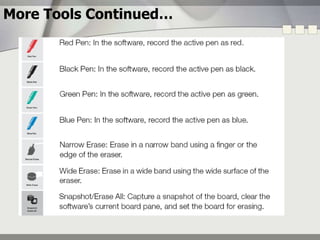
Main Short Cut Tools on the RM Classboard
More Tools Continued…
If you have a MAC, please continue to the next group of slides for directions on whiteboard connectivity.  If you have a PC please continue to the Qomo PenPad Section of this presentation.Stop and Read Below:
Downloading the RM Classboard DriversOnce the Polyvision drivers have been loaded, turn off the computer completely.Leave computer shut down for two minutes. Insert the Polyvision Bluetooth into one of your computer’s USB ports.Turn on computer with Bluetooth inserted in the USB port.
Connecting the Classboard Bluetooth- MACHere is the device.
Connecting the Classboard Bluetooth- MAC
Connecting the POLYVISION Adapter to the Classboard Bluetooth- MAC DirectionsAfter you go through the previous steps one time, youshould automatically connect to the board as long asyour Polyvision Bluetooth Adapter is inserted in yourcomputer…every time you turn on the board, it willautomatically connect with the “chirp.”Then you hit the projection button and the board is ready to use.
RM Summer TrainingPresented by:Jessica Coppage, RM Education904-383-8861; jcoppage@rmeducation.comDanielle Grossman-Wolf, RM Education904-451-8503; dgrossman@rmeducation.com
Your RM ePad contentsRM ePad3 extra USB portsReceiver dongle RM ePad penBatteries Hand straps
ePad FeaturesWireless PenLCD menu screenPower ButtonMouse buttonVolume AdjustmentActive Areawww.rmepad.comInteractive Keyboard
How long will my charge last?The ePad:After charging for 6-8 hours the ePad will last 40 hours continuously!The pen will charge for 4 hours with you ePad and will last for 20 hours.It can be plugged into your powered laptop to charge or into a wall outlet.
Easiteach SoftwareLaunch the Easiteach software from the desktop icon……or from your program files on the start menuRefer to “10 Things I love About Easiteach.”
How can I share my Easibook? What if they do not have the Easiteach software?http://www.rmeducation.com/easiteach/readerHelpful site:www.myeasiteach.com		Just register and you will have access to pre-made Easibooks/Lessons at various levels.
Who do I call with issues?Contact your school technician and they will determine if they need to create a service ticket or not.Be as specific and detailed with the components and problem as you can.This will help your internal team determine whether or not to repair in house or send out an RM Education technician.
PenPadWireless Tablet
Loading the Qomo PenPad SoftwareYou must have administrative rights to load the software.Use the PenPad QIT30 disk that comes in the Qomo box orUse the PenPad QIT30 software from the Web Sitehttp://www.qomo.com/FileList.aspx?FileType=1Choose Mac or PC
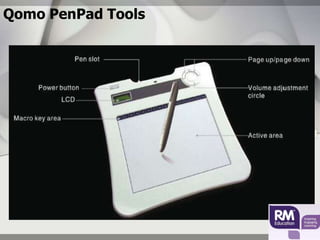
Qomo PenPad Features  Built-in LCD indicator panel
  Energy saving stylus turns pen on/off
  A5 high resolution working area

Rm education -duval_classroom_technologies_presentation_8.10[1]

  • 1.
    Duval County SchoolsPresentedby:Jessica Coppage, RM Education904-383-8861; jcoppage@rmeducation.comDanielle Grossman-Wolf, RM Education904-451-8503; dgrossman@rmeducation.com
  • 2.
  • 3.
    Components of theRM ClasscartCartPower (inside cart, outside cart)Electronic LocksProjection SystemDVD Player with TunerSound System (speakers and subwoofer)Document Camera*** (requires software to be loaded)VGA and Audio Cable
  • 4.
    RM Classcart FeaturesDeskTop Surface Pull out WorkspaceRubber Impact StripAdjustable ShelfPowder Coated FinishLeft and Right Cable openingsExternal Power Cord ReelSwivel Casters with Locks4
  • 5.
    RM Classcart Lock& DrawerStorage Drawer: 7 inch depth16 inches width and 17 inches lengthElectronic Keypad LockProgrammableCode is 0099, but you change if you desire.5PC and Doc Cam can fit in the drawer.+
  • 6.
  • 7.
    Changing the batteryin the electronic lock What you will need?Need a Phillips screw driver.Two, AAA BatteriesWhat happen if the battery dies when the door is locked?If batteries die when cart is locked, you hold a 9 volt batteryto lock (by the sensors) and it charges enough to open thelock.
  • 8.
    Changing the batteryin the electronic lock
  • 9.
    Removing Classcart DrawerIfyou have difficulty accessing the lock to change the battery, you can remove the drawer from the cart:Pull up levers on both sides of the cart drawer and pull out the drawer from the cart.This allows you to access the cart screws located on the back side of the lock.
  • 10.
    Projection SystemSharp PG-F267XGA Short Throw(1024 X 768)2500 LumensDLP ProjectorFour Year Warranty90 Day Lamp WarrantyFive to One FREE lamps
  • 11.
    DLP Projectors VersesLCD ProjectorsSharp DLP Technology
  • 12.
    Recommended Sharp ProjectorSettingsEco Lamp ModeIncreases lamp lifeAV Mute Power savings and increases lamp life… DLPs do not like to be turned on and off throughout the day.
  • 13.
    Unique Sharp RemoteFeaturesAccess by using the Pointer, Spot and Effect button.
  • 14.
    Sharp Short ThrowProjector LensPlease be very careful when closing the door to the carts to make sure the lens is not catching on the lip of the cart.If the projector lens is scratched, it can cause spots on the projected image.Please note the lens is not a WARRANTY item, this is considered proper care of the equipment.
  • 15.
    Sharp Express RepairProgramIf your projector has issues you can contact Sharp:1-888-467-4277, Press Option #2 To expedite calls for service, please have your product modelNumber and serial number available for the product specialist.Available from 8am to 8pm - Eastern Standard Time For more detailed information on the ER program, please follow this link:http://www.sharpusa.com/CustomerSupport/ContactUs/ContactUsProductSupport.aspx
  • 16.
    RM Classcart DVDPlayer/Recorder with Tuner.
  • 17.
    RM Classcart DVDPlayer/Recorder FunctionsDVD Recorder/Player is all about convenience! Progressive scan DVD. It plays MP3, DVD+RW, CDRs, and even JPEG images from a CD so you can have your own slide show.***Cable TV runs through the DVD making it your “CABLE BOX”Product has a one year manufacturer warranty.Please contact RM with warranty issues.
  • 18.
    RM Classcart DVDTuner FunctionsAllows cable to come into the projector.Allows local school channel to come into the projector and be viewed on a large format.Need a 15 to 20 foot coax cable from wall to back of DVD player in the cart.
  • 19.
    Connecting the CoaxCable to the DVD PlayerConnect coax Cable to input on the DVD player.The other end of coax goes into the wall where theTelevision was Mounted.
  • 20.
    RM Classcart DVDPlayer TroubleshootingMake sure power cord is plugged in by confirming unit has power. Look for light on the face of the DVD player. (DVD plugs into the power strip located inside the cart.) Check all connections to make sure they are secure, including the following:Coax cableAll connections going into the wall-plateBe careful connecting coax as most cables have a male to female connection.
  • 21.
  • 22.
    Connecting the Classcartto the Document CameraCable from doc cam to the computer.USB from doc cam to computer in order to Capture images/video from the doc camDoc cam power cordAudio cable from cart VGA to the computer “headset” input on your laptop.BLUE CONNECTIONBLACK CONNECTIONVGA cable from cart to the doc cam.
  • 23.
    Connecting a VGACables to Your Computer and Document CameraGoes into your BLUE connection on the document camera VGA port.Goes into your audio port in your computer (ALWAYS THE GREEN HEADSET).Be careful with the VGA connections as the ports have uneven sides.
  • 24.
    Connecting Audio tothe ComputerMake sure audio cable is plugged in to the green headset for sound to heard from your computer.
  • 25.
  • 26.
    Loading AverVision SoftwareYoumust have administrative rights to load the software.Use CP155 disk that comes in the AverVision box orUse CP155 software from the AverVision Web Site: http://www.averusa.com/presentation/dl_cp155.aspChoose Mac or PC
  • 27.
  • 28.
    AverVision SoftwareYou canload on ANY computer (unlimited license).
  • 29.
    Makes DocCam an interactive tool not a “glorified overhead projector.”
  • 30.
    Record, annotateand save images for future use.
  • 31.
    Works onboth Mac or PC.AverVision Advanced Settings
  • 32.
    Additional AverVision On-LineTraining For more information on using AverVision Software:http://www.avermedia-usa.com/presentation/tutorial_av3win.asp
  • 33.
    AverVision Quick ReferenceGuides http://www.averusa.com/presentation/dl_cp155.aspAvermedia has a five year warranty on their products. YouCan contact customer service at 877-528-7824. They also A “live chat” customer support feature on-line.Five year manufacturer warranty on the AverVision document camera.
  • 34.
    RM Classboard TouchWithBluetooth Connectivity
  • 35.
    Bluetooth RM ClassboardTouchWorks with the following computer configurations:MacPC with Built in BluetoothPC with no built in Bluetooth Main benefits of the Bluetooth RM Classboard Touch:No cable required to connect the board to the computer.
  • 36.
    Caring for yourRM Classboard Touch DO NOT UNDER ANY CIRCUMSTANCES USE DRY ERASE CLEANER ON THE BOARD’S SURFACE.The board is cleaned by using soap and water mixture.If you write on the board use only dry erase markers and clean the board that day to insure you board will last.The board has a five year warranty from RM.
  • 37.
    Powering the RMClassboard Touch
  • 38.
    Installing the RMClassboard Bluetooth
  • 39.
    Installing the RMClassboard BluetoothBluetooth is held in place by two screws.The RM installers should have connected this during installation.
  • 40.
    Loading the RMClassboard SoftwareYou must have administrative rights to load the software.Use the Polyvision disk that comes in the Polyvision box orUse the Polyvision software from the Web Sitehttp://www.polyvision.com/Support/Downloads/tabid/232/CategoryId/18/DownloadTypeId/106/LangId/158/Default.aspxChoose Mac or PC
  • 41.
    Downloading the RMClassboard Drivers
  • 42.
    Downloading the RMClassboard DriversOnce drivers have been loaded, turn off the computer completely.Leave computer shut down for two minutes. Insert the Polyvision Bluetooth into one of your computer’s USB ports.Turn on computer with Bluetooth inserted in the USB port.
  • 43.
    If you havea PC, please continue to the next slide for directions on whiteboard connectivity. If you have a MAC please continue to the NEXT Stop Sign in this presentation for connecting using your MAC computer.Stop and Read Below:
  • 44.
    Required Bluetooth Settingon LaptopsOn the “Start” toolbar bar, chose the Control Panel.Once in Control Panel, chose Administrative Tools.
  • 45.
    Required Bluetooth Settingon LaptopsChoose Services Shortcut.
  • 46.
    Required Bluetooth Settingon LaptopsSelect Bluetooth Support Services.
  • 47.
    Required Bluetooth Settingon LaptopsOn the General tab, hit the stop button.
  • 48.
    Required Bluetooth Settingon LaptopsMove to the Log On Tab, make sure to chose LOCAL SYSTEM ACCOUNT.Go back to the General Tab and hit the START button.
  • 49.
    Connecting to thePOLYVISION Adapter to the Classboard Bluetooth- PC DirectionsNow that you the Classboard drivers dowloaded, you areready to connect the board with your computer. Give your computer a chance to recognize the Polyvision bluetooth. You will see this icon pop up in the system tray.Step 1:Right click on the Bluetooth icon in the system tray on your desktop.Step 2:A similar menu will pop up, please select Add Bluetooth Device.
  • 50.
    Connecting to thePOLYVISION Adapter- PC DirectionsStep 3: This screen will appear, follow directions below:Select the device is ready to be setup and hit the NEXT button.
  • 51.
    Connecting to thePOLYVISION Adapter- PC DirectionsStep 4: Choose the PV device and follow directions below:Select and hit the next button
  • 52.
    Connecting to thePOLYVISION Adapter- PC DirectionsStep 5: Select the Use Passkey found in documentation and type in the passcode 1,2,3,4 and hit next.Passcode is 1, 2, 3,4Hit next after entering code.
  • 53.
    Connecting to thePOLYVISION Adapter- PC DirectionsStep 6: The computer will connect to the RM Classboard Bluetooth.
  • 54.
    Connecting to thePOLYVISION Adapter- PC DirectionsFinal Step: Your Bluetooth is now configured and ready to be used.Click on the finish button.
  • 55.
    Configuring the POLYVISIONDriver- PC DirectionsStep 1: Click on the Polyvision board short cut and choose the “Configure Polyvision Driver tab.”
  • 56.
    RM Classboard ConfigurationPreferences- PC DirectionsShort-cut to the board drivercan be found on the desktop to access the configuration. Click to launch configuration options.Choose the “best” selection on the “projection” tab. This will give you the best calibration.
  • 57.
    Connecting to thePOLYVISION Adapter to the Classboard Bluetooth- PC DirectionsFinal step is to connect the whiteboard by clicking the “find serial whiteboard button.”Once the board is connected you will hear the board “chirp.”Now hit the projector button on the board short cuts and this will take you to the calibration screen.
  • 58.
    Connecting the POLYVISIONAdapter to the Classboard Bluetooth- PC DirectionsAfter you go through the previous steps one time, youshould automatically connect to the board as long asyour Polyvision Bluetooth Adapter is inserted in yourcomputer…every time you turn on the board, it willautomatically connect with the “chirp.”Then you hit the projection button and the board is ready to use.
  • 59.
    Calibrating the RMClassboard Touch Hit the projection short cut button on the board this green calibration screen will pop up. Hit each target toensure perfect calibration.
  • 60.
    Main Short CutTools on the RM Classboard
  • 61.
  • 62.
    If you havea MAC, please continue to the next group of slides for directions on whiteboard connectivity. If you have a PC please continue to the Qomo PenPad Section of this presentation.Stop and Read Below:
  • 63.
    Downloading the RMClassboard DriversOnce the Polyvision drivers have been loaded, turn off the computer completely.Leave computer shut down for two minutes. Insert the Polyvision Bluetooth into one of your computer’s USB ports.Turn on computer with Bluetooth inserted in the USB port.
  • 64.
    Connecting the ClassboardBluetooth- MACHere is the device.
  • 65.
  • 66.
  • 67.
  • 68.
  • 69.
  • 70.
  • 71.
  • 72.
  • 73.
    Connecting the POLYVISIONAdapter to the Classboard Bluetooth- MAC DirectionsAfter you go through the previous steps one time, youshould automatically connect to the board as long asyour Polyvision Bluetooth Adapter is inserted in yourcomputer…every time you turn on the board, it willautomatically connect with the “chirp.”Then you hit the projection button and the board is ready to use.
  • 74.
    RM Summer TrainingPresentedby:Jessica Coppage, RM Education904-383-8861; jcoppage@rmeducation.comDanielle Grossman-Wolf, RM Education904-451-8503; dgrossman@rmeducation.com
  • 75.
    Your RM ePadcontentsRM ePad3 extra USB portsReceiver dongle RM ePad penBatteries Hand straps
  • 76.
    ePad FeaturesWireless PenLCDmenu screenPower ButtonMouse buttonVolume AdjustmentActive Areawww.rmepad.comInteractive Keyboard
  • 77.
    How long willmy charge last?The ePad:After charging for 6-8 hours the ePad will last 40 hours continuously!The pen will charge for 4 hours with you ePad and will last for 20 hours.It can be plugged into your powered laptop to charge or into a wall outlet.
  • 78.
    Easiteach SoftwareLaunch theEasiteach software from the desktop icon……or from your program files on the start menuRefer to “10 Things I love About Easiteach.”
  • 79.
    How can Ishare my Easibook? What if they do not have the Easiteach software?http://www.rmeducation.com/easiteach/readerHelpful site:www.myeasiteach.com Just register and you will have access to pre-made Easibooks/Lessons at various levels.
  • 80.
    Who do Icall with issues?Contact your school technician and they will determine if they need to create a service ticket or not.Be as specific and detailed with the components and problem as you can.This will help your internal team determine whether or not to repair in house or send out an RM Education technician.
  • 81.
  • 82.
    Loading the QomoPenPad SoftwareYou must have administrative rights to load the software.Use the PenPad QIT30 disk that comes in the Qomo box orUse the PenPad QIT30 software from the Web Sitehttp://www.qomo.com/FileList.aspx?FileType=1Choose Mac or PC
  • 83.
    Qomo PenPad Features Built-in LCD indicator panel
  • 84.
    Energysaving stylus turns pen on/off
  • 85.
    A5high resolution working area