TITLEBroadband
Troubleshooting Guide
COMPANY CONFIDENTIAL
an axiata company
Contents:
• Basic Troubleshooting Guide 4 - 12
• Unable to Connect 13 - 14
• Disconnected While Browsing 15 – 16
• Able to Connect but Unable to Browse 17 - 19
• Slow Browsing 20 - 23
COMPANY CONFIDENTIAL 2
an axiata company
COMPANY CONFIDENTIAL 3
Glossary :
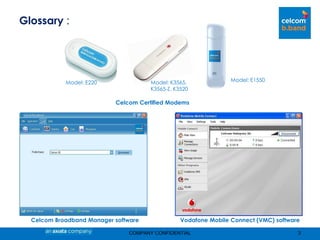
Celcom Broadband Manager software Vodafone Mobile Connect (VMC) software
Celcom Certified Modems
Model: E220 Model: K3565,
K3565-Z, K3520
Model: E1550
an axiata company
COMPANY CONFIDENTIAL 4
Basic Troubleshooting Guide
an axiata company
COMPANY CONFIDENTIAL 5
Note:
Please note that the Celcom Broadband Troubleshooting Guide is based only on Celcom
Certified Modems with Vodafone Mobile Connect (VMC) or Celcom Broadband Manager
software. If you require assistance in installation these software, kindly refer to our installation
guide here
an axiata company
COMPANY CONFIDENTIAL 6
Basic Broadband Troubleshooting Guide
STEP 1 2 3 4 5 6 7
1. Ensure your Celcom Broadband SIM card is inserted correctly into your modem and
modem is inserted properly into the USB slot.
2. Once modem is inserted into the USB slot, the modem will then display the mobile
data network that has been detected. Please refer below:
Indicates either:
i. SIM card is faulty
ii. Broadband
service is down
Solid –
Connected to
network.
Max. theoretical
download speed
is 236kbps
Solid –
Connected to
network.
Max. theoretical
download speed
is 384kbps
Solid –
Connected to
network.
Max. theoretical
download speed
is 3.6Mbps
Unable to
detect Network
GPRS/
EDGE
3G HSDPAHSDPA3GHSDPAHSDPA
GPRS/
EDGE
Blinking -
Network found
Proceed to
connect
Blinking -
Network found
Proceed to
connect
an axiata company
COMPANY CONFIDENTIAL 7
Basic Broadband Troubleshooting Guide
1 STEP 2 3 4 5 6 7
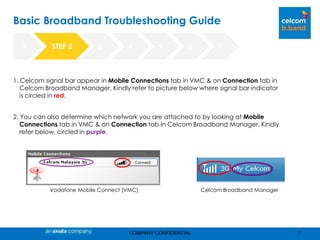
1. Celcom signal bar appear in Mobile Connections tab in VMC & on Connection tab in
Celcom Broadband Manager. Kindly refer to picture below where signal bar indicator
is circled in red.
2. You can also determine which network you are attached to by looking at Mobile
Connections tab in VMC & on Connection tab in Celcom Broadband Manager. Kindly
refer below, circled in purple.
Vodafone Mobile Connect (VMC) Celcom Broadband Manager
an axiata company
COMPANY CONFIDENTIAL 8
Basic Broadband Troubleshooting Guide
1 STEP 32 4 5 6 7
1. Ensure that the APN is set correctly:
For Celcom Broadband Manager Client, this setting can be viewed at Tools >
Options > Profile Management > APN & Access No.
Please note that NO changes can be made.
For Vodafone Mobile Connect Client, this setting is defaulted and NO changes can
be made and users are not able to view the settings.
2. If you have created another profile, kindly ensure that the APN and Dial-up number is
as per stated below:
Access Point Name (APN) : celcom3g
Dial up number: *99# or *99***1#
an axiata company
COMPANY CONFIDENTIAL 9
Basic Broadband Troubleshooting Guide
1 STEP 42 3 5 6 7
1. In the event, the modem is unable to logon to any network signal, kindly check the
followings:
Check whether Mobile Data network (GPRS, EDGE, 3G or HSDPA) is available at
your location via below:
SMS – Type Broadband Here and send to 21122
WEB - Coverage Map
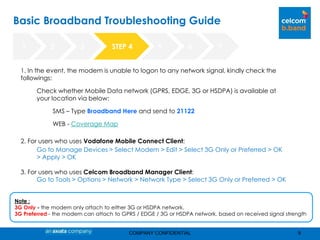
2. For users who uses Vodafone Mobile Connect Client:
Go to Manage Devices > Select Modem > Edit > Select 3G Only or Preferred > OK
> Apply > OK
3. For users who uses Celcom Broadband Manager Client:
Go to Tools > Options > Network > Network Type > Select 3G Only or Preferred > OK
Note :
3G Only - the modem only attach to either 3G or HSDPA network.
3G Preferred - the modem can attach to GPRS / EDGE / 3G or HSDPA network, based on received signal strength
an axiata company
COMPANY CONFIDENTIAL 10
Basic Broadband Troubleshooting Guide
1 STEP 52 3 4 6 7
1. To determine whether it is a service or modem issue, test the Celcom Broadband SIM on a
handset or another modem (minimum of 2 – 3 different locations)
Please refer to the scenarios below:
If issue happens in SELECTED locations – indicates that it might be network related issues.
If issue happens in ALL locations - indicates that it might be a SIM or device (modem / PC)
issue.
2. If test result indicate that the issue is :-
Service – Please contact Celcom Careline for further troubleshooting.
Modem – kindly refer to the warranty card or visit the Dealer outlet where you purchased
the modem from.
Note:
Please refer to Celcom Broadband Support section to ascertain whether the modem you are using is a
Celcom authorized modem.
an axiata company
COMPANY CONFIDENTIAL 11
Basic Broadband Troubleshooting Guide
1 STEP 62 3 4 5 7
1. To determine whether it is a USB port issue or PC issue, test modem on a different USB port,
Desktop or Laptop.
2. If test result indicate that it is:-
PC /Laptop issue - kindly contact your IT reseller or laptop manufacturer’s for further
assistance.
Additionally, kindly check whether your Antivirus is updated and perform a Virus
Scan to ascertain whether your laptop is not infected by virus.
an axiata company
COMPANY CONFIDENTIAL 12
Contact Us
1 STEP 72 3 4 5 6
If issue persist, please contact Broadband Customer Service Call Centre for further
troubleshooting:
1300 111 000 or 1111 (if you are calling from Celcom mobile number)
Please select 3 (Broadband) and 0 (to speak to our broadband agent)
Alternatively, please write in via:
Email: careline@celcom.com.my; or
Fax : 03-3630 8889
Or walk in to any of our Celcom Branch for further assistance.
an axiata company
COMPANY CONFIDENTIAL 13
Troubleshooting Method
- Unable to Connect
an axiata company
COMPANY CONFIDENTIAL 14
Troubleshooting Method
- Unable To Connect
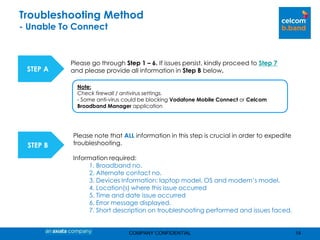
STEP A
Please go through Step 1 – 6. If issues persist, kindly proceed to Step 7
and please provide all information in Step B below.
Please note that ALL information in this step is crucial in order to expedite
troubleshooting.
Information required:
1. Broadband no.
2. Alternate contact no.
3. Devices Information: laptop model, OS and modem’s model.
4. Location(s) where this issue occurred
5. Time and date issue occurred
6. Error message displayed.
7. Short description on troubleshooting performed and issues faced.
STEP B
Note:
Check firewall / antivirus settings.
- Some anti-virus could be blocking Vodafone Mobile Connect or Celcom
Broadband Manager application
an axiata company
COMPANY CONFIDENTIAL 15
Troubleshooting Method
– Disconnected While Browsing
an axiata company
COMPANY CONFIDENTIAL 16
STEP A
Please go through Step 4 – 6. If issues persist, kindly proceed to Step 7
and please provide all information in Step B below.
Please note that ALL information in this step is crucial in order to expedite
troubleshooting.
Information required:
1. Broadband no.
2. Alternate contact no.
3. Devices Information: laptop model, OS and modem’s model.
4. Location(s) where this issue occurred
5. Time and date issue occurred
6. How long were you connected before disconnection happens
again?
7. Error message displayed.
8. Short description on troubleshooting performed and issues faced.
STEP B
Troubleshooting Method
– Disconnected While Browsing
an axiata company
COMPANY CONFIDENTIAL 17
Troubleshooting Method
– Able To Connect But Unable To Browse
an axiata company
COMPANY CONFIDENTIAL 18
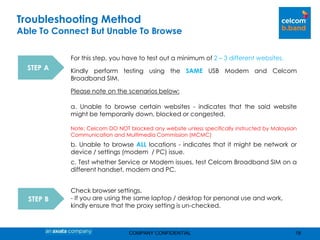
STEP A
For this step, you have to test out a minimum of 2 – 3 different websites.
Kindly perform testing using the SAME USB Modem and Celcom
Broadband SIM.
Please note on the scenarios below:
a. Unable to browse certain websites - indicates that the said website
might be temporarily down, blocked or congested.
Note: Celcom DO NOT blocked any website unless specifically instructed by Malaysian
Communication and Multimedia Commission (MCMC)
b. Unable to browse ALL locations - indicates that it might be network or
device / settings (modem / PC) issue.
c. Test whether Service or Modem issues, test Celcom Broadband SIM on a
different handset, modem and PC.
Troubleshooting Method
Able To Connect But Unable To Browse
STEP B
Check browser settings.
- If you are using the same laptop / desktop for personal use and work,
kindly ensure that the proxy setting is un-checked.
an axiata company
COMPANY CONFIDENTIAL 19
Troubleshooting Method
Able To Connect But Unable To Browse
STEP C
Check firewall / antivirus settings.
- Some anti-virus could be blocking Vodafone Mobile Connect or Celcom
Broadband Manager application or changed your firewall / browser
settings during an auto-update.
STEP D
Ensure there is no other ACTIVE connections.
- Two active connections will result in a conflict that results inability to browse
STEP E
If issues persist, kindly proceed to Step 7 and provide ALL information below:
1. Broadband no.
2. Alternate contact no.
3. Devices Information: laptop model, OS and modem’s model.
4. Location(s) where this issue occurred
5. Time and date issue occurred
6. IP address you are attached to
(To check – double click on the PC icon on task bar > select Details >
copy IP address under Client’s IP address)
7. Error message displayed.
8. List of website(s) you are unable to access.
(If only unable to access certain websites)
9. Short description on troubleshooting steps performed and issues faced.
an axiata company
COMPANY CONFIDENTIAL 20
Troubleshooting Method
– Slow Browsing
an axiata company
COMPANY CONFIDENTIAL 21
Troubleshooting Method
- Slow Browsing
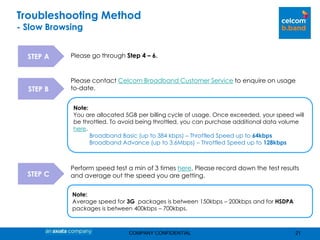
STEP A Please go through Step 4 – 6.
STEP B
Please contact Celcom Broadband Customer Service to enquire on usage
to-date.
STEP C
Note:
You are allocated 5GB per billing cycle of usage. Once exceeded, your speed will
be throttled. To avoid being throttled, you can purchase additional data volume
here.
Broadband Basic (up to 384 kbps) – Throttled Speed up to 64kbps
Broadband Advance (up to 3.6Mbps) – Throttled Speed up to 128kbps
Perform speed test a min of 3 times here. Please record down the test results
and average out the speed you are getting.
Note:
Average speed for 3G packages is between 150kbps – 200kbps and for HSDPA
packages is between 400kbps – 700kbps.
an axiata company
COMPANY CONFIDENTIAL 22
Troubleshooting Method
- Slow Browsing
STEP D
The following are possible causes of slow browsing:
Sharing Connection – If you are using WiFi router, kindly ensure your
WiFi is password protected to avoid other unwanted users using your
connections. Also ensure that the other party who is sharing your
connection is not performing heavy downloading.
Downloading – If you are performing heavy downloads at the same
time as you are browsing, kindly temporarily pause the downloads
before proceeding with browsing. (e.g. megaupload, rapidshare,
direct movies / music downloads)
STEP E
If issues persist, kindly proceed to Step 7 and please provide all information
in Step F below.
an axiata company
COMPANY CONFIDENTIAL 23
Troubleshooting Method
- Slow Browsing
STEP F
Please note that ALL information in this step is crucial in order to expedite
troubleshooting.
Information required:
1. Broadband no.
2. Alternate contact no.
3. Devices Information: laptop model, OS and modem’s model.
4. Location(s) where this issue occurred
5. Time and date issue occurred
6. Average speed test recorded earlier during troubleshooting
7. IP address you are attached to.
(To check – double click on the PC icon on task bar > select Details >
copy IP address under Client’s IP address)
8. Error message displayed.
9. List of website(s) you are unable to access.
(If only unable to access certain websites)
10. Short description on troubleshooting steps performed and issues
faced.
THANK YOU

Troubleshooting guide broadband celcom

  • 1.
  • 2.
    an axiata company Contents: •Basic Troubleshooting Guide 4 - 12 • Unable to Connect 13 - 14 • Disconnected While Browsing 15 – 16 • Able to Connect but Unable to Browse 17 - 19 • Slow Browsing 20 - 23 COMPANY CONFIDENTIAL 2
  • 3.
    an axiata company COMPANYCONFIDENTIAL 3 Glossary : Celcom Broadband Manager software Vodafone Mobile Connect (VMC) software Celcom Certified Modems Model: E220 Model: K3565, K3565-Z, K3520 Model: E1550
  • 4.
    an axiata company COMPANYCONFIDENTIAL 4 Basic Troubleshooting Guide
  • 5.
    an axiata company COMPANYCONFIDENTIAL 5 Note: Please note that the Celcom Broadband Troubleshooting Guide is based only on Celcom Certified Modems with Vodafone Mobile Connect (VMC) or Celcom Broadband Manager software. If you require assistance in installation these software, kindly refer to our installation guide here
  • 6.
    an axiata company COMPANYCONFIDENTIAL 6 Basic Broadband Troubleshooting Guide STEP 1 2 3 4 5 6 7 1. Ensure your Celcom Broadband SIM card is inserted correctly into your modem and modem is inserted properly into the USB slot. 2. Once modem is inserted into the USB slot, the modem will then display the mobile data network that has been detected. Please refer below: Indicates either: i. SIM card is faulty ii. Broadband service is down Solid – Connected to network. Max. theoretical download speed is 236kbps Solid – Connected to network. Max. theoretical download speed is 384kbps Solid – Connected to network. Max. theoretical download speed is 3.6Mbps Unable to detect Network GPRS/ EDGE 3G HSDPAHSDPA3GHSDPAHSDPA GPRS/ EDGE Blinking - Network found Proceed to connect Blinking - Network found Proceed to connect
  • 7.
    an axiata company COMPANYCONFIDENTIAL 7 Basic Broadband Troubleshooting Guide 1 STEP 2 3 4 5 6 7 1. Celcom signal bar appear in Mobile Connections tab in VMC & on Connection tab in Celcom Broadband Manager. Kindly refer to picture below where signal bar indicator is circled in red. 2. You can also determine which network you are attached to by looking at Mobile Connections tab in VMC & on Connection tab in Celcom Broadband Manager. Kindly refer below, circled in purple. Vodafone Mobile Connect (VMC) Celcom Broadband Manager
  • 8.
    an axiata company COMPANYCONFIDENTIAL 8 Basic Broadband Troubleshooting Guide 1 STEP 32 4 5 6 7 1. Ensure that the APN is set correctly: For Celcom Broadband Manager Client, this setting can be viewed at Tools > Options > Profile Management > APN & Access No. Please note that NO changes can be made. For Vodafone Mobile Connect Client, this setting is defaulted and NO changes can be made and users are not able to view the settings. 2. If you have created another profile, kindly ensure that the APN and Dial-up number is as per stated below: Access Point Name (APN) : celcom3g Dial up number: *99# or *99***1#
  • 9.
    an axiata company COMPANYCONFIDENTIAL 9 Basic Broadband Troubleshooting Guide 1 STEP 42 3 5 6 7 1. In the event, the modem is unable to logon to any network signal, kindly check the followings: Check whether Mobile Data network (GPRS, EDGE, 3G or HSDPA) is available at your location via below: SMS – Type Broadband Here and send to 21122 WEB - Coverage Map 2. For users who uses Vodafone Mobile Connect Client: Go to Manage Devices > Select Modem > Edit > Select 3G Only or Preferred > OK > Apply > OK 3. For users who uses Celcom Broadband Manager Client: Go to Tools > Options > Network > Network Type > Select 3G Only or Preferred > OK Note : 3G Only - the modem only attach to either 3G or HSDPA network. 3G Preferred - the modem can attach to GPRS / EDGE / 3G or HSDPA network, based on received signal strength
  • 10.
    an axiata company COMPANYCONFIDENTIAL 10 Basic Broadband Troubleshooting Guide 1 STEP 52 3 4 6 7 1. To determine whether it is a service or modem issue, test the Celcom Broadband SIM on a handset or another modem (minimum of 2 – 3 different locations) Please refer to the scenarios below: If issue happens in SELECTED locations – indicates that it might be network related issues. If issue happens in ALL locations - indicates that it might be a SIM or device (modem / PC) issue. 2. If test result indicate that the issue is :- Service – Please contact Celcom Careline for further troubleshooting. Modem – kindly refer to the warranty card or visit the Dealer outlet where you purchased the modem from. Note: Please refer to Celcom Broadband Support section to ascertain whether the modem you are using is a Celcom authorized modem.
  • 11.
    an axiata company COMPANYCONFIDENTIAL 11 Basic Broadband Troubleshooting Guide 1 STEP 62 3 4 5 7 1. To determine whether it is a USB port issue or PC issue, test modem on a different USB port, Desktop or Laptop. 2. If test result indicate that it is:- PC /Laptop issue - kindly contact your IT reseller or laptop manufacturer’s for further assistance. Additionally, kindly check whether your Antivirus is updated and perform a Virus Scan to ascertain whether your laptop is not infected by virus.
  • 12.
    an axiata company COMPANYCONFIDENTIAL 12 Contact Us 1 STEP 72 3 4 5 6 If issue persist, please contact Broadband Customer Service Call Centre for further troubleshooting: 1300 111 000 or 1111 (if you are calling from Celcom mobile number) Please select 3 (Broadband) and 0 (to speak to our broadband agent) Alternatively, please write in via: Email: careline@celcom.com.my; or Fax : 03-3630 8889 Or walk in to any of our Celcom Branch for further assistance.
  • 13.
    an axiata company COMPANYCONFIDENTIAL 13 Troubleshooting Method - Unable to Connect
  • 14.
    an axiata company COMPANYCONFIDENTIAL 14 Troubleshooting Method - Unable To Connect STEP A Please go through Step 1 – 6. If issues persist, kindly proceed to Step 7 and please provide all information in Step B below. Please note that ALL information in this step is crucial in order to expedite troubleshooting. Information required: 1. Broadband no. 2. Alternate contact no. 3. Devices Information: laptop model, OS and modem’s model. 4. Location(s) where this issue occurred 5. Time and date issue occurred 6. Error message displayed. 7. Short description on troubleshooting performed and issues faced. STEP B Note: Check firewall / antivirus settings. - Some anti-virus could be blocking Vodafone Mobile Connect or Celcom Broadband Manager application
  • 15.
    an axiata company COMPANYCONFIDENTIAL 15 Troubleshooting Method – Disconnected While Browsing
  • 16.
    an axiata company COMPANYCONFIDENTIAL 16 STEP A Please go through Step 4 – 6. If issues persist, kindly proceed to Step 7 and please provide all information in Step B below. Please note that ALL information in this step is crucial in order to expedite troubleshooting. Information required: 1. Broadband no. 2. Alternate contact no. 3. Devices Information: laptop model, OS and modem’s model. 4. Location(s) where this issue occurred 5. Time and date issue occurred 6. How long were you connected before disconnection happens again? 7. Error message displayed. 8. Short description on troubleshooting performed and issues faced. STEP B Troubleshooting Method – Disconnected While Browsing
  • 17.
    an axiata company COMPANYCONFIDENTIAL 17 Troubleshooting Method – Able To Connect But Unable To Browse
  • 18.
    an axiata company COMPANYCONFIDENTIAL 18 STEP A For this step, you have to test out a minimum of 2 – 3 different websites. Kindly perform testing using the SAME USB Modem and Celcom Broadband SIM. Please note on the scenarios below: a. Unable to browse certain websites - indicates that the said website might be temporarily down, blocked or congested. Note: Celcom DO NOT blocked any website unless specifically instructed by Malaysian Communication and Multimedia Commission (MCMC) b. Unable to browse ALL locations - indicates that it might be network or device / settings (modem / PC) issue. c. Test whether Service or Modem issues, test Celcom Broadband SIM on a different handset, modem and PC. Troubleshooting Method Able To Connect But Unable To Browse STEP B Check browser settings. - If you are using the same laptop / desktop for personal use and work, kindly ensure that the proxy setting is un-checked.
  • 19.
    an axiata company COMPANYCONFIDENTIAL 19 Troubleshooting Method Able To Connect But Unable To Browse STEP C Check firewall / antivirus settings. - Some anti-virus could be blocking Vodafone Mobile Connect or Celcom Broadband Manager application or changed your firewall / browser settings during an auto-update. STEP D Ensure there is no other ACTIVE connections. - Two active connections will result in a conflict that results inability to browse STEP E If issues persist, kindly proceed to Step 7 and provide ALL information below: 1. Broadband no. 2. Alternate contact no. 3. Devices Information: laptop model, OS and modem’s model. 4. Location(s) where this issue occurred 5. Time and date issue occurred 6. IP address you are attached to (To check – double click on the PC icon on task bar > select Details > copy IP address under Client’s IP address) 7. Error message displayed. 8. List of website(s) you are unable to access. (If only unable to access certain websites) 9. Short description on troubleshooting steps performed and issues faced.
  • 20.
    an axiata company COMPANYCONFIDENTIAL 20 Troubleshooting Method – Slow Browsing
  • 21.
    an axiata company COMPANYCONFIDENTIAL 21 Troubleshooting Method - Slow Browsing STEP A Please go through Step 4 – 6. STEP B Please contact Celcom Broadband Customer Service to enquire on usage to-date. STEP C Note: You are allocated 5GB per billing cycle of usage. Once exceeded, your speed will be throttled. To avoid being throttled, you can purchase additional data volume here. Broadband Basic (up to 384 kbps) – Throttled Speed up to 64kbps Broadband Advance (up to 3.6Mbps) – Throttled Speed up to 128kbps Perform speed test a min of 3 times here. Please record down the test results and average out the speed you are getting. Note: Average speed for 3G packages is between 150kbps – 200kbps and for HSDPA packages is between 400kbps – 700kbps.
  • 22.
    an axiata company COMPANYCONFIDENTIAL 22 Troubleshooting Method - Slow Browsing STEP D The following are possible causes of slow browsing: Sharing Connection – If you are using WiFi router, kindly ensure your WiFi is password protected to avoid other unwanted users using your connections. Also ensure that the other party who is sharing your connection is not performing heavy downloading. Downloading – If you are performing heavy downloads at the same time as you are browsing, kindly temporarily pause the downloads before proceeding with browsing. (e.g. megaupload, rapidshare, direct movies / music downloads) STEP E If issues persist, kindly proceed to Step 7 and please provide all information in Step F below.
  • 23.
    an axiata company COMPANYCONFIDENTIAL 23 Troubleshooting Method - Slow Browsing STEP F Please note that ALL information in this step is crucial in order to expedite troubleshooting. Information required: 1. Broadband no. 2. Alternate contact no. 3. Devices Information: laptop model, OS and modem’s model. 4. Location(s) where this issue occurred 5. Time and date issue occurred 6. Average speed test recorded earlier during troubleshooting 7. IP address you are attached to. (To check – double click on the PC icon on task bar > select Details > copy IP address under Client’s IP address) 8. Error message displayed. 9. List of website(s) you are unable to access. (If only unable to access certain websites) 10. Short description on troubleshooting steps performed and issues faced.
  • 24.