

Virtualization	with	IBM	Rational	
Integration	Tester
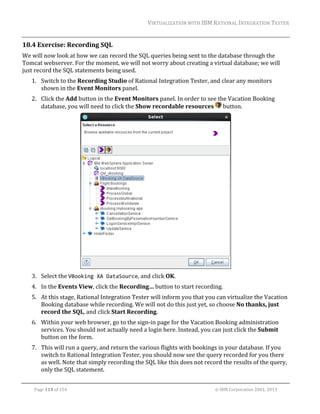
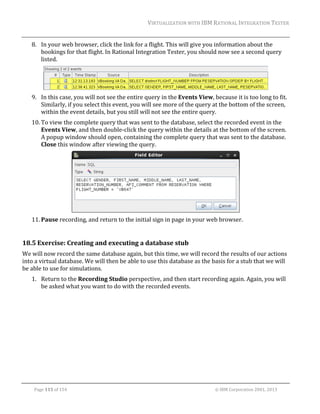
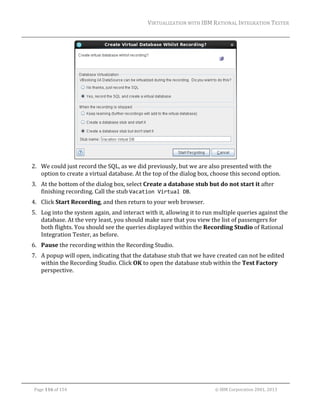
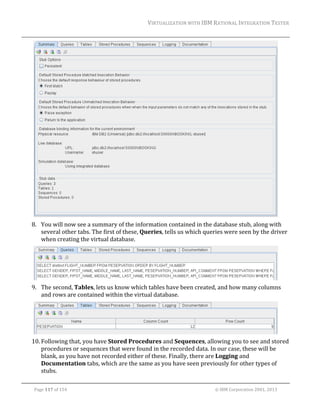
Note		
Before	using	this	information	and	the	product	it	supports,	read	the	information	in	
“Notices”	on	page	153.	


©	Copyright	IBM	Corporation	2001,	2013.
VIRTUALIZATION	WITH	IBM	RATIONAL	INTEGRATION	TESTER	
	

1 

INTRODUCTION ........................................................................................................................ 5 

2 

USING VIRTUALIZED APPLICATIONS FOR TESTING ........................................................................ 6 
2.1 
2.2 

THE OLD WORLD AND THE NEW WORLD ................................................................................ 7 

2.3 

WHEN TO USE VIE............................................................................................................. 7 

2.4 

USING VIE STRATEGICALLY ................................................................................................ 7 

2.5 

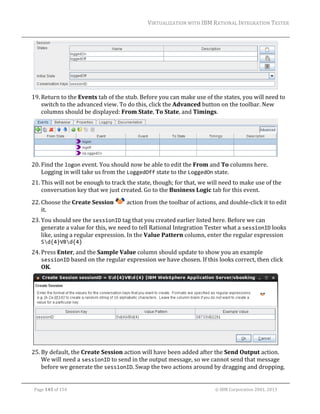
SOLVING PROBLEMS WITH VIE ............................................................................................ 8 

2.6 
3 

INTRODUCTION .................................................................................................................. 6 

VIRTUAL APPLICATIONS: SIMPLE TO COMPLEX ...................................................................... 9 

ARCHITECTURE AND SETUP .................................................................................................... 10 
3.1 
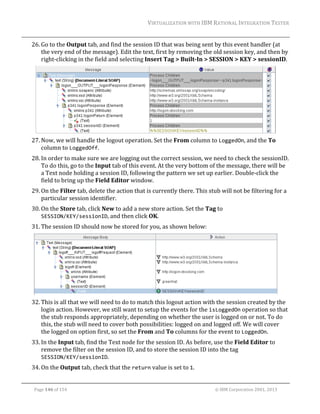
3.2 

4 

OVERVIEW ...................................................................................................................... 10 
DOMAINS AND ENVIRONMENTS .......................................................................................... 11 

PROJECT SETUP .................................................................................................................... 13 
4.1 
4.2 

CREATING A NEW PROJECT............................................................................................... 14 

4.3 
5 

THE INITIAL SCREEN ......................................................................................................... 13 
EXERCISE: CREATING A NEW PROJECT .............................................................................. 15 

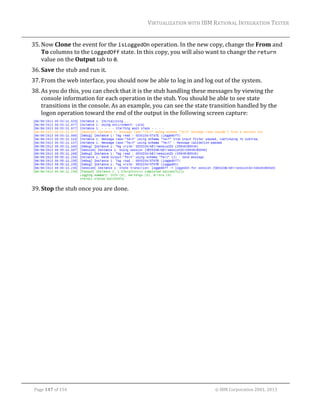
COMPLEX ENVIRONMENTS ...................................................................................................... 18 
5.1 
5.2 

MANAGING FLIGHT BOOKINGS ........................................................................................... 18 

5.3 

FINDING AND BOOKING HOTELS ......................................................................................... 19 

5.4 
6 

INTRODUCTION ................................................................................................................ 18 

FLIGHT ADMINISTRATION .................................................................................................. 20 

SYNCHRONIZATION ................................................................................................................ 22 
6.1 
6.2 

7 

INTRODUCTION ................................................................................................................ 22 
EXERCISE: SYNCHRONIZING WITH A WEBSPHERE APPLICATION SERVER ............................. 23 

BUILDING A SYSTEM MODEL FROM RECORDED EVENTS .............................................................. 26 
7.1 
7.2 

RECORDING MQ MESSAGES ............................................................................................. 26 

7.3 

EXERCISE: SETTING UP THE TRANSPORTS ......................................................................... 27 

7.4 

EXERCISE: ADDING THE FLIGHT BOOKING MESSAGE SCHEMAS ............................................. 28 

7.5 

EXERCISE: RECORDING EVENTS FROM A TRANSPORT ......................................................... 29 

7.6 

EXERCISE: BUILDING OPERATIONS FROM RECORDED EVENTS .............................................. 31 

7.7 
8 

INTRODUCTION ................................................................................................................ 26 

EXERCISE: COMPLETING THE SYSTEM MODEL .................................................................... 38 

MANAGING RECORDED MESSAGES .......................................................................................... 41 
8.1 

INTRODUCTION ................................................................................................................ 41 

8.2 

EXERCISE: RECORDING EVENTS FROM AN OPERATION ........................................................ 41 

	
Page	1	of	154																																																																																																																																															©	IBM	Corporation	2001,	2013
VIRTUALIZATION	WITH	IBM	RATIONAL	INTEGRATION	TESTER	
	

9 

CREATING AND EXECUTING A BASIC STUB ................................................................................ 44 
9.1 

INTRODUCTION ................................................................................................................ 44 

9.2 

EXERCISE: MAKING A SIMPLE STUB FROM RECORDED MESSAGES......................................... 44 

9.3 

EXERCISE: EXECUTING A STUB FROM RATIONAL INTEGRATION TESTER ................................ 46 

9.4 

EXERCISE: MODIFYING THE STUB AS IT RUNS ..................................................................... 48 

10 

PUBLISHING AND DEPLOYING STUBS .................................................................................... 50 

10.1 

INTRODUCTION............................................................................................................. 50 

10.2 

EXERCISE: USING RATIONAL TEST CONTROL PANEL ....................................................... 50 

10.3 

EXERCISE: PUBLISHING A STUB ..................................................................................... 51 

10.4 

EXERCISE: DEPLOYING A STUB ...................................................................................... 52 

11 

WSDL SYNCHRONIZATION .................................................................................................. 55 

11.1 

A SECOND TEST SYSTEM: HOTELFINDER ........................................................................ 55 

11.2 

SYNCHRONIZATION ....................................................................................................... 55 

11.3 

EXERCISE: SYNCHRONIZING WITH THE HOTELFINDER WSDL .......................................... 55 

12 

CREATING A STUB FROM MEP ............................................................................................. 62 

12.1 

THE STUB EDITOR......................................................................................................... 62 

12.2 

EVENTS ....................................................................................................................... 62 

12.3 

EXERCISE: CREATING A STUB FROM THE MEP ................................................................ 63 

12.4 

USING THE HTTP PROXY .............................................................................................. 64 

12.5 

EXERCISE: HTTP STUB EXECUTION ............................................................................... 66 

12.6 

EXERCISE: HANDLING NEW REQUEST OPTIONS ............................................................... 68 

12.7 

EXERCISE: MESSAGE DIFFERENCING ............................................................................. 70 

13 

STORING AND MANIPULATING DATA ...................................................................................... 74 

13.1 

TAGS AND THE TAG DATA STORE .................................................................................. 74 

13.2 

CREATING TAGS ........................................................................................................... 75 

13.3 

USING TAGS ................................................................................................................ 77 

13.4 

EXERCISE: CREATING AND USING A TAG ......................................................................... 77 

13.5 

SCRIPTING................................................................................................................... 78 

13.6 

EXERCISE: STUBBING ADDNUMBERS.............................................................................. 78 

13.7 

GUARDS ...................................................................................................................... 79 

13.8 

EXERCISE: USING GUARDS............................................................................................ 80 

14 

DATA DRIVEN STUBS ........................................................................................................... 82 

14.1 

DATA SOURCES ............................................................................................................ 82 

14.2 

EXERCISE: CREATING PARAMETERIZED STUBS FROM RECORDED MESSAGES ..................... 82 

	
Page	2	of	154																																																																																																																																															©	IBM	Corporation	2001,	2013
VIRTUALIZATION	WITH	IBM	RATIONAL	INTEGRATION	TESTER	
	

14.3 

EXERCISE: CREATING A DATA SOURCE WITHOUT RECORDED MESSAGES ........................... 88 

14.4 

EXERCISE: DATA DRIVING WITH REPEATING ELEMENTS .................................................... 93 

15 

SIFT AND PASS THROUGH .................................................................................................... 97 

15.1 

INTRODUCTION............................................................................................................. 97 

15.2 

EXERCISE: BASIC SIFT AND PASS THROUGH .................................................................... 98 

15.3 

THE PASS THROUGH ACTION ....................................................................................... 100 

15.4 

EXERCISE: SIFT AND PASS THROUGH WITH THE PASS THROUGH ACTION ......................... 100 

16 

STUB CONFIGURATION ...................................................................................................... 102 

16.1 

INTRODUCTION........................................................................................................... 102 

16.2 

EXERCISE: INPUT TAGS ............................................................................................... 103 

16.3 

SIFT AND PASS THROUGH ON RATIONAL TEST CONTROL PANEL ..................................... 105 

16.4 

EXERCISE: SIFT AND PASS THROUGH WITH INPUT TAGS ................................................. 105 

17 

MANAGING STUBS IN THEIR ENVIRONMENT .......................................................................... 108 

17.1 

SCENARIOS ............................................................................................................... 108 

17.2 

EXERCISE: CREATING AND USING A SCENARIO .............................................................. 108 

17.3 

LOCKING THE ENVIRONMENT ....................................................................................... 109 

17.4 

EXERCISE: LOCKING THE ENVIRONMENT ....................................................................... 109 

18 

DATABASE STUBS ............................................................................................................ 111 

18.1 

INTRODUCTION........................................................................................................... 111 

18.2 

THE RATIONAL INTEGRATION TESTER JDBC DRIVER ..................................................... 111 

18.3 

THE SIMULATION DATABASE ........................................................................................ 113 

18.4 

EXERCISE: RECORDING SQL ...................................................................................... 114 

18.5 

EXERCISE: CREATING AND EXECUTING A DATABASE STUB .............................................. 115 

18.6 

EXERCISE: MODIFYING THE SIMULATION DATABASE ....................................................... 118 

19 

ALTERNATIVE MESSAGE FORMATS ..................................................................................... 120 

19.1 

INTRODUCTION........................................................................................................... 120 

19.2 

EXERCISE: COBOL COPYBOOK MESSAGES ................................................................. 120 

20 

DATA MASKING................................................................................................................. 125 

20.1 

OVERVIEW ................................................................................................................. 125 

20.2 

EXERCISE: FIXED VALUE SUBSTITUTION........................................................................ 125 

20.3 

EXERCISE: DATA SOURCE SUBSTITUTION ..................................................................... 127 

20.4 

EXERCISE: AUTOMATIC VALUE CREATION ..................................................................... 128 

21 

DATA MODEL STUBS ......................................................................................................... 130 

21.1 

INTRODUCTION........................................................................................................... 130 

	
Page	3	of	154																																																																																																																																															©	IBM	Corporation	2001,	2013
VIRTUALIZATION	WITH	IBM	RATIONAL	INTEGRATION	TESTER	
	

21.2 

EXERCISE: RECORDING MESSAGES FOR THE DATA MODEL STUB ..................................... 130 

21.3 

EXERCISE: CREATING A DATA MODEL STUB FROM RECORDED MESSAGES ........................ 132 

21.4 

EXERCISE: EDITING THE DATA MODEL STUB .................................................................. 140 

22 

STATE AND SESSIONS ....................................................................................................... 143 

22.1 

INTRODUCTION........................................................................................................... 143 

22.2 

EXERCISE: TRACKING USER SESSIONS ......................................................................... 143 

23 

BEHAVIOURS .................................................................................................................... 148 

23.1 

INTRODUCTION........................................................................................................... 148 

23.2 

EXERCISE: THE TIMER BEHAVIOUR ............................................................................... 148 

24 

LEGAL NOTICES ................................................................................................................ 153 

	
Page	4	of	154																																																																																																																																															©	IBM	Corporation	2001,	2013
VIRTUALIZATION	WITH	IBM	RATIONAL	INTEGRATION	TESTER	
	

1 Introduction
This	document	serves	as	a	training	manual	to	help	familiarize	the	user	with	the	virtualization	
functionality	present	in	IBM®	Rational®	Integration	Tester.	The	training	exercises	make	use	of	a	
variety	of	technologies,	including	IBM	WebSphere®	Application	Server,	WebSphere	MQ,	IBM	DB2®,	
and	web	services.	It	is	assumed	that	the	reader	has	a	fair	understanding	of	these	systems.		
The	main	objectives	of	this	training	course	are	to	present	the	various	functionalities	of	Rational	
Integration	Tester	and	the	Rational	Test	Virtualization	Server,	and	how	best	to	use	them	in	testing	
Message	Oriented	Middleware	(MOM)	applications.	This	course	will	cover	the	following	topics:	







Present	the	various	perspectives	in	the	design	tool,	Rational	Integration	Tester,	describing	
how	and	when	they	are	used	
Demonstrate	how	Rational	Integration	Tester	and	Rational	Test	Virtualization	Server	can	
facilitate	virtualization	of	services	in	a	message	oriented	middleware	architecture	by	
o Recording	messages	or	synchronizing	with	the	system	to	provide	a	model	of	the	
system.	
o Providing	a	graphical	interface	for	the	display	and	creation	of	messages	
o Creating	virtualized	services	for	message	based	systems	and	databases	from	
recorded	events.	
o Allowing	the	running	of	virtualized	services	to	be	repeated	over	and	over	with	little	
manual	intervention	
Demonstrate	how	to	virtualize	database	connections	within	the	system	under	test	
Create	and	use	data	models	between	a	set	of	virtual	services,	allowing	data	to	be	persisted	
and	modified	across	services,	and	between	executions	of	those	services.	
Publish	virtual	services	to	the	Rational	Test	Control	Panel,	allowing	them	to	be	deployed	and	
managed	from	a	central	repository.		


Page	5	of	154																																																																																																																																															©	IBM	Corporation	2001,	2013
VIRTUALIZATION	WITH	IBM	RATIONAL	INTEGRATION	TESTER	
	

2 Using virtualized applications for testing
2.1 Introduction	
When	we	need	to	test	a	set	of	services	within	a	service‐oriented	architecture	(SOA),	we	might	find	
that	some	components	of	the	system	are	unavailable.	This	could	be	for	a	number	of	reasons.	It	could	
be	that	a	particular	service	is	still	under	development	and	cannot	be	accessed	yet.	Perhaps	
development	has	not	even	started	yet.	In	other	cases,	services	might	be	in	use	by	others	and	cannot	
be	shared,	or	might	be	expensive	to	use.	Opening	up	access	to	other	services	might	expose	private	
data	to	testers,	and	so	those	services	are	not	available	to	the	test	team.	
Alternatively,	services	might	be	available,	but	they	might	not	be	responding	in	the	way	that	is	
necessary	to	carry	out	a	given	set	of	tests;	for	example,	users	might	want	to	check	that	the	system	
responds	appropriately	to	error	conditions.	By	stubbing	a	particular	service	to	generate	these	
errors,	a	tester	can	have	full	control	over	the	operation	of	the	system,	allowing	them	to	test	
conditions	that	might	not	exist	within	the	live	system.	
Whatever	the	reason,	while	conducting	SOA	testing,	it	is	likely	that	a	tester	will	have	the	need	for	
the	system	to	operate	in	ways	that	might	not	be	currently	available.	This	can	cause	delays,	due	to	
dependencies	on	the	components	in	question.	
The	Virtual	Integration	Environment	(VIE)	is	a	set	of	integrated	tools	that	allow	you	to	stub	out	
dependencies	within	a	test	environment,	allowing	testing	to	continue	without	worrying	about	any	
missing	components,	or	modifying	existing	components	to	act	differently.	Your	starting	point	might	
be	a	client	application	that	communicates	with	a	service	through	the	network,	using	one	of	the	
communication	methods	(or	transports)	supported	by	VIE.	This	client	application	might	present	a	
GUI	to	a	user,	or	it	might	simply	be	another	service	within	your	architecture.		

	
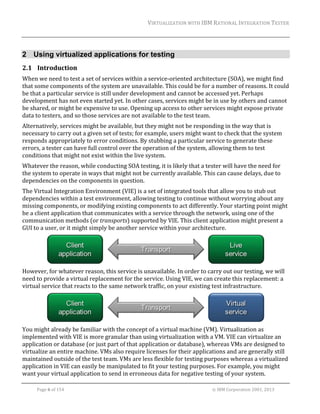
However,	for	whatever	reason,	this	service	is	unavailable.	In	order	to	carry	out	our	testing,	we	will	
need	to	provide	a	virtual	replacement	for	the	service.	Using	VIE,	we	can	create	this	replacement:	a	
virtual	service	that	reacts	to	the	same	network	traffic,	on	your	existing	test	infrastructure.	

	
You	might	already	be	familiar	with	the	concept	of	a	virtual	machine	(VM).	Virtualization	as	
implemented	with	VIE	is	more	granular	than	using	virtualization	with	a	VM.	VIE	can	virtualize	an	
application	or	database	(or	just	part	of	that	application	or	database),	whereas	VMs	are	designed	to	
virtualize	an	entire	machine.	VMs	also	require	licenses	for	their	applications	and	are	generally	still	
maintained	outside	of	the	test	team.	VMs	are	less	flexible	for	testing	purposes	whereas	a	virtualized	
application	in	VIE	can	easily	be	manipulated	to	fit	your	testing	purposes.	For	example,	you	might	
want	your	virtual	application	to	send	in	erroneous	data	for	negative	testing	of	your	system.		
	
Page	6	of	154																																																																																																																																															©	IBM	Corporation	2001,	2013
VIRTUALIZATION	WITH	IBM	RATIONAL	INTEGRATION	TESTER	
	

2.2 The	old	world	and	the	new	world	
Stubbing	out	components	of	a	system	allows	us	to	test	that	system	without	waiting	for	components	
to	become	available.	However,	testers	have	traditionally	been	reliant	on	developers	to	create	these	
stubs.	
These	stubs	were	usually	not	user‐friendly.	There	would	be	little	chance	that	a	tester	could	pick	
them	up	and	re‐use	them.	Additionally,	maintenance	would	normally	be	handled	by	the	developers.	
This	approach	had	little	on‐going	value	and	poor	return	on	investment.	VIE	has	been	created	to	
address	this.	
VIE	moves	testers	into	a	new	world	where	they	build	and	maintain	their	own	stubs.	In	fact,	testers	
can	go	even	further	and	stubs	can	become	virtual	applications.	VIE	does	not	require	any	coding;	
virtual	applications	are	easily	maintained	and	universally	understood,	ensuring	maximum	reuse.	

2.3 When	to	use	VIE	
The	chances	are	high	that	you	are	working	in	a	complex,	changeable	environment.	Functional	(and	
non‐functional)	requirements	change	quickly	and	test	environments	and	applications	are	in	high	
demand	from	other	teams.	This	high	pressure	environment	puts	a	lot	of	strain	on	test	teams	and	is	
the	reason	that	VIE	exists.	VIE	helps	in	the	following	three	key	areas:	
1. It	helps	you	to	continue	testing	when	environments	are	not	available	
2. It	allows	you	to	test	earlier	and	more	often,	reducing	the	cost	of	defects	
3. It	allows	you	to	force	behavior	in	the	system	under	test	by	being	in	control	of	the	services	
(or	more	specifically,	the	responses	from	those	services).	
With	these	three	things	in	mind,	we	can	begin	to	think	about	the	situations	that	VIE	might	be	
applied.	

2.4 Using	VIE	strategically	
VIE	is	designed	to	be	applied	in	all	test	phases	from	unit	testing	to	UAT.	A	golden	rule	in	testing	is:	
always	test	as	completely	as	possible.	We	know	that	when	we	are	unit	testing	individual	operations	
or	services	that	we	might	not	always	have	the	interfacing	components	available	to	test	against.	So	
we	virtualize	these	interfacing	components	to	allow	us	to	run	our	unit	tests.		
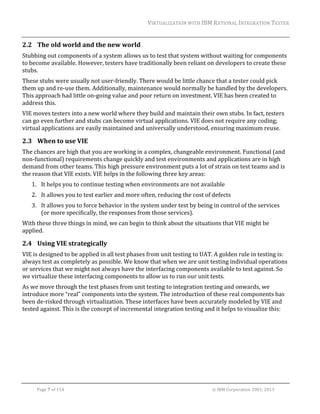
As	we	move	through	the	test	phases	from	unit	testing	to	integration	testing	and	onwards,	we	
introduce	more	“real”	components	into	the	system.	The	introduction	of	these	real	components	has	
been	de‐risked	through	virtualization.	These	interfaces	have	been	accurately	modeled	by	VIE	and	
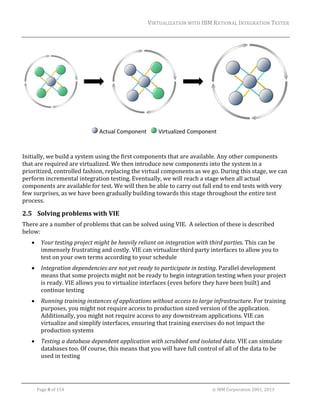
tested	against.	This	is	the	concept	of	incremental	integration	testing	and	it	helps	to	visualize	this:	

	
Page	7	of	154																																																																																																																																															©	IBM	Corporation	2001,	2013
VIRTUALIZATION	WITH	IBM	RATIONAL	INTEGRATION	TESTER	


Initially,	we	build	a	system	using	the	first	components	that	are	available.	Any	other	components	
that	are	required	are	virtualized.	We	then	introduce	new	components	into	the	system	in	a	
prioritized,	controlled	fashion,	replacing	the	virtual	components	as	we	go.	During	this	stage,	we	can	
perform	incremental	integration	testing.	Eventually,	we	will	reach	a	stage	when	all	actual	
components	are	available	for	test.	We	will	then	be	able	to	carry	out	full	end	to	end	tests	with	very	
few	surprises,	as	we	have	been	gradually	building	towards	this	stage	throughout	the	entire	test	
process.	

2.5 Solving	problems	with	VIE	
There	are	a	number	of	problems	that	can	be	solved	using	VIE.		A	selection	of	these	is	described	
below:	


Your	testing	project	might	be	heavily	reliant	on	integration	with	third	parties.	This	can	be	
immensely	frustrating	and	costly.	VIE	can	virtualize	third	party	interfaces	to	allow	you	to	
test	on	your	own	terms	according	to	your	schedule	



Integration	dependencies	are	not	yet	ready	to	participate	in	testing.	Parallel	development	
means	that	some	projects	might	not	be	ready	to	begin	integration	testing	when	your	project	
is	ready.	VIE	allows	you	to	virtualize	interfaces	(even	before	they	have	been	built)	and	
continue	testing	



Running	training	instances	of	applications	without	access	to	large	infrastructure.	For	training	
purposes,	you	might	not	require	access	to	production	sized	version	of	the	application.	
Additionally,	you	might	not	require	access	to	any	downstream	applications.	VIE	can	
virtualize	and	simplify	interfaces,	ensuring	that	training	exercises	do	not	impact	the	
production	systems	



Testing	a	database	dependent	application	with	scrubbed	and	isolated	data.	VIE	can	simulate	
databases	too.	Of	course,	this	means	that	you	will	have	full	control	of	all	of	the	data	to	be	
used	in	testing	

	
Page	8	of	154																																																																																																																																															©	IBM	Corporation	2001,	2013
VIRTUALIZATION	WITH	IBM	RATIONAL	INTEGRATION	TESTER	
	



Providing	a	test	system	where	otherwise	there	are	none.	It	might	be	too	expensive	to	build	
that	test	environment.	It	might	take	too	long	to	build	it.	It	might	be	that	the	test	environment	
is	being	used	by	someone	else	for	the	duration	of	your	project.	VIE	stands	in	to	virtualize	
applications.	

2.6 Virtual	applications:	simple	to	complex	
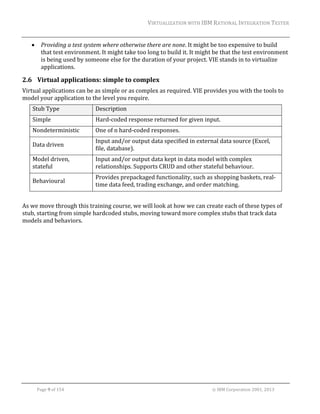
Virtual	applications	can	be	as	simple	or	as	complex	as	required.	VIE	provides	you	with	the	tools	to	
model	your	application	to	the	level	you	require.	
Stub	Type	

Description	

Simple	

Hard‐coded	response	returned	for	given	input.	

Nondeterministic	

One	of	n	hard‐coded	responses.	

Data	driven	

Input	and/or	output	data	specified	in	external	data	source	(Excel,	
file,	database).	

Model	driven,	
stateful	

Input	and/or	output	data	kept	in	data	model	with	complex	
relationships.	Supports	CRUD	and	other	stateful	behaviour.	

Behavioural	

Provides	prepackaged	functionality,	such	as	shopping	baskets,	real‐
time	data	feed,	trading	exchange,	and	order	matching.	

	
As	we	move	through	this	training	course,	we	will	look	at	how	we	can	create	each	of	these	types	of	
stub,	starting	from	simple	hardcoded	stubs,	moving	toward	more	complex	stubs	that	track	data	
models	and	behaviors.	

	
Page	9	of	154																																																																																																																																															©	IBM	Corporation	2001,	2013
VIRTUALIZATION	WITH	IBM	RATIONAL	INTEGRATION	TESTER	
	

3 Architecture and setup
3.1 Overview	
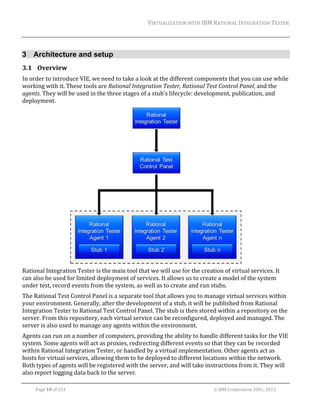
In	order	to	introduce	VIE,	we	need	to	take	a	look	at	the	different	components	that	you	can	use	while	
working	with	it.	These	tools	are	Rational	Integration	Tester,	Rational	Test	Control	Panel,	and	the	
agents.	They	will	be	used	in	the	three	stages	of	a	stub’s	lifecycle:	development,	publication,	and	
deployment.	

	
Rational	Integration	Tester	is	the	main	tool	that	we	will	use	for	the	creation	of	virtual	services.	It	
can	also	be	used	for	limited	deployment	of	services.	It	allows	us	to	create	a	model	of	the	system	
under	test,	record	events	from	the	system,	as	well	as	to	create	and	run	stubs.	
The	Rational	Test	Control	Panel	is	a	separate	tool	that	allows	you	to	manage	virtual	services	within	
your	environment.	Generally,	after	the	development	of	a	stub,	it	will	be	published	from	Rational	
Integration	Tester	to	Rational	Test	Control	Panel.	The	stub	is	then	stored	within	a	repository	on	the	
server.	From	this	repository,	each	virtual	service	can	be	reconfigured,	deployed	and	managed.	The	
server	is	also	used	to	manage	any	agents	within	the	environment.	
Agents	can	run	on	a	number	of	computers,	providing	the	ability	to	handle	different	tasks	for	the	VIE	
system.	Some	agents	will	act	as	proxies,	redirecting	different	events	so	that	they	can	be	recorded	
within	Rational	Integration	Tester,	or	handled	by	a	virtual	implementation.	Other	agents	act	as	
hosts	for	virtual	services,	allowing	them	to	be	deployed	to	different	locations	within	the	network.	
Both	types	of	agents	will	be	registered	with	the	server,	and	will	take	instructions	from	it.	They	will	
also	report	logging	data	back	to	the	server.	
	
Page	10	of	154																																																																																																																																															©	IBM	Corporation	2001,	2013
VIRTUALIZATION	WITH	IBM	RATIONAL	INTEGRATION	TESTER	
	

Optionally,	a	project	database	can	be	used	to	record	logging	information	from	any	virtual	services	
that	are	in	place	for	later	review.	This	is	not	necessary	for	services	run	from	Rational	Integration	
Tester,	but	a	database	is	required	to	review	interactions	with	a	stub	if	it	has	been	deployed	from	
Rational	Test	Control	Panel.	The	project	database	can	be	set	up	as	a	MySQL,	MS	SQL	or	Oracle	
database.	
Depending	on	the	task	at	hand	(recording,	virtualization,	or	both),	the	communications	between	
these	components	will	be	slightly	different.	We	will	look	at	how	these	components	fit	together	in	
each	situation	as	we	encounter	them.	

3.2 Domains	and	environments	
Stubs	created	in	VIE	will	be	organized	into	a	structure	using	two	properties:	domains	and	
environments.	
A	domain	represents	a	logical	grouping	of	related	systems	that	are	part	of	a	real	business	project	
and	it	is	the	basic	unit	of	management	within	VIE.	It	might	be	served	by	one	or	more	Rational	
Integration	Tester	projects,	depending	on	how	large	or	small	the	domain	is,	and	how	many	Rational	
Integration	Tester	or	Rational	Test	Virtualization	Server	users	are	working	on	it.		
It	is	usual	for	a	service	or	other	endpoint	to	appear	in	more	than	one	domain	because	it	is	reused	by	
different	business	projects	in	different	contexts.	Thus,	a	domain	is	used	as	a	means	to	group	and	
manage	assets	in	Rational	Test	Control	Panel.	For	example,	unique	business	groups	within	an	
organization	might	want	to	manage	stubs	independently	from	each	other.	
While	being	developed	and	run	inside	Rational	Integration	Tester,	each	stub	uses	the	domain	of	the	
Rational	Integration	Tester	project.	When	they	are	published	onto	Rational	Test	Control	Panel,	they	
can	be	published	into	that	domain,	or	another	domain.	This	allows	us	to	control	stubs	within	a	
given	domain	through	Rational	Test	Control	Panel;	we	can	also	control	any	proxies	or	agents	within	
the	system	so	that	they	accept	instructions	only	from	stubs	running	in	particular	domains.	
After	stubs	have	been	published	to	Rational	Test	Control	Panel,	they	can	be	started	and	stopped	
through	the	Rational	Test	Control	Panel	interface,	and	the	routing	of	messages	(to	stubs	or	live	
systems)	can	be	controlled	at	domain	level.	
Each	domain	can	contain	one	or	more	environments.	In	Rational	Integration	Tester	and	VIE,	an	
environment	enables	users	to	define	both	the	infrastructure	used	by	any	messaging	transports,	as	
well	as	a	group	of	variables	(called	tags)	that	can	be	used	by	any	tests	or	stubs	running	within	that	
environment.	
Typically,	environments	are	used	to	create	configurations	for	different	parts	of	a	software	product	
development	workflow,	for	example,	development,	quality	assurance,	user	acceptance	testing,	and	
so	on.	
Environments	are	not	created	directly	within	Rational	Test	Control	Panel.	Instead,	they	are	created	
automatically	when	stubs	are	published	from	Rational	Integration	Tester	(because	stubs	are	
published	into	an	environment	within	a	domain)	or	when	a	proxy	or	agent	registers	with	Rational	
Test	Control	Panel	specifying	an	environment	name.	
	
	
Page	11	of	154																																																																																																																																															©	IBM	Corporation	2001,	2013
VIRTUALIZATION	WITH	IBM	RATIONAL	INTEGRATION	TESTER	


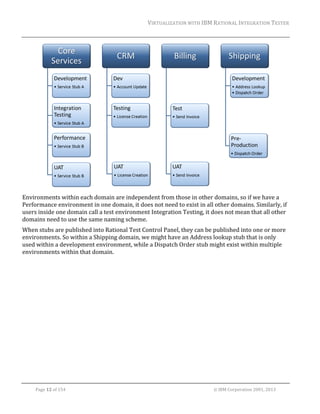
Environments	within	each	domain	are	independent	from	those	in	other	domains,	so	if	we	have	a	
Performance	environment	in	one	domain,	it	does	not	need	to	exist	in	all	other	domains.	Similarly,	if	
users	inside	one	domain	call	a	test	environment	Integration	Testing,	it	does	not	mean	that	all	other	
domains	need	to	use	the	same	naming	scheme.	
When	stubs	are	published	into	Rational	Test	Control	Panel,	they	can	be	published	into	one	or	more	
environments.	So	within	a	Shipping	domain,	we	might	have	an	Address	lookup	stub	that	is	only	
used	within	a	development	environment,	while	a	Dispatch	Order	stub	might	exist	within	multiple	
environments	within	that	domain.	


Page	12	of	154																																																																																																																																															©	IBM	Corporation	2001,	2013
VIRTUALIZATION	WITH	IBM	RATIONAL	INTEGRATION	TESTER	
	

4 Project setup
4.1 The	initial	screen	
Once	configuration	of	our	system	is	complete,	we	are	ready	to	launch	Rational	Integration	Tester	
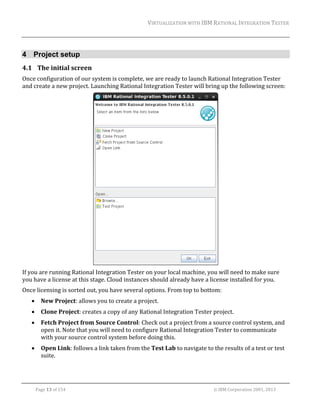
and	create	a	new	project.	Launching	Rational	Integration	Tester	will	bring	up	the	following	screen:	

	
If	you	are	running	Rational	Integration	Tester	on	your	local	machine,	you	will	need	to	make	sure	
you	have	a	license	at	this	stage.	Cloud	instances	should	already	have	a	license	installed	for	you.		
Once	licensing	is	sorted	out,	you	have	several	options.	From	top	to	bottom:	


New	Project:	allows	you	to	create	a	project.	



Clone	Project:	creates	a	copy	of	any	Rational	Integration	Tester	project.	



Fetch	Project	from	Source	Control:	Check	out	a	project	from	a	source	control	system,	and	
open	it.	Note	that	you	will	need	to	configure	Rational	Integration	Tester	to	communicate	
with	your	source	control	system	before	doing	this.	



Open	Link:	follows	a	link	taken	from	the	Test	Lab	to	navigate	to	the	results	of	a	test	or	test	
suite.	

	
Page	13	of	154																																																																																																																																															©	IBM	Corporation	2001,	2013
VIRTUALIZATION	WITH	IBM	RATIONAL	INTEGRATION	TESTER	
	



Open	an	existing	project:	opens	an	existing	project,	either	from	the	list	of	recent	projects	
shown	by	Rational	Integration	Tester,	or	by	browsing	to	a	.ghp	file.	

4.2 Creating	a	new	project	
Creating	a	new	project	goes	through	the	following	four	stages.	These	are:	
1. Setting	the	project	name	and	location	
2. Connecting	to	external	servers	
3. Setting	up	user‐based	permissions	
4. Setting	up	change	management	integration	
Only	the	first	step	is	compulsory;	the	others	are	optional,	with	the	settings	available	to	edit	later	
from	within	the	project.	If	you	need	to	edit	any	of	these	settings	after	the	project	has	been	created,	
you	can	do	it	through	the	Project	Settings	window	(found	in	the	Project	menu	of	Rational	
Integration	Tester).	
That	said,	filling	out	the	server	settings	listed	in	the	second	stage	of	the	project	creation	process	will	
normally	be	very	useful,	and	we	will	be	supplying	that	information	for	the	examples	used	in	this	
course.		
The	first	of	these	settings	is	for	a	results	database,	which	we	will	be	using	during	this	training	
course.	The	results	database	provides	the	ability	to	record	and	view	historical	test	results.	Without	
this,	you	will	only	be	able	to	view	results	from	the	current	session.	It	also	provides	the	ability	to	
record	logging	data	from	any	stubs	that	you	use.	Scripts	are	provided	with	Rational	Integration	
Tester	to	help	you	set	up	and	configure	a	results	database,	which	can	be	an	IBM	DB2	MySQL,	MS	
SQL,	or	Oracle	database.	Once	it	is	set	up,	the	database	can	be	shared	across	multiple	users	and	
multiple	projects.	
The	other	server	settings	available	are	for	Rational	Test	Control	Panel	and	the	Results	Server	
(legacy	users	only).	Rational	Test	Control	Panel	provides	the	ability	to	manage	any	proxies	and	
agents	used	by	the	software;	these	capabilities	can	be	used	while	recording	and	stubbing.	The	
Results	Server	setting	is	used	to	create	links	to	the	reports	held	on	the	server,	which	should	also	be	
connected	to	your	results	database;	this	functionality	is	now	provided	by	Rational	Test	Control	
Panel,	so	the	Results	Server	is	no	longer	required,	and	will	not	be	used	in	this	project.	
As	we	only	have	a	single	user	for	our	example	project,	we	will	not	configure	user‐based	permissions	
for	our	project.	It	will	be	useful	in	other	projects	where	it	is	necessary	to	restrict	access	to	a	project	
to	certain	individuals,	or	to	allow	different	access	levels	to	the	project	for	different	users.	In	
particular,	it	will	be	helpful	for	projects	that	implement	data	masking.	Permissions	will	allow	one	
user	to	set	up	masks	over	certain	message	fields,	so	that	other	users	cannot	view	the	contents	of	
those	fields.	
Finally,	we	can	configure	a	connection	to	change	management	tools	such	as	JIRA,	HP	Quality	Center,	
or	any	Open	Services	for	Lifecycle	Collaboration	(OSLC)	compliant	change	management	system,	
such	as	IBM	Rational	Team	Concert™.	This	allows	us	to	link	directly	into	these	tools,	and	raise	
defects	directly	from	a	test	or	test	suite.		

	
Page	14	of	154																																																																																																																																															©	IBM	Corporation	2001,	2013
VIRTUALIZATION	WITH	IBM	RATIONAL	INTEGRATION	TESTER	
	

At	the	end	of	the	wizard,	a	new	project	folder	will	be	created	within	your	file	system.	This	folder	
will	hold	all	resources,	including	a	model	of	the	system	under	test,	along	with	any	tests,	stubs	or	
other	resources	created	for	the	project.	Data	files	used	by	your	project	can	also	be	stored	here.	This	
can	help	you	make	your	project	more	portable	by	including	everything	in	one	place.	Alternatively,	
you	might	want	to	include	those	data	files	in	another	location;	Rational	Integration	Tester	will	be	
able	to	refer	to	them	either	way.		

4.3 Exercise:	Creating	a	new	project	
You	will	now	create	a	new	project	for	the	Vacation	Booking	project,	and	configure	a	few	settings	
that	will	be	required	later	in	the	project.	
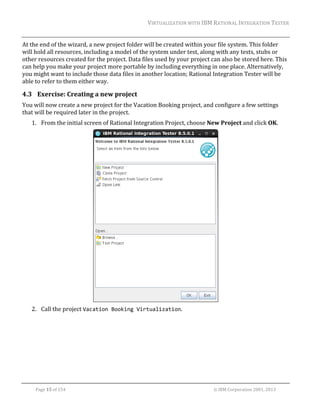
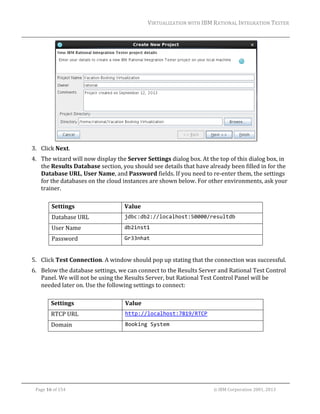
1. From	the	initial	screen	of	Rational	Integration	Project,	choose	New	Project	and	click	OK.	

	
2. Call	the	project	Vacation Booking Virtualization.	

	
Page	15	of	154																																																																																																																																															©	IBM	Corporation	2001,	2013
VIRTUALIZATION	WITH	IBM	RATIONAL	INTEGRATION	TESTER	


3. Click	Next.		


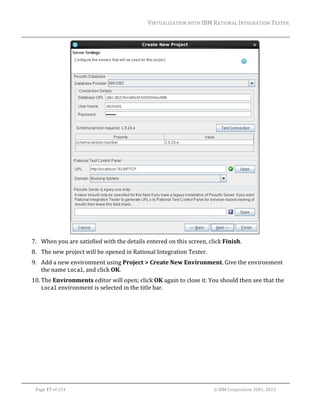
4. The	wizard	will	now	display	the	Server	Settings	dialog	box.	At	the	top	of	this	dialog	box,	in	
the	Results	Database	section,	you	should	see	details	that	have	already	been	filled	in	for	the	
Database	URL,	User	Name,	and	Password	fields.	If	you	need	to	re‐enter	them,	the	settings	
for	the	databases	on	the	cloud	instances	are	shown	below.	For	other	environments,	ask	your	
trainer.	
	
Settings	

Value	

Database	URL	

jdbc:db2://localhost:50000/resultdb 

User	Name	

db2inst1 

Password	

Gr33nhat 

	
5. Click	Test	Connection.	A	window	should	pop	up	stating	that	the	connection	was	successful.	
6. Below	the	database	settings,	we	can	connect	to	the	Results	Server	and	Rational	Test	Control	
Panel.	We	will	not	be	using	the	Results	Server,	but	Rational	Test	Control	Panel	will	be	
needed	later	on.	Use	the	following	settings	to	connect:		
	
Settings	

Value	

RTCP	URL	

http://localhost:7819/RTCP 

Domain	

Booking System 

	
Page	16	of	154																																																																																																																																															©	IBM	Corporation	2001,	2013
VIRTUALIZATION	WITH	IBM	RATIONAL	INTEGRATION	TESTER	


7. When	you	are	satisfied	with	the	details	entered	on	this	screen,	click	Finish.		
8. The	new	project	will	be	opened	in	Rational	Integration	Tester.		
9. Add	a	new	environment	using	Project	>	Create	New	Environment.	Give	the	environment	
the	name	Local,	and	click	OK.	
10. The	Environments	editor	will	open;	click	OK	again	to	close	it.	You	should	then	see	that	the	
Local	environment	is	selected	in	the	title	bar.	


Page	17	of	154																																																																																																																																															©	IBM	Corporation	2001,	2013
VIRTUALIZATION	WITH	IBM	RATIONAL	INTEGRATION	TESTER	
	

5 Complex environments
5.1 Introduction	
The	Platform	training	modules	used	a	simple	web	service	to	introduce	you	to	the	toolset.	This	set	of	
modules	will	use	a	more	complex	example,	the	Vacation	Booking	system,	which	has	several	
different	subsystems.	Your	instructor	will	choose	to	use	some	or	all	of	these	sections	during	your	
training	course.	
So	before	we	can	go	any	further,	we	need	to	know	how	this	example	system	under	test	fits	together.		
There	are	three	main	sections	to	the	system	that	we	will	be	dealing	with:	a	flight	booking	system,	a	
hotel	booking	system,	and	a	flight	administration	system.		
All	three	parts	of	the	system	are	presented	to	the	user	through	their	web	browser;	the	interface	is	
generated	by	a	Tomcat	web	server,	which	connects	to	the	relevant	parts	of	the	system	as	required.	
In	the	background,	the	following	software	has	been	deployed:	


Tomcat	



IBM	WebSphere	Application	Server	



IBM	WebSphere	MQ	



IBM	DB2	

In	this	module,	you	will	see	how	the	different	parts	of	this	system	fit	together.	In	the	following	
modules,	you	will	see	two	different	methods	that	can	be	used	to	build	the	model	of	the	system	
under	test:	using	synchronization	and	recorded	messages.	

5.2 Managing	flight	bookings	
The	Vacation	Booking	system	has	three	separate	subsystems.	The	first	of	these	lets	users	book	a	
flight	on	a	fictional	airline.	Bookings	can	also	be	managed	through	the	interface,	allowing	users	to	
find,	update,	and	delete	existing	bookings.	
The	implementation	for	this	is	split	into	two	parts:	the	set	of	services	for	making	bookings,	and	the	
set	of	services	for	managing	bookings.	

	
Page	18	of	154																																																																																																																																															©	IBM	Corporation	2001,	2013
VIRTUALIZATION	WITH	IBM	RATIONAL	INTEGRATION	TESTER	


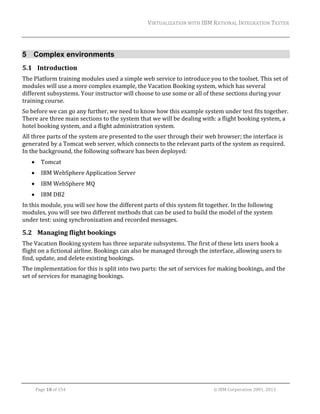
When	a	user	makes	a	booking,	Tomcat	publishes	a	message	onto	a	MQ	queue,	which	is	then	
retrieved	by	the	MakeBooking	service	running	in	WebSphere	Application	Server.	This	looks	at	the	
credit	card	type,	and	posts	a	message	onto	a	queue	for	that	card	type	(Global,	Multinational,	or	
Worldwide).	A	service	for	that	card	type,	also	running	on	WebSphere	Application	Server,	will	then	
pick	up	the	message,	and	process	it.	In	order	to	process	the	booking,	the	service	needs	to	know	
what	reservation	numbers	exist,	create	a	new	reservation	number,	and	record	it	for	future	
reference.	All	of	this	is	done	by	referring	to	a	DB2	database	which	is	used	to	hold	booking	
information.	The	reservation	number	is	then	passed	back	to	MakeBooking,	to	Tomcat,	and	then	the	
user.	
When	a	user	wants	to	manage	a	booking,	Tomcat	will	be	interacting	with	a	set	of	web	services	
implemented	by	WebSphere	Application	Server.	These	services	will	allow	the	user	to	log	into	the	
booking	system,	search	existing	bookings,	update	bookings,	or	delete	them.	Searching,	updating,	
and	deleting	will	access	the	same	database	that	was	used	previously	for	making	bookings.	

5.3 Finding	and	booking	hotels	
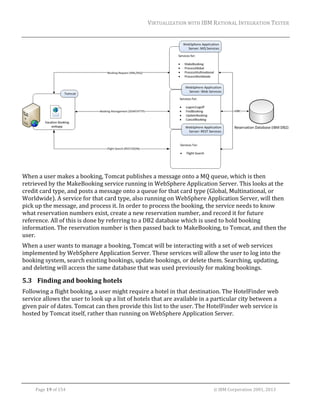
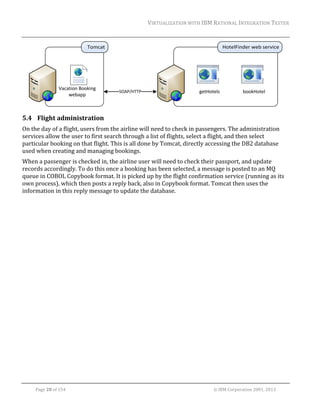
Following	a	flight	booking,	a	user	might	require	a	hotel	in	that	destination.	The	HotelFinder	web	
service	allows	the	user	to	look	up	a	list	of	hotels	that	are	available	in	a	particular	city	between	a	
given	pair	of	dates.	Tomcat	can	then	provide	this	list	to	the	user.	The	HotelFinder	web	service	is	
hosted	by	Tomcat	itself,	rather	than	running	on	WebSphere	Application	Server.	

	
Page	19	of	154																																																																																																																																															©	IBM	Corporation	2001,	2013
VIRTUALIZATION	WITH	IBM	RATIONAL	INTEGRATION	TESTER	
	

Vacation Booking 
webapp

SOAP/HTTP

getHotels

bookHotel


5.4 Flight	administration	
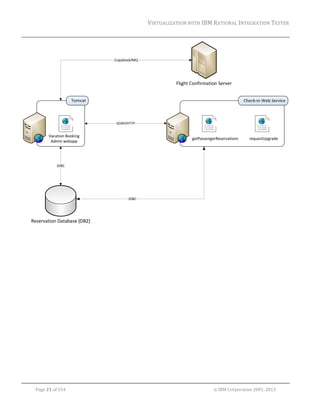
On	the	day	of	a	flight,	users	from	the	airline	will	need	to	check	in	passengers.	The	administration	
services	allow	the	user	to	first	search	through	a	list	of	flights,	select	a	flight,	and	then	select	
particular	booking	on	that	flight.	This	is	all	done	by	Tomcat,	directly	accessing	the	DB2	database	
used	when	creating	and	managing	bookings.		
When	a	passenger	is	checked	in,	the	airline	user	will	need	to	check	their	passport,	and	update	
records	accordingly.	To	do	this	once	a	booking	has	been	selected,	a	message	is	posted	to	an	MQ	
queue	in	COBOL	Copybook	format.	It	is	picked	up	by	the	flight	confirmation	service	(running	as	its	
own	process),	which	then	posts	a	reply	back,	also	in	Copybook	format.	Tomcat	then	uses	the	
information	in	this	reply	message	to	update	the	database.	

	
Page	20	of	154																																																																																																																																															©	IBM	Corporation	2001,	2013
VIRTUALIZATION	WITH	IBM	RATIONAL	INTEGRATION	TESTER	


Page	21	of	154																																																																																																																																															©	IBM	Corporation	2001,	2013
VIRTUALIZATION	WITH	IBM	RATIONAL	INTEGRATION	TESTER	
	

6 Synchronization
6.1 Introduction	
The	simplest	option	when	building	a	model	of	the	system	under	test	is	synchronisation.	This	
process	analyzes	the	services	and	infrastructure	provided	by	the	system	and	replicates	that	within	
the	Architecture	School.	This	will	set	up	the	logical	and	physical	views,	an	environment,	and	any	
message	schemas	used	by	the	various	services	in	the	system.	
In	order	to	do	this,	Rational	Integration	Tester	requires	a	valid	synchronisation	source	to	exist	
within	the	system	under	test,	so	that	it	can	request	information	on	the	system.	Supported	
synchronization	sources	include:		


WSDL	



UDDI	(including	WebSphere	Service	Registry	and	Repository)	



WebSphere	Message	Broker	



WebSphere	Application	Server	



webMethods	Integration	Server	



TIBCO	BusinessWorks	Project/Design	Time	Library	



SAP	System	



Oracle	SCA	Domain	

Adding	any	of	these	to	your	project	will	give	you	the	option	to	synchronise	with	the	data	held	by	
that	external	resource.	To	start	the	synchronisation	process,	you	can	add	any	one	of	these	
infrastructure	components	to	the	Logical	View	of	Architecture	School,	or	by	switching	to	
Synchronisation	view	and	adding	it	there.	Either	way,	the	process	of	adding	a	synchronization	
source	will	provide	the	option	of	synchronising.	Multiple	synchronisation	sources	can	be	added	to	
the	project	if	required.	


After	synchronisation,	the	system	under	test	might	change;	as	this	will	be	recorded	within	the	
synchronisation	source,	it	is	possible	for	Rational	Integration	Tester	to	update	the	project	to	reflect	
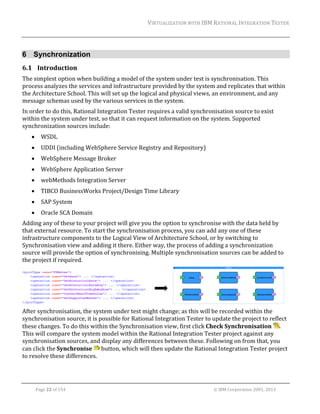
these	changes.	To	do	this	within	the	Synchronisation	view,	first	click	Check	Synchronisation	 .	
This	will	compare	the	system	model	within	the	Rational	Integration	Tester	project	against	any	
synchronisation	sources,	and	display	any	differences	between	these.	Following	on	from	that,	you	
can	click	the	Synchronise	 	button,	which	will	then	update	the	Rational	Integration	Tester	project	
to	resolve	these	differences.	

	
Page	22	of	154																																																																																																																																															©	IBM	Corporation	2001,	2013
VIRTUALIZATION	WITH	IBM	RATIONAL	INTEGRATION	TESTER	
	

6.2 Exercise:	Synchronizing	with	a	WebSphere	Application	Server	
1. You	can	start	synchronization	from	either	the	Logical	View	or	Synchronization	View	of	the	
Architecture	School.	The	process	is	largely	the	same	either	way,	but	in	this	example,	you	
will	use	the	Logical	View,	so	switch	to	that	view	now.	
2. Make	sure	that	nothing	is	selected,	so	that	the	next	item	you	create	will	go	at	the	top	level.	
3. From	the	toolbar,	add	a	new	IBM	WebSphere	Application	Server.	
4. A	dialog	box	will	open	to	start	the	synchronization	process.	The	first	thing	you	will	need	to	
do	is	to	set	up	the	connection	details	of	the	application	server.	To	do	this,	click	the	New	
button.	
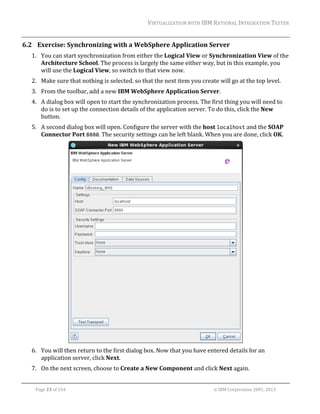
5. A	second	dialog	box	will	open.	Configure	the	server	with	the	host	localhost	and	the	SOAP	
Connector	Port	8880.	The	security	settings	can	be	left	blank.	When	you	are	done,	click	OK.	

	
6. You	will	then	return	to	the	first	dialog	box.	Now	that	you	have	entered	details	for	an	
application	server,	click	Next.	
7. On	the	next	screen,	choose	to	Create	a	New	Component	and	click	Next	again.	
	
Page	23	of	154																																																																																																																																															©	IBM	Corporation	2001,	2013
VIRTUALIZATION	WITH	IBM	RATIONAL	INTEGRATION	TESTER	
	

8. When	asked	which	environment	to	use,	choose	the	Local	environment	you	created	
previously,	and	click	Next	again.	
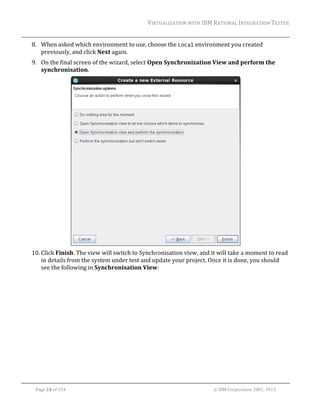
9. On	the	final	screen	of	the	wizard,	select	Open	Synchronization	View	and	perform	the	
synchronisation.		

	
10. Click	Finish.	The	view	will	switch	to	Synchronisation	view,	and	it	will	take	a	moment	to	read	
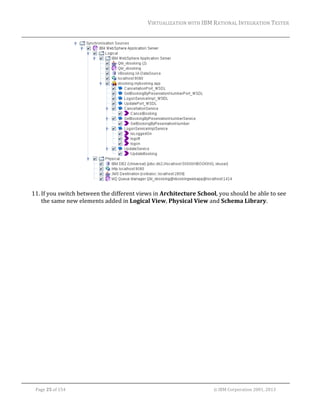
in	details	from	the	system	under	test	and	update	your	project.	Once	it	is	done,	you	should	
see	the	following	in	Synchronisation	View:			

	
Page	24	of	154																																																																																																																																															©	IBM	Corporation	2001,	2013
VIRTUALIZATION	WITH	IBM	RATIONAL	INTEGRATION	TESTER	


11. If	you	switch	between	the	different	views	in	Architecture	School,	you	should	be	able	to	see	
the	same	new	elements	added	in	Logical	View,	Physical	View	and	Schema	Library.	

	
Page	25	of	154																																																																																																																																															©	IBM	Corporation	2001,	2013
VIRTUALIZATION	WITH	IBM	RATIONAL	INTEGRATION	TESTER	
	

7 Building a system model from recorded events
7.1 Introduction	
As	you	might	have	noticed,	while	Rational	Integration	Tester	supports	a	number	of	synchronization	
sources,	not	all	of	these	will	exist	in	every	system.	If	a	system	does	not	have	any	of	the	
synchronization	sources	mentioned	above,	then	there	is	nothing	to	refer	to	when	building	a	model	
of	a	system	under	test.	For	example,	a	WebSphere	MQ‐based	system	is	able	to	provide	information	
on	the	available	queues	and	topics,	while	being	unable	to	provide	any	information	on	the	
operations	that	access	those	resources,	the	dependencies	between	operations,	or	the	message	
schemas	being	used.	In	this	case,	we	might	be	able	to	build	a	model	of	the	system	from	recorded	
data.	
This	is	similar	to	the	situation	we	see	with	the	WebSphere	Application	Server	and	WebSphere	MQ.	
The	application	server	can	tell	us	of	the	existence	of	the	queue	manager,	but	it	does	not	give	us	
enough	information	to	be	able	to	build	up	the	operations	that	use	that	queue	manager,	or	the	
dependencies	between	those	operations.	We	could	build	these	by	hand	to	fill	in	the	missing	gaps,	
but	instead	we	will	use	recorded	messages	to	help	us	build	the	operations,	leaving	us	with	only	a	
few	dependencies	to	add	manually.	

7.2 Recording	MQ	messages	
Before	you	start	doing	this,	we	will	take	a	quick	look	at	how	you	will	be	recording	messages	on	the	
MQ	transport.	There	are	several	different	ways	to	record	messages	over	this	transport;	each	has	
their	own	advantages	and	disadvantages.	The	choices	are	as	follows:	


Queue	browsing	



Proxy	queues	



Mirror	queues	



Dynamic	mirror	queues	



Queue	aliasing	

Your	choice	will	depend	on	several	factors.	Some	methods,	such	as	the	use	of	proxy	queues,	require	
changes	to	the	system	under	test.	Others	are	invisible	to	the	system	under	test,	but	require	access	
to	the	MQ	server	in	order	to	make	modifications.	Other	factors	will	include	determining	if	the	
system	under	can	be	stopped	temporarily,	to	ensure	that	no	messages	are	missed,	and	connections	
can	be	set	up	appropriately;	and	finally,	the	amount	of	effort	required	on	the	part	of	the	user,	and	
the	impact	on	the	performance	of	the	MQ	server.	For	more	information	on	the	pros	and	cons	of	each	
method,	refer	to	the	Rational	Integration	Tester	Information	Center.	In	our	example,	we	will	be	
using	dynamic	mirror	queues,	as	this	requires	no	modification	to	the	system	under	test,	and	
requires	a	very	small	amount	of	setup	on	the	part	of	the	user.	
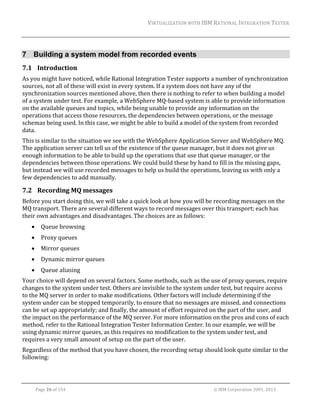
Regardless	of	the	method	that	you	have	chosen,	the	recording	setup	should	look	quite	similar	to	the	
following:	

	
Page	26	of	154																																																																																																																																															©	IBM	Corporation	2001,	2013
VIRTUALIZATION	WITH	IBM	RATIONAL	INTEGRATION	TESTER	


The	client	application	will	communicate	via	request	and	reply	queues	with	a	given	service.	Rational	
Integration	Tester	will	read	the	request	and	response	messages	being	posted	to	the	queues	within	
the	queue	manager.	While	the	queue	manager	might	act	slightly	differently	to	its	usual	behavior	
(for	example,	by	copying	each	message	to	a	mirror	queue),	the	messages	themselves	will	be	
untouched,	and	the	actions	of	the	system	under	test	should	also	be	unchanged.	
Note	that	we	might	choose	to	record	just	a	given	service	if	we	have	an	operation	definition	(and	so	
know	which	queues	to	monitor),	or	to	record	all	queues	within	the	queue	manager	by	recording	the	
MQ	transport.	

7.3 Exercise:	Setting	up	the	transports	
In	the	Vacation	Booking	system,	you	should	now	have	a	lot	of	information	about	the	web	services	
included	in	the	system.	However,	the	WebSphere	Application	Server	does	not	provide	information	
on	the	operations	that	run	over	MQ.	This	is	because	the	applications	installed	on	the	application	
server	do	not	provide	enough	information	themselves.	As	you	will	not	be	able	to	synchronize	with	
the	server	to	get	information	about	these,	you	will	record	the	WebSphere	MQ	transport,	and	build	
up	the	operations	that	way.	
1. Before	you	can	record	the	transport,	you	will	need	to	select	your	recording	method.	Go	to	
the	Physical	View	of	Architecture	School.	
2. Find	the	MQ	Queue	Manager	called	QM_vbooking,	and	double‐click	it	to	edit	it.	
3. A	dialog	box	will	open	showing	the	physical	settings	for	your	queue	manager.	Switch	to	the	
Recording	tab.	
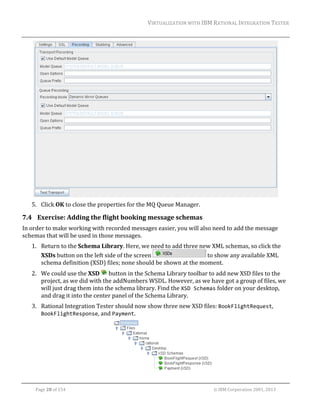
4. Under	Queue	Recording,	set	the	Recording	Mode	to	Dynamic	Mirror	Queues.	All	other	
settings	here	can	be	left	at	their	defaults.		
	
Page	27	of	154																																																																																																																																															©	IBM	Corporation	2001,	2013
VIRTUALIZATION	WITH	IBM	RATIONAL	INTEGRATION	TESTER	


5. Click	OK	to	close	the	properties	for	the	MQ	Queue	Manager.	

7.4 Exercise:	Adding	the	flight	booking	message	schemas	
In	order	to	make	working	with	recorded	messages	easier,	you	will	also	need	to	add	the	message	
schemas	that	will	be	used	in	those	messages.	
1. Return	to	the	Schema	Library.	Here,	we	need	to	add	three	new	XML	schemas,	so	click	the	
XSDs	button	on	the	left	side	of	the	screen	
	to	show	any	available	XML	
schema	definition	(XSD)	files;	none	should	be	shown	at	the	moment.	
2. We	could	use	the	XSD	 	button	in	the	Schema	Library	toolbar	to	add	new	XSD	files	to	the	
project,	as	we	did	with	the	addNumbers	WSDL.	However,	as	we	have	got	a	group	of	files,	we	
will	just	drag	them	into	the	schema	library.	Find	the	XSD Schemas	folder	on	your	desktop,	
and	drag	it	into	the	center	panel	of	the	Schema	Library.	
3. Rational	Integration	Tester	should	now	show	three	new	XSD	files:	BookFlightRequest,	
BookFlightResponse,	and	Payment.		


Page	28	of	154																																																																																																																																															©	IBM	Corporation	2001,	2013
VIRTUALIZATION	WITH	IBM	RATIONAL	INTEGRATION	TESTER	
	

4. You	can	select	each	of	these,	and	view	the	associated	message	schemas	on	the	right	side	of	
the	screen.	

7.5 Exercise:	Recording	events	from	a	transport	
We	will	now	capture	events	for	the	MQ	Queue	Manager	transport.	
1. Before	we	get	started,	we	will	need	to	initialize	a	few	components	of	the	system,	such	as	the	
GUI	layer,	to	make	sure	that	they	are	running.	To	do	this,	use	the	Start Tomcat	shortcut	on	
your	desktop.		
2. Return	to	Rational	Integration	Tester,	and	go	to	the	Logical	View	of	Architecture	School.	
3. Make	sure	you	are	in	the	Local	environment	(as	shown	in	the	Rational	Integration	Tester	
title	bar).	
4. Select	the	QM_vbooking	infrastructure	component.	Note	that	there	will	be	two:	one	
representing	the	transport	as	a	simple	JMS	system,	the	other	as	a	WebSphere	MQ	queue	
manager.	Choose	the	WebSphere	MQ	queue	manager	


5. Right‐click	the	QM_vbooking	component,	and	select	Record.	The	perspective	will	change	to	
the	Recording	Studio,	and	the	QM_vbooking	transport	should	be	listed	in	the	Event	Monitors	
panel.	
6. Click	the	Start	Recording	 	button	in	the	Events	View	toolbar	to	start	recording	events.	
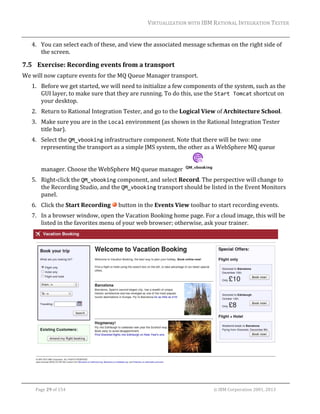
7. In	a	browser	window,	open	the	Vacation	Booking	home	page.	For	a	cloud	image,	this	will	be	
listed	in	the	favorites	menu	of	your	web	browser;	otherwise,	ask	your	trainer.	


Page	29	of	154																																																																																																																																															©	IBM	Corporation	2001,	2013
VIRTUALIZATION	WITH	IBM	RATIONAL	INTEGRATION	TESTER	
	

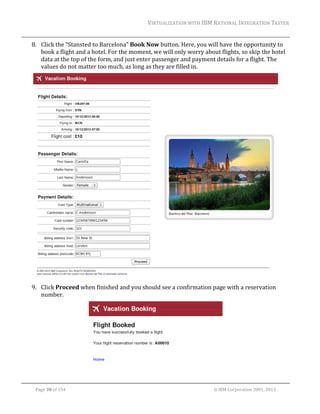
8. Click	the	“Stansted	to	Barcelona”	Book	Now	button.	Here,	you	will	have	the	opportunity	to	
book	a	flight	and	a	hotel.	For	the	moment,	we	will	only	worry	about	flights,	so	skip	the	hotel	
data	at	the	top	of	the	form,	and	just	enter	passenger	and	payment	details	for	a	flight.	The	
values	do	not	matter	too	much,	as	long	as	they	are	filled	in.	

	
9. Click	Proceed	when	finished	and	you	should	see	a	confirmation	page	with	a	reservation	
number.	


Page	30	of	154																																																																																																																																															©	IBM	Corporation	2001,	2013
VIRTUALIZATION	WITH	IBM	RATIONAL	INTEGRATION	TESTER	
	

10. Return	to	Rational	Integration	Tester	and	you	should	see	that	four	events	have	been	
recorded	in	the	Events	View.	
11. Click	the	first	message	in	the	Events	View.	You	should	then	see	the	message	details	
displayed	in	the	panel	below,	showing	the	message	that	was	initially	sent	by	Tomcat.	
12. We	still	need	information	on	how	the	system	deals	with	requests	for	other	credit	card	types,	
as	these	will	be	posted	to	different	queues,	so	return	to	your	web	browser,	and	make	
bookings	for	Global	and	Worldwide	credit	cards.	These	should	also	be	recorded	in	Rational	
Integration	Tester,	giving	you	a	total	of	12	recorded	events.	

7.6 Exercise:	Building	operations	from	recorded	events	
Now	that	we	have	recorded	some	events,	we	can	use	these	for	a	number	of	different	purposes.	The	
first	thing	we	will	do	is	to	complete	the	model	of	the	system.	
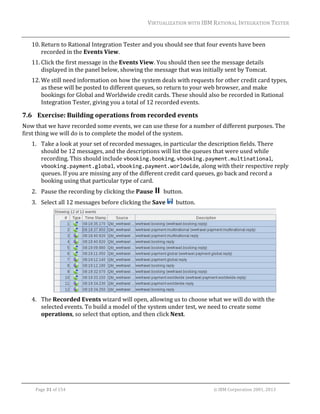
1. Take	a	look	at	your	set	of	recorded	messages,	in	particular	the	description	fields.	There	
should	be	12	messages,	and	the	descriptions	will	list	the	queues	that	were	used	while	
recording.	This	should	include	vbooking.booking,	vbooking.payment.multinational,	
vbooking.payment.global,	vbooking.payment.worldwide,	along	with	their	respective	reply	
queues.	If	you	are	missing	any	of	the	different	credit	card	queues,	go	back	and	record	a	
booking	using	that	particular	type	of	card.		
2. Pause	the	recording	by	clicking	the	Pause	 		button.	
3. Select	all	12	messages	before	clicking	the	Save	 		button.	

	
4. The	Recorded	Events	wizard	will	open,	allowing	us	to	choose	what	we	will	do	with	the	
selected	events.	To	build	a	model	of	the	system	under	test,	we	need	to	create	some	
operations,	so	select	that	option,	and	then	click	Next.	

	
Page	31	of	154																																																																																																																																															©	IBM	Corporation	2001,	2013
VIRTUALIZATION	WITH	IBM	RATIONAL	INTEGRATION	TESTER	


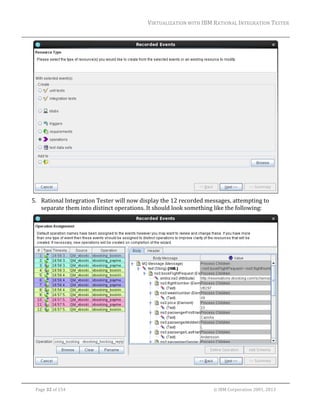
5. Rational	Integration	Tester	will	now	display	the	12	recorded	messages,	attempting	to	
separate	them	into	distinct	operations.	It	should	look	something	like	the	following:	


Page	32	of	154																																																																																																																																															©	IBM	Corporation	2001,	2013
VIRTUALIZATION	WITH	IBM	RATIONAL	INTEGRATION	TESTER	
	

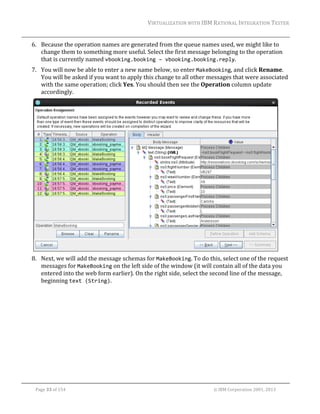
6. Because	the	operation	names	are	generated	from	the	queue	names	used,	we	might	like	to	
change	them	to	something	more	useful.	Select	the	first	message	belonging	to	the	operation	
that	is	currently	named	vbooking.booking – vbooking.booking.reply.		
7. You	will	now	be	able	to	enter	a	new	name	below,	so	enter	MakeBooking,	and	click	Rename.	
You	will	be	asked	if	you	want	to	apply	this	change	to	all	other	messages	that	were	associated	
with	the	same	operation;	click	Yes.	You	should	then	see	the	Operation	column	update	
accordingly.	

	
8. Next,	we	will	add	the	message	schemas	for	MakeBooking.	To	do	this,	select	one	of	the	request	
messages	for	MakeBooking	on	the	left	side	of	the	window	(it	will	contain	all	of	the	data	you	
entered	into	the	web	form	earlier).	On	the	right	side,	select	the	second	line	of	the	message,	
beginning	text (String).	

	
Page	33	of	154																																																																																																																																															©	IBM	Corporation	2001,	2013
VIRTUALIZATION	WITH	IBM	RATIONAL	INTEGRATION	TESTER	


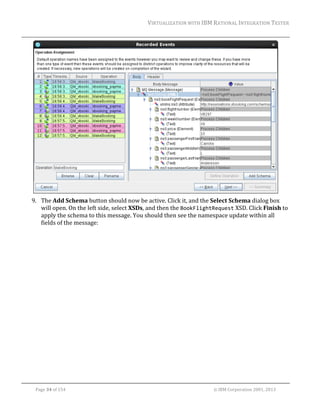
9. The	Add	Schema	button	should	now	be	active.	Click	it,	and	the	Select	Schema	dialog	box	
will	open.	On	the	left	side,	select	XSDs,	and	then	the	BookFlightRequest	XSD.	Click	Finish	to	
apply	the	schema	to	this	message.	You	should	then	see	the	namespace	update	within	all	
fields	of	the	message:	

	
Page	34	of	154																																																																																																																																															©	IBM	Corporation	2001,	2013
VIRTUALIZATION	WITH	IBM	RATIONAL	INTEGRATION	TESTER	


10. Now	select	a	response	message	for	MakeBooking,	and	follow	the	same	procedure,	using	the	
BookFlightResponse	XSD.	
11. We	will	need	to	go	through	the	same	process	for	the	other	operations	in	our	system.	Select	
the	two	messages	that	are	associated	with	the	vbooking.payment.multinational	queue,	
give	them	an	operation	name	of	ProcessMultinational,	and	click	Rename.	
12. We	also	need	to	set	up	message	schemas	for	ProcessMultinational,	but	this	will	be	a	little	
bit	simpler	than	for	MakeBooking.	If	you	take	a	look	at	the	response	message,	you	will	see	
that	it	only	includes	a	single	text	field,	so	we	will	not	need	to	apply	a	schema	there.	Select	the	
request	message	for	the	ProcessMultinational	operation,	and	apply	the	Payment	XSD	as	
the	schema.	
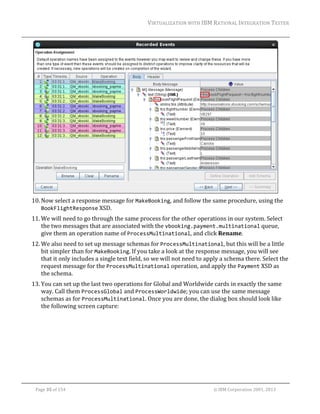
13. You	can	set	up	the	last	two	operations	for	Global	and	Worldwide	cards	in	exactly	the	same	
way.	Call	them	ProcessGlobal	and	ProcessWorldwide;	you	can	use	the	same	message	
schemas	as	for	ProcessMultinational.	Once	you	are	done,	the	dialog	box	should	look	like	
the	following	screen	capture:	

	
Page	35	of	154																																																																																																																																															©	IBM	Corporation	2001,	2013
VIRTUALIZATION	WITH	IBM	RATIONAL	INTEGRATION	TESTER	


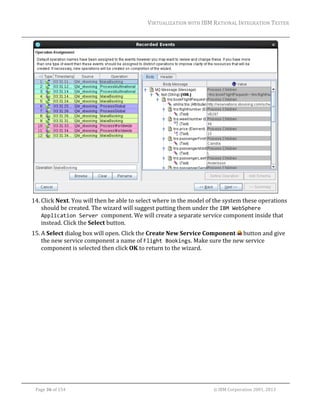
14. Click	Next.	You	will	then	be	able	to	select	where	in	the	model	of	the	system	these	operations	
should	be	created.	The	wizard	will	suggest	putting	them	under	the	IBM WebSphere 
Application Server component.	We	will	create	a	separate	service	component	inside	that	
instead.	Click	the	Select	button.	
15. A	Select	dialog	box	will	open.	Click	the	Create	New	Service	Component	 	button	and	give	
the	new	service	component	a	name	of	Flight Bookings.	Make	sure	the	new	service	
component	is	selected	then	click	OK	to	return	to	the	wizard.	

	
Page	36	of	154																																																																																																																																															©	IBM	Corporation	2001,	2013
VIRTUALIZATION	WITH	IBM	RATIONAL	INTEGRATION	TESTER	


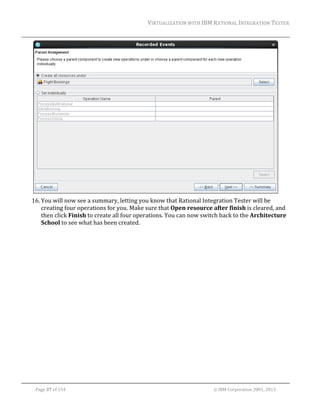
16. You	will	now	see	a	summary,	letting	you	know	that	Rational	Integration	Tester	will	be	
creating	four	operations	for	you.	Make	sure	that	Open	resource	after	finish	is	cleared,	and	
then	click	Finish	to	create	all	four	operations.	You	can	now	switch	back	to	the	Architecture	
School	to	see	what	has	been	created.	

	
Page	37	of	154																																																																																																																																															©	IBM	Corporation	2001,	2013
VIRTUALIZATION	WITH	IBM	RATIONAL	INTEGRATION	TESTER	


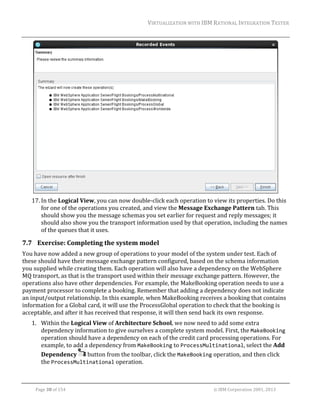
17. In	the	Logical	View,	you	can	now	double‐click	each	operation	to	view	its	properties.	Do	this	
for	one	of	the	operations	you	created,	and	view	the	Message	Exchange	Pattern	tab.	This	
should	show	you	the	message	schemas	you	set	earlier	for	request	and	reply	messages;	it	
should	also	show	you	the	transport	information	used	by	that	operation,	including	the	names	
of	the	queues	that	it	uses.	

7.7 Exercise:	Completing	the	system	model	
You	have	now	added	a	new	group	of	operations	to	your	model	of	the	system	under	test.	Each	of	
these	should	have	their	message	exchange	pattern	configured,	based	on	the	schema	information	
you	supplied	while	creating	them.	Each	operation	will	also	have	a	dependency	on	the	WebSphere	
MQ	transport,	as	that	is	the	transport	used	within	their	message	exchange	pattern.	However,	the	
operations	also	have	other	dependencies.	For	example,	the	MakeBooking	operation	needs	to	use	a	
payment	processor	to	complete	a	booking.	Remember	that	adding	a	dependency	does	not	indicate	
an	input/output	relationship.	In	this	example,	when	MakeBooking	receives	a	booking	that	contains	
information	for	a	Global	card,	it	will	use	the	ProcessGlobal	operation	to	check	that	the	booking	is	
acceptable,	and	after	it	has	received	that	response,	it	will	then	send	back	its	own	response.	
1. Within	the	Logical	View	of	Architecture	School,	we	now	need	to	add	some	extra	
dependency	information	to	give	ourselves	a	complete	system	model.	First,	the	MakeBooking	
operation	should	have	a	dependency	on	each	of	the	credit	card	processing	operations.	For	
example,	to	add	a	dependency	from	MakeBooking	to	ProcessMultinational,	select	the	Add	
Dependency	 	button	from	the	toolbar,	click	the	MakeBooking	operation,	and	then	click	
the	ProcessMultinational	operation.	
	
Page	38	of	154																																																																																																																																															©	IBM	Corporation	2001,	2013
VIRTUALIZATION	WITH	IBM	RATIONAL	INTEGRATION	TESTER	
	

2. Follow	the	same	process	to	create	dependencies	from	MakeBooking	to	ProcessWorldwide	
and	ProcessGlobal.	
3. Next,	each	of	the	credit	card	processing	operations	should	have	a	dependency	on	the	
Vacation	Booking	database.	Add	a	dependency	from	ProcessMultinational	to	the	VBooking 
XA Datasource	component	in	the	same	way,	and	then	do	the	same	for	ProcessGlobal	and	
ProcessWorldwide.	
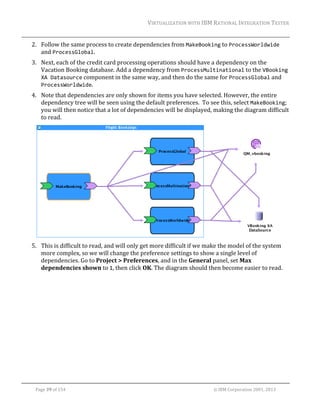
4. Note	that	dependencies	are	only	shown	for	items	you	have	selected.	However,	the	entire	
dependency	tree	will	be	seen	using	the	default	preferences.		To	see	this,	select	MakeBooking;	
you	will	then	notice	that	a	lot	of	dependencies	will	be	displayed,	making	the	diagram	difficult	
to	read.				

	
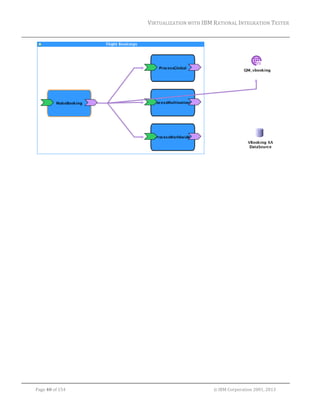
5. This	is	difficult	to	read,	and	will	only	get	more	difficult	if	we	make	the	model	of	the	system	
more	complex,	so	we	will	change	the	preference	settings	to	show	a	single	level	of	
dependencies.	Go	to	Project	>	Preferences,	and	in	the	General	panel,	set	Max	
dependencies	shown	to	1,	then	click	OK.	The	diagram	should	then	become	easier	to	read.	

	
Page	39	of	154																																																																																																																																															©	IBM	Corporation	2001,	2013
VIRTUALIZATION	WITH	IBM	RATIONAL	INTEGRATION	TESTER	


Page	40	of	154																																																																																																																																															©	IBM	Corporation	2001,	2013
VIRTUALIZATION	WITH	IBM	RATIONAL	INTEGRATION	TESTER	
	

8 Managing recorded messages
8.1 Introduction	
You	have	already	used	the	Recording	Studio	to	record	messages	from	the	system	under	test,	and	
turn	those	into	both	tests	and	operations.	
In	this	module,	you	will	manage	and	filter	the	messages	that	you	have	recorded.	These	messages	
will	be	used	in	the	following	module	to	create	a	stub.		

8.2 Exercise:	Recording	events	from	an	operation		
Now	that	we	have	a	model	of	the	Vacation	Booking	system,	we	can	choose	to	record	events	for	
particular	operations,	rather	than	recording	everything	in	the	system.	As	we	now	have	multiple	
sources	of	events,	we	can	also	choose	to	filter	events	by	source.	
We	will	capture	booking	events	again,	but	this	time	we	will	be	recording	events	based	on	
operations	rather	than	transports.	We	will	see	how	we	can	filter	these	events.	Later,	we	will	see	
how	we	can	re‐use	these	events	to	build	other	resources	within	Rational	Integration	Tester.	
1. Return	to	the	Recording	Studio	perspective,	and	find	the	Event	Monitors	panel.	This	
should	currently	show	that	we	are	monitoring	the	QM_vbooking	transport.	We	will	stop	
monitoring	this	for	the	moment,	so	select	it	and	click	the	Delete	Event	Monitor	 	button	to	
remove	the	event	monitor.	
2. We	will	also	clear	the	events	we	recorded	in	the	previous	exercise.	To	do	this,	click	the	Clear	
All	Events	 	button	in	the	Events	View	toolbar.	
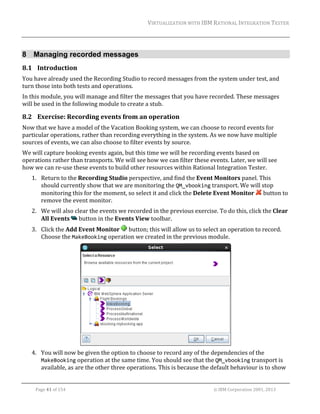
3. Click	the	Add	Event	Monitor	 	button;	this	will	allow	us	to	select	an	operation	to	record.	
Choose	the	MakeBooking	operation	we	created	in	the	previous	module.	

	
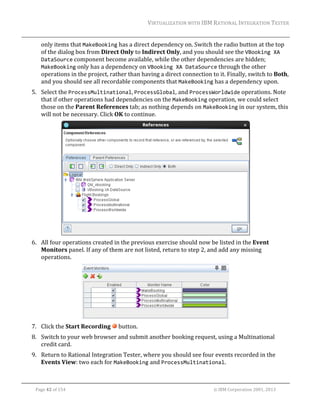
4. You	will	now	be	given	the	option	to	choose	to	record	any	of	the	dependencies	of	the	
MakeBooking	operation	at	the	same	time.	You	should	see	that	the	QM_vbooking	transport	is	
available,	as	are	the	other	three	operations.	This	is	because	the	default	behaviour	is	to	show	
	
Page	41	of	154																																																																																																																																															©	IBM	Corporation	2001,	2013
VIRTUALIZATION	WITH	IBM	RATIONAL	INTEGRATION	TESTER	
	

only	items	that	MakeBooking	has	a	direct	dependency	on.	Switch	the	radio	button	at	the	top	
of	the	dialog	box	from	Direct	Only	to	Indirect	Only,	and	you	should	see	the	VBooking XA 
DataSource	component	become	available,	while	the	other	dependencies	are	hidden;	
MakeBooking	only	has	a	dependency	on	VBooking XA DataSource	through	the	other	
operations	in	the	project,	rather	than	having	a	direct	connection	to	it.	Finally,	switch	to	Both,	
and	you	should	see	all	recordable	components	that	MakeBooking	has	a	dependency	upon.	
5. Select	the	ProcessMultinational,	ProcessGlobal,	and	ProcessWorldwide	operations.	Note	
that	if	other	operations	had	dependencies	on	the	MakeBooking	operation,	we	could	select	
those	on	the	Parent	References	tab;	as	nothing	depends	on	MakeBooking	in	our	system,	this	
will	not	be	necessary.	Click	OK	to	continue.	

	
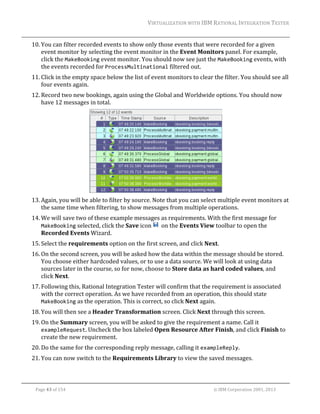
6. All	four	operations	created	in	the	previous	exercise	should	now	be	listed	in	the	Event	
Monitors	panel.	If	any	of	them	are	not	listed,	return	to	step	2,	and	add	any	missing	
operations.	

	
7. Click	the	Start	Recording	 	button.	
8. Switch	to	your	web	browser	and	submit	another	booking	request,	using	a	Multinational	
credit	card.	
9. Return	to	Rational	Integration	Tester,	where	you	should	see	four	events	recorded	in	the	
Events	View:	two	each	for	MakeBooking	and	ProcessMultinational.	
	
Page	42	of	154																																																																																																																																															©	IBM	Corporation	2001,	2013
VIRTUALIZATION	WITH	IBM	RATIONAL	INTEGRATION	TESTER	
	

10. You	can	filter	recorded	events	to	show	only	those	events	that	were	recorded	for	a	given	
event	monitor	by	selecting	the	event	monitor	in	the	Event	Monitors	panel.	For	example,	
click	the	MakeBooking	event	monitor.	You	should	now	see	just	the	MakeBooking	events,	with	
the	events	recorded	for	ProcessMultinational	filtered	out.		
11. Click	in	the	empty	space	below	the	list	of	event	monitors	to	clear	the	filter.	You	should	see	all	
four	events	again.		
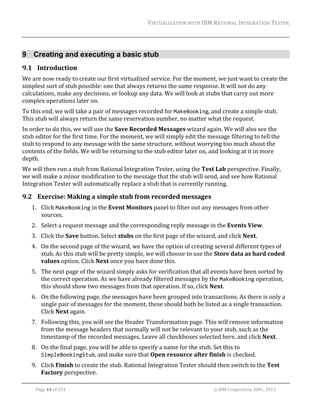
12. Record	two	new	bookings,	again	using	the	Global	and	Worldwide	options.	You	should	now	
have	12	messages	in	total.	

	
13. Again,	you	will	be	able	to	filter	by	source.	Note	that	you	can	select	multiple	event	monitors	at	
the	same	time	when	filtering,	to	show	messages	from	multiple	operations.		
14. We	will	save	two	of	these	example	messages	as	requirements.	With	the	first	message	for	
MakeBooking	selected,	click	the	Save	icon	 		on	the	Events	View	toolbar	to	open	the	
Recorded	Events	Wizard.		
15. Select	the	requirements	option	on	the	first	screen,	and	click	Next.	
16. On	the	second	screen,	you	will	be	asked	how	the	data	within	the	message	should	be	stored.	
You	choose	either	hardcoded	values,	or	to	use	a	data	source.	We	will	look	at	using	data	
sources	later	in	the	course,	so	for	now,	choose	to	Store	data	as	hard	coded	values,	and	
click	Next.	
17. Following	this,	Rational	Integration	Tester	will	confirm	that	the	requirement	is	associated	
with	the	correct	operation.	As	we	have	recorded	from	an	operation,	this	should	state	
MakeBooking	as	the	operation.	This	is	correct,	so	click	Next	again.	
18. You	will	then	see	a	Header	Transformation	screen.	Click	Next	through	this	screen.	
19. On	the	Summary	screen,	you	will	be	asked	to	give	the	requirement	a	name.	Call	it	
exampleRequest.	Uncheck	the	box	labeled	Open	Resource	After	Finish,	and	click	Finish	to	
create	the	new	requirement.	
20. Do	the	same	for	the	corresponding	reply	message,	calling	it	exampleReply.	
21. You	can	now	switch	to	the	Requirements	Library	to	view	the	saved	messages.	
	
Page	43	of	154																																																																																																																																															©	IBM	Corporation	2001,	2013
VIRTUALIZATION	WITH	IBM	RATIONAL	INTEGRATION	TESTER	
	

9 Creating and executing a basic stub
9.1 Introduction	
We	are	now	ready	to	create	our	first	virtualized	service.	For	the	moment,	we	just	want	to	create	the	
simplest	sort	of	stub	possible:	one	that	always	returns	the	same	response.	It	will	not	do	any	
calculations,	make	any	decisions,	or	lookup	any	data.	We	will	look	at	stubs	that	carry	out	more	
complex	operations	later	on.	
To	this	end,	we	will	take	a	pair	of	messages	recorded	for	MakeBooking,	and	create	a	simple	stub.	
This	stub	will	always	return	the	same	reservation	number,	no	matter	what	the	request.	
In	order	to	do	this,	we	will	use	the	Save	Recorded	Messages	wizard	again.	We	will	also	see	the	
stub	editor	for	the	first	time.	For	the	moment,	we	will	simply	edit	the	message	filtering	to	tell	the	
stub	to	respond	to	any	message	with	the	same	structure,	without	worrying	too	much	about	the	
contents	of	the	fields.	We	will	be	returning	to	the	stub	editor	later	on,	and	looking	at	it	in	more	
depth.	
We	will	then	run	a	stub	from	Rational	Integration	Tester,	using	the	Test	Lab	perspective.	Finally,	
we	will	make	a	minor	modification	to	the	message	that	the	stub	will	send,	and	see	how	Rational	
Integration	Tester	will	automatically	replace	a	stub	that	is	currently	running.	

9.2 Exercise:	Making	a	simple	stub	from	recorded	messages	
1. Click	MakeBooking	in	the	Event	Monitors	panel	to	filter	out	any	messages	from	other	
sources.		
2. Select	a	request	message	and	the	corresponding	reply	message	in	the	Events	View.	
3. Click	the	Save	button.	Select	stubs	on	the	first	page	of	the	wizard,	and	click	Next.	
4. On	the	second	page	of	the	wizard,	we	have	the	option	of	creating	several	different	types	of	
stub.	As	this	stub	will	be	pretty	simple,	we	will	choose	to	use	the	Store	data	as	hard	coded	
values	option.	Click	Next	once	you	have	done	this.	
5. The	next	page	of	the	wizard	simply	asks	for	verification	that	all	events	have	been	sorted	by	
the	correct	operation.	As	we	have	already	filtered	messages	by	the	MakeBooking	operation,	
this	should	show	two	messages	from	that	operation.	If	so,	click	Next.	
6. On	the	following	page,	the	messages	have	been	grouped	into	transactions.	As	there	is	only	a	
single	pair	of	messages	for	the	moment,	these	should	both	be	listed	as	a	single	transaction.	
Click	Next	again.	
7. Following	this,	you	will	see	the	Header	Transformation	page.	This	will	remove	information	
from	the	message	headers	that	normally	will	not	be	relevant	to	your	stub,	such	as	the	
timestamp	of	the	recorded	messages.	Leave	all	checkboxes	selected	here,	and	click	Next.	
8. On	the	final	page,	you	will	be	able	to	specify	a	name	for	the	stub.	Set	this	to	
SimpleBookingStub,	and	make	sure	that	Open	resource	after	finish	is	checked.	
9. Click	Finish	to	create	the	stub.	Rational	Integration	Tester	should	then	switch	to	the	Test	
Factory	perspective.	
	
Page	44	of	154																																																																																																																																															©	IBM	Corporation	2001,	2013
VIRTUALIZATION	WITH	IBM	RATIONAL	INTEGRATION	TESTER	
	

10. We	can	now	take	a	look	at	the	stub	we	have	created.	In	the	Events	section,	we	have	a	list	of	
the	events	that	the	stub	will	respond	to.	The	stub	we	have	created	only	knows	how	to	
respond	to	events	for	MakeBooking.		

	
11. Below	this,	we	can	see	the	messages	we	recorded	previously,	in	the	Input	and	Output	tabs.	
12. By	default,	the	stub	will	attempt	to	filter	out	anything	that	does	not	exactly	match	the	default	
message	that	we	received.	In	those	cases,	it	will	not	send	a	response	message;	instead	it	will	
discard	the	request	message.	In	this	example,	we	would	like	to	be	less	strict,	and	respond	to	
anything.	To	get	started,	switch	to	the	Input	tab,	and	take	a	look	at	the	message	body.	You	
will	see	that	each	text	field	has	a	small	filter	icon	next	to	it:	

		
13. We	want	to	switch	off	any	filtering	that	is	checking	for	an	exact	field	match.	To	switch	off	
filtering	for	the	exact	matches,	select	all	of	the	fields	within	the	message	(you	might	need	to	
scroll	down	to	do	this).	With	everything	selected,	right‐click	to	bring	up	the	context	menu,	
and	then	click	Contents	>	Field	Actions	>	Filter	>	Equality.	This	will	toggle	the	equality	
checks	off,	and	the	message	body	should	then	be	shown	without	the	filter	icons,	like	the	
following	screen	capture:	

	
Page	45	of	154																																																																																																																																															©	IBM	Corporation	2001,	2013
VIRTUALIZATION	WITH	IBM	RATIONAL	INTEGRATION	TESTER	


14. Switch	to	the	Output	tab,	and	take	note	of	the	reservation	number	that	will	be	sent	by	the	
stub.	You	should	see	this	again	in	the	following	exercise.	
15. Save	your	stub;	it	is	now	ready	to	run.	

9.3 Exercise:	Executing	a	stub	from	Rational	Integration	Tester	
1. Before	we	start	using	our	stub,	we	will	switch	off	the	service	in	WebSphere	Application	
Server,	so	we	are	certain	that	it	is	not	processing	any	messages,	but	instead	leaving	them	for	
the	stub.	To	do	this,	open	up	your	web	browser,	and	follow	the	link	in	your	bookmarks	to	the	
Websphere	Integrated	Solutions	Console.	When	asked	for	login	details,	leave	them	blank,	
and	click	the	Log	In	button.	
2. In	the	left	pane,	click	Applications>Application	Types>WebSphere	Enterprise	
Applications.		
3. The	list	of	applications	that	we	are	using	within	WebSphere	Application	Server	will	then	
open	on	the	right	side.	Select	the	box	for	vbooking.booking.app;	this	handles	booking	
requests	for	us.	
4. Above	the	list	of	applications,	there	is	a	Stop	button.	You	can	now	click	this	to	stop	the	
booking	application;	note	that	this	will	take	a	moment.	You	should	then	see	that	the	
application	has	stopped	successfully.	

	
Page	46	of	154																																																																																																																																															©	IBM	Corporation	2001,	2013
VIRTUALIZATION	WITH	IBM	RATIONAL	INTEGRATION	TESTER	


5. Return	to	Rational	Integration	Tester,	and	switch	to	the	Test	Lab	perspective.	
6. You	will	still	see	your	stub	in	the	tree	on	the	left	side	of	the	screen.	Run	the	stub,	either	by	
double‐clicking	it,	or	by	selecting	it	and	clicking	the	Run	button.	
7. The	stub	will	then	be	displayed	in	the	Task	Monitor.	Some	initial	details	will	be	shown	
below	in	the	Console.	This	will	be	updated	later	on,	as	the	stub	receives	incoming	messages,	
and	responds	to	them.	
8. As	it	stands,	the	stub	will	now	wait	until	it	receives	some	input,	so	we	will	provide	
something	for	it	to	work	with.	Return	to	your	web	browser,	and	make	a	new	booking.		
9. In	the	Test	Lab	of	Rational	Integration	Tester,	take	a	look	at	the	console	output	for	your	
stub.	You	should	now	see	that	the	stub	has	received	a	message,	and	sent	a	reply.		

		
10. If	you	make	another	booking	in	your	web	browser,	you	should	see	that	you	are	receiving	the	
same	booking	number	every	time.	As	we	turned	off	the	filtering	of	messages	within	the	stub,	
it	should	not	make	any	difference	what	booking	request	we	send	to	the	stub;	all	messages	
will	receive	the	same	response.		

	
Page	47	of	154																																																																																																																																															©	IBM	Corporation	2001,	2013
VIRTUALIZATION	WITH	IBM	RATIONAL	INTEGRATION	TESTER	
	

9.4 Exercise:	Modifying	the	stub	as	it	runs	
A	stub	can	be	modified	as	it	is	running.	Simply	make	your	modifications,	save	the	stub,	and	Rational	
Integration	Tester	will	automatically	shut	down	the	old	version	of	the	stub,	and	start	up	the	new	
version.	As	a	simple	example,	we	will	now	update	our	stub	to	send	a	different	reservation	number	
to	the	user.	
1. Within	Rational	Integration	Tester,	return	to	the	Test	Factory	perspective.	
2. Edit	the	SimpleBookingStub,	and	go	to	the	Output	tab.	
3. Change	the	reservation	number	to	something	different:	for	example,	A01234.	
4. Save	the	stub.	Rational	Integration	Tester	will	offer	to	update	the	running	stub.	Click	Yes.	

		
5. Rational	Integration	Tester	will	switch	to	the	Test	Lab	perspective.	You	should	see	in	the	
Task	Monitor	that	the	stub	has	automatically	been	stopped	and	started	again:	

		
6. Make	another	booking	in	your	web	browser.	It	should	now	give	you	the	new	reservation	
number	you	have	entered.	

		
7. As	we	are	now	finished	using	this	stub,	we	will	switch	back	to	the	live	system.	Within	the	
Test	Lab	of	Rational	Integration	Tester,	select	the	currently	running	version	of	the	stub	in	
the	Task	Monitor	panel	(it	will	be	the	one	with	a	Status	of	Ready).	
8. The	Stop	 	button	on	the	Task	Monitor	toolbar	will	now	be	available.	Click	it	to	stop	the	
stub.	
9. We	will	now	want	to	restart	the	booking	service	on	WebSphere	Application	Server,	so	return	
to	your	web	browser,	and	go	back	to	the	console	interface.	If	you	closed	the	browser	
previously,	navigate	back	to	the	list	of	applications	again.	
	
Page	48	of	154																																																																																																																																															©	IBM	Corporation	2001,	2013
VIRTUALIZATION	WITH	IBM	RATIONAL	INTEGRATION	TESTER	
	

10. Select	the	vbooking.booking.app	application	by	selecting	the	box	next	to	its	name,	and	then	
click	Start.	All	services	should	be	running,	as	shown	below:	

		
11. If	you	make	any	further	bookings,	you	should	now	notice	that	you	are	receiving	new	
reservation	numbers	again	each	time	you	make	a	request.		


Page	49	of	154																																																																																																																																															©	IBM	Corporation	2001,	2013
VIRTUALIZATION	WITH	IBM	RATIONAL	INTEGRATION	TESTER	
	

10 Publishing and deploying stubs
10.1 Introduction	
So	far,	the	stubs	that	we	have	created	have	been	located	on	our	personal	machines,	using	our	own	
license	for	Rational	Integration	Tester.	This	has	a	number	of	limitations:	the	owner	of	the	machine	
is	the	only	person	with	control	over	the	stub,	and	it	cannot	be	used	by	other	people.	Other	team	
members	also	have	very	limited	visibility	over	which	stubs	are	currently	in	use,	and	which	stubs	
are	not.	In	addition,	stubs	inside	Rational	Integration	Tester	can	only	run	for	a	period	of	5	minutes	
outside	of	a	scenario	in	a	test	suite.	
In	order	to	make	our	stubs	more	useful,	we	will	publish	them	to	Rational	Test	Control	Panel.	This	
makes	the	stubs	available	to	other	team	members,	and	it	also	provides	monitoring,	versioning,	and	
other	technical	capabilities.	
We	will	first	look	at	how	we	can	publish	stubs	to	the	server,	and	deploy	those	stubs.	We	will	then	
look	at	how	we	can	make	use	of	some	of	the	more	advanced	features	of	the	server,	such	as	
managing	multiple	versions	of	the	same	stub,	and	providing	input	data	to	stubs	as	required.	

10.2 Exercise:	Using	Rational	Test	Control	Panel	
1. Before	we	publish	or	deploy	any	stubs,	we	will	take	a	look	at	the	Rational	Test	Control	Panel	
interface.	To	do	this,	open	a	new	tab	in	your	web	browser,	and	go	to	the	Rational	Test	
Control	Panel	bookmark.	When	asked	for	a	login	and	password,	on	cloud	instances	use	
admin	and	Gr33nhat;	in	other	environments,	ask	your	instructor	for	the	login	details.	

	
2. Once	you	are	logged	in,	you	will	be	presented	with	five	options:	Scheduling,	Agents,	
Results,	VIE,	and	Administration.	We	will	be	looking	at	some	of	these	as	we	go	through	the	
	
Page	50	of	154																																																																																																																																															©	IBM	Corporation	2001,	2013
VIRTUALIZATION	WITH	IBM	RATIONAL	INTEGRATION	TESTER	
	

different	publishing	and	deployment	options	that	are	available	for	the	stubs	that	we	have	
created.	Click	on	Agents,	as	that	will	be	the	first	thing	we	will	look	at.	
3. You	should	now	be	able	to	see	the	different	types	of	agents	available	through	this	server.	
Some	of	these	will	be	particular	types	of	proxies	that	we	will	be	using	later	in	the	course,	and	
a	single	one	will	be	listed	as	an	instance	of	RTVS.	This	is	what	you	will	be	using	to	deploy	a	
stub	in	the	following	exercise.	For	now,	click	the	magnifying	glass	for	that	instance	of	RTVS.	

		
4. You	can	now	see	where	RTVS	is	running,	along	with	status	information.	Currently,	this	
should	tell	you	that	RTVS	is	not	executing	any	stubs.	Click	the	Close	button.	
5. For	the	moment,	there	is	nothing	else	for	us	to	do	until	we	have	published	a	stub	to	the	
server,	so	minimize	your	web	browser,	and	return	to	Rational	Integration	Tester.	

10.3 Exercise:	Publishing	a	stub	
1. In	order	to	make	a	stub	available	to	the	server,	you	need	to	publish	it	from	Rational	
Integration	Tester.	To	get	started,	you	can	publish	the	stub	you	created	for	the	MakeBooking	
operation.	Within	Rational	Integration	Tester,	switch	to	the	Test	Factory	perspective.	
2. Right‐click	the	MakeBooking	operation,	and	select	Publish	Stubs.		Note	that	this	process	will	
publish	all	stubs	that	have	been	created	for	the	operation.	In	your	case,	this	will	not	really	
matter,	as	you	have	only	created	a	single	stub.	

		
1. A	dialog	box	will	open,	containing	settings	for	the	version,	domain,	and	environment	of	the	
stubs,	along	with	the	URL	used	by	Rational	Test	Control	Panel.	As	this	is	your	first	
publication,	leave	the	Version	field	set	to	1.0.	You	can	manually	set	the	version	of	stubs	as	
you	publish	them.	Older	versions	of	stubs	will	remain	available	on	the	server,	so	you	can	
easily	backtrack	to	a	particular	version	of	the	stub	if	required.	
	
Page	51	of	154																																																																																																																																															©	IBM	Corporation	2001,	2013
VIRTUALIZATION	WITH	IBM	RATIONAL	INTEGRATION	TESTER	
	

2. The	Rational	Test	Control	Panel	URL	is	set	to	use	the	connection	on	localhost.		This	has	
been	taken	from	your	project	settings,	and	can	be	left	as‐is.	
3. The	Domain	should	be	set	to	Booking System;	if	not,	select	Booking	System	from	that	list.	
4. Below	the	domain,	you	can	select	which	of	the	environments	used	in	your	project	should	be	
used.	You	can	use	the	Local	environment	that	you	created	at	the	beginning	of	the	course.	If	
you	had	created	multiple	environments	within	our	project,	you	could	select	which	
environments	the	stub	should	be	available	in.	
5. Click	Publish.	Rational	Integration	Tester	will	then	tell	you	that	your	stubs	have	been	
published	to	the	server.	

10.4 Exercise:	Deploying	a	stub	
We	will	now	check	that	our	stub	has	been	successfully	published	to	the	server,	and	deploy	it	onto	
an	agent.	
1. Switch	back	to	your	web	browser,	and	view	the	Rational	Test	Control	Panel	dashboard.	If	we	
want	to	view	the	available	stubs,	we	will	need	to	follow	the	VIE	link	along	the	top	of	the	
dashboard,	so	click	that.	
2. You	should	then	see	the	available	domains	on	the	left	side.	Select	the	Booking System	
domain,	and	a	list	of	environments	that	can	provide	stubs	for	that	domain	will	be	displayed.	

	
3. Choose	the	Local	environment,	and	then	click	View	Dashboard	to	see	more	information.	

		
4. You	will	now	see	a	list	of	all	of	the	parts	of	the	system	that	might	have	stubs.	At	the	moment,	
no	stubs	should	be	running,	and	all	requirements	should	be	satisfied	by	the	live	system.	You	
will	also	notice	that	each	row	will	either	have	a	gray	plus	sign,	or	a	green	plus	sign.	A	row	
	
Page	52	of	154																																																																																																																																															©	IBM	Corporation	2001,	2013
VIRTUALIZATION	WITH	IBM	RATIONAL	INTEGRATION	TESTER	
	

with	a	green	plus	sign	indicates	that	a	stub	is	available	for	that	operation	or	component.	
Click	the	plus	sign	for	the	MakeBooking	operation.	

		
5. A	dialog	box	will	open,	allowing	you	to	select	the	stub	to	run,	and	to	provide	some	
configuration	options.	For	the	moment,	we	will	keep	the	configuration	fairly	simple.	Select	
the	SimpleBookingStub.	
6. You	should	then	see	information	for	each	version	that	has	been	published.	In	our	case,	we	
are	looking	at	the	first	version	of	our	stub,	so	this	is	going	to	be	pretty	simple.	We	will	not	be	
worrying	about	most	of	the	configuration	options	for	this	stub;	those	will	be	covered	in	later	
modules.	For	this	exercise,	we	only	need	to	make	sure	that	we	know	where	our	stub	will	be	
running.	Click	the	Agents	link	in	the	dialog	box	to	check	this	out.	
7. If	desired,	you	can	now	select	which	agents	should	run	the	stub.	Rational	Test	Control	Panel	
will	choose	one	by	default,	and	since	we	only	have	a	single	agent	in	our	training	
environment,	this	can	be	left	alone	for	now.	
8. At	the	very	bottom	of	the	dialog	box,	you	can	give	this	instance	of	the	stub	a	label	to	identify	
it.	Enter	FirstRun	in	here,	and	click	Start	Stub.	
	
Page	53	of	154																																																																																																																																															©	IBM	Corporation	2001,	2013
VIRTUALIZATION	WITH	IBM	RATIONAL	INTEGRATION	TESTER	
	

9. The	dialog	box	will	close,	and	you	will	see	that	the	MakeBooking	operation	is	now	satisfied	by	
the	SimpleBookingStub.	At	first,	the	status	will	be	listed	as	Deploying;	wait	for	a	moment,	
and	the	status	should	update	to	Ready.	
10. Switch	back	to	the	tab	of	your	web	browser	that	contains	the	booking	interface,	and	make	a	
booking.	You	should	receive	the	response	that	you	coded	into	your	stub	earlier.	
	
11. Back	in	the	Rational	Test	Control	Panel	interface,	you	will	now	see	that	the	stub	has	handled	
one	event.	Note	that	it	might	take	a	moment	for	the	web	page	to	update	with	this	
information.	Once	this	has	happened,	Stop	the	stub,	so	that	the	live	system	will	again	be	
handling	the	request	messages.	


Page	54	of	154																																																																																																																																															©	IBM	Corporation	2001,	2013
VIRTUALIZATION	WITH	IBM	RATIONAL	INTEGRATION	TESTER	
	

11 WSDL synchronization
11.1 A	second	test	system:	HotelFinder	
We	will	now	look	a	simulating	a	second	part	of	our	system,	the	HotelFinder	search	service.	This	is	
implemented	as	a	web	service,	so	we	have	different	options	for	recording	and	simulating	this	
service.	
In	the	provided	interface,	the	HotelFinder	service	is	provided	as	an	option	for	users	who	have	
booked	a	flight,	giving	them	the	ability	to	book	a	hotel	at	their	chosen	destination.	The	user	supplies	
dates	and	a	destination;	the	search	service	then	lets	them	know	what	hotels	are	available	in	that	
location,	and	provides	them	with	the	ability	to	book	one	of	those	hotels	for	those	dates.	This	can	be	
done	in	parallel	with	a	flight	booking,	or	subsequent	to	a	booking.	
The	frontend,	as	with	the	flight	booking	service,	has	been	implemented	as	a	Tomcat	web	
application,	while	the	backend	is	a	simple	web	service.	Currently,	this	service	has	only	been	
implemented	to	the	point	where	it	can	respond	with	a	small	group	of	available	hotels	for	Barcelona	
and	Edinburgh.	We	will	use	the	virtualization	capabilities	of	VIE	to	extend	this,	first	by	editing	the	
hotels	presented	to	the	user	within	those	cities,	and	then	seeing	how	we	can	data	drive	a	stub	to	
allow	us	to	present	options	from	other	cities.	

11.2 Synchronization	
Before	we	can	start	simulating	this	service,	we	need	to	look	at	how	we	can	get	information	about	
the	structure	of	the	system	we	are	simulating.	Previously,	we	recorded	a	transport,	and	modeled	
the	system	based	on	the	messages	that	we	saw.	We	could	do	this	for	the	HotelFinder	web	service	as	
well;	Rational	Integration	Tester	can	record	the	HTTP	transport,	and	then	model	web	services	
based	on	that	data.		
However,	we	can	also	use	synchronization.	You	have	already	used	this	to	model	system	information	
provided	by	a	WebSphere	Application	Server.	Here,	you	will	do	it	for	a	web	service,	using	its	WSDL.	
For	a	WSDL,	it	is	quite	possible	that	you	will	need	to	make	modifications	after	the	synchronization	
because	the	WSDL	will	only	present	the	same	data	that	is	provided	to	an	end	user.	For	example,	a	
backend	database	is	unlikely	to	be	described	inside	the	WSDL.	However,	as	with	the	
synchronization	of	the	WebSphere	Application	Server,	it	will	allow	us	to	model	this	part	of	the	
system	under	test	much	more	quickly	than	we	could	have	built	it	manually.	

11.3 Exercise:	Synchronizing	with	the	HotelFinder	WSDL	
1. Within	your	web	browser,	you	will	have	noticed	a	hotel	booking	option	being	displayed,	
with	a	heading	labeled	Find	a	Hotel.	Click	this	link,	and	you	should	see	the	WSDL	for	the	
HotelFinder	web	service	displayed	on	your	screen.	Skimming	through	the	WSDL,	you	should	
be	able	to	see	the	schemas	used	by	the	web	services	described	by	the	WSDL,	along	with	the	
required	connection	details.	
2. We	will	import	the	WSDL	into	Rational	Integration	Tester.	There	are	several	ways	to	do	this,	
but	in	this	case	the	easiest	will	be	to	simply	copy	the	WSDL	URL	from	our	web	browser.	We	
can	then	go	to	the	Logical	View	of	Architecture	School,	and	paste	it	by	pressing	Ctrl+V.	
	
Page	55	of	154																																																																																																																																															©	IBM	Corporation	2001,	2013
VIRTUALIZATION	WITH	IBM	RATIONAL	INTEGRATION	TESTER	
	

3. The	Create	a	New	External	Resource	dialog	box	opens,	showing	the	Hotel	Finder	WSDL	
listed	for	you.	At	this	stage,	we	could	add	other	WSDLs,	but	we	will	just	use	a	single	one	for	
this	exercise.	

		
4. Click	Next	to	continue.	You	will	be	given	the	option	to	add	the	WSDL	to	one	of	the	service	
components	created	earlier,	or	to	create	a	new	service	component.	Choose	to	create	a	new	
component	called	HotelFinder,	and	click	Next.	

	
Page	56	of	154																																																																																																																																															©	IBM	Corporation	2001,	2013
VIRTUALIZATION	WITH	IBM	RATIONAL	INTEGRATION	TESTER	


5. The	following	screen	will	check	which	environment	we	will	use	when	we	create	resources	
for	the	HotelFinder	services.	We	will	keep	using	the	Local	environment	we	created	earlier,	
so	check	that	this	is	selected,	and	click	Next.	

	
Page	57	of	154																																																																																																																																															©	IBM	Corporation	2001,	2013
VIRTUALIZATION	WITH	IBM	RATIONAL	INTEGRATION	TESTER	


6. The	final	screen	of	the	wizard	lets	us	choose	what	to	do	once	the	WSDL	has	been	added	to	
our	project.	Normally,	we	would	choose	the	last	option,	to	synchronize	without	switching	
views,	so	we	can	see	what	is	created.	For	this	example,	though,	we	will	go	through	the	
synchronization	manually,	so	select	the	second	option,	Open	Synchronization	View	and	let	
me	choose	which	items	to	synchronize.	

	
Page	58	of	154																																																																																																																																															©	IBM	Corporation	2001,	2013
VIRTUALIZATION	WITH	IBM	RATIONAL	INTEGRATION	TESTER	


7. Click	Finish,	and	Rational	Integration	Tester	will	switch	to	the	Synchronization	View.	

	
8. You	should	then	see	a	short	list	of	resources	contained	in	the	WSDL:	the	logical	and	physical	
resources	required	for	the	HTTP	connection,	and	the	getHotels	and	bookHotel	operations.	
This	has	been	provided	by	an	analysis	of	the	WSDL,	but	none	of	these	resources	exist	in	your	
project	yet.	To	get	started,	click	the	Synchronize	 	button	on	the	toolbar.	
9. As	you	have	two	synchronization	sources	in	your	project	(the	WebSphere	Application	Server	
and	the	WSDL),	you	will	be	offered	the	opportunity	to	synchronize	with	one	or	both	of	these.	
Choose	just	the	HotelFinder	WSDL.	There	is	no	need	to	worry	about	the	WebSphere	
Application	Server	at	this	stage,	as	you	have	already	synchronized	with	it,	and	it	has	not	
been	updated	since.	Click	OK.	

	
Page	59	of	154																																																																																																																																															©	IBM	Corporation	2001,	2013
VIRTUALIZATION	WITH	IBM	RATIONAL	INTEGRATION	TESTER	


10. You	should	see	the	status	of	each	item	in	the	Synchronization	View	switch	from	No	local	
copy	exists	to	In	sync.	If	you	now	go	through	the	Logical	and	Physical	Views,	along	with	
the	environment,	you	should	see	that	we	now	have	a	model	describing	the	infrastructure	of	
the	HotelFinder	web	services.	Similarly,	you	will	be	able	to	see	the	message	schemas	used	by	
this	service	within	the	Schema	Library.	
11. In	the	Logical	View	of	Architecture	School,	locate	the	getHotels	operation;	if	you	need	to,	
you	can	use	Ctrl+F	to	find	the	operation.	Once	you	have	found	it,	double‐click	it	to	open	it.	
12. Switch	to	the	Message	Exchange	Pattern	tab	within	the	Properties	window	that	opens.	
You	should	see	that	this	has	been	filled	in	for	you	already,	letting	us	know	that	the	
getHotels	operation	is	Request/Reply,	and	specifying	the	request	and	reply	messages,	
along	with	transport	information	at	the	bottom	of	the	window.	

		
13. We	do	not	need	to	change	any	of	this	information,	but	the	Message	Exchange	Pattern	
detailed	here,	the	MEP,	will	be	important	in	the	following	exercise.	Close	the	properties	
window.	
14. Before	we	can	use	this	information	to	create	a	stub,	we	will	want	to	edit	the	physical	
properties	of	the	HTTP	transport	defined	in	the	WSDL	we	synchronized	with.	As	the	web	
service	described	in	the	WSDL	is	running	on	port	8089,	a	stub	cannot	run	on	the	same	port	
on	the	same	machine.	We	will	provide	a	different	port	number,	so	switch	to	the	Physical	
View	to	do	this.	
15. Open	the	HTTP	resource	for	localhost:8089	by	double‐clicking	it.	
16. In	the	dialog	box	that	opens,	switch	to	the	Server	tab.	
	
Page	60	of	154																																																																																																																																															©	IBM	Corporation	2001,	2013
VIRTUALIZATION	WITH	IBM	RATIONAL	INTEGRATION	TESTER	
	

17. Here,	there	is	a	setting	in	the	Socket	Server	Overrides	section	labeled	Port;	this	should	be	
blank	by	default,	which	tells	Rational	Integration	Tester	to	use	the	same	port	as	the	normal	
service.	In	most	cases,	this	is	not	a	problem,	but	when	the	stub	and	the	live	service	are	
running	on	the	same	machine,	it	could	cause	a	problem.	If	Rational	Integration	Tester	
detects	this	it	can	choose	a	random	port,	but	as	a	random	port	might	not	always	be	open,	set	
it	to	8085.	
18. Click	the	Test	Transport	button	to	verify	that	Rational	Integration	Tester	can	both	talk	to	
the	live	service	and	listen	on	port	8085.	
19. Click	OK	to	close	the	dialog	box.		


Page	61	of	154																																																																																																																																															©	IBM	Corporation	2001,	2013
VIRTUALIZATION	WITH	IBM	RATIONAL	INTEGRATION	TESTER	
	

12 Creating a stub from MEP
So	far,	we	have	considered	stubs	using	the	same	messages	that	were	provided	when	we	recorded	
them.	In	this	chapter,	we	will	look	at	manipulating	the	messages	referenced	within	our	stub.	First,	
we	will	create	a	stub	from	scratch,	without	reference	to	recorded	messages.	We	will	then	edit	the	
reply	message	by	hand,	including	handling	new	requests	and	repeating	elements	within	messages.		

12.1 The	stub	editor	
We	have	seen	the	stub	editor	on	several	occasions	during	the	previous	exercises,	but	we	have	not	
taken	a	good	look	at	how	the	different	parts	of	the	editor	fit	together.	The	editor	is	split	into	several	
different	tabs:	


Events.	This	is	where	we	will	determine	how	the	stub	will	handle	events,	whether	internally	
or	externally	created.	



Behaviour.	Behaviours	allow	us	to	add	pre‐programmed	intelligence	to	the	stub.	This	could	
be	as	simple	as	setting	a	timer,	which	will	prompt	an	action	after	a	period	of	time,	or	more	
complex,	such	as	simulating	a	market	feed.	



Properties.	This	allows	us	to	set	up	states	for	the	stub,	as	well	as	input	parameters	that	can	
determine	how	the	stub	should	act	after	it	is	started.	



Logging.	Logging	settings	determine	how	much	information	will	be	recorded	as	the	stub	
runs.	



Documentation.	The	documentation	tab	allows	the	user	to	add	extra	information	about	the	
stub.	This	is	not	compulsory,	though	it	is	advisable	to	do	so,	as	it	can	serve	as	an	explanation	
to	future	users	of	the	stub.	Documentation	will	be	published	to	the	server	along	with	the	
stub,	so	that	users	of	Rational	Test	Control	Panel	can	choose	an	appropriate	stub	to	use	in	
each	scenario.	

For	the	moment,	we	will	mainly	be	concerning	ourselves	with	the	Events	tab.	We	will	be	looking	at	
the	other	tabs	later	on,	as	we	progress	through	more	complex	examples.	

12.2 Events	

	
The	Events	tab	contains	a	list	of	all	of	the	events	that	the	stub	can	handle.	When	a	stub	receives	an	
event,	it	will	look	through	this	list	to	find	an	appropriate	response.	Starting	from	the	top,	the	stub	
will	go	down	the	list	until	it	finds	an	event	description	that	matches	the	event	that	has	been	
received.	This	might	be	due	to	filters	on	messages	being	received,	which	would	mean	that	a	
message	is	only	handled	if	a	particular	field	or	set	of	fields	contain	the	correct	data;	it	might	be	due	
	
Page	62	of	154																																																																																																																																															©	IBM	Corporation	2001,	2013
VIRTUALIZATION	WITH	IBM	RATIONAL	INTEGRATION	TESTER	
	

to	the	current	state	of	the	stub;	or	it	might	be	due	to	the	source	of	the	current	event	(for	example,	
which	operation	is	referenced	by	the	event).	
Each	event	has	three	basic	properties	listed	in	the	top	half	of	the	screen.	These	are	the	operation	
that	it	is	handling	(in	the	Event	column),	a	Guard	(which	allows	for	complex	filtering)	and	a	
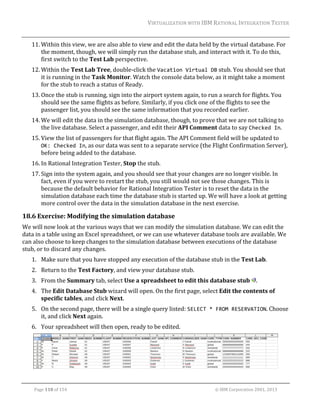
Description,	which	can	be	filled	in	by	the	user.	More	detail	can	be	seen	by	using	the	advanced	view,	
accessed	through	the	Advanced	button.	For	now,	we	will	stick	to	the	basic	view.	
The	Event	column	tells	you	which	operation	is	being	monitored	by	the	stub;	this	means	that	the	
stub	is	looking	at	the	transport	referenced	by	that	operation,	and	watching	for	messages	that	match	
the	transport	settings	for	that	stub.		
The	Guard	column	lets	us	specify	if	an	event	will	be	handled,	depending	on	the	data	received	within	
that	event.	We	can	choose	to	analyze	the	data	held	within	the	message	on	its	own.	For	example,	we	
might	like	to	respond	differently	to	a	message	containing	a	start	and	end	date	when	the	end	date	
comes	before	the	start	date.	We	can	also	compare	received	data	to	data	held	within	a	data	model.	
We	will	look	at	an	example	of	this	later	on,	when	we	discuss	data	models	in	detail.	

12.3 Exercise:	Creating	a	stub	from	the	MEP	
For	the	hotel	search	service,	we	could	easily	use	recorded	messages	to	create	a	new	stub,	as	we	did	
before.	For	the	moment,	though,	we	will	create	a	new	stub	from	scratch,	and	fill	it	in	with	our	own	
values.	
1. Switch	to	the	Test	Factory	perspective,	and	locate	the	getHotels	operation	in	the	Test	
Factory	Tree	on	the	left	side.	
2. Right‐click	the	operation,	and	select	New	>	Stubs	>	Stub	using	MEP.	This	will	create	a	stub	
based	on	the	Message	Exchange	Pattern	we	saw	in	the	previous	exercise.	
3. Call	the	stub	simpleHotelStub,	and	click	OK.	
4. Your	new	stub	will	be	open	in	this	perspective,	so	take	a	look	at	it.	Similar	to	the	first	stubs	
we	created	for	the	flight	booking	services,	this	has	message	data	on	the	Input	and	Output	
tabs.	However,	while	the	message	schema	has	been	correctly	applied,	you	will	notice	that	
none	of	the	fields	have	been	filled	in	for	us,	so	we	will	need	to	take	care	of	that	ourselves.	
5. Within	the	Input	tab,	locate	the	city	element.	Underneath	that,	there	will	be	a	(Text)	node.	
Click	in	the	Action	column	next	to	this.	Here,	you	can	specify	what	you	want	to	do	with	the	
data	inside	this	text	node.	
6. Type	in	the	value	Barcelona	and	press	Enter.	A	filter	icon	will	be	shown	next	to	the	city	
name,	leaving	you	with	a	message	that	should	look	like	the	image	below.	Make	sure	that	the	
Barcelona	value	has	been	placed	in	the	right	location:	

	
Page	63	of	154																																																																																																																																															©	IBM	Corporation	2001,	2013
VIRTUALIZATION	WITH	IBM	RATIONAL	INTEGRATION	TESTER	


7. We	are	now	looking	out	for	searches	on	hotels	in	Barcelona;	we	do	not	really	care	about	the	
dates,	which	would	be	set	out	in	the	from	and	to	Text	nodes.	Switch	to	the	Output	tab,	so	we	
can	specify	what	details	we	will	send	back	in	response.	
8. The	default	output	message	contains	no	hotels.	As	we	want	to	see	a	hotel	in	the	results	from	
this	stub,	right‐click	the	getHotelsResponse	element,	and	then	select	Add	Child	>	
getHotelsReturn.	
9. Expand	the	new	element.	All	of	the	fields	inside	that	element	should	be	blank.	You	can	enter	
all	details	if	desired,	but	Tomcat	only	requires	a	response	that	includes	the	hotel	name	and	
the	rate.	

	
10. Save	the	stub.	

12.4 Using	the	HTTP	proxy	
Earlier,	when	we	ran	a	stub	for	MQ,	we	simply	instructed	the	stub	to	take	messages	from	the	same	
queue	that	the	real	application	was	using.	However,	for	HTTP,	it	is	a	bit	more	complicated.	Under	
normal	circumstances,	the	request	message	will	be	sent	to	a	particular	destination,	which	is	where	
the	application	is	hosted	on	the	network.		

	
To	give	us	the	ability	to	interact	with	this	HTTP	traffic	(which	will	give	us	the	ability	not	only	to	
stub,	but	also	to	record	traffic),	the	Rational	Integration	Tester	Platform	Pack	provides	a	HTTP	
proxy.	The	client	application	can	then	be	configured	to	use	this	proxy;	when	Rational	Integration	
Tester	and	any	stubs	are	inactive,	traffic	will	simply	pass	through	the	proxy	to	reach	its	destination	
as	usual.		
	
Page	64	of	154																																																																																																																																															©	IBM	Corporation	2001,	2013
VIRTUALIZATION	WITH	IBM	RATIONAL	INTEGRATION	TESTER	


However,	if	we	were	to	start	a	stub,	whether	inside	Rational	Integration	Tester,	or	deployed	to	an	
agent,	the	traffic	would	be	redirected.	Rational	Test	Control	Panel	is	used	as	the	central	control	
point	for	Rational	Integration	Tester	and	all	related	tools,	so	the	stub	simply	needs	to	notify	the	
server	that	traffic	should	be	redirected;	any	proxies	in	the	system	will	then	be	advised	of	this	
change	by	the	server.	

	
Similar	interactions	can	be	used	when	HTTP	recording	is	needed.	Rational	Integration	Tester	
advises	Rational	Test	Control	Panel	that	it	wants	to	record	messages	being	sent	to	a	particular	
destination	(or	for	a	particular	operation).	The	server	instructs	the	proxy	to	send	a	copy	of	each	
message	back	to	Rational	Integration	Tester,	where	it	can	then	be	presented	in	the	Recording	
Studio.	Note	that	HTTP	recording	can	also	be	done	by	packet	capture,	requiring	only	Rational	
Integration	Tester,	but	this	method	might	not	be	able	to	record	all	of	the	same	traffic,	so	the	proxy	
method	is	preferred.	

	
Page	65	of	154																																																																																																																																															©	IBM	Corporation	2001,	2013
VIRTUALIZATION	WITH	IBM	RATIONAL	INTEGRATION	TESTER	


12.5 Exercise:	HTTP	stub	execution	
1. In	order	to	run	our	stub	over	HTTP,	we	will	be	using	the	HTTP	Proxy	provided	with	Rational	
Integration	Tester.	Earlier,	when	we	viewed	the	agents	available	in	Rational	Test	Control	
Panel,	you	might	have	noticed	an	agent	for	HTTP	traffic.	You	might	like	to	return	to	Rational	
Test	Control	Panel	to	verify	that	this	is	present.	
2. The	other	thing	that	we	need	to	do	before	attempting	to	stub	using	the	HTTP	Proxy	is	to	
make	sure	that	the	application	sending	the	request	message	is	configured	to	go	through	the	
proxy.	In	this	case,	it	is	our	Tomcat	server,	which	has	already	been	configured	in	this	way.	If	
you	are	curious,	your	instructor	can	point	you	toward	the	setenv.sh	script	for	your	Tomcat	
server,	where	you	can	also	verify	this.		
3. Right‐click	the	simpleHotel	stub	you	created	in	the	above	exercise	and	then	click	Run.	The	
stub	should	start	up	without	any	errors.	Wait	until	it	states	that	the	HTTP	stubbing	rule	will	
be	applied	to	1	of	1	agents,	as	shown	below:	


Page	66	of	154																																																																																																																																															©	IBM	Corporation	2001,	2013
VIRTUALIZATION	WITH	IBM	RATIONAL	INTEGRATION	TESTER	
	

4. In	your	web	browser,	go	to	the	Vacation	Booking	home	page,	and	search	for	a	hotel	in	
Barcelona.	While	searching,	you	can	use	any	dates	you	like.	
5. You	will	notice	that	it	displays	only	the	single	hotel	provided	in	the	previous	exercise.	You	
could	choose	to	book	the	hotel	from	here	if	desired.		

	
6. Go	to	the	Test	Lab	perspective	in	Rational	Integration	Tester.	The	console	should	show	that	
the	stub	has	processed	the	hotel	search	as	requested.	

	
7. In	your	web	browser,	search	for	a	hotel	in	a	city	that	your	stub	has	not	considered:	London.	
You	should	find	that	nothing	happens	within	the	browser	window;	the	search	will	eventually	
time	out	and	give	you	an	error	message.	In	the	Test	Lab	of	Rational	Integration	Tester,	you	
should	see	some	new	messages	within	the	console,	telling	you	that	it	found	the	text	London	
where	it	expected	Barcelona,	and	ended	up	discarding	the	message	without	sending	back	
any	output.	

	
8. Stop	the	stub,	and	search	for	a	hotel	in	Barcelona	again.	This	time,	the	request	will	be	
processed	by	the	actual	web	service	rather	than	the	stub.	Three	hotels	will	be	returned	by	
the	service,	as	shown	below.	

	
Page	67	of	154																																																																																																																																															©	IBM	Corporation	2001,	2013
VIRTUALIZATION	WITH	IBM	RATIONAL	INTEGRATION	TESTER	


9. At	the	moment,	you	will	notice	that	the	web	service	only	returns	results	for	a	few	cities.	
Searching	for	a	hotel	in	London	using	the	web	service	receives	a	response,	but	there	are	no	
hotels	available	in	that	location.	


12.6 Exercise:	Handling	new	request	options	
Currently,	our	stub	can	only	handle	requests	for	a	single	city.	If	any	other	requests	are	sent,	they	
will	be	ignored	and	no	response	will	be	sent	at	all.	In	this	exercise,	we	will	look	at	providing	a	way	
of	handling	requests	for	another	city,	as	well	as	a	default	response	for	any	unrecognized	cities.	
1. Return	to	the	Test	Factory.	At	the	top	of	the	screen,	we	have	a	list	of	the	event	handlers	that	
will	deal	with	incoming	messages.	Before	we	go	any	further,	we	will	add	a	description	to	the	
single	transaction	that	we	currently	have.	Click	in	the	Description	field,	and	edit	it	to	call	it	
Barcelona Hotels.	
2. To	add	a	new	way	of	handling	events,	click	the	Add	Event	
A	second	empty	event	will	be	added.	

		button	at	the	top	of	the	editor.	

	
3. Select	this	new	event,	and	click	in	the	Event	column	to	reveal	a	drop	down	menu.	Select	
getHotels.	
4. In	the	Description	field,	enter	London Hotels.	
5. You	will	notice	that	the	Input	and	Output	tabs	at	the	bottom	of	the	screen	have	become	
available.	Go	to	the	Input	tab,	and	find	the	city	Element	again.	
6. Double‐click	the	(Text)	node	for	the	city,	and	use	the	Field	Editor	to	add	a	new	filter	
looking	for	London	as	the	city,	in	the	same	way	that	you	searched	for	Barcelona	previously.	
	
Page	68	of	154																																																																																																																																															©	IBM	Corporation	2001,	2013
VIRTUALIZATION	WITH	IBM	RATIONAL	INTEGRATION	TESTER	
	

7. Once	you	have	added	London	here,	go	to	the	Output	tab,	and	enter	details	for	a	hotel,	again	
following	the	same	procedure	as	before.	
8. Our	stub	now	knows	how	to	respond	to	messages	looking	for	hotels	in	Barcelona	and	
London,	but	will	not	send	back	any	response	for	other	locations.	We	will	now	add	a	way	of	
handling	those	cases.	Add	another	event,	setting	the	Event	to	getHotels	again.	Fill	in	the	
Description	column	of	the	new	event	with	a	value	of	No Hotels.	You	should	now	have	three	
events,	as	shown	below.	

	
9. Select	the	No Hotels	case.	In	this	case,	we	will	not	be	looking	for	a	particular	city;	instead,	
we	will	just	make	sure	that	the	message	structure	is	correct.	If	the	input	message	has	that	
structure,	the	stub	will	send	back	a	response.	This	prevents	the	stub	from	sending	back	a	
response	for	a	malformed	or	incorrect	message.	First,	you	will	need	to	select	the	entire	
message	body	using	Shift+Click.	
10. Next,	right‐click	the	message	to	bring	up	the	context	menu	and	click	Contents	>	Field	
Actions	>	Filter	>	Does	Exist.	Filter	icons	will	be	displayed	on	the	elements	of	the	message.	
You	could	also	do	the	same	thing	for	the	other	messages,	but	we	will	not	worry	about	that	
for	this	example;	filtering	on	the	city	means	that	we	already	know	the	messages	are	correct	
enough	for	our	purposes.	

	
11. Switch	to	the	Output	tab,	and	check	that	there	aren’t	any	hotels	listed	here.	If	there	is	a	
hotel,	select	and	delete	the	getHotelsReturn	element.	This	will	remove	the	hotel	from	the	
results.	
12. Save	the	stub.	
13. Running	this	new	version	of	the	stub,	you	should	now	see	that	you	receive	replies	for	
searches	on	Barcelona	and	London,	each	one	having	a	single	hotel.	Other	cities	now	receive	a	
reply,	but	no	hotels	will	be	shown.	
14. We	will	now	add	extra	hotels	to	a	city.	In	the	case	of	Barcelona,	we	might	like	to	supply	more	
than	one	hotel	(which	is	already	supported	by	the	message	schema	used	for	the	response	
messages).	Return	to	the	Test	Factory,	and	select	the	Barcelona	event.	
	
Page	69	of	154																																																																																																																																															©	IBM	Corporation	2001,	2013
VIRTUALIZATION	WITH	IBM	RATIONAL	INTEGRATION	TESTER	
	

15. Go	to	the	Output	tab	for	Barcelona,	and	you	should	see	the	hotel	details	you	entered	earlier	
for	that	city.	To	add	a	second	hotel,	select	the	getHotelsReturn	element,	right‐click	it,	and	
select	Copy.	Then	right‐click	the	getHotelsReponse	element	above	and	select	Paste.	
16. You	will	now	have	two	hotel	entries	that	look	exactly	the	same.	Edit	the	hotel	name	and	rate	
in	the	second	hotel	(we	will	not	worry	about	any	other	details).	If	you	want,	you	can	add	
further	hotels	in	the	same	way.		

	
17. Save	the	stub.	If	you	were	still	running	it,	Rational	Integration	Tester	will	now	be	running	
the	new	version	of	the	stub;	if	not,	start	the	stub	yourself	in	the	Test	Lab.	
18. Run	a	hotel	search	using	Barcelona	as	the	city;	you	should	now	see	two	hotels	listed	for	you.		

12.7 Exercise:	Message	differencing	
During	the	development	of	a	stub,	you	might	find	that	your	stub	gives	you	unexpected	results;	you	
might	want	to	trace	through	the	way	that	the	incoming	message	was	filtered	and	processed	to	
understand	what	happened.	You	might	also	want	to	alter	the	way	that	incoming	messages	are	
handled.	In	this	example,	you	will	trace	through	what	happens	when	you	search	for	a	hotel	in	Rome,	
and	how	you	can	modify	the	stub	to	change	from	filtering	for	London	to	filtering	for	Rome	based	on	
the	messages	received	by	the	stub.	
1. With	the	stub	running,	carry	out	a	hotel	search	for	hotels	in	Rome.	You	should	receive	a	
response	telling	you	that	no	hotels	are	available	in	Rome.	
2. In	Rational	Integration	Tester,	go	to	the	Test	Lab	Console.	
3. There	should	be	a	line	in	the	console	with	text	that	is	similar	to:	
Instance 1: Message Case: "Text" using schema "Text" (5) – Message validation 
passed 

Find	this	line	and	click	it.	

4. The	Message	Differencing	Window	opens.	This	allows	you	to	compare	the	filters	that	the	
stub	was	using	against	the	message	that	was	received.	
5. By	default,	the	Message	Differencing	Window	looks	at	validation	actions.	For	a	stub,	you	will	
want	to	look	at	the	filters,	so	find	the	Expected	Message	section	at	the	top	of	the	window,	
and	change	the	radio	button	from	Validate	to	Filter.	
	
Page	70	of	154																																																																																																																																															©	IBM	Corporation	2001,	2013
VIRTUALIZATION	WITH	IBM	RATIONAL	INTEGRATION	TESTER	
	

6. Click	the	Previous	Event	
be	disabled.	

	button	until	you	reach	the	first	event.	The	button	should	then	

7. Take	a	look	at	the	Configured	Message	section.	You	should	see	that	most	of	the	Configured	
Message	is	grayed	out,	except	for	the	city	text	which	is	set	to	Barcelona.	This	tells	you	that	
the	filters	are	set	up	to	ignore	most	parts	of	the	message,	except	for	the	city,	which	needs	to	
be	set	to	Barcelona	for	the	message	to	pass	the	filter.	Similarly,	the	Configured	Header	is	
entirely	grayed	out,	so	you	know	that	we	are	not	filtering	on	any	part	of	the	header.	

	
8. In	the	Actual	Message	section,	you	should	see	the	text	Rome	highlighted	in	green.	This	tells	
you	that	it	is	different	to	the	value	that	was	expected	by	the	filter.	As	this	difference	was	
found,	the	request	message	did	not	pass	the	filter,	and	that	message	was	passed	on	to	the	
next	event	handler.	Note	that	other	colors	can	be	used	with	different	meanings;	a	key	is	
available	at	the	top	of	the	Message	Differencing	Window.	
9. Click	the	Next	Event	button	once.	This	time,	you	should	see	that	the	filter	failed	because	the	
received	value	of	Rome	did	not	match	the	expected	value	of	London.	

		
10. Click	Next	Event	again.	This	time	you	will	see	the	third	event	handler	that	you	set	up,	where	
we	did	not	set	up	any	filtering.	In	this	case,	you	should	not	see	any	highlighting	to	indicate	
	
Page	71	of	154																																																																																																																																															©	IBM	Corporation	2001,	2013
VIRTUALIZATION	WITH	IBM	RATIONAL	INTEGRATION	TESTER	
	

that	there	was	an	issue.	As	this	is	the	first	event	in	the	list	without	any	issues,	this	will	be	the	
filter	that	passed	your	message	

	
11. There	is	one	more	event	in	the	list.	Click	Next	Event	again	to	see	it.	You	will	notice	that	this	
has	nothing	in	the	spaces	for	the	Configured	Header	and	Configured	Message.	This	final	
event	in	the	list	is	used	by	the	stub	as	a	default;	if	no	other	event	handler	can	deal	with	a	
message,	then	it	comes	through	to	this	default	option.	The	action	in	that	case	would	be	to	
discard	the	incoming	message	without	replying;	you	will	see	how	to	handle	this	situation	
differently	in	a	later	module.	

	
12. Click	Previous	Event	twice	to	return	to	the	event	handler	that	was	expecting	London	for	the	
city.	You	will	now	use	the	Message	Differencing	Window	to	update	the	original	event	to	look	
for	Rome	instead	of	London.	
13. Select	the	line	of	text	for	Rome.	It	should	have	black	lines	above	and	below	it.	
	
14. At	the	top	of	the	screen,	in	the	Repair	section,	there	are	a	number	of	buttons	allowing	you	to	
update	the	filters.	Click	Overwrite	expected	field.	
15. You	should	see	Rome	displayed	in	both	the	Configured	and	Actual	Message.	Close	the	
Message	Differencing	Window.	

	
Page	72	of	154																																																																																																																																															©	IBM	Corporation	2001,	2013
VIRTUALIZATION	WITH	IBM	RATIONAL	INTEGRATION	TESTER	


16. You	will	be	prompted	to	apply	your	changes	to	the	stub.	Click	OK,	and	you	should	then	be	
asked	if	you	want	to	restart	the	stub.	Say	Yes.	
17. If	you	are	not	asked	to	restart	the	stub,	return	to	the	Test	Factory,	make	sure	that	all	
changes	to	the	stub	have	been	saved,	and	then	run	the	stub.	
18. Search	for	hotels	again.	You	should	now	find	that	you	now	receive	results	for	Rome,	but	not	
for	London.	

	
19. Stop	the	stub.	

	
Page	73	of	154																																																																																																																																															©	IBM	Corporation	2001,	2013
VIRTUALIZATION	WITH	IBM	RATIONAL	INTEGRATION	TESTER	
	

13 Storing and manipulating data
13.1 Tags	and	the	Tag	Data	Store	
The	first	resources	that	you	have	created	have	all	dealt	with	hard	coded	data.	While	this	is	useful	in	
some	situations,	there	will	be	many	situations	where	you	will	want	to	have	more	flexibility	with	the	
data	used	in	your	project.	For	example,	you	might	want	to	take	a	piece	of	data	received	from	one	
system;	you	might	then	want	to	use	that	data	in	another	message,	or	use	it	to	query	a	database.	Any	
time	that	you	want	to	read	data	from	one	source	and	use	it	in	another	place,	you	will	need	some	
way	of	storing	that	data	in	a	variable.	
Within	Rational	Integration	Tester,	variables	are	called	tags.	Tags	can	be	used	any	time	you	need	to	
store	or	retrieve	data	within	your	tests	or	stubs.	Additionally,	some	types	of	tags	can	be	used	
outside	of	tests	and	stubs;	for	example,	if	you	want	to	specify	a	path	relative	to	the	root	folder	of	
your	project,	you	can	refer	to	that	root	folder	using	a	tag,	so	that	if	the	project	is	moved,	the	path	is	
updated	automatically.	
There	are	three	main	types	of	tags	that	you	might	see	within	Rational	Integration	Tester:	


	System	tags:	contain	values	that	are	provided	by	Rational	Integration	Tester,	and	cannot	
be	changed	by	the	user.	These	include	things	like	the	time,	the	project	name,	and	the	host	
name	of	the	machine	running	Rational	Integration	Tester.	



	Environment	tags:	contain	user‐supplied	data	that	can	change	from	environment	to	
environment.		



	Test	tags:	contain	user‐supplied	data	that	is	local	to	a	given	test	or	stub.		

In	addition	to	these	main	types,	you	might	see	other	types	of	tag.	These	are	mainly	treated	as	
varieties	of	test	tags.	Some	examples	of	these	that	you	might	encounter	are:		


	Global	tags:	a	test	tag	that	has	had	its	scope	set	to	cover	all	tests	in	a	test	suite.	Global	tags	
can	be	used	to	pass	values	between	multiple	tests	in	a	test	suite,	as	long	as	the	tag	is	defined	
in	both	tests,	and	marked	as	global	in	both	tests.	Outside	a	test	suite,	the	scope	of	the	tag	is	
limited	to	the	current	test.	Global	tags	are	not	relevant	for	stubs.	



	Overridden	Environment	tags:	it	is	possible	to	override	an	environment	tag	with	a	test	tag.	
These	are	marked	to	differentiate	them	from	other	tags;	note	that	this	is	discouraged,	but	
can	occasionally	happen	when	creating	environment	tags	for	a	project	that	already	contains	
a	set	of	tests/stubs.	



Java	properties:	by	creating	a	test	tag	with	the	same	name	as	a	Java	property,	it	is	
possible	to	access	that	Java	property	within	a	test	or	stub	(for	example,	the	Java	property	
file.separator).	

For	the	purposes	of	this	module,	we	will	focus	on	the	3	main	types	of	tag:	system	tags,	environment	
tags,	and	test	tags.	
	
Page	74	of	154																																																																																																																																															©	IBM	Corporation	2001,	2013
VIRTUALIZATION	WITH	IBM	RATIONAL	INTEGRATION	TESTER	
	

All	tags	that	are	available	to	a	test	or	stub	can	be	viewed	from	within	the	Tag	Data	Store;	this	dialog	
box	can	be	accessed	from	the	Tag	Data	Store	 	button,	or	from	the	context	menu	anywhere	within	
a	test.	The	image	below	illustrates	a	typical	Tag	Data	Store.	The	tags	are	listed	in	alphabetical	order.	


Notice	that	the	values	for	environment	tags	reflect	the	currently	active	environment;	if	you	switch	
environments,	these	will	update.		
The	tool	tip	for	the	tag	under	the	mouse‐pointer	displays	the	optional	description	field	for	the	tag	
You	can	create	a	logical	hierarchy	of	tags	by	separating	multiple	name	sections	with	the	slash	(/)	
character	(for	example,	JMS/URL	and	JMS/User	will	be	displayed	together	under	the	JMS	section).	
You	will	notice	that	this	has	already	been	done	for	the	system	tags,	often	with	multiple	levels	of	
hierarchy.	

13.2 Creating	tags		
Within	Rational	Integration	Tester,	you	can	create	new	environment	tags	and	test	tags.	System	tags	
cannot	be	created	or	edited	by	the	user	(with	a	couple	of	exceptions),	as	they	are	managed	by	
Rational	Integration	Tester.	
Environment	tags	can	be	created	and	edited	from	the	Environment	Editor	(opened	by	clicking	
Project	>	Edit	Environments).	Within	the	Environment	Editor,	you	will	see	a	list	of	environments	
on	the	left	side,	along	with	an	item	labeled	Default	Properties.	Default	Properties	provides	a	value	
for	any	tags	that	have	undefined	values	within	any	environment.	For	this	reason,	it	is	advisable	to	
create	new	tags	within	the	Default	Properties,	and	edit	them	within	any	environment	requiring	
different	values.		
To	edit	or	create	tags	within	an	environment,	select	that	environment	on	the	left	side,	and	verify	
that	you	are	looking	at	the	Properties	tab	on	the	right	side.	Underneath	this	tab,	you	will	see	all	
tags	for	the	current	environment.	
	
Page	75	of	154																																																																																																																																															©	IBM	Corporation	2001,	2013
VIRTUALIZATION	WITH	IBM	RATIONAL	INTEGRATION	TESTER	


From	this	tab,	you	can	edit	tags	for	the	current	environment:	


New	creates	a	new	tag	within	the	current	environment,	allowing	you	to	set	a	value	and	
description	within	that	environment.	The	tag	is	also	created	within	all	other	environments,	
but	it	is	not	assigned	a	value	or	a	description	in	any	other	environment.	



Edit	brings	up	a	dialog	box	that	allows	you	to	edit	the	value	and	description	of	the	currently	
selected	tag	within	the	current	environment.	Double‐clicking	the	tag	will	bring	up	the	same	
dialog	box.	



Clear	resets	the	value	and	description	of	the	tag	within	the	current	environment,	leaving	
them	undefined.	



Delete	removes	the	tag	from	all	environments.	

If	a	tag	does	not	have	a	value	or	description	within	an	environment,	it	will	be	listed	in	here	as	
#undefined?,	and	will	take	its	value	and	description	from	the	Default	Properties,	as	discussed	
previously.		
New	test	tags	need	to	be	created	within	individual	tests	or	stubs.	For	the	most	part,	they	will	be	
created	from	the	Tag	Data	Store,	but	they	can	also	be	created	within	certain	test	actions:	


Create	one	manually	by	clicking	the	 	icon	within	the	Tag	Data	Store.	In	the	Create	Tag	
dialog	box,	enter	the	name,	optional	default	value,	and	description	for	the	new	tag.	



Create	multiple	tags	by	pasting	a	list	of	tag	names	directly	into	the	Tag	Data	Store	window.	
First	create	a	list	of	tag	names	in	a	text‐based	file.	The	names	can	contain	slash	(/)	characters	
to	create	a	hierarchy	as	mentioned	above	(for	example,	MYTEST/Name).	Next,	copy	the	list	of	
tag	names	and	paste	it	into	the	data	store	window	(press	Ctrl	+	V	or	click	the	paste	icon	 ).	
Blank	lines	will	be	ignored	when	pasting	tags.	



Use	the	Quick	Tag	option	within	a	test	step	to	automatically	create	a	tag	with	a	name	
corresponding	to	a	particular	message	field.	

	
Page	76	of	154																																																																																																																																															©	IBM	Corporation	2001,	2013
VIRTUALIZATION	WITH	IBM	RATIONAL	INTEGRATION	TESTER	
	

13.3 Using	tags	
As	seen	above,	tags	can	be	given	values	when	they	are	created.	Test	tags	can	also	be	given	new	
values	during	the	execution	of	a	test	or	stub.	This	will	usually	be	done	on	the	Store	tab	of	a	test	
action;	in	that	case,	the	tag	is	referenced	simply	by	its	name.	
To	retrieve	the	value	of	a	tag,	you	will	need	to	surround	the	tag	name	with	two	percentage	signs	
(%%)	at	each	end.	This	means	that	you	can	store	a	value	in	a	tag	called	myTag	simply	by	referring	to	
its	name,	myTag,	but	to	retrieve	the	value	of	that	tag,	you	will	need	to	refer	to	it	as	%%myTag%%.	
Some	features	of	Rational	Integration	Tester	use	ECMA	Script.	In	most	cases,	a	tag	can	be	
referenced	within	a	script	through	its	name,	which	would	give	you	myTag,	if	you	kept	using	the	
previous	example.	However,	there	are	exceptions	to	this.	If	your	tag	name	clashes	with	a	reserved	
word	or	variable,	then	you	will	not	be	able	to	use	the	tag	name	without	causing	confusion.	Similarly,	
if	you	have	a	hierarchy	of	tags,	with	an	example	tag	of	MYTAGS/tag1,	the	forward	slash	character	
would	cause	confusion	within	a	script.	In	these	cases,	you	can	refer	to	the	tag	using,	for	example,	
tags["myTag"]	or	tags["MYTAGS/tag1"].	

13.4 Exercise:	Creating	and	using	a	tag	
So	far,	every	example	we	have	looked	at	has	used	static	data.	We	will	now	see	how	we	can	use	
dynamic	data	within	our	own	stubs	by	using	tags.	We	will	create	a	new	stub	that	will	return	a	hotel	
for	any	city,	using	that	city’s	name.	
1. Within	the	Test	Factory,	create	a	new	stub	by	right‐clicking	the	getHotels	operation,	and	
clicking	New	>	Stubs	>	Stub	using	MEP.	Call	the	stub	taggedCity.	
2. We	will	only	have	the	single	event	for	this	stub.	As	before,	make	sure	the	Event	column	is	set	
to	getHotels.	
3. In	the	Input	tab	find	the	city	element,	and	select	the	Text	node.	Right‐click	to	bring	up	the	
menu,	and	then	click	Contents	>	Quick	Tag.	This	will	update	the	message	body	like	so:	

		
4. Notice	the	 	icon	next	to	the	word	city	in	the	Action	column.	This	lets	us	know	that	we	will	
be	storing	the	value	in	the	city	field	into	a	tag	called	city,	which	we	can	then	reuse	later	on.	
5. Now	select	the	Output	tab.	This	will	not	have	a	hotel	listed	in	it,	as	hotels	are	optional	
elements	according	to	the	message	schema,	so	add	one	by	right‐clicking	the	
getHotelsResponse	element	and	clicking	Add	Child	>	getHotelsReturn	in	the	context	
menu.	
6. Locate	the	name	element	within	getHotelsReturn.	The	text	field	for	this	is	currently	blank.	
We	will	edit	this	so	that	the	user	sees	“cityname	Hotel”	here.	To	do	this,	double‐click	the	text	
field	so	that	you	can	edit	it.	Type	in	%%city%% Hotel	.	The	percentage	signs	tell	Rational	
Integration	Tester	that	we	are	retrieving	a	value	from	a	tag	named	city	at	this	stage.	
	
Page	77	of	154																																																																																																																																															©	IBM	Corporation	2001,	2013
VIRTUALIZATION	WITH	IBM	RATIONAL	INTEGRATION	TESTER	
	

7. Give	the	hotel	a	rate	of	150.		

	
8. Save	the	stub,	and	switch	to	the	Test	Lab.	Check	that	you	have	stopped	any	other	stubs	that	
might	have	been	running	previously.	
9. Run	the	stub,	and	search	for	hotels	in	any	city.	You	should	always	receive	a	response	that	
the	local	hotel	has	a	room	available.	
10. Stop	the	stub	once	you	are	finished.	

13.5 Scripting	
Now	that	you	have	got	the	ability	to	use	simple	variables,	you	might	want	to	manipulate	those	
variables.	While	it	is	possible	to	create	a	large	variety	of	stubs	without	writing	any	scripts,	you	
might	come	across	situations	where	a	script	would	be	the	quickest	way	of	creating	the	stub	that	you	
require.	Rational	Integration	Tester	provides	the	ability	for	you	to	use	ECMAScript.	You	might	know	
ECMAScript	under	the	name	JavaScript,	which	is	an	implementation	of	ECMAScript.		
This	training	guide	will	not	go	into	any	depth	around	ECMAScript	itself;	many	references	are	
already	available.	While	you	will	see	a	few	simple	examples	that	use	ECMAScript,	the	scripts	
involved	are	very	simple,	and	should	be	possible	for	anyone	with	a	basic	understanding	of	
programming	or	scripting	to	comprehend.	
Scripts	can	be	executed	in	a	variety	of	places.	For	this	example,	we	will	use	the	Function	action.	You	
will	see	other	examples	later	on,	including	the	use	of	scripts	within	a	guard,	later	in	this	module.		
Before	you	get	started,	though,	it	is	important	to	note	that	tags	are	referenced	differently	within	a	
script.	In	many	cases,	a	tag	can	be	referred	to	by	its	name,	both	when	reading	from	the	tag	and	
when	writing	to	a	tag.	In	some	cases,	however,	the	tag	name	might	cause	a	problem;	for	example,	if	
the	tag	name	clashes	with	a	reserved	word,	variable	name,	or	function	name.	Tag	names	can	also	
cause	problems	if	they	are	in	the	form	MYTEST/mytag,	because	the	forward	slash	(/)	character	
would	be	interpreted	as	the	division	operator.	In	those	cases,	you	can	refer	to	the	tag	in	the	form	
tags["myTag"]	or	tags["MYTEST/myTag"],	as	appropriate.	

13.6 Exercise:	Stubbing	addNumbers	
In	this	example,	you	will	create	a	stub	for	the	addNumbers	service	that	will	perform	the	addition	
requested	by	the	client,	using	a	simple	script.	
1. If	you	have	the	addNumbers	example	included	in	your	current	project,	proceed	to	step	2.	
Otherwise,	make	sure	that	the	addNumbers	server	is	currently	running,	then	synchronize	
with	the	WSDL	for	that	service,	at http://localhost:8088/addNumbers?wsdl	.	Stop	the	
service	after	synchronizing.	
	
Page	78	of	154																																																																																																																																															©	IBM	Corporation	2001,	2013
VIRTUALIZATION	WITH	IBM	RATIONAL	INTEGRATION	TESTER	
	

2. Create	a	new	stub	for	the	Addition	operation,	using	the	MEP.	
3. On	the	Input	tab,	quick	tag	both	the	arg0	and	arg1	text	nodes	to	save	them	both	into	tags.	
4. On	the	Output	tab,	quick	tag	the	return	text	node.	
5. You	now	have	three	tags:	the	two	inputs,	and	the	one	output.	Adding	the	two	numbers	
together	into	the	output	is	fairly	simple.	To	get	started,	switch	to	the	Business	Logic	tab.	
6. Add	a	new	Function	action,	and	move	it	so	that	it	occurs	before	the	Send	Output	action	that	
was	already	there.	
7. Open	the	Function	action,	and	on	the	Function	tab,	enter	the	script:	
tags["return"] = parseInt(arg0, 10) + parseInt(arg1, 10)	
	
Note	that	the	tag	for	the	return	value	uses	the	tags["return"]	format	because	the	word	
return	is	a	reserved	word	in	ECMAScript;	if	you	just	used	return	on	its	own,	it	would	be	
interpreted	as	that	reserved	word,	and	would	cause	an	error.	The	parseInt	function	is	used	
for	both	arguments	to	make	sure	that	they	are	treated	as	integers;	the	ECMAScript	language	
is	dynamically	typed,	so	a	number	could	be	treated	as	a	number	or	as	a	string,	depending	on	
the	context.	If	your	variables	were	treated	as	strings,	then	4 + 4	would	give	you	44,	joining	
the	two	strings,	rather	than	the	desired	answer	of	8.	Using	the	parseInt	function	avoids	the	
possibility	of	this	happening.	Note	that	the	second	parameter	of	that	function	describes	the	
base	number	system,	so	in	this	case	the	numbers	are	treated	as	decimal	numbers	rather	
than,	for	example,	hexadecimal.	
8. Close	the	Function	action,	Save	the	stub,	and	Run	it.	
9. Use	the	AddNumbers	client	to	connect	to	the	stub	and	add	two	numbers.	You	should	find	
that	you	are	able	to	add	a	pair	of	numbers	and	get	the	correct	response	from	your	stub.	

13.7 Guards	
By	tagging	incoming	data,	we	can	also	implement	extra	filtering	on	any	incoming	messages.	
Previously,	we	have	been	able	to	filter	incoming	data	by	looking	at	a	single	field.		For	example,	you	
previously	created	a	stub	that	provided	results	for	a	search	for	hotels	in	Barcelona.	We	could	also	
filter	based	on	multiple	fields,	as	long	as	the	data	in	those	fields	is	independent;	for	example,	we	
could	filter	for	searches	in	Barcelona	on	the	23rd	of	January.	However,	if	we	needed	to	look	at	the	
relationship	of	data	between	different	fields	(or	between	fields	in	the	message	and	a	data	model	
used	by	the	stub),	we	would	need	to	take	a	different	approach.	
A	guard	allows	us	to	provide	more	complex	filtering,	rather	than	just	looking	at	the	values	inside	
each	field	one	by	one.	It	might	filter	data	by	running	a	short	script	that	performs	comparisons	or	
calculations.	It	might	also	provide	filtering	by	comparing	incoming	data	to	data	held	within	a	data	
model,	or	even	just	marking	the	event	handler	as	the	default	to	use	if	no	other	filters	allow	the	
incoming	message	to	pass.	
So	if	we	need	to	make	sure	that	multiple	fields	in	a	message	relate	to	each	other	correctly,	we	can	
tag	those	fields	in	the	input	message	of	an	event,	and	add	a	short	script	that	will	verify	that	
relationship.	For	example,	if	we	receive	a	message	containing	an	order,	it	might	be	useful	to	check	
that	the	prices	of	all	items	add	up	to	the	stated	total,	or	that	a	field	stating	the	amount	of	tax	has	
	
Page	79	of	154																																																																																																																																															©	IBM	Corporation	2001,	2013
VIRTUALIZATION	WITH	IBM	RATIONAL	INTEGRATION	TESTER	
	

been	calculated	correctly.	Depending	on	whether	or	not	these	conditions	have	been	satisfied,	we	
might	treat	incoming	data	in	different	ways.	

13.8 Exercise:	Using	guards	
In	this	exercise,	we	will	extend	the	previous	example	so	that	we	can	send	back	one	of	two	
alternative	responses.	If	the	user	makes	a	request	for	a	hotel	in	any	city,	we	will	send	back	the	
original	response,	as	long	as	the	start	date	of	the	booking	comes	before	the	end	date.	If	the	request	
uses	the	right	format,	but	has	invalid	dates,	we	will	simply	send	back	a	response	with	no	hotels	
listed.		
Note:	This	exercise	uses	dates	in	a	day/month/year	format.	If	you	attempt	the	exercise	using	dates	
in	the	form	of	month/day/year,	you	might	encounter	errors.	
1. Make	a	copy	of	the	taggedCity	stub,	and	call	it	hotelGuards.	
2. Within	your	new	stub,	select	the	single	event	that	is	present.	Click	the	Clone	button	to	make	
a	copy	of	this	event.	
3. Make	sure	you	have	selected	the	event	at	the	top	of	the	list.	Edit	the	Description	field	to	say	
Valid Input.	
4. We	will	use	the	Valid Input	event	to	cover	the	case	where	we	have	completely	valid	input:	
a	city,	and	a	start	date	that	comes	before	the	end	date.	Within	the	Input	tab	for	this	event,	
quick	tag	each	of	the	city,	from,	and	to	text	fields.	

	
5. Set	the	Guard	for	the	event	to	Expression.	The	Input	tab	will	now	contain	a	Guard	section.	
6. Make	sure	the	scripting	language	is	set	to	ECMAScript,	and	enter	the	script:	
tags["from"] < tags["to"]	
This	will	compare	the	dates.	If	the	from	date	is	then	less	than	the	to	date	(i.e.,	the	from	date	
comes	before	the	to	date)	then	we	will	pass	the	guard,	and	so	the	filter,	sending	back	a	
message	with	a	hotel.	

	
7. For	the	second	event,	enter	Invalid Dates	in	the	Description	field.	
	
Page	80	of	154																																																																																																																																															©	IBM	Corporation	2001,	2013
VIRTUALIZATION	WITH	IBM	RATIONAL	INTEGRATION	TESTER	
	

8. The	Invalid Dates	event	does	not	need	any	guard,	because	any	message	failing	the	guard	in	
the	Valid Dates event	will	fall	straight	through	to	it.	We	will	filter	it	somewhat,	though;	we	
will	make	sure	that	any	incoming	message	has	the	correct	message	structure.		To	do	this,	
select	all	of	the	elements	in	the	message	body	within	the	Input	tab,	right‐click	to	bring	up	
the	context	menu,	and	then	click	Contents	>	Field	Actions	>	Filter	>	Does	Exist.		
9. As	we	have	got	a	valid	message	structure	with	invalid	dates,	we	will	simply	send	back	a	
message	stating	that	there	are	no	hotels	available.	Switch	to	the	Output	tab	of	this	event,	
and	delete	the	getHotelsReturn	node	from	the	message.	
10. Save	then	Run	the	stub,	and	use	the	GUI	to	enter	values	that	verify	that	the	stub	is	
responding	correctly.	When	the	start	date	comes	before	the	end	date,	we	should	see	the	
same	data	that	we	saw	in	the	previous	exercise.	However,	if	you	set	the	start	and	end	dates	
to	be	the	same,	you	should	see	that	no	hotels	are	available.	

	
Page	81	of	154																																																																																																																																															©	IBM	Corporation	2001,	2013
VIRTUALIZATION	WITH	IBM	RATIONAL	INTEGRATION	TESTER	
	

14 Data driven stubs
Now	that	we	have	seen	how	we	can	store	and	use	a	single	piece	of	data	within	a	stub,	we	will	take	it	
a	step	further.	When	testing,	it	is	standard	practice	to	use	an	external	data	source	to	provide	inputs	
or	output	data.	We	can	do	this	while	virtualizing	a	service	through	the	use	of	a	Data	Source.	We	will	
see	how	we	can	interact	with	a	data	source,	first	by	starting	with	a	set	of	recorded	messages,	and	
then	by	starting	again	using	the	MEP	of	an	operation.	

14.1 Data	sources	
Four	types	of	data	source	supported	by	Rational	Integration	Tester.	Each	one	is	handled	separately	
within	a	project,	to	account	for	configuration	settings	that	will	vary	from	data	source	to	data	source.	
The	data	sources	are	as	follows:	


File	Data	Source:	reads	data	from	an	individual	file.	This	can	be	something	like	a	CSV	file,	
fixed	width,	or	other	delimited	file.	



Excel	Data	Source:	reads	data	from	a	sheet	in	an	Excel	spreadsheet.		



Database	Data	Source:	reads	data	from	a	table	in	a	database,	or	the	results	of	a	query	on	a	
database.	The	database	must	be	set	up	in	Architecture	School	before	this	data	source	can	be	
created.	



Directory	Data	Source:	reads	in	a	set	of	files	(for	example,	a	set	of	XML	documents).	

14.2 Exercise:	Creating	parameterized	stubs	from	recorded	messages	
1. Go	back	to	the	Recording	Studio	perspective	in	Rational	Integration	Tester,	and	select	
MakeBooking	within	the	Event	Monitors	panel.	This	should	filter	out	any	other	events,	
leaving	you	with	just	the	six	MakeBooking	requests	and	responses	recorded	during	previous	
exercises.	Check	these	to	make	sure	that	you	have	a	request	message	for	each	of	the	three	
card	types	allowed	by	the	booking	system.	If	not,	you	will	need	to	record	more	interactions	
with	the	system.	If	you	have	got	too	many,	then	delete	any	extras	from	the	Events	View.	

	
2. Select	all	six	events,	and	click	the	Save	button.	
3. We	will	choose	to	save	them	as	a	stub	in	the	first	page	of	the	wizard.	Click	Next	once	you	
have	done	this.	
4. On	the	second	page	of	the	wizard,	select	Store	data	in	a	simple	data	set.	Click	Next.	

	
Page	82	of	154																																																																																																																																															©	IBM	Corporation	2001,	2013
VIRTUALIZATION	WITH	IBM	RATIONAL	INTEGRATION	TESTER	
	

5. The	third	page	checks	that	everything	has	been	allocated	to	the	correct	operation.	You	
should	see	six	events,	all	labeled	as	being	related	to	the	MakeBooking	operation.	If	so,	click	
Next.	If	not,	you	will	need	to	go	back	and	make	sure	you	have	selected	the	right	events.	
6. The	fourth	page	checks	that	the	requests	and	replies	have	been	grouped	correctly.	Again,	
this	should	already	be	the	case,	but	you	can	choose	to	change	groupings	here	or	restart	if	
necessary.	Click	Next	once	you	are	satisfied	that	this	is	correct.	

	
7. You	will	then	get	a	preview	of	how	the	request	messages	will	be	mapped	into	our	data	set.	
Rational	Integration	Tester	will	analyze	the	messages	used	in	the	recorded	messages,	and	
look	for	differences	between	the	messages.	By	default,	it	will	record	data	that	changes	into	
columns	within	the	data	set;	data	that	appears	to	be	static	will	not	be	included.	Take	a	look	
at	the	request	message:	fields	that	are	going	to	be	included	in	the	data	set	have	a	status	of	
New	
,	while	those	that	are	not	going	to	be	included	are	listed	as	Ignored	
.	
8. Within	the	request	message,	we	only	care	about	the	card	type,	so	select	each	of	the	other	
fields,	and	click	the	Ignore	
	button.	This	should	leave	only	the	card	type	listed	as	New,	
and	everything	else	listed	as	Ignored.		

	
Page	83	of	154																																																																																																																																															©	IBM	Corporation	2001,	2013
VIRTUALIZATION	WITH	IBM	RATIONAL	INTEGRATION	TESTER	


9. Click	Next	to	go	to	the	response	message	for	the	MakeBooking	operation.	
10. Here,	we	can	see	that	the	reservation	number	is	also	marked	as	New.	In	this	case,	we	might	
also	decide	that	we	are	interested	in	the	status	field	as	well,	even	though	it	had	the	same	
value	in	each	of	the	recorded	messages.	Find	the	status	row,	which	should	be	marked	as	
Ignored.	Select	it,	and	click	the	Column	

	button.	

11. A	popup	dialog	box	opens,	allowing	you	to	name	the	column	that	will	be	created	for	the	
status	within	our	data	source;	by	default,	it	will	be	called	status.	This	will	be	fine	for	our	
purposes,	so	click	OK.	Both	the	reservation	number	and	the	status	should	now	be	marked	as	
New.	

	
Page	84	of	154																																																																																																																																															©	IBM	Corporation	2001,	2013
VIRTUALIZATION	WITH	IBM	RATIONAL	INTEGRATION	TESTER	


12. Click	Next.	You	will	see	the	Header	Transformation	Screen,	which	we	can	ignore	for	this	
example.		
13. Click	Next	one	last	time	to	go	to	the	summary	screen.	This	should	inform	you	that	a	stub	will	
be	created,	along	with	a	data	source	containing	information	about	the	card	type,	reservation	
number,	and	status.	If	different	fields	are	listed,	you	will	want	to	click	Back	to	return	to	the	
previous	steps,	and	make	sure	that	each	field	is	being	added	to	the	data	set	or	ignored,	as	
required.	
14. Call	the	stub	BookingsWithData,	and	click	Finish.		

	
15. The	software	should	switch	to	the	Test	Factory	to	show	what	we	have	produced,	but	if	not,	
switch	to	that	perspective.	
	
Page	85	of	154																																																																																																																																															©	IBM	Corporation	2001,	2013
VIRTUALIZATION	WITH	IBM	RATIONAL	INTEGRATION	TESTER	
	

16. Under	the	MakeBooking	operation,	you	should	see	two	things	with	the	name	
BookingsWithData.	We	have	a	stub,	as	we	have	had	every	other	time,	but	we	also	have	a	data	
source.	Double‐click	this	within	the	Test	Factory	Tree	to	open	it.		

	
17. The	first	thing	you	might	notice	is	that	the	file	name	contains	a	reference	to	the	root	
directory	of	a	project,	written	in	gold	and	surrounded	by	percentage	signs.	This	is	a	system	
tag:	a	variable	internal	to	Rational	Integration	Tester,	which	we	cannot	edit	directly.	This	
allows	us	to	refer	to	the	project	folder,	no	matter	where	that	might	be	located.	If	the	project	
is	moved	to	another	folder	or	another	machine,	the	link	to	the	CSV	file	that	we	are	using	will	
still	function.		
18. Click	the	Refresh	button	at	the	bottom	of	the	screen	to	view	the	data	within	the	data	source.	
This	should	contain	the	three	card	types	and	reservation	numbers	we	recorded	previously,	
along	with	a	status	column	that	states	SUCCESS	for	each.	There	is	also	a	grouping	column	
provided	for	us,	in	case	we	had	recorded	data	with	repeating	elements	(which	would	require	
multiple	lines	of	data).	As	our	data	is	fairly	simple,	we	do	not	need	to	worry	about	this	for	
now.		

	
19. Close	the	data	source.	
20. Open	the	stub	itself,	and	look	at	the	Input	tab.	You	should	notice	that	the	card	type	is	being	
stored	into	a	tag.	
	
Page	86	of	154																																																																																																																																															©	IBM	Corporation	2001,	2013
VIRTUALIZATION	WITH	IBM	RATIONAL	INTEGRATION	TESTER	
	

21. Switch	to	the	Output	tab,	and	you	will	notice	that	no	response	is	being	sent.	This	is	because	
the	stub	that	we	have	generated	will	respond	if	it	recognizes	a	familiar	card	type,	but	
otherwise	will	ignore	any	incoming	messages.	To	see	how	we	handle	this,	switch	to	the	
Business	Logic	tab.	

	
22. The	Business	Logic	tab	allows	us	to	specify	our	own	custom	logic	to	dictate	how	the	stub	
will	respond	to	incoming	messages.	Here,	you	can	see	a	Lookup	Test	Data	action,	which	is	
followed	by	two	options:	Found	and	Not	Found.	If	the	lookup	is	successful,	it	will	send	a	
reply.	If	not,	it	will	do	nothing.	Open	the	Lookup	Test	Data	action	by	double‐clicking	it.	

	
23. This	has	two	tabs:	the	Config	tab	will	open	by	default.	As	you	should	be	able	to	see,	we	are	
trying	to	match	the	value	that	we	stored	into	the	cardType	tag	in	the	Input	tab	with	the	
cardType	column	in	the	data	source.	

	
Page	87	of	154																																																																																																																																															©	IBM	Corporation	2001,	2013
VIRTUALIZATION	WITH	IBM	RATIONAL	INTEGRATION	TESTER	


24. Switching	to	the	Store	tab,	you	will	be	able	to	see	that	we	are	going	to	save	the	data	from	the	
columns	in	the	data	source	into	corresponding	tags	within	the	stub	(with	the	exception	of	
the	grouping	tag).	This	will	only	happen	if	we	find	a	match;	otherwise,	any	values	that	might	
exist	within	those	tags	will	be	left	alone.	Close	the	Lookup	Test	Data	Action.	
25. Open	the	Send	Reply	action.	This	will	be	used	to	send	a	reply	if	and	only	if	we	found	a	match	
within	the	Lookup	Test	Data	action.	

	
26. Observe	the	message	that	is	being	sent	back.	This	uses	the	values	that	were	saved	into	the	
status	and	newReservationNumber	tags	within	the	Lookup	Test	Data	action,	so	these	
values	will	be	coming	directly	from	our	data	source.	Close	the	Send	Reply	action.	
27. Run	the	stub,	and	send	some	requests	to	it.	You	should	notice	that	each	card	type	gets	its	
own	reply,	based	on	the	data	source.	

14.3 Exercise:	Creating	a	data	source	without	recorded	messages	
Now	that	we	have	seen	how	we	can	data	drive	a	stub	from	recorded	messages,	we	will	look	at	how	
we	can	create	something	similar	ourselves.	We	will	return	to	the	HotelFinder	example,	and	create	a	
new	stub	that	will	look	up	the	city	in	a	spreadsheet,	and	return	an	appropriate	hotel.	This	will	give	
us	something	very	similar	to	what	was	created	for	us	automatically	in	the	previous	exercise.	Later,	
we	will	extend	this	to	handle	multiple	results	coming	back	from	the	lookup;	in	our	case,	this	will	
mean	multiple	hotels	within	the	same	city.	
	
Page	88	of	154																																																																																																																																															©	IBM	Corporation	2001,	2013
VIRTUALIZATION	WITH	IBM	RATIONAL	INTEGRATION	TESTER	
	

1. Create	another	new	stub	for	getHotels	using	the	MEP,	and	call	it	HotelsWithData.	As	we	did	
earlier,	store	the	city	data	into	a	tag	on	the	Input	tab.	
2. As	we	will	be	sending	back	different	messages	depending	on	whether	or	not	we	find	a	hotel	
within	our	data	source,	we	cannot	use	the	single	message	described	in	the	Output	tab.	Clear	
the	box	on	that	tab	labeled	Send	Response.	
3. We	will	be	doing	most	of	our	work	on	the	Business	Logic	tab,	so	switch	to	that	tab.	
4. For	now,	you	will	see	the	Send	Output	action	that	represents	the	Output	tab	present	but	
disabled;	no	other	actions	should	be	present	yet.	As	we	are	going	to	look	things	up	in	a	data	
source,	click	the	Edit	or	Create	Test	Data	 	button.	
5. The	Create	or	Edit	Test	Data	wizard	will	open.	Click	Browse	next	to	the	Excel	File	setting.	
This	will	open	by	default	to	the	folder	representing	the	getHotels	operation.	Type	in	a	name	
for	the	Excel	file,	such	as	HotelData1.xls,	and	click	Select.	
6. We	will	also	need	to	state	how	we	are	going	to	use	our	data.	We	will	use	it	in	a	new	Lookup	
Test	Data	action,	and	insert	it	after	the	Send	Output	action	(this	last	part	does	not	really	
matter	that	much	in	our	case,	as	the	Send	Output	test	action	has	already	been	disabled).	

	
7. Click	Next.	You	will	now	be	given	the	opportunity	to	select	which	tags	will	be	used	as	
column	headings	in	your	spreadsheet.	You	should	see	the	city	tag	here;	we	will	be	adding	
two	more	tags.	

	
Page	89	of	154																																																																																																																																															©	IBM	Corporation	2001,	2013
VIRTUALIZATION	WITH	IBM	RATIONAL	INTEGRATION	TESTER	
	

8. Click	the	New	Tag	 	button,	and	the	Create	Tag	dialog	box	will	open.	Call	your	new	tag	
name;	the	rest	of	the	settings	can	be	left	alone.	Click	OK	to	return	to	the	Select	Tags	dialog	
box.	
9. Create	another	tag	in	the	same	way,	and	call	it	rate.	
10. When	you	have	returned	to	the	main	dialog	box,	drag	your	mouse	over	all	three	tags	to	
select	them.	

	
11. Click	Next	to	go	to	the	next	page	of	the	wizard.	On	this	page,	click	Edit	Excel	data	on	finish.		

	
12. Click	Next	again	to	go	to	the	final	page	of	the	wizard.		
13. On	this	last	page,	you	should	see	that	the	city	tag	is	mapped	to	the	city	column	of	the	data.	
Click	Finish.	

	
Page	90	of	154																																																																																																																																															©	IBM	Corporation	2001,	2013
VIRTUALIZATION	WITH	IBM	RATIONAL	INTEGRATION	TESTER	


14. The	Excel	spreadsheet	should	now	open	on	your	machine.	You	will	need	to	enter	some	data	
here.	Use	the	data	in	the	table	below;	do	not	alter	it,	as	following	examples	depend	on	you	
having	this	data	set.	
city 
Name 
London 
Uptown 
Paris 
Global 
Madrid 
Superior 
Barcelona  Downtown 

rate 
200 
250 
180 
220 

	
15. Note	that	the	data	has	one	hotel	per	city;	we	will	look	at	how	we	can	handle	multiple	hotels	
in	the	following	exercise.	Save	your	spreadsheet,	and	close	the	editor.	
16. Back	in	the	Business	Logic	tab	of	the	stub	editor,	you	will	now	see	a	Lookup	Test	Data	
action	inside	your	stub.	This	will	refer	to	your	data	source,	attempt	to	lookup	data	based	on	
the	city	tag	(as	selected	in	the	wizard),	and	retrieve	the	hotel	and	rate	information	for	that	
city.	Open	this	up	and	take	a	look	at	its	settings	to	acquaint	yourself	with	what	is	happening	
inside	this	step.	Close	the	properties	of	the	Lookup	action	once	you	are	done.	

	
17. Underneath	the	Lookup	action,	you	should	see	linked	items	labeled	Found	and	Not	Found.	
These	let	us	control	what	will	happen,	depending	on	whether	or	not	we	can	find	a	match	for	
the	city	field	included	in	the	request	message.	
18. Right‐click	the	Found	item,	and	choose	New	>	Messaging	>	Send	Reply.	This	will	create	a	
new	action	underneath	the	Found	branch.	
19. Double‐click	to	open	the	new	Send	Reply	step.	
20. You	will	see	that	the	message	is	currently	empty,	and	does	not	have	a	schema	at	the	moment.	
To	fix	this,	find	the	text(String)	in	the	message,	right‐click	and	choose	Schema.		
	
Page	91	of	154																																																																																																																																															©	IBM	Corporation	2001,	2013
VIRTUALIZATION	WITH	IBM	RATIONAL	INTEGRATION	TESTER	
	

21. The	Select	Schema	dialog	box	opens.	On	the	first	page,	select	WSDL	on	the	left	side,	then	the	
HotelFinder	WSDL	in	the	middle.	On	the	right	side,	you	will	then	be	able	to	select	the	
getHotels___OUTPUT___getHotelsResponse	message	schema.	Click	Next.	

	
22. On	the	second	page,	make	sure	that	Include	optional	fields	is	selected.	Click	Finish.	
23. The	message	schema	will	be	applied	to	the	message.	Select	the	text	nodes	for	the	hotel	name	
and	rate;	right‐click	to	bring	up	the	context	menu,	and	then	choose	Contents	>	Quick	Tag.	
All	other	fields	can	be	left	blank,	as	they	will	be	ignored	by	the	Tomcat	application.	If	you	
wanted	to,	you	could	quick	tag	some	of	the	other	fields,	and	make	sure	that	you	have	
matching	columns	in	your	data	source,	in	order	to	data	drive	those	fields	as	well.	

	
24. Click	OK	to	close	the	Send	Reply	action.	
25. Copy	and	paste	the	Send	Reply	action,	so	that	there	is	a	second	copy	of	it	underneath	the	
Not	Found	branch.	Double‐click	to	edit	this	new	action.	
	
Page	92	of	154																																																																																																																																															©	IBM	Corporation	2001,	2013
VIRTUALIZATION	WITH	IBM	RATIONAL	INTEGRATION	TESTER	
	

26. We	need	to	make	sure	that	no	hotels	are	given	in	the	response.	As	the	hotel	data	is	optional,	
it	may	or	may	not	be	part	of	your	message,	depending	on	the	program	preferences.	Find	the	
getHotelsReturn	element,	if	it	exists,	and	delete	it.	This	will	also	delete	all	of	its	child	nodes.	
27. Close	the	Send	Reply	action.	Your	business	logic	should	now	look	like	the	following:	

	
28. Save	the	stub	and	run	it.	
29. Attempt	to	search	for	hotels	in	the	cities	referred	to	in	your	spreadsheet.	You	should	now	get	
the	same	hotel	that	you	had	in	your	data	source.	Using	cities	that	were	not	in	the	
spreadsheet	should	result	in	an	empty	list	of	hotels.	

14.4 Exercise:	Data	driving	with	repeating	elements	
Ideally,	we	would	like	to	be	able	to	respond	with	more	than	one	hotel	per	city.	Doing	this	in	the	
Excel	spreadsheet	will	be	pretty	simple;	we	just	need	to	add	more	rows.	But	we	will	need	to	
configure	the	output	message	correctly	in	our	stub	to	make	sure	it	is	sending	back	the	right	data.	
We	will	also	take	this	opportunity	to	look	at	how	you	would	import	data	from	an	already‐existing	
data	source.	This	means	that	we	will	need	to	do	a	few	things	manually	that	Rational	Integration	
Tester	was	doing	for	us	in	the	previous	exercise.	For	example,	we	will	need	to	tell	the	software	if	
our	columns	have	headings,	and	whether	or	not	there	are	any	blank	lines	before	or	after	those	
headings.	In	the	previous	exercise,	Rational	Integration	Tester	knew	all	of	this	information	about	
the	data	source,	as	it	had	been	created	in	the	same	software,	but	here	we	will	not	have	that	luxury.	
1. Open	the	Data	Files	folder	on	your	desktop.	Inside	this	folder,	you	will	have	a	spreadsheet	
called	HotelsByCity.xlsx.	Open	this	to	take	a	look.	You	should	see	hotels	for	London,	
Edinburgh,	Barcelona,	and	Madrid.	Close	the	file	without	making	any	changes.	
2. Go	to	the	Test	Factory	and	create	a	new	stub	for	getHotels	using	the	MEP	method.	Call	it	
multipleHotels.	
3. This	stub	will	only	need	a	single	event.	In	the	Input	tab	of	that	event,	select	the	city	Text	
node,	right‐click,	and	choose	Contents	>	Quick	Tag.	As	before,	this	will	store	the	incoming	
city	name	into	a	tag	for	us,	so	we	can	use	it	to	look	up	the	list	of	hotels	for	that	city.	
4. In	the	Output	tab,	clear	the	box	marked	Send	Response.	
5. In	the	Business	Logic	tab,	add	a	new	Lookup	Test	Data	 	action	to	the	stub	by	selecting	it	
from	the	toolbar.	
6. At	this	stage,	the	Lookup	Test	Data	action	will	state	that	no	test	data	set	has	been	allocated.	
Since	we	have	not	created	one	yet,	we	will	need	to	do	that	now.	Right‐click	getHotels	in	the	
Test	Factory	Tree,	and	select	New	>	Test	Data	>	Excel	Data	Source.	Call	it	
multiHotelData.	
	
Page	93	of	154																																																																																																																																															©	IBM	Corporation	2001,	2013
VIRTUALIZATION	WITH	IBM	RATIONAL	INTEGRATION	TESTER	
	

7. The	settings	for	the	Excel	data	source	will	open.	First,	we	will	need	to	specify	the	file	name,	
so	find	this	field	at	the	top	of	the	settings,	and	click	Browse	to	locate	the	HotelsByCity.xlsx	
file.	
8. Below	that,	we	can	configure	other	settings;	the	defaults	should	work	fine	for	this	example.	
Click	the	Refresh	button	at	the	bottom	of	the	settings	to	view	the	file	as	Rational	Integration	
Tester	understands	it.	You	should	see	the	same	data	that	you	saw	in	the	Excel	file,	with	the	
column	headings	separated.	

	
9. Click	the	button	Copy	column	names	to	clipboard.	This	will	allow	us	to	create	tags	that	
match	our	column	names	within	the	stub.	
10. Save	the	Excel	Data	source	and	Close	it.	
11. Go	back	to	the	multipleHotels	stub,	and	on	the	Business	Logic	tab,	double‐click	the	
Lookup	Test	Data	action.	
12. The	properties	of	the	Lookup	action	will	open.	The	first	thing	we	need	to	do	is	select	the	
data	source	that	you	have	just	created,	so	click	the	Browse	button	for	this	setting,	and	select	
multiHotelData.	
13. Once	you	have	done	this,	a	lookup	setting	will	be	displayed	below.	This	allows	us	to	set	the	
criteria	we	are	going	to	use	for	matching	records	in	the	data	source	to	the	incoming	
messages.	By	default,	Rational	Integration	Tester	will	select	the	first	column	as	the	column	
to	use	for	the	lookup.	We	could	change	this,	but	as	it	is	exactly	what	we	are	after,	we	will	
leave	that	setting	alone.	
14. That	said,	we	do	need	to	say	what	value	we	will	be	looking	for	in	the	city	column.	Double‐
click	it	to	edit	the	Lookup	Value,	and	insert	the	city	tag,	either	by	typing	%%city%%,	or	by	
right‐clicking	and	choosing	Insert	Tag	>	Test	Scope	>	city.	

	
15. Switch	to	the	Store	tab	of	the	Lookup	Test	Data	action’s	properties.	Here,	we	can	say	what	
we	would	like	to	do	with	any	matching	data.	

	
Page	94	of	154																																																																																																																																															©	IBM	Corporation	2001,	2013
VIRTUALIZATION	WITH	IBM	RATIONAL	INTEGRATION	TESTER	
	

16. The	first	setting	allows	us	to	choose	whether	we	want	to	find	all	data	that	matches	our	
chosen	city,	or	just	a	single	line	of	data.	We	would	like	everything,	so	select	Store	all	
matching	rows	into	lists.	
17. Below	that,	we	can	see	how	the	data	in	the	data	source	will	be	mapped	into	our	tags.	
Currently,	the	city	data	will	be	mapped	into	our	city	tag,	but	the	other	two	columns	are	listed	
as	having	No	Mapping.	
18. Clicking	in	the	Tag	Name	column	will	present	you	with	a	pair	of	icons	on	the	row	you	click.	
Click	the	Tag	Name	for	the	hotel	name,	and	then	click	the	Edit	 	button	that	is	displayed.	
19. The	Select	Tag	dialog	box	opens.	Click	the	Paste	 	button	at	the	top	of	the	dialog	box	to	
paste	in	the	column	names	we	had	in	our	data	source.	This	will	create	tags	with	
corresponding	names.		
20. Select	the	hotel name	tag	that	was	created	in	the	previous	step.	
21. Edit	the	tag	name	for	the	rate	column,	and	Select	the	new	rate	tag.	
22. Verify	that	the	Store	tab	looks	like	the	following,	and	click	OK:	

	
23. We	now	need	to	add	the	two	messages	that	will	be	sent	back,	depending	on	whether	or	not	a	
match	is	found	in	the	data	source.	Right‐click	the	Found	branch	of	the	Lookup	action,	and	
select	New	>	Messaging	>	Send	Reply.	Double‐click	this	new	action	to	edit	it.	
24. Right‐click	the	text	(String),	and	select	Schema.	Choose	the	
getHotels___OUTPUT___getHotelsResponse	schema	from	the	HotelFinder	WSDL,	and	click	
Next.	
25. Make	sure	that	Include	optional	fields	is	selected	on	the	second	page,	and	click	Finish	to	
close	the	Schema	dialog	box.	
26. In	the	text	fields	for	the	hotel’s	name	and	rate,	edit	them	and	then	right‐click	and	choose	
Insert	Tag	>	Test	Scope,	and	then	the	appropriate	tags.	
27. As	we	might	have	more	than	one	result,	we	need	to	tell	Rational	Integration	Tester	that	this	
might	be	the	case.	Right‐click	the	getHotelsReturn	element,	and	choose	Mark	As	
Repeating.	The	element	should	turn	green	(you	might	need	to	select	something	else	to	see	
this).	Click	OK.	
	
Page	95	of	154																																																																																																																																															©	IBM	Corporation	2001,	2013
VIRTUALIZATION	WITH	IBM	RATIONAL	INTEGRATION	TESTER	


28. Copy	and	paste	the	Send	Reply	action	so	that	it	is	also	shown	under	the	Not	Found	branch.	
29. Open	up	this	second	Send	Reply,	and	delete	the	getHotelsReturn	element	from	the	
message.	
30. Save	your	stub	and	run	it	in	the	Test	Lab.	This	time,	when	you	search	for	hotels	that	are	
listed	in	the	data	source,	you	should	see	multiple	results	returned.		

	
Page	96	of	154																																																																																																																																															©	IBM	Corporation	2001,	2013
VIRTUALIZATION	WITH	IBM	RATIONAL	INTEGRATION	TESTER	
	

15 Sift and pass through
15.1 Introduction	
The	stubs	that	you	have	created	so	far	have	taken	total	control	over	the	operation	or	operations	
being	virtualized.	However,	there	will	be	scenarios	where	you	want	the	stub	to	handle	some	
messages,	and	let	the	live	system	handle	others.	
A	common	example	of	this	is	when	you	want	to	run	your	own	tests	in	a	scenario	that	includes	a	
stub,	but	do	not	want	to	affect	anyone	else	who	might	be	testing	in	the	same	environment.	You	
might	want	to	filter	for	any	messages	that	include	your	user	ID	(or	filter	by	some	other	criteria)	and	
have	the	stub	respond	to	those	messages,	while	messages	that	use	another	user	ID	are	sent	to	the	
live	system.		
Alternatively,	you	might	want	to	be	able	to	add	support	for	a	scenario	that	is	not	included	in	the	live	
system,	without	affecting	that	system.	An	example	of	this	might	be	in	cases	where	you	are	dealing	
with	a	third	party’s	systems.	You	might	want	to	introduce	a	new	scenario,	when	you	cannot	change	
the	third	party	system.	For	this	scenario,	you	might	have	a	suite	of	tests	that	deal	with	the	
introduction	of	a	new	type	of	credit	card	or	currency,	which	does	not	actually	exist.	You	might	want	
to	use	a	virtual	service	for	that	test	suite,	while	other	tests	that	use	currently	available	credit	cards	
or	currencies	are	passed	through	to	the	live	system.		
To	handle	these	situations,	you	will	now	start	to	use	a	technique	called	sift	and	pass	through.	Using	
this,	you	will	be	able	to	modify	your	stubs	so	that	any	message	that	does	not	pass	your	stub's	filters	
can	be	discarded,	passed	on	to	the	live	system,	or	responded	to	with	a	standard	error	message.	
As	a	general	overview,	we	can	consider	a	message	being	passed	into	a	stub.	In	previous	scenarios,	
the	stub	has	processed	the	incoming	message	by	checking	it	against	the	filtering	criteria	that	was	
provided	when	the	stub	was	created.	If	the	message	did	not	pass	any	of	the	filters,	then	the	stub	
simply	consumed	the	message,	and	no	response	was	sent.	Using	sift	and	pass	through,	the	stub	can	
instead	pass	the	incoming	message	to	the	live	service.	In	the	case	of	some	technologies,	it	can	also	
send	back	an	error	message	instead	of	a	response.	
Note	that	sift	and	pass	through	is	only	supported	for	a	subset	of	technologies:	






HTTP(S)	
WebSphere	MQ	
webMethods	Integration	Server	
IBM	CICS	Transaction	Gateway	
Java	virtualization	

As	this	course	focusses	on	WebSphere	MQ	and	web	services,	you	will	see	examples	using	each	of	
those	technologies	as	you	progress	through	this	chapter.	Since	the	first	example	will	be	based	on	
WebSphere	MQ,	we	will	consider	how	this	works.	
So	that	messages	can	be	handled	by	both	the	stub	and	the	live	system,	extra	components	are	added	
to	the	WebSphere	MQ	server.	The	first	of	these	is	the	intercept,	which	you	have	already	used	for	
recording	messages	on	the	queues	in	the	server.	The	second	is	an	additional	namelist,	a	setting	
	
Page	97	of	154																																																																																																																																															©	IBM	Corporation	2001,	2013
VIRTUALIZATION	WITH	IBM	RATIONAL	INTEGRATION	TESTER	
	

within	the	WebSphere	MQ	server	which	is	used	by	the	intercept	to	manage	where	messages	are	
directed.	
Once	the	initial	configuration	has	been	done,	a	stub	using	sift	and	pass	through	can	be	used.	When	
the	stub	starts,	it	tells	the	intercept	which	queues	it	should	watch.	When	messages	are	sent	to	those	
queues,	the	intercept	picks	up	the	messages	before	they	reach	the	queue	and	sends	them	to	the	
stub.	If	the	stub	is	able	to	handle	the	message,	it	posts	the	response	to	the	appropriate	queue	for	the	
client	application	to	read.	If	not,	it	can	then	choose	to	discard	the	message	or	have	the	message	
passed	on	to	the	live	system.	In	that	final	case,	the	stub	talks	to	the	intercept,	and	tells	it	to	post	the	
original	message	to	the	queue	it	was	intended	for	prior	to	the	interception.	The	live	system,	reading	
from	that	queue,	can	then	pick	up	that	message	and	respond	to	it	as	normal.	

15.2 Exercise:	Basic	sift	and	pass	through	
1. In	this	first	example,	you	will	use	sift	and	pass	through	with	the	MakeBooking	service.	In	
order	to	enable	sift	and	pass	through	in	WebSphere	MQ,	you	will	need	to	edit	the	physical	
transport	settings,	so	switch	to	Physical	View	of	Architecture	School.	
2. Find	the	QM_vbooking	MQ	Queue	Manager	and	open	it.	
3. Switch	to	the	Stubbing	tab.	
4. Change	the	Stubbing	Mode	to	Use	Sift	&	Pass	Through.	

	
5. A	number	of	other	settings	will	be	displayed.	These	can	be	disregarded	for	this	example.	
Click	OK	to	close	the	properties	dialog	box.	
6. Switch	to	the	Test	Factory.	
	
Page	98	of	154																																																																																																																																															©	IBM	Corporation	2001,	2013
VIRTUALIZATION	WITH	IBM	RATIONAL	INTEGRATION	TESTER	
	

7. Create	a	new	stub	for	MakeBooking	using	the	MEP.	Call	it	bookingSPT.	
8. On	the	Input	tab,	find	the	field	for	the	flight	number.	Edit	this	and	enter	VB297	to	filter	for	
that	particular	value.	

	
9. Switch	to	the	Output	tab.	You	might	notice	that	the	status	and	newReservationNumber	
elements	are	missing.	If	so,	right‐click	the	bookFlightResponse	element,	and	then	choose	
Add	Child	>	tns:status	to	add	the	status.	Follow	the	same	procedure	to	add	the	reservation	
number.	
10. If	there	are	elements	present	for	an	errorMessage	or	processStack,	you	can	delete	them.	
11. Fill	in	the	status	field	with	a	value	of	SUCCESS,	and	the	reservation	number	as	BCN01.	

	
12. Save	the	stub	and	Run	it.	
13. From	the	main	Vacation	Booking	page	in	your	web	browser,	use	the	options	on	the	right	side	
of	the	page	to	try	booking	flights	to	Barcelona	and	to	Edinburgh.	You	should	notice	that	the	
booking	for	Barcelona	receives	a	reservation	number	of	BCN01,	but	the	booking	for	
Edinburgh	receives	no	response.	
14. Return	to	Rational	Integration	Tester	and	Stop	the	stub.	
15. Go	back	to	the	bookingSPT	stub	in	the	Test	Factory,	and	go	to	the	Properties	tab.		
16. Scroll	down	until	you	find	the	Pass	Through	section.	Here	you	will	see	that	the	default	
behaviour	for	the	MakeBooking	operation	is	to	Discard	any	messages	that	are	not	handled	
by	the	stub.	Click	Discard.	
17. A	new	dialog	box	will	open;	change	the	Pass	Through	Action	to	Pass	Through.	Leave	the	
Delay	at	0,	and	click	OK.	

	
Page	99	of	154																																																																																																																																															©	IBM	Corporation	2001,	2013
VIRTUALIZATION	WITH	IBM	RATIONAL	INTEGRATION	TESTER	


18. Save	the	stub	and	Run	it.	This	time,	the	stub	should	return	BCN01	for	the	flight	to	Barcelona,	
and	return	a	standard	reservation	number	generated	by	the	live	system	for	any	other	
booking.	

15.3 The	pass	through	action	
In	our	first	example,	anything	that	did	not	pass	the	filter	was	sent	on	to	the	live	service.	In	some	
situations,	though,	you	might	want	to	have	more	explicit	control	over	what	is	passed	through.	As	an	
example,	consider	the	data	driving	examples	we	saw	earlier.	These	did	not	do	much	filtering	of	the	
initial	message	within	the	Input	tab;	they	simply	saved	some	of	the	message	data	into	one	or	more	
variables.	This	data	was	then	used	in	the	business	logic	in	a	lookup	test	data	action,	which	would	
then	attempt	to	find	that	data	in	a	data	source.	You	used	this	technique	earlier,	saving	a	city	name	
from	an	incoming	message,	then	using	that	information	to	find	a	hotel	in	a	spreadsheet.	What	if	you	
wanted	to	pass	the	message	on	to	the	live	service	when	the	message	data	was	not	found	in	the	
spreadsheet?			
In	that	situation,	the	stub	has	already	moved	past	the	stage	of	filtering	the	input	message,	so	you	
would	not	be	able	to	rely	on	falling	through	all	the	event	handlers,	and	using	an	automatic	pass	
through.	You	will	need	to	explicitly	tell	the	stub	to	pass	the	message	onto	the	live	service.	You	will	
do	this	in	the	next	exercise,	by	using	the	pass	through	action.	You	will	also	see	an	example	of	using	
the	sift	and	pass	through	capability	to	send	a	standard	error	message	back	as	a	response.	

15.4 Exercise:	Sift	and	pass	through	with	the	Pass	Through	action	
1. Make	a	copy	of	the	HotelsWithData	stub,	and	rename	it	to	HotelSPT.	
2. Go	to	the	Business	Logic	tab	of	the	new	stub.	
3. Find	the	Send	Reply	action	that	is	under	the	Not	Found	branch	of	the	Lookup	Test	Data	
action	and	delete	it.	
4. In	the	place	of	that	action,	insert	a	new	Pass	Through	action.	
5. Open	the	Pass	Through	action,	and	set	it	to	Pass	Through	instead	of	Discard.	Set	the	Delay	
to	0ms.	
6. Click	OK	to	close	the	test	action.	

	
7. Save	the	stub.	
	
Page	100	of	154																																																																																																																																															©	IBM	Corporation	2001,	2013
VIRTUALIZATION	WITH	IBM	RATIONAL	INTEGRATION	TESTER	
	

8. Run	the	test,	and	search	for	a	hotel	in	Edinburgh.	This	was	not	in	the	data	set	you	created	
earlier,	so	the	search	should	go	through	to	the	live	system.	
9. Search	for	Paris	or	London.	You	should	find	that	this	is	still	handled	by	the	stub,	taking	the	
results	from	your	data	source.	
10. Stop	the	stub.	
11. For	HTTP	stubs,	you	can	choose	to	simulate	an	error	message,	rather	than	passing	the	
message	through	to	the	live	system.	You	will	now	do	this	to	give	an	error	message	if	the	city	
is	not	found.	Return	to	the	Test	Factory,	and	open	the	Pass	Through	action	again.	
12. Set	the	action	to	Simulate	Error.	Some	new	fields	will	be	displayed	below.	
13. Set	the	Status	Code	to	404,	and	the	Status	Text	to	Not Found.	

	
14. Close	the	action	by	clicking	OK,	and	Save	the	stub.	
15. Run	the	stub	again.	This	time,	you	should	notice	that	if	you	search	for	a	city	that	was	in	your	
data	set,	the	stub	responds,	but	if	the	city	is	not	in	that	data	set,	you	receive	an	error.	

	
Page	101	of	154																																																																																																																																															©	IBM	Corporation	2001,	2013
VIRTUALIZATION	WITH	IBM	RATIONAL	INTEGRATION	TESTER	
	

16 Stub configuration
16.1 Introduction	
Until	now,	you	have	mainly	considered	the	use	of	stubs	as	you	are	developing	them	within	Rational	
Integration	Tester.	However,	when	using	stubs	that	others	have	created	from	Rational	Test	Control	
Panel,	you	will	want	to	be	able	to	configure	them	at	the	time	of	deployment.	A	number	of	different	
deployment	options	are	available	at	deployment	time,	split	into	different	categories.	

	
Input	tags	can	be	set	up	to	allow	the	user	to	provide	configuration	values	when	the	stub	is	
deployed.	These	tags	are	simply	test	tags	that	have	been	marked	as	tags	that	can	receive	input.	
They	should	generally	have	a	default	value,	which	will	be	used	when	executing	the	stub	from	
Rational	Integration	Tester.	This	can	then	be	changed	when	deploying	using	Rational	Test	Control	
Panel.	

	
A	default	logging	level	will	be	set	when	creating	the	stub	in	Rational	Integration	Tester.	When	
deploying	a	stub,	this	can	be	left	as‐is,	or	changed	to	one	of	three	levels.	None	provides	no	logging	
data.	Normal	provides	output	from	any	test	actions	used	when	the	stub	runs,	along	with	
information	on	filters	used	when	processing	an	event	through	the	supplied	event	handlers.	Debug	
gives	the	same	level	as	Normal,	adding	information	describing	the	values	read	from	or	written	to	
any	tags	during	stub	execution.	If	Normal	or	Debug	levels	are	used,	the	stub	will	write	information	
to	the	results	database	as	it	runs,	which	can	either	be	viewed	through	Rational	Test	Control	Panel	
or	the	Results	Gallery	in	Rational	Integration	Tester.	

	
One	or	more	agents	can	be	chosen	to	run	the	stub	when	it	is	deployed.	The	list	of	agents	can	be	
filtered	by	properties	of	those	agents.	Some	properties,	such	as	the	operating	system,	are	automatic,	
while	others	can	be	added	and	configured	when	setting	up	the	agent.	Agents	can	therefore	be	
	
Page	102	of	154																																																																																																																																															©	IBM	Corporation	2001,	2013
VIRTUALIZATION	WITH	IBM	RATIONAL	INTEGRATION	TESTER	
	

marked	as	having	a	fast	connection,	particular	location,	or	other	properties.	Those	properties	can	
then	be	used	to	select	the	agents	that	will	run	the	stub.	

	
The	stub	can	be	configured	to	add	a	delay	before	responding	to	any	input	messages.	This	delay	can	
either	be	a	fixed	period,	or	it	can	be	a	random	delay	between	a	minimum	and	maximum	delay.		

	
If	configured	within	the	Rational	Integration	Tester	project,	Environment	Tasks	can	be	executed	
before	the	stub	itself	runs.	These	allow	the	configuration	of	aspects	of	the	environment,	either	by	
managing	test	data	through	a	tool	like	IBM	InfoSphere®	Optim™,	or	through	command	line	tasks.	
Note	that	environment	tasks	are	beyond	the	scope	of	this	document.		

	
Finally,	sift	and	pass	through	properties	can	be	altered	when	deploying	the	stub.	This	allows	the	
user	to	change	how	messages	are	dealt	with	when	the	stub’s	event	handlers	are	unable	to	handle	an	
incoming	event,	in	the	same	way	that	sift	and	pass	through	works	when	configured	inside	Rational	
Integration	Tester;	messages	can	therefore	be	discarded,	responded	to	with	an	error	message,	or	
passed	through	to	the	live	system.		

16.2 Exercise:	Input	tags	
1. Create	a	copy	of	the	HotelsWithData	stub	you	created	for	getHotels.	Call	it	
HotelsWithInput.	
2. Go	to	the	Business	Logic	tab,	and	open	the	Tag	Data	Store.	
3. Click	the	New	Tag	 	button	to	create	a	new	tag.	Call	it	final_rate,	and	click	OK.	
4. Create	a	second	new	tag,	and	call	it	multiplier.	When	you	create	this,	give	it	a	default	value	
of	1.0,	and	choose	to	Expose	as	Input.	This	will	be	our	input	tag.	Click	OK	to	create	this	
second	tag.	
5. Close	the	tag	data	store.	
6. Add	a	new	Function	action	before	the	Send	Reply	in	the	Found	branch	of	the	Lookup	Test	
Data,	and	edit	it.	
7. The	Function	action	should	be	using	ECMAScript.	Enter	the	following	code:	
final_rate = rate * multiplier	
	
Page	103	of	154																																																																																																																																															©	IBM	Corporation	2001,	2013
VIRTUALIZATION	WITH	IBM	RATIONAL	INTEGRATION	TESTER	
	

8. Click	OK	to	close	the	action.	The	business	logic	should	now	look	like	the	following	screen	
capture:		

	
9. Open	the	Send	Reply	action	in	the	Found	branch.	On	the	Config	tab,	you	will	see	that	the	
reply	was	previously	using	the	value	of	the	rate	tag.	Change	this	to	use	the	final_rate	tag	
instead,	and	close	the	Send	Reply	action.	
10. Save	the	stub,	and	run	it	in	the	Test	Lab.	You	should	notice	that	it	still	operates	in	the	same	
way	it	did	previously;	when	run	within	Rational	Integration	Tester,	the	default	value	of	1.0	
of	the	multiplier	tag	will	be	used,	so	you	will	not	see	any	difference	in	the	output	of	the	stub.	
11. Stop	the	stub,	and	return	to	the	Test	Factory.	
12. Right‐click	the	getHotels	operation,	and	choose	to	Publish	the	stubs	for	that	operation,	
using	the	Booking System	domain	and	Local	environment.	
13. In	Rational	Test	Control	Panel,	choose	to	deploy	the	HotelsWithInput	stub.	As	you	do	this,	
you	should	notice	that	there	are	Configuration	settings.	Inside	this	section,	you	will	see	the	
multiplier	tag,	along	with	its	default	value	of	1.0.		
14. Change	the	default	value	to	1.5.	We	would	expect	this	to	raise	all	of	the	prices	for	the	hotels,	
possibly	for	a	holiday	season.	

	
15. Start	the	stub	from	the	server,	and	attempt	to	look	for	hotels	from	your	web	browser	one	
more	time.	This	time,	you	should	notice	that	the	prices	have	gone	up.	
	
Page	104	of	154																																																																																																																																															©	IBM	Corporation	2001,	2013
VIRTUALIZATION	WITH	IBM	RATIONAL	INTEGRATION	TESTER	
	

16. If	you	want,	you	can	stop	the	stub	in	the	server,	and	then	restart	it	with	a	multiplier	of	0.5,	
giving	us	half	price	hotel	rooms.	Stop	the	stub	once	you	are	finished.	

16.3 Sift	and	pass	through	on	Rational	Test	Control	Panel	
Sift	and	pass	through	can	also	be	configured	after	a	stub	has	been	published	to	Rational	Test	
Control	Panel.	During	the	deployment	of	a	stub,	the	user	can	choose	what	the	default	behavior	
should	be	if	an	incoming	message	does	not	pass	the	filters	that	have	been	set	up.	This	can	be	the	
same	as	what	was	chosen	in	Rational	Integration	Tester,	or	can	be	set	to	something	different	at	the	
time	of	deployment.		
Additionally,	as	you	can	use	tags	to	supply	the	filtering	values,	you	can	use	sift	and	pass	through	in	
conjunction	with	input	tags	to	provide	a	more	configurable	stub.	

16.4 Exercise:	Sift	and	pass	through	with	input	tags	
1. In	the	Test	Factory,	make	a	copy	of	the	bookingSPT	stub,	and	call	it	inputSPT.	
2. Find	the	flight	number	text	field	in	the	Input	tab,	and	right‐click	it,	choosing	Contents	>	
Edit.	
3. The	Field	Editor	will	open.	Switch	to	the	Filter	tab;	you	should	see	the	flight	number	VB297	
here.	
4. Clear	the	flight	number	from	the	field,	right‐click	to	bring	up	the	context	menu,	and	then	
choose	Insert	tag	>	New…	
5. A	Create	Tag	dialog	box	will	open.	Call	the	tag	flightNumber,	give	it	a	default	value	of	VB297,	
and	mark	the	checkbox	labeled	Expose	as	input.	
6. Click	OK	on	each	of	the	dialog	boxes	to	close	them.	You	should	then	see	the	flightNumber	
tag	shown	as	a	filter	for	the	flight	number	in	the	Input	tab.	

	
7. Switch	to	the	Output	tab,	and	Quick	Tag	the	reservation	number	field.	You	will	be	asked	if	
you	want	to	replace	the	existing	value;	say	yes.	

	
Page	105	of	154																																																																																																																																															©	IBM	Corporation	2001,	2013
VIRTUALIZATION	WITH	IBM	RATIONAL	INTEGRATION	TESTER	


8. Open	the	Tag	Data	Store.	You	should	see	that	the	newReservationNumber	tag	has	a	default	
value	of	BCN01,	the	value	that	was	in	the	field	before	you	performed	the	quick	tag.		
9. Double‐click	to	edit	the	newReservationNumber	tag.	You	can	leave	the	default	value	alone,	
but	mark	the	checkbox	labeled	Expose	as	input,	then	click	OK	to	close	the	tag	properties.	
10. Close	the	Tag	Data	Store,	then	Save	the	stub	and	Publish	it	to	Rational	Test	Control	Panel,	
using	the	Booking System	domain,	Local	environment,	and	version	1.1.	
11. In	Rational	Test	Control	Panel,	start	the	process	of	deploying	the	inputSPT	stub,	and	go	to	
the	Configuration	settings.	Change	the	input	tags,	so	that	the	flight	number	becomes	VB047,	
and	the	reservation	number	EDI01.	

	
12. Finish	deploying	the	stub.	You	should	see	that	the	flight	to	Edinburgh	gets	a	response	of	
EDI01,	while	the	flight	to	Barcelona	gets	the	standard	response	from	the	system.	
13. Stop	the	stub	from	Rational	Test	Control	Panel,	and	then	start	deploying	again.	This	time,	
leave	the	input	tags	at	their	default	values,	and	go	to	the	Pass	Through	section	of	the	
configuration.	
14. You	should	see	that	MakeBooking	is	set	to	Pass	Through	any	messages	that	are	not	handled	
by	the	stub.	Change	this	to	Discard,	and	finish	deploying	the	stub.	

	
Page	106	of	154																																																																																																																																															©	IBM	Corporation	2001,	2013
VIRTUALIZATION	WITH	IBM	RATIONAL	INTEGRATION	TESTER	
	

15. When	the	stub	finishes	deploying,	you	should	find	that	bookings	for	the	flight	to	Barcelona	
get	a	response	with	a	reservation	number	of	BCN01,	while	bookings	for	the	flight	to	
Edinburgh	get	no	response	at	all.	


Page	107	of	154																																																																																																																																															©	IBM	Corporation	2001,	2013
VIRTUALIZATION	WITH	IBM	RATIONAL	INTEGRATION	TESTER	
	

17 Managing stubs in their environment
17.1 Scenarios	
So	far,	you	have	been	starting	your	stubs	one	by	one,	and	configuring	them	as	you	work.	This	is	fine	
for	development	of	stubs,	but	when	you	come	to	work	with	them	later	on,	you	will	want	to	save	
configurations	of	individual	stubs,	or	launch	groups	of	stubs	at	the	same	time.	Rational	Test	Control	
Panel	provides	the	facility	to	save	configurations	of	stubs	for	later	use.	These	can	then	be	launched	
from	the	Rational	Test	Control	Panel,	from	a	test	suite	or	performance	test,	or	from	external	tools.	
These	configurations	are	known	as	scenarios,	and	are	simple	to	create,	save,	and	reuse.	

17.2 Exercise:	Creating	and	using	a	scenario	
In	this	exercise,	you	will	create	a	scenario	using	the	HotelsWithInput	and	inputSPT	stubs.	This	will	
allow	us	to	demonstrate	not	only	saving	a	scenario	containing	multiple	stubs,	but	also	the	various	
configuration	settings	for	those	stubs,	such	as	input	tags.	
1. In	order	to	create	a	scenario,	you	first	need	to	run	the	stubs	that	will	form	part	of	your	
scenario,	configuring	them	as	appropriate.	Within	Rational	Test	Control	Panel,	launch	the	
HotelsWithInput	and	inputSPT	stubs.	Change	some	of	the	default	settings	as	you	do	this.	
2. Once	both	stubs	are	shown	as	running	with	Rational	Test	Control	Panel,	find	the	Scenario	 	
menu	at	the	top	of	the	screen.	Click	this,	and	choose	Save	new	scenario.	
3. A	dialog	box	will	open,	explaining	the	process,	and	allowing	you	to	give	the	scenario	a	name.	
Call	it	Scenario1,	and	click	Save	Scenario.	
4. You	should	be	told	that	the	scenario	was	saved	successfully.	Click	OK.	
5. Stop	all	of	your	stubs.	
6. From	the	Scenario	menu,	choose	Start	Scenario.	
7. In	the	dialog	box	that	opens,	choose	Scenario1	as	the	scenario	to	start.	You	should	not	have	
any	stubs	currently	running,	so	the	options	below	should	not	matter,	but	if	you	have	left	
anything	running,	you	can	set	the	Before	starting	scenario	option	to	Stop	all	stubs.	

	
8. Click	Start	scenario.	Your	stubs	should	launch	as	a	group.	You	will	see,	in	the	very	first	row	
of	information	about	your	environment,	that	you	are	now	running	Scenario1.	Leave	your	
stubs	running	for	now;	we	will	keep	using	them	in	the	following	exercise.	
	
Page	108	of	154																																																																																																																																															©	IBM	Corporation	2001,	2013
VIRTUALIZATION	WITH	IBM	RATIONAL	INTEGRATION	TESTER	


17.3 Locking	the	environment	
If	you	are	running	tests	that	require	a	particular	configuration	of	stubs	to	be	running,	you	will	not	
want	anyone	else	to	change	that	configuration.	Starting	new	stubs,	or	stopping	stubs	that	are	
currently	running,	might	change	the	results	of	your	test	suite	in	unexpected	ways.	
For	this	reason,	you	can	choose	to	lock	the	environment.	This	means	that	no	stubs	can	be	started	or	
stopped	until	the	environment	has	been	unlocked.	Once	the	environment	has	been	locked,	anyone	
attempting	to	stop	or	start	a	stub	in	that	environment	will	be	told	that	it	has	been	locked	by	you,	
and	that	they	cannot	change	the	set	of	currently	running	stubs.	You	can	set	an	expected	amount	of	
time	that	the	lock	will	be	required,	though	this	is	only	for	the	information	of	anyone	seeing	the	lock	
message.	
The	lock	can	be	removed	in	one	of	three	situations.	The	first	is	when	you	choose	to	unlock	it	
manually	at	the	end	of	your	testing.	The	second	is	when	an	administrative	user	chooses	to	unlock	
the	environment	from	Rational	Test	Control	Panel.	Finally,	if	another	user	wants	to	change	the	
environment,	they	can	request	that	you	unlock	it.	If	you	fail	to	respond	to	this	request	within	a	
given	time	period	(configurable	by	your	Rational	Test	Control	Panel	administrator),	the	
environment	will	then	be	unlocked	automatically.	

17.4 Exercise:	Locking	the	environment	
We	will	now	lock	an	environment	from	within	Rational	Test	Control	Panel.	
1. Within	Rational	Test	Control	Panel,	you	should	still	be	looking	at	the	dashboard,	seeing	the	
stubs	that	are	currently	running	inside	your	scenario.	Find	the	Lock	environment	 	button	
on	this	screen,	and	click	it.	
	
Page	109	of	154																																																																																																																																															©	IBM	Corporation	2001,	2013
VIRTUALIZATION	WITH	IBM	RATIONAL	INTEGRATION	TESTER	
	

2. You	will	then	be	told	that	you	will	be	locking	the	Local	environment	in	the	Booking System	
domain.	From	here,	you	can	advise	other	users	how	long	you	will	need	the	environment	to	
be	locked,	and	give	a	reason.	Set	the	duration	of	the	lock	to	10 minutes,	and	enter	the	reason	
Locked for training.	Note	that	the	environment	will	not	automatically	unlock	after	10	
minutes.	This	is	only	to	advise	others	when	you	intend	to	be	finished.	

	
3. Click	Lock	Environment.	A	notice	should	be	displayed	at	the	top	of	the	screen,	stating	that	
the	environment	is	locked,	giving	the	time	that	you	expect	to	unlock	the	environment.		

	
4. To	get	more	information,	click	the	Information	button.	This	should	give	you	the	start	and	
expected	finish	times	for	the	lock,	along	with	the	reason	that	you	gave.	Close	the	information	
panel.	
5. You	will	notice	that	you	can	still	stop	and	start	stubs,	but	other	users	would	not	be	able	to	do	
so.	As	you	are	in	a	single	user	environment,	there	is	little	else	you	can	do	in	here,	so	click	the	
Unlock	environment	 	button.		
6. The	notice	at	the	top	of	the	screen	will	be	removed,	and	other	users	would	now	be	able	to	
start	or	stop	stubs.	As	you	are	finished	here,	you	can	also	stop	the	scenario.	To	do	this,	go	to	
the	Scenario	menu,	and	choose	Stop	scenario.	

	
Page	110	of	154																																																																																																																																															©	IBM	Corporation	2001,	2013
VIRTUALIZATION	WITH	IBM	RATIONAL	INTEGRATION	TESTER	
	

18 Database Stubs
18.1 Introduction	
While	it	is	very	useful	to	simulate	message‐based	systems,	sometimes	it	would	be	useful	to	simulate	
a	database	as	well.	VIE	provides	us	with	this	capability.	We	can	record	an	application’s	use	of	a	
database,	and	use	this	information	to	simulate	that	database	invisibly	to	the	application.	
While	doing	this,	we	can	choose	to	simulate	that	database	in	such	a	way	that	every	time	we	start	the	
simulation	database,	it	contains	the	same	data	set,	or	we	might	choose	to	persist	changes	made	to	
the	simulation	database	over	time.	
In	order	to	do	this,	new	JDBC	drivers	need	to	be	set	up	for	the	applications	that	will	be	accessing	the	
database.	This	allows	VIE	to	intercept	the	database	requests	being	made	by	the	application.	This	
setup	will	vary	from	application	to	application.	The	example	discussed	in	this	chapter	covers	the	
use	of	a	generic	Java	program	(Tomcat).		

18.2 The	Rational	Integration	Tester	JDBC	driver	
In	order	to	use	VIE’s	capabilities	to	record	database	interactions	and	to	create	stubs,	the	application	
that	is	accessing	the	database	must	be	modified	to	use	the	Rational	Integration	Tester	JDBC	driver	
for	database	access.		The	default	behavior	for	the	Rational	Integration	Tester	JDBC	driver	is	to	pass	
through	any	JDBC	calls	to	the	real	database	driver,	allowing	the	application	to	behave	normally.	
This	mode	is	live	mode,	and	can	be	used	to	record	the	SQL	statements	passing	through	the	Rational	
Integration	Tester	JDBC	Driver.	Note	that	any	data	returned	in	response	to	those	statements	will	
not	be	recorded	in	this	mode.	


Page	111	of	154																																																																																																																																															©	IBM	Corporation	2001,	2013
VIRTUALIZATION	WITH	IBM	RATIONAL	INTEGRATION	TESTER	
	

The	second	possible	mode	is	learn	mode.	This	works	in	much	the	same	way	as	live	mode,	but	we	
will	also	be	saving	the	data	returned	by	any	queries	into	our	separate	simulation	database.	When	
the	driver	switches	out	of	learn	mode,	all	data	is	copied	from	the	simulation	database	into	the	
Rational	Integration	Tester’s	project.	

	
The	final	mode	is	simulation	mode.	This	mode	redirects	any	JDBC	calls	that	would	usually	be	sent	to	
the	database	to	our	simulation	database	instead.	The	simulation	database	will	be	repopulated	with	
whatever	data	is	held	by	Rational	Integration	Tester	at	this	time.	When	we	exit	simulation	mode,	
we	can	choose	to	again	save	the	data	held	inside	the	simulation	database,	overwriting	what	was	
held	previously.	This	gives	us	the	option	of	having	persistent	or	transient	data.	

	
Page	112	of	154																																																																																																																																															©	IBM	Corporation	2001,	2013
VIRTUALIZATION	WITH	IBM	RATIONAL	INTEGRATION	TESTER	


18.3 The	simulation	database	
As	you	can	see	from	the	previous	section,	you	will	need	a	second	database	in	order	to	use	JDBC	
virtualization.	There	are	two	options	for	this	database.	
The	first	and	simplest	option	is	to	use	the	database	integrated	into	Rational	Integration	Tester	and	
Rational	Test	Virtualization	Server	(depending	on	how	you	start	your	stub).	When	the	Rational	
Integration	Tester	JDBC	driver	switches	to	learn	mode	or	simulation	mode,	it	creates	a	new	Derby	
database.	If	it	is	going	into	simulation	mode,	the	new	database	will	then	be	populated	with	any	data	
held	by	Rational	Integration	Tester,	and	the	application	will	then	be	able	to	connect	to	that	
database.	
The	second	option	is	to	set	up	a	second	database	or	database	schema	using	the	same	database	
software	as	your	live	database.	When	the	Rational	Integration	Tester	JDBC	driver	switches	into	
learn	mode	or	simulation	mode,	it	will	drop	everything	in	that	second	database,	and	repopulate	it	if	
necessary,	as	with	the	integrated	Derby	database.	
Both	of	these	options	have	their	advantages.	In	the	case	of	the	integrated	database,	it	will	be	easier	
to	set	up;	additionally,	it	does	not	require	a	DBA.	However,	the	integrated	database	will	be	unable	to	
support	any	SQL	that	is	specific	to	the	original	type	of	database;	if	an	SQL	statement	is	not	
supported	by	Derby,	then	it	will	not	work.	On	the	other	hand,	creating	a	new	database	requires	
more	time	and	resources,	but	can	support	SQL	statements	that	might	be	specific	to	that	type	of	
database.	
The	example	used	in	this	training	course	only	uses	generic	SQL,	so	all	exercises	will	be	using	the	
integrated	database.	
	
	
Page	113	of	154																																																																																																																																															©	IBM	Corporation	2001,	2013
VIRTUALIZATION	WITH	IBM	RATIONAL	INTEGRATION	TESTER	
	

18.4 Exercise:	Recording	SQL	
We	will	now	look	at	how	we	can	record	the	SQL	queries	being	sent	to	the	database	through	the	
Tomcat	webserver.	For	the	moment,	we	will	not	worry	about	creating	a	virtual	database;	we	will	
just	record	the	SQL	statements	being	used.	
1. Switch	to	the	Recording	Studio	of	Rational	Integration	Tester,	and	clear	any	monitors	
shown	in	the	Event	Monitors	panel.	
2. Click	the	Add	button	in	the	Event	Monitors	panel.	In	order	to	see	the	Vacation	Booking	
database,	you	will	need	to	click	the	Show	recordable	resources	 	button.	

	
3. Select	the	VBooking XA DataSource,	and	click	OK.	
4. In	the	Events	View,	click	the	Recording…	button	to	start	recording.	
5. At	this	stage,	Rational	Integration	Tester	will	inform	you	that	you	can	virtualize	the	Vacation	
Booking	database	while	recording.	We	will	not	do	this	just	yet,	so	choose	No	thanks,	just	
record	the	SQL,	and	click	Start	Recording.	
6. Within	your	web	browser,	go	to	the	sign‐in	page	for	the	Vacation	Booking	administration	
services.	You	should	not	actually	need	a	login	here.	Instead,	you	can	just	click	the	Submit	
button	on	the	form.	
7. This	will	run	a	query,	and	return	the	various	flights	with	bookings	in	your	database.	If	you	
switch	to	Rational	Integration	Tester,	you	should	now	see	the	query	recorded	for	you	there	
as	well.	Note	that	simply	recording	the	SQL	like	this	does	not	record	the	results	of	the	query,	
only	the	SQL	statement.	
	
Page	114	of	154																																																																																																																																															©	IBM	Corporation	2001,	2013
VIRTUALIZATION	WITH	IBM	RATIONAL	INTEGRATION	TESTER	
	

8. In	your	web	browser,	click	the	link	for	a	flight.	This	will	give	you	information	about	the	
bookings	for	that	flight.	In	Rational	Integration	Tester,	you	should	now	see	a	second	query	
listed.		

	
9. In	this	case,	you	will	not	see	the	entire	query	in	the	Events	View,	because	it	is	too	long	to	fit.	
Similarly,	if	you	select	this	event,	you	will	see	more	of	the	query	at	the	bottom	of	the	screen,	
within	the	event	details,	but	you	still	will	not	see	the	entire	query.		
10. To	view	the	complete	query	that	was	sent	to	the	database,	select	the	recorded	event	in	the	
Events	View,	and	then	double‐click	the	query	within	the	details	at	the	bottom	of	the	screen.	
A	popup	window	should	open,	containing	the	complete	query	that	was	sent	to	the	database.	
Close	this	window	after	viewing	the	query.	

	
11. Pause	recording,	and	return	to	the	initial	sign	in	page	in	your	web	browser.	
	

18.5 Exercise:	Creating	and	executing	a	database	stub	
We	will	now	record	the	same	database	again,	but	this	time,	we	will	record	the	results	of	our	actions	
into	a	virtual	database.	We	will	then	be	able	to	use	this	database	as	the	basis	for	a	stub	that	we	will	
be	able	to	use	for	simulations.	
1. Return	to	the	Recording	Studio	perspective,	and	then	start	recording	again.	Again,	you	will	
be	asked	what	you	want	to	do	with	the	recorded	events.	

	
Page	115	of	154																																																																																																																																															©	IBM	Corporation	2001,	2013
VIRTUALIZATION	WITH	IBM	RATIONAL	INTEGRATION	TESTER	


2. We	could	just	record	the	SQL,	as	we	did	previously,	but	we	are	also	presented	with	the	
option	to	create	a	virtual	database.	At	the	top	of	the	dialog	box,	choose	this	second	option.	
3. At	the	bottom	of	the	dialog	box,	select	Create	a	database	stub	but	do	not	start	it	after	
finishing	recording.	Call	the	stub	Vacation Virtual DB.	
4. Click	Start	Recording,	and	then	return	to	your	web	browser.	
5. Log	into	the	system	again,	and	interact	with	it,	allowing	it	to	run	multiple	queries	against	the	
database.	At	the	very	least,	you	should	make	sure	that	you	view	the	list	of	passengers	for	
both	flights.	You	should	see	the	queries	displayed	within	the	Recording	Studio	of	Rational	
Integration	Tester,	as	before.	
6. Pause	the	recording	within	the	Recording	Studio.		
7. A	popup	will	open,	indicating	that	the	database	stub	that	we	have	created	can	not	be	edited	
within	the	Recording	Studio.	Click	OK	to	open	the	database	stub	within	the	Test	Factory	
perspective.	

	
Page	116	of	154																																																																																																																																															©	IBM	Corporation	2001,	2013
VIRTUALIZATION	WITH	IBM	RATIONAL	INTEGRATION	TESTER	


8. You	will	now	see	a	summary	of	the	information	contained	in	the	database	stub,	along	with	
several	other	tabs.	The	first	of	these,	Queries,	tells	us	which	queries	were	seen	by	the	driver	
when	creating	the	virtual	database.		

	
9. The	second,	Tables,	lets	us	know	which	tables	have	been	created,	and	how	many	columns	
and	rows	are	contained	within	the	virtual	database.		

	
10. Following	that,	you	have	Stored	Procedures	and	Sequences,	allowing	you	to	see	and	stored	
procedures	or	sequences	that	were	found	in	the	recorded	data.	In	our	case,	these	will	be	
blank,	as	you	have	not	recorded	either	of	these.	Finally,	there	are	Logging	and	
Documentation	tabs,	which	are	the	same	as	you	have	seen	previously	for	other	types	of	
stubs.	
	
Page	117	of	154																																																																																																																																															©	IBM	Corporation	2001,	2013
VIRTUALIZATION	WITH	IBM	RATIONAL	INTEGRATION	TESTER	
	

11. Within	this	view,	we	are	also	able	to	view	and	edit	the	data	held	by	the	virtual	database.	For	
the	moment,	though,	we	will	simply	run	the	database	stub,	and	interact	with	it.	To	do	this,	
first	switch	to	the	Test	Lab	perspective.	
12. Within	the	Test	Lab	Tree,	double‐click	the	Vacation Virtual DB	stub.	You	should	see	that	
it	is	running	in	the	Task	Monitor.	Watch	the	console	data	below,	as	it	might	take	a	moment	
for	the	stub	to	reach	a	status	of	Ready.	
13. Once	the	stub	is	running,	sign	into	the	airport	system	again,	to	run	a	search	for	flights.	You	
should	see	the	same	flights	as	before.	Similarly,	if	you	click	one	of	the	flights	to	see	the	
passenger	list,	you	should	see	the	same	information	that	you	recorded	earlier.	
14. We	will	edit	the	data	in	the	simulation	database,	though,	to	prove	that	we	are	not	talking	to	
the	live	database.	Select	a	passenger,	and	edit	their	API	Comment	data	to	say	Checked In.	
15. View	the	list	of	passengers	for	that	flight	again.	The	API	Comment	field	will	be	updated	to	
OK: Checked In,	as	our	data	was	sent	to	a	separate	service	(the	Flight	Confirmation	Server),	
before	being	added	to	the	database.	
16. In	Rational	Integration	Tester,	Stop	the	stub.	
17. Sign	into	the	system	again,	and	you	should	see	that	your	changes	are	no	longer	visible.	In	
fact,	even	if	you	were	to	restart	the	stub,	you	still	would	not	see	those	changes.	This	is	
because	the	default	behavior	for	Rational	Integration	Tester	is	to	reset	the	data	in	the	
simulation	database	each	time	the	database	stub	is	started	up.	We	will	have	a	look	at	getting	
more	control	over	the	data	in	the	simulation	database	in	the	next	exercise.	

18.6 Exercise:	Modifying	the	simulation	database	
We	will	now	look	at	the	various	ways	that	we	can	modify	the	simulation	database.	We	can	edit	the	
data	in	a	table	using	an	Excel	spreadsheet,	or	we	can	use	whatever	database	tools	are	available.	We	
can	also	choose	to	keep	changes	to	the	simulation	database	between	executions	of	the	database	
stub,	or	to	discard	any	changes.	
1. Make	sure	that	you	have	stopped	any	execution	of	the	database	stub	in	the	Test	Lab.	
2. Return	to	the	Test	Factory,	and	view	your	database	stub.	
3. From	the	Summary	tab,	select	Use	a	spreadsheet	to	edit	this	database	stub	 .	
4. The	Edit	Database	Stub	wizard	will	open.	On	the	first	page,	select	Edit	the	contents	of	
specific	tables,	and	click	Next.	
5. On	the	second	page,	there	will	be	a	single	query	listed:	SELECT * FROM RESERVATION.	Choose	
it,	and	click	Next	again.	
6. Your	spreadsheet	will	then	open,	ready	to	be	edited.	


Page	118	of	154																																																																																																																																															©	IBM	Corporation	2001,	2013
VIRTUALIZATION	WITH	IBM	RATIONAL	INTEGRATION	TESTER	
	

7. Edit	the	details	for	reservation	A00001:	change	the	flight	number	to	VB121,	and	the	first	name	
to	Mark.	
8. Save	the	spreadsheet	and	close	it.	
9. Within	Rational	Integration	Tester,	the	Edit	Database	Stub	dialog	box	will	still	be	active,	as	
it	is	waiting	for	confirmation	that	you	have	finished	editing	the	data.	As	we	have	now	made	
our	changes	to	the	spreadsheet,	click	Next	to	tell	Rational	Integration	Tester	to	move	on.	
10. A	summary	will	then	be	displayed.	Click	Finish	to	close	the	wizard.	
11. Still	on	the	Summary	tab	of	your	database	stub,	check	the	box	marked	Persistent.	This	will	
mean	that	any	changes	we	make	to	the	simulation	database	while	it	is	running	will	be	saved	
for	future	executions	of	the	database	stub.	
12. Save	the	database	stub,	and	Run	it.	
13. Return	to	your	web	browser	and	to	the	sign‐in	page	for	the	administration	interface.	
14. This	time,	as	you	go	through	the	interface,	you	should	see	a	third	flight:	VB121.	This	flight	will	
have	a	single	reservation,	for	Mark	Thomson.	
15. Update	the	API	Comment	field	for	this	entry,	as	we	did	in	the	previous	exercise,	and	make	
sure	you	can	see	the	updated	value	on	the	passenger	listing.	
16. Stop	the	stub	in	Rational	Integration	Tester,	and	then	Run	it	again.	
17. This	time,	when	you	sign	in	and	view	the	information	for	Mark	Thomson,	the	changes	that	
you	made	earlier	will	still	be	visible.		


Page	119	of	154																																																																																																																																															©	IBM	Corporation	2001,	2013
VIRTUALIZATION	WITH	IBM	RATIONAL	INTEGRATION	TESTER	
	

19 Alternative message formats
19.1 Introduction	
So	far,	we	have	looked	at	XML‐based	messaging	formats.	However,	not	all	messages	will	be	in	this	
format.	We	will	look	at	examples	of	alternative	formats,	and	see	how	they	are	dealt	with	by	VIE.	By	
the	end	of	this	chapter,	you	should	see	that	moving	from	one	messaging	format	to	another	is	fairly	
simple,	and	that	you	will	be	able	to	apply	the	skills	that	you	have	learned	previously,	with	only	
minor	adjustments.	

19.2 Exercise:	COBOL	Copybook	Messages	
COBOL	Copybook	is	a	messaging	format	that	might	be	encountered	when	dealing	with	older	
mainframe	systems.	Copybook	information	can	be	stored	within	a	file	that	can	be	imported	into	
Rational	Integration	Tester,	and	used	to	format	fixed	width	text	messages.	
During	this	exercise,	we	will	first	import	a	copybook	format	into	the	Schema	Library,	record	
messages	using	that	format,	and	finally	create	a	simple	stub	from	the	recorded	messages.	
1. Switch	to	the	Architecture	School	of	Rational	Integration	Tester,	and	then	to	the	Schema	
Library.	
2. Click	the	New	Copybook	 	icon.	A	dialog	box	will	open,	asking	you	to	supply	the	details	for	
the	copybook	that	you	are	importing.	
3. Leave	the	Type	field	set	to	File.	The	Namespace	field,	which	would	allow	us	to	create	a	
namespace	within	our	project	for	the	fields	contained	in	the	copybook,	can	be	left	blank,	as	
we	are	only	using	a	single	copybook	in	this	example.	The	Start	Column	and	End	Column	
fields,	which	can	be	used	to	add	margins	at	the	beginning	and	end	of	the	fixed	width	text,	can	
also	be	left	at	their	default	values.	
4. Click	the	Change	button	to	change	the	current	location.	You	will	then	be	able	to	Browse	to	
the	file	location.	Select	the	file	API_INFO.CPY,	found	on	your	desktop.	

	
5. Click	OK.	You	should	then	see	the	RESERVATION‐MSG	message	format	that	was	contained	
within	the	API_INFO	copybook.	

	
Page	120	of	154																																																																																																																																															©	IBM	Corporation	2001,	2013
VIRTUALIZATION	WITH	IBM	RATIONAL	INTEGRATION	TESTER	


6. Switch	to	the	Recording	Studio,	and	remove	any	Event	Monitors	that	might	be	in	place.	
Clear	any	old	events	at	the	same	time.	
7. Add	an	event	monitor	for	the	QM_vbooking	transport,	and	click	Start	Recording.	
8. In	your	web	browser,	bring	up	the	Vacation	Booking	administration	sign‐in	page	and	sign	in.	
9. Select	a	flight,	and	then	a	reservation	on	that	flight.	
10. While	viewing	this	reservation,	you	will	notice	that	the	API	Comment	field	is	an	editable	
field.	Enter	Passport Seen	in	this	field,	and	then	click	Check‐In.	
11. You	will	be	returned	to	the	list	of	reservations	for	that	flight.	Find	the	reservation	that	you	
edited	in	the	previous	step.	You	should	see	that	the	API	Comment	now	says	OK: Passport 
seen.	
12. Return	to	Rational	Integration	Tester,	where	you	should	see	a	pair	of	messages	in	the	Events	
View	of	Recording	Studio.	
13. Select	the	request	message;	you	will	notice	that	it	is	formatted	as	a	single	text	string.	

	
14. Right‐click	this	string,	and	select	Show	As	>	COBOL	Copybook	>	API_INFO	>	
RESERVATION‐MSG.	A	dialog	box	will	open,	allowing	you	to	enter	information	about	the	
text	encoding	of	the	file,	and	to	note	any	padding	that	might	be	present.	We	do	not	need	to	
worry	about	either	of	these,	so	click	OK.	
15. A	second	dialog	box	will	open,	giving	you	a	preview	of	the	formatted	message.	Click	OK	to	
apply	the	formatting.	
16. Rational	Integration	Tester	will	then	display	the	formatted	message	within	the	Message	
Details	section.	You	might	need	to	expand	the	tree	structure	that	has	been	applied	in	order	
to	see	the	entire	message.	
	
Page	121	of	154																																																																																																																																															©	IBM	Corporation	2001,	2013
VIRTUALIZATION	WITH	IBM	RATIONAL	INTEGRATION	TESTER	


17. Switch	to	the	response	message	and	follow	the	same	procedure	to	format	that	using	the	
same	Copybook.	
18. Once	both	messages	are	properly	formatted,	we	can	create	an	operation	and	a	stub	using	
them.	Select	the	two	messages,	and	click	the	Save	button.	
19. On	the	first	screen	of	the	wizard,	choose	to	create	stubs.	An	operation	will	be	created	for	us	
at	the	same	time.	Click	Next.	
20. On	the	second	screen,	select	Store	Data	as	hard‐coded	values.	
21. Next,	you	will	be	able	to	allocate	the	stub	to	an	operation.	As	we	do	not	yet	have	a	valid	
operation,	one	will	be	created	for	us.	The	default	name	for	the	operation	should	be	
vbooking.checkin – vbooking.checkin.reply.,	shown	in	the	Operation	field.	Edit	this	to	
provide	a	more	useful	name,	Checkin,	and	click	Rename.	If	Rational	Integration	Tester	asks	
whether	you	would	like	to	apply	the	change	to	other	unselected	events	using	the	same	
operation	name,	click	Yes.		
22. While	you	are	on	this	screen	of	the	wizard,	make	sure	that	both	messages	have	the	correct	
Copybook	format	applied	to	them.	If	not,	select	the	text (String)	in	the	message,	and	use	
the	Add	Schema	button	to	apply	the	format	to	each	message.	

	
Page	122	of	154																																																																																																																																															©	IBM	Corporation	2001,	2013
VIRTUALIZATION	WITH	IBM	RATIONAL	INTEGRATION	TESTER	


23. Click	Next	once	everything	looks	correct,	and	choose	to	Create	all	resources	under	the	
Flight Bookings	service	component.	Click	Next	again.	
24. We	can	then	group	the	messages	into	transactions.	As	we	only	have	two	messages,	and	they	
are	already	grouped	together,	we	can	click	Next	without	doing	anything	here.	
25. Similarly,	you	will	not	need	to	make	any	changes	on	the	Header	Transformation	page,	so	
click	Next	again	to	go	to	the	summary	page.	
26. You	should	now	see	that	we	will	be	creating	a	single	stub,	under	a	brand	new	Checkin	
operation.	Call	the	stub	CheckinStub,	and	click	Finish	to	create	the	stub	and	the	operation.	
27. As	with	other	recorded	stubs,	the	stub	that	we	have	created	will	only	work	with	a	single	
request	message.	We	will	edit	it	so	that	it	is	more	flexible,	so	open	the	stub	in	the	Test	
Factory,	and	view	the	Input	tab.	
28. Currently,	the	stub	is	attempting	to	filter	based	on	the	message	contents.	We	do	not	want	to	
do	this,	so	select	all	of	the	text	fields	within	the	message	by	using	Ctrl+Click,	right‐click	to	
bring	up	the	context	menu,	and	select	Contents	>	Field	Actions	>	Filter	>	Equality.	
29. With	all	of	the	same	nodes	selected,	right‐click	to	bring	up	the	context	menu	again,	and	
select	Contents	>	Quick	Tag.	The	message	contents	within	the	Input	tab	should	then	be	
displayed	as	in	the	following	screen	capture:	

	
Page	123	of	154																																																																																																																																															©	IBM	Corporation	2001,	2013
VIRTUALIZATION	WITH	IBM	RATIONAL	INTEGRATION	TESTER	


30. Most	of	this	data	will	be	used	as‐is	within	the	Output	tab,	so	switch	to	that	tab	now	to	set	
this	up.	You	should	notice	that	nearly	all	of	the	data	here	is	the	same	as	what	you	initially	
would	have	seen	within	the	Input	tab,	with	the	exception	of	the	COMMENT	field,	which	has	the	
text	OK	added	at	the	beginning.	
31. To	get	things	started,	select	all	of	the	text	nodes	using	Ctrl+Click,	and	then	Quick	Tag	them.	
32. Now,	edit	the	COMMENT	field.	We	could	add	OK	at	the	beginning,	as	in	the	live	system,	but	
we	would	prefer	to	make	sure	the	stub	results	can	be	easily	distinguished.	Instead,	edit	the	
COMMENT	field	so	that	it	says	DONE: %%COMMENT%%.	

	
33. Save	the	stub,	and	run	it	in	the	Test	Lab.	
34. You	should	now	be	able	to	check	in	customers	using	the	web	interface,	and	the	comments	
should	be	updated	to	include	DONE	at	the	beginning;	stop	the	stub,	and	it	should	again	say	OK.	


Page	124	of	154																																																																																																																																															©	IBM	Corporation	2001,	2013
VIRTUALIZATION	WITH	IBM	RATIONAL	INTEGRATION	TESTER	
	

20 Data masking
20.1 Overview	
So	far,	we	have	recorded	data	and	virtualized	a	service	without	worrying	about	the	data	that	might	
be	exposed	in	that	way.	However,	there	might	be	times	when	we	do	not	want	all	data	within	the	
system	to	be	visible.	For	example,	the	airline	booking	system	passes	a	credit	card	number	between	
different	services.	If	the	system	currently	uses	dummy	data	created	by	the	development	team,	
recording	data	from	the	system	will	not	be	a	problem.	On	the	other	hand,	if	we	are	recording	
production	data,	this	would	be	a	problem.	As	we	record	messages	from	the	system,	we	would	be	
able	to	see	customer	credit	card	data,	which	should	be	hidden	from	view.	
In	order	to	hide	this	data,	we	can	add	a	data	mask	to	particular	fields.	The	data	mask	will	replace	
the	field	value	completely	whenever	the	field	is	encountered	during	recording.	Any	resources	
created	using	that	recorded	data	will	then	use	the	value	supplied	by	the	mask.	Masks	can	be	
implemented	in	three	different	ways:	


Fixed	value	substitution	



Data	source	substitution	



Automatic	value	creation	

Fixed	value	substitution	is	the	simplest	data	masking	scheme.	When	setting	it	up,	you	will	need	to	
enter	a	single	value;	that	value	will	replace	any	data	recorded	for	that	field.	
Data	source	substitution	uses	a	data	source	such	as	an	Excel	or	CSV	file	to	supply	a	list	of	values	that	
can	be	used	to	replace	recorded	data.	This	method	of	substitution	can	be	configured	to	allow	a	new	
substitution	each	time,	or	to	allow	the	same	substitution	for	a	given	value	each	time	the	
substitution	is	performed.	
Automatic	value	creation	takes	a	regular	expression,	and	creates	new	values	matching	that	
expression,	so	to	replace	a	credit	card	number,	we	might	ask	it	to	generate	new	16‐digit	numbers	
for	us.	As	with	data	source	substitution,	it	can	be	set	up	to	maintain	data	integrity	by	making	sure	
that	the	same	original	values	are	always	replaced	with	the	same	substitutions	every	time.	
	

20.2 Exercise:	Fixed	value	substitution	
In	this	exercise,	you	will	see	how	to	add	a	data	mask.		For	this	first	example,	you	will	be	using	the	
fixed	value	substitution	method	of	data	masking.	
1. Within	the	Architecture	School	perspective,	go	to	the	Schema	Library,	and	select	the	XSDs	
tab	on	the	left	side.	
2. In	the	list	of	XSD	schemas,	select	BookFlightRequest (XSD).	
3. You	will	then	be	able	to	view	this	schema	on	the	right	side.	Find	the	Text	node	of	the	
cardNumber	element	and	select	it,	as	shown:	
	
Page	125	of	154																																																																																																																																															©	IBM	Corporation	2001,	2013
VIRTUALIZATION	WITH	IBM	RATIONAL	INTEGRATION	TESTER	


4. In	the	Data	Masking	panel	at	the	bottom,	click	the	Add	button	to	add	a	data	mask	to	the	
card	number.	
5. Set	the	Masking	Technique	field	to	Fixed	Value	Substitution	and	enter	the	value	
1234567890123456	in	the	Fixed	Value	field	as	shown.		

	
6. Save	the	mask.	The	mask	icon	(

)	will	be	shown	next	to	the	field	that	is	being	masked.	

	
7. Go	to	the	Recording	Studio	perspective	and	make	sure	that	the	MakeBooking	operation	is	
listed	within	the	Event	Monitors	panel.	
8. Click	the	Recording	button	to	start	recording	the	operation.	
9. Return	to	your	web	browser,	and	make	a	flight	booking	using	the	Vacation	Booking	
interface.	Make	sure	that	the	credit	card	number	that	you	enter	here	is	not	the	same	as	the	
value	used	when	you	created	the	mask.	
10. Go	back	to	the	Recording	Studio	and	view	the	recorded	events.	Select	the	request	message	
for	MakeBooking,	and	find	the	credit	card	number	field.	You	should	see	that	the	number	you	
entered	in	your	web	browser	has	been	replaced	by	the	value	entered	for	the	data	mask.	

	
Page	126	of	154																																																																																																																																															©	IBM	Corporation	2001,	2013
VIRTUALIZATION	WITH	IBM	RATIONAL	INTEGRATION	TESTER	


20.3 Exercise:	Data	source	substitution		
In	this	exercise,	you	will	change	the	mask	used	in	the	previous	exercise	to	use	a	set	of	values	
supplied	in	a	spreadsheet.		As	this	uses	a	standard	Rational	Integration	Tester	data	source,	you	
could	follow	the	same	procedure	to	use	a	CSV	file	or	a	database	table	to	supply	mask	values.		
1. Create	a	spreadsheet	with	a	series	of	fake	credit	card	numbers,	and	save	it	as	Data 
Masking.xls.	

	
2. Go	to	the	Test	Factory	and	create	an	Excel	data	source	called	CardNumberMask	and	select	the	
Excel	file	created	in	the	previous	step.	The	other	options	in	this	screen	can	be	left	at	their	
default	settings.	Click	Refresh	to	view	a	preview,	and	make	sure	that	the	data	is	being	
imported	correctly.	
3. Save	the	data	source	and	close	it.	
4. Go	to	the	Schema	Library	tab	in	Architecture	School	and	select	the	XSDs	tab	on	the	left	
side.	
5. Select	the	BookFlightRequest schema,	and	then	the	Text	node	of	the	cardNumber	element,	
as	before.	

	
Page	127	of	154																																																																																																																																															©	IBM	Corporation	2001,	2013
VIRTUALIZATION	WITH	IBM	RATIONAL	INTEGRATION	TESTER	


6. In	the	Data	Masking	tab	at	the	bottom,	change	the	Masking	Technique	to	Data	Source	
Substitution.	
7. Choose	the	CardNumberMask	as	your	Data	Source,	and	the	Data Mask	as	the	Column.		
8. Finally,	you	can	choose	to	turn	on	or	off	the	setting	Enforce	Data	Integrity.	Using	this	
setting	will	mean	that	the	same	data	will	always	be	masked	by	the	same	value.	Using	our	
example,	credit	card	numbers	are	used	across	multiple	operations	(MakeBooking,	
ProcessGlobal,	and	so	on),	and	it	would	be	useful	to	replace	each	credit	card	number	in	the	
same	way	for	each	operation.	Note	that	integrity	is	only	preserved	within	a	single	recording	
session,	so	if	you	stop	and	start	recording,	the	replacement	values	might	not	be	the	same.	
You	also	have	the	option	of	looping	through	the	data	to	re‐use	masks,	or	to	use	a	fixed	value	
if	you	run	out	of	masks.	We	will	switch	on	the	Enforce	Data	Integrity	setting,	and	choose	to	
Return	to	Start	once	we	run	out	of	data	masks.	
9. Return	to	the	Recording	Studio,	and	record	a	new	request	for	MakeBooking,	as	before.	
10. You	should	see	that	the	credit	card	number	is	now	masked	using	values	from	your	data	
source.	If	you	record	further	booking	requests,	you	should	also	notice	that	the	values	
displayed	change	as	you	change	credit	card	numbers.	If	you	repeat	the	same	credit	card	
number,	though,	you	should	see	the	same	substitution.	
11. Stop	recording.	

20.4 Exercise:	Automatic	value	creation	
1. Go	to	the	Schema	Library	tab	in	Architecture	School	and	select	the	XSDs	tab	on	the	left	
side.	
2. Select	the	BookFlightRequest schema,	and	then	the	Text	node	of	the	cardNumber	element,	
as	before.	

	
Page	128	of	154																																																																																																																																															©	IBM	Corporation	2001,	2013
VIRTUALIZATION	WITH	IBM	RATIONAL	INTEGRATION	TESTER	


3. In	the	Data	Masking	tab	at	the	bottom,	change	the	Masking	Technique	field	to	Automatic	
Value	Creation.	
4. Enter	d{16}	in	the	Regex	field.	You	can	then	click	the	Test	button	to	verify	that	this	is	
supplying	you	with	16‐digit	numbers.		
5. Again,	we	will	select	Enforce	Data	Integrity.	In	this	case,	there	is	a	second	option:	a	Label.	
Using	the	same	label	for	a	pair	of	data	masks	that	use	the	same	regex	will	allow	them	to	
enforce	data	integrity	across	multiple	fields.	Enter	CardNumbers	in	the	Label	field.	
6. Return	to	the	Recording	Studio,	and	again	record	the	MakeBooking	operation.	
7. You	should	see	that	the	credit	card	number	is	now	masked	using	16‐digit	numbers,	as	
specified	within	the	data	mask.	If	you	record	further	booking	requests,	you	should	also	
notice	that	the	values	displayed	change	as	you	change	credit	card	numbers.	

	
Page	129	of	154																																																																																																																																															©	IBM	Corporation	2001,	2013
VIRTUALIZATION	WITH	IBM	RATIONAL	INTEGRATION	TESTER	
	

21 Data model stubs
21.1 Introduction	
So	far,	the	message‐based	stubs	that	you	have	dealt	with	have	had	a	fairly	simple	way	of	dealing	
with	data.	Each	one	has	used	the	data	that	is	provided	when	the	stub	is	loaded	into	memory,	either	
hardcoded	or	through	a	data	source,	and	will	use	that	same	data	each	time	the	stub	is	started.	
However,	more	complex	systems	cannot	be	effectively	simulated	when	data	is	treated	in	this	way.	
You	might	require	persistent	storage	of	data	so	that	a	stub	can	save	information	between	
operations.	This	would	allow,	for	example,	a	stub	to	react	correctly	when	asked	to	list	customers	
that	had	been	created	by	a	different	operation.	In	order	to	do	this,	your	stub	would	need	to	support	
CRUD	operations:	create,	read,	update,	and	delete.	Between	these	four	operations,	you	can	perform	
any	action	that	you	will	need	on	our	data.	Additionally,	you	will	also	need	a	way	of	storing	the	data.		
A	data	model	allows	your	stub	to	both	understand	the	data	held	by	the	system	that	you	want	to	
simulate,	and	to	provide	persistent	storage.	Data	is	held	inside	a	set	of	entities,	each	with	a	set	of	
attributes.	
During	the	exercises	for	this	chapter,	you	will	be	using	the	booking	system	again,	though	rather	
than	simply	creating	new	bookings,	you	will	need	to	simulate	finding	bookings,	updating	bookings,	
and	deleting	bookings.	In	order	to	do	this,	you	will	need	to	record	the	parts	of	the	system	that	
handles	that	functionality.	The	system	that	you	are	using	will	also	have	other	messages	that	you	can	
ignore	for	the	moment;	these	will	deal	with	the	user’s	status	(logged	in	or	logged	out).	For	the	
moment,	your	stub	will	assume	that	the	user	is	always	logged	in;	in	the	following	chapter,	you	will	
see	how	you	can	deal	with	state	and	user	sessions.	

21.2 Exercise:	Recording	messages	for	the	data	model	stub	
To	simplify	the	process	of	creating	a	data	model	stub,	you	will	be	recording	a	set	of	messages	that	
can	be	used	to	produce	the	stub.	These	messages	will	cover	all	four	CRUD	operations:	creating	a	
booking,	reading	an	existing	booking,	updating	a	booking	and	deleting	a	booking.	
You	will	be	recording	multiple	transactions	for	each	of	these	operations;	this	will	help	the	Recorded	
Messages	wizard	determine	which	fields	are	important	within	each	message,	as	you	will	see	during	
the	exercise.	
1. Return	to	the	Physical	View	of	the	Architecture	School.	
2. Find	the	HTTP	server	running	on	port	9080,	and	edit	it.	
3. First,	set	the	Recording	Mode	to	External Proxy Server	on	the	Recording	tab.	
4. Next,	switch	to	the	Server	tab,	and	in	the	Socket	Server	Overrides	section,	set	the	Port	
field	to	9085.	This	makes	sure	that	any	stubs	running	on	this	transport	will	use	a	known	port.	
Otherwise,	as	the	live	service	is	already	running	on	the	same	machine	using	port	9080,	the	
port	specified	in	the	transport,	the	stub	will	need	to	choose	a	random	port.	
5. Click	Test	Transport	to	verify	that	everything	can	connect,	and	then	click	OK	to	close	the	
dialog	box.	
	
Page	130	of	154																																																																																																																																															©	IBM	Corporation	2001,	2013
VIRTUALIZATION	WITH	IBM	RATIONAL	INTEGRATION	TESTER	
	

6. Switch	to	Recording	Studio,	and	delete	any	existing	event	monitors.	You	will	also	want	to	
clear	any	previous	messages	at	this	stage.	
7. Add	four	new	event	monitors	for	the	operations	CancelBooking,	
GetBookingByReservationNumber,	MakeBooking	and	UpdateBooking.	
8. Start	recording.	
9. In	your	web	browser,	return	to	the	main	Vacation	Booking	page.	Click	the	Amend	My	Flight	
Booking	button.	You	will	be	presented	with	a	login	screen.	You	can	just	click	the	Login	
button	here,	as	no	real	details	are	required	by	the	example	system.	
10. You	will	then	be	able	to	search	for	a	booking.	Enter	A00002	as	the	booking	number,	and	click	
Find.	
11. You	should	then	be	presented	with	the	booking	details	for	Shinichi Nishimoto.	Enter	a	
middle	name	for	this	booking,	and	click	Update	Booking	Details.		
12. You	can	now	search	for	a	second	booking.	Search	for	A00003	this	time,	and	update	the	details	
to	change	the	last	name.	You	should	now	have	two	examples	of	finding	and	updating	
bookings.	
13. Use	the	interface	to	find	and	cancel	bookings	for	A00004	and	A00005.	
14. Next,	choose	the	Logout	option	to	return	to	the	main	Vacation	Booking	home	page.	
15. Using	the	shortcuts	on	the	right	side,	make	a	pair	of	bookings:	one	for	Edinburgh,	and	one	
for	Barcelona.	Make	sure	that	the	passenger	details	are	different	for	each	booking.	
16. Return	to	the	Recording	Studio	in	Rational	Integration	Tester.		
17. Stop	recording.	You	should	now	have	a	long	list	of	request/reply	pairs,	describing	the	
interactions	you	have	just	been	through.	If	you	have	followed	the	instructions	exactly,	there	
should	be	20	messages	in	that	list.	If	you	have	more,	it	will	not	be	a	problem,	though	if	there	
are	less	than	that,	you	have	probably	missed	some	of	the	previous	steps,	and	will	need	to	go	
back	to	fix	that.		

	
Page	131	of	154																																																																																																																																															©	IBM	Corporation	2001,	2013
VIRTUALIZATION	WITH	IBM	RATIONAL	INTEGRATION	TESTER	


21.3 Exercise:	Creating	a	data	model	stub	from	recorded	messages	
Now	that	we	have	recorded	all	of	the	operations	required	for	managing	bookings,	we	can	create	a	
data	model	stub.	
1. To	start	the	process	of	creating	a	data	model	stub,	make	sure	that	you	can	see	all	of	the	
messages	recorded	in	the	previous	exercise	(so	nothing	should	be	filtered	out),	and	then	
select	all	messages.	
2. Click	Save	to	start	the	Save	Recorded	Events	wizard.	As	with	previous	stubs,	select	stubs	
on	the	first	page	of	the	wizard.	On	the	second	page,	choose	to	Store	data	in	a	data	model.	
3. The	third	page	will	attempt	to	identify	the	operations	that	make	up	our	recorded	events,	as	
you	have	seen	previously.	In	this	example,	all	messages	already	have	operations	assigned	to	
them,	so	you	can	just	click	Next.	

	
Page	132	of	154																																																																																																																																															©	IBM	Corporation	2001,	2013
VIRTUALIZATION	WITH	IBM	RATIONAL	INTEGRATION	TESTER	


4. The	next	screen	handles	the	matching	of	requests	to	responses;	as	this	example	only	has	
simple	request‐reply	patterns	(as	opposed	to	a	single	request	generating	multiple	replies),	
you	do	not	need	to	change	anything	here.	Click	Next.	
5. The	next	part	of	the	wizard	is	fairly	lengthy,	but	most	pages	are	similar.	We	will	be	selecting	
the	fields	that	are	going	to	be	used	in	our	data	model,	and	how	they	will	be	used.	The	first	
page	will	be	the	request	message	for	the	CancelBooking	operation.	You	will	notice	that	this	
is	presented	in	a	very	similar	fashion	to	the	parameterized	stubs	we	saw	earlier.		

	
Page	133	of	154																																																																																																																																															©	IBM	Corporation	2001,	2013
VIRTUALIZATION	WITH	IBM	RATIONAL	INTEGRATION	TESTER	


6. You	will	notice	that	several	of	the	text	fields	within	the	message	have	been	assigned	an	
Entity	and	an	Attribute	within	that	Entity;	the	Status	column	for	each	of	these	is	also	listed	
as	New,	as	in	the	screenshot	above.	This	has	happened	for	any	field	where	different	data	was	
detected	between	messages.	As	we	want	to	model	the	booking	data,	this	is	fine.		
7. Click	Next,	and	you	will	see	the	response	message	for	the	CancelBooking	operation.		
8. As	in	the	response	message,	there	is	a	reservation	number.	However,	while	it	has	also	been	
assigned	to	the	same	entity,	BookingType,	it	has	been	given	a	different	attribute.	Select	that	
field,	and	click	the	Attribute	

	button.	This	will	allow	you	to	assign	this	field	to	the	

reservationNumber	attribute	that	we	created	previously.	This	lets	the	wizard	know	that	

these	two	fields	represent	the	same	data.	

9. We	will	also	want	to	mark	the	reservation	number	as	a	key	field,	so	we	can	use	it	for	lookups	
later	on.	Select	the	checkbox	in	the	key	 	column	for	that	field.	You	should	notice	that	the	
format	^Ad{5}$	will	be	generated	for	you.	This	is	done	by	looking	at	the	reservation	
numbers,	and	generating	a	regular	expression	that	covers	all	of	them.		

	
Page	134	of	154																																																																																																																																															©	IBM	Corporation	2001,	2013
VIRTUALIZATION	WITH	IBM	RATIONAL	INTEGRATION	TESTER	


10. Click	Next,	and	you	will	be	shown	the	request	message	for	getting	a	booking.	You	should	not	
need	to	change	anything	here,	as	it	should	state	that	the	reservation	number	is	already	
recognized	within	the	data	model.	

	
11. Click	Next	again,	and	you	will	see	the	response	message	for	this	operation.	You	will	notice	
that	a	group	of	fields	are	assigned	to	new	attributes;	however,	we	already	have	attributes	for	
each	of	these.	Select	each	one,	and	click	the	Attribute	button	to	assign	them	to	the	existing	
attributes.	In	the	case	of	the	reservation	number,	the	wizard	should	recognize	this	as	a	key	
field,	and	display	the	appropriate	format.	
	
Page	135	of	154																																																																																																																																															©	IBM	Corporation	2001,	2013
VIRTUALIZATION	WITH	IBM	RATIONAL	INTEGRATION	TESTER	


12. In	addition,	we	have	two	new	pieces	of	data	here:	the	flight	number,	and	the	week	number.	
Select	each	one	of	these,	and	click	the	Entity	
	button	to	assign	them	to	the	BookingType	
entity.	New	attributes	will	be	created	automatically.	

	
13. On	the	next	screen,	you	will	see	the	request	message	for	the	Makebooking	operation.	As	with	
the	request	message	for	GetBookingByReservationNumber,	a	number	of	fields	here	already	
exist,	such	as	the	passenger’s	name	and	gender.	Use	the	Attribute	button	to	map	these	to	the	
appropriate	fields	in	the	data	model.	
14. You	will	also	notice	that	a	lot	of	fields	are	being	assigned	to	the	PaymentType	entity.	As	this	is	
the	only	message	where	payment	details	are	used,	we	will	not	worry	about	these,	so	use	the	
Ignore	button	to	remove	all	of	them	from	the	data	model.	Make	sure	you	also	choose	to	
Ignore	the	row	of	the	data	that	is	assigned	to	the	payment	attribute,	because	it	would	be	
linked	to	the	PaymentType	that	we	are	not	going	to	create.	

	
Page	136	of	154																																																																																																																																															©	IBM	Corporation	2001,	2013
VIRTUALIZATION	WITH	IBM	RATIONAL	INTEGRATION	TESTER	


15. The	following	screen	is	the	response	message	for	MakeBooking.	There	is	only	one	piece	of	
data	here	that	we	are	concerned	with:	the	reservation	number.	As	the	field	is	called	
newReservationNumber,	this	is	not	automatically	matched	with	the	existing	
reservationNumber	attribute.	Select	that	row,	and	click	the	Attribute	button	to	re‐assign	it	
to	the	reservationNumber	attribute.	As	before,	it	should	recognize	that	this	is	a	key	field.	

	
Page	137	of	154																																																																																																																																															©	IBM	Corporation	2001,	2013
VIRTUALIZATION	WITH	IBM	RATIONAL	INTEGRATION	TESTER	


16. After	the	MakeBooking	messages,	we	should	see	the	UpdateBooking	request	message.	As	
before,	you	will	probably	notice	that	several	fields	have	been	assigned	to	new	attributes,	
when	the	existing	attributes	could	take	care	of	this	data	for	us.	Assign	this	information	
(names,	gender,	and	so	on)	to	the	appropriate	attributes.	Note	that	some	fields	might	not	be	
mapped,	as	the	data	inside	them	did	not	change	between	messages	in	this	operation;	make	
sure	these	are	also	assigned	to	attributes	as	appropriate.	


Page	138	of	154																																																																																																																																															©	IBM	Corporation	2001,	2013
VIRTUALIZATION	WITH	IBM	RATIONAL	INTEGRATION	TESTER	
	

17. The	response	message	for	UpdateBooking	should	not	need	any	modifications;	just	check	that	
the	reservation	number	has	been	assigned	appropriately,	and	is	a	key	field.	

	
18. After	clicking	Next,	you	will	come	to	the	Header	Transformation	page,	which	can	be	skipped	
in	this	case,	so	click	Next	once	more	to	reach	the	Summary	page.	
19. Check	the	information	on	the	summary	page.	The	summary	should	report	that	a	group	of	
operations	will	be	created,	as	well	as	a	data	model.	The	data	model	should	include	a	single	
entity:	the	BookingType	entity.	It	will	contain	a	number	of	attributes	(all	of	type	String):	
o

reservationNumber 

o

firstName 

o

middleName 

o

lastName 

o

gender 

o

flightNumber 

o

weekNumber 

o

price 

20. If	there	are	extra	elements	listed	in	the	data	model,	you	will	need	to	click	the	Back	button	
through	the	messages	to	find	out	why.	If	there	are	attributes	that	appear	to	duplicate	other	
attributes,	go	back	to	find	them,	and	set	the	attributes	to	match	up.	Return	to	the	summary	
page	if	you	have	left	it	to	fix	any	issues.	
21. Give	the	stub	the	name	DMStub1,	and	call	the	data	model	BookingModel.		

	
Page	139	of	154																																																																																																																																															©	IBM	Corporation	2001,	2013
VIRTUALIZATION	WITH	IBM	RATIONAL	INTEGRATION	TESTER	


22. Click	Finish	to	create	the	data	model	and	the	stub.	We	have	now	created	a	stub	that	can	
create,	read,	update,	and	delete,	using	multiple	operations	and	multiple	transports.	In	the	
next	exercise,	we	will	look	at	how	we	can	make	it	a	bit	more	intelligent	before	we	attempt	to	
use	it.	

21.4 Exercise:	Editing	the	data	model	stub	
The	wizard	we	used	took	care	of	a	lot	of	the	hard	work	involved	in	creating	a	data	model	stub.		
However,	there	are	some	pieces	of	information	that	we	did	not	supply,	and	so	these	have	not	been	
added	to	the	stub.	In	particular,	we	have	not	stated	which	operations	are	being	used	to	read	from	
the	data	model,	which	are	creating	new	records,	and	so	on.		We’ll	modify	our	stub	to	handle	the	
different	updates	required	on	the	data	model	within	this	exercise.	
1. Switch	to	the	Test	Factory,	and	open	DMStub1.	You	should	see	that	there	are	four	events	
available	to	you,	one	for	each	operation.	

	
2. We	will	look	at	these	events	one	by	one,	starting	with	the	MakeBooking	event,	so	select	that.	
	
Page	140	of	154																																																																																																																																															©	IBM	Corporation	2001,	2013
VIRTUALIZATION	WITH	IBM	RATIONAL	INTEGRATION	TESTER	
	

3. On	the	Input	tab,	the	Guard	is	currently	set	to	Record	Exists.	As	we	do	not	care	if	a	booking	
already	exists	when	we	are	making	a	new	one,	set	this	to	None.	
4. On	the	Business	Logic	tab,	set	the	Data	Model	to	Create.	This	will	create	a	brand	new	entry	
in	our	data	model	that	can	be	referred	to	by	the	other	operations.	
5. CancelBooking	will	need	to	have	its	Guard	set	to	Record	Exists,	as	we	cannot	delete	
something	that	does	not	exist.	As	this	is	the	default,	we	can	leave	that	setting	as‐is,	but	we	
will	need	to	go	to	the	Business	Logic	tab	for	that	event,	and	make	sure	that	the	Data	Model	
is	set	to	Delete.	
6. Similarly,	UpdateBooking	requires	a	record	to	exist,	so	make	sure	that	the	guard	is	set	to	
Record	Exists.	Within	the	Business	Logic	tab,	the	Data	Model	for	this	event	should	be	set	
to	Update	or	Create.	
7. Finally,	we	will	need	to	look	at	the	event	for	the	GetBookingByReservationNumber	
operation.	This	one	is	a	little	bit	trickier,	as	it	should	work	differently,	depending	on	whether	
or	not	the	record	for	the	given	reservation	number	exists.	To	handle	this,	we	will	create	a	
second	event	for	this	operation,	to	allow	us	to	cover	both	cases:	where	it	exists,	and	where	it	
does	not	exist.	Select	the	event	for	GetBookingByReservationNumber,	and	click	the	Clone	 	
button	on	the	toolbar	above.	
8. Select	one	of	these	two	events,	and	on	the	Input	tab,	set	the	Guard	option	to	Record	Does	
not	Exist.	On	the	same	event,	the	Business	Logic	tab	should	state	that	the	Data	Model	is	set	
to	None.	On	the	Output	tab,	you	will	need	to	find	the	Details	node,	and	delete	it,	since	the	
stub	cannot	return	any	reservation	details	for	something	that	does	not	exist.	

	
9. The	event	for	GetBookingByReservationNumber	with	the	Guard	option	set	to	Record	Exists	
can	be	left	alone.	Check	that	your	set	of	events	is	now	shown	as	in	the	image	below,	and	Save	
the	stub.	

	
10. Return	to	your	web	browser,	and	make	sure	that	you	have	logged	into	the	system	(so	that	
Tomcat	has	a	session	ID),	then	run	DMStub1	in	Rational	Integration	Tester.	
	
Page	141	of	154																																																																																																																																															©	IBM	Corporation	2001,	2013
VIRTUALIZATION	WITH	IBM	RATIONAL	INTEGRATION	TESTER	
	

11. Using	the	web	interface,	you	should	now	be	able	to	create	new	bookings,	look	up	bookings,	
cancel	bookings	and	update	bookings.	The	data	inside	the	model	will	be	limited	to	the	
interactions	we	recorded	earlier,	so	we	will	have	a	fairly	small	data	set.		
12. Stop	the	stub	once	you	are	done.	


Page	142	of	154																																																																																																																																															©	IBM	Corporation	2001,	2013
VIRTUALIZATION	WITH	IBM	RATIONAL	INTEGRATION	TESTER	
	

22 State and sessions
22.1 Introduction	
Advanced	stubs	might	require	the	ability	to	track	their	internal	state.	For	example,	a	live	system	
might	expect	different	inputs	at	different	stages	of	a	given	business	process,	and	any	virtualization	
of	that	should	also	act	in	the	same	way.	
Similarly,	a	stub	might	need	to	act	differently	to	different	users,	depending	on	the	state	of	that	
user’s	interactions	with	the	system.	The	simplest	example	of	this,	and	the	one	we	will	be	using	in	
this	module,	is	tracking	session	information	for	a	user	who	might	be	logged	in	or	logged	out.	
To	do	this,	we	will	create	a	session	key	when	a	user	logs	in.	By	storing	the	session	key	into	a	system	
tag	whenever	the	user	sends	a	message	to	the	system,	Rational	Integration	Tester	will	
automatically	look	up	the	state	of	the	user’s	session,	and	act	appropriately.	We	can	then	also	assign	
states	to	the	events	we	have	created,	and	add	extra	states	that	will	act	differently	in	different	states.	

22.2 Exercise:	Tracking	user	sessions	
We	will	now	create	a	stub	that	can	determine	whether	a	particular	user	is	logged	in	or	logged	out.		
First,	we	will	create	a	nondeterministic	stub	from	recorded	messages.	Once	we	have	that,	we	will	
add	states	for	logged	on	users	and	logged	off	users,	along	with	a	sessionID	tag	to	track	the	state	of	
each	session.	Finally,	we	will	add	state	transitions	to	the	stub,	and	modify	the	event	handler	for	the	
isLoggedOn	operation	so	that	it	responds	differently	depending	on	whether	or	not	the	session	
identifier	represents	a	current	or	invalid	session.	
1. In	your	web	browser,	go	to	the	Vacation	Booking	home	page,	and	select	Amend	my	flight	
booking.	
2. You	should	see	the	Customer	Login	screen,	displaying	Username	and	Password	fields.	If	
you	see	a	Find	booking	information	screen,	click	Logout;	that	will	take	you	back	to	the	
main	Vacation	Booking	home	page.	Click	Amend	my	flight	booking	again,	and	you	should	
see	the	Customer	Login	screen.	
3. Return	to	the	Recording	Studio	in	Rational	Integration	Tester,	and	clear	all	event	monitors.	
4. Add	event	monitors	for	the	operations	isLoggedOn,	logoff	and	logon,	and	start	recording.	
5. In	your	web	browser,	click	the	Login	button.	
6. On	the	next	screen,	click	the	Logout	button.	
7. In	Rational	Integration	Tester,	you	should	now	have	messages	for	each	of	the	operations	you	
are	recording.	Pause	recording.	
8. Use	Ctrl+Click	to	select	a	pair	of	messages	for	each	of	the	three	operations.	Make	sure	that	
you	only	select	six	messages	in	total,	no	more.	

	
Page	143	of	154																																																																																																																																															©	IBM	Corporation	2001,	2013
VIRTUALIZATION	WITH	IBM	RATIONAL	INTEGRATION	TESTER	


9. Click	the	Save	button	to	start	the	Save	Recorded	Messages	wizard.	
10. Choose	to	create	a	stub,	and	click	Next.	
11. On	the	following	screen,	Store	your	data	as	hard	coded	values,	and	click	the	Summary	
button	to	go	straight	to	the	Summary	screen.	
12. Call	the	stub	UserSessions	and	then	click	Finish.	

	
13. Open	your	stub	in	the	Test	Factory.	
14. Go	to	the	Properties	tab	(above	the	list	of	events).	Here,	you	can	set	up	the	available	states	
for	your	stub.	
15. Scroll	down	to	the	Sessions	section	of	the	screen,	and	click	the	New	State	 	button	to	add	a	
new	state.	Call	the	first	state	LoggedOn,	and	click	OK.	
16. Create	a	second	state	in	the	same	way,	calling	it	LoggedOff.	
17. Below	these	two,	the	Initial	State	should	be	set	to	LoggedOff.	
18. We	then	need	to	create	a	Conversation	Key.	We	can	do	this	simply	by	typing	in	a	name	for	
the	tag	that	we	will	use	to	identify	the	current	session.	Call	it	sessionID	(use	the	same	case	
here,	as	scripts	in	the	following	chapter	are	case	sensitive,	and	make	use	of	this).	
	
Page	144	of	154																																																																																																																																															©	IBM	Corporation	2001,	2013
VIRTUALIZATION	WITH	IBM	RATIONAL	INTEGRATION	TESTER	


19. Return	to	the	Events	tab	of	the	stub.	Before	you	can	make	use	of	the	states,	you	will	need	to	
switch	to	the	advanced	view.	To	do	this,	click	the	Advanced	button	on	the	toolbar.	New	
columns	should	be	displayed:	From	State,	To	State,	and	Timings.	

	
20. Find	the	logon	event.	You	should	now	be	able	to	edit	the	From	and	To	columns	here.	
Logging	in	will	take	us	from	the	LoggedOff	state	to	the	LoggedOn	state.	
21. This	will	not	be	enough	to	track	the	state,	though;	for	that,	we	will	need	to	make	use	of	the	
conversation	key	that	we	just	created.	Go	to	the	Business	Logic	tab	for	this	event.	
22. Choose	the	Create	Session	
it.	

	action	from	the	toolbar	of	actions,	and	double‐click	it	to	edit	

23. You	should	see	the	sessionID	tag	that	you	created	earlier	listed	here.	Before	we	can	
generate	a	value	for	this,	we	need	to	tell	Rational	Integration	Tester	what	a	sessionID	looks	
like,	using	a	regular	expression.	In	the	Value	Pattern	column,	enter	the	regular	expression	
Sd{4}VBd{4}	
24. Press	Enter,	and	the	Sample	Value	column	should	update	to	show	you	an	example	
sessionID	based	on	the	regular	expression	we	have	chosen.	If	this	looks	correct,	then	click	
OK.	

	
25. By	default,	the	Create	Session	action	will	have	been	added	after	the	Send	Output	action.	
We	will	need	a	sessionID	to	send	in	the	output	message,	so	we	cannot	send	that	message	
before	we	generate	the	sessionID.	Swap	the	two	actions	around	by	dragging	and	dropping.	
	
Page	145	of	154																																																																																																																																															©	IBM	Corporation	2001,	2013
VIRTUALIZATION	WITH	IBM	RATIONAL	INTEGRATION	TESTER	
	

26. Go	to	the	Output	tab,	and	find	the	session	ID	that	was	being	sent	by	this	event	handler	(at	
the	very	end	of	the	message).	Edit	the	text,	first	by	removing	the	old	session	key,	and	then	by	
right‐clicking	in	the	field	and	selecting	Insert	Tag	>	Built‐In	>	SESSION	>	KEY	>	sessionID.		

	
27. Now,	we	will	handle	the	logout	operation.	Set	the	From	column	to	LoggedOn,	and	the	To	
column	to	LoggedOff.		
28. In	order	to	make	sure	we	are	logging	out	the	correct	session,	we	need	to	check	the	sessionID.	
To	do	this,	go	to	the	Input	tab	of	this	event.	At	the	very	bottom	of	the	message,	there	will	be	
a	Text	node	holding	a	session	ID,	following	the	pattern	we	set	up	earlier.	Double‐click	the	
field	to	bring	up	the	Field	Editor	window.	
29. On	the	Filter	tab,	delete	the	action	that	is	currently	there.	This	stub	will	not	be	filtering	for	a	
particular	session	identifier.	
30. On	the	Store	tab,	click	New	to	add	a	new	store	action.	Set	the	Tag	to	
SESSION/KEY/sessionID,	and	then	click	OK.	
31. The	session	ID	should	now	be	stored	for	you,	as	shown	below:	

	
32. This	is	all	that	we	will	need	to	do	to	match	this	logout	action	with	the	session	created	by	the	
login	action.	However,	we	still	want	to	setup	the	events	for	the	isLoggedOn	operation	so	that	
the	stub	responds	appropriately,	depending	on	whether	the	user	is	logged	on	or	not.	To	do	
this,	the	stub	will	need	to	cover	both	possibilities:	logged	on	and	logged	off.	We	will	cover	
the	logged	on	option	first,	so	set	the	From	and	To	columns	for	the	event	to	LoggedOn.	
33. In	the	Input	tab,	find	the	Text	node	for	the	session	ID.	As	before,	use	the	Field	Editor	to	
remove	the	filter	on	the	session	ID,	and	to	store	the	session	ID	into	the	tag	
SESSION/KEY/sessionID.	
34. On	the	Output	tab,	check	that	the	return	value	is	set	to	1.		
	
Page	146	of	154																																																																																																																																															©	IBM	Corporation	2001,	2013
VIRTUALIZATION	WITH	IBM	RATIONAL	INTEGRATION	TESTER	
	

35. Now	Clone	the	event	for	the	isLoggedOn	operation.	In	the	new	copy,	change	the	From	and	
To	columns	to	the	LoggedOff	state.	In	this	copy,	you	will	also	want	to	change	the	return	
value	on	the	Output	tab	to	0.	
36. Save	the	stub	and	run	it.	
37. From	the	web	interface,	you	should	now	be	able	to	log	in	and	log	out	of	the	system.	
38. As	you	do	this,	you	can	check	that	it	is	the	stub	handling	these	messages	by	viewing	the	
console	information	for	each	operation	in	the	stub.	You	should	be	able	to	see	state	
transitions	in	the	console.	As	an	example,	you	can	see	the	state	transition	handled	by	the	
logon	operation	toward	the	end	of	the	output	in	the	following	screen	capture:	

	
39. Stop	the	stub	once	you	are	done.	


Page	147	of	154																																																																																																																																															©	IBM	Corporation	2001,	2013
VIRTUALIZATION	WITH	IBM	RATIONAL	INTEGRATION	TESTER	
	

23 Behaviours
23.1 Introduction	
In	this	chapter,	we	will	complete	our	UserSessions	stub	by	adding	behaviours	to	it.	As	we	have	seen,	
we	can	already	add	custom	logic	to	a	stub;	behaviours	let	us	go	beyond	this	by	allowing	us	to	add	
custom	logic	that	responds	to	events	besides	messages.	This	is	how	you	can	make	stubs	proactively	
publish	messages	that	are	not	just	responses	to	an	incoming	message.	
Rational	Integration	Tester	comes	with	two	sample	behaviours:	the	first	is	the	Lifecycle	behaviour,	
which	allows	us	to	perform	certain	actions	when	the	stub	starts	up	or	shuts	down.	This	can	be	used	
to	set	up	and	later	clean	up	any	resources	that	might	be	required	by	the	stub.	The	second	is	the	
Timer	behaviour,	which	allows	us	to	set	a	timer,	and	after	a	set	period	of	time,	the	stub	will	receive	
an	event,	which	it	can	then	respond	to.		
Other	behaviours	can	be	added	to	Rational	Integration	Tester,	though	these	will	require	custom	
Java	code	to	be	written.	For	example,	a	behaviour	could	be	created	to	simulate	a	message	feed	of	
some	sort,	sending	data	updates	to	the	stub	as	appropriate.	
In	this	exercise,	we	will	add	a	timer	behaviour	to	the	stub	we	have	been	creating	to	manage	
bookings.	This	will	automatically	log	out	the	user	after	30	seconds	of	inactivity.	

23.2 Exercise:	The	timer	behaviour	
1. Switch	to	the	Test	Factory	perspective,	looking	at	the	UserSessions	stub.	
2. Open	the	Behaviour	tab.	It	will	be	nearly	blank,	so	click	the	Add	button	to	add	a	new	
behaviour.	
3. The	Behaviour	dialog	box	will	open.	Select	the	Timer	behaviour	from	the	list	to	view	details	
about	it.	

	
Page	148	of	154																																																																																																																																															©	IBM	Corporation	2001,	2013
VIRTUALIZATION	WITH	IBM	RATIONAL	INTEGRATION	TESTER	


4. In	the	bottom	half	of	the	dialog	box,	we	can	see	the	four	ways	we	can	interact	with	the	timer	
behaviour.	We	have	three	functions	that	we	can	call	within	scripts:	scheduleTimerEvent,	
scheduleRepeatingTimerEvent,	and	cancelTimerEvent.	These	are	indicated	by	arrows	
pointing	to	the	right.	We	also	have	a	callback	(indicated	by	the	arrow	pointing	left)	named	
onTimerEvent,	which	will	provide	an	event	to	our	stub	when	a	timer	runs	out.	We	will	make	
use	of	most	of	these	later.	
5. Our	timer	behaviour	needs	a	name,	in	the	Instance	field.	Call	it	logoffTimer,	and	then	click	
Add.	
6. The	logoffTimer	is	then	displayed	in	the	Behaviour	tab.	Note	that	there	is	a	description	of	
it	to	the	right	side,	while	below	there	is	an	area	for	configuration	of	the	behaviour.	The	timer	
behaviour	does	not	have	any	settings,	so	this	area	is	blank.	

	
Page	149	of	154																																																																																																																																															©	IBM	Corporation	2001,	2013
VIRTUALIZATION	WITH	IBM	RATIONAL	INTEGRATION	TESTER	


7. Return	to	the	Events	tab.	
8. We	can	now	set	a	timer.	As	we	want	to	set	a	timer	that	will	log	the	user	out	after	a	period	of	
time,	the	best	place	to	start	will	be	the	logon	event,	so	select	that.	
9. To	start	a	timer,	we	will	need	to	add	some	of	our	own	custom	logic,	so	go	to	the	Business	
Logic	tab	of	this	event,	and	add	a	new	Function	action	by	right‐clicking	below	the	existing	
Send	Output	test	action	and	selecting	New	>	General	>	Function.	
10. Double‐click	the	Function	action	to	edit	it.	Make	sure	that	you	are	looking	at	the	Function	
tab,	and	that	the	drop‐down	menu	directly	underneath	is	set	to	ECMAScript.	
11. Type	in	the	following	code:	
logoffTimer.scheduleTimerEvent("timerID", tags["SESSION/KEY/sessionID"], 30, 
java.util.concurrent.TimeUnit.SECONDS)	

12. We	will	analyze	this,	so	we	understand	what	we	are	doing.	The	first	parameter	is	the	
identifier	that	we	are	giving	the	timer,	so	that	we	can	cancel	it	or	reset	it	later	on	if	required.	
Second,	we	have	used	the	sessionID	tag.	The	second	parameter	will	be	given	back	to	the	
stub	when	the	timer	runs	out.	We	have	put	the	sessionID	in	here,	so	that	we	know	which	
session	to	log	out	at	that	time.	The	third	and	fourth	parameters	specify	how	long	the	timer	
should	run	for;	in	our	case,	this	will	be	30	seconds.	
13. You	might	have	spotted	a	problem	with	this:	the	fact	that	we	have	hardcoded	the	identifier	
for	the	timer	means	that	we	are	not	going	to	be	able	to	set	timers	for	multiple	users.	If	we	
reset	the	timer	using	the	same	identifier	when	another	user	logs	on,	the	current	timer	will	be	
lost.	We	will	modify	this	so	that	we	can	use	multiple	timers,	by	using	the	sessionID	as	the	
identifier.	This	will	give	you	the	following:	
logoffTimer.scheduleTimerEvent(tags["SESSION/KEY/sessionID"], 
tags["SESSION/KEY/sessionID"], 30, java.util.concurrent.TimeUnit.SECONDS)	
	
Page	150	of	154																																																																																																																																															©	IBM	Corporation	2001,	2013
VIRTUALIZATION	WITH	IBM	RATIONAL	INTEGRATION	TESTER	
	

14. Click	OK	to	close	the	Function	action.	Drag	the	Function	action	so	that	it	is	the	middle	
action	shown	in	the	Business	Logic	of	the	stub.	It	will	need	to	be	after	the	Create	Session	
action,	or	else	we	will	not	have	a	value	for	the	sessionID	tag	to	provide	to	the	timer.	
	
15. Next,	we	will	need	to	have	something	to	act	on	the	timer.	We	are	going	to	add	a	new	event	
handler	to	the	stub	to	do	this,	so	Add	a	new	event.	
16. In	the	Event	column,	you	will	need	to	choose	what	to	respond	to.	If	you	click	in	this	column	
for	your	new	event,	you	will	see	the	three	operations	that	you	had	in	your	stub;	you	will	also	
see	the	logoffTimer	behaviour	with	its	own	submenu.	Click	the	single	option	available	in	
that	submenu,	onTimerEvent.		
17. We	will	also	need	to	set	the	From	State	and	To	State	columns.	As	the	timer	should	take	us	
from	the	LoggedOn	state	to	the	LoggedOff	state,	set	the	From	State	column	to	LoggedOn,	and	
the	To	State	column	to	LoggedOff.	

	
18. Finally,	we	will	need	to	check	which	session	we	are	logging	out.	To	do	this,	go	to	the	Input	
tab	of	the	event.	You	will	notice	that	the	onTimerEvent	callback	will	generate	a	short	
message	for	us.	The	parameter	field	in	this	message	will	hold	the	sessionID,	as	this	is	what	
we	put	into	the	parameter	field	when	we	started	the	timer.	
19. Double‐click	the	parameter	to	bring	up	the	Field	Editor,	and	go	to	the	Store	tab	of	that	
dialog	box.	
20. Click	New	to	add	a	new	Store	action,	and	set	the	tag	to	SESSION/KEY/sessionID.	Click	OK	
once	you	are	done.	The	Input	tab	should	now	look	like	the	following	screen	capture:	

	
21. We	have	now	done	the	bare	minimum	in	order	to	use	the	timer	behaviour	to	automatically	
log	out	a	user,	but	we	will	develop	this	a	bit	further.	If	a	user	logs	out,	we	should	probably	
cancel	the	timer.	To	do	this,	open	up	the	logoff	event,	and	go	to	the	Business	Logic	for	that	
event.	
22. Add	a	new	function	action	as	we	did	before,	with	the	following	script:	

logoffTimer.cancelTimerEvent(tags["SESSION/KEY/sessionID"])	

23. Click	OK	to	close	the	Function	action.	In	this	case,	it	should	not	matter	too	much	if	we	cancel	
the	timer	before	or	after	we	send	the	logout	response	message.	
	
Page	151	of	154																																																																																																																																															©	IBM	Corporation	2001,	2013
VIRTUALIZATION	WITH	IBM	RATIONAL	INTEGRATION	TESTER	
	

24. Currently,	our	timer	will	automatically	log	the	user	out	after	30	seconds,	no	matter	what	
they	are	doing.	If	you	had	a	more	complex	stub,	you	could	reset	the	timer	by	reusing	the	
Function	action	you	added	to	the	logon	event.	By	calling	the	same	function	again	with	the	
same	parameters,	the	timer	would	be	reset.	In	this	example,	though,	we’ll	keep	things	
simple,	so	switch	to	the	Test	Lab	and	Run	the	stub.	
25. 	In	your	web	browser,	log	in	to	the	booking	management	pages,	and	then	wait	30	seconds.	
26. In	the	Test	Lab,	you	should	then	be	able	to	see	that	the	logoffTimer	has	handled	an	event,	
and	that	it	has	changed	the	stub	from	the	loggedOn	to	the	loggedOff	state	for	the	current	
session.		


Page	152	of	154																																																																																																																																															©	IBM	Corporation	2001,	2013
VIRTUALIZATION	WITH	IBM	RATIONAL	INTEGRATION	TESTER	
	

24 Legal notices
















The	following	paragraph	does	not	apply	to	the	United	Kingdom	or	any	other	country	where	
such	provisions	are	inconsistent	with	local	law:	INTERNATIONAL	BUSINESS	MACHINES	
CORPORATION	PROVIDES	THIS	PUBLICATION	"AS	IS"	WITHOUT	WARRANTY	OF	ANY	KIND,	
EITHER	EXPRESS	OR	IMPLIED,	INCLUDING,	BUT	NOT	LIMITED	TO,	THE	IMPLIED	
WARRANTIES	OF	NON‐INFRINGEMENT,	MERCHANTABILITY	OR	FITNESS	FOR	A	
PARTICULAR	PURPOSE.	Some	states	do	not	allow	disclaimer	of	express	or	implied	
warranties	in	certain	transactions,	therefore,	this	statement	may	not	apply	to	you.	
This	information	could	include	technical	inaccuracies	or	typographical	errors.	Changes	are	
periodically	made	to	the	information	herein;	these	changes	will	be	incorporated	in	new	
editions	of	the	publication.	IBM	may	make	improvements	and/or	changes	in	the	product(s)	
and/or	the	program(s)	described	in	this	publication	at	any	time	without	notice.	
If	you	are	viewing	this	information	in	softcopy,	the	photographs	and	color	illustrations	may	
not	appear.	
Any	references	in	this	information	to	non‐IBM	websites	are	provided	for	convenience	only	
and	do	not	in	any	manner	serve	as	an	endorsement	of	those	websites.	The	materials	at	those	
websites	are	not	part	of	the	materials	for	this	IBM	product	and	use	of	those	websites	is	at	
your	own	risk.	
Any	performance	data	contained	herein	was	determined	in	a	controlled	environment.	
Therefore,	the	results	obtained	in	other	operating	environments	may	vary	significantly.	
Some	measurements	may	have	been	made	on	development‐level	systems	and	there	is	no	
guarantee	that	these	measurements	will	be	the	same	on	generally	available	systems.	
Furthermore,	some	measurements	may	have	been	estimated	through	extrapolation.	Actual	
results	may	vary.	Users	of	this	document	should	verify	the	applicable	data	for	their	specific	
environment.	
Information	concerning	non‐IBM	products	was	obtained	from	the	suppliers	of	those	
products,	their	published	announcements	or	other	publicly	available	sources.	IBM	has	not	
tested	those	products	and	cannot	confirm	the	accuracy	of	performance,	compatibility	or	any	
other	claims	related	to	non‐IBM	products.	Questions	on	the	capabilities	of	non‐IBM	products	
should	be	addressed	to	the	suppliers	of	those	products.	
All	statements	regarding	IBM's	future	direction	or	intent	are	subject	to	change	or	
withdrawal	without	notice,	and	represent	goals	and	objectives	only.	
This	information	contains	examples	of	data	and	reports	used	in	daily	business	operations.	
To	illustrate	them	as	completely	as	possible,	the	examples	include	the	names	of	individuals,	
companies,	brands,	and	products.	All	of	these	names	are	fictitious	and	any	similarity	to	the	
names	and	addresses	used	by	an	actual	business	enterprise	is	entirely	coincidental.	
This	information	contains	sample	application	programs	in	source	language,	which	illustrate	
programming	techniques	on	various	operating	platforms.	You	may	copy,	modify,	and	
distribute	these	sample	programs	in	any	form	without	payment	to	IBM,	for	the	purposes	of	
developing,	using,	marketing	or	distributing	application	programs	conforming	to	the	
application	programming	interface	for	the	operating	platform	for	which	the	sample	
programs	are	written.	These	examples	have	not	been	thoroughly	tested	under	all	conditions.	
IBM,	therefore,	cannot	guarantee	or	imply	reliability,	serviceability,	or	function	of	these	

	
Page	153	of	154																																																																																																																																															©	IBM	Corporation	2001,	2013
VIRTUALIZATION	WITH	IBM	RATIONAL	INTEGRATION	TESTER	
	

programs.	The	sample	programs	are	provided	"AS	IS",	without	warranty	of	any	kind.	IBM	
shall	not	be	liable	for	any	damages	arising	out	of	your	use	of	the	sample	programs.		
	
Trademarks	and	service	marks	






IBM,	the	IBM	logo,	and	ibm.com	are	trademarks	or	registered	trademarks	of	International	
Business	Machines	Corp.,	registered	in	many	jurisdictions	worldwide.	Other	product	and	
service	names	might	be	trademarks	of	IBM	or	other	companies.	A	current	list	of	IBM	
trademarks	is	available	on	the	web	at	www.ibm.com/legal/copytrade.shtml.		
Microsoft	and	Windows	are	trademarks	of	Microsoft	Corporation	in	the	United	States,	other	
countries,	or	both.	
Java	and	all	Java‐based	trademarks	and	logos	are	trademarks	or	registered	trademarks	of	
Oracle	and/or	its	affiliates		
Other	company,	product,	or	service	names	may	be	trademarks	or	service	marks	of	others.	


Page	154	of	154																																																																																																																																															©	IBM	Corporation	2001,	2013

Rit 8.5.0 virtualization training student's guide