Rational	Integration	Tester	
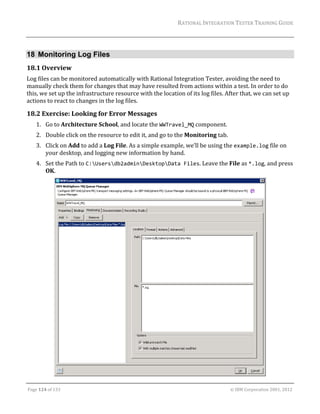
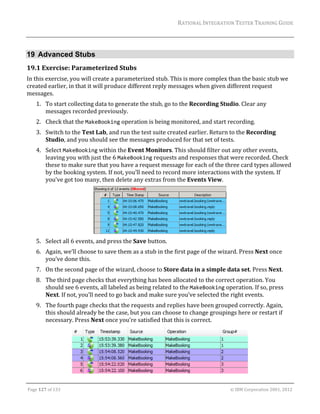
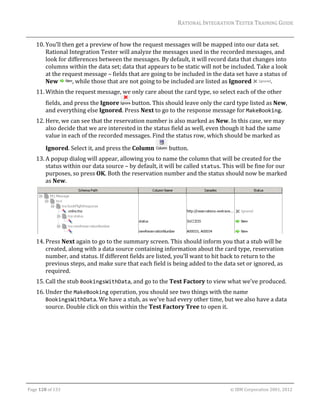
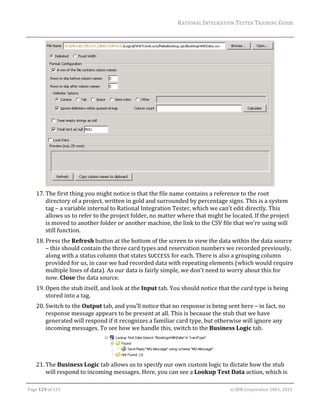
          Training	Guide
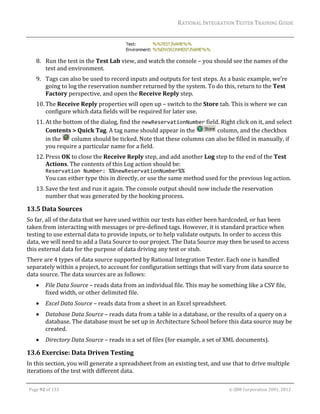
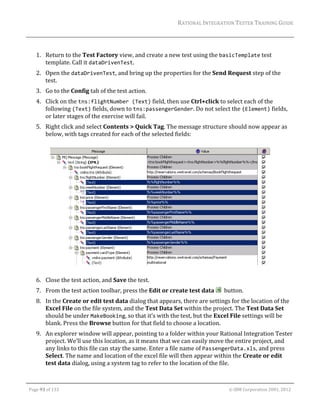
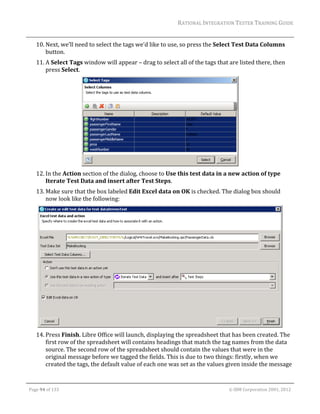
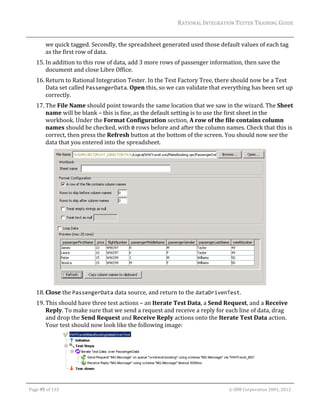
Note		
         Before	using	this	information	and	the	product	it	supports,	read	the	information	in	“Notices”	
         on	page	132.	


©	Copyright	IBM	Corporation	2001,	2012.
RATIONAL	INTEGRATION	TESTER	TRAINING	GUIDE	
                                                                                                                                                                                                                     	
1         INTRODUCTION ........................................................................................................................ 4 
2         CONFIGURING RATIONAL INTEGRATION TESTER ........................................................................ 5 
     2.1           PRE-REQUISITES............................................................................................................... 5 
     2.2           THE LIBRARY MANAGER .................................................................................................... 5 
     2.3           CONFIGURING THE LIBRARY MANAGER FOR WEBSPHERE APPLICATION SERVER AND MQ ...... 6 
     2.4           ADDING THE INTERCEPT DLL ............................................................................................. 7 
3         RATIONAL INTEGRATION TESTER PROJECT SETUP .................................................................... 8 
     3.1           THE INITIAL SCREEN ......................................................................................................... 8 
     3.2           CREATING A NEW PROJECT ............................................................................................... 9 
     3.3           EXERCISE: CREATING THE TRAINING PROJECT .................................................................. 10 
     3.4           RATIONAL INTEGRATION TESTER LAYOUT .......................................................................... 14 
     3.5           RATIONAL INTEGRATION TESTER PERSPECTIVES ............................................................... 15 
4         MODELING THE SYSTEM......................................................................................................... 16 
     4.1           PERSPECTIVE OVERVIEW ................................................................................................ 16 
     4.2           WORKING IN MULTIPLE ENVIRONMENTS ............................................................................ 16 
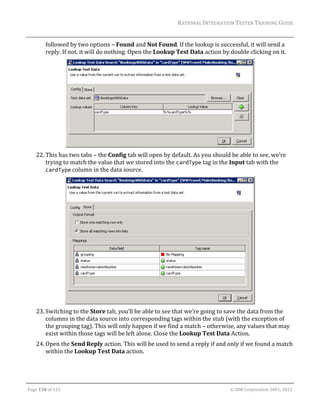
     4.3           LOGICAL VIEW ................................................................................................................ 17 
     4.4           EXERCISE: SETTING UP THE LOGICAL VIEW FOR A SIMPLE SYSTEM ..................................... 19 
     4.5           PHYSICAL VIEW .............................................................................................................. 22 
     4.6           EXERCISE: SETTING UP PHYSICAL VIEW FOR A SIMPLE SYSTEM ......................................... 22 
     4.7           ENVIRONMENTS .............................................................................................................. 22 
     4.8           EXERCISE: CREATING AN ENVIRONMENT ........................................................................... 22 
     4.9           EXERCISE: SCHEMA LIBRARY ........................................................................................... 24 
     4.10              EXERCISE: THE MESSAGE EXCHANGE PATTERN (MEP) ................................................. 25 
5         THE DEMONSTRATION ENVIRONMENT ..................................................................................... 27 
     5.1           MANAGING FLIGHT BOOKINGS.......................................................................................... 27 
     5.2           FINDING AND BOOKING HOTELS ....................................................................................... 28 
     5.3           FLIGHT ADMINISTRATION ................................................................................................. 28 
6         USING SYSTEM DATA TO BUILD A SYSTEM MODEL .................................................................. 30 
     6.1           OVERVIEW ..................................................................................................................... 30 
     6.2           SYNCHRONISATION OVERVIEW ......................................................................................... 30 
     6.3           BUILDING A MODEL FROM RECORDED EVENTS .................................................................. 31 
     6.4           RECORDING MQ MESSAGES............................................................................................ 31 
     6.5           EXERCISE: SETTING UP THE TRANSPORTS ........................................................................ 32 
     6.6           EXERCISE: ADDING THE FLIGHT BOOKING MESSAGE SCHEMAS .......................................... 37 
	

    Page	1	of	133																																																																																																																																																																				©	IBM	Corporation	2001,	2012
RATIONAL	INTEGRATION	TESTER	TRAINING	GUIDE	
                                                                                                                                                                                                                     	
7         REQUIREMENTS LIBRARY ....................................................................................................... 38 
     7.1           OVERVIEW ..................................................................................................................... 38 
     7.2           THE MESSAGE EDITOR .................................................................................................... 38 
     7.3           EXERCISE: IMPORTING MESSAGES ................................................................................... 39 
     7.4           CREATING MESSAGES FROM A SCHEMA ............................................................................ 40 
8         RECORDING EVENTS ............................................................................................................. 43 
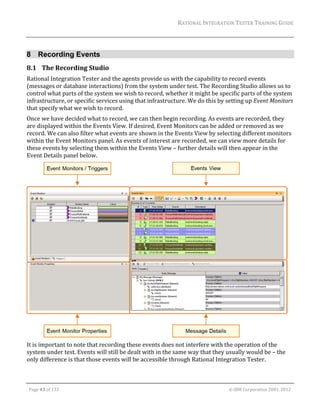
     8.1           THE RECORDING STUDIO................................................................................................. 43 
     8.2           EXERCISE: RECORDING EVENTS FROM A TRANSPORT ........................................................ 44 
     8.3           EXERCISE: BUILDING OPERATIONS FROM RECORDED EVENTS ............................................ 46 
     8.4           EXERCISE: COMPLETING THE SYSTEM MODEL ................................................................... 52 
     8.5           EXERCISE: RECORDING EVENTS FROM AN OPERATION ...................................................... 53 
     8.6           EXERCISE: CREATING AND RUNNING TRIGGERS ................................................................ 56 
9         CREATING AND EDITING TESTS .............................................................................................. 58 
     9.1           TEST STRUCTURE ........................................................................................................... 58 
     9.2           BUSINESS VIEW AND TECHNICAL VIEW ............................................................................. 59 
     9.3           EXERCISE: CREATING TESTS FROM RECORDED EVENTS .................................................... 59 
     9.4           THE MEP WIZARD .......................................................................................................... 64 
     9.5           EXERCISE: CREATING TESTS WITH THE MEP WIZARD........................................................ 65 
     9.6           COPYING AND LINKING REQUIREMENTS ............................................................................ 68 
     9.7           TEST TEMPLATES ........................................................................................................... 69 
     9.8           EXERCISE: CREATING A TEST FROM A TEMPLATE .............................................................. 69 
10            TEST EXECUTION ............................................................................................................... 71 
     10.1              THE TEST LAB ............................................................................................................. 71 
     10.2              EXERCISE: RUNNING A TEST ........................................................................................ 71 
     10.3              EXERCISE: REPAIRING TESTS ....................................................................................... 72 
     10.4              EXERCISE: THE RULE CACHE ....................................................................................... 75 
11            CREATING AND RUNNING A STUB ........................................................................................ 77 
     11.1              EXERCISE: CREATING A STUB FROM RECORDED EVENTS ................................................. 77 
     11.2              EXERCISE: EXECUTING A STUB FROM RATIONAL INTEGRATION TESTER ............................ 79 
     11.3              EXERCISE: MODIFYING THE STUB ON THE FLY................................................................. 80 
12            TEST AUTOMATION ............................................................................................................ 83 
     12.1              TEST SUITES ............................................................................................................... 83 
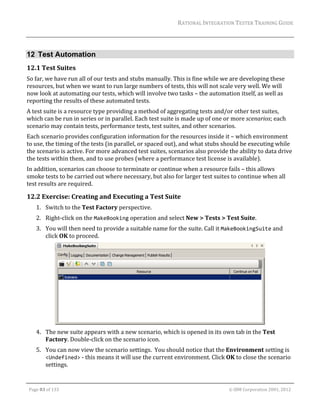
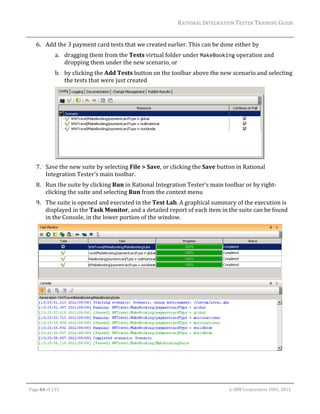
     12.2              EXERCISE: CREATING AND EXECUTING A TEST SUITE ..................................................... 83 
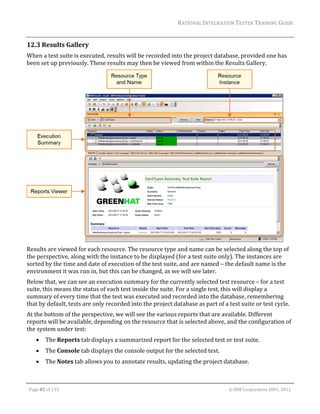
     12.3              RESULTS GALLERY ...................................................................................................... 85 
	

    Page	2	of	133																																																																																																																																																																				©	IBM	Corporation	2001,	2012
RATIONAL	INTEGRATION	TESTER	TRAINING	GUIDE	
                                                                                                                                                                                                                     	
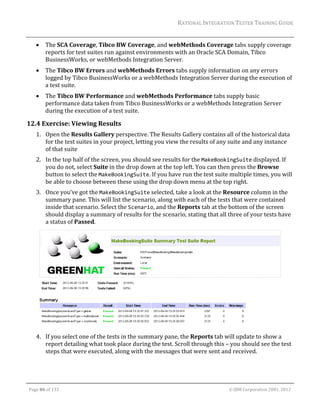
     12.4              EXERCISE: VIEWING RESULTS ...................................................................................... 86 
13            STORING AND MANIPULATING DATA .................................................................................... 88 
     13.1              TAGS AND THE TAG DATA STORE .................................................................................. 88 
     13.2              CREATING TAGS .......................................................................................................... 89 
     13.3              USING TAGS................................................................................................................ 91 
     13.4              EXERCISE: TESTING WITH TAGS .................................................................................... 91 
     13.5              DATA SOURCES........................................................................................................... 92 
     13.6              EXERCISE: DATA DRIVEN TESTING ................................................................................ 92 
14            REPEATING ELEMENTS ....................................................................................................... 97 
     14.1              OVERVIEW .................................................................................................................. 97 
     14.2              EXERCISE: PUBLISHING A SET OF ORDERS .................................................................... 99 
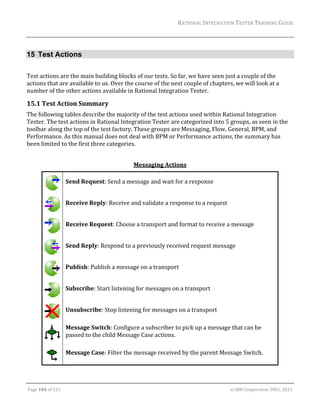
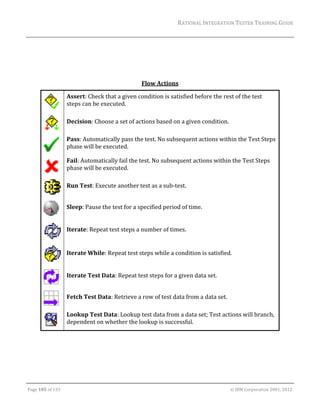
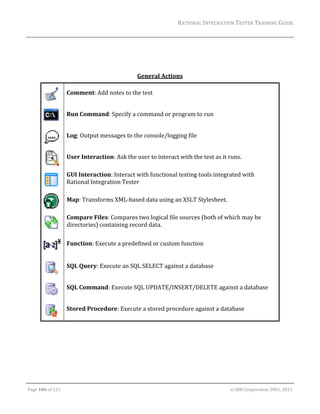
15            TEST ACTIONS ................................................................................................................. 104 
     15.1              TEST ACTION SUMMARY............................................................................................. 104 
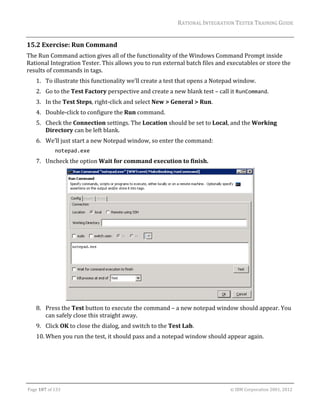
     15.2              EXERCISE: RUN COMMAND ........................................................................................ 107 
     15.3              EXERCISE: LOG ......................................................................................................... 108 
     15.4              EXERCISE: LOOKUP TEST DATA .................................................................................. 109 
     15.5              FAILURE PATH AND PASS/FAIL .................................................................................... 111 
     15.6              EXERCISE: USING FAILURE PATHS .............................................................................. 112 
16            INTERACTING WITH DATABASES ........................................................................................ 115 
     16.1              EXERCISE: CREATING A DATABASE COMPONENT MANUALLY .......................................... 115 
     16.2              EXERCISE: SQL COMMAND ........................................................................................ 117 
     16.3              EXERCISE: COLUMN AND CELL VALIDATIONS ............................................................... 117 
17            RUN TEST ....................................................................................................................... 120 
     17.1              INTRODUCTION .......................................................................................................... 120 
     17.2              EXERCISE: CREATING THE CHILD TEST......................................................................... 120 
     17.3              EXERCISE: CREATING THE PARENT TEST..................................................................... 121 
     17.4              EXERCISE: PASSING DATA BETWEEN THE TESTS .......................................................... 122 
18            MONITORING LOG FILES ................................................................................................... 124 
     18.1              OVERVIEW ................................................................................................................ 124 
     18.2              EXERCISE: LOOKING FOR ERROR MESSAGES............................................................... 124 
19            ADVANCED STUBS ........................................................................................................... 127 
     19.1              EXERCISE: PARAMETERIZED STUBS ............................................................................ 127 
20            LEGAL NOTICES............................................................................................................... 132 


    Page	3	of	133																																																																																																																																																																				©	IBM	Corporation	2001,	2012
RATIONAL	INTEGRATION	TESTER	TRAINING	GUIDE	


1 Introduction
	
This	document	serves	as	a	training	manual	to	help	familiarize	the	user	with	the	functionality	
present	in	IBM®	Rational®	Integration	Tester.	Most	of	the	training	exercises	make	use	of	a	variety	
of	technologies,	including	IBM	WebSphere®	Application	Server,	IBM	WebSphere	MQ,	IBM	DB2®,	
and	web	services.	It	is	assumed	that	the	reader	has	a	fair	understanding	of	these	systems.		
	
The	main	objectives	of	this	training	course	are	to	present	the	various	functionalities	of	Rational	
Integration	Tester	and	how	best	to	use	them	in	testing	Message	Oriented	Middleware	applications.	
In	this	course	we	will:	
	
              Walk	you	through	the	installation	of	Rational	Integration	Tester	on	your	PC	
              Present	the	various	perspectives	in	Rational	Integration	Tester	and	how	and	when	they	are	
               used	
              Demonstrate	how	Rational	Integration	Tester	can	facilitate	testing	of	services	in	a	message	
               oriented	middleware	architecture	by	
                   o Providing	a	graphical	interfaces	for	the	display	and	creation	of	messages	
                   o Automatically	comparing	a	received	response	with	a	pre‐programmed	one	to	ensure	
                       they	match	
                   o Allowing	the	running	of	a	test	to	be	repeated	over	and	over	with	little	manual	
                       intervention	
                   o Exposing	the	details	of	the	process	to	provide	better	information	from	the	test	team	
                       to	the	development	team,	enabling	test	failures	to	be	examined	in	detail	
              Create	and	run	automated	tests	and	test	suites	
              Illustrate	the	ease	of	message	data	manipulation	to	facilitate	testing	by	using	various	test	
               actions	
              Build	stubs	and	triggers,	which	are	a	vital	part	of	integration	projects	
              Produce	detailed	reports	on	test	suites	
	
Before	we	dive	into	this	training	course,	please	make	sure	you	have	all	the	correct	files	in	place.	
              If	you	are	using	a	cloud	instance,	the	training	files	should	be	located	on	the	desktop	
              Otherwise,	your	instructor	will	let	you	know	where	to	find	any	required	files.	


    Page	4	of	133																																																																																																																																																																				©	IBM	Corporation	2001,	2012
RATIONAL	INTEGRATION	TESTER	TRAINING	GUIDE	


2 Configuring Rational Integration Tester
2.1 Pre‐requisites	
If	you	are	using	a	cloud	instance,	skip	to	section	2.3.	
If	you	need	to	install	Rational	Integration	Tester,	please	make	sure	that	the	following	prerequisites	
are	in	place:	
              Rational	Integration	Tester	project	database	–	note	that	this	can	be	shared	between	multiple	
               people.	The	database	can	be	set	up	using	one	of	the	following:	
                       o MySQL	5.0.1	or	higher	and	MySQL	5.1.x	
                       o Oracle	9.2i,	10g,	or	11g	
                       o MS	SQL	Server	2005	
              Java	7	
                       o The	IBM	JRE	is	included	and	installed	with	the	Rational	Integration	Tester.	The	JRE	is	
                         installed	in	the	Rational	Integration	Tester	installation	directory	and	is	used	only	
                         when	Rational	Integration	Tester	is	executed.	The	JRE	does	not	affect	the	registry	or	
                         any	other	programs	on	the	system.	
              Microsoft	Excel	2003	or	newer	(or	equivalent)	
	

2.2 The	Library	Manager	
The	Library	Manager	is	the	main	configuration	tool	for	Rational	Integration	Tester.	It	provides	the	
necessary	tools	to	set	up	connections	to	the	wide	variety	of	technologies	supported	by	Rational	
Integration	Tester,	and	set	up	other	configuration	options	as	required.	
Rational	Integration	Tester	supports	a	number	of	technologies	out	of	the	box	–	web	services,	email,	
and	a	number	of	databases.	However,	connections	to	a	number	of	other	proprietary	technologies	
will	require	external	Java	libraries,	which	are	normally	supplied	within	the	installation	files	of	that	
software.		
If	that	software	is	installed	on	the	same	machine	as	Rational	Integration	Tester,	then	the	Library	
Manager	may	be	used	to	point	Rational	Integration	Tester	towards	the	installed	location	of	the	
required	libraries.	Otherwise,	those	libraries	can	be	copied	across	to	the	local	machine,	and	the	
Library	Manager	used	to	locate	the	local	copies	of	those	files.	If	you	do	not	go	through	this	
procedure,	you	will	find	that	Rational	Integration	Tester	will	generate	errors	when	you	attempt	to	
connect	using	any	technologies	that	have	not	been	set	up	correctly.	
Regardless	of	the	technologies	that	you	plan	to	test	with	Rational	Integration	Tester,	you	will	need	
to	run	the	Library	Manager	once	on	any	machine	that	has	a	copy	of	Rational	Integration	Tester.	This	
will	allow	the	Library	Manager	to	perform	extra	setup	tasks,	such	as	creating	Rational	Integration	
Tester’s	home	directory.	


    Page	5	of	133																																																																																																																																																																				©	IBM	Corporation	2001,	2012
RATIONAL	INTEGRATION	TESTER	TRAINING	GUIDE	
                                                                                                                                                                                                                     	
Any	changes	made	in	the	Library	Manager	will	not	take	effect	until	the	next	time	you	start	Rational	
Integration	Tester.	This	means	that	if	you	are	running	Rational	Integration	Tester	while	making	
changes	in	the	Library	Manager,	you	will	need	to	restart	Rational	Integration	Tester.	
We	will	now	look	at	an	example	use	of	the	Library	Manager	–	setting	up	connections	to	Java	
libraries	for	the	IBM	WebSphere	Application	Server	and	WebSphere	MQ	tools.	

2.3 Configuring	the	Library	Manager	for	WebSphere	Application	Server	and	MQ	
Depending	on	the	version	of	WebSphere	Application	Server	and	MQ,	specific	product	libraries	are	
required.	Please	make	sure	that	you	have	configured	Library	Manager	with	the	right	libraries.	This	
has	already	been	set	up	for	any	cloud	instances.	
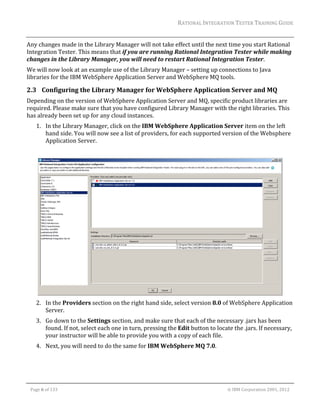
        1. In	the	Library	Manager,	click	on	the	IBM	WebSphere	Application	Server	item	on	the	left	
           hand	side.	You	will	now	see	a	list	of	providers,	for	each	supported	version	of	the	Websphere	
           Application	Server.	


        2. In	the	Providers	section	on	the	right	hand	side,	select	version	8.0	of	WebSphere	Application	
           Server.	
        3. Go	down	to	the	Settings	section,	and	make	sure	that	each	of	the	necessary	.jars	has	been	
           found.	If	not,	select	each	one	in	turn,	pressing	the	Edit	button	to	locate	the	.jars.	If	necessary,	
           your	instructor	will	be	able	to	provide	you	with	a	copy	of	each	file.	
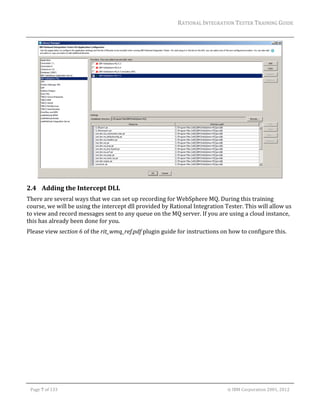
        4. Next,	you	will	need	to	do	the	same	for	IBM	WebSphere	MQ	7.0.	


    Page	6	of	133																																																																																																																																																																				©	IBM	Corporation	2001,	2012
RATIONAL	INTEGRATION	TESTER	TRAINING	GUIDE	


2.4 Adding	the	Intercept	DLL	
There	are	several	ways	that	we	can	set	up	recording	for	WebSphere	MQ.	During	this	training	
course,	we	will	be	using	the	intercept	dll	provided	by	Rational	Integration	Tester.	This	will	allow	us	
to	view	and	record	messages	sent	to	any	queue	on	the	MQ	server.	If	you	are	using	a	cloud	instance,	
this	has	already	been	done	for	you.	
Please	view	section	6	of	the	rit_wmq_ref.pdf	plugin	guide	for	instructions	on	how	to	configure	this.	


    Page	7	of	133																																																																																																																																																																				©	IBM	Corporation	2001,	2012
RATIONAL	INTEGRATION	TESTER	TRAINING	GUIDE	


3 Rational Integration Tester Project Setup
3.1 The	Initial	Screen	
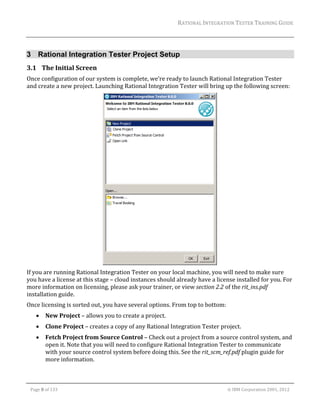
Once	configuration	of	our	system	is	complete,	we’re	ready	to	launch	Rational	Integration	Tester	
and	create	a	new	project.	Launching	Rational	Integration	Tester	will	bring	up	the	following	screen:	


If	you	are	running	Rational	Integration	Tester	on	your	local	machine,	you	will	need	to	make	sure	
you	have	a	license	at	this	stage	–	cloud	instances	should	already	have	a	license	installed	for	you.	For	
more	information	on	licensing,	please	ask	your	trainer,	or	view	section	2.2	of	the	rit_ins.pdf	
installation	guide.	
Once	licensing	is	sorted	out,	you	have	several	options.	From	top	to	bottom:	
              New	Project	–	allows	you	to	create	a	project.	
              Clone	Project	–	creates	a	copy	of	any	Rational	Integration	Tester	project.	
              Fetch	Project	from	Source	Control	–	Check	out	a	project	from	a	source	control	system,	and	
               open	it.	Note	that	you	will	need	to	configure	Rational	Integration	Tester	to	communicate	
               with	your	source	control	system	before	doing	this.	See	the	rit_scm_ref.pdf	plugin	guide	for	
               more	information.	


    Page	8	of	133																																																																																																																																																																				©	IBM	Corporation	2001,	2012
RATIONAL	INTEGRATION	TESTER	TRAINING	GUIDE	
                                                                                                                                                                                                                     	
              Open	Link	–	follows	a	link	taken	from	the	Test	Lab	to	navigate	to	the	results	of	a	test	or	test	
               suite.	
              Open	an	existing	project	–	opens	an	existing	project,	either	from	the	list	of	recent	projects	
               shown	by	Rational	Integration	Tester,	or	by	browsing	to	a	.ghp	file.	

3.2 Creating	a	New	Project	
Creating	a	new	project	goes	through	4	stages.	These	are:	
        1. Setting	the	project	name	and	location	
        2. Connecting	to	external	servers	
        3. Setting	up	user‐based	permissions	
        4. Setting	up	change	management	integration	
Only	the	first	step	is	compulsory;	the	others	are	optional,	but	can	be	edited	later	from	within	the	
project.	If	you	need	to	edit	any	of	these	settings	after	the	project	has	been	created,	you	can	do	it	
through	the	Project	Settings	dialog	(found	in	the	Project	menu	of	Rational	Integration	Tester).	
That	said,	filling	out	the	server	settings	listed	in	the	second	stage	of	the	project	creation	process	
will	normally	be	very	useful,	and	we	will	be	supplying	that	information	for	the	examples	used	in	
this	course.		
The	first	of	these	settings	is	for	a	project	database,	which	we	will	be	using	during	this	training	
course.	The	project	database	provides	the	ability	to	record	and	view	historical	test	results	–	without	
this,	you	will	only	be	able	to	view	results	from	the	current	session.	It	also	provides	the	ability	to	
record	logging	data	from	any	stubs	that	you	use.	Scripts	are	provided	with	Rational	Integration	
Tester	to	help	you	set	up	and	configure	a	project	database,	which	may	be	a	MySQL,	MS	SQL,	or	
Oracle	database.	Once	it	is	set	up,	the	database	may	be	shared	across	multiple	users	and	multiple	
projects.	
The	other	server	settings	available	are	for	RTCP	and	the	Results	Server	(legacy	users	only).	RTCP	
provides	the	ability	to	manage	any	proxies	and	agents	used	by	the	software;	these	capabilities	can	
be	used	while	recording	and	stubbing.	The	Results	Server	setting	is	used	to	create	links	to	the	
reports	held	on	the	server,	which	should	also	be	connected	to	your	project	database;	this	
functionality	is	now	provided	by	RTCP,	so	the	Results	Server	is	no	longer	required,	and	will	not	be	
used	in	this	project.	
As	we	only	have	a	single	user	for	our	example	project,	we	will	not	configure	user‐based	
permissions	for	our	project.	It	will	be	useful	in	other	projects	where	it	is	necessary	to	restrict	access	
to	a	project	to	certain	individuals,	or	to	allow	different	access	levels	to	the	project	for	different	
users.	In	particular,	it	will	be	helpful	for	projects	that	implement	data	masking	–	permissions	will	
allow	one	user	to	set	up	masks	over	certain	message	fields,	so	that	other	users	cannot	view	the	
contents	of	those	fields.	We	will	discuss	this	further	in	the	section	on	data	masking.	
Finally,	we	can	configure	a	connection	to	change	management	tools	such	as	JIRA,	HP’s	Quality	
Center,	or	any	Open	Services	for	Lifecycle	Collaboration	(OSLC)	compliant	change	management	
system,	such	as	Rational	Team	Concert.	This	allows	us	to	link	directly	into	these	tools,	and	raise	
defects	directly	from	a	test	or	test	suite.		
	

    Page	9	of	133																																																																																																																																																																				©	IBM	Corporation	2001,	2012
RATIONAL	INTEGRATION	TESTER	TRAINING	GUIDE	
                                                                                                                                                                                                                      	
At	the	end	of	the	wizard,	a	new	project	folder	will	be	created	within	your	file	system.	This	folder	
will	hold	all	resources	–	a	model	of	the	system	under	test,	along	with	any	tests,	stubs	or	other	
resources	created	for	the	project.	Data	files	used	by	your	project	can	also	be	stored	here	–	this	can	
help	you	make	your	project	more	portable	by	including	everything	in	one	place.	Alternatively,	you	
might	want	to	include	those	data	files	in	another	location	–	Rational	Integration	Tester	will	be	able	
to	refer	to	them	either	way.		

3.3 Exercise:	Creating	the	Training	project	
We	will	now	create	a	brand	new	project,	which	we	will	continue	to	use	for	the	duration	of	this	
course:	
         1. Launch	Rational	Integration	Tester	by	double‐clicking	the	IBM	Rational	Integration	Tester	
            shortcut	on	your	desktop.	
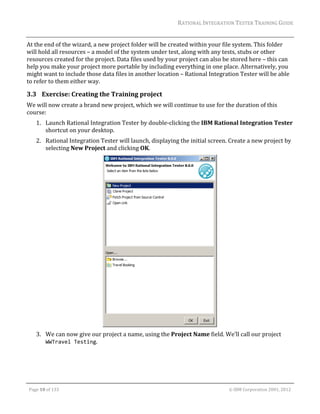
         2. Rational	Integration	Tester	will	launch,	displaying	the	initial	screen.	Create	a	new	project	by	
            selecting	New	Project	and	clicking	OK.	


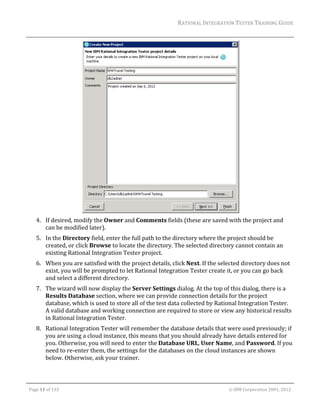
         3. We	can	now	give	our	project	a	name,	using	the	Project	Name	field.	We’ll	call	our	project	
            WWTravel Testing.	


    Page	10	of	133																																																																																																																																																																				©	IBM	Corporation	2001,	2012
RATIONAL	INTEGRATION	TESTER	TRAINING	GUIDE	


         4. If	desired,	modify	the	Owner	and	Comments	fields	(these	are	saved	with	the	project	and	
            can	be	modified	later).	
         5. In	the	Directory	field,	enter	the	full	path	to	the	directory	where	the	project	should	be	
            created,	or	click	Browse	to	locate	the	directory.	The	selected	directory	cannot	contain	an	
            existing	Rational	Integration	Tester	project.	
         6. When	you	are	satisfied	with	the	project	details,	click	Next.	If	the	selected	directory	does	not	
            exist,	you	will	be	prompted	to	let	Rational	Integration	Tester	create	it,	or	you	can	go	back	
            and	select	a	different	directory.	
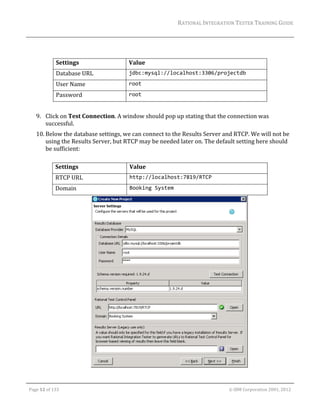
         7. The	wizard	will	now	display	the	Server	Settings	dialog.	At	the	top	of	this	dialog,	there	is	a	
            Results	Database	section,	where	we	can	provide	connection	details	for	the	project	
            database,	which	is	used	to	store	all	of	the	test	data	collected	by	Rational	Integration	Tester.	
            A	valid	database	and	working	connection	are	required	to	store	or	view	any	historical	results	
            in	Rational	Integration	Tester.	
         8. Rational	Integration	Tester	will	remember	the	database	details	that	were	used	previously;	if	
            you	are	using	a	cloud	instance,	this	means	that	you	should	already	have	details	entered	for	
            you.	Otherwise,	you	will	need	to	enter	the	Database	URL,	User	Name,	and	Password.	If	you	
            need	to	re‐enter	them,	the	settings	for	the	databases	on	the	cloud	instances	are	shown	
            below.	Otherwise,	ask	your	trainer.	


    Page	11	of	133																																																																																																																																																																				©	IBM	Corporation	2001,	2012
RATIONAL	INTEGRATION	TESTER	TRAINING	GUIDE	


                         Settings	                                                Value	
                         Database	URL	                                            jdbc:mysql://localhost:3306/projectdb 
                         User	Name	                                               root 
                         Password	                                                root 
                               	
         9. Click	on	Test	Connection.	A	window	should	pop	up	stating	that	the	connection	was	
            successful.	
         10. Below	the	database	settings,	we	can	connect	to	the	Results	Server	and	RTCP.	We	will	not	be	
             using	the	Results	Server,	but	RTCP	may	be	needed	later	on.	The	default	setting	here	should	
             be	sufficient:		
             	
                        Settings	                                                  Value	
                        RTCP	URL	                                                  http://localhost:7819/RTCP 
                        Domain	                                                    Booking System 


    Page	12	of	133																																																																																																																																																																				©	IBM	Corporation	2001,	2012
RATIONAL	INTEGRATION	TESTER	TRAINING	GUIDE	
                                                                                                                                                                                                                      	
         11. When	you	are	satisfied	with	the	details	entered	on	this	screen,	click	Finish.	If	user‐based	
             permissions	or	connections	to	change	management	tools	were	required,	you	would	need	to	
             choose	Next,	and	then	set	them	up	on	the	following	screens.	
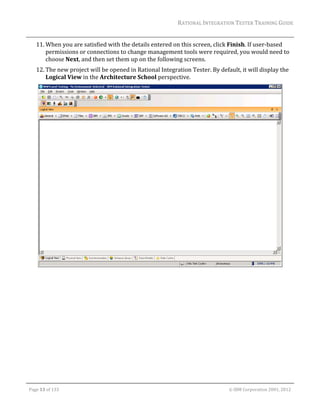
         12. The	new	project	will	be	opened	in	Rational	Integration	Tester.	By	default,	it	will	display	the	
             Logical	View	in	the	Architecture	School	perspective.	


    Page	13	of	133																																																																																																																																																																				©	IBM	Corporation	2001,	2012
RATIONAL	INTEGRATION	TESTER	TRAINING	GUIDE	
                                                                                                                                                                                                                      	
3.4 Rational	Integration	Tester	layout	


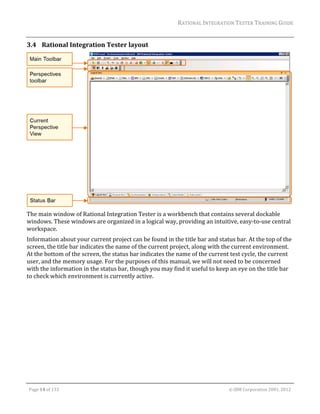
The	main	window	of	Rational	Integration	Tester	is	a	workbench	that	contains	several	dockable	
windows.	These	windows	are	organized	in	a	logical	way,	providing	an	intuitive,	easy‐to‐use	central	
workspace.			
Information	about	your	current	project	can	be	found	in	the	title	bar	and	status	bar.	At	the	top	of	the	
screen,	the	title	bar	indicates	the	name	of	the	current	project,	along	with	the	current	environment.	
At	the	bottom	of	the	screen,	the	status	bar	indicates	the	name	of	the	current	test	cycle,	the	current	
user,	and	the	memory	usage.	For	the	purposes	of	this	manual,	we	will	not	need	to	be	concerned	
with	the	information	in	the	status	bar,	though	you	may	find	it	useful	to	keep	an	eye	on	the	title	bar	
to	check	which	environment	is	currently	active.	


    Page	14	of	133																																																																																																																																																																				©	IBM	Corporation	2001,	2012
RATIONAL	INTEGRATION	TESTER	TRAINING	GUIDE	
                                                                                                                                                                                                                      	
3.5 Rational	Integration	Tester	Perspectives	
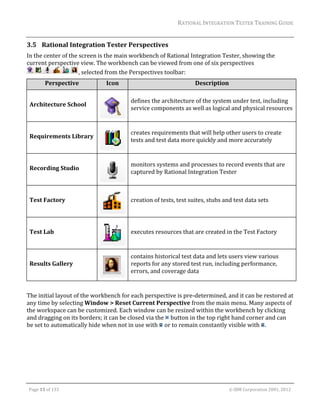
In	the	center	of	the	screen	is	the	main	workbench	of	Rational	Integration	Tester,	showing	the	
current	perspective	view.	The	workbench	can	be	viewed	from	one	of	six	perspectives	
                     ,	selected	from	the	Perspectives	toolbar:	
                Perspective	                                    Icon	                                                                 Description	

                                                                                    defines	the	architecture	of	the	system	under	test,	including	
    Architecture	School	
                                                                                    service	components	as	well	as	logical	and	physical	resources
                                                                               	

                                                                                    creates	requirements	that	will	help	other	users	to	create	
    Requirements	Library	
                                                                                    tests	and	test	data	more	quickly	and	more	accurately	
                                                                               	

                                                                                    monitors	systems	and	processes	to	record	events	that	are	
    Recording	Studio	
                                                                                    captured	by	Rational	Integration	Tester	


    Test	Factory	                                                                   creation	of	tests,	test	suites,	stubs	and	test	data	sets	


    Test	Lab	                                                                       executes	resources	that	are	created	in	the	Test	Factory	
                                                                               	

                                                                                    contains	historical	test	data	and	lets	users	view	various	
    Results	Gallery	                                                                reports	for	any	stored	test	run,	including	performance,	
                                                                                    errors,	and	coverage	data	
                                                                               	
	
The	initial	layout	of	the	workbench	for	each	perspective	is	pre‐determined,	and	it	can	be	restored	at	
any	time	by	selecting	Window	>	Reset	Current	Perspective	from	the	main	menu.	Many	aspects	of	
the	workspace	can	be	customized.	Each	window	can	be	resized	within	the	workbench	by	clicking	
and	dragging	on	its	borders;	it	can	be	closed	via	the	 	button	in	the	top	right	hand	corner	and	can	
be	set	to	automatically	hide	when	not	in	use	with	 	or	to	remain	constantly	visible	with	 .	


    Page	15	of	133																																																																																																																																																																				©	IBM	Corporation	2001,	2012
RATIONAL	INTEGRATION	TESTER	TRAINING	GUIDE	


4 Modeling the System
4.1 Perspective	Overview	
The	Architecture	School	perspective	is	the	default	perspective	loaded	when	Rational	Integration	
Tester	is	started.	This	perspective	is	used	for	modeling	the	system	in	a	simple,	graphical	fashion.	
This	model	is	split	into	several	parts.	As	the	model	is	split	into	several	parts,	the	Architecture	
School	perspective	is	also	split	into	several	different	views.	In	addition	to	these	views,	we	also	use	
an	Environment	to	bind	different	parts	of	the	model	together.	
The	views	are	presented	along	the	bottom	of	the	perspective:	
               Logical	View	
               Physical	View	
               Synchronisation	
               Schema	Library	
               Data	Models	
               Rule	Cache	
For	the	moment,	we’re	going	to	look	at	an	example	of	a	simple	system,	which	will	make	use	of	the	
first	two	views,	along	with	Environments,	which	are	used	to	tie	the	Logical	and	Physical	views	
together.	We’ll	then	move	to	the	Schema	Library	to	set	up	message	formats.		

4.2 Working	in	Multiple	Environments	
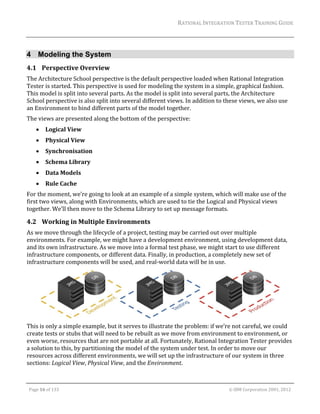
As	we	move	through	the	lifecycle	of	a	project,	testing	may	be	carried	out	over	multiple	
environments.	For	example,	we	might	have	a	development	environment,	using	development	data,	
and	its	own	infrastructure.	As	we	move	into	a	formal	test	phase,	we	might	start	to	use	different	
infrastructure	components,	or	different	data.	Finally,	in	production,	a	completely	new	set	of	
infrastructure	components	will	be	used,	and	real‐world	data	will	be	in	use.		


This	is	only	a	simple	example,	but	it	serves	to	illustrate	the	problem:	if	we’re	not	careful,	we	could	
create	tests	or	stubs	that	will	need	to	be	rebuilt	as	we	move	from	environment	to	environment,	or	
even	worse,	resources	that	are	not	portable	at	all.	Fortunately,	Rational	Integration	Tester	provides	
a	solution	to	this,	by	partitioning	the	model	of	the	system	under	test.	In	order	to	move	our	
resources	across	different	environments,	we	will	set	up	the	infrastructure	of	our	system	in	three	
sections:	Logical	View,	Physical	View,	and	the	Environment.	


    Page	16	of	133																																																																																																																																																																				©	IBM	Corporation	2001,	2012
RATIONAL	INTEGRATION	TESTER	TRAINING	GUIDE	
                                                                                                                                                                                                                      	
The	Logical	View	provides	us	with	an	abstract	view	of	the	system	under	test,	but	does	not	tie	us	to	
using	any	particular	infrastructure.	As	an	example,	it	will	state	that	a	database	is	required	by	our	
system,	but	it	will	not	state	any	more	than	that	–	the	database	URL,	connection	details,	and	even	the	
type	of	database	provider	are	not	specified	at	this	stage.	
The	Physical	View	then	defines	all	of	the	implementation	options	–	so,	for	our	example,	we	may	
have	3	separate	databases	used	across	all	different	environments.	All	3	databases	would	be	listed	in	
the	Physical	View.	
Finally,	the	Environment	binds	the	logical	and	physical	resources	together.	At	any	stage,	Rational	
Integration	Tester	can	check	which	environment	is	being	used,	and	if	a	reference	is	found	to	a	
logical	infrastructure	element,	it	will	use	the	environment	to	find	the	correct	physical	component.	
So,	to	finish	off	our	example,	if	we	need	to	access	a	database	within	a	test	or	a	stub,	Rational	
Integration	Tester	will	look	up	the	environment	to	determine	which	of	the	3	databases	should	be	
accessed.	If	we	then	move	to	another	environment,	Rational	Integration	Tester	will	perform	the	
lookup	again,	and	select	the	appropriate	database.	
Of	course,	this	applies	to	any	infrastructure	–	not	just	databases,	but	also	web	servers,	Email	
servers,	Java	Message	Service	(JMS),	or	any	proprietary	technologies.	

4.3 Logical	View	
The	Logical	View	provides	an	abstract	model	of	the	system	that	we	are	interacting	with.	We’re	
going	to	build	a	simple	model	here	to	demonstrate	how	this	works.	This	model	will	be	made	up	of	
several	different	elements:	


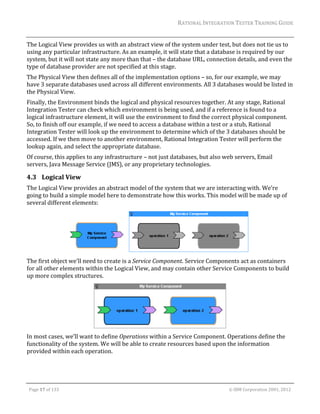
The	first	object	we’ll	need	to	create	is	a	Service	Component.	Service	Components	act	as	containers	
for	all	other	elements	within	the	Logical	View,	and	may	contain	other	Service	Components	to	build	
up	more	complex	structures.	


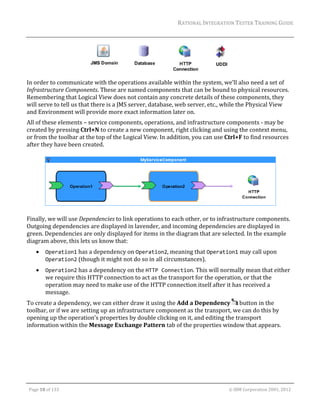
In	most	cases,	we’ll	want	to	define	Operations	within	a	Service	Component.	Operations	define	the	
functionality	of	the	system.	We	will	be	able	to	create	resources	based	upon	the	information	
provided	within	each	operation.	


    Page	17	of	133																																																																																																																																																																				©	IBM	Corporation	2001,	2012
RATIONAL	INTEGRATION	TESTER	TRAINING	GUIDE	


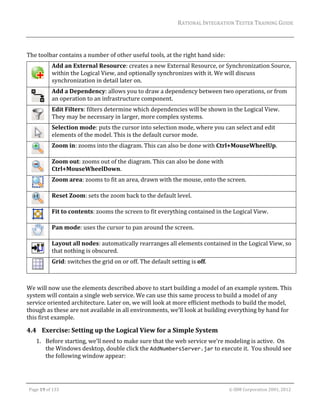
In	order	to	communicate	with	the	operations	available	within	the	system,	we’ll	also	need	a	set	of	
Infrastructure	Components.	These	are	named	components	that	can	be	bound	to	physical	resources.	
Remembering	that	Logical	View	does	not	contain	any	concrete	details	of	these	components,	they	
will	serve	to	tell	us	that	there	is	a	JMS	server,	database,	web	server,	etc.,	while	the	Physical	View	
and	Environment	will	provide	more	exact	information	later	on.	
All	of	these	elements	–	service	components,	operations,	and	infrastructure	components	‐	may	be	
created	by	pressing	Ctrl+N	to	create	a	new	component,	right	clicking	and	using	the	context	menu,	
or	from	the	toolbar	at	the	top	of	the	Logical	View.	In	addition,	you	can	use	Ctrl+F	to	find	resources	
after	they	have	been	created.	


Finally,	we	will	use	Dependencies	to	link	operations	to	each	other,	or	to	infrastructure	components.	
Outgoing	dependencies	are	displayed	in	lavender,	and	incoming	dependencies	are	displayed	in	
green.	Dependencies	are	only	displayed	for	items	in	the	diagram	that	are	selected.	In	the	example	
diagram	above,	this	lets	us	know	that:	
               Operation1	has	a	dependency	on	Operation2,	meaning	that	Operation1	may	call	upon	
                Operation2	(though	it	might	not	do	so	in	all	circumstances).	
               Operation2	has	a	dependency	on	the	HTTP Connection.	This	will	normally	mean	that	either	
                we	require	this	HTTP	connection	to	act	as	the	transport	for	the	operation,	or	that	the	
                operation	may	need	to	make	use	of	the	HTTP	connection	itself	after	it	has	received	a	
                message.	
To	create	a	dependency,	we	can	either	draw	it	using	the	Add	a	Dependency	 	button	in	the	
toolbar,	or	if	we	are	setting	up	an	infrastructure	component	as	the	transport,	we	can	do	this	by	
opening	up	the	operation’s	properties	by	double	clicking	on	it,	and	editing	the	transport	
information	within	the	Message	Exchange	Pattern	tab	of	the	properties	window	that	appears.	


    Page	18	of	133																																																																																																																																																																				©	IBM	Corporation	2001,	2012
RATIONAL	INTEGRATION	TESTER	TRAINING	GUIDE	
                                                                                                                                                                                                                      	
	
The	toolbar	contains	a	number	of	other	useful	tools,	at	the	right	hand	side:	
                     Add	an	External	Resource:	creates	a	new	External	Resource,	or	Synchronization	Source,	
                     within	the	Logical	View,	and	optionally	synchronizes	with	it.	We	will	discuss	
               	
                     synchronization	in	detail	later	on.	
                     Add	a	Dependency:	allows	you	to	draw	a	dependency	between	two	operations,	or	from	
               	     an	operation	to	an	infrastructure	component.	
                     Edit	Filters:	filters	determine	which	dependencies	will	be	shown	in	the	Logical	View.	
               	     They	may	be	necessary	in	larger,	more	complex	systems.	
                     Selection	mode:	puts	the	cursor	into	selection	mode,	where	you	can	select	and	edit	
               	     elements	of	the	model.	This	is	the	default	cursor	mode.	
                     Zoom	in:	zooms	into	the	diagram.	This	can	also	be	done	with	Ctrl+MouseWheelUp.	
               	
                     Zoom	out:	zooms	out	of	the	diagram.	This	can	also	be	done	with	
               	     Ctrl+MouseWheelDown.	
                     Zoom	area:	zooms	to	fit	an	area,	drawn	with	the	mouse,	onto	the	screen.	
               	
                     Reset	Zoom:	sets	the	zoom	back	to	the	default	level.	
               	
                     Fit	to	contents:	zooms	the	screen	to	fit	everything	contained	in	the	Logical	View.	
               	
                     Pan	mode:	uses	the	cursor	to	pan	around	the	screen.	
               	
                     Layout	all	nodes:	automatically	rearranges	all	elements	contained	in	the	Logical	View,	so	
               	     that	nothing	is	obscured.	
                     Grid:	switches	the	grid	on	or	off.	The	default	setting	is	off.	
               	
	
We	will	now	use	the	elements	described	above	to	start	building	a	model	of	an	example	system.	This	
system	will	contain	a	single	web	service.	We	can	use	this	same	process	to	build	a	model	of	any	
service	oriented	architecture.	Later	on,	we	will	look	at	more	efficient	methods	to	build	the	model,	
though	as	these	are	not	available	in	all	environments,	we’ll	look	at	building	everything	by	hand	for	
this	first	example.		

4.4 Exercise:	Setting	up	the	Logical	View	for	a	Simple	System	
         1. Before	starting,	we’ll	need	to	make	sure	that	the	web	service	we’re	modeling	is	active.		On	
            the	Windows	desktop,	double	click	the	AddNumbersServer.jar	to	execute	it.		You	should	see	
            the	following	window	appear:	


    Page	19	of	133																																																																																																																																																																				©	IBM	Corporation	2001,	2012
RATIONAL	INTEGRATION	TESTER	TRAINING	GUIDE	


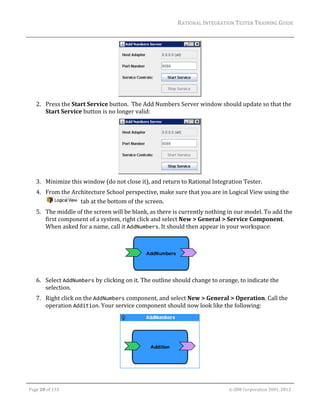
         2. Press	the	Start	Service	button.		The	Add	Numbers	Server	window	should	update	so	that	the	
            Start	Service	button	is	no	longer	valid:	


         3. Minimize	this	window	(do	not	close	it),	and	return	to	Rational	Integration	Tester.	
         4. From	the	Architecture	School	perspective,	make	sure	that	you	are	in	Logical	View	using	the	
                       	tab	at	the	bottom	of	the	screen.	
         5. The	middle	of	the	screen	will	be	blank,	as	there	is	currently	nothing	in	our	model.	To	add	the	
            first	component	of	a	system,	right	click	and	select	New	>	General	>	Service	Component.	
            When	asked	for	a	name,	call	it	AddNumbers.	It	should	then	appear	in	your	workspace:	


         6. Select	AddNumbers	by	clicking	on	it.	The	outline	should	change	to	orange,	to	indicate	the	
            selection.	
         7. Right	click	on	the	AddNumbers	component,	and	select	New	>	General	>	Operation.	Call	the	
            operation	Addition.	Your	service	component	should	now	look	like	the	following:	


    Page	20	of	133																																																																																																																																																																				©	IBM	Corporation	2001,	2012
RATIONAL	INTEGRATION	TESTER	TRAINING	GUIDE	
                                                                                                                                                                                                                      	
         8. Similarly,	add	an	infrastructure	component	called	AddNumbersPort,	by	right	clicking	and	
            selecting	New	>	Web	>	HTTP	Connection	
         9. The	logical	description	of	our	basic	system	is	nearly	complete.	We	just	need	to	define	the	
            transport	information	for	the	Addition	operation	by	tying	it	to	the	AddNumbersPort.	Double	
            click	on	the	Addition	operation,	and	take	a	look	at	the	Message	Exchange	Pattern	tab.		
         10. Look	for	the	Transport	property,	and	press	the	Browse…	button	next	to	it	to	select	a	
             transport.	
         11. In	the	dialog	that	appears,	select	the	AddNumbersPort	we	created	earlier.	Press	OK	to	return	
             to	the	properties	of	the	Addition	operation.	
         12. The	Binding	section	of	the	dialog	will	now	have	been	updated	to	point	towards	the	
             AddNumbersPort.	A	set	of	HTTP	settings	will	also	be	available	now	that	we	have	specified	a	
             HTTP	transport.	We’ll	come	back	to	these	settings	later	–	for	now,	press	OK	to	close	the	
             properties	dialog.	
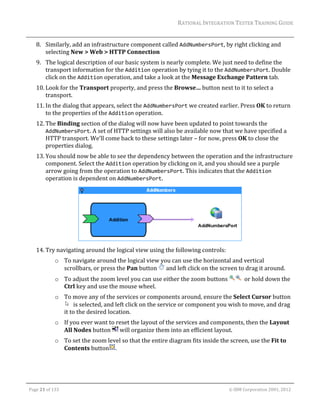
         13. You	should	now	be	able	to	see	the	dependency	between	the	operation	and	the	infrastructure	
             component.	Select	the	Addition	operation	by	clicking	on	it,	and	you	should	see	a	purple	
             arrow	going	from	the	operation	to	AddNumbersPort.	This	indicates	that	the	Addition	
             operation	is	dependent	on	AddNumbersPort.	


         14. Try	navigating	around	the	logical	view	using	the	following	controls:	
                        o To	navigate	around	the	logical	view	you	can	use	the	horizontal	and	vertical	
                          scrollbars,	or	press	the	Pan	button	 	and	left	click	on	the	screen	to	drag	it	around.	
                        o To	adjust	the	zoom	level	you	can	use	either	the	zoom	buttons	                                                                                    		or	hold	down	the	
                          Ctrl	key	and	use	the	mouse	wheel.	
                        o To	move	any	of	the	services	or	components	around,	ensure	the	Select	Cursor	button
                             		is	selected,	and	left	click	on	the	service	or	component	you	wish	to	move,	and	drag	
                          it	to	the	desired	location.	
                        o If	you	ever	want	to	reset	the	layout	of	the	services	and	components,	then	the	Layout	
                          All	Nodes	button	 	will	organize	them	into	an	efficient	layout.	
                        o To	set	the	zoom	level	so	that	the	entire	diagram	fits	inside	the	screen,	use	the	Fit	to	
                          Contents	button .	


    Page	21	of	133																																																																																																																																																																				©	IBM	Corporation	2001,	2012
RATIONAL	INTEGRATION	TESTER	TRAINING	GUIDE	
                                                                                                                                                                                                                      	
4.5 Physical	View	
On	its	own,	the	logical	view	that	we’ve	created	is	not	enough	to	fully	describe	our	system.	As	
mentioned	previously,	it	doesn’t	contain	information	about	the	address	of	the	server	we’re	talking	
to,	or	any	connection	settings	that	may	be	required.	We’re	going	to	specify	this	information	
separately,	in	the	Physical	View.	
This	view	displays	available	physical	resources	and	their	location	within	the	enterprise.	Each	
resource	listed	within	the	Physical	View	represents	a	single	configuration	of	an	infrastructure	
component	described	in	the	Logical	View.	
Resources	in	this	view	are	organized	by	subnet	and	host.	If	a	resource	is	not	associated	with	a	
subnet	or	host,	it	will	be	displayed	under	Unconnected	Resources.	We’re	going	to	create	the	
physical	resource	for	the	AddNumbers	web	service	–	a	simple	web	server.	

4.6 Exercise:	Setting	up	Physical	View	for	a	Simple	System	
         1. Switch	to	Physical	View	using	the	                                                                      	tab	at	the	bottom	of	the	screen.	
         2. We’re	going	to	add	a	new	resource	here.	Along	the	top	of	the	perspective,	you’ll	see	a	toolbar	
            containing	options	for	adding	new	resources	from	different	categories	
                                                                                                                                                                                                                 	

         3. Choose	the	Web	category,	and	then	choose	the	Web	Server	                                                                                                                     option	.	
         4. The	New	Web	Server	dialog	will	appear.	Set	the	Host	setting	to	localhost	using	Port	8088.	
         5. Press	Test	Transport	to	make	sure	that	you	are	able	to	connect	properly	to	the	web	service.	
            Once	you	are	satisfied	that	it	is	working	properly,	press	OK	to	close	the	dialog	and	save	the	
            new	resource.	

4.7 Environments	
Once	we	have	the	logical	data,	which	gives	us	an	abstract	model	of	what	infrastructure	is	required	
by	our	system,	and	the	physical	data,	which	specifies	the	different	configurations	available	for	each	
infrastructure	component,	we	then	need	to	match	these	up.	Remembering	that	this	could	change	
between	different	stages	of	the	lifecycle	of	the	project,	we	can	use	a	set	of	environments	to	
coordinate	this	process.		
A	new	project	starts	without	an	environment,	so	we’ll	create	an	initial	environment	in	this	exercise.	
Other	environments	could	be	created	subsequently	as	required.	These	will	allow	us	to	keep	using	
the	same	test	resources,	simply	by	switching	to	new	environments	as	they	become	available.	
Environments	do	not	have	their	own	view;	instead,	there	are	a	number	of	options	in	the	Project	
menu	which	allow	us	to	access	and	edit	an	environment:	Create	New	Environment	 ,	Edit	
Environments	 ,	and	Switch	to	Environment	 .	If	you	are	using	the	default	settings	within	
Rational	Integration	Tester,	the	Title	Bar	will	also	show	the	name	of	the	current	environment.	

4.8 Exercise:	Creating	an	Environment		
         1. Select	Project	>	Create	New	Environment	


    Page	22	of	133																																																																																																																																																																				©	IBM	Corporation	2001,	2012
RATIONAL	INTEGRATION	TESTER	TRAINING	GUIDE	
                                                                                                                                                                                                                      	
         2. Give	the	environment	a	name	–	for	example,	Local	(most	of	the	environment	we’re	working	
            with	in	this	training	course	will	be	on	the	local	host).	
         3. The	Environments	window	will	appear.	On	the	left	hand	side,	you	can	select	the	
            environment	to	edit.	On	the	right	hand	side,	you	can	see	how	this	environment	is	configured.	
         4. On	the	right	hand	side,	you	should	be	looking	at	the	Properties	tab,	which	will	be	empty	at	
            the	moment.	The	properties	of	an	environment	are	expressed	as	tags,	which	will	be	covered	
            later	in	the	course.	For	the	moment,	we’re	not	going	to	need	to	set	up	any	properties	
            ourselves.	
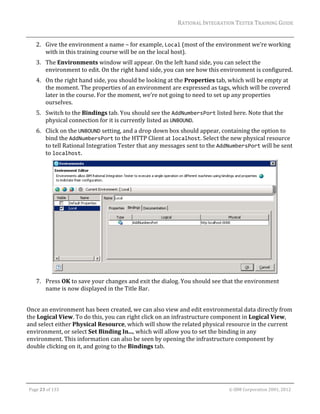
         5. Switch	to	the	Bindings	tab.	You	should	see	the	AddNumbersPort	listed	here.	Note	that	the	
            physical	connection	for	it	is	currently	listed	as	UNBOUND.	
         6. Click	on	the	UNBOUND	setting,	and	a	drop	down	box	should	appear,	containing	the	option	to	
            bind	the	AddNumbersPort	to	the	HTTP	Client	at	localhost.	Select	the	new	physical	resource	
            to	tell	Rational	Integration	Tester	that	any	messages	sent	to	the	AddNumbersPort	will	be	sent	
            to	localhost.	


         7. Press	OK	to	save	your	changes	and	exit	the	dialog.	You	should	see	that	the	environment	
            name	is	now	displayed	in	the	Title	Bar.	
                	
Once	an	environment	has	been	created,	we	can	also	view	and	edit	environmental	data	directly	from	
the	Logical	View.	To	do	this,	you	can	right	click	on	an	infrastructure	component	in	Logical	View,	
and	select	either	Physical	Resource,	which	will	show	the	related	physical	resource	in	the	current	
environment,	or	select	Set	Binding	In...,	which	will	allow	you	to	set	the	binding	in	any	
environment.	This	information	can	also	be	seen	by	opening	the	infrastructure	component	by	
double	clicking	on	it,	and	going	to	the	Bindings	tab.	


    Page	23	of	133																																																																																																																																																																				©	IBM	Corporation	2001,	2012
RATIONAL	INTEGRATION	TESTER	TRAINING	GUIDE	
                                                                                                                                                                                                                      	
4.9 Exercise:	Schema	Library	
We	now	have	most	of	the	information	we	would	need	to	create	a	test	or	stub	for	this	sample	web	
service.	However,	we’re	still	missing	information	about	the	format	of	the	messages	going	to	and	
from	the	web	service.	Most	of	this	information	can	be	provided	through	the	Schema	Library.		
         1. Switch	to	the	Schema	Library	using	the	                                                                                  	tab	at	the	bottom	of	the	screen.	
         2. At	the	top	of	the	perspective,	there	is	a	toolbar	containing	buttons	for	importing	different	
                 types	of	message	schemas.	                                                                                                      		Press	the	WSDL                          		button.	
                 The	New	WSDL	window	will	appear.	
         3. Press	Change…	to	enter	the	location	of	our	schema	definition.	The	Select	Location	dialog	
            box	will	appear.	
         4. Select	the	URL	tab,	and	enter	the	following	URL: 
            http://localhost:8088/addNumbers?wsdl	–	note	that	the	URL	is	case‐sensitive.	Press	
            OK	to	close	the	Select	Location	dialog,	and	again	to	close	the	New	WSDL	dialog.	
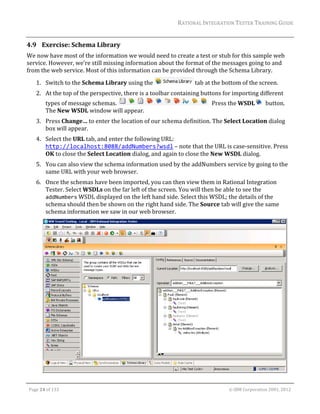
         5. You	can	also	view	the	schema	information	used	by	the	addNumbers	service	by	going	to	the	
            same	URL	with	your	web	browser.	
         6. Once	the	schemas	have	been	imported,	you	can	then	view	them	in	Rational	Integration	
            Tester.	Select	WSDLs	on	the	far	left	of	the	screen.	You	will	then	be	able	to	see	the	
            addNumbers	WSDL	displayed	on	the	left	hand	side.	Select	this	WSDL;	the	details	of	the	
            schema	should	then	be	shown	on	the	right	hand	side.	The	Source	tab	will	give	the	same	
            schema	information	we	saw	in	our	web	browser.		


    Page	24	of	133																																																																																																																																																																				©	IBM	Corporation	2001,	2012
RATIONAL	INTEGRATION	TESTER	TRAINING	GUIDE	
                                                                                                                                                                                                                      	
                Note:	If	you	have	mistyped	the	name	of	the	WSDL,	you	should	receive	a	warning,	and	the	
                right	hand	side	of	the	screen	will	not	show	the	message	schemas.	If	you	end	up	in	this	
                situation,	you	can	fix	it	in	the	following	manner:		
                Amend	the	location	of	the	WSDL	by	using	the	Change…	button	next	to	the	WSDL	Location	at	
                the	top	of	the	screen.	Following	that,	press	the	Rebuild	 	button	to	rebuild	the	schema	
                data.	
         7. Go	to	the	Config	tab	to	view	each	individual	message	type.	You	can	select	each	message	type	
            using	the	Operation	drop	down	just	under	the	tabs	along	the	top	of	the	screen.	Use	this	to	
            view	the	three	message	types:	addition__INPUT__addition,	
            addition__OUTPUT__additionResponse,	and	addition__FAULT__AdditionException.	

4.10 Exercise:	The	Message	Exchange	Pattern	(MEP)	
The	final	stage	of	building	our	system	model	is	to	state	how	the	operations	will	make	use	of	the	
message	schemas	that	have	been	provided.	We	will	do	this	by	building	up	the	Message	Exchange	
Pattern,	or	MEP,	for	each	operation.	The	MEP	contains	information	about	the	input	and	output	
schemas	for	the	operation,	whether	the	messaging	pattern	is	Request/Reply	or	Publish/Subscribe,	
and	how	the	messages	will	be	sent.	In	order	to	create	a	dependency	in	the	Logical	View,	we	have	
already	set	up	the	transport,	stating	how	messages	will	be	sent	to	and	from	our	service.	To	
complete	the	model	of	the	system	under	test,	we	still	need	to	set	the	rest	of	the	properties	of	the	
MEP.	
As	we	will	see	later	on,	setting	up	the	MEP	correctly	now	will	allow	Rational	Integration	Tester	to	
aid	us	in	automatically	creating	resources	for	each	operation.	
         1. Return	to	the	Logical	View.	
         2. Double	click	on	the	Addition	operation	to	edit	it.	
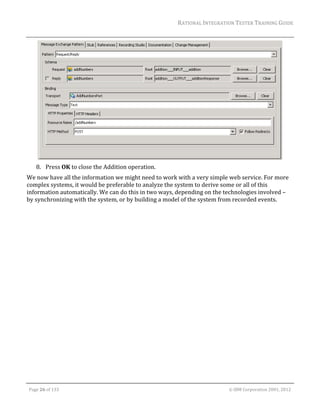
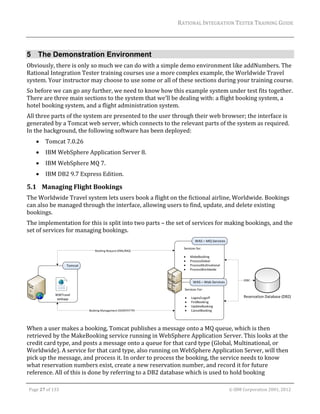
         3. On	the	Message	Exchange	Pattern	tab,	make	sure	that	the	Pattern	is	set	to	
            Request/Reply.	
         4. We	now	need	to	select	the	message	formats	for	the	request	and	the	reply.	On	the	Request	
            line,	press	the	Browse…	button	to	select	a	message	format.	
         5. The	Select	Schema	dialog	will	appear.	It	is	formatted	in	much	the	same	way	as	the	Schema	
            Library.	Find	and	select	the	addition__INPUT__addition	schema,	then	press	Finish.	
         6. Do	the	same	for	the	Reply	message,	selecting	the	addition__OUTPUT__additionResponse	
            schema.	
         7. You	will	also	see	tabs	towards	the	bottom	of	the	screen	for	HTTP	Properties	and	HTTP	
            Headers.	Under	the	HTTP	Properties	tab,	set	the	Resource	Name	to	/addNumbers	.	


    Page	25	of	133																																																																																																																																																																				©	IBM	Corporation	2001,	2012
RATIONAL	INTEGRATION	TESTER	TRAINING	GUIDE	


         8. Press	OK	to	close	the	Addition	operation.	
We	now	have	all	the	information	we	might	need	to	work	with	a	very	simple	web	service.	For	more	
complex	systems,	it	would	be	preferable	to	analyze	the	system	to	derive	some	or	all	of	this	
information	automatically.	We	can	do	this	in	two	ways,	depending	on	the	technologies	involved	–	
by	synchronizing	with	the	system,	or	by	building	a	model	of	the	system	from	recorded	events.	


    Page	26	of	133																																																																																																																																																																				©	IBM	Corporation	2001,	2012
RATIONAL	INTEGRATION	TESTER	TRAINING	GUIDE	


5 The Demonstration Environment
Obviously,	there	is	only	so	much	we	can	do	with	a	simple	demo	environment	like	addNumbers.	The	
Rational	Integration	Tester	training	courses	use	a	more	complex	example,	the	Worldwide	Travel	
system.	Your	instructor	may	choose	to	use	some	or	all	of	these	sections	during	your	training	course.	
So	before	we	can	go	any	further,	we	need	to	know	how	this	example	system	under	test	fits	together.			
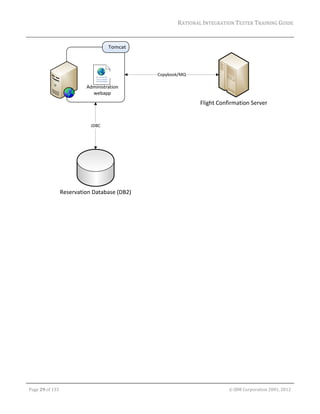
There	are	three	main	sections	to	the	system	that	we’ll	be	dealing	with:	a	flight	booking	system,	a	
hotel	booking	system,	and	a	flight	administration	system.		
All	three	parts	of	the	system	are	presented	to	the	user	through	their	web	browser;	the	interface	is	
generated	by	a	Tomcat	web	server,	which	connects	to	the	relevant	parts	of	the	system	as	required.	
In	the	background,	the	following	software	has	been	deployed:	
               Tomcat	7.0.26	
               IBM	WebSphere	Application	Server	8.	
               IBM	WebSphere	MQ	7.	
               IBM	DB2	9.7	Express	Edition.	

5.1 Managing	Flight	Bookings	
The	Worldwide	Travel	system	lets	users	book	a	flight	on	the	fictional	airline,	Worldwide.	Bookings	
can	also	be	managed	through	the	interface,	allowing	users	to	find,	update,	and	delete	existing	
bookings.	
The	implementation	for	this	is	split	into	two	parts	–	the	set	of	services	for	making	bookings,	and	the	
set	of	services	for	managing	bookings.	


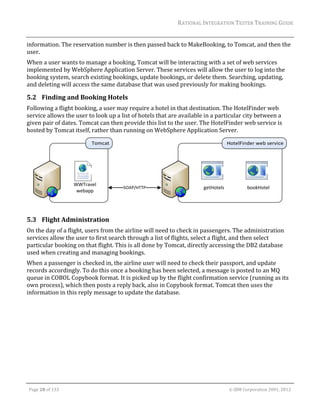
When	a	user	makes	a	booking,	Tomcat	publishes	a	message	onto	a	MQ	queue,	which	is	then	
retrieved	by	the	MakeBooking	service	running	in	WebSphere	Application	Server.	This	looks	at	the	
credit	card	type,	and	posts	a	message	onto	a	queue	for	that	card	type	(Global,	Multinational,	or	
Worldwide).	A	service	for	that	card	type,	also	running	on	WebSphere	Application	Server,	will	then	
pick	up	the	message,	and	process	it.	In	order	to	process	the	booking,	the	service	needs	to	know	
what	reservation	numbers	exist,	create	a	new	reservation	number,	and	record	it	for	future	
reference.	All	of	this	is	done	by	referring	to	a	DB2	database	which	is	used	to	hold	booking	
	

    Page	27	of	133																																																																																																																																																																				©	IBM	Corporation	2001,	2012
RATIONAL	INTEGRATION	TESTER	TRAINING	GUIDE	
                                                                                                                                                                                                                      	
information.	The	reservation	number	is	then	passed	back	to	MakeBooking,	to	Tomcat,	and	then	the	
user.	
When	a	user	wants	to	manage	a	booking,	Tomcat	will	be	interacting	with	a	set	of	web	services	
implemented	by	WebSphere	Application	Server.	These	services	will	allow	the	user	to	log	into	the	
booking	system,	search	existing	bookings,	update	bookings,	or	delete	them.	Searching,	updating,	
and	deleting	will	access	the	same	database	that	was	used	previously	for	making	bookings.	

5.2 Finding	and	Booking	Hotels	
Following	a	flight	booking,	a	user	may	require	a	hotel	in	that	destination.	The	HotelFinder	web	
service	allows	the	user	to	look	up	a	list	of	hotels	that	are	available	in	a	particular	city	between	a	
given	pair	of	dates.	Tomcat	can	then	provide	this	list	to	the	user.	The	HotelFinder	web	service	is	
hosted	by	Tomcat	itself,	rather	than	running	on	WebSphere	Application	Server.	


5.3 Flight	Administration	
On	the	day	of	a	flight,	users	from	the	airline	will	need	to	check	in	passengers.	The	administration	
services	allow	the	user	to	first	search	through	a	list	of	flights,	select	a	flight,	and	then	select	
particular	booking	on	that	flight.	This	is	all	done	by	Tomcat,	directly	accessing	the	DB2	database	
used	when	creating	and	managing	bookings.		
When	a	passenger	is	checked	in,	the	airline	user	will	need	to	check	their	passport,	and	update	
records	accordingly.	To	do	this	once	a	booking	has	been	selected,	a	message	is	posted	to	an	MQ	
queue	in	COBOL	Copybook	format.	It	is	picked	up	by	the	flight	confirmation	service	(running	as	its	
own	process),	which	then	posts	a	reply	back,	also	in	Copybook	format.	Tomcat	then	uses	the	
information	in	this	reply	message	to	update	the	database.	


    Page	28	of	133																																																																																																																																																																				©	IBM	Corporation	2001,	2012
RATIONAL	INTEGRATION	TESTER	TRAINING	GUIDE	


    Page	29	of	133																																																																																																																																																																				©	IBM	Corporation	2001,	2012
RATIONAL	INTEGRATION	TESTER	TRAINING	GUIDE	


6 Using System Data to Build a System Model
6.1 Overview	
Obviously,	if	we	wanted	to	build	a	larger	system	such	as	Worldwide	Travel	within	Rational	
Integration	Tester	by	hand,	as	we	did	for	addNumbers,	it	would	take	some	time.	Instead,	depending	
on	the	technologies	in	use	within	the	system	under	test,	there	are	two	methods	of	automatically	
generating	a	system	model.	We	can	either	synchronize	our	system	model	with	the	system	under	
test,	or	we	may	record	events	within	the	system,	and	use	these	recorded	events	to	build	a	system	
model.		

6.2 Synchronisation	Overview	
The	simpler	option	when	building	a	model	of	the	system	under	test	is	synchronization.	This	process	
analyses	the	services	and	infrastructure	provided	by	the	system,	and	replicates	that	within	the	
Architecture	School.	This	will	set	up	the	logical	and	physical	views,	an	environment,	and	any	
message	schemas	used	by	the	various	services	in	the	system.	
In	order	to	do	this,	Rational	Integration	Tester	requires	a	valid	synchronisation	source	to	exist	
within	the	system	under	test,	so	that	it	can	request	information	on	the	system.	Supported	
synchronization	sources	include:		
               WSDL	
               webMethods	Integration	Server	
               TIBCO	BusinessWorks	Project/Design	Time	Library	
               SAP	System	
               Oracle	SCA	Domain	
Adding	any	of	these	to	your	project	will	give	you	the	option	to	synchronise	with	the	data	held	by	
that	external	resource.	To	start	the	synchronisation	process,	you	can	add	any	one	of	these	
infrastructure	components	to	the	Logical	View	of	Architecture	School,	or	by	switching	to	
Synchronisation	view	and	adding	it	there.	Either	way,	the	process	of	adding	a	synchronization	
source	will	provide	the	option	of	synchronising.	Multiple	synchronisation	sources	may	be	added	to	
the	project	if	required.	


Post‐synchronisation,	the	system	under	test	may	change;	as	this	will	be	recorded	within	the	
synchronisation	source,	it	is	possible	for	Rational	Integration	Tester	to	update	the	project	to	reflect	
these	changes.	To	do	this	within	the	Synchronisation	view,	first	press	Check	Synchronisation	 	–	
this	will	compare	the	system	model	within	the	Rational	Integration	Tester	project	against	any	
synchronisation	sources,	and	display	any	differences	between	these.	Following	on	from	that,	you	
	

    Page	30	of	133																																																																																																																																																																				©	IBM	Corporation	2001,	2012
RATIONAL	INTEGRATION	TESTER	TRAINING	GUIDE	
                                                                                                                                                                                                                      	
can	press	the	Synchronise	 	button,	which	will	then	update	the	Rational	Integration	Tester	
project	to	resolve	these	differences.	

6.3 Building	a	Model	from	Recorded	Events	
As	you	can	see,	while	Rational	Integration	Tester	supports	a	number	of	synchronization	sources,	
not	all	of	these	will	exist	in	every	system.	If	a	system	does	not	have	any	of	the	synchronization	
sources	mentioned	above,	then	there	is	nothing	to	refer	to	when	building	a	model	of	a	system	under	
test	–	for	example,	a	JMS‐based	system	may	be	able	to	provide	information	on	the	available	queues	
and	topics,	but	it	will	not	provide	any	information	on	the	operations	that	access	those	resources,	
the	dependencies	between	operations,	or	the	message	schemas	being	used.	In	this	case,	we	may	be	
able	to	build	a	model	of	the	system	from	recorded	data.	
This	is	exactly	the	sort	of	situation	we’re	in	with	a	system	based	around	MQ	and	WebSphere	
Application	Server.	We	don’t	have	a	single	source	of	data	that	will	provide	us	with	information	
about	the	system.	Instead,	we’ll	record	data	from	the	transport	to	build	the	system.	For	the	
moment,	we’ll	set	up	the	transport,	and	import	the	necessary	message	schemas.	When	we	move	to	
the	Recording	Studio	perspective,	we’ll	record	a	set	of	events,	and	use	this	information	to	create	a	
set	of	operations.	

6.4 Recording	MQ	Messages	
There	are	several	different	ways	to	record	messages	over	the	MQ	transport	–	each	has	their	own	
advantages	and	disadvantages.	The	choices	are	as	follows:	
               Queue	Browsing	
               Proxy	Queues	
               Mirror	Queues	
               Dynamic	Mirror	Queues	
               Queue	Aliasing	
Your	choice	will	depend	on	several	factors.	Some	methods,	such	as	the	use	of	proxy	queues,	require	
changes	to	the	system	under	test.	Others	are	invisible	to	the	system	under	test,	but	require	access	
to	the	MQ	server	in	order	to	make	modifications.	Other	factors	will	include	determining	if	the	
system	under	can	be	stopped	temporarily,	to	ensure	that	no	messages	are	missed,	and	connections	
can	be	set	up	appropriately;	and	finally,	the	amount	of	effort	required	on	the	part	of	the	user,	and	
the	impact	on	the	performance	of	the	MQ	server.	For	more	information	on	the	pros	and	cons	of	each	
method,	please	refer	to	the	Recording	Settings	section	of	the	document	rit_wmq_ref.pdf.	In	our	
example,	we	will	be	using	dynamic	mirror	queues,	as	this	requires	no	modification	to	the	system	
under	test,	and	requires	a	very	small	amount	of	setup	on	the	part	of	the	user.	
Regardless	of	the	method	that	you	have	chosen,	the	recording	setup	should	look	quite	similar	to	the	
following:	


    Page	31	of	133																																																																																																																																																																				©	IBM	Corporation	2001,	2012
RATIONAL	INTEGRATION	TESTER	TRAINING	GUIDE	


The	client	application	will	communicate	via	request	and	reply	queues	with	a	given	service.	Rational	
Integration	Tester	will	read	the	request	and	response	messages	being	posted	to	the	queues	within	
the	queue	manager.	While	the	queue	manager	may	act	slightly	differently	to	its	usual	behavior	–	for	
example,	by	copying	each	message	to	a	mirror	queue	–	the	messages	themselves	will	be	untouched,	
and	the	actions	of	the	system	under	test	should	also	be	unchanged.	
Note	that	we	may	choose	to	record	just	a	given	service,	if	we	have	an	operation	definition	(and	so	
know	which	queues	to	monitor),	or	we	may	record	all	queues	within	the	queue	manager	by	
recording	the	MQ	transport.	

6.5 Exercise:	Setting	up	the	Transports	
In	order	to	record	information	about	the	system,	we	first	need	to	provide	some	basic	information	
about	the	infrastructure	of	that	system.	We’ll	build	this	in	the	Architecture	School,	in	the	same	
way	that	we	built	the	addNumbers	system	previously.	It	will	be	very	simple	at	this	stage	–	just	a	
service	component	and	a	few	infrastructure	components.	We’ll	then	import	some	message	schemas	
that	we	can	use	within	our	operations	later	on.	
         1. Return	to	the	Logical	View	of	Architecture	School,	and	create	a	new	Service	Component.	
            Call	the	new	service	component	WWTravel.	
         2. Right	click	on	the	WWTravel	service	component,	and	select	New	>	IBM	>	IBM	WebSphere	
            MQ	Queue	Manager.	Call	it	WWTravel_MQ.	
         3. As	before,	we’ll	need	to	add	a	physical	infrastructure	component.	We	could	do	this	by	going	
            to	the	Physical	View	and	creating	one	there,	but	we’ll	take	a	different	approach	this	time,	
            which	will	allow	us	to	create	the	environmental	binding	at	the	same	time.	Right	click	on	the	
            WWTravel_MQ	infrastructure	component,	then	choose	Set	Binding	In	>	Local	>	Create	New	
            IBM	WebSphere	Queue	Manager.	
	

    Page	32	of	133																																																																																																																																																																				©	IBM	Corporation	2001,	2012
RATIONAL	INTEGRATION	TESTER	TRAINING	GUIDE	
                                                                                                                                                                                                                      	
         4. As	we’re	using	an	MQ	server	on	the	local	machine,	enter	localhost	as	the	host.	The	port	
            should	be	1414.	
         5. We	then	need	to	set	up	the	Channel	and	Queue	Manager.	Set	the	Channel	to	
            wwtravelwebapp	and	the	Queue	Manager	to	QM_wwtravel.		The	settings	for	the	transport	
            should	be	as	follows:	


         6. Press	Test	Transport	to	make	sure	everything	is	set	up	correctly	so	far.	After	Rational	
            Integration	Tester	has	reported	that	it	has	successfully	connected	to	the	MQ	server,	which	
            may	take	a	moment,	switch	to	the	Recording	tab.	


    Page	33	of	133																																																																																																																																																																				©	IBM	Corporation	2001,	2012
RATIONAL	INTEGRATION	TESTER	TRAINING	GUIDE	


         7. Under	Queue	Recording,	set	the	Recording	Mode	to	Dynamic	Mirror	Queues.	All	other	
            settings	here	can	be	left	at	their	defaults.		
         8. Finally,	switch	to	the	Advanced	tab.	Here,	set	the	number	of	QM	Connections	to	5.	This	will	
            allow	us	to	manage	more	connections	with	the	queue	manager,	in	case	we	may	be	working	
            on	multiple	tasks	at	the	same	time	(e.g.,	recording	and	stubbing).	


    Page	34	of	133																																																																																																																																																																				©	IBM	Corporation	2001,	2012
RATIONAL	INTEGRATION	TESTER	TRAINING	GUIDE	


         9. Press	OK	to	close	the	properties	for	the	MQ	Queue	Manager.	
         10. As	our	services	will	be	running	on	the	Websphere	Application	Server,	we’ll	want	to	model	
             that,	too.	Also	within	the	WWTravel	service	component,	add	a	New	>	IBM	>	IBM	Websphere	
             Application	Server,	and	call	it	WWTravel_WAS.	
         11. As	with	the	MQ	Queue	Manager,	right	click	on	WWTravel_WAS,	and	select	Set	Binding	In	>	
             Local	>	Create	New	IBM	WebSphere	Application	Server.	
         12. Enter	localhost	as	the	Hostname,	and	2809	for	the	Bootstrap	Port.	Press	OK	to	close	the	
             properties	of	the	WebSphere	Application	Server.	


    Page	35	of	133																																																																																																																																																																				©	IBM	Corporation	2001,	2012
RATIONAL	INTEGRATION	TESTER	TRAINING	GUIDE	
                                                                                                                                                                                                                      	
         13. Finally,	we’ll	add	the	booking	database	that	will	be	used	by	several	of	the	services	in	our	
             system.	Again	within	the	WWTravel	service	component,	right	click	and	select	New	>	General	
             >	Database	Server.	Call	it	WWTravel_DB.	
         14. Again,	right	click	on	the	database,	and	select	Set	Binding	In	>	Local	>	Create	New	
             Database.	
         15. We	can	now	enter	the	physical	properties	for	our	database.	First,	we’ll	need	to	select	the	
             Driver	–	in	this	case,	we’re	using	a	DB2	database,	so	select	the	IBM DB2 (Universal)	driver.	
         16. As	for	the	other	settings,	the	Maximum	Number	of	Connections	should	be	set	to	1,	the	
             Database	URL	should	be	jdbc:db2://localhost:50001/WWTRAVEL,	the	User	Name	
             traveluser,	and	the	Password	Pi‐Ev‐G7,	as	seen	below:	


         17. Press	Test	Connection	to	make	sure	that	the	database	connection	is	up	and	running,	then	
             press	OK	to	close	the	dialog	box.	
         18. Your	Logical	View	should	now	show	the	WWTravel	service	component	like	so	(in	addition	to	
             the	AddNumbers	service	component	created	earlier):	


         19. Finally,	open	up	the	Environment	Editor	using	Project	>	Edit	Environments,	and	verify	
             that	all	of	the	logical	and	physical	components	have	been	bound	correctly:	
	

    Page	36	of	133																																																																																																																																																																				©	IBM	Corporation	2001,	2012
RATIONAL	INTEGRATION	TESTER	TRAINING	GUIDE	


We	have	now	modeled	the	basic	infrastructure	of	the	Worldwide	Travel	system.	From	this	point,	
we	could	move	directly	to	recording	events	from	the	system,	and	modeling	the	operations	from	
that.	We’ll	make	this	a	bit	easier	by	importing	some	message	schemas	before	we	begin	recording.	

6.6 Exercise:	Adding	the	Flight	Booking	Message	Schemas	
         1. Return	to	the	Schema	Library.	Here,	we	need	to	add	three	new	XML	schemas,	so	press	the	
            XSDs	button	on	the	left	hand	side	of	the	screen	                	to	show	any	available	
            XSDs	–	none	should	be	shown	at	the	moment.	
         2. We	could	use	the	XSD	 	button	in	the	Schema	Library	toolbar	to	add	new	XSDs	to	the	
            project,	as	we	did	with	the	addNumbers	WSDL.	However,	as	we’ve	got	a	group	of	files,	we’ll	
            just	drag	and	drop	them	into	the	schema	library.	Find	the	XSD Schemas	folder	on	your	
            desktop,	and	drag	and	drop	it	into	the	center	panel	of	the	Schema	Library.	
         3. Rational	Integration	Tester	should	now	show	three	new	XSDs	–	BookFlightRequest,	
            BookFlightResponse,	and	Payment.		


         4. You	can	select	each	of	these,	and	view	the	associated	message	schemas	on	the	right	hand	
            side	of	the	screen.	


    Page	37	of	133																																																																																																																																																																				©	IBM	Corporation	2001,	2012
RATIONAL	INTEGRATION	TESTER	TRAINING	GUIDE	


7 Requirements Library
7.1 Overview	
In	the	Requirements	Library	perspective,	the	user	defines	the	requirements	for	an	interface	in	the	
form	of	messages.	Messages	can	be	created	from	scratch	or	captured	and	saved	from	Recording	
Studio.	There	are	several	advantages	of	having	these	message	requirements:	
               They	facilitate	the	creation	of	tests	by	dragging	and	dropping	these	messages	onto	a	
                messaging	action	type	in	the	Test	Steps.		
               It	helps	keep	tests	consistent	across	multiple	users	as	each	can	share	this	repository	of	
                defined	message	structures	for	various	components	under	test	and	in	essence	acts	as	a	
                message	catalogue	
               It	provides	an	example	of	how	the	data	should	look	like	for	a	particular	test.	A	user	may	
                decide	to	use	a	message	captured	by	someone	else	with	the	knowledge	that	the	data	has	
                been	captured	and	therefore	is	correct.	Examples	of	use	are	for	creating	triggers	and	stubs.	
It	is	fairly	common	during	development	or	testing	of	EAI	or	SOA	projects	that	components	are	
unavailable.	We	will	look	at	creating	stubs	for	such	components	later	in	this	document.	
For	the	moment,	we’re	going	to	look	at	how	Rational	Integration	Tester	processes	different	
message	formats,	using	the	Requirements	Library.	

7.2 The	Message	Editor	
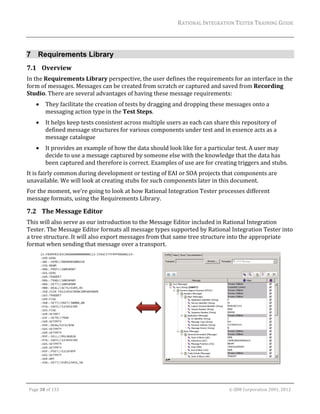
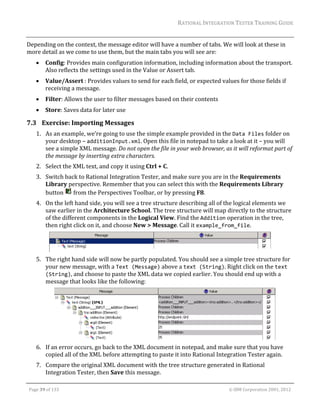
This	will	also	serve	as	our	introduction	to	the	Message	Editor	included	in	Rational	Integration	
Tester.	The	Message	Editor	formats	all	message	types	supported	by	Rational	Integration	Tester	into	
a	tree	structure.	It	will	also	export	messages	from	that	same	tree	structure	into	the	appropriate	
format	when	sending	that	message	over	a	transport.	


    Page	38	of	133																																																																																																																																																																				©	IBM	Corporation	2001,	2012
RATIONAL	INTEGRATION	TESTER	TRAINING	GUIDE	
                                                                                                                                                                                                                      	
Depending	on	the	context,	the	message	editor	will	have	a	number	of	tabs.	We	will	look	at	these	in	
more	detail	as	we	come	to	use	them,	but	the	main	tabs	you	will	see	are:	
               Config:	Provides	main	configuration	information,	including	information	about	the	transport.	
                Also	reflects	the	settings	used	in	the	Value	or	Assert	tab.	
               Value/Assert	:	Provides	values	to	send	for	each	field,	or	expected	values	for	those	fields	if	
                receiving	a	message.	
               Filter:	Allows	the	user	to	filter	messages	based	on	their	contents	
               Store:	Saves	data	for	later	use	

7.3 Exercise:	Importing	Messages	
         1. As	an	example,	we’re	going	to	use	the	simple	example	provided	in	the	Data Files	folder	on	
            your	desktop	–	additionInput.xml.	Open	this	file	in	notepad	to	take	a	look	at	it	–	you	will	
            see	a	simple	XML	message.	Do	not	open	the	file	in	your	web	browser,	as	it	will	reformat	part	of	
            the	message	by	inserting	extra	characters.	
         2. Select	the	XML	text,	and	copy	it	using	Ctrl	+	C.	
         3. Switch	back	to	Rational	Integration	Tester,	and	make	sure	you	are	in	the	Requirements	
            Library	perspective.	Remember	that	you	can	select	this	with	the	Requirements	Library	
            button	 	from	the	Perspectives	Toolbar,	or	by	pressing	F8.	
         4. On	the	left	hand	side,	you	will	see	a	tree	structure	describing	all	of	the	logical	elements	we	
            saw	earlier	in	the	Architecture	School.	The	tree	structure	will	map	directly	to	the	structure	
            of	the	different	components	in	the	Logical	View.	Find	the	Addition	operation	in	the	tree,	
            then	right	click	on	it,	and	choose	New	>	Message.	Call	it	example_from_file.	


         5. The	right	hand	side	will	now	be	partly	populated.	You	should	see	a	simple	tree	structure	for	
            your	new	message,	with	a	Text (Message)	above	a	text (String).	Right	click	on	the	text 
            (String),	and	choose	to	paste	the	XML	data	we	copied	earlier.	You	should	end	up	with	a	
            message	that	looks	like	the	following:	


         6. If	an	error	occurs,	go	back	to	the	XML	document	in	notepad,	and	make	sure	that	you	have	
            copied	all	of	the	XML	before	attempting	to	paste	it	into	Rational	Integration	Tester	again.	
         7. Compare	the	original	XML	document	with	the	tree	structure	generated	in	Rational	
            Integration	Tester,	then	Save	this	message.	
	

    Page	39	of	133																																																																																																																																																																				©	IBM	Corporation	2001,	2012
RATIONAL	INTEGRATION	TESTER	TRAINING	GUIDE	


7.4 Creating	Messages	from	a	Schema	
While	we	can	import	messages	by	copying	and	pasting,	there	will	also	be	times	when	we	want	to	
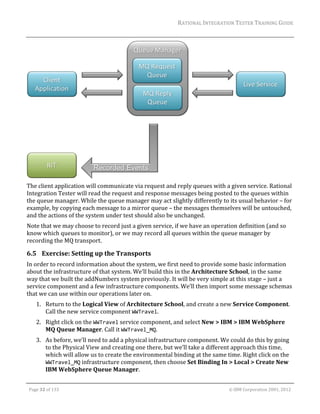
work	by	entering	values	into	the	structure	provided	by	the	message	schema.	
         1. Right	click	on	the	Addition	operation	in	the	tree	on	the	left	hand	side,	and	choose	New	>	
            Message	to	create	a	second	message.	Call	it	example_from_schema.	
         2. You	should	see	a	message	which	simply	has	a	top	level	message	node	containing	a	single	text	
            string,	as	we	had	in	the	previous	exercise.	Right	click	on	the	text (String)	node,	and	select	
            Schema…	
         3. The	Select	Schema	dialog	will	appear.	On	the	far	left,	select	WSDLs.	You	should	then	see	the	
            addNumbers	WSDL	appear	in	the	middle	of	the	dialog	–	click	on	it	to	select	it.	
         4. On	the	right	hand	side,	you	should	get	a	preview	of	the	message	types	available	in	the	
            schema.	This	may	be	partially	hidden	by	the	Binding	Properties.	To	control	what	is	
            currently	displayed/hidden,	you	can	use	the	arrow	buttons	( ).	Press	the	down	arrow	to	
            hide	the	Binding	Properties.	
         5. In	the	Operation	drop	down,	we	can	choose	which	message	type	we	would	like	to	use	–	for	
            this	example,	we’ll	be	generating	a	message	based	on	addition__INPUT__addition,	so	select	
            that.	


         6. Press	Next	–	you	will	now	see	a	set	of	options	that	will	sometimes	be	useful	when	applying	
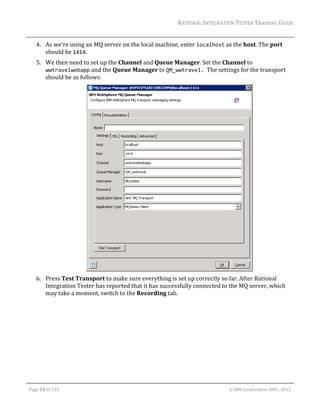
            schemas	to	a	message.	In	particular,	there	will	be	circumstances	where	the	option	to	Include	
            optional	fields	will	be	needed.	For	this	message	schema,	however,	there	are	no	optional	
            fields,	so	we	can	simply	press	Finish.	


    Page	40	of	133																																																																																																																																																																				©	IBM	Corporation	2001,	2012
RATIONAL	INTEGRATION	TESTER	TRAINING	GUIDE	


         7. You	should	now	see	the	message	formatted	using	the	input	message	schema	for	the	
            addNumbers	service.	We	can	edit	this	further,	as	required.	For	example,	you	may	want	to	
            delete	certain	nodes	from	a	particular	message	–	we’ll	delete	the	second	argument	for	the	
            addition.	To	do	this,	select	the	arg1 (Element)	node,	and	press	the	Delete	key.	Rational	
            Integration	Tester	will	ask	for	confirmation	–	answer	Yes	to	this.	


         8. The	message	structure	will	be	updated,	and	you	will	see	orange	and	red	x	symbols	to	inform	
            you	that	there	is	an	error	somewhere	in	the	message.	You	can	hover	your	mouse	over	these	
            symbols	to	get	more	information,	but	in	general,	an	orange	x	symbol	indicates	that	there	is	
            an	error	somewhere	further	down	that	branch	of	the	tree,	while	a	red	x	symbol	indicates	
            that	there	is	an	error	inside	that	specific	node.	Hover	over	the	red	x	–	you	should	see	that	the	
            schema	indicates	that	the	addition	element	should	have	an	arg1	element	inside	it.	
         9. 	To	add	the	element	back	to	the	schema,	right	click	on	the	tns:addition (Element)	node,	
            and	select	Add	Child	>	arg1	(Element).	The	message	will	be	updated,	and	as	the	message	
            now	conforms	to	the	schema,	the	error	markers	will	disappear.	
         10. As	we’ve	still	got	null	values	for	each	of	the	arguments,	edit	the	Text nodes	for	arg0	and	
             arg1,	and	enter	a	number	for	each	one.	
         11. Save	the	message.	


    Page	41	of	133																																																																																																																																																																				©	IBM	Corporation	2001,	2012
RATIONAL	INTEGRATION	TESTER	TRAINING	GUIDE	
                                                                                                                                                                                                                      	
We	have	now	seen	how	to	import	example	messages	by	copying	and	pasting	the	data	into	Rational	
Integration	Tester.	We	have	also	created	an	example	message	by	applying	a	message	schema	and	
entering	the	data	manually.	
As	we	will	see	in	the	next	section,	is	it	also	possible	to	record	messages	from	the	live	system,	and	
save	them	as	requirements	for	later	use.	


    Page	42	of	133																																																																																																																																																																				©	IBM	Corporation	2001,	2012
RATIONAL	INTEGRATION	TESTER	TRAINING	GUIDE	


8 Recording Events
8.1 The	Recording	Studio	
Rational	Integration	Tester	and	the	agents	provide	us	with	the	capability	to	record	events	
(messages	or	database	interactions)	from	the	system	under	test.	The	Recording	Studio	allows	us	to	
control	what	parts	of	the	system	we	wish	to	record,	whether	it	might	be	specific	parts	of	the	system	
infrastructure,	or	specific	services	using	that	infrastructure.	We	do	this	by	setting	up	Event	Monitors	
that	specify	what	we	wish	to	record.	
Once	we	have	decided	what	to	record,	we	can	then	begin	recording.	As	events	are	recorded,	they	
are	displayed	within	the	Events	View.	If	desired,	Event	Monitors	can	be	added	or	removed	as	we	
record.	We	can	also	filter	what	events	are	shown	in	the	Events	View	by	selecting	different	monitors	
within	the	Event	Monitors	panel.	As	events	of	interest	are	recorded,	we	can	view	more	details	for	
these	events	by	selecting	them	within	the	Events	View	–	further	details	will	then	appear	in	the	
Event	Details	panel	below.	


It	is	important	to	note	that	recording	these	events	does	not	interfere	with	the	operation	of	the	
system	under	test.	Events	will	still	be	dealt	with	in	the	same	way	that	they	usually	would	be	–	the	
only	difference	is	that	those	events	will	be	accessible	through	Rational	Integration	Tester.		


    Page	43	of	133																																																																																																																																																																				©	IBM	Corporation	2001,	2012
RATIONAL	INTEGRATION	TESTER	TRAINING	GUIDE	
                                                                                                                                                                                                                      	
Following	recording,	events	may	be	re‐used	in	a	variety	of	ways.	The	simplest	thing	we	can	do	is	
export	the	recorded	events	to	disk,	so	that	they	may	be	imported	back	into	the	Recording	Studio	at	
another	point	in	time.	Otherwise,	events	can	be	used	to	build:	
               Operations	
               Triggers	
               Requirements	
               Data	Sets	
               Tests	
               Stubs	
If	we	do	not	have	a	complete	model	of	the	system	under	test,	then	events	recorded	from	the	
transports	within	the	system	may	be	used	as	a	basis	for	building	new	operations	within	our	system	
model.		
Events	may	be	re‐used	in	the	form	of	Triggers;	a	trigger	allows	us	to	stimulate	the	system	under	
test	directly	from	Rational	Integration	Tester.	We	can	then	record	what	happens	in	response	–	note	
that	this	will	not	necessarily	be	the	same	as	what	happened	when	we	originally	created	the	trigger,	
and	we	will	not	be	performing	any	validation	on	any	events	recorded	in	response	to	the	trigger.	
This	means	that	we	can	send	events	to	the	system	without	going	through	the	GUI	layer	(or	any	
other	layer	of	the	system	that	we	might	prefer	to	bypass),	allowing	us	to	understand	how	the	
system	reacts	to	various	inputs.	
In	other	cases,	we	may	wish	to	save	a	message	for	later	on,	without	specifying	how	it	will	be	used.	It	
may	be	saved	in	the	form	of	a	Requirement,	giving	us	an	example	message	that	we	can	view	in	the	
Requirements	Library.	Those	requirements	may	later	be	imported	into	other	resources.	
We	can	also	use	recorded	groups	of	events	to	create	tests	or	stubs.	The	data	within	the	events	may	
be	hard‐coded	into	the	test	or	stub;	it	may	also	be	entered	into	a	data	set	such	as	a	CSV	file,	or	a	
data	model,	which	maps	the	relationships	between	the	data	in	the	system.		

8.2 Exercise:	Recording	Events	from	a	Transport	
We	will	now	capture	events	for	the	MQ	Queue	Manager	transport.	
         1. Before	we	get	started,	we	will	need	to	initialize	a	few	components	of	the	system,	such	as	the	
            GUI	layer,	to	make	sure	that	they	are	running.	To	do	this,	use	the	Start WWTravel.bat	
            shortcut	on	your	desktop.		
         2. Once	this	has	completed	(it	will	only	take	a	few	seconds),	return	to	Rational	Integration	
            Tester,	and	go	to	the	Logical	View	of	Architecture	School.	
         3. Make	sure	you	are	in	the	Local	environment	(as	shown	in	the	Rational	Integration	Tester	
            title	bar).	
         4. Select	the	WWTravel_MQ	infrastructure	component.	


    Page	44	of	133																																																																																																																																																																				©	IBM	Corporation	2001,	2012
RATIONAL	INTEGRATION	TESTER	TRAINING	GUIDE	
                                                                                                                                                                                                                      	
         5. Right	click	on	the	WWTravel_MQ	component,	and	select	Record.	The	perspective	will	change	
            to	the	Recording	Studio,	and	the	WWTravel_MQ	transport	should	be	listed	in	the	Event	
            Monitors.	
         6. Click	the	Start	Recording	button	in	the	Events	View	toolbar	 	to	start	recording	events.	
         7. In	a	browser	window,	open	the	Worldwide	Travel	booking	site.	For	a	cloud	image,	this	will	
            be	listed	in	the	favorites	menu	of	your	web	browser;	otherwise,	ask	your	trainer.	


         8. Click	on	the	“Stansted	to	Barcelona”	Book	Now	button.		Here,	you	will	have	the	opportunity	
            to	book	a	flight	and	a	hotel.	For	the	moment,	we’ll	only	worry	about	flights,	so	skip	the	hotel	
            data	at	the	top	of	the	form,	and	just	enter	passenger	and	payment	details	for	a	flight.	Make	
            sure	that	you	select	Multinational	as	the	credit	card	–	the	other	details	do	not	matter,	as	
            long	as	they	are	filled	in.	
         9. Click	Proceed	when	finished	and	you	should	see	a	confirmation	page	with	a	reservation	
            number.	


    Page	45	of	133																																																																																																																																																																				©	IBM	Corporation	2001,	2012
RATIONAL	INTEGRATION	TESTER	TRAINING	GUIDE	


         10. Return	to	Rational	Integration	Tester	and	you	should	see	that	4	events	have	been	recorded	
             in	the	Events	View.	
         11. Click	on	the	first	message	in	the	Events	View.	You	should	then	see	the	message	details	
             appear	in	the	panel	below,	showing	the	message	that	was	initially	sent	by	Tomcat.	
         12. We	still	need	information	on	how	the	system	deals	with	requests	for	other	credit	card	types,	
             as	these	will	be	posted	to	different	queues,	so	return	to	your	web	browser,	and	make	
             bookings	for	Global	and	Worldwide	credit	cards.	These	should	also	be	recorded	in	Rational	
             Integration	Tester,	giving	you	a	total	of	12	recorded	events.	

8.3 Exercise:	Building	Operations	from	Recorded	Events	
Now	that	we	have	recorded	some	events,	we	can	use	these	for	a	number	of	different	purposes.	The	
first	thing	we’ll	do	is	to	complete	the	model	of	the	system.	
         1. Take	a	look	at	your	set	of	recorded	messages,	in	particular	the	description	fields.	There	
            should	be	12	messages,	and	the	descriptions	will	list	the	queues	that	were	used	while	
            recording.	This	should	include	wwtravel.booking,	wwtravel.payment.multinational,	
            wwtravel.payment.global,	wwtravel.payment.worldwide,	along	with	their	respective	reply	
            queues.	If	you	are	missing	any	of	the	different	credit	card	queues,	go	back	and	record	a	
            booking	using	that	particular	type	of	card.		
         2. Pause	the	recording	by	pressing	the	Pause	 		button.	
         3. Select	all	12	messages,	before	pressing	the	Save	 		button.	


    Page	46	of	133																																																																																																																																																																				©	IBM	Corporation	2001,	2012
RATIONAL	INTEGRATION	TESTER	TRAINING	GUIDE	


         4. The	Recorded	Events	wizard	will	appear,	allowing	us	to	choose	what	we	will	do	with	the	
            selected	events.	To	build	a	model	of	the	system	under	test,	we	need	to	create	some	
            operations,	so	select	that	option,	and	then	press	Next.	


         5. Rational	Integration	Tester	will	now	display	the	12	recorded	messages,	attempting	to	
            separate	them	into	distinct	operations.	It	should	look	something	like	the	following:	


    Page	47	of	133																																																																																																																																																																				©	IBM	Corporation	2001,	2012
RATIONAL	INTEGRATION	TESTER	TRAINING	GUIDE	


         6. As	the	operation	names	are	generated	from	the	queue	names	used,	we	might	like	to	change	
            them	to	something	more	useful.	Select	the	first	message	belonging	to	the	operation	that	is	
            currently	named	wwtravel.booking – wwtravel.booking.reply.		
         7. You	will	now	be	able	to	enter	a	new	name	below,	so	enter	MakeBooking,	and	press	Rename.	
            You	will	be	asked	if	you	want	to	apply	this	change	to	all	other	messages	that	were	associated	
            with	the	same	operation	–	answer	Yes.	You	should	then	see	the	Operation	column	update	
            accordingly.	


    Page	48	of	133																																																																																																																																																																				©	IBM	Corporation	2001,	2012
RATIONAL	INTEGRATION	TESTER	TRAINING	GUIDE	
                                                                                                                                                                                                                      	
         8. Next,	we	will	add	the	message	schemas	for	MakeBooking.	To	do	this,	select	one	of	the	request	
            messages	for	MakeBooking	on	the	left	hand	side	of	the	dialog	(it	will	contain	all	of	the	data	
            you	entered	into	the	web	form	earlier).	On	the	right	hand	side,	select	the	second	line	of	the	
            message,	beginning	text (String).	


         9. The	Add	Schema	button	should	now	be	active.	Press	it,	and	the	Select	Schema	dialog	will	
            appear.	On	the	left	hand	side,	select	XSDs,	then	the	BookFlightRequest	XSD.	Press	Finish	to	
            apply	the	schema	to	this	message.	You	should	then	see	the	namespace	update	within	all	
            fields	of	the	message:	


    Page	49	of	133																																																																																																																																																																				©	IBM	Corporation	2001,	2012
RATIONAL	INTEGRATION	TESTER	TRAINING	GUIDE	
                                                                                                                                                                                                                      	
         10. Now	select	a	response	message	for	MakeBooking,	and	follow	the	same	procedure,	using	the	
             BookFlightResponse	XSD.	
         11. We’ll	need	to	go	through	the	same	process	for	the	other	operations	in	our	system.	Select	the	
             two	messages	that	are	associated	with	the	wwtravel.payment.multinational	queue,	give	
             them	an	operation	name	of	ProcessMultinational,	and	press	Rename.	
         12. We	also	need	to	set	up	message	schemas	for	ProcessMultinational,	but	this	will	be	a	little	
             bit	simpler	than	for	MakeBooking.	If	you	take	a	look	at	the	response	message,	you’ll	see	that	
             it	only	includes	a	single	text	field,	so	we	won’t	need	to	apply	a	schema	there.	Select	the	
             request	message	for	the	ProcessMultinational	operation,	and	apply	the	Payment	XSD	as	
             the	schema.	
         13. You	can	set	up	the	last	two	operations	for	Global	and	Worldwide	cards	in	exactly	the	same	
             way	–	call	them	ProcessGlobal	and	ProcessWorldwide;	you	can	use	the	same	message	
             schemas	as	for	ProcessMultinational.	Once	you’re	done,	the	dialog	should	look	like	the	
             following:	


         14. Press	Next.	You	will	then	be	able	to	select	where	in	the	model	of	the	system	these	operations	
             should	be	created.	By	default,	WWTravel	should	be	listed	as	the	parent	service	component	for	
             all	of	the	operations	we’re	creating,	as	it	is	the	parent	service	component	for	the	
             infrastructure	we	recorded	earlier.	As	this	is	suitable,	press	Next.	


    Page	50	of	133																																																																																																																																																																				©	IBM	Corporation	2001,	2012
RATIONAL	INTEGRATION	TESTER	TRAINING	GUIDE	


         15. You’ll	now	see	a	summary,	letting	you	know	that	Rational	Integration	Tester	will	be	creating	
             4	operations	for	you.	Make	sure	that	Open	resource	after	finish	is	unchecked,	then	press	
             Finish	to	create	all	4	operations.	You	can	now	switch	back	to	the	Architecture	School	to	see	
             what	has	been	created.	


         16. In	the	Logical	View,	you	can	now	double	click	on	each	operation	to	view	its	properties.	Do	
             this	for	one	of	the	operations	you	created,	and	view	the	Message	Exchange	Pattern	tab.	
             This	should	show	you	the	message	schemas	you	set	earlier	for	request	and	reply	messages;	


    Page	51	of	133																																																																																																																																																																				©	IBM	Corporation	2001,	2012
RATIONAL	INTEGRATION	TESTER	TRAINING	GUIDE	
                                                                                                                                                                                                                      	
                 it	should	also	show	you	the	transport	information	used	by	that	operation,	including	the	
                 names	of	the	queues	that	it	uses.	

8.4 Exercise:	Completing	the	System	Model	
         1. Within	the	Logical	View	of	Architecture	School,	we	now	need	to	add	some	extra	
            dependency	information	to	give	ourselves	a	complete	system	model.	Firstly,	the	
            MakeBooking	operation	should	have	a	dependency	on	each	of	the	credit	card	processing	
            operations.	For	example,	to	add	a	dependency	from	MakeBooking	to	ProcessMultinational,	
            select	the	Add	Dependency	 	button	from	the	toolbar,	click	on	the	MakeBooking	operation,	
            and	then	on	the	ProcessMultinational	operation.	
         2. Follow	the	same	process	to	create	dependencies	from	MakeBooking	to	ProcessWorldwide	
            and	ProcessGlobal.	
         3. Next,	each	of	the	credit	card	processing	operations	have	dependencies	on	the	WWTravel	
            database.	Add	a	dependency	from	ProcessMultinational	to	the	WWTravel_DB	component	in	
            the	same	way,	and	then	do	the	same	for	ProcessGlobal	and	ProcessWorldwide.	
         4. Last,	all	of	the	operations	are	running	on	our	WebSphere	Application	Server,	so	add	a	
            dependency	from	each	operation	to	the	WWTravel_WAS	component.	
         5. Note	that	dependencies	only	appear	for	items	you	have	selected.	However,	you	might	notice	
            that	if	you	select	MakeBooking,	for	example,	a	lot	of	dependencies	will	be	displayed,	making	
            the	diagram	difficult	to	read.	This	is	because	default	settings	will	display	the	dependencies	
            all	the	way	through	–	if	you	just	want	to	see	a	single	level	of	dependencies,	you	can	go	to	
            Project	>	Preferences,	and	in	the	General	panel,	set	Max	dependencies	shown	to	1,	then	
            press	OK.	The	diagram	should	then	become	easier	to	read.	


    Page	52	of	133																																																																																																																																																																				©	IBM	Corporation	2001,	2012
RATIONAL	INTEGRATION	TESTER	TRAINING	GUIDE	
                                                                                                                                                                                                                      	
8.5 Exercise:	Recording	Events	from	an	Operation		
Now	that	we	have	a	model	of	the	system,	we	can	choose	to	record	events	for	particular	operations,	
rather	than	recording	everything	in	the	system.	As	we	now	have	multiple	sources	of	events,	we	can	
also	choose	to	filter	events	by	source.	
We	will	capture	booking	events	again,	but	this	time	we	will	be	recording	events	based	on	
operations	rather	than	transports.	We	will	see	how	we	can	filter	these	events.	Later,	we	will	see	
how	we	can	re‐use	these	events	to	build	other	resources	within	Rational	Integration	Tester.	
         1. Return	to	the	Recording	Studio	perspective,	and	find	the	Event	Monitors	panel.	This	
            should	currently	show	that	we	are	monitoring	the	WWTravel_MQ	transport.	We’ll	stop	
            monitoring	this	for	the	moment,	so	select	it,	and	press	the	Delete	Event	Monitor	 	button	
            to	remove	the	event	monitor.	
         2. We’ll	also	clear	the	events	we	recorded	in	the	previous	exercise.	To	do	this,	press	the	Clear	
            All	Events	 	button	in	the	Events	View	toolbar.	
         3. Press	the	Add	Event	Monitor	 	button;	this	will	allow	us	to	select	an	operation	to	record.	
            Choose	the	MakeBooking	operation	we	created	in	the	previous	exercise.	


         4. You	will	now	be	given	the	option	to	choose	to	record	any	of	the	dependencies	of	the	
            MakeBooking	operation	at	the	same	time.	You	should	see	that	the	WWTravel_MQ	transport	is	
            available,	as	are	the	other	three	operations.	This	is	because	the	default	behaviour	is	to	show	
            only	items	that	MakeBooking	has	a	direct	dependency	on	(the	WWTravel_WAS	component	is	
            not	shown,	as	Rational	Integration	Tester	cannot	record	directly	from	the	WebSphere	
            Application	Server).	Switch	the	radio	button	at	the	top	of	the	dialog	from	Direct	Only	to	
            Indirect	Only,	and	you	should	see	the	WWTravel_DB	component	become	available,	while	the	
            other	dependencies	are	hidden;	MakeBooking	only	has	a	dependency	on	WWTravel_DB	
            through	the	other	operations	in	the	project,	rather	than	having	a	direct	connection	to	it.	
            Finally,	switch	to	Both,	and	you	should	see	all	recordable	components	that	MakeBooking	has	
            a	dependency	upon.	
         5. Select	the	ProcessMultinational,	ProcessGlobal,	and	ProcessWorldwide	operations.	Note	
            that	if	there	were	other	operations	had	dependencies	on	the	MakeBooking	operation,	we	


    Page	53	of	133																																																																																																																																																																				©	IBM	Corporation	2001,	2012
RATIONAL	INTEGRATION	TESTER	TRAINING	GUIDE	
                                                                                                                                                                                                                      	
                 could	select	those	on	the	Parent	References	tab;	as	nothing	depends	on	MakeBooking	in	our	
                 system,	this	will	not	be	necessary.	Press	OK	to	continue.	


         6. All	4	operations	created	in	the	previous	exercise	should	now	be	listed	in	the	Event	Monitors	
            panel.	If	any	of	them	are	not	listed,	return	to	step	2,	and	add	any	missing	operations.	


         7. Press	the	Start	Recording	 	button.	
         8. Switch	to	your	web	browser	and	submit	another	booking	request,	using	a	Multinational	
            credit	card.	
         9. Return	to	Rational	Integration	Tester,	where	you	should	see	4	events	recorded	in	the	Events	
            View	–	2	each	for	MakeBooking	and	ProcessMultinational.	
         10. You	can	filter	recorded	events	to	show	only	those	events	that	were	recorded	for	a	given	
             event	monitor	by	selecting	the	event	monitor	in	the	Event	Monitors	panel.	For	example,	
             click	on	the	MakeBooking	event	monitor.	You	should	now	see	just	the	MakeBooking	events,	
             with	the	events	recorded	for	ProcessMultinational	filtered	out.		
         11. Click	in	the	empty	space	below	the	list	of	event	monitors	to	clear	the	filter	–	you	should	see	
             all	4	events	again.		
         12. Record	2	new	bookings,	again	using	the	Global	and	Worldwide	options.	You	should	now	
             have	12	messages	in	total.	


    Page	54	of	133																																																																																																																																																																				©	IBM	Corporation	2001,	2012
RATIONAL	INTEGRATION	TESTER	TRAINING	GUIDE	


         13. Again,	you’ll	be	able	to	filter	by	source.	Note	that	you	can	select	multiple	event	monitors	at	
             the	same	time	when	filtering,	to	show	messages	from	multiple	operations.		
         14. We	will	save	two	of	these	example	messages	as	requirements.	With	the	first	message	for	
             MakeBooking	selected,	click	on	the	click	on	the	Save	icon	 		on	the	Events	View	toolbar	to	
             open	the	Recorded	Events	Wizard.			
         15. Select	the	requirements	option	on	the	first	screen,	and	press	Next.	
         16. On	the	second	screen,	you	will	be	asked	how	the	data	within	the	message	should	be	stored.	
             You	choose	either	hardcoded	values,	or	to	use	a	data	source.	We’ll	look	at	using	data	sources	
             later	in	the	course,	so	for	now,	choose	to	Store	data	as	hard	coded	values,	and	press	Next.	
         17. Following	this,	Rational	Integration	Tester	will	confirm	that	the	requirement	is	associated	
             with	the	correct	operation.	As	we	have	recorded	from	an	operation,	this	should	state	
             MakeBooking	as	the	operation.	This	is	correct,	so	press	Next	again.	
         18. On	the	Summary	screen	that	appears,	you	will	be	asked	to	give	the	requirement	a	name.	Call	
             it	exampleRequest.	Uncheck	the	box	labeled	Open	Resource	After	Finish,	and	press	Finish	
             to	create	the	new	requirement.	
         19. Do	the	same	for	the	corresponding	reply	message,	calling	it	exampleReply.	
         20. You	can	now	switch	to	the	Requirements	Library	to	view	the	saved	messages.	
So	far,	we	have	just	stored	a	single	message	for	later	re‐use.	Later	exercises	will	look	at	other	ways	
we	can	re‐use	the	messages	that	we	have	saved.	


    Page	55	of	133																																																																																																																																																																				©	IBM	Corporation	2001,	2012
RATIONAL	INTEGRATION	TESTER	TRAINING	GUIDE	
                                                                                                                                                                                                                      	
8.6 Exercise:	Creating	and	Running	Triggers	
A	trigger	is	used	to	send	an	event	to	the	system	under	test.	Triggers	can	be	created	manually,	or	
from	a	previously	recorded	event.	In	our	example,	we	will	use	an	existing	event.	
         1. In	the	Recording	Studio	perspective,	select	the	Triggers	tab,	below	the	Event	Monitors	
            panel:	

                                                                     	
         2. In	the	Events	View	panel	select	the	first	recorded	event	(the	request)	and	then	click	the	
            Save	triggers	from	selected	events	 	toolbar	button.	
         3. Give	the	new	trigger	the	name	TriggerMakeBooking	–	it	will	be	created	under	the	
            Components	tree	in	the	Triggers	view.	
         4. If	necessary,	expand	the	tree	to	show	the	new	trigger	(expand	each	node,	or	click	 	to	
            expand	all	nodes).	


         5. Double‐click	the	TriggerMakeBooking	trigger	to	edit	it.	
         6. The	Edit	Trigger	dialog	is	displayed.	Select	the	Value	tab	and	update	one	of	the	fields	(e.g.	
            change	the	passengerFirstName	field)	in	the	body.	


    Page	56	of	133																																																																																																																																																																				©	IBM	Corporation	2001,	2012
RATIONAL	INTEGRATION	TESTER	TRAINING	GUIDE	


         7. Click	OK	to	save	the	change	and	close	the	dialog.	
         8. Click	Record	in	the	Monitor	View	if	it	has	been	stopped.	
         9. Run	the	trigger	by	right	clicking	it	in	the	Triggers	view,	and	selecting	Run	Trigger	from	the	
            context	menu.	
         10. A	new	series	of	events	will	be	recorded	in	the	Monitor	View.	
         11. To	verify	that	the	request	contains	the	updated	field,	select	the	event	and	view	the	updated	
             field	in	the	message	view	below.	
         12. Stop	the	recording	using	the	 	button.	Do	not	clear	the	recorded	messages	as	they	will	be	
             used	in	the	following	exercises.	


    Page	57	of	133																																																																																																																																																																				©	IBM	Corporation	2001,	2012
RATIONAL	INTEGRATION	TESTER	TRAINING	GUIDE	


9 Creating and Editing Tests
Now	that	we	have	a	model	of	the	system	under	test,	we	can	look	at	creating	tests	for	that	system.		
We	will	also	look	at	the	basics	of	editing	these	tests.	
There	are	4	main	ways	to	create	tests	in	Rational	Integration	Tester:	
               Creating	a	new	blank	test	
               Creating	a	test	from	recorded	events	
               Creating	a	test,	or	a	group	of	tests,	using	the	MEP	wizards	
               Creating	a	test	from	a	template	
Creating	a	test	from	recorded	events	can	be	done	from	the	Recording	Studio	perspective;	all	other	
options	are	handled	in	the	Test	Factory.	
We’ll	create	our	first	test	from	recorded	events.	We’ll	then	take	a	closer	look	at	how	that	test	is	put	
together,	and	how	we	can	edit	it.	Finally,	we’ll	look	at	other	methods	of	creating	tests	–	using	the	
MEP,	and	using	templates.	

9.1 Test	Structure	
The	main	structure	of	a	test	is	put	together	using	a	set	of	test	actions	–	there	is	no	scripting	
required	in	Rational	Integration	Tester.	Instead,	Rational	Integration	Tester	will	determine	what	it	
is	required	to	do	by	analyzing	the	sequence	of	these	pre‐configured	actions.	
At	a	top	level	view,	the	actions	within	a	test	will	
be	split	into	three	phases:	Initialise,	Test	Steps,	
and	Tear‐down.	These	sections	are	treated	
differently	depending	on	the	type	of	test	being	
run.	For	normal	functional	tests,	as	in	this	
training	course,	these	three	sections	will	
generally	be	executed	in	sequence.	However,	for	
performance	tests	and	stubs,	where	the	test	
actions	will	be	repeated	multiple	times,	only	the	
Test	Steps	section	will	be	repeated	–	Initialise	and	
Tear‐down	steps	will	be	run	once	only.	Similarly,	
certain	test	actions	(such	as	the	Pass	and	Fail	
actions)	will	skip	any	further	test	actions	within	
the	Test	Steps,	and	go	straight	to	any	actions	
within	the	Tear‐down	phase.		For	this	reason,	it	is	
suggested	that	the	Initialise	and	Tear‐down	
phases	are	used	for	setup/clean‐up,	such	as	
clearing	database	tables	or	moving	files.	
The	test	actions	themselves	are	generally	executed	in	sequence,	though	logic	may	be	added	to	the	
test	to	allow	for	branching	and	looping.	


    Page	58	of	133																																																																																																																																																																				©	IBM	Corporation	2001,	2012
RATIONAL	INTEGRATION	TESTER	TRAINING	GUIDE	
                                                                                                                                                                                                                      	
9.2 Business	View	and	Technical	View	
Rational	Integration	Tester	provides	two	different	views	of	Test	Actions.	The	first	of	these	is	the	
Technical	View,	which	is	the	default	view	generated	by	Rational	Integration	Tester.	This	displays	
each	action	using	information	taken	from	its	configuration:	


The	Business	View	provides	a	user‐editable	view.	By	default,	it	is	exactly	the	same	as	the	Technical	
View,	but	it	may	be	edited	by	the	user	to	add	a	description	of	the	action.	In	the	example	below,	the	
two	messaging	actions	have	been	edited	to	add	a	description;	the	rest	of	the	test	has	been	left	alone:	


Switching	between	Technical	View	and	Business	View	can	be	done	by	using	the	Technical	View	
and	Business	View	 	buttons	on	the	main	toolbar	at	the	top	of	the	Rational	Integration	Tester	
window.	
Once	you	are	looking	at	the	Business	View,	action	descriptions	can	be	edited	in	a	couple	of	ways:	
               Click	once	on	the	action	to	select	it,	then	once	again	to	edit	the	description.	
               Select	the	action,	then	press	F2.	
               Right	click	on	the	action,	and	choose	Rename.	

9.3 Exercise:	Creating	Tests	from	Recorded	Events	
         1. In	the	Events	View	in	the	Recording	Studio	perspective,	select	a	pair	of	events	that	have	
            been	recorded	–	a	request	and	a	response.	To	select	both	events,	you	can	click	and	drag	
            while	holding	the	left	mouse	button,	or	select	a	range	of	events	using	the	mouse	and	the	
            Shift	key.	
         2. Click	on	the		Save	button	 	in	the	Events	View	tool	bar	to	bring	up	the	Recorded	Events	
            wizard.	
         3. On	the	first	page	of	the	wizard,	choose	to	create	an	integration	test,	and	then	press	Next.	


    Page	59	of	133																																																																																																																																																																				©	IBM	Corporation	2001,	2012
RATIONAL	INTEGRATION	TESTER	TRAINING	GUIDE	


         4. The	next	screen	provides	a	choice	of	how	to	store	the	data	used	in	the	test.	For	this	example,	
            take	the	option	of	hard	coded	values,	and	press	Next.	


         5. The	wizard	will	then	allow	you	to	verify	that	the	correct	operation	has	been	used	–	in	our	
            case,	we	should	just	see	messages	from	MakeBooking.	If	this	is	not	the	case,	you’ll	need	to	
            restart	the	wizard,	making	sure	that	you	have	only	selected	a	request/reply	pair	for	
            MakeBooking.	Otherwise,	press	Next	again.	


    Page	60	of	133																																																																																																																																																																				©	IBM	Corporation	2001,	2012
RATIONAL	INTEGRATION	TESTER	TRAINING	GUIDE	


         6. The	following	page	checks	that	all	requests	and	replies	are	matched	up	correctly	–	in	this	
            case,	there	is	only	a	single	request	and	reply,	and	these	are	already	matched	up	for	you.		
            Press	Next	to	continue	through	the	wizard.	


         7. On	the	Summary	page,	you	can	give	the	test	a	name	–	call	it	Regression1.	For	simplicity,	
            make	sure	that	the	Open	resource	after	finish	option	is	enabled	to	open	the	test	in	the	Test	
            Factory	after	saving.	


    Page	61	of	133																																																																																																																																																																				©	IBM	Corporation	2001,	2012
RATIONAL	INTEGRATION	TESTER	TRAINING	GUIDE	


         8. You	are	now	in	the	Test	Factory	perspective.	You	should	see	a	new	test	created	in	a	folder	
            called	Tests,	contained	in	the	MakeBooking	operation.	The	panel	to	the	right	displays	the	
            new	test	and	the	steps	it	contains.	


         9. Double‐click	on	the	Send	Request	step.	You	will	see	the	message	schema	populated	with	the	
            details	you	entered	in	the	booking	form.	Note	also	that	the	Transport,	Formatter	and	
            Service	settings	have	been	populated	for	you.	


    Page	62	of	133																																																																																																																																																																				©	IBM	Corporation	2001,	2012
RATIONAL	INTEGRATION	TESTER	TRAINING	GUIDE	


         10. Close	the	Send	Request	step,	and	double‐click	on	the	Receive	Reply	step.	Again,	note	that	
             the	message	has	been	pre‐populated.	


    Page	63	of	133																																																																																																																																																																				©	IBM	Corporation	2001,	2012
RATIONAL	INTEGRATION	TESTER	TRAINING	GUIDE	


Note:	When	creating	a	test	from	recorded	messages,	Rational	Integration	Tester	will	use	the	
messages	in	the	same	order	that	they	are	listed	in	the	Events	View.	This	means	that	you’ll	need	to	
select	the	request,	then	the	response	–	using	recorded	events	listed	in	the	wrong	order	will	create	a	
test	with	the	messages	in	the	wrong	order.	

9.4 The	MEP	Wizard	
The	MEP	wizards	provide	us	with	another	way	of	creating	tests.	Rational	Integration	Tester	will	
take	the	information	that	you	have	supplied	as	part	of	the	operation	under	test	in	the	Logical	View,	
and	use	that	to	generate	a	basic	test	or	set	of	tests.	You’ll	recall	that	we	looked	at	the	MEP	(or	
Message	Exchange	Pattern)	earlier	–	it	contained	information	about	the	message	schemas	used	by	
the	operation,	along	with	transport	details	for	that	operation.		
The	Test	using	MEP	and	Tests	using	MEP	wizards	will	read	that	information	from	the	MEP,	and	
use	it	to	generate	input	and	output	messages	for	the	operation.	For	an	operation	with	a	
Request/Reply	MEP,	this	will	create	a	test	with	a	Send	Request	and	a	Receive	Reply	action;	both	
	

    Page	64	of	133																																																																																																																																																																				©	IBM	Corporation	2001,	2012
RATIONAL	INTEGRATION	TESTER	TRAINING	GUIDE	
                                                                                                                                                                                                                      	
test	actions	will	take	their	schema	and	transport	information	from	the	MEP.	The	main	difference	
between	the	two	is	that	creating	a	single	test	using	the	MEP	will	create	a	Send	Request	step	where	
the	fields	within	the	message	are	all	blank;	creating	multiple	tests	will	fill	in	the	input	messages	
with	random	or	constant	data,	as	selected	within	the	wizard.	In	both	cases,	the	Receive	Reply	action	
will	contain	a	message	using	the	appropriate	schema,	but	all	fields	will	be	blank,	as	Rational	
Integration	Tester	does	not	know	how	the	system	is	meant	to	respond	to	the	first	message.	You	can	
either	edit	this	test	action,	or	leave	it	till	later	to	repair	in	the	Test	Lab	–	we’ll	make	use	of	this	
second	option	later.	

9.5 Exercise:	Creating	Tests	with	the	MEP	Wizard	
We’ll	now	create	a	group	of	tests	using	the	Tests	using	MEP	wizard.	
         1. In	the	Test	Factory	perspective,	right‐click	on	the	Tests	virtual	folder	under	the	
            MakeBooking	operation	and	select	New	>	Tests	using	MEP.	A	wizard	is	launched	that	will	
            help	you	create	multiple	tests	to	validate	all	possibilities	from	the	operation’s	message	
            exchange	pattern	(MEP).	
         2. The	first	page	of	the	wizard	lets	you	control	the	structure	of	the	request	messages	that	will	
            be	generated	for	each	test.	You	can	alter	that	structure	by	selecting	how	many	occurrences	
            of	each	element	should	be	included.	As	the	message	schema	we	are	using	does	not	allow	for	
            any	optional	or	repeating	elements,	every	element	should	occur	exactly	once.	This	means	
            that	we	can	leave	all	settings	at	their	defaults	for	this	example.	


    Page	65	of	133																																																																																																																																																																				©	IBM	Corporation	2001,	2012
RATIONAL	INTEGRATION	TESTER	TRAINING	GUIDE	
                                                                                                                                                                                                                      	
         3. Click	Next,	which	brings	you	to	the	wizard’s	second	page.	Here,	you	can	control	the	contents	
            of	the	message	by	selecting	different	content	types	for	each	element	and	values	for	those	
            elements	that	do	not	have	random	content	generated	for	them.		
         4. Notice	that	Iterate Enum	is	selected	for	the	Payment:cardType	element.	This	will	prompt	
            the	wizard	to	generate	a	unique	test	for	each	type	of	credit	card	that	the	operation	can	
            process	(three	in	this	case),	which	can	be	verified	in	the	next	page	of	the	wizard.	


         5. Instead	of	allowing	completely	random	strings	for	all	fields,	we’re	going	to	edit	some	of	
            them.	Set	the	flightNumber	field	to	a	constant,	with	a	value	of	WW100.	
         6. For	the	price	and	weekNumber	fields,	we’ll	allow	random	values,	but	we’ll	set	some	
            constraints.	In	both	cases,	we’d	like	to	have	a	2	digit	number.	Set	the	Type	for	the	field	to	
            Random	Regex,	and	the	Value	to	dd		
         7. In	the	final	screen	of	the	wizard,	go	to	the	With	Tests	section,	and	select	Do	Nothing.	Click	
            Finish	to	close	the	wizard	and	generate	the	tests.	


    Page	66	of	133																																																																																																																																																																				©	IBM	Corporation	2001,	2012
RATIONAL	INTEGRATION	TESTER	TRAINING	GUIDE	


         8. Let’s	take	a	look	at	what	this	wizard	did.	In	the	Test	Factory	perspective,	look	at	the	Tests	
            virtual	folder	under	the	MakeBooking	operation.	The	wizard	created	three	new	tests.		
         9. Double‐click	to	open	one	of	these:		paymentcardType = multinational		
         10. Double‐click	to	look	inside	the	Send	Request	action.	
         11. Here	you	see	the	request	message	which	will	be	sent	for	this	test	of	the	MakeBooking	
             operation.	The	wizard	has	created	the	message	with	the	expected	structure	and	populated	
             most	fields	automatically	with	randomised	values.	The	flightNumber	field	should	be	set	to	
             WW100,	while	the	weekNumber	and	price	fields	should	be	set	to	random	2	digit	numbers.	
             Similarly,	the	cardType	field	should	be	populated	with	one	of	the	three	possible	card	types	
             (a	different	one	in	each	of	the	three	generated	tests)	


    Page	67	of	133																																																																																																																																																																				©	IBM	Corporation	2001,	2012
RATIONAL	INTEGRATION	TESTER	TRAINING	GUIDE	


         12. Close	this	window	without	making	changes.	
         13. Open	the	Receive	Reply	action.	At	this	stage	Rational	Integration	Tester	doesn’t	know	much	
             about	the	expected	response	from	this	request.	This	message	structure	has	not	been	
             populated	yet.		


         14. Close	this	window.	

9.6 Copying	and	Linking	Requirements	
So	far,	we’ve	seen	how	we	can	create	message	data	within	a	test	by	hand,	or	from	random	data.	In	
addition	to	this,	we	can	also	use	previously	created	requirements	to	fill	in	message	data.		
In	doing	this,	we	can	either	copy	the	data	that	is	held	within	the	requirement,	or	link	to	the	
requirement.	Copying	the	message	data	will	overwrite	the	information	in	the	test	action;	it	can	then	
be	edited	further	as	required,	but	any	updates	to	the	requirement	will	not	be	reflected	inside	the	
test.	Linking	to	the	requirement	will	also	overwrite	the	data	in	the	test	action,	but	in	this	case,	the	
test	action	will	always	use	whatever	data	is	held	within	the	requirement.	This	means	that	updates	
to	the	requirement	will	flow	through	to	the	test	action	as	well.	
To	copy	or	link	a	requirement	to	a	test	action,	simply	drag	and	drop	the	requirement	onto	the	test	
action.	You	will	then	be	presented	with	the	option	to	copy	or	link	the	requirement	into	the	test	
action.	Note	that	this	will	copy	or	link	all	settings	from	the	requirement,	including	transport	
settings.	The	only	exception	will	be	any	timeout/tolerance	values	held	within	the	test	action,	which	
can	be	edited	separately.	
Alternatively,	you	can	open	the	test	action,	and	go	to	the	Config	tab.	Above	the	transport	and	
message	settings	on	this	tab,	you	will	find	two	link	                                                               	icons.	These	can	be	used	to	link	the	header	
	

    Page	68	of	133																																																																																																																																																																				©	IBM	Corporation	2001,	2012
RATIONAL	INTEGRATION	TESTER	TRAINING	GUIDE	
                                                                                                                                                                                                                      	
(including	transport	settings)	and	the	message	body;	using	the	two	icons,	we	can	choose	what	we	
want	to	link,	rather	than	linking	everything	in	one	go.	From	these	icons,	you	can	also	choose	to	
change	a	link	to	use	a	different	requirement,	or	to	unlink	the	message.	Unlinking	a	message	means	
that	the	message	will	then	hold	a	copy	of	whatever	was	in	the	requirement	at	the	time;	future	
updates	will	not	flow	through	to	the	test	action	automatically.	If	desired,	you	can	relink	to	the	
requirement	later	on.	

9.7 Test	Templates	
When	creating	new	tests,	similar	sequences	of	actions	may	often	be	used.	Rather	than	recreating	
these	every	time,	Rational	Integration	Tester	provides	the	option	of	test	templates,	which	can	be	
used	to	store	those	common	sequences	for	fast	reuse	when	creating	new	tests.	These	new	tests	will	
then	have	copies	of	the	actions	used	within	the	template,	which	can	be	altered	as	required.	
Test	templates	may	be	created	in	similar	ways	to	tests	–	they	can	be	created	without	any	test	
actions,	in	the	same	way	an	empty	test	may	be	created.	It	is	also	possible	to	create	a	template	based	
on	the	MEP	of	an	operation.	This	will	be	similar	to	creating	a	single	test	from	the	MEP	–	the	
template	will	contain	messages	based	on	the	schemas	used	in	the	MEP,	with	each	field	left	blank	for	
the	user	to	fill	in.	After	creating	the	template,	it	can	then	be	edited	in	exactly	the	same	way	as	a	test,	
using	the	same	settings	and	test	actions.	
Once	the	template	has	been	saved,	tests	may	then	be	created	based	on	the	template.	This	will	copy	
all	of	the	properties	of	the	template	into	a	brand	new	test.	Note	that	this	is	simply	a	copy,	and	any	
further	updates	to	the	template	after	that	time	will	not	automatically	flow	through	to	the	tests	
created	from	the	template.	However,	if	the	template	uses	linked	requirements,	changes	to	the	
requirements	will	still	flow	through	to	each	test,	as	long	as	the	requirements	are	not	unlinked	in	
those	individual	tests.	

9.8 Exercise:	Creating	a	Test	from	a	Template	
We’ll	now	see	how	we	can	use	templates	and	linked	requirements	to	create	a	set	of	tests	that	may	
be	updated	by	editing	a	pair	of	requirements.	This	means	that	if	a	message	schema	were	to	change,	
all	tests	created	from	that	template	could	be	updated	simply	by	updating	the	requirements	used	
within	the	template.	
	
         1. Test	templates,	like	tests,	are	created	for	operations.	Return	to	the	MakeBooking	operation	in	
            the	Test	Factory	Tree.	
         2. Right	click	on	the	operation	and	select	New	>	Templates	>	Test	Template.	Call	the	
            template	basicTemplate.	
         3. A	new	empty	template	will	be	available	to	edit.	In	order	to	set	this	up	quickly,	we’re	going	to	
            copy	the	steps	from	the	Regression1	test.	Select	the	Regression1	test	in	the	Test	Factory	
            Tree,	then	drag	and	drop	it	onto	the	Test	Steps	section	of	your	template.	


    Page	69	of	133																																																																																																																																																																				©	IBM	Corporation	2001,	2012
RATIONAL	INTEGRATION	TESTER	TRAINING	GUIDE	


         4. The	template	should	now	be	populated	with	the	same	test	actions	as	the	Regression1	test.	
            Save	and	close	the	template.	
         5. We’ll	now	use	the	template	to	create	a	new	test.	Right	click	on	the	MakeBooking	operation,	
            then	select	New	>	Tests	>	Test	From	Template.	
         6. Within	the	dialog	that	appears,	select	the	basicTemplate,	and	give	your	new	test	a	name,	
            such	as	exampleFromTemplate.		


         7. Open	the	new	test,	and	take	a	look	–	it	should	contain	the	same	actions	and	data	as	the	test	
            template.	You	can	now	edit	this	further;	for	example,	you	might	change	some	of	the	data	
            within	the	Send	Request	action.	Once	you’re	finished,	save	and	close	the	test.	


    Page	70	of	133																																																																																																																																																																				©	IBM	Corporation	2001,	2012
RATIONAL	INTEGRATION	TESTER	TRAINING	GUIDE	


10 Test Execution
10.1 The	Test	Lab	


The	Test	Lab	allows	us	to	execute	tests,	test	suites,	and	stubs,	and	view	their	execution	status.	All	
available	resources	are	show	in	the	Test	Execution	Tree,	and	can	be	run	by	double	clicking,	by	
right	clicking	and	selecting	Run,	or	by	selecting	the	resource,	and	using	the	Run	 	button	in	the	
main	toolbar	of	Rational	Integration	Tester.	
The	Task	Monitor	will	then	show	each	execution	of	a	test	resource,	showing	a	progress	bar,	and	
the	status	(pass/fail)	of	the	resource.	Selecting	a	test	execution	in	the	Task	Monitor	will	display	
more	information	for	that	test	execution	in	the	Console.	This	will	include	a	summary	of	what	
happened	during	the	test,	along	with	any	logging	information.	

10.2 Exercise:	Running	a	Test	
         1. Switch	to	the	Test	Lab	perspective.	
         2. Run	the	Regression1	test	by	right‐clicking	on	it	and	selecting	Run	from	the	context	menu,	or	
            select	the	test	and	click	Run	 	in	Rational	Integration	Tester’s	main	toolbar.	A	graphical	
            summary	of	the	execution	is	displayed	in	the	Task	Monitor,	and	a	detailed	report	of	the	test	


    Page	71	of	133																																																																																																																																																																				©	IBM	Corporation	2001,	2012
RATIONAL	INTEGRATION	TESTER	TRAINING	GUIDE	
                                                                                                                                                                                                                      	
                 results	can	be	found	in	the	Console,	in	the	lower	portion	of	the	window.	In	this	case,	the	test	
                 should	fail	because	the	reservation	number	does	not	match	what	is	expected.	


         3. 	Click	on	the	Receive	Reply	error	in	red	on	the	Console.	The	View	Message	Differences	
            window	pops	up	to	reveal	the	difference	in	the	Expected	and	Received	messages.	In	this	
            case	the	newReservationNumber	elements	are	different.		


10.3 Exercise:	Repairing	Tests	
The	Regression1	test	failed	because	it	didn’t	take	into	account	changing	reservation	numbers.	
We’re	now	going	to	look	at	how	we	can	fix	the	test	from	the	Test	Lab	perspective.		
	

    Page	72	of	133																																																																																																																																																																				©	IBM	Corporation	2001,	2012
RATIONAL	INTEGRATION	TESTER	TRAINING	GUIDE	
                                                                                                                                                                                                                      	
         1. The	View	Message	Differences	window	gives	us	the	opportunity	to	correct	any	
            discrepancies	between	the	expected	and	received	messages.	In	this	case,	we’ll	try	to	update	
            the	message	by	pressing	the	Overwrite	expected	field	button.	
         2. Select	the	test	and	click	Run	in	the	Task	Monitor	to	run	the	test	again.	
         3. The	test	should	fail	again	due	to	a	reservation	number	mismatch.	The	reservation	numbers	
            increment	with	each	reservation,	so	attempting	to	use	a	hard	coded	value	will	not	work.	
         4. Bring	up	the	View	Message	Differences	window	for	this	new	run	of	the	test.	We’ll	try	to	
            repair	the	test	again,	but	this	time,	we’ll	use	the	Replace	with	regex	match	button	to	use	a	
            regex	that	will	allow	any	reservation	number.	
         5. Open	up	the	test	in	Test	Factory	perspective	and	double‐click	the	Receive	Reply	step	and	
            note	that	the	value	of	the	message	field	element	newReservationNumber	has	been	replaced	
            by	a	regular	expression.	


         6. Re‐run	the	test	in	the	Test	Lab.	
         7. This	time	the	test	passes.	


    Page	73	of	133																																																																																																																																																																				©	IBM	Corporation	2001,	2012
RATIONAL	INTEGRATION	TESTER	TRAINING	GUIDE	


         8. Bring	up	the	Message	Differences	window	for	this	latest	run	of	the	Regression1	test.	Note	
            that	the	regex	is	now	displayed	as	part	of	the	expected	message,	allowing	the	received	
            message	to	pass	the	test.	


         9. The	tests	generated	using	the	MEP	wizard	will	need	to	be	handled	differently,	as	they	have	
            no	data	describing	what	the	expected	message	is	to	look	like.	To	start,	run	the	
            paymentcardType = global	test.	This	will	fail.	


    Page	74	of	133																																																																																																																																																																				©	IBM	Corporation	2001,	2012
RATIONAL	INTEGRATION	TESTER	TRAINING	GUIDE	
                                                                                                                                                                                                                      	
         10. Bring	up	the	Message	Differences	window.	You	will	see	that	the	expected	message	is	
             missing	some	of	the	fields	found	in	the	received	message.	


         11. Therefore,	instead	of	overwriting	just	a	single	field,	choose	Overwrite	expected	message.	
         12. If	we	run	the	test	again,	it	will	still	fail.	This	time,	it	will	be	due	to	the	reservation	number	not	
             matching,	as	in	the	Regression1	test.	We	could	repair	the	field	in	the	same	way	that	we	did	
             previously,	but	we	would	need	to	do	the	same	thing	for	each	of	the	other	tests	as	well.	
             Instead,	we’ll	use	the	Rule	Cache	to	apply	repairs	to	multiple	tests.	
	
10.4 Exercise:	The	Rule	Cache	
When	validation	errors	are	repaired	and	cached	the	repair	method	is	saved	as	a	validation	rule.	
These	rules	will	be	applied	to	the	same	field	from	which	they	are	created	when	the	same	schema	is	
in	use.	Rules	are	managed	under	the	Rule	Cache	view	in	Architecture	School.	Existing	rules	are	
listed	on	the	left	side	of	the	view,	and	they	can	be	sorted	by	namespace	or	path	by	clicking	on	the	
appropriate	column	heading.	The	star 	in	the	left	column	indicates	whether	or	not	the	rule	is	
currently	enabled	 	or	disabled	 .	
         1. Run	the	paymentcardType = global	test	again.	As	predicted,	it	should	fail	due	to	the	
            reservation	number.	
	

    Page	75	of	133																																																																																																																																																																				©	IBM	Corporation	2001,	2012
RATIONAL	INTEGRATION	TESTER	TRAINING	GUIDE	
                                                                                                                                                                                                                      	
         2. Bring	up	the	Message	Differences	window,	and	check	the	box	Add	to	Rule	Cache	
         3. Make	sure	that	the	reservation	number	field	is	selected,	and	press	the	Replace	with	Regex	
            button	
         4. You	will	be	asked	to	confirm	that	you	want	to	apply	this	change	as	a	rule.	
         5. After	this,	check	that	you	are	satisfied	with	the	proposed	regex,	and	carry	out	the	changes	as	
            normal.	Before	leaving	the	Message	Differences	window,	you	will	notice	that	a	star	has	
            been	placed	next	to	both	the	expected	and	received	fields.	
         6. Close	the	Message	Differences	window,	and	run	the	test	again.	It	should	now	pass.	
         7. Switch	to	the	Test	Factory	perspective,	and	open	the	paymentcardType = global	test.	
         8. View	the	Receive	Reply	step	of	the	test,	making	sure	that	you	are	looking	at	the	Config	tab	
            of	the	dialog.	Here,	we	can	see	that	the	regular	expression	has	been	applied,	as	in	the	
            previous	exercise	–	but	in	this	case,	there	is	a	star	next	to	the	regular	expression,	letting	us	
            know	that	a	rule	exists.		


         9. Return	to	the	Test	Lab	and	run	the	other	two	tests	that	we	haven’t	yet	repaired.	You	will	
            find	that	they	both	fail	at	first,	as	the	expected	message	is	incorrect.	This	can	be	fixed	as	in	
            the	previous	exercise.	Once	you	have	done	this,	there	will	be	no	need	to	worry	about	the	
            reservation	numbers	any	more	–	the	regular	expression	specified	within	the	rule	will	be	
            applied	for	you	automatically.	


    Page	76	of	133																																																																																																																																																																				©	IBM	Corporation	2001,	2012
RATIONAL	INTEGRATION	TESTER	TRAINING	GUIDE	


11 Creating and Running a Stub
A	stub	can	be	used	to	simulate	a	system	or	process	that	is	unavailable.	In	the	example	below,	we	
will	create	a	stub	from	the	request/reply	events	that	were	recorded	earlier.	This	stub	can	then	be	
used	to	simulate	the	business	process	that	is	unavailable.	

11.1 Exercise:	Creating	a	stub	from	recorded	events	
         1. Open	the	Recording	Studio	perspective	and	clear	any	previously	recorded	events	from	the	
            Events	View.	
         2. In	the	list	of	Event	Monitors,	choose	to	record	the	MakeBooking	operation.	
         3. Make	sure	that	recording	is	currently	switched	on.	
         4. Go	to	the	Test	Lab	perspective	to	run	the	paymentcardType = worldwide	test,	then	return	
            to	the	Recording	Studio.	
         5. Click	on	MakeBooking	in	the	Event	Monitors	to	filter	out	any	messages	from	other	sources.		
         6. Select	a	request	message	and	the	corresponding	reply	message	in	the	Events	View.	
         7. Press	the	Save	button.	This	time,	we	will	not	be	creating	any	operations	–	instead,	we	will	
            create	a	stub,	so	select	stubs	on	the	first	page	of	the	wizard,	and	press	Next.	
         8. On	the	second	page	of	the	wizard,	we	have	the	option	of	creating	several	different	types	of	
            stub.	As	this	first	stub	will	be	pretty	simple,	we’ll	choose	to	Store	data	as	hard	coded	values.	
            Press	Next	once	you’ve	done	this.	
         9. The	next	page	of	the	wizard	simply	asks	for	verification	that	all	events	have	been	sorted	by	
            the	correct	operation.	As	we	have	already	filtered	messages	by	the	MakeBooking	operation,	
            this	should	show	two	messages	from	that	operation.	If	so,	press	Next.	
         10. On	the	following	page,	the	messages	have	been	grouped	into	transactions.	As	there	is	only	a	
             single	pair	of	messages	for	the	moment,	these	should	both	be	listed	as	a	single	transaction.	


    Page	77	of	133																																																																																																																																																																				©	IBM	Corporation	2001,	2012
RATIONAL	INTEGRATION	TESTER	TRAINING	GUIDE	
                                                                                                                                                                                                                      	
         11. On	the	final	page,	you	will	be	able	to	specify	a	name	for	the	stub.	Set	this	to	
             SimpleBookingStub,	and	make	sure	that	Open	resource	after	finish	is	checked.	
         12. Press	Finish	to	create	the	stub.	Rational	Integration	Tester	should	then	switch	to	the	Test	
             Factory	perspective.	
         13. We	can	now	take	a	look	at	the	stub	we’ve	created.	In	the	Transitions	section,	we	have	a	list	
             of	the	events	that	the	stub	will	respond	to.	The	stub	we	have	created	only	knows	how	to	
             respond	to	events	for	MakeBooking.		


         14. Below	this,	we	can	see	the	messages	we	recorded	previously,	in	the	Input	and	Output	tabs.	
         15. By	default,	the	stub	will	attempt	to	filter	out	anything	that	doesn’t	exactly	match	the	default	
             message	that	we	received.	In	those	cases,	it	will	not	send	a	response	message.	For	our	
             example,	we’d	like	to	respond	to	anything	that	matches	the	same	message	structure;	it	may	
             or	may	not	have	the	same	values	within	the	message	fields.		This	will	make	our	stub	a	bit	
             more	versatile.	To	get	started,	switch	to	the	Input	tab,	and	take	a	look	at	the	message	body.	
             You	will	see	that	each	field	has	a	small	filter	icon	next	to	it:	


         16. We	want	to	switch	off	any	filtering	that	is	checking	for	an	exact	field	match.	The	Does	Exist	
             filters	won’t	matter,	as	long	as	the	basic	message	structure	is	the	same.	To	switch	off	filtering	
             for	the	exact	matches,	select	all	of	the	fields	within	the	message	(you	may	need	to	scroll	
             down	to	do	this).	With	everything	selected,	right	click	and	choose	Contents	>	Field	Actions	
             >	Filter	>	Equality.	This	will	toggle	the	equality	checks	off,	and	the	message	body	should	
             then	appear	with	fewer	filter	icons,	like	so:	


    Page	78	of	133																																																																																																																																																																				©	IBM	Corporation	2001,	2012
RATIONAL	INTEGRATION	TESTER	TRAINING	GUIDE	


         17. The	remaining	filters	are	simply	checking	that	each	part	of	the	structure	of	the	received	
             message	is	the	same	as	what	we	see	here.	This	is	fine,	as	there	is	only	one	valid	message	
             structure	according	to	the	schema.	Switch	to	the	Output	tab,	and	take	note	of	the	
             reservation	number	that	will	be	sent	by	the	stub.	You	should	see	this	again	in	the	following	
             exercise.	
         18. Save	your	stub	–	it’s	now	ready	to	be	executed.	

11.2 Exercise:	Executing	a	stub	from	Rational	Integration	Tester	
         1. Before	we	start	using	our	stub,	let’s	switch	off	the	service	in	WebSphere	Application	Server,	
            so	we’re	certain	that	it	is	not	processing	any	messages,	but	instead	leaving	them	for	the	stub.	
            To	do	this,	open	up	your	web	browser,	and	follow	the	link	in	your	bookmarks	to	the	
            Websphere	Integrated	Solutions	Console.	When	asked	for	login	details,	leave	them	blank,	
            and	press	the	Log	In	button.	
         2. In	the	left	hand	pane	select	Applications>Application	Types>Websphere	Enterprise	
            Applications.		
         3. The	list	of	applications	that	we’re	using	within	WebSphere	Application	Server	will	then	
            appear	on	the	right	hand	side.	Check	the	box	for	com.wwtravel.booking.app	–	this	handles	
            booking	requests	for	us.	
         4. Above	the	list	of	applications,	there	is	a	Stop	button.	You	can	now	press	this	to	stop	the	
            booking	application	–	note	that	this	will	take	a	moment.	You	should	then	see	that	the	
            application	has	stopped	successfully.	


    Page	79	of	133																																																																																																																																																																				©	IBM	Corporation	2001,	2012
RATIONAL	INTEGRATION	TESTER	TRAINING	GUIDE	


         5. Return	to	Rational	Integration	Tester,	and	switch	to	the	Test	Lab	perspective.	
         6. You’ll	still	see	your	stub	in	the	tree	on	the	left	hand	side	of	the	screen.	Run	the	stub,	either	by	
            double	clicking	on	it,	or	by	selecting	it	and	pressing	the	Run	button.	
         7. The	stub	will	then	appear	in	the	Task	Monitor.	Some	initial	details	will	appear	down	below,	
            in	the	Console.	This	will	be	updated	later	on,	as	the	stub	receives	incoming	messages,	and	
            responds	to	them.	
         8. As	it	stands,	the	stub	will	now	wait	until	it	receives	some	input,	so	let’s	provide	something	
            for	it	to	work	with.	You	can	either	do	this	by	making	a	new	booking	in	your	web	browser,	or	
            by	running	a	test	for	the	MakeBooking	operation.		
         9. In	the	Test	Lab	of	Rational	Integration	Tester,	take	a	look	at	the	console	output	for	your	
            stub.	You	should	now	see	that	the	stub	has	received	a	message,	and	sent	a	reply.		


         10. If	you	make	another	booking,	you	should	see	that	you	are	receiving	the	same	booking	
             number	every	time.	As	we	turned	off	the	filtering	of	messages	within	the	stub,	it	shouldn’t	
             make	any	difference	what	booking	request	we	send	to	the	stub;	we	just	need	to	be	using	the	
             same	message	structure.	

11.3 Exercise:	Modifying	the	stub	on	the	fly	
A	stub	can	be	modified	as	it	is	being	executed.	Simply	make	your	modifications,	save	the	stub,	and	
Rational	Integration	Tester	will	automatically	shut	down	the	old	version	of	the	stub,	and	start	up	
the	new	version.	As	a	simple	example,	we’ll	now	update	our	stub	to	send	a	different	reservation	
number	to	the	user.	
	

    Page	80	of	133																																																																																																																																																																				©	IBM	Corporation	2001,	2012
RATIONAL	INTEGRATION	TESTER	TRAINING	GUIDE	
                                                                                                                                                                                                                      	
         1. Within	Rational	Integration	Tester,	return	to	the	Test	Factory	perspective.	
         2. Edit	the	SimpleBookingStub,	and	go	to	the	Output	tab.	
         3. Change	the	reservation	number	to	something	different	–	for	example,	A01234.	
         4. Save	the	stub.		Rational	Integration	Tester	will	offer	to	update	the	running	stub.		Choose	Yes.	


         5. Switch	to	the	Test	Lab	perspective.	
         6. You	should	see	in	the	Task	Monitor	that	the	stub	has	automatically	been	stopped,	and	
            started	again:	


         7. Make	another	booking	in	your	web	browser	–	it	should	now	give	you	the	new	reservation	
            number	you	have	entered.	


         8. As	we’re	now	finished	using	this	stub,	we’ll	switch	back	to	the	live	system.	Within	the	Test	
            Lab	of	Rational	Integration	Tester,	select	the	currently	running	version	of	the	stub	in	the	
            Task	Monitor	(it	will	be	the	one	with	a	Status	of	Ready).	
         9. The	Stop	 		button	in	the	Task	Monitor	toolbar	will	now	be	available	–	press	it	to	stop	the	
            stub.	
         10. We’ll	now	want	to	restart	the	booking	service	on	WebSphere	Application	Server,	so	return	
             to	your	web	browser,	and	go	back	to	the	console	interface.	If	you	closed	the	browser	
             previously,	navigate	back	to	the	list	of	applications	again.	
         11. Select	the	com.wwtravel.booking.app	application	by	checking	the	box	next	to	its	name,	and	
             Start	it.	All	services	should	be	running,	as	shown	below:	


    Page	81	of	133																																																																																																																																																																				©	IBM	Corporation	2001,	2012
RATIONAL	INTEGRATION	TESTER	TRAINING	GUIDE	


         12. If	you	make	any	further	bookings,	you	should	now	notice	that	you	are	receiving	new	
             reservation	numbers	again	each	time	you	make	a	request.	
	
It	would	be	possible	to	create	a	more	complex	stub	which	generated	new	reservation	numbers	for	
each	booking.	This	would	require	use	of	more	complex	actions	within	the	stub.	Note	that	this	may	
or	may	not	be	necessary,	depending	on	what	you	intend	to	do	with	the	stub.	If	all	you	require	to	get	
back	from	the	stub	is	a	reservation	number	–	any	reservation	number	–	then	there	may	not	be	any	
point	in	developing	the	stub	further.	If	you	require	more	complex	behavior,	then	you	will	want	to	
develop	the	stub	further.	


    Page	82	of	133																																																																																																																																																																				©	IBM	Corporation	2001,	2012
RATIONAL	INTEGRATION	TESTER	TRAINING	GUIDE	


12 Test Automation
12.1 Test	Suites	
So	far,	we	have	run	all	of	our	tests	and	stubs	manually.	This	is	fine	while	we	are	developing	these	
resources,	but	when	we	want	to	run	large	numbers	of	tests,	this	will	not	scale	very	well.	We	will	
now	look	at	automating	our	tests,	which	will	involve	two	tasks	–	the	automation	itself,	as	well	as	
reporting	the	results	of	these	automated	tests.	
A	test	suite	is	a	resource	type	providing	a	method	of	aggregating	tests	and/or	other	test	suites,	
which	can	be	run	in	series	or	in	parallel.	Each	test	suite	is	made	up	of	one	or	more	scenarios;	each	
scenario	may	contain	tests,	performance	tests,	test	suites,	and	other	scenarios.	
Each	scenario	provides	configuration	information	for	the	resources	inside	it	–	which	environment	
to	use,	the	timing	of	the	tests	(in	parallel,	or	spaced	out),	and	what	stubs	should	be	executing	while	
the	scenario	is	active.	For	more	advanced	test	suites,	scenarios	also	provide	the	ability	to	data	drive	
the	tests	within	them,	and	to	use	probes	(where	a	performance	test	license	is	available).	
In	addition,	scenarios	can	choose	to	terminate	or	continue	when	a	resource	fails	–	this	allows	
smoke	tests	to	be	carried	out	where	necessary,	but	also	for	larger	test	suites	to	continue	when	all	
test	results	are	required.	

12.2 Exercise:	Creating	and	Executing	a	Test	Suite	
         1. Switch	to	the	Test	Factory	perspective.	
         2. Right‐click	on	the	MakeBooking	operation	and	select	New	>	Tests	>	Test	Suite.	
         3. You	will	then	need	to	provide	a	suitable	name	for	the	suite.	Call	it	MakeBookingSuite	and	
            click	OK	to	proceed.	


         4. The	new	suite	appears	with	a	new	scenario,	which	is	opened	in	its	own	tab	in	the	Test	
            Factory.	Double‐click	on	the	scenario	icon.	
         5. You	can	now	view	the	scenario	settings.		You	should	notice	that	the	Environment	setting	is	
            <Undefined>	‐	this	means	it	will	use	the	current	environment.	Click	OK	to	close	the	scenario	
            settings.	


    Page	83	of	133																																																																																																																																																																				©	IBM	Corporation	2001,	2012
RATIONAL	INTEGRATION	TESTER	TRAINING	GUIDE	
                                                                                                                                                                                                                      	
         6. Add	the	3	payment	card	tests	that	we	created	earlier.	This	can	be	done	either	by		
                        a. dragging	them	from	the	Tests	virtual	folder	under	MakeBooking	operation	and	
                           dropping	them	under	the	new	scenario,	or		
                        b. by	clicking	the	Add	Tests	button	on	the	toolbar	above	the	new	scenario	and	selecting	
                           the	tests	that	were	just	created	


         7. Save	the	new	suite	by	selecting	File	>	Save,	or	clicking	the	Save	button	in	Rational	
            Integration	Tester’s	main	toolbar.	
         8. Run	the	suite	by	clicking	Run	in	Rational	Integration	Tester’s	main	toolbar	or	by	right‐
            clicking	the	suite	and	selecting	Run	from	the	context	menu	
         9. The	suite	is	opened	and	executed	in	the	Test	Lab.	A	graphical	summary	of	the	execution	is	
            displayed	in	the	Task	Monitor,	and	a	detailed	report	of	each	item	in	the	suite	can	be	found	
            in	the	Console,	in	the	lower	portion	of	the	window.	


    Page	84	of	133																																																																																																																																																																				©	IBM	Corporation	2001,	2012
RATIONAL	INTEGRATION	TESTER	TRAINING	GUIDE	
                                                                                                                                                                                                                      	
12.3 Results	Gallery	
When	a	test	suite	is	executed,	results	will	be	recorded	into	the	project	database,	provided	one	has	
been	set	up	previously.	These	results	may	then	be	viewed	from	within	the	Results	Gallery.		


Results	are	viewed	for	each	resource.	The	resource	type	and	name	can	be	selected	along	the	top	of	
the	perspective,	along	with	the	instance	to	be	displayed	(for	a	test	suite	only).	The	instances	are	
sorted	by	the	time	and	date	of	execution	of	the	test	suite,	and	are	named	–	the	default	name	is	the	
environment	it	was	run	in,	but	this	can	be	changed,	as	we	will	see	later.	
Below	that,	we	can	see	an	execution	summary	for	the	currently	selected	test	resource	–	for	a	test	
suite,	this	means	the	status	of	each	test	inside	the	suite.	For	a	single	test,	this	will	display	a	
summary	of	every	time	that	the	test	was	executed	and	recorded	into	the	database,	remembering	
that	by	default,	tests	are	only	recorded	into	the	project	database	as	part	of	a	test	suite	or	test	cycle.	
At	the	bottom	of	the	perspective,	we	will	see	the	various	reports	that	are	available.	Different	
reports	will	be	available,	depending	on	the	resource	that	is	selected	above,	and	the	configuration	of	
the	system	under	test:	
               The	Reports	tab	displays	a	summarized	report	for	the	selected	test	or	test	suite.	
               The	Console	tab	displays	the	console	output	for	the	selected	test.	
               The	Notes	tab	allows	you	to	annotate	results,	updating	the	project	database.	


    Page	85	of	133																																																																																																																																																																				©	IBM	Corporation	2001,	2012
RATIONAL	INTEGRATION	TESTER	TRAINING	GUIDE	
                                                                                                                                                                                                                      	
               The	SCA	Coverage,	Tibco	BW	Coverage,	and	webMethods	Coverage	tabs	supply	coverage	
                reports	for	test	suites	run	against	environments	with	an	Oracle	SCA	Domain,	Tibco	
                BusinessWorks,	or	webMethods	Integration	Server.	
               The	Tibco	BW	Errors	and	webMethods	Errors	tabs	supply	information	on	any	errors	
                logged	by	Tibco	BusinessWorks	or	a	webMethods	Integration	Server	during	the	execution	of	
                a	test	suite.	
               The	Tibco	BW	Performance	and	webMethods	Performance	tabs	supply	basic	
                performance	data	taken	from	Tibco	BusinessWorks	or	a	webMethods	Integration	Server	
                during	the	execution	of	a	test	suite.	

12.4 Exercise:	Viewing	Results	
         1. Open	the	Results	Gallery	perspective.	The	Results	Gallery	contains	all	of	the	historical	data	
            for	the	test	suites	in	your	project,	letting	you	view	the	results	of	any	suite	and	any	instance	
            of	that	suite	
         2. In	the	top	half	of	the	screen,	you	should	see	results	for	the	MakeBookingSuite	displayed.	If	
            you	do	not,	select	Suite	in	the	drop	down	at	the	top	left.	You	can	then	press	the	Browse	
            button	to	select	the	MakeBookingSuite.	If	you	have	run	the	test	suite	multiple	times,	you	will	
            be	able	to	choose	between	these	using	the	drop	down	menu	at	the	top	right.	
         3. Once	you’ve	got	the	MakeBookingSuite	selected,	take	a	look	at	the	Resource	column	in	the	
            summary	pane.	This	will	list	the	scenario,	along	with	each	of	the	tests	that	were	contained	
            inside	that	scenario.	Select	the	Scenario,	and	the	Reports	tab	at	the	bottom	of	the	screen	
            should	display	a	summary	of	results	for	the	scenario,	stating	that	all	three	of	your	tests	have	
            a	status	of	Passed.	


         4. If	you	select	one	of	the	tests	in	the	summary	pane,	the	Reports	tab	will	update	to	show	a	
            report	detailing	what	took	place	during	the	test.	Scroll	through	this	–	you	should	see	the	test	
            steps	that	were	executed,	along	with	the	messages	that	were	sent	and	received.	


    Page	86	of	133																																																																																																																																																																				©	IBM	Corporation	2001,	2012
RATIONAL	INTEGRATION	TESTER	TRAINING	GUIDE	
                                                                                                                                                                                                                      	
         5. While	keeping	the	test	selected,	switch	to	the	Console	tab.	You	will	now	be	able	to	see	the	
            console	information	that	was	reported	during	the	test.	You	can	click	on	any	of	the	links	in	
            here	to	bring	up	the	Message	Differencing	Window,	as	in	the	Console	in	the	Test	Lab.	
         6. Next,	switch	to	the	Notes	tab.	Here,	we	can	edit	the	Label	used	for	the	test	run.	Set	this	to	
            Initial Run,	and	press	Save.	You	should	then	see	the	label	used	in	the	Instance	drop	down	
            at	the	top	right	update	to	show	Initial Run,	rather	than	Local.		
         7. You	can	also	add	extra	information	in	the	Notes	section	–	type	in	some	extra	information	
            here,	and	press	Save	again.	


         8. Finally,	view	the	results	for	the	other	tests.	You	may	also	like	to	run	the	test	suite	again;	this	
            will	give	you	multiple	instances	to	choose	from	the	Instances	drop	down	in	the	top	right	
            corner.	


    Page	87	of	133																																																																																																																																																																				©	IBM	Corporation	2001,	2012
RATIONAL	INTEGRATION	TESTER	TRAINING	GUIDE	


13 Storing and Manipulating Data
13.1 Tags	and	the	Tag	Data	Store	
Tags	are	variables	internal	to	Rational	Integration	Tester	that	can	be	used	to	store	and	retrieve	
data.	There	are	3	main	types	of	tags	that	you	may	see	within	Rational	Integration	Tester:	
                  	System	tags:	contain	values	that	are	provided	by	Rational	Integration	Tester,	and	cannot	
                be	changed	by	the	user.	These	include	things	like	the	time,	the	project	name,	and	the	host	
                name	of	the	machine	running	Rational	Integration	Tester.	
                 	Environment	tags:	contain	user‐supplied	data	that	can	change	from	environment	to	
                environment.		
                      	Test	tags:	contain	user‐supplied	data	that	is	local	to	a	given	test	or	stub.		
In	addition	to	these	main	types,	you	may	see	other	types	of	tag.	These	are	mainly	treated	as	
varieties	of	Test	tags.	Some	examples	of	these	that	you	may	encounter	are:		
                  	Global	tags:	a	test	tag	that	has	had	its	scope	set	to	cover	all	tests	in	a	test	suite.		Global	
                tags	may	be	used	to	pass	values	between	multiple	tests	in	a	test	suite,	as	long	as	the	tag	is	
                defined	in	both	tests,	and	marked	as	global	in	both	tests.	Outside	a	test	suite,	the	scope	of	the	
                tag	is	limited	to	the	current	test.	
                  	Overridden	Environment	tags:	it	is	possible	to	override	an	environment	tag	with	a	test	
                tag.	These	are	marked	to	differentiate	them	from	other	tags;	note	that	this	is	discouraged,	
                but	may	occasionally	happen	when	creating	environment	tags	for	a	project	that	already	
                contains	a	set	of	tests/stubs.	

                  Java	Properties:	by	creating	a	test	tag	with	the	same	name	as	a	java	property,	it	is	
                possible	to	access	that	Java	property	within	a	test	or	stub	(for	example,	the	Java	property	
                file.separator).	
For	the	purposes	of	this	module,	we	will	focus	on	the	3	main	types	of	tag	–	System	tags,	
Environment	tags,	and	Test	tags.	
All	tags	that	are	available	to	a	test	or	stub	can	be	viewed	from	within	the	Tag	Data	Store;	this	dialog	
can	be	accessed	from	the	Tag	Data	Store	 	button,	or	from	the	context	menu	anywhere	within	a	
test.	The	image	below	illustrates	a	typical	Tag	Data	Store.	The	tags	are	listed	in	alphabetical	order.	


    Page	88	of	133																																																																																																																																																																				©	IBM	Corporation	2001,	2012
RATIONAL	INTEGRATION	TESTER	TRAINING	GUIDE	


You	should	notice	that	the	values	for	environment	tags	reflect	the	currently	active	environment;	if	
you	switch	environments,	these	will	update.		
The	tool	tip	for	the	tag	under	the	mouse‐pointer	displays	the	optional	description	field	for	the	tag	
You	can	create	a	logical	hierarchy	of	tags	by	separating	multiple	name	sections	with	the	/	character	
(e.g.,	JMS/URL	and	JMS/User	will	be	displayed	together	under	the	JMS	section).	

13.2 Creating	Tags		
Within	Rational	Integration	Tester,	you	can	create	new	Environment	tags	and	Test	tags.	As	System	
Tags	are	managed	by	Rational	Integration	Tester,	tags	of	that	type	cannot	be	created	or	edited.	
Environment	tags	may	be	created	and	edited	from	the	Environment	Editor	(Project	>	Edit	
Environments).	Within	the	Environment	Editor,	you	will	see	a	list	of	environments	on	the	left	hand	
side,	along	with	an	item	labeled	Default	Properties.	Default	Properties	provides	a	value	for	any	
tags	which	have	undefined	values	within	any	environment.	For	this	reason,	it	is	advisable	to	create	
new	tags	within	the	Default	Properties,	and	edit	them	within	any	environment	requiring	different	
values.		
To	edit	or	create	tags	within	an	environment,	select	that	environment	on	the	left	hand	side,	and	
verify	that	you	are	looking	at	the	Properties	tab	on	the	right	hand	side.	Underneath	this	tab,	you	
will	see	all	tags	for	the	current	environment.	


    Page	89	of	133																																																																																																																																																																				©	IBM	Corporation	2001,	2012
RATIONAL	INTEGRATION	TESTER	TRAINING	GUIDE	


From	this	tab,	you	can	edit	tags	for	the	current	environment:	
               New…	creates	a	new	tag	within	the	current	environment,	allowing	you	to	set	a	value	and	
                description	within	that	environment.	The	tag	is	also	created	within	all	other	environments,	
                but	is	not	assigned	a	value	or	a	description	in	any	other	environment.	
               Edit…	brings	up	a	dialog	which	allows	you	to	edit	the	value	and	description	of	the	currently	
                selected	tag	within	the	current	environment.	Double	clicking	the	tag	will	bring	up	the	same	
                dialog.	
               Clear	resets	the	value	and	description	of	the	tag	within	the	current	environment,	leaving	
                them	undefined.	
               Delete	removes	the	tag	from	all	environments.	
If	a	tag	does	not	have	a	value	or	description	within	an	environment,	it	will	be	listed	in	here	as	
#undefined?,	and	will	take	its	value/description	from	the	Default	Properties,	as	discussed	
previously.		


    Page	90	of	133																																																																																																																																																																				©	IBM	Corporation	2001,	2012
RATIONAL	INTEGRATION	TESTER	TRAINING	GUIDE	
                                                                                                                                                                                                                      	
New	test	tags	need	to	be	created	within	individual	tests	or	stubs.	For	the	most	part,	they	will	be	
created	from	the	Tag	Data	Store,	but	can	also	be	created	within	certain	test	actions:	
               Create	one	manually	by	clicking	on	the	 	icon	within	the	Tag	Data	Store.	In	the	Create	Tag	
                dialog,	enter	the	name,	optional	default	value,	and	description	for	the	new	tag.	
               Create	multiple	tags	by	pasting	a	list	of	tag	names	directly	into	the	tag	data	store	window.	
                First	create	a	list	of	tag	names	in	a	text‐based	file	–	the	names	may	contain	/	characters	to	
                create	a	hierarchy	as	mentioned	above	(e.g.,	MYTEST/Name).	Next,	copy	the	list	of	tag	names	
                and	paste	it	into	the	data	store	window	(press	Ctrl	+	V	or	click	the	paste	icon	 ).		Blank	
                lines	will	be	ignored	when	pasting	tags.	
               Use	the	Quick	Tag	option	within	a	test	step	to	automatically	create	a	tag	with	a	name	
                corresponding	to	a	particular	message	field.	

13.3 Using	Tags	
As	seen	above,	tags	may	be	given	values	when	they	are	created.	Test	tags	may	also	be	given	new	
values	during	the	execution	of	a	test	or	stub.	This	will	usually	be	done	on	the	Store	tab	of	a	test	
action;	in	that	case,	the	tag	is	referenced	simply	by	its	name.	
To	retrieve	the	value	of	a	tag,	you	will	need	to	surround	the	tag	name	with	two	percentage	signs	at	
each	end.	This	means	that	you	can	store	a	value	in	a	tag	called	myTag	simply	by	referring	to	its	
name,	myTag,	but	to	retrieve	the	value	of	that	tag,	you	will	need	to	refer	to	it	as	%%myTag%%.	
Some	features	of	Rational	Integration	Tester	use	ECMA	Script	–	within	any	of	these	scripts,	tags	can	
be	referenced	by	their	name,	unless	that	name	clashes	with	a	reserved	word	or	variable.	In	that	
case,	you	can	reference	the	tag	as	tags["myTag"].	
	

13.4 Exercise:	Testing	with	Tags	
         1. Go	to	the	Test	Factory,	and	create	a	new	test	based	on	the	basicTemplate	we	created	
            earlier.	Call	it	tagTest.	
         2. We’re	going	to	add	another	step	to	the	test,	to	log	the	name	of	the	test,	and	the	environment	
            being	used.	Right	click	on	the	Test	Steps,	and	select	New	>	Flow	>	Log.	
         3. A	new	Log	step	should	appear	in	your	test.	Drag	and	drop	this	step	so	that	it	appears	as	the	
            first	of	the	Test	Steps.	
         4. Double	click	the	Log	action	to	edit	it.	
         5. In	the	Output	Message,	right	click	and	select	Insert	Tag	>	TEST	>	NAME.	You	should	see	the	
            text	%%TEST/NAME%%	appear	in	the	Output	message.	
         6. Press	Enter	to	add	a	new	line.	Right	click	again,	and	select	Insert	Tag	>	ENVIRONMENT	>	
            NAME.	Similarly,	you	should	see	%%ENVIRONMENT/NAME%%	appear.	
         7. The	%%	signs	designate	a	tag,	and	this	part	of	the	text	will	be	replaced	when	we	run	the	Log	
            action.	However,	we	can	also	add	some	extra	text.	Add	some	context	so	that	you	know	what	
            is	being	logged	later	on.	For	example:	
	

    Page	91	of	133																																																																																																																																																																				©	IBM	Corporation	2001,	2012
RATIONAL	INTEGRATION	TESTER	TRAINING	GUIDE	


         8. Run	the	test	in	the	Test	Lab	view,	and	watch	the	console	–	you	should	see	the	names	of	the	
            test	and	environment.	
         9. Tags	can	also	be	used	to	record	inputs	and	outputs	for	test	steps.	As	a	basic	example,	we’re	
            going	to	log	the	reservation	number	returned	by	the	system.	To	do	this,	return	to	the	Test	
            Factory	perspective,	and	open	the	Receive	Reply	step.	
         10. The	Receive	Reply	properties	will	open	up	–	switch	to	the	Store	tab.	This	is	where	we	can	
             configure	which	data	fields	will	be	required	for	later	use.	
         11. At	the	bottom	of	the	dialog,	find	the	newReservationNumber	field.	Right	click	on	it,	and	select	
             Contents	>	Quick	Tag.	A	tag	name	should	appear	in	the	         	column,	and	the	checkbox	
             in	the	 	column	should	be	ticked.	Note	that	these	columns	can	also	be	filled	in	manually,	if	
             you	require	a	particular	name	for	a	field.	
         12. Press	OK	to	close	the	Receive	Reply	step,	and	add	another	Log	step	to	the	end	of	the	Test	
             Actions.	The	contents	of	this	Log	action	should	be:	
                 Reservation Number: %%newReservationNumber%% 
                 You	can	either	type	this	in	directly,	or	use	the	same	method	used	for	the	previous	log	action.	
         13. Save	the	test	and	run	it	again.	The	console	output	should	now	include	the	reservation	
             number	that	was	generated	by	the	booking	process.	

13.5 Data	Sources	
So	far,	all	of	the	data	that	we	have	used	within	our	tests	has	either	been	hardcoded,	or	has	been	
taken	from	interacting	with	messages	or	pre‐defined	tags.	However,	it	is	standard	practice	when	
testing	to	use	external	data	to	provide	inputs,	or	to	help	validate	outputs.	In	order	to	access	this	
data,	we	will	need	to	add	a	Data	Source	to	our	project.	The	Data	Source	may	then	be	used	to	access	
this	external	data	for	the	purpose	of	data	driving	any	test	or	stub.	
There	are	4	types	of	data	source	supported	by	Rational	Integration	Tester.	Each	one	is	handled	
separately	within	a	project,	to	account	for	configuration	settings	that	will	vary	from	data	source	to	
data	source.	The	data	sources	are	as	follows:	
               File	Data	Source	–	reads	data	from	an	individual	file.	This	may	be	something	like	a	CSV	file,	
                fixed	width,	or	other	delimited	file.	
               Excel	Data	Source	–	reads	data	from	a	sheet	in	an	Excel	spreadsheet.		
               Database	Data	Source	–	reads	data	from	a	table	in	a	database,	or	the	results	of	a	query	on	a	
                database.	The	database	must	be	set	up	in	Architecture	School	before	this	data	source	may	be	
                created.	
               Directory	Data	Source	–	reads	in	a	set	of	files	(for	example,	a	set	of	XML	documents).	

13.6 Exercise:	Data	Driven	Testing	
In	this	section,	you	will	generate	a	spreadsheet	from	an	existing	test,	and	use	that	to	drive	multiple	
iterations	of	the	test	with	different	data.	
	

    Page	92	of	133																																																																																																																																																																				©	IBM	Corporation	2001,	2012
RATIONAL	INTEGRATION	TESTER	TRAINING	GUIDE	
                                                                                                                                                                                                                      	
	
         1. Return	to	the	Test	Factory	view,	and	create	a	new	test	using	the	basicTemplate	test	
            template.	Call	it	dataDrivenTest.		
         2. Open	the	dataDrivenTest,	and	bring	up	the	properties	for	the	Send	Request	step	of	the	
            test.	
         3. Go	to	the	Config	tab	of	the	test	action.	
         4. Click	on	the	tns:flightNumber (Text)	field,	then	use	Ctrl+click	to	select	each	of	the	
            following	(Text)	fields,	down	to	tns:passengerGender.	Do	not	select	the	(Element)	fields,	
            or	later	stages	of	the	exercise	will	fail.	
         5. Right	click	and	select	Contents	>	Quick	Tag.	The	message	structure	should	now	appear	as	
            below,	with	tags	created	for	each	of	the	selected	fields:	


         6. Close	the	test	action,	and	Save	the	test.	
         7. From	the	test	action	toolbar,	press	the	Edit	or	create	test	data	 		button.	
         8. In	the	Create	or	edit	test	data	dialog	that	appears,	there	are	settings	for	the	location	of	the	
            Excel	File	on	the	file	system,	and	the	Test	Data	Set	within	the	project.	The	Test	Data	Set	
            should	be	under	MakeBooking,	so	that	it’s	with	the	test,	but	the	Excel	File	settings	will	be	
            blank.	Press	the	Browse	button	for	that	field	to	choose	a	location.	
         9. An	explorer	window	will	appear,	pointing	to	a	folder	within	your	Rational	Integration	Tester	
            project.	We’ll	use	this	location,	as	it	means	that	we	can	easily	move	the	entire	project,	and	
            any	links	to	this	file	can	stay	the	same.	Enter	a	file	name	of	PassengerData.xls,	and	press	
            Select.	The	name	and	location	of	the	excel	file	will	then	appear	within	the	Create	or	edit	
            test	data	dialog,	using	a	system	tag	to	refer	to	the	location	of	the	file.	


    Page	93	of	133																																																																																																																																																																				©	IBM	Corporation	2001,	2012
RATIONAL	INTEGRATION	TESTER	TRAINING	GUIDE	
                                                                                                                                                                                                                      	
         10. Next,	we’ll	need	to	select	the	tags	we’d	like	to	use,	so	press	the	Select	Test	Data	Columns	
             button.		
         11. A	Select	Tags	window	will	appear	–	drag	to	select	all	of	the	tags	that	are	listed	there,	then	
             press	Select.	


         12. In	the	Action	section	of	the	dialog,	choose	to	Use	this	test	data	in	a	new	action	of	type	
             Iterate	Test	Data	and	insert	after	Test	Steps.	
         13. Make	sure	that	the	box	labeled	Edit	Excel	data	on	OK	is	checked.	The	dialog	box	should	
             now	look	like	the	following:	


         14. Press	Finish.	Libre	Office	will	launch,	displaying	the	spreadsheet	that	has	been	created.	The	
             first	row	of	the	spreadsheet	will	contains	headings	that	match	the	tag	names	from	the	data	
             source.	The	second	row	of	the	spreadsheet	should	contain	the	values	that	were	in	the	
             original	message	before	we	tagged	the	fields.	This	is	due	to	two	things:	firstly,	when	we	
             created	the	tags,	the	default	value	of	each	one	was	set	as	the	values	given	inside	the	message	


    Page	94	of	133																																																																																																																																																																				©	IBM	Corporation	2001,	2012
RATIONAL	INTEGRATION	TESTER	TRAINING	GUIDE	
                                                                                                                                                                                                                      	
                 we	quick	tagged.	Secondly,	the	spreadsheet	generated	used	those	default	values	of	each	tag	
                 as	the	first	row	of	data.	
         15. In	addition	to	this	row	of	data,	add	3	more	rows	of	passenger	information,	then	save	the	
             document	and	close	Libre	Office.	
         16. Return	to	Rational	Integration	Tester.	In	the	Test	Factory	Tree,	there	should	now	be	a	Test	
             Data	set	called	PassengerData.	Open	this,	so	we	can	validate	that	everything	has	been	set	up	
             correctly.	
         17. The	File	Name	should	point	towards	the	same	location	that	we	saw	in	the	wizard.	The	Sheet	
             name	will	be	blank	–	this	is	fine,	as	the	default	setting	is	to	use	the	first	sheet	in	the	
             workbook.	Under	the	Format	Configuration	section,	A	row	of	the	file	contains	column	
             names	should	be	checked,	with	0	rows	before	and	after	the	column	names.	Check	that	this	is	
             correct,	then	press	the	Refresh	button	at	the	bottom	of	the	screen.	You	should	now	see	the	
             data	that	you	entered	into	the	spreadsheet.	


         18. Close	the	PassengerData	data	source,	and	return	to	the	dataDrivenTest.	
         19. This	should	have	three	test	actions	–	an	Iterate	Test	Data,	a	Send	Request,	and	a	Receive	
             Reply.	To	make	sure	that	we	send	a	request	and	receive	a	reply	for	each	line	of	data,	drag	
             and	drop	the	Send	Request	and	Receive	Reply	actions	onto	the	Iterate	Test	Data	action.	
             Your	test	should	now	look	like	the	following	image:	


    Page	95	of	133																																																																																																																																																																				©	IBM	Corporation	2001,	2012
RATIONAL	INTEGRATION	TESTER	TRAINING	GUIDE	
                                                                                                                                                                                                                      	
         20. Save	the	DataDrivenTest.	Return	to	the	Test	Lab	perspective,	and	run	the	test.	You	should	
             see	a	Send	Request	and	a	Receive	Reply	line	in	the	console	for	each	row	of	data	in	your	
             spreadsheet.	
         	
Note:	Whenever	changes	are	made	to	the	test	data	source	from	within	Rational	Integration	Tester	
(for	example,	the	file	name),	the	test	data	source	will	need	to	be	saved.	Until	you	save	the	data	
source,	other	parts	of	Rational	Integration	Tester	will	not	know	about	those	changes	–	so	in	this	
exercise,	for	example,	the	Iterate	Test	Data	action	will	not	be	aware	of	changes	to	the	chosen	sheet	
name	if	you	do	not	save	the	data	source	first.	Note	that	this	only	applies	to	configuration	settings	
controlled	inside	Rational	Integration	Tester	–	you	do	not	need	to	save	the	data	source	again	if	an	
extra	column	is	added	to	the	data	source,	for	example.	


    Page	96	of	133																																																																																																																																																																				©	IBM	Corporation	2001,	2012
RATIONAL	INTEGRATION	TESTER	TRAINING	GUIDE	


14 Repeating Elements
14.1 Overview	
This	example	looks	at	how	messages	containing	repeating	and	optional	elements	may	be	handled	
with	Rational	Integration	Tester;	in	particular,	how	to	data	drive	tests	containing	such	messages.	
For	the	example,	XML	messages	will	be	sent	and	received	over	MQ,	but	the	steps	will	be	much	the	
same	for	other	technologies.	
Consider	the	order.xsd	example	(included	in	the	Repeating Elements	folder)	that	is	used	to	create	
messages	for	publishing	and	validating.	
The	XML	Schema	contains	an	item	element	that	can	be	repeated	multiple	times	in	the	message.	
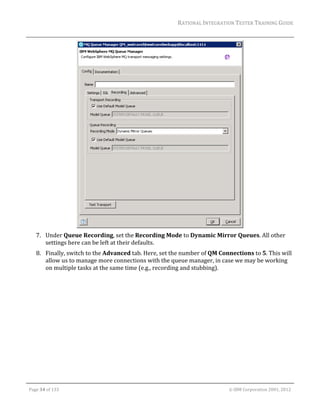
                 <xs:element name="item" maxOccurs="unbounded" type="itemtype"/> 
Within	the	item	element,	there	is	another	repeating	discountcode	element	which	is	also	optional	
and	so	may	not	be	needed.	
                 <xs:element name="discountcode" type="stringtype" minOccurs="0" 
                 maxOccurs="unbounded" /> 
Finally,	there	may	also	be		multiple	address	elements	within	a	message:	
                 <xs:element name="address" maxOccurs="unbounded" type="addresstype" /> 
When	matched	with	the	OrderTestData.xls	test	data	we	get	the	five	orders	specified	below.	
Without	the	Repeating	Elements	functionality	a	user	would	manually	need	to	create	five	tests.	This	
functionality	allows	the	user	to	define	a	single	message	that	makes	use	of	repeating	elements	to	
dynamically	build	the	message	from	the	test	data	set	and	time	of	publishing	or	subscribing.	


    Page	97	of	133																																																																																																																																																																				©	IBM	Corporation	2001,	2012
RATIONAL	INTEGRATION	TESTER	TRAINING	GUIDE	


                                                                              Expected	XML	Messages	1‐5	


    Page	98	of	133																																																																																																																																																																				©	IBM	Corporation	2001,	2012
RATIONAL	INTEGRATION	TESTER	TRAINING	GUIDE	
                                                                                                                                                                                                                      	
14.2 Exercise:	Publishing	a	Set	of	Orders	
         1. In	Architecture	School,	create	a	Service	Component	object	called	Orders	and	include	an	
            operation	in	it	called	PublishOrders	
         2. Double‐click	on	the	PublishOrders	operation	to	bring	up	its	properties	and	go	to	the	
            Message	Exchange	Pattern	tab.		
         3. In	the	Binding	section,	Browse	to	select	a	transport,	and	choose	WWTravel_MQ.		
         4. In	the	Queue	section,	enter	queue.orders	,	then	press	OK	to	close	the	dialog.	


         5. Now	navigate	to	the	Schema	Library	and	import	a	new	XSD	 .	Select	the	supplied	XML	
            schema,	order.xsd,	which	can	be	found	in	the	Data FilesRepeating Elements	folder	on	
            your	desktop.	
         6. After	importing,	select	XSDs	on	the	left	hand	side	of	the	Schema	Library	–	you	should	now	be	
            able	to	view	the	order	schema.	


         7. Optionally,	you	can	return	to	the	PublishOrders	operation	to	set	the	Message	Exchange	
            Pattern	to	Publish,	and	to	use	the	schema	you	have	just	imported;	we	will	not	be	making	
            use	of	the	MEP	in	this	exercise,	but	if	you	wish	to	create	other	tests	using	MEP,	this	will	be	
            useful.	


    Page	99	of	133																																																																																																																																																																				©	IBM	Corporation	2001,	2012
RATIONAL	INTEGRATION	TESTER	TRAINING	GUIDE	
                                                                                                                                                                                                               	
      8. Otherwise,	switch	to	the	Test	Factory.	We	will	now	create	a	data	source	to	import	our	data.		
         Right‐click	on	the	PublishOrders	operation	and	select	New>Test	Data>Excel	Data	Source.	
         Call	the	data	source	OrderData.	
      9. In	the	configuration	pane,	press	Browse	and	find	the	OrderTestData.xls	file	found	in	the	
         Repeating Elements	folder.	Following	that,	check	the	box	labeled	Treat	empty	strings	as	
         null.	This	will	allow	the	tool	to	group	nested	data	correctly.	After	pressing	the	Refresh	
         button,	you	should	see	the	following	data	in	the	Preview	pane:	


      10. Save	the	data	source,	and	then	close	it.	
      11. We	will	now	create	a	test	to	process	this	data.	Right‐click	on	the	PublishOrders	operation	
          and	select	New>Tests>Test.	Call	it	TestOrders.	
      12. Add	an	Iterate	Test	Data	action	to	the	Test	Steps.	Create,	then	drag	and	drop	a	Publish	
          action,	followed	by	a	Subscribe	action	and	then	a	Log	action	onto	the	Iterate	Test	Data	
          action.	Your	test	should	look	like	the	following:	


      13. Double‐click	on	the	Publish	action	and	configure	it:	
	

Page	100	of	133																																																																																																																																																																				©	IBM	Corporation	2001,	2012
RATIONAL	INTEGRATION	TESTER	TRAINING	GUIDE	
                                                                                                                                                                                                               	
                     o Select	WWTravel_MQ	as	the	Transport	
                     o In	the	Queue	setting,	enter	queue.orders	
                     o Look	under	the	MQ Message (Message)	node	–	there	should	be	a	text	(String)	
                       underneath	it.		If	there	is	not,	right	click	on	the	node,	and	select	Add	Child	>	Choice	>	
                       text	(String)	to	add	the	text	node.	Press	OK	in	the	dialog	that	appears	to	confirm	
                       your	choice.	
                     o Right‐click	on	the	new	text(String)	node	and	select	Schema.	Choose	the	order	
                       schema,	and	click	Next.	
                     o Check	the	box	labeled	Include	optional	fields,	and	then	click	Finish.	
                     o You	should	now	see	the	message	schema	applied	to	your	message.	Select	then	Quick	
                       tag	all	the	text	nodes	within	the	message,	along	with	the	orderid	attribute.	
                     o Right‐click	on	the	item(Element)	node	and	select	Mark	as	Repeating.	
                     o Do	the	same	for	the	discountCode(Element)	node	and	the	address (Element)	node.	
                     o Check	that	the	test	action	now	appears	as	below,	then	press	OK	to	save	your	changes:	


Page	101	of	133																																																																																																																																																																				©	IBM	Corporation	2001,	2012
RATIONAL	INTEGRATION	TESTER	TRAINING	GUIDE	
                                                                                                                                                                                                               	
      14. Next,	we’ll	configure	the	Subscribe	action	to	retrieve	the	message	that	we’ve	just	sent,	and	
          hold	the	entire	XML	message	in	a	single	tag.	Open	up	the	Subscribe	action	and	configure	it	
          as	follows:	
                     o Use	the	same	transport	settings	as	the	publish	action	(receiving	a	message	from	
                       WWTravel_MQ,	using	queue.orders)	
                     o Disable	validation	on	the	text(String)	part	of	the	message.	
                     o Switch	to	the	Store	tab,	and	save	the	value	of	the	incoming	message	by	quick	tagging	
                       the	text(String)	field.		
                     o Click	OK	to	close	the	test	action.	
      15. 	Open	the	Log	action,	add	%%text%%	as	the	text	message,	then	close	the	test	action.	
      16. We	now	have	to	map	the	test	data	to	the	tags	defined	in	the	Publish	action.	Double‐click	on	
          the	Iterate	Test	Data	action	to	configure	it:	
                     o In	the	Config	tab,	Browse	to	the	OrderData	for	the	Test	data	set.	
                     o In	the	Group	data	by	column	field	select	id.	


                     o Switch	to	the	Store	tab	and	check	that	each	field	in	the	Tag	name	column	has	been	
                       mapped	appropriately	to	the	incoming	Data.	This	should	have	been	done	for	you	
                       automatically,	but	if	you	did	not	have	the	tags	in	the	test	prior	to	setting	the	data	
                       source	for	this	test	action,	it	would	not	be	done	for	you;	similarly,	if	you	did	not	save	
                       the	data	source	earlier,	this	mapping	will	not	have	taken	place.	
                     o Close	the	Iterate	Test	Data	action.		
      17. Save	the	test,	and	run	it	in	the	Test	Lab.	
      18. You	should	see	the	test	pass	and	in	the	console	you	should	see	five	order	messages,	
          corresponding	to	the	messages	described	previously.	As	an	example,	the	final	message	is	
          shown	below:	


Page	102	of	133																																																																																																																																																																				©	IBM	Corporation	2001,	2012
RATIONAL	INTEGRATION	TESTER	TRAINING	GUIDE	


Page	103	of	133																																																																																																																																																																				©	IBM	Corporation	2001,	2012
RATIONAL	INTEGRATION	TESTER	TRAINING	GUIDE	


15 Test Actions
	
Test	actions	are	the	main	building	blocks	of	our	tests.	So	far,	we	have	seen	just	a	couple	of	the	
actions	that	are	available	to	us.	Over	the	course	of	the	next	couple	of	chapters,	we	will	look	at	a	
number	of	the	other	actions	available	in	Rational	Integration	Tester.	

15.1 Test	Action	Summary	
The	following	tables	describe	the	majority	of	the	test	actions	used	within	Rational	Integration	
Tester.	The	test	actions	in	Rational	Integration	Tester	are	categorized	into	5	groups,	as	seen	in	the	
toolbar	along	the	top	of	the	test	factory.	These	groups	are	Messaging,	Flow,	General,	BPM,	and	
Performance.	As	this	manual	does	not	deal	with	BPM	or	Performance	actions,	the	summary	has	
been	limited	to	the	first	three	categories.	
                                                                                                       	
                                                                                  Messaging	Actions	

                             Send	Request:	Send	a	message	and	wait	for	a	response	
                         	

                             Receive	Reply:	Receive	and	validate	a	response	to	a	request	
                         	

                             Receive	Request:	Choose	a	transport	and	format	to	receive	a	message	
                         	

                             Send	Reply:	Respond	to	a	previously	received	request	message	
                         	

                             Publish:	Publish	a	message	on	a	transport	
                         	

                             Subscribe:	Start	listening	for	messages	on	a	transport	
                         	

                             Unsubscribe:	Stop	listening	for	messages	on	a	transport	
                         	
                           Message	Switch:	Configure	a	subscriber	to	pick	up	a	message	that	can	be	
                         	 passed	to	the	child	Message	Case	actions.	

                             Message	Case:	Filter	the	message	received	by	the	parent	Message	Switch.	


Page	104	of	133																																																																																																																																																																				©	IBM	Corporation	2001,	2012
RATIONAL	INTEGRATION	TESTER	TRAINING	GUIDE	


                                                                                         Flow	Actions	

                                Assert:	Check	that	a	given	condition	is	satisfied	before	the	rest	of	the	test	
                                steps	can	be	executed.	
                        	

                                Decision:	Choose	a	set	of	actions	based	on	a	given	condition.	
                        	
                                Pass:	Automatically	pass	the	test.	No	subsequent	actions	within	the	Test	Steps	
                                phase	will	be	executed.	
                        	
                                Fail:	Automatically	fail	the	test.	No	subsequent	actions	within	the	Test	Steps	
                                phase	will	be	executed.	
                        	

                                Run	Test:	Execute	another	test	as	a	sub‐test.	
                            	

                                Sleep:	Pause	the	test	for	a	specified	period	of	time.	
                        	

                                Iterate:	Repeat	test	steps	a	number	of	times.	
                            	

                                Iterate	While:	Repeat	test	steps	while	a	condition	is	satisfied.	
                            	

                                Iterate	Test	Data:	Repeat	test	steps	for	a	given	data	set.	
                        	

                                Fetch	Test	Data:	Retrieve	a	row	of	test	data	from	a	data	set.	
                        	
                                Lookup	Test	Data:	Lookup	test	data	from	a	data	set;	Test	actions	will	branch,	
                                dependent	on	whether	the	lookup	is	successful.	


Page	105	of	133																																																																																																																																																																				©	IBM	Corporation	2001,	2012
RATIONAL	INTEGRATION	TESTER	TRAINING	GUIDE	


                                                                                     General	Actions	

                                Comment:	Add	notes	to	the	test	
                        	

                                Run	Command:	Specify	a	command	or	program	to	run	
                        	

                                Log:	Output	messages	to	the	console/logging	file	
                        	

                                User	Interaction:	Ask	the	user	to	interact	with	the	test	as	it	runs.	
                        	
                                GUI	Interaction:	Interact	with	functional	testing	tools	integrated	with	
                                Rational	Integration	Tester	
                        	

                                Map:	Transforms	XML‐based	data	using	an	XSLT	Stylesheet.	
                        	
                                Compare	Files:	Compares	two	logical	file	sources	(both	of	which	may	be	
                                directories)	containing	record	data.	
                        	

                                Function:	Execute	a	predefined	or	custom	function	
                            	

                                SQL	Query:	Execute	an	SQL	SELECT	against	a	database	
                        	

                                SQL	Command:	Execute	SQL	UPDATE/INSERT/DELETE	against	a	database	
                        	

                                Stored	Procedure:	Execute	a	stored	procedure	against	a	database	


Page	106	of	133																																																																																																																																																																				©	IBM	Corporation	2001,	2012
RATIONAL	INTEGRATION	TESTER	TRAINING	GUIDE	
                                                                                                                                                                                                               	
15.2 Exercise:	Run	Command	
The	Run	Command	action	gives	all	of	the	functionality	of	the	Windows	Command	Prompt	inside	
Rational	Integration	Tester.	This	allows	you	to	run	external	batch	files	and	executables	or	store	the	
results	of	commands	in	tags.	
      1. To	illustrate	this	functionality	we’ll	create	a	test	that	opens	a	Notepad	window.	
      2. Go	to	the	Test	Factory	perspective	and	create	a	new	blank	test	–	call	it	RunCommand.	
      3. In	the	Test	Steps,	right‐click	and	select	New	>	General	>	Run.	
      4. Double‐click	to	configure	the	Run	command.	
      5. Check	the	Connection	settings.	The	Location	should	be	set	to	Local,	and	the	Working	
         Directory	can	be	left	blank.	
      6. We’ll	just	start	a	new	Notepad	window,	so	enter	the	command:	
                     notepad.exe                           
      7. Uncheck	the	option	Wait	for	command	execution	to	finish.		


      8. Press	the	Test	button	to	execute	the	command	–	a	new	notepad	window	should	appear.	You	
         can	safely	close	this	straight	away.	
      9. Click	OK	to	close	the	dialog,	and	switch	to	the	Test	Lab.	
      10. When	you	run	the	test,	it	should	pass	and	a	notepad	window	should	appear	again.	


Page	107	of	133																																																																																																																																																																				©	IBM	Corporation	2001,	2012
RATIONAL	INTEGRATION	TESTER	TRAINING	GUIDE	
                                                                                                                                                                                                               	
15.3 Exercise:	Log	
The	Log	action	writes	information	to	the	console,	or	a	log	file.	Tagged	data	can	be	included	within	
this	information.	We	have	already	encountered	the	Log	action	previously,	but	this	time	we	will	use	
it	to	write	to	an	output	file.	
      1. In	Windows	Explorer,	create	a	new	blank	file	called	reservationData.csv.	Add	one	line	at	
         the	beginning,	which	should	simply	give	column	names	for	our	data: 
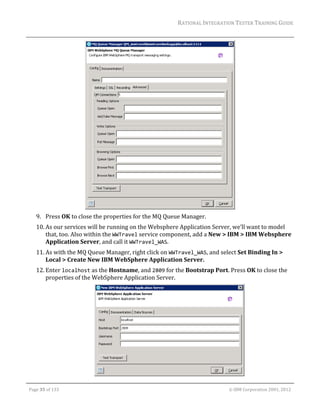
                                                                       ReservationNo,FirstName,LastName 
      2. Save	the	file	and	close	it.	
      3. In	Rational	Integration	Tester’s	Test	Factory,	create	a	new	test	based	on	basicTemplate,	
         and	call	it checkForDuplicates.	
      4. So	that	we	have	something	interesting	to	log,	we’ll	tag	some	of	the	data	in	the	request	and	
         reply	messages.	Open	the	Send	Request	action,	and	go	to	the	Store	tab.	Find	the	passenger	
         first	and	last	name	fields,	and	Quick	Tag	both	of	them.	Close	the	Send	Request	action.	
      5. Similarly,	tag	the	newReservationNumber	field	within	the	Receive	Reply	action.	
      6. After	the	Send	Request	and	Receive	Reply	actions,	add	a	new	Log	action,	and	open	it.	
      7. Within	the	Output	Message	field,	add	each	of	the	tags	we’ve	created,	separated	by	commas.	
         Add	a	new	line	before	the	tags,	so	that	the	Log	action	will	add	a	new	line	to	the	file	before	
         each	row	of	data.	The	Log	action	will	do	exactly	what	you	tell	it	to	do,	so	if	you	leave	out	the	
         new	line,	you’ll	end	up	with	one	long	row	of	data	that	we	won’t	be	able	to	process	in	Rational	
         Integration	Tester.	You	should	end	up	with	something	like	the	following:	


      8. Set	the	output	file	to	the	reservationData.csv	file	created	at	the	beginning	of	this	exercise.	
      9. Make	sure	that	the	Append	checkbox	is	ticked.	This	will	make	sure	that	we	add	new	log	
         information	to	the	end	of	the	file,	rather	than	overwriting	any	previous	contents.	
      10. The	Role	field	should	be	set	to	Info	by	default	–	check	that	this	is	the	case.	
	

Page	108	of	133																																																																																																																																																																				©	IBM	Corporation	2001,	2012
RATIONAL	INTEGRATION	TESTER	TRAINING	GUIDE	
                                                                                                                                                                                                               	
      11. Close	the	Log	action,	and	run	the	test	in	the	Test	Lab.	
      12. Open	the	reservationData.csv	file	to	verify	that	it	has	the	details	of	the	customer	from	the	
          test	we’ve	just	run,	and	then	close	the	file	without	making	any	changes.	
      13. Go	back	to	the	Log	action	in	the	Test	Factory,	and	change	the	Role	to	Error.	Observe	what	
          happens	when	you	run	the	test.	
      14. Change	the	Log	action	again	to	use	a	Role	of	Warning,	and	observe	what	happens	to	the	test	
          when	you	execute	it	this	time.	
      15. Go	back	to	the	Log	action	one	last	time,	and	change	the	Role	back	to	Info.	

15.4 Exercise:	Lookup	Test	Data	
The	Lookup	Test	Data	action	will	look	up	information	from	a	data	source,	based	on	a	key	field.	
We’re	going	to	use	it	to	make	sure	that	that	our	system	is	not	creating	duplicate	reservation	
numbers.	
      1. In	order	to	lookup	any	information,	we	will	require	a	data	source.	While	in	the	Test	Factory,	
         right	click	on	the	MakeBooking	operation,	and	select	New	>	Test	Data	>	File	Data	Source.	
         Call	it	ReservationLog.	
      2. As	the	file	source,	choose	the	reservationData.csv	file	we	created	in	the	previous	exercise.	
         The	file	type	should	be	set	as	Delimited.	
      3. In	the	Format	Options,	the	Delimiter	Options	should	be	set	to	Comma.	
      4. Press	the	Refresh	button	at	the	bottom	of	the	screen	to	check	that	the	file	has	been	loaded	
         correctly.	You	should	see	the	same	data	you	logged	in	the	previous	exercise.		
      5. Save	the	ReservationLog	test	data	source	and	close	it.	

      6. Switch	back	to	the	checkForDuplicates test.	Add	a	Lookup	Test	Data	                                                                                               	action	to	the	
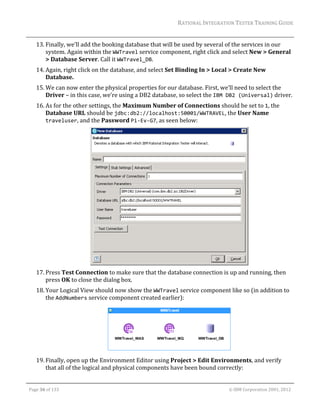
         test,	and	open	it.	
      7. On	the	Config	tab,	choose	to	Browse	for	the	data	set,	and	select	the	ReservationLog	data.	
      8. You	will	need	to	add	a	lookup,	using	a	Column	Key	of	ReservationNo,	and	a	Lookup	Value	
         of	%%newReservationNumber%%	.	Close	the	test	action.	


      9. When	we	perform	this	lookup,	we	expect	that	we	will	not	find	any	duplicates	–	the	
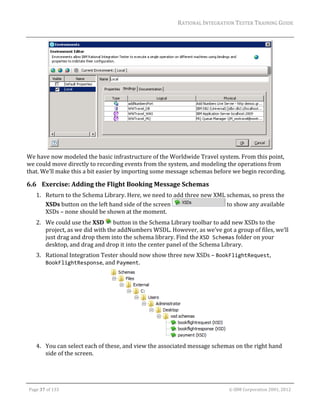
         reservation	numbers	should	be	unique	for	each	reservation.	If	we	do	find	a	duplicate,	then	
         we	want	to	report	this.	You	should	see	that	the	Lookup	action	comes	with	two	paths	below	it	


Page	109	of	133																																																																																																																																																																				©	IBM	Corporation	2001,	2012
RATIONAL	INTEGRATION	TESTER	TRAINING	GUIDE	
                                                                                                                                                                                                               	
             –	Found	and	Not	Found.	Right	click	on	the	Found	option,	and	add	a	new	Log	action	to	this	
             path.	
      10. The	new	Log	action	should	report	that	the	reservation	number	is	a	duplicate.	It	should	not	
          be	added	to	any	file,	but	will	need	to	have	a	Role	of	Error.	Once	you	have	set	the	role	and	
          entered	an	error	message,	close	the	Log	action.	
      11. If	we	don’t	find	the	reservation	number	in	the	previous	log,	then	the	test	has	succeeded,	and	
          we	will	want	to	log	the	current	data.	This	can	be	done	simply	by	dragging	and	dropping	the	
          Log	action	created	in	the	previous	exercise	onto	the	Not	Found	path.	
      12. Save	the	test	and	run	it	against	the	Worldwide	Travel	system.	It	should	succeed,	and	new	
          data	will	be	added	to	our	log	file.	As	the	system	always	produces	a	new	reservation	number,	
          the	test	should	pass	each	time.	
      13. However,	we	can	anticipate	what	the	next	reservation	number	will	be,	and	insert	that	
          number	into	the	log	file	that	we’ve	created.	This	would	fool	the	test	into	thinking	it	had	
          found	a	duplicate	reservation	number.	Open	the	log	file,	and	edit	it	so	that	there	is	an	entry	
          for	the	next	reservation	number.	Save	the	file,	then	run	the	test	again	–	you	should	now	see	it	
          fail.	
      14. The	Lookup	Test	Data	action	can	also	be	used	to	retrieve	information	from	the	data	source.	
          If	we	find	a	duplicate,	we’ll	report	the	first	and	last	names	of	the	customer	recorded	in	the	
          file.	To	do	this,	return	to	the	Test	Factory,	right	click	in	the	Test	Steps,	and	open	the	Tag	
          Data	Store.	
      15. Press	the	 	button	in	the	Tag	Data	Store	to	add	a	new	tag	to	the	test	–	call	it	logFirstName.	
          Do	this	one	more	time,	and	create	a	second	tag	called	logLastName.	Close	the	Tag	Data	Store.	
      16. Open	the	Lookup	Test	Data	action,	and	switch	to	the	Store	tab.		
      17. In	the	Output	format,	select	Store	one	matching	row	only.	As	we’re	attempting	to	prevent	
          any	duplicates,	we	won’t	expect	to	find	more	than	one	row	of	data	inside	the	log	file	for	each	
          reservation	number.	
      18. In	the	Mappings	section,	you	will	see	the	FirstName	and	LastName	fields	from	the	data	
             source.	Click	on	the	FirstName	row	–	a	pencil	                                                          	button	will	appear	at	the	right.	Press	this	
             button	to	bring	up	the	Select	Tags	dialog.	
      19. Choose	the	logFirstName	tag,	and	press	Select.	
      20. Go	through	the	same	process	to	match	the	LastName	field	and	the	logLastName	tag.	Once	
          you’re	done,	the	test	action	should	now	appear	as	follows:	


Page	110	of	133																																																																																																																																																																				©	IBM	Corporation	2001,	2012
RATIONAL	INTEGRATION	TESTER	TRAINING	GUIDE	


      21. Close	the	test	action,	and	amend	the	Log	action	used	for	reporting	errors,	so	that	it	looks	like	
          the	following:	


      22. Save	the	test.	
      23. Take	note	of	the	most	recent	reservation	number,	and	again	make	sure	that	there	is	an	entry	
          for	the	following	reservation	number	in	your	log	file.	So	that	we	can	verify	that	data	is	being	
          extracted	from	our	data	source,	choose	new	first	and	last	names	for	this	new	entry.	
          Remember	to	save	the	log	file	after	making	any	changes.	
      24. Run	the	test	again.	You	should	now	see	a	duplicate,	and	the	name	shown	in	the	console	
          should	be	the	one	that	you	entered	in	the	previous	step.	

15.5 Failure	Path	and	Pass/Fail	
Failure	Paths	and	Pass	Paths	allow	you	to	specify	what	occurs	in	a	test	if	a	particular	test	action	
passes	or	fails.	These	may	be	added	to	any	test	action	by	right	clicking	on	it,	and	selecting	Add	Pass	
Path	or	Add	Failure	Path.	We’ll	be	focusing	mainly	on	failure	paths	–	these	allow	us	to	create	tests	
that	fail	gracefully.	Note	that	when	you	add	a	failure	path	to	a	test	action,	it	may	include	multiple	
branches;	most	test	actions	will	only	have	one	way	in	which	they	fail,	but	messaging	actions	(for	
example)	can	have	two	ways	to	fail:	either	a	message	is	not	received	within	the	specified	timeout	
period,	or	a	message	is	received,	but	does	not	satisfy	the	validation	criteria.	
	

Page	111	of	133																																																																																																																																																																				©	IBM	Corporation	2001,	2012
RATIONAL	INTEGRATION	TESTER	TRAINING	GUIDE	
                                                                                                                                                                                                               	

The	Pass	 and	Fail	 		actions	cause	a	test	to	pass	and	fail	respectively;	test	execution	will	skip	
straight	to	the	Tear	Down	phase	of	the	test,	ignoring	any	further	actions	within	the	Test	Steps	
phase.	We’ll	now	create	a	simple	test	to	illustrate	how	to	implement	these	features,	and	then	
discuss	some	of	the	more	advanced	real	world	applications.	

15.6 Exercise:	Using	Failure	Paths	
      1. Create	a	new	test	based	on	the	basicTemplate	–	call	it	subscriberTest.	
      2. Go	into	the	Receive	Reply	action,	and	then	to	the	Config	tab.	Find	the	
         newReservationNumber	field.	It	should	currently	have	a	star	next	to	it,	indicating	that	it	is	
         governed	by	a	rule	in	the	Rule	Cache.	Right	click	on	this	line,	and	select	Rule	Cache	>	
         Disable.	Once	you’ve	done	this,	the	star	will	still	appear,	but	with	a	line	through	it:	 	


      3. Go	to	the	Test	Lab,	and	run	the	test	again.	It	should	now	fail,	as	it’s	no	longer	receiving	the	
         expected	reservation	number.	
      4. We’re	going	to	modify	the	test	so	that	it	will	pass	with	a	warning	if	there	an	issue	validating	
         the	reply	message.	Anything	else	should	still	cause	the	test	to	fail	(transport	failure,	timeout,	
	

Page	112	of	133																																																																																																																																																																				©	IBM	Corporation	2001,	2012
RATIONAL	INTEGRATION	TESTER	TRAINING	GUIDE	
                                                                                                                                                                                                               	
             etc).	Return	to	the	Test	Factory,	right	click	on	the	Receive	Reply	step,	and	choose	Add	
             Failure	Path.	
      5. Right	click	on	Subscriber	Error	and	select	New	>	Flow	>	Fail.	Double	click	on	the	Fail	test	
         step	and	add	some	text	into	the	Output	Message	box,	e.g.	Message timeout.	Click	OK.	
      6. Right	click	on	Validation	Failure	and	select	New	>	Flow	>	Log.	Double	click	on	the	Log	test	
         step	and	some	text	into	the	Output	Message	box,	e.g.	Validation failed.	Set	the	Role	of	
         the	action	to	Warning.	Click	OK.	
      7. Your	test	should	now	look	like	this:	


      8. Save	the	test.	
      9. Return	to	the	Test	Lab,	and	run	the	test	again.	In	the	console,	you	should	be	able	to	see	that	
         the	validation	step	failed,	and	a	warning	was	given,	but	the	test	has	still	passed:	


      10. In	the	Test	Factory,	open	the	Receive	Reply	step.	Find	the	Timeout	field,	and	set	it	to	5	ms.	
          Run	the	test	again,	and	you	should	see	it	fail	this	time,	as	the	error	does	not	occur	at	the	
          validation	stage.	


Page	113	of	133																																																																																																																																																																				©	IBM	Corporation	2001,	2012
RATIONAL	INTEGRATION	TESTER	TRAINING	GUIDE	
                                                                                                                                                                                                               	
Now	that	we’ve	constructed	a	simple	example	to	help	understand	the	basic	idea	behind	Failure	
Paths	and	Pass/Fail	actions,	we	can	look	at	a	more	advanced	example	that’s	more	applicable	to	the	
real	world.	


The	above	diagram	shows	a	standard	example	SOA	system.	Service	1	receives	a	message	and	passes	
this	message	on	to	Service	2,	the	message	is	then	passed	from	Service	2	to	Service	3	and	back	again,	
onward	to	Service	4	and	back,	and	finally	back	to	Service	1.	If	at	any	point	an	error	occurs,	the	
message	is	passed	to	an	exception	queue.	
	
You	could	setup	a	basic	test	in	Rational	Integration	Tester	that	publishes	a	message	to	Service	1,	
along	with	a	subscriber	to	receive	the	reply.	A	second	subscriber	can	be	setup	however	to	listen	on	
the	Exception	Queue.	If	this	subscriber	times	out	then	it	means	nothing	has	been	placed	on	the	
Exception	Queue	and	so	the	test	should	pass.	However	if	the	subscriber	receives	a	message	then	
there	has	been	an	error	as	so	the	test	should	fail.	
	
This	functionality	can	be	achieved	by	adding	a	Failure	Path	to	the	subscriber,	and	adding	a	Pass	
action	to	the	Subscriber	Error	and	a	Fail	action	to	the	Validation	Failure.	(If	a	timeout	occurs	it	will	
trigger	a	Subscriber	Error	and	so	pass,	if	a	message	is	received	it	will	trigger	a	Validation	Error	and	
fail)	


Page	114	of	133																																																																																																																																																																				©	IBM	Corporation	2001,	2012
RATIONAL	INTEGRATION	TESTER	TRAINING	GUIDE	


16 Interacting with Databases
16.1 Exercise:	Creating	a	database	component	manually	
This	section	details	the	steps	necessary	to	create	a	database	component	in	your	project.	We	will	use	
the	Logical	and	Physical	views	to	manually	add	a	database	that	can	then	be	accessed	from	any	test	
in	the	project.	This	chapter	will	assume	you’re	using	the	sample	database	provided,	however	the	
same	process	can	be	used	for	any	database.	
      1. Ensure	you	have	SQLite	listed	as	one	of	the	Database	(JDBC)	providers	in	your	Library	
         Manager,	using	the	driver	sqlitejdbc‐v056.jar.	If	necessary,	you	can	do	this	by	adding	a	
         new	provider	and	pointing	to	the	file,	which	can	be	found	in	C:SQLite.	
      2. If	you	have	made	changes	in	the	Library	Manager,	close	and	restart	Rational	Integration	
         Tester	so	that	it	will	load	those	changes	when	it	restarts.	
      3. Go	to	the	Logical	View.	Select	the	WWTravel	service	component,	then	create	a	new	database	
         component	by	right	clicking	and	selecting	New	>	General	>	Database	Server.	Name	it	Test 
         Database.	
      4. We	now	need	to	create	a	physical	database	for	our	logical	database	to	point	to.	Switch	to	the	
         Physical	View,	right	click	on	the	Physical	Components	root	folder	and	select	New	>	
         General	>	Database.	
      5. Open	the	new	database	and	input	the	following	values:	
                           Max	Num	of	Connections:	1	
                           Driver:	org.sqlite.JDBC  
                            (Note	that	there	are	two	SQLite	drivers;	the	other	one	will	not	work)	
                           Database	URL:		
                            jdbc:sqlite:/C:Users<username>DesktopData 
                            FilesDatabasereservations.db		
                            (Modify	depending	upon	where	your	database	is	stored)	
      6. Click	Test	Connection	to	ensure	your	database	connection	is	setup	correctly.	If	this	does	not	
         work,	then	you	may	need	to	go	back	and	check	steps	1	and	2	again.		
      7. Go	back	to	the	Logical	View	and	reopen	the	Test Database	you	created	before.	
      8. Go	to	the	Bindings	tab.	For	the	current	environment,	select	the	UNBOUND	field	and	pick	the	
         SQL	Lite	database	you	just	created	(jdbc:sqlite:/C:Users<username>DesktopData 
         FilesDatabasereservations.db).	
      9. To	check	that	the	database	is	now	available	to	use	in	tests,	we’ll	create	a	test	to	query	the	
         database.	Switch	to	the	Test	Factory	perspective	
      10. Previously,	we’ve	created	all	of	our	tests	underneath	operations.	This	does	not	need	to	be	
          the	case	–	you	can	create	tests	underneath	service	components	or	even	database	
          components.	Create	a	new	blank	test	called	queryTest,	under	the	WWTravel	service	
          component.	


Page	115	of	133																																																																																																																																																																				©	IBM	Corporation	2001,	2012
RATIONAL	INTEGRATION	TESTER	TRAINING	GUIDE	
                                                                                                                                                                                                               	
      11. Add	the	SQL	Query	action	to	the	test.	Edit	the	action,	and	hit	the	Browse…	button	to	select	
          the	Test Database.	If	you	do	not	see	the	Test Database,	set	Obey	References	to	No.	This	
          will	ignore	any	dependencies	set	in	Architecture	School,	and	show	all	databases	within	the	
          project.	


      12. Enter	the	following	SQL	Query:		
             SELECT * FROM reservation  
             ORDER BY reservation_number		


      13. Click	on	Test.	If	Rational	Integration	Tester	shows	an	error	message,	check	that	you	have	
          entered	the	query	correctly,	and	that	the	Test Database	has	been	selected	at	the	top	of	the	
          window.	Otherwise,	you	will	see	the	contents	of	the	Reservation	table.	
	

Page	116	of	133																																																																																																																																																																				©	IBM	Corporation	2001,	2012
RATIONAL	INTEGRATION	TESTER	TRAINING	GUIDE	


      14. Click	on	Overwrite	Expected	Results	and	click	OK	to	close	the	SQL	Query	window.		
      15. Run	the	test	–	it	should	pass.	We	haven’t	altered	the	database,	so	the	expected	and	actual	
          results	of	the	query	will	match.		

16.2 Exercise:	SQL	Command	
The	SQL	Command	action	allows	you	to	run	INSERT,	UPDATE	or	DELETE	queries	in	Rational	
Integration	Tester.	We’ll	now	create	a	simple	test	that	performs	an	SQL	INSERT	command	to	insert	
a	single	record	into	a	database.	This	section	assumes	you’re	using	the	database	created	in	the	
previous	section.	You	are	free	to	use	your	own	however	you	will	need	to	make	appropriate	changes	
to	the	SQL	query.	
      1. Create	a	new	test	called	InsertTest	
      2. Add	an	SQL	Command	action	and	double	click	to	open	it.	
      3. Verify	that	the	Database	Server	is	set	to	the	Test Database.	
      4. Paste	in	the	following	SQL	Command:	
             INSERT into reservation 
             VALUES ("Male","Lyon","Thomas","Jack","21","WW007","A05006") 
      5. Run	the	test	in	the	Test	Lab.		
      6. Now	run	the	queryTest	again.	You	should	observe	that	it	now	fails,	as	the	data	returned	by	
         the	query	no	longer	matches	the	expected	data	for	that	test.	
      7. Open	the	message	differencing	window	for	the	query	results,	and	you	should	now	see	the	
         difference	between	the	expected	and	actual	results.	Close	the	window	without	making	any	
         changes.	

16.3 Exercise:	Column	and	Cell	Validations	
The	queryTest	is	currently	failing,	due	to	the	extra	row	that	wasn’t	in	the	expected	results.	
However,	in	some	cases,	we’ll	want	to	validate	a	set	of	query	results	given	more	general	criteria,	
rather	than	specifying	exact	values	to	match.	
      1. Return	to	the	Test	Factory,	and	make	a	copy	of	the	queryTest.	Call	it	columnValidations.	
      2. Open	the	SQL	Query	action	in	your	new	test,	and	go	to	the	Assert	tab	to	view	the	expected	
         results.	


Page	117	of	133																																																																																																																																																																				©	IBM	Corporation	2001,	2012
RATIONAL	INTEGRATION	TESTER	TRAINING	GUIDE	
                                                                                                                                                                                                               	
      3. Select	any	cell,	and	press	the	Edit	Cell	 	button.	Alternatively,	right	click	on	the	cell,	and	
         choose	Edit	Cell.	
      4. Note	that	you	can	edit	the	validation	for	this	particular	cell.	By	default,	the	validation	should	
         have	an	Action	Type	of	Equality,	and	the	value	should	be	set	to	whatever	value	is	currently	
         in	the	database	within	that	field.	Close	this	validation	window	without	making	any	changes.	
      5. Similarly,	to	edit	validation	rules	for	a	column,	we	can	select	any	cell	within	the	column,	and	
         press	the	Edit	Column	 button,	or	we	can	right	click	on	the	column	heading,	and	choose	
         Edit	Column.	Open	the	validation	rules	for	the	gender	column.	
      6. Press	the	New	button	to	add	a	new	validation	rule	–	choose	to	evaluate	the	contents	of	the	
         column	with	an	Action	Type	of	Regex.	
      7. For	the	regular	expression,	enter	^(Male|Female)$	
      8. This	should	let	us	accept	either	Male	or	Female	as	valid	entries;	anything	other	than	these	
         exact	strings	will	fail.	Check	this	by	typing	into	the	Document	field,	and	verifying	that	these	
         values	pass,	and	others	fail,	when	you	press	the	Test	button.	


      9. Once	you	are	satisfied	that	the	regular	expression	is	working	here,	press	OK	to	close	the	
         dialog.	Add	more	validation	rules	for	other	columns,	using	regular	expressions	as	follows:	
                                          week_number                                                             ^d{1,2}$ 
                                          flight_number                                                           ^WWd{3}$ 
                                          reservation_number                                                      ^Ad{6}$ 
      	
      10. These	rules	can	be	used	to	generalize	how	query	results	will	be	evaluated.	However,	we	still	
          have	the	original	cell	assertions,	which	state	that	each	cell	must	be	equal	to	the	values	we	
	

Page	118	of	133																																																																																																																																																																				©	IBM	Corporation	2001,	2012
RATIONAL	INTEGRATION	TESTER	TRAINING	GUIDE	
                                                                                                                                                                                                               	
             can	see	in	the	table	in	this	dialog.	In	order	to	make	things	more	general,	check	the	box	
             labeled	Disable	Cell	Assertions.	This	will	mean	that	only	the	column	assertions	are	used.	
      11. Press	OK	to	close	the	dialog,	and	run	the	test.	You	should	see	that	the	test	passes.	
      12. Return	to	the	Test	Factory,	and	modify	the	InsertTest	so	that	it	uses	an	invalid	reservation	
          number	(for	example,	change	the	A	at	the	beginning	to	B).	
      13. Run	the	modified	InsertTest,	and	then	run	the	columnValidations	test	one	more	time.	The	
          columnValidations	test	should	fail,	pointing	out	the	invalid	reservation	number.	
      14. In	the	next	exercise,	we’ll	reset	the	database	to	its	original	state,	allowing	both	query	tests	to	
          pass	again.	


Page	119	of	133																																																																																																																																																																				©	IBM	Corporation	2001,	2012
RATIONAL	INTEGRATION	TESTER	TRAINING	GUIDE	


17 Run Test
17.1 Introduction	
The	Run	Test	feature	allows	you	to	run	one	test	from	inside	another.	This	allows	you	to	create	tests	
with	reusable	functionality	and	run	them	from	multiple	different	tests	within	your	project.	This	is	
similar	to	the	idea	of	creating	reusable	methods	in	object	orientated	programming.	
	
Essentially,	if	there	is	a	task	that	many	tests	will	need	to	perform	(e.g.	resetting	a	database,	starting	
up	a	number	of	external	applications	etc…),	then	you	can	create	a	single	reusable	test	that	performs	
that	task,	rather	than	rewriting	those	actions	for	every	test.	You	can	then	re‐use	this	test	wherever	
necessary	within	other	tests	to	perform	the	required	task.	
		
In	this	section	we’ll	create	a	modified	“Insert	Record”	test	that	inserts	a	given	record	into	a	
database,	using	tags	rather	than	hardcoding	the	values	to	be	inserted	into	the	database.	We’ll	then	
use	this	as	part	of	a	separate	test	to	reset	the	database.	As	part	of	this	process,	we’ll	also	see	how	we	
can	pass	data	from	one	test	to	another.	
		

17.2 Exercise:	Creating	the	child	test	
      1. Go	to	the	Test	Factory	perspective,	and	find	the	InsertTest	in	the	Test	Factory	Tree.	Make	
         a	copy	of	this	test,	and	call	it	InsertWithTags.	
      2. Open	the	SQL	Command	action.	
      3. Replace	the	SQL	query	with	the	following:	
             INSERT into reservation 
             VALUES ("%%ChildTestGender%%", "%%ChildTestLastName%%", 
             "%%ChildTestMiddleName%%", "%%ChildTestFirstName%%", 
             "%%ChildTestWeekNumber%%", "%%ChildTestFlightNumber%%", 
             "%%ChildTestReservationNumber%%") 
      4. You	will	notice	that	all	of	the	tags	are	underlined.	This	is	because	they	do	not	exist	yet.	Open	
         up	the	Tag	Data	Store	and	create	them	now.		
      5. Reopen	the	SQL	Command	action	and	check	the	tags	are	no	longer	underlined.	
      6. We	won’t	run	this	test	–	as	the	default	value	for	a	new	tag	is	null,	we’d	only	be	inserting	null	
         values	into	the	database.	Instead,	simply	Save	the	test.	
You	may	be	wondering	why	every	tag	starts	with	ChildTest.	This	is	to	help	us	identify	which	tags	
belong	to	which	test,	and	will	be	very	useful	when	we	come	to	pass	data	between	the	parent	and	
child	tests.	


Page	120	of	133																																																																																																																																																																				©	IBM	Corporation	2001,	2012
RATIONAL	INTEGRATION	TESTER	TRAINING	GUIDE	
                                                                                                                                                                                                               	
We	will	now	create	a	test	that	will	reset	a	database	by	removing	all	current	records	then	entering	a	
selection	of	supplied	records.	We	will	do	this	via	the	Run	Test	action	calling	our	Insert	Record	
test.	

17.3 Exercise:	Creating	the	Parent	Test	
      1. Create	a	new	File	Data	Source,	and	name	it	DBResetData.	
      2. Press	the	Browse…	button	and	select	the	inputData.csv	file	located	in	
         C:Users<username>DesktopData FilesDatabase	
      3. Press	the	Refresh	button	and	check	that	five	records	are	displayed.	Save	and	close.	
      4. Create	a	new	test	and	call	it	ResetDatabase.	This	test	will	remove	all	records	from	the	
         database	and	populate	it	with	sample	data	stored	in	a	csv	file.	
      5. Add	an	SQL	Command	action,	open	it	and	set	the	Database	Server	to	the	logical	Database	
         created	previously,	and	enter	the	following	SQL	command	to	remove	all	records	from	the	
         database:	
         DELETE FROM reservation	
      6. Save	and	close	the	SQL	Command	action,	then	right	click	on	Test	Steps	and	select	Tag	Data	
         Store.	
      7. Create	the	following	tags:	ParentTestGender, ParentTestLastName, 
             ParentTestMiddleName, ParentTestFirstName, ParentTestWeekNumber, 
             ParentTestFlightNumber, ParentTestReservationNumber.	


      8. These	tags	will	store	the	values	of	each	attribute	read	in	from	the	CSV	file.	As	the	CSV	file	
         contains	multiple	records,	we’re	going	to	make	use	of	the	Iterate	Test	Data	 	action	to	
         apply	an	action	to	each	record	in	the	CSV	file.	
      9. Add	an	Iterate	Test	Data	                                         	action	below	the	SQL	Command	action.	


Page	121	of	133																																																																																																																																																																				©	IBM	Corporation	2001,	2012
RATIONAL	INTEGRATION	TESTER	TRAINING	GUIDE	
                                                                                                                                                                                                               	
      10. Open	it,	press	the	Browse…	button	and	select	the	DBResetData	data	source.	
      11. Go	to	the	Store	tab.	You	should	see	a	list	of	the	tags	you	created.	Select	the	drop	down	menu	
          to	the	right	of	each	tag	and	select	the	appropriate	attribute.	Click	OK.	This	sets	the	value	of	
          the	tags	in	the	test	to	the	values	of	each	column	in	the	data	source.	


      12. Right	click	on	the	Iterate	Test	Data	action	and	select	New	>	Flow	>	Run	Test.	
      13. Open	up	the	Run	Test	action,	click	the	Browse…	button	and	select	the	InsertWithTags	test	
          you	created	earlier.	Uncheck	Run	process	in	parallel.	The	test	should	now	look	like	so:	


17.4 Exercise:	Passing	Data	between	the	Tests	
We	now	have	a	child	test	and	a	parent	test,	and	the	parent	test	can	execute	the	child	test	through	
the	Run	Test	action.	However,	we	still	need	to	specify	how	data	will	be	passed	between	the	two	
tests.	Firstly,	we’ll	go	to	the	child	test,	and	set	up	tags	that	will	hold	any	input	values.	Then,	we’ll	
return	to	the	parent	test,	and	fill	in	those	tags	appropriately.	
      1. Return	to	the	InsertWithTags	test,	and	go	to	the	Properties	of	the	test.	This	can	be	found	
         on	a	tab	next	to	the	Steps.	
      2. Looking	at	the	Interface	for	the	test,	there	will	be	Input	and	Output	sections.	Under	the	
         Input	section,	make	sure	All	Tags	is	selected.	All	tags	in	the	insert	test	have	now	been	
         enabled	as	inputs	–	but	we	still	need	to	say	what	data	will	go	into	them.	
      3. Next,	we	need	to	go	back	to	the	ResetDatabase	test,	and	reopen	the	Run	Test	step.	
      4. Select	the	Value	tab.		
      5. You	should	see	all	the	tags	you	created	in	the	InsertWithTags	test	in	the	Unmapped	box.	
         Press	the	<<	button	to	move	them	all	into	the	Mapped	box.	
      6. For	each	tag,	select	it,	and	in	the	box	below	insert	the	corresponding	tag	from	the	Reset	
         Database	test.	


Page	122	of	133																																																																																																																																																																				©	IBM	Corporation	2001,	2012
RATIONAL	INTEGRATION	TESTER	TRAINING	GUIDE	


      7. Go	to	the	Test	Lab,	and	run	the	ResetDatabase	test.	
The	ResetDatabase	test	runs	an	iteration	of	the	InsertWithTags	test	with	the	tags	in	Insert	
Record	set	to	the	values	specified	in	the	Reset	Database	test	(which	are	set	according	to	the	values	
read	in	from	the	CSV	file).	The	Iterate	Test	Data	action	is	used	to	run	the	Insert	Record	sub	test	
once	for	each	record	stored	in	the	test	data.	
	
You	may	question	the	need	to	use	a	Run	Test	action	in	this	situation,	as	you	could	simply	have	the	
Iterate	Test	Data	action	run	a	SQL	Command	directly.	If	you	had	a	single	parent	test	and	a	single	
sub	test	then	this	would	probably	be	true.	However	imagine	that	you	have	many	tests	that	all	insert	
records	into	the	database.	You	could	have	a	separate	SQL	Command	action	in	every	single	one,	but	
if	the	database	changes	(e.g.	a	field	is	removed)	then	you’ll	have	to	go	through	every	test	separately	
and	make	the	appropriate	changes.	If	you	use	the	Run	Test	feature	however,	you	only	need	to	
make	the	change	in	a	single	sub	test.		
	
Another	advantage	of	using	a	sub	test	can	be	seen	if	you	imagine	that	instead	of	the	sub	test	
containing	a	single	SQL	Command	action,	it	contains	50+	commands	along	with	decision	steps	etc.	If	
you	want	to	do	such	a	complicated	action	more	than	once	in	different	tests	throughout	your	project,	
the	Run	Test	action	helps	save	a	lot	of	time.	Once	again	anyone	with	programming	experience	will	
notice	the	similarities	between	this	and	the	idea	of	reusable	methods	in	computer	code.	


Page	123	of	133																																																																																																																																																																				©	IBM	Corporation	2001,	2012
RATIONAL	INTEGRATION	TESTER	TRAINING	GUIDE	


18 Monitoring Log Files
18.1 Overview	
Log	files	can	be	monitored	automatically	with	Rational	Integration	Tester,	avoiding	the	need	to	
manually	check	them	for	changes	that	may	have	resulted	from	actions	within	a	test.	In	order	to	do	
this,	we	set	up	the	infrastructure	resource	with	the	location	of	its	log	files.	After	that,	we	can	set	up	
actions	to	react	to	changes	in	the	log	files.	

18.2 Exercise:	Looking	for	Error	Messages	
      1. Go	to	Architecture	School,	and	locate	the	WWTravel_MQ	component.	
      2. Double	click	on	the	resource	to	edit	it,	and	go	to	the	Monitoring	tab.	
      3. Click	on	Add	to	add	a	Log	File.	As	a	simple	example,	we’ll	be	using	the	example.log	file	on	
         your	desktop,	and	logging	new	information	by	hand.	
      4. Set	the	Path	to	C:Usersdb2adminDesktopData Files.	Leave	the	File	as	*.log,	and	press	
         OK.	


Page	124	of	133																																																																																																																																																																				©	IBM	Corporation	2001,	2012
RATIONAL	INTEGRATION	TESTER	TRAINING	GUIDE	
                                                                                                                                                                                                               	
      5. In	Test	Factory,	create	a	new	empty	test	under	the	MakeBooking	operation,	and	call	it	
         MonitorTest.	
      6. Add	two	 	Log	actions	to	the	test,	one	to	say	“Starting	Test”,	and	the	other	to	say	“Test	
         Finished”.	
      7. As	we	will	update	our	log	file	by	hand,	we	will	need	the	test	to	pause	for	a	short	period.	To	
         do	this,	we’ll	use	a	 	Sleep	action.	Set	it	to	for	a	Fixed	delay,	of	20000ms.	Your	test	steps	
         should	now	look	like	the	following:	


      8. Switch	to	the	Monitoring	tab	of	the	test,	and	choose	Add	–	it	should	automatically	find	the	
         log	file	location	we	selected	in	Architecture	School.		
      9. Find	the	Actions	tab,	and	switch	to	that	to	tell	the	test	how	to	respond	to	changes	within	the	
         log	file.	
      10. Press	the	 	Add	button	to	add	a	new	action.	
      11. Double	click	in	the	Match	field.	It	should	bring	up	an	Edit	Regex	window,	with	a	copy	of	the	
          log	file	as	it	currently	stands.	
      12. We	want	to	respond	if	an	error	is	logged	–	select	the	text	[ERROR].	
      13. A	popup	will	appear	with	regexes	that	match	the	selected	text.	Choose	the	Exact	option	‐	
          [ERROR].	It	should	now	appear	at	the	bottom	of	the	dialog,	and	the	[ERROR]	text	should	
          now	be	highlighted,	as	below.	Press	OK	to	return	to	the	test.	


      14. Under	Action,	choose	Treat	as	error,	and	mark	the	Enabled	checkbox.	

                                                                                                                                                                      	
      15. Save	the	test,	and	go	to	Test	Lab.	


Page	125	of	133																																																																																																																																																																				©	IBM	Corporation	2001,	2012
RATIONAL	INTEGRATION	TESTER	TRAINING	GUIDE	
                                                                                                                                                                                                               	
      16. Run	the	test.	While	it	is	sleeping,	edit	the	example.log	file	provided	in	the	Data Files	
          folder	on	your	desktop	to	add	another	line	starting	with	[ERROR],	and	save	the	log	file.	
      17. Rational	Integration	Tester	should	detect	the	change,	and	the	test	will	fail.	
      	
Note:	If	Rational	Integration	Tester	does	not	show	any	errors,	make	sure	that	you	have	edited	and	
saved	the	file	within	the	20	seconds	provided	by	the	Sleep	action.	In	addition,	default	settings	for	
reading	the	log	file	(set	in	Architecture	School)	state	that	new	entries	in	the	log	file	must	end	in	a	
new	line	–	simply	adding	[ERROR]	without	a	new	line	will	not	register	an	error	in	your	test.	


Page	126	of	133																																																																																																																																																																				©	IBM	Corporation	2001,	2012
RATIONAL	INTEGRATION	TESTER	TRAINING	GUIDE	


19 Advanced Stubs
19.1 Exercise:	Parameterized	Stubs	
In	this	exercise,	you	will	create	a	parameterized	stub.	This	is	more	complex	than	the	basic	stub	we	
created	earlier,	in	that	it	will	produce	different	reply	messages	when	given	different	request	
messages.		
      1. To	start	collecting	data	to	generate	the	stub,	go	to	the	Recording	Studio.	Clear	any	
         messages	recorded	previously.	
      2. Check	that	the	MakeBooking	operation	is	being	monitored,	and	start	recording.	
      3. Switch	to	the	Test	Lab,	and	run	the	test	suite	created	earlier.	Return	to	the	Recording	
         Studio,	and	you	should	see	the	messages	produced	for	that	set	of	tests.	
      4. Select	MakeBooking	within	the	Event	Monitors.	This	should	filter	out	any	other	events,	
         leaving	you	with	just	the	6	MakeBooking	requests	and	responses	that	were	recorded.	Check	
         these	to	make	sure	that	you	have	a	request	message	for	each	of	the	three	card	types	allowed	
         by	the	booking	system.	If	not,	you’ll	need	to	record	more	interactions	with	the	system.	If	
         you’ve	got	too	many,	then	delete	any	extras	from	the	Events	View.	


      5. Select	all	6	events,	and	press	the	Save	button.	
      6. Again,	we’ll	choose	to	save	them	as	a	stub	in	the	first	page	of	the	wizard.	Press	Next	once	
         you’ve	done	this.	
      7. On	the	second	page	of	the	wizard,	choose	to	Store	data	in	a	simple	data	set.	Press	Next.	
      8. The	third	page	checks	that	everything	has	been	allocated	to	the	correct	operation.	You	
         should	see	6	events,	all	labeled	as	being	related	to	the	MakeBooking	operation.	If	so,	press	
         Next.	If	not,	you’ll	need	to	go	back	and	make	sure	you’ve	selected	the	right	events.	
      9. The	fourth	page	checks	that	the	requests	and	replies	have	been	grouped	correctly.	Again,	
         this	should	already	be	the	case,	but	you	can	choose	to	change	groupings	here	or	restart	if	
         necessary.	Press	Next	once	you’re	satisfied	that	this	is	correct.	


Page	127	of	133																																																																																																																																																																				©	IBM	Corporation	2001,	2012
RATIONAL	INTEGRATION	TESTER	TRAINING	GUIDE	
                                                                                                                                                                                                               	
      10. You’ll	then	get	a	preview	of	how	the	request	messages	will	be	mapped	into	our	data	set.	
          Rational	Integration	Tester	will	analyze	the	messages	used	in	the	recorded	messages,	and	
          look	for	differences	between	the	messages.	By	default,	it	will	record	data	that	changes	into	
          columns	within	the	data	set;	data	that	appears	to	be	static	will	not	be	included.	Take	a	look	
          at	the	request	message	–	fields	that	are	going	to	be	included	in	the	data	set	have	a	status	of	
          New	       ,	while	those	that	are	not	going	to	be	included	are	listed	as	Ignored	       .	
      11. Within	the	request	message,	we	only	care	about	the	card	type,	so	select	each	of	the	other	
             fields,	and	press	the	Ignore	  	button.	This	should	leave	only	the	card	type	listed	as	New,	
             and	everything	else	Ignored.	Press	Next	to	go	to	the	response	message	for	MakeBooking.	
      12. Here,	we	can	see	that	the	reservation	number	is	also	marked	as	New.	In	this	case,	we	may	
          also	decide	that	we	are	interested	in	the	status	field	as	well,	even	though	it	had	the	same	
          value	in	each	of	the	recorded	messages.	Find	the	status	row,	which	should	be	marked	as	

             Ignored.	Select	it,	and	press	the	Column	                                                       	button.	
      13. A	popup	dialog	will	appear,	allowing	you	to	name	the	column	that	will	be	created	for	the	
          status	within	our	data	source	–	by	default,	it	will	be	called	status.	This	will	be	fine	for	our	
          purposes,	so	press	OK.	Both	the	reservation	number	and	the	status	should	now	be	marked	
          as	New.	


      14. Press	Next	again	to	go	to	the	summary	screen.	This	should	inform	you	that	a	stub	will	be	
          created,	along	with	a	data	source	containing	information	about	the	card	type,	reservation	
          number,	and	status.	If	different	fields	are	listed,	you’ll	want	to	hit	back	to	return	to	the	
          previous	steps,	and	make	sure	that	each	field	is	being	added	to	the	data	set	or	ignored,	as	
          required.	
      15. Call	the	stub	BookingsWithData,	and	go	to	the	Test	Factory	to	view	what	we’ve	produced.	
      16. Under	the	MakeBooking	operation,	you	should	see	two	things	with	the	name	
          BookingsWithData.	We	have	a	stub,	as	we’ve	had	every	other	time,	but	we	also	have	a	data	
          source.	Double	click	on	this	within	the	Test	Factory	Tree	to	open	it.		


Page	128	of	133																																																																																																																																																																				©	IBM	Corporation	2001,	2012
RATIONAL	INTEGRATION	TESTER	TRAINING	GUIDE	


      17. The	first	thing	you	might	notice	is	that	the	file	name	contains	a	reference	to	the	root	
          directory	of	a	project,	written	in	gold	and	surrounded	by	percentage	signs.	This	is	a	system	
          tag	–	a	variable	internal	to	Rational	Integration	Tester,	which	we	can’t	edit	directly.	This	
          allows	us	to	refer	to	the	project	folder,	no	matter	where	that	might	be	located.	If	the	project	
          is	moved	to	another	folder	or	another	machine,	the	link	to	the	CSV	file	that	we’re	using	will	
          still	function.		
      18. Press	the	Refresh	button	at	the	bottom	of	the	screen	to	view	the	data	within	the	data	source	
          –	this	should	contain	the	three	card	types	and	reservation	numbers	we	recorded	previously,	
          along	with	a	status	column	that	states	SUCCESS	for	each.	There	is	also	a	grouping	column	
          provided	for	us,	in	case	we	had	recorded	data	with	repeating	elements	(which	would	require	
          multiple	lines	of	data).	As	our	data	is	fairly	simple,	we	don’t	need	to	worry	about	this	for	
          now.	Close	the	data	source.	
      19. Open	the	stub	itself,	and	look	at	the	Input	tab.	You	should	notice	that	the	card	type	is	being	
          stored	into	a	tag.	
      20. Switch	to	the	Output	tab,	and	you’ll	notice	that	no	response	is	being	sent	here	–	in	fact,	no	
          response	message	appears	to	be	present	at	all.	This	is	because	the	stub	that	we	have	
          generated	will	respond	if	it	recognizes	a	familiar	card	type,	but	otherwise	will	ignore	any	
          incoming	messages.	To	see	how	we	handle	this,	switch	to	the	Business	Logic	tab.	


      21. The	Business	Logic	tab	allows	us	to	specify	our	own	custom	logic	to	dictate	how	the	stub	
          will	respond	to	incoming	messages.	Here,	you	can	see	a	Lookup	Test	Data	action,	which	is	
	

Page	129	of	133																																																																																																																																																																				©	IBM	Corporation	2001,	2012
RATIONAL	INTEGRATION	TESTER	TRAINING	GUIDE	
                                                                                                                                                                                                               	
             followed	by	two	options	–	Found	and	Not	Found.	If	the	lookup	is	successful,	it	will	send	a	
             reply.	If	not,	it	will	do	nothing.	Open	the	Lookup	Test	Data	action	by	double	clicking	on	it.	


      22. This	has	two	tabs	–	the	Config	tab	will	open	by	default.	As	you	should	be	able	to	see,	we’re	
          trying	to	match	the	value	that	we	stored	into	the	cardType	tag	in	the	Input	tab	with	the	
          cardType	column	in	the	data	source.	


      23. Switching	to	the	Store	tab,	you’ll	be	able	to	see	that	we’re	going	to	save	the	data	from	the	
          columns	in	the	data	source	into	corresponding	tags	within	the	stub	(with	the	exception	of	
          the	grouping	tag).	This	will	only	happen	if	we	find	a	match	–	otherwise,	any	values	that	may	
          exist	within	those	tags	will	be	left	alone.	Close	the	Lookup	Test	Data	Action.	
      24. Open	the	Send	Reply	action.	This	will	be	used	to	send	a	reply	if	and	only	if	we	found	a	match	
          within	the	Lookup	Test	Data	action.	


Page	130	of	133																																																																																																																																																																				©	IBM	Corporation	2001,	2012
RATIONAL	INTEGRATION	TESTER	TRAINING	GUIDE	
                                                                                                                                                                                                               	
      25. Observe	the	message	that	is	being	sent	back	–	this	uses	the	values	that	were	saved	into	the	
          status	and	newReservationNumber	tags	within	the	Lookup	Test	Data	action,	so	these	
          values	will	be	coming	directly	from	our	data	source.	Close	the	Send	Reply	action.	
Run	the	stub,	and	send	some	requests	to	it	(either	by	running	tests,	or	by	creating	requests	using	
the	web	interface).	You	should	notice	that	each	card	type	gets	its	own	reply,	based	on	the	data	
source.	


Page	131	of	133																																																																																																																																																																				©	IBM	Corporation	2001,	2012
RATIONAL	INTEGRATION	TESTER	TRAINING	GUIDE	


20 Legal Notices
            The	following	paragraph	does	not	apply	to	the	United	Kingdom	or	any	other	country	where	
             such	provisions	are	inconsistent	with	local	law:	INTERNATIONAL	BUSINESS	MACHINES	
             CORPORATION	PROVIDES	THIS	PUBLICATION	"AS	IS"	WITHOUT	WARRANTY	OF	ANY	KIND,	
             EITHER	EXPRESS	OR	IMPLIED,	INCLUDING,	BUT	NOT	LIMITED	TO,	THE	IMPLIED	
             WARRANTIES	OF	NON‐INFRINGEMENT,	MERCHANTABILITY	OR	FITNESS	FOR	A	
             PARTICULAR	PURPOSE.	Some	states	do	not	allow	disclaimer	of	express	or	implied	
             warranties	in	certain	transactions,	therefore,	this	statement	may	not	apply	to	you.	
            This	information	could	include	technical	inaccuracies	or	typographical	errors.	Changes	are	
             periodically	made	to	the	information	herein;	these	changes	will	be	incorporated	in	new	
             editions	of	the	publication.	IBM	may	make	improvements	and/or	changes	in	the	product(s)	
             and/or	the	program(s)	described	in	this	publication	at	any	time	without	notice.	
            If	you	are	viewing	this	information	in	softcopy,	the	photographs	and	color	illustrations	may	
             not	appear.	
            Any	references	in	this	information	to	non‐IBM	websites	are	provided	for	convenience	only	
             and	do	not	in	any	manner	serve	as	an	endorsement	of	those	websites.	The	materials	at	those	
             websites	are	not	part	of	the	materials	for	this	IBM	product	and	use	of	those	websites	is	at	
             your	own	risk.	
            Any	performance	data	contained	herein	was	determined	in	a	controlled	environment.	
             Therefore,	the	results	obtained	in	other	operating	environments	may	vary	significantly.	
             Some	measurements	may	have	been	made	on	development‐level	systems	and	there	is	no	
             guarantee	that	these	measurements	will	be	the	same	on	generally	available	systems.	
             Furthermore,	some	measurements	may	have	been	estimated	through	extrapolation.	Actual	
             results	may	vary.	Users	of	this	document	should	verify	the	applicable	data	for	their	specific	
             environment.	
            Information	concerning	non‐IBM	products	was	obtained	from	the	suppliers	of	those	
             products,	their	published	announcements	or	other	publicly	available	sources.	IBM	has	not	
             tested	those	products	and	cannot	confirm	the	accuracy	of	performance,	compatibility	or	any	
             other	claims	related	to	non‐IBM	products.	Questions	on	the	capabilities	of	non‐IBM	products	
             should	be	addressed	to	the	suppliers	of	those	products.	
            All	statements	regarding	IBM's	future	direction	or	intent	are	subject	to	change	or	
             withdrawal	without	notice,	and	represent	goals	and	objectives	only.	
            This	information	contains	examples	of	data	and	reports	used	in	daily	business	operations.	
             To	illustrate	them	as	completely	as	possible,	the	examples	include	the	names	of	individuals,	
             companies,	brands,	and	products.	All	of	these	names	are	fictitious	and	any	similarity	to	the	
             names	and	addresses	used	by	an	actual	business	enterprise	is	entirely	coincidental.	
            This	information	contains	sample	application	programs	in	source	language,	which	illustrate	
             programming	techniques	on	various	operating	platforms.	You	may	copy,	modify,	and	
             distribute	these	sample	programs	in	any	form	without	payment	to	IBM,	for	the	purposes	of	
             developing,	using,	marketing	or	distributing	application	programs	conforming	to	the	
             application	programming	interface	for	the	operating	platform	for	which	the	sample	
             programs	are	written.	These	examples	have	not	been	thoroughly	tested	under	all	conditions.	
             IBM,	therefore,	cannot	guarantee	or	imply	reliability,	serviceability,	or	function	of	these	
	

Page	132	of	133																																																																																																																																																																				©	IBM	Corporation	2001,	2012
RATIONAL	INTEGRATION	TESTER	TRAINING	GUIDE	
                                                                                                                                                                                                               	
             programs.	The	sample	programs	are	provided	"AS	IS",	without	warranty	of	any	kind.	IBM	
             shall	not	be	liable	for	any	damages	arising	out	of	your	use	of	the	sample	programs.		
	
Trademarks	and	service	marks	
            IBM,	the	IBM	logo,	and	ibm.com	are	trademarks	or	registered	trademarks	of	International	
             Business	Machines	Corp.,	registered	in	many	jurisdictions	worldwide.	Other	product	and	
             service	names	might	be	trademarks	of	IBM	or	other	companies.	A	current	list	of	IBM	
             trademarks	is	available	on	the	web	at	www.ibm.com/legal/copytrade.shtml.		
            Microsoft	and	Windows	are	trademarks	of	Microsoft	Corporation	in	the	United	States,	other	
             countries,	or	both.	
            Java	and	all	Java‐based	trademarks	and	logos	are	trademarks	or	registered	trademarks	of	
             Oracle	and/or	its	affiliates		
            Other	company,	product,	or	service	names	may	be	trademarks	or	service	marks	of	others.	


Page	133	of	133																																																																																																																																																																				©	IBM	Corporation	2001,	2012

2012 10 23_3115_rational_integration_tester_tr

  • 1.
  • 2.
    Note Before using this information and the product it supports, read the information in “Notices” on page 132. © Copyright IBM Corporation 2001, 2012.
  • 3.
    RATIONAL INTEGRATION TESTER TRAINING GUIDE 1  INTRODUCTION ........................................................................................................................ 4  2  CONFIGURING RATIONAL INTEGRATION TESTER ........................................................................ 5  2.1  PRE-REQUISITES............................................................................................................... 5  2.2  THE LIBRARY MANAGER .................................................................................................... 5  2.3  CONFIGURING THE LIBRARY MANAGER FOR WEBSPHERE APPLICATION SERVER AND MQ ...... 6  2.4  ADDING THE INTERCEPT DLL ............................................................................................. 7  3  RATIONAL INTEGRATION TESTER PROJECT SETUP .................................................................... 8  3.1  THE INITIAL SCREEN ......................................................................................................... 8  3.2  CREATING A NEW PROJECT ............................................................................................... 9  3.3  EXERCISE: CREATING THE TRAINING PROJECT .................................................................. 10  3.4  RATIONAL INTEGRATION TESTER LAYOUT .......................................................................... 14  3.5  RATIONAL INTEGRATION TESTER PERSPECTIVES ............................................................... 15  4  MODELING THE SYSTEM......................................................................................................... 16  4.1  PERSPECTIVE OVERVIEW ................................................................................................ 16  4.2  WORKING IN MULTIPLE ENVIRONMENTS ............................................................................ 16  4.3  LOGICAL VIEW ................................................................................................................ 17  4.4  EXERCISE: SETTING UP THE LOGICAL VIEW FOR A SIMPLE SYSTEM ..................................... 19  4.5  PHYSICAL VIEW .............................................................................................................. 22  4.6  EXERCISE: SETTING UP PHYSICAL VIEW FOR A SIMPLE SYSTEM ......................................... 22  4.7  ENVIRONMENTS .............................................................................................................. 22  4.8  EXERCISE: CREATING AN ENVIRONMENT ........................................................................... 22  4.9  EXERCISE: SCHEMA LIBRARY ........................................................................................... 24  4.10  EXERCISE: THE MESSAGE EXCHANGE PATTERN (MEP) ................................................. 25  5  THE DEMONSTRATION ENVIRONMENT ..................................................................................... 27  5.1  MANAGING FLIGHT BOOKINGS.......................................................................................... 27  5.2  FINDING AND BOOKING HOTELS ....................................................................................... 28  5.3  FLIGHT ADMINISTRATION ................................................................................................. 28  6  USING SYSTEM DATA TO BUILD A SYSTEM MODEL .................................................................. 30  6.1  OVERVIEW ..................................................................................................................... 30  6.2  SYNCHRONISATION OVERVIEW ......................................................................................... 30  6.3  BUILDING A MODEL FROM RECORDED EVENTS .................................................................. 31  6.4  RECORDING MQ MESSAGES............................................................................................ 31  6.5  EXERCISE: SETTING UP THE TRANSPORTS ........................................................................ 32  6.6  EXERCISE: ADDING THE FLIGHT BOOKING MESSAGE SCHEMAS .......................................... 37  Page 1 of 133 © IBM Corporation 2001, 2012
  • 4.
    RATIONAL INTEGRATION TESTER TRAINING GUIDE 7  REQUIREMENTS LIBRARY ....................................................................................................... 38  7.1  OVERVIEW ..................................................................................................................... 38  7.2  THE MESSAGE EDITOR .................................................................................................... 38  7.3  EXERCISE: IMPORTING MESSAGES ................................................................................... 39  7.4  CREATING MESSAGES FROM A SCHEMA ............................................................................ 40  8  RECORDING EVENTS ............................................................................................................. 43  8.1  THE RECORDING STUDIO................................................................................................. 43  8.2  EXERCISE: RECORDING EVENTS FROM A TRANSPORT ........................................................ 44  8.3  EXERCISE: BUILDING OPERATIONS FROM RECORDED EVENTS ............................................ 46  8.4  EXERCISE: COMPLETING THE SYSTEM MODEL ................................................................... 52  8.5  EXERCISE: RECORDING EVENTS FROM AN OPERATION ...................................................... 53  8.6  EXERCISE: CREATING AND RUNNING TRIGGERS ................................................................ 56  9  CREATING AND EDITING TESTS .............................................................................................. 58  9.1  TEST STRUCTURE ........................................................................................................... 58  9.2  BUSINESS VIEW AND TECHNICAL VIEW ............................................................................. 59  9.3  EXERCISE: CREATING TESTS FROM RECORDED EVENTS .................................................... 59  9.4  THE MEP WIZARD .......................................................................................................... 64  9.5  EXERCISE: CREATING TESTS WITH THE MEP WIZARD........................................................ 65  9.6  COPYING AND LINKING REQUIREMENTS ............................................................................ 68  9.7  TEST TEMPLATES ........................................................................................................... 69  9.8  EXERCISE: CREATING A TEST FROM A TEMPLATE .............................................................. 69  10  TEST EXECUTION ............................................................................................................... 71  10.1  THE TEST LAB ............................................................................................................. 71  10.2  EXERCISE: RUNNING A TEST ........................................................................................ 71  10.3  EXERCISE: REPAIRING TESTS ....................................................................................... 72  10.4  EXERCISE: THE RULE CACHE ....................................................................................... 75  11  CREATING AND RUNNING A STUB ........................................................................................ 77  11.1  EXERCISE: CREATING A STUB FROM RECORDED EVENTS ................................................. 77  11.2  EXERCISE: EXECUTING A STUB FROM RATIONAL INTEGRATION TESTER ............................ 79  11.3  EXERCISE: MODIFYING THE STUB ON THE FLY................................................................. 80  12  TEST AUTOMATION ............................................................................................................ 83  12.1  TEST SUITES ............................................................................................................... 83  12.2  EXERCISE: CREATING AND EXECUTING A TEST SUITE ..................................................... 83  12.3  RESULTS GALLERY ...................................................................................................... 85  Page 2 of 133 © IBM Corporation 2001, 2012
  • 5.
    RATIONAL INTEGRATION TESTER TRAINING GUIDE 12.4  EXERCISE: VIEWING RESULTS ...................................................................................... 86  13  STORING AND MANIPULATING DATA .................................................................................... 88  13.1  TAGS AND THE TAG DATA STORE .................................................................................. 88  13.2  CREATING TAGS .......................................................................................................... 89  13.3  USING TAGS................................................................................................................ 91  13.4  EXERCISE: TESTING WITH TAGS .................................................................................... 91  13.5  DATA SOURCES........................................................................................................... 92  13.6  EXERCISE: DATA DRIVEN TESTING ................................................................................ 92  14  REPEATING ELEMENTS ....................................................................................................... 97  14.1  OVERVIEW .................................................................................................................. 97  14.2  EXERCISE: PUBLISHING A SET OF ORDERS .................................................................... 99  15  TEST ACTIONS ................................................................................................................. 104  15.1  TEST ACTION SUMMARY............................................................................................. 104  15.2  EXERCISE: RUN COMMAND ........................................................................................ 107  15.3  EXERCISE: LOG ......................................................................................................... 108  15.4  EXERCISE: LOOKUP TEST DATA .................................................................................. 109  15.5  FAILURE PATH AND PASS/FAIL .................................................................................... 111  15.6  EXERCISE: USING FAILURE PATHS .............................................................................. 112  16  INTERACTING WITH DATABASES ........................................................................................ 115  16.1  EXERCISE: CREATING A DATABASE COMPONENT MANUALLY .......................................... 115  16.2  EXERCISE: SQL COMMAND ........................................................................................ 117  16.3  EXERCISE: COLUMN AND CELL VALIDATIONS ............................................................... 117  17  RUN TEST ....................................................................................................................... 120  17.1  INTRODUCTION .......................................................................................................... 120  17.2  EXERCISE: CREATING THE CHILD TEST......................................................................... 120  17.3  EXERCISE: CREATING THE PARENT TEST..................................................................... 121  17.4  EXERCISE: PASSING DATA BETWEEN THE TESTS .......................................................... 122  18  MONITORING LOG FILES ................................................................................................... 124  18.1  OVERVIEW ................................................................................................................ 124  18.2  EXERCISE: LOOKING FOR ERROR MESSAGES............................................................... 124  19  ADVANCED STUBS ........................................................................................................... 127  19.1  EXERCISE: PARAMETERIZED STUBS ............................................................................ 127  20  LEGAL NOTICES............................................................................................................... 132  Page 3 of 133 © IBM Corporation 2001, 2012
  • 6.
    RATIONAL INTEGRATION TESTER TRAINING GUIDE 1 Introduction This document serves as a training manual to help familiarize the user with the functionality present in IBM® Rational® Integration Tester. Most of the training exercises make use of a variety of technologies, including IBM WebSphere® Application Server, IBM WebSphere MQ, IBM DB2®, and web services. It is assumed that the reader has a fair understanding of these systems. The main objectives of this training course are to present the various functionalities of Rational Integration Tester and how best to use them in testing Message Oriented Middleware applications. In this course we will:  Walk you through the installation of Rational Integration Tester on your PC  Present the various perspectives in Rational Integration Tester and how and when they are used  Demonstrate how Rational Integration Tester can facilitate testing of services in a message oriented middleware architecture by o Providing a graphical interfaces for the display and creation of messages o Automatically comparing a received response with a pre‐programmed one to ensure they match o Allowing the running of a test to be repeated over and over with little manual intervention o Exposing the details of the process to provide better information from the test team to the development team, enabling test failures to be examined in detail  Create and run automated tests and test suites  Illustrate the ease of message data manipulation to facilitate testing by using various test actions  Build stubs and triggers, which are a vital part of integration projects  Produce detailed reports on test suites Before we dive into this training course, please make sure you have all the correct files in place.  If you are using a cloud instance, the training files should be located on the desktop  Otherwise, your instructor will let you know where to find any required files. Page 4 of 133 © IBM Corporation 2001, 2012
  • 7.
    RATIONAL INTEGRATION TESTER TRAINING GUIDE 2 Configuring Rational Integration Tester 2.1 Pre‐requisites If you are using a cloud instance, skip to section 2.3. If you need to install Rational Integration Tester, please make sure that the following prerequisites are in place:  Rational Integration Tester project database – note that this can be shared between multiple people. The database can be set up using one of the following: o MySQL 5.0.1 or higher and MySQL 5.1.x o Oracle 9.2i, 10g, or 11g o MS SQL Server 2005  Java 7 o The IBM JRE is included and installed with the Rational Integration Tester. The JRE is installed in the Rational Integration Tester installation directory and is used only when Rational Integration Tester is executed. The JRE does not affect the registry or any other programs on the system.  Microsoft Excel 2003 or newer (or equivalent) 2.2 The Library Manager The Library Manager is the main configuration tool for Rational Integration Tester. It provides the necessary tools to set up connections to the wide variety of technologies supported by Rational Integration Tester, and set up other configuration options as required. Rational Integration Tester supports a number of technologies out of the box – web services, email, and a number of databases. However, connections to a number of other proprietary technologies will require external Java libraries, which are normally supplied within the installation files of that software. If that software is installed on the same machine as Rational Integration Tester, then the Library Manager may be used to point Rational Integration Tester towards the installed location of the required libraries. Otherwise, those libraries can be copied across to the local machine, and the Library Manager used to locate the local copies of those files. If you do not go through this procedure, you will find that Rational Integration Tester will generate errors when you attempt to connect using any technologies that have not been set up correctly. Regardless of the technologies that you plan to test with Rational Integration Tester, you will need to run the Library Manager once on any machine that has a copy of Rational Integration Tester. This will allow the Library Manager to perform extra setup tasks, such as creating Rational Integration Tester’s home directory. Page 5 of 133 © IBM Corporation 2001, 2012
  • 8.
    RATIONAL INTEGRATION TESTER TRAINING GUIDE Any changes made in the Library Manager will not take effect until the next time you start Rational Integration Tester. This means that if you are running Rational Integration Tester while making changes in the Library Manager, you will need to restart Rational Integration Tester. We will now look at an example use of the Library Manager – setting up connections to Java libraries for the IBM WebSphere Application Server and WebSphere MQ tools. 2.3 Configuring the Library Manager for WebSphere Application Server and MQ Depending on the version of WebSphere Application Server and MQ, specific product libraries are required. Please make sure that you have configured Library Manager with the right libraries. This has already been set up for any cloud instances. 1. In the Library Manager, click on the IBM WebSphere Application Server item on the left hand side. You will now see a list of providers, for each supported version of the Websphere Application Server. 2. In the Providers section on the right hand side, select version 8.0 of WebSphere Application Server. 3. Go down to the Settings section, and make sure that each of the necessary .jars has been found. If not, select each one in turn, pressing the Edit button to locate the .jars. If necessary, your instructor will be able to provide you with a copy of each file. 4. Next, you will need to do the same for IBM WebSphere MQ 7.0. Page 6 of 133 © IBM Corporation 2001, 2012
  • 9.
    RATIONAL INTEGRATION TESTER TRAINING GUIDE 2.4 Adding the Intercept DLL There are several ways that we can set up recording for WebSphere MQ. During this training course, we will be using the intercept dll provided by Rational Integration Tester. This will allow us to view and record messages sent to any queue on the MQ server. If you are using a cloud instance, this has already been done for you. Please view section 6 of the rit_wmq_ref.pdf plugin guide for instructions on how to configure this. Page 7 of 133 © IBM Corporation 2001, 2012
  • 10.
    RATIONAL INTEGRATION TESTER TRAINING GUIDE 3 Rational Integration Tester Project Setup 3.1 The Initial Screen Once configuration of our system is complete, we’re ready to launch Rational Integration Tester and create a new project. Launching Rational Integration Tester will bring up the following screen: If you are running Rational Integration Tester on your local machine, you will need to make sure you have a license at this stage – cloud instances should already have a license installed for you. For more information on licensing, please ask your trainer, or view section 2.2 of the rit_ins.pdf installation guide. Once licensing is sorted out, you have several options. From top to bottom:  New Project – allows you to create a project.  Clone Project – creates a copy of any Rational Integration Tester project.  Fetch Project from Source Control – Check out a project from a source control system, and open it. Note that you will need to configure Rational Integration Tester to communicate with your source control system before doing this. See the rit_scm_ref.pdf plugin guide for more information. Page 8 of 133 © IBM Corporation 2001, 2012
  • 11.
    RATIONAL INTEGRATION TESTER TRAINING GUIDE  Open Link – follows a link taken from the Test Lab to navigate to the results of a test or test suite.  Open an existing project – opens an existing project, either from the list of recent projects shown by Rational Integration Tester, or by browsing to a .ghp file. 3.2 Creating a New Project Creating a new project goes through 4 stages. These are: 1. Setting the project name and location 2. Connecting to external servers 3. Setting up user‐based permissions 4. Setting up change management integration Only the first step is compulsory; the others are optional, but can be edited later from within the project. If you need to edit any of these settings after the project has been created, you can do it through the Project Settings dialog (found in the Project menu of Rational Integration Tester). That said, filling out the server settings listed in the second stage of the project creation process will normally be very useful, and we will be supplying that information for the examples used in this course. The first of these settings is for a project database, which we will be using during this training course. The project database provides the ability to record and view historical test results – without this, you will only be able to view results from the current session. It also provides the ability to record logging data from any stubs that you use. Scripts are provided with Rational Integration Tester to help you set up and configure a project database, which may be a MySQL, MS SQL, or Oracle database. Once it is set up, the database may be shared across multiple users and multiple projects. The other server settings available are for RTCP and the Results Server (legacy users only). RTCP provides the ability to manage any proxies and agents used by the software; these capabilities can be used while recording and stubbing. The Results Server setting is used to create links to the reports held on the server, which should also be connected to your project database; this functionality is now provided by RTCP, so the Results Server is no longer required, and will not be used in this project. As we only have a single user for our example project, we will not configure user‐based permissions for our project. It will be useful in other projects where it is necessary to restrict access to a project to certain individuals, or to allow different access levels to the project for different users. In particular, it will be helpful for projects that implement data masking – permissions will allow one user to set up masks over certain message fields, so that other users cannot view the contents of those fields. We will discuss this further in the section on data masking. Finally, we can configure a connection to change management tools such as JIRA, HP’s Quality Center, or any Open Services for Lifecycle Collaboration (OSLC) compliant change management system, such as Rational Team Concert. This allows us to link directly into these tools, and raise defects directly from a test or test suite. Page 9 of 133 © IBM Corporation 2001, 2012
  • 12.
    RATIONAL INTEGRATION TESTER TRAINING GUIDE At the end of the wizard, a new project folder will be created within your file system. This folder will hold all resources – a model of the system under test, along with any tests, stubs or other resources created for the project. Data files used by your project can also be stored here – this can help you make your project more portable by including everything in one place. Alternatively, you might want to include those data files in another location – Rational Integration Tester will be able to refer to them either way. 3.3 Exercise: Creating the Training project We will now create a brand new project, which we will continue to use for the duration of this course: 1. Launch Rational Integration Tester by double‐clicking the IBM Rational Integration Tester shortcut on your desktop. 2. Rational Integration Tester will launch, displaying the initial screen. Create a new project by selecting New Project and clicking OK. 3. We can now give our project a name, using the Project Name field. We’ll call our project WWTravel Testing. Page 10 of 133 © IBM Corporation 2001, 2012
  • 13.
    RATIONAL INTEGRATION TESTER TRAINING GUIDE 4. If desired, modify the Owner and Comments fields (these are saved with the project and can be modified later). 5. In the Directory field, enter the full path to the directory where the project should be created, or click Browse to locate the directory. The selected directory cannot contain an existing Rational Integration Tester project. 6. When you are satisfied with the project details, click Next. If the selected directory does not exist, you will be prompted to let Rational Integration Tester create it, or you can go back and select a different directory. 7. The wizard will now display the Server Settings dialog. At the top of this dialog, there is a Results Database section, where we can provide connection details for the project database, which is used to store all of the test data collected by Rational Integration Tester. A valid database and working connection are required to store or view any historical results in Rational Integration Tester. 8. Rational Integration Tester will remember the database details that were used previously; if you are using a cloud instance, this means that you should already have details entered for you. Otherwise, you will need to enter the Database URL, User Name, and Password. If you need to re‐enter them, the settings for the databases on the cloud instances are shown below. Otherwise, ask your trainer. Page 11 of 133 © IBM Corporation 2001, 2012
  • 14.
    RATIONAL INTEGRATION TESTER TRAINING GUIDE Settings Value Database URL jdbc:mysql://localhost:3306/projectdb  User Name root  Password root  9. Click on Test Connection. A window should pop up stating that the connection was successful. 10. Below the database settings, we can connect to the Results Server and RTCP. We will not be using the Results Server, but RTCP may be needed later on. The default setting here should be sufficient: Settings Value RTCP URL http://localhost:7819/RTCP  Domain Booking System  Page 12 of 133 © IBM Corporation 2001, 2012
  • 15.
    RATIONAL INTEGRATION TESTER TRAINING GUIDE 11. When you are satisfied with the details entered on this screen, click Finish. If user‐based permissions or connections to change management tools were required, you would need to choose Next, and then set them up on the following screens. 12. The new project will be opened in Rational Integration Tester. By default, it will display the Logical View in the Architecture School perspective. Page 13 of 133 © IBM Corporation 2001, 2012
  • 16.
    RATIONAL INTEGRATION TESTER TRAINING GUIDE 3.4 Rational Integration Tester layout The main window of Rational Integration Tester is a workbench that contains several dockable windows. These windows are organized in a logical way, providing an intuitive, easy‐to‐use central workspace. Information about your current project can be found in the title bar and status bar. At the top of the screen, the title bar indicates the name of the current project, along with the current environment. At the bottom of the screen, the status bar indicates the name of the current test cycle, the current user, and the memory usage. For the purposes of this manual, we will not need to be concerned with the information in the status bar, though you may find it useful to keep an eye on the title bar to check which environment is currently active. Page 14 of 133 © IBM Corporation 2001, 2012
  • 17.
    RATIONAL INTEGRATION TESTER TRAINING GUIDE 3.5 Rational Integration Tester Perspectives In the center of the screen is the main workbench of Rational Integration Tester, showing the current perspective view. The workbench can be viewed from one of six perspectives , selected from the Perspectives toolbar: Perspective Icon Description defines the architecture of the system under test, including Architecture School service components as well as logical and physical resources creates requirements that will help other users to create Requirements Library tests and test data more quickly and more accurately monitors systems and processes to record events that are Recording Studio captured by Rational Integration Tester Test Factory creation of tests, test suites, stubs and test data sets Test Lab executes resources that are created in the Test Factory contains historical test data and lets users view various Results Gallery reports for any stored test run, including performance, errors, and coverage data The initial layout of the workbench for each perspective is pre‐determined, and it can be restored at any time by selecting Window > Reset Current Perspective from the main menu. Many aspects of the workspace can be customized. Each window can be resized within the workbench by clicking and dragging on its borders; it can be closed via the button in the top right hand corner and can be set to automatically hide when not in use with or to remain constantly visible with . Page 15 of 133 © IBM Corporation 2001, 2012
  • 18.
    RATIONAL INTEGRATION TESTER TRAINING GUIDE 4 Modeling the System 4.1 Perspective Overview The Architecture School perspective is the default perspective loaded when Rational Integration Tester is started. This perspective is used for modeling the system in a simple, graphical fashion. This model is split into several parts. As the model is split into several parts, the Architecture School perspective is also split into several different views. In addition to these views, we also use an Environment to bind different parts of the model together. The views are presented along the bottom of the perspective:  Logical View  Physical View  Synchronisation  Schema Library  Data Models  Rule Cache For the moment, we’re going to look at an example of a simple system, which will make use of the first two views, along with Environments, which are used to tie the Logical and Physical views together. We’ll then move to the Schema Library to set up message formats. 4.2 Working in Multiple Environments As we move through the lifecycle of a project, testing may be carried out over multiple environments. For example, we might have a development environment, using development data, and its own infrastructure. As we move into a formal test phase, we might start to use different infrastructure components, or different data. Finally, in production, a completely new set of infrastructure components will be used, and real‐world data will be in use. This is only a simple example, but it serves to illustrate the problem: if we’re not careful, we could create tests or stubs that will need to be rebuilt as we move from environment to environment, or even worse, resources that are not portable at all. Fortunately, Rational Integration Tester provides a solution to this, by partitioning the model of the system under test. In order to move our resources across different environments, we will set up the infrastructure of our system in three sections: Logical View, Physical View, and the Environment. Page 16 of 133 © IBM Corporation 2001, 2012
  • 19.
    RATIONAL INTEGRATION TESTER TRAINING GUIDE The Logical View provides us with an abstract view of the system under test, but does not tie us to using any particular infrastructure. As an example, it will state that a database is required by our system, but it will not state any more than that – the database URL, connection details, and even the type of database provider are not specified at this stage. The Physical View then defines all of the implementation options – so, for our example, we may have 3 separate databases used across all different environments. All 3 databases would be listed in the Physical View. Finally, the Environment binds the logical and physical resources together. At any stage, Rational Integration Tester can check which environment is being used, and if a reference is found to a logical infrastructure element, it will use the environment to find the correct physical component. So, to finish off our example, if we need to access a database within a test or a stub, Rational Integration Tester will look up the environment to determine which of the 3 databases should be accessed. If we then move to another environment, Rational Integration Tester will perform the lookup again, and select the appropriate database. Of course, this applies to any infrastructure – not just databases, but also web servers, Email servers, Java Message Service (JMS), or any proprietary technologies. 4.3 Logical View The Logical View provides an abstract model of the system that we are interacting with. We’re going to build a simple model here to demonstrate how this works. This model will be made up of several different elements: The first object we’ll need to create is a Service Component. Service Components act as containers for all other elements within the Logical View, and may contain other Service Components to build up more complex structures. In most cases, we’ll want to define Operations within a Service Component. Operations define the functionality of the system. We will be able to create resources based upon the information provided within each operation. Page 17 of 133 © IBM Corporation 2001, 2012
  • 20.
    RATIONAL INTEGRATION TESTER TRAINING GUIDE In order to communicate with the operations available within the system, we’ll also need a set of Infrastructure Components. These are named components that can be bound to physical resources. Remembering that Logical View does not contain any concrete details of these components, they will serve to tell us that there is a JMS server, database, web server, etc., while the Physical View and Environment will provide more exact information later on. All of these elements – service components, operations, and infrastructure components ‐ may be created by pressing Ctrl+N to create a new component, right clicking and using the context menu, or from the toolbar at the top of the Logical View. In addition, you can use Ctrl+F to find resources after they have been created. Finally, we will use Dependencies to link operations to each other, or to infrastructure components. Outgoing dependencies are displayed in lavender, and incoming dependencies are displayed in green. Dependencies are only displayed for items in the diagram that are selected. In the example diagram above, this lets us know that:  Operation1 has a dependency on Operation2, meaning that Operation1 may call upon Operation2 (though it might not do so in all circumstances).  Operation2 has a dependency on the HTTP Connection. This will normally mean that either we require this HTTP connection to act as the transport for the operation, or that the operation may need to make use of the HTTP connection itself after it has received a message. To create a dependency, we can either draw it using the Add a Dependency button in the toolbar, or if we are setting up an infrastructure component as the transport, we can do this by opening up the operation’s properties by double clicking on it, and editing the transport information within the Message Exchange Pattern tab of the properties window that appears. Page 18 of 133 © IBM Corporation 2001, 2012
  • 21.
    RATIONAL INTEGRATION TESTER TRAINING GUIDE The toolbar contains a number of other useful tools, at the right hand side: Add an External Resource: creates a new External Resource, or Synchronization Source, within the Logical View, and optionally synchronizes with it. We will discuss synchronization in detail later on. Add a Dependency: allows you to draw a dependency between two operations, or from an operation to an infrastructure component. Edit Filters: filters determine which dependencies will be shown in the Logical View. They may be necessary in larger, more complex systems. Selection mode: puts the cursor into selection mode, where you can select and edit elements of the model. This is the default cursor mode. Zoom in: zooms into the diagram. This can also be done with Ctrl+MouseWheelUp. Zoom out: zooms out of the diagram. This can also be done with Ctrl+MouseWheelDown. Zoom area: zooms to fit an area, drawn with the mouse, onto the screen. Reset Zoom: sets the zoom back to the default level. Fit to contents: zooms the screen to fit everything contained in the Logical View. Pan mode: uses the cursor to pan around the screen. Layout all nodes: automatically rearranges all elements contained in the Logical View, so that nothing is obscured. Grid: switches the grid on or off. The default setting is off. We will now use the elements described above to start building a model of an example system. This system will contain a single web service. We can use this same process to build a model of any service oriented architecture. Later on, we will look at more efficient methods to build the model, though as these are not available in all environments, we’ll look at building everything by hand for this first example. 4.4 Exercise: Setting up the Logical View for a Simple System 1. Before starting, we’ll need to make sure that the web service we’re modeling is active. On the Windows desktop, double click the AddNumbersServer.jar to execute it. You should see the following window appear: Page 19 of 133 © IBM Corporation 2001, 2012
  • 22.
    RATIONAL INTEGRATION TESTER TRAINING GUIDE 2. Press the Start Service button. The Add Numbers Server window should update so that the Start Service button is no longer valid: 3. Minimize this window (do not close it), and return to Rational Integration Tester. 4. From the Architecture School perspective, make sure that you are in Logical View using the tab at the bottom of the screen. 5. The middle of the screen will be blank, as there is currently nothing in our model. To add the first component of a system, right click and select New > General > Service Component. When asked for a name, call it AddNumbers. It should then appear in your workspace: 6. Select AddNumbers by clicking on it. The outline should change to orange, to indicate the selection. 7. Right click on the AddNumbers component, and select New > General > Operation. Call the operation Addition. Your service component should now look like the following: Page 20 of 133 © IBM Corporation 2001, 2012
  • 23.
    RATIONAL INTEGRATION TESTER TRAINING GUIDE 8. Similarly, add an infrastructure component called AddNumbersPort, by right clicking and selecting New > Web > HTTP Connection 9. The logical description of our basic system is nearly complete. We just need to define the transport information for the Addition operation by tying it to the AddNumbersPort. Double click on the Addition operation, and take a look at the Message Exchange Pattern tab. 10. Look for the Transport property, and press the Browse… button next to it to select a transport. 11. In the dialog that appears, select the AddNumbersPort we created earlier. Press OK to return to the properties of the Addition operation. 12. The Binding section of the dialog will now have been updated to point towards the AddNumbersPort. A set of HTTP settings will also be available now that we have specified a HTTP transport. We’ll come back to these settings later – for now, press OK to close the properties dialog. 13. You should now be able to see the dependency between the operation and the infrastructure component. Select the Addition operation by clicking on it, and you should see a purple arrow going from the operation to AddNumbersPort. This indicates that the Addition operation is dependent on AddNumbersPort. 14. Try navigating around the logical view using the following controls: o To navigate around the logical view you can use the horizontal and vertical scrollbars, or press the Pan button and left click on the screen to drag it around. o To adjust the zoom level you can use either the zoom buttons or hold down the Ctrl key and use the mouse wheel. o To move any of the services or components around, ensure the Select Cursor button is selected, and left click on the service or component you wish to move, and drag it to the desired location. o If you ever want to reset the layout of the services and components, then the Layout All Nodes button will organize them into an efficient layout. o To set the zoom level so that the entire diagram fits inside the screen, use the Fit to Contents button . Page 21 of 133 © IBM Corporation 2001, 2012
  • 24.
    RATIONAL INTEGRATION TESTER TRAINING GUIDE 4.5 Physical View On its own, the logical view that we’ve created is not enough to fully describe our system. As mentioned previously, it doesn’t contain information about the address of the server we’re talking to, or any connection settings that may be required. We’re going to specify this information separately, in the Physical View. This view displays available physical resources and their location within the enterprise. Each resource listed within the Physical View represents a single configuration of an infrastructure component described in the Logical View. Resources in this view are organized by subnet and host. If a resource is not associated with a subnet or host, it will be displayed under Unconnected Resources. We’re going to create the physical resource for the AddNumbers web service – a simple web server. 4.6 Exercise: Setting up Physical View for a Simple System 1. Switch to Physical View using the tab at the bottom of the screen. 2. We’re going to add a new resource here. Along the top of the perspective, you’ll see a toolbar containing options for adding new resources from different categories 3. Choose the Web category, and then choose the Web Server option . 4. The New Web Server dialog will appear. Set the Host setting to localhost using Port 8088. 5. Press Test Transport to make sure that you are able to connect properly to the web service. Once you are satisfied that it is working properly, press OK to close the dialog and save the new resource. 4.7 Environments Once we have the logical data, which gives us an abstract model of what infrastructure is required by our system, and the physical data, which specifies the different configurations available for each infrastructure component, we then need to match these up. Remembering that this could change between different stages of the lifecycle of the project, we can use a set of environments to coordinate this process. A new project starts without an environment, so we’ll create an initial environment in this exercise. Other environments could be created subsequently as required. These will allow us to keep using the same test resources, simply by switching to new environments as they become available. Environments do not have their own view; instead, there are a number of options in the Project menu which allow us to access and edit an environment: Create New Environment , Edit Environments , and Switch to Environment . If you are using the default settings within Rational Integration Tester, the Title Bar will also show the name of the current environment. 4.8 Exercise: Creating an Environment 1. Select Project > Create New Environment Page 22 of 133 © IBM Corporation 2001, 2012
  • 25.
    RATIONAL INTEGRATION TESTER TRAINING GUIDE 2. Give the environment a name – for example, Local (most of the environment we’re working with in this training course will be on the local host). 3. The Environments window will appear. On the left hand side, you can select the environment to edit. On the right hand side, you can see how this environment is configured. 4. On the right hand side, you should be looking at the Properties tab, which will be empty at the moment. The properties of an environment are expressed as tags, which will be covered later in the course. For the moment, we’re not going to need to set up any properties ourselves. 5. Switch to the Bindings tab. You should see the AddNumbersPort listed here. Note that the physical connection for it is currently listed as UNBOUND. 6. Click on the UNBOUND setting, and a drop down box should appear, containing the option to bind the AddNumbersPort to the HTTP Client at localhost. Select the new physical resource to tell Rational Integration Tester that any messages sent to the AddNumbersPort will be sent to localhost. 7. Press OK to save your changes and exit the dialog. You should see that the environment name is now displayed in the Title Bar. Once an environment has been created, we can also view and edit environmental data directly from the Logical View. To do this, you can right click on an infrastructure component in Logical View, and select either Physical Resource, which will show the related physical resource in the current environment, or select Set Binding In..., which will allow you to set the binding in any environment. This information can also be seen by opening the infrastructure component by double clicking on it, and going to the Bindings tab. Page 23 of 133 © IBM Corporation 2001, 2012
  • 26.
    RATIONAL INTEGRATION TESTER TRAINING GUIDE 4.9 Exercise: Schema Library We now have most of the information we would need to create a test or stub for this sample web service. However, we’re still missing information about the format of the messages going to and from the web service. Most of this information can be provided through the Schema Library. 1. Switch to the Schema Library using the tab at the bottom of the screen. 2. At the top of the perspective, there is a toolbar containing buttons for importing different types of message schemas. Press the WSDL button. The New WSDL window will appear. 3. Press Change… to enter the location of our schema definition. The Select Location dialog box will appear. 4. Select the URL tab, and enter the following URL:  http://localhost:8088/addNumbers?wsdl – note that the URL is case‐sensitive. Press OK to close the Select Location dialog, and again to close the New WSDL dialog. 5. You can also view the schema information used by the addNumbers service by going to the same URL with your web browser. 6. Once the schemas have been imported, you can then view them in Rational Integration Tester. Select WSDLs on the far left of the screen. You will then be able to see the addNumbers WSDL displayed on the left hand side. Select this WSDL; the details of the schema should then be shown on the right hand side. The Source tab will give the same schema information we saw in our web browser. Page 24 of 133 © IBM Corporation 2001, 2012
  • 27.
    RATIONAL INTEGRATION TESTER TRAINING GUIDE Note: If you have mistyped the name of the WSDL, you should receive a warning, and the right hand side of the screen will not show the message schemas. If you end up in this situation, you can fix it in the following manner: Amend the location of the WSDL by using the Change… button next to the WSDL Location at the top of the screen. Following that, press the Rebuild button to rebuild the schema data. 7. Go to the Config tab to view each individual message type. You can select each message type using the Operation drop down just under the tabs along the top of the screen. Use this to view the three message types: addition__INPUT__addition, addition__OUTPUT__additionResponse, and addition__FAULT__AdditionException. 4.10 Exercise: The Message Exchange Pattern (MEP) The final stage of building our system model is to state how the operations will make use of the message schemas that have been provided. We will do this by building up the Message Exchange Pattern, or MEP, for each operation. The MEP contains information about the input and output schemas for the operation, whether the messaging pattern is Request/Reply or Publish/Subscribe, and how the messages will be sent. In order to create a dependency in the Logical View, we have already set up the transport, stating how messages will be sent to and from our service. To complete the model of the system under test, we still need to set the rest of the properties of the MEP. As we will see later on, setting up the MEP correctly now will allow Rational Integration Tester to aid us in automatically creating resources for each operation. 1. Return to the Logical View. 2. Double click on the Addition operation to edit it. 3. On the Message Exchange Pattern tab, make sure that the Pattern is set to Request/Reply. 4. We now need to select the message formats for the request and the reply. On the Request line, press the Browse… button to select a message format. 5. The Select Schema dialog will appear. It is formatted in much the same way as the Schema Library. Find and select the addition__INPUT__addition schema, then press Finish. 6. Do the same for the Reply message, selecting the addition__OUTPUT__additionResponse schema. 7. You will also see tabs towards the bottom of the screen for HTTP Properties and HTTP Headers. Under the HTTP Properties tab, set the Resource Name to /addNumbers . Page 25 of 133 © IBM Corporation 2001, 2012
  • 28.
    RATIONAL INTEGRATION TESTER TRAINING GUIDE 8. Press OK to close the Addition operation. We now have all the information we might need to work with a very simple web service. For more complex systems, it would be preferable to analyze the system to derive some or all of this information automatically. We can do this in two ways, depending on the technologies involved – by synchronizing with the system, or by building a model of the system from recorded events. Page 26 of 133 © IBM Corporation 2001, 2012
  • 29.
    RATIONAL INTEGRATION TESTER TRAINING GUIDE 5 The Demonstration Environment Obviously, there is only so much we can do with a simple demo environment like addNumbers. The Rational Integration Tester training courses use a more complex example, the Worldwide Travel system. Your instructor may choose to use some or all of these sections during your training course. So before we can go any further, we need to know how this example system under test fits together. There are three main sections to the system that we’ll be dealing with: a flight booking system, a hotel booking system, and a flight administration system. All three parts of the system are presented to the user through their web browser; the interface is generated by a Tomcat web server, which connects to the relevant parts of the system as required. In the background, the following software has been deployed:  Tomcat 7.0.26  IBM WebSphere Application Server 8.  IBM WebSphere MQ 7.  IBM DB2 9.7 Express Edition. 5.1 Managing Flight Bookings The Worldwide Travel system lets users book a flight on the fictional airline, Worldwide. Bookings can also be managed through the interface, allowing users to find, update, and delete existing bookings. The implementation for this is split into two parts – the set of services for making bookings, and the set of services for managing bookings. When a user makes a booking, Tomcat publishes a message onto a MQ queue, which is then retrieved by the MakeBooking service running in WebSphere Application Server. This looks at the credit card type, and posts a message onto a queue for that card type (Global, Multinational, or Worldwide). A service for that card type, also running on WebSphere Application Server, will then pick up the message, and process it. In order to process the booking, the service needs to know what reservation numbers exist, create a new reservation number, and record it for future reference. All of this is done by referring to a DB2 database which is used to hold booking Page 27 of 133 © IBM Corporation 2001, 2012
  • 30.
    RATIONAL INTEGRATION TESTER TRAINING GUIDE information. The reservation number is then passed back to MakeBooking, to Tomcat, and then the user. When a user wants to manage a booking, Tomcat will be interacting with a set of web services implemented by WebSphere Application Server. These services will allow the user to log into the booking system, search existing bookings, update bookings, or delete them. Searching, updating, and deleting will access the same database that was used previously for making bookings. 5.2 Finding and Booking Hotels Following a flight booking, a user may require a hotel in that destination. The HotelFinder web service allows the user to look up a list of hotels that are available in a particular city between a given pair of dates. Tomcat can then provide this list to the user. The HotelFinder web service is hosted by Tomcat itself, rather than running on WebSphere Application Server. 5.3 Flight Administration On the day of a flight, users from the airline will need to check in passengers. The administration services allow the user to first search through a list of flights, select a flight, and then select particular booking on that flight. This is all done by Tomcat, directly accessing the DB2 database used when creating and managing bookings. When a passenger is checked in, the airline user will need to check their passport, and update records accordingly. To do this once a booking has been selected, a message is posted to an MQ queue in COBOL Copybook format. It is picked up by the flight confirmation service (running as its own process), which then posts a reply back, also in Copybook format. Tomcat then uses the information in this reply message to update the database. Page 28 of 133 © IBM Corporation 2001, 2012
  • 31.
    RATIONAL INTEGRATION TESTER TRAINING GUIDE Page 29 of 133 © IBM Corporation 2001, 2012
  • 32.
    RATIONAL INTEGRATION TESTER TRAINING GUIDE 6 Using System Data to Build a System Model 6.1 Overview Obviously, if we wanted to build a larger system such as Worldwide Travel within Rational Integration Tester by hand, as we did for addNumbers, it would take some time. Instead, depending on the technologies in use within the system under test, there are two methods of automatically generating a system model. We can either synchronize our system model with the system under test, or we may record events within the system, and use these recorded events to build a system model. 6.2 Synchronisation Overview The simpler option when building a model of the system under test is synchronization. This process analyses the services and infrastructure provided by the system, and replicates that within the Architecture School. This will set up the logical and physical views, an environment, and any message schemas used by the various services in the system. In order to do this, Rational Integration Tester requires a valid synchronisation source to exist within the system under test, so that it can request information on the system. Supported synchronization sources include:  WSDL  webMethods Integration Server  TIBCO BusinessWorks Project/Design Time Library  SAP System  Oracle SCA Domain Adding any of these to your project will give you the option to synchronise with the data held by that external resource. To start the synchronisation process, you can add any one of these infrastructure components to the Logical View of Architecture School, or by switching to Synchronisation view and adding it there. Either way, the process of adding a synchronization source will provide the option of synchronising. Multiple synchronisation sources may be added to the project if required. Post‐synchronisation, the system under test may change; as this will be recorded within the synchronisation source, it is possible for Rational Integration Tester to update the project to reflect these changes. To do this within the Synchronisation view, first press Check Synchronisation – this will compare the system model within the Rational Integration Tester project against any synchronisation sources, and display any differences between these. Following on from that, you Page 30 of 133 © IBM Corporation 2001, 2012
  • 33.
    RATIONAL INTEGRATION TESTER TRAINING GUIDE can press the Synchronise button, which will then update the Rational Integration Tester project to resolve these differences. 6.3 Building a Model from Recorded Events As you can see, while Rational Integration Tester supports a number of synchronization sources, not all of these will exist in every system. If a system does not have any of the synchronization sources mentioned above, then there is nothing to refer to when building a model of a system under test – for example, a JMS‐based system may be able to provide information on the available queues and topics, but it will not provide any information on the operations that access those resources, the dependencies between operations, or the message schemas being used. In this case, we may be able to build a model of the system from recorded data. This is exactly the sort of situation we’re in with a system based around MQ and WebSphere Application Server. We don’t have a single source of data that will provide us with information about the system. Instead, we’ll record data from the transport to build the system. For the moment, we’ll set up the transport, and import the necessary message schemas. When we move to the Recording Studio perspective, we’ll record a set of events, and use this information to create a set of operations. 6.4 Recording MQ Messages There are several different ways to record messages over the MQ transport – each has their own advantages and disadvantages. The choices are as follows:  Queue Browsing  Proxy Queues  Mirror Queues  Dynamic Mirror Queues  Queue Aliasing Your choice will depend on several factors. Some methods, such as the use of proxy queues, require changes to the system under test. Others are invisible to the system under test, but require access to the MQ server in order to make modifications. Other factors will include determining if the system under can be stopped temporarily, to ensure that no messages are missed, and connections can be set up appropriately; and finally, the amount of effort required on the part of the user, and the impact on the performance of the MQ server. For more information on the pros and cons of each method, please refer to the Recording Settings section of the document rit_wmq_ref.pdf. In our example, we will be using dynamic mirror queues, as this requires no modification to the system under test, and requires a very small amount of setup on the part of the user. Regardless of the method that you have chosen, the recording setup should look quite similar to the following: Page 31 of 133 © IBM Corporation 2001, 2012
  • 34.
    RATIONAL INTEGRATION TESTER TRAINING GUIDE The client application will communicate via request and reply queues with a given service. Rational Integration Tester will read the request and response messages being posted to the queues within the queue manager. While the queue manager may act slightly differently to its usual behavior – for example, by copying each message to a mirror queue – the messages themselves will be untouched, and the actions of the system under test should also be unchanged. Note that we may choose to record just a given service, if we have an operation definition (and so know which queues to monitor), or we may record all queues within the queue manager by recording the MQ transport. 6.5 Exercise: Setting up the Transports In order to record information about the system, we first need to provide some basic information about the infrastructure of that system. We’ll build this in the Architecture School, in the same way that we built the addNumbers system previously. It will be very simple at this stage – just a service component and a few infrastructure components. We’ll then import some message schemas that we can use within our operations later on. 1. Return to the Logical View of Architecture School, and create a new Service Component. Call the new service component WWTravel. 2. Right click on the WWTravel service component, and select New > IBM > IBM WebSphere MQ Queue Manager. Call it WWTravel_MQ. 3. As before, we’ll need to add a physical infrastructure component. We could do this by going to the Physical View and creating one there, but we’ll take a different approach this time, which will allow us to create the environmental binding at the same time. Right click on the WWTravel_MQ infrastructure component, then choose Set Binding In > Local > Create New IBM WebSphere Queue Manager. Page 32 of 133 © IBM Corporation 2001, 2012
  • 35.
    RATIONAL INTEGRATION TESTER TRAINING GUIDE 4. As we’re using an MQ server on the local machine, enter localhost as the host. The port should be 1414. 5. We then need to set up the Channel and Queue Manager. Set the Channel to wwtravelwebapp and the Queue Manager to QM_wwtravel. The settings for the transport should be as follows: 6. Press Test Transport to make sure everything is set up correctly so far. After Rational Integration Tester has reported that it has successfully connected to the MQ server, which may take a moment, switch to the Recording tab. Page 33 of 133 © IBM Corporation 2001, 2012
  • 36.
    RATIONAL INTEGRATION TESTER TRAINING GUIDE 7. Under Queue Recording, set the Recording Mode to Dynamic Mirror Queues. All other settings here can be left at their defaults. 8. Finally, switch to the Advanced tab. Here, set the number of QM Connections to 5. This will allow us to manage more connections with the queue manager, in case we may be working on multiple tasks at the same time (e.g., recording and stubbing). Page 34 of 133 © IBM Corporation 2001, 2012
  • 37.
    RATIONAL INTEGRATION TESTER TRAINING GUIDE 9. Press OK to close the properties for the MQ Queue Manager. 10. As our services will be running on the Websphere Application Server, we’ll want to model that, too. Also within the WWTravel service component, add a New > IBM > IBM Websphere Application Server, and call it WWTravel_WAS. 11. As with the MQ Queue Manager, right click on WWTravel_WAS, and select Set Binding In > Local > Create New IBM WebSphere Application Server. 12. Enter localhost as the Hostname, and 2809 for the Bootstrap Port. Press OK to close the properties of the WebSphere Application Server. Page 35 of 133 © IBM Corporation 2001, 2012
  • 38.
    RATIONAL INTEGRATION TESTER TRAINING GUIDE 13. Finally, we’ll add the booking database that will be used by several of the services in our system. Again within the WWTravel service component, right click and select New > General > Database Server. Call it WWTravel_DB. 14. Again, right click on the database, and select Set Binding In > Local > Create New Database. 15. We can now enter the physical properties for our database. First, we’ll need to select the Driver – in this case, we’re using a DB2 database, so select the IBM DB2 (Universal) driver. 16. As for the other settings, the Maximum Number of Connections should be set to 1, the Database URL should be jdbc:db2://localhost:50001/WWTRAVEL, the User Name traveluser, and the Password Pi‐Ev‐G7, as seen below: 17. Press Test Connection to make sure that the database connection is up and running, then press OK to close the dialog box. 18. Your Logical View should now show the WWTravel service component like so (in addition to the AddNumbers service component created earlier): 19. Finally, open up the Environment Editor using Project > Edit Environments, and verify that all of the logical and physical components have been bound correctly: Page 36 of 133 © IBM Corporation 2001, 2012
  • 39.
    RATIONAL INTEGRATION TESTER TRAINING GUIDE We have now modeled the basic infrastructure of the Worldwide Travel system. From this point, we could move directly to recording events from the system, and modeling the operations from that. We’ll make this a bit easier by importing some message schemas before we begin recording. 6.6 Exercise: Adding the Flight Booking Message Schemas 1. Return to the Schema Library. Here, we need to add three new XML schemas, so press the XSDs button on the left hand side of the screen to show any available XSDs – none should be shown at the moment. 2. We could use the XSD button in the Schema Library toolbar to add new XSDs to the project, as we did with the addNumbers WSDL. However, as we’ve got a group of files, we’ll just drag and drop them into the schema library. Find the XSD Schemas folder on your desktop, and drag and drop it into the center panel of the Schema Library. 3. Rational Integration Tester should now show three new XSDs – BookFlightRequest, BookFlightResponse, and Payment. 4. You can select each of these, and view the associated message schemas on the right hand side of the screen. Page 37 of 133 © IBM Corporation 2001, 2012
  • 40.
    RATIONAL INTEGRATION TESTER TRAINING GUIDE 7 Requirements Library 7.1 Overview In the Requirements Library perspective, the user defines the requirements for an interface in the form of messages. Messages can be created from scratch or captured and saved from Recording Studio. There are several advantages of having these message requirements:  They facilitate the creation of tests by dragging and dropping these messages onto a messaging action type in the Test Steps.  It helps keep tests consistent across multiple users as each can share this repository of defined message structures for various components under test and in essence acts as a message catalogue  It provides an example of how the data should look like for a particular test. A user may decide to use a message captured by someone else with the knowledge that the data has been captured and therefore is correct. Examples of use are for creating triggers and stubs. It is fairly common during development or testing of EAI or SOA projects that components are unavailable. We will look at creating stubs for such components later in this document. For the moment, we’re going to look at how Rational Integration Tester processes different message formats, using the Requirements Library. 7.2 The Message Editor This will also serve as our introduction to the Message Editor included in Rational Integration Tester. The Message Editor formats all message types supported by Rational Integration Tester into a tree structure. It will also export messages from that same tree structure into the appropriate format when sending that message over a transport. Page 38 of 133 © IBM Corporation 2001, 2012
  • 41.
    RATIONAL INTEGRATION TESTER TRAINING GUIDE Depending on the context, the message editor will have a number of tabs. We will look at these in more detail as we come to use them, but the main tabs you will see are:  Config: Provides main configuration information, including information about the transport. Also reflects the settings used in the Value or Assert tab.  Value/Assert : Provides values to send for each field, or expected values for those fields if receiving a message.  Filter: Allows the user to filter messages based on their contents  Store: Saves data for later use 7.3 Exercise: Importing Messages 1. As an example, we’re going to use the simple example provided in the Data Files folder on your desktop – additionInput.xml. Open this file in notepad to take a look at it – you will see a simple XML message. Do not open the file in your web browser, as it will reformat part of the message by inserting extra characters. 2. Select the XML text, and copy it using Ctrl + C. 3. Switch back to Rational Integration Tester, and make sure you are in the Requirements Library perspective. Remember that you can select this with the Requirements Library button from the Perspectives Toolbar, or by pressing F8. 4. On the left hand side, you will see a tree structure describing all of the logical elements we saw earlier in the Architecture School. The tree structure will map directly to the structure of the different components in the Logical View. Find the Addition operation in the tree, then right click on it, and choose New > Message. Call it example_from_file. 5. The right hand side will now be partly populated. You should see a simple tree structure for your new message, with a Text (Message) above a text (String). Right click on the text  (String), and choose to paste the XML data we copied earlier. You should end up with a message that looks like the following: 6. If an error occurs, go back to the XML document in notepad, and make sure that you have copied all of the XML before attempting to paste it into Rational Integration Tester again. 7. Compare the original XML document with the tree structure generated in Rational Integration Tester, then Save this message. Page 39 of 133 © IBM Corporation 2001, 2012
  • 42.
    RATIONAL INTEGRATION TESTER TRAINING GUIDE 7.4 Creating Messages from a Schema While we can import messages by copying and pasting, there will also be times when we want to work by entering values into the structure provided by the message schema. 1. Right click on the Addition operation in the tree on the left hand side, and choose New > Message to create a second message. Call it example_from_schema. 2. You should see a message which simply has a top level message node containing a single text string, as we had in the previous exercise. Right click on the text (String) node, and select Schema… 3. The Select Schema dialog will appear. On the far left, select WSDLs. You should then see the addNumbers WSDL appear in the middle of the dialog – click on it to select it. 4. On the right hand side, you should get a preview of the message types available in the schema. This may be partially hidden by the Binding Properties. To control what is currently displayed/hidden, you can use the arrow buttons ( ). Press the down arrow to hide the Binding Properties. 5. In the Operation drop down, we can choose which message type we would like to use – for this example, we’ll be generating a message based on addition__INPUT__addition, so select that. 6. Press Next – you will now see a set of options that will sometimes be useful when applying schemas to a message. In particular, there will be circumstances where the option to Include optional fields will be needed. For this message schema, however, there are no optional fields, so we can simply press Finish. Page 40 of 133 © IBM Corporation 2001, 2012
  • 43.
    RATIONAL INTEGRATION TESTER TRAINING GUIDE 7. You should now see the message formatted using the input message schema for the addNumbers service. We can edit this further, as required. For example, you may want to delete certain nodes from a particular message – we’ll delete the second argument for the addition. To do this, select the arg1 (Element) node, and press the Delete key. Rational Integration Tester will ask for confirmation – answer Yes to this. 8. The message structure will be updated, and you will see orange and red x symbols to inform you that there is an error somewhere in the message. You can hover your mouse over these symbols to get more information, but in general, an orange x symbol indicates that there is an error somewhere further down that branch of the tree, while a red x symbol indicates that there is an error inside that specific node. Hover over the red x – you should see that the schema indicates that the addition element should have an arg1 element inside it. 9. To add the element back to the schema, right click on the tns:addition (Element) node, and select Add Child > arg1 (Element). The message will be updated, and as the message now conforms to the schema, the error markers will disappear. 10. As we’ve still got null values for each of the arguments, edit the Text nodes for arg0 and arg1, and enter a number for each one. 11. Save the message. Page 41 of 133 © IBM Corporation 2001, 2012
  • 44.
    RATIONAL INTEGRATION TESTER TRAINING GUIDE We have now seen how to import example messages by copying and pasting the data into Rational Integration Tester. We have also created an example message by applying a message schema and entering the data manually. As we will see in the next section, is it also possible to record messages from the live system, and save them as requirements for later use. Page 42 of 133 © IBM Corporation 2001, 2012
  • 45.
    RATIONAL INTEGRATION TESTER TRAINING GUIDE 8 Recording Events 8.1 The Recording Studio Rational Integration Tester and the agents provide us with the capability to record events (messages or database interactions) from the system under test. The Recording Studio allows us to control what parts of the system we wish to record, whether it might be specific parts of the system infrastructure, or specific services using that infrastructure. We do this by setting up Event Monitors that specify what we wish to record. Once we have decided what to record, we can then begin recording. As events are recorded, they are displayed within the Events View. If desired, Event Monitors can be added or removed as we record. We can also filter what events are shown in the Events View by selecting different monitors within the Event Monitors panel. As events of interest are recorded, we can view more details for these events by selecting them within the Events View – further details will then appear in the Event Details panel below. It is important to note that recording these events does not interfere with the operation of the system under test. Events will still be dealt with in the same way that they usually would be – the only difference is that those events will be accessible through Rational Integration Tester. Page 43 of 133 © IBM Corporation 2001, 2012
  • 46.
    RATIONAL INTEGRATION TESTER TRAINING GUIDE Following recording, events may be re‐used in a variety of ways. The simplest thing we can do is export the recorded events to disk, so that they may be imported back into the Recording Studio at another point in time. Otherwise, events can be used to build:  Operations  Triggers  Requirements  Data Sets  Tests  Stubs If we do not have a complete model of the system under test, then events recorded from the transports within the system may be used as a basis for building new operations within our system model. Events may be re‐used in the form of Triggers; a trigger allows us to stimulate the system under test directly from Rational Integration Tester. We can then record what happens in response – note that this will not necessarily be the same as what happened when we originally created the trigger, and we will not be performing any validation on any events recorded in response to the trigger. This means that we can send events to the system without going through the GUI layer (or any other layer of the system that we might prefer to bypass), allowing us to understand how the system reacts to various inputs. In other cases, we may wish to save a message for later on, without specifying how it will be used. It may be saved in the form of a Requirement, giving us an example message that we can view in the Requirements Library. Those requirements may later be imported into other resources. We can also use recorded groups of events to create tests or stubs. The data within the events may be hard‐coded into the test or stub; it may also be entered into a data set such as a CSV file, or a data model, which maps the relationships between the data in the system. 8.2 Exercise: Recording Events from a Transport We will now capture events for the MQ Queue Manager transport. 1. Before we get started, we will need to initialize a few components of the system, such as the GUI layer, to make sure that they are running. To do this, use the Start WWTravel.bat shortcut on your desktop. 2. Once this has completed (it will only take a few seconds), return to Rational Integration Tester, and go to the Logical View of Architecture School. 3. Make sure you are in the Local environment (as shown in the Rational Integration Tester title bar). 4. Select the WWTravel_MQ infrastructure component. Page 44 of 133 © IBM Corporation 2001, 2012
  • 47.
    RATIONAL INTEGRATION TESTER TRAINING GUIDE 5. Right click on the WWTravel_MQ component, and select Record. The perspective will change to the Recording Studio, and the WWTravel_MQ transport should be listed in the Event Monitors. 6. Click the Start Recording button in the Events View toolbar to start recording events. 7. In a browser window, open the Worldwide Travel booking site. For a cloud image, this will be listed in the favorites menu of your web browser; otherwise, ask your trainer. 8. Click on the “Stansted to Barcelona” Book Now button. Here, you will have the opportunity to book a flight and a hotel. For the moment, we’ll only worry about flights, so skip the hotel data at the top of the form, and just enter passenger and payment details for a flight. Make sure that you select Multinational as the credit card – the other details do not matter, as long as they are filled in. 9. Click Proceed when finished and you should see a confirmation page with a reservation number. Page 45 of 133 © IBM Corporation 2001, 2012
  • 48.
    RATIONAL INTEGRATION TESTER TRAINING GUIDE 10. Return to Rational Integration Tester and you should see that 4 events have been recorded in the Events View. 11. Click on the first message in the Events View. You should then see the message details appear in the panel below, showing the message that was initially sent by Tomcat. 12. We still need information on how the system deals with requests for other credit card types, as these will be posted to different queues, so return to your web browser, and make bookings for Global and Worldwide credit cards. These should also be recorded in Rational Integration Tester, giving you a total of 12 recorded events. 8.3 Exercise: Building Operations from Recorded Events Now that we have recorded some events, we can use these for a number of different purposes. The first thing we’ll do is to complete the model of the system. 1. Take a look at your set of recorded messages, in particular the description fields. There should be 12 messages, and the descriptions will list the queues that were used while recording. This should include wwtravel.booking, wwtravel.payment.multinational, wwtravel.payment.global, wwtravel.payment.worldwide, along with their respective reply queues. If you are missing any of the different credit card queues, go back and record a booking using that particular type of card. 2. Pause the recording by pressing the Pause button. 3. Select all 12 messages, before pressing the Save button. Page 46 of 133 © IBM Corporation 2001, 2012
  • 49.
    RATIONAL INTEGRATION TESTER TRAINING GUIDE 4. The Recorded Events wizard will appear, allowing us to choose what we will do with the selected events. To build a model of the system under test, we need to create some operations, so select that option, and then press Next. 5. Rational Integration Tester will now display the 12 recorded messages, attempting to separate them into distinct operations. It should look something like the following: Page 47 of 133 © IBM Corporation 2001, 2012
  • 50.
    RATIONAL INTEGRATION TESTER TRAINING GUIDE 6. As the operation names are generated from the queue names used, we might like to change them to something more useful. Select the first message belonging to the operation that is currently named wwtravel.booking – wwtravel.booking.reply. 7. You will now be able to enter a new name below, so enter MakeBooking, and press Rename. You will be asked if you want to apply this change to all other messages that were associated with the same operation – answer Yes. You should then see the Operation column update accordingly. Page 48 of 133 © IBM Corporation 2001, 2012
  • 51.
    RATIONAL INTEGRATION TESTER TRAINING GUIDE 8. Next, we will add the message schemas for MakeBooking. To do this, select one of the request messages for MakeBooking on the left hand side of the dialog (it will contain all of the data you entered into the web form earlier). On the right hand side, select the second line of the message, beginning text (String). 9. The Add Schema button should now be active. Press it, and the Select Schema dialog will appear. On the left hand side, select XSDs, then the BookFlightRequest XSD. Press Finish to apply the schema to this message. You should then see the namespace update within all fields of the message: Page 49 of 133 © IBM Corporation 2001, 2012
  • 52.
    RATIONAL INTEGRATION TESTER TRAINING GUIDE 10. Now select a response message for MakeBooking, and follow the same procedure, using the BookFlightResponse XSD. 11. We’ll need to go through the same process for the other operations in our system. Select the two messages that are associated with the wwtravel.payment.multinational queue, give them an operation name of ProcessMultinational, and press Rename. 12. We also need to set up message schemas for ProcessMultinational, but this will be a little bit simpler than for MakeBooking. If you take a look at the response message, you’ll see that it only includes a single text field, so we won’t need to apply a schema there. Select the request message for the ProcessMultinational operation, and apply the Payment XSD as the schema. 13. You can set up the last two operations for Global and Worldwide cards in exactly the same way – call them ProcessGlobal and ProcessWorldwide; you can use the same message schemas as for ProcessMultinational. Once you’re done, the dialog should look like the following: 14. Press Next. You will then be able to select where in the model of the system these operations should be created. By default, WWTravel should be listed as the parent service component for all of the operations we’re creating, as it is the parent service component for the infrastructure we recorded earlier. As this is suitable, press Next. Page 50 of 133 © IBM Corporation 2001, 2012
  • 53.
    RATIONAL INTEGRATION TESTER TRAINING GUIDE 15. You’ll now see a summary, letting you know that Rational Integration Tester will be creating 4 operations for you. Make sure that Open resource after finish is unchecked, then press Finish to create all 4 operations. You can now switch back to the Architecture School to see what has been created. 16. In the Logical View, you can now double click on each operation to view its properties. Do this for one of the operations you created, and view the Message Exchange Pattern tab. This should show you the message schemas you set earlier for request and reply messages; Page 51 of 133 © IBM Corporation 2001, 2012
  • 54.
    RATIONAL INTEGRATION TESTER TRAINING GUIDE it should also show you the transport information used by that operation, including the names of the queues that it uses. 8.4 Exercise: Completing the System Model 1. Within the Logical View of Architecture School, we now need to add some extra dependency information to give ourselves a complete system model. Firstly, the MakeBooking operation should have a dependency on each of the credit card processing operations. For example, to add a dependency from MakeBooking to ProcessMultinational, select the Add Dependency button from the toolbar, click on the MakeBooking operation, and then on the ProcessMultinational operation. 2. Follow the same process to create dependencies from MakeBooking to ProcessWorldwide and ProcessGlobal. 3. Next, each of the credit card processing operations have dependencies on the WWTravel database. Add a dependency from ProcessMultinational to the WWTravel_DB component in the same way, and then do the same for ProcessGlobal and ProcessWorldwide. 4. Last, all of the operations are running on our WebSphere Application Server, so add a dependency from each operation to the WWTravel_WAS component. 5. Note that dependencies only appear for items you have selected. However, you might notice that if you select MakeBooking, for example, a lot of dependencies will be displayed, making the diagram difficult to read. This is because default settings will display the dependencies all the way through – if you just want to see a single level of dependencies, you can go to Project > Preferences, and in the General panel, set Max dependencies shown to 1, then press OK. The diagram should then become easier to read. Page 52 of 133 © IBM Corporation 2001, 2012
  • 55.
    RATIONAL INTEGRATION TESTER TRAINING GUIDE 8.5 Exercise: Recording Events from an Operation Now that we have a model of the system, we can choose to record events for particular operations, rather than recording everything in the system. As we now have multiple sources of events, we can also choose to filter events by source. We will capture booking events again, but this time we will be recording events based on operations rather than transports. We will see how we can filter these events. Later, we will see how we can re‐use these events to build other resources within Rational Integration Tester. 1. Return to the Recording Studio perspective, and find the Event Monitors panel. This should currently show that we are monitoring the WWTravel_MQ transport. We’ll stop monitoring this for the moment, so select it, and press the Delete Event Monitor button to remove the event monitor. 2. We’ll also clear the events we recorded in the previous exercise. To do this, press the Clear All Events button in the Events View toolbar. 3. Press the Add Event Monitor button; this will allow us to select an operation to record. Choose the MakeBooking operation we created in the previous exercise. 4. You will now be given the option to choose to record any of the dependencies of the MakeBooking operation at the same time. You should see that the WWTravel_MQ transport is available, as are the other three operations. This is because the default behaviour is to show only items that MakeBooking has a direct dependency on (the WWTravel_WAS component is not shown, as Rational Integration Tester cannot record directly from the WebSphere Application Server). Switch the radio button at the top of the dialog from Direct Only to Indirect Only, and you should see the WWTravel_DB component become available, while the other dependencies are hidden; MakeBooking only has a dependency on WWTravel_DB through the other operations in the project, rather than having a direct connection to it. Finally, switch to Both, and you should see all recordable components that MakeBooking has a dependency upon. 5. Select the ProcessMultinational, ProcessGlobal, and ProcessWorldwide operations. Note that if there were other operations had dependencies on the MakeBooking operation, we Page 53 of 133 © IBM Corporation 2001, 2012
  • 56.
    RATIONAL INTEGRATION TESTER TRAINING GUIDE could select those on the Parent References tab; as nothing depends on MakeBooking in our system, this will not be necessary. Press OK to continue. 6. All 4 operations created in the previous exercise should now be listed in the Event Monitors panel. If any of them are not listed, return to step 2, and add any missing operations. 7. Press the Start Recording button. 8. Switch to your web browser and submit another booking request, using a Multinational credit card. 9. Return to Rational Integration Tester, where you should see 4 events recorded in the Events View – 2 each for MakeBooking and ProcessMultinational. 10. You can filter recorded events to show only those events that were recorded for a given event monitor by selecting the event monitor in the Event Monitors panel. For example, click on the MakeBooking event monitor. You should now see just the MakeBooking events, with the events recorded for ProcessMultinational filtered out. 11. Click in the empty space below the list of event monitors to clear the filter – you should see all 4 events again. 12. Record 2 new bookings, again using the Global and Worldwide options. You should now have 12 messages in total. Page 54 of 133 © IBM Corporation 2001, 2012
  • 57.
    RATIONAL INTEGRATION TESTER TRAINING GUIDE 13. Again, you’ll be able to filter by source. Note that you can select multiple event monitors at the same time when filtering, to show messages from multiple operations. 14. We will save two of these example messages as requirements. With the first message for MakeBooking selected, click on the click on the Save icon on the Events View toolbar to open the Recorded Events Wizard. 15. Select the requirements option on the first screen, and press Next. 16. On the second screen, you will be asked how the data within the message should be stored. You choose either hardcoded values, or to use a data source. We’ll look at using data sources later in the course, so for now, choose to Store data as hard coded values, and press Next. 17. Following this, Rational Integration Tester will confirm that the requirement is associated with the correct operation. As we have recorded from an operation, this should state MakeBooking as the operation. This is correct, so press Next again. 18. On the Summary screen that appears, you will be asked to give the requirement a name. Call it exampleRequest. Uncheck the box labeled Open Resource After Finish, and press Finish to create the new requirement. 19. Do the same for the corresponding reply message, calling it exampleReply. 20. You can now switch to the Requirements Library to view the saved messages. So far, we have just stored a single message for later re‐use. Later exercises will look at other ways we can re‐use the messages that we have saved. Page 55 of 133 © IBM Corporation 2001, 2012
  • 58.
    RATIONAL INTEGRATION TESTER TRAINING GUIDE 8.6 Exercise: Creating and Running Triggers A trigger is used to send an event to the system under test. Triggers can be created manually, or from a previously recorded event. In our example, we will use an existing event. 1. In the Recording Studio perspective, select the Triggers tab, below the Event Monitors panel: 2. In the Events View panel select the first recorded event (the request) and then click the Save triggers from selected events toolbar button. 3. Give the new trigger the name TriggerMakeBooking – it will be created under the Components tree in the Triggers view. 4. If necessary, expand the tree to show the new trigger (expand each node, or click to expand all nodes). 5. Double‐click the TriggerMakeBooking trigger to edit it. 6. The Edit Trigger dialog is displayed. Select the Value tab and update one of the fields (e.g. change the passengerFirstName field) in the body. Page 56 of 133 © IBM Corporation 2001, 2012
  • 59.
    RATIONAL INTEGRATION TESTER TRAINING GUIDE 7. Click OK to save the change and close the dialog. 8. Click Record in the Monitor View if it has been stopped. 9. Run the trigger by right clicking it in the Triggers view, and selecting Run Trigger from the context menu. 10. A new series of events will be recorded in the Monitor View. 11. To verify that the request contains the updated field, select the event and view the updated field in the message view below. 12. Stop the recording using the button. Do not clear the recorded messages as they will be used in the following exercises. Page 57 of 133 © IBM Corporation 2001, 2012
  • 60.
    RATIONAL INTEGRATION TESTER TRAINING GUIDE 9 Creating and Editing Tests Now that we have a model of the system under test, we can look at creating tests for that system. We will also look at the basics of editing these tests. There are 4 main ways to create tests in Rational Integration Tester:  Creating a new blank test  Creating a test from recorded events  Creating a test, or a group of tests, using the MEP wizards  Creating a test from a template Creating a test from recorded events can be done from the Recording Studio perspective; all other options are handled in the Test Factory. We’ll create our first test from recorded events. We’ll then take a closer look at how that test is put together, and how we can edit it. Finally, we’ll look at other methods of creating tests – using the MEP, and using templates. 9.1 Test Structure The main structure of a test is put together using a set of test actions – there is no scripting required in Rational Integration Tester. Instead, Rational Integration Tester will determine what it is required to do by analyzing the sequence of these pre‐configured actions. At a top level view, the actions within a test will be split into three phases: Initialise, Test Steps, and Tear‐down. These sections are treated differently depending on the type of test being run. For normal functional tests, as in this training course, these three sections will generally be executed in sequence. However, for performance tests and stubs, where the test actions will be repeated multiple times, only the Test Steps section will be repeated – Initialise and Tear‐down steps will be run once only. Similarly, certain test actions (such as the Pass and Fail actions) will skip any further test actions within the Test Steps, and go straight to any actions within the Tear‐down phase. For this reason, it is suggested that the Initialise and Tear‐down phases are used for setup/clean‐up, such as clearing database tables or moving files. The test actions themselves are generally executed in sequence, though logic may be added to the test to allow for branching and looping. Page 58 of 133 © IBM Corporation 2001, 2012
  • 61.
    RATIONAL INTEGRATION TESTER TRAINING GUIDE 9.2 Business View and Technical View Rational Integration Tester provides two different views of Test Actions. The first of these is the Technical View, which is the default view generated by Rational Integration Tester. This displays each action using information taken from its configuration: The Business View provides a user‐editable view. By default, it is exactly the same as the Technical View, but it may be edited by the user to add a description of the action. In the example below, the two messaging actions have been edited to add a description; the rest of the test has been left alone: Switching between Technical View and Business View can be done by using the Technical View and Business View buttons on the main toolbar at the top of the Rational Integration Tester window. Once you are looking at the Business View, action descriptions can be edited in a couple of ways:  Click once on the action to select it, then once again to edit the description.  Select the action, then press F2.  Right click on the action, and choose Rename. 9.3 Exercise: Creating Tests from Recorded Events 1. In the Events View in the Recording Studio perspective, select a pair of events that have been recorded – a request and a response. To select both events, you can click and drag while holding the left mouse button, or select a range of events using the mouse and the Shift key. 2. Click on the Save button in the Events View tool bar to bring up the Recorded Events wizard. 3. On the first page of the wizard, choose to create an integration test, and then press Next. Page 59 of 133 © IBM Corporation 2001, 2012
  • 62.
    RATIONAL INTEGRATION TESTER TRAINING GUIDE 4. The next screen provides a choice of how to store the data used in the test. For this example, take the option of hard coded values, and press Next. 5. The wizard will then allow you to verify that the correct operation has been used – in our case, we should just see messages from MakeBooking. If this is not the case, you’ll need to restart the wizard, making sure that you have only selected a request/reply pair for MakeBooking. Otherwise, press Next again. Page 60 of 133 © IBM Corporation 2001, 2012
  • 63.
    RATIONAL INTEGRATION TESTER TRAINING GUIDE 6. The following page checks that all requests and replies are matched up correctly – in this case, there is only a single request and reply, and these are already matched up for you. Press Next to continue through the wizard. 7. On the Summary page, you can give the test a name – call it Regression1. For simplicity, make sure that the Open resource after finish option is enabled to open the test in the Test Factory after saving. Page 61 of 133 © IBM Corporation 2001, 2012
  • 64.
    RATIONAL INTEGRATION TESTER TRAINING GUIDE 8. You are now in the Test Factory perspective. You should see a new test created in a folder called Tests, contained in the MakeBooking operation. The panel to the right displays the new test and the steps it contains. 9. Double‐click on the Send Request step. You will see the message schema populated with the details you entered in the booking form. Note also that the Transport, Formatter and Service settings have been populated for you. Page 62 of 133 © IBM Corporation 2001, 2012
  • 65.
    RATIONAL INTEGRATION TESTER TRAINING GUIDE 10. Close the Send Request step, and double‐click on the Receive Reply step. Again, note that the message has been pre‐populated. Page 63 of 133 © IBM Corporation 2001, 2012
  • 66.
    RATIONAL INTEGRATION TESTER TRAINING GUIDE Note: When creating a test from recorded messages, Rational Integration Tester will use the messages in the same order that they are listed in the Events View. This means that you’ll need to select the request, then the response – using recorded events listed in the wrong order will create a test with the messages in the wrong order. 9.4 The MEP Wizard The MEP wizards provide us with another way of creating tests. Rational Integration Tester will take the information that you have supplied as part of the operation under test in the Logical View, and use that to generate a basic test or set of tests. You’ll recall that we looked at the MEP (or Message Exchange Pattern) earlier – it contained information about the message schemas used by the operation, along with transport details for that operation. The Test using MEP and Tests using MEP wizards will read that information from the MEP, and use it to generate input and output messages for the operation. For an operation with a Request/Reply MEP, this will create a test with a Send Request and a Receive Reply action; both Page 64 of 133 © IBM Corporation 2001, 2012
  • 67.
    RATIONAL INTEGRATION TESTER TRAINING GUIDE test actions will take their schema and transport information from the MEP. The main difference between the two is that creating a single test using the MEP will create a Send Request step where the fields within the message are all blank; creating multiple tests will fill in the input messages with random or constant data, as selected within the wizard. In both cases, the Receive Reply action will contain a message using the appropriate schema, but all fields will be blank, as Rational Integration Tester does not know how the system is meant to respond to the first message. You can either edit this test action, or leave it till later to repair in the Test Lab – we’ll make use of this second option later. 9.5 Exercise: Creating Tests with the MEP Wizard We’ll now create a group of tests using the Tests using MEP wizard. 1. In the Test Factory perspective, right‐click on the Tests virtual folder under the MakeBooking operation and select New > Tests using MEP. A wizard is launched that will help you create multiple tests to validate all possibilities from the operation’s message exchange pattern (MEP). 2. The first page of the wizard lets you control the structure of the request messages that will be generated for each test. You can alter that structure by selecting how many occurrences of each element should be included. As the message schema we are using does not allow for any optional or repeating elements, every element should occur exactly once. This means that we can leave all settings at their defaults for this example. Page 65 of 133 © IBM Corporation 2001, 2012
  • 68.
    RATIONAL INTEGRATION TESTER TRAINING GUIDE 3. Click Next, which brings you to the wizard’s second page. Here, you can control the contents of the message by selecting different content types for each element and values for those elements that do not have random content generated for them. 4. Notice that Iterate Enum is selected for the Payment:cardType element. This will prompt the wizard to generate a unique test for each type of credit card that the operation can process (three in this case), which can be verified in the next page of the wizard. 5. Instead of allowing completely random strings for all fields, we’re going to edit some of them. Set the flightNumber field to a constant, with a value of WW100. 6. For the price and weekNumber fields, we’ll allow random values, but we’ll set some constraints. In both cases, we’d like to have a 2 digit number. Set the Type for the field to Random Regex, and the Value to dd 7. In the final screen of the wizard, go to the With Tests section, and select Do Nothing. Click Finish to close the wizard and generate the tests. Page 66 of 133 © IBM Corporation 2001, 2012
  • 69.
    RATIONAL INTEGRATION TESTER TRAINING GUIDE 8. Let’s take a look at what this wizard did. In the Test Factory perspective, look at the Tests virtual folder under the MakeBooking operation. The wizard created three new tests. 9. Double‐click to open one of these: paymentcardType = multinational 10. Double‐click to look inside the Send Request action. 11. Here you see the request message which will be sent for this test of the MakeBooking operation. The wizard has created the message with the expected structure and populated most fields automatically with randomised values. The flightNumber field should be set to WW100, while the weekNumber and price fields should be set to random 2 digit numbers. Similarly, the cardType field should be populated with one of the three possible card types (a different one in each of the three generated tests) Page 67 of 133 © IBM Corporation 2001, 2012
  • 70.
    RATIONAL INTEGRATION TESTER TRAINING GUIDE 12. Close this window without making changes. 13. Open the Receive Reply action. At this stage Rational Integration Tester doesn’t know much about the expected response from this request. This message structure has not been populated yet. 14. Close this window. 9.6 Copying and Linking Requirements So far, we’ve seen how we can create message data within a test by hand, or from random data. In addition to this, we can also use previously created requirements to fill in message data. In doing this, we can either copy the data that is held within the requirement, or link to the requirement. Copying the message data will overwrite the information in the test action; it can then be edited further as required, but any updates to the requirement will not be reflected inside the test. Linking to the requirement will also overwrite the data in the test action, but in this case, the test action will always use whatever data is held within the requirement. This means that updates to the requirement will flow through to the test action as well. To copy or link a requirement to a test action, simply drag and drop the requirement onto the test action. You will then be presented with the option to copy or link the requirement into the test action. Note that this will copy or link all settings from the requirement, including transport settings. The only exception will be any timeout/tolerance values held within the test action, which can be edited separately. Alternatively, you can open the test action, and go to the Config tab. Above the transport and message settings on this tab, you will find two link icons. These can be used to link the header Page 68 of 133 © IBM Corporation 2001, 2012
  • 71.
    RATIONAL INTEGRATION TESTER TRAINING GUIDE (including transport settings) and the message body; using the two icons, we can choose what we want to link, rather than linking everything in one go. From these icons, you can also choose to change a link to use a different requirement, or to unlink the message. Unlinking a message means that the message will then hold a copy of whatever was in the requirement at the time; future updates will not flow through to the test action automatically. If desired, you can relink to the requirement later on. 9.7 Test Templates When creating new tests, similar sequences of actions may often be used. Rather than recreating these every time, Rational Integration Tester provides the option of test templates, which can be used to store those common sequences for fast reuse when creating new tests. These new tests will then have copies of the actions used within the template, which can be altered as required. Test templates may be created in similar ways to tests – they can be created without any test actions, in the same way an empty test may be created. It is also possible to create a template based on the MEP of an operation. This will be similar to creating a single test from the MEP – the template will contain messages based on the schemas used in the MEP, with each field left blank for the user to fill in. After creating the template, it can then be edited in exactly the same way as a test, using the same settings and test actions. Once the template has been saved, tests may then be created based on the template. This will copy all of the properties of the template into a brand new test. Note that this is simply a copy, and any further updates to the template after that time will not automatically flow through to the tests created from the template. However, if the template uses linked requirements, changes to the requirements will still flow through to each test, as long as the requirements are not unlinked in those individual tests. 9.8 Exercise: Creating a Test from a Template We’ll now see how we can use templates and linked requirements to create a set of tests that may be updated by editing a pair of requirements. This means that if a message schema were to change, all tests created from that template could be updated simply by updating the requirements used within the template. 1. Test templates, like tests, are created for operations. Return to the MakeBooking operation in the Test Factory Tree. 2. Right click on the operation and select New > Templates > Test Template. Call the template basicTemplate. 3. A new empty template will be available to edit. In order to set this up quickly, we’re going to copy the steps from the Regression1 test. Select the Regression1 test in the Test Factory Tree, then drag and drop it onto the Test Steps section of your template. Page 69 of 133 © IBM Corporation 2001, 2012
  • 72.
    RATIONAL INTEGRATION TESTER TRAINING GUIDE 4. The template should now be populated with the same test actions as the Regression1 test. Save and close the template. 5. We’ll now use the template to create a new test. Right click on the MakeBooking operation, then select New > Tests > Test From Template. 6. Within the dialog that appears, select the basicTemplate, and give your new test a name, such as exampleFromTemplate. 7. Open the new test, and take a look – it should contain the same actions and data as the test template. You can now edit this further; for example, you might change some of the data within the Send Request action. Once you’re finished, save and close the test. Page 70 of 133 © IBM Corporation 2001, 2012
  • 73.
    RATIONAL INTEGRATION TESTER TRAINING GUIDE 10 Test Execution 10.1 The Test Lab The Test Lab allows us to execute tests, test suites, and stubs, and view their execution status. All available resources are show in the Test Execution Tree, and can be run by double clicking, by right clicking and selecting Run, or by selecting the resource, and using the Run button in the main toolbar of Rational Integration Tester. The Task Monitor will then show each execution of a test resource, showing a progress bar, and the status (pass/fail) of the resource. Selecting a test execution in the Task Monitor will display more information for that test execution in the Console. This will include a summary of what happened during the test, along with any logging information. 10.2 Exercise: Running a Test 1. Switch to the Test Lab perspective. 2. Run the Regression1 test by right‐clicking on it and selecting Run from the context menu, or select the test and click Run in Rational Integration Tester’s main toolbar. A graphical summary of the execution is displayed in the Task Monitor, and a detailed report of the test Page 71 of 133 © IBM Corporation 2001, 2012
  • 74.
    RATIONAL INTEGRATION TESTER TRAINING GUIDE results can be found in the Console, in the lower portion of the window. In this case, the test should fail because the reservation number does not match what is expected. 3. Click on the Receive Reply error in red on the Console. The View Message Differences window pops up to reveal the difference in the Expected and Received messages. In this case the newReservationNumber elements are different. 10.3 Exercise: Repairing Tests The Regression1 test failed because it didn’t take into account changing reservation numbers. We’re now going to look at how we can fix the test from the Test Lab perspective. Page 72 of 133 © IBM Corporation 2001, 2012
  • 75.
    RATIONAL INTEGRATION TESTER TRAINING GUIDE 1. The View Message Differences window gives us the opportunity to correct any discrepancies between the expected and received messages. In this case, we’ll try to update the message by pressing the Overwrite expected field button. 2. Select the test and click Run in the Task Monitor to run the test again. 3. The test should fail again due to a reservation number mismatch. The reservation numbers increment with each reservation, so attempting to use a hard coded value will not work. 4. Bring up the View Message Differences window for this new run of the test. We’ll try to repair the test again, but this time, we’ll use the Replace with regex match button to use a regex that will allow any reservation number. 5. Open up the test in Test Factory perspective and double‐click the Receive Reply step and note that the value of the message field element newReservationNumber has been replaced by a regular expression. 6. Re‐run the test in the Test Lab. 7. This time the test passes. Page 73 of 133 © IBM Corporation 2001, 2012
  • 76.
    RATIONAL INTEGRATION TESTER TRAINING GUIDE 8. Bring up the Message Differences window for this latest run of the Regression1 test. Note that the regex is now displayed as part of the expected message, allowing the received message to pass the test. 9. The tests generated using the MEP wizard will need to be handled differently, as they have no data describing what the expected message is to look like. To start, run the paymentcardType = global test. This will fail. Page 74 of 133 © IBM Corporation 2001, 2012
  • 77.
    RATIONAL INTEGRATION TESTER TRAINING GUIDE 10. Bring up the Message Differences window. You will see that the expected message is missing some of the fields found in the received message. 11. Therefore, instead of overwriting just a single field, choose Overwrite expected message. 12. If we run the test again, it will still fail. This time, it will be due to the reservation number not matching, as in the Regression1 test. We could repair the field in the same way that we did previously, but we would need to do the same thing for each of the other tests as well. Instead, we’ll use the Rule Cache to apply repairs to multiple tests. 10.4 Exercise: The Rule Cache When validation errors are repaired and cached the repair method is saved as a validation rule. These rules will be applied to the same field from which they are created when the same schema is in use. Rules are managed under the Rule Cache view in Architecture School. Existing rules are listed on the left side of the view, and they can be sorted by namespace or path by clicking on the appropriate column heading. The star in the left column indicates whether or not the rule is currently enabled or disabled . 1. Run the paymentcardType = global test again. As predicted, it should fail due to the reservation number. Page 75 of 133 © IBM Corporation 2001, 2012
  • 78.
    RATIONAL INTEGRATION TESTER TRAINING GUIDE 2. Bring up the Message Differences window, and check the box Add to Rule Cache 3. Make sure that the reservation number field is selected, and press the Replace with Regex button 4. You will be asked to confirm that you want to apply this change as a rule. 5. After this, check that you are satisfied with the proposed regex, and carry out the changes as normal. Before leaving the Message Differences window, you will notice that a star has been placed next to both the expected and received fields. 6. Close the Message Differences window, and run the test again. It should now pass. 7. Switch to the Test Factory perspective, and open the paymentcardType = global test. 8. View the Receive Reply step of the test, making sure that you are looking at the Config tab of the dialog. Here, we can see that the regular expression has been applied, as in the previous exercise – but in this case, there is a star next to the regular expression, letting us know that a rule exists. 9. Return to the Test Lab and run the other two tests that we haven’t yet repaired. You will find that they both fail at first, as the expected message is incorrect. This can be fixed as in the previous exercise. Once you have done this, there will be no need to worry about the reservation numbers any more – the regular expression specified within the rule will be applied for you automatically. Page 76 of 133 © IBM Corporation 2001, 2012
  • 79.
    RATIONAL INTEGRATION TESTER TRAINING GUIDE 11 Creating and Running a Stub A stub can be used to simulate a system or process that is unavailable. In the example below, we will create a stub from the request/reply events that were recorded earlier. This stub can then be used to simulate the business process that is unavailable. 11.1 Exercise: Creating a stub from recorded events 1. Open the Recording Studio perspective and clear any previously recorded events from the Events View. 2. In the list of Event Monitors, choose to record the MakeBooking operation. 3. Make sure that recording is currently switched on. 4. Go to the Test Lab perspective to run the paymentcardType = worldwide test, then return to the Recording Studio. 5. Click on MakeBooking in the Event Monitors to filter out any messages from other sources. 6. Select a request message and the corresponding reply message in the Events View. 7. Press the Save button. This time, we will not be creating any operations – instead, we will create a stub, so select stubs on the first page of the wizard, and press Next. 8. On the second page of the wizard, we have the option of creating several different types of stub. As this first stub will be pretty simple, we’ll choose to Store data as hard coded values. Press Next once you’ve done this. 9. The next page of the wizard simply asks for verification that all events have been sorted by the correct operation. As we have already filtered messages by the MakeBooking operation, this should show two messages from that operation. If so, press Next. 10. On the following page, the messages have been grouped into transactions. As there is only a single pair of messages for the moment, these should both be listed as a single transaction. Page 77 of 133 © IBM Corporation 2001, 2012
  • 80.
    RATIONAL INTEGRATION TESTER TRAINING GUIDE 11. On the final page, you will be able to specify a name for the stub. Set this to SimpleBookingStub, and make sure that Open resource after finish is checked. 12. Press Finish to create the stub. Rational Integration Tester should then switch to the Test Factory perspective. 13. We can now take a look at the stub we’ve created. In the Transitions section, we have a list of the events that the stub will respond to. The stub we have created only knows how to respond to events for MakeBooking. 14. Below this, we can see the messages we recorded previously, in the Input and Output tabs. 15. By default, the stub will attempt to filter out anything that doesn’t exactly match the default message that we received. In those cases, it will not send a response message. For our example, we’d like to respond to anything that matches the same message structure; it may or may not have the same values within the message fields. This will make our stub a bit more versatile. To get started, switch to the Input tab, and take a look at the message body. You will see that each field has a small filter icon next to it: 16. We want to switch off any filtering that is checking for an exact field match. The Does Exist filters won’t matter, as long as the basic message structure is the same. To switch off filtering for the exact matches, select all of the fields within the message (you may need to scroll down to do this). With everything selected, right click and choose Contents > Field Actions > Filter > Equality. This will toggle the equality checks off, and the message body should then appear with fewer filter icons, like so: Page 78 of 133 © IBM Corporation 2001, 2012
  • 81.
    RATIONAL INTEGRATION TESTER TRAINING GUIDE 17. The remaining filters are simply checking that each part of the structure of the received message is the same as what we see here. This is fine, as there is only one valid message structure according to the schema. Switch to the Output tab, and take note of the reservation number that will be sent by the stub. You should see this again in the following exercise. 18. Save your stub – it’s now ready to be executed. 11.2 Exercise: Executing a stub from Rational Integration Tester 1. Before we start using our stub, let’s switch off the service in WebSphere Application Server, so we’re certain that it is not processing any messages, but instead leaving them for the stub. To do this, open up your web browser, and follow the link in your bookmarks to the Websphere Integrated Solutions Console. When asked for login details, leave them blank, and press the Log In button. 2. In the left hand pane select Applications>Application Types>Websphere Enterprise Applications. 3. The list of applications that we’re using within WebSphere Application Server will then appear on the right hand side. Check the box for com.wwtravel.booking.app – this handles booking requests for us. 4. Above the list of applications, there is a Stop button. You can now press this to stop the booking application – note that this will take a moment. You should then see that the application has stopped successfully. Page 79 of 133 © IBM Corporation 2001, 2012
  • 82.
    RATIONAL INTEGRATION TESTER TRAINING GUIDE 5. Return to Rational Integration Tester, and switch to the Test Lab perspective. 6. You’ll still see your stub in the tree on the left hand side of the screen. Run the stub, either by double clicking on it, or by selecting it and pressing the Run button. 7. The stub will then appear in the Task Monitor. Some initial details will appear down below, in the Console. This will be updated later on, as the stub receives incoming messages, and responds to them. 8. As it stands, the stub will now wait until it receives some input, so let’s provide something for it to work with. You can either do this by making a new booking in your web browser, or by running a test for the MakeBooking operation. 9. In the Test Lab of Rational Integration Tester, take a look at the console output for your stub. You should now see that the stub has received a message, and sent a reply. 10. If you make another booking, you should see that you are receiving the same booking number every time. As we turned off the filtering of messages within the stub, it shouldn’t make any difference what booking request we send to the stub; we just need to be using the same message structure. 11.3 Exercise: Modifying the stub on the fly A stub can be modified as it is being executed. Simply make your modifications, save the stub, and Rational Integration Tester will automatically shut down the old version of the stub, and start up the new version. As a simple example, we’ll now update our stub to send a different reservation number to the user. Page 80 of 133 © IBM Corporation 2001, 2012
  • 83.
    RATIONAL INTEGRATION TESTER TRAINING GUIDE 1. Within Rational Integration Tester, return to the Test Factory perspective. 2. Edit the SimpleBookingStub, and go to the Output tab. 3. Change the reservation number to something different – for example, A01234. 4. Save the stub. Rational Integration Tester will offer to update the running stub. Choose Yes. 5. Switch to the Test Lab perspective. 6. You should see in the Task Monitor that the stub has automatically been stopped, and started again: 7. Make another booking in your web browser – it should now give you the new reservation number you have entered. 8. As we’re now finished using this stub, we’ll switch back to the live system. Within the Test Lab of Rational Integration Tester, select the currently running version of the stub in the Task Monitor (it will be the one with a Status of Ready). 9. The Stop button in the Task Monitor toolbar will now be available – press it to stop the stub. 10. We’ll now want to restart the booking service on WebSphere Application Server, so return to your web browser, and go back to the console interface. If you closed the browser previously, navigate back to the list of applications again. 11. Select the com.wwtravel.booking.app application by checking the box next to its name, and Start it. All services should be running, as shown below: Page 81 of 133 © IBM Corporation 2001, 2012
  • 84.
    RATIONAL INTEGRATION TESTER TRAINING GUIDE 12. If you make any further bookings, you should now notice that you are receiving new reservation numbers again each time you make a request. It would be possible to create a more complex stub which generated new reservation numbers for each booking. This would require use of more complex actions within the stub. Note that this may or may not be necessary, depending on what you intend to do with the stub. If all you require to get back from the stub is a reservation number – any reservation number – then there may not be any point in developing the stub further. If you require more complex behavior, then you will want to develop the stub further. Page 82 of 133 © IBM Corporation 2001, 2012
  • 85.
    RATIONAL INTEGRATION TESTER TRAINING GUIDE 12 Test Automation 12.1 Test Suites So far, we have run all of our tests and stubs manually. This is fine while we are developing these resources, but when we want to run large numbers of tests, this will not scale very well. We will now look at automating our tests, which will involve two tasks – the automation itself, as well as reporting the results of these automated tests. A test suite is a resource type providing a method of aggregating tests and/or other test suites, which can be run in series or in parallel. Each test suite is made up of one or more scenarios; each scenario may contain tests, performance tests, test suites, and other scenarios. Each scenario provides configuration information for the resources inside it – which environment to use, the timing of the tests (in parallel, or spaced out), and what stubs should be executing while the scenario is active. For more advanced test suites, scenarios also provide the ability to data drive the tests within them, and to use probes (where a performance test license is available). In addition, scenarios can choose to terminate or continue when a resource fails – this allows smoke tests to be carried out where necessary, but also for larger test suites to continue when all test results are required. 12.2 Exercise: Creating and Executing a Test Suite 1. Switch to the Test Factory perspective. 2. Right‐click on the MakeBooking operation and select New > Tests > Test Suite. 3. You will then need to provide a suitable name for the suite. Call it MakeBookingSuite and click OK to proceed. 4. The new suite appears with a new scenario, which is opened in its own tab in the Test Factory. Double‐click on the scenario icon. 5. You can now view the scenario settings. You should notice that the Environment setting is <Undefined> ‐ this means it will use the current environment. Click OK to close the scenario settings. Page 83 of 133 © IBM Corporation 2001, 2012
  • 86.
    RATIONAL INTEGRATION TESTER TRAINING GUIDE 6. Add the 3 payment card tests that we created earlier. This can be done either by a. dragging them from the Tests virtual folder under MakeBooking operation and dropping them under the new scenario, or b. by clicking the Add Tests button on the toolbar above the new scenario and selecting the tests that were just created 7. Save the new suite by selecting File > Save, or clicking the Save button in Rational Integration Tester’s main toolbar. 8. Run the suite by clicking Run in Rational Integration Tester’s main toolbar or by right‐ clicking the suite and selecting Run from the context menu 9. The suite is opened and executed in the Test Lab. A graphical summary of the execution is displayed in the Task Monitor, and a detailed report of each item in the suite can be found in the Console, in the lower portion of the window. Page 84 of 133 © IBM Corporation 2001, 2012
  • 87.
    RATIONAL INTEGRATION TESTER TRAINING GUIDE 12.3 Results Gallery When a test suite is executed, results will be recorded into the project database, provided one has been set up previously. These results may then be viewed from within the Results Gallery. Results are viewed for each resource. The resource type and name can be selected along the top of the perspective, along with the instance to be displayed (for a test suite only). The instances are sorted by the time and date of execution of the test suite, and are named – the default name is the environment it was run in, but this can be changed, as we will see later. Below that, we can see an execution summary for the currently selected test resource – for a test suite, this means the status of each test inside the suite. For a single test, this will display a summary of every time that the test was executed and recorded into the database, remembering that by default, tests are only recorded into the project database as part of a test suite or test cycle. At the bottom of the perspective, we will see the various reports that are available. Different reports will be available, depending on the resource that is selected above, and the configuration of the system under test:  The Reports tab displays a summarized report for the selected test or test suite.  The Console tab displays the console output for the selected test.  The Notes tab allows you to annotate results, updating the project database. Page 85 of 133 © IBM Corporation 2001, 2012
  • 88.
    RATIONAL INTEGRATION TESTER TRAINING GUIDE  The SCA Coverage, Tibco BW Coverage, and webMethods Coverage tabs supply coverage reports for test suites run against environments with an Oracle SCA Domain, Tibco BusinessWorks, or webMethods Integration Server.  The Tibco BW Errors and webMethods Errors tabs supply information on any errors logged by Tibco BusinessWorks or a webMethods Integration Server during the execution of a test suite.  The Tibco BW Performance and webMethods Performance tabs supply basic performance data taken from Tibco BusinessWorks or a webMethods Integration Server during the execution of a test suite. 12.4 Exercise: Viewing Results 1. Open the Results Gallery perspective. The Results Gallery contains all of the historical data for the test suites in your project, letting you view the results of any suite and any instance of that suite 2. In the top half of the screen, you should see results for the MakeBookingSuite displayed. If you do not, select Suite in the drop down at the top left. You can then press the Browse button to select the MakeBookingSuite. If you have run the test suite multiple times, you will be able to choose between these using the drop down menu at the top right. 3. Once you’ve got the MakeBookingSuite selected, take a look at the Resource column in the summary pane. This will list the scenario, along with each of the tests that were contained inside that scenario. Select the Scenario, and the Reports tab at the bottom of the screen should display a summary of results for the scenario, stating that all three of your tests have a status of Passed. 4. If you select one of the tests in the summary pane, the Reports tab will update to show a report detailing what took place during the test. Scroll through this – you should see the test steps that were executed, along with the messages that were sent and received. Page 86 of 133 © IBM Corporation 2001, 2012
  • 89.
    RATIONAL INTEGRATION TESTER TRAINING GUIDE 5. While keeping the test selected, switch to the Console tab. You will now be able to see the console information that was reported during the test. You can click on any of the links in here to bring up the Message Differencing Window, as in the Console in the Test Lab. 6. Next, switch to the Notes tab. Here, we can edit the Label used for the test run. Set this to Initial Run, and press Save. You should then see the label used in the Instance drop down at the top right update to show Initial Run, rather than Local. 7. You can also add extra information in the Notes section – type in some extra information here, and press Save again. 8. Finally, view the results for the other tests. You may also like to run the test suite again; this will give you multiple instances to choose from the Instances drop down in the top right corner. Page 87 of 133 © IBM Corporation 2001, 2012
  • 90.
    RATIONAL INTEGRATION TESTER TRAINING GUIDE 13 Storing and Manipulating Data 13.1 Tags and the Tag Data Store Tags are variables internal to Rational Integration Tester that can be used to store and retrieve data. There are 3 main types of tags that you may see within Rational Integration Tester:  System tags: contain values that are provided by Rational Integration Tester, and cannot be changed by the user. These include things like the time, the project name, and the host name of the machine running Rational Integration Tester.  Environment tags: contain user‐supplied data that can change from environment to environment.  Test tags: contain user‐supplied data that is local to a given test or stub. In addition to these main types, you may see other types of tag. These are mainly treated as varieties of Test tags. Some examples of these that you may encounter are:  Global tags: a test tag that has had its scope set to cover all tests in a test suite. Global tags may be used to pass values between multiple tests in a test suite, as long as the tag is defined in both tests, and marked as global in both tests. Outside a test suite, the scope of the tag is limited to the current test.  Overridden Environment tags: it is possible to override an environment tag with a test tag. These are marked to differentiate them from other tags; note that this is discouraged, but may occasionally happen when creating environment tags for a project that already contains a set of tests/stubs.  Java Properties: by creating a test tag with the same name as a java property, it is possible to access that Java property within a test or stub (for example, the Java property file.separator). For the purposes of this module, we will focus on the 3 main types of tag – System tags, Environment tags, and Test tags. All tags that are available to a test or stub can be viewed from within the Tag Data Store; this dialog can be accessed from the Tag Data Store button, or from the context menu anywhere within a test. The image below illustrates a typical Tag Data Store. The tags are listed in alphabetical order. Page 88 of 133 © IBM Corporation 2001, 2012
  • 91.
    RATIONAL INTEGRATION TESTER TRAINING GUIDE You should notice that the values for environment tags reflect the currently active environment; if you switch environments, these will update. The tool tip for the tag under the mouse‐pointer displays the optional description field for the tag You can create a logical hierarchy of tags by separating multiple name sections with the / character (e.g., JMS/URL and JMS/User will be displayed together under the JMS section). 13.2 Creating Tags Within Rational Integration Tester, you can create new Environment tags and Test tags. As System Tags are managed by Rational Integration Tester, tags of that type cannot be created or edited. Environment tags may be created and edited from the Environment Editor (Project > Edit Environments). Within the Environment Editor, you will see a list of environments on the left hand side, along with an item labeled Default Properties. Default Properties provides a value for any tags which have undefined values within any environment. For this reason, it is advisable to create new tags within the Default Properties, and edit them within any environment requiring different values. To edit or create tags within an environment, select that environment on the left hand side, and verify that you are looking at the Properties tab on the right hand side. Underneath this tab, you will see all tags for the current environment. Page 89 of 133 © IBM Corporation 2001, 2012
  • 92.
    RATIONAL INTEGRATION TESTER TRAINING GUIDE From this tab, you can edit tags for the current environment:  New… creates a new tag within the current environment, allowing you to set a value and description within that environment. The tag is also created within all other environments, but is not assigned a value or a description in any other environment.  Edit… brings up a dialog which allows you to edit the value and description of the currently selected tag within the current environment. Double clicking the tag will bring up the same dialog.  Clear resets the value and description of the tag within the current environment, leaving them undefined.  Delete removes the tag from all environments. If a tag does not have a value or description within an environment, it will be listed in here as #undefined?, and will take its value/description from the Default Properties, as discussed previously. Page 90 of 133 © IBM Corporation 2001, 2012
  • 93.
    RATIONAL INTEGRATION TESTER TRAINING GUIDE New test tags need to be created within individual tests or stubs. For the most part, they will be created from the Tag Data Store, but can also be created within certain test actions:  Create one manually by clicking on the icon within the Tag Data Store. In the Create Tag dialog, enter the name, optional default value, and description for the new tag.  Create multiple tags by pasting a list of tag names directly into the tag data store window. First create a list of tag names in a text‐based file – the names may contain / characters to create a hierarchy as mentioned above (e.g., MYTEST/Name). Next, copy the list of tag names and paste it into the data store window (press Ctrl + V or click the paste icon ). Blank lines will be ignored when pasting tags.  Use the Quick Tag option within a test step to automatically create a tag with a name corresponding to a particular message field. 13.3 Using Tags As seen above, tags may be given values when they are created. Test tags may also be given new values during the execution of a test or stub. This will usually be done on the Store tab of a test action; in that case, the tag is referenced simply by its name. To retrieve the value of a tag, you will need to surround the tag name with two percentage signs at each end. This means that you can store a value in a tag called myTag simply by referring to its name, myTag, but to retrieve the value of that tag, you will need to refer to it as %%myTag%%. Some features of Rational Integration Tester use ECMA Script – within any of these scripts, tags can be referenced by their name, unless that name clashes with a reserved word or variable. In that case, you can reference the tag as tags["myTag"]. 13.4 Exercise: Testing with Tags 1. Go to the Test Factory, and create a new test based on the basicTemplate we created earlier. Call it tagTest. 2. We’re going to add another step to the test, to log the name of the test, and the environment being used. Right click on the Test Steps, and select New > Flow > Log. 3. A new Log step should appear in your test. Drag and drop this step so that it appears as the first of the Test Steps. 4. Double click the Log action to edit it. 5. In the Output Message, right click and select Insert Tag > TEST > NAME. You should see the text %%TEST/NAME%% appear in the Output message. 6. Press Enter to add a new line. Right click again, and select Insert Tag > ENVIRONMENT > NAME. Similarly, you should see %%ENVIRONMENT/NAME%% appear. 7. The %% signs designate a tag, and this part of the text will be replaced when we run the Log action. However, we can also add some extra text. Add some context so that you know what is being logged later on. For example: Page 91 of 133 © IBM Corporation 2001, 2012
  • 94.
    RATIONAL INTEGRATION TESTER TRAINING GUIDE 8. Run the test in the Test Lab view, and watch the console – you should see the names of the test and environment. 9. Tags can also be used to record inputs and outputs for test steps. As a basic example, we’re going to log the reservation number returned by the system. To do this, return to the Test Factory perspective, and open the Receive Reply step. 10. The Receive Reply properties will open up – switch to the Store tab. This is where we can configure which data fields will be required for later use. 11. At the bottom of the dialog, find the newReservationNumber field. Right click on it, and select Contents > Quick Tag. A tag name should appear in the column, and the checkbox in the column should be ticked. Note that these columns can also be filled in manually, if you require a particular name for a field. 12. Press OK to close the Receive Reply step, and add another Log step to the end of the Test Actions. The contents of this Log action should be: Reservation Number: %%newReservationNumber%%  You can either type this in directly, or use the same method used for the previous log action. 13. Save the test and run it again. The console output should now include the reservation number that was generated by the booking process. 13.5 Data Sources So far, all of the data that we have used within our tests has either been hardcoded, or has been taken from interacting with messages or pre‐defined tags. However, it is standard practice when testing to use external data to provide inputs, or to help validate outputs. In order to access this data, we will need to add a Data Source to our project. The Data Source may then be used to access this external data for the purpose of data driving any test or stub. There are 4 types of data source supported by Rational Integration Tester. Each one is handled separately within a project, to account for configuration settings that will vary from data source to data source. The data sources are as follows:  File Data Source – reads data from an individual file. This may be something like a CSV file, fixed width, or other delimited file.  Excel Data Source – reads data from a sheet in an Excel spreadsheet.  Database Data Source – reads data from a table in a database, or the results of a query on a database. The database must be set up in Architecture School before this data source may be created.  Directory Data Source – reads in a set of files (for example, a set of XML documents). 13.6 Exercise: Data Driven Testing In this section, you will generate a spreadsheet from an existing test, and use that to drive multiple iterations of the test with different data. Page 92 of 133 © IBM Corporation 2001, 2012
  • 95.
    RATIONAL INTEGRATION TESTER TRAINING GUIDE 1. Return to the Test Factory view, and create a new test using the basicTemplate test template. Call it dataDrivenTest. 2. Open the dataDrivenTest, and bring up the properties for the Send Request step of the test. 3. Go to the Config tab of the test action. 4. Click on the tns:flightNumber (Text) field, then use Ctrl+click to select each of the following (Text) fields, down to tns:passengerGender. Do not select the (Element) fields, or later stages of the exercise will fail. 5. Right click and select Contents > Quick Tag. The message structure should now appear as below, with tags created for each of the selected fields: 6. Close the test action, and Save the test. 7. From the test action toolbar, press the Edit or create test data button. 8. In the Create or edit test data dialog that appears, there are settings for the location of the Excel File on the file system, and the Test Data Set within the project. The Test Data Set should be under MakeBooking, so that it’s with the test, but the Excel File settings will be blank. Press the Browse button for that field to choose a location. 9. An explorer window will appear, pointing to a folder within your Rational Integration Tester project. We’ll use this location, as it means that we can easily move the entire project, and any links to this file can stay the same. Enter a file name of PassengerData.xls, and press Select. The name and location of the excel file will then appear within the Create or edit test data dialog, using a system tag to refer to the location of the file. Page 93 of 133 © IBM Corporation 2001, 2012
  • 96.
    RATIONAL INTEGRATION TESTER TRAINING GUIDE 10. Next, we’ll need to select the tags we’d like to use, so press the Select Test Data Columns button. 11. A Select Tags window will appear – drag to select all of the tags that are listed there, then press Select. 12. In the Action section of the dialog, choose to Use this test data in a new action of type Iterate Test Data and insert after Test Steps. 13. Make sure that the box labeled Edit Excel data on OK is checked. The dialog box should now look like the following: 14. Press Finish. Libre Office will launch, displaying the spreadsheet that has been created. The first row of the spreadsheet will contains headings that match the tag names from the data source. The second row of the spreadsheet should contain the values that were in the original message before we tagged the fields. This is due to two things: firstly, when we created the tags, the default value of each one was set as the values given inside the message Page 94 of 133 © IBM Corporation 2001, 2012
  • 97.
    RATIONAL INTEGRATION TESTER TRAINING GUIDE we quick tagged. Secondly, the spreadsheet generated used those default values of each tag as the first row of data. 15. In addition to this row of data, add 3 more rows of passenger information, then save the document and close Libre Office. 16. Return to Rational Integration Tester. In the Test Factory Tree, there should now be a Test Data set called PassengerData. Open this, so we can validate that everything has been set up correctly. 17. The File Name should point towards the same location that we saw in the wizard. The Sheet name will be blank – this is fine, as the default setting is to use the first sheet in the workbook. Under the Format Configuration section, A row of the file contains column names should be checked, with 0 rows before and after the column names. Check that this is correct, then press the Refresh button at the bottom of the screen. You should now see the data that you entered into the spreadsheet. 18. Close the PassengerData data source, and return to the dataDrivenTest. 19. This should have three test actions – an Iterate Test Data, a Send Request, and a Receive Reply. To make sure that we send a request and receive a reply for each line of data, drag and drop the Send Request and Receive Reply actions onto the Iterate Test Data action. Your test should now look like the following image: Page 95 of 133 © IBM Corporation 2001, 2012
  • 98.
    RATIONAL INTEGRATION TESTER TRAINING GUIDE 20. Save the DataDrivenTest. Return to the Test Lab perspective, and run the test. You should see a Send Request and a Receive Reply line in the console for each row of data in your spreadsheet. Note: Whenever changes are made to the test data source from within Rational Integration Tester (for example, the file name), the test data source will need to be saved. Until you save the data source, other parts of Rational Integration Tester will not know about those changes – so in this exercise, for example, the Iterate Test Data action will not be aware of changes to the chosen sheet name if you do not save the data source first. Note that this only applies to configuration settings controlled inside Rational Integration Tester – you do not need to save the data source again if an extra column is added to the data source, for example. Page 96 of 133 © IBM Corporation 2001, 2012
  • 99.
    RATIONAL INTEGRATION TESTER TRAINING GUIDE 14 Repeating Elements 14.1 Overview This example looks at how messages containing repeating and optional elements may be handled with Rational Integration Tester; in particular, how to data drive tests containing such messages. For the example, XML messages will be sent and received over MQ, but the steps will be much the same for other technologies. Consider the order.xsd example (included in the Repeating Elements folder) that is used to create messages for publishing and validating. The XML Schema contains an item element that can be repeated multiple times in the message. <xs:element name="item" maxOccurs="unbounded" type="itemtype"/>  Within the item element, there is another repeating discountcode element which is also optional and so may not be needed. <xs:element name="discountcode" type="stringtype" minOccurs="0"  maxOccurs="unbounded" />  Finally, there may also be multiple address elements within a message: <xs:element name="address" maxOccurs="unbounded" type="addresstype" />  When matched with the OrderTestData.xls test data we get the five orders specified below. Without the Repeating Elements functionality a user would manually need to create five tests. This functionality allows the user to define a single message that makes use of repeating elements to dynamically build the message from the test data set and time of publishing or subscribing. Page 97 of 133 © IBM Corporation 2001, 2012
  • 100.
    RATIONAL INTEGRATION TESTER TRAINING GUIDE Expected XML Messages 1‐5 Page 98 of 133 © IBM Corporation 2001, 2012
  • 101.
    RATIONAL INTEGRATION TESTER TRAINING GUIDE 14.2 Exercise: Publishing a Set of Orders 1. In Architecture School, create a Service Component object called Orders and include an operation in it called PublishOrders 2. Double‐click on the PublishOrders operation to bring up its properties and go to the Message Exchange Pattern tab. 3. In the Binding section, Browse to select a transport, and choose WWTravel_MQ. 4. In the Queue section, enter queue.orders , then press OK to close the dialog. 5. Now navigate to the Schema Library and import a new XSD . Select the supplied XML schema, order.xsd, which can be found in the Data FilesRepeating Elements folder on your desktop. 6. After importing, select XSDs on the left hand side of the Schema Library – you should now be able to view the order schema. 7. Optionally, you can return to the PublishOrders operation to set the Message Exchange Pattern to Publish, and to use the schema you have just imported; we will not be making use of the MEP in this exercise, but if you wish to create other tests using MEP, this will be useful. Page 99 of 133 © IBM Corporation 2001, 2012
  • 102.
    RATIONAL INTEGRATION TESTER TRAINING GUIDE 8. Otherwise, switch to the Test Factory. We will now create a data source to import our data. Right‐click on the PublishOrders operation and select New>Test Data>Excel Data Source. Call the data source OrderData. 9. In the configuration pane, press Browse and find the OrderTestData.xls file found in the Repeating Elements folder. Following that, check the box labeled Treat empty strings as null. This will allow the tool to group nested data correctly. After pressing the Refresh button, you should see the following data in the Preview pane: 10. Save the data source, and then close it. 11. We will now create a test to process this data. Right‐click on the PublishOrders operation and select New>Tests>Test. Call it TestOrders. 12. Add an Iterate Test Data action to the Test Steps. Create, then drag and drop a Publish action, followed by a Subscribe action and then a Log action onto the Iterate Test Data action. Your test should look like the following: 13. Double‐click on the Publish action and configure it: Page 100 of 133 © IBM Corporation 2001, 2012
  • 103.
    RATIONAL INTEGRATION TESTER TRAINING GUIDE o Select WWTravel_MQ as the Transport o In the Queue setting, enter queue.orders o Look under the MQ Message (Message) node – there should be a text (String) underneath it. If there is not, right click on the node, and select Add Child > Choice > text (String) to add the text node. Press OK in the dialog that appears to confirm your choice. o Right‐click on the new text(String) node and select Schema. Choose the order schema, and click Next. o Check the box labeled Include optional fields, and then click Finish. o You should now see the message schema applied to your message. Select then Quick tag all the text nodes within the message, along with the orderid attribute. o Right‐click on the item(Element) node and select Mark as Repeating. o Do the same for the discountCode(Element) node and the address (Element) node. o Check that the test action now appears as below, then press OK to save your changes: Page 101 of 133 © IBM Corporation 2001, 2012
  • 104.
    RATIONAL INTEGRATION TESTER TRAINING GUIDE 14. Next, we’ll configure the Subscribe action to retrieve the message that we’ve just sent, and hold the entire XML message in a single tag. Open up the Subscribe action and configure it as follows: o Use the same transport settings as the publish action (receiving a message from WWTravel_MQ, using queue.orders) o Disable validation on the text(String) part of the message. o Switch to the Store tab, and save the value of the incoming message by quick tagging the text(String) field. o Click OK to close the test action. 15. Open the Log action, add %%text%% as the text message, then close the test action. 16. We now have to map the test data to the tags defined in the Publish action. Double‐click on the Iterate Test Data action to configure it: o In the Config tab, Browse to the OrderData for the Test data set. o In the Group data by column field select id. o Switch to the Store tab and check that each field in the Tag name column has been mapped appropriately to the incoming Data. This should have been done for you automatically, but if you did not have the tags in the test prior to setting the data source for this test action, it would not be done for you; similarly, if you did not save the data source earlier, this mapping will not have taken place. o Close the Iterate Test Data action. 17. Save the test, and run it in the Test Lab. 18. You should see the test pass and in the console you should see five order messages, corresponding to the messages described previously. As an example, the final message is shown below: Page 102 of 133 © IBM Corporation 2001, 2012
  • 105.
    RATIONAL INTEGRATION TESTER TRAINING GUIDE Page 103 of 133 © IBM Corporation 2001, 2012
  • 106.
    RATIONAL INTEGRATION TESTER TRAINING GUIDE 15 Test Actions Test actions are the main building blocks of our tests. So far, we have seen just a couple of the actions that are available to us. Over the course of the next couple of chapters, we will look at a number of the other actions available in Rational Integration Tester. 15.1 Test Action Summary The following tables describe the majority of the test actions used within Rational Integration Tester. The test actions in Rational Integration Tester are categorized into 5 groups, as seen in the toolbar along the top of the test factory. These groups are Messaging, Flow, General, BPM, and Performance. As this manual does not deal with BPM or Performance actions, the summary has been limited to the first three categories. Messaging Actions Send Request: Send a message and wait for a response Receive Reply: Receive and validate a response to a request Receive Request: Choose a transport and format to receive a message Send Reply: Respond to a previously received request message Publish: Publish a message on a transport Subscribe: Start listening for messages on a transport Unsubscribe: Stop listening for messages on a transport Message Switch: Configure a subscriber to pick up a message that can be passed to the child Message Case actions. Message Case: Filter the message received by the parent Message Switch. Page 104 of 133 © IBM Corporation 2001, 2012
  • 107.
    RATIONAL INTEGRATION TESTER TRAINING GUIDE Flow Actions Assert: Check that a given condition is satisfied before the rest of the test steps can be executed. Decision: Choose a set of actions based on a given condition. Pass: Automatically pass the test. No subsequent actions within the Test Steps phase will be executed. Fail: Automatically fail the test. No subsequent actions within the Test Steps phase will be executed. Run Test: Execute another test as a sub‐test. Sleep: Pause the test for a specified period of time. Iterate: Repeat test steps a number of times. Iterate While: Repeat test steps while a condition is satisfied. Iterate Test Data: Repeat test steps for a given data set. Fetch Test Data: Retrieve a row of test data from a data set. Lookup Test Data: Lookup test data from a data set; Test actions will branch, dependent on whether the lookup is successful. Page 105 of 133 © IBM Corporation 2001, 2012
  • 108.
    RATIONAL INTEGRATION TESTER TRAINING GUIDE General Actions Comment: Add notes to the test Run Command: Specify a command or program to run Log: Output messages to the console/logging file User Interaction: Ask the user to interact with the test as it runs. GUI Interaction: Interact with functional testing tools integrated with Rational Integration Tester Map: Transforms XML‐based data using an XSLT Stylesheet. Compare Files: Compares two logical file sources (both of which may be directories) containing record data. Function: Execute a predefined or custom function SQL Query: Execute an SQL SELECT against a database SQL Command: Execute SQL UPDATE/INSERT/DELETE against a database Stored Procedure: Execute a stored procedure against a database Page 106 of 133 © IBM Corporation 2001, 2012
  • 109.
    RATIONAL INTEGRATION TESTER TRAINING GUIDE 15.2 Exercise: Run Command The Run Command action gives all of the functionality of the Windows Command Prompt inside Rational Integration Tester. This allows you to run external batch files and executables or store the results of commands in tags. 1. To illustrate this functionality we’ll create a test that opens a Notepad window. 2. Go to the Test Factory perspective and create a new blank test – call it RunCommand. 3. In the Test Steps, right‐click and select New > General > Run. 4. Double‐click to configure the Run command. 5. Check the Connection settings. The Location should be set to Local, and the Working Directory can be left blank. 6. We’ll just start a new Notepad window, so enter the command: notepad.exe    7. Uncheck the option Wait for command execution to finish. 8. Press the Test button to execute the command – a new notepad window should appear. You can safely close this straight away. 9. Click OK to close the dialog, and switch to the Test Lab. 10. When you run the test, it should pass and a notepad window should appear again. Page 107 of 133 © IBM Corporation 2001, 2012
  • 110.
    RATIONAL INTEGRATION TESTER TRAINING GUIDE 15.3 Exercise: Log The Log action writes information to the console, or a log file. Tagged data can be included within this information. We have already encountered the Log action previously, but this time we will use it to write to an output file. 1. In Windows Explorer, create a new blank file called reservationData.csv. Add one line at the beginning, which should simply give column names for our data:  ReservationNo,FirstName,LastName  2. Save the file and close it. 3. In Rational Integration Tester’s Test Factory, create a new test based on basicTemplate, and call it checkForDuplicates. 4. So that we have something interesting to log, we’ll tag some of the data in the request and reply messages. Open the Send Request action, and go to the Store tab. Find the passenger first and last name fields, and Quick Tag both of them. Close the Send Request action. 5. Similarly, tag the newReservationNumber field within the Receive Reply action. 6. After the Send Request and Receive Reply actions, add a new Log action, and open it. 7. Within the Output Message field, add each of the tags we’ve created, separated by commas. Add a new line before the tags, so that the Log action will add a new line to the file before each row of data. The Log action will do exactly what you tell it to do, so if you leave out the new line, you’ll end up with one long row of data that we won’t be able to process in Rational Integration Tester. You should end up with something like the following: 8. Set the output file to the reservationData.csv file created at the beginning of this exercise. 9. Make sure that the Append checkbox is ticked. This will make sure that we add new log information to the end of the file, rather than overwriting any previous contents. 10. The Role field should be set to Info by default – check that this is the case. Page 108 of 133 © IBM Corporation 2001, 2012
  • 111.
    RATIONAL INTEGRATION TESTER TRAINING GUIDE 11. Close the Log action, and run the test in the Test Lab. 12. Open the reservationData.csv file to verify that it has the details of the customer from the test we’ve just run, and then close the file without making any changes. 13. Go back to the Log action in the Test Factory, and change the Role to Error. Observe what happens when you run the test. 14. Change the Log action again to use a Role of Warning, and observe what happens to the test when you execute it this time. 15. Go back to the Log action one last time, and change the Role back to Info. 15.4 Exercise: Lookup Test Data The Lookup Test Data action will look up information from a data source, based on a key field. We’re going to use it to make sure that that our system is not creating duplicate reservation numbers. 1. In order to lookup any information, we will require a data source. While in the Test Factory, right click on the MakeBooking operation, and select New > Test Data > File Data Source. Call it ReservationLog. 2. As the file source, choose the reservationData.csv file we created in the previous exercise. The file type should be set as Delimited. 3. In the Format Options, the Delimiter Options should be set to Comma. 4. Press the Refresh button at the bottom of the screen to check that the file has been loaded correctly. You should see the same data you logged in the previous exercise. 5. Save the ReservationLog test data source and close it. 6. Switch back to the checkForDuplicates test. Add a Lookup Test Data action to the test, and open it. 7. On the Config tab, choose to Browse for the data set, and select the ReservationLog data. 8. You will need to add a lookup, using a Column Key of ReservationNo, and a Lookup Value of %%newReservationNumber%% . Close the test action. 9. When we perform this lookup, we expect that we will not find any duplicates – the reservation numbers should be unique for each reservation. If we do find a duplicate, then we want to report this. You should see that the Lookup action comes with two paths below it Page 109 of 133 © IBM Corporation 2001, 2012
  • 112.
    RATIONAL INTEGRATION TESTER TRAINING GUIDE – Found and Not Found. Right click on the Found option, and add a new Log action to this path. 10. The new Log action should report that the reservation number is a duplicate. It should not be added to any file, but will need to have a Role of Error. Once you have set the role and entered an error message, close the Log action. 11. If we don’t find the reservation number in the previous log, then the test has succeeded, and we will want to log the current data. This can be done simply by dragging and dropping the Log action created in the previous exercise onto the Not Found path. 12. Save the test and run it against the Worldwide Travel system. It should succeed, and new data will be added to our log file. As the system always produces a new reservation number, the test should pass each time. 13. However, we can anticipate what the next reservation number will be, and insert that number into the log file that we’ve created. This would fool the test into thinking it had found a duplicate reservation number. Open the log file, and edit it so that there is an entry for the next reservation number. Save the file, then run the test again – you should now see it fail. 14. The Lookup Test Data action can also be used to retrieve information from the data source. If we find a duplicate, we’ll report the first and last names of the customer recorded in the file. To do this, return to the Test Factory, right click in the Test Steps, and open the Tag Data Store. 15. Press the button in the Tag Data Store to add a new tag to the test – call it logFirstName. Do this one more time, and create a second tag called logLastName. Close the Tag Data Store. 16. Open the Lookup Test Data action, and switch to the Store tab. 17. In the Output format, select Store one matching row only. As we’re attempting to prevent any duplicates, we won’t expect to find more than one row of data inside the log file for each reservation number. 18. In the Mappings section, you will see the FirstName and LastName fields from the data source. Click on the FirstName row – a pencil button will appear at the right. Press this button to bring up the Select Tags dialog. 19. Choose the logFirstName tag, and press Select. 20. Go through the same process to match the LastName field and the logLastName tag. Once you’re done, the test action should now appear as follows: Page 110 of 133 © IBM Corporation 2001, 2012
  • 113.
    RATIONAL INTEGRATION TESTER TRAINING GUIDE 21. Close the test action, and amend the Log action used for reporting errors, so that it looks like the following: 22. Save the test. 23. Take note of the most recent reservation number, and again make sure that there is an entry for the following reservation number in your log file. So that we can verify that data is being extracted from our data source, choose new first and last names for this new entry. Remember to save the log file after making any changes. 24. Run the test again. You should now see a duplicate, and the name shown in the console should be the one that you entered in the previous step. 15.5 Failure Path and Pass/Fail Failure Paths and Pass Paths allow you to specify what occurs in a test if a particular test action passes or fails. These may be added to any test action by right clicking on it, and selecting Add Pass Path or Add Failure Path. We’ll be focusing mainly on failure paths – these allow us to create tests that fail gracefully. Note that when you add a failure path to a test action, it may include multiple branches; most test actions will only have one way in which they fail, but messaging actions (for example) can have two ways to fail: either a message is not received within the specified timeout period, or a message is received, but does not satisfy the validation criteria. Page 111 of 133 © IBM Corporation 2001, 2012
  • 114.
    RATIONAL INTEGRATION TESTER TRAINING GUIDE The Pass and Fail actions cause a test to pass and fail respectively; test execution will skip straight to the Tear Down phase of the test, ignoring any further actions within the Test Steps phase. We’ll now create a simple test to illustrate how to implement these features, and then discuss some of the more advanced real world applications. 15.6 Exercise: Using Failure Paths 1. Create a new test based on the basicTemplate – call it subscriberTest. 2. Go into the Receive Reply action, and then to the Config tab. Find the newReservationNumber field. It should currently have a star next to it, indicating that it is governed by a rule in the Rule Cache. Right click on this line, and select Rule Cache > Disable. Once you’ve done this, the star will still appear, but with a line through it: 3. Go to the Test Lab, and run the test again. It should now fail, as it’s no longer receiving the expected reservation number. 4. We’re going to modify the test so that it will pass with a warning if there an issue validating the reply message. Anything else should still cause the test to fail (transport failure, timeout, Page 112 of 133 © IBM Corporation 2001, 2012
  • 115.
    RATIONAL INTEGRATION TESTER TRAINING GUIDE etc). Return to the Test Factory, right click on the Receive Reply step, and choose Add Failure Path. 5. Right click on Subscriber Error and select New > Flow > Fail. Double click on the Fail test step and add some text into the Output Message box, e.g. Message timeout. Click OK. 6. Right click on Validation Failure and select New > Flow > Log. Double click on the Log test step and some text into the Output Message box, e.g. Validation failed. Set the Role of the action to Warning. Click OK. 7. Your test should now look like this: 8. Save the test. 9. Return to the Test Lab, and run the test again. In the console, you should be able to see that the validation step failed, and a warning was given, but the test has still passed: 10. In the Test Factory, open the Receive Reply step. Find the Timeout field, and set it to 5 ms. Run the test again, and you should see it fail this time, as the error does not occur at the validation stage. Page 113 of 133 © IBM Corporation 2001, 2012
  • 116.
    RATIONAL INTEGRATION TESTER TRAINING GUIDE Now that we’ve constructed a simple example to help understand the basic idea behind Failure Paths and Pass/Fail actions, we can look at a more advanced example that’s more applicable to the real world. The above diagram shows a standard example SOA system. Service 1 receives a message and passes this message on to Service 2, the message is then passed from Service 2 to Service 3 and back again, onward to Service 4 and back, and finally back to Service 1. If at any point an error occurs, the message is passed to an exception queue. You could setup a basic test in Rational Integration Tester that publishes a message to Service 1, along with a subscriber to receive the reply. A second subscriber can be setup however to listen on the Exception Queue. If this subscriber times out then it means nothing has been placed on the Exception Queue and so the test should pass. However if the subscriber receives a message then there has been an error as so the test should fail. This functionality can be achieved by adding a Failure Path to the subscriber, and adding a Pass action to the Subscriber Error and a Fail action to the Validation Failure. (If a timeout occurs it will trigger a Subscriber Error and so pass, if a message is received it will trigger a Validation Error and fail) Page 114 of 133 © IBM Corporation 2001, 2012
  • 117.
    RATIONAL INTEGRATION TESTER TRAINING GUIDE 16 Interacting with Databases 16.1 Exercise: Creating a database component manually This section details the steps necessary to create a database component in your project. We will use the Logical and Physical views to manually add a database that can then be accessed from any test in the project. This chapter will assume you’re using the sample database provided, however the same process can be used for any database. 1. Ensure you have SQLite listed as one of the Database (JDBC) providers in your Library Manager, using the driver sqlitejdbc‐v056.jar. If necessary, you can do this by adding a new provider and pointing to the file, which can be found in C:SQLite. 2. If you have made changes in the Library Manager, close and restart Rational Integration Tester so that it will load those changes when it restarts. 3. Go to the Logical View. Select the WWTravel service component, then create a new database component by right clicking and selecting New > General > Database Server. Name it Test  Database. 4. We now need to create a physical database for our logical database to point to. Switch to the Physical View, right click on the Physical Components root folder and select New > General > Database. 5. Open the new database and input the following values:  Max Num of Connections: 1  Driver: org.sqlite.JDBC   (Note that there are two SQLite drivers; the other one will not work)  Database URL: jdbc:sqlite:/C:Users<username>DesktopData  FilesDatabasereservations.db (Modify depending upon where your database is stored) 6. Click Test Connection to ensure your database connection is setup correctly. If this does not work, then you may need to go back and check steps 1 and 2 again. 7. Go back to the Logical View and reopen the Test Database you created before. 8. Go to the Bindings tab. For the current environment, select the UNBOUND field and pick the SQL Lite database you just created (jdbc:sqlite:/C:Users<username>DesktopData  FilesDatabasereservations.db). 9. To check that the database is now available to use in tests, we’ll create a test to query the database. Switch to the Test Factory perspective 10. Previously, we’ve created all of our tests underneath operations. This does not need to be the case – you can create tests underneath service components or even database components. Create a new blank test called queryTest, under the WWTravel service component. Page 115 of 133 © IBM Corporation 2001, 2012
  • 118.
    RATIONAL INTEGRATION TESTER TRAINING GUIDE 11. Add the SQL Query action to the test. Edit the action, and hit the Browse… button to select the Test Database. If you do not see the Test Database, set Obey References to No. This will ignore any dependencies set in Architecture School, and show all databases within the project. 12. Enter the following SQL Query: SELECT * FROM reservation   ORDER BY reservation_number 13. Click on Test. If Rational Integration Tester shows an error message, check that you have entered the query correctly, and that the Test Database has been selected at the top of the window. Otherwise, you will see the contents of the Reservation table. Page 116 of 133 © IBM Corporation 2001, 2012
  • 119.
    RATIONAL INTEGRATION TESTER TRAINING GUIDE 14. Click on Overwrite Expected Results and click OK to close the SQL Query window. 15. Run the test – it should pass. We haven’t altered the database, so the expected and actual results of the query will match. 16.2 Exercise: SQL Command The SQL Command action allows you to run INSERT, UPDATE or DELETE queries in Rational Integration Tester. We’ll now create a simple test that performs an SQL INSERT command to insert a single record into a database. This section assumes you’re using the database created in the previous section. You are free to use your own however you will need to make appropriate changes to the SQL query. 1. Create a new test called InsertTest 2. Add an SQL Command action and double click to open it. 3. Verify that the Database Server is set to the Test Database. 4. Paste in the following SQL Command: INSERT into reservation  VALUES ("Male","Lyon","Thomas","Jack","21","WW007","A05006")  5. Run the test in the Test Lab. 6. Now run the queryTest again. You should observe that it now fails, as the data returned by the query no longer matches the expected data for that test. 7. Open the message differencing window for the query results, and you should now see the difference between the expected and actual results. Close the window without making any changes. 16.3 Exercise: Column and Cell Validations The queryTest is currently failing, due to the extra row that wasn’t in the expected results. However, in some cases, we’ll want to validate a set of query results given more general criteria, rather than specifying exact values to match. 1. Return to the Test Factory, and make a copy of the queryTest. Call it columnValidations. 2. Open the SQL Query action in your new test, and go to the Assert tab to view the expected results. Page 117 of 133 © IBM Corporation 2001, 2012
  • 120.
    RATIONAL INTEGRATION TESTER TRAINING GUIDE 3. Select any cell, and press the Edit Cell button. Alternatively, right click on the cell, and choose Edit Cell. 4. Note that you can edit the validation for this particular cell. By default, the validation should have an Action Type of Equality, and the value should be set to whatever value is currently in the database within that field. Close this validation window without making any changes. 5. Similarly, to edit validation rules for a column, we can select any cell within the column, and press the Edit Column button, or we can right click on the column heading, and choose Edit Column. Open the validation rules for the gender column. 6. Press the New button to add a new validation rule – choose to evaluate the contents of the column with an Action Type of Regex. 7. For the regular expression, enter ^(Male|Female)$ 8. This should let us accept either Male or Female as valid entries; anything other than these exact strings will fail. Check this by typing into the Document field, and verifying that these values pass, and others fail, when you press the Test button. 9. Once you are satisfied that the regular expression is working here, press OK to close the dialog. Add more validation rules for other columns, using regular expressions as follows: week_number  ^d{1,2}$  flight_number  ^WWd{3}$  reservation_number  ^Ad{6}$  10. These rules can be used to generalize how query results will be evaluated. However, we still have the original cell assertions, which state that each cell must be equal to the values we Page 118 of 133 © IBM Corporation 2001, 2012
  • 121.
    RATIONAL INTEGRATION TESTER TRAINING GUIDE can see in the table in this dialog. In order to make things more general, check the box labeled Disable Cell Assertions. This will mean that only the column assertions are used. 11. Press OK to close the dialog, and run the test. You should see that the test passes. 12. Return to the Test Factory, and modify the InsertTest so that it uses an invalid reservation number (for example, change the A at the beginning to B). 13. Run the modified InsertTest, and then run the columnValidations test one more time. The columnValidations test should fail, pointing out the invalid reservation number. 14. In the next exercise, we’ll reset the database to its original state, allowing both query tests to pass again. Page 119 of 133 © IBM Corporation 2001, 2012
  • 122.
    RATIONAL INTEGRATION TESTER TRAINING GUIDE 17 Run Test 17.1 Introduction The Run Test feature allows you to run one test from inside another. This allows you to create tests with reusable functionality and run them from multiple different tests within your project. This is similar to the idea of creating reusable methods in object orientated programming. Essentially, if there is a task that many tests will need to perform (e.g. resetting a database, starting up a number of external applications etc…), then you can create a single reusable test that performs that task, rather than rewriting those actions for every test. You can then re‐use this test wherever necessary within other tests to perform the required task. In this section we’ll create a modified “Insert Record” test that inserts a given record into a database, using tags rather than hardcoding the values to be inserted into the database. We’ll then use this as part of a separate test to reset the database. As part of this process, we’ll also see how we can pass data from one test to another. 17.2 Exercise: Creating the child test 1. Go to the Test Factory perspective, and find the InsertTest in the Test Factory Tree. Make a copy of this test, and call it InsertWithTags. 2. Open the SQL Command action. 3. Replace the SQL query with the following: INSERT into reservation  VALUES ("%%ChildTestGender%%", "%%ChildTestLastName%%",  "%%ChildTestMiddleName%%", "%%ChildTestFirstName%%",  "%%ChildTestWeekNumber%%", "%%ChildTestFlightNumber%%",  "%%ChildTestReservationNumber%%")  4. You will notice that all of the tags are underlined. This is because they do not exist yet. Open up the Tag Data Store and create them now. 5. Reopen the SQL Command action and check the tags are no longer underlined. 6. We won’t run this test – as the default value for a new tag is null, we’d only be inserting null values into the database. Instead, simply Save the test. You may be wondering why every tag starts with ChildTest. This is to help us identify which tags belong to which test, and will be very useful when we come to pass data between the parent and child tests. Page 120 of 133 © IBM Corporation 2001, 2012
  • 123.
    RATIONAL INTEGRATION TESTER TRAINING GUIDE We will now create a test that will reset a database by removing all current records then entering a selection of supplied records. We will do this via the Run Test action calling our Insert Record test. 17.3 Exercise: Creating the Parent Test 1. Create a new File Data Source, and name it DBResetData. 2. Press the Browse… button and select the inputData.csv file located in C:Users<username>DesktopData FilesDatabase 3. Press the Refresh button and check that five records are displayed. Save and close. 4. Create a new test and call it ResetDatabase. This test will remove all records from the database and populate it with sample data stored in a csv file. 5. Add an SQL Command action, open it and set the Database Server to the logical Database created previously, and enter the following SQL command to remove all records from the database: DELETE FROM reservation 6. Save and close the SQL Command action, then right click on Test Steps and select Tag Data Store. 7. Create the following tags: ParentTestGender, ParentTestLastName,  ParentTestMiddleName, ParentTestFirstName, ParentTestWeekNumber,  ParentTestFlightNumber, ParentTestReservationNumber. 8. These tags will store the values of each attribute read in from the CSV file. As the CSV file contains multiple records, we’re going to make use of the Iterate Test Data action to apply an action to each record in the CSV file. 9. Add an Iterate Test Data action below the SQL Command action. Page 121 of 133 © IBM Corporation 2001, 2012
  • 124.
    RATIONAL INTEGRATION TESTER TRAINING GUIDE 10. Open it, press the Browse… button and select the DBResetData data source. 11. Go to the Store tab. You should see a list of the tags you created. Select the drop down menu to the right of each tag and select the appropriate attribute. Click OK. This sets the value of the tags in the test to the values of each column in the data source. 12. Right click on the Iterate Test Data action and select New > Flow > Run Test. 13. Open up the Run Test action, click the Browse… button and select the InsertWithTags test you created earlier. Uncheck Run process in parallel. The test should now look like so: 17.4 Exercise: Passing Data between the Tests We now have a child test and a parent test, and the parent test can execute the child test through the Run Test action. However, we still need to specify how data will be passed between the two tests. Firstly, we’ll go to the child test, and set up tags that will hold any input values. Then, we’ll return to the parent test, and fill in those tags appropriately. 1. Return to the InsertWithTags test, and go to the Properties of the test. This can be found on a tab next to the Steps. 2. Looking at the Interface for the test, there will be Input and Output sections. Under the Input section, make sure All Tags is selected. All tags in the insert test have now been enabled as inputs – but we still need to say what data will go into them. 3. Next, we need to go back to the ResetDatabase test, and reopen the Run Test step. 4. Select the Value tab. 5. You should see all the tags you created in the InsertWithTags test in the Unmapped box. Press the << button to move them all into the Mapped box. 6. For each tag, select it, and in the box below insert the corresponding tag from the Reset Database test. Page 122 of 133 © IBM Corporation 2001, 2012
  • 125.
    RATIONAL INTEGRATION TESTER TRAINING GUIDE 7. Go to the Test Lab, and run the ResetDatabase test. The ResetDatabase test runs an iteration of the InsertWithTags test with the tags in Insert Record set to the values specified in the Reset Database test (which are set according to the values read in from the CSV file). The Iterate Test Data action is used to run the Insert Record sub test once for each record stored in the test data. You may question the need to use a Run Test action in this situation, as you could simply have the Iterate Test Data action run a SQL Command directly. If you had a single parent test and a single sub test then this would probably be true. However imagine that you have many tests that all insert records into the database. You could have a separate SQL Command action in every single one, but if the database changes (e.g. a field is removed) then you’ll have to go through every test separately and make the appropriate changes. If you use the Run Test feature however, you only need to make the change in a single sub test. Another advantage of using a sub test can be seen if you imagine that instead of the sub test containing a single SQL Command action, it contains 50+ commands along with decision steps etc. If you want to do such a complicated action more than once in different tests throughout your project, the Run Test action helps save a lot of time. Once again anyone with programming experience will notice the similarities between this and the idea of reusable methods in computer code. Page 123 of 133 © IBM Corporation 2001, 2012
  • 126.
    RATIONAL INTEGRATION TESTER TRAINING GUIDE 18 Monitoring Log Files 18.1 Overview Log files can be monitored automatically with Rational Integration Tester, avoiding the need to manually check them for changes that may have resulted from actions within a test. In order to do this, we set up the infrastructure resource with the location of its log files. After that, we can set up actions to react to changes in the log files. 18.2 Exercise: Looking for Error Messages 1. Go to Architecture School, and locate the WWTravel_MQ component. 2. Double click on the resource to edit it, and go to the Monitoring tab. 3. Click on Add to add a Log File. As a simple example, we’ll be using the example.log file on your desktop, and logging new information by hand. 4. Set the Path to C:Usersdb2adminDesktopData Files. Leave the File as *.log, and press OK. Page 124 of 133 © IBM Corporation 2001, 2012
  • 127.
    RATIONAL INTEGRATION TESTER TRAINING GUIDE 5. In Test Factory, create a new empty test under the MakeBooking operation, and call it MonitorTest. 6. Add two Log actions to the test, one to say “Starting Test”, and the other to say “Test Finished”. 7. As we will update our log file by hand, we will need the test to pause for a short period. To do this, we’ll use a Sleep action. Set it to for a Fixed delay, of 20000ms. Your test steps should now look like the following: 8. Switch to the Monitoring tab of the test, and choose Add – it should automatically find the log file location we selected in Architecture School. 9. Find the Actions tab, and switch to that to tell the test how to respond to changes within the log file. 10. Press the Add button to add a new action. 11. Double click in the Match field. It should bring up an Edit Regex window, with a copy of the log file as it currently stands. 12. We want to respond if an error is logged – select the text [ERROR]. 13. A popup will appear with regexes that match the selected text. Choose the Exact option ‐ [ERROR]. It should now appear at the bottom of the dialog, and the [ERROR] text should now be highlighted, as below. Press OK to return to the test. 14. Under Action, choose Treat as error, and mark the Enabled checkbox. 15. Save the test, and go to Test Lab. Page 125 of 133 © IBM Corporation 2001, 2012
  • 128.
    RATIONAL INTEGRATION TESTER TRAINING GUIDE 16. Run the test. While it is sleeping, edit the example.log file provided in the Data Files folder on your desktop to add another line starting with [ERROR], and save the log file. 17. Rational Integration Tester should detect the change, and the test will fail. Note: If Rational Integration Tester does not show any errors, make sure that you have edited and saved the file within the 20 seconds provided by the Sleep action. In addition, default settings for reading the log file (set in Architecture School) state that new entries in the log file must end in a new line – simply adding [ERROR] without a new line will not register an error in your test. Page 126 of 133 © IBM Corporation 2001, 2012
  • 129.
    RATIONAL INTEGRATION TESTER TRAINING GUIDE 19 Advanced Stubs 19.1 Exercise: Parameterized Stubs In this exercise, you will create a parameterized stub. This is more complex than the basic stub we created earlier, in that it will produce different reply messages when given different request messages. 1. To start collecting data to generate the stub, go to the Recording Studio. Clear any messages recorded previously. 2. Check that the MakeBooking operation is being monitored, and start recording. 3. Switch to the Test Lab, and run the test suite created earlier. Return to the Recording Studio, and you should see the messages produced for that set of tests. 4. Select MakeBooking within the Event Monitors. This should filter out any other events, leaving you with just the 6 MakeBooking requests and responses that were recorded. Check these to make sure that you have a request message for each of the three card types allowed by the booking system. If not, you’ll need to record more interactions with the system. If you’ve got too many, then delete any extras from the Events View. 5. Select all 6 events, and press the Save button. 6. Again, we’ll choose to save them as a stub in the first page of the wizard. Press Next once you’ve done this. 7. On the second page of the wizard, choose to Store data in a simple data set. Press Next. 8. The third page checks that everything has been allocated to the correct operation. You should see 6 events, all labeled as being related to the MakeBooking operation. If so, press Next. If not, you’ll need to go back and make sure you’ve selected the right events. 9. The fourth page checks that the requests and replies have been grouped correctly. Again, this should already be the case, but you can choose to change groupings here or restart if necessary. Press Next once you’re satisfied that this is correct. Page 127 of 133 © IBM Corporation 2001, 2012
  • 130.
    RATIONAL INTEGRATION TESTER TRAINING GUIDE 10. You’ll then get a preview of how the request messages will be mapped into our data set. Rational Integration Tester will analyze the messages used in the recorded messages, and look for differences between the messages. By default, it will record data that changes into columns within the data set; data that appears to be static will not be included. Take a look at the request message – fields that are going to be included in the data set have a status of New , while those that are not going to be included are listed as Ignored . 11. Within the request message, we only care about the card type, so select each of the other fields, and press the Ignore button. This should leave only the card type listed as New, and everything else Ignored. Press Next to go to the response message for MakeBooking. 12. Here, we can see that the reservation number is also marked as New. In this case, we may also decide that we are interested in the status field as well, even though it had the same value in each of the recorded messages. Find the status row, which should be marked as Ignored. Select it, and press the Column button. 13. A popup dialog will appear, allowing you to name the column that will be created for the status within our data source – by default, it will be called status. This will be fine for our purposes, so press OK. Both the reservation number and the status should now be marked as New. 14. Press Next again to go to the summary screen. This should inform you that a stub will be created, along with a data source containing information about the card type, reservation number, and status. If different fields are listed, you’ll want to hit back to return to the previous steps, and make sure that each field is being added to the data set or ignored, as required. 15. Call the stub BookingsWithData, and go to the Test Factory to view what we’ve produced. 16. Under the MakeBooking operation, you should see two things with the name BookingsWithData. We have a stub, as we’ve had every other time, but we also have a data source. Double click on this within the Test Factory Tree to open it. Page 128 of 133 © IBM Corporation 2001, 2012
  • 131.
    RATIONAL INTEGRATION TESTER TRAINING GUIDE 17. The first thing you might notice is that the file name contains a reference to the root directory of a project, written in gold and surrounded by percentage signs. This is a system tag – a variable internal to Rational Integration Tester, which we can’t edit directly. This allows us to refer to the project folder, no matter where that might be located. If the project is moved to another folder or another machine, the link to the CSV file that we’re using will still function. 18. Press the Refresh button at the bottom of the screen to view the data within the data source – this should contain the three card types and reservation numbers we recorded previously, along with a status column that states SUCCESS for each. There is also a grouping column provided for us, in case we had recorded data with repeating elements (which would require multiple lines of data). As our data is fairly simple, we don’t need to worry about this for now. Close the data source. 19. Open the stub itself, and look at the Input tab. You should notice that the card type is being stored into a tag. 20. Switch to the Output tab, and you’ll notice that no response is being sent here – in fact, no response message appears to be present at all. This is because the stub that we have generated will respond if it recognizes a familiar card type, but otherwise will ignore any incoming messages. To see how we handle this, switch to the Business Logic tab. 21. The Business Logic tab allows us to specify our own custom logic to dictate how the stub will respond to incoming messages. Here, you can see a Lookup Test Data action, which is Page 129 of 133 © IBM Corporation 2001, 2012
  • 132.
    RATIONAL INTEGRATION TESTER TRAINING GUIDE followed by two options – Found and Not Found. If the lookup is successful, it will send a reply. If not, it will do nothing. Open the Lookup Test Data action by double clicking on it. 22. This has two tabs – the Config tab will open by default. As you should be able to see, we’re trying to match the value that we stored into the cardType tag in the Input tab with the cardType column in the data source. 23. Switching to the Store tab, you’ll be able to see that we’re going to save the data from the columns in the data source into corresponding tags within the stub (with the exception of the grouping tag). This will only happen if we find a match – otherwise, any values that may exist within those tags will be left alone. Close the Lookup Test Data Action. 24. Open the Send Reply action. This will be used to send a reply if and only if we found a match within the Lookup Test Data action. Page 130 of 133 © IBM Corporation 2001, 2012
  • 133.
    RATIONAL INTEGRATION TESTER TRAINING GUIDE 25. Observe the message that is being sent back – this uses the values that were saved into the status and newReservationNumber tags within the Lookup Test Data action, so these values will be coming directly from our data source. Close the Send Reply action. Run the stub, and send some requests to it (either by running tests, or by creating requests using the web interface). You should notice that each card type gets its own reply, based on the data source. Page 131 of 133 © IBM Corporation 2001, 2012
  • 134.
    RATIONAL INTEGRATION TESTER TRAINING GUIDE 20 Legal Notices  The following paragraph does not apply to the United Kingdom or any other country where such provisions are inconsistent with local law: INTERNATIONAL BUSINESS MACHINES CORPORATION PROVIDES THIS PUBLICATION "AS IS" WITHOUT WARRANTY OF ANY KIND, EITHER EXPRESS OR IMPLIED, INCLUDING, BUT NOT LIMITED TO, THE IMPLIED WARRANTIES OF NON‐INFRINGEMENT, MERCHANTABILITY OR FITNESS FOR A PARTICULAR PURPOSE. Some states do not allow disclaimer of express or implied warranties in certain transactions, therefore, this statement may not apply to you.  This information could include technical inaccuracies or typographical errors. Changes are periodically made to the information herein; these changes will be incorporated in new editions of the publication. IBM may make improvements and/or changes in the product(s) and/or the program(s) described in this publication at any time without notice.  If you are viewing this information in softcopy, the photographs and color illustrations may not appear.  Any references in this information to non‐IBM websites are provided for convenience only and do not in any manner serve as an endorsement of those websites. The materials at those websites are not part of the materials for this IBM product and use of those websites is at your own risk.  Any performance data contained herein was determined in a controlled environment. Therefore, the results obtained in other operating environments may vary significantly. Some measurements may have been made on development‐level systems and there is no guarantee that these measurements will be the same on generally available systems. Furthermore, some measurements may have been estimated through extrapolation. Actual results may vary. Users of this document should verify the applicable data for their specific environment.  Information concerning non‐IBM products was obtained from the suppliers of those products, their published announcements or other publicly available sources. IBM has not tested those products and cannot confirm the accuracy of performance, compatibility or any other claims related to non‐IBM products. Questions on the capabilities of non‐IBM products should be addressed to the suppliers of those products.  All statements regarding IBM's future direction or intent are subject to change or withdrawal without notice, and represent goals and objectives only.  This information contains examples of data and reports used in daily business operations. To illustrate them as completely as possible, the examples include the names of individuals, companies, brands, and products. All of these names are fictitious and any similarity to the names and addresses used by an actual business enterprise is entirely coincidental.  This information contains sample application programs in source language, which illustrate programming techniques on various operating platforms. You may copy, modify, and distribute these sample programs in any form without payment to IBM, for the purposes of developing, using, marketing or distributing application programs conforming to the application programming interface for the operating platform for which the sample programs are written. These examples have not been thoroughly tested under all conditions. IBM, therefore, cannot guarantee or imply reliability, serviceability, or function of these Page 132 of 133 © IBM Corporation 2001, 2012
  • 135.
    RATIONAL INTEGRATION TESTER TRAINING GUIDE programs. The sample programs are provided "AS IS", without warranty of any kind. IBM shall not be liable for any damages arising out of your use of the sample programs. Trademarks and service marks  IBM, the IBM logo, and ibm.com are trademarks or registered trademarks of International Business Machines Corp., registered in many jurisdictions worldwide. Other product and service names might be trademarks of IBM or other companies. A current list of IBM trademarks is available on the web at www.ibm.com/legal/copytrade.shtml.  Microsoft and Windows are trademarks of Microsoft Corporation in the United States, other countries, or both.  Java and all Java‐based trademarks and logos are trademarks or registered trademarks of Oracle and/or its affiliates  Other company, product, or service names may be trademarks or service marks of others. Page 133 of 133 © IBM Corporation 2001, 2012