useruseRHEL 6
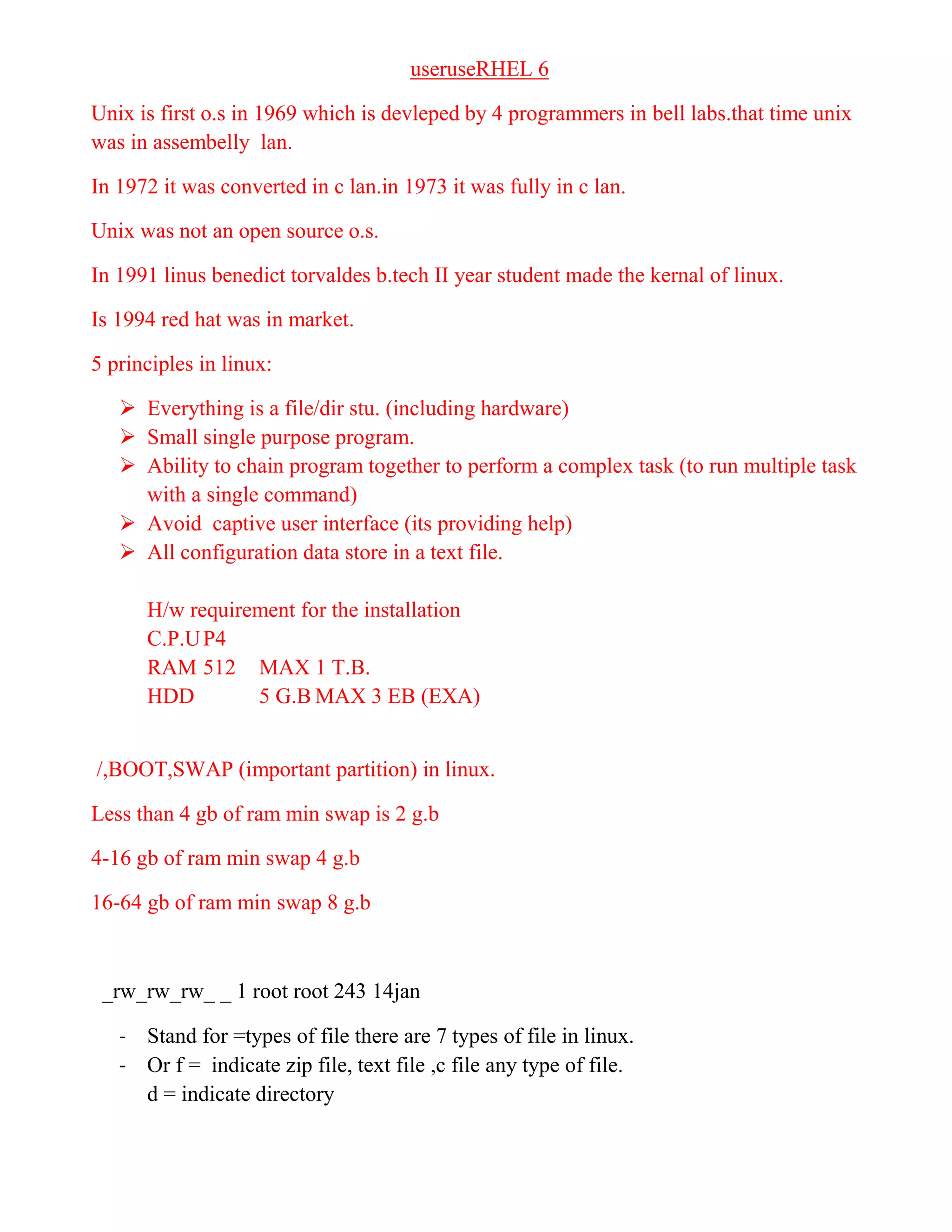
Unix is first o.s in 1969 which is devleped by 4 programmers in bell labs.that time unix
was in assembelly lan.
In 1972 it was converted in c lan.in 1973 it was fully in c lan.
Unix was not an open source o.s.
In 1991 linus benedict torvaldes b.tech II year student made the kernal of linux.
Is 1994 red hat was in market.
5 principles in linux:
 Everything is a file/dir stu. (including hardware)
 Small single purpose program.
 Ability to chain program together to perform a complex task (to run multiple task
with a single command)
 Avoid captive user interface (its providing help)
 All configuration data store in a text file.
H/w requirement for the installation
C.P.UP4
RAM 512 MAX 1 T.B.
HDD 5 G.B MAX 3 EB (EXA)
/,BOOT,SWAP (important partition) in linux.
Less than 4 gb of ram min swap is 2 g.b
4-16 gb of ram min swap 4 g.b
16-64 gb of ram min swap 8 g.b
_rw_rw_rw_ _ 1 root root 243 14jan
- Stand for =types of file there are 7 types of file in linux.
- Or f = indicate zip file, text file ,c file any type of file.
d = indicate directory
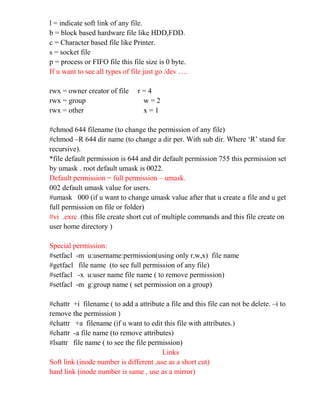
l = indicate soft link of any file.
b = block based hardware file like HDD,FDD.
c = Character based file like Printer.
s = socket file
p = process or FIFO file this file size is 0 byte.
If u want to see all types of file just go /dev ….
rwx = owner creator of file r = 4
rwx = group w = 2
rwx = other x = 1
#chmod 644 filename (to change the permission of any file)
#chmod –R 644 dir name (to change a dir per. With sub dir. Where ‘R’ stand for
recursive).
*file default permission is 644 and dir default permission 755 this permission set
by umask . root default umask is 0022.
Default permission = full permission – umask.
002 default umask value for users.
#umask 000 (if u want to change umask value after that u create a file and u get
full permission on file or folder)
#vi .exrc (this file create short cut of multiple commands and this file create on
user home directory )
Special permission:
#setfacl -m u:username:permission(using only r,w,x) file name
#getfacl file name (to see full permission of any file)
#setfacl -x u:user name file name ( to remove permission)
#setfacl -m g:group name ( set permission on a group)
#chattr +i filename ( to add a attribute a file and this file can not be delete. –i to
remove the permission )
#chattr +a filename (if u want to edit this file with attributes.)
#chattr -a file name (to remove attributes)
#lsattr file name ( to see the file permission)
Links
Soft link (inode number is different ,use as a short cut)
hard link (inode number is same , use as a mirror)
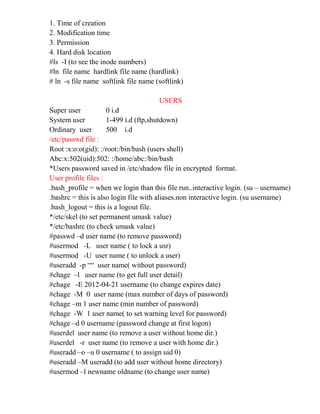
1. Time of creation
2. Modification time
3. Permission
4. Hard disk location
#ls -I (to see the inode numbers)
#ln file name hardlink file name (hardlink)
# ln -s file name softlink file name (softlink)
USERS
Super user 0 i.d
System user 1-499 i.d (ftp,shutdown)
Ordinary user 500 i.d
/etc/passwd file :
Root :x:o:o(gid): :/root:/bin/bash (users shell)
Abc:x:502(uid):502: :/home/abc:/bin/bash
*Users password saved in /etc/shadow file in encrypted format.
User profile files :
.bash_profile = when we login than this file run..interactive login. (su – username)
.bashrc = this is also login file with aliases.non interactive login. (su username)
.bash_logout = this is a logout file.
*/etc/skel (to set permanent umask value)
*/etc/bashrc (to check umask value)
#passwd –d user name (to remove password)
#usermod -L user name ( to lock a usr)
#usermod -U user name ( to unlock a user)
#useradd -p ““ user name( without password)
#chage –l user name (to get full user detail)
#chage -E 2012-04-21 username (to change expires date)
#chage -M 0 user name (max number of days of password)
#chage –m 1 user name (min number of password)
#chage -W 1 user name( to set warning level for password)
#chage –d 0 username (password change at first logon)
#userdel user name (to remove a user without home dir.)
#userdel -r user name (to remove a user with home dir.)
#useradd –o –u 0 username ( to assign uid 0)
#useradd –M useradd (to add user without home directory)
#usermod –l newname oldname (to change user name)
#vi .bashrc ( to create a alias)
Alias c = ‘clear’
And save the file… and logout …
GROUP
1. Primary group (when we create any user than this group automatic create)(-g
stand for primary group)
2. seconary group (
#groupadd group name ( to add a group)
#usermod -g group name username (to add a user in a group)
#usermod –G group name user name (to add a user in secondary group)
#id user name ( to check user i.d ,u.i.d ,g.i.d)
#groups user name ( to check group name)
#groupmod -n new name old name ( to change the group name)
#groupdel group name (for delete a group)
#chown user name file name ( to chnge owner a file)
#chgrp group name file name (to change group)
#chown :group name file name (to change group)
#who= it display a brief information about user name
#w= full detail with login terminal
#whoami= login name
#who am i= we will get full information login user
#finger=
#pinky= we will get full information login user
#chfn user name ( to fill user detail with contact number)
*PS1=”[jeet@h w]$” ( to change print terminal)
I/O redirection
>= to add content in a file
>> = to append any data in a file
<
|
; = to run multiple command …
&> = take error into a file
2>= to save error in text file
#chage –l asw 2> error (to save error in file)
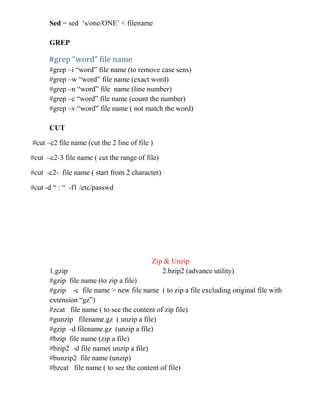
Sed = sed ‘s/one/ONE’ < filename
GREP
#grep “word” file name
#grep –i “word” file name (to remove case sens)
#grep –w “word” file name (exact word)
#grep –n “word” file name (line number)
#grep –c “word” file name (count the number)
#grep –v “word” file name ( not match the word)
CUT
#cut –c2 file name (cut the 2 line of file )
#cut –c2-3 file name ( cut the range of file)
#cut -c2- file name ( start from 2 character)
#cut -d “ : “ -f1 /etc/passwd
Zip & Unzip
1.gzip 2.bzip2 (advance utility)
#gzip file name (to zip a file)
#gzip -c file name > new file name ( to zip a file excluding original file with
extension “gz”)
#zcat file name ( to see the content of zip file)
#gunzip filename.gz ( unzip a file)
#gzip -d filename.gz (unzip a file)
#bzip file name (zip a file)
#bzip2 -d file name( unzip a file)
#bunzip2 file name (unzip)
#bzcat file name ( to see the content of file)
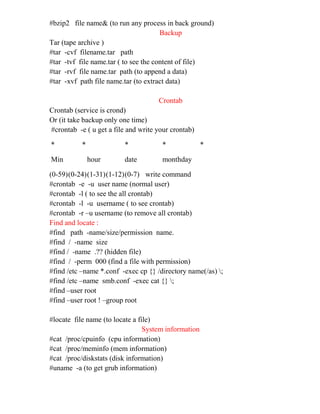
#bzip2 file name& (to run any process in back ground)
Backup
Tar (tape archive )
#tar -cvf filename.tar path
#tar -tvf file name.tar ( to see the content of file)
#tar -rvf file name.tar path (to append a data)
#tar -xvf path file name.tar (to extract data)
Crontab
Crontab (service is crond)
Or (it take backup only one time)
#crontab -e ( u get a file and write your crontab)
* * * * *
Min hour date monthday
(0-59)(0-24)(1-31)(1-12)(0-7) write command
#crontab -e -u user name (normal user)
#crontab -l ( to see the all crontab)
#crontab -l -u username ( to see crontab)
#crontab -r –u username (to remove all crontab)
Find and locate :
#find path -name/size/permission name.
#find / -name size
#find / -name .?? (hidden file)
#find / -perm 000 (find a file with permission)
#find /etc –name *.conf -exec cp {} /directory name(/as) ;
#find /etc –name smb.conf -exec cat {} ;
#find –user root
#find –user root ! –group root
#locate file name (to locate a file)
System information
#cat /proc/cpuinfo (cpu information)
#cat /proc/meminfo (mem information)
#cat /proc/diskstats (disk information)
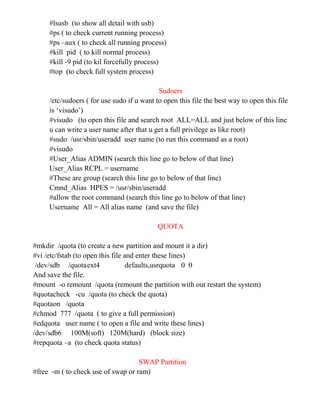
#uname -a (to get grub information)
#lsusb (to show all detail with usb)
#ps ( to check current running process)
#ps –aux ( to check all running process)
#kill pid ( to kill normal process)
#kill -9 pid (to kil forcefully process)
#top (to check full system process)
Sudoers
/etc/sudoers ( for use sudo if u want to open this file the best way to open this file
is ‘visudo’)
#visudo (to open this file and search root ALL=ALL and just below of this line
u can write a user name after that u get a full privilege as like root)
#sudo /usr/sbin/useradd user name (to run this command as a root)
#visudo
#User_Alias ADMIN (search this line go to below of that line)
User_Alias RCPL = username
#These are group (search this line go to below of that line)
Cmnd_Alias HPES = /usr/sbin/useradd
#allow the root command (search this line go to below of that line)
Username All = All alias name (and save the file)
QUOTA
#mkdir /quota (to create a new partition and mount it a dir)
#vi /etc/fstab (to open this file and enter these lines)
/dev/sdb /quotaext4 defaults,usrquota 0 0
And save the file.
#mount -o remount /quota (remount the partition with out restart the system)
#quotacheck -cu /quota (to check the quota)
#quotaon /quota
#chmod 777 /quota ( to give a full permission)
#edquota user name ( to open a file and write these lines)
/dev/sdb6 100M(soft) 120M(hard) (block size)
#repquota –a (to check quota status)
SWAP Partition
#free -m ( to check use of swap or ram)
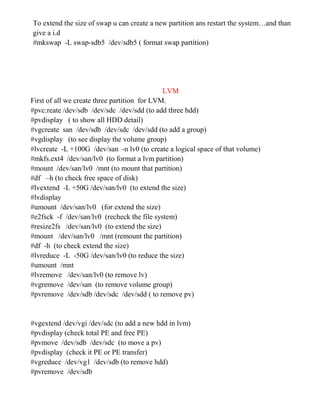
To extend the size of swap u can create a new partition ans restart the system…and than
give a i.d
#mkswap -L swap-sdb5 /dev/sdb5 ( format swap partition)
LVM
First of all we create three partition for LVM.
#pvc:reate /dev/sdb /dev/sdc /dev/sdd (to add three hdd)
#pvdisplay ( to show all HDD detail)
#vgcreate san /dev/sdb /dev/sdc /dev/sdd (to add a group)
#vgdisplay (to see display the volume group)
#lvcreate -L +100G /dev/san -n lv0 (to create a logical space of that volume)
#mkfs.ext4 /dev/san/lv0 (to format a lvm partition)
#mount /dev/san/lv0 /mnt (to mount that partition)
#df –h (to check free space of disk)
#lvextend -L +50G /dev/san/lv0 (to extend the size)
#lvdisplay
#umount /dev/san/lv0 (for extend the size)
#e2fsck -f /dev/san/lv0 (recheck the file system)
#resize2fs /dev/san/lv0 (to extend the size)
#mount /dev/san/lv0 /mnt (remount the partition)
#df -h (to check extend the size)
#lvreduce -L -50G /dev/san/lv0 (to reduce the size)
#umount /mnt
#lvremove /dev/san/lv0 (to remove lv)
#vgremove /dev/san (to remove volume group)
#pvremove /dev/sdb /dev/sdc /dev/sdd ( to remove pv)
#vgextend /dev/vgi /dev/sdc (to add a new hdd in lvm)
#pvdisplay (check total PE and free PE)
#pvmove /dev/sdb /dev/sdc (to move a pv)
#pvdisplay (check it PE or PE transfer)
#vgreduce /dev/vg1 /dev/sdb (to remove hdd)
#pvremove /dev/sdb
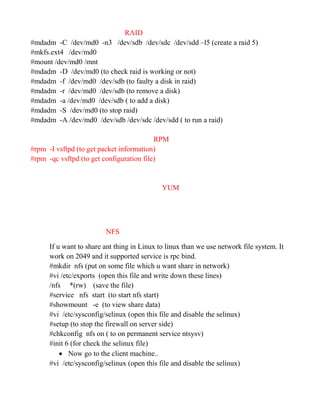
RAID
#mdadm -C /dev/md0 -n3 /dev/sdb /dev/sdc /dev/sdd –l5 (create a raid 5)
#mkfs.ext4 /dev/md0
#mount /dev/md0 /mnt
#mdadm -D /dev/md0 (to check raid is working or not)
#mdadm -f /dev/md0 /dev/sdb (to faulty a disk in raid)
#mdadm -r /dev/md0 /dev/sdb (to remove a disk)
#mdadm -a /dev/md0 /dev/sdb ( to add a disk)
#mdadm -S /dev/md0 (to stop raid)
#mdadm -A /dev/md0 /dev/sdb /dev/sdc /dev/sdd ( to run a raid)
RPM
#rpm -I vsftpd (to get packet information)
#rpm -qc vsftpd (to get configuration file)
YUM
NFS
If u want to share ant thing in Linux to linux than we use network file system. It
work on 2049 and it supported service is rpc bind.
#mkdir nfs (put on some file which u want share in network)
#vi /etc/exports (open this file and write down these lines)
/nfs *(rw) (save the file)
#service nfs start (to start nfs start)
#showmount -e (to view share data)
#vi /etc/sysconfig/selinux (open this file and disable the selinux)
#setup (to stop the firewall on server side)
#chkconfig nfs on ( to on permanent service ntsysv)
#init 6 (for check the selinux file)
 Now go to the client machine..
#vi /etc/sysconfig/selinux (open this file and disable the selinux)
#setup (to stop the firewall on client side)
#chkconfig nfs on ( to on permanent service ntsysv)
#init 6 (for check the selinux file)
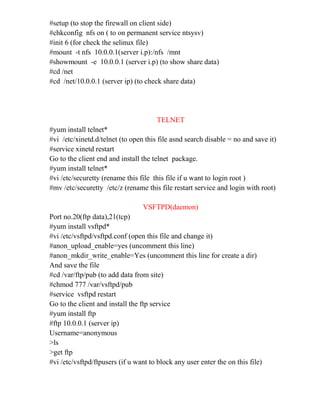
#mount -t nfs 10.0.0.1(server i.p):/nfs /mnt
#showmount -e 10.0.0.1 (server i.p) (to show share data)
#cd /net
#cd /net/10.0.0.1 (server ip) (to check share data)
TELNET
#yum install telnet*
#vi /etc/xinetd.d/telnet (to open this file asnd search disable = no and save it)
#service xinetd restart
Go to the client end and install the telnet package.
#yum install telnet*
#vi /etc/securetty (rename this file this file if u want to login root )
#mv /etc/securetty /etc/z (rename this file restart service and login with root)
VSFTPD(daemon)
Port no.20(ftp data),21(tcp)
#yum install vsftpd*
#vi /etc/vsftpd/vsftpd.conf (open this file and change it)
#anon_upload_enable=yes (uncomment this line)
#anon_mkdir_write_enable=Yes (uncomment this line for create a dir)
And save the file
#cd /var/ftp/pub (to add data from site)
#chmod 777 /var/vsftpd/pub
#service vsftpd restart
Go to the client and install the ftp service
#yum install ftp
#ftp 10.0.0.1 (server ip)
Username=anonymous
>ls
>get ftp
#vi /etc/vsftpd/ftpusers (if u want to block any user enter the on this file)
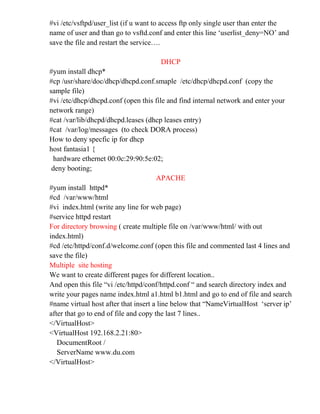
#vi /etc/vsftpd/user_list (if u want to access ftp only single user than enter the
name of user and than go to vsftd.conf and enter this line ‘userlist_deny=NO’ and
save the file and restart the service….
DHCP
#yum install dhcp*
#cp /usr/share/doc/dhcp/dhcpd.conf.smaple /etc/dhcp/dhcpd.conf (copy the
sample file)
#vi /etc/dhcp/dhcpd.conf (open this file and find internal network and enter your
network range)
#cat /var/lib/dhcpd/dhcpd.leases (dhcp leases entry)
#cat /var/log/messages (to check DORA process)
How to deny specfic ip for dhcp
host fantasia1 {
hardware ethernet 00:0c:29:90:5e:02;
deny booting;
APACHE
#yum install httpd*
#cd /var/www/html
#vi index.html (write any line for web page)
#service httpd restart
For directory browsing ( create multiple file on /var/www/html/ with out
index.html)
#cd /etc/httpd/conf.d/welcome.conf (open this file and commented last 4 lines and
save the file)
Multiple site hosting
We want to create different pages for different location..
And open this file “vi /etc/httpd/conf/httpd.conf “ and search directory index and
write your pages name index.html a1.html b1.html and go to end of file and search
#name virtual host after that insert a line below that “NameVirtualHost ‘server ip’
after that go to end of file and copy the last 7 lines..
</VirtualHost>
<VirtualHost 192.168.2.21:80>
DocumentRoot /
ServerName www.du.com
</VirtualHost>
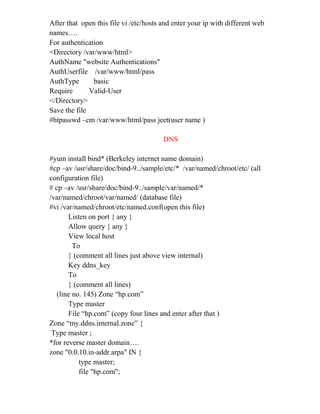
After that open this file vi /etc/hosts and enter your ip with different web
names….
For authentication
<Directory /var/www/html>
AuthName "website Authentications"
AuthUserfile /var/www/html/pass
AuthType basic
Require Valid-User
</Directory>
Save the file
#htpasswd –cm /var/www/html/pass jeet(user name )
DNS
#yum install bind* (Berkeley internet name domain)
#cp –av /usr/share/doc/bind-9../sample/etc/* /var/named/chroot/etc/ (all
configuration file)
# cp –av /usr/share/doc/bind-9../sample/var/named/*
/var/named/chroot/var/named/ (database file)
#vi /var/named/chroot/etc/named.conf(open this file)
Listen on port { any }
Allow query { any }
View local host
To
} (comment all lines just above view internal)
Key ddns_key
To
} (comment all lines)
(line no. 145) Zone “hp.com”
Type master
File “hp.com” (copy four lines and enter after that )
Zone “my.ddns.internal.zone” {
Type master ;
*for reverse master domain….
zone "0.0.10.in-addr.arpa" IN {
type master;
file "hp.com";
};
To
} ;(comment all 6 lines and save the file)
#cd /var/named/chroot/var/named
#cp named.localhost hp.com
#vi hp.com (open the file and replace @ with host name like rcpl. Go to end of file
write www A 10.0.0.1 mail A 10.0.0.1 save the file)
#chmod 777 hp.com
#setup
Go to network settings and put dns ip …
#service named restart
#nslookup www.hp.com
#dig www.hp.com
SAMBA (linux to windows sharing)
It is works on 139,137 port number. Smb service is used for data sharing and nmb
service is used for domain envirment.
/var/lib/samba/private/passwd.tbd (it contain smb password).
#yum install samba*
#vi /etc/samba/smb.conf (smb=simple message block)
Go to end of line…
[name which u want to display on client]
Path = /asd (where the data store)
Public = yes (to secure ur data in network)
Writable = yes
Browseable = yes
valid users = put a user name which u want to access the data.
Printable = no
Save the file ……..
#service smb restart
#service nmb restart
#useradd hp
#smbpasswd -a hp
#service smb restart
#service nmb restart
Go to client and access the data….
If u want to access client data then use this…
#smbclient -L 20.0.0.1 –U user name (on client)
#mount -t cifs //client i.p/C$ /mnt -o user=username (cifs= common internet file
system)
Access data without user name or password…
guest account = nobody (uncomment this line)
[sb ke liye]
path = /share
public = yes
writable = yes
browseable = yes
guest ok = yes
guest only = yes
guest account = nobody
SAMBA Centralize login
#vi /etc/samba/smb.conf (open this file)
Workgroup = jeet (domain name)77
Netbios name = jeet 74
Domain master = yes
Domain logons = yes (both of lines un comment)155,156
Logon path = %L (un comment)
Add user script =
Add group script =
Add machine script =
Delete user script =
Delete group script = (all lines un commented)
Os level = 40
Preferred master =yes (un comment)
Netlogon to guest line un comment
[profile] to guest ( to all lines un comment)
Path = /home/%u
Browseable = yes
Writable = yes
Save the file……
#service smb restart
#service nmb restart
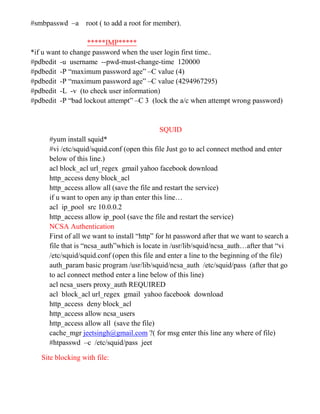
#smbpasswd –a root ( to add a root for member).
*****IMP*****
*if u want to change password when the user login first time..
#pdbedit -u username --pwd-must-change-time 120000
#pdbedit -P “maximum password age” –C value (4)
#pdbedit -P “maximum password age” –C value (4294967295)
#pdbedit -L -v (to check user information)
#pdbedit -P “bad lockout attempt” –C 3 (lock the a/c when attempt wrong password)
SQUID
#yum install squid*
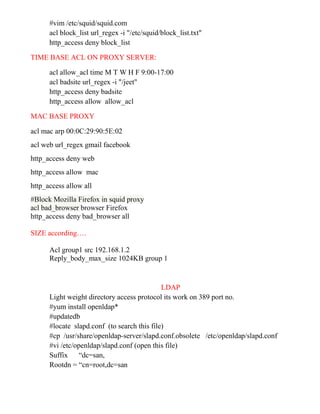
#vi /etc/squid/squid.conf (open this file Just go to acl connect method and enter
below of this line.)
acl block_acl url_regex gmail yahoo facebook download
http_access deny block_acl
http_access allow all (save the file and restart the service)
if u want to open any ip than enter this line…
acl ip_pool src 10.0.0.2
http_access allow ip_pool (save the file and restart the service)
NCSA Authentication
First of all we want to install “http” for ht password after that we want to search a
file that is “ncsa_auth”which is locate in /usr/lib/squid/ncsa_auth…after that “vi
/etc/squid/squid.conf (open this file and enter a line to the beginning of the file)
auth_param basic program /usr/lib/squid/ncsa_auth /etc/squid/pass (after that go
to acl connect method enter a line below of this line)
acl ncsa_users proxy_auth REQUIRED
acl block_acl url_regex gmail yahoo facebook download
http_access deny block_acl
http_access allow ncsa_users
http_access allow all (save the file)
cache_mgr jeetsingh@gmail.com ?( for msg enter this line any where of file)
#htpasswd –c /etc/squid/pass jeet
Site blocking with file:
#vim /etc/squid/squid.com
acl block_list url_regex -i "/etc/squid/block_list.txt"
http_access deny block_list
TIME BASE ACL ON PROXY SERVER:
acl allow_acl time M T W H F 9:00-17:00
acl badsite url_regex -i "/jeet"
http_access deny badsite
http_access allow allow_acl
MAC BASE PROXY
acl mac arp 00:0C:29:90:5E:02
acl web url_regex gmail facebook
http_access deny web
http_access allow mac
http_access allow all
#Block Mozilla Firefox in squid proxy
acl bad_browser browser Firefox
http_access deny bad_browser all
SIZE according….
Acl group1 src 192.168.1.2
Reply_body_max_size 1024KB group 1
LDAP
Light weight directory access protocol its work on 389 port no.
#yum install openldap*
#updatedb
#locate slapd.conf (to search this file)
#cp /usr/share/openldap-server/slapd.conf.obsolete /etc/openldap/slapd.conf
#vi /etc/openldap/slapd.conf (open this file)
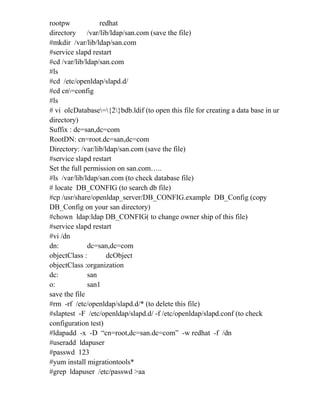
Suffix “dc=san,
Rootdn = “cn=root,dc=san
rootpw redhat
directory /var/lib/ldap/san.com (save the file)
#mkdir /var/lib/ldap/san.com
#service slapd restart
#cd /var/lib/ldap/san.com
#ls
#cd /etc/openldap/slapd.d/
#cd cn=config
#ls
# vi olcDatabase={2}bdb.ldif (to open this file for creating a data base in ur
directory)
Suffix : dc=san,dc=com
RootDN: cn=root.dc=san,dc=com
Directory: /var/lib/ldap/san.com (save the file)
#service slapd restart
Set the full permission on san.com…..
#ls /var/lib/ldap/san.com (to check database file)
# locate DB_CONFIG (to search db file)
#cp /usr/share/openldap_server/DB_CONFIG.example DB_Config (copy
DB_Config on your san directory)
#chown ldap:ldap DB_CONFIG( to change owner ship of this file)
#service slapd restart
#vi /dn
dn: dc=san,dc=com
objectClass : dcObject
objectClass :organization
dc: san
o: san1
save the file
#rm -rf /etc/openldap/slapd.d/* (to delete this file)
#slaptest -F /etc/openldap/slapd.d/ -f /etc/openldap/slapd.conf (to check
configuration test)
#ldapadd -x -D “cn=root,dc=san.dc=com” -w redhat -f /dn
#useradd ldapuser
#passwd 123
#yum install migrationtools*
#grep ldapuser /etc/passwd >aa
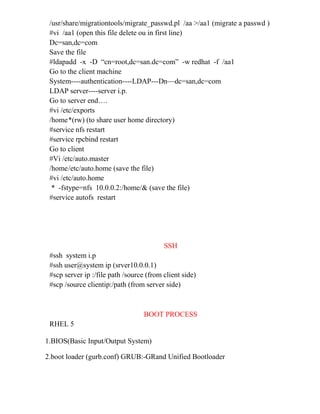
/usr/share/migrationtools/migrate_passwd.pl /aa >/aa1 (migrate a passwd )
#vi /aa1 (open this file delete ou in first line)
Dc=san,dc=com
Save the file
#ldapadd -x -D “cn=root,dc=san.dc=com” -w redhat -f /aa1
Go to the client machine
System----authentication----LDAP---Dn—dc=san,dc=com
LDAP server----server i.p.
Go to server end….
#vi /etc/exports
/home*(rw) (to share user home directory)
#service nfs restart
#service rpcbind restart
Go to client
#Vi /etc/auto.master
/home/etc/auto.home (save the file)
#vi /etc/auto.home
* -fstype=nfs 10.0.0.2:/home/& (save the file)
#service autofs restart
SSH
#ssh system i.p
#ssh user@system ip (srver10.0.0.1)
#scp server ip :/file path /source (from client side)
#scp /source clientip:/path (from server side)
BOOT PROCESS
RHEL 5
1.BIOS(Basic Input/Output System)
2.boot loader (gurb.conf) GRUB:-GRand Unified Bootloader
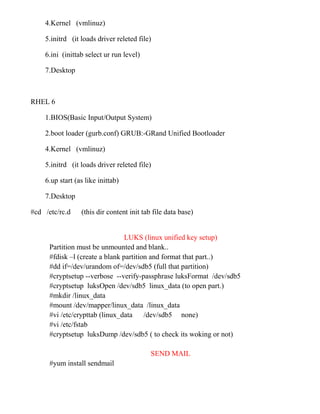
4.Kernel (vmlinuz)
5.initrd (it loads driver releted file)
6.ini (inittab select ur run level)
7.Desktop
RHEL 6
1.BIOS(Basic Input/Output System)
2.boot loader (gurb.conf) GRUB:-GRand Unified Bootloader
4.Kernel (vmlinuz)
5.initrd (it loads driver releted file)
6.up start (as like inittab)
7.Desktop
#cd /etc/rc.d (this dir content init tab file data base)
LUKS (linux unified key setup)
Partition must be unmounted and blank..
#fdisk –l (create a blank partition and format that part..)
#dd if=/dev/urandom of=/dev/sdb5 (full that partition)
#cryptsetup --verbose --verify-passphrase luksFormat /dev/sdb5
#cryptsetup luksOpen /dev/sdb5 linux_data (to open part.)
#mkdir /linux_data
#mount /dev/mapper/linux_data /linux_data
#vi /etc/crypttab (linux_data /dev/sdb5 none)
#vi /etc/fstab
#cryptsetup luksDump /dev/sdb5 ( to check its woking or not)
SEND MAIL
#yum install sendmail
#yum install procmail
/etc/mail/sendmail.cf (it is a main file of send mail but we work on
/etc/mail/sendmail.mc)
#vi /etc/mail/sendmail.mc
Port smtp (comment this line)
#m4 /etc/sendmail.mc > /etc/mail/senmail.cf
#service sendmail restart
#useradd amit
#password arun
#su –arun
#mail amit@localhost.localdomain
Login with user and type
#mail (to see the mail)
SYSLOG
We want to centralized log data base..
#vi /etc/sysconf/rsyslog
$modload udpto
$input (both line uncommented)
#vi /etc/sysconfig/rsyslog
“-m 0 –r” (write end of file and save the file)
#service rsyslog start
Go to the client machine..and find “rules”
Vi /etc/rsyslog.conf
*.* @server ip
Save the file
#service rsyslog restart
NIS
#yum install ypserv*
#nisdomainname hp
#domainname hp
#hostname rcpl
#service ypserv restart
#service rpcbind restart
#cd /usr/lib/yp/
#./ypinit -m (after that press “ctrl + d”)
#make -C /var/yp (for update data base)
#vi /etc/exports (for sharing home folder)
Go to client
System ------- authentication ---- nis login--- domain name ---- server ip.
#vi / etc/auto.master (open this file and enter this line
/home /etc/auto.home (save the file)
#vi /etc/auto.home (open this file and write this line)
* -fstype=nfs server ip:/home/&
#service autofs stop
#service autofs start
#service ypbind restart
PAM (pluggable authentication moduel)
If u want to restric any user to time to time and terminal.
#touch /etc/nologin (to block any normal user)
# cd /lib/security ( to check PAM configuration file)
#vi /etc/pam.d/login (open this file and comment the line “#account required
pam_nologin.so (save the file than check normal user login)
*if u want block terminal for singel user first of all we want to remove
“nologin” and than..
#vi /etc/pam.d/login (open this file and put a line from the begain of line)
auth required pm_access.so (save the file)
#vi /etc/security/access.conf (open this file and go to end of line)
+ : jeet : tty4 (if u want user login only tty 4)
- : jeet : ALL (deny all terminal save the file)
*if u want user login with time wice…
#Vi /etc/pam.d/login (open the file enter a line before auth include system_auth)
account required pam_time.so (save the file)
#vi /etc/security/time.conf (open this file go to end of file and enter this line)
login;tty4;jeet;Al1200-1600 (to login any user with time )
*if u want to login with limited number of sessions..
Vi /etc/pam.d/login (open this file and go to session lines and enter this line.)
session required pam_limits.so (save the file)
#vi /etc/security/limits.conf (go to end of line enter this line just above #end of
file)
jeet hard maxlogins 1 (save the file)
*if u want to give root privilage any user.
#vi /etc/pam.d/login (enter this line for the begain of file)
auth requried pam_group.so
#vi /etc/security/group.conf (opent this and go to end of file enter this line just
above )
Login;tty;ss;Al0000-2400;root (save the file)
If u want to remove all user from login screen..
#vi /etc/gconf/gconf.xml.defaults/%gconf-tree.xml (open this file and search
“/disable_user” (go to line number 14454)
<default type=”bool” value=”false”/> (just relplace false with true and save the
file)
Change the login screen…
#cd /usr/share/backgrounds/ (paste your png image)
#vi /usr/share/backgrounds/default.xml (open this file and find time when u want
to change login screen).
If u want to show own msg when we access telnet..
#vi /etc/issue.net (save the file)
SEND MAIL
Smtp = 25 pop3 = 110 pop3s 995
CREATE A DNS SERVER WITH MX RECORD…THE MX RECORD ENTRY IS..
@ MX 10 WWW.MAIL.COM
SERVICE NAMED RESTART
FOR CHECK MX RECORD :
nslookup
set type=MX
mail .com
yum install sendmail*
# vi /etc/mail/sendmail.mc (open this file)
DAEMON_OPTION(PORT=SMTP,ADDR=10.0.0.1,NAME=MTA)
LOCAL_DOMAIN (‘domain name’)
MASQUERADE_DOMAIN(HOST NAME)
MASQUERADE_DOMAIN(DOMAIN NAME)
SAVE THE FILE…
#m4 /etc/mail/sendmail.mc > /etc/mail/sendmail.cf
#service sendmail restart
#telnet www.rahul.com 25 (to check smtp work is not)
ehlo www.rahul.com
mail from:root@rahul.com
rcpt to:amit#rahul.com
Data
subject :hiiiiiiiiiiiiii
#yum install dovecot
# vi /etc/dovecot/dovecot.conf
protocol = imap pop3 lmtp pop3s imaps (uncomment)
listen = *, : : (un comment)
mail_location = mbox:~/mail:INBOX=/var/mail/%u
ssl_cert_file = /etc/pki/dovecot/certs/dovecot.pem
ssl_key_file = /etc/pki/dovecot/private/dovecot.pem
save the file……
#service dovecot restart
Before genrating the certificate…
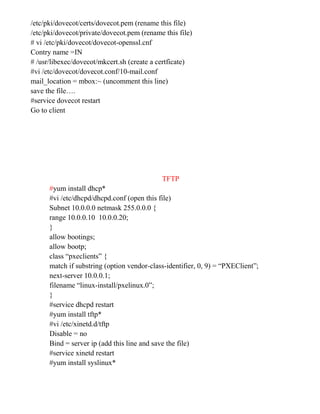
/etc/pki/dovecot/certs/dovecot.pem (rename this file)
/etc/pki/dovecot/private/dovecot.pem (rename this file)
# vi /etc/pki/dovecot/dovecot-openssl.cnf
Contry name =IN
# /usr/libexec/dovecot/mkcert.sh (create a certficate)
#vi /etc/dovecot/dovecot.conf/10-mail.conf
mail_location = mbox:~ (uncomment this line)
save the file….
#service dovecot restart
Go to client
TFTP
#yum install dhcp*
#vi /etc/dhcpd/dhcpd.conf (open this file)
Subnet 10.0.0.0 netmask 255.0.0.0 {
range 10.0.0.10 10.0.0.20;
}
allow bootings;
allow bootp;
class “pxeclients” {
match if substring (option vendor-class-identifier, 0, 9) = “PXEClient”;
next-server 10.0.0.1;
filename “linux-install/pxelinux.0”;
}
#service dhcpd restart
#yum install tftp*
#vi /etc/xinetd.d/tftp
Disable = no
Bind = server ip (add this line and save the file)
#service xinetd restart
#yum install syslinux*
#mkdir –p /var/lib/tftpboot/linux-install/pxelinux.cfg
#cp /usr/share/syslinux/pxelinux.0 /var/lib/tftppool/linux-install
#cp /usr/share/syslinux/menu.32 /var/tftpboot/linux-install/
#cp /media/RHEL/1/images/pxeboot/* /var/lib/tftpboot/linux-install
#vi /var/tftpboot/linux-install/pxelinux/pxelinux.cfg/default
Timeout 100
default menu.32
Menu title ##########boot menu#############
label 1
menu label ` 1 ) RHEL 6
kernel vmlinuz
append initrd=initrd.img (save the file)
#service xinetd restart
Mount the dvd and share it with nfs….
#yum install system-config.kickstart *
#system config-kickstart (and configure it)
http://iso.linuxquestions.org/backtrack/backtrack-5-r3/#x86_64

Rhel 6.2 complete ebook

  • 1.
    useruseRHEL 6 Unix isfirst o.s in 1969 which is devleped by 4 programmers in bell labs.that time unix was in assembelly lan. In 1972 it was converted in c lan.in 1973 it was fully in c lan. Unix was not an open source o.s. In 1991 linus benedict torvaldes b.tech II year student made the kernal of linux. Is 1994 red hat was in market. 5 principles in linux:  Everything is a file/dir stu. (including hardware)  Small single purpose program.  Ability to chain program together to perform a complex task (to run multiple task with a single command)  Avoid captive user interface (its providing help)  All configuration data store in a text file. H/w requirement for the installation C.P.UP4 RAM 512 MAX 1 T.B. HDD 5 G.B MAX 3 EB (EXA) /,BOOT,SWAP (important partition) in linux. Less than 4 gb of ram min swap is 2 g.b 4-16 gb of ram min swap 4 g.b 16-64 gb of ram min swap 8 g.b _rw_rw_rw_ _ 1 root root 243 14jan - Stand for =types of file there are 7 types of file in linux. - Or f = indicate zip file, text file ,c file any type of file. d = indicate directory
  • 2.
    l = indicatesoft link of any file. b = block based hardware file like HDD,FDD. c = Character based file like Printer. s = socket file p = process or FIFO file this file size is 0 byte. If u want to see all types of file just go /dev …. rwx = owner creator of file r = 4 rwx = group w = 2 rwx = other x = 1 #chmod 644 filename (to change the permission of any file) #chmod –R 644 dir name (to change a dir per. With sub dir. Where ‘R’ stand for recursive). *file default permission is 644 and dir default permission 755 this permission set by umask . root default umask is 0022. Default permission = full permission – umask. 002 default umask value for users. #umask 000 (if u want to change umask value after that u create a file and u get full permission on file or folder) #vi .exrc (this file create short cut of multiple commands and this file create on user home directory ) Special permission: #setfacl -m u:username:permission(using only r,w,x) file name #getfacl file name (to see full permission of any file) #setfacl -x u:user name file name ( to remove permission) #setfacl -m g:group name ( set permission on a group) #chattr +i filename ( to add a attribute a file and this file can not be delete. –i to remove the permission ) #chattr +a filename (if u want to edit this file with attributes.) #chattr -a file name (to remove attributes) #lsattr file name ( to see the file permission) Links Soft link (inode number is different ,use as a short cut) hard link (inode number is same , use as a mirror)
  • 3.
    1. Time ofcreation 2. Modification time 3. Permission 4. Hard disk location #ls -I (to see the inode numbers) #ln file name hardlink file name (hardlink) # ln -s file name softlink file name (softlink) USERS Super user 0 i.d System user 1-499 i.d (ftp,shutdown) Ordinary user 500 i.d /etc/passwd file : Root :x:o:o(gid): :/root:/bin/bash (users shell) Abc:x:502(uid):502: :/home/abc:/bin/bash *Users password saved in /etc/shadow file in encrypted format. User profile files : .bash_profile = when we login than this file run..interactive login. (su – username) .bashrc = this is also login file with aliases.non interactive login. (su username) .bash_logout = this is a logout file. */etc/skel (to set permanent umask value) */etc/bashrc (to check umask value) #passwd –d user name (to remove password) #usermod -L user name ( to lock a usr) #usermod -U user name ( to unlock a user) #useradd -p ““ user name( without password) #chage –l user name (to get full user detail) #chage -E 2012-04-21 username (to change expires date) #chage -M 0 user name (max number of days of password) #chage –m 1 user name (min number of password) #chage -W 1 user name( to set warning level for password) #chage –d 0 username (password change at first logon) #userdel user name (to remove a user without home dir.) #userdel -r user name (to remove a user with home dir.) #useradd –o –u 0 username ( to assign uid 0) #useradd –M useradd (to add user without home directory) #usermod –l newname oldname (to change user name)
  • 4.
    #vi .bashrc (to create a alias) Alias c = ‘clear’ And save the file… and logout … GROUP 1. Primary group (when we create any user than this group automatic create)(-g stand for primary group) 2. seconary group ( #groupadd group name ( to add a group) #usermod -g group name username (to add a user in a group) #usermod –G group name user name (to add a user in secondary group) #id user name ( to check user i.d ,u.i.d ,g.i.d) #groups user name ( to check group name) #groupmod -n new name old name ( to change the group name) #groupdel group name (for delete a group) #chown user name file name ( to chnge owner a file) #chgrp group name file name (to change group) #chown :group name file name (to change group) #who= it display a brief information about user name #w= full detail with login terminal #whoami= login name #who am i= we will get full information login user #finger= #pinky= we will get full information login user #chfn user name ( to fill user detail with contact number) *PS1=”[jeet@h w]$” ( to change print terminal) I/O redirection >= to add content in a file >> = to append any data in a file < | ; = to run multiple command … &> = take error into a file 2>= to save error in text file #chage –l asw 2> error (to save error in file)
  • 5.
    Sed = sed‘s/one/ONE’ < filename GREP #grep “word” file name #grep –i “word” file name (to remove case sens) #grep –w “word” file name (exact word) #grep –n “word” file name (line number) #grep –c “word” file name (count the number) #grep –v “word” file name ( not match the word) CUT #cut –c2 file name (cut the 2 line of file ) #cut –c2-3 file name ( cut the range of file) #cut -c2- file name ( start from 2 character) #cut -d “ : “ -f1 /etc/passwd Zip & Unzip 1.gzip 2.bzip2 (advance utility) #gzip file name (to zip a file) #gzip -c file name > new file name ( to zip a file excluding original file with extension “gz”) #zcat file name ( to see the content of zip file) #gunzip filename.gz ( unzip a file) #gzip -d filename.gz (unzip a file) #bzip file name (zip a file) #bzip2 -d file name( unzip a file) #bunzip2 file name (unzip) #bzcat file name ( to see the content of file)
  • 6.
    #bzip2 file name&(to run any process in back ground) Backup Tar (tape archive ) #tar -cvf filename.tar path #tar -tvf file name.tar ( to see the content of file) #tar -rvf file name.tar path (to append a data) #tar -xvf path file name.tar (to extract data) Crontab Crontab (service is crond) Or (it take backup only one time) #crontab -e ( u get a file and write your crontab) * * * * * Min hour date monthday (0-59)(0-24)(1-31)(1-12)(0-7) write command #crontab -e -u user name (normal user) #crontab -l ( to see the all crontab) #crontab -l -u username ( to see crontab) #crontab -r –u username (to remove all crontab) Find and locate : #find path -name/size/permission name. #find / -name size #find / -name .?? (hidden file) #find / -perm 000 (find a file with permission) #find /etc –name *.conf -exec cp {} /directory name(/as) ; #find /etc –name smb.conf -exec cat {} ; #find –user root #find –user root ! –group root #locate file name (to locate a file) System information #cat /proc/cpuinfo (cpu information) #cat /proc/meminfo (mem information) #cat /proc/diskstats (disk information) #uname -a (to get grub information)
  • 7.
    #lsusb (to showall detail with usb) #ps ( to check current running process) #ps –aux ( to check all running process) #kill pid ( to kill normal process) #kill -9 pid (to kil forcefully process) #top (to check full system process) Sudoers /etc/sudoers ( for use sudo if u want to open this file the best way to open this file is ‘visudo’) #visudo (to open this file and search root ALL=ALL and just below of this line u can write a user name after that u get a full privilege as like root) #sudo /usr/sbin/useradd user name (to run this command as a root) #visudo #User_Alias ADMIN (search this line go to below of that line) User_Alias RCPL = username #These are group (search this line go to below of that line) Cmnd_Alias HPES = /usr/sbin/useradd #allow the root command (search this line go to below of that line) Username All = All alias name (and save the file) QUOTA #mkdir /quota (to create a new partition and mount it a dir) #vi /etc/fstab (to open this file and enter these lines) /dev/sdb /quotaext4 defaults,usrquota 0 0 And save the file. #mount -o remount /quota (remount the partition with out restart the system) #quotacheck -cu /quota (to check the quota) #quotaon /quota #chmod 777 /quota ( to give a full permission) #edquota user name ( to open a file and write these lines) /dev/sdb6 100M(soft) 120M(hard) (block size) #repquota –a (to check quota status) SWAP Partition #free -m ( to check use of swap or ram)
  • 8.
    To extend thesize of swap u can create a new partition ans restart the system…and than give a i.d #mkswap -L swap-sdb5 /dev/sdb5 ( format swap partition) LVM First of all we create three partition for LVM. #pvc:reate /dev/sdb /dev/sdc /dev/sdd (to add three hdd) #pvdisplay ( to show all HDD detail) #vgcreate san /dev/sdb /dev/sdc /dev/sdd (to add a group) #vgdisplay (to see display the volume group) #lvcreate -L +100G /dev/san -n lv0 (to create a logical space of that volume) #mkfs.ext4 /dev/san/lv0 (to format a lvm partition) #mount /dev/san/lv0 /mnt (to mount that partition) #df –h (to check free space of disk) #lvextend -L +50G /dev/san/lv0 (to extend the size) #lvdisplay #umount /dev/san/lv0 (for extend the size) #e2fsck -f /dev/san/lv0 (recheck the file system) #resize2fs /dev/san/lv0 (to extend the size) #mount /dev/san/lv0 /mnt (remount the partition) #df -h (to check extend the size) #lvreduce -L -50G /dev/san/lv0 (to reduce the size) #umount /mnt #lvremove /dev/san/lv0 (to remove lv) #vgremove /dev/san (to remove volume group) #pvremove /dev/sdb /dev/sdc /dev/sdd ( to remove pv) #vgextend /dev/vgi /dev/sdc (to add a new hdd in lvm) #pvdisplay (check total PE and free PE) #pvmove /dev/sdb /dev/sdc (to move a pv) #pvdisplay (check it PE or PE transfer) #vgreduce /dev/vg1 /dev/sdb (to remove hdd) #pvremove /dev/sdb
  • 9.
    RAID #mdadm -C /dev/md0-n3 /dev/sdb /dev/sdc /dev/sdd –l5 (create a raid 5) #mkfs.ext4 /dev/md0 #mount /dev/md0 /mnt #mdadm -D /dev/md0 (to check raid is working or not) #mdadm -f /dev/md0 /dev/sdb (to faulty a disk in raid) #mdadm -r /dev/md0 /dev/sdb (to remove a disk) #mdadm -a /dev/md0 /dev/sdb ( to add a disk) #mdadm -S /dev/md0 (to stop raid) #mdadm -A /dev/md0 /dev/sdb /dev/sdc /dev/sdd ( to run a raid) RPM #rpm -I vsftpd (to get packet information) #rpm -qc vsftpd (to get configuration file) YUM NFS If u want to share ant thing in Linux to linux than we use network file system. It work on 2049 and it supported service is rpc bind. #mkdir nfs (put on some file which u want share in network) #vi /etc/exports (open this file and write down these lines) /nfs *(rw) (save the file) #service nfs start (to start nfs start) #showmount -e (to view share data) #vi /etc/sysconfig/selinux (open this file and disable the selinux) #setup (to stop the firewall on server side) #chkconfig nfs on ( to on permanent service ntsysv) #init 6 (for check the selinux file)  Now go to the client machine.. #vi /etc/sysconfig/selinux (open this file and disable the selinux)
  • 10.
    #setup (to stopthe firewall on client side) #chkconfig nfs on ( to on permanent service ntsysv) #init 6 (for check the selinux file) #mount -t nfs 10.0.0.1(server i.p):/nfs /mnt #showmount -e 10.0.0.1 (server i.p) (to show share data) #cd /net #cd /net/10.0.0.1 (server ip) (to check share data) TELNET #yum install telnet* #vi /etc/xinetd.d/telnet (to open this file asnd search disable = no and save it) #service xinetd restart Go to the client end and install the telnet package. #yum install telnet* #vi /etc/securetty (rename this file this file if u want to login root ) #mv /etc/securetty /etc/z (rename this file restart service and login with root) VSFTPD(daemon) Port no.20(ftp data),21(tcp) #yum install vsftpd* #vi /etc/vsftpd/vsftpd.conf (open this file and change it) #anon_upload_enable=yes (uncomment this line) #anon_mkdir_write_enable=Yes (uncomment this line for create a dir) And save the file #cd /var/ftp/pub (to add data from site) #chmod 777 /var/vsftpd/pub #service vsftpd restart Go to the client and install the ftp service #yum install ftp #ftp 10.0.0.1 (server ip) Username=anonymous >ls >get ftp #vi /etc/vsftpd/ftpusers (if u want to block any user enter the on this file)
  • 11.
    #vi /etc/vsftpd/user_list (ifu want to access ftp only single user than enter the name of user and than go to vsftd.conf and enter this line ‘userlist_deny=NO’ and save the file and restart the service…. DHCP #yum install dhcp* #cp /usr/share/doc/dhcp/dhcpd.conf.smaple /etc/dhcp/dhcpd.conf (copy the sample file) #vi /etc/dhcp/dhcpd.conf (open this file and find internal network and enter your network range) #cat /var/lib/dhcpd/dhcpd.leases (dhcp leases entry) #cat /var/log/messages (to check DORA process) How to deny specfic ip for dhcp host fantasia1 { hardware ethernet 00:0c:29:90:5e:02; deny booting; APACHE #yum install httpd* #cd /var/www/html #vi index.html (write any line for web page) #service httpd restart For directory browsing ( create multiple file on /var/www/html/ with out index.html) #cd /etc/httpd/conf.d/welcome.conf (open this file and commented last 4 lines and save the file) Multiple site hosting We want to create different pages for different location.. And open this file “vi /etc/httpd/conf/httpd.conf “ and search directory index and write your pages name index.html a1.html b1.html and go to end of file and search #name virtual host after that insert a line below that “NameVirtualHost ‘server ip’ after that go to end of file and copy the last 7 lines.. </VirtualHost> <VirtualHost 192.168.2.21:80> DocumentRoot / ServerName www.du.com </VirtualHost>
  • 12.
    After that openthis file vi /etc/hosts and enter your ip with different web names…. For authentication <Directory /var/www/html> AuthName "website Authentications" AuthUserfile /var/www/html/pass AuthType basic Require Valid-User </Directory> Save the file #htpasswd –cm /var/www/html/pass jeet(user name ) DNS #yum install bind* (Berkeley internet name domain) #cp –av /usr/share/doc/bind-9../sample/etc/* /var/named/chroot/etc/ (all configuration file) # cp –av /usr/share/doc/bind-9../sample/var/named/* /var/named/chroot/var/named/ (database file) #vi /var/named/chroot/etc/named.conf(open this file) Listen on port { any } Allow query { any } View local host To } (comment all lines just above view internal) Key ddns_key To } (comment all lines) (line no. 145) Zone “hp.com” Type master File “hp.com” (copy four lines and enter after that ) Zone “my.ddns.internal.zone” { Type master ; *for reverse master domain…. zone "0.0.10.in-addr.arpa" IN { type master; file "hp.com";
  • 13.
    }; To } ;(comment all6 lines and save the file) #cd /var/named/chroot/var/named #cp named.localhost hp.com #vi hp.com (open the file and replace @ with host name like rcpl. Go to end of file write www A 10.0.0.1 mail A 10.0.0.1 save the file) #chmod 777 hp.com #setup Go to network settings and put dns ip … #service named restart #nslookup www.hp.com #dig www.hp.com SAMBA (linux to windows sharing) It is works on 139,137 port number. Smb service is used for data sharing and nmb service is used for domain envirment. /var/lib/samba/private/passwd.tbd (it contain smb password). #yum install samba* #vi /etc/samba/smb.conf (smb=simple message block) Go to end of line… [name which u want to display on client] Path = /asd (where the data store) Public = yes (to secure ur data in network) Writable = yes Browseable = yes valid users = put a user name which u want to access the data. Printable = no Save the file …….. #service smb restart #service nmb restart #useradd hp #smbpasswd -a hp #service smb restart #service nmb restart Go to client and access the data….
  • 14.
    If u wantto access client data then use this… #smbclient -L 20.0.0.1 –U user name (on client) #mount -t cifs //client i.p/C$ /mnt -o user=username (cifs= common internet file system) Access data without user name or password… guest account = nobody (uncomment this line) [sb ke liye] path = /share public = yes writable = yes browseable = yes guest ok = yes guest only = yes guest account = nobody SAMBA Centralize login #vi /etc/samba/smb.conf (open this file) Workgroup = jeet (domain name)77 Netbios name = jeet 74 Domain master = yes Domain logons = yes (both of lines un comment)155,156 Logon path = %L (un comment) Add user script = Add group script = Add machine script = Delete user script = Delete group script = (all lines un commented) Os level = 40 Preferred master =yes (un comment) Netlogon to guest line un comment [profile] to guest ( to all lines un comment) Path = /home/%u Browseable = yes Writable = yes Save the file…… #service smb restart #service nmb restart
  • 15.
    #smbpasswd –a root( to add a root for member). *****IMP***** *if u want to change password when the user login first time.. #pdbedit -u username --pwd-must-change-time 120000 #pdbedit -P “maximum password age” –C value (4) #pdbedit -P “maximum password age” –C value (4294967295) #pdbedit -L -v (to check user information) #pdbedit -P “bad lockout attempt” –C 3 (lock the a/c when attempt wrong password) SQUID #yum install squid* #vi /etc/squid/squid.conf (open this file Just go to acl connect method and enter below of this line.) acl block_acl url_regex gmail yahoo facebook download http_access deny block_acl http_access allow all (save the file and restart the service) if u want to open any ip than enter this line… acl ip_pool src 10.0.0.2 http_access allow ip_pool (save the file and restart the service) NCSA Authentication First of all we want to install “http” for ht password after that we want to search a file that is “ncsa_auth”which is locate in /usr/lib/squid/ncsa_auth…after that “vi /etc/squid/squid.conf (open this file and enter a line to the beginning of the file) auth_param basic program /usr/lib/squid/ncsa_auth /etc/squid/pass (after that go to acl connect method enter a line below of this line) acl ncsa_users proxy_auth REQUIRED acl block_acl url_regex gmail yahoo facebook download http_access deny block_acl http_access allow ncsa_users http_access allow all (save the file) cache_mgr jeetsingh@gmail.com ?( for msg enter this line any where of file) #htpasswd –c /etc/squid/pass jeet Site blocking with file:
  • 16.
    #vim /etc/squid/squid.com acl block_listurl_regex -i "/etc/squid/block_list.txt" http_access deny block_list TIME BASE ACL ON PROXY SERVER: acl allow_acl time M T W H F 9:00-17:00 acl badsite url_regex -i "/jeet" http_access deny badsite http_access allow allow_acl MAC BASE PROXY acl mac arp 00:0C:29:90:5E:02 acl web url_regex gmail facebook http_access deny web http_access allow mac http_access allow all #Block Mozilla Firefox in squid proxy acl bad_browser browser Firefox http_access deny bad_browser all SIZE according…. Acl group1 src 192.168.1.2 Reply_body_max_size 1024KB group 1 LDAP Light weight directory access protocol its work on 389 port no. #yum install openldap* #updatedb #locate slapd.conf (to search this file) #cp /usr/share/openldap-server/slapd.conf.obsolete /etc/openldap/slapd.conf #vi /etc/openldap/slapd.conf (open this file) Suffix “dc=san, Rootdn = “cn=root,dc=san
  • 17.
    rootpw redhat directory /var/lib/ldap/san.com(save the file) #mkdir /var/lib/ldap/san.com #service slapd restart #cd /var/lib/ldap/san.com #ls #cd /etc/openldap/slapd.d/ #cd cn=config #ls # vi olcDatabase={2}bdb.ldif (to open this file for creating a data base in ur directory) Suffix : dc=san,dc=com RootDN: cn=root.dc=san,dc=com Directory: /var/lib/ldap/san.com (save the file) #service slapd restart Set the full permission on san.com….. #ls /var/lib/ldap/san.com (to check database file) # locate DB_CONFIG (to search db file) #cp /usr/share/openldap_server/DB_CONFIG.example DB_Config (copy DB_Config on your san directory) #chown ldap:ldap DB_CONFIG( to change owner ship of this file) #service slapd restart #vi /dn dn: dc=san,dc=com objectClass : dcObject objectClass :organization dc: san o: san1 save the file #rm -rf /etc/openldap/slapd.d/* (to delete this file) #slaptest -F /etc/openldap/slapd.d/ -f /etc/openldap/slapd.conf (to check configuration test) #ldapadd -x -D “cn=root,dc=san.dc=com” -w redhat -f /dn #useradd ldapuser #passwd 123 #yum install migrationtools* #grep ldapuser /etc/passwd >aa
  • 18.
    /usr/share/migrationtools/migrate_passwd.pl /aa >/aa1(migrate a passwd ) #vi /aa1 (open this file delete ou in first line) Dc=san,dc=com Save the file #ldapadd -x -D “cn=root,dc=san.dc=com” -w redhat -f /aa1 Go to the client machine System----authentication----LDAP---Dn—dc=san,dc=com LDAP server----server i.p. Go to server end…. #vi /etc/exports /home*(rw) (to share user home directory) #service nfs restart #service rpcbind restart Go to client #Vi /etc/auto.master /home/etc/auto.home (save the file) #vi /etc/auto.home * -fstype=nfs 10.0.0.2:/home/& (save the file) #service autofs restart SSH #ssh system i.p #ssh user@system ip (srver10.0.0.1) #scp server ip :/file path /source (from client side) #scp /source clientip:/path (from server side) BOOT PROCESS RHEL 5 1.BIOS(Basic Input/Output System) 2.boot loader (gurb.conf) GRUB:-GRand Unified Bootloader
  • 19.
    4.Kernel (vmlinuz) 5.initrd (itloads driver releted file) 6.ini (inittab select ur run level) 7.Desktop RHEL 6 1.BIOS(Basic Input/Output System) 2.boot loader (gurb.conf) GRUB:-GRand Unified Bootloader 4.Kernel (vmlinuz) 5.initrd (it loads driver releted file) 6.up start (as like inittab) 7.Desktop #cd /etc/rc.d (this dir content init tab file data base) LUKS (linux unified key setup) Partition must be unmounted and blank.. #fdisk –l (create a blank partition and format that part..) #dd if=/dev/urandom of=/dev/sdb5 (full that partition) #cryptsetup --verbose --verify-passphrase luksFormat /dev/sdb5 #cryptsetup luksOpen /dev/sdb5 linux_data (to open part.) #mkdir /linux_data #mount /dev/mapper/linux_data /linux_data #vi /etc/crypttab (linux_data /dev/sdb5 none) #vi /etc/fstab #cryptsetup luksDump /dev/sdb5 ( to check its woking or not) SEND MAIL #yum install sendmail
  • 20.
    #yum install procmail /etc/mail/sendmail.cf(it is a main file of send mail but we work on /etc/mail/sendmail.mc) #vi /etc/mail/sendmail.mc Port smtp (comment this line) #m4 /etc/sendmail.mc > /etc/mail/senmail.cf #service sendmail restart #useradd amit #password arun #su –arun #mail amit@localhost.localdomain Login with user and type #mail (to see the mail) SYSLOG We want to centralized log data base.. #vi /etc/sysconf/rsyslog $modload udpto $input (both line uncommented) #vi /etc/sysconfig/rsyslog “-m 0 –r” (write end of file and save the file) #service rsyslog start Go to the client machine..and find “rules” Vi /etc/rsyslog.conf *.* @server ip Save the file #service rsyslog restart NIS #yum install ypserv* #nisdomainname hp #domainname hp #hostname rcpl #service ypserv restart #service rpcbind restart #cd /usr/lib/yp/
  • 21.
    #./ypinit -m (afterthat press “ctrl + d”) #make -C /var/yp (for update data base) #vi /etc/exports (for sharing home folder) Go to client System ------- authentication ---- nis login--- domain name ---- server ip. #vi / etc/auto.master (open this file and enter this line /home /etc/auto.home (save the file) #vi /etc/auto.home (open this file and write this line) * -fstype=nfs server ip:/home/& #service autofs stop #service autofs start #service ypbind restart PAM (pluggable authentication moduel) If u want to restric any user to time to time and terminal. #touch /etc/nologin (to block any normal user) # cd /lib/security ( to check PAM configuration file) #vi /etc/pam.d/login (open this file and comment the line “#account required pam_nologin.so (save the file than check normal user login) *if u want block terminal for singel user first of all we want to remove “nologin” and than.. #vi /etc/pam.d/login (open this file and put a line from the begain of line) auth required pm_access.so (save the file) #vi /etc/security/access.conf (open this file and go to end of line) + : jeet : tty4 (if u want user login only tty 4) - : jeet : ALL (deny all terminal save the file) *if u want user login with time wice… #Vi /etc/pam.d/login (open the file enter a line before auth include system_auth) account required pam_time.so (save the file) #vi /etc/security/time.conf (open this file go to end of file and enter this line) login;tty4;jeet;Al1200-1600 (to login any user with time )
  • 22.
    *if u wantto login with limited number of sessions.. Vi /etc/pam.d/login (open this file and go to session lines and enter this line.) session required pam_limits.so (save the file) #vi /etc/security/limits.conf (go to end of line enter this line just above #end of file) jeet hard maxlogins 1 (save the file) *if u want to give root privilage any user. #vi /etc/pam.d/login (enter this line for the begain of file) auth requried pam_group.so #vi /etc/security/group.conf (opent this and go to end of file enter this line just above ) Login;tty;ss;Al0000-2400;root (save the file) If u want to remove all user from login screen.. #vi /etc/gconf/gconf.xml.defaults/%gconf-tree.xml (open this file and search “/disable_user” (go to line number 14454) <default type=”bool” value=”false”/> (just relplace false with true and save the file) Change the login screen… #cd /usr/share/backgrounds/ (paste your png image) #vi /usr/share/backgrounds/default.xml (open this file and find time when u want to change login screen). If u want to show own msg when we access telnet.. #vi /etc/issue.net (save the file)
  • 23.
    SEND MAIL Smtp =25 pop3 = 110 pop3s 995 CREATE A DNS SERVER WITH MX RECORD…THE MX RECORD ENTRY IS.. @ MX 10 WWW.MAIL.COM SERVICE NAMED RESTART FOR CHECK MX RECORD : nslookup set type=MX mail .com yum install sendmail* # vi /etc/mail/sendmail.mc (open this file) DAEMON_OPTION(PORT=SMTP,ADDR=10.0.0.1,NAME=MTA) LOCAL_DOMAIN (‘domain name’) MASQUERADE_DOMAIN(HOST NAME) MASQUERADE_DOMAIN(DOMAIN NAME) SAVE THE FILE… #m4 /etc/mail/sendmail.mc > /etc/mail/sendmail.cf #service sendmail restart #telnet www.rahul.com 25 (to check smtp work is not) ehlo www.rahul.com mail from:root@rahul.com rcpt to:amit#rahul.com Data subject :hiiiiiiiiiiiiii #yum install dovecot # vi /etc/dovecot/dovecot.conf protocol = imap pop3 lmtp pop3s imaps (uncomment) listen = *, : : (un comment) mail_location = mbox:~/mail:INBOX=/var/mail/%u ssl_cert_file = /etc/pki/dovecot/certs/dovecot.pem ssl_key_file = /etc/pki/dovecot/private/dovecot.pem save the file…… #service dovecot restart Before genrating the certificate…
  • 24.
    /etc/pki/dovecot/certs/dovecot.pem (rename thisfile) /etc/pki/dovecot/private/dovecot.pem (rename this file) # vi /etc/pki/dovecot/dovecot-openssl.cnf Contry name =IN # /usr/libexec/dovecot/mkcert.sh (create a certficate) #vi /etc/dovecot/dovecot.conf/10-mail.conf mail_location = mbox:~ (uncomment this line) save the file…. #service dovecot restart Go to client TFTP #yum install dhcp* #vi /etc/dhcpd/dhcpd.conf (open this file) Subnet 10.0.0.0 netmask 255.0.0.0 { range 10.0.0.10 10.0.0.20; } allow bootings; allow bootp; class “pxeclients” { match if substring (option vendor-class-identifier, 0, 9) = “PXEClient”; next-server 10.0.0.1; filename “linux-install/pxelinux.0”; } #service dhcpd restart #yum install tftp* #vi /etc/xinetd.d/tftp Disable = no Bind = server ip (add this line and save the file) #service xinetd restart #yum install syslinux*
  • 25.
    #mkdir –p /var/lib/tftpboot/linux-install/pxelinux.cfg #cp/usr/share/syslinux/pxelinux.0 /var/lib/tftppool/linux-install #cp /usr/share/syslinux/menu.32 /var/tftpboot/linux-install/ #cp /media/RHEL/1/images/pxeboot/* /var/lib/tftpboot/linux-install #vi /var/tftpboot/linux-install/pxelinux/pxelinux.cfg/default Timeout 100 default menu.32 Menu title ##########boot menu############# label 1 menu label ` 1 ) RHEL 6 kernel vmlinuz append initrd=initrd.img (save the file) #service xinetd restart Mount the dvd and share it with nfs…. #yum install system-config.kickstart * #system config-kickstart (and configure it) http://iso.linuxquestions.org/backtrack/backtrack-5-r3/#x86_64