CREATING A TEXT AND IMAGE BASED LEARNING OBJECT
EDUC 7343C – Creating Digital Media
Jeanna R. Wagner
Student ID #A00359401
Dr. John Muehl
December 27, 2015
Creating a Vocabulary List Using Read&Write For
Google:
Your Guide For Assisting Students
Objectives:
• Assist teachers and instructional assistants who are working with students
using Read&Write for Google
• Demonstrate the steps necessary to create a vocabulary list using
Read&Write for Google
• Break down the output created by using the vocabulary list feature of
Read&Write for Google
Why Create a Vocabulary List?
• “Research on the acquisition of new word meanings reveals that
problems in learning word meanings are closely linked to reading
comprehension skills” (Nitzkin, 2014, p. 27)
• Helping students gain familiarity with novel vocabulary assists in
later reading comprehension (Mitchell, 2013, 202)
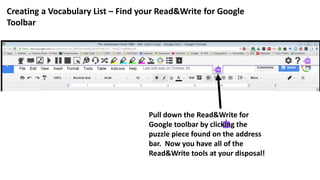
Pull down the Read&Write for
Google toolbar by clicking the
puzzle piece found on the address
bar. Now you have all of the
Read&Write tools at your disposal!
Creating a Vocabulary List – Find your Read&Write for Google
Toolbar
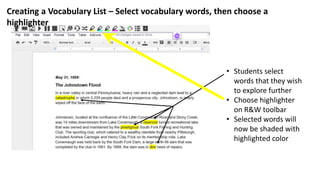
• Students select
words that they wish
to explore further
• Choose highlighter
on R&W toolbar
• Selected words will
now be shaded with
highlighted color
Creating a Vocabulary List – Select vocabulary words, then choose a
highlighter
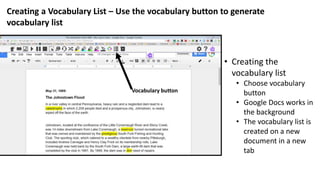
• Creating the
vocabulary list
• Choose vocabulary
button
• Google Docs works in
the background
• The vocabulary list is
created on a new
document in a new
tab
Creating a Vocabulary List – Use the vocabulary button to generate
vocabulary list
Vocabulary button
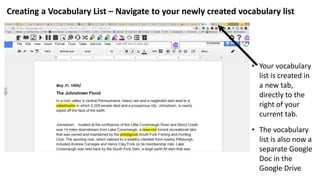
Creating a Vocabulary List – Navigate to your newly created vocabulary list
• Your vocabulary
list is created in
a new tab,
directly to the
right of your
current tab.
• The vocabulary
list is also now a
separate Google
Doc in the
Google Drive
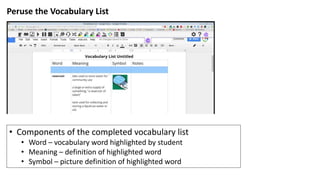
Peruse the Vocabulary List
• Components of the completed vocabulary list
• Word – vocabulary word highlighted by student
• Meaning – definition of highlighted word
• Symbol – picture definition of highlighted word
Rate Your Experience
Please follow this link to take a short quiz about your experience with this learning object:
https://docs.google.com/a/waldenu.edu/forms/d/1YXinm4s1Hr3neuM0u0DtKLZip3MHuXz
9NYRu80oQ6-8/viewform?usp=send_form
References
Clark, R. C., & Mayer, R. E. (2011). e-Learning and the science of instruction: Proven guidelines for consumers and
designers of multimedia learning (3rd ed.). San Francisco, CA: John Wiley & Sons.
Mayer, R. E., & Moreno, R. (2003). Nine ways to reduce cognitive load in multimedia learning. Educational
Psychologist, 38(1), 43–52.
Mitchell, A. & Brady, S. (Oct 2013). The effect of vocabulary knowledge on novel word identification. Annals of
Dyslexia, v63 n(3).
Nitzkin, A., Katzir, T., & Shulkind, S. (Jan 2014). Improving Reading Comprehension One Word at a Time. Middle
School Journal, v45 n(3).
Vaughan, T. (2014). Multimedia: Making it work (9th ed.). New York, NY: Osborne/McGraw-Hill.

Read&Write For Google Learning Object

  • 1.
    CREATING A TEXTAND IMAGE BASED LEARNING OBJECT EDUC 7343C – Creating Digital Media Jeanna R. Wagner Student ID #A00359401 Dr. John Muehl December 27, 2015
  • 2.
    Creating a VocabularyList Using Read&Write For Google: Your Guide For Assisting Students Objectives: • Assist teachers and instructional assistants who are working with students using Read&Write for Google • Demonstrate the steps necessary to create a vocabulary list using Read&Write for Google • Break down the output created by using the vocabulary list feature of Read&Write for Google
  • 3.
    Why Create aVocabulary List? • “Research on the acquisition of new word meanings reveals that problems in learning word meanings are closely linked to reading comprehension skills” (Nitzkin, 2014, p. 27) • Helping students gain familiarity with novel vocabulary assists in later reading comprehension (Mitchell, 2013, 202)
  • 4.
    Pull down theRead&Write for Google toolbar by clicking the puzzle piece found on the address bar. Now you have all of the Read&Write tools at your disposal! Creating a Vocabulary List – Find your Read&Write for Google Toolbar
  • 5.
    • Students select wordsthat they wish to explore further • Choose highlighter on R&W toolbar • Selected words will now be shaded with highlighted color Creating a Vocabulary List – Select vocabulary words, then choose a highlighter
  • 6.
    • Creating the vocabularylist • Choose vocabulary button • Google Docs works in the background • The vocabulary list is created on a new document in a new tab Creating a Vocabulary List – Use the vocabulary button to generate vocabulary list Vocabulary button
  • 7.
    Creating a VocabularyList – Navigate to your newly created vocabulary list • Your vocabulary list is created in a new tab, directly to the right of your current tab. • The vocabulary list is also now a separate Google Doc in the Google Drive
  • 8.
    Peruse the VocabularyList • Components of the completed vocabulary list • Word – vocabulary word highlighted by student • Meaning – definition of highlighted word • Symbol – picture definition of highlighted word
  • 9.
    Rate Your Experience Pleasefollow this link to take a short quiz about your experience with this learning object: https://docs.google.com/a/waldenu.edu/forms/d/1YXinm4s1Hr3neuM0u0DtKLZip3MHuXz 9NYRu80oQ6-8/viewform?usp=send_form
  • 10.
    References Clark, R. C.,& Mayer, R. E. (2011). e-Learning and the science of instruction: Proven guidelines for consumers and designers of multimedia learning (3rd ed.). San Francisco, CA: John Wiley & Sons. Mayer, R. E., & Moreno, R. (2003). Nine ways to reduce cognitive load in multimedia learning. Educational Psychologist, 38(1), 43–52. Mitchell, A. & Brady, S. (Oct 2013). The effect of vocabulary knowledge on novel word identification. Annals of Dyslexia, v63 n(3). Nitzkin, A., Katzir, T., & Shulkind, S. (Jan 2014). Improving Reading Comprehension One Word at a Time. Middle School Journal, v45 n(3). Vaughan, T. (2014). Multimedia: Making it work (9th ed.). New York, NY: Osborne/McGraw-Hill.