Scott Graser
3/20/2015
Page 1
How to remove/install RAM in a desktop PC
Introduction
RandomAccessMemory (RAM) replacementisone of the easiestupgrades anyhome computeruser
may performona desktopPCto increase itsperformance andextenditsusablelifespan.The purpose of
thisdocumentisto instruct usersonthe physical stepsrequiredleadinguptoandinstallingRAMona
standardhome desktopPC.
Task name Completion Time
Power Down PC 5 minutes
OpenPC Case 5 minutes
Remove/Install RAM 20 minutes
Power On PC 5 minutes
NecessaryEquipment:
 Home PC
 ReplacementRAM
 Philipsheadscrewdriver
Instructions
WARNING:To preventelectricalshockto persons,follow steps 1through4 properly.
CAUTION: To preventdamage tothe PC components,follow steps1through4 properly.
1. Powerdownthe computer.
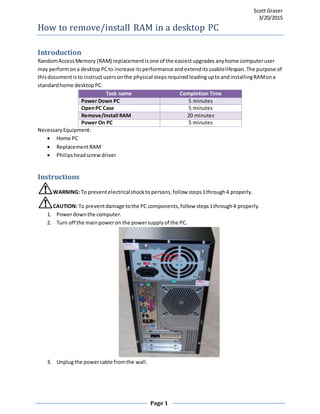
2. Turn off the mainpoweron the powersupplyof the PC.
3. Unplugthe powercable fromthe wall.
Page 2
4. Holddownthe powerbuttonon the frontof the PC for approximatelytenseconds.
Note:Thisis done to discharge residual poweron the capacitorsonthe motherboard.
CAUTION: To preventstaticdischarge resultingindamage toPCcomponents,performsteps5
through11 on a non-carpeted,smoothsurface.
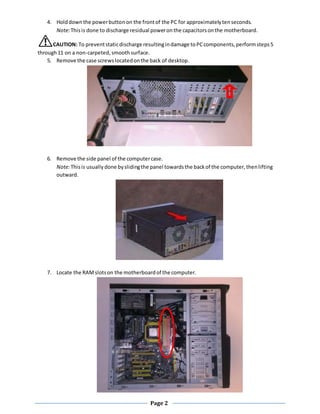
5. Remove the case screwslocatedonthe back of desktop.
6. Remove the side panel of the computercase.
Note:Thisis usually done byslidingthe panel towardsthe backof the computer,thenlifting
outward.
7. Locate the RAMslotson the motherboardof the computer.
Page 3
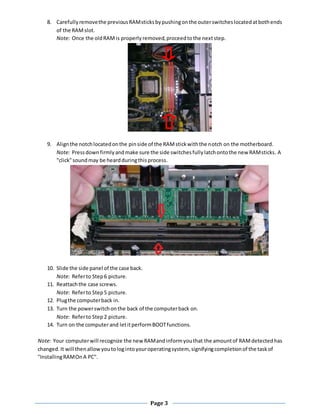
8. Carefullyremovethe previousRAMsticksbypushingonthe outerswitcheslocatedatbothends
of the RAMslot.
Note: Once the oldRAMis properly removed,proceedtothe nextstep.
9. Alignthe notchlocatedonthe pinside of the RAMstickwiththe notch on the motherboard.
Note: Pressdownfirmlyandmake sure the side switchesfullylatchontothe new RAMsticks. A
"click"soundmay be heardduringthisprocess.
10. Slide the side panel of the case back.
Note: Referto Step6 picture.
11. Reattachthe case screws.
Note: Referto Step5 picture.
12. Plugthe computerback in.
13. Turn the powerswitchonthe back of the computerback on.
Note: Referto Step2 picture.
14. Turn on the computerand letitperformBOOTfunctions.
Note: Your computerwill recognize the new RAMandinformyouthat the amountof RAMdetectedhas
changed. It will thenallow youtologintoyouroperatingsystem, signifyingcompletionof the taskof
"InstallingRAMOnA PC".
Page 4
Additional Information
If additional informationortroubleshootinghelpisneeded,the following communitydriven forums
have large communitiesof fellowPCuserswhoare alwayswillingtohelp.
Tom's Hardware
http://www.tomshardware.com/forum/
An And Tech
http://forums.anandtech.com/
CNET
http://forums.cnet.com/

RAM installation Rev 5

  • 1.
    Scott Graser 3/20/2015 Page 1 Howto remove/install RAM in a desktop PC Introduction RandomAccessMemory (RAM) replacementisone of the easiestupgrades anyhome computeruser may performona desktopPCto increase itsperformance andextenditsusablelifespan.The purpose of thisdocumentisto instruct usersonthe physical stepsrequiredleadinguptoandinstallingRAMona standardhome desktopPC. Task name Completion Time Power Down PC 5 minutes OpenPC Case 5 minutes Remove/Install RAM 20 minutes Power On PC 5 minutes NecessaryEquipment:  Home PC  ReplacementRAM  Philipsheadscrewdriver Instructions WARNING:To preventelectricalshockto persons,follow steps 1through4 properly. CAUTION: To preventdamage tothe PC components,follow steps1through4 properly. 1. Powerdownthe computer. 2. Turn off the mainpoweron the powersupplyof the PC. 3. Unplugthe powercable fromthe wall.
  • 2.
    Page 2 4. Holddownthepowerbuttonon the frontof the PC for approximatelytenseconds. Note:Thisis done to discharge residual poweron the capacitorsonthe motherboard. CAUTION: To preventstaticdischarge resultingindamage toPCcomponents,performsteps5 through11 on a non-carpeted,smoothsurface. 5. Remove the case screwslocatedonthe back of desktop. 6. Remove the side panel of the computercase. Note:Thisis usually done byslidingthe panel towardsthe backof the computer,thenlifting outward. 7. Locate the RAMslotson the motherboardof the computer.
  • 3.
    Page 3 8. CarefullyremovethepreviousRAMsticksbypushingonthe outerswitcheslocatedatbothends of the RAMslot. Note: Once the oldRAMis properly removed,proceedtothe nextstep. 9. Alignthe notchlocatedonthe pinside of the RAMstickwiththe notch on the motherboard. Note: Pressdownfirmlyandmake sure the side switchesfullylatchontothe new RAMsticks. A "click"soundmay be heardduringthisprocess. 10. Slide the side panel of the case back. Note: Referto Step6 picture. 11. Reattachthe case screws. Note: Referto Step5 picture. 12. Plugthe computerback in. 13. Turn the powerswitchonthe back of the computerback on. Note: Referto Step2 picture. 14. Turn on the computerand letitperformBOOTfunctions. Note: Your computerwill recognize the new RAMandinformyouthat the amountof RAMdetectedhas changed. It will thenallow youtologintoyouroperatingsystem, signifyingcompletionof the taskof "InstallingRAMOnA PC".
  • 4.
    Page 4 Additional Information Ifadditional informationortroubleshootinghelpisneeded,the following communitydriven forums have large communitiesof fellowPCuserswhoare alwayswillingtohelp. Tom's Hardware http://www.tomshardware.com/forum/ An And Tech http://forums.anandtech.com/ CNET http://forums.cnet.com/