Introduction to
Dror Hollander
Gil Ast Lab
Sackler Medical School
29.4.12
Lecture Overview
 What is R and why use it?
 Setting up R & RStudio for use
 Calculations, functions and variable classes
 File handling, plotting and graphic features
 Statistics
 Packages and writing functions
What is ?
 “R is a freely available language and
environment for statistical computing and
graphics”
 Much like & , but bette !
Why use ?
 SPSS and Excel users are limited in their
ability to change their environment. The way
they approach a problem is constrained by
how Excel & SPSS were programmed to
approach it
 The users have to pay money to use the
software
 R users can rely on functions that have been
developed for them by statistical researchers
or create their own
 They don’t have to pay money to use them
 Once experienced enough they are almost
unlimited in their ability to change their
environment
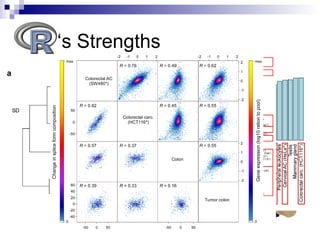
‘s Strengths
 Data management & manipulation
 Statistics
 Graphics
 Programming language
 Active user community
 Free
 Not very user friendly at start
 No commercial support
 Substantially slower than programming
languages (e.g. Perl, Java, C++)
‘s Weaknesses
Lecture Overview
 What is R and why use it?
 Setting up R & RStudio for use
 Calculations, functions and variable classes
 File handling, plotting and graphic features
 Statistics
 Packages and writing functions
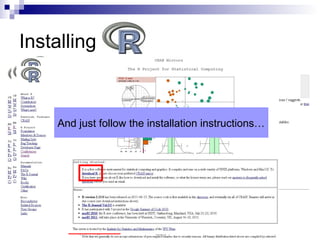
Installing
 Go to R homepage:
http://www.r-project.org/
Choose a server
And just follow the installation instructions…
Installing RStudio
 “RStudio is a new integrated development
environment (IDE) for R”
 Install the “desktop edition” from this link:
http://www.rstudio.org/download/
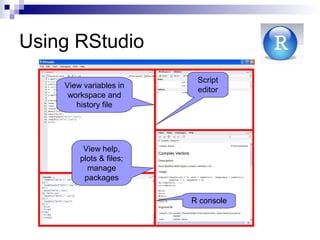
Using RStudio
Script
editor
View help,
plots & files;
manage
packages
View variables in
workspace and
history file
R console
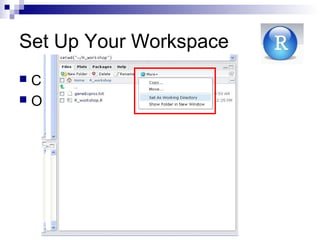
 Create your working directory
 Open a new R script file
Set Up Your Workspace
Lecture Overview
 What is R and why use it?
 Setting up R & RStudio for use
 Calculations, functions and variable classes
 File handling plotting and graphic features
 Statistics
 Packages and writing functions
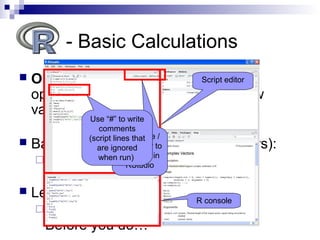
 Operators take values (operands),
operate on them, and produce a new
value
 Basic calculations (numeric operators):
 + , - , / , * , ^
 Let’s try an example. Run this:
(17*0.35)^(1/3)
Before you do…
- Basic Calculations
Script editor
R console
Click here /
Ctrl+enter to
run code in
RStudio
Use “#” to write
comments
(script lines that
are ignored
when run)
 All R operations are performed by functions
 Calling a function:
> function_name(x)
 For example:
> sqrt(9)
[1] 3
 Reading a function’s help file:
> ?sqrt
Also, when in doubt – Google it!
- Basic Functions
View help,
plots & files;
manage
packages
 A variable is a symbolic name given to
stored information
 Variables are assigned using either ”=” or
”<-”
> x<-12.6
> x
[1] 12.6
Variables
 A vector is a list of values. A numeric vector is composed of
numbers
 It may be created:
 Using the c() function (concatenate) :
x=c(3,7,9,11)
> x
[1] 3 7 9 11
 Using the rep(what,how_many_times) function (replicate):
x=rep(10,3)
 Using the “:” operator, signifiying a series of integers
x=4:15
Variables - Numeric Vectors
 Character strings are always double quoted
 Vectors made of character strings:
> x=c("I","want","to","go","home")
> x
[1] "I" "want" "to" "go" "home"
 Using rep():
> rep("bye",2)
[1] "bye" "bye"
 Notice the difference using paste() (1 element):
> paste("I","want","to","go","home")
[1] "I want to go home"
Variables - Character Vectors
 Logical; either FALSE or TRUE
 > 5>3
[1] TRUE
 > x=1:5
> x
[1] 1 2 3 4 5
> x<3
[1] TRUE TRUE FALSE FALSE FALSE
Variables - Boolean Vectors
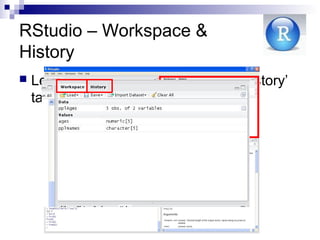
RStudio – Workspace &
History
 Let’s review the ‘workspace’ and ‘history’
tabs in RStudioView variables in
workspace and
history file
 Our vector: x=c(100,101,102,103)
 [] are used to access elements in x
 Extract 2nd
element in x
> x[2]
[1] 101
 Extract 3rd
and 4th
elements in x
> x[3:4] # or x[c(3,4)]
[1] 102 103
Manipulation of Vectors
 > x
[1] 100 101 102 103
 Add 1 to all elements in x:
> x+1
[1] 101 102 103 104
 Multiply all elements in x by 2:
> x*2
[1] 200 202 204 206
Manipulation of Vectors –
Cont.
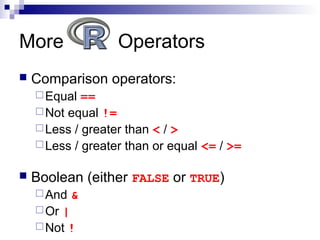
More Operators
 Comparison operators:
Equal ==
Not equal !=
Less / greater than < / >
Less / greater than or equal <= / >=
 Boolean (either FALSE or TRUE)
And &
Or |
Not !
 Our vector: x=100:150
 Elements of x higher than 145
> x[x>145]
[1] 146 147 148 149 150
 Elements of x higher than 135 and lower than
140
> x[ x>135 & x<140 ]
[1] 136 137 138 139
Manipulation of Vectors –
Cont.
 Our vector:
> x=c("I","want","to","go","home")
 Elements of x that do not equal “want”:
> x[x != "want"]
[1] "I" "to" "go" "home"
 Elements of x that equal “want” and “home”:
> x[x %in% c("want","home")]
[1] "want" "home"
Manipulation of Vectors –
Cont.
Note: use “==” for 1 element and “%in%” for several elements
 A data frame is simply a table
 Each column may be of a different class
(e.g. numeric, character, etc.)
 The number of elements in each
row must be identical
Variables – Data Frames
age gender disease
50 M TRUE
43 M FALSE
25 F TRUE
18 M TRUE
72 F FALSE
65 M FALSE
45 F TRUE
 Accessing elements in
data frame:
x[row,column]
The ‘age’ column:
> x$age # or:
> x[,”age”] # or:
> x[,1]
All male rows:
> x[x$gender==“M”,]
 A matrix is a table of a different class
 Each column must be of the same class
(e.g. numeric, character, etc.)
 The number of elements in each
row must be identical
Variables – Matrices
 Accessing elements in
matrices:
x[row,column]
The ‘Height’ column:
> x[,”Height”] # or:
> x[,2]
Note: you cannot use “$”
> x$Weight
Exe cise
 Construct the character vector ‘pplNames’
containing 5 names: “Srulik”, “Esti”, ”Shimshon”,
“Shifra”, “Ezra”
 Construct the numeric vector ‘ages’ that includes
the following numbers: 21, 12 (twice), 35 (twice)
 Use the data.frame() function to construct
the ‘pplAges’ table out of ‘pplNames’ & ‘ages’
 Retrieve the ‘pplAges’ rows with ‘ages’ values
greater than 19
Lecture Overview
 What is R and why use it?
 Setting up R & RStudio for use
 Calculations, functions and variable classes
 File handling, plotting and graphic features
 Statistics
 Packages and writing functions
 For example: analysis of a gene expression file
 Workflow:
 Save file in workspace directory
 Read / load file to R
 Analyze the gene expression table
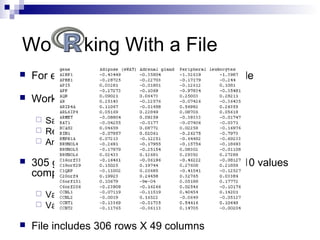
 305 gene expression reads in 48 tissues (log10 values
compared to a mixed tissue pool)
 Values >0  over-expressed genes
 Values <0  under-expressed genes
 File includes 306 rows X 49 columns
Wo king With a File
 Read file to R
 Use the read.table() function
 Note: each function receives input (‘arguments’) and produces
output (‘return value’)
 The function returns a data frame
 Run:
> geneExprss = read.table(file =
"geneExprss.txt", sep = "t",header = T)
 Check table:
> dim(geneExprss) # table dimentions
> geneExprss[1,] # 1st line
File Handling - ead File
Plotting - Pie Chart
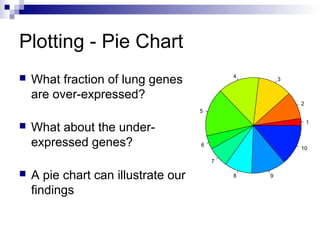
 What fraction of lung genes
are over-expressed?
 What about the under-
expressed genes?
 A pie chart can illustrate our
findings
1
2
3
4
5
6
7
8 9
10
Using the pie() Function
 Let’s regard values > 0.2 as over-
expressed
 Let’s regard values < (-0.2) as under-
expressed
 Let’s use Length()  retrieves the
number of elements in a vector
> up = length (geneExprss$Lung
[geneExprss$Lung>0.2])
> down = length (geneExprss$Lung
[geneExprss$Lung<(-0.2)])
> mid = length (geneExprss$Lung
[geneExprss$Lung<=0.2 &
geneExprss$Lung>=(-0.2)])
> pie (c(up,down,mid) ,labels =
c("up","down","mid"))
Plotting - Scatter Plot
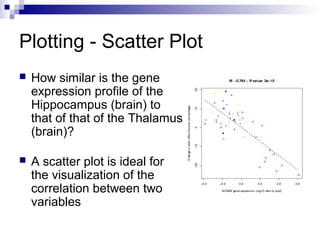
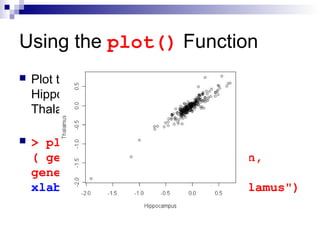
 How similar is the gene
expression profile of the
Hippocampus (brain) to
that of that of the Thalamus
(brain)?
 A scatter plot is ideal for
the visualization of the
correlation between two
variables
Using the plot() Function
 Plot the gene expression profile of
Hippocampus.brain against that of
Thalamus.brain
 > plot
( geneExprss$Hippocampus.brain,
geneExprss$Thalamus.brain,
xlab="Hippocampus", ylab="Thalamus")
 .RData files contain saved R environment data
 Load .RData file to R
 Use the load() function
 Note: each function receives input (‘arguments’) and produces
output (‘return value’)
 Run:
> load (file = "geneExprss.RData")
 Check table:
> dim(geneExprss) # table dimentions
> geneExprss[1,] # 1st line
> class(geneExprss) # check variable class
File Handling – Load File to
Plotting – Bar Plot
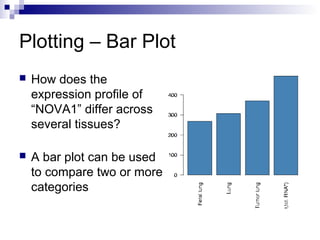
 How does the
expression profile of
“NOVA1” differ across
several tissues?
 A bar plot can be used
to compare two or more
categories
Using the barplot() Function
 Compare “NOVA1” expression in Spinalcord, Kidney,
Heart and Skeletal.muscle by plotting a bar plot
 Sort the data before plotting using the sort() function
 barplot() works on a variable of a matrix class
 > tissues = c ( "Spinalcord", "Kidney",
"Skeletal.muscle", "Heart")
> barplot ( sort ( geneExprss
["NOVA1",tissues] ) )
More Graphic Functions to Keep in
Mind
 hist()
 boxplot()
 plotmeans()
 scatterplot()
Exe cise
 Use barplot() to compare “PTBP1” &
“PTBP2” gene expression in
“Hypothalamus.brain”
 Use barplot() to compare “PTBP1” &
“PTBP2” gene expression in “Lung”
 What are the differences between the two plots
indicative of?
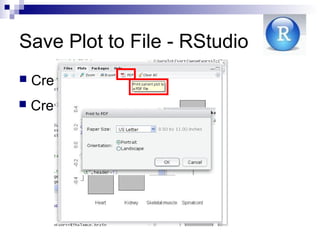
Save Plot to File - RStudio
 Create a .PNG file
 Create a .PDF file
 Before running the visualizing function, redirect
all plots to a file of a certain type
jpeg(filename)
png(filename)
pdf(filename)
postscript(filename)
 After running the visualization function, close
graphic device using dev.off() or
graphcis.off()
Save Plot to File in
 For example:
> load(file="geneExprss.RData")
> Tissues = c ("Spinalcord", "Kidney",
"Skeletal.muscle", "Heart")
> pdf("Nova1BarPlot.PDF")
> Barplot ( sort (geneExprss ["NOVA1",
tissues] ) )
> graphics.off()
Lecture Overview
 What is R and why use it?
 Setting up R & RStudio for use
 Calculations, functions and variable classes
 File handling, plotting and graphic features
 Statistics
 Packages and writing functions
Statistics – cor.test()
 A few slides back we compared the expression
profiles of the Hippocampus.brain and the
Thalamus.brain
 But is that correlation statistically significant?
 R can help with this sort of question as well
 To answer that specific question we’ll use the
cor.test() function
> geneExprss = read.table (file =
"geneExprss.txt", sep = "t", header = T)
> cor.test ( geneExprss$Hippocampus.brain,
geneExprss$Thalamus.brain, method =
"pearson")
> cor.test ( geneExprss$Hippocampus.brain,
geneExprss$Thalamus.brain, method =
"spearman")
 t.test() # Student t test
 wilcox.test() # Mann-Whitney test
 kruskal.test() # Kruskal-Wallis rank sum test
 chisq.test() # chi squared test
 cor.test() # pearson / spearman correlations
 lm(), glm() # linear and generalized linear models
 p.adjust() # adjustment of P-values for multiple
testing (multiple testing correction) using FDR,
bonferroni, etc.
Statistics – More Testing, FYI
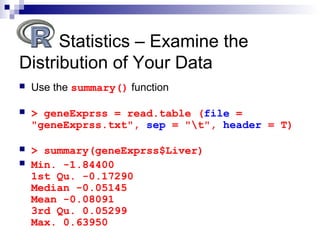
 Use the summary() function
 > geneExprss = read.table (file =
"geneExprss.txt", sep = "t", header = T)
 > summary(geneExprss$Liver)
 Min. -1.84400
1st Qu. -0.17290
Median -0.05145
Mean -0.08091
3rd Qu. 0.05299
Max. 0.63950
Statistics – Examine the
Distribution of Your Data
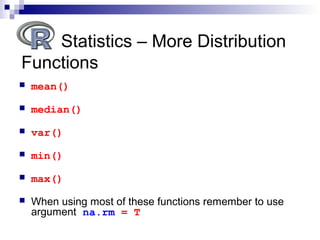
 mean()
 median()
 var()
 min()
 max()
 When using most of these functions remember to use
argument na.rm = T
Statistics – More Distribution
Functions
Lecture Overview
 What is R and why use it?
 Setting up R & RStudio for use
 Calculations, functions and variable classes
 File handling, plotting and graphic features
 Statistics
 Packages and writing functions
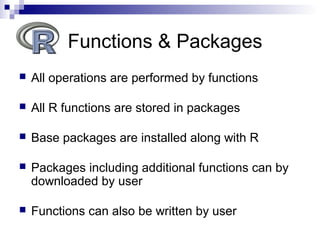
 All operations are performed by functions
 All R functions are stored in packages
 Base packages are installed along with R
 Packages including additional functions can by
downloaded by user
 Functions can also be written by user
Functions & Packages
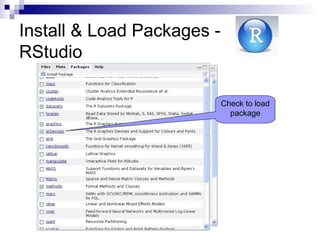
Install & Load Packages -
RStudio
Check to load
package
Install & Load Packages -
 Use the functions:
Install.packages(package_name)
update.packages(package_name)
library(package_name) # Load a
package
 Reading the functions’ help file
(> ?function_name)
 Run the help file examples
 Use http://www.rseek.org/
 Google what you’re looking for
 Post on the R forum webpage
 And most importantly – play with it, get the hang of it,
and do NOT despair 
Final Tips
R

R workshop

  • 1.
    Introduction to Dror Hollander GilAst Lab Sackler Medical School 29.4.12
  • 2.
    Lecture Overview  Whatis R and why use it?  Setting up R & RStudio for use  Calculations, functions and variable classes  File handling, plotting and graphic features  Statistics  Packages and writing functions
  • 3.
    What is ? “R is a freely available language and environment for statistical computing and graphics”  Much like & , but bette !
  • 4.
    Why use ? SPSS and Excel users are limited in their ability to change their environment. The way they approach a problem is constrained by how Excel & SPSS were programmed to approach it  The users have to pay money to use the software  R users can rely on functions that have been developed for them by statistical researchers or create their own  They don’t have to pay money to use them  Once experienced enough they are almost unlimited in their ability to change their environment
  • 5.
    ‘s Strengths  Datamanagement & manipulation  Statistics  Graphics  Programming language  Active user community  Free
  • 6.
     Not veryuser friendly at start  No commercial support  Substantially slower than programming languages (e.g. Perl, Java, C++) ‘s Weaknesses
  • 7.
    Lecture Overview  Whatis R and why use it?  Setting up R & RStudio for use  Calculations, functions and variable classes  File handling, plotting and graphic features  Statistics  Packages and writing functions
  • 8.
    Installing  Go toR homepage: http://www.r-project.org/ Choose a server And just follow the installation instructions…
  • 9.
    Installing RStudio  “RStudiois a new integrated development environment (IDE) for R”  Install the “desktop edition” from this link: http://www.rstudio.org/download/
  • 10.
    Using RStudio Script editor View help, plots& files; manage packages View variables in workspace and history file R console
  • 11.
     Create yourworking directory  Open a new R script file Set Up Your Workspace
  • 12.
    Lecture Overview  Whatis R and why use it?  Setting up R & RStudio for use  Calculations, functions and variable classes  File handling plotting and graphic features  Statistics  Packages and writing functions
  • 13.
     Operators takevalues (operands), operate on them, and produce a new value  Basic calculations (numeric operators):  + , - , / , * , ^  Let’s try an example. Run this: (17*0.35)^(1/3) Before you do… - Basic Calculations Script editor R console Click here / Ctrl+enter to run code in RStudio Use “#” to write comments (script lines that are ignored when run)
  • 14.
     All Roperations are performed by functions  Calling a function: > function_name(x)  For example: > sqrt(9) [1] 3  Reading a function’s help file: > ?sqrt Also, when in doubt – Google it! - Basic Functions View help, plots & files; manage packages
  • 15.
     A variableis a symbolic name given to stored information  Variables are assigned using either ”=” or ”<-” > x<-12.6 > x [1] 12.6 Variables
  • 16.
     A vectoris a list of values. A numeric vector is composed of numbers  It may be created:  Using the c() function (concatenate) : x=c(3,7,9,11) > x [1] 3 7 9 11  Using the rep(what,how_many_times) function (replicate): x=rep(10,3)  Using the “:” operator, signifiying a series of integers x=4:15 Variables - Numeric Vectors
  • 17.
     Character stringsare always double quoted  Vectors made of character strings: > x=c("I","want","to","go","home") > x [1] "I" "want" "to" "go" "home"  Using rep(): > rep("bye",2) [1] "bye" "bye"  Notice the difference using paste() (1 element): > paste("I","want","to","go","home") [1] "I want to go home" Variables - Character Vectors
  • 18.
     Logical; eitherFALSE or TRUE  > 5>3 [1] TRUE  > x=1:5 > x [1] 1 2 3 4 5 > x<3 [1] TRUE TRUE FALSE FALSE FALSE Variables - Boolean Vectors
  • 19.
    RStudio – Workspace& History  Let’s review the ‘workspace’ and ‘history’ tabs in RStudioView variables in workspace and history file
  • 20.
     Our vector:x=c(100,101,102,103)  [] are used to access elements in x  Extract 2nd element in x > x[2] [1] 101  Extract 3rd and 4th elements in x > x[3:4] # or x[c(3,4)] [1] 102 103 Manipulation of Vectors
  • 21.
     > x [1]100 101 102 103  Add 1 to all elements in x: > x+1 [1] 101 102 103 104  Multiply all elements in x by 2: > x*2 [1] 200 202 204 206 Manipulation of Vectors – Cont.
  • 22.
    More Operators  Comparisonoperators: Equal == Not equal != Less / greater than < / > Less / greater than or equal <= / >=  Boolean (either FALSE or TRUE) And & Or | Not !
  • 23.
     Our vector:x=100:150  Elements of x higher than 145 > x[x>145] [1] 146 147 148 149 150  Elements of x higher than 135 and lower than 140 > x[ x>135 & x<140 ] [1] 136 137 138 139 Manipulation of Vectors – Cont.
  • 24.
     Our vector: >x=c("I","want","to","go","home")  Elements of x that do not equal “want”: > x[x != "want"] [1] "I" "to" "go" "home"  Elements of x that equal “want” and “home”: > x[x %in% c("want","home")] [1] "want" "home" Manipulation of Vectors – Cont. Note: use “==” for 1 element and “%in%” for several elements
  • 25.
     A dataframe is simply a table  Each column may be of a different class (e.g. numeric, character, etc.)  The number of elements in each row must be identical Variables – Data Frames age gender disease 50 M TRUE 43 M FALSE 25 F TRUE 18 M TRUE 72 F FALSE 65 M FALSE 45 F TRUE  Accessing elements in data frame: x[row,column] The ‘age’ column: > x$age # or: > x[,”age”] # or: > x[,1] All male rows: > x[x$gender==“M”,]
  • 26.
     A matrixis a table of a different class  Each column must be of the same class (e.g. numeric, character, etc.)  The number of elements in each row must be identical Variables – Matrices  Accessing elements in matrices: x[row,column] The ‘Height’ column: > x[,”Height”] # or: > x[,2] Note: you cannot use “$” > x$Weight
  • 27.
    Exe cise  Constructthe character vector ‘pplNames’ containing 5 names: “Srulik”, “Esti”, ”Shimshon”, “Shifra”, “Ezra”  Construct the numeric vector ‘ages’ that includes the following numbers: 21, 12 (twice), 35 (twice)  Use the data.frame() function to construct the ‘pplAges’ table out of ‘pplNames’ & ‘ages’  Retrieve the ‘pplAges’ rows with ‘ages’ values greater than 19
  • 28.
    Lecture Overview  Whatis R and why use it?  Setting up R & RStudio for use  Calculations, functions and variable classes  File handling, plotting and graphic features  Statistics  Packages and writing functions
  • 29.
     For example:analysis of a gene expression file  Workflow:  Save file in workspace directory  Read / load file to R  Analyze the gene expression table  305 gene expression reads in 48 tissues (log10 values compared to a mixed tissue pool)  Values >0  over-expressed genes  Values <0  under-expressed genes  File includes 306 rows X 49 columns Wo king With a File
  • 30.
     Read fileto R  Use the read.table() function  Note: each function receives input (‘arguments’) and produces output (‘return value’)  The function returns a data frame  Run: > geneExprss = read.table(file = "geneExprss.txt", sep = "t",header = T)  Check table: > dim(geneExprss) # table dimentions > geneExprss[1,] # 1st line File Handling - ead File
  • 31.
    Plotting - PieChart  What fraction of lung genes are over-expressed?  What about the under- expressed genes?  A pie chart can illustrate our findings 1 2 3 4 5 6 7 8 9 10
  • 32.
    Using the pie()Function  Let’s regard values > 0.2 as over- expressed  Let’s regard values < (-0.2) as under- expressed  Let’s use Length()  retrieves the number of elements in a vector > up = length (geneExprss$Lung [geneExprss$Lung>0.2]) > down = length (geneExprss$Lung [geneExprss$Lung<(-0.2)]) > mid = length (geneExprss$Lung [geneExprss$Lung<=0.2 & geneExprss$Lung>=(-0.2)]) > pie (c(up,down,mid) ,labels = c("up","down","mid"))
  • 33.
    Plotting - ScatterPlot  How similar is the gene expression profile of the Hippocampus (brain) to that of that of the Thalamus (brain)?  A scatter plot is ideal for the visualization of the correlation between two variables
  • 34.
    Using the plot()Function  Plot the gene expression profile of Hippocampus.brain against that of Thalamus.brain  > plot ( geneExprss$Hippocampus.brain, geneExprss$Thalamus.brain, xlab="Hippocampus", ylab="Thalamus")
  • 35.
     .RData filescontain saved R environment data  Load .RData file to R  Use the load() function  Note: each function receives input (‘arguments’) and produces output (‘return value’)  Run: > load (file = "geneExprss.RData")  Check table: > dim(geneExprss) # table dimentions > geneExprss[1,] # 1st line > class(geneExprss) # check variable class File Handling – Load File to
  • 36.
    Plotting – BarPlot  How does the expression profile of “NOVA1” differ across several tissues?  A bar plot can be used to compare two or more categories
  • 37.
    Using the barplot()Function  Compare “NOVA1” expression in Spinalcord, Kidney, Heart and Skeletal.muscle by plotting a bar plot  Sort the data before plotting using the sort() function  barplot() works on a variable of a matrix class  > tissues = c ( "Spinalcord", "Kidney", "Skeletal.muscle", "Heart") > barplot ( sort ( geneExprss ["NOVA1",tissues] ) )
  • 38.
    More Graphic Functionsto Keep in Mind  hist()  boxplot()  plotmeans()  scatterplot()
  • 39.
    Exe cise  Usebarplot() to compare “PTBP1” & “PTBP2” gene expression in “Hypothalamus.brain”  Use barplot() to compare “PTBP1” & “PTBP2” gene expression in “Lung”  What are the differences between the two plots indicative of?
  • 40.
    Save Plot toFile - RStudio  Create a .PNG file  Create a .PDF file
  • 41.
     Before runningthe visualizing function, redirect all plots to a file of a certain type jpeg(filename) png(filename) pdf(filename) postscript(filename)  After running the visualization function, close graphic device using dev.off() or graphcis.off() Save Plot to File in  For example: > load(file="geneExprss.RData") > Tissues = c ("Spinalcord", "Kidney", "Skeletal.muscle", "Heart") > pdf("Nova1BarPlot.PDF") > Barplot ( sort (geneExprss ["NOVA1", tissues] ) ) > graphics.off()
  • 42.
    Lecture Overview  Whatis R and why use it?  Setting up R & RStudio for use  Calculations, functions and variable classes  File handling, plotting and graphic features  Statistics  Packages and writing functions
  • 43.
    Statistics – cor.test() A few slides back we compared the expression profiles of the Hippocampus.brain and the Thalamus.brain  But is that correlation statistically significant?  R can help with this sort of question as well  To answer that specific question we’ll use the cor.test() function > geneExprss = read.table (file = "geneExprss.txt", sep = "t", header = T) > cor.test ( geneExprss$Hippocampus.brain, geneExprss$Thalamus.brain, method = "pearson") > cor.test ( geneExprss$Hippocampus.brain, geneExprss$Thalamus.brain, method = "spearman")
  • 44.
     t.test() #Student t test  wilcox.test() # Mann-Whitney test  kruskal.test() # Kruskal-Wallis rank sum test  chisq.test() # chi squared test  cor.test() # pearson / spearman correlations  lm(), glm() # linear and generalized linear models  p.adjust() # adjustment of P-values for multiple testing (multiple testing correction) using FDR, bonferroni, etc. Statistics – More Testing, FYI
  • 45.
     Use thesummary() function  > geneExprss = read.table (file = "geneExprss.txt", sep = "t", header = T)  > summary(geneExprss$Liver)  Min. -1.84400 1st Qu. -0.17290 Median -0.05145 Mean -0.08091 3rd Qu. 0.05299 Max. 0.63950 Statistics – Examine the Distribution of Your Data
  • 46.
     mean()  median() var()  min()  max()  When using most of these functions remember to use argument na.rm = T Statistics – More Distribution Functions
  • 47.
    Lecture Overview  Whatis R and why use it?  Setting up R & RStudio for use  Calculations, functions and variable classes  File handling, plotting and graphic features  Statistics  Packages and writing functions
  • 48.
     All operationsare performed by functions  All R functions are stored in packages  Base packages are installed along with R  Packages including additional functions can by downloaded by user  Functions can also be written by user Functions & Packages
  • 49.
    Install & LoadPackages - RStudio Check to load package
  • 50.
    Install & LoadPackages -  Use the functions: Install.packages(package_name) update.packages(package_name) library(package_name) # Load a package
  • 51.
     Reading thefunctions’ help file (> ?function_name)  Run the help file examples  Use http://www.rseek.org/  Google what you’re looking for  Post on the R forum webpage  And most importantly – play with it, get the hang of it, and do NOT despair  Final Tips R

Editor's Notes

  • #14 Run with class
  • #15 Run with class
  • #17 Run with class
  • #28 pplNames=c(&amp;quot;Srulik&amp;quot;,&amp;quot;Esti&amp;quot;,&amp;quot;Shimshon&amp;quot;,&amp;quot;Shifra&amp;quot;,&amp;quot;Ezra&amp;quot;) ages=c(21,rep(12,2),rep(35,2)) pplAges=data.frame(pplNames,ages) pplAges[pplAges$ages&amp;gt;19,]
  • #31 Read read.table help
  • #35 get more info by typing &amp;quot;?plot.default&amp;quot;
  • #40 barplot(geneExprss[c(&amp;quot;PTBP1&amp;quot;,&amp;quot;PTBP2&amp;quot;),&amp;quot;Hypothalamus.brain&amp;quot;]) barplot(geneExprss[c(&amp;quot;PTBP1&amp;quot;,&amp;quot;PTBP2&amp;quot;),&amp;quot;Lung&amp;quot;])