QR code workshop
Batalha, 20th of November, 2019
Paulo
ReisNumeracy and Literacy Through Coding and Robotics
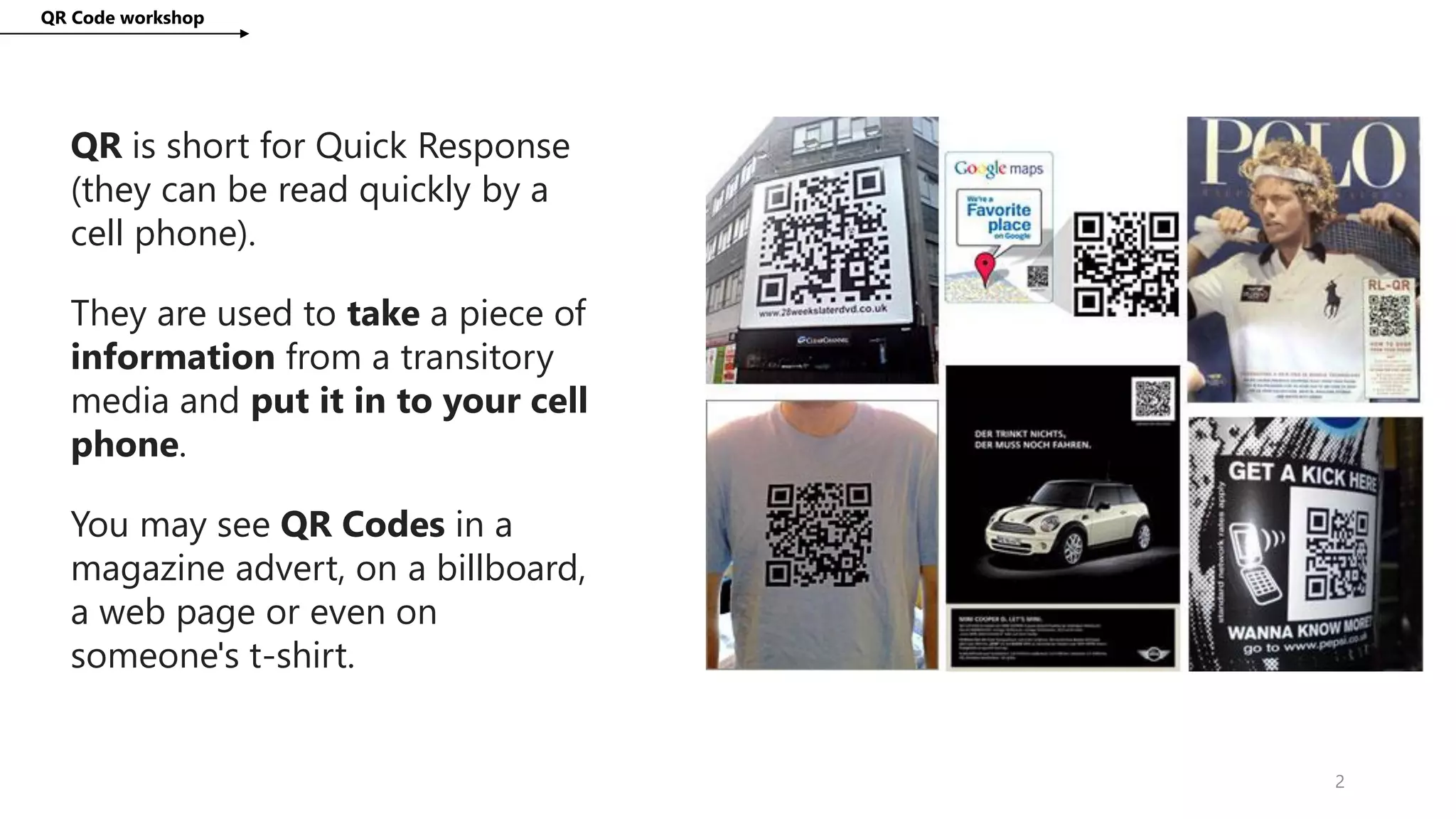
QR is short for Quick Response
(they can be read quickly by a
cell phone).
They are used to take a piece of
information from a transitory
media and put it in to your cell
phone.
You may see QR Codes in a
magazine advert, on a billboard,
a web page or even on
someone's t-shirt.
QR Code workshop
2
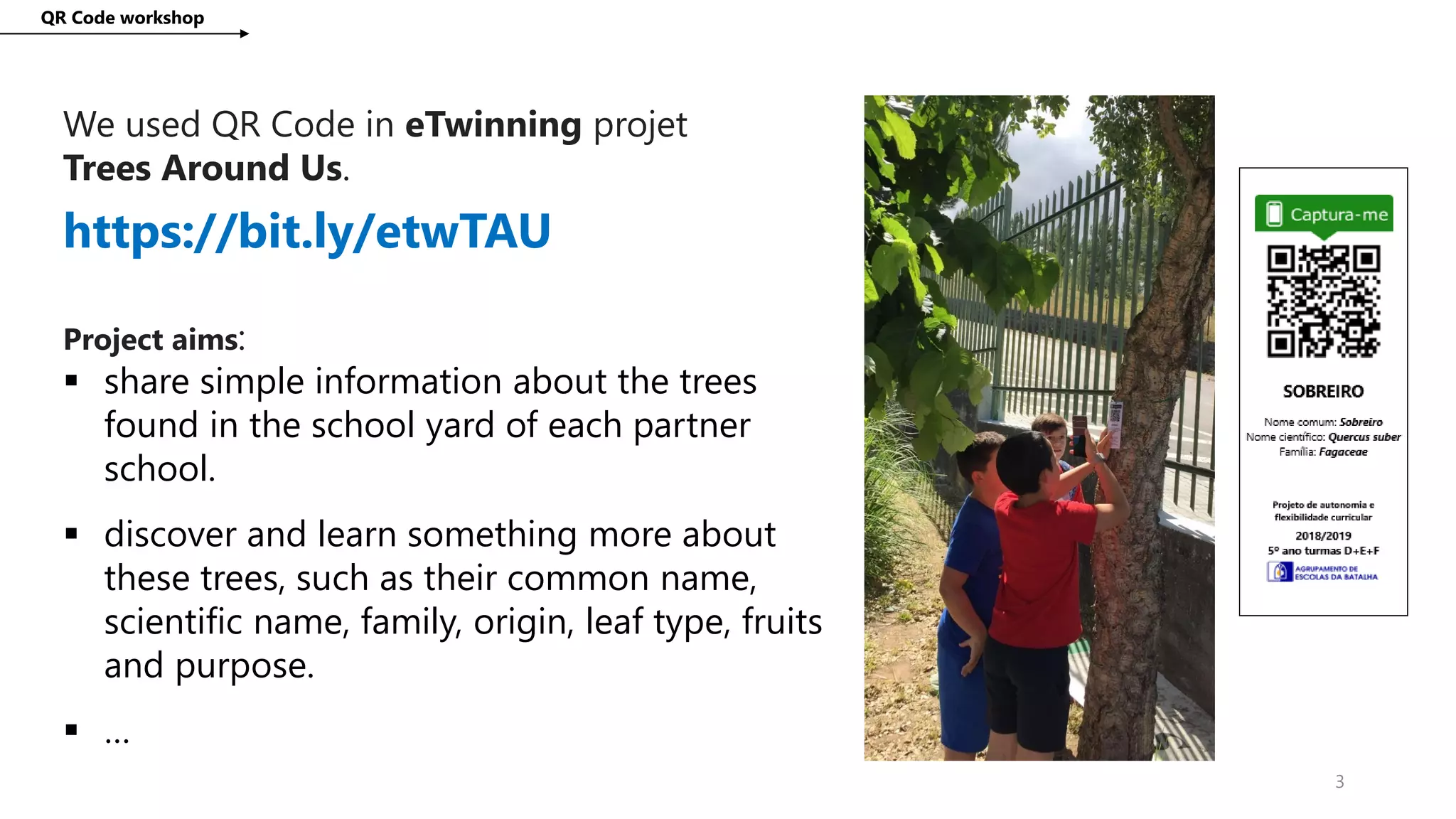
We used QR Code in eTwinning projet
Trees Around Us.
QR Code workshop
3
https://bit.ly/etwTAU
Project aims:
 share simple information about the trees
found in the school yard of each partner
school.
 discover and learn something more about
these trees, such as their common name,
scientific name, family, origin, leaf type, fruits
and purpose.
 …
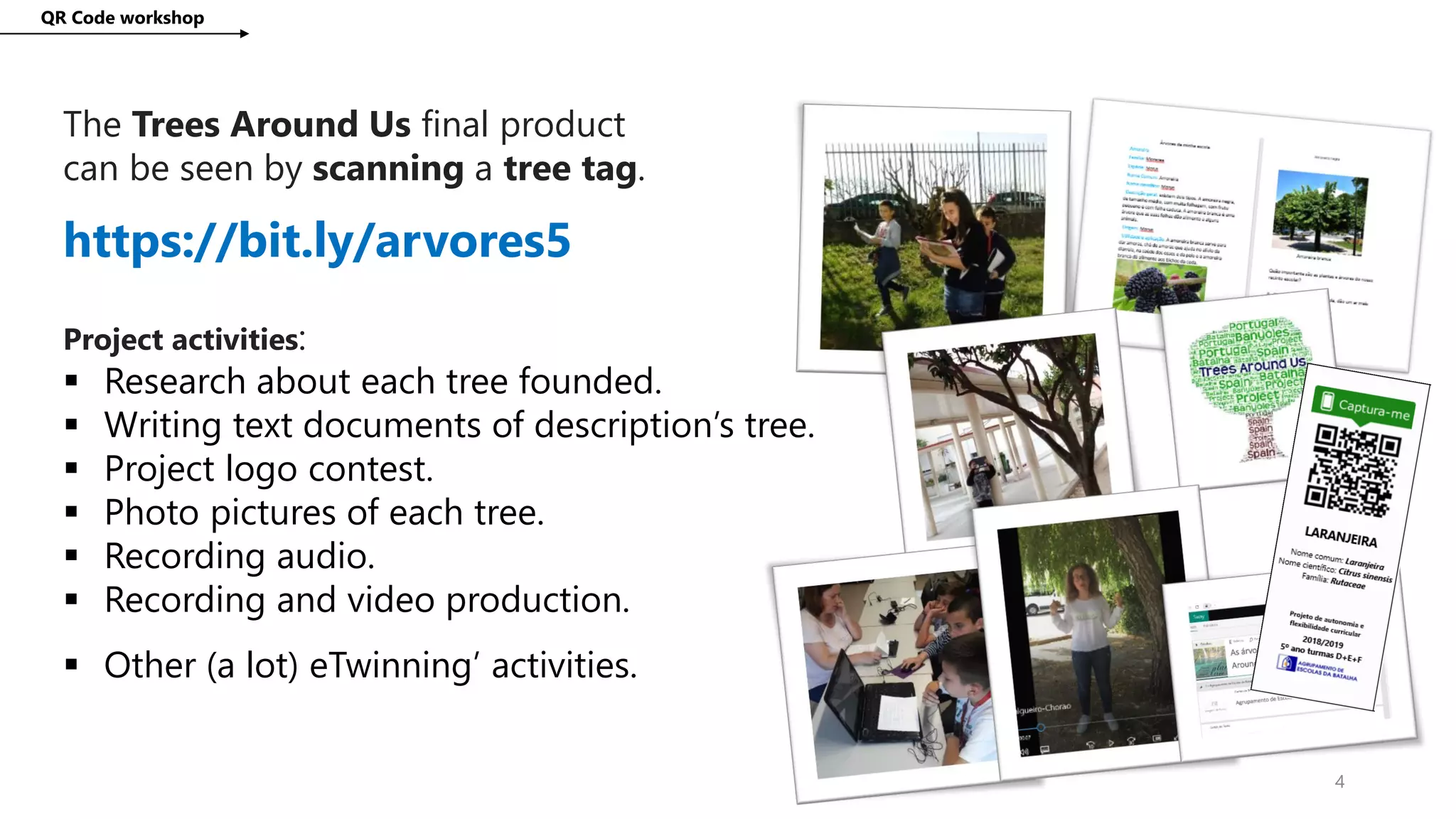
The Trees Around Us final product
can be seen by scanning a tree tag.
QR Code workshop
4
https://bit.ly/arvores5
Project activities:
 Research about each tree founded.
 Writing text documents of description’s tree.
 Project logo contest.
 Photo pictures of each tree.
 Recording audio.
 Recording and video production.
 Other (a lot) eTwinning’ activities.
1/2 What about QR codes technology?
QR Code workshop
5
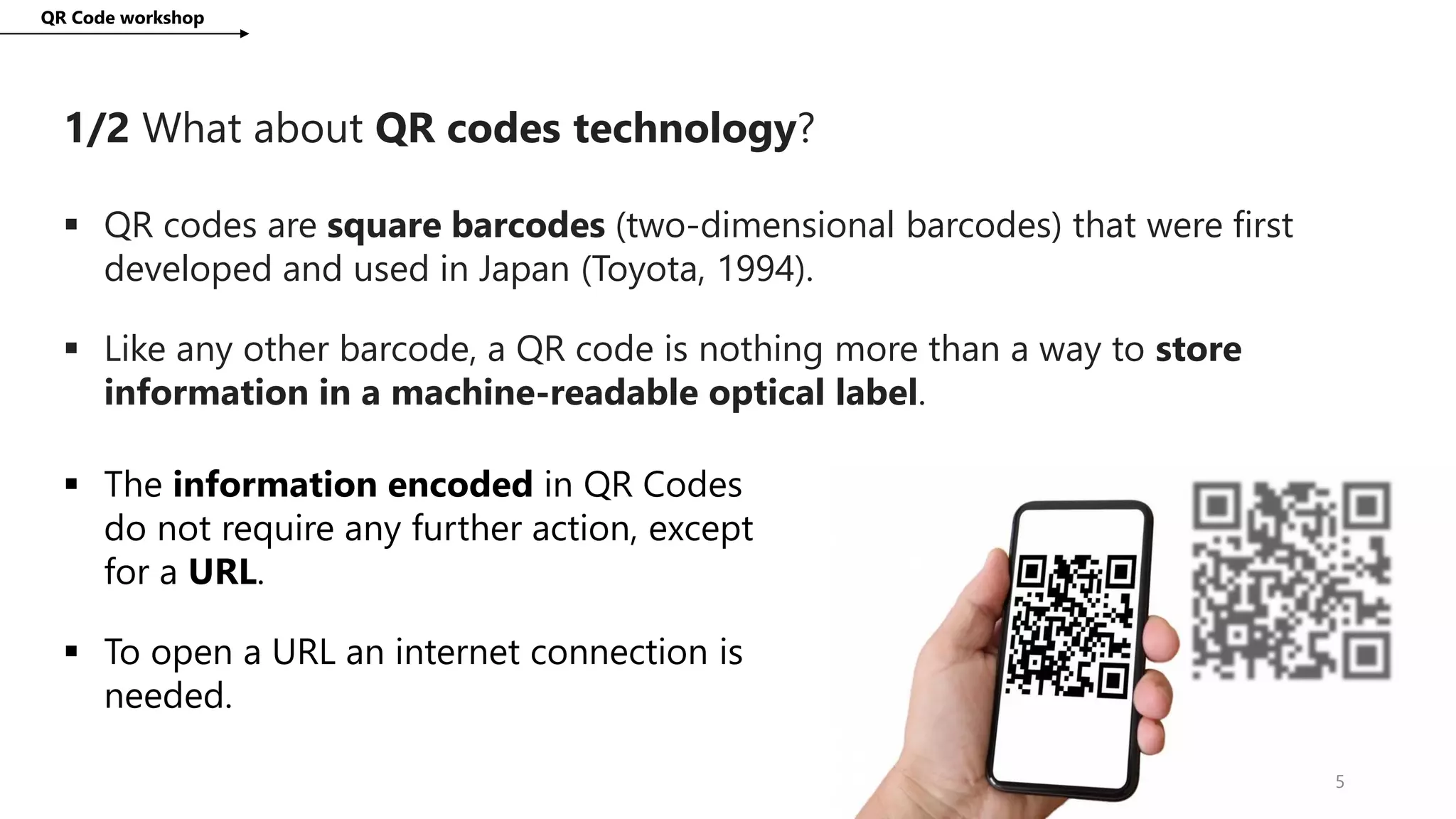
 QR codes are square barcodes (two-dimensional barcodes) that were first
developed and used in Japan (Toyota, 1994).
 Like any other barcode, a QR code is nothing more than a way to store
information in a machine-readable optical label.
 The information encoded in QR Codes
do not require any further action, except
for a URL.
 To open a URL an internet connection is
needed.
2/2 What about QR codes technology?
QR Code workshop
6
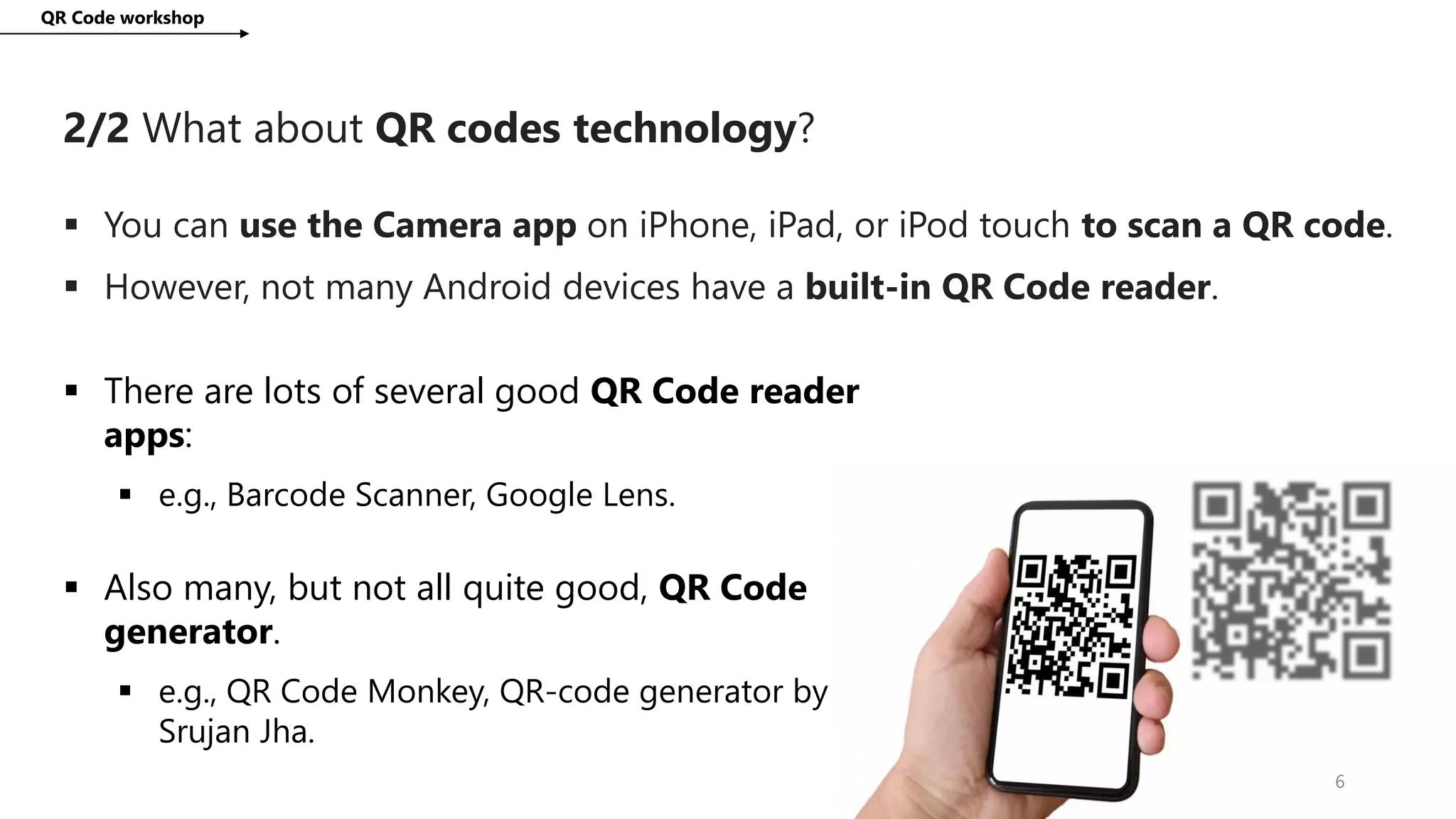
 You can use the Camera app on iPhone, iPad, or iPod touch to scan a QR code.
 However, not many Android devices have a built-in QR Code reader.
 There are lots of several good QR Code reader
apps:
 e.g., Barcode Scanner, Google Lens.
 Also many, but not all quite good, QR Code
generator.
 e.g., QR Code Monkey, QR-code generator by
Srujan Jha.
QR Code workshop
7
Let’s start ?
What we need:
QR Code workshop
8
A. A desktop computer, laptop or tablet.
B. An email account (Gmail or other).
C. Google Docs or Microsoft Office Word.
D. A mobile device (your Smartphone or Tablet).
E. Internet connection on your mobile device.
F. Your natural-born fantastic skills.
https://www.pinterest.pt/frogical/qr-code/
1st Task: create some web content
QR Code workshop
9
1.1. Google it your country traditional or national tree.
1.2. Open Google Docs and create a new document.
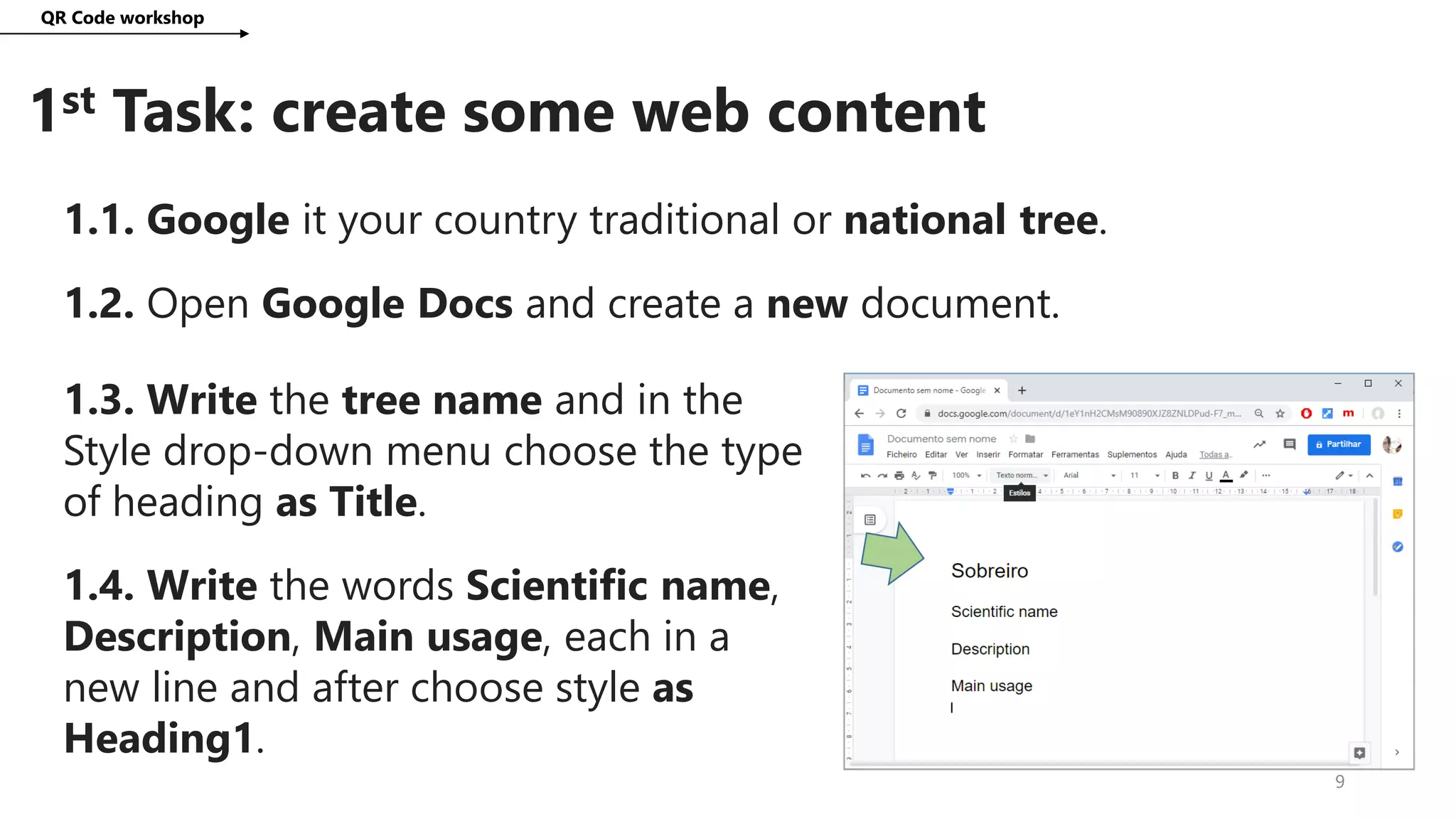
1.3. Write the tree name and in the
Style drop-down menu choose the type
of heading as Title.
1.4. Write the words Scientific name,
Description, Main usage, each in a
new line and after choose style as
Heading1.
QR Code workshop
10
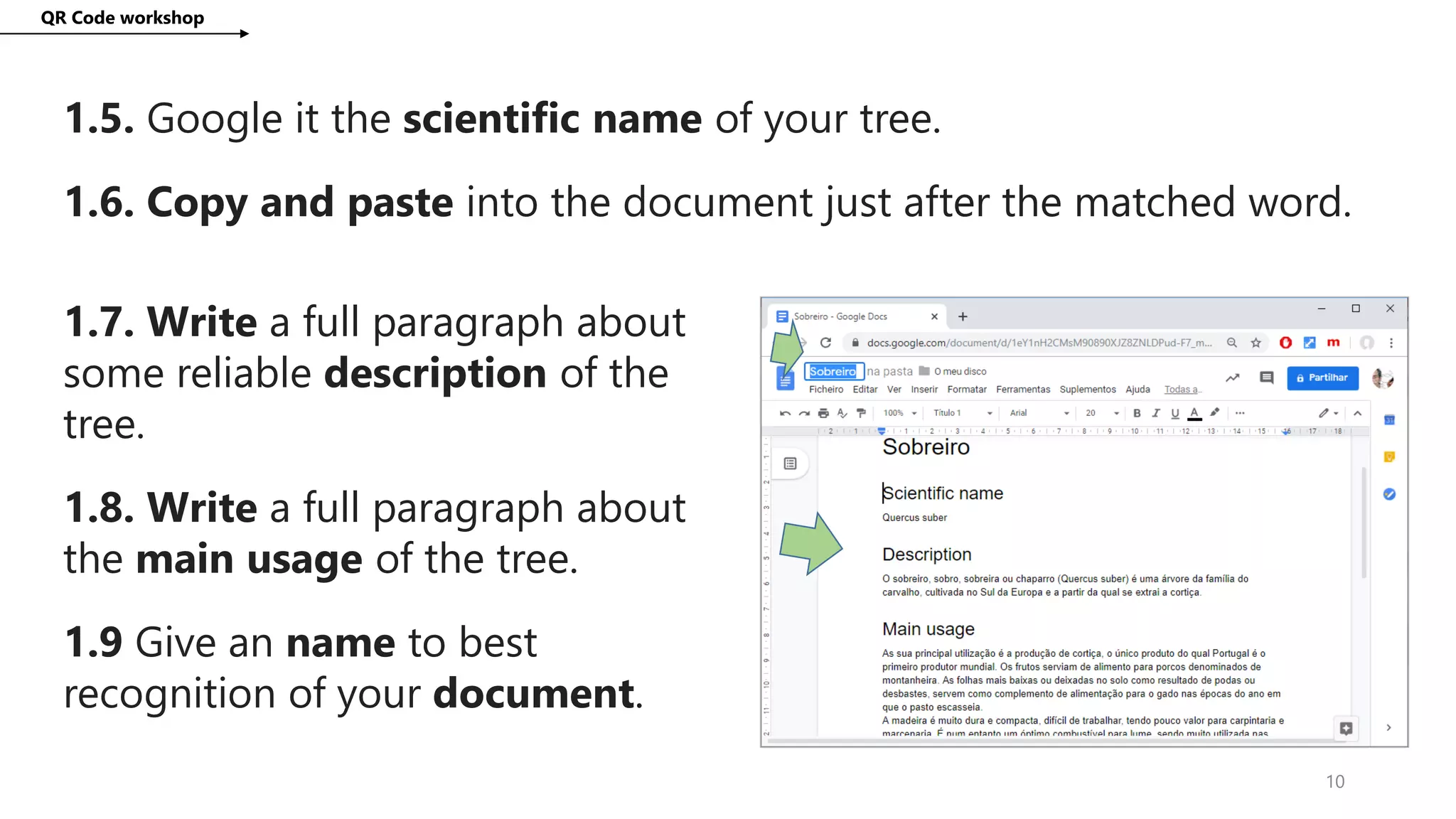
1.5. Google it the scientific name of your tree.
1.6. Copy and paste into the document just after the matched word.
1.7. Write a full paragraph about
some reliable description of the
tree.
1.8. Write a full paragraph about
the main usage of the tree.
1.9 Give an name to best
recognition of your document.
QR Code workshop
11
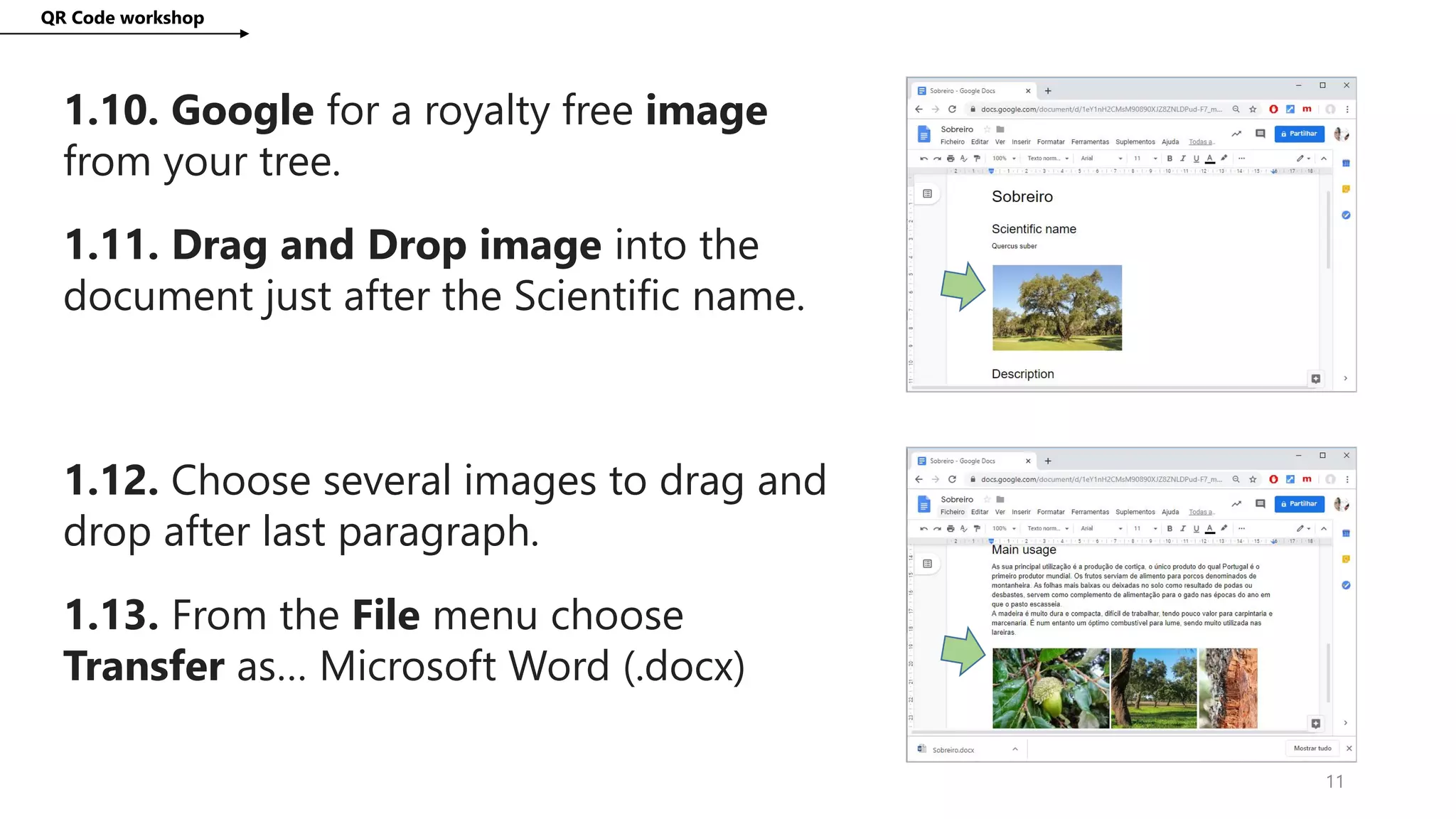
1.10. Google for a royalty free image
from your tree.
1.11. Drag and Drop image into the
document just after the Scientific name.
1.12. Choose several images to drag and
drop after last paragraph.
1.13. From the File menu choose
Transfer as… Microsoft Word (.docx)
2nd Task: publish your web content
QR Code workshop
12
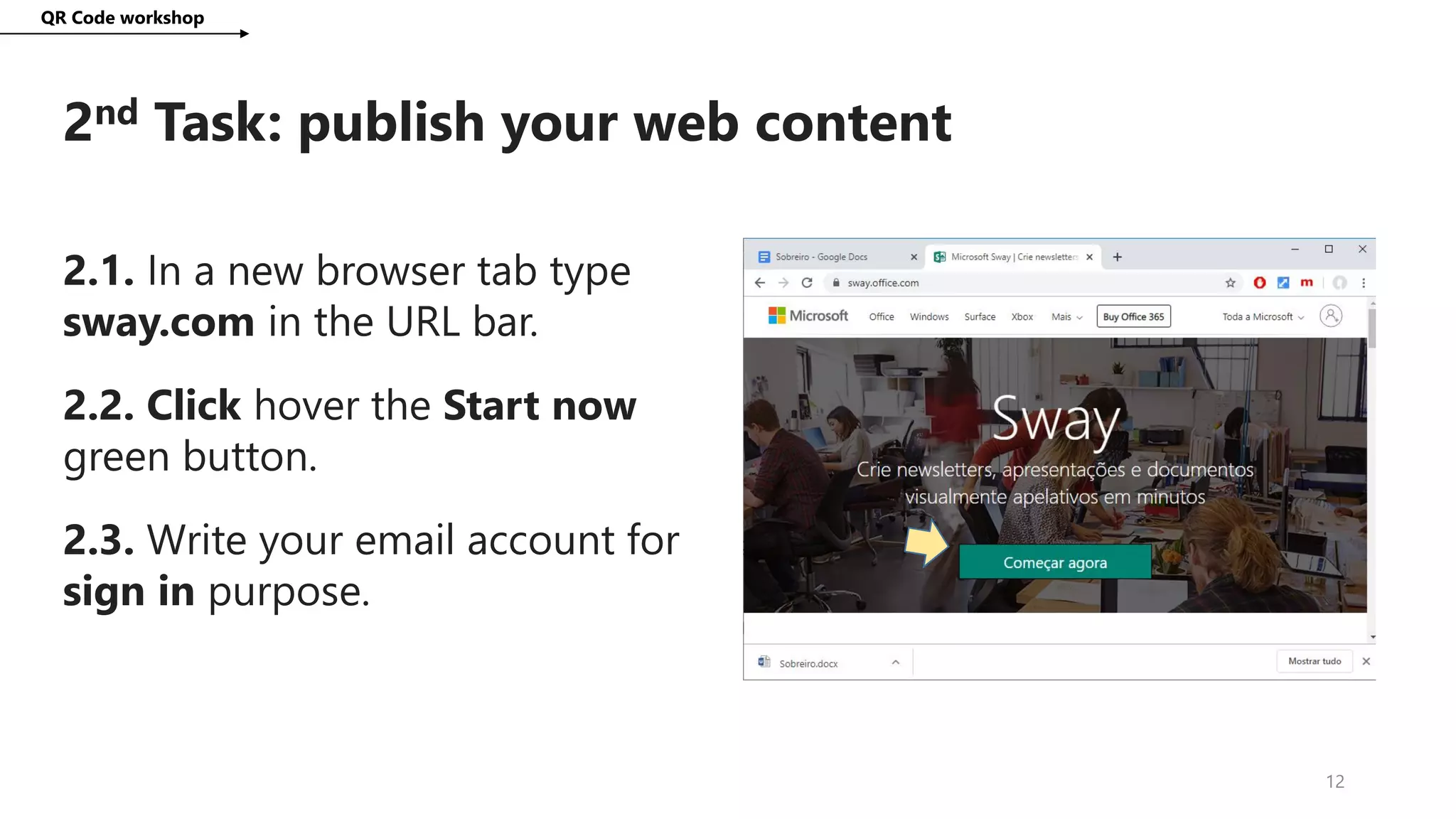
2.1. In a new browser tab type
sway.com in the URL bar.
2.2. Click hover the Start now
green button.
2.3. Write your email account for
sign in purpose.
QR Code workshop
13
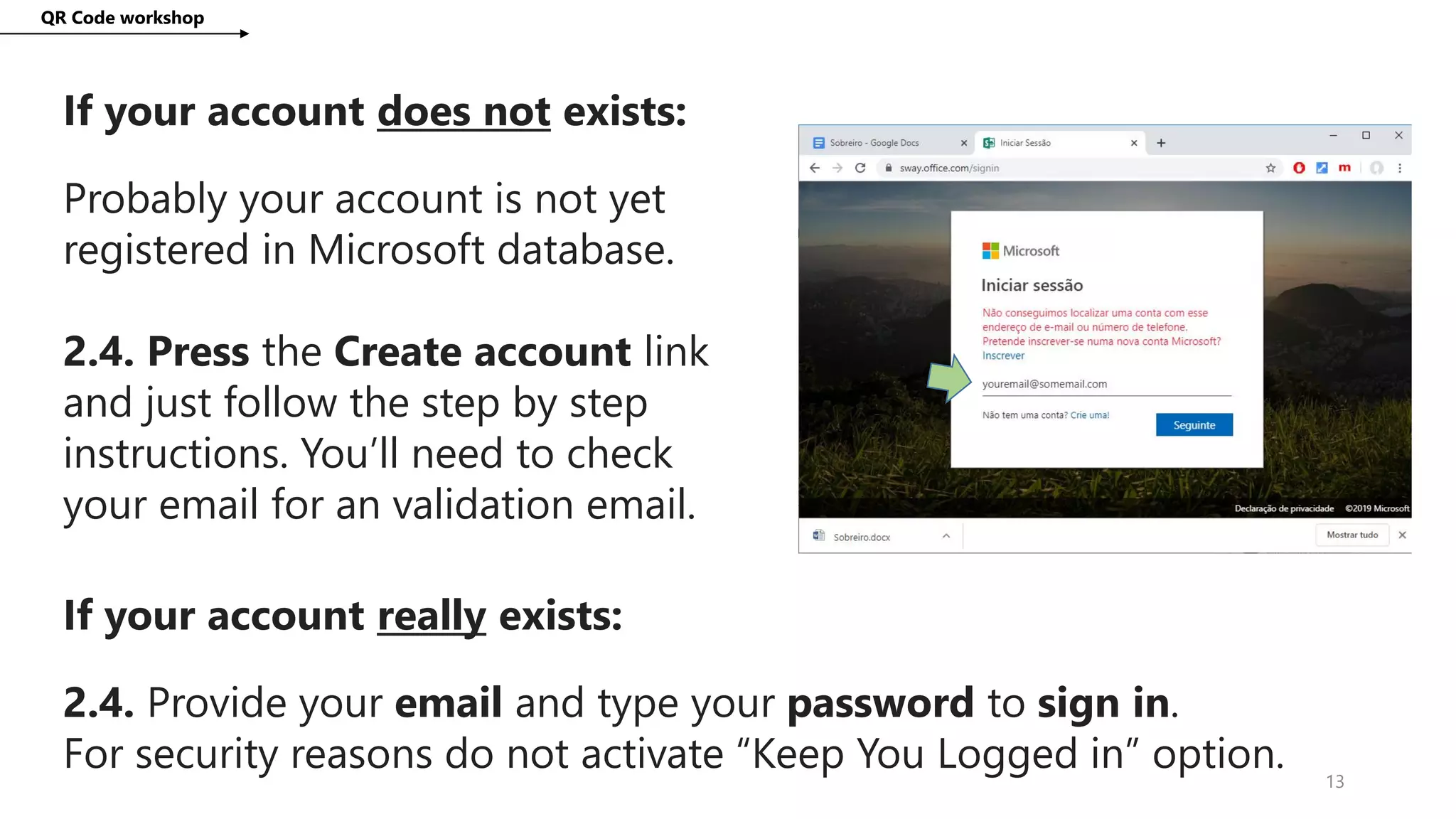
If your account does not exists:
Probably your account is not yet
registered in Microsoft database.
2.4. Press the Create account link
and just follow the step by step
instructions. You’ll need to check
your email for an validation email.
If your account really exists:
2.4. Provide your email and type your password to sign in.
For security reasons do not activate “Keep You Logged in” option.
QR Code workshop
14
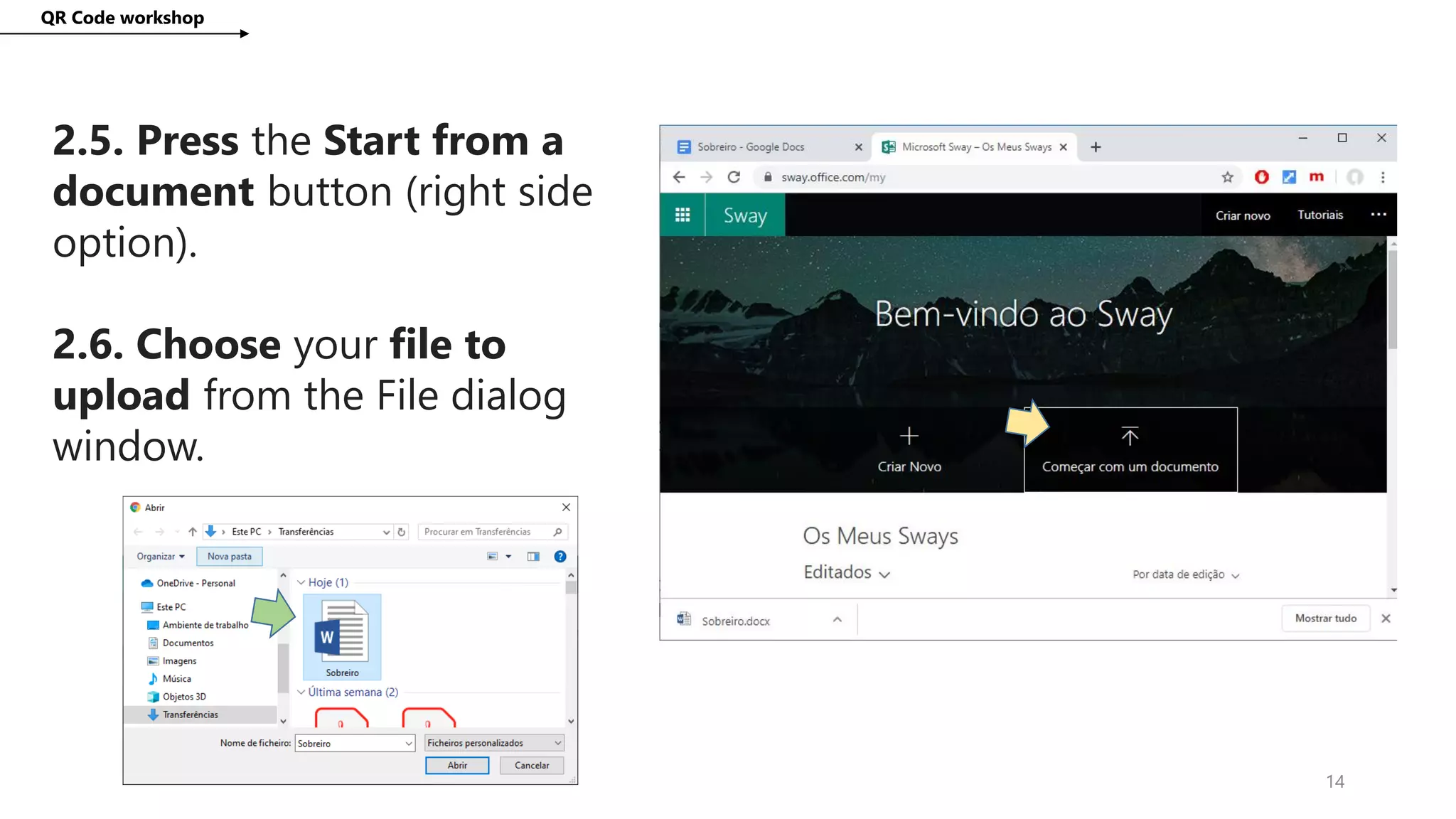
2.5. Press the Start from a
document button (right side
option).
2.6. Choose your file to
upload from the File dialog
window.
QR Code workshop
15
(now some magic will happen)
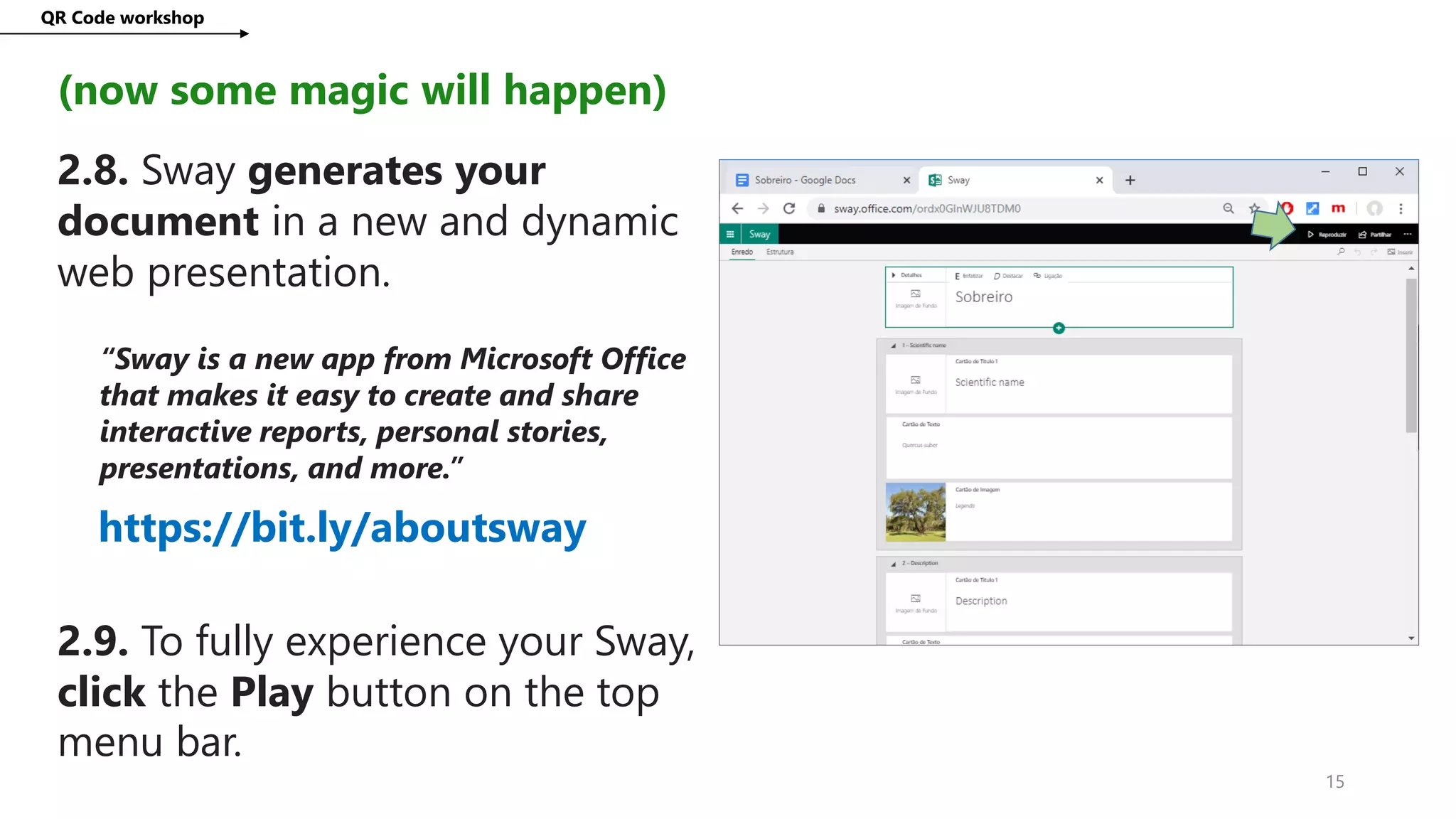
2.8. Sway generates your
document in a new and dynamic
web presentation.
“Sway is a new app from Microsoft Office
that makes it easy to create and share
interactive reports, personal stories,
presentations, and more.”
https://bit.ly/aboutsway
2.9. To fully experience your Sway,
click the Play button on the top
menu bar.
3rd Task: create the QR Code
QR Code workshop
16
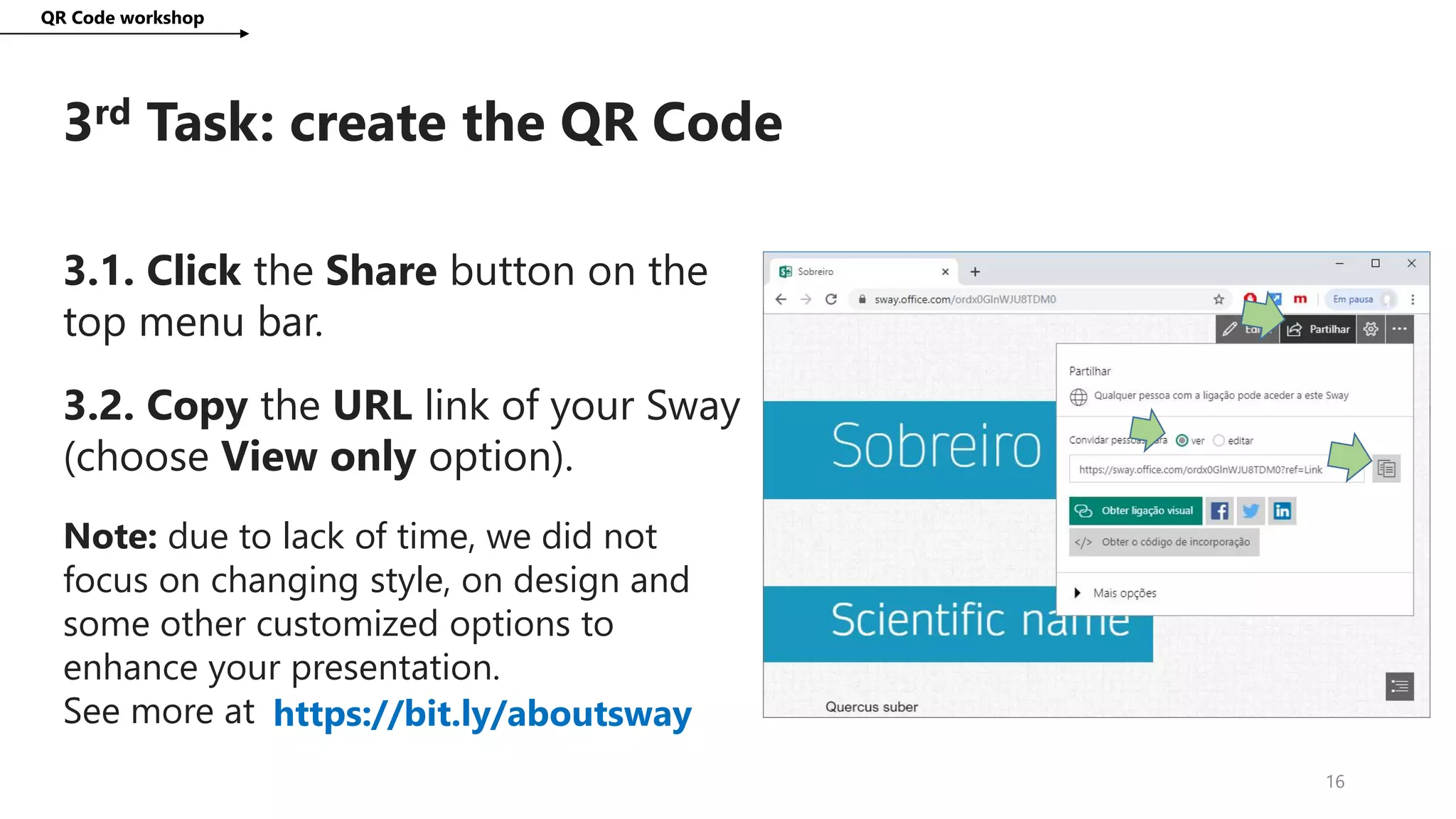
3.1. Click the Share button on the
top menu bar.
3.2. Copy the URL link of your Sway
(choose View only option).
Note: due to lack of time, we did not
focus on changing style, on design and
some other customized options to
enhance your presentation.
See more at https://bit.ly/aboutsway
QR Code workshop
17
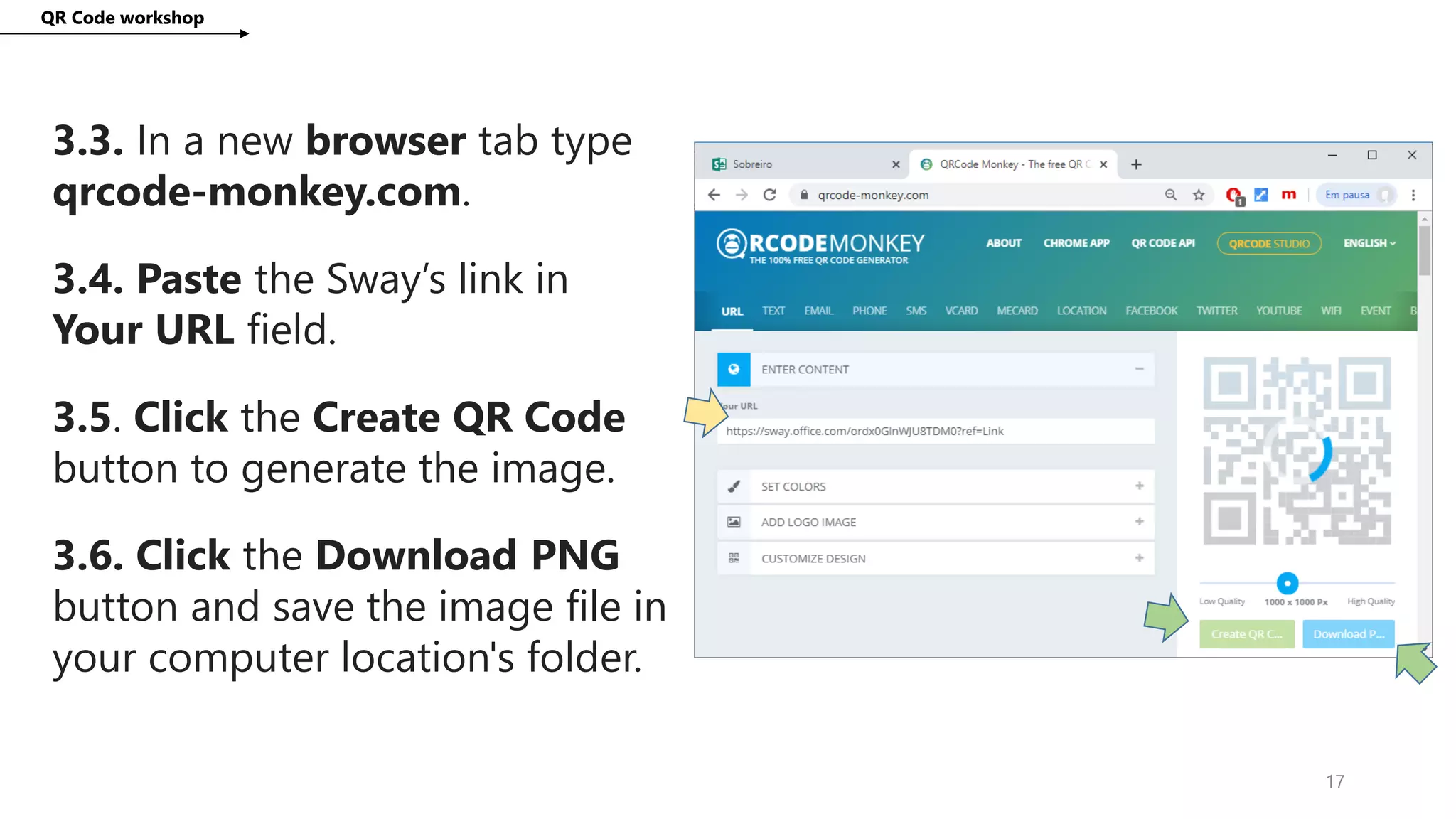
3.3. In a new browser tab type
qrcode-monkey.com.
3.4. Paste the Sway’s link in
Your URL field.
3.5. Click the Create QR Code
button to generate the image.
3.6. Click the Download PNG
button and save the image file in
your computer location's folder.
QR Code workshop
18
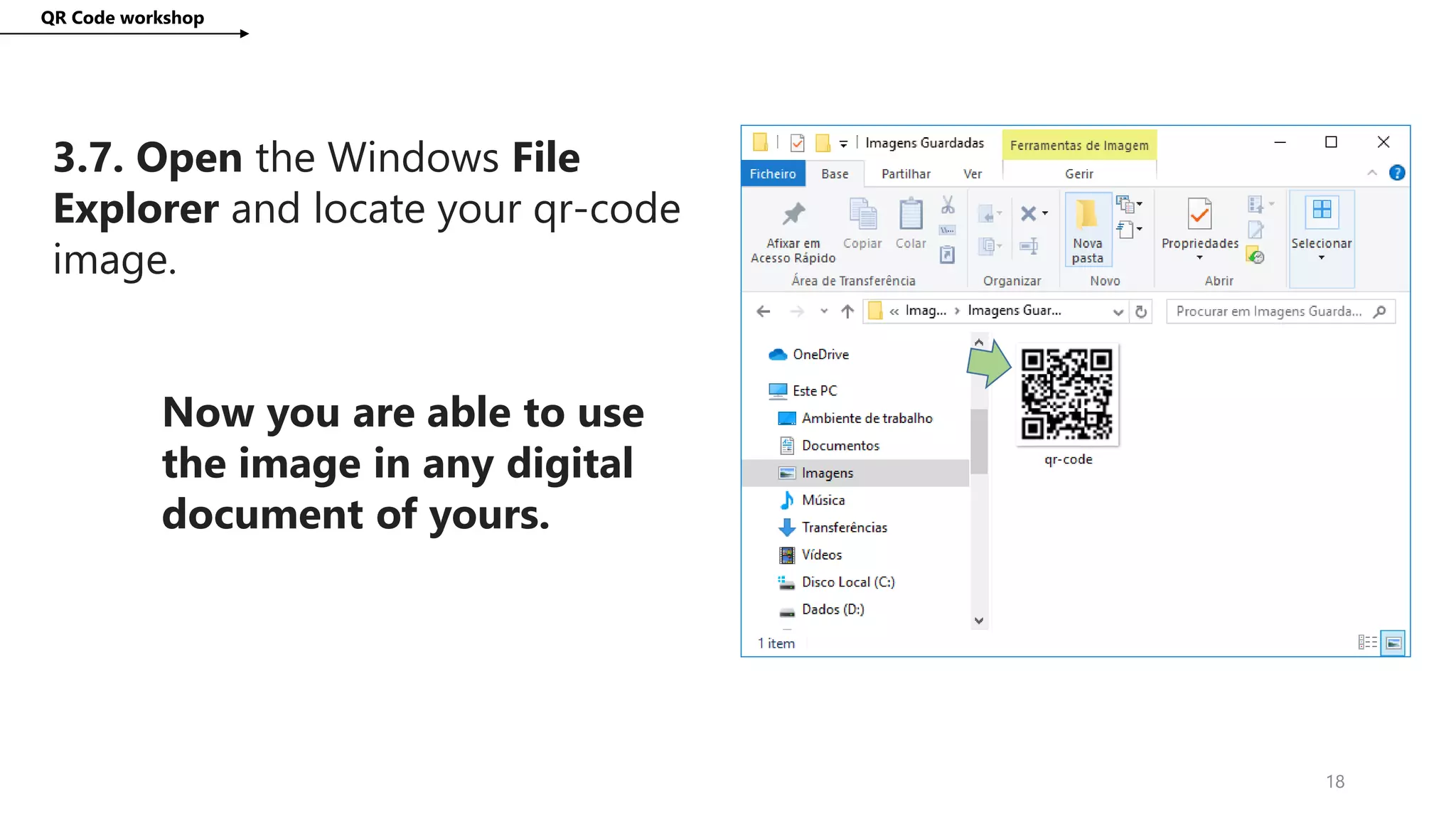
3.7. Open the Windows File
Explorer and locate your qr-code
image.
Now you are able to use
the image in any digital
document of yours.
4th Task: scan the QR Code with your device
QR Code workshop
19
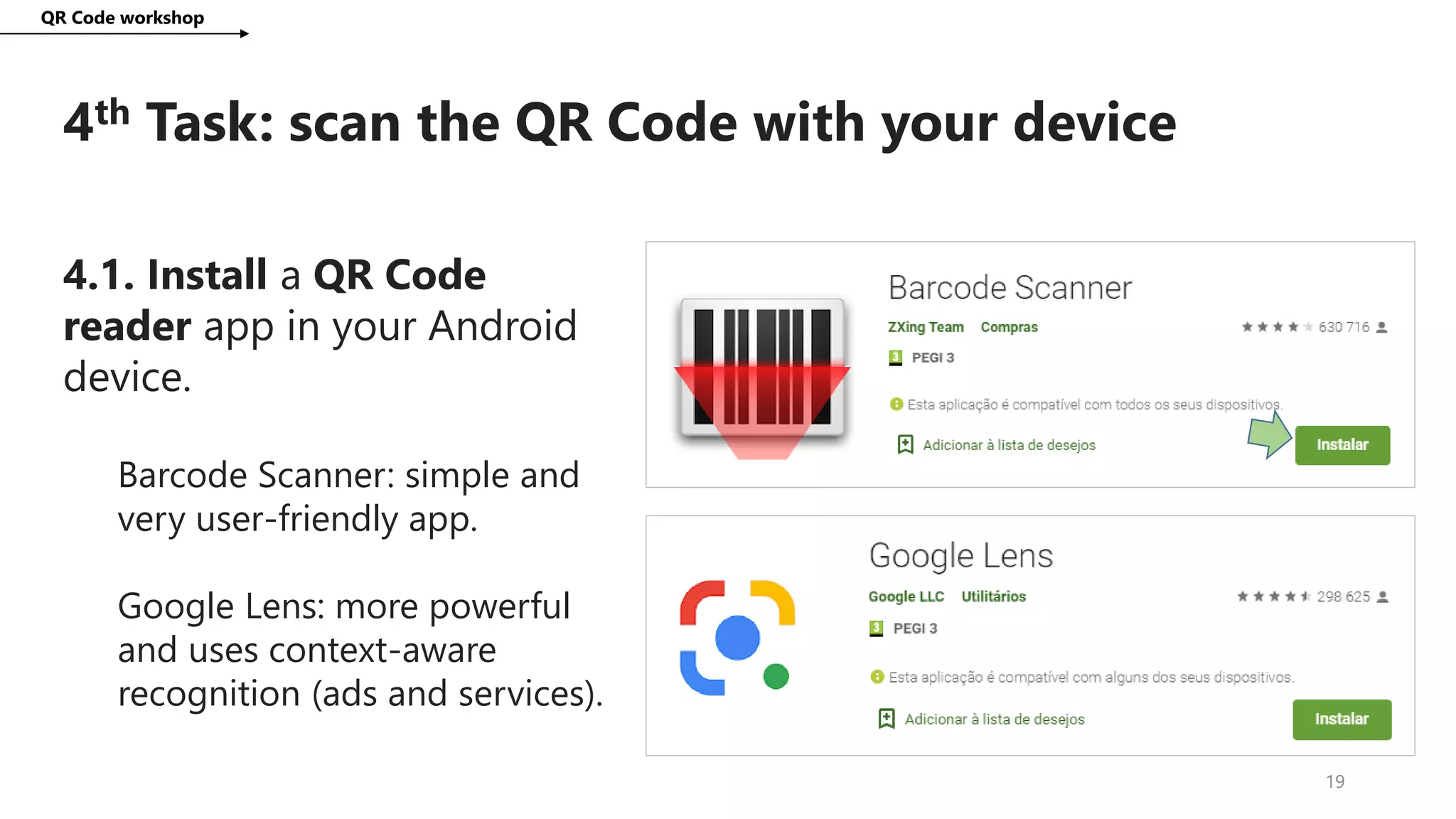
4.1. Install a QR Code
reader app in your Android
device.
Barcode Scanner: simple and
very user-friendly app.
Google Lens: more powerful
and uses context-aware
recognition (ads and services).
5th Task: use this tutorial
QR Code workshop
20
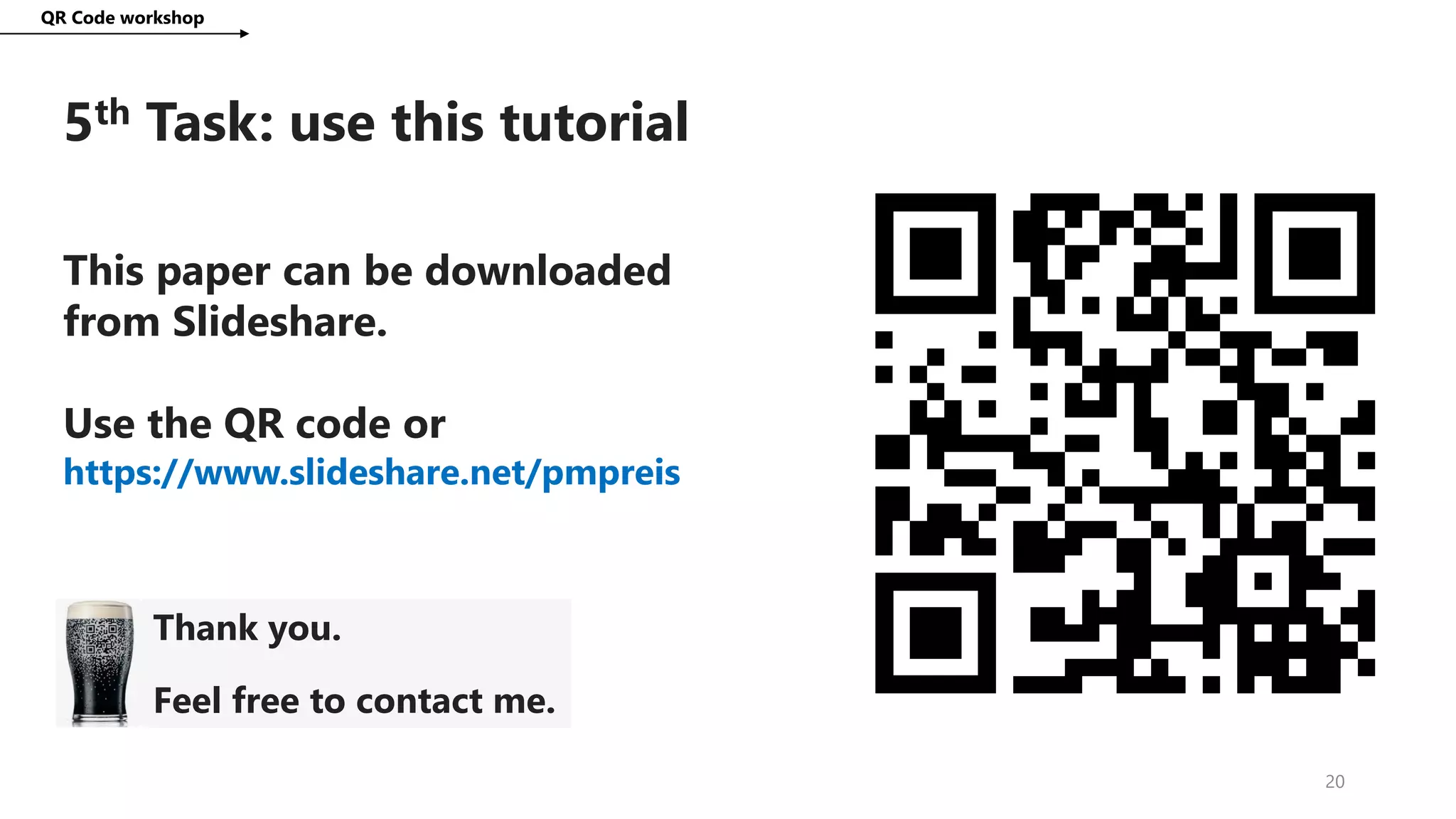
This paper can be downloaded
from Slideshare.
Use the QR code or
https://www.slideshare.net/pmpreis
Thank you.
Feel free to contact me.

QR code workshop 2019

  • 1.
    QR code workshop Batalha,20th of November, 2019 Paulo ReisNumeracy and Literacy Through Coding and Robotics
  • 2.
    QR is shortfor Quick Response (they can be read quickly by a cell phone). They are used to take a piece of information from a transitory media and put it in to your cell phone. You may see QR Codes in a magazine advert, on a billboard, a web page or even on someone's t-shirt. QR Code workshop 2
  • 3.
    We used QRCode in eTwinning projet Trees Around Us. QR Code workshop 3 https://bit.ly/etwTAU Project aims:  share simple information about the trees found in the school yard of each partner school.  discover and learn something more about these trees, such as their common name, scientific name, family, origin, leaf type, fruits and purpose.  …
  • 4.
    The Trees AroundUs final product can be seen by scanning a tree tag. QR Code workshop 4 https://bit.ly/arvores5 Project activities:  Research about each tree founded.  Writing text documents of description’s tree.  Project logo contest.  Photo pictures of each tree.  Recording audio.  Recording and video production.  Other (a lot) eTwinning’ activities.
  • 5.
    1/2 What aboutQR codes technology? QR Code workshop 5  QR codes are square barcodes (two-dimensional barcodes) that were first developed and used in Japan (Toyota, 1994).  Like any other barcode, a QR code is nothing more than a way to store information in a machine-readable optical label.  The information encoded in QR Codes do not require any further action, except for a URL.  To open a URL an internet connection is needed.
  • 6.
    2/2 What aboutQR codes technology? QR Code workshop 6  You can use the Camera app on iPhone, iPad, or iPod touch to scan a QR code.  However, not many Android devices have a built-in QR Code reader.  There are lots of several good QR Code reader apps:  e.g., Barcode Scanner, Google Lens.  Also many, but not all quite good, QR Code generator.  e.g., QR Code Monkey, QR-code generator by Srujan Jha.
  • 7.
  • 8.
    What we need: QRCode workshop 8 A. A desktop computer, laptop or tablet. B. An email account (Gmail or other). C. Google Docs or Microsoft Office Word. D. A mobile device (your Smartphone or Tablet). E. Internet connection on your mobile device. F. Your natural-born fantastic skills. https://www.pinterest.pt/frogical/qr-code/
  • 9.
    1st Task: createsome web content QR Code workshop 9 1.1. Google it your country traditional or national tree. 1.2. Open Google Docs and create a new document. 1.3. Write the tree name and in the Style drop-down menu choose the type of heading as Title. 1.4. Write the words Scientific name, Description, Main usage, each in a new line and after choose style as Heading1.
  • 10.
    QR Code workshop 10 1.5.Google it the scientific name of your tree. 1.6. Copy and paste into the document just after the matched word. 1.7. Write a full paragraph about some reliable description of the tree. 1.8. Write a full paragraph about the main usage of the tree. 1.9 Give an name to best recognition of your document.
  • 11.
    QR Code workshop 11 1.10.Google for a royalty free image from your tree. 1.11. Drag and Drop image into the document just after the Scientific name. 1.12. Choose several images to drag and drop after last paragraph. 1.13. From the File menu choose Transfer as… Microsoft Word (.docx)
  • 12.
    2nd Task: publishyour web content QR Code workshop 12 2.1. In a new browser tab type sway.com in the URL bar. 2.2. Click hover the Start now green button. 2.3. Write your email account for sign in purpose.
  • 13.
    QR Code workshop 13 Ifyour account does not exists: Probably your account is not yet registered in Microsoft database. 2.4. Press the Create account link and just follow the step by step instructions. You’ll need to check your email for an validation email. If your account really exists: 2.4. Provide your email and type your password to sign in. For security reasons do not activate “Keep You Logged in” option.
  • 14.
    QR Code workshop 14 2.5.Press the Start from a document button (right side option). 2.6. Choose your file to upload from the File dialog window.
  • 15.
    QR Code workshop 15 (nowsome magic will happen) 2.8. Sway generates your document in a new and dynamic web presentation. “Sway is a new app from Microsoft Office that makes it easy to create and share interactive reports, personal stories, presentations, and more.” https://bit.ly/aboutsway 2.9. To fully experience your Sway, click the Play button on the top menu bar.
  • 16.
    3rd Task: createthe QR Code QR Code workshop 16 3.1. Click the Share button on the top menu bar. 3.2. Copy the URL link of your Sway (choose View only option). Note: due to lack of time, we did not focus on changing style, on design and some other customized options to enhance your presentation. See more at https://bit.ly/aboutsway
  • 17.
    QR Code workshop 17 3.3.In a new browser tab type qrcode-monkey.com. 3.4. Paste the Sway’s link in Your URL field. 3.5. Click the Create QR Code button to generate the image. 3.6. Click the Download PNG button and save the image file in your computer location's folder.
  • 18.
    QR Code workshop 18 3.7.Open the Windows File Explorer and locate your qr-code image. Now you are able to use the image in any digital document of yours.
  • 19.
    4th Task: scanthe QR Code with your device QR Code workshop 19 4.1. Install a QR Code reader app in your Android device. Barcode Scanner: simple and very user-friendly app. Google Lens: more powerful and uses context-aware recognition (ads and services).
  • 20.
    5th Task: usethis tutorial QR Code workshop 20 This paper can be downloaded from Slideshare. Use the QR code or https://www.slideshare.net/pmpreis Thank you. Feel free to contact me.