Project Management in SharePoint
Steve Pucelik
Sr Premier Field Engineer - Microsoft
Steve.pucelik@Microsoft.com
stevepucelik
Agenda
• Project Management Activities
• SharePoint Information Architecture
• Managing the Project
• SharePoint Search
• Power BI reporting
Project Management Activity
Planning is a
life skill
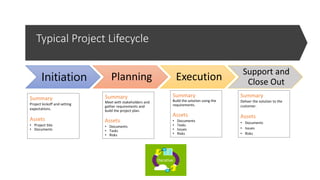
Typical Project Lifecycle
Summary
Project kickoff and setting
expectations.
Assets
• Project Site
• Documents
Summary
Meet with stakeholders and
gather requirements and
build the project plan.
Assets
• Documents
• Tasks
• Risks
Summary
Build the solution using the
requirements.
Assets
• Documents
• Tasks
• Issues
• Risks
Summary
Deliver the solution to the
customer.
Assets
• Documents
• Issues
• Risks
Iterative
Initiation Planning Execution Support and
Close Out
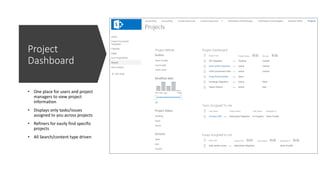
Project
Dashboard
• One place for users and project
managers to view project
information
• Displays only tasks/issues
assigned to you across projects
• Refiners for easily find specific
projects
• All Search/content type driven
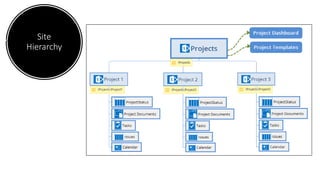
Information Architecture
Site
Hierarchy
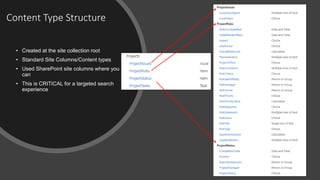
Content Type Structure
• Created at the site collection root
• Standard Site Columns/Content types
• Used SharePoint site columns where you
can
• This is CRITICAL for a targeted search
experience
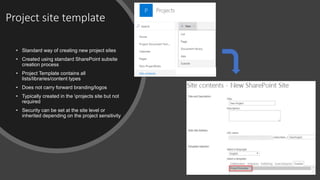
Project site template
• Standard way of creating new project sites
• Created using standard SharePoint subsite
creation process
• Project Template contains all
lists/libraries/content types
• Does not carry forward branding/logos
• Typically created in the projects site but not
required
• Security can be set at the site level or
inherited depending on the project sensitivity
Managing the project
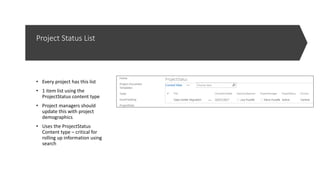
Project Status List
• Every project has this list
• 1 item list using the
ProjectStatus content type
• Project managers should
update this with project
demographics
• Uses the ProjectStatus
Content type – critical for
rolling up information using
search
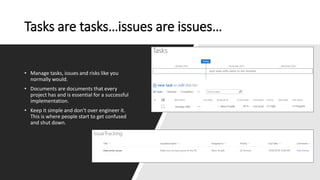
Tasks are tasks…issues are issues…
• Manage tasks, issues and risks like you
normally would.
• Documents are documents that every
project has and is essential for a successful
implementation.
• Keep it simple and don’t over engineer it.
This is where people start to get confused
and shut down.
SharePoint Search
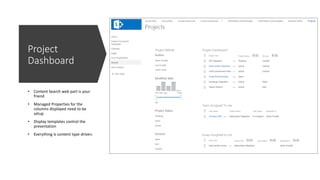
Project
Dashboard
• Content Search web part is your
friend
• Managed Properties for the
columns displayed need to be
setup
• Display templates control the
presentation
• Everything is content type driven.
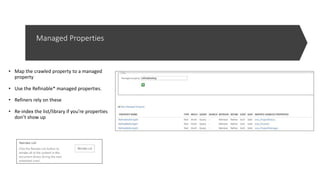
Managed Properties
• Map the crawled property to a managed
property
• Use the Refinable* managed properties.
• Refiners rely on these
• Re-index the list/library if you’re properties
don’t show up
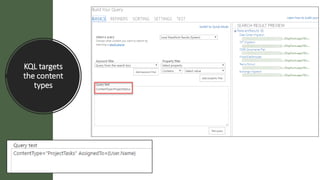
KQL targets
the content
types
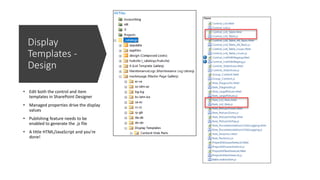
Display
Templates -
Design
• Edit both the control and item
templates in SharePoint Designer
• Managed properties drive the display
values
• Publishing feature needs to be
enabled to generate the .js file
• A little HTML/JavaScript and you’re
done!
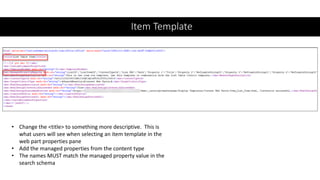
Item Template
• Change the <title> to something more descriptive. This is
what users will see when selecting an item template in the
web part properties pane
• Add the managed properties from the content type
• The names MUST match the managed property value in the
search schema
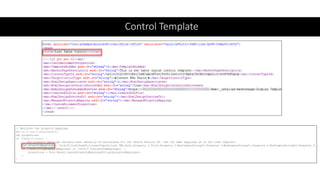
Control Template
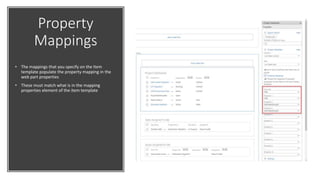
Property
Mappings
• The mappings that you specify on the Item
template populate the property mapping in the
web part properties
• These must match what is in the mapping
properties element of the item template
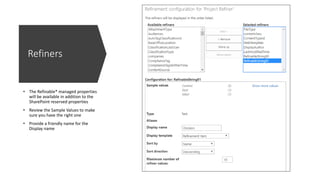
Refiners
• The Refinable* managed properties
will be available in addition to the
SharePoint reserved properties
• Review the Sample Values to make
sure you have the right one
• Provide a friendly name for the
Display name
Power BI
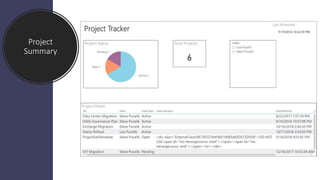
Project
Summary
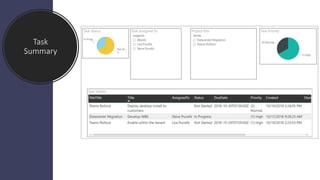
Task
Summary
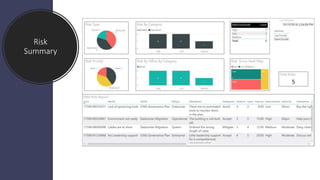
Risk
Summary
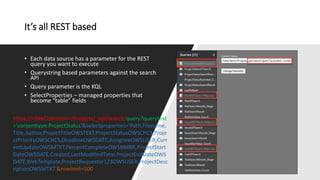
It’s all REST based
• Each data source has a parameter for the REST
query you want to execute
• Querystring based parameters against the search
API
• Query parameter is the KQL
• SelectProperties – managed properties that
become “table” fields
https://<SiteCollection>/Projects/_api/search/query?querytext
='contenttype:ProjectStatus'&selectproperties='Path,Filename,
Title,Author,ProjectTitleOWSTEXT,ProjectStatusOWSCHCS,Proje
ctPriorityOWSCHCS,DeadlineOWSDATE,AssigneeOWSUSER,Curr
entUpdateOWSMTXT,PercentCompleteOWSNMBR,ProjectStart
DateOWSDATE,Created,LastModifiedTime,ProjectEndDateOWS
DATE,WebTemplate,ProjectRequestor123OWSUSER,ProjectDesc
riptionOWSMTXT'&rowlimit=500
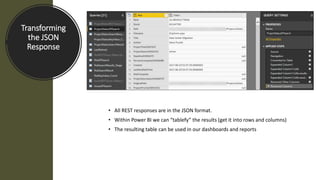
Transforming
the JSON
Response
• All REST responses are in the JSON format.
• Within Power BI we can “tablefy” the results (get it into rows and columns)
• The resulting table can be used in our dashboards and reports
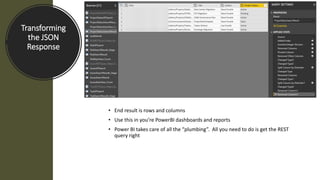
Transforming
the JSON
Response
• End result is rows and columns
• Use this in you’re PowerBI dashboards and reports
• Power BI takes care of all the “plumbing”. All you need to do is get the REST
query right
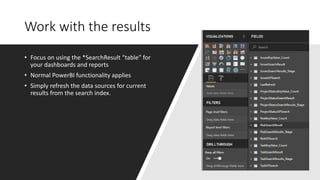
Work with the results
• Focus on using the *SearchResult “table” for
your dashboards and reports
• Normal PowerBI functionality applies
• Simply refresh the data sources for current
results from the search index.
References
• Display Templates in GitHub
• KQL Cheat Sheet
• PowerBI template for any REST query
Questions

Project Management With SharePoint

  • 1.
    Project Management inSharePoint Steve Pucelik Sr Premier Field Engineer - Microsoft
  • 2.
  • 3.
    Agenda • Project ManagementActivities • SharePoint Information Architecture • Managing the Project • SharePoint Search • Power BI reporting
  • 4.
  • 5.
  • 6.
    Typical Project Lifecycle Summary Projectkickoff and setting expectations. Assets • Project Site • Documents Summary Meet with stakeholders and gather requirements and build the project plan. Assets • Documents • Tasks • Risks Summary Build the solution using the requirements. Assets • Documents • Tasks • Issues • Risks Summary Deliver the solution to the customer. Assets • Documents • Issues • Risks Iterative Initiation Planning Execution Support and Close Out
  • 7.
    Project Dashboard • One placefor users and project managers to view project information • Displays only tasks/issues assigned to you across projects • Refiners for easily find specific projects • All Search/content type driven
  • 8.
  • 9.
  • 10.
    Content Type Structure •Created at the site collection root • Standard Site Columns/Content types • Used SharePoint site columns where you can • This is CRITICAL for a targeted search experience
  • 11.
    Project site template •Standard way of creating new project sites • Created using standard SharePoint subsite creation process • Project Template contains all lists/libraries/content types • Does not carry forward branding/logos • Typically created in the projects site but not required • Security can be set at the site level or inherited depending on the project sensitivity
  • 12.
  • 13.
    Project Status List •Every project has this list • 1 item list using the ProjectStatus content type • Project managers should update this with project demographics • Uses the ProjectStatus Content type – critical for rolling up information using search
  • 14.
    Tasks are tasks…issuesare issues… • Manage tasks, issues and risks like you normally would. • Documents are documents that every project has and is essential for a successful implementation. • Keep it simple and don’t over engineer it. This is where people start to get confused and shut down.
  • 15.
  • 16.
    Project Dashboard • Content Searchweb part is your friend • Managed Properties for the columns displayed need to be setup • Display templates control the presentation • Everything is content type driven.
  • 17.
    Managed Properties • Mapthe crawled property to a managed property • Use the Refinable* managed properties. • Refiners rely on these • Re-index the list/library if you’re properties don’t show up
  • 18.
  • 19.
    Display Templates - Design • Editboth the control and item templates in SharePoint Designer • Managed properties drive the display values • Publishing feature needs to be enabled to generate the .js file • A little HTML/JavaScript and you’re done!
  • 20.
    Item Template • Changethe <title> to something more descriptive. This is what users will see when selecting an item template in the web part properties pane • Add the managed properties from the content type • The names MUST match the managed property value in the search schema
  • 21.
  • 22.
    Property Mappings • The mappingsthat you specify on the Item template populate the property mapping in the web part properties • These must match what is in the mapping properties element of the item template
  • 23.
    Refiners • The Refinable*managed properties will be available in addition to the SharePoint reserved properties • Review the Sample Values to make sure you have the right one • Provide a friendly name for the Display name
  • 24.
  • 25.
  • 26.
  • 27.
  • 28.
    It’s all RESTbased • Each data source has a parameter for the REST query you want to execute • Querystring based parameters against the search API • Query parameter is the KQL • SelectProperties – managed properties that become “table” fields https://<SiteCollection>/Projects/_api/search/query?querytext ='contenttype:ProjectStatus'&selectproperties='Path,Filename, Title,Author,ProjectTitleOWSTEXT,ProjectStatusOWSCHCS,Proje ctPriorityOWSCHCS,DeadlineOWSDATE,AssigneeOWSUSER,Curr entUpdateOWSMTXT,PercentCompleteOWSNMBR,ProjectStart DateOWSDATE,Created,LastModifiedTime,ProjectEndDateOWS DATE,WebTemplate,ProjectRequestor123OWSUSER,ProjectDesc riptionOWSMTXT'&rowlimit=500
  • 29.
    Transforming the JSON Response • AllREST responses are in the JSON format. • Within Power BI we can “tablefy” the results (get it into rows and columns) • The resulting table can be used in our dashboards and reports
  • 30.
    Transforming the JSON Response • Endresult is rows and columns • Use this in you’re PowerBI dashboards and reports • Power BI takes care of all the “plumbing”. All you need to do is get the REST query right
  • 31.
    Work with theresults • Focus on using the *SearchResult “table” for your dashboards and reports • Normal PowerBI functionality applies • Simply refresh the data sources for current results from the search index.
  • 32.
    References • Display Templatesin GitHub • KQL Cheat Sheet • PowerBI template for any REST query
  • 33.