Contact Sheet / Image
Manipulation
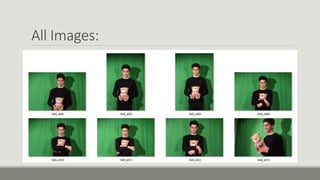
All Images:
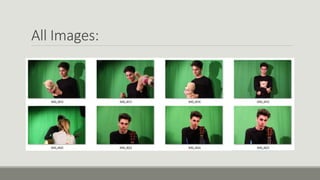
All Images:
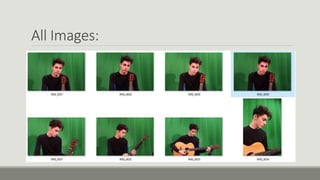
All Images:
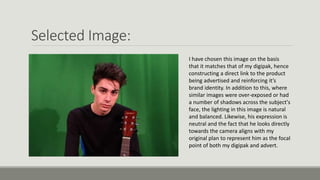
Selected Image:
I have chosen this image on the basis
that it matches that of my digipak, hence
constructing a direct link to the product
being advertised and reinforcing it’s
brand identity. In addition to this, where
similar images were over-exposed or had
a number of shadows across the subject's
face, the lighting in this image is natural
and balanced. Likewise, his expression is
neutral and the fact that he looks directly
towards the camera aligns with my
original plan to represent him as the focal
point of both my digipak and advert.
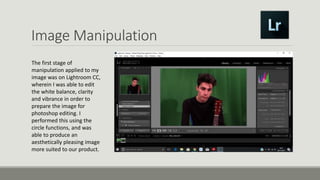
Image Manipulation
The first stage of
manipulation applied to my
image was on Lightroom CC,
wherein I was able to edit
the white balance, clarity
and vibrance in order to
prepare the image for
photoshop editing. I
performed this using the
circle functions, and was
able to produce an
aesthetically pleasing image
more suited to our product.
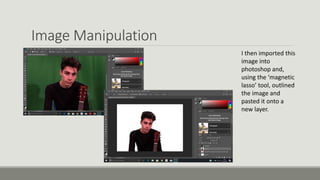
Image Manipulation
I then imported this
image into
photoshop and,
using the ‘magnetic
lasso’ tool, outlined
the image and
pasted it onto a
new layer.
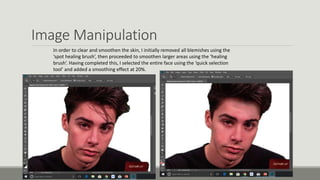
Image Manipulation
In order to clear and smoothen the skin, I initially removed all blemishes using the
‘spot healing brush’, then proceeded to smoothen larger areas using the ‘healing
brush’. Having completed this, I selected the entire face using the ‘quick selection
tool’ and added a smoothing effect at 20%.
Image Manipulation
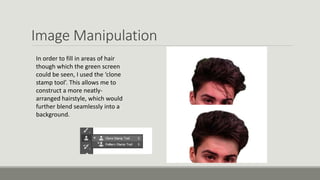
In order to fill in areas of hair
though which the green screen
could be seen, I used the ‘clone
stamp tool’. This allows me to
construct a more neatly-
arranged hairstyle, which would
further blend seamlessly into a
background.
Image Manipulation
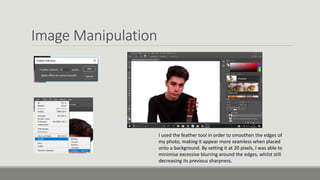
I used the feather tool in order to smoothen the edges of
my photo, making it appear more seamless when placed
onto a background. By setting it at 20 pixels, I was able to
minimise excessive blurring around the edges, whilst still
decreasing its previous sharpness.
Image Manipulation
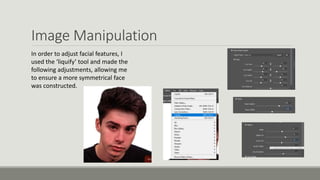
In order to adjust facial features, I
used the ‘liquify’ tool and made the
following adjustments, allowing me
to ensure a more symmetrical face
was constructed.
Image Manipulation
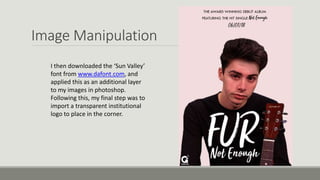
I then downloaded the ‘Sun Valley’
font from www.dafont.com, and
applied this as an additional layer
to my images in photoshop.
Following this, my final step was to
import a transparent institutional
logo to place in the corner.

Production diary – ancillary task 2

  • 1.
    Contact Sheet /Image Manipulation
  • 2.
  • 3.
  • 4.
  • 5.
    Selected Image: I havechosen this image on the basis that it matches that of my digipak, hence constructing a direct link to the product being advertised and reinforcing it’s brand identity. In addition to this, where similar images were over-exposed or had a number of shadows across the subject's face, the lighting in this image is natural and balanced. Likewise, his expression is neutral and the fact that he looks directly towards the camera aligns with my original plan to represent him as the focal point of both my digipak and advert.
  • 6.
    Image Manipulation The firststage of manipulation applied to my image was on Lightroom CC, wherein I was able to edit the white balance, clarity and vibrance in order to prepare the image for photoshop editing. I performed this using the circle functions, and was able to produce an aesthetically pleasing image more suited to our product.
  • 7.
    Image Manipulation I thenimported this image into photoshop and, using the ‘magnetic lasso’ tool, outlined the image and pasted it onto a new layer.
  • 8.
    Image Manipulation In orderto clear and smoothen the skin, I initially removed all blemishes using the ‘spot healing brush’, then proceeded to smoothen larger areas using the ‘healing brush’. Having completed this, I selected the entire face using the ‘quick selection tool’ and added a smoothing effect at 20%.
  • 9.
    Image Manipulation In orderto fill in areas of hair though which the green screen could be seen, I used the ‘clone stamp tool’. This allows me to construct a more neatly- arranged hairstyle, which would further blend seamlessly into a background.
  • 10.
    Image Manipulation I usedthe feather tool in order to smoothen the edges of my photo, making it appear more seamless when placed onto a background. By setting it at 20 pixels, I was able to minimise excessive blurring around the edges, whilst still decreasing its previous sharpness.
  • 11.
    Image Manipulation In orderto adjust facial features, I used the ‘liquify’ tool and made the following adjustments, allowing me to ensure a more symmetrical face was constructed.
  • 12.
    Image Manipulation I thendownloaded the ‘Sun Valley’ font from www.dafont.com, and applied this as an additional layer to my images in photoshop. Following this, my final step was to import a transparent institutional logo to place in the corner.