Introduction and brief
Overview on Linux ,GIT and
Jira
BY:-
Anita Maurya
Deepak Yadav
Saurav
Introduction
to Linux
What is Linux ?
Linux is an open source operating system . An operating
system is the software that directly manages a system's
hardware and resources, like CPU, memory, and storage.
The OS sits between applications and hardware and makes
the connections between all of your software and the
physical resources that do the work.
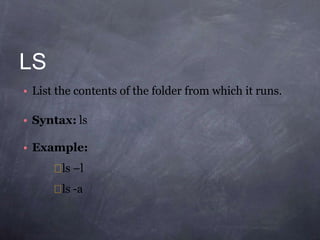
LS
• List the contents of the folder from which it runs.
• Syntax: ls
• Example:
ls –l
ls -a
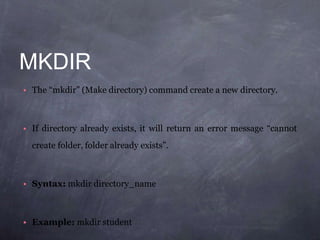
MKDIR
• The “mkdir” (Make directory) command create a new directory.
• If directory already exists, it will return an error message “cannot
create folder, folder already exists”.
• Syntax: mkdir directory_name
• Example: mkdir student
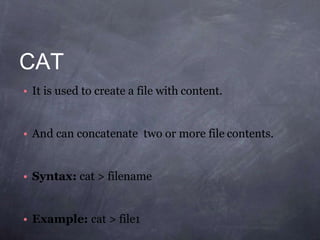
CAT
• It is used to create a file with content.
• And can concatenate two or more file contents.
• Syntax: cat > filename
• Example: cat > file1
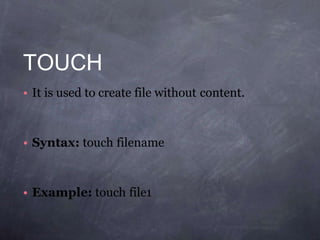
TOUCH
• It is used to create file without content.
• Syntax: touch filename
• Example: touch file1
CP
It copies a file from one location to another
location.
Syntax: cp src_file desti_file
• Example: cp file1 file2
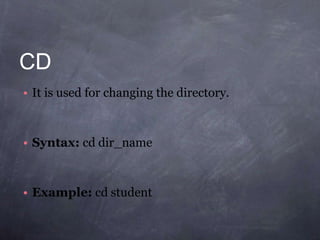
CD
• It is used for changing the directory.
• Syntax: cd dir_name
• Example: cd student
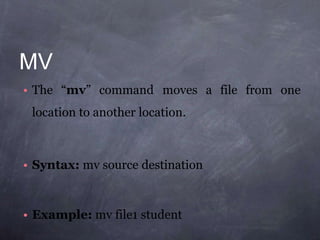
MV
• The “mv” command moves a file from one
location to another location.
• Syntax: mv source destination
• Example: mv file1 student
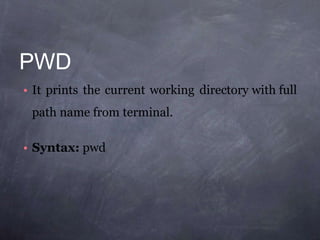
PWD
• It prints the current working directory with full
path name from terminal.
• Syntax: pwd
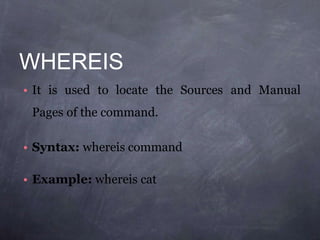
WHEREIS
• It is used to locate the Sources and Manual
Pages of the command.
• Syntax: whereis command
• Example: whereis cat
WHATIS
• It is helpful to get brief information about Linux
commands.
• Syntax: whatis command
• Example: whatis cp
WHICH
• It is used to locate executables in the system.
• It allows user to pass several command names as
arguments to get their paths in the system.
• Syntax: which command
• Example: which ls
MAN
• It provides online documentation for all the
possible options with a command and its usages.
• Syntax: man command
• Example: man cat
UNAME
• The “uname” command stands for Unix
Name, print detailed information about the
machine name, Operating System and Kernel.
• Syntax: uname
SUDO
• It allows a permitted user to execute a command
as the super user or another user.
• Syntax: sudo cmd
• Example: sudo passwd
SU
• It is used to run shell with substitute user and group IDs.
• It helps to change login session’s owner without the
owner having to first logout of that session.
• Syntax: su user
• Example: su user1
HISTORY
• It prints the history of long list of executed
commands in terminal.
• Syntax: history
PASSWD
• It is used for changing the passwd.
• You must know the current password for
the security reason.
• Syntax: passwd
DATE
• It print the current date and time
standard output & can further be set.
on the
• Syntax: date
• To set date: date - -set=‘14 may 2013 13:57’
CAL
• It is used to display calendar of the present
month or any other month.
• Syntax: cal
• Example: 3 1991
CLEAR
• It is used to clear the screen.
• Syntax: clear
Introduction to
What is git?
● Open source project originally developed in 2005 by
Linus Torvalds
● A command line utility
● You can imagine git as something that sits on top of
your file system and manipulates files.
● A distributed version control system - DCVS
What is “distributed version
control system” ?
● Version control system is a system that records
changes to a file or set of files over time so that you can
recall specific versions later
● Distributed means that there is no main server and all
of the full history of the project is available once you
cloned the project.
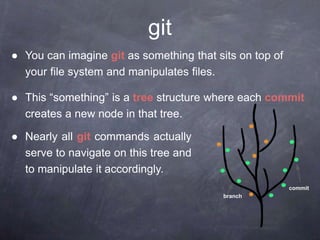
● You can imagine git as something that sits on top of
your file system and manipulates files.
● This “something” is a tree structure where each commit
creates a new node in that tree.
● Nearly all git commands actually
serve to navigate on this tree and
to manipulate it accordingly.
git
branch
commit
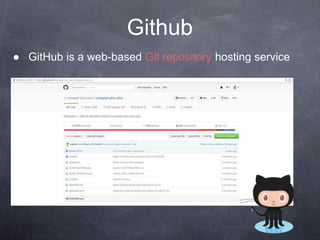
Github
● GitHub is a web-based Git repository hosting service
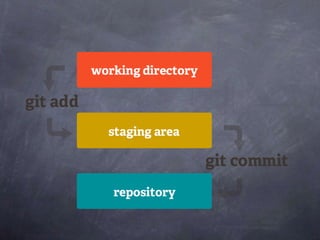
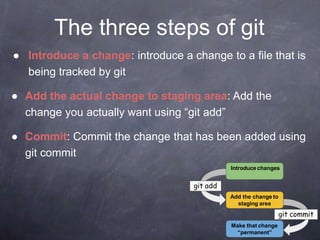
The three steps of git
Add the change to
staging area
Make that change
“permanent”
git add
git commit
● Introduce a change: introduce a change to a file that is
being tracked by git
● Add the actual change to staging area: Add the
change you actually want using “git add”
● Commit: Commit the change that has been added using
git commit
Introduce changes
git commands
git commands
● For most of the basic interactions with git you’ll mainly
use 7 commands that we’ll cover here
git commands
● git init
● git clone
● git log
● git diff
● git status
● git add
● git commit
git init
● Creates a new git repository
● Can be used to convert an existing, unversioned project
to a git repository or initialize a new empty repository
git clone
● Copies an existing git repository
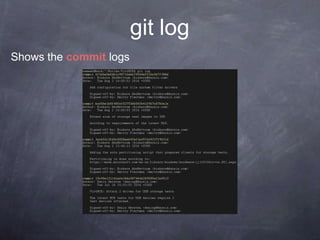
git log
Shows the commit logs
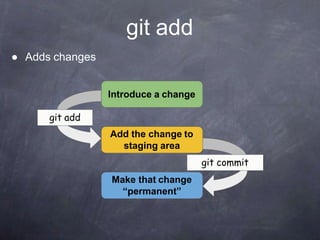
git add
● Adds changes
Introduce a change
Add the change to
staging area
Make that change
“permanent”
git add
git commit
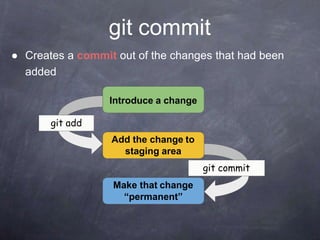
git commit
● Creates a commit out of the changes that had been
added
Introduce a change
Add the change to
staging area
Make that change
“permanent”
git add
git commit
git diff
● Displays the change that was introduced
Useful flag:
● --cached:
Displays the change that was added using “git add”
git status
● Displays the file names that has been modified, added
and untracked
Introduction
to JIRA
Jira is project management and testing tool.
Jira lets you priortize assign, track report or edit your
issue from software bugs and helpdesk tickets to project
tracks.
Jira improves productivity by cutting doewn wasted time.
Jira improves quality by ensuring all task are recorded
down with all details.
Introduction to jira
Tracking issues ,Bugs and Change requests.
Helpdesk /support/customer service.
Task tracking, project management and requirement
management.
Workflow and process management.
Uses
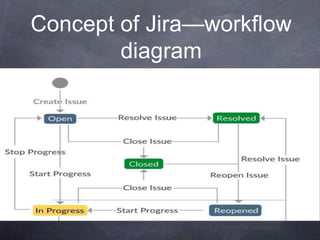
Concept of Jira—workflow
diagram
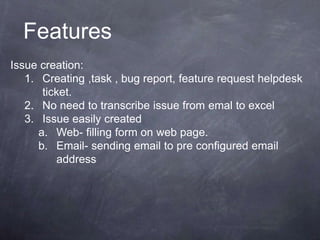
Issue creation:
1. Creating ,task , bug report, feature request helpdesk
ticket.
2. No need to transcribe issue from emal to excel
3. Issue easily created
a. Web- filling form on web page.
b. Email- sending email to pre configured email
address
Features
Features
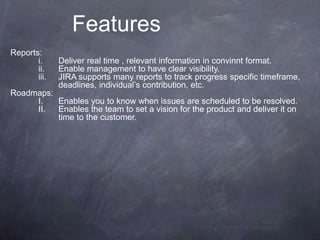
Reports:
i. Deliver real time , relevant information in convinnt format.
ii. Enable management to have clear visibility.
iii. JIRA supports many reports to track progress specific timeframe,
deadlines, individual’s contribution, etc.
Roadmaps:
I. Enables you to know when issues are scheduled to be resolved.
II. Enables the team to set a vision for the product and deliver it on
time to the customer.
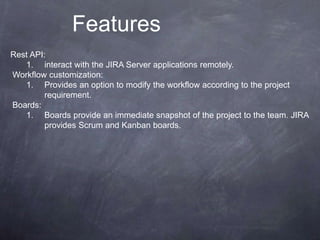
Rest API:
1. interact with the JIRA Server applications remotely.
Workflow customization:
1. Provides an option to modify the workflow according to the project
requirement.
Boards:
1. Boards provide an immediate snapshot of the project to the team. JIRA
provides Scrum and Kanban boards.
Features
Notification:
I. Enable you to receive information you need, when you need it.
II. Configurable email alerts when issues are updated.
III. Optional email to remind overdue task.
IV. Subscribe to weekly/monthly report on issue status.
Add Ins:
I. More than 100 add-ins are supported in JIRA to connect with
different software to make work easy.
Features
Thank You

Presentation for git jira and linux

  • 1.
    Introduction and brief Overviewon Linux ,GIT and Jira BY:- Anita Maurya Deepak Yadav Saurav
  • 2.
  • 3.
    What is Linux? Linux is an open source operating system . An operating system is the software that directly manages a system's hardware and resources, like CPU, memory, and storage. The OS sits between applications and hardware and makes the connections between all of your software and the physical resources that do the work.
  • 5.
    LS • List thecontents of the folder from which it runs. • Syntax: ls • Example: ls –l ls -a
  • 6.
    MKDIR • The “mkdir”(Make directory) command create a new directory. • If directory already exists, it will return an error message “cannot create folder, folder already exists”. • Syntax: mkdir directory_name • Example: mkdir student
  • 7.
    CAT • It isused to create a file with content. • And can concatenate two or more file contents. • Syntax: cat > filename • Example: cat > file1
  • 8.
    TOUCH • It isused to create file without content. • Syntax: touch filename • Example: touch file1
  • 9.
    CP It copies afile from one location to another location. Syntax: cp src_file desti_file • Example: cp file1 file2
  • 10.
    CD • It isused for changing the directory. • Syntax: cd dir_name • Example: cd student
  • 11.
    MV • The “mv”command moves a file from one location to another location. • Syntax: mv source destination • Example: mv file1 student
  • 12.
    PWD • It printsthe current working directory with full path name from terminal. • Syntax: pwd
  • 13.
    WHEREIS • It isused to locate the Sources and Manual Pages of the command. • Syntax: whereis command • Example: whereis cat
  • 14.
    WHATIS • It ishelpful to get brief information about Linux commands. • Syntax: whatis command • Example: whatis cp
  • 15.
    WHICH • It isused to locate executables in the system. • It allows user to pass several command names as arguments to get their paths in the system. • Syntax: which command • Example: which ls
  • 16.
    MAN • It providesonline documentation for all the possible options with a command and its usages. • Syntax: man command • Example: man cat
  • 17.
    UNAME • The “uname”command stands for Unix Name, print detailed information about the machine name, Operating System and Kernel. • Syntax: uname
  • 18.
    SUDO • It allowsa permitted user to execute a command as the super user or another user. • Syntax: sudo cmd • Example: sudo passwd
  • 19.
    SU • It isused to run shell with substitute user and group IDs. • It helps to change login session’s owner without the owner having to first logout of that session. • Syntax: su user • Example: su user1
  • 20.
    HISTORY • It printsthe history of long list of executed commands in terminal. • Syntax: history
  • 21.
    PASSWD • It isused for changing the passwd. • You must know the current password for the security reason. • Syntax: passwd
  • 22.
    DATE • It printthe current date and time standard output & can further be set. on the • Syntax: date • To set date: date - -set=‘14 may 2013 13:57’
  • 23.
    CAL • It isused to display calendar of the present month or any other month. • Syntax: cal • Example: 3 1991
  • 24.
    CLEAR • It isused to clear the screen. • Syntax: clear
  • 25.
  • 26.
    What is git? ●Open source project originally developed in 2005 by Linus Torvalds ● A command line utility ● You can imagine git as something that sits on top of your file system and manipulates files. ● A distributed version control system - DCVS
  • 27.
    What is “distributedversion control system” ? ● Version control system is a system that records changes to a file or set of files over time so that you can recall specific versions later ● Distributed means that there is no main server and all of the full history of the project is available once you cloned the project.
  • 28.
    ● You canimagine git as something that sits on top of your file system and manipulates files. ● This “something” is a tree structure where each commit creates a new node in that tree. ● Nearly all git commands actually serve to navigate on this tree and to manipulate it accordingly. git branch commit
  • 30.
    Github ● GitHub isa web-based Git repository hosting service
  • 31.
    The three stepsof git Add the change to staging area Make that change “permanent” git add git commit ● Introduce a change: introduce a change to a file that is being tracked by git ● Add the actual change to staging area: Add the change you actually want using “git add” ● Commit: Commit the change that has been added using git commit Introduce changes
  • 32.
  • 33.
    git commands ● Formost of the basic interactions with git you’ll mainly use 7 commands that we’ll cover here
  • 34.
    git commands ● gitinit ● git clone ● git log ● git diff ● git status ● git add ● git commit
  • 35.
    git init ● Createsa new git repository ● Can be used to convert an existing, unversioned project to a git repository or initialize a new empty repository
  • 36.
    git clone ● Copiesan existing git repository
  • 37.
    git log Shows thecommit logs
  • 38.
    git add ● Addschanges Introduce a change Add the change to staging area Make that change “permanent” git add git commit
  • 39.
    git commit ● Createsa commit out of the changes that had been added Introduce a change Add the change to staging area Make that change “permanent” git add git commit
  • 40.
    git diff ● Displaysthe change that was introduced Useful flag: ● --cached: Displays the change that was added using “git add”
  • 41.
    git status ● Displaysthe file names that has been modified, added and untracked
  • 42.
  • 43.
    Jira is projectmanagement and testing tool. Jira lets you priortize assign, track report or edit your issue from software bugs and helpdesk tickets to project tracks. Jira improves productivity by cutting doewn wasted time. Jira improves quality by ensuring all task are recorded down with all details. Introduction to jira
  • 44.
    Tracking issues ,Bugsand Change requests. Helpdesk /support/customer service. Task tracking, project management and requirement management. Workflow and process management. Uses
  • 45.
  • 46.
    Issue creation: 1. Creating,task , bug report, feature request helpdesk ticket. 2. No need to transcribe issue from emal to excel 3. Issue easily created a. Web- filling form on web page. b. Email- sending email to pre configured email address Features
  • 47.
    Features Reports: i. Deliver realtime , relevant information in convinnt format. ii. Enable management to have clear visibility. iii. JIRA supports many reports to track progress specific timeframe, deadlines, individual’s contribution, etc. Roadmaps: I. Enables you to know when issues are scheduled to be resolved. II. Enables the team to set a vision for the product and deliver it on time to the customer.
  • 48.
    Rest API: 1. interactwith the JIRA Server applications remotely. Workflow customization: 1. Provides an option to modify the workflow according to the project requirement. Boards: 1. Boards provide an immediate snapshot of the project to the team. JIRA provides Scrum and Kanban boards. Features
  • 49.
    Notification: I. Enable youto receive information you need, when you need it. II. Configurable email alerts when issues are updated. III. Optional email to remind overdue task. IV. Subscribe to weekly/monthly report on issue status. Add Ins: I. More than 100 add-ins are supported in JIRA to connect with different software to make work easy. Features
  • 50.