Power BI Tips
and Timesavers
Rolling Averages
And Rolling Sums
In Power BI
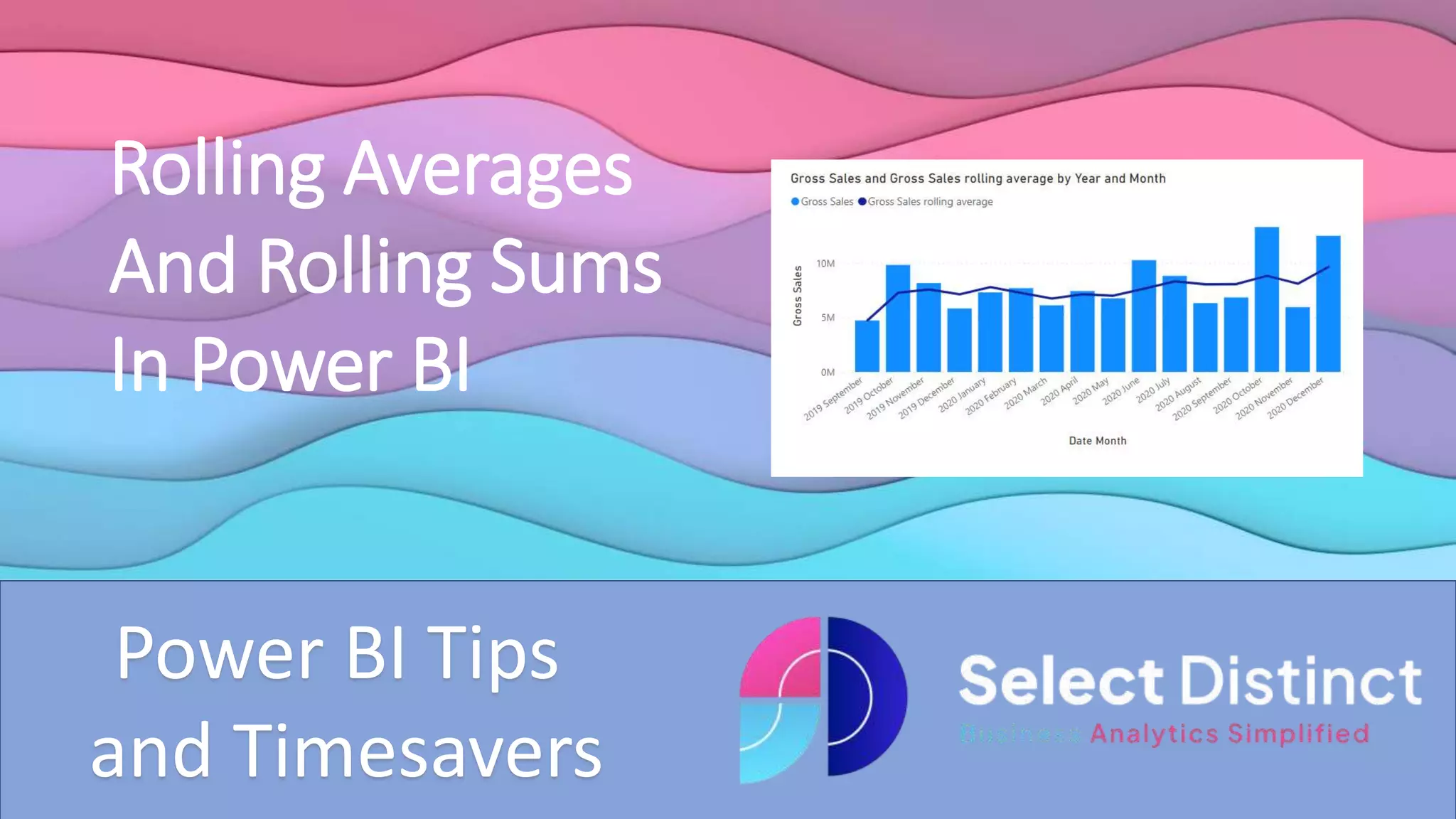
Rolling averages and Rolling totals are used when analysing data over
time
Rolling averages smooth out fluctuations across the number of periods
Both of these are possible in Power BI if you know the steps involved
Rolling Averages
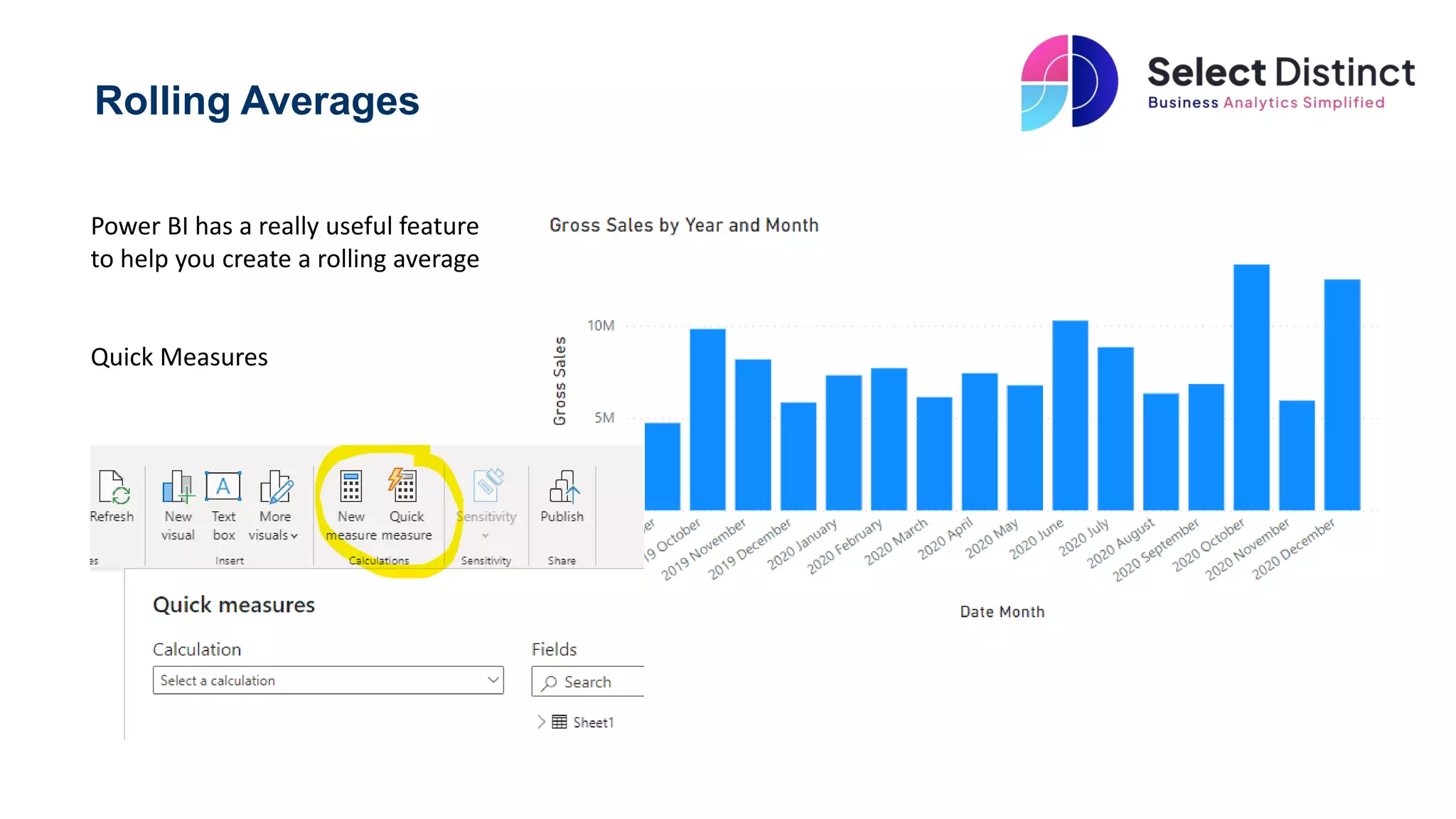
Power BI has a really useful feature
to help you create a rolling average
Quick Measures
Use Quick Measures to simplify
complex calculations
Click on the Quick measures icon
In calculations, scroll down to
‘Rolling Average’
Add the value to measure and the date
Then in periods, set your period interval
from days, months quarters or years
Then set the number of periods before
and after
Click OK
The DAX code is automatically created
A new measure is created for you
You can now use this on your chart
What about a rolling SUM?
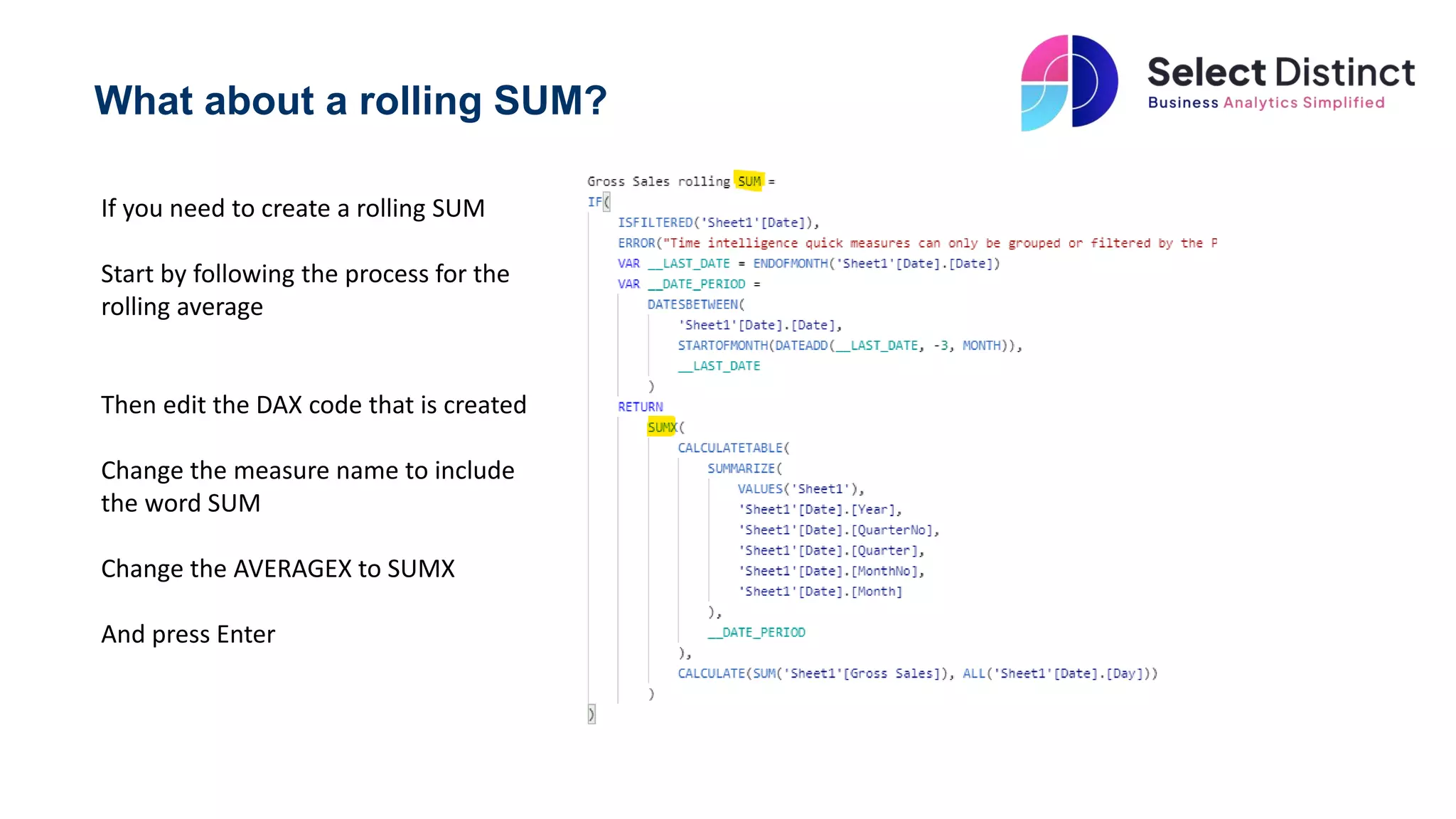
If you need to create a rolling SUM
Start by following the process for the
rolling average
Then edit the DAX code that is created
Change the measure name to include
the word SUM
Change the AVERAGEX to SUMX
And press Enter
Rolling SUM
Add the newly created Rolling SUM
measure to a chart
A word of caution though, you can see
on the chart that the first periods don’t
contain the three periods, so you may
need to exclude those from the chart
Alternatively, you can and a little extra
code to the measure to check for the
required periods
That’s one for a separate video, but
here is a sneak peek
if(Stockturn_13m_Rolling[Location
_on_hand_value rolling count]
< 13, "",
Hope you found this useful
For more Tips, Tricks and
Timesavers, visit our website
Business Analytics Blog – Select Distinct
Credit: simon.harrison@selectdistinct.co.uk

Power BI Tips Rolling Averages and Rolling Sums.pptx

  • 1.
    Power BI Tips andTimesavers Rolling Averages And Rolling Sums In Power BI
  • 2.
    Rolling averages andRolling totals are used when analysing data over time Rolling averages smooth out fluctuations across the number of periods Both of these are possible in Power BI if you know the steps involved
  • 3.
    Rolling Averages Power BIhas a really useful feature to help you create a rolling average Quick Measures
  • 4.
    Use Quick Measuresto simplify complex calculations Click on the Quick measures icon In calculations, scroll down to ‘Rolling Average’ Add the value to measure and the date Then in periods, set your period interval from days, months quarters or years Then set the number of periods before and after Click OK
  • 5.
    The DAX codeis automatically created A new measure is created for you You can now use this on your chart
  • 6.
    What about arolling SUM? If you need to create a rolling SUM Start by following the process for the rolling average Then edit the DAX code that is created Change the measure name to include the word SUM Change the AVERAGEX to SUMX And press Enter
  • 7.
    Rolling SUM Add thenewly created Rolling SUM measure to a chart A word of caution though, you can see on the chart that the first periods don’t contain the three periods, so you may need to exclude those from the chart Alternatively, you can and a little extra code to the measure to check for the required periods That’s one for a separate video, but here is a sneak peek if(Stockturn_13m_Rolling[Location _on_hand_value rolling count] < 13, "",
  • 8.
    Hope you foundthis useful
  • 9.
    For more Tips,Tricks and Timesavers, visit our website Business Analytics Blog – Select Distinct Credit: simon.harrison@selectdistinct.co.uk