+
Photoshop
Tutorial
Create a Xmas eCard.
In 10 steps.
+

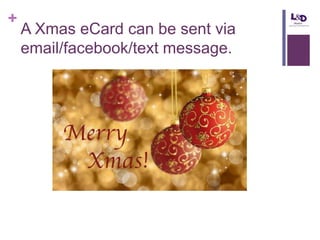
A Xmas eCard can be sent via
email/facebook/text message.
+

Objectives
 Open
 Add
 Set

an image in Photoshop;

a layer to a Photoshop project;
and modify text;

 Create

an eCard with text on an image.

Lndmatters.com
+

Step 1

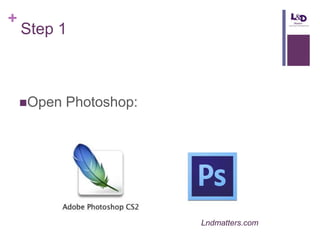
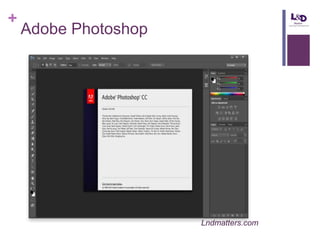
Open

Photoshop:

Lndmatters.com
+

Adobe Photoshop

Lndmatters.com
+

Step 2

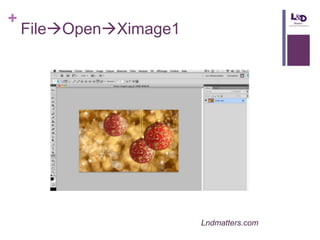
Open

the image previously selected:

FileOpenXimage1

Lndmatters.com
+

FileOpenXimage1

Lndmatters.com
+

Step 3



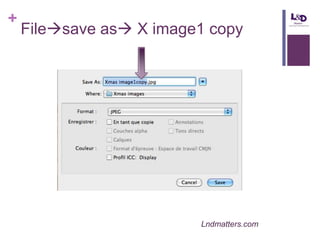
Save the image as a copy:

Filesave as X image1 copy

Lndmatters.com
+

Filesave as X image1 copy

Lndmatters.com
+

Note
 You

are now working on the copy. Your original will
remain untouched.

 Check

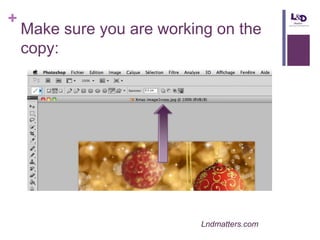
the top of you image and make sure you are
working on the copy.

Lndmatters.com
+

Make sure you are working on the
copy:

Lndmatters.com
+

Step 4
Add

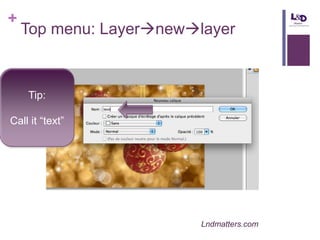
a new layer:

Layernewlayer

Lndmatters.com
+

Top menu: Layernewlayer

Tip:
Call it “text”

Lndmatters.com
+

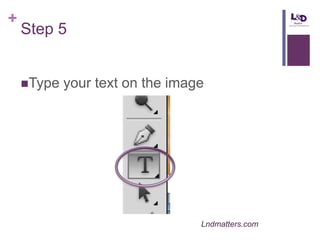
Step 5
Type

your text on the image

Lndmatters.com
+

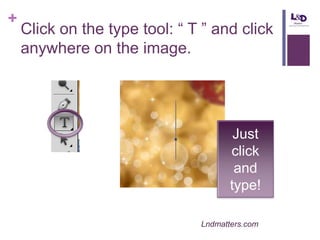
Click on the type tool: “ T ” and click
anywhere on the image.

Just
click
and
type!
Lndmatters.com
+

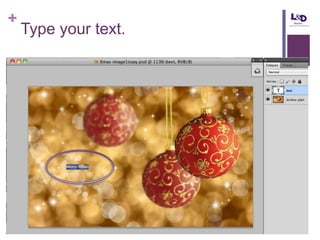
Type your text.
+

Step 6

Resize

your text and change the font

Lndmatters.com
+

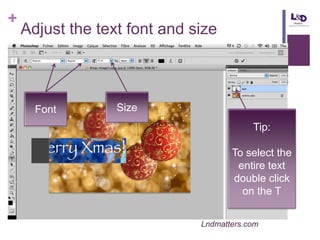
Adjust the text font and size

Font

Size
Tip:
To select the
entire text
double click
on the T
Lndmatters.com
+

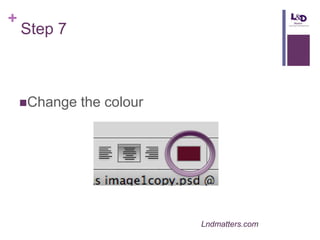
Step 7

Change

the colour

Lndmatters.com
+

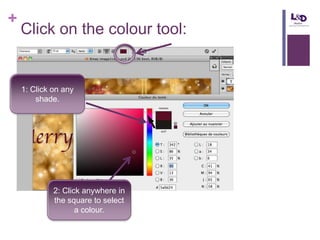
Click on the colour tool:

1: Click on any
shade.

2: Click anywhere in
the square to select
a colour.
+

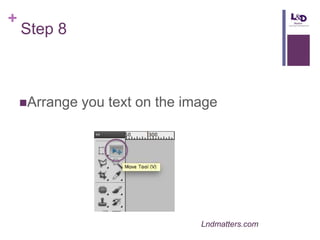
Step 8

Arrange

you text on the image

Lndmatters.com
+

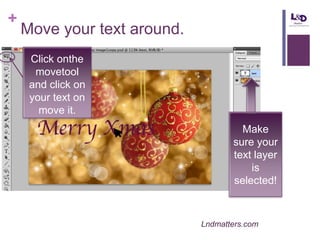
Move your text around.
Click onthe
movetool
and click on
your text on
move it.

Make
sure your
text layer
is
selected!

Lndmatters.com
+

Step 9
Save

your Photoshop project:
FileSave

Lndmatters.com
+

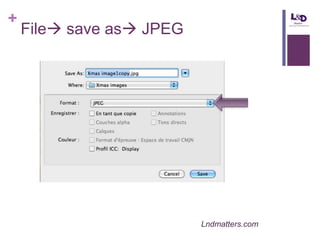
Step 10

Save

your eCard:
File save as JPEG

Lndmatters.com
+

File save as JPEG

Lndmatters.com
+

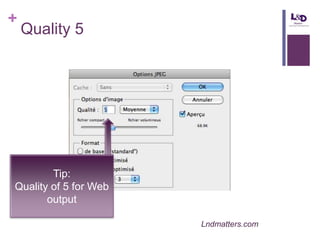
Quality 5

Tip:
Quality of 5 for Web
output
Lndmatters.com
+
Photoshop
Tutorial
You have created a Xmas
eCard.
In 10 steps.

Photoshop tutorial 3 - How to create a Xmas eCard