Author :Shubha Rohit 
Kovaion -Peoplesoft Consulting Practice 
Email : shubha.rohit@kovaion.com 
Peoplesoft HCM 9.2 – 
ePerformance
About Kovaion 
Worldwide Alliance 60+ Consultants 
Global Presence 
24x7 
Inception Labs ODC -Support Centre 
Oracle User Group 
Domain Expertise 
Association Quality Management
ePerformance Overview 
ePerformance module is a evaluation management application. Its 
used basically used for assessment of employees in the 
organization. 
The roles involved would be Employee, Manager, HR Administrator. 
ePerformance supports the entire planning and evaluation process, 
from planning and aligning employee performance or development 
goals with enterprise objectives, through assessing and rewarding 
employee performance results within the right behaviors.
Whats New in 9.2? 
• Integration with Activity Guides 
• Ability to add related Actions 
• Integration with Outlook 
• ePerformance Workcenter 
• Track Checkpoints 
• Tab Display for simplified Navigation
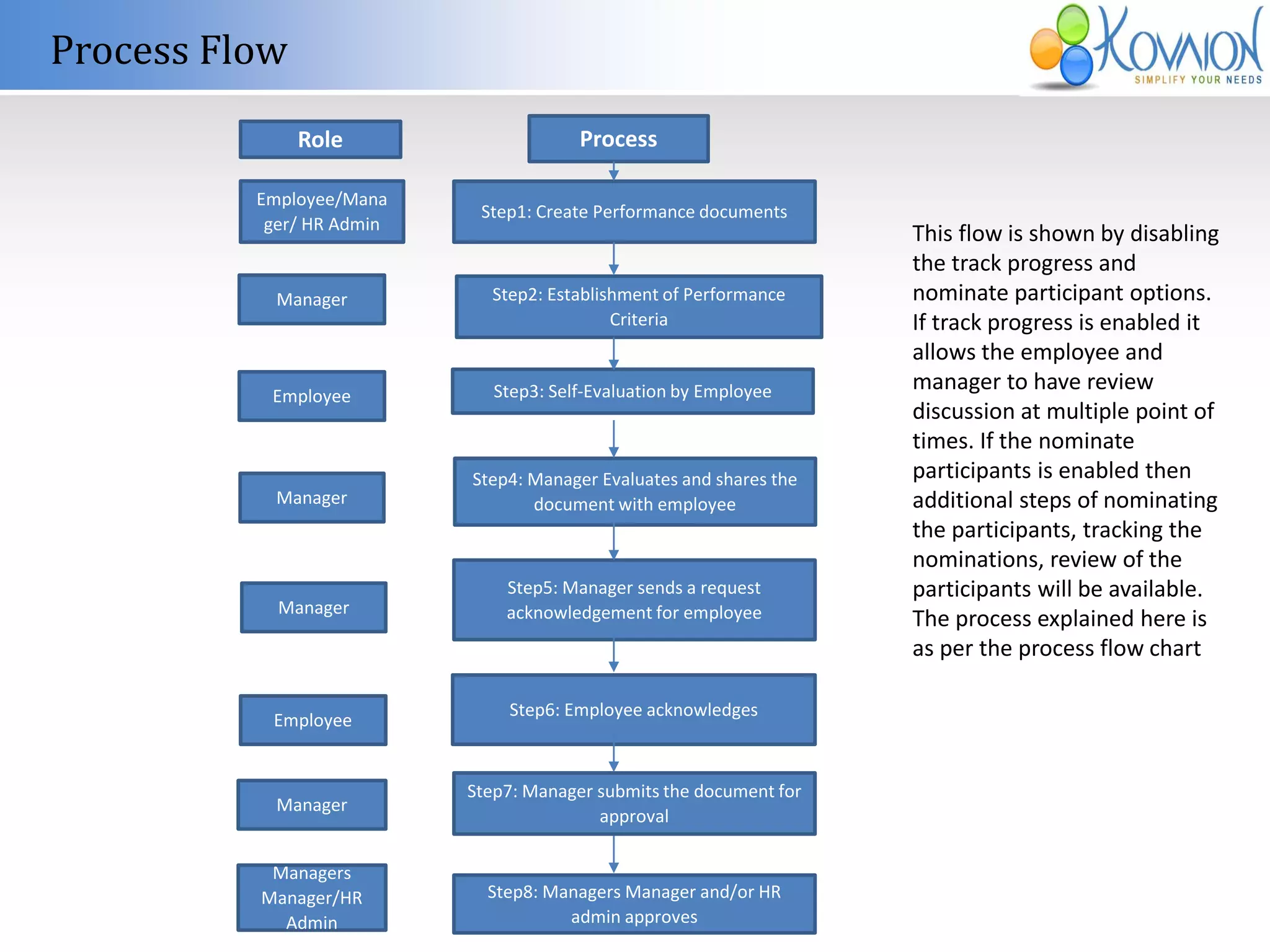
Process Flow 
Role Process 
Step1: Create Performance documents 
Step2: Establishment of Performance 
Criteria 
Step3: Self-Evaluation by Employee 
Step4: Manager Evaluates and shares the 
document with employee 
Step5: Manager sends a request 
acknowledgement for employee 
Step6: Employee acknowledges 
Step7: Manager submits the document for 
approval 
Step8: Managers Manager and/or HR 
admin approves 
Employee/Mana 
ger/ HR Admin 
Manager 
Employee 
Manager 
Manager 
Employee 
Manager 
Managers 
Manager/HR 
Admin 
This flow is shown by disabling 
the track progress and 
nominate participant options. 
If track progress is enabled it 
allows the employee and 
manager to have review 
discussion at multiple point of 
times. If the nominate 
participants is enabled then 
additional steps of nominating 
the participants, tracking the 
nominations, review of the 
participants will be available. 
The process explained here is 
as per the process flow chart
Transaction Process 
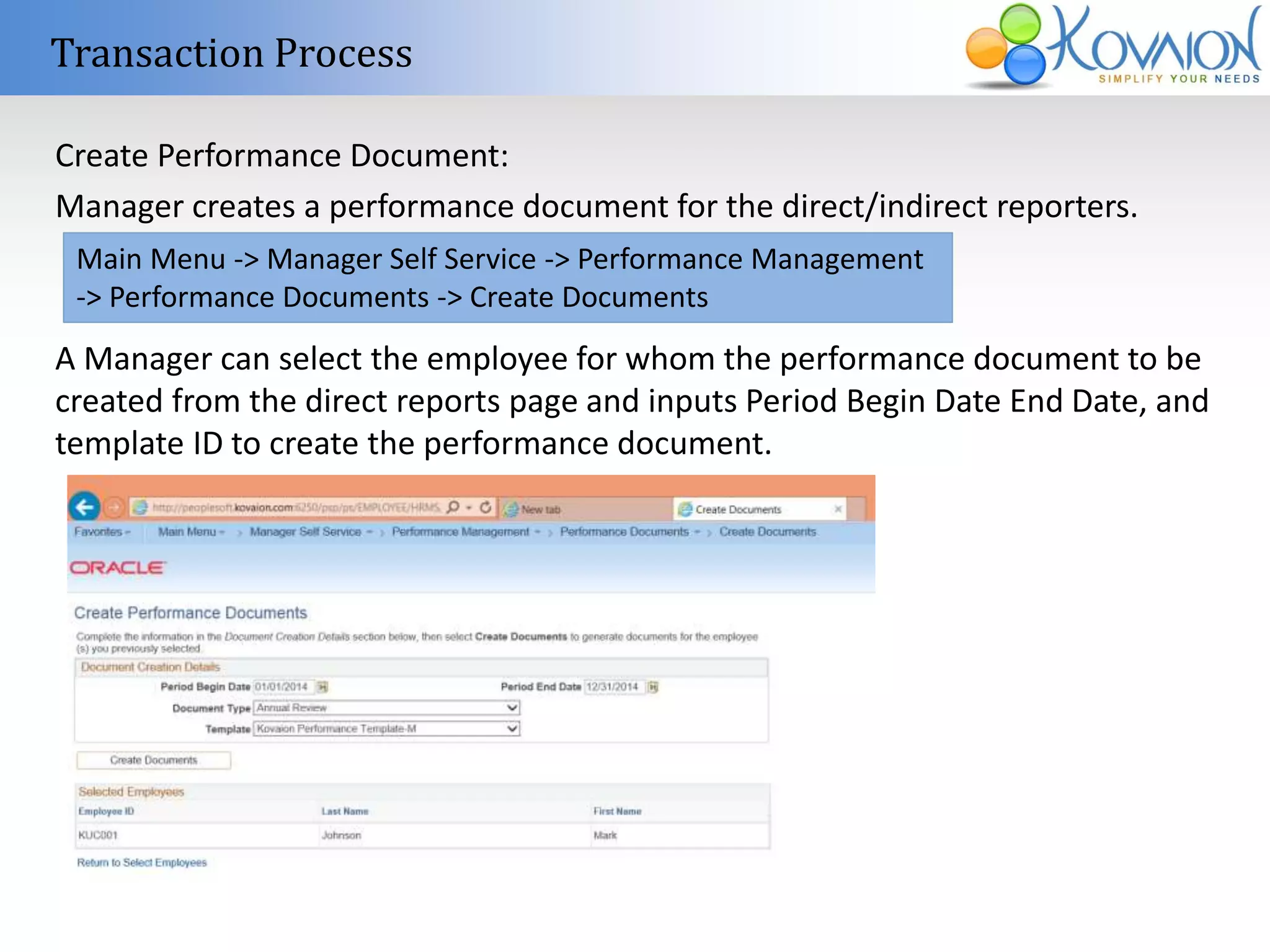
Create Performance Document: 
Manager creates a performance document for the direct/indirect reporters. 
Main Menu -> Manager Self Service -> Performance Management 
-> Performance Documents -> Create Documents 
A Manager can select the employee for whom the performance document to be 
created from the direct reports page and inputs Period Begin Date End Date, and 
template ID to create the performance document.
Transaction Process 
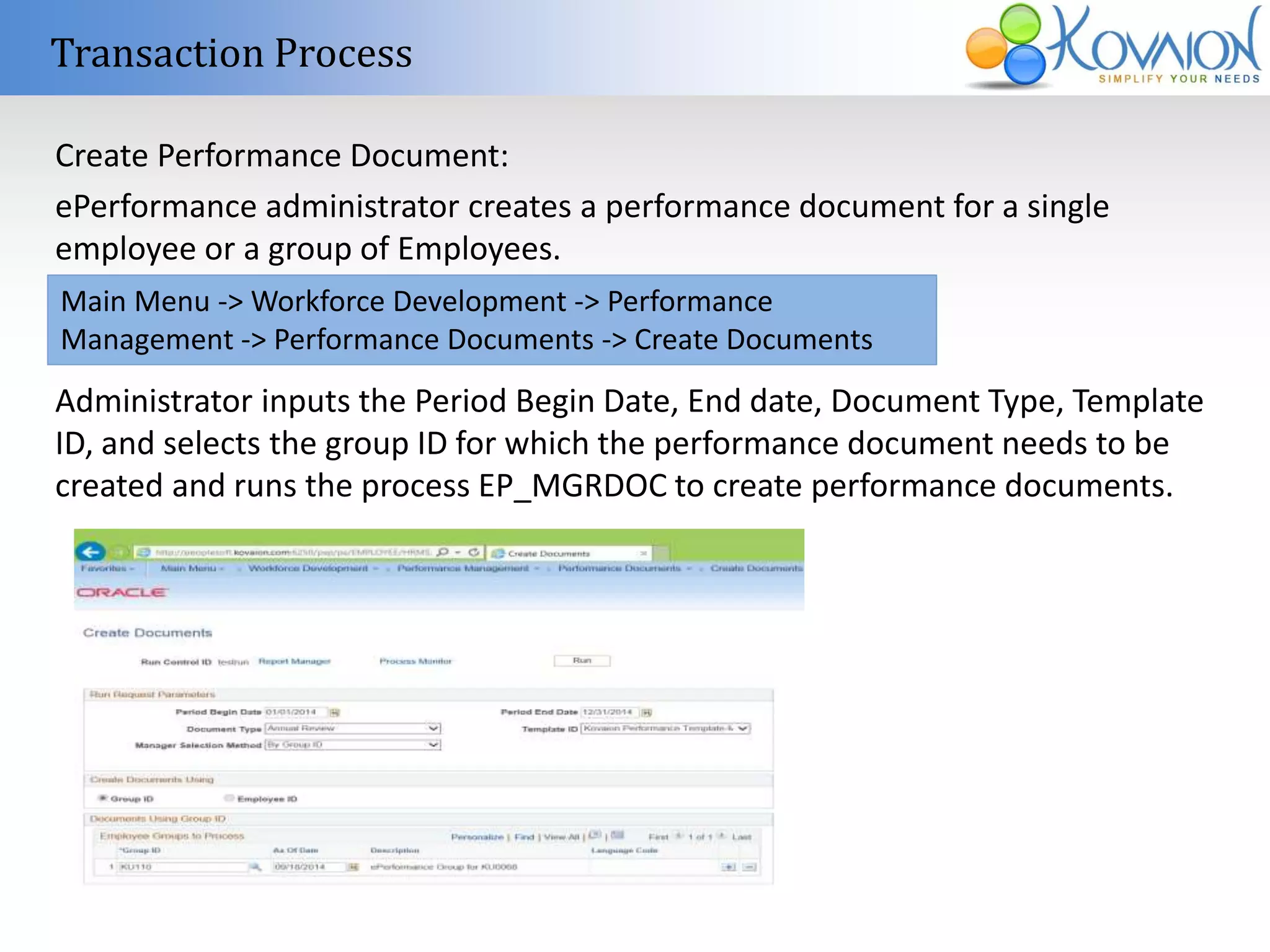
Create Performance Document: 
ePerformance administrator creates a performance document for a single 
employee or a group of Employees. 
Main Menu -> Workforce Development -> Performance 
Management -> Performance Documents -> Create Documents 
Administrator inputs the Period Begin Date, End date, Document Type, Template 
ID, and selects the group ID for which the performance document needs to be 
created and runs the process EP_MGRDOC to create performance documents.
Transaction Process 
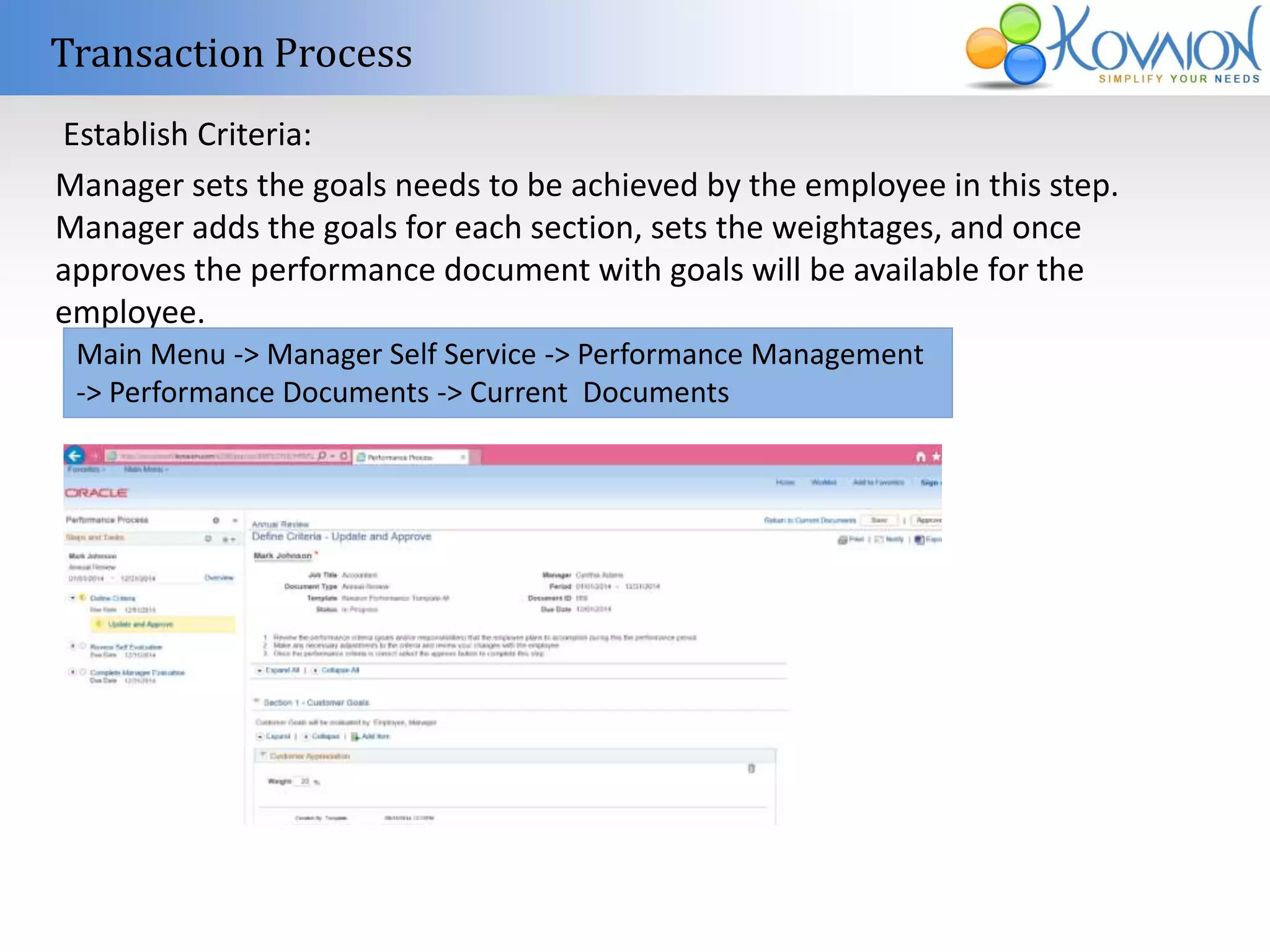
Establish Criteria: 
Manager sets the goals needs to be achieved by the employee in this step. 
Manager adds the goals for each section, sets the weightages, and once 
approves the performance document with goals will be available for the 
employee. 
Main Menu -> Manager Self Service -> Performance Management 
-> Performance Documents -> Current Documents
Transaction Process 
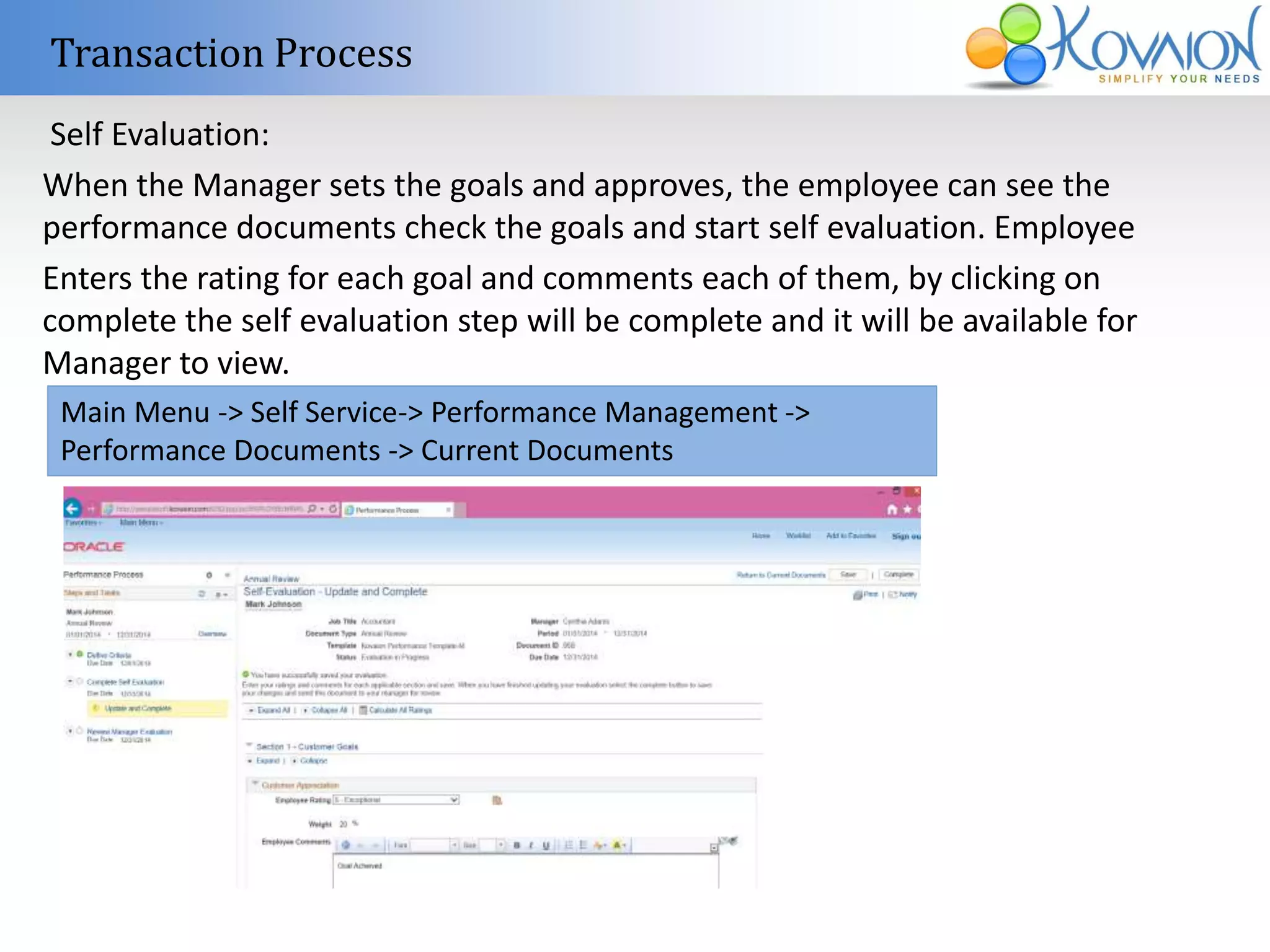
Self Evaluation: 
When the Manager sets the goals and approves, the employee can see the 
performance documents check the goals and start self evaluation. Employee 
Enters the rating for each goal and comments each of them, by clicking on 
complete the self evaluation step will be complete and it will be available for 
Manager to view. 
Main Menu -> Self Service-> Performance Management -> 
Performance Documents -> Current Documents
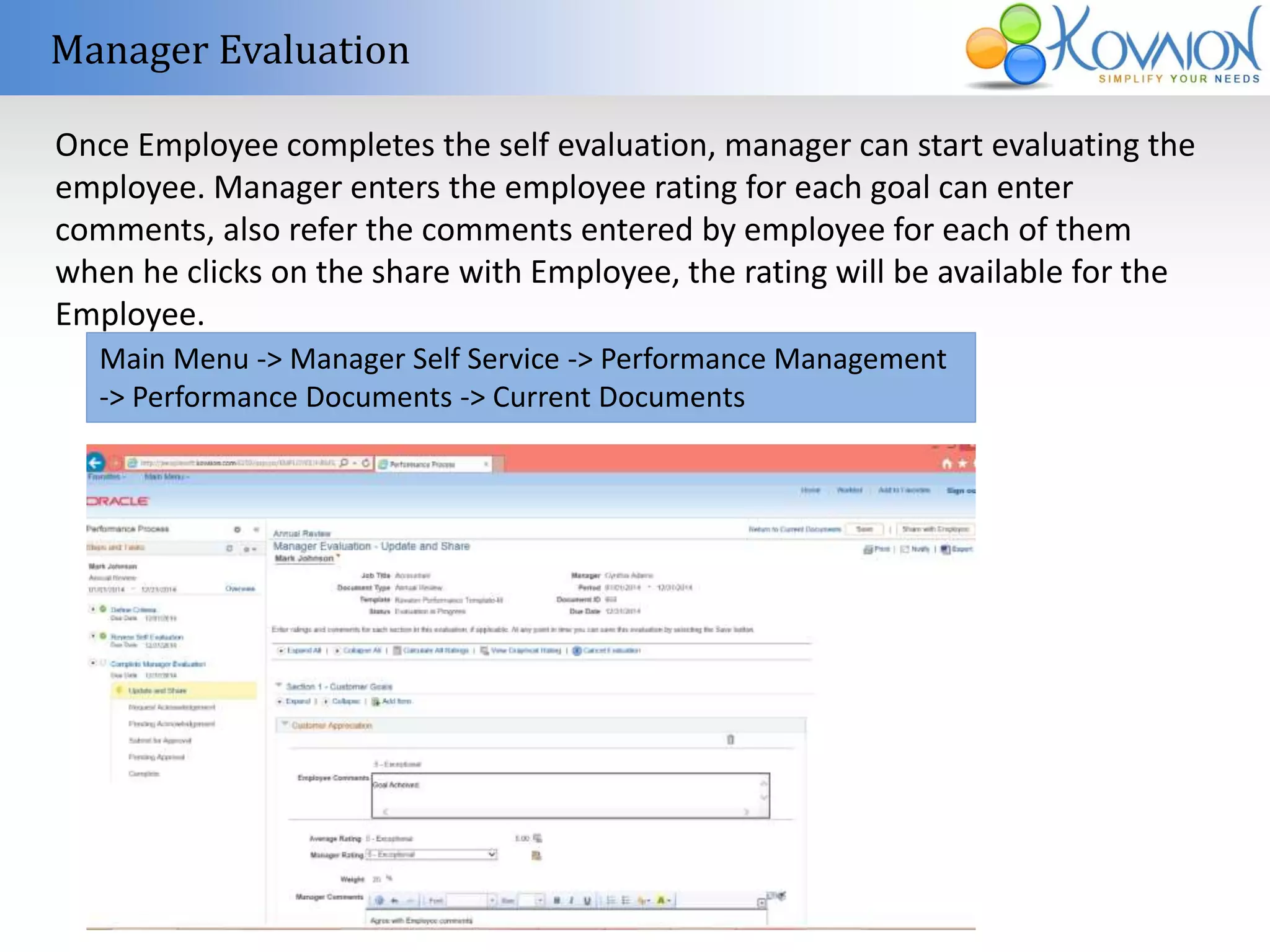
Manager Evaluation 
Once Employee completes the self evaluation, manager can start evaluating the 
employee. Manager enters the employee rating for each goal can enter 
comments, also refer the comments entered by employee for each of them 
when he clicks on the share with Employee, the rating will be available for the 
Employee. 
Main Menu -> Manager Self Service -> Performance Management 
-> Performance Documents -> Current Documents
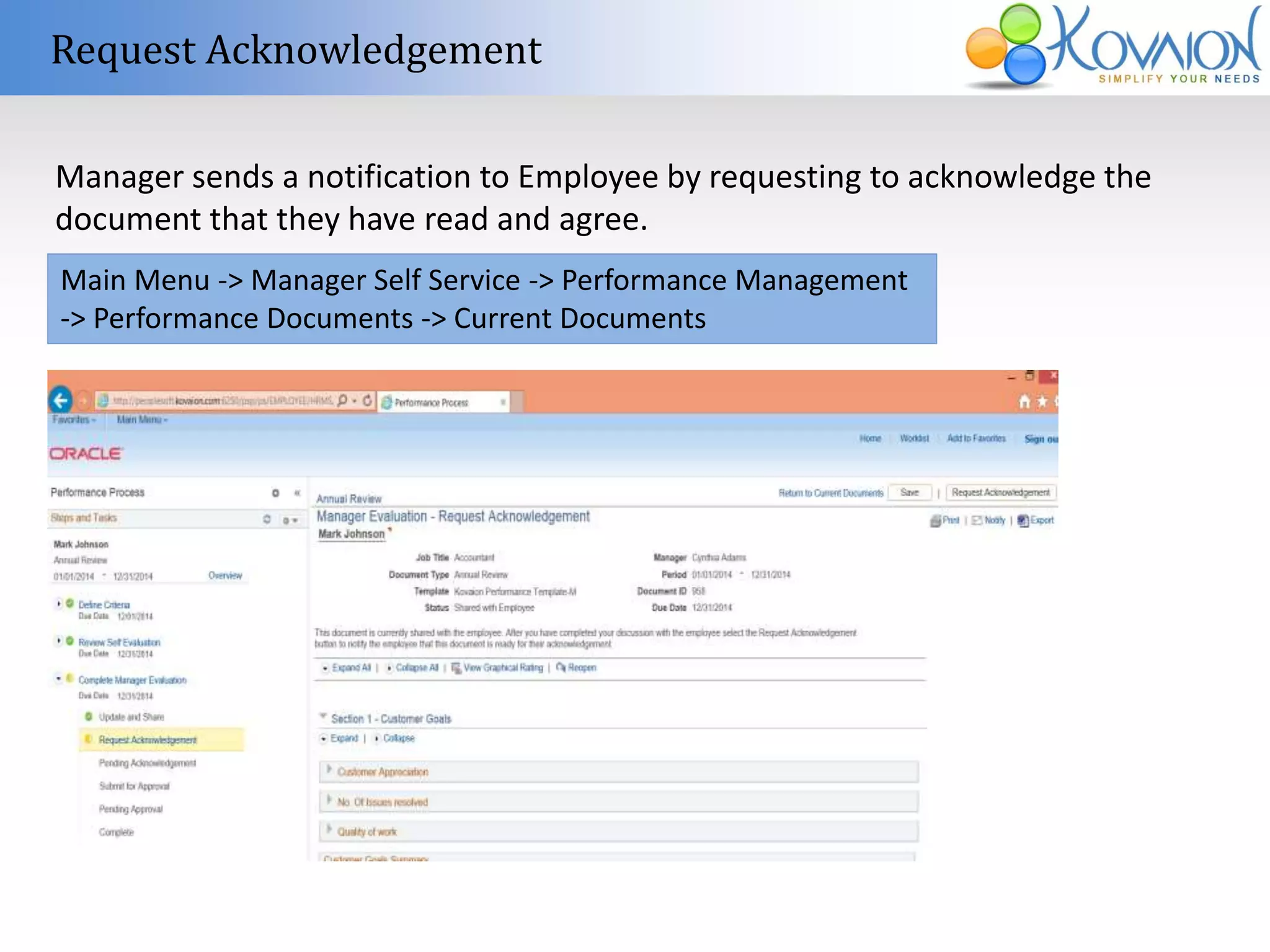
Request Acknowledgement 
Manager sends a notification to Employee by requesting to acknowledge the 
document that they have read and agree. 
Main Menu -> Manager Self Service -> Performance Management 
-> Performance Documents -> Current Documents
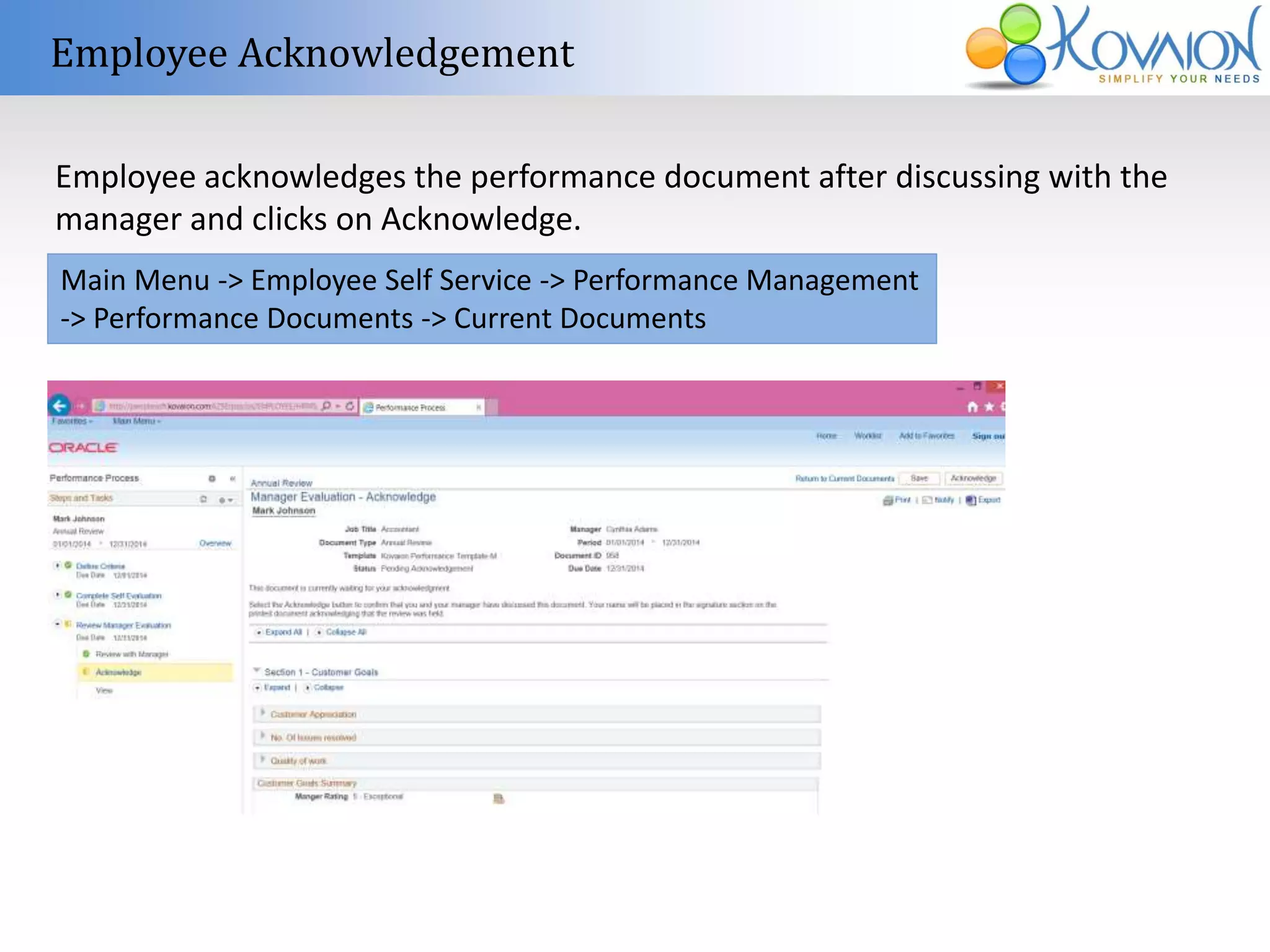
Employee Acknowledgement 
Employee acknowledges the performance document after discussing with the 
manager and clicks on Acknowledge. 
Main Menu -> Employee Self Service -> Performance Management 
-> Performance Documents -> Current Documents
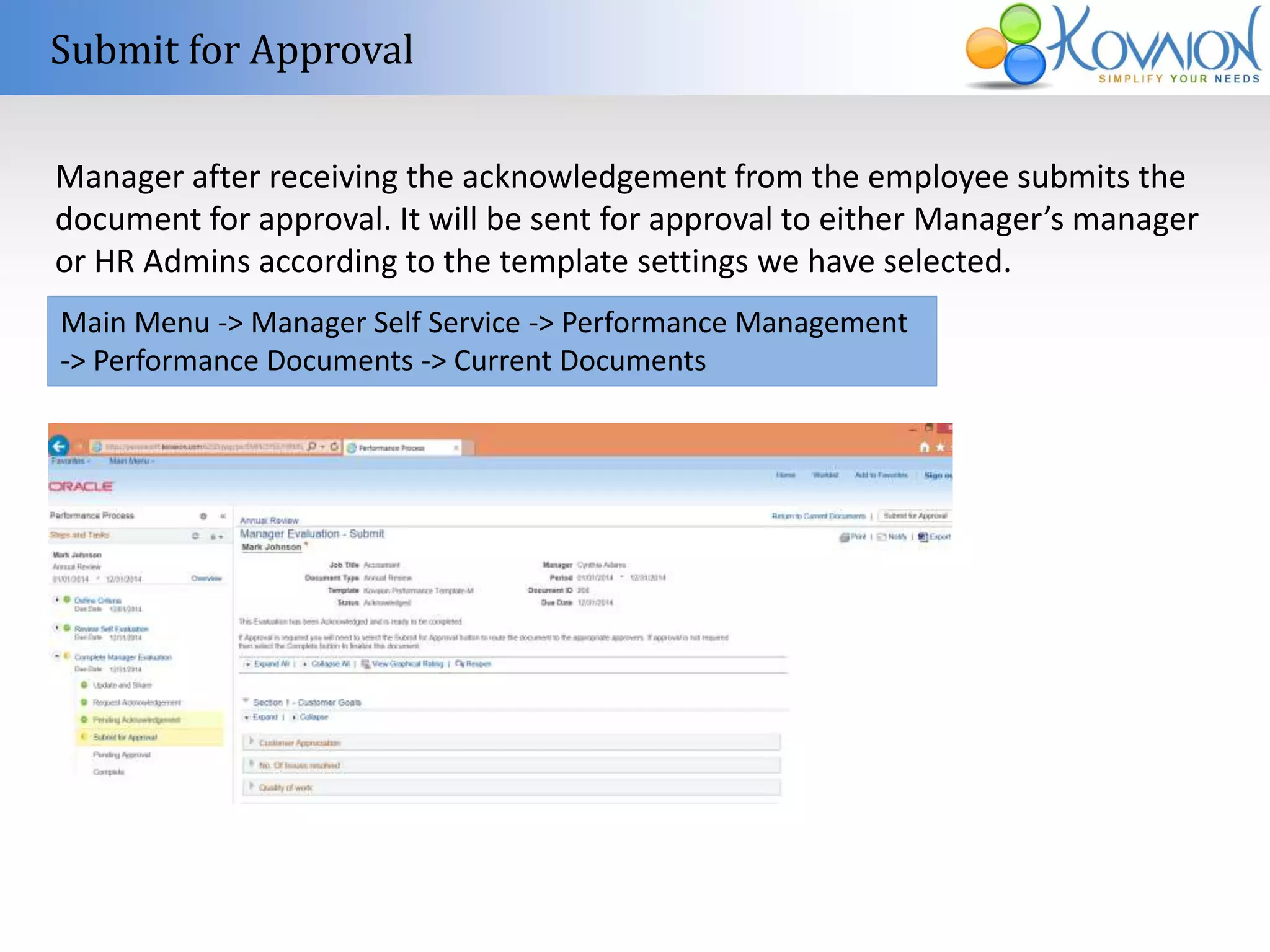
Submit for Approval 
Manager after receiving the acknowledgement from the employee submits the 
document for approval. It will be sent for approval to either Manager’s manager 
or HR Admins according to the template settings we have selected. 
Main Menu -> Manager Self Service -> Performance Management 
-> Performance Documents -> Current Documents
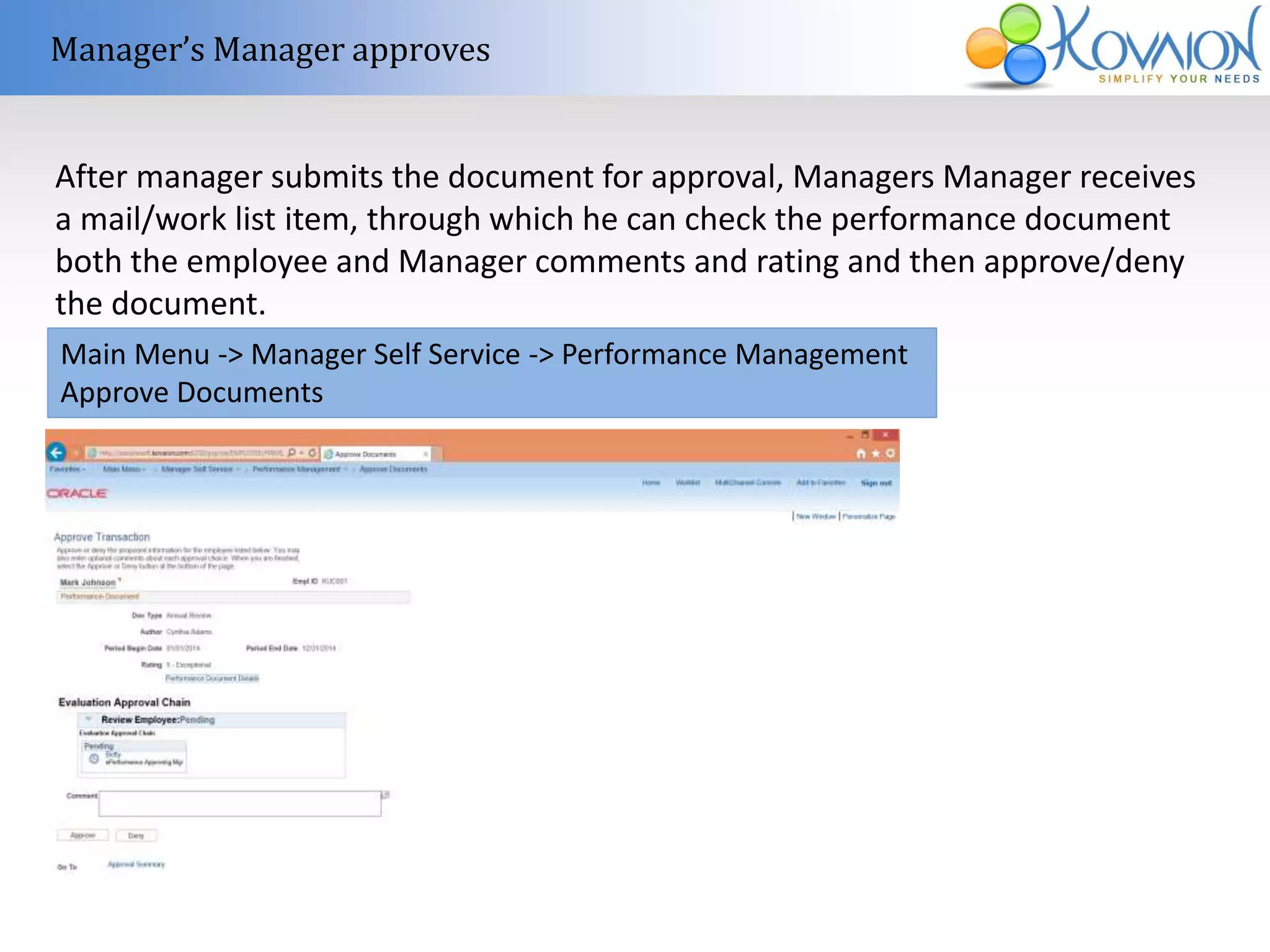
Manager’s Manager approves 
After manager submits the document for approval, Managers Manager receives 
a mail/work list item, through which he can check the performance document 
both the employee and Manager comments and rating and then approve/deny 
the document. 
Main Menu -> Manager Self Service -> Performance Management 
Approve Documents
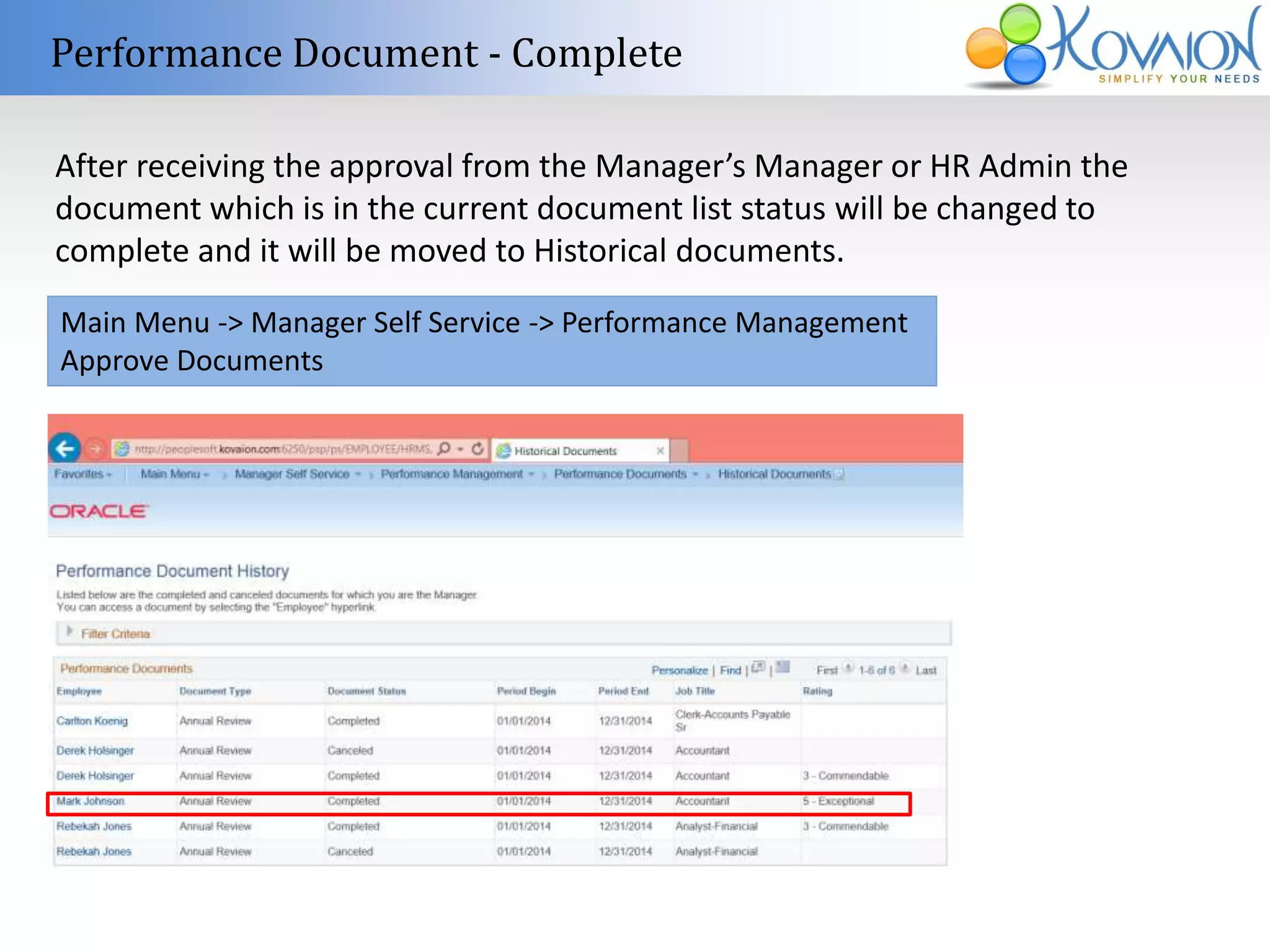
Performance Document - Complete 
After receiving the approval from the Manager’s Manager or HR Admin the 
document which is in the current document list status will be changed to 
complete and it will be moved to Historical documents. 
Main Menu -> Manager Self Service -> Performance Management 
Approve Documents
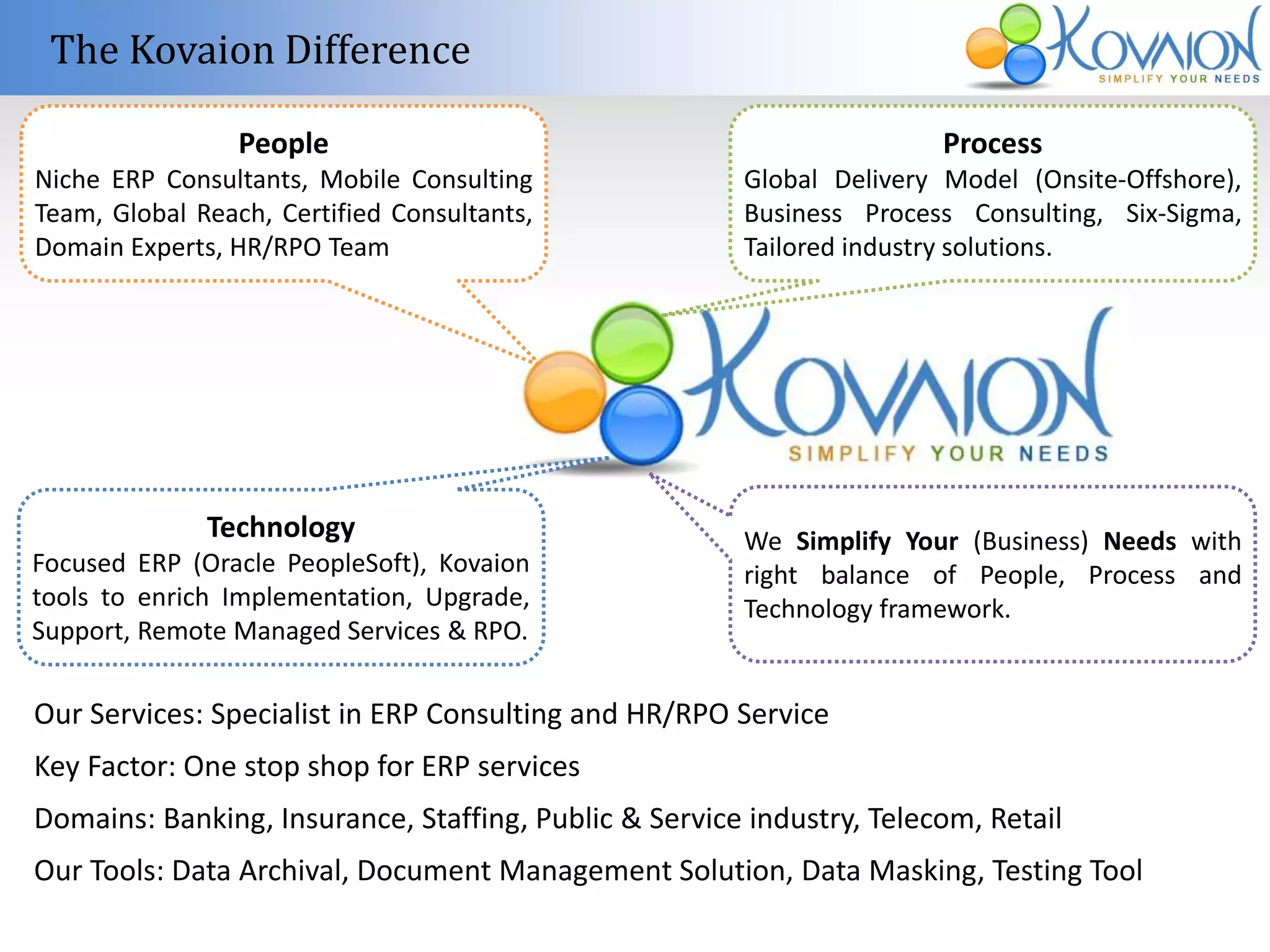
The Kovaion Difference 
People 
Niche ERP Consultants, Mobile Consulting 
Team, Global Reach, Certified Consultants, 
Domain Experts, HR/RPO Team 
Process 
Global Delivery Model (Onsite-Offshore), 
Business Process Consulting, Six-Sigma, 
Tailored industry solutions. 
Technology 
Focused ERP (Oracle PeopleSoft), Kovaion 
tools to enrich Implementation, Upgrade, 
Support, Remote Managed Services & RPO. 
We Simplify Your (Business) Needs with 
right balance of People, Process and 
Technology framework. 
Our Services: Specialist in ERP Consulting and HR/RPO Service 
Key Factor: One stop shop for ERP services 
Domains: Banking, Insurance, Staffing, Public & Service industry, Telecom, Retail 
Our Tools: Data Archival, Document Management Solution, Data Masking, Testing Tool

Peoplesoft e performance transaction process

  • 1.
    Author :Shubha Rohit Kovaion -Peoplesoft Consulting Practice Email : shubha.rohit@kovaion.com Peoplesoft HCM 9.2 – ePerformance
  • 2.
    About Kovaion WorldwideAlliance 60+ Consultants Global Presence 24x7 Inception Labs ODC -Support Centre Oracle User Group Domain Expertise Association Quality Management
  • 3.
    ePerformance Overview ePerformancemodule is a evaluation management application. Its used basically used for assessment of employees in the organization. The roles involved would be Employee, Manager, HR Administrator. ePerformance supports the entire planning and evaluation process, from planning and aligning employee performance or development goals with enterprise objectives, through assessing and rewarding employee performance results within the right behaviors.
  • 4.
    Whats New in9.2? • Integration with Activity Guides • Ability to add related Actions • Integration with Outlook • ePerformance Workcenter • Track Checkpoints • Tab Display for simplified Navigation
  • 5.
    Process Flow RoleProcess Step1: Create Performance documents Step2: Establishment of Performance Criteria Step3: Self-Evaluation by Employee Step4: Manager Evaluates and shares the document with employee Step5: Manager sends a request acknowledgement for employee Step6: Employee acknowledges Step7: Manager submits the document for approval Step8: Managers Manager and/or HR admin approves Employee/Mana ger/ HR Admin Manager Employee Manager Manager Employee Manager Managers Manager/HR Admin This flow is shown by disabling the track progress and nominate participant options. If track progress is enabled it allows the employee and manager to have review discussion at multiple point of times. If the nominate participants is enabled then additional steps of nominating the participants, tracking the nominations, review of the participants will be available. The process explained here is as per the process flow chart
  • 6.
    Transaction Process CreatePerformance Document: Manager creates a performance document for the direct/indirect reporters. Main Menu -> Manager Self Service -> Performance Management -> Performance Documents -> Create Documents A Manager can select the employee for whom the performance document to be created from the direct reports page and inputs Period Begin Date End Date, and template ID to create the performance document.
  • 7.
    Transaction Process CreatePerformance Document: ePerformance administrator creates a performance document for a single employee or a group of Employees. Main Menu -> Workforce Development -> Performance Management -> Performance Documents -> Create Documents Administrator inputs the Period Begin Date, End date, Document Type, Template ID, and selects the group ID for which the performance document needs to be created and runs the process EP_MGRDOC to create performance documents.
  • 8.
    Transaction Process EstablishCriteria: Manager sets the goals needs to be achieved by the employee in this step. Manager adds the goals for each section, sets the weightages, and once approves the performance document with goals will be available for the employee. Main Menu -> Manager Self Service -> Performance Management -> Performance Documents -> Current Documents
  • 9.
    Transaction Process SelfEvaluation: When the Manager sets the goals and approves, the employee can see the performance documents check the goals and start self evaluation. Employee Enters the rating for each goal and comments each of them, by clicking on complete the self evaluation step will be complete and it will be available for Manager to view. Main Menu -> Self Service-> Performance Management -> Performance Documents -> Current Documents
  • 10.
    Manager Evaluation OnceEmployee completes the self evaluation, manager can start evaluating the employee. Manager enters the employee rating for each goal can enter comments, also refer the comments entered by employee for each of them when he clicks on the share with Employee, the rating will be available for the Employee. Main Menu -> Manager Self Service -> Performance Management -> Performance Documents -> Current Documents
  • 11.
    Request Acknowledgement Managersends a notification to Employee by requesting to acknowledge the document that they have read and agree. Main Menu -> Manager Self Service -> Performance Management -> Performance Documents -> Current Documents
  • 12.
    Employee Acknowledgement Employeeacknowledges the performance document after discussing with the manager and clicks on Acknowledge. Main Menu -> Employee Self Service -> Performance Management -> Performance Documents -> Current Documents
  • 13.
    Submit for Approval Manager after receiving the acknowledgement from the employee submits the document for approval. It will be sent for approval to either Manager’s manager or HR Admins according to the template settings we have selected. Main Menu -> Manager Self Service -> Performance Management -> Performance Documents -> Current Documents
  • 14.
    Manager’s Manager approves After manager submits the document for approval, Managers Manager receives a mail/work list item, through which he can check the performance document both the employee and Manager comments and rating and then approve/deny the document. Main Menu -> Manager Self Service -> Performance Management Approve Documents
  • 15.
    Performance Document -Complete After receiving the approval from the Manager’s Manager or HR Admin the document which is in the current document list status will be changed to complete and it will be moved to Historical documents. Main Menu -> Manager Self Service -> Performance Management Approve Documents
  • 16.
    The Kovaion Difference People Niche ERP Consultants, Mobile Consulting Team, Global Reach, Certified Consultants, Domain Experts, HR/RPO Team Process Global Delivery Model (Onsite-Offshore), Business Process Consulting, Six-Sigma, Tailored industry solutions. Technology Focused ERP (Oracle PeopleSoft), Kovaion tools to enrich Implementation, Upgrade, Support, Remote Managed Services & RPO. We Simplify Your (Business) Needs with right balance of People, Process and Technology framework. Our Services: Specialist in ERP Consulting and HR/RPO Service Key Factor: One stop shop for ERP services Domains: Banking, Insurance, Staffing, Public & Service industry, Telecom, Retail Our Tools: Data Archival, Document Management Solution, Data Masking, Testing Tool

Editor's Notes

  • #17 People Niche Consultants - ERP(Oracle-PeopleSoft) Consultants, Project Managers and HR consultants with thought leadership. Global Reach - International Teams of ERP Consultants, Mobile consulting Team, Experts works at onsite / offshore as needed. Domain Experience - Banking, Insurance, Staffing, Public & Service industry, Telecom, Retail Team of Certified Consultants - PMP Certified Consultants, PeopleSoft Technical and Functional Certified Consultants, Oracle Certified DBAs and Six Sigma Certified Consultants. Our HR Consulting Team is specialised on Recruitment, Skills Development  (Internal & External Training) and Remote Workforce Management (Managing Global Teams) Process Our highly evolved Global Delivery Model have developed onsite/offshore execution capabilities that deliver excellent quality and scalable services. Deliver quality services using quality compliant processes like Six-Sigma and Lean methodologies. We offer various services / delivery models to serve the client/vendor that can be tailored to business/project needs. We follow sophisticated project management methodology to ensure timely, consistent and accurate delivery of our solutions. Leverage industry best practices, tools and business processes. Technology Oracle PeopleSoft ERP is our focal point. Kovaion Inception Lab conducts extensive software and technology research and builds tools and reports to improvise the solution for our clients. Proven Kovaion Proprietary Tools: We have built and implemented several tools that will accelerate PeopleSoft implementations/upgrades/support projects with reduced cost of ownership. Some of them includes, Kovaion PeopleSoft Archival Solution K-DocM (Document Management Framework), Kovaion Data Masking Solution & Environment alerts.