Overcome the Challenges and Limitations of
Android App Automation with Espresso
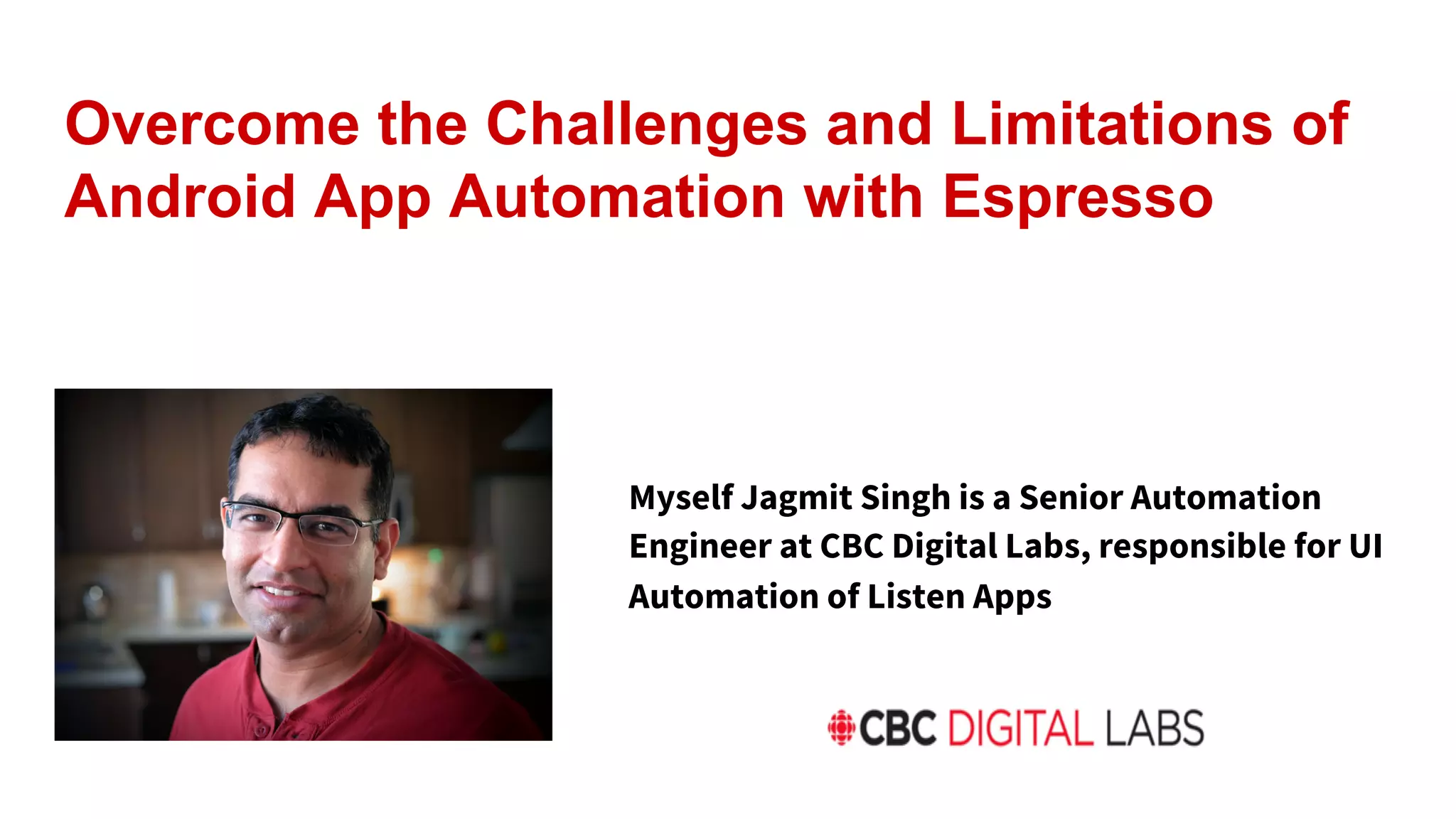
Myself Jagmit Singh is a Senior Automation
Engineer at CBC Digital Labs, responsible for UI
Automation of Listen Apps
What is CBC?
Canadian Broadcasting Corporation branded as CBC/Radio Canada
is National Public Broadcaster for TV and Radio
Agenda
● What’s Espresso?
● Challenges in Android UI Automation
● Why Use Expresso?
● Writing Espresso Tests
● Espresso & TestButler
● Espresso & UIAutomator
● Continuous UI Testing using Espresso and Jenkins
What’s Espresso?
● A testing framework for Android to write reliable UI tests
● Developed internally by Google
● Run on devices running Android 2.2 and higher
● Instrumentation-based API works with AndroidJUnitRunner
Challenges in Android UI Automation.
● Tests are Flaky!
● Tests are Slow!
● Scaling Automation Scope - Testing Outside the App
● Some Difficulty in locating UI elements!
Why Use Espresso?
● Fast and Reliable
● Support testing activities outside the App
● Espresso tests are developed within the App
● Native Platform Developed by Google -- Always ahead of the curve
Writing Espresso Tests
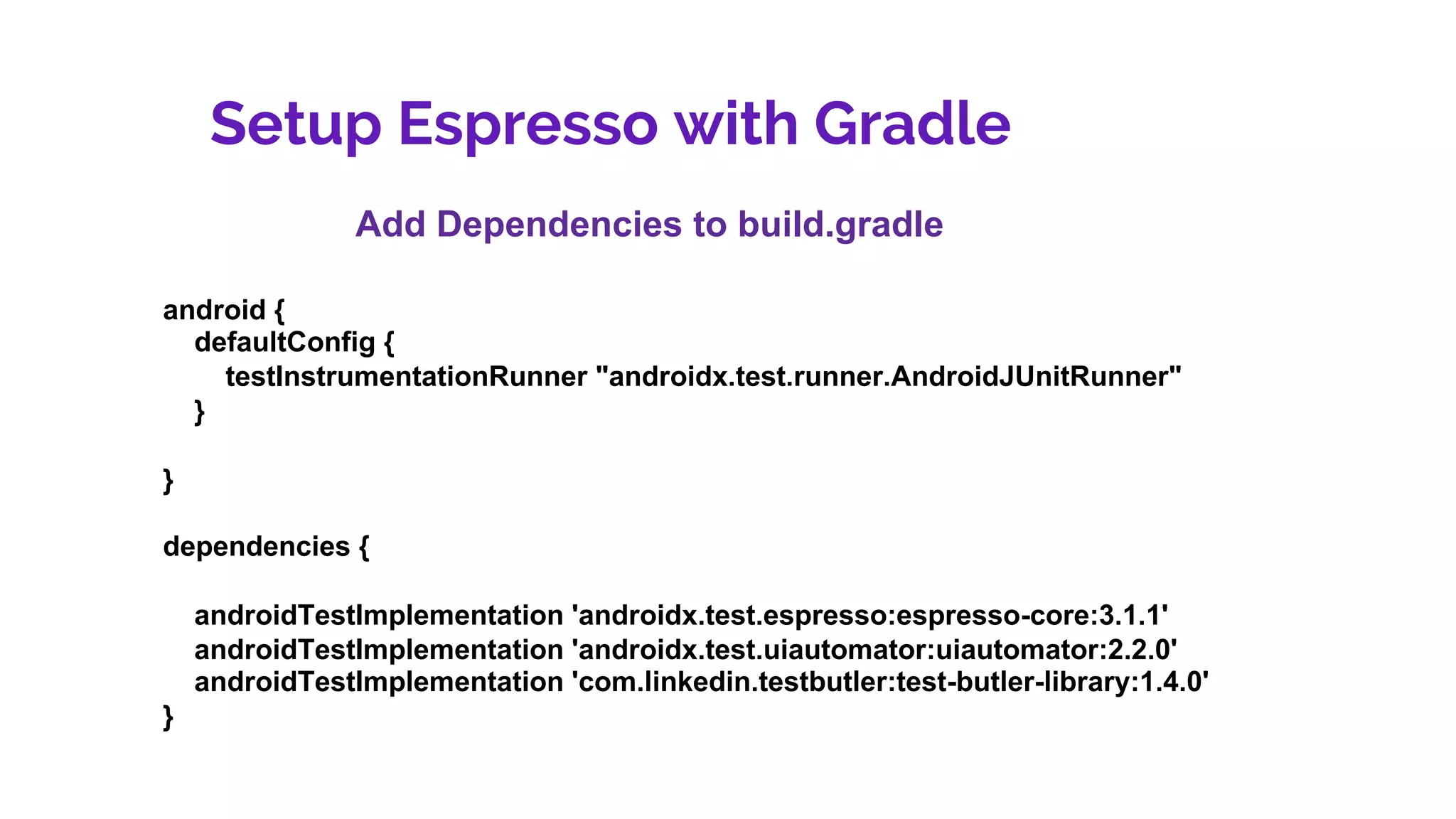
Setup Espresso with Gradle
Add Dependencies to build.gradle
android {
defaultConfig {
testInstrumentationRunner "androidx.test.runner.AndroidJUnitRunner"
}
}
dependencies {
androidTestImplementation 'androidx.test.espresso:espresso-core:3.1.1'
androidTestImplementation 'androidx.test.uiautomator:uiautomator:2.2.0'
androidTestImplementation 'com.linkedin.testbutler:test-butler-library:1.4.0'
}
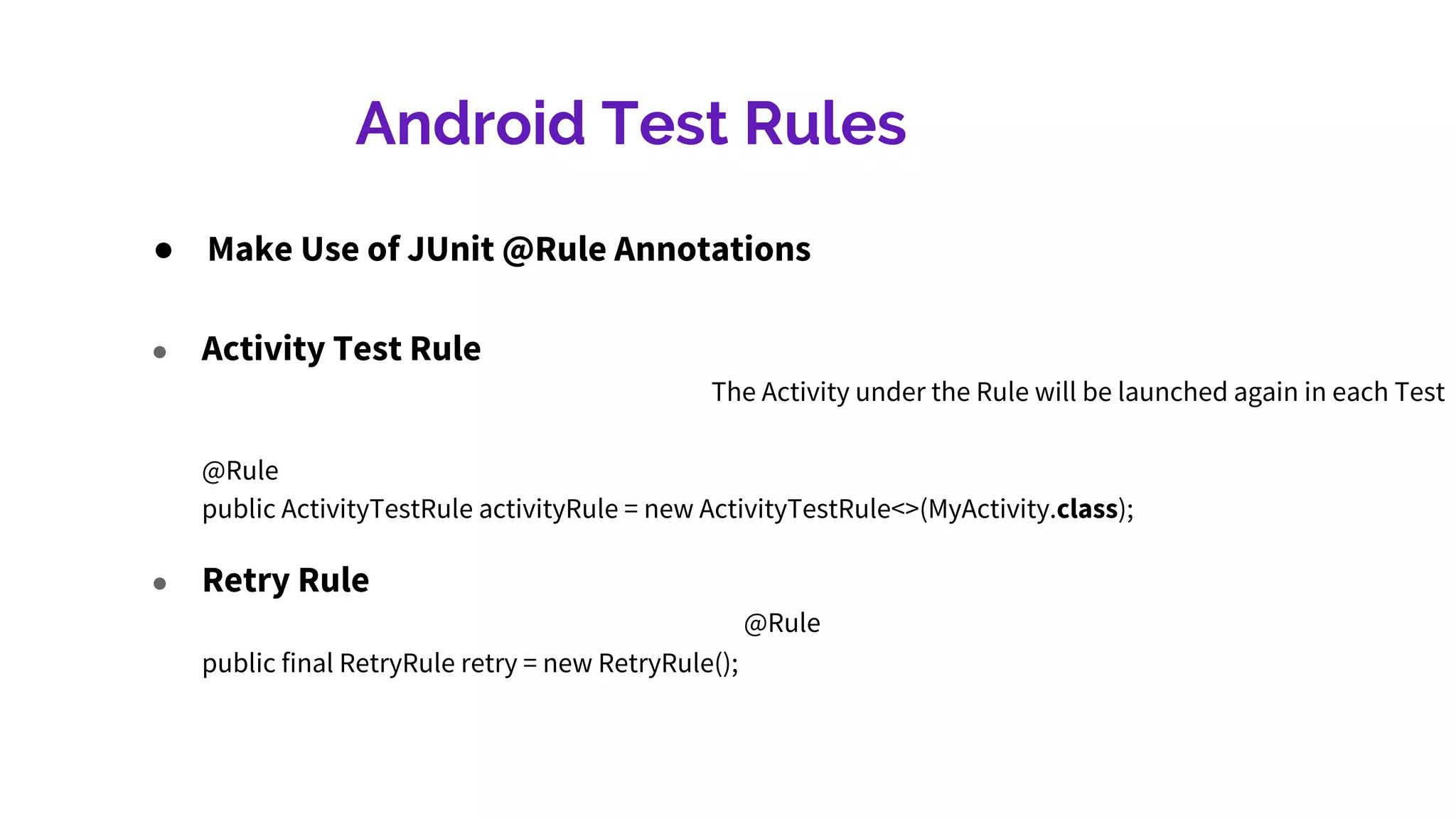
Android Test Rules
● Make Use of JUnit @Rule Annotations
● Retry Rule
@Rule
public final RetryRule retry = new RetryRule();
● Activity Test Rule
The Activity under the Rule will be launched again in each Test
@Rule
public ActivityTestRule activityRule = new ActivityTestRule<>(MyActivity.class);
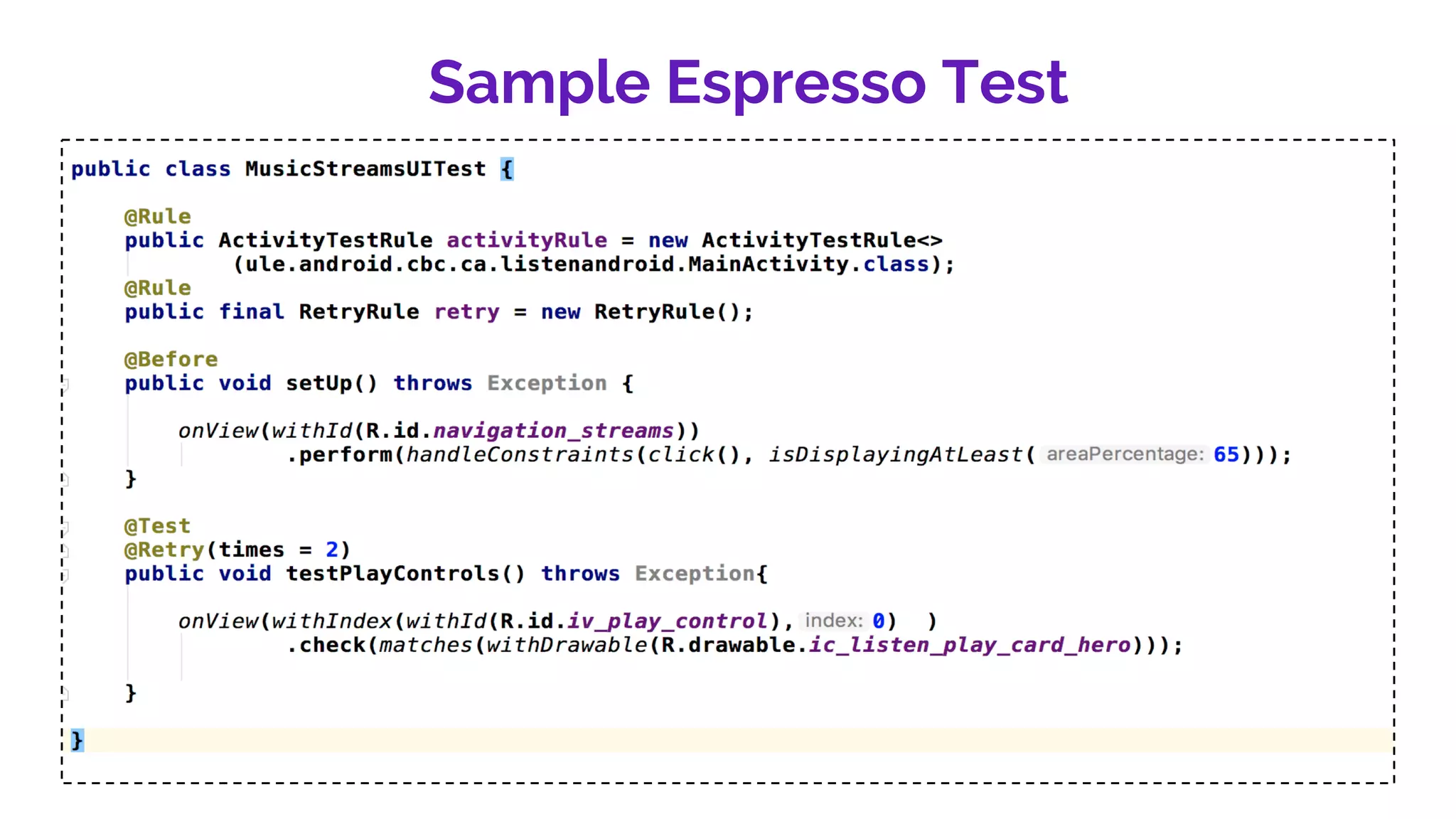
Sample Espresso Test
Espresso & Test Butler
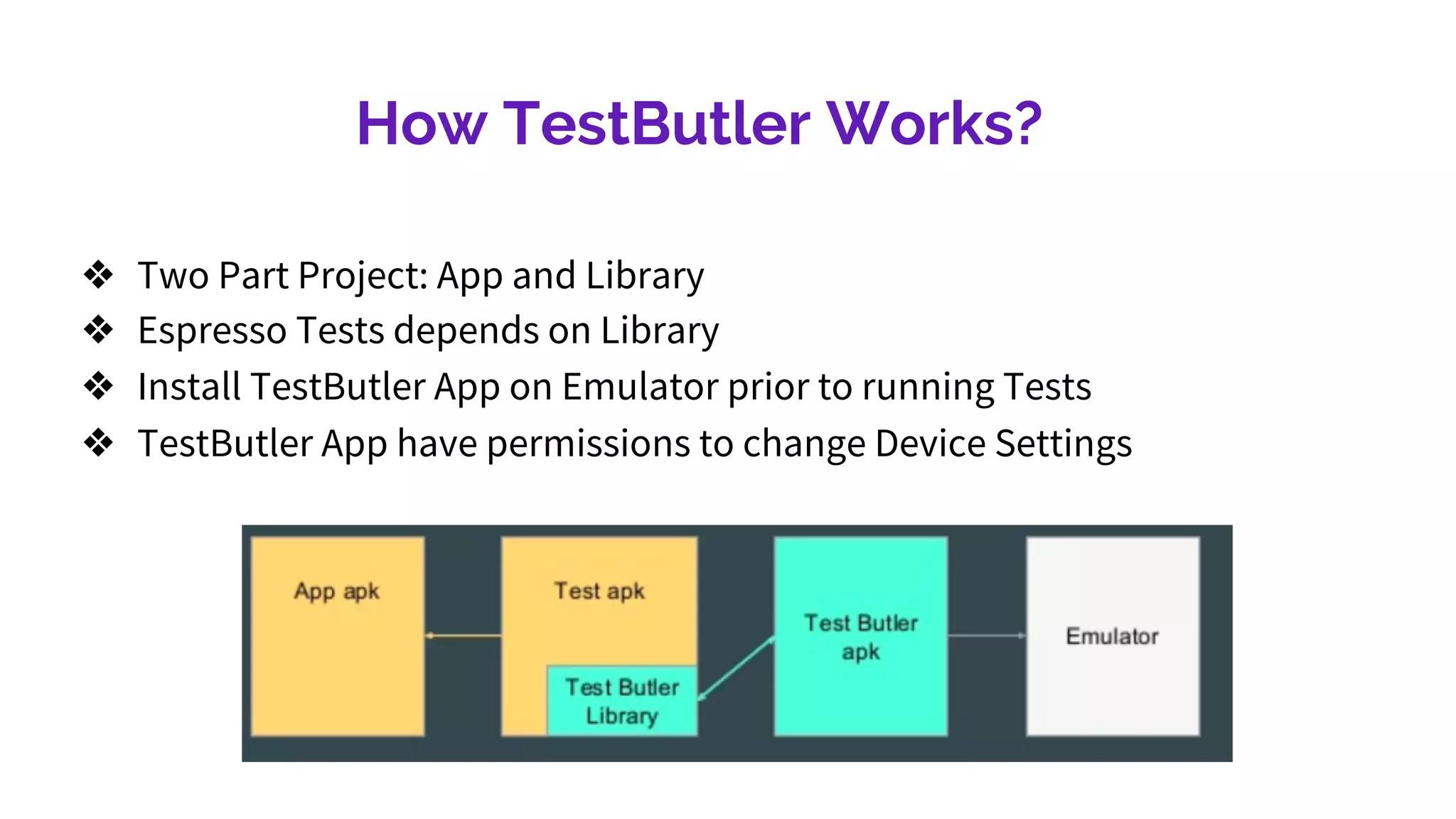
How TestButler Works?
❖ Two Part Project: App and Library
❖ Espresso Tests depends on Library
❖ Install TestButler App on Emulator prior to running Tests
❖ TestButler App have permissions to change Device Settings
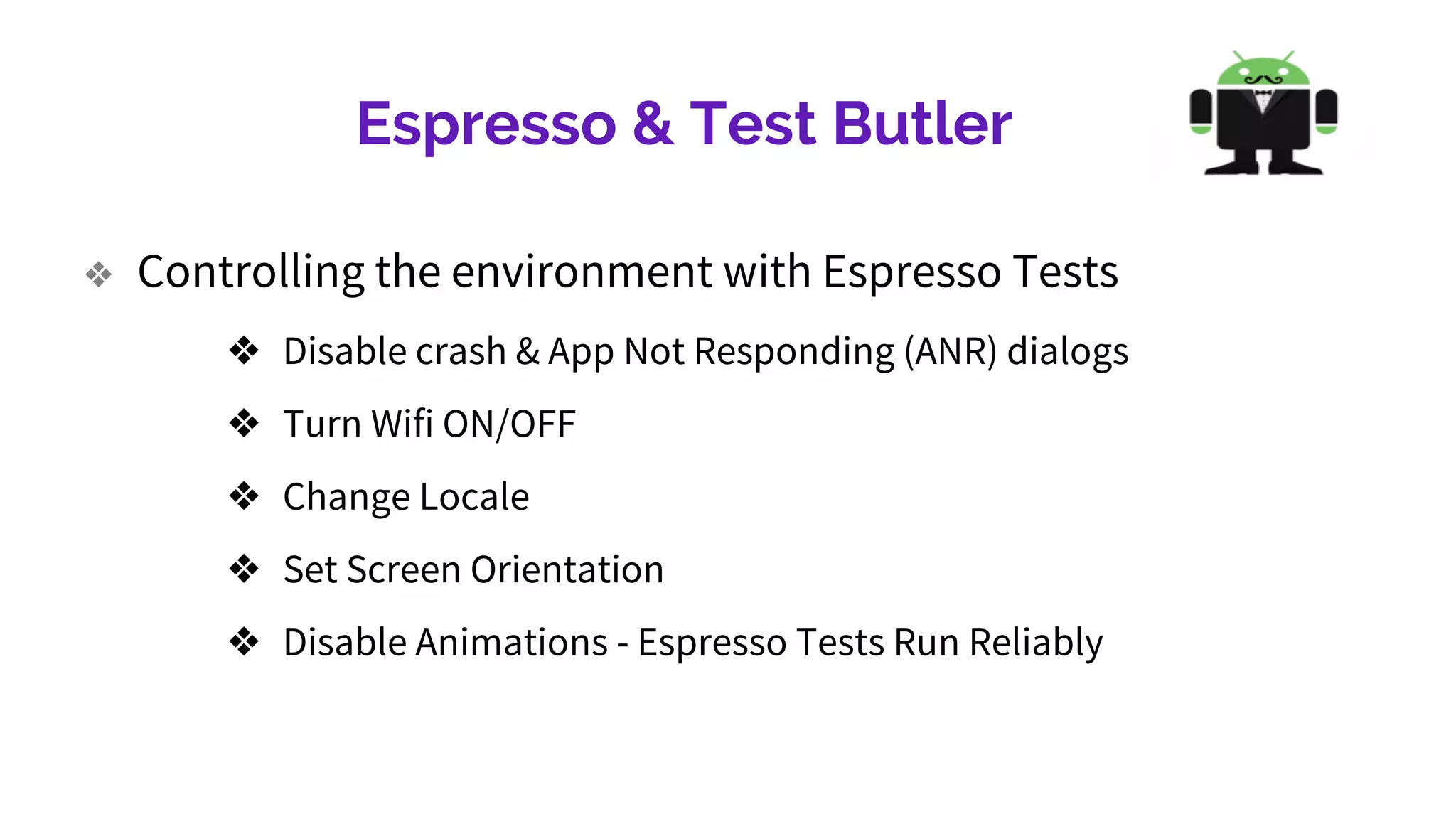
Espresso & Test Butler
❖ Controlling the environment with Espresso Tests
❖ Disable crash & App Not Responding (ANR) dialogs
❖ Turn Wifi ON/OFF
❖ Change Locale
❖ Set Screen Orientation
❖ Disable Animations - Espresso Tests Run Reliably
Espresso & UI Automator
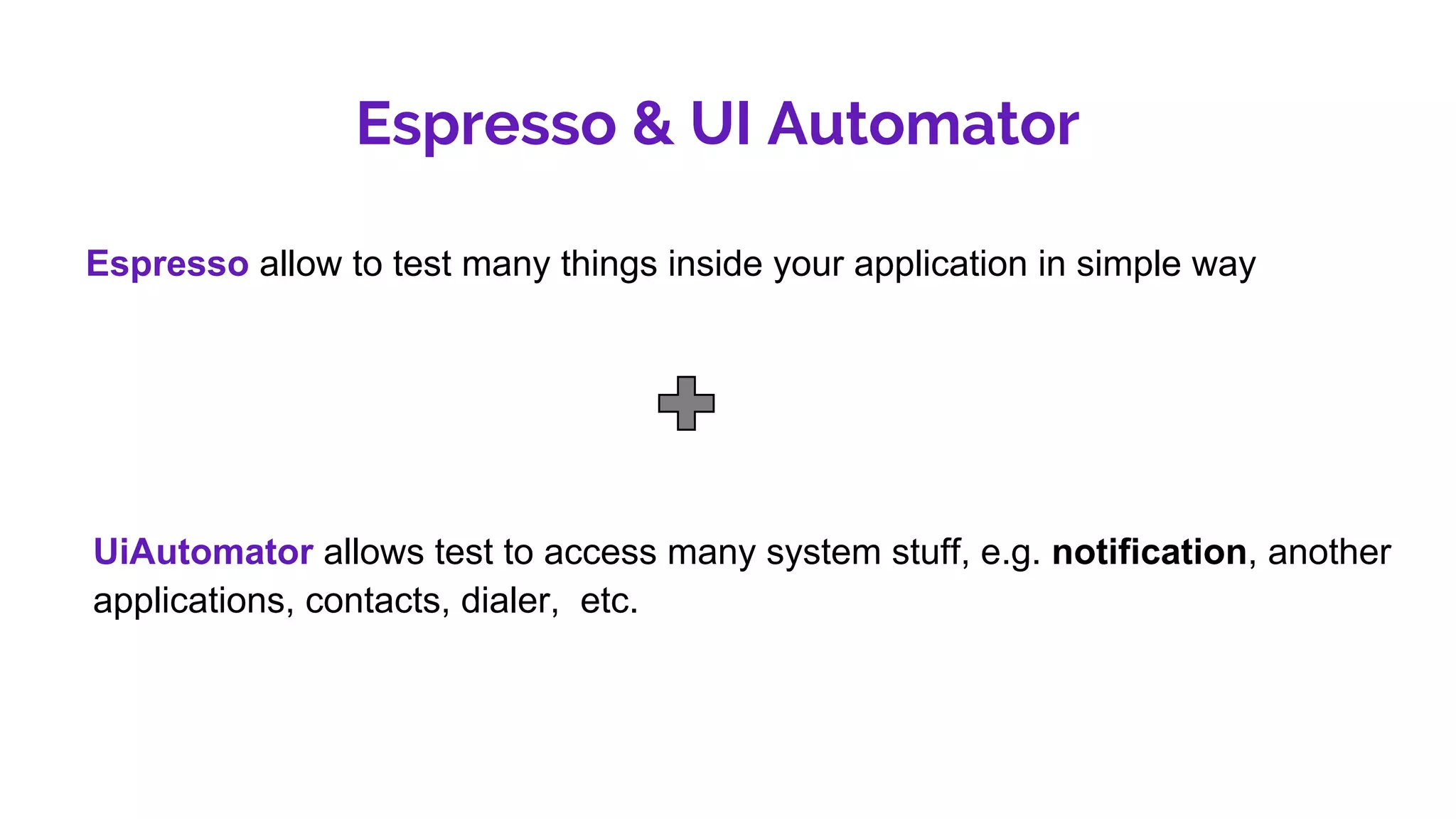
Espresso allow to test many things inside your application in simple way
UiAutomator allows test to access many system stuff, e.g. notification, another
applications, contacts, dialer, etc.
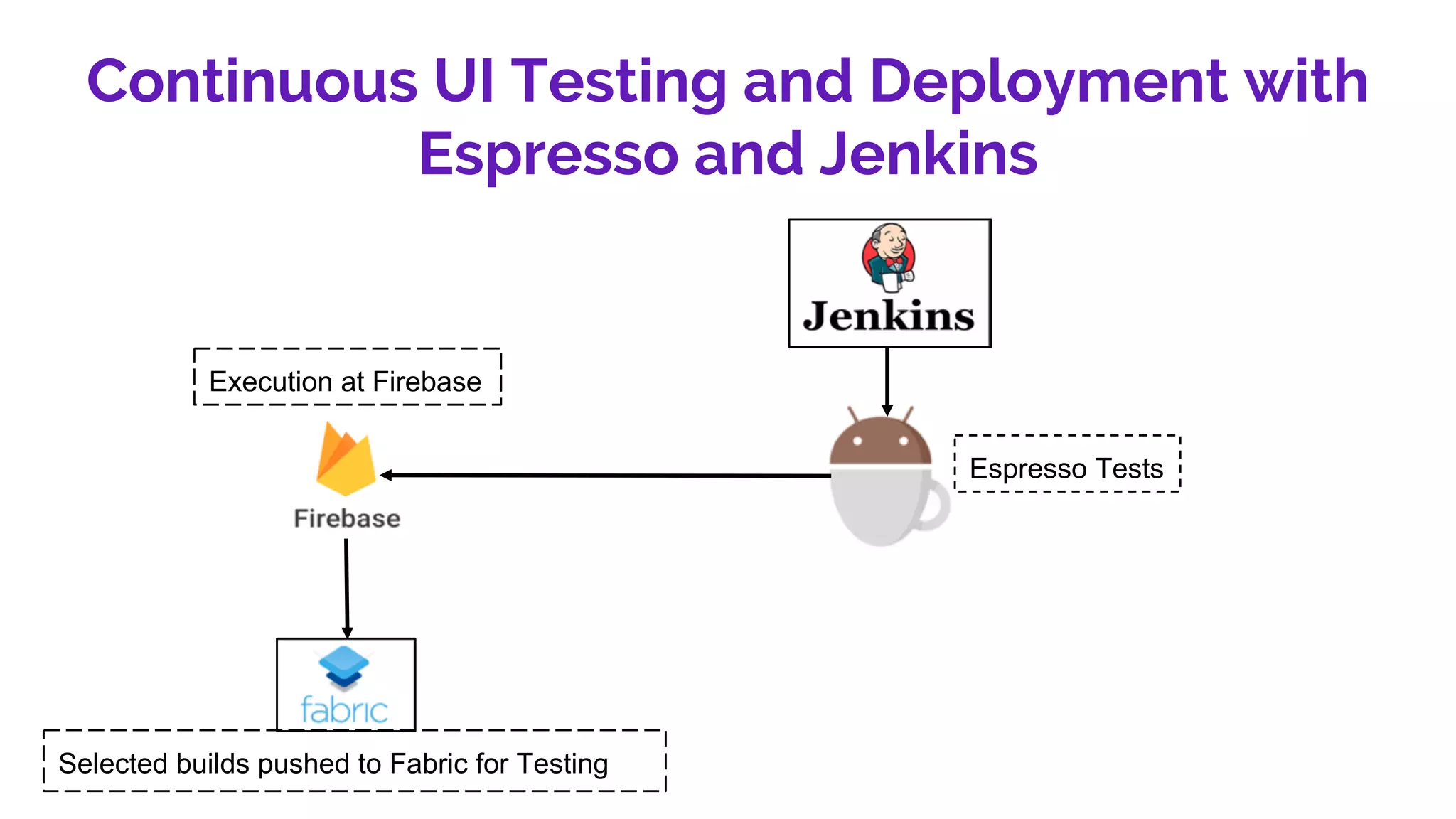
Continuous UI Testing and Deployment with
Espresso and Jenkins
Execution at Firebase
Espresso Tests
Selected builds pushed to Fabric for Testing
Overview the Challenges and Limitations of Android App Automation with Espresso by Jagmit Singh

Overview the Challenges and Limitations of Android App Automation with Espresso by Jagmit Singh

  • 1.
    Overcome the Challengesand Limitations of Android App Automation with Espresso Myself Jagmit Singh is a Senior Automation Engineer at CBC Digital Labs, responsible for UI Automation of Listen Apps
  • 2.
    What is CBC? CanadianBroadcasting Corporation branded as CBC/Radio Canada is National Public Broadcaster for TV and Radio
  • 3.
    Agenda ● What’s Espresso? ●Challenges in Android UI Automation ● Why Use Expresso? ● Writing Espresso Tests ● Espresso & TestButler ● Espresso & UIAutomator ● Continuous UI Testing using Espresso and Jenkins
  • 4.
    What’s Espresso? ● Atesting framework for Android to write reliable UI tests ● Developed internally by Google ● Run on devices running Android 2.2 and higher ● Instrumentation-based API works with AndroidJUnitRunner
  • 5.
    Challenges in AndroidUI Automation. ● Tests are Flaky! ● Tests are Slow! ● Scaling Automation Scope - Testing Outside the App ● Some Difficulty in locating UI elements!
  • 6.
    Why Use Espresso? ●Fast and Reliable ● Support testing activities outside the App ● Espresso tests are developed within the App ● Native Platform Developed by Google -- Always ahead of the curve
  • 7.
  • 8.
    Setup Espresso withGradle Add Dependencies to build.gradle android { defaultConfig { testInstrumentationRunner "androidx.test.runner.AndroidJUnitRunner" } } dependencies { androidTestImplementation 'androidx.test.espresso:espresso-core:3.1.1' androidTestImplementation 'androidx.test.uiautomator:uiautomator:2.2.0' androidTestImplementation 'com.linkedin.testbutler:test-butler-library:1.4.0' }
  • 9.
    Android Test Rules ●Make Use of JUnit @Rule Annotations ● Retry Rule @Rule public final RetryRule retry = new RetryRule(); ● Activity Test Rule The Activity under the Rule will be launched again in each Test @Rule public ActivityTestRule activityRule = new ActivityTestRule<>(MyActivity.class);
  • 10.
  • 12.
  • 13.
    How TestButler Works? ❖Two Part Project: App and Library ❖ Espresso Tests depends on Library ❖ Install TestButler App on Emulator prior to running Tests ❖ TestButler App have permissions to change Device Settings
  • 14.
    Espresso & TestButler ❖ Controlling the environment with Espresso Tests ❖ Disable crash & App Not Responding (ANR) dialogs ❖ Turn Wifi ON/OFF ❖ Change Locale ❖ Set Screen Orientation ❖ Disable Animations - Espresso Tests Run Reliably
  • 16.
    Espresso & UIAutomator
  • 17.
    Espresso & UIAutomator Espresso allow to test many things inside your application in simple way UiAutomator allows test to access many system stuff, e.g. notification, another applications, contacts, dialer, etc.
  • 19.
    Continuous UI Testingand Deployment with Espresso and Jenkins Execution at Firebase Espresso Tests Selected builds pushed to Fabric for Testing