






Oracle® Services Procurement
Process Guide
Release 12.2
Part No. E68109-01
October 2015
Oracle Services Procurement Process Guide, Release 12.2
Part No. E68109-01
Copyright © 2015, Oracle and/or its affiliates. All rights reserved.
Primary Author:     Gowri Arur
Contributing Author:     Sivakumar Viswanathan
This software and related documentation are provided under a license agreement containing restrictions on
use and disclosure and are protected by intellectual property laws. Except as expressly permitted in your
license agreement or allowed by law, you may not use, copy, reproduce, translate, broadcast, modify, license,
transmit, distribute, exhibit, perform, publish, or display any part, in any form, or by any means. Reverse
engineering, disassembly, or decompilation of this software, unless required by law for interoperability, is
prohibited.
The information contained herein is subject to change without notice and is not warranted to be error-free. If
you find any errors, please report them to us in writing.
If this is software or related documentation that is delivered to the U.S. Government or anyone licensing it on
behalf of the U.S. Government, the following notice is applicable:
U.S. GOVERNMENT END USERS: Oracle programs, including any operating system, integrated software,
any programs installed on the hardware, and/or documentation, delivered to U.S. Government end users are
"commercial computer software" pursuant to the applicable Federal Acquisition Regulation and
agency-specific supplemental regulations. As such, use, duplication, disclosure, modification, and adaptation
of the programs, including any operating system, integrated software, any programs installed on the
hardware, and/or documentation, shall be subject to license terms and license restrictions applicable to the
programs. No other rights are granted to the U.S. Government.
This software or hardware is developed for general use in a variety of information management applications.
It is not developed or intended for use in any inherently dangerous applications, including applications that
may create a risk of personal injury. If you use this software or hardware in dangerous applications, then you
shall be responsible to take all appropriate fail-safe, backup, redundancy, and other measures to ensure its
safe use. Oracle Corporation and its affiliates disclaim any liability for any damages caused by use of this
software or hardware in dangerous applications.
Oracle and Java are registered trademarks of Oracle and/or its affiliates. Other names may be trademarks of
their respective owners.
Intel and Intel Xeon are trademarks or registered trademarks of Intel Corporation. All SPARC trademarks are
used under license and are trademarks or registered trademarks of SPARC International, Inc. AMD, Opteron,
the AMD logo, and the AMD Opteron logo are trademarks or registered trademarks of Advanced Micro
Devices. UNIX is a registered trademark of The Open Group.
This software or hardware and documentation may provide access to or information about content, products,
and services from third parties. Oracle Corporation and its affiliates are not responsible for and expressly
disclaim all warranties of any kind with respect to third-party content, products, and services unless
otherwise set forth in an applicable agreement between you and Oracle. Oracle Corporation and its affiliates
will not be responsible for any loss, costs, or damages incurred due to your access to or use of third-party
content, products, or services, except as set forth in an applicable agreement between you and Oracle.
    iii
 
Contents
Send Us Your Comments
Preface
1 Overview of Oracle Services Procurement
Overview of Oracle Services Procurement............................................................................... 1-1
Using Oracle Services Procurement..........................................................................................1-4
2 Implementing Oracle Services Procurement
Licenses for Oracle Services Procurement................................................................................ 2-2
Profile Options Used in Oracle Services Procurement............................................................ 2-3
Concurrent Programs Used in Oracle Services Procurement Business Flows.......................2-13
Implementation Considerations in Oracle Services Procurement.........................................2-17
Overview of Implementing Oracle Services Procurement.....................................................2-19
Overview of Setting Up Steps to Process the Procurement of Complex Work..................... 2-19
Setting Up Steps in Oracle Purchasing to Process the Procurement of Complex Work....... 2-22
Setting Up Steps in Oracle Approvals Management to Process the Procurement of Complex
Work........................................................................................................................................ 2-36
Setting Up Steps in Oracle E-Business Tax to Process the Procurement of Complex Work
.................................................................................................................................................. 2-37
Setting Up Steps in Oracle Procurement Contracts to Process the Procurement of Complex
Work........................................................................................................................................ 2-41
Overview of Setting Up Steps to Process the Procurement of Contingent Workers.............2-42
Setting Up Steps in Oracle iProcurement to Process the Procurement of Contingent Workers
.................................................................................................................................................. 2-44
Setting Up Steps in Oracle Purchasing to Process the Procurement of Contingent Workers
.................................................................................................................................................. 2-50
iv
Setting Up Steps in Oracle Human Resources to Process the Procurement of Contingent
Workers....................................................................................................................................2-56
Setting Up Steps in Oracle Time and Labor to Process the Procurement of Contingent
Workers....................................................................................................................................2-64
Setting Up Steps in Oracle Internet Expenses to Process the Procurement of Contingent
Workers....................................................................................................................................2-67
Setting Up Steps in Oracle Projects to Process the Procurement of Contingent Workers.... 2-68
3 Processing Complex Work
Understanding the Complex Work Features............................................................................ 3-2
Overview of Processing Complex Work Procurement............................................................. 3-6
Creating Requisitions for Complex Work................................................................................ 3-8
Creating Vendor Questionnaires for Complex Work.............................................................3-10
Processing Approved Requisitions for Complex Work......................................................... 3-13
Creating Sourcing RFQs for Complex Work.......................................................................... 3-14
Creating Quotes....................................................................................................................... 3-19
Comparing and Analyzing Complex Work RFQs.................................................................. 3-22
Awarding Complex Work RFQs............................................................................................. 3-24
Processing Complex Work Orders Created from RFQs......................................................... 3-26
Reviewing the Project Status of a Complex Work Order....................................................... 3-30
Viewing the Complex Work Purchase Order as a Supplier...................................................3-33
Creating an Invoice and Payment for Advance...................................................................... 3-34
Tracking Advance Payments as a Supplier............................................................................ 3-35
Creating a Work Confirmation for a Complex Work Order.................................................. 3-36
Processing and Approving Work Confirmations for Complex Work Orders....................... 3-38
Transferring the Invoice Details of a Complex Work Order to Oracle Projects....................3-41
Tracking the Progress of a Project...........................................................................................3-45
Releasing the Retained Amount............................................................................................. 3-47
Processing Deductions and Back Charges.............................................................................. 3-48
Processing Change Management and Requests..................................................................... 3-49
Processing Change Management and Orders.........................................................................3-50
Reporting Analytics for a Project............................................................................................ 3-51
4 Processing the Procurement of Contingent Workers
Overview of Processing Contingent Worker Procurement...................................................... 4-1
Creating Requisitions for the Procurement of Contingent Workers....................................... 4-2
Assigning a Contractor to a Contingent Worker Requisition.................................................. 4-6
Creating a Purchase Order for a Service Request.....................................................................4-7
Creating Contingent Worker Timecard.................................................................................. 4-10
Approving the Contingent Worker Timecard........................................................................ 4-11
    v
Viewing the Purchase Order Details as a Supplier................................................................ 4-12
Importing Timecard Data into Oracle Purchasing to Create an Invoice................................4-14
Importing Contingent Worker Timecards into Oracle Projects.............................................4-17
Processing Contingent Worker Timecards in Oracle Projects............................................... 4-19
Reviewing the Contingent Worker Labor Costs.....................................................................4-21
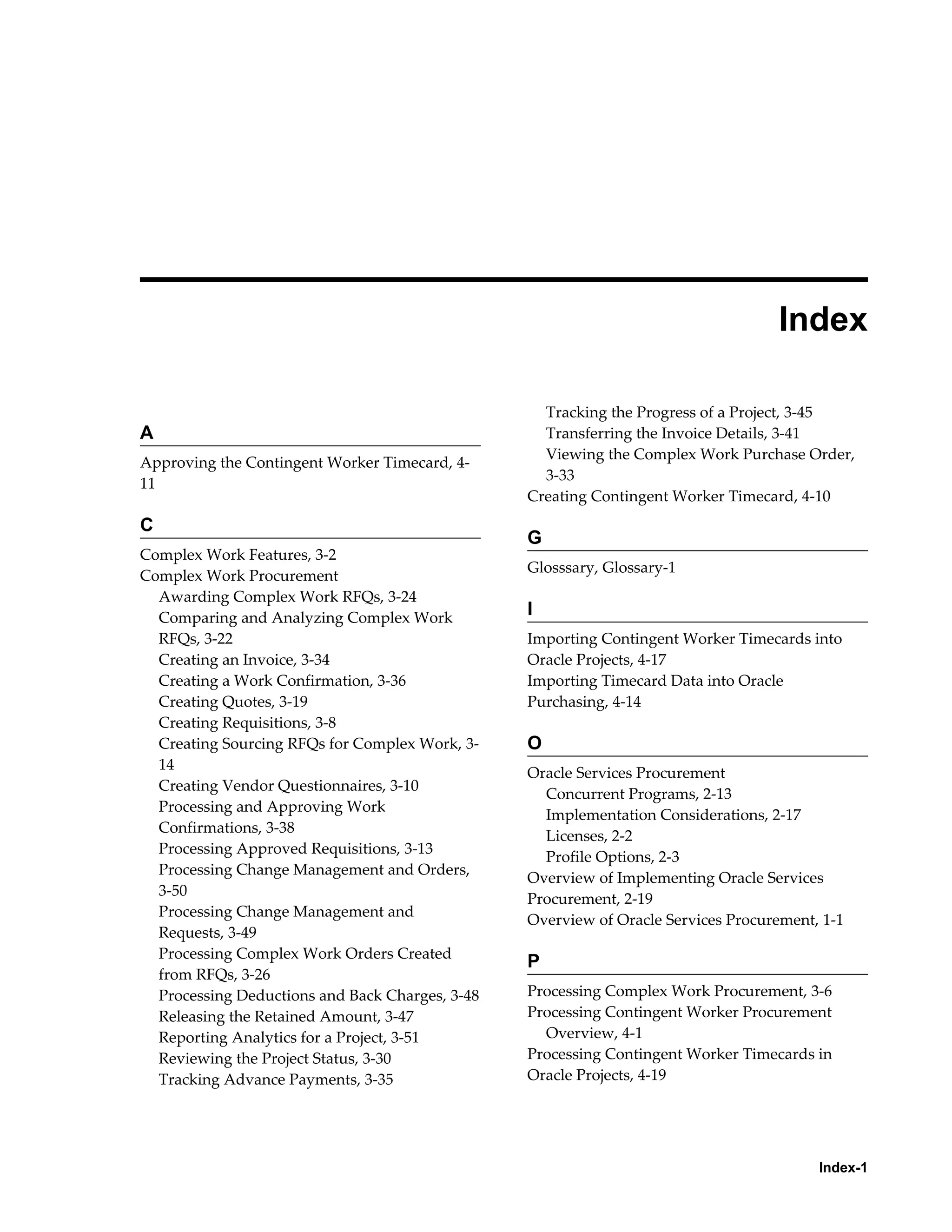
Oracle Services Procurement Glossary
Index
    vii
 
Send Us Your Comments
Oracle Services Procurement Process Guide, Release 12.2
Part No. E68109-01
Oracle welcomes customers' comments and suggestions on the quality and usefulness of this document.
Your feedback is important, and helps us to best meet your needs as a user of our products. For example:
• Are the implementation steps correct and complete?
• Did you understand the context of the procedures?
• Did you find any errors in the information?
• Does the structure of the information help you with your tasks?
• Do you need different information or graphics? If so, where, and in what format?
• Are the examples correct? Do you need more examples?
If you find any errors or have any other suggestions for improvement, then please tell us your name, the
name of the company who has licensed our products, the title and part number of the documentation and
the chapter, section, and page number (if available).
Note: Before sending us your comments, you might like to check that you have the latest version of the
document and if any concerns are already addressed. To do this, access the new Oracle E-Business Suite
Release Online Documentation CD available on My Oracle Support and www.oracle.com. It contains the
most current Documentation Library plus all documents revised or released recently.
Send your comments to us using the electronic mail address: appsdoc_us@oracle.com
Please give your name, address, electronic mail address, and telephone number (optional).
If you need assistance with Oracle software, then please contact your support representative or Oracle
Support Services.
If you require training or instruction in using Oracle software, then please contact your Oracle local office
and inquire about our Oracle University offerings. A list of Oracle offices is available on our Web site at
www.oracle.com.
    ix
 
Preface
Intended Audience
Welcome to Release 12.2 of the Oracle Services Procurement Process Guide.
Implementers, administrators, and users:
See Related Information Sources on page x for more Oracle E-Business Suite product
information.
Documentation Accessibility
For information about Oracle's commitment to accessibility, visit the Oracle
Accessibility Program website at
http://www.oracle.com/pls/topic/lookup?ctx=acc&id=docacc.
Access to Oracle Support
Oracle customers that have purchased support have access to electronic support
through My Oracle Support. For information, visit
http://www.oracle.com/pls/topic/lookup?ctx=acc&id=info or visit
http://www.oracle.com/pls/topic/lookup?ctx=acc&id=trs if you are hearing impaired.
Structure
1  Overview of Oracle Services Procurement
2  Implementing Oracle Services Procurement
3  Processing Complex Work
4  Processing the Procurement of Contingent Workers
Oracle Services Procurement Glossary
x
Related Information Sources
Oracle Purchasing User's Guide
Oracle iProcurement User Guide
Oracle iProcurement Implementation and Administration Guide
Oracle Sourcing User Guide
Oracle Sourcing Implementation and Administration Guide
Oracle iSupplier Portal User's Guide
Oracle iSupplier Portal Implementation Guide
Oracle Projects Implementation Guide
Oracle Projects Fundamentals
Oracle HRMS Configuring, Reporting, and System Administration Guide
Oracle HRMS Workforce Sourcing, Deployment, and Talent Management Guide
Oracle Time and Labor Implementation and User's Guide
Oracle Payables Implementation Guide
Oracle Payables User's Guide
Oracle Procurement Contracts Implementation and Administration Guide
Oracle Supplier Management Implementation and Administration Guide
Oracle Supplier Management User's Guide
Integration Repository
The Oracle Integration Repository is a compilation of information about the service
endpoints exposed by the Oracle E-Business Suite of applications. It provides a
complete catalog of Oracle E-Business Suite's business service interfaces. The tool lets
users easily discover and deploy the appropriate business service interface for
integration with any system, application, or business partner.
The Oracle Integration Repository is shipped as part of the Oracle E-Business Suite. As
your instance is patched, the repository is automatically updated with content
appropriate for the precise revisions of interfaces in your environment.
Do Not Use Database Tools to Modify Oracle E-Business Suite Data
Oracle STRONGLY RECOMMENDS that you never use SQL*Plus, Oracle Data
Browser, database triggers, or any other tool to modify Oracle E-Business Suite data
unless otherwise instructed.
Oracle provides powerful tools you can use to create, store, change, retrieve, and
    xi
maintain information in an Oracle database. But if you use Oracle tools such as
SQL*Plus to modify Oracle E-Business Suite data, you risk destroying the integrity of
your data and you lose the ability to audit changes to your data.
Because Oracle E-Business Suite tables are interrelated, any change you make using an
Oracle E-Business Suite form can update many tables at once. But when you modify
Oracle E-Business Suite data using anything other than Oracle E-Business Suite, you
may change a row in one table without making corresponding changes in related tables.
If your tables get out of synchronization with each other, you risk retrieving erroneous
information and you risk unpredictable results throughout Oracle E-Business Suite.
When you use Oracle E-Business Suite to modify your data, Oracle E-Business Suite
automatically checks that your changes are valid. Oracle E-Business Suite also keeps
track of who changes information. If you enter information into database tables using
database tools, you may store invalid information. You also lose the ability to track who
has changed your information because SQL*Plus and other database tools do not keep a
record of changes.
Overview of Oracle Services Procurement    1-1
1
Overview of Oracle Services Procurement
This chapter covers the following topics:
• Overview of Oracle Services Procurement
• Using Oracle Services Procurement
Overview of Oracle Services Procurement
Oracle Services Procurement is the application that enables complete control and
oversight for services spending. It is a key component of Oracle Advanced Procurement
suite. Oracle Services Procurement automates and streamlines the process of
requisitioning, sourcing, procuring, and handling payments for services such as repair
and maintenance, hiring contingent workers, managing professional services, and
facilities management. End-to-end services procurement processes are automated; these
processes integrate with Oracle E-Business Suite applications to provide complete and
comprehensive procure to pay cycles.
With Oracle Services Procurement, you can:
• Bring Purchasing oversight to services. Oracle Services Procurement helps you
source and manage services.
• Define and manage all aspects of your services business arrangement utilizing
contracts. The ability to define, manage, control, and track these contract elements
keeps lead times and costs in check while preventing cost overruns.
• For complex services such as construction or professional services, you can
define payment terms, progress payment schedule, financing advances,
financing advances recoupment and retainage rates for services settlement.
• For contingent labor, you can define appropriate rates, terms, job information
and more.
• Use preferred suppliers right from the initial request, funneling orders to preferred
1-2    Oracle Services Procurement Process Guide
suppliers so that services are sourced to the correct supplier at negotiated rates
every time. Oracle Sourcing can be used to negotiate terms with potential vendors.
For services that are routinely requisitioned by employees, create an approved
vendor list that may contain one or multiple approved suppliers. For a unique
request, you may choose to allow the employee to suggest a new supplier.
• Track all aspects of the order and invoice directly as suppliers. Online tracking and
change management frees procurement professionals from the burden of routine
inquiries and change requests.
• Match to the original terms of payment, purchase order, and/or services receipts.
• For complex services, to calculate the payment due to the supplier, use an
invoice that is received or Work Confirmation created for the progress payment
specified on the contract. Previous financing payments, if any, are recouped,
and applicable retainage are withheld before payment is made.
• For contingent workers, use approved, supplier-entered timecards, as a services
receipt or to auto-generate a supplier invoice based on approved timecards.
• Ensure services delivery and compliance with deliverable tracking. For more
complex contract needs, use Oracle Services Procurement in conjunction with
Oracle Procurement Contracts to track deliverables online, ensuring that contract
terms and conditions are fulfilled.
• Set policies for services spending approval. Oracle Services Procurement ensures
that adequate spending checks are in place. Approval rules are configurable,
typically requiring approval from the employee's management and possibly other
groups as appropriate. Services requests are placed against open projects and their
budgets. Oracle Services Procurement provides the necessary checks. Once the
request is authorized, employees track the spending amount against submitted
invoices to see remaining budget.
• For complex services, suppliers can report progress either in the form of a Work
Confirmation or an Invoice. The system automatically updates the purchase
order based work confirmations and invoices, providing advance warning
before spending runs over budget.
• When integrated with Oracle Time and Labor, contingent workers fill out
timecards online to indicate work performed.
• Track the entire services cycle with online access to the detailed history of each
order. Employees view the status of service requests and drill to supporting details
such as the approval status, purchase orders, timecards and invoices. Project
managers initiate changes to service requests, which generate automatic
notifications to suppliers. With advance notice of changes, suppliers provide more
responsive service and your buying organization incurs fewer penalties or cost
Overview of Oracle Services Procurement    1-3
premiums for expedited service.
• Measure supplier and contingent labor performance. With Oracle Services
Procurement, delivery of services is tracked to completion. Suppliers monitor their
on-time performance for individual service requests through the portal, ensuring
proper feedback to the supplier. For contingent labor, hiring managers enter in
contractor performance data at the end of each assignment. This information is
shared throughout the enterprise. So other hiring managers can view prior
performance information to select the best contractors for each job.
Typical Users of Oracle Services Procurement
Oracle Project Procurement empowers organizations to effectively manage the
procurement of complex work and contingent workers.
The following industries can benefit the most from the product's capabilities:
• Procurement of Complex Work: Industries such as Engineering and Construction
(E&C), Aerospace and Defense (A&D), Engineer to Order (ETO), and Maintenance
Repair and Overhaul (MRO).
• Procurement of Contingent Workers: Industries such as professional services,
facilities management, marketing, and telecom.
How Oracle Services Procurement Addresses Industry Requirements
Oracle Services Procurement addresses the following business requirements across
industries:
• Administers corporate polices:
• Negotiate master agreements successfully with terms, conditions and rates
• Source and drive spend towards preferred / performing suppliers
• Ensure that contract terms and rates are enforced
• Shares knowledge and gain visibility towards services spend:
• Visibility to predefined terms, rate and suppliers
• Capture spend in the system
• Analyze spend using business intelligence tools
• Eliminates over-billing errors and improves supplier performance
• Checks and controls time and labor entries
1-4    Oracle Services Procurement Process Guide
• Service receipt to auto-generate invoice
• Analyze supplier performance using business intelligence tools
• Reduces procurement cycles timeframes and improves service levels through
suppliers collaboration
• Online sourcing collaboration
• Generate agreement directly from award
• Supplier viewing of PO, timecard, invoice
• Change order management
For information on how Oracle Services Procurement helps enterprises to handle the
following business flows, see: Using Oracle Services Procurement, page 1-4:
• Procurement of complex services that involves payments based on progress of
work.
• Procurement of contingent workers and making payments based on time reported.
Using Oracle Services Procurement
Enterprises spend a significant portion of their corporate budget on the acquisition or
procurement of services. Acquiring services include purchase of complex goods and
services such as construction subcontract for electrical work, concrete work and piping,
professional services, facilities management and Maintenance Repair and Overhaul
(MRO).
Several buying organizations have fragmented, paper-driven, and manual processes for
managing services that result in:
• Lack of visibility and lack of control over services spend
• Inability to initiate and sustain end-user compliance
• Overbilling and inability to track supplier performance
• Increased cycle time
Oracle Services Procurement integrates the entire services procurement lifecycle and
supports a broad range of service categories including contingent labor, facilities
management, subcontracted labor, professional services and more. It provides visibility
into service spend and the performance of suppliers. Oracle Services Procurement
enables managers to have complete control and perspective in the service spend arena.
Overview of Oracle Services Procurement    1-5
Processing the Procurement of Complex Work and Contingent Workers
Oracle Services Procurement helps you manage the following requirements of business
organizations:
• Procurement of complex services that involves payments based on progress of
work.
• Procurement of contingent workers and making payments based on time reported.
Processing the Procurement of Complex Work
Procurement of services accounts for 40% to 80% of a project or enterprise activity. Since
'Procurement' is a major part of company's operations, enterprises focus on improving
the efficiency of their procurement processes.
Procurement plays a major role in industries such as Engineering and Construction
(E&C), Aerospace and Defense (A&D), Engineer to Order (ETO) and Utilities. The
procurement process for these industries is broadly classified into five different
categories:
• Procurement of bulk commodities
• Procurement of engineered equipment
• Procurement of catalog items
• Procurement of subcontracting services
• Rentals
This process involves collaboration between project managers, buyers, and suppliers.
Complex service procurement involves authoring of complex contractual terms and
conditions with complex payment controls.
For the E&C Industry:
• Bulk commodities are construction material such as Rebar, lumber, and piping etc.
The materials undergo a 'material take off' process where lengths, weights, and
other metrics are derived from Computer Aided Design (CAD) drawings. These
units are then aggregated into the most economic buying quantities and measures
before they are recorded on a purchase order document.
• Engineered equipments are complex machines such as boilers that are represented
in the system as one line item for commercial purposes and multiple line items for
receiving and installation.
• Catalog items are defined set of items that are procured on a frequent basis. Some
1-6    Oracle Services Procurement Process Guide
categories of items like 'First Aid Kits and Kit Refills' are examples of catalog items.
• Subcontracting services include complex outsourcing on a scope of work. For
example, if you operate a power plant, you may outsource the corrosion protection
service to a subcontractor.
• Lastly, Utilities and E&C firms use a lot of rental equipment. The Rental category is
for renting heavy equipment such as tower cranes, bulldozers, etc.
Typical Business Flow of the Procurement of Complex Work
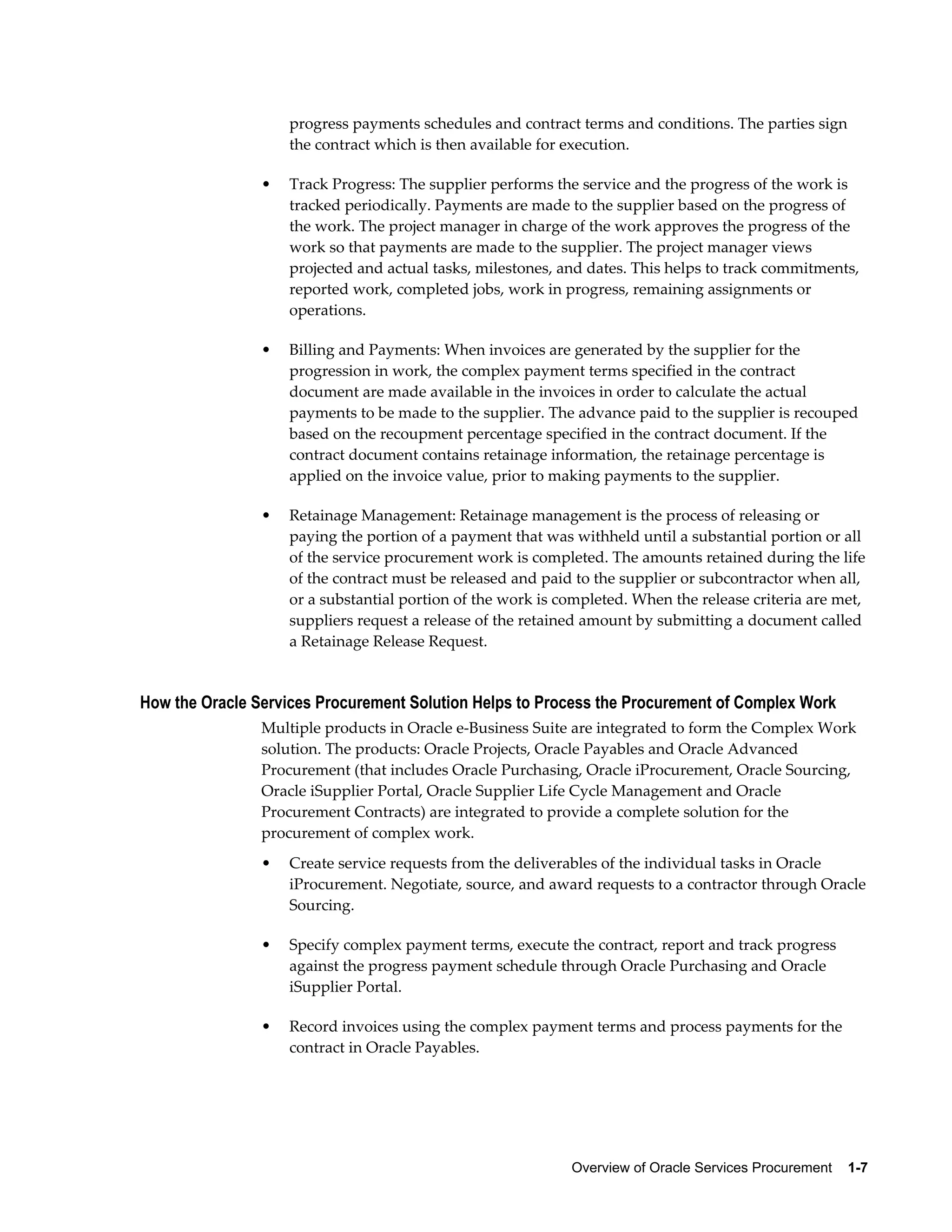
The following diagram shows a typical business flow for the procurement of complex
work at a high level:
The procurement of complex work as shown in the business flow diagram involves the
following phases:
• Request for Services: Request for services usually originates from different sources.
Examples are project manager or the procurement manager involved in a
construction project, field engineers and architects. These users request a service
when there is a requirement.
• Request for Quotation: If the required service involves higher value, longer lead
time, and a complex payment term, the buying organization creates a Request for
Quotation (RFQ) to negotiate the contract terms. The RFQ is usually associated with
a specific project. If the buying organization needs to evaluate the technical
expertise of suppliers, then the technical evaluation takes place in the RFQ process.
Negotiations with the supplier on commercial terms include negotiating on the
complex payment terms, progress payments schedule, retention clauses and
deliverables.
• Bid Tabulation: The buying organization analyzes and compares the bids provided
by the suppliers using comparative analysis. Suppliers are evaluated and then
shortlisted based on the offers made on the commercial terms and the technical
expertise they provide.
• Author Contract: The buying organization and supplier organization agree to the
Overview of Oracle Services Procurement    1-7
progress payments schedules and contract terms and conditions. The parties sign
the contract which is then available for execution.
• Track Progress: The supplier performs the service and the progress of the work is
tracked periodically. Payments are made to the supplier based on the progress of
the work. The project manager in charge of the work approves the progress of the
work so that payments are made to the supplier. The project manager views
projected and actual tasks, milestones, and dates. This helps to track commitments,
reported work, completed jobs, work in progress, remaining assignments or
operations.
• Billing and Payments: When invoices are generated by the supplier for the
progression in work, the complex payment terms specified in the contract
document are made available in the invoices in order to calculate the actual
payments to be made to the supplier. The advance paid to the supplier is recouped
based on the recoupment percentage specified in the contract document. If the
contract document contains retainage information, the retainage percentage is
applied on the invoice value, prior to making payments to the supplier.
• Retainage Management: Retainage management is the process of releasing or
paying the portion of a payment that was withheld until a substantial portion or all
of the service procurement work is completed. The amounts retained during the life
of the contract must be released and paid to the supplier or subcontractor when all,
or a substantial portion of the work is completed. When the release criteria are met,
suppliers request a release of the retained amount by submitting a document called
a Retainage Release Request.
How the Oracle Services Procurement Solution Helps to Process the Procurement of Complex Work
Multiple products in Oracle e-Business Suite are integrated to form the Complex Work
solution. The products: Oracle Projects, Oracle Payables and Oracle Advanced
Procurement (that includes Oracle Purchasing, Oracle iProcurement, Oracle Sourcing,
Oracle iSupplier Portal, Oracle Supplier Life Cycle Management and Oracle
Procurement Contracts) are integrated to provide a complete solution for the
procurement of complex work.
• Create service requests from the deliverables of the individual tasks in Oracle
iProcurement. Negotiate, source, and award requests to a contractor through Oracle
Sourcing.
• Specify complex payment terms, execute the contract, report and track progress
against the progress payment schedule through Oracle Purchasing and Oracle
iSupplier Portal.
• Record invoices using the complex payment terms and process payments for the
contract in Oracle Payables.
1-8    Oracle Services Procurement Process Guide
• Use Oracle Projects to manage the entire undertaking, the tasks involved, as well as
to monitor commitments and actuals throughout the complex services procurement
cycle along with project costs and work progress.
For complete information on processing the procurement of complex work, refer to the
chapter, Processing Complex Work.
Processing the Procurement of Contingent Workers
The procurement of contingent workers happens in almost all industries, specifically in
sectors such as facilities, financial, marketing, and telecom.
Typical Business Flow of the Procurement of Contingent Workers
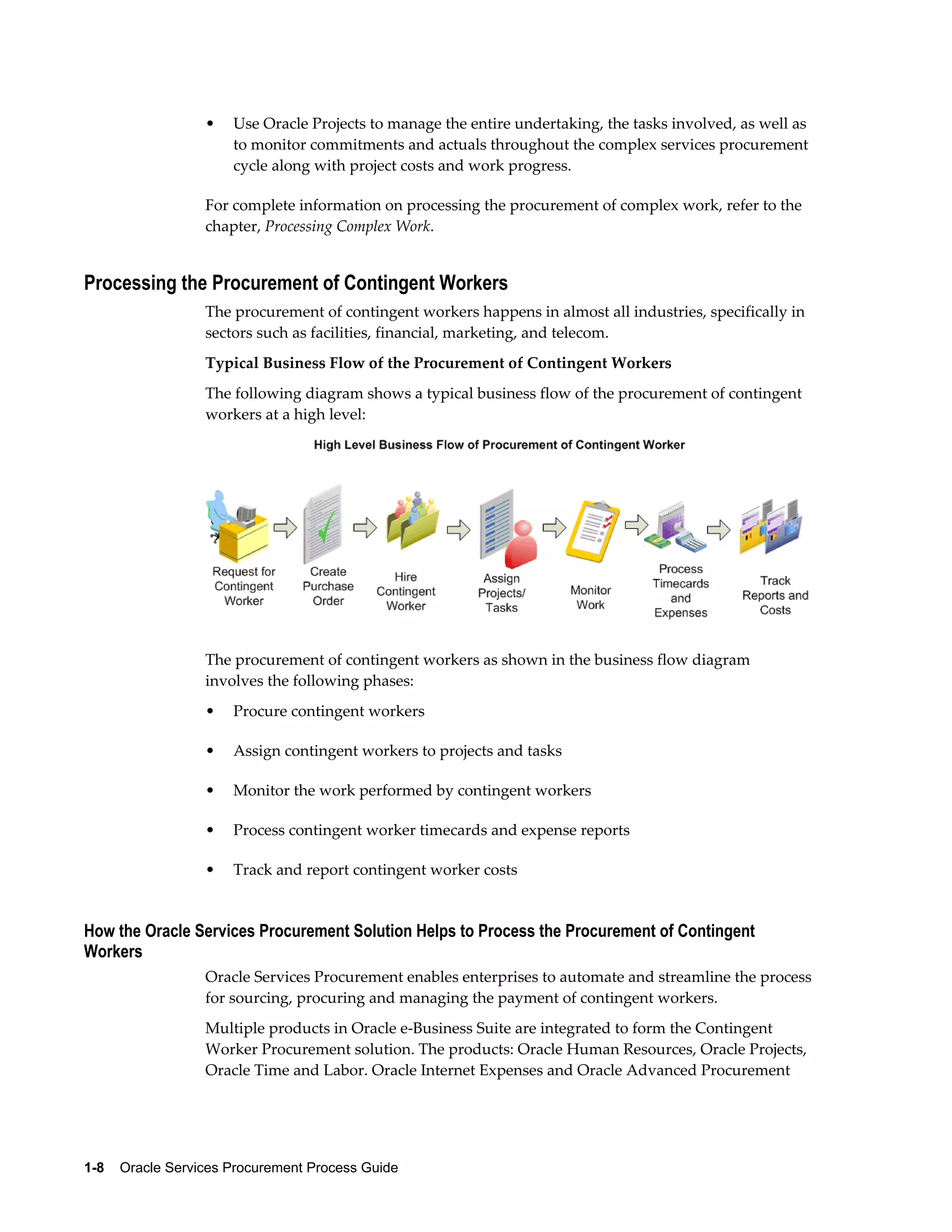
The following diagram shows a typical business flow of the procurement of contingent
workers at a high level:
The procurement of contingent workers as shown in the business flow diagram
involves the following phases:
• Procure contingent workers
• Assign contingent workers to projects and tasks
• Monitor the work performed by contingent workers
• Process contingent worker timecards and expense reports
• Track and report contingent worker costs
How the Oracle Services Procurement Solution Helps to Process the Procurement of Contingent
Workers
Oracle Services Procurement enables enterprises to automate and streamline the process
for sourcing, procuring and managing the payment of contingent workers.
Multiple products in Oracle e-Business Suite are integrated to form the Contingent
Worker Procurement solution. The products: Oracle Human Resources, Oracle Projects,
Oracle Time and Labor. Oracle Internet Expenses and Oracle Advanced Procurement
Overview of Oracle Services Procurement    1-9
(that includes Oracle Purchasing, Oracle iProcurement, and Oracle iSupplier Portal) are
integrated to provide a complete solution for the procurement of contingent workers.
The integrated platform provides the flexibility to capture job and skill requirements,
assignment information, and optionally a statement of work.
The integrated solution to process the procurement of contingent workers enables you
to:
• Create purchase orders for procuring rate based services using Oracle
iProcurement, Oracle Sourcing and Oracle Purchasing.
• Use Oracle Sourcing as buyers to negotiate on the rate to be paid for contractors.
• Manage contingent workers differently from other workforce types using Oracle
Human Resources Management System (Oracle HRMS). Buyers enter and maintain
information about the contingent workers and reference purchase orders created in
Oracle Purchasing to track supplier and rate information for a worker's assignment.
Oracle HRMS provides the infrastructure to monitor and track the assignment
history of contingent workers including breaks in assignment.
• Record contingent worker time entries in Oracle Time and Labor. Timecard entries
are validated against the purchase order to ensure the timecard does not exceed
pre-authorized amounts. When timecards are approved, the purchase order is
updated, depleting the budget of the approved time. Buying organizations use this
information to generate payment to the supplied based on the record time.
• Use Oracle iSupplier Portal to view and download approved timecards. Invoice
errors and over billing are minimized by automatically creating invoices from
service receipts.
• Use Oracle Time and Labor, Oracle Purchasing, and Oracle Projects integration to
track the time spent on the service purchaser order, which is charged on the
corresponding project activity. Other details captured for the task are the task and
expenditure for a project. Buyers retrieve timecard data to projects.
• Use Oracle Time and Labor and Oracle Purchasing integration to allow the invoices
to be automatically generated from the approved timecard thereby eliminating
invoice errors. Create expense reports for contingent workers in Oracle iExpenses.
For complete information on processing the procurement of contingent workers, refer to
the chapter, Processing the Procurement of Contingent Workers.
Implementing Oracle Services Procurement     2-1
2
Implementing Oracle Services Procurement
This chapter covers the following topics:
• Licenses for Oracle Services Procurement
• Profile Options Used in Oracle Services Procurement
• Concurrent Programs Used in Oracle Services Procurement Business Flows
• Implementation Considerations in Oracle Services Procurement
• Overview of Implementing Oracle Services Procurement
• Overview of Setting Up Steps to Process the Procurement of Complex Work
• Setting Up Steps in Oracle Purchasing to Process the Procurement of Complex
Work
• Setting Up Steps in Oracle Approvals Management to Process the Procurement of
Complex Work
• Setting Up Steps in Oracle E-Business Tax to Process the Procurement of Complex
Work
• Setting Up Steps in Oracle Procurement Contracts to Process the Procurement of
Complex Work
• Overview of Setting Up Steps to Process the Procurement of Contingent Workers
• Setting Up Steps in Oracle iProcurement to Process the Procurement of Contingent
Workers
• Setting Up Steps in Oracle Purchasing to Process the Procurement of Contingent
Workers
• Setting Up Steps in Oracle Human Resources to Process the Procurement of
Contingent Workers
• Setting Up Steps in Oracle Time and Labor to Process the Procurement of
Contingent Workers
• Setting Up Steps in Oracle Internet Expenses to Process the Procurement of
2-2    Oracle Services Procurement Process Guide
Contingent Workers
• Setting Up Steps in Oracle Projects to Process the Procurement of Contingent
Workers
Licenses for Oracle Services Procurement
Prerequisite Licenses
To use Oracle Services Procurement, you must license and implement Oracle
Purchasing.
Oracle Service Procurement Integration with Other Oracle E-Business Suite of Products
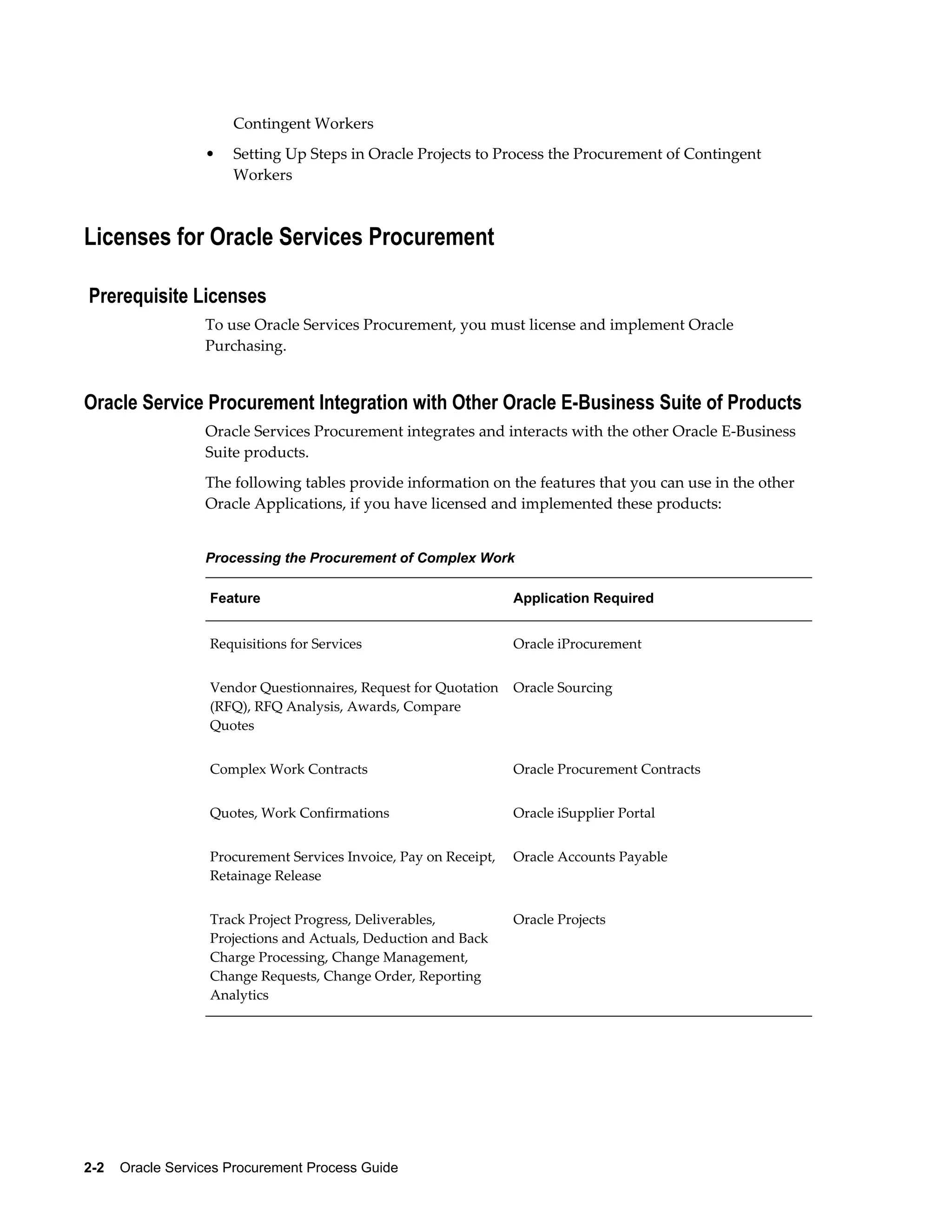
Oracle Services Procurement integrates and interacts with the other Oracle E-Business
Suite products.
The following tables provide information on the features that you can use in the other
Oracle Applications, if you have licensed and implemented these products:
Processing the Procurement of Complex Work
Feature Application Required
Requisitions for Services Oracle iProcurement
Vendor Questionnaires, Request for Quotation
(RFQ), RFQ Analysis, Awards, Compare
Quotes
Oracle Sourcing
Complex Work Contracts Oracle Procurement Contracts
Quotes, Work Confirmations Oracle iSupplier Portal
Procurement Services Invoice, Pay on Receipt,
Retainage Release
Oracle Accounts Payable
Track Project Progress, Deliverables,
Projections and Actuals, Deduction and Back
Charge Processing, Change Management,
Change Requests, Change Order, Reporting
Analytics
Oracle Projects
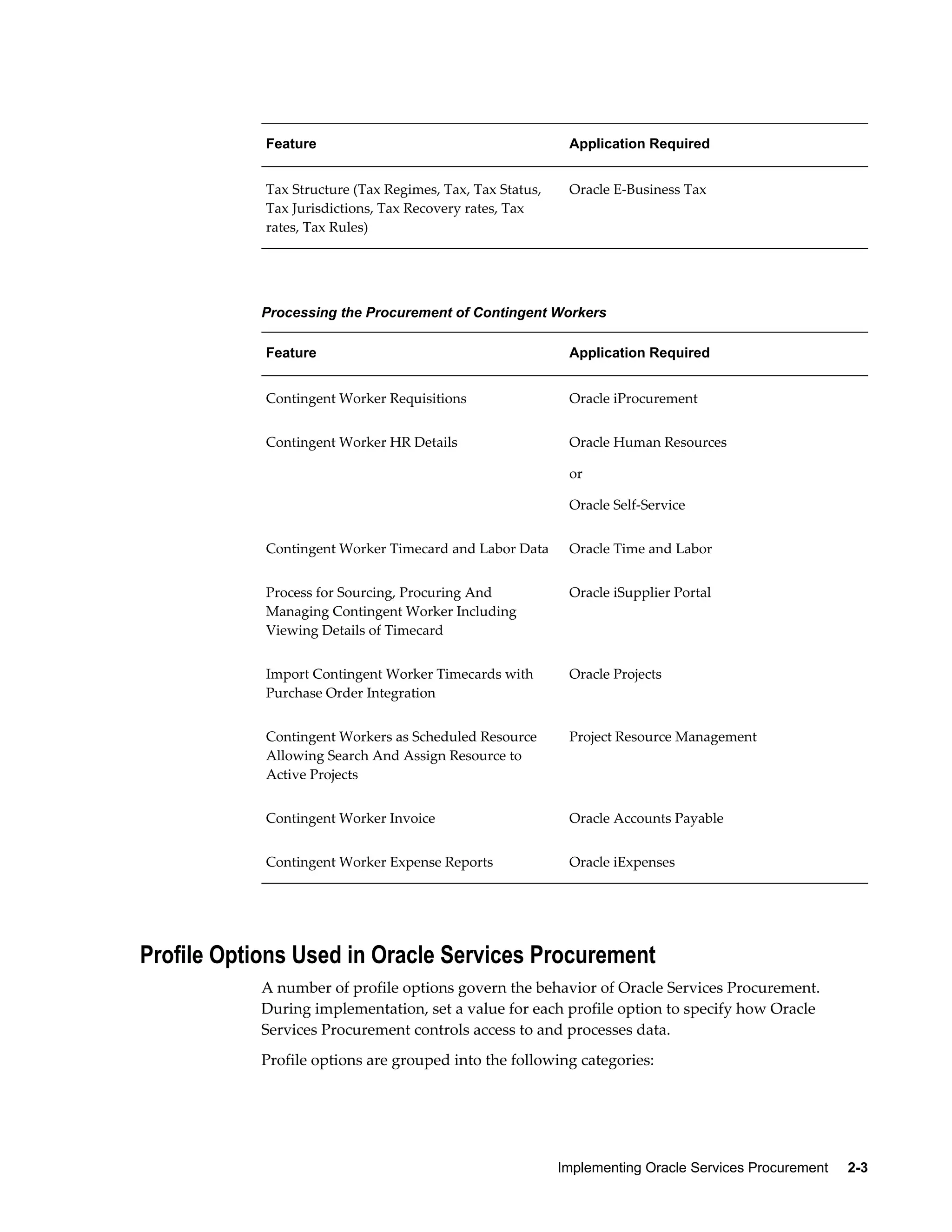
Implementing Oracle Services Procurement     2-3
Feature Application Required
Tax Structure (Tax Regimes, Tax, Tax Status,
Tax Jurisdictions, Tax Recovery rates, Tax
rates, Tax Rules)
Oracle E-Business Tax
Processing the Procurement of Contingent Workers
Feature Application Required
Contingent Worker Requisitions Oracle iProcurement
Contingent Worker HR Details Oracle Human Resources
or
Oracle Self-Service
Contingent Worker Timecard and Labor Data Oracle Time and Labor
Process for Sourcing, Procuring And
Managing Contingent Worker Including
Viewing Details of Timecard
Oracle iSupplier Portal
Import Contingent Worker Timecards with
Purchase Order Integration
Oracle Projects
Contingent Workers as Scheduled Resource
Allowing Search And Assign Resource to
Active Projects
Project Resource Management
Contingent Worker Invoice Oracle Accounts Payable
Contingent Worker Expense Reports Oracle iExpenses
Profile Options Used in Oracle Services Procurement
A number of profile options govern the behavior of Oracle Services Procurement.
During implementation, set a value for each profile option to specify how Oracle
Services Procurement controls access to and processes data.
Profile options are grouped into the following categories:
2-4    Oracle Services Procurement Process Guide
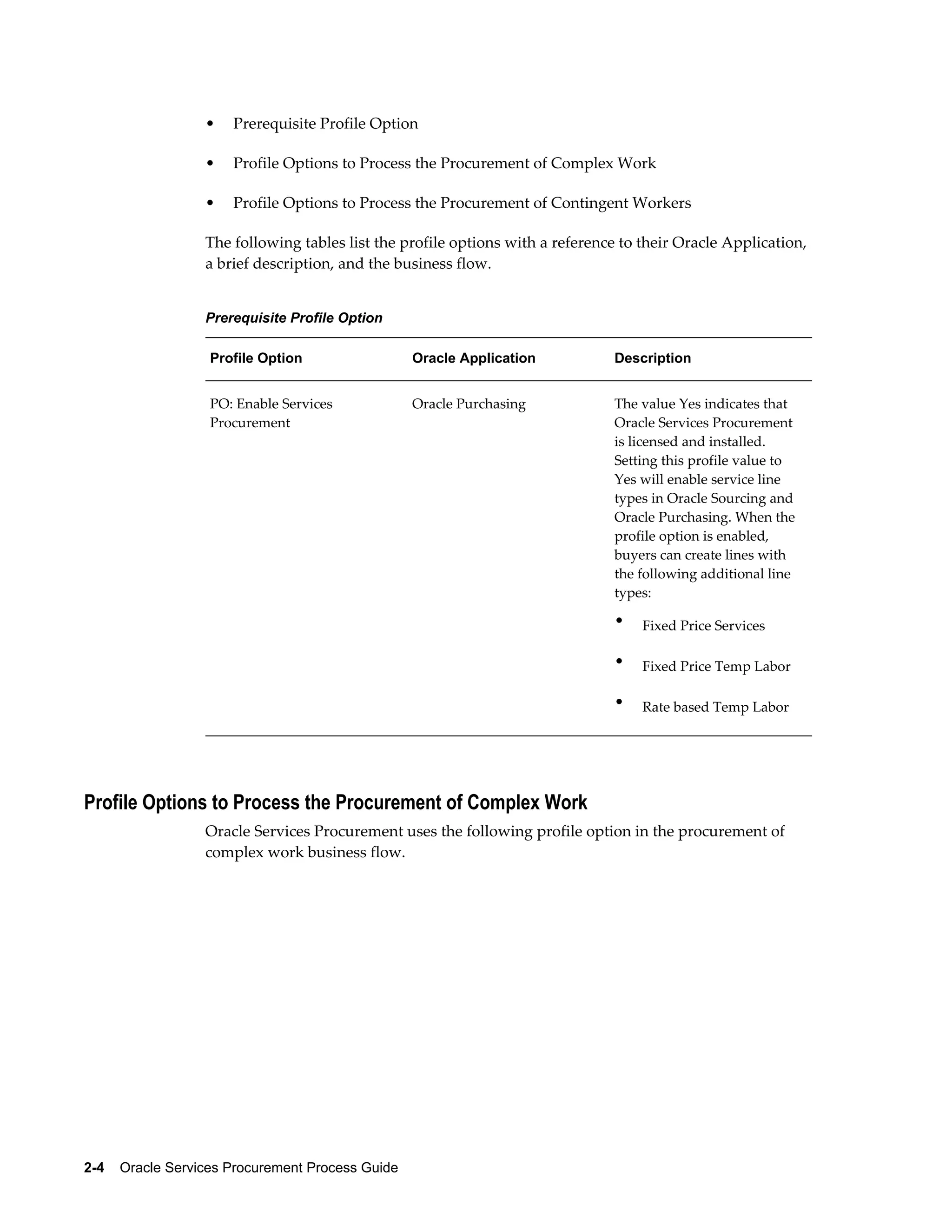
• Prerequisite Profile Option
• Profile Options to Process the Procurement of Complex Work
• Profile Options to Process the Procurement of Contingent Workers
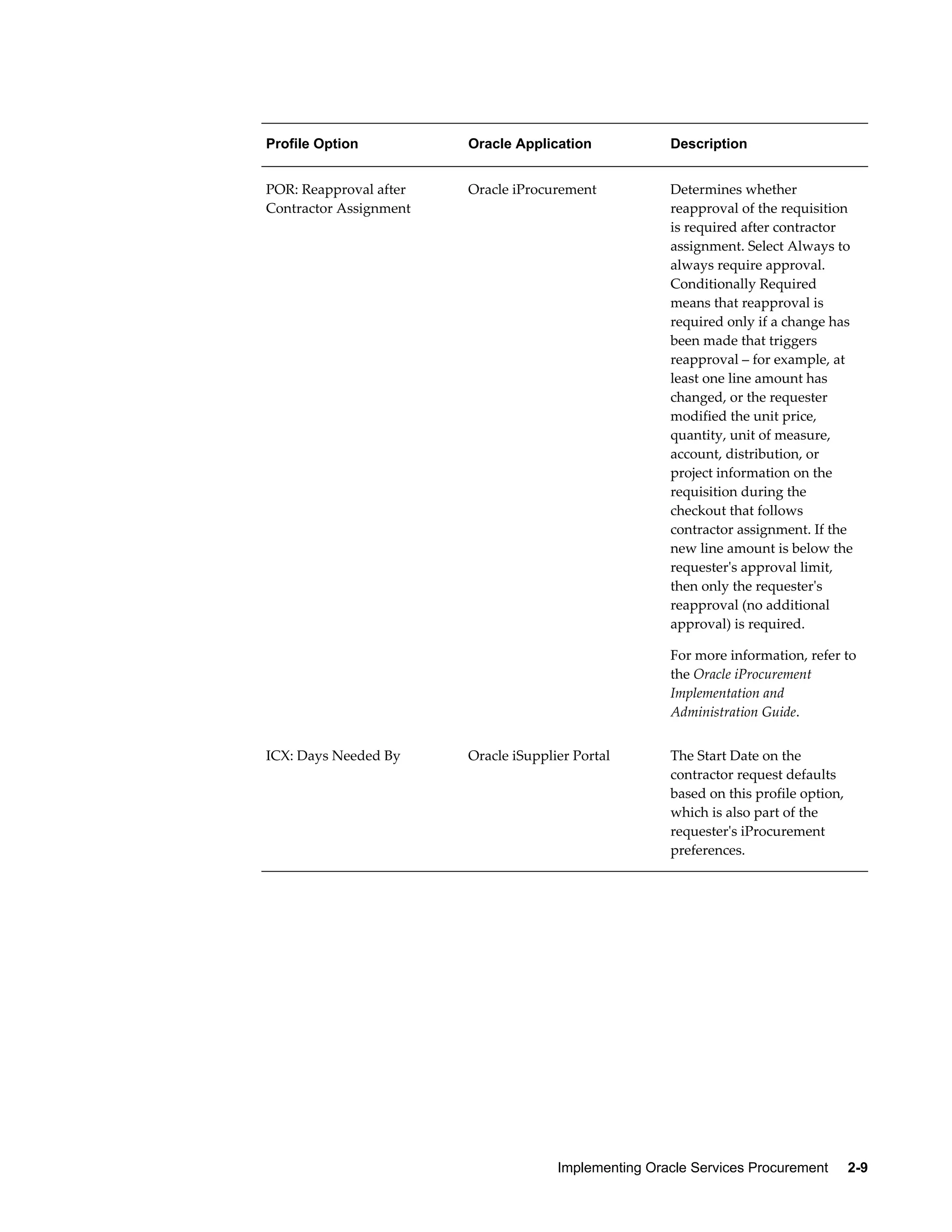
The following tables list the profile options with a reference to their Oracle Application,
a brief description, and the business flow.
Prerequisite Profile Option
Profile Option Oracle Application Description
PO: Enable Services
Procurement
Oracle Purchasing The value Yes indicates that
Oracle Services Procurement
is licensed and installed.
Setting this profile value to
Yes will enable service line
types in Oracle Sourcing and
Oracle Purchasing. When the
profile option is enabled,
buyers can create lines with
the following additional line
types:
• Fixed Price Services
• Fixed Price Temp Labor
• Rate based Temp Labor
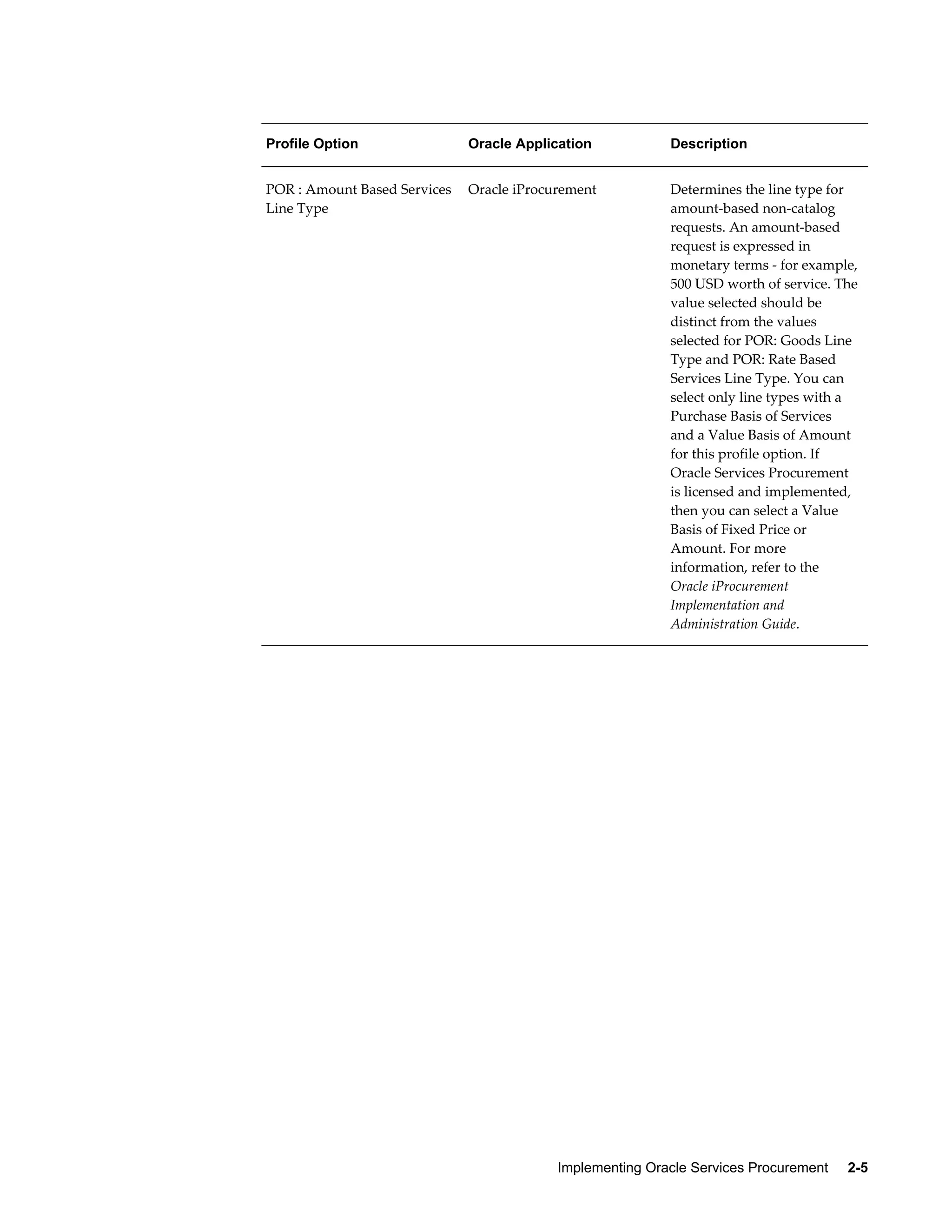
Profile Options to Process the Procurement of Complex Work
Oracle Services Procurement uses the following profile option in the procurement of
complex work business flow.
Implementing Oracle Services Procurement     2-5
Profile Option Oracle Application Description
POR : Amount Based Services
Line Type
Oracle iProcurement Determines the line type for
amount-based non-catalog
requests. An amount-based
request is expressed in
monetary terms - for example,
500 USD worth of service. The
value selected should be
distinct from the values
selected for POR: Goods Line
Type and POR: Rate Based
Services Line Type. You can
select only line types with a
Purchase Basis of Services
and a Value Basis of Amount
for this profile option. If
Oracle Services Procurement
is licensed and implemented,
then you can select a Value
Basis of Fixed Price or
Amount. For more
information, refer to the
Oracle iProcurement
Implementation and
Administration Guide.
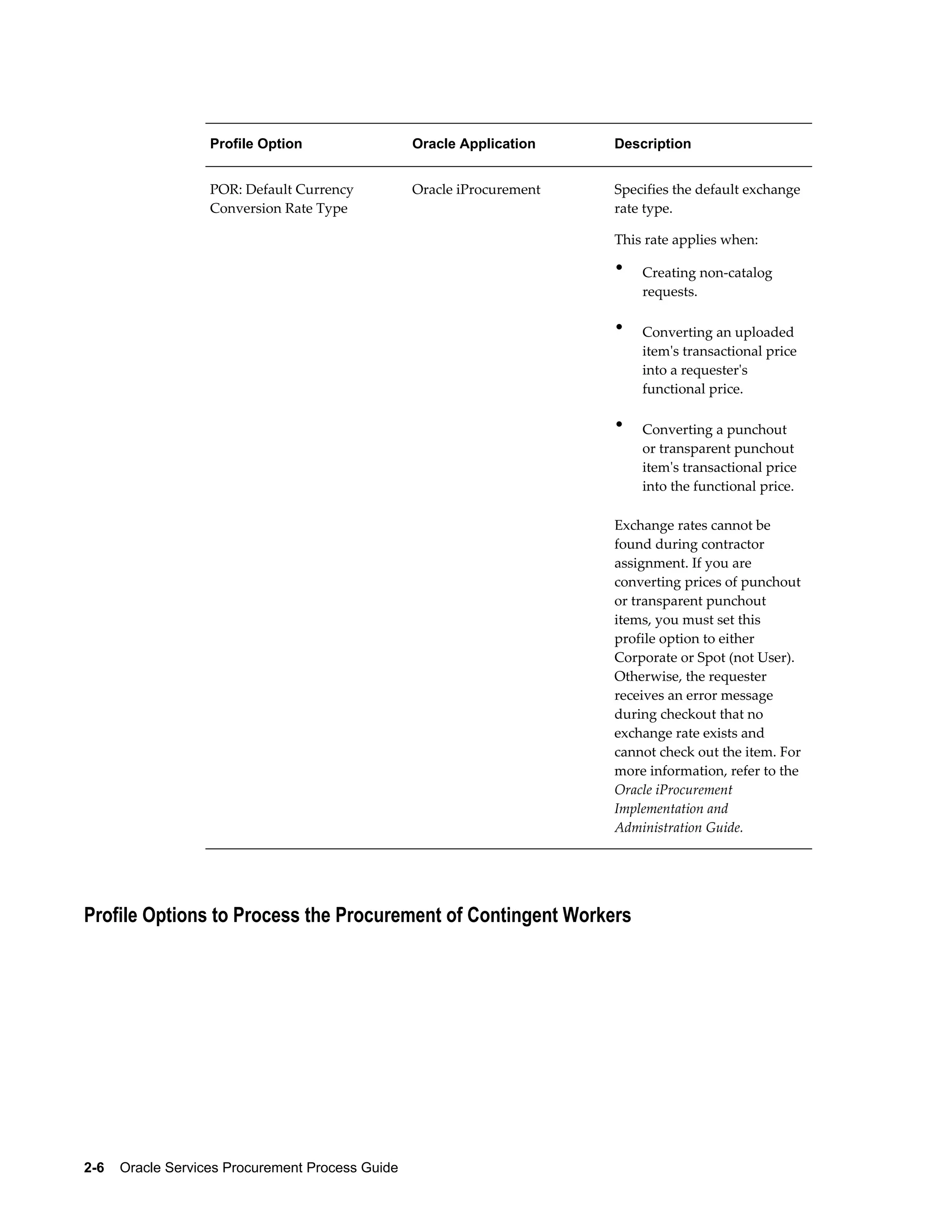
2-6    Oracle Services Procurement Process Guide
Profile Option Oracle Application Description
POR: Default Currency
Conversion Rate Type
Oracle iProcurement Specifies the default exchange
rate type.
This rate applies when:
• Creating non-catalog
requests.
• Converting an uploaded
item's transactional price
into a requester's
functional price.
• Converting a punchout
or transparent punchout
item's transactional price
into the functional price.
Exchange rates cannot be
found during contractor
assignment. If you are
converting prices of punchout
or transparent punchout
items, you must set this
profile option to either
Corporate or Spot (not User).
Otherwise, the requester
receives an error message
during checkout that no
exchange rate exists and
cannot check out the item. For
more information, refer to the
Oracle iProcurement
Implementation and
Administration Guide.
Profile Options to Process the Procurement of Contingent Workers
Implementing Oracle Services Procurement     2-7
Profile Option Oracle Application Description
PO: UOM class for Temp
Labor Services
Oracle Purchasing Controls the rate based temp
labor line type. For a rate
based temp labor line type,
entry of unit of measure
(UOM) is restricted to those in
this UOM class. For more
information, refer to the
Oracle Purchasing User's Guide.
POR: Rate Based Services
Line Type
Oracle iProcurement Specifies the line type for
rate-based non-catalog
requests. A rate-based request
is expressed as a monetary
charge for each time period.
The value selected must be
distinct from the values
selected for POR: Goods Line
Type and POR: Amount
Based Services Line Type.
Select only line types with a
Purchase Basis of Goods and
a Value Basis of Quantity for
this profile option. In Oracle
iProcurement, requisition
creation, the Services billed by
quantity item type
corresponds to the line type
selected in the POR: Rate
Based Services Line Type
profile option.
For more information, refer to
the Oracle iProcurement
Implementation and
Administration Guide.
PO: Contractor Assignment
Completion Warning Delay
Oracle Purchasing Yes indicates that the
contractor assignment
completion notification is sent
to the requester when the
assignment is complete.
For more information, refer to
the Oracle Purchasing User's
Guide.
2-8    Oracle Services Procurement Process Guide
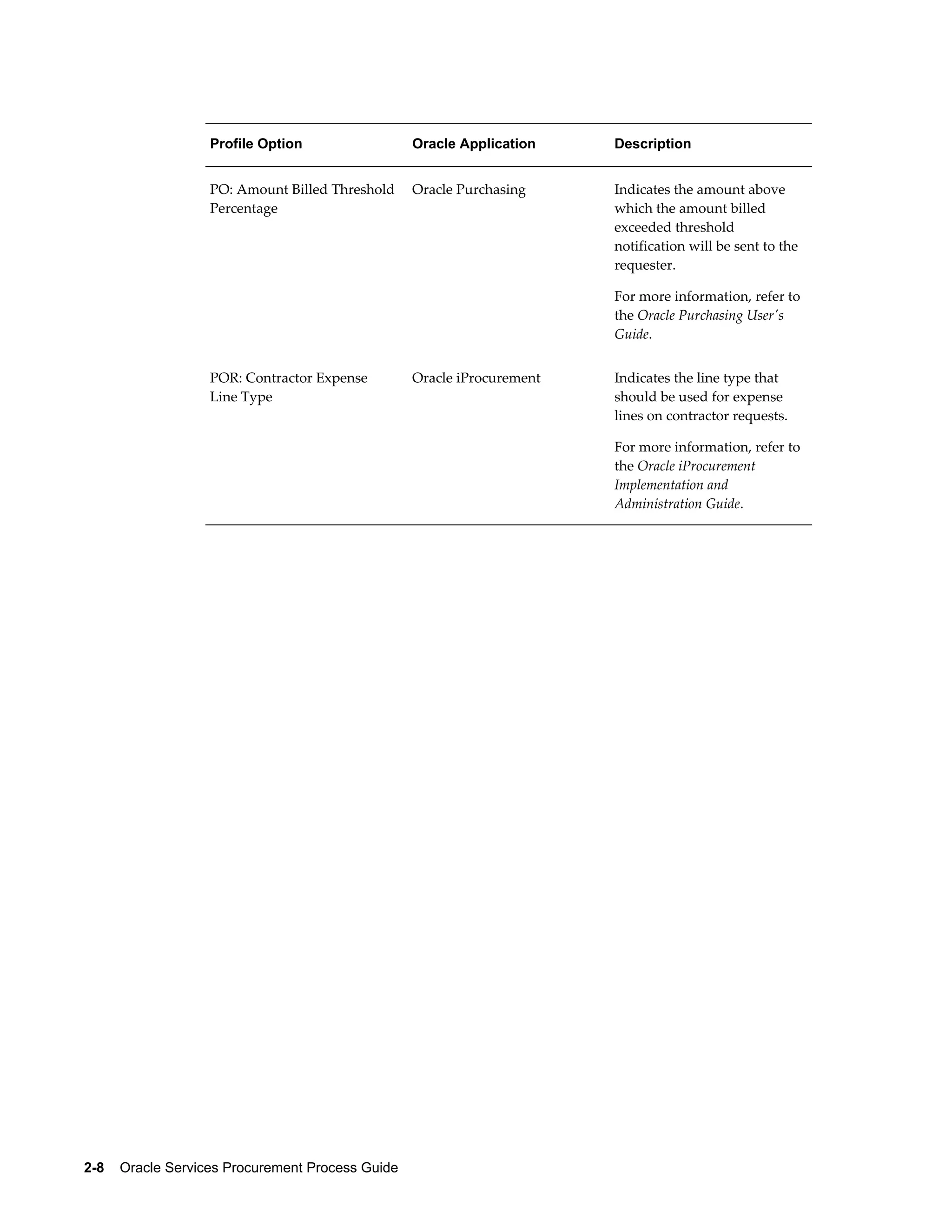
Profile Option Oracle Application Description
PO: Amount Billed Threshold
Percentage
Oracle Purchasing Indicates the amount above
which the amount billed
exceeded threshold
notification will be sent to the
requester.
For more information, refer to
the Oracle Purchasing User's
Guide.
POR: Contractor Expense
Line Type
Oracle iProcurement Indicates the line type that
should be used for expense
lines on contractor requests.
For more information, refer to
the Oracle iProcurement
Implementation and
Administration Guide.
Implementing Oracle Services Procurement     2-9
Profile Option Oracle Application Description
POR: Reapproval after
Contractor Assignment
Oracle iProcurement Determines whether
reapproval of the requisition
is required after contractor
assignment. Select Always to
always require approval.
Conditionally Required
means that reapproval is
required only if a change has
been made that triggers
reapproval – for example, at
least one line amount has
changed, or the requester
modified the unit price,
quantity, unit of measure,
account, distribution, or
project information on the
requisition during the
checkout that follows
contractor assignment. If the
new line amount is below the
requester's approval limit,
then only the requester's
reapproval (no additional
approval) is required.
For more information, refer to
the Oracle iProcurement
Implementation and
Administration Guide.
ICX: Days Needed By Oracle iSupplier Portal The Start Date on the
contractor request defaults
based on this profile option,
which is also part of the
requester's iProcurement
preferences.
2-10    Oracle Services Procurement Process Guide
Profile Option Oracle Application Description
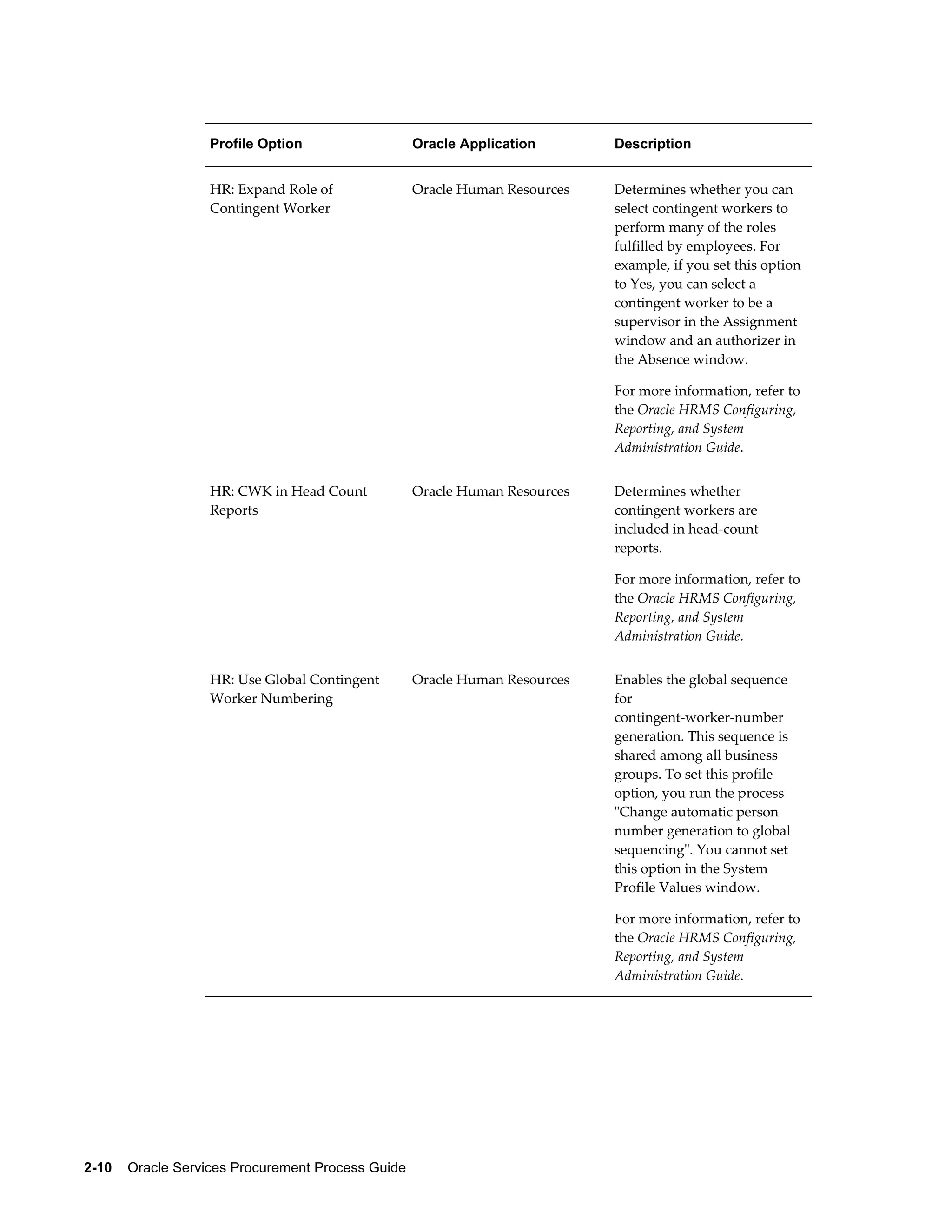
HR: Expand Role of
Contingent Worker
Oracle Human Resources Determines whether you can
select contingent workers to
perform many of the roles
fulfilled by employees. For
example, if you set this option
to Yes, you can select a
contingent worker to be a
supervisor in the Assignment
window and an authorizer in
the Absence window.
For more information, refer to
the Oracle HRMS Configuring,
Reporting, and System
Administration Guide.
HR: CWK in Head Count
Reports
Oracle Human Resources Determines whether
contingent workers are
included in head-count
reports.
For more information, refer to
the Oracle HRMS Configuring,
Reporting, and System
Administration Guide.
HR: Use Global Contingent
Worker Numbering
Oracle Human Resources Enables the global sequence
for
contingent-worker-number
generation. This sequence is
shared among all business
groups. To set this profile
option, you run the process
"Change automatic person
number generation to global
sequencing". You cannot set
this option in the System
Profile Values window.
For more information, refer to
the Oracle HRMS Configuring,
Reporting, and System
Administration Guide.
Implementing Oracle Services Procurement     2-11
Profile Option Oracle Application Description
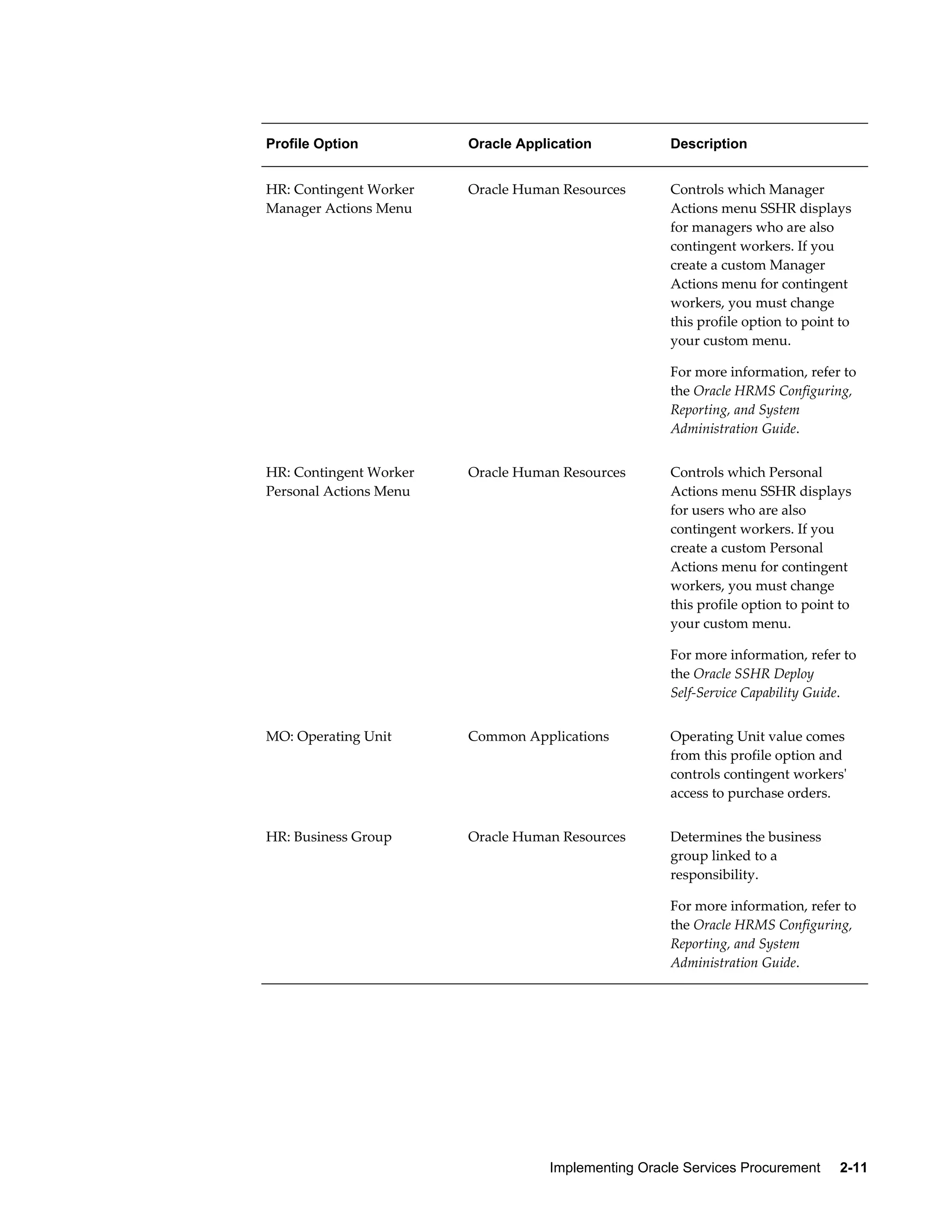
HR: Contingent Worker
Manager Actions Menu
Oracle Human Resources Controls which Manager
Actions menu SSHR displays
for managers who are also
contingent workers. If you
create a custom Manager
Actions menu for contingent
workers, you must change
this profile option to point to
your custom menu.
For more information, refer to
the Oracle HRMS Configuring,
Reporting, and System
Administration Guide.
HR: Contingent Worker
Personal Actions Menu
Oracle Human Resources Controls which Personal
Actions menu SSHR displays
for users who are also
contingent workers. If you
create a custom Personal
Actions menu for contingent
workers, you must change
this profile option to point to
your custom menu.
For more information, refer to
the Oracle SSHR Deploy
Self-Service Capability Guide.
MO: Operating Unit Common Applications Operating Unit value comes
from this profile option and
controls contingent workers'
access to purchase orders.
HR: Business Group Oracle Human Resources Determines the business
group linked to a
responsibility.
For more information, refer to
the Oracle HRMS Configuring,
Reporting, and System
Administration Guide.
2-12    Oracle Services Procurement Process Guide
Profile Option Oracle Application Description
HR: Security Profile Oracle Human Resources Restricts access to the
organization, positions and
payrolls defined in the
security profile.
For more information, refer to
the Oracle HRMS Configuring,
Reporting, and System
Administration Guide.
PA: Allow Time Entry of
Negative Hours
Oracle Projects Indicates whether you can
enter negative hours on
timecards in Oracle Time &
Labor.
For more information, refer to
the Oracle Projects
Implementation Guide.
PA: AutoApprove Timesheets Oracle Projects Indicates whether to
automatically approve
timecards submitted in Oracle
Time and Labor.
For more information, refer to
the Oracle Projects
Implementation Guide.
PA: Enable Business
Messages on Time Entry
Oracle Projects Indicates whether Oracle
Time and Labor displays a
business message.
For more information, refer to
the Oracle Projects
Implementation Guide.
PA: Override Approver Oracle Projects Indicates whether you can
enter an overriding approver
for timecards in Oracle Time
and Labor.
For more information, refer to
the Oracle Projects
Implementation Guide.
Implementing Oracle Services Procurement     2-13
Concurrent Programs Used in Oracle Services Procurement Business
Flows
This topic provides information on the concurrent programs that you run when
processing the following business flows in Oracle Services Procurement:
• Processing the procurement of complex work
• Processing the procurement of contingent workers
The following table lists the concurrent programs with a brief description and a
reference to their Oracle Application.
Concurrent Program Oracle Application Description Business Flow
PRC: Interface
Supplier Costs
Oracle Projects Supports the
implementation
option 'Import
contingent workers
time cards with PO
integration'. Retrieves
project-related
supplier costs and
interfaces them from
Oracle Purchasing
and Oracle Payables
to Oracle Projects.
For more information,
refer to the Oracle
Projects Fundamentals
Guide.
Contingent Worker
Procurement
2-14    Oracle Services Procurement Process Guide
Concurrent Program Oracle Application Description Business Flow
PRC: Distribute Labor
Costs
Oracle Projects Supports the
contingent labor
integration with
purchase orders, If
integration is set up
with Oracle
Purchasing, then the
labor-costing
program derives the
rate from the
purchase order line.
For contingent
worker timecards
with Oracle
Purchasing
integration, when you
run the process PRC:
Distribute Labor
Costs, Oracle Projects
uses rates from the
related purchase
order to calculate the
costs.
For more information,
refer to Oracle Projects
Fundamentals and
Oracle Project Costing
User Guide.
Contingent Worker
Procurement
PRC: Distribute Total
Burdened Costs
Oracle Projects Creates the total
burdened cost
distribution lines for
all transactions
charged to burdened
projects, even if the
transaction is not
burdened, to account
for the total project
costs in the cost WIP
account.
For more information,
refer to the Oracle
Project Costing User
Guide.
Complex Work
Procurement
Implementing Oracle Services Procurement     2-15
Concurrent Program Oracle Application Description Business Flow
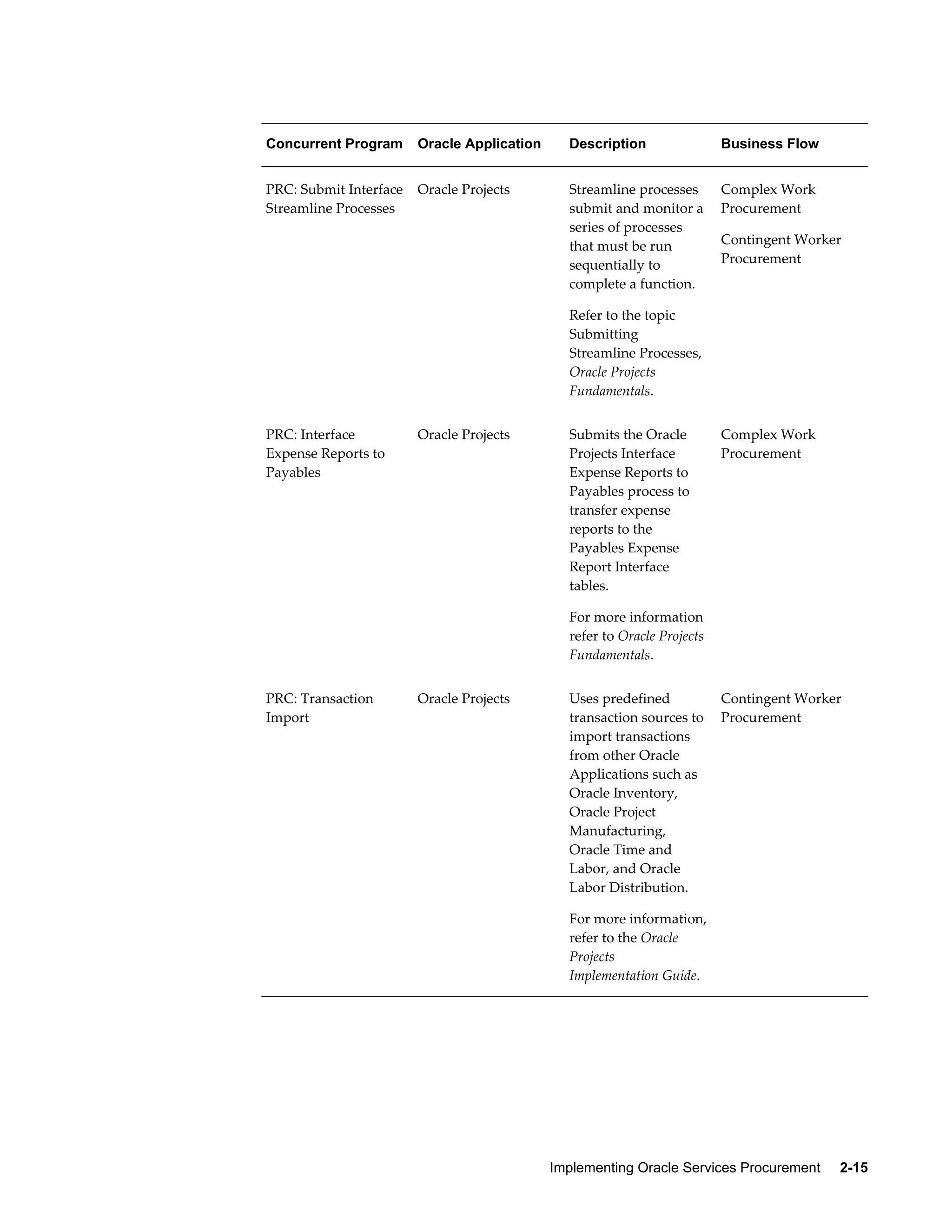
PRC: Submit Interface
Streamline Processes
Oracle Projects Streamline processes
submit and monitor a
series of processes
that must be run
sequentially to
complete a function.
Refer to the topic
Submitting
Streamline Processes,
Oracle Projects
Fundamentals.
Complex Work
Procurement
Contingent Worker
Procurement
PRC: Interface
Expense Reports to
Payables
Oracle Projects Submits the Oracle
Projects Interface
Expense Reports to
Payables process to
transfer expense
reports to the
Payables Expense
Report Interface
tables.
For more information
refer to Oracle Projects
Fundamentals.
Complex Work
Procurement
PRC: Transaction
Import
Oracle Projects Uses predefined
transaction sources to
import transactions
from other Oracle
Applications such as
Oracle Inventory,
Oracle Project
Manufacturing,
Oracle Time and
Labor, and Oracle
Labor Distribution.
For more information,
refer to the Oracle
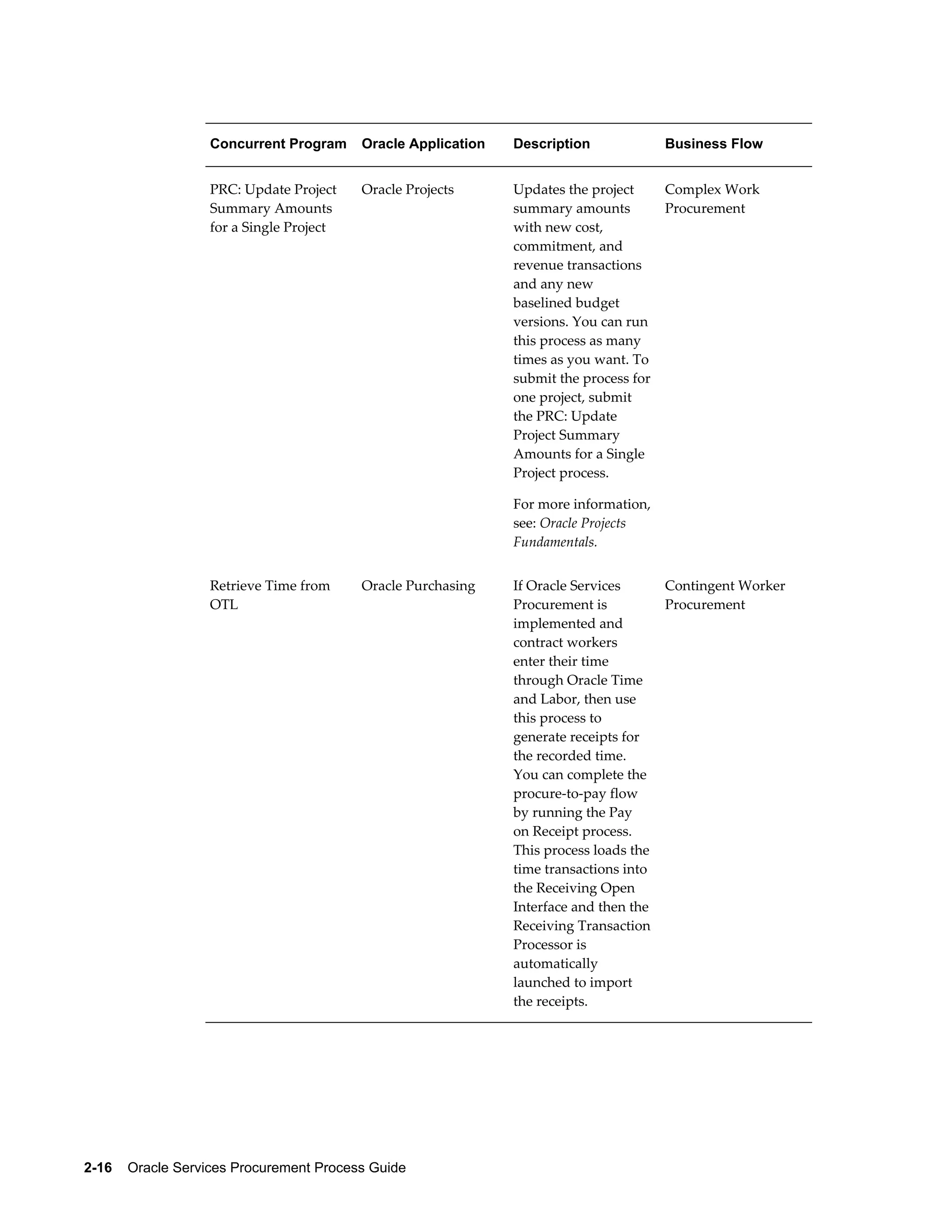
Projects
Implementation Guide.
Contingent Worker
Procurement
2-16    Oracle Services Procurement Process Guide
Concurrent Program Oracle Application Description Business Flow
PRC: Update Project
Summary Amounts
for a Single Project
Oracle Projects Updates the project
summary amounts
with new cost,
commitment, and
revenue transactions
and any new
baselined budget
versions. You can run
this process as many
times as you want. To
submit the process for
one project, submit
the PRC: Update
Project Summary
Amounts for a Single
Project process.
For more information,
see: Oracle Projects
Fundamentals.
Complex Work
Procurement
Retrieve Time from
OTL
Oracle Purchasing If Oracle Services
Procurement is
implemented and
contract workers
enter their time
through Oracle Time
and Labor, then use
this process to
generate receipts for
the recorded time.
You can complete the
procure-to-pay flow
by running the Pay
on Receipt process.
This process loads the
time transactions into
the Receiving Open
Interface and then the
Receiving Transaction
Processor is
automatically
launched to import
the receipts.
Contingent Worker
Procurement
Implementing Oracle Services Procurement     2-17
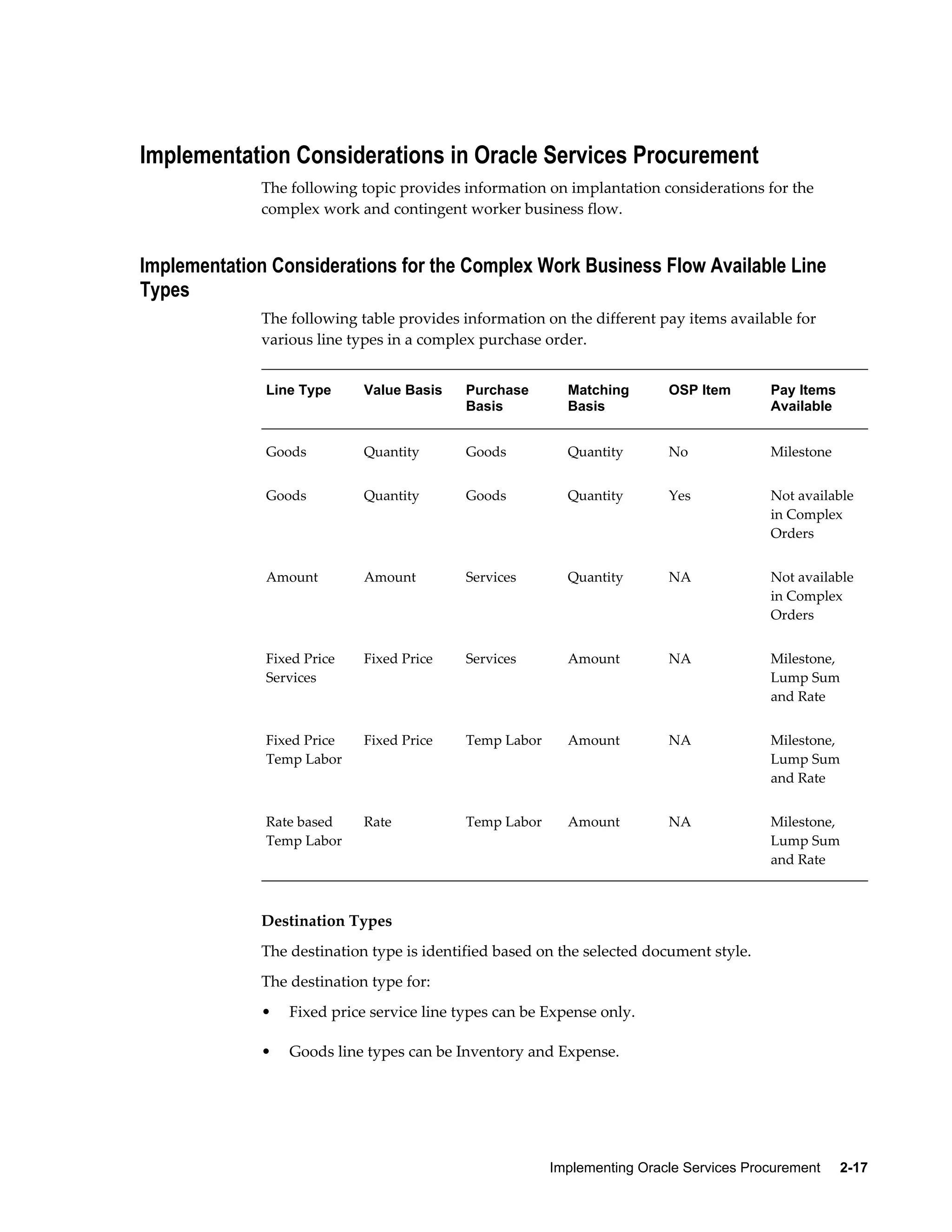
Implementation Considerations in Oracle Services Procurement
The following topic provides information on implantation considerations for the
complex work and contingent worker business flow.
Implementation Considerations for the Complex Work Business Flow Available Line
Types
The following table provides information on the different pay items available for
various line types in a complex purchase order.
Line Type Value Basis Purchase
Basis
Matching
Basis
OSP Item Pay Items
Available
Goods Quantity Goods Quantity No Milestone
Goods Quantity Goods Quantity Yes Not available
in Complex
Orders
Amount Amount Services Quantity NA Not available
in Complex
Orders
Fixed Price
Services
Fixed Price Services Amount NA Milestone,
Lump Sum
and Rate
Fixed Price
Temp Labor
Fixed Price Temp Labor Amount NA Milestone,
Lump Sum
and Rate
Rate based
Temp Labor
Rate Temp Labor Amount NA Milestone,
Lump Sum
and Rate
Destination Types
The destination type is identified based on the selected document style.
The destination type for:
• Fixed price service line types can be Expense only.
• Goods line types can be Inventory and Expense.
2-18    Oracle Services Procurement Process Guide
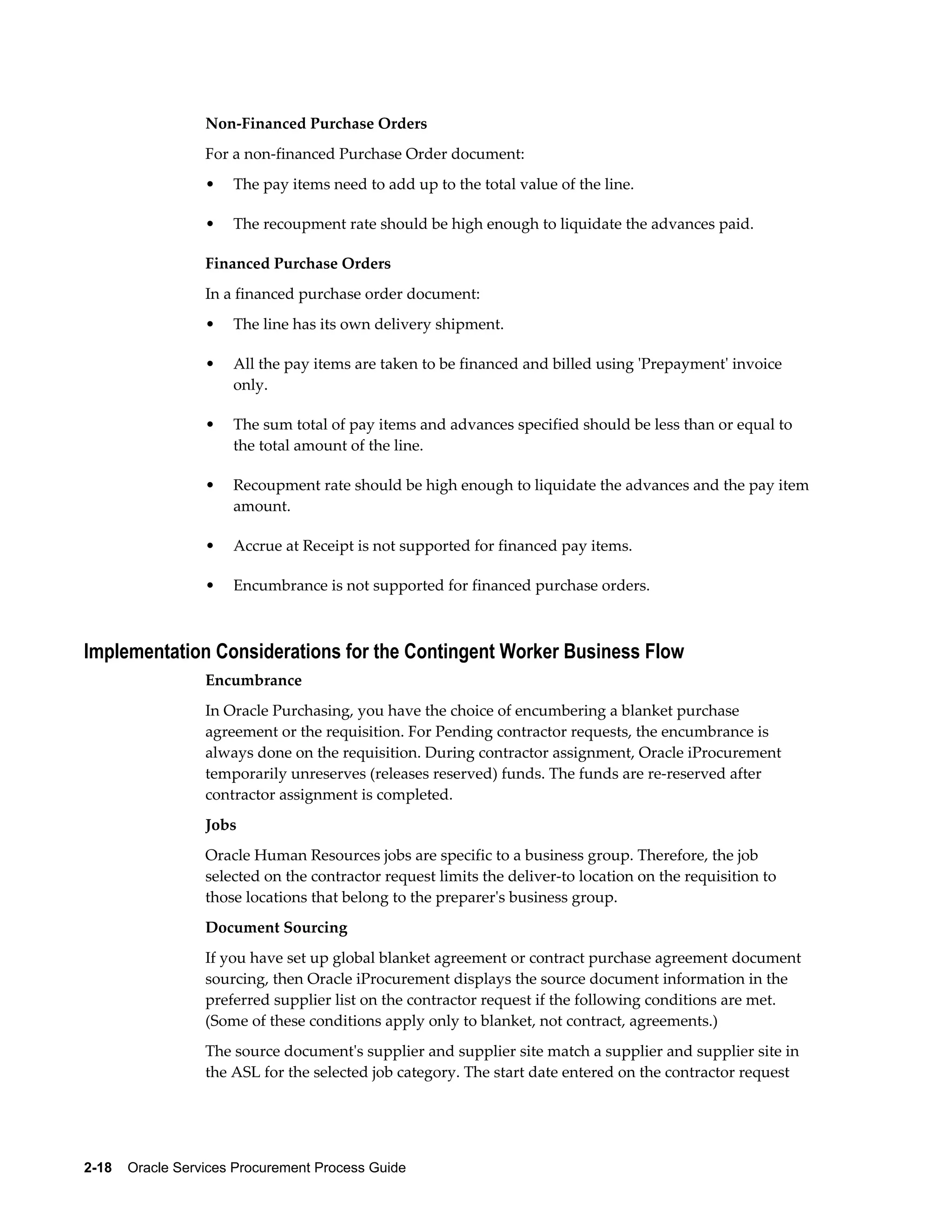
Non-Financed Purchase Orders
For a non-financed Purchase Order document:
• The pay items need to add up to the total value of the line.
• The recoupment rate should be high enough to liquidate the advances paid.
Financed Purchase Orders
In a financed purchase order document:
• The line has its own delivery shipment.
• All the pay items are taken to be financed and billed using 'Prepayment' invoice
only.
• The sum total of pay items and advances specified should be less than or equal to
the total amount of the line.
• Recoupment rate should be high enough to liquidate the advances and the pay item
amount.
• Accrue at Receipt is not supported for financed pay items.
• Encumbrance is not supported for financed purchase orders.
Implementation Considerations for the Contingent Worker Business Flow
Encumbrance
In Oracle Purchasing, you have the choice of encumbering a blanket purchase
agreement or the requisition. For Pending contractor requests, the encumbrance is
always done on the requisition. During contractor assignment, Oracle iProcurement
temporarily unreserves (releases reserved) funds. The funds are re-reserved after
contractor assignment is completed.
Jobs
Oracle Human Resources jobs are specific to a business group. Therefore, the job
selected on the contractor request limits the deliver-to location on the requisition to
those locations that belong to the preparer's business group.
Document Sourcing
If you have set up global blanket agreement or contract purchase agreement document
sourcing, then Oracle iProcurement displays the source document information in the
preferred supplier list on the contractor request if the following conditions are met.
(Some of these conditions apply only to blanket, not contract, agreements.)
The source document's supplier and supplier site match a supplier and supplier site in
the ASL for the selected job category. The start date entered on the contractor request
Implementing Oracle Services Procurement     2-19
must fall within the effective dates of the source document.
Price break information from the source document is used, based on the deliver-to
location selected on the contractor request and the date the request was created. That is,
if the date that the request was created is within the effective dates on the price break,
then that price break is used. The line type on the source document must match the line
type on the contractor request. For example, if a Type of Fixed Price Temporary Labor is
selected on the contractor request, then only source document lines with this line type
appear.
Note: Oracle iProcurement does not obtain new source document information if the
requester changes the start date during contractor assignment or changes the
requisition later using the Change button. If the currency on the global blanket
agreement differs from the requester's functional currency, then Oracle iProcurement
uses the exchange rate in the system to perform a currency conversion. If an exchange
rate cannot be found, then Oracle iProcurement uses the exchange rate the POR: Default
Currency Conversion Rate Type profile option determined.
Descriptive Flexfields
For contractor requests, descriptive flexfields do not appear in the shopping cart, even if
you use Oracle Applications Framework personalization to display them.
Overview of Implementing Oracle Services Procurement
To implement Oracle Services Procurement, set the PO: Enable Services Procurement
profile option to Yes.
Analyze your business requirements and complete the following steps to use Oracle
Services Procurement.
• Setting Up Steps to Process the Procurement of Complex Work. See: Overview of
Setting Up Steps to Process the Procurement of Complex Work, page 2-19
• Setting Up Steps to Process the Procurement of Contingent Workers. See: Overview
of Setting Up Steps to Process the Procurement of Contingent Workers, page 2-42
Overview of Setting Up Steps to Process the Procurement of Complex
Work
This topic provides an overview of setting up steps to process the procurement of
complex work.
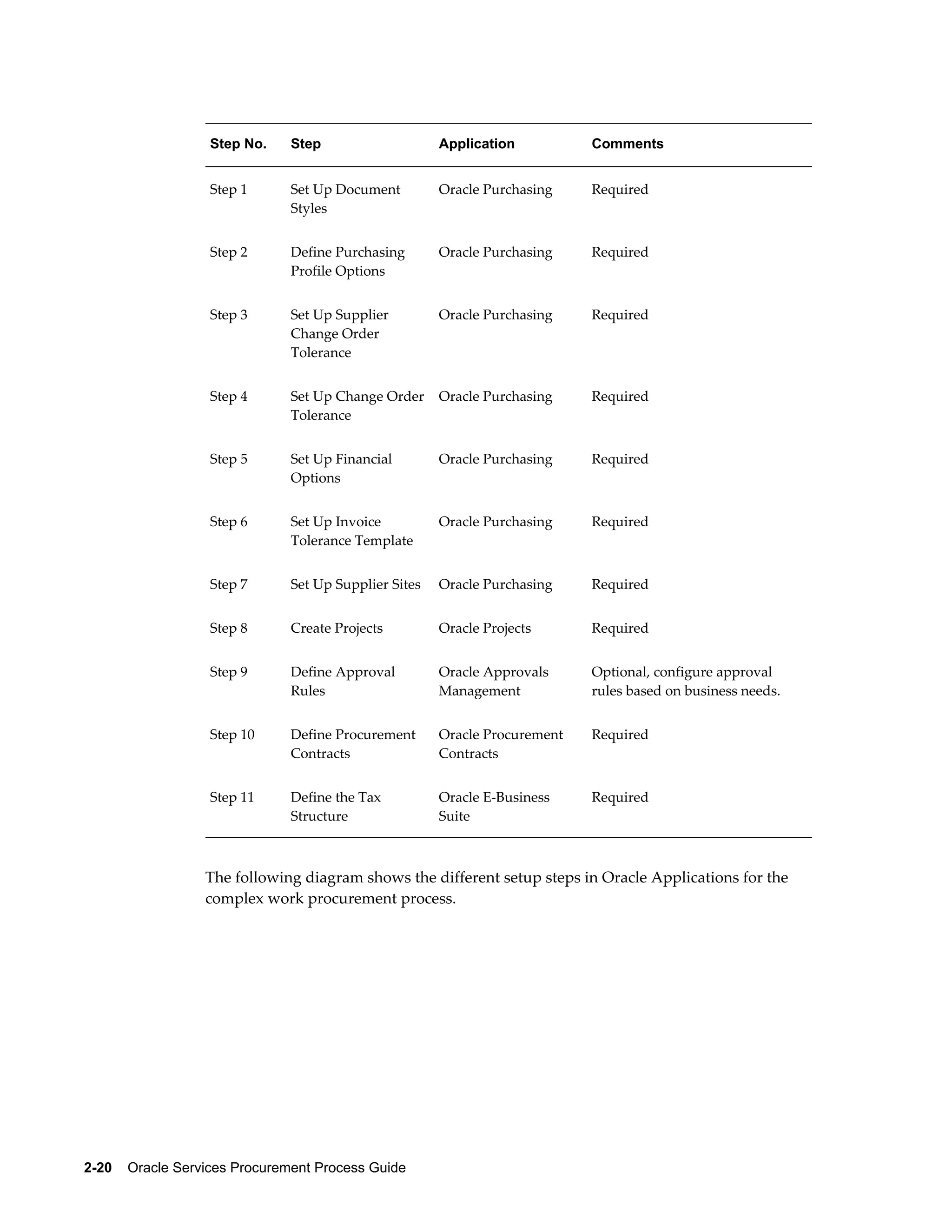
The following table lists the setup steps and a reference to their Oracle Application.
2-20    Oracle Services Procurement Process Guide
Step No. Step Application Comments
Step 1 Set Up Document
Styles
Oracle Purchasing Required
Step 2 Define Purchasing
Profile Options
Oracle Purchasing Required
Step 3 Set Up Supplier
Change Order
Tolerance
Oracle Purchasing Required
Step 4 Set Up Change Order
Tolerance
Oracle Purchasing Required
Step 5 Set Up Financial
Options
Oracle Purchasing Required
Step 6 Set Up Invoice
Tolerance Template
Oracle Purchasing Required
Step 7 Set Up Supplier Sites Oracle Purchasing Required
Step 8 Create Projects Oracle Projects Required
Step 9 Define Approval
Rules
Oracle Approvals
Management
Optional, configure approval
rules based on business needs.
Step 10 Define Procurement
Contracts
Oracle Procurement
Contracts
Required
Step 11 Define the Tax
Structure
Oracle E-Business
Suite
Required
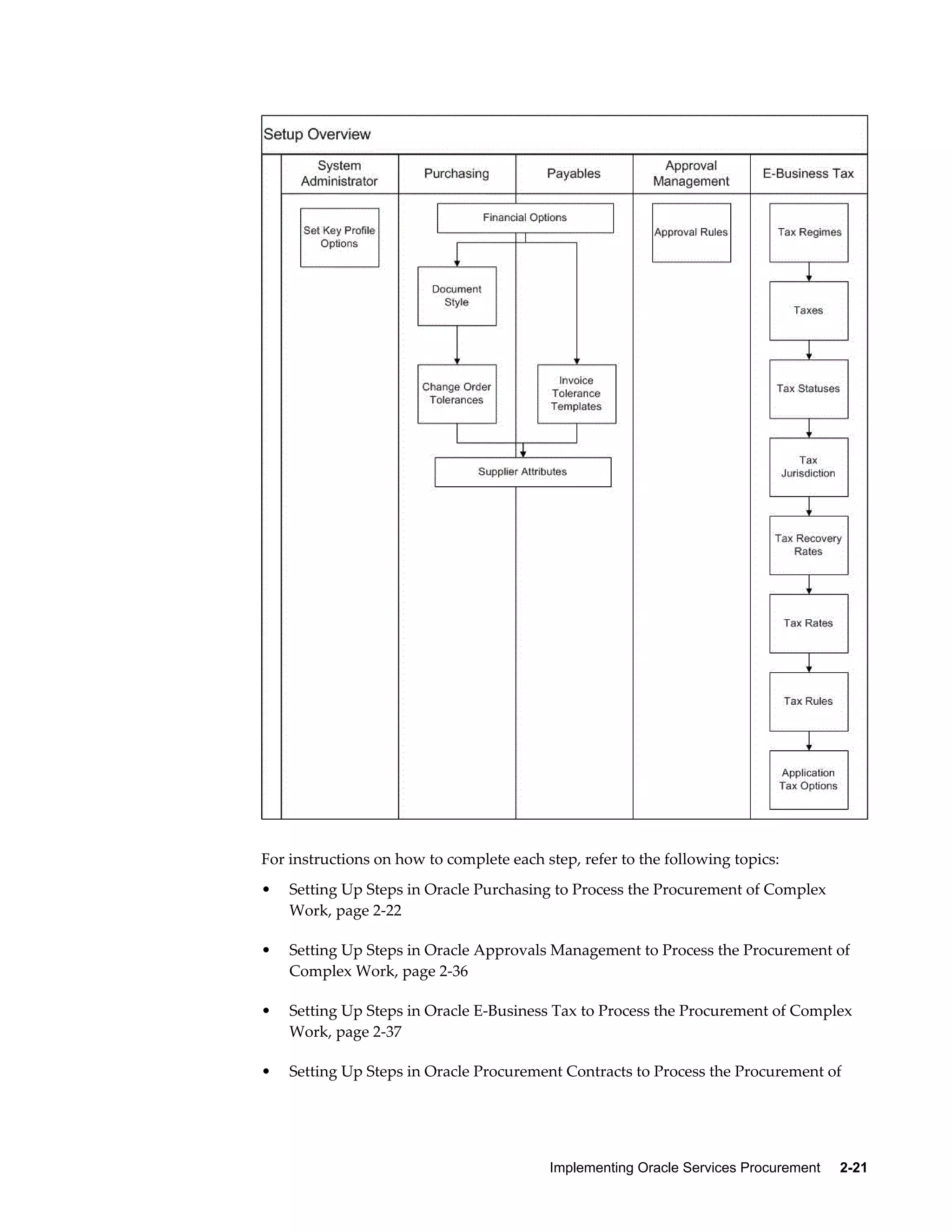
The following diagram shows the different setup steps in Oracle Applications for the
complex work procurement process.
Implementing Oracle Services Procurement     2-21
For instructions on how to complete each step, refer to the following topics:
• Setting Up Steps in Oracle Purchasing to Process the Procurement of Complex
Work, page 2-22
• Setting Up Steps in Oracle Approvals Management to Process the Procurement of
Complex Work, page 2-36
• Setting Up Steps in Oracle E-Business Tax to Process the Procurement of Complex
Work, page 2-37
• Setting Up Steps in Oracle Procurement Contracts to Process the Procurement of
2-22    Oracle Services Procurement Process Guide
Complex Work, page 2-41
Setting Up Steps in Oracle Purchasing to Process the Procurement of
Complex Work
This topic describes the setup steps in Oracle Purchasing to process the procurement of
complex work.
1. Define the Key Profile Option
POR : Amount Based Services Line Type: You must define this profile option that
determines how services are to be quantified and ordered on the contract
document. To use the Complex Services processes, the value of this profile option
must be set to Fixed Price Services, which means that services will be ordered as a
lump sum amount.
• Fixed Price Services: Services will be ordered as Lump Sum Amount
• Amount Based: Services will be ordered as a quantity with unit price as 1
2. Set Up Document Styles
Purchase order document styles allow organizations to control the look and feel of
the application to match the usage of the purchasing document.
Use the Document Styles page (Setup > Purchasing > Document Styles) to create
and update purchase order styles. This page enables you to create document styles
for complex work orders (Actuals and Finance).
To create a document style for the complex work process:
In the Create Document Style page:
• Enter details such as the name, description and status.
Implementing Oracle Services Procurement     2-23
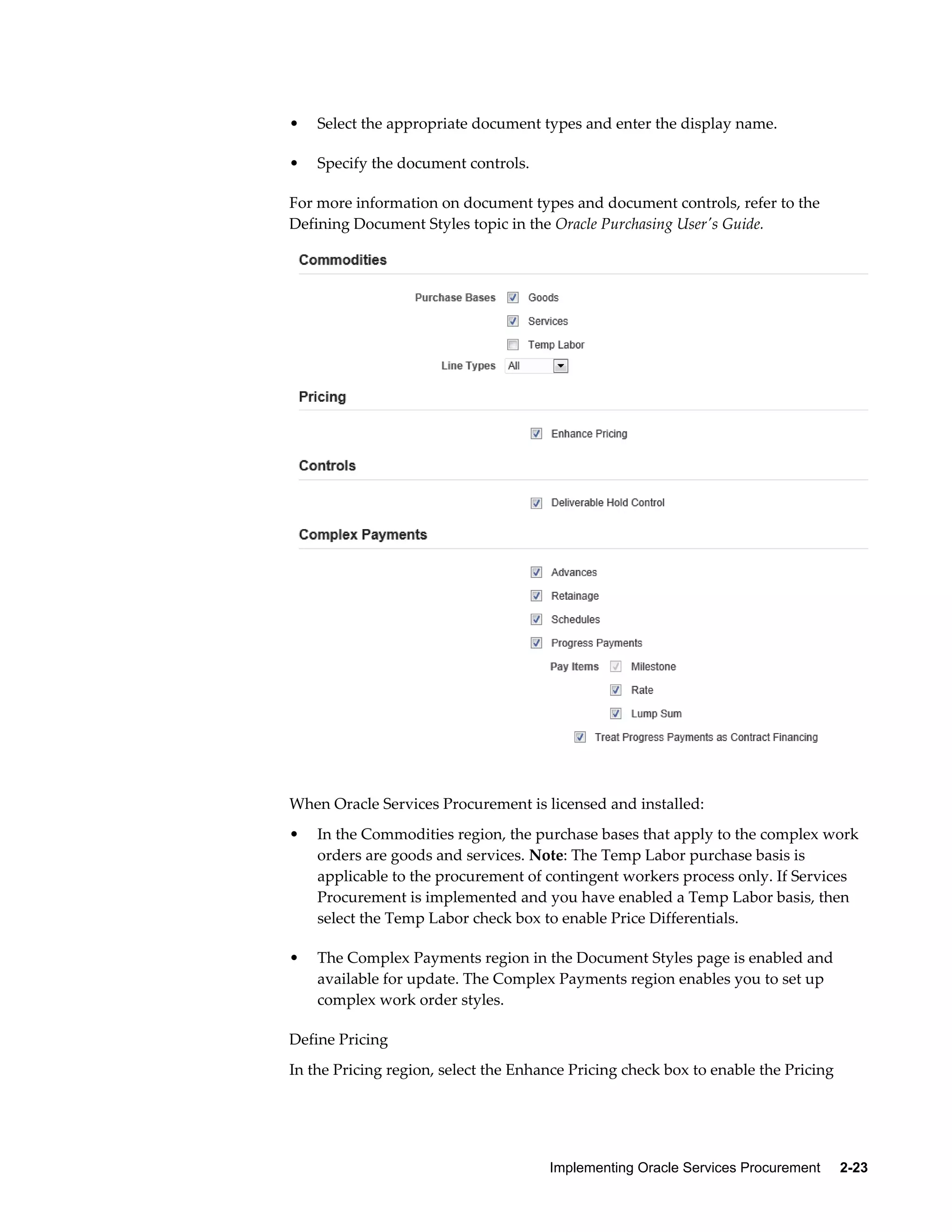
• Select the appropriate document types and enter the display name.
• Specify the document controls.
For more information on document types and document controls, refer to the
Defining Document Styles topic in the Oracle Purchasing User's Guide.
When Oracle Services Procurement is licensed and installed:
• In the Commodities region, the purchase bases that apply to the complex work
orders are goods and services. Note: The Temp Labor purchase basis is
applicable to the procurement of contingent workers process only. If Services
Procurement is implemented and you have enabled a Temp Labor basis, then
select the Temp Labor check box to enable Price Differentials.
• The Complex Payments region in the Document Styles page is enabled and
available for update. The Complex Payments region enables you to set up
complex work order styles.
Define Pricing
In the Pricing region, select the Enhance Pricing check box to enable the Pricing
2-24    Oracle Services Procurement Process Guide
Transparency functionality.
Set Controls
Select the Deliverable Hold Control check box to initiate payment hold by
deliverables under the Controls region. You can create a procurement contract
deliverable that will place invoices on hold until the deliverable is submitted by the
supplier and completed by the buyer. The Deliverable Hold Control option enables
you to hold a payment independent of 'Pay when Paid'.
Enable the Complex Payments Attributes
• Check Advances if advance payments are to be allowed.
• Check Retainage if withholding of a portion of the payment until all work
under a contract is accepted is to be allowed.
• Check Schedules if you want purchase orders using this document style to have
schedules. The Schedules check box is not selected by default. If you select the
Schedules check box, then the Purchase Order (in this case, the complex work
order) using this document style will have schedules. When you save this
document style, the Schedules check box is not updateable at a later point in
time.
• Check Progress Payments to enable partial payments during performance of the
contract. If Progress Payments is enabled, at least one pay item must be
selected.
• Milestone - Enable for payments based on progress events. Enabled by
default for Goods line type.
• Rate - Enable when payment amount is pro-rated based on the percentage
of work completed.
• Lump Sum - Enable when payment amount is a fixed amount based on the
percentage of work completed.
• Initially, both check boxes (Schedules and Progress Payments) are unselected if
Services Procurement is installed. You must select either Progress Payment or
Schedules or both, otherwise an error message displays.
• Enable Treat Progress Payments as Contract Financing if it applies to the style's
progress payments. The check box Treat Progress Payments as Contract
Financing allows every payment released for work performed on the progress
payment schedule to be treated as a financing payment that are recouped from
payments for deliveries on the contract.
When the Progress Payments and Schedules check boxes are selected in the
document style of the outcome document, users can create lines with or without
Implementing Oracle Services Procurement     2-25
pay items in Sourcing documents.
• If the document style of the outcome document has Schedules and Progress
Payments enabled, in the RFQ, if there are no pay items defined for those RFQ
lines, then the lines are taken to be items which are to be received either at an
Inventory location or at an Expense destination.
• If the document style of the outcome document has Schedules and Progress
Payments enabled, in the RFQ, if there are pay items defined, then those lines
are taken to be Pay item lines and the pay items are copied on to the order
document; progress of these pay items are tracked using Work Confirmations.
If you select Advances and Retainage check boxes in the document style, then users
can create standard purchase orders with advances and retainage.
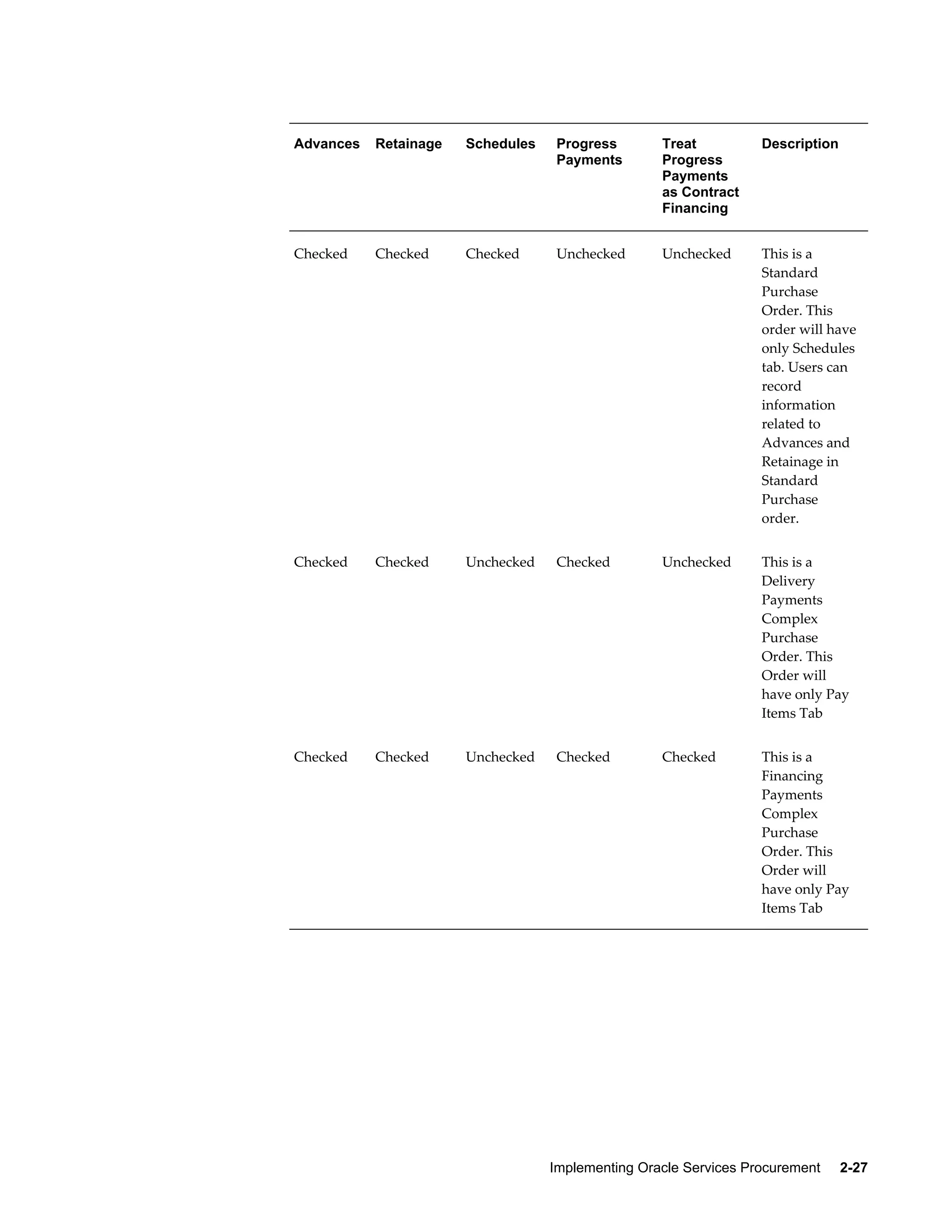
In the Complex Payments region, if you select the Advances, Retainage and
Schedules check boxes and if the Progress Payments and Treat Progress Payments
as Contract Financing check boxes are not selected, then you will be able to create
Standard Purchase Orders with Advances and Retainage.
However, if you select the Advances, Retainage and Schedules check boxes and if
the Progress Payments and Treat Progress Payments as Contract Financing check
boxes are not selected, then the document style supports the creation of Blanket
Purchase Agreements as well.
When you save the document style, you cannot update the style with Complex
Payments changes (Advances, Retainage, Progress Payments, Treat Progress
Payments as Contract Financing) at a later point in time.
When the document style has Advances and Retainage enabled, then the following
fields are available in the pages listed: Advance Amount, Recoupment Rate (%),
Maximum Retainage Amount, Retainage Rate (%). Progress Payments Percentage is
displayed when the Treat Progress Payment as Contract Financing check box is
selected in the document style. The pages/documents are:
• Create Negotiation Line
• Review Negotiation Line
• View Negotiation
• Create Bid Line
• Review Bid Line
• View Bid
• Analyze by Line
• Award by Line
2-26    Oracle Services Procurement Process Guide
• Amendment History
• Create Template
• PDF Document
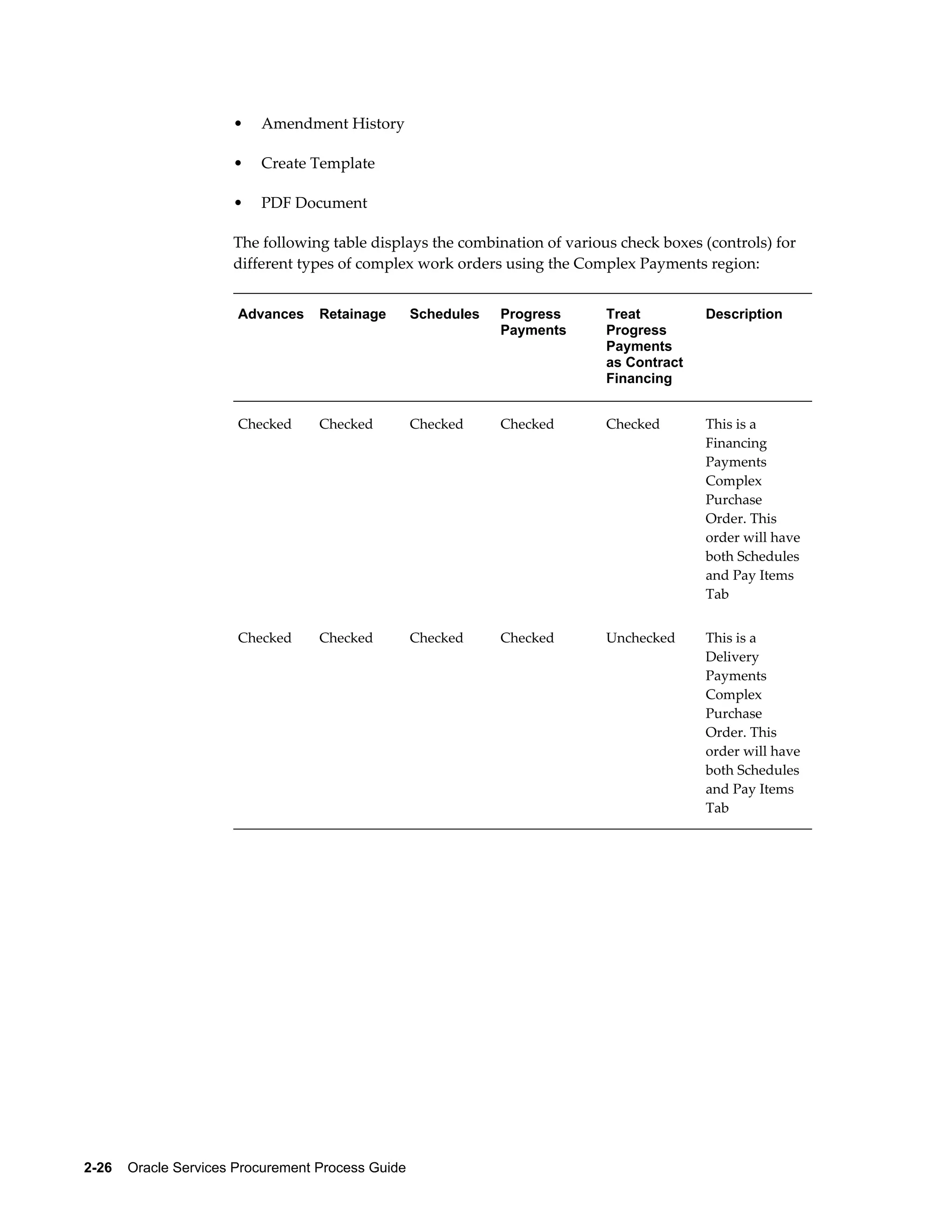
The following table displays the combination of various check boxes (controls) for
different types of complex work orders using the Complex Payments region:
Advances Retainage Schedules Progress
Payments
Treat
Progress
Payments
as Contract
Financing
Description
Checked Checked Checked Checked Checked This is a
Financing
Payments
Complex
Purchase
Order. This
order will have
both Schedules
and Pay Items
Tab
Checked Checked Checked Checked Unchecked This is a
Delivery
Payments
Complex
Purchase
Order. This
order will have
both Schedules
and Pay Items
Tab
Implementing Oracle Services Procurement     2-27
Advances Retainage Schedules Progress
Payments
Treat
Progress
Payments
as Contract
Financing
Description
Checked Checked Checked Unchecked Unchecked This is a
Standard
Purchase
Order. This
order will have
only Schedules
tab. Users can
record
information
related to
Advances and
Retainage in
Standard
Purchase
order.
Checked Checked Unchecked Checked Unchecked This is a
Delivery
Payments
Complex
Purchase
Order. This
Order will
have only Pay
Items Tab
Checked Checked Unchecked Checked Checked This is a
Financing
Payments
Complex
Purchase
Order. This
Order will
have only Pay
Items Tab
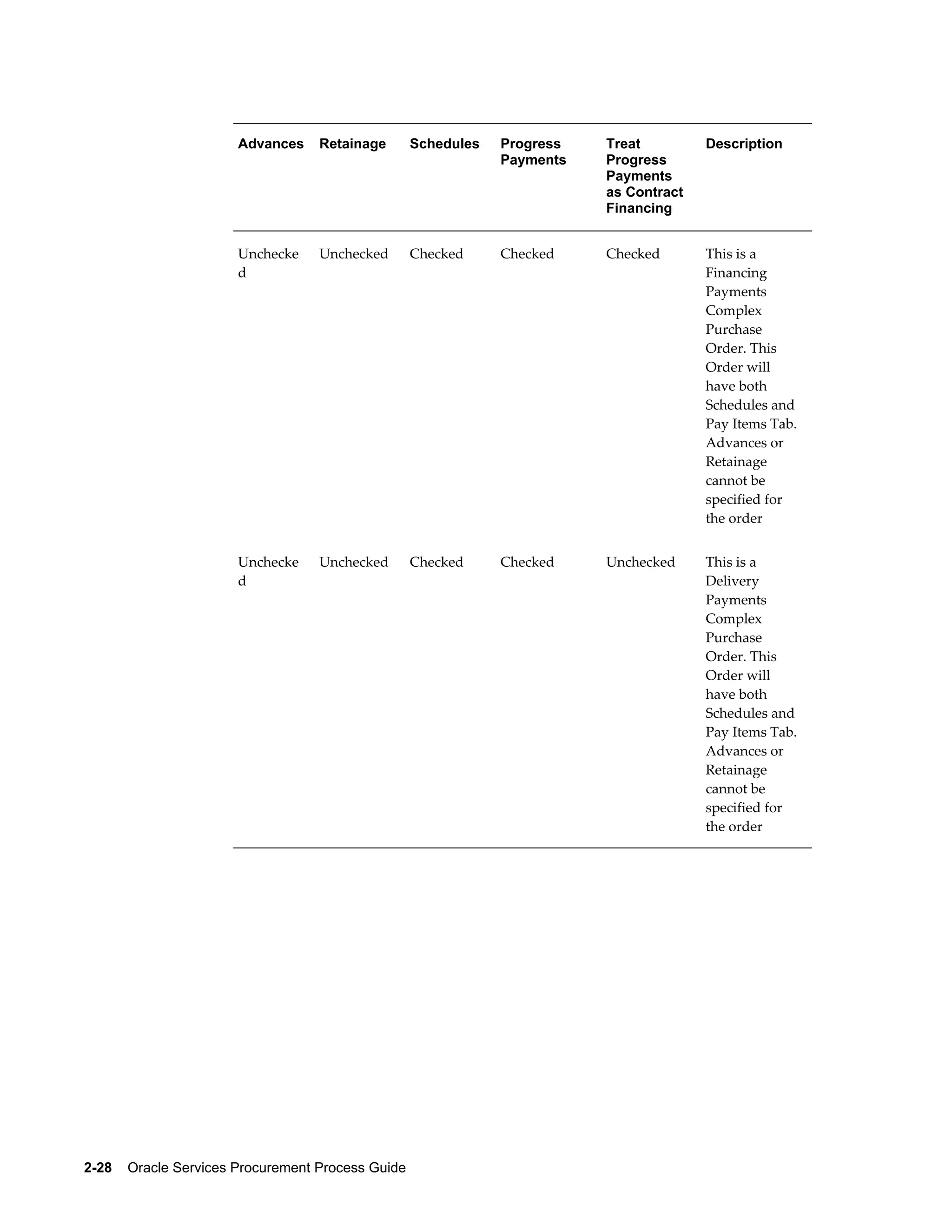
2-28    Oracle Services Procurement Process Guide
Advances Retainage Schedules Progress
Payments
Treat
Progress
Payments
as Contract
Financing
Description
Unchecke
d
Unchecked Checked Checked Checked This is a
Financing
Payments
Complex
Purchase
Order. This
Order will
have both
Schedules and
Pay Items Tab.
Advances or
Retainage
cannot be
specified for
the order
Unchecke
d
Unchecked Checked Checked Unchecked This is a
Delivery
Payments
Complex
Purchase
Order. This
Order will
have both
Schedules and
Pay Items Tab.
Advances or
Retainage
cannot be
specified for
the order
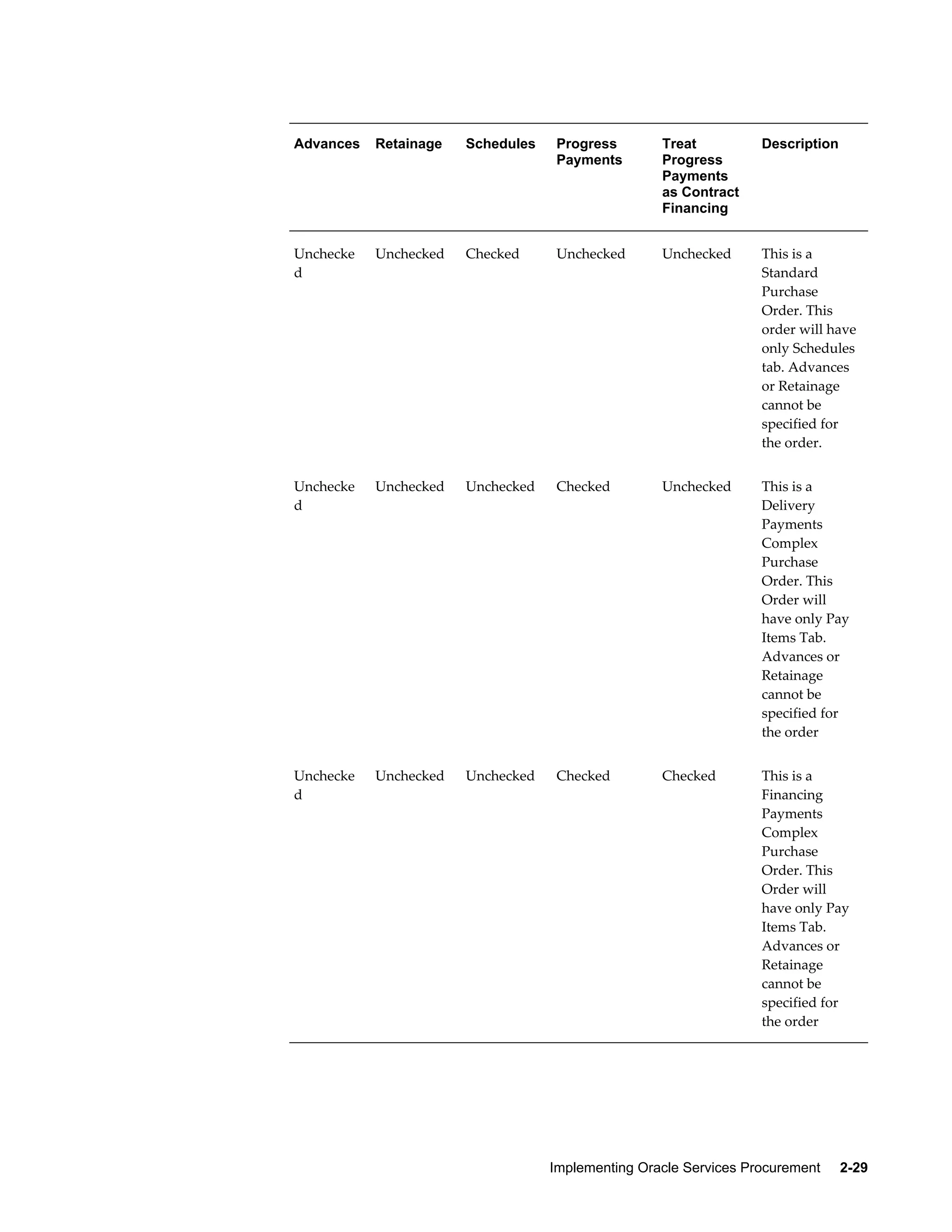
Implementing Oracle Services Procurement     2-29
Advances Retainage Schedules Progress
Payments
Treat
Progress
Payments
as Contract
Financing
Description
Unchecke
d
Unchecked Checked Unchecked Unchecked This is a
Standard
Purchase
Order. This
order will have
only Schedules
tab. Advances
or Retainage
cannot be
specified for
the order.
Unchecke
d
Unchecked Unchecked Checked Unchecked This is a
Delivery
Payments
Complex
Purchase
Order. This
Order will
have only Pay
Items Tab.
Advances or
Retainage
cannot be
specified for
the order
Unchecke
d
Unchecked Unchecked Checked Checked This is a
Financing
Payments
Complex
Purchase
Order. This
Order will
have only Pay
Items Tab.
Advances or
Retainage
cannot be
specified for
the order
2-30    Oracle Services Procurement Process Guide
If Services Procurement is installed and if document styles exist, then the Schedules
check box is unselected. You cannot update the Schedules check box for existing
document styles.
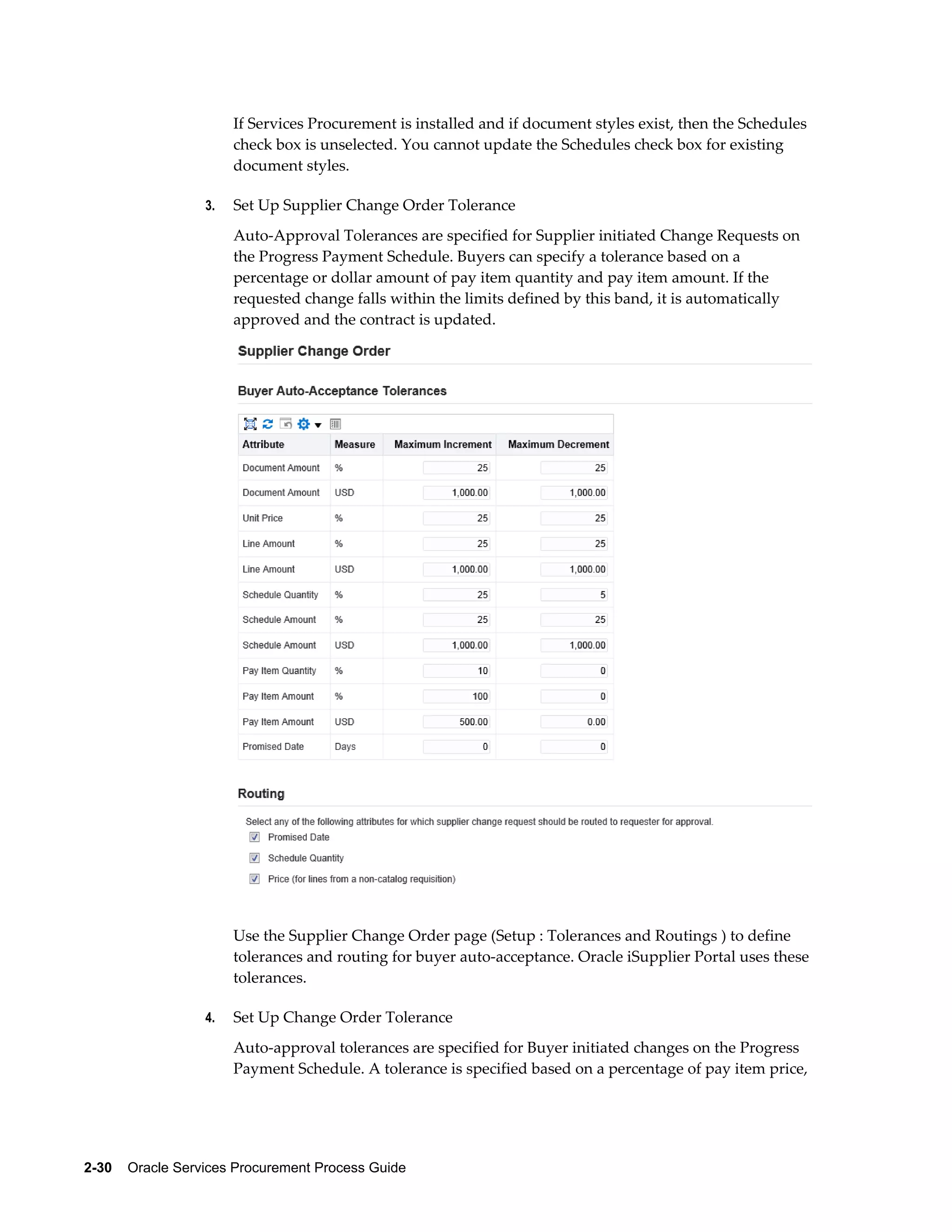
3. Set Up Supplier Change Order Tolerance
Auto-Approval Tolerances are specified for Supplier initiated Change Requests on
the Progress Payment Schedule. Buyers can specify a tolerance based on a
percentage or dollar amount of pay item quantity and pay item amount. If the
requested change falls within the limits defined by this band, it is automatically
approved and the contract is updated.
Use the Supplier Change Order page (Setup : Tolerances and Routings ) to define
tolerances and routing for buyer auto-acceptance. Oracle iSupplier Portal uses these
tolerances.
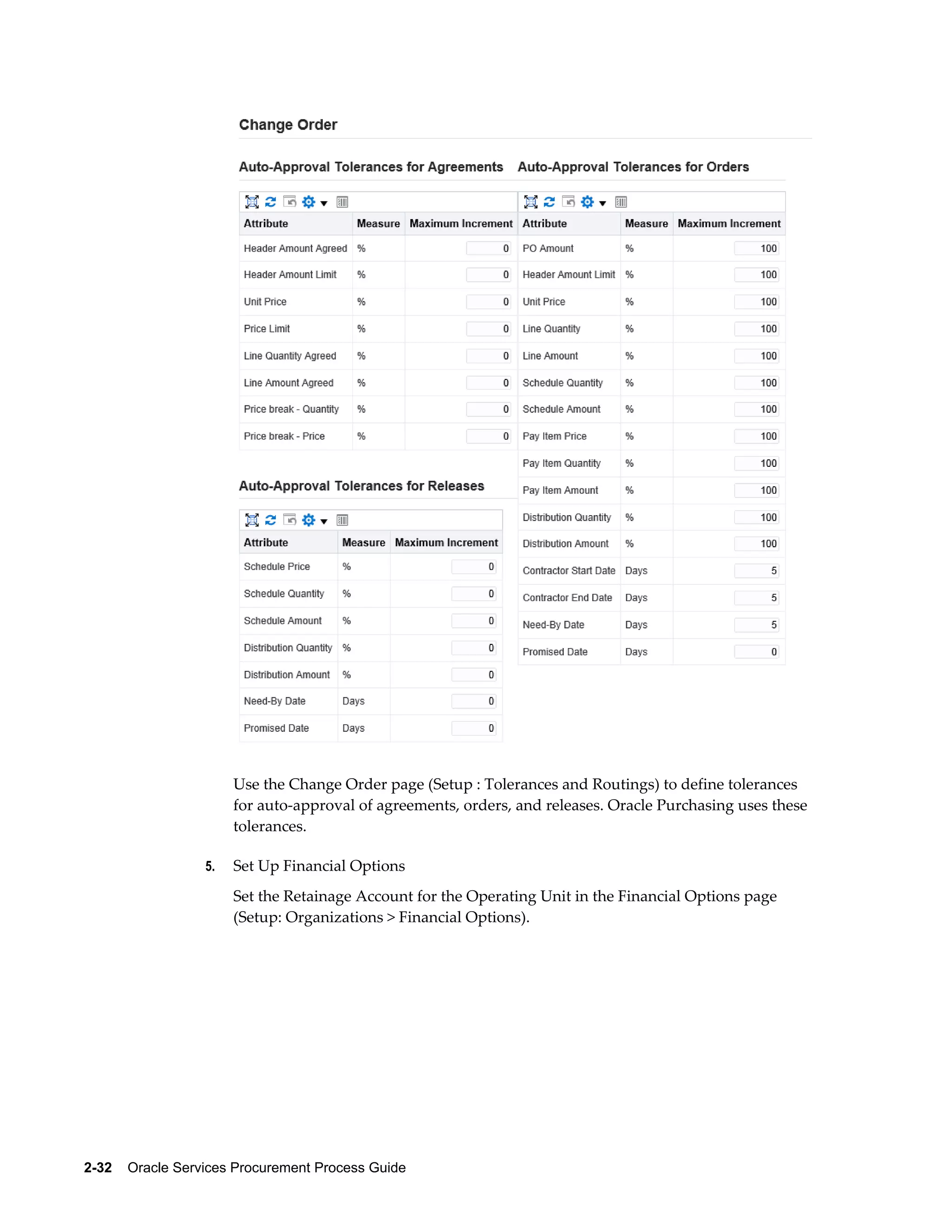
4. Set Up Change Order Tolerance
Auto-approval tolerances are specified for Buyer initiated changes on the Progress
Payment Schedule. A tolerance is specified based on a percentage of pay item price,
Implementing Oracle Services Procurement     2-31
quantity and amount. If the requested change falls within the limits defined by this
band, it is automatically approved and the contract is updated.
Specify auto approval tolerance for pay item changes:
• Pay Item Price
• Pay Item Quantity
• Pay Item Amount
2-32    Oracle Services Procurement Process Guide
Use the Change Order page (Setup : Tolerances and Routings) to define tolerances
for auto-approval of agreements, orders, and releases. Oracle Purchasing uses these
tolerances.
5. Set Up Financial Options
Set the Retainage Account for the Operating Unit in the Financial Options page
(Setup: Organizations > Financial Options).
Implementing Oracle Services Procurement     2-33
Define one retainage account for the Operating Unit to account for funds withheld
from suppliers doing business with the organization.
6. Set Up Invoice Tolerance Template
The tolerance between Amount being invoiced and the amount planned on the
Services Procurement contract or the work to date represented by the approved
Work confirmations is defined in the Invoice Tolerance Template window. The
variance is defined as both percentage–based and amount–based tolerances.
The tolerance templates are defined for goods or services and the most appropriate
templates will be assigned to the supplier sites. This allows the users to manage
tolerances values centrally yet assign the policies at the trading partner location.
2-34    Oracle Services Procurement Process Guide
Using an appropriate Payables responsibility, navigate to Setup: Invoice to open the
Invoice Tolerance Template window.
7. Set Up Supplier Sites
This setup task is required to record information about individuals and companies
from whom the customer purchases goods and services. Tax registrations and
profiles are defined for the supplier. Additionally, the buying Organization can
specify Payables accounting defaults, the Invoice Match Option that will default to
the purchase order, Invoice Tolerance Templates for Goods and Services, and a
unique Retainage Rate for each Supplier Site.
Users may maintain the retainage rate based on past performance and the
contractor's history. So when a contract is created with this supplier site, the
retainage rate defined here will default onto the contract.
Navigate to the Buyer Work Center > Suppliers tab to add information about
suppliers.
Implementing Oracle Services Procurement     2-35
2-36    Oracle Services Procurement Process Guide
Setting Up Steps in Oracle Approvals Management to Process the
Procurement of Complex Work
Oracle Approvals Management is a common module which provides users the ability to
configure rules which determine the approvers within the enterprise for business
transactions or activities.
• The Work Confirmation transaction type allows rule configuration for determining
the most appropriate person to evaluate, certify and approve the work
confirmation. This could be a field engineer, a project manager or even an architect.
• The Payables Holds Resolution transaction type allows rule configuration for
determining the most appropriate person to research, negotiate, and resolve invoice
Implementing Oracle Services Procurement     2-37
tolerance holds.
• The Payables Invoice Approval transaction type allows rule configuration to
support line level and document level approvals plus optional rules which allows
users to forgo invoice approval if the invoice is matched to a purchase order.
You can use the delivered approval rules and transaction types or create your rules and
transaction types to suit your business requirements. For more information on approval
management, see: Oracle Approvals Management Implementation Guide.
Setting Up Steps in Oracle E-Business Tax to Process the Procurement of
Complex Work
This topic describes the setup steps in Oracle E-Business Tax to process the
procurement of complex work.
Oracle E-Business Tax provides a single point solution for managing your
transaction-based tax requirements. E-Business Tax delivers tax services to all
E-Business Suite business flows through one application interface. As a global system
architecture, E-Business Tax is configurable and scalable for adding and maintaining
country-specific tax content.
Use the appropriate Tax Administrator responsibility, Tax Configuration function to set
up the following to process complex work orders:
• Tax regimes
• Taxes
• Tax statuses
• Tax jurisdictions
• Tax recovery rates
• Tax rates
• Tax rules
For more information about the setup steps in this section, refer to the Oracle E-Business
Tax Implementation Guide And Oracle E-Business Tax User Guide.
1. Set Up Tax Regimes
Tax regime is the system of regulations for the determination and administration of
one or more taxes. Tax regime definition is used to identify the taxes that need to be
applied on the purchase order document.
2-38    Oracle Services Procurement Process Guide
2. Set Up Tax
A Tax is a distinct charge imposed by a government through a fiscal or tax
authority. Every tax in Oracle E-Business Tax is defined under a tax regime.
3. Set Up Tax Status
A Tax Status is the taxable nature of a product in the context of a transaction and a
specific tax on the transaction. Tax statuses are defined to group one or more tax
rates that are of the same or similar nature. Every tax status in Oracle E-Business
Tax is defined under a tax and contains one or more tax rates.
Implementing Oracle Services Procurement     2-39
4. Set Up Tax Jurisdictions
The incidence of a tax on a specific geographic area is called a Tax Jurisdiction. A
tax jurisdiction is limited by a geographical boundary that encloses a contiguous
political or administrative area, most commonly the borders of a country.
5. Set Up Tax Recovery Rates
A recoverable tax is a tax that allows full or partial recovery of taxes paid on
purchases, either as a recoverable payment or as an offset against taxes owed.
2-40    Oracle Services Procurement Process Guide
6. Set Up Tax Rates
A Tax Rate is the rate specified for a tax status. A tax status can have one or several
tax rates. In addition, special tax rates may apply to a specific tax jurisdiction.
7. Set Up Tax Rules
In Oracle E-Business Tax, a tax rule is a set of conditions that is used to determine
the tax for a specific transaction.
Implementing Oracle Services Procurement     2-41
Setting Up Steps in Oracle Procurement Contracts to Process the
Procurement of Complex Work
If Oracle Procurement Contracts is installed and licensed, then you can create contract
terms and apply them to sourcing negotiations . You can use contract terms to specify
legal and other requirements for your negotiations.
2-42    Oracle Services Procurement Process Guide
Use the Contracts Terms Library Administrator responsibility to create and maintain
clauses and contract templates in the Contract Terms Library. Use the Manage Contract
Terms responsibility to create and maintain contract terms on negotiation documents.
Overview of Setting Up Steps to Process the Procurement of Contingent
Workers
This topic provides an overview of each step you need to complete to set up steps to
process the procurement of contingent workers.
The following table lists the setup steps and a reference to their Oracle Application.
Step
No.
Step Application Comments
Step 1 Set Up Line Types Oracle Purchasing Required
Step 2 Create Jobs Oracle Human
Resources
Required
Step 3 Create Projects Oracle Projects To process project-based
timecard entries
Implementing Oracle Services Procurement     2-43
Step
No.
Step Application Comments
Step 4 Create Purchasing
Categories and Assign
to Category Set
Oracle Purchasing Required
Step 5 Associate Jobs to
Purchasing Categories
Oracle Purchasing Required  
Step 6 Enable/Disable Price
Differential Lookup
Codes
Oracle Purchasing Required
Step 7 Create Suppliers Oracle Purchasing Required
Step 8 Define Purchasing
Contingent Worker
Profile Options
Oracle Purchasing Required
Step 9 Create Information
Templates
Oracle iProcurement Optional
Step 10 Create Service
Templates Using
Smart Forms
Oracle iProcurement Optional
Step 11 Create Category
Descriptors to Use the
Rate Card Feature
Oracle iProcurement
Oracle Purchasing
Optional
Step 12 Create Contingent
Workers
Oracle Human
Resources
Required
Step 13 Define Users for
Contingent Workers
Common Applications Required
Step 14 Set Up Oracle HR
Contingent Worker
Profile Options
Oracle Human
Resources
Required
Step 15 Define Timecards
Layouts for
Contingent Worker
Time Entries
Oracle Time and Labor Required
2-44    Oracle Services Procurement Process Guide
Step
No.
Step Application Comments
Step 16 Setup Preferences for
Self-Service Timecard
Entries
Oracle Time and Labor Required
Step 17 Set Up Purchase Order
Integration with
Oracle Projects
Oracle Projects Required to process
project-based timecard entries
Step 18 Define Projects
Contingent Worker
Profile Options
Oracle Projects Required to process
project-based timecard entries
Step 19 Set Up Steps in Oracle
Internet Expenses
Oracle iExpenses Integration Oracle Projects,
Oracle Payables, and Oracle
iExpenses
For instructions on how to complete each step, refer to the following topics:
• Setting Up Steps in Oracle Purchasing to Process the Procurement of Contingent
Workers , page 2-50
• Setting Up Steps in Oracle iProcurement to Process the Procurement of Contingent
Workers, page 2-44
• Setting Up Steps in Oracle Human Resources to Process the Procurement of
Contingent Workers, page 2-56
• Setting Up Steps in Oracle Time and Labor to Process the Procurement of
Contingent Workers, page 2-64
• Setting Up Steps in Oracle Internet Expenses to Process the Procurement of
Contingent Workers, page 2-67
• Setting Up Steps in Oracle Projects to Process the Procurement of Contingent
Workers, page 2-68
Setting Up Steps in Oracle iProcurement to Process the Procurement of
Contingent Workers
This topic describes the set up steps in Oracle iProcurement to process the procurement
of contingent workers.
Implementing Oracle Services Procurement     2-45
1. Create Information Templates
Oracle iProcurement uses information templates to pass additional required
information to the supplier. Common attributes such as supplier, price, currency,
description of service and category are always captured on a service request. Any
additional unique attributes are captured via the information template.
Associate Information Templates to Purchasing Categories so that the template is
visible during the Contractor Request flow in Oracle Procurement. For example, for
a health care worker you may want to capture information on status of
immunizations versus capturing information on knowledge of programming
languages for an Engineer. The user can make any attribute either mandatory or
optional and may reference default values.
Information Templates are set up in Purchasing using the Define Information
Template window. Using a Purchasing responsibility, navigate to Setup >
Information Templates.
Use the Information Template Association window to associate the template with
an item or item category.
2-46    Oracle Services Procurement Process Guide
For more information, refer to the Oracle iProcurement Implementation and
Administration Guide.
2. Create Service Templates Using Smart Forms
Requesters procure an item or service that is not found in the catalog. For these
cases, they use a non-catalog request. The non-catalog request offers the ability to
add an item or service to the shopping cart based on a description of the item or
service. Through the use of smart forms, companies can conveniently control both
the list of fields and whether a particular field is enterable or pre-defined. For
example, create different services template for procuring services like legal services,
painter, interior decorator. Legal services for visa applications, home purchases and
will preparation could all be requested from the Legal Services Store. Each type of
legal service could have an individual template so that the appropriate preferred
supplier is communicated to the user and/or to ensure all mandatory attributes are
captured on the service requisition.
Service Templates are created by the Catalog Administrator in Oracle iProcurement.
Navigate to the Smart Forms page and link the template to stores in iProcurement
Implementing Oracle Services Procurement     2-47
2-48    Oracle Services Procurement Process Guide
3. Create Category Descriptors to Use the Rate Card Feature
Hiring managers and purchasing users can view the rate card that provides details
of the job and the standard rate that they should be paying for the job. Users can
also view differential rates based on rate uplifts, offshore / onshore rates, markup
driven rates, and location driven rates.
Key benefits include:
• Job Standardization via rate card support and standard rates for each job.
• Benchmarking of job rates for specific jobs.
• Ability to automatically identify preferred suppliers based on hiring needs.
When creating contractor requests in Oracle iProcurement, the 'Use Standardized
Job rates' option offers hiring managers the rate card, which provides a list of
details about the job that will help the hiring manager to identify the right resource
for the project. This region also provides the hiring manager with the ability to view
the rate differentials and markup rates for the job in different locations.
To enable requesters to use job standardization through the rate cards feature,
complete the following steps:
1. Create item categories using the Create or Update Item Category page in Oracle
iProcurement.
Implementing Oracle Services Procurement     2-49
2. Associate a job to a shopping category using the Create or Update Job and
Category Association page in Oracle Purchasing.
3. Create and associate descriptors to a shopping category using the Manage
Category Descriptors page in Oracle iProcurement.
Create Item Categories:
1. Log in using the iProcurement Catalog Administrator responsibility.
2. Click the Schema tab and then the Item Categories subtab.
3. Click Create Category in the Item Categories page. The Create Item Category
page appears to create the item category.
Associate a Job to a Shopping Category:
For information on how to associate a job to a shopping category, see the Create Job
and Shopping Category Association section in the Setting Up Steps in Oracle
Purchasing to Process the Procurement of Contingent Workers topic.
Create and Associate Descriptors to a Shopping Category:
1. Log in to Oracle Purchasing.
2. Navigate to the Associate Jobs with Categories page and click Create.
3. In the Create Job and Category Association page, enter the details required to
create the job and category association.
When creating a job and category association, select the Shopping Category field to
create category descriptors. The Manage Category Descriptors link is visible and
active only if a shopping category is specified for the Job – Purchasing category
combination.
2-50    Oracle Services Procurement Process Guide
The Manage Descriptors page opens in Oracle iProcurement. and enables you to
define descriptors for the shopping category. These descriptors are displayed in the
contractor request as well as in other related documents. When a job is selected
during contractor request creation in Oracle Procurement, then the descriptors
associated to the shopping category are displayed for the hiring manager to provide
the required details.
To create a category descriptor, click Create in the Manage Category Descriptors
page.
Setting Up Steps in Oracle Purchasing to Process the Procurement of
Contingent Workers
This topic describes the set up steps in Oracle Purchasing to process the procurement of
contingent workers. For more information on the steps discussed in this topic, refer to
the Oracle Purchasing User's Guide.
Using Services Procurement, buyers create purchase orders to procure rate-based
services.
1. Set Up Line Types in Oracle Purchasing
Oracle Purchasing provides the line type feature to differentiate orders for goods
from those for services or outside processing. In addition, the services related line
types support a broad range of service categories including general business
Implementing Oracle Services Procurement     2-51
services, consulting services, and contingent labor. You use rate based line types
when you are ordering services on a fee per unit basis. For example, you might
order consulting services at $250 per hour.
To process procurement of contingent workers, define rate based temp labor line
type with 'Rate' as the value basis and 'Temp Labor' as the purchase basis. For Rate
based temporary labor, Billing is based on a per unit rate such as per hour.
• Value basis reflects how you wish to value the purchase. The 'Rate' value basis
enables users to enter services by rate (price) and amount. Receive items by
amount. The line types with a rate value basis the unit of measure class is
restricted by the setting of the profile PO: UOM Class for Temp Labor Service.
• Purchase basis indicates the nature of the purchase and determines the
attributes that are required. Set up temporary labor purchase basis line types to
enter purchasing documents to pay contingent worker providers.
Create Line types in Oracle Purchasing (Setup > Purchasing > Line Types).
Rate differentials such as overtime, holiday, shifts, etc. may be captured along with
the base rate. Labor and expense budgets may be tracked separately.
2. Create Purchasing Category and Assign to Category Set
For every item, there has to be a Purchasing Category set where the user defines the
Structure name, Category, description and enablement for iProcurement. These
categories are assigned to Purchasing category sets.
2-52    Oracle Services Procurement Process Guide
Use the Categories window (Setup > Items > Categories > Category Codes > New) to
define categories.
3. Associate Jobs to Purchasing Categories
Jobs are created in Human Resource responsibility. Only jobs that are defined in
Human Resource responsibility and assigned to a Purchasing Category are
procured through Services Procurement. This setup is required for the entry of
temp labor line types. When assigning a purchasing category, the user assigns a
short job description and optionally defines additional job details such as skills and
experience requirements. Job descriptions and details are displayed to the requester
and are also communicated to the supplier.
Use the Associate Jobs with Categories page (Setup > Purchasing > Job Category
Association) to associate a purchasing category set to an HR job.
Implementing Oracle Services Procurement     2-53
4. Create Job and Shopping Category Association
The Shopping Category field lists all the shopping categories defined for the
business group. Though it is optional to specify a Shopping Category, if you select
one, the application establishes an association between the Job – Purchasing
Category – Shopping Category.
The Manage Category Descriptors link is visible and active only if a shopping
category is specified for the Job – Purchasing category combination.
Click the Manage Category Descriptors link to open the Manage Category
Descriptors page. The Manage Descriptors page opens in Oracle iProcurement.
For information on creating or updating job descriptors, refer to the Setting Up Steps
in Oracle iProcurement to Process the Procurement of Contingent Workers topic.
If buyers are negotiating offline with their suppliers, then create Standard Purchase
Orders for rate based temp labor lines without any requisitions, agreements,
sourcing events or other documents. The shopping category is defaulted in the
Purchase Order line details page based on the selected job. Based on the Job –
Purchasing Category – Shopping Category association, the descriptors get
2-54    Oracle Services Procurement Process Guide
displayed in the line details page. The View Rate Card link next to the Job field,
when clicked, opens the rate card details popup for the selected job.
If Standard Purchase Orders are created from requisitions or as outcome documents
of a Sourcing negotiation, then the descriptors and their values are copied from the
source document and are displayed in the line details page.
The action View Rate Card from the line details page enables the buyer to view the
supplier – site combination and the corresponding source document related details.
5. Define Profiles Options Related to Process the Procurement of Contingent Workers
• PO: Contractor Assignment completion warning delay
• PO: Amount Billed Threshold Percentage
• POR: Contractor Expense Line Type
• POR: Re-approval After Contractor Assignment
• ICX: Days Needed By
• POR: Default Currency Conversion Rate Type
See: Profile Options Used in Oracle Services Procurement, page 2-3
6. Enable/Disable Price Differential Lookup Codes
A pre-defined list of price differentials is seeded. Users may disable some price
differentials or create additional price differentials. Price differentials are expressed
as a multiplier of the base rate. For example if the normal/base rate for a software
Implementing Oracle Services Procurement     2-55
engineer is 60USD per hour and the overtime rate multiplier is 1.5, overtime is
charged at 90USD per hour (60 * 1.5).
Use the Application Object Library Lookups window in the Application Developer
responsibility to enable or disable the lookup codes for the PRICE DIFFERENTIALS
for the lookup Type
7. Define an Approved Supplier List
Using Define Approved Supplier List, the buyer optionally negotiates long-term
service agreements in Oracle Sourcing.
• Define one or multiple approved suppliers for each service category
• Display approved suppliers during the contractor request flow
Requests are released against the long-term service agreement using the
pre-negotiated rates and terms. Approved suppliers are displayed to the requester
during the requisition process. If a long-term agreement also exists for the supplier,
the pre-negotiated rates are also displayed to the requester.
Use the Approved Supplier List window (Supply Base > Approved Supplier List) in
the Purchasing responsibility to define an approved supplier list.
8. Enable Suppliers for Pay on Receipt
Define suppliers and supplier information.
Navigate to the Buyer Work Center > Suppliers tab to create supplier information.
To create invoices automatically from service receipts, ensure the supplier is
enabled for Payment on Receipt.
Pay on receipt is enabled in the Supplier page, Purchasing section, Self Billing tab.
2-56    Oracle Services Procurement Process Guide
Set up supplier e-mail address for temporary labor suppliers. Provide an e-mail
address for the Oracle iSupplier Portal user defined in the Users window for the
supplier, supplier site, or supplier contact.
For more information, see the supplier registration information in the Oracle
iSupplier Portal Implementation Guide.
Setting Up Steps in Oracle Human Resources to Process the Procurement
of Contingent Workers
This topic describes the set up steps in Oracle Human Resources to process the
procurement of contingent workers.
A contingent worker is a non-employee people resource who works for the enterprise,
and for whom the enterprise is responsible for their costs and expenses.
1. Create Jobs
Oracle HRMS uses jobs to represent the duties people perform and the required
skills. Define jobs for contingent workers based on your business requirements.
Implementing Oracle Services Procurement     2-57
Only jobs that are assigned a purchasing category are procured or negotiated
through Services Procurement is done in Purchasing. Use the Job window Work
Structure > Job > Description in the Human Resource responsibility to create
required jobs.
2. Create Contingent Workers
In Oracle Human Resources, the HR person type 'Contingent Worker' enables you
to track the following information for contingent workers:
• Contingent worker assignment history
• Periods of service
• Breaks in assignments
• Positions
• Supervisors
• Worker and supplier relationships
Note: Select the 'Projects Contingent Worker' person type to associate the
contingent worker to a project in Oracle Projects. This person type controls the
timecard layout for the contingent worker. If you select Contingent Worker Type,
your timecard layout will not include the Project information.
2-58    Oracle Services Procurement Process Guide
An HR personnel can use the following options to place contingent workers:
• Create a contingent worker record using the People and Assignment windows
in Oracle Human Resources.
• Create a contingent worker record using the Contingent Worker Placement
function in the Manager Self-Service responsibility. The HR user can place the
contingent worker from a purchase order, Create Contractor Assignment link
or directly navigate to the Contingent Worker Placement function from the
Manager Self-Service responsibility.
• Create a Contingent Worker Using Oracle Human Resources
Navigate to the People window (Enter and Maintain > New) to create a
contingent worker with all details such as Last and First Name, Birth Date,
Social Security No., Action Type and Latest Start Date.
Implementing Oracle Services Procurement     2-59
Click the Assignment tab to navigate to the Assignment window and provide
details such as the organization, job details, location, status, and supervisor
name. You use the Supplier tabbed region to record information about the
supplier providing the contingent worker to your enterprise. The procedure
depends on whether you are using Oracle Services Procurement to provide
purchase order information for contingent worker assignments.
2-60    Oracle Services Procurement Process Guide
For more information on creating contingent workers using Oracle Human
Resources, refer to the Oracle HRMS Workforce Sourcing, Deployment, and Talent
Management Guide.
• Create a Contingent Worker Using Oracle Self-Service Human Resources
(Oracle SSHR)
An HR personnel can create a contingent worker record using the Contingent
Implementing Oracle Services Procurement     2-61
Worker Placement function in the Manager Self-Service responsibility. The HR
user can place the contingent worker from a purchase order, Create Contractor
Assignment link or navigate directly to the Contingent Worker Placement
function from the Manager Self-Service responsibility.
Use the Contingent Worker Placement pages to create contingent worker
details.
In the Contingent Worker Placement pages, enter the details required to create
the contingent worker record, such as the basic details, assignment status and
supplier. If you navigate to this page directly from the purchase order
notification, then the order details such as the purchase order number, line, and
project details if any default to the page. Submit the placement record for
approval after all the details.
2-62    Oracle Services Procurement Process Guide
Depending on the approvals set in your enterprise, the placement is routed for
approval.
For more information on using Oracle SSHR to place contingent workers, refer
to the Oracle Self-Service Human Resources Deploy Self-Service Capability Guide.
3. Define Users for Contingent Workers
After the placement of a contingent worker, create an user for the contingent
worker user and assign responsibilities to the user using the Define window
(Security > User ) in the System Administrator responsibility.
Implementing Oracle Services Procurement     2-63
Assign the Self Service Time and Labor responsibilities to the contingent worker
user to create timecard entries. For example, assign:
• Contingent Worker Self-Service
• Contingent Worker Time and Expense
• Preferences SSWA
4. Link Multiple Purchase Orders to a Contingent Worker
Oracle Services Procurement enables you to associate more than one purchase order
or purchase order line to a contingent worker. If the task flow to use the
PO_CWK_ASSOCIATIONS function is enabled, then you can use the Associate
Purchase Order with Contingent Worker page to associate more than one purchase
order or purchase order line to a contingent worker.
Refer to the My Oracle Support document Set up for Task Flow: 1141005.1 to link
multiple purchase orders with a contingent worker.
5. Set Up Profiles Options
Oracle Services Procurement uses the following profile options in the procurement
of contingent worker process:
Set the following profile options:
• MO: Operating Unit
2-64    Oracle Services Procurement Process Guide
• HR: Business Group
• HR: Security Profile
• HR: Expand Role of Contingent Worker
• HR: CWK in Head Count Reports
• HR: Use Global Contingent Worker Numbering
• HR: Contingent Worker Manager Actions Menu
• HR: Contingent Worker Personal Actions Menu
See: Profile Options Used in Oracle Services Procurement, page 2-3
Setting Up Steps in Oracle Time and Labor to Process the Procurement of
Contingent Workers
This topic describes the set up steps in Oracle Time and Labor to process the
procurement of contingent workers.
The following features in Oracle Time and Labor support the processing of contingent
worker procurement:
• Single source of time entry
• Configurable timecard layouts for contingent workers
• Validation of time data from recipient applications
Oracle Time and Labor integrates with Oracle Services Procurement to provide
visibility into Services Spending, controlling input of overtime and shift differentials of
contingent workers, and validation of purchase orders against pre-authorized amounts.
For more information about the steps in this topic, refer to the Oracle Time and Labor
Implementation and User Guide.
1. Define Timecard Layouts for Contingent Worker Time Entries
The OTL layouts for contingent workers support:
• Association of time entries to purchase orders
• Automation of timecard approval routings
• Generation of purchase order receipts from approved timecards
Workers use a self service web page in the format of a timecard for timecard entries.
Implementing Oracle Services Procurement     2-65
Create different timecard layouts for each group of workers so that they only see
the fields that are relevant to them.
There are five types of layouts: for data entry, review, confirmation, and detail
(corresponding to the web pages in the Self Service workflow), plus a layout for
exporting data for disconnected entry.
Following are the predefined OTL layout styles:
• Projects layout: Using this layout, workers enter their time against a selected
project, task, and type. Workers click on a Details button to enter comments
against each project, task, and type combination.
• Payroll Layout: Using this layout, workers enter a start and stop time, or a
number of hours, for each day of the week for the selected hours type. This
layout is suitable for workers who are submitting their time to Oracle HR or
Payroll.
• Projects with Payroll Layout: This layout is similar to the Projects layout except
that the list of values for the Type field comes from the alternate name you have
assigned to the worker (using preferences) for the Expenditure Elements
alternate name type. So when a worker selects a type for a time entry, an
element name is also recorded in the time store.
• Work based Projects and Payroll Layout: Using this layout, workers enter their
time against a selected project, task, task and cost code type, job, location, and
work type. Workers click the Details button to enter comments against each
project, task, and type combination.
• Exception Layout: This layout displays one row where the worker selects an
hours type and cost center, then enter the number of hours for each day of the
week. Use this layout for workers who only need to submit timecards for
exception reporting (such as time absent for sickness or vacation).
Several layout styles are predefined. Use these as supplied, or copy and modify
them. For example, modify a layout to remove a field that you do not use.
For instructions on modifying layouts, refer to the white papers available on My
2-66    Oracle Services Procurement Process Guide
Oracle Support:
• Oracle Time & Labor Timecard Configuration, Note 304340.1
• Timecard Audit Trail White Paper: Note 842159.1
2. Set Up Preferences for Self-Service Timecard Entries
Preferences enable you to define rules about how individual workers or groups of
workers can use the application. There are rules for the time store, such as which set
of applications can retrieve data about a worker's time, and rules about Self-Service
timecard entry, such as whether the worker can enter a negative number of hours.
Choose which preferences workers can see, and which ones they can edit.
For time entries based on integration with Oracle Purchasing or Oracle Projects,
define Preferences using the Preferences window in the OTL Application Developer
responsibility.
Implementing Oracle Services Procurement     2-67
Note: When you setup OTL- Oracle Projects integration, ensure that the OTL
preference Project Payroll Integration is set in order to use the project timecard
layouts intended for use with the HR rate source for labor costing. For more
information on setting OTL preference, see Defining Preferences, Oracle Time and
Labor Implementation and User Guide. For more information on using HR rates for
labor costing, see: Using Rates for Costing, Oracle Projects Fundamentals Guide.
Setting Up Steps in Oracle Internet Expenses to Process the Procurement
of Contingent Workers
Features in Oracle Internet Expenses support:
• Entry of expense reports on behalf of contingent workers
• Automated approval routings
• Payment to Supplier not the contingent worker
• Contingent worker expense processing
Buyers must have the Internet Expenses responsibility to create an expense report on
behalf of the contingent workers. To use the contingent worker functionality in Internet
Expenses, you must set up your contingent workers in Oracle HRMS.
2-68    Oracle Services Procurement Process Guide
For more information, see: Oracle Internet Expenses Implementation and Administration
Guide.
Setting Up Steps in Oracle Projects to Process the Procurement of
Contingent Workers
This topic describes the set up steps in Oracle Projects to process the procurement of
contingent workers.
Oracle Projects enables you to define and utilize contingent workers on projects in the
same capacities and manner as employees. Define requirements and perform searches
for contingent worker candidates, and directly assign contingent workers to projects
and tasks.
Contingent workers can enter timecards via preapproved batches or Oracle Time and
Labor. You can set up Oracle Projects to calculate contingent worker labor costs based
on the rates defined in the purchase orders you create to procure contingent worker
services.
To facilitate processing of contingent worker expenses, you can optionally allow
contingent workers to enter their expenses directly in Oracle Internet Expenses, or via
Microsoft Excel expense entry and preapproved batches in Oracle Projects. You can also
require the enterprise responsible for providing contingent worker services to invoice
you for these expense costs and process the expense invoices in Oracle Payables.
To distinguish contingent worker labor and expense costs from employee costs, you can
define AutoAccounting rules to separately account for contingent worker costs. As with
other project costs, you can view the details of contingent worker labor and expense
costs via Expenditure Inquiry, Project Status Inquiry, Project Performance Reporting,
and in Discoverer workbooks. For more information about the setup steps in this
section, refer to the Oracle Projects Implementation Guide and Oracle Projects Fundamentals.
To integrate Services Procurement contingent worker flow with Oracle
Projects, complete the following steps:
1. Create Projects
Create projects (Projects > Projects Definition > Projects) using an appropriate
Projects responsibility. Define the project with details of the Project Name, Number,
Expenditure Type, Task and other project related details.
Implementing Oracle Services Procurement     2-69
2. Set Up Purchase Order Integration with Oracle Projects
Import Contingent Worker Timecards with Purchase Order Integration: Enable this
option if you want to import contingent worker labor costs from timecards. When
you select this option, contingent workers can select a purchase order when they
enter timecards. Specifying a contingent worker purchase order on a timecard
allows the labor cost to be imported via the timecard, and prevents interface of
labor costs to Oracle Projects from supplier invoices that are associated with the
purchase order.
To enable this option, navigate to the Implementation Options window
(Accounting > Setup > System).
Click the Expand/Costing tab and select the check box Import Contingent Worker
Timecards with Purchase Order Integration.
2-70    Oracle Services Procurement Process Guide
3. Enable Contingent Workers for Project Types
In the Project Types (Set Up > Project > Project Types ) window, Enable the
'Contingent Worker Enabled' check box to include all purchase orders associated
with contingent worker enabled projects available for selection when a contingent
worker enters a timecard. If you do not enable this, only purchase orders associated
with the project that the contingent worker entered on the timecard, are available
for selection.
Implementing Oracle Services Procurement     2-71
4. Define Oracle Projects Profile Options
The following Oracle Projects profile options affect the procurement of contingent
worker business flow.
• PA: Allow Time Entry of Negative Hours
• PA: AutoApprove Timesheets
• PA: Enable Business Messages on Time Entry
• PA: Override Approver
See: Profile Options Used in Oracle Services Procurement, page 2-3
5. Set Up Auto Accounting to Process the Procurement of Contingent Workers
Use the Assign AutoAccounting Rules in the Projects responsibility. Contingent
Worker Labor is the function transaction the supports the contingent worker cost
accounting in the the Labor Cost Clearing Account function.
2-72    Oracle Services Procurement Process Guide
For more information on setting up the AutoAccounting feature to process the
procurement of contingent workers, refer to Oracle Projects Fundamentals.
6. Implement Oracle Projects, Oracle Internet Expenses, and Oracle Payables
Integration
Implement Oracle Projects, Oracle Internet Expenses, and Oracle Payables
integration to enable project-related expense report entry in Oracle Internet
Expenses. For information, refer to the Oracle Projects Implementation Guide.
The following flow diagram provides an overview of expense reporting in Oracle
iExpenses to generate invoices in Oracle Projects.
Implementing Oracle Services Procurement     2-73
Processing Complex Work    3-1
3
Processing Complex Work
This chapter covers the following topics:
• Understanding the Complex Work Features
• Overview of Processing Complex Work Procurement
• Creating Requisitions for Complex Work
• Creating Vendor Questionnaires for Complex Work
• Processing Approved Requisitions for Complex Work
• Creating Sourcing RFQs for Complex Work
• Creating Quotes
• Comparing and Analyzing Complex Work RFQs
• Awarding Complex Work RFQs
• Processing Complex Work Orders Created from RFQs
• Reviewing the Project Status of a Complex Work Order
• Viewing the Complex Work Purchase Order as a Supplier
• Creating an Invoice and Payment for Advance
• Tracking Advance Payments as a Supplier
• Creating a Work Confirmation for a Complex Work Order
• Processing and Approving Work Confirmations for Complex Work Orders
• Transferring the Invoice Details of a Complex Work Order to Oracle Projects
• Tracking the Progress of a Project
• Releasing the Retained Amount
• Processing Deductions and Back Charges
• Processing Change Management and Requests
• Processing Change Management and Orders
3-2    Oracle Services Procurement Process Guide
• Reporting Analytics for a Project
Understanding the Complex Work Features
Complex services can include consulting, advertising, construction, research and
development, and professional services, and they typically require negotiated contracts
with complex terms and payment arrangements.
Complex work procurement spans across Oracle iProcurement, Oracle iSupplier Portal,
Oracle Purchasing, Oracle Projects, Oracle Procurement Contracts, Oracle Sourcing, and
Oracle Accounts Payable.
The following sections discuss key complex work features:
Incorporate Payment Schedule into a Contract
With Oracle's Complex Work feature, buying organizations can negotiate with their
contractors on the progress payment schedule using the Sourcing RFQ and Quote
process. When negotiations are complete, the buyer can autocreate the Contract from
the sourcing document and incorporate a detailed progress payment schedule as part of
the contract. The schedule consists of 'pay items' that specifies the work component, the
associated dollar amount and due date for completion. The feature provides for
maximum flexibility in defining these pay items based on the way progress needs to be
measured. The pay items could be:
• Milestone:
This pay item is based on a 'Milestone' that needs to be fully complete before the
associated payment is claimed by the contractor. Example: Final Acceptance of
Completed Freeway. Amount: $300,000.00. There are two kinds of Milestone pay
items - Recurring Milestones and Non-Recurring Milestones.
• Recurring Milestones can only be used with Line Types which have a value
basis of Quantity. Consider the example of procurement of a complex item such
as an F16 Aircraft. The Recurring Milestone represents an event such as
'Complete & Install Landing Gear' that needs to be completed for the product or
service ordered. Hence, these recurring Milestones have a quantity associated
with them which is the same as the line quantity. In this example, each F16
Aircraft will need Landing Gear and so if 10 Aircraft are being purchased,
Landing Gears need to be installed for all 10 Aircraft.
• Non-recurring Milestones are used with Fixed Price Services and Fixed Price
Temp Labor Lines for procurement of a service such as 'Remodeling the
Conference Room'. The Milestone represents an event such as 'Tear Down of
the Existing Conference Room' that must be completed as a part of the service.
This type of Milestone does not recur and needs to be completed just once.
• Rate:
Processing Complex Work    3-3
This pay item is based on a 'Rate' of work completion. Payments for these are
claimed as units of work are completed. Example: Installation of 200 lamp posts @
$1000.00/lamp post
• Lumpsum:
This pay item is based on a 'Lump Sum' amount allocated to a portion of work
against which payments are released based on the stage of completion. Unlike
'Milestone' pay items, contractors can report partial progress against 'Lump Sum'
pay items and request payments. Example: Excavation of Site. Amount: $200,000.00.
The types of pay items that are used on the Contract depend on the PO Line the pay
items are associated with. The following Lines Types are supported with this feature:
• Goods: With this Line Type, only Milestone Pay Items can be used.
• Fixed Price Services: With this Line Type, all three pay items can be used – Rate,
Lumpsum and Milestone
• Fixed Price Temp Labor: Again, all three pay items can be used – Rate, Lumpsum
and Milestone.
Note: Rate Based Temp Labor, Amount-based Services and Outside Processing Line
Types are not supported with this feature.
Progress Payments are treated as either Delivery payments, that is payment for actual
work done or progress made on the Contract, or treated as a form of Contract Financing
as is typical in certain industries. The type of progress payments is decided on the
Document Style by the status of the flag 'Treat Progress Payments as Financing'. When
progress payments are considered a form of contract financing, these payments are
automatically recouped from payments due at delivery based on the recoupment rates
specified in the contract. For more details about the recoupment functionality please
refer to the Oracle Payables User Guide.
Advances and Recoupment
To provide working capital to smaller contractors, buying organizations often pay
advances to these contractors right after contract signing, before any work or product
delivery has been performed.
Buying organizations can negotiate and finalize the terms of such advances, and ensure
compliance to those terms. To define an Advance on the contract, the Document Style
for the Contract should allow the use of Advances. Advances are defined on the PO
Line as an amount and claimed by the contractor using Prepayment Invoices before any
work has been done on the Contract. The contractor creates and submits these
Prepayment Invoices through the Oracle iSupplier Portal. Requests for advances
submitted by the contractor are verified against the advance limits set forth in the
contract. These advance payments are automatically recouped from progress invoices,
based on the recoupment rates specified in the contract.
3-4    Oracle Services Procurement Process Guide
Recoupment is the process of recovering previous financing payments from a current
delivery payment billed on a Standard Invoice. All Financing Payments made to the
contractor need to be liquidated or 'recouped'.
The Recoupment Rate attribute appears on the PO Line if the Document Style either
enables the use of Advances or the 'Treat Progress Payments as Financing' flag is
enabled. The buyer can then define a Recoupment Rate on the PO Line, which will be
applied to Standard Invoices billed to the Line or Pay Items of the Contract for
deliveries made by the Contractor.
The Progress Payment Rate is used primarily on Cost Reimbursement Contracts and
represents the rate at which costs incurred by the Contractor can be reimbursed by the
buying organization. This term is captured on the Contract for offline use by the
Contractor in determining the billable amount for work done on the Contract. It is not
used for any computation on the Contract or any of its transaction documents like Work
Confirmations or Invoices. The Progress Payment Rate attribute appears on the PO Line
if the Document Styles has the flag 'Treat Progress Payments as Financing' enabled.
Track Progress Based on a Schedule
Oracle's Complex Work feature provides a streamlined process for Contractors to report
progress and request payments using either a Work Confirmation Request or an
Invoice, each of which can then be electronically routed for approval.
The feature allows online negotiation on the amount of work eligible for payment
through multiple rounds of resubmissions of the work confirmation request till both
parties are in agreement and the request is approved. The contractor can report
progress and request progress payments in the multiple ways.
Release Progress Payments
The Contractor can request payment for the work that has been completed on the
Progress Payment Schedule. These payments are billed using a Standard Invoice and
are used to recoup Contract Financing based on the Recoupment Rate specified on the
Contract. Also Retainage is applied to these Progress Payments.
Contract Financing
In certain industries, Progress Payments are treated as a form of Contract Financing.
This is configured on the Document Style using the flag 'Treat Progress Payments as
Financing'. As work progresses, Contract Financing is released by the buying
organization. These Progress Payments are billed using a Prepayment Invoice and are
tracked on the Contract as an Amount Financed on the respective Pay Item and its
Distribution. No retainage can be applied to these progress payments. At the
completion of the Contract, a final Standard Invoice is submitted by the Contractor for
the delivery of goods and services specified on the contract. The buying organization
can process this final Invoice for payment and recoup all previously released Contract
Financing. Progress payments are released using methods such as Self-Billing and
Processing Complex Work    3-5
Contractor Submits an Invoice.
Self-Billing (Evaluated Receipt Settlement)
The buying organization can use Evaluated Receipt Settlement to create Invoices from
processed Work Confirmations. If the Contract and the Supplier Site are setup with the
Pay on Receipt flag set to 'Receipt', then the Pay on Receipt AutoInvoice Program can
generate Invoices for both Contract Financing as well as Delivery Payments
automatically.
Retainage and Retainage Release
Retainage represents funds withheld from payment to ensure that the contractor
finishes work as agreed. The buying organization releases these funds only after
verifying that the contractor has fulfilled all contractual obligations. Retainage is also
called 'retention' or 'contractual withholds'. Contract administrator can negotiate
retainage terms with the contractor and capture these as part of the contract. These
terms include Retainage Rate and Maximum Retainage Amount.
Retainage Rate
The Retainage Rate determines the percentage of the amount requested that will be
withheld before releasing payments to the contractor. This attribute appears on the PO
Line if the Document Styles enables the use of Retainage. The Retainage Rate specified
on the PO Line is applied to all Standard Invoices billed to the Pay Items of the
respective Line. Based on the Retainage Rate, a certain percentage of the Standard
Invoice Amount is with-held as a Retained Amount.
Maximum Retainage Amount
The Maximum Retainage Amount defines the maximum amount of Retainage that is
withheld on a Contract Line. The Maximum Retainage Amount attribute appears on the
PO Line if the Document Style enables the use of Retainage. Every time Retainage is
withheld on an Invoice, the application checks that the total retained amount does not
exceed this value.
Retainage Release
At the end of the project the contractor can submit a Retainage Release Invoice for
release of retainage withheld on the Contract. If the contractual clauses or other
conditions governing the release of the retainage are met, the buyer can release the
retainage amount applicable. Retainage Release Invoices can also be used for
recoupment of financing payments.
• The application will not allow you to release more than the retained amount.
3-6    Oracle Services Procurement Process Guide
• You cannot Finally Close a contract that has an outstanding retainage balance.
Refer to the Oracle Payables User Guide for more information on the Invoicing features.
Overview of Processing Complex Work Procurement
This topic provides an overview of the tasks in the processing of complex work
procurement. Since complex work procurement processing requires integration
between several Oracle Applications, the following table lists the sequence of tasks,
Oracle Application to perform the task, and the functional user who performs the task.
Sequence No. Task Oracle Application Typical Functional
User
1 Creating Requisitions
for Complex Work
Oracle iProcurement Project
manager/Requester
2 Creating Vendor
Questionnaires for
Complex Work
Oracle Sourcing Sourcing
buyer/Contract
administrator
3 Processing Approved
Requisitions for
Complex Work
Oracle Purchasing Buyer
4 Creating Sourcing RFQs
for Complex Work
Oracle Sourcing Sourcing
buyer/Contract
Administrator
5 Creating Quotes Oracle iSupplier Portal Supplier
6 Comparing and
Analyzing Complex
Work RFQs
Oracle Sourcing Sourcing
buyer/Contract
Administrator
7 Awarding Complex
Work RFQs
Oracle Sourcing Sourcing
buyer/Contract
Administrator
8 Processing Complex
Work Orders Created
from RFQs
Oracle Services
Procurement
Buyer
Processing Complex Work    3-7
Sequence No. Task Oracle Application Typical Functional
User
9 Reviewing the Project
Status of a Complex
Work Order
Oracle Projects Project manager
10 Viewing the Complex
Work Purchase Order
as a Supplier
Oracle iSupplier Portal Supplier
11 Creating an Invoice and
Payment for Advance
Oracle Payables Payables administrator
12 Tracking Advance
Payments as a Supplier
Oracle iSupplier Portal Supplier
13 Creating a Work
Confirmation for a
Complex Work Order
Oracle Services
Procurement
Project manager
/Supplier
14 Processing and
Approving Work
Confirmations for
Complex Work Orders
Oracle Services
Procurement
Buyer
15 Transferring the Invoice
Details of a Complex
Work Order to Oracle
Projects
Oracle Projects Project manager
16 Tracking the Progress of
a Project
Oracle Projects Project manager/
Payables administrator
17 Releasing the Retained
Amount
Oracle Payables Project manager
18 Processing Deductions
and Back Charges
Oracle Projects Project manager
19 Processing Change
Management and
Requests
Oracle Projects Project manager
3-8    Oracle Services Procurement Process Guide
Sequence No. Task Oracle Application Typical Functional
User
20 Processing Change
Management and
Orders
Oracle Projects Project manager
21 Reporting Analytics for
a Project
Oracle Projects Project manager
Creating Requisitions for Complex Work
Oracle iProcurement provides the Contractor Request content zone for use by Oracle
Services Procurement. As a project manager, use Oracle iProcurement to create
requisitions for complex work. Oracle iProcurement requisitions fixed price services
using a non-catalog request.
To create a requisition for complex work:
1. Log in to the iProcurement responsibility.
2. In the Shop tab, click the Non-Catalog Request subtab to create the requisition for
complex work.
3. In the Non-Catalog Request page, provide the details required for your requisition.
Note: The Item Type field is used to select Goods or services billed by amount,
which uses the line type selected in the POR: Amount Based Services Line Type
profile option. The Services billed by quantity item type corresponds to the line
type selected in the POR: Rate Based Services Line Type profile option.
4. Click Add to Cart and then View Cart and Checkout.
Processing Complex Work    3-9
5. Click Checkout.
6. Complete the following sections:
• Billing: Enter the Project, Task, Expenditure Type, Expenditure Organization
and Expenditure Date on the requisition, which is required for the project.
• Project Number: If your organization uses Oracle Projects and your purchases
3-10    Oracle Services Procurement Process Guide
normally belong to a specific project, enter that number here.
• Task Number: If your organization uses Oracle Projects and your purchases
normally belong to a specific task, enter that number here.
• Expenditure Type: If your organization uses Oracle Grants and your purchases
normally belong to a specific expenditure type, enter that number here.
• Expenditure Org: If your organization uses Oracle Grants and your purchases
normally belong to a specific organization, enter that number here.
• Expenditure Item Date: If your organization uses Oracle Grants and your
purchases normally belong to a specific item date, enter that number here. This
is the number of days after the order date that you want your expenditure item
date in the Billing details to default to during checkout.
• In the Delivery section, you can accept the defaults or update the required
details based on the requisition.
7. Review the requisition information and submit the requisition for approval. The
approval of the requisition depending on the approval rules set in your enterprise.
For more information on creating requisitions, refer to the Oracle iProcurement
Implementation and Administration Guide.
Creating Vendor Questionnaires for Complex Work
After a project manager creates a requisition for complex work, the sourcing buyer
identifies those suppliers with the technical capability to undertake a complex work.
The buying company sends a vendor questionnaire to the identified suppliers to check
if the suppliers conform to the pre-qualification criteria. The vendor questionnaires are
RFIs that a sourcing user creates in Oracle Sourcing.
Use RFI's ((Request for Information) to:
• Gather information on goods and service provided by a supplier.
• Qualify suppliers and their goods and services for subsequent procurement
activities.
To create a RFI for complex work:
1. Log in to the Sourcing Super User responsibility.
2. In the Sourcing home page, Quick Links, Create section, click RFI. The Create RFI
page appears.
Processing Complex Work    3-11
3. Based on the requirement of your complex work, complete the following for the
RFI:
• Header details
• Lines details
• Controls details
• Contract Terms details
• Suppliers details
4. Use the Collaboration Team section to decide on the supplier qualification process.
5. Use the Requirements section to set the various pre-qualification requirements, the
evaluation criteria and the scoring teams.
3-12    Oracle Services Procurement Process Guide
6. Invite Suppliers
The RFI document enables buyers to invite eligible suppliers to enter their
information in the RFI. Identify based on predefined set of criteria. Examples of
some criteria for adding suppliers include: years of experience in the construction
industry, type of commodity of purchase. To invite suppliers, click the Suppliers
link. The Invited Suppliers page appears. Select the suppliers and add them to the
invitation list.
Processing Complex Work    3-13
If you have set up Supplier Profile Mapping, then this feature helps you as a buyer
to map the responses from the supplier to database attributes. Capturing supplier
responses helps in integrating supplier information from an external source. For
information on how to set up Supplier Profile Mapping, refer to the Oracle Supplier
Management Implementation and Administration Guide.
After completing the RFI details, click Submit for Approval. Depending on the
approvals set in your enterprise, the RFI is routed for approval or automatically
approved.
Processing Approved Requisitions for Complex Work
Buyers view approved requisitions using Buyer Work Center in Oracle Purchasing and
take further action.
To process approved requisitions:
1. Log in to the Purchasing responsibility.
2. Click Demand Workbench.
3. View approved requisitions in the Demand Workbench page. As a buyer, initiate
further action on an approved requisition.
3-14    Oracle Services Procurement Process Guide
Creating Sourcing RFQs for Complex Work
RFQs (Request for Quote) support the full business process to solicit quotes from
suppliers. The suppliers' responses to the RFQ allow the buyer to compare quotes and
negotiate the best price and specifications for the good or service. RFQs enable buyers
to collect quotes from suppliers for complex and hard-to-define items or services. Once
suppliers have submitted an initial round of quotes, buyers can review quotes and
award the RFQ or submit a modified RFQ for another round of quoting.
Use Oracle Sourcing to create a RFQ from a requisition for complex work. Use the RFQ
to negotiate with suppliers on complex contract terms.
To create a sourcing RFQ for complex work:
1. Navigate to the Demand Workbench in Buyer Work Center.
2. In the Demand Workbench page, Document Builder region:
• Specify the outcome document. Note: 'Outcome' is the same as purchasing
Document Style. It is critical that you select the correct Outcome that is setup to
Processing Complex Work    3-15
process complex work specific attributes such as advances, pay items, and
recoupment.
• Specify the negotiation style that you want to use for complex work.
• Add the requisition line and click Create in the Document Builder section. The
application converts the requisition to a RFQ and the RFQ has a reference to the
base requisition. Buyers can control whether suppliers are allowed to negotiate
payment terms such as Advances, Recoupment rate, Maximum Retainage
Amount and Retainage Rate.
The Create RFQ Header page appears with some information defaulting based on
the requisition.
3. Enter the RFQ title and verify the following field values: Buyers, Operating Unit,
and Outcome. The Security Level field default value is set to Public.
4. Click Lines to display the Create Lines page.
3-16    Oracle Services Procurement Process Guide
5. In the Create Lines page:
• Select 'Suppliers can modify Pay Items' to allow suppliers to modify or propose
pay items.
• Select 'Suppliers see their quote price transformed'.
• Select the following Financing and Retainage Attributes to allow suppliers to
negotiate on complex payment terms:
• Progress Payment Rate%
• Advance Amount
• Recoupment Rate (%)
• Maximum Retainage Amount
• Retainage Rate (%)
6. To add complex services terms values to the RFQ line, click the Update icon for a
line to define complex services terms.
Processing Complex Work    3-17
• Ensure that there is a default owner who certifies work progress.
• Specify the Financing and Retainage terms.
• In the Pay Items region, define the progress payment schedule.
7. Click Controls.
8. Specify control, which allows the buyer to choose the Open and Close date/time for
the negotiation process along with some response rules.
9. If Oracle Procurement Contracts is licensed and implemented, then you can use the
Contract Terms page, which allows the buyer to add a contract (terms and
conditions) to a Sourcing document. You can accept the default contract template or
select a different contract template and click Apply. The page updates with contract
terms, clauses, and various columns of info and action buttons. There is also an
Action bar at right side in which you can validate the contract to identify any errors
3-18    Oracle Services Procurement Process Guide
or warnings.
10. Add Suppliers to invite suppliers to the negotiation by selecting from a pre-defined
list or search for a specific supplier. Make sure that you select the proper supplier
user and site.
11. In the Review and Publish page, review all the information, data, controls, dates.
You can generate a PDF version of the negotiation while the document is in draft
status. You can print a 'buyer' version that includes all the information on the
document such as the collaboration team, invitation list. The draft and buyer
versions of the PDF include watermarks to avoid confusions with the supplier
version of the document.
Processing Complex Work    3-19
12. Publish the RFQ for the benefit of suppliers.
For more information on RFQs, refer to the Oracle Sourcing User Guide.
Creating Quotes
After the buyer publishes the RFQ for the benefit of suppliers, interested suppliers
create quote for the RFQ.
To create a quote as a supplier:
1. Log in to Sourcing Suppliers. In the Sourcing Home page, click the RFQ number
under 'Your Company's Open Invitation' section. Find your negotiation and click
the negotiation number link.
3-20    Oracle Services Procurement Process Guide
2. On the RFQ summary page, select the Create Quote action.
3. If the buyer has defined Terms and Conditions, read and accept the negotiation
terms and conditions. After reading the terms and conditions, click Accept.
Processing Complex Work    3-21
4. In the Create Quote page, view the information in the Header and Lines subtabs. In
the Lines section are the item details. Enter the following required fields:
• Quote Price
• Promised Date
3-22    Oracle Services Procurement Process Guide
5. Update the line to negotiate on Financing and Retainage terms. You can enter
values for the attributes that are specified as negotiable in the sourcing document.
Values for non-negotiable attributes cannot be changed and are view only. Based on
the RFQ setup, the supplier is allowed to modify all the Complex Services Finances,
Retainage, and Pay Items attributes.
6. Propose a modified Progress Payment Schedule online or using the spreadsheet
upload. Review the quote details and submit.
For more information on submitting quotes, refer to the Oracle Sourcing User Guide.
Comparing and Analyzing Complex Work RFQs
Using Oracle Sourcing, buyers can compare the quotes received from the invited
suppliers. The suppliers' responses to the RFQ allow the buyer to compare quotes and
negotiate the best price and specifications for the good or service. RFQs enable buyers
to collect quotes from suppliers for complex and hard-to-define items or services.
Compare quoted prices, financing and retainage terms in detail in the analysis before an
award decision is made.
To compare quotes:
1. Log in to the Sourcing Super User responsibility.
2. Navigate to the Sourcing Home page.
Processing Complex Work    3-23
3. Select your published negotiation.
4. Use Live Console or the Compare Quotes page to compare quoted, financing, and
retainage terms.
5. In the Negotiation page, select the Award by Line action and click Compare. The
Compare Quotes page appears. View the column for RFQ Target, then the various
supplier values. As a buyer, view the important Complex Services attributes to
determine which supplier is providing the best terms.
3-24    Oracle Services Procurement Process Guide
6. Select a supplier to award the line and save the award.
Awarding Complex Work RFQs
After the RFQ Analysis is completed and the negotiation is closed, as a sourcing user
begin awarding business. Integration between Oracle Sourcing and Oracle Purchasing
ensures that all the negotiated terms and the progress payment schedules are copied to
the contract document.
To award a complex work RFQ:
1. Select the Complete Award action.
Processing Complex Work    3-25
2. On the Complete Award page, click Continue to begin the purchase order creation.
3. On the Review and Submit page, click Submit. The Create Purchase Order page
appears.
4. Click Submit. The application completes the order creation process.
5. Navigate to Buyer Work Center in Oracle Purchasing to verify the purchase order.
6. Click the Orders tab and view the recently created purchase order.
3-26    Oracle Services Procurement Process Guide
7. Click the Lines and Pay Items subtabs to verify the complex work terms for
Advance, Recoupment %, Retainage %, and Pay Items.
For more information on awards, refer to the Oracle Sourcing User Guide.
Processing Complex Work Orders Created from RFQs
As a buyer, use the Orders tab in Buyer Work Center to search for the order created
from the Sourcing RFQ and add the information required for the complex work order.
You can create a complex purchase order using any one of the following methods:
• Author a new complex purchase order.
• Copy a complex purchase order (When copying a complex purchase order, the
schedules linked to the pay item are not copied to the newly created purchase order
document. The backing requisition will not be copied.).
• Use Demand Workbench to autocreate a complex purchase order from requisitions.
To process a complex work order created from the Sourcing RFQ:
1. Navigate to the Buyer Work Center in Oracle Purchasing.
2. Click the Orders tab.
3. Locate the purchase order created from the Sourcing RFQ.
4. Click Update and Go to add individual complex work requirements.
Processing Complex Work    3-27
5. Enter Complex Work Purchase Order Lines
The role that Oracle Purchasing plays is primarily in the authoring and monitoring
portion of the Complex Work flow. In addition, the purchase order styles that
dictate which of the complex work procurement attributes are available are created
in Oracle Purchasing.
Complex payment terms for financing and retainage are entered or stored on the
line. If the purchase order is created from the Sourcing RFQ, then the advance
amount and the recoupment rate are the negotiated values from the RFQ. The
retainage related information is also negotiated and the values are defaulted from
RFQ. Billing details such as Charge Account, Accrue at Receipt, and Project
Information are defaulted as and when new pay items are created for the line. The
Enable Schedules check box determines whether a line will have schedules or pay
items. This check box is visible only if document style has both Schedules and
Progress Payments enabled.
6. Enter Complex Work Purchase Order Pay Items
Use the Pay Items tab to provide a pay item description, quantity, unit of measure,
price and a need-by date. The system also enables buyers to specify additional
details for pay items.
3-28    Oracle Services Procurement Process Guide
If a purchase order is created from the Sourcing RFQ, then the pay items that are
previously negotiated are transferred from the RFQ, however, in other situation, as
a buyer you can specify the following pay item information:
• Pay Item Number
• Type:
Rate
Lumpsum
Milestone
Complex work procurement always creates a default pay item for the purchase
order line. The type of Pay Item depends on the Pay Item types enabled on the
document style and also the purchase order line type.
• For Lines with a value basis of Quantity, only Milestone Pay Items are possible,
so you cannot create Rate or Lumpsum Pay Items for a Goods Line.
• For Fixed Price Services and Fixed Price Temp Labor Lines, you can create all
three types of Pay Items: Rate, Lumpsum and Milestone. In this case, if all three
types are enabled on the Document Style, a Lumpsum Pay Item is created by
default.
Processing Complex Work    3-29
Use the Link Schedules region to map schedules to pay items and control creation
of work confirmation based on receipt of materials in inventory. The Link
Schedules region is visible only if the document style has Progress Payments and
Schedules check boxes enabled, and the pay item type is either Milestone or Lump
Sum. The Linked Schedules region on the Pay Item Details page displays all the
schedules linked to the selected pay item.
7. Add Contract Terms
As a buyer, add Contract Clauses and Deliverables using the Actions list of values.
The Add Contract Terms action enables buyers to integrate with Oracle
Procurement Contracts.
8. Specify Contract Lines
If the Sourcing RFQ is converted to a purchase order, then the purchase order line is
created from the information on the RFQ. The Contract Lines page allows the buyer
to capture several pieces of critical information for the complex services contract.
Buyers describe a scope of work to provide a detailed description of the service that
is being procured. The scope of work is captured either as the line description or is
attached as an external document.
9. Add Distribution Details
Navigate to the Distributions tab to view the distributions that are automatically
created for all the lines and pay items of the complex work order. Click the pencil
icon to view the Distribution details. Using the Distributions details page, you can
add project related information such as Project Name, Task, and Expenditure Type
etc to the distribution.
10. Submit the complex work order for approval. When the order is approved by the
3-30    Oracle Services Procurement Process Guide
various approvers, these actions can be performed:
• Review of project commitment by the Project Manager.
• Creating work confirmations by the supplier or internal users when work is
completed in stages/phases.
• Approving work confirmations by the buyer.
• Accounting processes – Invoicing and Payments.
Reviewing the Project Status of a Complex Work Order
As a project manager, review the project status of complex work orders using the
Project Status Inquiry window in Oracle Projects.
To update the project summary amounts, run the PRC: Update Project Summary
Amounts for a Single Project program in Oracle Projects. This process updates the
project summary amounts with new cost, commitment, and revenue transactions and
any new baselined budget versions. You can run this process as many times as you
want.
To run the concurrent program PRC: Update Project Summary Amounts
for a Single Project
1. Navigate to the Submit Request window to run the concurrent program PRC:
Update Project Summary Amounts for a Single Project.
Processing Complex Work    3-31
2. Enter the following parameters for the concurrent program:
• Project Number
• Through Date (LOV) – optional
• Summarize Costs – Yes (default)
• Expenditure Type Class – optional
• Summarize Revenue – Yes (default)
• Summarize Budgets – Yes (default)
• Budget Type – optional
• Summarize Commitments – Yes (default)
3. Submit the concurrent request and ensure it completes successfully.
3-32    Oracle Services Procurement Process Guide
To view the project status:
1. Navigate to the Project Status Inquiry > Project Status Inquiry window that opens
the Find Project Status window.
2. Enter the Project Number or select it from the LOV as your search criteria.
3. Click Find. The Project Status window displays the totals at the Project level. View
your purchase order amount plus any calculated tax in the Commitment Amount
column.
4. Click Commitments and then click Find to open the Commitment Details window
and display the Pay Items from your complex work order. Note these amounts may
include tax.
Processing Complex Work    3-33
For more information, refer to the guide Oracle Projects Fundamentals
Viewing the Complex Work Purchase Order as a Supplier
In this step, the Supplier views the complex work purchase order using the iSupplier
Portal (iSP).
To view the complex work purchase order as a supplier:
1. Navigate to the iSupplier Portal Full Access responsibility.
2. In the Orders At a Glance region, click the purchase order number.
The summary section lists the various amount details specific to the complex work
such as Advance Billed, Progress Payments, etc.) If no invoices or payments are
created for the purchase order, then all amounts are 0.
3-34    Oracle Services Procurement Process Guide
3. View the Pay Items details for the purchase order with status of Open.
Creating an Invoice and Payment for Advance
Suppliers may request advances themselves using Oracle iSupplier Portal or by
presenting an invoice to the buyer. The Payables clerk enters invoices using Quick
Invoice or the Invoice Workbench. Use the Invoice entry match to contract advance
feature, which prevents over-billing beyond the negotiated value and updates the
purchase order with the amount billed.
The Payables clerk can choose to pay the invoice for the advance based on the approved
purchase order ensure that the invoice goes through another set of approvals prior to
issuing payment. Note that all prepayments must be paid in full before any amounts
can be liquidated on subsequent delivery invoices.
To create an invoice:
1. Log in to Accounts Payable, Payables responsibility.
2. Create Invoice for Advance (Invoices > Entry > Invoices).
Processing Complex Work    3-35
3. Select the invoice type of prepayment.
4. Match to the advance payment item on the purchase order.
5. Process the advance payment.
For more information on how to create an invoice and pay advance, refer to the
Oracle Payables User's Guide.
Tracking Advance Payments as a Supplier
As a supplier, track the progress on individual pay item of the progress payment
schedule using Oracle iSupplier Portal.
To track advance payments as a supplier:
1. Log in to Oracle iSupplier Portal using the iSupplier Portal Full Access
responsibility.
2. View the iSupplier Portal home page that shows recent purchase orders in the
'Orders at a Glance' section.
3. Click the PO number link to open the purchase order details page.
3-36    Oracle Services Procurement Process Guide
If invoice and advance are created for a purchase order, then the Summary section
lists the various amount details specific to complex work such as Advance Billed,
Progress Payments. The Progress Payments section displays the details and status
of the progress payment schedule.
4. Use the purchase order information to track the due dates for each pay item on the
progress payment schedule, work progress on each pay item and the payment
status of a pay item. The supplier can also use this page to initiate Work
Confirmations for the contract.
Creating a Work Confirmation for a Complex Work Order
Over the course of a complex work project, various pay items defined for the contract
come due. To notify a buyer that a pay item needs to be processed for a completed unit
of work, a supplier creates a work confirmation. The supplier creates work
confirmations for requesting payments. For each pay item that is included on the work
confirmation, the supplier must enter the amount requested or state the progress
percent and any material stored onsite.
Additionally, if there are any supporting documents for the work performed, attach the
Processing Complex Work    3-37
documents to the work confirmation. When the work confirmation document is
complete, submit it to the buying organization for approval. This is when the approval
rules in Oracle Approvals Management initiate and the work confirmation is routed for
approval as the organization requires.
Note: Project managers can also create work confirmation using the
iSupplier Portal Internal View responsibility assigned to them.
To create a work confirmation for a complex work order as supplier:
1. Log in to Oracle iSupplier Portal using the iSupplier Portal Full Access
responsibility.
2. Access the purchase order.
On the PO Details page, select the Create Work Confirmation action and click Go.
3. Select the pay item for which you want to create the confirmation and click Next.
4. Specify the work confirmation number and the period of performance.
3-38    Oracle Services Procurement Process Guide
5. Enter and track the progress of your work confirmation. If values default to the
Requested/Delivered and other fields, verify that the values are correct.
6. Click Submit and you get a confirmation message that your work confirmation is
submitted.
• If the status of your work confirmation is Processing, then the buyer needs to
run the receiving transaction processor concurrent program.
• If the status of the work confirmation is Pending Approval, then the buyer or
buyer supervisor must review and approve the work confirmation.
Work Confirmation approval is performed by the Approvals Management Engine
(AME) rules that have been set up to ensure that the buyer or buyer supervisor has
to approve the work confirmation.
For more information on creating work confirmations, refer to the Oracle iSupplier
Portal User's Guide.
Processing and Approving Work Confirmations for Complex Work Orders
As a buyer, use the Oracle Purchasing responsibility to process and approve the work
confirmation.
To process a confirmation for a complex work order:
1. Navigate to the Submit Request window.
Processing Complex Work    3-39
2. Select Receiving Transaction Processor as the concurrent program.
3. Select the operating unit.
4. Click OK and then Submit.
5. Ensure that the concurrent program completes successfully.
When the Receiving Transaction Processor concurrent request completes successfully,
navigate to the Worklist to view your notifications. You receive a notification that the
work confirmation (Work Confirmation Number) requires your approval. Click
Approve to approve the notification.
3-40    Oracle Services Procurement Process Guide
At this point the concurrent request Receiving Transaction Processor will run again
immediately after the notification is approved. This creates a receipt number for the
work confirmation. After the Receiving Transaction Processor run is complete, the
concurrent program Pay On Receipt Autoinvoice will run and spawn a related
concurrent request called Payables Open Interface Import to generate the invoice. Make
sure that all the concurrent requests finish successfully. Use the View Request window
to verify all complete normally.
Processing Complex Work    3-41
Depending on the setup for the supplier, an invoice is auto generated for the pay item,
provided the Work Confirmation is approved.
For more information on work confirmations, refer to the Oracle iSupplier Portal User's
Guide.
Transferring the Invoice Details of a Complex Work Order to Oracle
Projects
The PRC: Interface Supplier Costs concurrent request uses the predefined transaction
sources for supplier costs to import transactions from Oracle Purchasing and Oracle
Payables. Run this request to transfer invoice details of a complex work order to Oracle
Projects.
Before you transfer invoice details to Oracle Projects, use the Invoices Workbench
window in Oracle Payables to process the invoice so that the invoice details can be
transferred to Oracle Projects.
3-42    Oracle Services Procurement Process Guide
To transfer invoice details of a complex work order to Oracle Projects:
1. Log in to Oracle Projects using an appropriate Project Manager responsibility.
2. Run the PRC: Interface Supplier Costs concurrent program by using the menu
option View > Requests (B) Submit a New Request > (B) OK.
Processing Complex Work    3-43
This concurrent program transfers the invoice details to Oracle Projects where the
project manager can review the project status.
To update the Project Status Inquiry (PSI):
1. Submit the PRC: Update Project Summary Amounts for a Single Project request.
3-44    Oracle Services Procurement Process Guide
2. Enter the parameters:
• Project Number
• Through Date (LOV) – optional
• Summarize Costs – Yes (default)
• Expenditure Type Class – optional
• Summarize Revenue – Yes (default)
• Summarize Budgets – Yes (default)
• Budget Type – optional
• Summarize Commitments – Yes (default)
3. Submit the concurrent program and ensure it completes successfully.
4. Review the project in the Project Status Inquiry window.
Processing Complex Work    3-45
For more information, refer to the Oracle Projects Fundamentals Guide.
Tracking the Progress of a Project
This topic discusses how project managers can track the progress of their projects for
complex work using Oracle Projects and Oracle Payables.
Tracking the Project Progress Using Oracle Projects:
Using Oracle Projects, a project manager can track:
• The progress, deliverables, projections and actuals across the entire project.
• The matched and unmatched prepayments as commitments in Oracle Projects.
1. Log in to Oracle Projects using the Project Manager responsibility and search for the
project for which you want to track progress.
2. View the Project home page. This page displays actual versus commitments for the
entire project.
3-46    Oracle Services Procurement Process Guide
Oracle Projects enables project managers to perform summary inquiries that include
commitment information by task or by resource.
The project manager can drill down to the various Purchasing / Payables
commitments. Tracking progress enables a project manager to view the progress of
the project for all activities including multiple complex service procurement cycles.
To view summary inquiry by task or by resource, click the Reporting tab.
Tracking the Project Progress Using Oracle Accounts Payables:
After the work confirmation submitted by the supplier using Oracle iSupplier Portal is
approved, Pay on Receipt allows automatic creation of standard invoices for payment
of goods or services based on receipts or approved work confirmation transactions.
1. Log in to Oracle Accounts Payables using the Payables responsibility.
2. Navigate to the Invoice Workbench window (Invoices > Entry > Invoices).
3. View the summary of the invoice.
Processing Complex Work    3-47
The Payables clerk can view the prepayment applications in detail by selecting the
View Prepayment Applications tab. The Detailed invoice line information is found
in the Lines tab, and view distributions by clicking All Distributions.
Releasing the Retained Amount
Using the Oracle Accounts Payables, Retainage Release feature, the Payables clerk can
release the retained amount using 'Retainage release' invoice type to record this unique
transaction. The Retainage release invoice is matched to previously withheld amounts
so as to ensure that the released amount can never be more than the originally retained
amount. The retainage liability account is finally cleared and payment is made after it is
approved.
To release the retained amount:
1. Log in to Oracle Accounts Payables using the Payables responsibility.
2. Navigate to the Invoice Workbench window (Invoices > Entry > Invoices).
3. Create the invoice for the retainage release amount.
3-48    Oracle Services Procurement Process Guide
4. Make sure that the type is Retainage Release.
Processing Deductions and Back Charges
The project manager deducts the amount from payment made to a supplier as a penalty
for damage or delay to scheduled work. A deduction is submitted for approval after it
is created. When the deduction is approved, Oracle Projects sends the deduction to
Oracle Payables which creates a debit memo.
Deductions may or may not be associated with a change document. Project managers
create deductions when there is a high-value amount and the change document needs
to be updated to reflect this amount.
Processing Complex Work    3-49
To process deductions and back charges:
1. Log in to Oracle Projects using the Project Manager responsibility.
2. Navigate to the Projects Home page.
3. Click the Supplier tab and then the Deductions subtab.
4. Search for existing deductions or create a deduction.
Processing Change Management and Requests
The project manager can create a change request to plan for and document potential
changes to the scope of a project and facilitate its approval. Using a change request, the
project manager estimates changes to a project's cost or revenue financial plans by
entering and tracking potential changes in cost transactions.
A change request may also have work plan, staffing, contract, supplier and other
impacts. Impacts enable the project manager to define and quantify the effect of a
change to the scope of a project. When a change request is approved, the project
manager can include the change request in a change order to implement the impacts.
Including a change request in a change order closes the change request.
To process change management and change requests:
1. Log in to Oracle Projects.
2. Navigate to the Projects home page.
3-50    Oracle Services Procurement Process Guide
3. Click the Control tab. You can view the Change Requests subtab.
4. Use the Change Requests page to process change requests for your project.
Processing Change Management and Orders
A change order enables the project manager to track and implement the impacts of
changes to a project. As with change requests, the project manager uses the change
order to plan for project changes by estimating changes in cost transactions and
summarizing them as budget impacts.
A change order may also have work plan, staffing, contract, supplier, and other
impacts. The project manager merges the impacts of multiple change requests into a
single change order. When the change order is approved, users can update the project
with the changes. The project manager then analyzes the influence on financial reports
due to the requested changes.
To process change management and change requests:
1. Log in to Oracle Projects.
2. Navigate to the Projects home page.
3. Click the Control tab. You can view the Change Orders subtab.
4. Use the Change Orders page to process change orders for your project.
Processing Complex Work    3-51
Reporting Analytics for a Project
Project performance management enables project managers to track and monitor
financial and schedule related performance for projects. The project manager can also
track and monitor schedule related performance for programs.
Project performance reporting provides the project manager with a graphical and
tabular overview of performance. The project manager can view performance
summaries by project, task, resource, and time online or receive this information as
reports in a reporting pack sent as e-mail attachments.
Project performance reporting enables project managers to understand the sources of
variances and make key business decisions to ensure that projects are completed on
time and according to financial plans.
3-52    Oracle Services Procurement Process Guide
Processing the Procurement of Contingent Workers    4-1
4
Processing the Procurement of Contingent
Workers
This chapter covers the following topics:
• Overview of Processing Contingent Worker Procurement
• Creating Requisitions for the Procurement of Contingent Workers
• Assigning a Contractor to a Contingent Worker Requisition
• Creating a Purchase Order for a Service Request
• Creating Contingent Worker Timecard
• Approving the Contingent Worker Timecard
• Viewing the Purchase Order Details as a Supplier
• Importing Timecard Data into Oracle Purchasing to Create an Invoice
• Importing Contingent Worker Timecards into Oracle Projects
• Processing Contingent Worker Timecards in Oracle Projects
• Reviewing the Contingent Worker Labor Costs
Overview of Processing Contingent Worker Procurement
This topic provides an overview of the tasks in the procurement of contingent worker
processing. Since contingent worker procurement processing requires integration
between several Oracle Applications, the following table lists the sequence of tasks,
Oracle Application to perform the task and the functional user who performs the task.
4-2    Oracle Services Procurement Process Guide
Sequence
No.
Task Oracle Application Typical Functional
User
1 Creating Requisitions for
Procurement of Contingent
Workers
Oracle iProcurement Project
manager/Requester
 
2 Assigning a Contractor to
a Contingent Worker
Requisition
Oracle iProcurement Project
manager/Requester
 
3 Creating a Purchase Order
for a Service Request
Oracle Services
Procurement
Buyer
4 Creating Contingent
Worker Timecard
Oracle Time and Labor Contingent Worker
5 Approving the Contingent
Worker Timecard
Common Application Project manager
6 Viewing the Purchase
Order Details as a Supplier
Oracle iSupplier Portal Supplier
7 Importing Timecard Data
into Oracle Purchasing to
Create an Invoice
Oracle Services
Procurement
Buyer
8 Importing Contingent
Worker Timecards into
Oracle Projects
Oracle Projects Project manager
 
 
9 Processing Contingent
Worker Timecards in
Oracle Projects
Oracle Projects Project manager
 
10 Reviewing Contingent
Worker Labor Costs
Oracle Projects Project
manager/Requester
 
Creating Requisitions for the Procurement of Contingent Workers
Oracle iProcurement requisitions temporary labor using contractor requestions. Use the
Create Contractor Request page to create requisitions for rate-based or fixed price
temporary labor line types. Create a contractor request to hire temporary labor,
including contractors and temporary personnel.
Processing the Procurement of Contingent Workers    4-3
To create a requisition for a contingent worker:
1. Log into Oracle iProcurement using the iProcurement responsibility.
2. In the iProcurement Home, click the Contractor Reuest subtab. The Create
Contractor Request page appears.
3. Enter Contractor Request Details
• Enter the line type (Rate Based Temporary Labor and Fixed Price Temporary
Labor are the supported line types).
• Rate Based, such as 40 USD per hour
• Fixed Price, such as 50,000 USD for the labor
• Enter details such as the Job (for example, ENG400.Engineer), start date, end
date, requester and contact information. Note: When you select a job in the
Create Contractor Request page, the application checks the shopping category
associated to the specified job. If descriptors are defined for the job, then the
application displays the descriptors associated to the shopping category in a
separate region. If the requisition line has 'Descriptors' associated to it and
when the requisition is converted into an RFQ document with the outcome as
'Blanket Purchase Agreement', then the 'Descriptors' from the requisition line
are copied on to the RFQ line. If a negotiation is created for a temporary labor
and if there are descriptors associated to the negotiation line based on the
Job-Purchasing Category – Shopping Category combination, then the supplier
can view the 'Descriptors' during the Quote process. The supplier should be
able to respond to the descriptors on a rate based negotiation line.
• Use the Require Candidate Screening check box to contact the supplier and
review/verify candidate (contingent worker) resumes, requirements, and other
details for the job. This activity is not captured in the system, however,
4-4    Oracle Services Procurement Process Guide
complete the activity before the purchase order is created. If you select this
check box, then the requisition status is 'Approved Pending. Assign a contractor
after the requisition is submitted and approved, but before the purchase order
is created. This is commonly referred to as the Skilled temp labor flow since it
requires the buyer to review a worker along with the supplier, and is usually
performed for skilled laborers (engineers, nurses, etc) as opposed to unskilled
labor (admin, clerk).
4. Enter the Supplier Information
• By default the Use Preferred Supplier radio button is selected and the preferred
supplier information is displayed. Approved suppliers for this job category are
found in the Approved Supplier List in Oracle Purchasing and are displayed to
the requester on this page. If a long-term agreement (Global Blanket Purchase
Agreement) also exists for the supplier, the pre-negotiated rates are displayed
on this page.
• If you wish to select another supplier (other than the one suggested by the
system), select the radio button Suggest Supplier and Contractor. Note that you
will need to manually create a purchase order for that supplier for the
requisition.
• Optionally, multiple suppliers may be displayed on this page if there are
multiple suppliers specified on the Approved Supplier List for this job. Select
the check box for one supplier only.
• If you select the 'Use Standardized Job Rates' option, then application displays
the rate information for the selected job based on the job attributes that you
select.
Processing the Procurement of Contingent Workers    4-5
• Enter a Suggested Contractor First and Last name if you have the details with
you.
5. Enter Rate and Budget Information
The Rate and Budget Information region enables you to enter the rate, quantity and
unit for the contingent worker. Using the rate and budget information, requesters
and buyers ensure the correct rate and wage calculation for the contingent worker.
For example, enter 10 days of labor at a target rate of 50 USD per day where the
Unit is Day.
• Unit: measure of the payment (for example, week, day, month, quarter, hour).
• Estimated Quantity: 10
• Target Rate (USD): 50
• Labor Amount (USD): 500 (typically Estimated Quantity * Target Rate,
however, this formula is not mandatory)
• Expense Amount (USD): 100 (for example, amount allowed for meals or
mileage)
• Allow Rate Differential: Select this option to allow overtime pay.
6. Click Add to Cart to continue the requisition creation process for contingent labor.
When you click Add to Cart, the Shopping Cart page appears.
7. If you need to update any information that you may have mistyped or missed out,
then click the Edit (pencil) icon to edit the details. Click Continue to return to the
Shopping Cart page and click Checkout.
The Checkout: Requisition Information page enables you to enter the project
information to associate the contingent worker to a project in Oracle Projects.
8. Click Next to view and update the Checkout: Approvals and Notes page.
9. Review Approval Details
4-6    Oracle Services Procurement Process Guide
You can add ad-hoc approvers using the Manage Approvals button. You can also
add attachments to the contingent worker information.
The Checkout: Review and Submit Requisition page enables you to review the
contractor requisition and then submit it for approval.
To check the status of the submitted requisition, click the Requisitions tab or the
Contractors tab or the home page.
If the requisition has an Approved, Not Applicable status, then a standard purchase
order is created based on the requisition information, GBPA and ASL. If you
entered a supplier using the Suggest Supplier and Contractor (different from the
preferred suppliers), then navigate to the Autocreate window or page in Oracle
Purchasing to create a purchase order from the requisition information.
• If the status of the requisition is Approved, Not Applicable, then it implies that
the requisition does not require additional steps to assign a contractor.
• If you had selected the Required Candidate Screening check box, entered a rate
that is different from the Global BPA, or selected multiple suppliers, then the
status of the requisition shows as Approved, Pending. With this status, you
would then need to Assign Contractor, which enables you to select the source
for this requisition line.
Approved requisitions are automatically generated into POs using the Automatic
Document Creation Engine embedded in Oracle Purchasing or the buyers can
manually create the Purchase Orders.
Assigning a Contractor to a Contingent Worker Requisition
This step is required if you checked the "Require Candidate Screening" box for the
"skilled" labor flow. Also if you changed the rate from what defaulted. This topic
assumes the buyer has contacted the supplier to review possible workers and decided
on a specific worker, which must now be added to the requisition before a Purchase
Processing the Procurement of Contingent Workers    4-7
Order is created.
Note: The status of your requisition will be 'Approved, Pending' if you
checked the Require Candidate Screening check box.
To assign a contractor to a contingent worker requisition:
1. Log in to Oracle iProcurement using the appropriate iProcurement responsibility.
2. Navigate to the iProcurement Home page.
3. In the 'My Requisitions', click the requisition link to see the requisition details.
Notice the Contractor status is pending and there is no purchase order created
against the submitted requisition.
4. Click Assign Contractor.
5. In the Assign Contract Column, select a contractor. Optionally, if you had selected
multiple suppliers on page 2 of contractor request (Supplier Information page), you
have to select one supplier on this page.
This process requires the requisition to be re-submitted because of changes made to
requisition due to worker name addition. If the requisition is automatically
approved, then the status is Approved, Assigned.
Creating a Purchase Order for a Service Request
During the requisition creation process, if you select the Suggest Supplier and
Contractor option, then you must create a standard purchase order manually for that
particular requisition.
To create a purchase order for a service request:
1. Log in to Oracle Purchasing.
2. Navigate to the Demand Workbench page using Buyer Work Center.
4-8    Oracle Services Procurement Process Guide
3. Search for your requisition created for the procurement of the contingent worker.
4. Select the requisition and click Add.
5. Select the supplier and site in the Document Builder region and click Create.
If you are creating a purchase order from a requisition, then the header and line
details default from the requisition.
Processing the Procurement of Contingent Workers    4-9
6. Enter Purchase Order Details
There must be a job already defined in the HR responsibility and associated to a
Purchasing category, which you select during the purchase order line creation. The
Start Date for a purchase order line is mandatory. You can add the contractor name.
You can create multiple shipments and distributions with multiple project details.
You can associate one project to each distribution line on a purchase order. You can
create multiple distributions with the same or different project details.
In the PO Distribution, you can associate a project to the particular distribution line.
The account generation will happen based on the account generator workflow.
Once the purchase order details are complete, submit the order for approval. The
purchase order is approved based on the approvals set in your enterprise.
4-10    Oracle Services Procurement Process Guide
Creating Contingent Worker Timecard
Oracle Time and Labor enables collection, storage, approval, and auditing of time and
labor data. Once the purchase order is assigned to the contingent worker, the worker
can create a time card for the purchase order selecting the project and purchase order
details. They can also create timecard entries or record time for project billing using
Oracle Time and Labor.
Important: The timecard layout determines the fields that contingent
workers can enter, how the fields are arranged on the page, and the
instruction text that they see.
To create a timecard as a contingent worker:
1. Log in to Oracle Time and Labor using the appropriate timecard entry self-service
responsibility.
2. Click Create Timecard. The Time Entry page appears.
Processing the Procurement of Contingent Workers    4-11
3. Enter the timecard details such as the project, task, purchase order, purchase order
line and expenditure type.
• Project information is any valid project. It can be the same project from the PO
distributions or any other valid project.
• Project task is dependent on the selected project.
• PO is the purchase order assigned to the contingent worker. If at least one day
of the timecard period falls within the effective start/end dates of the
assignment, then the PO is available for selection. The PO must be active.
4. Submit the timecard for approval. The application routes the timecard for approval
based on approval rules defined in the system.
Approving the Contingent Worker Timecard
Project managers approve the contingent worker timecards submitted for approval.
To approve the contingent worker timecard:
1. Log in to the appropriate responsibility that allows you to approve the timecard.
2. View the timecard notification in the Worklist.
4-12    Oracle Services Procurement Process Guide
3. Click the notification to view the timecard details.
4. Click Approve.
Viewing the Purchase Order Details as a Supplier
Suppliers can view the details of the purchase orders assigned to them using Oracle
iSupplier Portal.
To view the purchase order details as a supplier:
1. Log in to Oracle iSupplier Portal using the iSupplier Portal Full Access
responsibility.
Processing the Procurement of Contingent Workers    4-13
The top tabs (Orders, Shipment, Planning, Account, and Product) can be used to
drill down into sub-tabs for specific functions. The workflow Notifications are listed
at top.
2. In the Orders At a Glance region, click the purchase order to view the purchase
order details. The Purchase Order details page appears.
The 'Summary' box shows the amount received, invoiced, and payment as
applicable. This shows a quick view without having to drill down.
4-14    Oracle Services Procurement Process Guide
During the procurement of contingent worker processing, you can:
• View the receipt details that were completed for your item.
• View the invoice details that were created against the purchase order.
• Click the payment link to view the Payment number (only if you created a
payment against the invoice in Accounts Payables).
• View Timecard for Worker using the Timecards subtab.
• View timecard details to keep track of the contingent workers that are tied to
the supplier Purchase Orders.
Importing Timecard Data into Oracle Purchasing to Create an Invoice
After contingent workers' timecards in Oracle Time and Labor are approved, buyers
generate the invoice for the recorded time. Run the Retrieve Time from OTL process to
import the timecard data into Oracle Purchasing and automatically generate the
Payables invoice from the timecard.
To import timecard data into Oracle Purchasing:
1. Log in to Oracle Purchasing using the appropriate Purchasing responsibility.
2. Navigate to the Submit Request window.
3. Select the Retrieve Time from OTL program.
Processing the Procurement of Contingent Workers    4-15
4. In the parameters window, select the supplier, enter the start and end dates, and
transaction date to import the contingent worker timecard data.
5. Verify that the processes completes without errors.
The Retrieve Time from OTL submits the following child processes:
• Receiving Transaction Processor
• Pay on Receipt Autoinvoice
• Payables Open Interface Import
If need be, submit the request "Pay on Receipt Autoinvoice" manually if it does not
kick off automatically.
6. Review the output for the "Payables Open Interface Import" request to verify that
your invoice is created successfully. You can review the invoice in Payables if
required.
To view the invoice for the requisition:
1. Navigate to the Requisition link in the Requisitions tab in Oracle iProcurement.
2. Click link for your requisition. The Requisition Line Details page appears.
3. Scroll to the Invoice region and view the invoice details.
4-16    Oracle Services Procurement Process Guide
Processing the Procurement of Contingent Workers    4-17
To review the contractor information:
Buyers review the contractor information using the Contractor portal in Oracle
iProcurement.
1. Log in to Oracle iProcurement using the appropriate iProcurement responsibility.
2. Navigate to the Contractors tab from within the iProcurement Home page.
Importing Contingent Worker Timecards into Oracle Projects
When the timecards are ready for retrieval, run the process PRC Transaction Import to
transfer timecards from Oracle Time and Labor to Oracle Projects. This process transfers
timecards that belong to contingent workers with Oracle Projects in their application set
4-18    Oracle Services Procurement Process Guide
and retrieval rule group, and that meet the retrieval rules for Oracle Projects.
To import timecard data into Oracle Projects:
1. Log in to Oracle Projects using the appropriate Projects responsibility.
2. Navigate to the Submit Request window.
3. Select PRC Transaction Import.
4. Select Oracle Time and Labor for the Transaction Source parameter and leave the
Batch Name parameter blank.
To review the request:
1. Navigate to the Requests page (Projects > Requests > Monitor).
2. Monitor the progress of the request processing. Verify that the process completes
without error.
Processing the Procurement of Contingent Workers    4-19
Processing Contingent Worker Timecards in Oracle Projects
The program PRC Submit Interface Streamline Processes combines processes that send
information from Oracle Projects to other Oracle Applications. Run this program to
process the timecard in Oracle Projects. If you do not perform this step, then you can
still view the timecards from the Expenditure Inquiry window. However the timecard
is not costed and displays only hours.
To process contingent worker timecards in Oracle Projects:
1. Log in to Oracle Projects using the appropriate Projects responsibility.
2. Navigate to the Submit Request window.
3. Select PRC Submit Interface Streamline Processes.
4-20    Oracle Services Procurement Process Guide
4. Select DXL Distribute and Interface Labor Costs to GL as the streamline option.
5. Submit the program.
6. Monitor the progress of the requests processing. Verify that the processes complete
without error. Note the streamline process will "fully process" (cost, account, and
interface) the timecard. However you may choose to run "PRC Distribute Labor
Costs" only if you do not need the costs accounted and interfaced to GL.
Processing the Procurement of Contingent Workers    4-21
7. After all the processes are successfully completed, when contingent workers log in
to self-service, they can view the status of the timecard as Transferred to Purchasing
and Projects.
Reviewing the Contingent Worker Labor Costs
Project managers can review the contingent worker labor costs using Oracle Projects.
To review contingent worker labor costs and check expenditures:
1. Navigate to the Search Projects page (Projects Delivery > Project List).
2. Select a project.
3. Click the Financial tab.
4. Click the Costing subtab.
4-22    Oracle Services Procurement Process Guide
5. Enter the expenditure search criteria for your project, for example, the task number
and view the costing details.
Project managers can view the contingent worker cost details using the following
windows in Oracle Projects
• Expenditure Inquiry
• Project Status Inquiry
Glossary-1
Glossary
Advance
A financing payment usually released before any work/service has been performed.
Application for Payment
Term used in the construction industry for 'Payment Request'.
Contract Financing
Contract financing is typically used in Public Sector Contracts. Contract financing is
paid based on work performed or cost to date. If the contractually specified
performance or cost milestones are met, financing is given to aid in the completion of
subsequent work.
Deliverable
A deliverable is the result of a task that is monitored for performance. Contractual
deliverables are deliverables that a party is required to perform to fulfill the contract.
The buyer enforces contractual deliverables often by making payments (milestone
payments, performance based payments) dependent on the fulfillment of a deliverable.
Progress Payment Schedule
Represents a schedule of services and work with associated payments.
Progress Payments
Payments for progress made on a Progress Payment Schedule.
Pay Item
A pay item is a single item in the Schedule of Values which is allocated a value for a
specific part of the work, which is used as the basis for submitting and reviewing
progress payments.
• Lump Sum pay items as the name suggest are based on a 'Lump Sum' amount
allocated to a portion of work. Progress payments can be released for these pay
items based on the level of completion.
Glossary-2
• Rate pay items are based on a 'Rate' of work completion. Payments for these can be
claimed as units of work are completed.
• Milestone pay items are based on a milestone in the contract or event that needs to
be fully complete before the associated payment can be claimed by the contractor.
Payment Request
A payment request is a document send by the supplier to request for payment of
financing payments, progress payment or retainage. This document is similar to a draft
invoice, before the performance is certified. Certification is similar to confirming the
receipt of the work. For taxation purposes this may not be considered an invoice (UK).
Progress Payment Rate
Used on Cost Reimbursement Contract. Represents the rate at which costs incurred by
the Contractor are reimbursed.
Recoupment
Liquidation of previous financing payments from payments made for the delivery of
services.
Recoupment Rate
Rate applied to Invoices which determines the fraction of the Invoice amount used
towards recoupment of previous financing payments.
Retainage
A sum of money or percentage of money held back from supplier invoice payments
pending completion of outstanding work.
Scope of Work / Statement of Work (SOW)
An SOW is a document created by the requestor outlining the work that needs to be
procured. Oracle Projects currently does not have a business object to represent a SOW.
The Line structure of the PO / Contract are related to the SOW. The SOW defines the
requirements as a free text document, while the contract line structure (and hierarchy)
describe the requirements in form suitable for monitoring progress and releasing
payments.
Index-1
 
Index
A
Approving the Contingent Worker Timecard, 4-
11
C
Complex Work Features, 3-2
Complex Work Procurement
Awarding Complex Work RFQs, 3-24
Comparing and Analyzing Complex Work
RFQs, 3-22
Creating an Invoice, 3-34
Creating a Work Confirmation, 3-36
Creating Quotes, 3-19
Creating Requisitions, 3-8
Creating Sourcing RFQs for Complex Work, 3-
14
Creating Vendor Questionnaires, 3-10
Processing and Approving Work
Confirmations, 3-38
Processing Approved Requisitions, 3-13
Processing Change Management and Orders,
3-50
Processing Change Management and
Requests, 3-49
Processing Complex Work Orders Created
from RFQs, 3-26
Processing Deductions and Back Charges, 3-48
Releasing the Retained Amount, 3-47
Reporting Analytics for a Project, 3-51
Reviewing the Project Status, 3-30
Tracking Advance Payments, 3-35
Tracking the Progress of a Project, 3-45
Transferring the Invoice Details, 3-41
Viewing the Complex Work Purchase Order,
3-33
Creating Contingent Worker Timecard, 4-10
G
Glosssary, Glossary-1
I
Importing Contingent Worker Timecards into
Oracle Projects, 4-17
Importing Timecard Data into Oracle
Purchasing, 4-14
O
Oracle Services Procurement
Concurrent Programs, 2-13
Implementation Considerations, 2-17
Licenses, 2-2
Profile Options, 2-3
Overview of Implementing Oracle Services
Procurement, 2-19
Overview of Oracle Services Procurement, 1-1
P
Processing Complex Work Procurement, 3-6
Processing Contingent Worker Procurement
Overview, 4-1
Processing Contingent Worker Timecards in
Oracle Projects, 4-19
Index-2
Process the Procurement of Complex Work
Setup overview, 2-19
Setup steps in Oracle Approvals Management,
2-36
Setup steps in Oracle E-Business Tax, 2-37
Setup steps in Oracle Procurement Contracts,
2-41
Setup steps in Oracle Purchasing, 2-22
Process the Procurement of Contingent Workers
Setup overview, 2-42
Process the Procurement of Contingent Workers
Setup steps in Oracle Human Resources, 2-56
Setup steps in Oracle Internet Expenses, 2-67
Setup steps in Oracle iProcurement, 2-44
Setup steps in Oracle Projects, 2-68
Setup steps in Oracle Purchasing, 2-50
Setup steps in Oracle Time and Labor, 2-64
Procurement of Contingent Workers
Assigning a contractor, 4-6
Creating PO for a service request, 4-7
Creating Requisitions, 4-2
U
Using Oracle Services Procurement, 1-4

Oracle service procurement manual

  • 1.
    Oracle® Services Procurement ProcessGuide Release 12.2 Part No. E68109-01 October 2015
  • 2.
    Oracle Services ProcurementProcess Guide, Release 12.2 Part No. E68109-01 Copyright © 2015, Oracle and/or its affiliates. All rights reserved. Primary Author:     Gowri Arur Contributing Author:     Sivakumar Viswanathan This software and related documentation are provided under a license agreement containing restrictions on use and disclosure and are protected by intellectual property laws. Except as expressly permitted in your license agreement or allowed by law, you may not use, copy, reproduce, translate, broadcast, modify, license, transmit, distribute, exhibit, perform, publish, or display any part, in any form, or by any means. Reverse engineering, disassembly, or decompilation of this software, unless required by law for interoperability, is prohibited. The information contained herein is subject to change without notice and is not warranted to be error-free. If you find any errors, please report them to us in writing. If this is software or related documentation that is delivered to the U.S. Government or anyone licensing it on behalf of the U.S. Government, the following notice is applicable: U.S. GOVERNMENT END USERS: Oracle programs, including any operating system, integrated software, any programs installed on the hardware, and/or documentation, delivered to U.S. Government end users are "commercial computer software" pursuant to the applicable Federal Acquisition Regulation and agency-specific supplemental regulations. As such, use, duplication, disclosure, modification, and adaptation of the programs, including any operating system, integrated software, any programs installed on the hardware, and/or documentation, shall be subject to license terms and license restrictions applicable to the programs. No other rights are granted to the U.S. Government. This software or hardware is developed for general use in a variety of information management applications. It is not developed or intended for use in any inherently dangerous applications, including applications that may create a risk of personal injury. If you use this software or hardware in dangerous applications, then you shall be responsible to take all appropriate fail-safe, backup, redundancy, and other measures to ensure its safe use. Oracle Corporation and its affiliates disclaim any liability for any damages caused by use of this software or hardware in dangerous applications. Oracle and Java are registered trademarks of Oracle and/or its affiliates. Other names may be trademarks of their respective owners. Intel and Intel Xeon are trademarks or registered trademarks of Intel Corporation. All SPARC trademarks are used under license and are trademarks or registered trademarks of SPARC International, Inc. AMD, Opteron, the AMD logo, and the AMD Opteron logo are trademarks or registered trademarks of Advanced Micro Devices. UNIX is a registered trademark of The Open Group. This software or hardware and documentation may provide access to or information about content, products, and services from third parties. Oracle Corporation and its affiliates are not responsible for and expressly disclaim all warranties of any kind with respect to third-party content, products, and services unless otherwise set forth in an applicable agreement between you and Oracle. Oracle Corporation and its affiliates will not be responsible for any loss, costs, or damages incurred due to your access to or use of third-party content, products, or services, except as set forth in an applicable agreement between you and Oracle.
  • 3.
        iii   Contents Send UsYour Comments Preface 1 Overview of Oracle Services Procurement Overview of Oracle Services Procurement............................................................................... 1-1 Using Oracle Services Procurement..........................................................................................1-4 2 Implementing Oracle Services Procurement Licenses for Oracle Services Procurement................................................................................ 2-2 Profile Options Used in Oracle Services Procurement............................................................ 2-3 Concurrent Programs Used in Oracle Services Procurement Business Flows.......................2-13 Implementation Considerations in Oracle Services Procurement.........................................2-17 Overview of Implementing Oracle Services Procurement.....................................................2-19 Overview of Setting Up Steps to Process the Procurement of Complex Work..................... 2-19 Setting Up Steps in Oracle Purchasing to Process the Procurement of Complex Work....... 2-22 Setting Up Steps in Oracle Approvals Management to Process the Procurement of Complex Work........................................................................................................................................ 2-36 Setting Up Steps in Oracle E-Business Tax to Process the Procurement of Complex Work .................................................................................................................................................. 2-37 Setting Up Steps in Oracle Procurement Contracts to Process the Procurement of Complex Work........................................................................................................................................ 2-41 Overview of Setting Up Steps to Process the Procurement of Contingent Workers.............2-42 Setting Up Steps in Oracle iProcurement to Process the Procurement of Contingent Workers .................................................................................................................................................. 2-44 Setting Up Steps in Oracle Purchasing to Process the Procurement of Contingent Workers .................................................................................................................................................. 2-50
  • 4.
    iv Setting Up Stepsin Oracle Human Resources to Process the Procurement of Contingent Workers....................................................................................................................................2-56 Setting Up Steps in Oracle Time and Labor to Process the Procurement of Contingent Workers....................................................................................................................................2-64 Setting Up Steps in Oracle Internet Expenses to Process the Procurement of Contingent Workers....................................................................................................................................2-67 Setting Up Steps in Oracle Projects to Process the Procurement of Contingent Workers.... 2-68 3 Processing Complex Work Understanding the Complex Work Features............................................................................ 3-2 Overview of Processing Complex Work Procurement............................................................. 3-6 Creating Requisitions for Complex Work................................................................................ 3-8 Creating Vendor Questionnaires for Complex Work.............................................................3-10 Processing Approved Requisitions for Complex Work......................................................... 3-13 Creating Sourcing RFQs for Complex Work.......................................................................... 3-14 Creating Quotes....................................................................................................................... 3-19 Comparing and Analyzing Complex Work RFQs.................................................................. 3-22 Awarding Complex Work RFQs............................................................................................. 3-24 Processing Complex Work Orders Created from RFQs......................................................... 3-26 Reviewing the Project Status of a Complex Work Order....................................................... 3-30 Viewing the Complex Work Purchase Order as a Supplier...................................................3-33 Creating an Invoice and Payment for Advance...................................................................... 3-34 Tracking Advance Payments as a Supplier............................................................................ 3-35 Creating a Work Confirmation for a Complex Work Order.................................................. 3-36 Processing and Approving Work Confirmations for Complex Work Orders....................... 3-38 Transferring the Invoice Details of a Complex Work Order to Oracle Projects....................3-41 Tracking the Progress of a Project...........................................................................................3-45 Releasing the Retained Amount............................................................................................. 3-47 Processing Deductions and Back Charges.............................................................................. 3-48 Processing Change Management and Requests..................................................................... 3-49 Processing Change Management and Orders.........................................................................3-50 Reporting Analytics for a Project............................................................................................ 3-51 4 Processing the Procurement of Contingent Workers Overview of Processing Contingent Worker Procurement...................................................... 4-1 Creating Requisitions for the Procurement of Contingent Workers....................................... 4-2 Assigning a Contractor to a Contingent Worker Requisition.................................................. 4-6 Creating a Purchase Order for a Service Request.....................................................................4-7 Creating Contingent Worker Timecard.................................................................................. 4-10 Approving the Contingent Worker Timecard........................................................................ 4-11
  • 5.
        v Viewing thePurchase Order Details as a Supplier................................................................ 4-12 Importing Timecard Data into Oracle Purchasing to Create an Invoice................................4-14 Importing Contingent Worker Timecards into Oracle Projects.............................................4-17 Processing Contingent Worker Timecards in Oracle Projects............................................... 4-19 Reviewing the Contingent Worker Labor Costs.....................................................................4-21 Oracle Services Procurement Glossary Index
  • 7.
        vii   Send UsYour Comments Oracle Services Procurement Process Guide, Release 12.2 Part No. E68109-01 Oracle welcomes customers' comments and suggestions on the quality and usefulness of this document. Your feedback is important, and helps us to best meet your needs as a user of our products. For example: • Are the implementation steps correct and complete? • Did you understand the context of the procedures? • Did you find any errors in the information? • Does the structure of the information help you with your tasks? • Do you need different information or graphics? If so, where, and in what format? • Are the examples correct? Do you need more examples? If you find any errors or have any other suggestions for improvement, then please tell us your name, the name of the company who has licensed our products, the title and part number of the documentation and the chapter, section, and page number (if available). Note: Before sending us your comments, you might like to check that you have the latest version of the document and if any concerns are already addressed. To do this, access the new Oracle E-Business Suite Release Online Documentation CD available on My Oracle Support and www.oracle.com. It contains the most current Documentation Library plus all documents revised or released recently. Send your comments to us using the electronic mail address: appsdoc_us@oracle.com Please give your name, address, electronic mail address, and telephone number (optional). If you need assistance with Oracle software, then please contact your support representative or Oracle Support Services. If you require training or instruction in using Oracle software, then please contact your Oracle local office and inquire about our Oracle University offerings. A list of Oracle offices is available on our Web site at www.oracle.com.
  • 9.
        ix   Preface Intended Audience Welcometo Release 12.2 of the Oracle Services Procurement Process Guide. Implementers, administrators, and users: See Related Information Sources on page x for more Oracle E-Business Suite product information. Documentation Accessibility For information about Oracle's commitment to accessibility, visit the Oracle Accessibility Program website at http://www.oracle.com/pls/topic/lookup?ctx=acc&id=docacc. Access to Oracle Support Oracle customers that have purchased support have access to electronic support through My Oracle Support. For information, visit http://www.oracle.com/pls/topic/lookup?ctx=acc&id=info or visit http://www.oracle.com/pls/topic/lookup?ctx=acc&id=trs if you are hearing impaired. Structure 1  Overview of Oracle Services Procurement 2  Implementing Oracle Services Procurement 3  Processing Complex Work 4  Processing the Procurement of Contingent Workers Oracle Services Procurement Glossary
  • 10.
    x Related Information Sources OraclePurchasing User's Guide Oracle iProcurement User Guide Oracle iProcurement Implementation and Administration Guide Oracle Sourcing User Guide Oracle Sourcing Implementation and Administration Guide Oracle iSupplier Portal User's Guide Oracle iSupplier Portal Implementation Guide Oracle Projects Implementation Guide Oracle Projects Fundamentals Oracle HRMS Configuring, Reporting, and System Administration Guide Oracle HRMS Workforce Sourcing, Deployment, and Talent Management Guide Oracle Time and Labor Implementation and User's Guide Oracle Payables Implementation Guide Oracle Payables User's Guide Oracle Procurement Contracts Implementation and Administration Guide Oracle Supplier Management Implementation and Administration Guide Oracle Supplier Management User's Guide Integration Repository The Oracle Integration Repository is a compilation of information about the service endpoints exposed by the Oracle E-Business Suite of applications. It provides a complete catalog of Oracle E-Business Suite's business service interfaces. The tool lets users easily discover and deploy the appropriate business service interface for integration with any system, application, or business partner. The Oracle Integration Repository is shipped as part of the Oracle E-Business Suite. As your instance is patched, the repository is automatically updated with content appropriate for the precise revisions of interfaces in your environment. Do Not Use Database Tools to Modify Oracle E-Business Suite Data Oracle STRONGLY RECOMMENDS that you never use SQL*Plus, Oracle Data Browser, database triggers, or any other tool to modify Oracle E-Business Suite data unless otherwise instructed. Oracle provides powerful tools you can use to create, store, change, retrieve, and
  • 11.
        xi maintain informationin an Oracle database. But if you use Oracle tools such as SQL*Plus to modify Oracle E-Business Suite data, you risk destroying the integrity of your data and you lose the ability to audit changes to your data. Because Oracle E-Business Suite tables are interrelated, any change you make using an Oracle E-Business Suite form can update many tables at once. But when you modify Oracle E-Business Suite data using anything other than Oracle E-Business Suite, you may change a row in one table without making corresponding changes in related tables. If your tables get out of synchronization with each other, you risk retrieving erroneous information and you risk unpredictable results throughout Oracle E-Business Suite. When you use Oracle E-Business Suite to modify your data, Oracle E-Business Suite automatically checks that your changes are valid. Oracle E-Business Suite also keeps track of who changes information. If you enter information into database tables using database tools, you may store invalid information. You also lose the ability to track who has changed your information because SQL*Plus and other database tools do not keep a record of changes.
  • 13.
    Overview of OracleServices Procurement    1-1 1 Overview of Oracle Services Procurement This chapter covers the following topics: • Overview of Oracle Services Procurement • Using Oracle Services Procurement Overview of Oracle Services Procurement Oracle Services Procurement is the application that enables complete control and oversight for services spending. It is a key component of Oracle Advanced Procurement suite. Oracle Services Procurement automates and streamlines the process of requisitioning, sourcing, procuring, and handling payments for services such as repair and maintenance, hiring contingent workers, managing professional services, and facilities management. End-to-end services procurement processes are automated; these processes integrate with Oracle E-Business Suite applications to provide complete and comprehensive procure to pay cycles. With Oracle Services Procurement, you can: • Bring Purchasing oversight to services. Oracle Services Procurement helps you source and manage services. • Define and manage all aspects of your services business arrangement utilizing contracts. The ability to define, manage, control, and track these contract elements keeps lead times and costs in check while preventing cost overruns. • For complex services such as construction or professional services, you can define payment terms, progress payment schedule, financing advances, financing advances recoupment and retainage rates for services settlement. • For contingent labor, you can define appropriate rates, terms, job information and more. • Use preferred suppliers right from the initial request, funneling orders to preferred
  • 14.
    1-2    Oracle ServicesProcurement Process Guide suppliers so that services are sourced to the correct supplier at negotiated rates every time. Oracle Sourcing can be used to negotiate terms with potential vendors. For services that are routinely requisitioned by employees, create an approved vendor list that may contain one or multiple approved suppliers. For a unique request, you may choose to allow the employee to suggest a new supplier. • Track all aspects of the order and invoice directly as suppliers. Online tracking and change management frees procurement professionals from the burden of routine inquiries and change requests. • Match to the original terms of payment, purchase order, and/or services receipts. • For complex services, to calculate the payment due to the supplier, use an invoice that is received or Work Confirmation created for the progress payment specified on the contract. Previous financing payments, if any, are recouped, and applicable retainage are withheld before payment is made. • For contingent workers, use approved, supplier-entered timecards, as a services receipt or to auto-generate a supplier invoice based on approved timecards. • Ensure services delivery and compliance with deliverable tracking. For more complex contract needs, use Oracle Services Procurement in conjunction with Oracle Procurement Contracts to track deliverables online, ensuring that contract terms and conditions are fulfilled. • Set policies for services spending approval. Oracle Services Procurement ensures that adequate spending checks are in place. Approval rules are configurable, typically requiring approval from the employee's management and possibly other groups as appropriate. Services requests are placed against open projects and their budgets. Oracle Services Procurement provides the necessary checks. Once the request is authorized, employees track the spending amount against submitted invoices to see remaining budget. • For complex services, suppliers can report progress either in the form of a Work Confirmation or an Invoice. The system automatically updates the purchase order based work confirmations and invoices, providing advance warning before spending runs over budget. • When integrated with Oracle Time and Labor, contingent workers fill out timecards online to indicate work performed. • Track the entire services cycle with online access to the detailed history of each order. Employees view the status of service requests and drill to supporting details such as the approval status, purchase orders, timecards and invoices. Project managers initiate changes to service requests, which generate automatic notifications to suppliers. With advance notice of changes, suppliers provide more responsive service and your buying organization incurs fewer penalties or cost
  • 15.
    Overview of OracleServices Procurement    1-3 premiums for expedited service. • Measure supplier and contingent labor performance. With Oracle Services Procurement, delivery of services is tracked to completion. Suppliers monitor their on-time performance for individual service requests through the portal, ensuring proper feedback to the supplier. For contingent labor, hiring managers enter in contractor performance data at the end of each assignment. This information is shared throughout the enterprise. So other hiring managers can view prior performance information to select the best contractors for each job. Typical Users of Oracle Services Procurement Oracle Project Procurement empowers organizations to effectively manage the procurement of complex work and contingent workers. The following industries can benefit the most from the product's capabilities: • Procurement of Complex Work: Industries such as Engineering and Construction (E&C), Aerospace and Defense (A&D), Engineer to Order (ETO), and Maintenance Repair and Overhaul (MRO). • Procurement of Contingent Workers: Industries such as professional services, facilities management, marketing, and telecom. How Oracle Services Procurement Addresses Industry Requirements Oracle Services Procurement addresses the following business requirements across industries: • Administers corporate polices: • Negotiate master agreements successfully with terms, conditions and rates • Source and drive spend towards preferred / performing suppliers • Ensure that contract terms and rates are enforced • Shares knowledge and gain visibility towards services spend: • Visibility to predefined terms, rate and suppliers • Capture spend in the system • Analyze spend using business intelligence tools • Eliminates over-billing errors and improves supplier performance • Checks and controls time and labor entries
  • 16.
    1-4    Oracle ServicesProcurement Process Guide • Service receipt to auto-generate invoice • Analyze supplier performance using business intelligence tools • Reduces procurement cycles timeframes and improves service levels through suppliers collaboration • Online sourcing collaboration • Generate agreement directly from award • Supplier viewing of PO, timecard, invoice • Change order management For information on how Oracle Services Procurement helps enterprises to handle the following business flows, see: Using Oracle Services Procurement, page 1-4: • Procurement of complex services that involves payments based on progress of work. • Procurement of contingent workers and making payments based on time reported. Using Oracle Services Procurement Enterprises spend a significant portion of their corporate budget on the acquisition or procurement of services. Acquiring services include purchase of complex goods and services such as construction subcontract for electrical work, concrete work and piping, professional services, facilities management and Maintenance Repair and Overhaul (MRO). Several buying organizations have fragmented, paper-driven, and manual processes for managing services that result in: • Lack of visibility and lack of control over services spend • Inability to initiate and sustain end-user compliance • Overbilling and inability to track supplier performance • Increased cycle time Oracle Services Procurement integrates the entire services procurement lifecycle and supports a broad range of service categories including contingent labor, facilities management, subcontracted labor, professional services and more. It provides visibility into service spend and the performance of suppliers. Oracle Services Procurement enables managers to have complete control and perspective in the service spend arena.
  • 17.
    Overview of OracleServices Procurement    1-5 Processing the Procurement of Complex Work and Contingent Workers Oracle Services Procurement helps you manage the following requirements of business organizations: • Procurement of complex services that involves payments based on progress of work. • Procurement of contingent workers and making payments based on time reported. Processing the Procurement of Complex Work Procurement of services accounts for 40% to 80% of a project or enterprise activity. Since 'Procurement' is a major part of company's operations, enterprises focus on improving the efficiency of their procurement processes. Procurement plays a major role in industries such as Engineering and Construction (E&C), Aerospace and Defense (A&D), Engineer to Order (ETO) and Utilities. The procurement process for these industries is broadly classified into five different categories: • Procurement of bulk commodities • Procurement of engineered equipment • Procurement of catalog items • Procurement of subcontracting services • Rentals This process involves collaboration between project managers, buyers, and suppliers. Complex service procurement involves authoring of complex contractual terms and conditions with complex payment controls. For the E&C Industry: • Bulk commodities are construction material such as Rebar, lumber, and piping etc. The materials undergo a 'material take off' process where lengths, weights, and other metrics are derived from Computer Aided Design (CAD) drawings. These units are then aggregated into the most economic buying quantities and measures before they are recorded on a purchase order document. • Engineered equipments are complex machines such as boilers that are represented in the system as one line item for commercial purposes and multiple line items for receiving and installation. • Catalog items are defined set of items that are procured on a frequent basis. Some
  • 18.
    1-6    Oracle ServicesProcurement Process Guide categories of items like 'First Aid Kits and Kit Refills' are examples of catalog items. • Subcontracting services include complex outsourcing on a scope of work. For example, if you operate a power plant, you may outsource the corrosion protection service to a subcontractor. • Lastly, Utilities and E&C firms use a lot of rental equipment. The Rental category is for renting heavy equipment such as tower cranes, bulldozers, etc. Typical Business Flow of the Procurement of Complex Work The following diagram shows a typical business flow for the procurement of complex work at a high level: The procurement of complex work as shown in the business flow diagram involves the following phases: • Request for Services: Request for services usually originates from different sources. Examples are project manager or the procurement manager involved in a construction project, field engineers and architects. These users request a service when there is a requirement. • Request for Quotation: If the required service involves higher value, longer lead time, and a complex payment term, the buying organization creates a Request for Quotation (RFQ) to negotiate the contract terms. The RFQ is usually associated with a specific project. If the buying organization needs to evaluate the technical expertise of suppliers, then the technical evaluation takes place in the RFQ process. Negotiations with the supplier on commercial terms include negotiating on the complex payment terms, progress payments schedule, retention clauses and deliverables. • Bid Tabulation: The buying organization analyzes and compares the bids provided by the suppliers using comparative analysis. Suppliers are evaluated and then shortlisted based on the offers made on the commercial terms and the technical expertise they provide. • Author Contract: The buying organization and supplier organization agree to the
  • 19.
    Overview of OracleServices Procurement    1-7 progress payments schedules and contract terms and conditions. The parties sign the contract which is then available for execution. • Track Progress: The supplier performs the service and the progress of the work is tracked periodically. Payments are made to the supplier based on the progress of the work. The project manager in charge of the work approves the progress of the work so that payments are made to the supplier. The project manager views projected and actual tasks, milestones, and dates. This helps to track commitments, reported work, completed jobs, work in progress, remaining assignments or operations. • Billing and Payments: When invoices are generated by the supplier for the progression in work, the complex payment terms specified in the contract document are made available in the invoices in order to calculate the actual payments to be made to the supplier. The advance paid to the supplier is recouped based on the recoupment percentage specified in the contract document. If the contract document contains retainage information, the retainage percentage is applied on the invoice value, prior to making payments to the supplier. • Retainage Management: Retainage management is the process of releasing or paying the portion of a payment that was withheld until a substantial portion or all of the service procurement work is completed. The amounts retained during the life of the contract must be released and paid to the supplier or subcontractor when all, or a substantial portion of the work is completed. When the release criteria are met, suppliers request a release of the retained amount by submitting a document called a Retainage Release Request. How the Oracle Services Procurement Solution Helps to Process the Procurement of Complex Work Multiple products in Oracle e-Business Suite are integrated to form the Complex Work solution. The products: Oracle Projects, Oracle Payables and Oracle Advanced Procurement (that includes Oracle Purchasing, Oracle iProcurement, Oracle Sourcing, Oracle iSupplier Portal, Oracle Supplier Life Cycle Management and Oracle Procurement Contracts) are integrated to provide a complete solution for the procurement of complex work. • Create service requests from the deliverables of the individual tasks in Oracle iProcurement. Negotiate, source, and award requests to a contractor through Oracle Sourcing. • Specify complex payment terms, execute the contract, report and track progress against the progress payment schedule through Oracle Purchasing and Oracle iSupplier Portal. • Record invoices using the complex payment terms and process payments for the contract in Oracle Payables.
  • 20.
    1-8    Oracle ServicesProcurement Process Guide • Use Oracle Projects to manage the entire undertaking, the tasks involved, as well as to monitor commitments and actuals throughout the complex services procurement cycle along with project costs and work progress. For complete information on processing the procurement of complex work, refer to the chapter, Processing Complex Work. Processing the Procurement of Contingent Workers The procurement of contingent workers happens in almost all industries, specifically in sectors such as facilities, financial, marketing, and telecom. Typical Business Flow of the Procurement of Contingent Workers The following diagram shows a typical business flow of the procurement of contingent workers at a high level: The procurement of contingent workers as shown in the business flow diagram involves the following phases: • Procure contingent workers • Assign contingent workers to projects and tasks • Monitor the work performed by contingent workers • Process contingent worker timecards and expense reports • Track and report contingent worker costs How the Oracle Services Procurement Solution Helps to Process the Procurement of Contingent Workers Oracle Services Procurement enables enterprises to automate and streamline the process for sourcing, procuring and managing the payment of contingent workers. Multiple products in Oracle e-Business Suite are integrated to form the Contingent Worker Procurement solution. The products: Oracle Human Resources, Oracle Projects, Oracle Time and Labor. Oracle Internet Expenses and Oracle Advanced Procurement
  • 21.
    Overview of OracleServices Procurement    1-9 (that includes Oracle Purchasing, Oracle iProcurement, and Oracle iSupplier Portal) are integrated to provide a complete solution for the procurement of contingent workers. The integrated platform provides the flexibility to capture job and skill requirements, assignment information, and optionally a statement of work. The integrated solution to process the procurement of contingent workers enables you to: • Create purchase orders for procuring rate based services using Oracle iProcurement, Oracle Sourcing and Oracle Purchasing. • Use Oracle Sourcing as buyers to negotiate on the rate to be paid for contractors. • Manage contingent workers differently from other workforce types using Oracle Human Resources Management System (Oracle HRMS). Buyers enter and maintain information about the contingent workers and reference purchase orders created in Oracle Purchasing to track supplier and rate information for a worker's assignment. Oracle HRMS provides the infrastructure to monitor and track the assignment history of contingent workers including breaks in assignment. • Record contingent worker time entries in Oracle Time and Labor. Timecard entries are validated against the purchase order to ensure the timecard does not exceed pre-authorized amounts. When timecards are approved, the purchase order is updated, depleting the budget of the approved time. Buying organizations use this information to generate payment to the supplied based on the record time. • Use Oracle iSupplier Portal to view and download approved timecards. Invoice errors and over billing are minimized by automatically creating invoices from service receipts. • Use Oracle Time and Labor, Oracle Purchasing, and Oracle Projects integration to track the time spent on the service purchaser order, which is charged on the corresponding project activity. Other details captured for the task are the task and expenditure for a project. Buyers retrieve timecard data to projects. • Use Oracle Time and Labor and Oracle Purchasing integration to allow the invoices to be automatically generated from the approved timecard thereby eliminating invoice errors. Create expense reports for contingent workers in Oracle iExpenses. For complete information on processing the procurement of contingent workers, refer to the chapter, Processing the Procurement of Contingent Workers.
  • 23.
    Implementing Oracle ServicesProcurement     2-1 2 Implementing Oracle Services Procurement This chapter covers the following topics: • Licenses for Oracle Services Procurement • Profile Options Used in Oracle Services Procurement • Concurrent Programs Used in Oracle Services Procurement Business Flows • Implementation Considerations in Oracle Services Procurement • Overview of Implementing Oracle Services Procurement • Overview of Setting Up Steps to Process the Procurement of Complex Work • Setting Up Steps in Oracle Purchasing to Process the Procurement of Complex Work • Setting Up Steps in Oracle Approvals Management to Process the Procurement of Complex Work • Setting Up Steps in Oracle E-Business Tax to Process the Procurement of Complex Work • Setting Up Steps in Oracle Procurement Contracts to Process the Procurement of Complex Work • Overview of Setting Up Steps to Process the Procurement of Contingent Workers • Setting Up Steps in Oracle iProcurement to Process the Procurement of Contingent Workers • Setting Up Steps in Oracle Purchasing to Process the Procurement of Contingent Workers • Setting Up Steps in Oracle Human Resources to Process the Procurement of Contingent Workers • Setting Up Steps in Oracle Time and Labor to Process the Procurement of Contingent Workers • Setting Up Steps in Oracle Internet Expenses to Process the Procurement of
  • 24.
    2-2    Oracle ServicesProcurement Process Guide Contingent Workers • Setting Up Steps in Oracle Projects to Process the Procurement of Contingent Workers Licenses for Oracle Services Procurement Prerequisite Licenses To use Oracle Services Procurement, you must license and implement Oracle Purchasing. Oracle Service Procurement Integration with Other Oracle E-Business Suite of Products Oracle Services Procurement integrates and interacts with the other Oracle E-Business Suite products. The following tables provide information on the features that you can use in the other Oracle Applications, if you have licensed and implemented these products: Processing the Procurement of Complex Work Feature Application Required Requisitions for Services Oracle iProcurement Vendor Questionnaires, Request for Quotation (RFQ), RFQ Analysis, Awards, Compare Quotes Oracle Sourcing Complex Work Contracts Oracle Procurement Contracts Quotes, Work Confirmations Oracle iSupplier Portal Procurement Services Invoice, Pay on Receipt, Retainage Release Oracle Accounts Payable Track Project Progress, Deliverables, Projections and Actuals, Deduction and Back Charge Processing, Change Management, Change Requests, Change Order, Reporting Analytics Oracle Projects
  • 25.
    Implementing Oracle ServicesProcurement     2-3 Feature Application Required Tax Structure (Tax Regimes, Tax, Tax Status, Tax Jurisdictions, Tax Recovery rates, Tax rates, Tax Rules) Oracle E-Business Tax Processing the Procurement of Contingent Workers Feature Application Required Contingent Worker Requisitions Oracle iProcurement Contingent Worker HR Details Oracle Human Resources or Oracle Self-Service Contingent Worker Timecard and Labor Data Oracle Time and Labor Process for Sourcing, Procuring And Managing Contingent Worker Including Viewing Details of Timecard Oracle iSupplier Portal Import Contingent Worker Timecards with Purchase Order Integration Oracle Projects Contingent Workers as Scheduled Resource Allowing Search And Assign Resource to Active Projects Project Resource Management Contingent Worker Invoice Oracle Accounts Payable Contingent Worker Expense Reports Oracle iExpenses Profile Options Used in Oracle Services Procurement A number of profile options govern the behavior of Oracle Services Procurement. During implementation, set a value for each profile option to specify how Oracle Services Procurement controls access to and processes data. Profile options are grouped into the following categories:
  • 26.
    2-4    Oracle ServicesProcurement Process Guide • Prerequisite Profile Option • Profile Options to Process the Procurement of Complex Work • Profile Options to Process the Procurement of Contingent Workers The following tables list the profile options with a reference to their Oracle Application, a brief description, and the business flow. Prerequisite Profile Option Profile Option Oracle Application Description PO: Enable Services Procurement Oracle Purchasing The value Yes indicates that Oracle Services Procurement is licensed and installed. Setting this profile value to Yes will enable service line types in Oracle Sourcing and Oracle Purchasing. When the profile option is enabled, buyers can create lines with the following additional line types: • Fixed Price Services • Fixed Price Temp Labor • Rate based Temp Labor Profile Options to Process the Procurement of Complex Work Oracle Services Procurement uses the following profile option in the procurement of complex work business flow.
  • 27.
    Implementing Oracle ServicesProcurement     2-5 Profile Option Oracle Application Description POR : Amount Based Services Line Type Oracle iProcurement Determines the line type for amount-based non-catalog requests. An amount-based request is expressed in monetary terms - for example, 500 USD worth of service. The value selected should be distinct from the values selected for POR: Goods Line Type and POR: Rate Based Services Line Type. You can select only line types with a Purchase Basis of Services and a Value Basis of Amount for this profile option. If Oracle Services Procurement is licensed and implemented, then you can select a Value Basis of Fixed Price or Amount. For more information, refer to the Oracle iProcurement Implementation and Administration Guide.
  • 28.
    2-6    Oracle ServicesProcurement Process Guide Profile Option Oracle Application Description POR: Default Currency Conversion Rate Type Oracle iProcurement Specifies the default exchange rate type. This rate applies when: • Creating non-catalog requests. • Converting an uploaded item's transactional price into a requester's functional price. • Converting a punchout or transparent punchout item's transactional price into the functional price. Exchange rates cannot be found during contractor assignment. If you are converting prices of punchout or transparent punchout items, you must set this profile option to either Corporate or Spot (not User). Otherwise, the requester receives an error message during checkout that no exchange rate exists and cannot check out the item. For more information, refer to the Oracle iProcurement Implementation and Administration Guide. Profile Options to Process the Procurement of Contingent Workers
  • 29.
    Implementing Oracle ServicesProcurement     2-7 Profile Option Oracle Application Description PO: UOM class for Temp Labor Services Oracle Purchasing Controls the rate based temp labor line type. For a rate based temp labor line type, entry of unit of measure (UOM) is restricted to those in this UOM class. For more information, refer to the Oracle Purchasing User's Guide. POR: Rate Based Services Line Type Oracle iProcurement Specifies the line type for rate-based non-catalog requests. A rate-based request is expressed as a monetary charge for each time period. The value selected must be distinct from the values selected for POR: Goods Line Type and POR: Amount Based Services Line Type. Select only line types with a Purchase Basis of Goods and a Value Basis of Quantity for this profile option. In Oracle iProcurement, requisition creation, the Services billed by quantity item type corresponds to the line type selected in the POR: Rate Based Services Line Type profile option. For more information, refer to the Oracle iProcurement Implementation and Administration Guide. PO: Contractor Assignment Completion Warning Delay Oracle Purchasing Yes indicates that the contractor assignment completion notification is sent to the requester when the assignment is complete. For more information, refer to the Oracle Purchasing User's Guide.
  • 30.
    2-8    Oracle ServicesProcurement Process Guide Profile Option Oracle Application Description PO: Amount Billed Threshold Percentage Oracle Purchasing Indicates the amount above which the amount billed exceeded threshold notification will be sent to the requester. For more information, refer to the Oracle Purchasing User's Guide. POR: Contractor Expense Line Type Oracle iProcurement Indicates the line type that should be used for expense lines on contractor requests. For more information, refer to the Oracle iProcurement Implementation and Administration Guide.
  • 31.
    Implementing Oracle ServicesProcurement     2-9 Profile Option Oracle Application Description POR: Reapproval after Contractor Assignment Oracle iProcurement Determines whether reapproval of the requisition is required after contractor assignment. Select Always to always require approval. Conditionally Required means that reapproval is required only if a change has been made that triggers reapproval – for example, at least one line amount has changed, or the requester modified the unit price, quantity, unit of measure, account, distribution, or project information on the requisition during the checkout that follows contractor assignment. If the new line amount is below the requester's approval limit, then only the requester's reapproval (no additional approval) is required. For more information, refer to the Oracle iProcurement Implementation and Administration Guide. ICX: Days Needed By Oracle iSupplier Portal The Start Date on the contractor request defaults based on this profile option, which is also part of the requester's iProcurement preferences.
  • 32.
    2-10    Oracle ServicesProcurement Process Guide Profile Option Oracle Application Description HR: Expand Role of Contingent Worker Oracle Human Resources Determines whether you can select contingent workers to perform many of the roles fulfilled by employees. For example, if you set this option to Yes, you can select a contingent worker to be a supervisor in the Assignment window and an authorizer in the Absence window. For more information, refer to the Oracle HRMS Configuring, Reporting, and System Administration Guide. HR: CWK in Head Count Reports Oracle Human Resources Determines whether contingent workers are included in head-count reports. For more information, refer to the Oracle HRMS Configuring, Reporting, and System Administration Guide. HR: Use Global Contingent Worker Numbering Oracle Human Resources Enables the global sequence for contingent-worker-number generation. This sequence is shared among all business groups. To set this profile option, you run the process "Change automatic person number generation to global sequencing". You cannot set this option in the System Profile Values window. For more information, refer to the Oracle HRMS Configuring, Reporting, and System Administration Guide.
  • 33.
    Implementing Oracle ServicesProcurement     2-11 Profile Option Oracle Application Description HR: Contingent Worker Manager Actions Menu Oracle Human Resources Controls which Manager Actions menu SSHR displays for managers who are also contingent workers. If you create a custom Manager Actions menu for contingent workers, you must change this profile option to point to your custom menu. For more information, refer to the Oracle HRMS Configuring, Reporting, and System Administration Guide. HR: Contingent Worker Personal Actions Menu Oracle Human Resources Controls which Personal Actions menu SSHR displays for users who are also contingent workers. If you create a custom Personal Actions menu for contingent workers, you must change this profile option to point to your custom menu. For more information, refer to the Oracle SSHR Deploy Self-Service Capability Guide. MO: Operating Unit Common Applications Operating Unit value comes from this profile option and controls contingent workers' access to purchase orders. HR: Business Group Oracle Human Resources Determines the business group linked to a responsibility. For more information, refer to the Oracle HRMS Configuring, Reporting, and System Administration Guide.
  • 34.
    2-12    Oracle ServicesProcurement Process Guide Profile Option Oracle Application Description HR: Security Profile Oracle Human Resources Restricts access to the organization, positions and payrolls defined in the security profile. For more information, refer to the Oracle HRMS Configuring, Reporting, and System Administration Guide. PA: Allow Time Entry of Negative Hours Oracle Projects Indicates whether you can enter negative hours on timecards in Oracle Time & Labor. For more information, refer to the Oracle Projects Implementation Guide. PA: AutoApprove Timesheets Oracle Projects Indicates whether to automatically approve timecards submitted in Oracle Time and Labor. For more information, refer to the Oracle Projects Implementation Guide. PA: Enable Business Messages on Time Entry Oracle Projects Indicates whether Oracle Time and Labor displays a business message. For more information, refer to the Oracle Projects Implementation Guide. PA: Override Approver Oracle Projects Indicates whether you can enter an overriding approver for timecards in Oracle Time and Labor. For more information, refer to the Oracle Projects Implementation Guide.
  • 35.
    Implementing Oracle ServicesProcurement     2-13 Concurrent Programs Used in Oracle Services Procurement Business Flows This topic provides information on the concurrent programs that you run when processing the following business flows in Oracle Services Procurement: • Processing the procurement of complex work • Processing the procurement of contingent workers The following table lists the concurrent programs with a brief description and a reference to their Oracle Application. Concurrent Program Oracle Application Description Business Flow PRC: Interface Supplier Costs Oracle Projects Supports the implementation option 'Import contingent workers time cards with PO integration'. Retrieves project-related supplier costs and interfaces them from Oracle Purchasing and Oracle Payables to Oracle Projects. For more information, refer to the Oracle Projects Fundamentals Guide. Contingent Worker Procurement
  • 36.
    2-14    Oracle ServicesProcurement Process Guide Concurrent Program Oracle Application Description Business Flow PRC: Distribute Labor Costs Oracle Projects Supports the contingent labor integration with purchase orders, If integration is set up with Oracle Purchasing, then the labor-costing program derives the rate from the purchase order line. For contingent worker timecards with Oracle Purchasing integration, when you run the process PRC: Distribute Labor Costs, Oracle Projects uses rates from the related purchase order to calculate the costs. For more information, refer to Oracle Projects Fundamentals and Oracle Project Costing User Guide. Contingent Worker Procurement PRC: Distribute Total Burdened Costs Oracle Projects Creates the total burdened cost distribution lines for all transactions charged to burdened projects, even if the transaction is not burdened, to account for the total project costs in the cost WIP account. For more information, refer to the Oracle Project Costing User Guide. Complex Work Procurement
  • 37.
    Implementing Oracle ServicesProcurement     2-15 Concurrent Program Oracle Application Description Business Flow PRC: Submit Interface Streamline Processes Oracle Projects Streamline processes submit and monitor a series of processes that must be run sequentially to complete a function. Refer to the topic Submitting Streamline Processes, Oracle Projects Fundamentals. Complex Work Procurement Contingent Worker Procurement PRC: Interface Expense Reports to Payables Oracle Projects Submits the Oracle Projects Interface Expense Reports to Payables process to transfer expense reports to the Payables Expense Report Interface tables. For more information refer to Oracle Projects Fundamentals. Complex Work Procurement PRC: Transaction Import Oracle Projects Uses predefined transaction sources to import transactions from other Oracle Applications such as Oracle Inventory, Oracle Project Manufacturing, Oracle Time and Labor, and Oracle Labor Distribution. For more information, refer to the Oracle Projects Implementation Guide. Contingent Worker Procurement
  • 38.
    2-16    Oracle ServicesProcurement Process Guide Concurrent Program Oracle Application Description Business Flow PRC: Update Project Summary Amounts for a Single Project Oracle Projects Updates the project summary amounts with new cost, commitment, and revenue transactions and any new baselined budget versions. You can run this process as many times as you want. To submit the process for one project, submit the PRC: Update Project Summary Amounts for a Single Project process. For more information, see: Oracle Projects Fundamentals. Complex Work Procurement Retrieve Time from OTL Oracle Purchasing If Oracle Services Procurement is implemented and contract workers enter their time through Oracle Time and Labor, then use this process to generate receipts for the recorded time. You can complete the procure-to-pay flow by running the Pay on Receipt process. This process loads the time transactions into the Receiving Open Interface and then the Receiving Transaction Processor is automatically launched to import the receipts. Contingent Worker Procurement
  • 39.
    Implementing Oracle ServicesProcurement     2-17 Implementation Considerations in Oracle Services Procurement The following topic provides information on implantation considerations for the complex work and contingent worker business flow. Implementation Considerations for the Complex Work Business Flow Available Line Types The following table provides information on the different pay items available for various line types in a complex purchase order. Line Type Value Basis Purchase Basis Matching Basis OSP Item Pay Items Available Goods Quantity Goods Quantity No Milestone Goods Quantity Goods Quantity Yes Not available in Complex Orders Amount Amount Services Quantity NA Not available in Complex Orders Fixed Price Services Fixed Price Services Amount NA Milestone, Lump Sum and Rate Fixed Price Temp Labor Fixed Price Temp Labor Amount NA Milestone, Lump Sum and Rate Rate based Temp Labor Rate Temp Labor Amount NA Milestone, Lump Sum and Rate Destination Types The destination type is identified based on the selected document style. The destination type for: • Fixed price service line types can be Expense only. • Goods line types can be Inventory and Expense.
  • 40.
    2-18    Oracle ServicesProcurement Process Guide Non-Financed Purchase Orders For a non-financed Purchase Order document: • The pay items need to add up to the total value of the line. • The recoupment rate should be high enough to liquidate the advances paid. Financed Purchase Orders In a financed purchase order document: • The line has its own delivery shipment. • All the pay items are taken to be financed and billed using 'Prepayment' invoice only. • The sum total of pay items and advances specified should be less than or equal to the total amount of the line. • Recoupment rate should be high enough to liquidate the advances and the pay item amount. • Accrue at Receipt is not supported for financed pay items. • Encumbrance is not supported for financed purchase orders. Implementation Considerations for the Contingent Worker Business Flow Encumbrance In Oracle Purchasing, you have the choice of encumbering a blanket purchase agreement or the requisition. For Pending contractor requests, the encumbrance is always done on the requisition. During contractor assignment, Oracle iProcurement temporarily unreserves (releases reserved) funds. The funds are re-reserved after contractor assignment is completed. Jobs Oracle Human Resources jobs are specific to a business group. Therefore, the job selected on the contractor request limits the deliver-to location on the requisition to those locations that belong to the preparer's business group. Document Sourcing If you have set up global blanket agreement or contract purchase agreement document sourcing, then Oracle iProcurement displays the source document information in the preferred supplier list on the contractor request if the following conditions are met. (Some of these conditions apply only to blanket, not contract, agreements.) The source document's supplier and supplier site match a supplier and supplier site in the ASL for the selected job category. The start date entered on the contractor request
  • 41.
    Implementing Oracle ServicesProcurement     2-19 must fall within the effective dates of the source document. Price break information from the source document is used, based on the deliver-to location selected on the contractor request and the date the request was created. That is, if the date that the request was created is within the effective dates on the price break, then that price break is used. The line type on the source document must match the line type on the contractor request. For example, if a Type of Fixed Price Temporary Labor is selected on the contractor request, then only source document lines with this line type appear. Note: Oracle iProcurement does not obtain new source document information if the requester changes the start date during contractor assignment or changes the requisition later using the Change button. If the currency on the global blanket agreement differs from the requester's functional currency, then Oracle iProcurement uses the exchange rate in the system to perform a currency conversion. If an exchange rate cannot be found, then Oracle iProcurement uses the exchange rate the POR: Default Currency Conversion Rate Type profile option determined. Descriptive Flexfields For contractor requests, descriptive flexfields do not appear in the shopping cart, even if you use Oracle Applications Framework personalization to display them. Overview of Implementing Oracle Services Procurement To implement Oracle Services Procurement, set the PO: Enable Services Procurement profile option to Yes. Analyze your business requirements and complete the following steps to use Oracle Services Procurement. • Setting Up Steps to Process the Procurement of Complex Work. See: Overview of Setting Up Steps to Process the Procurement of Complex Work, page 2-19 • Setting Up Steps to Process the Procurement of Contingent Workers. See: Overview of Setting Up Steps to Process the Procurement of Contingent Workers, page 2-42 Overview of Setting Up Steps to Process the Procurement of Complex Work This topic provides an overview of setting up steps to process the procurement of complex work. The following table lists the setup steps and a reference to their Oracle Application.
  • 42.
    2-20    Oracle ServicesProcurement Process Guide Step No. Step Application Comments Step 1 Set Up Document Styles Oracle Purchasing Required Step 2 Define Purchasing Profile Options Oracle Purchasing Required Step 3 Set Up Supplier Change Order Tolerance Oracle Purchasing Required Step 4 Set Up Change Order Tolerance Oracle Purchasing Required Step 5 Set Up Financial Options Oracle Purchasing Required Step 6 Set Up Invoice Tolerance Template Oracle Purchasing Required Step 7 Set Up Supplier Sites Oracle Purchasing Required Step 8 Create Projects Oracle Projects Required Step 9 Define Approval Rules Oracle Approvals Management Optional, configure approval rules based on business needs. Step 10 Define Procurement Contracts Oracle Procurement Contracts Required Step 11 Define the Tax Structure Oracle E-Business Suite Required The following diagram shows the different setup steps in Oracle Applications for the complex work procurement process.
  • 43.
    Implementing Oracle ServicesProcurement     2-21 For instructions on how to complete each step, refer to the following topics: • Setting Up Steps in Oracle Purchasing to Process the Procurement of Complex Work, page 2-22 • Setting Up Steps in Oracle Approvals Management to Process the Procurement of Complex Work, page 2-36 • Setting Up Steps in Oracle E-Business Tax to Process the Procurement of Complex Work, page 2-37 • Setting Up Steps in Oracle Procurement Contracts to Process the Procurement of
  • 44.
    2-22    Oracle ServicesProcurement Process Guide Complex Work, page 2-41 Setting Up Steps in Oracle Purchasing to Process the Procurement of Complex Work This topic describes the setup steps in Oracle Purchasing to process the procurement of complex work. 1. Define the Key Profile Option POR : Amount Based Services Line Type: You must define this profile option that determines how services are to be quantified and ordered on the contract document. To use the Complex Services processes, the value of this profile option must be set to Fixed Price Services, which means that services will be ordered as a lump sum amount. • Fixed Price Services: Services will be ordered as Lump Sum Amount • Amount Based: Services will be ordered as a quantity with unit price as 1 2. Set Up Document Styles Purchase order document styles allow organizations to control the look and feel of the application to match the usage of the purchasing document. Use the Document Styles page (Setup > Purchasing > Document Styles) to create and update purchase order styles. This page enables you to create document styles for complex work orders (Actuals and Finance). To create a document style for the complex work process: In the Create Document Style page: • Enter details such as the name, description and status.
  • 45.
    Implementing Oracle ServicesProcurement     2-23 • Select the appropriate document types and enter the display name. • Specify the document controls. For more information on document types and document controls, refer to the Defining Document Styles topic in the Oracle Purchasing User's Guide. When Oracle Services Procurement is licensed and installed: • In the Commodities region, the purchase bases that apply to the complex work orders are goods and services. Note: The Temp Labor purchase basis is applicable to the procurement of contingent workers process only. If Services Procurement is implemented and you have enabled a Temp Labor basis, then select the Temp Labor check box to enable Price Differentials. • The Complex Payments region in the Document Styles page is enabled and available for update. The Complex Payments region enables you to set up complex work order styles. Define Pricing In the Pricing region, select the Enhance Pricing check box to enable the Pricing
  • 46.
    2-24    Oracle ServicesProcurement Process Guide Transparency functionality. Set Controls Select the Deliverable Hold Control check box to initiate payment hold by deliverables under the Controls region. You can create a procurement contract deliverable that will place invoices on hold until the deliverable is submitted by the supplier and completed by the buyer. The Deliverable Hold Control option enables you to hold a payment independent of 'Pay when Paid'. Enable the Complex Payments Attributes • Check Advances if advance payments are to be allowed. • Check Retainage if withholding of a portion of the payment until all work under a contract is accepted is to be allowed. • Check Schedules if you want purchase orders using this document style to have schedules. The Schedules check box is not selected by default. If you select the Schedules check box, then the Purchase Order (in this case, the complex work order) using this document style will have schedules. When you save this document style, the Schedules check box is not updateable at a later point in time. • Check Progress Payments to enable partial payments during performance of the contract. If Progress Payments is enabled, at least one pay item must be selected. • Milestone - Enable for payments based on progress events. Enabled by default for Goods line type. • Rate - Enable when payment amount is pro-rated based on the percentage of work completed. • Lump Sum - Enable when payment amount is a fixed amount based on the percentage of work completed. • Initially, both check boxes (Schedules and Progress Payments) are unselected if Services Procurement is installed. You must select either Progress Payment or Schedules or both, otherwise an error message displays. • Enable Treat Progress Payments as Contract Financing if it applies to the style's progress payments. The check box Treat Progress Payments as Contract Financing allows every payment released for work performed on the progress payment schedule to be treated as a financing payment that are recouped from payments for deliveries on the contract. When the Progress Payments and Schedules check boxes are selected in the document style of the outcome document, users can create lines with or without
  • 47.
    Implementing Oracle ServicesProcurement     2-25 pay items in Sourcing documents. • If the document style of the outcome document has Schedules and Progress Payments enabled, in the RFQ, if there are no pay items defined for those RFQ lines, then the lines are taken to be items which are to be received either at an Inventory location or at an Expense destination. • If the document style of the outcome document has Schedules and Progress Payments enabled, in the RFQ, if there are pay items defined, then those lines are taken to be Pay item lines and the pay items are copied on to the order document; progress of these pay items are tracked using Work Confirmations. If you select Advances and Retainage check boxes in the document style, then users can create standard purchase orders with advances and retainage. In the Complex Payments region, if you select the Advances, Retainage and Schedules check boxes and if the Progress Payments and Treat Progress Payments as Contract Financing check boxes are not selected, then you will be able to create Standard Purchase Orders with Advances and Retainage. However, if you select the Advances, Retainage and Schedules check boxes and if the Progress Payments and Treat Progress Payments as Contract Financing check boxes are not selected, then the document style supports the creation of Blanket Purchase Agreements as well. When you save the document style, you cannot update the style with Complex Payments changes (Advances, Retainage, Progress Payments, Treat Progress Payments as Contract Financing) at a later point in time. When the document style has Advances and Retainage enabled, then the following fields are available in the pages listed: Advance Amount, Recoupment Rate (%), Maximum Retainage Amount, Retainage Rate (%). Progress Payments Percentage is displayed when the Treat Progress Payment as Contract Financing check box is selected in the document style. The pages/documents are: • Create Negotiation Line • Review Negotiation Line • View Negotiation • Create Bid Line • Review Bid Line • View Bid • Analyze by Line • Award by Line
  • 48.
    2-26    Oracle ServicesProcurement Process Guide • Amendment History • Create Template • PDF Document The following table displays the combination of various check boxes (controls) for different types of complex work orders using the Complex Payments region: Advances Retainage Schedules Progress Payments Treat Progress Payments as Contract Financing Description Checked Checked Checked Checked Checked This is a Financing Payments Complex Purchase Order. This order will have both Schedules and Pay Items Tab Checked Checked Checked Checked Unchecked This is a Delivery Payments Complex Purchase Order. This order will have both Schedules and Pay Items Tab
  • 49.
    Implementing Oracle ServicesProcurement     2-27 Advances Retainage Schedules Progress Payments Treat Progress Payments as Contract Financing Description Checked Checked Checked Unchecked Unchecked This is a Standard Purchase Order. This order will have only Schedules tab. Users can record information related to Advances and Retainage in Standard Purchase order. Checked Checked Unchecked Checked Unchecked This is a Delivery Payments Complex Purchase Order. This Order will have only Pay Items Tab Checked Checked Unchecked Checked Checked This is a Financing Payments Complex Purchase Order. This Order will have only Pay Items Tab
  • 50.
    2-28    Oracle ServicesProcurement Process Guide Advances Retainage Schedules Progress Payments Treat Progress Payments as Contract Financing Description Unchecke d Unchecked Checked Checked Checked This is a Financing Payments Complex Purchase Order. This Order will have both Schedules and Pay Items Tab. Advances or Retainage cannot be specified for the order Unchecke d Unchecked Checked Checked Unchecked This is a Delivery Payments Complex Purchase Order. This Order will have both Schedules and Pay Items Tab. Advances or Retainage cannot be specified for the order
  • 51.
    Implementing Oracle ServicesProcurement     2-29 Advances Retainage Schedules Progress Payments Treat Progress Payments as Contract Financing Description Unchecke d Unchecked Checked Unchecked Unchecked This is a Standard Purchase Order. This order will have only Schedules tab. Advances or Retainage cannot be specified for the order. Unchecke d Unchecked Unchecked Checked Unchecked This is a Delivery Payments Complex Purchase Order. This Order will have only Pay Items Tab. Advances or Retainage cannot be specified for the order Unchecke d Unchecked Unchecked Checked Checked This is a Financing Payments Complex Purchase Order. This Order will have only Pay Items Tab. Advances or Retainage cannot be specified for the order
  • 52.
    2-30    Oracle ServicesProcurement Process Guide If Services Procurement is installed and if document styles exist, then the Schedules check box is unselected. You cannot update the Schedules check box for existing document styles. 3. Set Up Supplier Change Order Tolerance Auto-Approval Tolerances are specified for Supplier initiated Change Requests on the Progress Payment Schedule. Buyers can specify a tolerance based on a percentage or dollar amount of pay item quantity and pay item amount. If the requested change falls within the limits defined by this band, it is automatically approved and the contract is updated. Use the Supplier Change Order page (Setup : Tolerances and Routings ) to define tolerances and routing for buyer auto-acceptance. Oracle iSupplier Portal uses these tolerances. 4. Set Up Change Order Tolerance Auto-approval tolerances are specified for Buyer initiated changes on the Progress Payment Schedule. A tolerance is specified based on a percentage of pay item price,
  • 53.
    Implementing Oracle ServicesProcurement     2-31 quantity and amount. If the requested change falls within the limits defined by this band, it is automatically approved and the contract is updated. Specify auto approval tolerance for pay item changes: • Pay Item Price • Pay Item Quantity • Pay Item Amount
  • 54.
    2-32    Oracle ServicesProcurement Process Guide Use the Change Order page (Setup : Tolerances and Routings) to define tolerances for auto-approval of agreements, orders, and releases. Oracle Purchasing uses these tolerances. 5. Set Up Financial Options Set the Retainage Account for the Operating Unit in the Financial Options page (Setup: Organizations > Financial Options).
  • 55.
    Implementing Oracle ServicesProcurement     2-33 Define one retainage account for the Operating Unit to account for funds withheld from suppliers doing business with the organization. 6. Set Up Invoice Tolerance Template The tolerance between Amount being invoiced and the amount planned on the Services Procurement contract or the work to date represented by the approved Work confirmations is defined in the Invoice Tolerance Template window. The variance is defined as both percentage–based and amount–based tolerances. The tolerance templates are defined for goods or services and the most appropriate templates will be assigned to the supplier sites. This allows the users to manage tolerances values centrally yet assign the policies at the trading partner location.
  • 56.
    2-34    Oracle ServicesProcurement Process Guide Using an appropriate Payables responsibility, navigate to Setup: Invoice to open the Invoice Tolerance Template window. 7. Set Up Supplier Sites This setup task is required to record information about individuals and companies from whom the customer purchases goods and services. Tax registrations and profiles are defined for the supplier. Additionally, the buying Organization can specify Payables accounting defaults, the Invoice Match Option that will default to the purchase order, Invoice Tolerance Templates for Goods and Services, and a unique Retainage Rate for each Supplier Site. Users may maintain the retainage rate based on past performance and the contractor's history. So when a contract is created with this supplier site, the retainage rate defined here will default onto the contract. Navigate to the Buyer Work Center > Suppliers tab to add information about suppliers.
  • 57.
    Implementing Oracle ServicesProcurement     2-35
  • 58.
    2-36    Oracle ServicesProcurement Process Guide Setting Up Steps in Oracle Approvals Management to Process the Procurement of Complex Work Oracle Approvals Management is a common module which provides users the ability to configure rules which determine the approvers within the enterprise for business transactions or activities. • The Work Confirmation transaction type allows rule configuration for determining the most appropriate person to evaluate, certify and approve the work confirmation. This could be a field engineer, a project manager or even an architect. • The Payables Holds Resolution transaction type allows rule configuration for determining the most appropriate person to research, negotiate, and resolve invoice
  • 59.
    Implementing Oracle ServicesProcurement     2-37 tolerance holds. • The Payables Invoice Approval transaction type allows rule configuration to support line level and document level approvals plus optional rules which allows users to forgo invoice approval if the invoice is matched to a purchase order. You can use the delivered approval rules and transaction types or create your rules and transaction types to suit your business requirements. For more information on approval management, see: Oracle Approvals Management Implementation Guide. Setting Up Steps in Oracle E-Business Tax to Process the Procurement of Complex Work This topic describes the setup steps in Oracle E-Business Tax to process the procurement of complex work. Oracle E-Business Tax provides a single point solution for managing your transaction-based tax requirements. E-Business Tax delivers tax services to all E-Business Suite business flows through one application interface. As a global system architecture, E-Business Tax is configurable and scalable for adding and maintaining country-specific tax content. Use the appropriate Tax Administrator responsibility, Tax Configuration function to set up the following to process complex work orders: • Tax regimes • Taxes • Tax statuses • Tax jurisdictions • Tax recovery rates • Tax rates • Tax rules For more information about the setup steps in this section, refer to the Oracle E-Business Tax Implementation Guide And Oracle E-Business Tax User Guide. 1. Set Up Tax Regimes Tax regime is the system of regulations for the determination and administration of one or more taxes. Tax regime definition is used to identify the taxes that need to be applied on the purchase order document.
  • 60.
    2-38    Oracle ServicesProcurement Process Guide 2. Set Up Tax A Tax is a distinct charge imposed by a government through a fiscal or tax authority. Every tax in Oracle E-Business Tax is defined under a tax regime. 3. Set Up Tax Status A Tax Status is the taxable nature of a product in the context of a transaction and a specific tax on the transaction. Tax statuses are defined to group one or more tax rates that are of the same or similar nature. Every tax status in Oracle E-Business Tax is defined under a tax and contains one or more tax rates.
  • 61.
    Implementing Oracle ServicesProcurement     2-39 4. Set Up Tax Jurisdictions The incidence of a tax on a specific geographic area is called a Tax Jurisdiction. A tax jurisdiction is limited by a geographical boundary that encloses a contiguous political or administrative area, most commonly the borders of a country. 5. Set Up Tax Recovery Rates A recoverable tax is a tax that allows full or partial recovery of taxes paid on purchases, either as a recoverable payment or as an offset against taxes owed.
  • 62.
    2-40    Oracle ServicesProcurement Process Guide 6. Set Up Tax Rates A Tax Rate is the rate specified for a tax status. A tax status can have one or several tax rates. In addition, special tax rates may apply to a specific tax jurisdiction. 7. Set Up Tax Rules In Oracle E-Business Tax, a tax rule is a set of conditions that is used to determine the tax for a specific transaction.
  • 63.
    Implementing Oracle ServicesProcurement     2-41 Setting Up Steps in Oracle Procurement Contracts to Process the Procurement of Complex Work If Oracle Procurement Contracts is installed and licensed, then you can create contract terms and apply them to sourcing negotiations . You can use contract terms to specify legal and other requirements for your negotiations.
  • 64.
    2-42    Oracle ServicesProcurement Process Guide Use the Contracts Terms Library Administrator responsibility to create and maintain clauses and contract templates in the Contract Terms Library. Use the Manage Contract Terms responsibility to create and maintain contract terms on negotiation documents. Overview of Setting Up Steps to Process the Procurement of Contingent Workers This topic provides an overview of each step you need to complete to set up steps to process the procurement of contingent workers. The following table lists the setup steps and a reference to their Oracle Application. Step No. Step Application Comments Step 1 Set Up Line Types Oracle Purchasing Required Step 2 Create Jobs Oracle Human Resources Required Step 3 Create Projects Oracle Projects To process project-based timecard entries
  • 65.
    Implementing Oracle ServicesProcurement     2-43 Step No. Step Application Comments Step 4 Create Purchasing Categories and Assign to Category Set Oracle Purchasing Required Step 5 Associate Jobs to Purchasing Categories Oracle Purchasing Required   Step 6 Enable/Disable Price Differential Lookup Codes Oracle Purchasing Required Step 7 Create Suppliers Oracle Purchasing Required Step 8 Define Purchasing Contingent Worker Profile Options Oracle Purchasing Required Step 9 Create Information Templates Oracle iProcurement Optional Step 10 Create Service Templates Using Smart Forms Oracle iProcurement Optional Step 11 Create Category Descriptors to Use the Rate Card Feature Oracle iProcurement Oracle Purchasing Optional Step 12 Create Contingent Workers Oracle Human Resources Required Step 13 Define Users for Contingent Workers Common Applications Required Step 14 Set Up Oracle HR Contingent Worker Profile Options Oracle Human Resources Required Step 15 Define Timecards Layouts for Contingent Worker Time Entries Oracle Time and Labor Required
  • 66.
    2-44    Oracle ServicesProcurement Process Guide Step No. Step Application Comments Step 16 Setup Preferences for Self-Service Timecard Entries Oracle Time and Labor Required Step 17 Set Up Purchase Order Integration with Oracle Projects Oracle Projects Required to process project-based timecard entries Step 18 Define Projects Contingent Worker Profile Options Oracle Projects Required to process project-based timecard entries Step 19 Set Up Steps in Oracle Internet Expenses Oracle iExpenses Integration Oracle Projects, Oracle Payables, and Oracle iExpenses For instructions on how to complete each step, refer to the following topics: • Setting Up Steps in Oracle Purchasing to Process the Procurement of Contingent Workers , page 2-50 • Setting Up Steps in Oracle iProcurement to Process the Procurement of Contingent Workers, page 2-44 • Setting Up Steps in Oracle Human Resources to Process the Procurement of Contingent Workers, page 2-56 • Setting Up Steps in Oracle Time and Labor to Process the Procurement of Contingent Workers, page 2-64 • Setting Up Steps in Oracle Internet Expenses to Process the Procurement of Contingent Workers, page 2-67 • Setting Up Steps in Oracle Projects to Process the Procurement of Contingent Workers, page 2-68 Setting Up Steps in Oracle iProcurement to Process the Procurement of Contingent Workers This topic describes the set up steps in Oracle iProcurement to process the procurement of contingent workers.
  • 67.
    Implementing Oracle ServicesProcurement     2-45 1. Create Information Templates Oracle iProcurement uses information templates to pass additional required information to the supplier. Common attributes such as supplier, price, currency, description of service and category are always captured on a service request. Any additional unique attributes are captured via the information template. Associate Information Templates to Purchasing Categories so that the template is visible during the Contractor Request flow in Oracle Procurement. For example, for a health care worker you may want to capture information on status of immunizations versus capturing information on knowledge of programming languages for an Engineer. The user can make any attribute either mandatory or optional and may reference default values. Information Templates are set up in Purchasing using the Define Information Template window. Using a Purchasing responsibility, navigate to Setup > Information Templates. Use the Information Template Association window to associate the template with an item or item category.
  • 68.
    2-46    Oracle ServicesProcurement Process Guide For more information, refer to the Oracle iProcurement Implementation and Administration Guide. 2. Create Service Templates Using Smart Forms Requesters procure an item or service that is not found in the catalog. For these cases, they use a non-catalog request. The non-catalog request offers the ability to add an item or service to the shopping cart based on a description of the item or service. Through the use of smart forms, companies can conveniently control both the list of fields and whether a particular field is enterable or pre-defined. For example, create different services template for procuring services like legal services, painter, interior decorator. Legal services for visa applications, home purchases and will preparation could all be requested from the Legal Services Store. Each type of legal service could have an individual template so that the appropriate preferred supplier is communicated to the user and/or to ensure all mandatory attributes are captured on the service requisition. Service Templates are created by the Catalog Administrator in Oracle iProcurement. Navigate to the Smart Forms page and link the template to stores in iProcurement
  • 69.
    Implementing Oracle ServicesProcurement     2-47
  • 70.
    2-48    Oracle ServicesProcurement Process Guide 3. Create Category Descriptors to Use the Rate Card Feature Hiring managers and purchasing users can view the rate card that provides details of the job and the standard rate that they should be paying for the job. Users can also view differential rates based on rate uplifts, offshore / onshore rates, markup driven rates, and location driven rates. Key benefits include: • Job Standardization via rate card support and standard rates for each job. • Benchmarking of job rates for specific jobs. • Ability to automatically identify preferred suppliers based on hiring needs. When creating contractor requests in Oracle iProcurement, the 'Use Standardized Job rates' option offers hiring managers the rate card, which provides a list of details about the job that will help the hiring manager to identify the right resource for the project. This region also provides the hiring manager with the ability to view the rate differentials and markup rates for the job in different locations. To enable requesters to use job standardization through the rate cards feature, complete the following steps: 1. Create item categories using the Create or Update Item Category page in Oracle iProcurement.
  • 71.
    Implementing Oracle ServicesProcurement     2-49 2. Associate a job to a shopping category using the Create or Update Job and Category Association page in Oracle Purchasing. 3. Create and associate descriptors to a shopping category using the Manage Category Descriptors page in Oracle iProcurement. Create Item Categories: 1. Log in using the iProcurement Catalog Administrator responsibility. 2. Click the Schema tab and then the Item Categories subtab. 3. Click Create Category in the Item Categories page. The Create Item Category page appears to create the item category. Associate a Job to a Shopping Category: For information on how to associate a job to a shopping category, see the Create Job and Shopping Category Association section in the Setting Up Steps in Oracle Purchasing to Process the Procurement of Contingent Workers topic. Create and Associate Descriptors to a Shopping Category: 1. Log in to Oracle Purchasing. 2. Navigate to the Associate Jobs with Categories page and click Create. 3. In the Create Job and Category Association page, enter the details required to create the job and category association. When creating a job and category association, select the Shopping Category field to create category descriptors. The Manage Category Descriptors link is visible and active only if a shopping category is specified for the Job – Purchasing category combination.
  • 72.
    2-50    Oracle ServicesProcurement Process Guide The Manage Descriptors page opens in Oracle iProcurement. and enables you to define descriptors for the shopping category. These descriptors are displayed in the contractor request as well as in other related documents. When a job is selected during contractor request creation in Oracle Procurement, then the descriptors associated to the shopping category are displayed for the hiring manager to provide the required details. To create a category descriptor, click Create in the Manage Category Descriptors page. Setting Up Steps in Oracle Purchasing to Process the Procurement of Contingent Workers This topic describes the set up steps in Oracle Purchasing to process the procurement of contingent workers. For more information on the steps discussed in this topic, refer to the Oracle Purchasing User's Guide. Using Services Procurement, buyers create purchase orders to procure rate-based services. 1. Set Up Line Types in Oracle Purchasing Oracle Purchasing provides the line type feature to differentiate orders for goods from those for services or outside processing. In addition, the services related line types support a broad range of service categories including general business
  • 73.
    Implementing Oracle ServicesProcurement     2-51 services, consulting services, and contingent labor. You use rate based line types when you are ordering services on a fee per unit basis. For example, you might order consulting services at $250 per hour. To process procurement of contingent workers, define rate based temp labor line type with 'Rate' as the value basis and 'Temp Labor' as the purchase basis. For Rate based temporary labor, Billing is based on a per unit rate such as per hour. • Value basis reflects how you wish to value the purchase. The 'Rate' value basis enables users to enter services by rate (price) and amount. Receive items by amount. The line types with a rate value basis the unit of measure class is restricted by the setting of the profile PO: UOM Class for Temp Labor Service. • Purchase basis indicates the nature of the purchase and determines the attributes that are required. Set up temporary labor purchase basis line types to enter purchasing documents to pay contingent worker providers. Create Line types in Oracle Purchasing (Setup > Purchasing > Line Types). Rate differentials such as overtime, holiday, shifts, etc. may be captured along with the base rate. Labor and expense budgets may be tracked separately. 2. Create Purchasing Category and Assign to Category Set For every item, there has to be a Purchasing Category set where the user defines the Structure name, Category, description and enablement for iProcurement. These categories are assigned to Purchasing category sets.
  • 74.
    2-52    Oracle ServicesProcurement Process Guide Use the Categories window (Setup > Items > Categories > Category Codes > New) to define categories. 3. Associate Jobs to Purchasing Categories Jobs are created in Human Resource responsibility. Only jobs that are defined in Human Resource responsibility and assigned to a Purchasing Category are procured through Services Procurement. This setup is required for the entry of temp labor line types. When assigning a purchasing category, the user assigns a short job description and optionally defines additional job details such as skills and experience requirements. Job descriptions and details are displayed to the requester and are also communicated to the supplier. Use the Associate Jobs with Categories page (Setup > Purchasing > Job Category Association) to associate a purchasing category set to an HR job.
  • 75.
    Implementing Oracle ServicesProcurement     2-53 4. Create Job and Shopping Category Association The Shopping Category field lists all the shopping categories defined for the business group. Though it is optional to specify a Shopping Category, if you select one, the application establishes an association between the Job – Purchasing Category – Shopping Category. The Manage Category Descriptors link is visible and active only if a shopping category is specified for the Job – Purchasing category combination. Click the Manage Category Descriptors link to open the Manage Category Descriptors page. The Manage Descriptors page opens in Oracle iProcurement. For information on creating or updating job descriptors, refer to the Setting Up Steps in Oracle iProcurement to Process the Procurement of Contingent Workers topic. If buyers are negotiating offline with their suppliers, then create Standard Purchase Orders for rate based temp labor lines without any requisitions, agreements, sourcing events or other documents. The shopping category is defaulted in the Purchase Order line details page based on the selected job. Based on the Job – Purchasing Category – Shopping Category association, the descriptors get
  • 76.
    2-54    Oracle ServicesProcurement Process Guide displayed in the line details page. The View Rate Card link next to the Job field, when clicked, opens the rate card details popup for the selected job. If Standard Purchase Orders are created from requisitions or as outcome documents of a Sourcing negotiation, then the descriptors and their values are copied from the source document and are displayed in the line details page. The action View Rate Card from the line details page enables the buyer to view the supplier – site combination and the corresponding source document related details. 5. Define Profiles Options Related to Process the Procurement of Contingent Workers • PO: Contractor Assignment completion warning delay • PO: Amount Billed Threshold Percentage • POR: Contractor Expense Line Type • POR: Re-approval After Contractor Assignment • ICX: Days Needed By • POR: Default Currency Conversion Rate Type See: Profile Options Used in Oracle Services Procurement, page 2-3 6. Enable/Disable Price Differential Lookup Codes A pre-defined list of price differentials is seeded. Users may disable some price differentials or create additional price differentials. Price differentials are expressed as a multiplier of the base rate. For example if the normal/base rate for a software
  • 77.
    Implementing Oracle ServicesProcurement     2-55 engineer is 60USD per hour and the overtime rate multiplier is 1.5, overtime is charged at 90USD per hour (60 * 1.5). Use the Application Object Library Lookups window in the Application Developer responsibility to enable or disable the lookup codes for the PRICE DIFFERENTIALS for the lookup Type 7. Define an Approved Supplier List Using Define Approved Supplier List, the buyer optionally negotiates long-term service agreements in Oracle Sourcing. • Define one or multiple approved suppliers for each service category • Display approved suppliers during the contractor request flow Requests are released against the long-term service agreement using the pre-negotiated rates and terms. Approved suppliers are displayed to the requester during the requisition process. If a long-term agreement also exists for the supplier, the pre-negotiated rates are also displayed to the requester. Use the Approved Supplier List window (Supply Base > Approved Supplier List) in the Purchasing responsibility to define an approved supplier list. 8. Enable Suppliers for Pay on Receipt Define suppliers and supplier information. Navigate to the Buyer Work Center > Suppliers tab to create supplier information. To create invoices automatically from service receipts, ensure the supplier is enabled for Payment on Receipt. Pay on receipt is enabled in the Supplier page, Purchasing section, Self Billing tab.
  • 78.
    2-56    Oracle ServicesProcurement Process Guide Set up supplier e-mail address for temporary labor suppliers. Provide an e-mail address for the Oracle iSupplier Portal user defined in the Users window for the supplier, supplier site, or supplier contact. For more information, see the supplier registration information in the Oracle iSupplier Portal Implementation Guide. Setting Up Steps in Oracle Human Resources to Process the Procurement of Contingent Workers This topic describes the set up steps in Oracle Human Resources to process the procurement of contingent workers. A contingent worker is a non-employee people resource who works for the enterprise, and for whom the enterprise is responsible for their costs and expenses. 1. Create Jobs Oracle HRMS uses jobs to represent the duties people perform and the required skills. Define jobs for contingent workers based on your business requirements.
  • 79.
    Implementing Oracle ServicesProcurement     2-57 Only jobs that are assigned a purchasing category are procured or negotiated through Services Procurement is done in Purchasing. Use the Job window Work Structure > Job > Description in the Human Resource responsibility to create required jobs. 2. Create Contingent Workers In Oracle Human Resources, the HR person type 'Contingent Worker' enables you to track the following information for contingent workers: • Contingent worker assignment history • Periods of service • Breaks in assignments • Positions • Supervisors • Worker and supplier relationships Note: Select the 'Projects Contingent Worker' person type to associate the contingent worker to a project in Oracle Projects. This person type controls the timecard layout for the contingent worker. If you select Contingent Worker Type, your timecard layout will not include the Project information.
  • 80.
    2-58    Oracle ServicesProcurement Process Guide An HR personnel can use the following options to place contingent workers: • Create a contingent worker record using the People and Assignment windows in Oracle Human Resources. • Create a contingent worker record using the Contingent Worker Placement function in the Manager Self-Service responsibility. The HR user can place the contingent worker from a purchase order, Create Contractor Assignment link or directly navigate to the Contingent Worker Placement function from the Manager Self-Service responsibility. • Create a Contingent Worker Using Oracle Human Resources Navigate to the People window (Enter and Maintain > New) to create a contingent worker with all details such as Last and First Name, Birth Date, Social Security No., Action Type and Latest Start Date.
  • 81.
    Implementing Oracle ServicesProcurement     2-59 Click the Assignment tab to navigate to the Assignment window and provide details such as the organization, job details, location, status, and supervisor name. You use the Supplier tabbed region to record information about the supplier providing the contingent worker to your enterprise. The procedure depends on whether you are using Oracle Services Procurement to provide purchase order information for contingent worker assignments.
  • 82.
    2-60    Oracle ServicesProcurement Process Guide For more information on creating contingent workers using Oracle Human Resources, refer to the Oracle HRMS Workforce Sourcing, Deployment, and Talent Management Guide. • Create a Contingent Worker Using Oracle Self-Service Human Resources (Oracle SSHR) An HR personnel can create a contingent worker record using the Contingent
  • 83.
    Implementing Oracle ServicesProcurement     2-61 Worker Placement function in the Manager Self-Service responsibility. The HR user can place the contingent worker from a purchase order, Create Contractor Assignment link or navigate directly to the Contingent Worker Placement function from the Manager Self-Service responsibility. Use the Contingent Worker Placement pages to create contingent worker details. In the Contingent Worker Placement pages, enter the details required to create the contingent worker record, such as the basic details, assignment status and supplier. If you navigate to this page directly from the purchase order notification, then the order details such as the purchase order number, line, and project details if any default to the page. Submit the placement record for approval after all the details.
  • 84.
    2-62    Oracle ServicesProcurement Process Guide Depending on the approvals set in your enterprise, the placement is routed for approval. For more information on using Oracle SSHR to place contingent workers, refer to the Oracle Self-Service Human Resources Deploy Self-Service Capability Guide. 3. Define Users for Contingent Workers After the placement of a contingent worker, create an user for the contingent worker user and assign responsibilities to the user using the Define window (Security > User ) in the System Administrator responsibility.
  • 85.
    Implementing Oracle ServicesProcurement     2-63 Assign the Self Service Time and Labor responsibilities to the contingent worker user to create timecard entries. For example, assign: • Contingent Worker Self-Service • Contingent Worker Time and Expense • Preferences SSWA 4. Link Multiple Purchase Orders to a Contingent Worker Oracle Services Procurement enables you to associate more than one purchase order or purchase order line to a contingent worker. If the task flow to use the PO_CWK_ASSOCIATIONS function is enabled, then you can use the Associate Purchase Order with Contingent Worker page to associate more than one purchase order or purchase order line to a contingent worker. Refer to the My Oracle Support document Set up for Task Flow: 1141005.1 to link multiple purchase orders with a contingent worker. 5. Set Up Profiles Options Oracle Services Procurement uses the following profile options in the procurement of contingent worker process: Set the following profile options: • MO: Operating Unit
  • 86.
    2-64    Oracle ServicesProcurement Process Guide • HR: Business Group • HR: Security Profile • HR: Expand Role of Contingent Worker • HR: CWK in Head Count Reports • HR: Use Global Contingent Worker Numbering • HR: Contingent Worker Manager Actions Menu • HR: Contingent Worker Personal Actions Menu See: Profile Options Used in Oracle Services Procurement, page 2-3 Setting Up Steps in Oracle Time and Labor to Process the Procurement of Contingent Workers This topic describes the set up steps in Oracle Time and Labor to process the procurement of contingent workers. The following features in Oracle Time and Labor support the processing of contingent worker procurement: • Single source of time entry • Configurable timecard layouts for contingent workers • Validation of time data from recipient applications Oracle Time and Labor integrates with Oracle Services Procurement to provide visibility into Services Spending, controlling input of overtime and shift differentials of contingent workers, and validation of purchase orders against pre-authorized amounts. For more information about the steps in this topic, refer to the Oracle Time and Labor Implementation and User Guide. 1. Define Timecard Layouts for Contingent Worker Time Entries The OTL layouts for contingent workers support: • Association of time entries to purchase orders • Automation of timecard approval routings • Generation of purchase order receipts from approved timecards Workers use a self service web page in the format of a timecard for timecard entries.
  • 87.
    Implementing Oracle ServicesProcurement     2-65 Create different timecard layouts for each group of workers so that they only see the fields that are relevant to them. There are five types of layouts: for data entry, review, confirmation, and detail (corresponding to the web pages in the Self Service workflow), plus a layout for exporting data for disconnected entry. Following are the predefined OTL layout styles: • Projects layout: Using this layout, workers enter their time against a selected project, task, and type. Workers click on a Details button to enter comments against each project, task, and type combination. • Payroll Layout: Using this layout, workers enter a start and stop time, or a number of hours, for each day of the week for the selected hours type. This layout is suitable for workers who are submitting their time to Oracle HR or Payroll. • Projects with Payroll Layout: This layout is similar to the Projects layout except that the list of values for the Type field comes from the alternate name you have assigned to the worker (using preferences) for the Expenditure Elements alternate name type. So when a worker selects a type for a time entry, an element name is also recorded in the time store. • Work based Projects and Payroll Layout: Using this layout, workers enter their time against a selected project, task, task and cost code type, job, location, and work type. Workers click the Details button to enter comments against each project, task, and type combination. • Exception Layout: This layout displays one row where the worker selects an hours type and cost center, then enter the number of hours for each day of the week. Use this layout for workers who only need to submit timecards for exception reporting (such as time absent for sickness or vacation). Several layout styles are predefined. Use these as supplied, or copy and modify them. For example, modify a layout to remove a field that you do not use. For instructions on modifying layouts, refer to the white papers available on My
  • 88.
    2-66    Oracle ServicesProcurement Process Guide Oracle Support: • Oracle Time & Labor Timecard Configuration, Note 304340.1 • Timecard Audit Trail White Paper: Note 842159.1 2. Set Up Preferences for Self-Service Timecard Entries Preferences enable you to define rules about how individual workers or groups of workers can use the application. There are rules for the time store, such as which set of applications can retrieve data about a worker's time, and rules about Self-Service timecard entry, such as whether the worker can enter a negative number of hours. Choose which preferences workers can see, and which ones they can edit. For time entries based on integration with Oracle Purchasing or Oracle Projects, define Preferences using the Preferences window in the OTL Application Developer responsibility.
  • 89.
    Implementing Oracle ServicesProcurement     2-67 Note: When you setup OTL- Oracle Projects integration, ensure that the OTL preference Project Payroll Integration is set in order to use the project timecard layouts intended for use with the HR rate source for labor costing. For more information on setting OTL preference, see Defining Preferences, Oracle Time and Labor Implementation and User Guide. For more information on using HR rates for labor costing, see: Using Rates for Costing, Oracle Projects Fundamentals Guide. Setting Up Steps in Oracle Internet Expenses to Process the Procurement of Contingent Workers Features in Oracle Internet Expenses support: • Entry of expense reports on behalf of contingent workers • Automated approval routings • Payment to Supplier not the contingent worker • Contingent worker expense processing Buyers must have the Internet Expenses responsibility to create an expense report on behalf of the contingent workers. To use the contingent worker functionality in Internet Expenses, you must set up your contingent workers in Oracle HRMS.
  • 90.
    2-68    Oracle ServicesProcurement Process Guide For more information, see: Oracle Internet Expenses Implementation and Administration Guide. Setting Up Steps in Oracle Projects to Process the Procurement of Contingent Workers This topic describes the set up steps in Oracle Projects to process the procurement of contingent workers. Oracle Projects enables you to define and utilize contingent workers on projects in the same capacities and manner as employees. Define requirements and perform searches for contingent worker candidates, and directly assign contingent workers to projects and tasks. Contingent workers can enter timecards via preapproved batches or Oracle Time and Labor. You can set up Oracle Projects to calculate contingent worker labor costs based on the rates defined in the purchase orders you create to procure contingent worker services. To facilitate processing of contingent worker expenses, you can optionally allow contingent workers to enter their expenses directly in Oracle Internet Expenses, or via Microsoft Excel expense entry and preapproved batches in Oracle Projects. You can also require the enterprise responsible for providing contingent worker services to invoice you for these expense costs and process the expense invoices in Oracle Payables. To distinguish contingent worker labor and expense costs from employee costs, you can define AutoAccounting rules to separately account for contingent worker costs. As with other project costs, you can view the details of contingent worker labor and expense costs via Expenditure Inquiry, Project Status Inquiry, Project Performance Reporting, and in Discoverer workbooks. For more information about the setup steps in this section, refer to the Oracle Projects Implementation Guide and Oracle Projects Fundamentals. To integrate Services Procurement contingent worker flow with Oracle Projects, complete the following steps: 1. Create Projects Create projects (Projects > Projects Definition > Projects) using an appropriate Projects responsibility. Define the project with details of the Project Name, Number, Expenditure Type, Task and other project related details.
  • 91.
    Implementing Oracle ServicesProcurement     2-69 2. Set Up Purchase Order Integration with Oracle Projects Import Contingent Worker Timecards with Purchase Order Integration: Enable this option if you want to import contingent worker labor costs from timecards. When you select this option, contingent workers can select a purchase order when they enter timecards. Specifying a contingent worker purchase order on a timecard allows the labor cost to be imported via the timecard, and prevents interface of labor costs to Oracle Projects from supplier invoices that are associated with the purchase order. To enable this option, navigate to the Implementation Options window (Accounting > Setup > System). Click the Expand/Costing tab and select the check box Import Contingent Worker Timecards with Purchase Order Integration.
  • 92.
    2-70    Oracle ServicesProcurement Process Guide 3. Enable Contingent Workers for Project Types In the Project Types (Set Up > Project > Project Types ) window, Enable the 'Contingent Worker Enabled' check box to include all purchase orders associated with contingent worker enabled projects available for selection when a contingent worker enters a timecard. If you do not enable this, only purchase orders associated with the project that the contingent worker entered on the timecard, are available for selection.
  • 93.
    Implementing Oracle ServicesProcurement     2-71 4. Define Oracle Projects Profile Options The following Oracle Projects profile options affect the procurement of contingent worker business flow. • PA: Allow Time Entry of Negative Hours • PA: AutoApprove Timesheets • PA: Enable Business Messages on Time Entry • PA: Override Approver See: Profile Options Used in Oracle Services Procurement, page 2-3 5. Set Up Auto Accounting to Process the Procurement of Contingent Workers Use the Assign AutoAccounting Rules in the Projects responsibility. Contingent Worker Labor is the function transaction the supports the contingent worker cost accounting in the the Labor Cost Clearing Account function.
  • 94.
    2-72    Oracle ServicesProcurement Process Guide For more information on setting up the AutoAccounting feature to process the procurement of contingent workers, refer to Oracle Projects Fundamentals. 6. Implement Oracle Projects, Oracle Internet Expenses, and Oracle Payables Integration Implement Oracle Projects, Oracle Internet Expenses, and Oracle Payables integration to enable project-related expense report entry in Oracle Internet Expenses. For information, refer to the Oracle Projects Implementation Guide. The following flow diagram provides an overview of expense reporting in Oracle iExpenses to generate invoices in Oracle Projects.
  • 95.
    Implementing Oracle ServicesProcurement     2-73
  • 97.
    Processing Complex Work   3-1 3 Processing Complex Work This chapter covers the following topics: • Understanding the Complex Work Features • Overview of Processing Complex Work Procurement • Creating Requisitions for Complex Work • Creating Vendor Questionnaires for Complex Work • Processing Approved Requisitions for Complex Work • Creating Sourcing RFQs for Complex Work • Creating Quotes • Comparing and Analyzing Complex Work RFQs • Awarding Complex Work RFQs • Processing Complex Work Orders Created from RFQs • Reviewing the Project Status of a Complex Work Order • Viewing the Complex Work Purchase Order as a Supplier • Creating an Invoice and Payment for Advance • Tracking Advance Payments as a Supplier • Creating a Work Confirmation for a Complex Work Order • Processing and Approving Work Confirmations for Complex Work Orders • Transferring the Invoice Details of a Complex Work Order to Oracle Projects • Tracking the Progress of a Project • Releasing the Retained Amount • Processing Deductions and Back Charges • Processing Change Management and Requests • Processing Change Management and Orders
  • 98.
    3-2    Oracle ServicesProcurement Process Guide • Reporting Analytics for a Project Understanding the Complex Work Features Complex services can include consulting, advertising, construction, research and development, and professional services, and they typically require negotiated contracts with complex terms and payment arrangements. Complex work procurement spans across Oracle iProcurement, Oracle iSupplier Portal, Oracle Purchasing, Oracle Projects, Oracle Procurement Contracts, Oracle Sourcing, and Oracle Accounts Payable. The following sections discuss key complex work features: Incorporate Payment Schedule into a Contract With Oracle's Complex Work feature, buying organizations can negotiate with their contractors on the progress payment schedule using the Sourcing RFQ and Quote process. When negotiations are complete, the buyer can autocreate the Contract from the sourcing document and incorporate a detailed progress payment schedule as part of the contract. The schedule consists of 'pay items' that specifies the work component, the associated dollar amount and due date for completion. The feature provides for maximum flexibility in defining these pay items based on the way progress needs to be measured. The pay items could be: • Milestone: This pay item is based on a 'Milestone' that needs to be fully complete before the associated payment is claimed by the contractor. Example: Final Acceptance of Completed Freeway. Amount: $300,000.00. There are two kinds of Milestone pay items - Recurring Milestones and Non-Recurring Milestones. • Recurring Milestones can only be used with Line Types which have a value basis of Quantity. Consider the example of procurement of a complex item such as an F16 Aircraft. The Recurring Milestone represents an event such as 'Complete & Install Landing Gear' that needs to be completed for the product or service ordered. Hence, these recurring Milestones have a quantity associated with them which is the same as the line quantity. In this example, each F16 Aircraft will need Landing Gear and so if 10 Aircraft are being purchased, Landing Gears need to be installed for all 10 Aircraft. • Non-recurring Milestones are used with Fixed Price Services and Fixed Price Temp Labor Lines for procurement of a service such as 'Remodeling the Conference Room'. The Milestone represents an event such as 'Tear Down of the Existing Conference Room' that must be completed as a part of the service. This type of Milestone does not recur and needs to be completed just once. • Rate:
  • 99.
    Processing Complex Work   3-3 This pay item is based on a 'Rate' of work completion. Payments for these are claimed as units of work are completed. Example: Installation of 200 lamp posts @ $1000.00/lamp post • Lumpsum: This pay item is based on a 'Lump Sum' amount allocated to a portion of work against which payments are released based on the stage of completion. Unlike 'Milestone' pay items, contractors can report partial progress against 'Lump Sum' pay items and request payments. Example: Excavation of Site. Amount: $200,000.00. The types of pay items that are used on the Contract depend on the PO Line the pay items are associated with. The following Lines Types are supported with this feature: • Goods: With this Line Type, only Milestone Pay Items can be used. • Fixed Price Services: With this Line Type, all three pay items can be used – Rate, Lumpsum and Milestone • Fixed Price Temp Labor: Again, all three pay items can be used – Rate, Lumpsum and Milestone. Note: Rate Based Temp Labor, Amount-based Services and Outside Processing Line Types are not supported with this feature. Progress Payments are treated as either Delivery payments, that is payment for actual work done or progress made on the Contract, or treated as a form of Contract Financing as is typical in certain industries. The type of progress payments is decided on the Document Style by the status of the flag 'Treat Progress Payments as Financing'. When progress payments are considered a form of contract financing, these payments are automatically recouped from payments due at delivery based on the recoupment rates specified in the contract. For more details about the recoupment functionality please refer to the Oracle Payables User Guide. Advances and Recoupment To provide working capital to smaller contractors, buying organizations often pay advances to these contractors right after contract signing, before any work or product delivery has been performed. Buying organizations can negotiate and finalize the terms of such advances, and ensure compliance to those terms. To define an Advance on the contract, the Document Style for the Contract should allow the use of Advances. Advances are defined on the PO Line as an amount and claimed by the contractor using Prepayment Invoices before any work has been done on the Contract. The contractor creates and submits these Prepayment Invoices through the Oracle iSupplier Portal. Requests for advances submitted by the contractor are verified against the advance limits set forth in the contract. These advance payments are automatically recouped from progress invoices, based on the recoupment rates specified in the contract.
  • 100.
    3-4    Oracle ServicesProcurement Process Guide Recoupment is the process of recovering previous financing payments from a current delivery payment billed on a Standard Invoice. All Financing Payments made to the contractor need to be liquidated or 'recouped'. The Recoupment Rate attribute appears on the PO Line if the Document Style either enables the use of Advances or the 'Treat Progress Payments as Financing' flag is enabled. The buyer can then define a Recoupment Rate on the PO Line, which will be applied to Standard Invoices billed to the Line or Pay Items of the Contract for deliveries made by the Contractor. The Progress Payment Rate is used primarily on Cost Reimbursement Contracts and represents the rate at which costs incurred by the Contractor can be reimbursed by the buying organization. This term is captured on the Contract for offline use by the Contractor in determining the billable amount for work done on the Contract. It is not used for any computation on the Contract or any of its transaction documents like Work Confirmations or Invoices. The Progress Payment Rate attribute appears on the PO Line if the Document Styles has the flag 'Treat Progress Payments as Financing' enabled. Track Progress Based on a Schedule Oracle's Complex Work feature provides a streamlined process for Contractors to report progress and request payments using either a Work Confirmation Request or an Invoice, each of which can then be electronically routed for approval. The feature allows online negotiation on the amount of work eligible for payment through multiple rounds of resubmissions of the work confirmation request till both parties are in agreement and the request is approved. The contractor can report progress and request progress payments in the multiple ways. Release Progress Payments The Contractor can request payment for the work that has been completed on the Progress Payment Schedule. These payments are billed using a Standard Invoice and are used to recoup Contract Financing based on the Recoupment Rate specified on the Contract. Also Retainage is applied to these Progress Payments. Contract Financing In certain industries, Progress Payments are treated as a form of Contract Financing. This is configured on the Document Style using the flag 'Treat Progress Payments as Financing'. As work progresses, Contract Financing is released by the buying organization. These Progress Payments are billed using a Prepayment Invoice and are tracked on the Contract as an Amount Financed on the respective Pay Item and its Distribution. No retainage can be applied to these progress payments. At the completion of the Contract, a final Standard Invoice is submitted by the Contractor for the delivery of goods and services specified on the contract. The buying organization can process this final Invoice for payment and recoup all previously released Contract Financing. Progress payments are released using methods such as Self-Billing and
  • 101.
    Processing Complex Work   3-5 Contractor Submits an Invoice. Self-Billing (Evaluated Receipt Settlement) The buying organization can use Evaluated Receipt Settlement to create Invoices from processed Work Confirmations. If the Contract and the Supplier Site are setup with the Pay on Receipt flag set to 'Receipt', then the Pay on Receipt AutoInvoice Program can generate Invoices for both Contract Financing as well as Delivery Payments automatically. Retainage and Retainage Release Retainage represents funds withheld from payment to ensure that the contractor finishes work as agreed. The buying organization releases these funds only after verifying that the contractor has fulfilled all contractual obligations. Retainage is also called 'retention' or 'contractual withholds'. Contract administrator can negotiate retainage terms with the contractor and capture these as part of the contract. These terms include Retainage Rate and Maximum Retainage Amount. Retainage Rate The Retainage Rate determines the percentage of the amount requested that will be withheld before releasing payments to the contractor. This attribute appears on the PO Line if the Document Styles enables the use of Retainage. The Retainage Rate specified on the PO Line is applied to all Standard Invoices billed to the Pay Items of the respective Line. Based on the Retainage Rate, a certain percentage of the Standard Invoice Amount is with-held as a Retained Amount. Maximum Retainage Amount The Maximum Retainage Amount defines the maximum amount of Retainage that is withheld on a Contract Line. The Maximum Retainage Amount attribute appears on the PO Line if the Document Style enables the use of Retainage. Every time Retainage is withheld on an Invoice, the application checks that the total retained amount does not exceed this value. Retainage Release At the end of the project the contractor can submit a Retainage Release Invoice for release of retainage withheld on the Contract. If the contractual clauses or other conditions governing the release of the retainage are met, the buyer can release the retainage amount applicable. Retainage Release Invoices can also be used for recoupment of financing payments. • The application will not allow you to release more than the retained amount.
  • 102.
    3-6    Oracle ServicesProcurement Process Guide • You cannot Finally Close a contract that has an outstanding retainage balance. Refer to the Oracle Payables User Guide for more information on the Invoicing features. Overview of Processing Complex Work Procurement This topic provides an overview of the tasks in the processing of complex work procurement. Since complex work procurement processing requires integration between several Oracle Applications, the following table lists the sequence of tasks, Oracle Application to perform the task, and the functional user who performs the task. Sequence No. Task Oracle Application Typical Functional User 1 Creating Requisitions for Complex Work Oracle iProcurement Project manager/Requester 2 Creating Vendor Questionnaires for Complex Work Oracle Sourcing Sourcing buyer/Contract administrator 3 Processing Approved Requisitions for Complex Work Oracle Purchasing Buyer 4 Creating Sourcing RFQs for Complex Work Oracle Sourcing Sourcing buyer/Contract Administrator 5 Creating Quotes Oracle iSupplier Portal Supplier 6 Comparing and Analyzing Complex Work RFQs Oracle Sourcing Sourcing buyer/Contract Administrator 7 Awarding Complex Work RFQs Oracle Sourcing Sourcing buyer/Contract Administrator 8 Processing Complex Work Orders Created from RFQs Oracle Services Procurement Buyer
  • 103.
    Processing Complex Work   3-7 Sequence No. Task Oracle Application Typical Functional User 9 Reviewing the Project Status of a Complex Work Order Oracle Projects Project manager 10 Viewing the Complex Work Purchase Order as a Supplier Oracle iSupplier Portal Supplier 11 Creating an Invoice and Payment for Advance Oracle Payables Payables administrator 12 Tracking Advance Payments as a Supplier Oracle iSupplier Portal Supplier 13 Creating a Work Confirmation for a Complex Work Order Oracle Services Procurement Project manager /Supplier 14 Processing and Approving Work Confirmations for Complex Work Orders Oracle Services Procurement Buyer 15 Transferring the Invoice Details of a Complex Work Order to Oracle Projects Oracle Projects Project manager 16 Tracking the Progress of a Project Oracle Projects Project manager/ Payables administrator 17 Releasing the Retained Amount Oracle Payables Project manager 18 Processing Deductions and Back Charges Oracle Projects Project manager 19 Processing Change Management and Requests Oracle Projects Project manager
  • 104.
    3-8    Oracle ServicesProcurement Process Guide Sequence No. Task Oracle Application Typical Functional User 20 Processing Change Management and Orders Oracle Projects Project manager 21 Reporting Analytics for a Project Oracle Projects Project manager Creating Requisitions for Complex Work Oracle iProcurement provides the Contractor Request content zone for use by Oracle Services Procurement. As a project manager, use Oracle iProcurement to create requisitions for complex work. Oracle iProcurement requisitions fixed price services using a non-catalog request. To create a requisition for complex work: 1. Log in to the iProcurement responsibility. 2. In the Shop tab, click the Non-Catalog Request subtab to create the requisition for complex work. 3. In the Non-Catalog Request page, provide the details required for your requisition. Note: The Item Type field is used to select Goods or services billed by amount, which uses the line type selected in the POR: Amount Based Services Line Type profile option. The Services billed by quantity item type corresponds to the line type selected in the POR: Rate Based Services Line Type profile option. 4. Click Add to Cart and then View Cart and Checkout.
  • 105.
    Processing Complex Work   3-9 5. Click Checkout. 6. Complete the following sections: • Billing: Enter the Project, Task, Expenditure Type, Expenditure Organization and Expenditure Date on the requisition, which is required for the project. • Project Number: If your organization uses Oracle Projects and your purchases
  • 106.
    3-10    Oracle ServicesProcurement Process Guide normally belong to a specific project, enter that number here. • Task Number: If your organization uses Oracle Projects and your purchases normally belong to a specific task, enter that number here. • Expenditure Type: If your organization uses Oracle Grants and your purchases normally belong to a specific expenditure type, enter that number here. • Expenditure Org: If your organization uses Oracle Grants and your purchases normally belong to a specific organization, enter that number here. • Expenditure Item Date: If your organization uses Oracle Grants and your purchases normally belong to a specific item date, enter that number here. This is the number of days after the order date that you want your expenditure item date in the Billing details to default to during checkout. • In the Delivery section, you can accept the defaults or update the required details based on the requisition. 7. Review the requisition information and submit the requisition for approval. The approval of the requisition depending on the approval rules set in your enterprise. For more information on creating requisitions, refer to the Oracle iProcurement Implementation and Administration Guide. Creating Vendor Questionnaires for Complex Work After a project manager creates a requisition for complex work, the sourcing buyer identifies those suppliers with the technical capability to undertake a complex work. The buying company sends a vendor questionnaire to the identified suppliers to check if the suppliers conform to the pre-qualification criteria. The vendor questionnaires are RFIs that a sourcing user creates in Oracle Sourcing. Use RFI's ((Request for Information) to: • Gather information on goods and service provided by a supplier. • Qualify suppliers and their goods and services for subsequent procurement activities. To create a RFI for complex work: 1. Log in to the Sourcing Super User responsibility. 2. In the Sourcing home page, Quick Links, Create section, click RFI. The Create RFI page appears.
  • 107.
    Processing Complex Work   3-11 3. Based on the requirement of your complex work, complete the following for the RFI: • Header details • Lines details • Controls details • Contract Terms details • Suppliers details 4. Use the Collaboration Team section to decide on the supplier qualification process. 5. Use the Requirements section to set the various pre-qualification requirements, the evaluation criteria and the scoring teams.
  • 108.
    3-12    Oracle ServicesProcurement Process Guide 6. Invite Suppliers The RFI document enables buyers to invite eligible suppliers to enter their information in the RFI. Identify based on predefined set of criteria. Examples of some criteria for adding suppliers include: years of experience in the construction industry, type of commodity of purchase. To invite suppliers, click the Suppliers link. The Invited Suppliers page appears. Select the suppliers and add them to the invitation list.
  • 109.
    Processing Complex Work   3-13 If you have set up Supplier Profile Mapping, then this feature helps you as a buyer to map the responses from the supplier to database attributes. Capturing supplier responses helps in integrating supplier information from an external source. For information on how to set up Supplier Profile Mapping, refer to the Oracle Supplier Management Implementation and Administration Guide. After completing the RFI details, click Submit for Approval. Depending on the approvals set in your enterprise, the RFI is routed for approval or automatically approved. Processing Approved Requisitions for Complex Work Buyers view approved requisitions using Buyer Work Center in Oracle Purchasing and take further action. To process approved requisitions: 1. Log in to the Purchasing responsibility. 2. Click Demand Workbench. 3. View approved requisitions in the Demand Workbench page. As a buyer, initiate further action on an approved requisition.
  • 110.
    3-14    Oracle ServicesProcurement Process Guide Creating Sourcing RFQs for Complex Work RFQs (Request for Quote) support the full business process to solicit quotes from suppliers. The suppliers' responses to the RFQ allow the buyer to compare quotes and negotiate the best price and specifications for the good or service. RFQs enable buyers to collect quotes from suppliers for complex and hard-to-define items or services. Once suppliers have submitted an initial round of quotes, buyers can review quotes and award the RFQ or submit a modified RFQ for another round of quoting. Use Oracle Sourcing to create a RFQ from a requisition for complex work. Use the RFQ to negotiate with suppliers on complex contract terms. To create a sourcing RFQ for complex work: 1. Navigate to the Demand Workbench in Buyer Work Center. 2. In the Demand Workbench page, Document Builder region: • Specify the outcome document. Note: 'Outcome' is the same as purchasing Document Style. It is critical that you select the correct Outcome that is setup to
  • 111.
    Processing Complex Work   3-15 process complex work specific attributes such as advances, pay items, and recoupment. • Specify the negotiation style that you want to use for complex work. • Add the requisition line and click Create in the Document Builder section. The application converts the requisition to a RFQ and the RFQ has a reference to the base requisition. Buyers can control whether suppliers are allowed to negotiate payment terms such as Advances, Recoupment rate, Maximum Retainage Amount and Retainage Rate. The Create RFQ Header page appears with some information defaulting based on the requisition. 3. Enter the RFQ title and verify the following field values: Buyers, Operating Unit, and Outcome. The Security Level field default value is set to Public. 4. Click Lines to display the Create Lines page.
  • 112.
    3-16    Oracle ServicesProcurement Process Guide 5. In the Create Lines page: • Select 'Suppliers can modify Pay Items' to allow suppliers to modify or propose pay items. • Select 'Suppliers see their quote price transformed'. • Select the following Financing and Retainage Attributes to allow suppliers to negotiate on complex payment terms: • Progress Payment Rate% • Advance Amount • Recoupment Rate (%) • Maximum Retainage Amount • Retainage Rate (%) 6. To add complex services terms values to the RFQ line, click the Update icon for a line to define complex services terms.
  • 113.
    Processing Complex Work   3-17 • Ensure that there is a default owner who certifies work progress. • Specify the Financing and Retainage terms. • In the Pay Items region, define the progress payment schedule. 7. Click Controls. 8. Specify control, which allows the buyer to choose the Open and Close date/time for the negotiation process along with some response rules. 9. If Oracle Procurement Contracts is licensed and implemented, then you can use the Contract Terms page, which allows the buyer to add a contract (terms and conditions) to a Sourcing document. You can accept the default contract template or select a different contract template and click Apply. The page updates with contract terms, clauses, and various columns of info and action buttons. There is also an Action bar at right side in which you can validate the contract to identify any errors
  • 114.
    3-18    Oracle ServicesProcurement Process Guide or warnings. 10. Add Suppliers to invite suppliers to the negotiation by selecting from a pre-defined list or search for a specific supplier. Make sure that you select the proper supplier user and site. 11. In the Review and Publish page, review all the information, data, controls, dates. You can generate a PDF version of the negotiation while the document is in draft status. You can print a 'buyer' version that includes all the information on the document such as the collaboration team, invitation list. The draft and buyer versions of the PDF include watermarks to avoid confusions with the supplier version of the document.
  • 115.
    Processing Complex Work   3-19 12. Publish the RFQ for the benefit of suppliers. For more information on RFQs, refer to the Oracle Sourcing User Guide. Creating Quotes After the buyer publishes the RFQ for the benefit of suppliers, interested suppliers create quote for the RFQ. To create a quote as a supplier: 1. Log in to Sourcing Suppliers. In the Sourcing Home page, click the RFQ number under 'Your Company's Open Invitation' section. Find your negotiation and click the negotiation number link.
  • 116.
    3-20    Oracle ServicesProcurement Process Guide 2. On the RFQ summary page, select the Create Quote action. 3. If the buyer has defined Terms and Conditions, read and accept the negotiation terms and conditions. After reading the terms and conditions, click Accept.
  • 117.
    Processing Complex Work   3-21 4. In the Create Quote page, view the information in the Header and Lines subtabs. In the Lines section are the item details. Enter the following required fields: • Quote Price • Promised Date
  • 118.
    3-22    Oracle ServicesProcurement Process Guide 5. Update the line to negotiate on Financing and Retainage terms. You can enter values for the attributes that are specified as negotiable in the sourcing document. Values for non-negotiable attributes cannot be changed and are view only. Based on the RFQ setup, the supplier is allowed to modify all the Complex Services Finances, Retainage, and Pay Items attributes. 6. Propose a modified Progress Payment Schedule online or using the spreadsheet upload. Review the quote details and submit. For more information on submitting quotes, refer to the Oracle Sourcing User Guide. Comparing and Analyzing Complex Work RFQs Using Oracle Sourcing, buyers can compare the quotes received from the invited suppliers. The suppliers' responses to the RFQ allow the buyer to compare quotes and negotiate the best price and specifications for the good or service. RFQs enable buyers to collect quotes from suppliers for complex and hard-to-define items or services. Compare quoted prices, financing and retainage terms in detail in the analysis before an award decision is made. To compare quotes: 1. Log in to the Sourcing Super User responsibility. 2. Navigate to the Sourcing Home page.
  • 119.
    Processing Complex Work   3-23 3. Select your published negotiation. 4. Use Live Console or the Compare Quotes page to compare quoted, financing, and retainage terms. 5. In the Negotiation page, select the Award by Line action and click Compare. The Compare Quotes page appears. View the column for RFQ Target, then the various supplier values. As a buyer, view the important Complex Services attributes to determine which supplier is providing the best terms.
  • 120.
    3-24    Oracle ServicesProcurement Process Guide 6. Select a supplier to award the line and save the award. Awarding Complex Work RFQs After the RFQ Analysis is completed and the negotiation is closed, as a sourcing user begin awarding business. Integration between Oracle Sourcing and Oracle Purchasing ensures that all the negotiated terms and the progress payment schedules are copied to the contract document. To award a complex work RFQ: 1. Select the Complete Award action.
  • 121.
    Processing Complex Work   3-25 2. On the Complete Award page, click Continue to begin the purchase order creation. 3. On the Review and Submit page, click Submit. The Create Purchase Order page appears. 4. Click Submit. The application completes the order creation process. 5. Navigate to Buyer Work Center in Oracle Purchasing to verify the purchase order. 6. Click the Orders tab and view the recently created purchase order.
  • 122.
    3-26    Oracle ServicesProcurement Process Guide 7. Click the Lines and Pay Items subtabs to verify the complex work terms for Advance, Recoupment %, Retainage %, and Pay Items. For more information on awards, refer to the Oracle Sourcing User Guide. Processing Complex Work Orders Created from RFQs As a buyer, use the Orders tab in Buyer Work Center to search for the order created from the Sourcing RFQ and add the information required for the complex work order. You can create a complex purchase order using any one of the following methods: • Author a new complex purchase order. • Copy a complex purchase order (When copying a complex purchase order, the schedules linked to the pay item are not copied to the newly created purchase order document. The backing requisition will not be copied.). • Use Demand Workbench to autocreate a complex purchase order from requisitions. To process a complex work order created from the Sourcing RFQ: 1. Navigate to the Buyer Work Center in Oracle Purchasing. 2. Click the Orders tab. 3. Locate the purchase order created from the Sourcing RFQ. 4. Click Update and Go to add individual complex work requirements.
  • 123.
    Processing Complex Work   3-27 5. Enter Complex Work Purchase Order Lines The role that Oracle Purchasing plays is primarily in the authoring and monitoring portion of the Complex Work flow. In addition, the purchase order styles that dictate which of the complex work procurement attributes are available are created in Oracle Purchasing. Complex payment terms for financing and retainage are entered or stored on the line. If the purchase order is created from the Sourcing RFQ, then the advance amount and the recoupment rate are the negotiated values from the RFQ. The retainage related information is also negotiated and the values are defaulted from RFQ. Billing details such as Charge Account, Accrue at Receipt, and Project Information are defaulted as and when new pay items are created for the line. The Enable Schedules check box determines whether a line will have schedules or pay items. This check box is visible only if document style has both Schedules and Progress Payments enabled. 6. Enter Complex Work Purchase Order Pay Items Use the Pay Items tab to provide a pay item description, quantity, unit of measure, price and a need-by date. The system also enables buyers to specify additional details for pay items.
  • 124.
    3-28    Oracle ServicesProcurement Process Guide If a purchase order is created from the Sourcing RFQ, then the pay items that are previously negotiated are transferred from the RFQ, however, in other situation, as a buyer you can specify the following pay item information: • Pay Item Number • Type: Rate Lumpsum Milestone Complex work procurement always creates a default pay item for the purchase order line. The type of Pay Item depends on the Pay Item types enabled on the document style and also the purchase order line type. • For Lines with a value basis of Quantity, only Milestone Pay Items are possible, so you cannot create Rate or Lumpsum Pay Items for a Goods Line. • For Fixed Price Services and Fixed Price Temp Labor Lines, you can create all three types of Pay Items: Rate, Lumpsum and Milestone. In this case, if all three types are enabled on the Document Style, a Lumpsum Pay Item is created by default.
  • 125.
    Processing Complex Work   3-29 Use the Link Schedules region to map schedules to pay items and control creation of work confirmation based on receipt of materials in inventory. The Link Schedules region is visible only if the document style has Progress Payments and Schedules check boxes enabled, and the pay item type is either Milestone or Lump Sum. The Linked Schedules region on the Pay Item Details page displays all the schedules linked to the selected pay item. 7. Add Contract Terms As a buyer, add Contract Clauses and Deliverables using the Actions list of values. The Add Contract Terms action enables buyers to integrate with Oracle Procurement Contracts. 8. Specify Contract Lines If the Sourcing RFQ is converted to a purchase order, then the purchase order line is created from the information on the RFQ. The Contract Lines page allows the buyer to capture several pieces of critical information for the complex services contract. Buyers describe a scope of work to provide a detailed description of the service that is being procured. The scope of work is captured either as the line description or is attached as an external document. 9. Add Distribution Details Navigate to the Distributions tab to view the distributions that are automatically created for all the lines and pay items of the complex work order. Click the pencil icon to view the Distribution details. Using the Distributions details page, you can add project related information such as Project Name, Task, and Expenditure Type etc to the distribution. 10. Submit the complex work order for approval. When the order is approved by the
  • 126.
    3-30    Oracle ServicesProcurement Process Guide various approvers, these actions can be performed: • Review of project commitment by the Project Manager. • Creating work confirmations by the supplier or internal users when work is completed in stages/phases. • Approving work confirmations by the buyer. • Accounting processes – Invoicing and Payments. Reviewing the Project Status of a Complex Work Order As a project manager, review the project status of complex work orders using the Project Status Inquiry window in Oracle Projects. To update the project summary amounts, run the PRC: Update Project Summary Amounts for a Single Project program in Oracle Projects. This process updates the project summary amounts with new cost, commitment, and revenue transactions and any new baselined budget versions. You can run this process as many times as you want. To run the concurrent program PRC: Update Project Summary Amounts for a Single Project 1. Navigate to the Submit Request window to run the concurrent program PRC: Update Project Summary Amounts for a Single Project.
  • 127.
    Processing Complex Work   3-31 2. Enter the following parameters for the concurrent program: • Project Number • Through Date (LOV) – optional • Summarize Costs – Yes (default) • Expenditure Type Class – optional • Summarize Revenue – Yes (default) • Summarize Budgets – Yes (default) • Budget Type – optional • Summarize Commitments – Yes (default) 3. Submit the concurrent request and ensure it completes successfully.
  • 128.
    3-32    Oracle ServicesProcurement Process Guide To view the project status: 1. Navigate to the Project Status Inquiry > Project Status Inquiry window that opens the Find Project Status window. 2. Enter the Project Number or select it from the LOV as your search criteria. 3. Click Find. The Project Status window displays the totals at the Project level. View your purchase order amount plus any calculated tax in the Commitment Amount column. 4. Click Commitments and then click Find to open the Commitment Details window and display the Pay Items from your complex work order. Note these amounts may include tax.
  • 129.
    Processing Complex Work   3-33 For more information, refer to the guide Oracle Projects Fundamentals Viewing the Complex Work Purchase Order as a Supplier In this step, the Supplier views the complex work purchase order using the iSupplier Portal (iSP). To view the complex work purchase order as a supplier: 1. Navigate to the iSupplier Portal Full Access responsibility. 2. In the Orders At a Glance region, click the purchase order number. The summary section lists the various amount details specific to the complex work such as Advance Billed, Progress Payments, etc.) If no invoices or payments are created for the purchase order, then all amounts are 0.
  • 130.
    3-34    Oracle ServicesProcurement Process Guide 3. View the Pay Items details for the purchase order with status of Open. Creating an Invoice and Payment for Advance Suppliers may request advances themselves using Oracle iSupplier Portal or by presenting an invoice to the buyer. The Payables clerk enters invoices using Quick Invoice or the Invoice Workbench. Use the Invoice entry match to contract advance feature, which prevents over-billing beyond the negotiated value and updates the purchase order with the amount billed. The Payables clerk can choose to pay the invoice for the advance based on the approved purchase order ensure that the invoice goes through another set of approvals prior to issuing payment. Note that all prepayments must be paid in full before any amounts can be liquidated on subsequent delivery invoices. To create an invoice: 1. Log in to Accounts Payable, Payables responsibility. 2. Create Invoice for Advance (Invoices > Entry > Invoices).
  • 131.
    Processing Complex Work   3-35 3. Select the invoice type of prepayment. 4. Match to the advance payment item on the purchase order. 5. Process the advance payment. For more information on how to create an invoice and pay advance, refer to the Oracle Payables User's Guide. Tracking Advance Payments as a Supplier As a supplier, track the progress on individual pay item of the progress payment schedule using Oracle iSupplier Portal. To track advance payments as a supplier: 1. Log in to Oracle iSupplier Portal using the iSupplier Portal Full Access responsibility. 2. View the iSupplier Portal home page that shows recent purchase orders in the 'Orders at a Glance' section. 3. Click the PO number link to open the purchase order details page.
  • 132.
    3-36    Oracle ServicesProcurement Process Guide If invoice and advance are created for a purchase order, then the Summary section lists the various amount details specific to complex work such as Advance Billed, Progress Payments. The Progress Payments section displays the details and status of the progress payment schedule. 4. Use the purchase order information to track the due dates for each pay item on the progress payment schedule, work progress on each pay item and the payment status of a pay item. The supplier can also use this page to initiate Work Confirmations for the contract. Creating a Work Confirmation for a Complex Work Order Over the course of a complex work project, various pay items defined for the contract come due. To notify a buyer that a pay item needs to be processed for a completed unit of work, a supplier creates a work confirmation. The supplier creates work confirmations for requesting payments. For each pay item that is included on the work confirmation, the supplier must enter the amount requested or state the progress percent and any material stored onsite. Additionally, if there are any supporting documents for the work performed, attach the
  • 133.
    Processing Complex Work   3-37 documents to the work confirmation. When the work confirmation document is complete, submit it to the buying organization for approval. This is when the approval rules in Oracle Approvals Management initiate and the work confirmation is routed for approval as the organization requires. Note: Project managers can also create work confirmation using the iSupplier Portal Internal View responsibility assigned to them. To create a work confirmation for a complex work order as supplier: 1. Log in to Oracle iSupplier Portal using the iSupplier Portal Full Access responsibility. 2. Access the purchase order. On the PO Details page, select the Create Work Confirmation action and click Go. 3. Select the pay item for which you want to create the confirmation and click Next. 4. Specify the work confirmation number and the period of performance.
  • 134.
    3-38    Oracle ServicesProcurement Process Guide 5. Enter and track the progress of your work confirmation. If values default to the Requested/Delivered and other fields, verify that the values are correct. 6. Click Submit and you get a confirmation message that your work confirmation is submitted. • If the status of your work confirmation is Processing, then the buyer needs to run the receiving transaction processor concurrent program. • If the status of the work confirmation is Pending Approval, then the buyer or buyer supervisor must review and approve the work confirmation. Work Confirmation approval is performed by the Approvals Management Engine (AME) rules that have been set up to ensure that the buyer or buyer supervisor has to approve the work confirmation. For more information on creating work confirmations, refer to the Oracle iSupplier Portal User's Guide. Processing and Approving Work Confirmations for Complex Work Orders As a buyer, use the Oracle Purchasing responsibility to process and approve the work confirmation. To process a confirmation for a complex work order: 1. Navigate to the Submit Request window.
  • 135.
    Processing Complex Work   3-39 2. Select Receiving Transaction Processor as the concurrent program. 3. Select the operating unit. 4. Click OK and then Submit. 5. Ensure that the concurrent program completes successfully. When the Receiving Transaction Processor concurrent request completes successfully, navigate to the Worklist to view your notifications. You receive a notification that the work confirmation (Work Confirmation Number) requires your approval. Click Approve to approve the notification.
  • 136.
    3-40    Oracle ServicesProcurement Process Guide At this point the concurrent request Receiving Transaction Processor will run again immediately after the notification is approved. This creates a receipt number for the work confirmation. After the Receiving Transaction Processor run is complete, the concurrent program Pay On Receipt Autoinvoice will run and spawn a related concurrent request called Payables Open Interface Import to generate the invoice. Make sure that all the concurrent requests finish successfully. Use the View Request window to verify all complete normally.
  • 137.
    Processing Complex Work   3-41 Depending on the setup for the supplier, an invoice is auto generated for the pay item, provided the Work Confirmation is approved. For more information on work confirmations, refer to the Oracle iSupplier Portal User's Guide. Transferring the Invoice Details of a Complex Work Order to Oracle Projects The PRC: Interface Supplier Costs concurrent request uses the predefined transaction sources for supplier costs to import transactions from Oracle Purchasing and Oracle Payables. Run this request to transfer invoice details of a complex work order to Oracle Projects. Before you transfer invoice details to Oracle Projects, use the Invoices Workbench window in Oracle Payables to process the invoice so that the invoice details can be transferred to Oracle Projects.
  • 138.
    3-42    Oracle ServicesProcurement Process Guide To transfer invoice details of a complex work order to Oracle Projects: 1. Log in to Oracle Projects using an appropriate Project Manager responsibility. 2. Run the PRC: Interface Supplier Costs concurrent program by using the menu option View > Requests (B) Submit a New Request > (B) OK.
  • 139.
    Processing Complex Work   3-43 This concurrent program transfers the invoice details to Oracle Projects where the project manager can review the project status. To update the Project Status Inquiry (PSI): 1. Submit the PRC: Update Project Summary Amounts for a Single Project request.
  • 140.
    3-44    Oracle ServicesProcurement Process Guide 2. Enter the parameters: • Project Number • Through Date (LOV) – optional • Summarize Costs – Yes (default) • Expenditure Type Class – optional • Summarize Revenue – Yes (default) • Summarize Budgets – Yes (default) • Budget Type – optional • Summarize Commitments – Yes (default) 3. Submit the concurrent program and ensure it completes successfully. 4. Review the project in the Project Status Inquiry window.
  • 141.
    Processing Complex Work   3-45 For more information, refer to the Oracle Projects Fundamentals Guide. Tracking the Progress of a Project This topic discusses how project managers can track the progress of their projects for complex work using Oracle Projects and Oracle Payables. Tracking the Project Progress Using Oracle Projects: Using Oracle Projects, a project manager can track: • The progress, deliverables, projections and actuals across the entire project. • The matched and unmatched prepayments as commitments in Oracle Projects. 1. Log in to Oracle Projects using the Project Manager responsibility and search for the project for which you want to track progress. 2. View the Project home page. This page displays actual versus commitments for the entire project.
  • 142.
    3-46    Oracle ServicesProcurement Process Guide Oracle Projects enables project managers to perform summary inquiries that include commitment information by task or by resource. The project manager can drill down to the various Purchasing / Payables commitments. Tracking progress enables a project manager to view the progress of the project for all activities including multiple complex service procurement cycles. To view summary inquiry by task or by resource, click the Reporting tab. Tracking the Project Progress Using Oracle Accounts Payables: After the work confirmation submitted by the supplier using Oracle iSupplier Portal is approved, Pay on Receipt allows automatic creation of standard invoices for payment of goods or services based on receipts or approved work confirmation transactions. 1. Log in to Oracle Accounts Payables using the Payables responsibility. 2. Navigate to the Invoice Workbench window (Invoices > Entry > Invoices). 3. View the summary of the invoice.
  • 143.
    Processing Complex Work   3-47 The Payables clerk can view the prepayment applications in detail by selecting the View Prepayment Applications tab. The Detailed invoice line information is found in the Lines tab, and view distributions by clicking All Distributions. Releasing the Retained Amount Using the Oracle Accounts Payables, Retainage Release feature, the Payables clerk can release the retained amount using 'Retainage release' invoice type to record this unique transaction. The Retainage release invoice is matched to previously withheld amounts so as to ensure that the released amount can never be more than the originally retained amount. The retainage liability account is finally cleared and payment is made after it is approved. To release the retained amount: 1. Log in to Oracle Accounts Payables using the Payables responsibility. 2. Navigate to the Invoice Workbench window (Invoices > Entry > Invoices). 3. Create the invoice for the retainage release amount.
  • 144.
    3-48    Oracle ServicesProcurement Process Guide 4. Make sure that the type is Retainage Release. Processing Deductions and Back Charges The project manager deducts the amount from payment made to a supplier as a penalty for damage or delay to scheduled work. A deduction is submitted for approval after it is created. When the deduction is approved, Oracle Projects sends the deduction to Oracle Payables which creates a debit memo. Deductions may or may not be associated with a change document. Project managers create deductions when there is a high-value amount and the change document needs to be updated to reflect this amount.
  • 145.
    Processing Complex Work   3-49 To process deductions and back charges: 1. Log in to Oracle Projects using the Project Manager responsibility. 2. Navigate to the Projects Home page. 3. Click the Supplier tab and then the Deductions subtab. 4. Search for existing deductions or create a deduction. Processing Change Management and Requests The project manager can create a change request to plan for and document potential changes to the scope of a project and facilitate its approval. Using a change request, the project manager estimates changes to a project's cost or revenue financial plans by entering and tracking potential changes in cost transactions. A change request may also have work plan, staffing, contract, supplier and other impacts. Impacts enable the project manager to define and quantify the effect of a change to the scope of a project. When a change request is approved, the project manager can include the change request in a change order to implement the impacts. Including a change request in a change order closes the change request. To process change management and change requests: 1. Log in to Oracle Projects. 2. Navigate to the Projects home page.
  • 146.
    3-50    Oracle ServicesProcurement Process Guide 3. Click the Control tab. You can view the Change Requests subtab. 4. Use the Change Requests page to process change requests for your project. Processing Change Management and Orders A change order enables the project manager to track and implement the impacts of changes to a project. As with change requests, the project manager uses the change order to plan for project changes by estimating changes in cost transactions and summarizing them as budget impacts. A change order may also have work plan, staffing, contract, supplier, and other impacts. The project manager merges the impacts of multiple change requests into a single change order. When the change order is approved, users can update the project with the changes. The project manager then analyzes the influence on financial reports due to the requested changes. To process change management and change requests: 1. Log in to Oracle Projects. 2. Navigate to the Projects home page. 3. Click the Control tab. You can view the Change Orders subtab. 4. Use the Change Orders page to process change orders for your project.
  • 147.
    Processing Complex Work   3-51 Reporting Analytics for a Project Project performance management enables project managers to track and monitor financial and schedule related performance for projects. The project manager can also track and monitor schedule related performance for programs. Project performance reporting provides the project manager with a graphical and tabular overview of performance. The project manager can view performance summaries by project, task, resource, and time online or receive this information as reports in a reporting pack sent as e-mail attachments. Project performance reporting enables project managers to understand the sources of variances and make key business decisions to ensure that projects are completed on time and according to financial plans.
  • 148.
    3-52    Oracle ServicesProcurement Process Guide
  • 149.
    Processing the Procurementof Contingent Workers    4-1 4 Processing the Procurement of Contingent Workers This chapter covers the following topics: • Overview of Processing Contingent Worker Procurement • Creating Requisitions for the Procurement of Contingent Workers • Assigning a Contractor to a Contingent Worker Requisition • Creating a Purchase Order for a Service Request • Creating Contingent Worker Timecard • Approving the Contingent Worker Timecard • Viewing the Purchase Order Details as a Supplier • Importing Timecard Data into Oracle Purchasing to Create an Invoice • Importing Contingent Worker Timecards into Oracle Projects • Processing Contingent Worker Timecards in Oracle Projects • Reviewing the Contingent Worker Labor Costs Overview of Processing Contingent Worker Procurement This topic provides an overview of the tasks in the procurement of contingent worker processing. Since contingent worker procurement processing requires integration between several Oracle Applications, the following table lists the sequence of tasks, Oracle Application to perform the task and the functional user who performs the task.
  • 150.
    4-2    Oracle ServicesProcurement Process Guide Sequence No. Task Oracle Application Typical Functional User 1 Creating Requisitions for Procurement of Contingent Workers Oracle iProcurement Project manager/Requester   2 Assigning a Contractor to a Contingent Worker Requisition Oracle iProcurement Project manager/Requester   3 Creating a Purchase Order for a Service Request Oracle Services Procurement Buyer 4 Creating Contingent Worker Timecard Oracle Time and Labor Contingent Worker 5 Approving the Contingent Worker Timecard Common Application Project manager 6 Viewing the Purchase Order Details as a Supplier Oracle iSupplier Portal Supplier 7 Importing Timecard Data into Oracle Purchasing to Create an Invoice Oracle Services Procurement Buyer 8 Importing Contingent Worker Timecards into Oracle Projects Oracle Projects Project manager     9 Processing Contingent Worker Timecards in Oracle Projects Oracle Projects Project manager   10 Reviewing Contingent Worker Labor Costs Oracle Projects Project manager/Requester   Creating Requisitions for the Procurement of Contingent Workers Oracle iProcurement requisitions temporary labor using contractor requestions. Use the Create Contractor Request page to create requisitions for rate-based or fixed price temporary labor line types. Create a contractor request to hire temporary labor, including contractors and temporary personnel.
  • 151.
    Processing the Procurementof Contingent Workers    4-3 To create a requisition for a contingent worker: 1. Log into Oracle iProcurement using the iProcurement responsibility. 2. In the iProcurement Home, click the Contractor Reuest subtab. The Create Contractor Request page appears. 3. Enter Contractor Request Details • Enter the line type (Rate Based Temporary Labor and Fixed Price Temporary Labor are the supported line types). • Rate Based, such as 40 USD per hour • Fixed Price, such as 50,000 USD for the labor • Enter details such as the Job (for example, ENG400.Engineer), start date, end date, requester and contact information. Note: When you select a job in the Create Contractor Request page, the application checks the shopping category associated to the specified job. If descriptors are defined for the job, then the application displays the descriptors associated to the shopping category in a separate region. If the requisition line has 'Descriptors' associated to it and when the requisition is converted into an RFQ document with the outcome as 'Blanket Purchase Agreement', then the 'Descriptors' from the requisition line are copied on to the RFQ line. If a negotiation is created for a temporary labor and if there are descriptors associated to the negotiation line based on the Job-Purchasing Category – Shopping Category combination, then the supplier can view the 'Descriptors' during the Quote process. The supplier should be able to respond to the descriptors on a rate based negotiation line. • Use the Require Candidate Screening check box to contact the supplier and review/verify candidate (contingent worker) resumes, requirements, and other details for the job. This activity is not captured in the system, however,
  • 152.
    4-4    Oracle ServicesProcurement Process Guide complete the activity before the purchase order is created. If you select this check box, then the requisition status is 'Approved Pending. Assign a contractor after the requisition is submitted and approved, but before the purchase order is created. This is commonly referred to as the Skilled temp labor flow since it requires the buyer to review a worker along with the supplier, and is usually performed for skilled laborers (engineers, nurses, etc) as opposed to unskilled labor (admin, clerk). 4. Enter the Supplier Information • By default the Use Preferred Supplier radio button is selected and the preferred supplier information is displayed. Approved suppliers for this job category are found in the Approved Supplier List in Oracle Purchasing and are displayed to the requester on this page. If a long-term agreement (Global Blanket Purchase Agreement) also exists for the supplier, the pre-negotiated rates are displayed on this page. • If you wish to select another supplier (other than the one suggested by the system), select the radio button Suggest Supplier and Contractor. Note that you will need to manually create a purchase order for that supplier for the requisition. • Optionally, multiple suppliers may be displayed on this page if there are multiple suppliers specified on the Approved Supplier List for this job. Select the check box for one supplier only. • If you select the 'Use Standardized Job Rates' option, then application displays the rate information for the selected job based on the job attributes that you select.
  • 153.
    Processing the Procurementof Contingent Workers    4-5 • Enter a Suggested Contractor First and Last name if you have the details with you. 5. Enter Rate and Budget Information The Rate and Budget Information region enables you to enter the rate, quantity and unit for the contingent worker. Using the rate and budget information, requesters and buyers ensure the correct rate and wage calculation for the contingent worker. For example, enter 10 days of labor at a target rate of 50 USD per day where the Unit is Day. • Unit: measure of the payment (for example, week, day, month, quarter, hour). • Estimated Quantity: 10 • Target Rate (USD): 50 • Labor Amount (USD): 500 (typically Estimated Quantity * Target Rate, however, this formula is not mandatory) • Expense Amount (USD): 100 (for example, amount allowed for meals or mileage) • Allow Rate Differential: Select this option to allow overtime pay. 6. Click Add to Cart to continue the requisition creation process for contingent labor. When you click Add to Cart, the Shopping Cart page appears. 7. If you need to update any information that you may have mistyped or missed out, then click the Edit (pencil) icon to edit the details. Click Continue to return to the Shopping Cart page and click Checkout. The Checkout: Requisition Information page enables you to enter the project information to associate the contingent worker to a project in Oracle Projects. 8. Click Next to view and update the Checkout: Approvals and Notes page. 9. Review Approval Details
  • 154.
    4-6    Oracle ServicesProcurement Process Guide You can add ad-hoc approvers using the Manage Approvals button. You can also add attachments to the contingent worker information. The Checkout: Review and Submit Requisition page enables you to review the contractor requisition and then submit it for approval. To check the status of the submitted requisition, click the Requisitions tab or the Contractors tab or the home page. If the requisition has an Approved, Not Applicable status, then a standard purchase order is created based on the requisition information, GBPA and ASL. If you entered a supplier using the Suggest Supplier and Contractor (different from the preferred suppliers), then navigate to the Autocreate window or page in Oracle Purchasing to create a purchase order from the requisition information. • If the status of the requisition is Approved, Not Applicable, then it implies that the requisition does not require additional steps to assign a contractor. • If you had selected the Required Candidate Screening check box, entered a rate that is different from the Global BPA, or selected multiple suppliers, then the status of the requisition shows as Approved, Pending. With this status, you would then need to Assign Contractor, which enables you to select the source for this requisition line. Approved requisitions are automatically generated into POs using the Automatic Document Creation Engine embedded in Oracle Purchasing or the buyers can manually create the Purchase Orders. Assigning a Contractor to a Contingent Worker Requisition This step is required if you checked the "Require Candidate Screening" box for the "skilled" labor flow. Also if you changed the rate from what defaulted. This topic assumes the buyer has contacted the supplier to review possible workers and decided on a specific worker, which must now be added to the requisition before a Purchase
  • 155.
    Processing the Procurementof Contingent Workers    4-7 Order is created. Note: The status of your requisition will be 'Approved, Pending' if you checked the Require Candidate Screening check box. To assign a contractor to a contingent worker requisition: 1. Log in to Oracle iProcurement using the appropriate iProcurement responsibility. 2. Navigate to the iProcurement Home page. 3. In the 'My Requisitions', click the requisition link to see the requisition details. Notice the Contractor status is pending and there is no purchase order created against the submitted requisition. 4. Click Assign Contractor. 5. In the Assign Contract Column, select a contractor. Optionally, if you had selected multiple suppliers on page 2 of contractor request (Supplier Information page), you have to select one supplier on this page. This process requires the requisition to be re-submitted because of changes made to requisition due to worker name addition. If the requisition is automatically approved, then the status is Approved, Assigned. Creating a Purchase Order for a Service Request During the requisition creation process, if you select the Suggest Supplier and Contractor option, then you must create a standard purchase order manually for that particular requisition. To create a purchase order for a service request: 1. Log in to Oracle Purchasing. 2. Navigate to the Demand Workbench page using Buyer Work Center.
  • 156.
    4-8    Oracle ServicesProcurement Process Guide 3. Search for your requisition created for the procurement of the contingent worker. 4. Select the requisition and click Add. 5. Select the supplier and site in the Document Builder region and click Create. If you are creating a purchase order from a requisition, then the header and line details default from the requisition.
  • 157.
    Processing the Procurementof Contingent Workers    4-9 6. Enter Purchase Order Details There must be a job already defined in the HR responsibility and associated to a Purchasing category, which you select during the purchase order line creation. The Start Date for a purchase order line is mandatory. You can add the contractor name. You can create multiple shipments and distributions with multiple project details. You can associate one project to each distribution line on a purchase order. You can create multiple distributions with the same or different project details. In the PO Distribution, you can associate a project to the particular distribution line. The account generation will happen based on the account generator workflow. Once the purchase order details are complete, submit the order for approval. The purchase order is approved based on the approvals set in your enterprise.
  • 158.
    4-10    Oracle ServicesProcurement Process Guide Creating Contingent Worker Timecard Oracle Time and Labor enables collection, storage, approval, and auditing of time and labor data. Once the purchase order is assigned to the contingent worker, the worker can create a time card for the purchase order selecting the project and purchase order details. They can also create timecard entries or record time for project billing using Oracle Time and Labor. Important: The timecard layout determines the fields that contingent workers can enter, how the fields are arranged on the page, and the instruction text that they see. To create a timecard as a contingent worker: 1. Log in to Oracle Time and Labor using the appropriate timecard entry self-service responsibility. 2. Click Create Timecard. The Time Entry page appears.
  • 159.
    Processing the Procurementof Contingent Workers    4-11 3. Enter the timecard details such as the project, task, purchase order, purchase order line and expenditure type. • Project information is any valid project. It can be the same project from the PO distributions or any other valid project. • Project task is dependent on the selected project. • PO is the purchase order assigned to the contingent worker. If at least one day of the timecard period falls within the effective start/end dates of the assignment, then the PO is available for selection. The PO must be active. 4. Submit the timecard for approval. The application routes the timecard for approval based on approval rules defined in the system. Approving the Contingent Worker Timecard Project managers approve the contingent worker timecards submitted for approval. To approve the contingent worker timecard: 1. Log in to the appropriate responsibility that allows you to approve the timecard. 2. View the timecard notification in the Worklist.
  • 160.
    4-12    Oracle ServicesProcurement Process Guide 3. Click the notification to view the timecard details. 4. Click Approve. Viewing the Purchase Order Details as a Supplier Suppliers can view the details of the purchase orders assigned to them using Oracle iSupplier Portal. To view the purchase order details as a supplier: 1. Log in to Oracle iSupplier Portal using the iSupplier Portal Full Access responsibility.
  • 161.
    Processing the Procurementof Contingent Workers    4-13 The top tabs (Orders, Shipment, Planning, Account, and Product) can be used to drill down into sub-tabs for specific functions. The workflow Notifications are listed at top. 2. In the Orders At a Glance region, click the purchase order to view the purchase order details. The Purchase Order details page appears. The 'Summary' box shows the amount received, invoiced, and payment as applicable. This shows a quick view without having to drill down.
  • 162.
    4-14    Oracle ServicesProcurement Process Guide During the procurement of contingent worker processing, you can: • View the receipt details that were completed for your item. • View the invoice details that were created against the purchase order. • Click the payment link to view the Payment number (only if you created a payment against the invoice in Accounts Payables). • View Timecard for Worker using the Timecards subtab. • View timecard details to keep track of the contingent workers that are tied to the supplier Purchase Orders. Importing Timecard Data into Oracle Purchasing to Create an Invoice After contingent workers' timecards in Oracle Time and Labor are approved, buyers generate the invoice for the recorded time. Run the Retrieve Time from OTL process to import the timecard data into Oracle Purchasing and automatically generate the Payables invoice from the timecard. To import timecard data into Oracle Purchasing: 1. Log in to Oracle Purchasing using the appropriate Purchasing responsibility. 2. Navigate to the Submit Request window. 3. Select the Retrieve Time from OTL program.
  • 163.
    Processing the Procurementof Contingent Workers    4-15 4. In the parameters window, select the supplier, enter the start and end dates, and transaction date to import the contingent worker timecard data. 5. Verify that the processes completes without errors. The Retrieve Time from OTL submits the following child processes: • Receiving Transaction Processor • Pay on Receipt Autoinvoice • Payables Open Interface Import If need be, submit the request "Pay on Receipt Autoinvoice" manually if it does not kick off automatically. 6. Review the output for the "Payables Open Interface Import" request to verify that your invoice is created successfully. You can review the invoice in Payables if required. To view the invoice for the requisition: 1. Navigate to the Requisition link in the Requisitions tab in Oracle iProcurement. 2. Click link for your requisition. The Requisition Line Details page appears. 3. Scroll to the Invoice region and view the invoice details.
  • 164.
    4-16    Oracle ServicesProcurement Process Guide
  • 165.
    Processing the Procurementof Contingent Workers    4-17 To review the contractor information: Buyers review the contractor information using the Contractor portal in Oracle iProcurement. 1. Log in to Oracle iProcurement using the appropriate iProcurement responsibility. 2. Navigate to the Contractors tab from within the iProcurement Home page. Importing Contingent Worker Timecards into Oracle Projects When the timecards are ready for retrieval, run the process PRC Transaction Import to transfer timecards from Oracle Time and Labor to Oracle Projects. This process transfers timecards that belong to contingent workers with Oracle Projects in their application set
  • 166.
    4-18    Oracle ServicesProcurement Process Guide and retrieval rule group, and that meet the retrieval rules for Oracle Projects. To import timecard data into Oracle Projects: 1. Log in to Oracle Projects using the appropriate Projects responsibility. 2. Navigate to the Submit Request window. 3. Select PRC Transaction Import. 4. Select Oracle Time and Labor for the Transaction Source parameter and leave the Batch Name parameter blank. To review the request: 1. Navigate to the Requests page (Projects > Requests > Monitor). 2. Monitor the progress of the request processing. Verify that the process completes without error.
  • 167.
    Processing the Procurementof Contingent Workers    4-19 Processing Contingent Worker Timecards in Oracle Projects The program PRC Submit Interface Streamline Processes combines processes that send information from Oracle Projects to other Oracle Applications. Run this program to process the timecard in Oracle Projects. If you do not perform this step, then you can still view the timecards from the Expenditure Inquiry window. However the timecard is not costed and displays only hours. To process contingent worker timecards in Oracle Projects: 1. Log in to Oracle Projects using the appropriate Projects responsibility. 2. Navigate to the Submit Request window. 3. Select PRC Submit Interface Streamline Processes.
  • 168.
    4-20    Oracle ServicesProcurement Process Guide 4. Select DXL Distribute and Interface Labor Costs to GL as the streamline option. 5. Submit the program. 6. Monitor the progress of the requests processing. Verify that the processes complete without error. Note the streamline process will "fully process" (cost, account, and interface) the timecard. However you may choose to run "PRC Distribute Labor Costs" only if you do not need the costs accounted and interfaced to GL.
  • 169.
    Processing the Procurementof Contingent Workers    4-21 7. After all the processes are successfully completed, when contingent workers log in to self-service, they can view the status of the timecard as Transferred to Purchasing and Projects. Reviewing the Contingent Worker Labor Costs Project managers can review the contingent worker labor costs using Oracle Projects. To review contingent worker labor costs and check expenditures: 1. Navigate to the Search Projects page (Projects Delivery > Project List). 2. Select a project. 3. Click the Financial tab. 4. Click the Costing subtab.
  • 170.
    4-22    Oracle ServicesProcurement Process Guide 5. Enter the expenditure search criteria for your project, for example, the task number and view the costing details. Project managers can view the contingent worker cost details using the following windows in Oracle Projects • Expenditure Inquiry • Project Status Inquiry
  • 171.
    Glossary-1 Glossary Advance A financing paymentusually released before any work/service has been performed. Application for Payment Term used in the construction industry for 'Payment Request'. Contract Financing Contract financing is typically used in Public Sector Contracts. Contract financing is paid based on work performed or cost to date. If the contractually specified performance or cost milestones are met, financing is given to aid in the completion of subsequent work. Deliverable A deliverable is the result of a task that is monitored for performance. Contractual deliverables are deliverables that a party is required to perform to fulfill the contract. The buyer enforces contractual deliverables often by making payments (milestone payments, performance based payments) dependent on the fulfillment of a deliverable. Progress Payment Schedule Represents a schedule of services and work with associated payments. Progress Payments Payments for progress made on a Progress Payment Schedule. Pay Item A pay item is a single item in the Schedule of Values which is allocated a value for a specific part of the work, which is used as the basis for submitting and reviewing progress payments. • Lump Sum pay items as the name suggest are based on a 'Lump Sum' amount allocated to a portion of work. Progress payments can be released for these pay items based on the level of completion.
  • 172.
    Glossary-2 • Rate payitems are based on a 'Rate' of work completion. Payments for these can be claimed as units of work are completed. • Milestone pay items are based on a milestone in the contract or event that needs to be fully complete before the associated payment can be claimed by the contractor. Payment Request A payment request is a document send by the supplier to request for payment of financing payments, progress payment or retainage. This document is similar to a draft invoice, before the performance is certified. Certification is similar to confirming the receipt of the work. For taxation purposes this may not be considered an invoice (UK). Progress Payment Rate Used on Cost Reimbursement Contract. Represents the rate at which costs incurred by the Contractor are reimbursed. Recoupment Liquidation of previous financing payments from payments made for the delivery of services. Recoupment Rate Rate applied to Invoices which determines the fraction of the Invoice amount used towards recoupment of previous financing payments. Retainage A sum of money or percentage of money held back from supplier invoice payments pending completion of outstanding work. Scope of Work / Statement of Work (SOW) An SOW is a document created by the requestor outlining the work that needs to be procured. Oracle Projects currently does not have a business object to represent a SOW. The Line structure of the PO / Contract are related to the SOW. The SOW defines the requirements as a free text document, while the contract line structure (and hierarchy) describe the requirements in form suitable for monitoring progress and releasing payments.
  • 173.
    Index-1   Index A Approving the ContingentWorker Timecard, 4- 11 C Complex Work Features, 3-2 Complex Work Procurement Awarding Complex Work RFQs, 3-24 Comparing and Analyzing Complex Work RFQs, 3-22 Creating an Invoice, 3-34 Creating a Work Confirmation, 3-36 Creating Quotes, 3-19 Creating Requisitions, 3-8 Creating Sourcing RFQs for Complex Work, 3- 14 Creating Vendor Questionnaires, 3-10 Processing and Approving Work Confirmations, 3-38 Processing Approved Requisitions, 3-13 Processing Change Management and Orders, 3-50 Processing Change Management and Requests, 3-49 Processing Complex Work Orders Created from RFQs, 3-26 Processing Deductions and Back Charges, 3-48 Releasing the Retained Amount, 3-47 Reporting Analytics for a Project, 3-51 Reviewing the Project Status, 3-30 Tracking Advance Payments, 3-35 Tracking the Progress of a Project, 3-45 Transferring the Invoice Details, 3-41 Viewing the Complex Work Purchase Order, 3-33 Creating Contingent Worker Timecard, 4-10 G Glosssary, Glossary-1 I Importing Contingent Worker Timecards into Oracle Projects, 4-17 Importing Timecard Data into Oracle Purchasing, 4-14 O Oracle Services Procurement Concurrent Programs, 2-13 Implementation Considerations, 2-17 Licenses, 2-2 Profile Options, 2-3 Overview of Implementing Oracle Services Procurement, 2-19 Overview of Oracle Services Procurement, 1-1 P Processing Complex Work Procurement, 3-6 Processing Contingent Worker Procurement Overview, 4-1 Processing Contingent Worker Timecards in Oracle Projects, 4-19
  • 174.
    Index-2 Process the Procurementof Complex Work Setup overview, 2-19 Setup steps in Oracle Approvals Management, 2-36 Setup steps in Oracle E-Business Tax, 2-37 Setup steps in Oracle Procurement Contracts, 2-41 Setup steps in Oracle Purchasing, 2-22 Process the Procurement of Contingent Workers Setup overview, 2-42 Process the Procurement of Contingent Workers Setup steps in Oracle Human Resources, 2-56 Setup steps in Oracle Internet Expenses, 2-67 Setup steps in Oracle iProcurement, 2-44 Setup steps in Oracle Projects, 2-68 Setup steps in Oracle Purchasing, 2-50 Setup steps in Oracle Time and Labor, 2-64 Procurement of Contingent Workers Assigning a contractor, 4-6 Creating PO for a service request, 4-7 Creating Requisitions, 4-2 U Using Oracle Services Procurement, 1-4