Kilo
docs.openstack.org
 Kilo- Kilo- Kilo- Kilo- Kilo- Kilo- Kilo- Kilo- Kilo- Kilo- Kilo- Kilo- Kilo- Kilo- Kilo- Kil OpenStack Installation Guide for
Ubuntu 14.04
August 27, 2015 kilo
ii
OpenStack Installation Guide for Ubuntu 14.04
kilo (2015-08-27)
Copyright © 2012-2015 OpenStack Foundation All rights reserved.
The OpenStack® system consists of several key projects that you install separately. These projects work to-
gether depending on your cloud needs. These projects include Compute, Identity Service, Networking, Im-
age Service, Block Storage, Object Storage, Telemetry, Orchestration, and Database. You can install any
of these projects separately and configure them stand-alone or as connected entities. This guide walks
through an installation by using packages available through Ubuntu 14.04. Explanations of configuration
options and sample configuration files are included.
Licensed under the Apache License, Version 2.0 (the "License"); you may not use this file except in compliance with the License. You
may obtain a copy of the License at
http://www.apache.org/licenses/LICENSE-2.0
Unless required by applicable law or agreed to in writing, software distributed under the License is distributed on an "AS IS" BASIS,
WITHOUT WARRANTIES OR CONDITIONS OF ANY KIND, either express or implied. See the License for the specific language governing
permissions and limitations under the License.
 Kilo- Kilo- Kilo- Kilo- Kilo- Kilo- Kilo- Kilo- Kilo- Kilo- Kilo- Kilo- Kilo- Kilo- Kilo- Kil OpenStack Installation Guide for
Ubuntu 14.04
August 27, 2015 kilo
iii
Table of Contents
Preface .......................................................................................................................... vii
Conventions ........................................................................................................... vii
Document change history ...................................................................................... vii
1. Architecture ................................................................................................................ 1
Overview ................................................................................................................. 1
Conceptual architecture .......................................................................................... 2
Example architectures ............................................................................................. 3
2. Basic environment ..................................................................................................... 11
Before you begin .................................................................................................. 11
Security ................................................................................................................. 12
Networking ........................................................................................................... 13
Network Time Protocol (NTP) ................................................................................ 25
OpenStack packages ............................................................................................. 27
SQL database ........................................................................................................ 28
Message queue ..................................................................................................... 30
3. Add the Identity service ............................................................................................ 31
OpenStack Identity concepts ................................................................................. 31
Install and configure ............................................................................................. 33
Create the service entity and API endpoint ............................................................ 36
Create projects, users, and roles ............................................................................ 38
Verify operation .................................................................................................... 41
Create OpenStack client environment scripts ......................................................... 43
4. Add the Image service .............................................................................................. 45
OpenStack Image service ....................................................................................... 45
Install and configure ............................................................................................. 46
Verify operation .................................................................................................... 51
5. Add the Compute service .......................................................................................... 53
OpenStack Compute ............................................................................................. 53
Install and configure controller node ..................................................................... 56
Install and configure a compute node ................................................................... 59
Verify operation .................................................................................................... 62
6. Add a networking component .................................................................................. 66
OpenStack Networking (neutron) .......................................................................... 66
Legacy networking (nova-network) ....................................................................... 91
Next steps ............................................................................................................. 93
7. Add the dashboard ................................................................................................... 94
System requirements ............................................................................................. 94
Install and configure ............................................................................................. 95
Verify operation .................................................................................................... 96
Next steps ............................................................................................................. 96
8. Add the Block Storage service ................................................................................... 97
OpenStack Block Storage ...................................................................................... 97
Install and configure controller node ..................................................................... 98
Install and configure a storage node ................................................................... 102
Verify operation .................................................................................................. 106
Next steps ........................................................................................................... 108
9. Add Object Storage ................................................................................................. 109
OpenStack Object Storage ................................................................................... 109
 Kilo- Kilo- Kilo- Kilo- Kilo- Kilo- Kilo- Kilo- Kilo- Kilo- Kilo- Kilo- Kilo- Kilo- Kilo- Kil OpenStack Installation Guide for
Ubuntu 14.04
August 27, 2015 kilo
iv
Install and configure the controller node ............................................................. 110
Install and configure the storage nodes ............................................................... 113
Create initial rings ............................................................................................... 118
Finalize installation .............................................................................................. 122
Verify operation .................................................................................................. 123
Next steps ........................................................................................................... 124
10. Add the Orchestration module .............................................................................. 125
Orchestration module concepts ........................................................................... 125
Install and configure Orchestration ...................................................................... 125
Verify operation .................................................................................................. 130
Next steps ........................................................................................................... 132
11. Add the Telemetry module .................................................................................... 133
Telemetry module ............................................................................................... 133
Install and configure controller node ................................................................... 134
Configure the Compute service ............................................................................ 138
Configure the Image service ................................................................................ 140
Configure the Block Storage service ..................................................................... 140
Configure the Object Storage service ................................................................... 141
Verify the Telemetry installation .......................................................................... 142
Next steps ........................................................................................................... 144
12. Launch an instance ................................................................................................ 145
Launch an instance with OpenStack Networking (neutron) .................................. 145
Launch an instance with legacy networking (nova-network) ................................. 153
A. Reserved user IDs .................................................................................................... 160
B. Community support ................................................................................................. 161
Documentation ................................................................................................... 161
ask.openstack.org ................................................................................................ 162
OpenStack mailing lists ........................................................................................ 162
The OpenStack wiki ............................................................................................. 162
The Launchpad Bugs area ................................................................................... 163
The OpenStack IRC channel ................................................................................. 164
Documentation feedback .................................................................................... 164
OpenStack distribution packages ......................................................................... 164
Glossary ....................................................................................................................... 165
 Kilo- Kilo- Kilo- Kilo- Kilo- Kilo- Kilo- Kilo- Kilo- Kilo- Kilo- Kilo- Kilo- Kilo- Kilo- Kil OpenStack Installation Guide for
Ubuntu 14.04
August 27, 2015 kilo
v
List of Figures
1.1. Conceptual architecture ............................................................................................ 2
1.2. Minimal architecture example with OpenStack Networking (neutron)—Hardware
requirements ................................................................................................................... 4
1.3. Minimal architecture example with OpenStack Networking (neutron)—Network
layout ............................................................................................................................. 5
1.4. Minimal architecture example with OpenStack Networking (neutron)—Service lay-
out .................................................................................................................................. 6
1.5. Minimal architecture example with legacy networking (nova-network)—Hardware
requirements ................................................................................................................... 8
1.6. Minimal architecture example with legacy networking (nova-network)—Network
layout ............................................................................................................................. 9
1.7. Minimal architecture example with legacy networking (nova-network)—Service
layout ............................................................................................................................ 10
2.1. Minimal architecture example with OpenStack Networking (neutron)—Network
layout ............................................................................................................................ 15
2.2. Minimal architecture example with legacy networking (nova-network)—Network
layout ............................................................................................................................ 22
6.1. Initial networks ...................................................................................................... 86
 Kilo- Kilo- Kilo- Kilo- Kilo- Kilo- Kilo- Kilo- Kilo- Kilo- Kilo- Kilo- Kilo- Kilo- Kilo- Kil OpenStack Installation Guide for
Ubuntu 14.04
August 27, 2015 kilo
vi
List of Tables
1.1. OpenStack services ................................................................................................... 1
2.1. Passwords ............................................................................................................... 13
A.1. Reserved user IDs ................................................................................................. 160
 Kilo- Kilo- Kilo- Kilo- Kilo- Kilo- Kilo- Kilo- Kilo- Kilo- Kilo- Kilo- Kilo- Kilo- Kilo- Kil OpenStack Installation Guide for
Ubuntu 14.04
August 27, 2015 kilo
vii
Preface
Conventions
The OpenStack documentation uses several typesetting conventions.
Notices
Notices take these forms:
Note
A handy tip or reminder.
Important
Something you must be aware of before proceeding.
Warning
Critical information about the risk of data loss or security issues.
Command prompts
$ prompt Any user, including the root user, can run commands that are prefixed with
the $ prompt.
# prompt The root user must run commands that are prefixed with the # prompt. You
can also prefix these commands with the sudo command, if available, to run
them.
Document change history
This version of the guide replaces and obsoletes all earlier versions.
The following table describes the most recent changes:
 Kilo- Kilo- Kilo- Kilo- Kilo- Kilo- Kilo- Kilo- Kilo- Kilo- Kilo- Kilo- Kilo- Kilo- Kilo- Kil OpenStack Installation Guide for
Ubuntu 14.04
August 27, 2015 kilo
1
1. Architecture
Table of Contents
Overview ......................................................................................................................... 1
Conceptual architecture .................................................................................................. 2
Example architectures ..................................................................................................... 3
Overview
The OpenStack project is an open source cloud computing platform that supports all types
of cloud environments. The project aims for simple implementation, massive scalability, and
a rich set of features. Cloud computing experts from around the world contribute to the
project.
OpenStack provides an Infrastructure-as-a-Service (IaaS) solution through a variety of com-
plemental services. Each service offers an application programming interface (API) that fa-
cilitates this integration. The following table provides a list of OpenStack services:
Table 1.1. OpenStack services
Service Project name Description
Dashboard Horizon Provides a web-based self-service portal to interact with underlying
OpenStack services, such as launching an instance, assigning IP ad-
dresses and configuring access controls.
Compute Nova Manages the lifecycle of compute instances in an OpenStack environ-
ment. Responsibilities include spawning, scheduling and decommis-
sioning of virtual machines on demand.
Networking Neutron Enables Network-Connectivity-as-a-Service for other OpenStack ser-
vices, such as OpenStack Compute. Provides an API for users to define
networks and the attachments into them. Has a pluggable architec-
ture that supports many popular networking vendors and technolo-
gies.
Storage
Object Stor-
age
Swift Stores and retrieves arbitrary unstructured data objects via a RESTful,
HTTP based API. It is highly fault tolerant with its data replication and
scale-out architecture. Its implementation is not like a file server with
mountable directories. In this case, it writes objects and files to multi-
ple drives, ensuring the data is replicated across a server cluster.
Block Storage Cinder Provides persistent block storage to running instances. Its pluggable
driver architecture facilitates the creation and management of block
storage devices.
Shared services
Identity ser-
vice
Keystone Provides an authentication and authorization service for other Open-
Stack services. Provides a catalog of endpoints for all OpenStack ser-
vices.
Image service Glance Stores and retrieves virtual machine disk images. OpenStack Compute
makes use of this during instance provisioning.
Telemetry Ceilometer Monitors and meters the OpenStack cloud for billing, benchmarking,
scalability, and statistical purposes.
Higher-level services
 Kilo- Kilo- Kilo- Kilo- Kilo- Kilo- Kilo- Kilo- Kilo- Kilo- Kilo- Kilo- Kilo- Kilo- Kilo- Kil OpenStack Installation Guide for
Ubuntu 14.04
August 27, 2015 kilo
2
Service Project name Description
Orchestration Heat Orchestrates multiple composite cloud applications by using either the
native HOT template format or the AWS CloudFormation template
format, through both an OpenStack-native REST API and a CloudFor-
mation-compatible Query API.
Database ser-
vice
Trove Provides scalable and reliable Cloud Database-as-a-Service functionali-
ty for both relational and non-relational database engines.
Data process-
ing service
Sahara Provides capabilties to provision and scale Hadoop clusters in Open-
Stack by specifying parameters like Hadoop version, cluster topology
and nodes hardware details.
This guide describes how to deploy these services in a functional test environment and, by
example, teaches you how to build a production environment. Realistically, you would use
automation tools such as Ansible, Chef, and Puppet to deploy and manage a production
environment.
Conceptual architecture
Launching a virtual machine or instance involves many interactions among several services.
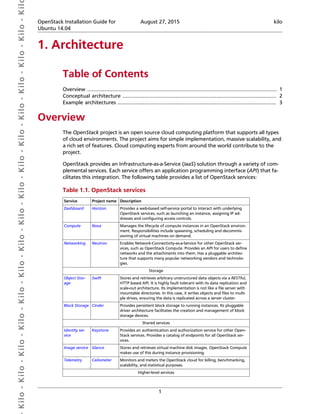
The following diagram provides the conceptual architecture of a typical OpenStack environ-
ment.
Figure 1.1. Conceptual architecture
 Kilo- Kilo- Kilo- Kilo- Kilo- Kilo- Kilo- Kilo- Kilo- Kilo- Kilo- Kilo- Kilo- Kilo- Kilo- Kil OpenStack Installation Guide for
Ubuntu 14.04
August 27, 2015 kilo
3
Example architectures
OpenStack is highly configurable to meet different needs with various compute, network-
ing, and storage options. This guide enables you to choose your own OpenStack adventure
using a combination of core and optional services. This guide uses the following example ar-
chitectures:
• Three-node architecture with OpenStack Networking (neutron) and optional nodes for
Block Storage and Object Storage services.
• The controller node runs the Identity service, Image Service, management portions of
Compute and Networking, Networking plug-in, and the dashboard. It also includes
supporting services such as a SQL database, message queue, and Network Time Proto-
col (NTP).
Optionally, the controller node runs portions of Block Storage, Object Storage, Orches-
tration, Telemetry, Database, and Data processing services. These components provide
additional features for your environment.
• The network node runs the Networking plug-in and several agents that provision ten-
ant networks and provide switching, routing, NAT, and DHCP services. This node also
handles external (Internet) connectivity for tenant virtual machine instances.
• The compute node runs the hypervisor portion of Compute that operates tenant virtual
machines or instances. By default, Compute uses KVM as the hypervisor. The compute
node also runs the Networking plug-in and an agent that connect tenant networks to
instances and provide firewalling (security groups) services. You can run more than one
compute node.
Optionally, the compute node runs a Telemetry agent to collect meters. Also, it can
contain a third network interface on a separate storage network to improve perfor-
mance of storage services.
• The optional Block Storage node contains the disks that the Block Storage service
provisions for tenant virtual machine instances. You can run more than one of these
nodes.
Optionally, the Block Storage node runs a Telemetry agent to collect meters. Also, it
can contain a second network interface on a separate storage network to improve per-
formance of storage services.
• The optional Object Storage nodes contain the disks that the Object Storage service us-
es for storing accounts, containers, and objects. You can run more than two of these
nodes. However, the minimal architecture example requires two nodes.
Optionally, these nodes can contain a second network interface on a separate storage
network to improve performance of storage services.
Note
When you implement this architecture, skip the section called “Legacy net-
working (nova-network)” [91] in Chapter 6, “Add a networking compo-
 Kilo- Kilo- Kilo- Kilo- Kilo- Kilo- Kilo- Kilo- Kilo- Kilo- Kilo- Kilo- Kilo- Kilo- Kilo- Kil OpenStack Installation Guide for
Ubuntu 14.04
August 27, 2015 kilo
4
nent” [66]. Optional services might require additional nodes or additional
resources on existing nodes.
Figure 1.2. Minimal architecture example with OpenStack Networking
(neutron)—Hardware requirements
 Kilo- Kilo- Kilo- Kilo- Kilo- Kilo- Kilo- Kilo- Kilo- Kilo- Kilo- Kilo- Kilo- Kilo- Kilo- Kil OpenStack Installation Guide for
Ubuntu 14.04
August 27, 2015 kilo
5
Figure 1.3. Minimal architecture example with OpenStack Networking
(neutron)—Network layout
 Kilo- Kilo- Kilo- Kilo- Kilo- Kilo- Kilo- Kilo- Kilo- Kilo- Kilo- Kilo- Kilo- Kilo- Kilo- Kil OpenStack Installation Guide for
Ubuntu 14.04
August 27, 2015 kilo
6
Figure 1.4. Minimal architecture example with OpenStack Networking
(neutron)—Service layout
• Two-node architecture with legacy networking (nova-network) and optional nodes for
Block Storage and Object Storage services.
• The controller node runs the Identity service, Image service, management portion
of Compute, and the dashboard. It also includes supporting services such as a SQL
database, message queue, and Network Time Protocol (NTP).
Optionally, the controller node runs portions of Block Storage, Object Storage, Orches-
tration, Telemetry, Database, and Data processing services. These components provide
additional features for your environment.
• The compute node runs the hypervisor portion of Compute that operates tenant virtual
machines or instances. By default, Compute uses KVM as the hypervisor. Compute also
provisions tenant networks and provides firewalling (security groups) services. You can
run more than one compute node.
 Kilo- Kilo- Kilo- Kilo- Kilo- Kilo- Kilo- Kilo- Kilo- Kilo- Kilo- Kilo- Kilo- Kilo- Kilo- Kil OpenStack Installation Guide for
Ubuntu 14.04
August 27, 2015 kilo
7
Optionally, the compute node runs a Telemetry agent to collect meters. Also, it can
contain a third network interface on a separate storage network to improve perfor-
mance of storage services.
• The optional Block Storage node contains the disks that the Block Storage service
provisions for tenant virtual machine instances. You can run more than one of these
nodes.
Optionally, the Block Storage node runs a Telemetry agent to collect meters. Also, it
can contain a second network interface on a separate storage network to improve per-
formance of storage services.
• The optional Object Storage nodes contain the disks that the Object Storage service us-
es for storing accounts, containers, and objects. You can run more than two of these
nodes. However, the minimal architecture example requires two nodes.
Optionally, these nodes can contain a second network interface on a separate storage
network to improve performance of storage services.
Note
When you implement this architecture, skip the section called “OpenStack
Networking (neutron)” [66] in Chapter 6, “Add a networking compo-
nent” [66]. To use optional services, you might need to build additional
nodes, as described in subsequent chapters.
 Kilo- Kilo- Kilo- Kilo- Kilo- Kilo- Kilo- Kilo- Kilo- Kilo- Kilo- Kilo- Kilo- Kilo- Kilo- Kil OpenStack Installation Guide for
Ubuntu 14.04
August 27, 2015 kilo
8
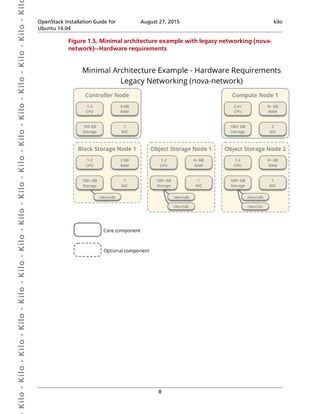
Figure 1.5. Minimal architecture example with legacy networking (nova-
network)—Hardware requirements
 Kilo- Kilo- Kilo- Kilo- Kilo- Kilo- Kilo- Kilo- Kilo- Kilo- Kilo- Kilo- Kilo- Kilo- Kilo- Kil OpenStack Installation Guide for
Ubuntu 14.04
August 27, 2015 kilo
9
Figure 1.6. Minimal architecture example with legacy networking (nova-
network)—Network layout
 Kilo- Kilo- Kilo- Kilo- Kilo- Kilo- Kilo- Kilo- Kilo- Kilo- Kilo- Kilo- Kilo- Kilo- Kilo- Kil OpenStack Installation Guide for
Ubuntu 14.04
August 27, 2015 kilo
10
Figure 1.7. Minimal architecture example with legacy networking (nova-
network)—Service layout
 Kilo- Kilo- Kilo- Kilo- Kilo- Kilo- Kilo- Kilo- Kilo- Kilo- Kilo- Kilo- Kilo- Kilo- Kilo- Kil OpenStack Installation Guide for
Ubuntu 14.04
August 27, 2015 kilo
11
2. Basic environment
Table of Contents
Before you begin .......................................................................................................... 11
Security ......................................................................................................................... 12
Networking ................................................................................................................... 13
Network Time Protocol (NTP) ........................................................................................ 25
OpenStack packages ..................................................................................................... 27
SQL database ................................................................................................................ 28
Message queue ............................................................................................................. 30
Note
The trunk version of this guide focuses on the future Kilo release and will not
work for the current Juno release. If you want to install Juno, you must use the
Juno version of this guide instead.
This chapter explains how to configure each node in the example architectures including
the two-node architecture with legacy networking and three-node architecture with Open-
Stack Networking (neutron).
Note
Although most environments include Identity, Image service, Compute, at least
one networking service, and the dashboard, the Object Storage service can op-
erate independently. If your use case only involves Object Storage, you can skip
to Chapter 9, “Add Object Storage” [109] after configuring the appropriate
nodes for it. However, the dashboard requires at least the Image service and
Compute.
Note
You must use an account with administrative privileges to configure each node.
Either run the commands as the root user or configure the sudo utility.
Note
The systemctl enable call on openSUSE outputs a warning message when the
service uses SysV Init scripts instead of native systemd files. This warning can be
ignored.
Before you begin
For best performance, we recommend that your environment meets or exceeds the hard-
ware requirements in Figure 1.2, “Minimal architecture example with OpenStack Network-
ing (neutron)—Hardware requirements” [4] or Figure 1.5, “Minimal architecture example
 Kilo- Kilo- Kilo- Kilo- Kilo- Kilo- Kilo- Kilo- Kilo- Kilo- Kilo- Kilo- Kilo- Kilo- Kilo- Kil OpenStack Installation Guide for
Ubuntu 14.04
August 27, 2015 kilo
12
with legacy networking (nova-network)—Hardware requirements” [8]. However, Open-
Stack does not require a significant amount of resources and the following minimum re-
quirements should support a proof-of-concept environment with core services and several
CirrOS instances:
• Controller Node: 1 processor, 2 GB memory, and 5 GB storage
• Network Node: 1 processor, 512 MB memory, and 5 GB storage
• Compute Node: 1 processor, 2 GB memory, and 10 GB storage
To minimize clutter and provide more resources for OpenStack, we recommend a minimal
installation of your Linux distribution. Also, we strongly recommend that you install a 64-
bit version of your distribution on at least the compute node. If you install a 32-bit version
of your distribution on the compute node, attempting to start an instance using a 64-bit im-
age will fail.
Note
A single disk partition on each node works for most basic installations. Howev-
er, you should consider Logical Volume Manager (LVM) for installations with op-
tional services such as Block Storage.
Many users build their test environments on virtual machines (VMs). The primary benefits of
VMs include the following:
• One physical server can support multiple nodes, each with almost any number of net-
work interfaces.
• Ability to take periodic "snap shots" throughout the installation process and "roll back" to
a working configuration in the event of a problem.
However, VMs will reduce performance of your instances, particularly if your hypervisor
and/or processor lacks support for hardware acceleration of nested VMs.
Note
If you choose to install on VMs, make sure your hypervisor permits promiscuous
mode and disables MAC address filtering on the external network.
For more information about system requirements, see the OpenStack Operations Guide.
Security
OpenStack services support various security methods including password, policy, and en-
cryption. Additionally, supporting services including the database server and message bro-
ker support at least password security.
To ease the installation process, this guide only covers password security where applicable.
You can create secure passwords manually, generate them using a tool such as pwgen, or
by running the following command:
 Kilo- Kilo- Kilo- Kilo- Kilo- Kilo- Kilo- Kilo- Kilo- Kilo- Kilo- Kilo- Kilo- Kilo- Kilo- Kil OpenStack Installation Guide for
Ubuntu 14.04
August 27, 2015 kilo
13
$ openssl rand -hex 10
For OpenStack services, this guide uses SERVICE_PASS to reference service account pass-
words and SERVICE_DBPASS to reference database passwords.
The following table provides a list of services that require passwords and their associated
references in the guide:
Table 2.1. Passwords
Password name Description
Database password (no variable used) Root password for the database
ADMIN_PASS Password of user admin
CEILOMETER_DBPASS Database password for the Telemetry service
CEILOMETER_PASS Password of Telemetry service user ceilometer
CINDER_DBPASS Database password for the Block Storage service
CINDER_PASS Password of Block Storage service user cinder
DASH_DBPASS Database password for the dashboard
DEMO_PASS Password of user demo
GLANCE_DBPASS Database password for Image service
GLANCE_PASS Password of Image service user glance
HEAT_DBPASS Database password for the Orchestration service
HEAT_DOMAIN_PASS Password of Orchestration domain
HEAT_PASS Password of Orchestration service user heat
KEYSTONE_DBPASS Database password of Identity service
NEUTRON_DBPASS Database password for the Networking service
NEUTRON_PASS Password of Networking service user neutron
NOVA_DBPASS Database password for Compute service
NOVA_PASS Password of Compute service user nova
RABBIT_PASS Password of user guest of RabbitMQ
SAHARA_DBPASS Database password of Data processing service
SWIFT_PASS Password of Object Storage service user swift
TROVE_DBPASS Database password of Database service
TROVE_PASS Password of Database service user trove
OpenStack and supporting services require administrative privileges during installation and
operation. In some cases, services perform modifications to the host that can interfere with
deployment automation tools such as Ansible, Chef, and Puppet. For example, some Open-
Stack services add a root wrapper to sudo that can interfere with security policies. See the
Cloud Administrator Guide for more information. Also, the Networking service assumes de-
fault values for kernel network parameters and modifies firewall rules. To avoid most issues
during your initial installation, we recommend using a stock deployment of a supported dis-
tribution on your hosts. However, if you choose to automate deployment of your hosts, re-
view the configuration and policies applied to them before proceeding further.
Networking
After installing the operating system on each node for the architecture that you choose to
deploy, you must configure the network interfaces. We recommend that you disable any
 Kilo- Kilo- Kilo- Kilo- Kilo- Kilo- Kilo- Kilo- Kilo- Kilo- Kilo- Kilo- Kilo- Kilo- Kilo- Kil OpenStack Installation Guide for
Ubuntu 14.04
August 27, 2015 kilo
14
automated network management tools and manually edit the appropriate configuration
files for your distribution. For more information on how to configure networking on your
distribution, see the documentation.
All nodes require Internet access for administrative purposes such as package installation,
security updates, DNS, and NTP. In most cases, nodes should obtain Internet access through
the management network interface. To highlight the importance of network separation,
the example architectures use private address space for the management network and as-
sume that network infrastructure provides Internet access via NAT. To illustrate the flexibil-
ity of IaaS, the example architectures use public IP address space for the external network
and assume that network infrastructure provides direct Internet access to instances in your
OpenStack environment. In environments with only one block of public IP address space,
both the management and external networks must ultimately obtain Internet access us-
ing it. For simplicity, the diagrams in this guide only show Internet access for OpenStack ser-
vices.
Note
Your distribution does not enable a restrictive firewall by default. For more in-
formation about securing your environment, refer to the OpenStack Security
Guide.
Proceed to network configuration for the example OpenStack Networking (neutron) or
legacy networking (nova-network) architecture.
OpenStack Networking (neutron)
The example architecture with OpenStack Networking (neutron) requires one controller
node, one network node, and at least one compute node. The controller node contains
one network interface on the management network. The network node contains one net-
work interface on the management network, one on the instance tunnels network, and
one on the external network. The compute node contains one network interface on the
management network and one on the instance tunnels network.
The example architecture assumes use of the following networks:
• Management on 10.0.0.0/24 with gateway 10.0.0.1
Note
This network requires a gateway to provide Internet access to all nodes for
administrative purposes such as package installation, security updates, DNS,
and NTP.
• Instance tunnels on 10.0.1.0/24 without a gateway
Note
This network does not require a gateway because communication only occurs
among network and compute nodes in your OpenStack environment.
• External on 203.0.113.0/24 with gateway 203.0.113.1
 Kilo- Kilo- Kilo- Kilo- Kilo- Kilo- Kilo- Kilo- Kilo- Kilo- Kilo- Kilo- Kilo- Kilo- Kilo- Kil OpenStack Installation Guide for
Ubuntu 14.04
August 27, 2015 kilo
15
Note
This network requires a gateway to provide Internet access to instances in
your OpenStack environment.
You can modify these ranges and gateways to work with your particular network infras-
tructure.
Note
Network interface names vary by distribution. Traditionally, interfaces use "eth"
followed by a sequential number. To cover all variations, this guide simply refers
to the first interface as the interface with the lowest number, the second inter-
face as the interface with the middle number, and the third interface as the in-
terface with the highest number.
Figure 2.1. Minimal architecture example with OpenStack Networking
(neutron)—Network layout
 Kilo- Kilo- Kilo- Kilo- Kilo- Kilo- Kilo- Kilo- Kilo- Kilo- Kilo- Kilo- Kilo- Kilo- Kilo- Kil OpenStack Installation Guide for
Ubuntu 14.04
August 27, 2015 kilo
16
Unless you intend to use the exact configuration provided in this example architecture, you
must modify the networks in this procedure to match your environment. Also, each node
must resolve the other nodes by name in addition to IP address. For example, the con-
troller name must resolve to 10.0.0.11, the IP address of the management interface
on the controller node.
Warning
Reconfiguring network interfaces will interrupt network connectivity. We rec-
ommend using a local terminal session for these procedures.
Controller node
To configure networking:
1. Configure the first interface as the management interface:
IP address: 10.0.0.11
Network mask: 255.255.255.0 (or /24)
Default gateway: 10.0.0.1
2. Reboot the system to activate the changes.
To configure name resolution:
1. Set the hostname of the node to controller.
2. Edit the /etc/hosts file to contain the following:
# controller
10.0.0.11 controller
# network
10.0.0.21 network
# compute1
10.0.0.31 compute1
Warning
Some distributions add an extraneous entry in the /etc/hosts file that
resolves the actual hostname to another loopback IP address such as
127.0.1.1. You must comment out or remove this entry to prevent
name resolution problems.
Network node
To configure networking:
1. Configure the first interface as the management interface:
 Kilo- Kilo- Kilo- Kilo- Kilo- Kilo- Kilo- Kilo- Kilo- Kilo- Kilo- Kilo- Kilo- Kilo- Kilo- Kil OpenStack Installation Guide for
Ubuntu 14.04
August 27, 2015 kilo
17
IP address: 10.0.0.21
Network mask: 255.255.255.0 (or /24)
Default gateway: 10.0.0.1
2. Configure the second interface as the instance tunnels interface:
IP address: 10.0.1.21
Network mask: 255.255.255.0 (or /24)
3. The external interface uses a special configuration without an IP address assigned to it.
Configure the third interface as the external interface:
Replace INTERFACE_NAME with the actual interface name. For example, eth2 or
ens256.
• Edit the /etc/network/interfaces file to contain the following:
# The external network interface
auto INTERFACE_NAME
iface INTERFACE_NAME inet manual
up ip link set dev $IFACE up
down ip link set dev $IFACE down
4. Reboot the system to activate the changes.
To configure name resolution:
1. Set the hostname of the node to network.
2. Edit the /etc/hosts file to contain the following:
# network
10.0.0.21 network
# controller
10.0.0.11 controller
# compute1
10.0.0.31 compute1
Warning
Some distributions add an extraneous entry in the /etc/hosts file that
resolves the actual hostname to another loopback IP address such as
127.0.1.1. You must comment out or remove this entry to prevent
name resolution problems.
Compute node
To configure networking:
1. Configure the first interface as the management interface:
 Kilo- Kilo- Kilo- Kilo- Kilo- Kilo- Kilo- Kilo- Kilo- Kilo- Kilo- Kilo- Kilo- Kilo- Kilo- Kil OpenStack Installation Guide for
Ubuntu 14.04
August 27, 2015 kilo
18
IP address: 10.0.0.31
Network mask: 255.255.255.0 (or /24)
Default gateway: 10.0.0.1
Note
Additional compute nodes should use 10.0.0.32, 10.0.0.33, and so on.
2. Configure the second interface as the instance tunnels interface:
IP address: 10.0.1.31
Network mask: 255.255.255.0 (or /24)
Note
Additional compute nodes should use 10.0.1.32, 10.0.1.33, and so on.
3. Reboot the system to activate the changes.
To configure name resolution:
1. Set the hostname of the node to compute1.
2. Edit the /etc/hosts file to contain the following:
# compute1
10.0.0.31 compute1
# controller
10.0.0.11 controller
# network
10.0.0.21 network
Warning
Some distributions add an extraneous entry in the /etc/hosts file that
resolves the actual hostname to another loopback IP address such as
127.0.1.1. You must comment out or remove this entry to prevent
name resolution problems.
Verify connectivity
We recommend that you verify network connectivity to the Internet and among the nodes
before proceeding further.
1. From the controller node, ping a site on the Internet:
# ping -c 4 openstack.org
PING openstack.org (174.143.194.225) 56(84) bytes of data.
 Kilo- Kilo- Kilo- Kilo- Kilo- Kilo- Kilo- Kilo- Kilo- Kilo- Kilo- Kilo- Kilo- Kilo- Kilo- Kil OpenStack Installation Guide for
Ubuntu 14.04
August 27, 2015 kilo
19
64 bytes from 174.143.194.225: icmp_seq=1 ttl=54 time=18.3 ms
64 bytes from 174.143.194.225: icmp_seq=2 ttl=54 time=17.5 ms
64 bytes from 174.143.194.225: icmp_seq=3 ttl=54 time=17.5 ms
64 bytes from 174.143.194.225: icmp_seq=4 ttl=54 time=17.4 ms
--- openstack.org ping statistics ---
4 packets transmitted, 4 received, 0% packet loss, time 3022ms
rtt min/avg/max/mdev = 17.489/17.715/18.346/0.364 ms
2. From the controller node, ping the management interface on the network node:
# ping -c 4 network
PING network (10.0.0.21) 56(84) bytes of data.
64 bytes from network (10.0.0.21): icmp_seq=1 ttl=64 time=0.263 ms
64 bytes from network (10.0.0.21): icmp_seq=2 ttl=64 time=0.202 ms
64 bytes from network (10.0.0.21): icmp_seq=3 ttl=64 time=0.203 ms
64 bytes from network (10.0.0.21): icmp_seq=4 ttl=64 time=0.202 ms
--- network ping statistics ---
4 packets transmitted, 4 received, 0% packet loss, time 3000ms
rtt min/avg/max/mdev = 0.202/0.217/0.263/0.030 ms
3. From the controller node, ping the management interface on the compute node:
# ping -c 4 compute1
PING compute1 (10.0.0.31) 56(84) bytes of data.
64 bytes from compute1 (10.0.0.31): icmp_seq=1 ttl=64 time=0.263 ms
64 bytes from compute1 (10.0.0.31): icmp_seq=2 ttl=64 time=0.202 ms
64 bytes from compute1 (10.0.0.31): icmp_seq=3 ttl=64 time=0.203 ms
64 bytes from compute1 (10.0.0.31): icmp_seq=4 ttl=64 time=0.202 ms
--- network ping statistics ---
4 packets transmitted, 4 received, 0% packet loss, time 3000ms
rtt min/avg/max/mdev = 0.202/0.217/0.263/0.030 ms
4. From the network node, ping a site on the Internet:
# ping -c 4 openstack.org
PING openstack.org (174.143.194.225) 56(84) bytes of data.
64 bytes from 174.143.194.225: icmp_seq=1 ttl=54 time=18.3 ms
64 bytes from 174.143.194.225: icmp_seq=2 ttl=54 time=17.5 ms
64 bytes from 174.143.194.225: icmp_seq=3 ttl=54 time=17.5 ms
64 bytes from 174.143.194.225: icmp_seq=4 ttl=54 time=17.4 ms
--- openstack.org ping statistics ---
4 packets transmitted, 4 received, 0% packet loss, time 3022ms
rtt min/avg/max/mdev = 17.489/17.715/18.346/0.364 ms
5. From the network node, ping the management interface on the controller node:
# ping -c 4 controller
PING controller (10.0.0.11) 56(84) bytes of data.
64 bytes from controller (10.0.0.11): icmp_seq=1 ttl=64 time=0.263 ms
64 bytes from controller (10.0.0.11): icmp_seq=2 ttl=64 time=0.202 ms
64 bytes from controller (10.0.0.11): icmp_seq=3 ttl=64 time=0.203 ms
64 bytes from controller (10.0.0.11): icmp_seq=4 ttl=64 time=0.202 ms
--- controller ping statistics ---
4 packets transmitted, 4 received, 0% packet loss, time 3000ms
rtt min/avg/max/mdev = 0.202/0.217/0.263/0.030 ms
 Kilo- Kilo- Kilo- Kilo- Kilo- Kilo- Kilo- Kilo- Kilo- Kilo- Kilo- Kilo- Kilo- Kilo- Kilo- Kil OpenStack Installation Guide for
Ubuntu 14.04
August 27, 2015 kilo
20
6. From the network node, ping the instance tunnels interface on the compute node:
# ping -c 4 10.0.1.31
PING 10.0.1.31 (10.0.1.31) 56(84) bytes of data.
64 bytes from 10.0.1.31 (10.0.1.31): icmp_seq=1 ttl=64 time=0.263 ms
64 bytes from 10.0.1.31 (10.0.1.31): icmp_seq=2 ttl=64 time=0.202 ms
64 bytes from 10.0.1.31 (10.0.1.31): icmp_seq=3 ttl=64 time=0.203 ms
64 bytes from 10.0.1.31 (10.0.1.31): icmp_seq=4 ttl=64 time=0.202 ms
--- 10.0.1.31 ping statistics ---
4 packets transmitted, 4 received, 0% packet loss, time 3000ms
rtt min/avg/max/mdev = 0.202/0.217/0.263/0.030 ms
7. From the compute node, ping a site on the Internet:
# ping -c 4 openstack.org
PING openstack.org (174.143.194.225) 56(84) bytes of data.
64 bytes from 174.143.194.225: icmp_seq=1 ttl=54 time=18.3 ms
64 bytes from 174.143.194.225: icmp_seq=2 ttl=54 time=17.5 ms
64 bytes from 174.143.194.225: icmp_seq=3 ttl=54 time=17.5 ms
64 bytes from 174.143.194.225: icmp_seq=4 ttl=54 time=17.4 ms
--- openstack.org ping statistics ---
4 packets transmitted, 4 received, 0% packet loss, time 3022ms
rtt min/avg/max/mdev = 17.489/17.715/18.346/0.364 ms
8. From the compute node, ping the management interface on the controller node:
# ping -c 4 controller
PING controller (10.0.0.11) 56(84) bytes of data.
64 bytes from controller (10.0.0.11): icmp_seq=1 ttl=64 time=0.263 ms
64 bytes from controller (10.0.0.11): icmp_seq=2 ttl=64 time=0.202 ms
64 bytes from controller (10.0.0.11): icmp_seq=3 ttl=64 time=0.203 ms
64 bytes from controller (10.0.0.11): icmp_seq=4 ttl=64 time=0.202 ms
--- controller ping statistics ---
4 packets transmitted, 4 received, 0% packet loss, time 3000ms
rtt min/avg/max/mdev = 0.202/0.217/0.263/0.030 ms
9. From the compute node, ping the instance tunnels interface on the network node:
# ping -c 4 10.0.1.21
PING 10.0.1.21 (10.0.1.21) 56(84) bytes of data.
64 bytes from 10.0.1.21 (10.0.1.21): icmp_seq=1 ttl=64 time=0.263 ms
64 bytes from 10.0.1.21 (10.0.1.21): icmp_seq=2 ttl=64 time=0.202 ms
64 bytes from 10.0.1.21 (10.0.1.21): icmp_seq=3 ttl=64 time=0.203 ms
64 bytes from 10.0.1.21 (10.0.1.21): icmp_seq=4 ttl=64 time=0.202 ms
--- 10.0.1.21 ping statistics ---
4 packets transmitted, 4 received, 0% packet loss, time 3000ms
rtt min/avg/max/mdev = 0.202/0.217/0.263/0.030 ms
Legacy networking (nova-network)
The example architecture with legacy networking (nova-network) requires a controller
node and at least one compute node. The controller node contains one network interface
on the management network. The compute node contains one network interface on the
management network and one on the external network.
 Kilo- Kilo- Kilo- Kilo- Kilo- Kilo- Kilo- Kilo- Kilo- Kilo- Kilo- Kilo- Kilo- Kilo- Kilo- Kil OpenStack Installation Guide for
Ubuntu 14.04
August 27, 2015 kilo
21
The example architecture assumes use of the following networks:
• Management on 10.0.0.0/24 with gateway 10.0.0.1
Note
This network requires a gateway to provide Internet access to all nodes for
administrative purposes such as package installation, security updates, DNS,
and NTP.
• External on 203.0.113.0/24 with gateway 203.0.113.1
Note
This network requires a gateway to provide Internet access to instances in
your OpenStack environment.
You can modify these ranges and gateways to work with your particular network infras-
tructure.
Note
Network interface names vary by distribution. Traditionally, interfaces use "eth"
followed by a sequential number. To cover all variations, this guide simply refers
to the first interface as the interface with the lowest number and the second in-
terface as the interface with the highest number.
 Kilo- Kilo- Kilo- Kilo- Kilo- Kilo- Kilo- Kilo- Kilo- Kilo- Kilo- Kilo- Kilo- Kilo- Kilo- Kil OpenStack Installation Guide for
Ubuntu 14.04
August 27, 2015 kilo
22
Figure 2.2. Minimal architecture example with legacy networking (nova-
network)—Network layout
Unless you intend to use the exact configuration provided in this example architecture, you
must modify the networks in this procedure to match your environment. Also, each node
must resolve the other nodes by name in addition to IP address. For example, the con-
troller name must resolve to 10.0.0.11, the IP address of the management interface
on the controller node.
Warning
Reconfiguring network interfaces will interrupt network connectivity. We rec-
ommend using a local terminal session for these procedures.
Controller node
To configure networking:
1. Configure the first interface as the management interface:
IP address: 10.0.0.11
Network mask: 255.255.255.0 (or /24)
 Kilo- Kilo- Kilo- Kilo- Kilo- Kilo- Kilo- Kilo- Kilo- Kilo- Kilo- Kilo- Kilo- Kilo- Kilo- Kil OpenStack Installation Guide for
Ubuntu 14.04
August 27, 2015 kilo
23
Default gateway: 10.0.0.1
2. Reboot the system to activate the changes.
To configure name resolution:
1. Set the hostname of the node to controller.
2. Edit the /etc/hosts file to contain the following:
# controller
10.0.0.11 controller
# compute1
10.0.0.31 compute1
Warning
Some distributions add an extraneous entry in the /etc/hosts file that
resolves the actual hostname to another loopback IP address such as
127.0.1.1. You must comment out or remove this entry to prevent
name resolution problems.
Compute node
To configure networking:
1. Configure the first interface as the management interface:
IP address: 10.0.0.31
Network mask: 255.255.255.0 (or /24)
Default gateway: 10.0.0.1
Note
Additional compute nodes should use 10.0.0.32, 10.0.0.33, and so on.
2. The external interface uses a special configuration without an IP address assigned to it.
Configure the second interface as the external interface:
Replace INTERFACE_NAME with the actual interface name. For example, eth1 or
ens224.
• Edit the /etc/network/interfaces file to contain the following:
# The external network interface
auto INTERFACE_NAME
iface INTERFACE_NAME inet manual
up ip link set dev $IFACE up
down ip link set dev $IFACE down
3. Reboot the system to activate the changes.
 Kilo- Kilo- Kilo- Kilo- Kilo- Kilo- Kilo- Kilo- Kilo- Kilo- Kilo- Kilo- Kilo- Kilo- Kilo- Kil OpenStack Installation Guide for
Ubuntu 14.04
August 27, 2015 kilo
24
To configure name resolution:
1. Set the hostname of the node to compute1.
2. Edit the /etc/hosts file to contain the following:
# compute1
10.0.0.31 compute1
# controller
10.0.0.11 controller
Warning
Some distributions add an extraneous entry in the /etc/hosts file that
resolves the actual hostname to another loopback IP address such as
127.0.1.1. You must comment out or remove this entry to prevent
name resolution problems.
Verify connectivity
We recommend that you verify network connectivity to the Internet and among the nodes
before proceeding further.
1. From the controller node, ping a site on the Internet:
# ping -c 4 openstack.org
PING openstack.org (174.143.194.225) 56(84) bytes of data.
64 bytes from 174.143.194.225: icmp_seq=1 ttl=54 time=18.3 ms
64 bytes from 174.143.194.225: icmp_seq=2 ttl=54 time=17.5 ms
64 bytes from 174.143.194.225: icmp_seq=3 ttl=54 time=17.5 ms
64 bytes from 174.143.194.225: icmp_seq=4 ttl=54 time=17.4 ms
--- openstack.org ping statistics ---
4 packets transmitted, 4 received, 0% packet loss, time 3022ms
rtt min/avg/max/mdev = 17.489/17.715/18.346/0.364 ms
2. From the controller node, ping the management interface on the compute node:
# ping -c 4 compute1
PING compute1 (10.0.0.31) 56(84) bytes of data.
64 bytes from compute1 (10.0.0.31): icmp_seq=1 ttl=64 time=0.263 ms
64 bytes from compute1 (10.0.0.31): icmp_seq=2 ttl=64 time=0.202 ms
64 bytes from compute1 (10.0.0.31): icmp_seq=3 ttl=64 time=0.203 ms
64 bytes from compute1 (10.0.0.31): icmp_seq=4 ttl=64 time=0.202 ms
--- compute1 ping statistics ---
4 packets transmitted, 4 received, 0% packet loss, time 3000ms
rtt min/avg/max/mdev = 0.202/0.217/0.263/0.030 ms
3. From the compute node, ping a site on the Internet:
# ping -c 4 openstack.org
PING openstack.org (174.143.194.225) 56(84) bytes of data.
64 bytes from 174.143.194.225: icmp_seq=1 ttl=54 time=18.3 ms
64 bytes from 174.143.194.225: icmp_seq=2 ttl=54 time=17.5 ms
64 bytes from 174.143.194.225: icmp_seq=3 ttl=54 time=17.5 ms
64 bytes from 174.143.194.225: icmp_seq=4 ttl=54 time=17.4 ms
 Kilo- Kilo- Kilo- Kilo- Kilo- Kilo- Kilo- Kilo- Kilo- Kilo- Kilo- Kilo- Kilo- Kilo- Kilo- Kil OpenStack Installation Guide for
Ubuntu 14.04
August 27, 2015 kilo
25
--- openstack.org ping statistics ---
4 packets transmitted, 4 received, 0% packet loss, time 3022ms
rtt min/avg/max/mdev = 17.489/17.715/18.346/0.364 ms
4. From the compute node, ping the management interface on the controller node:
# ping -c 4 controller
PING controller (10.0.0.11) 56(84) bytes of data.
64 bytes from controller (10.0.0.11): icmp_seq=1 ttl=64 time=0.263 ms
64 bytes from controller (10.0.0.11): icmp_seq=2 ttl=64 time=0.202 ms
64 bytes from controller (10.0.0.11): icmp_seq=3 ttl=64 time=0.203 ms
64 bytes from controller (10.0.0.11): icmp_seq=4 ttl=64 time=0.202 ms
--- controller ping statistics ---
4 packets transmitted, 4 received, 0% packet loss, time 3000ms
rtt min/avg/max/mdev = 0.202/0.217/0.263/0.030 ms
Network Time Protocol (NTP)
You must install NTP to properly synchronize services among nodes. We recommend that
you configure the controller node to reference more accurate (lower stratum) servers and
other nodes to reference the controller node.
Controller node
To install the NTP service
• # apt-get install ntp
To configure the NTP service
By default, the controller node synchronizes the time via a pool of public servers. Howev-
er, you can optionally edit the /etc/ntp.conf file to configure alternative servers such as
those provided by your organization.
1. Edit the /etc/ntp.conf file and add, change, or remove the following keys as neces-
sary for your environment:
server NTP_SERVER iburst
restrict -4 default kod notrap nomodify
restrict -6 default kod notrap nomodify
Replace NTP_SERVER with the hostname or IP address of a suitable more accurate
(lower stratum) NTP server. The configuration supports multiple server keys.
Note
For the restrict keys, you essentially remove the nopeer and noquery
options.
Note
Remove the /var/lib/ntp/ntp.conf.dhcp file if it exists.
2. Restart the NTP service:
 Kilo- Kilo- Kilo- Kilo- Kilo- Kilo- Kilo- Kilo- Kilo- Kilo- Kilo- Kilo- Kilo- Kilo- Kilo- Kil OpenStack Installation Guide for
Ubuntu 14.04
August 27, 2015 kilo
26
# service ntp restart
Other nodes
To install the NTP service
• # apt-get install ntp
To configure the NTP service
Configure the network and compute nodes to reference the controller node.
1. Edit the /etc/ntp.conf file:
Comment out or remove all but one server key and change it to reference the con-
troller node.
server controller iburst
Note
Remove the /var/lib/ntp/ntp.conf.dhcp file if it exists.
2. Restart the NTP service:
# service ntp restart
Verify operation
We recommend that you verify NTP synchronization before proceeding further. Some
nodes, particularly those that reference the controller node, can take several minutes to
synchronize.
1. Run this command on the controller node:
# ntpq -c peers
remote refid st t when poll reach delay offset
jitter
==========================================================================
====
*ntp-server1 192.0.2.11 2 u 169 1024 377 1.901 -0.611
5.483
+ntp-server2 192.0.2.12 2 u 887 1024 377 0.922 -0.246
2.864
Contents in the remote column should indicate the hostname or IP address of one or
more NTP servers.
Note
Contents in the refid column typically reference IP addresses of upstream
servers.
2. Run this command on the controller node:
# ntpq -c assoc
 Kilo- Kilo- Kilo- Kilo- Kilo- Kilo- Kilo- Kilo- Kilo- Kilo- Kilo- Kilo- Kilo- Kilo- Kilo- Kil OpenStack Installation Guide for
Ubuntu 14.04
August 27, 2015 kilo
27
ind assid status conf reach auth condition last_event cnt
===========================================================
1 20487 961a yes yes none sys.peer sys_peer 1
2 20488 941a yes yes none candidate sys_peer 1
Contents in the condition column should indicate sys.peer for at least one server.
3. Run this command on all other nodes:
# ntpq -c peers
remote refid st t when poll reach delay offset
jitter
==========================================================================
====
*controller 192.0.2.21 3 u 47 64 37 0.308 -0.251
0.079
Contents in the remote column should indicate the hostname of the controller node.
Note
Contents in the refid column typically reference IP addresses of upstream
servers.
4. Run this command on all other nodes:
# ntpq -c assoc
ind assid status conf reach auth condition last_event cnt
===========================================================
1 21181 963a yes yes none sys.peer sys_peer 3
Contents in the condition column should indicate sys.peer.
OpenStack packages
Distributions release OpenStack packages as part of the distribution or using other meth-
ods because of differing release schedules. Perform these procedures on all nodes.
Note
Disable or remove any automatic update services because they can impact your
OpenStack environment.
To enable the OpenStack repository
• Install the Ubuntu Cloud archive keyring and repository:
# apt-get install ubuntu-cloud-keyring
# echo "deb http://ubuntu-cloud.archive.canonical.com/ubuntu" 
"trusty-updates/kilo main" > /etc/apt/sources.list.d/cloudarchive-kilo.
list
To finalize installation
• Upgrade the packages on your system:
# apt-get update && apt-get dist-upgrade
 Kilo- Kilo- Kilo- Kilo- Kilo- Kilo- Kilo- Kilo- Kilo- Kilo- Kilo- Kilo- Kilo- Kilo- Kilo- Kil OpenStack Installation Guide for
Ubuntu 14.04
August 27, 2015 kilo
28
Note
If the upgrade process includes a new kernel, reboot your system to acti-
vate it.
SQL database
Most OpenStack services use an SQL database to store information. The database typically
runs on the controller node. The procedures in this guide use MariaDB or MySQL depend-
ing on the distribution. OpenStack services also support other SQL databases including Post-
greSQL.
To install and configure the database server
1. Install the packages:
Note
The Python MySQL library is compatible with MariaDB.
# apt-get install mariadb-server python-mysqldb
2. Choose a suitable password for the database root account.
3. Create and edit the /etc/mysql/conf.d/mysqld_openstack.cnf file and com-
plete the following actions:
a. In the [mysqld] section, set the bind-address key to the management IP ad-
dress of the controller node to enable access by other nodes via the management
network:
[mysqld]
...
bind-address = 10.0.0.11
b. In the [mysqld] section, set the following keys to enable useful options and the
UTF-8 character set:
[mysqld]
...
default-storage-engine = innodb
innodb_file_per_table
collation-server = utf8_general_ci
init-connect = 'SET NAMES utf8'
character-set-server = utf8
To finalize installation
1. Restart the database service:
# service mysql restart
2. Secure the database service:
# mysql_secure_installation
 Kilo- Kilo- Kilo- Kilo- Kilo- Kilo- Kilo- Kilo- Kilo- Kilo- Kilo- Kilo- Kilo- Kilo- Kilo- Kil OpenStack Installation Guide for
Ubuntu 14.04
August 27, 2015 kilo
29
NOTE: RUNNING ALL PARTS OF THIS SCRIPT IS RECOMMENDED FOR ALL MariaDB
SERVERS IN PRODUCTION USE! PLEASE READ EACH STEP CAREFULLY!
In order to log into MariaDB to secure it, we'll need the current
password for the root user. If you've just installed MariaDB, and
you haven't set the root password yet, the password will be blank,
so you should just press enter here.
Enter current password for root (enter for none):
OK, successfully used password, moving on...
Setting the root password ensures that nobody can log into the MariaDB
root user without the proper authorisation.
Set root password? [Y/n] Y
New password:
Re-enter new password:
Password updated successfully!
Reloading privilege tables..
... Success!
By default, a MariaDB installation has an anonymous user, allowing anyone
to log into MariaDB without having to have a user account created for
them. This is intended only for testing, and to make the installation
go a bit smoother. You should remove them before moving into a
production environment.
Remove anonymous users? [Y/n] Y
... Success!
Normally, root should only be allowed to connect from 'localhost'. This
ensures that someone cannot guess at the root password from the network.
Disallow root login remotely? [Y/n] Y
... Success!
By default, MariaDB comes with a database named 'test' that anyone can
access. This is also intended only for testing, and should be removed
before moving into a production environment.
Remove test database and access to it? [Y/n] Y
- Dropping test database...
... Success!
- Removing privileges on test database...
... Success!
Reloading the privilege tables will ensure that all changes made so far
will take effect immediately.
Reload privilege tables now? [Y/n] Y
... Success!
Cleaning up...
All done! If you've completed all of the above steps, your MariaDB
installation should now be secure.
Thanks for using MariaDB!
 Kilo- Kilo- Kilo- Kilo- Kilo- Kilo- Kilo- Kilo- Kilo- Kilo- Kilo- Kilo- Kilo- Kilo- Kilo- Kil OpenStack Installation Guide for
Ubuntu 14.04
August 27, 2015 kilo
30
Message queue
OpenStack uses a message queue to coordinate operations and status information among
services. The message queue service typically runs on the controller node. OpenStack sup-
ports several message queue services including RabbitMQ, Qpid, and ZeroMQ. However,
most distributions that package OpenStack support a particular message queue service.
This guide implements the RabbitMQ message queue service because most distributions
support it. If you prefer to implement a different message queue service, consult the docu-
mentation associated with it.
To install the message queue service
• Install the package:
# apt-get install rabbitmq-server
To configure the message queue service
1. Add the openstack user:
# rabbitmqctl add_user openstack RABBIT_PASS
Creating user "openstack" ...
...done.
Replace RABBIT_PASS with a suitable password.
2. Permit configuration, write, and read access for the openstack user:
# rabbitmqctl set_permissions openstack ".*" ".*" ".*"
Setting permissions for user "openstack" in vhost "/" ...
...done.
 Kilo- Kilo- Kilo- Kilo- Kilo- Kilo- Kilo- Kilo- Kilo- Kilo- Kilo- Kilo- Kilo- Kilo- Kilo- Kil OpenStack Installation Guide for
Ubuntu 14.04
August 27, 2015 kilo
31
3. Add the Identity service
Table of Contents
OpenStack Identity concepts ......................................................................................... 31
Install and configure ..................................................................................................... 33
Create the service entity and API endpoint .................................................................... 36
Create projects, users, and roles .................................................................................... 38
Verify operation ............................................................................................................ 41
Create OpenStack client environment scripts ................................................................. 43
OpenStack Identity concepts
The OpenStackIdentity Service performs the following functions:
• Tracking users and their permissions.
• Providing a catalog of available services with their API endpoints.
When installing OpenStack Identity service, you must register each service in your Open-
Stack installation. Identity service can then track which OpenStack services are installed,
and where they are located on the network.
To understand OpenStack Identity, you must understand the following concepts:
User Digital representation of a person, system, or service who uses
OpenStack cloud services. The Identity service validates that incom-
ing requests are made by the user who claims to be making the call.
Users have a login and may be assigned tokens to access resources.
Users can be directly assigned to a particular tenant and behave as if
they are contained in that tenant.
Credentials Data that confirms the user's identity. For example: user name and
password, user name and API key, or an authentication token pro-
vided by the Identity Service.
Authentication The process of confirming the identity of a user. OpenStack Identity
confirms an incoming request by validating a set of credentials sup-
plied by the user.
These credentials are initially a user name and password, or a user
name and API key. When user credentials are validated, OpenStack
Identity issues an authentication token which the user provides in
subsequent requests.
Token An alpha-numeric string of text used to access OpenStack APIs and
resources. A token may be revoked at any time and is valid for a fi-
nite duration.
 Kilo- Kilo- Kilo- Kilo- Kilo- Kilo- Kilo- Kilo- Kilo- Kilo- Kilo- Kilo- Kilo- Kilo- Kilo- Kil OpenStack Installation Guide for
Ubuntu 14.04
August 27, 2015 kilo
32
While OpenStack Identity supports token-based authentication in
this release, the intention is to support additional protocols in the fu-
ture. Its main purpose is to be an integration service, and not aspire
to be a full-fledged identity store and management solution.
Tenant A container used to group or isolate resources. Tenants also group
or isolate identity objects. Depending on the service operator, a ten-
ant may map to a customer, account, organization, or project.
Service An OpenStack service, such as Compute (nova), Object Storage
(swift), or Image service (glance). It provides one or more endpoints
in which users can access resources and perform operations.
Endpoint A network-accessible address where you access a service, usually a
URL address. If you are using an extension for templates, an end-
point template can be created, which represents the templates of all
the consumable services that are available across the regions.
Role A personality with a defined set of user rights and privileges to per-
form a specific set of operations.
In the Identity service, a token that is issued to a user includes the
list of roles. Services that are being called by that user determine
how they interpret the set of roles a user has and to which opera-
tions or resources each role grants access.
Keystone Client A command line interface for the OpenStack Identity API. For exam-
ple, users can run the keystone service-create and keystone end-
point-create commands to register services in their OpenStack instal-
lations.
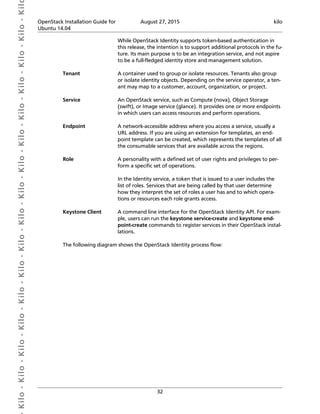
The following diagram shows the OpenStack Identity process flow:
 Kilo- Kilo- Kilo- Kilo- Kilo- Kilo- Kilo- Kilo- Kilo- Kilo- Kilo- Kilo- Kilo- Kilo- Kilo- Kil OpenStack Installation Guide for
Ubuntu 14.04
August 27, 2015 kilo
33
Install and configure
This section describes how to install and configure the OpenStack Identity service, code-
named keystone, on the controller node. For performance, this configuration deploys the
Apache HTTP server to handle requests and Memcached to store tokens instead of a SQL
database.
To configure prerequisites
Before you configure the OpenStack Identity service, you must create a database and an
administration token.
1. To create the database, complete these steps:
a. Use the database access client to connect to the database server as the root user:
$ mysql -u root -p
b. Create the keystone database:
CREATE DATABASE keystone;
c. Grant proper access to the keystone database:
GRANT ALL PRIVILEGES ON keystone.* TO 'keystone'@'localhost' 
IDENTIFIED BY 'KEYSTONE_DBPASS';
GRANT ALL PRIVILEGES ON keystone.* TO 'keystone'@'%'
 Kilo- Kilo- Kilo- Kilo- Kilo- Kilo- Kilo- Kilo- Kilo- Kilo- Kilo- Kilo- Kilo- Kilo- Kilo- Kil OpenStack Installation Guide for
Ubuntu 14.04
August 27, 2015 kilo
34
IDENTIFIED BY 'KEYSTONE_DBPASS';
Replace KEYSTONE_DBPASS with a suitable password.
d. Exit the database access client.
2. Generate a random value to use as the administration token during initial configura-
tion:
$ openssl rand -hex 10
To install and configure the Identity service components
Note
Default configuration files vary by distribution. You might need to add these
sections and options rather than modifying existing sections and options. Also,
an ellipsis (...) in the configuration snippets indicates potential default configu-
ration options that you should retain.
Note
In Kilo, the keystone project deprecates Eventlet in favor of a WSGI server. This
guide uses the Apache HTTP server with mod_wsgi to serve keystone requests
on ports 5000 and 35357. By default, the keystone service still listens on ports
5000 and 35357. Therefore, this guide disables the keystone service.
1. Disable the keystone service from starting automatically after installation:
# echo "manual" > /etc/init/keystone.override
2. Run the following command to install the packages:
# apt-get install keystone python-openstackclient apache2 libapache2-mod-
wsgi memcached python-memcache
3. Edit the /etc/keystone/keystone.conf file and complete the following actions:
a. In the [DEFAULT] section, define the value of the initial administration token:
[DEFAULT]
...
admin_token = ADMIN_TOKEN
Replace ADMIN_TOKEN with the random value that you generated in a previous
step.
b. In the [database] section, configure database access:
[database]
...
connection = mysql://keystone:KEYSTONE_DBPASS@controller/keystone
Replace KEYSTONE_DBPASS with the password you chose for the database.
c. In the [memcache] section, configure the Memcache service:
 Kilo- Kilo- Kilo- Kilo- Kilo- Kilo- Kilo- Kilo- Kilo- Kilo- Kilo- Kilo- Kilo- Kilo- Kilo- Kil OpenStack Installation Guide for
Ubuntu 14.04
August 27, 2015 kilo
35
[memcache]
...
servers = localhost:11211
d. In the [token] section, configure the UUID token provider and Memcached driv-
er:
[token]
...
provider = keystone.token.providers.uuid.Provider
driver = keystone.token.persistence.backends.memcache.Token
e. In the [revoke] section, configure the SQL revocation driver:
[revoke]
...
driver = keystone.contrib.revoke.backends.sql.Revoke
f. (Optional) To assist with troubleshooting, enable verbose logging in the [DE-
FAULT] section:
[DEFAULT]
...
verbose = True
4. Populate the Identity service database:
# su -s /bin/sh -c "keystone-manage db_sync" keystone
To configure the Apache HTTP server
1. Edit the /etc/apache2/apache2.conf file and configure the ServerName option
to reference the controller node:
ServerName controller
2. Create the /etc/apache2/sites-available/wsgi-keystone.conf file with
the following content:
Listen 5000
Listen 35357
<VirtualHost *:5000>
WSGIDaemonProcess keystone-public processes=5 threads=1 user=keystone
display-name=%{GROUP}
WSGIProcessGroup keystone-public
WSGIScriptAlias / /var/www/cgi-bin/keystone/main
WSGIApplicationGroup %{GLOBAL}
WSGIPassAuthorization On
<IfVersion >= 2.4>
ErrorLogFormat "%{cu}t %M"
</IfVersion>
LogLevel info
ErrorLog /var/log/apache2/keystone-error.log
CustomLog /var/log/apache2/keystone-access.log combined
</VirtualHost>
<VirtualHost *:35357>
 Kilo- Kilo- Kilo- Kilo- Kilo- Kilo- Kilo- Kilo- Kilo- Kilo- Kilo- Kilo- Kilo- Kilo- Kilo- Kil OpenStack Installation Guide for
Ubuntu 14.04
August 27, 2015 kilo
36
WSGIDaemonProcess keystone-admin processes=5 threads=1 user=keystone
display-name=%{GROUP}
WSGIProcessGroup keystone-admin
WSGIScriptAlias / /var/www/cgi-bin/keystone/admin
WSGIApplicationGroup %{GLOBAL}
WSGIPassAuthorization On
<IfVersion >= 2.4>
ErrorLogFormat "%{cu}t %M"
</IfVersion>
LogLevel info
ErrorLog /var/log/apache2/keystone-error.log
CustomLog /var/log/apache2/keystone-access.log combined
</VirtualHost>
3. Enable the Identity service virtual hosts:
# ln -s /etc/apache2/sites-available/wsgi-keystone.conf /etc/apache2/
sites-enabled
4. Create the directory structure for the WSGI components:
# mkdir -p /var/www/cgi-bin/keystone
5. Copy the WSGI components from the upstream repository into this directory:
# curl http://git.openstack.org/cgit/openstack/keystone/plain/httpd/
keystone.py?h=stable/kilo 
| tee /var/www/cgi-bin/keystone/main /var/www/cgi-bin/keystone/admin
6. Adjust ownership and permissions on this directory and the files in it:
# chown -R keystone:keystone /var/www/cgi-bin/keystone
# chmod 755 /var/www/cgi-bin/keystone/*
To finalize installation
1. Restart the Apache HTTP server:
# service apache2 restart
2. By default, the Ubuntu packages create a SQLite database.
Because this configuration uses a SQL database server, you can remove the SQLite
database file:
# rm -f /var/lib/keystone/keystone.db
Create the service entity and API endpoint
The Identity service provides a catalog of services and their locations. Each service that you
add to your OpenStack environment requires a service entity and several API endpoint in
the catalog.
To configure prerequisites
By default, the Identity service database contains no information to support conventional
authentication and catalog services. You must use a temporary authentication token that
 Kilo- Kilo- Kilo- Kilo- Kilo- Kilo- Kilo- Kilo- Kilo- Kilo- Kilo- Kilo- Kilo- Kilo- Kilo- Kil OpenStack Installation Guide for
Ubuntu 14.04
August 27, 2015 kilo
37
you created in the section called “Install and configure” [33] to initialize the service enti-
ty and API endpoint for the Identity service.
You must pass the value of the authentication token to the openstack command with the
--os-token parameter or set the OS_TOKEN environment variable. Similarly, you must al-
so pass the value of the Identity service URL to the openstack command with the --os-
url parameter or set the OS_URL environment variable. This guide uses environment vari-
ables to reduce command length.
Warning
For security reasons, do not use the temporary authentication token for longer
than necessary to initialize the Identity service.
1. Configure the authentication token:
$ export OS_TOKEN=ADMIN_TOKEN
Replace ADMIN_TOKEN with the authentication token that you generated in the sec-
tion called “Install and configure” [33]. For example:
$ export OS_TOKEN=294a4c8a8a475f9b9836
2. Configure the endpoint URL:
$ export OS_URL=http://controller:35357/v2.0
To create the service entity and API endpoint
1. The Identity service manages a catalog of services in your OpenStack environment. Ser-
vices use this catalog to determine the other services available in your environment.
Create the service entity for the Identity service:
$ openstack service create 
--name keystone --description "OpenStack Identity" identity
+-------------+----------------------------------+
| Field | Value |
+-------------+----------------------------------+
| description | OpenStack Identity |
| enabled | True |
| id | 4ddaae90388b4ebc9d252ec2252d8d10 |
| name | keystone |
| type | identity |
+-------------+----------------------------------+
Note
OpenStack generates IDs dynamically, so you will see different values in the
example command output.
2. The Identity service manages a catalog of API endpoints associated with the services in
your OpenStack environment. Services use this catalog to determine how to communi-
cate with other services in your environment.
 Kilo- Kilo- Kilo- Kilo- Kilo- Kilo- Kilo- Kilo- Kilo- Kilo- Kilo- Kilo- Kilo- Kilo- Kilo- Kil OpenStack Installation Guide for
Ubuntu 14.04
August 27, 2015 kilo
38
OpenStack uses three API endpoint variants for each service: admin, internal, and pub-
lic. The admin API endpoint allows modifying users and tenants by default, while the
public and internal APIs do not. In a production environment, the variants might reside
on separate networks that service different types of users for security reasons. For in-
stance, the public API network might be reachable from outside the cloud for manage-
ment tools, the admin API network might be protected, while the internal API network
is connected to each host. Also, OpenStack supports multiple regions for scalability. For
simplicity, this guide uses the management network for all endpoint variations and the
default RegionOne region.
Create the Identity service API endpoint:
$ openstack endpoint create 
--publicurl http://controller:5000/v2.0 
--internalurl http://controller:5000/v2.0 
--adminurl http://controller:35357/v2.0 
--region RegionOne 
identity
+--------------+----------------------------------+
| Field | Value |
+--------------+----------------------------------+
| adminurl | http://controller:35357/v2.0 |
| id | 4a9ffc04b8eb4848a49625a3df0170e5 |
| internalurl | http://controller:5000/v2.0 |
| publicurl | http://controller:5000/v2.0 |
| region | RegionOne |
| service_id | 4ddaae90388b4ebc9d252ec2252d8d10 |
| service_name | keystone |
| service_type | identity |
+--------------+----------------------------------+
Note
Each service that you add to your OpenStack environment requires one or more
service entities and one API endpoint in the Identity service.
Create projects, users, and roles
The Identity service provides authentication services for each OpenStack service. The au-
thentication service uses a combination of domains, projects (tenants), users, and roles.
Note
For simplicity, this guide implicitly uses the default domain.
To create tenants, users, and roles
1. Create an administrative project, user, and role for administrative operations in your
environment:
a. Create the admin project:
$ openstack project create --description "Admin Project" admin
+-------------+----------------------------------+
 Kilo- Kilo- Kilo- Kilo- Kilo- Kilo- Kilo- Kilo- Kilo- Kilo- Kilo- Kilo- Kilo- Kilo- Kilo- Kil OpenStack Installation Guide for
Ubuntu 14.04
August 27, 2015 kilo
39
| Field | Value |
+-------------+----------------------------------+
| description | Admin Project |
| enabled | True |
| id | cf12a15c5ea84b019aec3dc45580896b |
| name | admin |
+-------------+----------------------------------+
Note
OpenStack generates IDs dynamically, so you will see different values
in the example command output.
b. Create the admin user:
$ openstack user create --password-prompt admin
User Password:
Repeat User Password:
+------------+----------------------------------+
| Field | Value |
+------------+----------------------------------+
| email | None |
| enabled | True |
| id | 4d411f2291f34941b30eef9bd797505a |
| name | admin |
| username | admin |
+------------+----------------------------------+
c. Create the admin role:
$ openstack role create admin
+-------+----------------------------------+
| Field | Value |
+-------+----------------------------------+
| id | cd2cb9a39e874ea69e5d4b896eb16128 |
| name | admin |
+-------+----------------------------------+
d. Add the admin role to the admin project and user:
$ openstack role add --project admin --user admin admin
+-------+----------------------------------+
| Field | Value |
+-------+----------------------------------+
| id | cd2cb9a39e874ea69e5d4b896eb16128 |
| name | admin |
+-------+----------------------------------+
Note
Any roles that you create must map to roles specified in the policy.json
file in the configuration file directory of each OpenStack service. The de-
fault policy for most services grants administrative access to the admin
role. For more information, see the Operations Guide - Managing Projects
and Users.
2. This guide uses a service project that contains a unique user for each service that you
add to your environment.
 Kilo- Kilo- Kilo- Kilo- Kilo- Kilo- Kilo- Kilo- Kilo- Kilo- Kilo- Kilo- Kilo- Kilo- Kilo- Kil OpenStack Installation Guide for
Ubuntu 14.04
August 27, 2015 kilo
40
• Create the service project:
$ openstack project create --description "Service Project" service
+-------------+----------------------------------+
| Field | Value |
+-------------+----------------------------------+
| description | Service Project |
| enabled | True |
| id | 55cbd79c0c014c8a95534ebd16213ca1 |
| name | service |
+-------------+----------------------------------+
3. Regular (non-admin) tasks should use an unprivileged project and user. As an example,
this guide creates the demo project and user.
a. Create the demo project:
$ openstack project create --description "Demo Project" demo
+-------------+----------------------------------+
| Field | Value |
+-------------+----------------------------------+
| description | Demo Project |
| enabled | True |
| id | ab8ea576c0574b6092bb99150449b2d3 |
| name | demo |
+-------------+----------------------------------+
Note
Do not repeat this step when creating additional users for this project.
b. Create the demo user:
$ openstack user create --password-prompt demo
User Password:
Repeat User Password:
+------------+----------------------------------+
| Field | Value |
+------------+----------------------------------+
| email | None |
| enabled | True |
| id | 3a81e6c8103b46709ef8d141308d4c72 |
| name | demo |
| project_id | ab8ea576c0574b6092bb99150449b2d3 |
| username | demo |
+------------+----------------------------------+
c. Create the user role:
$ openstack role create user
+-------+----------------------------------+
| Field | Value |
+-------+----------------------------------+
| id | 9fe2ff9ee4384b1894a90878d3e92bab |
| name | user |
+-------+----------------------------------+
d. Add the user role to the demo project and user:
 Kilo- Kilo- Kilo- Kilo- Kilo- Kilo- Kilo- Kilo- Kilo- Kilo- Kilo- Kilo- Kilo- Kilo- Kilo- Kil OpenStack Installation Guide for
Ubuntu 14.04
August 27, 2015 kilo
41
$ openstack role add --project demo --user demo user
+-------+----------------------------------+
| Field | Value |
+-------+----------------------------------+
| id | 9fe2ff9ee4384b1894a90878d3e92bab |
| name | user |
+-------+----------------------------------+
Note
You can repeat this procedure to create additional projects and users.
Verify operation
Verify operation of the Identity service before installing other services.
1. For security reasons, disable the temporary authentication token mechanism:
Edit the /etc/keystone/keystone-paste.ini file and re-
move admin_token_auth from the [pipeline:public_api],
[pipeline:admin_api], and [pipeline:api_v3] sections.
2. Unset the temporary OS_TOKEN and OS_URL environment variables:
$ unset OS_TOKEN OS_URL
3. As the admin user, request an authentication token from the Identity version 2.0 API:
$ openstack --os-auth-url http://controller:35357 
--os-project-name admin --os-username admin --os-auth-type password 
token issue
Password:
+------------+----------------------------------+
| Field | Value |
+------------+----------------------------------+
| expires | 2015-03-24T18:55:01Z |
| id | ff5ed908984c4a4190f584d826d75fed |
| project_id | cf12a15c5ea84b019aec3dc45580896b |
| user_id | 4d411f2291f34941b30eef9bd797505a |
+------------+----------------------------------+
Note
This command uses the password for the admin user.
4. The Identity version 3 API adds support for domains that contain projects and users.
Projects and users can use the same names in different domains. Therefore, in order
to use the version 3 API, requests must also explicitly contain at least the default do-
main or use IDs. For simplicity, this guide explicitly uses the default domain so exam-
ples can use names instead of IDs.
$ openstack --os-auth-url http://controller:35357 
--os-project-domain-id default --os-user-domain-id default 
--os-project-name admin --os-username admin --os-auth-type password 
token issue
 Kilo- Kilo- Kilo- Kilo- Kilo- Kilo- Kilo- Kilo- Kilo- Kilo- Kilo- Kilo- Kilo- Kilo- Kilo- Kil OpenStack Installation Guide for
Ubuntu 14.04
August 27, 2015 kilo
42
Password:
+------------+----------------------------------+
| Field | Value |
+------------+----------------------------------+
| expires | 2015-03-24T18:55:01Z |
| id | ff5ed908984c4a4190f584d826d75fed |
| project_id | cf12a15c5ea84b019aec3dc45580896b |
| user_id | 4d411f2291f34941b30eef9bd797505a |
+------------+----------------------------------+
Note
This command uses the password for the admin user.
5. As the admin user, list projects to verify that the admin user can execute admin-only
CLI commands and that the Identity service contains the projects that you created in
the section called “Create projects, users, and roles” [38]:
$ openstack --os-auth-url http://controller:35357 
--os-project-name admin --os-username admin --os-auth-type password 
project list
Password:
+----------------------------------+---------+
| ID | Name |
+----------------------------------+---------+
| 55cbd79c0c014c8a95534ebd16213ca1 | service |
| ab8ea576c0574b6092bb99150449b2d3 | demo |
| cf12a15c5ea84b019aec3dc45580896b | admin |
+----------------------------------+---------+
Note
This command uses the password for the admin user.
6. As the admin user, list users to verify that the Identity service contains the users that
you created in the section called “Create projects, users, and roles” [38]:
$ openstack --os-auth-url http://controller:35357 
--os-project-name admin --os-username admin --os-auth-type password 
user list
Password:
+----------------------------------+-------+
| ID | Name |
+----------------------------------+-------+
| 4d411f2291f34941b30eef9bd797505a | admin |
| 3a81e6c8103b46709ef8d141308d4c72 | demo |
+----------------------------------+-------+
Note
This command uses the password for the admin user.
7. As the admin user, list roles to verify that the Identity service contains the role that
you created in the section called “Create projects, users, and roles” [38]:
$ openstack --os-auth-url http://controller:35357 
--os-project-name admin --os-username admin --os-auth-type password 
role list
 Kilo- Kilo- Kilo- Kilo- Kilo- Kilo- Kilo- Kilo- Kilo- Kilo- Kilo- Kilo- Kilo- Kilo- Kilo- Kil OpenStack Installation Guide for
Ubuntu 14.04
August 27, 2015 kilo
43
Password:
+----------------------------------+-------+
| ID | Name |
+----------------------------------+-------+
| 9fe2ff9ee4384b1894a90878d3e92bab | user |
| cd2cb9a39e874ea69e5d4b896eb16128 | admin |
+----------------------------------+-------+
Note
This command uses the password for the admin user.
8. As the demo user, request an authentication token from the Identity version 3 API:
$ openstack --os-auth-url http://controller:5000 
--os-project-domain-id default --os-user-domain-id default 
--os-project-name demo --os-username demo --os-auth-type password 
token issue
Password:
+------------+----------------------------------+
| Property | Value |
+------------+----------------------------------+
| expires | 2014-10-10T12:51:33Z |
| id | 1b87ceae9e08411ba4a16e4dada04802 |
| project_id | 4aa51bb942be4dd0ac0555d7591f80a6 |
| user_id | 7004dfa0dda84d63aef81cf7f100af01 |
+------------+----------------------------------+
Note
This command uses the password for the demo user and API port 5000
which only allows regular (non-admin) access to the Identity service API.
9. As the demo user, attempt to list users to verify that it cannot execute admin-only CLI
commands:
$ openstack --os-auth-url http://controller:5000 
--os-project-domain-id default --os-user-domain-id default 
--os-project-name demo --os-username demo --os-auth-type password 
user list
ERROR: openstack You are not authorized to perform the requested action,
admin_required. (HTTP 403)
Create OpenStack client environment scripts
The previous section used a combination of environment variables and command options
to interact with the Identity service via the openstack client. To increase efficiency of client
operations, OpenStack supports simple client environment scripts also known as OpenRC
files. These scripts typically contain common options for all clients, but also support unique
options. For more information, see the OpenStack User Guide.
To create the scripts
Create client environment scripts for the admin and demo projects and users. Future por-
tions of this guide reference these scripts to load appropriate credentials for client opera-
tions.
 Kilo- Kilo- Kilo- Kilo- Kilo- Kilo- Kilo- Kilo- Kilo- Kilo- Kilo- Kilo- Kilo- Kilo- Kilo- Kil OpenStack Installation Guide for
Ubuntu 14.04
August 27, 2015 kilo
44
1. Edit the admin-openrc.sh file and add the following content:
export OS_PROJECT_DOMAIN_ID=default
export OS_USER_DOMAIN_ID=default
export OS_PROJECT_NAME=admin
export OS_TENANT_NAME=admin
export OS_USERNAME=admin
export OS_PASSWORD=ADMIN_PASS
export OS_AUTH_URL=http://controller:35357/v3
Replace ADMIN_PASS with the password you chose for the admin user in the Identity
service.
2. Edit the demo-openrc.sh file and add the following content:
export OS_PROJECT_DOMAIN_ID=default
export OS_USER_DOMAIN_ID=default
export OS_PROJECT_NAME=demo
export OS_TENANT_NAME=demo
export OS_USERNAME=demo
export OS_PASSWORD=DEMO_PASS
export OS_AUTH_URL=http://controller:5000/v3
Replace DEMO_PASS with the password you chose for the demo user in the Identity
service.
To load client environment scripts
To run clients as a specific project and user, you can simply load the associated client envi-
ronment script prior to running them. For example:
1. Load the admin-openrc.sh file to populate environment variables with the location
of the Identity service and the admin project and user credentials:
$ source admin-openrc.sh
2. Request an authentication token:
$ openstack token issue
+------------+----------------------------------+
| Field | Value |
+------------+----------------------------------+
| expires | 2015-03-25T01:45:49.950092Z |
| id | cd4110152ac24bdeaa82e1443c910c36 |
| project_id | cf12a15c5ea84b019aec3dc45580896b |
| user_id | 4d411f2291f34941b30eef9bd797505a |
+------------+----------------------------------+
 Kilo- Kilo- Kilo- Kilo- Kilo- Kilo- Kilo- Kilo- Kilo- Kilo- Kilo- Kilo- Kilo- Kilo- Kilo- Kil OpenStack Installation Guide for
Ubuntu 14.04
August 27, 2015 kilo
45
4. Add the Image service
Table of Contents
OpenStack Image service ............................................................................................... 45
Install and configure ..................................................................................................... 46
Verify operation ............................................................................................................ 51
The OpenStack Image service (glance) enables users to discover, register, and retrieve vir-
tual machine images. It offers a REST API that enables you to query virtual machine im-
age metadata and retrieve an actual image. You can store virtual machine images made
available through the Image service in a variety of locations, from simple file systems to ob-
ject-storage systems like OpenStack Object Storage.
Important
For simplicity, this guide describes configuring the Image service to use the
file back end, which uploads and stores in a directory on the controller node
hosting the Image service. By default, this directory is /var/lib/glance/im-
ages/.
Before you proceed, ensure that the controller node has at least several giga-
bytes of space available in this directory.
For information on requirements for other back ends, see Configuration Refer-
ence.
OpenStack Image service
The OpenStack Image service is central to Infrastructure-as-a-Service (IaaS) as shown in Fig-
ure 1.1, “Conceptual architecture” [2]. It accepts API requests for disk or server images, and
image metadata from end users or OpenStack Compute components. It also supports the
storage of disk or server images on various repository types, including OpenStack Object
Storage.
A number of periodic processes run on the OpenStack Image service to support caching.
Replication services ensure consistency and availability through the cluster. Other periodic
processes include auditors, updaters, and reapers.
The OpenStack Image service includes the following components:
glance-api Accepts Image API calls for image discovery, retrieval,
and storage.
glance-registry Stores, processes, and retrieves metadata about images.
Metadata includes items such as size and type.
 Kilo- Kilo- Kilo- Kilo- Kilo- Kilo- Kilo- Kilo- Kilo- Kilo- Kilo- Kilo- Kilo- Kilo- Kilo- Kil OpenStack Installation Guide for
Ubuntu 14.04
August 27, 2015 kilo
46
Security note
The registry is a private internal service
meant for use by OpenStack Image service.
Do not disclose it to users.
Database Stores image metadata and you can choose your
database depending on your preference. Most deploy-
ments use MySQL or SQLite.
Storage repository for image
files
Various repository types are supported including nor-
mal file systems, Object Storage, RADOS block devices,
HTTP, and Amazon S3. Note that some repositories will
only support read-only usage.
Install and configure
This section describes how to install and configure the Image service, code-named glance,
on the controller node. For simplicity, this configuration stores images on the local file sys-
tem.
Note
This section assumes proper installation, configuration, and operation of the
Identity service as described in the section called “Install and configure” [33]
and the section called “Verify operation” [41] as well as setup of the ad-
min-openrc.sh script as described in the section called “Create OpenStack
client environment scripts” [43].
To configure prerequisites
Before you install and configure the Image service, you must create a database, service cre-
dentials, and API endpoint.
1. To create the database, complete these steps:
a. Use the database access client to connect to the database server as the root user:
$ mysql -u root -p
b. Create the glance database:
CREATE DATABASE glance;
c. Grant proper access to the glance database:
GRANT ALL PRIVILEGES ON glance.* TO 'glance'@'localhost' 
IDENTIFIED BY 'GLANCE_DBPASS';
GRANT ALL PRIVILEGES ON glance.* TO 'glance'@'%' 
IDENTIFIED BY 'GLANCE_DBPASS';
Replace GLANCE_DBPASS with a suitable password.
 Kilo- Kilo- Kilo- Kilo- Kilo- Kilo- Kilo- Kilo- Kilo- Kilo- Kilo- Kilo- Kilo- Kilo- Kilo- Kil OpenStack Installation Guide for
Ubuntu 14.04
August 27, 2015 kilo
47
d. Exit the database access client.
2. Source the admin credentials to gain access to admin-only CLI commands:
$ source admin-openrc.sh
3. To create the service credentials, complete these steps:
a. Create the glance user:
$ openstack user create --password-prompt glance
User Password:
Repeat User Password:
+----------+----------------------------------+
| Field | Value |
+----------+----------------------------------+
| email | None |
| enabled | True |
| id | 1dc206e084334db2bee88363745da014 |
| name | glance |
| username | glance |
+----------+----------------------------------+
b. Add the admin role to the glance user and service project:
$ openstack role add --project service --user glance admin
+-------+----------------------------------+
| Field | Value |
+-------+----------------------------------+
| id | cd2cb9a39e874ea69e5d4b896eb16128 |
| name | admin |
+-------+----------------------------------+
c. Create the glance service entity:
$ openstack service create --name glance 
--description "OpenStack Image service" image
+-------------+----------------------------------+
| Field | Value |
+-------------+----------------------------------+
| description | OpenStack Image service |
| enabled | True |
| id | 178124d6081c441b80d79972614149c6 |
| name | glance |
| type | image |
+-------------+----------------------------------+
4. Create the Image service API endpoint:
$ openstack endpoint create 
--publicurl http://controller:9292 
--internalurl http://controller:9292 
--adminurl http://controller:9292 
--region RegionOne 
image
+--------------+----------------------------------+
| Field | Value |
+--------------+----------------------------------+
 Kilo- Kilo- Kilo- Kilo- Kilo- Kilo- Kilo- Kilo- Kilo- Kilo- Kilo- Kilo- Kilo- Kilo- Kilo- Kil OpenStack Installation Guide for
Ubuntu 14.04
August 27, 2015 kilo
48
| adminurl | http://controller:9292 |
| id | 805b1dbc90ab47479111102bc6423313 |
| internalurl | http://controller:9292 |
| publicurl | http://controller:9292 |
| region | RegionOne |
| service_id | 178124d6081c441b80d79972614149c6 |
| service_name | glance |
| service_type | image |
+--------------+----------------------------------+
To install and configure the Image service components
Note
Default configuration files vary by distribution. You might need to add these
sections and options rather than modifying existing sections and options. Also,
an ellipsis (...) in the configuration snippets indicates potential default configu-
ration options that you should retain.
1. Install the packages:
# apt-get install glance python-glanceclient
2. Edit the /etc/glance/glance-api.conf file and complete the following actions:
a. In the [database] section, configure database access:
[database]
...
connection = mysql://glance:GLANCE_DBPASS@controller/glance
Replace GLANCE_DBPASS with the password you chose for the Image service
database.
b. In the [keystone_authtoken] and [paste_deploy] sections, configure
Identity service access:
[keystone_authtoken]
...
auth_uri = http://controller:5000
auth_url = http://controller:35357
auth_plugin = password
project_domain_id = default
user_domain_id = default
project_name = service
username = glance
password = GLANCE_PASS
[paste_deploy]
...
flavor = keystone
Replace GLANCE_PASS with the password you chose for the glance user in the
Identity service.
 Kilo- Kilo- Kilo- Kilo- Kilo- Kilo- Kilo- Kilo- Kilo- Kilo- Kilo- Kilo- Kilo- Kilo- Kilo- Kil OpenStack Installation Guide for
Ubuntu 14.04
August 27, 2015 kilo
49
Note
Comment out or remove any other options in the
[keystone_authtoken] section.
c. In the [glance_store] section, configure the local file system store and loca-
tion of image files:
[glance_store]
...
default_store = file
filesystem_store_datadir = /var/lib/glance/images/
d. In the [DEFAULT] section, configure the noop notification driver to disable notifi-
cations because they only pertain to the optional Telemetry service:
[DEFAULT]
...
notification_driver = noop
The Telemetry chapter provides an Image service configuration that enables notifi-
cations.
e. (Optional) To assist with troubleshooting, enable verbose logging in the [DE-
FAULT] section:
[DEFAULT]
...
verbose = True
3. Edit the /etc/glance/glance-registry.conf file and complete the following
actions:
a. In the [database] section, configure database access:
[database]
...
connection = mysql://glance:GLANCE_DBPASS@controller/glance
Replace GLANCE_DBPASS with the password you chose for the Image service
database.
b. In the [keystone_authtoken] and [paste_deploy] sections, configure
Identity service access:
 Kilo- Kilo- Kilo- Kilo- Kilo- Kilo- Kilo- Kilo- Kilo- Kilo- Kilo- Kilo- Kilo- Kilo- Kilo- Kil OpenStack Installation Guide for
Ubuntu 14.04
August 27, 2015 kilo
50
[keystone_authtoken]
...
auth_uri = http://controller:5000
auth_url = http://controller:35357
auth_plugin = password
project_domain_id = default
user_domain_id = default
project_name = service
username = glance
password = GLANCE_PASS
[paste_deploy]
...
flavor = keystone
Replace GLANCE_PASS with the password you chose for the glance user in the
Identity service.
Note
Comment out or remove any other options in the
[keystone_authtoken] section.
c. In the [DEFAULT] section, configure the noop notification driver to disable notifi-
cations because they only pertain to the optional Telemetry service:
[DEFAULT]
...
notification_driver = noop
The Telemetry chapter provides an Image service configuration that enables notifi-
cations.
d. (Optional) To assist with troubleshooting, enable verbose logging in the [DE-
FAULT] section:
[DEFAULT]
...
verbose = True
4. Populate the Image service database:
# su -s /bin/sh -c "glance-manage db_sync" glance
To finalize installation
1. Restart the Image service services:
# service glance-registry restart
# service glance-api restart
2. By default, the Ubuntu packages create an SQLite database.
Because this configuration uses a SQL database server, you can remove the SQLite
database file:
# rm -f /var/lib/glance/glance.sqlite
 Kilo- Kilo- Kilo- Kilo- Kilo- Kilo- Kilo- Kilo- Kilo- Kilo- Kilo- Kilo- Kilo- Kilo- Kilo- Kil OpenStack Installation Guide for
Ubuntu 14.04
August 27, 2015 kilo
51
Verify operation
Verify operation of the Image service using CirrOS, a small Linux image that helps you test
your OpenStack deployment.
For more information about how to download and build images, see OpenStack Virtual Ma-
chine Image Guide. For information about how to manage images, see the OpenStack User
Guide.
1. In each client environment script, configure the Image service client to use API version
2.0:
$ echo "export OS_IMAGE_API_VERSION=2" | tee -a admin-openrc.sh demo-
openrc.sh
2. Source the admin credentials to gain access to admin-only CLI commands:
$ source admin-openrc.sh
3. Create a temporary local directory:
$ mkdir /tmp/images
4. Download the source image into it:
$ wget -P /tmp/images http://download.cirros-cloud.net/0.3.4/cirros-0.3.4-
x86_64-disk.img
5. Upload the image to the Image service using the QCOW2 disk format, bare container
format, and public visibility so all projects can access it:
$ glance image-create --name "cirros-0.3.4-x86_64" --file /tmp/images/
cirros-0.3.4-x86_64-disk.img 
--disk-format qcow2 --container-format bare --visibility public --
progress
[=============================>] 100%
+------------------+--------------------------------------+
| Property | Value |
+------------------+--------------------------------------+
| checksum | 133eae9fb1c98f45894a4e60d8736619 |
| container_format | bare |
| created_at | 2015-03-26T16:52:10Z |
| disk_format | qcow2 |
| id | 38047887-61a7-41ea-9b49-27987d5e8bb9 |
| min_disk | 0 |
| min_ram | 0 |
| name | cirros-0.3.4-x86_64 |
| owner | ae7a98326b9c455588edd2656d723b9d |
| protected | False |
| size | 13200896 |
| status | active |
| tags | [] |
| updated_at | 2015-03-26T16:52:10Z |
| virtual_size | None |
| visibility | public |
+------------------+--------------------------------------+
For information about the glance image-create parameters, see Image service com-
mand-line client in the OpenStack Command-Line Interface Reference.
 Kilo- Kilo- Kilo- Kilo- Kilo- Kilo- Kilo- Kilo- Kilo- Kilo- Kilo- Kilo- Kilo- Kilo- Kilo- Kil OpenStack Installation Guide for
Ubuntu 14.04
August 27, 2015 kilo
52
For information about disk and container formats for images, see Disk and container
formats for images in the OpenStack Virtual Machine Image Guide.
Note
OpenStack generates IDs dynamically, so you will see different values in the
example command output.
6. Confirm upload of the image and validate attributes:
$ glance image-list
+--------------------------------------+---------------------+
| ID | Name |
+--------------------------------------+---------------------+
| 38047887-61a7-41ea-9b49-27987d5e8bb9 | cirros-0.3.4-x86_64 |
+--------------------------------------+---------------------+
7. Remove the temporary local directory and source image:
$ rm -r /tmp/images
 Kilo- Kilo- Kilo- Kilo- Kilo- Kilo- Kilo- Kilo- Kilo- Kilo- Kilo- Kilo- Kilo- Kilo- Kilo- Kil OpenStack Installation Guide for
Ubuntu 14.04
August 27, 2015 kilo
53
5. Add the Compute service
Table of Contents
OpenStack Compute ..................................................................................................... 53
Install and configure controller node ............................................................................. 56
Install and configure a compute node ........................................................................... 59
Verify operation ............................................................................................................ 62
OpenStack Compute
Use OpenStack Compute to host and manage cloud computing systems. OpenStack Com-
pute is a major part of an Infrastructure-as-a-Service (IaaS) system. The main modules are
implemented in Python.
OpenStack Compute interacts with OpenStack Identity for authentication, OpenStack Im-
age service for disk and server images, and OpenStack dashboard for the user and admin-
istrative interface. Image access is limited by projects, and by users; quotas are limited per
project (the number of instances, for example). OpenStack Compute can scale horizontally
on standard hardware, and download images to launch instances.
OpenStack Compute consists of the following areas and their components:
API
nova-api service Accepts and responds to end user compute API calls.
The service supports the OpenStack Compute API, the
Amazon EC2 API, and a special Admin API for privileged
users to perform administrative actions. It enforces
some policies and initiates most orchestration activities,
such as running an instance.
nova-api-metadata service Accepts metadata requests from instances. The no-
va-api-metadata service is generally used when you
run in multi-host mode with nova-network installa-
tions. For details, see Metadata service in the OpenStack
Cloud Administrator Guide.
On Debian systems, it is included in the nova-api pack-
age, and can be selected through debconf.
Compute core
nova-compute service A worker daemon that creates and terminates virtual
machine instances through hypervisor APIs. For exam-
ple:
• XenAPI for XenServer/XCP
 Kilo- Kilo- Kilo- Kilo- Kilo- Kilo- Kilo- Kilo- Kilo- Kilo- Kilo- Kilo- Kilo- Kilo- Kilo- Kil OpenStack Installation Guide for
Ubuntu 14.04
August 27, 2015 kilo
54
• libvirt for KVM or QEMU
• VMwareAPI for VMware
Processing is fairly complex. Basically, the daemon ac-
cepts actions from the queue and performs a series of
system commands such as launching a KVM instance
and updating its state in the database.
nova-scheduler service Takes a virtual machine instance request from the
queue and determines on which compute server host it
runs.
nova-conductor module Mediates interactions between the nova-compute ser-
vice and the database. It eliminates direct accesses to
the cloud database made by the nova-compute ser-
vice. The nova-conductor module scales horizontal-
ly. However, do not deploy it on nodes where the no-
va-compute service runs. For more information, see A
new Nova service: nova-conductor.
nova-cert module A server daemon that serves the Nova Cert service for
X509 certificates. Used to generate certificates for eu-
ca-bundle-image. Only needed for the EC2 API.
Networking for VMs
nova-network worker dae-
mon
Similar to the nova-compute service, accepts network-
ing tasks from the queue and manipulates the network.
Performs tasks such as setting up bridging interfaces or
changing IPtables rules.
 Kilo- Kilo- Kilo- Kilo- Kilo- Kilo- Kilo- Kilo- Kilo- Kilo- Kilo- Kilo- Kilo- Kilo- Kilo- Kil OpenStack Installation Guide for
Ubuntu 14.04
August 27, 2015 kilo
55
Console interface
nova-consoleauth daemon Authorizes tokens for users that console prox-
ies provide. See nova-novncproxy and no-
va-xvpvncproxy. This service must be running for
console proxies to work. You can run proxies of either
type against a single nova-consoleauth service in a
cluster configuration. For information, see About no-
va-consoleauth.
nova-novncproxy daemon Provides a proxy for accessing running instances
through a VNC connection. Supports browser-based
novnc clients.
nova-spicehtml5proxy dae-
mon
Provides a proxy for accessing running instances
through a SPICE connection. Supports browser-based
HTML5 client.
nova-xvpvncproxy daemon Provides a proxy for accessing running instances
through a VNC connection. Supports an OpenStack-spe-
cific Java client.
nova-cert daemon x509 certificates.
Image management (EC2 scenario)
nova-objectstore daemon An S3 interface for registering images with the Open-
Stack Image service. Used primarily for installations that
must support euca2ools. The euca2ools tools talk to
nova-objectstore in S3 language, and nova-ob-
jectstore translates S3 requests into Image service re-
quests.
euca2ools client A set of command-line interpreter commands for man-
aging cloud resources. Although it is not an OpenStack
module, you can configure nova-api to support this
EC2 interface. For more information, see the Eucalyptus
3.4 Documentation.
Command-line clients and other interfaces
nova client Enables users to submit commands as a tenant administrator or end user.
Other components
The queue A central hub for passing messages between daemons. Usually imple-
mented with RabbitMQ, but can be implemented with an AMQP mes-
sage queue, such as Apache Qpid or Zero MQ.
SQL database Stores most build-time and run-time states for a cloud infrastructure, in-
cluding:
• Available instance types
• Instances in use
 Kilo- Kilo- Kilo- Kilo- Kilo- Kilo- Kilo- Kilo- Kilo- Kilo- Kilo- Kilo- Kilo- Kilo- Kilo- Kil OpenStack Installation Guide for
Ubuntu 14.04
August 27, 2015 kilo
56
• Available networks
• Projects
Theoretically, OpenStack Compute can support any database that SQL-
Alchemy supports. Common databases are SQLite3 for test and develop-
ment work, MySQL, and PostgreSQL.
Install and configure controller node
This section describes how to install and configure the Compute service, code-named nova,
on the controller node.
To configure prerequisites
Before you install and configure the Compute service, you must create a database, service
credentials, and API endpoint.
1. To create the database, complete these steps:
a. Use the database access client to connect to the database server as the root user:
$ mysql -u root -p
b. Create the nova database:
CREATE DATABASE nova;
c. Grant proper access to the nova database:
GRANT ALL PRIVILEGES ON nova.* TO 'nova'@'localhost' 
IDENTIFIED BY 'NOVA_DBPASS';
GRANT ALL PRIVILEGES ON nova.* TO 'nova'@'%' 
IDENTIFIED BY 'NOVA_DBPASS';
Replace NOVA_DBPASS with a suitable password.
d. Exit the database access client.
2. Source the admin credentials to gain access to admin-only CLI commands:
$ source admin-openrc.sh
3. To create the service credentials, complete these steps:
a. Create the nova user:
$ openstack user create --password-prompt nova
User Password:
Repeat User Password:
+----------+----------------------------------+
| Field | Value |
+----------+----------------------------------+
| email | None |
| enabled | True |
| id | 8e0b71d732db4bfba04943a96230c8c0 |
| name | nova |
 Kilo- Kilo- Kilo- Kilo- Kilo- Kilo- Kilo- Kilo- Kilo- Kilo- Kilo- Kilo- Kilo- Kilo- Kilo- Kil OpenStack Installation Guide for
Ubuntu 14.04
August 27, 2015 kilo
57
| username | nova |
+----------+----------------------------------+
b. Add the admin role to the nova user:
$ openstack role add --project service --user nova admin
+-------+----------------------------------+
| Field | Value |
+-------+----------------------------------+
| id | cd2cb9a39e874ea69e5d4b896eb16128 |
| name | admin |
+-------+----------------------------------+
c. Create the nova service entity:
$ openstack service create --name nova 
--description "OpenStack Compute" compute
+-------------+----------------------------------+
| Field | Value |
+-------------+----------------------------------+
| description | OpenStack Compute |
| enabled | True |
| id | 060d59eac51b4594815603d75a00aba2 |
| name | nova |
| type | compute |
+-------------+----------------------------------+
4. Create the Compute service API endpoint:
$ openstack endpoint create 
--publicurl http://controller:8774/v2/%(tenant_id)s 
--internalurl http://controller:8774/v2/%(tenant_id)s 
--adminurl http://controller:8774/v2/%(tenant_id)s 
--region RegionOne 
compute
+--------------+-----------------------------------------+
| Field | Value |
+--------------+-----------------------------------------+
| adminurl | http://controller:8774/v2/%(tenant_id)s |
| id | 4e885d4ad43f4c4fbf2287734bc58d6b |
| internalurl | http://controller:8774/v2/%(tenant_id)s |
| publicurl | http://controller:8774/v2/%(tenant_id)s |
| region | RegionOne |
| service_id | 060d59eac51b4594815603d75a00aba2 |
| service_name | nova |
| service_type | compute |
+--------------+-----------------------------------------+
To install and configure Compute controller components
Note
Default configuration files vary by distribution. You might need to add these
sections and options rather than modifying existing sections and options. Also,
an ellipsis (...) in the configuration snippets indicates potential default configu-
ration options that you should retain.
1. Install the packages:
 Kilo- Kilo- Kilo- Kilo- Kilo- Kilo- Kilo- Kilo- Kilo- Kilo- Kilo- Kilo- Kilo- Kilo- Kilo- Kil OpenStack Installation Guide for
Ubuntu 14.04
August 27, 2015 kilo
58
# apt-get install nova-api nova-cert nova-conductor nova-consoleauth 
nova-novncproxy nova-scheduler python-novaclient
2. Edit the /etc/nova/nova.conf file and complete the following actions:
a. Add a [database] section, and configure database access:
[database]
...
connection = mysql://nova:NOVA_DBPASS@controller/nova
Replace NOVA_DBPASS with the password you chose for the Compute database.
b. In the [DEFAULT] and [oslo_messaging_rabbit] sections, configure Rabbit-
MQ message queue access:
[DEFAULT]
...
rpc_backend = rabbit
[oslo_messaging_rabbit]
...
rabbit_host = controller
rabbit_userid = openstack
rabbit_password = RABBIT_PASS
Replace RABBIT_PASS with the password you chose for the openstack account
in RabbitMQ.
c. In the [DEFAULT] and [keystone_authtoken] sections, configure Identity
service access:
[DEFAULT]
...
auth_strategy = keystone
[keystone_authtoken]
...
auth_uri = http://controller:5000
auth_url = http://controller:35357
auth_plugin = password
project_domain_id = default
user_domain_id = default
project_name = service
username = nova
password = NOVA_PASS
Replace NOVA_PASS with the password you chose for the nova user in the Identi-
ty service.
Note
Comment out or remove any other options in the
[keystone_authtoken] section.
d. In the [DEFAULT] section, configure the my_ip option to use the management
interface IP address of the controller node:
 Kilo- Kilo- Kilo- Kilo- Kilo- Kilo- Kilo- Kilo- Kilo- Kilo- Kilo- Kilo- Kilo- Kilo- Kilo- Kil OpenStack Installation Guide for
Ubuntu 14.04
August 27, 2015 kilo
59
[DEFAULT]
...
my_ip = 10.0.0.11
e. In the [DEFAULT] section, configure the VNC proxy to use the management in-
terface IP address of the controller node:
[DEFAULT]
...
vncserver_listen = 10.0.0.11
vncserver_proxyclient_address = 10.0.0.11
f. In the [glance] section, configure the location of the Image service:
[glance]
...
host = controller
g. In the [oslo_concurrency] section, configure the lock path:
[oslo_concurrency]
...
lock_path = /var/lib/nova/tmp
h. (Optional) To assist with troubleshooting, enable verbose logging in the [DE-
FAULT] section:
[DEFAULT]
...
verbose = True
3. Populate the Compute database:
# su -s /bin/sh -c "nova-manage db sync" nova
To finalize installation
1. Restart the Compute services:
# service nova-api restart
# service nova-cert restart
# service nova-consoleauth restart
# service nova-scheduler restart
# service nova-conductor restart
# service nova-novncproxy restart
2. By default, the Ubuntu packages create an SQLite database.
Because this configuration uses a SQL database server, you can remove the SQLite
database file:
# rm -f /var/lib/nova/nova.sqlite
Install and configure a compute node
This section describes how to install and configure the Compute service on a compute
node. The service supports several hypervisors to deploy instances or VMs. For simplicity,
 Kilo- Kilo- Kilo- Kilo- Kilo- Kilo- Kilo- Kilo- Kilo- Kilo- Kilo- Kilo- Kilo- Kilo- Kilo- Kil OpenStack Installation Guide for
Ubuntu 14.04
August 27, 2015 kilo
60
this configuration uses the QEMU hypervisor with the KVM extension on compute nodes
that support hardware acceleration for virtual machines. On legacy hardware, this config-
uration uses the generic QEMU hypervisor. You can follow these instructions with minor
modifications to horizontally scale your environment with additional compute nodes.
Note
This section assumes that you are following the instructions in this guide step-
by-step to configure the first compute node. If you want to configure addition-
al compute nodes, prepare them in a similar fashion to the first compute node
in the example architectures section using the same networking service as your
existing environment. For either networking service, follow the NTP configu-
ration and OpenStack packages instructions. For OpenStack Networking (neu-
tron), also follow the OpenStack Networking compute node instructions. For
legacy networking (nova-network), also follow the legacy networking compute
node instructions. Each additional compute node requires unique IP addresses.
To install and configure the Compute hypervisor components
Note
Default configuration files vary by distribution. You might need to add these
sections and options rather than modifying existing sections and options. Also,
an ellipsis (...) in the configuration snippets indicates potential default configu-
ration options that you should retain.
1. Install the packages:
# apt-get install nova-compute sysfsutils
2. Edit the /etc/nova/nova.conf file and complete the following actions:
a. In the [DEFAULT] and [oslo_messaging_rabbit] sections, configure Rabbit-
MQ message queue access:
[DEFAULT]
...
rpc_backend = rabbit
[oslo_messaging_rabbit]
...
rabbit_host = controller
rabbit_userid = openstack
rabbit_password = RABBIT_PASS
Replace RABBIT_PASS with the password you chose for the openstack account
in RabbitMQ.
b. In the [DEFAULT] and [keystone_authtoken] sections, configure Identity
service access:
 Kilo- Kilo- Kilo- Kilo- Kilo- Kilo- Kilo- Kilo- Kilo- Kilo- Kilo- Kilo- Kilo- Kilo- Kilo- Kil OpenStack Installation Guide for
Ubuntu 14.04
August 27, 2015 kilo
61
[DEFAULT]
...
auth_strategy = keystone
[keystone_authtoken]
...
auth_uri = http://controller:5000
auth_url = http://controller:35357
auth_plugin = password
project_domain_id = default
user_domain_id = default
project_name = service
username = nova
password = NOVA_PASS
Replace NOVA_PASS with the password you chose for the nova user in the Identi-
ty service.
Note
Comment out or remove any other options in the
[keystone_authtoken] section.
c. In the [DEFAULT] section, configure the my_ip option:
[DEFAULT]
...
my_ip = MANAGEMENT_INTERFACE_IP_ADDRESS
Replace MANAGEMENT_INTERFACE_IP_ADDRESS with the IP address of the
management network interface on your compute node, typically 10.0.0.31 for the
first node in the example architecture.
d. In the [DEFAULT] section, enable and configure remote console access:
[DEFAULT]
...
vnc_enabled = True
vncserver_listen = 0.0.0.0
vncserver_proxyclient_address = MANAGEMENT_INTERFACE_IP_ADDRESS
novncproxy_base_url = http://controller:6080/vnc_auto.html
The server component listens on all IP addresses and the proxy component only lis-
tens on the management interface IP address of the compute node. The base URL
indicates the location where you can use a web browser to access remote consoles
of instances on this compute node.
Replace MANAGEMENT_INTERFACE_IP_ADDRESS with the IP address of the
management network interface on your compute node, typically 10.0.0.31 for the
first node in the example architecture.
Note
If the web browser to access remote consoles resides on a host that
cannot resolve the controller hostname, you must replace con-
 Kilo- Kilo- Kilo- Kilo- Kilo- Kilo- Kilo- Kilo- Kilo- Kilo- Kilo- Kilo- Kilo- Kilo- Kilo- Kil OpenStack Installation Guide for
Ubuntu 14.04
August 27, 2015 kilo
62
troller with the management interface IP address of the controller
node.
e. In the [glance] section, configure the location of the Image service:
[glance]
...
host = controller
f. In the [oslo_concurrency] section, configure the lock path:
[oslo_concurrency]
...
lock_path = /var/lib/nova/tmp
g. (Optional) To assist with troubleshooting, enable verbose logging in the [DE-
FAULT] section:
[DEFAULT]
...
verbose = True
To finalize installation
1. Determine whether your compute node supports hardware acceleration for virtual ma-
chines:
$ egrep -c '(vmx|svm)' /proc/cpuinfo
If this command returns a value of one or greater, your compute node supports hard-
ware acceleration which typically requires no additional configuration.
If this command returns a value of zero, your compute node does not support hard-
ware acceleration and you must configure libvirt to use QEMU instead of KVM.
• Edit the [libvirt] section in the /etc/nova/nova-compute.conf file as fol-
lows:
[libvirt]
...
virt_type = qemu
2. Restart the Compute service:
# service nova-compute restart
3. By default, the Ubuntu packages create an SQLite database.
Because this configuration uses a SQL database server, you can remove the SQLite
database file:
# rm -f /var/lib/nova/nova.sqlite
Verify operation
Verify operation of the Compute service.
 Kilo- Kilo- Kilo- Kilo- Kilo- Kilo- Kilo- Kilo- Kilo- Kilo- Kilo- Kilo- Kilo- Kilo- Kilo- Kil OpenStack Installation Guide for
Ubuntu 14.04
August 27, 2015 kilo
63
Note
Perform these commands on the controller node.
1. Source the admin credentials to gain access to admin-only CLI commands:
$ source admin-openrc.sh
2. List service components to verify successful launch and registration of each process:
$ nova service-list
+----+------------------+------------+----------+---------+-------
+----------------------------+-----------------+
| Id | Binary | Host | Zone | Status | State |
Updated_at | Disabled Reason |
+----+------------------+------------+----------+---------+-------
+----------------------------+-----------------+
| 1 | nova-conductor | controller | internal | enabled | up |
2014-09-16T23:54:02.000000 | - |
| 2 | nova-consoleauth | controller | internal | enabled | up |
2014-09-16T23:54:04.000000 | - |
| 3 | nova-scheduler | controller | internal | enabled | up |
2014-09-16T23:54:07.000000 | - |
| 4 | nova-cert | controller | internal | enabled | up |
2014-09-16T23:54:00.000000 | - |
| 5 | nova-compute | compute1 | nova | enabled | up |
2014-09-16T23:54:06.000000 | - |
+----+------------------+------------+----------+---------+-------
+----------------------------+-----------------+
Note
This output should indicate four service components enabled on the con-
troller node and one service component enabled on the compute node.
3. List API endpoints in the Identity service to verify connectivity with the Identity service:
$ nova endpoints
+-----------+------------------------------------------------------------+
| nova | Value |
+-----------+------------------------------------------------------------+
| id | 1fb997666b79463fb68db4ccfe4e6a71 |
| interface | public |
| region | RegionOne |
| region_id | RegionOne |
| url | http://controller:8774/v2/ae7a98326b9c455588edd2656d723b9d |
+-----------+------------------------------------------------------------+
+-----------+------------------------------------------------------------+
| nova | Value |
+-----------+------------------------------------------------------------+
| id | bac365db1ff34f08a31d4ae98b056924 |
| interface | admin |
| region | RegionOne |
| region_id | RegionOne |
| url | http://controller:8774/v2/ae7a98326b9c455588edd2656d723b9d |
+-----------+------------------------------------------------------------+
+-----------+------------------------------------------------------------+
| nova | Value |
+-----------+------------------------------------------------------------+
 Kilo- Kilo- Kilo- Kilo- Kilo- Kilo- Kilo- Kilo- Kilo- Kilo- Kilo- Kilo- Kilo- Kilo- Kilo- Kil OpenStack Installation Guide for
Ubuntu 14.04
August 27, 2015 kilo
64
| id | e37186d38b8e4b81a54de34e73b43f34 |
| interface | internal |
| region | RegionOne |
| region_id | RegionOne |
| url | http://controller:8774/v2/ae7a98326b9c455588edd2656d723b9d |
+-----------+------------------------------------------------------------+
+-----------+----------------------------------+
| glance | Value |
+-----------+----------------------------------+
| id | 41ad39f6c6444b7d8fd8318c18ae0043 |
| interface | admin |
| region | RegionOne |
| region_id | RegionOne |
| url | http://controller:9292 |
+-----------+----------------------------------+
+-----------+----------------------------------+
| glance | Value |
+-----------+----------------------------------+
| id | 50ecc4ce62724e319f4fae3861e50f7d |
| interface | internal |
| region | RegionOne |
| region_id | RegionOne |
| url | http://controller:9292 |
+-----------+----------------------------------+
+-----------+----------------------------------+
| glance | Value |
+-----------+----------------------------------+
| id | 7d3df077a20b4461a372269f603b7516 |
| interface | public |
| region | RegionOne |
| region_id | RegionOne |
| url | http://controller:9292 |
+-----------+----------------------------------+
+-----------+----------------------------------+
| keystone | Value |
+-----------+----------------------------------+
| id | 88150c2fdc9d406c9b25113701248192 |
| interface | internal |
| region | RegionOne |
| region_id | RegionOne |
| url | http://controller:5000/v2.0 |
+-----------+----------------------------------+
+-----------+----------------------------------+
| keystone | Value |
+-----------+----------------------------------+
| id | cecab58c0f024d95b36a4ffa3e8d81e1 |
| interface | public |
| region | RegionOne |
| region_id | RegionOne |
| url | http://controller:5000/v2.0 |
+-----------+----------------------------------+
+-----------+----------------------------------+
| keystone | Value |
+-----------+----------------------------------+
| id | fc90391ae7cd4216aca070042654e424 |
| interface | admin |
| region | RegionOne |
| region_id | RegionOne |
 Kilo- Kilo- Kilo- Kilo- Kilo- Kilo- Kilo- Kilo- Kilo- Kilo- Kilo- Kilo- Kilo- Kilo- Kilo- Kil OpenStack Installation Guide for
Ubuntu 14.04
August 27, 2015 kilo
65
| url | http://controller:35357/v2.0 |
+-----------+----------------------------------+
4. List images in the Image service catalog to verify connectivity with the Image service:
$ nova image-list
+--------------------------------------+---------------------+--------
+--------+
| ID | Name | Status |
Server |
+--------------------------------------+---------------------+--------
+--------+
| 38047887-61a7-41ea-9b49-27987d5e8bb9 | cirros-0.3.4-x86_64 | ACTIVE |
|
+--------------------------------------+---------------------+--------
+--------+
 Kilo- Kilo- Kilo- Kilo- Kilo- Kilo- Kilo- Kilo- Kilo- Kilo- Kilo- Kilo- Kilo- Kilo- Kilo- Kil OpenStack Installation Guide for
Ubuntu 14.04
August 27, 2015 kilo
66
6. Add a networking component
Table of Contents
OpenStack Networking (neutron) .................................................................................. 66
Legacy networking (nova-network) ............................................................................... 91
Next steps ..................................................................................................................... 93
This chapter explains how to install and configure either OpenStack Networking (neutron),
or the legacy nova-network component. The nova-network service enables you to de-
ploy one network type per instance and is suitable for basic network functionality. Open-
Stack Networking enables you to deploy multiple network types per instance and includes
plug-ins for a variety of products that support virtual networking.
For more information, see the Networking chapter of the OpenStack Cloud Administrator
Guide.
OpenStack Networking (neutron)
OpenStack Networking
OpenStack Networking allows you to create and attach interface devices managed by oth-
er OpenStack services to networks. Plug-ins can be implemented to accommodate different
networking equipment and software, providing flexibility to OpenStack architecture and
deployment.
It includes the following components:
neutron-server Accepts and routes API requests to the appropriate
OpenStack Networking plug-in for action.
OpenStack Networking plug-ins
and agents
Plugs and unplugs ports, creates networks or subnets,
and provides IP addressing. These plug-ins and agents
differ depending on the vendor and technologies used
in the particular cloud. OpenStack Networking ships
with plug-ins and agents for Cisco virtual and physical
switches, NEC OpenFlow products, Open vSwitch, Linux
bridging, and the VMware NSX product.
The common agents are L3 (layer 3), DHCP (dynamic
host IP addressing), and a plug-in agent.
Messaging queue Used by most OpenStack Networking installations to
route information between the neutron-server and var-
ious agents, as well as a database to store networking
state for particular plug-ins.
 Kilo- Kilo- Kilo- Kilo- Kilo- Kilo- Kilo- Kilo- Kilo- Kilo- Kilo- Kilo- Kilo- Kilo- Kilo- Kil OpenStack Installation Guide for
Ubuntu 14.04
August 27, 2015 kilo
67
OpenStack Networking mainly interacts with OpenStack Compute to provide networks and
connectivity for its instances.
Networking concepts
OpenStack Networking (neutron) manages all networking facets for the Virtual Network-
ing Infrastructure (VNI) and the access layer aspects of the Physical Networking Infrastruc-
ture (PNI) in your OpenStack environment. OpenStack Networking enables tenants to cre-
ate advanced virtual network topologies including services such as firewalls, load balancers,
and virtual private networks (VPNs).
Networking provides the networks, subnets, and routers object abstractions. Each abstrac-
tion has functionality that mimics its physical counterpart: networks contain subnets, and
routers route traffic between different subnet and networks.
Each router has one gateway that connects to a network, and many interfaces connected
to subnets. Subnets can access machines on other subnets connected to the same router.
Any given Networking set up has at least one external network. Unlike the other networks,
the external network is not merely a virtually defined network. Instead, it represents a view
into a slice of the physical, external network accessible outside the OpenStack installation.
IP addresses on the external network are accessible by anybody physically on the outside
network. Because the external network merely represents a view into the outside network,
DHCP is disabled on this network.
In addition to external networks, any Networking set up has one or more internal net-
works. These software-defined networks connect directly to the VMs. Only the VMs on
any given internal network, or those on subnets connected through interfaces to a similar
router, can access VMs connected to that network directly.
For the outside network to access VMs, and vice versa, routers between the networks are
needed. Each router has one gateway that is connected to a network and many interfaces
that are connected to subnets. Like a physical router, subnets can access machines on oth-
er subnets that are connected to the same router, and machines can access the outside net-
work through the gateway for the router.
Additionally, you can allocate IP addresses on external networks to ports on the inter-
nal network. Whenever something is connected to a subnet, that connection is called a
port.You can associate external network IP addresses with ports to VMs. This way, entities
on the outside network can access VMs.
Networking also supports security groups. Security groups enable administrators to define
firewall rules in groups. A VM can belong to one or more security groups, and Networking
applies the rules in those security groups to block or unblock ports, port ranges, or traffic
types for that VM.
Each plug-in that Networking uses has its own concepts. While not vital to operating the
VNI and OpenStack environment, understanding these concepts can help you set up Net-
working. All Networking installations use a core plug-in and a security group plug-in (or just
the No-Op security group plug-in). Additionally, Firewall-as-a-Service (FWaaS) and Load-Bal-
ancer-as-a-Service (LBaaS) plug-ins are available.
 Kilo- Kilo- Kilo- Kilo- Kilo- Kilo- Kilo- Kilo- Kilo- Kilo- Kilo- Kilo- Kilo- Kilo- Kilo- Kil OpenStack Installation Guide for
Ubuntu 14.04
August 27, 2015 kilo
68
Install and configure controller node
To configure prerequisites
Before you configure the OpenStack Networking (neutron) service, you must create a
database, service credentials, and API endpoint.
1. To create the database, complete these steps:
a. Use the database access client to connect to the database server as the root user:
$ mysql -u root -p
b. Create the neutron database:
CREATE DATABASE neutron;
c. Grant proper access to the neutron database:
GRANT ALL PRIVILEGES ON neutron.* TO 'neutron'@'localhost' 
IDENTIFIED BY 'NEUTRON_DBPASS';
GRANT ALL PRIVILEGES ON neutron.* TO 'neutron'@'%' 
IDENTIFIED BY 'NEUTRON_DBPASS';
Replace NEUTRON_DBPASS with a suitable password.
d. Exit the database access client.
2. Source the admin credentials to gain access to admin-only CLI commands:
$ source admin-openrc.sh
3. To create the service credentials, complete these steps:
a. Create the neutron user:
$ openstack user create --password-prompt neutron
User Password:
Repeat User Password:
+----------+----------------------------------+
| Field | Value |
+----------+----------------------------------+
| email | None |
| enabled | True |
| id | ab67f043d9304017aaa73d692eeb4945 |
| name | neutron |
| username | neutron |
+----------+----------------------------------+
b. Add the admin role to the neutron user:
$ openstack role add --project service --user neutron admin
+-------+----------------------------------+
| Field | Value |
+-------+----------------------------------+
| id | cd2cb9a39e874ea69e5d4b896eb16128 |
| name | admin |
+-------+----------------------------------+
 Kilo- Kilo- Kilo- Kilo- Kilo- Kilo- Kilo- Kilo- Kilo- Kilo- Kilo- Kilo- Kilo- Kilo- Kilo- Kil OpenStack Installation Guide for
Ubuntu 14.04
August 27, 2015 kilo
69
c. Create the neutron service entity:
$ openstack service create --name neutron 
--description "OpenStack Networking" network
+-------------+----------------------------------+
| Field | Value |
+-------------+----------------------------------+
| description | OpenStack Networking |
| enabled | True |
| id | f71529314dab4a4d8eca427e701d209e |
| name | neutron |
| type | network |
+-------------+----------------------------------+
4. Create the Networking service API endpoint:
$ openstack endpoint create 
--publicurl http://controller:9696 
--adminurl http://controller:9696 
--internalurl http://controller:9696 
--region RegionOne 
network
+--------------+----------------------------------+
| Field | Value |
+--------------+----------------------------------+
| adminurl | http://controller:9696 |
| id | 04a7d3c1de784099aaba83a8a74100b3 |
| internalurl | http://controller:9696 |
| publicurl | http://controller:9696 |
| region | RegionOne |
| service_id | f71529314dab4a4d8eca427e701d209e |
| service_name | neutron |
| service_type | network |
+--------------+----------------------------------+
To install the Networking components
• # apt-get install neutron-server neutron-plugin-ml2 python-neutronclient
To configure the Networking server component
The Networking server component configuration includes the database, authentication
mechanism, message queue, topology change notifications, and plug-in.
Note
Default configuration files vary by distribution. You might need to add these
sections and options rather than modifying existing sections and options. Also,
an ellipsis (...) in the configuration snippets indicates potential default configu-
ration options that you should retain.
• Edit the /etc/neutron/neutron.conf file and complete the following actions:
a. In the [database] section, configure database access:
 Kilo- Kilo- Kilo- Kilo- Kilo- Kilo- Kilo- Kilo- Kilo- Kilo- Kilo- Kilo- Kilo- Kilo- Kilo- Kil OpenStack Installation Guide for
Ubuntu 14.04
August 27, 2015 kilo
70
[database]
...
connection = mysql://neutron:NEUTRON_DBPASS@controller/neutron
Replace NEUTRON_DBPASS with the password you chose for the database.
b. In the [DEFAULT] and [oslo_messaging_rabbit] sections, configure Rabbit-
MQ message queue access:
[DEFAULT]
...
rpc_backend = rabbit
[oslo_messaging_rabbit]
...
rabbit_host = controller
rabbit_userid = openstack
rabbit_password = RABBIT_PASS
Replace RABBIT_PASS with the password you chose for the openstack account
in RabbitMQ.
c. In the [DEFAULT] and [keystone_authtoken] sections, configure Identity
service access:
[DEFAULT]
...
auth_strategy = keystone
[keystone_authtoken]
...
auth_uri = http://controller:5000
auth_url = http://controller:35357
auth_plugin = password
project_domain_id = default
user_domain_id = default
project_name = service
username = neutron
password = NEUTRON_PASS
Replace NEUTRON_PASS with the password you chose for the neutron user in
the Identity service.
Note
Comment out or remove any other options in the
[keystone_authtoken] section.
d. In the [DEFAULT] section, enable the Modular Layer 2 (ML2) plug-in, router ser-
vice, and overlapping IP addresses:
[DEFAULT]
...
core_plugin = ml2
service_plugins = router
allow_overlapping_ips = True
 Kilo- Kilo- Kilo- Kilo- Kilo- Kilo- Kilo- Kilo- Kilo- Kilo- Kilo- Kilo- Kilo- Kilo- Kilo- Kil OpenStack Installation Guide for
Ubuntu 14.04
August 27, 2015 kilo
71
e. In the [DEFAULT] and [nova] sections, configure Networking to notify Com-
pute of network topology changes:
[DEFAULT]
...
notify_nova_on_port_status_changes = True
notify_nova_on_port_data_changes = True
nova_url = http://controller:8774/v2
[nova]
...
auth_url = http://controller:35357
auth_plugin = password
project_domain_id = default
user_domain_id = default
region_name = RegionOne
project_name = service
username = nova
password = NOVA_PASS
Replace NOVA_PASS with the password you chose for the nova user in the Identi-
ty service.
f. (Optional) To assist with troubleshooting, enable verbose logging in the [DE-
FAULT] section:
[DEFAULT]
...
verbose = True
To configure the Modular Layer 2 (ML2) plug-in
The ML2 plug-in uses the Open vSwitch (OVS) mechanism (agent) to build the virtual net-
working framework for instances. However, the controller node does not need the OVS
components because it does not handle instance network traffic.
• Edit the /etc/neutron/plugins/ml2/ml2_conf.ini file and complete the fol-
lowing actions:
a. In the [ml2] section, enable the flat, VLAN, generic routing encapsulation (GRE),
and virtual extensible LAN (VXLAN) network type drivers, GRE tenant networks,
and the OVS mechanism driver:
[ml2]
...
type_drivers = flat,vlan,gre,vxlan
tenant_network_types = gre
mechanism_drivers = openvswitch
Warning
Once you configure the ML2 plug-in, changing values in the
type_drivers option can lead to database inconsistency.
b. In the [ml2_type_gre] section, configure the tunnel identifier (id) range:
 Kilo- Kilo- Kilo- Kilo- Kilo- Kilo- Kilo- Kilo- Kilo- Kilo- Kilo- Kilo- Kilo- Kilo- Kilo- Kil OpenStack Installation Guide for
Ubuntu 14.04
August 27, 2015 kilo
72
[ml2_type_gre]
...
tunnel_id_ranges = 1:1000
c. In the [securitygroup] section, enable security groups, enable ipset, and con-
figure the OVS iptables firewall driver:
[securitygroup]
...
enable_security_group = True
enable_ipset = True
firewall_driver = neutron.agent.linux.iptables_firewall.
OVSHybridIptablesFirewallDriver
To configure Compute to use Networking
By default, distribution packages configure Compute to use legacy networking. You must
reconfigure Compute to manage networks through Networking.
• Edit the /etc/nova/nova.conf file on the controller node and complete the follow-
ing actions:
a. In the [DEFAULT] section, configure the APIs and drivers:
[DEFAULT]
...
network_api_class = nova.network.neutronv2.api.API
security_group_api = neutron
linuxnet_interface_driver = nova.network.linux_net.
LinuxOVSInterfaceDriver
firewall_driver = nova.virt.firewall.NoopFirewallDriver
Note
By default, Compute uses an internal firewall ser-
vice. Since Networking includes a firewall service, you
must disable the Compute firewall service by using the
nova.virt.firewall.NoopFirewallDriver firewall driver.
b. In the [neutron] section, configure access parameters:
[neutron]
...
url = http://controller:9696
auth_strategy = keystone
admin_auth_url = http://controller:35357/v2.0
admin_tenant_name = service
admin_username = neutron
admin_password = NEUTRON_PASS
Replace NEUTRON_PASS with the password you chose for the neutron user in
the Identity service.
To finalize installation
1. Populate the database:
 Kilo- Kilo- Kilo- Kilo- Kilo- Kilo- Kilo- Kilo- Kilo- Kilo- Kilo- Kilo- Kilo- Kilo- Kilo- Kil OpenStack Installation Guide for
Ubuntu 14.04
August 27, 2015 kilo
73
# su -s /bin/sh -c "neutron-db-manage --config-file /etc/neutron/neutron.
conf 
--config-file /etc/neutron/plugins/ml2/ml2_conf.ini upgrade head"
neutron
Note
Database population occurs later for Networking because the script re-
quires complete server and plug-in configuration files.
2. Restart the Compute services:
# service nova-api restart
3. Restart the Networking service:
# service neutron-server restart
Verify operation
Note
Perform these commands on the controller node.
1. Source the admin credentials to gain access to admin-only CLI commands:
$ source admin-openrc.sh
2. List loaded extensions to verify successful launch of the neutron-server process:
$ neutron ext-list
+-----------------------+-----------------------------------------------+
| alias | name |
+-----------------------+-----------------------------------------------+
| security-group | security-group |
| l3_agent_scheduler | L3 Agent Scheduler |
| ext-gw-mode | Neutron L3 Configurable external gateway mode |
| binding | Port Binding |
| provider | Provider Network |
| agent | agent |
| quotas | Quota management support |
| dhcp_agent_scheduler | DHCP Agent Scheduler |
| l3-ha | HA Router extension |
| multi-provider | Multi Provider Network |
| external-net | Neutron external network |
| router | Neutron L3 Router |
| allowed-address-pairs | Allowed Address Pairs |
| extraroute | Neutron Extra Route |
| extra_dhcp_opt | Neutron Extra DHCP opts |
| dvr | Distributed Virtual Router |
+-----------------------+-----------------------------------------------+
Install and configure network node
The network node primarily handles internal and external routing and DHCP services for vir-
tual networks.
 Kilo- Kilo- Kilo- Kilo- Kilo- Kilo- Kilo- Kilo- Kilo- Kilo- Kilo- Kilo- Kilo- Kilo- Kilo- Kil OpenStack Installation Guide for
Ubuntu 14.04
August 27, 2015 kilo
74
To configure prerequisites
Before you install and configure OpenStack Networking, you must configure certain kernel
networking parameters.
1. Edit the /etc/sysctl.conf file to contain the following parameters:
net.ipv4.ip_forward=1
net.ipv4.conf.all.rp_filter=0
net.ipv4.conf.default.rp_filter=0
2. Implement the changes:
# sysctl -p
To install the Networking components
• # apt-get install neutron-plugin-ml2 neutron-plugin-openvswitch-agent 
neutron-l3-agent neutron-dhcp-agent neutron-metadata-agent
To configure the Networking common components
The Networking common component configuration includes the authentication mecha-
nism, message queue, and plug-in.
Note
Default configuration files vary by distribution. You might need to add these
sections and options rather than modifying existing sections and options. Also,
an ellipsis (...) in the configuration snippets indicates potential default configu-
ration options that you should retain.
• Edit the /etc/neutron/neutron.conf file and complete the following actions:
a. In the [database] section, comment out any connection options because net-
work nodes do not directly access the database.
b. In the [DEFAULT] and [oslo_messaging_rabbit] sections, configure Rabbit-
MQ message queue access:
[DEFAULT]
...
rpc_backend = rabbit
[oslo_messaging_rabbit]
...
rabbit_host = controller
rabbit_userid = openstack
rabbit_password = RABBIT_PASS
Replace RABBIT_PASS with the password you chose for the openstack account
in RabbitMQ.
c. In the [DEFAULT] and [keystone_authtoken] sections, configure Identity
service access:
 Kilo- Kilo- Kilo- Kilo- Kilo- Kilo- Kilo- Kilo- Kilo- Kilo- Kilo- Kilo- Kilo- Kilo- Kilo- Kil OpenStack Installation Guide for
Ubuntu 14.04
August 27, 2015 kilo
75
[DEFAULT]
...
auth_strategy = keystone
[keystone_authtoken]
...
auth_uri = http://controller:5000
auth_url = http://controller:35357
auth_plugin = password
project_domain_id = default
user_domain_id = default
project_name = service
username = neutron
password = NEUTRON_PASS
Replace NEUTRON_PASS with the password you chose or the neutron user in the
Identity service.
Note
Comment out or remove any other options in the
[keystone_authtoken] section.
d. In the [DEFAULT] section, enable the Modular Layer 2 (ML2) plug-in, router ser-
vice, and overlapping IP addresses:
[DEFAULT]
...
core_plugin = ml2
service_plugins = router
allow_overlapping_ips = True
e. (Optional) To assist with troubleshooting, enable verbose logging in the [DE-
FAULT] section:
[DEFAULT]
...
verbose = True
To configure the Modular Layer 2 (ML2) plug-in
The ML2 plug-in uses the Open vSwitch (OVS) mechanism (agent) to build the virtual net-
working framework for instances.
• Edit the /etc/neutron/plugins/ml2/ml2_conf.ini file and complete the fol-
lowing actions:
a. In the [ml2] section, enable the flat, VLAN, generic routing encapsulation (GRE),
and virtual extensible LAN (VXLAN) network type drivers, GRE tenant networks,
and the OVS mechanism driver:
[ml2]
...
type_drivers = flat,vlan,gre,vxlan
tenant_network_types = gre
mechanism_drivers = openvswitch
 Kilo- Kilo- Kilo- Kilo- Kilo- Kilo- Kilo- Kilo- Kilo- Kilo- Kilo- Kilo- Kilo- Kilo- Kilo- Kil OpenStack Installation Guide for
Ubuntu 14.04
August 27, 2015 kilo
76
b. In the [ml2_type_flat] section, configure the external flat provider network:
[ml2_type_flat]
...
flat_networks = external
c. In the [ml2_type_gre] section, configure the tunnel identifier (id) range:
[ml2_type_gre]
...
tunnel_id_ranges = 1:1000
d. In the [securitygroup] section, enable security groups, enable ipset, and con-
figure the OVS iptables firewall driver:
[securitygroup]
...
enable_security_group = True
enable_ipset = True
firewall_driver = neutron.agent.linux.iptables_firewall.
OVSHybridIptablesFirewallDriver
e. In the [ovs] section, enable tunnels, configure the local tunnel endpoint, and
map the external flat provider network to the br-ex external network bridge:
[ovs]
...
local_ip = INSTANCE_TUNNELS_INTERFACE_IP_ADDRESS
bridge_mappings = external:br-ex
Replace INSTANCE_TUNNELS_INTERFACE_IP_ADDRESS with the IP address of
the instance tunnels network interface on your network node.
f. In the [agent] section, enable GRE tunnels:
[agent]
...
tunnel_types = gre
To configure the Layer-3 (L3) agent
The Layer-3 (L3) agent provides routing services for virtual networks.
• Edit the /etc/neutron/l3_agent.ini file and complete the following actions:
a. In the [DEFAULT] section, configure the interface driver, external network
bridge, and enable deletion of defunct router namespaces:
[DEFAULT]
...
interface_driver = neutron.agent.linux.interface.OVSInterfaceDriver
external_network_bridge =
router_delete_namespaces = True
 Kilo- Kilo- Kilo- Kilo- Kilo- Kilo- Kilo- Kilo- Kilo- Kilo- Kilo- Kilo- Kilo- Kilo- Kilo- Kil OpenStack Installation Guide for
Ubuntu 14.04
August 27, 2015 kilo
77
Note
The external_network_bridge option intentionally lacks a value
to enable multiple external networks on a single agent.
b. (Optional) To assist with troubleshooting, enable verbose logging in the [DE-
FAULT] section:
[DEFAULT]
...
verbose = True
To configure the DHCP agent
The DHCP agent provides DHCP services for virtual networks.
1. Edit the /etc/neutron/dhcp_agent.ini file and complete the following actions:
a. In the [DEFAULT] section, configure the interface and DHCP drivers and enable
deletion of defunct DHCP namespaces:
[DEFAULT]
...
interface_driver = neutron.agent.linux.interface.OVSInterfaceDriver
dhcp_driver = neutron.agent.linux.dhcp.Dnsmasq
dhcp_delete_namespaces = True
b. (Optional) To assist with troubleshooting, enable verbose logging in the [DE-
FAULT] section:
[DEFAULT]
...
verbose = True
2. (Optional)
Tunneling protocols such as GRE include additional packet headers that increase over-
head and decrease space available for the payload or user data. Without knowledge of
the virtual network infrastructure, instances attempt to send packets using the default
Ethernet maximum transmission unit (MTU) of 1500 bytes. Internet protocol (IP) net-
works contain the path MTU discovery (PMTUD) mechanism to detect end-to-end MTU
and adjust packet size accordingly. However, some operating systems and networks
block or otherwise lack support for PMTUD causing performance degradation or con-
nectivity failure.
Ideally, you can prevent these problems by enabling jumbo frames on the physical net-
work that contains your tenant virtual networks. Jumbo frames support MTUs up to
approximately 9000 bytes which negates the impact of GRE overhead on virtual net-
works. However, many network devices lack support for jumbo frames and OpenStack
administrators often lack control over network infrastructure. Given the latter compli-
cations, you can also prevent MTU problems by reducing the instance MTU to account
for GRE overhead. Determining the proper MTU value often takes experimentation,
but 1454 bytes works in most environments. You can configure the DHCP server that
assigns IP addresses to your instances to also adjust the MTU.
 Kilo- Kilo- Kilo- Kilo- Kilo- Kilo- Kilo- Kilo- Kilo- Kilo- Kilo- Kilo- Kilo- Kilo- Kilo- Kil OpenStack Installation Guide for
Ubuntu 14.04
August 27, 2015 kilo
78
Note
Some cloud images ignore the DHCP MTU option in which case you should
configure it using metadata, a script, or another suitable method.
a. Edit the /etc/neutron/dhcp_agent.ini file and complete the following ac-
tion:
• In the [DEFAULT] section, enable the dnsmasq configuration file:
[DEFAULT]
...
dnsmasq_config_file = /etc/neutron/dnsmasq-neutron.conf
b. Create and edit the /etc/neutron/dnsmasq-neutron.conf file and com-
plete the following action:
• Enable the DHCP MTU option (26) and configure it to 1454 bytes:
dhcp-option-force=26,1454
c. Kill any existing dnsmasq processes:
# pkill dnsmasq
To configure the metadata agent
The metadata agent provides configuration information such as credentials to instances.
1. Edit the /etc/neutron/metadata_agent.ini file and complete the following ac-
tions:
a. In the [DEFAULT] section, configure access parameters:
[DEFAULT]
...
auth_uri = http://controller:5000
auth_url = http://controller:35357
auth_region = RegionOne
auth_plugin = password
project_domain_id = default
user_domain_id = default
project_name = service
username = neutron
password = NEUTRON_PASS
Replace NEUTRON_PASS with the password you chose for the neutron user in
the Identity service.
b. In the [DEFAULT] section, configure the metadata host:
[DEFAULT]
...
nova_metadata_ip = controller
c. In the [DEFAULT] section, configure the metadata proxy shared secret:
 Kilo- Kilo- Kilo- Kilo- Kilo- Kilo- Kilo- Kilo- Kilo- Kilo- Kilo- Kilo- Kilo- Kilo- Kilo- Kil OpenStack Installation Guide for
Ubuntu 14.04
August 27, 2015 kilo
79
[DEFAULT]
...
metadata_proxy_shared_secret = METADATA_SECRET
Replace METADATA_SECRET with a suitable secret for the metadata proxy.
d. (Optional) To assist with troubleshooting, enable verbose logging in the [DE-
FAULT] section:
[DEFAULT]
...
verbose = True
2. On the controller node, edit the /etc/nova/nova.conf file and complete the fol-
lowing action:
• In the [neutron] section, enable the metadata proxy and configure the secret:
[neutron]
...
service_metadata_proxy = True
metadata_proxy_shared_secret = METADATA_SECRET
Replace METADATA_SECRET with the secret you chose for the metadata proxy.
3. On the controller node, restart the Compute API service:
# service nova-api restart
To configure the Open vSwitch (OVS) service
The OVS service provides the underlying virtual networking framework for instances. The
integration bridge br-int handles internal instance network traffic within OVS. The exter-
nal bridge br-ex handles external instance network traffic within OVS. The external bridge
requires a port on the physical external network interface to provide instances with exter-
nal network access. In essence, this port connects the virtual and physical external networks
in your environment.
1. Restart the OVS service:
# service openvswitch-switch restart
2. Add the external bridge:
# ovs-vsctl add-br br-ex
3. Add a port to the external bridge that connects to the physical external network inter-
face:
Replace INTERFACE_NAME with the actual interface name. For example, eth2 or
ens256.
# ovs-vsctl add-port br-ex INTERFACE_NAME
 Kilo- Kilo- Kilo- Kilo- Kilo- Kilo- Kilo- Kilo- Kilo- Kilo- Kilo- Kilo- Kilo- Kilo- Kilo- Kil OpenStack Installation Guide for
Ubuntu 14.04
August 27, 2015 kilo
80
Note
Depending on your network interface driver, you may need to disable
generic receive offload (GRO) to achieve suitable throughput between your
instances and the external network.
To temporarily disable GRO on the external network interface while testing
your environment:
# ethtool -K INTERFACE_NAME gro off
To finalize the installation
• Restart the Networking services:
# service neutron-plugin-openvswitch-agent restart
# service neutron-l3-agent restart
# service neutron-dhcp-agent restart
# service neutron-metadata-agent restart
Verify operation
Note
Perform these commands on the controller node.
1. Source the admin credentials to gain access to admin-only CLI commands:
$ source admin-openrc.sh
2. List agents to verify successful launch of the neutron agents:
$ neutron agent-list
+--------------------------------------+--------------------+---------
+-------+----------------+---------------------------+
| id | agent_type | host |
alive | admin_state_up | binary |
+--------------------------------------+--------------------+---------
+-------+----------------+---------------------------+
| 30275801-e17a-41e4-8f53-9db63544f689 | Metadata agent | network
| :-) | True | neutron-metadata-agent |
| 4bd8c50e-7bad-4f3b-955d-67658a491a15 | Open vSwitch agent | network
| :-) | True | neutron-openvswitch-agent |
| 756e5bba-b70f-4715-b80e-e37f59803d20 | L3 agent | network
| :-) | True | neutron-l3-agent |
| 9c45473c-6d6d-4f94-8df1-ebd0b6838d5f | DHCP agent | network
| :-) | True | neutron-dhcp-agent |
+--------------------------------------+--------------------+---------
+-------+----------------+---------------------------+
Install and configure compute node
The compute node handles connectivity and security groups for instances.
 Kilo- Kilo- Kilo- Kilo- Kilo- Kilo- Kilo- Kilo- Kilo- Kilo- Kilo- Kilo- Kilo- Kilo- Kilo- Kil OpenStack Installation Guide for
Ubuntu 14.04
August 27, 2015 kilo
81
To configure prerequisites
Before you install and configure OpenStack Networking, you must configure certain kernel
networking parameters.
1. Edit the /etc/sysctl.conf file to contain the following parameters:
net.ipv4.conf.all.rp_filter=0
net.ipv4.conf.default.rp_filter=0
net.bridge.bridge-nf-call-iptables=1
net.bridge.bridge-nf-call-ip6tables=1
2. Implement the changes:
# sysctl -p
To install the Networking components
• # apt-get install neutron-plugin-ml2 neutron-plugin-openvswitch-agent
To configure the Networking common components
The Networking common component configuration includes the authentication mecha-
nism, message queue, and plug-in.
Note
Default configuration files vary by distribution. You might need to add these
sections and options rather than modifying existing sections and options. Also,
an ellipsis (...) in the configuration snippets indicates potential default configu-
ration options that you should retain.
• Edit the /etc/neutron/neutron.conf file and complete the following actions:
a. In the [database] section, comment out any connection options because
compute nodes do not directly access the database.
b. In the [DEFAULT] and [oslo_messaging_rabbit] sections, configure Rabbit-
MQ message queue access:
[DEFAULT]
...
rpc_backend = rabbit
[oslo_messaging_rabbit]
...
rabbit_host = controller
rabbit_userid = openstack
rabbit_password = RABBIT_PASS
Replace RABBIT_PASS with the password you chose for the openstack account
in RabbitMQ.
c. In the [DEFAULT] and [keystone_authtoken] sections, configure Identity
service access:
 Kilo- Kilo- Kilo- Kilo- Kilo- Kilo- Kilo- Kilo- Kilo- Kilo- Kilo- Kilo- Kilo- Kilo- Kilo- Kil OpenStack Installation Guide for
Ubuntu 14.04
August 27, 2015 kilo
82
[DEFAULT]
...
auth_strategy = keystone
[keystone_authtoken]
...
auth_uri = http://controller:5000
auth_url = http://controller:35357
auth_plugin = password
project_domain_id = default
user_domain_id = default
project_name = service
username = neutron
password = NEUTRON_PASS
Replace NEUTRON_PASS with the password you chose or the neutron user in the
Identity service.
Note
Comment out or remove any other options in the
[keystone_authtoken] section.
d. In the [DEFAULT] section, enable the Modular Layer 2 (ML2) plug-in, router ser-
vice, and overlapping IP addresses:
[DEFAULT]
...
core_plugin = ml2
service_plugins = router
allow_overlapping_ips = True
e. (Optional) To assist with troubleshooting, enable verbose logging in the [DE-
FAULT] section:
[DEFAULT]
...
verbose = True
To configure the Modular Layer 2 (ML2) plug-in
The ML2 plug-in uses the Open vSwitch (OVS) mechanism (agent) to build the virtual net-
working framework for instances.
• Edit the /etc/neutron/plugins/ml2/ml2_conf.ini file and complete the fol-
lowing actions:
a. In the [ml2] section, enable the flat, VLAN, generic routing encapsulation (GRE),
and virtual extensible LAN (VXLAN) network type drivers, GRE tenant networks,
and the OVS mechanism driver:
[ml2]
...
type_drivers = flat,vlan,gre,vxlan
tenant_network_types = gre
mechanism_drivers = openvswitch
 Kilo- Kilo- Kilo- Kilo- Kilo- Kilo- Kilo- Kilo- Kilo- Kilo- Kilo- Kilo- Kilo- Kilo- Kilo- Kil OpenStack Installation Guide for
Ubuntu 14.04
August 27, 2015 kilo
83
b. In the [ml2_type_gre] section, configure the tunnel identifier (id) range:
[ml2_type_gre]
...
tunnel_id_ranges = 1:1000
c. In the [securitygroup] section, enable security groups, enable ipset, and con-
figure the OVS iptables firewall driver:
[securitygroup]
...
enable_security_group = True
enable_ipset = True
firewall_driver = neutron.agent.linux.iptables_firewall.
OVSHybridIptablesFirewallDriver
d. In the [ovs] section, enable tunnels and configure the local tunnel endpoint:
[ovs]
...
local_ip = INSTANCE_TUNNELS_INTERFACE_IP_ADDRESS
Replace INSTANCE_TUNNELS_INTERFACE_IP_ADDRESS with the IP address of
the instance tunnels network interface on your compute node.
e. In the [agent] section, enable GRE tunnels:
[agent]
...
tunnel_types = gre
To configure the Open vSwitch (OVS) service
The OVS service provides the underlying virtual networking framework for instances.
• Restart the OVS service:
# service openvswitch-switch restart
To configure Compute to use Networking
By default, distribution packages configure Compute to use legacy networking. You must
reconfigure Compute to manage networks through Networking.
• Edit the /etc/nova/nova.conf file and complete the following actions:
a. In the [DEFAULT] section, configure the APIs and drivers:
[DEFAULT]
...
network_api_class = nova.network.neutronv2.api.API
security_group_api = neutron
linuxnet_interface_driver = nova.network.linux_net.
LinuxOVSInterfaceDriver
firewall_driver = nova.virt.firewall.NoopFirewallDriver
 Kilo- Kilo- Kilo- Kilo- Kilo- Kilo- Kilo- Kilo- Kilo- Kilo- Kilo- Kilo- Kilo- Kilo- Kilo- Kil OpenStack Installation Guide for
Ubuntu 14.04
August 27, 2015 kilo
84
Note
By default, Compute uses an internal firewall ser-
vice. Since Networking includes a firewall service, you
must disable the Compute firewall service by using the
nova.virt.firewall.NoopFirewallDriver firewall driver.
b. In the [neutron] section, configure access parameters:
[neutron]
...
url = http://controller:9696
auth_strategy = keystone
admin_auth_url = http://controller:35357/v2.0
admin_tenant_name = service
admin_username = neutron
admin_password = NEUTRON_PASS
Replace NEUTRON_PASS with the password you chose for the neutron user in
the Identity service.
To finalize the installation
1. Restart the Compute service:
# service nova-compute restart
2. Restart the Open vSwitch (OVS) agent:
# service neutron-plugin-openvswitch-agent restart
Verify operation
Note
Perform these commands on the controller node.
1. Source the admin credentials to gain access to admin-only CLI commands:
$ source admin-openrc.sh
2. List agents to verify successful launch of the neutron agents:
$ neutron agent-list
+--------------------------------------+--------------------+----------
+-------+----------------+---------------------------+
| id | agent_type | host |
alive | admin_state_up | binary |
+--------------------------------------+--------------------+----------
+-------+----------------+---------------------------+
| 30275801-e17a-41e4-8f53-9db63544f689 | Metadata agent | network
| :-) | True | neutron-metadata-agent |
| 4bd8c50e-7bad-4f3b-955d-67658a491a15 | Open vSwitch agent | network
| :-) | True | neutron-openvswitch-agent |
| 756e5bba-b70f-4715-b80e-e37f59803d20 | L3 agent | network
| :-) | True | neutron-l3-agent |
 Kilo- Kilo- Kilo- Kilo- Kilo- Kilo- Kilo- Kilo- Kilo- Kilo- Kilo- Kilo- Kilo- Kilo- Kilo- Kil OpenStack Installation Guide for
Ubuntu 14.04
August 27, 2015 kilo
85
| 9c45473c-6d6d-4f94-8df1-ebd0b6838d5f | DHCP agent | network
| :-) | True | neutron-dhcp-agent |
| a5a49051-05eb-4b4f-bfc7-d36235fe9131 | Open vSwitch agent | compute1
| :-) | True | neutron-openvswitch-agent |
+--------------------------------------+--------------------+----------
+-------+----------------+---------------------------+
Note
This output should indicate four agents alive on the network node and one
agent alive on the compute node.
Create initial networks
Before launching your first instance, you must create the necessary virtual network infras-
tructure to which the instances connect, including the external network and tenant net-
work. See Figure 6.1, “Initial networks” [86]. After creating this infrastructure, we rec-
ommend that you verify connectivity and resolve any issues before proceeding further. Fig-
ure 6.1, “Initial networks” [86] provides a basic architectural overview of the compo-
nents that Networking implements for the initial networks and shows how network traffic
flows from the instance to the external network or Internet.
 Kilo- Kilo- Kilo- Kilo- Kilo- Kilo- Kilo- Kilo- Kilo- Kilo- Kilo- Kilo- Kilo- Kilo- Kilo- Kil OpenStack Installation Guide for
Ubuntu 14.04
August 27, 2015 kilo
86
Figure 6.1. Initial networks
External network
The external network typically provides Internet access for your instances. By default, this
network only allows Internet access from instances using Network Address Translation
(NAT). You can enable Internet access to individual instances using a floating IP address and
suitable security group rules. The admin tenant owns this network because it provides ex-
ternal network access for multiple tenants.
Note
Perform these commands on the controller node.
To create the external network
1. Source the admin credentials to gain access to admin-only CLI commands:
$ source admin-openrc.sh
 Kilo- Kilo- Kilo- Kilo- Kilo- Kilo- Kilo- Kilo- Kilo- Kilo- Kilo- Kilo- Kilo- Kilo- Kilo- Kil OpenStack Installation Guide for
Ubuntu 14.04
August 27, 2015 kilo
87
2. Create the network:
$ neutron net-create ext-net --router:external 
--provider:physical_network external --provider:network_type flat
Created a new network:
+---------------------------+--------------------------------------+
| Field | Value |
+---------------------------+--------------------------------------+
| admin_state_up | True |
| id | 893aebb9-1c1e-48be-8908-6b947f3237b3 |
| name | ext-net |
| provider:network_type | flat |
| provider:physical_network | external |
| provider:segmentation_id | |
| router:external | True |
| shared | False |
| status | ACTIVE |
| subnets | |
| tenant_id | 54cd044c64d5408b83f843d63624e0d8 |
+---------------------------+--------------------------------------+
Like a physical network, a virtual network requires a subnet assigned to it. The external net-
work shares the same subnet and gateway associated with the physical network connected
to the external interface on the network node. You should specify an exclusive slice of this
subnet for router and floating IP addresses to prevent interference with other devices on
the external network.
To create a subnet on the external network
• Create the subnet:
$ neutron subnet-create ext-net EXTERNAL_NETWORK_CIDR --name ext-subnet 
--allocation-pool start=FLOATING_IP_START,end=FLOATING_IP_END 
--disable-dhcp --gateway EXTERNAL_NETWORK_GATEWAY
Replace FLOATING_IP_START and FLOATING_IP_END with the first and last IP
addresses of the range that you want to allocate for floating IP addresses. Replace
EXTERNAL_NETWORK_CIDR with the subnet associated with the physical network. Re-
place EXTERNAL_NETWORK_GATEWAY with the gateway associated with the physical
network, typically the ".1" IP address. You should disable DHCP on this subnet because
instances do not connect directly to the external network and floating IP addresses re-
quire manual assignment.
For example, using 203.0.113.0/24 with floating IP address range
203.0.113.101 to 203.0.113.200:
$ neutron subnet-create ext-net 203.0.113.0/24 --name ext-subnet 
--allocation-pool start=203.0.113.101,end=203.0.113.200 
--disable-dhcp --gateway 203.0.113.1
Created a new subnet:
+-------------------
+------------------------------------------------------+
| Field | Value
|
+-------------------
+------------------------------------------------------+
| allocation_pools | {"start": "203.0.113.101", "end": "203.0.113.200"}
|
 Kilo- Kilo- Kilo- Kilo- Kilo- Kilo- Kilo- Kilo- Kilo- Kilo- Kilo- Kilo- Kilo- Kilo- Kilo- Kil OpenStack Installation Guide for
Ubuntu 14.04
August 27, 2015 kilo
88
| cidr | 203.0.113.0/24
|
| dns_nameservers |
|
| enable_dhcp | False
|
| gateway_ip | 203.0.113.1
|
| host_routes |
|
| id | 9159f0dc-2b63-41cf-bd7a-289309da1391
|
| ip_version | 4
|
| ipv6_address_mode |
|
| ipv6_ra_mode |
|
| name | ext-subnet
|
| network_id | 893aebb9-1c1e-48be-8908-6b947f3237b3
|
| tenant_id | 54cd044c64d5408b83f843d63624e0d8
|
+-------------------
+------------------------------------------------------+
Tenant network
The tenant network provides internal network access for instances. The architecture iso-
lates this type of network from other tenants. The demo tenant owns this network because
it only provides network access for instances within it.
Note
Perform these commands on the controller node.
To create the tenant network
1. Source the demo credentials to gain access to user-only CLI commands:
$ source demo-openrc.sh
2. Create the network:
$ neutron net-create demo-net
Created a new network:
+-----------------+--------------------------------------+
| Field | Value |
+-----------------+--------------------------------------+
| admin_state_up | True |
| id | ac108952-6096-4243-adf4-bb6615b3de28 |
| name | demo-net |
| router:external | False |
| shared | False |
| status | ACTIVE |
| subnets | |
| tenant_id | cdef0071a0194d19ac6bb63802dc9bae |
+-----------------+--------------------------------------+
 Kilo- Kilo- Kilo- Kilo- Kilo- Kilo- Kilo- Kilo- Kilo- Kilo- Kilo- Kilo- Kilo- Kilo- Kilo- Kil OpenStack Installation Guide for
Ubuntu 14.04
August 27, 2015 kilo
89
Like the external network, your tenant network also requires a subnet attached to it. You
can specify any valid subnet because the architecture isolates tenant networks. By default,
this subnet uses DHCP so your instances can obtain IP addresses.
To create a subnet on the tenant network
• Create the subnet:
$ neutron subnet-create demo-net TENANT_NETWORK_CIDR 
--name demo-subnet --gateway TENANT_NETWORK_GATEWAY
Replace TENANT_NETWORK_CIDR with the subnet you want to associate with the ten-
ant network and TENANT_NETWORK_GATEWAY with the gateway you want to asso-
ciate with it, typically the ".1" IP address.
Example using 192.168.1.0/24:
$ neutron subnet-create demo-net 192.168.1.0/24 
--name demo-subnet --gateway 192.168.1.1
Created a new subnet:
+-------------------
+------------------------------------------------------+
| Field | Value
|
+-------------------
+------------------------------------------------------+
| allocation_pools | {"start": "192.168.1.2", "end": "192.168.1.254"}
|
| cidr | 192.168.1.0/24
|
| dns_nameservers |
|
| enable_dhcp | True
|
| gateway_ip | 192.168.1.1
|
| host_routes |
|
| id | 69d38773-794a-4e49-b887-6de6734e792d
|
| ip_version | 4
|
| ipv6_address_mode |
|
| ipv6_ra_mode |
|
| name | demo-subnet
|
| network_id | ac108952-6096-4243-adf4-bb6615b3de28
|
| tenant_id | cdef0071a0194d19ac6bb63802dc9bae
|
+-------------------
+------------------------------------------------------+
A virtual router passes network traffic between two or more virtual networks. Each router
requires one or more interfaces and/or gateways that provide access to specific networks.
In this case, you create a router and attach your tenant and external networks to it.
 Kilo- Kilo- Kilo- Kilo- Kilo- Kilo- Kilo- Kilo- Kilo- Kilo- Kilo- Kilo- Kilo- Kilo- Kilo- Kil OpenStack Installation Guide for
Ubuntu 14.04
August 27, 2015 kilo
90
To create a router on the tenant network and attach the external and tenant
networks to it
1. Create the router:
$ neutron router-create demo-router
Created a new router:
+-----------------------+--------------------------------------+
| Field | Value |
+-----------------------+--------------------------------------+
| admin_state_up | True |
| external_gateway_info | |
| id | 635660ae-a254-4feb-8993-295aa9ec6418 |
| name | demo-router |
| routes | |
| status | ACTIVE |
| tenant_id | cdef0071a0194d19ac6bb63802dc9bae |
+-----------------------+--------------------------------------+
2. Attach the router to the demo tenant subnet:
$ neutron router-interface-add demo-router demo-subnet
Added interface b1a894fd-aee8-475c-9262-4342afdc1b58 to router demo-
router.
3. Attach the router to the external network by setting it as the gateway:
$ neutron router-gateway-set demo-router ext-net
Set gateway for router demo-router
Verify connectivity
We recommend that you verify network connectivity and resolve any issues before pro-
ceeding further. Following the external network subnet example using 203.0.113.0/24,
the tenant router gateway should occupy the lowest IP address in the floating IP address
range, 203.0.113.101. If you configured your external physical network and virtual net-
works correctly, you should be able to ping this IP address from any host on your external
physical network.
Note
If you are building your OpenStack nodes as virtual machines, you must config-
ure the hypervisor to permit promiscuous mode on the external network.
To verify network connectivity
• From a host on the the external network, ping the tenant router gateway:
$ ping -c 4 203.0.113.101
PING 203.0.113.101 (203.0.113.101) 56(84) bytes of data.
64 bytes from 203.0.113.101: icmp_req=1 ttl=64 time=0.619 ms
64 bytes from 203.0.113.101: icmp_req=2 ttl=64 time=0.189 ms
64 bytes from 203.0.113.101: icmp_req=3 ttl=64 time=0.165 ms
64 bytes from 203.0.113.101: icmp_req=4 ttl=64 time=0.216 ms
--- 203.0.113.101 ping statistics ---
4 packets transmitted, 4 received, 0% packet loss, time 2999ms
 Kilo- Kilo- Kilo- Kilo- Kilo- Kilo- Kilo- Kilo- Kilo- Kilo- Kilo- Kilo- Kilo- Kilo- Kilo- Kil OpenStack Installation Guide for
Ubuntu 14.04
August 27, 2015 kilo
91
rtt min/avg/max/mdev = 0.165/0.297/0.619/0.187 ms
Legacy networking (nova-network)
Configure controller node
Legacy networking primarily involves compute nodes. However, you must configure the
controller node to use legacy networking.
To configure legacy networking
1. Edit the /etc/nova/nova.conf file and complete the following actions:
• In the [DEFAULT] section, configure the network and security group APIs:
[DEFAULT]
...
network_api_class = nova.network.api.API
security_group_api = nova
2. Restart the Compute services:
# service nova-api restart
# service nova-scheduler restart
# service nova-conductor restart
Configure compute node
This section covers deployment of a simple flat network that provides IP addresses to your
instances via DHCP. If your environment includes multiple compute nodes, the multi-host
feature provides redundancy by spreading network functions across compute nodes.
To install legacy networking components
• # apt-get install nova-network nova-api-metadata
To configure legacy networking
1. Edit the /etc/nova/nova.conf file and complete the following actions:
• In the [DEFAULT] section, configure the network parameters:
[DEFAULT]
...
network_api_class = nova.network.api.API
security_group_api = nova
firewall_driver = nova.virt.libvirt.firewall.IptablesFirewallDriver
network_manager = nova.network.manager.FlatDHCPManager
network_size = 254
allow_same_net_traffic = False
multi_host = True
send_arp_for_ha = True
share_dhcp_address = True
force_dhcp_release = True
flat_network_bridge = br100
 Kilo- Kilo- Kilo- Kilo- Kilo- Kilo- Kilo- Kilo- Kilo- Kilo- Kilo- Kilo- Kilo- Kilo- Kilo- Kil OpenStack Installation Guide for
Ubuntu 14.04
August 27, 2015 kilo
92
flat_interface = INTERFACE_NAME
public_interface = INTERFACE_NAME
Replace INTERFACE_NAME with the actual interface name for the external net-
work. For example, eth1 or ens224. You can also leave these two parameters un-
defined if you are serving multiple networks with individual bridges for each.
2. Restart the services:
# service nova-network restart
# service nova-api-metadata restart
Create initial network
Before launching your first instance, you must create the necessary virtual network infras-
tructure to which the instance will connect. This network typically provides Internet access
from instances. You can enable Internet access to individual instances using a floating IP
address and suitable security group rules. The admin tenant owns this network because it
provides external network access for multiple tenants.
This network shares the same subnet associated with the physical network connected to
the external interface on the compute node. You should specify an exclusive slice of this
subnet to prevent interference with other devices on the external network.
Note
Perform these commands on the controller node.
To create the network
1. Source the admin tenant credentials:
$ source admin-openrc.sh
2. Create the network:
Replace NETWORK_CIDR with the subnet associated with the physical network.
$ nova network-create demo-net --bridge br100 --multi-host T 
--fixed-range-v4 NETWORK_CIDR
For example, using an exclusive slice of 203.0.113.0/24 with IP address range
203.0.113.24 to 203.0.113.31:
$ nova network-create demo-net --bridge br100 --multi-host T 
--fixed-range-v4 203.0.113.24/29
Note
This command provides no output.
3. Verify creation of the network:
$ nova net-list
+--------------------------------------+----------+------------------+
 Kilo- Kilo- Kilo- Kilo- Kilo- Kilo- Kilo- Kilo- Kilo- Kilo- Kilo- Kilo- Kilo- Kilo- Kilo- Kil OpenStack Installation Guide for
Ubuntu 14.04
August 27, 2015 kilo
93
| ID | Label | CIDR |
+--------------------------------------+----------+------------------+
| 84b34a65-a762-44d6-8b5e-3b461a53f513 | demo-net | 203.0.113.24/29 |
+--------------------------------------+----------+------------------+
Next steps
Your OpenStack environment now includes the core components necessary to launch a ba-
sic instance. You can launch an instance or add more OpenStack services to your environ-
ment.
 Kilo- Kilo- Kilo- Kilo- Kilo- Kilo- Kilo- Kilo- Kilo- Kilo- Kilo- Kilo- Kilo- Kilo- Kilo- Kil OpenStack Installation Guide for
Ubuntu 14.04
August 27, 2015 kilo
94
7. Add the dashboard
Table of Contents
System requirements ..................................................................................................... 94
Install and configure ..................................................................................................... 95
Verify operation ............................................................................................................ 96
Next steps ..................................................................................................................... 96
The OpenStack dashboard, also known as Horizon, is a Web interface that enables cloud
administrators and users to manage various OpenStack resources and services.
The dashboard enables web-based interactions with the OpenStack Compute cloud con-
troller through the OpenStack APIs.
Horizon enables you to customize the brand of the dashboard.
Horizon provides a set of core classes and reusable templates and tools.
This example deployment uses an Apache web server.
System requirements
Before you install the OpenStack dashboard, you must meet the following system require-
ments:
• OpenStack Compute installation. Enable the Identity Service for user and project man-
agement.
Note the URLs of the Identity Service and Compute endpoints.
• Identity Service user with sudo privileges. Because Apache does not serve content from a
root user, users must run the dashboard as an Identity Service user with sudo privileges.
• Python 2.7. The Python version must support Django. The Python version should run on
any system, including Mac OS X. Installation prerequisites might differ by platform.
Then, install and configure the dashboard on a node that can contact the Identity Service.
Provide users with the following information so that they can access the dashboard
through a web browser on their local machine:
• The public IP address from which they can access the dashboard
• The user name and password with which they can access the dashboard
Your web browser, and that of your users, must support HTML5 and have cookies and
JavaScript enabled.
 Kilo- Kilo- Kilo- Kilo- Kilo- Kilo- Kilo- Kilo- Kilo- Kilo- Kilo- Kilo- Kilo- Kilo- Kilo- Kil OpenStack Installation Guide for
Ubuntu 14.04
August 27, 2015 kilo
95
Note
To use the VNC client with the dashboard, the browser must support HTML5
Canvas and HTML5 WebSockets.
For details about browsers that support noVNC, see https://github.com/kana-
ka/noVNC/blob/master/README.md, and https://github.com/kanaka/noVNC/
wiki/Browser-support, respectively.
Install and configure
This section describes how to install and configure the dashboard on the controller node.
Before you proceed, verify that your system meets the requirements in the section called
“System requirements” [94]. Also, the dashboard relies on functional core services in-
cluding Identity, Image service, Compute, and either Networking (neutron) or legacy net-
working (nova-network). Environments with stand-alone services such as Object Storage
cannot use the dashboard. For more information, see the developer documentation.
This section assumes proper installation, configuration, and operation of the Identity ser-
vice using the Apache HTTP server and Memcached as described in the section called “In-
stall and configure” [33].
To install the dashboard components
• Install the packages:
# apt-get install openstack-dashboard
Note
Ubuntu installs the openstack-dashboard-ubuntu-theme package as a de-
pendency. Some users reported issues with this theme in previous releases.
If you encounter issues, remove this package to restore the original Open-
Stack theme.
To configure the dashboard
• Edit the /etc/openstack-dashboard/local_settings.py file and complete
the following actions:
a. Configure the dashboard to use OpenStack services on the controller node:
OPENSTACK_HOST = "controller"
b. Allow all hosts to access the dashboard:
ALLOWED_HOSTS = '*'
c. Configure the memcached session storage service:
 Kilo- Kilo- Kilo- Kilo- Kilo- Kilo- Kilo- Kilo- Kilo- Kilo- Kilo- Kilo- Kilo- Kilo- Kilo- Kil OpenStack Installation Guide for
Ubuntu 14.04
August 27, 2015 kilo
96
CACHES = {
'default': {
'BACKEND': 'django.core.cache.backends.memcached.
MemcachedCache',
'LOCATION': '127.0.0.1:11211',
}
}
Note
Comment out any other session storage configuration.
d. Configure user as the default role for users that you create via the dashboard:
OPENSTACK_KEYSTONE_DEFAULT_ROLE = "user"
e. Optionally, configure the time zone:
TIME_ZONE = "TIME_ZONE"
Replace TIME_ZONE with an appropriate time zone identifier. For more informa-
tion, see the list of time zones.
To finalize installation
• Reload the web server configuration:
# service apache2 reload
Verify operation
This section describes how to verify operation of the dashboard.
1. Access the dashboard using a web browser: http://controller/horizon .
2. Authenticate using admin or demo user credentials.
Next steps
Your OpenStack environment now includes the dashboard. You can launch an instance or
add more services to your environment in the following chapters.
After you install and configure the dashboard, you can complete the following tasks:
• Customize your dashboard. See Customize the dashboard.
• Set up session storage. See Set up session storage for the dashboard.
 Kilo- Kilo- Kilo- Kilo- Kilo- Kilo- Kilo- Kilo- Kilo- Kilo- Kilo- Kilo- Kilo- Kilo- Kilo- Kil OpenStack Installation Guide for
Ubuntu 14.04
August 27, 2015 kilo
97
8. Add the Block Storage service
Table of Contents
OpenStack Block Storage .............................................................................................. 97
Install and configure controller node ............................................................................. 98
Install and configure a storage node ........................................................................... 102
Verify operation .......................................................................................................... 106
Next steps ................................................................................................................... 108
The OpenStack Block Storage service provides block storage devices to guest instances. The
method in which the storage is provisioned and consumed is determined by the Block Stor-
age driver, or drivers in the case of a multi-backend configuration. There are a variety of
drivers that are available: NAS/SAN, NFS, iSCSI, Ceph, and more. The Block Storage API and
scheduler services typically run on the controller nodes. Depending upon the drivers used,
the volume service can run on controllers, compute nodes, or standalone storage nodes.
For more information, see the Configuration Reference.
Note
This chapter omits the backup manager because it depends on the Object Stor-
age service.
OpenStack Block Storage
The OpenStack Block Storage service (cinder) adds persistent storage to a virtual machine.
Block Storage provides an infrastructure for managing volumes, and interacts with Open-
Stack Compute to provide volumes for instances. The service also enables management of
volume snapshots, and volume types.
The Block Storage service consists of the following components:
cinder-api Accepts API requests, and routes them to the cin-
der-volume for action.
cinder-volume Interacts directly with the Block Storage service, and
processes such as the cinder-scheduler. It also in-
teracts with these processes through a message queue.
The cinder-volume service responds to read
and write requests sent to the Block Storage service to
maintain state. It can interact with a variety of storage
providers through a driver architecture.
cinder-scheduler daemon Selects the optimal storage provider node on which
to create the volume. A similar component to the no-
va-scheduler.
cinder-backup daemon The cinder-backup service provides backing up vol-
umes of any type to a backup storage provider. Like the
 Kilo- Kilo- Kilo- Kilo- Kilo- Kilo- Kilo- Kilo- Kilo- Kilo- Kilo- Kilo- Kilo- Kilo- Kilo- Kil OpenStack Installation Guide for
Ubuntu 14.04
August 27, 2015 kilo
98
cinder-volume service, it can interact with a variety
of storage providers through a driver architecture.
Messaging queue Routes information between the Block Storage process-
es.
Install and configure controller node
This section describes how to install and configure the Block Storage service, code-named
cinder, on the controller node. This service requires at least one additional storage node
that provides volumes to instances.
To configure prerequisites
Before you install and configure the Block Storage service, you must create a database, ser-
vice credentials, and API endpoint.
1. To create the database, complete these steps:
a. Use the database access client to connect to the database server as the root user:
$ mysql -u root -p
b. Create the cinder database:
CREATE DATABASE cinder;
c. Grant proper access to the cinder database:
GRANT ALL PRIVILEGES ON cinder.* TO 'cinder'@'localhost' 
IDENTIFIED BY 'CINDER_DBPASS';
GRANT ALL PRIVILEGES ON cinder.* TO 'cinder'@'%' 
IDENTIFIED BY 'CINDER_DBPASS';
Replace CINDER_DBPASS with a suitable password.
d. Exit the database access client.
2. Source the admin credentials to gain access to admin-only CLI commands:
$ source admin-openrc.sh
3. To create the service credentials, complete these steps:
a. Create a cinder user:
$ openstack user create --password-prompt cinder
User Password:
Repeat User Password:
+----------+----------------------------------+
| Field | Value |
+----------+----------------------------------+
| email | None |
| enabled | True |
| id | 881ab2de4f7941e79504a759a83308be |
| name | cinder |
| username | cinder |
 Kilo- Kilo- Kilo- Kilo- Kilo- Kilo- Kilo- Kilo- Kilo- Kilo- Kilo- Kilo- Kilo- Kilo- Kilo- Kil OpenStack Installation Guide for
Ubuntu 14.04
August 27, 2015 kilo
99
+----------+----------------------------------+
b. Add the admin role to the cinder user:
$ openstack role add --project service --user cinder admin
+-------+----------------------------------+
| Field | Value |
+-------+----------------------------------+
| id | cd2cb9a39e874ea69e5d4b896eb16128 |
| name | admin |
+-------+----------------------------------+
c. Create the cinder service entities:
$ openstack service create --name cinder 
--description "OpenStack Block Storage" volume
+-------------+----------------------------------+
| Field | Value |
+-------------+----------------------------------+
| description | OpenStack Block Storage |
| enabled | True |
| id | 1e494c3e22a24baaafcaf777d4d467eb |
| name | cinder |
| type | volume |
+-------------+----------------------------------+
$ openstack service create --name cinderv2 
--description "OpenStack Block Storage" volumev2
+-------------+----------------------------------+
| Field | Value |
+-------------+----------------------------------+
| description | OpenStack Block Storage |
| enabled | True |
| id | 16e038e449c94b40868277f1d801edb5 |
| name | cinderv2 |
| type | volumev2 |
+-------------+----------------------------------+
Note
The Block Storage service requires both the volume and volumev2
services. However, both services use the same API endpoint that refer-
ences the Block Storage version 2 API.
4. Create the Block Storage service API endpoints:
$ openstack endpoint create 
--publicurl http://controller:8776/v2/%(tenant_id)s 
--internalurl http://controller:8776/v2/%(tenant_id)s 
--adminurl http://controller:8776/v2/%(tenant_id)s 
--region RegionOne 
volume
+--------------+-----------------------------------------+
| Field | Value |
+--------------+-----------------------------------------+
| adminurl | http://controller:8776/v2/%(tenant_id)s |
| id | d1b7291a2d794e26963b322c7f2a55a4 |
| internalurl | http://controller:8776/v2/%(tenant_id)s |
| publicurl | http://controller:8776/v2/%(tenant_id)s |
 Kilo- Kilo- Kilo- Kilo- Kilo- Kilo- Kilo- Kilo- Kilo- Kilo- Kilo- Kilo- Kilo- Kilo- Kilo- Kil OpenStack Installation Guide for
Ubuntu 14.04
August 27, 2015 kilo
100
| region | RegionOne |
| service_id | 1e494c3e22a24baaafcaf777d4d467eb |
| service_name | cinder |
| service_type | volume |
+--------------+-----------------------------------------+
$ openstack endpoint create 
--publicurl http://controller:8776/v2/%(tenant_id)s 
--internalurl http://controller:8776/v2/%(tenant_id)s 
--adminurl http://controller:8776/v2/%(tenant_id)s 
--region RegionOne 
volumev2
+--------------+-----------------------------------------+
| Field | Value |
+--------------+-----------------------------------------+
| adminurl | http://controller:8776/v2/%(tenant_id)s |
| id | 097b4a6fc8ba44b4b10d4822d2d9e076 |
| internalurl | http://controller:8776/v2/%(tenant_id)s |
| publicurl | http://controller:8776/v2/%(tenant_id)s |
| region | RegionOne |
| service_id | 16e038e449c94b40868277f1d801edb5 |
| service_name | cinderv2 |
| service_type | volumev2 |
+--------------+-----------------------------------------+
To install and configure Block Storage controller components
1. Install the packages:
# apt-get install cinder-api cinder-scheduler python-cinderclient
2. Edit the /etc/cinder/cinder.conf file and complete the following actions:
a. In the [database] section, configure database access:
[database]
...
connection = mysql://cinder:CINDER_DBPASS@controller/cinder
Replace CINDER_DBPASS with the password you chose for the Block Storage
database.
b. In the [DEFAULT] and [oslo_messaging_rabbit] sections, configure Rabbit-
MQ message queue access:
[DEFAULT]
...
rpc_backend = rabbit
[oslo_messaging_rabbit]
...
rabbit_host = controller
rabbit_userid = openstack
rabbit_password = RABBIT_PASS
Replace RABBIT_PASS with the password you chose for the openstack account
in RabbitMQ.
 Kilo- Kilo- Kilo- Kilo- Kilo- Kilo- Kilo- Kilo- Kilo- Kilo- Kilo- Kilo- Kilo- Kilo- Kilo- Kil OpenStack Installation Guide for
Ubuntu 14.04
August 27, 2015 kilo
101
c. In the [DEFAULT] and [keystone_authtoken] sections, configure Identity
service access:
[DEFAULT]
...
auth_strategy = keystone
[keystone_authtoken]
...
auth_uri = http://controller:5000
auth_url = http://controller:35357
auth_plugin = password
project_domain_id = default
user_domain_id = default
project_name = service
username = cinder
password = CINDER_PASS
Replace CINDER_PASS with the password you chose for the cinder user in the
Identity service.
Note
Comment out or remove any other options in the
[keystone_authtoken] section.
d. In the [DEFAULT] section, configure the my_ip option to use the management
interface IP address of the controller node:
[DEFAULT]
...
my_ip = 10.0.0.11
e. In the [oslo_concurrency] section, configure the lock path:
[oslo_concurrency]
...
lock_path = /var/lock/cinder
f. (Optional) To assist with troubleshooting, enable verbose logging in the [DE-
FAULT] section:
[DEFAULT]
...
verbose = True
3. Populate the Block Storage database:
# su -s /bin/sh -c "cinder-manage db sync" cinder
To finalize installation
1. Restart the Block Storage services:
# service cinder-scheduler restart
# service cinder-api restart
2. By default, the Ubuntu packages create an SQLite database.
 Kilo- Kilo- Kilo- Kilo- Kilo- Kilo- Kilo- Kilo- Kilo- Kilo- Kilo- Kilo- Kilo- Kilo- Kilo- Kil OpenStack Installation Guide for
Ubuntu 14.04
August 27, 2015 kilo
102
Because this configuration uses a SQL database server, you can remove the SQLite
database file:
# rm -f /var/lib/cinder/cinder.sqlite
Install and configure a storage node
This section describes how to install and configure storage nodes for the Block Storage
service. For simplicity, this configuration references one storage node with an empty local
block storage device /dev/sdb that contains a suitable partition table with one partition
/dev/sdb1 occupying the entire device. The service provisions logical volumes on this de-
vice using the LVM driver and provides them to instances via iSCSI transport. You can follow
these instructions with minor modifications to horizontally scale your environment with ad-
ditional storage nodes.
To configure prerequisites
You must configure the storage node before you install and configure the volume service
on it. Similar to the controller node, the storage node contains one network interface on
the management network. The storage node also needs an empty block storage device of
suitable size for your environment. For more information, see Chapter 2, “Basic environ-
ment” [11].
1. Configure the management interface:
IP address: 10.0.0.41
Network mask: 255.255.255.0 (or /24)
Default gateway: 10.0.0.1
2. Set the hostname of the node to block1.
3. Copy the contents of the /etc/hosts file from the controller node to the storage
node and add the following to it:
# block1
10.0.0.41 block1
Also add this content to the /etc/hosts file on all other nodes in your environment.
4. Install and configure NTP using the instructions in the section called “Other
nodes” [26].
5. If you intend to use non-raw image types such as QCOW2 and VMDK, install the QEMU
support package:
# apt-get install qemu
6. Install the LVM packages:
# apt-get install lvm2
 Kilo- Kilo- Kilo- Kilo- Kilo- Kilo- Kilo- Kilo- Kilo- Kilo- Kilo- Kilo- Kilo- Kilo- Kilo- Kil OpenStack Installation Guide for
Ubuntu 14.04
August 27, 2015 kilo
103
Note
Some distributions include LVM by default.
7. Create the LVM physical volume /dev/sdb1:
# pvcreate /dev/sdb1
Physical volume "/dev/sdb1" successfully created
Note
If your system uses a different device name, adjust these steps accordingly.
8. Create the LVM volume group cinder-volumes:
# vgcreate cinder-volumes /dev/sdb1
Volume group "cinder-volumes" successfully created
The Block Storage service creates logical volumes in this volume group.
9. Only instances can access Block Storage volumes. However, the underlying operating
system manages the devices associated with the volumes. By default, the LVM volume
scanning tool scans the /dev directory for block storage devices that contain volumes.
If projects use LVM on their volumes, the scanning tool detects these volumes and at-
tempts to cache them which can cause a variety of problems with both the underly-
ing operating system and project volumes. You must reconfigure LVM to scan only
the devices that contain the cinder-volume volume group. Edit the /etc/lvm/
lvm.conf file and complete the following actions:
• In the devices section, add a filter that accepts the /dev/sdb device and rejects
all other devices:
devices {
...
filter = [ "a/sdb/", "r/.*/"]
Each item in the filter array begins with a for accept or r for reject and includes a
regular expression for the device name. The array must end with r/.*/ to reject
any remaining devices. You can use the vgs -vvvv command to test filters.
Warning
If your storage nodes use LVM on the operating system disk, you must
also add the associated device to the filter. For example, if the /dev/
sda device contains the operating system:
filter = [ "a/sda/", "a/sdb/", "r/.*/"]
Similarly, if your compute nodes use LVM on the operating system
disk, you must also modify the filter in the /etc/lvm/lvm.conf file
on those nodes to include only the operating system disk. For exam-
ple, if the /dev/sda device contains the operating system:
filter = [ "a/sda/", "r/.*/"]
 Kilo- Kilo- Kilo- Kilo- Kilo- Kilo- Kilo- Kilo- Kilo- Kilo- Kilo- Kilo- Kilo- Kilo- Kilo- Kil OpenStack Installation Guide for
Ubuntu 14.04
August 27, 2015 kilo
104
Install and configure Block Storage volume components
1. Install the packages:
# apt-get install cinder-volume python-mysqldb
2. Edit the /etc/cinder/cinder.conf file and complete the following actions:
a. In the [database] section, configure database access:
[database]
...
connection = mysql://cinder:CINDER_DBPASS@controller/cinder
Replace CINDER_DBPASS with the password you chose for the Block Storage
database.
b. In the [DEFAULT] and [oslo_messaging_rabbit] sections, configure Rabbit-
MQ message queue access:
[DEFAULT]
...
rpc_backend = rabbit
[oslo_messaging_rabbit]
...
rabbit_host = controller
rabbit_userid = openstack
rabbit_password = RABBIT_PASS
Replace RABBIT_PASS with the password you chose for the openstack account
in RabbitMQ.
c. In the [DEFAULT] and [keystone_authtoken] sections, configure Identity
service access:
[DEFAULT]
...
auth_strategy = keystone
[keystone_authtoken]
...
auth_uri = http://controller:5000
auth_url = http://controller:35357
auth_plugin = password
project_domain_id = default
user_domain_id = default
project_name = service
username = cinder
password = CINDER_PASS
Replace CINDER_PASS with the password you chose for the cinder user in the
Identity service.
Note
Comment out or remove any other options in the
[keystone_authtoken] section.
 Kilo- Kilo- Kilo- Kilo- Kilo- Kilo- Kilo- Kilo- Kilo- Kilo- Kilo- Kilo- Kilo- Kilo- Kilo- Kil OpenStack Installation Guide for
Ubuntu 14.04
August 27, 2015 kilo
105
d. In the [DEFAULT] section, configure the my_ip option:
[DEFAULT]
...
my_ip = MANAGEMENT_INTERFACE_IP_ADDRESS
Replace MANAGEMENT_INTERFACE_IP_ADDRESS with the IP address of the
management network interface on your storage node, typically 10.0.0.41 for the
first node in the example architecture.
e. In the [lvm] section, configure the LVM back end with the LVM driver, cin-
der-volumes volume group, iSCSI protocol, and appropriate iSCSI service:
[lvm]
...
volume_driver = cinder.volume.drivers.lvm.LVMVolumeDriver
volume_group = cinder-volumes
iscsi_protocol = iscsi
iscsi_helper = tgtadm
f. In the [DEFAULT] section, enable the LVM back end:
[DEFAULT]
...
enabled_backends = lvm
Note
Back-end names are arbitrary. As an example, this guide uses the
name of the driver as the name of the back end.
g. In the [DEFAULT] section, configure the location of the Image service:
[DEFAULT]
...
glance_host = controller
h. In the [oslo_concurrency] section, configure the lock path:
[oslo_concurrency]
...
lock_path = /var/lock/cinder
i. (Optional) To assist with troubleshooting, enable verbose logging in the [DE-
FAULT] section:
[DEFAULT]
...
verbose = True
To finalize installation
1. Restart the Block Storage volume service including its dependencies:
# service tgt restart
# service cinder-volume restart
 Kilo- Kilo- Kilo- Kilo- Kilo- Kilo- Kilo- Kilo- Kilo- Kilo- Kilo- Kilo- Kilo- Kilo- Kilo- Kil OpenStack Installation Guide for
Ubuntu 14.04
August 27, 2015 kilo
106
2. By default, the Ubuntu packages create an SQLite database. Because this configuration
uses a SQL database server, remove the SQLite database file:
# rm -f /var/lib/cinder/cinder.sqlite
Verify operation
This section describes how to verify operation of the Block Storage service by creating a vol-
ume.
For more information about how to manage volumes, see the OpenStack User Guide.
Note
Perform these commands on the controller node.
1. In each client environment script, configure the Block Storage client to use API version
2.0:
$ echo "export OS_VOLUME_API_VERSION=2" | tee -a admin-openrc.sh demo-
openrc.sh
2. Source the admin credentials to gain access to admin-only CLI commands:
$ source admin-openrc.sh
3. List service components to verify successful launch of each process:
$ cinder service-list
+------------------+------------+------+---------+-------
+----------------------------+-----------------+
| Binary | Host | Zone | Status | State |
Updated_at | Disabled Reason |
+------------------+------------+------+---------+-------
+----------------------------+-----------------+
| cinder-scheduler | controller | nova | enabled | up |
2014-10-18T01:30:54.000000 | None |
| cinder-volume | block1@lvm | nova | enabled | up |
2014-10-18T01:30:57.000000 | None |
+------------------+------------+------+---------+-------
+----------------------------+-----------------+
4. Source the demo credentials to perform the following steps as a non-administrative
project:
$ source demo-openrc.sh
5. Create a 1 GB volume:
$ cinder create --name demo-volume1 1
+---------------------------------------
+--------------------------------------+
| Property | Value
|
+---------------------------------------
+--------------------------------------+
| attachments | []
|
 Kilo- Kilo- Kilo- Kilo- Kilo- Kilo- Kilo- Kilo- Kilo- Kilo- Kilo- Kilo- Kilo- Kilo- Kilo- Kil OpenStack Installation Guide for
Ubuntu 14.04
August 27, 2015 kilo
107
| availability_zone | nova
|
| bootable | false
|
| consistencygroup_id | None
|
| created_at | 2015-04-21T23:46:08.000000
|
| description | None
|
| encrypted | False
|
| id | 6c7a3d28-e1ef-42a0-
b1f7-8d6ce9218412 |
| metadata | {}
|
| multiattach | False
|
| name | demo-volume1
|
| os-vol-tenant-attr:tenant_id |
ab8ea576c0574b6092bb99150449b2d3 |
| os-volume-replication:driver_data | None
|
| os-volume-replication:extended_status | None
|
| replication_status | disabled
|
| size | 1
|
| snapshot_id | None
|
| source_volid | None
|
| status | creating
|
| user_id |
3a81e6c8103b46709ef8d141308d4c72 |
| volume_type | None
|
+---------------------------------------
+--------------------------------------+
6. Verify creation and availability of the volume:
$ cinder list
+--------------------------------------+-----------+--------------+------
+-------------+----------+-------------+
| ID | Status | Name | Size |
Volume Type | Bootable | Attached to |
+--------------------------------------+-----------+--------------+------
+-------------+----------+-------------+
| 6c7a3d28-e1ef-42a0-b1f7-8d6ce9218412 | available | demo-volume1 | 1 |
None | false | |
+--------------------------------------+-----------+--------------+------
+-------------+----------+-------------+
If the status does not indicate available, check the logs in the /var/log/cinder
directory on the controller and volume nodes for more information.
 Kilo- Kilo- Kilo- Kilo- Kilo- Kilo- Kilo- Kilo- Kilo- Kilo- Kilo- Kilo- Kilo- Kilo- Kilo- Kil OpenStack Installation Guide for
Ubuntu 14.04
August 27, 2015 kilo
108
Note
The launch an instance chapter includes instructions for attaching this vol-
ume to an instance.
Next steps
Your OpenStack environment now includes Block Storage. You can launch an instance or
add more services to your environment in the following chapters.
 Kilo- Kilo- Kilo- Kilo- Kilo- Kilo- Kilo- Kilo- Kilo- Kilo- Kilo- Kilo- Kilo- Kilo- Kilo- Kil OpenStack Installation Guide for
Ubuntu 14.04
August 27, 2015 kilo
109
9. Add Object Storage
Table of Contents
OpenStack Object Storage ........................................................................................... 109
Install and configure the controller node ..................................................................... 110
Install and configure the storage nodes ....................................................................... 113
Create initial rings ....................................................................................................... 118
Finalize installation ...................................................................................................... 122
Verify operation .......................................................................................................... 123
Next steps ................................................................................................................... 124
The OpenStack Object Storage services (swift) work together to provide object storage and
retrieval through a REST API. Your environment must at least include the Identity service
(keystone) prior to deploying Object Storage.
OpenStack Object Storage
The OpenStack Object Storage is a multi-tenant object storage system. It is highly scalable
and can manage large amounts of unstructured data at low cost through a RESTful HTTP
API.
It includes the following components:
Proxy servers (swift-proxy-
server)
Accepts OpenStack Object Storage API and raw HTTP
requests to upload files, modify metadata, and create
containers. It also serves file or container listings to web
browsers. To improve performance, the proxy server
can use an optional cache that is usually deployed with
memcache.
Account servers (swift-ac-
count-server)
Manages accounts defined with Object Storage.
Container servers (swift-
container-server)
Manages the mapping of containers or folders, within
Object Storage.
Object servers (swift-ob-
ject-server)
Manages actual objects,such as files, on the storage
nodes.
Various periodic processes Performs housekeeping tasks on the large data store.
The replication services ensure consistency and availabil-
ity through the cluster. Other periodic processes include
auditors, updaters, and reapers.
WSGI middleware Handles authentication and is usually OpenStack Identi-
ty.
 Kilo- Kilo- Kilo- Kilo- Kilo- Kilo- Kilo- Kilo- Kilo- Kilo- Kilo- Kilo- Kilo- Kilo- Kilo- Kil OpenStack Installation Guide for
Ubuntu 14.04
August 27, 2015 kilo
110
Install and configure the controller node
This section describes how to install and configure the proxy service that handles requests
for the account, container, and object services operating on the storage nodes. For simplici-
ty, this guide installs and configures the proxy service on the controller node. However, you
can run the proxy service on any node with network connectivity to the storage nodes. Ad-
ditionally, you can install and configure the proxy service on multiple nodes to increase per-
formance and redundancy. For more information, see the Deployment Guide.
To configure prerequisites
The proxy service relies on an authentication and authorization mechanism such as the
Identity service. However, unlike other services, it also offers an internal mechanism that al-
lows it to operate without any other OpenStack services. However, for simplicity, this guide
references the Identity service in Chapter 3, “Add the Identity service” [31]. Before you con-
figure the Object Storage service, you must create service credentials and an API endpoint.
Note
The Object Storage service does not use a SQL database on the controller node.
Instead, it uses distributed SQLite databases on each storage node.
1. Source the admin credentials to gain access to admin-only CLI commands:
$ source admin-openrc.sh
2. To create the Identity service credentials, complete these steps:
a. Create the swift user:
$ openstack user create --password-prompt swift
User Password:
Repeat User Password:
+----------+----------------------------------+
| Field | Value |
+----------+----------------------------------+
| email | None |
| enabled | True |
| id | d535e5cbd2b74ac7bfb97db9cced3ed6 |
| name | swift |
| username | swift |
+----------+----------------------------------+
b. Add the admin role to the swift user:
$ openstack role add --project service --user swift admin
+-------+----------------------------------+
| Field | Value |
+-------+----------------------------------+
| id | cd2cb9a39e874ea69e5d4b896eb16128 |
| name | admin |
+-------+----------------------------------+
c. Create the swift service entity:
 Kilo- Kilo- Kilo- Kilo- Kilo- Kilo- Kilo- Kilo- Kilo- Kilo- Kilo- Kilo- Kilo- Kilo- Kilo- Kil OpenStack Installation Guide for
Ubuntu 14.04
August 27, 2015 kilo
111
$ openstack service create --name swift 
--description "OpenStack Object Storage" object-store
+-------------+----------------------------------+
| Field | Value |
+-------------+----------------------------------+
| description | OpenStack Object Storage |
| enabled | True |
| id | 75ef509da2c340499d454ae96a2c5c34 |
| name | swift |
| type | object-store |
+-------------+----------------------------------+
3. Create the Object Storage service API endpoint:
$ openstack endpoint create 
--publicurl 'http://controller:8080/v1/AUTH_%(tenant_id)s' 
--internalurl 'http://controller:8080/v1/AUTH_%(tenant_id)s' 
--adminurl http://controller:8080 
--region RegionOne 
object-store
+--------------+----------------------------------------------+
| Field | Value |
+--------------+----------------------------------------------+
| adminurl | http://controller:8080/ |
| id | af534fb8b7ff40a6acf725437c586ebe |
| internalurl | http://controller:8080/v1/AUTH_%(tenant_id)s |
| publicurl | http://controller:8080/v1/AUTH_%(tenant_id)s |
| region | RegionOne |
| service_id | 75ef509da2c340499d454ae96a2c5c34 |
| service_name | swift |
| service_type | object-store |
+--------------+----------------------------------------------+
To install and configure the controller node components
Note
Default configuration files vary by distribution. You might need to add these
sections and options rather than modifying existing sections and options. Also,
an ellipsis (...) in the configuration snippets indicates potential default configu-
ration options that you should retain.
1. Install the packages:
Note
Complete OpenStack environments already include some of these pack-
ages.
# apt-get install swift swift-proxy python-swiftclient python-
keystoneclient 
python-keystonemiddleware memcached
2. Create the /etc/swift directory.
3. Obtain the proxy service configuration file from the Object Storage source repository:
 Kilo- Kilo- Kilo- Kilo- Kilo- Kilo- Kilo- Kilo- Kilo- Kilo- Kilo- Kilo- Kilo- Kilo- Kilo- Kil OpenStack Installation Guide for
Ubuntu 14.04
August 27, 2015 kilo
112
# curl -o /etc/swift/proxy-server.conf 
https://git.openstack.org/cgit/openstack/swift/plain/etc/proxy-server.
conf-sample?h=stable/kilo
4. Edit the /etc/swift/proxy-server.conf file and complete the following actions:
a. In the [DEFAULT] section, configure the bind port, user, and configuration direc-
tory:
[DEFAULT]
...
bind_port = 8080
user = swift
swift_dir = /etc/swift
b. In the [pipeline:main] section, enable the appropriate modules:
[pipeline:main]
pipeline = catch_errors gatekeeper healthcheck proxy-logging cache
container_sync bulk ratelimit authtoken keystoneauth container-quotas
account-quotas slo dlo proxy-logging proxy-server
Note
For more information on other modules that enable additional fea-
tures, see the Deployment Guide.
c. In the [app:proxy-server] section, enable automatic account creation:
[app:proxy-server]
...
account_autocreate = true
d. In the [filter:keystoneauth] section, configure the operator roles:
[filter:keystoneauth]
use = egg:swift#keystoneauth
...
operator_roles = admin,user
e. In the [filter:authtoken] section, configure Identity service access:
[filter:authtoken]
paste.filter_factory = keystonemiddleware.auth_token:filter_factory
...
auth_uri = http://controller:5000
auth_url = http://controller:35357
auth_plugin = password
project_domain_id = default
user_domain_id = default
project_name = service
username = swift
password = SWIFT_PASS
delay_auth_decision = true
Replace SWIFT_PASS with the password you chose for the swift user in the
Identity service.
 Kilo- Kilo- Kilo- Kilo- Kilo- Kilo- Kilo- Kilo- Kilo- Kilo- Kilo- Kilo- Kilo- Kilo- Kilo- Kil OpenStack Installation Guide for
Ubuntu 14.04
August 27, 2015 kilo
113
Note
Comment out or remove any other options in the
[filter:authtoken] section.
f. In the [filter:cache] section, configure the memcached location:
[filter:cache]
...
memcache_servers = 127.0.0.1:11211
Install and configure the storage nodes
This section describes how to install and configure storage nodes that operate the account,
container, and object services. For simplicity, this configuration references two storage
nodes, each containing two empty local block storage devices. Each of the devices, /dev/
sdb and /dev/sdc, must contain a suitable partition table with one partition occupying
the entire device. Although the Object Storage service supports any file system with extend-
ed attributes (xattr), testing and benchmarking indicate the best performance and reliabili-
ty on XFS. For more information on horizontally scaling your environment, see the Deploy-
ment Guide.
To configure prerequisites
You must configure each storage node before you install and configure the Object Storage
service on it. Similar to the controller node, each storage node contains one network inter-
face on the management network. Optionally, each storage node can contain a second net-
work interface on a separate network for replication. For more information, see Chapter 2,
“Basic environment” [11].
1. Configure unique items on the first storage node:
a. Configure the management interface:
IP address: 10.0.0.51
Network mask: 255.255.255.0 (or /24)
Default gateway: 10.0.0.1
b. Set the hostname of the node to object1.
2. Configure unique items on the second storage node:
a. Configure the management interface:
IP address: 10.0.0.52
Network mask: 255.255.255.0 (or /24)
Default gateway: 10.0.0.1
b. Set the hostname of the node to object2.
 Kilo- Kilo- Kilo- Kilo- Kilo- Kilo- Kilo- Kilo- Kilo- Kilo- Kilo- Kilo- Kilo- Kilo- Kilo- Kil OpenStack Installation Guide for
Ubuntu 14.04
August 27, 2015 kilo
114
3. Configure shared items on both storage nodes:
a. Copy the contents of the /etc/hosts file from the controller node and add the
following to it:
# object1
10.0.0.51 object1
# object2
10.0.0.52 object2
Also add this content to the /etc/hosts file on all other nodes in your environ-
ment.
b. Install and configure NTP using the instructions in the section called “Other
nodes” [26].
c. Install the supporting utility packages:
# apt-get install xfsprogs rsync
d. Format the /dev/sdb1 and /dev/sdc1 partitions as XFS:
# mkfs.xfs /dev/sdb1
# mkfs.xfs /dev/sdc1
e. Create the mount point directory structure:
# mkdir -p /srv/node/sdb1
# mkdir -p /srv/node/sdc1
f. Edit the /etc/fstab file and add the following to it:
/dev/sdb1 /srv/node/sdb1 xfs noatime,nodiratime,nobarrier,logbufs=8 0
2
/dev/sdc1 /srv/node/sdc1 xfs noatime,nodiratime,nobarrier,logbufs=8 0
2
g. Mount the devices:
# mount /srv/node/sdb1
# mount /srv/node/sdc1
4. Edit the /etc/rsyncd.conf file and add the following to it:
uid = swift
gid = swift
log file = /var/log/rsyncd.log
pid file = /var/run/rsyncd.pid
address = MANAGEMENT_INTERFACE_IP_ADDRESS
[account]
max connections = 2
path = /srv/node/
read only = false
lock file = /var/lock/account.lock
[container]
max connections = 2
 Kilo- Kilo- Kilo- Kilo- Kilo- Kilo- Kilo- Kilo- Kilo- Kilo- Kilo- Kilo- Kilo- Kilo- Kilo- Kil OpenStack Installation Guide for
Ubuntu 14.04
August 27, 2015 kilo
115
path = /srv/node/
read only = false
lock file = /var/lock/container.lock
[object]
max connections = 2
path = /srv/node/
read only = false
lock file = /var/lock/object.lock
Replace MANAGEMENT_INTERFACE_IP_ADDRESS with the IP address of the manage-
ment network on the storage node.
Note
The rsync service requires no authentication, so consider running it on a
private network.
5. Edit the /etc/default/rsync file and enable the rsync service:
RSYNC_ENABLE=true
6. Start the rsync service:
# service rsync start
Install and configure storage node components
Note
Default configuration files vary by distribution. You might need to add these
sections and options rather than modifying existing sections and options. Also,
an ellipsis (...) in the configuration snippets indicates potential default configu-
ration options that you should retain.
Note
Perform these steps on each storage node.
1. Install the packages:
# apt-get install swift swift-account swift-container swift-object
2. Obtain the accounting, container, object, container-reconciler, and object-expirer ser-
vice configuration files from the Object Storage source repository:
# curl -o /etc/swift/account-server.conf 
https://git.openstack.org/cgit/openstack/swift/plain/etc/account-server.
conf-sample?h=stable/kilo
# curl -o /etc/swift/container-server.conf 
https://git.openstack.org/cgit/openstack/swift/plain/etc/container-
server.conf-sample?h=stable/kilo
# curl -o /etc/swift/object-server.conf 
https://git.openstack.org/cgit/openstack/swift/plain/etc/object-server.
conf-sample?h=stable/kilo
 Kilo- Kilo- Kilo- Kilo- Kilo- Kilo- Kilo- Kilo- Kilo- Kilo- Kilo- Kilo- Kilo- Kilo- Kilo- Kil OpenStack Installation Guide for
Ubuntu 14.04
August 27, 2015 kilo
116
# curl -o /etc/swift/container-reconciler.conf 
https://git.openstack.org/cgit/openstack/swift/plain/etc/container-
reconciler.conf-sample?h=stable/kilo
# curl -o /etc/swift/object-expirer.conf 
https://git.openstack.org/cgit/openstack/swift/plain/etc/object-expirer.
conf-sample?h=stable/kilo
3. Edit the /etc/swift/account-server.conf file and complete the following ac-
tions:
a. In the [DEFAULT] section, configure the bind IP address, bind port, user, configu-
ration directory, and mount point directory:
[DEFAULT]
...
bind_ip = MANAGEMENT_INTERFACE_IP_ADDRESS
bind_port = 6002
user = swift
swift_dir = /etc/swift
devices = /srv/node
Replace MANAGEMENT_INTERFACE_IP_ADDRESS with the IP address of the
management network on the storage node.
b. In the [pipeline:main] section, enable the appropriate modules:
[pipeline:main]
pipeline = healthcheck recon account-server
Note
For more information on other modules that enable additional fea-
tures, see the Deployment Guide.
c. In the [filter:recon] section, configure the recon (metrics) cache directory:
[filter:recon]
...
recon_cache_path = /var/cache/swift
4. Edit the /etc/swift/container-server.conf file and complete the following
actions:
a. In the [DEFAULT] section, configure the bind IP address, bind port, user, configu-
ration directory, and mount point directory:
[DEFAULT]
...
bind_ip = MANAGEMENT_INTERFACE_IP_ADDRESS
bind_port = 6001
user = swift
swift_dir = /etc/swift
devices = /srv/node
Replace MANAGEMENT_INTERFACE_IP_ADDRESS with the IP address of the
management network on the storage node.
 Kilo- Kilo- Kilo- Kilo- Kilo- Kilo- Kilo- Kilo- Kilo- Kilo- Kilo- Kilo- Kilo- Kilo- Kilo- Kil OpenStack Installation Guide for
Ubuntu 14.04
August 27, 2015 kilo
117
b. In the [pipeline:main] section, enable the appropriate modules:
[pipeline:main]
pipeline = healthcheck recon container-server
Note
For more information on other modules that enable additional fea-
tures, see the Deployment Guide.
c. In the [filter:recon] section, configure the recon (metrics) cache directory:
[filter:recon]
...
recon_cache_path = /var/cache/swift
5. Edit the /etc/swift/object-server.conf file and complete the following ac-
tions:
a. In the [DEFAULT] section, configure the bind IP address, bind port, user, configu-
ration directory, and mount point directory:
[DEFAULT]
...
bind_ip = MANAGEMENT_INTERFACE_IP_ADDRESS
bind_port = 6000
user = swift
swift_dir = /etc/swift
devices = /srv/node
Replace MANAGEMENT_INTERFACE_IP_ADDRESS with the IP address of the
management network on the storage node.
b. In the [pipeline:main] section, enable the appropriate modules:
[pipeline:main]
pipeline = healthcheck recon object-server
Note
For more information on other modules that enable additional fea-
tures, see the Deployment Guide.
c. In the [filter:recon] section, configure the recon (metrics) cache and lock di-
rectories:
[filter:recon]
...
recon_cache_path = /var/cache/swift
recon_lock_path = /var/lock
6. Ensure proper ownership of the mount point directory structure:
# chown -R swift:swift /srv/node
7. Create the recon directory and ensure proper ownership of it:
 Kilo- Kilo- Kilo- Kilo- Kilo- Kilo- Kilo- Kilo- Kilo- Kilo- Kilo- Kilo- Kilo- Kilo- Kilo- Kil OpenStack Installation Guide for
Ubuntu 14.04
August 27, 2015 kilo
118
# mkdir -p /var/cache/swift
# chown -R swift:swift /var/cache/swift
Create initial rings
Before starting the Object Storage services, you must create the initial account, contain-
er, and object rings. The ring builder creates configuration files that each node uses to de-
termine and deploy the storage architecture. For simplicity, this guide uses one region and
zone with 2^10 (1024) maximum partitions, 3 replicas of each object, and 1 hour minimum
time between moving a partition more than once. For Object Storage, a partition indicates
a directory on a storage device rather than a conventional partition table. For more infor-
mation, see the Deployment Guide.
Account ring
The account server uses the account ring to maintain lists of containers.
To create the ring
Note
Perform these steps on the controller node.
1. Change to the /etc/swift directory.
2. Create the base account.builder file:
# swift-ring-builder account.builder create 10 3 1
Note
This command provides no output.
3. Add each storage node to the ring:
# swift-ring-builder account.builder 
add
r1z1-STORAGE_NODE_MANAGEMENT_INTERFACE_IP_ADDRESS:6002/DEVICE_NAME DEVICE_WEIGHT
Replace STORAGE_NODE_MANAGEMENT_INTERFACE_IP_ADDRESS with the IP ad-
dress of the management network on the storage node. Replace DEVICE_NAME with
a storage device name on the same storage node. For example, using the first storage
node in the section called “Install and configure the storage nodes” [113] with the /
dev/sdb1 storage device and weight of 100:
# swift-ring-builder account.builder add r1z1-10.0.0.51:6002/sdb1 100
Repeat this command for each storage device on each storage node. In the example
architecture, use the command in four variations:
# swift-ring-builder account.builder add r1z1-10.0.0.51:6002/sdb1 100
Device d0r1z1-10.0.0.51:6002R10.0.0.51:6002/sdb1_"" with 100.0 weight got
id 0
 Kilo- Kilo- Kilo- Kilo- Kilo- Kilo- Kilo- Kilo- Kilo- Kilo- Kilo- Kilo- Kilo- Kilo- Kilo- Kil OpenStack Installation Guide for
Ubuntu 14.04
August 27, 2015 kilo
119
# swift-ring-builder account.builder add r1z2-10.0.0.51:6002/sdc1 100
Device d1r1z2-10.0.0.51:6002R10.0.0.51:6002/sdc1_"" with 100.0 weight got
id 1
# swift-ring-builder account.builder add r1z3-10.0.0.52:6002/sdb1 100
Device d2r1z3-10.0.0.52:6002R10.0.0.52:6002/sdb1_"" with 100.0 weight got
id 2
# swift-ring-builder account.builder add r1z4-10.0.0.52:6002/sdc1 100
Device d3r1z4-10.0.0.52:6002R10.0.0.52:6002/sdc1_"" with 100.0 weight got
id 3
4. Verify the ring contents:
# swift-ring-builder account.builder
account.builder, build version 4
1024 partitions, 3.000000 replicas, 1 regions, 4 zones, 4 devices, 100.00
balance, 0.00 dispersion
The minimum number of hours before a partition can be reassigned is 1
The overload factor is 0.00% (0.000000)
Devices: id region zone ip address port replication ip
replication port name weight partitions balance meta
0 1 1 10.0.0.51 6002 10.0.0.51
6002 sdb1 100.00 0 -100.00
1 1 2 10.0.0.51 6002 10.0.0.51
6002 sdc1 100.00 0 -100.00
2 1 3 10.0.0.52 6002 10.0.0.52
6002 sdb1 100.00 0 -100.00
3 1 4 10.0.0.52 6002 10.0.0.52
6002 sdc1 100.00 0 -100.00
5. Rebalance the ring:
# swift-ring-builder account.builder rebalance
Reassigned 1024 (100.00%) partitions. Balance is now 0.00. Dispersion is
now 0.00
Container ring
The container server uses the container ring to maintain lists of objects. However, it does
not track object locations.
To create the ring
Note
Perform these steps on the controller node.
1. Change to the /etc/swift directory.
2. Create the base container.builder file:
# swift-ring-builder container.builder create 10 3 1
Note
This command provides no output.
3. Add each storage node to the ring:
 Kilo- Kilo- Kilo- Kilo- Kilo- Kilo- Kilo- Kilo- Kilo- Kilo- Kilo- Kilo- Kilo- Kilo- Kilo- Kil OpenStack Installation Guide for
Ubuntu 14.04
August 27, 2015 kilo
120
# swift-ring-builder container.builder 
add
r1z1-STORAGE_NODE_MANAGEMENT_INTERFACE_IP_ADDRESS:6001/DEVICE_NAME DEVICE_WEIGHT
Replace STORAGE_NODE_MANAGEMENT_INTERFACE_IP_ADDRESS with the IP ad-
dress of the management network on the storage node. Replace DEVICE_NAME with
a storage device name on the same storage node. For example, using the first storage
node in the section called “Install and configure the storage nodes” [113] with the /
dev/sdb1 storage device and weight of 100:
# swift-ring-builder container.builder add r1z1-10.0.0.51:6001/sdb1 100
Repeat this command for each storage device on each storage node. In the example
architecture, use the command in four variations:
# swift-ring-builder container.builder add r1z1-10.0.0.51:6001/sdb1 100
Device d0r1z1-10.0.0.51:6001R10.0.0.51:6001/sdb1_"" with 100.0 weight got
id 0
# swift-ring-builder container.builder add r1z2-10.0.0.51:6001/sdc1 100
Device d1r1z2-10.0.0.51:6001R10.0.0.51:6001/sdc1_"" with 100.0 weight got
id 1
# swift-ring-builder container.builder add r1z3-10.0.0.52:6001/sdb1 100
Device d2r1z3-10.0.0.52:6001R10.0.0.52:6001/sdb1_"" with 100.0 weight got
id 2
# swift-ring-builder container.builder add r1z4-10.0.0.52:6001/sdc1 100
Device d3r1z4-10.0.0.52:6001R10.0.0.52:6001/sdc1_"" with 100.0 weight got
id 3
4. Verify the ring contents:
# swift-ring-builder container.builder
container.builder, build version 4
1024 partitions, 3.000000 replicas, 1 regions, 4 zones, 4 devices, 100.00
balance, 0.00 dispersion
The minimum number of hours before a partition can be reassigned is 1
The overload factor is 0.00% (0.000000)
Devices: id region zone ip address port replication ip
replication port name weight partitions balance meta
0 1 1 10.0.0.51 6001 10.0.0.51
6001 sdb1 100.00 0 -100.00
1 1 2 10.0.0.51 6001 10.0.0.51
6001 sdc1 100.00 0 -100.00
2 1 3 10.0.0.52 6001 10.0.0.52
6001 sdb1 100.00 0 -100.00
3 1 4 10.0.0.52 6001 10.0.0.52
6001 sdc1 100.00 0 -100.00
5. Rebalance the ring:
# swift-ring-builder container.builder rebalance
Reassigned 1024 (100.00%) partitions. Balance is now 0.00. Dispersion is
now 0.00
Object ring
The object server uses the object ring to maintain lists of object locations on local devices.
 Kilo- Kilo- Kilo- Kilo- Kilo- Kilo- Kilo- Kilo- Kilo- Kilo- Kilo- Kilo- Kilo- Kilo- Kilo- Kil OpenStack Installation Guide for
Ubuntu 14.04
August 27, 2015 kilo
121
To create the ring
Note
Perform these steps on the controller node.
1. Change to the /etc/swift directory.
2. Create the base object.builder file:
# swift-ring-builder object.builder create 10 3 1
Note
This command provides no output.
3. Add each storage node to the ring:
# swift-ring-builder object.builder 
add
r1z1-STORAGE_NODE_MANAGEMENT_INTERFACE_IP_ADDRESS:6000/DEVICE_NAME DEVICE_WEIGHT
Replace STORAGE_NODE_MANAGEMENT_INTERFACE_IP_ADDRESS with the IP ad-
dress of the management network on the storage node. Replace DEVICE_NAME with
a storage device name on the same storage node. For example, using the first storage
node in the section called “Install and configure the storage nodes” [113] with the /
dev/sdb1 storage device and weight of 100:
# swift-ring-builder object.builder add r1z1-10.0.0.51:6000/sdb1 100
Repeat this command for each storage device on each storage node. In the example
architecture, use the command in four variations:
# swift-ring-builder object.builder add r1z1-10.0.0.51:6000/sdb1 100
Device d0r1z1-10.0.0.51:6000R10.0.0.51:6000/sdb1_"" with 100.0 weight got
id 0
# swift-ring-builder object.builder add r1z2-10.0.0.51:6000/sdc1 100
Device d1r1z2-10.0.0.51:6000R10.0.0.51:6000/sdc1_"" with 100.0 weight got
id 1
# swift-ring-builder object.builder add r1z3-10.0.0.52:6000/sdb1 100
Device d2r1z3-10.0.0.52:6000R10.0.0.52:6000/sdb1_"" with 100.0 weight got
id 2
# swift-ring-builder object.builder add r1z4-10.0.0.52:6000/sdc1 100
Device d3r1z4-10.0.0.52:6000R10.0.0.52:6000/sdc1_"" with 100.0 weight got
id 3
4. Verify the ring contents:
# swift-ring-builder object.builder
object.builder, build version 4
1024 partitions, 3.000000 replicas, 1 regions, 4 zones, 4 devices, 100.00
balance, 0.00 dispersion
The minimum number of hours before a partition can be reassigned is 1
The overload factor is 0.00% (0.000000)
Devices: id region zone ip address port replication ip
replication port name weight partitions balance meta
0 1 1 10.0.0.51 6000 10.0.0.51
6000 sdb1 100.00 0 -100.00
 Kilo- Kilo- Kilo- Kilo- Kilo- Kilo- Kilo- Kilo- Kilo- Kilo- Kilo- Kilo- Kilo- Kilo- Kilo- Kil OpenStack Installation Guide for
Ubuntu 14.04
August 27, 2015 kilo
122
1 1 2 10.0.0.51 6000 10.0.0.51
6000 sdc1 100.00 0 -100.00
2 1 3 10.0.0.52 6000 10.0.0.52
6000 sdb1 100.00 0 -100.00
3 1 4 10.0.0.52 6000 10.0.0.52
6000 sdc1 100.00 0 -100.00
5. Rebalance the ring:
# swift-ring-builder object.builder rebalance
Reassigned 1024 (100.00%) partitions. Balance is now 0.00. Dispersion is
now 0.00
Distribute ring configuration files
Copy the account.ring.gz, container.ring.gz, and object.ring.gz files to the
/etc/swift directory on each storage node and any additional nodes running the proxy
service.
Finalize installation
Configure hashes and default storage policy
Note
Default configuration files vary by distribution. You might need to add these
sections and options rather than modifying existing sections and options. Also,
an ellipsis (...) in the configuration snippets indicates potential default configu-
ration options that you should retain.
1. Obtain the /etc/swift/swift.conf file from the Object Storage source reposito-
ry:
# curl -o /etc/swift/swift.conf 
https://git.openstack.org/cgit/openstack/swift/plain/etc/swift.conf-
sample?h=stable/kilo
2. Edit the /etc/swift/swift.conf file and complete the following actions:
a. In the [swift-hash] section, configure the hash path prefix and suffix for your
environment.
[swift-hash]
...
swift_hash_path_suffix = HASH_PATH_PREFIX
swift_hash_path_prefix = HASH_PATH_SUFFIX
Replace HASH_PATH_PREFIX and HASH_PATH_SUFFIX with unique values.
Warning
Keep these values secret and do not change or lose them.
b. In the [storage-policy:0] section, configure the default storage policy:
 Kilo- Kilo- Kilo- Kilo- Kilo- Kilo- Kilo- Kilo- Kilo- Kilo- Kilo- Kilo- Kilo- Kilo- Kilo- Kil OpenStack Installation Guide for
Ubuntu 14.04
August 27, 2015 kilo
123
[storage-policy:0]
...
name = Policy-0
default = yes
3. Copy the swift.conf file to the /etc/swift directory on each storage node and
any additional nodes running the proxy service.
4. On all nodes, ensure proper ownership of the configuration directory:
# chown -R swift:swift /etc/swift
5. On the controller node and any other nodes running the proxy service, restart the Ob-
ject Storage proxy service including its dependencies:
# service memcached restart
# service swift-proxy restart
6. On the storage nodes, start the Object Storage services:
# swift-init all start
Note
The storage node runs many Object Storage services and the swift-init
command makes them easier to manage. You can ignore errors from ser-
vices not running on the storage node.
Verify operation
This section describes how to verify operation of the Object Storage service.
Note
The swift client requires the -V 3 parameter to use the Identity version 3
API.
Note
Perform these steps on the controller node.
1. Source the demo credentials:
$ source demo-openrc.sh
2. Show the service status:
$ swift -V 3 stat
Account: AUTH_c75cafb58f5049b8a976506737210756
Containers: 0
Objects: 0
Bytes: 0
X-Put-Timestamp: 1429736713.92936
X-Timestamp: 1429736713.92936
X-Trans-Id: txdea07add01ca4dbdb49a2-0055380d09
 Kilo- Kilo- Kilo- Kilo- Kilo- Kilo- Kilo- Kilo- Kilo- Kilo- Kilo- Kilo- Kilo- Kilo- Kilo- Kil OpenStack Installation Guide for
Ubuntu 14.04
August 27, 2015 kilo
124
Content-Type: text/plain; charset=utf-8
3. Upload a test file:
$ swift -V 3 upload demo-container1 FILE
FILE
Replace FILE with the name of a local file to upload to the demo-container1 con-
tainer.
4. List containers:
$ swift -V 3 list
demo-container1
5. Download a test file:
$ swift -V 3 download demo-container1 FILE
FILE [auth 0.295s, headers 0.339s, total 0.339s, 0.005 MB/s]
Replace FILE with the name of the file uploaded to the demo-container1 contain-
er.
Next steps
Your OpenStack environment now includes Object Storage. You can launch an instance or
add more services to your environment in the following chapters.
 Kilo- Kilo- Kilo- Kilo- Kilo- Kilo- Kilo- Kilo- Kilo- Kilo- Kilo- Kilo- Kilo- Kilo- Kilo- Kil OpenStack Installation Guide for
Ubuntu 14.04
August 27, 2015 kilo
125
10. Add the Orchestration module
Table of Contents
Orchestration module concepts ................................................................................... 125
Install and configure Orchestration .............................................................................. 125
Verify operation .......................................................................................................... 130
Next steps ................................................................................................................... 132
The Orchestration module (heat) uses a heat orchestration template (HOT) to create and
manage cloud resources.
Orchestration module concepts
The Orchestration module provides a template-based orchestration for describing a cloud
application, by running OpenStack API calls to generate running cloud applications. The
software integrates other core components of OpenStack into a one-file template system.
The templates allow you to create most OpenStack resource types, such as instances, float-
ing IPs, volumes, security groups and users. It also provides advanced functionality, such as
instance high availability, instance auto-scaling, and nested stacks. This enables OpenStack
core projects to receive a larger user base.
The service enables deployers to integrate with the Orchestration module directly or
through custom plug-ins.
The Orchestration module consists of the following components:
heat command-line client A CLI that communicates with the heat-api to run AWS
CloudFormation APIs. End developers can directly use
the Orchestration REST API.
heat-api component An OpenStack-native REST API that processes API re-
quests by sending them to the heat-engine over Remote
Procedure Call (RPC).
heat-api-cfn component An AWS Query API that is compatible with AWS Cloud-
Formation. It processes API requests by sending them to
the heat-engine over RPC.
heat-engine Orchestrates the launching of templates and provides
events back to the API consumer.
Install and configure Orchestration
This section describes how to install and configure the Orchestration module, code-named
heat, on the controller node.
 Kilo- Kilo- Kilo- Kilo- Kilo- Kilo- Kilo- Kilo- Kilo- Kilo- Kilo- Kilo- Kilo- Kilo- Kilo- Kil OpenStack Installation Guide for
Ubuntu 14.04
August 27, 2015 kilo
126
To configure prerequisites
Before you install and configure Orchestration, you must create a database, service creden-
tials, and API endpoints.
1. To create the database, complete these steps:
a. Use the database access client to connect to the database server as the root user:
$ mysql -u root -p
b. Create the heat database:
CREATE DATABASE heat;
c. Grant proper access to the heat database:
GRANT ALL PRIVILEGES ON heat.* TO 'heat'@'localhost' 
IDENTIFIED BY 'HEAT_DBPASS';
GRANT ALL PRIVILEGES ON heat.* TO 'heat'@'%' 
IDENTIFIED BY 'HEAT_DBPASS';
Replace HEAT_DBPASS with a suitable password.
d. Exit the database access client.
2. Source the admin credentials to gain access to admin-only CLI commands:
$ source admin-openrc.sh
3. To create the service credentials, complete these steps:
a. Create the heat user:
$ openstack user create --password-prompt heat
User Password:
Repeat User Password:
+----------+----------------------------------+
| Field | Value |
+----------+----------------------------------+
| email | None |
| enabled | True |
| id | 7fd67878dcd04d0393469ef825a7e005 |
| name | heat |
| username | heat |
+----------+----------------------------------+
b. Add the admin role to the heat user:
$ openstack role add --project service --user heat admin
+-------+----------------------------------+
| Field | Value |
+-------+----------------------------------+
| id | cd2cb9a39e874ea69e5d4b896eb16128 |
| name | admin |
+-------+----------------------------------+
c. Create the heat_stack_owner role:
$ openstack role create heat_stack_owner
 Kilo- Kilo- Kilo- Kilo- Kilo- Kilo- Kilo- Kilo- Kilo- Kilo- Kilo- Kilo- Kilo- Kilo- Kilo- Kil OpenStack Installation Guide for
Ubuntu 14.04
August 27, 2015 kilo
127
+-------+----------------------------------+
| Field | Value |
+-------+----------------------------------+
| id | c0a1cbee7261446abc873392f616de87 |
| name | heat_stack_owner |
+-------+----------------------------------+
d. Add the heat_stack_owner role to the demo tenant and user:
$ openstack role add --project demo --user demo heat_stack_owner
+-------+----------------------------------+
| Field | Value |
+-------+----------------------------------+
| id | c0a1cbee7261446abc873392f616de87 |
| name | heat_stack_owner |
+-------+----------------------------------+
Note
You must add the heat_stack_owner role to users that manage
stacks.
e. Create the heat_stack_user role:
$ openstack role create heat_stack_user
+-------+----------------------------------+
| Field | Value |
+-------+----------------------------------+
| id | e01546b1a81c4e32a6d14a9259e60154 |
| name | heat_stack_user |
+-------+----------------------------------+
Note
The Orchestration service automatically assigns the
heat_stack_user role to users that it creates during stack deploy-
ment. By default, this role restricts API operations. To avoid conflicts,
do not add this role to users with the heat_stack_owner role.
f. Create the heat and heat-cfn service entities:
$ openstack service create --name heat 
--description "Orchestration" orchestration
+-------------+----------------------------------+
| Field | Value |
+-------------+----------------------------------+
| description | Orchestration |
| enabled | True |
| id | 031112165cad4c2bb23e84603957de29 |
| name | heat |
| type | orchestration |
+-------------+----------------------------------+
$ openstack service create --name heat-cfn 
--description "Orchestration" cloudformation
+-------------+----------------------------------+
| Field | Value |
+-------------+----------------------------------+
| description | Orchestration |
 Kilo- Kilo- Kilo- Kilo- Kilo- Kilo- Kilo- Kilo- Kilo- Kilo- Kilo- Kilo- Kilo- Kilo- Kilo- Kil OpenStack Installation Guide for
Ubuntu 14.04
August 27, 2015 kilo
128
| enabled | True |
| id | 297740d74c0a446bbff867acdccb33fa |
| name | heat-cfn |
| type | cloudformation |
+-------------+----------------------------------+
4. Create the Orchestration service API endpoints:
$ openstack endpoint create 
--publicurl http://controller:8004/v1/%(tenant_id)s 
--internalurl http://controller:8004/v1/%(tenant_id)s 
--adminurl http://controller:8004/v1/%(tenant_id)s 
--region RegionOne 
orchestration
+--------------+-----------------------------------------+
| Field | Value |
+--------------+-----------------------------------------+
| adminurl | http://controller:8004/v1/%(tenant_id)s |
| id | f41225f665694b95a46448e8676b0dc2 |
| internalurl | http://controller:8004/v1/%(tenant_id)s |
| publicurl | http://controller:8004/v1/%(tenant_id)s |
| region | RegionOne |
| service_id | 031112165cad4c2bb23e84603957de29 |
| service_name | heat |
| service_type | orchestration |
+--------------+-----------------------------------------+
$ openstack endpoint create 
--publicurl http://controller:8000/v1 
--internalurl http://controller:8000/v1 
--adminurl http://controller:8000/v1 
--region RegionOne 
cloudformation
+--------------+----------------------------------+
| Field | Value |
+--------------+----------------------------------+
| adminurl | http://controller:8000/v1 |
| id | f41225f665694b95a46448e8676b0dc2 |
| internalurl | http://controller:8000/v1 |
| publicurl | http://controller:8000/v1 |
| region | RegionOne |
| service_id | 297740d74c0a446bbff867acdccb33fa |
| service_name | heat-cfn |
| service_type | cloudformation |
+--------------+----------------------------------+
To install and configure the Orchestration components
1. Run the following commands to install the packages:
# apt-get install heat-api heat-api-cfn heat-engine python-heatclient
2. Edit the /etc/heat/heat.conf file and complete the following actions:
a. In the [database] section, configure database access:
[database]
...
connection = mysql://heat:HEAT_DBPASS@controller/heat
 Kilo- Kilo- Kilo- Kilo- Kilo- Kilo- Kilo- Kilo- Kilo- Kilo- Kilo- Kilo- Kilo- Kilo- Kilo- Kil OpenStack Installation Guide for
Ubuntu 14.04
August 27, 2015 kilo
129
Replace HEAT_DBPASS with the password you chose for the Orchestration
database.
b. In the [DEFAULT] and [oslo_messaging_rabbit] sections, configure Rabbit-
MQ message queue access:
[DEFAULT]
...
rpc_backend = rabbit
[oslo_messaging_rabbit]
...
rabbit_host = controller
rabbit_userid = openstack
rabbit_password = RABBIT_PASS
Replace RABBIT_PASS with the password you chose for the openstack account
in RabbitMQ.
c. In the [keystone_authtoken] and [ec2authtoken] sections, configure
Identity service access:
[keystone_authtoken]
...
auth_uri = http://controller:5000/v2.0
identity_uri = http://controller:35357
admin_tenant_name = service
admin_user = heat
admin_password = HEAT_PASS
[ec2authtoken]
...
auth_uri = http://controller:5000/v2.0
Replace HEAT_PASS with the password you chose for the heat user in the Identi-
ty service.
Note
Comment out any auth_host, auth_port, and auth_protocol
options because the identity_uri option replaces them.
d. In the [DEFAULT] section, configure the metadata and wait condition URLs:
[DEFAULT]
...
heat_metadata_server_url = http://controller:8000
heat_waitcondition_server_url = http://controller:8000/v1/
waitcondition
e. In the [DEFAULT] section, configure information about the heat Identity service
domain:
 Kilo- Kilo- Kilo- Kilo- Kilo- Kilo- Kilo- Kilo- Kilo- Kilo- Kilo- Kilo- Kilo- Kilo- Kilo- Kil OpenStack Installation Guide for
Ubuntu 14.04
August 27, 2015 kilo
130
[DEFAULT]
...
stack_domain_admin = heat_domain_admin
stack_domain_admin_password = HEAT_DOMAIN_PASS
stack_user_domain_name = heat_user_domain
Replace HEAT_DOMAIN_PASS with the password you chose for the admin user of
the heat user domain in the Identity service.
f. (Optional) To assist with troubleshooting, enable verbose logging in the [DE-
FAULT] section:
[DEFAULT]
...
verbose = True
3. a. Source the admin credentials to gain access to admin-only CLI commands:
$ source admin-openrc.sh
b. Create the heat domain in Identity service:
$ heat-keystone-setup-domain 
--stack-user-domain-name heat_user_domain 
--stack-domain-admin heat_domain_admin 
--stack-domain-admin-password HEAT_DOMAIN_PASS
Replace HEAT_DOMAIN_PASS with a suitable password.
4. Populate the Orchestration database:
# su -s /bin/sh -c "heat-manage db_sync" heat
To finalize installation
1. Restart the Orchestration services:
# service heat-api restart
# service heat-api-cfn restart
# service heat-engine restart
2. By default, the Ubuntu packages create a SQLite database.
Because this configuration uses a SQL database server, you can remove the SQLite
database file:
# rm -f /var/lib/heat/heat.sqlite
Verify operation
This section describes how to verify operation of the Orchestration module (heat).
1. Source the admin tenant credentials:
$ source admin-openrc.sh
2. The Orchestration module uses templates to describe stacks. To learn about the tem-
plate language, see the Template Guide in the Heat developer documentation.
 Kilo- Kilo- Kilo- Kilo- Kilo- Kilo- Kilo- Kilo- Kilo- Kilo- Kilo- Kilo- Kilo- Kilo- Kilo- Kil OpenStack Installation Guide for
Ubuntu 14.04
August 27, 2015 kilo
131
Create a test template in the test-stack.yml file with the following content:
heat_template_version: 2014-10-16
description: A simple server.
parameters:
ImageID:
type: string
description: Image use to boot a server
NetID:
type: string
description: Network ID for the server
resources:
server:
type: OS::Nova::Server
properties:
image: { get_param: ImageID }
flavor: m1.tiny
networks:
- network: { get_param: NetID }
outputs:
private_ip:
description: IP address of the server in the private network
value: { get_attr: [ server, first_address ] }
3. Use the heat stack-create command to create a stack from the template:
$ NET_ID=$(nova net-list | awk '/ demo-net / { print $2 }')
$ heat stack-create -f test-stack.yml 
-P "ImageID=cirros-0.3.4-x86_64;NetID=$NET_ID" testStack
+--------------------------------------+------------+--------------------
+----------------------+
| id | stack_name | stack_status |
creation_time |
+--------------------------------------+------------+--------------------
+----------------------+
| 477d96b4-d547-4069-938d-32ee990834af | testStack | CREATE_IN_PROGRESS |
2014-04-06T15:11:01Z |
+--------------------------------------+------------+--------------------
+----------------------+
4. Use the heat stack-list command to verify successful creation of the stack:
$ heat stack-list
+--------------------------------------+------------+-----------------
+----------------------+
| id | stack_name | stack_status |
creation_time |
+--------------------------------------+------------+-----------------
+----------------------+
| 477d96b4-d547-4069-938d-32ee990834af | testStack | CREATE_COMPLETE |
2014-04-06T15:11:01Z |
+--------------------------------------+------------+-----------------
+----------------------+
 Kilo- Kilo- Kilo- Kilo- Kilo- Kilo- Kilo- Kilo- Kilo- Kilo- Kilo- Kilo- Kilo- Kilo- Kilo- Kil OpenStack Installation Guide for
Ubuntu 14.04
August 27, 2015 kilo
132
Next steps
Your OpenStack environment now includes Orchestration. You can launch an instance or
add more services to your environment in the following chapters.
 Kilo- Kilo- Kilo- Kilo- Kilo- Kilo- Kilo- Kilo- Kilo- Kilo- Kilo- Kilo- Kilo- Kilo- Kilo- Kil OpenStack Installation Guide for
Ubuntu 14.04
August 27, 2015 kilo
133
11. Add the Telemetry module
Table of Contents
Telemetry module ....................................................................................................... 133
Install and configure controller node ........................................................................... 134
Configure the Compute service .................................................................................... 138
Configure the Image service ........................................................................................ 140
Configure the Block Storage service ............................................................................. 140
Configure the Object Storage service ........................................................................... 141
Verify the Telemetry installation .................................................................................. 142
Next steps ................................................................................................................... 144
Telemetry provides a framework for monitoring and metering the OpenStack cloud. It is al-
so known as the ceilometer project.
Telemetry module
The Telemetry module performs the following functions:
• Efficiently polls metering data related to OpenStack services.
• Collects event and metering data by monitoring notifications sent from services.
• Publishes collected data to various targets including data stores and message queues.
• Creates alarms when collected data breaks defined rules.
The Telemetry module consists of the following components:
A compute agent (ceilome-
ter-agent-compute)
Runs on each compute node and polls for resource uti-
lization statistics. There may be other types of agents in
the future, but for now our focus is creating the com-
pute agent.
A central agent (ceilome-
ter-agent-central)
Runs on a central management server to poll for re-
source utilization statistics for resources not tied to in-
stances or compute nodes. Multiple agents can be start-
ed to scale service horizontally.
A notification agent (ceilome-
ter-agent-notification)
Runs on a central management server(s) and consumes
messages from the message queue(s) to build event and
metering data.
A collector (ceilometer-col-
lector)
Runs on central management server(s) and dispatches
collected telemetry data to a data store or external con-
sumer without modification.
 Kilo- Kilo- Kilo- Kilo- Kilo- Kilo- Kilo- Kilo- Kilo- Kilo- Kilo- Kilo- Kilo- Kilo- Kilo- Kil OpenStack Installation Guide for
Ubuntu 14.04
August 27, 2015 kilo
134
An alarm evaluator (ceilome-
ter-alarm-evaluator)
Runs on one or more central management servers to de-
termine when alarms fire due to the associated statistic
trend crossing a threshold over a sliding time window.
An alarm notifier (ceilome-
ter-alarm-notifier)
Runs on one or more central management servers to al-
low alarms to be set based on the threshold evaluation
for a collection of samples.
An API server (ceilome-
ter-api)
Runs on one or more central management servers to
provide data access from the data store.
These services communicate by using the OpenStack messaging bus. Only the collector and
API server have access to the data store.
Install and configure controller node
This section describes how to install and configure the Telemetry module, code-named
ceilometer, on the controller node. The Telemetry module uses separate agents to collect
measurements from each OpenStack service in your environment.
To configure prerequisites
Before you install and configure Telemetry, you must install MongoDB, create a MongoDB
database, service credentials, and API endpoint.
1. Install the MongoDB package:
# apt-get install mongodb-server mongodb-clients python-pymongo
2. Edit the /etc/mongodb.conf file and complete the following actions:
a. Configure the bind_ip key to use the management interface IP address of the
controller node.
bind_ip = 10.0.0.11
b. By default, MongoDB creates several 1 GB journal files in the /var/lib/mon-
godb/journal directory. If you want to reduce the size of each journal file to
128 MB and limit total journal space consumption to 512 MB, assert the small-
files key:
smallfiles = true
If you change the journaling configuration, stop the MongoDB service, remove
the initial journal files, and start the service:
# service mongodb stop
# rm /var/lib/mongodb/journal/prealloc.*
# service mongodb start
You can also disable journaling. For more information, see the MongoDB manual.
c. Restart the MongoDB service:
# service mongodb restart
 Kilo- Kilo- Kilo- Kilo- Kilo- Kilo- Kilo- Kilo- Kilo- Kilo- Kilo- Kilo- Kilo- Kilo- Kilo- Kil OpenStack Installation Guide for
Ubuntu 14.04
August 27, 2015 kilo
135
3. Create the ceilometer database:
# mongo --host controller --eval '
db = db.getSiblingDB("ceilometer");
db.addUser({user: "ceilometer",
pwd: "CEILOMETER_DBPASS",
roles: [ "readWrite", "dbAdmin" ]})'
MongoDB shell version: 2.4.x
connecting to: controller:27017/test
{
"user" : "ceilometer",
"pwd" : "72f25aeee7ad4be52437d7cd3fc60f6f",
"roles" : [
"readWrite",
"dbAdmin"
],
"_id" : ObjectId("5489c22270d7fad1ba631dc3")
}
Replace CEILOMETER_DBPASS with a suitable password.
4. Source the admin credentials to gain access to admin-only CLI commands:
$ source admin-openrc.sh
5. To create the service credentials, complete these steps:
a. Create the ceilometer user:
$ openstack user create --password-prompt ceilometer
User Password:
Repeat User Password:
+----------+----------------------------------+
| Field | Value |
+----------+----------------------------------+
| email | None |
| enabled | True |
| id | b7657c9ea07a4556aef5d34cf70713a3 |
| name | ceilometer |
| username | ceilometer |
+----------+----------------------------------+
b. Add the admin role to the ceilometer user.
$ openstack role add --project service --user ceilometer admin
+-------+----------------------------------+
| Field | Value |
+-------+----------------------------------+
| id | cd2cb9a39e874ea69e5d4b896eb16128 |
| name | admin |
+-------+----------------------------------+
c. Create the ceilometer service entity:
$ openstack service create --name ceilometer 
--description "Telemetry" metering
+-------------+----------------------------------+
| Field | Value |
+-------------+----------------------------------+
 Kilo- Kilo- Kilo- Kilo- Kilo- Kilo- Kilo- Kilo- Kilo- Kilo- Kilo- Kilo- Kilo- Kilo- Kilo- Kil OpenStack Installation Guide for
Ubuntu 14.04
August 27, 2015 kilo
136
| description | Telemetry |
| enabled | True |
| id | 3405453b14da441ebb258edfeba96d83 |
| name | ceilometer |
| type | metering |
+-------------+----------------------------------+
6. Create the Telemetry module API endpoint:
$ openstack endpoint create 
--publicurl http://controller:8777 
--internalurl http://controller:8777 
--adminurl http://controller:8777 
--region RegionOne 
metering
+--------------+----------------------------------+
| Field | Value |
+--------------+----------------------------------+
| adminurl | http://controller:8777 |
| id | d3716d85b10d4e60a67a52c6af0068cd |
| internalurl | http://controller:8777 |
| publicurl | http://controller:8777 |
| region | RegionOne |
| service_id | 3405453b14da441ebb258edfeba96d83 |
| service_name | ceilometer |
| service_type | metering |
+--------------+----------------------------------+
To install and configure the Telemetry module components
1. Install the packages:
# apt-get install ceilometer-api ceilometer-collector ceilometer-agent-
central 
ceilometer-agent-notification ceilometer-alarm-evaluator ceilometer-
alarm-notifier 
python-ceilometerclient
2. Generate a random value to use as the telemetry secret:
$ openssl rand -hex 10
3. Edit the /etc/ceilometer/ceilometer.conf file and complete the following ac-
tions:
a. In the [database] section, configure database access:
[database]
...
connection = mongodb://ceilometer:CEILOMETER_DBPASS@controller:27017/
ceilometer
Replace CEILOMETER_DBPASS with the password you chose for the Telemetry
module database. You must escape special characters such as ':', '/', '+', and '@' in
the connection string in accordance with RFC2396.
b. In the [DEFAULT] and [oslo_messaging_rabbit] sections, configure Rabbit-
MQ message queue access:
 Kilo- Kilo- Kilo- Kilo- Kilo- Kilo- Kilo- Kilo- Kilo- Kilo- Kilo- Kilo- Kilo- Kilo- Kilo- Kil OpenStack Installation Guide for
Ubuntu 14.04
August 27, 2015 kilo
137
[DEFAULT]
...
rpc_backend = rabbit
[oslo_messaging_rabbit]
...
rabbit_host = controller
rabbit_userid = openstack
rabbit_password = RABBIT_PASS
Replace RABBIT_PASS with the password you chose for the openstack account
in RabbitMQ.
c. In the [DEFAULT] and [keystone_authtoken] sections, configure Identity
service access:
[DEFAULT]
...
auth_strategy = keystone
[keystone_authtoken]
...
auth_uri = http://controller:5000/v2.0
identity_uri = http://controller:35357
admin_tenant_name = service
admin_user = ceilometer
admin_password = CEILOMETER_PASS
Replace CEILOMETER_PASS with the password you chose for the celiometer
user in the Identity service.
Note
Comment out any auth_host, auth_port, and auth_protocol
options because the identity_uri option replaces them.
d. In the [service_credentials] section, configure service credentials:
[service_credentials]
...
os_auth_url = http://controller:5000/v2.0
os_username = ceilometer
os_tenant_name = service
os_password = CEILOMETER_PASS
os_endpoint_type = internalURL
os_region_name = RegionOne
Replace CEILOMETER_PASS with the password you chose for the ceilometer
user in the Identity service.
e. In the [publisher] section, configure the telemetry secret:
[publisher]
...
telemetry_secret = TELEMETRY_SECRET
 Kilo- Kilo- Kilo- Kilo- Kilo- Kilo- Kilo- Kilo- Kilo- Kilo- Kilo- Kilo- Kilo- Kilo- Kilo- Kil OpenStack Installation Guide for
Ubuntu 14.04
August 27, 2015 kilo
138
Replace TELEMETRY_SECRET with the telemetry secret that you generated in a
previous step.
f. (Optional) To assist with troubleshooting, enable verbose logging in the [DE-
FAULT] section:
[DEFAULT]
...
verbose = True
To finalize installation
• Restart the Telemetry services:
# service ceilometer-agent-central restart
# service ceilometer-agent-notification restart
# service ceilometer-api restart
# service ceilometer-collector restart
# service ceilometer-alarm-evaluator restart
# service ceilometer-alarm-notifier restart
Configure the Compute service
Telemetry uses a combination of notifications and an agent to collect Compute metrics. Per-
form these steps on each compute node.
To install and configure the agent
1. Install the packages:
# apt-get install ceilometer-agent-compute
2. Edit the /etc/ceilometer/ceilometer.conf file and complete the following ac-
tions:
a. In the [publisher] section, configure the telemetry secret:
[publisher]
...
telemetry_secret = TELEMETRY_SECRET
Replace TELEMETRY_SECRET with the telemetry secret you chose for the Teleme-
try module.
b. In the [DEFAULT] and [oslo_messaging_rabbit] sections, configure Rabbit-
MQ message queue access:
[DEFAULT]
...
rpc_backend = rabbit
[oslo_messaging_rabbit]
...
rabbit_host = controller
rabbit_userid = openstack
rabbit_password = RABBIT_PASS
 Kilo- Kilo- Kilo- Kilo- Kilo- Kilo- Kilo- Kilo- Kilo- Kilo- Kilo- Kilo- Kilo- Kilo- Kilo- Kil OpenStack Installation Guide for
Ubuntu 14.04
August 27, 2015 kilo
139
Replace RABBIT_PASS with the password you chose for the openstack account
in RabbitMQ.
c. In the [keystone_authtoken] section, configure Identity service access:
[keystone_authtoken]
...
auth_uri = http://controller:5000/v2.0
identity_uri = http://controller:35357
admin_tenant_name = service
admin_user = ceilometer
admin_password = CEILOMETER_PASS
Replace CEILOMETER_PASS with the password you chose for the Telemetry mod-
ule database.
Note
Comment out any auth_host, auth_port, and auth_protocol
options because the identity_uri option replaces them.
d. In the [service_credentials] section, configure service credentials:
[service_credentials]
...
os_auth_url = http://controller:5000/v2.0
os_username = ceilometer
os_tenant_name = service
os_password = CEILOMETER_PASS
os_endpoint_type = internalURL
os_region_name = RegionOne
Replace CEILOMETER_PASS with the password you chose for the ceilometer
user in the Identity service.
e. (Optional) To assist with troubleshooting, enable verbose logging in the [DE-
FAULT] section:
[DEFAULT]
...
verbose = True
To configure notifications
Configure the Compute service to send notifications to the message bus.
• Edit the /etc/nova/nova.conf file and configure notifications in the [DEFAULT]
section:
[DEFAULT]
...
instance_usage_audit = True
instance_usage_audit_period = hour
notify_on_state_change = vm_and_task_state
notification_driver = messagingv2
 Kilo- Kilo- Kilo- Kilo- Kilo- Kilo- Kilo- Kilo- Kilo- Kilo- Kilo- Kilo- Kilo- Kilo- Kilo- Kil OpenStack Installation Guide for
Ubuntu 14.04
August 27, 2015 kilo
140
To finalize installation
1. Restart the agent:
# service ceilometer-agent-compute restart
2. Restart the Compute service:
# service nova-compute restart
Configure the Image service
To retrieve image-oriented events and samples, configure the Image service to send notifi-
cations to the message bus. Perform these steps on the controller node.
Edit the /etc/glance/glance-api.conf and /etc/glance/glance-
registry.conf files and complete the following actions:
1. In the [DEFAULT] section, configure notifications and RabbitMQ message broker ac-
cess:
[DEFAULT]
...
notification_driver = messagingv2
rpc_backend = rabbit
rabbit_host = controller
rabbit_userid = openstack
rabbit_password = RABBIT_PASS
Replace RABBIT_PASS with the password you chose for the openstack account in
RabbitMQ.
2. Restart the Image service:
# service glance-registry restart
# service glance-api restart
Configure the Block Storage service
To retrieve volume-oriented events and samples, you must configure the Block Storage ser-
vice to send notifications to the message bus. Perform these steps on the controller and
storage nodes.
To configure prerequisites
Edit the /etc/cinder/cinder.conf file and complete the following actions:
1. In the [DEFAULT] section, configure notifications:
[DEFAULT]
...
control_exchange = cinder
notification_driver = messagingv2
2. Restart the Block Storage services on the controller node:
 Kilo- Kilo- Kilo- Kilo- Kilo- Kilo- Kilo- Kilo- Kilo- Kilo- Kilo- Kilo- Kilo- Kilo- Kilo- Kil OpenStack Installation Guide for
Ubuntu 14.04
August 27, 2015 kilo
141
# service cinder-api restart
# service cinder-scheduler restart
3. Restart the Block Storage services on the storage nodes:
# service cinder-volume restart
4. Use the cinder-volume-usage-audit command to retrieve metrics on demand. For more
information, see Block Storage audit script setup to get notifications.
Configure the Object Storage service
To retrieve storage-oriented events and samples, configure the Object Storage service to
send notifications to the message bus.
To configure prerequisites
The Telemetry service requires access to the Object Storage service using the Reseller-
Admin role. Perform these steps on the controller node.
1. Source the admin credentials to gain access to admin-only CLI commands.
$ source admin-openrc.sh
2. Create the ResellerAdmin role:
$ openstack role create ResellerAdmin
+-------+----------------------------------+
| Field | Value |
+-------+----------------------------------+
| id | 462fa46c13fd4798a95a3bfbe27b5e54 |
| name | ResellerAdmin |
+-------+----------------------------------+
3. Add the ResellerAdmin role to the service tenant and ceilometer user:
$ openstack role add --project service --user ceilometer ResellerAdmin
+-------+----------------------------------+
| Field | Value |
+-------+----------------------------------+
| id | 462fa46c13fd4798a95a3bfbe27b5e54 |
| name | ResellerAdmin |
+-------+----------------------------------+
To configure notifications
Perform these steps on the controller and any other nodes that run the Object Storage
proxy service.
1. Edit the /etc/swift/proxy-server.conf file and complete the following actions:
a. In the [filter:keystoneauth] section, add the ResellerAdmin role:
[filter:keystoneauth]
...
operator_roles = admin,user,ResellerAdmin
 Kilo- Kilo- Kilo- Kilo- Kilo- Kilo- Kilo- Kilo- Kilo- Kilo- Kilo- Kilo- Kilo- Kilo- Kilo- Kil OpenStack Installation Guide for
Ubuntu 14.04
August 27, 2015 kilo
142
b. In the [pipeline:main] section, add ceilometer:
[pipeline:main]
...
pipeline = authtoken cache healthcheck keystoneauth proxy-logging
ceilometer proxy-server
c. In the [filter:ceilometer] section, configure notifications:
[filter:ceilometer]
...
paste.filter_factory = ceilometermiddleware.swift:filter_factory
control_exchange = swift
url = rabbit://openstack:RABBIT_PASS@controller:5672/
driver = messagingv2
topic = notifications
log_level = WARN
Replace RABBIT_PASS with the password you chose for the openstack account
in RabbitMQ.
2. Add the swift system user to the ceilometer system group to permit access to the
Telemetry configuration files by the Object Storage service:
# usermod -a -G ceilometer swift
3. Restart the Object Storage proxy service:
# service swift-proxy restart
Verify the Telemetry installation
This section describes how to verify operation of the Telemetry module.
Note
Perform these steps on the controller node.
1. Source the admin credentials to gain access to admin-only CLI commands:
$ source admin-openrc.sh
2. List available meters:
$ ceilometer meter-list
+--------------+-------+-------+--------------------------------------
+---------+----------------------------------+
| Name | Type | Unit | Resource ID |
User ID | Project ID |
+--------------+-------+-------+--------------------------------------
+---------+----------------------------------+
| image | gauge | image | acafc7c0-40aa-4026-9673-b879898e1fc2 |
None | cf12a15c5ea84b019aec3dc45580896b |
| image.size | gauge | B | acafc7c0-40aa-4026-9673-b879898e1fc2 |
None | cf12a15c5ea84b019aec3dc45580896b |
| image.update | delta | image | acafc7c0-40aa-4026-9673-b879898e1fc2 |
None | cf12a15c5ea84b019aec3dc45580896b |
 Kilo- Kilo- Kilo- Kilo- Kilo- Kilo- Kilo- Kilo- Kilo- Kilo- Kilo- Kilo- Kilo- Kilo- Kilo- Kil OpenStack Installation Guide for
Ubuntu 14.04
August 27, 2015 kilo
143
| image.upload | delta | image | acafc7c0-40aa-4026-9673-b879898e1fc2 |
None | cf12a15c5ea84b019aec3dc45580896b |
+--------------+-------+-------+--------------------------------------
+---------+----------------------------------+
3. Download an image from the Image service:
$ IMAGE_ID=$(glance image-list | grep 'cirros-0.3.4-x86_64' | awk '{ print
$2 }')
$ glance image-download $IMAGE_ID > /tmp/cirros.img
4. List available meters again to validate detection of the image download:
$ ceilometer meter-list
+----------------+-------+-------+--------------------------------------
+---------+----------------------------------+
| Name | Type | Unit | Resource ID |
User ID | Project ID |
+----------------+-------+-------+--------------------------------------
+---------+----------------------------------+
| image | gauge | image | acafc7c0-40aa-4026-9673-b879898e1fc2 |
None | cf12a15c5ea84b019aec3dc45580896b |
| image.download | delta | B | acafc7c0-40aa-4026-9673-b879898e1fc2 |
None | cf12a15c5ea84b019aec3dc45580896b |
| image.serve | delta | B | acafc7c0-40aa-4026-9673-b879898e1fc2 |
None | cf12a15c5ea84b019aec3dc45580896b |
| image.size | gauge | B | acafc7c0-40aa-4026-9673-b879898e1fc2 |
None | cf12a15c5ea84b019aec3dc45580896b |
| image.update | delta | image | acafc7c0-40aa-4026-9673-b879898e1fc2 |
None | cf12a15c5ea84b019aec3dc45580896b |
| image.upload | delta | image | acafc7c0-40aa-4026-9673-b879898e1fc2 |
None | cf12a15c5ea84b019aec3dc45580896b |
+----------------+-------+-------+--------------------------------------
+---------+----------------------------------+
5. Retrieve usage statistics from the image.download meter:
$ ceilometer statistics -m image.download -p 60
+--------+---------------------+---------------------+------------
+------------+------------+------------+-------+----------
+----------------------------+----------------------------+
| Period | Period Start | Period End | Max | Min
| Avg | Sum | Count | Duration | Duration Start
| Duration End |
+--------+---------------------+---------------------+------------
+------------+------------+------------+-------+----------
+----------------------------+----------------------------+
| 60 | 2015-04-21T12:21:45 | 2015-04-21T12:22:45 | 13200896.
0 | 13200896.0 | 13200896.0 | 13200896.0 | 1 | 0.0 |
2015-04-21T12:22:12.983000 | 2015-04-21T12:22:12.983000 |
+--------+---------------------+---------------------+------------
+------------+------------+------------+-------+----------
+----------------------------+----------------------------+
6. Remove the previously downloaded image file /tmp/cirros.img:
$ rm /tmp/cirros.img
 Kilo- Kilo- Kilo- Kilo- Kilo- Kilo- Kilo- Kilo- Kilo- Kilo- Kilo- Kilo- Kilo- Kilo- Kilo- Kil OpenStack Installation Guide for
Ubuntu 14.04
August 27, 2015 kilo
144
Next steps
Your OpenStack environment now includes Telemetry. You can launch an instance or add
more services to your environment in the previous chapters.
 Kilo- Kilo- Kilo- Kilo- Kilo- Kilo- Kilo- Kilo- Kilo- Kilo- Kilo- Kilo- Kilo- Kilo- Kilo- Kil OpenStack Installation Guide for
Ubuntu 14.04
August 27, 2015 kilo
145
12. Launch an instance
Table of Contents
Launch an instance with OpenStack Networking (neutron) .......................................... 145
Launch an instance with legacy networking (nova-network) ........................................ 153
An instance is a VM that OpenStack provisions on a compute node. This guide shows you
how to launch a minimal instance using the CirrOS image that you added to your environ-
ment in the Chapter 4, “Add the Image service” [45] chapter. In these steps, you use the
command-line interface (CLI) on your controller node or any system with the appropriate
OpenStack client libraries. To use the dashboard, see the OpenStack User Guide.
Launch an instance using OpenStack Networking (neutron) or legacy networking (no-
va-network) . For more information, see the OpenStack User Guide.
Note
These steps reference example components created in previous chapters. You
must adjust certain values such as IP addresses to match your environment.
Launch an instance with OpenStack Networking
(neutron)
To generate a key pair
Most cloud images support public key authentication rather than conventional user name/
password authentication. Before launching an instance, you must generate a public/private
key pair.
1. Source the demo tenant credentials:
$ source demo-openrc.sh
2. Generate and add a key pair:
$ nova keypair-add demo-key
3. Verify addition of the key pair:
$ nova keypair-list
+----------+-------------------------------------------------+
| Name | Fingerprint |
+----------+-------------------------------------------------+
| demo-key | 6c:74:ec:3a:08:05:4e:9e:21:22:a6:dd:b2:62:b8:28 |
+----------+-------------------------------------------------+
To launch an instance
To launch an instance, you must at least specify the flavor, image name, network, security
group, key, and instance name.
 Kilo- Kilo- Kilo- Kilo- Kilo- Kilo- Kilo- Kilo- Kilo- Kilo- Kilo- Kilo- Kilo- Kilo- Kilo- Kil OpenStack Installation Guide for
Ubuntu 14.04
August 27, 2015 kilo
146
1. A flavor specifies a virtual resource allocation profile which includes processor, memo-
ry, and storage.
List available flavors:
$ nova flavor-list
+-----+-----------+-----------+------+-----------+------+-------
+-------------+-----------+
| ID | Name | Memory_MB | Disk | Ephemeral | Swap | VCPUs |
RXTX_Factor | Is_Public |
+-----+-----------+-----------+------+-----------+------+-------
+-------------+-----------+
| 1 | m1.tiny | 512 | 1 | 0 | | 1 | 1.0
| True |
| 2 | m1.small | 2048 | 20 | 0 | | 1 | 1.0
| True |
| 3 | m1.medium | 4096 | 40 | 0 | | 2 | 1.0
| True |
| 4 | m1.large | 8192 | 80 | 0 | | 4 | 1.0
| True |
| 5 | m1.xlarge | 16384 | 160 | 0 | | 8 | 1.0
| True |
+-----+-----------+-----------+------+-----------+------+-------
+-------------+-----------+
Your first instance uses the m1.tiny flavor.
Note
You can also reference a flavor by ID.
2. List available images:
$ nova image-list
+--------------------------------------+---------------------+--------
+--------+
| ID | Name | Status |
Server |
+--------------------------------------+---------------------+--------
+--------+
| acafc7c0-40aa-4026-9673-b879898e1fc2 | cirros-0.3.4-x86_64 | ACTIVE |
|
+--------------------------------------+---------------------+--------
+--------+
Your first instance uses the cirros-0.3.4-x86_64 image.
3. List available networks:
$ neutron net-list
+--------------------------------------+----------
+-------------------------------------------------------+
| id | name | subnets
|
+--------------------------------------+----------
+-------------------------------------------------------+
| 3c612b5a-d1db-498a-babb-a4c50e344cb1 | demo-net | 20bcd3fd-5785-41fe-
ac42-55ff884e3180 192.168.1.0/24 |
 Kilo- Kilo- Kilo- Kilo- Kilo- Kilo- Kilo- Kilo- Kilo- Kilo- Kilo- Kilo- Kilo- Kilo- Kilo- Kil OpenStack Installation Guide for
Ubuntu 14.04
August 27, 2015 kilo
147
| 9bce64a3-a963-4c05-bfcd-161f708042d1 | ext-net | b54a8d85-b434-4e85-
a8aa-74873841a90d 203.0.113.0/24 |
+--------------------------------------+----------
+-------------------------------------------------------+
Your first instance uses the demo-net tenant network. However, you must reference
this network using the ID instead of the name.
4. List available security groups:
$ nova secgroup-list
+--------------------------------------+---------+-------------+
| Id | Name | Description |
+--------------------------------------+---------+-------------+
| ad8d4ea5-3cad-4f7d-b164-ada67ec59473 | default | default |
+--------------------------------------+---------+-------------+
Your first instance uses the default security group. By default, this security group im-
plements a firewall that blocks remote access to instances. If you would like to permit
remote access to your instance, launch it and then configure remote access.
5. Launch the instance:
Replace DEMO_NET_ID with the ID of the demo-net tenant network.
$ nova boot --flavor m1.tiny --image cirros-0.3.4-x86_64 --nic net-
id=DEMO_NET_ID 
--security-group default --key-name demo-key demo-instance1
+--------------------------------------
+------------------------------------------------------------+
| Property | Value
|
+--------------------------------------
+------------------------------------------------------------+
| OS-DCF:diskConfig | MANUAL
|
| OS-EXT-AZ:availability_zone | nova
|
| OS-EXT-STS:power_state | 0
|
| OS-EXT-STS:task_state | scheduling
|
| OS-EXT-STS:vm_state | building
|
| OS-SRV-USG:launched_at | -
|
| OS-SRV-USG:terminated_at | -
|
| accessIPv4 |
|
| accessIPv6 |
|
| adminPass | vFW7Bp8PQGNo
|
| config_drive |
|
| created | 2014-04-09T19:24:27Z
|
 Kilo- Kilo- Kilo- Kilo- Kilo- Kilo- Kilo- Kilo- Kilo- Kilo- Kilo- Kilo- Kilo- Kilo- Kilo- Kil OpenStack Installation Guide for
Ubuntu 14.04
August 27, 2015 kilo
148
| flavor | m1.tiny (1)
|
| hostId |
|
| id |
05682b91-81a1-464c-8f40-8b3da7ee92c5 |
| image | cirros-0.3.4-x86_64
(acafc7c0-40aa-4026-9673-b879898e1fc2) |
| key_name | demo-key
|
| metadata | {}
|
| name | demo-instance1
|
| os-extended-volumes:volumes_attached | []
|
| progress | 0
|
| security_groups | default
|
| status | BUILD
|
| tenant_id | 7cf50047f8df4824bc76c2fdf66d11ec
|
| updated | 2014-04-09T19:24:27Z
|
| user_id | 0e47686e72114d7182f7569d70c519c9
|
+--------------------------------------
+------------------------------------------------------------+
6. Check the status of your instance:
$ nova list
+--------------------------------------+----------------+--------
+------------+-------------+-------------------------+
| ID | Name | Status | Task
State | Power State | Networks |
+--------------------------------------+----------------+--------
+------------+-------------+-------------------------+
| 05682b91-81a1-464c-8f40-8b3da7ee92c5 | demo-instance1 | ACTIVE | -
| Running | demo-net=192.168.1.3 |
+--------------------------------------+----------------+--------
+------------+-------------+-------------------------+
The status changes from BUILD to ACTIVE when your instance finishes the build pro-
cess.
To access your instance using a virtual console
• Obtain a Virtual Network Computing (VNC) session URL for your instance and access it
from a web browser:
$ nova get-vnc-console demo-instance1 novnc
+-------
+------------------------------------------------------------------------------------
+
| Type | Url
|
 Kilo- Kilo- Kilo- Kilo- Kilo- Kilo- Kilo- Kilo- Kilo- Kilo- Kilo- Kilo- Kilo- Kilo- Kilo- Kil OpenStack Installation Guide for
Ubuntu 14.04
August 27, 2015 kilo
149
+-------
+------------------------------------------------------------------------------------
+
| novnc | http://controller:6080/vnc_auto.html?token=2f6dd985-f906-4bfc-
b566-e87ce656375b |
+-------
+------------------------------------------------------------------------------------
+
Note
If your web browser runs on a host that cannot resolve the controller
host name, you can replace controller with the IP address of the man-
agement interface on your controller node.
The CirrOS image includes conventional user name/password authentication and pro-
vides these credentials at the login prompt. After logging into CirrOS, we recommend
that you verify network connectivity using ping.
Verify the demo-net tenant network gateway:
$ ping -c 4 192.168.1.1
PING 192.168.1.1 (192.168.1.1) 56(84) bytes of data.
64 bytes from 192.168.1.1: icmp_req=1 ttl=64 time=0.357 ms
64 bytes from 192.168.1.1: icmp_req=2 ttl=64 time=0.473 ms
64 bytes from 192.168.1.1: icmp_req=3 ttl=64 time=0.504 ms
64 bytes from 192.168.1.1: icmp_req=4 ttl=64 time=0.470 ms
--- 192.168.1.1 ping statistics ---
4 packets transmitted, 4 received, 0% packet loss, time 2998ms
rtt min/avg/max/mdev = 0.357/0.451/0.504/0.055 ms
Verify the ext-net external network:
$ ping -c 4 openstack.org
PING openstack.org (174.143.194.225) 56(84) bytes of data.
64 bytes from 174.143.194.225: icmp_req=1 ttl=53 time=17.4 ms
64 bytes from 174.143.194.225: icmp_req=2 ttl=53 time=17.5 ms
64 bytes from 174.143.194.225: icmp_req=3 ttl=53 time=17.7 ms
64 bytes from 174.143.194.225: icmp_req=4 ttl=53 time=17.5 ms
--- openstack.org ping statistics ---
4 packets transmitted, 4 received, 0% packet loss, time 3003ms
rtt min/avg/max/mdev = 17.431/17.575/17.734/0.143 ms
To access your instance remotely
1. Add rules to the default security group:
a. Permit ICMP (ping):
$ nova secgroup-add-rule default icmp -1 -1 0.0.0.0/0
+-------------+-----------+---------+-----------+--------------+
| IP Protocol | From Port | To Port | IP Range | Source Group |
+-------------+-----------+---------+-----------+--------------+
| icmp | -1 | -1 | 0.0.0.0/0 | |
+-------------+-----------+---------+-----------+--------------+
 Kilo- Kilo- Kilo- Kilo- Kilo- Kilo- Kilo- Kilo- Kilo- Kilo- Kilo- Kilo- Kilo- Kilo- Kilo- Kil OpenStack Installation Guide for
Ubuntu 14.04
August 27, 2015 kilo
150
b. Permit secure shell (SSH) access:
$ nova secgroup-add-rule default tcp 22 22 0.0.0.0/0
+-------------+-----------+---------+-----------+--------------+
| IP Protocol | From Port | To Port | IP Range | Source Group |
+-------------+-----------+---------+-----------+--------------+
| tcp | 22 | 22 | 0.0.0.0/0 | |
+-------------+-----------+---------+-----------+--------------+
2. Create a floating IP address on the ext-net external network:
$ neutron floatingip-create ext-net
Created a new floatingip:
+---------------------+--------------------------------------+
| Field | Value |
+---------------------+--------------------------------------+
| fixed_ip_address | |
| floating_ip_address | 203.0.113.102 |
| floating_network_id | 9bce64a3-a963-4c05-bfcd-161f708042d1 |
| id | 05e36754-e7f3-46bb-9eaa-3521623b3722 |
| port_id | |
| router_id | |
| status | DOWN |
| tenant_id | 7cf50047f8df4824bc76c2fdf66d11ec |
+---------------------+--------------------------------------+
3. Associate the floating IP address with your instance:
$ nova floating-ip-associate demo-instance1 203.0.113.102
Note
This command provides no output.
4. Check the status of your floating IP address:
$ nova list
+--------------------------------------+----------------+--------
+------------+-------------+-----------------------------------------+
| ID | Name | Status | Task
State | Power State | Networks |
+--------------------------------------+----------------+--------
+------------+-------------+-----------------------------------------+
| 05682b91-81a1-464c-8f40-8b3da7ee92c5 | demo-instance1 | ACTIVE | -
| Running | demo-net=192.168.1.3, 203.0.113.102 |
+--------------------------------------+----------------+--------
+------------+-------------+-----------------------------------------+
5. Verify network connectivity using ping from the controller node or any host on the ex-
ternal network:
$ ping -c 4 203.0.113.102
PING 203.0.113.102 (203.0.113.112) 56(84) bytes of data.
64 bytes from 203.0.113.102: icmp_req=1 ttl=63 time=3.18 ms
64 bytes from 203.0.113.102: icmp_req=2 ttl=63 time=0.981 ms
64 bytes from 203.0.113.102: icmp_req=3 ttl=63 time=1.06 ms
64 bytes from 203.0.113.102: icmp_req=4 ttl=63 time=0.929 ms
 Kilo- Kilo- Kilo- Kilo- Kilo- Kilo- Kilo- Kilo- Kilo- Kilo- Kilo- Kilo- Kilo- Kilo- Kilo- Kil OpenStack Installation Guide for
Ubuntu 14.04
August 27, 2015 kilo
151
--- 203.0.113.102 ping statistics ---
4 packets transmitted, 4 received, 0% packet loss, time 3002ms
rtt min/avg/max/mdev = 0.929/1.539/3.183/0.951 ms
6. Access your instance using SSH from the controller node or any host on the external
network:
$ ssh cirros@203.0.113.102
The authenticity of host '203.0.113.102 (203.0.113.102)' can't be
established.
RSA key fingerprint is ed:05:e9:e7:52:a0:ff:83:68:94:c7:d1:f2:f8:e2:e9.
Are you sure you want to continue connecting (yes/no)? yes
Warning: Permanently added '203.0.113.102' (RSA) to the list of known
hosts.
$
Note
If your host does not contain the public/private key pair created in an earli-
er step, SSH prompts for the default password associated with the cirros
user.
To attach a Block Storage volume to your instance
If your environment includes the Block Storage service, you can attach a volume to the in-
stance.
1. Source the demo credentials:
$ source demo-openrc.sh
2. List volumes:
$ nova volume-list
+--------------------------------------+-----------+--------------+------
+-------------+-------------+
| ID | Status | Display Name | Size |
Volume Type | Attached to |
+--------------------------------------+-----------+--------------+------
+-------------+-------------+
| 158bea89-07db-4ac2-8115-66c0d6a4bb48 | available | | 1 |
- | |
+--------------------------------------+-----------+--------------+------
+-------------+-------------+
3. Attach the demo-volume1 volume to the demo-instance1 instance:
$ nova volume-attach demo-instance1 158bea89-07db-4ac2-8115-66c0d6a4bb48
+----------+--------------------------------------+
| Property | Value |
+----------+--------------------------------------+
| device | /dev/vdb |
| id | 158bea89-07db-4ac2-8115-66c0d6a4bb48 |
| serverId | 05682b91-81a1-464c-8f40-8b3da7ee92c5 |
| volumeId | 158bea89-07db-4ac2-8115-66c0d6a4bb48 |
+----------+--------------------------------------+
 Kilo- Kilo- Kilo- Kilo- Kilo- Kilo- Kilo- Kilo- Kilo- Kilo- Kilo- Kilo- Kilo- Kilo- Kilo- Kil OpenStack Installation Guide for
Ubuntu 14.04
August 27, 2015 kilo
152
Note
You must reference volumes using the IDs instead of names.
4. List volumes:
$ nova volume-list
+--------------------------------------+-----------+--------------+------
+-------------+--------------------------------------+
| ID | Status | Display Name | Size |
Volume Type | Attached to |
+--------------------------------------+-----------+--------------+------
+-------------+--------------------------------------+
| 158bea89-07db-4ac2-8115-66c0d6a4bb48 | in-use | | 1 |
- | 05682b91-81a1-464c-8f40-8b3da7ee92c5 |
+--------------------------------------+-----------+--------------+------
+-------------+--------------------------------------+
The ID of the demo-volume1 volume should indicate in-use status by the ID of the
demo-instance1 instance.
5. Access your instance using SSH from the controller node or any host on the external
network and use the fdisk command to verify presence of the volume as the /dev/
vdb block storage device:
$ ssh cirros@203.0.113.102
$ sudo fdisk -l
Disk /dev/vda: 1073 MB, 1073741824 bytes
255 heads, 63 sectors/track, 130 cylinders, total 2097152 sectors
Units = sectors of 1 * 512 = 512 bytes
Sector size (logical/physical): 512 bytes / 512 bytes
I/O size (minimum/optimal): 512 bytes / 512 bytes
Disk identifier: 0x00000000
Device Boot Start End Blocks Id System
/dev/vda1 * 16065 2088449 1036192+ 83 Linux
Disk /dev/vdb: 1073 MB, 1073741824 bytes
16 heads, 63 sectors/track, 2080 cylinders, total 2097152 sectors
Units = sectors of 1 * 512 = 512 bytes
Sector size (logical/physical): 512 bytes / 512 bytes
I/O size (minimum/optimal): 512 bytes / 512 bytes
Disk identifier: 0x00000000
Disk /dev/vdb doesn't contain a valid partition table
Note
You must create a partition table and file system to use the volume.
If your instance does not launch or seem to work as you expect, see the OpenStack Opera-
tions Guide for more information or use one of the many other options to seek assistance.
We want your environment to work!
 Kilo- Kilo- Kilo- Kilo- Kilo- Kilo- Kilo- Kilo- Kilo- Kilo- Kilo- Kilo- Kilo- Kilo- Kilo- Kil OpenStack Installation Guide for
Ubuntu 14.04
August 27, 2015 kilo
153
Launch an instance with legacy networking (no-
va-network)
To generate a key pair
Most cloud images support public key authentication rather than conventional user name/
password authentication. Before launching an instance, you must generate a public/private
key pair using ssh-keygen and add the public key to your OpenStack environment.
1. Source the demo tenant credentials:
$ source demo-openrc.sh
2. Generate a key pair:
$ ssh-keygen
3. Add the public key to your OpenStack environment:
$ nova keypair-add --pub-key ~/.ssh/id_rsa.pub demo-key
Note
This command provides no output.
4. Verify addition of the public key:
$ nova keypair-list
+----------+-------------------------------------------------+
| Name | Fingerprint |
+----------+-------------------------------------------------+
| demo-key | 6c:74:ec:3a:08:05:4e:9e:21:22:a6:dd:b2:62:b8:28 |
+----------+-------------------------------------------------+
To launch an instance
To launch an instance, you must at least specify the flavor, image name, network, security
group, key, and instance name.
1. A flavor specifies a virtual resource allocation profile which includes processor, memo-
ry, and storage.
List available flavors:
$ nova flavor-list
+-----+-----------+-----------+------+-----------+------+-------
+-------------+-----------+
| ID | Name | Memory_MB | Disk | Ephemeral | Swap | VCPUs |
RXTX_Factor | Is_Public |
+-----+-----------+-----------+------+-----------+------+-------
+-------------+-----------+
| 1 | m1.tiny | 512 | 1 | 0 | | 1 | 1.0
| True |
| 2 | m1.small | 2048 | 20 | 0 | | 1 | 1.0
| True |
 Kilo- Kilo- Kilo- Kilo- Kilo- Kilo- Kilo- Kilo- Kilo- Kilo- Kilo- Kilo- Kilo- Kilo- Kilo- Kil OpenStack Installation Guide for
Ubuntu 14.04
August 27, 2015 kilo
154
| 3 | m1.medium | 4096 | 40 | 0 | | 2 | 1.0
| True |
| 4 | m1.large | 8192 | 80 | 0 | | 4 | 1.0
| True |
| 5 | m1.xlarge | 16384 | 160 | 0 | | 8 | 1.0
| True |
+-----+-----------+-----------+------+-----------+------+-------
+-------------+-----------+
Your first instance uses the m1.tiny flavor.
Note
You can also reference a flavor by ID.
2. List available images:
$ nova image-list
+--------------------------------------+---------------------+--------
+--------+
| ID | Name | Status |
Server |
+--------------------------------------+---------------------+--------
+--------+
| acafc7c0-40aa-4026-9673-b879898e1fc2 | cirros-0.3.4-x86_64 | ACTIVE |
|
+--------------------------------------+---------------------+--------
+--------+
Your first instance uses the cirros-0.3.4-x86_64 image.
3. List available networks:
Note
You must source the admin tenant credentials for this step and then
source the demo tenant credentials for the remaining steps.
$ source admin-openrc.sh
$ nova net-list
+--------------------------------------+----------+------------------+
| ID | Label | CIDR |
+--------------------------------------+----------+------------------+
| 7f849be3-4494-495a-95a1-0f99ccb884c4 | demo-net | 203.0.113.24/29 |
+--------------------------------------+----------+------------------+
Your first instance uses the demo-net tenant network. However, you must reference
this network using the ID instead of the name.
4. List available security groups:
$ nova secgroup-list
+--------------------------------------+---------+-------------+
| Id | Name | Description |
+--------------------------------------+---------+-------------+
| ad8d4ea5-3cad-4f7d-b164-ada67ec59473 | default | default |
+--------------------------------------+---------+-------------+
 Kilo- Kilo- Kilo- Kilo- Kilo- Kilo- Kilo- Kilo- Kilo- Kilo- Kilo- Kilo- Kilo- Kilo- Kilo- Kil OpenStack Installation Guide for
Ubuntu 14.04
August 27, 2015 kilo
155
Your first instance uses the default security group. By default, this security group im-
plements a firewall that blocks remote access to instances. If you would like to permit
remote access to your instance, launch it and then configure remote access.
5. Launch the instance:
Replace DEMO_NET_ID with the ID of the demo-net tenant network.
$ nova boot --flavor m1.tiny --image cirros-0.3.4-x86_64 --nic net-
id=DEMO_NET_ID 
--security-group default --key-name demo-key demo-instance1
+--------------------------------------
+------------------------------------------------------------+
| Property | Value
|
+--------------------------------------
+------------------------------------------------------------+
| OS-DCF:diskConfig | MANUAL
|
| OS-EXT-AZ:availability_zone | nova
|
| OS-EXT-STS:power_state | 0
|
| OS-EXT-STS:task_state | scheduling
|
| OS-EXT-STS:vm_state | building
|
| OS-SRV-USG:launched_at | -
|
| OS-SRV-USG:terminated_at | -
|
| accessIPv4 |
|
| accessIPv6 |
|
| adminPass | ThZqrg7ach78
|
| config_drive |
|
| created | 2014-04-10T00:09:16Z
|
| flavor | m1.tiny (1)
|
| hostId |
|
| id | 45ea195c-
c469-43eb-83db-1a663bbad2fc |
| image | cirros-0.3.4-x86_64
(acafc7c0-40aa-4026-9673-b879898e1fc2) |
| key_name | demo-key
|
| metadata | {}
|
| name | demo-instance1
|
| os-extended-volumes:volumes_attached | []
|
| progress | 0
|
 Kilo- Kilo- Kilo- Kilo- Kilo- Kilo- Kilo- Kilo- Kilo- Kilo- Kilo- Kilo- Kilo- Kilo- Kilo- Kil OpenStack Installation Guide for
Ubuntu 14.04
August 27, 2015 kilo
156
| security_groups | default
|
| status | BUILD
|
| tenant_id | 93849608fe3d462ca9fa0e5dbfd4d040
|
| updated | 2014-04-10T00:09:16Z
|
| user_id | 8397567baf4746cca7a1e608677c3b23
|
+--------------------------------------
+------------------------------------------------------------+
6. Check the status of your instance:
$ nova list
+--------------------------------------+----------------+--------
+------------+-------------+------------------------+
| ID | Name | Status | Task
State | Power State | Networks |
+--------------------------------------+----------------+--------
+------------+-------------+------------------------+
| 45ea195c-c469-43eb-83db-1a663bbad2fc | demo-instance1 | ACTIVE | -
| Running | demo-net=203.0.113.26 |
+--------------------------------------+----------------+--------
+------------+-------------+------------------------+
The status changes from BUILD to ACTIVE when your instance finishes the build pro-
cess.
To access your instance using a virtual console
• Obtain a Virtual Network Computing (VNC) session URL for your instance and access it
from a web browser:
$ nova get-vnc-console demo-instance1 novnc
+-------
+------------------------------------------------------------------------------------
+
| Type | Url
|
+-------
+------------------------------------------------------------------------------------
+
| novnc | http://controller:6080/vnc_auto.html?token=2f6dd985-f906-4bfc-
b566-e87ce656375b |
+-------
+------------------------------------------------------------------------------------
+
Note
If your web browser runs on a host that cannot resolve the controller
host name, you can replace controller with the IP address of the man-
agement interface on your controller node.
 Kilo- Kilo- Kilo- Kilo- Kilo- Kilo- Kilo- Kilo- Kilo- Kilo- Kilo- Kilo- Kilo- Kilo- Kilo- Kil OpenStack Installation Guide for
Ubuntu 14.04
August 27, 2015 kilo
157
The CirrOS image includes conventional user name/password authentication and pro-
vides these credentials at the login prompt. After logging into CirrOS, we recommend
that you verify network connectivity using ping.
Verify the demo-net network:
$ ping -c 4 openstack.org
PING openstack.org (174.143.194.225) 56(84) bytes of data.
64 bytes from 174.143.194.225: icmp_req=1 ttl=53 time=17.4 ms
64 bytes from 174.143.194.225: icmp_req=2 ttl=53 time=17.5 ms
64 bytes from 174.143.194.225: icmp_req=3 ttl=53 time=17.7 ms
64 bytes from 174.143.194.225: icmp_req=4 ttl=53 time=17.5 ms
--- openstack.org ping statistics ---
4 packets transmitted, 4 received, 0% packet loss, time 3003ms
rtt min/avg/max/mdev = 17.431/17.575/17.734/0.143 ms
To access your instance remotely
1. Add rules to the default security group:
a. Permit ICMP (ping):
$ nova secgroup-add-rule default icmp -1 -1 0.0.0.0/0
+-------------+-----------+---------+-----------+--------------+
| IP Protocol | From Port | To Port | IP Range | Source Group |
+-------------+-----------+---------+-----------+--------------+
| icmp | -1 | -1 | 0.0.0.0/0 | |
+-------------+-----------+---------+-----------+--------------+
b. Permit secure shell (SSH) access:
$ nova secgroup-add-rule default tcp 22 22 0.0.0.0/0
+-------------+-----------+---------+-----------+--------------+
| IP Protocol | From Port | To Port | IP Range | Source Group |
+-------------+-----------+---------+-----------+--------------+
| tcp | 22 | 22 | 0.0.0.0/0 | |
+-------------+-----------+---------+-----------+--------------+
2. Verify network connectivity using ping from the controller node or any host on the ex-
ternal network:
$ ping -c 4 203.0.113.26
PING 203.0.113.26 (203.0.113.26) 56(84) bytes of data.
64 bytes from 203.0.113.26: icmp_req=1 ttl=63 time=3.18 ms
64 bytes from 203.0.113.26: icmp_req=2 ttl=63 time=0.981 ms
64 bytes from 203.0.113.26: icmp_req=3 ttl=63 time=1.06 ms
64 bytes from 203.0.113.26: icmp_req=4 ttl=63 time=0.929 ms
--- 203.0.113.26 ping statistics ---
4 packets transmitted, 4 received, 0% packet loss, time 3002ms
rtt min/avg/max/mdev = 0.929/1.539/3.183/0.951 ms
3. Access your instance using SSH from the controller node or any host on the external
network:
$ ssh cirros@203.0.113.26
 Kilo- Kilo- Kilo- Kilo- Kilo- Kilo- Kilo- Kilo- Kilo- Kilo- Kilo- Kilo- Kilo- Kilo- Kilo- Kil OpenStack Installation Guide for
Ubuntu 14.04
August 27, 2015 kilo
158
The authenticity of host '203.0.113.26 (203.0.113.26)' can't be
established.
RSA key fingerprint is ed:05:e9:e7:52:a0:ff:83:68:94:c7:d1:f2:f8:e2:e9.
Are you sure you want to continue connecting (yes/no)? yes
Warning: Permanently added '203.0.113.26' (RSA) to the list of known
hosts.
$
Note
If your host does not contain the public/private key pair created in an earli-
er step, SSH prompts for the default password associated with the cirros
user.
To attach a Block Storage volume to your instance
If your environment includes the Block Storage service, you can attach a volume to the in-
stance.
1. Source the demo credentials:
$ source demo-openrc.sh
2. List volumes:
$ nova volume-list
+--------------------------------------+-----------+--------------+------
+-------------+-------------+
| ID | Status | Display Name | Size |
Volume Type | Attached to |
+--------------------------------------+-----------+--------------+------
+-------------+-------------+
| 158bea89-07db-4ac2-8115-66c0d6a4bb48 | available | | 1 |
- | |
+--------------------------------------+-----------+--------------+------
+-------------+-------------+
3. Attach the demo-volume1 volume to the demo-instance1 instance:
$ nova volume-attach demo-instance1 158bea89-07db-4ac2-8115-66c0d6a4bb48
+----------+--------------------------------------+
| Property | Value |
+----------+--------------------------------------+
| device | /dev/vdb |
| id | 158bea89-07db-4ac2-8115-66c0d6a4bb48 |
| serverId | 45ea195c-c469-43eb-83db-1a663bbad2fc |
| volumeId | 158bea89-07db-4ac2-8115-66c0d6a4bb48 |
+----------+--------------------------------------+
Note
You must reference volumes using the IDs instead of names.
4. List volumes:
$ nova volume-list
+--------------------------------------+-----------+--------------+------
+-------------+--------------------------------------+
 Kilo- Kilo- Kilo- Kilo- Kilo- Kilo- Kilo- Kilo- Kilo- Kilo- Kilo- Kilo- Kilo- Kilo- Kilo- Kil OpenStack Installation Guide for
Ubuntu 14.04
August 27, 2015 kilo
159
| ID | Status | Display Name | Size |
Volume Type | Attached to |
+--------------------------------------+-----------+--------------+------
+-------------+--------------------------------------+
| 158bea89-07db-4ac2-8115-66c0d6a4bb48 | in-use | | 1 |
- | 45ea195c-c469-43eb-83db-1a663bbad2fc |
+--------------------------------------+-----------+--------------+------
+-------------+--------------------------------------+
The ID of the demo-volume1 volume should indicate in-use status by the ID of the
demo-instance1 instance.
5. Access your instance using SSH from the controller node or any host on the external
network and use the fdisk command to verify presence of the volume as the /dev/
vdb block storage device:
$ ssh cirros@203.0.113.102
$ sudo fdisk -l
Disk /dev/vda: 1073 MB, 1073741824 bytes
255 heads, 63 sectors/track, 130 cylinders, total 2097152 sectors
Units = sectors of 1 * 512 = 512 bytes
Sector size (logical/physical): 512 bytes / 512 bytes
I/O size (minimum/optimal): 512 bytes / 512 bytes
Disk identifier: 0x00000000
Device Boot Start End Blocks Id System
/dev/vda1 * 16065 2088449 1036192+ 83 Linux
Disk /dev/vdb: 1073 MB, 1073741824 bytes
16 heads, 63 sectors/track, 2080 cylinders, total 2097152 sectors
Units = sectors of 1 * 512 = 512 bytes
Sector size (logical/physical): 512 bytes / 512 bytes
I/O size (minimum/optimal): 512 bytes / 512 bytes
Disk identifier: 0x00000000
Disk /dev/vdb doesn't contain a valid partition table
Note
You must create a partition table and file system to use the volume.
If your instance does not launch or seem to work as you expect, see the OpenStack Opera-
tions Guide for more information or use one of the many other options to seek assistance.
We want your environment to work!
 Kilo- Kilo- Kilo- Kilo- Kilo- Kilo- Kilo- Kilo- Kilo- Kilo- Kilo- Kilo- Kilo- Kilo- Kilo- Kil OpenStack Installation Guide for
Ubuntu 14.04
August 27, 2015 kilo
160
Appendix A. Reserved user IDs
OpenStack reserves certain user IDs to run specific services and own specific files. These
user IDs are set up according to the distribution packages. The following table gives an
overview.
Note
Some OpenStack packages generate and assign user IDs automatically during
package installation. In these cases, the user ID value is not important. The exis-
tence of the user ID is what matters.
Table A.1. Reserved user IDs
Name Description ID
ceilometer OpenStack ceilometer daemons Assigned during package installation
cinder OpenStack cinder daemons Assigned during package installation
glance OpenStack glance daemons Assigned during package installation
heat OpenStack heat daemons Assigned during package installation
keystone OpenStack keystone daemons Assigned during package installation
neutron OpenStack neutron daemons Assigned during package installation
nova OpenStack nova daemons Assigned during package installation
swift OpenStack swift daemons Assigned during package installation
trove OpenStack trove daemons Assigned during package installation
Each user belongs to a user group with the same name as the user.
 Kilo- Kilo- Kilo- Kilo- Kilo- Kilo- Kilo- Kilo- Kilo- Kilo- Kilo- Kilo- Kilo- Kilo- Kilo- Kil OpenStack Installation Guide for
Ubuntu 14.04
August 27, 2015 kilo
161
Appendix B. Community support
Table of Contents
Documentation ........................................................................................................... 161
ask.openstack.org ........................................................................................................ 162
OpenStack mailing lists ................................................................................................ 162
The OpenStack wiki ..................................................................................................... 162
The Launchpad Bugs area ........................................................................................... 163
The OpenStack IRC channel ......................................................................................... 164
Documentation feedback ............................................................................................ 164
OpenStack distribution packages ................................................................................. 164
The following resources are available to help you run and use OpenStack. The OpenStack
community constantly improves and adds to the main features of OpenStack, but if you
have any questions, do not hesitate to ask. Use the following resources to get OpenStack
support, and troubleshoot your installations.
Documentation
For the available OpenStack documentation, see docs.openstack.org.
To provide feedback on documentation, join and use the
<openstack-docs@lists.openstack.org> mailing list at OpenStack Documentation
Mailing List, or report a bug.
The following books explain how to install an OpenStack cloud and its associated compo-
nents:
• Installation Guide for openSUSE 13.2 and SUSE Linux Enterprise Server 12
• Installation Guide for Red Hat Enterprise Linux 7, CentOS 7, and Fedora 21
• Installation Guide for Ubuntu 14.04 (LTS)
The following books explain how to configure and run an OpenStack cloud:
• Architecture Design Guide
• Cloud Administrator Guide
• Configuration Reference
• Operations Guide
• Networking Guide
• High Availability Guide
 Kilo- Kilo- Kilo- Kilo- Kilo- Kilo- Kilo- Kilo- Kilo- Kilo- Kilo- Kilo- Kilo- Kilo- Kilo- Kil OpenStack Installation Guide for
Ubuntu 14.04
August 27, 2015 kilo
162
• Security Guide
• Virtual Machine Image Guide
The following books explain how to use the OpenStack dashboard and command-line
clients:
• API Quick Start
• End User Guide
• Admin User Guide
• Command-Line Interface Reference
The following documentation provides reference and guidance information for the Open-
Stack APIs:
• OpenStack API Complete Reference (HTML)
• API Complete Reference (PDF)
ask.openstack.org
During the set up or testing of OpenStack, you might have questions about how a spe-
cific task is completed or be in a situation where a feature does not work correctly. Use
the ask.openstack.org site to ask questions and get answers. When you visit the http://
ask.openstack.org site, scan the recently asked questions to see whether your question has
already been answered. If not, ask a new question. Be sure to give a clear, concise summary
in the title and provide as much detail as possible in the description. Paste in your command
output or stack traces, links to screen shots, and any other information which might be use-
ful.
OpenStack mailing lists
A great way to get answers and insights is to post your question or problematic scenario
to the OpenStack mailing list. You can learn from and help others who might have simi-
lar issues. To subscribe or view the archives, go to http://lists.openstack.org/cgi-bin/mail-
man/listinfo/openstack. You might be interested in the other mailing lists for specific
projects or development, which you can find on the wiki. A description of all mailing lists is
available at http://wiki.openstack.org/MailingLists.
The OpenStack wiki
The OpenStack wiki contains a broad range of topics but some of the information can be
difficult to find or is a few pages deep. Fortunately, the wiki search feature enables you to
search by title or content. If you search for specific information, such as about networking
or OpenStack Compute, you can find a large amount of relevant material. More is being
added all the time, so be sure to check back often. You can find the search box in the up-
per-right corner of any OpenStack wiki page.
 Kilo- Kilo- Kilo- Kilo- Kilo- Kilo- Kilo- Kilo- Kilo- Kilo- Kilo- Kilo- Kilo- Kilo- Kilo- Kil OpenStack Installation Guide for
Ubuntu 14.04
August 27, 2015 kilo
163
The Launchpad Bugs area
The OpenStack community values your set up and testing efforts and wants your feedback.
To log a bug, you must sign up for a Launchpad account at https://launchpad.net/+login.
You can view existing bugs and report bugs in the Launchpad Bugs area. Use the search
feature to determine whether the bug has already been reported or already been fixed. If
it still seems like your bug is unreported, fill out a bug report.
Some tips:
• Give a clear, concise summary.
• Provide as much detail as possible in the description. Paste in your command output or
stack traces, links to screen shots, and any other information which might be useful.
• Be sure to include the software and package versions that you are using, especially if
you are using a development branch, such as, "Juno release" vs git commit
bc79c3ecc55929bac585d04a03475b72e06a3208.
• Any deployment-specific information is helpful, such as whether you are using Ubuntu
14.04 or are performing a multi-node installation.
The following Launchpad Bugs areas are available:
• Bugs: OpenStack Block Storage (cinder)
• Bugs: OpenStack Compute (nova)
• Bugs: OpenStack Dashboard (horizon)
• Bugs: OpenStack Identity (keystone)
• Bugs: OpenStack Image service (glance)
• Bugs: OpenStack Networking (neutron)
• Bugs: OpenStack Object Storage (swift)
• Bugs: Bare metal service (ironic)
• Bugs: Data processing service (sahara)
• Bugs: Database service (trove)
• Bugs: Orchestration (heat)
• Bugs: Telemetry (ceilometer)
• Bugs: Message Service (zaqar)
• Bugs: OpenStack API Documentation (developer.openstack.org)
• Bugs: OpenStack Documentation (docs.openstack.org)
 Kilo- Kilo- Kilo- Kilo- Kilo- Kilo- Kilo- Kilo- Kilo- Kilo- Kilo- Kilo- Kilo- Kilo- Kilo- Kil OpenStack Installation Guide for
Ubuntu 14.04
August 27, 2015 kilo
164
The OpenStack IRC channel
The OpenStack community lives in the #openstack IRC channel on the Freenode network.
You can hang out, ask questions, or get immediate feedback for urgent and pressing issues.
To install an IRC client or use a browser-based client, go to https://webchat.freenode.net/.
You can also use Colloquy (Mac OS X, http://colloquy.info/), mIRC (Windows, http://
www.mirc.com/), or XChat (Linux). When you are in the IRC channel and want to share
code or command output, the generally accepted method is to use a Paste Bin. The Open-
Stack project has one at http://paste.openstack.org. Just paste your longer amounts of text
or logs in the web form and you get a URL that you can paste into the channel. The Open-
Stack IRC channel is #openstack on irc.freenode.net. You can find a list of all Open-
Stack IRC channels at https://wiki.openstack.org/wiki/IRC.
Documentation feedback
To provide feedback on documentation, join and use the
<openstack-docs@lists.openstack.org> mailing list at OpenStack Documentation
Mailing List, or report a bug.
OpenStack distribution packages
The following Linux distributions provide community-supported packages for OpenStack:
• Debian: http://wiki.debian.org/OpenStack
• CentOS, Fedora, and Red Hat Enterprise Linux: https://www.rdoproject.org/
• openSUSE and SUSE Linux Enterprise Server: http://en.opensuse.org/Portal:OpenStack
• Ubuntu: https://wiki.ubuntu.com/ServerTeam/CloudArchive
 Kilo- Kilo- Kilo- Kilo- Kilo- Kilo- Kilo- Kilo- Kilo- Kilo- Kilo- Kilo- Kilo- Kilo- Kilo- Kil OpenStack Installation Guide for
Ubuntu 14.04
August 27, 2015 kilo
165
Glossary
API
Application programming interface.
API endpoint
The daemon, worker, or service that a client communicates with to access an API. API endpoints
can provide any number of services, such as authentication, sales data, performance metrics, Com-
pute VM commands, census data, and so on.
bare
An Image service container format that indicates that no container exists for the VM image.
Block Storage
The OpenStack core project that enables management of volumes, volume snapshots, and volume
types. The project name of Block Storage is cinder.
CirrOS
A minimal Linux distribution designed for use as a test image on clouds such as OpenStack.
cloud controller node
A node that runs network, volume, API, scheduler, and image services. Each service may be bro-
ken out into separate nodes for scalability or availability.
Compute
The OpenStack core project that provides compute services. The project name of Compute service
is nova.
compute node
A node that runs the nova-compute daemon that manages VM instances that provide a wide
range of services, such as web applications and analytics.
controller node
Alternative term for a cloud controller node.
Database service
An integrated project that provide scalable and reliable Cloud Database-as-a-Service functionality
for both relational and non-relational database engines. The project name of Database service is
trove.
Data processing service
OpenStack project that provides a scalable data-processing stack and associated management in-
terfaces. The code name for the project is sahara.
DHCP
Dynamic Host Configuration Protocol. A network protocol that configures devices that are con-
nected to a network so that they can communicate on that network by using the Internet Proto-
col (IP). The protocol is implemented in a client-server model where DHCP clients request configu-
ration data, such as an IP address, a default route, and one or more DNS server addresses from a
DHCP server.
DHCP agent
OpenStack Networking agent that provides DHCP services for virtual networks.
 Kilo- Kilo- Kilo- Kilo- Kilo- Kilo- Kilo- Kilo- Kilo- Kilo- Kilo- Kilo- Kilo- Kilo- Kilo- Kil OpenStack Installation Guide for
Ubuntu 14.04
August 27, 2015 kilo
166
DNS
Domain Name Server. A hierarchical and distributed naming system for computers, services, and
resources connected to the Internet or a private network. Associates a human-friendly names to
IP addresses.
dnsmasq
Daemon that provides DNS, DHCP, BOOTP, and TFTP services for virtual networks.
domain
In the Identity service, provides isolation between projects and users.
On the Internet, separates a website from other sites. Often, the domain name has two or
more parts that are separated by dots. For example, yahoo.com, usa.gov, harvard.edu, or
mail.yahoo.com.
Also, a domain is an entity or container of all DNS-related information containing one or more
records.
extended attributes (xattr)
File system option that enables storage of additional information beyond owner, group, permis-
sions, modification time, and so on. The underlying Object Storage file system must support ex-
tended attributes.
external network
A network segment typically used for instance Internet access.
firewall
Used to restrict communications between hosts and/or nodes, implemented in Compute using ipt-
ables, arptables, ip6tables, and etables.
flat network
Virtual network type that uses neither VLANs nor tunnels to segregate tenant traffic. Each flat
network typically requires a separate underlying physical interface defined by bridge mappings.
However, a flat network can contain multiple subnets.
floating IP address
An IP address that a project can associate with a VM so that the instance has the same public IP
address each time that it boots. You create a pool of floating IP addresses and assign them to in-
stances as they are launched to maintain a consistent IP address for maintaining DNS assignment.
gateway
An IP address, typically assigned to a router, that passes network traffic between different net-
works.
generic receive offload (GRO)
Feature of certain network interface drivers that combines many smaller received packets into a
large packet before delivery to the kernel IP stack.
generic routing encapsulation (GRE)
Protocol that encapsulates a wide variety of network layer protocols inside virtual point-to-point
links.
hypervisor
Software that arbitrates and controls VM access to the actual underlying hardware.
 Kilo- Kilo- Kilo- Kilo- Kilo- Kilo- Kilo- Kilo- Kilo- Kilo- Kilo- Kilo- Kilo- Kilo- Kilo- Kil OpenStack Installation Guide for
Ubuntu 14.04
August 27, 2015 kilo
167
IaaS
Infrastructure-as-a-Service. IaaS is a provisioning model in which an organization outsources phys-
ical components of a data center, such as storage, hardware, servers, and networking compo-
nents. A service provider owns the equipment and is responsible for housing, operating and main-
taining it. The client typically pays on a per-use basis. IaaS is a model for providing cloud services.
ICMP
Internet Control Message Protocol, used by network devices for control messages. For example,
ping uses ICMP to test connectivity.
Identity Service
The OpenStack core project that provides a central directory of users mapped to the OpenStack
services they can access. It also registers endpoints for OpenStack services. It acts as a common au-
thentication system. The project name of the Identity Service is keystone.
Image service
An OpenStack core project that provides discovery, registration, and delivery services for disk and
server images. The project name of the Image service is glance.
instance
A running VM, or a VM in a known state such as suspended, that can be used like a hardware
server.
instance tunnels network
A network segment used for instance traffic tunnels between compute nodes and the network
node.
interface
A physical or virtual device that provides connectivity to another device or medium.
Internet protocol (IP)
Principal communications protocol in the internet protocol suite for relaying datagrams across
network boundaries.
ipset
Extension to iptables that allows creation of firewall rules that match entire "sets" of IP addresses
simultaneously. These sets reside in indexed data structures to increase efficiency, particularly on
systems with a large quantity of rules.
iptables
Used along with arptables and ebtables, iptables create firewalls in Compute. iptables are the ta-
bles provided by the Linux kernel firewall (implemented as different Netfilter modules) and the
chains and rules it stores. Different kernel modules and programs are currently used for different
protocols: iptables applies to IPv4, ip6tables to IPv6, arptables to ARP, and ebtables to Ethernet
frames. Requires root privilege to manipulate.
iSCSI
The SCSI disk protocol tunneled within Ethernet, supported by Compute, Object Storage, and Im-
age service.
jumbo frame
Feature in modern Ethernet networks that supports frames up to approximately 9000 bytes.
 Kilo- Kilo- Kilo- Kilo- Kilo- Kilo- Kilo- Kilo- Kilo- Kilo- Kilo- Kilo- Kilo- Kilo- Kilo- Kil OpenStack Installation Guide for
Ubuntu 14.04
August 27, 2015 kilo
168
kernel-based VM (KVM)
An OpenStack-supported hypervisor. KVM is a full virtualization solution for Linux on x86 hard-
ware containing virtualization extensions (Intel VT or AMD-V), ARM, IBM Power, and IBM zSeries.
It consists of a loadable kernel module, that provides the core virtualization infrastructure and a
processor specific module.
Layer-3 (L3) agent
OpenStack Networking agent that provides layer-3 (routing) services for virtual networks.
load balancer
A load balancer is a logical device that belongs to a cloud account. It is used to distribute work-
loads between multiple back-end systems or services, based on the criteria defined as part of its
configuration.
Logical Volume Manager (LVM)
Provides a method of allocating space on mass-storage devices that is more flexible than conven-
tional partitioning schemes.
management network
A network segment used for administration, not accessible to the public Internet.
maximum transmission unit (MTU)
Maximum frame or packet size for a particular network medium. Typically 1500 bytes for Ethernet
networks.
message queue
Passes requests from clients to the appropriate workers and returns the output to the client after
the job completes.
Metadata agent
OpenStack Networking agent that provides metadata services for instances.
multi-host
High-availability mode for legacy (nova) networking. Each compute node handles NAT and DHCP
and acts as a gateway for all of the VMs on it. A networking failure on one compute node doesn't
affect VMs on other compute nodes.
Network Address Translation (NAT)
The process of modifying IP address information while in transit. Supported by Compute and Net-
working.
Network Time Protocol (NTP)
A method of keeping a clock for a host or node correct through communications with a trusted,
accurate time source.
Networking
A core OpenStack project that provides a network connectivity abstraction layer to OpenStack
Compute. The project name of Networking is neutron.
Object Storage
The OpenStack core project that provides eventually consistent and redundant storage and re-
trieval of fixed digital content. The project name of OpenStack Object Storage is swift.
 Kilo- Kilo- Kilo- Kilo- Kilo- Kilo- Kilo- Kilo- Kilo- Kilo- Kilo- Kilo- Kilo- Kilo- Kilo- Kil OpenStack Installation Guide for
Ubuntu 14.04
August 27, 2015 kilo
169
Open vSwitch
Open vSwitch is a production quality, multilayer virtual switch licensed under the open source
Apache 2.0 license. It is designed to enable massive network automation through programmatic
extension, while still supporting standard management interfaces and protocols (for example Net-
Flow, sFlow, SPAN, RSPAN, CLI, LACP, 802.1ag).
OpenStack
OpenStack is a cloud operating system that controls large pools of compute, storage, and net-
working resources throughout a data center, all managed through a dashboard that gives admin-
istrators control while empowering their users to provision resources through a web interface.
OpenStack is an open source project licensed under the Apache License 2.0.
Orchestration
An integrated project that orchestrates multiple cloud applications for OpenStack. The project
name of Orchestration is heat.
path MTU discovery (PMTUD)
Mechanism in IP networks to detect end-to-end MTU and adjust packet size accordingly.
plug-in
Software component providing the actual implementation for Networking APIs, or for Compute
APIs, depending on the context.
project
A logical grouping of users within Compute; defines quotas and access to VM images.
promiscuous mode
Causes the network interface to pass all traffic it receives to the host rather than passing only the
frames addressed to it.
public key authentication
Authentication method that uses keys rather than passwords.
QEMU Copy On Write 2 (QCOW2)
One of the VM image disk formats supported by Image Service.
Quick EMUlator (QEMU)
QEMU is a generic and open source machine emulator and virtualizer.
One of the hypervisors supported by OpenStack, generally used for development purposes.
RESTful
A kind of web service API that uses REST, or Representational State Transfer. REST is the style of
architecture for hypermedia systems that is used for the World Wide Web.
role
A personality that a user assumes to perform a specific set of operations. A role includes a set of
rights and privileges. A user assuming that role inherits those rights and privileges.
router
A physical or virtual network device that passes network traffic between different networks.
security group
A set of network traffic filtering rules that are applied to a Compute instance.
 Kilo- Kilo- Kilo- Kilo- Kilo- Kilo- Kilo- Kilo- Kilo- Kilo- Kilo- Kilo- Kilo- Kilo- Kilo- Kil OpenStack Installation Guide for
Ubuntu 14.04
August 27, 2015 kilo
170
service
An OpenStack service, such as Compute, Object Storage, or Image Service. Provides one or more
endpoints through which users can access resources and perform operations.
subnet
Logical subdivision of an IP network.
Telemetry
An integrated project that provides metering and measuring facilities for OpenStack. The project
name of Telemetry is ceilometer.
tenant
A group of users; used to isolate access to Compute resources. An alternative term for a project.
user
In Identity Service, each user is associated with one or more tenants, and in Compute can be asso-
ciated with roles, projects, or both.
virtual extensible LAN (VXLAN)
A network virtualization technology that attempts to reduce the scalability problems associated
with large cloud computing deployments. It uses a VLAN-like encapsulation technique to encapsu-
late Ethernet frames within UDP packets.
virtual machine (VM)
An operating system instance that runs on top of a hypervisor. Multiple VMs can run at the same
time on the same physical host.
virtual networking
A generic term for virtualization of network functions such as switching, routing, load balancing,
and security using a combination of VMs and overlays on physical network infrastructure.
Virtual Network Computing (VNC)
Open source GUI and CLI tools used for remote console access to VMs. Supported by Compute.
virtual private network (VPN)
Provided by Compute in the form of cloudpipes, specialized instances that are used to create VPNs
on a per-project basis.
VLAN network
The Network Controller provides virtual networks to enable compute servers to interact with
each other and with the public network. All machines must have a public and private net-
work interface. A VLAN network is a private network interface, which is controlled by the
vlan_interface option with VLAN managers.
XFS
High-performance 64-bit file system created by Silicon Graphics. Excels in parallel I/O operations
and data consistency.

Openstack install-guide-apt-kilo

  • 1.
  • 2.
     Kilo- Kilo- Kilo- Kilo- Kilo- Kilo- Kilo- Kilo- Kilo- Kilo- Kilo- Kilo- Kilo- Kilo- Kilo- Kil OpenStack InstallationGuide for Ubuntu 14.04 August 27, 2015 kilo ii OpenStack Installation Guide for Ubuntu 14.04 kilo (2015-08-27) Copyright © 2012-2015 OpenStack Foundation All rights reserved. The OpenStack® system consists of several key projects that you install separately. These projects work to- gether depending on your cloud needs. These projects include Compute, Identity Service, Networking, Im- age Service, Block Storage, Object Storage, Telemetry, Orchestration, and Database. You can install any of these projects separately and configure them stand-alone or as connected entities. This guide walks through an installation by using packages available through Ubuntu 14.04. Explanations of configuration options and sample configuration files are included. Licensed under the Apache License, Version 2.0 (the "License"); you may not use this file except in compliance with the License. You may obtain a copy of the License at http://www.apache.org/licenses/LICENSE-2.0 Unless required by applicable law or agreed to in writing, software distributed under the License is distributed on an "AS IS" BASIS, WITHOUT WARRANTIES OR CONDITIONS OF ANY KIND, either express or implied. See the License for the specific language governing permissions and limitations under the License.
  • 3.
     Kilo- Kilo- Kilo- Kilo- Kilo- Kilo- Kilo- Kilo- Kilo- Kilo- Kilo- Kilo- Kilo- Kilo- Kilo- Kil OpenStack InstallationGuide for Ubuntu 14.04 August 27, 2015 kilo iii Table of Contents Preface .......................................................................................................................... vii Conventions ........................................................................................................... vii Document change history ...................................................................................... vii 1. Architecture ................................................................................................................ 1 Overview ................................................................................................................. 1 Conceptual architecture .......................................................................................... 2 Example architectures ............................................................................................. 3 2. Basic environment ..................................................................................................... 11 Before you begin .................................................................................................. 11 Security ................................................................................................................. 12 Networking ........................................................................................................... 13 Network Time Protocol (NTP) ................................................................................ 25 OpenStack packages ............................................................................................. 27 SQL database ........................................................................................................ 28 Message queue ..................................................................................................... 30 3. Add the Identity service ............................................................................................ 31 OpenStack Identity concepts ................................................................................. 31 Install and configure ............................................................................................. 33 Create the service entity and API endpoint ............................................................ 36 Create projects, users, and roles ............................................................................ 38 Verify operation .................................................................................................... 41 Create OpenStack client environment scripts ......................................................... 43 4. Add the Image service .............................................................................................. 45 OpenStack Image service ....................................................................................... 45 Install and configure ............................................................................................. 46 Verify operation .................................................................................................... 51 5. Add the Compute service .......................................................................................... 53 OpenStack Compute ............................................................................................. 53 Install and configure controller node ..................................................................... 56 Install and configure a compute node ................................................................... 59 Verify operation .................................................................................................... 62 6. Add a networking component .................................................................................. 66 OpenStack Networking (neutron) .......................................................................... 66 Legacy networking (nova-network) ....................................................................... 91 Next steps ............................................................................................................. 93 7. Add the dashboard ................................................................................................... 94 System requirements ............................................................................................. 94 Install and configure ............................................................................................. 95 Verify operation .................................................................................................... 96 Next steps ............................................................................................................. 96 8. Add the Block Storage service ................................................................................... 97 OpenStack Block Storage ...................................................................................... 97 Install and configure controller node ..................................................................... 98 Install and configure a storage node ................................................................... 102 Verify operation .................................................................................................. 106 Next steps ........................................................................................................... 108 9. Add Object Storage ................................................................................................. 109 OpenStack Object Storage ................................................................................... 109
  • 4.
     Kilo- Kilo- Kilo- Kilo- Kilo- Kilo- Kilo- Kilo- Kilo- Kilo- Kilo- Kilo- Kilo- Kilo- Kilo- Kil OpenStack InstallationGuide for Ubuntu 14.04 August 27, 2015 kilo iv Install and configure the controller node ............................................................. 110 Install and configure the storage nodes ............................................................... 113 Create initial rings ............................................................................................... 118 Finalize installation .............................................................................................. 122 Verify operation .................................................................................................. 123 Next steps ........................................................................................................... 124 10. Add the Orchestration module .............................................................................. 125 Orchestration module concepts ........................................................................... 125 Install and configure Orchestration ...................................................................... 125 Verify operation .................................................................................................. 130 Next steps ........................................................................................................... 132 11. Add the Telemetry module .................................................................................... 133 Telemetry module ............................................................................................... 133 Install and configure controller node ................................................................... 134 Configure the Compute service ............................................................................ 138 Configure the Image service ................................................................................ 140 Configure the Block Storage service ..................................................................... 140 Configure the Object Storage service ................................................................... 141 Verify the Telemetry installation .......................................................................... 142 Next steps ........................................................................................................... 144 12. Launch an instance ................................................................................................ 145 Launch an instance with OpenStack Networking (neutron) .................................. 145 Launch an instance with legacy networking (nova-network) ................................. 153 A. Reserved user IDs .................................................................................................... 160 B. Community support ................................................................................................. 161 Documentation ................................................................................................... 161 ask.openstack.org ................................................................................................ 162 OpenStack mailing lists ........................................................................................ 162 The OpenStack wiki ............................................................................................. 162 The Launchpad Bugs area ................................................................................... 163 The OpenStack IRC channel ................................................................................. 164 Documentation feedback .................................................................................... 164 OpenStack distribution packages ......................................................................... 164 Glossary ....................................................................................................................... 165
  • 5.
     Kilo- Kilo- Kilo- Kilo- Kilo- Kilo- Kilo- Kilo- Kilo- Kilo- Kilo- Kilo- Kilo- Kilo- Kilo- Kil OpenStack InstallationGuide for Ubuntu 14.04 August 27, 2015 kilo v List of Figures 1.1. Conceptual architecture ............................................................................................ 2 1.2. Minimal architecture example with OpenStack Networking (neutron)—Hardware requirements ................................................................................................................... 4 1.3. Minimal architecture example with OpenStack Networking (neutron)—Network layout ............................................................................................................................. 5 1.4. Minimal architecture example with OpenStack Networking (neutron)—Service lay- out .................................................................................................................................. 6 1.5. Minimal architecture example with legacy networking (nova-network)—Hardware requirements ................................................................................................................... 8 1.6. Minimal architecture example with legacy networking (nova-network)—Network layout ............................................................................................................................. 9 1.7. Minimal architecture example with legacy networking (nova-network)—Service layout ............................................................................................................................ 10 2.1. Minimal architecture example with OpenStack Networking (neutron)—Network layout ............................................................................................................................ 15 2.2. Minimal architecture example with legacy networking (nova-network)—Network layout ............................................................................................................................ 22 6.1. Initial networks ...................................................................................................... 86
  • 6.
     Kilo- Kilo- Kilo- Kilo- Kilo- Kilo- Kilo- Kilo- Kilo- Kilo- Kilo- Kilo- Kilo- Kilo- Kilo- Kil OpenStack InstallationGuide for Ubuntu 14.04 August 27, 2015 kilo vi List of Tables 1.1. OpenStack services ................................................................................................... 1 2.1. Passwords ............................................................................................................... 13 A.1. Reserved user IDs ................................................................................................. 160
  • 7.
     Kilo- Kilo- Kilo- Kilo- Kilo- Kilo- Kilo- Kilo- Kilo- Kilo- Kilo- Kilo- Kilo- Kilo- Kilo- Kil OpenStack InstallationGuide for Ubuntu 14.04 August 27, 2015 kilo vii Preface Conventions The OpenStack documentation uses several typesetting conventions. Notices Notices take these forms: Note A handy tip or reminder. Important Something you must be aware of before proceeding. Warning Critical information about the risk of data loss or security issues. Command prompts $ prompt Any user, including the root user, can run commands that are prefixed with the $ prompt. # prompt The root user must run commands that are prefixed with the # prompt. You can also prefix these commands with the sudo command, if available, to run them. Document change history This version of the guide replaces and obsoletes all earlier versions. The following table describes the most recent changes:
  • 8.
     Kilo- Kilo- Kilo- Kilo- Kilo- Kilo- Kilo- Kilo- Kilo- Kilo- Kilo- Kilo- Kilo- Kilo- Kilo- Kil OpenStack InstallationGuide for Ubuntu 14.04 August 27, 2015 kilo 1 1. Architecture Table of Contents Overview ......................................................................................................................... 1 Conceptual architecture .................................................................................................. 2 Example architectures ..................................................................................................... 3 Overview The OpenStack project is an open source cloud computing platform that supports all types of cloud environments. The project aims for simple implementation, massive scalability, and a rich set of features. Cloud computing experts from around the world contribute to the project. OpenStack provides an Infrastructure-as-a-Service (IaaS) solution through a variety of com- plemental services. Each service offers an application programming interface (API) that fa- cilitates this integration. The following table provides a list of OpenStack services: Table 1.1. OpenStack services Service Project name Description Dashboard Horizon Provides a web-based self-service portal to interact with underlying OpenStack services, such as launching an instance, assigning IP ad- dresses and configuring access controls. Compute Nova Manages the lifecycle of compute instances in an OpenStack environ- ment. Responsibilities include spawning, scheduling and decommis- sioning of virtual machines on demand. Networking Neutron Enables Network-Connectivity-as-a-Service for other OpenStack ser- vices, such as OpenStack Compute. Provides an API for users to define networks and the attachments into them. Has a pluggable architec- ture that supports many popular networking vendors and technolo- gies. Storage Object Stor- age Swift Stores and retrieves arbitrary unstructured data objects via a RESTful, HTTP based API. It is highly fault tolerant with its data replication and scale-out architecture. Its implementation is not like a file server with mountable directories. In this case, it writes objects and files to multi- ple drives, ensuring the data is replicated across a server cluster. Block Storage Cinder Provides persistent block storage to running instances. Its pluggable driver architecture facilitates the creation and management of block storage devices. Shared services Identity ser- vice Keystone Provides an authentication and authorization service for other Open- Stack services. Provides a catalog of endpoints for all OpenStack ser- vices. Image service Glance Stores and retrieves virtual machine disk images. OpenStack Compute makes use of this during instance provisioning. Telemetry Ceilometer Monitors and meters the OpenStack cloud for billing, benchmarking, scalability, and statistical purposes. Higher-level services
  • 9.
     Kilo- Kilo- Kilo- Kilo- Kilo- Kilo- Kilo- Kilo- Kilo- Kilo- Kilo- Kilo- Kilo- Kilo- Kilo- Kil OpenStack InstallationGuide for Ubuntu 14.04 August 27, 2015 kilo 2 Service Project name Description Orchestration Heat Orchestrates multiple composite cloud applications by using either the native HOT template format or the AWS CloudFormation template format, through both an OpenStack-native REST API and a CloudFor- mation-compatible Query API. Database ser- vice Trove Provides scalable and reliable Cloud Database-as-a-Service functionali- ty for both relational and non-relational database engines. Data process- ing service Sahara Provides capabilties to provision and scale Hadoop clusters in Open- Stack by specifying parameters like Hadoop version, cluster topology and nodes hardware details. This guide describes how to deploy these services in a functional test environment and, by example, teaches you how to build a production environment. Realistically, you would use automation tools such as Ansible, Chef, and Puppet to deploy and manage a production environment. Conceptual architecture Launching a virtual machine or instance involves many interactions among several services. The following diagram provides the conceptual architecture of a typical OpenStack environ- ment. Figure 1.1. Conceptual architecture
  • 10.
     Kilo- Kilo- Kilo- Kilo- Kilo- Kilo- Kilo- Kilo- Kilo- Kilo- Kilo- Kilo- Kilo- Kilo- Kilo- Kil OpenStack InstallationGuide for Ubuntu 14.04 August 27, 2015 kilo 3 Example architectures OpenStack is highly configurable to meet different needs with various compute, network- ing, and storage options. This guide enables you to choose your own OpenStack adventure using a combination of core and optional services. This guide uses the following example ar- chitectures: • Three-node architecture with OpenStack Networking (neutron) and optional nodes for Block Storage and Object Storage services. • The controller node runs the Identity service, Image Service, management portions of Compute and Networking, Networking plug-in, and the dashboard. It also includes supporting services such as a SQL database, message queue, and Network Time Proto- col (NTP). Optionally, the controller node runs portions of Block Storage, Object Storage, Orches- tration, Telemetry, Database, and Data processing services. These components provide additional features for your environment. • The network node runs the Networking plug-in and several agents that provision ten- ant networks and provide switching, routing, NAT, and DHCP services. This node also handles external (Internet) connectivity for tenant virtual machine instances. • The compute node runs the hypervisor portion of Compute that operates tenant virtual machines or instances. By default, Compute uses KVM as the hypervisor. The compute node also runs the Networking plug-in and an agent that connect tenant networks to instances and provide firewalling (security groups) services. You can run more than one compute node. Optionally, the compute node runs a Telemetry agent to collect meters. Also, it can contain a third network interface on a separate storage network to improve perfor- mance of storage services. • The optional Block Storage node contains the disks that the Block Storage service provisions for tenant virtual machine instances. You can run more than one of these nodes. Optionally, the Block Storage node runs a Telemetry agent to collect meters. Also, it can contain a second network interface on a separate storage network to improve per- formance of storage services. • The optional Object Storage nodes contain the disks that the Object Storage service us- es for storing accounts, containers, and objects. You can run more than two of these nodes. However, the minimal architecture example requires two nodes. Optionally, these nodes can contain a second network interface on a separate storage network to improve performance of storage services. Note When you implement this architecture, skip the section called “Legacy net- working (nova-network)” [91] in Chapter 6, “Add a networking compo-
  • 11.
     Kilo- Kilo- Kilo- Kilo- Kilo- Kilo- Kilo- Kilo- Kilo- Kilo- Kilo- Kilo- Kilo- Kilo- Kilo- Kil OpenStack InstallationGuide for Ubuntu 14.04 August 27, 2015 kilo 4 nent” [66]. Optional services might require additional nodes or additional resources on existing nodes. Figure 1.2. Minimal architecture example with OpenStack Networking (neutron)—Hardware requirements
  • 12.
     Kilo- Kilo- Kilo- Kilo- Kilo- Kilo- Kilo- Kilo- Kilo- Kilo- Kilo- Kilo- Kilo- Kilo- Kilo- Kil OpenStack InstallationGuide for Ubuntu 14.04 August 27, 2015 kilo 5 Figure 1.3. Minimal architecture example with OpenStack Networking (neutron)—Network layout
  • 13.
     Kilo- Kilo- Kilo- Kilo- Kilo- Kilo- Kilo- Kilo- Kilo- Kilo- Kilo- Kilo- Kilo- Kilo- Kilo- Kil OpenStack InstallationGuide for Ubuntu 14.04 August 27, 2015 kilo 6 Figure 1.4. Minimal architecture example with OpenStack Networking (neutron)—Service layout • Two-node architecture with legacy networking (nova-network) and optional nodes for Block Storage and Object Storage services. • The controller node runs the Identity service, Image service, management portion of Compute, and the dashboard. It also includes supporting services such as a SQL database, message queue, and Network Time Protocol (NTP). Optionally, the controller node runs portions of Block Storage, Object Storage, Orches- tration, Telemetry, Database, and Data processing services. These components provide additional features for your environment. • The compute node runs the hypervisor portion of Compute that operates tenant virtual machines or instances. By default, Compute uses KVM as the hypervisor. Compute also provisions tenant networks and provides firewalling (security groups) services. You can run more than one compute node.
  • 14.
     Kilo- Kilo- Kilo- Kilo- Kilo- Kilo- Kilo- Kilo- Kilo- Kilo- Kilo- Kilo- Kilo- Kilo- Kilo- Kil OpenStack InstallationGuide for Ubuntu 14.04 August 27, 2015 kilo 7 Optionally, the compute node runs a Telemetry agent to collect meters. Also, it can contain a third network interface on a separate storage network to improve perfor- mance of storage services. • The optional Block Storage node contains the disks that the Block Storage service provisions for tenant virtual machine instances. You can run more than one of these nodes. Optionally, the Block Storage node runs a Telemetry agent to collect meters. Also, it can contain a second network interface on a separate storage network to improve per- formance of storage services. • The optional Object Storage nodes contain the disks that the Object Storage service us- es for storing accounts, containers, and objects. You can run more than two of these nodes. However, the minimal architecture example requires two nodes. Optionally, these nodes can contain a second network interface on a separate storage network to improve performance of storage services. Note When you implement this architecture, skip the section called “OpenStack Networking (neutron)” [66] in Chapter 6, “Add a networking compo- nent” [66]. To use optional services, you might need to build additional nodes, as described in subsequent chapters.
  • 15.
     Kilo- Kilo- Kilo- Kilo- Kilo- Kilo- Kilo- Kilo- Kilo- Kilo- Kilo- Kilo- Kilo- Kilo- Kilo- Kil OpenStack InstallationGuide for Ubuntu 14.04 August 27, 2015 kilo 8 Figure 1.5. Minimal architecture example with legacy networking (nova- network)—Hardware requirements
  • 16.
     Kilo- Kilo- Kilo- Kilo- Kilo- Kilo- Kilo- Kilo- Kilo- Kilo- Kilo- Kilo- Kilo- Kilo- Kilo- Kil OpenStack InstallationGuide for Ubuntu 14.04 August 27, 2015 kilo 9 Figure 1.6. Minimal architecture example with legacy networking (nova- network)—Network layout
  • 17.
     Kilo- Kilo- Kilo- Kilo- Kilo- Kilo- Kilo- Kilo- Kilo- Kilo- Kilo- Kilo- Kilo- Kilo- Kilo- Kil OpenStack InstallationGuide for Ubuntu 14.04 August 27, 2015 kilo 10 Figure 1.7. Minimal architecture example with legacy networking (nova- network)—Service layout
  • 18.
     Kilo- Kilo- Kilo- Kilo- Kilo- Kilo- Kilo- Kilo- Kilo- Kilo- Kilo- Kilo- Kilo- Kilo- Kilo- Kil OpenStack InstallationGuide for Ubuntu 14.04 August 27, 2015 kilo 11 2. Basic environment Table of Contents Before you begin .......................................................................................................... 11 Security ......................................................................................................................... 12 Networking ................................................................................................................... 13 Network Time Protocol (NTP) ........................................................................................ 25 OpenStack packages ..................................................................................................... 27 SQL database ................................................................................................................ 28 Message queue ............................................................................................................. 30 Note The trunk version of this guide focuses on the future Kilo release and will not work for the current Juno release. If you want to install Juno, you must use the Juno version of this guide instead. This chapter explains how to configure each node in the example architectures including the two-node architecture with legacy networking and three-node architecture with Open- Stack Networking (neutron). Note Although most environments include Identity, Image service, Compute, at least one networking service, and the dashboard, the Object Storage service can op- erate independently. If your use case only involves Object Storage, you can skip to Chapter 9, “Add Object Storage” [109] after configuring the appropriate nodes for it. However, the dashboard requires at least the Image service and Compute. Note You must use an account with administrative privileges to configure each node. Either run the commands as the root user or configure the sudo utility. Note The systemctl enable call on openSUSE outputs a warning message when the service uses SysV Init scripts instead of native systemd files. This warning can be ignored. Before you begin For best performance, we recommend that your environment meets or exceeds the hard- ware requirements in Figure 1.2, “Minimal architecture example with OpenStack Network- ing (neutron)—Hardware requirements” [4] or Figure 1.5, “Minimal architecture example
  • 19.
     Kilo- Kilo- Kilo- Kilo- Kilo- Kilo- Kilo- Kilo- Kilo- Kilo- Kilo- Kilo- Kilo- Kilo- Kilo- Kil OpenStack InstallationGuide for Ubuntu 14.04 August 27, 2015 kilo 12 with legacy networking (nova-network)—Hardware requirements” [8]. However, Open- Stack does not require a significant amount of resources and the following minimum re- quirements should support a proof-of-concept environment with core services and several CirrOS instances: • Controller Node: 1 processor, 2 GB memory, and 5 GB storage • Network Node: 1 processor, 512 MB memory, and 5 GB storage • Compute Node: 1 processor, 2 GB memory, and 10 GB storage To minimize clutter and provide more resources for OpenStack, we recommend a minimal installation of your Linux distribution. Also, we strongly recommend that you install a 64- bit version of your distribution on at least the compute node. If you install a 32-bit version of your distribution on the compute node, attempting to start an instance using a 64-bit im- age will fail. Note A single disk partition on each node works for most basic installations. Howev- er, you should consider Logical Volume Manager (LVM) for installations with op- tional services such as Block Storage. Many users build their test environments on virtual machines (VMs). The primary benefits of VMs include the following: • One physical server can support multiple nodes, each with almost any number of net- work interfaces. • Ability to take periodic "snap shots" throughout the installation process and "roll back" to a working configuration in the event of a problem. However, VMs will reduce performance of your instances, particularly if your hypervisor and/or processor lacks support for hardware acceleration of nested VMs. Note If you choose to install on VMs, make sure your hypervisor permits promiscuous mode and disables MAC address filtering on the external network. For more information about system requirements, see the OpenStack Operations Guide. Security OpenStack services support various security methods including password, policy, and en- cryption. Additionally, supporting services including the database server and message bro- ker support at least password security. To ease the installation process, this guide only covers password security where applicable. You can create secure passwords manually, generate them using a tool such as pwgen, or by running the following command:
  • 20.
     Kilo- Kilo- Kilo- Kilo- Kilo- Kilo- Kilo- Kilo- Kilo- Kilo- Kilo- Kilo- Kilo- Kilo- Kilo- Kil OpenStack InstallationGuide for Ubuntu 14.04 August 27, 2015 kilo 13 $ openssl rand -hex 10 For OpenStack services, this guide uses SERVICE_PASS to reference service account pass- words and SERVICE_DBPASS to reference database passwords. The following table provides a list of services that require passwords and their associated references in the guide: Table 2.1. Passwords Password name Description Database password (no variable used) Root password for the database ADMIN_PASS Password of user admin CEILOMETER_DBPASS Database password for the Telemetry service CEILOMETER_PASS Password of Telemetry service user ceilometer CINDER_DBPASS Database password for the Block Storage service CINDER_PASS Password of Block Storage service user cinder DASH_DBPASS Database password for the dashboard DEMO_PASS Password of user demo GLANCE_DBPASS Database password for Image service GLANCE_PASS Password of Image service user glance HEAT_DBPASS Database password for the Orchestration service HEAT_DOMAIN_PASS Password of Orchestration domain HEAT_PASS Password of Orchestration service user heat KEYSTONE_DBPASS Database password of Identity service NEUTRON_DBPASS Database password for the Networking service NEUTRON_PASS Password of Networking service user neutron NOVA_DBPASS Database password for Compute service NOVA_PASS Password of Compute service user nova RABBIT_PASS Password of user guest of RabbitMQ SAHARA_DBPASS Database password of Data processing service SWIFT_PASS Password of Object Storage service user swift TROVE_DBPASS Database password of Database service TROVE_PASS Password of Database service user trove OpenStack and supporting services require administrative privileges during installation and operation. In some cases, services perform modifications to the host that can interfere with deployment automation tools such as Ansible, Chef, and Puppet. For example, some Open- Stack services add a root wrapper to sudo that can interfere with security policies. See the Cloud Administrator Guide for more information. Also, the Networking service assumes de- fault values for kernel network parameters and modifies firewall rules. To avoid most issues during your initial installation, we recommend using a stock deployment of a supported dis- tribution on your hosts. However, if you choose to automate deployment of your hosts, re- view the configuration and policies applied to them before proceeding further. Networking After installing the operating system on each node for the architecture that you choose to deploy, you must configure the network interfaces. We recommend that you disable any
  • 21.
     Kilo- Kilo- Kilo- Kilo- Kilo- Kilo- Kilo- Kilo- Kilo- Kilo- Kilo- Kilo- Kilo- Kilo- Kilo- Kil OpenStack InstallationGuide for Ubuntu 14.04 August 27, 2015 kilo 14 automated network management tools and manually edit the appropriate configuration files for your distribution. For more information on how to configure networking on your distribution, see the documentation. All nodes require Internet access for administrative purposes such as package installation, security updates, DNS, and NTP. In most cases, nodes should obtain Internet access through the management network interface. To highlight the importance of network separation, the example architectures use private address space for the management network and as- sume that network infrastructure provides Internet access via NAT. To illustrate the flexibil- ity of IaaS, the example architectures use public IP address space for the external network and assume that network infrastructure provides direct Internet access to instances in your OpenStack environment. In environments with only one block of public IP address space, both the management and external networks must ultimately obtain Internet access us- ing it. For simplicity, the diagrams in this guide only show Internet access for OpenStack ser- vices. Note Your distribution does not enable a restrictive firewall by default. For more in- formation about securing your environment, refer to the OpenStack Security Guide. Proceed to network configuration for the example OpenStack Networking (neutron) or legacy networking (nova-network) architecture. OpenStack Networking (neutron) The example architecture with OpenStack Networking (neutron) requires one controller node, one network node, and at least one compute node. The controller node contains one network interface on the management network. The network node contains one net- work interface on the management network, one on the instance tunnels network, and one on the external network. The compute node contains one network interface on the management network and one on the instance tunnels network. The example architecture assumes use of the following networks: • Management on 10.0.0.0/24 with gateway 10.0.0.1 Note This network requires a gateway to provide Internet access to all nodes for administrative purposes such as package installation, security updates, DNS, and NTP. • Instance tunnels on 10.0.1.0/24 without a gateway Note This network does not require a gateway because communication only occurs among network and compute nodes in your OpenStack environment. • External on 203.0.113.0/24 with gateway 203.0.113.1
  • 22.
     Kilo- Kilo- Kilo- Kilo- Kilo- Kilo- Kilo- Kilo- Kilo- Kilo- Kilo- Kilo- Kilo- Kilo- Kilo- Kil OpenStack InstallationGuide for Ubuntu 14.04 August 27, 2015 kilo 15 Note This network requires a gateway to provide Internet access to instances in your OpenStack environment. You can modify these ranges and gateways to work with your particular network infras- tructure. Note Network interface names vary by distribution. Traditionally, interfaces use "eth" followed by a sequential number. To cover all variations, this guide simply refers to the first interface as the interface with the lowest number, the second inter- face as the interface with the middle number, and the third interface as the in- terface with the highest number. Figure 2.1. Minimal architecture example with OpenStack Networking (neutron)—Network layout
  • 23.
     Kilo- Kilo- Kilo- Kilo- Kilo- Kilo- Kilo- Kilo- Kilo- Kilo- Kilo- Kilo- Kilo- Kilo- Kilo- Kil OpenStack InstallationGuide for Ubuntu 14.04 August 27, 2015 kilo 16 Unless you intend to use the exact configuration provided in this example architecture, you must modify the networks in this procedure to match your environment. Also, each node must resolve the other nodes by name in addition to IP address. For example, the con- troller name must resolve to 10.0.0.11, the IP address of the management interface on the controller node. Warning Reconfiguring network interfaces will interrupt network connectivity. We rec- ommend using a local terminal session for these procedures. Controller node To configure networking: 1. Configure the first interface as the management interface: IP address: 10.0.0.11 Network mask: 255.255.255.0 (or /24) Default gateway: 10.0.0.1 2. Reboot the system to activate the changes. To configure name resolution: 1. Set the hostname of the node to controller. 2. Edit the /etc/hosts file to contain the following: # controller 10.0.0.11 controller # network 10.0.0.21 network # compute1 10.0.0.31 compute1 Warning Some distributions add an extraneous entry in the /etc/hosts file that resolves the actual hostname to another loopback IP address such as 127.0.1.1. You must comment out or remove this entry to prevent name resolution problems. Network node To configure networking: 1. Configure the first interface as the management interface:
  • 24.
     Kilo- Kilo- Kilo- Kilo- Kilo- Kilo- Kilo- Kilo- Kilo- Kilo- Kilo- Kilo- Kilo- Kilo- Kilo- Kil OpenStack InstallationGuide for Ubuntu 14.04 August 27, 2015 kilo 17 IP address: 10.0.0.21 Network mask: 255.255.255.0 (or /24) Default gateway: 10.0.0.1 2. Configure the second interface as the instance tunnels interface: IP address: 10.0.1.21 Network mask: 255.255.255.0 (or /24) 3. The external interface uses a special configuration without an IP address assigned to it. Configure the third interface as the external interface: Replace INTERFACE_NAME with the actual interface name. For example, eth2 or ens256. • Edit the /etc/network/interfaces file to contain the following: # The external network interface auto INTERFACE_NAME iface INTERFACE_NAME inet manual up ip link set dev $IFACE up down ip link set dev $IFACE down 4. Reboot the system to activate the changes. To configure name resolution: 1. Set the hostname of the node to network. 2. Edit the /etc/hosts file to contain the following: # network 10.0.0.21 network # controller 10.0.0.11 controller # compute1 10.0.0.31 compute1 Warning Some distributions add an extraneous entry in the /etc/hosts file that resolves the actual hostname to another loopback IP address such as 127.0.1.1. You must comment out or remove this entry to prevent name resolution problems. Compute node To configure networking: 1. Configure the first interface as the management interface:
  • 25.
     Kilo- Kilo- Kilo- Kilo- Kilo- Kilo- Kilo- Kilo- Kilo- Kilo- Kilo- Kilo- Kilo- Kilo- Kilo- Kil OpenStack InstallationGuide for Ubuntu 14.04 August 27, 2015 kilo 18 IP address: 10.0.0.31 Network mask: 255.255.255.0 (or /24) Default gateway: 10.0.0.1 Note Additional compute nodes should use 10.0.0.32, 10.0.0.33, and so on. 2. Configure the second interface as the instance tunnels interface: IP address: 10.0.1.31 Network mask: 255.255.255.0 (or /24) Note Additional compute nodes should use 10.0.1.32, 10.0.1.33, and so on. 3. Reboot the system to activate the changes. To configure name resolution: 1. Set the hostname of the node to compute1. 2. Edit the /etc/hosts file to contain the following: # compute1 10.0.0.31 compute1 # controller 10.0.0.11 controller # network 10.0.0.21 network Warning Some distributions add an extraneous entry in the /etc/hosts file that resolves the actual hostname to another loopback IP address such as 127.0.1.1. You must comment out or remove this entry to prevent name resolution problems. Verify connectivity We recommend that you verify network connectivity to the Internet and among the nodes before proceeding further. 1. From the controller node, ping a site on the Internet: # ping -c 4 openstack.org PING openstack.org (174.143.194.225) 56(84) bytes of data.
  • 26.
     Kilo- Kilo- Kilo- Kilo- Kilo- Kilo- Kilo- Kilo- Kilo- Kilo- Kilo- Kilo- Kilo- Kilo- Kilo- Kil OpenStack InstallationGuide for Ubuntu 14.04 August 27, 2015 kilo 19 64 bytes from 174.143.194.225: icmp_seq=1 ttl=54 time=18.3 ms 64 bytes from 174.143.194.225: icmp_seq=2 ttl=54 time=17.5 ms 64 bytes from 174.143.194.225: icmp_seq=3 ttl=54 time=17.5 ms 64 bytes from 174.143.194.225: icmp_seq=4 ttl=54 time=17.4 ms --- openstack.org ping statistics --- 4 packets transmitted, 4 received, 0% packet loss, time 3022ms rtt min/avg/max/mdev = 17.489/17.715/18.346/0.364 ms 2. From the controller node, ping the management interface on the network node: # ping -c 4 network PING network (10.0.0.21) 56(84) bytes of data. 64 bytes from network (10.0.0.21): icmp_seq=1 ttl=64 time=0.263 ms 64 bytes from network (10.0.0.21): icmp_seq=2 ttl=64 time=0.202 ms 64 bytes from network (10.0.0.21): icmp_seq=3 ttl=64 time=0.203 ms 64 bytes from network (10.0.0.21): icmp_seq=4 ttl=64 time=0.202 ms --- network ping statistics --- 4 packets transmitted, 4 received, 0% packet loss, time 3000ms rtt min/avg/max/mdev = 0.202/0.217/0.263/0.030 ms 3. From the controller node, ping the management interface on the compute node: # ping -c 4 compute1 PING compute1 (10.0.0.31) 56(84) bytes of data. 64 bytes from compute1 (10.0.0.31): icmp_seq=1 ttl=64 time=0.263 ms 64 bytes from compute1 (10.0.0.31): icmp_seq=2 ttl=64 time=0.202 ms 64 bytes from compute1 (10.0.0.31): icmp_seq=3 ttl=64 time=0.203 ms 64 bytes from compute1 (10.0.0.31): icmp_seq=4 ttl=64 time=0.202 ms --- network ping statistics --- 4 packets transmitted, 4 received, 0% packet loss, time 3000ms rtt min/avg/max/mdev = 0.202/0.217/0.263/0.030 ms 4. From the network node, ping a site on the Internet: # ping -c 4 openstack.org PING openstack.org (174.143.194.225) 56(84) bytes of data. 64 bytes from 174.143.194.225: icmp_seq=1 ttl=54 time=18.3 ms 64 bytes from 174.143.194.225: icmp_seq=2 ttl=54 time=17.5 ms 64 bytes from 174.143.194.225: icmp_seq=3 ttl=54 time=17.5 ms 64 bytes from 174.143.194.225: icmp_seq=4 ttl=54 time=17.4 ms --- openstack.org ping statistics --- 4 packets transmitted, 4 received, 0% packet loss, time 3022ms rtt min/avg/max/mdev = 17.489/17.715/18.346/0.364 ms 5. From the network node, ping the management interface on the controller node: # ping -c 4 controller PING controller (10.0.0.11) 56(84) bytes of data. 64 bytes from controller (10.0.0.11): icmp_seq=1 ttl=64 time=0.263 ms 64 bytes from controller (10.0.0.11): icmp_seq=2 ttl=64 time=0.202 ms 64 bytes from controller (10.0.0.11): icmp_seq=3 ttl=64 time=0.203 ms 64 bytes from controller (10.0.0.11): icmp_seq=4 ttl=64 time=0.202 ms --- controller ping statistics --- 4 packets transmitted, 4 received, 0% packet loss, time 3000ms rtt min/avg/max/mdev = 0.202/0.217/0.263/0.030 ms
  • 27.
     Kilo- Kilo- Kilo- Kilo- Kilo- Kilo- Kilo- Kilo- Kilo- Kilo- Kilo- Kilo- Kilo- Kilo- Kilo- Kil OpenStack InstallationGuide for Ubuntu 14.04 August 27, 2015 kilo 20 6. From the network node, ping the instance tunnels interface on the compute node: # ping -c 4 10.0.1.31 PING 10.0.1.31 (10.0.1.31) 56(84) bytes of data. 64 bytes from 10.0.1.31 (10.0.1.31): icmp_seq=1 ttl=64 time=0.263 ms 64 bytes from 10.0.1.31 (10.0.1.31): icmp_seq=2 ttl=64 time=0.202 ms 64 bytes from 10.0.1.31 (10.0.1.31): icmp_seq=3 ttl=64 time=0.203 ms 64 bytes from 10.0.1.31 (10.0.1.31): icmp_seq=4 ttl=64 time=0.202 ms --- 10.0.1.31 ping statistics --- 4 packets transmitted, 4 received, 0% packet loss, time 3000ms rtt min/avg/max/mdev = 0.202/0.217/0.263/0.030 ms 7. From the compute node, ping a site on the Internet: # ping -c 4 openstack.org PING openstack.org (174.143.194.225) 56(84) bytes of data. 64 bytes from 174.143.194.225: icmp_seq=1 ttl=54 time=18.3 ms 64 bytes from 174.143.194.225: icmp_seq=2 ttl=54 time=17.5 ms 64 bytes from 174.143.194.225: icmp_seq=3 ttl=54 time=17.5 ms 64 bytes from 174.143.194.225: icmp_seq=4 ttl=54 time=17.4 ms --- openstack.org ping statistics --- 4 packets transmitted, 4 received, 0% packet loss, time 3022ms rtt min/avg/max/mdev = 17.489/17.715/18.346/0.364 ms 8. From the compute node, ping the management interface on the controller node: # ping -c 4 controller PING controller (10.0.0.11) 56(84) bytes of data. 64 bytes from controller (10.0.0.11): icmp_seq=1 ttl=64 time=0.263 ms 64 bytes from controller (10.0.0.11): icmp_seq=2 ttl=64 time=0.202 ms 64 bytes from controller (10.0.0.11): icmp_seq=3 ttl=64 time=0.203 ms 64 bytes from controller (10.0.0.11): icmp_seq=4 ttl=64 time=0.202 ms --- controller ping statistics --- 4 packets transmitted, 4 received, 0% packet loss, time 3000ms rtt min/avg/max/mdev = 0.202/0.217/0.263/0.030 ms 9. From the compute node, ping the instance tunnels interface on the network node: # ping -c 4 10.0.1.21 PING 10.0.1.21 (10.0.1.21) 56(84) bytes of data. 64 bytes from 10.0.1.21 (10.0.1.21): icmp_seq=1 ttl=64 time=0.263 ms 64 bytes from 10.0.1.21 (10.0.1.21): icmp_seq=2 ttl=64 time=0.202 ms 64 bytes from 10.0.1.21 (10.0.1.21): icmp_seq=3 ttl=64 time=0.203 ms 64 bytes from 10.0.1.21 (10.0.1.21): icmp_seq=4 ttl=64 time=0.202 ms --- 10.0.1.21 ping statistics --- 4 packets transmitted, 4 received, 0% packet loss, time 3000ms rtt min/avg/max/mdev = 0.202/0.217/0.263/0.030 ms Legacy networking (nova-network) The example architecture with legacy networking (nova-network) requires a controller node and at least one compute node. The controller node contains one network interface on the management network. The compute node contains one network interface on the management network and one on the external network.
  • 28.
     Kilo- Kilo- Kilo- Kilo- Kilo- Kilo- Kilo- Kilo- Kilo- Kilo- Kilo- Kilo- Kilo- Kilo- Kilo- Kil OpenStack InstallationGuide for Ubuntu 14.04 August 27, 2015 kilo 21 The example architecture assumes use of the following networks: • Management on 10.0.0.0/24 with gateway 10.0.0.1 Note This network requires a gateway to provide Internet access to all nodes for administrative purposes such as package installation, security updates, DNS, and NTP. • External on 203.0.113.0/24 with gateway 203.0.113.1 Note This network requires a gateway to provide Internet access to instances in your OpenStack environment. You can modify these ranges and gateways to work with your particular network infras- tructure. Note Network interface names vary by distribution. Traditionally, interfaces use "eth" followed by a sequential number. To cover all variations, this guide simply refers to the first interface as the interface with the lowest number and the second in- terface as the interface with the highest number.
  • 29.
     Kilo- Kilo- Kilo- Kilo- Kilo- Kilo- Kilo- Kilo- Kilo- Kilo- Kilo- Kilo- Kilo- Kilo- Kilo- Kil OpenStack InstallationGuide for Ubuntu 14.04 August 27, 2015 kilo 22 Figure 2.2. Minimal architecture example with legacy networking (nova- network)—Network layout Unless you intend to use the exact configuration provided in this example architecture, you must modify the networks in this procedure to match your environment. Also, each node must resolve the other nodes by name in addition to IP address. For example, the con- troller name must resolve to 10.0.0.11, the IP address of the management interface on the controller node. Warning Reconfiguring network interfaces will interrupt network connectivity. We rec- ommend using a local terminal session for these procedures. Controller node To configure networking: 1. Configure the first interface as the management interface: IP address: 10.0.0.11 Network mask: 255.255.255.0 (or /24)
  • 30.
     Kilo- Kilo- Kilo- Kilo- Kilo- Kilo- Kilo- Kilo- Kilo- Kilo- Kilo- Kilo- Kilo- Kilo- Kilo- Kil OpenStack InstallationGuide for Ubuntu 14.04 August 27, 2015 kilo 23 Default gateway: 10.0.0.1 2. Reboot the system to activate the changes. To configure name resolution: 1. Set the hostname of the node to controller. 2. Edit the /etc/hosts file to contain the following: # controller 10.0.0.11 controller # compute1 10.0.0.31 compute1 Warning Some distributions add an extraneous entry in the /etc/hosts file that resolves the actual hostname to another loopback IP address such as 127.0.1.1. You must comment out or remove this entry to prevent name resolution problems. Compute node To configure networking: 1. Configure the first interface as the management interface: IP address: 10.0.0.31 Network mask: 255.255.255.0 (or /24) Default gateway: 10.0.0.1 Note Additional compute nodes should use 10.0.0.32, 10.0.0.33, and so on. 2. The external interface uses a special configuration without an IP address assigned to it. Configure the second interface as the external interface: Replace INTERFACE_NAME with the actual interface name. For example, eth1 or ens224. • Edit the /etc/network/interfaces file to contain the following: # The external network interface auto INTERFACE_NAME iface INTERFACE_NAME inet manual up ip link set dev $IFACE up down ip link set dev $IFACE down 3. Reboot the system to activate the changes.
  • 31.
     Kilo- Kilo- Kilo- Kilo- Kilo- Kilo- Kilo- Kilo- Kilo- Kilo- Kilo- Kilo- Kilo- Kilo- Kilo- Kil OpenStack InstallationGuide for Ubuntu 14.04 August 27, 2015 kilo 24 To configure name resolution: 1. Set the hostname of the node to compute1. 2. Edit the /etc/hosts file to contain the following: # compute1 10.0.0.31 compute1 # controller 10.0.0.11 controller Warning Some distributions add an extraneous entry in the /etc/hosts file that resolves the actual hostname to another loopback IP address such as 127.0.1.1. You must comment out or remove this entry to prevent name resolution problems. Verify connectivity We recommend that you verify network connectivity to the Internet and among the nodes before proceeding further. 1. From the controller node, ping a site on the Internet: # ping -c 4 openstack.org PING openstack.org (174.143.194.225) 56(84) bytes of data. 64 bytes from 174.143.194.225: icmp_seq=1 ttl=54 time=18.3 ms 64 bytes from 174.143.194.225: icmp_seq=2 ttl=54 time=17.5 ms 64 bytes from 174.143.194.225: icmp_seq=3 ttl=54 time=17.5 ms 64 bytes from 174.143.194.225: icmp_seq=4 ttl=54 time=17.4 ms --- openstack.org ping statistics --- 4 packets transmitted, 4 received, 0% packet loss, time 3022ms rtt min/avg/max/mdev = 17.489/17.715/18.346/0.364 ms 2. From the controller node, ping the management interface on the compute node: # ping -c 4 compute1 PING compute1 (10.0.0.31) 56(84) bytes of data. 64 bytes from compute1 (10.0.0.31): icmp_seq=1 ttl=64 time=0.263 ms 64 bytes from compute1 (10.0.0.31): icmp_seq=2 ttl=64 time=0.202 ms 64 bytes from compute1 (10.0.0.31): icmp_seq=3 ttl=64 time=0.203 ms 64 bytes from compute1 (10.0.0.31): icmp_seq=4 ttl=64 time=0.202 ms --- compute1 ping statistics --- 4 packets transmitted, 4 received, 0% packet loss, time 3000ms rtt min/avg/max/mdev = 0.202/0.217/0.263/0.030 ms 3. From the compute node, ping a site on the Internet: # ping -c 4 openstack.org PING openstack.org (174.143.194.225) 56(84) bytes of data. 64 bytes from 174.143.194.225: icmp_seq=1 ttl=54 time=18.3 ms 64 bytes from 174.143.194.225: icmp_seq=2 ttl=54 time=17.5 ms 64 bytes from 174.143.194.225: icmp_seq=3 ttl=54 time=17.5 ms 64 bytes from 174.143.194.225: icmp_seq=4 ttl=54 time=17.4 ms
  • 32.
     Kilo- Kilo- Kilo- Kilo- Kilo- Kilo- Kilo- Kilo- Kilo- Kilo- Kilo- Kilo- Kilo- Kilo- Kilo- Kil OpenStack InstallationGuide for Ubuntu 14.04 August 27, 2015 kilo 25 --- openstack.org ping statistics --- 4 packets transmitted, 4 received, 0% packet loss, time 3022ms rtt min/avg/max/mdev = 17.489/17.715/18.346/0.364 ms 4. From the compute node, ping the management interface on the controller node: # ping -c 4 controller PING controller (10.0.0.11) 56(84) bytes of data. 64 bytes from controller (10.0.0.11): icmp_seq=1 ttl=64 time=0.263 ms 64 bytes from controller (10.0.0.11): icmp_seq=2 ttl=64 time=0.202 ms 64 bytes from controller (10.0.0.11): icmp_seq=3 ttl=64 time=0.203 ms 64 bytes from controller (10.0.0.11): icmp_seq=4 ttl=64 time=0.202 ms --- controller ping statistics --- 4 packets transmitted, 4 received, 0% packet loss, time 3000ms rtt min/avg/max/mdev = 0.202/0.217/0.263/0.030 ms Network Time Protocol (NTP) You must install NTP to properly synchronize services among nodes. We recommend that you configure the controller node to reference more accurate (lower stratum) servers and other nodes to reference the controller node. Controller node To install the NTP service • # apt-get install ntp To configure the NTP service By default, the controller node synchronizes the time via a pool of public servers. Howev- er, you can optionally edit the /etc/ntp.conf file to configure alternative servers such as those provided by your organization. 1. Edit the /etc/ntp.conf file and add, change, or remove the following keys as neces- sary for your environment: server NTP_SERVER iburst restrict -4 default kod notrap nomodify restrict -6 default kod notrap nomodify Replace NTP_SERVER with the hostname or IP address of a suitable more accurate (lower stratum) NTP server. The configuration supports multiple server keys. Note For the restrict keys, you essentially remove the nopeer and noquery options. Note Remove the /var/lib/ntp/ntp.conf.dhcp file if it exists. 2. Restart the NTP service:
  • 33.
     Kilo- Kilo- Kilo- Kilo- Kilo- Kilo- Kilo- Kilo- Kilo- Kilo- Kilo- Kilo- Kilo- Kilo- Kilo- Kil OpenStack InstallationGuide for Ubuntu 14.04 August 27, 2015 kilo 26 # service ntp restart Other nodes To install the NTP service • # apt-get install ntp To configure the NTP service Configure the network and compute nodes to reference the controller node. 1. Edit the /etc/ntp.conf file: Comment out or remove all but one server key and change it to reference the con- troller node. server controller iburst Note Remove the /var/lib/ntp/ntp.conf.dhcp file if it exists. 2. Restart the NTP service: # service ntp restart Verify operation We recommend that you verify NTP synchronization before proceeding further. Some nodes, particularly those that reference the controller node, can take several minutes to synchronize. 1. Run this command on the controller node: # ntpq -c peers remote refid st t when poll reach delay offset jitter ========================================================================== ==== *ntp-server1 192.0.2.11 2 u 169 1024 377 1.901 -0.611 5.483 +ntp-server2 192.0.2.12 2 u 887 1024 377 0.922 -0.246 2.864 Contents in the remote column should indicate the hostname or IP address of one or more NTP servers. Note Contents in the refid column typically reference IP addresses of upstream servers. 2. Run this command on the controller node: # ntpq -c assoc
  • 34.
     Kilo- Kilo- Kilo- Kilo- Kilo- Kilo- Kilo- Kilo- Kilo- Kilo- Kilo- Kilo- Kilo- Kilo- Kilo- Kil OpenStack InstallationGuide for Ubuntu 14.04 August 27, 2015 kilo 27 ind assid status conf reach auth condition last_event cnt =========================================================== 1 20487 961a yes yes none sys.peer sys_peer 1 2 20488 941a yes yes none candidate sys_peer 1 Contents in the condition column should indicate sys.peer for at least one server. 3. Run this command on all other nodes: # ntpq -c peers remote refid st t when poll reach delay offset jitter ========================================================================== ==== *controller 192.0.2.21 3 u 47 64 37 0.308 -0.251 0.079 Contents in the remote column should indicate the hostname of the controller node. Note Contents in the refid column typically reference IP addresses of upstream servers. 4. Run this command on all other nodes: # ntpq -c assoc ind assid status conf reach auth condition last_event cnt =========================================================== 1 21181 963a yes yes none sys.peer sys_peer 3 Contents in the condition column should indicate sys.peer. OpenStack packages Distributions release OpenStack packages as part of the distribution or using other meth- ods because of differing release schedules. Perform these procedures on all nodes. Note Disable or remove any automatic update services because they can impact your OpenStack environment. To enable the OpenStack repository • Install the Ubuntu Cloud archive keyring and repository: # apt-get install ubuntu-cloud-keyring # echo "deb http://ubuntu-cloud.archive.canonical.com/ubuntu" "trusty-updates/kilo main" > /etc/apt/sources.list.d/cloudarchive-kilo. list To finalize installation • Upgrade the packages on your system: # apt-get update && apt-get dist-upgrade
  • 35.
     Kilo- Kilo- Kilo- Kilo- Kilo- Kilo- Kilo- Kilo- Kilo- Kilo- Kilo- Kilo- Kilo- Kilo- Kilo- Kil OpenStack InstallationGuide for Ubuntu 14.04 August 27, 2015 kilo 28 Note If the upgrade process includes a new kernel, reboot your system to acti- vate it. SQL database Most OpenStack services use an SQL database to store information. The database typically runs on the controller node. The procedures in this guide use MariaDB or MySQL depend- ing on the distribution. OpenStack services also support other SQL databases including Post- greSQL. To install and configure the database server 1. Install the packages: Note The Python MySQL library is compatible with MariaDB. # apt-get install mariadb-server python-mysqldb 2. Choose a suitable password for the database root account. 3. Create and edit the /etc/mysql/conf.d/mysqld_openstack.cnf file and com- plete the following actions: a. In the [mysqld] section, set the bind-address key to the management IP ad- dress of the controller node to enable access by other nodes via the management network: [mysqld] ... bind-address = 10.0.0.11 b. In the [mysqld] section, set the following keys to enable useful options and the UTF-8 character set: [mysqld] ... default-storage-engine = innodb innodb_file_per_table collation-server = utf8_general_ci init-connect = 'SET NAMES utf8' character-set-server = utf8 To finalize installation 1. Restart the database service: # service mysql restart 2. Secure the database service: # mysql_secure_installation
  • 36.
     Kilo- Kilo- Kilo- Kilo- Kilo- Kilo- Kilo- Kilo- Kilo- Kilo- Kilo- Kilo- Kilo- Kilo- Kilo- Kil OpenStack InstallationGuide for Ubuntu 14.04 August 27, 2015 kilo 29 NOTE: RUNNING ALL PARTS OF THIS SCRIPT IS RECOMMENDED FOR ALL MariaDB SERVERS IN PRODUCTION USE! PLEASE READ EACH STEP CAREFULLY! In order to log into MariaDB to secure it, we'll need the current password for the root user. If you've just installed MariaDB, and you haven't set the root password yet, the password will be blank, so you should just press enter here. Enter current password for root (enter for none): OK, successfully used password, moving on... Setting the root password ensures that nobody can log into the MariaDB root user without the proper authorisation. Set root password? [Y/n] Y New password: Re-enter new password: Password updated successfully! Reloading privilege tables.. ... Success! By default, a MariaDB installation has an anonymous user, allowing anyone to log into MariaDB without having to have a user account created for them. This is intended only for testing, and to make the installation go a bit smoother. You should remove them before moving into a production environment. Remove anonymous users? [Y/n] Y ... Success! Normally, root should only be allowed to connect from 'localhost'. This ensures that someone cannot guess at the root password from the network. Disallow root login remotely? [Y/n] Y ... Success! By default, MariaDB comes with a database named 'test' that anyone can access. This is also intended only for testing, and should be removed before moving into a production environment. Remove test database and access to it? [Y/n] Y - Dropping test database... ... Success! - Removing privileges on test database... ... Success! Reloading the privilege tables will ensure that all changes made so far will take effect immediately. Reload privilege tables now? [Y/n] Y ... Success! Cleaning up... All done! If you've completed all of the above steps, your MariaDB installation should now be secure. Thanks for using MariaDB!
  • 37.
     Kilo- Kilo- Kilo- Kilo- Kilo- Kilo- Kilo- Kilo- Kilo- Kilo- Kilo- Kilo- Kilo- Kilo- Kilo- Kil OpenStack InstallationGuide for Ubuntu 14.04 August 27, 2015 kilo 30 Message queue OpenStack uses a message queue to coordinate operations and status information among services. The message queue service typically runs on the controller node. OpenStack sup- ports several message queue services including RabbitMQ, Qpid, and ZeroMQ. However, most distributions that package OpenStack support a particular message queue service. This guide implements the RabbitMQ message queue service because most distributions support it. If you prefer to implement a different message queue service, consult the docu- mentation associated with it. To install the message queue service • Install the package: # apt-get install rabbitmq-server To configure the message queue service 1. Add the openstack user: # rabbitmqctl add_user openstack RABBIT_PASS Creating user "openstack" ... ...done. Replace RABBIT_PASS with a suitable password. 2. Permit configuration, write, and read access for the openstack user: # rabbitmqctl set_permissions openstack ".*" ".*" ".*" Setting permissions for user "openstack" in vhost "/" ... ...done.
  • 38.
     Kilo- Kilo- Kilo- Kilo- Kilo- Kilo- Kilo- Kilo- Kilo- Kilo- Kilo- Kilo- Kilo- Kilo- Kilo- Kil OpenStack InstallationGuide for Ubuntu 14.04 August 27, 2015 kilo 31 3. Add the Identity service Table of Contents OpenStack Identity concepts ......................................................................................... 31 Install and configure ..................................................................................................... 33 Create the service entity and API endpoint .................................................................... 36 Create projects, users, and roles .................................................................................... 38 Verify operation ............................................................................................................ 41 Create OpenStack client environment scripts ................................................................. 43 OpenStack Identity concepts The OpenStackIdentity Service performs the following functions: • Tracking users and their permissions. • Providing a catalog of available services with their API endpoints. When installing OpenStack Identity service, you must register each service in your Open- Stack installation. Identity service can then track which OpenStack services are installed, and where they are located on the network. To understand OpenStack Identity, you must understand the following concepts: User Digital representation of a person, system, or service who uses OpenStack cloud services. The Identity service validates that incom- ing requests are made by the user who claims to be making the call. Users have a login and may be assigned tokens to access resources. Users can be directly assigned to a particular tenant and behave as if they are contained in that tenant. Credentials Data that confirms the user's identity. For example: user name and password, user name and API key, or an authentication token pro- vided by the Identity Service. Authentication The process of confirming the identity of a user. OpenStack Identity confirms an incoming request by validating a set of credentials sup- plied by the user. These credentials are initially a user name and password, or a user name and API key. When user credentials are validated, OpenStack Identity issues an authentication token which the user provides in subsequent requests. Token An alpha-numeric string of text used to access OpenStack APIs and resources. A token may be revoked at any time and is valid for a fi- nite duration.
  • 39.
     Kilo- Kilo- Kilo- Kilo- Kilo- Kilo- Kilo- Kilo- Kilo- Kilo- Kilo- Kilo- Kilo- Kilo- Kilo- Kil OpenStack InstallationGuide for Ubuntu 14.04 August 27, 2015 kilo 32 While OpenStack Identity supports token-based authentication in this release, the intention is to support additional protocols in the fu- ture. Its main purpose is to be an integration service, and not aspire to be a full-fledged identity store and management solution. Tenant A container used to group or isolate resources. Tenants also group or isolate identity objects. Depending on the service operator, a ten- ant may map to a customer, account, organization, or project. Service An OpenStack service, such as Compute (nova), Object Storage (swift), or Image service (glance). It provides one or more endpoints in which users can access resources and perform operations. Endpoint A network-accessible address where you access a service, usually a URL address. If you are using an extension for templates, an end- point template can be created, which represents the templates of all the consumable services that are available across the regions. Role A personality with a defined set of user rights and privileges to per- form a specific set of operations. In the Identity service, a token that is issued to a user includes the list of roles. Services that are being called by that user determine how they interpret the set of roles a user has and to which opera- tions or resources each role grants access. Keystone Client A command line interface for the OpenStack Identity API. For exam- ple, users can run the keystone service-create and keystone end- point-create commands to register services in their OpenStack instal- lations. The following diagram shows the OpenStack Identity process flow:
  • 40.
     Kilo- Kilo- Kilo- Kilo- Kilo- Kilo- Kilo- Kilo- Kilo- Kilo- Kilo- Kilo- Kilo- Kilo- Kilo- Kil OpenStack InstallationGuide for Ubuntu 14.04 August 27, 2015 kilo 33 Install and configure This section describes how to install and configure the OpenStack Identity service, code- named keystone, on the controller node. For performance, this configuration deploys the Apache HTTP server to handle requests and Memcached to store tokens instead of a SQL database. To configure prerequisites Before you configure the OpenStack Identity service, you must create a database and an administration token. 1. To create the database, complete these steps: a. Use the database access client to connect to the database server as the root user: $ mysql -u root -p b. Create the keystone database: CREATE DATABASE keystone; c. Grant proper access to the keystone database: GRANT ALL PRIVILEGES ON keystone.* TO 'keystone'@'localhost' IDENTIFIED BY 'KEYSTONE_DBPASS'; GRANT ALL PRIVILEGES ON keystone.* TO 'keystone'@'%'
  • 41.
     Kilo- Kilo- Kilo- Kilo- Kilo- Kilo- Kilo- Kilo- Kilo- Kilo- Kilo- Kilo- Kilo- Kilo- Kilo- Kil OpenStack InstallationGuide for Ubuntu 14.04 August 27, 2015 kilo 34 IDENTIFIED BY 'KEYSTONE_DBPASS'; Replace KEYSTONE_DBPASS with a suitable password. d. Exit the database access client. 2. Generate a random value to use as the administration token during initial configura- tion: $ openssl rand -hex 10 To install and configure the Identity service components Note Default configuration files vary by distribution. You might need to add these sections and options rather than modifying existing sections and options. Also, an ellipsis (...) in the configuration snippets indicates potential default configu- ration options that you should retain. Note In Kilo, the keystone project deprecates Eventlet in favor of a WSGI server. This guide uses the Apache HTTP server with mod_wsgi to serve keystone requests on ports 5000 and 35357. By default, the keystone service still listens on ports 5000 and 35357. Therefore, this guide disables the keystone service. 1. Disable the keystone service from starting automatically after installation: # echo "manual" > /etc/init/keystone.override 2. Run the following command to install the packages: # apt-get install keystone python-openstackclient apache2 libapache2-mod- wsgi memcached python-memcache 3. Edit the /etc/keystone/keystone.conf file and complete the following actions: a. In the [DEFAULT] section, define the value of the initial administration token: [DEFAULT] ... admin_token = ADMIN_TOKEN Replace ADMIN_TOKEN with the random value that you generated in a previous step. b. In the [database] section, configure database access: [database] ... connection = mysql://keystone:KEYSTONE_DBPASS@controller/keystone Replace KEYSTONE_DBPASS with the password you chose for the database. c. In the [memcache] section, configure the Memcache service:
  • 42.
     Kilo- Kilo- Kilo- Kilo- Kilo- Kilo- Kilo- Kilo- Kilo- Kilo- Kilo- Kilo- Kilo- Kilo- Kilo- Kil OpenStack InstallationGuide for Ubuntu 14.04 August 27, 2015 kilo 35 [memcache] ... servers = localhost:11211 d. In the [token] section, configure the UUID token provider and Memcached driv- er: [token] ... provider = keystone.token.providers.uuid.Provider driver = keystone.token.persistence.backends.memcache.Token e. In the [revoke] section, configure the SQL revocation driver: [revoke] ... driver = keystone.contrib.revoke.backends.sql.Revoke f. (Optional) To assist with troubleshooting, enable verbose logging in the [DE- FAULT] section: [DEFAULT] ... verbose = True 4. Populate the Identity service database: # su -s /bin/sh -c "keystone-manage db_sync" keystone To configure the Apache HTTP server 1. Edit the /etc/apache2/apache2.conf file and configure the ServerName option to reference the controller node: ServerName controller 2. Create the /etc/apache2/sites-available/wsgi-keystone.conf file with the following content: Listen 5000 Listen 35357 <VirtualHost *:5000> WSGIDaemonProcess keystone-public processes=5 threads=1 user=keystone display-name=%{GROUP} WSGIProcessGroup keystone-public WSGIScriptAlias / /var/www/cgi-bin/keystone/main WSGIApplicationGroup %{GLOBAL} WSGIPassAuthorization On <IfVersion >= 2.4> ErrorLogFormat "%{cu}t %M" </IfVersion> LogLevel info ErrorLog /var/log/apache2/keystone-error.log CustomLog /var/log/apache2/keystone-access.log combined </VirtualHost> <VirtualHost *:35357>
  • 43.
     Kilo- Kilo- Kilo- Kilo- Kilo- Kilo- Kilo- Kilo- Kilo- Kilo- Kilo- Kilo- Kilo- Kilo- Kilo- Kil OpenStack InstallationGuide for Ubuntu 14.04 August 27, 2015 kilo 36 WSGIDaemonProcess keystone-admin processes=5 threads=1 user=keystone display-name=%{GROUP} WSGIProcessGroup keystone-admin WSGIScriptAlias / /var/www/cgi-bin/keystone/admin WSGIApplicationGroup %{GLOBAL} WSGIPassAuthorization On <IfVersion >= 2.4> ErrorLogFormat "%{cu}t %M" </IfVersion> LogLevel info ErrorLog /var/log/apache2/keystone-error.log CustomLog /var/log/apache2/keystone-access.log combined </VirtualHost> 3. Enable the Identity service virtual hosts: # ln -s /etc/apache2/sites-available/wsgi-keystone.conf /etc/apache2/ sites-enabled 4. Create the directory structure for the WSGI components: # mkdir -p /var/www/cgi-bin/keystone 5. Copy the WSGI components from the upstream repository into this directory: # curl http://git.openstack.org/cgit/openstack/keystone/plain/httpd/ keystone.py?h=stable/kilo | tee /var/www/cgi-bin/keystone/main /var/www/cgi-bin/keystone/admin 6. Adjust ownership and permissions on this directory and the files in it: # chown -R keystone:keystone /var/www/cgi-bin/keystone # chmod 755 /var/www/cgi-bin/keystone/* To finalize installation 1. Restart the Apache HTTP server: # service apache2 restart 2. By default, the Ubuntu packages create a SQLite database. Because this configuration uses a SQL database server, you can remove the SQLite database file: # rm -f /var/lib/keystone/keystone.db Create the service entity and API endpoint The Identity service provides a catalog of services and their locations. Each service that you add to your OpenStack environment requires a service entity and several API endpoint in the catalog. To configure prerequisites By default, the Identity service database contains no information to support conventional authentication and catalog services. You must use a temporary authentication token that
  • 44.
     Kilo- Kilo- Kilo- Kilo- Kilo- Kilo- Kilo- Kilo- Kilo- Kilo- Kilo- Kilo- Kilo- Kilo- Kilo- Kil OpenStack InstallationGuide for Ubuntu 14.04 August 27, 2015 kilo 37 you created in the section called “Install and configure” [33] to initialize the service enti- ty and API endpoint for the Identity service. You must pass the value of the authentication token to the openstack command with the --os-token parameter or set the OS_TOKEN environment variable. Similarly, you must al- so pass the value of the Identity service URL to the openstack command with the --os- url parameter or set the OS_URL environment variable. This guide uses environment vari- ables to reduce command length. Warning For security reasons, do not use the temporary authentication token for longer than necessary to initialize the Identity service. 1. Configure the authentication token: $ export OS_TOKEN=ADMIN_TOKEN Replace ADMIN_TOKEN with the authentication token that you generated in the sec- tion called “Install and configure” [33]. For example: $ export OS_TOKEN=294a4c8a8a475f9b9836 2. Configure the endpoint URL: $ export OS_URL=http://controller:35357/v2.0 To create the service entity and API endpoint 1. The Identity service manages a catalog of services in your OpenStack environment. Ser- vices use this catalog to determine the other services available in your environment. Create the service entity for the Identity service: $ openstack service create --name keystone --description "OpenStack Identity" identity +-------------+----------------------------------+ | Field | Value | +-------------+----------------------------------+ | description | OpenStack Identity | | enabled | True | | id | 4ddaae90388b4ebc9d252ec2252d8d10 | | name | keystone | | type | identity | +-------------+----------------------------------+ Note OpenStack generates IDs dynamically, so you will see different values in the example command output. 2. The Identity service manages a catalog of API endpoints associated with the services in your OpenStack environment. Services use this catalog to determine how to communi- cate with other services in your environment.
  • 45.
     Kilo- Kilo- Kilo- Kilo- Kilo- Kilo- Kilo- Kilo- Kilo- Kilo- Kilo- Kilo- Kilo- Kilo- Kilo- Kil OpenStack InstallationGuide for Ubuntu 14.04 August 27, 2015 kilo 38 OpenStack uses three API endpoint variants for each service: admin, internal, and pub- lic. The admin API endpoint allows modifying users and tenants by default, while the public and internal APIs do not. In a production environment, the variants might reside on separate networks that service different types of users for security reasons. For in- stance, the public API network might be reachable from outside the cloud for manage- ment tools, the admin API network might be protected, while the internal API network is connected to each host. Also, OpenStack supports multiple regions for scalability. For simplicity, this guide uses the management network for all endpoint variations and the default RegionOne region. Create the Identity service API endpoint: $ openstack endpoint create --publicurl http://controller:5000/v2.0 --internalurl http://controller:5000/v2.0 --adminurl http://controller:35357/v2.0 --region RegionOne identity +--------------+----------------------------------+ | Field | Value | +--------------+----------------------------------+ | adminurl | http://controller:35357/v2.0 | | id | 4a9ffc04b8eb4848a49625a3df0170e5 | | internalurl | http://controller:5000/v2.0 | | publicurl | http://controller:5000/v2.0 | | region | RegionOne | | service_id | 4ddaae90388b4ebc9d252ec2252d8d10 | | service_name | keystone | | service_type | identity | +--------------+----------------------------------+ Note Each service that you add to your OpenStack environment requires one or more service entities and one API endpoint in the Identity service. Create projects, users, and roles The Identity service provides authentication services for each OpenStack service. The au- thentication service uses a combination of domains, projects (tenants), users, and roles. Note For simplicity, this guide implicitly uses the default domain. To create tenants, users, and roles 1. Create an administrative project, user, and role for administrative operations in your environment: a. Create the admin project: $ openstack project create --description "Admin Project" admin +-------------+----------------------------------+
  • 46.
     Kilo- Kilo- Kilo- Kilo- Kilo- Kilo- Kilo- Kilo- Kilo- Kilo- Kilo- Kilo- Kilo- Kilo- Kilo- Kil OpenStack InstallationGuide for Ubuntu 14.04 August 27, 2015 kilo 39 | Field | Value | +-------------+----------------------------------+ | description | Admin Project | | enabled | True | | id | cf12a15c5ea84b019aec3dc45580896b | | name | admin | +-------------+----------------------------------+ Note OpenStack generates IDs dynamically, so you will see different values in the example command output. b. Create the admin user: $ openstack user create --password-prompt admin User Password: Repeat User Password: +------------+----------------------------------+ | Field | Value | +------------+----------------------------------+ | email | None | | enabled | True | | id | 4d411f2291f34941b30eef9bd797505a | | name | admin | | username | admin | +------------+----------------------------------+ c. Create the admin role: $ openstack role create admin +-------+----------------------------------+ | Field | Value | +-------+----------------------------------+ | id | cd2cb9a39e874ea69e5d4b896eb16128 | | name | admin | +-------+----------------------------------+ d. Add the admin role to the admin project and user: $ openstack role add --project admin --user admin admin +-------+----------------------------------+ | Field | Value | +-------+----------------------------------+ | id | cd2cb9a39e874ea69e5d4b896eb16128 | | name | admin | +-------+----------------------------------+ Note Any roles that you create must map to roles specified in the policy.json file in the configuration file directory of each OpenStack service. The de- fault policy for most services grants administrative access to the admin role. For more information, see the Operations Guide - Managing Projects and Users. 2. This guide uses a service project that contains a unique user for each service that you add to your environment.
  • 47.
     Kilo- Kilo- Kilo- Kilo- Kilo- Kilo- Kilo- Kilo- Kilo- Kilo- Kilo- Kilo- Kilo- Kilo- Kilo- Kil OpenStack InstallationGuide for Ubuntu 14.04 August 27, 2015 kilo 40 • Create the service project: $ openstack project create --description "Service Project" service +-------------+----------------------------------+ | Field | Value | +-------------+----------------------------------+ | description | Service Project | | enabled | True | | id | 55cbd79c0c014c8a95534ebd16213ca1 | | name | service | +-------------+----------------------------------+ 3. Regular (non-admin) tasks should use an unprivileged project and user. As an example, this guide creates the demo project and user. a. Create the demo project: $ openstack project create --description "Demo Project" demo +-------------+----------------------------------+ | Field | Value | +-------------+----------------------------------+ | description | Demo Project | | enabled | True | | id | ab8ea576c0574b6092bb99150449b2d3 | | name | demo | +-------------+----------------------------------+ Note Do not repeat this step when creating additional users for this project. b. Create the demo user: $ openstack user create --password-prompt demo User Password: Repeat User Password: +------------+----------------------------------+ | Field | Value | +------------+----------------------------------+ | email | None | | enabled | True | | id | 3a81e6c8103b46709ef8d141308d4c72 | | name | demo | | project_id | ab8ea576c0574b6092bb99150449b2d3 | | username | demo | +------------+----------------------------------+ c. Create the user role: $ openstack role create user +-------+----------------------------------+ | Field | Value | +-------+----------------------------------+ | id | 9fe2ff9ee4384b1894a90878d3e92bab | | name | user | +-------+----------------------------------+ d. Add the user role to the demo project and user:
  • 48.
     Kilo- Kilo- Kilo- Kilo- Kilo- Kilo- Kilo- Kilo- Kilo- Kilo- Kilo- Kilo- Kilo- Kilo- Kilo- Kil OpenStack InstallationGuide for Ubuntu 14.04 August 27, 2015 kilo 41 $ openstack role add --project demo --user demo user +-------+----------------------------------+ | Field | Value | +-------+----------------------------------+ | id | 9fe2ff9ee4384b1894a90878d3e92bab | | name | user | +-------+----------------------------------+ Note You can repeat this procedure to create additional projects and users. Verify operation Verify operation of the Identity service before installing other services. 1. For security reasons, disable the temporary authentication token mechanism: Edit the /etc/keystone/keystone-paste.ini file and re- move admin_token_auth from the [pipeline:public_api], [pipeline:admin_api], and [pipeline:api_v3] sections. 2. Unset the temporary OS_TOKEN and OS_URL environment variables: $ unset OS_TOKEN OS_URL 3. As the admin user, request an authentication token from the Identity version 2.0 API: $ openstack --os-auth-url http://controller:35357 --os-project-name admin --os-username admin --os-auth-type password token issue Password: +------------+----------------------------------+ | Field | Value | +------------+----------------------------------+ | expires | 2015-03-24T18:55:01Z | | id | ff5ed908984c4a4190f584d826d75fed | | project_id | cf12a15c5ea84b019aec3dc45580896b | | user_id | 4d411f2291f34941b30eef9bd797505a | +------------+----------------------------------+ Note This command uses the password for the admin user. 4. The Identity version 3 API adds support for domains that contain projects and users. Projects and users can use the same names in different domains. Therefore, in order to use the version 3 API, requests must also explicitly contain at least the default do- main or use IDs. For simplicity, this guide explicitly uses the default domain so exam- ples can use names instead of IDs. $ openstack --os-auth-url http://controller:35357 --os-project-domain-id default --os-user-domain-id default --os-project-name admin --os-username admin --os-auth-type password token issue
  • 49.
     Kilo- Kilo- Kilo- Kilo- Kilo- Kilo- Kilo- Kilo- Kilo- Kilo- Kilo- Kilo- Kilo- Kilo- Kilo- Kil OpenStack InstallationGuide for Ubuntu 14.04 August 27, 2015 kilo 42 Password: +------------+----------------------------------+ | Field | Value | +------------+----------------------------------+ | expires | 2015-03-24T18:55:01Z | | id | ff5ed908984c4a4190f584d826d75fed | | project_id | cf12a15c5ea84b019aec3dc45580896b | | user_id | 4d411f2291f34941b30eef9bd797505a | +------------+----------------------------------+ Note This command uses the password for the admin user. 5. As the admin user, list projects to verify that the admin user can execute admin-only CLI commands and that the Identity service contains the projects that you created in the section called “Create projects, users, and roles” [38]: $ openstack --os-auth-url http://controller:35357 --os-project-name admin --os-username admin --os-auth-type password project list Password: +----------------------------------+---------+ | ID | Name | +----------------------------------+---------+ | 55cbd79c0c014c8a95534ebd16213ca1 | service | | ab8ea576c0574b6092bb99150449b2d3 | demo | | cf12a15c5ea84b019aec3dc45580896b | admin | +----------------------------------+---------+ Note This command uses the password for the admin user. 6. As the admin user, list users to verify that the Identity service contains the users that you created in the section called “Create projects, users, and roles” [38]: $ openstack --os-auth-url http://controller:35357 --os-project-name admin --os-username admin --os-auth-type password user list Password: +----------------------------------+-------+ | ID | Name | +----------------------------------+-------+ | 4d411f2291f34941b30eef9bd797505a | admin | | 3a81e6c8103b46709ef8d141308d4c72 | demo | +----------------------------------+-------+ Note This command uses the password for the admin user. 7. As the admin user, list roles to verify that the Identity service contains the role that you created in the section called “Create projects, users, and roles” [38]: $ openstack --os-auth-url http://controller:35357 --os-project-name admin --os-username admin --os-auth-type password role list
  • 50.
     Kilo- Kilo- Kilo- Kilo- Kilo- Kilo- Kilo- Kilo- Kilo- Kilo- Kilo- Kilo- Kilo- Kilo- Kilo- Kil OpenStack InstallationGuide for Ubuntu 14.04 August 27, 2015 kilo 43 Password: +----------------------------------+-------+ | ID | Name | +----------------------------------+-------+ | 9fe2ff9ee4384b1894a90878d3e92bab | user | | cd2cb9a39e874ea69e5d4b896eb16128 | admin | +----------------------------------+-------+ Note This command uses the password for the admin user. 8. As the demo user, request an authentication token from the Identity version 3 API: $ openstack --os-auth-url http://controller:5000 --os-project-domain-id default --os-user-domain-id default --os-project-name demo --os-username demo --os-auth-type password token issue Password: +------------+----------------------------------+ | Property | Value | +------------+----------------------------------+ | expires | 2014-10-10T12:51:33Z | | id | 1b87ceae9e08411ba4a16e4dada04802 | | project_id | 4aa51bb942be4dd0ac0555d7591f80a6 | | user_id | 7004dfa0dda84d63aef81cf7f100af01 | +------------+----------------------------------+ Note This command uses the password for the demo user and API port 5000 which only allows regular (non-admin) access to the Identity service API. 9. As the demo user, attempt to list users to verify that it cannot execute admin-only CLI commands: $ openstack --os-auth-url http://controller:5000 --os-project-domain-id default --os-user-domain-id default --os-project-name demo --os-username demo --os-auth-type password user list ERROR: openstack You are not authorized to perform the requested action, admin_required. (HTTP 403) Create OpenStack client environment scripts The previous section used a combination of environment variables and command options to interact with the Identity service via the openstack client. To increase efficiency of client operations, OpenStack supports simple client environment scripts also known as OpenRC files. These scripts typically contain common options for all clients, but also support unique options. For more information, see the OpenStack User Guide. To create the scripts Create client environment scripts for the admin and demo projects and users. Future por- tions of this guide reference these scripts to load appropriate credentials for client opera- tions.
  • 51.
     Kilo- Kilo- Kilo- Kilo- Kilo- Kilo- Kilo- Kilo- Kilo- Kilo- Kilo- Kilo- Kilo- Kilo- Kilo- Kil OpenStack InstallationGuide for Ubuntu 14.04 August 27, 2015 kilo 44 1. Edit the admin-openrc.sh file and add the following content: export OS_PROJECT_DOMAIN_ID=default export OS_USER_DOMAIN_ID=default export OS_PROJECT_NAME=admin export OS_TENANT_NAME=admin export OS_USERNAME=admin export OS_PASSWORD=ADMIN_PASS export OS_AUTH_URL=http://controller:35357/v3 Replace ADMIN_PASS with the password you chose for the admin user in the Identity service. 2. Edit the demo-openrc.sh file and add the following content: export OS_PROJECT_DOMAIN_ID=default export OS_USER_DOMAIN_ID=default export OS_PROJECT_NAME=demo export OS_TENANT_NAME=demo export OS_USERNAME=demo export OS_PASSWORD=DEMO_PASS export OS_AUTH_URL=http://controller:5000/v3 Replace DEMO_PASS with the password you chose for the demo user in the Identity service. To load client environment scripts To run clients as a specific project and user, you can simply load the associated client envi- ronment script prior to running them. For example: 1. Load the admin-openrc.sh file to populate environment variables with the location of the Identity service and the admin project and user credentials: $ source admin-openrc.sh 2. Request an authentication token: $ openstack token issue +------------+----------------------------------+ | Field | Value | +------------+----------------------------------+ | expires | 2015-03-25T01:45:49.950092Z | | id | cd4110152ac24bdeaa82e1443c910c36 | | project_id | cf12a15c5ea84b019aec3dc45580896b | | user_id | 4d411f2291f34941b30eef9bd797505a | +------------+----------------------------------+
  • 52.
     Kilo- Kilo- Kilo- Kilo- Kilo- Kilo- Kilo- Kilo- Kilo- Kilo- Kilo- Kilo- Kilo- Kilo- Kilo- Kil OpenStack InstallationGuide for Ubuntu 14.04 August 27, 2015 kilo 45 4. Add the Image service Table of Contents OpenStack Image service ............................................................................................... 45 Install and configure ..................................................................................................... 46 Verify operation ............................................................................................................ 51 The OpenStack Image service (glance) enables users to discover, register, and retrieve vir- tual machine images. It offers a REST API that enables you to query virtual machine im- age metadata and retrieve an actual image. You can store virtual machine images made available through the Image service in a variety of locations, from simple file systems to ob- ject-storage systems like OpenStack Object Storage. Important For simplicity, this guide describes configuring the Image service to use the file back end, which uploads and stores in a directory on the controller node hosting the Image service. By default, this directory is /var/lib/glance/im- ages/. Before you proceed, ensure that the controller node has at least several giga- bytes of space available in this directory. For information on requirements for other back ends, see Configuration Refer- ence. OpenStack Image service The OpenStack Image service is central to Infrastructure-as-a-Service (IaaS) as shown in Fig- ure 1.1, “Conceptual architecture” [2]. It accepts API requests for disk or server images, and image metadata from end users or OpenStack Compute components. It also supports the storage of disk or server images on various repository types, including OpenStack Object Storage. A number of periodic processes run on the OpenStack Image service to support caching. Replication services ensure consistency and availability through the cluster. Other periodic processes include auditors, updaters, and reapers. The OpenStack Image service includes the following components: glance-api Accepts Image API calls for image discovery, retrieval, and storage. glance-registry Stores, processes, and retrieves metadata about images. Metadata includes items such as size and type.
  • 53.
     Kilo- Kilo- Kilo- Kilo- Kilo- Kilo- Kilo- Kilo- Kilo- Kilo- Kilo- Kilo- Kilo- Kilo- Kilo- Kil OpenStack InstallationGuide for Ubuntu 14.04 August 27, 2015 kilo 46 Security note The registry is a private internal service meant for use by OpenStack Image service. Do not disclose it to users. Database Stores image metadata and you can choose your database depending on your preference. Most deploy- ments use MySQL or SQLite. Storage repository for image files Various repository types are supported including nor- mal file systems, Object Storage, RADOS block devices, HTTP, and Amazon S3. Note that some repositories will only support read-only usage. Install and configure This section describes how to install and configure the Image service, code-named glance, on the controller node. For simplicity, this configuration stores images on the local file sys- tem. Note This section assumes proper installation, configuration, and operation of the Identity service as described in the section called “Install and configure” [33] and the section called “Verify operation” [41] as well as setup of the ad- min-openrc.sh script as described in the section called “Create OpenStack client environment scripts” [43]. To configure prerequisites Before you install and configure the Image service, you must create a database, service cre- dentials, and API endpoint. 1. To create the database, complete these steps: a. Use the database access client to connect to the database server as the root user: $ mysql -u root -p b. Create the glance database: CREATE DATABASE glance; c. Grant proper access to the glance database: GRANT ALL PRIVILEGES ON glance.* TO 'glance'@'localhost' IDENTIFIED BY 'GLANCE_DBPASS'; GRANT ALL PRIVILEGES ON glance.* TO 'glance'@'%' IDENTIFIED BY 'GLANCE_DBPASS'; Replace GLANCE_DBPASS with a suitable password.
  • 54.
     Kilo- Kilo- Kilo- Kilo- Kilo- Kilo- Kilo- Kilo- Kilo- Kilo- Kilo- Kilo- Kilo- Kilo- Kilo- Kil OpenStack InstallationGuide for Ubuntu 14.04 August 27, 2015 kilo 47 d. Exit the database access client. 2. Source the admin credentials to gain access to admin-only CLI commands: $ source admin-openrc.sh 3. To create the service credentials, complete these steps: a. Create the glance user: $ openstack user create --password-prompt glance User Password: Repeat User Password: +----------+----------------------------------+ | Field | Value | +----------+----------------------------------+ | email | None | | enabled | True | | id | 1dc206e084334db2bee88363745da014 | | name | glance | | username | glance | +----------+----------------------------------+ b. Add the admin role to the glance user and service project: $ openstack role add --project service --user glance admin +-------+----------------------------------+ | Field | Value | +-------+----------------------------------+ | id | cd2cb9a39e874ea69e5d4b896eb16128 | | name | admin | +-------+----------------------------------+ c. Create the glance service entity: $ openstack service create --name glance --description "OpenStack Image service" image +-------------+----------------------------------+ | Field | Value | +-------------+----------------------------------+ | description | OpenStack Image service | | enabled | True | | id | 178124d6081c441b80d79972614149c6 | | name | glance | | type | image | +-------------+----------------------------------+ 4. Create the Image service API endpoint: $ openstack endpoint create --publicurl http://controller:9292 --internalurl http://controller:9292 --adminurl http://controller:9292 --region RegionOne image +--------------+----------------------------------+ | Field | Value | +--------------+----------------------------------+
  • 55.
     Kilo- Kilo- Kilo- Kilo- Kilo- Kilo- Kilo- Kilo- Kilo- Kilo- Kilo- Kilo- Kilo- Kilo- Kilo- Kil OpenStack InstallationGuide for Ubuntu 14.04 August 27, 2015 kilo 48 | adminurl | http://controller:9292 | | id | 805b1dbc90ab47479111102bc6423313 | | internalurl | http://controller:9292 | | publicurl | http://controller:9292 | | region | RegionOne | | service_id | 178124d6081c441b80d79972614149c6 | | service_name | glance | | service_type | image | +--------------+----------------------------------+ To install and configure the Image service components Note Default configuration files vary by distribution. You might need to add these sections and options rather than modifying existing sections and options. Also, an ellipsis (...) in the configuration snippets indicates potential default configu- ration options that you should retain. 1. Install the packages: # apt-get install glance python-glanceclient 2. Edit the /etc/glance/glance-api.conf file and complete the following actions: a. In the [database] section, configure database access: [database] ... connection = mysql://glance:GLANCE_DBPASS@controller/glance Replace GLANCE_DBPASS with the password you chose for the Image service database. b. In the [keystone_authtoken] and [paste_deploy] sections, configure Identity service access: [keystone_authtoken] ... auth_uri = http://controller:5000 auth_url = http://controller:35357 auth_plugin = password project_domain_id = default user_domain_id = default project_name = service username = glance password = GLANCE_PASS [paste_deploy] ... flavor = keystone Replace GLANCE_PASS with the password you chose for the glance user in the Identity service.
  • 56.
     Kilo- Kilo- Kilo- Kilo- Kilo- Kilo- Kilo- Kilo- Kilo- Kilo- Kilo- Kilo- Kilo- Kilo- Kilo- Kil OpenStack InstallationGuide for Ubuntu 14.04 August 27, 2015 kilo 49 Note Comment out or remove any other options in the [keystone_authtoken] section. c. In the [glance_store] section, configure the local file system store and loca- tion of image files: [glance_store] ... default_store = file filesystem_store_datadir = /var/lib/glance/images/ d. In the [DEFAULT] section, configure the noop notification driver to disable notifi- cations because they only pertain to the optional Telemetry service: [DEFAULT] ... notification_driver = noop The Telemetry chapter provides an Image service configuration that enables notifi- cations. e. (Optional) To assist with troubleshooting, enable verbose logging in the [DE- FAULT] section: [DEFAULT] ... verbose = True 3. Edit the /etc/glance/glance-registry.conf file and complete the following actions: a. In the [database] section, configure database access: [database] ... connection = mysql://glance:GLANCE_DBPASS@controller/glance Replace GLANCE_DBPASS with the password you chose for the Image service database. b. In the [keystone_authtoken] and [paste_deploy] sections, configure Identity service access:
  • 57.
     Kilo- Kilo- Kilo- Kilo- Kilo- Kilo- Kilo- Kilo- Kilo- Kilo- Kilo- Kilo- Kilo- Kilo- Kilo- Kil OpenStack InstallationGuide for Ubuntu 14.04 August 27, 2015 kilo 50 [keystone_authtoken] ... auth_uri = http://controller:5000 auth_url = http://controller:35357 auth_plugin = password project_domain_id = default user_domain_id = default project_name = service username = glance password = GLANCE_PASS [paste_deploy] ... flavor = keystone Replace GLANCE_PASS with the password you chose for the glance user in the Identity service. Note Comment out or remove any other options in the [keystone_authtoken] section. c. In the [DEFAULT] section, configure the noop notification driver to disable notifi- cations because they only pertain to the optional Telemetry service: [DEFAULT] ... notification_driver = noop The Telemetry chapter provides an Image service configuration that enables notifi- cations. d. (Optional) To assist with troubleshooting, enable verbose logging in the [DE- FAULT] section: [DEFAULT] ... verbose = True 4. Populate the Image service database: # su -s /bin/sh -c "glance-manage db_sync" glance To finalize installation 1. Restart the Image service services: # service glance-registry restart # service glance-api restart 2. By default, the Ubuntu packages create an SQLite database. Because this configuration uses a SQL database server, you can remove the SQLite database file: # rm -f /var/lib/glance/glance.sqlite
  • 58.
     Kilo- Kilo- Kilo- Kilo- Kilo- Kilo- Kilo- Kilo- Kilo- Kilo- Kilo- Kilo- Kilo- Kilo- Kilo- Kil OpenStack InstallationGuide for Ubuntu 14.04 August 27, 2015 kilo 51 Verify operation Verify operation of the Image service using CirrOS, a small Linux image that helps you test your OpenStack deployment. For more information about how to download and build images, see OpenStack Virtual Ma- chine Image Guide. For information about how to manage images, see the OpenStack User Guide. 1. In each client environment script, configure the Image service client to use API version 2.0: $ echo "export OS_IMAGE_API_VERSION=2" | tee -a admin-openrc.sh demo- openrc.sh 2. Source the admin credentials to gain access to admin-only CLI commands: $ source admin-openrc.sh 3. Create a temporary local directory: $ mkdir /tmp/images 4. Download the source image into it: $ wget -P /tmp/images http://download.cirros-cloud.net/0.3.4/cirros-0.3.4- x86_64-disk.img 5. Upload the image to the Image service using the QCOW2 disk format, bare container format, and public visibility so all projects can access it: $ glance image-create --name "cirros-0.3.4-x86_64" --file /tmp/images/ cirros-0.3.4-x86_64-disk.img --disk-format qcow2 --container-format bare --visibility public -- progress [=============================>] 100% +------------------+--------------------------------------+ | Property | Value | +------------------+--------------------------------------+ | checksum | 133eae9fb1c98f45894a4e60d8736619 | | container_format | bare | | created_at | 2015-03-26T16:52:10Z | | disk_format | qcow2 | | id | 38047887-61a7-41ea-9b49-27987d5e8bb9 | | min_disk | 0 | | min_ram | 0 | | name | cirros-0.3.4-x86_64 | | owner | ae7a98326b9c455588edd2656d723b9d | | protected | False | | size | 13200896 | | status | active | | tags | [] | | updated_at | 2015-03-26T16:52:10Z | | virtual_size | None | | visibility | public | +------------------+--------------------------------------+ For information about the glance image-create parameters, see Image service com- mand-line client in the OpenStack Command-Line Interface Reference.
  • 59.
     Kilo- Kilo- Kilo- Kilo- Kilo- Kilo- Kilo- Kilo- Kilo- Kilo- Kilo- Kilo- Kilo- Kilo- Kilo- Kil OpenStack InstallationGuide for Ubuntu 14.04 August 27, 2015 kilo 52 For information about disk and container formats for images, see Disk and container formats for images in the OpenStack Virtual Machine Image Guide. Note OpenStack generates IDs dynamically, so you will see different values in the example command output. 6. Confirm upload of the image and validate attributes: $ glance image-list +--------------------------------------+---------------------+ | ID | Name | +--------------------------------------+---------------------+ | 38047887-61a7-41ea-9b49-27987d5e8bb9 | cirros-0.3.4-x86_64 | +--------------------------------------+---------------------+ 7. Remove the temporary local directory and source image: $ rm -r /tmp/images
  • 60.
     Kilo- Kilo- Kilo- Kilo- Kilo- Kilo- Kilo- Kilo- Kilo- Kilo- Kilo- Kilo- Kilo- Kilo- Kilo- Kil OpenStack InstallationGuide for Ubuntu 14.04 August 27, 2015 kilo 53 5. Add the Compute service Table of Contents OpenStack Compute ..................................................................................................... 53 Install and configure controller node ............................................................................. 56 Install and configure a compute node ........................................................................... 59 Verify operation ............................................................................................................ 62 OpenStack Compute Use OpenStack Compute to host and manage cloud computing systems. OpenStack Com- pute is a major part of an Infrastructure-as-a-Service (IaaS) system. The main modules are implemented in Python. OpenStack Compute interacts with OpenStack Identity for authentication, OpenStack Im- age service for disk and server images, and OpenStack dashboard for the user and admin- istrative interface. Image access is limited by projects, and by users; quotas are limited per project (the number of instances, for example). OpenStack Compute can scale horizontally on standard hardware, and download images to launch instances. OpenStack Compute consists of the following areas and their components: API nova-api service Accepts and responds to end user compute API calls. The service supports the OpenStack Compute API, the Amazon EC2 API, and a special Admin API for privileged users to perform administrative actions. It enforces some policies and initiates most orchestration activities, such as running an instance. nova-api-metadata service Accepts metadata requests from instances. The no- va-api-metadata service is generally used when you run in multi-host mode with nova-network installa- tions. For details, see Metadata service in the OpenStack Cloud Administrator Guide. On Debian systems, it is included in the nova-api pack- age, and can be selected through debconf. Compute core nova-compute service A worker daemon that creates and terminates virtual machine instances through hypervisor APIs. For exam- ple: • XenAPI for XenServer/XCP
  • 61.
     Kilo- Kilo- Kilo- Kilo- Kilo- Kilo- Kilo- Kilo- Kilo- Kilo- Kilo- Kilo- Kilo- Kilo- Kilo- Kil OpenStack InstallationGuide for Ubuntu 14.04 August 27, 2015 kilo 54 • libvirt for KVM or QEMU • VMwareAPI for VMware Processing is fairly complex. Basically, the daemon ac- cepts actions from the queue and performs a series of system commands such as launching a KVM instance and updating its state in the database. nova-scheduler service Takes a virtual machine instance request from the queue and determines on which compute server host it runs. nova-conductor module Mediates interactions between the nova-compute ser- vice and the database. It eliminates direct accesses to the cloud database made by the nova-compute ser- vice. The nova-conductor module scales horizontal- ly. However, do not deploy it on nodes where the no- va-compute service runs. For more information, see A new Nova service: nova-conductor. nova-cert module A server daemon that serves the Nova Cert service for X509 certificates. Used to generate certificates for eu- ca-bundle-image. Only needed for the EC2 API. Networking for VMs nova-network worker dae- mon Similar to the nova-compute service, accepts network- ing tasks from the queue and manipulates the network. Performs tasks such as setting up bridging interfaces or changing IPtables rules.
  • 62.
     Kilo- Kilo- Kilo- Kilo- Kilo- Kilo- Kilo- Kilo- Kilo- Kilo- Kilo- Kilo- Kilo- Kilo- Kilo- Kil OpenStack InstallationGuide for Ubuntu 14.04 August 27, 2015 kilo 55 Console interface nova-consoleauth daemon Authorizes tokens for users that console prox- ies provide. See nova-novncproxy and no- va-xvpvncproxy. This service must be running for console proxies to work. You can run proxies of either type against a single nova-consoleauth service in a cluster configuration. For information, see About no- va-consoleauth. nova-novncproxy daemon Provides a proxy for accessing running instances through a VNC connection. Supports browser-based novnc clients. nova-spicehtml5proxy dae- mon Provides a proxy for accessing running instances through a SPICE connection. Supports browser-based HTML5 client. nova-xvpvncproxy daemon Provides a proxy for accessing running instances through a VNC connection. Supports an OpenStack-spe- cific Java client. nova-cert daemon x509 certificates. Image management (EC2 scenario) nova-objectstore daemon An S3 interface for registering images with the Open- Stack Image service. Used primarily for installations that must support euca2ools. The euca2ools tools talk to nova-objectstore in S3 language, and nova-ob- jectstore translates S3 requests into Image service re- quests. euca2ools client A set of command-line interpreter commands for man- aging cloud resources. Although it is not an OpenStack module, you can configure nova-api to support this EC2 interface. For more information, see the Eucalyptus 3.4 Documentation. Command-line clients and other interfaces nova client Enables users to submit commands as a tenant administrator or end user. Other components The queue A central hub for passing messages between daemons. Usually imple- mented with RabbitMQ, but can be implemented with an AMQP mes- sage queue, such as Apache Qpid or Zero MQ. SQL database Stores most build-time and run-time states for a cloud infrastructure, in- cluding: • Available instance types • Instances in use
  • 63.
     Kilo- Kilo- Kilo- Kilo- Kilo- Kilo- Kilo- Kilo- Kilo- Kilo- Kilo- Kilo- Kilo- Kilo- Kilo- Kil OpenStack InstallationGuide for Ubuntu 14.04 August 27, 2015 kilo 56 • Available networks • Projects Theoretically, OpenStack Compute can support any database that SQL- Alchemy supports. Common databases are SQLite3 for test and develop- ment work, MySQL, and PostgreSQL. Install and configure controller node This section describes how to install and configure the Compute service, code-named nova, on the controller node. To configure prerequisites Before you install and configure the Compute service, you must create a database, service credentials, and API endpoint. 1. To create the database, complete these steps: a. Use the database access client to connect to the database server as the root user: $ mysql -u root -p b. Create the nova database: CREATE DATABASE nova; c. Grant proper access to the nova database: GRANT ALL PRIVILEGES ON nova.* TO 'nova'@'localhost' IDENTIFIED BY 'NOVA_DBPASS'; GRANT ALL PRIVILEGES ON nova.* TO 'nova'@'%' IDENTIFIED BY 'NOVA_DBPASS'; Replace NOVA_DBPASS with a suitable password. d. Exit the database access client. 2. Source the admin credentials to gain access to admin-only CLI commands: $ source admin-openrc.sh 3. To create the service credentials, complete these steps: a. Create the nova user: $ openstack user create --password-prompt nova User Password: Repeat User Password: +----------+----------------------------------+ | Field | Value | +----------+----------------------------------+ | email | None | | enabled | True | | id | 8e0b71d732db4bfba04943a96230c8c0 | | name | nova |
  • 64.
     Kilo- Kilo- Kilo- Kilo- Kilo- Kilo- Kilo- Kilo- Kilo- Kilo- Kilo- Kilo- Kilo- Kilo- Kilo- Kil OpenStack InstallationGuide for Ubuntu 14.04 August 27, 2015 kilo 57 | username | nova | +----------+----------------------------------+ b. Add the admin role to the nova user: $ openstack role add --project service --user nova admin +-------+----------------------------------+ | Field | Value | +-------+----------------------------------+ | id | cd2cb9a39e874ea69e5d4b896eb16128 | | name | admin | +-------+----------------------------------+ c. Create the nova service entity: $ openstack service create --name nova --description "OpenStack Compute" compute +-------------+----------------------------------+ | Field | Value | +-------------+----------------------------------+ | description | OpenStack Compute | | enabled | True | | id | 060d59eac51b4594815603d75a00aba2 | | name | nova | | type | compute | +-------------+----------------------------------+ 4. Create the Compute service API endpoint: $ openstack endpoint create --publicurl http://controller:8774/v2/%(tenant_id)s --internalurl http://controller:8774/v2/%(tenant_id)s --adminurl http://controller:8774/v2/%(tenant_id)s --region RegionOne compute +--------------+-----------------------------------------+ | Field | Value | +--------------+-----------------------------------------+ | adminurl | http://controller:8774/v2/%(tenant_id)s | | id | 4e885d4ad43f4c4fbf2287734bc58d6b | | internalurl | http://controller:8774/v2/%(tenant_id)s | | publicurl | http://controller:8774/v2/%(tenant_id)s | | region | RegionOne | | service_id | 060d59eac51b4594815603d75a00aba2 | | service_name | nova | | service_type | compute | +--------------+-----------------------------------------+ To install and configure Compute controller components Note Default configuration files vary by distribution. You might need to add these sections and options rather than modifying existing sections and options. Also, an ellipsis (...) in the configuration snippets indicates potential default configu- ration options that you should retain. 1. Install the packages:
  • 65.
     Kilo- Kilo- Kilo- Kilo- Kilo- Kilo- Kilo- Kilo- Kilo- Kilo- Kilo- Kilo- Kilo- Kilo- Kilo- Kil OpenStack InstallationGuide for Ubuntu 14.04 August 27, 2015 kilo 58 # apt-get install nova-api nova-cert nova-conductor nova-consoleauth nova-novncproxy nova-scheduler python-novaclient 2. Edit the /etc/nova/nova.conf file and complete the following actions: a. Add a [database] section, and configure database access: [database] ... connection = mysql://nova:NOVA_DBPASS@controller/nova Replace NOVA_DBPASS with the password you chose for the Compute database. b. In the [DEFAULT] and [oslo_messaging_rabbit] sections, configure Rabbit- MQ message queue access: [DEFAULT] ... rpc_backend = rabbit [oslo_messaging_rabbit] ... rabbit_host = controller rabbit_userid = openstack rabbit_password = RABBIT_PASS Replace RABBIT_PASS with the password you chose for the openstack account in RabbitMQ. c. In the [DEFAULT] and [keystone_authtoken] sections, configure Identity service access: [DEFAULT] ... auth_strategy = keystone [keystone_authtoken] ... auth_uri = http://controller:5000 auth_url = http://controller:35357 auth_plugin = password project_domain_id = default user_domain_id = default project_name = service username = nova password = NOVA_PASS Replace NOVA_PASS with the password you chose for the nova user in the Identi- ty service. Note Comment out or remove any other options in the [keystone_authtoken] section. d. In the [DEFAULT] section, configure the my_ip option to use the management interface IP address of the controller node:
  • 66.
     Kilo- Kilo- Kilo- Kilo- Kilo- Kilo- Kilo- Kilo- Kilo- Kilo- Kilo- Kilo- Kilo- Kilo- Kilo- Kil OpenStack InstallationGuide for Ubuntu 14.04 August 27, 2015 kilo 59 [DEFAULT] ... my_ip = 10.0.0.11 e. In the [DEFAULT] section, configure the VNC proxy to use the management in- terface IP address of the controller node: [DEFAULT] ... vncserver_listen = 10.0.0.11 vncserver_proxyclient_address = 10.0.0.11 f. In the [glance] section, configure the location of the Image service: [glance] ... host = controller g. In the [oslo_concurrency] section, configure the lock path: [oslo_concurrency] ... lock_path = /var/lib/nova/tmp h. (Optional) To assist with troubleshooting, enable verbose logging in the [DE- FAULT] section: [DEFAULT] ... verbose = True 3. Populate the Compute database: # su -s /bin/sh -c "nova-manage db sync" nova To finalize installation 1. Restart the Compute services: # service nova-api restart # service nova-cert restart # service nova-consoleauth restart # service nova-scheduler restart # service nova-conductor restart # service nova-novncproxy restart 2. By default, the Ubuntu packages create an SQLite database. Because this configuration uses a SQL database server, you can remove the SQLite database file: # rm -f /var/lib/nova/nova.sqlite Install and configure a compute node This section describes how to install and configure the Compute service on a compute node. The service supports several hypervisors to deploy instances or VMs. For simplicity,
  • 67.
     Kilo- Kilo- Kilo- Kilo- Kilo- Kilo- Kilo- Kilo- Kilo- Kilo- Kilo- Kilo- Kilo- Kilo- Kilo- Kil OpenStack InstallationGuide for Ubuntu 14.04 August 27, 2015 kilo 60 this configuration uses the QEMU hypervisor with the KVM extension on compute nodes that support hardware acceleration for virtual machines. On legacy hardware, this config- uration uses the generic QEMU hypervisor. You can follow these instructions with minor modifications to horizontally scale your environment with additional compute nodes. Note This section assumes that you are following the instructions in this guide step- by-step to configure the first compute node. If you want to configure addition- al compute nodes, prepare them in a similar fashion to the first compute node in the example architectures section using the same networking service as your existing environment. For either networking service, follow the NTP configu- ration and OpenStack packages instructions. For OpenStack Networking (neu- tron), also follow the OpenStack Networking compute node instructions. For legacy networking (nova-network), also follow the legacy networking compute node instructions. Each additional compute node requires unique IP addresses. To install and configure the Compute hypervisor components Note Default configuration files vary by distribution. You might need to add these sections and options rather than modifying existing sections and options. Also, an ellipsis (...) in the configuration snippets indicates potential default configu- ration options that you should retain. 1. Install the packages: # apt-get install nova-compute sysfsutils 2. Edit the /etc/nova/nova.conf file and complete the following actions: a. In the [DEFAULT] and [oslo_messaging_rabbit] sections, configure Rabbit- MQ message queue access: [DEFAULT] ... rpc_backend = rabbit [oslo_messaging_rabbit] ... rabbit_host = controller rabbit_userid = openstack rabbit_password = RABBIT_PASS Replace RABBIT_PASS with the password you chose for the openstack account in RabbitMQ. b. In the [DEFAULT] and [keystone_authtoken] sections, configure Identity service access:
  • 68.
     Kilo- Kilo- Kilo- Kilo- Kilo- Kilo- Kilo- Kilo- Kilo- Kilo- Kilo- Kilo- Kilo- Kilo- Kilo- Kil OpenStack InstallationGuide for Ubuntu 14.04 August 27, 2015 kilo 61 [DEFAULT] ... auth_strategy = keystone [keystone_authtoken] ... auth_uri = http://controller:5000 auth_url = http://controller:35357 auth_plugin = password project_domain_id = default user_domain_id = default project_name = service username = nova password = NOVA_PASS Replace NOVA_PASS with the password you chose for the nova user in the Identi- ty service. Note Comment out or remove any other options in the [keystone_authtoken] section. c. In the [DEFAULT] section, configure the my_ip option: [DEFAULT] ... my_ip = MANAGEMENT_INTERFACE_IP_ADDRESS Replace MANAGEMENT_INTERFACE_IP_ADDRESS with the IP address of the management network interface on your compute node, typically 10.0.0.31 for the first node in the example architecture. d. In the [DEFAULT] section, enable and configure remote console access: [DEFAULT] ... vnc_enabled = True vncserver_listen = 0.0.0.0 vncserver_proxyclient_address = MANAGEMENT_INTERFACE_IP_ADDRESS novncproxy_base_url = http://controller:6080/vnc_auto.html The server component listens on all IP addresses and the proxy component only lis- tens on the management interface IP address of the compute node. The base URL indicates the location where you can use a web browser to access remote consoles of instances on this compute node. Replace MANAGEMENT_INTERFACE_IP_ADDRESS with the IP address of the management network interface on your compute node, typically 10.0.0.31 for the first node in the example architecture. Note If the web browser to access remote consoles resides on a host that cannot resolve the controller hostname, you must replace con-
  • 69.
     Kilo- Kilo- Kilo- Kilo- Kilo- Kilo- Kilo- Kilo- Kilo- Kilo- Kilo- Kilo- Kilo- Kilo- Kilo- Kil OpenStack InstallationGuide for Ubuntu 14.04 August 27, 2015 kilo 62 troller with the management interface IP address of the controller node. e. In the [glance] section, configure the location of the Image service: [glance] ... host = controller f. In the [oslo_concurrency] section, configure the lock path: [oslo_concurrency] ... lock_path = /var/lib/nova/tmp g. (Optional) To assist with troubleshooting, enable verbose logging in the [DE- FAULT] section: [DEFAULT] ... verbose = True To finalize installation 1. Determine whether your compute node supports hardware acceleration for virtual ma- chines: $ egrep -c '(vmx|svm)' /proc/cpuinfo If this command returns a value of one or greater, your compute node supports hard- ware acceleration which typically requires no additional configuration. If this command returns a value of zero, your compute node does not support hard- ware acceleration and you must configure libvirt to use QEMU instead of KVM. • Edit the [libvirt] section in the /etc/nova/nova-compute.conf file as fol- lows: [libvirt] ... virt_type = qemu 2. Restart the Compute service: # service nova-compute restart 3. By default, the Ubuntu packages create an SQLite database. Because this configuration uses a SQL database server, you can remove the SQLite database file: # rm -f /var/lib/nova/nova.sqlite Verify operation Verify operation of the Compute service.
  • 70.
     Kilo- Kilo- Kilo- Kilo- Kilo- Kilo- Kilo- Kilo- Kilo- Kilo- Kilo- Kilo- Kilo- Kilo- Kilo- Kil OpenStack InstallationGuide for Ubuntu 14.04 August 27, 2015 kilo 63 Note Perform these commands on the controller node. 1. Source the admin credentials to gain access to admin-only CLI commands: $ source admin-openrc.sh 2. List service components to verify successful launch and registration of each process: $ nova service-list +----+------------------+------------+----------+---------+------- +----------------------------+-----------------+ | Id | Binary | Host | Zone | Status | State | Updated_at | Disabled Reason | +----+------------------+------------+----------+---------+------- +----------------------------+-----------------+ | 1 | nova-conductor | controller | internal | enabled | up | 2014-09-16T23:54:02.000000 | - | | 2 | nova-consoleauth | controller | internal | enabled | up | 2014-09-16T23:54:04.000000 | - | | 3 | nova-scheduler | controller | internal | enabled | up | 2014-09-16T23:54:07.000000 | - | | 4 | nova-cert | controller | internal | enabled | up | 2014-09-16T23:54:00.000000 | - | | 5 | nova-compute | compute1 | nova | enabled | up | 2014-09-16T23:54:06.000000 | - | +----+------------------+------------+----------+---------+------- +----------------------------+-----------------+ Note This output should indicate four service components enabled on the con- troller node and one service component enabled on the compute node. 3. List API endpoints in the Identity service to verify connectivity with the Identity service: $ nova endpoints +-----------+------------------------------------------------------------+ | nova | Value | +-----------+------------------------------------------------------------+ | id | 1fb997666b79463fb68db4ccfe4e6a71 | | interface | public | | region | RegionOne | | region_id | RegionOne | | url | http://controller:8774/v2/ae7a98326b9c455588edd2656d723b9d | +-----------+------------------------------------------------------------+ +-----------+------------------------------------------------------------+ | nova | Value | +-----------+------------------------------------------------------------+ | id | bac365db1ff34f08a31d4ae98b056924 | | interface | admin | | region | RegionOne | | region_id | RegionOne | | url | http://controller:8774/v2/ae7a98326b9c455588edd2656d723b9d | +-----------+------------------------------------------------------------+ +-----------+------------------------------------------------------------+ | nova | Value | +-----------+------------------------------------------------------------+
  • 71.
     Kilo- Kilo- Kilo- Kilo- Kilo- Kilo- Kilo- Kilo- Kilo- Kilo- Kilo- Kilo- Kilo- Kilo- Kilo- Kil OpenStack InstallationGuide for Ubuntu 14.04 August 27, 2015 kilo 64 | id | e37186d38b8e4b81a54de34e73b43f34 | | interface | internal | | region | RegionOne | | region_id | RegionOne | | url | http://controller:8774/v2/ae7a98326b9c455588edd2656d723b9d | +-----------+------------------------------------------------------------+ +-----------+----------------------------------+ | glance | Value | +-----------+----------------------------------+ | id | 41ad39f6c6444b7d8fd8318c18ae0043 | | interface | admin | | region | RegionOne | | region_id | RegionOne | | url | http://controller:9292 | +-----------+----------------------------------+ +-----------+----------------------------------+ | glance | Value | +-----------+----------------------------------+ | id | 50ecc4ce62724e319f4fae3861e50f7d | | interface | internal | | region | RegionOne | | region_id | RegionOne | | url | http://controller:9292 | +-----------+----------------------------------+ +-----------+----------------------------------+ | glance | Value | +-----------+----------------------------------+ | id | 7d3df077a20b4461a372269f603b7516 | | interface | public | | region | RegionOne | | region_id | RegionOne | | url | http://controller:9292 | +-----------+----------------------------------+ +-----------+----------------------------------+ | keystone | Value | +-----------+----------------------------------+ | id | 88150c2fdc9d406c9b25113701248192 | | interface | internal | | region | RegionOne | | region_id | RegionOne | | url | http://controller:5000/v2.0 | +-----------+----------------------------------+ +-----------+----------------------------------+ | keystone | Value | +-----------+----------------------------------+ | id | cecab58c0f024d95b36a4ffa3e8d81e1 | | interface | public | | region | RegionOne | | region_id | RegionOne | | url | http://controller:5000/v2.0 | +-----------+----------------------------------+ +-----------+----------------------------------+ | keystone | Value | +-----------+----------------------------------+ | id | fc90391ae7cd4216aca070042654e424 | | interface | admin | | region | RegionOne | | region_id | RegionOne |
  • 72.
     Kilo- Kilo- Kilo- Kilo- Kilo- Kilo- Kilo- Kilo- Kilo- Kilo- Kilo- Kilo- Kilo- Kilo- Kilo- Kil OpenStack InstallationGuide for Ubuntu 14.04 August 27, 2015 kilo 65 | url | http://controller:35357/v2.0 | +-----------+----------------------------------+ 4. List images in the Image service catalog to verify connectivity with the Image service: $ nova image-list +--------------------------------------+---------------------+-------- +--------+ | ID | Name | Status | Server | +--------------------------------------+---------------------+-------- +--------+ | 38047887-61a7-41ea-9b49-27987d5e8bb9 | cirros-0.3.4-x86_64 | ACTIVE | | +--------------------------------------+---------------------+-------- +--------+
  • 73.
     Kilo- Kilo- Kilo- Kilo- Kilo- Kilo- Kilo- Kilo- Kilo- Kilo- Kilo- Kilo- Kilo- Kilo- Kilo- Kil OpenStack InstallationGuide for Ubuntu 14.04 August 27, 2015 kilo 66 6. Add a networking component Table of Contents OpenStack Networking (neutron) .................................................................................. 66 Legacy networking (nova-network) ............................................................................... 91 Next steps ..................................................................................................................... 93 This chapter explains how to install and configure either OpenStack Networking (neutron), or the legacy nova-network component. The nova-network service enables you to de- ploy one network type per instance and is suitable for basic network functionality. Open- Stack Networking enables you to deploy multiple network types per instance and includes plug-ins for a variety of products that support virtual networking. For more information, see the Networking chapter of the OpenStack Cloud Administrator Guide. OpenStack Networking (neutron) OpenStack Networking OpenStack Networking allows you to create and attach interface devices managed by oth- er OpenStack services to networks. Plug-ins can be implemented to accommodate different networking equipment and software, providing flexibility to OpenStack architecture and deployment. It includes the following components: neutron-server Accepts and routes API requests to the appropriate OpenStack Networking plug-in for action. OpenStack Networking plug-ins and agents Plugs and unplugs ports, creates networks or subnets, and provides IP addressing. These plug-ins and agents differ depending on the vendor and technologies used in the particular cloud. OpenStack Networking ships with plug-ins and agents for Cisco virtual and physical switches, NEC OpenFlow products, Open vSwitch, Linux bridging, and the VMware NSX product. The common agents are L3 (layer 3), DHCP (dynamic host IP addressing), and a plug-in agent. Messaging queue Used by most OpenStack Networking installations to route information between the neutron-server and var- ious agents, as well as a database to store networking state for particular plug-ins.
  • 74.
     Kilo- Kilo- Kilo- Kilo- Kilo- Kilo- Kilo- Kilo- Kilo- Kilo- Kilo- Kilo- Kilo- Kilo- Kilo- Kil OpenStack InstallationGuide for Ubuntu 14.04 August 27, 2015 kilo 67 OpenStack Networking mainly interacts with OpenStack Compute to provide networks and connectivity for its instances. Networking concepts OpenStack Networking (neutron) manages all networking facets for the Virtual Network- ing Infrastructure (VNI) and the access layer aspects of the Physical Networking Infrastruc- ture (PNI) in your OpenStack environment. OpenStack Networking enables tenants to cre- ate advanced virtual network topologies including services such as firewalls, load balancers, and virtual private networks (VPNs). Networking provides the networks, subnets, and routers object abstractions. Each abstrac- tion has functionality that mimics its physical counterpart: networks contain subnets, and routers route traffic between different subnet and networks. Each router has one gateway that connects to a network, and many interfaces connected to subnets. Subnets can access machines on other subnets connected to the same router. Any given Networking set up has at least one external network. Unlike the other networks, the external network is not merely a virtually defined network. Instead, it represents a view into a slice of the physical, external network accessible outside the OpenStack installation. IP addresses on the external network are accessible by anybody physically on the outside network. Because the external network merely represents a view into the outside network, DHCP is disabled on this network. In addition to external networks, any Networking set up has one or more internal net- works. These software-defined networks connect directly to the VMs. Only the VMs on any given internal network, or those on subnets connected through interfaces to a similar router, can access VMs connected to that network directly. For the outside network to access VMs, and vice versa, routers between the networks are needed. Each router has one gateway that is connected to a network and many interfaces that are connected to subnets. Like a physical router, subnets can access machines on oth- er subnets that are connected to the same router, and machines can access the outside net- work through the gateway for the router. Additionally, you can allocate IP addresses on external networks to ports on the inter- nal network. Whenever something is connected to a subnet, that connection is called a port.You can associate external network IP addresses with ports to VMs. This way, entities on the outside network can access VMs. Networking also supports security groups. Security groups enable administrators to define firewall rules in groups. A VM can belong to one or more security groups, and Networking applies the rules in those security groups to block or unblock ports, port ranges, or traffic types for that VM. Each plug-in that Networking uses has its own concepts. While not vital to operating the VNI and OpenStack environment, understanding these concepts can help you set up Net- working. All Networking installations use a core plug-in and a security group plug-in (or just the No-Op security group plug-in). Additionally, Firewall-as-a-Service (FWaaS) and Load-Bal- ancer-as-a-Service (LBaaS) plug-ins are available.
  • 75.
     Kilo- Kilo- Kilo- Kilo- Kilo- Kilo- Kilo- Kilo- Kilo- Kilo- Kilo- Kilo- Kilo- Kilo- Kilo- Kil OpenStack InstallationGuide for Ubuntu 14.04 August 27, 2015 kilo 68 Install and configure controller node To configure prerequisites Before you configure the OpenStack Networking (neutron) service, you must create a database, service credentials, and API endpoint. 1. To create the database, complete these steps: a. Use the database access client to connect to the database server as the root user: $ mysql -u root -p b. Create the neutron database: CREATE DATABASE neutron; c. Grant proper access to the neutron database: GRANT ALL PRIVILEGES ON neutron.* TO 'neutron'@'localhost' IDENTIFIED BY 'NEUTRON_DBPASS'; GRANT ALL PRIVILEGES ON neutron.* TO 'neutron'@'%' IDENTIFIED BY 'NEUTRON_DBPASS'; Replace NEUTRON_DBPASS with a suitable password. d. Exit the database access client. 2. Source the admin credentials to gain access to admin-only CLI commands: $ source admin-openrc.sh 3. To create the service credentials, complete these steps: a. Create the neutron user: $ openstack user create --password-prompt neutron User Password: Repeat User Password: +----------+----------------------------------+ | Field | Value | +----------+----------------------------------+ | email | None | | enabled | True | | id | ab67f043d9304017aaa73d692eeb4945 | | name | neutron | | username | neutron | +----------+----------------------------------+ b. Add the admin role to the neutron user: $ openstack role add --project service --user neutron admin +-------+----------------------------------+ | Field | Value | +-------+----------------------------------+ | id | cd2cb9a39e874ea69e5d4b896eb16128 | | name | admin | +-------+----------------------------------+
  • 76.
     Kilo- Kilo- Kilo- Kilo- Kilo- Kilo- Kilo- Kilo- Kilo- Kilo- Kilo- Kilo- Kilo- Kilo- Kilo- Kil OpenStack InstallationGuide for Ubuntu 14.04 August 27, 2015 kilo 69 c. Create the neutron service entity: $ openstack service create --name neutron --description "OpenStack Networking" network +-------------+----------------------------------+ | Field | Value | +-------------+----------------------------------+ | description | OpenStack Networking | | enabled | True | | id | f71529314dab4a4d8eca427e701d209e | | name | neutron | | type | network | +-------------+----------------------------------+ 4. Create the Networking service API endpoint: $ openstack endpoint create --publicurl http://controller:9696 --adminurl http://controller:9696 --internalurl http://controller:9696 --region RegionOne network +--------------+----------------------------------+ | Field | Value | +--------------+----------------------------------+ | adminurl | http://controller:9696 | | id | 04a7d3c1de784099aaba83a8a74100b3 | | internalurl | http://controller:9696 | | publicurl | http://controller:9696 | | region | RegionOne | | service_id | f71529314dab4a4d8eca427e701d209e | | service_name | neutron | | service_type | network | +--------------+----------------------------------+ To install the Networking components • # apt-get install neutron-server neutron-plugin-ml2 python-neutronclient To configure the Networking server component The Networking server component configuration includes the database, authentication mechanism, message queue, topology change notifications, and plug-in. Note Default configuration files vary by distribution. You might need to add these sections and options rather than modifying existing sections and options. Also, an ellipsis (...) in the configuration snippets indicates potential default configu- ration options that you should retain. • Edit the /etc/neutron/neutron.conf file and complete the following actions: a. In the [database] section, configure database access:
  • 77.
     Kilo- Kilo- Kilo- Kilo- Kilo- Kilo- Kilo- Kilo- Kilo- Kilo- Kilo- Kilo- Kilo- Kilo- Kilo- Kil OpenStack InstallationGuide for Ubuntu 14.04 August 27, 2015 kilo 70 [database] ... connection = mysql://neutron:NEUTRON_DBPASS@controller/neutron Replace NEUTRON_DBPASS with the password you chose for the database. b. In the [DEFAULT] and [oslo_messaging_rabbit] sections, configure Rabbit- MQ message queue access: [DEFAULT] ... rpc_backend = rabbit [oslo_messaging_rabbit] ... rabbit_host = controller rabbit_userid = openstack rabbit_password = RABBIT_PASS Replace RABBIT_PASS with the password you chose for the openstack account in RabbitMQ. c. In the [DEFAULT] and [keystone_authtoken] sections, configure Identity service access: [DEFAULT] ... auth_strategy = keystone [keystone_authtoken] ... auth_uri = http://controller:5000 auth_url = http://controller:35357 auth_plugin = password project_domain_id = default user_domain_id = default project_name = service username = neutron password = NEUTRON_PASS Replace NEUTRON_PASS with the password you chose for the neutron user in the Identity service. Note Comment out or remove any other options in the [keystone_authtoken] section. d. In the [DEFAULT] section, enable the Modular Layer 2 (ML2) plug-in, router ser- vice, and overlapping IP addresses: [DEFAULT] ... core_plugin = ml2 service_plugins = router allow_overlapping_ips = True
  • 78.
     Kilo- Kilo- Kilo- Kilo- Kilo- Kilo- Kilo- Kilo- Kilo- Kilo- Kilo- Kilo- Kilo- Kilo- Kilo- Kil OpenStack InstallationGuide for Ubuntu 14.04 August 27, 2015 kilo 71 e. In the [DEFAULT] and [nova] sections, configure Networking to notify Com- pute of network topology changes: [DEFAULT] ... notify_nova_on_port_status_changes = True notify_nova_on_port_data_changes = True nova_url = http://controller:8774/v2 [nova] ... auth_url = http://controller:35357 auth_plugin = password project_domain_id = default user_domain_id = default region_name = RegionOne project_name = service username = nova password = NOVA_PASS Replace NOVA_PASS with the password you chose for the nova user in the Identi- ty service. f. (Optional) To assist with troubleshooting, enable verbose logging in the [DE- FAULT] section: [DEFAULT] ... verbose = True To configure the Modular Layer 2 (ML2) plug-in The ML2 plug-in uses the Open vSwitch (OVS) mechanism (agent) to build the virtual net- working framework for instances. However, the controller node does not need the OVS components because it does not handle instance network traffic. • Edit the /etc/neutron/plugins/ml2/ml2_conf.ini file and complete the fol- lowing actions: a. In the [ml2] section, enable the flat, VLAN, generic routing encapsulation (GRE), and virtual extensible LAN (VXLAN) network type drivers, GRE tenant networks, and the OVS mechanism driver: [ml2] ... type_drivers = flat,vlan,gre,vxlan tenant_network_types = gre mechanism_drivers = openvswitch Warning Once you configure the ML2 plug-in, changing values in the type_drivers option can lead to database inconsistency. b. In the [ml2_type_gre] section, configure the tunnel identifier (id) range:
  • 79.
     Kilo- Kilo- Kilo- Kilo- Kilo- Kilo- Kilo- Kilo- Kilo- Kilo- Kilo- Kilo- Kilo- Kilo- Kilo- Kil OpenStack InstallationGuide for Ubuntu 14.04 August 27, 2015 kilo 72 [ml2_type_gre] ... tunnel_id_ranges = 1:1000 c. In the [securitygroup] section, enable security groups, enable ipset, and con- figure the OVS iptables firewall driver: [securitygroup] ... enable_security_group = True enable_ipset = True firewall_driver = neutron.agent.linux.iptables_firewall. OVSHybridIptablesFirewallDriver To configure Compute to use Networking By default, distribution packages configure Compute to use legacy networking. You must reconfigure Compute to manage networks through Networking. • Edit the /etc/nova/nova.conf file on the controller node and complete the follow- ing actions: a. In the [DEFAULT] section, configure the APIs and drivers: [DEFAULT] ... network_api_class = nova.network.neutronv2.api.API security_group_api = neutron linuxnet_interface_driver = nova.network.linux_net. LinuxOVSInterfaceDriver firewall_driver = nova.virt.firewall.NoopFirewallDriver Note By default, Compute uses an internal firewall ser- vice. Since Networking includes a firewall service, you must disable the Compute firewall service by using the nova.virt.firewall.NoopFirewallDriver firewall driver. b. In the [neutron] section, configure access parameters: [neutron] ... url = http://controller:9696 auth_strategy = keystone admin_auth_url = http://controller:35357/v2.0 admin_tenant_name = service admin_username = neutron admin_password = NEUTRON_PASS Replace NEUTRON_PASS with the password you chose for the neutron user in the Identity service. To finalize installation 1. Populate the database:
  • 80.
     Kilo- Kilo- Kilo- Kilo- Kilo- Kilo- Kilo- Kilo- Kilo- Kilo- Kilo- Kilo- Kilo- Kilo- Kilo- Kil OpenStack InstallationGuide for Ubuntu 14.04 August 27, 2015 kilo 73 # su -s /bin/sh -c "neutron-db-manage --config-file /etc/neutron/neutron. conf --config-file /etc/neutron/plugins/ml2/ml2_conf.ini upgrade head" neutron Note Database population occurs later for Networking because the script re- quires complete server and plug-in configuration files. 2. Restart the Compute services: # service nova-api restart 3. Restart the Networking service: # service neutron-server restart Verify operation Note Perform these commands on the controller node. 1. Source the admin credentials to gain access to admin-only CLI commands: $ source admin-openrc.sh 2. List loaded extensions to verify successful launch of the neutron-server process: $ neutron ext-list +-----------------------+-----------------------------------------------+ | alias | name | +-----------------------+-----------------------------------------------+ | security-group | security-group | | l3_agent_scheduler | L3 Agent Scheduler | | ext-gw-mode | Neutron L3 Configurable external gateway mode | | binding | Port Binding | | provider | Provider Network | | agent | agent | | quotas | Quota management support | | dhcp_agent_scheduler | DHCP Agent Scheduler | | l3-ha | HA Router extension | | multi-provider | Multi Provider Network | | external-net | Neutron external network | | router | Neutron L3 Router | | allowed-address-pairs | Allowed Address Pairs | | extraroute | Neutron Extra Route | | extra_dhcp_opt | Neutron Extra DHCP opts | | dvr | Distributed Virtual Router | +-----------------------+-----------------------------------------------+ Install and configure network node The network node primarily handles internal and external routing and DHCP services for vir- tual networks.
  • 81.
     Kilo- Kilo- Kilo- Kilo- Kilo- Kilo- Kilo- Kilo- Kilo- Kilo- Kilo- Kilo- Kilo- Kilo- Kilo- Kil OpenStack InstallationGuide for Ubuntu 14.04 August 27, 2015 kilo 74 To configure prerequisites Before you install and configure OpenStack Networking, you must configure certain kernel networking parameters. 1. Edit the /etc/sysctl.conf file to contain the following parameters: net.ipv4.ip_forward=1 net.ipv4.conf.all.rp_filter=0 net.ipv4.conf.default.rp_filter=0 2. Implement the changes: # sysctl -p To install the Networking components • # apt-get install neutron-plugin-ml2 neutron-plugin-openvswitch-agent neutron-l3-agent neutron-dhcp-agent neutron-metadata-agent To configure the Networking common components The Networking common component configuration includes the authentication mecha- nism, message queue, and plug-in. Note Default configuration files vary by distribution. You might need to add these sections and options rather than modifying existing sections and options. Also, an ellipsis (...) in the configuration snippets indicates potential default configu- ration options that you should retain. • Edit the /etc/neutron/neutron.conf file and complete the following actions: a. In the [database] section, comment out any connection options because net- work nodes do not directly access the database. b. In the [DEFAULT] and [oslo_messaging_rabbit] sections, configure Rabbit- MQ message queue access: [DEFAULT] ... rpc_backend = rabbit [oslo_messaging_rabbit] ... rabbit_host = controller rabbit_userid = openstack rabbit_password = RABBIT_PASS Replace RABBIT_PASS with the password you chose for the openstack account in RabbitMQ. c. In the [DEFAULT] and [keystone_authtoken] sections, configure Identity service access:
  • 82.
     Kilo- Kilo- Kilo- Kilo- Kilo- Kilo- Kilo- Kilo- Kilo- Kilo- Kilo- Kilo- Kilo- Kilo- Kilo- Kil OpenStack InstallationGuide for Ubuntu 14.04 August 27, 2015 kilo 75 [DEFAULT] ... auth_strategy = keystone [keystone_authtoken] ... auth_uri = http://controller:5000 auth_url = http://controller:35357 auth_plugin = password project_domain_id = default user_domain_id = default project_name = service username = neutron password = NEUTRON_PASS Replace NEUTRON_PASS with the password you chose or the neutron user in the Identity service. Note Comment out or remove any other options in the [keystone_authtoken] section. d. In the [DEFAULT] section, enable the Modular Layer 2 (ML2) plug-in, router ser- vice, and overlapping IP addresses: [DEFAULT] ... core_plugin = ml2 service_plugins = router allow_overlapping_ips = True e. (Optional) To assist with troubleshooting, enable verbose logging in the [DE- FAULT] section: [DEFAULT] ... verbose = True To configure the Modular Layer 2 (ML2) plug-in The ML2 plug-in uses the Open vSwitch (OVS) mechanism (agent) to build the virtual net- working framework for instances. • Edit the /etc/neutron/plugins/ml2/ml2_conf.ini file and complete the fol- lowing actions: a. In the [ml2] section, enable the flat, VLAN, generic routing encapsulation (GRE), and virtual extensible LAN (VXLAN) network type drivers, GRE tenant networks, and the OVS mechanism driver: [ml2] ... type_drivers = flat,vlan,gre,vxlan tenant_network_types = gre mechanism_drivers = openvswitch
  • 83.
     Kilo- Kilo- Kilo- Kilo- Kilo- Kilo- Kilo- Kilo- Kilo- Kilo- Kilo- Kilo- Kilo- Kilo- Kilo- Kil OpenStack InstallationGuide for Ubuntu 14.04 August 27, 2015 kilo 76 b. In the [ml2_type_flat] section, configure the external flat provider network: [ml2_type_flat] ... flat_networks = external c. In the [ml2_type_gre] section, configure the tunnel identifier (id) range: [ml2_type_gre] ... tunnel_id_ranges = 1:1000 d. In the [securitygroup] section, enable security groups, enable ipset, and con- figure the OVS iptables firewall driver: [securitygroup] ... enable_security_group = True enable_ipset = True firewall_driver = neutron.agent.linux.iptables_firewall. OVSHybridIptablesFirewallDriver e. In the [ovs] section, enable tunnels, configure the local tunnel endpoint, and map the external flat provider network to the br-ex external network bridge: [ovs] ... local_ip = INSTANCE_TUNNELS_INTERFACE_IP_ADDRESS bridge_mappings = external:br-ex Replace INSTANCE_TUNNELS_INTERFACE_IP_ADDRESS with the IP address of the instance tunnels network interface on your network node. f. In the [agent] section, enable GRE tunnels: [agent] ... tunnel_types = gre To configure the Layer-3 (L3) agent The Layer-3 (L3) agent provides routing services for virtual networks. • Edit the /etc/neutron/l3_agent.ini file and complete the following actions: a. In the [DEFAULT] section, configure the interface driver, external network bridge, and enable deletion of defunct router namespaces: [DEFAULT] ... interface_driver = neutron.agent.linux.interface.OVSInterfaceDriver external_network_bridge = router_delete_namespaces = True
  • 84.
     Kilo- Kilo- Kilo- Kilo- Kilo- Kilo- Kilo- Kilo- Kilo- Kilo- Kilo- Kilo- Kilo- Kilo- Kilo- Kil OpenStack InstallationGuide for Ubuntu 14.04 August 27, 2015 kilo 77 Note The external_network_bridge option intentionally lacks a value to enable multiple external networks on a single agent. b. (Optional) To assist with troubleshooting, enable verbose logging in the [DE- FAULT] section: [DEFAULT] ... verbose = True To configure the DHCP agent The DHCP agent provides DHCP services for virtual networks. 1. Edit the /etc/neutron/dhcp_agent.ini file and complete the following actions: a. In the [DEFAULT] section, configure the interface and DHCP drivers and enable deletion of defunct DHCP namespaces: [DEFAULT] ... interface_driver = neutron.agent.linux.interface.OVSInterfaceDriver dhcp_driver = neutron.agent.linux.dhcp.Dnsmasq dhcp_delete_namespaces = True b. (Optional) To assist with troubleshooting, enable verbose logging in the [DE- FAULT] section: [DEFAULT] ... verbose = True 2. (Optional) Tunneling protocols such as GRE include additional packet headers that increase over- head and decrease space available for the payload or user data. Without knowledge of the virtual network infrastructure, instances attempt to send packets using the default Ethernet maximum transmission unit (MTU) of 1500 bytes. Internet protocol (IP) net- works contain the path MTU discovery (PMTUD) mechanism to detect end-to-end MTU and adjust packet size accordingly. However, some operating systems and networks block or otherwise lack support for PMTUD causing performance degradation or con- nectivity failure. Ideally, you can prevent these problems by enabling jumbo frames on the physical net- work that contains your tenant virtual networks. Jumbo frames support MTUs up to approximately 9000 bytes which negates the impact of GRE overhead on virtual net- works. However, many network devices lack support for jumbo frames and OpenStack administrators often lack control over network infrastructure. Given the latter compli- cations, you can also prevent MTU problems by reducing the instance MTU to account for GRE overhead. Determining the proper MTU value often takes experimentation, but 1454 bytes works in most environments. You can configure the DHCP server that assigns IP addresses to your instances to also adjust the MTU.
  • 85.
     Kilo- Kilo- Kilo- Kilo- Kilo- Kilo- Kilo- Kilo- Kilo- Kilo- Kilo- Kilo- Kilo- Kilo- Kilo- Kil OpenStack InstallationGuide for Ubuntu 14.04 August 27, 2015 kilo 78 Note Some cloud images ignore the DHCP MTU option in which case you should configure it using metadata, a script, or another suitable method. a. Edit the /etc/neutron/dhcp_agent.ini file and complete the following ac- tion: • In the [DEFAULT] section, enable the dnsmasq configuration file: [DEFAULT] ... dnsmasq_config_file = /etc/neutron/dnsmasq-neutron.conf b. Create and edit the /etc/neutron/dnsmasq-neutron.conf file and com- plete the following action: • Enable the DHCP MTU option (26) and configure it to 1454 bytes: dhcp-option-force=26,1454 c. Kill any existing dnsmasq processes: # pkill dnsmasq To configure the metadata agent The metadata agent provides configuration information such as credentials to instances. 1. Edit the /etc/neutron/metadata_agent.ini file and complete the following ac- tions: a. In the [DEFAULT] section, configure access parameters: [DEFAULT] ... auth_uri = http://controller:5000 auth_url = http://controller:35357 auth_region = RegionOne auth_plugin = password project_domain_id = default user_domain_id = default project_name = service username = neutron password = NEUTRON_PASS Replace NEUTRON_PASS with the password you chose for the neutron user in the Identity service. b. In the [DEFAULT] section, configure the metadata host: [DEFAULT] ... nova_metadata_ip = controller c. In the [DEFAULT] section, configure the metadata proxy shared secret:
  • 86.
     Kilo- Kilo- Kilo- Kilo- Kilo- Kilo- Kilo- Kilo- Kilo- Kilo- Kilo- Kilo- Kilo- Kilo- Kilo- Kil OpenStack InstallationGuide for Ubuntu 14.04 August 27, 2015 kilo 79 [DEFAULT] ... metadata_proxy_shared_secret = METADATA_SECRET Replace METADATA_SECRET with a suitable secret for the metadata proxy. d. (Optional) To assist with troubleshooting, enable verbose logging in the [DE- FAULT] section: [DEFAULT] ... verbose = True 2. On the controller node, edit the /etc/nova/nova.conf file and complete the fol- lowing action: • In the [neutron] section, enable the metadata proxy and configure the secret: [neutron] ... service_metadata_proxy = True metadata_proxy_shared_secret = METADATA_SECRET Replace METADATA_SECRET with the secret you chose for the metadata proxy. 3. On the controller node, restart the Compute API service: # service nova-api restart To configure the Open vSwitch (OVS) service The OVS service provides the underlying virtual networking framework for instances. The integration bridge br-int handles internal instance network traffic within OVS. The exter- nal bridge br-ex handles external instance network traffic within OVS. The external bridge requires a port on the physical external network interface to provide instances with exter- nal network access. In essence, this port connects the virtual and physical external networks in your environment. 1. Restart the OVS service: # service openvswitch-switch restart 2. Add the external bridge: # ovs-vsctl add-br br-ex 3. Add a port to the external bridge that connects to the physical external network inter- face: Replace INTERFACE_NAME with the actual interface name. For example, eth2 or ens256. # ovs-vsctl add-port br-ex INTERFACE_NAME
  • 87.
     Kilo- Kilo- Kilo- Kilo- Kilo- Kilo- Kilo- Kilo- Kilo- Kilo- Kilo- Kilo- Kilo- Kilo- Kilo- Kil OpenStack InstallationGuide for Ubuntu 14.04 August 27, 2015 kilo 80 Note Depending on your network interface driver, you may need to disable generic receive offload (GRO) to achieve suitable throughput between your instances and the external network. To temporarily disable GRO on the external network interface while testing your environment: # ethtool -K INTERFACE_NAME gro off To finalize the installation • Restart the Networking services: # service neutron-plugin-openvswitch-agent restart # service neutron-l3-agent restart # service neutron-dhcp-agent restart # service neutron-metadata-agent restart Verify operation Note Perform these commands on the controller node. 1. Source the admin credentials to gain access to admin-only CLI commands: $ source admin-openrc.sh 2. List agents to verify successful launch of the neutron agents: $ neutron agent-list +--------------------------------------+--------------------+--------- +-------+----------------+---------------------------+ | id | agent_type | host | alive | admin_state_up | binary | +--------------------------------------+--------------------+--------- +-------+----------------+---------------------------+ | 30275801-e17a-41e4-8f53-9db63544f689 | Metadata agent | network | :-) | True | neutron-metadata-agent | | 4bd8c50e-7bad-4f3b-955d-67658a491a15 | Open vSwitch agent | network | :-) | True | neutron-openvswitch-agent | | 756e5bba-b70f-4715-b80e-e37f59803d20 | L3 agent | network | :-) | True | neutron-l3-agent | | 9c45473c-6d6d-4f94-8df1-ebd0b6838d5f | DHCP agent | network | :-) | True | neutron-dhcp-agent | +--------------------------------------+--------------------+--------- +-------+----------------+---------------------------+ Install and configure compute node The compute node handles connectivity and security groups for instances.
  • 88.
     Kilo- Kilo- Kilo- Kilo- Kilo- Kilo- Kilo- Kilo- Kilo- Kilo- Kilo- Kilo- Kilo- Kilo- Kilo- Kil OpenStack InstallationGuide for Ubuntu 14.04 August 27, 2015 kilo 81 To configure prerequisites Before you install and configure OpenStack Networking, you must configure certain kernel networking parameters. 1. Edit the /etc/sysctl.conf file to contain the following parameters: net.ipv4.conf.all.rp_filter=0 net.ipv4.conf.default.rp_filter=0 net.bridge.bridge-nf-call-iptables=1 net.bridge.bridge-nf-call-ip6tables=1 2. Implement the changes: # sysctl -p To install the Networking components • # apt-get install neutron-plugin-ml2 neutron-plugin-openvswitch-agent To configure the Networking common components The Networking common component configuration includes the authentication mecha- nism, message queue, and plug-in. Note Default configuration files vary by distribution. You might need to add these sections and options rather than modifying existing sections and options. Also, an ellipsis (...) in the configuration snippets indicates potential default configu- ration options that you should retain. • Edit the /etc/neutron/neutron.conf file and complete the following actions: a. In the [database] section, comment out any connection options because compute nodes do not directly access the database. b. In the [DEFAULT] and [oslo_messaging_rabbit] sections, configure Rabbit- MQ message queue access: [DEFAULT] ... rpc_backend = rabbit [oslo_messaging_rabbit] ... rabbit_host = controller rabbit_userid = openstack rabbit_password = RABBIT_PASS Replace RABBIT_PASS with the password you chose for the openstack account in RabbitMQ. c. In the [DEFAULT] and [keystone_authtoken] sections, configure Identity service access:
  • 89.
     Kilo- Kilo- Kilo- Kilo- Kilo- Kilo- Kilo- Kilo- Kilo- Kilo- Kilo- Kilo- Kilo- Kilo- Kilo- Kil OpenStack InstallationGuide for Ubuntu 14.04 August 27, 2015 kilo 82 [DEFAULT] ... auth_strategy = keystone [keystone_authtoken] ... auth_uri = http://controller:5000 auth_url = http://controller:35357 auth_plugin = password project_domain_id = default user_domain_id = default project_name = service username = neutron password = NEUTRON_PASS Replace NEUTRON_PASS with the password you chose or the neutron user in the Identity service. Note Comment out or remove any other options in the [keystone_authtoken] section. d. In the [DEFAULT] section, enable the Modular Layer 2 (ML2) plug-in, router ser- vice, and overlapping IP addresses: [DEFAULT] ... core_plugin = ml2 service_plugins = router allow_overlapping_ips = True e. (Optional) To assist with troubleshooting, enable verbose logging in the [DE- FAULT] section: [DEFAULT] ... verbose = True To configure the Modular Layer 2 (ML2) plug-in The ML2 plug-in uses the Open vSwitch (OVS) mechanism (agent) to build the virtual net- working framework for instances. • Edit the /etc/neutron/plugins/ml2/ml2_conf.ini file and complete the fol- lowing actions: a. In the [ml2] section, enable the flat, VLAN, generic routing encapsulation (GRE), and virtual extensible LAN (VXLAN) network type drivers, GRE tenant networks, and the OVS mechanism driver: [ml2] ... type_drivers = flat,vlan,gre,vxlan tenant_network_types = gre mechanism_drivers = openvswitch
  • 90.
     Kilo- Kilo- Kilo- Kilo- Kilo- Kilo- Kilo- Kilo- Kilo- Kilo- Kilo- Kilo- Kilo- Kilo- Kilo- Kil OpenStack InstallationGuide for Ubuntu 14.04 August 27, 2015 kilo 83 b. In the [ml2_type_gre] section, configure the tunnel identifier (id) range: [ml2_type_gre] ... tunnel_id_ranges = 1:1000 c. In the [securitygroup] section, enable security groups, enable ipset, and con- figure the OVS iptables firewall driver: [securitygroup] ... enable_security_group = True enable_ipset = True firewall_driver = neutron.agent.linux.iptables_firewall. OVSHybridIptablesFirewallDriver d. In the [ovs] section, enable tunnels and configure the local tunnel endpoint: [ovs] ... local_ip = INSTANCE_TUNNELS_INTERFACE_IP_ADDRESS Replace INSTANCE_TUNNELS_INTERFACE_IP_ADDRESS with the IP address of the instance tunnels network interface on your compute node. e. In the [agent] section, enable GRE tunnels: [agent] ... tunnel_types = gre To configure the Open vSwitch (OVS) service The OVS service provides the underlying virtual networking framework for instances. • Restart the OVS service: # service openvswitch-switch restart To configure Compute to use Networking By default, distribution packages configure Compute to use legacy networking. You must reconfigure Compute to manage networks through Networking. • Edit the /etc/nova/nova.conf file and complete the following actions: a. In the [DEFAULT] section, configure the APIs and drivers: [DEFAULT] ... network_api_class = nova.network.neutronv2.api.API security_group_api = neutron linuxnet_interface_driver = nova.network.linux_net. LinuxOVSInterfaceDriver firewall_driver = nova.virt.firewall.NoopFirewallDriver
  • 91.
     Kilo- Kilo- Kilo- Kilo- Kilo- Kilo- Kilo- Kilo- Kilo- Kilo- Kilo- Kilo- Kilo- Kilo- Kilo- Kil OpenStack InstallationGuide for Ubuntu 14.04 August 27, 2015 kilo 84 Note By default, Compute uses an internal firewall ser- vice. Since Networking includes a firewall service, you must disable the Compute firewall service by using the nova.virt.firewall.NoopFirewallDriver firewall driver. b. In the [neutron] section, configure access parameters: [neutron] ... url = http://controller:9696 auth_strategy = keystone admin_auth_url = http://controller:35357/v2.0 admin_tenant_name = service admin_username = neutron admin_password = NEUTRON_PASS Replace NEUTRON_PASS with the password you chose for the neutron user in the Identity service. To finalize the installation 1. Restart the Compute service: # service nova-compute restart 2. Restart the Open vSwitch (OVS) agent: # service neutron-plugin-openvswitch-agent restart Verify operation Note Perform these commands on the controller node. 1. Source the admin credentials to gain access to admin-only CLI commands: $ source admin-openrc.sh 2. List agents to verify successful launch of the neutron agents: $ neutron agent-list +--------------------------------------+--------------------+---------- +-------+----------------+---------------------------+ | id | agent_type | host | alive | admin_state_up | binary | +--------------------------------------+--------------------+---------- +-------+----------------+---------------------------+ | 30275801-e17a-41e4-8f53-9db63544f689 | Metadata agent | network | :-) | True | neutron-metadata-agent | | 4bd8c50e-7bad-4f3b-955d-67658a491a15 | Open vSwitch agent | network | :-) | True | neutron-openvswitch-agent | | 756e5bba-b70f-4715-b80e-e37f59803d20 | L3 agent | network | :-) | True | neutron-l3-agent |
  • 92.
     Kilo- Kilo- Kilo- Kilo- Kilo- Kilo- Kilo- Kilo- Kilo- Kilo- Kilo- Kilo- Kilo- Kilo- Kilo- Kil OpenStack InstallationGuide for Ubuntu 14.04 August 27, 2015 kilo 85 | 9c45473c-6d6d-4f94-8df1-ebd0b6838d5f | DHCP agent | network | :-) | True | neutron-dhcp-agent | | a5a49051-05eb-4b4f-bfc7-d36235fe9131 | Open vSwitch agent | compute1 | :-) | True | neutron-openvswitch-agent | +--------------------------------------+--------------------+---------- +-------+----------------+---------------------------+ Note This output should indicate four agents alive on the network node and one agent alive on the compute node. Create initial networks Before launching your first instance, you must create the necessary virtual network infras- tructure to which the instances connect, including the external network and tenant net- work. See Figure 6.1, “Initial networks” [86]. After creating this infrastructure, we rec- ommend that you verify connectivity and resolve any issues before proceeding further. Fig- ure 6.1, “Initial networks” [86] provides a basic architectural overview of the compo- nents that Networking implements for the initial networks and shows how network traffic flows from the instance to the external network or Internet.
  • 93.
     Kilo- Kilo- Kilo- Kilo- Kilo- Kilo- Kilo- Kilo- Kilo- Kilo- Kilo- Kilo- Kilo- Kilo- Kilo- Kil OpenStack InstallationGuide for Ubuntu 14.04 August 27, 2015 kilo 86 Figure 6.1. Initial networks External network The external network typically provides Internet access for your instances. By default, this network only allows Internet access from instances using Network Address Translation (NAT). You can enable Internet access to individual instances using a floating IP address and suitable security group rules. The admin tenant owns this network because it provides ex- ternal network access for multiple tenants. Note Perform these commands on the controller node. To create the external network 1. Source the admin credentials to gain access to admin-only CLI commands: $ source admin-openrc.sh
  • 94.
     Kilo- Kilo- Kilo- Kilo- Kilo- Kilo- Kilo- Kilo- Kilo- Kilo- Kilo- Kilo- Kilo- Kilo- Kilo- Kil OpenStack InstallationGuide for Ubuntu 14.04 August 27, 2015 kilo 87 2. Create the network: $ neutron net-create ext-net --router:external --provider:physical_network external --provider:network_type flat Created a new network: +---------------------------+--------------------------------------+ | Field | Value | +---------------------------+--------------------------------------+ | admin_state_up | True | | id | 893aebb9-1c1e-48be-8908-6b947f3237b3 | | name | ext-net | | provider:network_type | flat | | provider:physical_network | external | | provider:segmentation_id | | | router:external | True | | shared | False | | status | ACTIVE | | subnets | | | tenant_id | 54cd044c64d5408b83f843d63624e0d8 | +---------------------------+--------------------------------------+ Like a physical network, a virtual network requires a subnet assigned to it. The external net- work shares the same subnet and gateway associated with the physical network connected to the external interface on the network node. You should specify an exclusive slice of this subnet for router and floating IP addresses to prevent interference with other devices on the external network. To create a subnet on the external network • Create the subnet: $ neutron subnet-create ext-net EXTERNAL_NETWORK_CIDR --name ext-subnet --allocation-pool start=FLOATING_IP_START,end=FLOATING_IP_END --disable-dhcp --gateway EXTERNAL_NETWORK_GATEWAY Replace FLOATING_IP_START and FLOATING_IP_END with the first and last IP addresses of the range that you want to allocate for floating IP addresses. Replace EXTERNAL_NETWORK_CIDR with the subnet associated with the physical network. Re- place EXTERNAL_NETWORK_GATEWAY with the gateway associated with the physical network, typically the ".1" IP address. You should disable DHCP on this subnet because instances do not connect directly to the external network and floating IP addresses re- quire manual assignment. For example, using 203.0.113.0/24 with floating IP address range 203.0.113.101 to 203.0.113.200: $ neutron subnet-create ext-net 203.0.113.0/24 --name ext-subnet --allocation-pool start=203.0.113.101,end=203.0.113.200 --disable-dhcp --gateway 203.0.113.1 Created a new subnet: +------------------- +------------------------------------------------------+ | Field | Value | +------------------- +------------------------------------------------------+ | allocation_pools | {"start": "203.0.113.101", "end": "203.0.113.200"} |
  • 95.
     Kilo- Kilo- Kilo- Kilo- Kilo- Kilo- Kilo- Kilo- Kilo- Kilo- Kilo- Kilo- Kilo- Kilo- Kilo- Kil OpenStack InstallationGuide for Ubuntu 14.04 August 27, 2015 kilo 88 | cidr | 203.0.113.0/24 | | dns_nameservers | | | enable_dhcp | False | | gateway_ip | 203.0.113.1 | | host_routes | | | id | 9159f0dc-2b63-41cf-bd7a-289309da1391 | | ip_version | 4 | | ipv6_address_mode | | | ipv6_ra_mode | | | name | ext-subnet | | network_id | 893aebb9-1c1e-48be-8908-6b947f3237b3 | | tenant_id | 54cd044c64d5408b83f843d63624e0d8 | +------------------- +------------------------------------------------------+ Tenant network The tenant network provides internal network access for instances. The architecture iso- lates this type of network from other tenants. The demo tenant owns this network because it only provides network access for instances within it. Note Perform these commands on the controller node. To create the tenant network 1. Source the demo credentials to gain access to user-only CLI commands: $ source demo-openrc.sh 2. Create the network: $ neutron net-create demo-net Created a new network: +-----------------+--------------------------------------+ | Field | Value | +-----------------+--------------------------------------+ | admin_state_up | True | | id | ac108952-6096-4243-adf4-bb6615b3de28 | | name | demo-net | | router:external | False | | shared | False | | status | ACTIVE | | subnets | | | tenant_id | cdef0071a0194d19ac6bb63802dc9bae | +-----------------+--------------------------------------+
  • 96.
     Kilo- Kilo- Kilo- Kilo- Kilo- Kilo- Kilo- Kilo- Kilo- Kilo- Kilo- Kilo- Kilo- Kilo- Kilo- Kil OpenStack InstallationGuide for Ubuntu 14.04 August 27, 2015 kilo 89 Like the external network, your tenant network also requires a subnet attached to it. You can specify any valid subnet because the architecture isolates tenant networks. By default, this subnet uses DHCP so your instances can obtain IP addresses. To create a subnet on the tenant network • Create the subnet: $ neutron subnet-create demo-net TENANT_NETWORK_CIDR --name demo-subnet --gateway TENANT_NETWORK_GATEWAY Replace TENANT_NETWORK_CIDR with the subnet you want to associate with the ten- ant network and TENANT_NETWORK_GATEWAY with the gateway you want to asso- ciate with it, typically the ".1" IP address. Example using 192.168.1.0/24: $ neutron subnet-create demo-net 192.168.1.0/24 --name demo-subnet --gateway 192.168.1.1 Created a new subnet: +------------------- +------------------------------------------------------+ | Field | Value | +------------------- +------------------------------------------------------+ | allocation_pools | {"start": "192.168.1.2", "end": "192.168.1.254"} | | cidr | 192.168.1.0/24 | | dns_nameservers | | | enable_dhcp | True | | gateway_ip | 192.168.1.1 | | host_routes | | | id | 69d38773-794a-4e49-b887-6de6734e792d | | ip_version | 4 | | ipv6_address_mode | | | ipv6_ra_mode | | | name | demo-subnet | | network_id | ac108952-6096-4243-adf4-bb6615b3de28 | | tenant_id | cdef0071a0194d19ac6bb63802dc9bae | +------------------- +------------------------------------------------------+ A virtual router passes network traffic between two or more virtual networks. Each router requires one or more interfaces and/or gateways that provide access to specific networks. In this case, you create a router and attach your tenant and external networks to it.
  • 97.
     Kilo- Kilo- Kilo- Kilo- Kilo- Kilo- Kilo- Kilo- Kilo- Kilo- Kilo- Kilo- Kilo- Kilo- Kilo- Kil OpenStack InstallationGuide for Ubuntu 14.04 August 27, 2015 kilo 90 To create a router on the tenant network and attach the external and tenant networks to it 1. Create the router: $ neutron router-create demo-router Created a new router: +-----------------------+--------------------------------------+ | Field | Value | +-----------------------+--------------------------------------+ | admin_state_up | True | | external_gateway_info | | | id | 635660ae-a254-4feb-8993-295aa9ec6418 | | name | demo-router | | routes | | | status | ACTIVE | | tenant_id | cdef0071a0194d19ac6bb63802dc9bae | +-----------------------+--------------------------------------+ 2. Attach the router to the demo tenant subnet: $ neutron router-interface-add demo-router demo-subnet Added interface b1a894fd-aee8-475c-9262-4342afdc1b58 to router demo- router. 3. Attach the router to the external network by setting it as the gateway: $ neutron router-gateway-set demo-router ext-net Set gateway for router demo-router Verify connectivity We recommend that you verify network connectivity and resolve any issues before pro- ceeding further. Following the external network subnet example using 203.0.113.0/24, the tenant router gateway should occupy the lowest IP address in the floating IP address range, 203.0.113.101. If you configured your external physical network and virtual net- works correctly, you should be able to ping this IP address from any host on your external physical network. Note If you are building your OpenStack nodes as virtual machines, you must config- ure the hypervisor to permit promiscuous mode on the external network. To verify network connectivity • From a host on the the external network, ping the tenant router gateway: $ ping -c 4 203.0.113.101 PING 203.0.113.101 (203.0.113.101) 56(84) bytes of data. 64 bytes from 203.0.113.101: icmp_req=1 ttl=64 time=0.619 ms 64 bytes from 203.0.113.101: icmp_req=2 ttl=64 time=0.189 ms 64 bytes from 203.0.113.101: icmp_req=3 ttl=64 time=0.165 ms 64 bytes from 203.0.113.101: icmp_req=4 ttl=64 time=0.216 ms --- 203.0.113.101 ping statistics --- 4 packets transmitted, 4 received, 0% packet loss, time 2999ms
  • 98.
     Kilo- Kilo- Kilo- Kilo- Kilo- Kilo- Kilo- Kilo- Kilo- Kilo- Kilo- Kilo- Kilo- Kilo- Kilo- Kil OpenStack InstallationGuide for Ubuntu 14.04 August 27, 2015 kilo 91 rtt min/avg/max/mdev = 0.165/0.297/0.619/0.187 ms Legacy networking (nova-network) Configure controller node Legacy networking primarily involves compute nodes. However, you must configure the controller node to use legacy networking. To configure legacy networking 1. Edit the /etc/nova/nova.conf file and complete the following actions: • In the [DEFAULT] section, configure the network and security group APIs: [DEFAULT] ... network_api_class = nova.network.api.API security_group_api = nova 2. Restart the Compute services: # service nova-api restart # service nova-scheduler restart # service nova-conductor restart Configure compute node This section covers deployment of a simple flat network that provides IP addresses to your instances via DHCP. If your environment includes multiple compute nodes, the multi-host feature provides redundancy by spreading network functions across compute nodes. To install legacy networking components • # apt-get install nova-network nova-api-metadata To configure legacy networking 1. Edit the /etc/nova/nova.conf file and complete the following actions: • In the [DEFAULT] section, configure the network parameters: [DEFAULT] ... network_api_class = nova.network.api.API security_group_api = nova firewall_driver = nova.virt.libvirt.firewall.IptablesFirewallDriver network_manager = nova.network.manager.FlatDHCPManager network_size = 254 allow_same_net_traffic = False multi_host = True send_arp_for_ha = True share_dhcp_address = True force_dhcp_release = True flat_network_bridge = br100
  • 99.
     Kilo- Kilo- Kilo- Kilo- Kilo- Kilo- Kilo- Kilo- Kilo- Kilo- Kilo- Kilo- Kilo- Kilo- Kilo- Kil OpenStack InstallationGuide for Ubuntu 14.04 August 27, 2015 kilo 92 flat_interface = INTERFACE_NAME public_interface = INTERFACE_NAME Replace INTERFACE_NAME with the actual interface name for the external net- work. For example, eth1 or ens224. You can also leave these two parameters un- defined if you are serving multiple networks with individual bridges for each. 2. Restart the services: # service nova-network restart # service nova-api-metadata restart Create initial network Before launching your first instance, you must create the necessary virtual network infras- tructure to which the instance will connect. This network typically provides Internet access from instances. You can enable Internet access to individual instances using a floating IP address and suitable security group rules. The admin tenant owns this network because it provides external network access for multiple tenants. This network shares the same subnet associated with the physical network connected to the external interface on the compute node. You should specify an exclusive slice of this subnet to prevent interference with other devices on the external network. Note Perform these commands on the controller node. To create the network 1. Source the admin tenant credentials: $ source admin-openrc.sh 2. Create the network: Replace NETWORK_CIDR with the subnet associated with the physical network. $ nova network-create demo-net --bridge br100 --multi-host T --fixed-range-v4 NETWORK_CIDR For example, using an exclusive slice of 203.0.113.0/24 with IP address range 203.0.113.24 to 203.0.113.31: $ nova network-create demo-net --bridge br100 --multi-host T --fixed-range-v4 203.0.113.24/29 Note This command provides no output. 3. Verify creation of the network: $ nova net-list +--------------------------------------+----------+------------------+
  • 100.
     Kilo- Kilo- Kilo- Kilo- Kilo- Kilo- Kilo- Kilo- Kilo- Kilo- Kilo- Kilo- Kilo- Kilo- Kilo- Kil OpenStack InstallationGuide for Ubuntu 14.04 August 27, 2015 kilo 93 | ID | Label | CIDR | +--------------------------------------+----------+------------------+ | 84b34a65-a762-44d6-8b5e-3b461a53f513 | demo-net | 203.0.113.24/29 | +--------------------------------------+----------+------------------+ Next steps Your OpenStack environment now includes the core components necessary to launch a ba- sic instance. You can launch an instance or add more OpenStack services to your environ- ment.
  • 101.
     Kilo- Kilo- Kilo- Kilo- Kilo- Kilo- Kilo- Kilo- Kilo- Kilo- Kilo- Kilo- Kilo- Kilo- Kilo- Kil OpenStack InstallationGuide for Ubuntu 14.04 August 27, 2015 kilo 94 7. Add the dashboard Table of Contents System requirements ..................................................................................................... 94 Install and configure ..................................................................................................... 95 Verify operation ............................................................................................................ 96 Next steps ..................................................................................................................... 96 The OpenStack dashboard, also known as Horizon, is a Web interface that enables cloud administrators and users to manage various OpenStack resources and services. The dashboard enables web-based interactions with the OpenStack Compute cloud con- troller through the OpenStack APIs. Horizon enables you to customize the brand of the dashboard. Horizon provides a set of core classes and reusable templates and tools. This example deployment uses an Apache web server. System requirements Before you install the OpenStack dashboard, you must meet the following system require- ments: • OpenStack Compute installation. Enable the Identity Service for user and project man- agement. Note the URLs of the Identity Service and Compute endpoints. • Identity Service user with sudo privileges. Because Apache does not serve content from a root user, users must run the dashboard as an Identity Service user with sudo privileges. • Python 2.7. The Python version must support Django. The Python version should run on any system, including Mac OS X. Installation prerequisites might differ by platform. Then, install and configure the dashboard on a node that can contact the Identity Service. Provide users with the following information so that they can access the dashboard through a web browser on their local machine: • The public IP address from which they can access the dashboard • The user name and password with which they can access the dashboard Your web browser, and that of your users, must support HTML5 and have cookies and JavaScript enabled.
  • 102.
     Kilo- Kilo- Kilo- Kilo- Kilo- Kilo- Kilo- Kilo- Kilo- Kilo- Kilo- Kilo- Kilo- Kilo- Kilo- Kil OpenStack InstallationGuide for Ubuntu 14.04 August 27, 2015 kilo 95 Note To use the VNC client with the dashboard, the browser must support HTML5 Canvas and HTML5 WebSockets. For details about browsers that support noVNC, see https://github.com/kana- ka/noVNC/blob/master/README.md, and https://github.com/kanaka/noVNC/ wiki/Browser-support, respectively. Install and configure This section describes how to install and configure the dashboard on the controller node. Before you proceed, verify that your system meets the requirements in the section called “System requirements” [94]. Also, the dashboard relies on functional core services in- cluding Identity, Image service, Compute, and either Networking (neutron) or legacy net- working (nova-network). Environments with stand-alone services such as Object Storage cannot use the dashboard. For more information, see the developer documentation. This section assumes proper installation, configuration, and operation of the Identity ser- vice using the Apache HTTP server and Memcached as described in the section called “In- stall and configure” [33]. To install the dashboard components • Install the packages: # apt-get install openstack-dashboard Note Ubuntu installs the openstack-dashboard-ubuntu-theme package as a de- pendency. Some users reported issues with this theme in previous releases. If you encounter issues, remove this package to restore the original Open- Stack theme. To configure the dashboard • Edit the /etc/openstack-dashboard/local_settings.py file and complete the following actions: a. Configure the dashboard to use OpenStack services on the controller node: OPENSTACK_HOST = "controller" b. Allow all hosts to access the dashboard: ALLOWED_HOSTS = '*' c. Configure the memcached session storage service:
  • 103.
     Kilo- Kilo- Kilo- Kilo- Kilo- Kilo- Kilo- Kilo- Kilo- Kilo- Kilo- Kilo- Kilo- Kilo- Kilo- Kil OpenStack InstallationGuide for Ubuntu 14.04 August 27, 2015 kilo 96 CACHES = { 'default': { 'BACKEND': 'django.core.cache.backends.memcached. MemcachedCache', 'LOCATION': '127.0.0.1:11211', } } Note Comment out any other session storage configuration. d. Configure user as the default role for users that you create via the dashboard: OPENSTACK_KEYSTONE_DEFAULT_ROLE = "user" e. Optionally, configure the time zone: TIME_ZONE = "TIME_ZONE" Replace TIME_ZONE with an appropriate time zone identifier. For more informa- tion, see the list of time zones. To finalize installation • Reload the web server configuration: # service apache2 reload Verify operation This section describes how to verify operation of the dashboard. 1. Access the dashboard using a web browser: http://controller/horizon . 2. Authenticate using admin or demo user credentials. Next steps Your OpenStack environment now includes the dashboard. You can launch an instance or add more services to your environment in the following chapters. After you install and configure the dashboard, you can complete the following tasks: • Customize your dashboard. See Customize the dashboard. • Set up session storage. See Set up session storage for the dashboard.
  • 104.
     Kilo- Kilo- Kilo- Kilo- Kilo- Kilo- Kilo- Kilo- Kilo- Kilo- Kilo- Kilo- Kilo- Kilo- Kilo- Kil OpenStack InstallationGuide for Ubuntu 14.04 August 27, 2015 kilo 97 8. Add the Block Storage service Table of Contents OpenStack Block Storage .............................................................................................. 97 Install and configure controller node ............................................................................. 98 Install and configure a storage node ........................................................................... 102 Verify operation .......................................................................................................... 106 Next steps ................................................................................................................... 108 The OpenStack Block Storage service provides block storage devices to guest instances. The method in which the storage is provisioned and consumed is determined by the Block Stor- age driver, or drivers in the case of a multi-backend configuration. There are a variety of drivers that are available: NAS/SAN, NFS, iSCSI, Ceph, and more. The Block Storage API and scheduler services typically run on the controller nodes. Depending upon the drivers used, the volume service can run on controllers, compute nodes, or standalone storage nodes. For more information, see the Configuration Reference. Note This chapter omits the backup manager because it depends on the Object Stor- age service. OpenStack Block Storage The OpenStack Block Storage service (cinder) adds persistent storage to a virtual machine. Block Storage provides an infrastructure for managing volumes, and interacts with Open- Stack Compute to provide volumes for instances. The service also enables management of volume snapshots, and volume types. The Block Storage service consists of the following components: cinder-api Accepts API requests, and routes them to the cin- der-volume for action. cinder-volume Interacts directly with the Block Storage service, and processes such as the cinder-scheduler. It also in- teracts with these processes through a message queue. The cinder-volume service responds to read and write requests sent to the Block Storage service to maintain state. It can interact with a variety of storage providers through a driver architecture. cinder-scheduler daemon Selects the optimal storage provider node on which to create the volume. A similar component to the no- va-scheduler. cinder-backup daemon The cinder-backup service provides backing up vol- umes of any type to a backup storage provider. Like the
  • 105.
     Kilo- Kilo- Kilo- Kilo- Kilo- Kilo- Kilo- Kilo- Kilo- Kilo- Kilo- Kilo- Kilo- Kilo- Kilo- Kil OpenStack InstallationGuide for Ubuntu 14.04 August 27, 2015 kilo 98 cinder-volume service, it can interact with a variety of storage providers through a driver architecture. Messaging queue Routes information between the Block Storage process- es. Install and configure controller node This section describes how to install and configure the Block Storage service, code-named cinder, on the controller node. This service requires at least one additional storage node that provides volumes to instances. To configure prerequisites Before you install and configure the Block Storage service, you must create a database, ser- vice credentials, and API endpoint. 1. To create the database, complete these steps: a. Use the database access client to connect to the database server as the root user: $ mysql -u root -p b. Create the cinder database: CREATE DATABASE cinder; c. Grant proper access to the cinder database: GRANT ALL PRIVILEGES ON cinder.* TO 'cinder'@'localhost' IDENTIFIED BY 'CINDER_DBPASS'; GRANT ALL PRIVILEGES ON cinder.* TO 'cinder'@'%' IDENTIFIED BY 'CINDER_DBPASS'; Replace CINDER_DBPASS with a suitable password. d. Exit the database access client. 2. Source the admin credentials to gain access to admin-only CLI commands: $ source admin-openrc.sh 3. To create the service credentials, complete these steps: a. Create a cinder user: $ openstack user create --password-prompt cinder User Password: Repeat User Password: +----------+----------------------------------+ | Field | Value | +----------+----------------------------------+ | email | None | | enabled | True | | id | 881ab2de4f7941e79504a759a83308be | | name | cinder | | username | cinder |
  • 106.
     Kilo- Kilo- Kilo- Kilo- Kilo- Kilo- Kilo- Kilo- Kilo- Kilo- Kilo- Kilo- Kilo- Kilo- Kilo- Kil OpenStack InstallationGuide for Ubuntu 14.04 August 27, 2015 kilo 99 +----------+----------------------------------+ b. Add the admin role to the cinder user: $ openstack role add --project service --user cinder admin +-------+----------------------------------+ | Field | Value | +-------+----------------------------------+ | id | cd2cb9a39e874ea69e5d4b896eb16128 | | name | admin | +-------+----------------------------------+ c. Create the cinder service entities: $ openstack service create --name cinder --description "OpenStack Block Storage" volume +-------------+----------------------------------+ | Field | Value | +-------------+----------------------------------+ | description | OpenStack Block Storage | | enabled | True | | id | 1e494c3e22a24baaafcaf777d4d467eb | | name | cinder | | type | volume | +-------------+----------------------------------+ $ openstack service create --name cinderv2 --description "OpenStack Block Storage" volumev2 +-------------+----------------------------------+ | Field | Value | +-------------+----------------------------------+ | description | OpenStack Block Storage | | enabled | True | | id | 16e038e449c94b40868277f1d801edb5 | | name | cinderv2 | | type | volumev2 | +-------------+----------------------------------+ Note The Block Storage service requires both the volume and volumev2 services. However, both services use the same API endpoint that refer- ences the Block Storage version 2 API. 4. Create the Block Storage service API endpoints: $ openstack endpoint create --publicurl http://controller:8776/v2/%(tenant_id)s --internalurl http://controller:8776/v2/%(tenant_id)s --adminurl http://controller:8776/v2/%(tenant_id)s --region RegionOne volume +--------------+-----------------------------------------+ | Field | Value | +--------------+-----------------------------------------+ | adminurl | http://controller:8776/v2/%(tenant_id)s | | id | d1b7291a2d794e26963b322c7f2a55a4 | | internalurl | http://controller:8776/v2/%(tenant_id)s | | publicurl | http://controller:8776/v2/%(tenant_id)s |
  • 107.
     Kilo- Kilo- Kilo- Kilo- Kilo- Kilo- Kilo- Kilo- Kilo- Kilo- Kilo- Kilo- Kilo- Kilo- Kilo- Kil OpenStack InstallationGuide for Ubuntu 14.04 August 27, 2015 kilo 100 | region | RegionOne | | service_id | 1e494c3e22a24baaafcaf777d4d467eb | | service_name | cinder | | service_type | volume | +--------------+-----------------------------------------+ $ openstack endpoint create --publicurl http://controller:8776/v2/%(tenant_id)s --internalurl http://controller:8776/v2/%(tenant_id)s --adminurl http://controller:8776/v2/%(tenant_id)s --region RegionOne volumev2 +--------------+-----------------------------------------+ | Field | Value | +--------------+-----------------------------------------+ | adminurl | http://controller:8776/v2/%(tenant_id)s | | id | 097b4a6fc8ba44b4b10d4822d2d9e076 | | internalurl | http://controller:8776/v2/%(tenant_id)s | | publicurl | http://controller:8776/v2/%(tenant_id)s | | region | RegionOne | | service_id | 16e038e449c94b40868277f1d801edb5 | | service_name | cinderv2 | | service_type | volumev2 | +--------------+-----------------------------------------+ To install and configure Block Storage controller components 1. Install the packages: # apt-get install cinder-api cinder-scheduler python-cinderclient 2. Edit the /etc/cinder/cinder.conf file and complete the following actions: a. In the [database] section, configure database access: [database] ... connection = mysql://cinder:CINDER_DBPASS@controller/cinder Replace CINDER_DBPASS with the password you chose for the Block Storage database. b. In the [DEFAULT] and [oslo_messaging_rabbit] sections, configure Rabbit- MQ message queue access: [DEFAULT] ... rpc_backend = rabbit [oslo_messaging_rabbit] ... rabbit_host = controller rabbit_userid = openstack rabbit_password = RABBIT_PASS Replace RABBIT_PASS with the password you chose for the openstack account in RabbitMQ.
  • 108.
     Kilo- Kilo- Kilo- Kilo- Kilo- Kilo- Kilo- Kilo- Kilo- Kilo- Kilo- Kilo- Kilo- Kilo- Kilo- Kil OpenStack InstallationGuide for Ubuntu 14.04 August 27, 2015 kilo 101 c. In the [DEFAULT] and [keystone_authtoken] sections, configure Identity service access: [DEFAULT] ... auth_strategy = keystone [keystone_authtoken] ... auth_uri = http://controller:5000 auth_url = http://controller:35357 auth_plugin = password project_domain_id = default user_domain_id = default project_name = service username = cinder password = CINDER_PASS Replace CINDER_PASS with the password you chose for the cinder user in the Identity service. Note Comment out or remove any other options in the [keystone_authtoken] section. d. In the [DEFAULT] section, configure the my_ip option to use the management interface IP address of the controller node: [DEFAULT] ... my_ip = 10.0.0.11 e. In the [oslo_concurrency] section, configure the lock path: [oslo_concurrency] ... lock_path = /var/lock/cinder f. (Optional) To assist with troubleshooting, enable verbose logging in the [DE- FAULT] section: [DEFAULT] ... verbose = True 3. Populate the Block Storage database: # su -s /bin/sh -c "cinder-manage db sync" cinder To finalize installation 1. Restart the Block Storage services: # service cinder-scheduler restart # service cinder-api restart 2. By default, the Ubuntu packages create an SQLite database.
  • 109.
     Kilo- Kilo- Kilo- Kilo- Kilo- Kilo- Kilo- Kilo- Kilo- Kilo- Kilo- Kilo- Kilo- Kilo- Kilo- Kil OpenStack InstallationGuide for Ubuntu 14.04 August 27, 2015 kilo 102 Because this configuration uses a SQL database server, you can remove the SQLite database file: # rm -f /var/lib/cinder/cinder.sqlite Install and configure a storage node This section describes how to install and configure storage nodes for the Block Storage service. For simplicity, this configuration references one storage node with an empty local block storage device /dev/sdb that contains a suitable partition table with one partition /dev/sdb1 occupying the entire device. The service provisions logical volumes on this de- vice using the LVM driver and provides them to instances via iSCSI transport. You can follow these instructions with minor modifications to horizontally scale your environment with ad- ditional storage nodes. To configure prerequisites You must configure the storage node before you install and configure the volume service on it. Similar to the controller node, the storage node contains one network interface on the management network. The storage node also needs an empty block storage device of suitable size for your environment. For more information, see Chapter 2, “Basic environ- ment” [11]. 1. Configure the management interface: IP address: 10.0.0.41 Network mask: 255.255.255.0 (or /24) Default gateway: 10.0.0.1 2. Set the hostname of the node to block1. 3. Copy the contents of the /etc/hosts file from the controller node to the storage node and add the following to it: # block1 10.0.0.41 block1 Also add this content to the /etc/hosts file on all other nodes in your environment. 4. Install and configure NTP using the instructions in the section called “Other nodes” [26]. 5. If you intend to use non-raw image types such as QCOW2 and VMDK, install the QEMU support package: # apt-get install qemu 6. Install the LVM packages: # apt-get install lvm2
  • 110.
     Kilo- Kilo- Kilo- Kilo- Kilo- Kilo- Kilo- Kilo- Kilo- Kilo- Kilo- Kilo- Kilo- Kilo- Kilo- Kil OpenStack InstallationGuide for Ubuntu 14.04 August 27, 2015 kilo 103 Note Some distributions include LVM by default. 7. Create the LVM physical volume /dev/sdb1: # pvcreate /dev/sdb1 Physical volume "/dev/sdb1" successfully created Note If your system uses a different device name, adjust these steps accordingly. 8. Create the LVM volume group cinder-volumes: # vgcreate cinder-volumes /dev/sdb1 Volume group "cinder-volumes" successfully created The Block Storage service creates logical volumes in this volume group. 9. Only instances can access Block Storage volumes. However, the underlying operating system manages the devices associated with the volumes. By default, the LVM volume scanning tool scans the /dev directory for block storage devices that contain volumes. If projects use LVM on their volumes, the scanning tool detects these volumes and at- tempts to cache them which can cause a variety of problems with both the underly- ing operating system and project volumes. You must reconfigure LVM to scan only the devices that contain the cinder-volume volume group. Edit the /etc/lvm/ lvm.conf file and complete the following actions: • In the devices section, add a filter that accepts the /dev/sdb device and rejects all other devices: devices { ... filter = [ "a/sdb/", "r/.*/"] Each item in the filter array begins with a for accept or r for reject and includes a regular expression for the device name. The array must end with r/.*/ to reject any remaining devices. You can use the vgs -vvvv command to test filters. Warning If your storage nodes use LVM on the operating system disk, you must also add the associated device to the filter. For example, if the /dev/ sda device contains the operating system: filter = [ "a/sda/", "a/sdb/", "r/.*/"] Similarly, if your compute nodes use LVM on the operating system disk, you must also modify the filter in the /etc/lvm/lvm.conf file on those nodes to include only the operating system disk. For exam- ple, if the /dev/sda device contains the operating system: filter = [ "a/sda/", "r/.*/"]
  • 111.
     Kilo- Kilo- Kilo- Kilo- Kilo- Kilo- Kilo- Kilo- Kilo- Kilo- Kilo- Kilo- Kilo- Kilo- Kilo- Kil OpenStack InstallationGuide for Ubuntu 14.04 August 27, 2015 kilo 104 Install and configure Block Storage volume components 1. Install the packages: # apt-get install cinder-volume python-mysqldb 2. Edit the /etc/cinder/cinder.conf file and complete the following actions: a. In the [database] section, configure database access: [database] ... connection = mysql://cinder:CINDER_DBPASS@controller/cinder Replace CINDER_DBPASS with the password you chose for the Block Storage database. b. In the [DEFAULT] and [oslo_messaging_rabbit] sections, configure Rabbit- MQ message queue access: [DEFAULT] ... rpc_backend = rabbit [oslo_messaging_rabbit] ... rabbit_host = controller rabbit_userid = openstack rabbit_password = RABBIT_PASS Replace RABBIT_PASS with the password you chose for the openstack account in RabbitMQ. c. In the [DEFAULT] and [keystone_authtoken] sections, configure Identity service access: [DEFAULT] ... auth_strategy = keystone [keystone_authtoken] ... auth_uri = http://controller:5000 auth_url = http://controller:35357 auth_plugin = password project_domain_id = default user_domain_id = default project_name = service username = cinder password = CINDER_PASS Replace CINDER_PASS with the password you chose for the cinder user in the Identity service. Note Comment out or remove any other options in the [keystone_authtoken] section.
  • 112.
     Kilo- Kilo- Kilo- Kilo- Kilo- Kilo- Kilo- Kilo- Kilo- Kilo- Kilo- Kilo- Kilo- Kilo- Kilo- Kil OpenStack InstallationGuide for Ubuntu 14.04 August 27, 2015 kilo 105 d. In the [DEFAULT] section, configure the my_ip option: [DEFAULT] ... my_ip = MANAGEMENT_INTERFACE_IP_ADDRESS Replace MANAGEMENT_INTERFACE_IP_ADDRESS with the IP address of the management network interface on your storage node, typically 10.0.0.41 for the first node in the example architecture. e. In the [lvm] section, configure the LVM back end with the LVM driver, cin- der-volumes volume group, iSCSI protocol, and appropriate iSCSI service: [lvm] ... volume_driver = cinder.volume.drivers.lvm.LVMVolumeDriver volume_group = cinder-volumes iscsi_protocol = iscsi iscsi_helper = tgtadm f. In the [DEFAULT] section, enable the LVM back end: [DEFAULT] ... enabled_backends = lvm Note Back-end names are arbitrary. As an example, this guide uses the name of the driver as the name of the back end. g. In the [DEFAULT] section, configure the location of the Image service: [DEFAULT] ... glance_host = controller h. In the [oslo_concurrency] section, configure the lock path: [oslo_concurrency] ... lock_path = /var/lock/cinder i. (Optional) To assist with troubleshooting, enable verbose logging in the [DE- FAULT] section: [DEFAULT] ... verbose = True To finalize installation 1. Restart the Block Storage volume service including its dependencies: # service tgt restart # service cinder-volume restart
  • 113.
     Kilo- Kilo- Kilo- Kilo- Kilo- Kilo- Kilo- Kilo- Kilo- Kilo- Kilo- Kilo- Kilo- Kilo- Kilo- Kil OpenStack InstallationGuide for Ubuntu 14.04 August 27, 2015 kilo 106 2. By default, the Ubuntu packages create an SQLite database. Because this configuration uses a SQL database server, remove the SQLite database file: # rm -f /var/lib/cinder/cinder.sqlite Verify operation This section describes how to verify operation of the Block Storage service by creating a vol- ume. For more information about how to manage volumes, see the OpenStack User Guide. Note Perform these commands on the controller node. 1. In each client environment script, configure the Block Storage client to use API version 2.0: $ echo "export OS_VOLUME_API_VERSION=2" | tee -a admin-openrc.sh demo- openrc.sh 2. Source the admin credentials to gain access to admin-only CLI commands: $ source admin-openrc.sh 3. List service components to verify successful launch of each process: $ cinder service-list +------------------+------------+------+---------+------- +----------------------------+-----------------+ | Binary | Host | Zone | Status | State | Updated_at | Disabled Reason | +------------------+------------+------+---------+------- +----------------------------+-----------------+ | cinder-scheduler | controller | nova | enabled | up | 2014-10-18T01:30:54.000000 | None | | cinder-volume | block1@lvm | nova | enabled | up | 2014-10-18T01:30:57.000000 | None | +------------------+------------+------+---------+------- +----------------------------+-----------------+ 4. Source the demo credentials to perform the following steps as a non-administrative project: $ source demo-openrc.sh 5. Create a 1 GB volume: $ cinder create --name demo-volume1 1 +--------------------------------------- +--------------------------------------+ | Property | Value | +--------------------------------------- +--------------------------------------+ | attachments | [] |
  • 114.
     Kilo- Kilo- Kilo- Kilo- Kilo- Kilo- Kilo- Kilo- Kilo- Kilo- Kilo- Kilo- Kilo- Kilo- Kilo- Kil OpenStack InstallationGuide for Ubuntu 14.04 August 27, 2015 kilo 107 | availability_zone | nova | | bootable | false | | consistencygroup_id | None | | created_at | 2015-04-21T23:46:08.000000 | | description | None | | encrypted | False | | id | 6c7a3d28-e1ef-42a0- b1f7-8d6ce9218412 | | metadata | {} | | multiattach | False | | name | demo-volume1 | | os-vol-tenant-attr:tenant_id | ab8ea576c0574b6092bb99150449b2d3 | | os-volume-replication:driver_data | None | | os-volume-replication:extended_status | None | | replication_status | disabled | | size | 1 | | snapshot_id | None | | source_volid | None | | status | creating | | user_id | 3a81e6c8103b46709ef8d141308d4c72 | | volume_type | None | +--------------------------------------- +--------------------------------------+ 6. Verify creation and availability of the volume: $ cinder list +--------------------------------------+-----------+--------------+------ +-------------+----------+-------------+ | ID | Status | Name | Size | Volume Type | Bootable | Attached to | +--------------------------------------+-----------+--------------+------ +-------------+----------+-------------+ | 6c7a3d28-e1ef-42a0-b1f7-8d6ce9218412 | available | demo-volume1 | 1 | None | false | | +--------------------------------------+-----------+--------------+------ +-------------+----------+-------------+ If the status does not indicate available, check the logs in the /var/log/cinder directory on the controller and volume nodes for more information.
  • 115.
     Kilo- Kilo- Kilo- Kilo- Kilo- Kilo- Kilo- Kilo- Kilo- Kilo- Kilo- Kilo- Kilo- Kilo- Kilo- Kil OpenStack InstallationGuide for Ubuntu 14.04 August 27, 2015 kilo 108 Note The launch an instance chapter includes instructions for attaching this vol- ume to an instance. Next steps Your OpenStack environment now includes Block Storage. You can launch an instance or add more services to your environment in the following chapters.
  • 116.
     Kilo- Kilo- Kilo- Kilo- Kilo- Kilo- Kilo- Kilo- Kilo- Kilo- Kilo- Kilo- Kilo- Kilo- Kilo- Kil OpenStack InstallationGuide for Ubuntu 14.04 August 27, 2015 kilo 109 9. Add Object Storage Table of Contents OpenStack Object Storage ........................................................................................... 109 Install and configure the controller node ..................................................................... 110 Install and configure the storage nodes ....................................................................... 113 Create initial rings ....................................................................................................... 118 Finalize installation ...................................................................................................... 122 Verify operation .......................................................................................................... 123 Next steps ................................................................................................................... 124 The OpenStack Object Storage services (swift) work together to provide object storage and retrieval through a REST API. Your environment must at least include the Identity service (keystone) prior to deploying Object Storage. OpenStack Object Storage The OpenStack Object Storage is a multi-tenant object storage system. It is highly scalable and can manage large amounts of unstructured data at low cost through a RESTful HTTP API. It includes the following components: Proxy servers (swift-proxy- server) Accepts OpenStack Object Storage API and raw HTTP requests to upload files, modify metadata, and create containers. It also serves file or container listings to web browsers. To improve performance, the proxy server can use an optional cache that is usually deployed with memcache. Account servers (swift-ac- count-server) Manages accounts defined with Object Storage. Container servers (swift- container-server) Manages the mapping of containers or folders, within Object Storage. Object servers (swift-ob- ject-server) Manages actual objects,such as files, on the storage nodes. Various periodic processes Performs housekeeping tasks on the large data store. The replication services ensure consistency and availabil- ity through the cluster. Other periodic processes include auditors, updaters, and reapers. WSGI middleware Handles authentication and is usually OpenStack Identi- ty.
  • 117.
     Kilo- Kilo- Kilo- Kilo- Kilo- Kilo- Kilo- Kilo- Kilo- Kilo- Kilo- Kilo- Kilo- Kilo- Kilo- Kil OpenStack InstallationGuide for Ubuntu 14.04 August 27, 2015 kilo 110 Install and configure the controller node This section describes how to install and configure the proxy service that handles requests for the account, container, and object services operating on the storage nodes. For simplici- ty, this guide installs and configures the proxy service on the controller node. However, you can run the proxy service on any node with network connectivity to the storage nodes. Ad- ditionally, you can install and configure the proxy service on multiple nodes to increase per- formance and redundancy. For more information, see the Deployment Guide. To configure prerequisites The proxy service relies on an authentication and authorization mechanism such as the Identity service. However, unlike other services, it also offers an internal mechanism that al- lows it to operate without any other OpenStack services. However, for simplicity, this guide references the Identity service in Chapter 3, “Add the Identity service” [31]. Before you con- figure the Object Storage service, you must create service credentials and an API endpoint. Note The Object Storage service does not use a SQL database on the controller node. Instead, it uses distributed SQLite databases on each storage node. 1. Source the admin credentials to gain access to admin-only CLI commands: $ source admin-openrc.sh 2. To create the Identity service credentials, complete these steps: a. Create the swift user: $ openstack user create --password-prompt swift User Password: Repeat User Password: +----------+----------------------------------+ | Field | Value | +----------+----------------------------------+ | email | None | | enabled | True | | id | d535e5cbd2b74ac7bfb97db9cced3ed6 | | name | swift | | username | swift | +----------+----------------------------------+ b. Add the admin role to the swift user: $ openstack role add --project service --user swift admin +-------+----------------------------------+ | Field | Value | +-------+----------------------------------+ | id | cd2cb9a39e874ea69e5d4b896eb16128 | | name | admin | +-------+----------------------------------+ c. Create the swift service entity:
  • 118.
     Kilo- Kilo- Kilo- Kilo- Kilo- Kilo- Kilo- Kilo- Kilo- Kilo- Kilo- Kilo- Kilo- Kilo- Kilo- Kil OpenStack InstallationGuide for Ubuntu 14.04 August 27, 2015 kilo 111 $ openstack service create --name swift --description "OpenStack Object Storage" object-store +-------------+----------------------------------+ | Field | Value | +-------------+----------------------------------+ | description | OpenStack Object Storage | | enabled | True | | id | 75ef509da2c340499d454ae96a2c5c34 | | name | swift | | type | object-store | +-------------+----------------------------------+ 3. Create the Object Storage service API endpoint: $ openstack endpoint create --publicurl 'http://controller:8080/v1/AUTH_%(tenant_id)s' --internalurl 'http://controller:8080/v1/AUTH_%(tenant_id)s' --adminurl http://controller:8080 --region RegionOne object-store +--------------+----------------------------------------------+ | Field | Value | +--------------+----------------------------------------------+ | adminurl | http://controller:8080/ | | id | af534fb8b7ff40a6acf725437c586ebe | | internalurl | http://controller:8080/v1/AUTH_%(tenant_id)s | | publicurl | http://controller:8080/v1/AUTH_%(tenant_id)s | | region | RegionOne | | service_id | 75ef509da2c340499d454ae96a2c5c34 | | service_name | swift | | service_type | object-store | +--------------+----------------------------------------------+ To install and configure the controller node components Note Default configuration files vary by distribution. You might need to add these sections and options rather than modifying existing sections and options. Also, an ellipsis (...) in the configuration snippets indicates potential default configu- ration options that you should retain. 1. Install the packages: Note Complete OpenStack environments already include some of these pack- ages. # apt-get install swift swift-proxy python-swiftclient python- keystoneclient python-keystonemiddleware memcached 2. Create the /etc/swift directory. 3. Obtain the proxy service configuration file from the Object Storage source repository:
  • 119.
     Kilo- Kilo- Kilo- Kilo- Kilo- Kilo- Kilo- Kilo- Kilo- Kilo- Kilo- Kilo- Kilo- Kilo- Kilo- Kil OpenStack InstallationGuide for Ubuntu 14.04 August 27, 2015 kilo 112 # curl -o /etc/swift/proxy-server.conf https://git.openstack.org/cgit/openstack/swift/plain/etc/proxy-server. conf-sample?h=stable/kilo 4. Edit the /etc/swift/proxy-server.conf file and complete the following actions: a. In the [DEFAULT] section, configure the bind port, user, and configuration direc- tory: [DEFAULT] ... bind_port = 8080 user = swift swift_dir = /etc/swift b. In the [pipeline:main] section, enable the appropriate modules: [pipeline:main] pipeline = catch_errors gatekeeper healthcheck proxy-logging cache container_sync bulk ratelimit authtoken keystoneauth container-quotas account-quotas slo dlo proxy-logging proxy-server Note For more information on other modules that enable additional fea- tures, see the Deployment Guide. c. In the [app:proxy-server] section, enable automatic account creation: [app:proxy-server] ... account_autocreate = true d. In the [filter:keystoneauth] section, configure the operator roles: [filter:keystoneauth] use = egg:swift#keystoneauth ... operator_roles = admin,user e. In the [filter:authtoken] section, configure Identity service access: [filter:authtoken] paste.filter_factory = keystonemiddleware.auth_token:filter_factory ... auth_uri = http://controller:5000 auth_url = http://controller:35357 auth_plugin = password project_domain_id = default user_domain_id = default project_name = service username = swift password = SWIFT_PASS delay_auth_decision = true Replace SWIFT_PASS with the password you chose for the swift user in the Identity service.
  • 120.
     Kilo- Kilo- Kilo- Kilo- Kilo- Kilo- Kilo- Kilo- Kilo- Kilo- Kilo- Kilo- Kilo- Kilo- Kilo- Kil OpenStack InstallationGuide for Ubuntu 14.04 August 27, 2015 kilo 113 Note Comment out or remove any other options in the [filter:authtoken] section. f. In the [filter:cache] section, configure the memcached location: [filter:cache] ... memcache_servers = 127.0.0.1:11211 Install and configure the storage nodes This section describes how to install and configure storage nodes that operate the account, container, and object services. For simplicity, this configuration references two storage nodes, each containing two empty local block storage devices. Each of the devices, /dev/ sdb and /dev/sdc, must contain a suitable partition table with one partition occupying the entire device. Although the Object Storage service supports any file system with extend- ed attributes (xattr), testing and benchmarking indicate the best performance and reliabili- ty on XFS. For more information on horizontally scaling your environment, see the Deploy- ment Guide. To configure prerequisites You must configure each storage node before you install and configure the Object Storage service on it. Similar to the controller node, each storage node contains one network inter- face on the management network. Optionally, each storage node can contain a second net- work interface on a separate network for replication. For more information, see Chapter 2, “Basic environment” [11]. 1. Configure unique items on the first storage node: a. Configure the management interface: IP address: 10.0.0.51 Network mask: 255.255.255.0 (or /24) Default gateway: 10.0.0.1 b. Set the hostname of the node to object1. 2. Configure unique items on the second storage node: a. Configure the management interface: IP address: 10.0.0.52 Network mask: 255.255.255.0 (or /24) Default gateway: 10.0.0.1 b. Set the hostname of the node to object2.
  • 121.
     Kilo- Kilo- Kilo- Kilo- Kilo- Kilo- Kilo- Kilo- Kilo- Kilo- Kilo- Kilo- Kilo- Kilo- Kilo- Kil OpenStack InstallationGuide for Ubuntu 14.04 August 27, 2015 kilo 114 3. Configure shared items on both storage nodes: a. Copy the contents of the /etc/hosts file from the controller node and add the following to it: # object1 10.0.0.51 object1 # object2 10.0.0.52 object2 Also add this content to the /etc/hosts file on all other nodes in your environ- ment. b. Install and configure NTP using the instructions in the section called “Other nodes” [26]. c. Install the supporting utility packages: # apt-get install xfsprogs rsync d. Format the /dev/sdb1 and /dev/sdc1 partitions as XFS: # mkfs.xfs /dev/sdb1 # mkfs.xfs /dev/sdc1 e. Create the mount point directory structure: # mkdir -p /srv/node/sdb1 # mkdir -p /srv/node/sdc1 f. Edit the /etc/fstab file and add the following to it: /dev/sdb1 /srv/node/sdb1 xfs noatime,nodiratime,nobarrier,logbufs=8 0 2 /dev/sdc1 /srv/node/sdc1 xfs noatime,nodiratime,nobarrier,logbufs=8 0 2 g. Mount the devices: # mount /srv/node/sdb1 # mount /srv/node/sdc1 4. Edit the /etc/rsyncd.conf file and add the following to it: uid = swift gid = swift log file = /var/log/rsyncd.log pid file = /var/run/rsyncd.pid address = MANAGEMENT_INTERFACE_IP_ADDRESS [account] max connections = 2 path = /srv/node/ read only = false lock file = /var/lock/account.lock [container] max connections = 2
  • 122.
     Kilo- Kilo- Kilo- Kilo- Kilo- Kilo- Kilo- Kilo- Kilo- Kilo- Kilo- Kilo- Kilo- Kilo- Kilo- Kil OpenStack InstallationGuide for Ubuntu 14.04 August 27, 2015 kilo 115 path = /srv/node/ read only = false lock file = /var/lock/container.lock [object] max connections = 2 path = /srv/node/ read only = false lock file = /var/lock/object.lock Replace MANAGEMENT_INTERFACE_IP_ADDRESS with the IP address of the manage- ment network on the storage node. Note The rsync service requires no authentication, so consider running it on a private network. 5. Edit the /etc/default/rsync file and enable the rsync service: RSYNC_ENABLE=true 6. Start the rsync service: # service rsync start Install and configure storage node components Note Default configuration files vary by distribution. You might need to add these sections and options rather than modifying existing sections and options. Also, an ellipsis (...) in the configuration snippets indicates potential default configu- ration options that you should retain. Note Perform these steps on each storage node. 1. Install the packages: # apt-get install swift swift-account swift-container swift-object 2. Obtain the accounting, container, object, container-reconciler, and object-expirer ser- vice configuration files from the Object Storage source repository: # curl -o /etc/swift/account-server.conf https://git.openstack.org/cgit/openstack/swift/plain/etc/account-server. conf-sample?h=stable/kilo # curl -o /etc/swift/container-server.conf https://git.openstack.org/cgit/openstack/swift/plain/etc/container- server.conf-sample?h=stable/kilo # curl -o /etc/swift/object-server.conf https://git.openstack.org/cgit/openstack/swift/plain/etc/object-server. conf-sample?h=stable/kilo
  • 123.
     Kilo- Kilo- Kilo- Kilo- Kilo- Kilo- Kilo- Kilo- Kilo- Kilo- Kilo- Kilo- Kilo- Kilo- Kilo- Kil OpenStack InstallationGuide for Ubuntu 14.04 August 27, 2015 kilo 116 # curl -o /etc/swift/container-reconciler.conf https://git.openstack.org/cgit/openstack/swift/plain/etc/container- reconciler.conf-sample?h=stable/kilo # curl -o /etc/swift/object-expirer.conf https://git.openstack.org/cgit/openstack/swift/plain/etc/object-expirer. conf-sample?h=stable/kilo 3. Edit the /etc/swift/account-server.conf file and complete the following ac- tions: a. In the [DEFAULT] section, configure the bind IP address, bind port, user, configu- ration directory, and mount point directory: [DEFAULT] ... bind_ip = MANAGEMENT_INTERFACE_IP_ADDRESS bind_port = 6002 user = swift swift_dir = /etc/swift devices = /srv/node Replace MANAGEMENT_INTERFACE_IP_ADDRESS with the IP address of the management network on the storage node. b. In the [pipeline:main] section, enable the appropriate modules: [pipeline:main] pipeline = healthcheck recon account-server Note For more information on other modules that enable additional fea- tures, see the Deployment Guide. c. In the [filter:recon] section, configure the recon (metrics) cache directory: [filter:recon] ... recon_cache_path = /var/cache/swift 4. Edit the /etc/swift/container-server.conf file and complete the following actions: a. In the [DEFAULT] section, configure the bind IP address, bind port, user, configu- ration directory, and mount point directory: [DEFAULT] ... bind_ip = MANAGEMENT_INTERFACE_IP_ADDRESS bind_port = 6001 user = swift swift_dir = /etc/swift devices = /srv/node Replace MANAGEMENT_INTERFACE_IP_ADDRESS with the IP address of the management network on the storage node.
  • 124.
     Kilo- Kilo- Kilo- Kilo- Kilo- Kilo- Kilo- Kilo- Kilo- Kilo- Kilo- Kilo- Kilo- Kilo- Kilo- Kil OpenStack InstallationGuide for Ubuntu 14.04 August 27, 2015 kilo 117 b. In the [pipeline:main] section, enable the appropriate modules: [pipeline:main] pipeline = healthcheck recon container-server Note For more information on other modules that enable additional fea- tures, see the Deployment Guide. c. In the [filter:recon] section, configure the recon (metrics) cache directory: [filter:recon] ... recon_cache_path = /var/cache/swift 5. Edit the /etc/swift/object-server.conf file and complete the following ac- tions: a. In the [DEFAULT] section, configure the bind IP address, bind port, user, configu- ration directory, and mount point directory: [DEFAULT] ... bind_ip = MANAGEMENT_INTERFACE_IP_ADDRESS bind_port = 6000 user = swift swift_dir = /etc/swift devices = /srv/node Replace MANAGEMENT_INTERFACE_IP_ADDRESS with the IP address of the management network on the storage node. b. In the [pipeline:main] section, enable the appropriate modules: [pipeline:main] pipeline = healthcheck recon object-server Note For more information on other modules that enable additional fea- tures, see the Deployment Guide. c. In the [filter:recon] section, configure the recon (metrics) cache and lock di- rectories: [filter:recon] ... recon_cache_path = /var/cache/swift recon_lock_path = /var/lock 6. Ensure proper ownership of the mount point directory structure: # chown -R swift:swift /srv/node 7. Create the recon directory and ensure proper ownership of it:
  • 125.
     Kilo- Kilo- Kilo- Kilo- Kilo- Kilo- Kilo- Kilo- Kilo- Kilo- Kilo- Kilo- Kilo- Kilo- Kilo- Kil OpenStack InstallationGuide for Ubuntu 14.04 August 27, 2015 kilo 118 # mkdir -p /var/cache/swift # chown -R swift:swift /var/cache/swift Create initial rings Before starting the Object Storage services, you must create the initial account, contain- er, and object rings. The ring builder creates configuration files that each node uses to de- termine and deploy the storage architecture. For simplicity, this guide uses one region and zone with 2^10 (1024) maximum partitions, 3 replicas of each object, and 1 hour minimum time between moving a partition more than once. For Object Storage, a partition indicates a directory on a storage device rather than a conventional partition table. For more infor- mation, see the Deployment Guide. Account ring The account server uses the account ring to maintain lists of containers. To create the ring Note Perform these steps on the controller node. 1. Change to the /etc/swift directory. 2. Create the base account.builder file: # swift-ring-builder account.builder create 10 3 1 Note This command provides no output. 3. Add each storage node to the ring: # swift-ring-builder account.builder add r1z1-STORAGE_NODE_MANAGEMENT_INTERFACE_IP_ADDRESS:6002/DEVICE_NAME DEVICE_WEIGHT Replace STORAGE_NODE_MANAGEMENT_INTERFACE_IP_ADDRESS with the IP ad- dress of the management network on the storage node. Replace DEVICE_NAME with a storage device name on the same storage node. For example, using the first storage node in the section called “Install and configure the storage nodes” [113] with the / dev/sdb1 storage device and weight of 100: # swift-ring-builder account.builder add r1z1-10.0.0.51:6002/sdb1 100 Repeat this command for each storage device on each storage node. In the example architecture, use the command in four variations: # swift-ring-builder account.builder add r1z1-10.0.0.51:6002/sdb1 100 Device d0r1z1-10.0.0.51:6002R10.0.0.51:6002/sdb1_"" with 100.0 weight got id 0
  • 126.
     Kilo- Kilo- Kilo- Kilo- Kilo- Kilo- Kilo- Kilo- Kilo- Kilo- Kilo- Kilo- Kilo- Kilo- Kilo- Kil OpenStack InstallationGuide for Ubuntu 14.04 August 27, 2015 kilo 119 # swift-ring-builder account.builder add r1z2-10.0.0.51:6002/sdc1 100 Device d1r1z2-10.0.0.51:6002R10.0.0.51:6002/sdc1_"" with 100.0 weight got id 1 # swift-ring-builder account.builder add r1z3-10.0.0.52:6002/sdb1 100 Device d2r1z3-10.0.0.52:6002R10.0.0.52:6002/sdb1_"" with 100.0 weight got id 2 # swift-ring-builder account.builder add r1z4-10.0.0.52:6002/sdc1 100 Device d3r1z4-10.0.0.52:6002R10.0.0.52:6002/sdc1_"" with 100.0 weight got id 3 4. Verify the ring contents: # swift-ring-builder account.builder account.builder, build version 4 1024 partitions, 3.000000 replicas, 1 regions, 4 zones, 4 devices, 100.00 balance, 0.00 dispersion The minimum number of hours before a partition can be reassigned is 1 The overload factor is 0.00% (0.000000) Devices: id region zone ip address port replication ip replication port name weight partitions balance meta 0 1 1 10.0.0.51 6002 10.0.0.51 6002 sdb1 100.00 0 -100.00 1 1 2 10.0.0.51 6002 10.0.0.51 6002 sdc1 100.00 0 -100.00 2 1 3 10.0.0.52 6002 10.0.0.52 6002 sdb1 100.00 0 -100.00 3 1 4 10.0.0.52 6002 10.0.0.52 6002 sdc1 100.00 0 -100.00 5. Rebalance the ring: # swift-ring-builder account.builder rebalance Reassigned 1024 (100.00%) partitions. Balance is now 0.00. Dispersion is now 0.00 Container ring The container server uses the container ring to maintain lists of objects. However, it does not track object locations. To create the ring Note Perform these steps on the controller node. 1. Change to the /etc/swift directory. 2. Create the base container.builder file: # swift-ring-builder container.builder create 10 3 1 Note This command provides no output. 3. Add each storage node to the ring:
  • 127.
     Kilo- Kilo- Kilo- Kilo- Kilo- Kilo- Kilo- Kilo- Kilo- Kilo- Kilo- Kilo- Kilo- Kilo- Kilo- Kil OpenStack InstallationGuide for Ubuntu 14.04 August 27, 2015 kilo 120 # swift-ring-builder container.builder add r1z1-STORAGE_NODE_MANAGEMENT_INTERFACE_IP_ADDRESS:6001/DEVICE_NAME DEVICE_WEIGHT Replace STORAGE_NODE_MANAGEMENT_INTERFACE_IP_ADDRESS with the IP ad- dress of the management network on the storage node. Replace DEVICE_NAME with a storage device name on the same storage node. For example, using the first storage node in the section called “Install and configure the storage nodes” [113] with the / dev/sdb1 storage device and weight of 100: # swift-ring-builder container.builder add r1z1-10.0.0.51:6001/sdb1 100 Repeat this command for each storage device on each storage node. In the example architecture, use the command in four variations: # swift-ring-builder container.builder add r1z1-10.0.0.51:6001/sdb1 100 Device d0r1z1-10.0.0.51:6001R10.0.0.51:6001/sdb1_"" with 100.0 weight got id 0 # swift-ring-builder container.builder add r1z2-10.0.0.51:6001/sdc1 100 Device d1r1z2-10.0.0.51:6001R10.0.0.51:6001/sdc1_"" with 100.0 weight got id 1 # swift-ring-builder container.builder add r1z3-10.0.0.52:6001/sdb1 100 Device d2r1z3-10.0.0.52:6001R10.0.0.52:6001/sdb1_"" with 100.0 weight got id 2 # swift-ring-builder container.builder add r1z4-10.0.0.52:6001/sdc1 100 Device d3r1z4-10.0.0.52:6001R10.0.0.52:6001/sdc1_"" with 100.0 weight got id 3 4. Verify the ring contents: # swift-ring-builder container.builder container.builder, build version 4 1024 partitions, 3.000000 replicas, 1 regions, 4 zones, 4 devices, 100.00 balance, 0.00 dispersion The minimum number of hours before a partition can be reassigned is 1 The overload factor is 0.00% (0.000000) Devices: id region zone ip address port replication ip replication port name weight partitions balance meta 0 1 1 10.0.0.51 6001 10.0.0.51 6001 sdb1 100.00 0 -100.00 1 1 2 10.0.0.51 6001 10.0.0.51 6001 sdc1 100.00 0 -100.00 2 1 3 10.0.0.52 6001 10.0.0.52 6001 sdb1 100.00 0 -100.00 3 1 4 10.0.0.52 6001 10.0.0.52 6001 sdc1 100.00 0 -100.00 5. Rebalance the ring: # swift-ring-builder container.builder rebalance Reassigned 1024 (100.00%) partitions. Balance is now 0.00. Dispersion is now 0.00 Object ring The object server uses the object ring to maintain lists of object locations on local devices.
  • 128.
     Kilo- Kilo- Kilo- Kilo- Kilo- Kilo- Kilo- Kilo- Kilo- Kilo- Kilo- Kilo- Kilo- Kilo- Kilo- Kil OpenStack InstallationGuide for Ubuntu 14.04 August 27, 2015 kilo 121 To create the ring Note Perform these steps on the controller node. 1. Change to the /etc/swift directory. 2. Create the base object.builder file: # swift-ring-builder object.builder create 10 3 1 Note This command provides no output. 3. Add each storage node to the ring: # swift-ring-builder object.builder add r1z1-STORAGE_NODE_MANAGEMENT_INTERFACE_IP_ADDRESS:6000/DEVICE_NAME DEVICE_WEIGHT Replace STORAGE_NODE_MANAGEMENT_INTERFACE_IP_ADDRESS with the IP ad- dress of the management network on the storage node. Replace DEVICE_NAME with a storage device name on the same storage node. For example, using the first storage node in the section called “Install and configure the storage nodes” [113] with the / dev/sdb1 storage device and weight of 100: # swift-ring-builder object.builder add r1z1-10.0.0.51:6000/sdb1 100 Repeat this command for each storage device on each storage node. In the example architecture, use the command in four variations: # swift-ring-builder object.builder add r1z1-10.0.0.51:6000/sdb1 100 Device d0r1z1-10.0.0.51:6000R10.0.0.51:6000/sdb1_"" with 100.0 weight got id 0 # swift-ring-builder object.builder add r1z2-10.0.0.51:6000/sdc1 100 Device d1r1z2-10.0.0.51:6000R10.0.0.51:6000/sdc1_"" with 100.0 weight got id 1 # swift-ring-builder object.builder add r1z3-10.0.0.52:6000/sdb1 100 Device d2r1z3-10.0.0.52:6000R10.0.0.52:6000/sdb1_"" with 100.0 weight got id 2 # swift-ring-builder object.builder add r1z4-10.0.0.52:6000/sdc1 100 Device d3r1z4-10.0.0.52:6000R10.0.0.52:6000/sdc1_"" with 100.0 weight got id 3 4. Verify the ring contents: # swift-ring-builder object.builder object.builder, build version 4 1024 partitions, 3.000000 replicas, 1 regions, 4 zones, 4 devices, 100.00 balance, 0.00 dispersion The minimum number of hours before a partition can be reassigned is 1 The overload factor is 0.00% (0.000000) Devices: id region zone ip address port replication ip replication port name weight partitions balance meta 0 1 1 10.0.0.51 6000 10.0.0.51 6000 sdb1 100.00 0 -100.00
  • 129.
     Kilo- Kilo- Kilo- Kilo- Kilo- Kilo- Kilo- Kilo- Kilo- Kilo- Kilo- Kilo- Kilo- Kilo- Kilo- Kil OpenStack InstallationGuide for Ubuntu 14.04 August 27, 2015 kilo 122 1 1 2 10.0.0.51 6000 10.0.0.51 6000 sdc1 100.00 0 -100.00 2 1 3 10.0.0.52 6000 10.0.0.52 6000 sdb1 100.00 0 -100.00 3 1 4 10.0.0.52 6000 10.0.0.52 6000 sdc1 100.00 0 -100.00 5. Rebalance the ring: # swift-ring-builder object.builder rebalance Reassigned 1024 (100.00%) partitions. Balance is now 0.00. Dispersion is now 0.00 Distribute ring configuration files Copy the account.ring.gz, container.ring.gz, and object.ring.gz files to the /etc/swift directory on each storage node and any additional nodes running the proxy service. Finalize installation Configure hashes and default storage policy Note Default configuration files vary by distribution. You might need to add these sections and options rather than modifying existing sections and options. Also, an ellipsis (...) in the configuration snippets indicates potential default configu- ration options that you should retain. 1. Obtain the /etc/swift/swift.conf file from the Object Storage source reposito- ry: # curl -o /etc/swift/swift.conf https://git.openstack.org/cgit/openstack/swift/plain/etc/swift.conf- sample?h=stable/kilo 2. Edit the /etc/swift/swift.conf file and complete the following actions: a. In the [swift-hash] section, configure the hash path prefix and suffix for your environment. [swift-hash] ... swift_hash_path_suffix = HASH_PATH_PREFIX swift_hash_path_prefix = HASH_PATH_SUFFIX Replace HASH_PATH_PREFIX and HASH_PATH_SUFFIX with unique values. Warning Keep these values secret and do not change or lose them. b. In the [storage-policy:0] section, configure the default storage policy:
  • 130.
     Kilo- Kilo- Kilo- Kilo- Kilo- Kilo- Kilo- Kilo- Kilo- Kilo- Kilo- Kilo- Kilo- Kilo- Kilo- Kil OpenStack InstallationGuide for Ubuntu 14.04 August 27, 2015 kilo 123 [storage-policy:0] ... name = Policy-0 default = yes 3. Copy the swift.conf file to the /etc/swift directory on each storage node and any additional nodes running the proxy service. 4. On all nodes, ensure proper ownership of the configuration directory: # chown -R swift:swift /etc/swift 5. On the controller node and any other nodes running the proxy service, restart the Ob- ject Storage proxy service including its dependencies: # service memcached restart # service swift-proxy restart 6. On the storage nodes, start the Object Storage services: # swift-init all start Note The storage node runs many Object Storage services and the swift-init command makes them easier to manage. You can ignore errors from ser- vices not running on the storage node. Verify operation This section describes how to verify operation of the Object Storage service. Note The swift client requires the -V 3 parameter to use the Identity version 3 API. Note Perform these steps on the controller node. 1. Source the demo credentials: $ source demo-openrc.sh 2. Show the service status: $ swift -V 3 stat Account: AUTH_c75cafb58f5049b8a976506737210756 Containers: 0 Objects: 0 Bytes: 0 X-Put-Timestamp: 1429736713.92936 X-Timestamp: 1429736713.92936 X-Trans-Id: txdea07add01ca4dbdb49a2-0055380d09
  • 131.
     Kilo- Kilo- Kilo- Kilo- Kilo- Kilo- Kilo- Kilo- Kilo- Kilo- Kilo- Kilo- Kilo- Kilo- Kilo- Kil OpenStack InstallationGuide for Ubuntu 14.04 August 27, 2015 kilo 124 Content-Type: text/plain; charset=utf-8 3. Upload a test file: $ swift -V 3 upload demo-container1 FILE FILE Replace FILE with the name of a local file to upload to the demo-container1 con- tainer. 4. List containers: $ swift -V 3 list demo-container1 5. Download a test file: $ swift -V 3 download demo-container1 FILE FILE [auth 0.295s, headers 0.339s, total 0.339s, 0.005 MB/s] Replace FILE with the name of the file uploaded to the demo-container1 contain- er. Next steps Your OpenStack environment now includes Object Storage. You can launch an instance or add more services to your environment in the following chapters.
  • 132.
     Kilo- Kilo- Kilo- Kilo- Kilo- Kilo- Kilo- Kilo- Kilo- Kilo- Kilo- Kilo- Kilo- Kilo- Kilo- Kil OpenStack InstallationGuide for Ubuntu 14.04 August 27, 2015 kilo 125 10. Add the Orchestration module Table of Contents Orchestration module concepts ................................................................................... 125 Install and configure Orchestration .............................................................................. 125 Verify operation .......................................................................................................... 130 Next steps ................................................................................................................... 132 The Orchestration module (heat) uses a heat orchestration template (HOT) to create and manage cloud resources. Orchestration module concepts The Orchestration module provides a template-based orchestration for describing a cloud application, by running OpenStack API calls to generate running cloud applications. The software integrates other core components of OpenStack into a one-file template system. The templates allow you to create most OpenStack resource types, such as instances, float- ing IPs, volumes, security groups and users. It also provides advanced functionality, such as instance high availability, instance auto-scaling, and nested stacks. This enables OpenStack core projects to receive a larger user base. The service enables deployers to integrate with the Orchestration module directly or through custom plug-ins. The Orchestration module consists of the following components: heat command-line client A CLI that communicates with the heat-api to run AWS CloudFormation APIs. End developers can directly use the Orchestration REST API. heat-api component An OpenStack-native REST API that processes API re- quests by sending them to the heat-engine over Remote Procedure Call (RPC). heat-api-cfn component An AWS Query API that is compatible with AWS Cloud- Formation. It processes API requests by sending them to the heat-engine over RPC. heat-engine Orchestrates the launching of templates and provides events back to the API consumer. Install and configure Orchestration This section describes how to install and configure the Orchestration module, code-named heat, on the controller node.
  • 133.
     Kilo- Kilo- Kilo- Kilo- Kilo- Kilo- Kilo- Kilo- Kilo- Kilo- Kilo- Kilo- Kilo- Kilo- Kilo- Kil OpenStack InstallationGuide for Ubuntu 14.04 August 27, 2015 kilo 126 To configure prerequisites Before you install and configure Orchestration, you must create a database, service creden- tials, and API endpoints. 1. To create the database, complete these steps: a. Use the database access client to connect to the database server as the root user: $ mysql -u root -p b. Create the heat database: CREATE DATABASE heat; c. Grant proper access to the heat database: GRANT ALL PRIVILEGES ON heat.* TO 'heat'@'localhost' IDENTIFIED BY 'HEAT_DBPASS'; GRANT ALL PRIVILEGES ON heat.* TO 'heat'@'%' IDENTIFIED BY 'HEAT_DBPASS'; Replace HEAT_DBPASS with a suitable password. d. Exit the database access client. 2. Source the admin credentials to gain access to admin-only CLI commands: $ source admin-openrc.sh 3. To create the service credentials, complete these steps: a. Create the heat user: $ openstack user create --password-prompt heat User Password: Repeat User Password: +----------+----------------------------------+ | Field | Value | +----------+----------------------------------+ | email | None | | enabled | True | | id | 7fd67878dcd04d0393469ef825a7e005 | | name | heat | | username | heat | +----------+----------------------------------+ b. Add the admin role to the heat user: $ openstack role add --project service --user heat admin +-------+----------------------------------+ | Field | Value | +-------+----------------------------------+ | id | cd2cb9a39e874ea69e5d4b896eb16128 | | name | admin | +-------+----------------------------------+ c. Create the heat_stack_owner role: $ openstack role create heat_stack_owner
  • 134.
     Kilo- Kilo- Kilo- Kilo- Kilo- Kilo- Kilo- Kilo- Kilo- Kilo- Kilo- Kilo- Kilo- Kilo- Kilo- Kil OpenStack InstallationGuide for Ubuntu 14.04 August 27, 2015 kilo 127 +-------+----------------------------------+ | Field | Value | +-------+----------------------------------+ | id | c0a1cbee7261446abc873392f616de87 | | name | heat_stack_owner | +-------+----------------------------------+ d. Add the heat_stack_owner role to the demo tenant and user: $ openstack role add --project demo --user demo heat_stack_owner +-------+----------------------------------+ | Field | Value | +-------+----------------------------------+ | id | c0a1cbee7261446abc873392f616de87 | | name | heat_stack_owner | +-------+----------------------------------+ Note You must add the heat_stack_owner role to users that manage stacks. e. Create the heat_stack_user role: $ openstack role create heat_stack_user +-------+----------------------------------+ | Field | Value | +-------+----------------------------------+ | id | e01546b1a81c4e32a6d14a9259e60154 | | name | heat_stack_user | +-------+----------------------------------+ Note The Orchestration service automatically assigns the heat_stack_user role to users that it creates during stack deploy- ment. By default, this role restricts API operations. To avoid conflicts, do not add this role to users with the heat_stack_owner role. f. Create the heat and heat-cfn service entities: $ openstack service create --name heat --description "Orchestration" orchestration +-------------+----------------------------------+ | Field | Value | +-------------+----------------------------------+ | description | Orchestration | | enabled | True | | id | 031112165cad4c2bb23e84603957de29 | | name | heat | | type | orchestration | +-------------+----------------------------------+ $ openstack service create --name heat-cfn --description "Orchestration" cloudformation +-------------+----------------------------------+ | Field | Value | +-------------+----------------------------------+ | description | Orchestration |
  • 135.
     Kilo- Kilo- Kilo- Kilo- Kilo- Kilo- Kilo- Kilo- Kilo- Kilo- Kilo- Kilo- Kilo- Kilo- Kilo- Kil OpenStack InstallationGuide for Ubuntu 14.04 August 27, 2015 kilo 128 | enabled | True | | id | 297740d74c0a446bbff867acdccb33fa | | name | heat-cfn | | type | cloudformation | +-------------+----------------------------------+ 4. Create the Orchestration service API endpoints: $ openstack endpoint create --publicurl http://controller:8004/v1/%(tenant_id)s --internalurl http://controller:8004/v1/%(tenant_id)s --adminurl http://controller:8004/v1/%(tenant_id)s --region RegionOne orchestration +--------------+-----------------------------------------+ | Field | Value | +--------------+-----------------------------------------+ | adminurl | http://controller:8004/v1/%(tenant_id)s | | id | f41225f665694b95a46448e8676b0dc2 | | internalurl | http://controller:8004/v1/%(tenant_id)s | | publicurl | http://controller:8004/v1/%(tenant_id)s | | region | RegionOne | | service_id | 031112165cad4c2bb23e84603957de29 | | service_name | heat | | service_type | orchestration | +--------------+-----------------------------------------+ $ openstack endpoint create --publicurl http://controller:8000/v1 --internalurl http://controller:8000/v1 --adminurl http://controller:8000/v1 --region RegionOne cloudformation +--------------+----------------------------------+ | Field | Value | +--------------+----------------------------------+ | adminurl | http://controller:8000/v1 | | id | f41225f665694b95a46448e8676b0dc2 | | internalurl | http://controller:8000/v1 | | publicurl | http://controller:8000/v1 | | region | RegionOne | | service_id | 297740d74c0a446bbff867acdccb33fa | | service_name | heat-cfn | | service_type | cloudformation | +--------------+----------------------------------+ To install and configure the Orchestration components 1. Run the following commands to install the packages: # apt-get install heat-api heat-api-cfn heat-engine python-heatclient 2. Edit the /etc/heat/heat.conf file and complete the following actions: a. In the [database] section, configure database access: [database] ... connection = mysql://heat:HEAT_DBPASS@controller/heat
  • 136.
     Kilo- Kilo- Kilo- Kilo- Kilo- Kilo- Kilo- Kilo- Kilo- Kilo- Kilo- Kilo- Kilo- Kilo- Kilo- Kil OpenStack InstallationGuide for Ubuntu 14.04 August 27, 2015 kilo 129 Replace HEAT_DBPASS with the password you chose for the Orchestration database. b. In the [DEFAULT] and [oslo_messaging_rabbit] sections, configure Rabbit- MQ message queue access: [DEFAULT] ... rpc_backend = rabbit [oslo_messaging_rabbit] ... rabbit_host = controller rabbit_userid = openstack rabbit_password = RABBIT_PASS Replace RABBIT_PASS with the password you chose for the openstack account in RabbitMQ. c. In the [keystone_authtoken] and [ec2authtoken] sections, configure Identity service access: [keystone_authtoken] ... auth_uri = http://controller:5000/v2.0 identity_uri = http://controller:35357 admin_tenant_name = service admin_user = heat admin_password = HEAT_PASS [ec2authtoken] ... auth_uri = http://controller:5000/v2.0 Replace HEAT_PASS with the password you chose for the heat user in the Identi- ty service. Note Comment out any auth_host, auth_port, and auth_protocol options because the identity_uri option replaces them. d. In the [DEFAULT] section, configure the metadata and wait condition URLs: [DEFAULT] ... heat_metadata_server_url = http://controller:8000 heat_waitcondition_server_url = http://controller:8000/v1/ waitcondition e. In the [DEFAULT] section, configure information about the heat Identity service domain:
  • 137.
     Kilo- Kilo- Kilo- Kilo- Kilo- Kilo- Kilo- Kilo- Kilo- Kilo- Kilo- Kilo- Kilo- Kilo- Kilo- Kil OpenStack InstallationGuide for Ubuntu 14.04 August 27, 2015 kilo 130 [DEFAULT] ... stack_domain_admin = heat_domain_admin stack_domain_admin_password = HEAT_DOMAIN_PASS stack_user_domain_name = heat_user_domain Replace HEAT_DOMAIN_PASS with the password you chose for the admin user of the heat user domain in the Identity service. f. (Optional) To assist with troubleshooting, enable verbose logging in the [DE- FAULT] section: [DEFAULT] ... verbose = True 3. a. Source the admin credentials to gain access to admin-only CLI commands: $ source admin-openrc.sh b. Create the heat domain in Identity service: $ heat-keystone-setup-domain --stack-user-domain-name heat_user_domain --stack-domain-admin heat_domain_admin --stack-domain-admin-password HEAT_DOMAIN_PASS Replace HEAT_DOMAIN_PASS with a suitable password. 4. Populate the Orchestration database: # su -s /bin/sh -c "heat-manage db_sync" heat To finalize installation 1. Restart the Orchestration services: # service heat-api restart # service heat-api-cfn restart # service heat-engine restart 2. By default, the Ubuntu packages create a SQLite database. Because this configuration uses a SQL database server, you can remove the SQLite database file: # rm -f /var/lib/heat/heat.sqlite Verify operation This section describes how to verify operation of the Orchestration module (heat). 1. Source the admin tenant credentials: $ source admin-openrc.sh 2. The Orchestration module uses templates to describe stacks. To learn about the tem- plate language, see the Template Guide in the Heat developer documentation.
  • 138.
     Kilo- Kilo- Kilo- Kilo- Kilo- Kilo- Kilo- Kilo- Kilo- Kilo- Kilo- Kilo- Kilo- Kilo- Kilo- Kil OpenStack InstallationGuide for Ubuntu 14.04 August 27, 2015 kilo 131 Create a test template in the test-stack.yml file with the following content: heat_template_version: 2014-10-16 description: A simple server. parameters: ImageID: type: string description: Image use to boot a server NetID: type: string description: Network ID for the server resources: server: type: OS::Nova::Server properties: image: { get_param: ImageID } flavor: m1.tiny networks: - network: { get_param: NetID } outputs: private_ip: description: IP address of the server in the private network value: { get_attr: [ server, first_address ] } 3. Use the heat stack-create command to create a stack from the template: $ NET_ID=$(nova net-list | awk '/ demo-net / { print $2 }') $ heat stack-create -f test-stack.yml -P "ImageID=cirros-0.3.4-x86_64;NetID=$NET_ID" testStack +--------------------------------------+------------+-------------------- +----------------------+ | id | stack_name | stack_status | creation_time | +--------------------------------------+------------+-------------------- +----------------------+ | 477d96b4-d547-4069-938d-32ee990834af | testStack | CREATE_IN_PROGRESS | 2014-04-06T15:11:01Z | +--------------------------------------+------------+-------------------- +----------------------+ 4. Use the heat stack-list command to verify successful creation of the stack: $ heat stack-list +--------------------------------------+------------+----------------- +----------------------+ | id | stack_name | stack_status | creation_time | +--------------------------------------+------------+----------------- +----------------------+ | 477d96b4-d547-4069-938d-32ee990834af | testStack | CREATE_COMPLETE | 2014-04-06T15:11:01Z | +--------------------------------------+------------+----------------- +----------------------+
  • 139.
     Kilo- Kilo- Kilo- Kilo- Kilo- Kilo- Kilo- Kilo- Kilo- Kilo- Kilo- Kilo- Kilo- Kilo- Kilo- Kil OpenStack InstallationGuide for Ubuntu 14.04 August 27, 2015 kilo 132 Next steps Your OpenStack environment now includes Orchestration. You can launch an instance or add more services to your environment in the following chapters.
  • 140.
     Kilo- Kilo- Kilo- Kilo- Kilo- Kilo- Kilo- Kilo- Kilo- Kilo- Kilo- Kilo- Kilo- Kilo- Kilo- Kil OpenStack InstallationGuide for Ubuntu 14.04 August 27, 2015 kilo 133 11. Add the Telemetry module Table of Contents Telemetry module ....................................................................................................... 133 Install and configure controller node ........................................................................... 134 Configure the Compute service .................................................................................... 138 Configure the Image service ........................................................................................ 140 Configure the Block Storage service ............................................................................. 140 Configure the Object Storage service ........................................................................... 141 Verify the Telemetry installation .................................................................................. 142 Next steps ................................................................................................................... 144 Telemetry provides a framework for monitoring and metering the OpenStack cloud. It is al- so known as the ceilometer project. Telemetry module The Telemetry module performs the following functions: • Efficiently polls metering data related to OpenStack services. • Collects event and metering data by monitoring notifications sent from services. • Publishes collected data to various targets including data stores and message queues. • Creates alarms when collected data breaks defined rules. The Telemetry module consists of the following components: A compute agent (ceilome- ter-agent-compute) Runs on each compute node and polls for resource uti- lization statistics. There may be other types of agents in the future, but for now our focus is creating the com- pute agent. A central agent (ceilome- ter-agent-central) Runs on a central management server to poll for re- source utilization statistics for resources not tied to in- stances or compute nodes. Multiple agents can be start- ed to scale service horizontally. A notification agent (ceilome- ter-agent-notification) Runs on a central management server(s) and consumes messages from the message queue(s) to build event and metering data. A collector (ceilometer-col- lector) Runs on central management server(s) and dispatches collected telemetry data to a data store or external con- sumer without modification.
  • 141.
     Kilo- Kilo- Kilo- Kilo- Kilo- Kilo- Kilo- Kilo- Kilo- Kilo- Kilo- Kilo- Kilo- Kilo- Kilo- Kil OpenStack InstallationGuide for Ubuntu 14.04 August 27, 2015 kilo 134 An alarm evaluator (ceilome- ter-alarm-evaluator) Runs on one or more central management servers to de- termine when alarms fire due to the associated statistic trend crossing a threshold over a sliding time window. An alarm notifier (ceilome- ter-alarm-notifier) Runs on one or more central management servers to al- low alarms to be set based on the threshold evaluation for a collection of samples. An API server (ceilome- ter-api) Runs on one or more central management servers to provide data access from the data store. These services communicate by using the OpenStack messaging bus. Only the collector and API server have access to the data store. Install and configure controller node This section describes how to install and configure the Telemetry module, code-named ceilometer, on the controller node. The Telemetry module uses separate agents to collect measurements from each OpenStack service in your environment. To configure prerequisites Before you install and configure Telemetry, you must install MongoDB, create a MongoDB database, service credentials, and API endpoint. 1. Install the MongoDB package: # apt-get install mongodb-server mongodb-clients python-pymongo 2. Edit the /etc/mongodb.conf file and complete the following actions: a. Configure the bind_ip key to use the management interface IP address of the controller node. bind_ip = 10.0.0.11 b. By default, MongoDB creates several 1 GB journal files in the /var/lib/mon- godb/journal directory. If you want to reduce the size of each journal file to 128 MB and limit total journal space consumption to 512 MB, assert the small- files key: smallfiles = true If you change the journaling configuration, stop the MongoDB service, remove the initial journal files, and start the service: # service mongodb stop # rm /var/lib/mongodb/journal/prealloc.* # service mongodb start You can also disable journaling. For more information, see the MongoDB manual. c. Restart the MongoDB service: # service mongodb restart
  • 142.
     Kilo- Kilo- Kilo- Kilo- Kilo- Kilo- Kilo- Kilo- Kilo- Kilo- Kilo- Kilo- Kilo- Kilo- Kilo- Kil OpenStack InstallationGuide for Ubuntu 14.04 August 27, 2015 kilo 135 3. Create the ceilometer database: # mongo --host controller --eval ' db = db.getSiblingDB("ceilometer"); db.addUser({user: "ceilometer", pwd: "CEILOMETER_DBPASS", roles: [ "readWrite", "dbAdmin" ]})' MongoDB shell version: 2.4.x connecting to: controller:27017/test { "user" : "ceilometer", "pwd" : "72f25aeee7ad4be52437d7cd3fc60f6f", "roles" : [ "readWrite", "dbAdmin" ], "_id" : ObjectId("5489c22270d7fad1ba631dc3") } Replace CEILOMETER_DBPASS with a suitable password. 4. Source the admin credentials to gain access to admin-only CLI commands: $ source admin-openrc.sh 5. To create the service credentials, complete these steps: a. Create the ceilometer user: $ openstack user create --password-prompt ceilometer User Password: Repeat User Password: +----------+----------------------------------+ | Field | Value | +----------+----------------------------------+ | email | None | | enabled | True | | id | b7657c9ea07a4556aef5d34cf70713a3 | | name | ceilometer | | username | ceilometer | +----------+----------------------------------+ b. Add the admin role to the ceilometer user. $ openstack role add --project service --user ceilometer admin +-------+----------------------------------+ | Field | Value | +-------+----------------------------------+ | id | cd2cb9a39e874ea69e5d4b896eb16128 | | name | admin | +-------+----------------------------------+ c. Create the ceilometer service entity: $ openstack service create --name ceilometer --description "Telemetry" metering +-------------+----------------------------------+ | Field | Value | +-------------+----------------------------------+
  • 143.
     Kilo- Kilo- Kilo- Kilo- Kilo- Kilo- Kilo- Kilo- Kilo- Kilo- Kilo- Kilo- Kilo- Kilo- Kilo- Kil OpenStack InstallationGuide for Ubuntu 14.04 August 27, 2015 kilo 136 | description | Telemetry | | enabled | True | | id | 3405453b14da441ebb258edfeba96d83 | | name | ceilometer | | type | metering | +-------------+----------------------------------+ 6. Create the Telemetry module API endpoint: $ openstack endpoint create --publicurl http://controller:8777 --internalurl http://controller:8777 --adminurl http://controller:8777 --region RegionOne metering +--------------+----------------------------------+ | Field | Value | +--------------+----------------------------------+ | adminurl | http://controller:8777 | | id | d3716d85b10d4e60a67a52c6af0068cd | | internalurl | http://controller:8777 | | publicurl | http://controller:8777 | | region | RegionOne | | service_id | 3405453b14da441ebb258edfeba96d83 | | service_name | ceilometer | | service_type | metering | +--------------+----------------------------------+ To install and configure the Telemetry module components 1. Install the packages: # apt-get install ceilometer-api ceilometer-collector ceilometer-agent- central ceilometer-agent-notification ceilometer-alarm-evaluator ceilometer- alarm-notifier python-ceilometerclient 2. Generate a random value to use as the telemetry secret: $ openssl rand -hex 10 3. Edit the /etc/ceilometer/ceilometer.conf file and complete the following ac- tions: a. In the [database] section, configure database access: [database] ... connection = mongodb://ceilometer:CEILOMETER_DBPASS@controller:27017/ ceilometer Replace CEILOMETER_DBPASS with the password you chose for the Telemetry module database. You must escape special characters such as ':', '/', '+', and '@' in the connection string in accordance with RFC2396. b. In the [DEFAULT] and [oslo_messaging_rabbit] sections, configure Rabbit- MQ message queue access:
  • 144.
     Kilo- Kilo- Kilo- Kilo- Kilo- Kilo- Kilo- Kilo- Kilo- Kilo- Kilo- Kilo- Kilo- Kilo- Kilo- Kil OpenStack InstallationGuide for Ubuntu 14.04 August 27, 2015 kilo 137 [DEFAULT] ... rpc_backend = rabbit [oslo_messaging_rabbit] ... rabbit_host = controller rabbit_userid = openstack rabbit_password = RABBIT_PASS Replace RABBIT_PASS with the password you chose for the openstack account in RabbitMQ. c. In the [DEFAULT] and [keystone_authtoken] sections, configure Identity service access: [DEFAULT] ... auth_strategy = keystone [keystone_authtoken] ... auth_uri = http://controller:5000/v2.0 identity_uri = http://controller:35357 admin_tenant_name = service admin_user = ceilometer admin_password = CEILOMETER_PASS Replace CEILOMETER_PASS with the password you chose for the celiometer user in the Identity service. Note Comment out any auth_host, auth_port, and auth_protocol options because the identity_uri option replaces them. d. In the [service_credentials] section, configure service credentials: [service_credentials] ... os_auth_url = http://controller:5000/v2.0 os_username = ceilometer os_tenant_name = service os_password = CEILOMETER_PASS os_endpoint_type = internalURL os_region_name = RegionOne Replace CEILOMETER_PASS with the password you chose for the ceilometer user in the Identity service. e. In the [publisher] section, configure the telemetry secret: [publisher] ... telemetry_secret = TELEMETRY_SECRET
  • 145.
     Kilo- Kilo- Kilo- Kilo- Kilo- Kilo- Kilo- Kilo- Kilo- Kilo- Kilo- Kilo- Kilo- Kilo- Kilo- Kil OpenStack InstallationGuide for Ubuntu 14.04 August 27, 2015 kilo 138 Replace TELEMETRY_SECRET with the telemetry secret that you generated in a previous step. f. (Optional) To assist with troubleshooting, enable verbose logging in the [DE- FAULT] section: [DEFAULT] ... verbose = True To finalize installation • Restart the Telemetry services: # service ceilometer-agent-central restart # service ceilometer-agent-notification restart # service ceilometer-api restart # service ceilometer-collector restart # service ceilometer-alarm-evaluator restart # service ceilometer-alarm-notifier restart Configure the Compute service Telemetry uses a combination of notifications and an agent to collect Compute metrics. Per- form these steps on each compute node. To install and configure the agent 1. Install the packages: # apt-get install ceilometer-agent-compute 2. Edit the /etc/ceilometer/ceilometer.conf file and complete the following ac- tions: a. In the [publisher] section, configure the telemetry secret: [publisher] ... telemetry_secret = TELEMETRY_SECRET Replace TELEMETRY_SECRET with the telemetry secret you chose for the Teleme- try module. b. In the [DEFAULT] and [oslo_messaging_rabbit] sections, configure Rabbit- MQ message queue access: [DEFAULT] ... rpc_backend = rabbit [oslo_messaging_rabbit] ... rabbit_host = controller rabbit_userid = openstack rabbit_password = RABBIT_PASS
  • 146.
     Kilo- Kilo- Kilo- Kilo- Kilo- Kilo- Kilo- Kilo- Kilo- Kilo- Kilo- Kilo- Kilo- Kilo- Kilo- Kil OpenStack InstallationGuide for Ubuntu 14.04 August 27, 2015 kilo 139 Replace RABBIT_PASS with the password you chose for the openstack account in RabbitMQ. c. In the [keystone_authtoken] section, configure Identity service access: [keystone_authtoken] ... auth_uri = http://controller:5000/v2.0 identity_uri = http://controller:35357 admin_tenant_name = service admin_user = ceilometer admin_password = CEILOMETER_PASS Replace CEILOMETER_PASS with the password you chose for the Telemetry mod- ule database. Note Comment out any auth_host, auth_port, and auth_protocol options because the identity_uri option replaces them. d. In the [service_credentials] section, configure service credentials: [service_credentials] ... os_auth_url = http://controller:5000/v2.0 os_username = ceilometer os_tenant_name = service os_password = CEILOMETER_PASS os_endpoint_type = internalURL os_region_name = RegionOne Replace CEILOMETER_PASS with the password you chose for the ceilometer user in the Identity service. e. (Optional) To assist with troubleshooting, enable verbose logging in the [DE- FAULT] section: [DEFAULT] ... verbose = True To configure notifications Configure the Compute service to send notifications to the message bus. • Edit the /etc/nova/nova.conf file and configure notifications in the [DEFAULT] section: [DEFAULT] ... instance_usage_audit = True instance_usage_audit_period = hour notify_on_state_change = vm_and_task_state notification_driver = messagingv2
  • 147.
     Kilo- Kilo- Kilo- Kilo- Kilo- Kilo- Kilo- Kilo- Kilo- Kilo- Kilo- Kilo- Kilo- Kilo- Kilo- Kil OpenStack InstallationGuide for Ubuntu 14.04 August 27, 2015 kilo 140 To finalize installation 1. Restart the agent: # service ceilometer-agent-compute restart 2. Restart the Compute service: # service nova-compute restart Configure the Image service To retrieve image-oriented events and samples, configure the Image service to send notifi- cations to the message bus. Perform these steps on the controller node. Edit the /etc/glance/glance-api.conf and /etc/glance/glance- registry.conf files and complete the following actions: 1. In the [DEFAULT] section, configure notifications and RabbitMQ message broker ac- cess: [DEFAULT] ... notification_driver = messagingv2 rpc_backend = rabbit rabbit_host = controller rabbit_userid = openstack rabbit_password = RABBIT_PASS Replace RABBIT_PASS with the password you chose for the openstack account in RabbitMQ. 2. Restart the Image service: # service glance-registry restart # service glance-api restart Configure the Block Storage service To retrieve volume-oriented events and samples, you must configure the Block Storage ser- vice to send notifications to the message bus. Perform these steps on the controller and storage nodes. To configure prerequisites Edit the /etc/cinder/cinder.conf file and complete the following actions: 1. In the [DEFAULT] section, configure notifications: [DEFAULT] ... control_exchange = cinder notification_driver = messagingv2 2. Restart the Block Storage services on the controller node:
  • 148.
     Kilo- Kilo- Kilo- Kilo- Kilo- Kilo- Kilo- Kilo- Kilo- Kilo- Kilo- Kilo- Kilo- Kilo- Kilo- Kil OpenStack InstallationGuide for Ubuntu 14.04 August 27, 2015 kilo 141 # service cinder-api restart # service cinder-scheduler restart 3. Restart the Block Storage services on the storage nodes: # service cinder-volume restart 4. Use the cinder-volume-usage-audit command to retrieve metrics on demand. For more information, see Block Storage audit script setup to get notifications. Configure the Object Storage service To retrieve storage-oriented events and samples, configure the Object Storage service to send notifications to the message bus. To configure prerequisites The Telemetry service requires access to the Object Storage service using the Reseller- Admin role. Perform these steps on the controller node. 1. Source the admin credentials to gain access to admin-only CLI commands. $ source admin-openrc.sh 2. Create the ResellerAdmin role: $ openstack role create ResellerAdmin +-------+----------------------------------+ | Field | Value | +-------+----------------------------------+ | id | 462fa46c13fd4798a95a3bfbe27b5e54 | | name | ResellerAdmin | +-------+----------------------------------+ 3. Add the ResellerAdmin role to the service tenant and ceilometer user: $ openstack role add --project service --user ceilometer ResellerAdmin +-------+----------------------------------+ | Field | Value | +-------+----------------------------------+ | id | 462fa46c13fd4798a95a3bfbe27b5e54 | | name | ResellerAdmin | +-------+----------------------------------+ To configure notifications Perform these steps on the controller and any other nodes that run the Object Storage proxy service. 1. Edit the /etc/swift/proxy-server.conf file and complete the following actions: a. In the [filter:keystoneauth] section, add the ResellerAdmin role: [filter:keystoneauth] ... operator_roles = admin,user,ResellerAdmin
  • 149.
     Kilo- Kilo- Kilo- Kilo- Kilo- Kilo- Kilo- Kilo- Kilo- Kilo- Kilo- Kilo- Kilo- Kilo- Kilo- Kil OpenStack InstallationGuide for Ubuntu 14.04 August 27, 2015 kilo 142 b. In the [pipeline:main] section, add ceilometer: [pipeline:main] ... pipeline = authtoken cache healthcheck keystoneauth proxy-logging ceilometer proxy-server c. In the [filter:ceilometer] section, configure notifications: [filter:ceilometer] ... paste.filter_factory = ceilometermiddleware.swift:filter_factory control_exchange = swift url = rabbit://openstack:RABBIT_PASS@controller:5672/ driver = messagingv2 topic = notifications log_level = WARN Replace RABBIT_PASS with the password you chose for the openstack account in RabbitMQ. 2. Add the swift system user to the ceilometer system group to permit access to the Telemetry configuration files by the Object Storage service: # usermod -a -G ceilometer swift 3. Restart the Object Storage proxy service: # service swift-proxy restart Verify the Telemetry installation This section describes how to verify operation of the Telemetry module. Note Perform these steps on the controller node. 1. Source the admin credentials to gain access to admin-only CLI commands: $ source admin-openrc.sh 2. List available meters: $ ceilometer meter-list +--------------+-------+-------+-------------------------------------- +---------+----------------------------------+ | Name | Type | Unit | Resource ID | User ID | Project ID | +--------------+-------+-------+-------------------------------------- +---------+----------------------------------+ | image | gauge | image | acafc7c0-40aa-4026-9673-b879898e1fc2 | None | cf12a15c5ea84b019aec3dc45580896b | | image.size | gauge | B | acafc7c0-40aa-4026-9673-b879898e1fc2 | None | cf12a15c5ea84b019aec3dc45580896b | | image.update | delta | image | acafc7c0-40aa-4026-9673-b879898e1fc2 | None | cf12a15c5ea84b019aec3dc45580896b |
  • 150.
     Kilo- Kilo- Kilo- Kilo- Kilo- Kilo- Kilo- Kilo- Kilo- Kilo- Kilo- Kilo- Kilo- Kilo- Kilo- Kil OpenStack InstallationGuide for Ubuntu 14.04 August 27, 2015 kilo 143 | image.upload | delta | image | acafc7c0-40aa-4026-9673-b879898e1fc2 | None | cf12a15c5ea84b019aec3dc45580896b | +--------------+-------+-------+-------------------------------------- +---------+----------------------------------+ 3. Download an image from the Image service: $ IMAGE_ID=$(glance image-list | grep 'cirros-0.3.4-x86_64' | awk '{ print $2 }') $ glance image-download $IMAGE_ID > /tmp/cirros.img 4. List available meters again to validate detection of the image download: $ ceilometer meter-list +----------------+-------+-------+-------------------------------------- +---------+----------------------------------+ | Name | Type | Unit | Resource ID | User ID | Project ID | +----------------+-------+-------+-------------------------------------- +---------+----------------------------------+ | image | gauge | image | acafc7c0-40aa-4026-9673-b879898e1fc2 | None | cf12a15c5ea84b019aec3dc45580896b | | image.download | delta | B | acafc7c0-40aa-4026-9673-b879898e1fc2 | None | cf12a15c5ea84b019aec3dc45580896b | | image.serve | delta | B | acafc7c0-40aa-4026-9673-b879898e1fc2 | None | cf12a15c5ea84b019aec3dc45580896b | | image.size | gauge | B | acafc7c0-40aa-4026-9673-b879898e1fc2 | None | cf12a15c5ea84b019aec3dc45580896b | | image.update | delta | image | acafc7c0-40aa-4026-9673-b879898e1fc2 | None | cf12a15c5ea84b019aec3dc45580896b | | image.upload | delta | image | acafc7c0-40aa-4026-9673-b879898e1fc2 | None | cf12a15c5ea84b019aec3dc45580896b | +----------------+-------+-------+-------------------------------------- +---------+----------------------------------+ 5. Retrieve usage statistics from the image.download meter: $ ceilometer statistics -m image.download -p 60 +--------+---------------------+---------------------+------------ +------------+------------+------------+-------+---------- +----------------------------+----------------------------+ | Period | Period Start | Period End | Max | Min | Avg | Sum | Count | Duration | Duration Start | Duration End | +--------+---------------------+---------------------+------------ +------------+------------+------------+-------+---------- +----------------------------+----------------------------+ | 60 | 2015-04-21T12:21:45 | 2015-04-21T12:22:45 | 13200896. 0 | 13200896.0 | 13200896.0 | 13200896.0 | 1 | 0.0 | 2015-04-21T12:22:12.983000 | 2015-04-21T12:22:12.983000 | +--------+---------------------+---------------------+------------ +------------+------------+------------+-------+---------- +----------------------------+----------------------------+ 6. Remove the previously downloaded image file /tmp/cirros.img: $ rm /tmp/cirros.img
  • 151.
     Kilo- Kilo- Kilo- Kilo- Kilo- Kilo- Kilo- Kilo- Kilo- Kilo- Kilo- Kilo- Kilo- Kilo- Kilo- Kil OpenStack InstallationGuide for Ubuntu 14.04 August 27, 2015 kilo 144 Next steps Your OpenStack environment now includes Telemetry. You can launch an instance or add more services to your environment in the previous chapters.
  • 152.
     Kilo- Kilo- Kilo- Kilo- Kilo- Kilo- Kilo- Kilo- Kilo- Kilo- Kilo- Kilo- Kilo- Kilo- Kilo- Kil OpenStack InstallationGuide for Ubuntu 14.04 August 27, 2015 kilo 145 12. Launch an instance Table of Contents Launch an instance with OpenStack Networking (neutron) .......................................... 145 Launch an instance with legacy networking (nova-network) ........................................ 153 An instance is a VM that OpenStack provisions on a compute node. This guide shows you how to launch a minimal instance using the CirrOS image that you added to your environ- ment in the Chapter 4, “Add the Image service” [45] chapter. In these steps, you use the command-line interface (CLI) on your controller node or any system with the appropriate OpenStack client libraries. To use the dashboard, see the OpenStack User Guide. Launch an instance using OpenStack Networking (neutron) or legacy networking (no- va-network) . For more information, see the OpenStack User Guide. Note These steps reference example components created in previous chapters. You must adjust certain values such as IP addresses to match your environment. Launch an instance with OpenStack Networking (neutron) To generate a key pair Most cloud images support public key authentication rather than conventional user name/ password authentication. Before launching an instance, you must generate a public/private key pair. 1. Source the demo tenant credentials: $ source demo-openrc.sh 2. Generate and add a key pair: $ nova keypair-add demo-key 3. Verify addition of the key pair: $ nova keypair-list +----------+-------------------------------------------------+ | Name | Fingerprint | +----------+-------------------------------------------------+ | demo-key | 6c:74:ec:3a:08:05:4e:9e:21:22:a6:dd:b2:62:b8:28 | +----------+-------------------------------------------------+ To launch an instance To launch an instance, you must at least specify the flavor, image name, network, security group, key, and instance name.
  • 153.
     Kilo- Kilo- Kilo- Kilo- Kilo- Kilo- Kilo- Kilo- Kilo- Kilo- Kilo- Kilo- Kilo- Kilo- Kilo- Kil OpenStack InstallationGuide for Ubuntu 14.04 August 27, 2015 kilo 146 1. A flavor specifies a virtual resource allocation profile which includes processor, memo- ry, and storage. List available flavors: $ nova flavor-list +-----+-----------+-----------+------+-----------+------+------- +-------------+-----------+ | ID | Name | Memory_MB | Disk | Ephemeral | Swap | VCPUs | RXTX_Factor | Is_Public | +-----+-----------+-----------+------+-----------+------+------- +-------------+-----------+ | 1 | m1.tiny | 512 | 1 | 0 | | 1 | 1.0 | True | | 2 | m1.small | 2048 | 20 | 0 | | 1 | 1.0 | True | | 3 | m1.medium | 4096 | 40 | 0 | | 2 | 1.0 | True | | 4 | m1.large | 8192 | 80 | 0 | | 4 | 1.0 | True | | 5 | m1.xlarge | 16384 | 160 | 0 | | 8 | 1.0 | True | +-----+-----------+-----------+------+-----------+------+------- +-------------+-----------+ Your first instance uses the m1.tiny flavor. Note You can also reference a flavor by ID. 2. List available images: $ nova image-list +--------------------------------------+---------------------+-------- +--------+ | ID | Name | Status | Server | +--------------------------------------+---------------------+-------- +--------+ | acafc7c0-40aa-4026-9673-b879898e1fc2 | cirros-0.3.4-x86_64 | ACTIVE | | +--------------------------------------+---------------------+-------- +--------+ Your first instance uses the cirros-0.3.4-x86_64 image. 3. List available networks: $ neutron net-list +--------------------------------------+---------- +-------------------------------------------------------+ | id | name | subnets | +--------------------------------------+---------- +-------------------------------------------------------+ | 3c612b5a-d1db-498a-babb-a4c50e344cb1 | demo-net | 20bcd3fd-5785-41fe- ac42-55ff884e3180 192.168.1.0/24 |
  • 154.
     Kilo- Kilo- Kilo- Kilo- Kilo- Kilo- Kilo- Kilo- Kilo- Kilo- Kilo- Kilo- Kilo- Kilo- Kilo- Kil OpenStack InstallationGuide for Ubuntu 14.04 August 27, 2015 kilo 147 | 9bce64a3-a963-4c05-bfcd-161f708042d1 | ext-net | b54a8d85-b434-4e85- a8aa-74873841a90d 203.0.113.0/24 | +--------------------------------------+---------- +-------------------------------------------------------+ Your first instance uses the demo-net tenant network. However, you must reference this network using the ID instead of the name. 4. List available security groups: $ nova secgroup-list +--------------------------------------+---------+-------------+ | Id | Name | Description | +--------------------------------------+---------+-------------+ | ad8d4ea5-3cad-4f7d-b164-ada67ec59473 | default | default | +--------------------------------------+---------+-------------+ Your first instance uses the default security group. By default, this security group im- plements a firewall that blocks remote access to instances. If you would like to permit remote access to your instance, launch it and then configure remote access. 5. Launch the instance: Replace DEMO_NET_ID with the ID of the demo-net tenant network. $ nova boot --flavor m1.tiny --image cirros-0.3.4-x86_64 --nic net- id=DEMO_NET_ID --security-group default --key-name demo-key demo-instance1 +-------------------------------------- +------------------------------------------------------------+ | Property | Value | +-------------------------------------- +------------------------------------------------------------+ | OS-DCF:diskConfig | MANUAL | | OS-EXT-AZ:availability_zone | nova | | OS-EXT-STS:power_state | 0 | | OS-EXT-STS:task_state | scheduling | | OS-EXT-STS:vm_state | building | | OS-SRV-USG:launched_at | - | | OS-SRV-USG:terminated_at | - | | accessIPv4 | | | accessIPv6 | | | adminPass | vFW7Bp8PQGNo | | config_drive | | | created | 2014-04-09T19:24:27Z |
  • 155.
     Kilo- Kilo- Kilo- Kilo- Kilo- Kilo- Kilo- Kilo- Kilo- Kilo- Kilo- Kilo- Kilo- Kilo- Kilo- Kil OpenStack InstallationGuide for Ubuntu 14.04 August 27, 2015 kilo 148 | flavor | m1.tiny (1) | | hostId | | | id | 05682b91-81a1-464c-8f40-8b3da7ee92c5 | | image | cirros-0.3.4-x86_64 (acafc7c0-40aa-4026-9673-b879898e1fc2) | | key_name | demo-key | | metadata | {} | | name | demo-instance1 | | os-extended-volumes:volumes_attached | [] | | progress | 0 | | security_groups | default | | status | BUILD | | tenant_id | 7cf50047f8df4824bc76c2fdf66d11ec | | updated | 2014-04-09T19:24:27Z | | user_id | 0e47686e72114d7182f7569d70c519c9 | +-------------------------------------- +------------------------------------------------------------+ 6. Check the status of your instance: $ nova list +--------------------------------------+----------------+-------- +------------+-------------+-------------------------+ | ID | Name | Status | Task State | Power State | Networks | +--------------------------------------+----------------+-------- +------------+-------------+-------------------------+ | 05682b91-81a1-464c-8f40-8b3da7ee92c5 | demo-instance1 | ACTIVE | - | Running | demo-net=192.168.1.3 | +--------------------------------------+----------------+-------- +------------+-------------+-------------------------+ The status changes from BUILD to ACTIVE when your instance finishes the build pro- cess. To access your instance using a virtual console • Obtain a Virtual Network Computing (VNC) session URL for your instance and access it from a web browser: $ nova get-vnc-console demo-instance1 novnc +------- +------------------------------------------------------------------------------------ + | Type | Url |
  • 156.
     Kilo- Kilo- Kilo- Kilo- Kilo- Kilo- Kilo- Kilo- Kilo- Kilo- Kilo- Kilo- Kilo- Kilo- Kilo- Kil OpenStack InstallationGuide for Ubuntu 14.04 August 27, 2015 kilo 149 +------- +------------------------------------------------------------------------------------ + | novnc | http://controller:6080/vnc_auto.html?token=2f6dd985-f906-4bfc- b566-e87ce656375b | +------- +------------------------------------------------------------------------------------ + Note If your web browser runs on a host that cannot resolve the controller host name, you can replace controller with the IP address of the man- agement interface on your controller node. The CirrOS image includes conventional user name/password authentication and pro- vides these credentials at the login prompt. After logging into CirrOS, we recommend that you verify network connectivity using ping. Verify the demo-net tenant network gateway: $ ping -c 4 192.168.1.1 PING 192.168.1.1 (192.168.1.1) 56(84) bytes of data. 64 bytes from 192.168.1.1: icmp_req=1 ttl=64 time=0.357 ms 64 bytes from 192.168.1.1: icmp_req=2 ttl=64 time=0.473 ms 64 bytes from 192.168.1.1: icmp_req=3 ttl=64 time=0.504 ms 64 bytes from 192.168.1.1: icmp_req=4 ttl=64 time=0.470 ms --- 192.168.1.1 ping statistics --- 4 packets transmitted, 4 received, 0% packet loss, time 2998ms rtt min/avg/max/mdev = 0.357/0.451/0.504/0.055 ms Verify the ext-net external network: $ ping -c 4 openstack.org PING openstack.org (174.143.194.225) 56(84) bytes of data. 64 bytes from 174.143.194.225: icmp_req=1 ttl=53 time=17.4 ms 64 bytes from 174.143.194.225: icmp_req=2 ttl=53 time=17.5 ms 64 bytes from 174.143.194.225: icmp_req=3 ttl=53 time=17.7 ms 64 bytes from 174.143.194.225: icmp_req=4 ttl=53 time=17.5 ms --- openstack.org ping statistics --- 4 packets transmitted, 4 received, 0% packet loss, time 3003ms rtt min/avg/max/mdev = 17.431/17.575/17.734/0.143 ms To access your instance remotely 1. Add rules to the default security group: a. Permit ICMP (ping): $ nova secgroup-add-rule default icmp -1 -1 0.0.0.0/0 +-------------+-----------+---------+-----------+--------------+ | IP Protocol | From Port | To Port | IP Range | Source Group | +-------------+-----------+---------+-----------+--------------+ | icmp | -1 | -1 | 0.0.0.0/0 | | +-------------+-----------+---------+-----------+--------------+
  • 157.
     Kilo- Kilo- Kilo- Kilo- Kilo- Kilo- Kilo- Kilo- Kilo- Kilo- Kilo- Kilo- Kilo- Kilo- Kilo- Kil OpenStack InstallationGuide for Ubuntu 14.04 August 27, 2015 kilo 150 b. Permit secure shell (SSH) access: $ nova secgroup-add-rule default tcp 22 22 0.0.0.0/0 +-------------+-----------+---------+-----------+--------------+ | IP Protocol | From Port | To Port | IP Range | Source Group | +-------------+-----------+---------+-----------+--------------+ | tcp | 22 | 22 | 0.0.0.0/0 | | +-------------+-----------+---------+-----------+--------------+ 2. Create a floating IP address on the ext-net external network: $ neutron floatingip-create ext-net Created a new floatingip: +---------------------+--------------------------------------+ | Field | Value | +---------------------+--------------------------------------+ | fixed_ip_address | | | floating_ip_address | 203.0.113.102 | | floating_network_id | 9bce64a3-a963-4c05-bfcd-161f708042d1 | | id | 05e36754-e7f3-46bb-9eaa-3521623b3722 | | port_id | | | router_id | | | status | DOWN | | tenant_id | 7cf50047f8df4824bc76c2fdf66d11ec | +---------------------+--------------------------------------+ 3. Associate the floating IP address with your instance: $ nova floating-ip-associate demo-instance1 203.0.113.102 Note This command provides no output. 4. Check the status of your floating IP address: $ nova list +--------------------------------------+----------------+-------- +------------+-------------+-----------------------------------------+ | ID | Name | Status | Task State | Power State | Networks | +--------------------------------------+----------------+-------- +------------+-------------+-----------------------------------------+ | 05682b91-81a1-464c-8f40-8b3da7ee92c5 | demo-instance1 | ACTIVE | - | Running | demo-net=192.168.1.3, 203.0.113.102 | +--------------------------------------+----------------+-------- +------------+-------------+-----------------------------------------+ 5. Verify network connectivity using ping from the controller node or any host on the ex- ternal network: $ ping -c 4 203.0.113.102 PING 203.0.113.102 (203.0.113.112) 56(84) bytes of data. 64 bytes from 203.0.113.102: icmp_req=1 ttl=63 time=3.18 ms 64 bytes from 203.0.113.102: icmp_req=2 ttl=63 time=0.981 ms 64 bytes from 203.0.113.102: icmp_req=3 ttl=63 time=1.06 ms 64 bytes from 203.0.113.102: icmp_req=4 ttl=63 time=0.929 ms
  • 158.
     Kilo- Kilo- Kilo- Kilo- Kilo- Kilo- Kilo- Kilo- Kilo- Kilo- Kilo- Kilo- Kilo- Kilo- Kilo- Kil OpenStack InstallationGuide for Ubuntu 14.04 August 27, 2015 kilo 151 --- 203.0.113.102 ping statistics --- 4 packets transmitted, 4 received, 0% packet loss, time 3002ms rtt min/avg/max/mdev = 0.929/1.539/3.183/0.951 ms 6. Access your instance using SSH from the controller node or any host on the external network: $ ssh cirros@203.0.113.102 The authenticity of host '203.0.113.102 (203.0.113.102)' can't be established. RSA key fingerprint is ed:05:e9:e7:52:a0:ff:83:68:94:c7:d1:f2:f8:e2:e9. Are you sure you want to continue connecting (yes/no)? yes Warning: Permanently added '203.0.113.102' (RSA) to the list of known hosts. $ Note If your host does not contain the public/private key pair created in an earli- er step, SSH prompts for the default password associated with the cirros user. To attach a Block Storage volume to your instance If your environment includes the Block Storage service, you can attach a volume to the in- stance. 1. Source the demo credentials: $ source demo-openrc.sh 2. List volumes: $ nova volume-list +--------------------------------------+-----------+--------------+------ +-------------+-------------+ | ID | Status | Display Name | Size | Volume Type | Attached to | +--------------------------------------+-----------+--------------+------ +-------------+-------------+ | 158bea89-07db-4ac2-8115-66c0d6a4bb48 | available | | 1 | - | | +--------------------------------------+-----------+--------------+------ +-------------+-------------+ 3. Attach the demo-volume1 volume to the demo-instance1 instance: $ nova volume-attach demo-instance1 158bea89-07db-4ac2-8115-66c0d6a4bb48 +----------+--------------------------------------+ | Property | Value | +----------+--------------------------------------+ | device | /dev/vdb | | id | 158bea89-07db-4ac2-8115-66c0d6a4bb48 | | serverId | 05682b91-81a1-464c-8f40-8b3da7ee92c5 | | volumeId | 158bea89-07db-4ac2-8115-66c0d6a4bb48 | +----------+--------------------------------------+
  • 159.
     Kilo- Kilo- Kilo- Kilo- Kilo- Kilo- Kilo- Kilo- Kilo- Kilo- Kilo- Kilo- Kilo- Kilo- Kilo- Kil OpenStack InstallationGuide for Ubuntu 14.04 August 27, 2015 kilo 152 Note You must reference volumes using the IDs instead of names. 4. List volumes: $ nova volume-list +--------------------------------------+-----------+--------------+------ +-------------+--------------------------------------+ | ID | Status | Display Name | Size | Volume Type | Attached to | +--------------------------------------+-----------+--------------+------ +-------------+--------------------------------------+ | 158bea89-07db-4ac2-8115-66c0d6a4bb48 | in-use | | 1 | - | 05682b91-81a1-464c-8f40-8b3da7ee92c5 | +--------------------------------------+-----------+--------------+------ +-------------+--------------------------------------+ The ID of the demo-volume1 volume should indicate in-use status by the ID of the demo-instance1 instance. 5. Access your instance using SSH from the controller node or any host on the external network and use the fdisk command to verify presence of the volume as the /dev/ vdb block storage device: $ ssh cirros@203.0.113.102 $ sudo fdisk -l Disk /dev/vda: 1073 MB, 1073741824 bytes 255 heads, 63 sectors/track, 130 cylinders, total 2097152 sectors Units = sectors of 1 * 512 = 512 bytes Sector size (logical/physical): 512 bytes / 512 bytes I/O size (minimum/optimal): 512 bytes / 512 bytes Disk identifier: 0x00000000 Device Boot Start End Blocks Id System /dev/vda1 * 16065 2088449 1036192+ 83 Linux Disk /dev/vdb: 1073 MB, 1073741824 bytes 16 heads, 63 sectors/track, 2080 cylinders, total 2097152 sectors Units = sectors of 1 * 512 = 512 bytes Sector size (logical/physical): 512 bytes / 512 bytes I/O size (minimum/optimal): 512 bytes / 512 bytes Disk identifier: 0x00000000 Disk /dev/vdb doesn't contain a valid partition table Note You must create a partition table and file system to use the volume. If your instance does not launch or seem to work as you expect, see the OpenStack Opera- tions Guide for more information or use one of the many other options to seek assistance. We want your environment to work!
  • 160.
     Kilo- Kilo- Kilo- Kilo- Kilo- Kilo- Kilo- Kilo- Kilo- Kilo- Kilo- Kilo- Kilo- Kilo- Kilo- Kil OpenStack InstallationGuide for Ubuntu 14.04 August 27, 2015 kilo 153 Launch an instance with legacy networking (no- va-network) To generate a key pair Most cloud images support public key authentication rather than conventional user name/ password authentication. Before launching an instance, you must generate a public/private key pair using ssh-keygen and add the public key to your OpenStack environment. 1. Source the demo tenant credentials: $ source demo-openrc.sh 2. Generate a key pair: $ ssh-keygen 3. Add the public key to your OpenStack environment: $ nova keypair-add --pub-key ~/.ssh/id_rsa.pub demo-key Note This command provides no output. 4. Verify addition of the public key: $ nova keypair-list +----------+-------------------------------------------------+ | Name | Fingerprint | +----------+-------------------------------------------------+ | demo-key | 6c:74:ec:3a:08:05:4e:9e:21:22:a6:dd:b2:62:b8:28 | +----------+-------------------------------------------------+ To launch an instance To launch an instance, you must at least specify the flavor, image name, network, security group, key, and instance name. 1. A flavor specifies a virtual resource allocation profile which includes processor, memo- ry, and storage. List available flavors: $ nova flavor-list +-----+-----------+-----------+------+-----------+------+------- +-------------+-----------+ | ID | Name | Memory_MB | Disk | Ephemeral | Swap | VCPUs | RXTX_Factor | Is_Public | +-----+-----------+-----------+------+-----------+------+------- +-------------+-----------+ | 1 | m1.tiny | 512 | 1 | 0 | | 1 | 1.0 | True | | 2 | m1.small | 2048 | 20 | 0 | | 1 | 1.0 | True |
  • 161.
     Kilo- Kilo- Kilo- Kilo- Kilo- Kilo- Kilo- Kilo- Kilo- Kilo- Kilo- Kilo- Kilo- Kilo- Kilo- Kil OpenStack InstallationGuide for Ubuntu 14.04 August 27, 2015 kilo 154 | 3 | m1.medium | 4096 | 40 | 0 | | 2 | 1.0 | True | | 4 | m1.large | 8192 | 80 | 0 | | 4 | 1.0 | True | | 5 | m1.xlarge | 16384 | 160 | 0 | | 8 | 1.0 | True | +-----+-----------+-----------+------+-----------+------+------- +-------------+-----------+ Your first instance uses the m1.tiny flavor. Note You can also reference a flavor by ID. 2. List available images: $ nova image-list +--------------------------------------+---------------------+-------- +--------+ | ID | Name | Status | Server | +--------------------------------------+---------------------+-------- +--------+ | acafc7c0-40aa-4026-9673-b879898e1fc2 | cirros-0.3.4-x86_64 | ACTIVE | | +--------------------------------------+---------------------+-------- +--------+ Your first instance uses the cirros-0.3.4-x86_64 image. 3. List available networks: Note You must source the admin tenant credentials for this step and then source the demo tenant credentials for the remaining steps. $ source admin-openrc.sh $ nova net-list +--------------------------------------+----------+------------------+ | ID | Label | CIDR | +--------------------------------------+----------+------------------+ | 7f849be3-4494-495a-95a1-0f99ccb884c4 | demo-net | 203.0.113.24/29 | +--------------------------------------+----------+------------------+ Your first instance uses the demo-net tenant network. However, you must reference this network using the ID instead of the name. 4. List available security groups: $ nova secgroup-list +--------------------------------------+---------+-------------+ | Id | Name | Description | +--------------------------------------+---------+-------------+ | ad8d4ea5-3cad-4f7d-b164-ada67ec59473 | default | default | +--------------------------------------+---------+-------------+
  • 162.
     Kilo- Kilo- Kilo- Kilo- Kilo- Kilo- Kilo- Kilo- Kilo- Kilo- Kilo- Kilo- Kilo- Kilo- Kilo- Kil OpenStack InstallationGuide for Ubuntu 14.04 August 27, 2015 kilo 155 Your first instance uses the default security group. By default, this security group im- plements a firewall that blocks remote access to instances. If you would like to permit remote access to your instance, launch it and then configure remote access. 5. Launch the instance: Replace DEMO_NET_ID with the ID of the demo-net tenant network. $ nova boot --flavor m1.tiny --image cirros-0.3.4-x86_64 --nic net- id=DEMO_NET_ID --security-group default --key-name demo-key demo-instance1 +-------------------------------------- +------------------------------------------------------------+ | Property | Value | +-------------------------------------- +------------------------------------------------------------+ | OS-DCF:diskConfig | MANUAL | | OS-EXT-AZ:availability_zone | nova | | OS-EXT-STS:power_state | 0 | | OS-EXT-STS:task_state | scheduling | | OS-EXT-STS:vm_state | building | | OS-SRV-USG:launched_at | - | | OS-SRV-USG:terminated_at | - | | accessIPv4 | | | accessIPv6 | | | adminPass | ThZqrg7ach78 | | config_drive | | | created | 2014-04-10T00:09:16Z | | flavor | m1.tiny (1) | | hostId | | | id | 45ea195c- c469-43eb-83db-1a663bbad2fc | | image | cirros-0.3.4-x86_64 (acafc7c0-40aa-4026-9673-b879898e1fc2) | | key_name | demo-key | | metadata | {} | | name | demo-instance1 | | os-extended-volumes:volumes_attached | [] | | progress | 0 |
  • 163.
     Kilo- Kilo- Kilo- Kilo- Kilo- Kilo- Kilo- Kilo- Kilo- Kilo- Kilo- Kilo- Kilo- Kilo- Kilo- Kil OpenStack InstallationGuide for Ubuntu 14.04 August 27, 2015 kilo 156 | security_groups | default | | status | BUILD | | tenant_id | 93849608fe3d462ca9fa0e5dbfd4d040 | | updated | 2014-04-10T00:09:16Z | | user_id | 8397567baf4746cca7a1e608677c3b23 | +-------------------------------------- +------------------------------------------------------------+ 6. Check the status of your instance: $ nova list +--------------------------------------+----------------+-------- +------------+-------------+------------------------+ | ID | Name | Status | Task State | Power State | Networks | +--------------------------------------+----------------+-------- +------------+-------------+------------------------+ | 45ea195c-c469-43eb-83db-1a663bbad2fc | demo-instance1 | ACTIVE | - | Running | demo-net=203.0.113.26 | +--------------------------------------+----------------+-------- +------------+-------------+------------------------+ The status changes from BUILD to ACTIVE when your instance finishes the build pro- cess. To access your instance using a virtual console • Obtain a Virtual Network Computing (VNC) session URL for your instance and access it from a web browser: $ nova get-vnc-console demo-instance1 novnc +------- +------------------------------------------------------------------------------------ + | Type | Url | +------- +------------------------------------------------------------------------------------ + | novnc | http://controller:6080/vnc_auto.html?token=2f6dd985-f906-4bfc- b566-e87ce656375b | +------- +------------------------------------------------------------------------------------ + Note If your web browser runs on a host that cannot resolve the controller host name, you can replace controller with the IP address of the man- agement interface on your controller node.
  • 164.
     Kilo- Kilo- Kilo- Kilo- Kilo- Kilo- Kilo- Kilo- Kilo- Kilo- Kilo- Kilo- Kilo- Kilo- Kilo- Kil OpenStack InstallationGuide for Ubuntu 14.04 August 27, 2015 kilo 157 The CirrOS image includes conventional user name/password authentication and pro- vides these credentials at the login prompt. After logging into CirrOS, we recommend that you verify network connectivity using ping. Verify the demo-net network: $ ping -c 4 openstack.org PING openstack.org (174.143.194.225) 56(84) bytes of data. 64 bytes from 174.143.194.225: icmp_req=1 ttl=53 time=17.4 ms 64 bytes from 174.143.194.225: icmp_req=2 ttl=53 time=17.5 ms 64 bytes from 174.143.194.225: icmp_req=3 ttl=53 time=17.7 ms 64 bytes from 174.143.194.225: icmp_req=4 ttl=53 time=17.5 ms --- openstack.org ping statistics --- 4 packets transmitted, 4 received, 0% packet loss, time 3003ms rtt min/avg/max/mdev = 17.431/17.575/17.734/0.143 ms To access your instance remotely 1. Add rules to the default security group: a. Permit ICMP (ping): $ nova secgroup-add-rule default icmp -1 -1 0.0.0.0/0 +-------------+-----------+---------+-----------+--------------+ | IP Protocol | From Port | To Port | IP Range | Source Group | +-------------+-----------+---------+-----------+--------------+ | icmp | -1 | -1 | 0.0.0.0/0 | | +-------------+-----------+---------+-----------+--------------+ b. Permit secure shell (SSH) access: $ nova secgroup-add-rule default tcp 22 22 0.0.0.0/0 +-------------+-----------+---------+-----------+--------------+ | IP Protocol | From Port | To Port | IP Range | Source Group | +-------------+-----------+---------+-----------+--------------+ | tcp | 22 | 22 | 0.0.0.0/0 | | +-------------+-----------+---------+-----------+--------------+ 2. Verify network connectivity using ping from the controller node or any host on the ex- ternal network: $ ping -c 4 203.0.113.26 PING 203.0.113.26 (203.0.113.26) 56(84) bytes of data. 64 bytes from 203.0.113.26: icmp_req=1 ttl=63 time=3.18 ms 64 bytes from 203.0.113.26: icmp_req=2 ttl=63 time=0.981 ms 64 bytes from 203.0.113.26: icmp_req=3 ttl=63 time=1.06 ms 64 bytes from 203.0.113.26: icmp_req=4 ttl=63 time=0.929 ms --- 203.0.113.26 ping statistics --- 4 packets transmitted, 4 received, 0% packet loss, time 3002ms rtt min/avg/max/mdev = 0.929/1.539/3.183/0.951 ms 3. Access your instance using SSH from the controller node or any host on the external network: $ ssh cirros@203.0.113.26
  • 165.
     Kilo- Kilo- Kilo- Kilo- Kilo- Kilo- Kilo- Kilo- Kilo- Kilo- Kilo- Kilo- Kilo- Kilo- Kilo- Kil OpenStack InstallationGuide for Ubuntu 14.04 August 27, 2015 kilo 158 The authenticity of host '203.0.113.26 (203.0.113.26)' can't be established. RSA key fingerprint is ed:05:e9:e7:52:a0:ff:83:68:94:c7:d1:f2:f8:e2:e9. Are you sure you want to continue connecting (yes/no)? yes Warning: Permanently added '203.0.113.26' (RSA) to the list of known hosts. $ Note If your host does not contain the public/private key pair created in an earli- er step, SSH prompts for the default password associated with the cirros user. To attach a Block Storage volume to your instance If your environment includes the Block Storage service, you can attach a volume to the in- stance. 1. Source the demo credentials: $ source demo-openrc.sh 2. List volumes: $ nova volume-list +--------------------------------------+-----------+--------------+------ +-------------+-------------+ | ID | Status | Display Name | Size | Volume Type | Attached to | +--------------------------------------+-----------+--------------+------ +-------------+-------------+ | 158bea89-07db-4ac2-8115-66c0d6a4bb48 | available | | 1 | - | | +--------------------------------------+-----------+--------------+------ +-------------+-------------+ 3. Attach the demo-volume1 volume to the demo-instance1 instance: $ nova volume-attach demo-instance1 158bea89-07db-4ac2-8115-66c0d6a4bb48 +----------+--------------------------------------+ | Property | Value | +----------+--------------------------------------+ | device | /dev/vdb | | id | 158bea89-07db-4ac2-8115-66c0d6a4bb48 | | serverId | 45ea195c-c469-43eb-83db-1a663bbad2fc | | volumeId | 158bea89-07db-4ac2-8115-66c0d6a4bb48 | +----------+--------------------------------------+ Note You must reference volumes using the IDs instead of names. 4. List volumes: $ nova volume-list +--------------------------------------+-----------+--------------+------ +-------------+--------------------------------------+
  • 166.
     Kilo- Kilo- Kilo- Kilo- Kilo- Kilo- Kilo- Kilo- Kilo- Kilo- Kilo- Kilo- Kilo- Kilo- Kilo- Kil OpenStack InstallationGuide for Ubuntu 14.04 August 27, 2015 kilo 159 | ID | Status | Display Name | Size | Volume Type | Attached to | +--------------------------------------+-----------+--------------+------ +-------------+--------------------------------------+ | 158bea89-07db-4ac2-8115-66c0d6a4bb48 | in-use | | 1 | - | 45ea195c-c469-43eb-83db-1a663bbad2fc | +--------------------------------------+-----------+--------------+------ +-------------+--------------------------------------+ The ID of the demo-volume1 volume should indicate in-use status by the ID of the demo-instance1 instance. 5. Access your instance using SSH from the controller node or any host on the external network and use the fdisk command to verify presence of the volume as the /dev/ vdb block storage device: $ ssh cirros@203.0.113.102 $ sudo fdisk -l Disk /dev/vda: 1073 MB, 1073741824 bytes 255 heads, 63 sectors/track, 130 cylinders, total 2097152 sectors Units = sectors of 1 * 512 = 512 bytes Sector size (logical/physical): 512 bytes / 512 bytes I/O size (minimum/optimal): 512 bytes / 512 bytes Disk identifier: 0x00000000 Device Boot Start End Blocks Id System /dev/vda1 * 16065 2088449 1036192+ 83 Linux Disk /dev/vdb: 1073 MB, 1073741824 bytes 16 heads, 63 sectors/track, 2080 cylinders, total 2097152 sectors Units = sectors of 1 * 512 = 512 bytes Sector size (logical/physical): 512 bytes / 512 bytes I/O size (minimum/optimal): 512 bytes / 512 bytes Disk identifier: 0x00000000 Disk /dev/vdb doesn't contain a valid partition table Note You must create a partition table and file system to use the volume. If your instance does not launch or seem to work as you expect, see the OpenStack Opera- tions Guide for more information or use one of the many other options to seek assistance. We want your environment to work!
  • 167.
     Kilo- Kilo- Kilo- Kilo- Kilo- Kilo- Kilo- Kilo- Kilo- Kilo- Kilo- Kilo- Kilo- Kilo- Kilo- Kil OpenStack InstallationGuide for Ubuntu 14.04 August 27, 2015 kilo 160 Appendix A. Reserved user IDs OpenStack reserves certain user IDs to run specific services and own specific files. These user IDs are set up according to the distribution packages. The following table gives an overview. Note Some OpenStack packages generate and assign user IDs automatically during package installation. In these cases, the user ID value is not important. The exis- tence of the user ID is what matters. Table A.1. Reserved user IDs Name Description ID ceilometer OpenStack ceilometer daemons Assigned during package installation cinder OpenStack cinder daemons Assigned during package installation glance OpenStack glance daemons Assigned during package installation heat OpenStack heat daemons Assigned during package installation keystone OpenStack keystone daemons Assigned during package installation neutron OpenStack neutron daemons Assigned during package installation nova OpenStack nova daemons Assigned during package installation swift OpenStack swift daemons Assigned during package installation trove OpenStack trove daemons Assigned during package installation Each user belongs to a user group with the same name as the user.
  • 168.
     Kilo- Kilo- Kilo- Kilo- Kilo- Kilo- Kilo- Kilo- Kilo- Kilo- Kilo- Kilo- Kilo- Kilo- Kilo- Kil OpenStack InstallationGuide for Ubuntu 14.04 August 27, 2015 kilo 161 Appendix B. Community support Table of Contents Documentation ........................................................................................................... 161 ask.openstack.org ........................................................................................................ 162 OpenStack mailing lists ................................................................................................ 162 The OpenStack wiki ..................................................................................................... 162 The Launchpad Bugs area ........................................................................................... 163 The OpenStack IRC channel ......................................................................................... 164 Documentation feedback ............................................................................................ 164 OpenStack distribution packages ................................................................................. 164 The following resources are available to help you run and use OpenStack. The OpenStack community constantly improves and adds to the main features of OpenStack, but if you have any questions, do not hesitate to ask. Use the following resources to get OpenStack support, and troubleshoot your installations. Documentation For the available OpenStack documentation, see docs.openstack.org. To provide feedback on documentation, join and use the <openstack-docs@lists.openstack.org> mailing list at OpenStack Documentation Mailing List, or report a bug. The following books explain how to install an OpenStack cloud and its associated compo- nents: • Installation Guide for openSUSE 13.2 and SUSE Linux Enterprise Server 12 • Installation Guide for Red Hat Enterprise Linux 7, CentOS 7, and Fedora 21 • Installation Guide for Ubuntu 14.04 (LTS) The following books explain how to configure and run an OpenStack cloud: • Architecture Design Guide • Cloud Administrator Guide • Configuration Reference • Operations Guide • Networking Guide • High Availability Guide
  • 169.
     Kilo- Kilo- Kilo- Kilo- Kilo- Kilo- Kilo- Kilo- Kilo- Kilo- Kilo- Kilo- Kilo- Kilo- Kilo- Kil OpenStack InstallationGuide for Ubuntu 14.04 August 27, 2015 kilo 162 • Security Guide • Virtual Machine Image Guide The following books explain how to use the OpenStack dashboard and command-line clients: • API Quick Start • End User Guide • Admin User Guide • Command-Line Interface Reference The following documentation provides reference and guidance information for the Open- Stack APIs: • OpenStack API Complete Reference (HTML) • API Complete Reference (PDF) ask.openstack.org During the set up or testing of OpenStack, you might have questions about how a spe- cific task is completed or be in a situation where a feature does not work correctly. Use the ask.openstack.org site to ask questions and get answers. When you visit the http:// ask.openstack.org site, scan the recently asked questions to see whether your question has already been answered. If not, ask a new question. Be sure to give a clear, concise summary in the title and provide as much detail as possible in the description. Paste in your command output or stack traces, links to screen shots, and any other information which might be use- ful. OpenStack mailing lists A great way to get answers and insights is to post your question or problematic scenario to the OpenStack mailing list. You can learn from and help others who might have simi- lar issues. To subscribe or view the archives, go to http://lists.openstack.org/cgi-bin/mail- man/listinfo/openstack. You might be interested in the other mailing lists for specific projects or development, which you can find on the wiki. A description of all mailing lists is available at http://wiki.openstack.org/MailingLists. The OpenStack wiki The OpenStack wiki contains a broad range of topics but some of the information can be difficult to find or is a few pages deep. Fortunately, the wiki search feature enables you to search by title or content. If you search for specific information, such as about networking or OpenStack Compute, you can find a large amount of relevant material. More is being added all the time, so be sure to check back often. You can find the search box in the up- per-right corner of any OpenStack wiki page.
  • 170.
     Kilo- Kilo- Kilo- Kilo- Kilo- Kilo- Kilo- Kilo- Kilo- Kilo- Kilo- Kilo- Kilo- Kilo- Kilo- Kil OpenStack InstallationGuide for Ubuntu 14.04 August 27, 2015 kilo 163 The Launchpad Bugs area The OpenStack community values your set up and testing efforts and wants your feedback. To log a bug, you must sign up for a Launchpad account at https://launchpad.net/+login. You can view existing bugs and report bugs in the Launchpad Bugs area. Use the search feature to determine whether the bug has already been reported or already been fixed. If it still seems like your bug is unreported, fill out a bug report. Some tips: • Give a clear, concise summary. • Provide as much detail as possible in the description. Paste in your command output or stack traces, links to screen shots, and any other information which might be useful. • Be sure to include the software and package versions that you are using, especially if you are using a development branch, such as, "Juno release" vs git commit bc79c3ecc55929bac585d04a03475b72e06a3208. • Any deployment-specific information is helpful, such as whether you are using Ubuntu 14.04 or are performing a multi-node installation. The following Launchpad Bugs areas are available: • Bugs: OpenStack Block Storage (cinder) • Bugs: OpenStack Compute (nova) • Bugs: OpenStack Dashboard (horizon) • Bugs: OpenStack Identity (keystone) • Bugs: OpenStack Image service (glance) • Bugs: OpenStack Networking (neutron) • Bugs: OpenStack Object Storage (swift) • Bugs: Bare metal service (ironic) • Bugs: Data processing service (sahara) • Bugs: Database service (trove) • Bugs: Orchestration (heat) • Bugs: Telemetry (ceilometer) • Bugs: Message Service (zaqar) • Bugs: OpenStack API Documentation (developer.openstack.org) • Bugs: OpenStack Documentation (docs.openstack.org)
  • 171.
     Kilo- Kilo- Kilo- Kilo- Kilo- Kilo- Kilo- Kilo- Kilo- Kilo- Kilo- Kilo- Kilo- Kilo- Kilo- Kil OpenStack InstallationGuide for Ubuntu 14.04 August 27, 2015 kilo 164 The OpenStack IRC channel The OpenStack community lives in the #openstack IRC channel on the Freenode network. You can hang out, ask questions, or get immediate feedback for urgent and pressing issues. To install an IRC client or use a browser-based client, go to https://webchat.freenode.net/. You can also use Colloquy (Mac OS X, http://colloquy.info/), mIRC (Windows, http:// www.mirc.com/), or XChat (Linux). When you are in the IRC channel and want to share code or command output, the generally accepted method is to use a Paste Bin. The Open- Stack project has one at http://paste.openstack.org. Just paste your longer amounts of text or logs in the web form and you get a URL that you can paste into the channel. The Open- Stack IRC channel is #openstack on irc.freenode.net. You can find a list of all Open- Stack IRC channels at https://wiki.openstack.org/wiki/IRC. Documentation feedback To provide feedback on documentation, join and use the <openstack-docs@lists.openstack.org> mailing list at OpenStack Documentation Mailing List, or report a bug. OpenStack distribution packages The following Linux distributions provide community-supported packages for OpenStack: • Debian: http://wiki.debian.org/OpenStack • CentOS, Fedora, and Red Hat Enterprise Linux: https://www.rdoproject.org/ • openSUSE and SUSE Linux Enterprise Server: http://en.opensuse.org/Portal:OpenStack • Ubuntu: https://wiki.ubuntu.com/ServerTeam/CloudArchive
  • 172.
     Kilo- Kilo- Kilo- Kilo- Kilo- Kilo- Kilo- Kilo- Kilo- Kilo- Kilo- Kilo- Kilo- Kilo- Kilo- Kil OpenStack InstallationGuide for Ubuntu 14.04 August 27, 2015 kilo 165 Glossary API Application programming interface. API endpoint The daemon, worker, or service that a client communicates with to access an API. API endpoints can provide any number of services, such as authentication, sales data, performance metrics, Com- pute VM commands, census data, and so on. bare An Image service container format that indicates that no container exists for the VM image. Block Storage The OpenStack core project that enables management of volumes, volume snapshots, and volume types. The project name of Block Storage is cinder. CirrOS A minimal Linux distribution designed for use as a test image on clouds such as OpenStack. cloud controller node A node that runs network, volume, API, scheduler, and image services. Each service may be bro- ken out into separate nodes for scalability or availability. Compute The OpenStack core project that provides compute services. The project name of Compute service is nova. compute node A node that runs the nova-compute daemon that manages VM instances that provide a wide range of services, such as web applications and analytics. controller node Alternative term for a cloud controller node. Database service An integrated project that provide scalable and reliable Cloud Database-as-a-Service functionality for both relational and non-relational database engines. The project name of Database service is trove. Data processing service OpenStack project that provides a scalable data-processing stack and associated management in- terfaces. The code name for the project is sahara. DHCP Dynamic Host Configuration Protocol. A network protocol that configures devices that are con- nected to a network so that they can communicate on that network by using the Internet Proto- col (IP). The protocol is implemented in a client-server model where DHCP clients request configu- ration data, such as an IP address, a default route, and one or more DNS server addresses from a DHCP server. DHCP agent OpenStack Networking agent that provides DHCP services for virtual networks.
  • 173.
     Kilo- Kilo- Kilo- Kilo- Kilo- Kilo- Kilo- Kilo- Kilo- Kilo- Kilo- Kilo- Kilo- Kilo- Kilo- Kil OpenStack InstallationGuide for Ubuntu 14.04 August 27, 2015 kilo 166 DNS Domain Name Server. A hierarchical and distributed naming system for computers, services, and resources connected to the Internet or a private network. Associates a human-friendly names to IP addresses. dnsmasq Daemon that provides DNS, DHCP, BOOTP, and TFTP services for virtual networks. domain In the Identity service, provides isolation between projects and users. On the Internet, separates a website from other sites. Often, the domain name has two or more parts that are separated by dots. For example, yahoo.com, usa.gov, harvard.edu, or mail.yahoo.com. Also, a domain is an entity or container of all DNS-related information containing one or more records. extended attributes (xattr) File system option that enables storage of additional information beyond owner, group, permis- sions, modification time, and so on. The underlying Object Storage file system must support ex- tended attributes. external network A network segment typically used for instance Internet access. firewall Used to restrict communications between hosts and/or nodes, implemented in Compute using ipt- ables, arptables, ip6tables, and etables. flat network Virtual network type that uses neither VLANs nor tunnels to segregate tenant traffic. Each flat network typically requires a separate underlying physical interface defined by bridge mappings. However, a flat network can contain multiple subnets. floating IP address An IP address that a project can associate with a VM so that the instance has the same public IP address each time that it boots. You create a pool of floating IP addresses and assign them to in- stances as they are launched to maintain a consistent IP address for maintaining DNS assignment. gateway An IP address, typically assigned to a router, that passes network traffic between different net- works. generic receive offload (GRO) Feature of certain network interface drivers that combines many smaller received packets into a large packet before delivery to the kernel IP stack. generic routing encapsulation (GRE) Protocol that encapsulates a wide variety of network layer protocols inside virtual point-to-point links. hypervisor Software that arbitrates and controls VM access to the actual underlying hardware.
  • 174.
     Kilo- Kilo- Kilo- Kilo- Kilo- Kilo- Kilo- Kilo- Kilo- Kilo- Kilo- Kilo- Kilo- Kilo- Kilo- Kil OpenStack InstallationGuide for Ubuntu 14.04 August 27, 2015 kilo 167 IaaS Infrastructure-as-a-Service. IaaS is a provisioning model in which an organization outsources phys- ical components of a data center, such as storage, hardware, servers, and networking compo- nents. A service provider owns the equipment and is responsible for housing, operating and main- taining it. The client typically pays on a per-use basis. IaaS is a model for providing cloud services. ICMP Internet Control Message Protocol, used by network devices for control messages. For example, ping uses ICMP to test connectivity. Identity Service The OpenStack core project that provides a central directory of users mapped to the OpenStack services they can access. It also registers endpoints for OpenStack services. It acts as a common au- thentication system. The project name of the Identity Service is keystone. Image service An OpenStack core project that provides discovery, registration, and delivery services for disk and server images. The project name of the Image service is glance. instance A running VM, or a VM in a known state such as suspended, that can be used like a hardware server. instance tunnels network A network segment used for instance traffic tunnels between compute nodes and the network node. interface A physical or virtual device that provides connectivity to another device or medium. Internet protocol (IP) Principal communications protocol in the internet protocol suite for relaying datagrams across network boundaries. ipset Extension to iptables that allows creation of firewall rules that match entire "sets" of IP addresses simultaneously. These sets reside in indexed data structures to increase efficiency, particularly on systems with a large quantity of rules. iptables Used along with arptables and ebtables, iptables create firewalls in Compute. iptables are the ta- bles provided by the Linux kernel firewall (implemented as different Netfilter modules) and the chains and rules it stores. Different kernel modules and programs are currently used for different protocols: iptables applies to IPv4, ip6tables to IPv6, arptables to ARP, and ebtables to Ethernet frames. Requires root privilege to manipulate. iSCSI The SCSI disk protocol tunneled within Ethernet, supported by Compute, Object Storage, and Im- age service. jumbo frame Feature in modern Ethernet networks that supports frames up to approximately 9000 bytes.
  • 175.
     Kilo- Kilo- Kilo- Kilo- Kilo- Kilo- Kilo- Kilo- Kilo- Kilo- Kilo- Kilo- Kilo- Kilo- Kilo- Kil OpenStack InstallationGuide for Ubuntu 14.04 August 27, 2015 kilo 168 kernel-based VM (KVM) An OpenStack-supported hypervisor. KVM is a full virtualization solution for Linux on x86 hard- ware containing virtualization extensions (Intel VT or AMD-V), ARM, IBM Power, and IBM zSeries. It consists of a loadable kernel module, that provides the core virtualization infrastructure and a processor specific module. Layer-3 (L3) agent OpenStack Networking agent that provides layer-3 (routing) services for virtual networks. load balancer A load balancer is a logical device that belongs to a cloud account. It is used to distribute work- loads between multiple back-end systems or services, based on the criteria defined as part of its configuration. Logical Volume Manager (LVM) Provides a method of allocating space on mass-storage devices that is more flexible than conven- tional partitioning schemes. management network A network segment used for administration, not accessible to the public Internet. maximum transmission unit (MTU) Maximum frame or packet size for a particular network medium. Typically 1500 bytes for Ethernet networks. message queue Passes requests from clients to the appropriate workers and returns the output to the client after the job completes. Metadata agent OpenStack Networking agent that provides metadata services for instances. multi-host High-availability mode for legacy (nova) networking. Each compute node handles NAT and DHCP and acts as a gateway for all of the VMs on it. A networking failure on one compute node doesn't affect VMs on other compute nodes. Network Address Translation (NAT) The process of modifying IP address information while in transit. Supported by Compute and Net- working. Network Time Protocol (NTP) A method of keeping a clock for a host or node correct through communications with a trusted, accurate time source. Networking A core OpenStack project that provides a network connectivity abstraction layer to OpenStack Compute. The project name of Networking is neutron. Object Storage The OpenStack core project that provides eventually consistent and redundant storage and re- trieval of fixed digital content. The project name of OpenStack Object Storage is swift.
  • 176.
     Kilo- Kilo- Kilo- Kilo- Kilo- Kilo- Kilo- Kilo- Kilo- Kilo- Kilo- Kilo- Kilo- Kilo- Kilo- Kil OpenStack InstallationGuide for Ubuntu 14.04 August 27, 2015 kilo 169 Open vSwitch Open vSwitch is a production quality, multilayer virtual switch licensed under the open source Apache 2.0 license. It is designed to enable massive network automation through programmatic extension, while still supporting standard management interfaces and protocols (for example Net- Flow, sFlow, SPAN, RSPAN, CLI, LACP, 802.1ag). OpenStack OpenStack is a cloud operating system that controls large pools of compute, storage, and net- working resources throughout a data center, all managed through a dashboard that gives admin- istrators control while empowering their users to provision resources through a web interface. OpenStack is an open source project licensed under the Apache License 2.0. Orchestration An integrated project that orchestrates multiple cloud applications for OpenStack. The project name of Orchestration is heat. path MTU discovery (PMTUD) Mechanism in IP networks to detect end-to-end MTU and adjust packet size accordingly. plug-in Software component providing the actual implementation for Networking APIs, or for Compute APIs, depending on the context. project A logical grouping of users within Compute; defines quotas and access to VM images. promiscuous mode Causes the network interface to pass all traffic it receives to the host rather than passing only the frames addressed to it. public key authentication Authentication method that uses keys rather than passwords. QEMU Copy On Write 2 (QCOW2) One of the VM image disk formats supported by Image Service. Quick EMUlator (QEMU) QEMU is a generic and open source machine emulator and virtualizer. One of the hypervisors supported by OpenStack, generally used for development purposes. RESTful A kind of web service API that uses REST, or Representational State Transfer. REST is the style of architecture for hypermedia systems that is used for the World Wide Web. role A personality that a user assumes to perform a specific set of operations. A role includes a set of rights and privileges. A user assuming that role inherits those rights and privileges. router A physical or virtual network device that passes network traffic between different networks. security group A set of network traffic filtering rules that are applied to a Compute instance.
  • 177.
     Kilo- Kilo- Kilo- Kilo- Kilo- Kilo- Kilo- Kilo- Kilo- Kilo- Kilo- Kilo- Kilo- Kilo- Kilo- Kil OpenStack InstallationGuide for Ubuntu 14.04 August 27, 2015 kilo 170 service An OpenStack service, such as Compute, Object Storage, or Image Service. Provides one or more endpoints through which users can access resources and perform operations. subnet Logical subdivision of an IP network. Telemetry An integrated project that provides metering and measuring facilities for OpenStack. The project name of Telemetry is ceilometer. tenant A group of users; used to isolate access to Compute resources. An alternative term for a project. user In Identity Service, each user is associated with one or more tenants, and in Compute can be asso- ciated with roles, projects, or both. virtual extensible LAN (VXLAN) A network virtualization technology that attempts to reduce the scalability problems associated with large cloud computing deployments. It uses a VLAN-like encapsulation technique to encapsu- late Ethernet frames within UDP packets. virtual machine (VM) An operating system instance that runs on top of a hypervisor. Multiple VMs can run at the same time on the same physical host. virtual networking A generic term for virtualization of network functions such as switching, routing, load balancing, and security using a combination of VMs and overlays on physical network infrastructure. Virtual Network Computing (VNC) Open source GUI and CLI tools used for remote console access to VMs. Supported by Compute. virtual private network (VPN) Provided by Compute in the form of cloudpipes, specialized instances that are used to create VPNs on a per-project basis. VLAN network The Network Controller provides virtual networks to enable compute servers to interact with each other and with the public network. All machines must have a public and private net- work interface. A VLAN network is a private network interface, which is controlled by the vlan_interface option with VLAN managers. XFS High-performance 64-bit file system created by Silicon Graphics. Excels in parallel I/O operations and data consistency.