Extend Eclipse p2 framework              capabilities: Add your custom installation stepsBucharest Eclipse Demo Camp – 2011DragosMihailescu (Dragos.Mihailescu@freescale.com)Updated June 2011
What is p2?Equinox p2 is a comprehensive provisioning platform for delivering and managing RCP applications, tools, servers and embedded systems.    Using integrated multi-threaded download, bundle pooling and state-of-the-art constraint resolution technology, p2 gives you one-stop-shopping for defining, installing and managing complex software systems
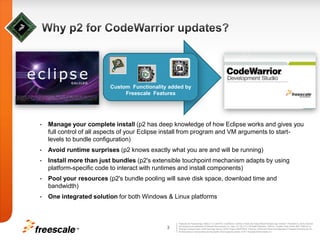
Why p2 for CodeWarrior updates?Custom  Functionality added byFreescale  FeaturesManage your complete install (p2 has deep knowledge of how Eclipse works and gives you full control of all aspects of your Eclipse install from program and VM arguments to start-levels to bundle configuration)Avoid runtime surprises (p2 knows exactly what you are and will be running)Install more than just bundles (p2's extensible touchpoint mechanism adapts by using platform-specific code to interact with runtimes and install components)Pool your resources (p2's bundle pooling will save disk space, download time and bandwidth)One integrated solution for both Windows & Linux platforms
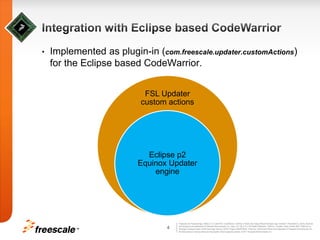
Integration with Eclipse based CodeWarriorImplemented as plugin-in (com.freescale.updater.customActions) for the Eclipse based CodeWarrior.
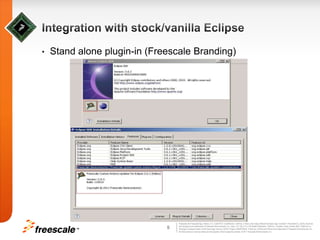
Integration with stock/vanilla EclipseStand alone plugin-in (Freescale Branding)
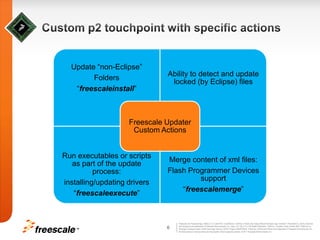
Custom p2 touchpoint with specific actions
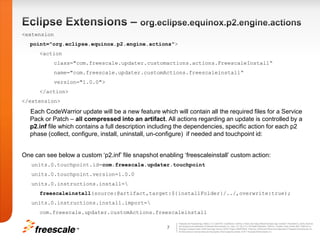
Eclipse Extensions – org.eclipse.equinox.p2.engine.actions<extensionpoint="org.eclipse.equinox.p2.engine.actions">	   <action		class="com.freescale.updater.customactions.actions.FreescaleInstall“		name="com.freescale.updater.customActions.freescaleinstall“		version="1.0.0">	   </action></extension>     Each CodeWarrior update will be a new feature which will contain all the required files for a Service Pack or Patch – all compressed into an artifact. All actions regarding an update is controlled by a p2.inf file which contains a full description including the dependencies, specific action for each p2 phase (collect, configure, install, uninstall, un-configure)  if needed and touchpoint id:One can see below a custom ‘p2.inf’ file snapshot enabling ‘freescaleinstall’ custom action:   units.0.touchpoint.id=com.freescale.updater.touchpoint   units.0.touchpoint.version=1.0.0   units.0.instructions.install=\freescaleinstall(source:@artifact,target:${installFolder}/../,overwrite:true);   units.0.instructions.install.import=\com.freescale.updater.customActions.freescaleinstall
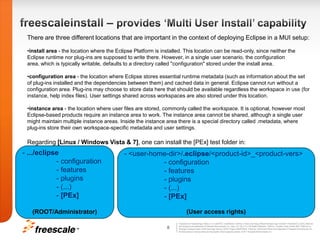
freescaleinstall – provides ‘Multi User Install’ capabilityThere are three different locations that are important in the context of deploying Eclipse in a MUI setup:install area - the location where the Eclipse Platform is installed. This location can be read-only, since neither the Eclipse runtime nor plug-ins are supposed to write there. However, in a single user scenario, the configuration area, which is typically writable, defaults to a directory called "configuration" stored under the install area.
configuration area - the location where Eclipse stores essential runtime metadata (such as information about the set of plug-ins installed and the dependencies between them) and cached data in general. Eclipse cannot run without a configuration area. Plug-ins may choose to store data here that should be available regardless the workspace in use (for instance, help index files). User settings shared across workspaces are also stored under this location.
instance area - the location where user files are stored, commonly called the workspace. It is optional, however most Eclipse-based products require an instance area to work. The instance area cannot be shared, although a single user might maintain multiple instance areas. Inside the instance area there is a special directory called .metadata, where plug-ins store their own workspace-specific metadata and user settings. Regarding [Linux / Windows Vista & 7], one can install the [PEx] test folder in:- .../eclipse                 - configuration                 - features                 - plugins                 - (...)                 - [PEx](ROOT/Administrator)- <user-home-dir>/.eclipse/<product-id>_<product-vers>                    - configuration                    - features                    - plugins                    - (...)                    - [PEx](User access rights)

Extend Eclipse p2 framework capabilities: Add your custom installation steps

  • 1.
    Extend Eclipse p2framework capabilities: Add your custom installation stepsBucharest Eclipse Demo Camp – 2011DragosMihailescu (Dragos.Mihailescu@freescale.com)Updated June 2011
  • 2.
    What is p2?Equinoxp2 is a comprehensive provisioning platform for delivering and managing RCP applications, tools, servers and embedded systems. Using integrated multi-threaded download, bundle pooling and state-of-the-art constraint resolution technology, p2 gives you one-stop-shopping for defining, installing and managing complex software systems
  • 3.
    Why p2 forCodeWarrior updates?Custom Functionality added byFreescale FeaturesManage your complete install (p2 has deep knowledge of how Eclipse works and gives you full control of all aspects of your Eclipse install from program and VM arguments to start-levels to bundle configuration)Avoid runtime surprises (p2 knows exactly what you are and will be running)Install more than just bundles (p2's extensible touchpoint mechanism adapts by using platform-specific code to interact with runtimes and install components)Pool your resources (p2's bundle pooling will save disk space, download time and bandwidth)One integrated solution for both Windows & Linux platforms
  • 4.
    Integration with Eclipsebased CodeWarriorImplemented as plugin-in (com.freescale.updater.customActions) for the Eclipse based CodeWarrior.
  • 5.
    Integration with stock/vanillaEclipseStand alone plugin-in (Freescale Branding)
  • 6.
    Custom p2 touchpointwith specific actions
  • 7.
    Eclipse Extensions –org.eclipse.equinox.p2.engine.actions<extensionpoint="org.eclipse.equinox.p2.engine.actions"> <action class="com.freescale.updater.customactions.actions.FreescaleInstall“ name="com.freescale.updater.customActions.freescaleinstall“ version="1.0.0"> </action></extension> Each CodeWarrior update will be a new feature which will contain all the required files for a Service Pack or Patch – all compressed into an artifact. All actions regarding an update is controlled by a p2.inf file which contains a full description including the dependencies, specific action for each p2 phase (collect, configure, install, uninstall, un-configure) if needed and touchpoint id:One can see below a custom ‘p2.inf’ file snapshot enabling ‘freescaleinstall’ custom action: units.0.touchpoint.id=com.freescale.updater.touchpoint units.0.touchpoint.version=1.0.0 units.0.instructions.install=\freescaleinstall(source:@artifact,target:${installFolder}/../,overwrite:true); units.0.instructions.install.import=\com.freescale.updater.customActions.freescaleinstall
  • 8.
    freescaleinstall – provides‘Multi User Install’ capabilityThere are three different locations that are important in the context of deploying Eclipse in a MUI setup:install area - the location where the Eclipse Platform is installed. This location can be read-only, since neither the Eclipse runtime nor plug-ins are supposed to write there. However, in a single user scenario, the configuration area, which is typically writable, defaults to a directory called "configuration" stored under the install area.
  • 9.
    configuration area -the location where Eclipse stores essential runtime metadata (such as information about the set of plug-ins installed and the dependencies between them) and cached data in general. Eclipse cannot run without a configuration area. Plug-ins may choose to store data here that should be available regardless the workspace in use (for instance, help index files). User settings shared across workspaces are also stored under this location.
  • 10.
    instance area -the location where user files are stored, commonly called the workspace. It is optional, however most Eclipse-based products require an instance area to work. The instance area cannot be shared, although a single user might maintain multiple instance areas. Inside the instance area there is a special directory called .metadata, where plug-ins store their own workspace-specific metadata and user settings. Regarding [Linux / Windows Vista & 7], one can install the [PEx] test folder in:- .../eclipse                 - configuration                 - features                 - plugins                 - (...)                 - [PEx](ROOT/Administrator)- <user-home-dir>/.eclipse/<product-id>_<product-vers>                    - configuration                    - features                    - plugins                    - (...)                    - [PEx](User access rights)