COMPUTER RESOURCES
   NICKO Sapnu
   It involves the right or mandate of personal
    privacy concerning the storing, repurposing,
    providing to third-parties, and displaying of
    information pertaining to oneself via the
    Internet.
   The first is that privacy helps individuals
    maintain their autonomy and individuality.
   Because of its functional benefits.
   attempting to acquire information.
   such as usernames, passwords, and credit card
    details by masquerading as a trustworthy
    entity in an electronic communication.
   Is a way to trick computer and Internet users
    into revealing personal and financial
    information through a fraudulent email or
    website.
   Phishing is typically carried out by e-mail
    spoofing or instant messaging.
    Phishing emails may contain links to websites
    that are infected with malware.
   an example of social engineering techniques
    used to deceive users,
   Phishing -a way of attempting to acquire
    information such as usernames, passwords,
    and credit card details by masquerading as a
    trustworthy entity in an electronic
    communication.
   Clone Phishing- A type of phishing attack
    whereby a legitimate, and previously
    delivered, email containing an attachment or
    link has had its content and recipient
    address(es) taken and used to create an almost
    identical or cloned email.
• Whaling- Several recent phishing
  attacks have been directed specifically at
  senior executives and other high profile
  targets within businesses, and the term
  whaling has been coined for these kinds
  of attacks.
• Spear Phishing- Attackers may gather
  personal information about their target
  to increase their probability of success.
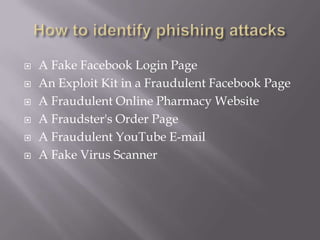
   A Fake Facebook Login Page
   An Exploit Kit in a Fraudulent Facebook Page
   A Fraudulent Online Pharmacy Website
   A Fraudster's Order Page
   A Fraudulent YouTube E-mail
   A Fake Virus Scanner
   Disclosure of private information by either
    yourself or friends/contacts.
   Bullying.
   Cyber-stalking.
   Access to age-inappropriate content
   Online grooming and child abuse.
   People hacking into or hijacking your account
    or page.
• Friends’, other people’s and
  companies' posts encouraging you
  to link to fraudulent or
  inappropriate websites.
• People hacking into or hijacking
  your account or page.
• Viruses or spyware contained
  within message attachments or
  photographs.
   Be wary of publishing any identifying
    information about yourself – either in your
    profile or in your posts – such as phone
    numbers, pictures of your home, workplace or
    school, your address or birthday.
   Pick a user name that does not include any
    personal information. For example,
    “joe_glasgow” or “jane_liverpool” would be
    bad choices.
• Set up a separate email account to register and
  receive mail from the site. That way if you want
  to close down your account/page, you can
  simply stop using that mail account. Setting up a
  new email account is very simple and quick to
  do using such providers as Hotmail, Yahoo!
  Mail or gmail.
• Keep your profile closed and allow only your
  friends to view your profile.
• What goes online stays online. Do not say
  anything or publish pictures that might later
  cause you or someone else embarrassment.
• Be aware of what friends post about you, or
  reply to your posts, particularly about your
  personal details and activities.
• Remember that many companies routinely view
  current or prospective employees’ social
  networking pages, so be careful about what you
  say, what pictures you post and your profile.
• Learn how to use the site properly. Use the
  privacy features to restrict strangers’ access to
  your profile. Be guarded about who you let join
  your network.
• Be on your guard against phishing scams.
• Ensure you have effective and updated
  antivirus/antispyware software and firewall
  running before you go online.
   Allows you to browse the Internet without
    saving any information about which sites and
    pages you’ve visited.
   To put Firefox into a temporary state where no
    information about the user's browsing session
    is stored locally.
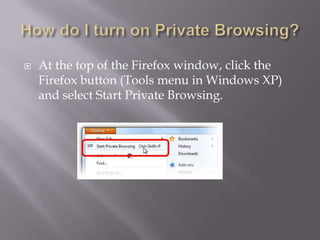
   At the top of the Firefox window, click the
    Firefox button (Tools menu in Windows XP)
    and select Start Private Browsing.
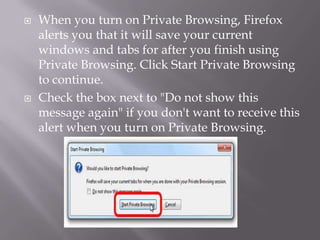
   When you turn on Private Browsing, Firefox
    alerts you that it will save your current
    windows and tabs for after you finish using
    Private Browsing. Click Start Private Browsing
    to continue.
   Check the box next to "Do not show this
    message again" if you don't want to receive this
    alert when you turn on Private Browsing.
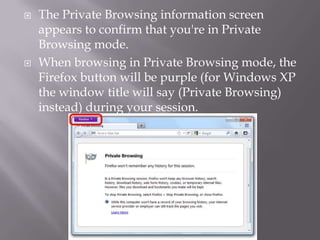
   The Private Browsing information screen
    appears to confirm that you're in Private
    Browsing mode.
   When browsing in Private Browsing mode, the
    Firefox button will be purple (for Windows XP
    the window title will say (Private Browsing)
    instead) during your session.
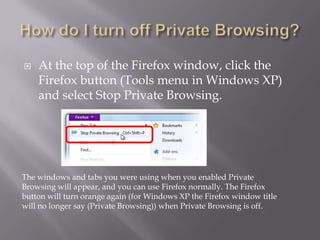
   At the top of the Firefox window, click the
    Firefox button (Tools menu in Windows XP)
    and select Stop Private Browsing.


The windows and tabs you were using when you enabled Private
Browsing will appear, and you can use Firefox normally. The Firefox
button will turn orange again (for Windows XP the Firefox window title
will no longer say (Private Browsing)) when Private Browsing is off.
   It is safe for your computer data security.
   No one can track your data when you use
    secure browsing or private browsing.
   this is the safe and secure way for online
    banking .
   it clear the history and passwords when you
    close the browser.

Online privacy

  • 1.
  • 2.
    It involves the right or mandate of personal privacy concerning the storing, repurposing, providing to third-parties, and displaying of information pertaining to oneself via the Internet.
  • 3.
    The first is that privacy helps individuals maintain their autonomy and individuality.  Because of its functional benefits.
  • 5.
    attempting to acquire information.  such as usernames, passwords, and credit card details by masquerading as a trustworthy entity in an electronic communication.  Is a way to trick computer and Internet users into revealing personal and financial information through a fraudulent email or website.
  • 6.
    Phishing is typically carried out by e-mail spoofing or instant messaging.  Phishing emails may contain links to websites that are infected with malware.  an example of social engineering techniques used to deceive users,
  • 7.
    Phishing -a way of attempting to acquire information such as usernames, passwords, and credit card details by masquerading as a trustworthy entity in an electronic communication.  Clone Phishing- A type of phishing attack whereby a legitimate, and previously delivered, email containing an attachment or link has had its content and recipient address(es) taken and used to create an almost identical or cloned email.
  • 8.
    • Whaling- Severalrecent phishing attacks have been directed specifically at senior executives and other high profile targets within businesses, and the term whaling has been coined for these kinds of attacks. • Spear Phishing- Attackers may gather personal information about their target to increase their probability of success.
  • 9.
    A Fake Facebook Login Page  An Exploit Kit in a Fraudulent Facebook Page  A Fraudulent Online Pharmacy Website  A Fraudster's Order Page  A Fraudulent YouTube E-mail  A Fake Virus Scanner
  • 10.
    Disclosure of private information by either yourself or friends/contacts.  Bullying.  Cyber-stalking.  Access to age-inappropriate content  Online grooming and child abuse.  People hacking into or hijacking your account or page.
  • 11.
    • Friends’, otherpeople’s and companies' posts encouraging you to link to fraudulent or inappropriate websites. • People hacking into or hijacking your account or page. • Viruses or spyware contained within message attachments or photographs.
  • 13.
    Be wary of publishing any identifying information about yourself – either in your profile or in your posts – such as phone numbers, pictures of your home, workplace or school, your address or birthday.  Pick a user name that does not include any personal information. For example, “joe_glasgow” or “jane_liverpool” would be bad choices.
  • 14.
    • Set upa separate email account to register and receive mail from the site. That way if you want to close down your account/page, you can simply stop using that mail account. Setting up a new email account is very simple and quick to do using such providers as Hotmail, Yahoo! Mail or gmail. • Keep your profile closed and allow only your friends to view your profile. • What goes online stays online. Do not say anything or publish pictures that might later cause you or someone else embarrassment.
  • 15.
    • Be awareof what friends post about you, or reply to your posts, particularly about your personal details and activities. • Remember that many companies routinely view current or prospective employees’ social networking pages, so be careful about what you say, what pictures you post and your profile. • Learn how to use the site properly. Use the privacy features to restrict strangers’ access to your profile. Be guarded about who you let join your network. • Be on your guard against phishing scams. • Ensure you have effective and updated antivirus/antispyware software and firewall running before you go online.
  • 16.
    Allows you to browse the Internet without saving any information about which sites and pages you’ve visited.  To put Firefox into a temporary state where no information about the user's browsing session is stored locally.
  • 17.
    At the top of the Firefox window, click the Firefox button (Tools menu in Windows XP) and select Start Private Browsing.
  • 18.
    When you turn on Private Browsing, Firefox alerts you that it will save your current windows and tabs for after you finish using Private Browsing. Click Start Private Browsing to continue.  Check the box next to "Do not show this message again" if you don't want to receive this alert when you turn on Private Browsing.
  • 19.
    The Private Browsing information screen appears to confirm that you're in Private Browsing mode.  When browsing in Private Browsing mode, the Firefox button will be purple (for Windows XP the window title will say (Private Browsing) instead) during your session.
  • 20.
    At the top of the Firefox window, click the Firefox button (Tools menu in Windows XP) and select Stop Private Browsing. The windows and tabs you were using when you enabled Private Browsing will appear, and you can use Firefox normally. The Firefox button will turn orange again (for Windows XP the Firefox window title will no longer say (Private Browsing)) when Private Browsing is off.
  • 21.
    It is safe for your computer data security.  No one can track your data when you use secure browsing or private browsing.  this is the safe and secure way for online banking .  it clear the history and passwords when you close the browser.