
Mawens
Office 365 ve
Dynamics 365
Mustafa Kara
mustafakara@mustafakara.net.tr
AJANDA
•Office 365 ve Dynamics 365 Entegrasyonu
•Soru & Cevap
Mustafa Kara | @mustafakara01
Son 10 Yıldır:
Konuşmacı & Yazar:
• Mshowto.org mustafakara.net.tr
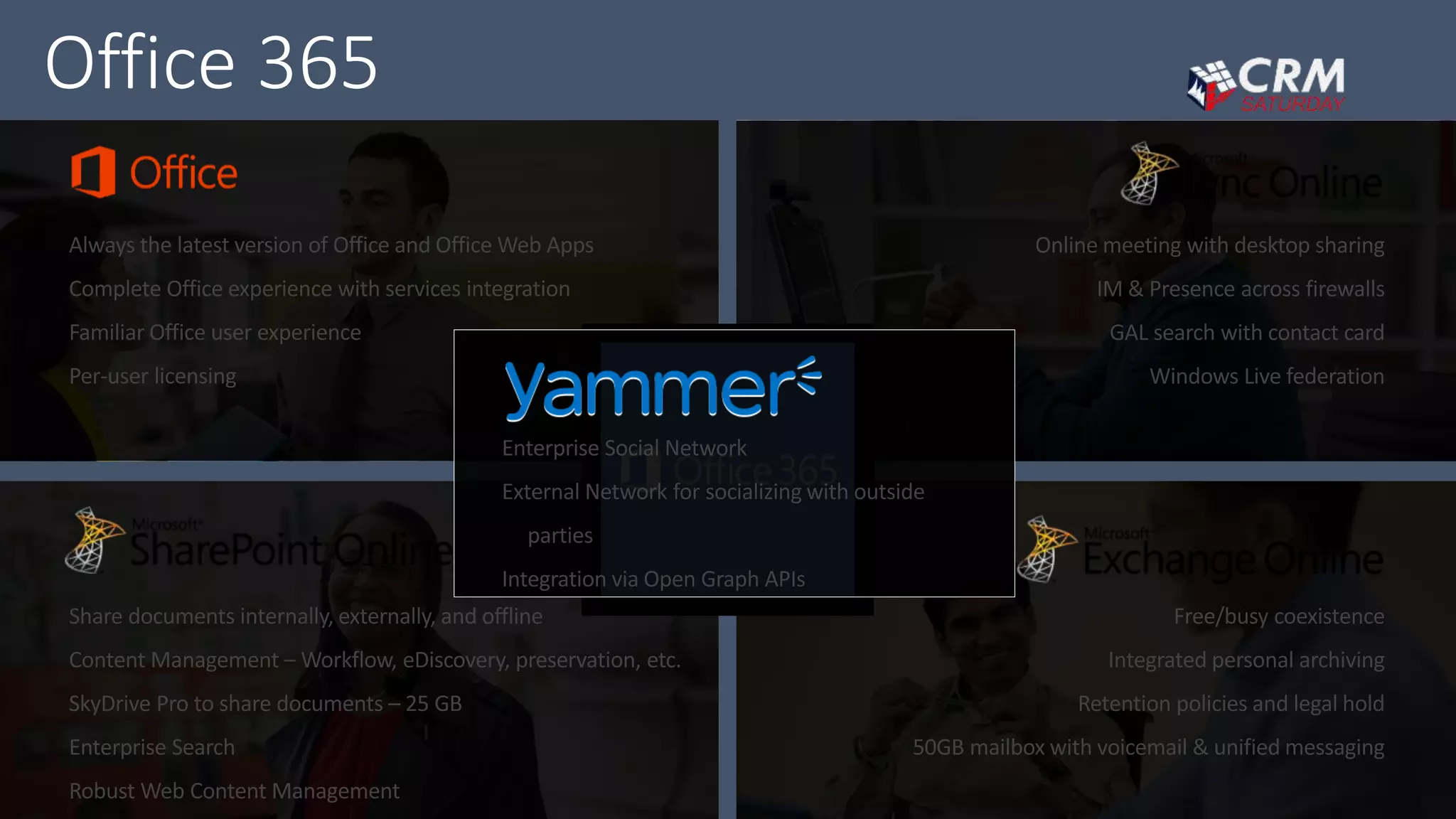
Office 365
Dynamics CRM Online and Office 365
Sales effectiveness
Be productive anywhere
Flexible solution
Unlock Your Productivity Potential
Reduce costs
Maximize
efficiency
Integration with Microsoft Exchange Online
1. Microsoft Dynamics CRM for Microsoft
Office Outlook (Outlook Client)
2. Server-Side Synchronization
3. Microsoft Dynamics CRM 2015 Email
Router
1. Microsoft Dynamics CRM for Microsoft Office
Outlook (Outlook Client)
2. Microsoft Dynamics CRM Web-Client by
using:
• Outlook Client
• Server-Side Synchronization
• Email Router
Microsoft Dynamics CRM Client for Outlook
Microsoft Confidential
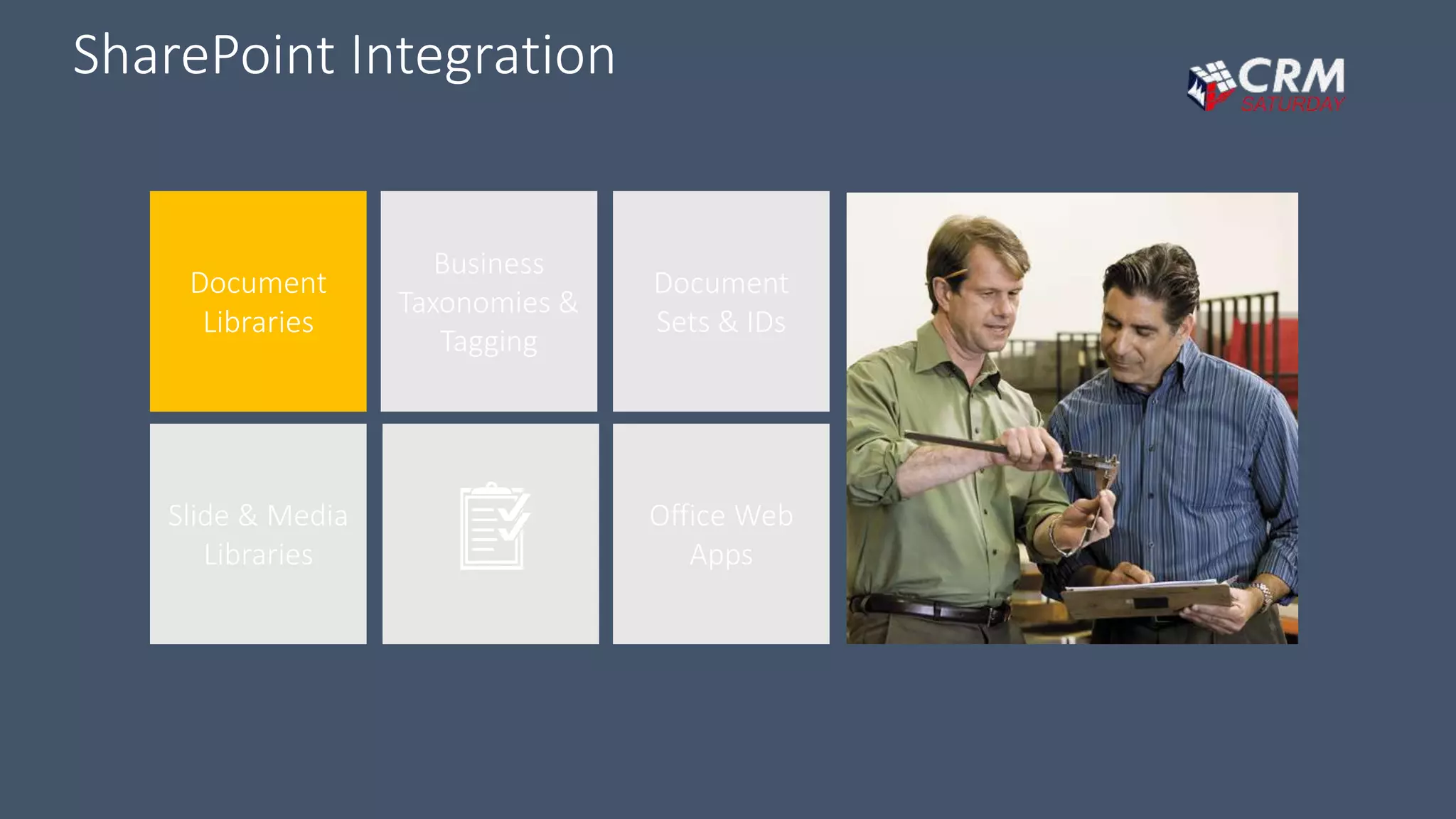
SharePoint Integration
Slide & Media
Libraries
Business
Taxonomies &
Tagging
Document
Sets & IDs
Office Web
Apps
Document
Libraries
User Experience
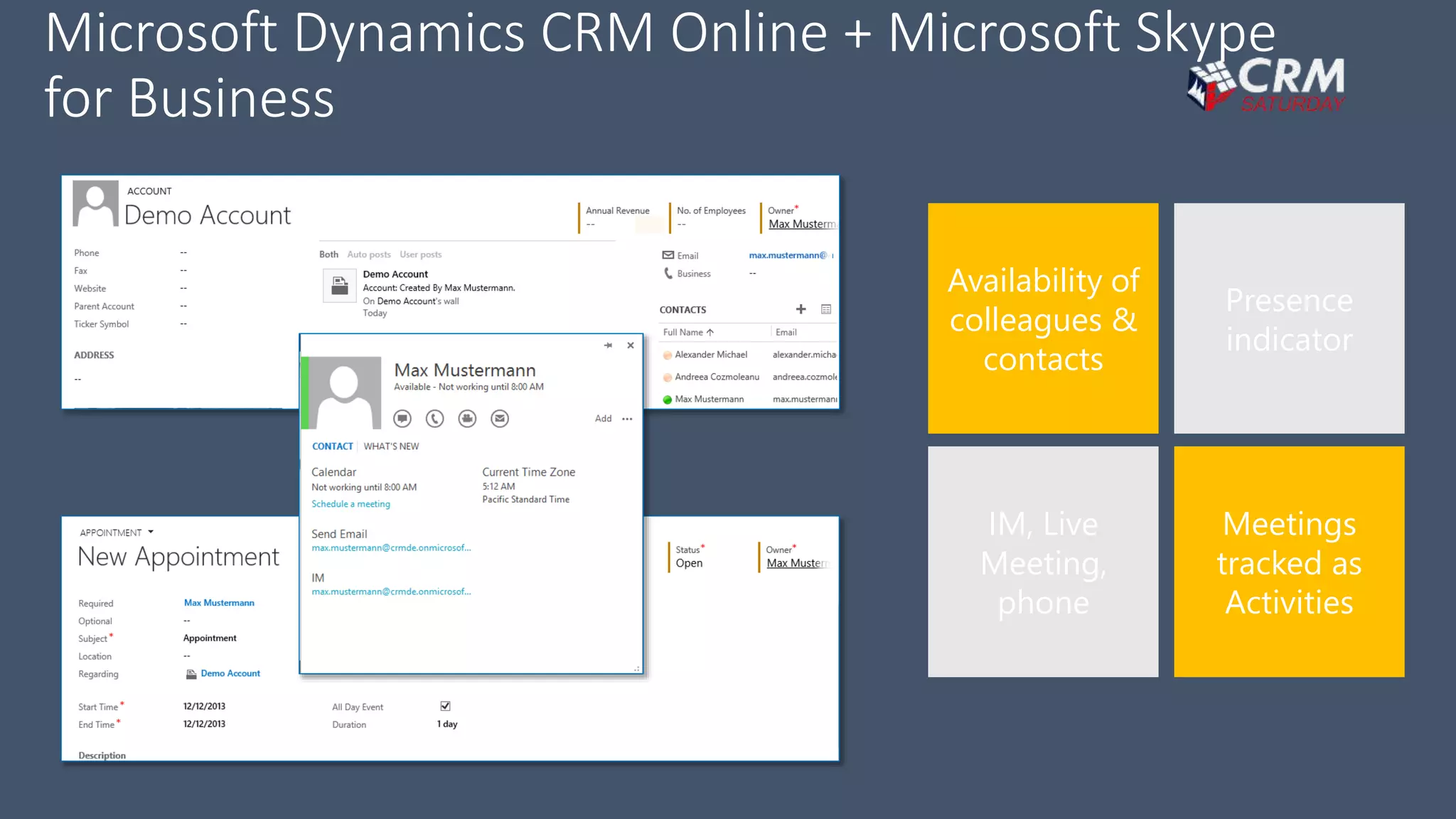
Meetings
tracked as
Activities
IM, Live
Meeting,
phone
Presence
indicator
Availability of
colleagues &
contacts
Microsoft Dynamics CRM Online + Microsoft Skype
for Business
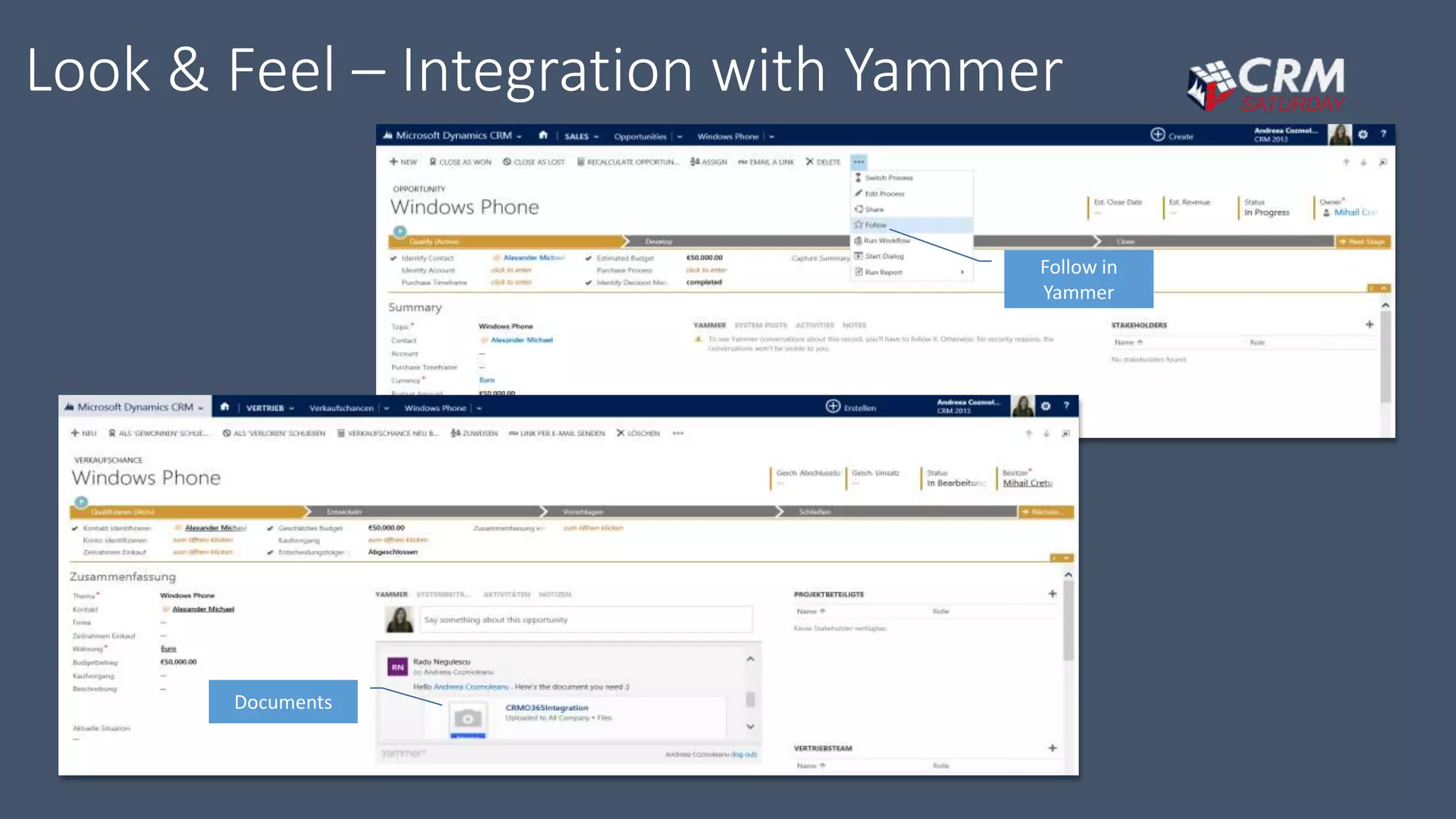
Yammer in Microsoft Dynamics CRM
• Conversations around people and objects
• Follow People and Objects
• Record update notifications
• Seamless experience across all Dynamics
CRM clients, Yammer web and mobile apps
• Document sharing and collaboration
Look & Feel – Integration with Yammer
Follow in
Yammer
Documents
Dynamics 365+ Office 365 + Power BI = Sales Productivity
Promo: Sales Productivity Promotion for Microsoft Dynamics CRM Online
http://go.microsoft.com/fwlink/?LinkId=510883
Sales Productivity
http://www.microsoft.com/en-us/dynamics/sales-productivity-promo.aspx
Questions & Feedback
?
mustafakara@mustafakara.net.tr
Thank You

Office 365 ve Dynamics 365

Editor's Notes

  • #9 Key Message: The integration of both cloud services is made possible through the client components Speaker notes: There are 3 possibilities to connect Dynamics CRM Online with Exchange Online: By using the Outlook Client By using the Email Router By using Server-Side Synchronization In both cases the integration is done with the help of the client components. There are 3 options for sending and receiving Emails with Dynamics CRM Online: Use the Outlook Client directly Use the Outlook Client started in the background and sending mails from the CRM Web-Client By using only the CRM Web-Client in conjunction with the Email Router The second option “Use the Outlook Client started in the background and sending mails from the CRM Web-Client” might be not very known. We will go deeper into each of the statements. The key question for the customer is : do you use Microsoft Outlook or not - These settings have to be selected for each user on the CRM side -> details Next slide
  • #10 Key Message: Microsoft Outlook became one of the most used tools in the day-to-day business life. Here is how the integration looks like Speaker notes: Complete tracking of business emails within the CRM system, synchronizing contacts with Outlook (in case of Outlook config) Update the ‘Set Regarding’ fields in CRM for Outlook to link emails to specific accounts, contacts, opportunities etc. The Microsoft Dynamics CRM Client for Outlook is an Add-in for Microsoft Outlook with deep integration in the Microsoft Outlook structure – we’ll see in the next slides further details The Microsoft Dynamics CRM Client for Outlook adds the tracking functionality in Microsoft Outlook -> point on the marked parts. This is how the connection between the E-Mail received and the CRM Activity is done
  • #12 Key Message: Point out where we integrate Out of the Box: Document libraries Speaker notes: - What is important and can be used by CRM Online when integrating with Sharepoint Online You will probably ask : why? Because remember how you could add documents to a CRM record – by uploading an attachment The problems: No overview Hard to keep track of the documents if there are more then a few Many clicks to open a document
  • #13 Use this slide for CRM 2015 Update 1 Key Message: What changes for the user? Speaker notes: before going into the integration details, here is how the CRM users actually see the integration of CRM with SharePoint we have an out-of-the-box integration of the 2 products and we will later see the details in this slide you can see what the Microsoft Dynamics CRM user will see, when the integration was set up -> the „Documents“ section in the SiteMap on the right side the list of documents saved in the SharePoint Folder is shown – we‘ll see additional details in the next slides
  • #15 Key Message: Which is the benefit of this integration? Maximize resource utilization with the Microsoft Lync Online integration. Speaker notes: Mention the direct communication option integrated in the CRM client. Example : There is no reason to leave the CRM application in order to contact the customer Displays availability of colleagues/contacts in Microsoft Dynamics CRM Presence indicator for each contact Real-time communications (IM, Live Meeting, phone) Meetings tracked as Activities in CRM Online
  • #16 Key message: The power of Yammer in the context of your task Whether working an opportunity, executing a campaign, or resolving a case — gives you access to the people and resources you need to get things done at the speed of business. Yammer integration enables Dynamics CRM Online users to work together on sales and customer service records, using tools familiar to anyone who has used Facebook or the like. Which is to say, almost everyone.
  • #17 Key message: How does it look like
  • #18 Highlight the fact that CRM Online can be accessed from the Office 365 admin portal itself. This makes it easier to access and manage CRM users and their licenses, and helps accomplish most of the administrative activities from the O365 admin portal which is already familiar to our O365 partners and customers.
  • #19 Key message: Combined promotion: Dynamics CRM Online + Office 365 + Power BI