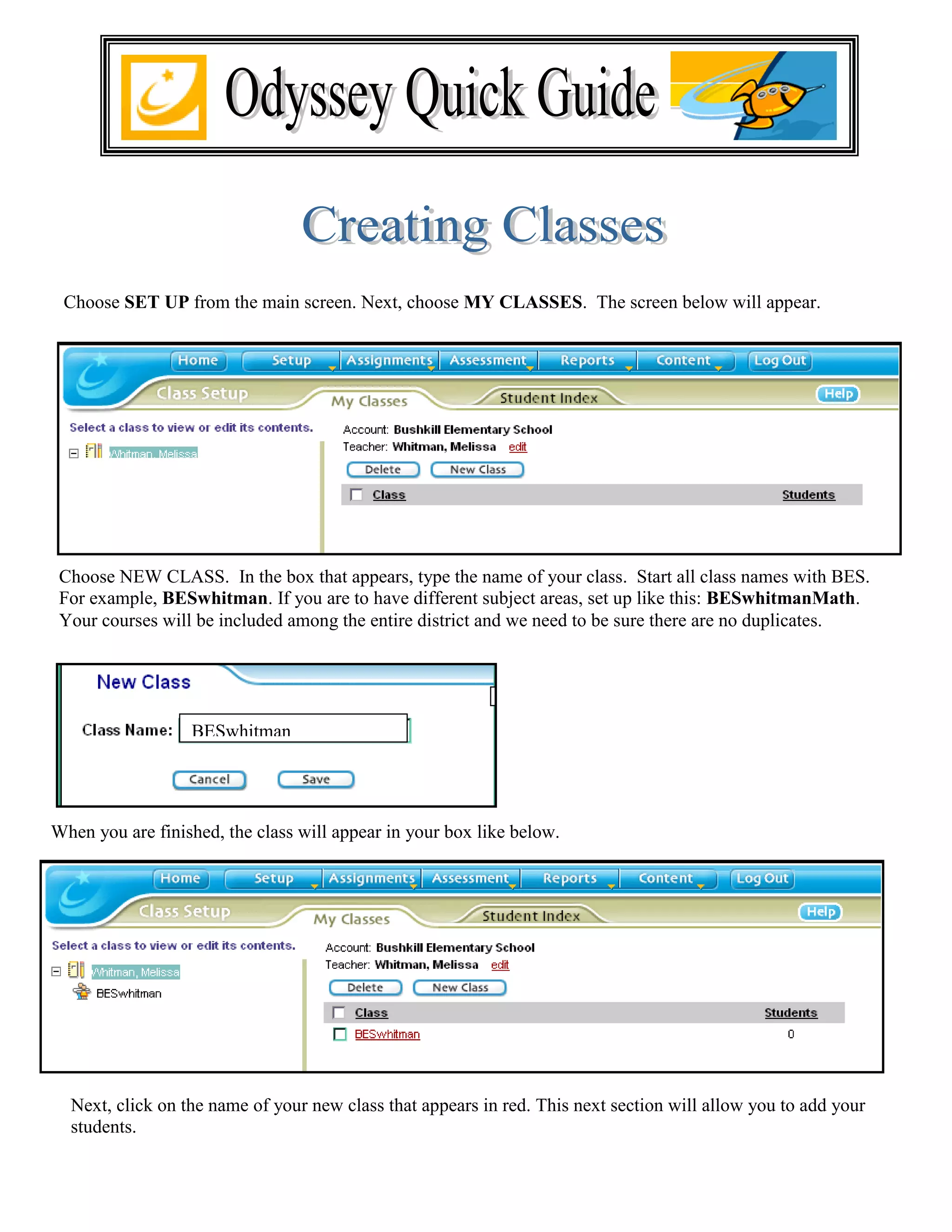
Choose SET UP from the main screen. Next, choose MY CLASSES. The screen below will appear.


 Choose NEW CLASS. In the box that appears, type the name of your class. Start all class names with BES.
 For example, BESwhitman. If you are to have different subject areas, set up like this: BESwhitmanMath.
 Your courses will be included among the entire district and we need to be sure there are no duplicates.


                  BESwhitman


When you are finished, the class will appear in your box like below.


  Next, click on the name of your new class that appears in red. This next section will allow you to add your
  students.
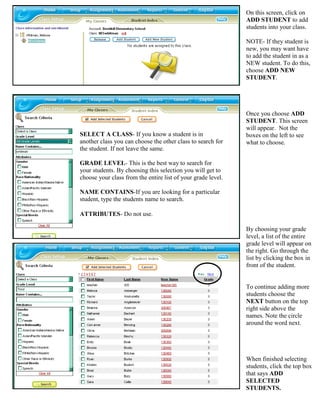
On this screen, click on
                                                              ADD STUDENT to add
                                                              students into your class.

                                                              NOTE- If they student is
                                                              new, you may want have
                                                              to add the student in as a
                                                              NEW student. To do this,
                                                              choose ADD NEW
                                                              STUDENT.


                                                              Once you choose ADD
                                                              STUDENT. This screen
                                                              will appear. Not the
SELECT A CLASS- If you know a student is in                   boxes on the left to see
another class you can choose the other class to search for    what to choose.
the student. If not leave the same.

GRADE LEVEL- This is the best way to search for
your students. By choosing this selection you will get to
choose your class from the entire list of your grade level.

NAME CONTAINS-If you are looking for a particular
student, type the students name to search.

ATTRIBUTES- Do not use.

                                                              By choosing your grade
                                                              level, a list of the entire
                                                              grade level will appear on
                                                              the right. Go through the
                                                              list by clicking the box in
                                                              front of the student.


                                                              To continue adding more
                                                              students choose the
                                                              NEXT button on the top
                                                              right side above the
                                                              names. Note the circle
                                                              around the word next.


                                                              When finished selecting
                                                              students, click the top box
                                                              that says ADD
                                                              SELECTED
                                                              STUDENTS.
Once finished students will be in the class created. Next you will need to create assignments for the class. Look
    below.


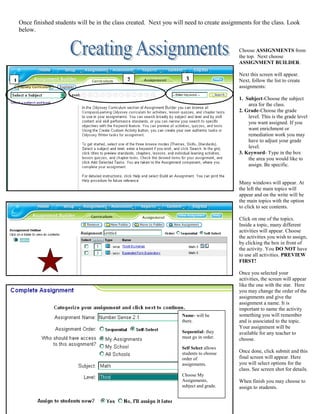
                                                                                               Choose ASSIGNMENTS from
                                                                                               the top. Next choose
                                                                                               ASSIGNMENT BUILDER.

                                                                                               Next this screen will appear.
1                                              2                       3                       Next, follow the list to create
                                                                                               assignments:

                                                                                          1.   1. Subject-Choose the subject
                                                                                                   area for the class.
                                                                                          2.   2. Grade-Choose the grade
                                                                                                   level. This is the grade level
                                                                                                   you want assigned. If you
                                                                                                   want enrichment or
                                                                                                   remediation work you may
                                                                                                   have to adjust your grade
                                                                                                   level.
                                                                                          3.   3. Keyword- Type in the box
                                                                                                   the area you would like to
                                                                                                   assign. Be specific.


                                                                                               Many windows will appear. At
                                                                                               the left the main topics will
                                                                                               appear and on the write will be
                                                                                               the main topics with the option
                                                                                               to click to see contents.

                                                                                               Click on one of the topics.
                                                                                               Inside a topic, many different
                                                                                               activities will appear. Choose
                                                                                               the activities you wish to assign,
                                                                                               by clicking the box in front of
                                                                                               the activity. You DO NOT have
                                                                                               to use all activities. PREVIEW
                                                                                               FIRST!

                                                                                               Once you selected your
                                                                                               activities, the screen will appear
                                                                                               like the one with the star. Here
                                                                                               you may change the order of the
                                                                                               assignments and give the
                                                                                               assignment a name. It is
                                                                                               important to name the activity
                                                                     Name- will be             something you will remember
                                                                     there.                    and is associated to the topic.
                                                                                               Your assignment will be
                                                                     Sequential- they          available for any teacher to
                                                                     must go in order.         choose.
                                                                     Self Select allows
                                                                     students to choose        Once done, click submit and this
                                                                     order of                  final screen will appear. Here
                                                                     assignments.              you will select options for the
                                                                                               class. See screen shot for details.
                                                                     Choose My
                                                                     Assignments,              When finish you may choose to
                                                                     subject and grade.        assign to students.

Odysseytraining

  • 1.
    Choose SET UPfrom the main screen. Next, choose MY CLASSES. The screen below will appear. Choose NEW CLASS. In the box that appears, type the name of your class. Start all class names with BES. For example, BESwhitman. If you are to have different subject areas, set up like this: BESwhitmanMath. Your courses will be included among the entire district and we need to be sure there are no duplicates. BESwhitman When you are finished, the class will appear in your box like below. Next, click on the name of your new class that appears in red. This next section will allow you to add your students.
  • 2.
    On this screen,click on ADD STUDENT to add students into your class. NOTE- If they student is new, you may want have to add the student in as a NEW student. To do this, choose ADD NEW STUDENT. Once you choose ADD STUDENT. This screen will appear. Not the SELECT A CLASS- If you know a student is in boxes on the left to see another class you can choose the other class to search for what to choose. the student. If not leave the same. GRADE LEVEL- This is the best way to search for your students. By choosing this selection you will get to choose your class from the entire list of your grade level. NAME CONTAINS-If you are looking for a particular student, type the students name to search. ATTRIBUTES- Do not use. By choosing your grade level, a list of the entire grade level will appear on the right. Go through the list by clicking the box in front of the student. To continue adding more students choose the NEXT button on the top right side above the names. Note the circle around the word next. When finished selecting students, click the top box that says ADD SELECTED STUDENTS.
  • 3.
    Once finished studentswill be in the class created. Next you will need to create assignments for the class. Look below. Choose ASSIGNMENTS from the top. Next choose ASSIGNMENT BUILDER. Next this screen will appear. 1 2 3 Next, follow the list to create assignments: 1. 1. Subject-Choose the subject area for the class. 2. 2. Grade-Choose the grade level. This is the grade level you want assigned. If you want enrichment or remediation work you may have to adjust your grade level. 3. 3. Keyword- Type in the box the area you would like to assign. Be specific. Many windows will appear. At the left the main topics will appear and on the write will be the main topics with the option to click to see contents. Click on one of the topics. Inside a topic, many different activities will appear. Choose the activities you wish to assign, by clicking the box in front of the activity. You DO NOT have to use all activities. PREVIEW FIRST! Once you selected your activities, the screen will appear like the one with the star. Here you may change the order of the assignments and give the assignment a name. It is important to name the activity Name- will be something you will remember there. and is associated to the topic. Your assignment will be Sequential- they available for any teacher to must go in order. choose. Self Select allows students to choose Once done, click submit and this order of final screen will appear. Here assignments. you will select options for the class. See screen shot for details. Choose My Assignments, When finish you may choose to subject and grade. assign to students.