New
  w TLC Ma
         anagement Applic
                        cation Cheat Shee
                                        et 
URL: http://uc.iup
                 pui.edu/apps/
                             /tlc/ 
 

SCH
  HOOL	LEVE
          EL	MANAGE
                  EMENT	

    If
     f you are in th
                   he School Role you will see  e School Leve el TLC and Coourse Coordinnator TLC whe en you login.  The Course 
    C
    Coordinator T  TLC view is sim
                                 mply a list of all the coursees in your sch
                                                                           hool that are i            C blocks.  It is not editable 
                                                                                         in various TLC
    b
    by you.  On thhe School Lev vel TLC view iss a list of TLC Blocks in you
                                                                           ur school.  You may Manag  ge any of the blocks or 
    A
    Add Block. 


    If
     f the informa
                 ation in the block is correct
                                             t, click on Con
                                                           nfirm and Sennd Email.  This will send th
                                                                                                   he appropriat
                                                                                                               te emails to 
    t
    the Course Cooordinators of those courses to request   t their approv
                                                                        val. 


                                                                                                                           1 | P a g e  
 
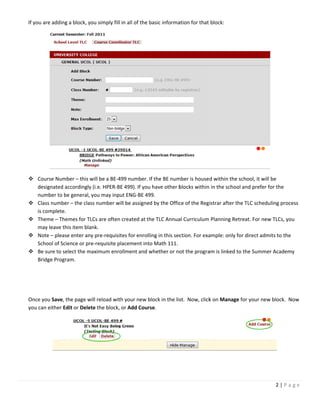
f you are add
    If           ding a block, y
                               you simply fill in all of the b
                                                             basic informa
                                                                         ation for that block: 


     Course Nuumber – this will be a BE‐4499 number. If the BE num    mber is housed within the s school, it will be 
      designateed accordinglyy (i.e. HPER‐B
                                          BE 499). If you
                                                        u have other b  blocks within in the school and prefer f for the 
      number to o be general, you may input ENG‐BE 49   99. 
     Class num
              mber – the class number w  will be assigned by the Offic  ce of the Registrar after th
                                                                                                   he TLC schedu uling process 
      is complete. 
     Theme – T Themes for TTLCs are oftenn created at thhe TLC Annua   al Curriculum  Planning Rettreat. For neww TLCs, you 
      may leavee this item bla
                             ank. 
     Note – pleease enter an
                            ny pre‐requisi ites for enroll
                                                         ling in this sec
                                                                        ction. For exa
                                                                                     ample: only foor direct adm
                                                                                                               mits to the 
      School of Science or prre‐requisite p
                                          placement into Math 111.
     Be sure to
               o select the m
                            maximum enro   ollment and w whether or no  ot the prograam is linked to
                                                                                                   o the Summe  er Academy 
      Bridge Proogram. 


    Once you Save, the page w
    O                         will reload wit
                                            th your new b
                                                        block in the lis
                                                                       st.  Now, click
                                                                                     k on Manage for your new
                                                                                                            w block.  Now
    y
    you can either Edit or Dele
                              ete the block, or Add Courrse. 


                                                                                                                       2 | P a g e  
 
f you select A
    If            Add Course yoou will then s
                                            select a schoo
                                                         ol.  If the scho
                                                                        ool you need in not listed, you may add
                                                                                                              d one by 
    c
    clicking on Other School.   


    If
     f you click on Other Schoool you must enter the nam
                                                       me of the schoool and then wwill be asked to enter a de
                                                                                                             epartment 
    (and its abbreeviation), and then then yoou move on to
                                                         o the course  information.  Once you haave selected a
                                                                                                             a school (or 
    m
    made a new o  one) you will s
                                select the department andd the course.


    O
    Once you click
                 k Save the pa
                             age will reload
                                           d with your new block sho
                                                                   owing the cou
                                                                               urse listed.   


                                                                                                                 3 | P a g e  
 
Y
    You can then Edit or Delete the block; E
                                           Edit or Delete
                                                        e the course;  Add Info to t
                                                                                   the new course you just m
                                                                                                           made; or Add 
    C
    Course to add
                d another couurse to the blo
                                           ock. 


    If
     f you select A
                  Add Info you c
                               can add the f
                                           faculty, and ro
                                                         oom for the c
                                                                     course.   


    O
    Once you are done adding courses and information t to your block
                                                                   k, click on Con
                                                                                 nfirm and Sen nd Email.  Thi
                                                                                                            is will send 
    t
    the appropria
                ate emails to t
                              the Course Co
                                          oordinators o
                                                      of those coursses to requesst their approv
                                                                                               val. 


    T
    The page will reload and yo
                              ou will see th
                                           hat your TLC B
                                                        Block now has
                                                                    s a green circ
                                                                                 cle signifying t
                                                                                                that you have
                                                                                                            e confirmed 
    t
    that block. 


                                                                                                                4 | P a g e  


COU
  URSE	COOR
          RDINATOR	 LEVEL	MA
                           ANAGEMEN
                                  NT	

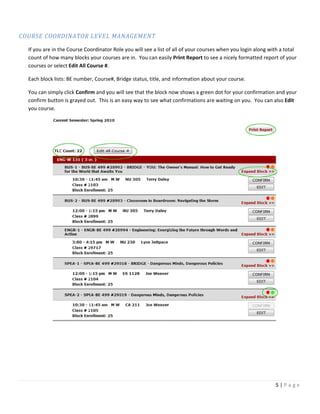
    If
     f you are in th
                   he Course Coordinator Role you will see a list of all o
                                                                         of your cours
                                                                                     ses when you login along w with a total 
    count of how many blocks your courses
    c                                       s are in.  You can easily Priint Report to see a nicely f
                                                                                                    formatted rep
                                                                                                                port of your 
    c
    courses or select Edit All C
                               Course #.   

    E             ts: BE number, Course#, Bridge status, title, and info
    Each block list                                                    ormation abo
                                                                                  out your cours
                                                                                               se.   

    Y
    You can simplly click Confir
                               rm and you w  will see that th
                                                            he block now  shows a gree
                                                                                     en dot for you
                                                                                                  ur confirmatioon and your 
    c
    confirm buttoon is grayed o              n easy way to see what con
                              out.  This is an                          nfirmations a re waiting on
                                                                                                  n you.  You ca
                                                                                                               an also Edit 
    y
    you course. 


                                                                                                                   5 | P a g e  
 
T
    To view more information regarding a b
                                         block, you can
                                                      n select Expan
                                                                   nd Block.  This is helpful w
                                                                                              when planning
                                                                                                          g time 
    c
    changes, etc. 


    If
     f you select E
                  Edit to edit yo
                                our course, yo
                                             ou will have th
                                                           he option to  Edit or Delete
                                                                                      e the course from the bloc
                                                                                                               ck, Edit or 
    D
    Delete the insstance of thatt course within the block, or Add Info t o add an inst
                                                                                     tance of the c
                                                                                                  course within that block. 


    E
    Editing the co
                 ourse allows y
                              you to edit the
                                            e Class # and add a comm ent about the
                                                                                 e course. 


                                                                                                                  6 | P a g e  
 
E
    Editing the ins
                  stance of the course allow
                                           ws you to chan
                                                        nge the time,  day, room, a
                                                                                  and faculty for that instanc
                                                                                                             ce. 


    S
    Selecting Add
                d Info allows y            new instance of the course
                              you to add a n                         e in this block
                                                                                   k.  For instanc
                                                                                                 ce if a course has a 
    s
    separate menntoring session that has a d
                                           different date
                                                        e and time, yo
                                                                     ou could do this through the Add Info s   selection. 


     O
     Once you hav
                ve saved the a
                             addition, the page will relo
                                                        oad with you r updated course. 


                                                                                                                  7 | P a g e  
 
U
    Using the Edit
                 t All Course #
                              # allows you a
                                           a quick and eaasy way to ad
                                                                     dd your course # once you have them.  Once you 
    h
    have entered or edited theem, be sure to
                                           o click the Sav
                                                         ve button at  the top or bo
                                                                                   ottom of the p
                                                                                                page. 


                                                                                                            8 | P a g e  
 
TIM
  ME	CONFLIC
           CTS	for	CO
                    OURSE	COO
                            ORDINATOR
                                    R	MANAGE
                                           EMENT	

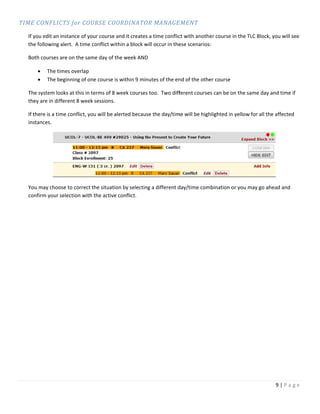
    If
     f you edit an instance of your course annd it creates a
                                                           a time conflicct with another course in t
                                                                                                   the TLC Block
                                                                                                               k, you will see 
    the following alert.  A time
    t                          e conflict with
                                             hin a block will occur in the
                                                                         ese scenarios
                                                                                     s: 

    Both courses are on the same day of the week AND
    B

                imes overlap 
            The ti
           The beginning of o
                             one course is w
                                           within 9 minu
                                                       utes of the en
                                                                    nd of the othe
                                                                                 er course 

    T
    The system loooks at this in terms of 8 w
                                            week courses t
                                                         too.  Two diff
                                                                      ferent course
                                                                                  es can be on t
                                                                                               the same day and time if 
    t
    they are in dif
                  fferent 8 weeek sessions. 

    If
     f there is a tim
                    me conflict, y
                                 you will be ale
                                               erted because
                                                           e the day/tim
                                                                       me will be high
                                                                                     hlighted in ye
                                                                                                  ellow for all th
                                                                                                                 he affected 
    instances. 


    Y
    You may chooose to correctt the situation
                                            n by selecting
                                                         g a different d
                                                                       day/time com
                                                                                  mbination or y
                                                                                               you may go ah
                                                                                                           head and 
    c
    confirm your selection with the active cconflict.   


                                                                                                                    9 | P a g e  
 

TLC application cheatsheet

  • 1.
    New w TLC Ma anagement Applic cation Cheat Shee et  URL: http://uc.iup pui.edu/apps/ /tlc/    SCH HOOL LEVE EL MANAGE EMENT If f you are in th he School Role you will see e School Leve el TLC and Coourse Coordinnator TLC whe en you login.  The Course  C Coordinator T TLC view is sim mply a list of all the coursees in your sch hool that are i C blocks.  It is not editable  in various TLC b by you.  On thhe School Lev vel TLC view iss a list of TLC Blocks in you ur school.  You may Manag ge any of the blocks or  A Add Block.        If f the informa ation in the block is correct t, click on Con nfirm and Sennd Email.  This will send th he appropriat te emails to  t the Course Cooordinators of those courses to request t their approv val.          1 | P a g e    
  • 2.
    f you are add If ding a block, y you simply fill in all of the b basic informa ation for that block:     Course Nuumber – this will be a BE‐4499 number. If the BE num mber is housed within the s school, it will be  designateed accordinglyy (i.e. HPER‐B BE 499). If you u have other b blocks within in the school and prefer f for the  number to o be general, you may input ENG‐BE 49 99.   Class num mber – the class number w will be assigned by the Offic ce of the Registrar after th he TLC schedu uling process  is complete.   Theme – T Themes for TTLCs are oftenn created at thhe TLC Annua al Curriculum  Planning Rettreat. For neww TLCs, you  may leavee this item bla ank.   Note – pleease enter an ny pre‐requisi ites for enroll ling in this sec ction. For exa ample: only foor direct adm mits to the  School of Science or prre‐requisite p placement into Math 111.  Be sure to o select the m maximum enro ollment and w whether or no ot the prograam is linked to o the Summe er Academy  Bridge Proogram.      Once you Save, the page w O will reload wit th your new b block in the lis st.  Now, click k on Manage for your new w block.  Now y you can either Edit or Dele ete the block, or Add Courrse.        2 | P a g e    
  • 3.
    f you select A If Add Course yoou will then s select a schoo ol.  If the scho ool you need in not listed, you may add d one by  c clicking on Other School.          If f you click on Other Schoool you must enter the nam me of the schoool and then wwill be asked to enter a de epartment  (and its abbreeviation), and then then yoou move on to o the course  information.  Once you haave selected a a school (or  m made a new o one) you will s select the department andd the course.   O Once you click k Save the pa age will reload d with your new block sho owing the cou urse listed.        3 | P a g e    
  • 4.
    Y You can then Edit or Delete the block; E Edit or Delete e the course;  Add Info to t the new course you just m made; or Add  C Course to add d another couurse to the blo ock.    If f you select A Add Info you c can add the f faculty, and ro oom for the c course.      O Once you are done adding courses and information t to your block k, click on Con nfirm and Sen nd Email.  Thi is will send  t the appropria ate emails to t the Course Co oordinators o of those coursses to requesst their approv val.    T The page will reload and yo ou will see th hat your TLC B Block now has s a green circ cle signifying t that you have e confirmed  t that block.    4 | P a g e    
  • 5.
      COU URSE COOR RDINATOR LEVEL MA ANAGEMEN NT If f you are in th he Course Coordinator Role you will see a list of all o of your cours ses when you login along w with a total  count of how many blocks your courses c s are in.  You can easily Priint Report to see a nicely f formatted rep port of your  c courses or select Edit All C Course #.    E ts: BE number, Course#, Bridge status, title, and info Each block list ormation abo out your cours se.    Y You can simplly click Confir rm and you w will see that th he block now  shows a gree en dot for you ur confirmatioon and your  c confirm buttoon is grayed o n easy way to see what con out.  This is an nfirmations a re waiting on n you.  You ca an also Edit  y you course.        5 | P a g e    
  • 6.
    T To view more information regarding a b block, you can n select Expan nd Block.  This is helpful w when planning g time  c changes, etc.      If f you select E Edit to edit yo our course, yo ou will have th he option to  Edit or Delete e the course from the bloc ck, Edit or  D Delete the insstance of thatt course within the block, or Add Info t o add an inst tance of the c course within that block.      E Editing the co ourse allows y you to edit the e Class # and add a comm ent about the e course.        6 | P a g e    
  • 7.
    E Editing the ins stance of the course allow ws you to chan nge the time,  day, room, a and faculty for that instanc ce.      S Selecting Add d Info allows y new instance of the course you to add a n e in this block k.  For instanc ce if a course has a  s separate menntoring session that has a d different date e and time, yo ou could do this through the Add Info s selection.       O Once you hav ve saved the a addition, the page will relo oad with you r updated course.    7 | P a g e    
  • 8.
    U Using the Edit t All Course # # allows you a a quick and eaasy way to ad dd your course # once you have them.  Once you  h have entered or edited theem, be sure to o click the Sav ve button at  the top or bo ottom of the p page.        8 | P a g e    
  • 9.
    TIM ME CONFLIC CTS for CO OURSE COO ORDINATOR R MANAGE EMENT If f you edit an instance of your course annd it creates a a time conflicct with another course in t the TLC Block k, you will see  the following alert.  A time t e conflict with hin a block will occur in the ese scenarios s:  Both courses are on the same day of the week AND B  imes overlap  The ti  The beginning of o one course is w within 9 minu utes of the en nd of the othe er course  T The system loooks at this in terms of 8 w week courses t too.  Two diff ferent course es can be on t the same day and time if  t they are in dif fferent 8 weeek sessions.  If f there is a tim me conflict, y you will be ale erted because e the day/tim me will be high hlighted in ye ellow for all th he affected  instances.    Y You may chooose to correctt the situation n by selecting g a different d day/time com mbination or y you may go ah head and  c confirm your selection with the active cconflict.    9 | P a g e