Welcome to
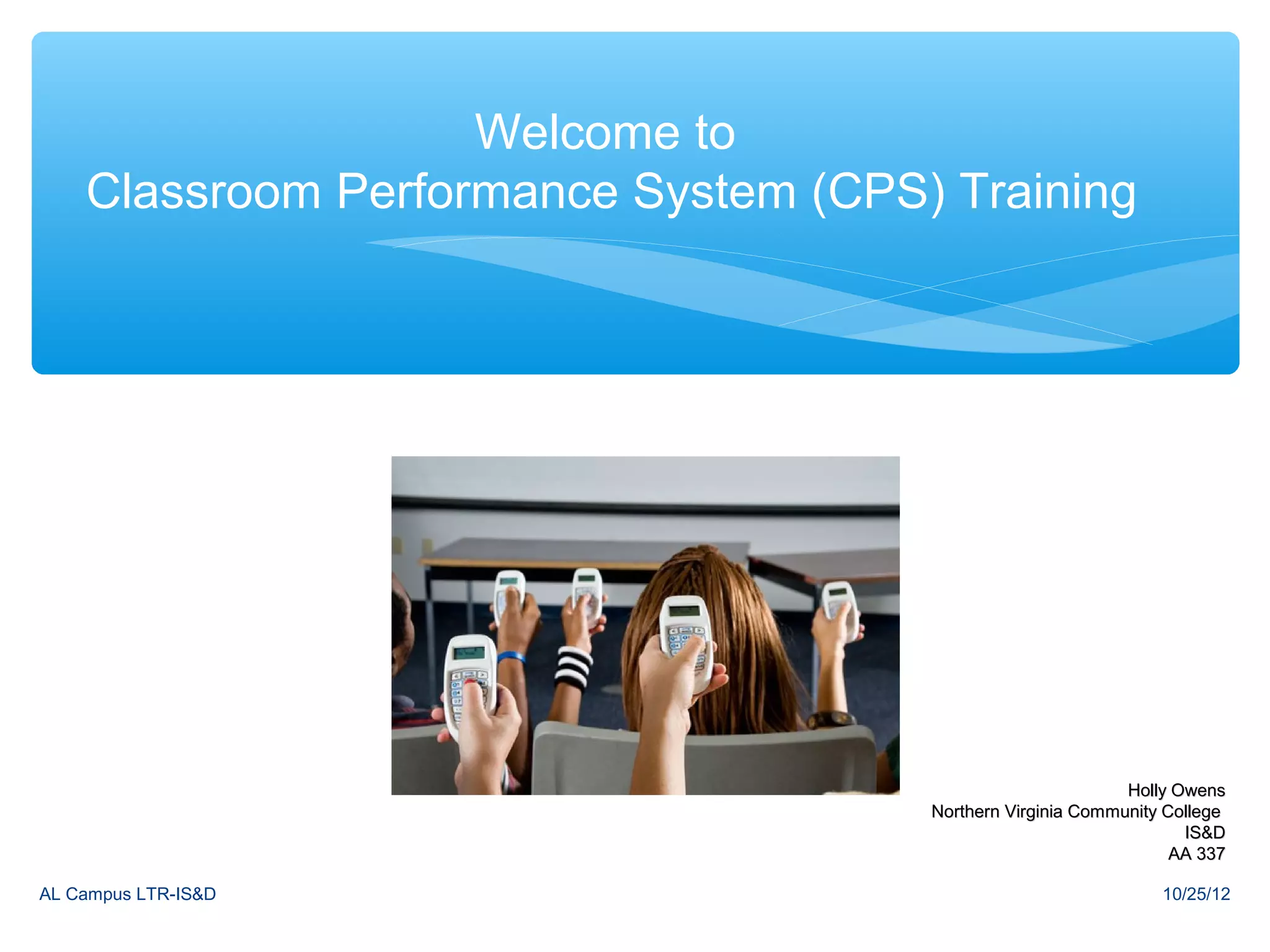
    Classroom Performance System (CPS) Training


                                                             Holly Owens
                                      Northern Virginia Community College
                                                                    IS&D
                                                                   AA 337

AL Campus LTR-IS&D                                               10/25/12
CPS- The Basics


Part I- Creating a database

Part II- Creating Classes and Adding Students

Part III- Creating a CPS lesson

Part IV-Engaging students in a lesson
AL Campus LTR-IS&D                        10/25/12
CPS Tabs

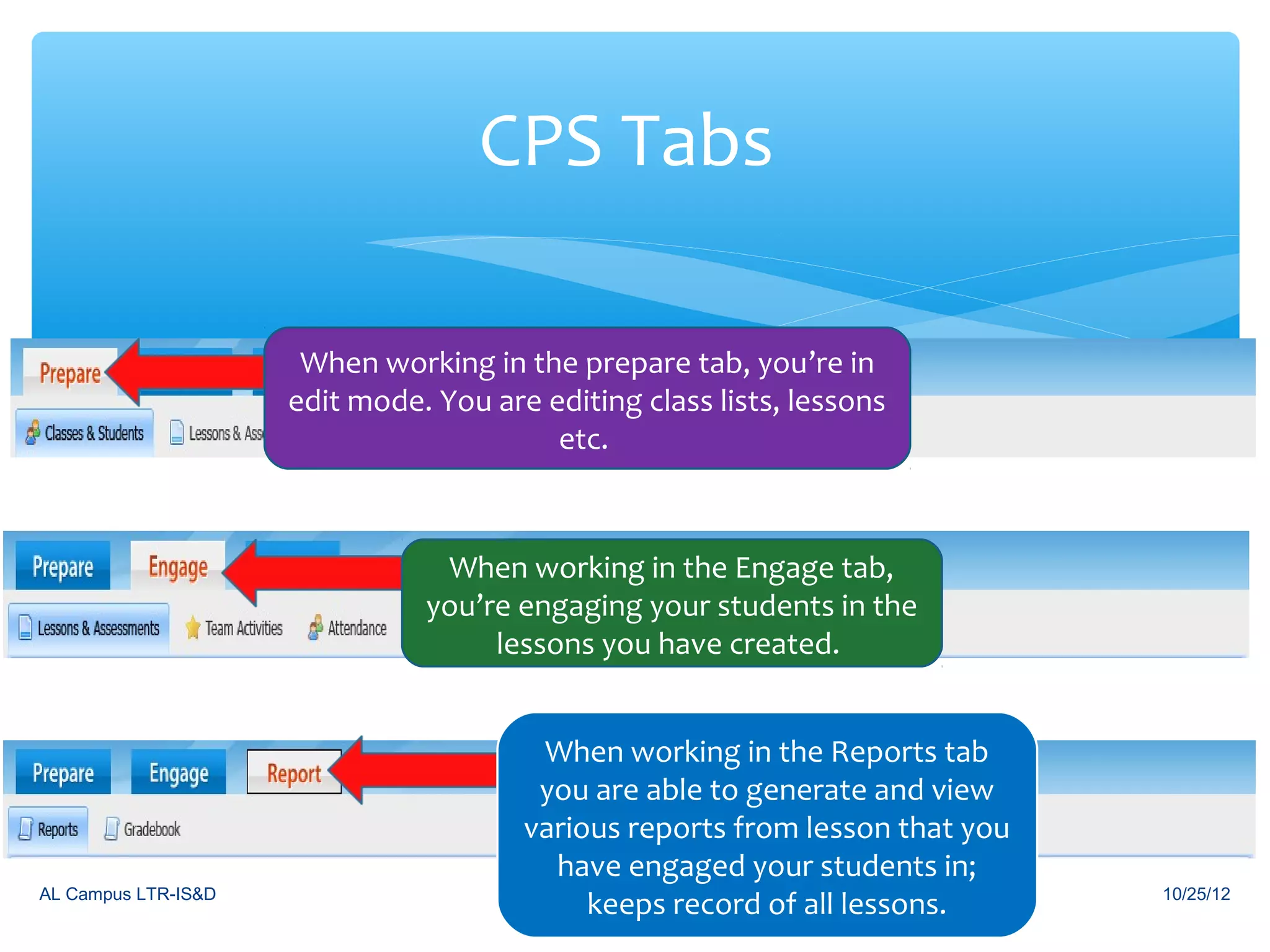
                      When working in the prepare tab, you’re in
                     edit mode. You are editing class lists, lessons
                                         etc.


                                When working in the Engage tab,
                               you’re engaging your students in the
                                    lessons you have created.


                                        When working in the Reports tab
                                        you are able to generate and view
                                       various reports from lesson that you
                                         have engaged your students in;
AL Campus LTR-IS&D
                                            keeps record of all lessons.      10/25/12
Part I- Creating Your Own CPS Database


AL Campus LTR-IS&D                              10/25/12
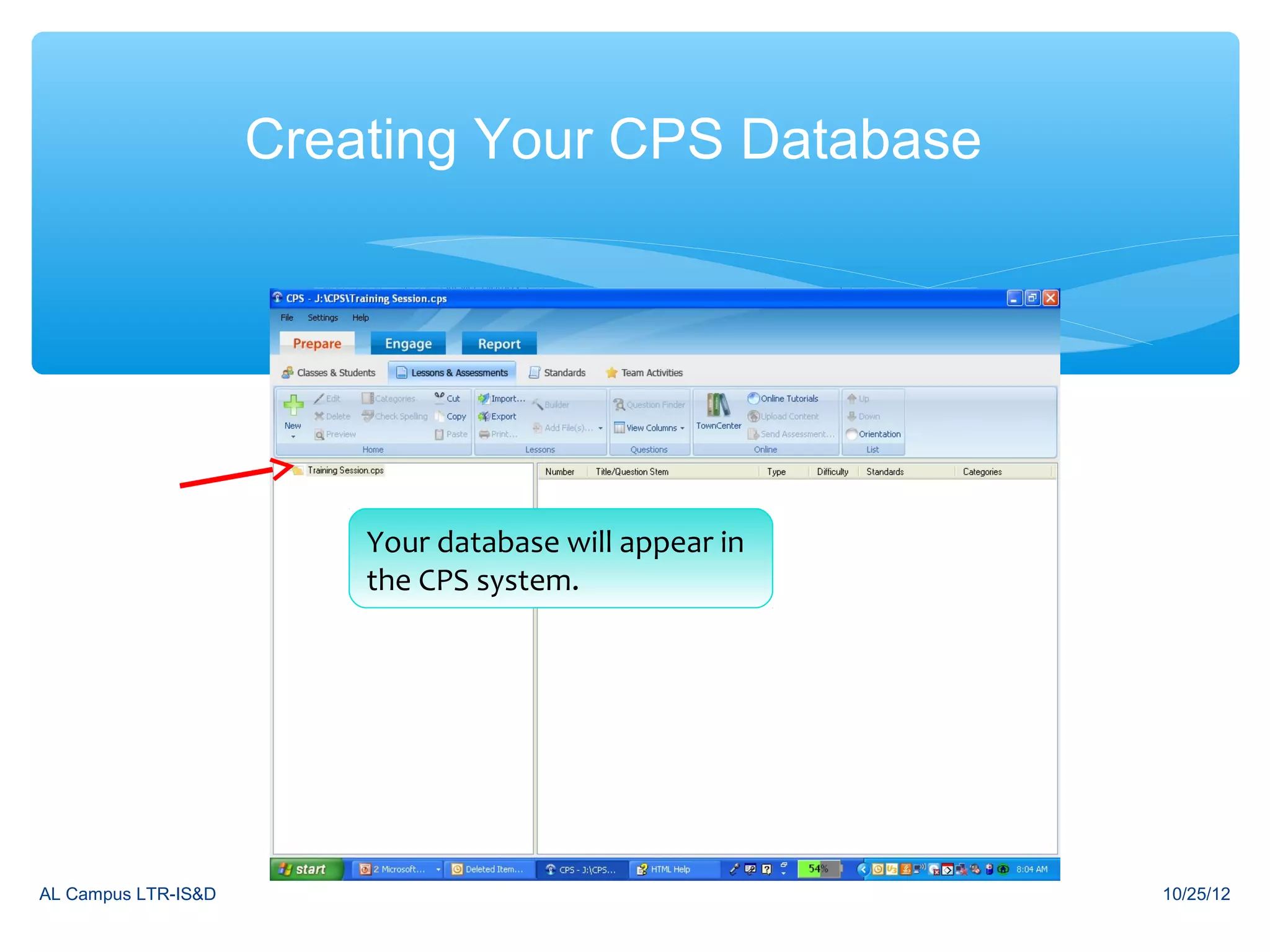
Creating Your CPS Database


                                          Title the file and save a new CPS
                                                Choose “Create
                         Your database willit CPS Database” and click OK
                                Click on the wherein onwould
                                            appear you
                                                  icon
                         the CPS system. desktop click “Save”
                                      you like and


AL Campus LTR-IS&D                                                            10/25/12
Part II-Creating Classes and Adding Students


AL Campus LTR-IS&D                         10/25/12
Do you like CPS so far?


         A. Yes
         B. No


AL Campus LTR-IS&D                             10/25/12
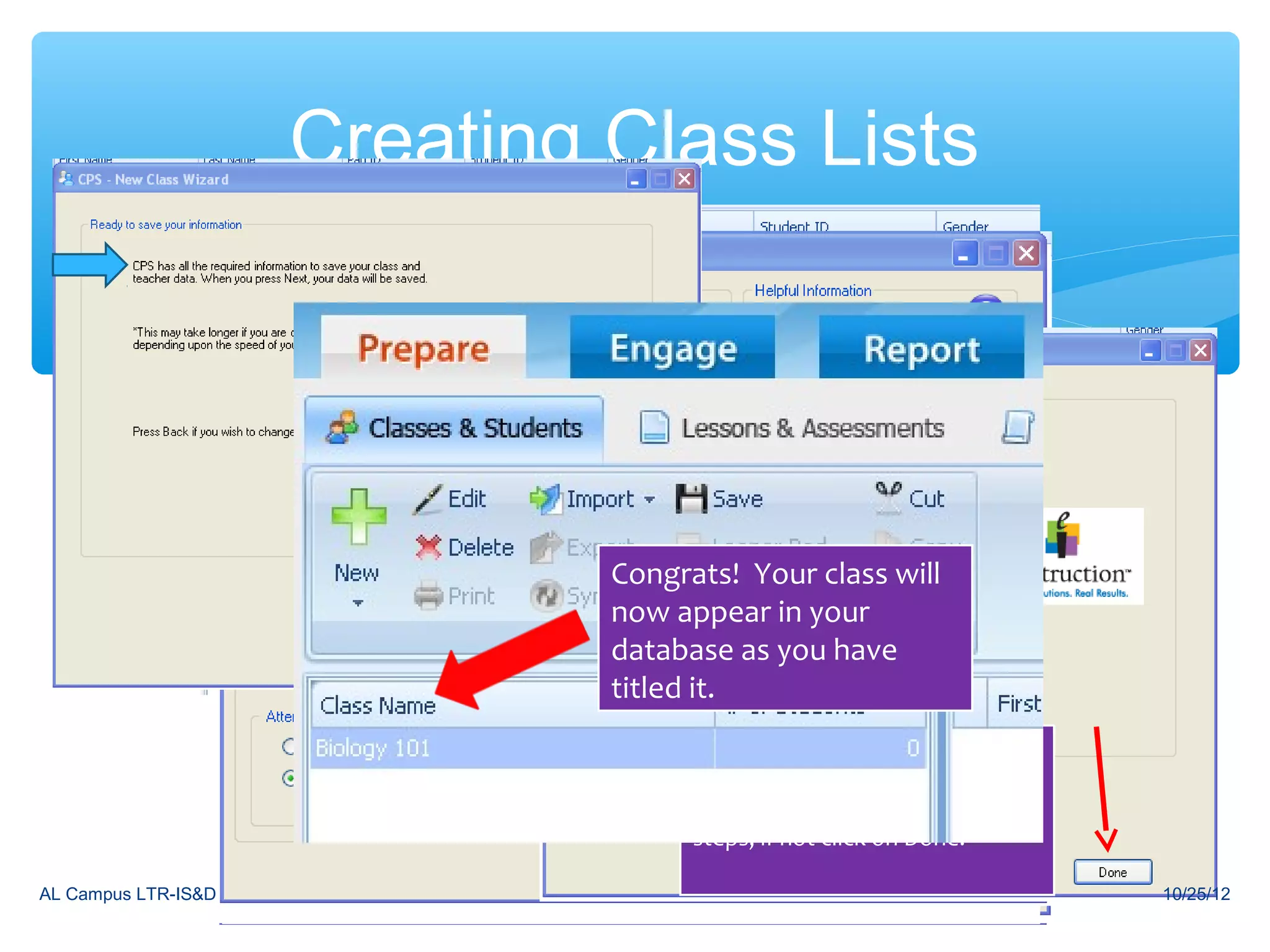
Creating Class Lists


                            Again, fill in
                         Clickrequired and Class
                                on New Congrats! Your class will
                           Fill in required
                            information
                          marked bynow appear in your
                            information *
                                        an
                         Choose Nodatabase as you have
                          marked by and*
                          and click Nextan
                         ChooseNext
                             click Other
                          and click Next it.
                                       titled
                         and click Next
                                           You do have the option of
                                           creating another class if you
                                           need to by repeating all these
                                           steps, if not click on Done.

AL Campus LTR-IS&D                                                          10/25/12
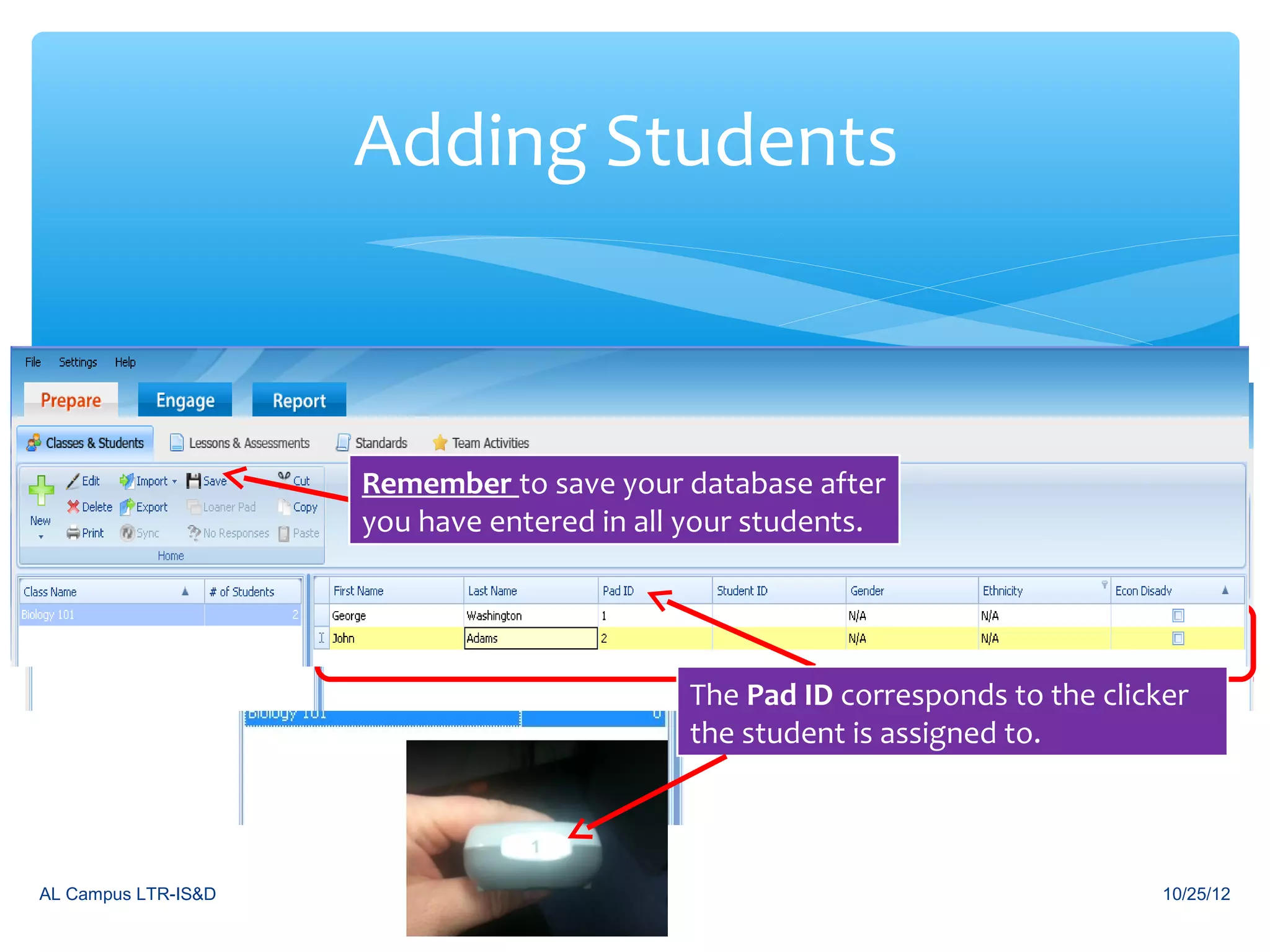
Adding Students


                            Under the Prepare tab and classes &
                            students click on New and click
                     Remember to save your database after
                            Student. Make sure the class is
                     you haveBegin typing in yourwant to add
                            highlighted that youstudents. name.
                              entered in all your students
                            students to. continually type in names.
                             Hit enter to


                                             The Pad ID corresponds to the clicker
                                             the student is assigned to.


AL Campus LTR-IS&D                                                              10/25/12
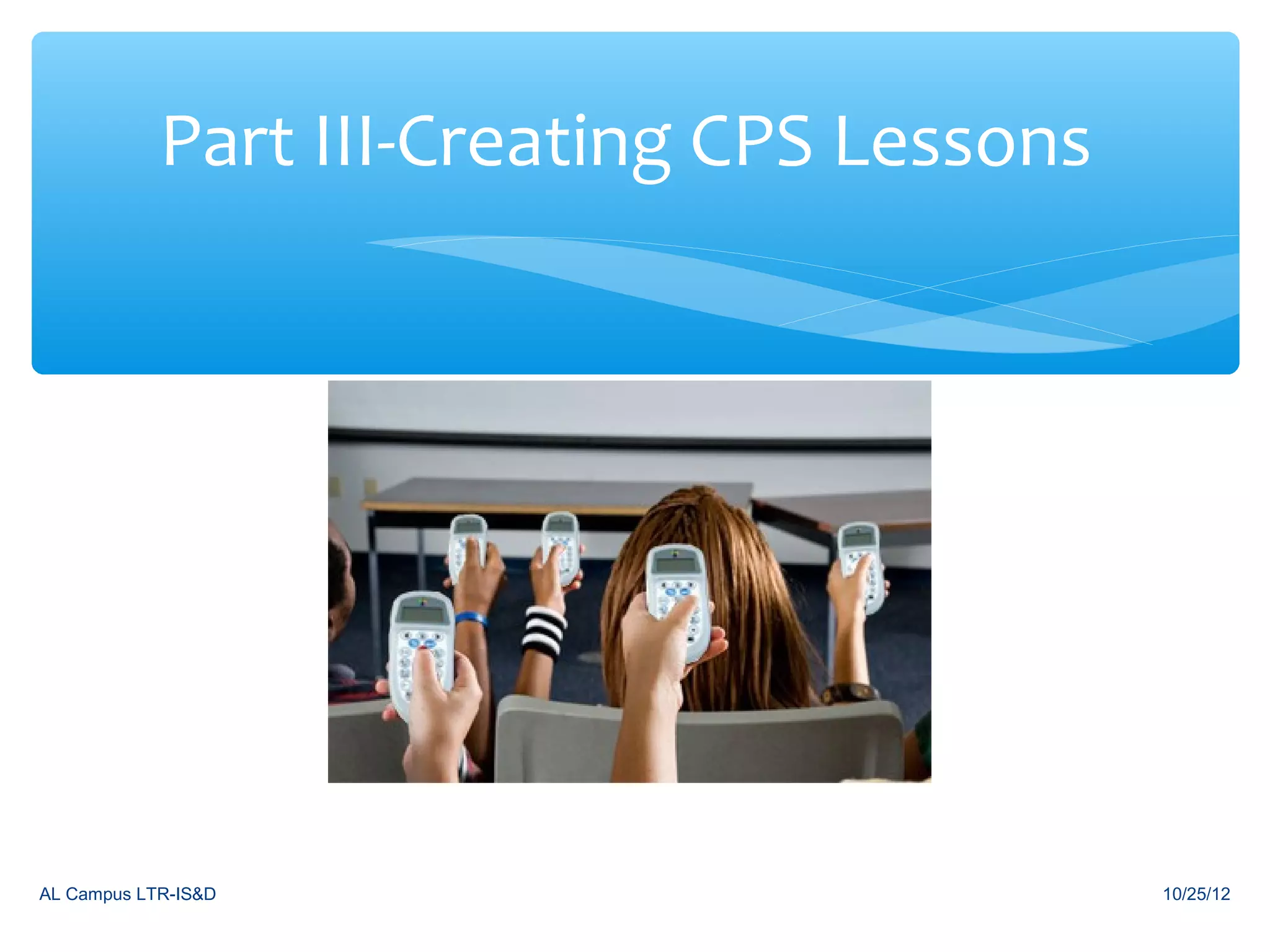
Part III-Creating CPS Lessons


AL Campus LTR-IS&D                          10/25/12
Students will love using CPS.


         A. True
         B. False


AL Campus LTR-IS&D                           10/25/12
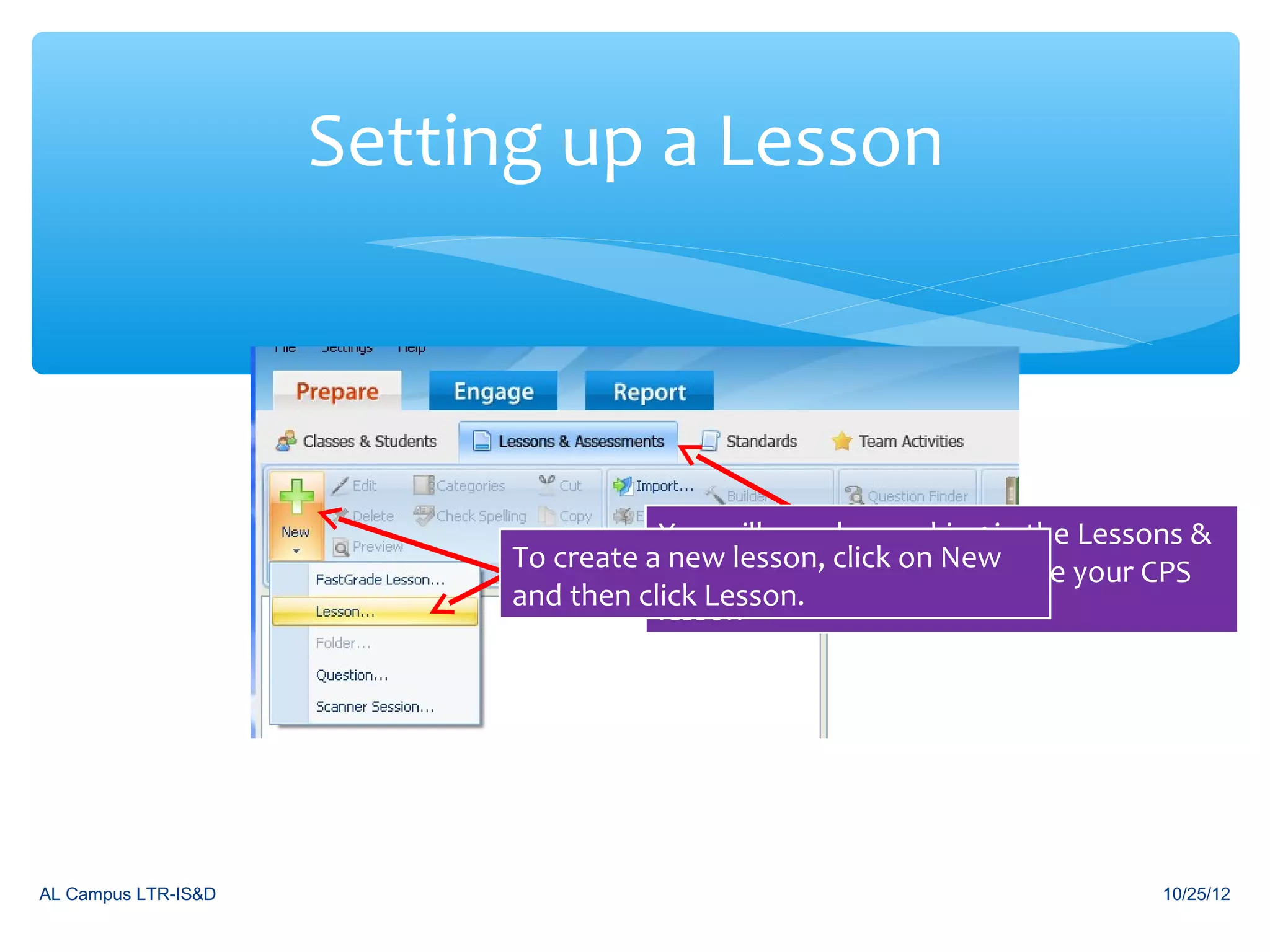
Setting up a Lesson


                                      You will now be working in the Lessons &
                           To create aAssessments click tab New
                                       new lesson, sub on to create your CPS
                           and then click Lesson.
                                      lesson


AL Campus LTR-IS&D                                                        10/25/12
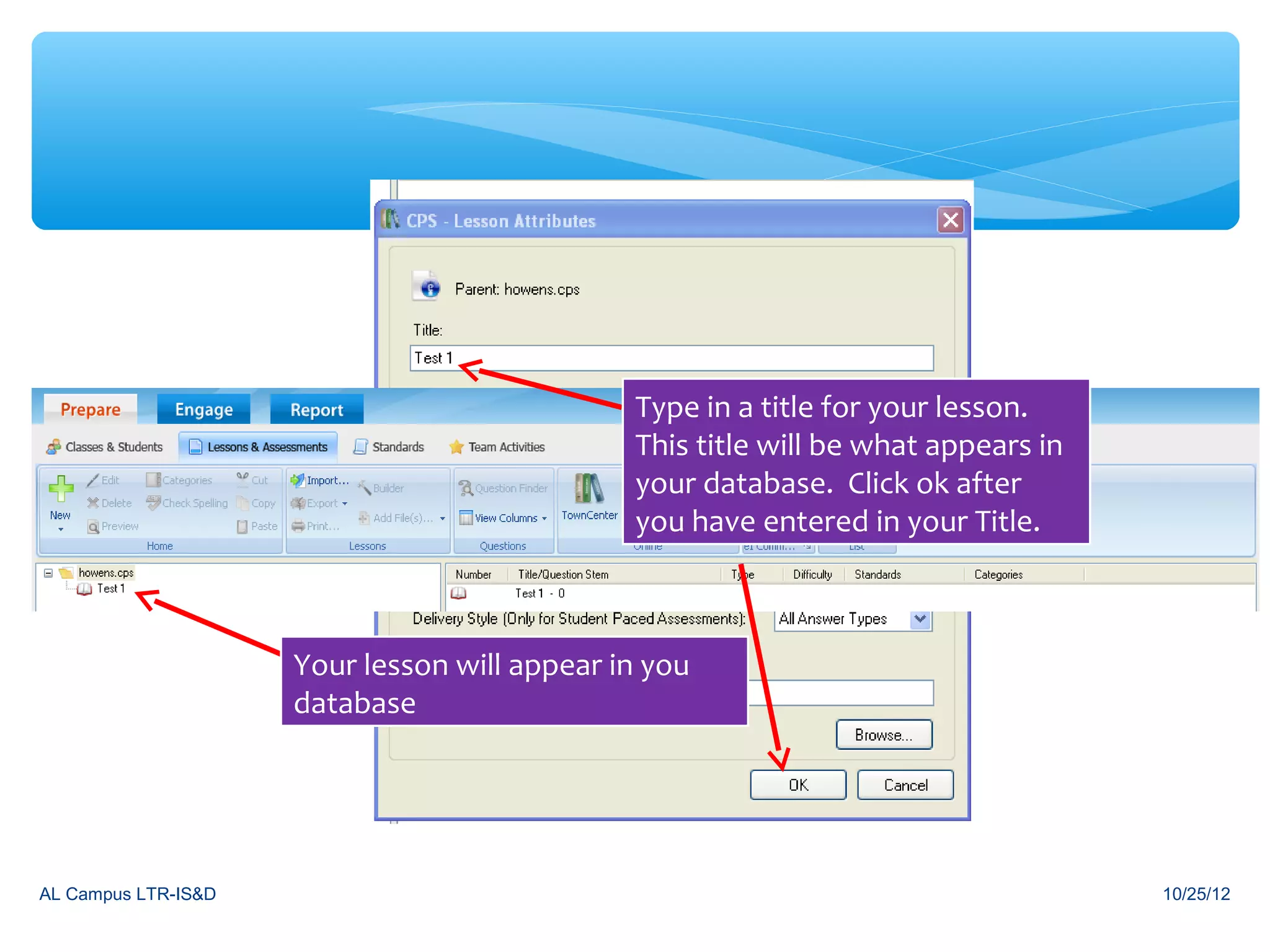
Type in a title for your lesson.
                                              This title will be what appears in
                                              your database. Click ok after
                                              you have entered in your Title.


                     Your lesson will appear in you
                     database


AL Campus LTR-IS&D                                                                 10/25/12
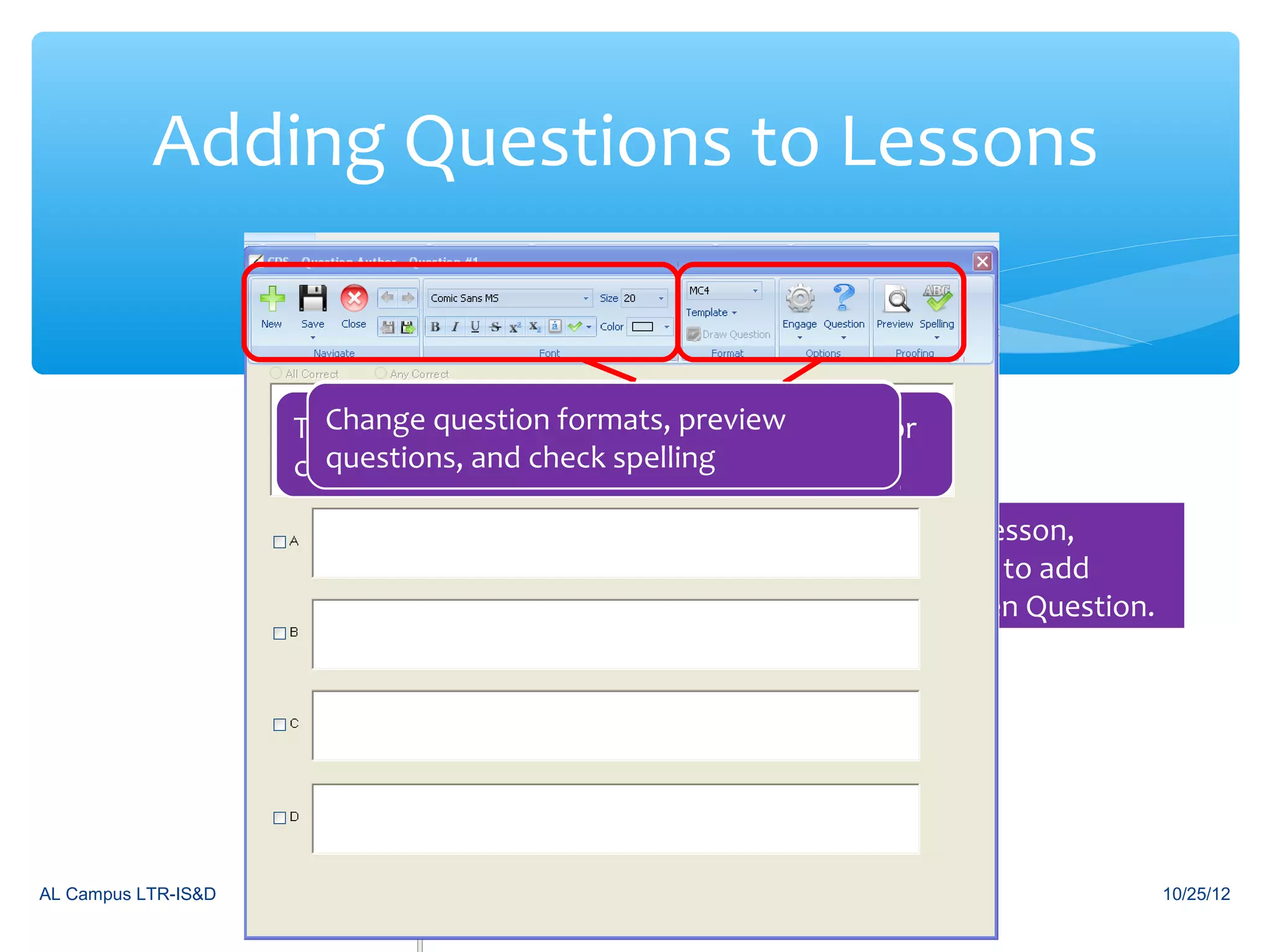
Adding Questions to Lessons


                     There arenew question, save, close,can use for
                       Create various features that you alter
                       Change question formats, preview
                       fonts
                       questions, and check spelling
                     creating questions.

                                      To create a Question in your new lesson,
                                      highlight the lesson you would like to add
                                      questions to and click New and then Question.


AL Campus LTR-IS&D                                                                    10/25/12
Adding Questions to Lessons
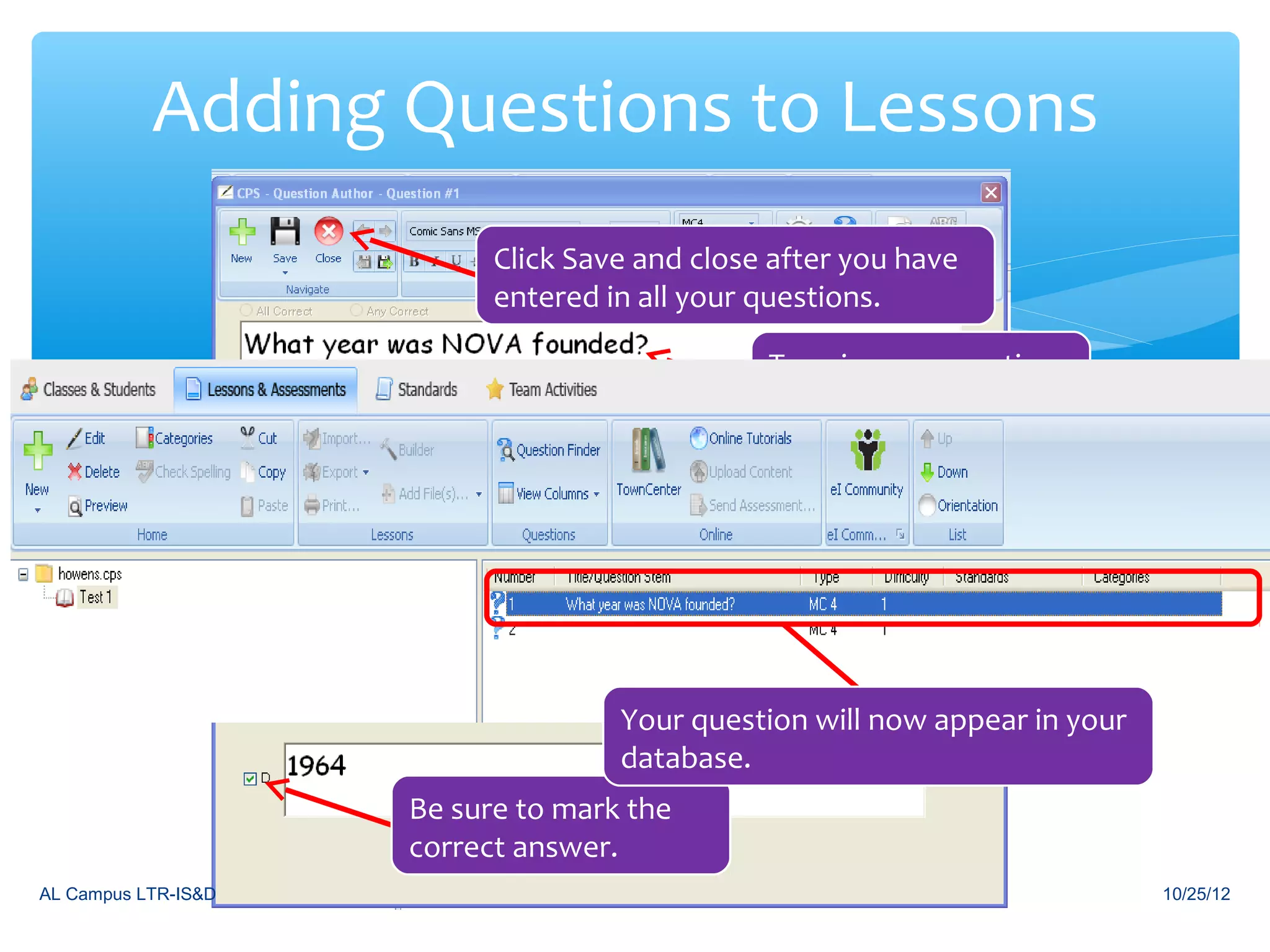
                           Click Save and close after you have
                           entered in all your questions.

                                               Type in your question
                                               and answer choices


                                    Your question will now appear in your
                                    database.
                     Be sure to mark the
                     correct answer.
AL Campus LTR-IS&D                                                          10/25/12
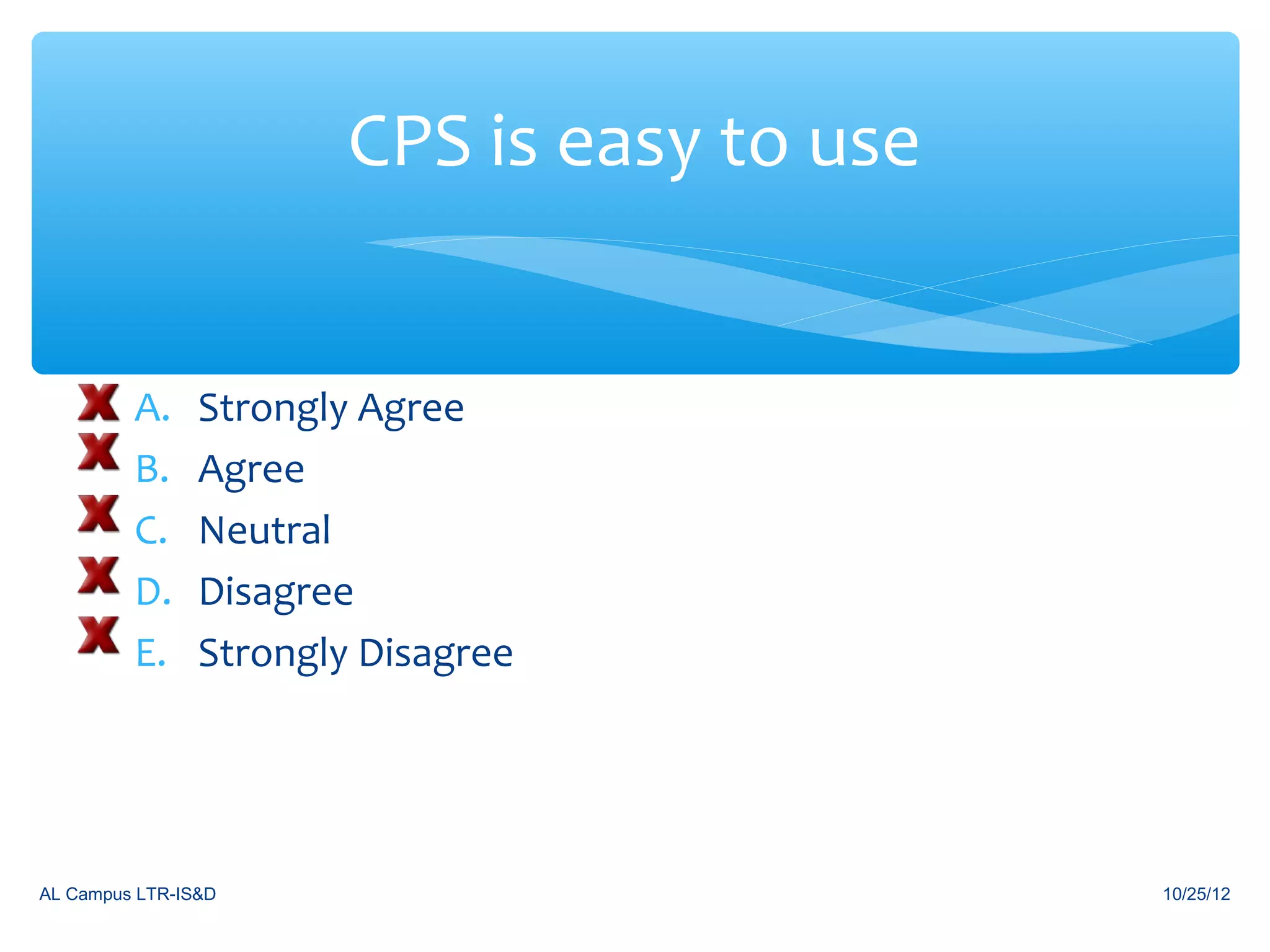
CPS is easy to use


         A.     Strongly Agree
         B.     Agree
         C.     Neutral
         D.     Disagree
         E.     Strongly Disagree


AL Campus LTR-IS&D                           10/25/12
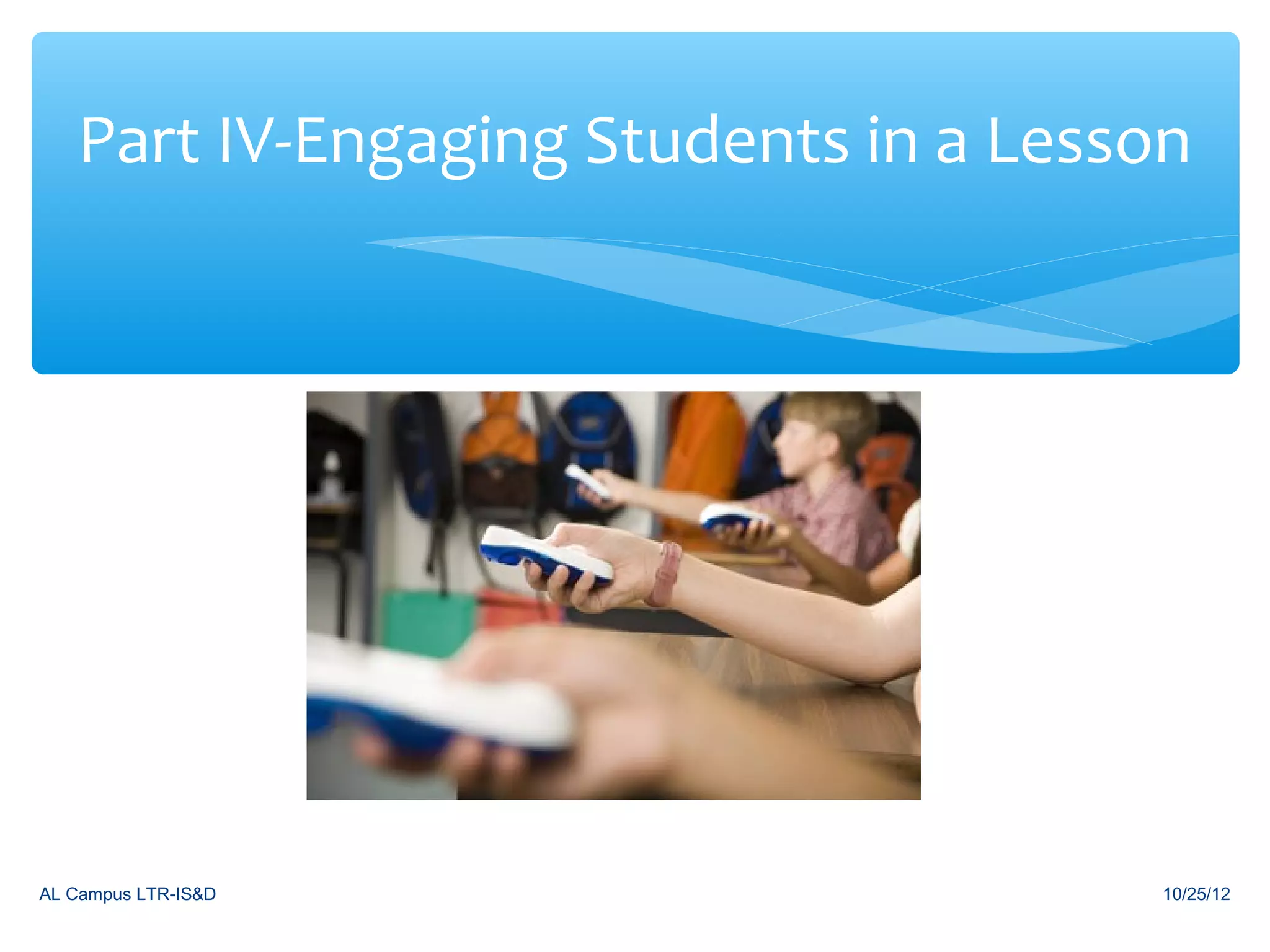
Part IV-Engaging Students in a Lesson


AL Campus LTR-IS&D                     10/25/12
Engaging in a Lesson


                                       You will now be working in the Engage tab
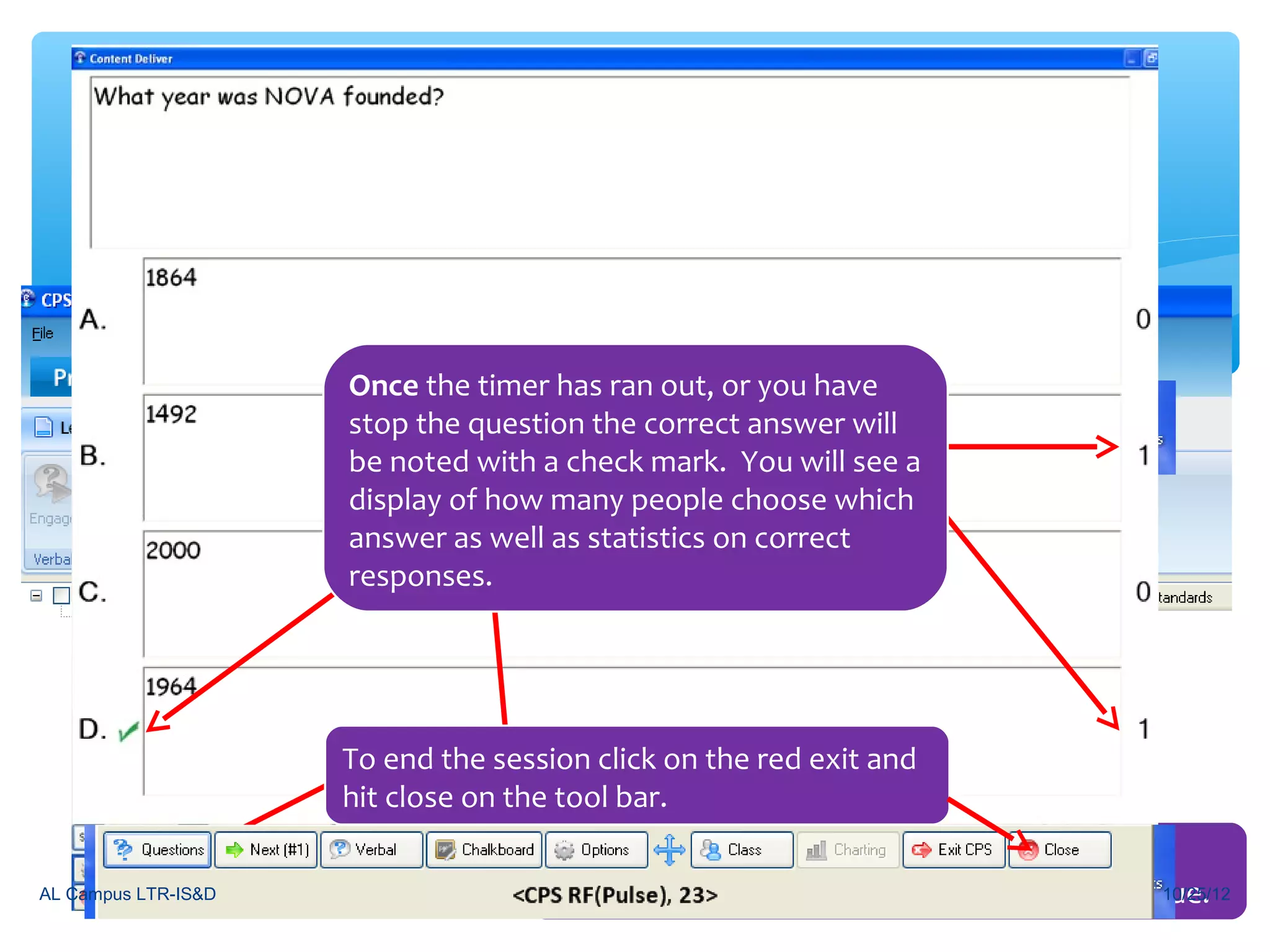
                              Once the timerLessons out, or you have
                                       under has ran & Assessments.
                              stop the question the correct answer will
                              be noted with a check mark. You will see a
                              display Next to many people chooselesson .
                                Click of how move into your CPS which
                              answer as well as statistics on correct
                              responses.
                     Check the lesson you would like to engage
                     the students in and make sure you are on
                     the right class list, then click Engage
                     Click start and the session will be engaged. .
                               To end the session click on the red exit and
                               hit close on the tool bar.
                                              You will be able to see who is answering in
AL Campus LTR-IS&D                            because their clicker number will turn a dark blue.
                                                                                             10/25/12
I am excited about using CPS in
                my classroom.

         A.     Strongly Agree
         B.     Agree
         C.     Neutral
         D.     Disagree
         E.     Strongly Disagree


AL Campus LTR-IS&D                        10/25/12
Thanks for your time


                      Stay Tuned…Up Next,
                       The Challenge game,
                     FastGrade Lessons, and
                         the Reports tab.

AL Campus LTR-IS&D                            10/25/12

CPS Basics

  • 1.
    Welcome to Classroom Performance System (CPS) Training Holly Owens Northern Virginia Community College IS&D AA 337 AL Campus LTR-IS&D 10/25/12
  • 2.
    CPS- The Basics PartI- Creating a database Part II- Creating Classes and Adding Students Part III- Creating a CPS lesson Part IV-Engaging students in a lesson AL Campus LTR-IS&D 10/25/12
  • 3.
    CPS Tabs When working in the prepare tab, you’re in edit mode. You are editing class lists, lessons etc. When working in the Engage tab, you’re engaging your students in the lessons you have created. When working in the Reports tab you are able to generate and view various reports from lesson that you have engaged your students in; AL Campus LTR-IS&D keeps record of all lessons. 10/25/12
  • 4.
    Part I- CreatingYour Own CPS Database AL Campus LTR-IS&D 10/25/12
  • 5.
    Creating Your CPSDatabase Title the file and save a new CPS Choose “Create Your database willit CPS Database” and click OK Click on the wherein onwould appear you icon the CPS system. desktop click “Save” you like and AL Campus LTR-IS&D 10/25/12
  • 6.
    Part II-Creating Classesand Adding Students AL Campus LTR-IS&D 10/25/12
  • 7.
    Do you likeCPS so far? A. Yes B. No AL Campus LTR-IS&D 10/25/12
  • 8.
    Creating Class Lists Again, fill in Clickrequired and Class on New Congrats! Your class will Fill in required information marked bynow appear in your information * an Choose Nodatabase as you have marked by and* and click Nextan ChooseNext click Other and click Next it. titled and click Next You do have the option of creating another class if you need to by repeating all these steps, if not click on Done. AL Campus LTR-IS&D 10/25/12
  • 9.
    Adding Students Under the Prepare tab and classes & students click on New and click Remember to save your database after Student. Make sure the class is you haveBegin typing in yourwant to add highlighted that youstudents. name. entered in all your students students to. continually type in names. Hit enter to The Pad ID corresponds to the clicker the student is assigned to. AL Campus LTR-IS&D 10/25/12
  • 10.
    Part III-Creating CPSLessons AL Campus LTR-IS&D 10/25/12
  • 11.
    Students will loveusing CPS. A. True B. False AL Campus LTR-IS&D 10/25/12
  • 12.
    Setting up aLesson You will now be working in the Lessons & To create aAssessments click tab New new lesson, sub on to create your CPS and then click Lesson. lesson AL Campus LTR-IS&D 10/25/12
  • 13.
    Type in atitle for your lesson. This title will be what appears in your database. Click ok after you have entered in your Title. Your lesson will appear in you database AL Campus LTR-IS&D 10/25/12
  • 14.
    Adding Questions toLessons There arenew question, save, close,can use for Create various features that you alter Change question formats, preview fonts questions, and check spelling creating questions. To create a Question in your new lesson, highlight the lesson you would like to add questions to and click New and then Question. AL Campus LTR-IS&D 10/25/12
  • 15.
    Adding Questions toLessons Click Save and close after you have entered in all your questions. Type in your question and answer choices Your question will now appear in your database. Be sure to mark the correct answer. AL Campus LTR-IS&D 10/25/12
  • 16.
    CPS is easyto use A. Strongly Agree B. Agree C. Neutral D. Disagree E. Strongly Disagree AL Campus LTR-IS&D 10/25/12
  • 17.
    Part IV-Engaging Studentsin a Lesson AL Campus LTR-IS&D 10/25/12
  • 18.
    Engaging in aLesson You will now be working in the Engage tab Once the timerLessons out, or you have under has ran & Assessments. stop the question the correct answer will be noted with a check mark. You will see a display Next to many people chooselesson . Click of how move into your CPS which answer as well as statistics on correct responses. Check the lesson you would like to engage the students in and make sure you are on the right class list, then click Engage Click start and the session will be engaged. . To end the session click on the red exit and hit close on the tool bar. You will be able to see who is answering in AL Campus LTR-IS&D because their clicker number will turn a dark blue. 10/25/12
  • 19.
    I am excitedabout using CPS in my classroom. A. Strongly Agree B. Agree C. Neutral D. Disagree E. Strongly Disagree AL Campus LTR-IS&D 10/25/12
  • 20.
    Thanks for yourtime Stay Tuned…Up Next, The Challenge game, FastGrade Lessons, and the Reports tab. AL Campus LTR-IS&D 10/25/12