







http://eschools.tk/
http://eschools.tk/
 Data Validation
 Auto Serial No
 Auto List
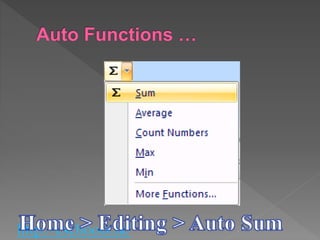
 Auto Functions
 Data Entry
 Shortcut keys
http://eschools.tk/
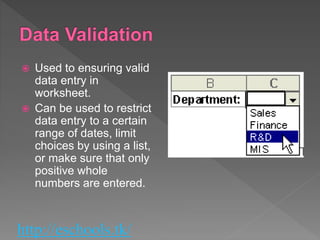
 Used to ensuring valid
data entry in
worksheet.
 Can be used to restrict
data entry to a certain
range of dates, limit
choices by using a list,
or make sure that only
positive whole
numbers are entered.
http://eschools.tk/
1. Select one or more cells to validate.
2. On the Data tab, in the Data Tools
group, click Data Validation.
3. The Data Validation dialog box is
displayed.
4. Click the Settings tab.
5. Specify the type of validation.
http://eschools.tk/
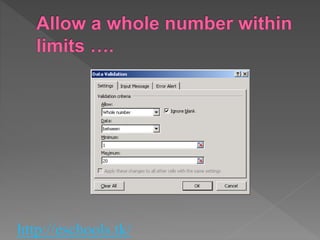
 Select one or more cells to validate.
 On the Data tab, in the Data Tools group, click
Data Validation.
 The Data Validation dialog box is displayed.
 Click the Settings tab.
 In the Allow box, select Whole Number.
 In the Data box, select the type of restriction
that you want. For example, to set upper and
lower limits, select between.
 Enter the minimum, maximum, or specific value
to allow.
http://eschools.tk/
http://eschools.tk/
http://eschools.tk/
http://eschools.tk/
 Select one or more cells to validate.
 On the Data tab, in the Data Tools group, click
Data Validation.
 The Data Validation dialog box is displayed.
 Click the Settings tab.
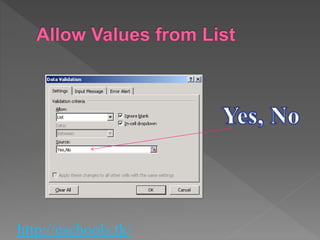
 In the Allow box, select List.
 Click the Source box and then type the list
values separated by the Microsoft Windows list
separator character (commas by default).
http://eschools.tk/
http://eschools.tk/
http://eschools.tk/
 In the Allow box, select Text Length.
 In the Data box, select the type of restriction
that you want. For example, to allow up to a
certain number of characters, select less
than or equal to.
 Enter the minimum, maximum, or specific
length for the text. You can also enter a
formula that returns a number value.
Formula example=SUM(LEN(A1),LEN(B1),10) in the
Maximum box.
http://eschools.tk/
http://eschools.tk/
http://eschools.tk/
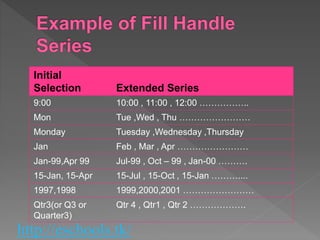
Initial
Selection Extended Series
9:00 10:00 , 11:00 , 12:00 ……………..
Mon Tue ,Wed , Thu ……………………
Monday Tuesday ,Wednesday ,Thursday
Jan Feb , Mar , Apr ……………………
Jan-99,Apr 99 Jul-99 , Oct – 99 , Jan-00 ……….
15-Jan, 15-Apr 15-Jul , 15-Oct , 15-Jan ………....
1997,1998 1999,2000,2001 ……………………
Qtr3(or Q3 or
Quarter3)
Qtr 4 , Qtr1 , Qtr 2 ……………….
http://eschools.tk/
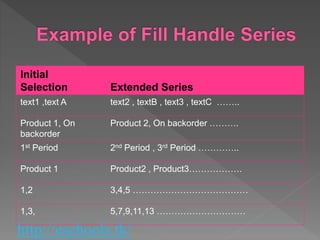
Initial
Selection Extended Series
text1 ,text A text2 , textB , text3 , textC ……..
Product 1, On
backorder
Product 2, On backorder ……….
1st Period 2nd Period , 3rd Period …………..
Product 1 Product2 , Product3………………
1,2 3,4,5 …………………………………
1,3, 5,7,9,11,13 …………………………
http://eschools.tk/
http://eschools.tk/
http://eschools.tk/
http://eschools.tk/
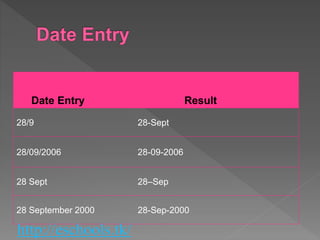
Date Entry Result
28/9 28-Sept
28/09/2006 28-09-2006
28 Sept 28–Sep
28 September 2000 28-Sep-2000
http://eschools.tk/
http://eschools.tk/
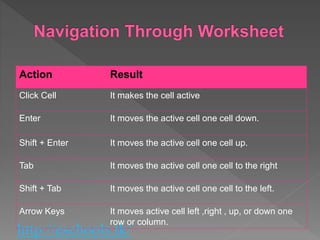
Action Result
Click Cell It makes the cell active
Enter It moves the active cell one cell down.
Shift + Enter It moves the active cell one cell up.
Tab It moves the active cell one cell to the right
Shift + Tab It moves the active cell one cell to the left.
Arrow Keys It moves active cell left ,right , up, or down one
row or column.
MS Excel Tips and Tricks

MS Excel Tips and Tricks

  • 1.
  • 2.
    http://eschools.tk/  Data Validation Auto Serial No  Auto List  Auto Functions  Data Entry  Shortcut keys
  • 3.
    http://eschools.tk/  Used toensuring valid data entry in worksheet.  Can be used to restrict data entry to a certain range of dates, limit choices by using a list, or make sure that only positive whole numbers are entered.
  • 4.
    http://eschools.tk/ 1. Select oneor more cells to validate. 2. On the Data tab, in the Data Tools group, click Data Validation. 3. The Data Validation dialog box is displayed. 4. Click the Settings tab. 5. Specify the type of validation.
  • 5.
    http://eschools.tk/  Select oneor more cells to validate.  On the Data tab, in the Data Tools group, click Data Validation.  The Data Validation dialog box is displayed.  Click the Settings tab.  In the Allow box, select Whole Number.  In the Data box, select the type of restriction that you want. For example, to set upper and lower limits, select between.  Enter the minimum, maximum, or specific value to allow.
  • 6.
  • 7.
  • 8.
  • 9.
    http://eschools.tk/  Select oneor more cells to validate.  On the Data tab, in the Data Tools group, click Data Validation.  The Data Validation dialog box is displayed.  Click the Settings tab.  In the Allow box, select List.  Click the Source box and then type the list values separated by the Microsoft Windows list separator character (commas by default).
  • 10.
  • 11.
  • 12.
    http://eschools.tk/  In theAllow box, select Text Length.  In the Data box, select the type of restriction that you want. For example, to allow up to a certain number of characters, select less than or equal to.  Enter the minimum, maximum, or specific length for the text. You can also enter a formula that returns a number value. Formula example=SUM(LEN(A1),LEN(B1),10) in the Maximum box.
  • 13.
  • 14.
  • 15.
    http://eschools.tk/ Initial Selection Extended Series 9:0010:00 , 11:00 , 12:00 …………….. Mon Tue ,Wed , Thu …………………… Monday Tuesday ,Wednesday ,Thursday Jan Feb , Mar , Apr …………………… Jan-99,Apr 99 Jul-99 , Oct – 99 , Jan-00 ………. 15-Jan, 15-Apr 15-Jul , 15-Oct , 15-Jan ……….... 1997,1998 1999,2000,2001 …………………… Qtr3(or Q3 or Quarter3) Qtr 4 , Qtr1 , Qtr 2 ……………….
  • 16.
    http://eschools.tk/ Initial Selection Extended Series text1,text A text2 , textB , text3 , textC …….. Product 1, On backorder Product 2, On backorder ………. 1st Period 2nd Period , 3rd Period ………….. Product 1 Product2 , Product3……………… 1,2 3,4,5 ………………………………… 1,3, 5,7,9,11,13 …………………………
  • 17.
  • 18.
  • 19.
  • 20.
    http://eschools.tk/ Date Entry Result 28/928-Sept 28/09/2006 28-09-2006 28 Sept 28–Sep 28 September 2000 28-Sep-2000
  • 21.
  • 22.
    http://eschools.tk/ Action Result Click CellIt makes the cell active Enter It moves the active cell one cell down. Shift + Enter It moves the active cell one cell up. Tab It moves the active cell one cell to the right Shift + Tab It moves the active cell one cell to the left. Arrow Keys It moves active cell left ,right , up, or down one row or column.