Mobile Application Development
(ITEC-303)
Fahim Abid
fahim.abid@uettaxila.edu.pk
fahim.abid@uoc.edu.pk
Credits Hours 3(3,0)
Recommended Books
1. Professional Android application development, Reto Meier, Wrox Programmer to
Programmer, 2015.
2. Android Programming: The Big Nerd Ranch Guides, Phillips, B. & Hardy, B., 2nd
Edition, 2014.
3. iOS Programming: The Big Nerd Ranch Guide, Conway, J., Hillegass, A., & Keur, C.,
5th Edition, 2014.
Using Location-Based Services
Location-based services (LBS) is an umbrella term used to describe the different
technologies used to find the device’s current location. The two main LBS elements
are:
 LocationManager: It provides hooks to the location-based services. Using the
Location Manager, you can:
• Obtain your current location.
• Track movement.
• Set proximity alerts for detecting movement into and out of a specified area.
 LocationProviders: Each of which represents a different location-finding
technology used to determine the device’s current location.
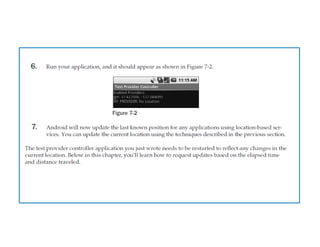
Setting up the Emulator with Test Providers
Location-based services are dependent on device hardware for finding the current
location. When developing and testing with the emulator, your hardware is
virtualized, and you’re likely to stay in pretty much the same location.
To compensate, Android includes hooks that let you emulate Location Providers for
testing location based applications. In this section, you’ll learn how to mock the
position of the supported GPS provider.
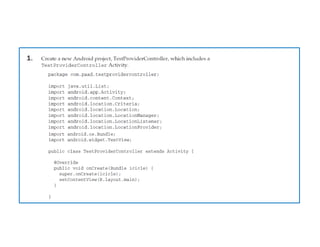
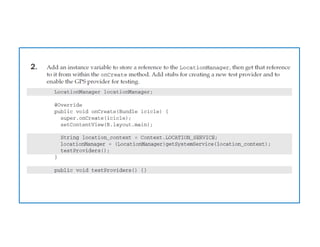
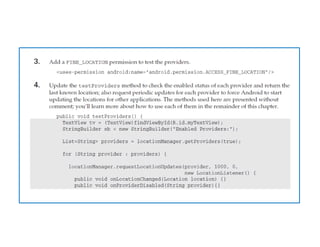
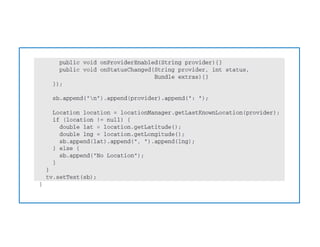
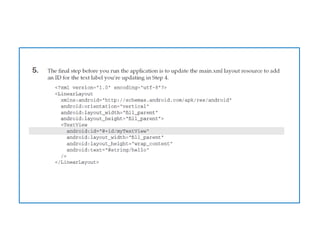
Create an Application to Manage Test Location Providers
In this example, you’ll create a new project to set up the emulator to simplify testing
other location-based applications. Running this project will ensure that the GPS
provider is active and updating regularly.
S
S
S
S
S
S
Selecting a Location Provider
Depending on the device, there may be several technologies that Android can use to
determine the current location. Each technology or Location Provider, will offer
different capabilities including power consumption, monetary cost, accuracy and the
ability to determine altitude, speed or heading information.
To get an instance of a specific provider, call getProvider, passing in the name:
String providerName = LocationManager.GPS_PROVIDER;
LocationProvider gpsProvider;
gpsProvider = locationManager.getProvider(providerName);
This is generally only useful for determining the abilities of a particular provider.
Most LocationManager methods require only a provider name to perform location-
based services.
Finding the Available Providers
The LocationManager class includes static string constants that return the provider
name for the two most common Location Providers:
 LocationManager.GPS_PROVIDER
 LocationManager.NETWORK_PROVIDER
To get a list of names for all the providers available on the device, call getProviders,
using a Boolean to indicate if you want all, or only the enabled, providers to be
returned:
boolean enabledOnly = true;
List<String> providers = locationManager.getProviders(enabledOnly);
Finding Your Location
The purpose of location-based services is to find the physical location of the device.
Access to the location-based services is handled using the Location Manager system
Service. To access the Location Manager, request an instance of the
LOCATION_SERVICE using the getSystemService method, as shown in the following
snippet:
String serviceString = Context.LOCATION_SERVICE;
LocationManager locationManager;
locationManager = (LocationManager)getSystemService(serviceString);
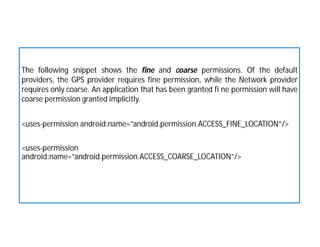
The following snippet shows the fine and coarse permissions. Of the default
providers, the GPS provider requires fine permission, while the Network provider
requires only coarse. An application that has been granted fi ne permission will have
coarse permission granted implicitly.
<uses-permission android:name=”android.permission.ACCESS_FINE_LOCATION”/>
<uses-permission
android:name=”android.permission.ACCESS_COARSE_LOCATION”/>
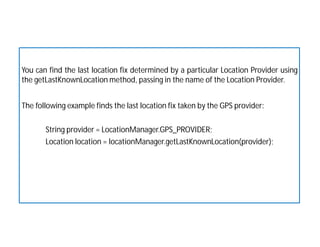
You can find the last location fix determined by a particular Location Provider using
the getLastKnownLocation method, passing in the name of the Location Provider.
The following example finds the last location fix taken by the GPS provider:
String provider = LocationManager.GPS_PROVIDER;
Location location = locationManager.getLastKnownLocation(provider);
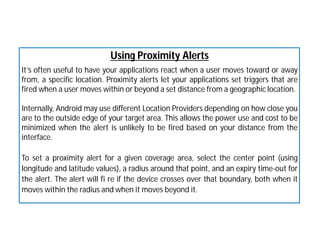
Using Proximity Alerts
It’s often useful to have your applications react when a user moves toward or away
from, a specific location. Proximity alerts let your applications set triggers that are
fired when a user moves within or beyond a set distance from a geographic location.
Internally, Android may use different Location Providers depending on how close you
are to the outside edge of your target area. This allows the power use and cost to be
minimized when the alert is unlikely to be fired based on your distance from the
interface.
To set a proximity alert for a given coverage area, select the center point (using
longitude and latitude values), a radius around that point, and an expiry time-out for
the alert. The alert will fi re if the device crosses over that boundary, both when it
moves within the radius and when it moves beyond it.
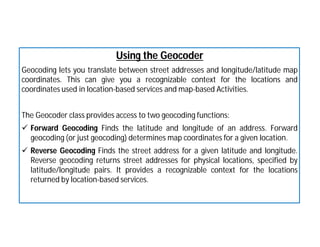
Using the Geocoder
Geocoding lets you translate between street addresses and longitude/latitude map
coordinates. This can give you a recognizable context for the locations and
coordinates used in location-based services and map-based Activities.
The Geocoder class provides access to two geocoding functions:
 Forward Geocoding Finds the latitude and longitude of an address. Forward
geocoding (or just geocoding) determines map coordinates for a given location.
 Reverse Geocoding Finds the street address for a given latitude and longitude.
Reverse geocoding returns street addresses for physical locations, specified by
latitude/longitude pairs. It provides a recognizable context for the locations
returned by location-based services.
Creating Map-Based Activities
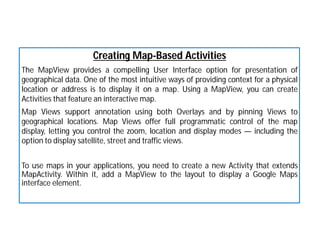
The MapView provides a compelling User Interface option for presentation of
geographical data. One of the most intuitive ways of providing context for a physical
location or address is to display it on a map. Using a MapView, you can create
Activities that feature an interactive map.
Map Views support annotation using both Overlays and by pinning Views to
geographical locations. Map Views offer full programmatic control of the map
display, letting you control the zoom, location and display modes — including the
option to display satellite, street and traffic views.
To use maps in your applications, you need to create a new Activity that extends
MapActivity. Within it, add a MapView to the layout to display a Google Maps
interface element.
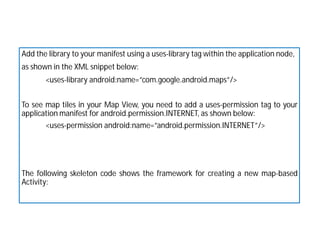
Add the library to your manifest using a uses-library tag within the application node,
as shown in the XML snippet below:
<uses-library android:name=”com.google.android.maps”/>
To see map tiles in your Map View, you need to add a uses-permission tag to your
application manifest for android.permission.INTERNET, as shown below:
<uses-permission android:name=”android.permission.INTERNET”/>
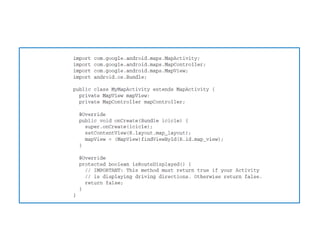
The following skeleton code shows the framework for creating a new map-based
Activity:
A
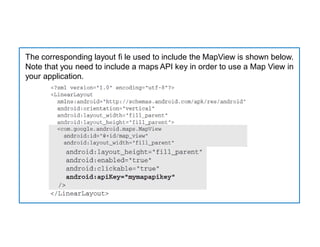
AThe corresponding layout fi le used to include the MapView is shown below.
Note that you need to include a maps API key in order to use a Map View in
your application.
Mapping Earthquakes Example
Professional Android Application Development
Chapter 7: Maps, Geocoding, and Location-Based Services
See Page No. 266

Mobile Application Development-Lecture 15 & 16.pdf

  • 1.
    Mobile Application Development (ITEC-303) FahimAbid fahim.abid@uettaxila.edu.pk fahim.abid@uoc.edu.pk
  • 2.
    Credits Hours 3(3,0) RecommendedBooks 1. Professional Android application development, Reto Meier, Wrox Programmer to Programmer, 2015. 2. Android Programming: The Big Nerd Ranch Guides, Phillips, B. & Hardy, B., 2nd Edition, 2014. 3. iOS Programming: The Big Nerd Ranch Guide, Conway, J., Hillegass, A., & Keur, C., 5th Edition, 2014.
  • 3.
    Using Location-Based Services Location-basedservices (LBS) is an umbrella term used to describe the different technologies used to find the device’s current location. The two main LBS elements are:  LocationManager: It provides hooks to the location-based services. Using the Location Manager, you can: • Obtain your current location. • Track movement. • Set proximity alerts for detecting movement into and out of a specified area.  LocationProviders: Each of which represents a different location-finding technology used to determine the device’s current location.
  • 4.
    Setting up theEmulator with Test Providers Location-based services are dependent on device hardware for finding the current location. When developing and testing with the emulator, your hardware is virtualized, and you’re likely to stay in pretty much the same location. To compensate, Android includes hooks that let you emulate Location Providers for testing location based applications. In this section, you’ll learn how to mock the position of the supported GPS provider. Create an Application to Manage Test Location Providers In this example, you’ll create a new project to set up the emulator to simplify testing other location-based applications. Running this project will ensure that the GPS provider is active and updating regularly.
  • 5.
  • 6.
  • 7.
  • 8.
  • 9.
  • 10.
  • 11.
    Selecting a LocationProvider Depending on the device, there may be several technologies that Android can use to determine the current location. Each technology or Location Provider, will offer different capabilities including power consumption, monetary cost, accuracy and the ability to determine altitude, speed or heading information. To get an instance of a specific provider, call getProvider, passing in the name: String providerName = LocationManager.GPS_PROVIDER; LocationProvider gpsProvider; gpsProvider = locationManager.getProvider(providerName); This is generally only useful for determining the abilities of a particular provider. Most LocationManager methods require only a provider name to perform location- based services.
  • 12.
    Finding the AvailableProviders The LocationManager class includes static string constants that return the provider name for the two most common Location Providers:  LocationManager.GPS_PROVIDER  LocationManager.NETWORK_PROVIDER To get a list of names for all the providers available on the device, call getProviders, using a Boolean to indicate if you want all, or only the enabled, providers to be returned: boolean enabledOnly = true; List<String> providers = locationManager.getProviders(enabledOnly);
  • 13.
    Finding Your Location Thepurpose of location-based services is to find the physical location of the device. Access to the location-based services is handled using the Location Manager system Service. To access the Location Manager, request an instance of the LOCATION_SERVICE using the getSystemService method, as shown in the following snippet: String serviceString = Context.LOCATION_SERVICE; LocationManager locationManager; locationManager = (LocationManager)getSystemService(serviceString);
  • 14.
    The following snippetshows the fine and coarse permissions. Of the default providers, the GPS provider requires fine permission, while the Network provider requires only coarse. An application that has been granted fi ne permission will have coarse permission granted implicitly. <uses-permission android:name=”android.permission.ACCESS_FINE_LOCATION”/> <uses-permission android:name=”android.permission.ACCESS_COARSE_LOCATION”/>
  • 15.
    You can findthe last location fix determined by a particular Location Provider using the getLastKnownLocation method, passing in the name of the Location Provider. The following example finds the last location fix taken by the GPS provider: String provider = LocationManager.GPS_PROVIDER; Location location = locationManager.getLastKnownLocation(provider);
  • 16.
    Using Proximity Alerts It’soften useful to have your applications react when a user moves toward or away from, a specific location. Proximity alerts let your applications set triggers that are fired when a user moves within or beyond a set distance from a geographic location. Internally, Android may use different Location Providers depending on how close you are to the outside edge of your target area. This allows the power use and cost to be minimized when the alert is unlikely to be fired based on your distance from the interface. To set a proximity alert for a given coverage area, select the center point (using longitude and latitude values), a radius around that point, and an expiry time-out for the alert. The alert will fi re if the device crosses over that boundary, both when it moves within the radius and when it moves beyond it.
  • 17.
    Using the Geocoder Geocodinglets you translate between street addresses and longitude/latitude map coordinates. This can give you a recognizable context for the locations and coordinates used in location-based services and map-based Activities. The Geocoder class provides access to two geocoding functions:  Forward Geocoding Finds the latitude and longitude of an address. Forward geocoding (or just geocoding) determines map coordinates for a given location.  Reverse Geocoding Finds the street address for a given latitude and longitude. Reverse geocoding returns street addresses for physical locations, specified by latitude/longitude pairs. It provides a recognizable context for the locations returned by location-based services.
  • 18.
    Creating Map-Based Activities TheMapView provides a compelling User Interface option for presentation of geographical data. One of the most intuitive ways of providing context for a physical location or address is to display it on a map. Using a MapView, you can create Activities that feature an interactive map. Map Views support annotation using both Overlays and by pinning Views to geographical locations. Map Views offer full programmatic control of the map display, letting you control the zoom, location and display modes — including the option to display satellite, street and traffic views. To use maps in your applications, you need to create a new Activity that extends MapActivity. Within it, add a MapView to the layout to display a Google Maps interface element.
  • 19.
    Add the libraryto your manifest using a uses-library tag within the application node, as shown in the XML snippet below: <uses-library android:name=”com.google.android.maps”/> To see map tiles in your Map View, you need to add a uses-permission tag to your application manifest for android.permission.INTERNET, as shown below: <uses-permission android:name=”android.permission.INTERNET”/> The following skeleton code shows the framework for creating a new map-based Activity:
  • 20.
  • 21.
    AThe corresponding layoutfi le used to include the MapView is shown below. Note that you need to include a maps API key in order to use a Map View in your application.
  • 22.
    Mapping Earthquakes Example ProfessionalAndroid Application Development Chapter 7: Maps, Geocoding, and Location-Based Services See Page No. 266