Lightning Experience
My Personal Experience of Migrating to LEX
Sam Garforth
Principal Technical Architect
sgarforth@salesforce.com
@samjgarforth
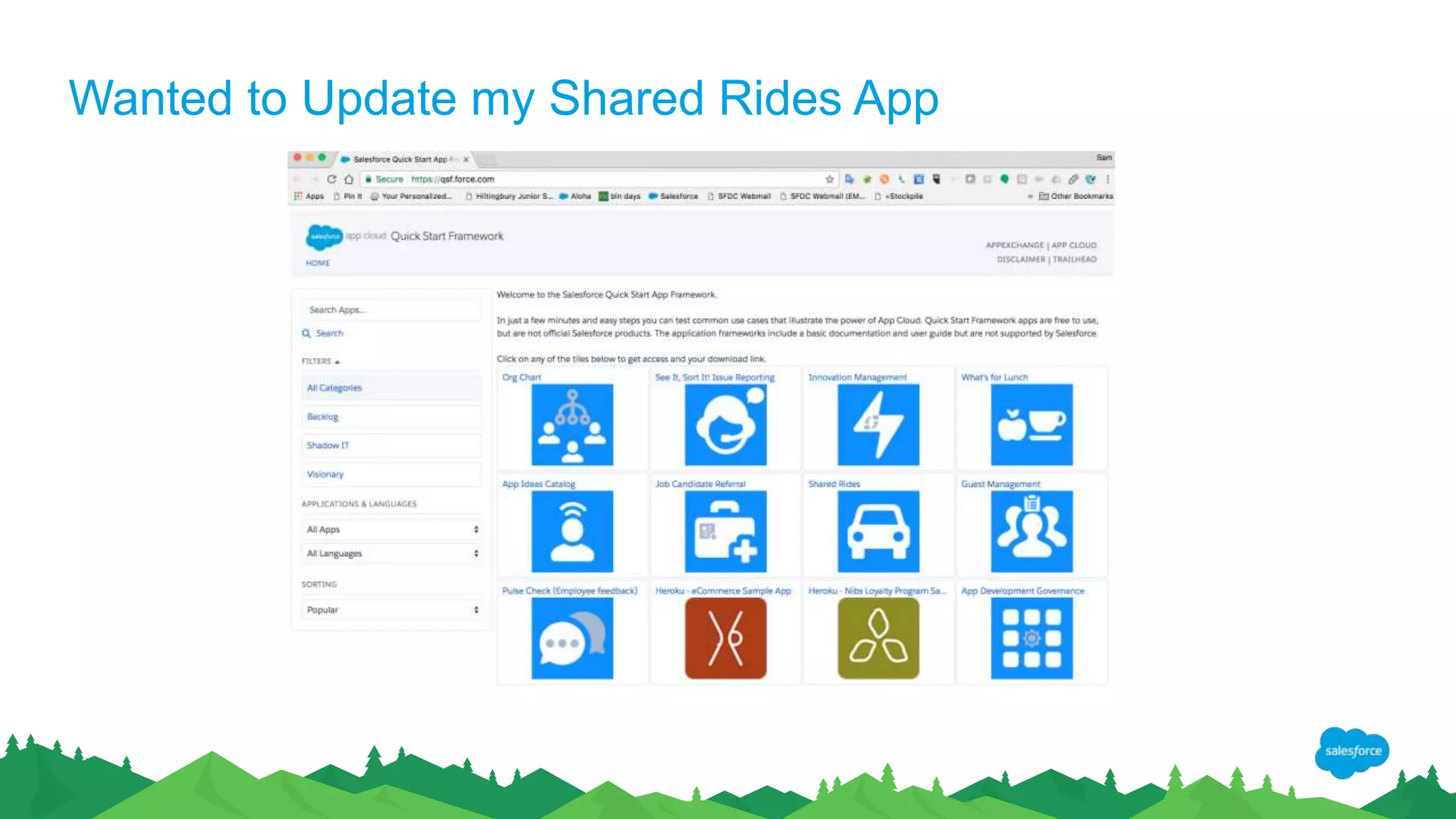
Wanted to Update my Shared Rides App
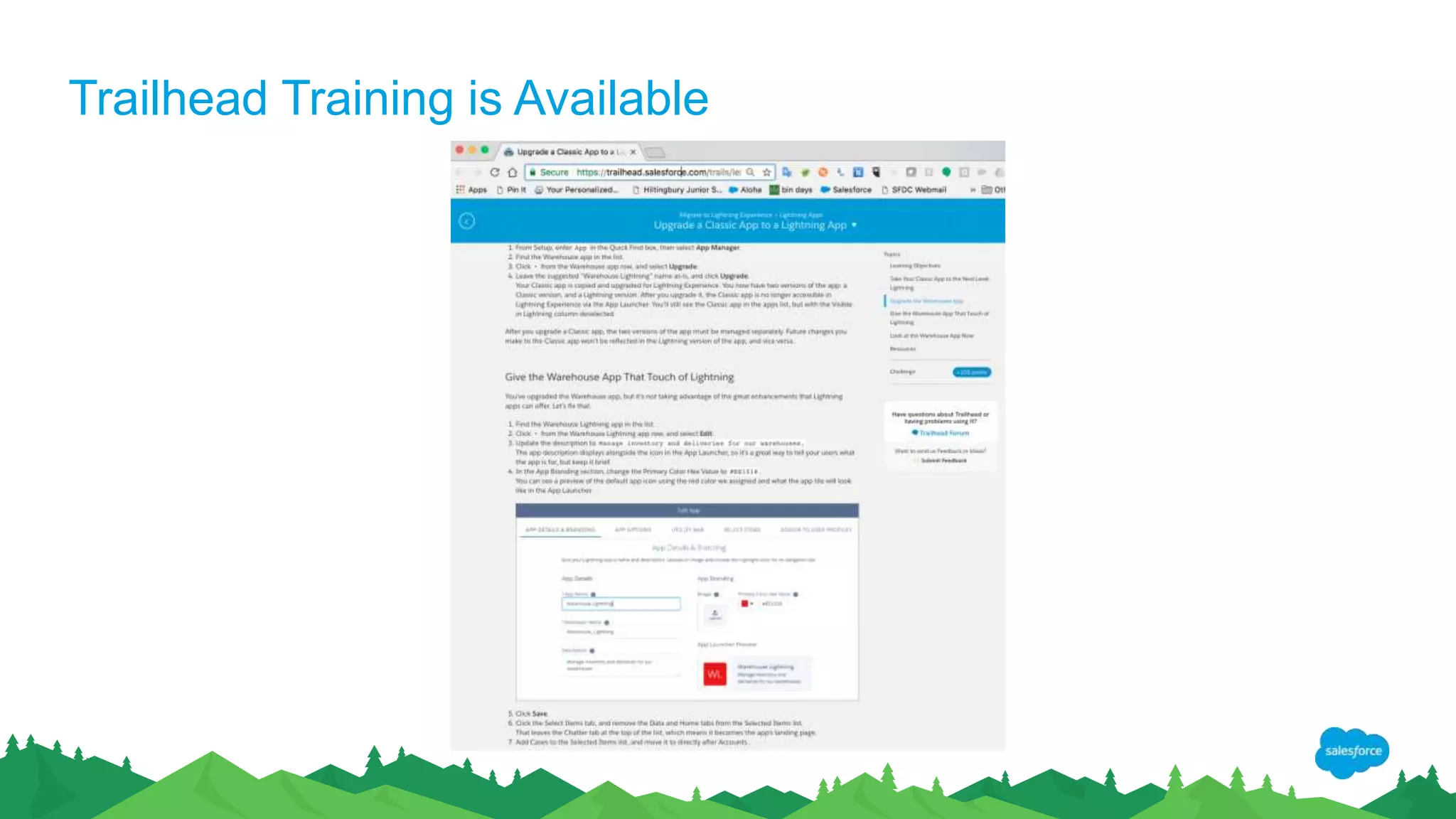
Trailhead Training is Available
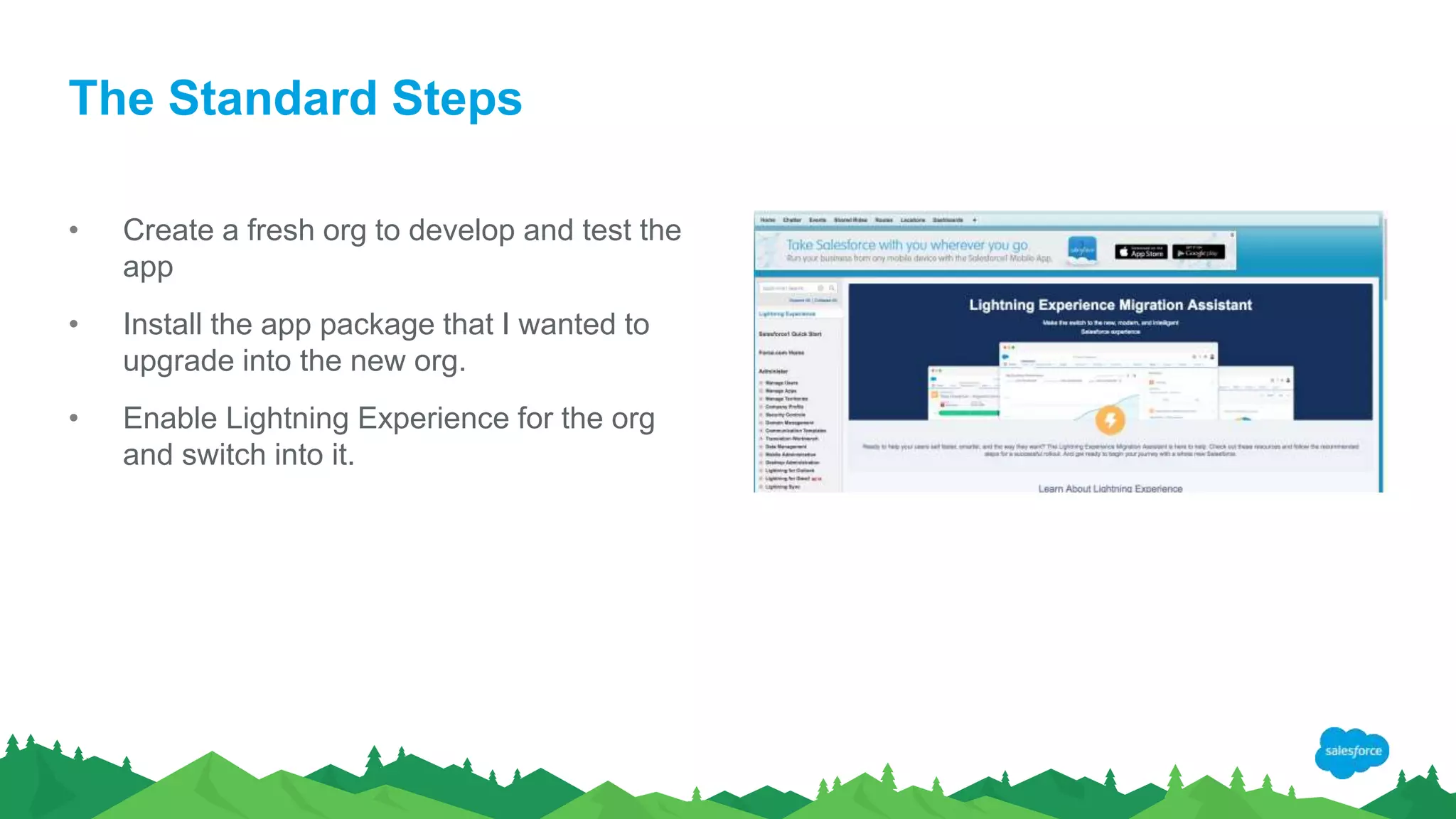
The Standard Steps
• Create a fresh org to develop and test the
app
• Install the app package that I wanted to
upgrade into the new org.
• Enable Lightning Experience for the org
and switch into it.
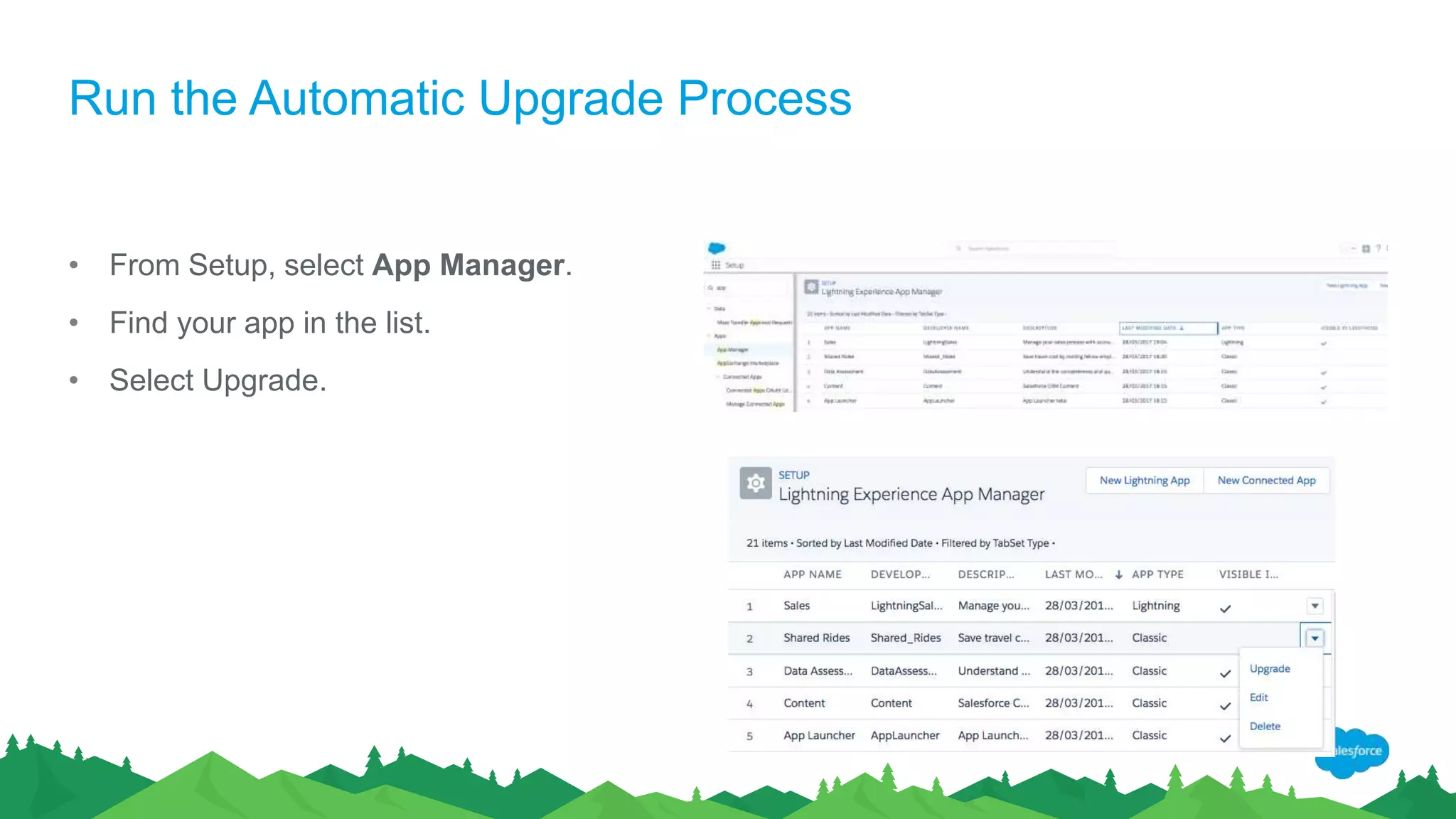
Run the Automatic Upgrade Process
• From Setup, select App Manager.
• Find your app in the list.
• Select Upgrade.
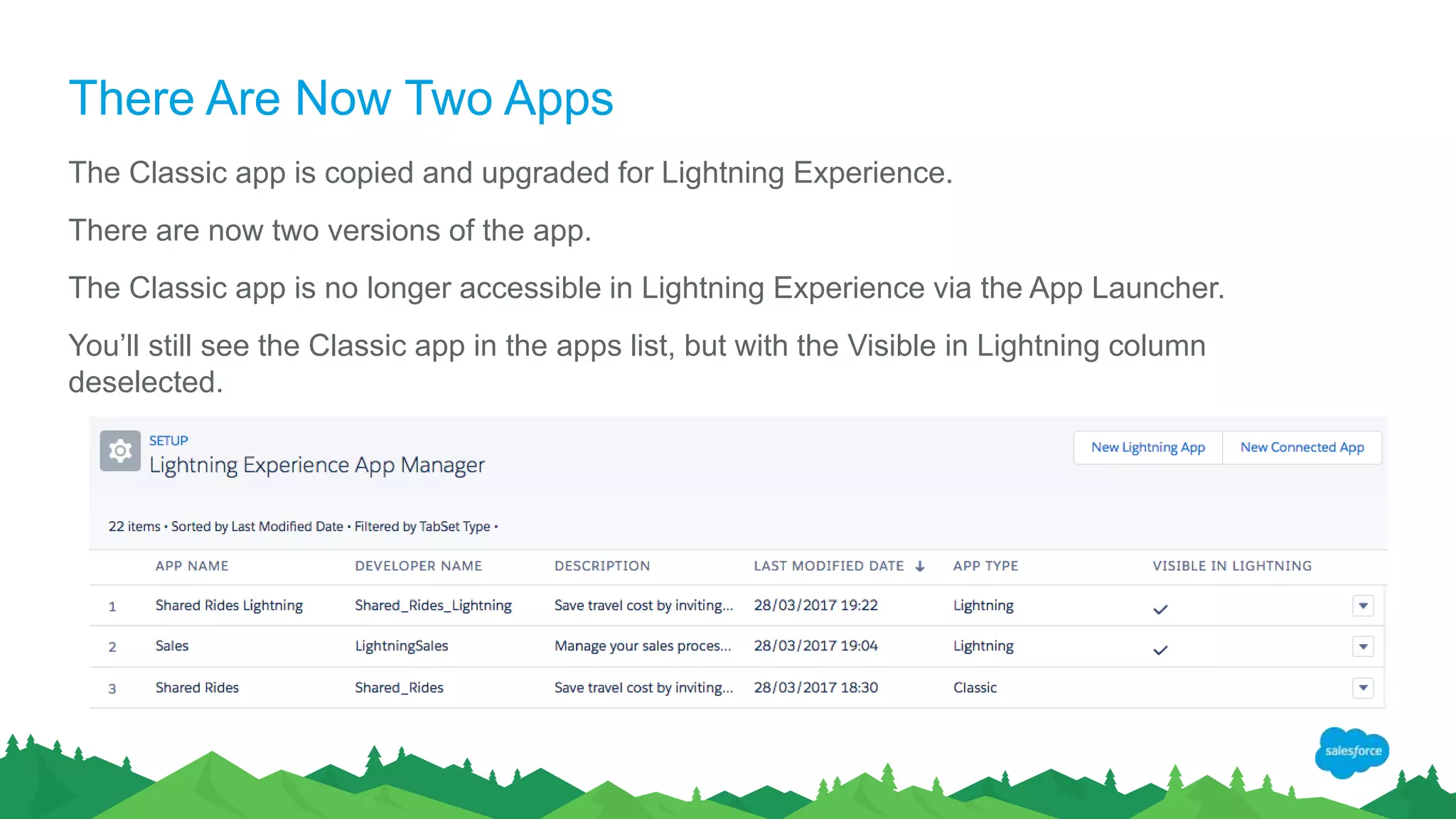
There Are Now Two Apps
The Classic app is copied and upgraded for Lightning Experience.
There are now two versions of the app.
The Classic app is no longer accessible in Lightning Experience via the App Launcher.
You’ll still see the Classic app in the apps list, but with the Visible in Lightning column
deselected.
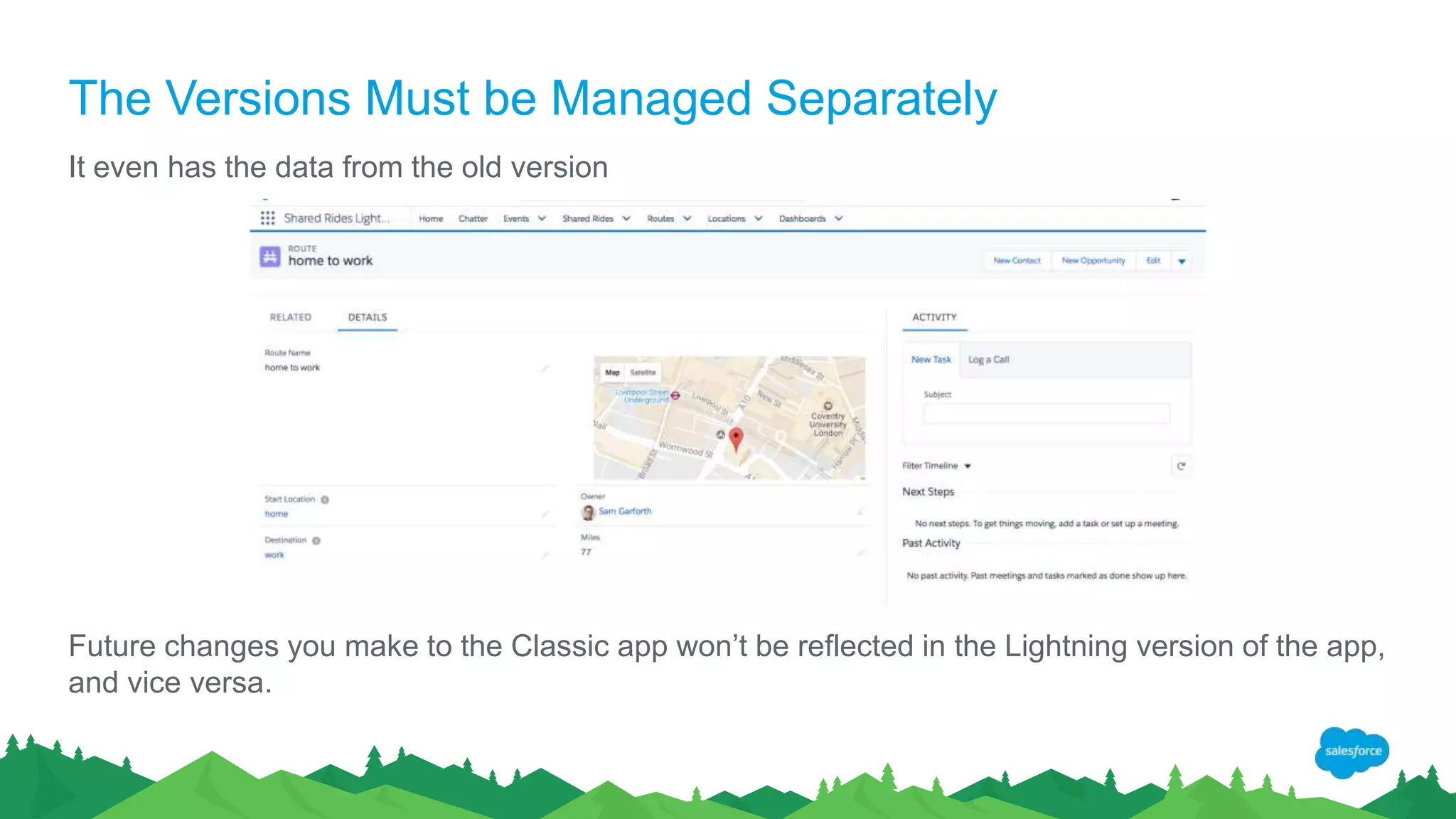
The Versions Must be Managed Separately
It even has the data from the old version
Future changes you make to the Classic app won’t be reflected in the Lightning version of the app,
and vice versa.
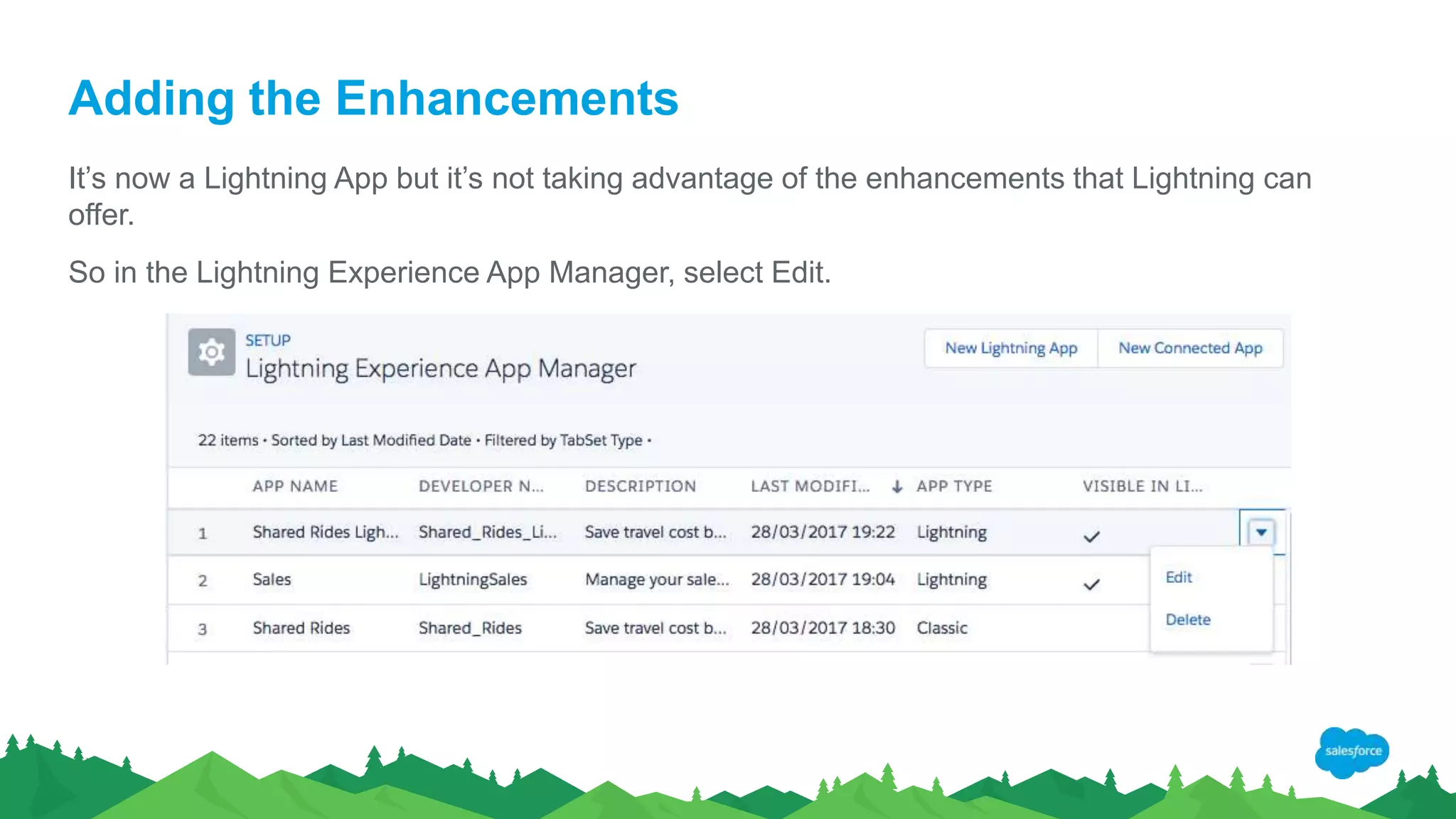
Adding the Enhancements
It’s now a Lightning App but it’s not taking advantage of the enhancements that Lightning can
offer.
So in the Lightning Experience App Manager, select Edit.
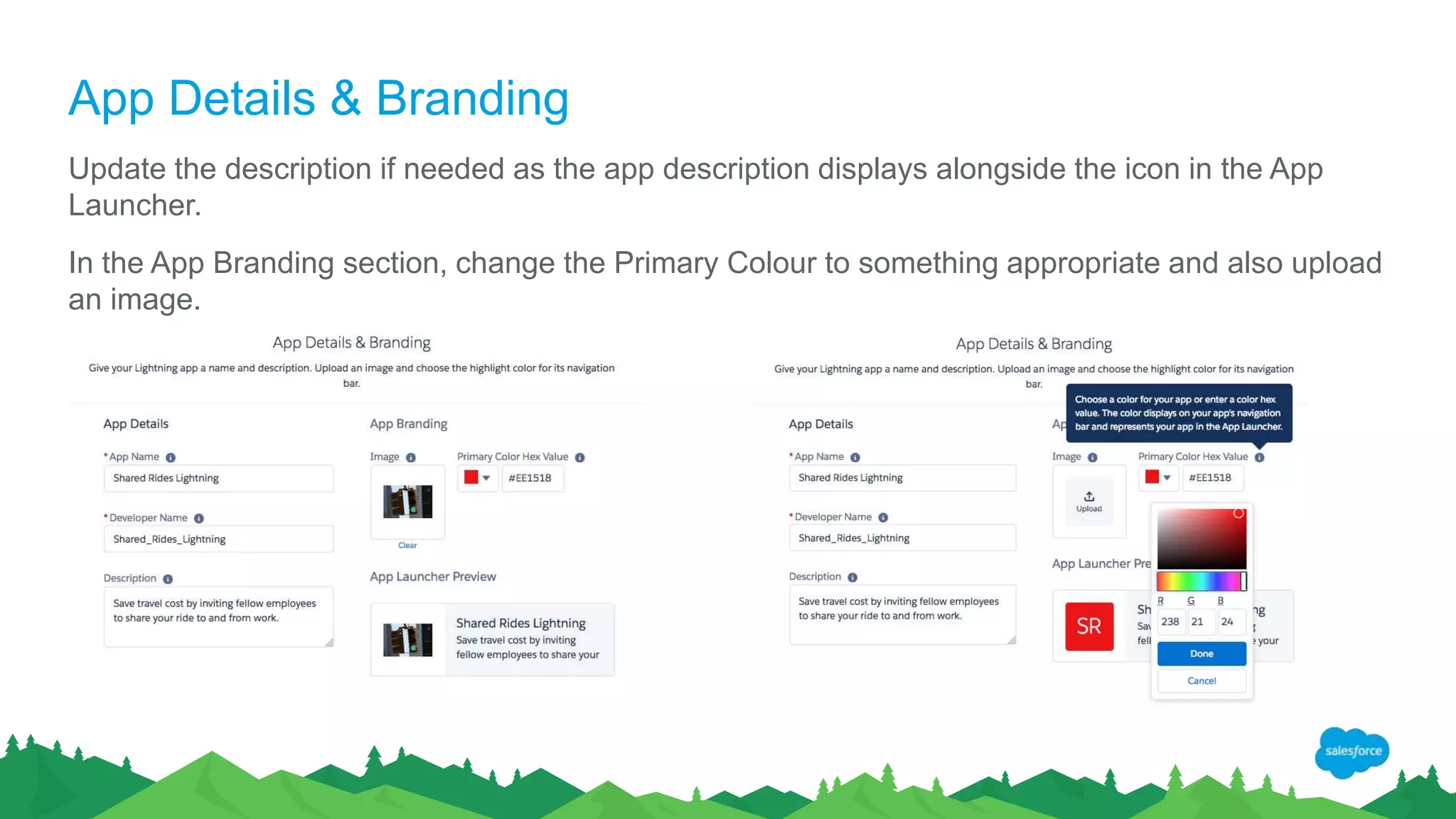
App Details & Branding
Update the description if needed as the app description displays alongside the icon in the App
Launcher.
In the App Branding section, change the Primary Colour to something appropriate and also upload
an image.
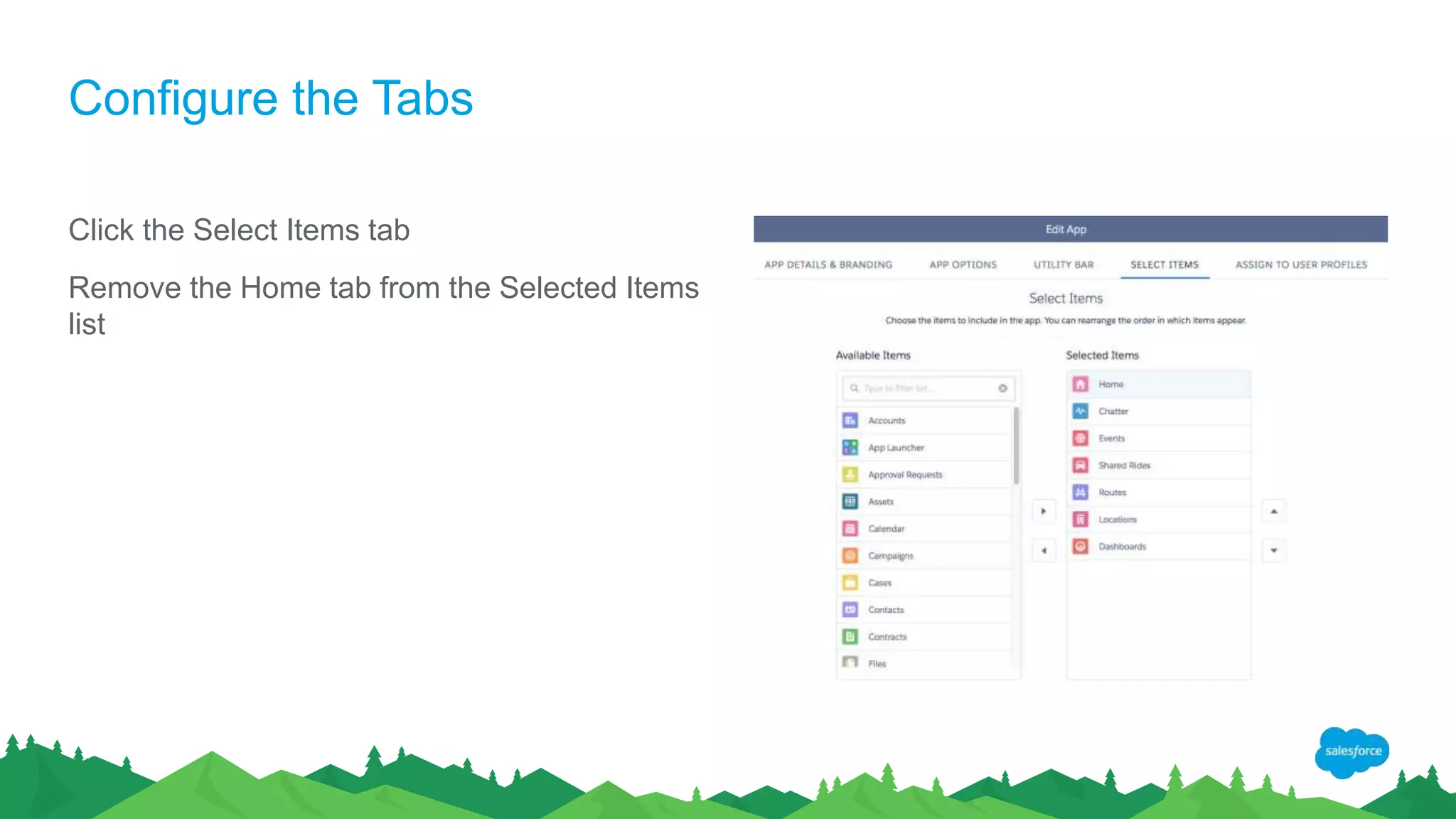
Configure the Tabs
Click the Select Items tab
Remove the Home tab from the Selected Items
list
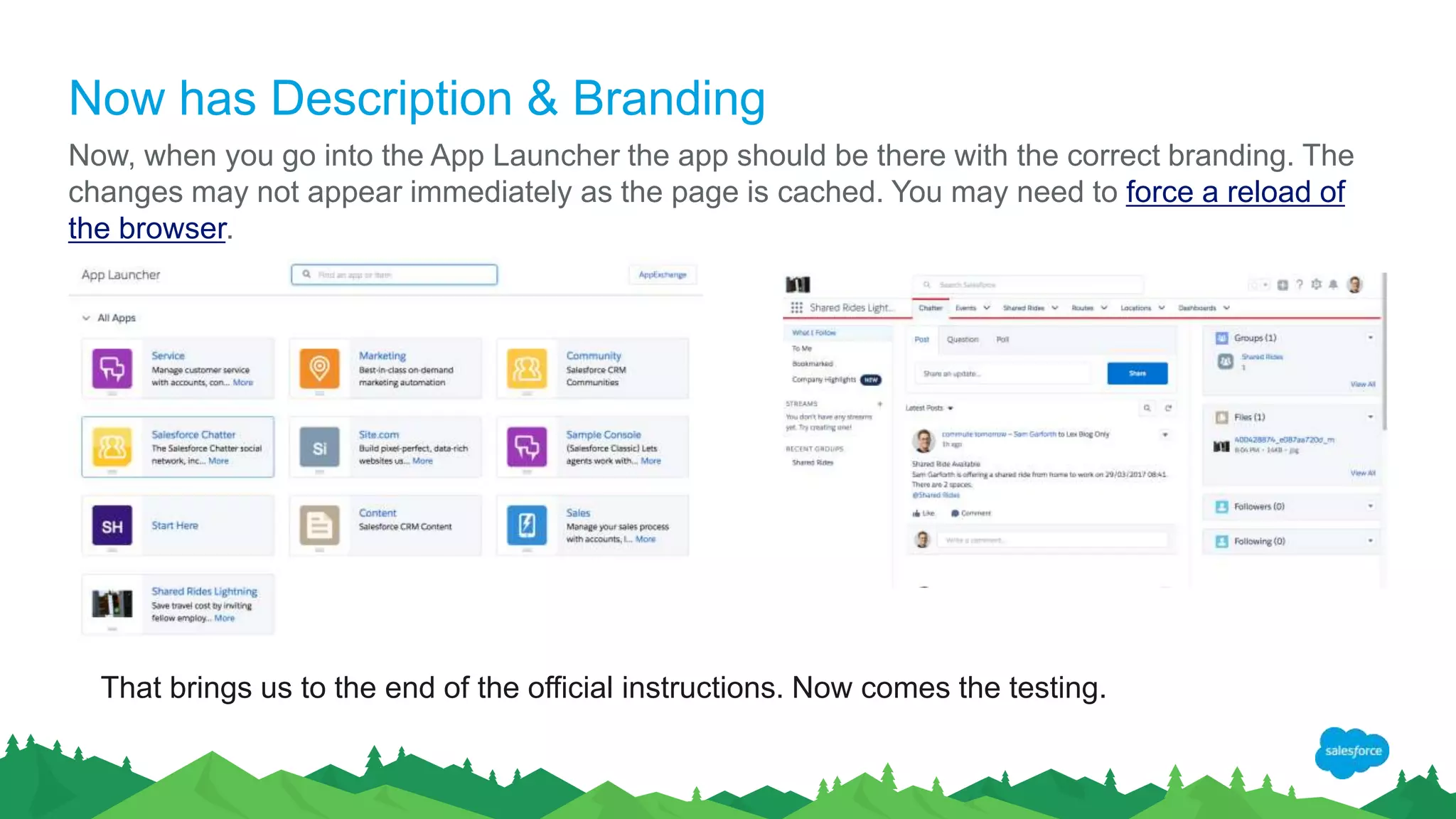
Now has Description & Branding
Now, when you go into the App Launcher the app should be there with the correct branding. The
changes may not appear immediately as the page is cached. You may need to force a reload of
the browser.
That brings us to the end of the official instructions. Now comes the testing.
Further Tidying
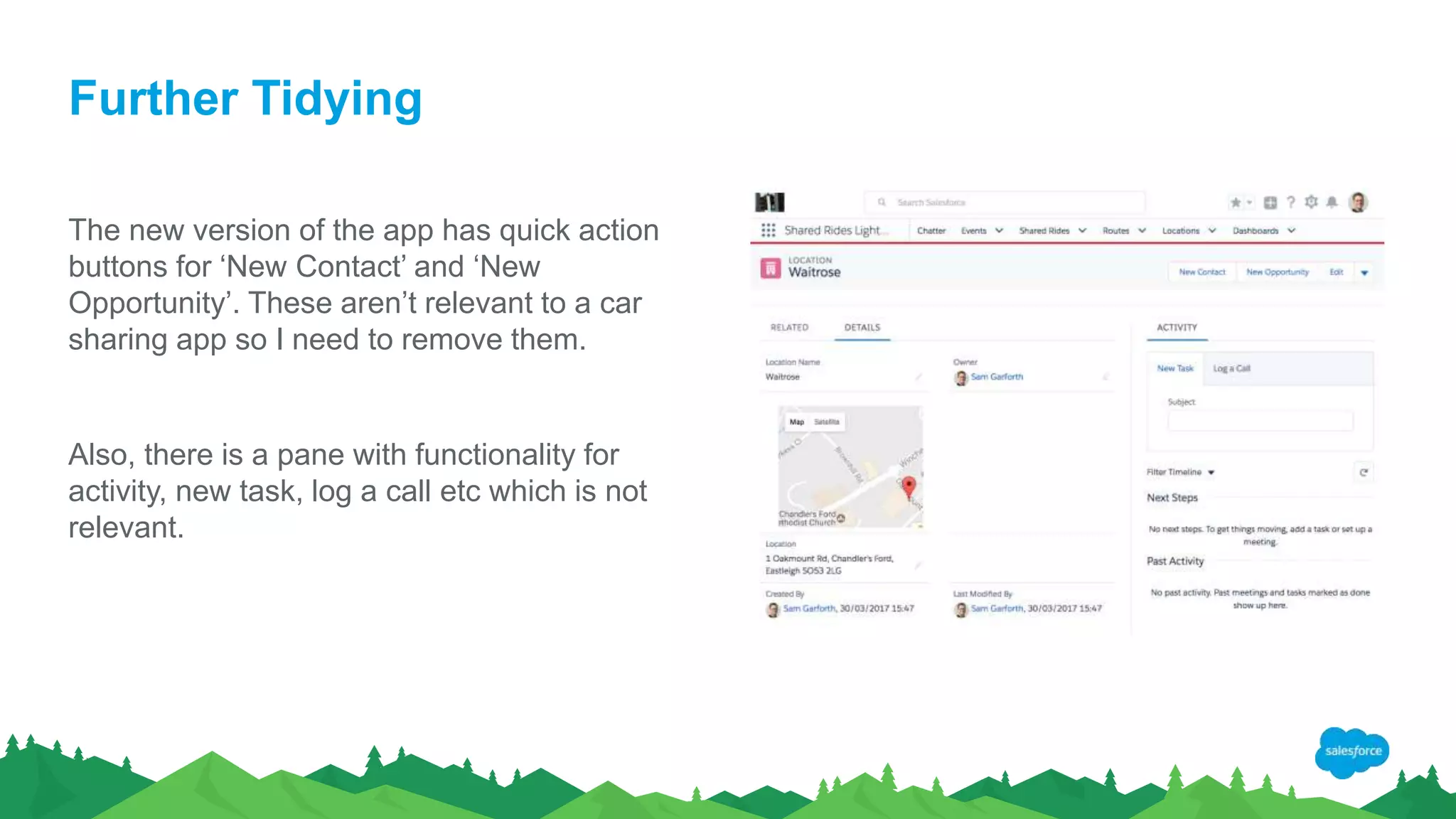
The new version of the app has quick action
buttons for ‘New Contact’ and ‘New
Opportunity’. These aren’t relevant to a car
sharing app so I need to remove them.
Also, there is a pane with functionality for
activity, new task, log a call etc which is not
relevant.
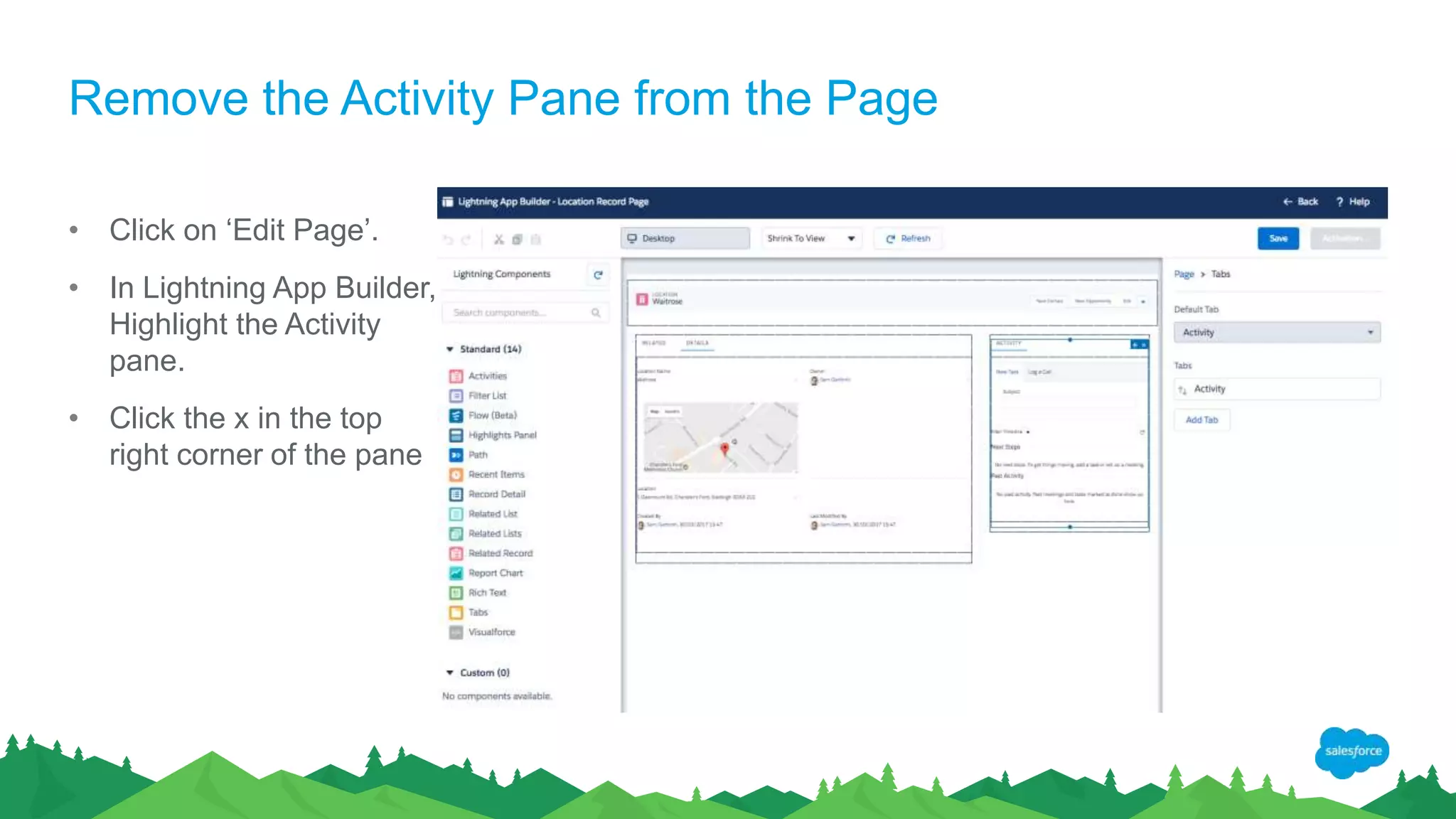
Remove the Activity Pane from the Page
• Click on ‘Edit Page’.
• In Lightning App Builder,
Highlight the Activity
pane.
• Click the x in the top
right corner of the pane
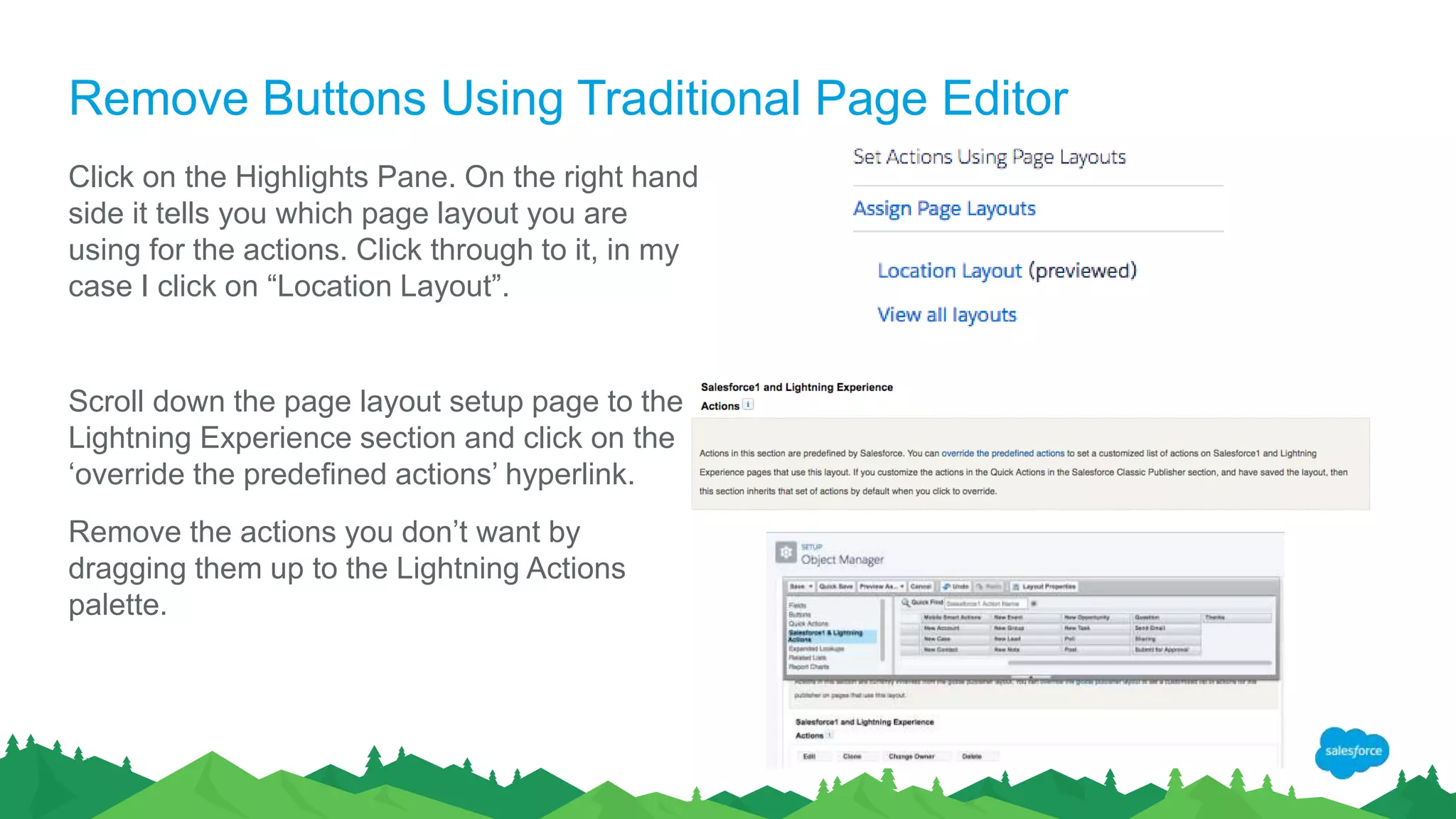
Remove Buttons Using Traditional Page Editor
Click on the Highlights Pane. On the right hand
side it tells you which page layout you are
using for the actions. Click through to it, in my
case I click on “Location Layout”.
Scroll down the page layout setup page to the
Lightning Experience section and click on the
‘override the predefined actions’ hyperlink.
Remove the actions you don’t want by
dragging them up to the Lightning Actions
palette.
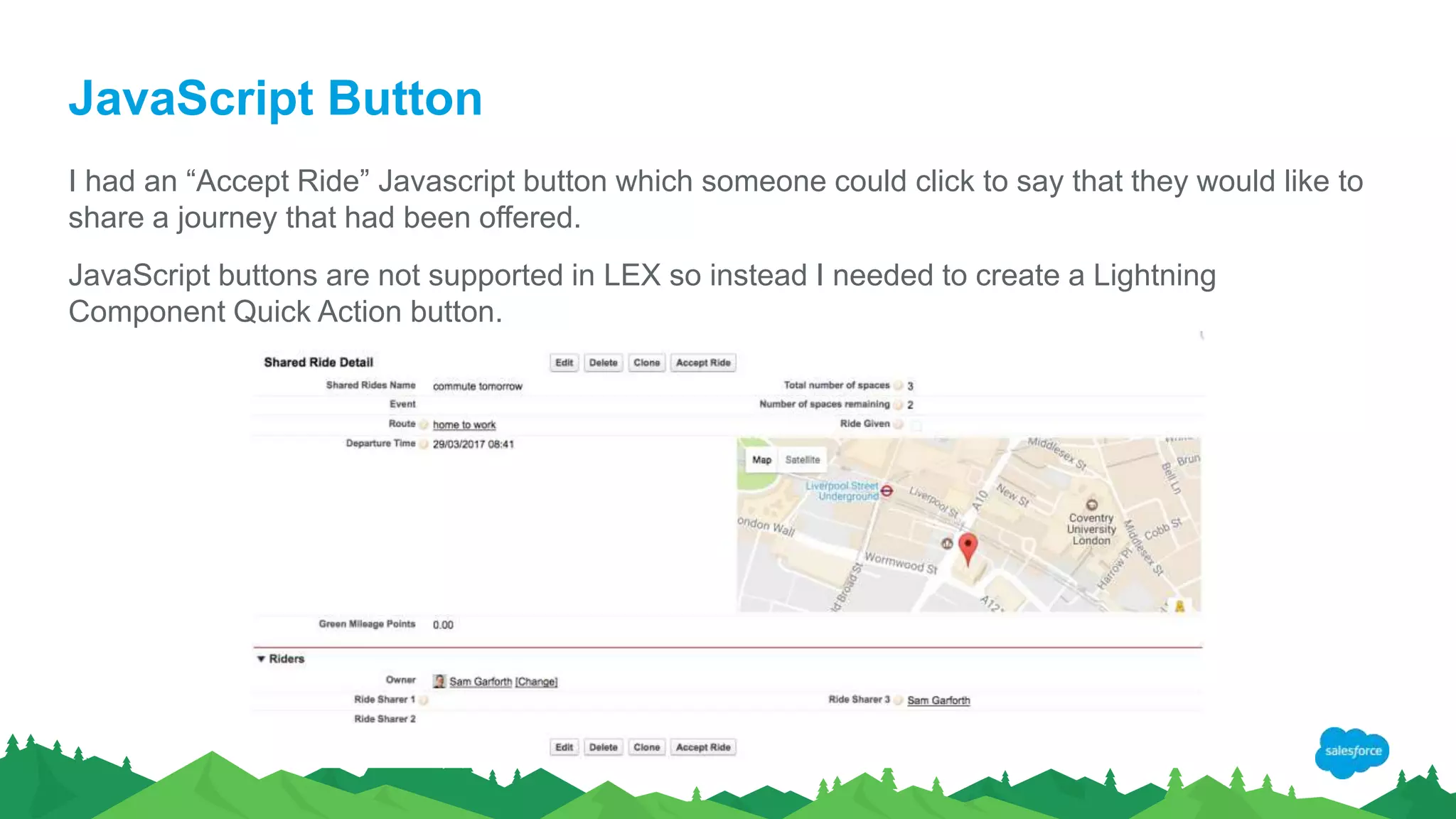
JavaScript Button
I had an “Accept Ride” Javascript button which someone could click to say that they would like to
share a journey that had been offered.
JavaScript buttons are not supported in LEX so instead I needed to create a Lightning
Component Quick Action button.
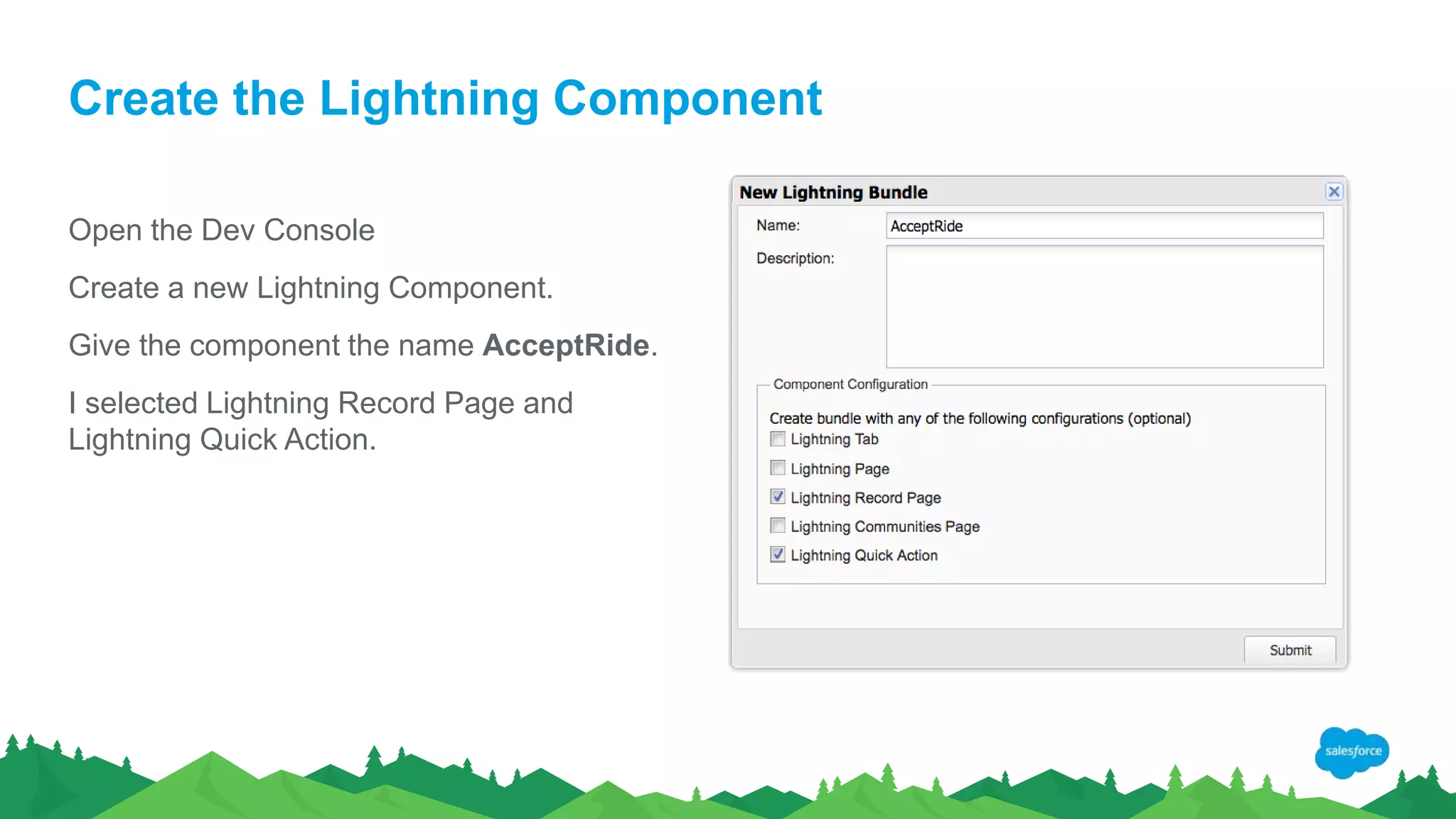
Create the Lightning Component
Open the Dev Console
Create a new Lightning Component.
Give the component the name AcceptRide.
I selected Lightning Record Page and
Lightning Quick Action.
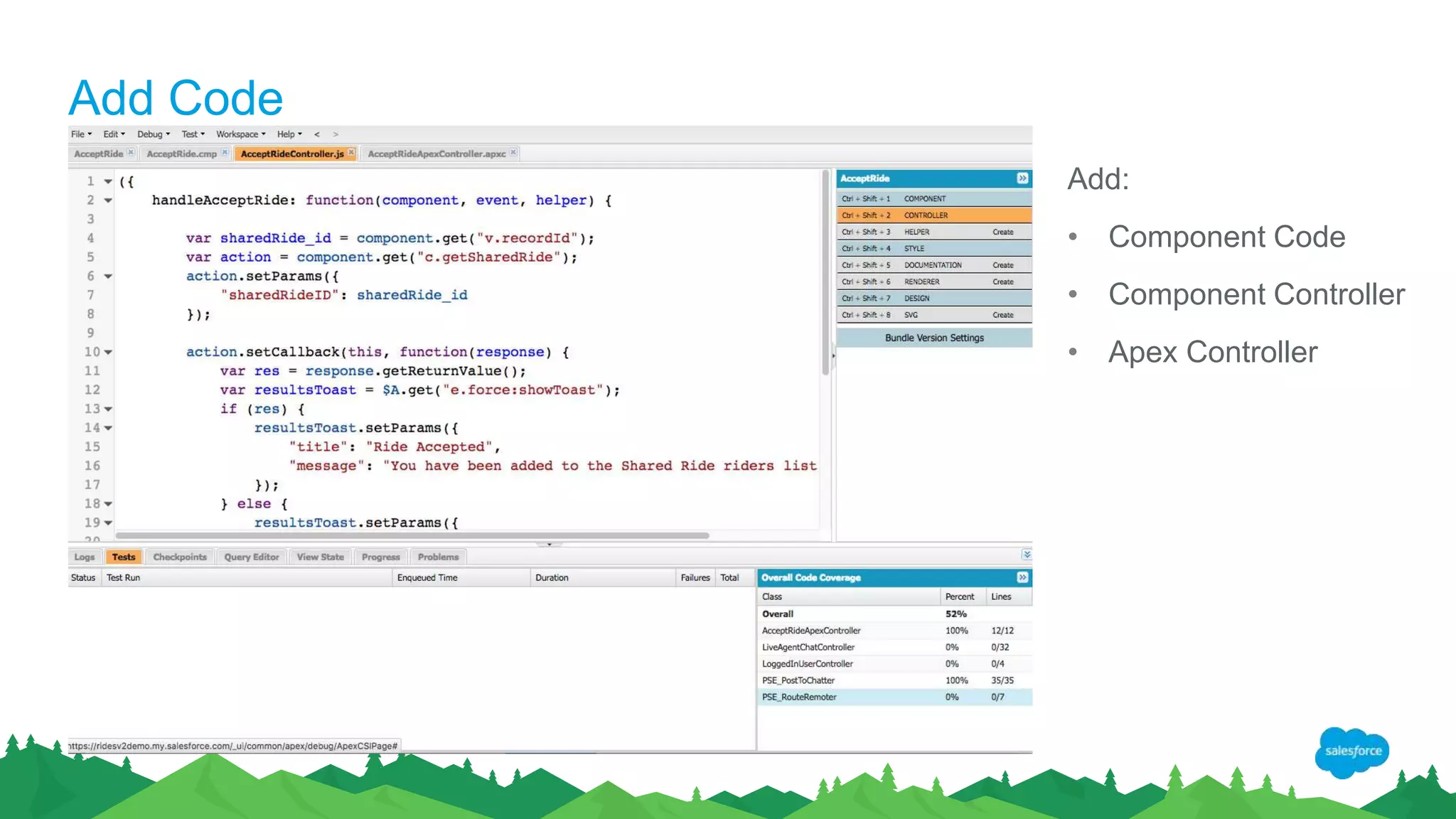
Add Code
Add:
• Component Code
• Component Controller
• Apex Controller
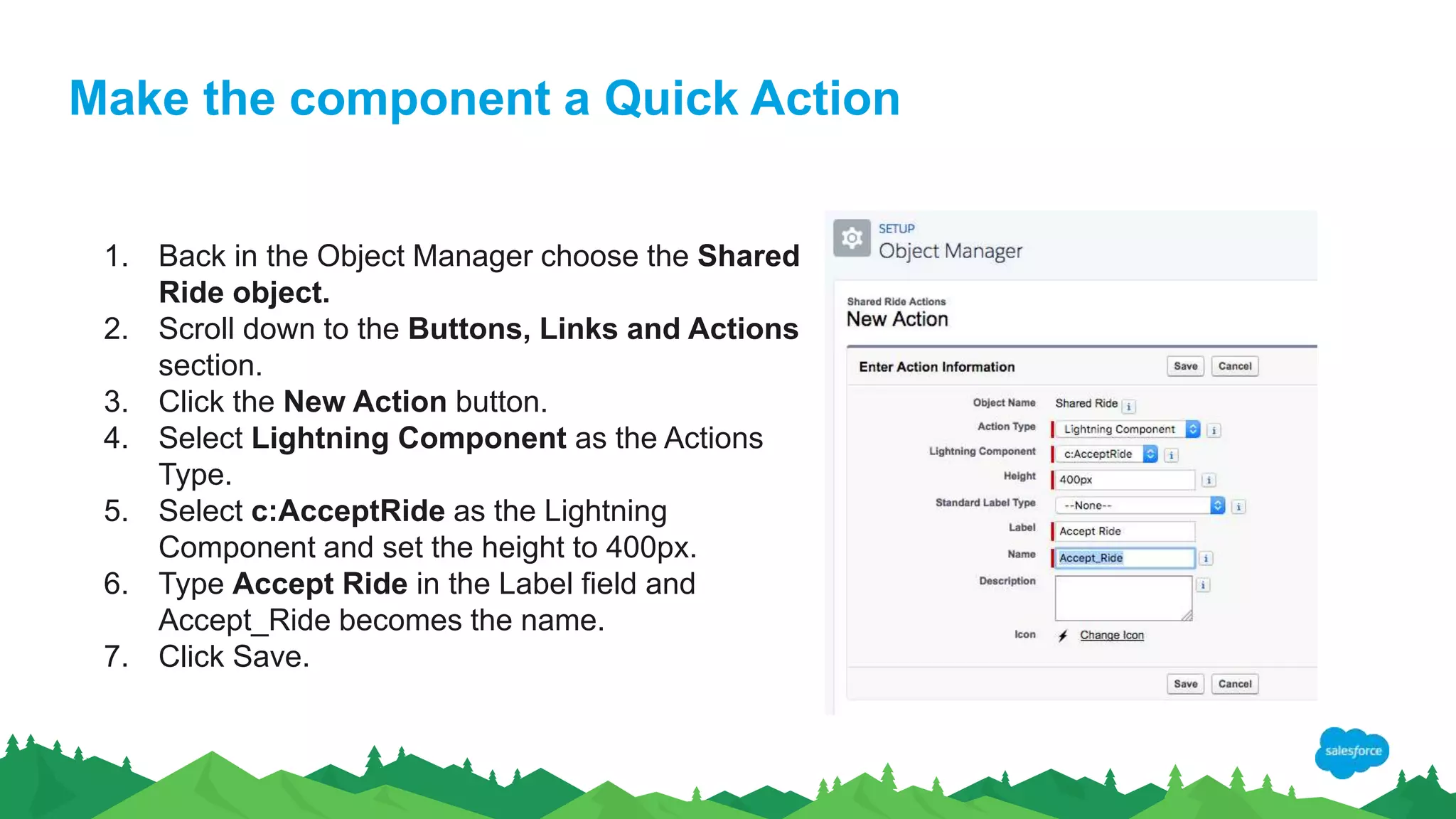
Make the component a Quick Action
1. Back in the Object Manager choose the Shared
Ride object.
2. Scroll down to the Buttons, Links and Actions
section.
3. Click the New Action button.
4. Select Lightning Component as the Actions
Type.
5. Select c:AcceptRide as the Lightning
Component and set the height to 400px.
6. Type Accept Ride in the Label field and
Accept_Ride becomes the name.
7. Click Save.
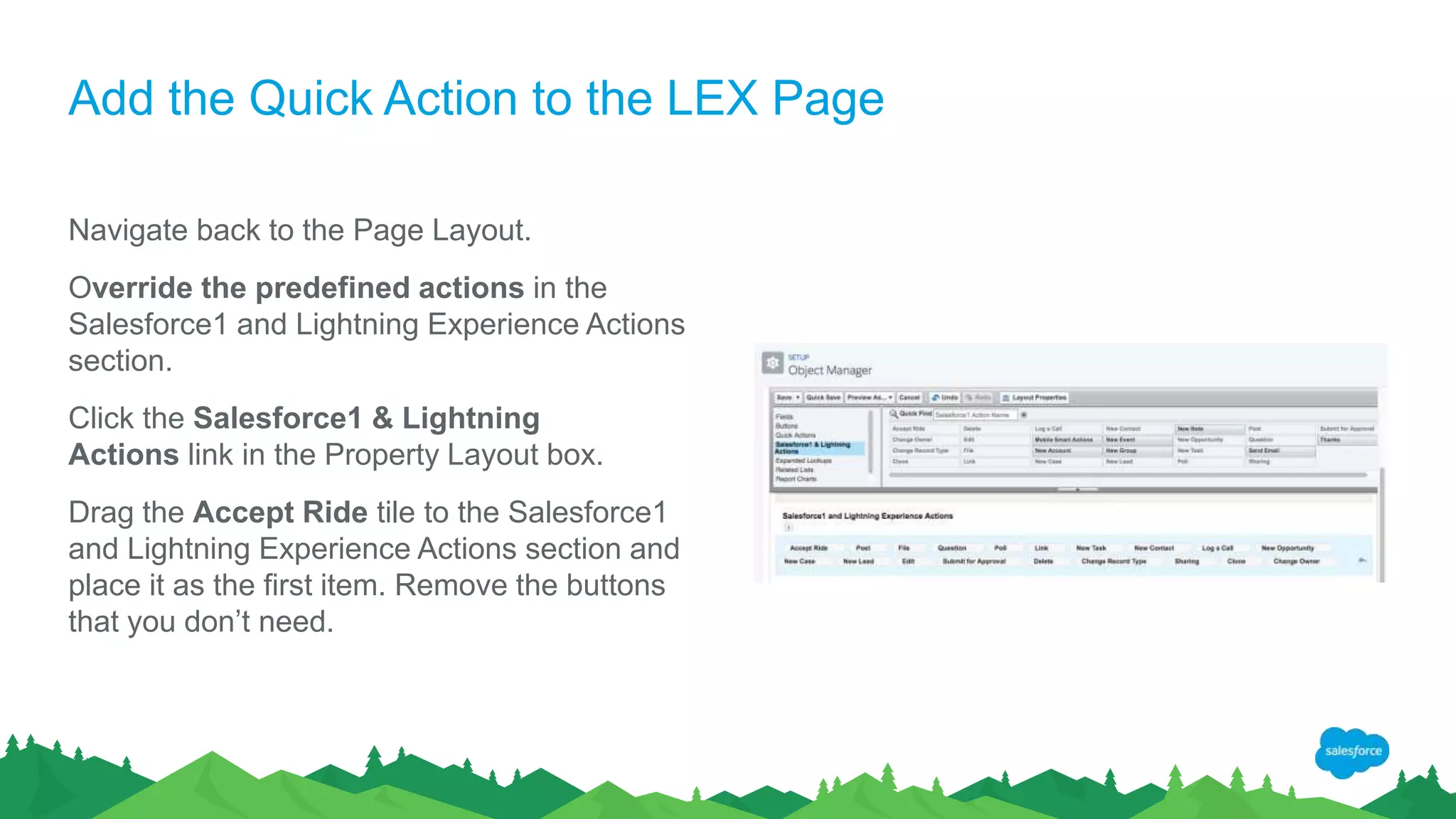
Add the Quick Action to the LEX Page
Navigate back to the Page Layout.
Override the predefined actions in the
Salesforce1 and Lightning Experience Actions
section.
Click the Salesforce1 & Lightning
Actions link in the Property Layout box.
Drag the Accept Ride tile to the Salesforce1
and Lightning Experience Actions section and
place it as the first item. Remove the buttons
that you don’t need.
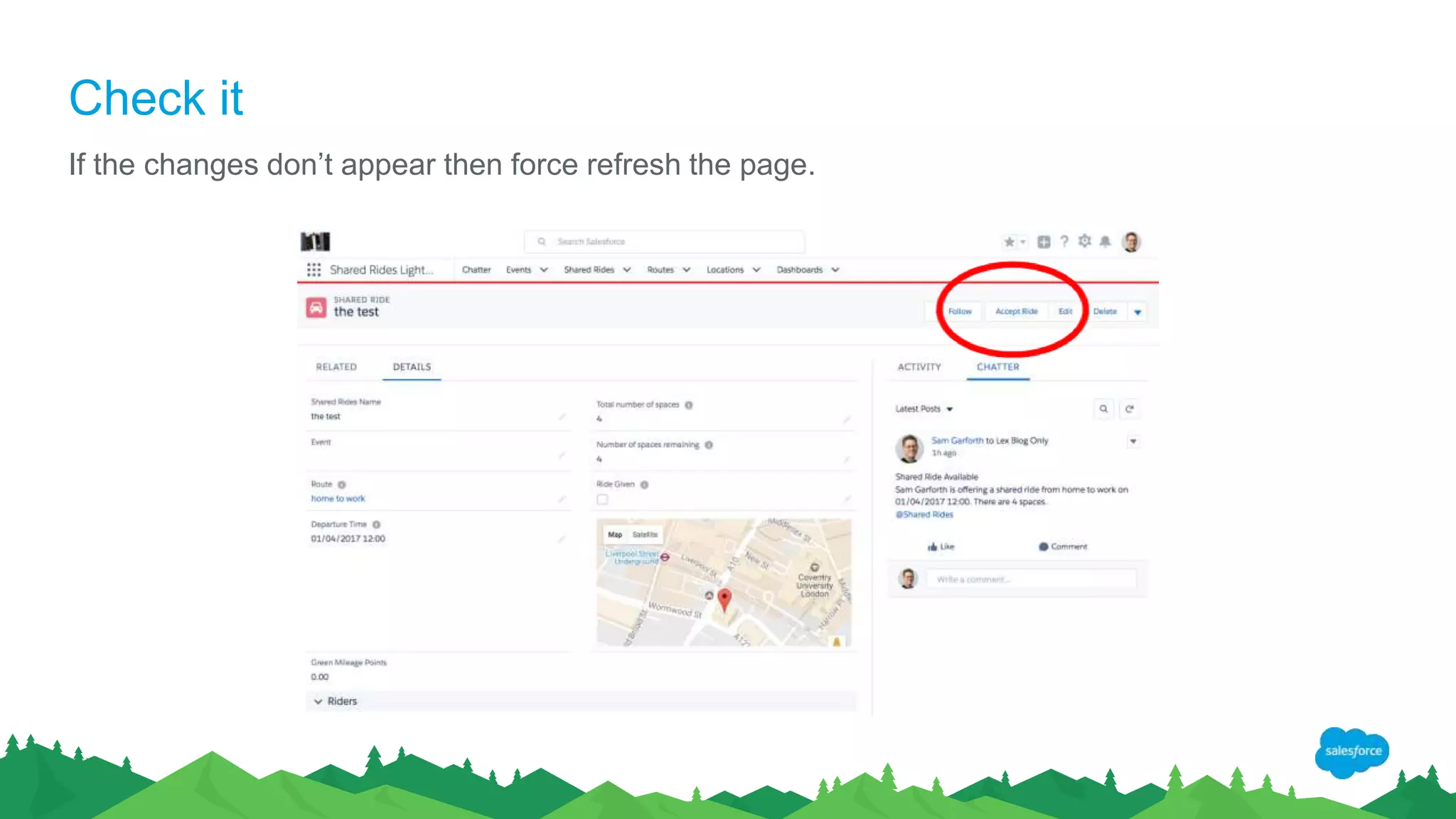
Check it
If the changes don’t appear then force refresh the page.
Create the Test Class
So now, although the app is working I want to
be able to package it and share it to other
users and orgs. For this I need a test class for
the new apex code.
@isTest(seeAllData=true)
private class PSE_TestAcceptRide {
static testMethod void myUnitTest() {
Test.startTest();
PSE_Location__c l1 = new PSE_Location__c();
l1.Location__c = 'SO53 1JA';
insert l1;
PSE_Location__c l2 = new
PSE_Location__c();
l2.Location__c = 'EC2N 4AY';
insert l2;
PSE_Route__c r = new PSE_Route__c();
r.Start_Location__c = l1.Id;
r.Destination__c = l2.Id;
Package The New App
Once the app is working it needs to be packaged if you intend to share it as a package.
In Package Manager and select ‘New’ and select ‘Add’ to add the components.
Start with component type App and select both versions of your app. At first I just selected
the Lightning one but then it will only work in LEX. You need the classic version too for people who
don’t have LEX.
I also had to manually add the Apex test class and the AcceptRideController.js
Select Upload and fill in the fields.
Conclusion
This was my personal experience of upgrading a packaged app with a JavaScript button to
Lightning Experience.
Experience of Others
Lightning Components - Need guide as to how to carve up an application - I.e. when should you
use inter component communications versus a single blob of Lightning code.
Went with a single component for the main part (Search, View, Book) but that introduced a new
challenge… Paging.
Lightning Design System – provides classes for hide/show but doesn’t provide any actual code
to use. Need to apply slds-hide or slds-show.
Contains tabs as a UI component, BUT doesn’t tell you how to implement. Same as pagin,
requires you to manually toggle the state of components.
Toggling a set of tabs in a repeating row – requires some mucking around! (This is a reason for
having components – makes it easier to isolate the code)
Layout doesn’t really work on mobile phones (or at least iPhones)
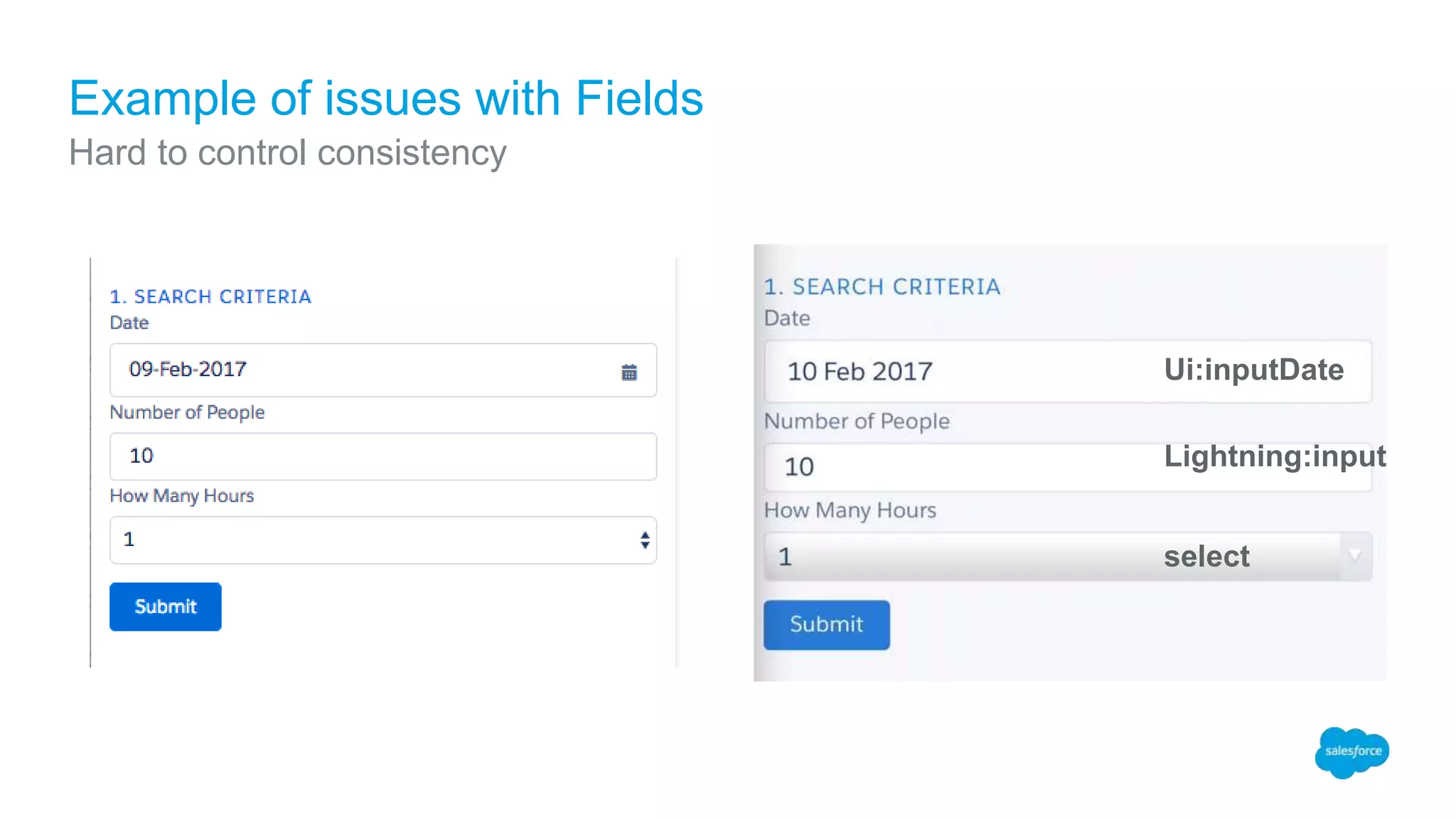
Example of issues with Fields
Hard to control consistency
Ui:inputDate
Lightning:input
select
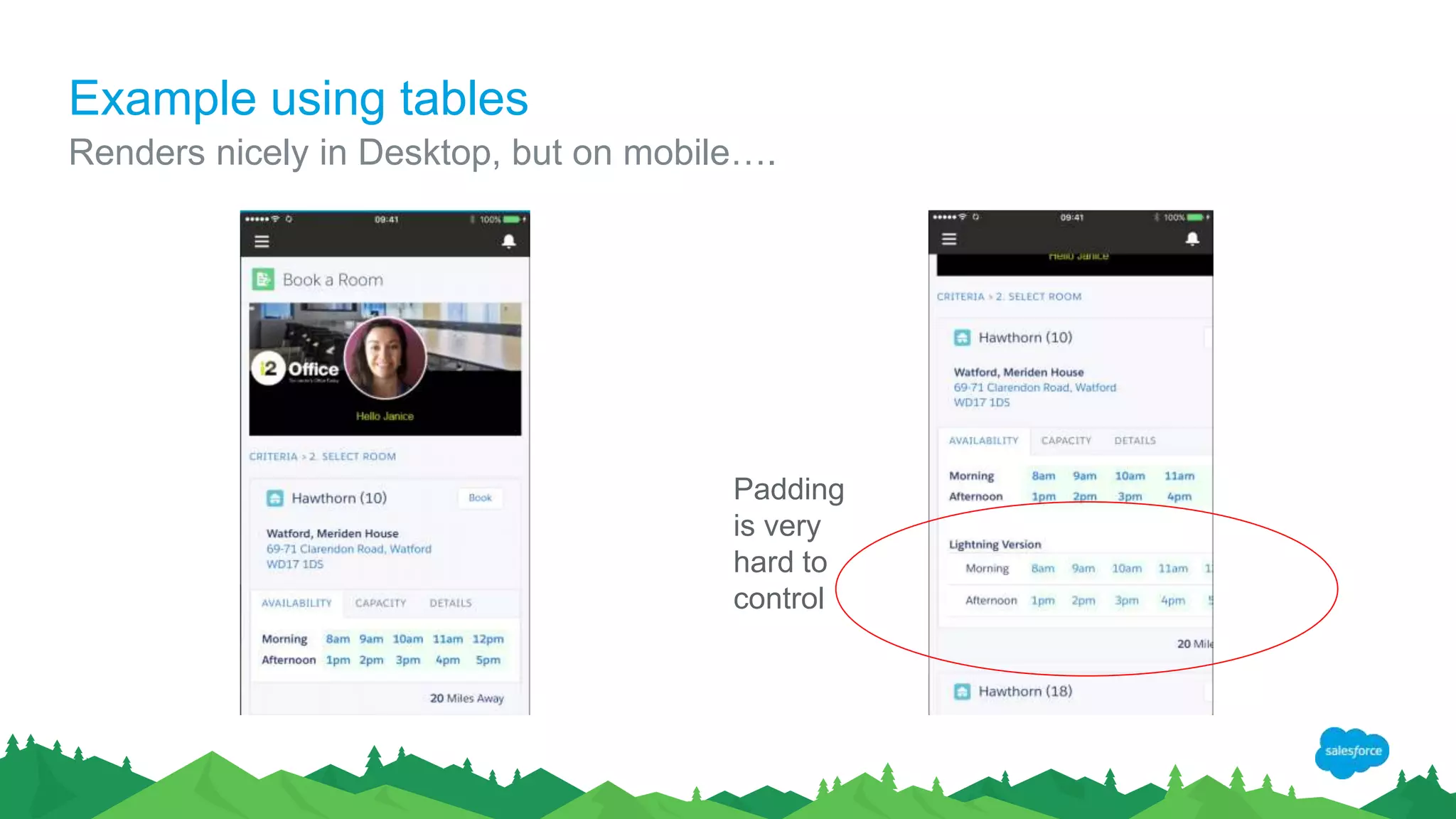
Example using tables
Renders nicely in Desktop, but on mobile….
Padding
is very
hard to
control
Layout Issues
Had to use table , tr , td to achieve layout.
(Slds-form does not seem to cater for read
only)
Had to change 8am to 08.00 to stop iOS from
auto inserting a calendar link!
Toggling the radio button doesn’t provide any
guidance on how to retrieve values
[Minor issue, cannot click 08.00 or 13.00 on
mobile device]
• Adding a Visualforce page to the Lightning Experience
• Adding Salesforce Lightning Design System to a Visualforce
page
• Using Salesforce Lightning Design System markup
• Using a Visualforce page in a Lightning Experience page
• Creating a Lightning Component
• Converting a Visualforce page to a Lightning Component
• Building a Quick Prospect component [this is how JavaScript
buttons can be replaced]
• Making a Lightning Component Context-aware
• Leveraging Lightning Data Services in a Lightning Component
Set of really useful guides
and information on how to
perform several standard
design tasks.
Learning Lightning
(https://github.com/garazi/LightningNowWorkshop)
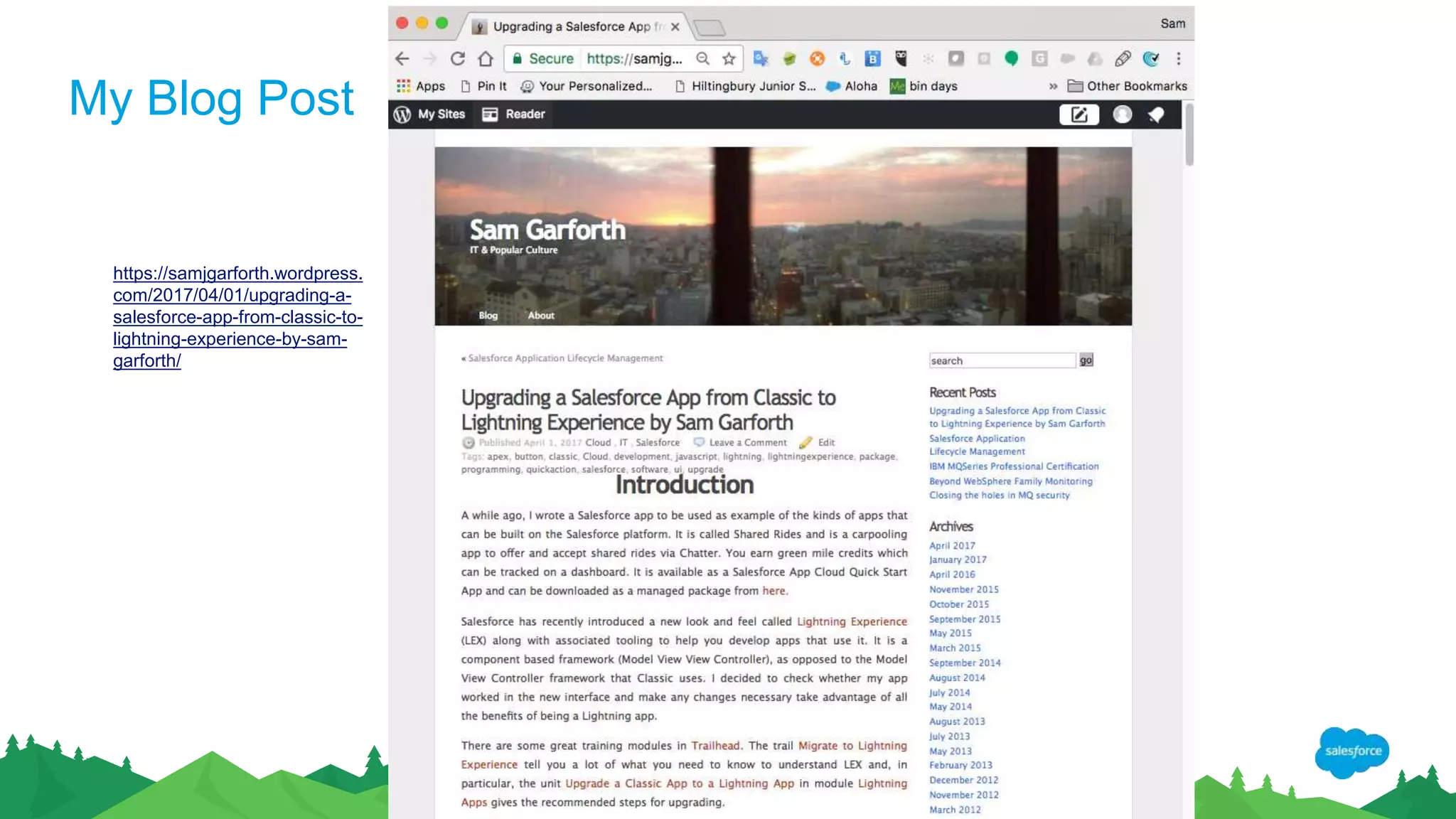
My Blog Post
https://samjgarforth.wordpress.
com/2017/04/01/upgrading-a-
salesforce-app-from-classic-to-
lightning-experience-by-sam-
garforth/
Thank Y u

Migrating to Salesforce Lightning - A Personal Experience Presented to EA Forum by Sam Garforth

  • 1.
    Lightning Experience My PersonalExperience of Migrating to LEX Sam Garforth Principal Technical Architect sgarforth@salesforce.com @samjgarforth
  • 2.
    Wanted to Updatemy Shared Rides App
  • 3.
  • 4.
    The Standard Steps •Create a fresh org to develop and test the app • Install the app package that I wanted to upgrade into the new org. • Enable Lightning Experience for the org and switch into it.
  • 5.
    Run the AutomaticUpgrade Process • From Setup, select App Manager. • Find your app in the list. • Select Upgrade.
  • 6.
    There Are NowTwo Apps The Classic app is copied and upgraded for Lightning Experience. There are now two versions of the app. The Classic app is no longer accessible in Lightning Experience via the App Launcher. You’ll still see the Classic app in the apps list, but with the Visible in Lightning column deselected.
  • 7.
    The Versions Mustbe Managed Separately It even has the data from the old version Future changes you make to the Classic app won’t be reflected in the Lightning version of the app, and vice versa.
  • 8.
    Adding the Enhancements It’snow a Lightning App but it’s not taking advantage of the enhancements that Lightning can offer. So in the Lightning Experience App Manager, select Edit.
  • 9.
    App Details &Branding Update the description if needed as the app description displays alongside the icon in the App Launcher. In the App Branding section, change the Primary Colour to something appropriate and also upload an image.
  • 10.
    Configure the Tabs Clickthe Select Items tab Remove the Home tab from the Selected Items list
  • 11.
    Now has Description& Branding Now, when you go into the App Launcher the app should be there with the correct branding. The changes may not appear immediately as the page is cached. You may need to force a reload of the browser. That brings us to the end of the official instructions. Now comes the testing.
  • 12.
    Further Tidying The newversion of the app has quick action buttons for ‘New Contact’ and ‘New Opportunity’. These aren’t relevant to a car sharing app so I need to remove them. Also, there is a pane with functionality for activity, new task, log a call etc which is not relevant.
  • 13.
    Remove the ActivityPane from the Page • Click on ‘Edit Page’. • In Lightning App Builder, Highlight the Activity pane. • Click the x in the top right corner of the pane
  • 14.
    Remove Buttons UsingTraditional Page Editor Click on the Highlights Pane. On the right hand side it tells you which page layout you are using for the actions. Click through to it, in my case I click on “Location Layout”. Scroll down the page layout setup page to the Lightning Experience section and click on the ‘override the predefined actions’ hyperlink. Remove the actions you don’t want by dragging them up to the Lightning Actions palette.
  • 15.
    JavaScript Button I hadan “Accept Ride” Javascript button which someone could click to say that they would like to share a journey that had been offered. JavaScript buttons are not supported in LEX so instead I needed to create a Lightning Component Quick Action button.
  • 16.
    Create the LightningComponent Open the Dev Console Create a new Lightning Component. Give the component the name AcceptRide. I selected Lightning Record Page and Lightning Quick Action.
  • 17.
    Add Code Add: • ComponentCode • Component Controller • Apex Controller
  • 18.
    Make the componenta Quick Action 1. Back in the Object Manager choose the Shared Ride object. 2. Scroll down to the Buttons, Links and Actions section. 3. Click the New Action button. 4. Select Lightning Component as the Actions Type. 5. Select c:AcceptRide as the Lightning Component and set the height to 400px. 6. Type Accept Ride in the Label field and Accept_Ride becomes the name. 7. Click Save.
  • 19.
    Add the QuickAction to the LEX Page Navigate back to the Page Layout. Override the predefined actions in the Salesforce1 and Lightning Experience Actions section. Click the Salesforce1 & Lightning Actions link in the Property Layout box. Drag the Accept Ride tile to the Salesforce1 and Lightning Experience Actions section and place it as the first item. Remove the buttons that you don’t need.
  • 20.
    Check it If thechanges don’t appear then force refresh the page.
  • 21.
    Create the TestClass So now, although the app is working I want to be able to package it and share it to other users and orgs. For this I need a test class for the new apex code. @isTest(seeAllData=true) private class PSE_TestAcceptRide { static testMethod void myUnitTest() { Test.startTest(); PSE_Location__c l1 = new PSE_Location__c(); l1.Location__c = 'SO53 1JA'; insert l1; PSE_Location__c l2 = new PSE_Location__c(); l2.Location__c = 'EC2N 4AY'; insert l2; PSE_Route__c r = new PSE_Route__c(); r.Start_Location__c = l1.Id; r.Destination__c = l2.Id;
  • 22.
    Package The NewApp Once the app is working it needs to be packaged if you intend to share it as a package. In Package Manager and select ‘New’ and select ‘Add’ to add the components. Start with component type App and select both versions of your app. At first I just selected the Lightning one but then it will only work in LEX. You need the classic version too for people who don’t have LEX. I also had to manually add the Apex test class and the AcceptRideController.js Select Upload and fill in the fields.
  • 23.
    Conclusion This was mypersonal experience of upgrading a packaged app with a JavaScript button to Lightning Experience.
  • 24.
    Experience of Others LightningComponents - Need guide as to how to carve up an application - I.e. when should you use inter component communications versus a single blob of Lightning code. Went with a single component for the main part (Search, View, Book) but that introduced a new challenge… Paging. Lightning Design System – provides classes for hide/show but doesn’t provide any actual code to use. Need to apply slds-hide or slds-show. Contains tabs as a UI component, BUT doesn’t tell you how to implement. Same as pagin, requires you to manually toggle the state of components. Toggling a set of tabs in a repeating row – requires some mucking around! (This is a reason for having components – makes it easier to isolate the code) Layout doesn’t really work on mobile phones (or at least iPhones)
  • 25.
    Example of issueswith Fields Hard to control consistency Ui:inputDate Lightning:input select
  • 26.
    Example using tables Rendersnicely in Desktop, but on mobile…. Padding is very hard to control
  • 27.
    Layout Issues Had touse table , tr , td to achieve layout. (Slds-form does not seem to cater for read only) Had to change 8am to 08.00 to stop iOS from auto inserting a calendar link! Toggling the radio button doesn’t provide any guidance on how to retrieve values [Minor issue, cannot click 08.00 or 13.00 on mobile device]
  • 28.
    • Adding aVisualforce page to the Lightning Experience • Adding Salesforce Lightning Design System to a Visualforce page • Using Salesforce Lightning Design System markup • Using a Visualforce page in a Lightning Experience page • Creating a Lightning Component • Converting a Visualforce page to a Lightning Component • Building a Quick Prospect component [this is how JavaScript buttons can be replaced] • Making a Lightning Component Context-aware • Leveraging Lightning Data Services in a Lightning Component Set of really useful guides and information on how to perform several standard design tasks. Learning Lightning (https://github.com/garazi/LightningNowWorkshop)
  • 29.
  • 30.