End user Applications
Word Processors
FR
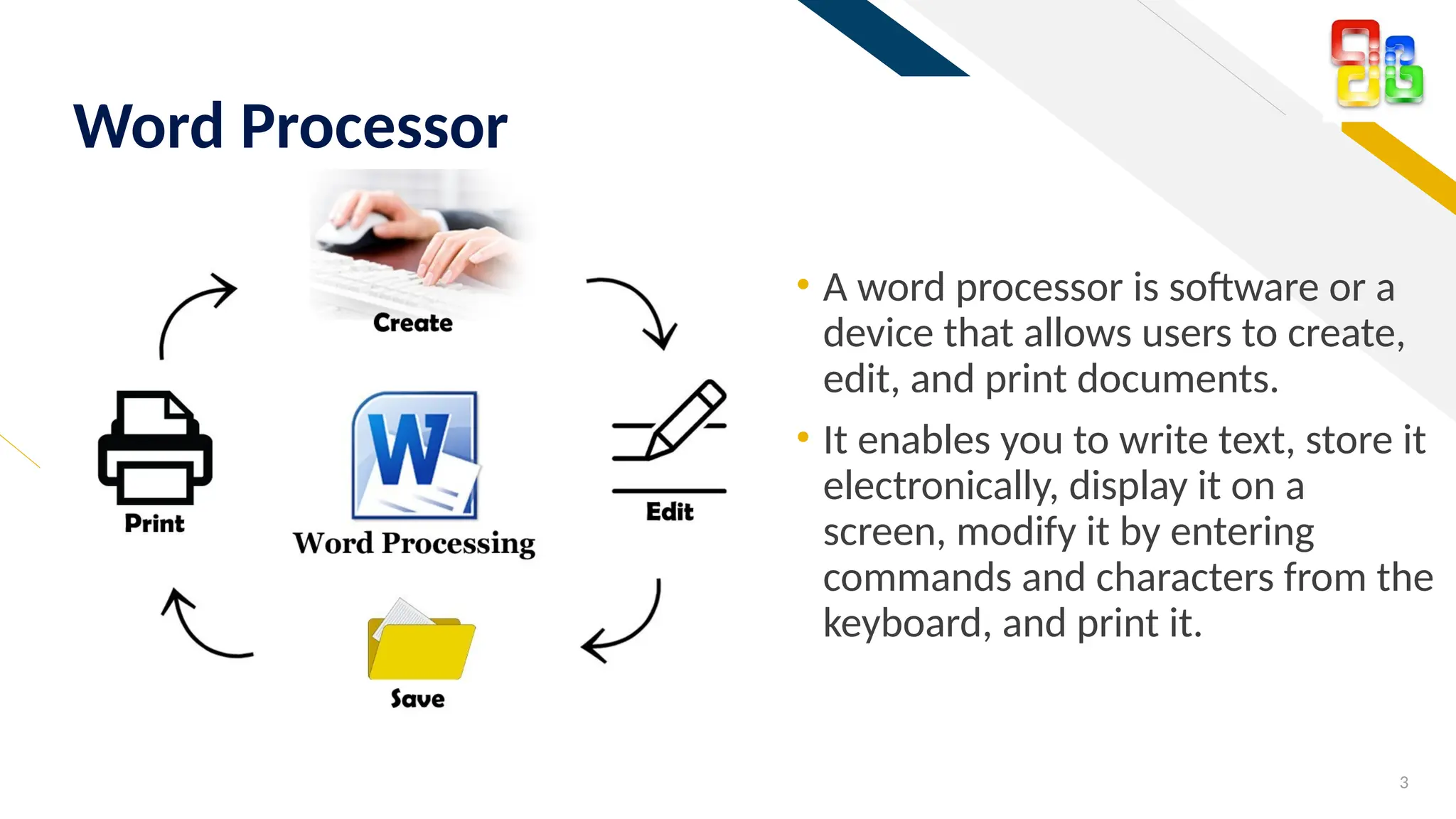
โ€ข A word processor is software or a
device that allows users to create,
edit, and print documents.
โ€ข It enables you to write text, store it
electronically, display it on a
screen, modify it by entering
commands and characters from the
keyboard, and print it.
3
Word Processor
MS Word
FR
โ€ข Desktop Publishing Features
โ€ข Insert graphics
โ€ข Insert colors and shading
โ€ข Insert tables
โ€ข Insert text boxes
โ€ข Insert drawn figures
โ€ข Insert automatic headers,
footers, and pagination
โ€ข Support Features
โ€ข Use templates
โ€ข Offer voice recognition
โ€ข Merge text with data files.
โ€ข Basic Features
โ€ข Store documents for later use
โ€ข Store in multiple formats
โ€ข Erase and insert text
โ€ข Search and replace
โ€ข Move or copy text
โ€ข Allow word wraparound
โ€ข Language Features
โ€ข Suggest words
โ€ข Check and correct spelling
โ€ข Check grammar and usage
5
Features of Standard Word Processors
FR
6
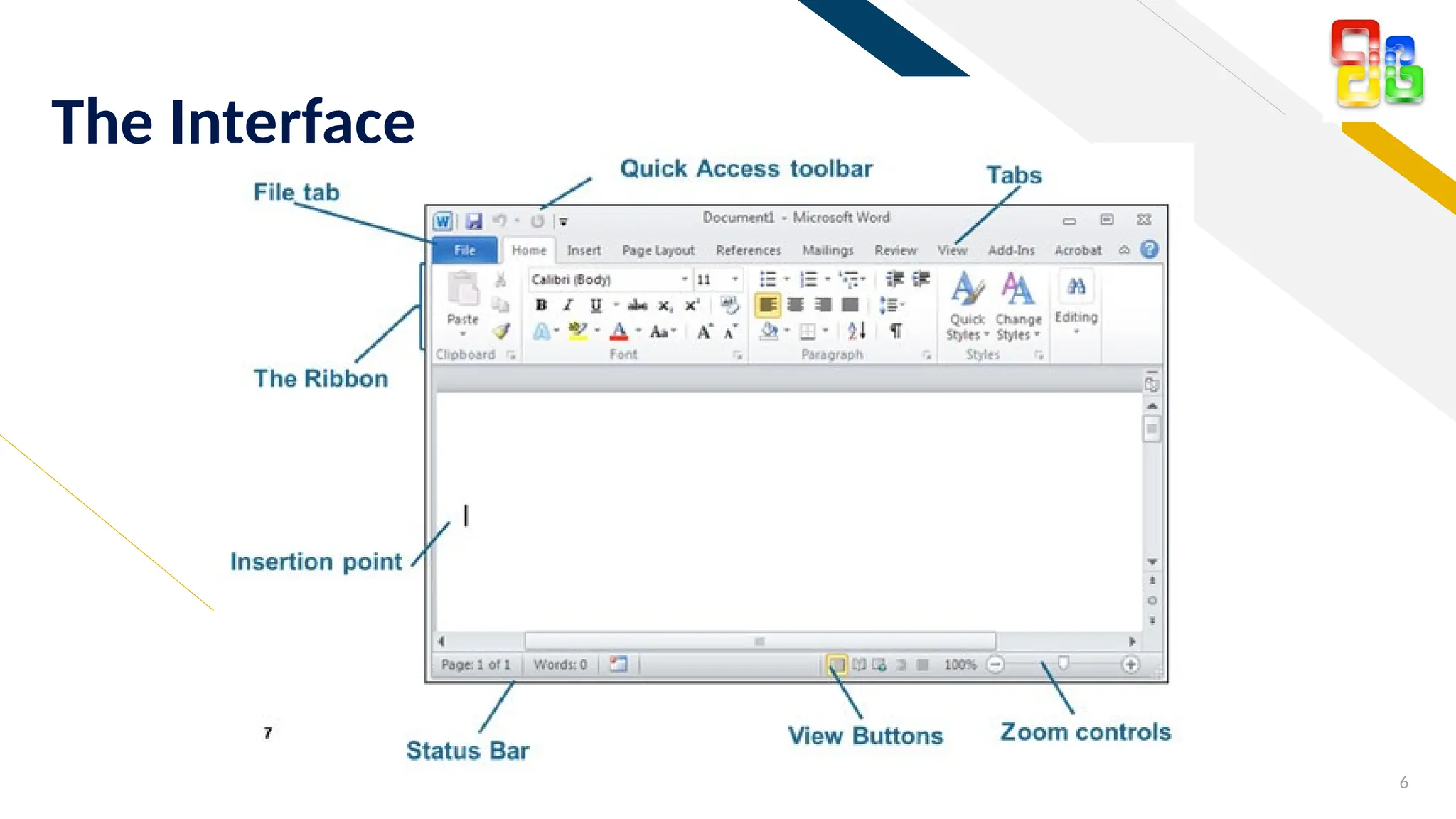
The Interface
FR
7
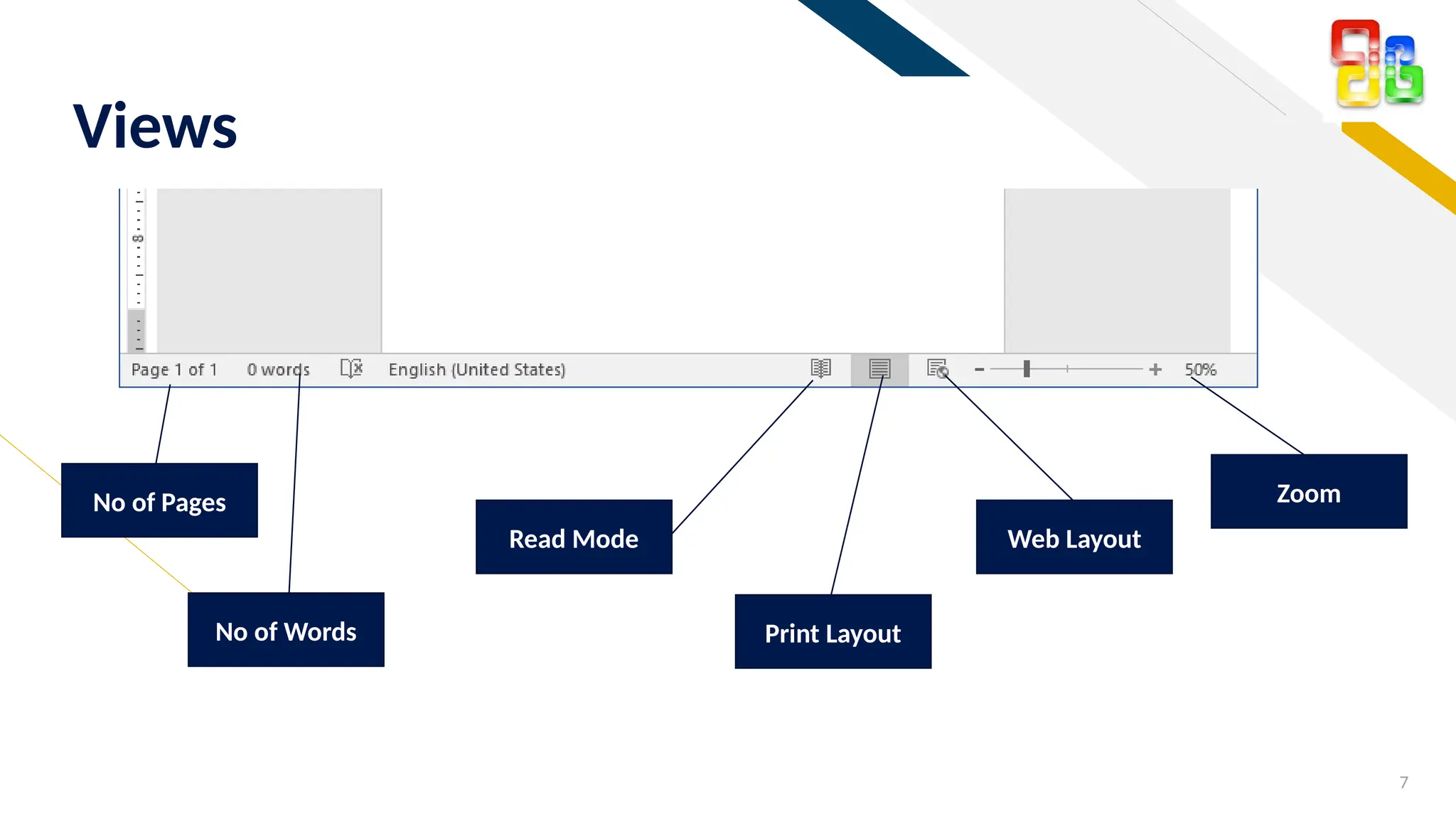
Views
Read Mode
Print Layout
Web Layout
Zoom
No of Pages
No of Words
FR
8
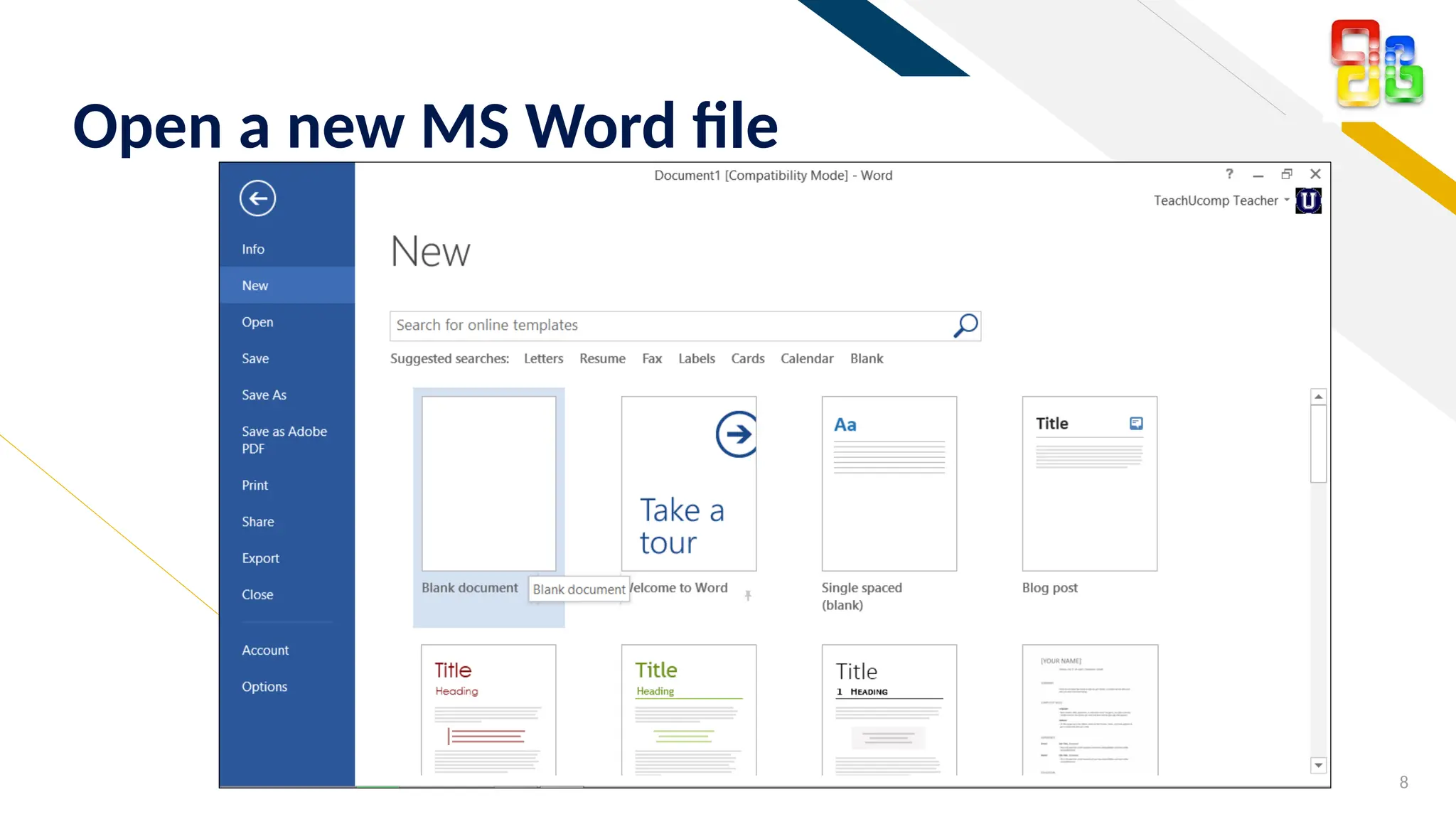
Open a new MS Word file
FR
9
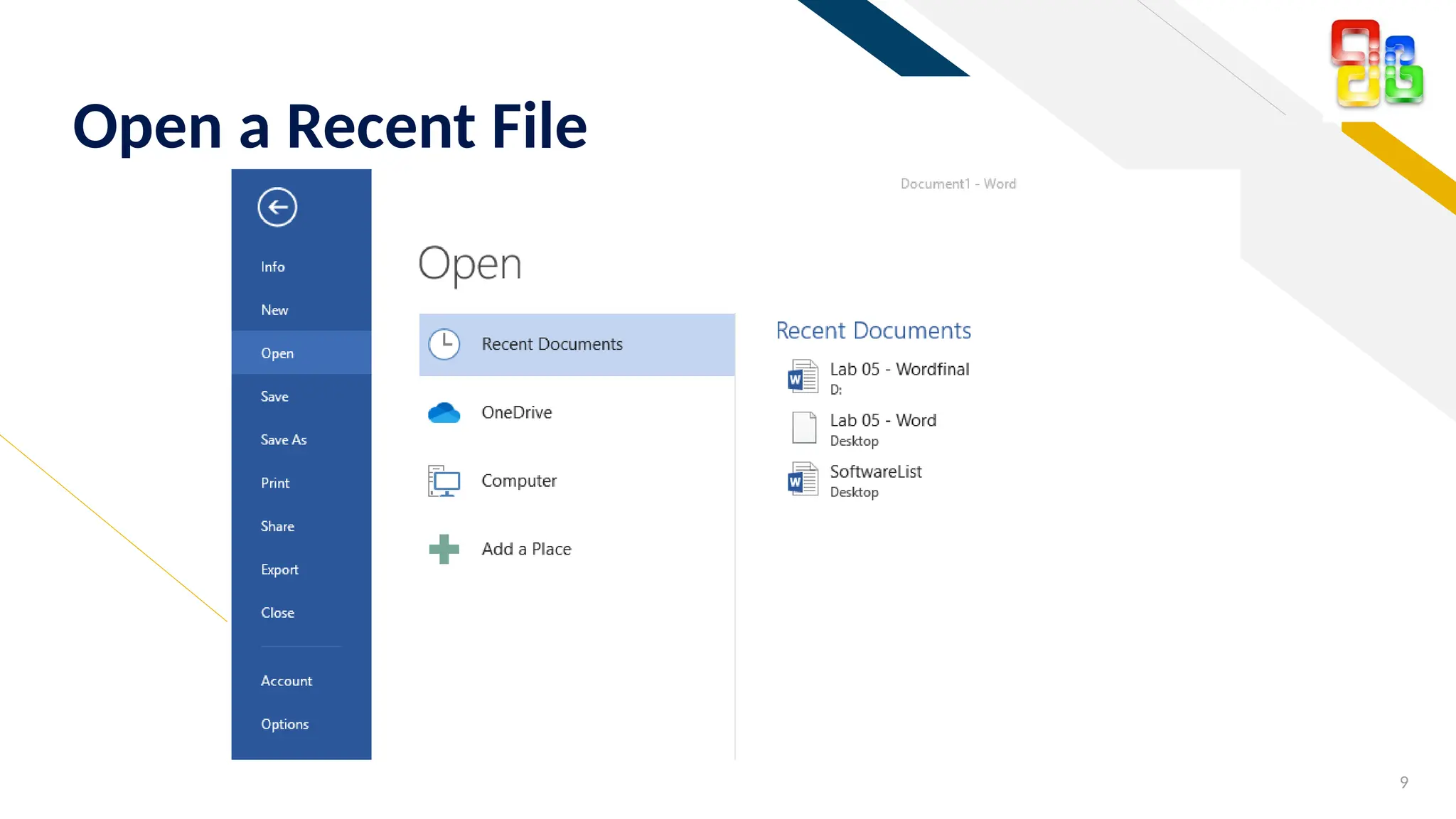
Open a Recent File
FR
10
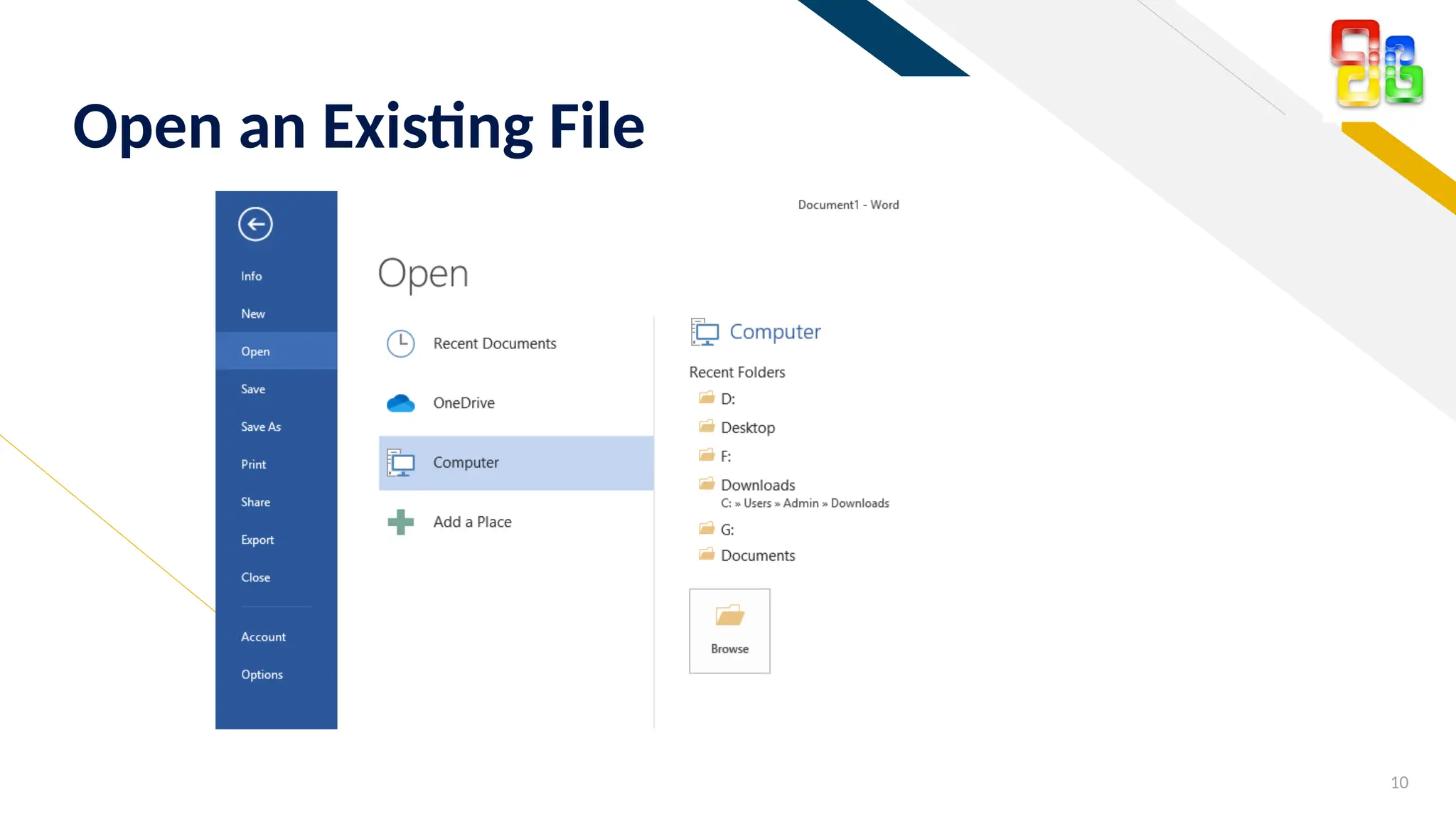
Open an Existing File
FR
11
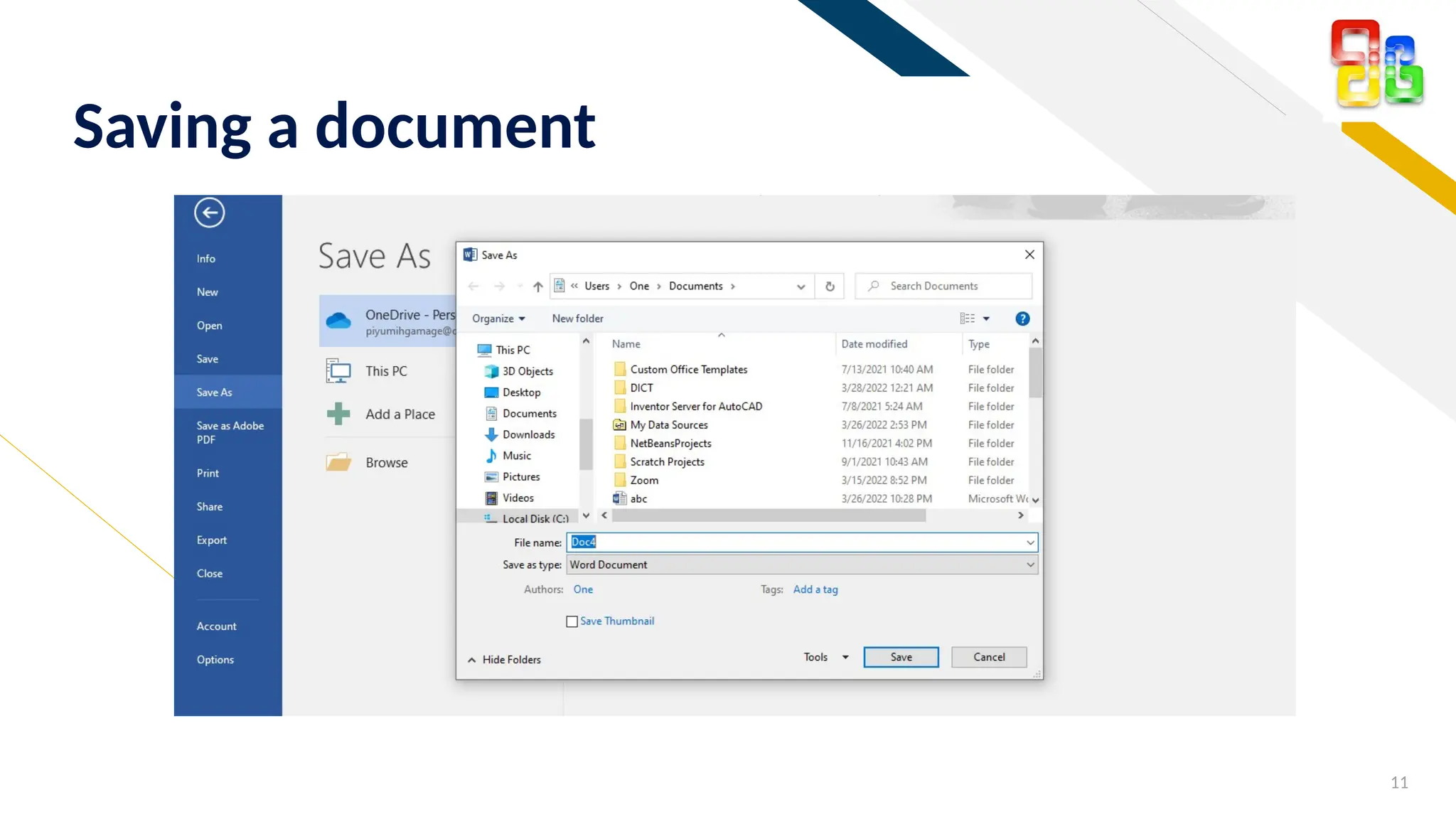
Saving a document
FR
12
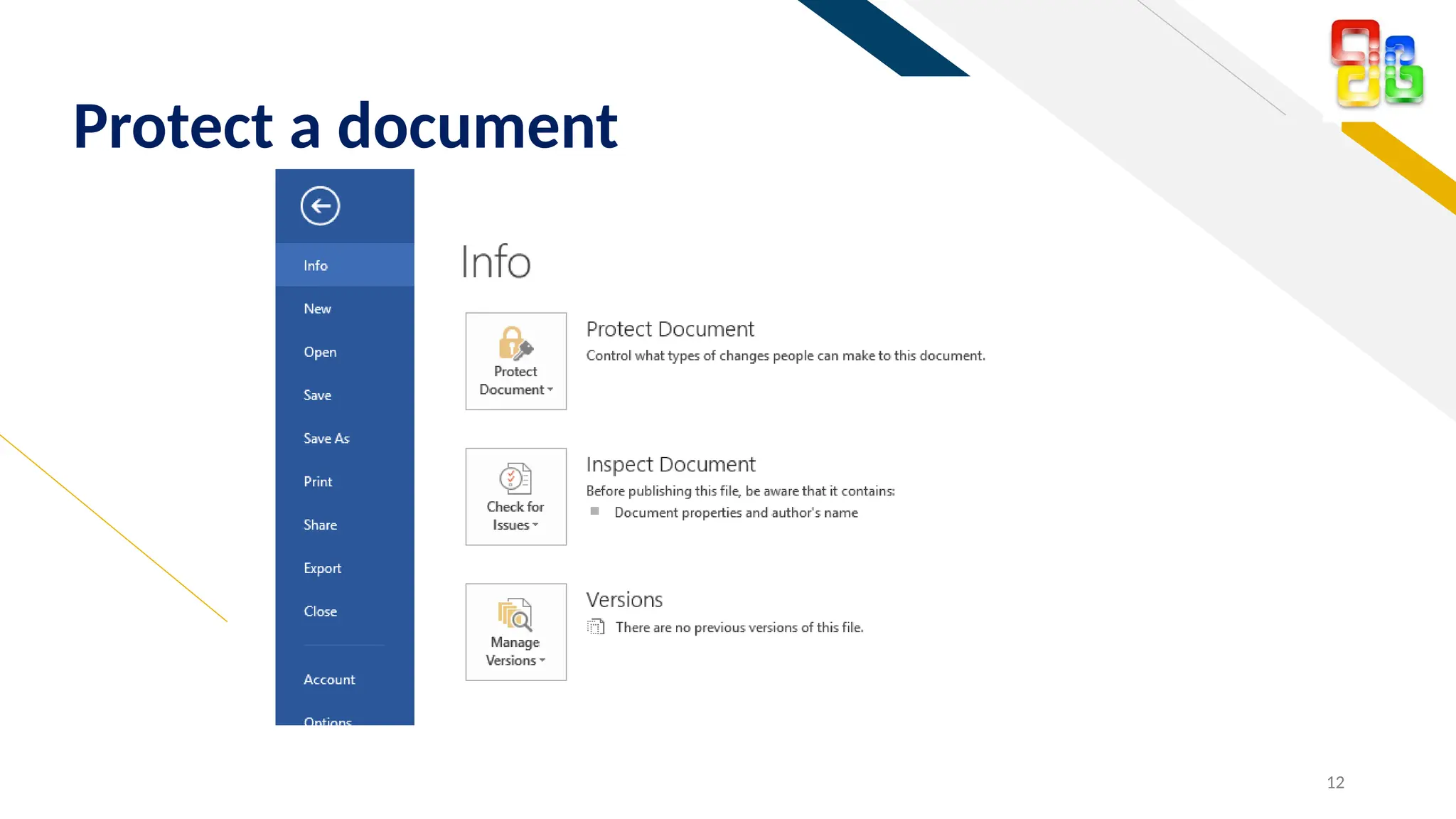
Protect a document
FR
13
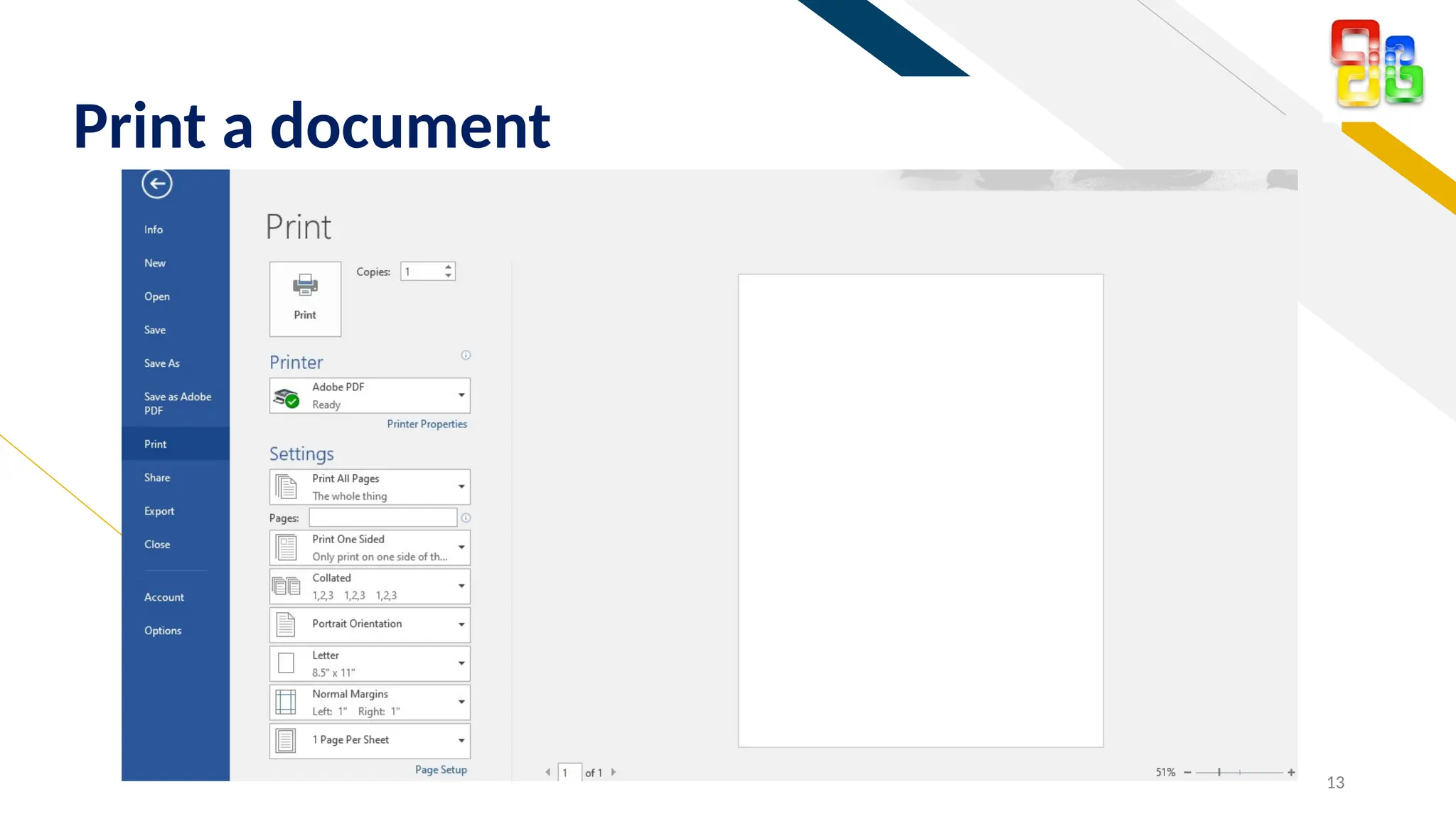
Print a document
FR
Add a footer 14
Home Ribbon Components
FR
15
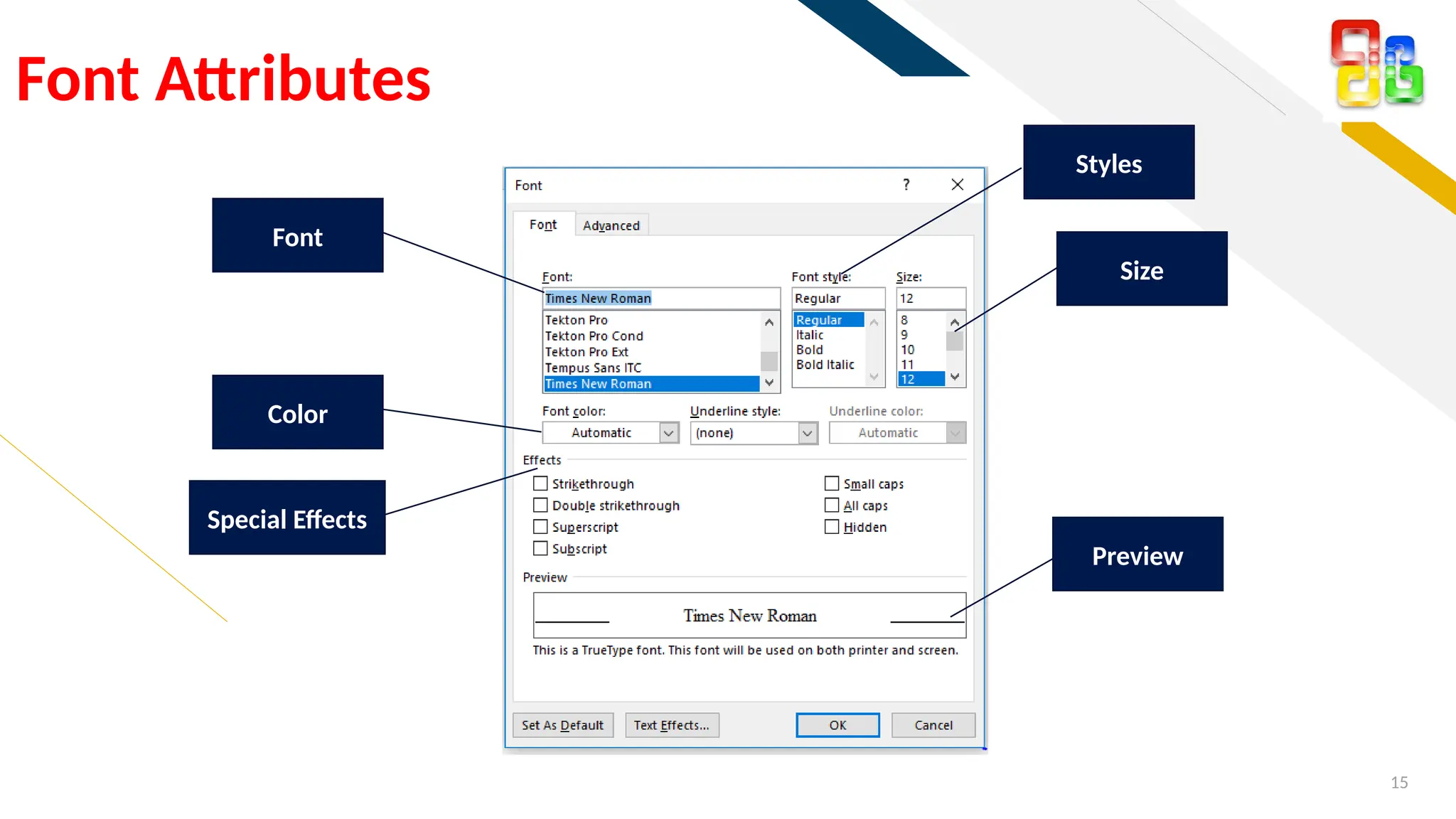
Font Attributes
Styles
Size
Preview
Font
Color
Special Effects
FR
16
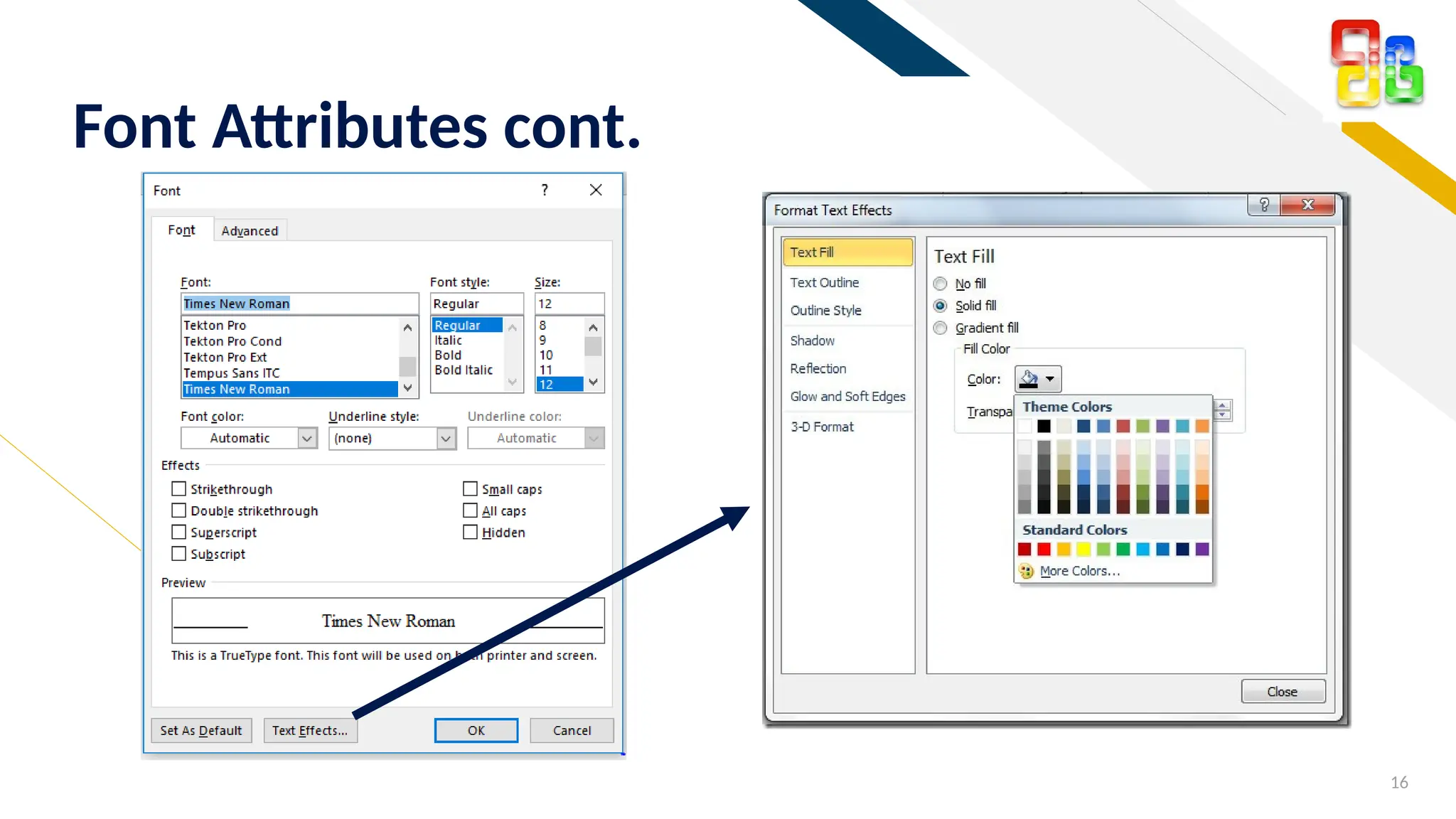
Font Attributes cont.
FR
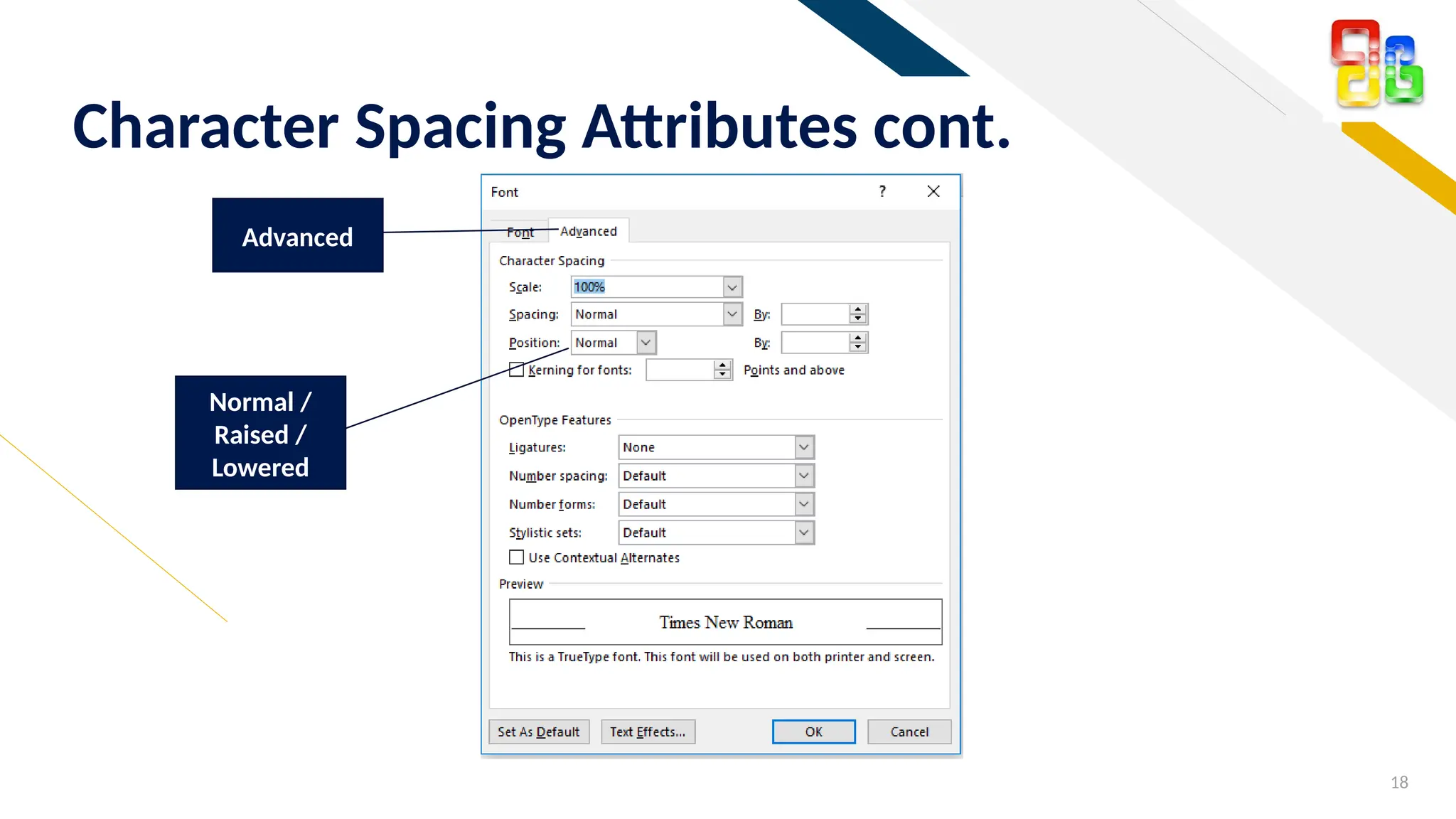
โ€ข Scale โ€“ adjusts the height and width by a percentage of the objectโ€™s size.
โ€ข Spacing โ€“ horizontal spacing between characters
โ€ข Expanded โ€“ stretch the words
โ€ข Condensed โ€“ squeezes the text closer together so that you can prevent one
word wrapping to another line.
โ€ข Position โ€“ raises or lowers text from the baseline without creating a
superscript.
17
Character Spacing Attributes
FR
18
Character Spacing Attributes cont.
Advanced
Normal /
Raised /
Lowered
FR
19
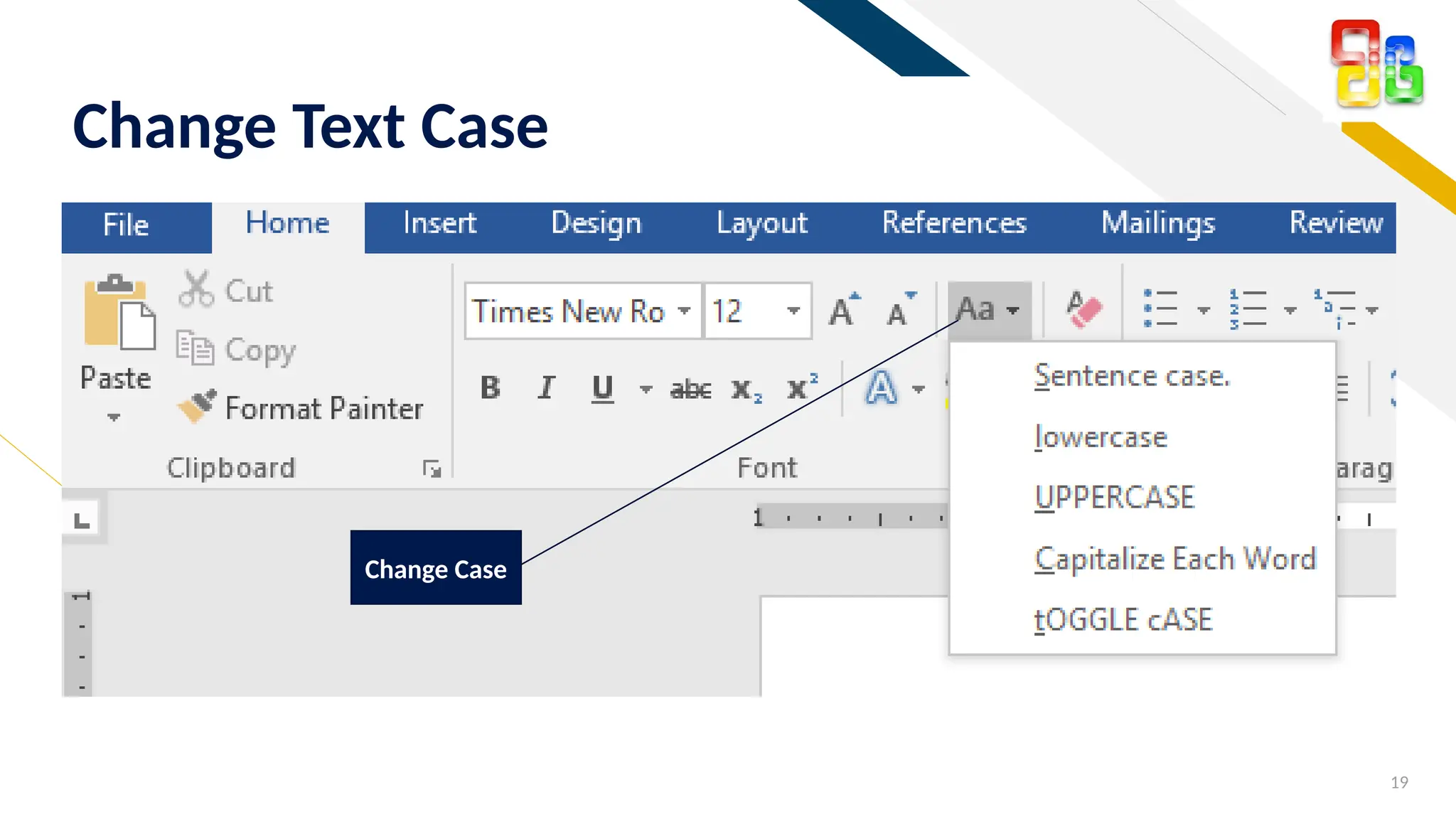
Change Text Case
Change Case
FR
20
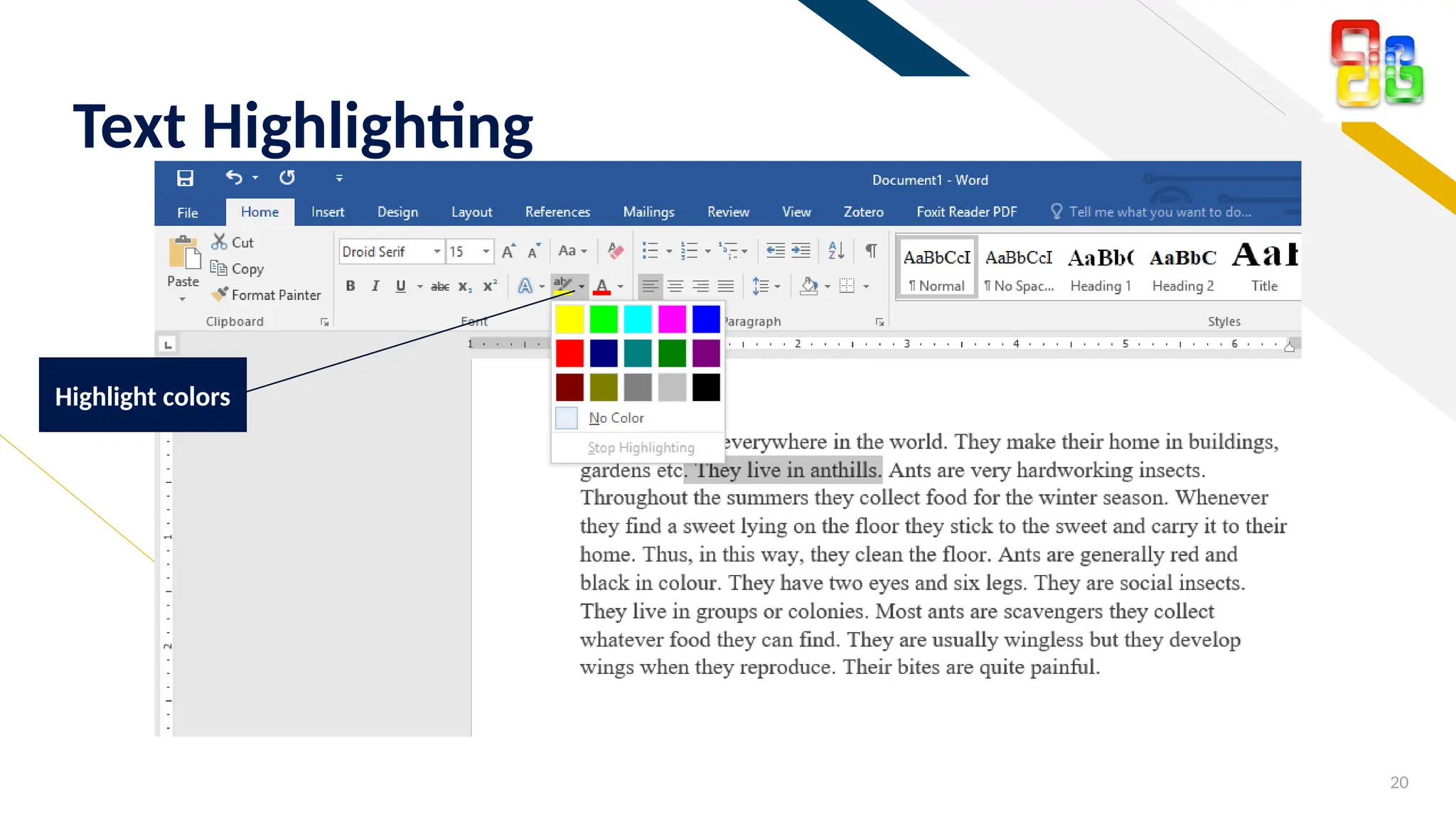
Text Highlighting
Highlight colors
FR
โ€ข Bullets and Numbering
โ€ข Alignment
โ€ข Indentation
โ€ข Tab stops
โ€ข Line spacing
โ€ข Pagination
โ€ข Borders
โ€ข Shading
21
Paragraph Formatting
FR
โ€ข Helps to organize the contents of a document.
โ€ข Bulleted Lists โ€“ used in the lists where the items do not have to be in a
sequence.
โ€ข Numbered Lists โ€“ used for a sequence list.
โ€ข Multilevel Lists โ€“ an extension of the numbered list and enables to provide
levels within the numbered list
โ€ข An advantage of creating lists in Word is that when you make
adjustments to the list, the numbering is automatically updated
22
Bullets and Numbering
FR
23
Bullets and Numbering cont.
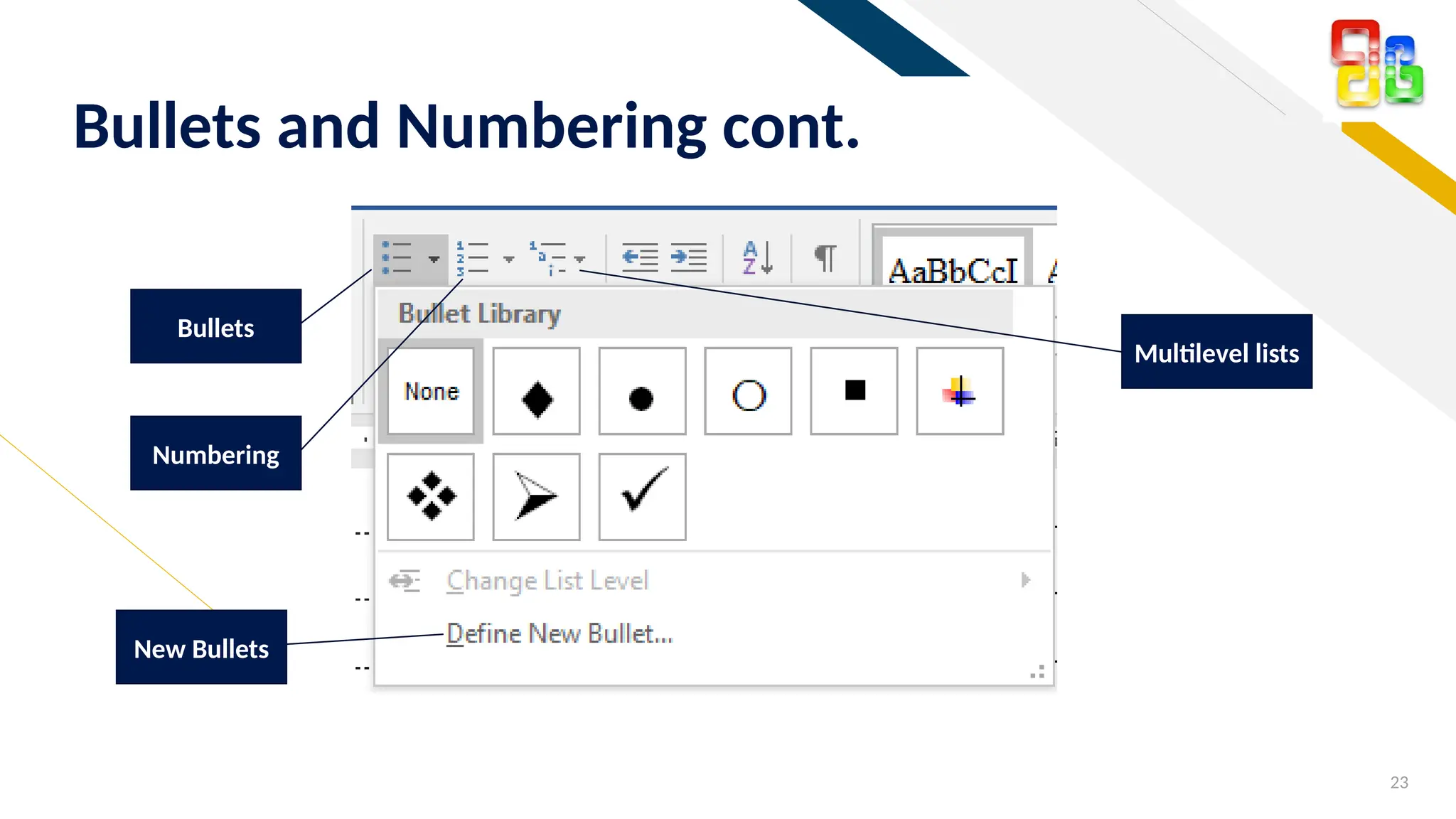
Numbering
Multilevel lists
Bullets
New Bullets
FR
24
Bullets and Numbering cont.
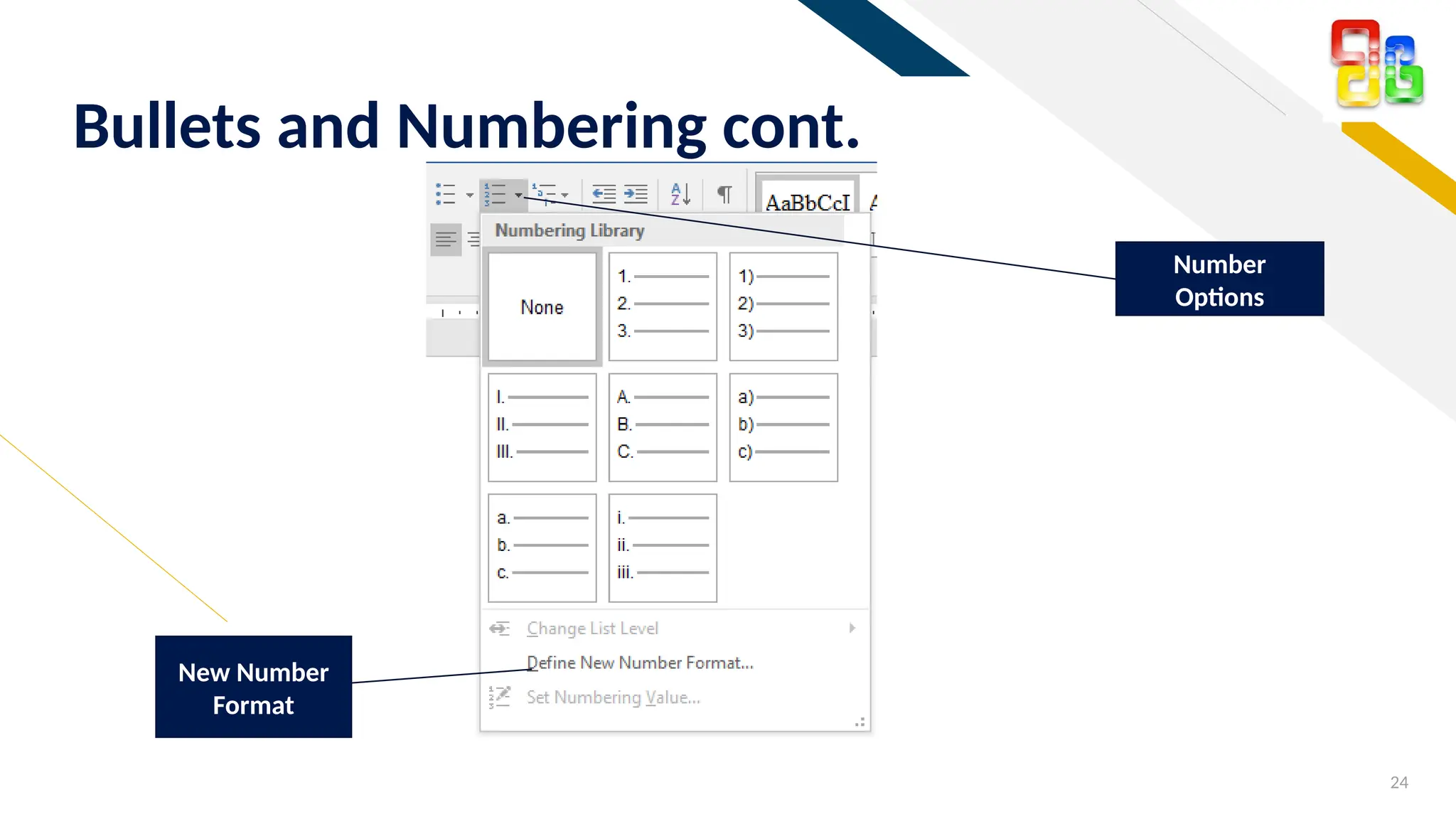
Number
Options
New Number
Format
FR
25
Alignments
โ€ข Left Align
โ€ข Center
โ€ข Right Align
โ€ข Justify
FR
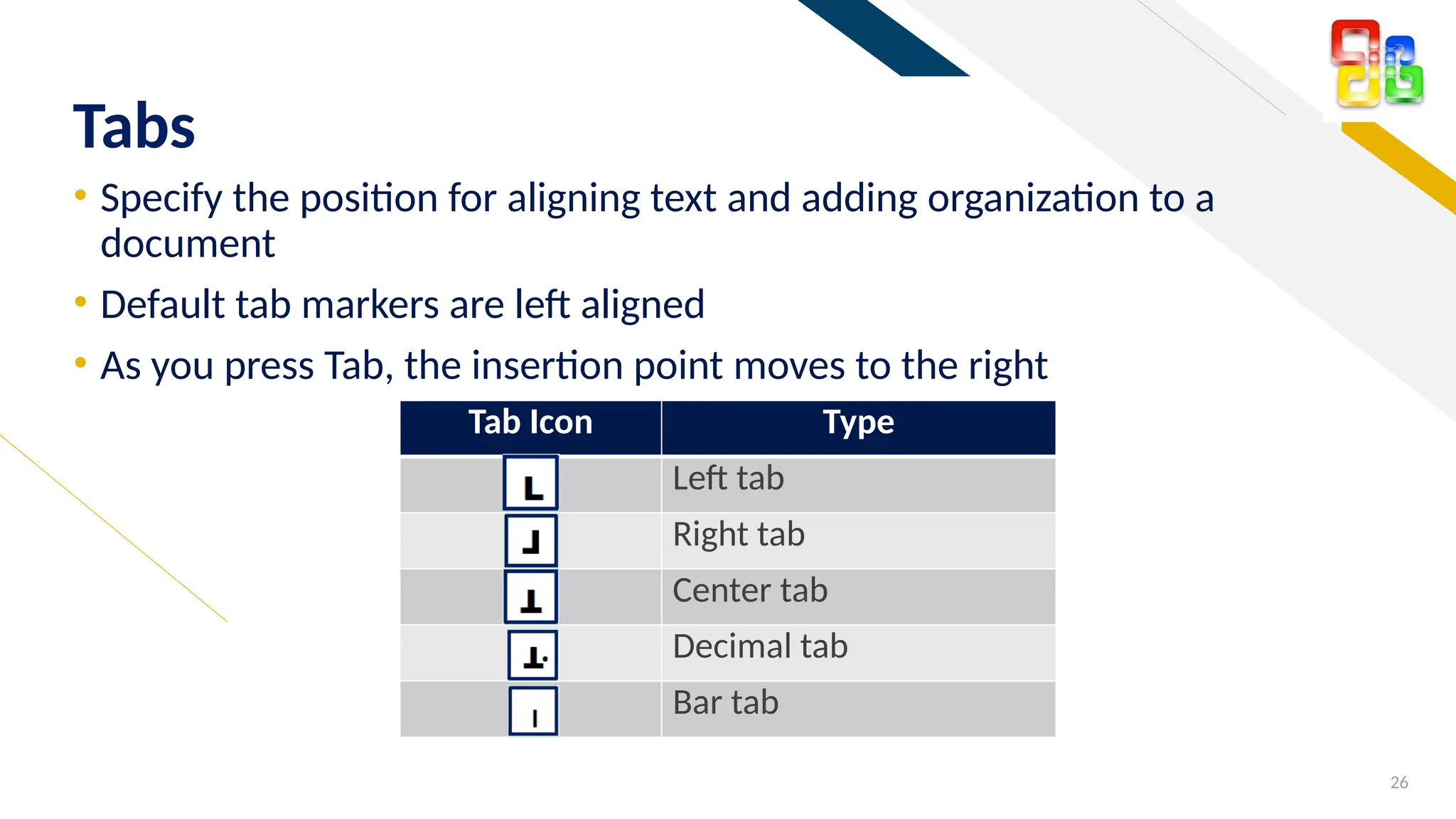
โ€ข Specify the position for aligning text and adding organization to a
document
โ€ข Default tab markers are left aligned
โ€ข As you press Tab, the insertion point moves to the right
26
Tabs
Tab Icon Type
Left tab
Right tab
Center tab
Decimal tab
Bar tab
FR
27
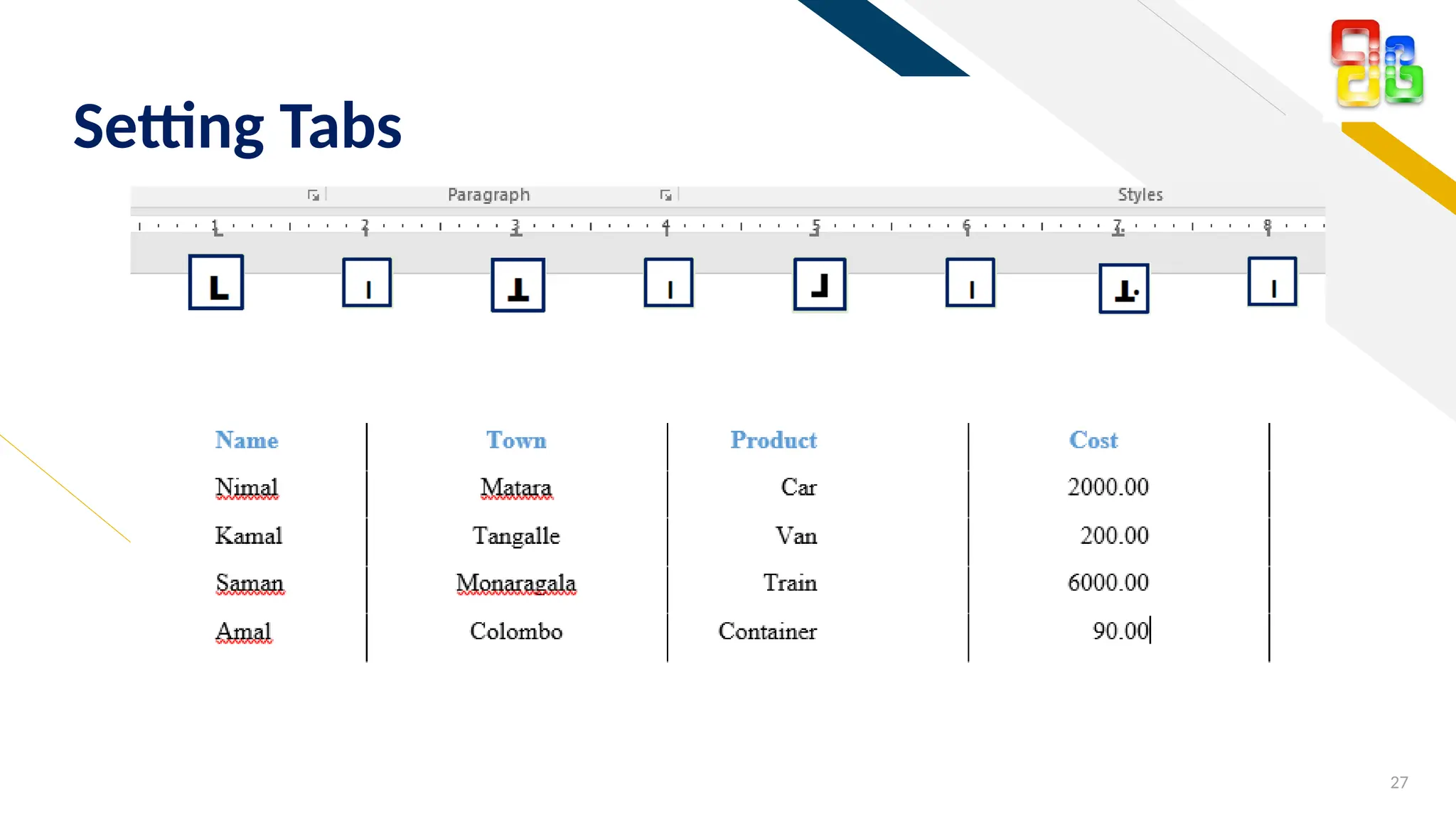
Setting Tabs
FR
28
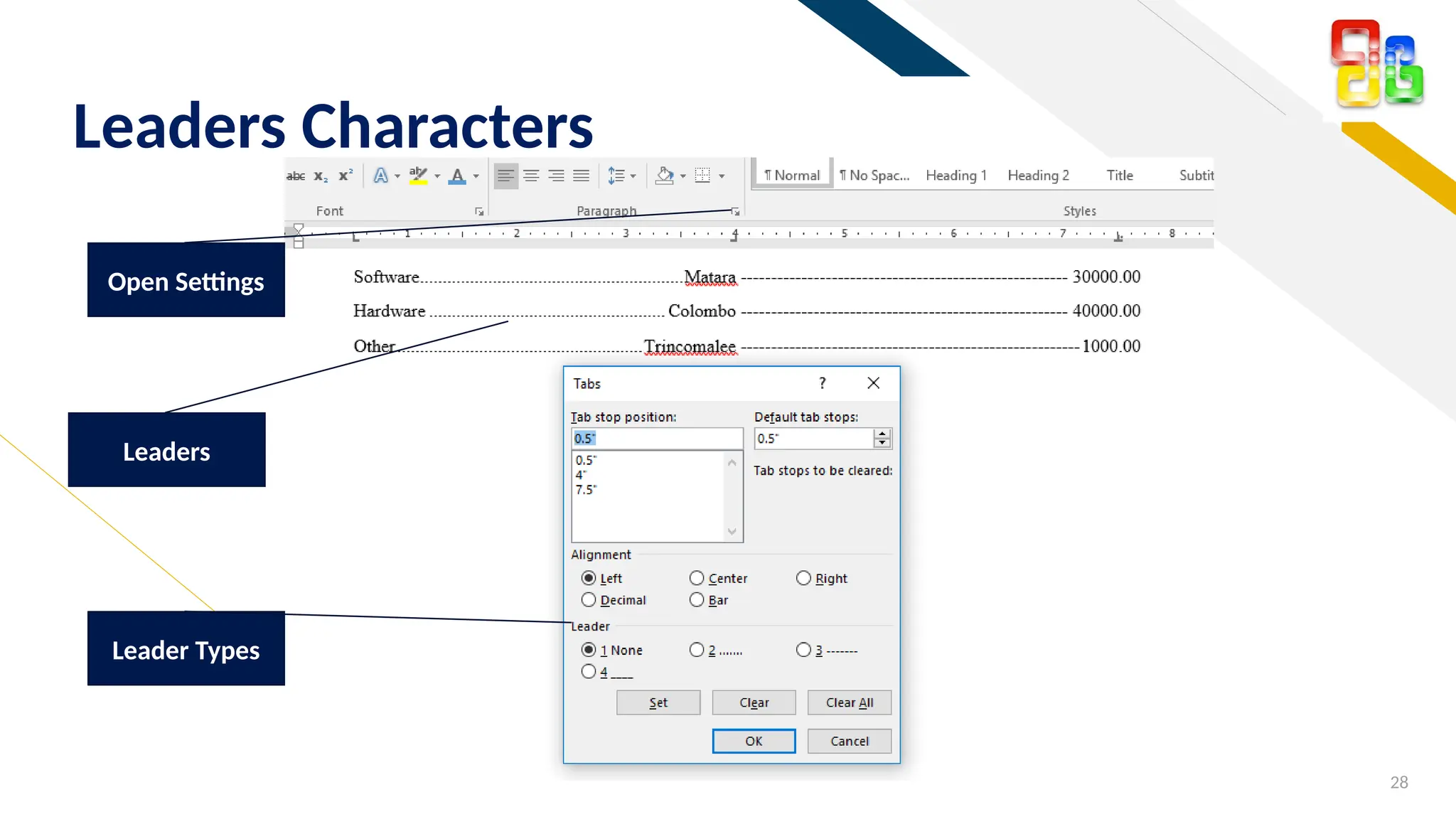
Leaders Characters
Open Settings
Leader Types
Leaders
FR
29
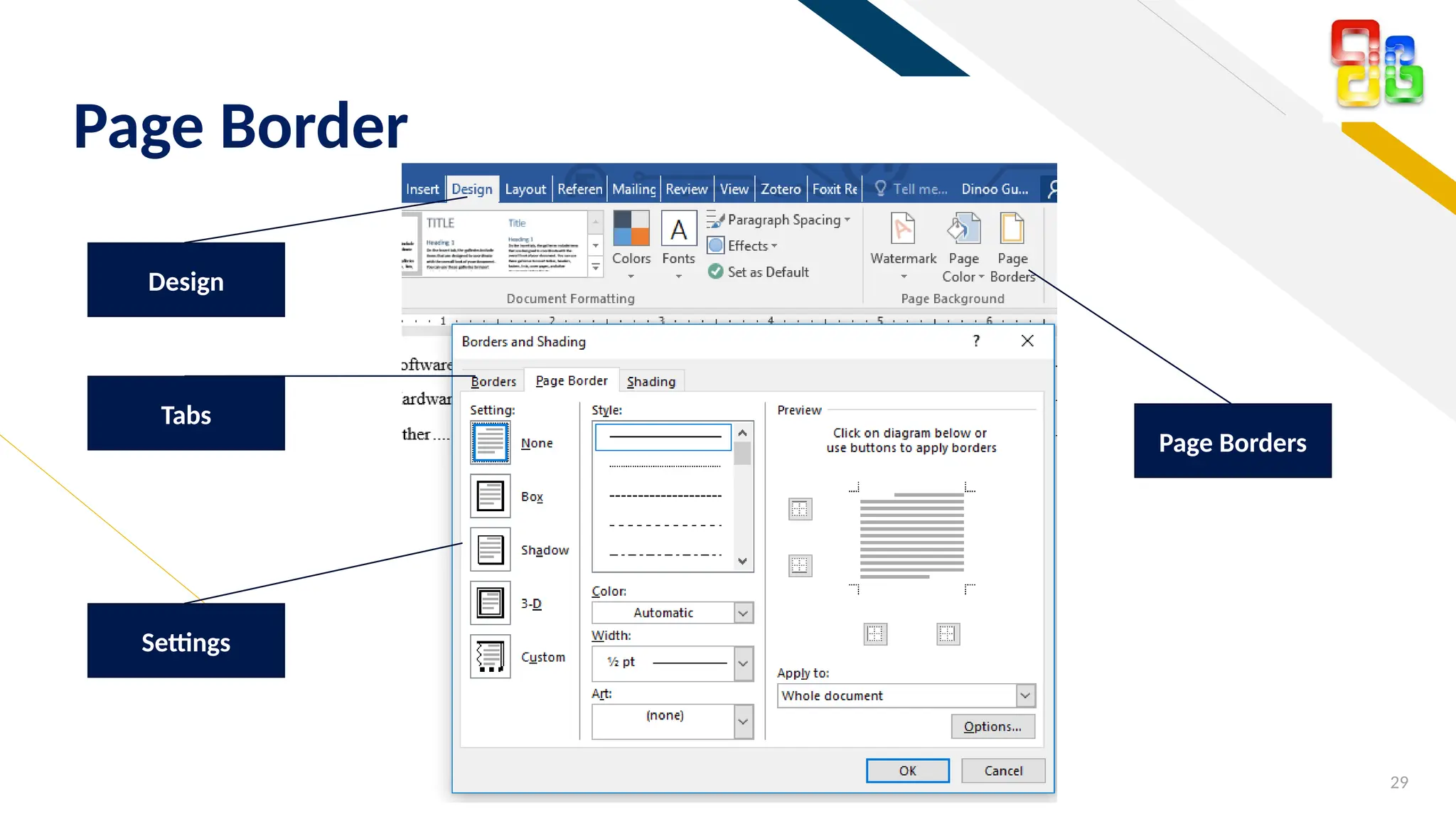
Page Border
Design
Tabs
Page Borders
Settings
FR
30
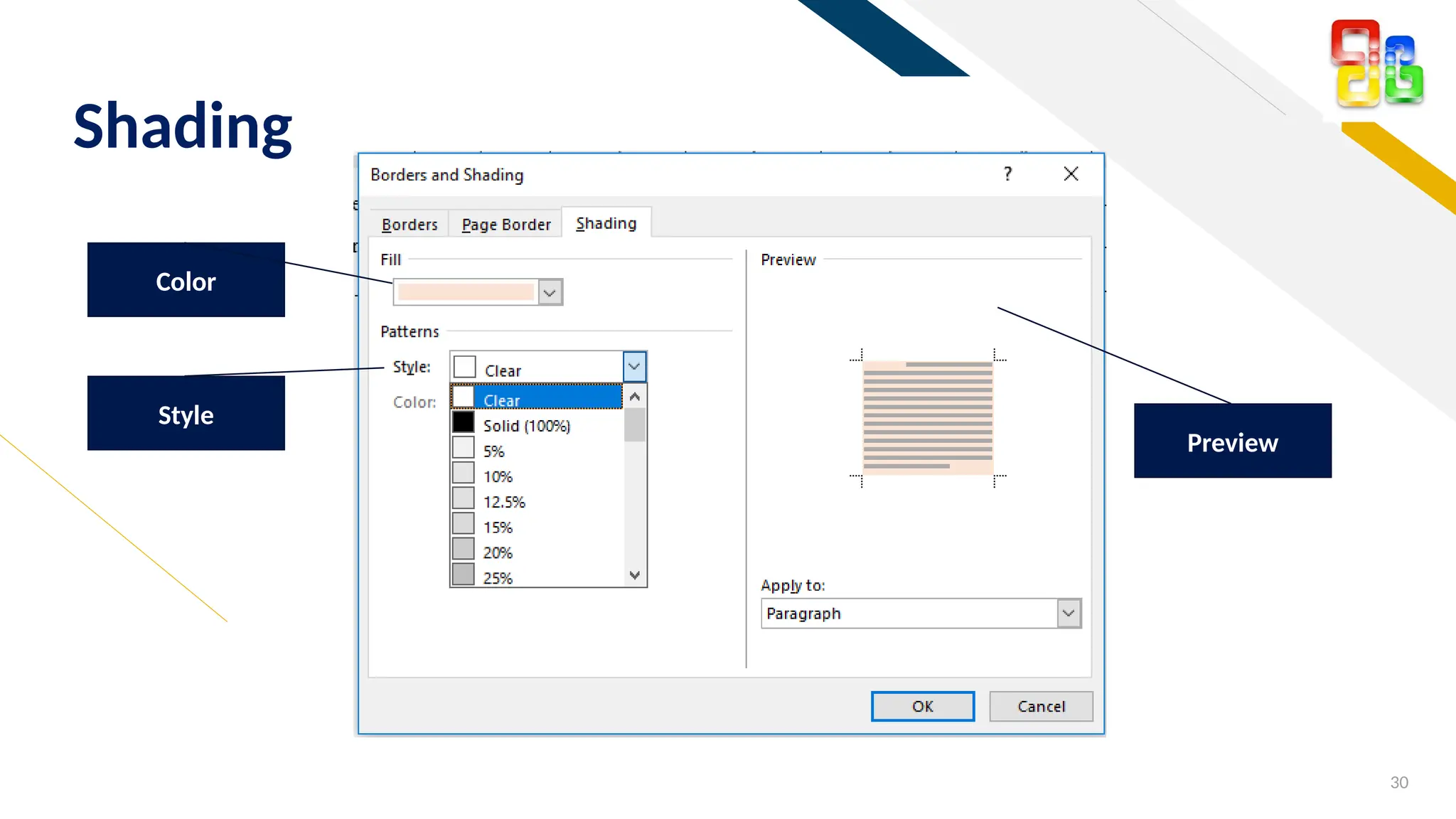
Shading
Color
Style
Preview
FR
31
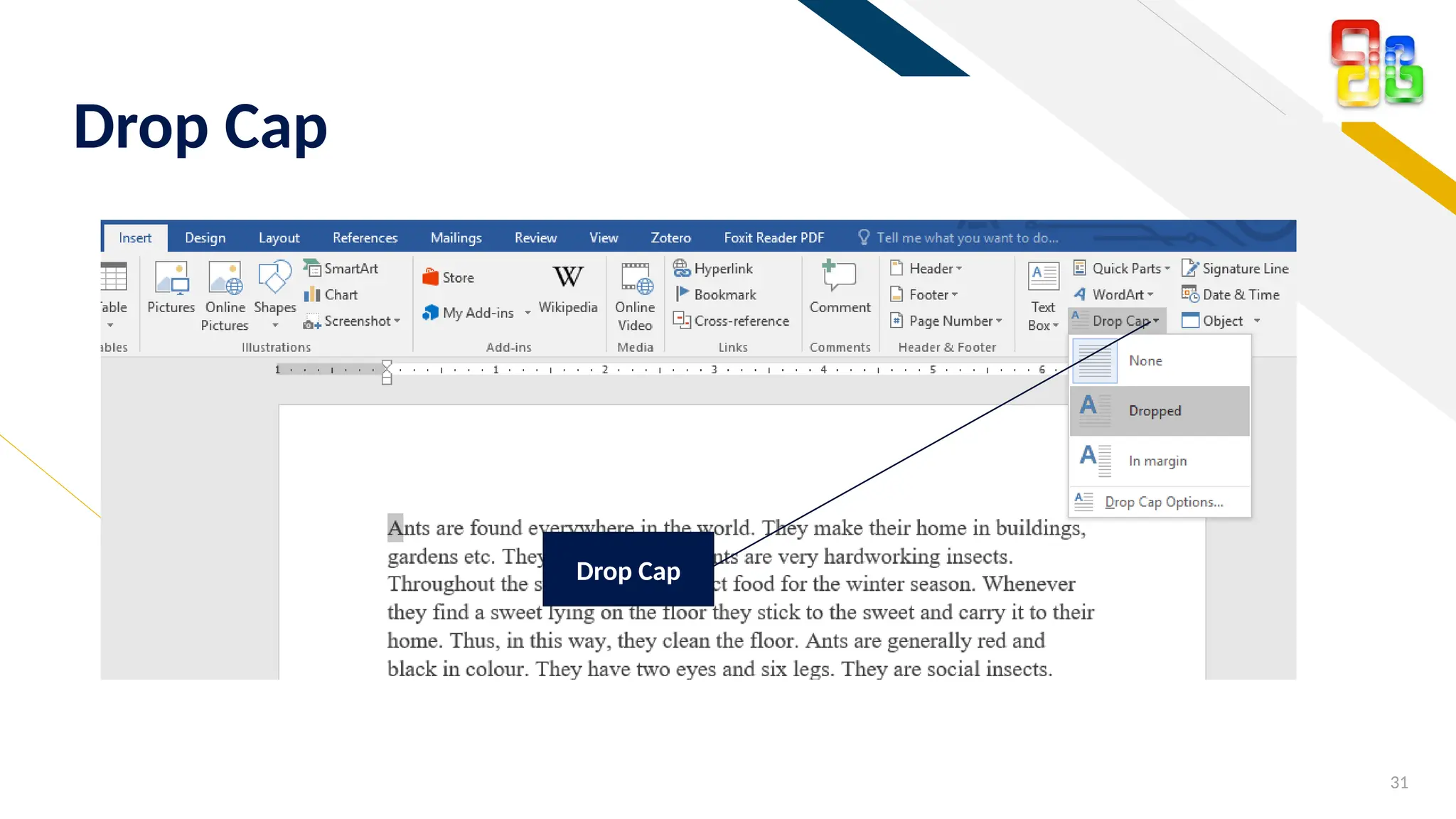
Drop Cap
Drop Cap
FR
32
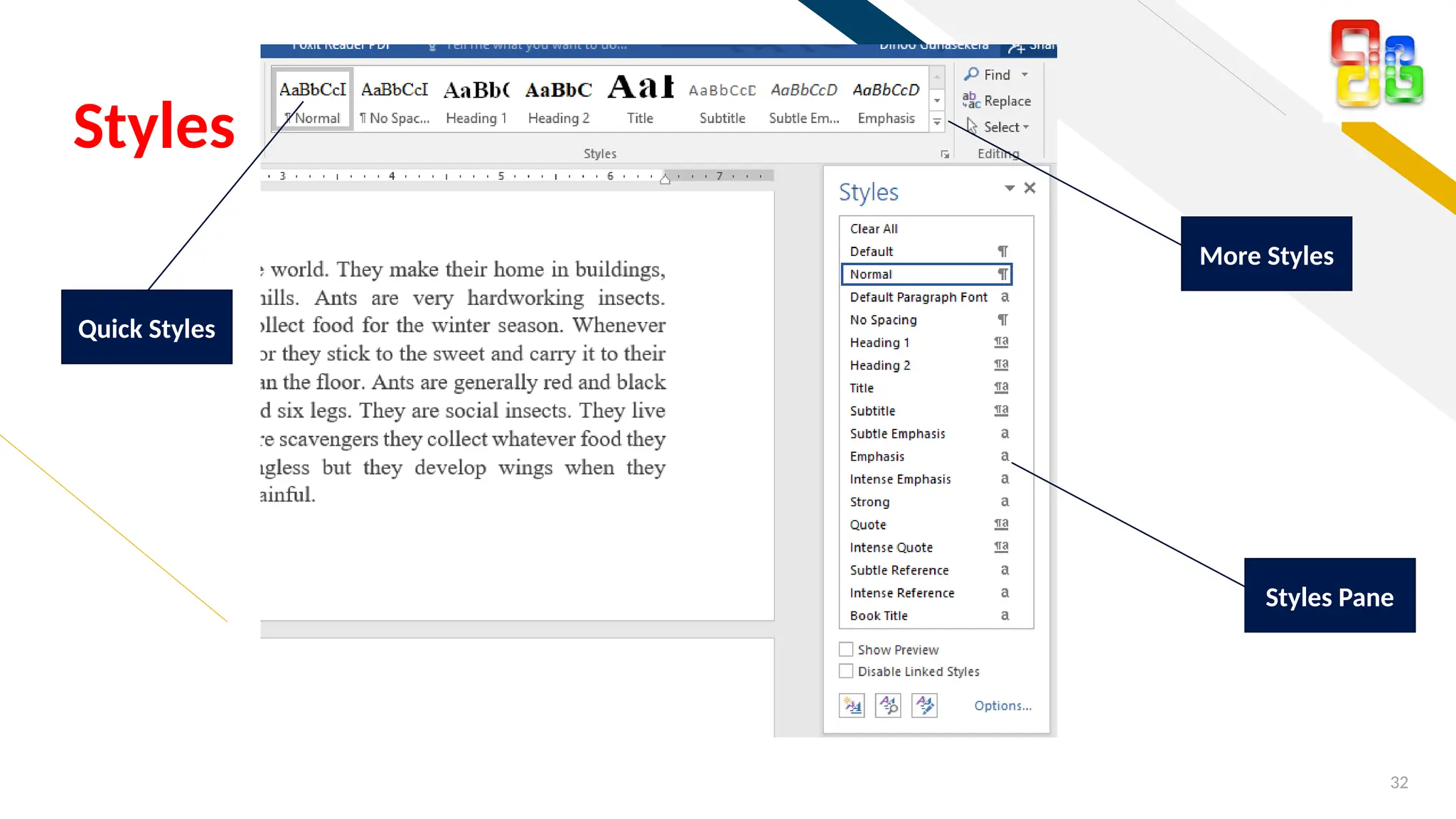
Styles
Styles Pane
Quick Styles
More Styles
FR
33
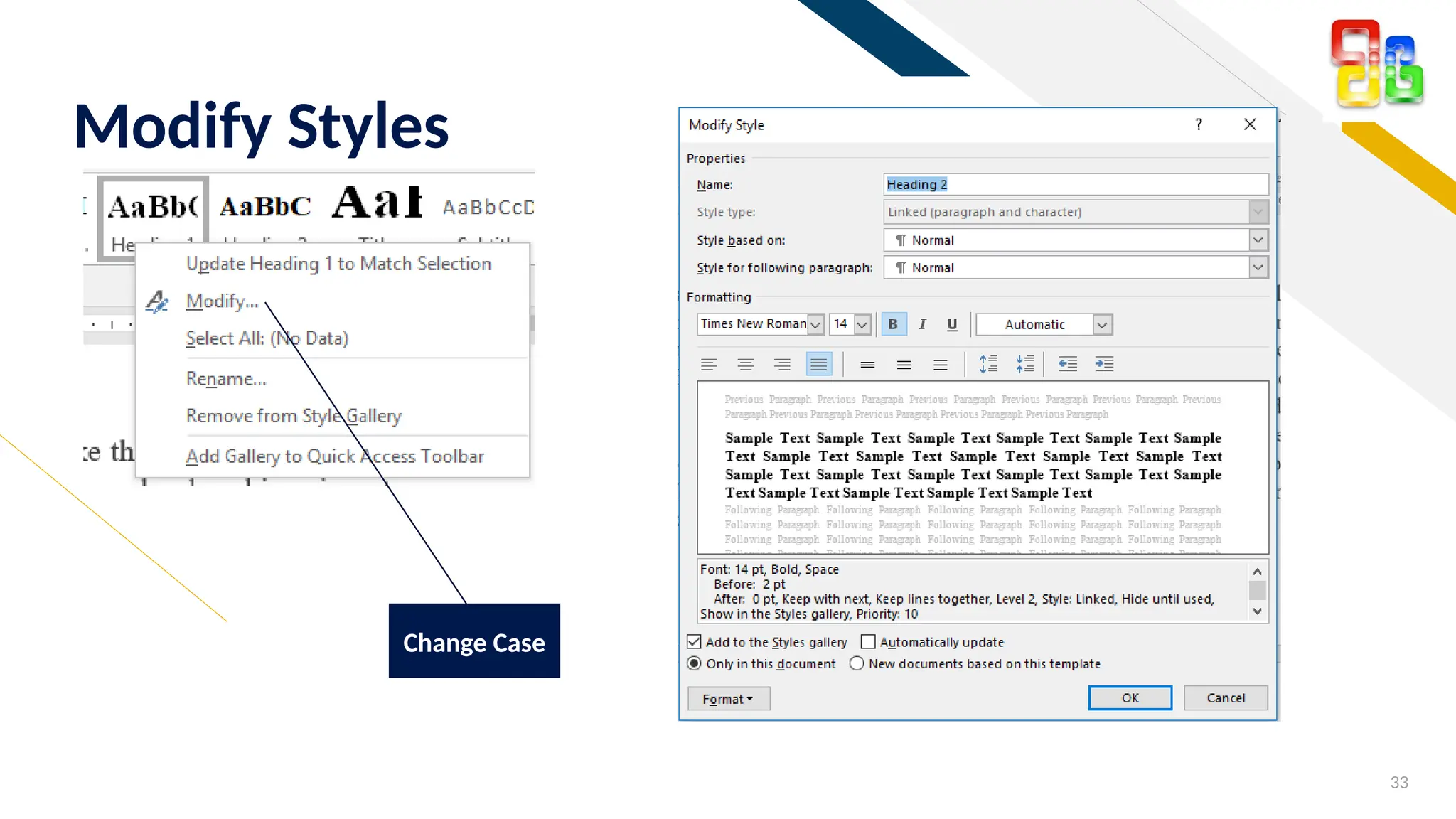
Modify Styles
Change Case
FR
Add a footer 34
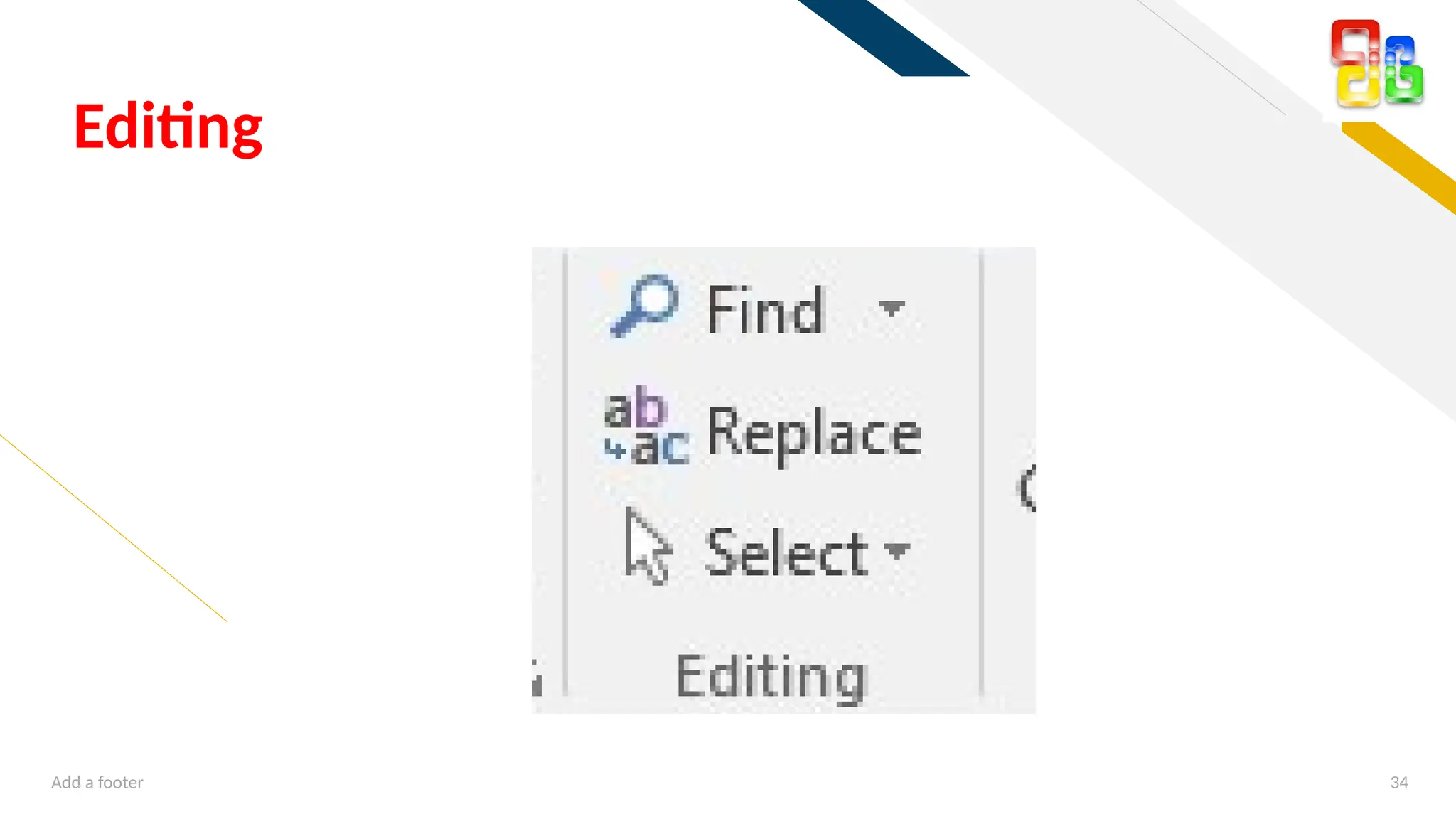
Editing
FR
35
Insert Ribbon
FR
36
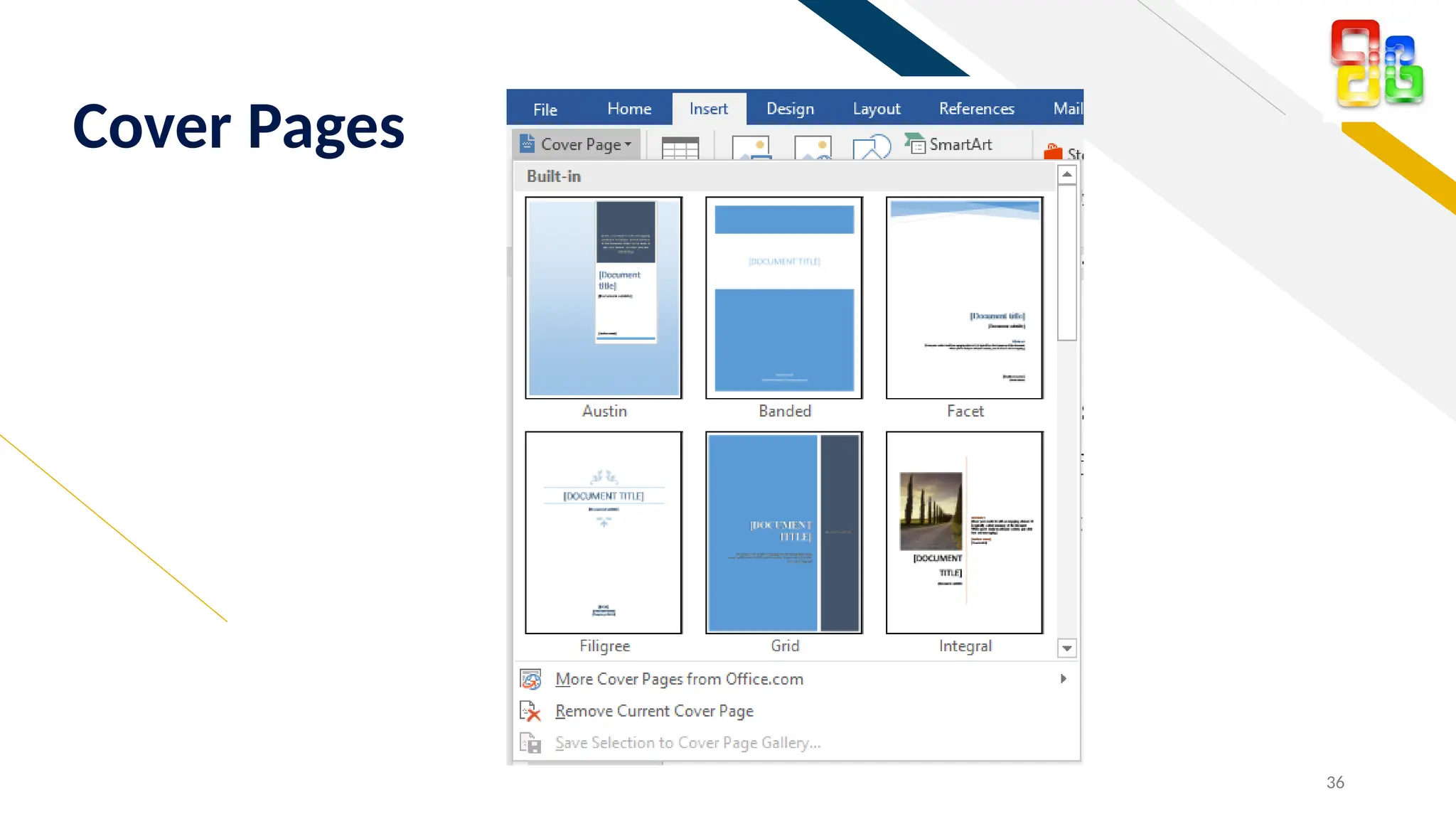
Cover Pages
FR
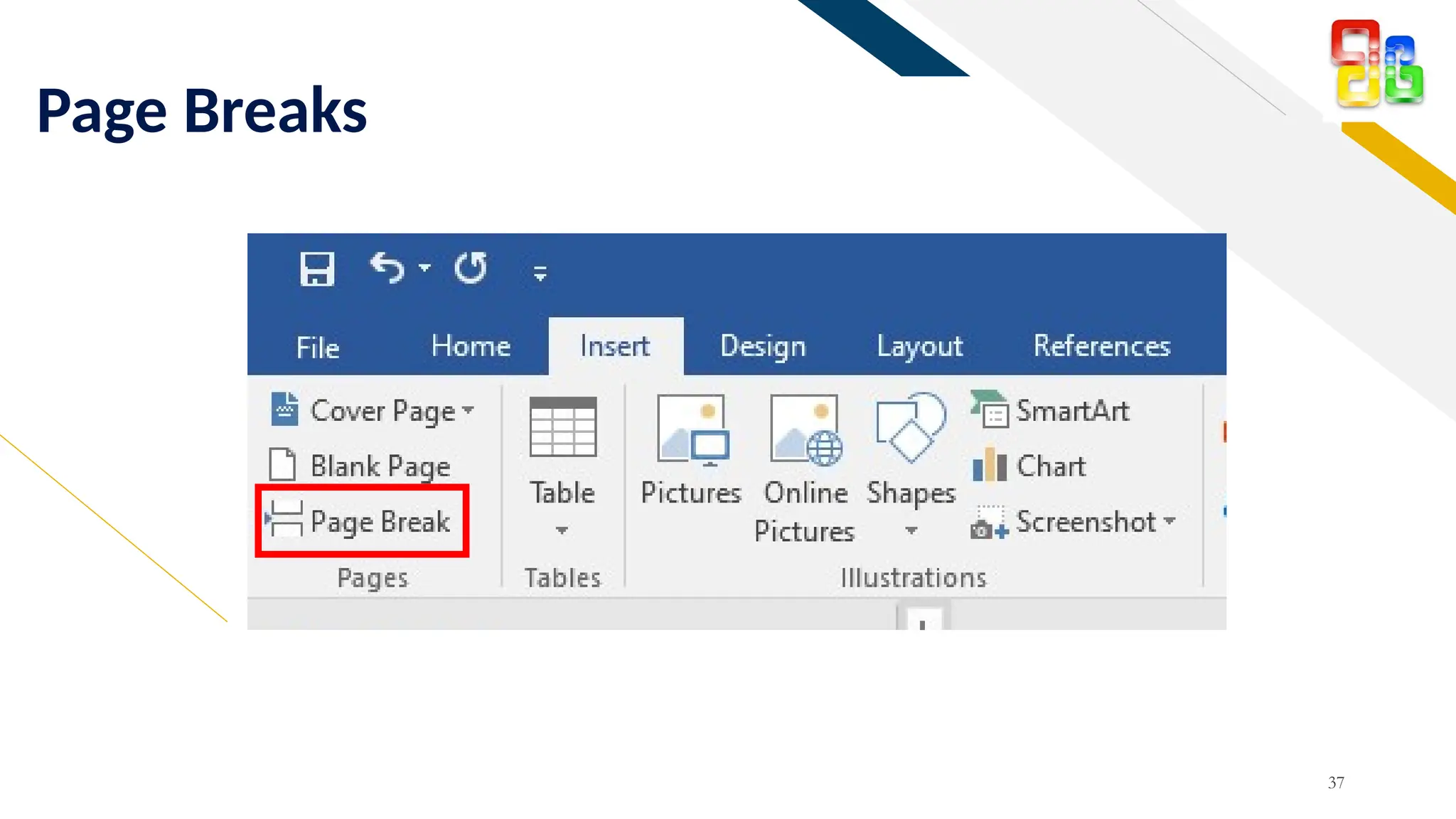
Page Breaks
37
FR
38
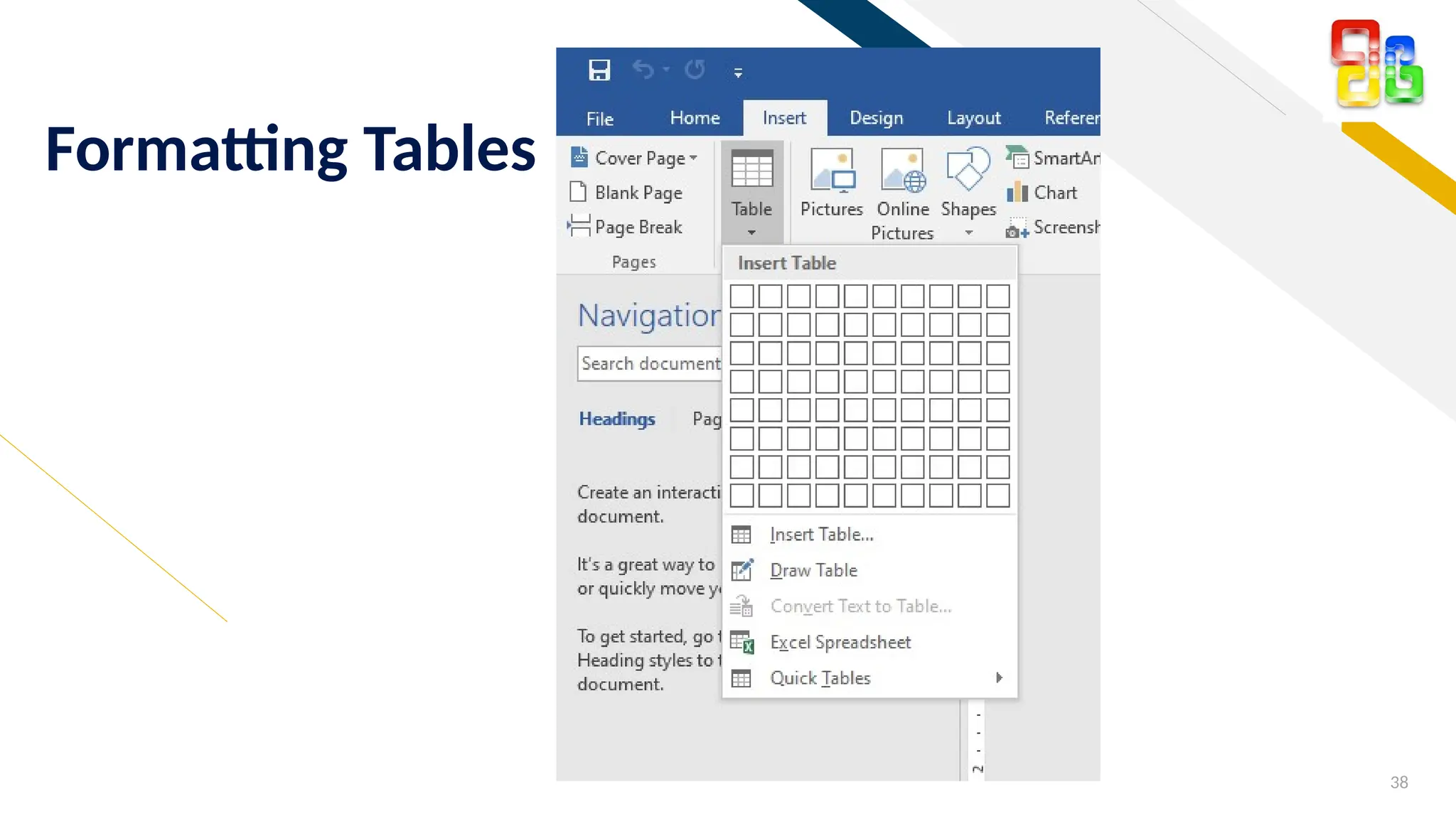
Formatting Tables
FR
Inserting Graphical Objects
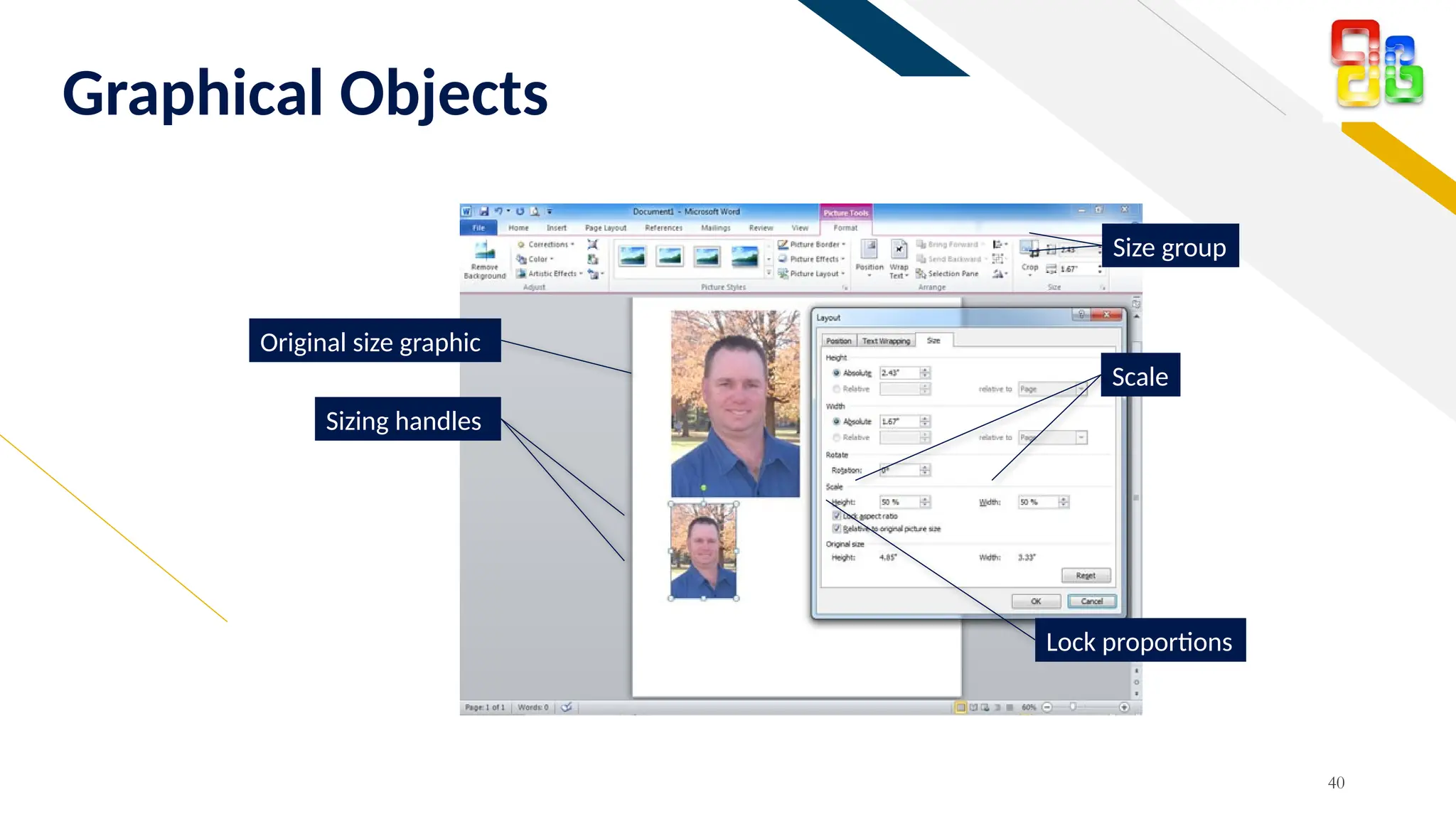
โ€ข Graphics, such as clip art, photographs, drawings, and symbols,
enhance your documents and make them more audience friendly.
โ€ข Insert tab โ†’ Click the type of graphic you wish to insert from the
Illustrations group
39
FR
Graphical Objects
40
Sizing handles
Original size graphic
Size group
Scale
Lock proportions
FR
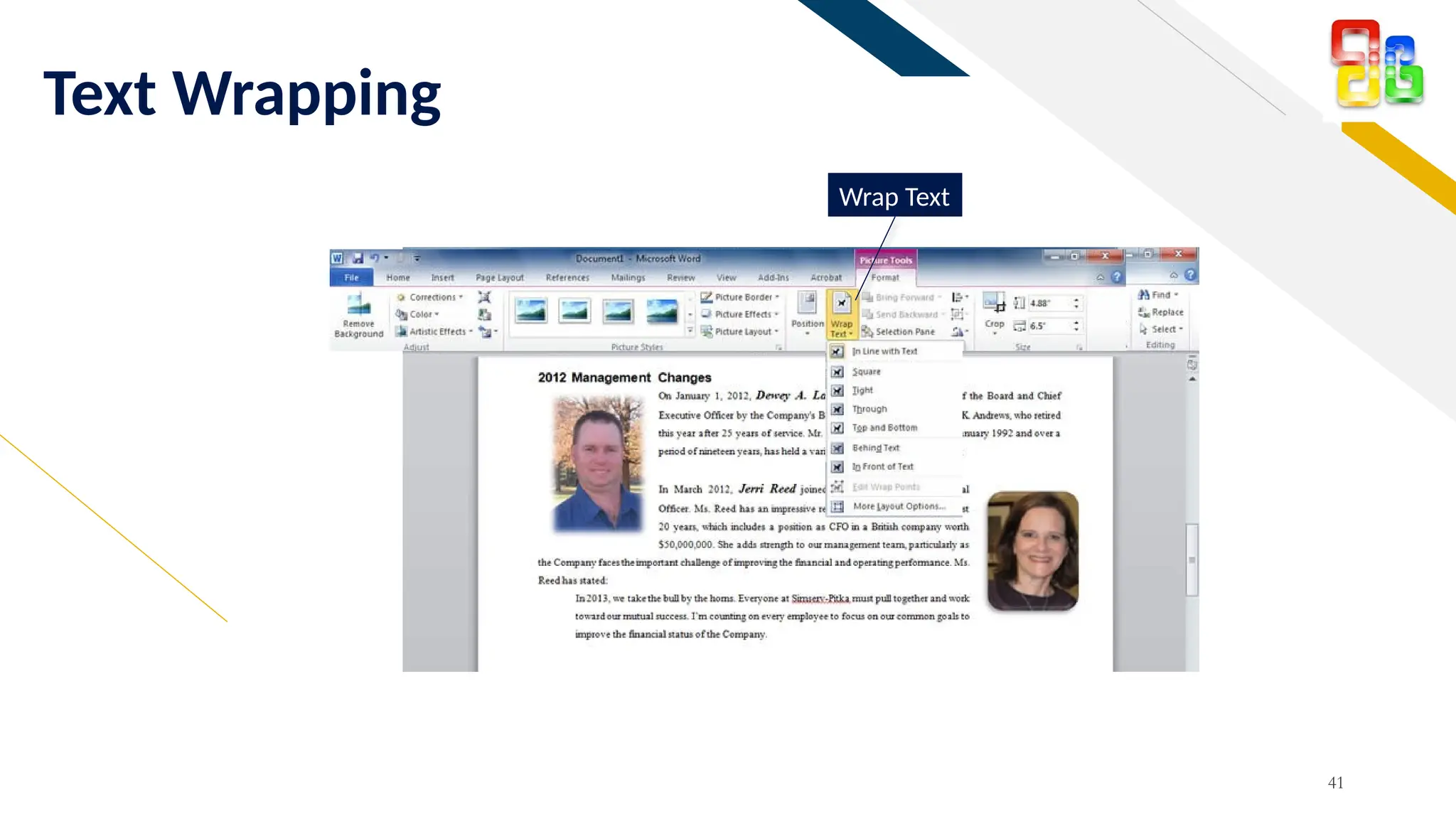
Text Wrapping
41
Wrap Text
FR
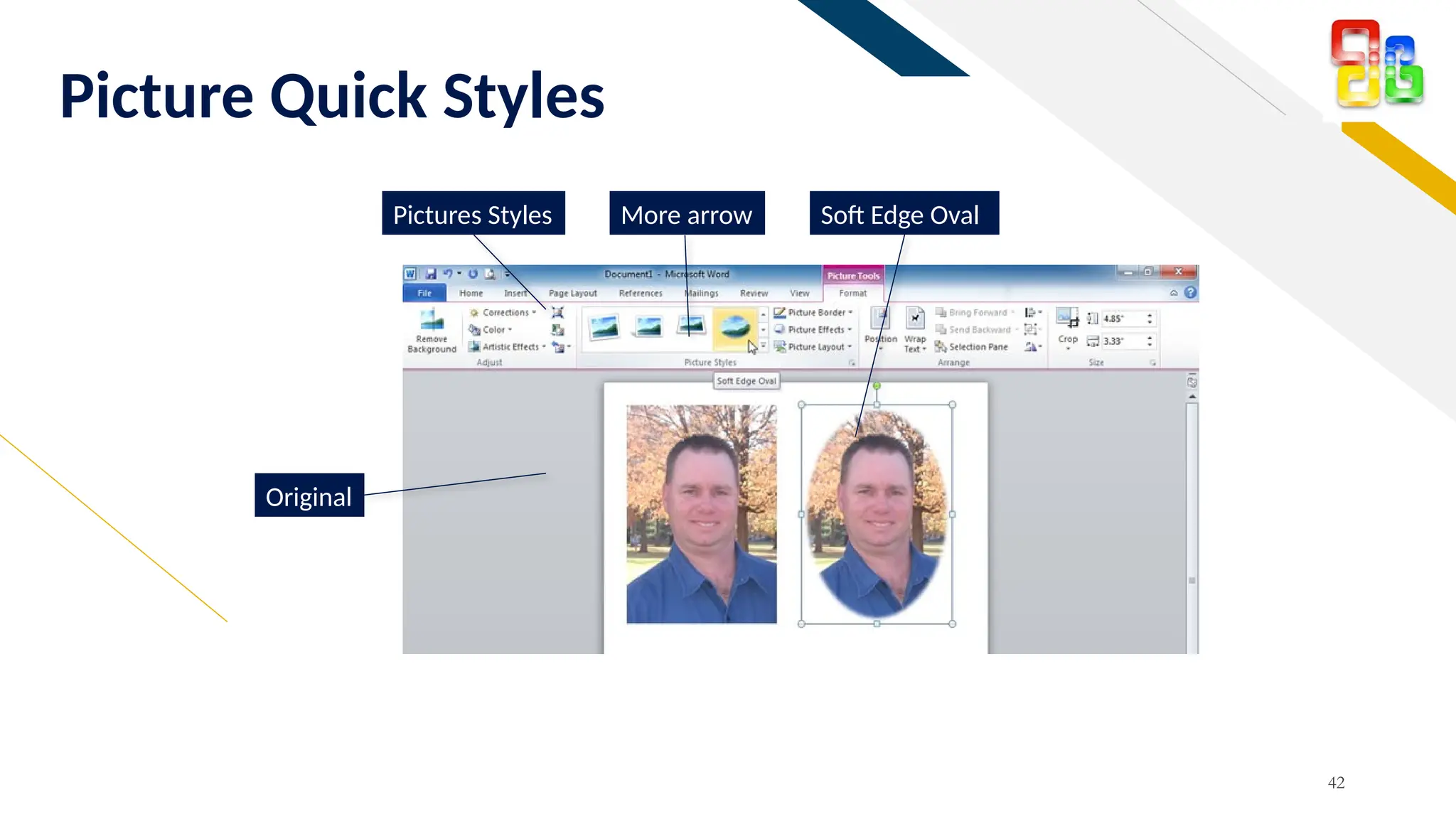
Picture Quick Styles
42
Pictures Styles More arrow
Original
Soft Edge Oval
FR
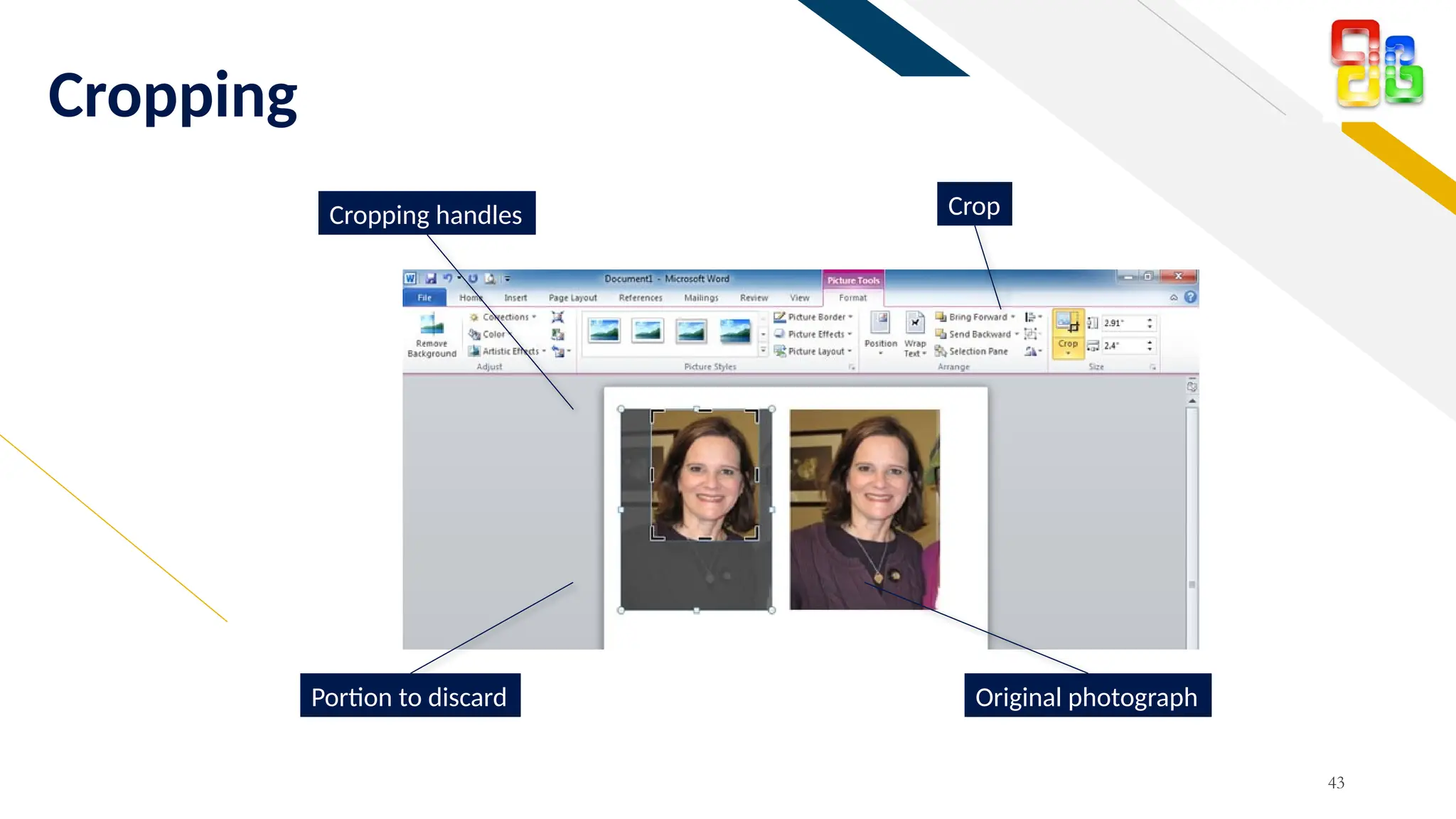
Cropping
43
Cropping handles
Portion to discard Original photograph
Crop
FR
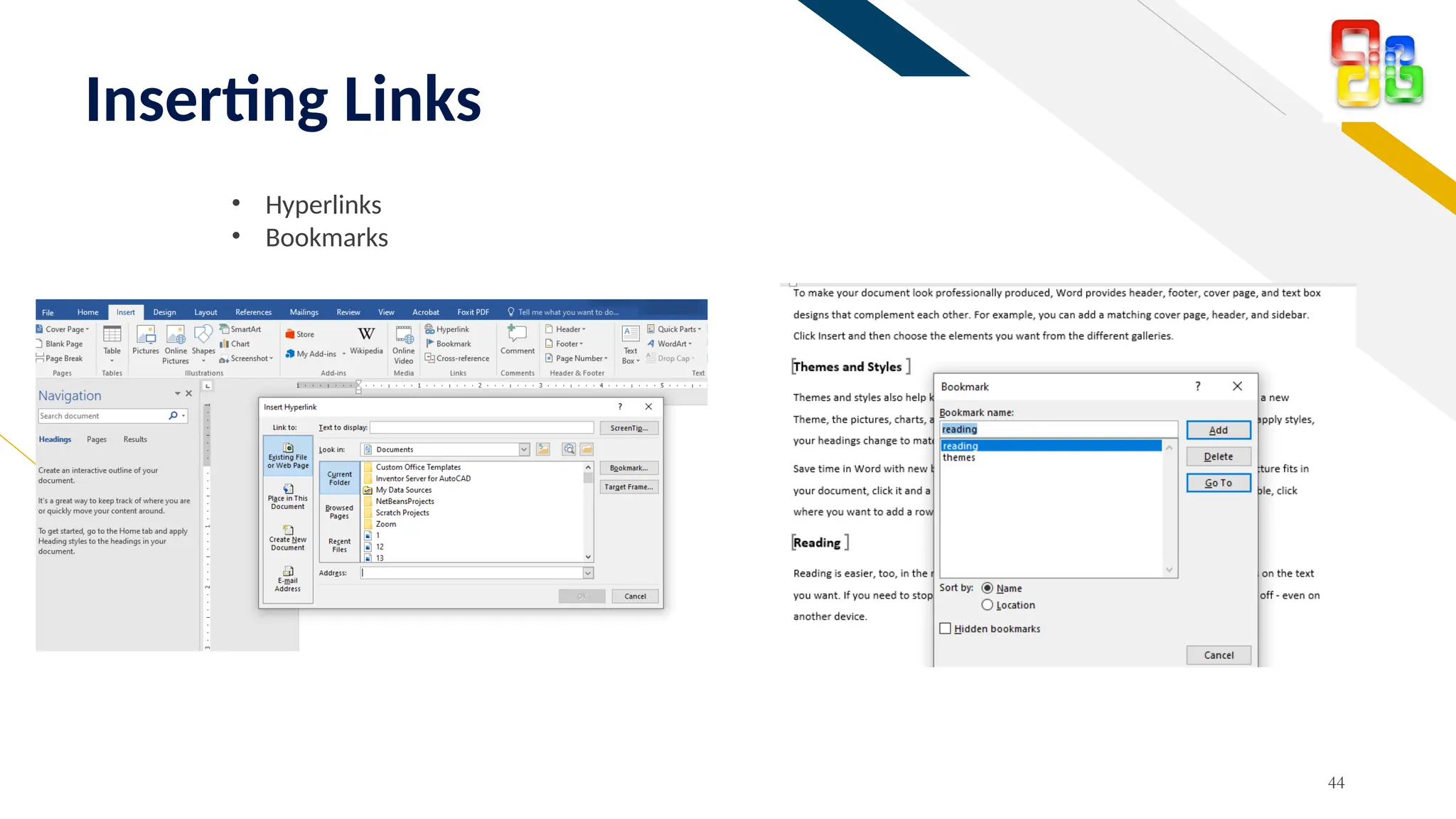
Inserting Links
44
โ€ข Hyperlinks
โ€ข Bookmarks
FR
45
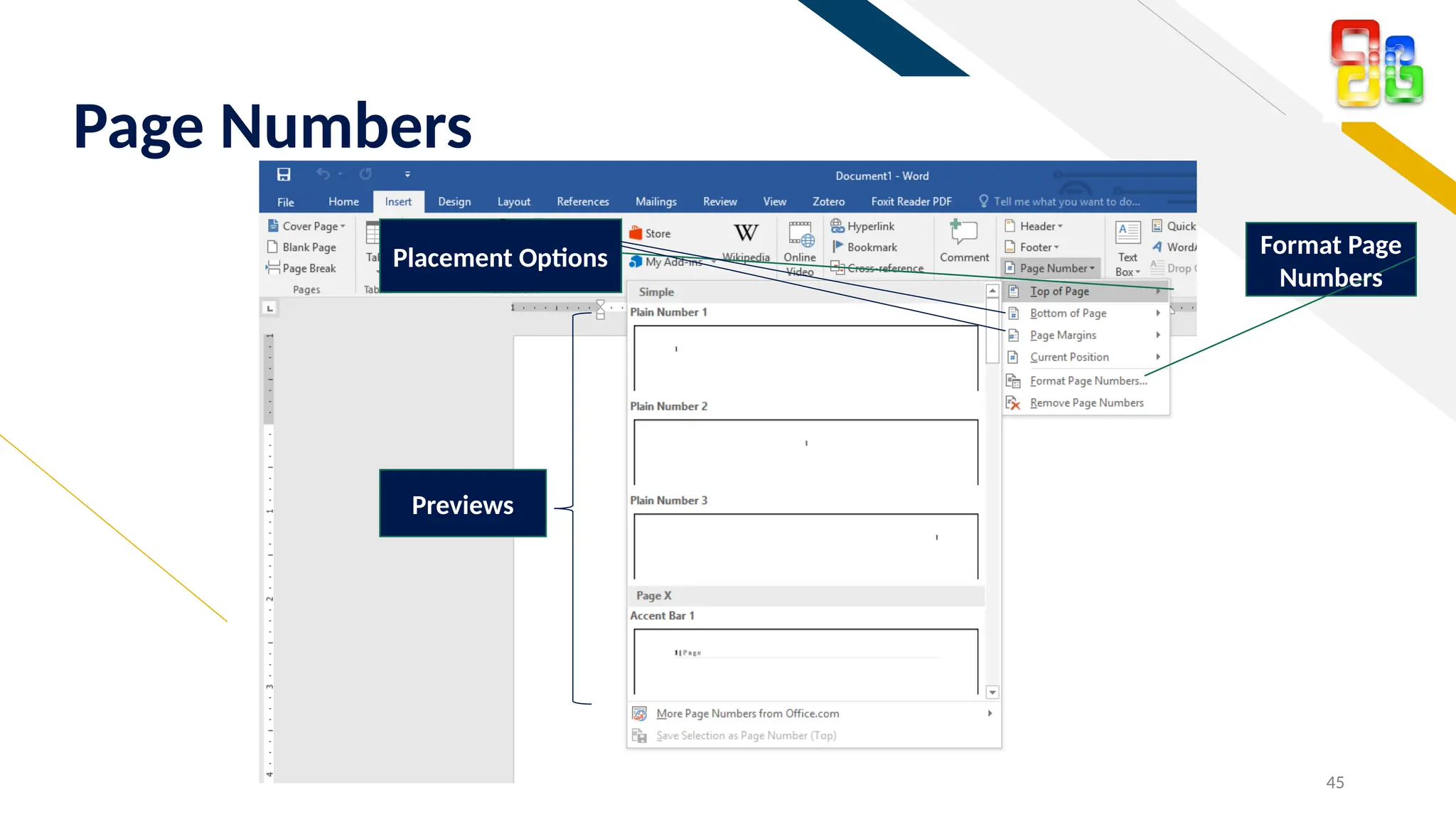
Page Numbers
Format Page
Numbers
Placement Options
Previews
FR
46
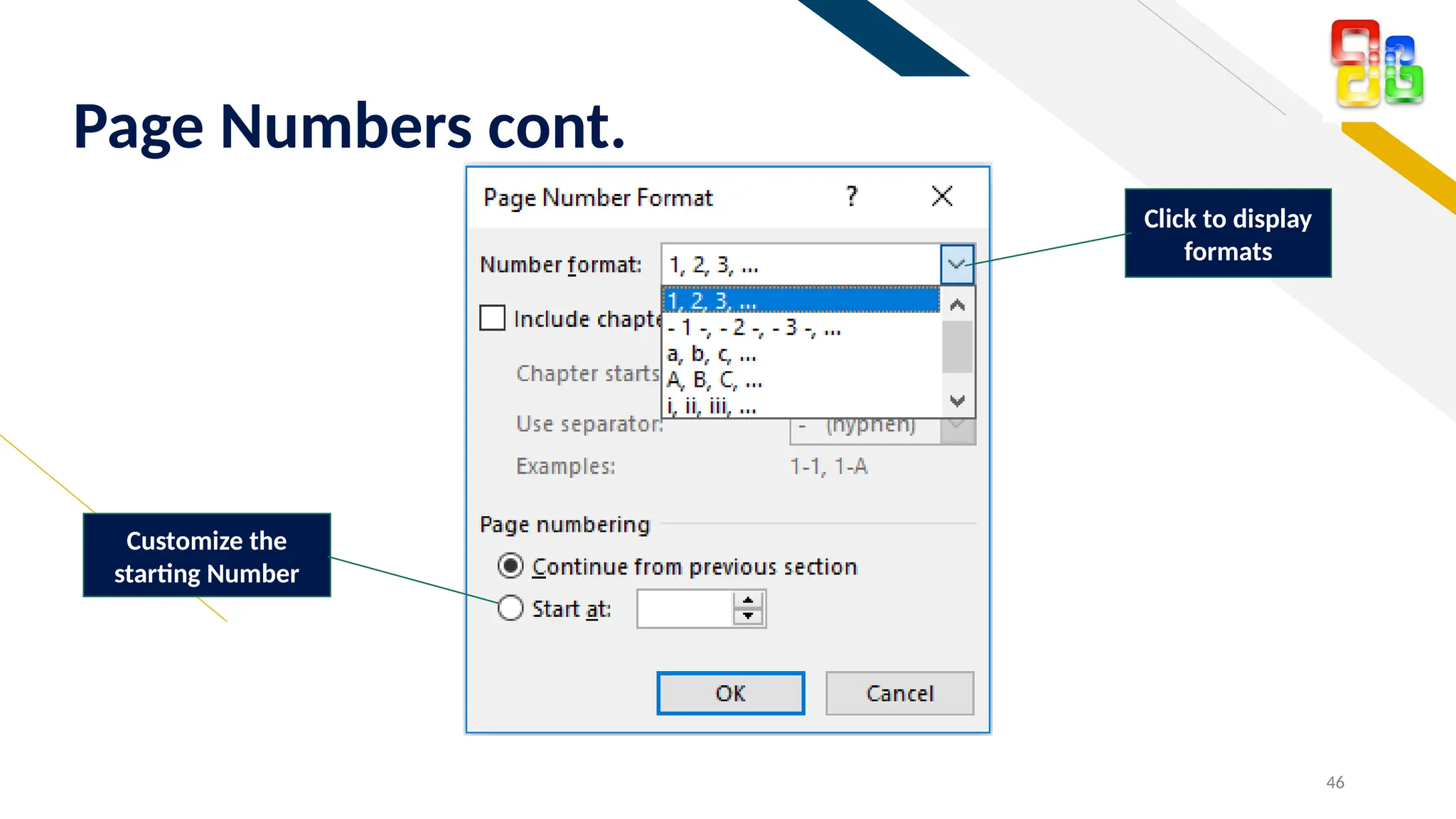
Page Numbers cont.
Click to display
formats
Customize the
starting Number
FR
47
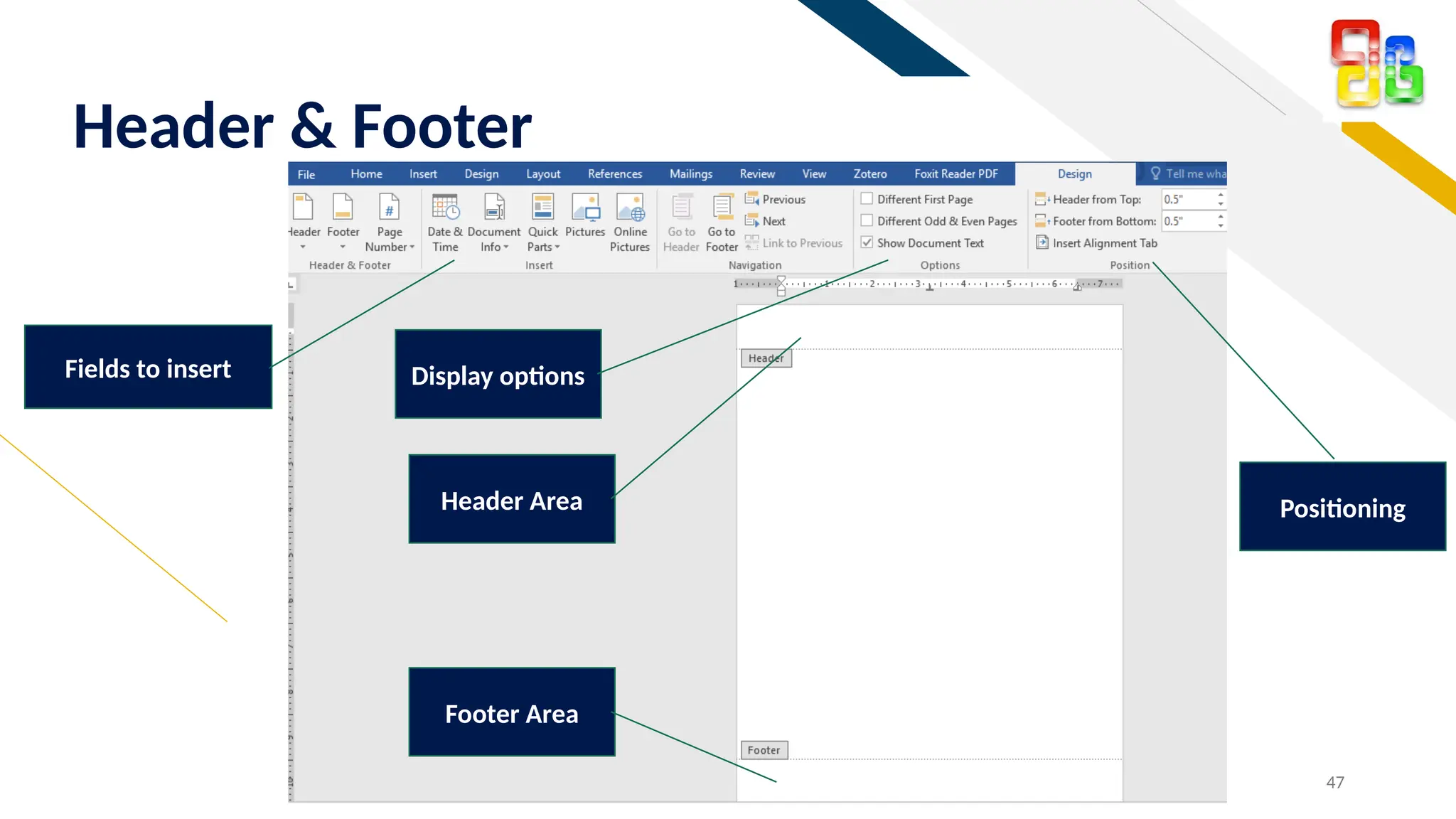
Header & Footer
Display options
Fields to insert
Positioning
Header Area
Footer Area
FR
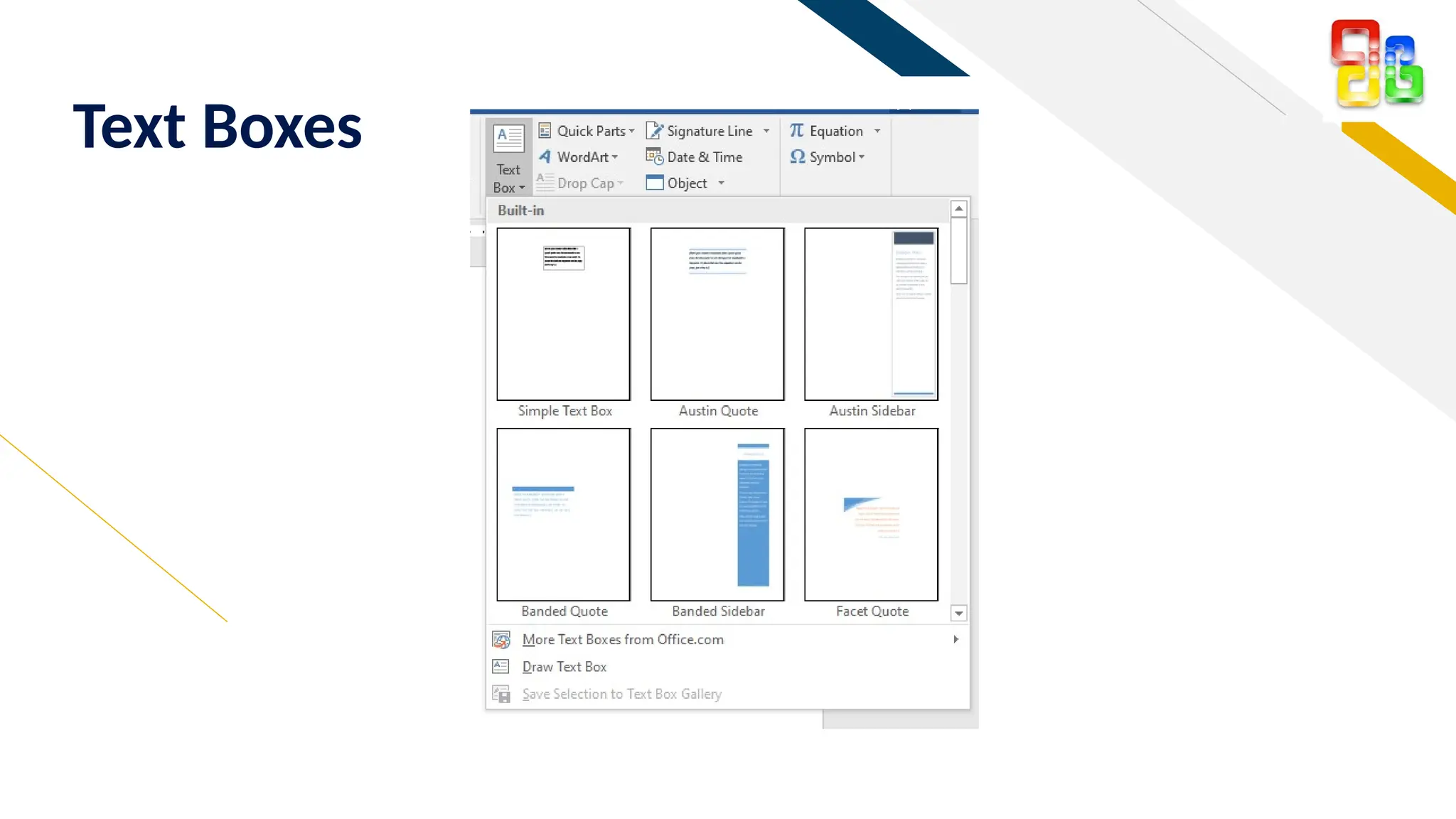
Text Boxes
FR
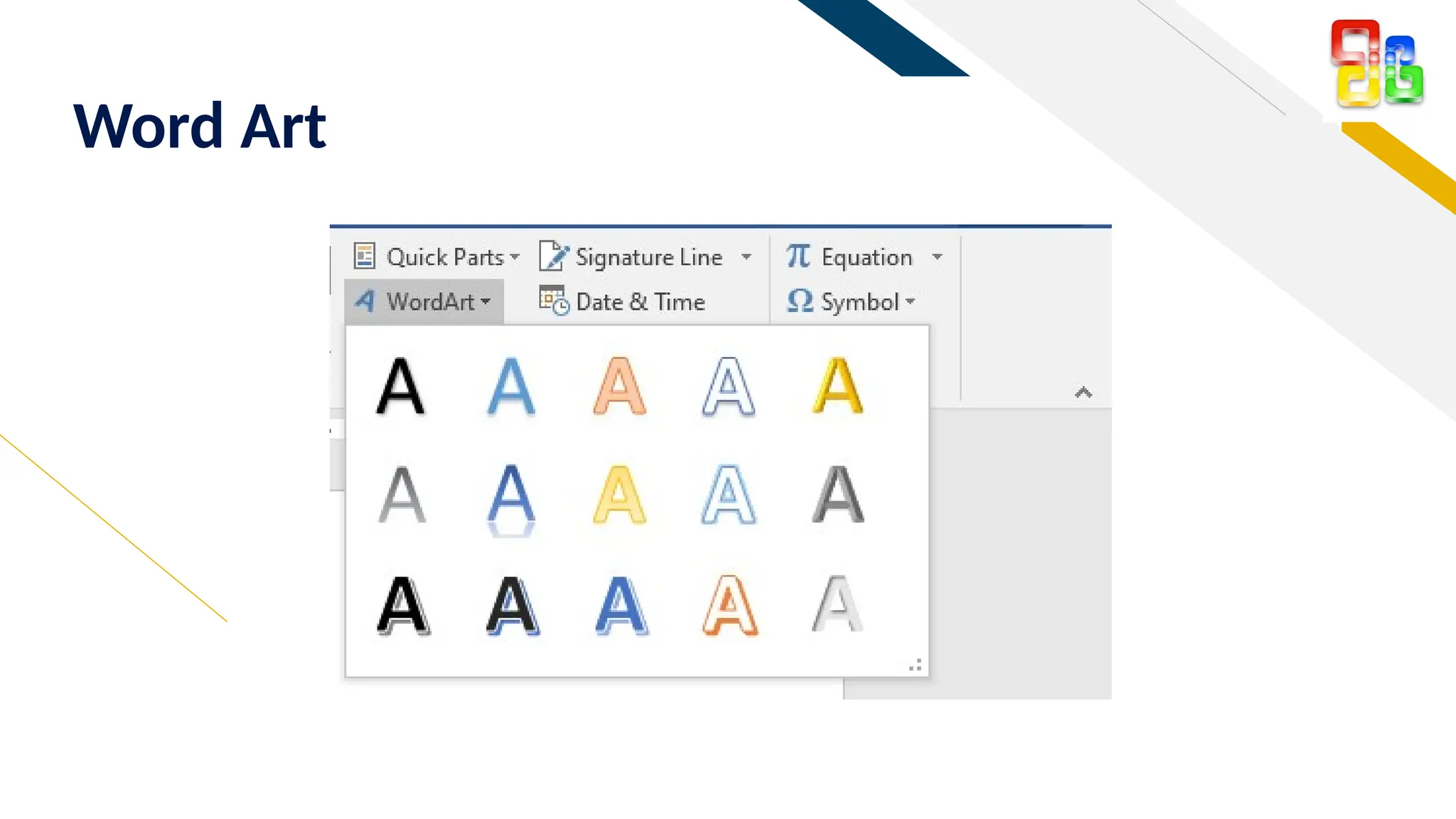
Word Art
FR
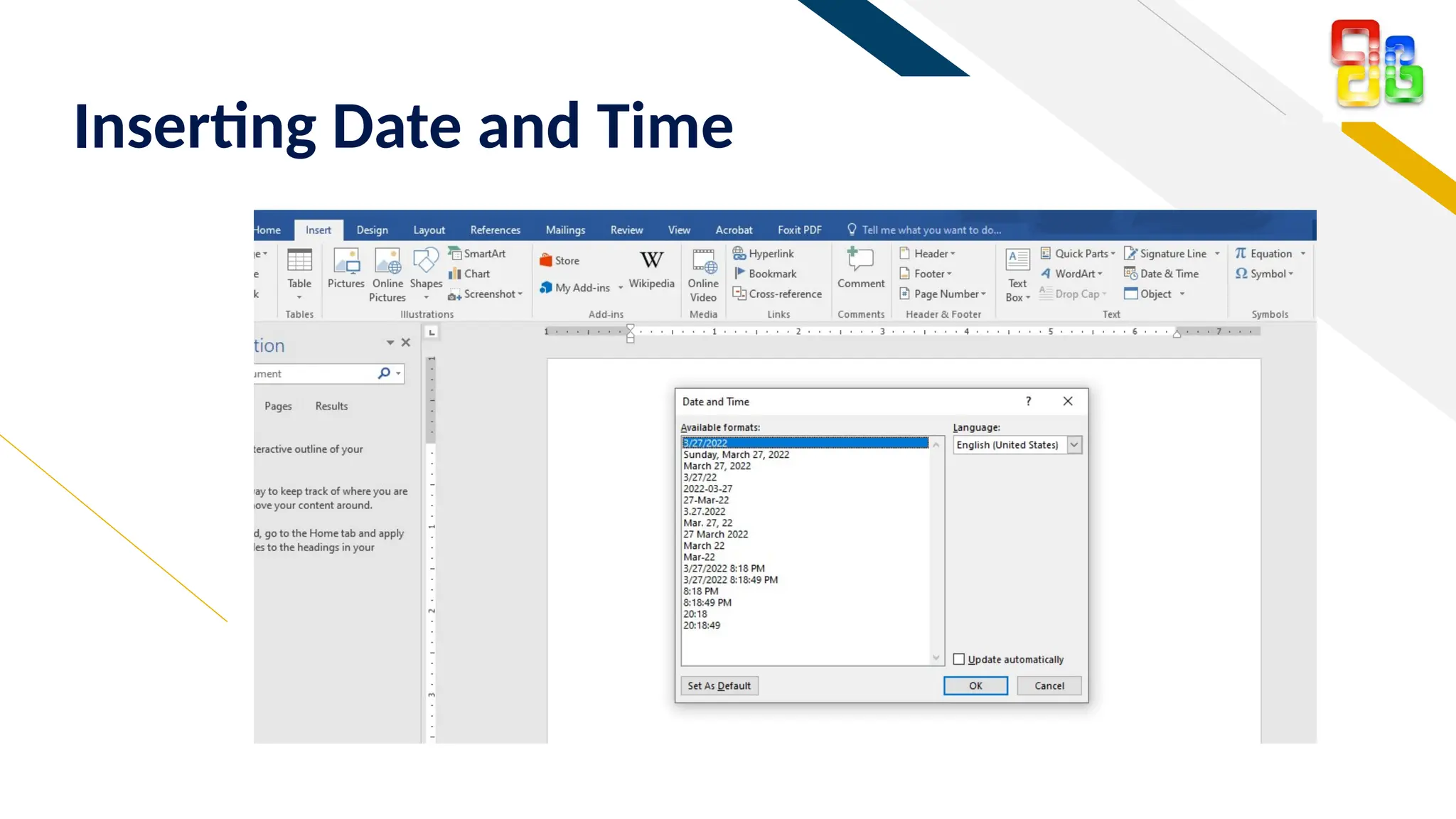
Inserting Date and Time
FR
Design Ribbon
FR
52
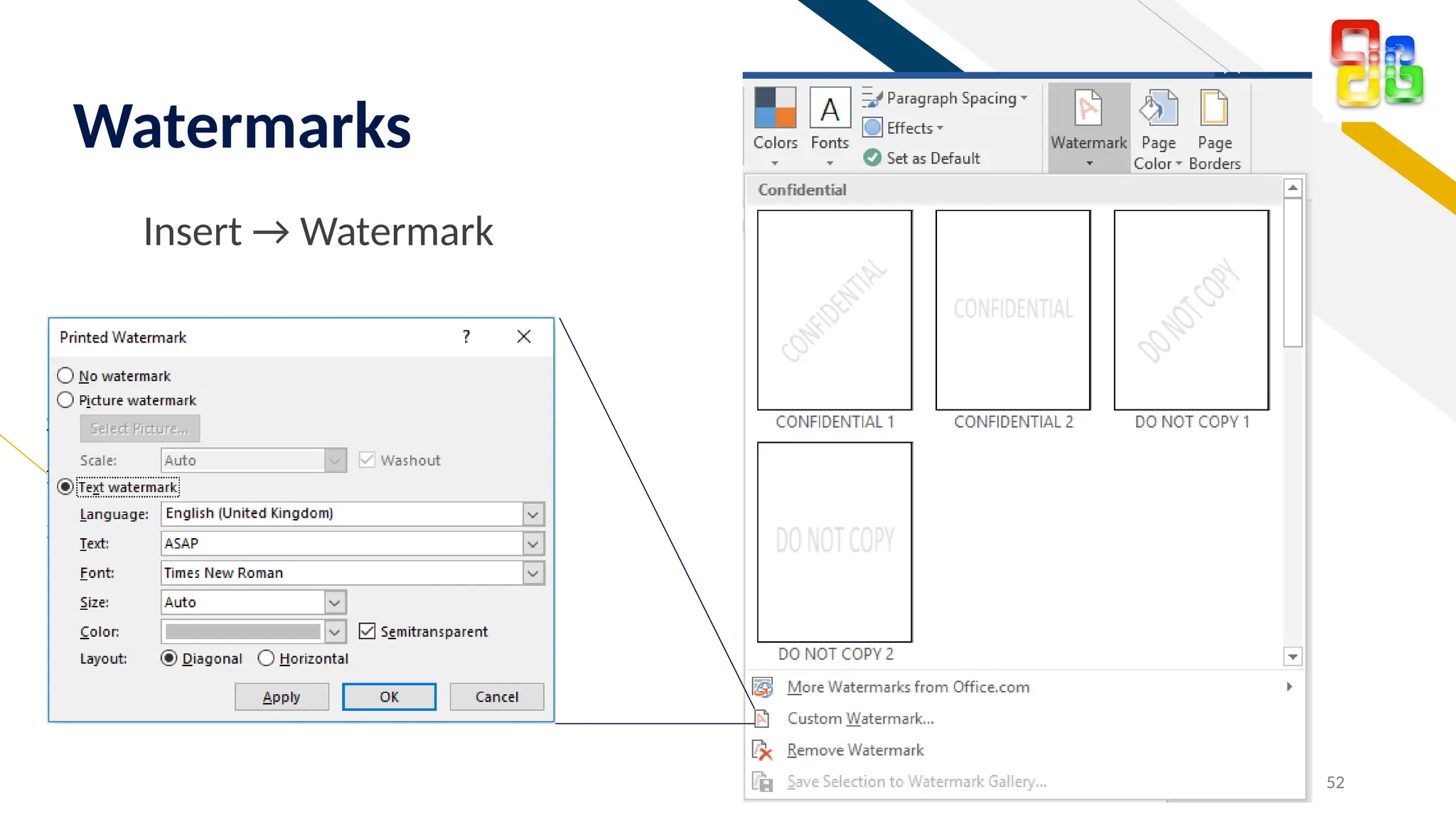
Watermarks
Insert โ†’ Watermark
FR
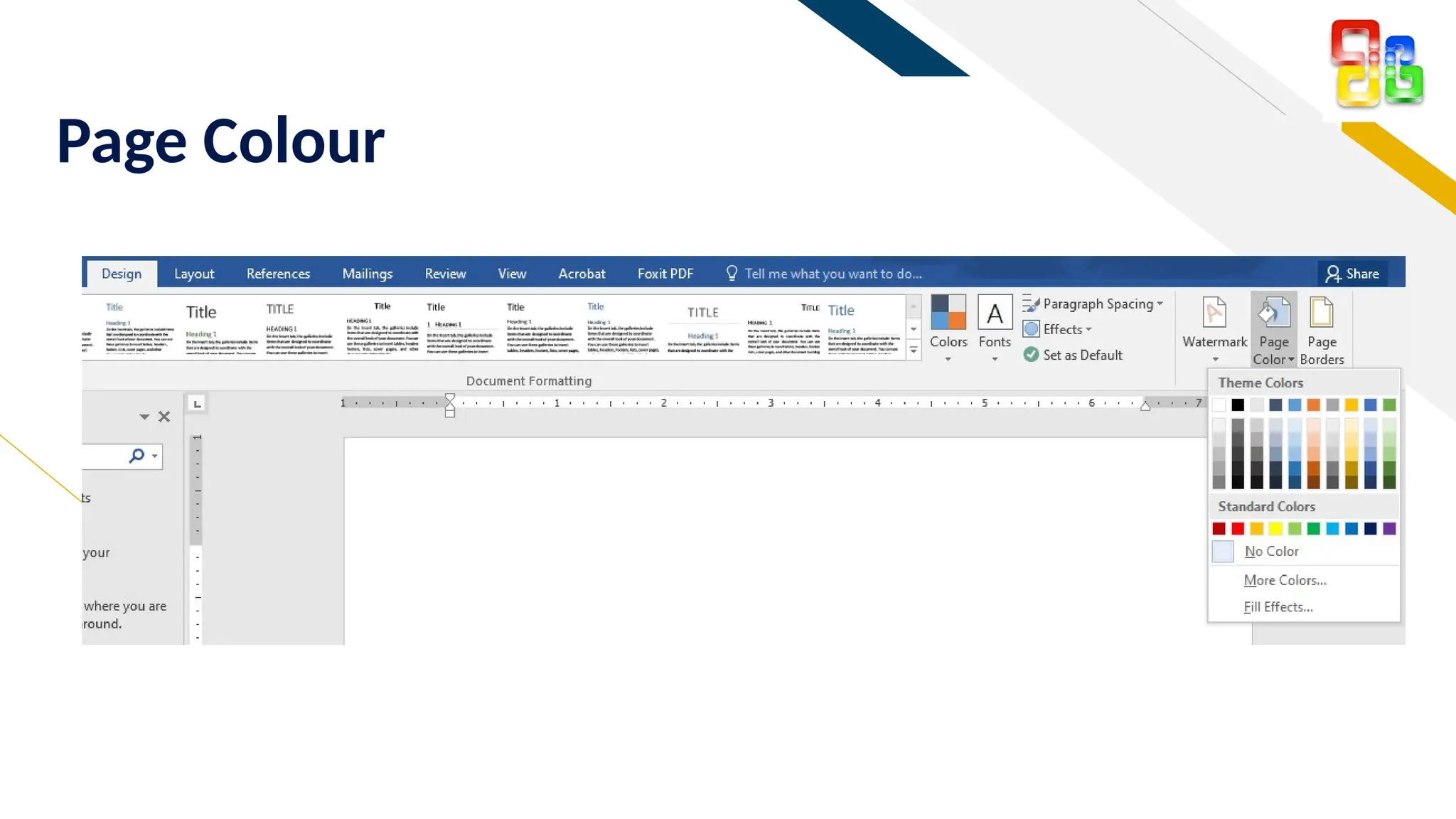
Page Colour
FR
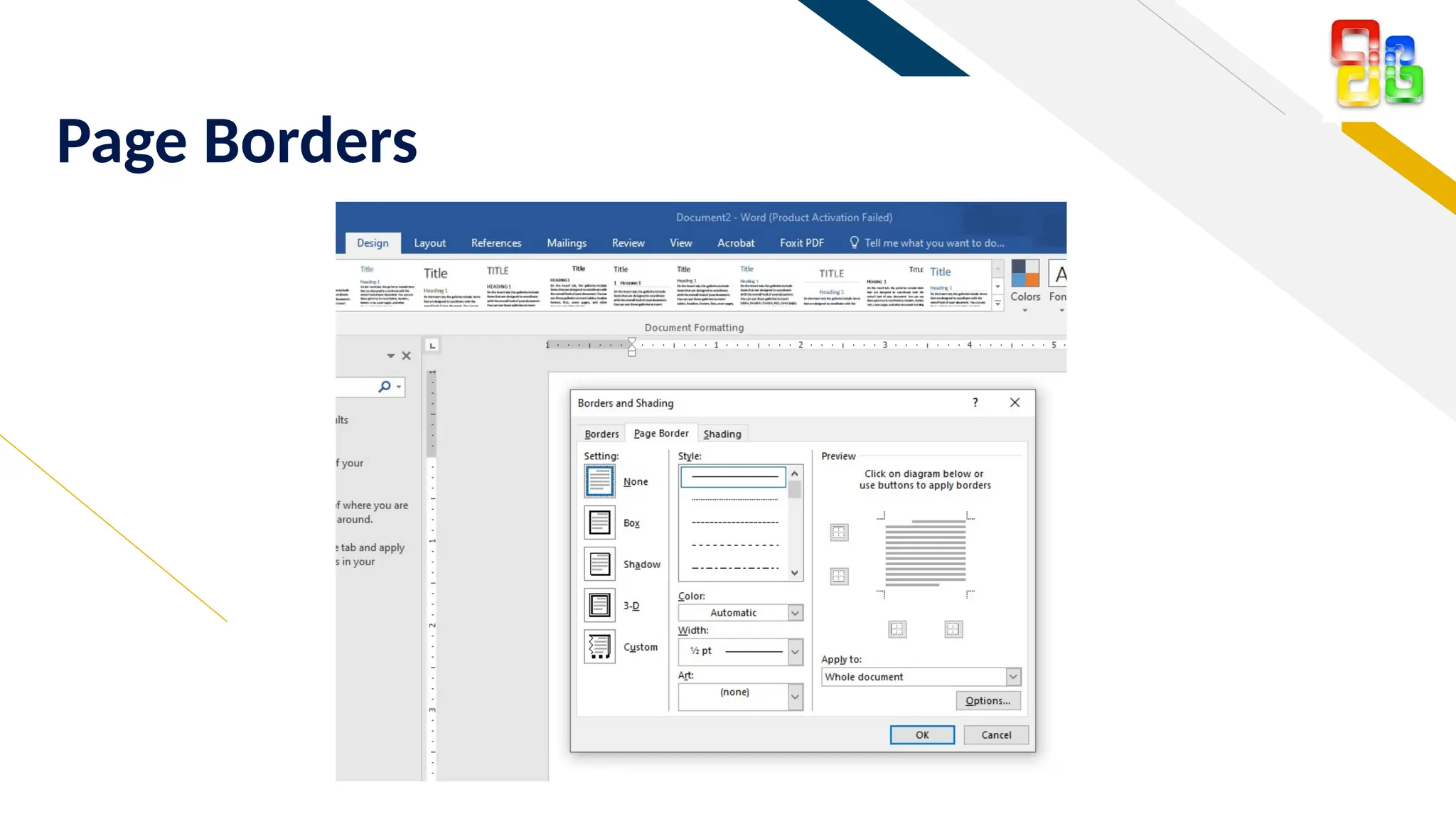
Page Borders
FR
Layout Ribbon
FR
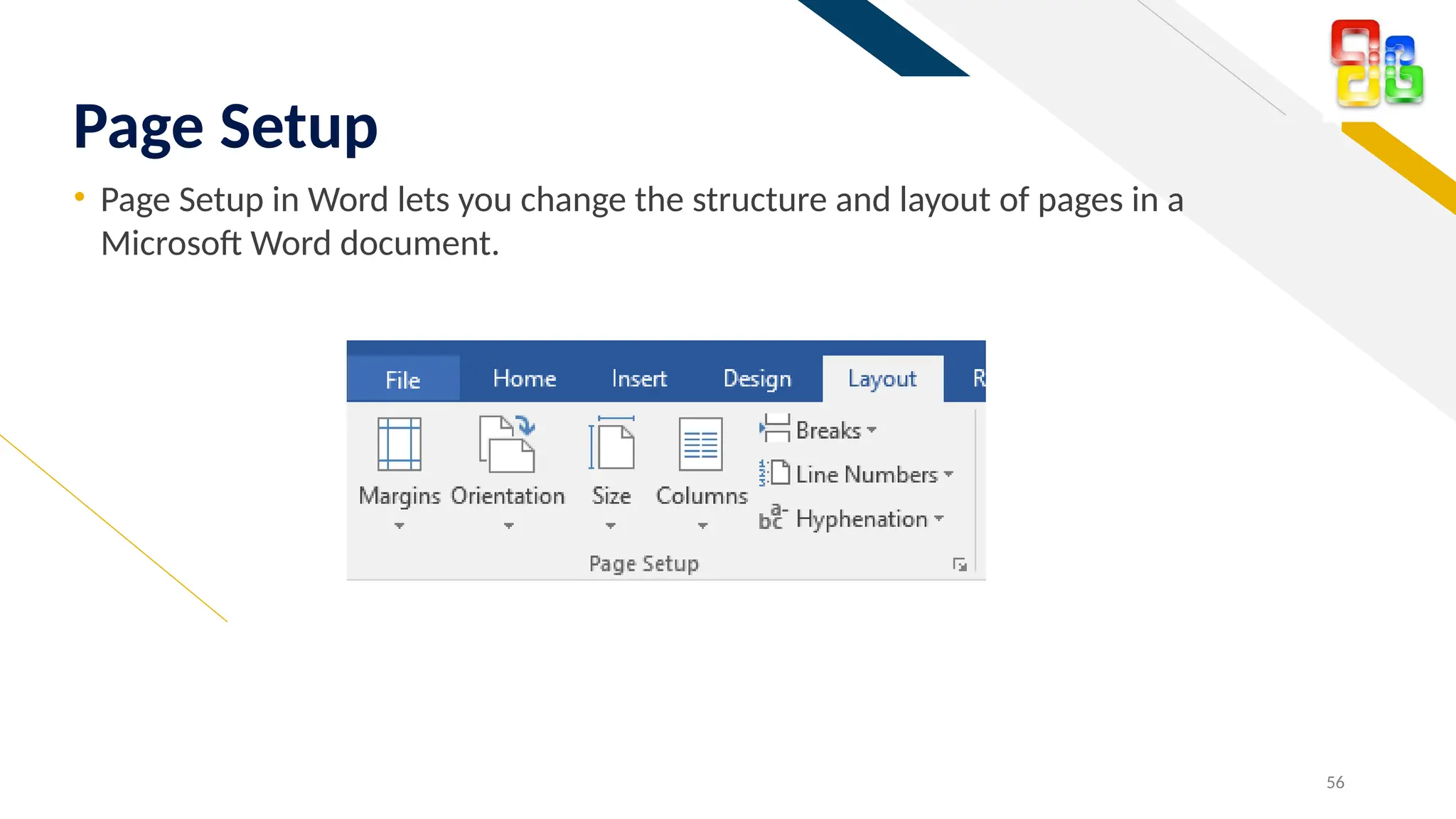
โ€ข Page Setup in Word lets you change the structure and layout of pages in a
Microsoft Word document.
56
Page Setup
FR
57
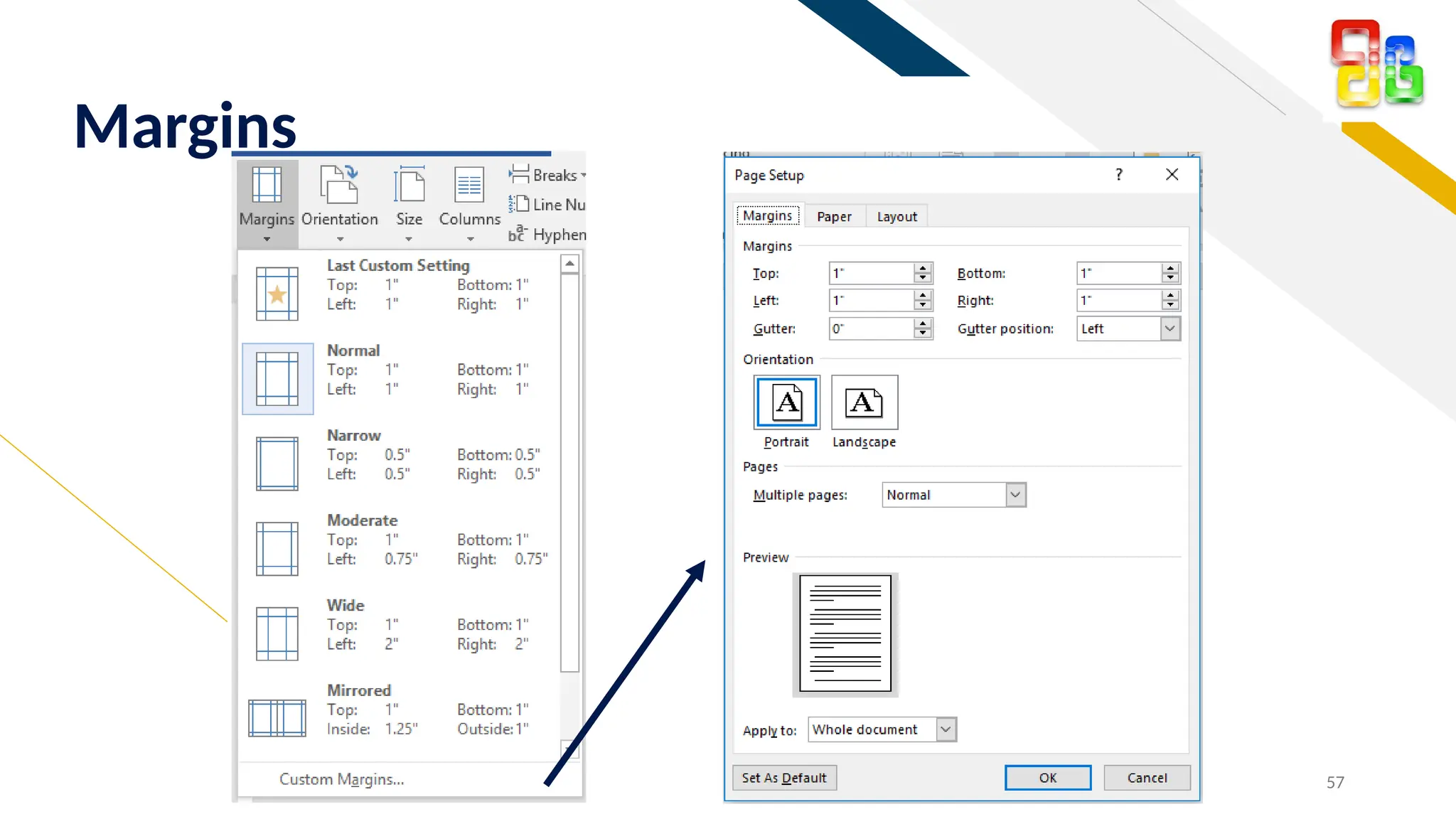
Margins
FR
58
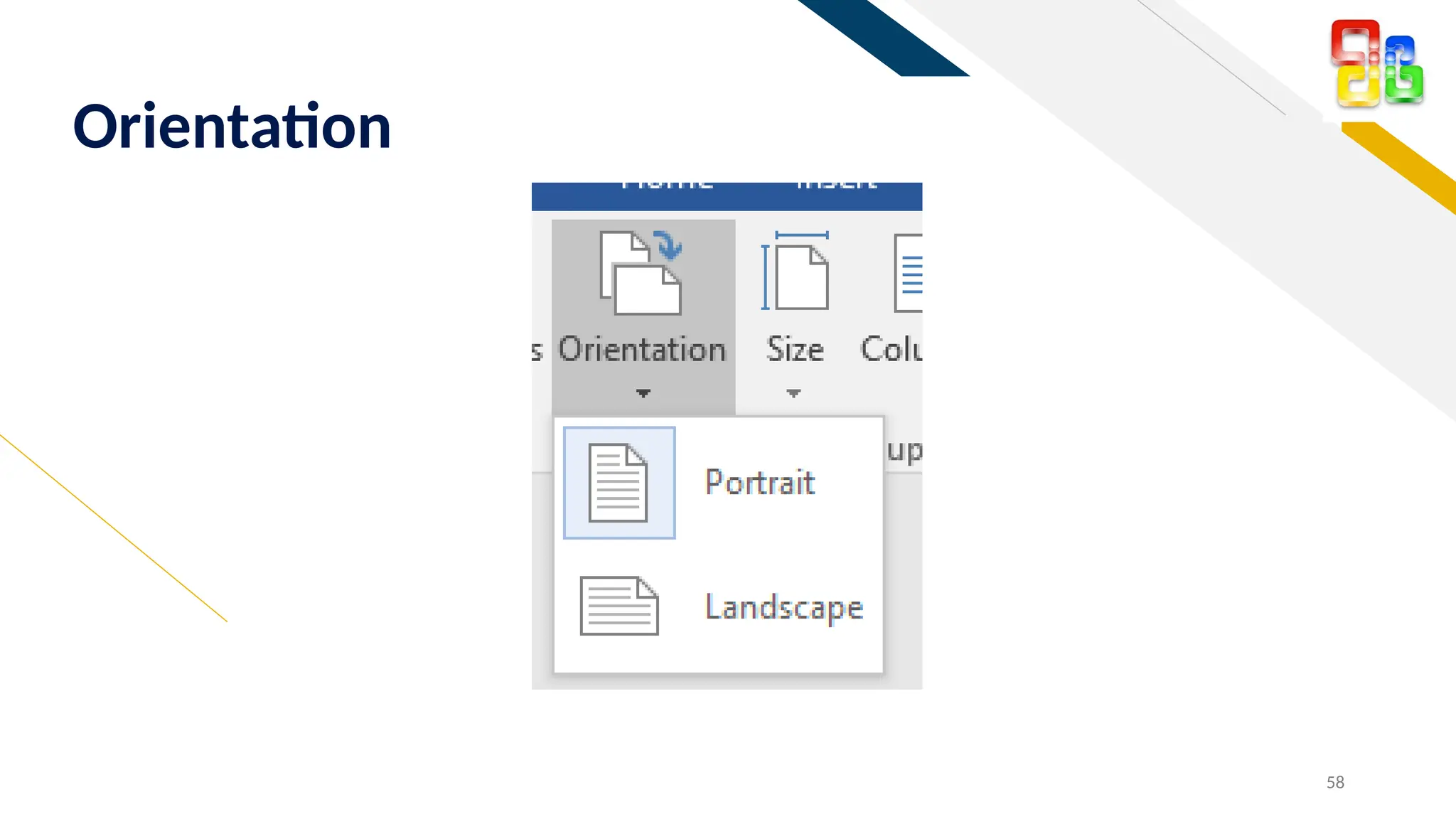
Orientation
FR
59
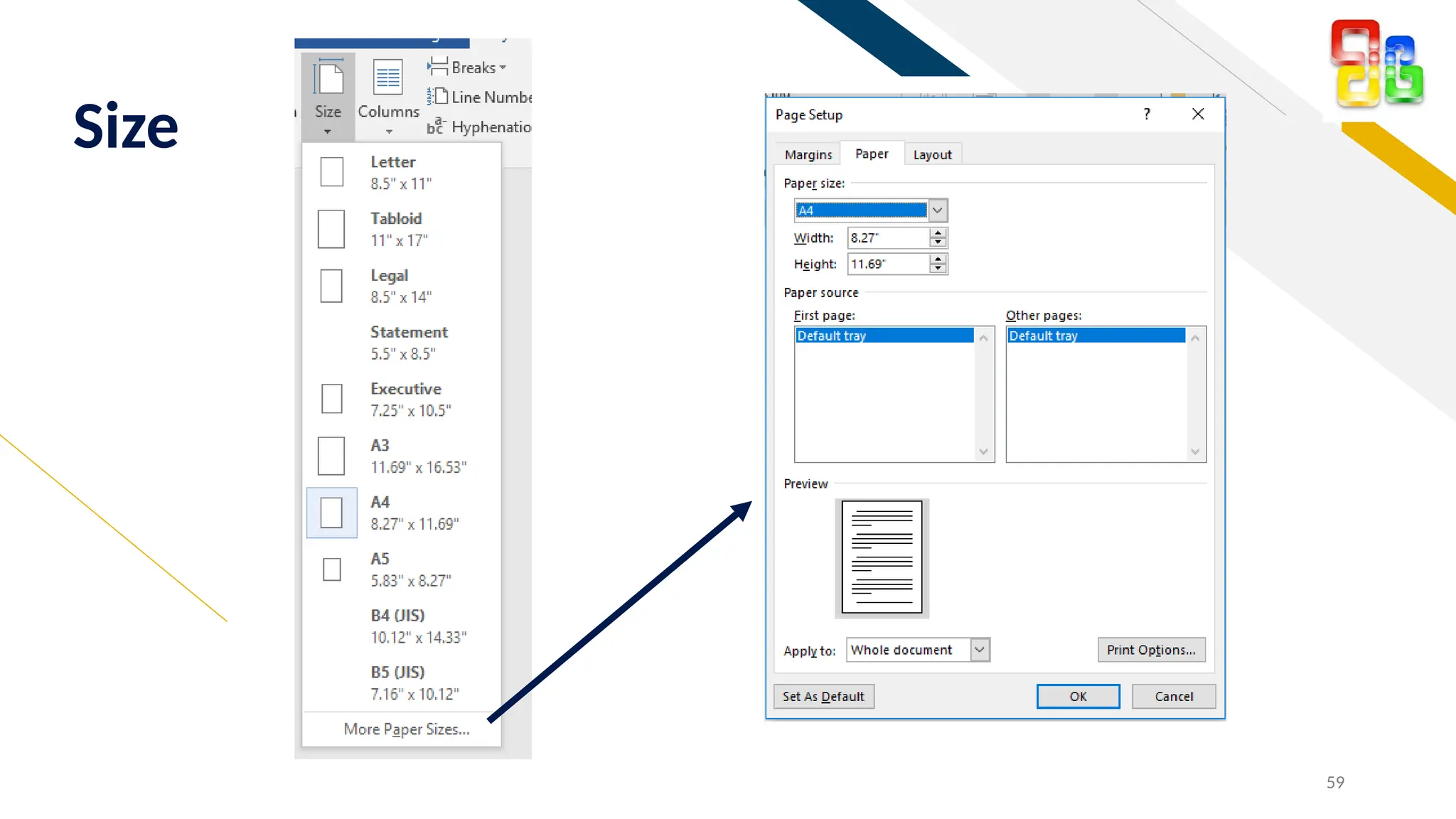
Size
FR
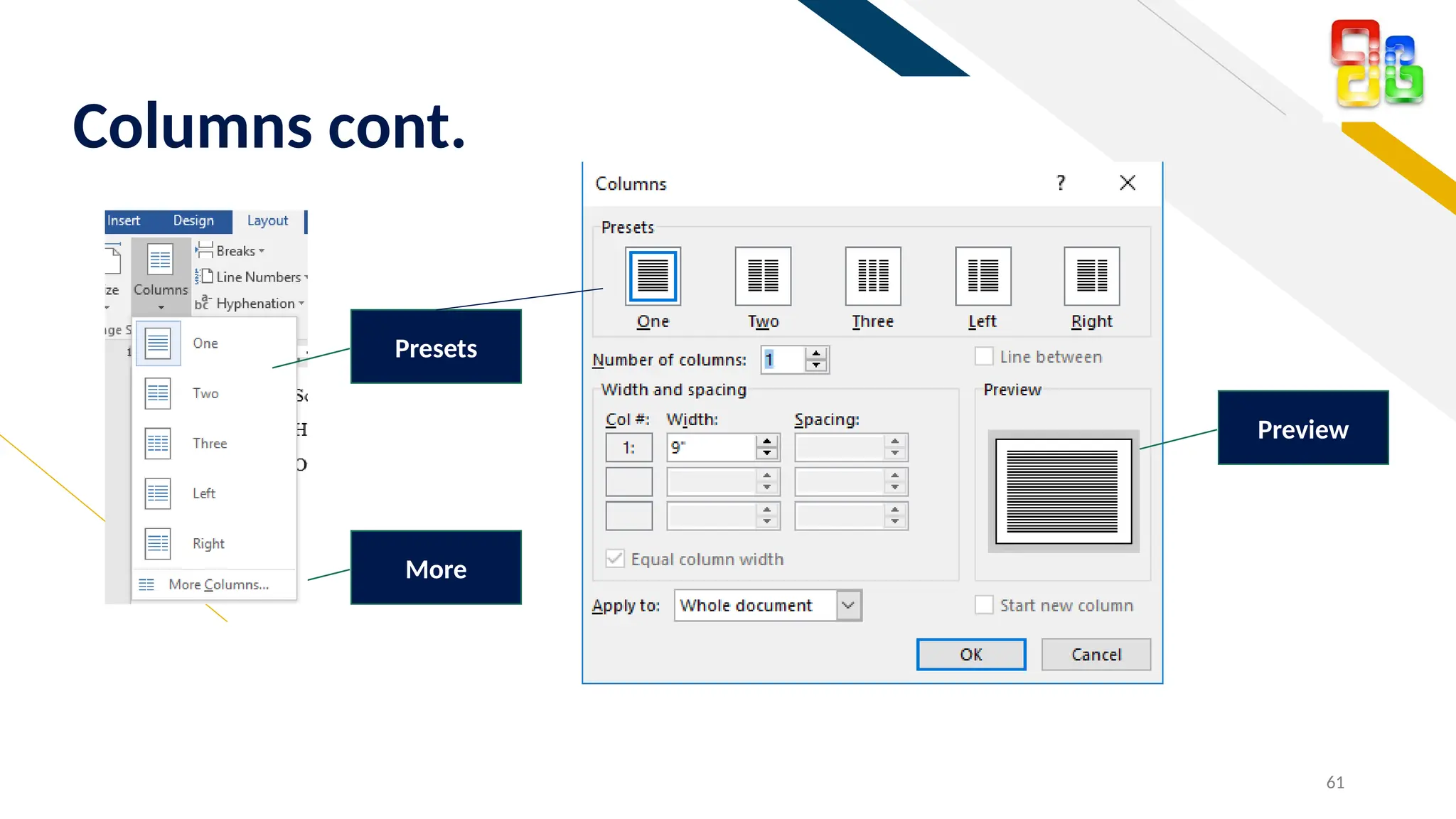
โ€ข Columns make text somewhat easier to read, by shortening the length
of the lines
โ€ข Microsoft Word calculates the width of the columns on the page based
on the margins and the spacing between the columns
โ€ข Page Layout tab โ†’ Columns โ†’ More Columns
60
Columns
FR
61
Columns cont.
More
Presets
Preview
FR
Reference Ribbon
FR
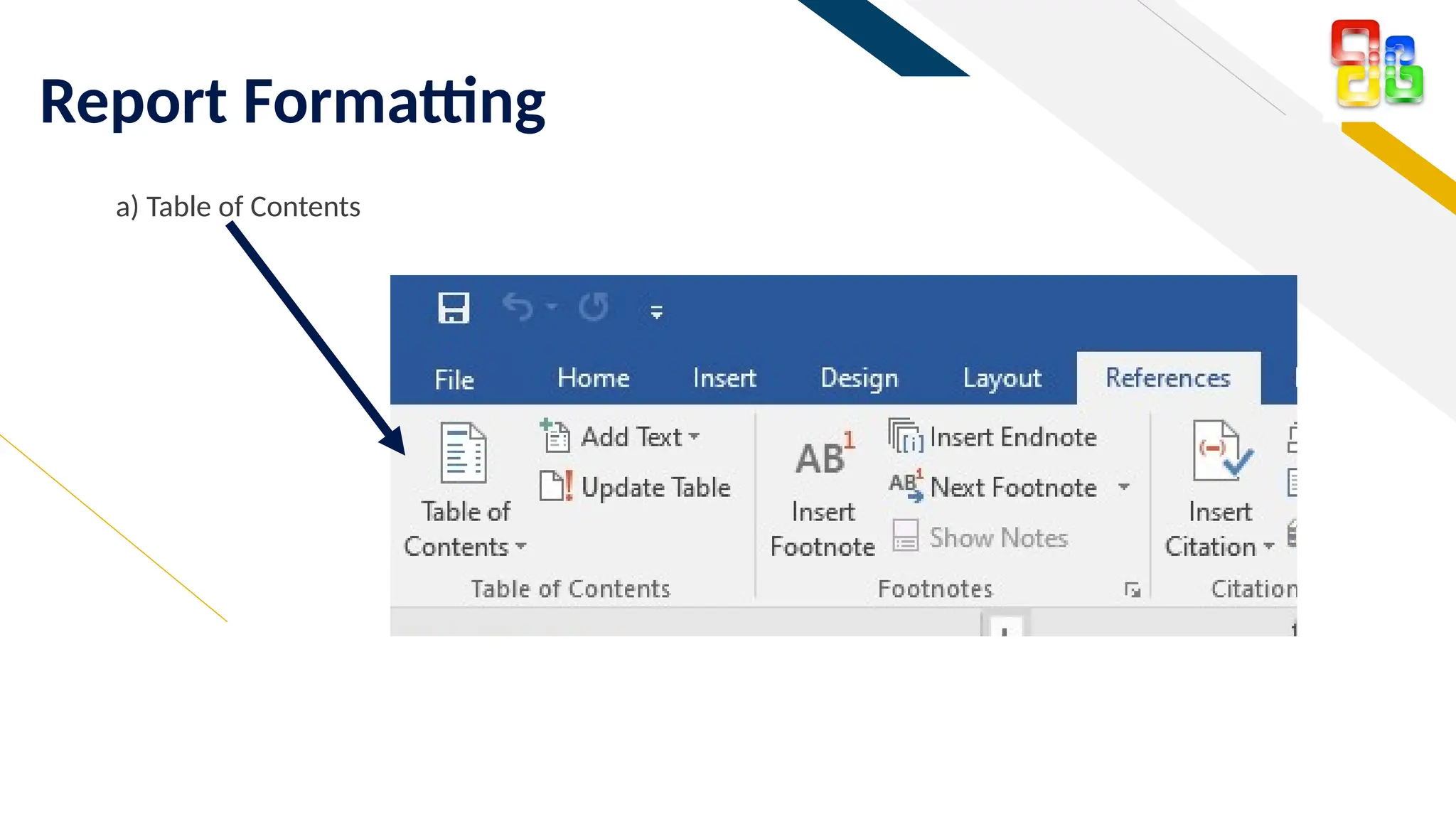
Report Formatting
a) Table of Contents
FR
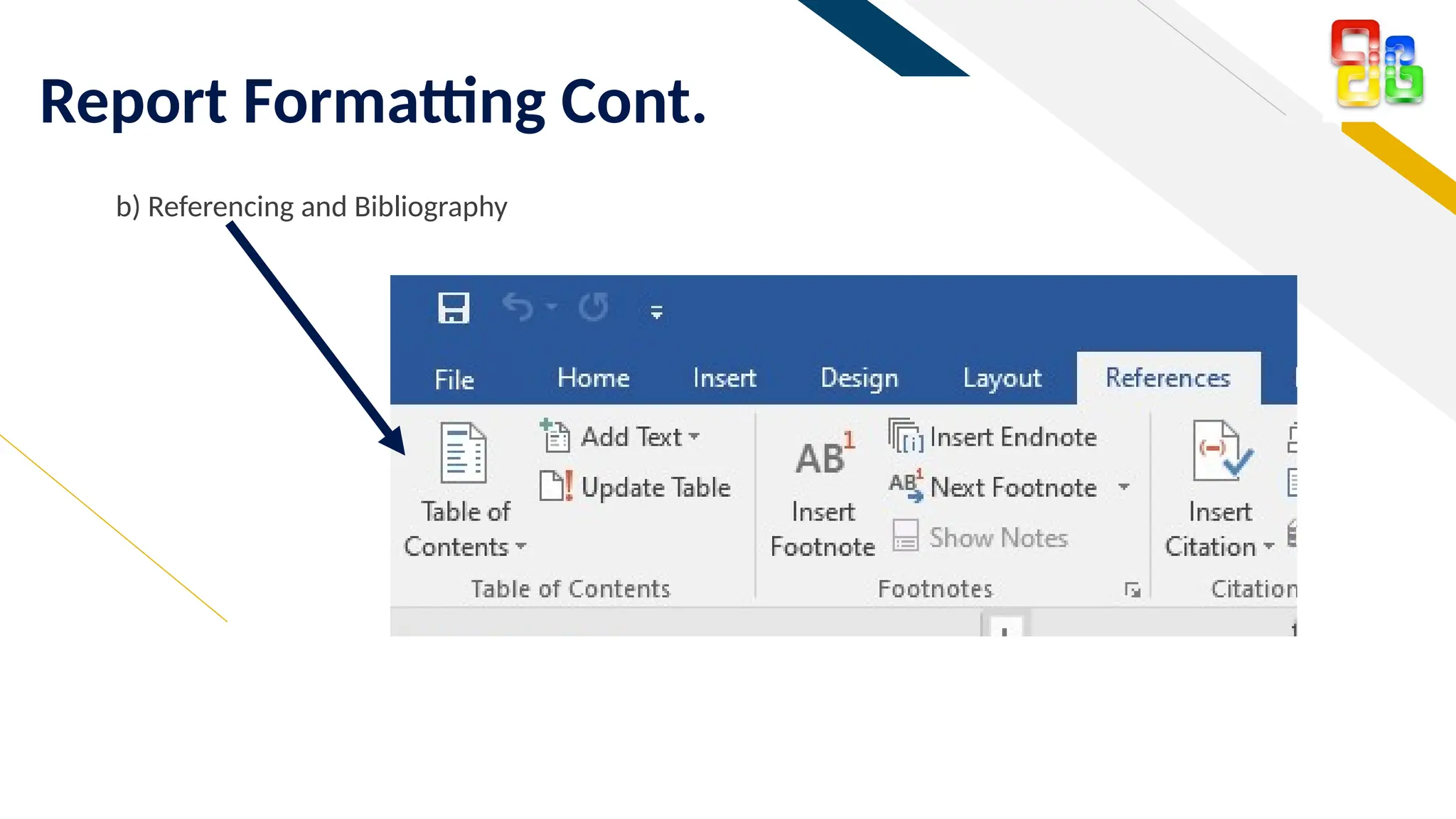
Report Formatting Cont.
b) Referencing and Bibliography
FR
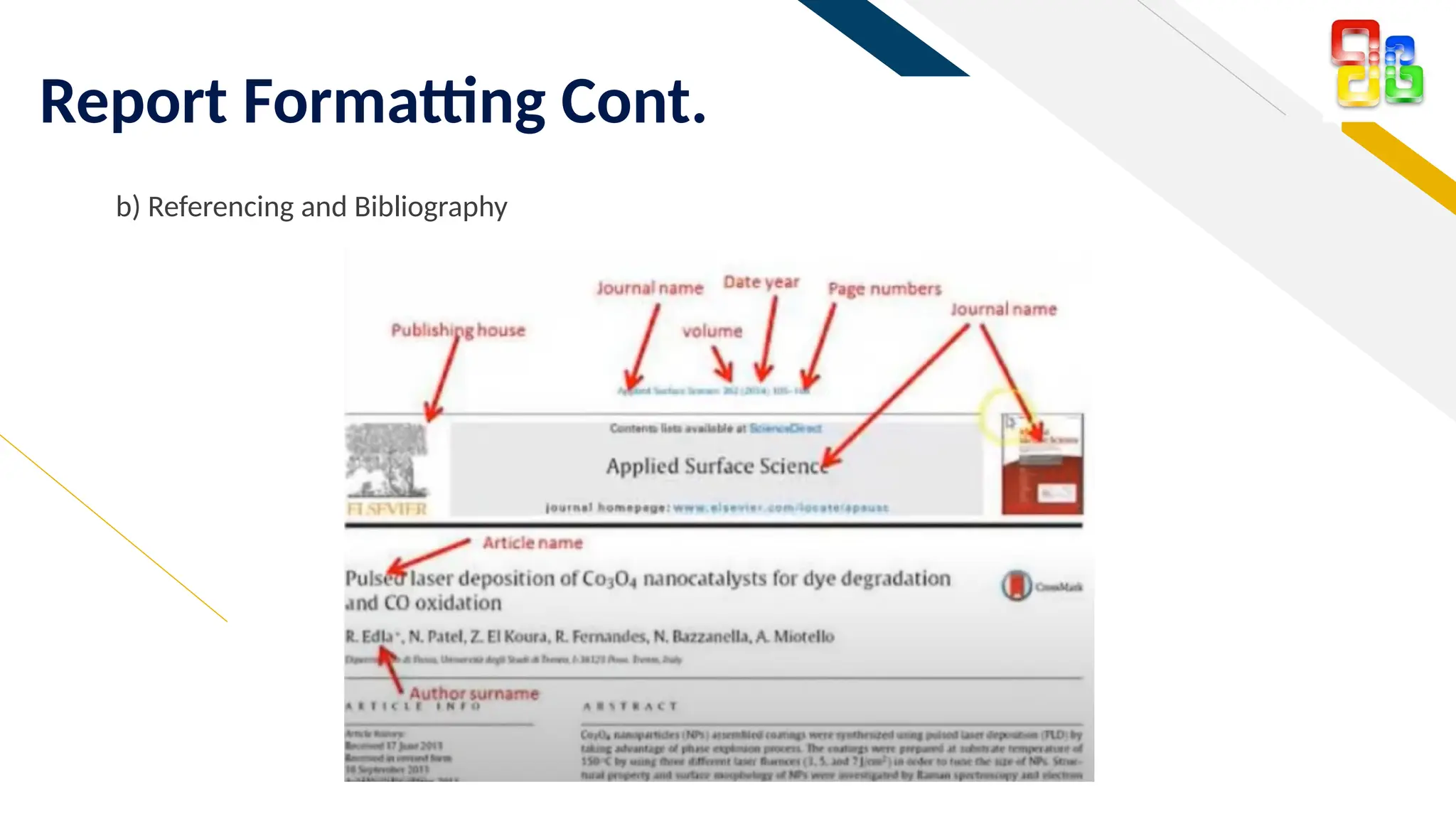
Report Formatting Cont.
b) Referencing and Bibliography
FR
Mailing Ribbon
FR
Mail Merge
This allows you to create multiple documents at
once, such as letters, saving you the time and
effort of retyping the same letter over and over.
FR
Shortcut Moves Insertion Point
Ctrl + N Creates a new document
Ctrl + B Makes the marked text bold
Ctrl + I Makes the marked text italic
Ctrl + U Makes the marked text underline
Ctrl + C Copy a selected text
Ctrl + V Pastes a copied text
Ctrl + Z Undo the last move
Ctrl + S Saves the changes
Ctrl + P Opens the print view
Ctrl + O Navigates to the Open window
68
Keyboard Shortcuts
FR
Keys Moves Insertion Point
Left arrow One character left
Right arrow One character right
Up arrow Up one line
Down arrow Down one line
Home Beginning of the line
End End of line
PgUp Up to the previous page
PgDn Down to the next page
69
Other Useful Keys

Microsoft Word is a powerful word processing software that allows users to create and edit documents with ease..pptx

Editor's Notes

  • #3ย Open-source software (OSS) is any computer software that's distributed with its source code available for modification.
  • #39ย After inserting a graphic object into a Word document, you can adjust the size, choose the placement, and perform other formatting. The appropriate dialog box or pane displays so you can navigate to the file and select it.
  • #40ย - adjust the height and width using sizing handles or use the Size group Ratio: proportional relationship between its width and its height
  • #41ย Once you have placed a graphic in a document, you can wrap the text around the graphic. Click Wrap Text in the Arrange group to display the wrap options. As shown here, the text is wrapped around the photographs using the square wrap option. Additional options include In Line with Text, Tight, Through, Top and Bottom, Behind Text, and In Front of Text.