Introducing
Microsoft Search on Bing
Presented by David R. Gilbert, MCP
Office 365 Adoption User Group - Chicagoland Chapter
February 7th, 2019
Start Here: https://docs.microsoft.com/microsoftsearch
Take Two Separate Systems…
Internet web search
Office 365 Search
With Two Different Sets of Search Results…
And present
them as one
experience…
Microsoft /
Office 365
search
results
Followed
by Bing
results
DEMO –
Logging In / Sample Searches
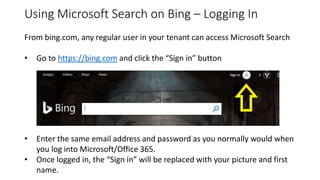
Using Microsoft Search on Bing – Logging In
From bing.com, any regular user in your tenant can access Microsoft Search
• Go to https://bing.com and click the “Sign in” button
• Enter the same email address and password as you normally would when
you log into Microsoft/Office 365.
• Once logged in, the “Sign in” will be replaced with your picture and first
name.
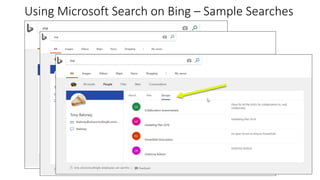
Using Microsoft Search on Bing – Sample Searches
Why Microsoft Search on Bing?
• This enterprise search experience increases productivity and saves time by
delivering more relevant search results for the workplace.
• Microsoft Search requires Azure Active Directory authentication to your
tenant so users only see content they have access to – Just like the search
within Microsoft/Office 365
• Same data sources – surface your SharePoint, OneDrive for Business,
Teams, Yammer, and Groups content from within your Microsoft/Office 365
tenant
• Simple to enable and easy to customize
• Provides the information and answers your users need to complete tasks,
like policies, benefits, resources, tools, and more in work results.
• Can target specific groups, like new hires or remote workers
• Reduce support costs by making users more self-sufficient
Enabling Microsoft Search on Bing
• As a portal admin, enable Microsoft Search by going to the Admin Center,
Settings->Services & Add-Ins.
• Find “Microsoft Search” in the list and click on it.
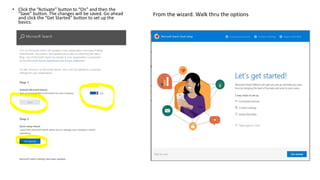
• Click the “Activate” button to “On” and then the
“Save” button. The changes will be saved. Go ahead
and click the “Get Started” button to set up the
basics.
From the wizard. Walk thru the options
Connected Services - By default, all content
is searchable. Turn off anything you don’t
want available
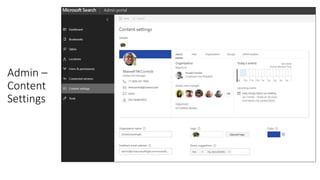
Content Settings – these are defaulted for you. Click on
the little “I” near each field for more information. I
recommend you send the feedback email to a dedicated
mailbox (or support mailbox) and change the “Logo” so
users know it’s your company vs. the default Microsoft
logo.
Remaining Setup
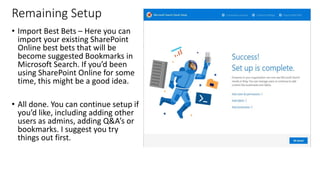
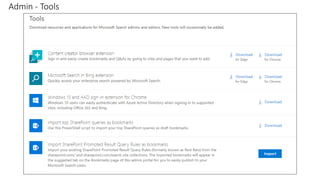
• Import Best Bets – Here you can
import your existing SharePoint
Online best bets that will be
become suggested Bookmarks in
Microsoft Search. If you’d been
using SharePoint Online for some
time, this might be a good idea.
• All done. You can continue setup if
you’d like, including adding other
users as admins, adding Q&A’s or
bookmarks. I suggest you try
things out first.
Microsoft
Search on
Bing –
Admin Portal
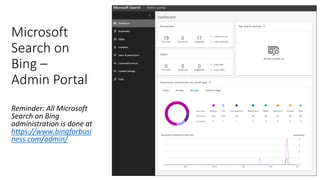
Reminder: All Microsoft
Search on Bing
administration is done at
https://www.bingforbusi
ness.com/admin/
DEMO –
Admin Portal
Admin – Bookmarks – Built-In
Bookmarks help you promote the best possible results for your user's work-related queries. The more bookmarks you publish, the more value and benefit you add
for users.
Includes a bunch of out-of-the-box entries
Admin – Bookmarks – Add Your Own
• Title/URL/Description make up card that is
displayed when user enters any of the
Keywords
• Save Bookmarks for later editing, Publish to
make them appear on the portal
• Optional items include:
• Dates allow you to start/stop Bookmark
from being available – for example, set up
multiple “holiday” responses by year
• Country/region – allows different displays
based on the location of the user – for
example, if they are from the Europe
office, you show the European holidays
• Device/OS – Target specific platforms
• Targeted Variations – combines
Country/Region and Device/OS
• PowerApp – lets you launch a PowerApp
inside the response card
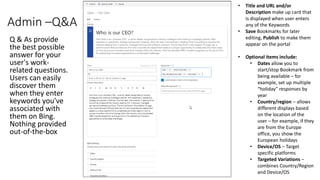
Admin –Q&A
Q & As provide
the best possible
answer for your
user's work-
related questions.
Users can easily
discover them
when they enter
keywords you've
associated with
them on Bing.
Nothing provided
out-of-the-box
• Title and URL and/or
Description make up card that
is displayed when user enters
any of the Keywords
• Save Bookmarks for later
editing, Publish to make them
appear on the portal
• Optional items include:
• Dates allow you to
start/stop Bookmark from
being available – for
example, set up multiple
“holiday” responses by
year
• Country/region – allows
different displays based
on the location of the
user – for example, if they
are from the Europe
office, you show the
European holidays
• Device/OS – Target
specific platforms
• Targeted Variations –
combines Country/Region
and Device/OS
Bookmarks / Q & A
• Can imported and exported
• Changes are usually available within a few seconds
• Suggestions will start appearing over time
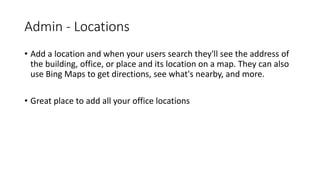
Admin - Locations
• Add a location and when your users search they'll see the address of
the building, office, or place and its location on a map. They can also
use Bing Maps to get directions, see what's nearby, and more.
• Great place to add all your office locations
Admin - Additional Configuration
• Users / Permissions:
• Control who can see Microsoft Search on Bing
• Control who the admins are – they have full control over the
settings
• Control who can edit – create bookmarks, Q&A, etc.
• Connected services:
• Turn on/off: People, Groups, SharePoint, Teams and /or Yammer
search
• All on by default
Admin –
Content
Settings
Admin - Tools
The Search Extension
User Adoption – Stages
•Stage 1: Stakeholders
•Stage 2: Scenarios
•Stage 3: Readiness
•Stage 4: Roll out
User Adoption – Stage 1: Stakeholders
•Exec sponsor, business owner, Content
Managment team and champions – similar to your
collaboration adoption team
•Search admin – someone who knows your user’s
search patterns (existing SharePoint admin?)
•Editors – people to create and update
bookmarks/Q&A/Locations, etc.
User Adoption – Stage 2: Scenarios
Develop scenarios based on what your users need and want
and identify success metrics
Consider:
• Existing user pain points when searching for information
• Frequently used apps, tools, sites, and other information source.
• What users would like to see when it comes to searching for informatio.
• How the benefits of Microsoft Search apply to your organization. For more
information see:
Why Microsoft Search? - https://docs.microsoft.com/en-
us/microsoftsearch/why-microsoft-search
User Adoption – Stage 3: Readiness
1. Product and content readiness
2. Draft Communications
3. Engage help desk
4. Evaluate with pilot users / set timeframe /
survey them
User Adoption – Stage 4: Roll Out
1. Deployment: Big-bang, by group, etc?
2. Generate awareness
3. Ongoing communication
4. Gather feedback and improve
User Adoption – Things to Think About
• You can enable the service and lock it down to a few set of users to
test out
• Moving away from other search engines – for many, it’s a personal
preference
• Existing Bing users that log in with personal accounts for Rewards
might not want to use their work accounts
• You need to be far enough along with your Microsoft/Office365
migration to make the content is worthwhile when searching
Thank you!
Dave’s contact info:
Blog - whoisdrxanadu.blogspot.com
Email - whoisdrxanadu@gmail.com
Twitter - @drgilbertpub
LinkedIn - www.linkedin.com/in/davidrgilbert

Microsoft Search on Bing

  • 1.
    Introducing Microsoft Search onBing Presented by David R. Gilbert, MCP Office 365 Adoption User Group - Chicagoland Chapter February 7th, 2019 Start Here: https://docs.microsoft.com/microsoftsearch
  • 2.
    Take Two SeparateSystems… Internet web search Office 365 Search
  • 3.
    With Two DifferentSets of Search Results…
  • 4.
    And present them asone experience… Microsoft / Office 365 search results Followed by Bing results
  • 5.
    DEMO – Logging In/ Sample Searches
  • 6.
    Using Microsoft Searchon Bing – Logging In From bing.com, any regular user in your tenant can access Microsoft Search • Go to https://bing.com and click the “Sign in” button • Enter the same email address and password as you normally would when you log into Microsoft/Office 365. • Once logged in, the “Sign in” will be replaced with your picture and first name.
  • 7.
    Using Microsoft Searchon Bing – Sample Searches
  • 8.
    Using Microsoft Searchon Bing – Sample Searches
  • 9.
    Why Microsoft Searchon Bing? • This enterprise search experience increases productivity and saves time by delivering more relevant search results for the workplace. • Microsoft Search requires Azure Active Directory authentication to your tenant so users only see content they have access to – Just like the search within Microsoft/Office 365 • Same data sources – surface your SharePoint, OneDrive for Business, Teams, Yammer, and Groups content from within your Microsoft/Office 365 tenant • Simple to enable and easy to customize • Provides the information and answers your users need to complete tasks, like policies, benefits, resources, tools, and more in work results. • Can target specific groups, like new hires or remote workers • Reduce support costs by making users more self-sufficient
  • 10.
    Enabling Microsoft Searchon Bing • As a portal admin, enable Microsoft Search by going to the Admin Center, Settings->Services & Add-Ins. • Find “Microsoft Search” in the list and click on it.
  • 11.
    • Click the“Activate” button to “On” and then the “Save” button. The changes will be saved. Go ahead and click the “Get Started” button to set up the basics. From the wizard. Walk thru the options
  • 12.
    Connected Services -By default, all content is searchable. Turn off anything you don’t want available Content Settings – these are defaulted for you. Click on the little “I” near each field for more information. I recommend you send the feedback email to a dedicated mailbox (or support mailbox) and change the “Logo” so users know it’s your company vs. the default Microsoft logo.
  • 13.
    Remaining Setup • ImportBest Bets – Here you can import your existing SharePoint Online best bets that will be become suggested Bookmarks in Microsoft Search. If you’d been using SharePoint Online for some time, this might be a good idea. • All done. You can continue setup if you’d like, including adding other users as admins, adding Q&A’s or bookmarks. I suggest you try things out first.
  • 14.
    Microsoft Search on Bing – AdminPortal Reminder: All Microsoft Search on Bing administration is done at https://www.bingforbusi ness.com/admin/
  • 15.
  • 16.
    Admin – Bookmarks– Built-In Bookmarks help you promote the best possible results for your user's work-related queries. The more bookmarks you publish, the more value and benefit you add for users. Includes a bunch of out-of-the-box entries
  • 17.
    Admin – Bookmarks– Add Your Own • Title/URL/Description make up card that is displayed when user enters any of the Keywords • Save Bookmarks for later editing, Publish to make them appear on the portal • Optional items include: • Dates allow you to start/stop Bookmark from being available – for example, set up multiple “holiday” responses by year • Country/region – allows different displays based on the location of the user – for example, if they are from the Europe office, you show the European holidays • Device/OS – Target specific platforms • Targeted Variations – combines Country/Region and Device/OS • PowerApp – lets you launch a PowerApp inside the response card
  • 18.
    Admin –Q&A Q &As provide the best possible answer for your user's work- related questions. Users can easily discover them when they enter keywords you've associated with them on Bing. Nothing provided out-of-the-box • Title and URL and/or Description make up card that is displayed when user enters any of the Keywords • Save Bookmarks for later editing, Publish to make them appear on the portal • Optional items include: • Dates allow you to start/stop Bookmark from being available – for example, set up multiple “holiday” responses by year • Country/region – allows different displays based on the location of the user – for example, if they are from the Europe office, you show the European holidays • Device/OS – Target specific platforms • Targeted Variations – combines Country/Region and Device/OS
  • 19.
    Bookmarks / Q& A • Can imported and exported • Changes are usually available within a few seconds • Suggestions will start appearing over time
  • 20.
    Admin - Locations •Add a location and when your users search they'll see the address of the building, office, or place and its location on a map. They can also use Bing Maps to get directions, see what's nearby, and more. • Great place to add all your office locations
  • 21.
    Admin - AdditionalConfiguration • Users / Permissions: • Control who can see Microsoft Search on Bing • Control who the admins are – they have full control over the settings • Control who can edit – create bookmarks, Q&A, etc. • Connected services: • Turn on/off: People, Groups, SharePoint, Teams and /or Yammer search • All on by default
  • 22.
  • 23.
  • 24.
  • 25.
    User Adoption –Stages •Stage 1: Stakeholders •Stage 2: Scenarios •Stage 3: Readiness •Stage 4: Roll out
  • 26.
    User Adoption –Stage 1: Stakeholders •Exec sponsor, business owner, Content Managment team and champions – similar to your collaboration adoption team •Search admin – someone who knows your user’s search patterns (existing SharePoint admin?) •Editors – people to create and update bookmarks/Q&A/Locations, etc.
  • 27.
    User Adoption –Stage 2: Scenarios Develop scenarios based on what your users need and want and identify success metrics Consider: • Existing user pain points when searching for information • Frequently used apps, tools, sites, and other information source. • What users would like to see when it comes to searching for informatio. • How the benefits of Microsoft Search apply to your organization. For more information see: Why Microsoft Search? - https://docs.microsoft.com/en- us/microsoftsearch/why-microsoft-search
  • 28.
    User Adoption –Stage 3: Readiness 1. Product and content readiness 2. Draft Communications 3. Engage help desk 4. Evaluate with pilot users / set timeframe / survey them
  • 29.
    User Adoption –Stage 4: Roll Out 1. Deployment: Big-bang, by group, etc? 2. Generate awareness 3. Ongoing communication 4. Gather feedback and improve
  • 30.
    User Adoption –Things to Think About • You can enable the service and lock it down to a few set of users to test out • Moving away from other search engines – for many, it’s a personal preference • Existing Bing users that log in with personal accounts for Rewards might not want to use their work accounts • You need to be far enough along with your Microsoft/Office365 migration to make the content is worthwhile when searching
  • 31.
    Thank you! Dave’s contactinfo: Blog - whoisdrxanadu.blogspot.com Email - whoisdrxanadu@gmail.com Twitter - @drgilbertpub LinkedIn - www.linkedin.com/in/davidrgilbert