Computer-Based Business Applications
Part1: Accounting using Excel
2nd Class
Introduction
2
Chapter 1
1.1 Starting Excel
3
1. Click the Start button on the lower-left corner of Windows taskbar to open the
Windows Start menu.
2. Click all apps;
3. and then scroll down to choose Excel.
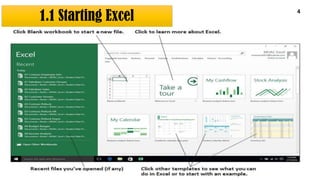
4. After the Excel window opens, Choose Blank Workbook.
OR
• Click the mouse right button; then choose New; then Choose Microsoft Excel
Worksheet; and finally open this worksheet (double left mouse click or Enter
button).
1.1 Starting Excel
4
1.2 Pinning Excel
5
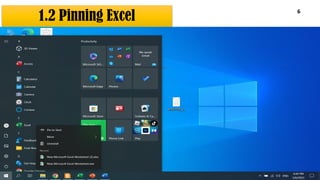
• If you use Excel usually, you may want to have a quick route to the program.
• You can achieve this by making its icon a permanent part of the Windows Start Menu
and/or the Taskbar.
• From the All apps menu, right-click the app name, and choose Pin to Start; You can also
choose More and then Pin to taskbar to allow you to click the icon in the Windows
taskbar at the bottom of the screen to start Excel.
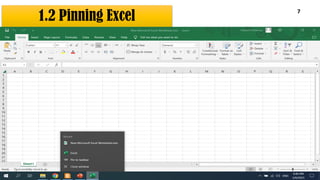
• OR: Start Excel as mentioned before; After launching Excel, Windows adds Excel icon to
the taskbar; right-click Excel icon on the taskbar; and then choose Pin to taskbar.
1.2 Pinning Excel
6
1.2 Pinning Excel
7
1.3 Quitting Excel
8
• Once you’re ready to quit Excel, you have several choices for shutting down the program:
• Press Alt+F4.
• Click the Close button in the upper-right corner of the Excel app window.
• Click the File Menu Tab; then Choose Close (this option will not close the Excel app
entirely but will close the opened worksheet only).
• NOTE that: If you try to exit Excel after working on a workbook and you haven’t saved
your latest changes, the program displays an alert box querying whether you want to save
your changes. To save your changes before exiting, click the Save command button.
1.4 Navigating Excel
9
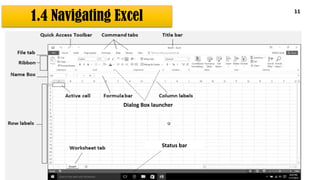
• The filename (Book1) and the program name (Excel) appear in the title bar at the top.
• Book1 (or Book2, and so on) is a temporary title for your workbook until you save the
workbook with a name of your choice.
• The new workbook contains one worksheet (Sheet1) by default where you enter
information.
• You can add worksheets with New sheet (+) button as needed.
• You can rename worksheets to identify their content through double-click on the sheet
name (e.g., sheet 1) and type the name you want.
• If a workbook has more pages (or worksheets), you use the sheet tabs that are located just
above the Status bar and are identified as Sheet1, Sheet2, and Sheet3.
1.4 Navigating Excel
10
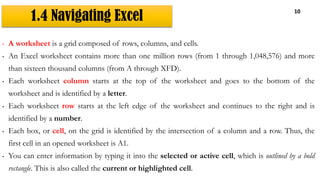
• A worksheet is a grid composed of rows, columns, and cells.
• An Excel worksheet contains more than one million rows (from 1 through 1,048,576) and more
than sixteen thousand columns (from A through XFD).
• Each worksheet column starts at the top of the worksheet and goes to the bottom of the
worksheet and is identified by a letter.
• Each worksheet row starts at the left edge of the worksheet and continues to the right and is
identified by a number.
• Each box, or cell, on the grid is identified by the intersection of a column and a row. Thus, the
first cell in an opened worksheet is A1.
• You can enter information by typing it into the selected or active cell, which is outlined by a bold
rectangle. This is also called the current or highlighted cell.
1.4 Navigating Excel
11
Dialog Box launcher
Status bar
1.4 Navigating Excel- Quick Access Toolbar 12
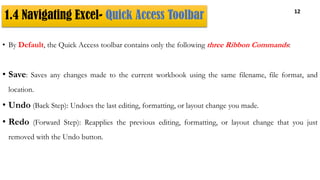
• By Default, the Quick Access toolbar contains only the following three Ribbon Commands:
• Save: Saves any changes made to the current workbook using the same filename, file format, and
location.
• Undo (Back Step): Undoes the last editing, formatting, or layout change you made.
• Redo (Forward Step): Reapplies the previous editing, formatting, or layout change that you just
removed with the Undo button.

Microsoft Excel Lecture one for business.pdf

  • 1.
    Computer-Based Business Applications Part1:Accounting using Excel 2nd Class
  • 2.
  • 3.
    1.1 Starting Excel 3 1.Click the Start button on the lower-left corner of Windows taskbar to open the Windows Start menu. 2. Click all apps; 3. and then scroll down to choose Excel. 4. After the Excel window opens, Choose Blank Workbook. OR • Click the mouse right button; then choose New; then Choose Microsoft Excel Worksheet; and finally open this worksheet (double left mouse click or Enter button).
  • 4.
  • 5.
    1.2 Pinning Excel 5 •If you use Excel usually, you may want to have a quick route to the program. • You can achieve this by making its icon a permanent part of the Windows Start Menu and/or the Taskbar. • From the All apps menu, right-click the app name, and choose Pin to Start; You can also choose More and then Pin to taskbar to allow you to click the icon in the Windows taskbar at the bottom of the screen to start Excel. • OR: Start Excel as mentioned before; After launching Excel, Windows adds Excel icon to the taskbar; right-click Excel icon on the taskbar; and then choose Pin to taskbar.
  • 6.
  • 7.
  • 8.
    1.3 Quitting Excel 8 •Once you’re ready to quit Excel, you have several choices for shutting down the program: • Press Alt+F4. • Click the Close button in the upper-right corner of the Excel app window. • Click the File Menu Tab; then Choose Close (this option will not close the Excel app entirely but will close the opened worksheet only). • NOTE that: If you try to exit Excel after working on a workbook and you haven’t saved your latest changes, the program displays an alert box querying whether you want to save your changes. To save your changes before exiting, click the Save command button.
  • 9.
    1.4 Navigating Excel 9 •The filename (Book1) and the program name (Excel) appear in the title bar at the top. • Book1 (or Book2, and so on) is a temporary title for your workbook until you save the workbook with a name of your choice. • The new workbook contains one worksheet (Sheet1) by default where you enter information. • You can add worksheets with New sheet (+) button as needed. • You can rename worksheets to identify their content through double-click on the sheet name (e.g., sheet 1) and type the name you want. • If a workbook has more pages (or worksheets), you use the sheet tabs that are located just above the Status bar and are identified as Sheet1, Sheet2, and Sheet3.
  • 10.
    1.4 Navigating Excel 10 •A worksheet is a grid composed of rows, columns, and cells. • An Excel worksheet contains more than one million rows (from 1 through 1,048,576) and more than sixteen thousand columns (from A through XFD). • Each worksheet column starts at the top of the worksheet and goes to the bottom of the worksheet and is identified by a letter. • Each worksheet row starts at the left edge of the worksheet and continues to the right and is identified by a number. • Each box, or cell, on the grid is identified by the intersection of a column and a row. Thus, the first cell in an opened worksheet is A1. • You can enter information by typing it into the selected or active cell, which is outlined by a bold rectangle. This is also called the current or highlighted cell.
  • 11.
    1.4 Navigating Excel 11 DialogBox launcher Status bar
  • 12.
    1.4 Navigating Excel-Quick Access Toolbar 12 • By Default, the Quick Access toolbar contains only the following three Ribbon Commands: • Save: Saves any changes made to the current workbook using the same filename, file format, and location. • Undo (Back Step): Undoes the last editing, formatting, or layout change you made. • Redo (Forward Step): Reapplies the previous editing, formatting, or layout change that you just removed with the Undo button.