Windows Azure
Backup
Sumantro
06.09.2014
Agenda
Data protection challenges
Introducing Windows Azure Backup
How it works
Security
When to choose Windows Azure Backup
Next steps
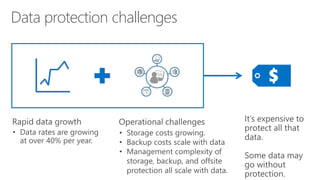
Data protection challenges
It’s expensive to
protect all that
data.
Some data may
go without
protection.
• Storage costs growing.
• Backup costs scale with data
Introducing
Windows Azure Backup
Microsoft Confidential
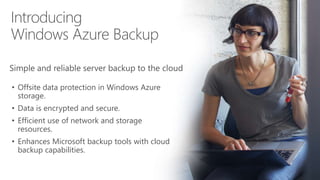
Simple and reliable server backup to the cloud
• Offsite data protection in Windows Azure
storage.
• Data is encrypted and secure.
• Efficient use of network and storage
resources.
• Enhances Microsoft backup tools with cloud
backup capabilities.
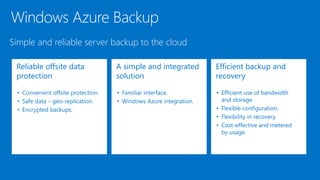
Windows Azure Backup
Simple and reliable server backup to the cloud
Reliable offsite data
protection
•
•
•
A simple and integrated
solution
•
•
Efficient backup and
recovery
•
•
•
•
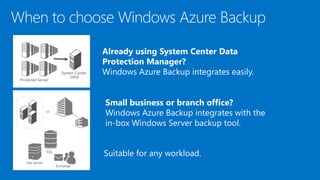
When to choose Windows Azure Backup
Suitable for any workload.
Already using System Center Data
Protection Manager?
Windows Azure Backup integrates easily.
Small business or branch office?
Windows Azure Backup integrates with the
in-box Windows Server backup tool.
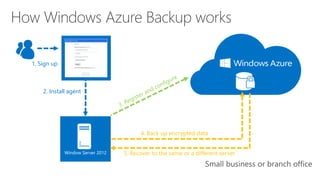
4. Back up encrypted data
2. Install agent
1. Sign up
Window Server 2012 5. Recover to the same or a different server `
How Windows Azure Backup works
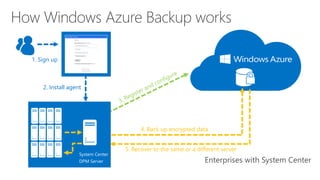
4. Back up encrypted data
2. Install agent
1. Sign up
5. Recover to the same or a different server
How Windows Azure Backup works
System Center
DPM Server
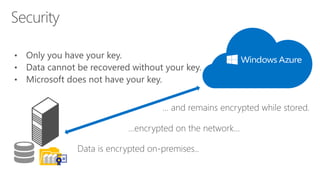
Security
Windows Azure Storage
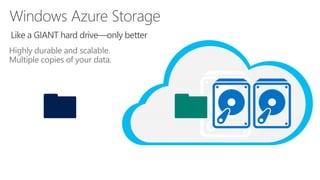
Highly durable and scalable.
Multiple copies of your data.
Like a GIANT hard drive—only better
Windows Azure Storage
Defend against regional disasters
How to buy
Simple and reliable server backup to the cloud
can be up and running in a few easy steps
• Sign up for a Windows Azure account.
www.windowsazure.com
• Enable Windows Azure Backup.
• Configure the service and schedule backups.
Windows Azure Backup charges per GB/month
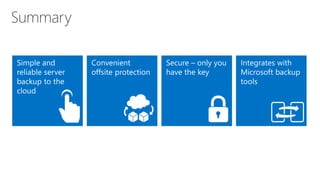
Summary
Next steps
Sign up Windows Azure Subscription.
www.windowsazure.com
Windows Azure Backup on TechNet.
http://technet.microsoft.com/en-
us/library/hh831419.aspx
Discover
Explore
Recovery Services on Windows Azure.
www.windowsazure.com/en-
us/home/features/recovery-services/
Microsoft azure backup overview

Microsoft azure backup overview

  • 1.
  • 2.
    Agenda Data protection challenges IntroducingWindows Azure Backup How it works Security When to choose Windows Azure Backup Next steps
  • 3.
    Data protection challenges It’sexpensive to protect all that data. Some data may go without protection. • Storage costs growing. • Backup costs scale with data
  • 4.
    Introducing Windows Azure Backup MicrosoftConfidential Simple and reliable server backup to the cloud • Offsite data protection in Windows Azure storage. • Data is encrypted and secure. • Efficient use of network and storage resources. • Enhances Microsoft backup tools with cloud backup capabilities.
  • 5.
    Windows Azure Backup Simpleand reliable server backup to the cloud Reliable offsite data protection • • • A simple and integrated solution • • Efficient backup and recovery • • • •
  • 6.
    When to chooseWindows Azure Backup Suitable for any workload. Already using System Center Data Protection Manager? Windows Azure Backup integrates easily. Small business or branch office? Windows Azure Backup integrates with the in-box Windows Server backup tool.
  • 7.
    4. Back upencrypted data 2. Install agent 1. Sign up Window Server 2012 5. Recover to the same or a different server ` How Windows Azure Backup works
  • 8.
    4. Back upencrypted data 2. Install agent 1. Sign up 5. Recover to the same or a different server How Windows Azure Backup works System Center DPM Server
  • 9.
  • 10.
  • 11.
    Highly durable andscalable. Multiple copies of your data. Like a GIANT hard drive—only better
  • 12.
    Windows Azure Storage Defendagainst regional disasters
  • 13.
    How to buy Simpleand reliable server backup to the cloud can be up and running in a few easy steps • Sign up for a Windows Azure account. www.windowsazure.com • Enable Windows Azure Backup. • Configure the service and schedule backups. Windows Azure Backup charges per GB/month
  • 14.
  • 15.
    Next steps Sign upWindows Azure Subscription. www.windowsazure.com Windows Azure Backup on TechNet. http://technet.microsoft.com/en- us/library/hh831419.aspx Discover Explore Recovery Services on Windows Azure. www.windowsazure.com/en- us/home/features/recovery-services/

Editor's Notes

  • #4 We’ll start with a look at data protection challenges organizations are facing today. This will segue way nicely into what Windows Azure Backup is, when to use it, and and how it will help you address and overcome these challenges regardless of the size of your organization. We’ll then look at how Windows Azure Backup works. After the high level view, we’ll also look at one area in particular: security. Finally, as Windows Azure Backup is suitable for a wide range of customers, we’ll talk about different scenarios where Windows Azure Backup is a good fit, before looking at the next steps to get all of you going with Windows Azure Backup. So let’s start with a look at key data protection challenges facing organizations today.
  • #5 This should not come as a surprise to anyone: the amount of data organizations are collecting and storing is on the rise. Analysis tells us that data rates are growing more than 40% per year. Some published reports claim that as much as 90% of the world’s data has been created in the past 2 years. This rapid rise means that the cost of storing this data is rising year on year. The good news is the cost per terabyte is falling year on year, but unfortunately not as fast as data is growing. Data growth also impacts costs in another way – both backup and storage management costs tend to increase linearly with data growth. You have to manage all the backup media, store it, and test it in case you need it. All this leads to possibility that important data may go unprotected, either entirely or for longer periods of time than is ideal. As we consider these challenges, let’s see how Windows Azure Backup helps address them.
  • #6 Windows Azure Backup is a new service in Windows Azure. In a nutshell, it provides simple and reliable server backup to the cloud. Another way to think about it is that it enhances existing Microsoft backup tools with cloud backup capabilities they haven’t had before. These cloud backups are efficient, and secure – two key properties to keep in mind when considering cloud services. But let’s look at the solution in more detail.
  • #7 Windows Azure Backup helps protect server data against loss and corruption by enabling backup to offsite cloud storage in Windows Azure. The service delivers on three key values – reliable offsite data protection, a simple and integrated solution, and efficient backup and recovery. Let’s look at each of these in turn. Reliable offsite data protection Convenient offsite protection: Local backups leave data vulnerable to unfortunate events such as fire. Continuously migrating backup media offsite can be inconvenient. Windows Azure Backup provides convenient, automated offsite data protection that stores data safely away from your premises, reducing the need to secure and protect onsite backup media. Safe data: Data stored in Windows Azure is geo-replicated among Windows Azure data centers, for additional protection. Encrypted backups: Your data is encrypted before it leaves your premises, and remains encrypted in Windows Azure – only you have the key. A simple and integrated solution Familiar interface: Small businesses protecting a single or few servers, can use familiar Windows Server in-box backup tools to protect data, manually or on a regular, automated schedule. Larger organizations with System Center 2012 can use the Data Protection Manager component to centrally manage backups across multiple servers. Windows Azure integration: Windows Azure Backup is fully integrated with the Azure Management Portal for sign-up, billing, and web-based management. Efficient backup and recovery Efficient use of bandwidth and storage: Windows Azure Backup conserves WAN bandwidth and Windows Azure storage by sending only changes to files with incremental backups. Flexible configuration: Configurable data retention policies, data compression, and data transfer throttling provide for both flexible backup policies and backup efficiency. Flexibility in recovery: Incremental backups enable point-in-time recovery of multiple versions of the data. Plus, you can recover just what you need with file-level recovery. Cost-effective: Windows Azure Backup helps you control costs by reducing the need for local storage and offsite media management, while benefiting from simple storage-based pricing with no per-server or data transfer fees.
  • #8 When can you use Windows Azure Backup? If you’re already using System Center Data Protection Manager, you can start using Windows Azure Backup today – it integrates with System Center Data Protection Manager. If you’re a small business or branch office and have a small number of servers to protect, Windows Azure Backup integrates with the in-box Windows Server backup tools you may already be using– or Windows Server Essentials . Windows Azure Backup is suitable for any workload, file servers, SharePoint, SQL, Exchange, or others. Windows Azure Backup integrates with Windows Server technologies to help make this happen. (Note to presenter – WAB does not integrate with third party backup products for small businesses, nor with other network backup products for enterprises.) (Also note – the service does have limitations. Currently only volumes up to 800 GB are supported. Also, retention periods are restricted to 120 days. The service is not currently designed to be a long-term archival – i.e. tape replacement – service.)
  • #9 From the previous slide we’ve seen that Windows Azure Backup is suitable for a variety of organizations and workloads. Let’s look at how Windows Azure Backup works in more detail, starting with how to use Windows Azure Backup in a small business environment or branch office. As previously mentioned, if you have a small number of servers and you want to protect the data they hold using the built-in tools, the process to configure Windows Azure Backup is relatively simple. First, sign up for a Windows Azure account. This will provide you access to the Windows Azure Management Portal. From there, you can select the Recovery services option and add the Windows Azure Backup service to your account. The next step involves an exchange of data. We’ll cover the certificate part later on in the security section, but for now I want to call out installing the agent on the server or servers that you want to register to use the Windows Azure Backup service. As mentioned, the Windows Azure Backup agent integrates with the existing Windows Server backup tool, although you’re free to use that tool, Windows Server Essentials backup, or the agent itself. Any of these 3 can be used for backup . When you start the tool after the agent installation, you register this server using your certificate. Then you configure what data you want to back up and what schedule you want to use. That’s it. If you are using a schedule, the server will now back up your data to that schedule. You can monitor backups from the backup tool, to see when the backup ran, when the next one will run, and view any issues. If you need to recover data at any time, for example a server failure, or even an accidental deletion of a file or folder from a location being protected, you can use the backup tool to recover that data. Windows Azure Backup provides very granular recovery options, either to the original server or a different one. Recovering data to an alternative server is a good practice for testing recovery procedures.
  • #10 The process for using System Center Data Protection manager is similar. First, sign up for a Windows Azure account. This will provide you access to the Windows Azure Management Portal. From there, you can select the Recovery services option and add the Windows Azure Backup service to your account. The next step involves an exchange of data. You install the agent and register… Then you configure the DPM server and schedule backup. That’s it. If you are using a schedule, the server will now back up your data to that schedule. You can monitor backups from the backup tool, to see when the backup ran, when the next one will run, and view any issues. The DPM scenario is slightly different in that only the DPM server communicates directly with Azure. The backup of servers occurs locally to DPM which coordinates and centralizes communication to Azure. If you need to recover data at any time, for example a server failure, or even an accidental deletion of a file or folder from a location being protected, you can use DPM to recover the data.
  • #11 The first stage in the transfer process is the encryption of your data on premise using your key. Your data stays encrypted with your key while in transit over the wire to Windows Azure storage. Your data stays encrypted while in Windows Azure storage. It is never decrypted while it resides in Windows Azure storage. Your data can only be decrypted once it’s restored on your premises. Only you have the decryption key to do this. To this end, it’s very important to protect this key. Make sure you back up your key, keep it safe, and store a copy offsite. Your data cannot be decrypted without it. In the event of key loss, Microsoft cannot help you as Microsoft does not keep a copy of your key and has no access to it. The key is never passed to Windows Azure during any Windows Azure backup.
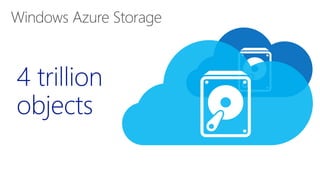
  • #12 Keep in mind the value of Windows Azure storage. Windows Azure Storage has over 4 trillion objects, processes an average of 270,000 requests per second, and reaches peaks of 880k requests per second! Windows Azure Storage system is the underpinning to everything in Azure that requires storage. The Windows Azure storage system provides a solid robust data platform for different services that make use of it – Blobs, Tables and Drives.
  • #13 It’s important to keep in mind the benefits of the Azure storage connected to that StorSimple device. Azure storage has more than 4 trillion objects, processes an average of 270,000 requests per second, and reaches peaks of 880k requests per second! In fact, the Windows Azure Storage system is the underpinning to everything in Azure that requires storage. It is a solid and robust data platform for the many services that make use of it—like Blobs for unstructured data or NoSQL datastore for structured non-relational data. So you can imagine that Windows Azure Storage is built to be durable and scalable. Every file or object that you put in Azure is replicated three times within a reason. As a result, you’ll get high availability even if a rack or storage server is down. In addition, Azure Storage includes a lot of technology that ensures data stays protected. For instance, data is constantly scanned against “bit rot” and provides strong consistency, which is vital for enterprise customers who want to move their line of business applications to the cloud. These all contribute to the 99.9 percent financially-backed SLA. Windows Azure Storage also provides storage for hybrid apps and supports REST APIs, so you can get a flexible solution that meets your exact business needs.
  • #14 So you can be sure that every piece of data that you store in the Azure Blob is available as well as protected against regional disasters (we call this geo-replication). Data is asynchronously copied to another datacenter that’s at least 400 miles away.   Geo replication is a unique feature, that differentiates us. Hearing about cloud services and giant datacenters, it’s easy to become inured to the numbers. But think for a moment how much complexity and cost you’d introduce to your environment if you tried to implement a solution involving 6 copies of your data, and two datacenters 400 miles apart!
  • #15 It’s easy to get started – you sign up for a Windows Azure account, enable Windows Azure backup, install the agent and you’re off and running. Windows Azure Backup charges per GB per month. Discounts are available for long term commitments and for enterprise customers with large Azure accounts.
  • #16 Let’s look at what we’ve discussed today. Thinking back to the data protection challenges, we know that as data rates grow, organizations need a solution that is simple, reliable, and cost-effective. Windows Azure Backup provides a simple, reliable backup solution that utilizes an enterprise-class storage system in Windows Azure to deliver secure offsite protection. All this functionality comes with using Microsoft’s backup tools. You can get started with Windows Azure Backup today. Let’s end with a look at the three simple steps to get you going.
  • #17 To start using Windows Azure Backup today, first sign up for an Windows Azure account, visit the Windows Azure site to get a tutorial on how to step up and configure Windows Azure Backup. Finally, visit TechNet for more information on Windows Azure Backup.
  • #18 Thank you for attending this session on Windows Azure Backup.