Menubar Specification
History:
Published Saturday, July 30.
Updated Monday, August 1. Changed some menu items, began to add Specifications.
Updated Friday, August 19. The following menu items were changed or added:
Changed: File->New to File->New Window
Added: Edit->Find...
Added: Edit->Find Again
Changed: Go->Forward's accelerator
Added: Go->Interrupt
Changed: Hotlist->Add Current to Hotlist to Hotlist->Add Current URL
Changed: Hotlist->Hotlist... to Hotlist->View Hotlist
Changed: Options->Show URL Field to Options->Show URL
Changed: Options->Show Status Area to Options->Show Status
Put Options->Preferences first, rather than last, in the Options menu.
Motif should use the Alt key, Windows the Ctrl key for accelerators.
Updated Thursday, August 25. The following was changed/added:
Mail to... became Mail document...
Interrupt became Stop Loading
Add to Hotlist got an accelerator: A
Load images got an accelerator: L
The History submenu (under go) is now gone. View History and the History items now appear
directly under the Go menu.
Added Save Options...
Updated Friday, August 26.
Added Fancy FTP Option & set Mnemonics
Added "Save Links as..." option in File menu
Updated Monday, August 29: Changed Hotlist to Bookmark
Updated Thursday, September 1. Added accelerator for Close
Updated Thursday, September 15. Misc. cleanup.
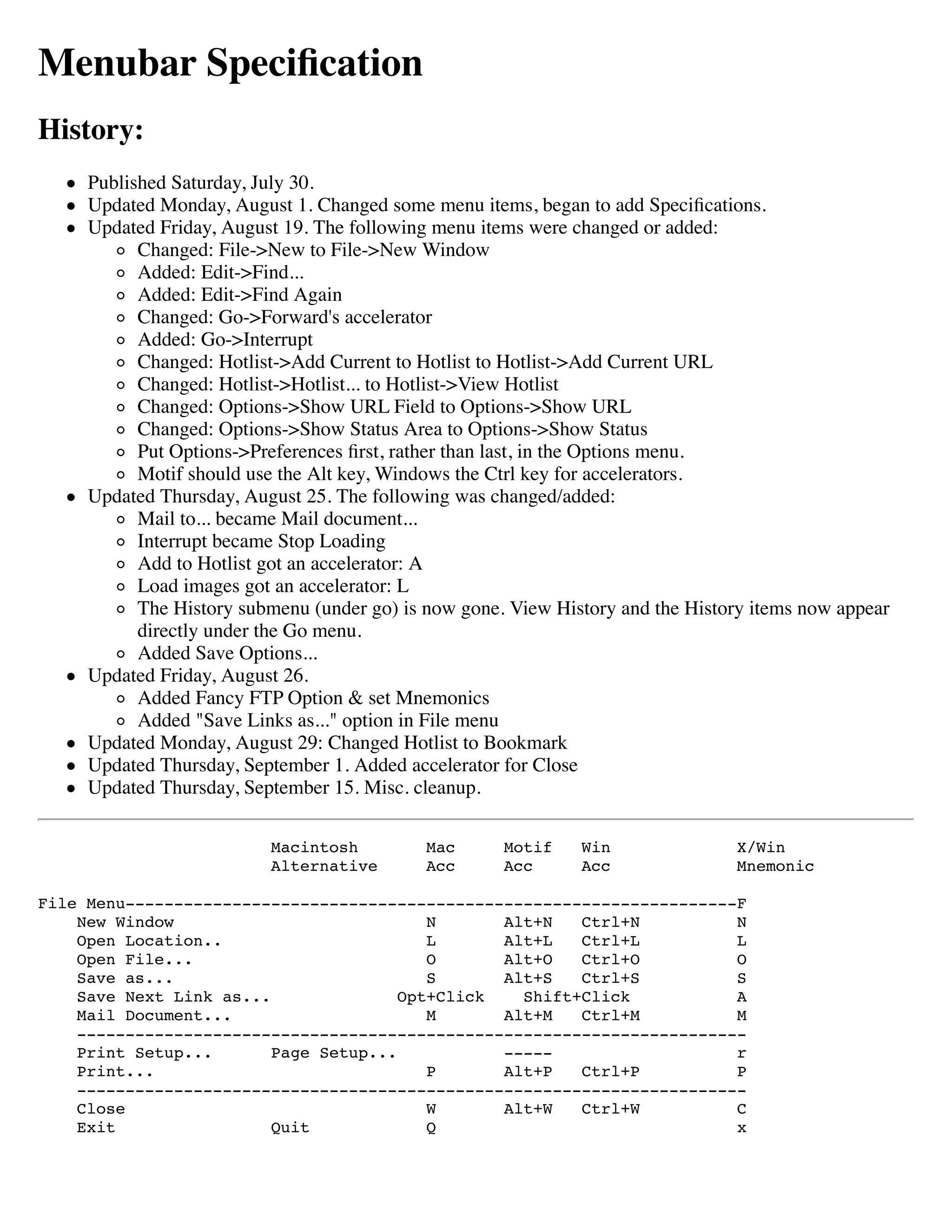
Macintosh Mac Motif Win X/Win
Alternative Acc Acc Acc Mnemonic
File Menu---------------------------------------------------------------F
New Window N Alt+N Ctrl+N N
Open Location.. L Alt+L Ctrl+L L
Open File... O Alt+O Ctrl+O O
Save as... S Alt+S Ctrl+S S
Save Next Link as... Opt+Click Shift+Click A
Mail Document... M Alt+M Ctrl+M M
---------------------------------------------------------------------
Print Setup... Page Setup... ----- r
Print... P Alt+P Ctrl+P P
---------------------------------------------------------------------
Close W Alt+W Ctrl+W C
Exit Quit Q x
Edit Menu---------------------------------------------------------------E
Undo Z Alt+Z Ctrl+Z U
---------------------------------------------------------------------
Cut X Alt+X Ctrl+X t
Copy C Alt+C Ctrl+C C
Paste V Alt+V Ctrl+V P
Clear
---------------------------------------------------------------------
Select All
---------------------------------------------------------------------
Find... F Alt+F Ctrl+F F
Find Again G Alt+G Ctrl+G g
View Menu---------------------------------------------------------------V
Reload R Alt+R Ctrl+R R
Load Images I Alt+I Ctrl+I I
Refresh Doesn't appear f
Source... S
Go Menu-----------------------------------------------------------------G
Back -> or ] Alt+Right Ctrl+Right B
Forward -> or ] Alt+Left Ctrl+Left F
Home H
Stop Loading . Esc Esc S
---------------------------------------------------------------------
View History... H Alt+H Ctrl+H V
---------------------------------------------------------------------
Current Title 1 Alt+1 Ctrl+1
Most recent Title 2 Alt+2 Ctrl+2
Less recent Title 3 Alt+3 Ctrl+3
...
Old Title 9 Alt+9 Ctrl+9
Really old Title
Bookmark Menu-----------------------------------------------------------B
Add Bookmark A Alt+A Ctrl+A A
View Bookmarks... B Alt+B Ctrl+B B
---------------------------------------------------------------------
Data: Bookmark item 1
Data: Bookmark item 2
Data: Bookmark item 3
Options Menu------------------------------------------------------------O
Preferences... P
---------------------------------------------------------------------
[] Show Toolbar Default: YES T
[] Show Location Default: NO L
[] Show Starter Buttons Default: YES S
[] Load Images Default: YES I
[] Show FTP File Information Default: YES F
---------------------------------------------------------------------
Save Options O
Starter Menu------------------------------------------------------------S
Welcome! W
What's New? N
---------------------------------------------------------------------
Read Newsgroups R
---------------------------------------------------------------------
Internet Index I
Internet Search S
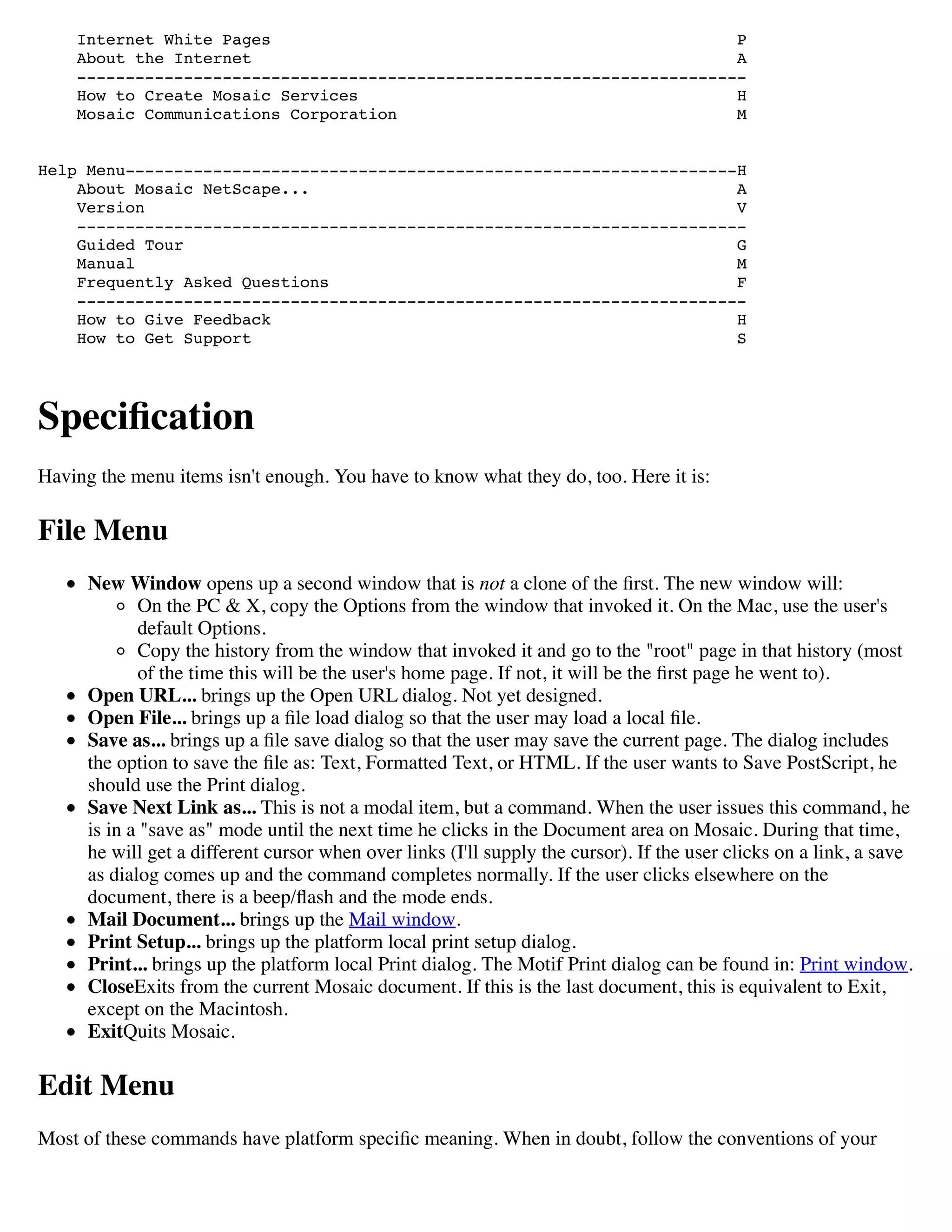
Internet White Pages P
About the Internet A
---------------------------------------------------------------------
How to Create Mosaic Services H
Mosaic Communications Corporation M
Help Menu---------------------------------------------------------------H
About Mosaic NetScape... A
Version V
---------------------------------------------------------------------
Guided Tour G
Manual M
Frequently Asked Questions F
---------------------------------------------------------------------
How to Give Feedback H
How to Get Support S
Specification
Having the menu items isn't enough. You have to know what they do, too. Here it is:
File Menu
New Window opens up a second window that is not a clone of the first. The new window will:
On the PC & X, copy the Options from the window that invoked it. On the Mac, use the user's
default Options.
Copy the history from the window that invoked it and go to the "root" page in that history (most
of the time this will be the user's home page. If not, it will be the first page he went to).
Open URL... brings up the Open URL dialog. Not yet designed.
Open File... brings up a file load dialog so that the user may load a local file.
Save as... brings up a file save dialog so that the user may save the current page. The dialog includes
the option to save the file as: Text, Formatted Text, or HTML. If the user wants to Save PostScript, he
should use the Print dialog.
Save Next Link as... This is not a modal item, but a command. When the user issues this command, he
is in a "save as" mode until the next time he clicks in the Document area on Mosaic. During that time,
he will get a different cursor when over links (I'll supply the cursor). If the user clicks on a link, a save
as dialog comes up and the command completes normally. If the user clicks elsewhere on the
document, there is a beep/flash and the mode ends.
Mail Document... brings up the Mail window.
Print Setup... brings up the platform local print setup dialog.
Print... brings up the platform local Print dialog. The Motif Print dialog can be found in: Print window.
CloseExits from the current Mosaic document. If this is the last document, this is equivalent to Exit,
except on the Macintosh.
ExitQuits Mosaic.
Edit Menu
Most of these commands have platform specific meaning. When in doubt, follow the conventions of your
platform.
Undo Applies mostly to Cut command and Paste command.
Cut Removes selected text from the text field to clipboard.
Copy Copies selected text from the text field to clipboard.
Paste Pastes text from the clipboard into the current text area. Replaces any selected text.
Find...brings up the Find window. Specified in Find specification.
Find Againexecutes the last Find command again, as if the user had brought up the find window, filled
in the same data and pressed Find.
View
Reload causes the current document to be reloaded (from the network?)
Load Images causes the images in the current document to be loaded (if image loading was delayed)
or reloaded (from the network, not from the cache).
Refresh causes a repaint event to go to the entire window.
Source... causes the View Source window to come up. See View Source Specification.
Go Menu
Back obvious (I hope).
Forward obvious (I hope).
Home obvious (I hope).
Stop Loading is our abort connection.
View History... brings up the History dialog. See History specification for more infor.
The items below View history are the history items for the current window. They contain the URLs of
past visited sites, with the current site first.
The history menu needs to truncate after a given number of items in the menu. Please pick a
reasonable, appropriate number on your platform. The menu also needs to truncate wide URL titles to
30 characters (not including elipses) The correct truncation is to remove text from the middle of the
Title. Thus:
123456789012345678901234567890123456789012345678901234567890123
"The Penultimate Mosaic Communications Web Index Browsing System"
becomes:
"The Penultimate...Browsing System"
End truncation is acceptable.
Bookmark Menu
Add Bookmark takes the URL and Title of the current document and adds them to the user's
bookmark list. On the bookmarks window the user can specify where new URLs are added. The new
URL is added as the last item in the menu the user had previously chosen.
View Bookmarks... brings up the Bookmarks window.
The items below View Bookmarks are the items that make up the Bookmark menu. The bookmark
menu is specified in the Bookmarks window and includes some or all of the headers in the Bookmarks
list.
Options Menu
Preferences... brings up the Preferences window.
Show Toolbar
Show URL Field
Show Starter Buttons
[] Load Images when this is on images are not loaded into the current document. This applies to the
current Mosaic document, not to Mosaic as a whole.
Save Options Save Options saves the Options menu only. The user must explicitly state when he wants
Options saved. Preferences are saved when the user presses OK in the Preferences window.
Starter Menu
Welcome! goes to http://home.mcom.com/home/welcome.html in the current window. None of the
help commands brings up a new window.
What's New? goes to http://home.mcom.com/home/whats-new.html
Read Newsgroups goes to newsrc:
Internet Index goes to http://home.mcom.com/home/internet-index.html
Internet Search goes to http://home.mcom.com/home/internet-search.html
Internet White Pages goes to http://home.mcom.com/home/internet-white-pages.html
About the Internet goes to http://home.mcom.com/home/about-the-internet.html
How to Create Mosaic Services goes to http://home.mcom.com/home/how-to-create-mosaic-
services.html
Mosaic Communications Corporation goes to http://mosaic.mcom.com
Help Menu
About Mosaic... brings up the About window.
Version goes to http://home.mcom.com/home/help-on-version/platform-1.0.html in the current
window. None of the help commands brings up a new window.
Guided Tour goes to http://home.mcom.com/home/guided-tour.html
Manual goes to http://home.mcom.com/home/online-manual.html
Frequently Asked Questions goes to http://home.mcom.com/home/faq.html
How to Give Feedback goes to http://home.mcom.com/home/how-to-give-feedback.html
How to Get Support goes to http://home.mcom.com/home/how-to-get-support.html

Menubar Specification

  • 1.
    Menubar Specification History: Published Saturday,July 30. Updated Monday, August 1. Changed some menu items, began to add Specifications. Updated Friday, August 19. The following menu items were changed or added: Changed: File->New to File->New Window Added: Edit->Find... Added: Edit->Find Again Changed: Go->Forward's accelerator Added: Go->Interrupt Changed: Hotlist->Add Current to Hotlist to Hotlist->Add Current URL Changed: Hotlist->Hotlist... to Hotlist->View Hotlist Changed: Options->Show URL Field to Options->Show URL Changed: Options->Show Status Area to Options->Show Status Put Options->Preferences first, rather than last, in the Options menu. Motif should use the Alt key, Windows the Ctrl key for accelerators. Updated Thursday, August 25. The following was changed/added: Mail to... became Mail document... Interrupt became Stop Loading Add to Hotlist got an accelerator: A Load images got an accelerator: L The History submenu (under go) is now gone. View History and the History items now appear directly under the Go menu. Added Save Options... Updated Friday, August 26. Added Fancy FTP Option & set Mnemonics Added "Save Links as..." option in File menu Updated Monday, August 29: Changed Hotlist to Bookmark Updated Thursday, September 1. Added accelerator for Close Updated Thursday, September 15. Misc. cleanup. Macintosh Mac Motif Win X/Win Alternative Acc Acc Acc Mnemonic File Menu---------------------------------------------------------------F New Window N Alt+N Ctrl+N N Open Location.. L Alt+L Ctrl+L L Open File... O Alt+O Ctrl+O O Save as... S Alt+S Ctrl+S S Save Next Link as... Opt+Click Shift+Click A Mail Document... M Alt+M Ctrl+M M --------------------------------------------------------------------- Print Setup... Page Setup... ----- r Print... P Alt+P Ctrl+P P --------------------------------------------------------------------- Close W Alt+W Ctrl+W C Exit Quit Q x
  • 2.
    Edit Menu---------------------------------------------------------------E Undo ZAlt+Z Ctrl+Z U --------------------------------------------------------------------- Cut X Alt+X Ctrl+X t Copy C Alt+C Ctrl+C C Paste V Alt+V Ctrl+V P Clear --------------------------------------------------------------------- Select All --------------------------------------------------------------------- Find... F Alt+F Ctrl+F F Find Again G Alt+G Ctrl+G g View Menu---------------------------------------------------------------V Reload R Alt+R Ctrl+R R Load Images I Alt+I Ctrl+I I Refresh Doesn't appear f Source... S Go Menu-----------------------------------------------------------------G Back -> or ] Alt+Right Ctrl+Right B Forward -> or ] Alt+Left Ctrl+Left F Home H Stop Loading . Esc Esc S --------------------------------------------------------------------- View History... H Alt+H Ctrl+H V --------------------------------------------------------------------- Current Title 1 Alt+1 Ctrl+1 Most recent Title 2 Alt+2 Ctrl+2 Less recent Title 3 Alt+3 Ctrl+3 ... Old Title 9 Alt+9 Ctrl+9 Really old Title Bookmark Menu-----------------------------------------------------------B Add Bookmark A Alt+A Ctrl+A A View Bookmarks... B Alt+B Ctrl+B B --------------------------------------------------------------------- Data: Bookmark item 1 Data: Bookmark item 2 Data: Bookmark item 3 Options Menu------------------------------------------------------------O Preferences... P --------------------------------------------------------------------- [] Show Toolbar Default: YES T [] Show Location Default: NO L [] Show Starter Buttons Default: YES S [] Load Images Default: YES I [] Show FTP File Information Default: YES F --------------------------------------------------------------------- Save Options O Starter Menu------------------------------------------------------------S Welcome! W What's New? N --------------------------------------------------------------------- Read Newsgroups R --------------------------------------------------------------------- Internet Index I Internet Search S
  • 3.
    Internet White PagesP About the Internet A --------------------------------------------------------------------- How to Create Mosaic Services H Mosaic Communications Corporation M Help Menu---------------------------------------------------------------H About Mosaic NetScape... A Version V --------------------------------------------------------------------- Guided Tour G Manual M Frequently Asked Questions F --------------------------------------------------------------------- How to Give Feedback H How to Get Support S Specification Having the menu items isn't enough. You have to know what they do, too. Here it is: File Menu New Window opens up a second window that is not a clone of the first. The new window will: On the PC & X, copy the Options from the window that invoked it. On the Mac, use the user's default Options. Copy the history from the window that invoked it and go to the "root" page in that history (most of the time this will be the user's home page. If not, it will be the first page he went to). Open URL... brings up the Open URL dialog. Not yet designed. Open File... brings up a file load dialog so that the user may load a local file. Save as... brings up a file save dialog so that the user may save the current page. The dialog includes the option to save the file as: Text, Formatted Text, or HTML. If the user wants to Save PostScript, he should use the Print dialog. Save Next Link as... This is not a modal item, but a command. When the user issues this command, he is in a "save as" mode until the next time he clicks in the Document area on Mosaic. During that time, he will get a different cursor when over links (I'll supply the cursor). If the user clicks on a link, a save as dialog comes up and the command completes normally. If the user clicks elsewhere on the document, there is a beep/flash and the mode ends. Mail Document... brings up the Mail window. Print Setup... brings up the platform local print setup dialog. Print... brings up the platform local Print dialog. The Motif Print dialog can be found in: Print window. CloseExits from the current Mosaic document. If this is the last document, this is equivalent to Exit, except on the Macintosh. ExitQuits Mosaic. Edit Menu Most of these commands have platform specific meaning. When in doubt, follow the conventions of your
  • 4.
    platform. Undo Applies mostlyto Cut command and Paste command. Cut Removes selected text from the text field to clipboard. Copy Copies selected text from the text field to clipboard. Paste Pastes text from the clipboard into the current text area. Replaces any selected text. Find...brings up the Find window. Specified in Find specification. Find Againexecutes the last Find command again, as if the user had brought up the find window, filled in the same data and pressed Find. View Reload causes the current document to be reloaded (from the network?) Load Images causes the images in the current document to be loaded (if image loading was delayed) or reloaded (from the network, not from the cache). Refresh causes a repaint event to go to the entire window. Source... causes the View Source window to come up. See View Source Specification. Go Menu Back obvious (I hope). Forward obvious (I hope). Home obvious (I hope). Stop Loading is our abort connection. View History... brings up the History dialog. See History specification for more infor. The items below View history are the history items for the current window. They contain the URLs of past visited sites, with the current site first. The history menu needs to truncate after a given number of items in the menu. Please pick a reasonable, appropriate number on your platform. The menu also needs to truncate wide URL titles to 30 characters (not including elipses) The correct truncation is to remove text from the middle of the Title. Thus: 123456789012345678901234567890123456789012345678901234567890123 "The Penultimate Mosaic Communications Web Index Browsing System" becomes: "The Penultimate...Browsing System" End truncation is acceptable. Bookmark Menu Add Bookmark takes the URL and Title of the current document and adds them to the user's bookmark list. On the bookmarks window the user can specify where new URLs are added. The new URL is added as the last item in the menu the user had previously chosen. View Bookmarks... brings up the Bookmarks window. The items below View Bookmarks are the items that make up the Bookmark menu. The bookmark menu is specified in the Bookmarks window and includes some or all of the headers in the Bookmarks list.
  • 5.
    Options Menu Preferences... bringsup the Preferences window. Show Toolbar Show URL Field Show Starter Buttons [] Load Images when this is on images are not loaded into the current document. This applies to the current Mosaic document, not to Mosaic as a whole. Save Options Save Options saves the Options menu only. The user must explicitly state when he wants Options saved. Preferences are saved when the user presses OK in the Preferences window. Starter Menu Welcome! goes to http://home.mcom.com/home/welcome.html in the current window. None of the help commands brings up a new window. What's New? goes to http://home.mcom.com/home/whats-new.html Read Newsgroups goes to newsrc: Internet Index goes to http://home.mcom.com/home/internet-index.html Internet Search goes to http://home.mcom.com/home/internet-search.html Internet White Pages goes to http://home.mcom.com/home/internet-white-pages.html About the Internet goes to http://home.mcom.com/home/about-the-internet.html How to Create Mosaic Services goes to http://home.mcom.com/home/how-to-create-mosaic- services.html Mosaic Communications Corporation goes to http://mosaic.mcom.com Help Menu About Mosaic... brings up the About window. Version goes to http://home.mcom.com/home/help-on-version/platform-1.0.html in the current window. None of the help commands brings up a new window. Guided Tour goes to http://home.mcom.com/home/guided-tour.html Manual goes to http://home.mcom.com/home/online-manual.html Frequently Asked Questions goes to http://home.mcom.com/home/faq.html How to Give Feedback goes to http://home.mcom.com/home/how-to-give-feedback.html How to Get Support goes to http://home.mcom.com/home/how-to-get-support.html