Construction Steps


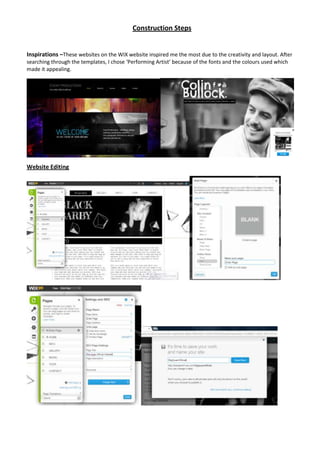
Inspirations –These websites on the WIX website inspired me the most due to the creativity and layout. After
searching through the templates, I chose ‘Performing Artist’ because of the fonts and the colours used which
made it appealing.


Website Editing
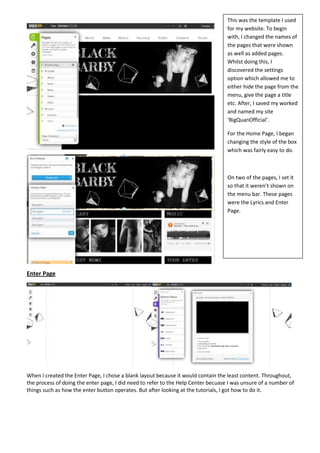
This was the template I used
                                                                                   for my website. To begin
                                                                                   with, I changed the names of
                                                                                   the pages that were shown
                                                                                   as well as added pages.
                                                                                   Whilst doing this, I
                                                                                   discovered the settings
                                                                                   option which allowed me to
                                                                                   either hide the page from the
                                                                                   menu, give the page a title
                                                                                   etc. After, I saved my worked
                                                                                   and named my site
                                                                                   ‘BigQuanOfficial’.

                                                                                   For the Home Page, I began
                                                                                   changing the style of the box
                                                                                   which was fairly easy to do.


                                                                                   On two of the pages, I set it
                                                                                   so that it weren’t shown on
                                                                                   the menu bar. These pages
                                                                                   were the Lyrics and Enter
                                                                                   Page.


Enter Page


When I created the Enter Page, I chose a blank layout because it would contain the least content. Throughout,
the process of doing the enter page, I did need to refer to the Help Center becuase I was unsure of a number of
things such as how the enter button operates. But after looking at the tutorials, I got how to do it.
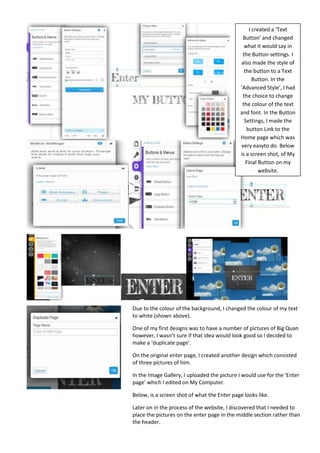
I created a ‘Text
                                               Button’ and changed
                                               what it would say in
                                              the Button settings. I
                                              also made the style of
                                               the button to a Text
                                                    Button. In the
                                             ‘Advanced Style’, I had
                                               the choice to change
                                              the colour of the text
                                             and font. In the Button
                                                Settings, I made the
                                                 button Link to the
                                             Home page which was
                                              very easyto do. Below
                                             is a screen shot, of My
                                                Final Button on my
                                                       website.


Due to the colour of the background, I changed the colour of my text
to white (shown above).

One of my first designs was to have a number of pictures of Big Quan
however, I wasn’t sure if that idea would look good so I decided to
make a ‘duplicate page’.

On the original enter page, I created another design which consisted
of three pictures of him.

In the Image Gallery, I uploaded the picture I would use for the ‘Enter
page’ which I edited on My Computer.

Below, is a screen shot of what the Enter page looks like.

Later on in the process of the website, I discovered that I needed to
place the pictures on the enter page in the middle section rather than
the header.
Home Page
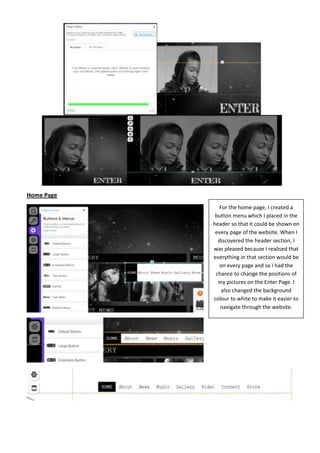
              For the home page, I created a
             button menu which I placed in the
            header so that it could be shown on
             every page of the website. When I
              discovered the header section, I
            was pleased because I realised that
            everything in that section would be
               on every page and so I had the
             chance to change the positions of
              my pictures on the Enter Page. I
               also changed the background
            colour to white to make it easier to
               navigate through the website.
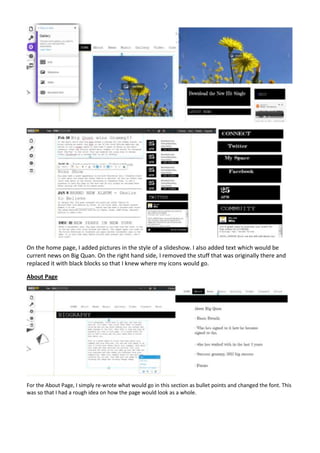
On the home page, I added pictures in the style of a slideshow. I also added text which would be
current news on Big Quan. On the right hand side, I removed the stuff that was originally there and
replaced it with black blocks so that I knew where my icons would go.

About Page


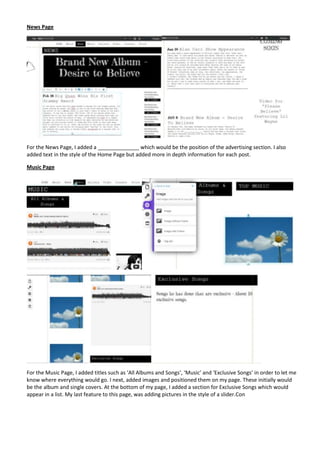
For the About Page, I simply re-wrote what would go in this section as bullet points and changed the font. This
was so that I had a rough idea on how the page would look as a whole.
News Page


For the News Page, I added a ______________ which would be the position of the advertising section. I also
added text in the style of the Home Page but added more in depth information for each post.

Music Page


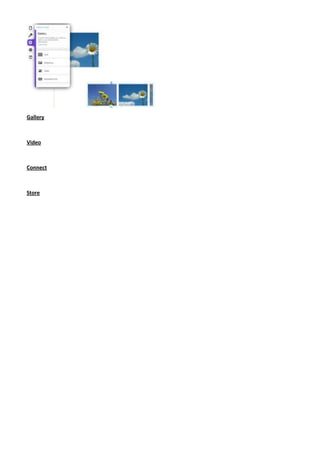
For the Music Page, I added titles such as ‘All Albums and Songs’, ‘Music’ and ‘Exclusive Songs’ in order to let me
know where everything would go. I next, added images and positioned them on my page. These initially would
be the album and single covers. At the bottom of my page, I added a section for Exclusive Songs which would
appear in a list. My last feature to this page, was adding pictures in the style of a slider.Con
Gallery


Video


Connect


Store

Media Construction steps

  • 1.
    Construction Steps Inspirations –Thesewebsites on the WIX website inspired me the most due to the creativity and layout. After searching through the templates, I chose ‘Performing Artist’ because of the fonts and the colours used which made it appealing. Website Editing
  • 2.
    This was thetemplate I used for my website. To begin with, I changed the names of the pages that were shown as well as added pages. Whilst doing this, I discovered the settings option which allowed me to either hide the page from the menu, give the page a title etc. After, I saved my worked and named my site ‘BigQuanOfficial’. For the Home Page, I began changing the style of the box which was fairly easy to do. On two of the pages, I set it so that it weren’t shown on the menu bar. These pages were the Lyrics and Enter Page. Enter Page When I created the Enter Page, I chose a blank layout because it would contain the least content. Throughout, the process of doing the enter page, I did need to refer to the Help Center becuase I was unsure of a number of things such as how the enter button operates. But after looking at the tutorials, I got how to do it.
  • 3.
    I created a‘Text Button’ and changed what it would say in the Button settings. I also made the style of the button to a Text Button. In the ‘Advanced Style’, I had the choice to change the colour of the text and font. In the Button Settings, I made the button Link to the Home page which was very easyto do. Below is a screen shot, of My Final Button on my website. Due to the colour of the background, I changed the colour of my text to white (shown above). One of my first designs was to have a number of pictures of Big Quan however, I wasn’t sure if that idea would look good so I decided to make a ‘duplicate page’. On the original enter page, I created another design which consisted of three pictures of him. In the Image Gallery, I uploaded the picture I would use for the ‘Enter page’ which I edited on My Computer. Below, is a screen shot of what the Enter page looks like. Later on in the process of the website, I discovered that I needed to place the pictures on the enter page in the middle section rather than the header.
  • 4.
    Home Page For the home page, I created a button menu which I placed in the header so that it could be shown on every page of the website. When I discovered the header section, I was pleased because I realised that everything in that section would be on every page and so I had the chance to change the positions of my pictures on the Enter Page. I also changed the background colour to white to make it easier to navigate through the website.
  • 5.
    On the homepage, I added pictures in the style of a slideshow. I also added text which would be current news on Big Quan. On the right hand side, I removed the stuff that was originally there and replaced it with black blocks so that I knew where my icons would go. About Page For the About Page, I simply re-wrote what would go in this section as bullet points and changed the font. This was so that I had a rough idea on how the page would look as a whole.
  • 6.
    News Page For theNews Page, I added a ______________ which would be the position of the advertising section. I also added text in the style of the Home Page but added more in depth information for each post. Music Page For the Music Page, I added titles such as ‘All Albums and Songs’, ‘Music’ and ‘Exclusive Songs’ in order to let me know where everything would go. I next, added images and positioned them on my page. These initially would be the album and single covers. At the bottom of my page, I added a section for Exclusive Songs which would appear in a list. My last feature to this page, was adding pictures in the style of a slider.Con
  • 7.