Mechsoft	
  Report	
  Engine	
  Tool	
  
Reports/	
  Reporting	
  nowadays	
  have	
  gained	
  more	
  popularity	
  across	
  the	
  entire	
  segment	
  of	
  Industries.	
  
Reports	
  helps/	
  enables	
  to	
  review,	
  analyze	
  and	
  forecasts	
  revenues	
  within	
  an	
  Enterprise	
  or	
  an	
  
Organization.	
  Mechsoft	
  has	
  developed	
  a	
  Report	
  Engine	
  Tool	
  which	
  helps	
  clients	
  /	
  Customers	
  to	
  custom-­‐
make	
  their	
  own	
  style	
  of	
  reports	
  along	
  with	
  Homepage	
  Dashboard	
  and	
  also	
  Exporting	
  Functionalities.	


Overview	
  of	
  Mechsoft’s	
  Reporting	
  Tool	
  
Mechsoft’s	
  Reporting	
  is	
  a	
  comprehensive	
  and	
  effective	
  tool	
  that	
  helps	
  user	
  to	
  generate,	
  view,	
  modify/	
  
add/	
  upload	
  data	
  to	
  the	
  existing	
  information.	
  Further	
  to	
  this,	
  the	
  users	
  also	
  have	
  the	
  option	
  for	
  
Approvals/	
  Rejections	
  based	
  on	
  ROLES	
  before	
  submission.	
  The	
  home	
  screen	
  gives	
  an	
  overview	
  of	
  all	
  the	
  
existing	
  reports	
  and	
  also	
  reports	
  that	
  are	
  pending	
  for	
  any	
  reason.	
  It	
  also	
  has	
  an	
  inbuilt	
  dashboard	
  
feature	
  which	
  allows	
  the	
  user	
  to	
  manage	
  the	
  reporting	
  effectively.	
  

Features	
  
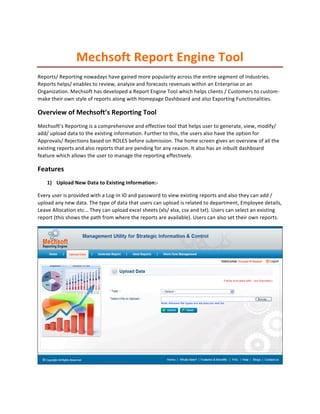
      1) Upload	
  New	
  Data	
  to	
  Existing	
  Information:-­‐	
  

Every	
  user	
  is	
  provided	
  with	
  a	
  Log-­‐In	
  ID	
  and	
  password	
  to	
  view	
  existing	
  reports	
  and	
  also	
  they	
  can	
  add	
  /	
  
upload	
  any	
  new	
  data.	
  The	
  type	
  of	
  data	
  that	
  users	
  can	
  upload	
  is	
  related	
  to	
  department,	
  Employee	
  details,	
  
Leave	
  Allocation	
  etc…	
  They	
  can	
  upload	
  excel	
  sheets	
  (xls/	
  xlsx,	
  csv	
  and	
  txt).	
  Users	
  can	
  select	
  an	
  existing	
  
report	
  (this	
  shows	
  the	
  path	
  from	
  where	
  the	
  reports	
  are	
  available).	
  Users	
  can	
  also	
  set	
  their	
  own	
  reports.	


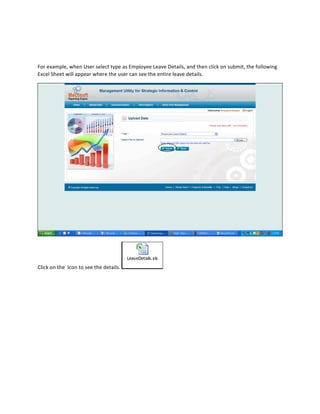
For	
  example,	
  when	
  User	
  select	
  type	
  as	
  Employee	
  Leave	
  Details,	
  and	
  then	
  click	
  on	
  submit,	
  the	
  following	
  
Excel	
  Sheet	
  will	
  appear	
  where	
  the	
  user	
  can	
  see	
  the	
  entire	
  leave	
  details.	


Click	
  on	
  the	
  	
  Icon	
  to	
  see	
  the	
  details.	


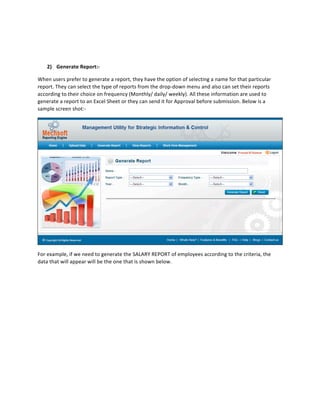
      2) Generate	
  Report:-­‐	


When	
  users	
  prefer	
  to	
  generate	
  a	
  report,	
  they	
  have	
  the	
  option	
  of	
  selecting	
  a	
  name	
  for	
  that	
  particular	
  
report.	
  They	
  can	
  select	
  the	
  type	
  of	
  reports	
  from	
  the	
  drop-­‐down	
  menu	
  and	
  also	
  can	
  set	
  their	
  reports	
  
according	
  to	
  their	
  choice	
  on	
  frequency	
  (Monthly/	
  daily/	
  weekly).	
  All	
  these	
  information	
  are	
  used	
  to	
  
generate	
  a	
  report	
  to	
  an	
  Excel	
  Sheet	
  or	
  they	
  can	
  send	
  it	
  for	
  Approval	
  before	
  submission.	
  Below	
  is	
  a	
  
sample	
  screen	
  shot:-­‐	


For	
  example,	
  if	
  we	
  need	
  to	
  generate	
  the	
  SALARY	
  REPORT	
  of	
  employees	
  according	
  to	
  the	
  criteria,	
  the	
  
data	
  that	
  will	
  appear	
  will	
  be	
  the	
  one	
  that	
  is	
  shown	
  below.	
  
 
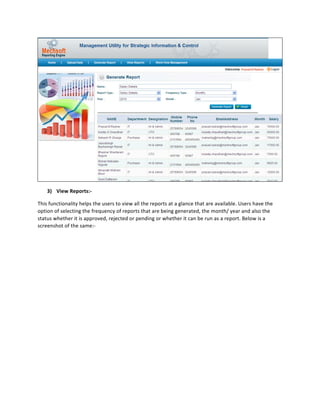
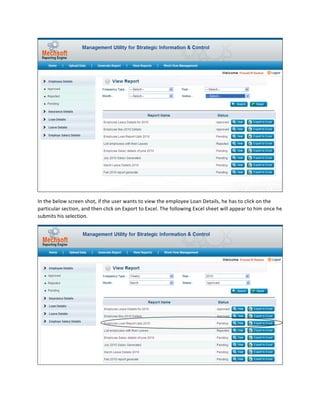
      3) View	
  Reports:-­‐	


This	
  functionality	
  helps	
  the	
  users	
  to	
  view	
  all	
  the	
  reports	
  at	
  a	
  glance	
  that	
  are	
  available.	
  Users	
  have	
  the	
  
option	
  of	
  selecting	
  the	
  frequency	
  of	
  reports	
  that	
  are	
  being	
  generated,	
  the	
  month/	
  year	
  and	
  also	
  the	
  
status	
  whether	
  it	
  is	
  approved,	
  rejected	
  or	
  pending	
  or	
  whether	
  it	
  can	
  be	
  run	
  as	
  a	
  report.	
  Below	
  is	
  a	
  
screenshot	
  of	
  the	
  same:-­‐	


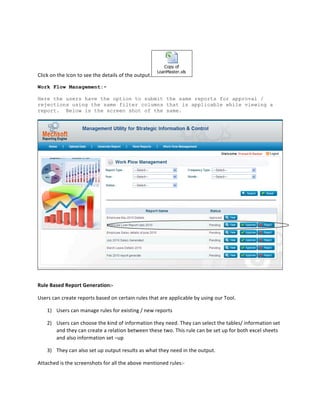
In	
  the	
  below	
  screen	
  shot,	
  if	
  the	
  user	
  wants	
  to	
  view	
  the	
  employee	
  Loan	
  Details,	
  he	
  has	
  to	
  click	
  on	
  the	
  
particular	
  section,	
  and	
  then	
  click	
  on	
  Export	
  to	
  Excel.	
  The	
  following	
  Excel	
  sheet	
  will	
  appear	
  to	
  him	
  once	
  he	
  
submits	
  his	
  selection.	


                                                                                       Copy of
                                                                                    LoanMaster.xls
Click	
  on	
  the	
  Icon	
  to	
  see	
  the	
  details	
  of	
  the	
  output.                          	
  

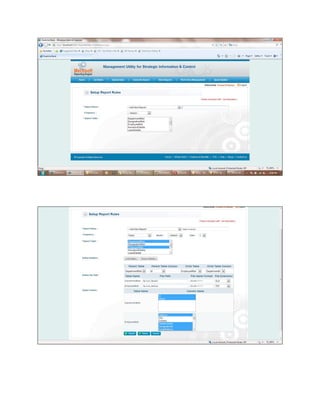
Work Flow Management:-

Here the users have the option to submit the same reports for approval /
rejections using the same filter columns that is applicable while viewing a
report. Below is the screen shot of the same.


Rule	
  Based	
  Report	
  Generation:-­‐	
  

Users	
  can	
  create	
  reports	
  based	
  on	
  certain	
  rules	
  that	
  are	
  applicable	
  by	
  using	
  our	
  Tool.	
  

       1) Users	
  can	
  manage	
  rules	
  for	
  existing	
  /	
  new	
  reports	


       2) Users	
  can	
  choose	
  the	
  kind	
  of	
  information	
  they	
  need.	
  They	
  can	
  select	
  the	
  tables/	
  information	
  set	
  
          and	
  they	
  can	
  create	
  a	
  relation	
  between	
  these	
  two.	
  This	
  rule	
  can	
  be	
  set	
  up	
  for	
  both	
  excel	
  sheets	
  
          and	
  also	
  information	
  set	
  –up	


       3) They	
  can	
  also	
  set	
  up	
  output	
  results	
  as	
  what	
  they	
  need	
  in	
  the	
  output.	


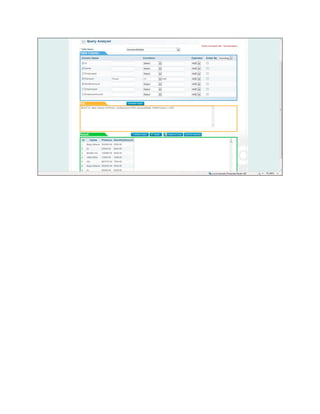
Attached	
  is	
  the	
  screenshots	
  for	
  all	
  the	
  above	
  mentioned	
  rules:-­‐	


Mechsoft report engine tool

  • 1.
    Mechsoft  Report  Engine  Tool   Reports/  Reporting  nowadays  have  gained  more  popularity  across  the  entire  segment  of  Industries.   Reports  helps/  enables  to  review,  analyze  and  forecasts  revenues  within  an  Enterprise  or  an   Organization.  Mechsoft  has  developed  a  Report  Engine  Tool  which  helps  clients  /  Customers  to  custom-­‐ make  their  own  style  of  reports  along  with  Homepage  Dashboard  and  also  Exporting  Functionalities.     Overview  of  Mechsoft’s  Reporting  Tool   Mechsoft’s  Reporting  is  a  comprehensive  and  effective  tool  that  helps  user  to  generate,  view,  modify/   add/  upload  data  to  the  existing  information.  Further  to  this,  the  users  also  have  the  option  for   Approvals/  Rejections  based  on  ROLES  before  submission.  The  home  screen  gives  an  overview  of  all  the   existing  reports  and  also  reports  that  are  pending  for  any  reason.  It  also  has  an  inbuilt  dashboard   feature  which  allows  the  user  to  manage  the  reporting  effectively.   Features   1) Upload  New  Data  to  Existing  Information:-­‐   Every  user  is  provided  with  a  Log-­‐In  ID  and  password  to  view  existing  reports  and  also  they  can  add  /   upload  any  new  data.  The  type  of  data  that  users  can  upload  is  related  to  department,  Employee  details,   Leave  Allocation  etc…  They  can  upload  excel  sheets  (xls/  xlsx,  csv  and  txt).  Users  can  select  an  existing   report  (this  shows  the  path  from  where  the  reports  are  available).  Users  can  also  set  their  own  reports.      
  • 2.
        For  example,  when  User  select  type  as  Employee  Leave  Details,  and  then  click  on  submit,  the  following   Excel  Sheet  will  appear  where  the  user  can  see  the  entire  leave  details.       Click  on  the    Icon  to  see  the  details.                    
  • 3.
        2) Generate  Report:-­‐     When  users  prefer  to  generate  a  report,  they  have  the  option  of  selecting  a  name  for  that  particular   report.  They  can  select  the  type  of  reports  from  the  drop-­‐down  menu  and  also  can  set  their  reports   according  to  their  choice  on  frequency  (Monthly/  daily/  weekly).  All  these  information  are  used  to   generate  a  report  to  an  Excel  Sheet  or  they  can  send  it  for  Approval  before  submission.  Below  is  a   sample  screen  shot:-­‐       For  example,  if  we  need  to  generate  the  SALARY  REPORT  of  employees  according  to  the  criteria,  the   data  that  will  appear  will  be  the  one  that  is  shown  below.  
  • 4.
      3) View  Reports:-­‐     This  functionality  helps  the  users  to  view  all  the  reports  at  a  glance  that  are  available.  Users  have  the   option  of  selecting  the  frequency  of  reports  that  are  being  generated,  the  month/  year  and  also  the   status  whether  it  is  approved,  rejected  or  pending  or  whether  it  can  be  run  as  a  report.  Below  is  a   screenshot  of  the  same:-­‐    
  • 5.
      In  the  below  screen  shot,  if  the  user  wants  to  view  the  employee  Loan  Details,  he  has  to  click  on  the   particular  section,  and  then  click  on  Export  to  Excel.  The  following  Excel  sheet  will  appear  to  him  once  he   submits  his  selection.    
  • 6.
      Copy of LoanMaster.xls Click  on  the  Icon  to  see  the  details  of  the  output.   Work Flow Management:- Here the users have the option to submit the same reports for approval / rejections using the same filter columns that is applicable while viewing a report. Below is the screen shot of the same. Rule  Based  Report  Generation:-­‐   Users  can  create  reports  based  on  certain  rules  that  are  applicable  by  using  our  Tool.   1) Users  can  manage  rules  for  existing  /  new  reports     2) Users  can  choose  the  kind  of  information  they  need.  They  can  select  the  tables/  information  set   and  they  can  create  a  relation  between  these  two.  This  rule  can  be  set  up  for  both  excel  sheets   and  also  information  set  –up     3) They  can  also  set  up  output  results  as  what  they  need  in  the  output.     Attached  is  the  screenshots  for  all  the  above  mentioned  rules:-­‐    
  • 7.
  • 8.