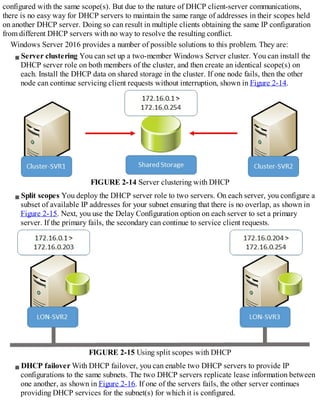
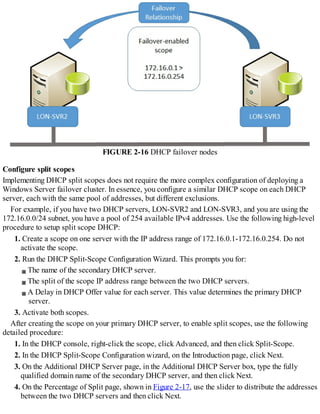
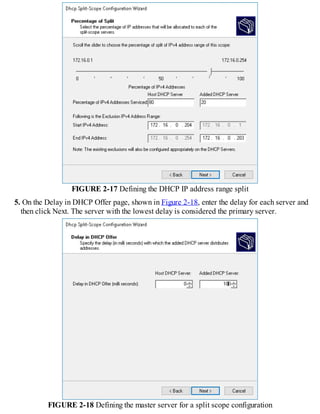
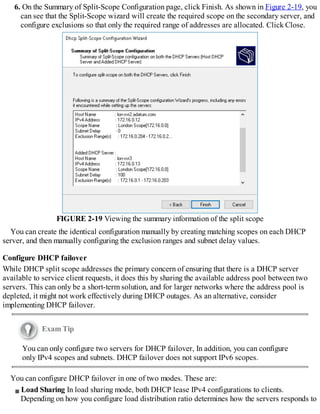
Exam Ref 70-741 Networking with Windows
Server 2016
Andrew Warren
Exam Ref 70-741 Networking with Windows Server 2016Published with the authorization of
Microsoft Corporation by: Pearson Education, Inc.Copyright © 2017 by Andrew James
Warren.
All rights reserved. Printed in the United States of America. This publication is protected by
copyright, and permission must be obtained from the publisher prior to any prohibited reproduction,
storage in a retrieval system, or transmission in any form or by any means, electronic, mechanical,
photocopying, recording, or likewise. For information regarding permissions, request forms, and the
appropriate contacts within the Pearson Education Global Rights & Permissions Department, please
visit www.pearsoned.com/permissions/. No patent liability is assumed with respect to the use of the
information contained herein. Although every precaution has been taken in the preparation of this
book, the publisher and author assume no responsibility for errors or omissions. Nor is any liability
assumed for damages resulting from the use of the information contained herein.
ISBN-13: 978-0-7356-9742-3
ISBN-10: 0-7356-9742-6
Library of Congress Control Number: 2016959968
First Printing December 2016.
Trademarks
Microsoft and the trademarks listed at https://www.microsoft.com on the “Trademarks” webpage are
trademarks of the Microsoft group of companies. All other marks are property of their respective
owners.
Warning and Disclaimer
Every effort has been made to make this book as complete and as accurate as possible, but no
warranty or fitness is implied. The information provided is on an “as is” basis. The authors, the
publisher, and Microsoft Corporation shall have neither liability nor responsibility to any person or
entity with respect to any loss or damages arising from the information contained in this book or
programs accompanying it.
Special Sales
For information about buying this title in bulk quantities, or for special sales opportunities (which
may include electronic versions; custom cover designs; and content particular to your business,
training goals, marketing focus, or branding interests), please contact our corporate sales department
at corpsales@pearsoned.com or (800) 382-3419.
For government sales inquiries, please contact governmentsales@pearsoned.com.
For questions about sales outside the U.S., please contact intlcs@pearson.com.
Editor-in-Chief Greg Wiegand
Acquisitions Editor Trina MacDonald
Development Editor Rick Kughen
Managing Editor Sandra Schroeder
Senior Project Editor Tracey Croom
Editorial Production Backstop Media, Troy Mott
Copy Editor Kristin Dudley
Indexer Julie Grady
Proofreader Christina Rudloff
Technical Editor Byron Wright
Cover Designer Twist Creative, Seattle
Technet24.ir
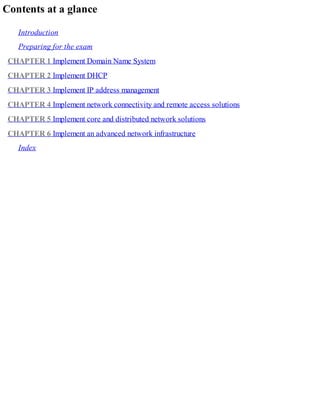
Contents at a glance
Introduction
Preparing for the exam
CHAPTER 1 Implement Domain Name System
CHAPTER 2 Implement DHCP
CHAPTER 3 Implement IP address management
CHAPTER 4 Implement network connectivity and remote access solutions
CHAPTER 5 Implement core and distributed network solutions
CHAPTER 6 Implement an advanced network infrastructure
Index
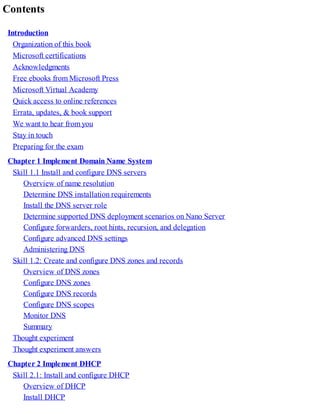
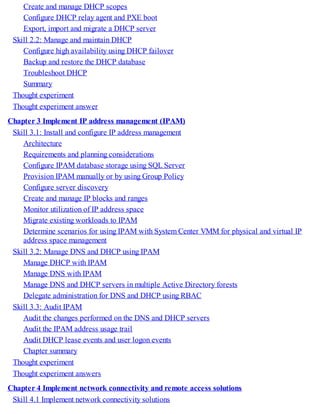
Contents
Introduction
Organization of this book
Microsoft certifications
Acknowledgments
Free ebooks from Microsoft Press
Microsoft Virtual Academy
Quick access to online references
Errata, updates, & book support
We want to hear from you
Stay in touch
Preparing for the exam
Chapter 1 Implement Domain Name System
Skill 1.1 Install and configure DNS servers
Overview of name resolution
Determine DNS installation requirements
Install the DNS server role
Determine supported DNS deployment scenarios on Nano Server
Configure forwarders, root hints, recursion, and delegation
Configure advanced DNS settings
Administering DNS
Skill 1.2: Create and configure DNS zones and records
Overview of DNS zones
Configure DNS zones
Configure DNS records
Configure DNS scopes
Monitor DNS
Summary
Thought experiment
Thought experiment answers
Chapter 2 Implement DHCP
Skill 2.1: Install and configure DHCP
Overview of DHCP
Install DHCP
Create and manage DHCP scopes
Configure DHCP relay agent and PXE boot
Export, import and migrate a DHCP server
Skill 2.2: Manage and maintain DHCP
Configure high availability using DHCP failover
Backup and restore the DHCP database
Troubleshoot DHCP
Summary
Thought experiment
Thought experiment answer
Chapter 3 Implement IP address management (IPAM)
Skill 3.1: Install and configure IP address management
Architecture
Requirements and planning considerations
Configure IPAM database storage using SQL Server
Provision IPAM manually or by using Group Policy
Configure server discovery
Create and manage IP blocks and ranges
Monitor utilization of IP address space
Migrate existing workloads to IPAM
Determine scenarios for using IPAM with System Center VMM for physical and virtual IP
address space management
Skill 3.2: Manage DNS and DHCP using IPAM
Manage DHCP with IPAM
Manage DNS with IPAM
Manage DNS and DHCP servers in multiple Active Directory forests
Delegate administration for DNS and DHCP using RBAC
Skill 3.3: Audit IPAM
Audit the changes performed on the DNS and DHCP servers
Audit the IPAM address usage trail
Audit DHCP lease events and user logon events
Chapter summary
Thought experiment
Thought experiment answers
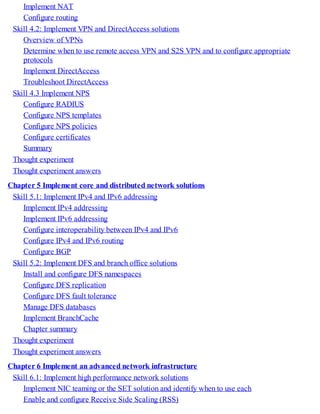
Chapter 4 Implement network connectivity and remote access solutions
Skill 4.1 Implement network connectivity solutions
Implement NAT
Configure routing
Skill 4.2: Implement VPN and DirectAccess solutions
Overview of VPNs
Determine when to use remote access VPN and S2S VPN and to configure appropriate
protocols
Implement DirectAccess
Troubleshoot DirectAccess
Skill 4.3 Implement NPS
Configure RADIUS
Configure NPS templates
Configure NPS policies
Configure certificates
Summary
Thought experiment
Thought experiment answers
Chapter 5 Implement core and distributed network solutions
Skill 5.1: Implement IPv4 and IPv6 addressing
Implement IPv4 addressing
Implement IPv6 addressing
Configure interoperability between IPv4 and IPv6
Configure IPv4 and IPv6 routing
Configure BGP
Skill 5.2: Implement DFS and branch office solutions
Install and configure DFS namespaces
Configure DFS replication
Configure DFS fault tolerance
Manage DFS databases
Implement BranchCache
Chapter summary
Thought experiment
Thought experiment answers
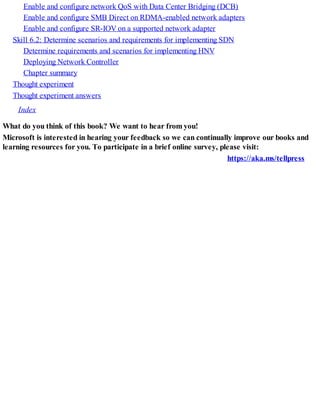
Chapter 6 Implement an advanced network infrastructure
Skill 6.1: Implement high performance network solutions
Implement NIC teaming or the SET solution and identify when to use each
Enable and configure Receive Side Scaling (RSS)
Enable and configure network QoS with Data Center Bridging (DCB)
Enable and configure SMB Direct on RDMA-enabled network adapters
Enable and configure SR-IOV on a supported network adapter
Skill 6.2: Determine scenarios and requirements for implementing SDN
Determine requirements and scenarios for implementing HNV
Deploying Network Controller
Chapter summary
Thought experiment
Thought experiment answers
Index
What do you think of this book? We want to hear from you!
Microsoft is interested in hearing your feedback so we can continually improve our books and
learning resources for you. To participate in a brief online survey, please visit:
https://aka.ms/tellpress
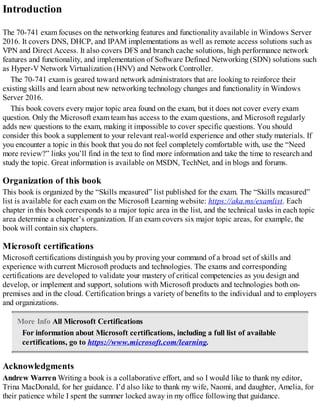
Introduction
The 70-741 exam focuses on the networking features and functionality available in Windows Server
2016. It covers DNS, DHCP, and IPAM implementations as well as remote access solutions such as
VPN and Direct Access. It also covers DFS and branch cache solutions, high performance network
features and functionality, and implementation of Software Defined Networking (SDN) solutions such
as Hyper-V Network Virtualization (HNV) and Network Controller.
The 70-741 exam is geared toward network administrators that are looking to reinforce their
existing skills and learn about new networking technology changes and functionality in Windows
Server 2016.
This book covers every major topic area found on the exam, but it does not cover every exam
question. Only the Microsoft exam team has access to the exam questions, and Microsoft regularly
adds new questions to the exam, making it impossible to cover specific questions. You should
consider this book a supplement to your relevant real-world experience and other study materials. If
you encounter a topic in this book that you do not feel completely comfortable with, use the “Need
more review?” links you’ll find in the text to find more information and take the time to research and
study the topic. Great information is available on MSDN, TechNet, and in blogs and forums.
Organization of this book
This book is organized by the “Skills measured” list published for the exam. The “Skills measured”
list is available for each exam on the Microsoft Learning website: https://aka.ms/examlist. Each
chapter in this book corresponds to a major topic area in the list, and the technical tasks in each topic
area determine a chapter’s organization. If an exam covers six major topic areas, for example, the
book will contain six chapters.
Microsoft certifications
Microsoft certifications distinguish you by proving your command of a broad set of skills and
experience with current Microsoft products and technologies. The exams and corresponding
certifications are developed to validate your mastery of critical competencies as you design and
develop, or implement and support, solutions with Microsoft products and technologies both on-
premises and in the cloud. Certification brings a variety of benefits to the individual and to employers
and organizations.
More Info All Microsoft Certifications
For information about Microsoft certifications, including a full list of available
certifications, go to https://www.microsoft.com/learning.
Acknowledgments
Andrew Warren Writing a book is a collaborative effort, and so I would like to thank my editor,
Trina MacDonald, for her guidance. I’d also like to thank my wife, Naomi, and daughter, Amelia, for
their patience while I spent the summer locked away in my office following that guidance.
Free ebooks from Microsoft Press
From technical overviews to in-depth information on special topics, the free ebooks from Microsoft
Press cover a wide range of topics. These ebooks are available in PDF, EPUB, and Mobi for Kindle
formats, ready for you to download at:
https://aka.ms/mspressfree
Check back often to see what is new!
Microsoft Virtual Academy
Build your knowledge of Microsoft technologies with free expert-led online training from Microsoft
Virtual Academy (MVA). MVA offers a comprehensive library of videos, live events, and more to
help you learn the latest technologies and prepare for certification exams. You’ll find what you need
here:
https://www.microsoftvirtualacademy.com
Quick access to online references
Throughout this book are addresses to webpages that the author has recommended you visit for more
information. Some of these addresses (also known as URLs) can be painstaking to type into a web
browser, so we’ve compiled all of them into a single list that readers of the print edition can refer to
while they read.
Download the list at https://aka.ms/examref741/downloads.
The URLs are organized by chapter and heading. Every time you come across a URL in the book,
find the hyperlink in the list to go directly to the webpage.
Errata, updates, & book support
We’ve made every effort to ensure the accuracy of this book and its companion content. You can
access updates to this book—in the form of a list of submitted errata and their related corrections—
at:
https://aka.ms/examref741/errata
If you discover an error that is not already listed, please submit it to us at the same page.
If you need additional support, email Microsoft Press Book Support at mspinput@microsoft.com.
Please note that product support for Microsoft software and hardware is not offered through the
previous addresses. For help with Microsoft software or hardware, go to
https://support.microsoft.com.
We want to hear from you
At Microsoft Press, your satisfaction is our top priority, and your feedback our most valuable asset.
Please tell us what you think of this book at:
https://aka.ms/tellpress
We know you’re busy, so we’ve kept it short with just a few questions. Your answers go directly
to the editors at Microsoft Press. (No personal information will be requested.) Thanks in advance for
your input!
Stay in touch
Let’s keep the conversation going! We’re on Twitter: http://twitter.com/MicrosoftPress.
Important: How to use this book to study for the exam
Certification exams validate your on-the-job experience and product knowledge. To gauge your
readiness to take an exam, use this Exam Ref to help you check your understanding of the skills tested
by the exam. Determine the topics you know well and the areas in which you need more experience.
To help you refresh your skills in specific areas, we have also provided “Need more review?”
pointers, which direct you to more in-depth information outside the book.
The Exam Ref is not a substitute for hands-on experience. This book is not designed to teach you
new skills.
We recommend that you round out your exam preparation by using a combination of available study
materials and courses. Learn more about available classroom training at
https://www.microsoft.com/learning. Microsoft Official Practice Tests are available for many exams
at https://aka.ms/practicetests. You can also find free online courses and live events from Microsoft
Virtual Academy at https://www.microsoftvirtualacademy.com.
This book is organized by the “Skills measured” list published for the exam. The “Skills
measured” list for each exam is available on the Microsoft Learning website:
https://aka.ms/examlist.
Note that this Exam Ref is based on this publicly available information and the author’s
experience. To safeguard the integrity of the exam, authors do not have access to the exam questions.
Chapter 1. Implement Domain Name System
Typically, users and computers use host names rather than Internet Protocol version 4 (IPv4) or
Internet Protocol version 6 (IPv6) network addresses to communicate with other hosts and services
on networks. A Windows Server 2016 service, known as the Domain Name System (DNS) server
role, resolves these names into IPv4 or IPv6 addresses.
Since many important apps and services rely on the DNS server role, it is important that you know
how to install and configure Windows Server 2016 name resolution using the DNS server role. As a
result, the 70-741 Networking Windows Server 2016 exam covers how to install and configure the
DNS server role on Windows Server 2016.
Important Have you read page xv?
It contains valuable information regarding the skills you need to pass the exam.
The 70-741 Networking Windows Server 2016 exam also covers how to implement zones and
Domain Name System records using the DNS server role. It is therefore important that you know how
to create and manage DNS zones using the Windows Server 2016 DNS server role, and how to create
and manage host and service-related records within these zones.
Skills in this chapter:
Install and configure DNS servers
Create and configure DNS zones and records
Skill 1.1: Install and configure DNS servers
Windows Server 2016 provides the DNS server role to enable you to provide name resolution
services to devices and computers in your organization’s network infrastructure. The first stage to
provide name resolution is to deploy the DNS server role on Windows Server 2016 server
computers.
Overview of name resolution
Although IP addressing is not especially complex, it is easier for users to work with host names
rather than with the IPv4 or IPv6 addresses of hosts, such as websites, to which they want to connect.
When an application, such as Microsoft Edge, references a website name, the name in the URL is
converted into the underlying IPv4 or IPv6 address using a process known as name resolution.
Windows 10 and Windows Server 2016 computers can use two types of names. These are:
Host names A host name, up to 255 characters in length, contains only alphanumeric
characters, periods, and hyphens. A host name is an alias combined with a DNS domain name.
For example, the alias computer1, is prefixed to the domain name, Contoso.com, to create the
host name, or Fully Qualified Domain Name (FQDN), computer1.contoso.com.
NetBIOS names Less relevant today, NetBIOS names use a nonhierarchical structure based on
a 16-character name. The sixteenth character identifies a particular service running on the
computer named by the preceding 15 characters. Thus, LON-SVR1[20h] is the NetBIOS server
service on the computer named LON-SVR1.
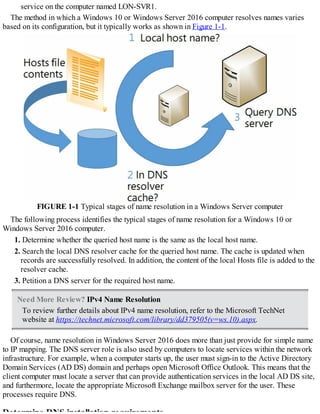
The method in which a Windows 10 or Windows Server 2016 computer resolves names varies
based on its configuration, but it typically works as shown in Figure 1-1.
FIGURE 1-1 Typical stages of name resolution in a Windows Server computer
The following process identifies the typical stages of name resolution for a Windows 10 or
Windows Server 2016 computer.
1. Determine whether the queried host name is the same as the local host name.
2. Search the local DNS resolver cache for the queried host name. The cache is updated when
records are successfully resolved. In addition, the content of the local Hosts file is added to the
resolver cache.
3. Petition a DNS server for the required host name.
Need More Review? IPv4 Name Resolution
To review further details about IPv4 name resolution, refer to the Microsoft TechNet
website at https://technet.microsoft.com/library/dd379505(v=ws.10).aspx.
Of course, name resolution in Windows Server 2016 does more than just provide for simple name
to IP mapping. The DNS server role is also used by computers to locate services within the network
infrastructure. For example, when a computer starts up, the user must sign-in to the Active Directory
Domain Services (AD DS) domain and perhaps open Microsoft Office Outlook. This means that the
client computer must locate a server that can provide authentication services in the local AD DS site,
and furthermore, locate the appropriate Microsoft Exchange mailbox server for the user. These
processes require DNS.
Determine DNS installation requirements
Before you can install the DNS server role, you must verify that your server computer meets the
installation requirements of the role.
The DNS server role installation requirements are:
Security You must sign in on the server computer as a member of the local Administrators
group.
IP configuration The server must have a statically assigned IPv4 and/or IPv6 configuration.
This ensures that client computers can locate the DNS server role by using its IP address.
In addition to these server requirements, you must also be prepared to answer questions that relate
to your organization’s network infrastructure. These organizational questions pertain to your Internet
presence, and the registered domain names that you intend to use publicly. Although you need not
define these domain names during DNS role installation, you must provide this information when you
configure the DNS role.
Install the DNS server role
You can install the DNS server role by using Server Manager, or by using Windows PowerShell.
Installing DNS with Server Manager
To install the DNS server role with Server Manager, use the following procedure:
1. Sign in to the target server as a local administrator.
2. Open Server Manager.
3. In Server Manager, click Manage and then click Add Roles And Features.
4. In the Add Roles And Features Wizard’s Before You Begin page, click Next.
5. On the Select Installation Type page, click Role-Based or Feature-Based Installation, and click
Next.
6. On the Select Destination Server page, select the server from the Server Pool list, and click
Next.
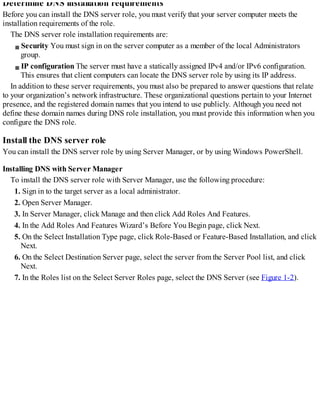
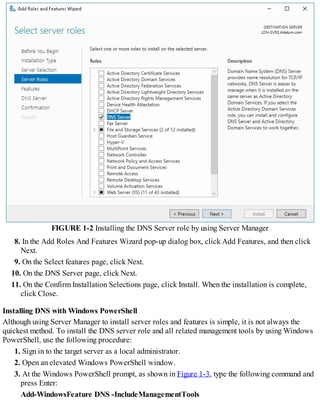
7. In the Roles list on the Select Server Roles page, select the DNS Server (see Figure 1-2).
FIGURE 1-2 Installing the DNS Server role by using Server Manager
8. In the Add Roles And Features Wizard pop-up dialog box, click Add Features, and then click
Next.
9. On the Select features page, click Next.
10. On the DNS Server page, click Next.
11. On the Confirm Installation Selections page, click Install. When the installation is complete,
click Close.
Installing DNS with Windows PowerShell
Although using Server Manager to install server roles and features is simple, it is not always the
quickest method. To install the DNS server role and all related management tools by using Windows
PowerShell, use the following procedure:
1. Sign in to the target server as a local administrator.
2. Open an elevated Windows PowerShell window.
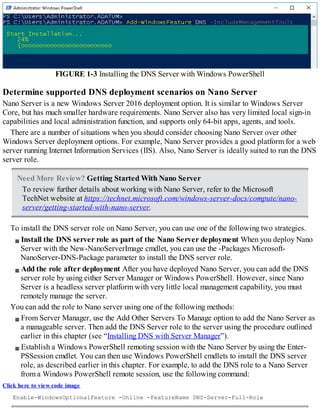
3. At the Windows PowerShell prompt, as shown in Figure 1-3, type the following command and
press Enter:
Add-WindowsFeature DNS -IncludeManagementTools
FIGURE 1-3 Installing the DNS Server with Windows PowerShell
Determine supported DNS deployment scenarios on Nano Server
Nano Server is a new Windows Server 2016 deployment option. It is similar to Windows Server
Core, but has much smaller hardware requirements. Nano Server also has very limited local sign-in
capabilities and local administration function, and supports only 64-bit apps, agents, and tools.
There are a number of situations when you should consider choosing Nano Server over other
Windows Server deployment options. For example, Nano Server provides a good platform for a web
server running Internet Information Services (IIS). Also, Nano Server is ideally suited to run the DNS
server role.
Need More Review? Getting Started With Nano Server
To review further details about working with Nano Server, refer to the Microsoft
TechNet website at https://technet.microsoft.com/windows-server-docs/compute/nano-
server/getting-started-with-nano-server.
To install the DNS server role on Nano Server, you can use one of the following two strategies.
Install the DNS server role as part of the Nano Server deployment When you deploy Nano
Server with the New-NanoServerImage cmdlet, you can use the -Packages Microsoft-
NanoServer-DNS-Package parameter to install the DNS server role.
Add the role after deployment After you have deployed Nano Server, you can add the DNS
server role by using either Server Manager or Windows PowerShell. However, since Nano
Server is a headless server platform with very little local management capability, you must
remotely manage the server.
You can add the role to Nano server using one of the following methods:
From Server Manager, use the Add Other Servers To Manage option to add the Nano Server as
a manageable server. Then add the DNS Server role to the server using the procedure outlined
earlier in this chapter (see “Installing DNS with Server Manager”).
Establish a Windows PowerShell remoting session with the Nano Server by using the Enter-
PSSession cmdlet. You can then use Windows PowerShell cmdlets to install the DNS server
role, as described earlier in this chapter. For example, to add the DNS role to a Nano Server
from a Windows PowerShell remote session, use the following command:
Click here to view code image
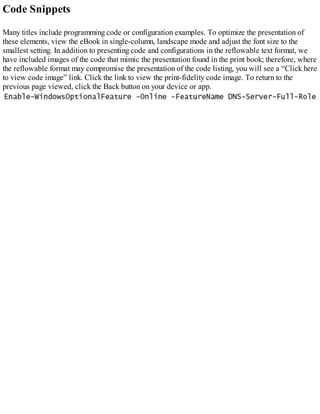
Enable-WindowsOptionalFeature -Online -FeatureName DNS-Server-Full-Role
Exam Tip
Active Directory integrated DNS is not supported on Nano Server, which means that you
can implement file-based DNS only on Nano Server.
Need More Review? Enable and Use Remote Commands in Windows Powershell
To review further details about using Windows PowerShell remoting, refer to the
Microsoft TechNet website at https://technet.microsoft.com/magazine/ff700227.aspx.
Configure forwarders, root hints, recursion, and delegation
After you have installed the DNS server role on your Windows Server 2016 server computer, you
must configure it. This involves configuring forwarding, root hints, recursion, and delegation.
Configure forwarders
DNS forwarding enables you to define what happens to a DNS query when the petitioned DNS server
is unable to resolve that DNS query. For example, you can configure and use DNS forwarding to
control the flow of DNS requests throughout your organization so that only specific DNS servers are
used to handle Internet DNS queries.
With DNS forwarding, you can:
Configure a DNS server only to respond to those queries that it can satisfy by reference to
locally stored zone information. For all other requests, the petitioned DNS server must forward
the request to another DNS server.
Define the forwarding behavior for specific DNS domains by configuring DNS conditional
forwarding. In this scenario, if the DNS query contains a specific domain name, for example
Contoso.com, then it is forwarded to a specific DNS server.
To configure forwarding, use the following procedure:
1. In Server Manager, click Tools, and then click DNS.
2. In DNS Manager, right-click the DNS server in the navigation pane and click Properties.
3. In the Server Properties dialog box, on the Forwarders tab, click Edit.
4. In the IP Address list located in the Edit Forwarders dialog box, enter the IP address of the
server to which you want to forward all DNS queries, and then click OK. You can configure
several DNS servers here; those servers are petitioned in preference order. You can also set a
timeout value, in seconds, after which the query is timed out
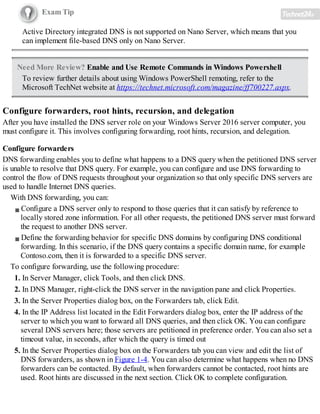
5. In the Server Properties dialog box on the Forwarders tab you can view and edit the list of
DNS forwarders, as shown in Figure 1-4. You can also determine what happens when no DNS
forwarders can be contacted. By default, when forwarders cannot be contacted, root hints are
used. Root hints are discussed in the next section. Click OK to complete configuration.
FIGURE 1-4 Configuring DNS forwarding
Exam Tip
You can also configure forwarding by using the Add-DnsServerForwarder Windows
PowerShell cmdlet.
To enable and configure conditional forwarding, use the following procedure:
1. In DNS Manager, right-click the Conditional Forwarders node in the navigation pane, and then
click New Conditional Forwarder.
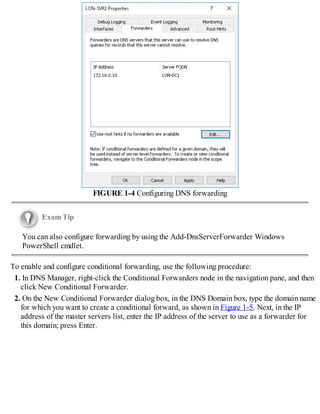
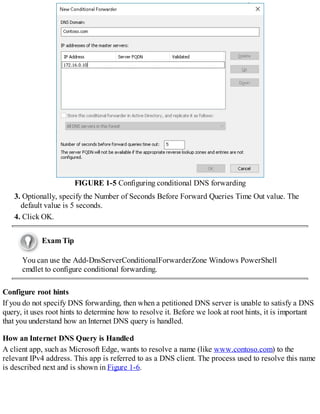
2. On the New Conditional Forwarder dialog box, in the DNS Domain box, type the domain name
for which you want to create a conditional forward, as shown in Figure 1-5. Next, in the IP
address of the master servers list, enter the IP address of the server to use as a forwarder for
this domain; press Enter.
FIGURE 1-5 Configuring conditional DNS forwarding
3. Optionally, specify the Number of Seconds Before Forward Queries Time Out value. The
default value is 5 seconds.
4. Click OK.
Exam Tip
You can use the Add-DnsServerConditionalForwarderZone Windows PowerShell
cmdlet to configure conditional forwarding.
Configure root hints
If you do not specify DNS forwarding, then when a petitioned DNS server is unable to satisfy a DNS
query, it uses root hints to determine how to resolve it. Before we look at root hints, it is important
that you understand how an Internet DNS query is handled.
How an Internet DNS Query is Handled
A client app, such as Microsoft Edge, wants to resolve a name (like www.contoso.com) to the
relevant IPv4 address. This app is referred to as a DNS client. The process used to resolve this name
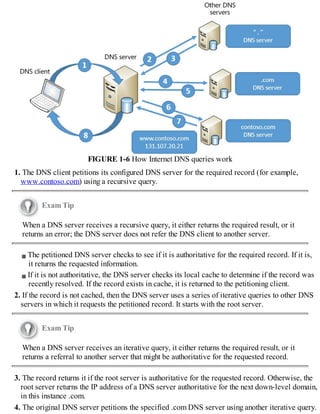
is described next and is shown in Figure 1-6.
FIGURE 1-6 How Internet DNS queries work
1. The DNS client petitions its configured DNS server for the required record (for example,
www.contoso.com) using a recursive query.
Exam Tip
When a DNS server receives a recursive query, it either returns the required result, or it
returns an error; the DNS server does not refer the DNS client to another server.
The petitioned DNS server checks to see if it is authoritative for the required record. If it is,
it returns the requested information.
If it is not authoritative, the DNS server checks its local cache to determine if the record was
recently resolved. If the record exists in cache, it is returned to the petitioning client.
2. If the record is not cached, then the DNS server uses a series of iterative queries to other DNS
servers in which it requests the petitioned record. It starts with the root server.
Exam Tip
When a DNS server receives an iterative query, it either returns the required result, or it
returns a referral to another server that might be authoritative for the requested record.
3. The record returns it if the root server is authoritative for the requested record. Otherwise, the
root server returns the IP address of a DNS server authoritative for the next down-level domain,
in this instance .com.
4. The original DNS server petitions the specified .com DNS server using another iterative query.
5. The .com DNS server is not authoritative, and so returns the IP address of the Contoso.com
DNS server.
6. The original DNS server petitions the specified Contoso.com DNS server using another
iterative query.
7. The Contoso.com DNS server is authoritative, and so returns the required information—in this
case, the IPv4 address for www.contoso.com.
8. The original DNS server caches the record and returns the requested information to the DNS
client.
How Root Hints are Used
As you can see in the preceding explanation and diagram, if a DNS server is not authoritative and
holds no cache for that DNS domain, it petitions a root server to start the process of determining
which server is authoritative for the petitioned record. However, without the IP address of the root
name servers, this process cannot begin.
Root hints are used by DNS servers to enable them to navigate the DNS hierarchy on the Internet,
starting at the root. Microsoft DNS servers are preconfigured with the relevant root hint records.
However, you can modify the list of root hint servers by using the DNS Manager console or by using
Windows PowerShell.
Exam Tip
By default, the DNS Server service implements root hints by using a file, CACHE.DNS,
that is stored in the %systemroot%System32dns folder on the server computer.
You might consider editing the root hints information if you want to configure the flow of DNS
query traffic within your internal network. This is also useful between your internal network and the
boundary network, which sits between your internal network and the Internet.
Editing Root Hints
To modify the root hints information using DNS Manager, use the following procedure:
1. In Server Manager, click Tools, and then click DNS.
2. In the DNS Manager console, locate the appropriate DNS server. Right-click the server and
click Properties.
3. In the server Properties dialog box, click the Root Hints tab, as shown in Figure 1-7.
FIGURE 1-7 Configuring root hints
4. You can then add new records, or edit or remove any existing records. You can also click
Copy From Server to import the root hints from another online DNS server. Click OK when you
have finished editing root hints.
Also, you can use Windows PowerShell to modify the root hints information on your DNS server.
The following cmdlets are available to manage root hints:
Add-DnsServerRootHint Enables you to add new root hints records.
Remove-DnsServerRootHint Enables you to delete root hints records.
Set-DnsServerRootHint Enables you to edit existing root hints records. You can also use the
Get-DnsServerRootHint cmdlet to retrieve the required record for editing.
Import-DnsServerRootHint Enables you to copy the root hints information from another
online DNS server.
For example, to update the value for the root hints assigned to H.Root-servers.adatum.com, use the
following two Windows PowerShell commands:
Click here to view code image
$hint = (Get-DnsServerRootHint | Where-Object {$_.NameServer.RecordData.NameServer
-eq "H.Root-Servers.Adatum.com."} )
$hint.IPAddress[0].RecordData.Ipv4address = "10.24.60.254"
The first command obtains the H.Root-servers.adatum.com root hint and assigns it to the variable
$hint. The Get-DnsServerRootHint cmdlet obtains the list of all root hints, and the Where-Object
cmdlet filters the results to get only the root hint for H.Root-servers.adatum.com.
Configure recursion
Recursion is the name resolution process when a petitioned DNS server queries other DNS servers to
resolve a DNS query on behalf of a requesting client. The petitioned server then returns the answer to
the DNS client. By default, all DNS servers perform recursive queries on behalf of their DNS clients
and other DNS servers that have forwarded DNS client queries to them.
However, since malicious people can use recursion as a means to attempt a denial of service attack
on your DNS servers, you should consider disabling recursion on any DNS server in your network
that is not intended to receive recursive queries.
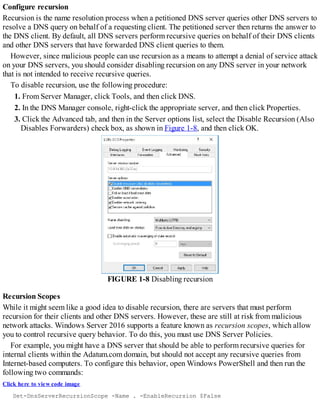
To disable recursion, use the following procedure:
1. From Server Manager, click Tools, and then click DNS.
2. In the DNS Manager console, right-click the appropriate server, and then click Properties.
3. Click the Advanced tab, and then in the Server options list, select the Disable Recursion (Also
Disables Forwarders) check box, as shown in Figure 1-8, and then click OK.
FIGURE 1-8 Disabling recursion
Recursion Scopes
While it might seem like a good idea to disable recursion, there are servers that must perform
recursion for their clients and other DNS servers. However, these are still at risk from malicious
network attacks. Windows Server 2016 supports a feature known as recursion scopes, which allow
you to control recursive query behavior. To do this, you must use DNS Server Policies.
For example, you might have a DNS server that should be able to perform recursive queries for
internal clients within the Adatum.com domain, but should not accept any recursive queries from
Internet-based computers. To configure this behavior, open Windows PowerShell and then run the
following two commands:
Click here to view code image
Set-DnsServerRecursionScope -Name . -EnableRecursion $False
Add-DnsServerRecursionScope -Name "InternalAdatumClients" -EnableRecursion $True
The first command disables recursion for the default recursion scope, which as a result, turns off
recursion. The default scope consists of the server-level recursion and forwarding settings that we
previously discussed (see “Configure forwarders, root hints, recursion, and delegation,” in this
chapter).
The second command creates a new recursion scope called InternalAdatumClients. Recursion is
enabled for clients in this scope. Next, you must define which clients are part of the recursion scope.
Use the following Windows PowerShell command to achieve this:
Click here to view code image
Add-DnsServerQueryResolutionPolicy -Name "RecursionControlPolicy" -Action ALLOW
-ApplyOnRecursion -RecursionScope "InternalAdatumClients" -ServerInterfaceIP
"EQ,10.24.60.254"
In this example, client requests received on the DNS server interface with the IP 10.24.60.254 are
evaluated as belonging to InternalAdatumClients, and recursion is enabled. For client requests
received on other server interfaces, recursion is disabled.
Need More Review? Add-Dnsserverqueryresolutionpolicy
For more information about using Windows PowerShell to configure recursion scopes,
visit the TechNet website at https://technet.microsoft.com/library/mt126273.aspx.
Configure delegation
This content is covered in Chapter 1, Implement Domain Name System: “Configure delegation.”
Configure advanced DNS settings
Configuring forwarding, recursion, and root hints enables you to control the fundamentals of how
DNS queries are processed within your organization. After you have configured these settings, you
can move on to enable and configure more advanced settings.
Configure DNSSEC
DNSSEC is a security setting for DNS that enables all the DNS records in a DNS zone to be digitally
signed so DNS clients are able to verify the identity of the DNS server. DNSSEC helps ensure that
the DNS client is communicating with a genuine DNS server.
Note Dns Zones
Creating and managing DNS zones is covered in “Create DNS Zones.”
When a client queries a DNS server that has been configured with DNSSEC, the server returns any
DNS results along with a digital signature. To ensure that the signature is valid, the DNS client
obtains the public key of the public/private key pair associated with this signature from a trust
anchor. In order for this to work, you must configure your DNS clients with a trust anchor for the
signed DNS zone.
Trust Anchors
To implement DNSSEC, you must create a TrustAnchors zone. This zone is used to store public keys
associated with specific DNS zones. You must create a trust anchor from the secured zone on every
DNS server that hosts the zone.
Name Resolution Policy Table
Additionally, you must create, configure, and distribute a Name Resolution Policy Table (NRPT). A
DNSSEC rule in the NRPT is used by clients to determine DNS client behavior and is used by
DNSSEC to instruct the client to request validation through the use of a signature.
Exam Tip
It is usual in Active Directory Domain Services (AD DS) environments to use Group
Policy Objects (GPOs) to distribute the NRPT.
Implementing Dnssec
After installing Windows Server 2016 and deploying the DNS server role to the server, use the
following procedure to implement DNSSEC:
1. Launch the DNSSEC Configuration Wizard from the DNS Manager console to sign the DNS
zone. In DNS Manager, right-click the desired zone, point to DNSSEC, and then click Sign The
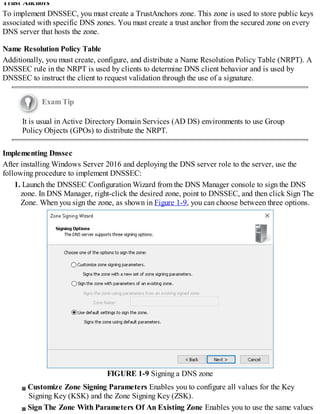
Zone. When you sign the zone, as shown in Figure 1-9, you can choose between three options.
FIGURE 1-9 Signing a DNS zone
Customize Zone Signing Parameters Enables you to configure all values for the Key
Signing Key (KSK) and the Zone Signing Key (ZSK).
Sign The Zone With Parameters Of An Existing Zone Enables you to use the same values
and options as an existing signed zone.
Use Default Settings To Sign The Zone Signs the zone using default values.
2. Configure Trust Anchor Distribution Points You can choose this option if you select the
Customize Zone Signing Parameters option above. Otherwise, after you have signed the zone,
use the following procedure to configure trust anchor distribution points:
A. In DNS Manager, right-click the desired zone, point to DNSSEC, and then click Properties.
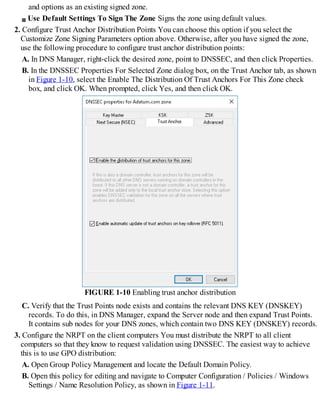
B. In the DNSSEC Properties For Selected Zone dialog box, on the Trust Anchor tab, as shown
in Figure 1-10, select the Enable The Distribution Of Trust Anchors For This Zone check
box, and click OK. When prompted, click Yes, and then click OK.
FIGURE 1-10 Enabling trust anchor distribution
C. Verify that the Trust Points node exists and contains the relevant DNS KEY (DNSKEY)
records. To do this, in DNS Manager, expand the Server node and then expand Trust Points.
It contains sub nodes for your DNS zones, which contain two DNS KEY (DNSKEY) records.
3. Configure the NRPT on the client computers You must distribute the NRPT to all client
computers so that they know to request validation using DNSSEC. The easiest way to achieve
this is to use GPO distribution:
A. Open Group Policy Management and locate the Default Domain Policy.
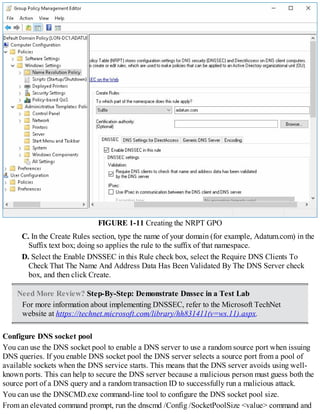
B. Open this policy for editing and navigate to Computer Configuration / Policies / Windows
Settings / Name Resolution Policy, as shown in Figure 1-11.
FIGURE 1-11 Creating the NRPT GPO
C. In the Create Rules section, type the name of your domain (for example, Adatum.com) in the
Suffix text box; doing so applies the rule to the suffix of that namespace.
D. Select the Enable DNSSEC in this Rule check box, select the Require DNS Clients To
Check That The Name And Address Data Has Been Validated By The DNS Server check
box, and then click Create.
Need More Review? Step-By-Step: Demonstrate Dnssec in a Test Lab
For more information about implementing DNSSEC, refer to the Microsoft TechNet
website at https://technet.microsoft.com/library/hh831411(v=ws.11).aspx.
Configure DNS socket pool
You can use the DNS socket pool to enable a DNS server to use a random source port when issuing
DNS queries. If you enable DNS socket pool the DNS server selects a source port from a pool of
available sockets when the DNS service starts. This means that the DNS server avoids using well-
known ports. This can help to secure the DNS server because a malicious person must guess both the
source port of a DNS query and a random transaction ID to successfully run a malicious attack.
You can use the DNSCMD.exe command-line tool to configure the DNS socket pool size.
From an elevated command prompt, run the dnscmd /Config /SocketPoolSize <value> command and
then restart the DNS server. You can configure the socket pool size from 0 through 10,000. The
default pool size is 2,500.
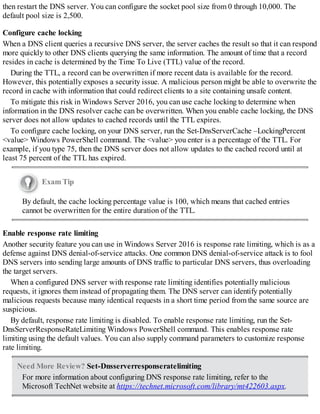
Configure cache locking
When a DNS client queries a recursive DNS server, the server caches the result so that it can respond
more quickly to other DNS clients querying the same information. The amount of time that a record
resides in cache is determined by the Time To Live (TTL) value of the record.
During the TTL, a record can be overwritten if more recent data is available for the record.
However, this potentially exposes a security issue. A malicious person might be able to overwrite the
record in cache with information that could redirect clients to a site containing unsafe content.
To mitigate this risk in Windows Server 2016, you can use cache locking to determine when
information in the DNS resolver cache can be overwritten. When you enable cache locking, the DNS
server does not allow updates to cached records until the TTL expires.
To configure cache locking, on your DNS server, run the Set-DnsServerCache –LockingPercent
<value> Windows PowerShell command. The <value> you enter is a percentage of the TTL. For
example, if you type 75, then the DNS server does not allow updates to the cached record until at
least 75 percent of the TTL has expired.
Exam Tip
By default, the cache locking percentage value is 100, which means that cached entries
cannot be overwritten for the entire duration of the TTL.
Enable response rate limiting
Another security feature you can use in Windows Server 2016 is response rate limiting, which is as a
defense against DNS denial-of-service attacks. One common DNS denial-of-service attack is to fool
DNS servers into sending large amounts of DNS traffic to particular DNS servers, thus overloading
the target servers.
When a configured DNS server with response rate limiting identifies potentially malicious
requests, it ignores them instead of propagating them. The DNS server can identify potentially
malicious requests because many identical requests in a short time period from the same source are
suspicious.
By default, response rate limiting is disabled. To enable response rate limiting, run the Set-
DnsServerResponseRateLimiting Windows PowerShell command. This enables response rate
limiting using the default values. You can also supply command parameters to customize response
rate limiting.
Need More Review? Set-Dnsserverresponseratelimiting
For more information about configuring DNS response rate limiting, refer to the
Microsoft TechNet website at https://technet.microsoft.com/library/mt422603.aspx.
Configure DNS-based authentication of named entities
Windows Server 2016 supports a new feature known as DNS-Based Authentication of Named
Entities (DANE). This feature relies on using Transport Layer Security Authentication (TLSA) and
can help reduce man-in-the-middle type attacks on your network.
DANE works by informing DNS clients requesting records from your domain from which
Certification Authority (CA) they must expect digital certificates to be issued. For example, suppose
a DNS client requests the IPv4 address relating to the record https://www.adatum.com. The DNS
server provides the requested IPv4 address and related information. However, the DNS server also
provides information that the certificate used to authenticate the identity of the webserver
www.adatum.com is provided by a particular CA.
Administering DNS
It is important that you know how to administer your DNS servers. You can use tools such as
Windows PowerShell and the DNS Manager console to interactively administer the DNS servers in
your organization. However, in large enterprise environments, it can be difficult to keep on top of
administration of such a critical service. In these circumstances, you can consider implementing DNS
policies, delegating DNS administration to a specialist team, and using DNS logging as an indicator
of potential problems with DNS.
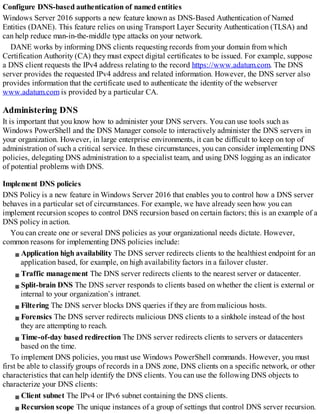
Implement DNS policies
DNS Policy is a new feature in Windows Server 2016 that enables you to control how a DNS server
behaves in a particular set of circumstances. For example, we have already seen how you can
implement recursion scopes to control DNS recursion based on certain factors; this is an example of a
DNS policy in action.
You can create one or several DNS policies as your organizational needs dictate. However,
common reasons for implementing DNS policies include:
Application high availability The DNS server redirects clients to the healthiest endpoint for an
application based, for example, on high availability factors in a failover cluster.
Traffic management The DNS server redirects clients to the nearest server or datacenter.
Split-brain DNS The DNS server responds to clients based on whether the client is external or
internal to your organization’s intranet.
Filtering The DNS server blocks DNS queries if they are from malicious hosts.
Forensics The DNS server redirects malicious DNS clients to a sinkhole instead of the host
they are attempting to reach.
Time-of-day based redirection The DNS server redirects clients to servers or datacenters
based on the time.
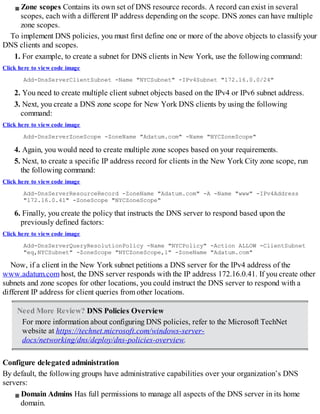
To implement DNS policies, you must use Windows PowerShell commands. However, you must
first be able to classify groups of records in a DNS zone, DNS clients on a specific network, or other
characteristics that can help identify the DNS clients. You can use the following DNS objects to
characterize your DNS clients:
Client subnet The IPv4 or IPv6 subnet containing the DNS clients.
Recursion scope The unique instances of a group of settings that control DNS server recursion.
Zone scopes Contains its own set of DNS resource records. A record can exist in several
scopes, each with a different IP address depending on the scope. DNS zones can have multiple
zone scopes.
To implement DNS policies, you must first define one or more of the above objects to classify your
DNS clients and scopes.
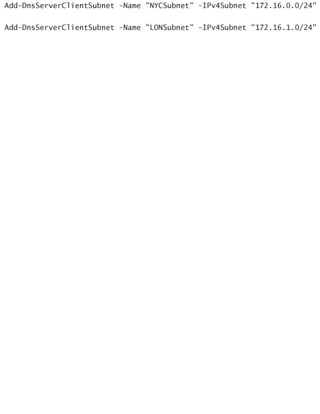
1. For example, to create a subnet for DNS clients in New York, use the following command:
Click here to view code image
Add-DnsServerClientSubnet -Name "NYCSubnet" -IPv4Subnet "172.16.0.0/24"
2. You need to create multiple client subnet objects based on the IPv4 or IPv6 subnet address.
3. Next, you create a DNS zone scope for New York DNS clients by using the following
command:
Click here to view code image
Add-DnsServerZoneScope -ZoneName "Adatum.com" -Name "NYCZoneScope"
4. Again, you would need to create multiple zone scopes based on your requirements.
5. Next, to create a specific IP address record for clients in the New York City zone scope, run
the following command:
Click here to view code image
Add-DnsServerResourceRecord -ZoneName "Adatum.com" -A -Name "www" -IPv4Address
"172.16.0.41" -ZoneScope "NYCZoneScope"
6. Finally, you create the policy that instructs the DNS server to respond based upon the
previously defined factors:
Click here to view code image
Add-DnsServerQueryResolutionPolicy -Name "NYCPolicy" -Action ALLOW -ClientSubnet
"eq,NYCSubnet" -ZoneScope "NYCZoneScope,1" -ZoneName "Adatum.com"
Now, if a client in the New York subnet petitions a DNS server for the IPv4 address of the
www.adatum.com host, the DNS server responds with the IP address 172.16.0.41. If you create other
subnets and zone scopes for other locations, you could instruct the DNS server to respond with a
different IP address for client queries from other locations.
Need More Review? DNS Policies Overview
For more information about configuring DNS policies, refer to the Microsoft TechNet
website at https://technet.microsoft.com/windows-server-
docs/networking/dns/deploy/dns-policies-overview.
Configure delegated administration
By default, the following groups have administrative capabilities over your organization’s DNS
servers:
Domain Admins Has full permissions to manage all aspects of the DNS server in its home
domain.
Enterprise Admins Has full permissions to manage all aspects of all DNS servers in any
domain in your AD DS forest.
DnsAdmins Can view and modify all DNS data, settings, and configurations of DNS servers in
their home domain.
In a small to medium network, it is generally acceptable to use these defaults. However, in large
network environments, it can be beneficial to delegate administration for aspects of DNS management
to different teams.
If you decide to delegate DNS Server administration to a different user or group, you can add that
user or group to the DnsAdmins group for a given domain in the forest. To modify membership of this
group, you can use Active Directory Users and Computers or the Windows PowerShell Add-
ADGroupMember cmdlet.
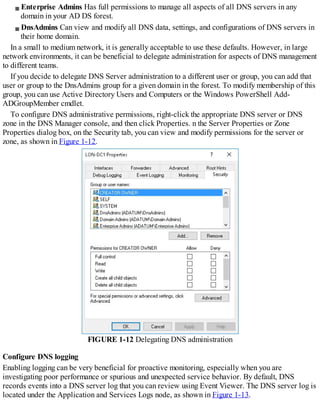
To configure DNS administrative permissions, right-click the appropriate DNS server or DNS
zone in the DNS Manager console, and then click Properties. n the Server Properties or Zone
Properties dialog box, on the Security tab, you can view and modify permissions for the server or
zone, as shown in Figure 1-12.
FIGURE 1-12 Delegating DNS administration
Configure DNS logging
Enabling logging can be very beneficial for proactive monitoring, especially when you are
investigating poor performance or spurious and unexpected service behavior. By default, DNS
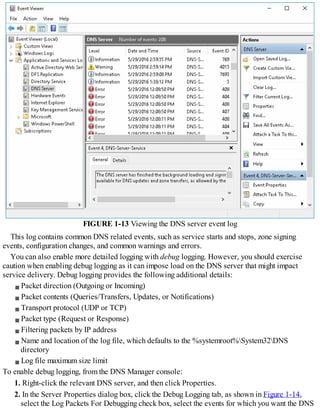
records events into a DNS server log that you can review using Event Viewer. The DNS server log is
located under the Application and Services Logs node, as shown in Figure 1-13.
FIGURE 1-13 Viewing the DNS server event log
This log contains common DNS related events, such as service starts and stops, zone signing
events, configuration changes, and common warnings and errors.
You can also enable more detailed logging with debug logging. However, you should exercise
caution when enabling debug logging as it can impose load on the DNS server that might impact
service delivery. Debug logging provides the following additional details:
Packet direction (Outgoing or Incoming)
Packet contents (Queries/Transfers, Updates, or Notifications)
Transport protocol (UDP or TCP)
Packet type (Request or Response)
Filtering packets by IP address
Name and location of the log file, which defaults to the %systemroot%System32DNS
directory
Log file maximum size limit
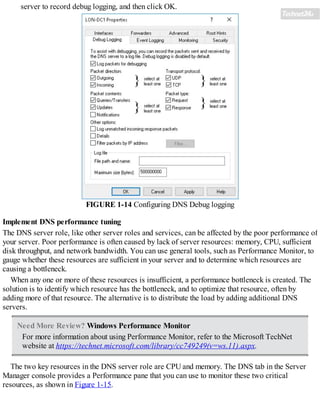
To enable debug logging, from the DNS Manager console:
1. Right-click the relevant DNS server, and then click Properties.
2. In the Server Properties dialog box, click the Debug Logging tab, as shown in Figure 1-14,
select the Log Packets For Debugging check box, select the events for which you want the DNS
server to record debug logging, and then click OK.
FIGURE 1-14 Configuring DNS Debug logging
Implement DNS performance tuning
The DNS server role, like other server roles and services, can be affected by the poor performance of
your server. Poor performance is often caused by lack of server resources: memory, CPU, sufficient
disk throughput, and network bandwidth. You can use general tools, such as Performance Monitor, to
gauge whether these resources are sufficient in your server and to determine which resources are
causing a bottleneck.
When any one or more of these resources is insufficient, a performance bottleneck is created. The
solution is to identify which resource has the bottleneck, and to optimize that resource, often by
adding more of that resource. The alternative is to distribute the load by adding additional DNS
servers.
Need More Review? Windows Performance Monitor
For more information about using Performance Monitor, refer to the Microsoft TechNet
website at https://technet.microsoft.com/library/cc749249(v=ws.11).aspx.
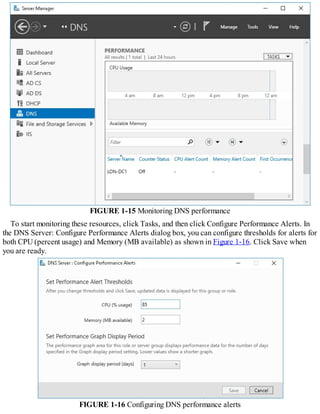
The two key resources in the DNS server role are CPU and memory. The DNS tab in the Server
Manager console provides a Performance pane that you can use to monitor these two critical
resources, as shown in Figure 1-15.
FIGURE 1-15 Monitoring DNS performance
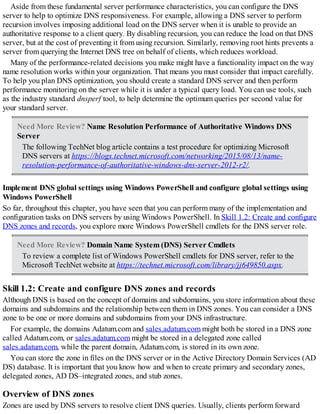
To start monitoring these resources, click Tasks, and then click Configure Performance Alerts. In
the DNS Server: Configure Performance Alerts dialog box, you can configure thresholds for alerts for
both CPU (percent usage) and Memory (MB available) as shown in Figure 1-16. Click Save when
you are ready.
FIGURE 1-16 Configuring DNS performance alerts
Aside from these fundamental server performance characteristics, you can configure the DNS
server to help to optimize DNS responsiveness. For example, allowing a DNS server to perform
recursion involves imposing additional load on the DNS server when it is unable to provide an
authoritative response to a client query. By disabling recursion, you can reduce the load on that DNS
server, but at the cost of preventing it from using recursion. Similarly, removing root hints prevents a
server from querying the Internet DNS tree on behalf of clients, which reduces workload.
Many of the performance-related decisions you make might have a functionality impact on the way
name resolution works within your organization. That means you must consider that impact carefully.
To help you plan DNS optimization, you should create a standard DNS server and then perform
performance monitoring on the server while it is under a typical query load. You can use tools, such
as the industry standard dnsperf tool, to help determine the optimum queries per second value for
your standard server.
Need More Review? Name Resolution Performance of Authoritative Windows DNS
Server
The following TechNet blog article contains a test procedure for optimizing Microsoft
DNS servers at https://blogs.technet.microsoft.com/networking/2015/08/13/name-
resolution-performance-of-authoritative-windows-dns-server-2012-r2/.
Implement DNS global settings using Windows PowerShell and configure global settings using
Windows PowerShell
So far, throughout this chapter, you have seen that you can perform many of the implementation and
configuration tasks on DNS servers by using Windows PowerShell. In Skill 1.2: Create and configure
DNS zones and records, you explore more Windows PowerShell cmdlets for the DNS server role.
Need More Review? Domain Name System (DNS) Server Cmdlets
To review a complete list of Windows PowerShell cmdlets for DNS server, refer to the
Microsoft TechNet website at https://technet.microsoft.com/library/jj649850.aspx.
Skill 1.2: Create and configure DNS zones and records
Although DNS is based on the concept of domains and subdomains, you store information about these
domains and subdomains and the relationship between them in DNS zones. You can consider a DNS
zone to be one or more domains and subdomains from your DNS infrastructure.
For example, the domains Adatum.com and sales.adatum.com might both be stored in a DNS zone
called Adatum.com, or sales.adatum.com might be stored in a delegated zone called
sales.adatum.com, while the parent domain, Adatum.com, is stored in its own zone.
You can store the zone in files on the DNS server or in the Active Directory Domain Services (AD
DS) database. It is important that you know how and when to create primary and secondary zones,
delegated zones, AD DS–integrated zones, and stub zones.
Overview of DNS zones
Zones are used by DNS servers to resolve client DNS queries. Usually, clients perform forward
lookup queries in which a hostname must be resolved into the corresponding Internet Protocol
Version 4 (IPv4) or Internet Protocol Version 6 (IPv6) address. Forward lookup queries are resolved
by reference to forward lookup zones.
Forward lookup zones contain a variety of DNS record type (discussed in the next section)
include:
Host (A) records
Alias (CNAME) records
Records that identify which server is hosting a service, such as service (SRV) records and Mail
exchanger (MX) records.
Less often, a DNS client queries a DNS server for the name of a host when it has the IPv4 or IPv6
address of the host. This is called a reverse lookup, and is satisfied by reference to a reverse lookup
zone. Reverse lookup zones contain pointer (PTR) records.
Before you create your zone, you must first determine whether the zone is a forward or reverse
lookup zone. Then you must determine whether the zone is primary, secondary, or AD DS–integrated.
Strictly speaking, it is not the zone that is primary or secondary. Instead, it is the local copy of the
zone that is primary or secondary. In other words, for there to be a secondary zone for Adatum.com,
there must already exist a primary zone for Adatum.com on another DNS server from which the
secondary can obtain the zone data.
When you first deploy the DNS server role in Windows Server 2016, the DNS Manager console
navigation pane contains the server node, and beneath this, nodes for Forward Lookup Zones,
Reverse Lookup Zones, Trust Points, and Conditional Forwarders. These nodes are all empty until
you start to create zones on the DNS server.
Configure DNS zones
Windows Server 2016 supports a number of different zone types. These include primary zones,
secondary zones, and Active Directory integrated zones. It’s important that you know how to create
and configure these different types of zone..
Create primary zones
A primary zone is a writable copy of a DNS zone that exists on a DNS server. To create a primary
zone, in the DNS Manager console, use the following procedure:
1. Right-click the Forward Lookup Zones node, and then click New Zone.
2. In the New Zone Wizard, on the Welcome To The New Zone Wizard page, click Next.
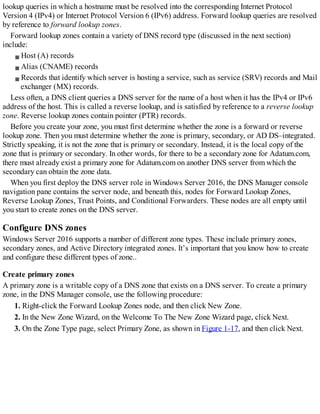
3. On the Zone Type page, select Primary Zone, as shown in Figure 1-17, and then click Next.
FIGURE 1-17 Creating a primary zone
4. On the Zone Name page, in the Zone name box, type the zone name. For example, type
Contoso.com. Click Next.
5. On the Zone File page:
If you have a DNS zone file with which to populate your zone (for example, from another
DNS server), click Use This Existing File, specify the path to the file, and then click Next.
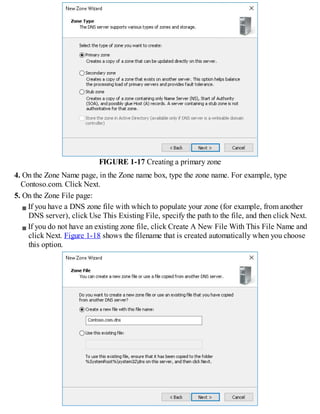
If you do not have an existing zone file, click Create A New File With This File Name and
click Next. Figure 1-18 shows the filename that is created automatically when you choose
this option.
FIGURE 1-18 Defining the zone file
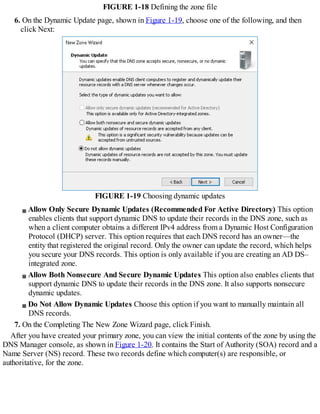
6. On the Dynamic Update page, shown in Figure 1-19, choose one of the following, and then
click Next:
FIGURE 1-19 Choosing dynamic updates
Allow Only Secure Dynamic Updates (Recommended For Active Directory) This option
enables clients that support dynamic DNS to update their records in the DNS zone, such as
when a client computer obtains a different IPv4 address from a Dynamic Host Configuration
Protocol (DHCP) server. This option requires that each DNS record has an owner—the
entity that registered the original record. Only the owner can update the record, which helps
you secure your DNS records. This option is only available if you are creating an AD DS–
integrated zone.
Allow Both Nonsecure And Secure Dynamic Updates This option also enables clients that
support dynamic DNS to update their records in the DNS zone. It also supports nonsecure
dynamic updates.
Do Not Allow Dynamic Updates Choose this option if you want to manually maintain all
DNS records.
7. On the Completing The New Zone Wizard page, click Finish.
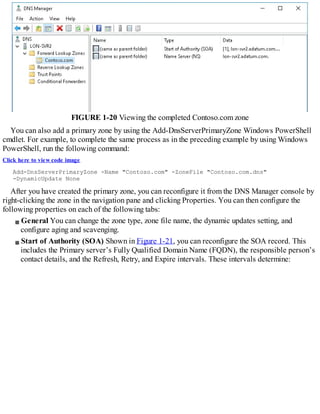
After you have created your primary zone, you can view the initial contents of the zone by using the
DNS Manager console, as shown in Figure 1-20. It contains the Start of Authority (SOA) record and a
Name Server (NS) record. These two records define which computer(s) are responsible, or
authoritative, for the zone.
FIGURE 1-20 Viewing the completed Contoso.com zone
You can also add a primary zone by using the Add-DnsServerPrimaryZone Windows PowerShell
cmdlet. For example, to complete the same process as in the preceding example by using Windows
PowerShell, run the following command:
Click here to view code image
Add-DnsServerPrimaryZone -Name "Contoso.com" -ZoneFile "Contoso.com.dns"
-DynamicUpdate None
After you have created the primary zone, you can reconfigure it from the DNS Manager console by
right-clicking the zone in the navigation pane and clicking Properties. You can then configure the
following properties on each of the following tabs:
General You can change the zone type, zone file name, the dynamic updates setting, and
configure aging and scavenging.
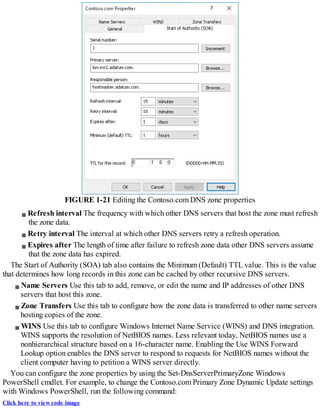
Start of Authority (SOA) Shown in Figure 1-21, you can reconfigure the SOA record. This
includes the Primary server’s Fully Qualified Domain Name (FQDN), the responsible person’s
contact details, and the Refresh, Retry, and Expire intervals. These intervals determine:
FIGURE 1-21 Editing the Contoso.com DNS zone properties
Refresh interval The frequency with which other DNS servers that host the zone must refresh
the zone data.
Retry interval The interval at which other DNS servers retry a refresh operation.
Expires after The length of time after failure to refresh zone data other DNS servers assume
that the zone data has expired.
The Start of Authority (SOA) tab also contains the Minimum (Default) TTL value. This is the value
that determines how long records in this zone can be cached by other recursive DNS servers.
Name Servers Use this tab to add, remove, or edit the name and IP addresses of other DNS
servers that host this zone.
Zone Transfers Use this tab to configure how the zone data is transferred to other name servers
hosting copies of the zone.
WINS Use this tab to configure Windows Internet Name Service (WINS) and DNS integration.
WINS supports the resolution of NetBIOS names. Less relevant today, NetBIOS names use a
nonhierarchical structure based on a 16-character name. Enabling the Use WINS Forward
Lookup option enables the DNS server to respond to requests for NetBIOS names without the
client computer having to petition a WINS server directly.
You can configure the zone properties by using the Set-DnsServerPrimaryZone Windows
PowerShell cmdlet. For example, to change the Contoso.com Primary Zone Dynamic Update settings
with Windows PowerShell, run the following command:
Click here to view code image
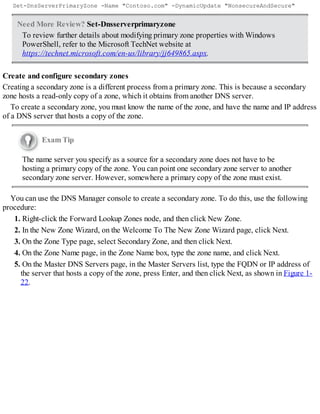
Set-DnsServerPrimaryZone -Name "Contoso.com" -DynamicUpdate "NonsecureAndSecure"
Need More Review? Set-Dnsserverprimaryzone
To review further details about modifying primary zone properties with Windows
PowerShell, refer to the Microsoft TechNet website at
https://technet.microsoft.com/en-us/library/jj649865.aspx.
Create and configure secondary zones
Creating a secondary zone is a different process from a primary zone. This is because a secondary
zone hosts a read-only copy of a zone, which it obtains from another DNS server.
To create a secondary zone, you must know the name of the zone, and have the name and IP address
of a DNS server that hosts a copy of the zone.
Exam Tip
The name server you specify as a source for a secondary zone does not have to be
hosting a primary copy of the zone. You can point one secondary zone server to another
secondary zone server. However, somewhere a primary copy of the zone must exist.
You can use the DNS Manager console to create a secondary zone. To do this, use the following
procedure:
1. Right-click the Forward Lookup Zones node, and then click New Zone.
2. In the New Zone Wizard, on the Welcome To The New Zone Wizard page, click Next.
3. On the Zone Type page, select Secondary Zone, and then click Next.
4. On the Zone Name page, in the Zone Name box, type the zone name, and click Next.
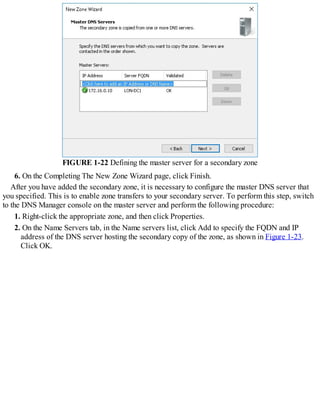
5. On the Master DNS Servers page, in the Master Servers list, type the FQDN or IP address of
the server that hosts a copy of the zone, press Enter, and then click Next, as shown in Figure 1-
22.
FIGURE 1-22 Defining the master server for a secondary zone
6. On the Completing The New Zone Wizard page, click Finish.
After you have added the secondary zone, it is necessary to configure the master DNS server that
you specified. This is to enable zone transfers to your secondary server. To perform this step, switch
to the DNS Manager console on the master server and perform the following procedure:
1. Right-click the appropriate zone, and then click Properties.
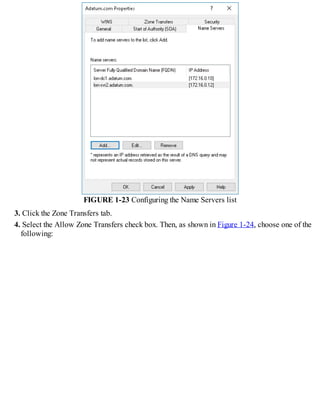
2. On the Name Servers tab, in the Name servers list, click Add to specify the FQDN and IP
address of the DNS server hosting the secondary copy of the zone, as shown in Figure 1-23.
Click OK.
FIGURE 1-23 Configuring the Name Servers list
3. Click the Zone Transfers tab.
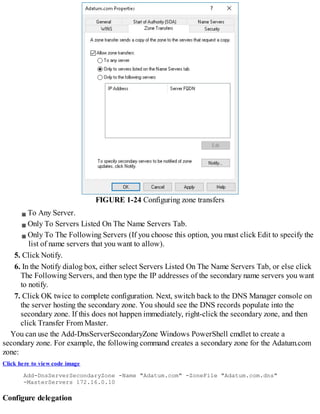
4. Select the Allow Zone Transfers check box. Then, as shown in Figure 1-24, choose one of the
following:
FIGURE 1-24 Configuring zone transfers
To Any Server.
Only To Servers Listed On The Name Servers Tab.
Only To The Following Servers (If you choose this option, you must click Edit to specify the
list of name servers that you want to allow).
5. Click Notify.
6. In the Notify dialog box, either select Servers Listed On The Name Servers Tab, or else click
The Following Servers, and then type the IP addresses of the secondary name servers you want
to notify.
7. Click OK twice to complete configuration. Next, switch back to the DNS Manager console on
the server hosting the secondary zone. You should see the DNS records populate into the
secondary zone. If this does not happen immediately, right-click the secondary zone, and then
click Transfer From Master.
You can use the Add-DnsServerSecondaryZone Windows PowerShell cmdlet to create a
secondary zone. For example, the following command creates a secondary zone for the Adatum.com
zone:
Click here to view code image
Add-DnsServerSecondaryZone -Name "Adatum.com" -ZoneFile "Adatum.com.dns"
-MasterServers 172.16.0.10
Configure delegation
DNS delegation is when a DNS server delegates authority over a part of its namespace to one or
more other DNS servers. For example, Adatum.com and sales.adatum.com could be hosted in the
same zone, Adatum.com, with the sales.adatum.com merely being a subdomain record. In this case,
the authoritative DNS servers for Adatum.com and sales.adatum.com are the same. There is no need
for the DNS servers in Adatum.com to refer recursive DNS servers to another domain.
Alternatively, you could create a separate zone for both Adatum.com and sales.adatum.com, each
with their own DNS servers. Because one domain, sales.adatum.com, is a child domain of another
domain, Adatum.com, there must exist a method to enable the authoritative name servers for the
subdomain to be located. This method is called delegation, and is essentially a pointer to the
authoritative name servers for a subdomain.
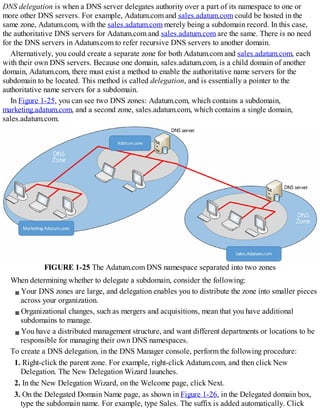
In Figure 1-25, you can see two DNS zones: Adatum.com, which contains a subdomain,
marketing.adatum.com, and a second zone, sales.adatum.com, which contains a single domain,
sales.adatum.com.
FIGURE 1-25 The Adatum.com DNS namespace separated into two zones
When determining whether to delegate a subdomain, consider the following:
Your DNS zones are large, and delegation enables you to distribute the zone into smaller pieces
across your organization.
Organizational changes, such as mergers and acquisitions, mean that you have additional
subdomains to manage.
You have a distributed management structure, and want different departments or locations to be
responsible for managing their own DNS namespaces.
To create a DNS delegation, in the DNS Manager console, perform the following procedure:
1. Right-click the parent zone. For example, right-click Adatum.com, and then click New
Delegation. The New Delegation Wizard launches.
2. In the New Delegation Wizard, on the Welcome page, click Next.
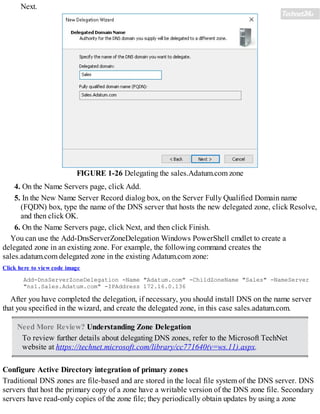
3. On the Delegated Domain Name page, as shown in Figure 1-26, in the Delegated domain box,
type the subdomain name. For example, type Sales. The suffix is added automatically. Click
Next.
FIGURE 1-26 Delegating the sales.Adatum.com zone
4. On the Name Servers page, click Add.
5. In the New Name Server Record dialog box, on the Server Fully Qualified Domain name
(FQDN) box, type the name of the DNS server that hosts the new delegated zone, click Resolve,
and then click OK.
6. On the Name Servers page, click Next, and then click Finish.
You can use the Add-DnsServerZoneDelegation Windows PowerShell cmdlet to create a
delegated zone in an existing zone. For example, the following command creates the
sales.adatum.com delegated zone in the existing Adatum.com zone:
Click here to view code image
Add-DnsServerZoneDelegation -Name "Adatum.com" -ChildZoneName "Sales" -NameServer
"ns1.Sales.Adatum.com" -IPAddress 172.16.0.136
After you have completed the delegation, if necessary, you should install DNS on the name server
that you specified in the wizard, and create the delegated zone, in this case sales.adatum.com.
Need More Review? Understanding Zone Delegation
To review further details about delegating DNS zones, refer to the Microsoft TechNet
website at https://technet.microsoft.com/library/cc771640(v=ws.11).aspx.
Configure Active Directory integration of primary zones
Traditional DNS zones are file-based and are stored in the local file system of the DNS server. DNS
servers that host the primary copy of a zone have a writable version of the DNS zone file. Secondary
servers have read-only copies of the zone file; they periodically obtain updates by using a zone
transfer from their configured master, as you saw in Create and configure secondary zones.
In an AD DS environment, you have the option to create AD DS-integrated zones. In this situation,
all copies of the zone data are writable. In addition, the zone data is stored securely in Active
Directory and is replicated securely as part of the AD DS database.
The benefits of using AD DS-integrated zones are:
Multimaster updates AD DS-integrated DNS zones are multimaster, and updates can be made
to any copy of the zone data. This provides for redundancy in your DNS infrastructure. If your
organization implements dynamic updates to the DNS zone, then geographically remote DNS
clients can update their records by connecting to the nearest DNS server.
Replicated using AD DS replication AD DS replication is based at the attribute-level. This
means that only changed attributes, rather than entire records, are replicated. This means that the
volume of zone transfer traffic can be reduced.
Secure dynamic updates You can implement secure dynamic updates in an AD DS–integrated
zone. This is discussed in the next section.
Improved security You can delegate administration of AD DS-integrated zone, domains, and
resource records with the AD DS object-level Access Control List (ACL) for the zone.
Exam Tip
When you promote a new domain controller in your AD DS forest, the DNS server role
deploys automatically. This is configurable on the Domain Controller Options page of
the Active Directory Domain Services Configuration Wizard.
When you create zones on a DNS server that is also a domain controller, you have the option to
install an AD DS-integrated zone. To create an AD DS-integrated DNS zone, use the following
procedure:
1. On your domain controller, open DNS Manager.
2. Right-click the Forward Lookup Zones node, and then click New Zone.
3. In the New Zone Wizard, on the Welcome To The New Zone Wizard page, click Next.
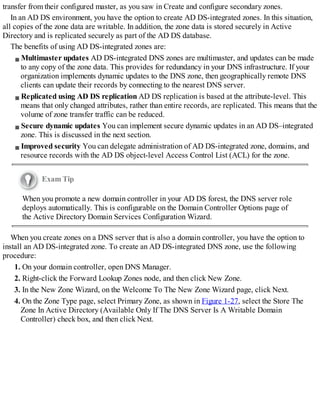
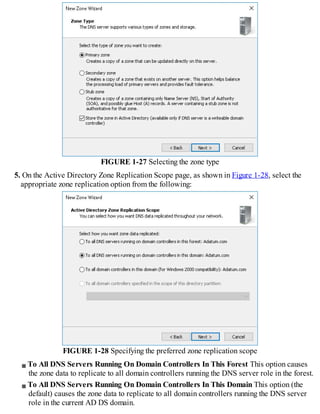
4. On the Zone Type page, select Primary Zone, as shown in Figure 1-27, select the Store The
Zone In Active Directory (Available Only If The DNS Server Is A Writable Domain
Controller) check box, and then click Next.
FIGURE 1-27 Selecting the zone type
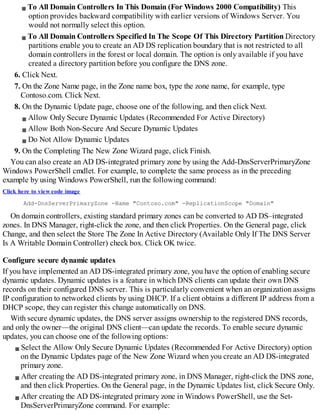
5. On the Active Directory Zone Replication Scope page, as shown in Figure 1-28, select the
appropriate zone replication option from the following:
FIGURE 1-28 Specifying the preferred zone replication scope
To All DNS Servers Running On Domain Controllers In This Forest This option causes
the zone data to replicate to all domain controllers running the DNS server role in the forest.
To All DNS Servers Running On Domain Controllers In This Domain This option (the
default) causes the zone data to replicate to all domain controllers running the DNS server
role in the current AD DS domain.
To All Domain Controllers In This Domain (For Windows 2000 Compatibility) This
option provides backward compatibility with earlier versions of Windows Server. You
would not normally select this option.
To All Domain Controllers Specified In The Scope Of This Directory Partition Directory
partitions enable you to create an AD DS replication boundary that is not restricted to all
domain controllers in the forest or local domain. The option is only available if you have
created a directory partition before you configure the DNS zone.
6. Click Next.
7. On the Zone Name page, in the Zone name box, type the zone name, for example, type
Contoso.com. Click Next.
8. On the Dynamic Update page, choose one of the following, and then click Next.
Allow Only Secure Dynamic Updates (Recommended For Active Directory)
Allow Both Non-Secure And Secure Dynamic Updates
Do Not Allow Dynamic Updates
9. On the Completing The New Zone Wizard page, click Finish.
You can also create an AD DS-integrated primary zone by using the Add-DnsServerPrimaryZone
Windows PowerShell cmdlet. For example, to complete the same process as in the preceding
example by using Windows PowerShell, run the following command:
Click here to view code image
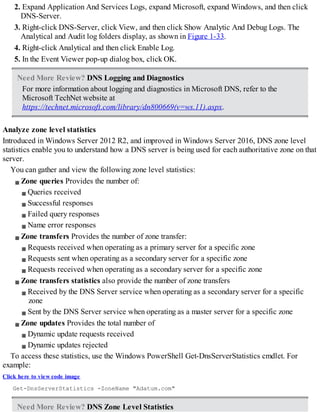
Add-DnsServerPrimaryZone -Name "Contoso.com" -ReplicationScope "Domain"
On domain controllers, existing standard primary zones can be converted to AD DS–integrated
zones. In DNS Manager, right-click the zone, and then click Properties. On the General page, click
Change, and then select the Store The Zone In Active Directory (Available Only If The DNS Server
Is A Writable Domain Controller) check box. Click OK twice.
Configure secure dynamic updates
If you have implemented an AD DS-integrated primary zone, you have the option of enabling secure
dynamic updates. Dynamic updates is a feature in which DNS clients can update their own DNS
records on their configured DNS server. This is particularly convenient when an organization assigns
IP configuration to networked clients by using DHCP. If a client obtains a different IP address from a
DHCP scope, they can register this change automatically on DNS.
With secure dynamic updates, the DNS server assigns ownership to the registered DNS records,
and only the owner—the original DNS client—can update the records. To enable secure dynamic
updates, you can choose one of the following options:
Select the Allow Only Secure Dynamic Updates (Recommended For Active Directory) option
on the Dynamic Updates page of the New Zone Wizard when you create an AD DS-integrated
primary zone.
After creating the AD DS-integrated primary zone, in DNS Manager, right-click the DNS zone,
and then click Properties. On the General page, in the Dynamic Updates list, click Secure Only.
After creating the AD DS-integrated primary zone in Windows PowerShell, use the Set-
DnsServerPrimaryZone command. For example:
Click here to view code image
Set-DnsServerPrimaryZone -Name "Contoso.com" -DynamicUpdate "Secure"
Create and configure stub zones
You can use conditional forwarding as a means to redirect query traffic to a designated DNS server.
With conditional forwarding, if a DNS query contains a specific domain name, for example
Contoso.com, it is forwarded to a specific DNS server. To learn more about Conditional Forwarding,
see “Configure forwarders, root hints, recursion, and delegation.”
Alternatively, you can also use a stub zones to achieve a similar result. A stub zone is used by a
DNS server to help resolve names between two separate DNS namespaces, such as following a
merger or acquisition. A stub zone differs from conditional forwarding in that the stub zone contains
the complete list of DNS servers for the other domain.
Comparing Conditional Forwarding with stub Zones
Imagine that two DNS namespaces, Adatum.com and Contoso.com, are now owned by the A. Datum
Corporation following an acquisition. For DNS clients in the Adatum.com domain to locate resources
in the Contoso.com domain it requires the use of root hints by Adatum.com DNS servers.
To avoid this, in the Adatum.com domain, you could configure DNS conditional forwarding for the
Contoso.com domain. With conditional forwarding, you configure to which DNS server(s) in the
Contoso.com domain to forward DNS queries.
You can also use a stub zone for Contoso.com in the Adatum.com domain. This stub zone contains
the complete list of DNS server that are authoritative for the foreign domain. This list of servers is
updated automatically.
When considering whether to use conditional forwarding or stub zones, remember:
You must manually maintain conditional forwarding records, while stub zones are maintained
automatically.
With conditional forwarding, you can designate the specific foreign DNS server to forward
queries to, but with a stub zone, you cannot.
Creating a stub Zone
You can use the following procedure to create a stub zone. Open DNS Manager, and then:
1. Right-click the Forward Lookup Zones node, and then click New Zone.
2. On the New Zone Wizard, on the Welcome to the New Zone Wizard page, click Next.
3. On the Zone Type page, select Stub Zone, and then click Next.
4. On the Zone Name page, in the Zone name box, type the DNS domain name for the foreign
domain, and then click Next.
5. On the Zone File page, if you have a DNS zone file that you use to populate your zone (for
example, from another DNS server), click Use This Existing File, specify the path to the file on
the Zone File page, and then click Next.
6. On the Master DNS Servers page, in the Master Servers list, type the IP address or FQDN of
the DNS server in the foreign domain from which the DNS server obtains zone updates, and
then click Next.
7. Click Finish to create the stub zone.
You must now populate the stub zone with the required records that includes the Start of Authority
(SOA) record, and the Host (A) and NS records that pertain to the foreign DNS servers, and are
retrieved from the specific master server(s). To manually perform this task, in the DNS Manager,
right-click the stub zone and then click Transfer from Master.
You can use the Windows PowerShell Add-DnsServerStubZone cmdlet to create a stub zone. For
example, to create a stub zone for Contoso.com, use the following command:
Click here to view code image
Add-DnsServerStubZone -Name "Contoso.com" -MasterServers "172.16.0.66" -ZoneFile
"Contoso.dns"
Exam Tip
You can create AD DS-integrated stub zones, either in the DNS Manager console, or by
using Windows PowerShell. To use Windows PowerShell, replace the zonefile
parameter with ReplicationScope.
Configure a GlobalNames zone
Some older networked apps rely on a non-hierarchical naming standard known as NetBIOS. In the
past, network clients that accessed these apps needed to be able to resolve these single-label
NetBIOS names. You can use the WINS server feature to provide for NetBIOS name registration,
resolution, and release.
The disadvantages of using WINS are:
Organizations must maintain two name services, with the resultant administrative overhead.
Network clients potentially use both DNS and WINS to resolve names, resulting in possible
name resolution delay.
As an alternative to WINS, you can use the DNS GlobalNames zone in Windows Server 2016.
When clients resolve single-label names, such as LON-SVR2, these names are resolved by reference
to the GlobalNames zone. An organization has only a single GlobalNames zone, which you must
create manually. Also, you must populate the zone with the required CNAME resource records that
point to your organization’s server and app resources.
To create the GlobalNames zone, use the following procedure:
1. Open Windows PowerShell.
2. Run the Set-DnsServerGlobalNameZone –AlwaysQueryServer $true command to enable
GlobalNames zone support.
3. Run the Add-DnsServerPrimaryZone –Name GlobalNames –ReplicationScope Forest
command to create the GlobalNames zone.
4. Open DNS Manager and locate the GlobalNames zone node.
5. Create the required CNAME records for server resources that still use single-label names.
Need More Review? Deploying a Globalnames Zone
To review further details about the GlobalNames zone, refer to the Microsoft TechNet
website at https://technet.microsoft.com/library/cc731744(v=ws.11).aspx.
Configure DNS records
Zones contain DNS records that point either to name servers, hosts, services, or to other zones. After
you have created your zones, you must populate them with records appropriate to your organization’s
network. You must also be prepared to maintain these records to ensure the accuracy of zone data.
Create and configure DNS resource records
A DNS server exists to provide name resolution for DNS clients. In order for this to be possible, you
must populate the DNZ zones that you create with appropriate DNS resource records. These resource
records include:
Host A host record—commonly given the abbreviation A—holds the IPv4 address for the
specified hostname. AAAA records hold the IPv6 address for the specified hostname. These are
probably the most common resource records and are found in forward lookup zones.
Pointer Also known as PTR records, these enable a DNS client to resolve an IPv4 or IPv6
address into a hostname. These records exist in reverse lookup zones.
Start of Authority Created when you create a primary zone, the SOA record contains
information about the authoritative server for the zone, contact information for the zone, and
other information, including TTL values for resource records in the zone.
Name Server Name server (NS) records identify the authoritative name servers in the zone,
including both primary and secondary servers. They also identify name servers for any
delegated zones.
Service Location Known as SRV records, these enable you to specify by service, protocol,
and DNS domain name, which servers are hosting particular apps or services. If a DNS client
is looking for a web server, for example, you can configure SRV records for the http service
enabling clients to find all servers providing that service. Clients then use corresponding A or
AAAA records to resolve the server names into IP addresses. An SRV record is more complex
than many others, and contains the following fields: _Service.Proto.Name TTL Class SRV
Priority Weight Port Target. For example: http._tcp.Contoso.com. IN SRV 0 0 80
www.Contoso.com. AD DS services, such as the Kerberos authentication service, use SRV
records to advertise themselves to clients in an AD DS network.
Alias CNAME records enable you to create an alias for a host. For example, the server lon-
svr2.adatum.com might host a website. You can create an alias for this host with the name www
by adding a CNAME record that points to the FQDN of the lon-svr2 server.
Mail Exchanger MX records are used by Simple Mail Transfer Protocol (SMTP) hosts for
transferring email around the Internet. In order for an originating SMTP host to route mail to a
recipient with the email address Dave@Contoso.com, it is necessary for the originating host to
know which hosts can receive the email at Contoso.com. You create MX records in the
Contoso.com namespace to advertise which hosts provide this service. To help to ensure a
reliable inbound email flow, you can advertise several hosts by using multiple MX records.
Each can be assigned the same or different mail server priorities, or preference values. If you
implement MX records with the same priority, email is routed to them randomly, distributing
the load. If you use different values, the lower value is used first by the originating server,
thereby enabling you to specify a preferred inbound server.
Note Enabling Dynamic Updates
Remember that you can enable dynamic updates for your DNS zone in Microsoft DNS.
This enables hosts to register and update their own resource records. This is particularly
relevant for A, AAAA, PTR, and SRV records that might commonly be expected to
change.
Need More Review? Resource Record Types
To find out more about common DNS resource record types, refer to the Microsoft
TechNet website at https://technet.microsoft.com/library/cc958958.aspx.
You can create these records manually from the DNS Manager console. Right-click the appropriate
forward lookup zone (reverse lookup zone for PTR records), and then click the appropriate option for
the record type you want to create, as shown in Figure 1-29.
FIGURE 1-29 Creating resource records
Creating the resource records are straightforward, but vary slightly for each record type because
you must specify different information for each separately. However, this is a very intuitive process.
For example, for a new host record, you must specify the host’s name and its IP address. You can also
select the option to create a PTR record for the host automatically. For an MX record, you must
specify the FQDN of the host that provides SMTP email support, and a Mail server priority value.
If the record type you want is not listed on the context menu, (for example, SRV), select Other New
Record from the context menu. Then select the record type you want in the Resource Record Type
dialog box, and then click Create Record, shown in Figure 1-30. This list contains all record types,
including those used less frequently.
FIGURE 1-30 Selecting resource record types
You can use the Add-DnsServerResourceRecord Windows PowerShell cmdlet to create resource
records. For example, the following command creates a host called lon-svr2 in the Contoso.com
domain:
Click here to view code image
Add-DnsServerResourceRecord -ZoneName "Contoso.com" -A -Name "lon-svr2"
-AllowUpdateAny -IPv4Address "172.16.0.27" -TimeToLive 01:00:00 -AgeRecord
Need More Review? Add-Dnsserverresourcerecord
To find out more about adding DNS resource records with Windows PowerShell, refer
to the Microsoft TechNet website at
https://technet.microsoft.com/library/jj649925.aspx.
Configure zone scavenging
Resource records often remain in a DNS zone even though the host that registered the record is no
longer active. This is known as a stale record. You can use aging settings to determine when the DNS
role can remove a stale record. This removal is known as scavenging.
Two parameters determine scavenging behavior:
No-refresh Interval The no-refresh interval is the period of time that the record is not eligible
to be refreshed. By default, this is also seven days.
Refresh Interval The refresh interval is the time that the record is eligible to be refreshed by
the client. The default is seven days.
Usually, a client host record cannot be refreshed for seven days after it is first registered (or
refreshed). But then it must be refreshed within the following seven days. If it is not, the record
becomes eligible to be scavenged.
Exam Tip
By default, aging and scavenging of resource records is disabled.
To enable scavenging, you must enable it on both the DNS zone(s) and on the server(s) that host
those zones.
To configure aging and scavenging on a DNS zone:
1. In DNS Manager, right-click the appropriate zone, and then click Properties.
2. On the General tab, click Aging.
3. In the Zone Aging/Scavenging Properties dialog box, shown in Figure 1-31, select the
Scavenge Stale Resource Records check box, and then configure your preferred No-Refresh
Interval and Refresh Interval values.
FIGURE 1-31 Enabling and configuring zone aging and scavenging
4. Click OK twice.
You can also enable zone aging/scavenging with the Set-DnsServerZoneAging Windows
PowerShell cmdlet. For example:
Click here to view code image
Set-DnsServerZoneAging Contoso.com -Aging $True -ScavengeServers 172.16.0.10
Exam Tip
You can configure aging/scavenging for all zones by right-clicking a server in the DNS
Manager console and then clicking Set Aging/Scavenging for All Zones.
To configure scavenging on a DNS server, in the DNS Manager console:
1. Right-click the appropriate DNS server and then click Properties.
2. In the Server Properties dialog box, click the Advanced tab.
3. Select the Enable Automatic Scavenging Of Stale Records check box, and then in the
Scavenging period box, specify the number of days, and then click OK.
You can enable DNS server aging/scavenging with the Set-DnsServerScavenging Windows
PowerShell cmdlet. For example:
Click here to view code image
Set-DnsServerScavenging -RefreshInterval 7.00:00:00
Exam Tip
You can force scavenging to be initiated by right-clicking a server in the DNS Manager
console and then clicking Scavenge Stale Resource Records. Alternatively, use the Start-
DnsServerScavenging Windows PowerShell command.
Need More Review? Understanding Aging and Scavenging
To find out more about aging and scavenging, refer to the Microsoft TechNet website at
https://technet.microsoft.com/library/cc771677(v=ws.11).aspx.
Configure record options
You can configure a number of options for resource records, including preference, weight, priority,
and tie to live.
Changing Preference, Weight, and Priority
Some resource records are assigned preference, weight, and priority values. These are used when
there are multiple records that point to the same service or server and you want to control which
servers are used first. For example, an AD DS domain controller registers its Kerberos authentication
service DNS resource records with a priority value of 0 and a weight of 100, as shown in Figure 1-
32.
FIGURE 1-32 Viewing resource record Priority and Weight values
You can adjust these initial values to determine which Kerberos authentication server is used by
clients. DNS clients attempt to use the server with the lowest priority value. If multiple servers have
the same priority value, clients use the server in proportion to their weight values. Similarly, if
multiple MX records exist for an email domain name, then the server with the lowest preference
value is used. You can adjust these values using the DNS Manager console or the Windows
PowerShell Add-DnsServerResourceRecord or Set-DnsServerResourceRecord cmdlets using the
Priority, Weight, and Preference parameters.
Changing time to Live values
All resource records have a time to live (TTL) value. The TTL is used to determine how long a
record can reside in the DNS cache of a DNS client or DNS server that has recently resolved the
record. These values should be representative of how frequently resource records change in your
organization. If record values are fairly static, a higher TTL is acceptable. If they change frequently,
then setting a TTL too high results in DNS cache being out of date, with resultant name resolution
errors.
Exam Tip
To change individual TTL values for resource records in a zone by using the DNS
Manager console, you must enable the Advanced view. In DNS Manager, click View,
and then click Advanced.
To change the TTL of a record in DNS Manager:
1. Right-click a resource record, and then click Properties.
2. In the Record Properties dialog box, in the Time to live (TTL) box, type the preferred value in
days, hours, minutes, and seconds and then click OK.
Alternatively, use the Windows PowerShell Add-DnsServerResourceRecord or Set-
DnsServerResourceRecord cmdlets with the -TimetoLive parameter.
Configure unknown record support
Windows Server 2016 adds support in the DNS server role for Unknown Records. Unknown
Records are resource records with a format that is foreign to the Microsoft DNS server. Support for
these unknown records means that you can add the unsupported record types into your zones to
support specific apps that require them. The Windows DNS server does not perform record-specific
processing for these unknown records, but does respond to DNS client requests for these records.
Exam Tip
You can use the Add-DnsServerResourceRecord Windows PowerShell cmdlet with the -
Unknown parameter to create unknown resource records.
Configure round robin
You can use DNS round robin to help to distribute load across servers providing the same service.
For example, if you had three web servers in your network and you wanted to distribute the client
load across all three equally, one solution is to configure the same host resource record
(www.contoso.com) and point it to three different IP addresses. For example:
www.contoso.com 60 IN A 172.16.0.10
www.contoso.com 60 IN A 172.16.0.12
www.contoso.com 60 IN A 172.16.0.14
Round robin works by responding to each client request for the resolution of www.contoso.com
with a differently ordered list of IP addresses. On the first request, the server with the IPv4 address
of 172.16.0.10 is returned at the top of the list. Next, 172.16.0.12 is returned first on the list, and so
on.
You configure round robin on DNS server on the Advanced server settings dialog box. It is
enabled by default. You can also use the Set-DnsServer Windows PowerShell cmdlet.
Exam Tip
You can also use netmask ordering to achieve a similar result, but in this case, a client
receives the result that is most relevant to their location, based on their subnet.
Configure DNS scopes
Windows Server 2016 supports two types of DNS scopes. These are recursion scopes and zone
scopes. Recursion scopes are a collection of settings that define recursion behavior in a DNS zone,
while zone scopes are collections of resource records. To create, configure, and apply DNS scopes,
you must use Windows Server 2016 DNS policies.
Note Recursion Scopes
Implementing recursion scopes is covered in the “Configure recursion” section.
Configuring zone scopes
In Windows Server 2016, you can configure your DNS zones to have multiple zone scopes. Each zone
scope contains its own set of DNS resource records. A resource record can exist in multiple zone
scopes, each with different IP addresses depending on the scope. You can also use the zone scope to
control zone transfers, enabling resource records from a zone scope in a primary zone to be
transferred to the same zone scope in a secondary zone.
Typically, the first step in creating a zone scope is to create and configure client subnets. You do this
in reference to your physical network topology. For example, to create subnet for DNS clients in New
York and another for clients in London, use the following Windows PowerShell commands:
Click here to view code image
Add-DnsServerClientSubnet -Name "NYCSubnet" -IPv4Subnet "172.16.0.0/24"
Add-DnsServerClientSubnet -Name "LONSubnet" -IPv4Subnet "172.16.1.0/24"
Next, you create the DNS zone scopes for New York and London DNS clients by using the
following commands:
Click here to view code image
Add-DnsServerZoneScope -ZoneName "Adatum.com" -Name "NYCZoneScope"
Add-DnsServerZoneScope -ZoneName "Adatum.com" -Name "LONZoneScope"
Configuring records in zone scopes
After you create the zone scopes, you must populate them with resource records. Again, you must do
this with Windows PowerShell. To create a specific IP address record for clients in the New York
City zone scope, run the following command:
Click here to view code image
Add-DnsServerResourceRecord -ZoneName "Adatum.com" -A -Name "www" -IPv4Address
"172.16.0.41" -ZoneScope "NYCZoneScope"
For clients in the London City zone scope, run the following command:
Click here to view code image
Add-DnsServerResourceRecord -ZoneName "Adatum.com" -A -Name "www" -IPv4Address
"172.16.1.22" -ZoneScope "LONZoneScope"
Configuring policies for zones
Finally, you must create the policies that instruct the DNS servers to respond to client queries based
upon the previously defined factors. To configure the DNS servers to respond with resource records
from the New York zone scope, create a DNS policy:
Click here to view code image
Add-DnsServerQueryResolutionPolicy -Name "NYCPolicy" -Action ALLOW -ClientSubnet
"eq,NYCSubnet" -ZoneScope "NYCZoneScope,1" -ZoneName "Adatum.com"
Similarly, for clients based in the London zone scope, you must add another policy:
Click here to view code image
Add-DnsServerQueryResolutionPolicy -Name "LONPolicy" -Action ALLOW -ClientSubnet
"eq,LONSubnet" -ZoneScope "LONZoneScope,1" -ZoneName "Adatum.com"
Now, if a client in the New York subnet petitions a DNS server for the IPv4 address of the
www.adatum.com host, the DNS server responds with the IP address 172.16.0.41. If a client in
London requests the same record, the client receives the IPv4 address 172.16.1.22.
Note DNS Policies
Implementing DNS policies is also covered in “Implement DNS policies.”
Need More Review? DNS Policies Overview
For more information about configuring DNS policies, refer to the Microsoft TechNet
website at https://technet.microsoft.com/windows-server-
docs/networking/dns/deploy/dns-policies-overview.
Monitor DNS
Since DNS is such a critical service, providing name resolution and service location for configured
clients, it is important that you ensure that DNS is running reliably and is optimized. To help you
achieve this, you can use a number of monitoring and auditing tools in Windows Server.
Use DNS audit events and analytical events
Windows Server 2016 can collect a vast amount of logging data. Much of this logging is enabled by
default, but features such as Debug logging (discussed in the “Configure DNS logging” section) must
first be enabled before you can use them.
You can also use DNS Audit events and DNS Analytic events.
DNS Audit Events These are enabled by default. Use to enable change tracking on your DNS
servers. Every time a server, zone, or resource record is edited, an audit event is logged. Event
IDs numbered 513 through 582 are logged in this regard, and are explained on the following
website.
Need More Review? Audit Events
For more information about audit events in Microsoft DNS, refer to the Microsoft
TechNet website at
https://technet.microsoft.com/library/dn800669(v=ws.11).aspx#audit.
DNS Analytic Events These are disabled by default. Windows logs an analytic event every
time the DNS server sends or receives DNS information. Event IDs numbered 257 through 280
are logged in this regard, and are explained on the website listed below.
Need More Review? Analytic Events
For more information about analytic events in Microsoft DNS, refer to the Microsoft
TechNet website at
https://technet.microsoft.com/library/dn800669(v=ws.11).aspx#analytic.
Viewing Audit and Analytical Events
To view audit events, use the following procedure:
1. Open Event Viewer.
2. Expand Application And Services Logs, expand Microsoft, expand Windows, and then click
DNS-Server.
3. Click the Audit folder, as shown in Figure 1-33. You can review events from here.
FIGURE 1-33 Viewing Audit events for a DNS server
To view analytic events, use the following procedure:
1. Open Event Viewer.
2. Expand Application And Services Logs, expand Microsoft, expand Windows, and then click
DNS-Server.
3. Right-click DNS-Server, click View, and then click Show Analytic And Debug Logs. The
Analytical and Audit log folders display, as shown in Figure 1-33.
4. Right-click Analytical and then click Enable Log.
5. In the Event Viewer pop-up dialog box, click OK.
Need More Review? DNS Logging and Diagnostics
For more information about logging and diagnostics in Microsoft DNS, refer to the
Microsoft TechNet website at
https://technet.microsoft.com/library/dn800669(v=ws.11).aspx.
Analyze zone level statistics
Introduced in Windows Server 2012 R2, and improved in Windows Server 2016, DNS zone level
statistics enable you to understand how a DNS server is being used for each authoritative zone on that
server.
You can gather and view the following zone level statistics:
Zone queries Provides the number of:
Queries received
Successful responses
Failed query responses
Name error responses
Zone transfers Provides the number of zone transfer:
Requests received when operating as a primary server for a specific zone
Requests sent when operating as a secondary server for a specific zone
Requests received when operating as a secondary server for a specific zone
Zone transfers statistics also provide the number of zone transfers
Received by the DNS Server service when operating as a secondary server for a specific
zone
Sent by the DNS Server service when operating as a master server for a specific zone
Zone updates Provides the total number of
Dynamic update requests received
Dynamic updates rejected
To access these statistics, use the Windows PowerShell Get-DnsServerStatistics cmdlet. For
example:
Click here to view code image
Get-DnsServerStatistics -ZoneName "Adatum.com"
Need More Review? DNS Zone Level Statistics
For more information about analyzing DNS zone level statistics, refer to the Microsoft
TechNet website at https://blogs.technet.microsoft.com/networking/2013/10/04/dns-
zone-level-statistics.
Chapter summary
You can install the DNS server role on Windows Server 2016 and Nano Server.
DNS forwarders, recursion, and root hints enable you to control the flow of DNS query traffic
throughout your organization’s network.
You can implement DNSSEC, DNS socket pool, cache locking, DANE, and response rate
limiting to help to secure your DNS infrastructure from malicious attacks.
DNS policies in Windows Server 2016 help you configure DNS behavior throughout your
organization without needing to manually configure each DNS server.
DNS logging can help you to pinpoint problems with the DNS servers in your organization
before they can affect your users.
The DNS server role is affected by CPU and memory resources, and proactive monitoring of
these resources can be beneficial.
Although the DNS namespace is based on domains and subdomains, the data that maintains this
namespace is stored in DNS zones.
Secondary zones receive updates via their configured master server.
DNS delegation enables a part of your DNS namespace, such as a child domain, to be
authoritatively maintained in a separate zone.
AD DS-integrated zones provide for multimaster updates, secure replication, and secure
dynamic updates.
Conditional forwarding provides similar function to stub zones.
DNS scopes are based on DNS policies.
Thought experiment
In this thought experiment, demonstrate your skills and knowledge of the topics covered in this
chapter. You can find answers to this thought experiment in the next section.
You work in support at A. Datum Corporation. As a consultant for A. Datum, answer the following
questions about installing and configuring DNS within the A. Datum organization:
1. You have asked a colleague to deploy the DNS server role to a Nano Server installed as a
member of the Adatum.com domain. What must your colleague do?
2. At a branch office, you do not want the local DNS server to perform queries for local clients
aside from those for which it is authoritative. How could you address this objective?
3. You want only to allow recursion by your DNS servers for queries received on the internal
network and not from Internet-based clients. How could you address this requirement?
4. Managers at A. Datum are concerned with security and your boss has asked that you implement
DNSSEC to help to secure DNS. You know that DNSSEC relies on distributing the NRPT.
How could you configure NRPT distribution easily?
5. You have installed the DNS server role on a computer running Windows Server 2016. You
now want to create zones on the server. You want to store the zone data in AD DS, but the
option to store the zone in Active Directory is unavailable. Why might this be?
6. You want to be able to deploy an AD DS–integrated primary zone by using Windows
PowerShell. What command should you use?
7. A. Datum has just purchased the Contoso Pharmaceuticals company. Your users are frequently
accessing server resources in Contoso’s network infrastructure. You need to configure DNS to
support this change in circumstances. What two options do you have to more efficiently manage
name resolution in this situation?
8. Your network consists of many subnets distributed across the globe. You want to make a web
server easily accessible from any location by using the same name. However, you want your
users to be directed by DNS to a local web server. What feature of Windows Server 2016
would enable this?
Thought experiment answers
This section contains the solutions to the thought experiment. Each answer explains why the answer
choice is correct.
1. To install the DNS server role to an existing Nano Server, your colleague should create a
remote Windows PowerShell session to the Nano Server and then use the Enable-
WindowsOptionalFeature -Online -FeatureName DNS-Server-Full-Role command to add the
DNS role.
2. You could configure the branch DNS server to use forwarding. Specify a DNS server
elsewhere in the organization to which it forwards all queries it cannot satisfy locally.
3. You could implement DNS policies. Specifically, you could create a recursion scope so that
recursion is enabled when requested on a specific DNS server interface, or from a specific
internal subnet. The following three Windows PowerShell commands would enable you to
achieve your objective:
Click here to view code image
Set-DnsServerRecursionScope -Name . -EnableRecursion $False
Add-DnsServerRecursionScope -Name "InternalAdatumClients" -EnableRecursion $True
Add-DnsServerQueryResolutionPolicy -Name "RecursionControlPolicy" -Action ALLOW
-ApplyOnRecursion -RecursionScope "InternalAdatumClients" -ServerInterfaceIP
"EQ,10.24.60.254"
4. The easiest way to distribute NRPT is to use a GPO. Edit the Default Domain GPO and
navigate to Computer Configuration / Policies / Windows Settings / Name Resolution Policy.
Create a rule containing the domain suffix you want to distribute for, and then enable both
Enable DNSSEC in This Rule and Require DNS Clients to Check that the Name and Address
Data Has Been Validated By the DNS Server.
5. The option to store the zone in Active Directory is only available on DNS servers that also
have the AD DS server role installed and configured.
6. To deploy an AD DS–integrated primary zone on a DNS server, use the Add-
DnsServerPrimaryZone cmdlet with the ReplicationScope parameter. For example: Add-
DnsServerPrimaryZone -Name “Contoso.com” -ReplicationScope “Domain”
7. Consider implementing conditional forwarding or a stub zone. Both enable clients to more
easily access the name servers for a foreign domain.
8. Use DNS policies and DNS zone scopes to configure this behavior. You can create DNS client
subnets and assign these subnets into DNS scopes. Next, you create DNS resource records in
the zone scopes. Finally, you would use a DNS policy to determine which records are returned
to a DNS client, based on the originating subnet.
Chapter 2. Implement DHCP
The Dynamic Host Configuration Protocol (DHCP) server role enables you to more easily configure
your network clients by automatically assigning them an Internet Protocol version 4 (IPv4) or Internet
Protocol version 6 (IPv6) configuration. The DHCP server role is an essential service, without
which, your network clients and devices cannot obtain an IPv4 or IPv6 configuration. This means it is
essential that you know how to manage and maintain the DHCP server role. The 70-741 Networking
Windows Server 2016 exam covers the installation, configuration, management, and maintenance of
the DHCP server role.
Skills in this chapter:
Install and configure DHCP
Manage and maintain DHCP
Skill 2.1: Install and configure DHCP
It is relatively straightforward to configure a device with an IPv4 or IPv6 address. However, if you
have multiple devices to configure and your network spans multiple subnets and locations, it becomes
time-consuming and error-prone.
Overview of DHCP
DHCP enables you to more easily and quickly configure devices with the required IPv4 or IPv6
settings and offers the following advantages to administrators.
Provides IP addresses automatically
Ensures correct IP configuration
Supports device reconfiguration
Enables efficient use of available IP address pool
Centralizes IP configuration
To enable DHCP within your organization, you must deploy one or more DHCP servers. Each
DHCP server maintains one or more DHCP scopes. A DHCP scope contains the relevant IP address
pool and supplemental configuration information required to configure a client computer.
After you have completed server setup, the DHCP servers listen for client requests on their
configured network interfaces. These client requests originate from client devices that want to obtain
an IP configuration. The requests are broadcast-based because the clients do not have a configured IP
address needed to communicate directly with a DHCP server. A server responds with the offer of a
suitable IP configuration that the client typically accepts. The server completes the process by
acknowledging the assignment of the address.
The process is completed through the use of four communication phases:
1. The DHCP client broadcasts a DHCPDISCOVER packet.
2. A DHCP server responds with a DHCPOFFER packet that contains a suggested IP
configuration.
3. The client receives the offer and broadcasts a DHCPREQUEST packet that contains a server
identifier. This packet indicates that the client wishes to use the offered configuration. If there
are multiple DHCP servers, all of them receive the DHCPREQUEST, and they can see from the
server identifier that another server is servicing the client request.
4. The server that was identified uses a DHCPACK message to the client to signify that the
configuration is live, and that the IP address is now leased by the client.
The client computer now uses the leased IP configuration until the lease duration expires.
However, to avoid losing connectivity when the lease expires, clients try a renewal when the lease is
50 percent expired. Clients also attempt to renew the lease and every time the client computer starts
up. If the DHCP server is online and accessible, the lease is renewed. This process uses only two
messages: a DHCPREQUEST from the client and a DHCPACK from the server.
Exam Tip
DHCP renewal messages are not broadcast-based because the client has a valid IP
configuration with which to use unicast traffic.
If the client cannot communicate with the DHCP server when it attempts renewal at 50 percent
lease expired, it tries again at 87.5 percent lease expired. At this time, it starts to use broadcast-based
renewal messages. If the client cannot obtain a confirmation of its renewal attempt by 100 percent
lease expiration, it switches to the DHCP discovery mode discussed earlier.
It is slightly different if a DHCP client cannot renew during startup. One possible reasons for
failing to communicate with a DHCP server might be because the client is no longer in the same
subnet. During startup, if a client cannot renew with their configured DHCP server, it sends a
message to the configured default gateway. If it does not get a response, the client assumes that it is no
longer in the original subnet, and it uses the DHCP discovery phase to obtain a new, valid
configuration for the current subnet.
If a Windows-based client cannot renew its DHCP lease, it ceases use of the leased configuration
and typically uses an Automatic Private IP Addressing (APIPA) address. APIPA addresses enable
basic, local-only subnet communication using an IP address in the range 169.254.0.0/16. Generally,
this means that the client is unable to communicate with most, if not all, networked resources.
Need More Review? How DHCP Works
To review further details about how DHCP works, refer to the Microsoft TechNet
website at https://technet.microsoft.com/library/dd183692(v=ws.10).aspx.
Install DHCP
You can install the DHCP server role by using Server Manager or Windows PowerShell. After you
install the DHCP server role, you must authorize it in Active Directory Domain Services (AD DS).
Exam Tip
You cannot install the DHCP server role on Nano Server.
Install and configure DHCP servers
Before you can install DHCP, you must make sure that you meet the prerequisites, which are:
Sign in with a local administrative account, or in a domain, sign in as a member of the Domain
Admins global security group
Verify that you are installing to either Windows Server 2016 or Windows Server 2016 Server
Core
Configure the target server with a static IPv4 and/or IPv6 address
Ensure that all disk volumes are formatted with NTFS. The FAT file system is not secure
Exam Tip
Avoid installing the DHCP server role on servers that are performing specialized
functions such as hosting Web apps, Microsoft Exchange, or Microsoft SQL Server.
To install the DHCP server role, use the following procedure:
1. In Server Manager, click Manage and then click Add Roles And Features.
2. In the Add Roles And Features wizard, on the Before You Begin page, click Next.
3. On the Select Installation Type page and Select Destination Server page, click Next.
4. On the Select Server Roles page, in the Roles list, select the DHCP Server check box.
5. In the Add Features That Are Required For DHCP Server dialog box, click Add Features, and
then click Next.
6. On the Select Features page, click Next.
7. On the DHCP Server page, click Next.
8. On the Confirm Installation Selections page, click Install. When the role is installed, click
Close.
You can also use the Windows PowerShell Add-WindowsFeature cmdlet to install the DHCP
Server role. For example, to install the DHCP Server role with all administrative tools, run the
following command:
Click here to view code image
Add-WindowsFeature DHCP -IncludeManagementTools
Complete installation and authorize a DHCP server
After you have installed the role, you must complete the installation. This involves creating the
required security groups and performing DHCP server authorization. You can complete both these
tasks by using the DHCP Post-Install Configuration Wizard. This wizard completes the following
tasks:
Creates the required AD DS security groups that enable delegation of DHCP server
administration:
DHCP Administrators
DHCP Users
Authorizes the DHCP server role if the computer is domain-joined.
You can access the DHCP Post-Install Configuration Wizard from Server Manager, as shown in
Figure 2-1, by following the listed steps.
FIGURE 2-1 Completing DHCP Server role installation
1. Click Notifications, and then click Complete DHCP configuration.
2. In the DHCP Post-Install Configuration wizard, on the Description page, click Next.
3. On the Authorization page, specify the credentials required to authorize the server in AD DS.
The account you use should be a member of the Domain Admins Global security group. Click
Commit to complete authorization and create the required security groups.
Exam Tip
You only need to authorize the DHCP server if it is domain-joined.
If you want to authorize the server using a separate task, click Skip AD authorization, as shown in
Figure 2-2, and then click Commit. This only creates the required security groups, but you must still
authorize DHCP.
FIGURE 2-2 Skipping AD DS authorization
If you decide not to authorize the DHCP server using the DHCP Post-Install Configuration Wizard,
you must do so before enabling the DHCP server. You can use the DHCP console to authorize the
DHCP server after installation. To do this, complete the following procedure:
1. In Server Manager, click Tools and then click DHCP.
2. In the DHCP console, right-click the target server and then click Authorize.
You can also use the Windows PowerShell Add-DhcpServerInDC cmdlet to complete this process.
For example, the following command authorizes the lon-svr2 server in the contoso.com domain:
Click here to view code image
Add-DhcpServerInDC -DnsName lon-svr2.contoso.com
Need More Review? DHCP Server Cmdlets in Windows Powershell
To review further details about using Windows PowerShell to configure DHCP, refer to
the Microsoft TechNet website at
https://technet.microsoft.com/library/jj590751(v=wps.630).aspx.
Create and manage DHCP scopes
After you have installed and authorized your DHCP server, you can begin to create DHCP scopes.
Scopes contain the relevant pools of IPv4 or IPv6 addresses and related information that is used to
configure your network clients.
Create and configure scopes
A DHCP scope is the fundamental component of the DHCP architecture. A scope contains a pool of
IPv4 or IPv6 addresses and supplemental configuration options, such as default gateways, and
Domain Name System (DNS) suffixes and DNS servers.
You can create your DHCP scopes by using either the DHCP console or Windows Power-Shell.
To create a DHCP IPv4 scope using the DHCP console, use the following procedure:
1. In the DHCP console, expand the DHCP server, right-click IPv4, and then click New Scope.
2. In the New Scope Wizard, on the Welcome to the New Scope Wizard page, click Next.
3. On the Scope Name page, provide a name and description for your scope. These should be
meaningful. Click Next.
4. On the IP Address Range page, in the Start IP address box, type the first valid IPv4 address in
your scope. In the End IP Address box, type the last valid IP address in your scope. In the
Length list, click the number of bits in the subnet mask. For example, click 24. The Subnet Mask
field is populated for you, as shown in Figure 2-3. Click Next.
FIGURE 2-3 Defining the scope IP address range and subnet mask
5. On the Add Exclusions and Delay page, in the Start IP Address and End IP address fields, type
any ranges of IP addresses that you wish to exclude from the allocation pool and click Add.
You can exclude individual IP addresses if you want, as shown in Figure 2-4.
FIGURE 2-4 Adding exclusions to the scope
Exam Tip
You can change the IP address range and DHCP exclusions after you have created the
scope.
6. In the Subnet Delay box, enter a value to delay allocation of DHCPOFFER messages to your
client computers. Usually, this value is not used. Click Next.
7. On the Lease Duration page, enter the value of the lease period. This is the period that DHCP
clients continue to use their allocated IP address before they must renew or release it. The
default is eight days. Use a shorter interval for scopes that have limited address capacity, or
when clients frequently move between subnets and scopes. Click Next.
8. On the Configure DHCP Options, click Yes, I Want To Configure These Options Now, and then
click Next. You can reconfigure these options later in the DHCP console.
9. On the Router (Default Gateway) page, in the IP address box, type the IP address of the default
gateway that will service clients in this scope and click Add. You can configure multiple
gateways and order them in the list. Click Next.
10. On the Domain Name and DNS Servers page, in the Server Name box, type the fully qualified
domain name (FQDN) or IP address of the primary DNS server for clients in this scope, as
shown in Figure 2-5, click Add, and then click Next.
FIGURE 2-5 Configuring the DNS scope options
Exam Tip
The Parent Domain Value is automatically populated from the DHCP computer’s domain
membership or Primary DNS suffix. You can change this as it might not match the DNS
domain name for the clients that will use this scope.
11. On the WINS Server page, if you use NetBIOS-based apps and do not use a Global-Names
zone for single-label name resolution, enter the IP address of one or more WINS servers and
then click Next.
12. Finally, on the Activate Scope page, if you are ready to allow clients to obtain IP
configurations from the scope, click Yes, I Want To Activate This Scope Now, and click Next.
You can activate the scope later from the DHCP console. Click Finish.
To create a DHCP IPv4 scope using Windows PowerShell, use the Add-DhcpServerv4Scope
cmdlet. For example, the following command adds a new scope called “London” for the
172.16.0.0/24 subnet on the DHCP server service running on the local computer:
Click here to view code image
Add-DhcpServerv4Scope -Name "London" -StartRange 172.16.0.1 -EndRange 172.16.0.254
-SubnetMask 255.255.255.0
After you have created your scopes, use either the DHCP console or Windows PowerShell to
configure them. Let’s discuss the configurable options next.
Create and configure superscopes and multicast scopes
The DHCP server role provides two options for more complex scope scenarios. These are
superscopes and multicast scopes.
Superscopes You can use DHCP superscopes to support multinets. A multinet is an
environment where you have multiple logical networks, or subnets, on a single physical
network, such as an Ethernet segment. Superscopes can help in multinet deployment scenarios in
the following situations:
Address pool depletion You have insufficient IP addresses available in the pool. Since you
cannot extend the pool, you must add another scope with its own pool of addresses.
Client migration You are migrating client devices to a new DHCP scope, perhaps because
you are implementing a new addressing scheme.
Multiple DHCP servers You want two or more DHCP servers to service clients on the same
physical segment to manage separate logical IP subnets.
Multicast scopes A multicast scope, also known as a Multicast Address Dynamic Client
Allocation Protocol (MADCAP) scope, supports apps that use multicast transmission to
communicate. Addresses from a multicast scope are assigned from class D IP addresses and are
in the range from 224.0.0.0 through to 239.255.255.255 (224.0.0.0/3). You use multicast scopes
to enable apps to reserve a multicast address for their communications.
Exam Tip
Multicast transmission enables a server to communicate with multiple client devices
efficiently without using broadcasts. Multicast transmission is often used by deployment
software, such as Windows Deployment Services.
Create a Superscope
To create a superscope, you must first have at least one scope on your DHCP server. Then, from the
DHCP console, right-click the IPv4 node and then click New Superscope. The New Superscope
Wizard starts. You must define the following properties:
Name A descriptive name for the superscope.
Selected scopes You must select which scopes are part of the superscope.
After you have created your superscope, the selected scopes appear beneath a newly created
Superscope node in the DHCP console, as shown in Figure 2-6.
FIGURE 2-6 The Superscope node in the DHCP console
Exam Tip
To add a scope to an existing Superscope, in the DHCP console, right-click the scope
and then click Add To Superscope.
You can use the Add-DhcpServerv4Superscope Windows PowerShell cmdlet to create a
superscope. For example, the following command creates the London superscope and combines two
scopes in the 172.16.0.0/248 range:
Click here to view code image
Add-DhcpServerv4Superscope -SuperscopeName "London" -ScopeId 172.16.8.0,
172.16.16.0
Need More Review? Configuring A DHCP Superscope
To review further details about DHCP superscopes, refer to the Microsoft TechNet
website at https://technet.microsoft.com/library/dd759168(v=ws.11).aspx.
Create a Multicast Scope
To create a multicast scope, you must confirm that your application can obtain a multicast address
from DHCP. Next, open the DHCP console, right-click the IPv4 node, and then click New Multicast
Scope. The New Multicast Scope Wizard starts. You must define the following properties:
Name A descriptive name for the multicast scope.
Description An optional description for the scope.
IP Address Range The range of class D addresses that you want to assign to the scope. Specify
a start and end IP address in the range from 239.0.0.0 to 239.255.255.255. The range you
specify must allow for at least 256 addresses.
Exclusions As with a standard scope, you can define one or several multicast IP addresses to
exclude.
Lease duration The default is 30 days.
After you have created your multicast scope, you can view and configure its properties, as shown
in Figure 2-7.
FIGURE 2-7 Configuring multicast scope properties
You can also use the Add-DhcpServerv4MulticastScope Windows PowerShell cmdlet to create
multicast scopes. For example, the following command creates the same multicast scope as what is
shown in Figure 2-7.
Click here to view code image
Add-DhcpServerv4MulticastScope -ComputerName "lon-svr2.Contoso.com" -Name "London
WDS multicast scope" -StartRange 224.0.0.1 -EndRange 224.0.1.254
Need More Review? Configuring A DHCP Multicast Scope
To review further details about DHCP multicast scopes, refer to the Microsoft TechNet
website at https://technet.microsoft.com/library/dd759152(v=ws.11).aspx.
Configure a DHCP reservation
Imagine that you want to allocate lon-svr3.Contoso.com a specific IPv4 address. While you might
consider allocating lon-svr3 a manually assigned IPv4 configuration, you must remember to remove
the manually allocated address from any DHCP scopes that contain the address. Also, if you ever
want to change the IPv4 configuration for lon-svr3, you must revisit the computer and manually
change the address, and then update any scope exclusions.
A DHCP reservation is a method to use so you can allocate a specific IPv4 or IPv6 address from a
pool to a designated client device. The advantage of this process is that you:
Need not exclude any addresses as the reserved address is allocated from the scope’s pool of
addresses.
Never need to revisit the computer to reconfigure the IP address as you can reconfigure the
reserved address from the DHCP console.
To create a reservation within a scope, you must provide the following information:
Reservation name A name with which to identify the reservation. Often, the computer name is
used.
IP address The specific IP address you want to allocate to the client from the address pool.
MAC address The media access control (MAC) address of the network interface in the client
computer that you want to bind the IP address to. This address is unique and identifies the client
computer.
Description Optional field to describe the client.
Exam Tip
You can determine a device’s MAC address in a number of ways. For example, if you
use the ipconfig /all command, the MAC address is displayed in the Physical Address
field. You can also use the arp -a command to display a list of IP addresses and their
associated MAC addresses.
To add a reservation, from the DHCP console, select the appropriate scope, right-click the
Reservations node and then click New Reservation. Complete the New Reservation dialog box, as
shown in Figure 2-8.
FIGURE 2-8 Adding a reservation
You can also use the Windows PowerShell Add-DhcpServerv4Reservation cmdlet. For example,
the following command creates a reservation for the LON-SVR3 client with the MAC address 02-60-
8C-00-7A-5E:
Click here to view code image
Add-DhcpServerv4Reservation -ScopeId 172.16.8.0 -IPAddress 172.16.8.22 -ClientId
02-60-8C-00-7A-5E -Description "LON-SVR3"
Exam Tip
Any reservations are displayed in the Address Leases node beneath the Scope node.
They are listed as Reservation (inactive) or Reservation (active) depending on whether
the configured device is using the reservation.
Configure DHCP options
As part of the configuration of a scope, you are asked if you want to configure scope options. These
options enable client computers to obtain a complete IP configuration. Without options, a DHCP
client is configured only with an IP address and subnet mask. This does not allow for name
resolution, or communications outside of the local subnet.
By using DHCP options, you can allocate additional IP configuration properties with the IP
address and subnet mask. There are many options that you can assign but, for the most part, you will
configure a default gateway (router) interface, and options that enable name resolution. Table 2-1
shows some of the most common DHCP options.
TABLE 2-1 DHCP options.
You can configure and apply DHCP options at four different levels:
Server Assigns options to all DHCP clients of this server.
Scope Assigns options to DHCP clients of this scope. Scope options override server options.
Class Assigns options to all clients devices that identify themselves as members of a configured
class. Class options override both scope and server options.
Reserved client Assigns options to a specific DHCP reservation. Reserved client options only
apply to devices that have a DHCP reservation and override all other configured options.
When the same option is applied at different levels, the most specific settings overrides any other
settings. For example, if you assign the router option at the scope level, but also assign a different
router option value for a reserved client, then the reserved client is the effective setting.
Configure DHCP Server Options
You can configure DHCP server options from the DHCP console. Under the IPv4 or IPv6 nodes,
right-click the Server Options node and then click Configure Options. In the Server Options dialog
box, as shown in Figure 2-9, you can configure the relevant option by selecting the appropriate option
check box, and then configuring the required value(s).
FIGURE 2-9 Configuring DHCP server options
You can also configure DHCP server options with the Set-DhcpServerv4OptionValue Windows
PowerShell cmdlet. For example, the following command configures the LON-SVR2 DHCP server
with the Router (003), DNS server (006) and DNS domain name (015) server options:
Click here to view code image
Set-DhcpServerv4OptionValue -ComputerName LON-SVR2.contoso.com -DnsServer
172.16.0.10 -DnsDomain contoso.com -Router 172.16.0.1
Configure DHCP Scope Options
To configure DHCP options at the scope level, in the DHCP console, locate the appropriate scope,
right-click the Scope Options node, and then click Configure Options.
You can also configure DHCP scope options with the Set-DhcpServerv4OptionValue Windows
PowerShell cmdlet using the -ScopeID parameter. For example, the following command configures
the DHCP Router (003), DNS server (006) and DNS domain name (015) scope options on the scope
with the ID of 172.16.8.0:
Click here to view code image
Set-DhcpServerv4OptionValue -ComputerName LON-SVR2.contoso.com -ScopeId 172.16.8.0
-DnsServer 172.16.0.10 -DnsDomain contoso.com -Router 172.16.0.1
Configure Class Options
In addition to server and scope level options, you can also assign class level options to your DHCP
clients. Class options are applied when a computer or device has a specific class ID. These classes
can be assigned by a vendor, such as Microsoft, or by the DHCP administrator, in which case they are
known as user class options.
To implement user class options, you must first create the appropriate user class. You do this by
using the following high-level procedure:
1. In the DHCP console by right-click the IPv4 node, and then click Define User Classes. Create
the appropriate user class and assign it a unique identifier. For example, you might create a user
class for your laptop computers called LAPTOP.
2. On the DHCP client devices, assign the device to the appropriate user class using the
IPConfig.exe command-line tool. For example, type IPconfig /setclassid “Ethernet” LAPTOP,
where Ethernet is the name of the network adapter in the device.
3. Use DHCP policies to assign DHCP options to your defined user classes.
Exam Tip
You can only define user classes for the whole IPv4 node and not for individual servers
or scopes. You cannot define user classes for IPv6.
You use vendor classes to configure client options based on a vendor type. Clients must first
identify themselves as being of a particular vendor class. They do this by adding a value in the vendor
class ID field of a DHCPREQUEST message when they request a lease from a DHCP server. Vendor
classes are determined by a device vendor. As with user classes, you use DHCP policies to assign
them. You will learn more about DHCP policies in Skill 2.2.
Configure DNS Options from Within DHCP
You have seen that you can assign both the name server(s) (option 006) and the DNS domain name
(option 015) using DHCP options. You can also configure DHCP and DNS integration. Microsoft
DNS supports dynamic updates in which a DNS client can update its host and other records in the
DNS zone database. However, you can also configure the DHCP server to automatically update a
client’s DNS server with the client’s host (A) and pointer (PTR) records.
You can configure the following options, as shown in Figure 2-10.
FIGURE 2-10 Configuring DNS options for IPv4
Dynamically update DNS records only if requested by the DHCP clients (the default option).
Always dynamically update DNS records.
Discard A and PTR records when the lease is deleted (selected by default).
Dynamically update DNS records for DHCP clients that do not request updates (for example,
clients running Windows NT 4.0)
Disable dynamic updates for DNS PTR records.
With the default options, most DHCP clients will update their DNS records themselves. However,
the DHCP server always deletes the host and pointer records from the DNS zone when a client lease
expires.
You can use the Name Protection option to help protect the DNS zone from incorrect or insecure
updates. If the DHCP server attempts to update a DNS name and discovers that another client has
registered the name already, the update fails.
Exam Tip
Your DNS zones must be configured for Secure Dynamic Updates for the Name
Protection setting to work.
Exam Tip
You can configure the same DNS settings on the IPv6 node to support your IPv6 clients
DNS integration options.
Configure DHCP policies
You can use DHCP policies to assign specific IPv4 options to your DHCP clients. Options are
assigned by DHCP based on conditions within your policy, including user and vendor class, MAC
address, or other factors. For example, you could create a policy that assigns different ranges of
addresses to laptop computers, or assigns longer leases to desktop-based computers.
Exam Tip
You can create server-level policies that apply to all scopes, or scope-level policies that
apply only to a specific scope.
You can use the DHCP console or the Windows PowerShell Add-DhcpServerv4Policy cmdlet to
create a DHCP policy. To create a new server-level policy using the DHCP console, under the IPv4
node, right-click the Policies node and then click New Policy. To create a scope-level policy, right-
click the Policies node beneath the appropriate scope.
To create a policy, you must provide the following information:
Policy Name and Description Make the name and description meaningful so that it is easy to
identify the purpose and scope of the policy.
Conditions A condition consists of criteria and an operator, such as Equals or Not Equals, as
shown in Figure 2-11. Specify one or more conditions that must be met for the policy to apply.
You can define that multiple conditions must be met, or that one of several conditions must be
met by combining them with AND and OR operators. You can choose the following criteria:
FIGURE 2-11 Creating policy conditions
Vendor Class
User Class
MAC Address
Client Identifier
Fully Qualified Domain Name
Relay Agent Information
IP address range For scope-level policies only, you can select a range of addresses from those
assigned to the scope pool that will be assigned to clients meeting the policy conditions.
Options For scope-level policies only, you can configure the DHCP options that are assigned to
clients meeting the policy conditions: 003 Router, 006 DNS Server, and 015 DNS Domain
Name. For server-level policies, you assign the options after creating the policy.
After you have created the policy, you can configure general DHCP options, such as router and
DNS server, and DNS specific settings. To do this, in the DHCP console, right-click your policy in
the Policies node, and then click Properties. You can then access the following tabs:
General You can configure the lease duration for the policy. Select the Set Lease Duration For
The Policy check box, and then configure the duration.
Conditions You can reconfigure the conditions for the policy.
IP Address Range For scope-level policies only, you can reconfigure the IP address range.
Options You will find all the standard DHCP options listed here: 003 Router, 006 DNS
Server, and 015 DNS Domain Name.
DNS You can reconfigure the DNS integration settings for clients affected by this policy.
Need More Review? Step-by-Step: Configure DHCP Using Policy-Based Assignment
To review further details about using DHCP policies, refer to the Microsoft TechNet
website at https://technet.microsoft.com/library/hh831538(v=ws.11).aspx.
Implement IPv6 addressing using DHCPv6
Although IPv6 is not yet very prevalent, it is becoming more widely used, sometimes to enable
applications that require it. DHCP fully supports IPv6 through the use of IPv6 scopes. You can
configure and manage these scopes as much as you do with IPv4 scopes and you can use both the
DHCP console and Windows PowerShell cmdlets.
IPv6 nodes can obtain an IPv6 configuration in a number of ways. These are:
Stateless Only router advertisements are used for address configuration. Stateless
autoconfiguration provides only a router prefix. It does not provide configuration options such
as DNS servers.
Stateful A DHCPv6 server is used to obtain addresses and other configuration options.
Both The IPv6 client obtains a configuration based on router advertisements and DHCPv6.
Exam Tip
When an IPv6 device communicates with a DHCPv6 server, it uses multicast IPv6
addresses. IPv4 devices rely on broadcast IPv4 addresses.
To create an IPv6 scope, you must provide the following information:
Name and description These must be meaningful so that you can easily identify the scope.
Prefix IPv6 uses prefixes in a similar way to how IPv4 uses subnet masks. Each IPv6 address
consists of 128 bits, and the IPv6 prefix states how many of these bits are assigned to
information such as IPv6 subnets, routes, and address ranges.
Exam Tip
IPv6 prefixes are shown in an address/prefix-length notation. For example,
2001:DB5:0:2A4C::/64 is an IPv6 address prefix for a subnet.
Preference If several DHCPv6 servers offer a client an IPv6 configuration, the client selects
the one with the highest preference value. If multiple offers have the same preference value, the
client will select the offer with the most options configured in the offer. This setting is not used
if you set a preference value of 0 (the default) as shown in Figure 2-12.
FIGURE 2-12 Configuring the prefix and preference values for a DHCPv6 scope
Exclusions Enter one or more addresses or a range of addresses from the scope that you want to
exclude.
Lease duration The default is eight days.
You can also create an IPv6 scope by using the Add-DhcpServerv6Scope Windows PowerShell
cmdlet. For example, the following cmdlet creates an IPv6 scope with the prefix of
2001:DB5:0:2A4C:: called LondonScope:
Click here to view code image
Add-DhcpServerv6Scope -Prefix 2001:DB5:0:2A4C:: -Name "LondonScope"
Most of the configuration options that you can apply to IPv4 scopes also apply to IPv6 scopes. For
example, you can configure IPv6 server options, or apply options at the scope, class, or reservation
level. DNS integration options are accessed by using the DNS tab on the IPv6 node properties page,
much the same way that you configure these options in IPv4.
Note
We will cover IPv6 addressing in more detail in Chapter 11, “Implement IPv4 and IPv6
addressing.”
Configure DHCP relay agent and PXE boot
To facilitate specific scenarios, you might need to enable and configure a DHCP Relay Agent in your
network to support DHCP clients in subnets that do not host a local DHCP server. You might also
need to enable and configure the PXE environment to support the startup of clients’ computers, which
do not have an operating system installed locally.
Configure DHCP Relay Agent
Much of the traffic in DHCP is broadcast-based. This means that the network communications
between a DHCP server and a DHCP client cannot transit a router (typically, routers do not pass
broadcast traffic). If a client requiring an IP configuration resides in a subnet that does not host a
local DHCP server, the client cannot obtain an IP configuration.
The DHCP Relay Agent enables you to mitigate this problem. The DHCP Relay Agent listens for
broadcast-based DHCP traffic on its configured network interfaces and then uses directed
communications to forward the client DHCP traffic to a configured DHCP server on another network
interface; that is, in another subnet.
This functionality is very often found built-in to network routers nowadays. However, if your
routers do not support what is known as BOOTP forwarding, as defined in RFC 1542, you can install
the DHCP Relay Agent on a computer running Windows Server 2016 on each subnet that does not
have a DHCP server.
The DHCP Relay Agent in Windows Server 2016 is a feature of the Routing Role Service in the
Remote Access Server role, and not the DHCP Server Role. To install and configure the DHCP
Relay Agent, use the following procedure:
1. Install the Remote Access server role with the Server Manager.
2. When prompted by the Add Roles and Features Wizard, on the Select role services page, select
the Routing check box.
3. After installation, in Server Manager, click Tools, and then click Routing and Remote Access.
4. In Routing and Remote Access, right-click your server and then click Configure and Enable
Routing And Remote Access.
5. In the Routing and Remote Access Server Setup Wizard, choose Custom Configuration, and
then choose LAN Routing.
6. Complete the wizard and start the LAN Routing service when prompted.
After you have installed the Routing and Remote Access service, you must enable and configure the
DHCP Relay Agent:
1. In Routing and Remote Access, expand the IPv4 node, right-click the General node and then
click New Routing Protocol.
2. Select the DHCP Relay Agent and click OK.
3. In the navigation pane, right-click DHCP Relay Agent and then click New Interface. You must
add all network interfaces that the relay agent will bind to. This must include those interfaces
that contain DHCP clients without a local DHCP server, and those interfaces with a DHCP
server. After you add these interfaces, you can select the properties of each one and set whether
the Relay DHCP packets is enabled on the interface.
4. Right-click the DHCP Relay Agent and then click Properties, as shown in Figure 2-13. Enter
the IP address of one or more DHCP servers and click Add, and then click OK.
FIGURE 2-13 Configuring the DHCP Relay Agent
Configure PXE boot
Most computers have the capability to startup from a network card without a local operating system
installed. This feature might need to be enabled in your computer’s BIOS or UEFI firmware. The
ability to start from a network card means that a computer can communicate with operating system
deployment platforms such as Windows Deployment Services (WDS).
When you decide to implement a deployment service, like Windows Deployment Services, that
uses the same communications ports as DHCP. Specifically, DHCPDISCOVER and DHCPOFFER
messages use User Datagram Protocol (UDP) ports 67 and 68. These are the same ports as used by
the Windows Deployment Services PXE server.
If you install both DHCP and Windows Deployment Services on the same server computer, these
ports conflict. To mitigate this issue, you must reconfigure the ports used. You can do this by
reconfiguring the 060 Pre-Boot Execution (PXE) client option in DHCP. In fact, you also must change
the options 066 Boot Server Host Name and 067 Bootfile Name.
You can use the DHCP console to change options 66 and 67, but you cannot change option 60 with
the DHCP console and must use the Netsh.exe command-line tool:
1. Open an elevated command prompt on your DHCP computer.
2. Type Netsh.exe and press Enter.
3. At the Netsh prompt, type dhcp and press Enter.
4. At the Netsh dhcp prompt, type server servername and press Enter to connect to the DHCP
server. Replace servername with the name of your server.
5. At the Netsh dhcp server prompt, type add optiondef 60 PXEClient String 0 comment=PXE
support and press Enter.
6. At the Netsh dhcp server prompt, type set optionvalue 60 STRING PXEClient and press
Enter.
7. At the Netsh dhcp server prompt, type exit and press Enter, and then close the command
prompt.
Exam Tip
It is advisable to restart the DHCP service after making this change.
You can also add Option 60 in the DHCP Management Console by right-clicking IPv4, selecting
Set Predefined Options, and then selecting Add. You can also add this Option using Windows
PowerShell:
Click here to view code image
Add-DhcpServerv4OptionDefinition -ComputerName MyDHCPServer -Name PXEClient -
Description
"PXE Support" -OptionId 060 -Type String
And to set the Option value for a scope:
Click here to view code image
Set-DhcpServerv4OptionValue -ComputerName MyDHCPServer -ScopeId "MyScope" -OptionId
060
-Value "PXEClient"
Export, import and migrate a DHCP server
From time to time, you might find that you need to move the DHCP server role from one server to
another. To perform this server role migration, you must know how to export and import the DHCP
server role and data.
Perform export and import of a DHCP server
If you need to export a DHCP server’s data, you can use the Windows PowerShell Export-
DhcpServer cmdlet. For example, the following command exports the DHCP data to a file called lon-
svr2_export:
Click here to view code image
Export-DhcpServer –ComputerName lon-svr2 -Leases -File C:lon-svr2_export.xml
-verbose
Exam Tip
You can also the Netsh.exe command-line tool. At the Netsh dhcp server prompt, type
Export C:lon-svr2_export.txt all.
If you need to import DHCP server data from a previous export, you can use the Windows
PowerShell Import-DhcpServer cmdlet. For example, the following command imports the DHCP data
from a file named lon-svr2_export.xml to the new DHCP server named LON-SVR3:
Click here to view code image
Import-DhcpServer –ComputerName LON-SVR3 -Leases –File C:lon-svr2_export.xml
-BackupPath C: -Verbose
Exam Tip
You can also the Netsh.exe command-line tool. At the Netsh dhcp server> prompt, type
Import C:lon-svr2_export.txt all.
Perform DHCP server migration
When you decide to replace an older server, you must migrate the roles that are running on the server,
perhaps including the DHCP server role. Migrating the DHCP role is not complicated, but it does
require the use of either the Netsh.exe command-line tool, or else Windows PowerShell cmdlets, that
are used to export and import the DHCP data.
Use the following high-level procedure to migrate your DHCP server:
1. Deploy the DHCP server role to the new Windows Server 2016 computer.
2. Stop the DHCP service on the old DHCP server.
3. Export the DHCP data from the old server.
4. Copy the DHCP data to the new server.
5. Import the DHCP data on the new server.
Skill 2.2: Manage and maintain DHCP
After you have installed DHCP and created and configured the required DHCP scopes, it is important
that you know how to manage the DHCP server role. This includes being able to configure high
availability options, manage the DHCP database, and troubleshoot the DHCP role.
Note
Configuring a lease period is covered in the “Create and manage DHCP scopes” section.
Configure high availability using DHCP failover
If a DHCP server goes offline, clients continue to use their leased IP configurations, but new clients
are unable to obtain a configuration, and clients renewing will fail to do so. For those reasons, it is
important that DHCP is highly available in order to service client requests for IPv4 or IPv6
configurations.
High availability options for DHCP
It might seem like the logical thing to ensure high availability is to deploy multiple DHCP servers
configured with the same scope(s). But due to the nature of DHCP client-server communications,
there is no easy way for DHCP servers to maintain the same range of addresses in their scopes held
on another DHCP server. Doing so can result in multiple clients obtaining the same IP configuration
from different DHCP servers with no way to resolve the resulting conflict.
Windows Server 2016 provides a number of possible solutions to this problem. They are:
Server clustering You can set up a two-member Windows Server cluster. You can install the
DHCP server role on both members of the cluster, and then create an identical scope(s) on
each. Install the DHCP data on shared storage in the cluster. If one node fails, then the other
node can continue servicing client requests without interruption, shown in Figure 2-14.
FIGURE 2-14 Server clustering with DHCP
Split scopes You deploy the DHCP server role to two servers. On each server, you configure a
subset of available IP addresses for your subnet ensuring that there is no overlap, as shown in
Figure 2-15. Next, you use the Delay Configuration option on each server to set a primary
server. If the primary fails, the secondary can continue to service client requests.
FIGURE 2-15 Using split scopes with DHCP
DHCP failover With DHCP failover, you can enable two DHCP servers to provide IP
configurations to the same subnets. The two DHCP servers replicate lease information between
one another, as shown in Figure 2-16. If one of the servers fails, the other server continues
providing DHCP services for the subnet(s) for which it is configured.
FIGURE 2-16 DHCP failover nodes
Configure split scopes
Implementing DHCP split scopes does not require the more complex configuration of deploying a
Windows Server failover cluster. In essence, you configure a similar DHCP scope on each DHCP
server, each with the same pool of addresses, but different exclusions.
For example, if you have two DHCP servers, LON-SVR2 and LON-SVR3, and you are using the
172.16.0.0/24 subnet, you have a pool of 254 available IPv4 addresses. Use the following high-level
procedure to setup split scope DHCP:
1. Create a scope on one server with the IP address range of 172.16.0.1-172.16.0.254. Do not
activate the scope.
2. Run the DHCP Split-Scope Configuration Wizard. This prompts you for:
The name of the secondary DHCP server.
The split of the scope IP address range between the two DHCP servers.
A Delay in DHCP Offer value for each server. This value determines the primary DHCP
server.
3. Activate both scopes.
After creating the scope on your primary DHCP server, to enable split scopes, use the following
detailed procedure:
1. In the DHCP console, right-click the scope, click Advanced, and then click Split-Scope.
2. In the DHCP Split-Scope Configuration wizard, on the Introduction page, click Next.
3. On the Additional DHCP Server page, in the Additional DHCP Server box, type the fully
qualified domain name of the secondary DHCP server, and then click Next.
4. On the Percentage of Split page, shown in Figure 2-17, use the slider to distribute the addresses
between the two DHCP servers and then click Next.
FIGURE 2-17 Defining the DHCP IP address range split
5. On the Delay in DHCP Offer page, shown in Figure 2-18, enter the delay for each server and
then click Next. The server with the lowest delay is considered the primary server.
FIGURE 2-18 Defining the master server for a split scope configuration
6. On the Summary of Split-Scope Configuration page, click Finish. As shown in Figure 2-19, you
can see that the Split-Scope wizard will create the required scope on the secondary server, and
configure exclusions so that only the required range of addresses are allocated. Click Close.
FIGURE 2-19 Viewing the summary information of the split scope
You can create the identical configuration manually by creating matching scopes on each DHCP
server, and then manually configuring the exclusion ranges and subnet delay values.
Configure DHCP failover
While DHCP split scope addresses the primary concern of ensuring that there is a DHCP server
available to service client requests, it does this by sharing the available address pool between two
servers. This can only be a short-term solution, and for larger networks where the address pool is
depleted, it might not work effectively during DHCP outages. As an alternative, consider
implementing DHCP failover.
Exam Tip
You can only configure two servers for DHCP failover, In addition, you can configure
only IPv4 scopes and subnets. DHCP failover does not support IPv6 scopes.
You can configure DHCP failover in one of two modes. These are:
Load Sharing In load sharing mode, both DHCP lease IPv4 configurations to clients.
Depending on how you configure load distribution ratio determines how the servers responds to
IP configuration requests.
Exam Tip
Load Sharing is the default mode, and the default ratio is 50:50 which means that the
servers share the load equally.
Hot Standby When you implement Hot Standby mode, you designate one server as primary and
the other as a secondary. In this mode, only the primary server leases IPv4 configurations to
clients. Only when the primary is unavailable does the secondary perform the leasing function.
Exam Tip
Use Hot Standby mode for deployments where your disaster recovery site is physically
separate. However, be aware that for failover messages to transit firewalls, you must
enable TCP port 647.
To configure DHCP failover, perform the following steps:
1. Create and configure one or more required scopes on a single DHCP server.
2. On that server, in the DHCP console, right-click the IPv4 node and then click Configure
Failover.
3. In the Configure Failover wizard, on the Introduction page, select all DHCP scopes that you
want to configure as part of the failover relationship. Click Next.
4. On the Specify the partner server to use for failover page, click Add Server and browse and
select the other DHCP server. Click Next.
5. On the Create a new failover relationship page, shown in Figure 2-20, configure the following
information, click Next and then click Finish:
FIGURE 2-20 Configuring DHCP failover
Relationship Name Use this field to identify the relationship.
Maximum Client Lead Time This value is used in Hot Standby mode. It defines how long the
secondary server must wait before taking control of the scope. The default is one hour, and
cannot be zero.
Mode Choose between Load Balance and Hot Standby.
Load Balance Percentage Used when you enable Load Balance mode. Enables you to
determine how much of the address space each server manages. The default is a 50/50 split.
Role of Partner Server Use this setting when you enable Standby mode. It enables you to
define which server is the primary and which the secondary. Choose between Active or
Standby.
Exam Tip
You can configure a single DHCP server to act simultaneously as the primary DHCP
server for one scope and also as a secondary DHCP server for another scope.
Address reserved for standby server Use this value to determine what percentage of
addresses within the scope the secondary server can allocate while it waits for the MCLT to
expire. This allows the secondary server to allocate a small proportion of addresses while it
waits to determine if the primary will come back online. The default is 5 percent of available
scope addresses.
State Switchover Interval When a server loses connectivity with its replication partner, it has
no way of determining why this has occurred. You must manually change a partner’s status to a
down state to indicate to the remaining partner that the other server is unavailable. Setting the
State Switchover Value enables you to automate this changed state after a configured time
interval. This value is not used by default.
Enable Message Authentication You can configure message authentication using the shared
secret as a password. This means that the failover message traffic between replication partners
is authenticated and that helps validate that the failover message originates with the configured
failover partner.
Shared Secret The password used to enable message authentication.
6. On the Progress of Failover Configuration page, click Close.
You can also use the Windows PowerShell Add-DhcpServerv4Failover cmdlet to configure
DHCP failover. For example, to create a load balanced DHCP failover relationship between lon-
svr2.adatum.com and lon-svr3.adatum.com with the scope 172.16.0.0 being created on the partner
computer, lon-svr3.adatum.com, run the following command:
Click here to view code image
Add-DhcpServerv4Failover -ComputerName lon-svr2.adatum.com -Name SFO-SIN-Failover
-PartnerServer lon-svr3.adatum.com -ScopeId 172.16.0.0 -SharedSecret "Pa$$w0rd"
Need More Review? DHCP Server Cmdlets in Windows Powershell
To review further details about using Windows PowerShell to configure DHCP, refer to
the Microsoft TechNet website at
https://technet.microsoft.com/library/jj590751(v=wps.630).aspx.
After you have configured the failover relationship, you can maintain it by performing the
following tasks:
Replicate A Scope Enables you to replicate any changes in a configured scope between the
partners in a DHCP failover relationship. To replicate a scope, under the IPv4 node in the
DHCP console, right-click the appropriate scope and then click Replicate Scope.
Replicate A Scopes Enables you to replicate all scopes between partners in a DHCP failover
relationship. To perform this task, from the DHCP console, right-click the IPv4 node, and then
click Replicate Failover Scopes.
Exam Tip
You can also use the Windows PowerShell Invoke-DhcpServerv4FailoverReplication
cmdlet to perform these tasks.
Need More Review? Understand and Deploy DHCP Failover
To review further details about DHCP failover, refer to the Microsoft TechNet website
at https://technet.microsoft.com/library/dn338978(v=ws.11).aspx.
Backup and restore the DHCP database
The DHCP server role stores its data in a database. If the database becomes corrupted, it can lead to
service unavailability. Therefore, it is important that you understand how to backup and restore the
DHCP database.
Overview of the DHCP database
The DHCP database consists of a number of separate files stored in the
%systemroot%System32dhcp folder. These are:
dhcp.mdb This is the main DHCP database file.
tmp.edb This is a temporary working file used when indexing and other maintenance operations
are being performed on the database file.
j50.log This is a database transaction log. DHCP changes are written to logs and then from the
log, the changes are committed to the database. After the records are committed, a pointer in the
log moves forward to indicate the transaction is complete. This process helps maintain the
integrity of the database during changes. As the transaction log fills, it is renamed and a new
transaction log created.
j5*.log These sequentially numbered log files are previous transaction logs.
j50.chk This is the checkpoint file, and it is used to determine which transaction logs have been
committed to the database. When the DHCP service starts, an integrity check of the database
verifies the database against recent transactions. The checkpoint file expedites that process.
j50res00001.jrs and j50res00002.jrs These two files are reserved database logs, and can be
used to store uncommitted transactions destined for the DHCP database in the event that the
system drive runs out of disk space. When they are full, the DHCP service stops so that
database integrity is maintained.
Backup and restore the DHCP database
When you back up the DHCP database, the following information is stored in the backup:
The DHCP scopes, configured reservations and active leases
Server options, scope options, class and reservation options
Configuration settings that you configured on the DHCP server properties and any that are
stored in the registry.
Backing up the Database
Although the DHCP database is automatically backed up every 60 minutes, you can manually backup
the database when you have made significant configuration changes.
Exam Tip
You can change the default automatic backup interval for DHCP by editing the
BackupInterval value in the
HKLMSYSTEMCurrentControlSetServicesDHCPServerParameters folder in the
registry.
To back up the DHCP database, from the DHCP console, right-click the DHCP server and then
click Backup, as shown in Figure 2-21. You must specify a folder to store the backup. The default is
%systemroot%System32dhcpbackup. The database is backed up to the specified location.
FIGURE 2-21 Performing a manual backup of the DHCP database
Exam Tip
You can also use the Windows PowerShell Backup-DhcpServer cmdlet to back up the
DHCP database.
Restoring the Database
If you experience problems with DHCP, and a Restore Operation is indicated, to restore the DHCP
database, in the DHCP console, right-click the DHCP server in the DHCP console, and then click
Restore. Navigate to the folder that you stored your backup, and then click OK.
The DHCP service must be stopped in order to restore the service. You are prompted to stop and
restart the service before the data and settings are restored.
Exam Tip
You can also use the Windows PowerShell Restore-DhcpServer cmdlet to restore the
DHCP database.
Note
Configuring DHCP name protection is covered in the “Configure DHCP options”
section.
Troubleshoot DHCP
DHCP provides the IP configuration for your network devices, clients, and servers. If this service is
unavailable, network connectivity is likely to be affected. It is important to be able to identify
common symptoms of DHCP server role problems, and to be able to take corrective action quickly.
Describe common issues with DHCP
DHCP is a reliable service, and when implemented with a properly planned high-availability
solution, there are seldom any problems. However, occasionally, issues might occur. Symptoms that
you have a problem with the DHCP server role are discussed in Table 2-2.
TABLE 2-2 Symptoms of common DHCP problems.
Table 2-2 is not a complete list, but it does contain some of the most common symptoms and causes
of DHCP problems. For all other problems, use standard network troubleshooting techniques and
processes to work toward a resolution.
Tools to resolve common DHCP issues
It is important that you understand how DHCP works before you can effectively troubleshoot the
service. You must be fully conversant with the DHCP messages used both when a client initially
obtains a DHCP lease, and afterwards, when the client attempts renewal. Only when you know what
to expect, can you then recognize when the process has gone wrong.
Use DHCP Audit Logging
By default, DHCP Audit Logging is Enabled. You can verify this setting by selecting the Properties of
the IPv4 node in the DHCP console, as shown in Figure 2-22. The Enable DHCP Audit Logging
check box should be selected.
FIGURE 2-22 Enabling DHCP Audit Logging
After enabling this option, you can configure the audit logging path from the Advanced tab, as
shown in Figure 2-23. The default folder is %systemroot%System32dhcp.
FIGURE 2-23 Configuring the DHCP audit log file path
If this setting is enabled, a log file called DhcpSrvLog – Day.log is created in the designated
folder, where Day represents the day of the week when the log was created.
Exam Tip
A log called DhcpV6SrvLog – Day.log is created for IPv6-related events.
You can examine this log for DHCP events by using a text editor such a Notepad. The file consists
of the fields shown in Table 2-3.
TABLE 2-3 Fields in the DHCP Audit Log.
Table 2-4 contains a list of common events.
TABLE 2-4 Common events logged in the DHCP Audit Log
In addition to the audit log, you can also use the Event Viewer to access the DHCP Event Logs. These
are located in the Applications and Services Logs  Microsoft  Windows  DHCP-Server 
Microsoft-Windows-DHCP Server Events  Operational node, as shown in Figure 2-24.
FIGURE 2-24 Event Viewer
Need More Review? More About DHCP Audit and Event Logging
To review further details about DHCP auditing, refer to the Microsoft TechNet website
at https://technet.microsoft.com/library/dd759178(v=ws.11).aspx.
Command Line Tools
You can use the IPConfig.exe command line tool to help troubleshoot and diagnose DHCP client-
related issues, as shown in Table 2-5.
TABLE 2-5 IPconfig.exe commands useful in DHCP troubleshooting.
The output from ipconfig /all is shown in Figure 2-25. In this case, it indicates that the client
obtained an IPv4 configuration with the following DHCP characteristics:
DHCP Enabled says Yes.
The DHCP server is 172.16.0.10.
The lease duration expires on Monday, 8, August, 2016.
FIGURE 2-25 The output from ipconfig.exe /all
One common procedure for troubleshooting with ipconfig.exe is to obtain a DHCP lease and
repeatedly release and renew the lease while examining the leased addresses in the DHCP console.
Used in conjunction with Microsoft Message Analyzer, you can discover what’s happening on the
physical network when clients try to communicate with a DHCP server.
Microsoft Message Analyzer
Microsoft Message Analyzer enables you to view the messages that pass between networked devices,
including a DHCP server and DHCP client, and verify that the traffic is as expected. This is
particularly useful when you implement more complex DHCP configurations, such as using a DHCP
relay agent, or DHCP failover. After you download and install this network analysis tool, you can
view network packets on the local network interfaces to which your computer is connected.
Note
You can download Microsoft Message Analyzer from the Microsoft website:
https://www.microsoft.com/download/details.aspx?id=44226.
When you launch Microsoft Message Analyzer, you can start a local trace. Click the Start Local
Trace button in the Start Page. The analyzer begins to collect network messages from the connected
network interface(s). You can then analyze these messages and determine if there is a discrepancy in
DHCP behavior.
To use Microsoft Message Analyzer to troubleshoot client DHCP issues, start a trace on a client
computer, and then attempt to obtain and then renew a DHCP address. You can then review the trace,
as shown in Figure 2-26.
FIGURE 2-26 Microsoft Message Analyzer
As you can see, the expected messages have been captured when the client attempted to obtain a
DHCP lease.
Note
An explanation of the client-server interaction in DHCP is provided in “An overview of
DHCP” in Chapter 3.
Four messages have been isolated from the trace. These are numbered 443 through 446 and
represent the DHCPDiscover, DHCPOffer, DHCPRequest, and DHCPACK messages, respectively.
The DHCPOffer message is selected, and detail shows that the client has an IPv4 address of 0.0.0.0.
This is typical when a client obtains an IP address by lease because it does not have an IPv4 address
yet. You can also see from the destination column in the Details pane that the address
255.255.255.255 is used. This is an IPv4 broadcast address, again, as expected for a client obtaining
an initial lease.
By examining the trace of a working DHCP dialog, you can identify inconsistencies when the
traffic is not flowing as expected.
Need More Review? Microsoft Message Analyzer Operating Guide
To review further details how to use Microsoft Message Analyzer, refer to the Microsoft
TechNet website at https://technet.microsoft.com/library/jj649776.aspx.
Chapter summary
DHCP simplifies administration of the IPv4 and IPv6 address space in your organization.
In an AD DS environment, you must authorize your DHCP servers in Active Directory.
The DHCP scope is the fundamental configuration unit in DHCP.
Superscopes allow you to address issues arising from multinet configurations.
Multicast scopes support applications that use multicast transmission to communicate.
You can assign DHCP options at the server, scope, class, and reservation levels.
DHCP policies enable you to assign DHCP options based on configurable conditions.
You can use Windows Server clustering, DHCP split scopes, or DHCP failover to help to
provide high-availability options for DHCP.
DHCP split scopes distribute the available address pool from a scope across two DHCP
servers, while DHCP failover replicates the entire scope(s) between configured DHCP failover
partners.
The DHCP database is backed up automatically every 60 minutes.
DHCP name protection helps protect names registered in DNS by the DHCP service.
Using tools such as ipconfig.exe in conjunction with Microsoft Message Analyzer is an
effective way to verify proper function of DHCP services.
Thought experiment
In this thought experiment, demonstrate your skills and knowledge of the topics covered in this
chapter. You can find answer to this thought experiment in the next section.
You work in IT support at A. Datum Corporation. As a consultant for A. Datum, answer the
following questions about implementing DHCP within the A. Datum organization:
1. The network at A. Datum consists of multiple subnets. You do not want to deploy a DHCP
server into each physical subnet, but want to ensure that all client computers can obtain an IP
configuration via a DHCP server. What could you do to facilitate this?
2. You want to deploy the DHCP server role without using the Server Manager console. How
could you achieve this?
3. You want to create a scope for an IPv4 subnet with the address 172.16.16.0/255.255.240.0.
How many subnet bits must you configure when you create the scope?
4. You want to use a non-Microsoft software deployment package to deploy applications to client
computers. The application uses multicast IP. How could DHCP help with this scenario?
5. You want to be able to assign a shorter lease duration to users of Windows tablets. How could
you achieve this?
6. Your manager asks you to look into providing DHCP resilience for a branch office. Currently,
the network clients obtain an IPv4 configuration from a DHCP server located in the regional
HQ in London. Whenever there is a network failure, the clients at the branch are unable to
obtain an IPv4 configuration. What possible solutions are available to mitigate this issue, and
which would you recommend to your manager?
7. There was an incident recently when a DHCP server failed, and users in London were unable
to obtain an IP configuration on their laptop computers. Your manager wants you to ensure that
this never happens again. What could you do?
8. Client computers in one part of the London site are failing to obtain an IP configuration. These
computers are located in a separate building across the road from the main London HQ offices.
You investigate the building and discover that it has no DHCP server locally. What would you
do next to start to resolve the problem?
Thought experiment answers
This section contains the solution to the thought experiment. Each answer explains why the answer
choice is correct.
1. If your routers support BOOTP forwarding, as defined by RFC 1542, you need do nothing more
as the DHCP messages are forwarded between subnets by the routers. However, if your routers
do not support this function, you can deploy DHCP Relay Agents on Windows Server 2016
computer by using the Routing and Remote Access console.
2. You can use the Add-WindowsFeature DHCP –IncludeManagementTools Windows
PowerShell command to install the DHCP server role and required management tools.
3. A subnet mask of 255.255.240.0 means 20 bits must be assigned when you create the scope.
4. DHCP supports the use of Multicast scopes to support applications and clients that use
multicast communications.
5. You can create a scope in DHCP, and then define a user class for tablet devices. Assign the
tablets to the user class with the IPconfig.exe tool. Finally, create a DHCP scope-level policy
to assign a different lease duration for devices that match the condition of user class = laptop.
6. There are a number of possible solutions. One solution would be to manually assign IPv4
addresses to all clients in the branch. This would negate the need for DHCP, but it does make
management of the organization’s IP address space more complicated. Using DHCP, possible
solutions include placing a DHCP server at the branch and configuring it with the required
scope for that branch. This is probably the simplest solution, and requires no failover
configuration. If you preferred to allocate IPv4 addresses from the London offices, then using
split scope would work well, with the Delay in DHCP Offer value set higher on the branch
DHCP server so that it does not offer addresses unless the London DHCP server is
unresponsive. You would need to take care to set this value correctly because obtaining an IP
configuration over a wide area network link is slower than over a local area network link.
7. This scenario is probably best resolved by using DHCP failover. Configure a DHCP scope(s)
for the London offices on one DHCP server, and then implement DHCP failover in load sharing
mode, distributing the scope 50/50. This optimizes performance and helps to ensure high
availability.
8. Since client computers are unable to obtain an IP configuration from servers located in the main
office, it is the link to the main office that should be investigated. Determine whether any routers
are offline. Verify that if a DHCP relay agent is used, it is online and configured correctly.
Finally, verify that the DHCP server the clients normally use is online. Also, check that the
scope from which they obtain their configurations is active.
Chapter 3. Implement IP address management
Networks can be complex, with many components and services combining to provide the environment
required to support your organization’s users’ devices and apps. Windows Server 2016 server roles,
such as Dynamic Host Configuration Protocol (DHCP) and Domain Name System (DNS), provide
fundamental IP connectivity. Consequently, it is important that you are able to easily manage and
maintain these services.
You can use the Windows Server 2016 IP address management (IPAM) server feature to manage
and maintain both DHCP and DNS, even in a multiple Active Directory Domain Services (AD DS)
forest environment.
Skills in this chapter:
Install and configure IP address management
Manage DNS and DHCP using IPAM
Audit IPAM
Skill 3.1: Install and configure IP address management
It can be time-consuming and sometimes complicated to manage the allocation of IP addressing in
medium to large organizations. IPAM enables you to deploy, monitor, and administer your IP
infrastructure, and enables you to manage all aspects of deployed DHCP and DNS servers.
Note More IP Addressing
Managing IP addressing is covered in Chapter 5: “Implement IPv4 and IPv6 addressing.”
If you have more than one DHCP and/or DNS server in your organization, consider implementing
IPAM to help implement IP address management. With IPAM, you can perform the following tasks:
Allocate IPv4 and IPv6 addresses
Optimize IP address spaces
Manage DHCP and DNS servers
Monitor DHCP and DNS servers
Collect statistics from AD DS domain controllers and Network Policy Servers (NPS)
Architecture
IPAM consists of the following components, shown in Figure 3-1.
FIGURE 3-1 IPAM architecture
IPAM client A computer installed with Windows 8 or newer, or Windows Server 2012 or
newer. The client must have the remote server administration tools (RSAT) installed. The client
communicates using the Windows Communication Foundation (WCF) protocol with the IPAM
server over TCP port 48885. The client is responsible for providing reporting about the IPAM
architecture.
Exam Tip
You can reconfigure this port with the Windows PowerShell Set-IpamConfiguration
cmdlet.
IPAM server Any domain-member computer installed with Windows Server 2012 or newer.
The IPAM server communicates with managed servers, with the IPAM client(s), and with the
IPAM database.
IPAM database Can be a Windows Internal Database, or you can use a SQL Server
database on Windows Server 2012 R2 and newer.
Role-based access control Determines what the IPAM administrator can see on their IPAM
client console. For example, you can restrict viewing of IP address lease data to a specific
set of IPAM administrators by adding their user accounts to the IPAM IP Audit
Administrators group.
Scheduled tasks Used by the IPAM server to collect statistical data from managed servers at
predetermined intervals.
Exam Tip
You cannot install the IPAM feature on an AD DS domain controller, and it is not
recommended that you install the feature on a DHCP server because DHCP discovery is
disabled. Ideally, you deploy the IPAM feature on a server dedicated to that purpose.
Managed servers Domain controllers, NPS, DNS, and DHCP servers running Windows
Server 2008 or newer.
Requirements and planning considerations
Before you deploy IPAM, you must ensure that your IT infrastructure is ready, and that you have
chosen a deployment topology. The requirements for deploying IPAM are not complex. They are:
Windows Server 2012 You must install the IPAM feature on a server running at least Windows
Server 2012.
Database You can use the Windows Internal Database on all versions of Windows Server, but
if you implement IPAM on a server running Windows Server 2012 R2 or newer, you can
deploy a Microsoft SQL Server database to support IPAM.
Network Your network infrastructure must be in place. IPAM requires access to a domain
controller and to an authoritative DNS server.
AD DS You must install IPAM on a domain-member server computer. If you install IPAM on a
server computer running Windows Server 2016, IPAM can support discovery across multiple
AD DS forests.
When you deploy IPAM, you can choose from three possible topologies. These are:
Distributed You deploy an IPAM server at each physical location, or site.
Centralized You deploy a single IPAM server to support the entire organization.
Hybrid You deploy a central IPAM server at your main datacenter, with dedicated IPAM
servers deployed to each site, as shown in Figure 3-2.
FIGURE 3-2 Hybrid deployment of IPAM
Need More Review? IP Address Management (IPAM) Overview
To review further details about IPAM, refer to the Microsoft TechNet website at
https://technet.microsoft.com/library/hh831353(v=ws.11).aspx.
Configure IPAM database storage using SQL Server
If you deploy IPAM on Windows Server 2012 R2 or Windows Server 2016, you can configure the
IPAM database as a Windows Internal Database (WID), or you can use an external SQL Server
database. Typically, this is a choice you make during initial provisioning of your IPAM server.
When you launch the Provision IPAM Wizard, you are asked whether you want to use WID or a
SQL Server database. If you choose WID, you must specify the location of the database and related
log files. The default is %WINDIR%System32IPAMDatabase.
If you want to use a SQL Server database, your SQL Server must be running SQL Server 2008 R2
or newer. You must then specify the:
Server name
Database name
Port (the default is 1433)
You must configure authentication to the SQL Server to support IPAM. The process for this varies
depending on whether the SQL Server is running on the same or a different computer to IPAM, and
whether you want to use Windows authentication or SQL authentication.
SQL and IPAM on separate computers
To use Windows authentication, open an elevated command prompt, and run SQLCMD. Then run
the following commands (where DOMAINIPAM1$ is the AD DS domain name and the IPAM
computer name, and IPAM_DB is the name of the SQL database):
Click here to view code image
CREATE LOGIN [DOMAINIPAM1$] FROM WINDOWS
CREATE DATABASE IPAM_DB
GO
USE IPAM_DB
CREATE USER IPAM FOR LOGIN [DOMAINIPAM1$]
ALTER ROLE DB_OWNER ADD MEMBER IPAM
USE MASTER
GRANT VIEW ANY DEFINITION TO [DOMAINIPAM1$]
To use SQL authentication, at a SQLCMD prompt, run the following commands (where ipamuser
is a SQL authentication login name, ‘password’ is the SQL password for this account, and IPAM_DB
is the name of the SQL database):
Click here to view code image
CREATE LOGIN ipamuser WITH PASSWORD = 'password'
CREATE DATABASE IPAM_DB
GO
USE IPAM_DB
CREATE USER IPAM FOR LOGIN ipamuser
ALTER ROLE DB_OWNER ADD MEMBER IPAM
GO
USE MASTER
GRANT VIEW ANY DEFINITION TO ipamuser
GO
Exam Tip
The information you enter here must exactly match what you enter in the IPAM
provisioning wizard.
SQL and IPAM on the same computer
If SQL and IPAM are deployed on the same computer, to use Windows authentication, open an
elevated command prompt and run SQLCMD. Then run the following commands (where IPAM_DB is
the name of the SQL database):
Click here to view code image
CREATE LOGIN [NT AUTHORITYNetwork Service] FROM WINDOWS
CREATE DATABASE IPAM_DB
GO
USE IPAM_DB
CREATE USER IPAM FOR LOGIN [NT AUTHORITYNetwork Service]
ALTER ROLE DB_OWNER ADD MEMBER IPAM
GO
USE MASTER
GRANT VIEW ANY DEFINITION TO [NT AUTHORITYNetwork Service]
GO
To use SQL authentication, at a SQLCMD prompt, run the following commands (where ipamuser
is a SQL authentication login name, ‘password’ is the SQL password for this account, and IPAM_DB
is the name of the SQL database).
Click here to view code image
CREATE LOGIN ipamuser WITH PASSWORD = 'password'
CREATE DATABASE IPAM_DB
GO
USE IPAM_DB
CREATE USER IPAM FOR LOGIN ipamuser
ALTER ROLE DB_OWNER ADD MEMBER IPAM
GO
USE MASTER
GRANT VIEW ANY DEFINITION TO ipamuser
GO
Exam Tip
The information you enter here must exactly match what you enter in the IPAM
provisioning wizard.
Need More Review? Configure The SQL Database for IPAM
To review further details about the SQL Server database for IPAM, refer to the
Microsoft TechNet website at
https://technet.microsoft.com/library/dn758115(v=ws.11).aspx.
Provision IPAM manually or by using Group Policy
Before you can begin using IPAM, you must deploy and then provision the IPAM service.
Deploying IPAM
You can use Windows PowerShell or Server Manager to deploy the IPAM feature. To install the
feature using Server Manager, use the following procedure:
1. In Server Manager, click Manage, and then click Add Roles And Features.
2. Click through the Add Roles And Features Wizard, and then, on the Select Features page, select
the IP Address Management (IPAM) Server check box.
3. In the Add Features That Are Required For IP Address Management (IPAM) Server? dialog
box, click Add Features, and then click Next.
4. Click Install and when the feature has finished installing, click Close.
Exam Tip
You can also use the Windows PowerShell Install-WindowsFeature IPAM -
IncludeManagementTools command to install the IPAM feature.
Provisioning manually
After you have deployed the IPAM server feature, you must provision IPAM. Provisioning is the
process of configuring permissions, access settings, and shared folders on managed servers so that
your IPAM server can communicate with them.
You can provision the server manually, or by using Group Policy Objects (GPOs). When you
launch the Provision IPAM Wizard, you are asked whether you would like to provision manually, or
by using GPOs, as shown in Figure 3-4.
To provision IPAM manually, complete the following procedure:
1. In Server Manager, in the navigation pane, click IPAM.
2. In the IPAM Server Tasks pane, shown in Figure 3-3, click Provision The IPAM Server.
FIGURE 3-3 IPAM server tasks
3. On the Before You Begin page, click Next.
4. On the Configure Database page, shown in Figure 3-4, click either Windows Internal Database
(WID) or Microsoft SQL Server. Click Next.
FIGURE 3-4 Configuring the IPAM database
Exam Tip
If you choose Microsoft SQL Server, you must define the credentials required to connect
to the designated database on the Database Credentials page. The details you enter must
match those you specified when you configured your SQL Server database to support
IPAM.
5. On the Select Provisioning Method page, click Manual, as shown in Figure 3-5, and then click
Next.
FIGURE 3-5 Selecting a provisioning method
6. Click Apply, and then click Close.
Exam Tip
Although you cannot change from Group Policy-based provisioning to manual
provisioning, you can change from manual to Group Policy-based provisioning by using
the Set-IpamConfiguration -ProvisioningMethod Automatic Windows PowerShell
command.
After you have completed the Provision IPAM wizard, you must manually provision your managed
servers. Now, although you have chosen to perform this process manually, you can still use GPOs to
assist with the process. However, unlike using the Group Policy-based provisioning method, the
GPOs are not created or applied automatically. Nor are they unapplied when you wish to remove a
managed server from IPAM.
Need More Review? Create IPAM Provisioning GPOs
If you decide to use GPOs to assist with IPAM provisioning, refer to the documentation
on the following Microsoft TechNet website at
https://technet.microsoft.com/library/jj878306(v=ws.11).aspx.
DHCP Servers
To manually provision your DHCP managed servers for IPAM, use the following procedure:
1. Configure Windows Firewall on a managed DHCP server. Open Windows Firewall with
Advanced Security.
2. Create an inbound rule from a predefined template: In Rule Type, click Predefined, click
DHCP Server Management, and then click Next.
3. In Predefined Rules, under Rules, select:
DHCP Server (RPCSS-In)
DHCP Server (RPC-In)
4. Click Next, click Allow The Connection, and then click Finish.
5. Create another inbound rule from a predefined template. In Rule Type, click Predefined, click
File And Printer Sharing, and then click Next.
6. In Predefined Rules, under Rules, select:
File And Printer Sharing (NB-Session-In)
File And Printer Sharing (SMB-In)
7. Click Next, click Allow The Connection, and then click Finish.
8. Create another inbound rule from a predefined template. In Rule Type, click Predefined, click
Remote Event Log Management, and then click Next.
9. In Predefined Rules, under Rules, select:
Remote Event Log Management (RPC)
Remote Event Log Management (RPC-EPMAP)
10. Click Next, click Allow The Connection, and then click Finish.
11. Create another inbound rule from a predefined template. In Rule Type, click Predefined, click
Remote Service Management, and then click Next.
12. In Predefined Rules, under Rules, select:
Remote Service Management (RPC)
Remote Service Management (RPC-EPMAP)
13. Click Next, click Allow The Connection, and then click Finish.
14. Configure security groups on a managed DHCP server. In your AD DS domain, using Active
Directory Users And Computers, create a universal security group called IPAMUG.
15. Add the computer running the DHCP role to this group.
16. On the DHCP server, using Computer Management, locate the DHCP Users group.
17. Add the universal security group IPAMUG to this group.
18. On the DHCP server, using Computer Management, locate the Event Log Readers group. Add
the universal security group IPAMUG to this group.
19. Configure a DHCP audit share on a managed DHCP server:
Share the %WINDIR%system32DHCP folder with the name DHCPAUDIT.
Grant the IPAMUG group Read permissions on this shared folder.
20. Restart DHCP.
Need More Review? Manually Configure DHCP Access Settings
To review further details about manually provisioning your DHCP servers, refer to the
Microsoft TechNet website at
https://technet.microsoft.com/library/jj878311(v=ws.11).aspx.
DNS Servers
To manually provision your DNS managed servers for IPAM, use the following procedure:
1. Configure Windows Firewall on a managed DNS server. Open Windows Firewall with
Advanced Security. Create an inbound rule from a predefined template.
2. In Rule Type, click Predefined, click DNS Service, and then click Next.
3. In Predefined Rules, under Rules, select:
RPC (TCP, Incoming)
DNS (UDP, Incoming)
DNS (TCP, Incoming)
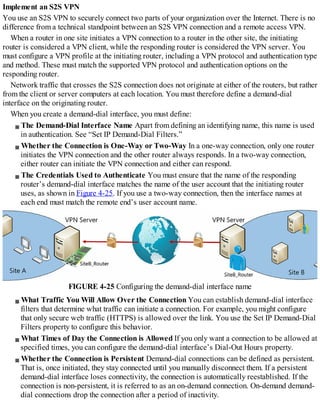
RPC Endpoint Mapper (TCP, Incoming)
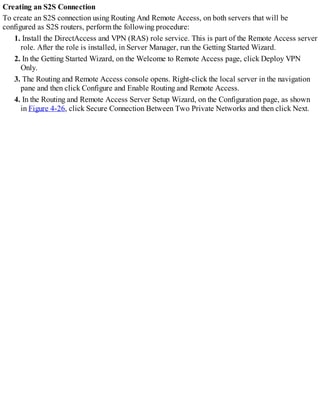
4. Click Next, click Allow The Connection, and then click Finish.
5. Create another inbound rule from a predefined template.
6. In Rule Type, click Predefined, click Remote Service Management, and then click Next.
7. In Predefined Rules, under Rules, select:
Remote Service Management (RPC-EPMAP)
Remote Service Management (NP-In)
Remote Service Management (RPC)
8. Click Next, click Allow The Connection, and then click Finish.
9. Create another inbound rule from a predefined template:
10. In Rule Type, click Predefined, click Remote Event Log Management, and then click Next.
11. In Predefined Rules, under Rules, select:
Remote Event Log Management (RPC)
Remote Event Log Management (RPC-EPMAP)
12. Click Next, click Allow The Connection, and then click Finish.
13. Configure security groups on a managed DNS server. This procedure is the same as for your
DHCP servers.
Enable event log monitoring on a managed DNS server. You can enable Event log monitoring
by editing the HKLMSYSTEMCurrentControlSetServicesEventLogDNS ServerCustom SD
value in the registry. Add the Security ID (SID) of your IPAM server to the end of this registry
value. Specifically, at the end of the value, type the following (where SID is the SID of your
IPAM server. You can determine the SID by running the Get-ADComputer
<IPAM_Server_Name> command at a Windows PowerShell command prompt).
(A;;0x1;;;SID)
14. Configure the DNS DACL on a managed DNS server by opening the DNS Manager console.
15. In DNS Manager, right-click the local DNS server, and then click Properties.
16. Click the Security tab, and then add the IPAMUG group.
Fneed More Review? Manually Configure DNS Access Settings
To review further details about manually provisioning your DNS servers, refer to the
Microsoft TechNet website at
https://technet.microsoft.com/library/jj878346(v=ws.11).aspx.
NPS and Domain Controllers
To manually configure your NPS servers and domain controllers for IPAM, use the following
procedure:
1. Configure Windows Firewall on a managed domain controller or NPS server. Create an
inbound rule from a predefined template.
2. In Rule Type, click Predefined, click Remote Event Log Management, and then click Next.
3. In Predefined Rules, under Rules, select:
Remote Event Log Management (RPC)
Remote Event Log Management (RPC-EPMAP)
4. Click Next, click Allow The Connection, and then click Finish.
5. Configure security groups on a managed domain controller or NPS server. This procedure is
the same as for your DHCP servers.
Need More Review? Manually Configure DC and NPS Access Settings
To review further details about manually provisioning your NPS servers and domain
controllers, refer to the Microsoft TechNet website at
https://technet.microsoft.com/library/jj878317(v=ws.11).aspx.
Provisioning by using GPOs
To provision IPAM by using Group Policy-based provisioning, complete the following procedure:
1. In Server Manager, in the navigation pane, click IPAM.
2. In the IPAM Server Tasks pane, click Provision The IPAM Server.
3. On the Before You Begin page, click Next.
4. On the Configure Database page, click either Windows Internal Database (WID) or Microsoft
SQL Server, and then click Next.
5. On the Select Provisioning Method page, click Group Policy Based, as shown in Figure 3-6, in
the GPO Name Prefix, type a meaningful prefix, and then click Next.
FIGURE 3-6 Configuring Group Policy Based IPAM provisioning
6. Click Apply, and then click Close.
The Completion page displays, as shown in Figure 3-7.
FIGURE 3-7 The IPAM installation summary
Configure server discovery
After provisioning, you must configure and perform server discovery. Discovery enables you to add
managed servers to IPAM. To launch discovery, from Server Manager, in the IPAM console, perform
the following procedure:
1. On the IPAM Server Tasks page, click Configure Server Discovery.
2. In the Configure Server Discovery dialog box, click Get Forests.
3. In the Configure Server Discovery popup dialog box, click OK. Close the Configure Server
Discovery dialog box, and then on the IPAM Server Tasks page, click Configure Server
Discovery.
4. The Configure Server Discovery dialog box appears, as shown in Figure 3-8, with the AD DS
forest discovered. In the Select Domains To Discover list, click the domains that contain
servers that you want to manage, and then click Add.
FIGURE 3-8 Configuring server discovery
5. In the Select The Roles To Discover pane, select the roles you want to discover in each domain
that you have added. Click OK to begin discovery.
6. In the IPAM Server Tasks pane, click Start Server Discovery. A task to discover servers in the
selected domain(s) is launched. Wait until this task has completed, and then click Select of Add
Servers To Manage And Verify IPAM Access. Discovery can take 10 minutes to complete, or
possibly longer. The yellow bar in Server Manager updates when discovery is complete.
7. The status of your domain controller in discovered domains is displayed. However, the status
is reported as blocked, as shown in Figure 3-9.
FIGURE 3-9 Viewing IPv4 node in the server inventory
8. To unblock the domain controller, run the following Windows PowerShell command,
substituting your domain name, the FQDN of your IPAM server, and the user account name that
is delegated management permission:
Click here to view code image
Invoke-IpamGpoProvisioning –Domain Adatum.com –GpoPrefixName IPAM –IpamServerFqdn
LON-SVR1.adatum.com –DelegatedGpoUser Administrator
Exam Tip
You run the Invoke-IpamGpoProvisioning cmdlet to grant the IPAM server the necessary
permissions to manage servers in your domain. When you run this command, it creates
the GPOs and links them to your domain. These GPOs apply the necessary permissions
for the IPAM server to perform management of domain controllers, DNS, and DHCP
servers in your domain.
9. When the command has completed, switch to Server Manager and refresh the display: right-
click the server and then click Refresh Server Access Status. It can take a few minutes to update
the display. The yellow status bar in Server Manager indicates progress.
10. Right-click the server, and then click Edit Server.
11. In the Add Or Edit Server dialog box, shown in Figure 3-10, in the Manageability Status list,
click Managed, and then click OK.
FIGURE 3-10 Configuring a server’s manageability status
Exam Tip
If the status of the server(s) still shows as Blocked, force a GPO update on the managed
server(s), and also on the IPAM server. If necessary, you could need to restart the
server(s). Use gpupdate /force to force the GPOs to apply.
12. If you want to add additional servers, in Server Inventory, right-click Managed Servers, and
then click Add Server. In the Add Or Edit Server dialog box, shown in Figure 3-10, type the
FQDN of the server and click Verify. In the Server Type list, select all the services that apply.
In the Manageability Status list, click Managed, and then click OK.
13. When all server(s) are showing as managed, on the IPAM Server Tasks pane, click Retrieve
Data From Managed Servers.
When discovery is complete, on the Manager Servers page, your managed server status should look
similar to what you see in Figure 3-11.
FIGURE 3-11 Viewing managed servers under the IPv4 node
Create and manage IP blocks and ranges
One of the significant advantages of using IPAM is the ability to perform management of your IP
address space and related services from a single management interface: the IPAM console. To
manage your IP address space, in Server Manager, click IPAM, and then click IP Address Space.
You can then select the following:
IP Address Blocks An IP address block is an IP subnet, and is the highest-level object within
your IP address space structure. It consists of a start IP and an end IP address. Use IP address
blocks to create IP address ranges on your DHCP server(s). Beneath this node, you can view:
IP Address Subnets You can view or manage your IP subnets from this node.
IP Address Ranges You can use this node to view or manage your IP address ranges, as
shown in Figure 3-12.
FIGURE 3-12 Viewing IP address ranges
IP Addresses You can view or manage the individual IP addresses from this node.
IP Address Inventory Provides a logical group that enables you to customize how your
address space is displayed enabling efficient management and tracking of IP usage. Enables you
to see all IP addresses in your organization together with the related device details, such as type
and name.
IP Address Range Groups You can organize your IP address ranges into logical groups using
this option. For example, you could organize IP address ranges by location or by business
function.
Managing IP address blocks
To create an IP address block, in the IPAM console, under the IP Address Space node, in the
navigation pane, click IP Address Blocks. Then complete the following procedure:
1. In the details pane, click Tasks, and then click Add IP Address Block.
2. In the Add Or Edit IPv4 Address Block dialog box, shown in Figure 3-13, enter the following
information, and then click OK:
FIGURE 3-13 Adding an IPv4 address block
Network ID The subnet ID. For example, 192.168.1.0.
Prefix Length The number of subnet bits in the network ID. For example, 24.
Automatically Assign Address Values Select either Yes or No.
Start IP Address The first IP address in the network. The default is the first IP address in the
network ID that you specified, but you can change this. For example, 192.168.1.0.
End IP Address The last IP address in the network. The default is the last IP address in the
network ID that you specified, but you can change this. For example, 192.168.1.255.
Regional Internet Registry (RIR) Only valid if you enter a public IPv4 address.
Received Date From RIR Only valid if you enter a public IPv4 address.
Description Optional. A meaningful description that helps you identify the block.
Last Assigned Date Optional.
Owner Optional. Enables you to enter text to indicate the owner of the block.
Exam Tip
You can also use the Windows PowerShell Add-IpamBlock cmdlet to create an IP
address block.
You can complete a similar procedure to add IPv6 address blocks. To create an IPv6 address
block, in the IPAM console, under the IP Address Space node, in the navigation pane, click IP
Address Blocks, and then click IPv6. In the Tasks list, click Add IP Address Block, and then
configure the options in the Add or Edit IPv6 Address Block dialog box, as shown in Figure 3-14.
FIGURE 3-14 Adding an IPv6 address block
After you have created your IP Address Block, you can right-click it in the IPAM console and edit
the address block.
Exam Tip
You can also use the Windows PowerShell Set-IpamBlock cmdlet to modify an IP
address block.
Managing IP Address ranges
To create an IP address range, in the IPAM console, under the IP Address Space node, in the
navigation pane, click IP Address Blocks. In the Current View list, click IP Address Ranges. Then
complete the following procedure:
1. In the details pane, click Tasks, and then click Add IP Address Range.
2. In the Add Or Edit IPv4 Address Range dialog box, shown in Figure 3-15, enter the following
information, and then click OK:
FIGURE 3-15 Adding an IPv4 address range
Network ID The subnet ID. For example, 192.168.1.0.
Prefix length (0-32) The number of subnet bits in the network ID. For example, 24.
Subnet Mask Automatically generated from the prefix length.
Automatically Create IP Address Subnet Select this option to create a subnet with the
configured values.
Automatically Assign Address Values Click Yes or No.
Start IP Address The first IP address in the network. The default is the first IP address in the
network ID that you specified, but you can change this. For example, 192.168.1.0.
End IP Address The last IP address in the network. The default is the last IP address in the
network ID that you specified, but you can change this. For example, 192.168.1.255.
Managed By Service Choose IPAM (the default), or Non-MS DHCP, or Virtual Machine
Manager (VMM).
Service Instance Specify which IPAM server is running the service. The default is
Localhost.
Assignment Type Choose either Static, Dynamic, Auto, VIP, or Reserved.
Description Optional.
Owner Optional.
Enable Network Virtualization Yes or No.
Custom Configurations Use these options to define: AD DS site, region or country, device
type, and many other properties.
WINS and DNS Configure the name resolution settings for clients obtaining an IP
configuration from this range.
Gateway Configure the routing settings for clients obtaining an IP configuration from this
range.
Reservations Configure the IP reservations for clients obtaining an IP configuration from this
range.
Exam Tip
You can also use the Windows PowerShell Add-IpamRange cmdlet to create an IP
address block.
You can complete a similar procedure to add IPv6 address ranges. To create an IPv6 address
block, in the IPAM console, under the IP Address Space node, in the navigation pane, click IP
Address Blocks, and then click IPv6. In the Tasks list, click Add IP Address Range, and then
configure the options in the Add IPv6 Address Range dialog box.
After you have added your IP address range(s), you can edit their details from the console. Right-
click the appropriate range, and then click Edit IP Address Range.
Exam Tip
You can also use the Windows PowerShell Set-IpamRange cmdlet to create an IP
address block.
Need More Review? Managing IP Address Space
To review further details about managing the IP address space with IPAM, refer to the
Microsoft TechNet website at
https://technet.microsoft.com/library/jj878303(v=ws.11).aspx.
Monitor utilization of IP address space
It is important to know how your IP address space is being utilized in order to properly plan and
maintain your organization’s network infrastructure. IPAM enables you to monitor utilization of:
IP address ranges
IP address blocks
IP range groups
You can configure thresholds for utilization of IP address ranges, groups, and blocks either when
you create them, or afterwards in the IPAM console. By using a threshold, you can determine over or
under utilization of the resource. IPAM displays the utilization information in various places in the
console, depending upon the current view.
For example, to view utilization of IP address in an IP address range, in IPAM, click IP Address
Space, and then click IP Address Range Groups. In the results pane, shown in Figure 3-16, Over Or
Under is shown in the Utilization column for the selected range, and the Percentage Utilized column
gives a numerical value for the utilization of the address space. Use the Utilization Trend tab of the
Details View to discover more information about utilization over a measured period of time.
FIGURE 3-16 Viewing IPv4 utilization trend data
Exam Tip
IPAM only provides IP address utilization trend information for IPv4.
Migrate existing workloads to IPAM
If your organization has invested a lot of effort in IP address management using a non-Microsoft
solution, you can migrate your IP address space to IPAM by using an import process based on comma
separated value (CSV) files.
When you use a CSV file to import into the IPAM address space, you must populate the first line of
the CSV file with a header that contains the field names used in the IPAM console. For example: IP
address, managed by service, device type, etc.
To import an IP address range, use the following syntax in your CSV file:
Click here to view code image
Network, Start IP address, End IP address, Managed by service, Assignment Type
192.168.2.0/24, 192.168.2.1, 192.168.2.254, IPAM, dynamic
Use the information in Table 3-1 to determine the required fields in your CSV files.
TABLE 3-1 Mandatory import fields
After you have created your CSV file, to import the records, from the IPAM console:
1. Click IP Address Space, and then click IP Address Ranges.
2. Click Tasks, and then click either:
Import IP Address Blocks
Import IP Address Subnets
Import IP Address Ranges
Import IP Addresses
3. In the Open dialog box, locate and double-click the CSV file that contains the data to be
imported. Your file is imported and the required records are created in IPAM.
You can also use the Windows PowerShell Import-IpamAddress, Import-IpamRange, and Import-
IpamSubnet cmdlets to import your IP addresses, IP address ranges, or IP address blocks.
Determine scenarios for using IPAM with System Center VMM for physical and
virtual IP address space management
If your organization creates and manages virtual machine networks, you can consider implementing
IPAM and VMM integration. This enables you to have a complete end-to-end view of your entire IP
address space, both physical and virtual. This view enables you to avoid the possibility of address
space conflicts that can arise if your virtual address space was managed separately from your
physical address space.
To enable VMM and IPAM integration, you must add your IPAM server to the resources in VMM.
After you have added your IPAM server, the IP address settings in VMM are synchronized with
settings that are stored in the IPAM server. These settings relate to logical networks and virtual
machine networks (VM networks) in VMM.
Note VM Networks
VM networks are covered in Chapter 6: “Determine scenarios and requirements for
implementing Software Defined Networking.”
After you enable the IPAM network service in VMM, you can create or modify logical networks in
IPAM and these automatically synchronize to VMM. You can also create or edit a logical network in
VMM and then view it in IPAM. Use the following high-level steps to integrate IPAM with VMM:
1. On the IPAM server, create a user account for VMM to communicate with your IPAM server.
2. Add the user account to a group which is a member of the IPAM ASM Administrator role.
Note More On IPAM Role-Based Access
IPAM role-based access control (RBAC) is discussed in Chapter 3, “Delegate
administration for DNS and DHCP using RBAC.”
3. In the VMM console, add and configure the Microsoft Windows Server IP Address
Management network service in VMM by using the following procedure. In the Fabric
workspace, create a network service called IPAM, and then:
On the Manufacturer And Model page, select Microsoft and Microsoft Windows Server IP
Address Management.
Ensure that you configure the IPAM service to run in the context of the user account that you
assigned to the IPAM ASM Administrator role.
Specify the fully qualified domain name (FQDN) of the IPAM server.
Ensure that the configuration provider is Microsoft IP Address Management Provider.
Need More Review? How to add an IPAM Server in VMM in System Center
To learn how to add an IPAM server in VMM, refer to the Microsoft TechNet website at
https://technet.microsoft.com/library/dn249418.aspx.
After you have configured the integration of IPAM and VMM, when using the IPAM network
service with VMM:
When you make changes to logical networks in VMM, the virtualized IP address space in IPAM
automatically updates.
When you create logical networks in IPAM, they are added to VMM.
Skill 3.2: Manage DNS and DHCP using IPAM
One of the primary benefits of implementing IPAM is the ability to consolidate management of your
DHCP and DNS servers. By using IPAM, you can manage DHCP servers, scopes, policies, and
DHCP failover from the IPAM console. You can also manage DNS servers, and DNS zones and
records.
Manage DHCP with IPAM
By using the DNS And DHCP Servers page in the IPAM console, shown in Figure 3-17, you can
manage the following aspects of your DHCP infrastructure:
FIGURE 3-17 Viewing DNS and DHCP servers
Configure DHCP server properties and options
Configure DHCP vendor and user classes
Configure and/or import DHCP policies
Activate or deactivate DHCP policies
Add DHCP MAC address filters
Replicate DHCP servers for failover DHCP configuration
View DHCP scope information across all servers
Launch the DHCP management console
In addition to server management, you can also manage your DHCP scopes using the IPAM
console:
Activate/deactivate scopes
Configure scope properties
Duplicate scopes
Replicate scopes
Add/remove a scope from a DHCP superscope
Create DHCP reservations
Configure/remove DHCP failover
Import a DHCP policy
Activate/deactivate DHCP scope policies
Note More on DHCP
DHCP is covered in Chapter 2: “Install and configure DHCP.”
Manage DHCP server properties using IPAM
To manage your DHCP servers in IPAM, under the Monitor And Manage node, click DNS and DHCP
Servers. Then select the server you want to manage in the details pane. Right-click the selected
server, as shown in Figure 3-18, and then choose from the following:
FIGURE 3-18 Configuring a DHCP server
Edit DHCP Server Properties
Edit DHCP Server Options
Configure DHCP Policy
Add DHCP MAC Address Filter
Launch MMC
Activate DHCP Policies
Deactivate DHCP Policies
To manage the DHCP server properties, use the following procedure:
1. Under the Monitor and Manage node, click DNS and DHCP Servers.
2. Select the server you want to manage in the details pane.
3. Right-click the selected server, and then click Edit DHCP Server Properties.
4. In the Edit DHCP Server Properties dialog box, shown in Figure 3-19, you can modify the
following properties:
FIGURE 3-19 Configuring DHCP server properties
Enable DHCP Audit Logging
Configure DNS Dynamic Updates for DHCP clients
Configure DNS Dynamic Update Credentials for DHCP clients
Configure MAC Address Filters
These properties are the same that you can configure in the DHCP console when you select the
properties of the IPv4 or IPv6 nodes, and are discussed in Chapter 2, “Install and configure DHCP.”
To edit a DHCP server’s options, perform the following procedure:
1. Under the Monitor And Manage node, click DNS And DHCP Servers.
2. Select the server you want to manage in the details pane.
3. Right-click the selected server, and then click Edit DHCP Server Options.
4. In the Edit DHCP Server Options dialog box, shown in Figure 3-20, you can create or modify
the DHCP server options. These options are used when a client obtains an IP configuration from
the configured server and include settings such as default gateway, DNS settings, and, where
configured, user and vendor class options. Server options are overridden by scope options and
reservation options.
FIGURE 3-20 Configuring DHCP server options
These options are the same that you can configure in the DHCP console when you select the Server
Options node beneath the IPv4 or IPv6 nodes, and are discussed in Chapter 2: “Create and manage
DHCP scopes, configure DHCP options.”
Configure DHCP scopes and options
You can use IPAM to create and configure DHCP scopes and options. This enables you to use the
IPAM console to perform virtually all DHCP management tasks.
Create a DHCP Scope
To use IPAM to create a DHCP scope, on the DNS and DHCP Server page, right-click a DHCP
server, and then click Create DHCP Scope. In the Create DHCP Scope dialog box, shown in Figure
3-21, define the following information, and then click OK.
FIGURE 3-21 Adding a DHCP scope
A scope name and description
A start and end IP address
A subnet mask
A lease duration – 8 days is the default
Any excluded addresses or range of addresses from the scope
Whether the scope should be activated after creation
Dynamic DNS options, including whether dynamic updates are supported for clients, and
whether DNS name protection is enabled for clients
DHCP scope options, such as Router, DNS Servers, and DNS Domain Name
Advanced properties: whether supported clients are DHCP only, BOOTP only, or both
Manage a DHCP Scope
You can manage scopes from the IPAM console. In IPAM, under the Monitor And Manage node, click
DHCP Scopes. Then, in the details pane, right-click the scope you want to manage. You can then
choose from the following options:
Edit DHCP Scope Enables you to reconfigure the scope configuration including start and end
IP address, lease duration, exclusions, scope options, and DNS update settings.
Duplicate DHCP Scope Enables you to create another scope based on the properties of an
existing scope. The duplicated scope is initially configured on the same server and with the
same name, matching lease duration, duplicate DNS update settings, and DHCP scope options.
You can then modify these initial settings to create a new scope.
Create DHCP Reservation Reservations enable you to create and configure a specific IP
address in a scope for a particular client.
Add to DHCP Superscope Superscopes enable you to combine scopes to support special
configurations.
Configure DHCP Failover DHCP failover provides for high-availability of the DHCP service.
This is discussed in the next section.
Configure DHCP Policy DHCP policies provide a convenient way to manage the properties of
multiple scopes. This is discussed in the next section.
Import DHCP Policy This is discussed in the next section.
Deactivate Scope If you want to prevent clients from using the scope to obtain an IP
configuration, perhaps while performing maintenance, you can deactivate the scope.
Activate Scope After completing the maintenance on a scope, you can activate it once more.
Activate DHCP Policies This is discussed in the next section.
Deactivate DHCP Policies This is discussed in the next section.
Set Access Scope Enables you to determine the management scope of the DHCP scope. This is
discussed later in this chapter under the heading: “Delegate administration for DNS and DHCP
using RBAC.”
Configure DHCP policies in IPAM
You can use DHCP policies to assign IPv4 options to DHCP clients. These options are assigned by
DHCP based on conditions within the policy, including user and vendor class, MAC address, or other
factors. You can configure and apply DHCP policies at both the server and scope level.
Note More on DHCP Policies
DHCP policies is covered in Chapter 2: “Implement DHCP:Configure DHCP policies.”
To configure and apply a DHCP server policy using IPAM, in IPAM, under the Monitor And
Manage node, click DNS And DHCP Servers. Right-click a DHCP server, and then click Configure
DHCP Policy. To configure and apply a DHCP scope policy using IPAM, in IPAM, under the
Monitor And Manage node, click DHCP Scopes. Right-click a DHCP scope, and then click Configure
DHCP Policy.
To create your policy, in the Create DHCP Policy Wizard, shown in Figure 3-22, configure the
following options, and click OK.
FIGURE 3-22 Creating a server policy
A policy name and description.
A lease duration for the policy.
Policy conditions. A client must meet the condition(s) of the policy for the configured options in
the policy to apply. You can configure multiple conditions if you wish.
Dynamic DNS options, including whether dynamic updates are supported for clients, and
whether DNS name protection is enabled for clients.
DHCP scope options, such as Router, DNS Servers, and DNS Domain Name.
The process for configuring a scope policy is very similar.
If you have previously created a server or scope level policy, you can apply the same policy to
another server or scope. To do this, in the IPAM console, right-click the server or scope, and then
click Import DHCP Policy. In the Import Policy dialog box, shown in Figure 3-23, click Server or
Scope as required, and then select the appropriate policy by using the drop-down lists to identify the
source server, scope, and policy.
FIGURE 3-23 Importing a server policy
Configure DHCP failover in IPAM
DHCP failover enables you to configure high-availability for DHCP by using two DHCP servers to
provide IP configurations to the same subnets. The two DHCP servers replicate lease information
between one another. If one of the servers fails, the other server continues providing DHCP services
for the subnet(s) for which it is configured.
Note More on DHCP Failover
DHCP failover is discussed in Chapter 2: “Configure DHCP failover.”
To configure DHCP failover using IPAM, use the following procedure:
1. In IPAM, under the Monitor And Manage node, click DHCP Scopes.
2. Right-click a DHCP scope, and then click Configure DHCP Failover.
3. In the Configure DHCP Failover Relationship Wizard, on the Configure Failover Relationship
page, shown in Figure 3-24, in the Configuration Option list, click Create New Relationship.
FIGURE 3-24 Configuring failover
1. In the Partner Server list, select another server in the same subnet.
2. Then configure the following options:
Enable Message Authentication You can configure message authentication using the secret
as a password. This means that the failover message traffic between replication partners is
authenticated and that helps validate that the failover message originates with the configured
failover partner.
Secret The password used to enable message authentication.
Maximum Client Lead Time This value is used in Hot standby mode. It defines how long
the secondary server must wait before taking control of the scope. The default is one hour,
and cannot be zero.
Mode Choose between Load Balance and Hot Standby.
Percentages Used when you enable Load Balance mode. Enables you to determine how
much of the address space each server manages. The default is a 50:50 split.
Role Of Partner Server Use this setting when you enable Standby mode. It enables you to
define which server is the primary and which the secondary. Choose between Active or
Standby.
Addresses Reserved For Standby Server Use this value to determine what percentage of
addresses within the scope the secondary server can allocate. This allows the secondary
server to allocate a small proportion of addresses while it waits to determine if the primary
comes back online. The default is five percent of available scope addresses.
State Switchover Interval When a server loses connectivity with its replication partner, it
has no way of determining why this has occurred. You must manually change a partner’s
status to a down state to indicate to the remaining partner that the other server is unavailable.
Setting the State Switchover value enables you to automate this changed state after a
configured time interval. This value is not used by default.
3. Click OK.
Using Windows PowerShell
In addition to using the IPAM console to manage your DHCP servers and scopes, you can also use the
following Windows PowerShell cmdlets to retrieve information about DHCP servers and scopes:
Get-IpamDhcpConfigurationEvent Retrieves DHCP server configuration events from the
IPAM database.
Get-IpamDhcpScope Retrieves information about IPAM DHCP scopes.
Get-IpamDhcpServer Retrieves information about IPAM DHCP servers.
Get-IpamDhcpSuperscope Retrieves information about IPAM DHCP superscopes.
Manage DNS with IPAM
You can use the IPAM console to perform the following DNS management tasks:
View DNS servers and zones
Create new zones
Create DNS records
Manage conditional forwarders
Open the DNS management console for a selected server
Note More on DNS
DNS is covered in Chapter 1, “Install and configure DNS servers.”
Manage DNS server properties using IPAM
You can use IPAM to manage a number of DNS server properties. To manage a DNS server in IPAM,
under the Monitor And Manage node, click DNS And DHCP Servers. Right-click the appropriate
DNS server and select one of the following options:
Launch MMC Enables you to load the DNS console for the selected server and perform all
DNS management tasks.
Create DNS Zone Enables you to create a DNS zone on the selected DNS server. You can
create forward lookup zones, and reverse lookup zones for both IPv4 and IPv6. You can create
Primary, secondary, or stub zones. You can define that the zone be Active Directory-integrated,
or stored in a file.
Create DNS Conditional Forwarder You can configure conditional forwarding for a DNS
server.
To add a new DNS zone, complete the following procedure:
1. Right-click the DNS server that hosts the zone, and then click Create DNS Zone.
2. On the Create DNS Zone page, shown in Figure 3-25, under General Properties, configure the
following settings, and then click OK:
FIGURE 3-25 Adding a DNS zone in IPAM
Zone Category Choose from Forward Lookup zone, IPv4 Reverse Lookup zone, and IPv6
Reverse Lookup zone.
Zone Type Choose from Primary zone, Secondary zone, and Stub zone. If you select Secondary
or Stub, you must define the Master DNS server(s) from which this DNS server obtains its zone
data.
Zone Name This is the FQDN for the DNS domain.
Store The Zone In Choose between Active Directory or Zone file. If you select Zone file,
specify the file name. If you choose Active Directory, you must configure the following two
options:
AD Zone Replication Scope Choose how the zone data is replicated in AD DS. Options are:
Domain, Forest, Legacy, and Custom.
Directory Partition If you choose custom for the AD zone replication scope option, you must
define the AD DS application partition name here.
Dynamic Update Choose how clients update DNS dynamically. Options are: Allow Only
Secure Dynamic Updates (recommended for Active Directory), Allow Both Nonsecure And
Secure Dynamic Updates, and Do Not Allow Dynamic Updates.
Manage DNS zones and records
You can manage DNS zone and associated records from the IPAM console. Under the Monitor And
Manage node, click DNS Zones, as shown in Figure 3-26. You can see a list of available zones.
FIGURE 3-26 Using IPAM to view DNS zones
To manage a zone, right-click the zone, and then select one of the following options:
Delete DNZ Zone Enables you to remove the DNS zone.
Add DNS Resource Record You can add any DNS resource record to the selected zone. For
example, as shown in Figure 3-27, you can create a host (A) record.
FIGURE 3-27 Adding a resource record
Edit DNS Zone You can reconfigure the zone properties, as shown in Figure 3-28.
Configurable properties are:
FIGURE 3-28 Editing zone properties
Advanced Properties Options include where the zone is stored (Active Directory or file),
the AD replication scope and partition, whether dynamic updates are enabled for the zone,
and zone aging and scavenging options.
Name Servers The list of configured name servers for the zone.
SOA The Start of Authority information for the zone.
Zone Transfers Whether zone transfers are enabled, and to which DNS servers.
Note The DNS Zone
These DNS zone options are discussed in Chapter 1, “Create and configure DNS zones
and records, configure DNS zones.”
Using Windows PowerShell
In addition to using the IPAM console to manage your DNS servers and zones, you can also use the
following Windows PowerShell cmdlets to retrieve information about DNS servers and zones:
Get-IpamDnsServer Retrieves information about IPAM DNS servers.
Get-IpamDnsZone Retrieves information about IPAM DNS zones.
Get-IpamDnsConditionalForwarder Retrieves information about IPAM DNS conditional
forwarders.
Get-IpamDnsResourceRecord Retrieves IPAM DNS resource records.
Manage DNS and DHCP servers in multiple Active Directory forests
In Windows Server 2016, you can use IPAM to manage your DNS and DHCP servers across multiple
AD DS forests so long as a two-way trust relationship exists between the AD DS forest where you
installed IPAM and each of the remote AD DS forests.
To manage multiple forests, in the IPAM console, on the IPAM Server Tasks page, click Configure
Server Discovery, and then complete the following procedure:
1. In the Configure Server Discovery dialog box, shown in Figure 3-29, click Get Forests. The
trusted forests and domains are discovered.
FIGURE 3-29 Configuring server discovery in multiple forests
2. Click Configure Server Discovery. The Configure Server Discovery dialog box is displayed
once again. In the Select The Forest list, click the forest that you want to manage.
3. In the Select Domain To Discover list, click the domains that you want to manage and click
Add. Repeat this process until all domains are listed in the Select The Server Roles To
Discover list, and then click OK.
4. Finally, you must run the Windows PowerShell Invoke-IpamGpoProvisioning cmdlet to grant
the IPAM server the necessary permissions to manage servers in your domains.
Delegate administration for DNS and DHCP using RBAC
You can implement role-based access control to help make it easier to administer your IP
infrastructure using IPAM. RBAC in IPAM is based on roles, access scopes, and access policies.
Roles A collection of IPAM operations. There are eight built-in roles available, but you can
create your own roles to address your specific administrative requirements. You can associate
a built-in or custom role with a Windows user or group account.
Access Scopes Determines the collection of objects a user has access to thereby enabling you
to define administrative boundaries within IPAM. For example, you could create access scopes
based on business function or location.
Access Policies Combines a role and an access scope to assign permissions to a user or group.
For example, you could create an access policy for a user with a role called IP Address Range
Admin and an access scope called GlobalEurope. Therefore, this user has permission to edit
and delete IP address ranges that are associated with the Europe access scope.
IPAM has several built-in role-based security groups that you can use for managing your IPAM
infrastructure, as shown in Table 3-2.
TABLE 3-2 Built-in IPAM role-based security groups
To configure RBAC in IPAM, from Server Manager, open the IPAM console, and then click
Access Control. Then click either Roles, as shown in Figure 3-30, or Access Scopes or Access
Policies.
FIGURE 3-30 Viewing RBAC roles
Managing Roles
To configure a new role, perform the following procedure:
1. Under Access Control, in the Roles pane, click Tasks, and then click Add User Role.
2. In the Add Or Edit Role dialog box, type a name and a description for your role. Then, in the
Operations list, as shown in Figure 3-31, select the management tasks that the role holders are
able to perform, and click OK.
FIGURE 3-31 Adding a new role
You can edit any custom role by right-clicking the role and clicking Edit Role. You cannot edit
built-in roles.
Managing Access Scopes
To configure an access scope, perform the following procedure:
1. Under Access Control, in the Access Scopes pane, click Tasks, and then click Add Access
Scope.
2. In the Add Access Scope dialog box, click New.
3. Type a name and a description, as shown in Figure 3-32, click Add, and then click OK.
FIGURE 3-32 Adding an access scope
Exam Tip
IPAM includes the Global access scope. Users assigned to Global have access to all
objects in IPAM that their role permits. All other access scopes are subsets of Global.
You can edit any custom access scope by right-clicking the access scope and clicking Edit Access
Scope. You cannot edit the Global scope.
Managing Access Policies
No default access policies exist. To create a new access policy, perform the following procedure:
1. Under Access Control, in the Access Policies pane, click Tasks, and then click Add Access
Policy.
2. In the Add Access Policy, under User Settings, click Add.
3. In the Select User Or Group dialog box, enter the name of a user or group to which you want to
assign the role, and click OK.
Exam Tip
You should always use groups. That way, if you must later reconfigure the access policy
because a user has changed job function, you merely need to remove the user from the
AD DS group rather than reconfigure the IPAM access policy.
4. Optionally, enter a description, as shown in Figure 3-33.
FIGURE 3-33 Adding a group to an access policy
5. Under the Access Settings heading, click New.
6. Under the New Setting heading, in the Select Role list, select either a built-in role or a custom
role.
7. In Select The Access Scope For The Role, click the desired scope and then click Add Setting,
as shown in Figure 3-34.
FIGURE 3-34 Configuring an access policy
8. If you wish to add multiple roles and/or scopes to the policy, repeat the preceding steps. When
all roles and access scopes for the policy are configured, click OK.
You can reconfigure your access policies by selecting them in the Access Policies pane under
Access Control.
Configure the Access Scope for Objects
You can define the access scope for objects such as servers, DNS zones, and DHCP scopes by
selecting the object, right-clicking it, and then clicking Set Access Scope. In the Set Access Scope
dialog box, shown in Figure 3-35, clear the Inherit Access Scope From Parent check box, and then, in
the Select The Access Scope list, click the appropriate scope, and then click OK.
FIGURE 3-35 Configuring an access policy
Skill 3.3: Audit IPAM
IPAM provides extensive monitoring and auditing features that enable you to track IPAM
configuration changes, DHCP configuration changes, IP address usage, and other important network
infrastructure events.
However, before you view the auditing information, you must be aware of a couple of changes that
you should make in order to track events efficiently. These are:
Enable Logon Event Auditing You must enable Audit account logon events auditing on both
AD DS domain controllers and servers running the NPS role. You can configure this by using
Group Policies. In the Group Policy Management Editor, navigate to Computer
ConfigurationPoliciesWindows SettingsSecurity SettingsLocal PoliciesAudit Policy and
enable the Audit Account Logon Events value.
Configure Security Event Log Size To avoid rollover, you must increase the size of the
security event log so that it is large enough to allow the periodic IPAM audit task to complete
without overwriting events. Again, you can use GPOs to achieve this change. In the Group
Policy Management Editor, navigate to Computer ConfigurationPoliciesWindows
SettingsSecurity SettingsEvent Log and enable, and then configure the Maximum Security Log
Size value.
Configure Audit Log File Location Ensure that the log file location for DHCP IPv4 and IPv6
leases is stored in the same folder. The IPAM audit processes access this information from a
single shared folder. By default, both logs are stored in C:Windowssystem32dhcp.
Audit the changes performed on the DNS and DHCP servers
It is important to be able to track the changes that administrators make to your IPAM server(s) and to
the IPAM-managed network services (DHCP, DNS, and NPS). The Event Catalog node in the IPAM
console enables you to access auditing information that relates to these events.
To view configuration changes made to DNS or DHCP services, in the IPAM console, click Event
Catalog, and then click IPAM Configuration Events, as shown in Figure 3-36. You can identify DNS
and DHCP related events from the Keywords column. The Details view provides further insight into
the event that you have selected in the IPAM Configuration Events pane.
FIGURE 3-36 Viewing IPAM configuration events
The IPAM Configuration Event node lists events that relate to DNS, DHCP, NPS, and IPAM itself,
including provisioning, discovery, and address space management. If you want additional information
about the DHCP services running in your organization, you can select the DHCP Configuration Events
node, as shown in Figure 3-37.
FIGURE 3-37 Viewing DHCP configuration events
The DHCP Configuration Events node lists all DHCP-related events for all discovered and
managed servers in your organization that are running the DHCP role.
Need More Review? Operational Event Tracking
To review further details about operational event tracking in IPAM, refer to the
Microsoft TechNet website at
https://technet.microsoft.com/library/jj878322(v=ws.11).aspx.
Audit the IPAM address usage trail
You can also use the monitoring features of IPAM to determine the IP address usage within your
organization. You can access this information from the IP Address Space node in the IPAM console.
Then, select either the IP Address Blocks, IP Address Inventory, or IP Address Ranges Groups node.
For example, to view usage of a particular DHCP scope, click the IP Address Range Groups node
and select a DHCP scope from the IPv4 pane, as shown in Figure 3-38. The Percentage Utilized
column displays how much of the address space is used. Click the Utilization Trend tab in the Details
View. You can see the IP Address Range Utilization Trend graph for a selected period, in this case,
the last day.
FIGURE 3-38 Viewing the Utilization Trend data for an IP Address Range Group
Audit DHCP lease events and user logon events
IPAM also enables you to centrally track and view events relating to DHCP lease events and user
logon events. These are displayed in the Event Catalog in the IP Address Tracking node. You can
view this information by:
IP address
Client ID
Host name
User name
To view DHCP lease events or user logon events by IP address, click the By IP Address node, as
shown in Figure 3-39. In the By IP Address pane, in the text box, type the IP address that you want to
track and the date range that you are interested in, and then click Search.
FIGURE 3-39 Viewing IP address tracking by IP address
Note Search Results
If you want to widen the search, you needn’t enter a date range, or an IP address, and the
returned results are for all stored dates and for all IP addresses.
Click an event in the By IP Address pane, and the Details View provides more information about
the selected event. If you would prefer to view the tracked information by client ID, then click the By
Client ID node. If you wish to search for a specific client, as shown in Figure 3-40, enter its MAC
address in the text box, and then click Search.
FIGURE 3-40 Searching for lease information by MAC address
You can also search for lease information by host name, as shown in Figure 3-41, or by user name,
as shown in Figure 3-42.
FIGURE 3-41 Searching for lease information by host name
FIGURE 3-42 Searching for lease information by user name
Need More Review? IP Address Tracking
To review further details about IP address tracking, refer to the Microsoft TechNet
website at https://technet.microsoft.com/library/jj878332(v=ws.11).aspx#ip.
Chapter summary
You can use IPAM to allocate IPv4 and IPv6 addresses, optimize IP address spaces, manage
DHCP and DNS servers, monitor DHCP and DNS servers, and collect statistics from AD DS
domain controllers and NPS.
IPAM deployments support both WID and SQL Server databases.
After installing the IPAM feature, you can provision IPAM either manually, or by using GPOs.
If you want to manage DHCP and DNS server across AD DS forests, you must enable two-way
trusts between those forests and then discover and provision the servers in all forests.
IPAM enables you to manage DHCP server and scope properties and DNS server and zone
properties from a single point.
RBAC enables you to easily define delegated administration for DNS, DHCP, and IPAM
management tasks within the IPAM console.
You can track IP address usage, DHCP lease events, and user logons by using the IPAM Event
Catalog node.
Thought experiment
In this thought experiment, demonstrate your skills and knowledge of the topics covered in this
chapter. You can find answers to this thought experiment in the next section.
You work in support at A. Datum. As a consultant for A. Datum, answer the following questions
about managing DNS and DHCP by using IPAM within the A. Datum organization:
1. Your manager wants you to determine which computer has obtained the IP address
172.16.16.75. How could you find out using the IPAM console?
2. You have deployed your first IPAM server and performed GPO-based provisioning. You ran
the Invoke-IpamGpoProvisioning cmdlet to complete the provision process. What comes next?
3. You want to enable DHCP high-availability by using the IPAM console. What DHCP high-
availability option(s) can you configure with the console?
4. What does the Set Access Scope option do when applied to a DHCP scope?
Thought experiment answers
This section contains the solution to the thought experiment. Each answer explains why the answer
choice is correct.
1. You could open the IPAM console and select the By IP Address node in the Event Catalog. In
the Search box, type the address 172.16.16.75, and click Search. The returned results should
indicate which client computer has leased that address.
2. After provisioning, you must configure and complete the server discovery process.
3. You can enable and configure DHCP failover by using the IPAM console.
4. The Set Access Scope option enables you to define the management scope for a DHCP or DNS
object. This determines who can manage the object.
Chapter 4. Implement network connectivity and remote access
solutions
Many apps and services require connectivity to the Internet, so it’s important that you understand the
network connectivity options available for Windows Server 2016. These options include Network
Address Translation (NAT) and routing.
Most organizations support users who work away from the office, so the IT department is
responsible for facilitating remote connectivity for these users. Windows Server 2016 supports a
number of remote access solutions, including Virtual Private Networks (VPNs) and DirectAccess.
You can use the Network Policy Server (NPS) role in Windows Server 2016 to control access to
your organization from your remote users by using policy-based security. Also, NPS provides support
for the industry standard Remote Authentication Dial-In User Service (RADIUS) protocol.
Skills in this chapter:
Implement network connectivity solutions
Implement VPN and DirectAccess solutions
Implement NPS
Skill 4.1: Implement network connectivity solutions
NAT enables you to implement a private Internet Protocol Version 4 (IPv4) addressing scheme within
your organization while still enabling users, apps, and services to access the Internet. NAT is a
device, a component in a device, or a software service that enables your organization’s computers to
access Internet-based resources by translating private IPv4 addresses in your intranet into public IPv4
addresses on the Internet, as shown in Figure 4-1.
FIGURE 4-1 An illustration shows a NAT device connecting a corporate intranet to the Internet
All devices that connect to the Internet require a unique public IPv4 address. However, there are
insufficient public addresses available in the IPv4 address space for all devices that require this type
of connection. As a result, organizations use private IPv4 address ranges for devices within their
intranets. These addresses are designated by the Internet Assigned Numbers Authority (IANA), and
are listed in Table 4-1.
TABLE 4-1 Private IPv4 address ranges
Note Private IPv4 Addressing
Implementing private IPv4 addressing is covered in Chapter 5, “Implement core and
distributed network solutions.”
Communications from designated private IPv4 addresses are not routed onto the public Internet.
This is where NAT is useful. A NAT device edits the header of IPv4 traffic originating on the private
network. It replaces the source IPv4 address in the header with one of its assigned public IPv4
addresses and then routes the traffic on to the Internet.
When return traffic is received on the public interface, the NAT device edits the header. It replaces
the public destination’s IPv4 address with the appropriate private IPv4 address, and then routes the
traffic to the appropriate internal device.
Exam Tip
A mapping table is maintained by the NAT device to record to which internal client
traffic must be routed.
Implement NAT
On a computer running Windows Server 2016, a NAT server is installed with at least two network
adapters. You must configure one of these network adapters with a private IPv4 address and connect
it to the intranet within your organization. You must configure the second adapter with a public IPv4
address, and connect it to the Internet, either directly, or by configuring routing through your perimeter
network to the Internet.
To enable NAT within your organization, you must deploy a NAT device, and then configure client
computers to use the NAT device’s private IPv4 interface as their configured default gateway.
Note More On Configuring An IPv4 Host
Configuring an IPv4 host is covered in Chapter 5, “Implement core and distributed
network solutions.”
The NAT device also helps to secure your organization’s network devices by hiding your
computers’ IPv4 addresses. When a computer on the intranet initiates communications with a server
on the Internet, only the NAT device’s external IPv4 address is visible to devices on the Internet.
Implement NAT with Windows Server 2016
Before you can configure a Windows Server 2016 computer as a NAT server, you must install the
Remote Access server role.
Installing the Remote Access Server Role
On Windows Server 2016, use the following procedure to enable NAT:
1. Install the Remote Access server role with Server Manager. When prompted by the Add Roles
And Features Wizard, on the Select role services page, select the Routing check box.
2. Follow the instructions in the wizard to install the necessary features to support the Remote
Access role, as shown in Figure 4-2. Click Close when the installation is complete.
FIGURE 4-2 Installing the Remote Access role
Enabling nat in Remote Access
After you have installed the Routing role service, you must enable NAT in Remote Access. Use the
following procedure:
1. In Server Manager, click Tools, and then click Routing And Remote Access.
2. In Routing And Remote Access, right-click your server and then click Configure and Enable
Routing and Remote Access.
3. In the Routing And Remote Access Server Setup Wizard, choose Network Address Translation
(NAT), as shown in Figure 4-3, and then click Next.
FIGURE 4-3 Configuring the NAT role
4. On the NAT Internet Connection page, select the appropriate network interface and then click
Next. This interface must be able to communicate with the Internet and must be assigned a
public IPv4 address, as shown in Figure 4-4.
FIGURE 4-4 Selecting the Internet connection for a NAT server
Exam Tip
It’s a good idea to name your network connections so they are easily identifiable. To do
this, right-click Start, and then click Network Connections. You can then rename your
connections to match their configured purposes.
5. On the Network Selection page, select the network connection that this device uses to connect
to the intranet, as shown in Figure 4-5. Click Next.
FIGURE 4-5 Selecting the intranet connection
6. Complete the wizard and when prompted, click Finish. The Routing and Remote Access
service starts automatically.
Configuring nat Interfaces
After you have enabled NAT, you must complete its configuration. In the Routing And Remote Access
console, use the following procedure:
1. In the navigation pane, locate the IPv4 node. Beneath it, locate the NAT node, as shown in
Figure 4-6.
FIGURE 4-6 The NAT node in the Routing and Remote Access console
2. Right-click the interface that you assigned to the Internet and then click Properties. On the NAT
page, you can change the type of interface from public to private. You can also disable or
enable NAT by selecting the Enable NAT On This Interface check box, as shown in Figure 4-7.
FIGURE 4-7 The properties dialog box of the configure Internet-connected network connection
3. On the Address Pool page, shown in Figure 4-8, you can configure a range of public IPv4
addresses that your ISP has assigned for your use, if required. The Reservations button enables
you to configure specific public IPv4 addresses for use by specific private IPv4 clients.
FIGURE 4-8 Configuring the public IPv4 address pool
4. The Services And Ports tab, shown in Figure 4-9, enables you to define how inbound requests
are handled. You can define what services you want the NAT server to publish on the Internet.
For example, you can enable a web server by selecting the Web Server (HTTP) check box, and
then, as shown in Figure 4-10, define the internal server that hosts this web server.
FIGURE 4-9 Configuring inbound services and ports
FIGURE 4-10 Adding a publishable service
Configuring the Nat Node
You can configure the NAT node in the Routing and Remote Access console. Right-click NAT in the
console and then click Properties, as shown in Figure 4-11.
FIGURE 4-11 Configuring the NAT node
Table 4-2 shows the configurable settings.
TABLE 4-2 NAT node configurable options
Monitoring NAT
After you have installed and configured NAT, and enabled your NAT clients, you must know how to
monitor the NAT service. You can do this in the Routing And Remote Access console.
Right-click the NAT node, and then click one of the following:
Show DHCP Allocator Information Displays DHCP-related information. This includes a list
of the DHCP messages, such as DISCOVER, REQUEST, and OFFER.
Show DNS Proxy Information Displays the DNS-related information, including the number of
queries received from clients and the number of responses sent.
You can also view the live mappings being used by NAT clients. In the NAT node, in the Details
pane, right-click the Internet-connected interface, and then click Show Mappings. The following
information is displayed:
Protocol
Direction
Private Address
Private Port
Public Address
Remote Address
Remote Port
Idle Time
You can also use Event Viewer to view NAT-related events.
Need More Review? Network Address Translation
To review further details about NAT, refer to the Microsoft TechNet website at
https://technet.microsoft.com/library/d151130d-6925-4e43-8f1b-c6bc0d920f5c.aspx.
Configure routing
Routing is the process of managing the flow of network traffic between subnets. You can configure
Windows Server 2016 as both an IPv4 or IPv6 router to connect multiple IP subnets together.
Note
Configure routing is covered in Chapter 5, “Implement core and distributed network
solutions.”
Skill 4.2: Implement VPN and DirectAccess solutions
You can use VPNs to support many of your organization’s remote access requirements, including the
ability to connect your sites using site-to-site (S2S) connections. Windows Server 2016 also
provides support for DirectAccess, an always-on remote access solution that can make connecting
remotely as seamless as connecting locally.
Overview of VPNs
Using Windows Server 2016, you can implement a number of different remote access scenarios using
VPNs. These are:
Remote access Enables remote users to connect to their workplace securely. The VPN
provides a point-to-point connection between the remote user’s computer and your
organization’s server, as shown in Figure 4-12. The fact that the connection is provided through
a public network, the Internet, is transparent to the user.
FIGURE 4-12 A remote access VPN
Site-to-site Also known as router-to-router connections, S2S connections enable you to
connect your remote sites. As with remote access VPNs, S2S VPNs are built on tunneling
protocols that use the Internet to route network packets between your sites, as shown in Figure
4-13.
FIGURE 4-13 A site-to-site VPN
Whatever type of VPN you implement, they all share certain characteristics. These include:
Authentication Helps to ensure that both the VPN client and the VPN server can identify one
another. You can choose from a number of different authentication methods depending on the
VPN protocol you select, and other network infrastructure factors, such as whether your
network provides a public key infrastructure (PKI) enabling the use of digital certificates.
Encryption Because private data is routed over a public network, it is important to take steps
to secure this data in transit. Data encryption is used for this purpose. You can implement a
number of different encryption methods, depending on the VPN protocol used, and the specific
configuration of your network infrastructure.
Encapsulation A VPN routes data through a public network by using tunneling protocols.
Private data is encapsulated in a structure, with a public header containing the appropriate
routing information, which can transit a public network and arrive at the correct private
destination.
Configure different VPN protocol options
You can use the following VPN protocols in Windows Server 2016:
Point-to-Point Tunneling Protocol (PPTP) You can implement both remote access and S2S
VPNs with PPTP. PPTP is a widely supported protocol, but is considered less secure than its
alternatives. Authentication and encryption is provided by either the Microsoft Challenge
Handshake Authentication Protocol version 2 (MS-CHAPv2) or by the Extensible
Authentication Protocol-Transport Layer Security (EAP-TLS) authentication methods.
Layer 2 Tunneling Protocol with Internet Protocol Security (L2TP/IPsec) L2TP combines
PPTP and Layer 2 Forwarding (L2F), but unlike PPTP, L2TP requires IPsec in transport mode
to provide encryption.
Secure Socket Tunneling Protocol (SSTP) Based on the HTTPS protocol, SSTP relies on
Transmission Control Protocol (TCP) port 443 to pass network traffic. This is a significant
benefit, as this port is usually open on firewalls to facilitate web server traffic, whereas both
PPTP and L2TP might require firewall reconfiguration.
Internet Key Exchange Version 2 (IKEv2) Uses IPsec in tunnel mode. This protocol is
particularly useful for users using mobile devices, such as phones and tablets, when their links
might be dropped. The VPN reconnect feature is available only with this VPN type. IKEv2
supports easy migration between wireless hotspots, and makes using a remote access VPN far
easier for mobile users.
Exam Tip
PPTP requires TCP port 1723. L2TP uses User Datagram Protocol (UDP) port 500,
UDP port 1701, and UDP port 4500. IKEv2 relies on UDP port 500.
Configure authentication options
Authentication enables communicating parties to identify one another and is an essential part of any
remote access infrastructure. Windows Server 2016 supports the following VPN authentication
methods, as shown in Table 4-3.
TABLE 4-3 VPN authentication protocols
Implement remote access and S2S VPN solutions using RAS gateway
In Windows Server 2016, when you deploy the DirectAccess and VPN (RAS) role service, which is
part of the Remote Access server role, then you are deploying the RAS Gateway. RAS Gateway can
be deployed in both single tenant and multitenant modes.
Because RAS Gateway is multitenant-aware, you can have multiple virtual networks with
overlapping address spaces located on the same virtual infrastructure. This can be useful if you have
multiple locations, or multiple business groups, that share the same address spaces and must be able
to route traffic to the virtual networks.
RAS Gateway supports the following scenarios:
Multitenant-aware VPN gateway The RAS Gateway is configured as a virtual network-
aware VPN gateway enabling you to:
Connect to the RAS Gateway by using an S2S VPN from a remote location.
Configure individual users with VPN access to the RAS Gateway.
Multitenant-aware NAT gateway The RAS Gateway is configured as a NAT device enabling
access to the Internet for virtual machines on virtual networks.
Forwarding gateway for internal physical network access Enables access to server
resources on physical networks from your virtual networks.
DirectAccess server Enables you to connect remote users to your network infrastructure
without the need for VPNs. DirectAccess is discussed later in this chapter.
GRE tunneling Enables connectivity between tenant virtual networks and external networks.
Dynamic routing with BGP Used in large, enterprise-level networked systems. BGP is often
implemented by cloud service providers (CSPs) to connect to their tenants’ networked sites.
BGP reduces the need to configure manual routes on your routers because it is a dynamic
routing protocol. For example, it can automatically learn routes between sites connected with
S2S VPNs.
If you intend to deploy RAS Gateway in multitenant mode, you should deploy RAS Gateway only
on virtual machines running Windows Server 2016. Consequently, deploying and configuring RAS
Gateway in multitenant mode requires advanced knowledge of Hyper-V virtualization, Windows
PowerShell, and skills with Virtual Machine Manager (VMM).
Although RAS Gateway is multitenant aware, you can also deploy and configure RAS Gateway in
Windows Server 2016 in single tenant mode, either on a physical or virtual server computer. For
most organizations, implementing RAS Gateway in single tenant mode is typical and enables you to
deploy RAS Gateway as:
An edge VPN server (both for remote access and S2S VPNs)
An edge DirectAccess server
Both edge VPN and edge DirectAccess
Need More Review? RAS Gateway
To review further details about RAS Gateway, refer to the Microsoft TechNet website at
https://technet.microsoft.com/windows-server-docs/networking/remote-access/ras-
gateway/ras-gateway.
In Windows Server 2016, you can use Windows PowerShell commands to deploy and configure
the RAS Gateway.
Need More Review? Remote Access Cmdlets
To review further details about Windows PowerShell cmdlets for RAS Gateway, refer
to the Microsoft TechNet website at
https://technet.microsoft.com/library/hh918399.aspx.
Determine when to use remote access VPN and S2S VPN and to configure
appropriate protocols
The choice of when to use a remote access VPN or to implement an S2S VPN is straightforward. If
you must connect a single remote user to your organization’s network infrastructure, implement a
remote access VPN. However, if you must interconnect multiple sites, implement S2S VPNs.
The principles behind these two types of VPNs are broadly similar, as are the tunneling and
authentication protocols. However, the method you use for implementation varies.
Implement a remote access VPN
Before you configure your VPN server, you must verify the following:
Network interfaces Your VPN server requires at least two network interfaces. You must also
determine which interface is Internet-facing and which connects to the organization’s private
network(s).
VPN client IP configuration You must determine how VPN clients obtain a valid IP
configuration. You can use a DHCP server in your organization’s private network, or else you
can assign addresses from a range of addresses that you define on the VPN server.
Exam Tip
If you choose DHCP, the VPN server requests blocks of addresses from the DHCP
server and allocates VPN clients addresses from that block. If your DHCP scope is low
on available addresses, a VPN server might fail to obtain a block and VPN clients will
fail to connect.
RADIUS configuration If you intend to manage authentication and/or accounting centrally for
your VPN servers using RADIUS, you must be ready to configure the VPN server as a RADIUS
client. This requires that you configure the NPS role in your organization. This is discussed in
“Skill 4.3: Implement NPS.”
After you have verified these choices, to implement a remote access VPN on Windows Server
2016, complete the following procedure:
1. On the server that you want to act as a VPN server, sign in and open Server Manager.
2. Click Manage and then click Add Roles And Features.
3. Click through the Add Roles And Features Wizard, and on the Server Roles page, select the
Remote Access check box. Click Next.
4. On the Select Role Services page, select the DirectAccess and VPN (RAS) check box and
click Next. When prompted, click Add Features to install the required features to support the
selected role services.
5. Click Next, click Install, and when the role installation is complete, click Close.
After the role is installed, in Server Manager:
1. Click Notifications, and then click open the Getting Started Wizard.
2. In the Getting Started Wizard, on the Welcome To Remote Access page, click Deploy VPN
Only, as shown in Figure 4-14.
FIGURE 4-14 Enabling VPN only
3. The Routing And Remote Access console opens. Right-click the local server in the navigation
pane and then click Configure And Enable Routing and Remote Access.
4. In the Routing And Remote Access Server Setup Wizard, on the Configuration page, as shown
in Figure 4-15, click Remote Access (Dial-Up Or VPN) and then click Next.
FIGURE 4-15 Selecting the routing and remote access configuration
5. On the Remote Access page, select the VPN check box and then click Next.
6. On the VPN Connection page, in the Network interfaces list, select the network adapter that
connects to the Internet, as shown in Figure 4-16, and then click Next.
FIGURE 4-16 Selecting the Internet network interface
7. On the IP Address Assignment page, click Automatically if you want an existing DHCP server
on the internal network to assign IP addresses to remote clients, or click From a Specified
Range of Addresses if you want the remote access server to assign these addresses.
8. If you opted to assign addresses from a specified range, on the IP Address Assignment page, as
shown in Figure 4-17, specify the range of addresses you want to allocate. Be careful these do
not overlap any addresses that are in use in DHCP, or that might be statically assigned to
network clients. Click Next.
FIGURE 4-17 Configuring address assignment
9. If you have configured NPS, and you want to use this server as a RADIUS client, then on the
Managing Multiple Remote Access Servers page, click Yes, Set Up This Server To Work With
A RADIUS Server. Otherwise, if this server will perform authentication and authorization of
remote access attempts locally, click No, Use Routing And Remote Access To Authenticate
Connection Requests, as shown in Figure 4-18.
FIGURE 4-18 Configuring whether or not to use RADIUS for authentication
10. Click Finish to complete the process. Routing and Remote access starts.
After completing the wizard, you might want to reconfigure some aspects of your VPN server.
From the Routing and Remote Access console, right-click your local server and then click Properties.
In the Server Properties dialog box, you can configure the following properties:
General You can enable or disable this server as an IPv4 and IPv6 router. You can also enable
or disable this server as an IPv4 or IPv6 remote access server. By default, the server is
configured as a LAN and demand-dial routing IPv4 router and IPv4 remote access server.
Security On the Security tab, shown in Figure 4-19, you can specify the authentication provider
and accounting provider. Windows Authentication and Windows Accounting are selected by
default, but you can choose to use RADIUS.
FIGURE 4-19 Configuring security options for your VPN server
You can also configure supported authentication methods, as shown in Figure 4-20. By default,
EAP and MS-CHAP-v2 are selected. These are the methods supported by the VPN server and not
necessarily those supported by any network policies that you configure in NPS. NPS network policies
are discussed in Chapter 4: Implement network connectivity and remote access solutions, “Skill 4.3,
Implement NPS, heading “Configure NPS policies.”
FIGURE 4-20 Selecting an authentication method for your VPN server
IPv4 On the IPv4 tab, configure the IPv4 Address Assignment options, including the Static
Address Pool.
IPv6 Similarly, the IPv6 tab enables you to configure IPv6 Settings for Remote Access Client.
IKEv2 On the IPEv2, configure the IKEv2 Client Settings: Idle Time-Out, Network Outage
Time, and Security Association Expiration Control Settings.
PPP The PPP tab enables you to configure the Point-to-Point Settings for your VPN server.
These include Allowing Multilink Connections, and Bandwidth Control options.
Logging From the Logging tab, you can configure what level of logging to be recorded by the
local server. The default is to use Log Errors and Warnings.
After you have completed the configuration of your VPN server, you must then install and configure
the NPS role, including defining your network policies. This is discussed in “Skill 4.3: Implement
NPS.”
Configure a Client VPN
To complete the process of configuring a VPN, you must configure the remote client itself. To create a
VPN in Windows 10, from the Network And Sharing Center, under Change Your Network Settings,
click Set Up A New Connection Or Network and then click Connect To A Workplace.
To configure your VPN connection, in the Connect To A Workplace Wizard, provide the following
information.
How do you want to connect? You can connect by using an existing Internet connection or by
dialing directly into your workplace.
Internet Address This is the name or IP address of the computer that you connect to at your
workplace, as shown in Figure 14-21. Typically, this is an FQDN, such as remote. adatum.com.
FIGURE 4-21 The Connect To A Workplace Wizard
Destination Name The name of this VPN connection.
After you have created the VPN connection, from the Network And Sharing Center, click Change
Adapter Settings, right-click your VPN connection, and click Properties. As shown in Figure 4-22,
you can then configure additional options as required by your organization’s network infrastructure.
FIGURE 4-22 The Security tab of a VPN connection
These settings must match the VPN server settings, and those defined in any connection request
policies or network policies defined in your NPS. NPS is discussed in Chapter 4, “Implement
network connectivity and remote access solutions.” You can configure the following options:
Type Of VPN Point-to-Point Tunneling Protocol (PPTP), Layer Two Tunneling Protocol with
IPsec (L2TP/IPsec), Secure Socket Tunneling Protocol (SSTP), or Internet Key Exchange
version 2 (IKEv2).
Data Encryption None, Optional, Required, Maximum Strength.
Under Authentication, you choose either Use Extensible Authentication Protocol (EAP) or Allow
These Protocols. If you choose to use EAP, configure one of the following:
Microsoft Secured Password (EAP-MSCHAP v2) (Encryption Enabled)
Microsoft Smart Card Or Other Certificate (Encryption Enabled)
Cisco: EAP-FAST (Encryption Enabled)
Cisco: LEAP (Encryption Enabled)
Cisco: PEAP (Encryption Enabled)
If you choose Allow These Protocols, you then configure the following options:
Unencrypted Password (PAP)
Challenge Handshake Authentication Protocol (CHAP)
Microsoft CHAP Version 2 (MS-CHAP v2)
Automatically Use My Windows Log-on Name and Password (And Domain name)
Use Extensible Authentication Protocol (EAP)
Configure VPN Reconnect
VPN reconnect enables Windows to reestablish a dropped VPN connection without requiring user
intervention. For example, consider a user traveling on a train. The user connects to the workplace
using a VPN over an Internet connection established using a mobile broadband card. When the train
passes through a tunnel, the broadband connection drops, and the VPN disconnects.
With earlier versions of Windows, when the train emerged from the tunnel, although the mobile
broadband reconnects, the VPN required manual intervention. VPN reconnect reestablishes the VPN
connection without prompting the user.
In order to implement VPN reconnect, your network infrastructure must meet the following
requirements:
Your VPN server must be running Windows Server 2008 R2 or newer.
The user’s computer must be running Windows 7 or newer, or Windows Server 2008 R2 or
newer.
Your organization must implement a PKI because VPN reconnect requires the use of a computer
certificate.
You must implement an IKEv2 VPN.
App-Triggered VPNS
Windows 10 supports a new feature called app-triggered VPNs. This feature enables you to configure
that a VPN is initiated when a particular app, or set of apps, is started.
To enable app-triggered VPNs, you must first determine the Package Family Name for the
universal app(s), or the path for any desktop apps, which will be the trigger for the VPN. While it is
fairly easy to determine the path for a desktop app (generally, these are installed in the C Drive in
Program Files), you must use the Windows PowerShell Get-AppxPackage cmdlet to find the Package
Family Name for universal apps.
For example, to determine the Package Family Name for Microsoft OneNote, examine the output,
as shown in Figure 4-23, and locate the PackageFamilyName property. You can see that it is:
Microsoft.Office.OneNote_8wekyb3d8bbwe.
FIGURE 4-23 Determining a universal app’s package family name
To configure the app to trigger a VPN, use the Add-VpnConnectionTriggerApplication Windows
PowerShell cmdlet. For example, to configure the OneNote app to trigger a VPN called A. Datum
HQ, use the following command:
Click here to view code image
Add-VpnConnectionTriggerApplication -ConnectionName "A. Datum HQ" -ApplicationID
Microsoft.Office.OneNote_8wekyb3d8bbwe
Alternatively, if you are using the desktop version of OneNote, then you would use the following
Windows PowerShell command:
Click here to view code image
Add-VpnConnectionTriggerApplication -ConnectionName "A. Datum HQ" -ApplicationID
"C:Program FilesMicrosoft OfficerootOffice16ONENOTE.EXE"
Exam Tip
You cannot implement app-triggered VPNs on domain-member computers.
Create and Configure Connection Profiles
Although manually configuring VPN connections is relatively simple, completing the process on many
computers with the same or similar settings is very time-consuming. In these circumstances, it makes
sense to create a VPN profile and then distribute the profile to your users’ computers.
When you use VPN profiles in Windows Server 2016 or Windows 10, you can take advantage of a
number of advanced features. These are:
Always On You can configure the VPN profile so that the VPN initiates when the user signs in
or when there has been a change in the network state, such as no longer being connected to the
corporate Wi-Fi.
App-Triggered VPN You can configure the VPN profile to respond to a specific set of apps; if
a defined app loads, then the VPN initiates.
Traffic Filters With traffic filters, your VPN profiles can be configured to initiate only when
certain criteria, defined in policies, are met. For example, you can create app-based rules in
which only traffic originating from defined apps can use the VPN. You can also create traffic-
based rules that filter based on protocol, address, and port.
LockDown VPN You can configure LockDown to secure your user’s device so that only the
VPN can be used for network communications.
Exam Tip
You can find out more about VPN profile options in Windows 10 from the Microsoft
TechNet website at https://technet.microsoft.com/itpro/windows/keep-secure/vpn-
profile-options.
You can create and distribute VPN profiles by using the Connection Manager Administration Kit
(CMAK), Microsoft Intune, or Configuration Manager. To use CMAK to distribute the profile, use the
following procedure:
1. On your Windows 10 client computer, right-click Start, and then click Programs and Features.
2. In the Programs and Features dialog box, click Turn Windows Features On or Off.
3. In the Windows Features dialog box, select RAS Connection Manager Administration Kit
(CMAK), and then click OK.
4. Click Close.
5. Right-click Start, and then click Control Panel.
6. In Control Panel, click System and Security, and then click Administrative Tools.
7. Double-click Connection Manager Administration Kit.
8. On the Welcome to the Connection Manager Administration Kit Wizard page, click Next.
9. On the Select The Target Operating System page, click Windows Vista Or Above, and then
click Next.
10. On the Create Or Modify A Connection Manager profile page, click New Profile, and then
click Next.
11. On the Specify The Service Name and the File Name page, in the Service name box, type the
name for your VPN connection. Your users will see this name when they go to establish the
VPN connection. In the File Name box, type the file name you want to call this profile. This
filename is used to distribute the profile and is not seen by your users. Click Next.
12. On the Add Support for VPN Connections page, select Phone Book From This Profile.
13. In the VPN server name or IP address text box, type the IP address or FQDN for the VPN
server, as shown in Figure 4-24, and then click Next.
FIGURE 4-24 Defining the VPN server’s public IPv4 address in the Connection Manager
Administration Kit Wizard
14. On the Create or Modify a VPN Entry page, click Next.
15. On the Add a Custom Phone Book page, clear the Automatically Download Phone Book
Updates check box, and then click Next.
16. Click through the rest of the wizard. Then, on the Build The Connection Manager Profile and
its Installation Program page, click Next.
17. On the Your Connection Manager Profile Is Complete And Ready to Distribute page, make a
note of where the profile will be created, and then click Finish.
Your profiles are stored, by default, in the C drive in Program FilesCMAKProfilesWindows
Vista and above folder. The profile consists of an executable file, the name of which you defined in
the wizard, and supplemental files.
Deploying Connection Profiles
You can distribute VPN profiles by using the following methods:
Distribute with scripts Use a Windows PowerShell or other script to distribute the profile to
your VPN users.
Distribute on removable media Copy the CMAK profile to a USB memory stick for users to
install.
Build as part of desktop image Add the CMAK profile to the standard Windows desktop
image that you deploy to new workstations.
Deploy using automated software distribution You can use the following methods to deploy
VPN profiles to Windows clients:
Microsoft System Center Configuration Manager You can deploy VPN profiles to Windows
clients as well as Android and iOS clients. To support iOS and Android, the devices must be
enrolled in Intune. The following profile types can be distributed: Microsoft SSL (SSTP),
Microsoft Automatic, IKEv2, PPTP, L2TP, Cisco AnyConnect, Pulse Secure, F5 Edge Client,
Dell SonicWALL Mobile Connect, and Check Point Mobile VPN.
Need More Review? How to Create VPN Profiles in System Center Configuration
Manager
To review further details about distributing VPN profiles with System Center
Configuration Manager, refer to the Microsoft TechNet website at
https://technet.microsoft.com/library/mt629189.aspx.
Microsoft Intune If your organization uses Microsoft Intune, you can distribute VPN profiles to
enrolled devices running the following operating systems: Windows, Android, and iOS. You
can distribute the same profile types as for Configuration Manager.
Need More Review? VPN Connections in Microsoft Intune
To review further details about distributing VPN profiles with Intune, refer to the
Microsoft TechNet website at https://docs.microsoft.com/intune/deploy-use/vpn-
connections-in-microsoft-intune.
AD DS Group Policy If your organization uses neither Configuration Manager nor Microsoft
Intune, consider using GPOs to deploy your VPN profile. You can use a Windows PowerShell
script launched using a GPO logon script to distribute the profiles. The script creates a Group
Policy preference to deploy the VPN profile.
Need More Review? Deploying VPN Connections by Using Powershell and Group
Policy
To review further details about using GPOs to distribute VPN profiles, refer to the
Microsoft TechNet website at
https://technet.microsoft.com/library/ee431700(v=ws.10).aspx.
Implement an S2S VPN
You use an S2S VPN to securely connect two parts of your organization over the Internet. There is no
difference from a technical standpoint between an S2S VPN connection and a remote access VPN.
When a router in one site initiates a VPN connection to a router in the other site, the initiating
router is considered a VPN client, while the responding router is considered the VPN server. You
must configure a VPN profile at the initiating router, including a VPN protocol and authentication type
and method. These must match the supported VPN protocol and authentication options on the
responding router.
Network traffic that crosses the S2S connection does not originate at either of the routers, but rather
from the client or server computers at each location. You must therefore define a demand-dial
interface on the originating router.
When you create a demand-dial interface, you must define:
The Demand-Dial Interface Name Apart from defining an identifying name, this name is used
in authentication. See “Set IP Demand-Dial Filters.”
Whether the Connection is One-Way or Two-Way In a one-way connection, only one router
initiates the VPN connection and the other router always responds. In a two-way connection,
either router can initiate the VPN connection and either can respond.
The Credentials Used to Authenticate You must ensure that the name of the responding
router’s demand-dial interface matches the name of the user account that the initiating router
uses, as shown in Figure 4-25. If you use a two-way connection, then the interface names at
each end must match the remote end’s user account name.
FIGURE 4-25 Configuring the demand-dial interface name
What Traffic You Will Allow Over the Connection You can establish demand-dial interface
filters that determine what traffic can initiate a connection. For example, you might configure
that only secure web traffic (HTTPS) is allowed over the link. You use the Set IP Demand-Dial
Filters property to configure this behavior.
What Times of Day the Connection is Allowed If you only want a connection to be allowed at
specified times, you can configure the demand-dial interface’s Dial-Out Hours property.
Whether the Connection is Persistent Demand-dial connections can be defined as persistent.
That is, once initiated, they stay connected until you manually disconnect them. If a persistent
demand-dial interface loses connectivity, the connection is automatically reestablished. If the
connection is non-persistent, it is referred to as an on-demand connection. On-demand demand-
dial connections drop the connection after a period of inactivity.
Creating an S2S Connection
To create an S2S connection using Routing And Remote Access, on both servers that will be
configured as S2S routers, perform the following procedure:
1. Install the DirectAccess and VPN (RAS) role service. This is part of the Remote Access server
role. After the role is installed, in Server Manager, run the Getting Started Wizard.
2. In the Getting Started Wizard, on the Welcome to Remote Access page, click Deploy VPN
Only.
3. The Routing and Remote Access console opens. Right-click the local server in the navigation
pane and then click Configure and Enable Routing and Remote Access.
4. In the Routing and Remote Access Server Setup Wizard, on the Configuration page, as shown
in Figure 4-26, click Secure Connection Between Two Private Networks and then click Next.
FIGURE 4-26 Selecting the routing and remote access configuration
5. On the Demand-Dial Connections page, when asked if you want to use demand-dial
connections, as shown in Figure 4-27, click Yes, and then click Next.
FIGURE 4-27 Enabling demand-dial routing
6. On the IP Address Assignment page, click Automatically if you want an existing DHCP server
on the internal network to assign IP addresses to remote clients, or click From A Specified
Range Of Addresses if you want the remote access server to assign these addresses.
7. If you opted to assign addresses from a specified range, on the IP Address Assignment page,
specify the range of addresses you want to allocate. Be careful these do not overlap any
addresses that are in use in DHCP, or that might be statically assigned to network clients. Click
Next.
8. Click Finish to complete the process. Routing And Remote access starts.
After you have completed the initial configuration, the Demand-Dial Interface Wizard launches
automatically. Use the following procedure to complete configuration:
1. In the Demand-Dial Interface Wizard, click Next.
2. On the Interface Name page, in the Interface name box, type the interface name, as shown in
Figure 4-28. Remember that the interface name must match the name of the user account that
will be used to authenticate the connection at the remote end, as shown in Figure 4-25. Click
Next.
FIGURE 4-28 Defining a demand-dial interface name
3. On the Connection Type page, click Connect Using Virtual Private Network (VPN), as shown
in Figure 4-29, and then click Next.
FIGURE 4-29 Selecting the connection type for a demand-dial interface
4. On the VPN Type page, select the VPN protocol you want to use, as shown in Figure 4-30, and
then click Next.
FIGURE 4-30 Selecting the VPN protocol
5. On the Destination address page, type the FQDN or IP address of the remote router and click
Next.
6. On the Protocols and Security page, shown in Figure 4-31, select the Route IP Packets On This
Interface check box. Optionally, select the Add A User Account So A Remote Router Can Dial-
In. Selecting this option establishes this as a two-way connection. Click Next.
FIGURE 4-31 Configuring protocol and security
7. On the Static Routes For Remote Networks page, configure any routing information required to
connect to the remote network and click Next.
8. On the Dial-in Credentials page, shown in Figure 4-32, enter the password for the user account
and click Next. You cannot specify the user name because the wizard defines this to match the
local interface name. This means when you configure the remote end, the specified user account
at the remote end will match the user account created on this page and also the local interface
name.
FIGURE 4-32 Configuring dial-in credentials
9. On the Dial-Out Credentials page, shown in Figure 4-33, enter the User Name, Domain Name,
and Password needed to connect to the remote router. Once again, the user account specified
must match the remote interface name. Click Next and then click Finish.
FIGURE 4-33 Configuring Dial-Out Credentials
After you have configured one end of the S2S VPN, you must configure the other end. When that
process is complete, you can optionally configure the following properties of the connection:
Set IP Demand-dial Filters Use this option to define the type of traffic that can traverse the
demand-dial link. In the Routing and Remote Access console, expand the local server, expand
the Network Interfaces node, and then in the detail pane, right-click the demand-dial interface
and then click Set IP Demand-Dial Filters, as shown in Figure 4-34. Add the desired filters by
defining the network source, destination, protocol, and port. Click OK.
FIGURE 4-34 Configuring Demand-Dial filters
Dial-Out hours To configure when the link can be used, in the Network Interfaces node, right-
click the demand-dial interface you want to configure, and then click Dial-Out Hours. Configure
the desired availability and click OK, as shown in Figure 4-35.
FIGURE 4-35 Configuring demand-dial hours
Persistent To configure a connection as persistent, right-click the Demand-Dial interface and
then click Properties. On the Options tab, shown in Figure 4-36, choose Demand-Dial for non-
persistent connections, and then configure the Idle Time Before The Connection Is Dropped.
Alternatively, for a persistent demand-dial interface, click Persistent Connection.
FIGURE 4-36 Configuring a demand-dial interface to be non-persistent
To configure VPN type or authentication settings for your demand-dial interface, right-click the
interface in the Network Interfaces node and then click Properties. Click the Security tab, as shown in
Figure 4-37.
FIGURE 4-37 Configuring the type of VPN and authentication settings
You can configure:
Type of VPN Select from automatic, PPTP, L2TP, and IKEv2.
Data encryption Choose from No Encryption Allowed, Optional Encryption, Require
Encryption, and Maximum Strength Encryption.
Authentication Available methods of authentication are EAP, PAP, CHAP, and MS-CHAP-v2.
Implement DirectAccess
DirectAccess is a feature of Windows Server 2016 that enables remote clients to connect to your
organization’s network infrastructure without needing a VPN.
Note Directaccess
DirectAccess was first introduced in Windows Server 2008 R2.
Remote client computers connect seamlessly to internal resources, whether they are connecting
locally (internally) or remotely (externally). Client computers are able to sense their own location
(internal or external) and configure accordingly. Consequently, this simplifies your remote access
infrastructure because you do not need to implement RADIUS by using NPS.
To implement DirectAccess, as shown in Figure 4-38, the following components are required:
FIGURE 4-38 DirectAccess components
DirectAccess Server This Windows Server 2016 server connects to both the internal network
and the Internet, and is a gateway for external clients.
DirectAccess Clients Any domain-joined computer running an Enterprise edition of Windows
7 or newer. The clients connect to the DirectAccess server using IPv6 and IPsec. If a native
IPv6 network is unavailable, the clients use an IPv6 transition technology such as 6to4 or
Teredo.
Network location Server DirectAccess clients use the network location server to determine
their locations: internal or external. If a client computer can connect to the NLS using HTTPS, it
is an internal location and DirectAccess GPOs do not apply.
Internal Resources These are the IPv6-capable apps and resources that you want to make
available to your DirectAccess clients.
AD DS Provides for authentication and GPO distribution and application.
Group Policy DirectAccess client and server configuration is based on GPOs.
PKI Infrastructure This is an optional component, and not displayed in Figure 4-38. Digital
certificates can be used to enhance security, and when you deploy client computers running
Windows 7, a PKI must be used to complete the deployment.
DNS Server DNS is used by client computers to locate internal resources.
Name Resolution Policy Table The NRPT is used by client computers to determine which
DNS servers they should use: internal DNS, or external DNS.
DirectAccess tunneling options
DirectAccess user IPv6 and IPsec to enable connections to internal resources. However, not all
organizations have implemented IPv6. Consequently, DirectAccess uses IPv6 transition tunneling
options to enable clients to connect to internal resources. The tunneling options include:
ISATAP Enables DirectAccess clients to connect to the DirectAccess server over IPv4
networks for intranet (internal) communication.
6to4 Enables DirectAccess clients to connect to the DirectAccess server over the IPv4-based
Internet for external communication.
Teredo Enables DirectAccess clients to connect to the DirectAccess server over the IPv4-
based Internet if clients are behind a NAT device.
IP-HTTPS Used by clients that are unable to connect to the DirectAccess server by using the
preceding methods.
Note IPv6 Transition Options
IPv6 transition options are discussed in more detail in Chapter 5, “Implement core and
distributed network solutions.”
Server deployment options
You can deploy a DirectAccess server on any Windows Server 2016 server computer that is a
member of an AD DS domain using one of three network topology configurations:
Edge Use this topology if you deployed your firewall software on an edge computer running
Windows Server 2016 installed with two network adapters: one connects to the intranet and the
other to the Internet.
Behind the firewall with two network adapters Use if your DirectAccess server is deployed
behind a firewall and has two network adapters: one connects to the intranet and the other to the
perimeter network.
Behind the firewall with one network adapter Use of your DirectAccess server is behind
your firewall and installed with a single network adapter, which is connected to the Intranet.
Exam Tip
Although the DirectAccess server must be a domain-member computer, it must not be a
domain controller.
Advanced Deployment Options
DirectAccess supports a number of advanced deployment options, including:
Multiple endpoints For clients running Windows 8 or newer, if you implement the
DirectAccess Server role on multiple servers in different locations, the DirectAccess clients
automatically select the closest endpoint.
Exam Tip
You must specify the endpoint manually for DirectAccess clients running Windows 7.
Multiple domains If your organization has multiple domain names, the DirectAccess clients can
connect to multiple domains.
Deploy behind NAT device If required, you can deploy a DirectAccess server behind a NAT
device.
Off-premise provisioning You can use the Djoin.exe tool to provision a non-domain client
computer with an AD DS Binary Large Object (BLOB). This enables the computer to join your
domain without first being connected to the internal network.
Implement DirectAccess server requirements
Before you can deploy DirectAccess, you must ensure that your DirectAccess server(s) meets the
following requirements. The DirectAccess Server must:
Be a domain member but not a domain controller.
Have at least one network adapter connected to the internal network.
Have a public IPv4 address for any Internet-connected adapter, if you have opted for the Edge
topology configuration.
Have the Windows Firewall enabled on all profiles.
Be installed with the DirectAccess and VPN (RAS) role service, part of the Remote Access
server role.
Install and configure DirectAccess
To deploy a DirectAccess server, first deploy the DirectAccess and VPN (RAS) role service using
either Windows PowerShell or Server Manager. Then, complete the following procedure:
1. In Server Manager, click Tools and then click Remote Access Management.
2. In the Remote Access Management console, under the Configuration node, click DirectAccess
and VPN. In the Details pane, as shown in Figure 4-39, click Run the Getting Started Wizard.
FIGURE 4-39 Running the Getting Started Wizard
Exam Tip
Using the Getting Started Wizard makes deploying DirectAccess simple. However, it is
not recommended for deployments that require any of the advanced deployment options
mentioned earlier in this section. It is also not suitable for deployments that support
Windows 7 clients.
3. On the Configure Remote Access page, click Deploy DirectAccess Only. Prerequisites are
verified.
4. On the Remote Access Server Setup page, shown in Figure 4-40, click the appropriate
topology and then type the FQDN or public IPv4 address used by clients to connect to the
DirectAccess server. Click Next.
FIGURE 4-40 Configuring the DirectAccess topology
5. On the Remote Access Settings Will Be Applied page, click the Here link to configure GPO
settings, DirectAccess client security group settings, server adapter settings, and DNS
properties.
6. On the Review The Configuration Settings page, shown in Figure 4-41, next to Remote Clients,
click Change.
FIGURE 4-41 Configuring the DirectAccess topology
7. In the DirectAccess Client Setup dialog box, on the Select Groups tab, shown in Figure 4-42,
define the AD DS objects to which the DirectAccess client GPOs will apply. By default, the
GPO is applied to the Domain Computers security group, but the Enable DirectAccess for
mobile computers only option is selected. If you want to apply the DirectAccess client GPO
only to computers that belong to a specific group, for example “DirectAccess Computers,”
create that group in AD DS. Next, assign the desired computers to that group as members, and
then in the DirectAccess Client Setup dialog box, remove Domain Computers, and add the
group you created. Clear the Enable DirectAccess for Mobile Computers Only check box, and
click Next.
FIGURE 4-42 Selecting the client computers for DirectAccess
8. On the Network Connectivity Assistant page, define a DirectAccess connection name and then
click Finish. This should be a name that is significant to your users and network administrators.
9. On the Review the Configuration Settings page, shown in Figure 4-41, optionally, next to GPO
Settings, click Change. The GPO Names dialog box appears enabling you to change the names
of the GPOs that will apply to DirectAccess servers and clients. There is no technical reason
why you must do this, but you might opt to choose different names. The defaults are:
DirectAccess Client Settings and DirectAccess Server Settings. If you change these, click OK.
10. On the Review the Configuration Settings page, click OK.
11. On the Remote Access Settings Will Be Applied page, click Finish. The DirectAccess
configuration is applied. When prompted, click Close.
After you have completed the wizard, you can use the Remote Access Management Console to
verify the configuration, as shown in Figure 4-43.
FIGURE 4-43 Verifying the DirectAccess configuration
You can use the Dashboard tab for a summary of all available information on your DirectAccess
configuration. The Remote Client Status tab is useful for troubleshooting connectivity. This is
discussed in the next section.
Changes Made by the Getting Started Wizard
Using the Getting Started Wizard to configure and enable DirectAccess makes the following changes
to your network infrastructure:
The following DNS host records are created in your DNS zone:
directaccess-corpConnectivityHost
DirectAccess-NLS
directaccess-WebProbeHost
Two GPOs are created (DirectAccess Client Settings and DirectAccess Server Settings) and
applied to your domain. These are:
DirectAccess Client Settings. Settings in this GPO:
Configure DirectAccess clients to trust the self-signed certificates issued by the DirectAccess
server.
Enable the IPsec ICMP protocol on the local firewall on the DirectAccess clients.
Enable outbound IP-HTTPS traffic on the local firewall.
Define the IPv6 address prefixes
Define Kerberos authentication settings.
DirectAccess Server Settings. Settings in this GPO:
Enable the IPsec ICMP protocol on the local firewall on the DirectAccess server.
Enable inbound IP-HTTPS traffic on the local firewall.
Define the IPv6 address prefixes.
Define Kerberos authentication settings.
When not to use the Getting Started Wizard
Using the Getting Started Wizard is the simplest way to configure and enable DirectAccess, but it
does not suit all situations. If you want to support multiple locations, implement failover
configurations, or you simply have Windows 7 client computers to integrate into your DirectAccess
solution, you must implement an advanced DirectAccess configuration.
Need More Review? Deploy a Single Directaccess Server With Advanced Settings
To review further details about implementing an advanced DirectAccess infrastructure,
refer to the Microsoft TechNet website at
https://technet.microsoft.com/library/hh831436(v=ws.11).aspx.
Implement client configuration
Implementing DirectAccess clients is straightforward because this is done by the GPOs created when
you run the Getting Started Wizard. You can verify that the settings are applied correctly by using
GPO monitoring and troubleshooting techniques.
To determine whether the DirectAccess client settings are applying, start up a client computer that
should be a DirectAccess client as defined by your settings, and sign in. From an elevated command
prompt, run the gpresult /r command. Under the Computer Settings section, this command returns
information about the GPOs that apply or do not apply to the client computer. If the computer is
properly configured for DirectAccess, the DirectAccess Client Settings GPO should appear, as
shown in Figure 4-44.
FIGURE 4-44 Checking the application of DirectAccess GPOs on a client computer
To test DirectAccess, you must move the computer to an external network. You can then use the
Remote Access Management console to view the resultant DirectAccess connection, as shown in
Figure 4-45.
FIGURE 4-45 Checking the application of DirectAccess GPOs on a client computer
Troubleshoot DirectAccess
If your DirectAccess clients cannot connect to internal resources as expected, there are a number of
things to check. Remember that because DirectAccess is based in the correct application of GPOs, it
is important that you verify your GPO settings before you start to troubleshoot DirectAccess itself.
Start by verifying the following. On the DirectAccess client:
1. Verify that the DirectAccess Client Settings GPO is applied. You can use gpresult /r to check
this. If the GPO does not apply, ensure that the computer is a member of any group you specified
in the Getting Started wizard when you configured DirectAccess. Use standard GPO
troubleshooting techniques to verify the correct application of the necessary client GPOs.
2. Verify connectivity to the DirectAccess server
Check that the client has a IPv6 address beginning with 2002. Use the IPconfig.exe command
line tool to verify. This address is used to communicate with the DirectAccess server.
Open the Settings app, and in Network & Internet, click the DirectAccess tab. As shown
in Figure 4-46, it should show that the DirectAccess connection is active (the name shown is
the one you define in the Getting Started Wizard), and that the location is set up correctly for
DirectAccess.
FIGURE 4-46 Verifying the DirectAccess setting on a Windows 10 client
Use the Netsh name show effectivepolicy command at an elevated command prompt. This
should return a list of policies when correctly connected to the DirectAccess server, as shown
in Figure 4-47.
FIGURE 4-47 Viewing the effective policy with netsh.exe
If these tests do not identify the cause of the problem, use basic network troubleshooting tools to
verify the client computer’s configuration.
Skill 4.3: Implement NPS
It is essential that you understand NPS, its policies and how to enforce them, and how to implement
RADIUS. These are important skills for any IT professional responsible for providing secure remote
access to his organization’s networked resources.
Configure RADIUS
RADIUS is a widely adopted authentication protocol used by many different vendors. RADIUS is
used to help to secure remote access solutions by providing authentication. You can configure the
Windows Server 2016 NPS role as a RADIUS server or RADIUS proxy.
The NPS role
In earlier versions of the Windows Server platform, IT administrators managed their users’ remote
access connections through a Remote Access Server, with dial-in permissions configured on a per-
server basis. This was fine so long as the administrator did not need to manage too many remote
clients and more than a couple of remote access servers.
Because remote access has become more prevalent, it has become necessary to centralize
configuration and management of remote access servers and the clients they support. The NPS role
enables you to do this by providing policy-based management of remote access, as shown in Figure
4-48.
The NPS role provides authentication, authorization, and accounting through a centralized point for
the following situations:
Dial-up remote access
VPN remote access
Wireless access
802.1X access
Internet access
Extranet access from partner organizations
FIGURE 4-48 A typical deployment of the NPS server role
To deploy the NPS role, complete the following tasks:
1. In Server Manager, click Manage, and then click Add Roles And Features.
2. In the Add Roles And Features Wizard, on the Server Roles page, select the Network Policy
and Access Services role, and when prompted, add the required features necessary to support
the role.
3. Complete the wizard to install the role, and then, when prompted, click Finish.
You can now use the Network Policy Server console to configure and manage the role.
Exam Tip
You can also deploy the role by using the Windows PowerShell Install-WindowsFeature
-Name npas -IncludeManagementTools command.
Need More Review? Network Policy Server
To review further details about the NPS role, refer to the Microsoft TechNet website at
https://technet.microsoft.com/library/cc732912(v=ws.11).aspx.
Configure a RADIUS server
NPS is Microsoft’s implementation of a RADIUS server. When you configure NPS as a RADIUS
server, you can add RADIUS clients, such as wireless access points, network access servers, and
VPN servers—all of which can use the NPS role as their configured RADIUS server. After
configuring the RADIUS clients, you must create and configure NPS policies that are used to
authenticate and authorize connection attempts.
If you install the NPS role on a computer that is a member of an Active Directory Domain Services
(AD DS) domain, you can use the AD DS user and group accounts to provide authentication. This
allows your users to sign in to your network resources remotely by using the same user account with
which they sign in when locally connected to those resources.
The NPS role gathers statistics relating to remote access authentication, authorization, and other
data, and can store this logged data either locally, or in a central location on an accounting server,
depending on configuration. A typical RADIUS server scenario is shown in Figure 4-49.
FIGURE 4-49 A typical NPS RADIUS server deployment
After you have deployed the NPS role, you must configure it either as a RADIUS server or a
RADIUS proxy. These are not specific selectable roles. Rather, they are implied in how you
configure the relationship between the various NPS role computers in your organization.
To deploy the NPS role as a RADIUS server, you must define the required RADIUS clients and
configure the necessary network policies. To do this, complete the following high-level tasks:
1. Install the NPS role, as described in the preceding section.
2. Open the Network Policy Server console.
3. In the Network Policy Server console, shown in Figure 4-50, create and configure the required
network policies.
FIGURE 4-50 The Network Policy Server console
4. Select the RADIUS Clients and Servers node, and then right-click the RADIUS Clients node.
5. Click New, and then add the required RADIUS clients. This process is discussed in a
subsequent section.
You can also use the Windows PowerShell New-NpsRadiusClient cmdlet to add RADIUS clients
or RADIUS proxies.
Need More Review? RADIUS Server
To review further details about implementing NPS as a RADIUS server, refer to the
Microsoft TechNet website at
https://technet.microsoft.com/library/cc755248(v=ws.11).aspx.
Configure a RADIUS proxy
You can deploy NPS as a RADIUS proxy. In this configuration, the NPS role forwards connection
request attempts from remote access clients to the configured RADIUS server for authentication and
authorization. You can use connection request policies to determine which connection requests are
handled locally, and which are forwarded to a RADIUS server.
A typical RADIUS proxy configuration based on the Windows Server NPS role is shown in Figure
4-51.
FIGURE 4-51 A typical NPS RADIUS proxy deployment
To deploy the NPS role as a RADIUS proxy, you must define the local NPS role’s relationship
with the RADIUS servers in your organization. To do this, use the following procedure:
1. Install the NPS role, as described earlier.
2. Open the Network Policy Server console.
3. Select the RADIUS Clients and Servers node, and right-click the Remote RADIUS Server
Groups node.
4. Click New, and then in the New Remote RADIUS Server Group dialog box, type the name for
the group of RADIUS servers. Even if you only have one RADIUS server, it must reside in a
group.
5. Click Add, and in the Add RADIUS Server dialog box, as shown in Figure 4-52, type the name
or Internet Protocol (IP) address of the RADIUS server.
FIGURE 4-52 Adding a RADIUS server on a RADIUS proxy
Exam Tip
You can use NPS templates to define RADIUS servers. You can then select those servers
by using the Select An Existing Remote RADIUS Servers Template option.
6. On the Authentication/Accounting tab, shown in Figure 4-53, you can configure the settings
required to link the RADIUS proxy to the RADIUS server for authentication. This includes
defining a shared secret (a password) and an authentication port (the default is 1812). You also
can define the accounting port (the default is 1813), and shared secret with which this RADIUS
proxy will authenticate itself to the RADIUS accounting server.
FIGURE 4-53 Configuring authentication and accounting options for a RADIUS proxy
Exam Tip
You can use NPS templates to define RADIUS Shared secrets. You can then select those
shared secrets by using the Select An Existing Shared Secrets Template option.
7. On the Load Balancing tab, shown in Figure 4-54, you can configure weighting and priority
values for this server in the group. A Priority value of 1 is the highest. The Weight value is used
when the priorities are equal. Use these options to determine which server, in a group of
RADIUS servers, should be used in preference to others in the same group.
FIGURE 4-54 Configuring Load Balancing options for a RADIUS proxy
8. Repeat the process to add additional servers to this group.
After you have added the necessary server groups, you must define the RADIUS clients that this
RADIUS proxy will support. To do this, complete the following steps:
1. In the Network Policy Server console, select the RADIUS Clients and Servers node, and then
right-click the RADIUS Clients node.
2. Click New, and then add the required RADIUS clients. This process is discussed in a
subsequent section.
Need More Review? RADIUS Proxy
To review further details about implementing NPS as a RADIUS proxy, refer to the
Microsoft TechNet website at
https://technet.microsoft.com/library/cc731320(v=ws.11).aspx.
Configure RADIUS clients
RADIUS clients are those devices and server components that service remote client connection
attempts. These connections might be from wireless clients, VPN clients, or devices connected to
802.1X switches. Consequently, a RADIUS client can be considered to be a device, such as a VPN
server or wireless access point, which supports the RADIUS protocol for authentication and
accounting.
Exam Tip
RADIUS clients are not remote access clients or devices attempting to connect to a
wireless access point or VPN server.
Configure a Radius Client on the NPS Role
The NPS role does not function as a RADIUS client, but supports RADIUS clients. However, it is
necessary to configure RADIUS clients on RADIUS servers, or RADIUS proxies. To add a RADIUS
client on your RADIUS server or proxy, complete the following procedure:
1. In the Network Policy Server console, expand the RADIUS Clients and Servers node, and then
right-click the RADIUS Clients node.
2. Click Add, and then in the New RADIUS Client dialog box, shown in Figure 4-55, on the
Settings tab, type a friendly name for the RADIUS client, and then type its IP address or fully
qualified domain name (FQDN). Optionally, specify a shared secret to authenticate with the
RADIUS client.
FIGURE 4-55 Adding a RADIUS client
3. Click the Advanced tab, and then define whether to use RADIUS standard protocol, or choose
from a list of vendors for your specific device type.
Exam Tip
You can use NPS templates to define RADIUS clients. You can then select those clients
by using the Select An Existing Template option on the Settings tab.
Configure the Radius Client
The final step is to configure the RADIUS client itself. This procedure varies depending on the
device being used, and the vendor that provided the device. However, the process is broadly similar.
To configure RADIUS authentication from a device such as a wireless access point, open the
management tool for the device. Select the RADIUS option for authentication and then specify the
FQDN or IP address of the RADIUS proxy or RADIUS server, as appropriate, that you want to use.
The default ports for authentication and accounting are 1812 and 1813 respectively. Obviously, you
must already have configured this RADIUS client on the RADIUS server or proxy.
Need More Review? RADIUS Client
To review further details about RADIUS clients, refer to the Microsoft TechNet website
at https://technet.microsoft.com/library/cc754033(v=ws.11).aspx.
Configure RADIUS accounting
RADIUS accounting enables you to gather and view statistics relating to RADIUS authentication and
authorization. You can choose to configure accounting data to be gathered locally on each RADIUS
server, or else you can centralize accounting data from all your RADIUS servers and proxies.
You can log RADIUS accounting data to text files and/or to a Microsoft SQL Server database. For
most simple NPS deployments, using text files is sufficient. However, larger deployments benefit
from SQL Server.
To configure accounting in NPS, in the Network Policy Server console, click the Accounting node
and then click Configure Accounting. Use the following procedure to complete the configuration:
1. In the Accounting Configuration Wizard, on the Select Accounting Options page, choose how
you will log accounting data. Select from:
Log to a SQL Server database.
Log to a text file on the local computer.
Simultaneously log to a SQL Server database and to a local text file.
Log to a SQL Server database using text file logging for failover.
2. On the Configure Local File Logging page, shown in Figure 4-56, specify what you will log,
and where you will store the text log files. If you chose SQL Server logging, then specify the
SQL Server name and Instance name, and specify what events you will log.
FIGURE 4-56 Enabling accounting
3. Complete the wizard to enable logging.
Need More Review? Radius Accounting
To review further details about implementing RADIUS accounting, refer to the Microsoft
TechNet website at https://technet.microsoft.com/library/cc725566(v=ws.11).aspx.
Configure NPS templates
When you configure the NPS role, you are required to specify the relationship between the RADIUS
servers, proxies, and clients that make up your network policy infrastructure. You can use NPS
templates to help to make this process quicker and easier.
Create NPS templates
You can use the Network Policy Server console to create and manage NPS templates. In the
navigation pane, expand NPS (Local), and then click the Templates Management node, as shown in
Figure 4-57.
FIGURE 4-57 The Templates Management node
Using a template saves you from having to repeatedly restate the same information when
configuring NPS. For example, if multiple RADIUS servers support connections from a number of
RADIUS clients, by using a RADIUS Client template, you can quickly configure the relationship on
the RADIUS server.
You can create the following types of template:
Shared Secrets Enables you to establish a shared secret that you can use to help secure
connections between the RADIUS servers, proxies, and clients.
RADIUS Clients Enables you to create a RADIUS client object and define its properties:
friendly name, IP address, vendor name, and shared secret.
Remote RADIUS Servers Enables you to define a RADIUS server and its properties such as
server name or IP address, shared secret, authentication port, and accounting port.
IP Filters Enables you to create IP filters that permit or block network traffic based on
specified conditions. This might include factors such as whether traffic is inbound or outbound,
the source and destination IP networks or addresses, and the protocol being used, such as
Transmission Control Protocol (TCP) or User Datagram Protocol (UDP). IP Filters are not
used to configure RADIUS. Instead, they are used in NPS policies, discussed in the next
section.
To create a Shared Secrets template, use the following procedure:
1. Click the Templates Management node, right-click Shared Secrets.
2. Click New.
3. In the New RADIUS Shared Secret Template dialog box, shown in Figure 4-58, in the Shared
Secret and Confirm Shared Secret text boxes, type the password you want to use and then click
OK.
FIGURE 4-58 Configuring a Shared Secrets template
To configure a RADIUS Client template:
1. Click the Templates Management node, right-click RADIUS Clients.
2. Click New.
3. In the New RADIUS Client dialog box, shown in Figure 4-59, type the Friendly Name for the
device, type its IP Address or FQDN, and then define the Shared Secret for the device. You
can, as shown in Figure 4-59, use a previously defined Shared Secrets template.
FIGURE 4-59 Configuring a RADIUS Clients template
4. If necessary, on the Advanced tab, define the Vendor Name. This ensures that the device uses
the correct RADIUS version. Consult your device’s documentation for the required value, and
click OK.
Creating Shared Secrets, RADIUS Clients and Remote RADIUS Servers is broadly similar.
Apply NPS templates
Applying NPS templates is straightforward. When creating a RADIUS Client or Remote RADIUS
Server definition, as described earlier in this section, select the option to use an existing template.
For example, to configure a RADIUS client based on a template, use the following procedure:
1. In the Network Policy Server console, right-click RADIUS Clients and then click New.
2. In the New RADIUS Clients dialog box, shown in Figure 4-60, enable the Select An Existing
Template check box.
FIGURE 4-60 Adding a RADIUS client using a template
3. If necessary, change the Friendly Name. All other properties are configured by the template.
Click OK.
The procedure for applying templates to the creation of RADIUS servers is broadly similar. We
look at applying IP Filters templates in the next section.
Need More Review? NPS Templates
To review further details about using NPS templates, refer to the Microsoft TechNet
website at https://technet.microsoft.com/library/dd759185(v=ws.11).aspx.
Configure NPS policies
NPS policies enable you to determine which remote access clients are able to successfully connect to
your organization and which RADIUS server is responsible for processing the connection attempt.
NPS supports two types of policies. These are:
Network Policies Enable you to control whether a remote client’s connection attempt is
successful.
Connection Request Policies Enable you to determine whether the local, or a remote, server
processes remote client connection attempts.
Configure network policies
You use Network Policies to determine whether a remote user’s connection attempt is successful.
Each network policy consists of four groups of properties. These are:
Overview This contains the policy’s name and fundamental elements of the policy:
Whether the policy is enabled
What the access permission is for clients that match the properties of the policy: Grant access
or Deny access
The type of network connection: Unspecified, Remote Desktop Gateway, or Remote Access
Server (VPN-Dial up)
Conditions Contains the basic properties of a connection. You can define multiple conditions.
For the policy to apply, the remote client must match all of the conditions specified in the
policy. These include:
Membership of Windows groups
Day and time restrictions
IP address of the remote client
Authentication type
RADIUS client properties, such as IP address or friendly name
Exam Tip
If the conditions are met, the policy applies and no further policies are processed. If,
however, the conditions are not met, then the NPS role processes the next policy, if
multiple policies are defined.
Constraints Similar to conditions, a constraint is a characteristic of the connection attempt.
You can define multiple constraints in a policy, and for the connection attempt to be successful,
the remote client must comply with all constraints. Constraints include:
Authentication methods
Idle and session timeout values
Day and time restrictions
Exam Tip
Like conditions, if a client does not meet the constraints of a policy, the NPS role rejects
the connection attempt. However, unlike conditions, the NPS role does not process
further policies.
Settings Assuming that both the conditions and constraints of a policy are met, and the policy’s
access permission is granted, the settings of the policy determine the characteristics of a
connection attempt, including:
Encryption requirements
IP filters
IP settings, such as the IPv4 or IPv6 address used by a client
If applicable, RADIUS attributes, such as vendor
If you define multiple policies, NPS processes them as follows:
1. Starting at the policy with the highest lowest processing order value (generally, the first in the
list), it compares the properties of the connection attempt with the conditions of the policy.
2. If the policy conditions are not met, NPS processes the next policy in turn. It continues
processing policies in this way until a policy’s conditions match the connection attempt profile.
If none match, access is denied.
3. If the policy conditions are met, no further policies are checked. NPS then verifies that the
constraints match. If they do not, the connection attempt is rejected. If the connection attempt
profile matches the constraints, then:
A. If the policy access permission is deny, the connection is dropped.
B. If the policy access permission is grant, the connection is accepted.
Exam Tip
You can configure a user account’s Dial-in properties in AD DS. You can set three
possible values: Allow Access, Deny Access, and Control Access Through NPS Policy.
If the Dial-in permission for a user is Deny Access, then all connection attempts are
rejected. If the Dial-in permission for a user is Allow Access, then NPS allows the
connection attempt even if no matching policy exists.
When planning NPS policies, it’s important that you create the required policies with the
appropriate conditions, and ensure they are placed in the correct order in the policy list in the NPS
console. For example, you must create two polices if you want users to be able to connect remotely,
but only during out-of-office hours, or if you want administrators to be able to connect at any time, but
only when using strongly encrypted connections:
Out-of-office hours This policy requires that users attempt to sign in only during out of office
hours and belong to the Domain Users group.
Strong encryption This policy requires strong encryption to be configured on the remote client.
This policy also has a condition of membership of the Domain Admins security group.
Now, if policies are set so that out-of-office hours is first in the list, when an administrator
attempts to connect with strong encryption during office hours, the out-of-office policy does not apply.
NPS processes the next policy in turn. The strong encryption policy applies, and the administrator is
granted access.
If a standard user attempts to sign in during office hours, neither policy applies and the user is
denied access. If the same user attempts a sign in after work, then the first policy applies, and the user
is granted access.
To create a new network policy, in the Network Policy Server console, right-click the Network
Policies node and then click New. Then complete the New Network Policy wizard:
1. Enter a meaningful name for the policy and click Next.
2. On the Specify Conditions page, click Add and select and configure a condition for the policy.
If you want multiple conditions, repeat this process. Figure 4-61 shows two policy conditions.
Click Next.
FIGURE 4-61 Defining NPS Network Policy conditions
3. On the Specify Access Permission page, choose either Access Granted, Access Denied, or
Access Is Determined By User Dial-in Properties. Click Next.
4. On the Configure Authentication Methods page, define what authentication methods are
allowable. Options include:
PAP
Shiva PAP (SPAP)
CHAP
MS-CHAP
MS-CHAP-v2
EAP
Protected EAP (PEAP)
5. Click Next.
6. On the Configure Constraints page, define one or more characteristics of remote connections.
Remember that all constraints must be matched for a connection attempt to be allowed. Figure
4-62 shows the available options. Click Next.
FIGURE 4-62 Defining NPS Network Policy constraints
7. Finally, on the Configure Settings page, you can define connection characteristics. These are
only applied if both conditions and constraints are matched, and the policy grants access.
Commonly, IP Filters are used to define the type of traffic that can be used over a connection.
For example, you could restrict traffic flow to use only HTTP or HTTPS by defining a filter for
TCP traffic over ports 80 and 443. Figure 4-63 shows the IP Filters node. Click Next.
FIGURE 4-63 Defining NPS Network Policy settings
8. On the Completing New Network Policy page, click Finish after you have reviewed the
settings.
The processing order of the new policy is assigned the value of 1, which means the policy applies
first. After you have created any additional policies, you might want to change the order. Note that
you might need to disable or remove the default policies.
Exam Tip
Two default network policies are created when you install the NPS role: Connections to
Microsoft Routing and Remote Access server and Connections to other access servers.
These both deny access by default.
Configure connection request policies
You only use connection request policies when you have deployed multiple instances of the NPS role.
The connection request policy determines which RADIUS server processes network policies for
connection attempts received on another RADIUS server. In essence, if a connection request policy
defines a remote server for processing network polices, then the local server is a RADIUS proxy in
that scenario.
Connection request policies can forward all, some, or none of the connection attempt requests
based on a number of factors, including:
Day and time restrictions
The connection type being requested
The IP address of the RADIUS client
This means that you can configure multiple connection request policies, and depending on settings,
different RADIUS servers could be used to process different connection attempts. A default
connection request policy with a very low processing order exists after you deploy the NPS role. You
can disable this policy, or even delete it. However, any other policies have a higher processing order
and would take precedence over the default. The default policy does not forward connection attempts
and processes them locally. This might be appropriate for smaller NPS deployments where few, or
one, NPS role is deployed.
To create a connection request policy, use the following procedure from within the Network Policy
Server console:
1. Right-click the Connection Request Policy node and then click New.
2. Type a meaningful name for the policy and click Next.
3. On the Specify Conditions page, click Add and define the characteristics of the connection
attempt that you want to check. These are similar to those you can define on a network policy.
You can define multiple conditions, all of which must be matched by the connection attempt for
the policy to apply. When you have defined all the conditions, click Next.
4. On the Specify Connection Request Forwarding page, shown in Figure 4-64, define the remote
RADIUS server group to which the request should be forwarded, or choose the default
Authenticate Requests on This Server. Click Accounting and define whether accounting requests
should be forwarded to a remote RADIUS server group and then click Next.
FIGURE 4-64 Defining on which servers to authenticate connection requests
5. On the Specify Authentication Methods page, you can accept the default that the network policy
determines any authentication settings. Alternatively, choose Override Network Policy
Authentication Settings, and then define any authentication settings for the policy. Click Next.
6. On the Configure Settings page, you can define realm name or RADIUS settings that are applied
to connection requests.
7. Review your settings, and click Finish to create the policy. If required, you can reconfigure the
precedence order of multiple policies.
Need More Review? Policies in NPS
To review further details about configuring NPS policies, refer to the Microsoft TechNet
website at https://technet.microsoft.com/library/cc772279(v=ws.11).aspx.
Import and export NPS policies
If you have multiple NPS roles deployed on multiple Windows Server 2016 computers, you can use
the same NPS policies on all of them. You can do this by exporting the NPS configuration and the
importing that configuration on another server. Use the following procedures to export and import the
NPS configuration.
Export NPS Configuration
To export the NPS configuration, in the Network Policy Server console, right-click the NPS (Local)
server and then:
1. Click Export Configuration.
2. In the Export shared secret dialog box, select the I Am Aware That I Am Exporting All Shared
Secrets check box, and then click OK.
3. Specify a location to store the export. This is an XML file. Click Save.
Import NPS Configuration
To import the NPS configuration, in the Network Policy Server console, right-click the NPS (Local)
server and then:
1. Click Import Configuration.
2. Locate the XML file that contains the exported configuration and double-click it.
Exam Tip
You can export the NPS server configuration using the Windows PowerShell Export-
NpsConfiguration cmdlet. You can then import that configuration on another server by
using the Windows PowerShell Import-NpsConfiguration cmdlet.
Configure certificates
You can configure a number of authentication methods in NPS, including PAP, SPAP, CHAP, MS-
CHAP and MS-CHAP-v2, EAP, and PEAP. Some of these authentication methods support the
exchange of passwords. Although password-based authentication is widely adopted, it is not as
secure as certificate-based authentication.
Overview
It is especially important for remote access scenarios that you choose the most secure form of
authentication that your remote access infrastructure can support. The following authentication
methods always use certificates for server authentication:
EAP with Transport Layer Security (EAP-TLS)
PEAP with TLS (PEAP-TLS) or MS-CHAP v2 (PEAP-MS-CHAP v2)
When you use EAP with a strong EAP type, such as TLS (using either smart cards or certificates),
you enable mutual authentication in which both the remote access client computer and the NPS server
use certificates to identify one another. The certificates you use must match the intended purpose. That
is, you must configure a certificate that you use for a client’s authentication with the Client
Authentication purpose, or a server’s authentication with the Server Authentication purpose. If the
purpose for the certificate does not match its usage, authentication fails.
Exam Tip
If you deploy the Active Directory Certificate Services (AD CS) server role to provide
certificates for NPS, by default, the AD CS Computer certificate template supports both
the Client Authentication and Server Authentication purpose.
To enable authentication for NPS using certificates, you require a number of certificates. These are
described in Table 4-4.
TABLE 4-4 CERTIFICATES REQUIRED BY NPS
Need More Review? Certificates and NPS
To review further details about configuring certificates for NPS, refer to the Microsoft
TechNet website at https://technet.microsoft.com/library/cc772401(v=ws.10).aspx.
Configure certificate authentication with NPS
When you create an NPS policy, you can define the authentication method and type, as shown in
Figure 4-65. You can select one or more of these authentication methods within your policy. If the
connecting client computer does not support or is not configured to use the specified method, the
policy does not apply.
FIGURE 4-65 Configuring authentication
To configure certificate-based authentication, choose EAP, and then select an EAP type. To
configure an EAP type:
1. In the New Policy Wizard, on the Configure Authentication Methods page, under EAP Types,
click Add.
2. In the Add EAP dialog box, shown in Figure 4-66, choose the authentication method you want.
For example, click Microsoft: Secured password (EAP-MSCHAP v2) and click OK.
FIGURE 4-66 Configuring authentication
3. Complete the New Policy Wizard in the usual way.
You must now configure the client computers with the required authentication settings. You must
also distribute the required certificates to both the client and server computers.
Chapter summary
NAT enables you to connect devices that have private IPv4 addresses to the public Internet.
NAT is installed as part of the Routing role service, which is part of the Remote Access server
role.
The NAT service can provide name resolution and DHCP allocated IPv4 addresses for internal
clients, if desired.
The Windows Server 2016 NAT service enables you to publish internal services which are
located on the private network to clients on the Internet.
You can implement both site-to-site and remote access VPNs using Windows Server 2016.
Windows Server 2016 supports the creation of VPNs based on the PPTP, L2TP/IPsec, SSTP,
or IKEv2 protocols.
VPN reconnect requires an IKEv2-based VPN.
Site-to-site VPNs in Windows Server 2016 can be configured as demand-dial interfaces with
packet filters, available hours, and persistency settings.
A DirectAccess server must be domain-joined, but cannot be a domain controller.
GPOs are used to distribute DirectAccess client settings.
You can implement NPS as a RADIUS server or a RADIUS proxy, but not a RADIUS client.
When you configure a connection request policy on an NPS computer, and define a remote
RADIUS server, you define the local server as a RADIUS proxy.
You can log RADIUS accounting data to either a text file, or to a SQL Server database, or both.
NPS templates enable you to more quickly configure shared secrets, RADIUS client, remote
RADIUS servers, and IP filters for use in NPS policies.
If a network policy’s conditions are met, even if the policy denies a connection attempt, NPS
does not process further policies.
You can export and import an NPS computer’s configuration by using the Network Policy
Server console or Windows PowerShell.
Thought experiment
In this thought experiment, demonstrate your skills and knowledge of the topics covered in this
chapter. You can find answer to this thought experiment in the next section.
You work in support at facilities management company. As a consultant, answer the following
questions about network connectivity within your customers’ networks:
1. You have a customer with a branch office that has about twenty staff, each with a personal
computer running Windows 10. The branch office has a single Windows Server 2016 computer
that provides basic network services. How would you configure Internet network connectivity
for this branch office using the server? What are the requirements of your solution?
2. How will you configure clients at this customer site with the correct IP address settings so that
they can connect to the Internet?
3. Your customer wants to make a web server available to users on the Internet. How could you
make this configuration change?
4. You have been tasked with planning a DirectAccess deployment for A Datum. Only users in the
Sales department will be using DirectAccess. Using the Getting Started Wizard, how could you
configure this?
5. After applying your strategy to the above requirement, you find that not all sales computers are
able to access internal resources when connected externally. What should you do?
6. You are responsible for planning a remote access solution for A. Datum’s sales team. The
remote users will connect using VPNs. You know that at certain times of the day, many users
will attempt to connect to resources at the head office. You decide to implement multiple NPS
servers to help distribute the load of these connection attempts. How might you achieve this?
7. You find yourself frequently configuring the same RADIUS clients for your RADIUS proxies.
How could you more quickly configure these RADIUS clients on your RADIUS proxies?
8. What are IP Filters templates used for in NPS?
Thought experiment answers
This section contains the solution to the thought experiment. Each answer explains why the answer
choice is correct.
1. You can install NAT by adding the Routing role service on the server. This requires two
network adapters in the server, one connected to the private network and one to the Internet.
You could configure the NAT service so that it provided DHCP and DNS name resolution for
internal clients.
2. After installing NAT, if you opt to use the DHCP allocator in NAT, there is nothing further to
do, because the clients are configured to use the NAT server as their default gateway. However,
if you opted to manually configure networked clients, you must manually assign the private IPv4
address of the NAT server as the default gateway for all clients on the private network.
3. You can modify the configuration of the NAT server so that it published the HTTP port. To
complete this task, you must know the private IPv4 address of the server on the internal
network. You can then use the Services and Ports page of the Internet interface of the NAT
server to define the location of the internal web server.
4. You can create a global security group called Sales_Computers. Next, you can add the
computers for all sales users to that group. Next, in the Getting Started wizard, you can modify
the Remote Clients settings to use only the newly-created group.
5. Use standard network troubleshooting techniques to determine whether those computers are
obtaining an appropriate IPv6 address. Next, verify correct application of the DirectAccess
Client Settings GPO by using the gpresult command. Finally, run the Netsh name show
effectivepolicy command to verify whether DirectAccess settings are being applied.
6. To achieve load balancing for remote access connection attempts by using NPS, you must
deploy multiple NPS computers. Configure connection request policies on some of these NPS
computers such that remote RADIUS servers are used to perform authentication for remote
connection attempts. This creates a deployment scenario based on RADIUS servers and
RADIUS proxies.
7. You can create a number of RADIUS client templates and use these on the RADIUS proxies
when adding a RADIUS client.
8. You use IP Filters templates in NPS to define the characteristics of network traffic in terms of
protocol and port, and whether that traffic is allowed or blocked. After you define these
templates, you can use them in network policies to control the type of traffic permitted by
selecting the appropriate IP Filters template on the Configure Settings page in the New Policy
Wizard.
Chapter 5. Implement core and distributed network solutions
At the heart of any properly implemented network infrastructure is a firm foundation based on core
network solutions and, where necessary, distributed network solutions. Core networking starts with a
properly planned and implemented Internet Protocol version 4 (IPv4) and Internet Protocol version 6
(IPv6) infrastructures. In Windows Server 2016, you can implement distributed network solutions by
using features such as BranchCache and the Distributed File System (DFS).
Skills in this chapter:
Implement IPv4 and IPv6 addressing
Implement DFS and Branch Office solutions
Skill 5.1: Implement IPv4 and IPv6 addressing
To configure Windows Server 2016 networking settings correctly, you must understand how to
implement IP addressing. This includes being able to implement both IPv4 and IPv6 subnetting and
routing. The 70-741 Networking Windows Server 2016 exam also covers how to configure the
Border Gateway Protocol (BGP), and how to configure IPv4 and IPv6 interoperability by using Intra-
Site Automatic Tunnel Addressing Protocol (ISATAP), 6to4, or Teredo.
Implement IPv4 addressing
Before you can configure more advanced network settings, you must have a grasp of the IPv4
fundamentals, including how to plan and implement IPv4 addressing.
Configure IPv4 addresses
IPv4 is a mature networking protocol and is widely used on almost all Internet-connected devices.
You must assign each device on an IPv4 network a unique IPv4 configuration that identifies that
device. This configuration is based on a number of elements.
An IPv4 address IPv4 uses a 32-bit binary address, which is divided into four octets (or
groups of eight digits), each of which is converted to a decimal number. Thus:
11000000101010000001000100000001 becomes 11000000.10101000.00010001.00000001
and converts to: 192.168.17.1.
A subnet mask A subnet mask is also a 32-bit binary string, entered as four decimal digits, and
is used to indicate the client’s unique identity, known as the host ID, and the subnet where the
client resides, known as the network ID. By convention, subnet masks use high order contiguous
bits. For example: 11111111.11111111.00000000.00000000. This binary string converts to
255.255.0.0 in decimal. Often, subnet masks are expressed as the number of contiguous 1 bits.
In the preceding example, the mask would be expressed as /16 because there are 16 contiguous
1s in the mask.
A default gateway address To facilitate communications between network segments, or
subnets, each device is assigned the IPv4 address of a router in the local network that is used to
forward network traffic destined for devices in other subnets.
A Domain Name System (DNS) server address DNS enables the device to resolve names
into IPv4 or IPv6 addresses. It also enables devices to determine the location of services on the
network, including authentication services.
Public and Private Addressing
Devices, or hosts, that connect directly to the Internet require a unique public IPv4 configuration.
However, due to a limitation of the 32-bit addressing scheme of IPv4, there is a limit to the number of
hosts that can be connected to the Internet using a public configuration. To alleviate this potential but
significant problem, many organizations use private IPv4 configurations for their network devices,
only using public IPv4 configurations for Internet-facing devices, such as routers.
The Internet Assigned Numbers Authority (IANA) has defined the address ranges shown in Table
5-1 as being available for private use. A technology, such as network address translation (NAT), is
used to allow devices using private IPv4 configurations to communicate with the Internet.
TABLE 5-1 Private IPv4 address ranges
Generally, you assign devices within your organization an IPv4 address from one of these private
address ranges, with the exception of Internet-facing devices. Most smaller organizations select the
Class C 192.168.0.0 range, while larger organizations with more hosts opt for the Class B or Class A
ranges, subnetting where appropriate within the private address space.
Configure IPv4 subnetting
A subnet is a network segment. One or more routers separate the subnet from other subnets. Each
subnet within an organization’s network infrastructure has a unique ID, just as each host within a
subnet has a unique ID. You must use the 32 bits of an IPv4 address to define both the host’s ID and
the subnet ID in which that host resides.
Simple Networks
Remember that each 32-bit IPv4 address is divided into four octets. In simple IPv4 subnetting, whole
octets are reserved for defining the subnet portion of the IPv4 address, as shown in Figure 5-1.
Consequently, the remaining whole octets are available for defining the host portion of the address.
FIGURE 5-1 An IPv4 address using a simple Class C network addressing scheme
This simple subnetting is referred to as classful addressing, by which the address class, A, B, or C,
defines the number of octets reserved for host and subnet IDs. Table 5-2 shows how this works.
TABLE 5-2 Characteristics of the default IPv4 address classes
Note Other Address Classes
There are also class D and class E addresses. Class D addresses are used for
multicasting when a client device is part of a group. Class E addresses are reserved and
are not used for hosts or subnets.
Complex Networks
For some situations, using a classful addressing scheme can be ideal. But for many situations, it might
be important to have more flexibility over the number of bits allocated to the subnet address portion
of an IPv4 address. For example, instead of using 8, 16, or 24 bits for the subnet, you can use 12 or
18. Indeed, you can use almost any number of bits.
Bear in mind that the more bits you allocate to subnetting, the fewer bits remain for the host portion
of the IPv4 address. That is, you can have more subnets, each containing fewer hosts, or you can have
few subnets, each containing many hosts. Figure 5-2 shows how changing the subnet mask changes the
subnet ID without changing the octets that define the whole IPv4 address. This scheme is often
referred to as classless addressing, or Classless Interdomain Routing (CIDR).
FIGURE 5-2 An IPv4 address using a classless network addressing scheme
In Figure 5-2, notice how changing the subnet mask from 255.255.255.0 to 255.255.240.0 shifts the
device from subnet 192.168.17.0 to 192.168.16.0. In this case, by shifting the mask to the left, we
have allocated more bits to describe hosts in each subnet, with correspondingly fewer subnets. You
can see that to express a host’s IPv4 configuration properly, not only must you state the IPv4 address,
but you must also state the subnet mask. For example, in Figure 5-2, this host has an IPv4
configuration of 192.168.17.1/255.255.240.0.
Exam Tip
You often see devices with IPv4 configurations shown as 192.168.17.1/20. The number
after the slash denotes the number of contiguous binary 1s in the subnet mask (20 in this
instance). If the mask were 255.255.248.0, that would be represented as /21.
Consider the following example:
Host 1 IP address: 192.168.16.1/24
Host 2 IP address: 192.168.17.1/24
Using the mask /24, or 255.255.255.0, these hosts are in different subnets. That is, Host 1 is in
192.168.16.0 while Host 2 is in subnet 192.168.17.0. Now, if we adjust the subnet mask by four bits,
it becomes /20, or 255.255.240.0. This places both hosts in the same subnet: 192.168.16.0/20.
Determining the Subnet Mask
You must choose a suitable subnet mask for your organization when planning an IPv4 intranet. To
calculate a subnet mask, use the following process:
1. Determine the number of subnets you need When making this determination, consider the
following:
Number of physical segments The number of physical segments determines the minimum
number of subnets required.
Number of hosts per segment More hosts require more bits in the IPv4 address. More host
bits means fewer subnet bits.
2. Convert the number of subnets into binary For example if you require 12 subnets, it is
expressed in binary as 1100. This is four bits. In other words, you require four bits of binary to
express 12 subnet IDs.
3. Convert these four bits to high order contiguous bits in an octet That is, 11110000. This is
where some people get confused. “How does 1100 convert to 1111?” they ask. It doesn’t. The
process we use in step 3 determines the number of bits we need. It’s worth noting that we need
the same number of bits to express 14 (which is 1110).
4. Convert this octet to decimal In this case, 240. This is your decimal mask.
5. Apply your decimal mask to your chosen network ID For example, if you are using the
network ID of 172.16.0.0, and you calculated the mask as 240, the full mask is 255.255.240.0
because 172 is a class B address.
Determining the Subnet Addresses
After you have calculated your subnet mask, you must determine the address of each subnet. This
process is usually done in binary but, in fact, you can use a simple decimal cheat. Let’s continue with
the example of using a mask of 240. In Table 5-3, the possible permutations of those four bits are
listed.
TABLE 5-3 Calculating subnet IDs
If you look at these numbers, you can see that each one is 16 more than the preceding one. This is the
decimal value of 00010000; that is, the lowest value bit in the mask. So, if you know what the lowest
value in the bit mask is, you can quickly calculate, in decimal, the subnet IDs.
Here’s another example. Imagine your mask is 224. The lowest value bit in the mask if expressed
in binary is 00100000. As a decimal, this is 32. Therefore, they increment by 32. The first subnet ID
is 0, the next 32, the third is 64, and so on.
Determining the Host Addresses for Each Subnet
When you have determined your subnet IDs, you must determine the available host IDs in each subnet.
The first host is always one binary digit higher than the subnet ID, and the last possible host is two
binary digits lower than the next subnet ID. In our example, for subnet 172.16.16.0/20, the first host
ID is 172.16.16.1, and the last is 172.16.31.254. Table 5-4 shows the rest of the range of host IDs for
all subnets in our example.
TABLE 5-4 Host IDs
Exam Tip
One binary digit lower than the next subnet ID is the broadcast address for the current
subnet. Thus, 172.16.31.255 is the broadcast address for subnet 172.16.16.0/20 and
cannot be allocated to a host.
Supernetting
Supernetting uses bits that are normally assigned to the network address to mask them as host bits. For
example, rather than allocate a class B network address to an organization, several class C addresses
can be assigned. Eight class C subnets gives 2,032 hosts.
However, this means complicated routing with many entries in the route tables because there are
now eight networks instead of one. CIDR is used to collapse these routing entries into single entry.
Need More Review? IPv4 Addressing
To review further details about IPv4 subnetting and addressing, refer to the Microsoft
TechNet website at https://technet.microsoft.com/library/dd379547(v=ws.10).aspx.
Plan an IPv4 addressing scheme
You must plan your IPv4 network addressing scheme carefully.
Considerations
Before choosing a scheme, consider the following factors:
Whether you need a public or private addressing scheme For almost all organizations, a
private IP addressing scheme is used internally, and public IP addresses are used only on those
devices with a physical connection to the Internet.
How many networks you need This is largely determined by how many locations you have,
what infrastructure is used to connect them, and how many physical segments you have at each
location.
How many subnets you need The same factors mentioned earlier determine how many subnets
you need, but you must also consider network bandwidth. The more devices you connect to a
subnet, the more network traffic you have. Using subnets is one way to split network traffic.
How many hosts per subnet you envisage This is largely determined by the maximum network
bandwidth available; more hosts equals more traffic.
Your subnet mask Try to implement a single subnet mask across your organization.
A Suggested Process
The planning process consists of the following steps:
1. Select an address class that gives you sufficient subnets and hosts per subnet. A class B
address should be fine for almost anyone’s needs. Smaller organizations can manage with class
C.
2. Work out how many subnets you need (remember to include WAN connections).
3. Modify the default mask for your chosen address class to your needs.
Exam Tip
Remember, the way to do this is: convert the number of subnets you think you need (plus
a little for growth) into binary. See how many binary bits are needed to express that
number. Add that number of bits to the default mask. For example, suppose you need 12
subnets in a class B network. In binary that is 1100, which is four bits. Adding four bits
to the default class B mask means 20 bits in total. The mask now becomes
255.255.240.0.
4. Determine your subnet IDs.
5. Determine the host ranges for each subnet.
6. Implement your plan by using static IP configuration, or by using DHCP.
Configure an IPv4 host
You must assign each Windows Server 2016 host on an IPv4 network a unique IPv4 configuration that
identifies that server. You can manually configure the IPv4 address, or use DHCP to assign the
required configuration.
To configure IPv4 on a Windows Server computer, right-click Start, and then click Network
Connections. Right-click the appropriate network interface card, and then click Properties. Double-
click Internet Protocol Version 4 (TCP/IPv4). Then configure the required information, as shown in
Figure 5-3.
FIGURE 5-3 Configuring an IPv4 host
Alternatively, you can use the Windows PowerShell New NetIPAddress cmdlet. For example:
Click here to view code image
New-NetIPAddress –InterfaceAlias "Ethernet" –IPAddress 172.16.16.10 -PrefixLength
20 –DefaultGateway 172.16.16.1
Implement IPv6 addressing
As with IPv4, you must be able to implement an IPv6 addressing scheme within your organization
before you can progress to implementing services that rely on IPv6, such as DirectAccess.
An overview of IPv6
IPv6 offers a number of advantages over IPv4 and, as a consequence, many organizations are
beginning to implement this protocol. The main benefits of using IPv6 are:
Increased address space Because IPv6 uses 128 bits to express an address, it offers an almost
limitless address space. Where currently, IPv4 private addresses and NAT are used to
circumvent the limits of a 32-bit address, with IPv6, each node on the Internet could have an
individual public address.
Improved routing In some ways, IPv4 has evolved rather than been designed. Nowhere is this
more true than with routing. The IPv4 address space is not optimized for routing because it does
not contain hierarchical information that enables network packets to be routed efficiently. IPv6
is different, with part of the address space used to indicate the routing infrastructure.
Simpler configuration With IPv4, network administrators must use DHCP to allocate IPv4
configurations. Otherwise, hosts must be manually configured. With IPv6, an administrator can
choose between using DHCPv6 to provide stateful autoconfiguration, or router announcements
to provide for stateless autoconfiguration, or even hybrid solutions, where both stateful and
stateless autoconfiguration is used.
Improved security In order to secure IPv4 network traffic, additional components, such as
Internet Protocol security (IPsec), are used. IPv6 provides for built-in authentication and
encryption.
Better real-time data delivery In order to support some apps, IPv6 provides for improved,
built-in Quality of Service (QoS).
Exam Tip
IPv6 uses Stateless Address Auto Configuration (SLAAC) to provide simple plug and
play networking.
Determine and configure appropriate IPv6 addresses
As we mentioned, an IPv6 address consists of 128 bits. It can be difficult to express an address of
this size, even in decimal. Consequently, IPv6 addresses are expressed in hexadecimal, or Base 16.
Ipv6 Address Format
It can be daunting when you begin to work with IPv6 addresses, but in fact, the process is similar to
using IPv4 addresses. With IPv4, the 32-bit binary address is broken into four octets, or groups, of
eight binary digits:
11000000.10101000.00010001.00000001
Each octet is then converted to decimal, and separated by a period:
192.168.17.1
With IPv6, the 128-bit binary address is broken into eight groups of 16 binary digits. Each block of
16 binary digits is separated into four groups of four bits. For example, here are the first three blocks:
0010 0000 0000 0010 : 0000 1101 1011 0101 : 0000 0000 0000 0000
Each group of four bits is then converted to hexadecimal. Each 16-bit group is separated by a colon
from the next group:
2 0 0 2 : 0 D B 5 : 0 0 0 0
When all blocks are converted, you have an eight-part address, with each part separated by colons.
The following is an example of a complete IPv6 address:
2002:0DB5:0000:1D4B:01BC:0000:1123:1234
Even this address is quite long. To mitigate this, a process known as zero compression is used to
further shorten the address. With zero compression, leading zeros in a 16-bit block are not expressed.
In addition, whole contiguous blocks of zeros are replaced with double colons:
2002:DB5::1D4B:1BC:0:1123:1234
Notice that the second block of contiguous zeros (prior to 1123) is not all removed. This is
because they are non-contiguous with the preceding 0000 block. However, they are reduced to a
single 0. Note that double colons can only be used once in a compressed address without
compromising the meaning.
Address Scopes and Types
IPv6 uses three scopes of address. These are:
Unicast Identifies a single interface on a host. There are several types of unicast address in
IPv6:
Global unicast addresses Much like public IPv4 addresses, these are globally accessible on
the Internet. The first three bits of a global unicast address start 001. Consequently, all global
unicast addresses begin with a hexadecimal 2 or 3. The next 45 bits of a global unicast
address represent an organization’s site, with the subsequent 16 bits available for subnetting
within the organization. The last 64 bits express the host interfaces.
Unique local addresses Similar to private IPv4 addresses, these addresses are routable
throughout an organization, but not the Internet.
Link-local addresses Link-local addresses behave like IPv4 Automatic Private IP
Addressing (APIPA) addresses. They are non-routable and automatically generated.
Exam Tip
Link-local addresses, unlike APIPA addresses in IPv4, perform a useful function in IPv6
connectivity. For example, they are used by IPv6 hosts when communicating with a
DHCP server. In IPv4, this communication is performed with broadcasts.
Special addresses These include unspecified addresses and loopback addresses.
Compatibility or transition addresses Used for interoperability between IPv4 and IPv6
environments, typically when an organization is in transition between the two.
Multicast Identifies multiple interfaces on multiple hosts. Multicast addresses are used by apps
on multiple hosts that communicate with many hosts simultaneously, such as deployment
software.
Anycast Identifies multiple interfaces on multiple hosts. Packets addressed to an anycast
address are routed to the nearest interface identified by the anycast address.
Exam Tip
IPv6 addresses always identify interfaces rather than nodes. A node is identified by any
unicast address assigned to one of its interfaces. The interface identifier is based on the
media access control (MAC) address of the network adapter, or it is assigned by
DHCPv6, or is randomly generated.
Configure IPv6 subnetting
As we have seen, an IPv4 address consists of a network ID, a subnet ID, and a host ID. The same is
true of an IPv6 address. The most significant bits—those at the beginning of the address—are called
the prefix and represent the IPv6 network and subnet IDs. The number of bits allocated to the prefix is
indicated by a similar notation to that used in CIDR with IPv4. For example, 2002:DB5::/48 is a
route prefix, and 2002:DB5:0:1D4B::/64 is a subnet prefix.
When you assign a unicast IPv6 address to a host, you use a 64-bit prefix. This leaves 64 bits in the
address, which are allocated to the interface identifier. This identifies the host on that network. You
can identify the type of unicast address by its prefix:
Global unicast addresses have the prefix of 2000::/3.
Unique local addresses have an address prefix of FD::/8.
Link-local addresses have a prefix of FE80::/64.
Implement IPv6 stateless addressing
IPv6 supports both stateful and stateless autoconfiguration. Stateful autoconfiguration requires a
DHCP server configured with IPv6 scopes.
Exam Tip
Configuring a DHCPv6 scope is covered in Chapter 2, Implement DHCP: “Implement
IPv6 addressing using DHCPv6.”
Stateless autoconfiguration relies on Router Advertisements messages. During stateless IPv6
autoconfiguration, an IPv6 host uses the following process, shown in Figure 5-4, to configure a valid
IPv6 address:
FIGURE 5-4 Obtaining a stateless IPv6 configuration
1. Creates a unique link-local address.
2. Discovers routers on the network.
3. Determines which prefixes have been configured on any discovered routers.
4. Applies those prefixes locally.
5. Contacts a DHCP server to obtain other IPv6 configuration information, but only if either the
Managed Address Configuration or Other Stateful Configuration flags are set. These two
flags are used by routers in combination to instruct IPv6 hosts on how to complete their IPv6
configuration:
Both flags are 0 There is no DHCP, and hosts must rely on router advertisements and manual
configuration for their settings. This is known as stateless autoconfiguration.
Both flags are 1 This is known as stateful autoconfiguration, where hosts use DHCPv6 for
both addresses and other IPv6 configuration settings.
The Managed Address Configuration flag is 0 and the Other Stateful Configuration flag
is 1 Known as DHCPv6 stateless. In this scenario, hosts do not use DHCPv6 to obtain
addresses, but only to obtain other configuration settings.
The Managed Address Configuration flag is 1 and the Other Stateful Configuration flag
is 0 In this scenario, hosts use DHCPv6 to obtain an address but not for other settings. This is
not often used because hosts need to be configured with other settings, such as DNS details.
6. The host applies the DHCPv6 settings according to the flags set in the router advertisement.
Need More Review? IPv6
To review further details about IPv6 addressing, refer to the Microsoft TechNet website
at https://technet.microsoft.com/library/cc755011(v=ws.10).aspx.
Configure an IPv6 host
You must assign each device on an IPv6 network a unique IPv6 configuration that identifies that
device. You can do this by using manual configuration of your IPv6 hosts, by using stateful
autoconfiguration, and also by using stateless autoconfiguration.
Compared with IPv4 hosts, which are usually assigned a single IPv4 address, most IPv6 hosts are
assigned multiple IPv6 addresses. Typically, an IPv6 network interface is assigned at least two
addresses:
A link-local address, used for traffic on the local link.
A unicast address (either a global or a unique local), used for traffic routed outside the local
link.
However you choose to implement IPv6, each host configuration is based on a number of elements, as
shown in Figure 5-5.
FIGURE 5-5 Configuring an IPv6 host
An IPv6 address
A subnet prefix length
A default gateway address
A Domain Name System (DNS) server address
To configure IPv6 on a Windows Server computer, right-click Start, and then click Network
Connections. Right-click the appropriate network interface card, and then click Properties. Double-
click Internet Protocol Version 6 (TCP/IPv6).
Alternatively, you can use the Windows PowerShell New-NetIPAddress cmdlet. For example:
Click here to view code image
New-NetIPAddress -InterfaceAlias "Ethernet" -IPAddress
2002:DB5::1D4B:1BC:0:1123:1234 -PrefixLength 64 -DefaultGateway
2002:DB5::1D4B:1BC:0:DC0B:ABCD
Configure interoperability between IPv4 and IPv6
Because many organizations still use IPv4 as their primary networking transport protocol, and
implementing IPv6 only as and when needed, it might be necessary for you to configure
interoperability between these two network transport protocols. You can achieve this by
implementing tunneling between the two environments. This section explores the methods available
for implementing IPv4 and IPv6 interoperability.
Overview of IPv4 and IPv6 interoperability
Although IPv6 offers many advantages over IPv4, it is unlikely that your organization can move to a
wholly IPv6-based network infrastructure now. This is because many apps and services still rely on
IPv4.
However, it is increasingly likely that you might implement apps and service that require IPv6.
Consequently, you must be able to configure your hosts and infrastructure to support both network
protocols.
When considering how best to implement IPv6 in a predominantly IPv4-based network
infrastructure, you have a number of options, including implementing both protocols on some or all
hosts and devices, or implementing a tunneling solution.
IPv6 over IPv4 tunneling encapsulates IPv6 packets in an IPv4 packet, as shown in Figure 5-6, so
that the IPv6 data can be routed through a predominantly IPv4-based infrastructure.
FIGURE 5-6 Encapsulated IPv6 packet
You can implement a tunneling solution in Windows Server 2016 by using:
ISATAP Enables connectivity over an IPv4 intranet between IPv6/IPv4 hosts.
6to4 Enables connectivity between IPv6 hosts over the Internet.
Teredo Enables connectivity between IPv6 hosts over the Internet, but supports NAT.
Configure and implement ISATAP
You use ISATAP to enable IPv6 communications between configured hosts in an IPv4 Intranet. Hosts
are configured with both IPv4 and IPv6.
Exam Tip
Hosts enabled with both protocols are referred to as IPv6/IPv4 nodes. Hosts configured
only with IPv4 are referred to as IPv4 nodes, while those configured only with IPv6 are
IPv6 nodes.
When you enable ISATAP, as shown in Figure 5-7, configured ISATAP hosts can communicate:
FIGURE 5-7 An ISATAP scenario
Over an IPv4 intranet
Through an ISATAP-configured router to IPv6 nodes on an IPv6-only network
When configured, an ISATAP host has an ISATAP address that includes its IPv4 address. If your
IPv4 hosts are using a private IP address, the IPv4 element is prefixed with 0:5EFE. Consequently, it
looks something like this: [64 bit unicast prefix]:0:5EFE:w.x.y.z.
If your hosts are using public IPv4 addresses, the IPv4 address in the ISATAP address is prefixed
with 200:5EFE. As a result, the ISATAP address looks like this: [64 bit unicast
prefix]:200:5EFE:w.x.y.z.
For example:
Based on private IPv4 address FD00::5EFE:172.16.16.10.
Based on public IPv4 address 2002:DB5::200:5EFE:131.107.16.10.
You do not need to manually configure hosts to enable ISATAP. You can rely on automatic
configuration through router advertisements. An ISATAP router advertises the required IPv6 prefix
for ISATAP hosts to use.
You can enable ISATAP using one of the following methods:
Configure an ISATAP host record in DNS This record enables clients to resolve the IPv4
address of the configured ISATAP router.
Exam Tip
Windows Server 2016 DNS servers are configured to block ISATAP resolution by
default. You must disable this behavior by removing ISATAP from the global query
block list. On the DNS server, use the dnscmd /config /globalqueryblocklist wpad
command.
Windows PowerShell The Set-NetIsatapConfiguration -Router x.x.x.x. cmdlet enables
ISATAP.
Use Group Policy Objects Configure the ISATAP Router Name Group Policy setting.
Netsh Use the Netsh Interface IPv6 ISATAP Set Router x.x.x.x command.
Configure and implement 6to4
A 6to4 router enables IPv6 connectivity through the IPv4 Internet. As shown in Figure 5-8, you can
use 6to4 to enable IPv6 communications between:
FIGURE 5-8 A 6to4 implementation
Two IPv6 sites
An IPv6 host and an IPv6 site
Exam Tip
You cannot use 6to4 in situations requiring NAT.
You must configure a 6to4 router with:
A public IPv4 address on the Internet-facing interface
A 6to4 IPv6 address on the internal interface
The configured router then advertises the required addressing information to internal clients. Any
client computer using the 6to4 network address is referred to as a 6to4 host. These 6to4 hosts send
6to4 packets to the router for onward delivery through the IPv4 Internet to other 6to4 sites.
Exam Tip
The IPv6 address used for 6to4 is based on the IPv4 address of the Internet-facing
interface on the IPv6 router and starts with 2002. If your external router interface has the
IPv4 address 131.107.20.21, this is converted to hexadecimal and used in the 6to4
address. For example: 2002:836B:1415::836B:1415, where 83 is hex for 131, 6B is hex
for 107, 14 is hex for 20, and 15 is hex for 21.
There is no need to configure a Windows Server 2016 computer to use 6to4. If the server is
configured with a private IPv4 address, Windows assumes that a NAT is being used, and 6to4 is
disabled. If a public IPv4 address is configured on the server computer, Windows configures 6to4
automatically.
To configure a Windows Server 2016 computer as a 6to4 router, use one of the following options:
Enable Internet Connection Sharing (ICS) on the server When ICS is enabled, the server is
automatically configured as a 6to4 router.
Windows PowerShell Use the Set-Net6to4Configuration -State enabled command to modify the
current 6to4 configuration.
Netsh Use Netsh to create and configure a 6to4 router.
Configure and implement Teredo
Teredo works in a similar way to 6to4, but supports scenarios requiring NAT. Therefore, if you need
to enable IPv6 connectivity through the internet, but are using private IPv4 addresses within your
organization, choose Teredo as your transition technology, as shown in Figure 5-9.
FIGURE 5-9 A Teredo implementation
Exam Tip
A Teredo server is required to implement this solution. The Teredo server resides on the
Internet and is used to initiate communications between Teredo hosts. A number of
public Teredo servers are available for this purpose, including
teredo.ipv6.microsoft.com, used by default on Windows Server and Windows 10.
As with the other tunneling technologies, Teredo uses specific addressing for clients. A Teredo
address uses the 2001::/32 prefix. The remaining 96 bits are used to express the following
information:
The Teredo server address
Communications options
Obscured external port
Obscured external IP address
To configure Teredo on Windows Server 2016, use the Windows PowerShell Set-
NetTeredoConfiguration cmdlet.
Need More Review? IPv6 Transition Technologies
To review further details about IPv6 transition technologies, refer to the Microsoft
TechNet website at https://technet.microsoft.com/library/dd379548(v=ws.10).aspx.
Configure IPv4 and IPv6 routing
To deliver network packets from one subnet to another, you must enable and configure routing. You
can configure Windows Server 2016 as both an IPv4 or IPv6 router to connect multiple IP subnets.
Routing is the process of managing the flow of network traffic between subnets. In essence, a router
only passes traffic that is required to be passed. When a host wants to communicate with another host,
the IP layer in the local host examines the source and destination IP addresses for the traffic. The
source is the local host’s IP address, and the destination is the address of whichever host the local
host wants to communicate with. The network and subnetwork IDs of the two addresses are
compared.
If they are different, the local host examines its local routing table to determine an effective
route to the destination subnet:
If a route is found, IP routes the packet to the next router in sequence.
If a route is not found, IP routes the packet to its configured default gateway.
If the source and destination networks match, no routing is required. IP uses the address
resolution protocol (ARP) to determine the MAC address of the destination host and the packet
is merged onto the media for local delivery.
Most hosts do not maintain a lengthy or complex routing table, and so almost invariably, an IP host
forwards all remotely addressed packets to its configured default gateway.
However, routers do maintain more complex routing tables. These routing tables contain
information about what networks exist, and how to reach those networks. The information in the
routing table might also contain data about the cost of using a particular route and other options. The
routing tables can be manually maintained by an administrator, or else automatically configured by the
routing protocol itself, depending upon which routing protocols are in use.
There are a number of routing protocols available, including:
Routing Information Protocol (RIP) Used in small to medium-sized network environments.
RIP uses a distance vector to calculate the shortest path to a destination network. It is simple to
deploy and configure, but does not scale well to large networks. Routing tables are maintained
automatically through the use of router announcements. RIP is an interior gateway protocol
(IGP) and is used to distribute routing information within an autonomous system, such as an
organization’s intranet.
Open Shortest Path First (OSPF) Used in larger network environments, OSPF is a link-state
routing protocol. Each router maintains a database of router advertisements from other routers
called Link State Advertisements (LSAs). These LSAs consist of a router, networks attached to
the router, and the configured costs of those routes. OSPF scales well to large networks, but can
be more difficult to deploy and configure than simple protocols like RIP. OSPF is also an IGP.
Windows Server 2016 does not support OSPF when configured as a router.
Border Gateway Protocol (BGP) Designed for large, enterprise-networked systems. Unlike
RIP and OSPF, BGP is an exterior gateway routing protocol and is used to distribute routing
information between autonomous systems on the Internet.
A Windows Server 2016 server computer is not the ideal router platform. However, you can
enable and configure routing on a Windows Server 2016 computer fairly easily.
Enabling a routing protocol
On Windows Server 2016, to enable routing, use the following procedure:
1. Install the Remote Access server role with Server Manager. When prompted by the Add Roles
And Features Wizard, on the Select Role Services page, select the Routing check box.
2. After installation, in Server Manager, click Tools, and then click Routing And Remote Access.
3. In Routing And Remote Access, right-click your server, and then click Configure, and Enable
Routing And Remote Access.
4. In the Routing And Remote Access Server Setup Wizard, choose Custom Configuration, and
then choose LAN Routing.
5. Complete the wizard and start the LAN Routing service when prompted by clicking Start
Service.
After you have installed the Routing and Remote Access service, you must enable and configure the
required routing protocols. For example, to add and configure the RIP protocol, use the following
procedure:
1. In Routing And Remote Access, expand the IPv4 node, right-click the General node, and then
click New Routing Protocol.
2. Click RIP Version 2 For Internet Protocol, as shown in Figure 5-10, and then click OK.
FIGURE 5-10 Adding RIP Version 2
3. In the navigation pane, right-click RIP, and then click New Interface.
4. Select the appropriate interface, and then click OK.
5. The RIP Properties dialog box is displayed, as shown in Figure 5-11.
FIGURE 5-11 Configuring RIP for an Ethernet interface
6. If you want to use the default values, click OK. These are generally appropriate. Add any
additional network adapters.
7. If you want to customize logging or configure the list of routers with which this server can
exchange information, right-click RIP, and then click Properties. You can configure logging on
the General tab, and on the Security tab, you can control router announcements.
Configuring routes
Although many routing protocols support dynamic routing table updates, you can also manually
configure routes in Windows Server 2016. To modify routing tables, you can use:
Windows PowerShell
The route.exe command-line tool
The Routing And Remote Access console
Using Windows Powershell
Table 5-5 lists the typical routing table functions and the Windows PowerShell cmdlets needed to
perform them.
TABLE 5-5 Windows PowerShell routing cmdlets
Using the Route Command
To use the Route.exe command, open an elevated command prompt. You can then use the following
command to add a route:
Click here to view code image
Route add 10.0.0.0 netmask 255.0.0.0 172.16.16.1 metric 2
To display existing routes, use the route print command.
Using the Routing and Remote Access Console
Using the Routing And Remote Access console, to view routes, use the following procedure:
1. Expand the local server, and then expand IPv4.
2. Right-click Static Routes, and then click Show IP Routing Table.
To add a route:
3. Under the IPv4 node, right-click Static Routes, and then click New Static Route.
4. Configure the static route with the appropriate Interface, Destination, Network Mask, and
Gateway, and then click OK.
Configure BGP
BGP is used for large, enterprise-level networked systems. It is often implemented by cloud service
providers (CSPs) to connect to their tenants’ networked sites.
Exam Tip
BGP reduces your need to configure manual routes on your routers. This is because it is
a dynamic routing protocol. It automatically learns routes between sites that are
connected with site-to-site Virtual Private Network (VPN) connections.
When you enable and configure BGP on a Windows Server 2016 RAS Gateway in multitenant
mode, BGP enables you to manage the network routing between your tenants’ networks and their
remote sites. You also can implement BGP in single tenant RAS Gateway deployments, and when you
deploy Remote Access as a LAN router.
Need More Review? Ras Gateway
To review further details about using RAS Gateway, refer to the Microsoft TechNet
website at https://technet.microsoft.com/windows-server-docs/networking/remote-
access/ras-gateway/ras-gateway.
To use BGP, first install the Routing role service of the Remote Access server role, or the Remote
Access Service (RAS) role.
When you install RAS Gateway, you must specify whether BGP is enabled for each tenant by using
the Windows PowerShell Enable-RemoteAccessRoutingDomain –Type All command.
To install a BGP-enabled LAN router without multitenant capabilities, use the Windows
PowerShell Install-RemoteAccess –VpnType RoutingOnly command.
Need More Review? Border Gateway Protocol
To review further details about Border Gateway Protocol, refer to the Microsoft
TechNet website at https://technet.microsoft.com/library/mt626647.aspx.
Skill 5.2: Implement DFS and branch office solutions
Branch offices typically support fewer users, and consequently have less network infrastructure.
Often, resources such as file servers and databases are located centrally. Branch office users might be
expected to connect to these resources over lower bandwidth connections, posing challenges for the
IT department.
Common issues facing IT support staff when implementing branch offices include:
Small number of users When a branch office has a handful of users, it is hard to justify
deploying the same servers, services, and apps to the site as are deployed to the head office.
No local IT support Often, branch offices have no local IT support, and organizations must rely
on remote administration features to support deployed servers and services.
Low bandwidth connections Many branch offices have slower links to the Internet and to the
head office. Sometimes, these links are less reliable than others that support larger numbers of
users.
Physical security of site Branch offices sometimes lack the physical security of the head
office. Servers might be placed in the general office rather than in dedicated, secured computer
rooms.
Use of head office resources Despite the fact that links from branches might be unreliable or
slow, branch offices tend to reply upon services and apps at the head office. This means that the
link becomes more critical.
Windows Server 2016 provides a number of features that can help you to support the specific
needs of your branch office users. These features include DFS and BranchCache.
Install and configure DFS namespaces
You can use DFS to replicate files and folders between file servers distributed across your
organization. You can implement DFS in a number of configurations to help support the specific
needs of your branch and head office users, including using DFS to distribute synchronized copies of
files and folders.
What is a DFS namespace?
A DFS namespace provides a virtualized representation of your shared folder structure. For example,
let’s say that you have three file servers in three cities: London, New York, and Sydney. Each file
server has a shared folder called Sales, as shown in Figure 5-12.
FIGURE 5-12 Distributed shared folder structure
Users in the Sales department in Adatum.com want to access all shared sales content on all
servers. Currently, your users would need to remember three UNC names for these shared resources:
LON-SVR1Sales, NYC-SVR1Sales, and SYD-SVR1Sales.
However, if you deployed a DNS namespace—a domain-based namespace in this instance—you
could consolidate this distributed structure into a simplified structure that requires only a single UNC:
Adatum.comSales. Each of the shared folders on each of the three servers then becomes a subfolder
beneath the Adatum.comSales UNC shared folder, as shown in Figure 5-13.
FIGURE 5-13 Consolidated shared folder structure using DFS namespace
Adding the DFS Namespaces role service
You deploy DFS Namespaces by choosing to install the DFS Namespaces role service. This is part
of the File Services server role. You can deploy DFS Namespaces by using Server Manager, or by
using Windows PowerShell.
To deploy DFS Namespaces with Server Manager, use the following procedure:
1. In Server Manager, click Manage, and then click Add Roles And Features.
2. In the Add Roles And Features Wizard, on the Server Roles page, in the Roles list, expand File
And Storage Services, expand File And iSCSI Services, and then select the DFS Namespaces
check box.
3. Click Add Features, and then click Next.
4. When prompted, click Install, and when installation is complete, click Finish.
To deploy DFS Namespaces with Windows PowerShell, run the following command:
Click here to view code image
Install-WindowsFeature FS-DFS-Namespace -IncludeManagementTools
Configuring DFS Namespaces
DFS Namespaces supports two configurations:
Domain-based The key advantage of a domain-based DFS namespace is that you can replicate
the namespace to provide for high availability.
Standalone Organizations might consider using a standalone DFS namespace if the organization
has not deployed AD DS. Alternatively, if you choose to provide for high availability of your
DFS namespace by using a Windows Server failover cluster, you must choose a standalone
DFS namespace.
To configure a DFS namespace, you must perform the following procedure:
1. Deploy the DFS Namespaces role service.
2. Create a namespace by using the DFS Manager console, or by using the Windows PowerShell
New-DfsnRoot cmdlet. During the namespace creation, you must specify the following
information:
The name of the server that hosts the namespace.
The namespace name.
The namespace type (domain-based or standalone).
Whether the namespace is enabled for Windows Server 2008 mode. This option provides for
additional features and should generally always be selected.
Need More Review? DFS Namespace Cmdlets
To review further details about using Windows PowerShell to manage DFS
Namespaces, refer to the Microsoft TechNet website at
https://technet.microsoft.com/library/jj884270.aspx.
3. Define a folder in the namespace that holds the content you want to publish.
4. Add folder targets. These are the UNC names for shared folders on file servers in your
organization that you want to make available in the namespace.
For example, to deploy a domain-based DFS namespace, use the following procedure:
1. In Server Manager, click Tools, and then click DFS Management.
2. In the DFS Management console, shown in Figure 5-14, right-click Namespaces, and then click
New Namespace.
FIGURE 5-14 Adding a new DFS namespace
3. n the Namespace Server page, in the Server box, type the name of the server that host the
namespace, and then click Next.
4. On the Namespace Name And Settings page, in the Name box, type the name for the namespace.
This is the name that appears after the server or domain name (depending whether you choose
standalone or domain-based) in the DFS namespace UNC name. For example, if you type Sales
for the domain-based DFS namespace in the domain Adatum.com, the full DFS namespace name
is Adatum.comSales. DFS creates a shared folder with the name you specify. You can click
Edit Settings to manually control this behavior.
5. Click Next.
6. On the Namespace Type page, shown in Figure 5-15, click either Domain-Based Namespace,
or click Stand-Alone Namespace. Optionally, select the Enable Windows Server 2008 Mode.
Click Next.
FIGURE 5-15 Defining the namespace type
7. When prompted, click Create, and then click Close.
After you have created the domain-based namespace, you can add namespace servers to it. To
complete this process, in the DFS Management console, right-click the new namespace, and then click
Add Namespace Server. Enter the name of the new namespace server, and click OK, as shown in
Figure 5-16. A new shared folder is created on the new namespace server automatically, although you
can click Edit Settings to manually control this.
FIGURE 5-16 Adding a namespace server
From the DFS Management console, you can view the configured namespace servers and their
status. In the console, click the appropriate namespace in the navigation pane, and then click the
Namespace Servers tab, as shown in Figure 5-17.
FIGURE 5-17 Viewing the namespace servers
Adding folders and folder targets
A folder is the UNC path to a shared folder on a file server in your organization. To create a folder,
in the DFS Management console:
1. Right-click the namespace object in the navigation pane, and then click New Folder.
2. In the New Folder dialog box, type the folder name.
3. Then click Add.
4. In the Add Folder Target dialog box, type the UNC path to the shared folder you want to make
available in the namespace, and click OK, as shown in Figure 5-18.
FIGURE 5-18 Adding a folder
Configure DFS replication targets
If you only want a single target for your folder, you have finished. But you can add multiple targets.
For example, suppose you wanted two targets for the London folder, one accessible through LON-
DC1 and another on a second server, LON-SVR2, as shown in Figure 5-19.
FIGURE 5-19 A domain-based DFS with two folder targets
When users access the Adatum.comSalesLondon UNC name, they are directed to one or other of
the folder targets: LON-SVR2Sales-data or LON-DC1Sales-data. To configure this, use the
following procedure:
1. In the DFS Management console, right-click the folder for which you want to add another
folder target. Click Properties, and then click Add.
2. Define the UNC path to another shared folder on another server. Click OK.
3. Your folder targets are configured, as shown in Figure 5-20.
FIGURE 5-20 Configuring folder targets
If you choose to define multiple folder targets, you can configure referrals. A referral is a list of
folder targets that a client computer receives when attempting to connect to a DFS namespace. When
the client receives this referral, it tries to access the first target in the list. If that target is not
available, it tries the next target.
Using multiple folder targets enables you to provide multiple copies of the same data. You must
use DFS Replication to synchronize these folder targets. To replicate data between targets, in the
DFS Management console, as shown in Figure 5-20, click the Replication tab, and then click the
Replicate Folder Wizard link. DFS replication is covered in the next section.
To configure referrals for a particular folder, right-click the folder, and then click Properties. On
the Referrals tab, shown in Figure 5-21, you can configure the ordering method and the clients fail
back to preferred targets option.
FIGURE 5-21 Configuring folder target referrals
You can also control the ordering method for targets outside the client computer’s AD DS site by
using the Referrals tab in the Namespace Properties dialog box, as shown in Figure 5-22.
FIGURE 5-22 Configuring namespace folder target referrals
You can choose the following ordering methods:
Lowest Cost
Random Order
Exclude Targets Outside Of The Client’s Site
Exam Tip
By default, the referral lists targets in the client’s site first.
Need More Review? Set the Ordering Method for Targets in Referrals
To review further details about configuring namespace referral, refer to the Microsoft
MSDN website at https://msdn.microsoft.com/library/cc732414(v=ws.11).aspx.
Configure DFS replication
DFS Replication (DFSR) enables you to synchronize copies of folder content between instances of
folder targets throughout your organization. This can help you address a number of scenarios when
supporting branch offices:
Collecting data from branches Configure DFSR to replicate files from branch offices to a hub,
perhaps at the head office.
Distributing data to branches Implement a DFSR infrastructure where data is replicated from
a central location to the branches in order to publish the latest files throughout your
organization.
Sharing data throughout branches Create multiple copies of files by using DFSR to
synchronize the copies.
Adding the DFS Replication role service
After you have created and configured your DNS namespace, you can deploy and configure DFSR.
You can add the DFS Replication role service by using Server Manager, or by using Windows
PowerShell.
To deploy DFS Replication with Server Manager, use the following procedure:
1. In Server Manager, click Manage, and then click Add Roles And Features.
2. In the Add Roles And Features Wizard, on the Server Roles page, in the Roles list, expand File
And Storage Services, expand File And iSCSI Services, and then select the DFS Replication
check box.
3. Click Add Features, and then click Next.
4. When prompted, click Install, and when installation is complete, click Finish.
To deploy DFS Replication with Windows PowerShell, run the following command:
Click here to view code image
Install-WindowsFeature FS-DFS-Replication -IncludeManagementTools
Create a replication group
Before you can add replication targets, you must create a replication group. When you create the
replication group, you must provide the following information:
Replication Group Type The group type defines what you use the group for. The option you
select determines the subsequent configuration options that are available. You can select:
A Multipurpose Replication Group Supports synchronization between folder targets for
generic content sharing and publishing.
A Replication Group For Data Collection Defines a relationship between two servers, such
as a branch server and a head office hub server.
Replication Group Members Define which servers are part of this replication group. You can
add additional members after you create the group.
Topology The topology defines how the data is synchronized between member servers.
Available options are:
Hub And Spoke You require three or more member servers for this topology. This is the best
option for when you wish to replicate from a central location out to branch offices.
Full Mesh Enables you to synchronize content from any member server to any other member
server.
Custom This enables you to choose your own topology after deployment of DFSR.
Replication Group Schedule And Bandwidth Enables you to define when replication occurs
between group members, and how much network capacity can be used by the replication
process. Options are:
Schedule Choose between Replicate Continuously, or Designate Specific Times Of The Day
And Week When Replication Can Occur.
Bandwidth Choose between Full, in which all available bandwidth is used during a
replication cycle, or Designate The Bandwidth To Use From 16 Kbps Through 256 Mbps.
Folders You must define which folders are part of a replication topology. You can add folders
to the topology during or after you create the replication group.
You can create a replication group with the DFS Management console, or by using the Windows
PowerShell New-DfsReplicationGroup cmdlet.
Need More Review? DFS Replication Cmdlets
To review further details about using Windows PowerShell to manage DFS replication,
refer to the Microsoft TechNet website at
https://technet.microsoft.com/library/dn296591.aspx.
To create a multipurpose replication group using the console, use the following procedure:
1. In the DFS Management console, in the navigation pane, right-click the Replication node, and
then click New Replication Group. As shown in Figure 5-23, click Multipurpose Replication
Group, and then click Next.
FIGURE 5-23 Defining the DFS replication group type
2. On the Name And Domain page, type the name and a description for the replication group,
select the AD DS domain of which this group is a member, and then click Next.
3. On the Replication Group Members page, add the servers that are to be members of the group,
and then click Next.
4. On the Topology Selection page, choose either Hub And Spoke, Full Mesh, or No Topology;
this last option enables you to define the topology later. For example, click Hub And Spoke, as
shown in Figure 5-24, and then click Next.
FIGURE 5-24 Selecting a DFS replication topology
Exam Tip
You can reconfigure the replication topology after it is created. In the DFS Management
console, right-click the replication group, and then click New Topology.
5. On the Hub Members page, click the Add> button to move servers in the group from the Spoke
members list to the Hub members list, as shown in Figure 5-25. Click Next.
FIGURE 5-25 Configuring DFS replication group members
6. On the Hub And Spoke Connections page, review the current configuration. If you want to make
changes, click Edit. Otherwise, click Next.
7. On the Replication Group Schedule And Bandwidth page, configure the required replication
schedule, as shown in Figure 5-26, and then click Next.
FIGURE 5-26 Configuring the DFS replication schedule and bandwidth
8. On the Primary member page, define which server acts as primary. The copies of folder content
on the primary server are used as authoritative during initial replication. Click Next.
9. On the Folders To Replicate page, add the folders that you want to replicate, and then click
Next. This folder exists on the primary member.
10. On the Local Path On Other Members page, define the path for the folder on the target servers.
If the folder does not exist, it is created. Click Next.
11. Review your settings, as shown in Figure 5-27, click Create, and then click Close.
FIGURE 5-27 Verifying creation of the DFS replication group
Configure replication scheduling
As part of the process of creating a replication group, you define the scheduling. After creation, you
can reconfigure these settings using the DFS Management console, or with the Set-
DfsrGroupSchedule Windows PowerShell cmdlet.
To modify the schedule using the console, use the following procedure:
1. Click the Replication node in the DFS Management console, right-click the appropriate
replication group, and then click Edit Replication Group Schedule, as shown in Figure 5-28.
FIGURE 5-28 Editing the replication schedule for a DFS replication group
2. Define the new schedule and optionally bandwidth for the whole group.
If you want to edit the schedule for a specific connection between two servers in the group, you can
use the Set-DfsrConnectionSchedule Windows PowerShell cmdlet. Otherwise, you can use the
console:
1. In the DFS Management console, click the Replication Group node in the navigation pane.
2. In the Details pane, as shown in Figure 5-29, click the connection you want to configure.
FIGURE 5-29 Viewing replication connections
3. In the Action pane, click Properties.
4. As shown in Figure 5-30, click the Schedule tab, and then click Custom Connection Schedule.
FIGURE 5-30 Reconfiguring the replication schedule for a specific connection
5. Click Edit Schedule, and then reconfigure the schedule for this server to server connection
within the group, and then click OK twice.
Configure staging
To help optimize DFS replication, a staging folder is used. DFSR uses this staging folder to cache
new or edited files until they can be replicated.
When replication occurs, you can consider one server to be a sending server, and another to be the
receiving server in a given instance of replication. When a receiving server petitions a sending server
for changes, the sending server stages any modified or new files. This involves creating a compressed
version of these files and storing them in the staging folder. The sending server then sends those
staged files.
The receiving server downloads the compressed files and stores them in its own staging folder.
After the files are received, they are decompressed and placed in the replicated folder.
Exam Tip
Each replicated folder has its own staging folder. By default, the staging folder for a
replicated folder is in the DfsrPrivateStaging subfolder.
To configure staging, use the following procedure:
1. In the DFS Management console, click the appropriate replication group in the navigation pane,
and then in the details pane, on the Memberships tab, right-click the member server you want to
configure, and then click Properties.
2. In the Server (folder) Properties dialog box, click the Staging tab, as shown in Figure 5-31.
FIGURE 5-31 Reconfiguring staging for a replication folder
3. Enter a new Staging path value and Quota value, and then click OK.
Configure remote differential compression settings
DFS replication uses remote differential compression (RDC) to help to optimize replication between
member servers in a replication group. RDC identifies changes to blocks in files rather than to entire
files, and DFS replication only replicates the changed blocks, and not entire files.
Exam Tip
By default, DFS replication only uses RDC for files that are 64 KB or larger.
To configure enable or disable RDC, use the following procedure:
1. In the DFS Management console, click the appropriate replication group in the navigation pane,
and then in the details pane, on the Connections tab, right-click the connection that you want to
configure, and then click Properties.
2. In the Server To Server Properties dialog box, on the General tab, shown in Figure 5-32, select
or clear the Enable Remote Differential Compression (RDC) check box, and then click OK.
FIGURE 5-32 Enabling remote differential compression
Optimize DFS replication
There are a couple of things that you can do to optimize DFS replication. These are:
Multiple Hubs For larger DFSR deployments, consider using multiple hubs. This reduces the
load on a single point, and can improve throughput.
Add RAM DFSR is affected by low memory, especially on busy hub servers. Adding memory
is a very effective way of improving DFSR performance.
Increase Staging Quota If the staging quota is large enough for a folder, the DFSR server must
restage replicating files less frequently, significantly reducing workload. In a perfect world, the
staging quota would match the folder size, but that’s almost certainly impractical. You can
check the event logs for information about staging performance. Event IDs 4202, 4206, 4208
and 4212 signify potential issues with staging, and indicate that DFSR might fail due to lack of
staging space.
Need More Review? Tuning Replication Performance in DFSR
To review further details about using optimizing DFS replication, refer to the Microsoft
TechNet website at https://blogs.technet.microsoft.com/askds/2010/03/31/tuning-
replication-performance-in-dfsr-especially-on-win2008-r2/.
Configure DFS fault tolerance
DFS provides for namespace fault tolerance in two ways.
Domain-Based Namespace You can create multiple copies of a namespace by implementing a
domain-based namespace and adding additional namespace servers. Creating a DFS namespace
was covered in the section “Configuring DFS Namespaces” earlier in this chapter.
Failover Cluster Alternatively, you can deploy a standalone namespace and implement
Windows Server failover clustering.
Fault tolerance for folder content in DFS is provided through DFS replication.
Manage DFS databases
DFS uses databases to manage content and replication. There are a number of database management
tasks that you can use to help manage your DFS deployment. These are:
Cloning a Database When you establish a new replica of a DFS folder, the initial replication
can be very time-consuming and resource-intensive. You can mitigate these issues by cloning
the database. To close a database, use the Windows PowerShell Export-DfsrClone and Import-
DfsrClone cmdlets. For example, the following procedure clones the database to a new DFS
server:
A. On the existing DFS server, run the Export-DfsrClone -Volume C: -Path “C:Dfsrdatabase”
command.
B. Copy the contents of C:Dfsrdatabase to the target server.
C. On the target server, run the Import-DfsrClone -Volume C: -Path “C:Dfsrdatabase”
command.
Need More Review? Export a Clone of the DFS Replication Database
To review further details about exporting a clone, refer to the Microsoft TechNet
website at https://technet.microsoft.com/library/dn482443.aspx.
Recover A Database If DFS detects a problem in its database, it attempts to rebuild the
database. However, files in the ConflictAndDeleted and Preexisting folders cannot be
automatically recovered. To recover these folders, use the Windows PowerShell Get-
DfsrPreservedFiles and Restore-DfsrPreservedFiles cmdlets.
Need More Review? DFS Namespaces and DFS Replication Overview
To review further details about DFS Namespaces and DFS Replication, refer to the
Microsoft TechNet website at
https://technet.microsoft.com/library/jj127250(v=ws.11).aspx.
Implement BranchCache
You can enable client computers at your branch offices to use cached copies of network files and
folders. You can configure these files to be cached on each branch office computer, or on a file server
within the branch office. By using cached copies of files, reliance on the network link is reduced
making BranchCache ideal for branch offices with low bandwidth or unreliable connections.
Implement distributed and hosted cache modes
You can deploy BranchCache in two modes:
Distributed Cache Mode More suited to smaller branch offices, there is no local BranchCache
server installed. Instead, as users access files from cached shared folders in the head office,
copies are cached on each client computer that accesses the files. If other users attempt to
access those same files, they retrieve the cached versions from other client computers at the
branch office rather than downloading the file from the head office. This mode only supports
per-subnet configurations. In other words, all the clients must reside in the same subnet. For a
small branch office, this probably won’t be an issue.
If you configure client computers to use distributed cache mode, client computers use a
multicast protocol, WS-Discovery, to locate content cached on other local client
computers. To support this mode, you must enable the following ports on the local client
computers’ firewalls:
HTTP (TCP port 80)
WS-Discovery (UDP port 3702)
Exam Tip
Clients’ computers configured for distributed cache mode still search for a hosted cache
server. If they locate a server, they reconfigure as hosted cache mode clients
automatically.
Hosted Cache Mode For larger branch offices, you can consider deploying a Windows Server
2016 file server. You can then choose to implement BranchCache in hosted cache mode. In this
mode, accessed files are cached on the local server for other client computers.
Exam Tip
To support hosted cache mode, the server you deploy must be running Windows Server
2008 R2 or newer.
In hosted cache mode, client computers search for a host server to retrieve cached
content. You can use AD DS Group Policy Objects (GPOs) to configure hosted cache
mode by defining the FQDN of the hosted cache servers, or by enabling auto-discovery by
defining service connection points for those servers.
Exam Tip
In both modes, BranchCache uses the HTTP protocol to transfer between client
computers and/or the cache server. Therefore, you must configure client firewalls to
enable incoming HTTP traffic.
Install and configure BranchCache
To enable BranchCache for file services, complete the following high-level tasks:
On the host running Windows Server 2016, install either:
The BranchCache feature
The BranchCache For Network Files role service
On client computers, configure BranchCache by either:
Using GPOs
Running the netsh branchcache set service command
Running the Enable-BCDistributed or Enable-BCHostedServer Windows PowerShell
cmdlets
Exam Tip
You do not need to install BranchCache on client computers; it is installed by default on
Windows 7 and newer operating systems. However, you must enable it.
To cache content on a file server using BranchCache, complete the following high-level tasks:
Install the BranchCache for the Network Files role service
Configure hash publication for BranchCache
Create BranchCache-enabled file shares
Implement Branchcache for web, file, and Application Servers
BranchCache supports caching of a number of different server content types. These are:
Web server To enable BranchCache for a Windows Server 2016 web server, install the
BranchCache feature. You do not need to perform any additional web server configuration.
File server Install the BranchCache for the Network Files role service of the File Services
server role. After this role service is installed, configure each shared folder to enable
BranchCache.
Application servers For an application server using BITS protocol, the configuration is the
same as for a web server.
To install and configure BranchCache on a file server, use the following procedure:
1. In Server Manager, click Manage, and then click Add Roles And Features.
2. On the Select server roles page, expand File And Storage Services, expand File And iSCSI
Services, as shown in Figure 5-33, select the BranchCache For Network Files check box, and
then click Next.
FIGURE 5-33 Installing the BranchCache for Network Files role service
3. Complete the wizard, and when prompted, click Install. When installation completes, click
Close.
After adding the role service, you must configure the hash publication for BranchCache and create
BranchCache-enabled file shares. To do this, use the following procedure:
1. On a domain controller, open the Group Policy Management console.
2. Create and link a GPO to a domain container that reflects the computers that you want to
configure. For example, create a GPO called BranchCache File Servers and link it to an
organizational unit (OU) that contains all server computers that cache content for branches.
3. Open the GPO for editing.
4. In the GPO, browse to Computer ConfigurationPoliciesAdministrative
TemplatesNetworkLanman Server.
5. Enable the Hash Publication For BranchCache setting and then select Allow Hash Publication
Only For Shared Folder On Which BranchCache Is Enabled, as shown in Figure 5-34.
FIGURE 5-34 Configuring the Hash Publication settings for Branch Cache
6. Finally, to cache a shared folder, in Windows Explorer, right-click a folder, and then click
Properties.
7. In the folder Properties dialog box, click the Sharing tab, and then click Advanced Sharing.
8. In the Advanced Sharing dialog box, select the Share This Folder check box, and then click
Caching.
9. In the Caching dialog box, select the Enable BranchCache option, as shown in Figure 5-35.
FIGURE 5-35 Configuring Offline Settings
10. Click OK twice, and then click Close.
Client Computers
To enable BranchCache on a client computer, use the following procedure:
1. On a domain controller, open the Group Policy Management console.
2. Create and link a GPO to a domain container that reflects the computers that you want to
configure. For example, create a GPO called Branch Offices, and link it to an organizational
unit (OU) that contains all branch office computers.
3. Open the GPO for editing.
4. In the GPO, browse to Computer ConfigurationPoliciesAdministrative
TemplatesNetworkBranchCache.
5. Enable the Turn On BranchCache setting in the GPO, as shown in Figure 5-36.
FIGURE 5-36 Enabling BranchCache with GPOs
To configure BranchCache on a client computer for distributed or hosted cache mode, use the
following procedure:
1. On a domain controller, open the Group Policy Management console and locate the GPO you
used to enable BranchCache. Open the GPO for editing.
2. In the GPO, browse to Computer ConfigurationPoliciesAdministrative
TemplatesNetworkBranchCache.
3. Enable either the Set BranchCache Distributed Cache Mode or the Set BranchCache Hosted
Cache Mode setting in the GPO.
You can also use Windows PowerShell to enable and configure BranchCache on client computers.
For example, to enable hosted cache mode on Windows 10 clients using the LON-SVR3.adatum.com
server as the hosted cache server, run the following command:
Click here to view code image
Enable-BCHostedClient –ServerNames LON-SVR3.adatum.com –UseVersion Windows10
Exam Tip
Remember to reconfigure the client firewall. You can use GPOs to achieve this, too.
Troubleshoot BranchCache
BranchCache relies on core Windows Server technologies, such as Group Policies, client firewall
settings, and file sharing options. It also relies on the underlying network infrastructure.
When troubleshooting BranchCache, ensure that common networking issues are not the root cause
of any problems. Then, use the following procedure to try to determine where the problem lies:
Verify client status Open a command prompt on the client computer and run the netsh
branchcache show status all command. This shows the status of the service, and if working,
what the local cache status and publication status is, as shown in Figure 5-37.
FIGURE 5-37 Using Netsh to check the BranchCache client settings
Check throughput of BranchCache by using Performance Monitor Switch Performance
Monitor to a report view, and then add the BranchCache object to the report. Local cache
values should increase with time, as should SMB: bytes from cache and SMB: bytes from
server. If they do not, then BranchCache is not working.
Verify the correct configuration and application of GPOs by using Group Policy
troubleshooting procedures Use the gpresult.exe /h command-line tool to determine
which GPOs are applying. You can also see which settings are applied, and by which GPO.
Any problems with your GPO configuration should be visible.
Check the local firewall configuration Incoming TCP port 80 and UDP port 3702 must be
open on client computers. Remember, this setting can be configured through GPOs.
Check the event logs BranchCache has both an operational log and a security log. The
operational log appears in Event Viewer at Applications And Services
LogsMicrosoftWindowsBranchCacheOperational. Investigate any errors or warnings.
Need More Review? Branchcache
To review further details about BranchCache, refer to the Microsoft TechNet website at
https://technet.microsoft.com/library/mt613461.aspx.
Chapter summary
Most organizations implement private IPv4 addressing within their intranets.
CIDR enables you to use a variable length subnet mask.
There are three types of IPv6 unicast addresses. These are global unicast, unique local
addresses, and link-local addresses.
IPv6 stateless autoconfiguration relies on router advertisements.
6to4 tunneling enables connectivity between IPv6 hosts over the internet, but does not support
NAT configurations.
You can configure routes in Windows Server 2016 by using Windows PowerShell, the route
command-line tool, or the Routing And Remote Access console.
A domain-based DFS namespace provides for high availability of the namespace through
replication.
Target referrals provide a means for a DFS client to connect to a suitable instance of a DFS
folder.
If you create multiple instances of a folder, it is sensible to use DFS replication to synchronize
these instances.
When configuring DFSR, you can choose between two topologies: Hub And Spoke and Full
Mesh.
The default replication schedule for DFSR is always using full bandwidth.
Configuring the staging quota can have a significant impact on DFSR throughput.
You do not need to install BranchCache on client computers, but you must enable and configure
it.
To make a web server’s content available through BranchCache, install the Windows Server
2016 BranchCache feature.
To make a file server’s content available with BranchCache, install the Windows Server 2016
BranchCache for Network Files role service.
Thought experiment
In this thought experiment, demonstrate your skills and knowledge of the topics covered in this
chapter. You can find answers to this thought experiment in the next section.
You work in support at A. Datum Corporation. As a consultant for A. Datum, answer the following
questions about implementing core and distributed network solutions within the A. Datum
organization:
1. You have been given the task of configuring IPv4 subnets for a new branch office. You examine
the documentation for A. Datum’s network and determine that the next available subnet is
172.16.24.0/21. What is the first IPv4 host address that you can assign in this subnet?
2. What is the last available host that you can assign in subnet 172.16.24.0/21?
3. You are troubleshooting an IPv6 deployment. You use ipconfig /all to verify the
configuration of an IPv6 host. The command returns a value for one of the network interfaces of
FE80. What type of IPv6 address begins with FE80?
4. You are in the process of installing an application that requires IPv6. Most of the networked
devices in A. Datum are IPv4 based. You decide to implement an IPv6 transition technology.
When would ISATAP be a good choice?
5. You are choosing a routing protocol. When would BGP be a suitable choice?
6. Your branch office users modify data files that must be collated at the head office. How can
you achieve this?
7. Branch office users access website content from the head office. The content changes
infrequently. You want to make the access to this content quicker, but the link between the
branch and head office is slow and sometimes unavailable. How could you address this issue?
What specific steps must you take?
Thought experiment answers
This section contains the solution to the thought experiment. Each answer explains why the answer
choice is correct.
1. 172.16.24.0/21 uses 21 bits for the subnet mask. This means that the mask, expressed in
decimal, is 255.255.248.0. Consequently, the first subnet ID is 172.16.8.0, the next is
172.16.16.0, the third is 172.16.24.0, and the fourth is 172.16.32.0. The first host in a subnet is
1 binary digit higher than the subnet ID. Therefore, the first host in 172.16.24.0/21 is
172.16.24.1/21.
2. The last host in any subnet is 2 binary digits lower than the next subnet ID. The next subnet ID
in this instance is 172.16.32.0. Therefore, the last host in subnet 172.16.24.0/21 is
172.16.31.254/21.
3. Link-local addresses begin FE80.
4. ISATAP is suitable for IPv6/IPv4 transition when all devices are located on an intranet.
5. BGP is an exterior gateway protocol. It is used to support large enterprise networked
environments. It is ideal for supporting a CSP with multitenant networks.
6. To collate data files from branch offices, you could implement DFSR. When setting up the
replication group, select a replication group for data collection in the New Replication Group
Wizard.
7. Consider implementing BranchCache on the web server at the head office. Install the
BranchCache feature on the Windows Server 2016 server computer hosting the website. Then,
use GPO to configure the branch offices computers to use distributed cache mode. You must
reconfigure the client computers’ firewall settings. You can also do this with GPO.
Chapter 6. Implement an advanced network infrastructure
In this chapter, you learn about the advanced networking features of Windows Server 2016, including
how to implement high performance network solutions, and how to determine scenarios and
requirements for implementing software defined networking (SDN).
Skills in this chapter:
Skill 6.1: Implement high performance network solutions
Skill 6.2: Determine scenarios and requirements for implementing SDN
Skill 6.1: Implement high performance network solutions
Many large organizations connect their on-premises network infrastructure to the cloud and
interconnect their datacenters. While these interconnections are highly desirable, they can lead to a
reduction in network performance.
Windows Server 2016 includes a number of features that you can implement to enable and support
high performance networking. These features can help to alleviate performance problems, and
include:
Network interface card (NIC) teaming and switch embedded teaming (SET)
Server Message Block (SMB) 3.1.1
New Quality of Service (QoS) options
Network packet processing improvements
In addition, Windows Server 2016 introduces a number of improvements in the networking
architecture of Hyper-V, including:
Expanded virtual switch functionality and extensibility
Single-Root I/O virtualization (SR-IOV)
Dynamic virtual machine queuing
NIC teaming for virtual machines
Implement NIC teaming or the SET solution and identify when to use each
NIC teaming enables you to combine multiple network adapters and use them as a single entity; this
can help improve performance and add resilience to your network infrastructure. In the event that one
of the network adapters in the NIC team fails, the others continue functioning, thereby providing a
degree of fault tolerance.
You can use SET instead of NIC teaming in environments that include Hyper-V and SDN. SET
combines some NIC teaming functionality within the Hyper-V virtual switch.
Implementing NIC teaming
Windows Server 2016 enables you to combine between one and 32 network adapters in a NIC team.
Note Single Network Adapters
If you add only a single network adapter to a team, you gain nothing in terms of either
fault tolerance or network performance.
When you implement NIC teaming, you must configure the teaming mode, load balancing mode, and
standby adapter properties:
Teaming mode You can select from three teaming modes. These are:
Static teaming This is also known as generic teaming. If you choose this mode, you must
manually configure your physical Ethernet switch and the server to correctly form the NIC
team. You must also select server-class Ethernet switches. This mode is based on 802.3ad.
Switch independent If you choose this mode, you can use any Ethernet switches and no
special configuration is needed.
LACP Supported by most enterprise-class switches, this mode supports Link Aggregation
Control Protocol (LACP) as defined in 802.1ax. LACP identifies links between the server
and a specific switch dynamically. If you select this mode, you must enable LACP manually
on the appropriate port of your switch. This mode is also known as dynamic teaming.
Load balancing mode If you are using NIC teaming to achieve load balancing, you must choose
a load balancing mode. There are three load balancing modes:
Address Hash Distributes network traffic across the network adapters in the team by creating
a hash from the address elements in the network packets. Packets with a particular hash value
are assigned to one of the adapters in the team. Note that outbound traffic is load-balanced.
Inbound traffic is only received by one adapter in the team. This scenario works well for
servers that handle mostly outbound network traffic—such as web servers.
Hyper-V Port Distributes traffic across the teamed adapters using the MAC address or port
used by a virtual machine to connect to a virtual switch on a Hyper-V host. Use this mode if
your server is a Hyper-V host running multiple virtual machines. In this mode, virtual
machines are distributed across the NIC team with each virtual machine’s traffic (both
inbound and outbound) handled by a specific active network adapter.
Dynamic This is the default mode. It automatically and equally distributes network traffic
across the adapters in a team.
Standby adapter If you are implementing NIC teaming for failover purposes, you must
configure a standby adapter. Select the second adapter in the team, and if the first becomes
unavailable, the standby adapter becomes active.
If you are using Hyper-V, both the Hyper-V host and Hyper-V virtual machines can use the NIC
teaming feature. To enable NIC teaming, use the following procedure:
1. In Server Manager, in the navigation pane, click Local Server.
2. In the details pane, next to NIC Teaming, click Disabled, as shown in Figure 6-1. The NIC
Teaming Wizard loads.
FIGURE 6-1 How to enable NIC teaming
3. In the NIC Teaming dialog box, under the Adapters And Interfaces heading, select the adapters
you want to add to a team, as shown in Figure 6-2, and then, in the Tasks list, click Add To
New Team.
FIGURE 6-2 Creating a new NIC team
4. In the NIC Teaming Wizard, in the Team Name box, type a suitable name for your NIC team,
and then click Additional Properties, as shown in Figure 6-3.
FIGURE 6-3 Configuring NIC team properties
5. Under Additional Properties, configure the Teaming Mode, Load Balancing Mode, and Standby
Adapter Settings, and then click OK.
After you have established the NIC team, you can configure its properties by using the NIC
Teaming console, as shown in Figure 6-4, or by using Windows PowerShell. To reconfigure a team,
right-click the team under the Teams heading, and then click Properties. You can then reconfigure the
Teaming Mode, Load Balancing Mode, Standby Adapter, and you can allocate member adapters to
the team.
FIGURE 6-4 Viewing NIC Teaming status
Need More Review? NIC Teaming Cmdlets in Windows Powershell
To review further details about using Windows PowerShell to configure NIC teaming,
refer to the Microsoft TechNet website at
https://technet.microsoft.com/library/jj130849.aspx.
Implementing SET
With SET, you can group between one and eight physical Ethernet network adapters into one or more
virtual network adapters. These software-based virtual network adapters provide support for high
throughput and enable failover options.
Note Set Members
You must install all SET member network adapters in the same physical Hyper-V host in
order to place them in the same team.
Although SET provides similar functionality to NIC teaming, there are some differences, including
during setup. For example, when you create a SET team, you do not define a SET team name. In
addition, the notion of standby mode is not supported; in SET, all adapters are active. It is also worth
noting that while there are three teaming modes in NIC teaming, there is only one in SET: Switch
Independent.
Note Switch Independent Mode
In Switch Independent mode, the switches do not determine how to distribute network
traffic. This is because the switch to which you connect your SET team is not aware of
the SET team. It is the SET team that distributes inbound network traffic across the SET
team members.
When you implement SET you must define the following:
Member adapters Define up to eight identical network adapters as part of the team.
Load balancing mode There are two load balancing modes:
Hyper-V Port Distributes traffic across the SET team member adapters using the MAC
address or port used by a virtual machine to connect to a virtual switch on a Hyper-V host.
Dynamic Outbound traffic is distributed based on a hash of addressing information in the
packet stream. Inbound traffic is distributed as per Hyper-V port mode.
To create and manage a SET team, you should use System Center Virtual Machine Manager
(VMM), but you can also use Windows PowerShell. For example, to create a SET team with two
network adapters called Ethernet and Ethernet 2, use the following command:
Click here to view code image
New-VMSwitch -Name TeamedvSwitch -NetAdapterName "Ethernet","Ethernet 2"
-EnableEmbeddedTeaming $true
Need More Review? Managing A Set Team
To review further details about implementing SET with Windows PowerShell, refer to
the Microsoft TechNet website at https://technet.microsoft.com/en-
us/library/mt403349.aspx#Anchor_11.
Need More Review? NIC and Switch Embedded Teaming User Guide
To review further details about using NIC teaming or SET, download the user guide at
https://gallery.technet.microsoft.com/Windows-Server-2016-839cb607.
Enable and configure Receive Side Scaling (RSS)
When network packets are received by a host, they must be processed by the CPU. Limiting network
I/O to a single CPU creates a potential bottleneck, and under high network loads, network throughout
can be seriously restricted. RSS helps improve network throughout by distributing the load of
network I/O across multiple CPUs rather than using only one.
Note Receive Side Scaling
To implement RSS, your network adapters and adapter device drivers must support this
feature. This is now routinely the case for most physical server network adapters and for
all virtual network adapters.
RSS has been part of the Windows Server operating system family for some time and is enabled in
the operating system by default. However, not all network adapter vendors enable RSS by default on
their drivers. Therefore, you must know how to enable and configure RSS.
Enable and configure RSS
Use the following procedure to enable RSS:
1. Open Device Manager.
2. Locate and right-click your network adapter. Click Properties.
3. On the Advanced tab, in the Property list, as shown in Figure 6-5, click Receive Side Scaling
and in the Value list, click Enabled.
FIGURE 6-5 Enabling RSS on a physical network adapter
4. Optionally, configure the following values:
Max Number Of RSS Processors Determines how many CPUs should be used for RSS on
this network adapter.
Maximum Number Of RSS Queues To fully utilize the available CPUs, the number of RSS
queues must be equal to or greater than the configured number of RSS processors.
RSS Base Processor Number Identifies which processor to start counting from. For
example, if you assign this value 0, and identify that the adapter should use 4 processors, it
uses processors 0 through 3.
RSS Profile You can assign an RSS profile to the adapter. Available options are:
Closest Processor Can significantly reduce CPU utilization.
Closest Processor Static As for Closest Processor, but without load balancing.
NUMA Scaling Windows Server assigns RSS CPUs to each NUMA node on a round robin
basis enabling applications running on multi-NUMA servers to scale well.
NUMA Scaling Static NUMA Scalability is used but RSS does not perform load balancing.
Conservative Scaling RSS uses as few processors as possible.
Exam Tip
Not all adapters and device drivers offer all of these settings.
5. Click OK.
You can enable and configure RSS by using Windows PowerShell. For example, to enable RSS,
use the following command:
Click here to view code image
Enable-NetAdapterRSS -Name "Ethernet"
You can then use the Windows PowerShell Get-NetAdapterRSS cmdlet to view RSS settings, and
the Set-NetAdapterRSS cmdlet to configure RSS settings.
Need More Review? Receive Side Scaling (RSS)
To review further details about RSS, refer to the Microsoft TechNet website at
https://technet.microsoft.com/library/hh997036.aspx.
Enable and configure virtual RSS
Virtual RSS enables the network I/O load to be distributed across multiple virtual processors in a
virtual machine and provides the same benefits as does RSS. You can enable and configure virtual
RSS in your virtual machine in the same way as you do with your physical servers, as shown in
Figure 6-6.
FIGURE 6-6 Enabling virtual RSS
Exam Tip
The physical network adapter in your host computer must support Virtual Machine Queue
(VMQ). If VMQ is unavailable, you cannot enable virtual RSS.
Need More Review? Virtual Receive Side Scaling
To review further details about Virtual RSS, refer to the Microsoft TechNet website at
https://technet.microsoft.com/library/dn383582.aspx.
Enable and configure Virtual Machine Multi-Queue (VMMQ)
Virtual Machine Queue VMQ uses hardware packet filtering to deliver external network packets
directly to virtual machines; this helps to reduce the overhead of routing packets by avoiding copying
them from the host management operating system to the guest virtual machine. To enable VMQ on
your virtual machine, use the following procedure:
1. Open Hyper-V Manager.
2. In the Virtual Machines list, right-click the virtual machine you want to configure and click
Settings.
3. In Settings, locate the network adapter for which you want to enable VMQ and then click the
Hardware Acceleration node, as shown in Figure 6-7.
FIGURE 6-7 Enabling VMQ
4. Select the Enable Virtual Machine Queue check box and click OK.
VMMQ is an extension of VMQ and is integrated with virtual RSS in the hardware and enables
virtual machines to sustain a greater network traffic load by distributing the processing across
multiple cores on the host and multiple cores on the guest virtual machine.
Exam Tip
VMMQ enables physical network adapters to offload some of the network traffic
processing from virtual RSS into a traffic queue stored on the physical network adapter.
VMQ should be used only if the network link on the physical card is 10Gbps or greater.
If less than 10Gbps, it is disabled automatically even if it shows as being enabled in
settings.
Enable and configure network QoS with Data Center Bridging (DCB)
QoS can help manage your network traffic by enabling you to configure rules that can detect
congestion or reduced bandwidth, and then to prioritize, or throttle, traffic accordingly. For example,
you can use QoS to prioritize voice and video traffic, which is sensitive to latency.
DCB provides bandwidth allocation to specific network traffic and helps to improve Ethernet
transport reliability by using flow control based on priority. Because DCB is a hardware-based
network traffic management technology, when you use DCB to manage QoS rules to control network
traffic, you can:
Offload bandwidth management to the physical network adapter.
Enforce QoS on ‘invisible’ protocols, for example, Remote Direct Memory Access (RDMA).
Exam Tip
To implement this environment, your physical network adapters and your intermediate
switches must all support DCB.
To enable QoS with DCB, you must perform the following steps:
1. Enable DCB on your physical switches. Refer to your vendor’s documentation to complete this
step.
2. Create QoS rules. Use the new-NetQoSPolicy cmdlet to create the required rules. For example,
as shown in Figure 6-8, the following command creates a QoS rule for SMB Direct traffic over
TCP port 445 with a priority of 4:
FIGURE 6-8 Creating QoS rules
Click here to view code image
New-NetQosPolicy "SMB Direct Traffic" –NetDirectPort 445 –Priority 4
3. Install the DCB feature on your server(s). Use Server Manager, as shown in Figure 6-9, to add
the Data Center Bridging feature. Alternatively, use the Install-WindowsFeature PowerShell
cmdlet.
FIGURE 6-9 Enabling the Data Center Bridging feature
4. Use Windows PowerShell to define the traffic classes. Use the New-NetQoSTrafficClass
PowerShell cmdlet. Each class you create must match the previously created QoS rule. For
example, as shown in Figure 6-10, the following command creates the required traffic class for
the SMB Direct Traffic rule and assigns a bandwidth of 30:
FIGURE 6-10 Defining traffic classes
Click here to view code image
New-NetQosTrafficClass 'SMB Direct Traffic' –Priority 4 –Algorithm ETS –Bandwidth 30
5. Enable the DCB settings. Use the Windows PowerShell Set-NetQosDcbxSetting cmdlet. For
example, the following command enables the DCB settings and the -willing $true parameter
enables the adapter to accept remote DCB configuration from remote devices via the DCBX
protocol, as well as from the local server:
Click here to view code image
Set-NetQosDcbxSetting –Willing $true
6. Enable DCB on your network adapters. Use the Enable-NetAdapterQos cmdlet. For example:
Click here to view code image
Enable-NetAdapterQos 'Ethernet 2'
Need More Review? DCB QOS Cmdlets in Windows Powershell
To review further details about implementing QoS with DCB using Windows
PowerShell, refer to the Microsoft TechNet website at
https://technet.microsoft.com/library/hh967440(v=wps.630).aspx.
Enable and configure SMB Direct on RDMA-enabled network adapters
SMB Direct is implemented automatically in Windows Server 2016 on network adapters that support
RDMA. NICs that support RDMA run at full speed with very low latency, and use very little CPU.
SMB Direct provides the following benefits:
Increased throughput Uses the full throughput of high-speed networks.
Low latency Provides fast responses to network requests, helping to reduce latency.
Low CPU utilization Uses less CPU resource, leaving more CPU resource available to service
other apps.
Note SMB Direct
Windows Server 2016 automatically enables and configures SMB Direct.
To check whether your network adapter is RDMA-enabled, use Windows PowerShell Get-
NetAdapterRdma cmdlet, as shown in Figure 6-11.
FIGURE 6-11 Checking RDMA settings
You can enable RDMA on your network adapter, assuming they are RDMA-capable, by using the
Windows PowerShell Enable-NetAdapterRdma cmdlet. Alternatively, you can use Device Manager,
as shown in Figure 6-12. Open the network adapter you want to configure, and enable the Network
Direct (RDMA) value. Click OK.
FIGURE 6-12 Enabling RDMA by using Device Manager
Exam Tip
Do not add RDMA-capable network adapters to a NIC team if you want to use the
RDMA capability of those adapters. When teamed, the network adapters no longer
support RDMA.
Enable and configure SMB Multichannel
SMB Multichannel is the component in Windows Server that detects whether your installed network
adapters are RDMA-capable. Using SMB Multichannel enables SMB to use the high throughput, low
latency, and low CPU utilization offered by RDMA-capable network adapters. As SMB Multichannel
is enabled by default in Windows Server, there is nothing to configure.
The requirements for SMB Multichannel are:
Two or more computers running Windows Server 2012 or newer, or Windows 8 or newer.
One of the following network adapter configurations:
Multiple NICs
One or more RSS-capable NICs
One or more NICs configured as part of a NIC team
One or more RDMA-capable NICs
Enable and configure SR-IOV on a supported network adapter
With SR-IOV, you can enable multiple virtual machines to share the same PCI Express physical
hardware devices.
Exam Tip
Only 64-bit Windows and Windows Server guest virtual machines support SR-IOV.
When enabled, the physical network adapter in your Hyper-V host is accessible directly in the
virtual machines. You can even use Device Manager to see the physical network adapter. What this
means is that your virtual machines communicate directly with the physical network hardware. Using
SR-IOV can improve network throughput for demanding virtualized workloads.
Exam Tip
You might need to enable SR-IOV in your server’s BIOS or UEFI settings. Consult your
vendor’s documentation.
To enable SR-IOV, you must create a new Hyper-V virtual switch. To do this, open Hyper-V
Manager, and then complete the following procedure:
1. In Hyper-V Manager, in the Actions pane, click Virtual Switch Manager.
2. In the Virtual Switch Manager dialog box, in the What Type Of Virtual Switch Do You Want
To Create? section, click External, and then click Create Virtual Switch.
3. In the Name box, type a descriptive name.
4. In the Connection Type area, click External Network, and then select the appropriate network
adapter.
5. Select the Enable Single Root I/O Virtualization (SR-IOV) check box, and then click OK.
FIGURE 6-13 Enabling SR-IOV on a virtual switch
Exam Tip
You cannot add SR-IOV to an existing virtual switch.
After you have enabled the SR-IOV setting on your virtual switch, you must configure the advanced
settings for the network adapter within the virtual machine. Use the following procedure:
1. Open Hyper-V Manager.
2. In the Virtual Machines list, right-click the virtual machine you want to configure, and click
Settings.
3. In Settings, click the network adapter for which you want to enable SR-IOV.
4. In the details pane, in the Virtual Switch list, click the virtual switch you just created.
5. Click Apply, and then click the Hardware Acceleration node, as shown in Figure 6-14.
FIGURE 6-14 Enabling SR-IOV
6. Select the Enable SR-IOV check box, and click OK.
Skill 6.2: Determine scenarios and requirements for implementing SDN
Using SDN bypasses the limitations imposed by physical network and implements a software
abstraction layer that enables you to manage your network dynamically. Using SDN enables you to
implement a cloud-based network infrastructure, overcoming limitations of your on-premises
infrastructure, and offers the following benefits:
Efficient Abstract hardware components in your network infrastructure by using software
components.
Flexible Shift traffic from your on-premises infrastructure to your private or public cloud
infrastructure.
Scalable Extend, as needed, into the cloud, providing far broader limits than your on-premises
infrastructure can support.
When you implement SDN, you:
Virtualize your network Break the direct connection between the underlying physical network
and the apps and virtual servers that run on it. You must virtualize your network management by
creating virtual abstractions for physical network elements including ports, switches, and even
IP addresses.
Define policies Define these policies in your network management system and apply them at the
physical layer enabling you to manage traffic flow across both the physical and the virtual
networks.
Manage the virtualized network infrastructure Provide the tools to configure the virtual
network objects and policies.
Microsoft implements SDN in Hyper-V in Windows Server 2012 and newer by providing the
following components:
Hyper-V Network Virtualization (HNV) Enables you to abstract the underlying physical
network from your apps and workloads with virtual networks.
Hyper-V Virtual Switch Enables you to connect virtual machines to both virtual networks and
physical networks.
RRAS Multitenant Gateway Enables you to extend network boundaries to the cloud so that
you can deliver an on-demand, hybrid network infrastructure.
NIC Teaming Enables you to configure multiple network adapters as a team for bandwidth
distribution and failover.
Network Controller Network Controller is a new feature in Windows Server 2016 and
provides centralized management of both physical and virtual networks.
You can integrate SDN with Microsoft System Center to extend SDN. Microsoft System Center
provides a number of SDN technologies in the following components:
System Center Operations Manager Enables you to monitor your infrastructure.
System Center Virtual Machine Manager Enables you to provision and manage virtual
networks and provides for centralized management of virtual network policies.
Windows Server Gateway A virtual software router and gateway that can router traffic
between your physical and virtual networks.
Determine deployment scenarios and network requirements for deploying SDN
Before you can deploy SDN, you must ensure that your network infrastructure meets the following
prerequisites. These prerequisites fall into two broad categories:
Physical network You must be able to access all of your physical networking components,
including:
Virtual LANs (VLANs)
Routers
Border Gateway Protocol (BGP) devices
DCB with Enhanced Transmission Selection if using a RDMA technology
DCB with Priority-based Flow Control if using an RDMA technology that is based in RDMA
over Converged Ethernet (RoCE)
Physical compute hosts These computers are installed with the Hyper-V role and host the SDN
infrastructure and tenant virtual machines and must:
Have Windows Server 2016 installed.
Have the Hyper-V role enabled.
Have an external Hyper-V Virtual Switch created with at least one physical adapter.
Be reachable with a management IP address assigned to the management host virtual NIC
(vNIC).
Typical SDN Deployment
After you have verified that your infrastructure meets the requirements for SDN, you can plan your
SDN deployment. The components of a typical SDN deployment are shown in Figure 6-15.
FIGURE 6-15 A typical SDN deployment
A typical SDN deployment consists of the following components:
Management and HNV Provider logical networks Physical compute hosts must have access
to the Management logical network and the HNV Provider logical network. Consequently, each
physical compute host must be assigned at least one IP address from the management logical
network; you can assign a static IP address or use DHCP.
Exam Tip
Compute hosts use the management logical network to communicate with each other.
Logical networks for gateways and the software load balancer You must create and
provision logical networks for gateway and Software Load Balancing (SLB) usage. These
logical networks include:
Transit Used by SLB multiplexer (MUX) and RAS Gateway to exchange BGP peering
information and North/South (external-internal) tenant traffic.
Public virtual IP address (VIP) Must have IP subnet prefixes that are Internet-routable
outside the cloud environment and are the front-end IP addresses that external clients use to
access your virtual networks.
Private VIP Do not need to be routable outside of the cloud. Used for VIPs that are only
accessed from internal cloud clients, such as Generic Route Encapsulation (GRE) gateways.
GRE VIP Used to define VIPs that are assigned to gateway virtual machines running on your
SDN fabric for server-to-server (S2S) GRE connection type.
Logical networks required for RDMA-based storage You must define a VLAN and a subnet
for each physical adapter in your compute and storage hosts if you use RDMA-based storage.
Routing infrastructure Routing information for the VIP subnets is advertised into the physical
network by using internal BGP peering. Consequently, you need to create a BGP peer on the
router that your SDN infrastructure uses to receive routes for the VIP logical networks
advertised by the SLB MUXs and HNV Gateways.
Default gateways You must configure only one default gateway on the physical compute hosts
and gateway virtual machines; this is usually the default gateway on the adapter that is used to
connect to the Internet.
Network hardware Your network hardware has a number of requirements, including those for
network interface cards, switches, link control, availability and redundancy, and monitoring.
Need More Review? Plan A Software Defined Network Infrastructure
To review further details about planning SDN, refer to the Microsoft TechNet website at
https://technet.microsoft.com/windows-server-docs/networking/sdn/plan/plan-a-
software-defined-network-infrastructure.
Determine requirements and scenarios for implementing HNV
You can use network virtualization to manage network traffic by creating multiple virtual networks,
logically isolated, on the same physical network, as shown in Figure 6-16.
FIGURE 6-16 Network virtualization
Because network virtualization abstracts the physical network from the network traffic it carries, it
provides the following benefits:
Compatibility Avoids the need to redesign your physical network to implement network
virtualization.
Flexible IP address use Isolates virtual networks, enabling IP address reuse. Your virtual
machines in different virtual networks can use the same IP address space.
Flexible virtual machine placement Separates the IP addresses assigned to virtual machines
from the IP addresses used on your physical network enabling you to deploy your virtual
machines on any Hyper-V host, irrespective of physical network constraints.
Network isolation without VLANs Enables you to define network traffic isolation without
requiring VLANs or needing to reconfigure your physical network switches.
Inter-subnet live migration Enables you to move virtual machines between two Hyper-V hosts
in different subnets using live migration without having to change the virtual machine IP
address.
In Windows Server 2016, the Hyper-V Virtual Switch supports network virtualization. Windows
Server 2016 Hyper-V uses either Network Virtualization Generic Route Encapsulation (NVGRE) or
Virtual Extensible LAN (VXLAN). HNV with VXLAN is new in Windows Server 2016.
Implementing HNV with NVGRE encapsulation
If you implement network virtualization with NVGRE, when a virtual machine communicates over a
network, NVGRE is used to encapsulate its packets. To configure NVGRE, you start by associating
each virtual network adapter with two IP addresses: the customer address (CA) and the provider
address (PA), as shown in Figure 6-17.
FIGURE 6-17 HNV using NVGRE
CA Used by the virtual machine and configured on the virtual network adapter in the virtual
machine guest operating system.
PA Assigned by HNV and used by the Hyper-V host.
Let’s discuss the example, shown in Figure 6-17. You see that each Hyper-V host is assigned one
PA address: Host1: 192.168.2.22 and Host2: 192.168.5.55. These PAs are used for tunneling
NVGRE traffic between the physical subnets: 192.168.2.0/24 and 192.168.5.0/24. This tunneling
occurs on the physical network.
Each virtual machine is assigned a CA address, for example, 10.1.1.11 or 10.1.1.12. These
addresses are unique on each virtualized network. Traffic between them is tunneled using the NVGRE
tunnel between the hosts. To ensure separation of the traffic between the two virtualized networks, a
GRE key is included in the GRE headers on the tunneled packets to provide a unique Virtual Subnet
ID, in this case 5001 and 6001, for each virtualized network.
As a result of this configuration, you have two virtualized networks, red and blue, isolated from
each another as separate IP networks, but extended across two physical Hyper-V hosts, each of which
is located on a different physical subnet.
Set up HNV with NVGRE
To set up HNV with NVGRE, you must complete the following high-level steps:
Define PAs for each Hyper-V host
Define CAs for each virtual machine
Configure virtual subnet IDs for each subnet you want to virtualize
You can use either System Center VMM or Windows PowerShell to complete these tasks. For
example, to configure the Blue Network shown in Figure 6-17 with Windows PowerShell, complete
the following tasks:
1. Enable the Windows network virtualization binding on the physical NIC on each Hyper-V host.
Click here to view code image
Enable-NetAdapterBinding Ethernet -ComponentID ms_netwnv
2. Configure Blue subnet locator and route records on each Hyper-V host.
Click here to view code image
New-NetVirtualizationLookupRecord -CustomerAddress "10.1.1.12" -ProviderAddress
"192.168.2.22" -VirtualSubnetID "6001" -MACAddress "101010101105" -Rule
"TranslationMethodEncap"
New-NetVirtualizationLookupRecord -CustomerAddress "10.1.1.12" -ProviderAddress
"192.168.5.55" -VirtualSubnetID "6001" -MACAddress "101010101107" -Rule
"TranslationMethodEncap"
New-NetVirtualizationCustomerRoute -RoutingDomainID "{11111111-2222-3333-4444-
000000000000}" -VirtualSubnetID "6001" -DestinationPrefix "10.1.1.0/24" -NextHop
"0.0.0.0" -Metric 255
3. Configure the PA and route records on Hyper-V host1.
Click here to view code image
$NIC = Get-NetAdapter Ethernet
New-NetVirtualizationProviderAddress -InterfaceIndex $NIC.InterfaceIndex
-ProviderAddress "192.168.2.22" -PrefixLength 24
New-NetVirtualizationProviderRoute -InterfaceIndex $NIC.InterfaceIndex
-DestinationPrefix "0.0.0.0/0" -NextHop "192.168.2.1"
4. Configure the PA and route records on Hyper-V host2.
Click here to view code image
$NIC = Get-NetAdapter Ethernet
New-NetVirtualizationProviderAddress -InterfaceIndex $NIC.InterfaceIndex
-ProviderAddress "192.168.5.55" -PrefixLength 24
New-NetVirtualizationProviderRoute -InterfaceIndex $NIC.InterfaceIndex
-DestinationPrefix "0.0.0.0/0" -NextHop "192.168.5.1"
5. Configure the virtual subnet ID on the Hyper-V network switch ports for each Blue virtual
machine on each Hyper-V host.
Click here to view code image
Get-VMNetworkAdapter -VMName BlueVM1 | where {$_.MacAddress -eq "101010101105"} |
Set-VMNetworkAdapter -VirtualSubnetID 6001
Get-VMNetworkAdapter -VMName BlueVM2 | where {$_.MacAddress -eq "101010101107"} |
Set-VMNetworkAdapter -VirtualSubnetID 6001
Next, repeat this process for the Red Network.
Need More Review? Step-by-Step: Hyper-V Network Virtualization
To review further details about implementing HNV with NVGRE, refer to the Microsoft
TechNet website at https://blogs.technet.microsoft.com/keithmayer/2012/10/08/step-
by-step-hyper-v-network-virtualization-31-days-of-favorite-features-in-winserv-2012-
part-8-of-31/.
HNV with VXLAN encapsulation
HNV over VXLAN is the default configuration in Windows Server 2016. VXLAN uses UDP over
port 4789 as its network transport. To create the tunnel, in the UDP datagram after the header, a
VXLAN header is added to enable network packets to be routed correctly. In Windows Server 2016,
you must deploy the Network Controller feature in order to implement VXLAN for HNV.
Need More Review? Network Virtualization Through Address Virtualization
To review further details about implementing HNV with VXLAN, refer to the Microsoft
TechNet website at https://technet.microsoft.com/en-
us/library/mt238303.aspx#Anchor_3.
Deploying Network Controller
With Network Controller, a new feature in Windows Server 2016, you can manage and configure
both your virtual and physical network infrastructure, as shown in Figure 6-18.
FIGURE 6-18 A Network Controller deployment
You can also automate the configuration of your network infrastructure. You can use Network
Controller to manage the following physical and virtual network infrastructure:
Hyper-V virtual machines and virtual switches
Datacenter Firewall
RAS Multitenant Gateways, Virtual Gateways, and gateway pools
Load balancers
Network Controller is a Windows Server 2016 server role that provides two programming
interfaces (APIs):
Northbound Enables you to collect network information from Network Controller with which
you can monitor and configure your network. The Northbound API enables you to configure,
monitor, troubleshoot, and deploy new devices on the network by using:
Windows PowerShell
Representational state transfer (REST) API
System Center VMM or System Center Operations Manager or similar non-Microsoft
management UI
Southbound Network Controller uses the Southbound API to communicate with network
devices, services, and components. With the Southbound API, Network Controller can:
Discover devices on your network.
Detect configuration of services.
Collect network data and statistics.
Send information to your network infrastructure, such as configuration changes you have
made.
Prerequisites for deployment
You can deploy Network Controller on physical computers or virtual machines, or both. Since
Network Controller is a Windows Server 2016 server role, the requirements are not complex. They
are that you must:
Deploy Network Controller on Windows Server 2016 Datacenter edition.
Install your Network Controller management client on a computer or virtual machine running
Windows 10, Windows 8.1, or Windows 8.
Configure dynamic DNS registration to enable registration of the required Network Controller
DNS records.
In an AD DS domain environment:
Create a security group for all the users that require permission to configure Network
Controller.
Create a security group for all the users that require permission to manage your network with
Network Controller.
Configure certificate-based authentication for Network Controller deployments in non-domain
joined environments.
Deploying Network Controller
To deploy Network Controller, you must perform the following high-level steps:
1. Install the Network Controller server role Use Windows PowerShell Install-Windows-Feature
-Name NetworkController –IncludeManagementTools command, or Server Manager, as shown
in Figure 6-19.
FIGURE 6-19 Installing the Network Controller server role
2. Configure the Network Controller cluster To do this, complete the following steps:
A. Create a node object. You must create a node object for each computer or virtual machine
that is a member of the Network Controller cluster. The following command creates a
Network Controller node object named NCNode1. The FQDN of the computer is
NCNode1.Adatum.com, and Ethernet is the name of the interface on the computer listening to
REST requests.
Click here to view code image
New-NetworkControllerNodeObject -Name "NCNode1" -Server "NCNode1.Adatum.com"
-FaultDomain "fd:/rack1/host1" -RestInterface "Ethernet"
B. Configure the cluster. After you have created the node(s) for the cluster, you must
configure the cluster. The following commands install a Network Controller cluster.
Click here to view code image
$NodeObject = New-NetworkControllerNodeObject -Name "NCNode1" -Server
"NCNode1.Adatum.com" -FaultDomain "fd:/rack1/host1" -RestInterface "Ethernet"
Install-NetworkControllerCluster -Node $NodeObject -ClusterAuthentication
Kerberos
3. Configure Network Controller. The first command creates a Network Controller node object,
and then stores it in the $NodeObject variable. The second command gets a certificate
named NCEncryption, and then stores it in the $Certificate variable. The third command
creates a cluster node. The fourth and final command deploys the Network Controller:
Click here to view code image
$NodeObject = New-NetworkControllerNodeObject -Name "NCNode01" -Server "NCNode1"
-FaultDomain "fd:/rack1/host1" -RestInterface Ethernet
$Certificate = Get-Item Cert:LocalMachineMy | Get-ChildItem | where {$_.Subject
-imatch "NCEncryption" }
Install-NetworkControllerCluster -Node $NodeObject -ClusterAuthentication None
Install-NetworkController -Node $NodeObject -ClientAuthentication None
-RestIpAddress "10.0.0.1/24" -ServerCertificate $Certificate
Need More Review? Deploy Network Controller Using Windows Powershell
To review further details about deploying Network Controller with Windows
PowerShell, refer to the Microsoft TechNet website at
https://technet.microsoft.com/library/mt282165.aspx#bkmk_app.
Exam Tip
You can deploy Network Controller in both AD DS domain and non-domain
environments. If you deploy in an AD DS domain environment, Network Controller
authenticates users and devices using Kerberos. If you deploy in a non-domain
environment, you must deploy digital certificates to provide for authentication.
After you have deployed and configured Network Controller, you can use it to configure and
manage both virtual and physical network devices and services. These are:
SLB management Configure multiple servers to host the same workload to provide for high
availability and scalability.
RAS gateway management Provide gateway services with Hyper-V hosts and virtual
machines that are members of a RAS gateway pool.
Firewall management Configure and manage firewall Access Control rules for your virtual
machines.
Virtual network management Deploy and configure HNV. This includes:
Hyper-V Virtual Switch
Virtual network adapters on individual virtual machines
Virtual network policies
Need More Review? Deploy A Network Controller Using VMM
To review further details about deploying Network Controller with VMM, refer to the
Microsoft TechNet website at https://technet.microsoft.com/en-us/system-center-
docs/vmm/manage/deploy-a-network-controller-using-vmm.
Software Load Balancing
You can use SLB in SDN to distribute your network traffic across your available network resources.
In Windows Server 2016, SLB provides the following features:
Layer 4 load balancing for both North-South and East-West TCP and UDP traffic.
Public and internal network traffic load balancing.
Support for dynamic IP addresses (DIPs) on Hyper-V virtual networks and VLANs.
Support for health probe.
Maps Virtual IP addresses (VIPs) to DIPs. In this scenario:
VIPs are single IP addresses that map to a pool of available virtual machines; they are IP
addresses available on the Internet for tenants (and tenant customers) to connect to tenant
resources in the cloud.
DIPs are assigned to tenant resources within your cloud infrastructure and are the IP
addresses of the virtual machines that are members of a load-balanced pool.
SLB Infrastructure
The SLB infrastructure consists of the following components, as shown in Figure 6-20.
FIGURE 6-20 An SLB deployment
VMM Used to configure Network Controller, including Health Monitor and SLB Manager. You
can also use Windows PowerShell to manage Network Controller.
Network Controller Performs the following functions in SLB:
Processes SLB commands that arrive from the Northbound API from VMM, Windows
PowerShell, or other management app.
Calculates policy for distribution to Hyper-V hosts and SLB MUXs.
Provides health status of the SLB infrastructure.
Provides each MUX with each VIP.
Configures and controls behavior of the VIP to DIP mapping in the MUX.
Need More Review? Network Controller Cmdlets
For more information on the Windows PowerShell cmdlets that you can use to manage
Network Controller, refer to the Microsoft TechNet website at
https://technet.microsoft.com/library/mt576401.aspx.
Exam Tip
You define load balancing policies by using Network Controller, and the MUX maps
VIPs to the correct DIPs with those policies.
SLB MUX Maps and rewrites network inbound Internet traffic, so that it arrives at an
individual DIP. Within the SLB infrastructure, the MUX consists of one or more virtual
machines and:
Holds the VIPs.
Uses BGP to advertise each of the VIPs to routers.
Hosts that run Hyper-V You use SLB with computers that are running Windows Server 2016
and Hyper-V.
SLB Host Agent Deploy the SLB Host Agent on every Hyper-V host computer. The SLB Host
Agent:
Listens for SLB policy updates from Network Controller.
Programs rules for SLB into the Software Defined Networking–enabled Hyper-V virtual
switches that are configured on the local computer.
Note Virtual Switch and SLB Compatability
For a virtual switch to be compatible with SLB, you must use Hyper-V Virtual Switch
Manager or Windows PowerShell commands to create the switch. Then you must enable
Virtual Filtering Platform for the virtual switch.
Exam Tip
You can install the SLB Host Agent on all versions of Windows Server 2016 that
support the Hyper-V role, including Nano Server.
SDN–enabled Hyper-V Virtual Switch The virtual switch performs the following actions for
SLB:
Processes the data path for SLB.
Receives inbound network traffic from the MUX.
Bypasses the MUX for outbound network traffic, sending it to the router by using direct
server return.
Exam Tip
You can run the virtual switch on Nano Server instances of Hyper-V.
BGP-enabled router Allows routers to:
Route inbound traffic to the MUX by using equal-cost multi-path routing (ECMP).
For outbound network traffic, use the route provided by the host.
Listen for route updates for VIPs via the SLB MUX.
Remove SLB MUXs from the SLB rotation if Keep Alive fails.
Need More Review? Software Load Balancing Infrastructure
To review further details about SLB, refer to the Microsoft TechNet website at
https://technet.microsoft.com/library/mt632286.aspx#bkmk_infrastructure.
Implementing Windows Server gateways
If you implement network virtualization using the Hyper-V Virtual Switch, the switch operates as a
router between the various Hyper-V hosts in your network; network virtualization policies define
how traffic is routed between those hosts. But a virtual switch cannot route to external networks when
you use network virtualization.
If you do not use network virtualization, you could connect your virtual machine(s) to an external
switch enabling the virtual machine(s) to connect to the same networks as the Hyper-V host.
But when you implement network virtualization, you have a number of additional considerations:
You can have multiple virtual machines running on a Hyper-V host that are all using the same IP
addresses.
You can move the virtual machine to any host in your network without interrupting network
connectivity.
To address these considerations, you must implement a solution that is multitenant-aware to
connect your virtualized networks to the Internet in order that traffic to external networks is correctly
routed to the internal addresses that the virtual machines use. The RAS Gateway in Windows Server
2016 provides a solution to these issues.
Exam Tip
RAS Gateway is referred to as Windows Server Gateway in System Center.
Overview of RAS Gateway
RAS Gateway is a software-based, multitenant, BGP-capable router and provides the following
features:
Site-to-site VPN Connects two networks at different locations using the Internet with a site-to-
site VPN connection.
Point-to-site VPN Enables employees to connect to your organization’s network from remote
locations.
GRE tunneling Enables connectivity between external and tenant virtual networks.
Dynamic routing with BGP Automatically learns routes between sites that are connected by
using site-to-site VPN connections.
Scenarios for Use
You can implement RAS Gateway in a number of different configurations:
Multitenant-aware VPN gateway Configured as a VPN gateway that is aware of the virtual
networks deployed on the Hyper-V hosts. Although the RAS Gateway operates like any other
VPN gateway, the main difference is that it is multitenant-aware. This means you can have
multiple virtual networks with overlapping address spaces located on the same virtual
infrastructure. Deploying RAS Gateway like this means you can connect to the RAS Gateway by
using:
A site-to-site VPN from a remote location
Remote VPN access to the RAS Gateway
Multitenant-aware network address translation (NAT) gateway for Internet access
Provides virtual machines on virtual networks with access to the Internet. You configure the
RAS Gateway as a NAT device. In this configuration, all virtual networks behind the RAS
Gateway can connect to the Internet, even if they use overlapping address spaces because the
RAS Gateway is multitenant-aware.
Forwarding gateway for internal physical network access Provides access to internal
network resources located on physical networks. For example, if you have servers that are
deployed on physical hosts, when you configure RAS Gateway as a forwarding gateway, it
enables computers on the virtual networks to connect to those physical hosts.
Network Controller with RAS Gateway
If you use Network Controller to manage Hyper-V hosts and virtual machines that are members of a
RAS Gateway pool, you can provide RAS Gateway services to your tenants. In this scenario, you use
Network Controller automatically to deploy virtual machines running RAS Gateway to support the
following features:
Site-to-site VPN gateway connectivity using Internet Protocol security (IPsec)
Site-to-site VPN gateway connectivity using GRE
Point-to-site VPN gateway connectivity
Layer 3 forwarding
BGP routing
Distributed firewall policies
The Datacenter Firewall in Windows Server 2016 can help you to install and configure firewall
policies that can help protect your virtual networks from unwanted network traffic. You manage the
Datacenter Firewall policies using Network Controller Northbound APIs, as shown in Figure 6-21.
FIGURE 6-21 Distributed firewall policies
Benefits for Cloud Provider
For cloud service providers, the Datacenter Firewall provides these benefits:
A software-based firewall solution which is scalable and manageable.
Protection to tenant virtual machines regardless of the tenant guest operating system.
The ability easily to move tenant virtual machines to different physical hosts without
interrupting tenant firewall configuration because:
You deploy as a vSwitch port host agent firewall.
Policies are assigned to vSwitch host agent firewalls on tenant virtual machines.
Irrespective of the host that runs the virtual machine, firewall rules are configured in each
vSwitch port.
Benefits for Tenants
For tenants, the Datacenter Firewall provides the ability to:
Define firewall rules that can protect Internet-facing resources on their virtual networks.
Define firewall rules that can isolate and protect network traffic between tenant virtual
networks at their service provider and their on-premises networks.
Define firewall rules that can protect traffic between virtual machines on the same L2 virtual
subnet but also protect traffic between virtual machines on different L2 virtual subnets.
Network security groups
A network security group (NSG) contains a list of Access Control List (ACL) rules that allow or
block network traffic to your virtual machines in a virtual network. You can associate NSGs with
subnets or individual virtual machines within a subnet.
When you associate an NSG with a subnet, the ACL rules apply to all the virtual machines in that
subnet. You can further restrict network traffic to an individual virtual machine by associating an
NSG directly to that virtual machine.
Need More Review? What is a Network Security Group?
To review further details about implementing NSG, refer to the Microsoft TechNet
website at https://azure.microsoft.com/en-gb/documentation/articles/virtual-
networks-nsg/.
Chapter summary
You can choose between NIC teaming and SET to combine network adapters to help improve
network throughput.
You can implement RSS on compatible network adapters to distribute the CPU load on a
server.
QoS enables you to prioritize network traffic that is latency sensitive.
SR-IOV enables multiple virtual machines to share the same PCI Express hardware devices.
Network Controller is a new Windows Server 2016 features that you can use to easily
configure and maintain both your physical and virtual network infrastructure.
You can implement HNV with both NVGRE and VXLAN.
Thought experiment
In this thought experiment, demonstrate your skills and knowledge of the topics covered in this
chapter. You can find answers to this thought experiment in the next section.
You work in support at A. Datum. As a consultant for A. Datum, answer the following questions
about advanced network infrastructure features within the A. Datum organization:
1. You are configuring NIC teaming. You have chosen to implement Static teaming as the teaming
mode. What is your next step?
2. When you are configuring SET in a test network, you can only use one Teaming mode. What is
it?
3. You try to enable RSS in a virtual machine running Windows Server. You are unable to do so.
What could the possible reason(s) be?
4. You decide to implement QoS over DCB. What are the high-level steps that you must
complete?
5. What Windows PowerShell cmdlet can you use to enable RDMA on your server’s network
adapter?
6. What is the main purpose of using network virtualization?
Thought experiment answers
This section contains the solution to the thought experiment. Each answer explains why the answer
choice is correct.
1. Static teaming requires that your Ethernet switches must be configured for NIC teaming per the
802.3ad standard.
2. Switch independent mode is the only supported teaming mode in SET.
3. In order to enable RSS on a virtual machine, your network adapters must support the VMQ
feature.
4. The high-level steps are:
A. Enable DCB on your physical switches
B. Create QoS rules
C. Install the DCB feature on your server(s)
D. Define the traffic classes
E. Enable the DCB settings
F. Enable DCB on your network adapters
5. You can enable RDMA on your network adapter, assuming they are RDMA-capable, by using
the Windows PowerShell Enable-NetAdapterRdma cmdlet.
6. You can use network virtualization to manage network traffic by creating multiple virtual
networks, logically isolated, on the same physical network.
Index
A
Access Control List (ACL) 314
access policies 142, 144–146
access scopes 142, 144, 146–147
Active Directory
primary zone integration 37–39
Active Directory Certificate Services (AD CS) 221
Active Directory Domain Services (AD DS) 3, 59
Add-ADGroupMember cmdlet 21
Add-DhcpServerv4Failover cmdlet 88
Add-DhcpServerv4MulticastScope cmdlet 67
Add-DhcpServerv4Policy cmdlet 74
Add-DhcpServerv4Reservation cmdlet 69
Add-DhcpServerv4Scope cmdlet 64
Add-DhcpServerv4Superscope cmdlet 66
Add-DhcpServerv6Scope cmdlet 77
Add-DnsServerConditionalForwarderZone cmdlet 8
Add-DnsServerForwarder cmdlet 7
Add-DnsServerPrimaryZone cmdlet 29
Add-DnsServerResourceRecord cmdlet 45, 49
Add-DnsServerRootHint cmdlet 11
Add-DnsServerStubZone cmdlet 41
Add-DnsServerZoneDelegation cmdlet 36
Add-IpamRange cmdlet 122
address resolution protocol (ARP) 245
AD DS forests
managing multiple, with IPAM 141
AD DS-integrated zones 37–39, 40, 41
Add-VpnConnectionTriggerApplication cmdlet 177
Add-WindowsFeature cmdlet 60
anycast addresses 237
app-triggered VPNs 176–177
ARP. See address resolution protocol (ARP)
auditing
IPAM 147–152
authentication
certificate configuration 220–223
IPv6 236
password-based 220
SQL 105–106
VPN 166, 167
Windows 105–106
Automatic Private IP Addressing (APIPA) addresses 58, 92, 237
B
bandwidth allocation 291–293
BGP. See Border Gateway Protocol
BOOTP forwarding 78
Border Gateway Protocol (BGP) 246
configuration of 249–250
BranchCache 271–277
client computers 275–276
configuration 272–276
distributed cache mode 271
hosted cache mode 271–272
installation 272
server types supported by 272
troubleshooting 276–277
branch office solutions 250–277
BranchCache 271–277
Distributed File Share 251–270
broadcast IPv4 addresses 76
C
cache locking 18
Certificate Authority (CA) 221
certificates
configuration of 220–223
digital 166
Certification Authority (CA) 19
Challenge Handshake Authentication Protocol (CHAP) 167, 176
CHAP. See Challenge Handshake Authentication Protocol (CHAP)
classful addressing 229
client address conflicts 92
client computer certificates 221
client subnet 20
cloud service providers (CSPs) 168
CNAME records 43
comma separated value (CSV) files 124
conditional forwarding 7–8
stub zones and 40–41
conditions, policy 213
Configuration Manager 178, 180
Connection Manager Administration Kit (CMAK) 178–179
connection profiles
creation and configuration of 177–179
connection request policies 217–219
Connect To A Workplace Wizard 174
constraints, policy 213–214
D
DANE. See DNS-Baed Authentication of Named Entities
Data Center Bridging (DCB) 291–293
Datacenter Firewall 313–314
data encapsulation 166
data encryption 166
DCB. See Data Center Bridging
debug logging 22–23, 51
default gateway address 228
delegated administration 21
delegation
DNS 34–36
demand-dial connections 181–189
demand-dial interface 181
denial-of-service (DOS) attacks 18
deployment
connection profiles 179–180
DirectAccess server 190–191
IPAM 106–107
Nano Server 5–6
Network Controller 305–309
Software Load Balancing 309–311
DFS Namespaces role service 252
DFS Replication (DFSR)
adding role service 260
configuration of 260–269
optimization of 269
remote differential compression settings 268–269
replication group creation 260–265
scheduling 265–267
staging configuration 267–268
DHCP. See Dynamic Host Configuration Protocol
DHCPACK packets 58
DHCP Audit Logging 93–94
DHCPDISCOVER packets 58
DHCP Event Logs 94–95
dhcp.mdb file 89
DHCPOFFER packets 58
DHCP Post-Install Configuration Wizard 60–61
DHCP Relay Agent
configuration of 78–79
DHCPREQUEST packets 58, 72
DHCP scopes 57
configuration of 130–132
creating 130–131
creation and configuration of 61–68
managing, with IPAM 127, 130–132
multicast 65, 66–68
options configuration 69–73
replicating 88–89
split scopes 82–85
superscopes 65–66
using Windows PowerShell to manage 136
DHCP servers 57–58
auditing changes on 148–149
authorization of 60–61
export and import of 80–81
installation and configuration 59–61
managing, with IPAM 127–130
manually provisioning for IPAM 110–111
migration of 81
options configuration 70–71
policy configuration 132–134
using Windows PowerShell to manage 136
DHCP Split-Scope Configuration Wizard 84
DhcpSrvLog - Day.log file 94
digital certificates 166
DirectAccess 155, 168, 189–199
clients 189
configuration 196–197
install and configure 192–196
internal resources 189, 190
required components 189–190
server 189
deployment options 190–191
requirements 191
topology 193
troubleshooting 198–199
tunneling options 190
directory partitions 38
distributed cache mode 271
Distributed File System (DFS) 250–270
adding folders and folder targets 256
database management 270
fault tolerance 270
namespaces
adding role service 252
configuration of 252–255
defined 251–252
replication configuration 260–269
replication targets 256–259
DNS. See Domain Name System
DNS Analytical events 52–53
DNS Audit events 51–53
DNS-Based Authentication of Named Entities (DANE) 19
DNSCMD.exe command-line tool 17
DNS delegation 34–36
dnsperf tool 25
DNS policies 51
DNS Policy 19–20
DNS records
configuration of 42–49
managing, using IPAM 138–140
DNS scopes
configuration of 50–51
DNSSEC
configuration of 14–17
implementing 14–17
DNS servers
auditing changes on 148–149
managing properties, using IPAM 136–138
manually provisioning for IPAM 111–112
using Windows PowerShell to manage 140
DNS zones
configuration of 27–42
delegation 34–36
records 42–49
secure dynamic updates 40
zone scavenging 45–47
GlobalNames zone 42
managing, using IPAM 138–140
overview of 26–27
primary zones 27–31, 37–39
secondary zones 31–34
stub zones 40–41
using Windows PowerShell to manage 140
domain-based DFS namespaces 252
domain controllers
manually provisioning for IPAM 112
Domain Name System (DNS) 1–56
cache locking 18
deployment
Nano Server 5–6
global settings 26
logging 22–23
managing, with IPAM 136–140
in multiple Active Directory forests 141
monitoring 51–54
name resolution 2–3
options configuration 72–73
performance tuning 23–25
policies 19–20
response rate limiting 18
round robin 49
server address 228
server role 1–26
administration of 19–26
advanced settings 13–19
forwarders configuration 6–8
installation 3–5
recursion configuration 12–13
root hints configuration 8–12
socket pool 17
using Windows PowerShell to manage 140
Dynamic Host Configuration Protocol (DHCP) 57–100
class options 71–72
communication phases 58
database
backup and restore of 90–91
overview of 89–90
failover 83, 86–89
configuration of, in IPAM 134–136
high availability
configuration, using DHCP failover 82–89
options 82–83
installation 59–61
IPv6 addressing 76–77
managing, with IPAM 126–136
in multiple Active Directory forests 141
options configuration 69–73
overview of 57–59
policy configuration 73–75, 132–134
prerequisites 59
PXE boot configuration 79–80
reservation configuration 68–69
scopes 57, 61–73, 82–85
troubleshooting 91–98
common issues 91–92
tools for 92–98
dynamic updates 43
E
EAP. See Extensible Authentication Protocol
EAP with Transport Layer Security (EAP-TLS) 220
Edge topology 190
Enable-NetAdapterRdma cmdlet 294
encapsulation 166
encryption 166, 215, 236
Event Catalog 150–152
Event Viewer 94–95
Export-DhcpServer cmdlet 80
Export-NpsConfiguration cmdlet 220
Extensible Authentication Protocol (EAP) 167, 175, 176
F
fault tolerance
DFS 270
firewall policies 313–314
folders
adding 256
forwarders
configuration of 6–8
forward lookup zones 26–27
Fully Qualified Domain Name (FQDN) 30
G
Generic Route Encapsulation (GRE) 301
generic teaming 282
Get-DfsrPreservedFiles cmdlet 270
Get-DnsServerRootHint cmdlet 12
Get-DnsServerStatistics cmdlet 54
Get-IpamDhcpConfigurationEvent cmdlet 136
Get-IpamDhcpScope cmdlet 136
Get-IpamDhcpServer cmdlet 136
Get-IpamDhcpSuperscope cmdlet 136
Get-IpamDnsConditionalForwarder cmdlet 140
Get-IpamDnsResourceRecord cmdlet 140
Get-IpamDnsServer cmdlet 140
Get-IpamDnsZone cmdlet 140
Get-NetAdapterRdma cmdlet 294
Get-NetAdapterRSS cmdlet 288
Getting Started Wizard 192–197
Global access scope 144
GlobalNames zone 42
global unicast addresses 237
GRE. See Generic Route Encapsulation
Group Policy Objects (GPOs) 14
for provisioning IPAM 107, 109, 113–114
H
hash values 282
high availability
configuration, using DHCP failover 82–89
high performance network solutions 281–298
Data Center Bridging 291–293
NIC teaming 282–285
receive side scaling 287–291
SMB Direct 294–295
SR-IOV 296–298
switch embedded teaming 285–286
Virtual Machine Queue VMQ 290–291
HNV. See Hyper-V Network Virtualization
hosted cache mode 271–272
host names 1, 2–3
host records 43
Hot Standby mode 86
Hyper-V 281
port 283, 286
SDN on 299
Hyper-V Network Virtualization (HNV) 299
benefits of 302
implementing 302–305
with NVGRE encapsulation 303–305
with VXLAN encapsulation 305
Hyper-V Virtual Switch 299, 311
I
ICS. See Internet Connection Sharing
IIPConfig.exe command-line tool 95–96
Import-DhcpServer cmdlet 81
Import-DnsServerRootHint cmdlet 11
Import-IpamAddress cmdlet 124
Import-IpamRange cmdlet 124
Import-IpamSubnet cmdlet 124
Import-NpsConfiguration cmdlet 220
installation
BranchCache 272
DHCP server role 59–61
DNS server role 3–5
Remote Access server role 157–158
Install-WindowsFeature -Name npas -IncludeManagementTools command 200
interface identifiers 238
Internet Assigned Numbers Authority (IANA) 156, 228
Internet Connection Sharing (ICS) 244
Internet DNS queries
handling of 9–10
Internet Key Exchange Version 2 (IKEv2) 166
Internet Protocol security (IPsec) 236
Internet Protocol version 4 (IPv4) 1, 26, 57, 155
Internet Protocol version 6 (IPv6) 1, 26, 57
addressing, using DHCPv6 76–77
scopes 76–77
Invoke-IpamGpoProvisioning cmdlet 116
IP addresses
assignment of 171
DHCP reservations 68–69
inventory 118
IPv4 227–235
IPv6 235–249
managing blocks on 118–121
pool depletion 65
range groups 118
ranges 118, 121–123
scope 62, 67
subnets 118
usage trail 149–150
IP address management (IPAM) 101–154
access policies 144–146
access scopes 144, 146–147
architecture 102–103
auditing 147–152
address usage trail 149–150
DHCP lease events 150–152
DNS and DHCP servers 148–149
user logon events 150–152
client 102
database 102
configuration of 108
database storage using SQL Server 104–106
deployment 106–107
DHCP management with 126–136
in multiple Active Directory forests 141
DNS management with 136–140
in multiple Active Directory forests 141
IP blocks 118–121
IP ranges 121–123
migrating existing workloads to 124
monitoring utilization of IP address space 123–124
provisioning
manual 107–112
using GPOs 113–114
RBAC in 142–147
requirements for 103
role-based access control 102
role-based security groups 142
roles 143–144
scheduled tasks 102
server 102
server discovery configuration 114–118, 141
tasks 101–102
topologies for 104
VMM integration 125–126
IPAM. See IP address management
IP configuration 3, 58
IP filters 210
IPv4 addresses 155–157, 161
IPv4 addressing 227–235
address classes 229
compared with IPv6 235–236
host addresses 232–233
host configuration 234–235
interoperability between IPv6 and 241–245
IPv4 address configuration 227–228
public and private 228
routing configuration 245–249
scheme for 233–234
subnet addresses 231–232
subnet configuration 229–233
subnet masks 231
supernetting 233
IPv4 name resolution 2–3
IPv4 nodes 242
IPv6 addressing 235–249
address format 236–237
address scopes and types 237
host configuration 240
interoperability between IPv4 and 241–245
IPv6 address configuration 236–238
overview of 235–236
routing configuration 245–249
stateless 238–239
subnetting configuration 238
IPv6/IPv4 nodes 242
IPv6 nodes 242
ISATAP 241–243
J
j5*.log file 89
j50.chk file 89
j50.log file 89
j50res00001.jrs file 89
j50res00002.jrs file 89
K
Key Signing Key (KSK) 15
L
LACP. See Link Aggregation Control Protocol (LACP)
Layer 2 Tunneling Protocol with Internet Protocol Security (L2TP/IPsec) 166
Link Aggregation Control Protocol (LACP) 282
link-local addresses 237
Link State Advertisements (LSAs) 246
load balancing 282–283, 301, 309–311
load sharing 86
local addresses 237
LockDown 178
logging
debug 22–23
DHCP audit logs 93–94
DHCP event logs 94–95
DNS 22–23
IPAM audit logs 147–152
logging data 51–53
LSAs. See Link State Advertisements
M
mail exchanger (MX) records 43
managed servers 102
media access control (MAC) addresses 68, 238
Microsoft CHAP Version 2 (MS-CHAP v2) 167, 176
Microsoft Intune 178, 180
Microsoft Message Analyzer 96–98
Microsoft System Center 299
Minimum (Default) TTL value 30
MS-CHAP v2 (PEAP-MS-CHAP v2) 220
Multicast Address Dynamic Client Allocation Protocol (MADCAP) scopes 65
multicast addresses 237
multicast IPv6 addresses 76
multicast scopes 65, 66–68
multicast transmission 65
multimaster updates 37
multinets 65
N
name resolution 2–3, 25
Name Resolution Policy Table (NRPT) 14
name server (NS) records 29, 43
Nano Server
DNS deployment on 5–6
NetBIOS names 2, 42
Netsh.exe command-line tool 81
network adapters
combining multiple 282
RDMA-enabled 294–295
single 282
SR-IOV 296–298
standby 283
virtual 285–286
Network Address Translation (NAT) 155–164
enabling, in Remote Access 158–160
implementing 157–163
interface configuration 160–162
monitoring 164
node configuration 163
network connections
naming 159
network connectivity
connection profiles 177–180
Network Address Translation 155–164
routing configuration 164
Network Controller 299
APIs 306
Datacenter Firewall and 313–314
deployment of 305–309
prerequisites for 306–307
SLB and 310
with RAS Gateway 313
network interface card (NIC) teaming 281, 299
implementing 282–285
load balancing mode 282–283
standby adapter 283
teaming modes 282
network interfaces 169
network location server 189
network policies
configuration of 213–217
Network Policy Server (NPS) 155, 199–223
certificate configuration 220–223
policy configuration 213–220
connection request policies 217–219
import and export policies 219–220
network policies 213–217
RADIUS configuration 199–209
templates
applying 212
configuration of 209–212
creation of 209–211
network security groups (NSGs) 314
network solutions
BranchCache 271–277
branch offices 250–277
Distributed File Share 250–270
high performance 281–298
IPv4 addressing 227–235, 245–249
IPv6 addressing 235–249
software defined networking 298–314
virtual networks 302–305
network virtualization 302–305
firewall policies 313–314
implementing Windows Server gateways 311–313
network security groups 314
with NVGRE 303–305
with VXLAN encapsulation 305
Network Virtualization using Generic Routing Encapsulation (NVGRE) 303–305
New-DfsnRoot cmdlet 253
New-NetQoSTrafficClass cmdlet 293
no-refresh interval 46
NPS. See Network Policy Server
NPS servers
manually provisioning for IMAP 112
NRPT. See Name Resolution Policy Table
O
Open Shortest Path First (OSPF) 246
OSPF. See Open Shortest Path First
P
Package Family Name 176
PAP protocol 167
Parent Domain Value 64
password-based authentication 220
PEAP with TLS (PEAP-TLS) 220
performance alerts 24–25
Performance Monitor 24
performance tuning 23–25
platform-as-a-service. See PaaS
pointer (PTR) records 26, 43
Point-to-Point Tunneling Protocol (PPTP) 166
Pre-Boot Execution (PXE) 79–80
primary zones
Active Directory integration of 37–39
creation of 27–31
private IPv4 addresses 155–157
provisioning
IPAM
manually 107–112
using GPOs 113–114
public IPv4 addresses 155–157, 161
public key infrastructure (PKI) 166
PXE boot
configuration of 79–80
Q
Quality of Service (QoS) 291–293
R
RADIUS. See Remote Authentication Dial-In User Service (RADIUS)
RAS. See Remote Access Service
RAS Gateway 167–168, 250, 312–313
RBAC. See role-based access control
RDC. See remote differential compression
receive side scaling (RSS) 287–291
virtual 289
recursion
configuration of 12–13
disabling 12, 25
scope 13, 20
recursion scopes 50
refresh interval 46
Remote Access 165
certificate configuration 220–223
DirectAccess 189–199
enabling NAT in 158–160
RADIUS and 199–209
server role
installation of 157–158
using RAS Gateway 167–168
VPN
determining when to use 169
implementing 169–180
Remote Access Service (RAS) 250
Remote Authentication Dial-In User Service (RADIUS) 155, 169
Client templates 210–211
configuration of 199–209
accounting 208–209
clients 206–208
proxy 203–206
server 201–202
NPS role and 199–201
servers 210
remote differential compression (RDC) 268–269
Remote Direct Memory Access (RDMA) 291, 294–295
Remove-DnsServerRootHint cmdlet 11
replication
AD DS 37
replication groups
creation of 260–265
folders 261
members 261, 263–264, 265
schedule and bandwidth 261, 264
topology 261, 262–263
types 260, 262
replication targets, DFS 256–259
resource records 42–44
in zone scopes 50
options 47–49
preference, weight, and priority values 47–48
time to live (TTL) value 48–49
Unknown Records 49
response rate limiting 18
Restore-DfsrPreservedFiles cmdlet 270
reverse lookup zones 26–27
RIP. See Routing Information Protocol
role-based access control (RBAC) 125
in IPAM 142–147
role-based security groups 142
roles 142, 143–144
root certificates 221
root hints
configuration of 8–12
editing 10–12
use of 10
round robin 49
Route.exe command 249
Router Advertisements messages 238
router-to-router connections 165
routing
configuration of 164
IPv4 and IPv6 245–249
Routing And Remote Access console 249
Routing Information Protocol (RIP) 246
routing protocols
configuration of 249–250
enabling 246–248
options for 246
routing tables 246, 248–249
RRAS Multitenant Gateway 299
RSS. See receive side scaling
S
scavenging 45–47
SDN. See software defined networking
secondary zones 31–34
secure dynamic updates 37, 40
Secure Dynamic Updates 73
Secure Socket Tunneling Protocol (SSTP) 166
security event log size 147
server clustering 82
server computer certificate 221
server discovery
configuration of 114–118, 141
Server Manager
DNS server role installation with 3–4
Server Message Block (SMB) 281
service location (SVR) records 43
Set-DfsrConnectionSchedule cmdlet 266
Set-DhcpServerv4OptionValue cmdlet 71
Set-DnsServer cmdlet 49
Set-DnsServerPrimaryZone cmdlet 31
Set-DnsServerResponseRateLimiting cmdlet 18
Set-DnsServerRootHint cmdlet 11
Set-DnsServerZoneAging cmdlet 47
Set-IpamRange cmdlet 122
Set-NetAdapterRSS cmdlet 288
Set-NetQosDcbxSetting cmdlet 293
settings, policy 214
Shared Secrets templates 210–211
Simple Mail Transfer Protocol (SMTP) 43
site-to-site connections 165, 169
site-to-site (S2S) VPNs 180–189
SLAAC. See Stateless Address Auto Configuration
smart cards 221
SMB Direct 294–295
SMB Multichannel 295
socket pool 17
software defined networking (SDN) 298–314
benefits of 298–299
components 299
deployment 299–301
firewall policies 313–314
HNV implementation 302–305
implementing Windows Server gateways 311–313
Network Controller deployment 305–309
network requirements for 299–300
network security groups 314
Software Load Balancing 309–311
Software Load Balancing (SLB) 301, 309–311
split scopes 82–85
SQL authentication 105–106
SQL Server
IPAM database storage using 104–106
SR-IOV 296–298
staging folders 267–268
staging quota 269
standalone DFS namespaces 252
standby adapters 283
Start of Authority (SOA) records 29, 30, 41, 43
stateful autoconfiguration 238
Stateless Address Auto Configuration (SLAAC) 236
stateless autoconfiguration 238–239
static teaming 282
stub zones 40–41
conditional forwarding and 40–41
creating 41
subnet addresses 231–232
subnet IDs 232, 238
subnet masks 228, 231
supernetting 233
superscopes 65–66
switch embedded teaming (SET) 281, 282, 285–286
Switch Independent Mode 286
System Center Configuration Manager 180
System Center Virtual Machine Manager (VMM) 286
T
templates
NPS 209–212
Teredo 244–245
time to live (TTL) value 48–49
tmp.edb file 89
traffic filters 178
Transport Layer Security Authentication (TLSA) 19
TrustAnchors zone 14
U
unicast addresses 237
Unknown Records 49
user certificates 221
User Datagram Protocol (UDP) 166
user logon events
auditing 150–152
V
Virtual Extensible LAN (VXLAN) 305
Virtual Machine Manager (VMM) 286
IPAM integration 125–126
virtual machine networks (VM networks) 125
Virtual Machine Queue (VMQ) 289
Virtual Machine Queue VMQ (VMMQ) 290–291
virtual network adapters 285
virtual networks 302–305. See also network virtualization
firewall policies 313–314
Virtual Private Networks (VPNs) 155
app-triggered 176–177
authentication options 167
client IP configuration 169
connection profiles
creation and configuration of 177–179
deployment of 179–180
implementing remote access 169–180
LockDown 178
network interfaces 169
overview of 165–166
protocol options 166
remote access and 165
remote client configuration 174–176
site-to-site 165, 169, 180–189
traffic filters 178
VPN reconnect 176
virtual RSS 289
virtual switches
SLB compatability 310–311
VPN reconnect 176
W
WDS. See Windows Deployment Services
WID. See Windows Internal Database
Windows authentication 105–106
Windows Deployment Services (WDS) 79–80
Windows Internal Database (WID) 104–105
Windows Internet Name Service (WINS) 31
Windows PowerShell
DHCP management using 136
DNS global settings using 26
DNS installation with 4–5
DNS management using 140
Windows Server 2016
high performance networking in 281–298
implementing NAT with 157–163
routing configuration 245–249
server clustering 82
Windows Server gateways 311–313
Z
zone level statistics 53–54
zone scopes 20, 50–51
Zone Signing Key (ZSK) 15
About the Author
ANDREW WARREN runs his own training and consultancy business in the UK. He has served as
subject matter expert for Windows Server 2016 courses, technical lead for Windows 10 courses, and
co-developer of TechNet sessions covering Microsoft Exchange Server. He has over thirty years of
IT experience. He lives in rural Somerset in the UK.
Code Snippets
Many titles include programming code or configuration examples. To optimize the presentation of
these elements, view the eBook in single-column, landscape mode and adjust the font size to the
smallest setting. In addition to presenting code and configurations in the reflowable text format, we
have included images of the code that mimic the presentation found in the print book; therefore, where
the reflowable format may compromise the presentation of the code listing, you will see a “Click here
to view code image” link. Click the link to view the print-fidelity code image. To return to the
previous page viewed, click the Back button on your device or app.
Exam Ref 70-741.pdf
Exam Ref 70-741.pdf
Exam Ref 70-741.pdf
Exam Ref 70-741.pdf
Exam Ref 70-741.pdf
Exam Ref 70-741.pdf
Exam Ref 70-741.pdf
Exam Ref 70-741.pdf
Exam Ref 70-741.pdf
Exam Ref 70-741.pdf
Exam Ref 70-741.pdf
Exam Ref 70-741.pdf
Exam Ref 70-741.pdf
Exam Ref 70-741.pdf
Exam Ref 70-741.pdf
Exam Ref 70-741.pdf
Exam Ref 70-741.pdf
Exam Ref 70-741.pdf
Exam Ref 70-741.pdf
Exam Ref 70-741.pdf
Exam Ref 70-741.pdf
Exam Ref 70-741.pdf
Exam Ref 70-741.pdf
Exam Ref 70-741.pdf
Exam Ref 70-741.pdf
Exam Ref 70-741.pdf
Exam Ref 70-741.pdf
Exam Ref 70-741.pdf
Exam Ref 70-741.pdf
Exam Ref 70-741.pdf
Exam Ref 70-741.pdf
Exam Ref 70-741.pdf
Exam Ref 70-741.pdf
Exam Ref 70-741.pdf
Exam Ref 70-741.pdf
Exam Ref 70-741.pdf
Exam Ref 70-741.pdf
Exam Ref 70-741.pdf
Exam Ref 70-741.pdf
Exam Ref 70-741.pdf
Exam Ref 70-741.pdf
Exam Ref 70-741.pdf
Exam Ref 70-741.pdf
Exam Ref 70-741.pdf
Exam Ref 70-741.pdf
Exam Ref 70-741.pdf
Exam Ref 70-741.pdf
Exam Ref 70-741.pdf
Exam Ref 70-741.pdf
Exam Ref 70-741.pdf
Exam Ref 70-741.pdf
Exam Ref 70-741.pdf
Exam Ref 70-741.pdf
Exam Ref 70-741.pdf
Exam Ref 70-741.pdf
Exam Ref 70-741.pdf
Exam Ref 70-741.pdf
Exam Ref 70-741.pdf
Exam Ref 70-741.pdf
Exam Ref 70-741.pdf
Exam Ref 70-741.pdf
Exam Ref 70-741.pdf
Exam Ref 70-741.pdf
Exam Ref 70-741.pdf
Exam Ref 70-741.pdf
Exam Ref 70-741.pdf
Exam Ref 70-741.pdf

Exam Ref 70-741.pdf

  • 2.
    Exam Ref 70-741Networking with Windows Server 2016 Andrew Warren
  • 3.
    Exam Ref 70-741Networking with Windows Server 2016Published with the authorization of Microsoft Corporation by: Pearson Education, Inc.Copyright © 2017 by Andrew James Warren. All rights reserved. Printed in the United States of America. This publication is protected by copyright, and permission must be obtained from the publisher prior to any prohibited reproduction, storage in a retrieval system, or transmission in any form or by any means, electronic, mechanical, photocopying, recording, or likewise. For information regarding permissions, request forms, and the appropriate contacts within the Pearson Education Global Rights & Permissions Department, please visit www.pearsoned.com/permissions/. No patent liability is assumed with respect to the use of the information contained herein. Although every precaution has been taken in the preparation of this book, the publisher and author assume no responsibility for errors or omissions. Nor is any liability assumed for damages resulting from the use of the information contained herein. ISBN-13: 978-0-7356-9742-3 ISBN-10: 0-7356-9742-6 Library of Congress Control Number: 2016959968 First Printing December 2016. Trademarks Microsoft and the trademarks listed at https://www.microsoft.com on the “Trademarks” webpage are trademarks of the Microsoft group of companies. All other marks are property of their respective owners. Warning and Disclaimer Every effort has been made to make this book as complete and as accurate as possible, but no warranty or fitness is implied. The information provided is on an “as is” basis. The authors, the publisher, and Microsoft Corporation shall have neither liability nor responsibility to any person or entity with respect to any loss or damages arising from the information contained in this book or programs accompanying it. Special Sales For information about buying this title in bulk quantities, or for special sales opportunities (which may include electronic versions; custom cover designs; and content particular to your business, training goals, marketing focus, or branding interests), please contact our corporate sales department at corpsales@pearsoned.com or (800) 382-3419. For government sales inquiries, please contact governmentsales@pearsoned.com. For questions about sales outside the U.S., please contact intlcs@pearson.com. Editor-in-Chief Greg Wiegand Acquisitions Editor Trina MacDonald Development Editor Rick Kughen
  • 4.
    Managing Editor SandraSchroeder Senior Project Editor Tracey Croom Editorial Production Backstop Media, Troy Mott Copy Editor Kristin Dudley Indexer Julie Grady Proofreader Christina Rudloff Technical Editor Byron Wright Cover Designer Twist Creative, Seattle Technet24.ir
  • 5.
    Contents at aglance Introduction Preparing for the exam CHAPTER 1 Implement Domain Name System CHAPTER 2 Implement DHCP CHAPTER 3 Implement IP address management CHAPTER 4 Implement network connectivity and remote access solutions CHAPTER 5 Implement core and distributed network solutions CHAPTER 6 Implement an advanced network infrastructure Index
  • 6.
    Contents Introduction Organization of thisbook Microsoft certifications Acknowledgments Free ebooks from Microsoft Press Microsoft Virtual Academy Quick access to online references Errata, updates, & book support We want to hear from you Stay in touch Preparing for the exam Chapter 1 Implement Domain Name System Skill 1.1 Install and configure DNS servers Overview of name resolution Determine DNS installation requirements Install the DNS server role Determine supported DNS deployment scenarios on Nano Server Configure forwarders, root hints, recursion, and delegation Configure advanced DNS settings Administering DNS Skill 1.2: Create and configure DNS zones and records Overview of DNS zones Configure DNS zones Configure DNS records Configure DNS scopes Monitor DNS Summary Thought experiment Thought experiment answers Chapter 2 Implement DHCP Skill 2.1: Install and configure DHCP Overview of DHCP Install DHCP
  • 7.
    Create and manageDHCP scopes Configure DHCP relay agent and PXE boot Export, import and migrate a DHCP server Skill 2.2: Manage and maintain DHCP Configure high availability using DHCP failover Backup and restore the DHCP database Troubleshoot DHCP Summary Thought experiment Thought experiment answer Chapter 3 Implement IP address management (IPAM) Skill 3.1: Install and configure IP address management Architecture Requirements and planning considerations Configure IPAM database storage using SQL Server Provision IPAM manually or by using Group Policy Configure server discovery Create and manage IP blocks and ranges Monitor utilization of IP address space Migrate existing workloads to IPAM Determine scenarios for using IPAM with System Center VMM for physical and virtual IP address space management Skill 3.2: Manage DNS and DHCP using IPAM Manage DHCP with IPAM Manage DNS with IPAM Manage DNS and DHCP servers in multiple Active Directory forests Delegate administration for DNS and DHCP using RBAC Skill 3.3: Audit IPAM Audit the changes performed on the DNS and DHCP servers Audit the IPAM address usage trail Audit DHCP lease events and user logon events Chapter summary Thought experiment Thought experiment answers Chapter 4 Implement network connectivity and remote access solutions Skill 4.1 Implement network connectivity solutions
  • 8.
    Implement NAT Configure routing Skill4.2: Implement VPN and DirectAccess solutions Overview of VPNs Determine when to use remote access VPN and S2S VPN and to configure appropriate protocols Implement DirectAccess Troubleshoot DirectAccess Skill 4.3 Implement NPS Configure RADIUS Configure NPS templates Configure NPS policies Configure certificates Summary Thought experiment Thought experiment answers Chapter 5 Implement core and distributed network solutions Skill 5.1: Implement IPv4 and IPv6 addressing Implement IPv4 addressing Implement IPv6 addressing Configure interoperability between IPv4 and IPv6 Configure IPv4 and IPv6 routing Configure BGP Skill 5.2: Implement DFS and branch office solutions Install and configure DFS namespaces Configure DFS replication Configure DFS fault tolerance Manage DFS databases Implement BranchCache Chapter summary Thought experiment Thought experiment answers Chapter 6 Implement an advanced network infrastructure Skill 6.1: Implement high performance network solutions Implement NIC teaming or the SET solution and identify when to use each Enable and configure Receive Side Scaling (RSS)
  • 9.
    Enable and configurenetwork QoS with Data Center Bridging (DCB) Enable and configure SMB Direct on RDMA-enabled network adapters Enable and configure SR-IOV on a supported network adapter Skill 6.2: Determine scenarios and requirements for implementing SDN Determine requirements and scenarios for implementing HNV Deploying Network Controller Chapter summary Thought experiment Thought experiment answers Index What do you think of this book? We want to hear from you! Microsoft is interested in hearing your feedback so we can continually improve our books and learning resources for you. To participate in a brief online survey, please visit: https://aka.ms/tellpress
  • 10.
    Introduction The 70-741 examfocuses on the networking features and functionality available in Windows Server 2016. It covers DNS, DHCP, and IPAM implementations as well as remote access solutions such as VPN and Direct Access. It also covers DFS and branch cache solutions, high performance network features and functionality, and implementation of Software Defined Networking (SDN) solutions such as Hyper-V Network Virtualization (HNV) and Network Controller. The 70-741 exam is geared toward network administrators that are looking to reinforce their existing skills and learn about new networking technology changes and functionality in Windows Server 2016. This book covers every major topic area found on the exam, but it does not cover every exam question. Only the Microsoft exam team has access to the exam questions, and Microsoft regularly adds new questions to the exam, making it impossible to cover specific questions. You should consider this book a supplement to your relevant real-world experience and other study materials. If you encounter a topic in this book that you do not feel completely comfortable with, use the “Need more review?” links you’ll find in the text to find more information and take the time to research and study the topic. Great information is available on MSDN, TechNet, and in blogs and forums. Organization of this book This book is organized by the “Skills measured” list published for the exam. The “Skills measured” list is available for each exam on the Microsoft Learning website: https://aka.ms/examlist. Each chapter in this book corresponds to a major topic area in the list, and the technical tasks in each topic area determine a chapter’s organization. If an exam covers six major topic areas, for example, the book will contain six chapters. Microsoft certifications Microsoft certifications distinguish you by proving your command of a broad set of skills and experience with current Microsoft products and technologies. The exams and corresponding certifications are developed to validate your mastery of critical competencies as you design and develop, or implement and support, solutions with Microsoft products and technologies both on- premises and in the cloud. Certification brings a variety of benefits to the individual and to employers and organizations. More Info All Microsoft Certifications For information about Microsoft certifications, including a full list of available certifications, go to https://www.microsoft.com/learning. Acknowledgments Andrew Warren Writing a book is a collaborative effort, and so I would like to thank my editor, Trina MacDonald, for her guidance. I’d also like to thank my wife, Naomi, and daughter, Amelia, for their patience while I spent the summer locked away in my office following that guidance.
  • 11.
    Free ebooks fromMicrosoft Press From technical overviews to in-depth information on special topics, the free ebooks from Microsoft Press cover a wide range of topics. These ebooks are available in PDF, EPUB, and Mobi for Kindle formats, ready for you to download at: https://aka.ms/mspressfree Check back often to see what is new! Microsoft Virtual Academy Build your knowledge of Microsoft technologies with free expert-led online training from Microsoft Virtual Academy (MVA). MVA offers a comprehensive library of videos, live events, and more to help you learn the latest technologies and prepare for certification exams. You’ll find what you need here: https://www.microsoftvirtualacademy.com Quick access to online references Throughout this book are addresses to webpages that the author has recommended you visit for more information. Some of these addresses (also known as URLs) can be painstaking to type into a web browser, so we’ve compiled all of them into a single list that readers of the print edition can refer to while they read. Download the list at https://aka.ms/examref741/downloads. The URLs are organized by chapter and heading. Every time you come across a URL in the book, find the hyperlink in the list to go directly to the webpage. Errata, updates, & book support We’ve made every effort to ensure the accuracy of this book and its companion content. You can access updates to this book—in the form of a list of submitted errata and their related corrections— at: https://aka.ms/examref741/errata If you discover an error that is not already listed, please submit it to us at the same page. If you need additional support, email Microsoft Press Book Support at mspinput@microsoft.com. Please note that product support for Microsoft software and hardware is not offered through the previous addresses. For help with Microsoft software or hardware, go to https://support.microsoft.com. We want to hear from you At Microsoft Press, your satisfaction is our top priority, and your feedback our most valuable asset. Please tell us what you think of this book at: https://aka.ms/tellpress We know you’re busy, so we’ve kept it short with just a few questions. Your answers go directly to the editors at Microsoft Press. (No personal information will be requested.) Thanks in advance for
  • 12.
    your input! Stay intouch Let’s keep the conversation going! We’re on Twitter: http://twitter.com/MicrosoftPress. Important: How to use this book to study for the exam Certification exams validate your on-the-job experience and product knowledge. To gauge your readiness to take an exam, use this Exam Ref to help you check your understanding of the skills tested by the exam. Determine the topics you know well and the areas in which you need more experience. To help you refresh your skills in specific areas, we have also provided “Need more review?” pointers, which direct you to more in-depth information outside the book. The Exam Ref is not a substitute for hands-on experience. This book is not designed to teach you new skills. We recommend that you round out your exam preparation by using a combination of available study materials and courses. Learn more about available classroom training at https://www.microsoft.com/learning. Microsoft Official Practice Tests are available for many exams at https://aka.ms/practicetests. You can also find free online courses and live events from Microsoft Virtual Academy at https://www.microsoftvirtualacademy.com. This book is organized by the “Skills measured” list published for the exam. The “Skills measured” list for each exam is available on the Microsoft Learning website: https://aka.ms/examlist. Note that this Exam Ref is based on this publicly available information and the author’s experience. To safeguard the integrity of the exam, authors do not have access to the exam questions.
  • 13.
    Chapter 1. ImplementDomain Name System Typically, users and computers use host names rather than Internet Protocol version 4 (IPv4) or Internet Protocol version 6 (IPv6) network addresses to communicate with other hosts and services on networks. A Windows Server 2016 service, known as the Domain Name System (DNS) server role, resolves these names into IPv4 or IPv6 addresses. Since many important apps and services rely on the DNS server role, it is important that you know how to install and configure Windows Server 2016 name resolution using the DNS server role. As a result, the 70-741 Networking Windows Server 2016 exam covers how to install and configure the DNS server role on Windows Server 2016. Important Have you read page xv? It contains valuable information regarding the skills you need to pass the exam. The 70-741 Networking Windows Server 2016 exam also covers how to implement zones and Domain Name System records using the DNS server role. It is therefore important that you know how to create and manage DNS zones using the Windows Server 2016 DNS server role, and how to create and manage host and service-related records within these zones. Skills in this chapter: Install and configure DNS servers Create and configure DNS zones and records Skill 1.1: Install and configure DNS servers Windows Server 2016 provides the DNS server role to enable you to provide name resolution services to devices and computers in your organization’s network infrastructure. The first stage to provide name resolution is to deploy the DNS server role on Windows Server 2016 server computers. Overview of name resolution Although IP addressing is not especially complex, it is easier for users to work with host names rather than with the IPv4 or IPv6 addresses of hosts, such as websites, to which they want to connect. When an application, such as Microsoft Edge, references a website name, the name in the URL is converted into the underlying IPv4 or IPv6 address using a process known as name resolution. Windows 10 and Windows Server 2016 computers can use two types of names. These are: Host names A host name, up to 255 characters in length, contains only alphanumeric characters, periods, and hyphens. A host name is an alias combined with a DNS domain name. For example, the alias computer1, is prefixed to the domain name, Contoso.com, to create the host name, or Fully Qualified Domain Name (FQDN), computer1.contoso.com. NetBIOS names Less relevant today, NetBIOS names use a nonhierarchical structure based on a 16-character name. The sixteenth character identifies a particular service running on the computer named by the preceding 15 characters. Thus, LON-SVR1[20h] is the NetBIOS server
  • 14.
    service on thecomputer named LON-SVR1. The method in which a Windows 10 or Windows Server 2016 computer resolves names varies based on its configuration, but it typically works as shown in Figure 1-1. FIGURE 1-1 Typical stages of name resolution in a Windows Server computer The following process identifies the typical stages of name resolution for a Windows 10 or Windows Server 2016 computer. 1. Determine whether the queried host name is the same as the local host name. 2. Search the local DNS resolver cache for the queried host name. The cache is updated when records are successfully resolved. In addition, the content of the local Hosts file is added to the resolver cache. 3. Petition a DNS server for the required host name. Need More Review? IPv4 Name Resolution To review further details about IPv4 name resolution, refer to the Microsoft TechNet website at https://technet.microsoft.com/library/dd379505(v=ws.10).aspx. Of course, name resolution in Windows Server 2016 does more than just provide for simple name to IP mapping. The DNS server role is also used by computers to locate services within the network infrastructure. For example, when a computer starts up, the user must sign-in to the Active Directory Domain Services (AD DS) domain and perhaps open Microsoft Office Outlook. This means that the client computer must locate a server that can provide authentication services in the local AD DS site, and furthermore, locate the appropriate Microsoft Exchange mailbox server for the user. These processes require DNS.
  • 15.
    Determine DNS installationrequirements Before you can install the DNS server role, you must verify that your server computer meets the installation requirements of the role. The DNS server role installation requirements are: Security You must sign in on the server computer as a member of the local Administrators group. IP configuration The server must have a statically assigned IPv4 and/or IPv6 configuration. This ensures that client computers can locate the DNS server role by using its IP address. In addition to these server requirements, you must also be prepared to answer questions that relate to your organization’s network infrastructure. These organizational questions pertain to your Internet presence, and the registered domain names that you intend to use publicly. Although you need not define these domain names during DNS role installation, you must provide this information when you configure the DNS role. Install the DNS server role You can install the DNS server role by using Server Manager, or by using Windows PowerShell. Installing DNS with Server Manager To install the DNS server role with Server Manager, use the following procedure: 1. Sign in to the target server as a local administrator. 2. Open Server Manager. 3. In Server Manager, click Manage and then click Add Roles And Features. 4. In the Add Roles And Features Wizard’s Before You Begin page, click Next. 5. On the Select Installation Type page, click Role-Based or Feature-Based Installation, and click Next. 6. On the Select Destination Server page, select the server from the Server Pool list, and click Next. 7. In the Roles list on the Select Server Roles page, select the DNS Server (see Figure 1-2).
  • 16.
    FIGURE 1-2 Installingthe DNS Server role by using Server Manager 8. In the Add Roles And Features Wizard pop-up dialog box, click Add Features, and then click Next. 9. On the Select features page, click Next. 10. On the DNS Server page, click Next. 11. On the Confirm Installation Selections page, click Install. When the installation is complete, click Close. Installing DNS with Windows PowerShell Although using Server Manager to install server roles and features is simple, it is not always the quickest method. To install the DNS server role and all related management tools by using Windows PowerShell, use the following procedure: 1. Sign in to the target server as a local administrator. 2. Open an elevated Windows PowerShell window. 3. At the Windows PowerShell prompt, as shown in Figure 1-3, type the following command and press Enter: Add-WindowsFeature DNS -IncludeManagementTools
  • 17.
    FIGURE 1-3 Installingthe DNS Server with Windows PowerShell Determine supported DNS deployment scenarios on Nano Server Nano Server is a new Windows Server 2016 deployment option. It is similar to Windows Server Core, but has much smaller hardware requirements. Nano Server also has very limited local sign-in capabilities and local administration function, and supports only 64-bit apps, agents, and tools. There are a number of situations when you should consider choosing Nano Server over other Windows Server deployment options. For example, Nano Server provides a good platform for a web server running Internet Information Services (IIS). Also, Nano Server is ideally suited to run the DNS server role. Need More Review? Getting Started With Nano Server To review further details about working with Nano Server, refer to the Microsoft TechNet website at https://technet.microsoft.com/windows-server-docs/compute/nano- server/getting-started-with-nano-server. To install the DNS server role on Nano Server, you can use one of the following two strategies. Install the DNS server role as part of the Nano Server deployment When you deploy Nano Server with the New-NanoServerImage cmdlet, you can use the -Packages Microsoft- NanoServer-DNS-Package parameter to install the DNS server role. Add the role after deployment After you have deployed Nano Server, you can add the DNS server role by using either Server Manager or Windows PowerShell. However, since Nano Server is a headless server platform with very little local management capability, you must remotely manage the server. You can add the role to Nano server using one of the following methods: From Server Manager, use the Add Other Servers To Manage option to add the Nano Server as a manageable server. Then add the DNS Server role to the server using the procedure outlined earlier in this chapter (see “Installing DNS with Server Manager”). Establish a Windows PowerShell remoting session with the Nano Server by using the Enter- PSSession cmdlet. You can then use Windows PowerShell cmdlets to install the DNS server role, as described earlier in this chapter. For example, to add the DNS role to a Nano Server from a Windows PowerShell remote session, use the following command: Click here to view code image Enable-WindowsOptionalFeature -Online -FeatureName DNS-Server-Full-Role
  • 18.
    Exam Tip Active Directoryintegrated DNS is not supported on Nano Server, which means that you can implement file-based DNS only on Nano Server. Need More Review? Enable and Use Remote Commands in Windows Powershell To review further details about using Windows PowerShell remoting, refer to the Microsoft TechNet website at https://technet.microsoft.com/magazine/ff700227.aspx. Configure forwarders, root hints, recursion, and delegation After you have installed the DNS server role on your Windows Server 2016 server computer, you must configure it. This involves configuring forwarding, root hints, recursion, and delegation. Configure forwarders DNS forwarding enables you to define what happens to a DNS query when the petitioned DNS server is unable to resolve that DNS query. For example, you can configure and use DNS forwarding to control the flow of DNS requests throughout your organization so that only specific DNS servers are used to handle Internet DNS queries. With DNS forwarding, you can: Configure a DNS server only to respond to those queries that it can satisfy by reference to locally stored zone information. For all other requests, the petitioned DNS server must forward the request to another DNS server. Define the forwarding behavior for specific DNS domains by configuring DNS conditional forwarding. In this scenario, if the DNS query contains a specific domain name, for example Contoso.com, then it is forwarded to a specific DNS server. To configure forwarding, use the following procedure: 1. In Server Manager, click Tools, and then click DNS. 2. In DNS Manager, right-click the DNS server in the navigation pane and click Properties. 3. In the Server Properties dialog box, on the Forwarders tab, click Edit. 4. In the IP Address list located in the Edit Forwarders dialog box, enter the IP address of the server to which you want to forward all DNS queries, and then click OK. You can configure several DNS servers here; those servers are petitioned in preference order. You can also set a timeout value, in seconds, after which the query is timed out 5. In the Server Properties dialog box on the Forwarders tab you can view and edit the list of DNS forwarders, as shown in Figure 1-4. You can also determine what happens when no DNS forwarders can be contacted. By default, when forwarders cannot be contacted, root hints are used. Root hints are discussed in the next section. Click OK to complete configuration.
  • 19.
    FIGURE 1-4 ConfiguringDNS forwarding Exam Tip You can also configure forwarding by using the Add-DnsServerForwarder Windows PowerShell cmdlet. To enable and configure conditional forwarding, use the following procedure: 1. In DNS Manager, right-click the Conditional Forwarders node in the navigation pane, and then click New Conditional Forwarder. 2. On the New Conditional Forwarder dialog box, in the DNS Domain box, type the domain name for which you want to create a conditional forward, as shown in Figure 1-5. Next, in the IP address of the master servers list, enter the IP address of the server to use as a forwarder for this domain; press Enter.
  • 20.
    FIGURE 1-5 Configuringconditional DNS forwarding 3. Optionally, specify the Number of Seconds Before Forward Queries Time Out value. The default value is 5 seconds. 4. Click OK. Exam Tip You can use the Add-DnsServerConditionalForwarderZone Windows PowerShell cmdlet to configure conditional forwarding. Configure root hints If you do not specify DNS forwarding, then when a petitioned DNS server is unable to satisfy a DNS query, it uses root hints to determine how to resolve it. Before we look at root hints, it is important that you understand how an Internet DNS query is handled. How an Internet DNS Query is Handled A client app, such as Microsoft Edge, wants to resolve a name (like www.contoso.com) to the relevant IPv4 address. This app is referred to as a DNS client. The process used to resolve this name is described next and is shown in Figure 1-6.
  • 21.
    FIGURE 1-6 HowInternet DNS queries work 1. The DNS client petitions its configured DNS server for the required record (for example, www.contoso.com) using a recursive query. Exam Tip When a DNS server receives a recursive query, it either returns the required result, or it returns an error; the DNS server does not refer the DNS client to another server. The petitioned DNS server checks to see if it is authoritative for the required record. If it is, it returns the requested information. If it is not authoritative, the DNS server checks its local cache to determine if the record was recently resolved. If the record exists in cache, it is returned to the petitioning client. 2. If the record is not cached, then the DNS server uses a series of iterative queries to other DNS servers in which it requests the petitioned record. It starts with the root server. Exam Tip When a DNS server receives an iterative query, it either returns the required result, or it returns a referral to another server that might be authoritative for the requested record. 3. The record returns it if the root server is authoritative for the requested record. Otherwise, the root server returns the IP address of a DNS server authoritative for the next down-level domain, in this instance .com. 4. The original DNS server petitions the specified .com DNS server using another iterative query.
  • 22.
    5. The .comDNS server is not authoritative, and so returns the IP address of the Contoso.com DNS server. 6. The original DNS server petitions the specified Contoso.com DNS server using another iterative query. 7. The Contoso.com DNS server is authoritative, and so returns the required information—in this case, the IPv4 address for www.contoso.com. 8. The original DNS server caches the record and returns the requested information to the DNS client. How Root Hints are Used As you can see in the preceding explanation and diagram, if a DNS server is not authoritative and holds no cache for that DNS domain, it petitions a root server to start the process of determining which server is authoritative for the petitioned record. However, without the IP address of the root name servers, this process cannot begin. Root hints are used by DNS servers to enable them to navigate the DNS hierarchy on the Internet, starting at the root. Microsoft DNS servers are preconfigured with the relevant root hint records. However, you can modify the list of root hint servers by using the DNS Manager console or by using Windows PowerShell. Exam Tip By default, the DNS Server service implements root hints by using a file, CACHE.DNS, that is stored in the %systemroot%System32dns folder on the server computer. You might consider editing the root hints information if you want to configure the flow of DNS query traffic within your internal network. This is also useful between your internal network and the boundary network, which sits between your internal network and the Internet. Editing Root Hints To modify the root hints information using DNS Manager, use the following procedure: 1. In Server Manager, click Tools, and then click DNS. 2. In the DNS Manager console, locate the appropriate DNS server. Right-click the server and click Properties. 3. In the server Properties dialog box, click the Root Hints tab, as shown in Figure 1-7.
  • 23.
    FIGURE 1-7 Configuringroot hints 4. You can then add new records, or edit or remove any existing records. You can also click Copy From Server to import the root hints from another online DNS server. Click OK when you have finished editing root hints. Also, you can use Windows PowerShell to modify the root hints information on your DNS server. The following cmdlets are available to manage root hints: Add-DnsServerRootHint Enables you to add new root hints records. Remove-DnsServerRootHint Enables you to delete root hints records. Set-DnsServerRootHint Enables you to edit existing root hints records. You can also use the Get-DnsServerRootHint cmdlet to retrieve the required record for editing. Import-DnsServerRootHint Enables you to copy the root hints information from another online DNS server. For example, to update the value for the root hints assigned to H.Root-servers.adatum.com, use the following two Windows PowerShell commands: Click here to view code image $hint = (Get-DnsServerRootHint | Where-Object {$_.NameServer.RecordData.NameServer -eq "H.Root-Servers.Adatum.com."} ) $hint.IPAddress[0].RecordData.Ipv4address = "10.24.60.254" The first command obtains the H.Root-servers.adatum.com root hint and assigns it to the variable $hint. The Get-DnsServerRootHint cmdlet obtains the list of all root hints, and the Where-Object cmdlet filters the results to get only the root hint for H.Root-servers.adatum.com.
  • 24.
    Configure recursion Recursion isthe name resolution process when a petitioned DNS server queries other DNS servers to resolve a DNS query on behalf of a requesting client. The petitioned server then returns the answer to the DNS client. By default, all DNS servers perform recursive queries on behalf of their DNS clients and other DNS servers that have forwarded DNS client queries to them. However, since malicious people can use recursion as a means to attempt a denial of service attack on your DNS servers, you should consider disabling recursion on any DNS server in your network that is not intended to receive recursive queries. To disable recursion, use the following procedure: 1. From Server Manager, click Tools, and then click DNS. 2. In the DNS Manager console, right-click the appropriate server, and then click Properties. 3. Click the Advanced tab, and then in the Server options list, select the Disable Recursion (Also Disables Forwarders) check box, as shown in Figure 1-8, and then click OK. FIGURE 1-8 Disabling recursion Recursion Scopes While it might seem like a good idea to disable recursion, there are servers that must perform recursion for their clients and other DNS servers. However, these are still at risk from malicious network attacks. Windows Server 2016 supports a feature known as recursion scopes, which allow you to control recursive query behavior. To do this, you must use DNS Server Policies. For example, you might have a DNS server that should be able to perform recursive queries for internal clients within the Adatum.com domain, but should not accept any recursive queries from Internet-based computers. To configure this behavior, open Windows PowerShell and then run the following two commands: Click here to view code image Set-DnsServerRecursionScope -Name . -EnableRecursion $False
  • 25.
    Add-DnsServerRecursionScope -Name "InternalAdatumClients"-EnableRecursion $True The first command disables recursion for the default recursion scope, which as a result, turns off recursion. The default scope consists of the server-level recursion and forwarding settings that we previously discussed (see “Configure forwarders, root hints, recursion, and delegation,” in this chapter). The second command creates a new recursion scope called InternalAdatumClients. Recursion is enabled for clients in this scope. Next, you must define which clients are part of the recursion scope. Use the following Windows PowerShell command to achieve this: Click here to view code image Add-DnsServerQueryResolutionPolicy -Name "RecursionControlPolicy" -Action ALLOW -ApplyOnRecursion -RecursionScope "InternalAdatumClients" -ServerInterfaceIP "EQ,10.24.60.254" In this example, client requests received on the DNS server interface with the IP 10.24.60.254 are evaluated as belonging to InternalAdatumClients, and recursion is enabled. For client requests received on other server interfaces, recursion is disabled. Need More Review? Add-Dnsserverqueryresolutionpolicy For more information about using Windows PowerShell to configure recursion scopes, visit the TechNet website at https://technet.microsoft.com/library/mt126273.aspx. Configure delegation This content is covered in Chapter 1, Implement Domain Name System: “Configure delegation.” Configure advanced DNS settings Configuring forwarding, recursion, and root hints enables you to control the fundamentals of how DNS queries are processed within your organization. After you have configured these settings, you can move on to enable and configure more advanced settings. Configure DNSSEC DNSSEC is a security setting for DNS that enables all the DNS records in a DNS zone to be digitally signed so DNS clients are able to verify the identity of the DNS server. DNSSEC helps ensure that the DNS client is communicating with a genuine DNS server. Note Dns Zones Creating and managing DNS zones is covered in “Create DNS Zones.” When a client queries a DNS server that has been configured with DNSSEC, the server returns any DNS results along with a digital signature. To ensure that the signature is valid, the DNS client obtains the public key of the public/private key pair associated with this signature from a trust anchor. In order for this to work, you must configure your DNS clients with a trust anchor for the signed DNS zone.
  • 26.
    Trust Anchors To implementDNSSEC, you must create a TrustAnchors zone. This zone is used to store public keys associated with specific DNS zones. You must create a trust anchor from the secured zone on every DNS server that hosts the zone. Name Resolution Policy Table Additionally, you must create, configure, and distribute a Name Resolution Policy Table (NRPT). A DNSSEC rule in the NRPT is used by clients to determine DNS client behavior and is used by DNSSEC to instruct the client to request validation through the use of a signature. Exam Tip It is usual in Active Directory Domain Services (AD DS) environments to use Group Policy Objects (GPOs) to distribute the NRPT. Implementing Dnssec After installing Windows Server 2016 and deploying the DNS server role to the server, use the following procedure to implement DNSSEC: 1. Launch the DNSSEC Configuration Wizard from the DNS Manager console to sign the DNS zone. In DNS Manager, right-click the desired zone, point to DNSSEC, and then click Sign The Zone. When you sign the zone, as shown in Figure 1-9, you can choose between three options. FIGURE 1-9 Signing a DNS zone Customize Zone Signing Parameters Enables you to configure all values for the Key Signing Key (KSK) and the Zone Signing Key (ZSK). Sign The Zone With Parameters Of An Existing Zone Enables you to use the same values
  • 27.
    and options asan existing signed zone. Use Default Settings To Sign The Zone Signs the zone using default values. 2. Configure Trust Anchor Distribution Points You can choose this option if you select the Customize Zone Signing Parameters option above. Otherwise, after you have signed the zone, use the following procedure to configure trust anchor distribution points: A. In DNS Manager, right-click the desired zone, point to DNSSEC, and then click Properties. B. In the DNSSEC Properties For Selected Zone dialog box, on the Trust Anchor tab, as shown in Figure 1-10, select the Enable The Distribution Of Trust Anchors For This Zone check box, and click OK. When prompted, click Yes, and then click OK. FIGURE 1-10 Enabling trust anchor distribution C. Verify that the Trust Points node exists and contains the relevant DNS KEY (DNSKEY) records. To do this, in DNS Manager, expand the Server node and then expand Trust Points. It contains sub nodes for your DNS zones, which contain two DNS KEY (DNSKEY) records. 3. Configure the NRPT on the client computers You must distribute the NRPT to all client computers so that they know to request validation using DNSSEC. The easiest way to achieve this is to use GPO distribution: A. Open Group Policy Management and locate the Default Domain Policy. B. Open this policy for editing and navigate to Computer Configuration / Policies / Windows Settings / Name Resolution Policy, as shown in Figure 1-11.
  • 28.
    FIGURE 1-11 Creatingthe NRPT GPO C. In the Create Rules section, type the name of your domain (for example, Adatum.com) in the Suffix text box; doing so applies the rule to the suffix of that namespace. D. Select the Enable DNSSEC in this Rule check box, select the Require DNS Clients To Check That The Name And Address Data Has Been Validated By The DNS Server check box, and then click Create. Need More Review? Step-By-Step: Demonstrate Dnssec in a Test Lab For more information about implementing DNSSEC, refer to the Microsoft TechNet website at https://technet.microsoft.com/library/hh831411(v=ws.11).aspx. Configure DNS socket pool You can use the DNS socket pool to enable a DNS server to use a random source port when issuing DNS queries. If you enable DNS socket pool the DNS server selects a source port from a pool of available sockets when the DNS service starts. This means that the DNS server avoids using well- known ports. This can help to secure the DNS server because a malicious person must guess both the source port of a DNS query and a random transaction ID to successfully run a malicious attack. You can use the DNSCMD.exe command-line tool to configure the DNS socket pool size. From an elevated command prompt, run the dnscmd /Config /SocketPoolSize <value> command and
  • 29.
    then restart theDNS server. You can configure the socket pool size from 0 through 10,000. The default pool size is 2,500. Configure cache locking When a DNS client queries a recursive DNS server, the server caches the result so that it can respond more quickly to other DNS clients querying the same information. The amount of time that a record resides in cache is determined by the Time To Live (TTL) value of the record. During the TTL, a record can be overwritten if more recent data is available for the record. However, this potentially exposes a security issue. A malicious person might be able to overwrite the record in cache with information that could redirect clients to a site containing unsafe content. To mitigate this risk in Windows Server 2016, you can use cache locking to determine when information in the DNS resolver cache can be overwritten. When you enable cache locking, the DNS server does not allow updates to cached records until the TTL expires. To configure cache locking, on your DNS server, run the Set-DnsServerCache –LockingPercent <value> Windows PowerShell command. The <value> you enter is a percentage of the TTL. For example, if you type 75, then the DNS server does not allow updates to the cached record until at least 75 percent of the TTL has expired. Exam Tip By default, the cache locking percentage value is 100, which means that cached entries cannot be overwritten for the entire duration of the TTL. Enable response rate limiting Another security feature you can use in Windows Server 2016 is response rate limiting, which is as a defense against DNS denial-of-service attacks. One common DNS denial-of-service attack is to fool DNS servers into sending large amounts of DNS traffic to particular DNS servers, thus overloading the target servers. When a configured DNS server with response rate limiting identifies potentially malicious requests, it ignores them instead of propagating them. The DNS server can identify potentially malicious requests because many identical requests in a short time period from the same source are suspicious. By default, response rate limiting is disabled. To enable response rate limiting, run the Set- DnsServerResponseRateLimiting Windows PowerShell command. This enables response rate limiting using the default values. You can also supply command parameters to customize response rate limiting. Need More Review? Set-Dnsserverresponseratelimiting For more information about configuring DNS response rate limiting, refer to the Microsoft TechNet website at https://technet.microsoft.com/library/mt422603.aspx.
  • 30.
    Configure DNS-based authenticationof named entities Windows Server 2016 supports a new feature known as DNS-Based Authentication of Named Entities (DANE). This feature relies on using Transport Layer Security Authentication (TLSA) and can help reduce man-in-the-middle type attacks on your network. DANE works by informing DNS clients requesting records from your domain from which Certification Authority (CA) they must expect digital certificates to be issued. For example, suppose a DNS client requests the IPv4 address relating to the record https://www.adatum.com. The DNS server provides the requested IPv4 address and related information. However, the DNS server also provides information that the certificate used to authenticate the identity of the webserver www.adatum.com is provided by a particular CA. Administering DNS It is important that you know how to administer your DNS servers. You can use tools such as Windows PowerShell and the DNS Manager console to interactively administer the DNS servers in your organization. However, in large enterprise environments, it can be difficult to keep on top of administration of such a critical service. In these circumstances, you can consider implementing DNS policies, delegating DNS administration to a specialist team, and using DNS logging as an indicator of potential problems with DNS. Implement DNS policies DNS Policy is a new feature in Windows Server 2016 that enables you to control how a DNS server behaves in a particular set of circumstances. For example, we have already seen how you can implement recursion scopes to control DNS recursion based on certain factors; this is an example of a DNS policy in action. You can create one or several DNS policies as your organizational needs dictate. However, common reasons for implementing DNS policies include: Application high availability The DNS server redirects clients to the healthiest endpoint for an application based, for example, on high availability factors in a failover cluster. Traffic management The DNS server redirects clients to the nearest server or datacenter. Split-brain DNS The DNS server responds to clients based on whether the client is external or internal to your organization’s intranet. Filtering The DNS server blocks DNS queries if they are from malicious hosts. Forensics The DNS server redirects malicious DNS clients to a sinkhole instead of the host they are attempting to reach. Time-of-day based redirection The DNS server redirects clients to servers or datacenters based on the time. To implement DNS policies, you must use Windows PowerShell commands. However, you must first be able to classify groups of records in a DNS zone, DNS clients on a specific network, or other characteristics that can help identify the DNS clients. You can use the following DNS objects to characterize your DNS clients: Client subnet The IPv4 or IPv6 subnet containing the DNS clients. Recursion scope The unique instances of a group of settings that control DNS server recursion.
  • 31.
    Zone scopes Containsits own set of DNS resource records. A record can exist in several scopes, each with a different IP address depending on the scope. DNS zones can have multiple zone scopes. To implement DNS policies, you must first define one or more of the above objects to classify your DNS clients and scopes. 1. For example, to create a subnet for DNS clients in New York, use the following command: Click here to view code image Add-DnsServerClientSubnet -Name "NYCSubnet" -IPv4Subnet "172.16.0.0/24" 2. You need to create multiple client subnet objects based on the IPv4 or IPv6 subnet address. 3. Next, you create a DNS zone scope for New York DNS clients by using the following command: Click here to view code image Add-DnsServerZoneScope -ZoneName "Adatum.com" -Name "NYCZoneScope" 4. Again, you would need to create multiple zone scopes based on your requirements. 5. Next, to create a specific IP address record for clients in the New York City zone scope, run the following command: Click here to view code image Add-DnsServerResourceRecord -ZoneName "Adatum.com" -A -Name "www" -IPv4Address "172.16.0.41" -ZoneScope "NYCZoneScope" 6. Finally, you create the policy that instructs the DNS server to respond based upon the previously defined factors: Click here to view code image Add-DnsServerQueryResolutionPolicy -Name "NYCPolicy" -Action ALLOW -ClientSubnet "eq,NYCSubnet" -ZoneScope "NYCZoneScope,1" -ZoneName "Adatum.com" Now, if a client in the New York subnet petitions a DNS server for the IPv4 address of the www.adatum.com host, the DNS server responds with the IP address 172.16.0.41. If you create other subnets and zone scopes for other locations, you could instruct the DNS server to respond with a different IP address for client queries from other locations. Need More Review? DNS Policies Overview For more information about configuring DNS policies, refer to the Microsoft TechNet website at https://technet.microsoft.com/windows-server- docs/networking/dns/deploy/dns-policies-overview. Configure delegated administration By default, the following groups have administrative capabilities over your organization’s DNS servers: Domain Admins Has full permissions to manage all aspects of the DNS server in its home domain.
  • 32.
    Enterprise Admins Hasfull permissions to manage all aspects of all DNS servers in any domain in your AD DS forest. DnsAdmins Can view and modify all DNS data, settings, and configurations of DNS servers in their home domain. In a small to medium network, it is generally acceptable to use these defaults. However, in large network environments, it can be beneficial to delegate administration for aspects of DNS management to different teams. If you decide to delegate DNS Server administration to a different user or group, you can add that user or group to the DnsAdmins group for a given domain in the forest. To modify membership of this group, you can use Active Directory Users and Computers or the Windows PowerShell Add- ADGroupMember cmdlet. To configure DNS administrative permissions, right-click the appropriate DNS server or DNS zone in the DNS Manager console, and then click Properties. n the Server Properties or Zone Properties dialog box, on the Security tab, you can view and modify permissions for the server or zone, as shown in Figure 1-12. FIGURE 1-12 Delegating DNS administration Configure DNS logging Enabling logging can be very beneficial for proactive monitoring, especially when you are investigating poor performance or spurious and unexpected service behavior. By default, DNS records events into a DNS server log that you can review using Event Viewer. The DNS server log is located under the Application and Services Logs node, as shown in Figure 1-13.
  • 33.
    FIGURE 1-13 Viewingthe DNS server event log This log contains common DNS related events, such as service starts and stops, zone signing events, configuration changes, and common warnings and errors. You can also enable more detailed logging with debug logging. However, you should exercise caution when enabling debug logging as it can impose load on the DNS server that might impact service delivery. Debug logging provides the following additional details: Packet direction (Outgoing or Incoming) Packet contents (Queries/Transfers, Updates, or Notifications) Transport protocol (UDP or TCP) Packet type (Request or Response) Filtering packets by IP address Name and location of the log file, which defaults to the %systemroot%System32DNS directory Log file maximum size limit To enable debug logging, from the DNS Manager console: 1. Right-click the relevant DNS server, and then click Properties. 2. In the Server Properties dialog box, click the Debug Logging tab, as shown in Figure 1-14, select the Log Packets For Debugging check box, select the events for which you want the DNS
  • 34.
    server to recorddebug logging, and then click OK. FIGURE 1-14 Configuring DNS Debug logging Implement DNS performance tuning The DNS server role, like other server roles and services, can be affected by the poor performance of your server. Poor performance is often caused by lack of server resources: memory, CPU, sufficient disk throughput, and network bandwidth. You can use general tools, such as Performance Monitor, to gauge whether these resources are sufficient in your server and to determine which resources are causing a bottleneck. When any one or more of these resources is insufficient, a performance bottleneck is created. The solution is to identify which resource has the bottleneck, and to optimize that resource, often by adding more of that resource. The alternative is to distribute the load by adding additional DNS servers. Need More Review? Windows Performance Monitor For more information about using Performance Monitor, refer to the Microsoft TechNet website at https://technet.microsoft.com/library/cc749249(v=ws.11).aspx. The two key resources in the DNS server role are CPU and memory. The DNS tab in the Server Manager console provides a Performance pane that you can use to monitor these two critical resources, as shown in Figure 1-15.
  • 35.
    FIGURE 1-15 MonitoringDNS performance To start monitoring these resources, click Tasks, and then click Configure Performance Alerts. In the DNS Server: Configure Performance Alerts dialog box, you can configure thresholds for alerts for both CPU (percent usage) and Memory (MB available) as shown in Figure 1-16. Click Save when you are ready. FIGURE 1-16 Configuring DNS performance alerts
  • 36.
    Aside from thesefundamental server performance characteristics, you can configure the DNS server to help to optimize DNS responsiveness. For example, allowing a DNS server to perform recursion involves imposing additional load on the DNS server when it is unable to provide an authoritative response to a client query. By disabling recursion, you can reduce the load on that DNS server, but at the cost of preventing it from using recursion. Similarly, removing root hints prevents a server from querying the Internet DNS tree on behalf of clients, which reduces workload. Many of the performance-related decisions you make might have a functionality impact on the way name resolution works within your organization. That means you must consider that impact carefully. To help you plan DNS optimization, you should create a standard DNS server and then perform performance monitoring on the server while it is under a typical query load. You can use tools, such as the industry standard dnsperf tool, to help determine the optimum queries per second value for your standard server. Need More Review? Name Resolution Performance of Authoritative Windows DNS Server The following TechNet blog article contains a test procedure for optimizing Microsoft DNS servers at https://blogs.technet.microsoft.com/networking/2015/08/13/name- resolution-performance-of-authoritative-windows-dns-server-2012-r2/. Implement DNS global settings using Windows PowerShell and configure global settings using Windows PowerShell So far, throughout this chapter, you have seen that you can perform many of the implementation and configuration tasks on DNS servers by using Windows PowerShell. In Skill 1.2: Create and configure DNS zones and records, you explore more Windows PowerShell cmdlets for the DNS server role. Need More Review? Domain Name System (DNS) Server Cmdlets To review a complete list of Windows PowerShell cmdlets for DNS server, refer to the Microsoft TechNet website at https://technet.microsoft.com/library/jj649850.aspx. Skill 1.2: Create and configure DNS zones and records Although DNS is based on the concept of domains and subdomains, you store information about these domains and subdomains and the relationship between them in DNS zones. You can consider a DNS zone to be one or more domains and subdomains from your DNS infrastructure. For example, the domains Adatum.com and sales.adatum.com might both be stored in a DNS zone called Adatum.com, or sales.adatum.com might be stored in a delegated zone called sales.adatum.com, while the parent domain, Adatum.com, is stored in its own zone. You can store the zone in files on the DNS server or in the Active Directory Domain Services (AD DS) database. It is important that you know how and when to create primary and secondary zones, delegated zones, AD DS–integrated zones, and stub zones. Overview of DNS zones Zones are used by DNS servers to resolve client DNS queries. Usually, clients perform forward
  • 37.
    lookup queries inwhich a hostname must be resolved into the corresponding Internet Protocol Version 4 (IPv4) or Internet Protocol Version 6 (IPv6) address. Forward lookup queries are resolved by reference to forward lookup zones. Forward lookup zones contain a variety of DNS record type (discussed in the next section) include: Host (A) records Alias (CNAME) records Records that identify which server is hosting a service, such as service (SRV) records and Mail exchanger (MX) records. Less often, a DNS client queries a DNS server for the name of a host when it has the IPv4 or IPv6 address of the host. This is called a reverse lookup, and is satisfied by reference to a reverse lookup zone. Reverse lookup zones contain pointer (PTR) records. Before you create your zone, you must first determine whether the zone is a forward or reverse lookup zone. Then you must determine whether the zone is primary, secondary, or AD DS–integrated. Strictly speaking, it is not the zone that is primary or secondary. Instead, it is the local copy of the zone that is primary or secondary. In other words, for there to be a secondary zone for Adatum.com, there must already exist a primary zone for Adatum.com on another DNS server from which the secondary can obtain the zone data. When you first deploy the DNS server role in Windows Server 2016, the DNS Manager console navigation pane contains the server node, and beneath this, nodes for Forward Lookup Zones, Reverse Lookup Zones, Trust Points, and Conditional Forwarders. These nodes are all empty until you start to create zones on the DNS server. Configure DNS zones Windows Server 2016 supports a number of different zone types. These include primary zones, secondary zones, and Active Directory integrated zones. It’s important that you know how to create and configure these different types of zone.. Create primary zones A primary zone is a writable copy of a DNS zone that exists on a DNS server. To create a primary zone, in the DNS Manager console, use the following procedure: 1. Right-click the Forward Lookup Zones node, and then click New Zone. 2. In the New Zone Wizard, on the Welcome To The New Zone Wizard page, click Next. 3. On the Zone Type page, select Primary Zone, as shown in Figure 1-17, and then click Next.
  • 38.
    FIGURE 1-17 Creatinga primary zone 4. On the Zone Name page, in the Zone name box, type the zone name. For example, type Contoso.com. Click Next. 5. On the Zone File page: If you have a DNS zone file with which to populate your zone (for example, from another DNS server), click Use This Existing File, specify the path to the file, and then click Next. If you do not have an existing zone file, click Create A New File With This File Name and click Next. Figure 1-18 shows the filename that is created automatically when you choose this option.
  • 39.
    FIGURE 1-18 Definingthe zone file 6. On the Dynamic Update page, shown in Figure 1-19, choose one of the following, and then click Next: FIGURE 1-19 Choosing dynamic updates Allow Only Secure Dynamic Updates (Recommended For Active Directory) This option enables clients that support dynamic DNS to update their records in the DNS zone, such as when a client computer obtains a different IPv4 address from a Dynamic Host Configuration Protocol (DHCP) server. This option requires that each DNS record has an owner—the entity that registered the original record. Only the owner can update the record, which helps you secure your DNS records. This option is only available if you are creating an AD DS– integrated zone. Allow Both Nonsecure And Secure Dynamic Updates This option also enables clients that support dynamic DNS to update their records in the DNS zone. It also supports nonsecure dynamic updates. Do Not Allow Dynamic Updates Choose this option if you want to manually maintain all DNS records. 7. On the Completing The New Zone Wizard page, click Finish. After you have created your primary zone, you can view the initial contents of the zone by using the DNS Manager console, as shown in Figure 1-20. It contains the Start of Authority (SOA) record and a Name Server (NS) record. These two records define which computer(s) are responsible, or authoritative, for the zone.
  • 40.
    FIGURE 1-20 Viewingthe completed Contoso.com zone You can also add a primary zone by using the Add-DnsServerPrimaryZone Windows PowerShell cmdlet. For example, to complete the same process as in the preceding example by using Windows PowerShell, run the following command: Click here to view code image Add-DnsServerPrimaryZone -Name "Contoso.com" -ZoneFile "Contoso.com.dns" -DynamicUpdate None After you have created the primary zone, you can reconfigure it from the DNS Manager console by right-clicking the zone in the navigation pane and clicking Properties. You can then configure the following properties on each of the following tabs: General You can change the zone type, zone file name, the dynamic updates setting, and configure aging and scavenging. Start of Authority (SOA) Shown in Figure 1-21, you can reconfigure the SOA record. This includes the Primary server’s Fully Qualified Domain Name (FQDN), the responsible person’s contact details, and the Refresh, Retry, and Expire intervals. These intervals determine:
  • 41.
    FIGURE 1-21 Editingthe Contoso.com DNS zone properties Refresh interval The frequency with which other DNS servers that host the zone must refresh the zone data. Retry interval The interval at which other DNS servers retry a refresh operation. Expires after The length of time after failure to refresh zone data other DNS servers assume that the zone data has expired. The Start of Authority (SOA) tab also contains the Minimum (Default) TTL value. This is the value that determines how long records in this zone can be cached by other recursive DNS servers. Name Servers Use this tab to add, remove, or edit the name and IP addresses of other DNS servers that host this zone. Zone Transfers Use this tab to configure how the zone data is transferred to other name servers hosting copies of the zone. WINS Use this tab to configure Windows Internet Name Service (WINS) and DNS integration. WINS supports the resolution of NetBIOS names. Less relevant today, NetBIOS names use a nonhierarchical structure based on a 16-character name. Enabling the Use WINS Forward Lookup option enables the DNS server to respond to requests for NetBIOS names without the client computer having to petition a WINS server directly. You can configure the zone properties by using the Set-DnsServerPrimaryZone Windows PowerShell cmdlet. For example, to change the Contoso.com Primary Zone Dynamic Update settings with Windows PowerShell, run the following command: Click here to view code image
  • 42.
    Set-DnsServerPrimaryZone -Name "Contoso.com"-DynamicUpdate "NonsecureAndSecure" Need More Review? Set-Dnsserverprimaryzone To review further details about modifying primary zone properties with Windows PowerShell, refer to the Microsoft TechNet website at https://technet.microsoft.com/en-us/library/jj649865.aspx. Create and configure secondary zones Creating a secondary zone is a different process from a primary zone. This is because a secondary zone hosts a read-only copy of a zone, which it obtains from another DNS server. To create a secondary zone, you must know the name of the zone, and have the name and IP address of a DNS server that hosts a copy of the zone. Exam Tip The name server you specify as a source for a secondary zone does not have to be hosting a primary copy of the zone. You can point one secondary zone server to another secondary zone server. However, somewhere a primary copy of the zone must exist. You can use the DNS Manager console to create a secondary zone. To do this, use the following procedure: 1. Right-click the Forward Lookup Zones node, and then click New Zone. 2. In the New Zone Wizard, on the Welcome To The New Zone Wizard page, click Next. 3. On the Zone Type page, select Secondary Zone, and then click Next. 4. On the Zone Name page, in the Zone Name box, type the zone name, and click Next. 5. On the Master DNS Servers page, in the Master Servers list, type the FQDN or IP address of the server that hosts a copy of the zone, press Enter, and then click Next, as shown in Figure 1- 22.
  • 43.
    FIGURE 1-22 Definingthe master server for a secondary zone 6. On the Completing The New Zone Wizard page, click Finish. After you have added the secondary zone, it is necessary to configure the master DNS server that you specified. This is to enable zone transfers to your secondary server. To perform this step, switch to the DNS Manager console on the master server and perform the following procedure: 1. Right-click the appropriate zone, and then click Properties. 2. On the Name Servers tab, in the Name servers list, click Add to specify the FQDN and IP address of the DNS server hosting the secondary copy of the zone, as shown in Figure 1-23. Click OK.
  • 44.
    FIGURE 1-23 Configuringthe Name Servers list 3. Click the Zone Transfers tab. 4. Select the Allow Zone Transfers check box. Then, as shown in Figure 1-24, choose one of the following:
  • 45.
    FIGURE 1-24 Configuringzone transfers To Any Server. Only To Servers Listed On The Name Servers Tab. Only To The Following Servers (If you choose this option, you must click Edit to specify the list of name servers that you want to allow). 5. Click Notify. 6. In the Notify dialog box, either select Servers Listed On The Name Servers Tab, or else click The Following Servers, and then type the IP addresses of the secondary name servers you want to notify. 7. Click OK twice to complete configuration. Next, switch back to the DNS Manager console on the server hosting the secondary zone. You should see the DNS records populate into the secondary zone. If this does not happen immediately, right-click the secondary zone, and then click Transfer From Master. You can use the Add-DnsServerSecondaryZone Windows PowerShell cmdlet to create a secondary zone. For example, the following command creates a secondary zone for the Adatum.com zone: Click here to view code image Add-DnsServerSecondaryZone -Name "Adatum.com" -ZoneFile "Adatum.com.dns" -MasterServers 172.16.0.10 Configure delegation
  • 46.
    DNS delegation iswhen a DNS server delegates authority over a part of its namespace to one or more other DNS servers. For example, Adatum.com and sales.adatum.com could be hosted in the same zone, Adatum.com, with the sales.adatum.com merely being a subdomain record. In this case, the authoritative DNS servers for Adatum.com and sales.adatum.com are the same. There is no need for the DNS servers in Adatum.com to refer recursive DNS servers to another domain. Alternatively, you could create a separate zone for both Adatum.com and sales.adatum.com, each with their own DNS servers. Because one domain, sales.adatum.com, is a child domain of another domain, Adatum.com, there must exist a method to enable the authoritative name servers for the subdomain to be located. This method is called delegation, and is essentially a pointer to the authoritative name servers for a subdomain. In Figure 1-25, you can see two DNS zones: Adatum.com, which contains a subdomain, marketing.adatum.com, and a second zone, sales.adatum.com, which contains a single domain, sales.adatum.com. FIGURE 1-25 The Adatum.com DNS namespace separated into two zones When determining whether to delegate a subdomain, consider the following: Your DNS zones are large, and delegation enables you to distribute the zone into smaller pieces across your organization. Organizational changes, such as mergers and acquisitions, mean that you have additional subdomains to manage. You have a distributed management structure, and want different departments or locations to be responsible for managing their own DNS namespaces. To create a DNS delegation, in the DNS Manager console, perform the following procedure: 1. Right-click the parent zone. For example, right-click Adatum.com, and then click New Delegation. The New Delegation Wizard launches. 2. In the New Delegation Wizard, on the Welcome page, click Next. 3. On the Delegated Domain Name page, as shown in Figure 1-26, in the Delegated domain box, type the subdomain name. For example, type Sales. The suffix is added automatically. Click
  • 47.
    Next. FIGURE 1-26 Delegatingthe sales.Adatum.com zone 4. On the Name Servers page, click Add. 5. In the New Name Server Record dialog box, on the Server Fully Qualified Domain name (FQDN) box, type the name of the DNS server that hosts the new delegated zone, click Resolve, and then click OK. 6. On the Name Servers page, click Next, and then click Finish. You can use the Add-DnsServerZoneDelegation Windows PowerShell cmdlet to create a delegated zone in an existing zone. For example, the following command creates the sales.adatum.com delegated zone in the existing Adatum.com zone: Click here to view code image Add-DnsServerZoneDelegation -Name "Adatum.com" -ChildZoneName "Sales" -NameServer "ns1.Sales.Adatum.com" -IPAddress 172.16.0.136 After you have completed the delegation, if necessary, you should install DNS on the name server that you specified in the wizard, and create the delegated zone, in this case sales.adatum.com. Need More Review? Understanding Zone Delegation To review further details about delegating DNS zones, refer to the Microsoft TechNet website at https://technet.microsoft.com/library/cc771640(v=ws.11).aspx. Configure Active Directory integration of primary zones Traditional DNS zones are file-based and are stored in the local file system of the DNS server. DNS servers that host the primary copy of a zone have a writable version of the DNS zone file. Secondary servers have read-only copies of the zone file; they periodically obtain updates by using a zone
  • 48.
    transfer from theirconfigured master, as you saw in Create and configure secondary zones. In an AD DS environment, you have the option to create AD DS-integrated zones. In this situation, all copies of the zone data are writable. In addition, the zone data is stored securely in Active Directory and is replicated securely as part of the AD DS database. The benefits of using AD DS-integrated zones are: Multimaster updates AD DS-integrated DNS zones are multimaster, and updates can be made to any copy of the zone data. This provides for redundancy in your DNS infrastructure. If your organization implements dynamic updates to the DNS zone, then geographically remote DNS clients can update their records by connecting to the nearest DNS server. Replicated using AD DS replication AD DS replication is based at the attribute-level. This means that only changed attributes, rather than entire records, are replicated. This means that the volume of zone transfer traffic can be reduced. Secure dynamic updates You can implement secure dynamic updates in an AD DS–integrated zone. This is discussed in the next section. Improved security You can delegate administration of AD DS-integrated zone, domains, and resource records with the AD DS object-level Access Control List (ACL) for the zone. Exam Tip When you promote a new domain controller in your AD DS forest, the DNS server role deploys automatically. This is configurable on the Domain Controller Options page of the Active Directory Domain Services Configuration Wizard. When you create zones on a DNS server that is also a domain controller, you have the option to install an AD DS-integrated zone. To create an AD DS-integrated DNS zone, use the following procedure: 1. On your domain controller, open DNS Manager. 2. Right-click the Forward Lookup Zones node, and then click New Zone. 3. In the New Zone Wizard, on the Welcome To The New Zone Wizard page, click Next. 4. On the Zone Type page, select Primary Zone, as shown in Figure 1-27, select the Store The Zone In Active Directory (Available Only If The DNS Server Is A Writable Domain Controller) check box, and then click Next.
  • 49.
    FIGURE 1-27 Selectingthe zone type 5. On the Active Directory Zone Replication Scope page, as shown in Figure 1-28, select the appropriate zone replication option from the following: FIGURE 1-28 Specifying the preferred zone replication scope To All DNS Servers Running On Domain Controllers In This Forest This option causes the zone data to replicate to all domain controllers running the DNS server role in the forest. To All DNS Servers Running On Domain Controllers In This Domain This option (the default) causes the zone data to replicate to all domain controllers running the DNS server role in the current AD DS domain.
  • 50.
    To All DomainControllers In This Domain (For Windows 2000 Compatibility) This option provides backward compatibility with earlier versions of Windows Server. You would not normally select this option. To All Domain Controllers Specified In The Scope Of This Directory Partition Directory partitions enable you to create an AD DS replication boundary that is not restricted to all domain controllers in the forest or local domain. The option is only available if you have created a directory partition before you configure the DNS zone. 6. Click Next. 7. On the Zone Name page, in the Zone name box, type the zone name, for example, type Contoso.com. Click Next. 8. On the Dynamic Update page, choose one of the following, and then click Next. Allow Only Secure Dynamic Updates (Recommended For Active Directory) Allow Both Non-Secure And Secure Dynamic Updates Do Not Allow Dynamic Updates 9. On the Completing The New Zone Wizard page, click Finish. You can also create an AD DS-integrated primary zone by using the Add-DnsServerPrimaryZone Windows PowerShell cmdlet. For example, to complete the same process as in the preceding example by using Windows PowerShell, run the following command: Click here to view code image Add-DnsServerPrimaryZone -Name "Contoso.com" -ReplicationScope "Domain" On domain controllers, existing standard primary zones can be converted to AD DS–integrated zones. In DNS Manager, right-click the zone, and then click Properties. On the General page, click Change, and then select the Store The Zone In Active Directory (Available Only If The DNS Server Is A Writable Domain Controller) check box. Click OK twice. Configure secure dynamic updates If you have implemented an AD DS-integrated primary zone, you have the option of enabling secure dynamic updates. Dynamic updates is a feature in which DNS clients can update their own DNS records on their configured DNS server. This is particularly convenient when an organization assigns IP configuration to networked clients by using DHCP. If a client obtains a different IP address from a DHCP scope, they can register this change automatically on DNS. With secure dynamic updates, the DNS server assigns ownership to the registered DNS records, and only the owner—the original DNS client—can update the records. To enable secure dynamic updates, you can choose one of the following options: Select the Allow Only Secure Dynamic Updates (Recommended For Active Directory) option on the Dynamic Updates page of the New Zone Wizard when you create an AD DS-integrated primary zone. After creating the AD DS-integrated primary zone, in DNS Manager, right-click the DNS zone, and then click Properties. On the General page, in the Dynamic Updates list, click Secure Only. After creating the AD DS-integrated primary zone in Windows PowerShell, use the Set- DnsServerPrimaryZone command. For example:
  • 51.
    Click here toview code image Set-DnsServerPrimaryZone -Name "Contoso.com" -DynamicUpdate "Secure" Create and configure stub zones You can use conditional forwarding as a means to redirect query traffic to a designated DNS server. With conditional forwarding, if a DNS query contains a specific domain name, for example Contoso.com, it is forwarded to a specific DNS server. To learn more about Conditional Forwarding, see “Configure forwarders, root hints, recursion, and delegation.” Alternatively, you can also use a stub zones to achieve a similar result. A stub zone is used by a DNS server to help resolve names between two separate DNS namespaces, such as following a merger or acquisition. A stub zone differs from conditional forwarding in that the stub zone contains the complete list of DNS servers for the other domain. Comparing Conditional Forwarding with stub Zones Imagine that two DNS namespaces, Adatum.com and Contoso.com, are now owned by the A. Datum Corporation following an acquisition. For DNS clients in the Adatum.com domain to locate resources in the Contoso.com domain it requires the use of root hints by Adatum.com DNS servers. To avoid this, in the Adatum.com domain, you could configure DNS conditional forwarding for the Contoso.com domain. With conditional forwarding, you configure to which DNS server(s) in the Contoso.com domain to forward DNS queries. You can also use a stub zone for Contoso.com in the Adatum.com domain. This stub zone contains the complete list of DNS server that are authoritative for the foreign domain. This list of servers is updated automatically. When considering whether to use conditional forwarding or stub zones, remember: You must manually maintain conditional forwarding records, while stub zones are maintained automatically. With conditional forwarding, you can designate the specific foreign DNS server to forward queries to, but with a stub zone, you cannot. Creating a stub Zone You can use the following procedure to create a stub zone. Open DNS Manager, and then: 1. Right-click the Forward Lookup Zones node, and then click New Zone. 2. On the New Zone Wizard, on the Welcome to the New Zone Wizard page, click Next. 3. On the Zone Type page, select Stub Zone, and then click Next. 4. On the Zone Name page, in the Zone name box, type the DNS domain name for the foreign domain, and then click Next. 5. On the Zone File page, if you have a DNS zone file that you use to populate your zone (for example, from another DNS server), click Use This Existing File, specify the path to the file on the Zone File page, and then click Next. 6. On the Master DNS Servers page, in the Master Servers list, type the IP address or FQDN of the DNS server in the foreign domain from which the DNS server obtains zone updates, and then click Next.
  • 52.
    7. Click Finishto create the stub zone. You must now populate the stub zone with the required records that includes the Start of Authority (SOA) record, and the Host (A) and NS records that pertain to the foreign DNS servers, and are retrieved from the specific master server(s). To manually perform this task, in the DNS Manager, right-click the stub zone and then click Transfer from Master. You can use the Windows PowerShell Add-DnsServerStubZone cmdlet to create a stub zone. For example, to create a stub zone for Contoso.com, use the following command: Click here to view code image Add-DnsServerStubZone -Name "Contoso.com" -MasterServers "172.16.0.66" -ZoneFile "Contoso.dns" Exam Tip You can create AD DS-integrated stub zones, either in the DNS Manager console, or by using Windows PowerShell. To use Windows PowerShell, replace the zonefile parameter with ReplicationScope. Configure a GlobalNames zone Some older networked apps rely on a non-hierarchical naming standard known as NetBIOS. In the past, network clients that accessed these apps needed to be able to resolve these single-label NetBIOS names. You can use the WINS server feature to provide for NetBIOS name registration, resolution, and release. The disadvantages of using WINS are: Organizations must maintain two name services, with the resultant administrative overhead. Network clients potentially use both DNS and WINS to resolve names, resulting in possible name resolution delay. As an alternative to WINS, you can use the DNS GlobalNames zone in Windows Server 2016. When clients resolve single-label names, such as LON-SVR2, these names are resolved by reference to the GlobalNames zone. An organization has only a single GlobalNames zone, which you must create manually. Also, you must populate the zone with the required CNAME resource records that point to your organization’s server and app resources. To create the GlobalNames zone, use the following procedure: 1. Open Windows PowerShell. 2. Run the Set-DnsServerGlobalNameZone –AlwaysQueryServer $true command to enable GlobalNames zone support. 3. Run the Add-DnsServerPrimaryZone –Name GlobalNames –ReplicationScope Forest command to create the GlobalNames zone. 4. Open DNS Manager and locate the GlobalNames zone node. 5. Create the required CNAME records for server resources that still use single-label names.
  • 53.
    Need More Review?Deploying a Globalnames Zone To review further details about the GlobalNames zone, refer to the Microsoft TechNet website at https://technet.microsoft.com/library/cc731744(v=ws.11).aspx. Configure DNS records Zones contain DNS records that point either to name servers, hosts, services, or to other zones. After you have created your zones, you must populate them with records appropriate to your organization’s network. You must also be prepared to maintain these records to ensure the accuracy of zone data. Create and configure DNS resource records A DNS server exists to provide name resolution for DNS clients. In order for this to be possible, you must populate the DNZ zones that you create with appropriate DNS resource records. These resource records include: Host A host record—commonly given the abbreviation A—holds the IPv4 address for the specified hostname. AAAA records hold the IPv6 address for the specified hostname. These are probably the most common resource records and are found in forward lookup zones. Pointer Also known as PTR records, these enable a DNS client to resolve an IPv4 or IPv6 address into a hostname. These records exist in reverse lookup zones. Start of Authority Created when you create a primary zone, the SOA record contains information about the authoritative server for the zone, contact information for the zone, and other information, including TTL values for resource records in the zone. Name Server Name server (NS) records identify the authoritative name servers in the zone, including both primary and secondary servers. They also identify name servers for any delegated zones. Service Location Known as SRV records, these enable you to specify by service, protocol, and DNS domain name, which servers are hosting particular apps or services. If a DNS client is looking for a web server, for example, you can configure SRV records for the http service enabling clients to find all servers providing that service. Clients then use corresponding A or AAAA records to resolve the server names into IP addresses. An SRV record is more complex than many others, and contains the following fields: _Service.Proto.Name TTL Class SRV Priority Weight Port Target. For example: http._tcp.Contoso.com. IN SRV 0 0 80 www.Contoso.com. AD DS services, such as the Kerberos authentication service, use SRV records to advertise themselves to clients in an AD DS network. Alias CNAME records enable you to create an alias for a host. For example, the server lon- svr2.adatum.com might host a website. You can create an alias for this host with the name www by adding a CNAME record that points to the FQDN of the lon-svr2 server. Mail Exchanger MX records are used by Simple Mail Transfer Protocol (SMTP) hosts for transferring email around the Internet. In order for an originating SMTP host to route mail to a recipient with the email address Dave@Contoso.com, it is necessary for the originating host to know which hosts can receive the email at Contoso.com. You create MX records in the Contoso.com namespace to advertise which hosts provide this service. To help to ensure a reliable inbound email flow, you can advertise several hosts by using multiple MX records.
  • 54.
    Each can beassigned the same or different mail server priorities, or preference values. If you implement MX records with the same priority, email is routed to them randomly, distributing the load. If you use different values, the lower value is used first by the originating server, thereby enabling you to specify a preferred inbound server. Note Enabling Dynamic Updates Remember that you can enable dynamic updates for your DNS zone in Microsoft DNS. This enables hosts to register and update their own resource records. This is particularly relevant for A, AAAA, PTR, and SRV records that might commonly be expected to change. Need More Review? Resource Record Types To find out more about common DNS resource record types, refer to the Microsoft TechNet website at https://technet.microsoft.com/library/cc958958.aspx. You can create these records manually from the DNS Manager console. Right-click the appropriate forward lookup zone (reverse lookup zone for PTR records), and then click the appropriate option for the record type you want to create, as shown in Figure 1-29. FIGURE 1-29 Creating resource records Creating the resource records are straightforward, but vary slightly for each record type because you must specify different information for each separately. However, this is a very intuitive process. For example, for a new host record, you must specify the host’s name and its IP address. You can also select the option to create a PTR record for the host automatically. For an MX record, you must specify the FQDN of the host that provides SMTP email support, and a Mail server priority value. If the record type you want is not listed on the context menu, (for example, SRV), select Other New
  • 55.
    Record from thecontext menu. Then select the record type you want in the Resource Record Type dialog box, and then click Create Record, shown in Figure 1-30. This list contains all record types, including those used less frequently. FIGURE 1-30 Selecting resource record types You can use the Add-DnsServerResourceRecord Windows PowerShell cmdlet to create resource records. For example, the following command creates a host called lon-svr2 in the Contoso.com domain: Click here to view code image Add-DnsServerResourceRecord -ZoneName "Contoso.com" -A -Name "lon-svr2" -AllowUpdateAny -IPv4Address "172.16.0.27" -TimeToLive 01:00:00 -AgeRecord Need More Review? Add-Dnsserverresourcerecord To find out more about adding DNS resource records with Windows PowerShell, refer to the Microsoft TechNet website at https://technet.microsoft.com/library/jj649925.aspx. Configure zone scavenging Resource records often remain in a DNS zone even though the host that registered the record is no longer active. This is known as a stale record. You can use aging settings to determine when the DNS role can remove a stale record. This removal is known as scavenging. Two parameters determine scavenging behavior: No-refresh Interval The no-refresh interval is the period of time that the record is not eligible to be refreshed. By default, this is also seven days. Refresh Interval The refresh interval is the time that the record is eligible to be refreshed by the client. The default is seven days.
  • 56.
    Usually, a clienthost record cannot be refreshed for seven days after it is first registered (or refreshed). But then it must be refreshed within the following seven days. If it is not, the record becomes eligible to be scavenged. Exam Tip By default, aging and scavenging of resource records is disabled. To enable scavenging, you must enable it on both the DNS zone(s) and on the server(s) that host those zones. To configure aging and scavenging on a DNS zone: 1. In DNS Manager, right-click the appropriate zone, and then click Properties. 2. On the General tab, click Aging. 3. In the Zone Aging/Scavenging Properties dialog box, shown in Figure 1-31, select the Scavenge Stale Resource Records check box, and then configure your preferred No-Refresh Interval and Refresh Interval values. FIGURE 1-31 Enabling and configuring zone aging and scavenging 4. Click OK twice. You can also enable zone aging/scavenging with the Set-DnsServerZoneAging Windows PowerShell cmdlet. For example: Click here to view code image Set-DnsServerZoneAging Contoso.com -Aging $True -ScavengeServers 172.16.0.10
  • 57.
    Exam Tip You canconfigure aging/scavenging for all zones by right-clicking a server in the DNS Manager console and then clicking Set Aging/Scavenging for All Zones. To configure scavenging on a DNS server, in the DNS Manager console: 1. Right-click the appropriate DNS server and then click Properties. 2. In the Server Properties dialog box, click the Advanced tab. 3. Select the Enable Automatic Scavenging Of Stale Records check box, and then in the Scavenging period box, specify the number of days, and then click OK. You can enable DNS server aging/scavenging with the Set-DnsServerScavenging Windows PowerShell cmdlet. For example: Click here to view code image Set-DnsServerScavenging -RefreshInterval 7.00:00:00 Exam Tip You can force scavenging to be initiated by right-clicking a server in the DNS Manager console and then clicking Scavenge Stale Resource Records. Alternatively, use the Start- DnsServerScavenging Windows PowerShell command. Need More Review? Understanding Aging and Scavenging To find out more about aging and scavenging, refer to the Microsoft TechNet website at https://technet.microsoft.com/library/cc771677(v=ws.11).aspx. Configure record options You can configure a number of options for resource records, including preference, weight, priority, and tie to live. Changing Preference, Weight, and Priority Some resource records are assigned preference, weight, and priority values. These are used when there are multiple records that point to the same service or server and you want to control which servers are used first. For example, an AD DS domain controller registers its Kerberos authentication service DNS resource records with a priority value of 0 and a weight of 100, as shown in Figure 1- 32.
  • 58.
    FIGURE 1-32 Viewingresource record Priority and Weight values You can adjust these initial values to determine which Kerberos authentication server is used by clients. DNS clients attempt to use the server with the lowest priority value. If multiple servers have the same priority value, clients use the server in proportion to their weight values. Similarly, if multiple MX records exist for an email domain name, then the server with the lowest preference value is used. You can adjust these values using the DNS Manager console or the Windows PowerShell Add-DnsServerResourceRecord or Set-DnsServerResourceRecord cmdlets using the Priority, Weight, and Preference parameters. Changing time to Live values All resource records have a time to live (TTL) value. The TTL is used to determine how long a record can reside in the DNS cache of a DNS client or DNS server that has recently resolved the record. These values should be representative of how frequently resource records change in your organization. If record values are fairly static, a higher TTL is acceptable. If they change frequently, then setting a TTL too high results in DNS cache being out of date, with resultant name resolution errors. Exam Tip To change individual TTL values for resource records in a zone by using the DNS Manager console, you must enable the Advanced view. In DNS Manager, click View, and then click Advanced.
  • 59.
    To change theTTL of a record in DNS Manager: 1. Right-click a resource record, and then click Properties. 2. In the Record Properties dialog box, in the Time to live (TTL) box, type the preferred value in days, hours, minutes, and seconds and then click OK. Alternatively, use the Windows PowerShell Add-DnsServerResourceRecord or Set- DnsServerResourceRecord cmdlets with the -TimetoLive parameter. Configure unknown record support Windows Server 2016 adds support in the DNS server role for Unknown Records. Unknown Records are resource records with a format that is foreign to the Microsoft DNS server. Support for these unknown records means that you can add the unsupported record types into your zones to support specific apps that require them. The Windows DNS server does not perform record-specific processing for these unknown records, but does respond to DNS client requests for these records. Exam Tip You can use the Add-DnsServerResourceRecord Windows PowerShell cmdlet with the - Unknown parameter to create unknown resource records. Configure round robin You can use DNS round robin to help to distribute load across servers providing the same service. For example, if you had three web servers in your network and you wanted to distribute the client load across all three equally, one solution is to configure the same host resource record (www.contoso.com) and point it to three different IP addresses. For example: www.contoso.com 60 IN A 172.16.0.10 www.contoso.com 60 IN A 172.16.0.12 www.contoso.com 60 IN A 172.16.0.14 Round robin works by responding to each client request for the resolution of www.contoso.com with a differently ordered list of IP addresses. On the first request, the server with the IPv4 address of 172.16.0.10 is returned at the top of the list. Next, 172.16.0.12 is returned first on the list, and so on. You configure round robin on DNS server on the Advanced server settings dialog box. It is enabled by default. You can also use the Set-DnsServer Windows PowerShell cmdlet. Exam Tip You can also use netmask ordering to achieve a similar result, but in this case, a client receives the result that is most relevant to their location, based on their subnet. Configure DNS scopes
  • 60.
    Windows Server 2016supports two types of DNS scopes. These are recursion scopes and zone scopes. Recursion scopes are a collection of settings that define recursion behavior in a DNS zone, while zone scopes are collections of resource records. To create, configure, and apply DNS scopes, you must use Windows Server 2016 DNS policies. Note Recursion Scopes Implementing recursion scopes is covered in the “Configure recursion” section. Configuring zone scopes In Windows Server 2016, you can configure your DNS zones to have multiple zone scopes. Each zone scope contains its own set of DNS resource records. A resource record can exist in multiple zone scopes, each with different IP addresses depending on the scope. You can also use the zone scope to control zone transfers, enabling resource records from a zone scope in a primary zone to be transferred to the same zone scope in a secondary zone. Typically, the first step in creating a zone scope is to create and configure client subnets. You do this in reference to your physical network topology. For example, to create subnet for DNS clients in New York and another for clients in London, use the following Windows PowerShell commands: Click here to view code image Add-DnsServerClientSubnet -Name "NYCSubnet" -IPv4Subnet "172.16.0.0/24" Add-DnsServerClientSubnet -Name "LONSubnet" -IPv4Subnet "172.16.1.0/24" Next, you create the DNS zone scopes for New York and London DNS clients by using the following commands: Click here to view code image Add-DnsServerZoneScope -ZoneName "Adatum.com" -Name "NYCZoneScope" Add-DnsServerZoneScope -ZoneName "Adatum.com" -Name "LONZoneScope" Configuring records in zone scopes After you create the zone scopes, you must populate them with resource records. Again, you must do this with Windows PowerShell. To create a specific IP address record for clients in the New York City zone scope, run the following command: Click here to view code image Add-DnsServerResourceRecord -ZoneName "Adatum.com" -A -Name "www" -IPv4Address "172.16.0.41" -ZoneScope "NYCZoneScope" For clients in the London City zone scope, run the following command: Click here to view code image Add-DnsServerResourceRecord -ZoneName "Adatum.com" -A -Name "www" -IPv4Address "172.16.1.22" -ZoneScope "LONZoneScope" Configuring policies for zones Finally, you must create the policies that instruct the DNS servers to respond to client queries based
  • 61.
    upon the previouslydefined factors. To configure the DNS servers to respond with resource records from the New York zone scope, create a DNS policy: Click here to view code image Add-DnsServerQueryResolutionPolicy -Name "NYCPolicy" -Action ALLOW -ClientSubnet "eq,NYCSubnet" -ZoneScope "NYCZoneScope,1" -ZoneName "Adatum.com" Similarly, for clients based in the London zone scope, you must add another policy: Click here to view code image Add-DnsServerQueryResolutionPolicy -Name "LONPolicy" -Action ALLOW -ClientSubnet "eq,LONSubnet" -ZoneScope "LONZoneScope,1" -ZoneName "Adatum.com" Now, if a client in the New York subnet petitions a DNS server for the IPv4 address of the www.adatum.com host, the DNS server responds with the IP address 172.16.0.41. If a client in London requests the same record, the client receives the IPv4 address 172.16.1.22. Note DNS Policies Implementing DNS policies is also covered in “Implement DNS policies.” Need More Review? DNS Policies Overview For more information about configuring DNS policies, refer to the Microsoft TechNet website at https://technet.microsoft.com/windows-server- docs/networking/dns/deploy/dns-policies-overview. Monitor DNS Since DNS is such a critical service, providing name resolution and service location for configured clients, it is important that you ensure that DNS is running reliably and is optimized. To help you achieve this, you can use a number of monitoring and auditing tools in Windows Server. Use DNS audit events and analytical events Windows Server 2016 can collect a vast amount of logging data. Much of this logging is enabled by default, but features such as Debug logging (discussed in the “Configure DNS logging” section) must first be enabled before you can use them. You can also use DNS Audit events and DNS Analytic events. DNS Audit Events These are enabled by default. Use to enable change tracking on your DNS servers. Every time a server, zone, or resource record is edited, an audit event is logged. Event IDs numbered 513 through 582 are logged in this regard, and are explained on the following website. Need More Review? Audit Events For more information about audit events in Microsoft DNS, refer to the Microsoft TechNet website at https://technet.microsoft.com/library/dn800669(v=ws.11).aspx#audit.
  • 62.
    DNS Analytic EventsThese are disabled by default. Windows logs an analytic event every time the DNS server sends or receives DNS information. Event IDs numbered 257 through 280 are logged in this regard, and are explained on the website listed below. Need More Review? Analytic Events For more information about analytic events in Microsoft DNS, refer to the Microsoft TechNet website at https://technet.microsoft.com/library/dn800669(v=ws.11).aspx#analytic. Viewing Audit and Analytical Events To view audit events, use the following procedure: 1. Open Event Viewer. 2. Expand Application And Services Logs, expand Microsoft, expand Windows, and then click DNS-Server. 3. Click the Audit folder, as shown in Figure 1-33. You can review events from here. FIGURE 1-33 Viewing Audit events for a DNS server To view analytic events, use the following procedure: 1. Open Event Viewer.
  • 63.
    2. Expand ApplicationAnd Services Logs, expand Microsoft, expand Windows, and then click DNS-Server. 3. Right-click DNS-Server, click View, and then click Show Analytic And Debug Logs. The Analytical and Audit log folders display, as shown in Figure 1-33. 4. Right-click Analytical and then click Enable Log. 5. In the Event Viewer pop-up dialog box, click OK. Need More Review? DNS Logging and Diagnostics For more information about logging and diagnostics in Microsoft DNS, refer to the Microsoft TechNet website at https://technet.microsoft.com/library/dn800669(v=ws.11).aspx. Analyze zone level statistics Introduced in Windows Server 2012 R2, and improved in Windows Server 2016, DNS zone level statistics enable you to understand how a DNS server is being used for each authoritative zone on that server. You can gather and view the following zone level statistics: Zone queries Provides the number of: Queries received Successful responses Failed query responses Name error responses Zone transfers Provides the number of zone transfer: Requests received when operating as a primary server for a specific zone Requests sent when operating as a secondary server for a specific zone Requests received when operating as a secondary server for a specific zone Zone transfers statistics also provide the number of zone transfers Received by the DNS Server service when operating as a secondary server for a specific zone Sent by the DNS Server service when operating as a master server for a specific zone Zone updates Provides the total number of Dynamic update requests received Dynamic updates rejected To access these statistics, use the Windows PowerShell Get-DnsServerStatistics cmdlet. For example: Click here to view code image Get-DnsServerStatistics -ZoneName "Adatum.com" Need More Review? DNS Zone Level Statistics
  • 64.
    For more informationabout analyzing DNS zone level statistics, refer to the Microsoft TechNet website at https://blogs.technet.microsoft.com/networking/2013/10/04/dns- zone-level-statistics. Chapter summary You can install the DNS server role on Windows Server 2016 and Nano Server. DNS forwarders, recursion, and root hints enable you to control the flow of DNS query traffic throughout your organization’s network. You can implement DNSSEC, DNS socket pool, cache locking, DANE, and response rate limiting to help to secure your DNS infrastructure from malicious attacks. DNS policies in Windows Server 2016 help you configure DNS behavior throughout your organization without needing to manually configure each DNS server. DNS logging can help you to pinpoint problems with the DNS servers in your organization before they can affect your users. The DNS server role is affected by CPU and memory resources, and proactive monitoring of these resources can be beneficial. Although the DNS namespace is based on domains and subdomains, the data that maintains this namespace is stored in DNS zones. Secondary zones receive updates via their configured master server. DNS delegation enables a part of your DNS namespace, such as a child domain, to be authoritatively maintained in a separate zone. AD DS-integrated zones provide for multimaster updates, secure replication, and secure dynamic updates. Conditional forwarding provides similar function to stub zones. DNS scopes are based on DNS policies. Thought experiment In this thought experiment, demonstrate your skills and knowledge of the topics covered in this chapter. You can find answers to this thought experiment in the next section. You work in support at A. Datum Corporation. As a consultant for A. Datum, answer the following questions about installing and configuring DNS within the A. Datum organization: 1. You have asked a colleague to deploy the DNS server role to a Nano Server installed as a member of the Adatum.com domain. What must your colleague do? 2. At a branch office, you do not want the local DNS server to perform queries for local clients aside from those for which it is authoritative. How could you address this objective? 3. You want only to allow recursion by your DNS servers for queries received on the internal network and not from Internet-based clients. How could you address this requirement? 4. Managers at A. Datum are concerned with security and your boss has asked that you implement DNSSEC to help to secure DNS. You know that DNSSEC relies on distributing the NRPT. How could you configure NRPT distribution easily?
  • 65.
    5. You haveinstalled the DNS server role on a computer running Windows Server 2016. You now want to create zones on the server. You want to store the zone data in AD DS, but the option to store the zone in Active Directory is unavailable. Why might this be? 6. You want to be able to deploy an AD DS–integrated primary zone by using Windows PowerShell. What command should you use? 7. A. Datum has just purchased the Contoso Pharmaceuticals company. Your users are frequently accessing server resources in Contoso’s network infrastructure. You need to configure DNS to support this change in circumstances. What two options do you have to more efficiently manage name resolution in this situation? 8. Your network consists of many subnets distributed across the globe. You want to make a web server easily accessible from any location by using the same name. However, you want your users to be directed by DNS to a local web server. What feature of Windows Server 2016 would enable this? Thought experiment answers This section contains the solutions to the thought experiment. Each answer explains why the answer choice is correct. 1. To install the DNS server role to an existing Nano Server, your colleague should create a remote Windows PowerShell session to the Nano Server and then use the Enable- WindowsOptionalFeature -Online -FeatureName DNS-Server-Full-Role command to add the DNS role. 2. You could configure the branch DNS server to use forwarding. Specify a DNS server elsewhere in the organization to which it forwards all queries it cannot satisfy locally. 3. You could implement DNS policies. Specifically, you could create a recursion scope so that recursion is enabled when requested on a specific DNS server interface, or from a specific internal subnet. The following three Windows PowerShell commands would enable you to achieve your objective: Click here to view code image Set-DnsServerRecursionScope -Name . -EnableRecursion $False Add-DnsServerRecursionScope -Name "InternalAdatumClients" -EnableRecursion $True Add-DnsServerQueryResolutionPolicy -Name "RecursionControlPolicy" -Action ALLOW -ApplyOnRecursion -RecursionScope "InternalAdatumClients" -ServerInterfaceIP "EQ,10.24.60.254" 4. The easiest way to distribute NRPT is to use a GPO. Edit the Default Domain GPO and navigate to Computer Configuration / Policies / Windows Settings / Name Resolution Policy. Create a rule containing the domain suffix you want to distribute for, and then enable both Enable DNSSEC in This Rule and Require DNS Clients to Check that the Name and Address Data Has Been Validated By the DNS Server. 5. The option to store the zone in Active Directory is only available on DNS servers that also have the AD DS server role installed and configured. 6. To deploy an AD DS–integrated primary zone on a DNS server, use the Add-
  • 66.
    DnsServerPrimaryZone cmdlet withthe ReplicationScope parameter. For example: Add- DnsServerPrimaryZone -Name “Contoso.com” -ReplicationScope “Domain” 7. Consider implementing conditional forwarding or a stub zone. Both enable clients to more easily access the name servers for a foreign domain. 8. Use DNS policies and DNS zone scopes to configure this behavior. You can create DNS client subnets and assign these subnets into DNS scopes. Next, you create DNS resource records in the zone scopes. Finally, you would use a DNS policy to determine which records are returned to a DNS client, based on the originating subnet.
  • 67.
    Chapter 2. ImplementDHCP The Dynamic Host Configuration Protocol (DHCP) server role enables you to more easily configure your network clients by automatically assigning them an Internet Protocol version 4 (IPv4) or Internet Protocol version 6 (IPv6) configuration. The DHCP server role is an essential service, without which, your network clients and devices cannot obtain an IPv4 or IPv6 configuration. This means it is essential that you know how to manage and maintain the DHCP server role. The 70-741 Networking Windows Server 2016 exam covers the installation, configuration, management, and maintenance of the DHCP server role. Skills in this chapter: Install and configure DHCP Manage and maintain DHCP Skill 2.1: Install and configure DHCP It is relatively straightforward to configure a device with an IPv4 or IPv6 address. However, if you have multiple devices to configure and your network spans multiple subnets and locations, it becomes time-consuming and error-prone. Overview of DHCP DHCP enables you to more easily and quickly configure devices with the required IPv4 or IPv6 settings and offers the following advantages to administrators. Provides IP addresses automatically Ensures correct IP configuration Supports device reconfiguration Enables efficient use of available IP address pool Centralizes IP configuration To enable DHCP within your organization, you must deploy one or more DHCP servers. Each DHCP server maintains one or more DHCP scopes. A DHCP scope contains the relevant IP address pool and supplemental configuration information required to configure a client computer. After you have completed server setup, the DHCP servers listen for client requests on their configured network interfaces. These client requests originate from client devices that want to obtain an IP configuration. The requests are broadcast-based because the clients do not have a configured IP address needed to communicate directly with a DHCP server. A server responds with the offer of a suitable IP configuration that the client typically accepts. The server completes the process by acknowledging the assignment of the address. The process is completed through the use of four communication phases: 1. The DHCP client broadcasts a DHCPDISCOVER packet. 2. A DHCP server responds with a DHCPOFFER packet that contains a suggested IP configuration. 3. The client receives the offer and broadcasts a DHCPREQUEST packet that contains a server
  • 68.
    identifier. This packetindicates that the client wishes to use the offered configuration. If there are multiple DHCP servers, all of them receive the DHCPREQUEST, and they can see from the server identifier that another server is servicing the client request. 4. The server that was identified uses a DHCPACK message to the client to signify that the configuration is live, and that the IP address is now leased by the client. The client computer now uses the leased IP configuration until the lease duration expires. However, to avoid losing connectivity when the lease expires, clients try a renewal when the lease is 50 percent expired. Clients also attempt to renew the lease and every time the client computer starts up. If the DHCP server is online and accessible, the lease is renewed. This process uses only two messages: a DHCPREQUEST from the client and a DHCPACK from the server. Exam Tip DHCP renewal messages are not broadcast-based because the client has a valid IP configuration with which to use unicast traffic. If the client cannot communicate with the DHCP server when it attempts renewal at 50 percent lease expired, it tries again at 87.5 percent lease expired. At this time, it starts to use broadcast-based renewal messages. If the client cannot obtain a confirmation of its renewal attempt by 100 percent lease expiration, it switches to the DHCP discovery mode discussed earlier. It is slightly different if a DHCP client cannot renew during startup. One possible reasons for failing to communicate with a DHCP server might be because the client is no longer in the same subnet. During startup, if a client cannot renew with their configured DHCP server, it sends a message to the configured default gateway. If it does not get a response, the client assumes that it is no longer in the original subnet, and it uses the DHCP discovery phase to obtain a new, valid configuration for the current subnet. If a Windows-based client cannot renew its DHCP lease, it ceases use of the leased configuration and typically uses an Automatic Private IP Addressing (APIPA) address. APIPA addresses enable basic, local-only subnet communication using an IP address in the range 169.254.0.0/16. Generally, this means that the client is unable to communicate with most, if not all, networked resources. Need More Review? How DHCP Works To review further details about how DHCP works, refer to the Microsoft TechNet website at https://technet.microsoft.com/library/dd183692(v=ws.10).aspx. Install DHCP You can install the DHCP server role by using Server Manager or Windows PowerShell. After you install the DHCP server role, you must authorize it in Active Directory Domain Services (AD DS). Exam Tip
  • 69.
    You cannot installthe DHCP server role on Nano Server. Install and configure DHCP servers Before you can install DHCP, you must make sure that you meet the prerequisites, which are: Sign in with a local administrative account, or in a domain, sign in as a member of the Domain Admins global security group Verify that you are installing to either Windows Server 2016 or Windows Server 2016 Server Core Configure the target server with a static IPv4 and/or IPv6 address Ensure that all disk volumes are formatted with NTFS. The FAT file system is not secure Exam Tip Avoid installing the DHCP server role on servers that are performing specialized functions such as hosting Web apps, Microsoft Exchange, or Microsoft SQL Server. To install the DHCP server role, use the following procedure: 1. In Server Manager, click Manage and then click Add Roles And Features. 2. In the Add Roles And Features wizard, on the Before You Begin page, click Next. 3. On the Select Installation Type page and Select Destination Server page, click Next. 4. On the Select Server Roles page, in the Roles list, select the DHCP Server check box. 5. In the Add Features That Are Required For DHCP Server dialog box, click Add Features, and then click Next. 6. On the Select Features page, click Next. 7. On the DHCP Server page, click Next. 8. On the Confirm Installation Selections page, click Install. When the role is installed, click Close. You can also use the Windows PowerShell Add-WindowsFeature cmdlet to install the DHCP Server role. For example, to install the DHCP Server role with all administrative tools, run the following command: Click here to view code image Add-WindowsFeature DHCP -IncludeManagementTools Complete installation and authorize a DHCP server After you have installed the role, you must complete the installation. This involves creating the required security groups and performing DHCP server authorization. You can complete both these tasks by using the DHCP Post-Install Configuration Wizard. This wizard completes the following tasks: Creates the required AD DS security groups that enable delegation of DHCP server
  • 70.
    administration: DHCP Administrators DHCP Users Authorizesthe DHCP server role if the computer is domain-joined. You can access the DHCP Post-Install Configuration Wizard from Server Manager, as shown in Figure 2-1, by following the listed steps. FIGURE 2-1 Completing DHCP Server role installation 1. Click Notifications, and then click Complete DHCP configuration. 2. In the DHCP Post-Install Configuration wizard, on the Description page, click Next. 3. On the Authorization page, specify the credentials required to authorize the server in AD DS. The account you use should be a member of the Domain Admins Global security group. Click Commit to complete authorization and create the required security groups. Exam Tip You only need to authorize the DHCP server if it is domain-joined. If you want to authorize the server using a separate task, click Skip AD authorization, as shown in Figure 2-2, and then click Commit. This only creates the required security groups, but you must still authorize DHCP.
  • 71.
    FIGURE 2-2 SkippingAD DS authorization If you decide not to authorize the DHCP server using the DHCP Post-Install Configuration Wizard, you must do so before enabling the DHCP server. You can use the DHCP console to authorize the DHCP server after installation. To do this, complete the following procedure: 1. In Server Manager, click Tools and then click DHCP. 2. In the DHCP console, right-click the target server and then click Authorize. You can also use the Windows PowerShell Add-DhcpServerInDC cmdlet to complete this process. For example, the following command authorizes the lon-svr2 server in the contoso.com domain: Click here to view code image Add-DhcpServerInDC -DnsName lon-svr2.contoso.com Need More Review? DHCP Server Cmdlets in Windows Powershell To review further details about using Windows PowerShell to configure DHCP, refer to the Microsoft TechNet website at https://technet.microsoft.com/library/jj590751(v=wps.630).aspx. Create and manage DHCP scopes After you have installed and authorized your DHCP server, you can begin to create DHCP scopes.
  • 72.
    Scopes contain therelevant pools of IPv4 or IPv6 addresses and related information that is used to configure your network clients. Create and configure scopes A DHCP scope is the fundamental component of the DHCP architecture. A scope contains a pool of IPv4 or IPv6 addresses and supplemental configuration options, such as default gateways, and Domain Name System (DNS) suffixes and DNS servers. You can create your DHCP scopes by using either the DHCP console or Windows Power-Shell. To create a DHCP IPv4 scope using the DHCP console, use the following procedure: 1. In the DHCP console, expand the DHCP server, right-click IPv4, and then click New Scope. 2. In the New Scope Wizard, on the Welcome to the New Scope Wizard page, click Next. 3. On the Scope Name page, provide a name and description for your scope. These should be meaningful. Click Next. 4. On the IP Address Range page, in the Start IP address box, type the first valid IPv4 address in your scope. In the End IP Address box, type the last valid IP address in your scope. In the Length list, click the number of bits in the subnet mask. For example, click 24. The Subnet Mask field is populated for you, as shown in Figure 2-3. Click Next. FIGURE 2-3 Defining the scope IP address range and subnet mask 5. On the Add Exclusions and Delay page, in the Start IP Address and End IP address fields, type any ranges of IP addresses that you wish to exclude from the allocation pool and click Add. You can exclude individual IP addresses if you want, as shown in Figure 2-4.
  • 73.
    FIGURE 2-4 Addingexclusions to the scope Exam Tip You can change the IP address range and DHCP exclusions after you have created the scope. 6. In the Subnet Delay box, enter a value to delay allocation of DHCPOFFER messages to your client computers. Usually, this value is not used. Click Next. 7. On the Lease Duration page, enter the value of the lease period. This is the period that DHCP clients continue to use their allocated IP address before they must renew or release it. The default is eight days. Use a shorter interval for scopes that have limited address capacity, or when clients frequently move between subnets and scopes. Click Next. 8. On the Configure DHCP Options, click Yes, I Want To Configure These Options Now, and then click Next. You can reconfigure these options later in the DHCP console. 9. On the Router (Default Gateway) page, in the IP address box, type the IP address of the default gateway that will service clients in this scope and click Add. You can configure multiple gateways and order them in the list. Click Next. 10. On the Domain Name and DNS Servers page, in the Server Name box, type the fully qualified domain name (FQDN) or IP address of the primary DNS server for clients in this scope, as shown in Figure 2-5, click Add, and then click Next.
  • 74.
    FIGURE 2-5 Configuringthe DNS scope options Exam Tip The Parent Domain Value is automatically populated from the DHCP computer’s domain membership or Primary DNS suffix. You can change this as it might not match the DNS domain name for the clients that will use this scope. 11. On the WINS Server page, if you use NetBIOS-based apps and do not use a Global-Names zone for single-label name resolution, enter the IP address of one or more WINS servers and then click Next. 12. Finally, on the Activate Scope page, if you are ready to allow clients to obtain IP configurations from the scope, click Yes, I Want To Activate This Scope Now, and click Next. You can activate the scope later from the DHCP console. Click Finish. To create a DHCP IPv4 scope using Windows PowerShell, use the Add-DhcpServerv4Scope cmdlet. For example, the following command adds a new scope called “London” for the 172.16.0.0/24 subnet on the DHCP server service running on the local computer: Click here to view code image Add-DhcpServerv4Scope -Name "London" -StartRange 172.16.0.1 -EndRange 172.16.0.254 -SubnetMask 255.255.255.0 After you have created your scopes, use either the DHCP console or Windows PowerShell to configure them. Let’s discuss the configurable options next. Create and configure superscopes and multicast scopes The DHCP server role provides two options for more complex scope scenarios. These are
  • 75.
    superscopes and multicastscopes. Superscopes You can use DHCP superscopes to support multinets. A multinet is an environment where you have multiple logical networks, or subnets, on a single physical network, such as an Ethernet segment. Superscopes can help in multinet deployment scenarios in the following situations: Address pool depletion You have insufficient IP addresses available in the pool. Since you cannot extend the pool, you must add another scope with its own pool of addresses. Client migration You are migrating client devices to a new DHCP scope, perhaps because you are implementing a new addressing scheme. Multiple DHCP servers You want two or more DHCP servers to service clients on the same physical segment to manage separate logical IP subnets. Multicast scopes A multicast scope, also known as a Multicast Address Dynamic Client Allocation Protocol (MADCAP) scope, supports apps that use multicast transmission to communicate. Addresses from a multicast scope are assigned from class D IP addresses and are in the range from 224.0.0.0 through to 239.255.255.255 (224.0.0.0/3). You use multicast scopes to enable apps to reserve a multicast address for their communications. Exam Tip Multicast transmission enables a server to communicate with multiple client devices efficiently without using broadcasts. Multicast transmission is often used by deployment software, such as Windows Deployment Services. Create a Superscope To create a superscope, you must first have at least one scope on your DHCP server. Then, from the DHCP console, right-click the IPv4 node and then click New Superscope. The New Superscope Wizard starts. You must define the following properties: Name A descriptive name for the superscope. Selected scopes You must select which scopes are part of the superscope. After you have created your superscope, the selected scopes appear beneath a newly created Superscope node in the DHCP console, as shown in Figure 2-6.
  • 76.
    FIGURE 2-6 TheSuperscope node in the DHCP console Exam Tip To add a scope to an existing Superscope, in the DHCP console, right-click the scope and then click Add To Superscope. You can use the Add-DhcpServerv4Superscope Windows PowerShell cmdlet to create a superscope. For example, the following command creates the London superscope and combines two scopes in the 172.16.0.0/248 range: Click here to view code image Add-DhcpServerv4Superscope -SuperscopeName "London" -ScopeId 172.16.8.0, 172.16.16.0 Need More Review? Configuring A DHCP Superscope To review further details about DHCP superscopes, refer to the Microsoft TechNet website at https://technet.microsoft.com/library/dd759168(v=ws.11).aspx. Create a Multicast Scope To create a multicast scope, you must confirm that your application can obtain a multicast address from DHCP. Next, open the DHCP console, right-click the IPv4 node, and then click New Multicast Scope. The New Multicast Scope Wizard starts. You must define the following properties: Name A descriptive name for the multicast scope. Description An optional description for the scope.
  • 77.
    IP Address RangeThe range of class D addresses that you want to assign to the scope. Specify a start and end IP address in the range from 239.0.0.0 to 239.255.255.255. The range you specify must allow for at least 256 addresses. Exclusions As with a standard scope, you can define one or several multicast IP addresses to exclude. Lease duration The default is 30 days. After you have created your multicast scope, you can view and configure its properties, as shown in Figure 2-7. FIGURE 2-7 Configuring multicast scope properties You can also use the Add-DhcpServerv4MulticastScope Windows PowerShell cmdlet to create multicast scopes. For example, the following command creates the same multicast scope as what is shown in Figure 2-7. Click here to view code image Add-DhcpServerv4MulticastScope -ComputerName "lon-svr2.Contoso.com" -Name "London WDS multicast scope" -StartRange 224.0.0.1 -EndRange 224.0.1.254 Need More Review? Configuring A DHCP Multicast Scope To review further details about DHCP multicast scopes, refer to the Microsoft TechNet website at https://technet.microsoft.com/library/dd759152(v=ws.11).aspx. Configure a DHCP reservation Imagine that you want to allocate lon-svr3.Contoso.com a specific IPv4 address. While you might
  • 78.
    consider allocating lon-svr3a manually assigned IPv4 configuration, you must remember to remove the manually allocated address from any DHCP scopes that contain the address. Also, if you ever want to change the IPv4 configuration for lon-svr3, you must revisit the computer and manually change the address, and then update any scope exclusions. A DHCP reservation is a method to use so you can allocate a specific IPv4 or IPv6 address from a pool to a designated client device. The advantage of this process is that you: Need not exclude any addresses as the reserved address is allocated from the scope’s pool of addresses. Never need to revisit the computer to reconfigure the IP address as you can reconfigure the reserved address from the DHCP console. To create a reservation within a scope, you must provide the following information: Reservation name A name with which to identify the reservation. Often, the computer name is used. IP address The specific IP address you want to allocate to the client from the address pool. MAC address The media access control (MAC) address of the network interface in the client computer that you want to bind the IP address to. This address is unique and identifies the client computer. Description Optional field to describe the client. Exam Tip You can determine a device’s MAC address in a number of ways. For example, if you use the ipconfig /all command, the MAC address is displayed in the Physical Address field. You can also use the arp -a command to display a list of IP addresses and their associated MAC addresses. To add a reservation, from the DHCP console, select the appropriate scope, right-click the Reservations node and then click New Reservation. Complete the New Reservation dialog box, as shown in Figure 2-8.
  • 79.
    FIGURE 2-8 Addinga reservation You can also use the Windows PowerShell Add-DhcpServerv4Reservation cmdlet. For example, the following command creates a reservation for the LON-SVR3 client with the MAC address 02-60- 8C-00-7A-5E: Click here to view code image Add-DhcpServerv4Reservation -ScopeId 172.16.8.0 -IPAddress 172.16.8.22 -ClientId 02-60-8C-00-7A-5E -Description "LON-SVR3" Exam Tip Any reservations are displayed in the Address Leases node beneath the Scope node. They are listed as Reservation (inactive) or Reservation (active) depending on whether the configured device is using the reservation. Configure DHCP options As part of the configuration of a scope, you are asked if you want to configure scope options. These options enable client computers to obtain a complete IP configuration. Without options, a DHCP client is configured only with an IP address and subnet mask. This does not allow for name resolution, or communications outside of the local subnet. By using DHCP options, you can allocate additional IP configuration properties with the IP address and subnet mask. There are many options that you can assign but, for the most part, you will configure a default gateway (router) interface, and options that enable name resolution. Table 2-1 shows some of the most common DHCP options.
  • 80.
    TABLE 2-1 DHCPoptions. You can configure and apply DHCP options at four different levels: Server Assigns options to all DHCP clients of this server. Scope Assigns options to DHCP clients of this scope. Scope options override server options. Class Assigns options to all clients devices that identify themselves as members of a configured class. Class options override both scope and server options. Reserved client Assigns options to a specific DHCP reservation. Reserved client options only apply to devices that have a DHCP reservation and override all other configured options. When the same option is applied at different levels, the most specific settings overrides any other settings. For example, if you assign the router option at the scope level, but also assign a different router option value for a reserved client, then the reserved client is the effective setting. Configure DHCP Server Options You can configure DHCP server options from the DHCP console. Under the IPv4 or IPv6 nodes, right-click the Server Options node and then click Configure Options. In the Server Options dialog box, as shown in Figure 2-9, you can configure the relevant option by selecting the appropriate option check box, and then configuring the required value(s).
  • 81.
    FIGURE 2-9 ConfiguringDHCP server options You can also configure DHCP server options with the Set-DhcpServerv4OptionValue Windows PowerShell cmdlet. For example, the following command configures the LON-SVR2 DHCP server with the Router (003), DNS server (006) and DNS domain name (015) server options: Click here to view code image Set-DhcpServerv4OptionValue -ComputerName LON-SVR2.contoso.com -DnsServer 172.16.0.10 -DnsDomain contoso.com -Router 172.16.0.1 Configure DHCP Scope Options To configure DHCP options at the scope level, in the DHCP console, locate the appropriate scope, right-click the Scope Options node, and then click Configure Options. You can also configure DHCP scope options with the Set-DhcpServerv4OptionValue Windows PowerShell cmdlet using the -ScopeID parameter. For example, the following command configures the DHCP Router (003), DNS server (006) and DNS domain name (015) scope options on the scope with the ID of 172.16.8.0: Click here to view code image Set-DhcpServerv4OptionValue -ComputerName LON-SVR2.contoso.com -ScopeId 172.16.8.0 -DnsServer 172.16.0.10 -DnsDomain contoso.com -Router 172.16.0.1 Configure Class Options In addition to server and scope level options, you can also assign class level options to your DHCP clients. Class options are applied when a computer or device has a specific class ID. These classes can be assigned by a vendor, such as Microsoft, or by the DHCP administrator, in which case they are known as user class options.
  • 82.
    To implement userclass options, you must first create the appropriate user class. You do this by using the following high-level procedure: 1. In the DHCP console by right-click the IPv4 node, and then click Define User Classes. Create the appropriate user class and assign it a unique identifier. For example, you might create a user class for your laptop computers called LAPTOP. 2. On the DHCP client devices, assign the device to the appropriate user class using the IPConfig.exe command-line tool. For example, type IPconfig /setclassid “Ethernet” LAPTOP, where Ethernet is the name of the network adapter in the device. 3. Use DHCP policies to assign DHCP options to your defined user classes. Exam Tip You can only define user classes for the whole IPv4 node and not for individual servers or scopes. You cannot define user classes for IPv6. You use vendor classes to configure client options based on a vendor type. Clients must first identify themselves as being of a particular vendor class. They do this by adding a value in the vendor class ID field of a DHCPREQUEST message when they request a lease from a DHCP server. Vendor classes are determined by a device vendor. As with user classes, you use DHCP policies to assign them. You will learn more about DHCP policies in Skill 2.2. Configure DNS Options from Within DHCP You have seen that you can assign both the name server(s) (option 006) and the DNS domain name (option 015) using DHCP options. You can also configure DHCP and DNS integration. Microsoft DNS supports dynamic updates in which a DNS client can update its host and other records in the DNS zone database. However, you can also configure the DHCP server to automatically update a client’s DNS server with the client’s host (A) and pointer (PTR) records. You can configure the following options, as shown in Figure 2-10.
  • 83.
    FIGURE 2-10 ConfiguringDNS options for IPv4 Dynamically update DNS records only if requested by the DHCP clients (the default option). Always dynamically update DNS records. Discard A and PTR records when the lease is deleted (selected by default). Dynamically update DNS records for DHCP clients that do not request updates (for example, clients running Windows NT 4.0) Disable dynamic updates for DNS PTR records. With the default options, most DHCP clients will update their DNS records themselves. However, the DHCP server always deletes the host and pointer records from the DNS zone when a client lease expires. You can use the Name Protection option to help protect the DNS zone from incorrect or insecure updates. If the DHCP server attempts to update a DNS name and discovers that another client has registered the name already, the update fails. Exam Tip Your DNS zones must be configured for Secure Dynamic Updates for the Name Protection setting to work. Exam Tip
  • 84.
    You can configurethe same DNS settings on the IPv6 node to support your IPv6 clients DNS integration options. Configure DHCP policies You can use DHCP policies to assign specific IPv4 options to your DHCP clients. Options are assigned by DHCP based on conditions within your policy, including user and vendor class, MAC address, or other factors. For example, you could create a policy that assigns different ranges of addresses to laptop computers, or assigns longer leases to desktop-based computers. Exam Tip You can create server-level policies that apply to all scopes, or scope-level policies that apply only to a specific scope. You can use the DHCP console or the Windows PowerShell Add-DhcpServerv4Policy cmdlet to create a DHCP policy. To create a new server-level policy using the DHCP console, under the IPv4 node, right-click the Policies node and then click New Policy. To create a scope-level policy, right- click the Policies node beneath the appropriate scope. To create a policy, you must provide the following information: Policy Name and Description Make the name and description meaningful so that it is easy to identify the purpose and scope of the policy. Conditions A condition consists of criteria and an operator, such as Equals or Not Equals, as shown in Figure 2-11. Specify one or more conditions that must be met for the policy to apply. You can define that multiple conditions must be met, or that one of several conditions must be met by combining them with AND and OR operators. You can choose the following criteria:
  • 85.
    FIGURE 2-11 Creatingpolicy conditions Vendor Class User Class MAC Address Client Identifier Fully Qualified Domain Name Relay Agent Information IP address range For scope-level policies only, you can select a range of addresses from those assigned to the scope pool that will be assigned to clients meeting the policy conditions. Options For scope-level policies only, you can configure the DHCP options that are assigned to clients meeting the policy conditions: 003 Router, 006 DNS Server, and 015 DNS Domain Name. For server-level policies, you assign the options after creating the policy. After you have created the policy, you can configure general DHCP options, such as router and DNS server, and DNS specific settings. To do this, in the DHCP console, right-click your policy in the Policies node, and then click Properties. You can then access the following tabs: General You can configure the lease duration for the policy. Select the Set Lease Duration For The Policy check box, and then configure the duration. Conditions You can reconfigure the conditions for the policy. IP Address Range For scope-level policies only, you can reconfigure the IP address range. Options You will find all the standard DHCP options listed here: 003 Router, 006 DNS
  • 86.
    Server, and 015DNS Domain Name. DNS You can reconfigure the DNS integration settings for clients affected by this policy. Need More Review? Step-by-Step: Configure DHCP Using Policy-Based Assignment To review further details about using DHCP policies, refer to the Microsoft TechNet website at https://technet.microsoft.com/library/hh831538(v=ws.11).aspx. Implement IPv6 addressing using DHCPv6 Although IPv6 is not yet very prevalent, it is becoming more widely used, sometimes to enable applications that require it. DHCP fully supports IPv6 through the use of IPv6 scopes. You can configure and manage these scopes as much as you do with IPv4 scopes and you can use both the DHCP console and Windows PowerShell cmdlets. IPv6 nodes can obtain an IPv6 configuration in a number of ways. These are: Stateless Only router advertisements are used for address configuration. Stateless autoconfiguration provides only a router prefix. It does not provide configuration options such as DNS servers. Stateful A DHCPv6 server is used to obtain addresses and other configuration options. Both The IPv6 client obtains a configuration based on router advertisements and DHCPv6. Exam Tip When an IPv6 device communicates with a DHCPv6 server, it uses multicast IPv6 addresses. IPv4 devices rely on broadcast IPv4 addresses. To create an IPv6 scope, you must provide the following information: Name and description These must be meaningful so that you can easily identify the scope. Prefix IPv6 uses prefixes in a similar way to how IPv4 uses subnet masks. Each IPv6 address consists of 128 bits, and the IPv6 prefix states how many of these bits are assigned to information such as IPv6 subnets, routes, and address ranges. Exam Tip IPv6 prefixes are shown in an address/prefix-length notation. For example, 2001:DB5:0:2A4C::/64 is an IPv6 address prefix for a subnet. Preference If several DHCPv6 servers offer a client an IPv6 configuration, the client selects the one with the highest preference value. If multiple offers have the same preference value, the client will select the offer with the most options configured in the offer. This setting is not used if you set a preference value of 0 (the default) as shown in Figure 2-12.
  • 87.
    FIGURE 2-12 Configuringthe prefix and preference values for a DHCPv6 scope Exclusions Enter one or more addresses or a range of addresses from the scope that you want to exclude. Lease duration The default is eight days. You can also create an IPv6 scope by using the Add-DhcpServerv6Scope Windows PowerShell cmdlet. For example, the following cmdlet creates an IPv6 scope with the prefix of 2001:DB5:0:2A4C:: called LondonScope: Click here to view code image Add-DhcpServerv6Scope -Prefix 2001:DB5:0:2A4C:: -Name "LondonScope" Most of the configuration options that you can apply to IPv4 scopes also apply to IPv6 scopes. For example, you can configure IPv6 server options, or apply options at the scope, class, or reservation level. DNS integration options are accessed by using the DNS tab on the IPv6 node properties page, much the same way that you configure these options in IPv4. Note We will cover IPv6 addressing in more detail in Chapter 11, “Implement IPv4 and IPv6 addressing.” Configure DHCP relay agent and PXE boot To facilitate specific scenarios, you might need to enable and configure a DHCP Relay Agent in your network to support DHCP clients in subnets that do not host a local DHCP server. You might also
  • 88.
    need to enableand configure the PXE environment to support the startup of clients’ computers, which do not have an operating system installed locally. Configure DHCP Relay Agent Much of the traffic in DHCP is broadcast-based. This means that the network communications between a DHCP server and a DHCP client cannot transit a router (typically, routers do not pass broadcast traffic). If a client requiring an IP configuration resides in a subnet that does not host a local DHCP server, the client cannot obtain an IP configuration. The DHCP Relay Agent enables you to mitigate this problem. The DHCP Relay Agent listens for broadcast-based DHCP traffic on its configured network interfaces and then uses directed communications to forward the client DHCP traffic to a configured DHCP server on another network interface; that is, in another subnet. This functionality is very often found built-in to network routers nowadays. However, if your routers do not support what is known as BOOTP forwarding, as defined in RFC 1542, you can install the DHCP Relay Agent on a computer running Windows Server 2016 on each subnet that does not have a DHCP server. The DHCP Relay Agent in Windows Server 2016 is a feature of the Routing Role Service in the Remote Access Server role, and not the DHCP Server Role. To install and configure the DHCP Relay Agent, use the following procedure: 1. Install the Remote Access server role with the Server Manager. 2. When prompted by the Add Roles and Features Wizard, on the Select role services page, select the Routing check box. 3. After installation, in Server Manager, click Tools, and then click Routing and Remote Access. 4. In Routing and Remote Access, right-click your server and then click Configure and Enable Routing And Remote Access. 5. In the Routing and Remote Access Server Setup Wizard, choose Custom Configuration, and then choose LAN Routing. 6. Complete the wizard and start the LAN Routing service when prompted. After you have installed the Routing and Remote Access service, you must enable and configure the DHCP Relay Agent: 1. In Routing and Remote Access, expand the IPv4 node, right-click the General node and then click New Routing Protocol. 2. Select the DHCP Relay Agent and click OK. 3. In the navigation pane, right-click DHCP Relay Agent and then click New Interface. You must add all network interfaces that the relay agent will bind to. This must include those interfaces that contain DHCP clients without a local DHCP server, and those interfaces with a DHCP server. After you add these interfaces, you can select the properties of each one and set whether the Relay DHCP packets is enabled on the interface. 4. Right-click the DHCP Relay Agent and then click Properties, as shown in Figure 2-13. Enter the IP address of one or more DHCP servers and click Add, and then click OK.
  • 89.
    FIGURE 2-13 Configuringthe DHCP Relay Agent Configure PXE boot Most computers have the capability to startup from a network card without a local operating system installed. This feature might need to be enabled in your computer’s BIOS or UEFI firmware. The ability to start from a network card means that a computer can communicate with operating system deployment platforms such as Windows Deployment Services (WDS). When you decide to implement a deployment service, like Windows Deployment Services, that uses the same communications ports as DHCP. Specifically, DHCPDISCOVER and DHCPOFFER messages use User Datagram Protocol (UDP) ports 67 and 68. These are the same ports as used by the Windows Deployment Services PXE server. If you install both DHCP and Windows Deployment Services on the same server computer, these ports conflict. To mitigate this issue, you must reconfigure the ports used. You can do this by reconfiguring the 060 Pre-Boot Execution (PXE) client option in DHCP. In fact, you also must change the options 066 Boot Server Host Name and 067 Bootfile Name. You can use the DHCP console to change options 66 and 67, but you cannot change option 60 with the DHCP console and must use the Netsh.exe command-line tool: 1. Open an elevated command prompt on your DHCP computer. 2. Type Netsh.exe and press Enter. 3. At the Netsh prompt, type dhcp and press Enter. 4. At the Netsh dhcp prompt, type server servername and press Enter to connect to the DHCP server. Replace servername with the name of your server. 5. At the Netsh dhcp server prompt, type add optiondef 60 PXEClient String 0 comment=PXE
  • 90.
    support and pressEnter. 6. At the Netsh dhcp server prompt, type set optionvalue 60 STRING PXEClient and press Enter. 7. At the Netsh dhcp server prompt, type exit and press Enter, and then close the command prompt. Exam Tip It is advisable to restart the DHCP service after making this change. You can also add Option 60 in the DHCP Management Console by right-clicking IPv4, selecting Set Predefined Options, and then selecting Add. You can also add this Option using Windows PowerShell: Click here to view code image Add-DhcpServerv4OptionDefinition -ComputerName MyDHCPServer -Name PXEClient - Description "PXE Support" -OptionId 060 -Type String And to set the Option value for a scope: Click here to view code image Set-DhcpServerv4OptionValue -ComputerName MyDHCPServer -ScopeId "MyScope" -OptionId 060 -Value "PXEClient" Export, import and migrate a DHCP server From time to time, you might find that you need to move the DHCP server role from one server to another. To perform this server role migration, you must know how to export and import the DHCP server role and data. Perform export and import of a DHCP server If you need to export a DHCP server’s data, you can use the Windows PowerShell Export- DhcpServer cmdlet. For example, the following command exports the DHCP data to a file called lon- svr2_export: Click here to view code image Export-DhcpServer –ComputerName lon-svr2 -Leases -File C:lon-svr2_export.xml -verbose Exam Tip You can also the Netsh.exe command-line tool. At the Netsh dhcp server prompt, type Export C:lon-svr2_export.txt all.
  • 91.
    If you needto import DHCP server data from a previous export, you can use the Windows PowerShell Import-DhcpServer cmdlet. For example, the following command imports the DHCP data from a file named lon-svr2_export.xml to the new DHCP server named LON-SVR3: Click here to view code image Import-DhcpServer –ComputerName LON-SVR3 -Leases –File C:lon-svr2_export.xml -BackupPath C: -Verbose Exam Tip You can also the Netsh.exe command-line tool. At the Netsh dhcp server> prompt, type Import C:lon-svr2_export.txt all. Perform DHCP server migration When you decide to replace an older server, you must migrate the roles that are running on the server, perhaps including the DHCP server role. Migrating the DHCP role is not complicated, but it does require the use of either the Netsh.exe command-line tool, or else Windows PowerShell cmdlets, that are used to export and import the DHCP data. Use the following high-level procedure to migrate your DHCP server: 1. Deploy the DHCP server role to the new Windows Server 2016 computer. 2. Stop the DHCP service on the old DHCP server. 3. Export the DHCP data from the old server. 4. Copy the DHCP data to the new server. 5. Import the DHCP data on the new server. Skill 2.2: Manage and maintain DHCP After you have installed DHCP and created and configured the required DHCP scopes, it is important that you know how to manage the DHCP server role. This includes being able to configure high availability options, manage the DHCP database, and troubleshoot the DHCP role. Note Configuring a lease period is covered in the “Create and manage DHCP scopes” section. Configure high availability using DHCP failover If a DHCP server goes offline, clients continue to use their leased IP configurations, but new clients are unable to obtain a configuration, and clients renewing will fail to do so. For those reasons, it is important that DHCP is highly available in order to service client requests for IPv4 or IPv6 configurations. High availability options for DHCP It might seem like the logical thing to ensure high availability is to deploy multiple DHCP servers
  • 92.
    configured with thesame scope(s). But due to the nature of DHCP client-server communications, there is no easy way for DHCP servers to maintain the same range of addresses in their scopes held on another DHCP server. Doing so can result in multiple clients obtaining the same IP configuration from different DHCP servers with no way to resolve the resulting conflict. Windows Server 2016 provides a number of possible solutions to this problem. They are: Server clustering You can set up a two-member Windows Server cluster. You can install the DHCP server role on both members of the cluster, and then create an identical scope(s) on each. Install the DHCP data on shared storage in the cluster. If one node fails, then the other node can continue servicing client requests without interruption, shown in Figure 2-14. FIGURE 2-14 Server clustering with DHCP Split scopes You deploy the DHCP server role to two servers. On each server, you configure a subset of available IP addresses for your subnet ensuring that there is no overlap, as shown in Figure 2-15. Next, you use the Delay Configuration option on each server to set a primary server. If the primary fails, the secondary can continue to service client requests. FIGURE 2-15 Using split scopes with DHCP DHCP failover With DHCP failover, you can enable two DHCP servers to provide IP configurations to the same subnets. The two DHCP servers replicate lease information between one another, as shown in Figure 2-16. If one of the servers fails, the other server continues providing DHCP services for the subnet(s) for which it is configured.
  • 93.
    FIGURE 2-16 DHCPfailover nodes Configure split scopes Implementing DHCP split scopes does not require the more complex configuration of deploying a Windows Server failover cluster. In essence, you configure a similar DHCP scope on each DHCP server, each with the same pool of addresses, but different exclusions. For example, if you have two DHCP servers, LON-SVR2 and LON-SVR3, and you are using the 172.16.0.0/24 subnet, you have a pool of 254 available IPv4 addresses. Use the following high-level procedure to setup split scope DHCP: 1. Create a scope on one server with the IP address range of 172.16.0.1-172.16.0.254. Do not activate the scope. 2. Run the DHCP Split-Scope Configuration Wizard. This prompts you for: The name of the secondary DHCP server. The split of the scope IP address range between the two DHCP servers. A Delay in DHCP Offer value for each server. This value determines the primary DHCP server. 3. Activate both scopes. After creating the scope on your primary DHCP server, to enable split scopes, use the following detailed procedure: 1. In the DHCP console, right-click the scope, click Advanced, and then click Split-Scope. 2. In the DHCP Split-Scope Configuration wizard, on the Introduction page, click Next. 3. On the Additional DHCP Server page, in the Additional DHCP Server box, type the fully qualified domain name of the secondary DHCP server, and then click Next. 4. On the Percentage of Split page, shown in Figure 2-17, use the slider to distribute the addresses between the two DHCP servers and then click Next.
  • 94.
    FIGURE 2-17 Definingthe DHCP IP address range split 5. On the Delay in DHCP Offer page, shown in Figure 2-18, enter the delay for each server and then click Next. The server with the lowest delay is considered the primary server. FIGURE 2-18 Defining the master server for a split scope configuration
  • 95.
    6. On theSummary of Split-Scope Configuration page, click Finish. As shown in Figure 2-19, you can see that the Split-Scope wizard will create the required scope on the secondary server, and configure exclusions so that only the required range of addresses are allocated. Click Close. FIGURE 2-19 Viewing the summary information of the split scope You can create the identical configuration manually by creating matching scopes on each DHCP server, and then manually configuring the exclusion ranges and subnet delay values. Configure DHCP failover While DHCP split scope addresses the primary concern of ensuring that there is a DHCP server available to service client requests, it does this by sharing the available address pool between two servers. This can only be a short-term solution, and for larger networks where the address pool is depleted, it might not work effectively during DHCP outages. As an alternative, consider implementing DHCP failover. Exam Tip You can only configure two servers for DHCP failover, In addition, you can configure only IPv4 scopes and subnets. DHCP failover does not support IPv6 scopes. You can configure DHCP failover in one of two modes. These are: Load Sharing In load sharing mode, both DHCP lease IPv4 configurations to clients. Depending on how you configure load distribution ratio determines how the servers responds to
  • 96.
    IP configuration requests. ExamTip Load Sharing is the default mode, and the default ratio is 50:50 which means that the servers share the load equally. Hot Standby When you implement Hot Standby mode, you designate one server as primary and the other as a secondary. In this mode, only the primary server leases IPv4 configurations to clients. Only when the primary is unavailable does the secondary perform the leasing function. Exam Tip Use Hot Standby mode for deployments where your disaster recovery site is physically separate. However, be aware that for failover messages to transit firewalls, you must enable TCP port 647. To configure DHCP failover, perform the following steps: 1. Create and configure one or more required scopes on a single DHCP server. 2. On that server, in the DHCP console, right-click the IPv4 node and then click Configure Failover. 3. In the Configure Failover wizard, on the Introduction page, select all DHCP scopes that you want to configure as part of the failover relationship. Click Next. 4. On the Specify the partner server to use for failover page, click Add Server and browse and select the other DHCP server. Click Next. 5. On the Create a new failover relationship page, shown in Figure 2-20, configure the following information, click Next and then click Finish:
  • 97.
    FIGURE 2-20 ConfiguringDHCP failover Relationship Name Use this field to identify the relationship. Maximum Client Lead Time This value is used in Hot Standby mode. It defines how long the secondary server must wait before taking control of the scope. The default is one hour, and cannot be zero. Mode Choose between Load Balance and Hot Standby. Load Balance Percentage Used when you enable Load Balance mode. Enables you to determine how much of the address space each server manages. The default is a 50/50 split. Role of Partner Server Use this setting when you enable Standby mode. It enables you to define which server is the primary and which the secondary. Choose between Active or Standby. Exam Tip You can configure a single DHCP server to act simultaneously as the primary DHCP server for one scope and also as a secondary DHCP server for another scope. Address reserved for standby server Use this value to determine what percentage of
  • 98.
    addresses within thescope the secondary server can allocate while it waits for the MCLT to expire. This allows the secondary server to allocate a small proportion of addresses while it waits to determine if the primary will come back online. The default is 5 percent of available scope addresses. State Switchover Interval When a server loses connectivity with its replication partner, it has no way of determining why this has occurred. You must manually change a partner’s status to a down state to indicate to the remaining partner that the other server is unavailable. Setting the State Switchover Value enables you to automate this changed state after a configured time interval. This value is not used by default. Enable Message Authentication You can configure message authentication using the shared secret as a password. This means that the failover message traffic between replication partners is authenticated and that helps validate that the failover message originates with the configured failover partner. Shared Secret The password used to enable message authentication. 6. On the Progress of Failover Configuration page, click Close. You can also use the Windows PowerShell Add-DhcpServerv4Failover cmdlet to configure DHCP failover. For example, to create a load balanced DHCP failover relationship between lon- svr2.adatum.com and lon-svr3.adatum.com with the scope 172.16.0.0 being created on the partner computer, lon-svr3.adatum.com, run the following command: Click here to view code image Add-DhcpServerv4Failover -ComputerName lon-svr2.adatum.com -Name SFO-SIN-Failover -PartnerServer lon-svr3.adatum.com -ScopeId 172.16.0.0 -SharedSecret "Pa$$w0rd" Need More Review? DHCP Server Cmdlets in Windows Powershell To review further details about using Windows PowerShell to configure DHCP, refer to the Microsoft TechNet website at https://technet.microsoft.com/library/jj590751(v=wps.630).aspx. After you have configured the failover relationship, you can maintain it by performing the following tasks: Replicate A Scope Enables you to replicate any changes in a configured scope between the partners in a DHCP failover relationship. To replicate a scope, under the IPv4 node in the DHCP console, right-click the appropriate scope and then click Replicate Scope. Replicate A Scopes Enables you to replicate all scopes between partners in a DHCP failover relationship. To perform this task, from the DHCP console, right-click the IPv4 node, and then click Replicate Failover Scopes. Exam Tip You can also use the Windows PowerShell Invoke-DhcpServerv4FailoverReplication cmdlet to perform these tasks.
  • 99.
    Need More Review?Understand and Deploy DHCP Failover To review further details about DHCP failover, refer to the Microsoft TechNet website at https://technet.microsoft.com/library/dn338978(v=ws.11).aspx. Backup and restore the DHCP database The DHCP server role stores its data in a database. If the database becomes corrupted, it can lead to service unavailability. Therefore, it is important that you understand how to backup and restore the DHCP database. Overview of the DHCP database The DHCP database consists of a number of separate files stored in the %systemroot%System32dhcp folder. These are: dhcp.mdb This is the main DHCP database file. tmp.edb This is a temporary working file used when indexing and other maintenance operations are being performed on the database file. j50.log This is a database transaction log. DHCP changes are written to logs and then from the log, the changes are committed to the database. After the records are committed, a pointer in the log moves forward to indicate the transaction is complete. This process helps maintain the integrity of the database during changes. As the transaction log fills, it is renamed and a new transaction log created. j5*.log These sequentially numbered log files are previous transaction logs. j50.chk This is the checkpoint file, and it is used to determine which transaction logs have been committed to the database. When the DHCP service starts, an integrity check of the database verifies the database against recent transactions. The checkpoint file expedites that process. j50res00001.jrs and j50res00002.jrs These two files are reserved database logs, and can be used to store uncommitted transactions destined for the DHCP database in the event that the system drive runs out of disk space. When they are full, the DHCP service stops so that database integrity is maintained. Backup and restore the DHCP database When you back up the DHCP database, the following information is stored in the backup: The DHCP scopes, configured reservations and active leases Server options, scope options, class and reservation options Configuration settings that you configured on the DHCP server properties and any that are stored in the registry. Backing up the Database Although the DHCP database is automatically backed up every 60 minutes, you can manually backup the database when you have made significant configuration changes.
  • 100.
    Exam Tip You canchange the default automatic backup interval for DHCP by editing the BackupInterval value in the HKLMSYSTEMCurrentControlSetServicesDHCPServerParameters folder in the registry. To back up the DHCP database, from the DHCP console, right-click the DHCP server and then click Backup, as shown in Figure 2-21. You must specify a folder to store the backup. The default is %systemroot%System32dhcpbackup. The database is backed up to the specified location. FIGURE 2-21 Performing a manual backup of the DHCP database Exam Tip You can also use the Windows PowerShell Backup-DhcpServer cmdlet to back up the DHCP database. Restoring the Database If you experience problems with DHCP, and a Restore Operation is indicated, to restore the DHCP database, in the DHCP console, right-click the DHCP server in the DHCP console, and then click Restore. Navigate to the folder that you stored your backup, and then click OK. The DHCP service must be stopped in order to restore the service. You are prompted to stop and restart the service before the data and settings are restored. Exam Tip You can also use the Windows PowerShell Restore-DhcpServer cmdlet to restore the DHCP database.
  • 101.
    Note Configuring DHCP nameprotection is covered in the “Configure DHCP options” section. Troubleshoot DHCP DHCP provides the IP configuration for your network devices, clients, and servers. If this service is unavailable, network connectivity is likely to be affected. It is important to be able to identify common symptoms of DHCP server role problems, and to be able to take corrective action quickly. Describe common issues with DHCP DHCP is a reliable service, and when implemented with a properly planned high-availability solution, there are seldom any problems. However, occasionally, issues might occur. Symptoms that you have a problem with the DHCP server role are discussed in Table 2-2.
  • 102.
    TABLE 2-2 Symptomsof common DHCP problems. Table 2-2 is not a complete list, but it does contain some of the most common symptoms and causes of DHCP problems. For all other problems, use standard network troubleshooting techniques and processes to work toward a resolution. Tools to resolve common DHCP issues It is important that you understand how DHCP works before you can effectively troubleshoot the service. You must be fully conversant with the DHCP messages used both when a client initially obtains a DHCP lease, and afterwards, when the client attempts renewal. Only when you know what to expect, can you then recognize when the process has gone wrong.
  • 103.
    Use DHCP AuditLogging By default, DHCP Audit Logging is Enabled. You can verify this setting by selecting the Properties of the IPv4 node in the DHCP console, as shown in Figure 2-22. The Enable DHCP Audit Logging check box should be selected. FIGURE 2-22 Enabling DHCP Audit Logging After enabling this option, you can configure the audit logging path from the Advanced tab, as shown in Figure 2-23. The default folder is %systemroot%System32dhcp.
  • 104.
    FIGURE 2-23 Configuringthe DHCP audit log file path If this setting is enabled, a log file called DhcpSrvLog – Day.log is created in the designated folder, where Day represents the day of the week when the log was created. Exam Tip A log called DhcpV6SrvLog – Day.log is created for IPv6-related events. You can examine this log for DHCP events by using a text editor such a Notepad. The file consists of the fields shown in Table 2-3. TABLE 2-3 Fields in the DHCP Audit Log.
  • 105.
    Table 2-4 containsa list of common events. TABLE 2-4 Common events logged in the DHCP Audit Log In addition to the audit log, you can also use the Event Viewer to access the DHCP Event Logs. These are located in the Applications and Services Logs Microsoft Windows DHCP-Server Microsoft-Windows-DHCP Server Events Operational node, as shown in Figure 2-24.
  • 106.
    FIGURE 2-24 EventViewer Need More Review? More About DHCP Audit and Event Logging To review further details about DHCP auditing, refer to the Microsoft TechNet website at https://technet.microsoft.com/library/dd759178(v=ws.11).aspx. Command Line Tools You can use the IPConfig.exe command line tool to help troubleshoot and diagnose DHCP client- related issues, as shown in Table 2-5.
  • 107.
    TABLE 2-5 IPconfig.execommands useful in DHCP troubleshooting. The output from ipconfig /all is shown in Figure 2-25. In this case, it indicates that the client obtained an IPv4 configuration with the following DHCP characteristics: DHCP Enabled says Yes. The DHCP server is 172.16.0.10. The lease duration expires on Monday, 8, August, 2016. FIGURE 2-25 The output from ipconfig.exe /all One common procedure for troubleshooting with ipconfig.exe is to obtain a DHCP lease and repeatedly release and renew the lease while examining the leased addresses in the DHCP console. Used in conjunction with Microsoft Message Analyzer, you can discover what’s happening on the
  • 108.
    physical network whenclients try to communicate with a DHCP server. Microsoft Message Analyzer Microsoft Message Analyzer enables you to view the messages that pass between networked devices, including a DHCP server and DHCP client, and verify that the traffic is as expected. This is particularly useful when you implement more complex DHCP configurations, such as using a DHCP relay agent, or DHCP failover. After you download and install this network analysis tool, you can view network packets on the local network interfaces to which your computer is connected. Note You can download Microsoft Message Analyzer from the Microsoft website: https://www.microsoft.com/download/details.aspx?id=44226. When you launch Microsoft Message Analyzer, you can start a local trace. Click the Start Local Trace button in the Start Page. The analyzer begins to collect network messages from the connected network interface(s). You can then analyze these messages and determine if there is a discrepancy in DHCP behavior. To use Microsoft Message Analyzer to troubleshoot client DHCP issues, start a trace on a client computer, and then attempt to obtain and then renew a DHCP address. You can then review the trace, as shown in Figure 2-26. FIGURE 2-26 Microsoft Message Analyzer As you can see, the expected messages have been captured when the client attempted to obtain a DHCP lease.
  • 109.
    Note An explanation ofthe client-server interaction in DHCP is provided in “An overview of DHCP” in Chapter 3. Four messages have been isolated from the trace. These are numbered 443 through 446 and represent the DHCPDiscover, DHCPOffer, DHCPRequest, and DHCPACK messages, respectively. The DHCPOffer message is selected, and detail shows that the client has an IPv4 address of 0.0.0.0. This is typical when a client obtains an IP address by lease because it does not have an IPv4 address yet. You can also see from the destination column in the Details pane that the address 255.255.255.255 is used. This is an IPv4 broadcast address, again, as expected for a client obtaining an initial lease. By examining the trace of a working DHCP dialog, you can identify inconsistencies when the traffic is not flowing as expected. Need More Review? Microsoft Message Analyzer Operating Guide To review further details how to use Microsoft Message Analyzer, refer to the Microsoft TechNet website at https://technet.microsoft.com/library/jj649776.aspx. Chapter summary DHCP simplifies administration of the IPv4 and IPv6 address space in your organization. In an AD DS environment, you must authorize your DHCP servers in Active Directory. The DHCP scope is the fundamental configuration unit in DHCP. Superscopes allow you to address issues arising from multinet configurations. Multicast scopes support applications that use multicast transmission to communicate. You can assign DHCP options at the server, scope, class, and reservation levels. DHCP policies enable you to assign DHCP options based on configurable conditions. You can use Windows Server clustering, DHCP split scopes, or DHCP failover to help to provide high-availability options for DHCP. DHCP split scopes distribute the available address pool from a scope across two DHCP servers, while DHCP failover replicates the entire scope(s) between configured DHCP failover partners. The DHCP database is backed up automatically every 60 minutes. DHCP name protection helps protect names registered in DNS by the DHCP service. Using tools such as ipconfig.exe in conjunction with Microsoft Message Analyzer is an effective way to verify proper function of DHCP services. Thought experiment In this thought experiment, demonstrate your skills and knowledge of the topics covered in this chapter. You can find answer to this thought experiment in the next section. You work in IT support at A. Datum Corporation. As a consultant for A. Datum, answer the
  • 110.
    following questions aboutimplementing DHCP within the A. Datum organization: 1. The network at A. Datum consists of multiple subnets. You do not want to deploy a DHCP server into each physical subnet, but want to ensure that all client computers can obtain an IP configuration via a DHCP server. What could you do to facilitate this? 2. You want to deploy the DHCP server role without using the Server Manager console. How could you achieve this? 3. You want to create a scope for an IPv4 subnet with the address 172.16.16.0/255.255.240.0. How many subnet bits must you configure when you create the scope? 4. You want to use a non-Microsoft software deployment package to deploy applications to client computers. The application uses multicast IP. How could DHCP help with this scenario? 5. You want to be able to assign a shorter lease duration to users of Windows tablets. How could you achieve this? 6. Your manager asks you to look into providing DHCP resilience for a branch office. Currently, the network clients obtain an IPv4 configuration from a DHCP server located in the regional HQ in London. Whenever there is a network failure, the clients at the branch are unable to obtain an IPv4 configuration. What possible solutions are available to mitigate this issue, and which would you recommend to your manager? 7. There was an incident recently when a DHCP server failed, and users in London were unable to obtain an IP configuration on their laptop computers. Your manager wants you to ensure that this never happens again. What could you do? 8. Client computers in one part of the London site are failing to obtain an IP configuration. These computers are located in a separate building across the road from the main London HQ offices. You investigate the building and discover that it has no DHCP server locally. What would you do next to start to resolve the problem? Thought experiment answers This section contains the solution to the thought experiment. Each answer explains why the answer choice is correct. 1. If your routers support BOOTP forwarding, as defined by RFC 1542, you need do nothing more as the DHCP messages are forwarded between subnets by the routers. However, if your routers do not support this function, you can deploy DHCP Relay Agents on Windows Server 2016 computer by using the Routing and Remote Access console. 2. You can use the Add-WindowsFeature DHCP –IncludeManagementTools Windows PowerShell command to install the DHCP server role and required management tools. 3. A subnet mask of 255.255.240.0 means 20 bits must be assigned when you create the scope. 4. DHCP supports the use of Multicast scopes to support applications and clients that use multicast communications. 5. You can create a scope in DHCP, and then define a user class for tablet devices. Assign the tablets to the user class with the IPconfig.exe tool. Finally, create a DHCP scope-level policy to assign a different lease duration for devices that match the condition of user class = laptop. 6. There are a number of possible solutions. One solution would be to manually assign IPv4
  • 111.
    addresses to allclients in the branch. This would negate the need for DHCP, but it does make management of the organization’s IP address space more complicated. Using DHCP, possible solutions include placing a DHCP server at the branch and configuring it with the required scope for that branch. This is probably the simplest solution, and requires no failover configuration. If you preferred to allocate IPv4 addresses from the London offices, then using split scope would work well, with the Delay in DHCP Offer value set higher on the branch DHCP server so that it does not offer addresses unless the London DHCP server is unresponsive. You would need to take care to set this value correctly because obtaining an IP configuration over a wide area network link is slower than over a local area network link. 7. This scenario is probably best resolved by using DHCP failover. Configure a DHCP scope(s) for the London offices on one DHCP server, and then implement DHCP failover in load sharing mode, distributing the scope 50/50. This optimizes performance and helps to ensure high availability. 8. Since client computers are unable to obtain an IP configuration from servers located in the main office, it is the link to the main office that should be investigated. Determine whether any routers are offline. Verify that if a DHCP relay agent is used, it is online and configured correctly. Finally, verify that the DHCP server the clients normally use is online. Also, check that the scope from which they obtain their configurations is active.
  • 112.
    Chapter 3. ImplementIP address management Networks can be complex, with many components and services combining to provide the environment required to support your organization’s users’ devices and apps. Windows Server 2016 server roles, such as Dynamic Host Configuration Protocol (DHCP) and Domain Name System (DNS), provide fundamental IP connectivity. Consequently, it is important that you are able to easily manage and maintain these services. You can use the Windows Server 2016 IP address management (IPAM) server feature to manage and maintain both DHCP and DNS, even in a multiple Active Directory Domain Services (AD DS) forest environment. Skills in this chapter: Install and configure IP address management Manage DNS and DHCP using IPAM Audit IPAM Skill 3.1: Install and configure IP address management It can be time-consuming and sometimes complicated to manage the allocation of IP addressing in medium to large organizations. IPAM enables you to deploy, monitor, and administer your IP infrastructure, and enables you to manage all aspects of deployed DHCP and DNS servers. Note More IP Addressing Managing IP addressing is covered in Chapter 5: “Implement IPv4 and IPv6 addressing.” If you have more than one DHCP and/or DNS server in your organization, consider implementing IPAM to help implement IP address management. With IPAM, you can perform the following tasks: Allocate IPv4 and IPv6 addresses Optimize IP address spaces Manage DHCP and DNS servers Monitor DHCP and DNS servers Collect statistics from AD DS domain controllers and Network Policy Servers (NPS) Architecture IPAM consists of the following components, shown in Figure 3-1.
  • 113.
    FIGURE 3-1 IPAMarchitecture IPAM client A computer installed with Windows 8 or newer, or Windows Server 2012 or newer. The client must have the remote server administration tools (RSAT) installed. The client communicates using the Windows Communication Foundation (WCF) protocol with the IPAM server over TCP port 48885. The client is responsible for providing reporting about the IPAM architecture. Exam Tip You can reconfigure this port with the Windows PowerShell Set-IpamConfiguration cmdlet. IPAM server Any domain-member computer installed with Windows Server 2012 or newer. The IPAM server communicates with managed servers, with the IPAM client(s), and with the
  • 114.
    IPAM database. IPAM databaseCan be a Windows Internal Database, or you can use a SQL Server database on Windows Server 2012 R2 and newer. Role-based access control Determines what the IPAM administrator can see on their IPAM client console. For example, you can restrict viewing of IP address lease data to a specific set of IPAM administrators by adding their user accounts to the IPAM IP Audit Administrators group. Scheduled tasks Used by the IPAM server to collect statistical data from managed servers at predetermined intervals. Exam Tip You cannot install the IPAM feature on an AD DS domain controller, and it is not recommended that you install the feature on a DHCP server because DHCP discovery is disabled. Ideally, you deploy the IPAM feature on a server dedicated to that purpose. Managed servers Domain controllers, NPS, DNS, and DHCP servers running Windows Server 2008 or newer. Requirements and planning considerations Before you deploy IPAM, you must ensure that your IT infrastructure is ready, and that you have chosen a deployment topology. The requirements for deploying IPAM are not complex. They are: Windows Server 2012 You must install the IPAM feature on a server running at least Windows Server 2012. Database You can use the Windows Internal Database on all versions of Windows Server, but if you implement IPAM on a server running Windows Server 2012 R2 or newer, you can deploy a Microsoft SQL Server database to support IPAM. Network Your network infrastructure must be in place. IPAM requires access to a domain controller and to an authoritative DNS server. AD DS You must install IPAM on a domain-member server computer. If you install IPAM on a server computer running Windows Server 2016, IPAM can support discovery across multiple AD DS forests. When you deploy IPAM, you can choose from three possible topologies. These are: Distributed You deploy an IPAM server at each physical location, or site. Centralized You deploy a single IPAM server to support the entire organization. Hybrid You deploy a central IPAM server at your main datacenter, with dedicated IPAM servers deployed to each site, as shown in Figure 3-2.
  • 115.
    FIGURE 3-2 Hybriddeployment of IPAM Need More Review? IP Address Management (IPAM) Overview To review further details about IPAM, refer to the Microsoft TechNet website at https://technet.microsoft.com/library/hh831353(v=ws.11).aspx. Configure IPAM database storage using SQL Server If you deploy IPAM on Windows Server 2012 R2 or Windows Server 2016, you can configure the IPAM database as a Windows Internal Database (WID), or you can use an external SQL Server database. Typically, this is a choice you make during initial provisioning of your IPAM server. When you launch the Provision IPAM Wizard, you are asked whether you want to use WID or a SQL Server database. If you choose WID, you must specify the location of the database and related log files. The default is %WINDIR%System32IPAMDatabase. If you want to use a SQL Server database, your SQL Server must be running SQL Server 2008 R2 or newer. You must then specify the: Server name Database name Port (the default is 1433) You must configure authentication to the SQL Server to support IPAM. The process for this varies depending on whether the SQL Server is running on the same or a different computer to IPAM, and whether you want to use Windows authentication or SQL authentication.
  • 116.
    SQL and IPAMon separate computers To use Windows authentication, open an elevated command prompt, and run SQLCMD. Then run the following commands (where DOMAINIPAM1$ is the AD DS domain name and the IPAM computer name, and IPAM_DB is the name of the SQL database): Click here to view code image CREATE LOGIN [DOMAINIPAM1$] FROM WINDOWS CREATE DATABASE IPAM_DB GO USE IPAM_DB CREATE USER IPAM FOR LOGIN [DOMAINIPAM1$] ALTER ROLE DB_OWNER ADD MEMBER IPAM USE MASTER GRANT VIEW ANY DEFINITION TO [DOMAINIPAM1$] To use SQL authentication, at a SQLCMD prompt, run the following commands (where ipamuser is a SQL authentication login name, ‘password’ is the SQL password for this account, and IPAM_DB is the name of the SQL database): Click here to view code image CREATE LOGIN ipamuser WITH PASSWORD = 'password' CREATE DATABASE IPAM_DB GO USE IPAM_DB CREATE USER IPAM FOR LOGIN ipamuser ALTER ROLE DB_OWNER ADD MEMBER IPAM GO USE MASTER GRANT VIEW ANY DEFINITION TO ipamuser GO Exam Tip The information you enter here must exactly match what you enter in the IPAM provisioning wizard. SQL and IPAM on the same computer If SQL and IPAM are deployed on the same computer, to use Windows authentication, open an elevated command prompt and run SQLCMD. Then run the following commands (where IPAM_DB is the name of the SQL database): Click here to view code image CREATE LOGIN [NT AUTHORITYNetwork Service] FROM WINDOWS CREATE DATABASE IPAM_DB GO USE IPAM_DB CREATE USER IPAM FOR LOGIN [NT AUTHORITYNetwork Service] ALTER ROLE DB_OWNER ADD MEMBER IPAM GO USE MASTER
  • 117.
    GRANT VIEW ANYDEFINITION TO [NT AUTHORITYNetwork Service] GO To use SQL authentication, at a SQLCMD prompt, run the following commands (where ipamuser is a SQL authentication login name, ‘password’ is the SQL password for this account, and IPAM_DB is the name of the SQL database). Click here to view code image CREATE LOGIN ipamuser WITH PASSWORD = 'password' CREATE DATABASE IPAM_DB GO USE IPAM_DB CREATE USER IPAM FOR LOGIN ipamuser ALTER ROLE DB_OWNER ADD MEMBER IPAM GO USE MASTER GRANT VIEW ANY DEFINITION TO ipamuser GO Exam Tip The information you enter here must exactly match what you enter in the IPAM provisioning wizard. Need More Review? Configure The SQL Database for IPAM To review further details about the SQL Server database for IPAM, refer to the Microsoft TechNet website at https://technet.microsoft.com/library/dn758115(v=ws.11).aspx. Provision IPAM manually or by using Group Policy Before you can begin using IPAM, you must deploy and then provision the IPAM service. Deploying IPAM You can use Windows PowerShell or Server Manager to deploy the IPAM feature. To install the feature using Server Manager, use the following procedure: 1. In Server Manager, click Manage, and then click Add Roles And Features. 2. Click through the Add Roles And Features Wizard, and then, on the Select Features page, select the IP Address Management (IPAM) Server check box. 3. In the Add Features That Are Required For IP Address Management (IPAM) Server? dialog box, click Add Features, and then click Next. 4. Click Install and when the feature has finished installing, click Close. Exam Tip
  • 118.
    You can alsouse the Windows PowerShell Install-WindowsFeature IPAM - IncludeManagementTools command to install the IPAM feature. Provisioning manually After you have deployed the IPAM server feature, you must provision IPAM. Provisioning is the process of configuring permissions, access settings, and shared folders on managed servers so that your IPAM server can communicate with them. You can provision the server manually, or by using Group Policy Objects (GPOs). When you launch the Provision IPAM Wizard, you are asked whether you would like to provision manually, or by using GPOs, as shown in Figure 3-4. To provision IPAM manually, complete the following procedure: 1. In Server Manager, in the navigation pane, click IPAM. 2. In the IPAM Server Tasks pane, shown in Figure 3-3, click Provision The IPAM Server. FIGURE 3-3 IPAM server tasks 3. On the Before You Begin page, click Next. 4. On the Configure Database page, shown in Figure 3-4, click either Windows Internal Database (WID) or Microsoft SQL Server. Click Next.
  • 119.
    FIGURE 3-4 Configuringthe IPAM database Exam Tip If you choose Microsoft SQL Server, you must define the credentials required to connect to the designated database on the Database Credentials page. The details you enter must match those you specified when you configured your SQL Server database to support IPAM. 5. On the Select Provisioning Method page, click Manual, as shown in Figure 3-5, and then click Next.
  • 120.
    FIGURE 3-5 Selectinga provisioning method 6. Click Apply, and then click Close. Exam Tip Although you cannot change from Group Policy-based provisioning to manual provisioning, you can change from manual to Group Policy-based provisioning by using the Set-IpamConfiguration -ProvisioningMethod Automatic Windows PowerShell command. After you have completed the Provision IPAM wizard, you must manually provision your managed servers. Now, although you have chosen to perform this process manually, you can still use GPOs to assist with the process. However, unlike using the Group Policy-based provisioning method, the GPOs are not created or applied automatically. Nor are they unapplied when you wish to remove a managed server from IPAM.
  • 121.
    Need More Review?Create IPAM Provisioning GPOs If you decide to use GPOs to assist with IPAM provisioning, refer to the documentation on the following Microsoft TechNet website at https://technet.microsoft.com/library/jj878306(v=ws.11).aspx. DHCP Servers To manually provision your DHCP managed servers for IPAM, use the following procedure: 1. Configure Windows Firewall on a managed DHCP server. Open Windows Firewall with Advanced Security. 2. Create an inbound rule from a predefined template: In Rule Type, click Predefined, click DHCP Server Management, and then click Next. 3. In Predefined Rules, under Rules, select: DHCP Server (RPCSS-In) DHCP Server (RPC-In) 4. Click Next, click Allow The Connection, and then click Finish. 5. Create another inbound rule from a predefined template. In Rule Type, click Predefined, click File And Printer Sharing, and then click Next. 6. In Predefined Rules, under Rules, select: File And Printer Sharing (NB-Session-In) File And Printer Sharing (SMB-In) 7. Click Next, click Allow The Connection, and then click Finish. 8. Create another inbound rule from a predefined template. In Rule Type, click Predefined, click Remote Event Log Management, and then click Next. 9. In Predefined Rules, under Rules, select: Remote Event Log Management (RPC) Remote Event Log Management (RPC-EPMAP) 10. Click Next, click Allow The Connection, and then click Finish. 11. Create another inbound rule from a predefined template. In Rule Type, click Predefined, click Remote Service Management, and then click Next. 12. In Predefined Rules, under Rules, select: Remote Service Management (RPC) Remote Service Management (RPC-EPMAP) 13. Click Next, click Allow The Connection, and then click Finish. 14. Configure security groups on a managed DHCP server. In your AD DS domain, using Active Directory Users And Computers, create a universal security group called IPAMUG. 15. Add the computer running the DHCP role to this group. 16. On the DHCP server, using Computer Management, locate the DHCP Users group.
  • 122.
    17. Add theuniversal security group IPAMUG to this group. 18. On the DHCP server, using Computer Management, locate the Event Log Readers group. Add the universal security group IPAMUG to this group. 19. Configure a DHCP audit share on a managed DHCP server: Share the %WINDIR%system32DHCP folder with the name DHCPAUDIT. Grant the IPAMUG group Read permissions on this shared folder. 20. Restart DHCP. Need More Review? Manually Configure DHCP Access Settings To review further details about manually provisioning your DHCP servers, refer to the Microsoft TechNet website at https://technet.microsoft.com/library/jj878311(v=ws.11).aspx. DNS Servers To manually provision your DNS managed servers for IPAM, use the following procedure: 1. Configure Windows Firewall on a managed DNS server. Open Windows Firewall with Advanced Security. Create an inbound rule from a predefined template. 2. In Rule Type, click Predefined, click DNS Service, and then click Next. 3. In Predefined Rules, under Rules, select: RPC (TCP, Incoming) DNS (UDP, Incoming) DNS (TCP, Incoming) RPC Endpoint Mapper (TCP, Incoming) 4. Click Next, click Allow The Connection, and then click Finish. 5. Create another inbound rule from a predefined template. 6. In Rule Type, click Predefined, click Remote Service Management, and then click Next. 7. In Predefined Rules, under Rules, select: Remote Service Management (RPC-EPMAP) Remote Service Management (NP-In) Remote Service Management (RPC) 8. Click Next, click Allow The Connection, and then click Finish. 9. Create another inbound rule from a predefined template: 10. In Rule Type, click Predefined, click Remote Event Log Management, and then click Next. 11. In Predefined Rules, under Rules, select: Remote Event Log Management (RPC) Remote Event Log Management (RPC-EPMAP) 12. Click Next, click Allow The Connection, and then click Finish.
  • 123.
    13. Configure securitygroups on a managed DNS server. This procedure is the same as for your DHCP servers. Enable event log monitoring on a managed DNS server. You can enable Event log monitoring by editing the HKLMSYSTEMCurrentControlSetServicesEventLogDNS ServerCustom SD value in the registry. Add the Security ID (SID) of your IPAM server to the end of this registry value. Specifically, at the end of the value, type the following (where SID is the SID of your IPAM server. You can determine the SID by running the Get-ADComputer <IPAM_Server_Name> command at a Windows PowerShell command prompt). (A;;0x1;;;SID) 14. Configure the DNS DACL on a managed DNS server by opening the DNS Manager console. 15. In DNS Manager, right-click the local DNS server, and then click Properties. 16. Click the Security tab, and then add the IPAMUG group. Fneed More Review? Manually Configure DNS Access Settings To review further details about manually provisioning your DNS servers, refer to the Microsoft TechNet website at https://technet.microsoft.com/library/jj878346(v=ws.11).aspx. NPS and Domain Controllers To manually configure your NPS servers and domain controllers for IPAM, use the following procedure: 1. Configure Windows Firewall on a managed domain controller or NPS server. Create an inbound rule from a predefined template. 2. In Rule Type, click Predefined, click Remote Event Log Management, and then click Next. 3. In Predefined Rules, under Rules, select: Remote Event Log Management (RPC) Remote Event Log Management (RPC-EPMAP) 4. Click Next, click Allow The Connection, and then click Finish. 5. Configure security groups on a managed domain controller or NPS server. This procedure is the same as for your DHCP servers. Need More Review? Manually Configure DC and NPS Access Settings To review further details about manually provisioning your NPS servers and domain controllers, refer to the Microsoft TechNet website at https://technet.microsoft.com/library/jj878317(v=ws.11).aspx. Provisioning by using GPOs To provision IPAM by using Group Policy-based provisioning, complete the following procedure: 1. In Server Manager, in the navigation pane, click IPAM.
  • 124.
    2. In theIPAM Server Tasks pane, click Provision The IPAM Server. 3. On the Before You Begin page, click Next. 4. On the Configure Database page, click either Windows Internal Database (WID) or Microsoft SQL Server, and then click Next. 5. On the Select Provisioning Method page, click Group Policy Based, as shown in Figure 3-6, in the GPO Name Prefix, type a meaningful prefix, and then click Next.
  • 125.
    FIGURE 3-6 ConfiguringGroup Policy Based IPAM provisioning 6. Click Apply, and then click Close. The Completion page displays, as shown in Figure 3-7.
  • 126.
    FIGURE 3-7 TheIPAM installation summary Configure server discovery After provisioning, you must configure and perform server discovery. Discovery enables you to add managed servers to IPAM. To launch discovery, from Server Manager, in the IPAM console, perform the following procedure: 1. On the IPAM Server Tasks page, click Configure Server Discovery. 2. In the Configure Server Discovery dialog box, click Get Forests. 3. In the Configure Server Discovery popup dialog box, click OK. Close the Configure Server Discovery dialog box, and then on the IPAM Server Tasks page, click Configure Server Discovery. 4. The Configure Server Discovery dialog box appears, as shown in Figure 3-8, with the AD DS forest discovered. In the Select Domains To Discover list, click the domains that contain servers that you want to manage, and then click Add.
  • 127.
    FIGURE 3-8 Configuringserver discovery 5. In the Select The Roles To Discover pane, select the roles you want to discover in each domain that you have added. Click OK to begin discovery. 6. In the IPAM Server Tasks pane, click Start Server Discovery. A task to discover servers in the selected domain(s) is launched. Wait until this task has completed, and then click Select of Add Servers To Manage And Verify IPAM Access. Discovery can take 10 minutes to complete, or possibly longer. The yellow bar in Server Manager updates when discovery is complete.
  • 128.
    7. The statusof your domain controller in discovered domains is displayed. However, the status is reported as blocked, as shown in Figure 3-9. FIGURE 3-9 Viewing IPv4 node in the server inventory 8. To unblock the domain controller, run the following Windows PowerShell command, substituting your domain name, the FQDN of your IPAM server, and the user account name that is delegated management permission: Click here to view code image Invoke-IpamGpoProvisioning –Domain Adatum.com –GpoPrefixName IPAM –IpamServerFqdn LON-SVR1.adatum.com –DelegatedGpoUser Administrator Exam Tip You run the Invoke-IpamGpoProvisioning cmdlet to grant the IPAM server the necessary permissions to manage servers in your domain. When you run this command, it creates the GPOs and links them to your domain. These GPOs apply the necessary permissions for the IPAM server to perform management of domain controllers, DNS, and DHCP servers in your domain. 9. When the command has completed, switch to Server Manager and refresh the display: right-
  • 129.
    click the serverand then click Refresh Server Access Status. It can take a few minutes to update the display. The yellow status bar in Server Manager indicates progress. 10. Right-click the server, and then click Edit Server. 11. In the Add Or Edit Server dialog box, shown in Figure 3-10, in the Manageability Status list, click Managed, and then click OK.
  • 130.
    FIGURE 3-10 Configuringa server’s manageability status Exam Tip If the status of the server(s) still shows as Blocked, force a GPO update on the managed server(s), and also on the IPAM server. If necessary, you could need to restart the server(s). Use gpupdate /force to force the GPOs to apply. 12. If you want to add additional servers, in Server Inventory, right-click Managed Servers, and then click Add Server. In the Add Or Edit Server dialog box, shown in Figure 3-10, type the
  • 131.
    FQDN of theserver and click Verify. In the Server Type list, select all the services that apply. In the Manageability Status list, click Managed, and then click OK. 13. When all server(s) are showing as managed, on the IPAM Server Tasks pane, click Retrieve Data From Managed Servers. When discovery is complete, on the Manager Servers page, your managed server status should look similar to what you see in Figure 3-11. FIGURE 3-11 Viewing managed servers under the IPv4 node Create and manage IP blocks and ranges One of the significant advantages of using IPAM is the ability to perform management of your IP address space and related services from a single management interface: the IPAM console. To manage your IP address space, in Server Manager, click IPAM, and then click IP Address Space. You can then select the following: IP Address Blocks An IP address block is an IP subnet, and is the highest-level object within your IP address space structure. It consists of a start IP and an end IP address. Use IP address blocks to create IP address ranges on your DHCP server(s). Beneath this node, you can view: IP Address Subnets You can view or manage your IP subnets from this node. IP Address Ranges You can use this node to view or manage your IP address ranges, as shown in Figure 3-12.
  • 132.
    FIGURE 3-12 ViewingIP address ranges IP Addresses You can view or manage the individual IP addresses from this node. IP Address Inventory Provides a logical group that enables you to customize how your address space is displayed enabling efficient management and tracking of IP usage. Enables you to see all IP addresses in your organization together with the related device details, such as type and name. IP Address Range Groups You can organize your IP address ranges into logical groups using this option. For example, you could organize IP address ranges by location or by business function. Managing IP address blocks To create an IP address block, in the IPAM console, under the IP Address Space node, in the navigation pane, click IP Address Blocks. Then complete the following procedure: 1. In the details pane, click Tasks, and then click Add IP Address Block. 2. In the Add Or Edit IPv4 Address Block dialog box, shown in Figure 3-13, enter the following information, and then click OK:
  • 133.
    FIGURE 3-13 Addingan IPv4 address block Network ID The subnet ID. For example, 192.168.1.0. Prefix Length The number of subnet bits in the network ID. For example, 24. Automatically Assign Address Values Select either Yes or No. Start IP Address The first IP address in the network. The default is the first IP address in the network ID that you specified, but you can change this. For example, 192.168.1.0. End IP Address The last IP address in the network. The default is the last IP address in the network ID that you specified, but you can change this. For example, 192.168.1.255. Regional Internet Registry (RIR) Only valid if you enter a public IPv4 address. Received Date From RIR Only valid if you enter a public IPv4 address. Description Optional. A meaningful description that helps you identify the block. Last Assigned Date Optional. Owner Optional. Enables you to enter text to indicate the owner of the block. Exam Tip
  • 134.
    You can alsouse the Windows PowerShell Add-IpamBlock cmdlet to create an IP address block. You can complete a similar procedure to add IPv6 address blocks. To create an IPv6 address block, in the IPAM console, under the IP Address Space node, in the navigation pane, click IP Address Blocks, and then click IPv6. In the Tasks list, click Add IP Address Block, and then configure the options in the Add or Edit IPv6 Address Block dialog box, as shown in Figure 3-14.
  • 135.
    FIGURE 3-14 Addingan IPv6 address block After you have created your IP Address Block, you can right-click it in the IPAM console and edit the address block. Exam Tip You can also use the Windows PowerShell Set-IpamBlock cmdlet to modify an IP address block. Managing IP Address ranges To create an IP address range, in the IPAM console, under the IP Address Space node, in the
  • 136.
    navigation pane, clickIP Address Blocks. In the Current View list, click IP Address Ranges. Then complete the following procedure: 1. In the details pane, click Tasks, and then click Add IP Address Range. 2. In the Add Or Edit IPv4 Address Range dialog box, shown in Figure 3-15, enter the following information, and then click OK:
  • 137.
    FIGURE 3-15 Addingan IPv4 address range Network ID The subnet ID. For example, 192.168.1.0. Prefix length (0-32) The number of subnet bits in the network ID. For example, 24. Subnet Mask Automatically generated from the prefix length. Automatically Create IP Address Subnet Select this option to create a subnet with the configured values. Automatically Assign Address Values Click Yes or No. Start IP Address The first IP address in the network. The default is the first IP address in the network ID that you specified, but you can change this. For example, 192.168.1.0. End IP Address The last IP address in the network. The default is the last IP address in the network ID that you specified, but you can change this. For example, 192.168.1.255. Managed By Service Choose IPAM (the default), or Non-MS DHCP, or Virtual Machine Manager (VMM). Service Instance Specify which IPAM server is running the service. The default is
  • 138.
    Localhost. Assignment Type Chooseeither Static, Dynamic, Auto, VIP, or Reserved. Description Optional. Owner Optional. Enable Network Virtualization Yes or No. Custom Configurations Use these options to define: AD DS site, region or country, device type, and many other properties. WINS and DNS Configure the name resolution settings for clients obtaining an IP configuration from this range. Gateway Configure the routing settings for clients obtaining an IP configuration from this range. Reservations Configure the IP reservations for clients obtaining an IP configuration from this range. Exam Tip You can also use the Windows PowerShell Add-IpamRange cmdlet to create an IP address block. You can complete a similar procedure to add IPv6 address ranges. To create an IPv6 address block, in the IPAM console, under the IP Address Space node, in the navigation pane, click IP Address Blocks, and then click IPv6. In the Tasks list, click Add IP Address Range, and then configure the options in the Add IPv6 Address Range dialog box. After you have added your IP address range(s), you can edit their details from the console. Right- click the appropriate range, and then click Edit IP Address Range. Exam Tip You can also use the Windows PowerShell Set-IpamRange cmdlet to create an IP address block. Need More Review? Managing IP Address Space To review further details about managing the IP address space with IPAM, refer to the Microsoft TechNet website at https://technet.microsoft.com/library/jj878303(v=ws.11).aspx. Monitor utilization of IP address space It is important to know how your IP address space is being utilized in order to properly plan and maintain your organization’s network infrastructure. IPAM enables you to monitor utilization of:
  • 139.
    IP address ranges IPaddress blocks IP range groups You can configure thresholds for utilization of IP address ranges, groups, and blocks either when you create them, or afterwards in the IPAM console. By using a threshold, you can determine over or under utilization of the resource. IPAM displays the utilization information in various places in the console, depending upon the current view. For example, to view utilization of IP address in an IP address range, in IPAM, click IP Address Space, and then click IP Address Range Groups. In the results pane, shown in Figure 3-16, Over Or Under is shown in the Utilization column for the selected range, and the Percentage Utilized column gives a numerical value for the utilization of the address space. Use the Utilization Trend tab of the Details View to discover more information about utilization over a measured period of time. FIGURE 3-16 Viewing IPv4 utilization trend data Exam Tip IPAM only provides IP address utilization trend information for IPv4. Migrate existing workloads to IPAM If your organization has invested a lot of effort in IP address management using a non-Microsoft solution, you can migrate your IP address space to IPAM by using an import process based on comma separated value (CSV) files. When you use a CSV file to import into the IPAM address space, you must populate the first line of the CSV file with a header that contains the field names used in the IPAM console. For example: IP address, managed by service, device type, etc.
  • 140.
    To import anIP address range, use the following syntax in your CSV file: Click here to view code image Network, Start IP address, End IP address, Managed by service, Assignment Type 192.168.2.0/24, 192.168.2.1, 192.168.2.254, IPAM, dynamic Use the information in Table 3-1 to determine the required fields in your CSV files. TABLE 3-1 Mandatory import fields After you have created your CSV file, to import the records, from the IPAM console: 1. Click IP Address Space, and then click IP Address Ranges. 2. Click Tasks, and then click either: Import IP Address Blocks Import IP Address Subnets Import IP Address Ranges Import IP Addresses 3. In the Open dialog box, locate and double-click the CSV file that contains the data to be imported. Your file is imported and the required records are created in IPAM. You can also use the Windows PowerShell Import-IpamAddress, Import-IpamRange, and Import- IpamSubnet cmdlets to import your IP addresses, IP address ranges, or IP address blocks. Determine scenarios for using IPAM with System Center VMM for physical and virtual IP address space management If your organization creates and manages virtual machine networks, you can consider implementing IPAM and VMM integration. This enables you to have a complete end-to-end view of your entire IP address space, both physical and virtual. This view enables you to avoid the possibility of address space conflicts that can arise if your virtual address space was managed separately from your physical address space. To enable VMM and IPAM integration, you must add your IPAM server to the resources in VMM. After you have added your IPAM server, the IP address settings in VMM are synchronized with settings that are stored in the IPAM server. These settings relate to logical networks and virtual machine networks (VM networks) in VMM. Note VM Networks VM networks are covered in Chapter 6: “Determine scenarios and requirements for
  • 141.
    implementing Software DefinedNetworking.” After you enable the IPAM network service in VMM, you can create or modify logical networks in IPAM and these automatically synchronize to VMM. You can also create or edit a logical network in VMM and then view it in IPAM. Use the following high-level steps to integrate IPAM with VMM: 1. On the IPAM server, create a user account for VMM to communicate with your IPAM server. 2. Add the user account to a group which is a member of the IPAM ASM Administrator role. Note More On IPAM Role-Based Access IPAM role-based access control (RBAC) is discussed in Chapter 3, “Delegate administration for DNS and DHCP using RBAC.” 3. In the VMM console, add and configure the Microsoft Windows Server IP Address Management network service in VMM by using the following procedure. In the Fabric workspace, create a network service called IPAM, and then: On the Manufacturer And Model page, select Microsoft and Microsoft Windows Server IP Address Management. Ensure that you configure the IPAM service to run in the context of the user account that you assigned to the IPAM ASM Administrator role. Specify the fully qualified domain name (FQDN) of the IPAM server. Ensure that the configuration provider is Microsoft IP Address Management Provider. Need More Review? How to add an IPAM Server in VMM in System Center To learn how to add an IPAM server in VMM, refer to the Microsoft TechNet website at https://technet.microsoft.com/library/dn249418.aspx. After you have configured the integration of IPAM and VMM, when using the IPAM network service with VMM: When you make changes to logical networks in VMM, the virtualized IP address space in IPAM automatically updates. When you create logical networks in IPAM, they are added to VMM. Skill 3.2: Manage DNS and DHCP using IPAM One of the primary benefits of implementing IPAM is the ability to consolidate management of your DHCP and DNS servers. By using IPAM, you can manage DHCP servers, scopes, policies, and DHCP failover from the IPAM console. You can also manage DNS servers, and DNS zones and records. Manage DHCP with IPAM By using the DNS And DHCP Servers page in the IPAM console, shown in Figure 3-17, you can manage the following aspects of your DHCP infrastructure:
  • 142.
    FIGURE 3-17 ViewingDNS and DHCP servers Configure DHCP server properties and options Configure DHCP vendor and user classes Configure and/or import DHCP policies Activate or deactivate DHCP policies Add DHCP MAC address filters Replicate DHCP servers for failover DHCP configuration View DHCP scope information across all servers Launch the DHCP management console In addition to server management, you can also manage your DHCP scopes using the IPAM console: Activate/deactivate scopes Configure scope properties Duplicate scopes Replicate scopes Add/remove a scope from a DHCP superscope Create DHCP reservations Configure/remove DHCP failover Import a DHCP policy Activate/deactivate DHCP scope policies
  • 143.
    Note More onDHCP DHCP is covered in Chapter 2: “Install and configure DHCP.” Manage DHCP server properties using IPAM To manage your DHCP servers in IPAM, under the Monitor And Manage node, click DNS and DHCP Servers. Then select the server you want to manage in the details pane. Right-click the selected server, as shown in Figure 3-18, and then choose from the following: FIGURE 3-18 Configuring a DHCP server Edit DHCP Server Properties Edit DHCP Server Options Configure DHCP Policy Add DHCP MAC Address Filter Launch MMC Activate DHCP Policies Deactivate DHCP Policies To manage the DHCP server properties, use the following procedure: 1. Under the Monitor and Manage node, click DNS and DHCP Servers. 2. Select the server you want to manage in the details pane.
  • 144.
    3. Right-click theselected server, and then click Edit DHCP Server Properties. 4. In the Edit DHCP Server Properties dialog box, shown in Figure 3-19, you can modify the following properties:
  • 145.
    FIGURE 3-19 ConfiguringDHCP server properties Enable DHCP Audit Logging Configure DNS Dynamic Updates for DHCP clients Configure DNS Dynamic Update Credentials for DHCP clients Configure MAC Address Filters These properties are the same that you can configure in the DHCP console when you select the properties of the IPv4 or IPv6 nodes, and are discussed in Chapter 2, “Install and configure DHCP.” To edit a DHCP server’s options, perform the following procedure: 1. Under the Monitor And Manage node, click DNS And DHCP Servers. 2. Select the server you want to manage in the details pane. 3. Right-click the selected server, and then click Edit DHCP Server Options. 4. In the Edit DHCP Server Options dialog box, shown in Figure 3-20, you can create or modify the DHCP server options. These options are used when a client obtains an IP configuration from the configured server and include settings such as default gateway, DNS settings, and, where
  • 146.
    configured, user andvendor class options. Server options are overridden by scope options and reservation options.
  • 147.
    FIGURE 3-20 ConfiguringDHCP server options These options are the same that you can configure in the DHCP console when you select the Server Options node beneath the IPv4 or IPv6 nodes, and are discussed in Chapter 2: “Create and manage DHCP scopes, configure DHCP options.” Configure DHCP scopes and options You can use IPAM to create and configure DHCP scopes and options. This enables you to use the IPAM console to perform virtually all DHCP management tasks. Create a DHCP Scope To use IPAM to create a DHCP scope, on the DNS and DHCP Server page, right-click a DHCP
  • 148.
    server, and thenclick Create DHCP Scope. In the Create DHCP Scope dialog box, shown in Figure 3-21, define the following information, and then click OK.
  • 149.
    FIGURE 3-21 Addinga DHCP scope A scope name and description A start and end IP address A subnet mask A lease duration – 8 days is the default Any excluded addresses or range of addresses from the scope Whether the scope should be activated after creation Dynamic DNS options, including whether dynamic updates are supported for clients, and whether DNS name protection is enabled for clients
  • 150.
    DHCP scope options,such as Router, DNS Servers, and DNS Domain Name Advanced properties: whether supported clients are DHCP only, BOOTP only, or both Manage a DHCP Scope You can manage scopes from the IPAM console. In IPAM, under the Monitor And Manage node, click DHCP Scopes. Then, in the details pane, right-click the scope you want to manage. You can then choose from the following options: Edit DHCP Scope Enables you to reconfigure the scope configuration including start and end IP address, lease duration, exclusions, scope options, and DNS update settings. Duplicate DHCP Scope Enables you to create another scope based on the properties of an existing scope. The duplicated scope is initially configured on the same server and with the same name, matching lease duration, duplicate DNS update settings, and DHCP scope options. You can then modify these initial settings to create a new scope. Create DHCP Reservation Reservations enable you to create and configure a specific IP address in a scope for a particular client. Add to DHCP Superscope Superscopes enable you to combine scopes to support special configurations. Configure DHCP Failover DHCP failover provides for high-availability of the DHCP service. This is discussed in the next section. Configure DHCP Policy DHCP policies provide a convenient way to manage the properties of multiple scopes. This is discussed in the next section. Import DHCP Policy This is discussed in the next section. Deactivate Scope If you want to prevent clients from using the scope to obtain an IP configuration, perhaps while performing maintenance, you can deactivate the scope. Activate Scope After completing the maintenance on a scope, you can activate it once more. Activate DHCP Policies This is discussed in the next section. Deactivate DHCP Policies This is discussed in the next section. Set Access Scope Enables you to determine the management scope of the DHCP scope. This is discussed later in this chapter under the heading: “Delegate administration for DNS and DHCP using RBAC.” Configure DHCP policies in IPAM You can use DHCP policies to assign IPv4 options to DHCP clients. These options are assigned by DHCP based on conditions within the policy, including user and vendor class, MAC address, or other factors. You can configure and apply DHCP policies at both the server and scope level. Note More on DHCP Policies DHCP policies is covered in Chapter 2: “Implement DHCP:Configure DHCP policies.” To configure and apply a DHCP server policy using IPAM, in IPAM, under the Monitor And Manage node, click DNS And DHCP Servers. Right-click a DHCP server, and then click Configure
  • 151.
    DHCP Policy. Toconfigure and apply a DHCP scope policy using IPAM, in IPAM, under the Monitor And Manage node, click DHCP Scopes. Right-click a DHCP scope, and then click Configure DHCP Policy. To create your policy, in the Create DHCP Policy Wizard, shown in Figure 3-22, configure the following options, and click OK.
  • 152.
    FIGURE 3-22 Creatinga server policy A policy name and description. A lease duration for the policy. Policy conditions. A client must meet the condition(s) of the policy for the configured options in the policy to apply. You can configure multiple conditions if you wish. Dynamic DNS options, including whether dynamic updates are supported for clients, and whether DNS name protection is enabled for clients. DHCP scope options, such as Router, DNS Servers, and DNS Domain Name. The process for configuring a scope policy is very similar. If you have previously created a server or scope level policy, you can apply the same policy to another server or scope. To do this, in the IPAM console, right-click the server or scope, and then click Import DHCP Policy. In the Import Policy dialog box, shown in Figure 3-23, click Server or Scope as required, and then select the appropriate policy by using the drop-down lists to identify the source server, scope, and policy.
  • 153.
    FIGURE 3-23 Importinga server policy Configure DHCP failover in IPAM DHCP failover enables you to configure high-availability for DHCP by using two DHCP servers to provide IP configurations to the same subnets. The two DHCP servers replicate lease information between one another. If one of the servers fails, the other server continues providing DHCP services for the subnet(s) for which it is configured. Note More on DHCP Failover DHCP failover is discussed in Chapter 2: “Configure DHCP failover.” To configure DHCP failover using IPAM, use the following procedure: 1. In IPAM, under the Monitor And Manage node, click DHCP Scopes. 2. Right-click a DHCP scope, and then click Configure DHCP Failover. 3. In the Configure DHCP Failover Relationship Wizard, on the Configure Failover Relationship page, shown in Figure 3-24, in the Configuration Option list, click Create New Relationship.
  • 154.
    FIGURE 3-24 Configuringfailover 1. In the Partner Server list, select another server in the same subnet. 2. Then configure the following options: Enable Message Authentication You can configure message authentication using the secret as a password. This means that the failover message traffic between replication partners is authenticated and that helps validate that the failover message originates with the configured failover partner. Secret The password used to enable message authentication. Maximum Client Lead Time This value is used in Hot standby mode. It defines how long the secondary server must wait before taking control of the scope. The default is one hour, and cannot be zero. Mode Choose between Load Balance and Hot Standby.
  • 155.
    Percentages Used whenyou enable Load Balance mode. Enables you to determine how much of the address space each server manages. The default is a 50:50 split. Role Of Partner Server Use this setting when you enable Standby mode. It enables you to define which server is the primary and which the secondary. Choose between Active or Standby. Addresses Reserved For Standby Server Use this value to determine what percentage of addresses within the scope the secondary server can allocate. This allows the secondary server to allocate a small proportion of addresses while it waits to determine if the primary comes back online. The default is five percent of available scope addresses. State Switchover Interval When a server loses connectivity with its replication partner, it has no way of determining why this has occurred. You must manually change a partner’s status to a down state to indicate to the remaining partner that the other server is unavailable. Setting the State Switchover value enables you to automate this changed state after a configured time interval. This value is not used by default. 3. Click OK. Using Windows PowerShell In addition to using the IPAM console to manage your DHCP servers and scopes, you can also use the following Windows PowerShell cmdlets to retrieve information about DHCP servers and scopes: Get-IpamDhcpConfigurationEvent Retrieves DHCP server configuration events from the IPAM database. Get-IpamDhcpScope Retrieves information about IPAM DHCP scopes. Get-IpamDhcpServer Retrieves information about IPAM DHCP servers. Get-IpamDhcpSuperscope Retrieves information about IPAM DHCP superscopes. Manage DNS with IPAM You can use the IPAM console to perform the following DNS management tasks: View DNS servers and zones Create new zones Create DNS records Manage conditional forwarders Open the DNS management console for a selected server Note More on DNS DNS is covered in Chapter 1, “Install and configure DNS servers.” Manage DNS server properties using IPAM You can use IPAM to manage a number of DNS server properties. To manage a DNS server in IPAM, under the Monitor And Manage node, click DNS And DHCP Servers. Right-click the appropriate DNS server and select one of the following options:
  • 156.
    Launch MMC Enablesyou to load the DNS console for the selected server and perform all DNS management tasks. Create DNS Zone Enables you to create a DNS zone on the selected DNS server. You can create forward lookup zones, and reverse lookup zones for both IPv4 and IPv6. You can create Primary, secondary, or stub zones. You can define that the zone be Active Directory-integrated, or stored in a file. Create DNS Conditional Forwarder You can configure conditional forwarding for a DNS server. To add a new DNS zone, complete the following procedure: 1. Right-click the DNS server that hosts the zone, and then click Create DNS Zone. 2. On the Create DNS Zone page, shown in Figure 3-25, under General Properties, configure the following settings, and then click OK:
  • 157.
    FIGURE 3-25 Addinga DNS zone in IPAM Zone Category Choose from Forward Lookup zone, IPv4 Reverse Lookup zone, and IPv6 Reverse Lookup zone. Zone Type Choose from Primary zone, Secondary zone, and Stub zone. If you select Secondary or Stub, you must define the Master DNS server(s) from which this DNS server obtains its zone data. Zone Name This is the FQDN for the DNS domain. Store The Zone In Choose between Active Directory or Zone file. If you select Zone file, specify the file name. If you choose Active Directory, you must configure the following two options: AD Zone Replication Scope Choose how the zone data is replicated in AD DS. Options are:
  • 158.
    Domain, Forest, Legacy,and Custom. Directory Partition If you choose custom for the AD zone replication scope option, you must define the AD DS application partition name here. Dynamic Update Choose how clients update DNS dynamically. Options are: Allow Only Secure Dynamic Updates (recommended for Active Directory), Allow Both Nonsecure And Secure Dynamic Updates, and Do Not Allow Dynamic Updates. Manage DNS zones and records You can manage DNS zone and associated records from the IPAM console. Under the Monitor And Manage node, click DNS Zones, as shown in Figure 3-26. You can see a list of available zones. FIGURE 3-26 Using IPAM to view DNS zones To manage a zone, right-click the zone, and then select one of the following options: Delete DNZ Zone Enables you to remove the DNS zone. Add DNS Resource Record You can add any DNS resource record to the selected zone. For example, as shown in Figure 3-27, you can create a host (A) record.
  • 159.
    FIGURE 3-27 Addinga resource record Edit DNS Zone You can reconfigure the zone properties, as shown in Figure 3-28. Configurable properties are:
  • 160.
    FIGURE 3-28 Editingzone properties Advanced Properties Options include where the zone is stored (Active Directory or file), the AD replication scope and partition, whether dynamic updates are enabled for the zone, and zone aging and scavenging options. Name Servers The list of configured name servers for the zone. SOA The Start of Authority information for the zone. Zone Transfers Whether zone transfers are enabled, and to which DNS servers. Note The DNS Zone These DNS zone options are discussed in Chapter 1, “Create and configure DNS zones and records, configure DNS zones.”
  • 161.
    Using Windows PowerShell Inaddition to using the IPAM console to manage your DNS servers and zones, you can also use the following Windows PowerShell cmdlets to retrieve information about DNS servers and zones: Get-IpamDnsServer Retrieves information about IPAM DNS servers. Get-IpamDnsZone Retrieves information about IPAM DNS zones. Get-IpamDnsConditionalForwarder Retrieves information about IPAM DNS conditional forwarders. Get-IpamDnsResourceRecord Retrieves IPAM DNS resource records. Manage DNS and DHCP servers in multiple Active Directory forests In Windows Server 2016, you can use IPAM to manage your DNS and DHCP servers across multiple AD DS forests so long as a two-way trust relationship exists between the AD DS forest where you installed IPAM and each of the remote AD DS forests. To manage multiple forests, in the IPAM console, on the IPAM Server Tasks page, click Configure Server Discovery, and then complete the following procedure: 1. In the Configure Server Discovery dialog box, shown in Figure 3-29, click Get Forests. The trusted forests and domains are discovered.
  • 162.
    FIGURE 3-29 Configuringserver discovery in multiple forests 2. Click Configure Server Discovery. The Configure Server Discovery dialog box is displayed once again. In the Select The Forest list, click the forest that you want to manage. 3. In the Select Domain To Discover list, click the domains that you want to manage and click Add. Repeat this process until all domains are listed in the Select The Server Roles To Discover list, and then click OK. 4. Finally, you must run the Windows PowerShell Invoke-IpamGpoProvisioning cmdlet to grant
  • 163.
    the IPAM serverthe necessary permissions to manage servers in your domains. Delegate administration for DNS and DHCP using RBAC You can implement role-based access control to help make it easier to administer your IP infrastructure using IPAM. RBAC in IPAM is based on roles, access scopes, and access policies. Roles A collection of IPAM operations. There are eight built-in roles available, but you can create your own roles to address your specific administrative requirements. You can associate a built-in or custom role with a Windows user or group account. Access Scopes Determines the collection of objects a user has access to thereby enabling you to define administrative boundaries within IPAM. For example, you could create access scopes based on business function or location. Access Policies Combines a role and an access scope to assign permissions to a user or group. For example, you could create an access policy for a user with a role called IP Address Range Admin and an access scope called GlobalEurope. Therefore, this user has permission to edit and delete IP address ranges that are associated with the Europe access scope. IPAM has several built-in role-based security groups that you can use for managing your IPAM infrastructure, as shown in Table 3-2. TABLE 3-2 Built-in IPAM role-based security groups To configure RBAC in IPAM, from Server Manager, open the IPAM console, and then click Access Control. Then click either Roles, as shown in Figure 3-30, or Access Scopes or Access Policies.
  • 164.
    FIGURE 3-30 ViewingRBAC roles Managing Roles To configure a new role, perform the following procedure: 1. Under Access Control, in the Roles pane, click Tasks, and then click Add User Role. 2. In the Add Or Edit Role dialog box, type a name and a description for your role. Then, in the Operations list, as shown in Figure 3-31, select the management tasks that the role holders are able to perform, and click OK.
  • 165.
    FIGURE 3-31 Addinga new role You can edit any custom role by right-clicking the role and clicking Edit Role. You cannot edit built-in roles. Managing Access Scopes To configure an access scope, perform the following procedure: 1. Under Access Control, in the Access Scopes pane, click Tasks, and then click Add Access Scope. 2. In the Add Access Scope dialog box, click New. 3. Type a name and a description, as shown in Figure 3-32, click Add, and then click OK.
  • 166.
    FIGURE 3-32 Addingan access scope
  • 167.
    Exam Tip IPAM includesthe Global access scope. Users assigned to Global have access to all objects in IPAM that their role permits. All other access scopes are subsets of Global. You can edit any custom access scope by right-clicking the access scope and clicking Edit Access Scope. You cannot edit the Global scope. Managing Access Policies No default access policies exist. To create a new access policy, perform the following procedure: 1. Under Access Control, in the Access Policies pane, click Tasks, and then click Add Access Policy. 2. In the Add Access Policy, under User Settings, click Add. 3. In the Select User Or Group dialog box, enter the name of a user or group to which you want to assign the role, and click OK. Exam Tip You should always use groups. That way, if you must later reconfigure the access policy because a user has changed job function, you merely need to remove the user from the AD DS group rather than reconfigure the IPAM access policy. 4. Optionally, enter a description, as shown in Figure 3-33.
  • 168.
    FIGURE 3-33 Addinga group to an access policy 5. Under the Access Settings heading, click New. 6. Under the New Setting heading, in the Select Role list, select either a built-in role or a custom role. 7. In Select The Access Scope For The Role, click the desired scope and then click Add Setting, as shown in Figure 3-34.
  • 169.
    FIGURE 3-34 Configuringan access policy 8. If you wish to add multiple roles and/or scopes to the policy, repeat the preceding steps. When all roles and access scopes for the policy are configured, click OK. You can reconfigure your access policies by selecting them in the Access Policies pane under Access Control. Configure the Access Scope for Objects You can define the access scope for objects such as servers, DNS zones, and DHCP scopes by selecting the object, right-clicking it, and then clicking Set Access Scope. In the Set Access Scope dialog box, shown in Figure 3-35, clear the Inherit Access Scope From Parent check box, and then, in the Select The Access Scope list, click the appropriate scope, and then click OK.
  • 170.
    FIGURE 3-35 Configuringan access policy Skill 3.3: Audit IPAM IPAM provides extensive monitoring and auditing features that enable you to track IPAM configuration changes, DHCP configuration changes, IP address usage, and other important network infrastructure events. However, before you view the auditing information, you must be aware of a couple of changes that
  • 171.
    you should makein order to track events efficiently. These are: Enable Logon Event Auditing You must enable Audit account logon events auditing on both AD DS domain controllers and servers running the NPS role. You can configure this by using Group Policies. In the Group Policy Management Editor, navigate to Computer ConfigurationPoliciesWindows SettingsSecurity SettingsLocal PoliciesAudit Policy and enable the Audit Account Logon Events value. Configure Security Event Log Size To avoid rollover, you must increase the size of the security event log so that it is large enough to allow the periodic IPAM audit task to complete without overwriting events. Again, you can use GPOs to achieve this change. In the Group Policy Management Editor, navigate to Computer ConfigurationPoliciesWindows SettingsSecurity SettingsEvent Log and enable, and then configure the Maximum Security Log Size value. Configure Audit Log File Location Ensure that the log file location for DHCP IPv4 and IPv6 leases is stored in the same folder. The IPAM audit processes access this information from a single shared folder. By default, both logs are stored in C:Windowssystem32dhcp. Audit the changes performed on the DNS and DHCP servers It is important to be able to track the changes that administrators make to your IPAM server(s) and to the IPAM-managed network services (DHCP, DNS, and NPS). The Event Catalog node in the IPAM console enables you to access auditing information that relates to these events. To view configuration changes made to DNS or DHCP services, in the IPAM console, click Event Catalog, and then click IPAM Configuration Events, as shown in Figure 3-36. You can identify DNS and DHCP related events from the Keywords column. The Details view provides further insight into the event that you have selected in the IPAM Configuration Events pane.
  • 172.
    FIGURE 3-36 ViewingIPAM configuration events The IPAM Configuration Event node lists events that relate to DNS, DHCP, NPS, and IPAM itself, including provisioning, discovery, and address space management. If you want additional information about the DHCP services running in your organization, you can select the DHCP Configuration Events node, as shown in Figure 3-37. FIGURE 3-37 Viewing DHCP configuration events The DHCP Configuration Events node lists all DHCP-related events for all discovered and
  • 173.
    managed servers inyour organization that are running the DHCP role. Need More Review? Operational Event Tracking To review further details about operational event tracking in IPAM, refer to the Microsoft TechNet website at https://technet.microsoft.com/library/jj878322(v=ws.11).aspx. Audit the IPAM address usage trail You can also use the monitoring features of IPAM to determine the IP address usage within your organization. You can access this information from the IP Address Space node in the IPAM console. Then, select either the IP Address Blocks, IP Address Inventory, or IP Address Ranges Groups node. For example, to view usage of a particular DHCP scope, click the IP Address Range Groups node and select a DHCP scope from the IPv4 pane, as shown in Figure 3-38. The Percentage Utilized column displays how much of the address space is used. Click the Utilization Trend tab in the Details View. You can see the IP Address Range Utilization Trend graph for a selected period, in this case, the last day. FIGURE 3-38 Viewing the Utilization Trend data for an IP Address Range Group Audit DHCP lease events and user logon events IPAM also enables you to centrally track and view events relating to DHCP lease events and user logon events. These are displayed in the Event Catalog in the IP Address Tracking node. You can view this information by: IP address Client ID Host name User name To view DHCP lease events or user logon events by IP address, click the By IP Address node, as shown in Figure 3-39. In the By IP Address pane, in the text box, type the IP address that you want to
  • 174.
    track and thedate range that you are interested in, and then click Search. FIGURE 3-39 Viewing IP address tracking by IP address Note Search Results If you want to widen the search, you needn’t enter a date range, or an IP address, and the returned results are for all stored dates and for all IP addresses. Click an event in the By IP Address pane, and the Details View provides more information about the selected event. If you would prefer to view the tracked information by client ID, then click the By Client ID node. If you wish to search for a specific client, as shown in Figure 3-40, enter its MAC address in the text box, and then click Search.
  • 175.
    FIGURE 3-40 Searchingfor lease information by MAC address You can also search for lease information by host name, as shown in Figure 3-41, or by user name, as shown in Figure 3-42. FIGURE 3-41 Searching for lease information by host name
  • 176.
    FIGURE 3-42 Searchingfor lease information by user name Need More Review? IP Address Tracking To review further details about IP address tracking, refer to the Microsoft TechNet website at https://technet.microsoft.com/library/jj878332(v=ws.11).aspx#ip. Chapter summary You can use IPAM to allocate IPv4 and IPv6 addresses, optimize IP address spaces, manage DHCP and DNS servers, monitor DHCP and DNS servers, and collect statistics from AD DS domain controllers and NPS. IPAM deployments support both WID and SQL Server databases. After installing the IPAM feature, you can provision IPAM either manually, or by using GPOs. If you want to manage DHCP and DNS server across AD DS forests, you must enable two-way trusts between those forests and then discover and provision the servers in all forests. IPAM enables you to manage DHCP server and scope properties and DNS server and zone properties from a single point. RBAC enables you to easily define delegated administration for DNS, DHCP, and IPAM management tasks within the IPAM console. You can track IP address usage, DHCP lease events, and user logons by using the IPAM Event Catalog node. Thought experiment In this thought experiment, demonstrate your skills and knowledge of the topics covered in this chapter. You can find answers to this thought experiment in the next section. You work in support at A. Datum. As a consultant for A. Datum, answer the following questions about managing DNS and DHCP by using IPAM within the A. Datum organization:
  • 177.
    1. Your managerwants you to determine which computer has obtained the IP address 172.16.16.75. How could you find out using the IPAM console? 2. You have deployed your first IPAM server and performed GPO-based provisioning. You ran the Invoke-IpamGpoProvisioning cmdlet to complete the provision process. What comes next? 3. You want to enable DHCP high-availability by using the IPAM console. What DHCP high- availability option(s) can you configure with the console? 4. What does the Set Access Scope option do when applied to a DHCP scope? Thought experiment answers This section contains the solution to the thought experiment. Each answer explains why the answer choice is correct. 1. You could open the IPAM console and select the By IP Address node in the Event Catalog. In the Search box, type the address 172.16.16.75, and click Search. The returned results should indicate which client computer has leased that address. 2. After provisioning, you must configure and complete the server discovery process. 3. You can enable and configure DHCP failover by using the IPAM console. 4. The Set Access Scope option enables you to define the management scope for a DHCP or DNS object. This determines who can manage the object.
  • 178.
    Chapter 4. Implementnetwork connectivity and remote access solutions Many apps and services require connectivity to the Internet, so it’s important that you understand the network connectivity options available for Windows Server 2016. These options include Network Address Translation (NAT) and routing. Most organizations support users who work away from the office, so the IT department is responsible for facilitating remote connectivity for these users. Windows Server 2016 supports a number of remote access solutions, including Virtual Private Networks (VPNs) and DirectAccess. You can use the Network Policy Server (NPS) role in Windows Server 2016 to control access to your organization from your remote users by using policy-based security. Also, NPS provides support for the industry standard Remote Authentication Dial-In User Service (RADIUS) protocol. Skills in this chapter: Implement network connectivity solutions Implement VPN and DirectAccess solutions Implement NPS Skill 4.1: Implement network connectivity solutions NAT enables you to implement a private Internet Protocol Version 4 (IPv4) addressing scheme within your organization while still enabling users, apps, and services to access the Internet. NAT is a device, a component in a device, or a software service that enables your organization’s computers to access Internet-based resources by translating private IPv4 addresses in your intranet into public IPv4 addresses on the Internet, as shown in Figure 4-1. FIGURE 4-1 An illustration shows a NAT device connecting a corporate intranet to the Internet All devices that connect to the Internet require a unique public IPv4 address. However, there are
  • 179.
    insufficient public addressesavailable in the IPv4 address space for all devices that require this type of connection. As a result, organizations use private IPv4 address ranges for devices within their intranets. These addresses are designated by the Internet Assigned Numbers Authority (IANA), and are listed in Table 4-1. TABLE 4-1 Private IPv4 address ranges Note Private IPv4 Addressing Implementing private IPv4 addressing is covered in Chapter 5, “Implement core and distributed network solutions.” Communications from designated private IPv4 addresses are not routed onto the public Internet. This is where NAT is useful. A NAT device edits the header of IPv4 traffic originating on the private network. It replaces the source IPv4 address in the header with one of its assigned public IPv4 addresses and then routes the traffic on to the Internet. When return traffic is received on the public interface, the NAT device edits the header. It replaces the public destination’s IPv4 address with the appropriate private IPv4 address, and then routes the traffic to the appropriate internal device. Exam Tip A mapping table is maintained by the NAT device to record to which internal client traffic must be routed. Implement NAT On a computer running Windows Server 2016, a NAT server is installed with at least two network adapters. You must configure one of these network adapters with a private IPv4 address and connect it to the intranet within your organization. You must configure the second adapter with a public IPv4 address, and connect it to the Internet, either directly, or by configuring routing through your perimeter network to the Internet. To enable NAT within your organization, you must deploy a NAT device, and then configure client computers to use the NAT device’s private IPv4 interface as their configured default gateway. Note More On Configuring An IPv4 Host Configuring an IPv4 host is covered in Chapter 5, “Implement core and distributed network solutions.”
  • 180.
    The NAT devicealso helps to secure your organization’s network devices by hiding your computers’ IPv4 addresses. When a computer on the intranet initiates communications with a server on the Internet, only the NAT device’s external IPv4 address is visible to devices on the Internet. Implement NAT with Windows Server 2016 Before you can configure a Windows Server 2016 computer as a NAT server, you must install the Remote Access server role. Installing the Remote Access Server Role On Windows Server 2016, use the following procedure to enable NAT: 1. Install the Remote Access server role with Server Manager. When prompted by the Add Roles And Features Wizard, on the Select role services page, select the Routing check box. 2. Follow the instructions in the wizard to install the necessary features to support the Remote Access role, as shown in Figure 4-2. Click Close when the installation is complete. FIGURE 4-2 Installing the Remote Access role Enabling nat in Remote Access After you have installed the Routing role service, you must enable NAT in Remote Access. Use the following procedure:
  • 181.
    1. In ServerManager, click Tools, and then click Routing And Remote Access. 2. In Routing And Remote Access, right-click your server and then click Configure and Enable Routing and Remote Access. 3. In the Routing And Remote Access Server Setup Wizard, choose Network Address Translation (NAT), as shown in Figure 4-3, and then click Next.
  • 182.
    FIGURE 4-3 Configuringthe NAT role 4. On the NAT Internet Connection page, select the appropriate network interface and then click Next. This interface must be able to communicate with the Internet and must be assigned a public IPv4 address, as shown in Figure 4-4.
  • 183.
    FIGURE 4-4 Selectingthe Internet connection for a NAT server Exam Tip It’s a good idea to name your network connections so they are easily identifiable. To do this, right-click Start, and then click Network Connections. You can then rename your connections to match their configured purposes. 5. On the Network Selection page, select the network connection that this device uses to connect to the intranet, as shown in Figure 4-5. Click Next.
  • 184.
    FIGURE 4-5 Selectingthe intranet connection 6. Complete the wizard and when prompted, click Finish. The Routing and Remote Access service starts automatically. Configuring nat Interfaces After you have enabled NAT, you must complete its configuration. In the Routing And Remote Access console, use the following procedure: 1. In the navigation pane, locate the IPv4 node. Beneath it, locate the NAT node, as shown in Figure 4-6.
  • 185.
    FIGURE 4-6 TheNAT node in the Routing and Remote Access console 2. Right-click the interface that you assigned to the Internet and then click Properties. On the NAT page, you can change the type of interface from public to private. You can also disable or enable NAT by selecting the Enable NAT On This Interface check box, as shown in Figure 4-7.
  • 186.
    FIGURE 4-7 Theproperties dialog box of the configure Internet-connected network connection
  • 187.
    3. On theAddress Pool page, shown in Figure 4-8, you can configure a range of public IPv4 addresses that your ISP has assigned for your use, if required. The Reservations button enables you to configure specific public IPv4 addresses for use by specific private IPv4 clients.
  • 188.
    FIGURE 4-8 Configuringthe public IPv4 address pool
  • 189.
    4. The ServicesAnd Ports tab, shown in Figure 4-9, enables you to define how inbound requests are handled. You can define what services you want the NAT server to publish on the Internet. For example, you can enable a web server by selecting the Web Server (HTTP) check box, and then, as shown in Figure 4-10, define the internal server that hosts this web server. FIGURE 4-9 Configuring inbound services and ports
  • 190.
    FIGURE 4-10 Addinga publishable service Configuring the Nat Node You can configure the NAT node in the Routing and Remote Access console. Right-click NAT in the console and then click Properties, as shown in Figure 4-11.
  • 191.
    FIGURE 4-11 Configuringthe NAT node Table 4-2 shows the configurable settings.
  • 192.
    TABLE 4-2 NATnode configurable options Monitoring NAT After you have installed and configured NAT, and enabled your NAT clients, you must know how to monitor the NAT service. You can do this in the Routing And Remote Access console. Right-click the NAT node, and then click one of the following: Show DHCP Allocator Information Displays DHCP-related information. This includes a list of the DHCP messages, such as DISCOVER, REQUEST, and OFFER. Show DNS Proxy Information Displays the DNS-related information, including the number of queries received from clients and the number of responses sent. You can also view the live mappings being used by NAT clients. In the NAT node, in the Details pane, right-click the Internet-connected interface, and then click Show Mappings. The following information is displayed: Protocol Direction Private Address Private Port Public Address Remote Address Remote Port
  • 193.
    Idle Time You canalso use Event Viewer to view NAT-related events. Need More Review? Network Address Translation To review further details about NAT, refer to the Microsoft TechNet website at https://technet.microsoft.com/library/d151130d-6925-4e43-8f1b-c6bc0d920f5c.aspx. Configure routing Routing is the process of managing the flow of network traffic between subnets. You can configure Windows Server 2016 as both an IPv4 or IPv6 router to connect multiple IP subnets together. Note Configure routing is covered in Chapter 5, “Implement core and distributed network solutions.” Skill 4.2: Implement VPN and DirectAccess solutions You can use VPNs to support many of your organization’s remote access requirements, including the ability to connect your sites using site-to-site (S2S) connections. Windows Server 2016 also provides support for DirectAccess, an always-on remote access solution that can make connecting remotely as seamless as connecting locally. Overview of VPNs Using Windows Server 2016, you can implement a number of different remote access scenarios using VPNs. These are: Remote access Enables remote users to connect to their workplace securely. The VPN provides a point-to-point connection between the remote user’s computer and your organization’s server, as shown in Figure 4-12. The fact that the connection is provided through a public network, the Internet, is transparent to the user. FIGURE 4-12 A remote access VPN Site-to-site Also known as router-to-router connections, S2S connections enable you to connect your remote sites. As with remote access VPNs, S2S VPNs are built on tunneling protocols that use the Internet to route network packets between your sites, as shown in Figure 4-13.
  • 194.
    FIGURE 4-13 Asite-to-site VPN Whatever type of VPN you implement, they all share certain characteristics. These include: Authentication Helps to ensure that both the VPN client and the VPN server can identify one another. You can choose from a number of different authentication methods depending on the VPN protocol you select, and other network infrastructure factors, such as whether your network provides a public key infrastructure (PKI) enabling the use of digital certificates. Encryption Because private data is routed over a public network, it is important to take steps to secure this data in transit. Data encryption is used for this purpose. You can implement a number of different encryption methods, depending on the VPN protocol used, and the specific configuration of your network infrastructure. Encapsulation A VPN routes data through a public network by using tunneling protocols. Private data is encapsulated in a structure, with a public header containing the appropriate routing information, which can transit a public network and arrive at the correct private destination. Configure different VPN protocol options You can use the following VPN protocols in Windows Server 2016: Point-to-Point Tunneling Protocol (PPTP) You can implement both remote access and S2S VPNs with PPTP. PPTP is a widely supported protocol, but is considered less secure than its alternatives. Authentication and encryption is provided by either the Microsoft Challenge Handshake Authentication Protocol version 2 (MS-CHAPv2) or by the Extensible Authentication Protocol-Transport Layer Security (EAP-TLS) authentication methods. Layer 2 Tunneling Protocol with Internet Protocol Security (L2TP/IPsec) L2TP combines PPTP and Layer 2 Forwarding (L2F), but unlike PPTP, L2TP requires IPsec in transport mode to provide encryption. Secure Socket Tunneling Protocol (SSTP) Based on the HTTPS protocol, SSTP relies on Transmission Control Protocol (TCP) port 443 to pass network traffic. This is a significant benefit, as this port is usually open on firewalls to facilitate web server traffic, whereas both PPTP and L2TP might require firewall reconfiguration.
  • 195.
    Internet Key ExchangeVersion 2 (IKEv2) Uses IPsec in tunnel mode. This protocol is particularly useful for users using mobile devices, such as phones and tablets, when their links might be dropped. The VPN reconnect feature is available only with this VPN type. IKEv2 supports easy migration between wireless hotspots, and makes using a remote access VPN far easier for mobile users. Exam Tip PPTP requires TCP port 1723. L2TP uses User Datagram Protocol (UDP) port 500, UDP port 1701, and UDP port 4500. IKEv2 relies on UDP port 500. Configure authentication options Authentication enables communicating parties to identify one another and is an essential part of any remote access infrastructure. Windows Server 2016 supports the following VPN authentication methods, as shown in Table 4-3. TABLE 4-3 VPN authentication protocols Implement remote access and S2S VPN solutions using RAS gateway In Windows Server 2016, when you deploy the DirectAccess and VPN (RAS) role service, which is part of the Remote Access server role, then you are deploying the RAS Gateway. RAS Gateway can
  • 196.
    be deployed inboth single tenant and multitenant modes. Because RAS Gateway is multitenant-aware, you can have multiple virtual networks with overlapping address spaces located on the same virtual infrastructure. This can be useful if you have multiple locations, or multiple business groups, that share the same address spaces and must be able to route traffic to the virtual networks. RAS Gateway supports the following scenarios: Multitenant-aware VPN gateway The RAS Gateway is configured as a virtual network- aware VPN gateway enabling you to: Connect to the RAS Gateway by using an S2S VPN from a remote location. Configure individual users with VPN access to the RAS Gateway. Multitenant-aware NAT gateway The RAS Gateway is configured as a NAT device enabling access to the Internet for virtual machines on virtual networks. Forwarding gateway for internal physical network access Enables access to server resources on physical networks from your virtual networks. DirectAccess server Enables you to connect remote users to your network infrastructure without the need for VPNs. DirectAccess is discussed later in this chapter. GRE tunneling Enables connectivity between tenant virtual networks and external networks. Dynamic routing with BGP Used in large, enterprise-level networked systems. BGP is often implemented by cloud service providers (CSPs) to connect to their tenants’ networked sites. BGP reduces the need to configure manual routes on your routers because it is a dynamic routing protocol. For example, it can automatically learn routes between sites connected with S2S VPNs. If you intend to deploy RAS Gateway in multitenant mode, you should deploy RAS Gateway only on virtual machines running Windows Server 2016. Consequently, deploying and configuring RAS Gateway in multitenant mode requires advanced knowledge of Hyper-V virtualization, Windows PowerShell, and skills with Virtual Machine Manager (VMM). Although RAS Gateway is multitenant aware, you can also deploy and configure RAS Gateway in Windows Server 2016 in single tenant mode, either on a physical or virtual server computer. For most organizations, implementing RAS Gateway in single tenant mode is typical and enables you to deploy RAS Gateway as: An edge VPN server (both for remote access and S2S VPNs) An edge DirectAccess server Both edge VPN and edge DirectAccess Need More Review? RAS Gateway To review further details about RAS Gateway, refer to the Microsoft TechNet website at https://technet.microsoft.com/windows-server-docs/networking/remote-access/ras- gateway/ras-gateway. In Windows Server 2016, you can use Windows PowerShell commands to deploy and configure the RAS Gateway.
  • 197.
    Need More Review?Remote Access Cmdlets To review further details about Windows PowerShell cmdlets for RAS Gateway, refer to the Microsoft TechNet website at https://technet.microsoft.com/library/hh918399.aspx. Determine when to use remote access VPN and S2S VPN and to configure appropriate protocols The choice of when to use a remote access VPN or to implement an S2S VPN is straightforward. If you must connect a single remote user to your organization’s network infrastructure, implement a remote access VPN. However, if you must interconnect multiple sites, implement S2S VPNs. The principles behind these two types of VPNs are broadly similar, as are the tunneling and authentication protocols. However, the method you use for implementation varies. Implement a remote access VPN Before you configure your VPN server, you must verify the following: Network interfaces Your VPN server requires at least two network interfaces. You must also determine which interface is Internet-facing and which connects to the organization’s private network(s). VPN client IP configuration You must determine how VPN clients obtain a valid IP configuration. You can use a DHCP server in your organization’s private network, or else you can assign addresses from a range of addresses that you define on the VPN server. Exam Tip If you choose DHCP, the VPN server requests blocks of addresses from the DHCP server and allocates VPN clients addresses from that block. If your DHCP scope is low on available addresses, a VPN server might fail to obtain a block and VPN clients will fail to connect. RADIUS configuration If you intend to manage authentication and/or accounting centrally for your VPN servers using RADIUS, you must be ready to configure the VPN server as a RADIUS client. This requires that you configure the NPS role in your organization. This is discussed in “Skill 4.3: Implement NPS.” After you have verified these choices, to implement a remote access VPN on Windows Server 2016, complete the following procedure: 1. On the server that you want to act as a VPN server, sign in and open Server Manager. 2. Click Manage and then click Add Roles And Features. 3. Click through the Add Roles And Features Wizard, and on the Server Roles page, select the Remote Access check box. Click Next. 4. On the Select Role Services page, select the DirectAccess and VPN (RAS) check box and
  • 198.
    click Next. Whenprompted, click Add Features to install the required features to support the selected role services. 5. Click Next, click Install, and when the role installation is complete, click Close. After the role is installed, in Server Manager: 1. Click Notifications, and then click open the Getting Started Wizard. 2. In the Getting Started Wizard, on the Welcome To Remote Access page, click Deploy VPN Only, as shown in Figure 4-14.
  • 199.
    FIGURE 4-14 EnablingVPN only 3. The Routing And Remote Access console opens. Right-click the local server in the navigation pane and then click Configure And Enable Routing and Remote Access. 4. In the Routing And Remote Access Server Setup Wizard, on the Configuration page, as shown in Figure 4-15, click Remote Access (Dial-Up Or VPN) and then click Next.
  • 200.
    FIGURE 4-15 Selectingthe routing and remote access configuration 5. On the Remote Access page, select the VPN check box and then click Next. 6. On the VPN Connection page, in the Network interfaces list, select the network adapter that connects to the Internet, as shown in Figure 4-16, and then click Next.
  • 201.
    FIGURE 4-16 Selectingthe Internet network interface 7. On the IP Address Assignment page, click Automatically if you want an existing DHCP server on the internal network to assign IP addresses to remote clients, or click From a Specified Range of Addresses if you want the remote access server to assign these addresses. 8. If you opted to assign addresses from a specified range, on the IP Address Assignment page, as shown in Figure 4-17, specify the range of addresses you want to allocate. Be careful these do not overlap any addresses that are in use in DHCP, or that might be statically assigned to network clients. Click Next.
  • 202.
    FIGURE 4-17 Configuringaddress assignment 9. If you have configured NPS, and you want to use this server as a RADIUS client, then on the Managing Multiple Remote Access Servers page, click Yes, Set Up This Server To Work With A RADIUS Server. Otherwise, if this server will perform authentication and authorization of remote access attempts locally, click No, Use Routing And Remote Access To Authenticate Connection Requests, as shown in Figure 4-18.
  • 203.
    FIGURE 4-18 Configuringwhether or not to use RADIUS for authentication 10. Click Finish to complete the process. Routing and Remote access starts. After completing the wizard, you might want to reconfigure some aspects of your VPN server. From the Routing and Remote Access console, right-click your local server and then click Properties. In the Server Properties dialog box, you can configure the following properties: General You can enable or disable this server as an IPv4 and IPv6 router. You can also enable or disable this server as an IPv4 or IPv6 remote access server. By default, the server is configured as a LAN and demand-dial routing IPv4 router and IPv4 remote access server. Security On the Security tab, shown in Figure 4-19, you can specify the authentication provider and accounting provider. Windows Authentication and Windows Accounting are selected by default, but you can choose to use RADIUS.
  • 205.
    FIGURE 4-19 Configuringsecurity options for your VPN server You can also configure supported authentication methods, as shown in Figure 4-20. By default, EAP and MS-CHAP-v2 are selected. These are the methods supported by the VPN server and not necessarily those supported by any network policies that you configure in NPS. NPS network policies are discussed in Chapter 4: Implement network connectivity and remote access solutions, “Skill 4.3, Implement NPS, heading “Configure NPS policies.” FIGURE 4-20 Selecting an authentication method for your VPN server IPv4 On the IPv4 tab, configure the IPv4 Address Assignment options, including the Static Address Pool. IPv6 Similarly, the IPv6 tab enables you to configure IPv6 Settings for Remote Access Client. IKEv2 On the IPEv2, configure the IKEv2 Client Settings: Idle Time-Out, Network Outage Time, and Security Association Expiration Control Settings.
  • 206.
    PPP The PPPtab enables you to configure the Point-to-Point Settings for your VPN server. These include Allowing Multilink Connections, and Bandwidth Control options. Logging From the Logging tab, you can configure what level of logging to be recorded by the local server. The default is to use Log Errors and Warnings. After you have completed the configuration of your VPN server, you must then install and configure the NPS role, including defining your network policies. This is discussed in “Skill 4.3: Implement NPS.” Configure a Client VPN To complete the process of configuring a VPN, you must configure the remote client itself. To create a VPN in Windows 10, from the Network And Sharing Center, under Change Your Network Settings, click Set Up A New Connection Or Network and then click Connect To A Workplace. To configure your VPN connection, in the Connect To A Workplace Wizard, provide the following information. How do you want to connect? You can connect by using an existing Internet connection or by dialing directly into your workplace. Internet Address This is the name or IP address of the computer that you connect to at your workplace, as shown in Figure 14-21. Typically, this is an FQDN, such as remote. adatum.com.
  • 207.
    FIGURE 4-21 TheConnect To A Workplace Wizard Destination Name The name of this VPN connection. After you have created the VPN connection, from the Network And Sharing Center, click Change Adapter Settings, right-click your VPN connection, and click Properties. As shown in Figure 4-22, you can then configure additional options as required by your organization’s network infrastructure.
  • 208.
    FIGURE 4-22 TheSecurity tab of a VPN connection These settings must match the VPN server settings, and those defined in any connection request
  • 209.
    policies or networkpolicies defined in your NPS. NPS is discussed in Chapter 4, “Implement network connectivity and remote access solutions.” You can configure the following options: Type Of VPN Point-to-Point Tunneling Protocol (PPTP), Layer Two Tunneling Protocol with IPsec (L2TP/IPsec), Secure Socket Tunneling Protocol (SSTP), or Internet Key Exchange version 2 (IKEv2). Data Encryption None, Optional, Required, Maximum Strength. Under Authentication, you choose either Use Extensible Authentication Protocol (EAP) or Allow These Protocols. If you choose to use EAP, configure one of the following: Microsoft Secured Password (EAP-MSCHAP v2) (Encryption Enabled) Microsoft Smart Card Or Other Certificate (Encryption Enabled) Cisco: EAP-FAST (Encryption Enabled) Cisco: LEAP (Encryption Enabled) Cisco: PEAP (Encryption Enabled) If you choose Allow These Protocols, you then configure the following options: Unencrypted Password (PAP) Challenge Handshake Authentication Protocol (CHAP) Microsoft CHAP Version 2 (MS-CHAP v2) Automatically Use My Windows Log-on Name and Password (And Domain name) Use Extensible Authentication Protocol (EAP) Configure VPN Reconnect VPN reconnect enables Windows to reestablish a dropped VPN connection without requiring user intervention. For example, consider a user traveling on a train. The user connects to the workplace using a VPN over an Internet connection established using a mobile broadband card. When the train passes through a tunnel, the broadband connection drops, and the VPN disconnects. With earlier versions of Windows, when the train emerged from the tunnel, although the mobile broadband reconnects, the VPN required manual intervention. VPN reconnect reestablishes the VPN connection without prompting the user. In order to implement VPN reconnect, your network infrastructure must meet the following requirements: Your VPN server must be running Windows Server 2008 R2 or newer. The user’s computer must be running Windows 7 or newer, or Windows Server 2008 R2 or newer. Your organization must implement a PKI because VPN reconnect requires the use of a computer certificate. You must implement an IKEv2 VPN. App-Triggered VPNS Windows 10 supports a new feature called app-triggered VPNs. This feature enables you to configure that a VPN is initiated when a particular app, or set of apps, is started.
  • 210.
    To enable app-triggeredVPNs, you must first determine the Package Family Name for the universal app(s), or the path for any desktop apps, which will be the trigger for the VPN. While it is fairly easy to determine the path for a desktop app (generally, these are installed in the C Drive in Program Files), you must use the Windows PowerShell Get-AppxPackage cmdlet to find the Package Family Name for universal apps. For example, to determine the Package Family Name for Microsoft OneNote, examine the output, as shown in Figure 4-23, and locate the PackageFamilyName property. You can see that it is: Microsoft.Office.OneNote_8wekyb3d8bbwe. FIGURE 4-23 Determining a universal app’s package family name To configure the app to trigger a VPN, use the Add-VpnConnectionTriggerApplication Windows PowerShell cmdlet. For example, to configure the OneNote app to trigger a VPN called A. Datum HQ, use the following command: Click here to view code image Add-VpnConnectionTriggerApplication -ConnectionName "A. Datum HQ" -ApplicationID Microsoft.Office.OneNote_8wekyb3d8bbwe Alternatively, if you are using the desktop version of OneNote, then you would use the following Windows PowerShell command: Click here to view code image Add-VpnConnectionTriggerApplication -ConnectionName "A. Datum HQ" -ApplicationID "C:Program FilesMicrosoft OfficerootOffice16ONENOTE.EXE" Exam Tip You cannot implement app-triggered VPNs on domain-member computers. Create and Configure Connection Profiles Although manually configuring VPN connections is relatively simple, completing the process on many
  • 211.
    computers with thesame or similar settings is very time-consuming. In these circumstances, it makes sense to create a VPN profile and then distribute the profile to your users’ computers. When you use VPN profiles in Windows Server 2016 or Windows 10, you can take advantage of a number of advanced features. These are: Always On You can configure the VPN profile so that the VPN initiates when the user signs in or when there has been a change in the network state, such as no longer being connected to the corporate Wi-Fi. App-Triggered VPN You can configure the VPN profile to respond to a specific set of apps; if a defined app loads, then the VPN initiates. Traffic Filters With traffic filters, your VPN profiles can be configured to initiate only when certain criteria, defined in policies, are met. For example, you can create app-based rules in which only traffic originating from defined apps can use the VPN. You can also create traffic- based rules that filter based on protocol, address, and port. LockDown VPN You can configure LockDown to secure your user’s device so that only the VPN can be used for network communications. Exam Tip You can find out more about VPN profile options in Windows 10 from the Microsoft TechNet website at https://technet.microsoft.com/itpro/windows/keep-secure/vpn- profile-options. You can create and distribute VPN profiles by using the Connection Manager Administration Kit (CMAK), Microsoft Intune, or Configuration Manager. To use CMAK to distribute the profile, use the following procedure: 1. On your Windows 10 client computer, right-click Start, and then click Programs and Features. 2. In the Programs and Features dialog box, click Turn Windows Features On or Off. 3. In the Windows Features dialog box, select RAS Connection Manager Administration Kit (CMAK), and then click OK. 4. Click Close. 5. Right-click Start, and then click Control Panel. 6. In Control Panel, click System and Security, and then click Administrative Tools. 7. Double-click Connection Manager Administration Kit. 8. On the Welcome to the Connection Manager Administration Kit Wizard page, click Next. 9. On the Select The Target Operating System page, click Windows Vista Or Above, and then click Next. 10. On the Create Or Modify A Connection Manager profile page, click New Profile, and then click Next. 11. On the Specify The Service Name and the File Name page, in the Service name box, type the name for your VPN connection. Your users will see this name when they go to establish the
  • 212.
    VPN connection. Inthe File Name box, type the file name you want to call this profile. This filename is used to distribute the profile and is not seen by your users. Click Next. 12. On the Add Support for VPN Connections page, select Phone Book From This Profile. 13. In the VPN server name or IP address text box, type the IP address or FQDN for the VPN server, as shown in Figure 4-24, and then click Next.
  • 213.
    FIGURE 4-24 Definingthe VPN server’s public IPv4 address in the Connection Manager Administration Kit Wizard 14. On the Create or Modify a VPN Entry page, click Next. 15. On the Add a Custom Phone Book page, clear the Automatically Download Phone Book Updates check box, and then click Next. 16. Click through the rest of the wizard. Then, on the Build The Connection Manager Profile and its Installation Program page, click Next. 17. On the Your Connection Manager Profile Is Complete And Ready to Distribute page, make a note of where the profile will be created, and then click Finish. Your profiles are stored, by default, in the C drive in Program FilesCMAKProfilesWindows Vista and above folder. The profile consists of an executable file, the name of which you defined in the wizard, and supplemental files.
  • 214.
    Deploying Connection Profiles Youcan distribute VPN profiles by using the following methods: Distribute with scripts Use a Windows PowerShell or other script to distribute the profile to your VPN users. Distribute on removable media Copy the CMAK profile to a USB memory stick for users to install. Build as part of desktop image Add the CMAK profile to the standard Windows desktop image that you deploy to new workstations. Deploy using automated software distribution You can use the following methods to deploy VPN profiles to Windows clients: Microsoft System Center Configuration Manager You can deploy VPN profiles to Windows clients as well as Android and iOS clients. To support iOS and Android, the devices must be enrolled in Intune. The following profile types can be distributed: Microsoft SSL (SSTP), Microsoft Automatic, IKEv2, PPTP, L2TP, Cisco AnyConnect, Pulse Secure, F5 Edge Client, Dell SonicWALL Mobile Connect, and Check Point Mobile VPN. Need More Review? How to Create VPN Profiles in System Center Configuration Manager To review further details about distributing VPN profiles with System Center Configuration Manager, refer to the Microsoft TechNet website at https://technet.microsoft.com/library/mt629189.aspx. Microsoft Intune If your organization uses Microsoft Intune, you can distribute VPN profiles to enrolled devices running the following operating systems: Windows, Android, and iOS. You can distribute the same profile types as for Configuration Manager. Need More Review? VPN Connections in Microsoft Intune To review further details about distributing VPN profiles with Intune, refer to the Microsoft TechNet website at https://docs.microsoft.com/intune/deploy-use/vpn- connections-in-microsoft-intune. AD DS Group Policy If your organization uses neither Configuration Manager nor Microsoft Intune, consider using GPOs to deploy your VPN profile. You can use a Windows PowerShell script launched using a GPO logon script to distribute the profiles. The script creates a Group Policy preference to deploy the VPN profile. Need More Review? Deploying VPN Connections by Using Powershell and Group Policy To review further details about using GPOs to distribute VPN profiles, refer to the Microsoft TechNet website at https://technet.microsoft.com/library/ee431700(v=ws.10).aspx.
  • 215.
    Implement an S2SVPN You use an S2S VPN to securely connect two parts of your organization over the Internet. There is no difference from a technical standpoint between an S2S VPN connection and a remote access VPN. When a router in one site initiates a VPN connection to a router in the other site, the initiating router is considered a VPN client, while the responding router is considered the VPN server. You must configure a VPN profile at the initiating router, including a VPN protocol and authentication type and method. These must match the supported VPN protocol and authentication options on the responding router. Network traffic that crosses the S2S connection does not originate at either of the routers, but rather from the client or server computers at each location. You must therefore define a demand-dial interface on the originating router. When you create a demand-dial interface, you must define: The Demand-Dial Interface Name Apart from defining an identifying name, this name is used in authentication. See “Set IP Demand-Dial Filters.” Whether the Connection is One-Way or Two-Way In a one-way connection, only one router initiates the VPN connection and the other router always responds. In a two-way connection, either router can initiate the VPN connection and either can respond. The Credentials Used to Authenticate You must ensure that the name of the responding router’s demand-dial interface matches the name of the user account that the initiating router uses, as shown in Figure 4-25. If you use a two-way connection, then the interface names at each end must match the remote end’s user account name. FIGURE 4-25 Configuring the demand-dial interface name What Traffic You Will Allow Over the Connection You can establish demand-dial interface filters that determine what traffic can initiate a connection. For example, you might configure that only secure web traffic (HTTPS) is allowed over the link. You use the Set IP Demand-Dial Filters property to configure this behavior. What Times of Day the Connection is Allowed If you only want a connection to be allowed at specified times, you can configure the demand-dial interface’s Dial-Out Hours property. Whether the Connection is Persistent Demand-dial connections can be defined as persistent. That is, once initiated, they stay connected until you manually disconnect them. If a persistent demand-dial interface loses connectivity, the connection is automatically reestablished. If the connection is non-persistent, it is referred to as an on-demand connection. On-demand demand- dial connections drop the connection after a period of inactivity.
  • 216.
    Creating an S2SConnection To create an S2S connection using Routing And Remote Access, on both servers that will be configured as S2S routers, perform the following procedure: 1. Install the DirectAccess and VPN (RAS) role service. This is part of the Remote Access server role. After the role is installed, in Server Manager, run the Getting Started Wizard. 2. In the Getting Started Wizard, on the Welcome to Remote Access page, click Deploy VPN Only. 3. The Routing and Remote Access console opens. Right-click the local server in the navigation pane and then click Configure and Enable Routing and Remote Access. 4. In the Routing and Remote Access Server Setup Wizard, on the Configuration page, as shown in Figure 4-26, click Secure Connection Between Two Private Networks and then click Next.
  • 217.
    FIGURE 4-26 Selectingthe routing and remote access configuration 5. On the Demand-Dial Connections page, when asked if you want to use demand-dial connections, as shown in Figure 4-27, click Yes, and then click Next.
  • 218.
    FIGURE 4-27 Enablingdemand-dial routing 6. On the IP Address Assignment page, click Automatically if you want an existing DHCP server on the internal network to assign IP addresses to remote clients, or click From A Specified Range Of Addresses if you want the remote access server to assign these addresses. 7. If you opted to assign addresses from a specified range, on the IP Address Assignment page, specify the range of addresses you want to allocate. Be careful these do not overlap any addresses that are in use in DHCP, or that might be statically assigned to network clients. Click Next. 8. Click Finish to complete the process. Routing And Remote access starts. After you have completed the initial configuration, the Demand-Dial Interface Wizard launches automatically. Use the following procedure to complete configuration: 1. In the Demand-Dial Interface Wizard, click Next. 2. On the Interface Name page, in the Interface name box, type the interface name, as shown in Figure 4-28. Remember that the interface name must match the name of the user account that
  • 219.
    will be usedto authenticate the connection at the remote end, as shown in Figure 4-25. Click Next.
  • 220.
    FIGURE 4-28 Defininga demand-dial interface name 3. On the Connection Type page, click Connect Using Virtual Private Network (VPN), as shown in Figure 4-29, and then click Next.
  • 221.
    FIGURE 4-29 Selectingthe connection type for a demand-dial interface 4. On the VPN Type page, select the VPN protocol you want to use, as shown in Figure 4-30, and then click Next.
  • 222.
    FIGURE 4-30 Selectingthe VPN protocol 5. On the Destination address page, type the FQDN or IP address of the remote router and click Next. 6. On the Protocols and Security page, shown in Figure 4-31, select the Route IP Packets On This Interface check box. Optionally, select the Add A User Account So A Remote Router Can Dial- In. Selecting this option establishes this as a two-way connection. Click Next.
  • 223.
    FIGURE 4-31 Configuringprotocol and security 7. On the Static Routes For Remote Networks page, configure any routing information required to connect to the remote network and click Next. 8. On the Dial-in Credentials page, shown in Figure 4-32, enter the password for the user account and click Next. You cannot specify the user name because the wizard defines this to match the local interface name. This means when you configure the remote end, the specified user account at the remote end will match the user account created on this page and also the local interface name.
  • 224.
    FIGURE 4-32 Configuringdial-in credentials 9. On the Dial-Out Credentials page, shown in Figure 4-33, enter the User Name, Domain Name, and Password needed to connect to the remote router. Once again, the user account specified must match the remote interface name. Click Next and then click Finish.
  • 225.
    FIGURE 4-33 ConfiguringDial-Out Credentials After you have configured one end of the S2S VPN, you must configure the other end. When that process is complete, you can optionally configure the following properties of the connection: Set IP Demand-dial Filters Use this option to define the type of traffic that can traverse the demand-dial link. In the Routing and Remote Access console, expand the local server, expand the Network Interfaces node, and then in the detail pane, right-click the demand-dial interface and then click Set IP Demand-Dial Filters, as shown in Figure 4-34. Add the desired filters by defining the network source, destination, protocol, and port. Click OK.
  • 226.
    FIGURE 4-34 ConfiguringDemand-Dial filters Dial-Out hours To configure when the link can be used, in the Network Interfaces node, right- click the demand-dial interface you want to configure, and then click Dial-Out Hours. Configure the desired availability and click OK, as shown in Figure 4-35.
  • 227.
    FIGURE 4-35 Configuringdemand-dial hours Persistent To configure a connection as persistent, right-click the Demand-Dial interface and then click Properties. On the Options tab, shown in Figure 4-36, choose Demand-Dial for non- persistent connections, and then configure the Idle Time Before The Connection Is Dropped. Alternatively, for a persistent demand-dial interface, click Persistent Connection.
  • 228.
    FIGURE 4-36 Configuringa demand-dial interface to be non-persistent
  • 229.
    To configure VPNtype or authentication settings for your demand-dial interface, right-click the interface in the Network Interfaces node and then click Properties. Click the Security tab, as shown in Figure 4-37.
  • 230.
    FIGURE 4-37 Configuringthe type of VPN and authentication settings
  • 231.
    You can configure: Typeof VPN Select from automatic, PPTP, L2TP, and IKEv2. Data encryption Choose from No Encryption Allowed, Optional Encryption, Require Encryption, and Maximum Strength Encryption. Authentication Available methods of authentication are EAP, PAP, CHAP, and MS-CHAP-v2. Implement DirectAccess DirectAccess is a feature of Windows Server 2016 that enables remote clients to connect to your organization’s network infrastructure without needing a VPN. Note Directaccess DirectAccess was first introduced in Windows Server 2008 R2. Remote client computers connect seamlessly to internal resources, whether they are connecting locally (internally) or remotely (externally). Client computers are able to sense their own location (internal or external) and configure accordingly. Consequently, this simplifies your remote access infrastructure because you do not need to implement RADIUS by using NPS. To implement DirectAccess, as shown in Figure 4-38, the following components are required: FIGURE 4-38 DirectAccess components DirectAccess Server This Windows Server 2016 server connects to both the internal network and the Internet, and is a gateway for external clients. DirectAccess Clients Any domain-joined computer running an Enterprise edition of Windows 7 or newer. The clients connect to the DirectAccess server using IPv6 and IPsec. If a native IPv6 network is unavailable, the clients use an IPv6 transition technology such as 6to4 or Teredo. Network location Server DirectAccess clients use the network location server to determine their locations: internal or external. If a client computer can connect to the NLS using HTTPS, it is an internal location and DirectAccess GPOs do not apply.
  • 232.
    Internal Resources Theseare the IPv6-capable apps and resources that you want to make available to your DirectAccess clients. AD DS Provides for authentication and GPO distribution and application. Group Policy DirectAccess client and server configuration is based on GPOs. PKI Infrastructure This is an optional component, and not displayed in Figure 4-38. Digital certificates can be used to enhance security, and when you deploy client computers running Windows 7, a PKI must be used to complete the deployment. DNS Server DNS is used by client computers to locate internal resources. Name Resolution Policy Table The NRPT is used by client computers to determine which DNS servers they should use: internal DNS, or external DNS. DirectAccess tunneling options DirectAccess user IPv6 and IPsec to enable connections to internal resources. However, not all organizations have implemented IPv6. Consequently, DirectAccess uses IPv6 transition tunneling options to enable clients to connect to internal resources. The tunneling options include: ISATAP Enables DirectAccess clients to connect to the DirectAccess server over IPv4 networks for intranet (internal) communication. 6to4 Enables DirectAccess clients to connect to the DirectAccess server over the IPv4-based Internet for external communication. Teredo Enables DirectAccess clients to connect to the DirectAccess server over the IPv4- based Internet if clients are behind a NAT device. IP-HTTPS Used by clients that are unable to connect to the DirectAccess server by using the preceding methods. Note IPv6 Transition Options IPv6 transition options are discussed in more detail in Chapter 5, “Implement core and distributed network solutions.” Server deployment options You can deploy a DirectAccess server on any Windows Server 2016 server computer that is a member of an AD DS domain using one of three network topology configurations: Edge Use this topology if you deployed your firewall software on an edge computer running Windows Server 2016 installed with two network adapters: one connects to the intranet and the other to the Internet. Behind the firewall with two network adapters Use if your DirectAccess server is deployed behind a firewall and has two network adapters: one connects to the intranet and the other to the perimeter network. Behind the firewall with one network adapter Use of your DirectAccess server is behind your firewall and installed with a single network adapter, which is connected to the Intranet.
  • 233.
    Exam Tip Although theDirectAccess server must be a domain-member computer, it must not be a domain controller. Advanced Deployment Options DirectAccess supports a number of advanced deployment options, including: Multiple endpoints For clients running Windows 8 or newer, if you implement the DirectAccess Server role on multiple servers in different locations, the DirectAccess clients automatically select the closest endpoint. Exam Tip You must specify the endpoint manually for DirectAccess clients running Windows 7. Multiple domains If your organization has multiple domain names, the DirectAccess clients can connect to multiple domains. Deploy behind NAT device If required, you can deploy a DirectAccess server behind a NAT device. Off-premise provisioning You can use the Djoin.exe tool to provision a non-domain client computer with an AD DS Binary Large Object (BLOB). This enables the computer to join your domain without first being connected to the internal network. Implement DirectAccess server requirements Before you can deploy DirectAccess, you must ensure that your DirectAccess server(s) meets the following requirements. The DirectAccess Server must: Be a domain member but not a domain controller. Have at least one network adapter connected to the internal network. Have a public IPv4 address for any Internet-connected adapter, if you have opted for the Edge topology configuration. Have the Windows Firewall enabled on all profiles. Be installed with the DirectAccess and VPN (RAS) role service, part of the Remote Access server role. Install and configure DirectAccess To deploy a DirectAccess server, first deploy the DirectAccess and VPN (RAS) role service using either Windows PowerShell or Server Manager. Then, complete the following procedure: 1. In Server Manager, click Tools and then click Remote Access Management. 2. In the Remote Access Management console, under the Configuration node, click DirectAccess and VPN. In the Details pane, as shown in Figure 4-39, click Run the Getting Started Wizard.
  • 234.
    FIGURE 4-39 Runningthe Getting Started Wizard Exam Tip Using the Getting Started Wizard makes deploying DirectAccess simple. However, it is not recommended for deployments that require any of the advanced deployment options mentioned earlier in this section. It is also not suitable for deployments that support Windows 7 clients. 3. On the Configure Remote Access page, click Deploy DirectAccess Only. Prerequisites are verified. 4. On the Remote Access Server Setup page, shown in Figure 4-40, click the appropriate topology and then type the FQDN or public IPv4 address used by clients to connect to the DirectAccess server. Click Next.
  • 235.
    FIGURE 4-40 Configuringthe DirectAccess topology 5. On the Remote Access Settings Will Be Applied page, click the Here link to configure GPO settings, DirectAccess client security group settings, server adapter settings, and DNS properties. 6. On the Review The Configuration Settings page, shown in Figure 4-41, next to Remote Clients, click Change.
  • 236.
    FIGURE 4-41 Configuringthe DirectAccess topology 7. In the DirectAccess Client Setup dialog box, on the Select Groups tab, shown in Figure 4-42, define the AD DS objects to which the DirectAccess client GPOs will apply. By default, the GPO is applied to the Domain Computers security group, but the Enable DirectAccess for mobile computers only option is selected. If you want to apply the DirectAccess client GPO only to computers that belong to a specific group, for example “DirectAccess Computers,” create that group in AD DS. Next, assign the desired computers to that group as members, and then in the DirectAccess Client Setup dialog box, remove Domain Computers, and add the group you created. Clear the Enable DirectAccess for Mobile Computers Only check box, and click Next.
  • 237.
    FIGURE 4-42 Selectingthe client computers for DirectAccess 8. On the Network Connectivity Assistant page, define a DirectAccess connection name and then click Finish. This should be a name that is significant to your users and network administrators. 9. On the Review the Configuration Settings page, shown in Figure 4-41, optionally, next to GPO Settings, click Change. The GPO Names dialog box appears enabling you to change the names of the GPOs that will apply to DirectAccess servers and clients. There is no technical reason why you must do this, but you might opt to choose different names. The defaults are: DirectAccess Client Settings and DirectAccess Server Settings. If you change these, click OK. 10. On the Review the Configuration Settings page, click OK. 11. On the Remote Access Settings Will Be Applied page, click Finish. The DirectAccess configuration is applied. When prompted, click Close. After you have completed the wizard, you can use the Remote Access Management Console to verify the configuration, as shown in Figure 4-43.
  • 238.
    FIGURE 4-43 Verifyingthe DirectAccess configuration You can use the Dashboard tab for a summary of all available information on your DirectAccess configuration. The Remote Client Status tab is useful for troubleshooting connectivity. This is discussed in the next section. Changes Made by the Getting Started Wizard Using the Getting Started Wizard to configure and enable DirectAccess makes the following changes to your network infrastructure: The following DNS host records are created in your DNS zone: directaccess-corpConnectivityHost DirectAccess-NLS directaccess-WebProbeHost Two GPOs are created (DirectAccess Client Settings and DirectAccess Server Settings) and applied to your domain. These are: DirectAccess Client Settings. Settings in this GPO: Configure DirectAccess clients to trust the self-signed certificates issued by the DirectAccess server. Enable the IPsec ICMP protocol on the local firewall on the DirectAccess clients. Enable outbound IP-HTTPS traffic on the local firewall. Define the IPv6 address prefixes
  • 239.
    Define Kerberos authenticationsettings. DirectAccess Server Settings. Settings in this GPO: Enable the IPsec ICMP protocol on the local firewall on the DirectAccess server. Enable inbound IP-HTTPS traffic on the local firewall. Define the IPv6 address prefixes. Define Kerberos authentication settings. When not to use the Getting Started Wizard Using the Getting Started Wizard is the simplest way to configure and enable DirectAccess, but it does not suit all situations. If you want to support multiple locations, implement failover configurations, or you simply have Windows 7 client computers to integrate into your DirectAccess solution, you must implement an advanced DirectAccess configuration. Need More Review? Deploy a Single Directaccess Server With Advanced Settings To review further details about implementing an advanced DirectAccess infrastructure, refer to the Microsoft TechNet website at https://technet.microsoft.com/library/hh831436(v=ws.11).aspx. Implement client configuration Implementing DirectAccess clients is straightforward because this is done by the GPOs created when you run the Getting Started Wizard. You can verify that the settings are applied correctly by using GPO monitoring and troubleshooting techniques. To determine whether the DirectAccess client settings are applying, start up a client computer that should be a DirectAccess client as defined by your settings, and sign in. From an elevated command prompt, run the gpresult /r command. Under the Computer Settings section, this command returns information about the GPOs that apply or do not apply to the client computer. If the computer is properly configured for DirectAccess, the DirectAccess Client Settings GPO should appear, as shown in Figure 4-44.
  • 240.
    FIGURE 4-44 Checkingthe application of DirectAccess GPOs on a client computer To test DirectAccess, you must move the computer to an external network. You can then use the Remote Access Management console to view the resultant DirectAccess connection, as shown in Figure 4-45.
  • 241.
    FIGURE 4-45 Checkingthe application of DirectAccess GPOs on a client computer Troubleshoot DirectAccess If your DirectAccess clients cannot connect to internal resources as expected, there are a number of things to check. Remember that because DirectAccess is based in the correct application of GPOs, it is important that you verify your GPO settings before you start to troubleshoot DirectAccess itself. Start by verifying the following. On the DirectAccess client: 1. Verify that the DirectAccess Client Settings GPO is applied. You can use gpresult /r to check this. If the GPO does not apply, ensure that the computer is a member of any group you specified in the Getting Started wizard when you configured DirectAccess. Use standard GPO troubleshooting techniques to verify the correct application of the necessary client GPOs. 2. Verify connectivity to the DirectAccess server Check that the client has a IPv6 address beginning with 2002. Use the IPconfig.exe command line tool to verify. This address is used to communicate with the DirectAccess server. Open the Settings app, and in Network & Internet, click the DirectAccess tab. As shown in Figure 4-46, it should show that the DirectAccess connection is active (the name shown is the one you define in the Getting Started Wizard), and that the location is set up correctly for DirectAccess.
  • 242.
    FIGURE 4-46 Verifyingthe DirectAccess setting on a Windows 10 client Use the Netsh name show effectivepolicy command at an elevated command prompt. This should return a list of policies when correctly connected to the DirectAccess server, as shown in Figure 4-47.
  • 243.
    FIGURE 4-47 Viewingthe effective policy with netsh.exe If these tests do not identify the cause of the problem, use basic network troubleshooting tools to verify the client computer’s configuration. Skill 4.3: Implement NPS It is essential that you understand NPS, its policies and how to enforce them, and how to implement RADIUS. These are important skills for any IT professional responsible for providing secure remote access to his organization’s networked resources. Configure RADIUS RADIUS is a widely adopted authentication protocol used by many different vendors. RADIUS is used to help to secure remote access solutions by providing authentication. You can configure the Windows Server 2016 NPS role as a RADIUS server or RADIUS proxy. The NPS role In earlier versions of the Windows Server platform, IT administrators managed their users’ remote access connections through a Remote Access Server, with dial-in permissions configured on a per- server basis. This was fine so long as the administrator did not need to manage too many remote clients and more than a couple of remote access servers. Because remote access has become more prevalent, it has become necessary to centralize configuration and management of remote access servers and the clients they support. The NPS role enables you to do this by providing policy-based management of remote access, as shown in Figure 4-48. The NPS role provides authentication, authorization, and accounting through a centralized point for
  • 244.
    the following situations: Dial-upremote access VPN remote access Wireless access 802.1X access Internet access Extranet access from partner organizations FIGURE 4-48 A typical deployment of the NPS server role To deploy the NPS role, complete the following tasks: 1. In Server Manager, click Manage, and then click Add Roles And Features. 2. In the Add Roles And Features Wizard, on the Server Roles page, select the Network Policy and Access Services role, and when prompted, add the required features necessary to support the role. 3. Complete the wizard to install the role, and then, when prompted, click Finish. You can now use the Network Policy Server console to configure and manage the role. Exam Tip You can also deploy the role by using the Windows PowerShell Install-WindowsFeature -Name npas -IncludeManagementTools command. Need More Review? Network Policy Server
  • 245.
    To review furtherdetails about the NPS role, refer to the Microsoft TechNet website at https://technet.microsoft.com/library/cc732912(v=ws.11).aspx. Configure a RADIUS server NPS is Microsoft’s implementation of a RADIUS server. When you configure NPS as a RADIUS server, you can add RADIUS clients, such as wireless access points, network access servers, and VPN servers—all of which can use the NPS role as their configured RADIUS server. After configuring the RADIUS clients, you must create and configure NPS policies that are used to authenticate and authorize connection attempts. If you install the NPS role on a computer that is a member of an Active Directory Domain Services (AD DS) domain, you can use the AD DS user and group accounts to provide authentication. This allows your users to sign in to your network resources remotely by using the same user account with which they sign in when locally connected to those resources. The NPS role gathers statistics relating to remote access authentication, authorization, and other data, and can store this logged data either locally, or in a central location on an accounting server, depending on configuration. A typical RADIUS server scenario is shown in Figure 4-49. FIGURE 4-49 A typical NPS RADIUS server deployment After you have deployed the NPS role, you must configure it either as a RADIUS server or a RADIUS proxy. These are not specific selectable roles. Rather, they are implied in how you configure the relationship between the various NPS role computers in your organization. To deploy the NPS role as a RADIUS server, you must define the required RADIUS clients and configure the necessary network policies. To do this, complete the following high-level tasks: 1. Install the NPS role, as described in the preceding section. 2. Open the Network Policy Server console.
  • 246.
    3. In theNetwork Policy Server console, shown in Figure 4-50, create and configure the required network policies. FIGURE 4-50 The Network Policy Server console 4. Select the RADIUS Clients and Servers node, and then right-click the RADIUS Clients node. 5. Click New, and then add the required RADIUS clients. This process is discussed in a subsequent section. You can also use the Windows PowerShell New-NpsRadiusClient cmdlet to add RADIUS clients or RADIUS proxies. Need More Review? RADIUS Server To review further details about implementing NPS as a RADIUS server, refer to the Microsoft TechNet website at https://technet.microsoft.com/library/cc755248(v=ws.11).aspx. Configure a RADIUS proxy You can deploy NPS as a RADIUS proxy. In this configuration, the NPS role forwards connection request attempts from remote access clients to the configured RADIUS server for authentication and authorization. You can use connection request policies to determine which connection requests are
  • 247.
    handled locally, andwhich are forwarded to a RADIUS server. A typical RADIUS proxy configuration based on the Windows Server NPS role is shown in Figure 4-51. FIGURE 4-51 A typical NPS RADIUS proxy deployment To deploy the NPS role as a RADIUS proxy, you must define the local NPS role’s relationship with the RADIUS servers in your organization. To do this, use the following procedure: 1. Install the NPS role, as described earlier. 2. Open the Network Policy Server console. 3. Select the RADIUS Clients and Servers node, and right-click the Remote RADIUS Server Groups node. 4. Click New, and then in the New Remote RADIUS Server Group dialog box, type the name for the group of RADIUS servers. Even if you only have one RADIUS server, it must reside in a group. 5. Click Add, and in the Add RADIUS Server dialog box, as shown in Figure 4-52, type the name or Internet Protocol (IP) address of the RADIUS server.
  • 249.
    FIGURE 4-52 Addinga RADIUS server on a RADIUS proxy Exam Tip You can use NPS templates to define RADIUS servers. You can then select those servers by using the Select An Existing Remote RADIUS Servers Template option. 6. On the Authentication/Accounting tab, shown in Figure 4-53, you can configure the settings required to link the RADIUS proxy to the RADIUS server for authentication. This includes defining a shared secret (a password) and an authentication port (the default is 1812). You also can define the accounting port (the default is 1813), and shared secret with which this RADIUS proxy will authenticate itself to the RADIUS accounting server.
  • 251.
    FIGURE 4-53 Configuringauthentication and accounting options for a RADIUS proxy Exam Tip You can use NPS templates to define RADIUS Shared secrets. You can then select those shared secrets by using the Select An Existing Shared Secrets Template option. 7. On the Load Balancing tab, shown in Figure 4-54, you can configure weighting and priority values for this server in the group. A Priority value of 1 is the highest. The Weight value is used when the priorities are equal. Use these options to determine which server, in a group of RADIUS servers, should be used in preference to others in the same group.
  • 253.
    FIGURE 4-54 ConfiguringLoad Balancing options for a RADIUS proxy 8. Repeat the process to add additional servers to this group. After you have added the necessary server groups, you must define the RADIUS clients that this RADIUS proxy will support. To do this, complete the following steps: 1. In the Network Policy Server console, select the RADIUS Clients and Servers node, and then right-click the RADIUS Clients node. 2. Click New, and then add the required RADIUS clients. This process is discussed in a subsequent section. Need More Review? RADIUS Proxy To review further details about implementing NPS as a RADIUS proxy, refer to the Microsoft TechNet website at https://technet.microsoft.com/library/cc731320(v=ws.11).aspx. Configure RADIUS clients RADIUS clients are those devices and server components that service remote client connection attempts. These connections might be from wireless clients, VPN clients, or devices connected to 802.1X switches. Consequently, a RADIUS client can be considered to be a device, such as a VPN server or wireless access point, which supports the RADIUS protocol for authentication and accounting. Exam Tip RADIUS clients are not remote access clients or devices attempting to connect to a wireless access point or VPN server. Configure a Radius Client on the NPS Role The NPS role does not function as a RADIUS client, but supports RADIUS clients. However, it is necessary to configure RADIUS clients on RADIUS servers, or RADIUS proxies. To add a RADIUS client on your RADIUS server or proxy, complete the following procedure: 1. In the Network Policy Server console, expand the RADIUS Clients and Servers node, and then right-click the RADIUS Clients node. 2. Click Add, and then in the New RADIUS Client dialog box, shown in Figure 4-55, on the Settings tab, type a friendly name for the RADIUS client, and then type its IP address or fully qualified domain name (FQDN). Optionally, specify a shared secret to authenticate with the RADIUS client.
  • 255.
    FIGURE 4-55 Addinga RADIUS client 3. Click the Advanced tab, and then define whether to use RADIUS standard protocol, or choose from a list of vendors for your specific device type. Exam Tip You can use NPS templates to define RADIUS clients. You can then select those clients by using the Select An Existing Template option on the Settings tab. Configure the Radius Client The final step is to configure the RADIUS client itself. This procedure varies depending on the device being used, and the vendor that provided the device. However, the process is broadly similar. To configure RADIUS authentication from a device such as a wireless access point, open the management tool for the device. Select the RADIUS option for authentication and then specify the FQDN or IP address of the RADIUS proxy or RADIUS server, as appropriate, that you want to use. The default ports for authentication and accounting are 1812 and 1813 respectively. Obviously, you must already have configured this RADIUS client on the RADIUS server or proxy. Need More Review? RADIUS Client To review further details about RADIUS clients, refer to the Microsoft TechNet website at https://technet.microsoft.com/library/cc754033(v=ws.11).aspx. Configure RADIUS accounting RADIUS accounting enables you to gather and view statistics relating to RADIUS authentication and authorization. You can choose to configure accounting data to be gathered locally on each RADIUS server, or else you can centralize accounting data from all your RADIUS servers and proxies. You can log RADIUS accounting data to text files and/or to a Microsoft SQL Server database. For most simple NPS deployments, using text files is sufficient. However, larger deployments benefit from SQL Server. To configure accounting in NPS, in the Network Policy Server console, click the Accounting node and then click Configure Accounting. Use the following procedure to complete the configuration: 1. In the Accounting Configuration Wizard, on the Select Accounting Options page, choose how you will log accounting data. Select from: Log to a SQL Server database. Log to a text file on the local computer. Simultaneously log to a SQL Server database and to a local text file. Log to a SQL Server database using text file logging for failover. 2. On the Configure Local File Logging page, shown in Figure 4-56, specify what you will log, and where you will store the text log files. If you chose SQL Server logging, then specify the SQL Server name and Instance name, and specify what events you will log.
  • 256.
    FIGURE 4-56 Enablingaccounting 3. Complete the wizard to enable logging. Need More Review? Radius Accounting To review further details about implementing RADIUS accounting, refer to the Microsoft TechNet website at https://technet.microsoft.com/library/cc725566(v=ws.11).aspx.
  • 257.
    Configure NPS templates Whenyou configure the NPS role, you are required to specify the relationship between the RADIUS servers, proxies, and clients that make up your network policy infrastructure. You can use NPS templates to help to make this process quicker and easier. Create NPS templates You can use the Network Policy Server console to create and manage NPS templates. In the navigation pane, expand NPS (Local), and then click the Templates Management node, as shown in Figure 4-57. FIGURE 4-57 The Templates Management node Using a template saves you from having to repeatedly restate the same information when configuring NPS. For example, if multiple RADIUS servers support connections from a number of RADIUS clients, by using a RADIUS Client template, you can quickly configure the relationship on the RADIUS server. You can create the following types of template: Shared Secrets Enables you to establish a shared secret that you can use to help secure connections between the RADIUS servers, proxies, and clients. RADIUS Clients Enables you to create a RADIUS client object and define its properties: friendly name, IP address, vendor name, and shared secret. Remote RADIUS Servers Enables you to define a RADIUS server and its properties such as server name or IP address, shared secret, authentication port, and accounting port. IP Filters Enables you to create IP filters that permit or block network traffic based on
  • 258.
    specified conditions. Thismight include factors such as whether traffic is inbound or outbound, the source and destination IP networks or addresses, and the protocol being used, such as Transmission Control Protocol (TCP) or User Datagram Protocol (UDP). IP Filters are not used to configure RADIUS. Instead, they are used in NPS policies, discussed in the next section. To create a Shared Secrets template, use the following procedure: 1. Click the Templates Management node, right-click Shared Secrets. 2. Click New. 3. In the New RADIUS Shared Secret Template dialog box, shown in Figure 4-58, in the Shared Secret and Confirm Shared Secret text boxes, type the password you want to use and then click OK.
  • 259.
    FIGURE 4-58 Configuringa Shared Secrets template To configure a RADIUS Client template: 1. Click the Templates Management node, right-click RADIUS Clients. 2. Click New. 3. In the New RADIUS Client dialog box, shown in Figure 4-59, type the Friendly Name for the device, type its IP Address or FQDN, and then define the Shared Secret for the device. You can, as shown in Figure 4-59, use a previously defined Shared Secrets template.
  • 260.
    FIGURE 4-59 Configuringa RADIUS Clients template 4. If necessary, on the Advanced tab, define the Vendor Name. This ensures that the device uses the correct RADIUS version. Consult your device’s documentation for the required value, and click OK. Creating Shared Secrets, RADIUS Clients and Remote RADIUS Servers is broadly similar.
  • 261.
    Apply NPS templates ApplyingNPS templates is straightforward. When creating a RADIUS Client or Remote RADIUS Server definition, as described earlier in this section, select the option to use an existing template. For example, to configure a RADIUS client based on a template, use the following procedure: 1. In the Network Policy Server console, right-click RADIUS Clients and then click New. 2. In the New RADIUS Clients dialog box, shown in Figure 4-60, enable the Select An Existing Template check box.
  • 263.
    FIGURE 4-60 Addinga RADIUS client using a template 3. If necessary, change the Friendly Name. All other properties are configured by the template. Click OK. The procedure for applying templates to the creation of RADIUS servers is broadly similar. We look at applying IP Filters templates in the next section. Need More Review? NPS Templates To review further details about using NPS templates, refer to the Microsoft TechNet website at https://technet.microsoft.com/library/dd759185(v=ws.11).aspx. Configure NPS policies NPS policies enable you to determine which remote access clients are able to successfully connect to your organization and which RADIUS server is responsible for processing the connection attempt. NPS supports two types of policies. These are: Network Policies Enable you to control whether a remote client’s connection attempt is successful. Connection Request Policies Enable you to determine whether the local, or a remote, server processes remote client connection attempts. Configure network policies You use Network Policies to determine whether a remote user’s connection attempt is successful. Each network policy consists of four groups of properties. These are: Overview This contains the policy’s name and fundamental elements of the policy: Whether the policy is enabled What the access permission is for clients that match the properties of the policy: Grant access or Deny access The type of network connection: Unspecified, Remote Desktop Gateway, or Remote Access Server (VPN-Dial up) Conditions Contains the basic properties of a connection. You can define multiple conditions. For the policy to apply, the remote client must match all of the conditions specified in the policy. These include: Membership of Windows groups Day and time restrictions IP address of the remote client Authentication type RADIUS client properties, such as IP address or friendly name Exam Tip
  • 264.
    If the conditionsare met, the policy applies and no further policies are processed. If, however, the conditions are not met, then the NPS role processes the next policy, if multiple policies are defined. Constraints Similar to conditions, a constraint is a characteristic of the connection attempt. You can define multiple constraints in a policy, and for the connection attempt to be successful, the remote client must comply with all constraints. Constraints include: Authentication methods Idle and session timeout values Day and time restrictions Exam Tip Like conditions, if a client does not meet the constraints of a policy, the NPS role rejects the connection attempt. However, unlike conditions, the NPS role does not process further policies. Settings Assuming that both the conditions and constraints of a policy are met, and the policy’s access permission is granted, the settings of the policy determine the characteristics of a connection attempt, including: Encryption requirements IP filters IP settings, such as the IPv4 or IPv6 address used by a client If applicable, RADIUS attributes, such as vendor If you define multiple policies, NPS processes them as follows: 1. Starting at the policy with the highest lowest processing order value (generally, the first in the list), it compares the properties of the connection attempt with the conditions of the policy. 2. If the policy conditions are not met, NPS processes the next policy in turn. It continues processing policies in this way until a policy’s conditions match the connection attempt profile. If none match, access is denied. 3. If the policy conditions are met, no further policies are checked. NPS then verifies that the constraints match. If they do not, the connection attempt is rejected. If the connection attempt profile matches the constraints, then: A. If the policy access permission is deny, the connection is dropped. B. If the policy access permission is grant, the connection is accepted. Exam Tip You can configure a user account’s Dial-in properties in AD DS. You can set three possible values: Allow Access, Deny Access, and Control Access Through NPS Policy.
  • 265.
    If the Dial-inpermission for a user is Deny Access, then all connection attempts are rejected. If the Dial-in permission for a user is Allow Access, then NPS allows the connection attempt even if no matching policy exists. When planning NPS policies, it’s important that you create the required policies with the appropriate conditions, and ensure they are placed in the correct order in the policy list in the NPS console. For example, you must create two polices if you want users to be able to connect remotely, but only during out-of-office hours, or if you want administrators to be able to connect at any time, but only when using strongly encrypted connections: Out-of-office hours This policy requires that users attempt to sign in only during out of office hours and belong to the Domain Users group. Strong encryption This policy requires strong encryption to be configured on the remote client. This policy also has a condition of membership of the Domain Admins security group. Now, if policies are set so that out-of-office hours is first in the list, when an administrator attempts to connect with strong encryption during office hours, the out-of-office policy does not apply. NPS processes the next policy in turn. The strong encryption policy applies, and the administrator is granted access. If a standard user attempts to sign in during office hours, neither policy applies and the user is denied access. If the same user attempts a sign in after work, then the first policy applies, and the user is granted access. To create a new network policy, in the Network Policy Server console, right-click the Network Policies node and then click New. Then complete the New Network Policy wizard: 1. Enter a meaningful name for the policy and click Next. 2. On the Specify Conditions page, click Add and select and configure a condition for the policy. If you want multiple conditions, repeat this process. Figure 4-61 shows two policy conditions. Click Next.
  • 266.
    FIGURE 4-61 DefiningNPS Network Policy conditions 3. On the Specify Access Permission page, choose either Access Granted, Access Denied, or Access Is Determined By User Dial-in Properties. Click Next. 4. On the Configure Authentication Methods page, define what authentication methods are allowable. Options include: PAP Shiva PAP (SPAP) CHAP MS-CHAP MS-CHAP-v2 EAP Protected EAP (PEAP)
  • 267.
    5. Click Next. 6.On the Configure Constraints page, define one or more characteristics of remote connections. Remember that all constraints must be matched for a connection attempt to be allowed. Figure 4-62 shows the available options. Click Next.
  • 268.
    FIGURE 4-62 DefiningNPS Network Policy constraints 7. Finally, on the Configure Settings page, you can define connection characteristics. These are only applied if both conditions and constraints are matched, and the policy grants access. Commonly, IP Filters are used to define the type of traffic that can be used over a connection. For example, you could restrict traffic flow to use only HTTP or HTTPS by defining a filter for TCP traffic over ports 80 and 443. Figure 4-63 shows the IP Filters node. Click Next.
  • 269.
    FIGURE 4-63 DefiningNPS Network Policy settings 8. On the Completing New Network Policy page, click Finish after you have reviewed the settings. The processing order of the new policy is assigned the value of 1, which means the policy applies first. After you have created any additional policies, you might want to change the order. Note that you might need to disable or remove the default policies. Exam Tip Two default network policies are created when you install the NPS role: Connections to Microsoft Routing and Remote Access server and Connections to other access servers. These both deny access by default.
  • 270.
    Configure connection requestpolicies You only use connection request policies when you have deployed multiple instances of the NPS role. The connection request policy determines which RADIUS server processes network policies for connection attempts received on another RADIUS server. In essence, if a connection request policy defines a remote server for processing network polices, then the local server is a RADIUS proxy in that scenario. Connection request policies can forward all, some, or none of the connection attempt requests based on a number of factors, including: Day and time restrictions The connection type being requested The IP address of the RADIUS client This means that you can configure multiple connection request policies, and depending on settings, different RADIUS servers could be used to process different connection attempts. A default connection request policy with a very low processing order exists after you deploy the NPS role. You can disable this policy, or even delete it. However, any other policies have a higher processing order and would take precedence over the default. The default policy does not forward connection attempts and processes them locally. This might be appropriate for smaller NPS deployments where few, or one, NPS role is deployed. To create a connection request policy, use the following procedure from within the Network Policy Server console: 1. Right-click the Connection Request Policy node and then click New. 2. Type a meaningful name for the policy and click Next. 3. On the Specify Conditions page, click Add and define the characteristics of the connection attempt that you want to check. These are similar to those you can define on a network policy. You can define multiple conditions, all of which must be matched by the connection attempt for the policy to apply. When you have defined all the conditions, click Next. 4. On the Specify Connection Request Forwarding page, shown in Figure 4-64, define the remote RADIUS server group to which the request should be forwarded, or choose the default Authenticate Requests on This Server. Click Accounting and define whether accounting requests should be forwarded to a remote RADIUS server group and then click Next.
  • 271.
    FIGURE 4-64 Definingon which servers to authenticate connection requests 5. On the Specify Authentication Methods page, you can accept the default that the network policy determines any authentication settings. Alternatively, choose Override Network Policy Authentication Settings, and then define any authentication settings for the policy. Click Next. 6. On the Configure Settings page, you can define realm name or RADIUS settings that are applied to connection requests. 7. Review your settings, and click Finish to create the policy. If required, you can reconfigure the precedence order of multiple policies. Need More Review? Policies in NPS To review further details about configuring NPS policies, refer to the Microsoft TechNet website at https://technet.microsoft.com/library/cc772279(v=ws.11).aspx.
  • 272.
    Import and exportNPS policies If you have multiple NPS roles deployed on multiple Windows Server 2016 computers, you can use the same NPS policies on all of them. You can do this by exporting the NPS configuration and the importing that configuration on another server. Use the following procedures to export and import the NPS configuration. Export NPS Configuration To export the NPS configuration, in the Network Policy Server console, right-click the NPS (Local) server and then: 1. Click Export Configuration. 2. In the Export shared secret dialog box, select the I Am Aware That I Am Exporting All Shared Secrets check box, and then click OK. 3. Specify a location to store the export. This is an XML file. Click Save. Import NPS Configuration To import the NPS configuration, in the Network Policy Server console, right-click the NPS (Local) server and then: 1. Click Import Configuration. 2. Locate the XML file that contains the exported configuration and double-click it. Exam Tip You can export the NPS server configuration using the Windows PowerShell Export- NpsConfiguration cmdlet. You can then import that configuration on another server by using the Windows PowerShell Import-NpsConfiguration cmdlet. Configure certificates You can configure a number of authentication methods in NPS, including PAP, SPAP, CHAP, MS- CHAP and MS-CHAP-v2, EAP, and PEAP. Some of these authentication methods support the exchange of passwords. Although password-based authentication is widely adopted, it is not as secure as certificate-based authentication. Overview It is especially important for remote access scenarios that you choose the most secure form of authentication that your remote access infrastructure can support. The following authentication methods always use certificates for server authentication: EAP with Transport Layer Security (EAP-TLS) PEAP with TLS (PEAP-TLS) or MS-CHAP v2 (PEAP-MS-CHAP v2) When you use EAP with a strong EAP type, such as TLS (using either smart cards or certificates), you enable mutual authentication in which both the remote access client computer and the NPS server use certificates to identify one another. The certificates you use must match the intended purpose. That
  • 273.
    is, you mustconfigure a certificate that you use for a client’s authentication with the Client Authentication purpose, or a server’s authentication with the Server Authentication purpose. If the purpose for the certificate does not match its usage, authentication fails. Exam Tip If you deploy the Active Directory Certificate Services (AD CS) server role to provide certificates for NPS, by default, the AD CS Computer certificate template supports both the Client Authentication and Server Authentication purpose. To enable authentication for NPS using certificates, you require a number of certificates. These are described in Table 4-4. TABLE 4-4 CERTIFICATES REQUIRED BY NPS Need More Review? Certificates and NPS To review further details about configuring certificates for NPS, refer to the Microsoft TechNet website at https://technet.microsoft.com/library/cc772401(v=ws.10).aspx. Configure certificate authentication with NPS When you create an NPS policy, you can define the authentication method and type, as shown in Figure 4-65. You can select one or more of these authentication methods within your policy. If the connecting client computer does not support or is not configured to use the specified method, the policy does not apply.
  • 274.
    FIGURE 4-65 Configuringauthentication To configure certificate-based authentication, choose EAP, and then select an EAP type. To configure an EAP type: 1. In the New Policy Wizard, on the Configure Authentication Methods page, under EAP Types, click Add. 2. In the Add EAP dialog box, shown in Figure 4-66, choose the authentication method you want. For example, click Microsoft: Secured password (EAP-MSCHAP v2) and click OK.
  • 275.
    FIGURE 4-66 Configuringauthentication 3. Complete the New Policy Wizard in the usual way. You must now configure the client computers with the required authentication settings. You must also distribute the required certificates to both the client and server computers. Chapter summary NAT enables you to connect devices that have private IPv4 addresses to the public Internet. NAT is installed as part of the Routing role service, which is part of the Remote Access server role. The NAT service can provide name resolution and DHCP allocated IPv4 addresses for internal clients, if desired. The Windows Server 2016 NAT service enables you to publish internal services which are located on the private network to clients on the Internet. You can implement both site-to-site and remote access VPNs using Windows Server 2016. Windows Server 2016 supports the creation of VPNs based on the PPTP, L2TP/IPsec, SSTP, or IKEv2 protocols. VPN reconnect requires an IKEv2-based VPN. Site-to-site VPNs in Windows Server 2016 can be configured as demand-dial interfaces with
  • 276.
    packet filters, availablehours, and persistency settings. A DirectAccess server must be domain-joined, but cannot be a domain controller. GPOs are used to distribute DirectAccess client settings. You can implement NPS as a RADIUS server or a RADIUS proxy, but not a RADIUS client. When you configure a connection request policy on an NPS computer, and define a remote RADIUS server, you define the local server as a RADIUS proxy. You can log RADIUS accounting data to either a text file, or to a SQL Server database, or both. NPS templates enable you to more quickly configure shared secrets, RADIUS client, remote RADIUS servers, and IP filters for use in NPS policies. If a network policy’s conditions are met, even if the policy denies a connection attempt, NPS does not process further policies. You can export and import an NPS computer’s configuration by using the Network Policy Server console or Windows PowerShell. Thought experiment In this thought experiment, demonstrate your skills and knowledge of the topics covered in this chapter. You can find answer to this thought experiment in the next section. You work in support at facilities management company. As a consultant, answer the following questions about network connectivity within your customers’ networks: 1. You have a customer with a branch office that has about twenty staff, each with a personal computer running Windows 10. The branch office has a single Windows Server 2016 computer that provides basic network services. How would you configure Internet network connectivity for this branch office using the server? What are the requirements of your solution? 2. How will you configure clients at this customer site with the correct IP address settings so that they can connect to the Internet? 3. Your customer wants to make a web server available to users on the Internet. How could you make this configuration change? 4. You have been tasked with planning a DirectAccess deployment for A Datum. Only users in the Sales department will be using DirectAccess. Using the Getting Started Wizard, how could you configure this? 5. After applying your strategy to the above requirement, you find that not all sales computers are able to access internal resources when connected externally. What should you do? 6. You are responsible for planning a remote access solution for A. Datum’s sales team. The remote users will connect using VPNs. You know that at certain times of the day, many users will attempt to connect to resources at the head office. You decide to implement multiple NPS servers to help distribute the load of these connection attempts. How might you achieve this? 7. You find yourself frequently configuring the same RADIUS clients for your RADIUS proxies. How could you more quickly configure these RADIUS clients on your RADIUS proxies? 8. What are IP Filters templates used for in NPS? Thought experiment answers
  • 277.
    This section containsthe solution to the thought experiment. Each answer explains why the answer choice is correct. 1. You can install NAT by adding the Routing role service on the server. This requires two network adapters in the server, one connected to the private network and one to the Internet. You could configure the NAT service so that it provided DHCP and DNS name resolution for internal clients. 2. After installing NAT, if you opt to use the DHCP allocator in NAT, there is nothing further to do, because the clients are configured to use the NAT server as their default gateway. However, if you opted to manually configure networked clients, you must manually assign the private IPv4 address of the NAT server as the default gateway for all clients on the private network. 3. You can modify the configuration of the NAT server so that it published the HTTP port. To complete this task, you must know the private IPv4 address of the server on the internal network. You can then use the Services and Ports page of the Internet interface of the NAT server to define the location of the internal web server. 4. You can create a global security group called Sales_Computers. Next, you can add the computers for all sales users to that group. Next, in the Getting Started wizard, you can modify the Remote Clients settings to use only the newly-created group. 5. Use standard network troubleshooting techniques to determine whether those computers are obtaining an appropriate IPv6 address. Next, verify correct application of the DirectAccess Client Settings GPO by using the gpresult command. Finally, run the Netsh name show effectivepolicy command to verify whether DirectAccess settings are being applied. 6. To achieve load balancing for remote access connection attempts by using NPS, you must deploy multiple NPS computers. Configure connection request policies on some of these NPS computers such that remote RADIUS servers are used to perform authentication for remote connection attempts. This creates a deployment scenario based on RADIUS servers and RADIUS proxies. 7. You can create a number of RADIUS client templates and use these on the RADIUS proxies when adding a RADIUS client. 8. You use IP Filters templates in NPS to define the characteristics of network traffic in terms of protocol and port, and whether that traffic is allowed or blocked. After you define these templates, you can use them in network policies to control the type of traffic permitted by selecting the appropriate IP Filters template on the Configure Settings page in the New Policy Wizard.
  • 278.
    Chapter 5. Implementcore and distributed network solutions At the heart of any properly implemented network infrastructure is a firm foundation based on core network solutions and, where necessary, distributed network solutions. Core networking starts with a properly planned and implemented Internet Protocol version 4 (IPv4) and Internet Protocol version 6 (IPv6) infrastructures. In Windows Server 2016, you can implement distributed network solutions by using features such as BranchCache and the Distributed File System (DFS). Skills in this chapter: Implement IPv4 and IPv6 addressing Implement DFS and Branch Office solutions Skill 5.1: Implement IPv4 and IPv6 addressing To configure Windows Server 2016 networking settings correctly, you must understand how to implement IP addressing. This includes being able to implement both IPv4 and IPv6 subnetting and routing. The 70-741 Networking Windows Server 2016 exam also covers how to configure the Border Gateway Protocol (BGP), and how to configure IPv4 and IPv6 interoperability by using Intra- Site Automatic Tunnel Addressing Protocol (ISATAP), 6to4, or Teredo. Implement IPv4 addressing Before you can configure more advanced network settings, you must have a grasp of the IPv4 fundamentals, including how to plan and implement IPv4 addressing. Configure IPv4 addresses IPv4 is a mature networking protocol and is widely used on almost all Internet-connected devices. You must assign each device on an IPv4 network a unique IPv4 configuration that identifies that device. This configuration is based on a number of elements. An IPv4 address IPv4 uses a 32-bit binary address, which is divided into four octets (or groups of eight digits), each of which is converted to a decimal number. Thus: 11000000101010000001000100000001 becomes 11000000.10101000.00010001.00000001 and converts to: 192.168.17.1. A subnet mask A subnet mask is also a 32-bit binary string, entered as four decimal digits, and is used to indicate the client’s unique identity, known as the host ID, and the subnet where the client resides, known as the network ID. By convention, subnet masks use high order contiguous bits. For example: 11111111.11111111.00000000.00000000. This binary string converts to 255.255.0.0 in decimal. Often, subnet masks are expressed as the number of contiguous 1 bits. In the preceding example, the mask would be expressed as /16 because there are 16 contiguous 1s in the mask. A default gateway address To facilitate communications between network segments, or subnets, each device is assigned the IPv4 address of a router in the local network that is used to forward network traffic destined for devices in other subnets. A Domain Name System (DNS) server address DNS enables the device to resolve names into IPv4 or IPv6 addresses. It also enables devices to determine the location of services on the
  • 279.
    network, including authenticationservices. Public and Private Addressing Devices, or hosts, that connect directly to the Internet require a unique public IPv4 configuration. However, due to a limitation of the 32-bit addressing scheme of IPv4, there is a limit to the number of hosts that can be connected to the Internet using a public configuration. To alleviate this potential but significant problem, many organizations use private IPv4 configurations for their network devices, only using public IPv4 configurations for Internet-facing devices, such as routers. The Internet Assigned Numbers Authority (IANA) has defined the address ranges shown in Table 5-1 as being available for private use. A technology, such as network address translation (NAT), is used to allow devices using private IPv4 configurations to communicate with the Internet. TABLE 5-1 Private IPv4 address ranges Generally, you assign devices within your organization an IPv4 address from one of these private address ranges, with the exception of Internet-facing devices. Most smaller organizations select the Class C 192.168.0.0 range, while larger organizations with more hosts opt for the Class B or Class A ranges, subnetting where appropriate within the private address space. Configure IPv4 subnetting A subnet is a network segment. One or more routers separate the subnet from other subnets. Each subnet within an organization’s network infrastructure has a unique ID, just as each host within a subnet has a unique ID. You must use the 32 bits of an IPv4 address to define both the host’s ID and the subnet ID in which that host resides. Simple Networks Remember that each 32-bit IPv4 address is divided into four octets. In simple IPv4 subnetting, whole octets are reserved for defining the subnet portion of the IPv4 address, as shown in Figure 5-1. Consequently, the remaining whole octets are available for defining the host portion of the address.
  • 280.
    FIGURE 5-1 AnIPv4 address using a simple Class C network addressing scheme This simple subnetting is referred to as classful addressing, by which the address class, A, B, or C, defines the number of octets reserved for host and subnet IDs. Table 5-2 shows how this works. TABLE 5-2 Characteristics of the default IPv4 address classes Note Other Address Classes There are also class D and class E addresses. Class D addresses are used for multicasting when a client device is part of a group. Class E addresses are reserved and are not used for hosts or subnets. Complex Networks For some situations, using a classful addressing scheme can be ideal. But for many situations, it might be important to have more flexibility over the number of bits allocated to the subnet address portion of an IPv4 address. For example, instead of using 8, 16, or 24 bits for the subnet, you can use 12 or 18. Indeed, you can use almost any number of bits. Bear in mind that the more bits you allocate to subnetting, the fewer bits remain for the host portion of the IPv4 address. That is, you can have more subnets, each containing fewer hosts, or you can have few subnets, each containing many hosts. Figure 5-2 shows how changing the subnet mask changes the subnet ID without changing the octets that define the whole IPv4 address. This scheme is often referred to as classless addressing, or Classless Interdomain Routing (CIDR).
  • 281.
    FIGURE 5-2 AnIPv4 address using a classless network addressing scheme In Figure 5-2, notice how changing the subnet mask from 255.255.255.0 to 255.255.240.0 shifts the device from subnet 192.168.17.0 to 192.168.16.0. In this case, by shifting the mask to the left, we have allocated more bits to describe hosts in each subnet, with correspondingly fewer subnets. You can see that to express a host’s IPv4 configuration properly, not only must you state the IPv4 address, but you must also state the subnet mask. For example, in Figure 5-2, this host has an IPv4 configuration of 192.168.17.1/255.255.240.0. Exam Tip You often see devices with IPv4 configurations shown as 192.168.17.1/20. The number after the slash denotes the number of contiguous binary 1s in the subnet mask (20 in this instance). If the mask were 255.255.248.0, that would be represented as /21. Consider the following example: Host 1 IP address: 192.168.16.1/24 Host 2 IP address: 192.168.17.1/24 Using the mask /24, or 255.255.255.0, these hosts are in different subnets. That is, Host 1 is in 192.168.16.0 while Host 2 is in subnet 192.168.17.0. Now, if we adjust the subnet mask by four bits, it becomes /20, or 255.255.240.0. This places both hosts in the same subnet: 192.168.16.0/20. Determining the Subnet Mask You must choose a suitable subnet mask for your organization when planning an IPv4 intranet. To calculate a subnet mask, use the following process: 1. Determine the number of subnets you need When making this determination, consider the following: Number of physical segments The number of physical segments determines the minimum
  • 282.
    number of subnetsrequired. Number of hosts per segment More hosts require more bits in the IPv4 address. More host bits means fewer subnet bits. 2. Convert the number of subnets into binary For example if you require 12 subnets, it is expressed in binary as 1100. This is four bits. In other words, you require four bits of binary to express 12 subnet IDs. 3. Convert these four bits to high order contiguous bits in an octet That is, 11110000. This is where some people get confused. “How does 1100 convert to 1111?” they ask. It doesn’t. The process we use in step 3 determines the number of bits we need. It’s worth noting that we need the same number of bits to express 14 (which is 1110). 4. Convert this octet to decimal In this case, 240. This is your decimal mask. 5. Apply your decimal mask to your chosen network ID For example, if you are using the network ID of 172.16.0.0, and you calculated the mask as 240, the full mask is 255.255.240.0 because 172 is a class B address. Determining the Subnet Addresses After you have calculated your subnet mask, you must determine the address of each subnet. This process is usually done in binary but, in fact, you can use a simple decimal cheat. Let’s continue with the example of using a mask of 240. In Table 5-3, the possible permutations of those four bits are listed. TABLE 5-3 Calculating subnet IDs
  • 283.
    If you lookat these numbers, you can see that each one is 16 more than the preceding one. This is the decimal value of 00010000; that is, the lowest value bit in the mask. So, if you know what the lowest value in the bit mask is, you can quickly calculate, in decimal, the subnet IDs. Here’s another example. Imagine your mask is 224. The lowest value bit in the mask if expressed in binary is 00100000. As a decimal, this is 32. Therefore, they increment by 32. The first subnet ID is 0, the next 32, the third is 64, and so on. Determining the Host Addresses for Each Subnet When you have determined your subnet IDs, you must determine the available host IDs in each subnet. The first host is always one binary digit higher than the subnet ID, and the last possible host is two binary digits lower than the next subnet ID. In our example, for subnet 172.16.16.0/20, the first host ID is 172.16.16.1, and the last is 172.16.31.254. Table 5-4 shows the rest of the range of host IDs for all subnets in our example. TABLE 5-4 Host IDs Exam Tip One binary digit lower than the next subnet ID is the broadcast address for the current subnet. Thus, 172.16.31.255 is the broadcast address for subnet 172.16.16.0/20 and cannot be allocated to a host.
  • 284.
    Supernetting Supernetting uses bitsthat are normally assigned to the network address to mask them as host bits. For example, rather than allocate a class B network address to an organization, several class C addresses can be assigned. Eight class C subnets gives 2,032 hosts. However, this means complicated routing with many entries in the route tables because there are now eight networks instead of one. CIDR is used to collapse these routing entries into single entry. Need More Review? IPv4 Addressing To review further details about IPv4 subnetting and addressing, refer to the Microsoft TechNet website at https://technet.microsoft.com/library/dd379547(v=ws.10).aspx. Plan an IPv4 addressing scheme You must plan your IPv4 network addressing scheme carefully. Considerations Before choosing a scheme, consider the following factors: Whether you need a public or private addressing scheme For almost all organizations, a private IP addressing scheme is used internally, and public IP addresses are used only on those devices with a physical connection to the Internet. How many networks you need This is largely determined by how many locations you have, what infrastructure is used to connect them, and how many physical segments you have at each location. How many subnets you need The same factors mentioned earlier determine how many subnets you need, but you must also consider network bandwidth. The more devices you connect to a subnet, the more network traffic you have. Using subnets is one way to split network traffic. How many hosts per subnet you envisage This is largely determined by the maximum network bandwidth available; more hosts equals more traffic. Your subnet mask Try to implement a single subnet mask across your organization. A Suggested Process The planning process consists of the following steps: 1. Select an address class that gives you sufficient subnets and hosts per subnet. A class B address should be fine for almost anyone’s needs. Smaller organizations can manage with class C. 2. Work out how many subnets you need (remember to include WAN connections). 3. Modify the default mask for your chosen address class to your needs. Exam Tip Remember, the way to do this is: convert the number of subnets you think you need (plus
  • 285.
    a little forgrowth) into binary. See how many binary bits are needed to express that number. Add that number of bits to the default mask. For example, suppose you need 12 subnets in a class B network. In binary that is 1100, which is four bits. Adding four bits to the default class B mask means 20 bits in total. The mask now becomes 255.255.240.0. 4. Determine your subnet IDs. 5. Determine the host ranges for each subnet. 6. Implement your plan by using static IP configuration, or by using DHCP. Configure an IPv4 host You must assign each Windows Server 2016 host on an IPv4 network a unique IPv4 configuration that identifies that server. You can manually configure the IPv4 address, or use DHCP to assign the required configuration. To configure IPv4 on a Windows Server computer, right-click Start, and then click Network Connections. Right-click the appropriate network interface card, and then click Properties. Double- click Internet Protocol Version 4 (TCP/IPv4). Then configure the required information, as shown in Figure 5-3.
  • 286.
    FIGURE 5-3 Configuringan IPv4 host Alternatively, you can use the Windows PowerShell New NetIPAddress cmdlet. For example: Click here to view code image New-NetIPAddress –InterfaceAlias "Ethernet" –IPAddress 172.16.16.10 -PrefixLength
  • 287.
    20 –DefaultGateway 172.16.16.1 ImplementIPv6 addressing As with IPv4, you must be able to implement an IPv6 addressing scheme within your organization before you can progress to implementing services that rely on IPv6, such as DirectAccess. An overview of IPv6 IPv6 offers a number of advantages over IPv4 and, as a consequence, many organizations are beginning to implement this protocol. The main benefits of using IPv6 are: Increased address space Because IPv6 uses 128 bits to express an address, it offers an almost limitless address space. Where currently, IPv4 private addresses and NAT are used to circumvent the limits of a 32-bit address, with IPv6, each node on the Internet could have an individual public address. Improved routing In some ways, IPv4 has evolved rather than been designed. Nowhere is this more true than with routing. The IPv4 address space is not optimized for routing because it does not contain hierarchical information that enables network packets to be routed efficiently. IPv6 is different, with part of the address space used to indicate the routing infrastructure. Simpler configuration With IPv4, network administrators must use DHCP to allocate IPv4 configurations. Otherwise, hosts must be manually configured. With IPv6, an administrator can choose between using DHCPv6 to provide stateful autoconfiguration, or router announcements to provide for stateless autoconfiguration, or even hybrid solutions, where both stateful and stateless autoconfiguration is used. Improved security In order to secure IPv4 network traffic, additional components, such as Internet Protocol security (IPsec), are used. IPv6 provides for built-in authentication and encryption. Better real-time data delivery In order to support some apps, IPv6 provides for improved, built-in Quality of Service (QoS). Exam Tip IPv6 uses Stateless Address Auto Configuration (SLAAC) to provide simple plug and play networking. Determine and configure appropriate IPv6 addresses As we mentioned, an IPv6 address consists of 128 bits. It can be difficult to express an address of this size, even in decimal. Consequently, IPv6 addresses are expressed in hexadecimal, or Base 16. Ipv6 Address Format It can be daunting when you begin to work with IPv6 addresses, but in fact, the process is similar to using IPv4 addresses. With IPv4, the 32-bit binary address is broken into four octets, or groups, of eight binary digits: 11000000.10101000.00010001.00000001
  • 288.
    Each octet isthen converted to decimal, and separated by a period: 192.168.17.1 With IPv6, the 128-bit binary address is broken into eight groups of 16 binary digits. Each block of 16 binary digits is separated into four groups of four bits. For example, here are the first three blocks: 0010 0000 0000 0010 : 0000 1101 1011 0101 : 0000 0000 0000 0000 Each group of four bits is then converted to hexadecimal. Each 16-bit group is separated by a colon from the next group: 2 0 0 2 : 0 D B 5 : 0 0 0 0 When all blocks are converted, you have an eight-part address, with each part separated by colons. The following is an example of a complete IPv6 address: 2002:0DB5:0000:1D4B:01BC:0000:1123:1234 Even this address is quite long. To mitigate this, a process known as zero compression is used to further shorten the address. With zero compression, leading zeros in a 16-bit block are not expressed. In addition, whole contiguous blocks of zeros are replaced with double colons: 2002:DB5::1D4B:1BC:0:1123:1234 Notice that the second block of contiguous zeros (prior to 1123) is not all removed. This is because they are non-contiguous with the preceding 0000 block. However, they are reduced to a single 0. Note that double colons can only be used once in a compressed address without compromising the meaning. Address Scopes and Types IPv6 uses three scopes of address. These are: Unicast Identifies a single interface on a host. There are several types of unicast address in IPv6: Global unicast addresses Much like public IPv4 addresses, these are globally accessible on the Internet. The first three bits of a global unicast address start 001. Consequently, all global unicast addresses begin with a hexadecimal 2 or 3. The next 45 bits of a global unicast address represent an organization’s site, with the subsequent 16 bits available for subnetting within the organization. The last 64 bits express the host interfaces. Unique local addresses Similar to private IPv4 addresses, these addresses are routable throughout an organization, but not the Internet. Link-local addresses Link-local addresses behave like IPv4 Automatic Private IP Addressing (APIPA) addresses. They are non-routable and automatically generated. Exam Tip Link-local addresses, unlike APIPA addresses in IPv4, perform a useful function in IPv6 connectivity. For example, they are used by IPv6 hosts when communicating with a DHCP server. In IPv4, this communication is performed with broadcasts.
  • 289.
    Special addresses Theseinclude unspecified addresses and loopback addresses. Compatibility or transition addresses Used for interoperability between IPv4 and IPv6 environments, typically when an organization is in transition between the two. Multicast Identifies multiple interfaces on multiple hosts. Multicast addresses are used by apps on multiple hosts that communicate with many hosts simultaneously, such as deployment software. Anycast Identifies multiple interfaces on multiple hosts. Packets addressed to an anycast address are routed to the nearest interface identified by the anycast address. Exam Tip IPv6 addresses always identify interfaces rather than nodes. A node is identified by any unicast address assigned to one of its interfaces. The interface identifier is based on the media access control (MAC) address of the network adapter, or it is assigned by DHCPv6, or is randomly generated. Configure IPv6 subnetting As we have seen, an IPv4 address consists of a network ID, a subnet ID, and a host ID. The same is true of an IPv6 address. The most significant bits—those at the beginning of the address—are called the prefix and represent the IPv6 network and subnet IDs. The number of bits allocated to the prefix is indicated by a similar notation to that used in CIDR with IPv4. For example, 2002:DB5::/48 is a route prefix, and 2002:DB5:0:1D4B::/64 is a subnet prefix. When you assign a unicast IPv6 address to a host, you use a 64-bit prefix. This leaves 64 bits in the address, which are allocated to the interface identifier. This identifies the host on that network. You can identify the type of unicast address by its prefix: Global unicast addresses have the prefix of 2000::/3. Unique local addresses have an address prefix of FD::/8. Link-local addresses have a prefix of FE80::/64. Implement IPv6 stateless addressing IPv6 supports both stateful and stateless autoconfiguration. Stateful autoconfiguration requires a DHCP server configured with IPv6 scopes. Exam Tip Configuring a DHCPv6 scope is covered in Chapter 2, Implement DHCP: “Implement IPv6 addressing using DHCPv6.” Stateless autoconfiguration relies on Router Advertisements messages. During stateless IPv6 autoconfiguration, an IPv6 host uses the following process, shown in Figure 5-4, to configure a valid
  • 290.
    IPv6 address: FIGURE 5-4Obtaining a stateless IPv6 configuration 1. Creates a unique link-local address. 2. Discovers routers on the network. 3. Determines which prefixes have been configured on any discovered routers. 4. Applies those prefixes locally. 5. Contacts a DHCP server to obtain other IPv6 configuration information, but only if either the Managed Address Configuration or Other Stateful Configuration flags are set. These two flags are used by routers in combination to instruct IPv6 hosts on how to complete their IPv6 configuration: Both flags are 0 There is no DHCP, and hosts must rely on router advertisements and manual configuration for their settings. This is known as stateless autoconfiguration. Both flags are 1 This is known as stateful autoconfiguration, where hosts use DHCPv6 for both addresses and other IPv6 configuration settings. The Managed Address Configuration flag is 0 and the Other Stateful Configuration flag is 1 Known as DHCPv6 stateless. In this scenario, hosts do not use DHCPv6 to obtain addresses, but only to obtain other configuration settings.
  • 291.
    The Managed AddressConfiguration flag is 1 and the Other Stateful Configuration flag is 0 In this scenario, hosts use DHCPv6 to obtain an address but not for other settings. This is not often used because hosts need to be configured with other settings, such as DNS details. 6. The host applies the DHCPv6 settings according to the flags set in the router advertisement. Need More Review? IPv6 To review further details about IPv6 addressing, refer to the Microsoft TechNet website at https://technet.microsoft.com/library/cc755011(v=ws.10).aspx. Configure an IPv6 host You must assign each device on an IPv6 network a unique IPv6 configuration that identifies that device. You can do this by using manual configuration of your IPv6 hosts, by using stateful autoconfiguration, and also by using stateless autoconfiguration. Compared with IPv4 hosts, which are usually assigned a single IPv4 address, most IPv6 hosts are assigned multiple IPv6 addresses. Typically, an IPv6 network interface is assigned at least two addresses: A link-local address, used for traffic on the local link. A unicast address (either a global or a unique local), used for traffic routed outside the local link. However you choose to implement IPv6, each host configuration is based on a number of elements, as shown in Figure 5-5.
  • 292.
    FIGURE 5-5 Configuringan IPv6 host An IPv6 address A subnet prefix length A default gateway address A Domain Name System (DNS) server address To configure IPv6 on a Windows Server computer, right-click Start, and then click Network Connections. Right-click the appropriate network interface card, and then click Properties. Double- click Internet Protocol Version 6 (TCP/IPv6). Alternatively, you can use the Windows PowerShell New-NetIPAddress cmdlet. For example: Click here to view code image New-NetIPAddress -InterfaceAlias "Ethernet" -IPAddress 2002:DB5::1D4B:1BC:0:1123:1234 -PrefixLength 64 -DefaultGateway 2002:DB5::1D4B:1BC:0:DC0B:ABCD
  • 293.
    Configure interoperability betweenIPv4 and IPv6 Because many organizations still use IPv4 as their primary networking transport protocol, and implementing IPv6 only as and when needed, it might be necessary for you to configure interoperability between these two network transport protocols. You can achieve this by implementing tunneling between the two environments. This section explores the methods available for implementing IPv4 and IPv6 interoperability. Overview of IPv4 and IPv6 interoperability Although IPv6 offers many advantages over IPv4, it is unlikely that your organization can move to a wholly IPv6-based network infrastructure now. This is because many apps and services still rely on IPv4. However, it is increasingly likely that you might implement apps and service that require IPv6. Consequently, you must be able to configure your hosts and infrastructure to support both network protocols. When considering how best to implement IPv6 in a predominantly IPv4-based network infrastructure, you have a number of options, including implementing both protocols on some or all hosts and devices, or implementing a tunneling solution. IPv6 over IPv4 tunneling encapsulates IPv6 packets in an IPv4 packet, as shown in Figure 5-6, so that the IPv6 data can be routed through a predominantly IPv4-based infrastructure. FIGURE 5-6 Encapsulated IPv6 packet You can implement a tunneling solution in Windows Server 2016 by using: ISATAP Enables connectivity over an IPv4 intranet between IPv6/IPv4 hosts. 6to4 Enables connectivity between IPv6 hosts over the Internet. Teredo Enables connectivity between IPv6 hosts over the Internet, but supports NAT. Configure and implement ISATAP You use ISATAP to enable IPv6 communications between configured hosts in an IPv4 Intranet. Hosts are configured with both IPv4 and IPv6.
  • 294.
    Exam Tip Hosts enabledwith both protocols are referred to as IPv6/IPv4 nodes. Hosts configured only with IPv4 are referred to as IPv4 nodes, while those configured only with IPv6 are IPv6 nodes. When you enable ISATAP, as shown in Figure 5-7, configured ISATAP hosts can communicate: FIGURE 5-7 An ISATAP scenario Over an IPv4 intranet Through an ISATAP-configured router to IPv6 nodes on an IPv6-only network When configured, an ISATAP host has an ISATAP address that includes its IPv4 address. If your IPv4 hosts are using a private IP address, the IPv4 element is prefixed with 0:5EFE. Consequently, it looks something like this: [64 bit unicast prefix]:0:5EFE:w.x.y.z. If your hosts are using public IPv4 addresses, the IPv4 address in the ISATAP address is prefixed with 200:5EFE. As a result, the ISATAP address looks like this: [64 bit unicast prefix]:200:5EFE:w.x.y.z. For example: Based on private IPv4 address FD00::5EFE:172.16.16.10. Based on public IPv4 address 2002:DB5::200:5EFE:131.107.16.10. You do not need to manually configure hosts to enable ISATAP. You can rely on automatic configuration through router advertisements. An ISATAP router advertises the required IPv6 prefix for ISATAP hosts to use. You can enable ISATAP using one of the following methods: Configure an ISATAP host record in DNS This record enables clients to resolve the IPv4
  • 295.
    address of theconfigured ISATAP router. Exam Tip Windows Server 2016 DNS servers are configured to block ISATAP resolution by default. You must disable this behavior by removing ISATAP from the global query block list. On the DNS server, use the dnscmd /config /globalqueryblocklist wpad command. Windows PowerShell The Set-NetIsatapConfiguration -Router x.x.x.x. cmdlet enables ISATAP. Use Group Policy Objects Configure the ISATAP Router Name Group Policy setting. Netsh Use the Netsh Interface IPv6 ISATAP Set Router x.x.x.x command. Configure and implement 6to4 A 6to4 router enables IPv6 connectivity through the IPv4 Internet. As shown in Figure 5-8, you can use 6to4 to enable IPv6 communications between: FIGURE 5-8 A 6to4 implementation Two IPv6 sites An IPv6 host and an IPv6 site
  • 296.
    Exam Tip You cannotuse 6to4 in situations requiring NAT. You must configure a 6to4 router with: A public IPv4 address on the Internet-facing interface A 6to4 IPv6 address on the internal interface The configured router then advertises the required addressing information to internal clients. Any client computer using the 6to4 network address is referred to as a 6to4 host. These 6to4 hosts send 6to4 packets to the router for onward delivery through the IPv4 Internet to other 6to4 sites. Exam Tip The IPv6 address used for 6to4 is based on the IPv4 address of the Internet-facing interface on the IPv6 router and starts with 2002. If your external router interface has the IPv4 address 131.107.20.21, this is converted to hexadecimal and used in the 6to4 address. For example: 2002:836B:1415::836B:1415, where 83 is hex for 131, 6B is hex for 107, 14 is hex for 20, and 15 is hex for 21. There is no need to configure a Windows Server 2016 computer to use 6to4. If the server is configured with a private IPv4 address, Windows assumes that a NAT is being used, and 6to4 is disabled. If a public IPv4 address is configured on the server computer, Windows configures 6to4 automatically. To configure a Windows Server 2016 computer as a 6to4 router, use one of the following options: Enable Internet Connection Sharing (ICS) on the server When ICS is enabled, the server is automatically configured as a 6to4 router. Windows PowerShell Use the Set-Net6to4Configuration -State enabled command to modify the current 6to4 configuration. Netsh Use Netsh to create and configure a 6to4 router. Configure and implement Teredo Teredo works in a similar way to 6to4, but supports scenarios requiring NAT. Therefore, if you need to enable IPv6 connectivity through the internet, but are using private IPv4 addresses within your organization, choose Teredo as your transition technology, as shown in Figure 5-9.
  • 297.
    FIGURE 5-9 ATeredo implementation Exam Tip A Teredo server is required to implement this solution. The Teredo server resides on the Internet and is used to initiate communications between Teredo hosts. A number of public Teredo servers are available for this purpose, including teredo.ipv6.microsoft.com, used by default on Windows Server and Windows 10. As with the other tunneling technologies, Teredo uses specific addressing for clients. A Teredo address uses the 2001::/32 prefix. The remaining 96 bits are used to express the following information: The Teredo server address Communications options Obscured external port Obscured external IP address
  • 298.
    To configure Teredoon Windows Server 2016, use the Windows PowerShell Set- NetTeredoConfiguration cmdlet. Need More Review? IPv6 Transition Technologies To review further details about IPv6 transition technologies, refer to the Microsoft TechNet website at https://technet.microsoft.com/library/dd379548(v=ws.10).aspx. Configure IPv4 and IPv6 routing To deliver network packets from one subnet to another, you must enable and configure routing. You can configure Windows Server 2016 as both an IPv4 or IPv6 router to connect multiple IP subnets. Routing is the process of managing the flow of network traffic between subnets. In essence, a router only passes traffic that is required to be passed. When a host wants to communicate with another host, the IP layer in the local host examines the source and destination IP addresses for the traffic. The source is the local host’s IP address, and the destination is the address of whichever host the local host wants to communicate with. The network and subnetwork IDs of the two addresses are compared. If they are different, the local host examines its local routing table to determine an effective route to the destination subnet: If a route is found, IP routes the packet to the next router in sequence. If a route is not found, IP routes the packet to its configured default gateway. If the source and destination networks match, no routing is required. IP uses the address resolution protocol (ARP) to determine the MAC address of the destination host and the packet is merged onto the media for local delivery. Most hosts do not maintain a lengthy or complex routing table, and so almost invariably, an IP host forwards all remotely addressed packets to its configured default gateway. However, routers do maintain more complex routing tables. These routing tables contain information about what networks exist, and how to reach those networks. The information in the routing table might also contain data about the cost of using a particular route and other options. The routing tables can be manually maintained by an administrator, or else automatically configured by the routing protocol itself, depending upon which routing protocols are in use. There are a number of routing protocols available, including: Routing Information Protocol (RIP) Used in small to medium-sized network environments. RIP uses a distance vector to calculate the shortest path to a destination network. It is simple to deploy and configure, but does not scale well to large networks. Routing tables are maintained automatically through the use of router announcements. RIP is an interior gateway protocol (IGP) and is used to distribute routing information within an autonomous system, such as an organization’s intranet. Open Shortest Path First (OSPF) Used in larger network environments, OSPF is a link-state routing protocol. Each router maintains a database of router advertisements from other routers called Link State Advertisements (LSAs). These LSAs consist of a router, networks attached to the router, and the configured costs of those routes. OSPF scales well to large networks, but can
  • 299.
    be more difficultto deploy and configure than simple protocols like RIP. OSPF is also an IGP. Windows Server 2016 does not support OSPF when configured as a router. Border Gateway Protocol (BGP) Designed for large, enterprise-networked systems. Unlike RIP and OSPF, BGP is an exterior gateway routing protocol and is used to distribute routing information between autonomous systems on the Internet. A Windows Server 2016 server computer is not the ideal router platform. However, you can enable and configure routing on a Windows Server 2016 computer fairly easily. Enabling a routing protocol On Windows Server 2016, to enable routing, use the following procedure: 1. Install the Remote Access server role with Server Manager. When prompted by the Add Roles And Features Wizard, on the Select Role Services page, select the Routing check box. 2. After installation, in Server Manager, click Tools, and then click Routing And Remote Access. 3. In Routing And Remote Access, right-click your server, and then click Configure, and Enable Routing And Remote Access. 4. In the Routing And Remote Access Server Setup Wizard, choose Custom Configuration, and then choose LAN Routing. 5. Complete the wizard and start the LAN Routing service when prompted by clicking Start Service. After you have installed the Routing and Remote Access service, you must enable and configure the required routing protocols. For example, to add and configure the RIP protocol, use the following procedure: 1. In Routing And Remote Access, expand the IPv4 node, right-click the General node, and then click New Routing Protocol. 2. Click RIP Version 2 For Internet Protocol, as shown in Figure 5-10, and then click OK.
  • 300.
    FIGURE 5-10 AddingRIP Version 2 3. In the navigation pane, right-click RIP, and then click New Interface. 4. Select the appropriate interface, and then click OK. 5. The RIP Properties dialog box is displayed, as shown in Figure 5-11.
  • 301.
    FIGURE 5-11 ConfiguringRIP for an Ethernet interface 6. If you want to use the default values, click OK. These are generally appropriate. Add any additional network adapters. 7. If you want to customize logging or configure the list of routers with which this server can
  • 302.
    exchange information, right-clickRIP, and then click Properties. You can configure logging on the General tab, and on the Security tab, you can control router announcements. Configuring routes Although many routing protocols support dynamic routing table updates, you can also manually configure routes in Windows Server 2016. To modify routing tables, you can use: Windows PowerShell The route.exe command-line tool The Routing And Remote Access console Using Windows Powershell Table 5-5 lists the typical routing table functions and the Windows PowerShell cmdlets needed to perform them. TABLE 5-5 Windows PowerShell routing cmdlets Using the Route Command To use the Route.exe command, open an elevated command prompt. You can then use the following command to add a route: Click here to view code image Route add 10.0.0.0 netmask 255.0.0.0 172.16.16.1 metric 2 To display existing routes, use the route print command. Using the Routing and Remote Access Console Using the Routing And Remote Access console, to view routes, use the following procedure: 1. Expand the local server, and then expand IPv4. 2. Right-click Static Routes, and then click Show IP Routing Table. To add a route: 3. Under the IPv4 node, right-click Static Routes, and then click New Static Route. 4. Configure the static route with the appropriate Interface, Destination, Network Mask, and Gateway, and then click OK. Configure BGP BGP is used for large, enterprise-level networked systems. It is often implemented by cloud service providers (CSPs) to connect to their tenants’ networked sites.
  • 303.
    Exam Tip BGP reducesyour need to configure manual routes on your routers. This is because it is a dynamic routing protocol. It automatically learns routes between sites that are connected with site-to-site Virtual Private Network (VPN) connections. When you enable and configure BGP on a Windows Server 2016 RAS Gateway in multitenant mode, BGP enables you to manage the network routing between your tenants’ networks and their remote sites. You also can implement BGP in single tenant RAS Gateway deployments, and when you deploy Remote Access as a LAN router. Need More Review? Ras Gateway To review further details about using RAS Gateway, refer to the Microsoft TechNet website at https://technet.microsoft.com/windows-server-docs/networking/remote- access/ras-gateway/ras-gateway. To use BGP, first install the Routing role service of the Remote Access server role, or the Remote Access Service (RAS) role. When you install RAS Gateway, you must specify whether BGP is enabled for each tenant by using the Windows PowerShell Enable-RemoteAccessRoutingDomain –Type All command. To install a BGP-enabled LAN router without multitenant capabilities, use the Windows PowerShell Install-RemoteAccess –VpnType RoutingOnly command. Need More Review? Border Gateway Protocol To review further details about Border Gateway Protocol, refer to the Microsoft TechNet website at https://technet.microsoft.com/library/mt626647.aspx. Skill 5.2: Implement DFS and branch office solutions Branch offices typically support fewer users, and consequently have less network infrastructure. Often, resources such as file servers and databases are located centrally. Branch office users might be expected to connect to these resources over lower bandwidth connections, posing challenges for the IT department. Common issues facing IT support staff when implementing branch offices include: Small number of users When a branch office has a handful of users, it is hard to justify deploying the same servers, services, and apps to the site as are deployed to the head office. No local IT support Often, branch offices have no local IT support, and organizations must rely on remote administration features to support deployed servers and services. Low bandwidth connections Many branch offices have slower links to the Internet and to the head office. Sometimes, these links are less reliable than others that support larger numbers of users.
  • 304.
    Physical security ofsite Branch offices sometimes lack the physical security of the head office. Servers might be placed in the general office rather than in dedicated, secured computer rooms. Use of head office resources Despite the fact that links from branches might be unreliable or slow, branch offices tend to reply upon services and apps at the head office. This means that the link becomes more critical. Windows Server 2016 provides a number of features that can help you to support the specific needs of your branch office users. These features include DFS and BranchCache. Install and configure DFS namespaces You can use DFS to replicate files and folders between file servers distributed across your organization. You can implement DFS in a number of configurations to help support the specific needs of your branch and head office users, including using DFS to distribute synchronized copies of files and folders. What is a DFS namespace? A DFS namespace provides a virtualized representation of your shared folder structure. For example, let’s say that you have three file servers in three cities: London, New York, and Sydney. Each file server has a shared folder called Sales, as shown in Figure 5-12.
  • 306.
    FIGURE 5-12 Distributedshared folder structure Users in the Sales department in Adatum.com want to access all shared sales content on all servers. Currently, your users would need to remember three UNC names for these shared resources: LON-SVR1Sales, NYC-SVR1Sales, and SYD-SVR1Sales. However, if you deployed a DNS namespace—a domain-based namespace in this instance—you could consolidate this distributed structure into a simplified structure that requires only a single UNC: Adatum.comSales. Each of the shared folders on each of the three servers then becomes a subfolder beneath the Adatum.comSales UNC shared folder, as shown in Figure 5-13. FIGURE 5-13 Consolidated shared folder structure using DFS namespace Adding the DFS Namespaces role service You deploy DFS Namespaces by choosing to install the DFS Namespaces role service. This is part of the File Services server role. You can deploy DFS Namespaces by using Server Manager, or by using Windows PowerShell. To deploy DFS Namespaces with Server Manager, use the following procedure: 1. In Server Manager, click Manage, and then click Add Roles And Features. 2. In the Add Roles And Features Wizard, on the Server Roles page, in the Roles list, expand File And Storage Services, expand File And iSCSI Services, and then select the DFS Namespaces check box. 3. Click Add Features, and then click Next. 4. When prompted, click Install, and when installation is complete, click Finish. To deploy DFS Namespaces with Windows PowerShell, run the following command:
  • 307.
    Click here toview code image Install-WindowsFeature FS-DFS-Namespace -IncludeManagementTools Configuring DFS Namespaces DFS Namespaces supports two configurations: Domain-based The key advantage of a domain-based DFS namespace is that you can replicate the namespace to provide for high availability. Standalone Organizations might consider using a standalone DFS namespace if the organization has not deployed AD DS. Alternatively, if you choose to provide for high availability of your DFS namespace by using a Windows Server failover cluster, you must choose a standalone DFS namespace. To configure a DFS namespace, you must perform the following procedure: 1. Deploy the DFS Namespaces role service. 2. Create a namespace by using the DFS Manager console, or by using the Windows PowerShell New-DfsnRoot cmdlet. During the namespace creation, you must specify the following information: The name of the server that hosts the namespace. The namespace name. The namespace type (domain-based or standalone). Whether the namespace is enabled for Windows Server 2008 mode. This option provides for additional features and should generally always be selected. Need More Review? DFS Namespace Cmdlets To review further details about using Windows PowerShell to manage DFS Namespaces, refer to the Microsoft TechNet website at https://technet.microsoft.com/library/jj884270.aspx. 3. Define a folder in the namespace that holds the content you want to publish. 4. Add folder targets. These are the UNC names for shared folders on file servers in your organization that you want to make available in the namespace. For example, to deploy a domain-based DFS namespace, use the following procedure: 1. In Server Manager, click Tools, and then click DFS Management. 2. In the DFS Management console, shown in Figure 5-14, right-click Namespaces, and then click New Namespace.
  • 308.
    FIGURE 5-14 Addinga new DFS namespace 3. n the Namespace Server page, in the Server box, type the name of the server that host the namespace, and then click Next. 4. On the Namespace Name And Settings page, in the Name box, type the name for the namespace. This is the name that appears after the server or domain name (depending whether you choose standalone or domain-based) in the DFS namespace UNC name. For example, if you type Sales for the domain-based DFS namespace in the domain Adatum.com, the full DFS namespace name is Adatum.comSales. DFS creates a shared folder with the name you specify. You can click Edit Settings to manually control this behavior. 5. Click Next. 6. On the Namespace Type page, shown in Figure 5-15, click either Domain-Based Namespace, or click Stand-Alone Namespace. Optionally, select the Enable Windows Server 2008 Mode. Click Next.
  • 309.
    FIGURE 5-15 Definingthe namespace type 7. When prompted, click Create, and then click Close. After you have created the domain-based namespace, you can add namespace servers to it. To complete this process, in the DFS Management console, right-click the new namespace, and then click Add Namespace Server. Enter the name of the new namespace server, and click OK, as shown in Figure 5-16. A new shared folder is created on the new namespace server automatically, although you can click Edit Settings to manually control this.
  • 310.
    FIGURE 5-16 Addinga namespace server From the DFS Management console, you can view the configured namespace servers and their status. In the console, click the appropriate namespace in the navigation pane, and then click the Namespace Servers tab, as shown in Figure 5-17.
  • 311.
    FIGURE 5-17 Viewingthe namespace servers Adding folders and folder targets A folder is the UNC path to a shared folder on a file server in your organization. To create a folder, in the DFS Management console: 1. Right-click the namespace object in the navigation pane, and then click New Folder. 2. In the New Folder dialog box, type the folder name. 3. Then click Add. 4. In the Add Folder Target dialog box, type the UNC path to the shared folder you want to make available in the namespace, and click OK, as shown in Figure 5-18.
  • 312.
    FIGURE 5-18 Addinga folder Configure DFS replication targets If you only want a single target for your folder, you have finished. But you can add multiple targets. For example, suppose you wanted two targets for the London folder, one accessible through LON- DC1 and another on a second server, LON-SVR2, as shown in Figure 5-19.
  • 313.
    FIGURE 5-19 Adomain-based DFS with two folder targets When users access the Adatum.comSalesLondon UNC name, they are directed to one or other of the folder targets: LON-SVR2Sales-data or LON-DC1Sales-data. To configure this, use the following procedure: 1. In the DFS Management console, right-click the folder for which you want to add another folder target. Click Properties, and then click Add. 2. Define the UNC path to another shared folder on another server. Click OK. 3. Your folder targets are configured, as shown in Figure 5-20. FIGURE 5-20 Configuring folder targets If you choose to define multiple folder targets, you can configure referrals. A referral is a list of folder targets that a client computer receives when attempting to connect to a DFS namespace. When the client receives this referral, it tries to access the first target in the list. If that target is not available, it tries the next target.
  • 314.
    Using multiple foldertargets enables you to provide multiple copies of the same data. You must use DFS Replication to synchronize these folder targets. To replicate data between targets, in the DFS Management console, as shown in Figure 5-20, click the Replication tab, and then click the Replicate Folder Wizard link. DFS replication is covered in the next section. To configure referrals for a particular folder, right-click the folder, and then click Properties. On the Referrals tab, shown in Figure 5-21, you can configure the ordering method and the clients fail back to preferred targets option.
  • 315.
    FIGURE 5-21 Configuringfolder target referrals You can also control the ordering method for targets outside the client computer’s AD DS site by using the Referrals tab in the Namespace Properties dialog box, as shown in Figure 5-22.
  • 316.
    FIGURE 5-22 Configuringnamespace folder target referrals You can choose the following ordering methods: Lowest Cost Random Order
  • 317.
    Exclude Targets OutsideOf The Client’s Site Exam Tip By default, the referral lists targets in the client’s site first. Need More Review? Set the Ordering Method for Targets in Referrals To review further details about configuring namespace referral, refer to the Microsoft MSDN website at https://msdn.microsoft.com/library/cc732414(v=ws.11).aspx. Configure DFS replication DFS Replication (DFSR) enables you to synchronize copies of folder content between instances of folder targets throughout your organization. This can help you address a number of scenarios when supporting branch offices: Collecting data from branches Configure DFSR to replicate files from branch offices to a hub, perhaps at the head office. Distributing data to branches Implement a DFSR infrastructure where data is replicated from a central location to the branches in order to publish the latest files throughout your organization. Sharing data throughout branches Create multiple copies of files by using DFSR to synchronize the copies. Adding the DFS Replication role service After you have created and configured your DNS namespace, you can deploy and configure DFSR. You can add the DFS Replication role service by using Server Manager, or by using Windows PowerShell. To deploy DFS Replication with Server Manager, use the following procedure: 1. In Server Manager, click Manage, and then click Add Roles And Features. 2. In the Add Roles And Features Wizard, on the Server Roles page, in the Roles list, expand File And Storage Services, expand File And iSCSI Services, and then select the DFS Replication check box. 3. Click Add Features, and then click Next. 4. When prompted, click Install, and when installation is complete, click Finish. To deploy DFS Replication with Windows PowerShell, run the following command: Click here to view code image Install-WindowsFeature FS-DFS-Replication -IncludeManagementTools Create a replication group Before you can add replication targets, you must create a replication group. When you create the
  • 318.
    replication group, youmust provide the following information: Replication Group Type The group type defines what you use the group for. The option you select determines the subsequent configuration options that are available. You can select: A Multipurpose Replication Group Supports synchronization between folder targets for generic content sharing and publishing. A Replication Group For Data Collection Defines a relationship between two servers, such as a branch server and a head office hub server. Replication Group Members Define which servers are part of this replication group. You can add additional members after you create the group. Topology The topology defines how the data is synchronized between member servers. Available options are: Hub And Spoke You require three or more member servers for this topology. This is the best option for when you wish to replicate from a central location out to branch offices. Full Mesh Enables you to synchronize content from any member server to any other member server. Custom This enables you to choose your own topology after deployment of DFSR. Replication Group Schedule And Bandwidth Enables you to define when replication occurs between group members, and how much network capacity can be used by the replication process. Options are: Schedule Choose between Replicate Continuously, or Designate Specific Times Of The Day And Week When Replication Can Occur. Bandwidth Choose between Full, in which all available bandwidth is used during a replication cycle, or Designate The Bandwidth To Use From 16 Kbps Through 256 Mbps. Folders You must define which folders are part of a replication topology. You can add folders to the topology during or after you create the replication group. You can create a replication group with the DFS Management console, or by using the Windows PowerShell New-DfsReplicationGroup cmdlet. Need More Review? DFS Replication Cmdlets To review further details about using Windows PowerShell to manage DFS replication, refer to the Microsoft TechNet website at https://technet.microsoft.com/library/dn296591.aspx. To create a multipurpose replication group using the console, use the following procedure: 1. In the DFS Management console, in the navigation pane, right-click the Replication node, and then click New Replication Group. As shown in Figure 5-23, click Multipurpose Replication Group, and then click Next.
  • 319.
    FIGURE 5-23 Definingthe DFS replication group type 2. On the Name And Domain page, type the name and a description for the replication group, select the AD DS domain of which this group is a member, and then click Next. 3. On the Replication Group Members page, add the servers that are to be members of the group, and then click Next. 4. On the Topology Selection page, choose either Hub And Spoke, Full Mesh, or No Topology; this last option enables you to define the topology later. For example, click Hub And Spoke, as shown in Figure 5-24, and then click Next.
  • 320.
    FIGURE 5-24 Selectinga DFS replication topology Exam Tip You can reconfigure the replication topology after it is created. In the DFS Management console, right-click the replication group, and then click New Topology. 5. On the Hub Members page, click the Add> button to move servers in the group from the Spoke members list to the Hub members list, as shown in Figure 5-25. Click Next.
  • 321.
    FIGURE 5-25 ConfiguringDFS replication group members 6. On the Hub And Spoke Connections page, review the current configuration. If you want to make changes, click Edit. Otherwise, click Next. 7. On the Replication Group Schedule And Bandwidth page, configure the required replication schedule, as shown in Figure 5-26, and then click Next.
  • 322.
    FIGURE 5-26 Configuringthe DFS replication schedule and bandwidth 8. On the Primary member page, define which server acts as primary. The copies of folder content on the primary server are used as authoritative during initial replication. Click Next. 9. On the Folders To Replicate page, add the folders that you want to replicate, and then click Next. This folder exists on the primary member. 10. On the Local Path On Other Members page, define the path for the folder on the target servers. If the folder does not exist, it is created. Click Next. 11. Review your settings, as shown in Figure 5-27, click Create, and then click Close.
  • 323.
    FIGURE 5-27 Verifyingcreation of the DFS replication group Configure replication scheduling As part of the process of creating a replication group, you define the scheduling. After creation, you can reconfigure these settings using the DFS Management console, or with the Set- DfsrGroupSchedule Windows PowerShell cmdlet. To modify the schedule using the console, use the following procedure: 1. Click the Replication node in the DFS Management console, right-click the appropriate replication group, and then click Edit Replication Group Schedule, as shown in Figure 5-28.
  • 324.
    FIGURE 5-28 Editingthe replication schedule for a DFS replication group 2. Define the new schedule and optionally bandwidth for the whole group. If you want to edit the schedule for a specific connection between two servers in the group, you can use the Set-DfsrConnectionSchedule Windows PowerShell cmdlet. Otherwise, you can use the console: 1. In the DFS Management console, click the Replication Group node in the navigation pane. 2. In the Details pane, as shown in Figure 5-29, click the connection you want to configure.
  • 325.
    FIGURE 5-29 Viewingreplication connections 3. In the Action pane, click Properties. 4. As shown in Figure 5-30, click the Schedule tab, and then click Custom Connection Schedule.
  • 326.
    FIGURE 5-30 Reconfiguringthe replication schedule for a specific connection 5. Click Edit Schedule, and then reconfigure the schedule for this server to server connection within the group, and then click OK twice. Configure staging
  • 327.
    To help optimizeDFS replication, a staging folder is used. DFSR uses this staging folder to cache new or edited files until they can be replicated. When replication occurs, you can consider one server to be a sending server, and another to be the receiving server in a given instance of replication. When a receiving server petitions a sending server for changes, the sending server stages any modified or new files. This involves creating a compressed version of these files and storing them in the staging folder. The sending server then sends those staged files. The receiving server downloads the compressed files and stores them in its own staging folder. After the files are received, they are decompressed and placed in the replicated folder. Exam Tip Each replicated folder has its own staging folder. By default, the staging folder for a replicated folder is in the DfsrPrivateStaging subfolder. To configure staging, use the following procedure: 1. In the DFS Management console, click the appropriate replication group in the navigation pane, and then in the details pane, on the Memberships tab, right-click the member server you want to configure, and then click Properties. 2. In the Server (folder) Properties dialog box, click the Staging tab, as shown in Figure 5-31.
  • 328.
    FIGURE 5-31 Reconfiguringstaging for a replication folder 3. Enter a new Staging path value and Quota value, and then click OK. Configure remote differential compression settings
  • 329.
    DFS replication usesremote differential compression (RDC) to help to optimize replication between member servers in a replication group. RDC identifies changes to blocks in files rather than to entire files, and DFS replication only replicates the changed blocks, and not entire files. Exam Tip By default, DFS replication only uses RDC for files that are 64 KB or larger. To configure enable or disable RDC, use the following procedure: 1. In the DFS Management console, click the appropriate replication group in the navigation pane, and then in the details pane, on the Connections tab, right-click the connection that you want to configure, and then click Properties. 2. In the Server To Server Properties dialog box, on the General tab, shown in Figure 5-32, select or clear the Enable Remote Differential Compression (RDC) check box, and then click OK.
  • 330.
    FIGURE 5-32 Enablingremote differential compression Optimize DFS replication There are a couple of things that you can do to optimize DFS replication. These are: Multiple Hubs For larger DFSR deployments, consider using multiple hubs. This reduces the
  • 331.
    load on asingle point, and can improve throughput. Add RAM DFSR is affected by low memory, especially on busy hub servers. Adding memory is a very effective way of improving DFSR performance. Increase Staging Quota If the staging quota is large enough for a folder, the DFSR server must restage replicating files less frequently, significantly reducing workload. In a perfect world, the staging quota would match the folder size, but that’s almost certainly impractical. You can check the event logs for information about staging performance. Event IDs 4202, 4206, 4208 and 4212 signify potential issues with staging, and indicate that DFSR might fail due to lack of staging space. Need More Review? Tuning Replication Performance in DFSR To review further details about using optimizing DFS replication, refer to the Microsoft TechNet website at https://blogs.technet.microsoft.com/askds/2010/03/31/tuning- replication-performance-in-dfsr-especially-on-win2008-r2/. Configure DFS fault tolerance DFS provides for namespace fault tolerance in two ways. Domain-Based Namespace You can create multiple copies of a namespace by implementing a domain-based namespace and adding additional namespace servers. Creating a DFS namespace was covered in the section “Configuring DFS Namespaces” earlier in this chapter. Failover Cluster Alternatively, you can deploy a standalone namespace and implement Windows Server failover clustering. Fault tolerance for folder content in DFS is provided through DFS replication. Manage DFS databases DFS uses databases to manage content and replication. There are a number of database management tasks that you can use to help manage your DFS deployment. These are: Cloning a Database When you establish a new replica of a DFS folder, the initial replication can be very time-consuming and resource-intensive. You can mitigate these issues by cloning the database. To close a database, use the Windows PowerShell Export-DfsrClone and Import- DfsrClone cmdlets. For example, the following procedure clones the database to a new DFS server: A. On the existing DFS server, run the Export-DfsrClone -Volume C: -Path “C:Dfsrdatabase” command. B. Copy the contents of C:Dfsrdatabase to the target server. C. On the target server, run the Import-DfsrClone -Volume C: -Path “C:Dfsrdatabase” command. Need More Review? Export a Clone of the DFS Replication Database To review further details about exporting a clone, refer to the Microsoft TechNet website at https://technet.microsoft.com/library/dn482443.aspx.
  • 332.
    Recover A DatabaseIf DFS detects a problem in its database, it attempts to rebuild the database. However, files in the ConflictAndDeleted and Preexisting folders cannot be automatically recovered. To recover these folders, use the Windows PowerShell Get- DfsrPreservedFiles and Restore-DfsrPreservedFiles cmdlets. Need More Review? DFS Namespaces and DFS Replication Overview To review further details about DFS Namespaces and DFS Replication, refer to the Microsoft TechNet website at https://technet.microsoft.com/library/jj127250(v=ws.11).aspx. Implement BranchCache You can enable client computers at your branch offices to use cached copies of network files and folders. You can configure these files to be cached on each branch office computer, or on a file server within the branch office. By using cached copies of files, reliance on the network link is reduced making BranchCache ideal for branch offices with low bandwidth or unreliable connections. Implement distributed and hosted cache modes You can deploy BranchCache in two modes: Distributed Cache Mode More suited to smaller branch offices, there is no local BranchCache server installed. Instead, as users access files from cached shared folders in the head office, copies are cached on each client computer that accesses the files. If other users attempt to access those same files, they retrieve the cached versions from other client computers at the branch office rather than downloading the file from the head office. This mode only supports per-subnet configurations. In other words, all the clients must reside in the same subnet. For a small branch office, this probably won’t be an issue. If you configure client computers to use distributed cache mode, client computers use a multicast protocol, WS-Discovery, to locate content cached on other local client computers. To support this mode, you must enable the following ports on the local client computers’ firewalls: HTTP (TCP port 80) WS-Discovery (UDP port 3702) Exam Tip Clients’ computers configured for distributed cache mode still search for a hosted cache server. If they locate a server, they reconfigure as hosted cache mode clients automatically. Hosted Cache Mode For larger branch offices, you can consider deploying a Windows Server 2016 file server. You can then choose to implement BranchCache in hosted cache mode. In this mode, accessed files are cached on the local server for other client computers.
  • 333.
    Exam Tip To supporthosted cache mode, the server you deploy must be running Windows Server 2008 R2 or newer. In hosted cache mode, client computers search for a host server to retrieve cached content. You can use AD DS Group Policy Objects (GPOs) to configure hosted cache mode by defining the FQDN of the hosted cache servers, or by enabling auto-discovery by defining service connection points for those servers. Exam Tip In both modes, BranchCache uses the HTTP protocol to transfer between client computers and/or the cache server. Therefore, you must configure client firewalls to enable incoming HTTP traffic. Install and configure BranchCache To enable BranchCache for file services, complete the following high-level tasks: On the host running Windows Server 2016, install either: The BranchCache feature The BranchCache For Network Files role service On client computers, configure BranchCache by either: Using GPOs Running the netsh branchcache set service command Running the Enable-BCDistributed or Enable-BCHostedServer Windows PowerShell cmdlets Exam Tip You do not need to install BranchCache on client computers; it is installed by default on Windows 7 and newer operating systems. However, you must enable it. To cache content on a file server using BranchCache, complete the following high-level tasks: Install the BranchCache for the Network Files role service Configure hash publication for BranchCache Create BranchCache-enabled file shares Implement Branchcache for web, file, and Application Servers
  • 334.
    BranchCache supports cachingof a number of different server content types. These are: Web server To enable BranchCache for a Windows Server 2016 web server, install the BranchCache feature. You do not need to perform any additional web server configuration. File server Install the BranchCache for the Network Files role service of the File Services server role. After this role service is installed, configure each shared folder to enable BranchCache. Application servers For an application server using BITS protocol, the configuration is the same as for a web server. To install and configure BranchCache on a file server, use the following procedure: 1. In Server Manager, click Manage, and then click Add Roles And Features. 2. On the Select server roles page, expand File And Storage Services, expand File And iSCSI Services, as shown in Figure 5-33, select the BranchCache For Network Files check box, and then click Next. FIGURE 5-33 Installing the BranchCache for Network Files role service 3. Complete the wizard, and when prompted, click Install. When installation completes, click Close. After adding the role service, you must configure the hash publication for BranchCache and create BranchCache-enabled file shares. To do this, use the following procedure:
  • 335.
    1. On adomain controller, open the Group Policy Management console. 2. Create and link a GPO to a domain container that reflects the computers that you want to configure. For example, create a GPO called BranchCache File Servers and link it to an organizational unit (OU) that contains all server computers that cache content for branches. 3. Open the GPO for editing. 4. In the GPO, browse to Computer ConfigurationPoliciesAdministrative TemplatesNetworkLanman Server. 5. Enable the Hash Publication For BranchCache setting and then select Allow Hash Publication Only For Shared Folder On Which BranchCache Is Enabled, as shown in Figure 5-34.
  • 336.
    FIGURE 5-34 Configuringthe Hash Publication settings for Branch Cache 6. Finally, to cache a shared folder, in Windows Explorer, right-click a folder, and then click Properties. 7. In the folder Properties dialog box, click the Sharing tab, and then click Advanced Sharing. 8. In the Advanced Sharing dialog box, select the Share This Folder check box, and then click Caching. 9. In the Caching dialog box, select the Enable BranchCache option, as shown in Figure 5-35.
  • 337.
    FIGURE 5-35 ConfiguringOffline Settings 10. Click OK twice, and then click Close. Client Computers To enable BranchCache on a client computer, use the following procedure: 1. On a domain controller, open the Group Policy Management console. 2. Create and link a GPO to a domain container that reflects the computers that you want to configure. For example, create a GPO called Branch Offices, and link it to an organizational unit (OU) that contains all branch office computers.
  • 338.
    3. Open theGPO for editing. 4. In the GPO, browse to Computer ConfigurationPoliciesAdministrative TemplatesNetworkBranchCache. 5. Enable the Turn On BranchCache setting in the GPO, as shown in Figure 5-36. FIGURE 5-36 Enabling BranchCache with GPOs To configure BranchCache on a client computer for distributed or hosted cache mode, use the following procedure: 1. On a domain controller, open the Group Policy Management console and locate the GPO you used to enable BranchCache. Open the GPO for editing. 2. In the GPO, browse to Computer ConfigurationPoliciesAdministrative TemplatesNetworkBranchCache. 3. Enable either the Set BranchCache Distributed Cache Mode or the Set BranchCache Hosted Cache Mode setting in the GPO. You can also use Windows PowerShell to enable and configure BranchCache on client computers. For example, to enable hosted cache mode on Windows 10 clients using the LON-SVR3.adatum.com server as the hosted cache server, run the following command: Click here to view code image Enable-BCHostedClient –ServerNames LON-SVR3.adatum.com –UseVersion Windows10 Exam Tip
  • 339.
    Remember to reconfigurethe client firewall. You can use GPOs to achieve this, too. Troubleshoot BranchCache BranchCache relies on core Windows Server technologies, such as Group Policies, client firewall settings, and file sharing options. It also relies on the underlying network infrastructure. When troubleshooting BranchCache, ensure that common networking issues are not the root cause of any problems. Then, use the following procedure to try to determine where the problem lies: Verify client status Open a command prompt on the client computer and run the netsh branchcache show status all command. This shows the status of the service, and if working, what the local cache status and publication status is, as shown in Figure 5-37. FIGURE 5-37 Using Netsh to check the BranchCache client settings Check throughput of BranchCache by using Performance Monitor Switch Performance Monitor to a report view, and then add the BranchCache object to the report. Local cache values should increase with time, as should SMB: bytes from cache and SMB: bytes from server. If they do not, then BranchCache is not working. Verify the correct configuration and application of GPOs by using Group Policy troubleshooting procedures Use the gpresult.exe /h command-line tool to determine which GPOs are applying. You can also see which settings are applied, and by which GPO. Any problems with your GPO configuration should be visible. Check the local firewall configuration Incoming TCP port 80 and UDP port 3702 must be open on client computers. Remember, this setting can be configured through GPOs.
  • 340.
    Check the eventlogs BranchCache has both an operational log and a security log. The operational log appears in Event Viewer at Applications And Services LogsMicrosoftWindowsBranchCacheOperational. Investigate any errors or warnings. Need More Review? Branchcache To review further details about BranchCache, refer to the Microsoft TechNet website at https://technet.microsoft.com/library/mt613461.aspx. Chapter summary Most organizations implement private IPv4 addressing within their intranets. CIDR enables you to use a variable length subnet mask. There are three types of IPv6 unicast addresses. These are global unicast, unique local addresses, and link-local addresses. IPv6 stateless autoconfiguration relies on router advertisements. 6to4 tunneling enables connectivity between IPv6 hosts over the internet, but does not support NAT configurations. You can configure routes in Windows Server 2016 by using Windows PowerShell, the route command-line tool, or the Routing And Remote Access console. A domain-based DFS namespace provides for high availability of the namespace through replication. Target referrals provide a means for a DFS client to connect to a suitable instance of a DFS folder. If you create multiple instances of a folder, it is sensible to use DFS replication to synchronize these instances. When configuring DFSR, you can choose between two topologies: Hub And Spoke and Full Mesh. The default replication schedule for DFSR is always using full bandwidth. Configuring the staging quota can have a significant impact on DFSR throughput. You do not need to install BranchCache on client computers, but you must enable and configure it. To make a web server’s content available through BranchCache, install the Windows Server 2016 BranchCache feature. To make a file server’s content available with BranchCache, install the Windows Server 2016 BranchCache for Network Files role service. Thought experiment In this thought experiment, demonstrate your skills and knowledge of the topics covered in this chapter. You can find answers to this thought experiment in the next section. You work in support at A. Datum Corporation. As a consultant for A. Datum, answer the following questions about implementing core and distributed network solutions within the A. Datum
  • 341.
    organization: 1. You havebeen given the task of configuring IPv4 subnets for a new branch office. You examine the documentation for A. Datum’s network and determine that the next available subnet is 172.16.24.0/21. What is the first IPv4 host address that you can assign in this subnet? 2. What is the last available host that you can assign in subnet 172.16.24.0/21? 3. You are troubleshooting an IPv6 deployment. You use ipconfig /all to verify the configuration of an IPv6 host. The command returns a value for one of the network interfaces of FE80. What type of IPv6 address begins with FE80? 4. You are in the process of installing an application that requires IPv6. Most of the networked devices in A. Datum are IPv4 based. You decide to implement an IPv6 transition technology. When would ISATAP be a good choice? 5. You are choosing a routing protocol. When would BGP be a suitable choice? 6. Your branch office users modify data files that must be collated at the head office. How can you achieve this? 7. Branch office users access website content from the head office. The content changes infrequently. You want to make the access to this content quicker, but the link between the branch and head office is slow and sometimes unavailable. How could you address this issue? What specific steps must you take? Thought experiment answers This section contains the solution to the thought experiment. Each answer explains why the answer choice is correct. 1. 172.16.24.0/21 uses 21 bits for the subnet mask. This means that the mask, expressed in decimal, is 255.255.248.0. Consequently, the first subnet ID is 172.16.8.0, the next is 172.16.16.0, the third is 172.16.24.0, and the fourth is 172.16.32.0. The first host in a subnet is 1 binary digit higher than the subnet ID. Therefore, the first host in 172.16.24.0/21 is 172.16.24.1/21. 2. The last host in any subnet is 2 binary digits lower than the next subnet ID. The next subnet ID in this instance is 172.16.32.0. Therefore, the last host in subnet 172.16.24.0/21 is 172.16.31.254/21. 3. Link-local addresses begin FE80. 4. ISATAP is suitable for IPv6/IPv4 transition when all devices are located on an intranet. 5. BGP is an exterior gateway protocol. It is used to support large enterprise networked environments. It is ideal for supporting a CSP with multitenant networks. 6. To collate data files from branch offices, you could implement DFSR. When setting up the replication group, select a replication group for data collection in the New Replication Group Wizard. 7. Consider implementing BranchCache on the web server at the head office. Install the BranchCache feature on the Windows Server 2016 server computer hosting the website. Then, use GPO to configure the branch offices computers to use distributed cache mode. You must reconfigure the client computers’ firewall settings. You can also do this with GPO.
  • 342.
    Chapter 6. Implementan advanced network infrastructure In this chapter, you learn about the advanced networking features of Windows Server 2016, including how to implement high performance network solutions, and how to determine scenarios and requirements for implementing software defined networking (SDN). Skills in this chapter: Skill 6.1: Implement high performance network solutions Skill 6.2: Determine scenarios and requirements for implementing SDN Skill 6.1: Implement high performance network solutions Many large organizations connect their on-premises network infrastructure to the cloud and interconnect their datacenters. While these interconnections are highly desirable, they can lead to a reduction in network performance. Windows Server 2016 includes a number of features that you can implement to enable and support high performance networking. These features can help to alleviate performance problems, and include: Network interface card (NIC) teaming and switch embedded teaming (SET) Server Message Block (SMB) 3.1.1 New Quality of Service (QoS) options Network packet processing improvements In addition, Windows Server 2016 introduces a number of improvements in the networking architecture of Hyper-V, including: Expanded virtual switch functionality and extensibility Single-Root I/O virtualization (SR-IOV) Dynamic virtual machine queuing NIC teaming for virtual machines Implement NIC teaming or the SET solution and identify when to use each NIC teaming enables you to combine multiple network adapters and use them as a single entity; this can help improve performance and add resilience to your network infrastructure. In the event that one of the network adapters in the NIC team fails, the others continue functioning, thereby providing a degree of fault tolerance. You can use SET instead of NIC teaming in environments that include Hyper-V and SDN. SET combines some NIC teaming functionality within the Hyper-V virtual switch. Implementing NIC teaming Windows Server 2016 enables you to combine between one and 32 network adapters in a NIC team. Note Single Network Adapters If you add only a single network adapter to a team, you gain nothing in terms of either
  • 343.
    fault tolerance ornetwork performance. When you implement NIC teaming, you must configure the teaming mode, load balancing mode, and standby adapter properties: Teaming mode You can select from three teaming modes. These are: Static teaming This is also known as generic teaming. If you choose this mode, you must manually configure your physical Ethernet switch and the server to correctly form the NIC team. You must also select server-class Ethernet switches. This mode is based on 802.3ad. Switch independent If you choose this mode, you can use any Ethernet switches and no special configuration is needed. LACP Supported by most enterprise-class switches, this mode supports Link Aggregation Control Protocol (LACP) as defined in 802.1ax. LACP identifies links between the server and a specific switch dynamically. If you select this mode, you must enable LACP manually on the appropriate port of your switch. This mode is also known as dynamic teaming. Load balancing mode If you are using NIC teaming to achieve load balancing, you must choose a load balancing mode. There are three load balancing modes: Address Hash Distributes network traffic across the network adapters in the team by creating a hash from the address elements in the network packets. Packets with a particular hash value are assigned to one of the adapters in the team. Note that outbound traffic is load-balanced. Inbound traffic is only received by one adapter in the team. This scenario works well for servers that handle mostly outbound network traffic—such as web servers. Hyper-V Port Distributes traffic across the teamed adapters using the MAC address or port used by a virtual machine to connect to a virtual switch on a Hyper-V host. Use this mode if your server is a Hyper-V host running multiple virtual machines. In this mode, virtual machines are distributed across the NIC team with each virtual machine’s traffic (both inbound and outbound) handled by a specific active network adapter. Dynamic This is the default mode. It automatically and equally distributes network traffic across the adapters in a team. Standby adapter If you are implementing NIC teaming for failover purposes, you must configure a standby adapter. Select the second adapter in the team, and if the first becomes unavailable, the standby adapter becomes active. If you are using Hyper-V, both the Hyper-V host and Hyper-V virtual machines can use the NIC teaming feature. To enable NIC teaming, use the following procedure: 1. In Server Manager, in the navigation pane, click Local Server. 2. In the details pane, next to NIC Teaming, click Disabled, as shown in Figure 6-1. The NIC Teaming Wizard loads.
  • 344.
    FIGURE 6-1 Howto enable NIC teaming 3. In the NIC Teaming dialog box, under the Adapters And Interfaces heading, select the adapters you want to add to a team, as shown in Figure 6-2, and then, in the Tasks list, click Add To New Team.
  • 345.
    FIGURE 6-2 Creatinga new NIC team 4. In the NIC Teaming Wizard, in the Team Name box, type a suitable name for your NIC team, and then click Additional Properties, as shown in Figure 6-3.
  • 346.
    FIGURE 6-3 ConfiguringNIC team properties 5. Under Additional Properties, configure the Teaming Mode, Load Balancing Mode, and Standby
  • 347.
    Adapter Settings, andthen click OK. After you have established the NIC team, you can configure its properties by using the NIC Teaming console, as shown in Figure 6-4, or by using Windows PowerShell. To reconfigure a team, right-click the team under the Teams heading, and then click Properties. You can then reconfigure the Teaming Mode, Load Balancing Mode, Standby Adapter, and you can allocate member adapters to the team. FIGURE 6-4 Viewing NIC Teaming status Need More Review? NIC Teaming Cmdlets in Windows Powershell To review further details about using Windows PowerShell to configure NIC teaming, refer to the Microsoft TechNet website at https://technet.microsoft.com/library/jj130849.aspx. Implementing SET With SET, you can group between one and eight physical Ethernet network adapters into one or more virtual network adapters. These software-based virtual network adapters provide support for high throughput and enable failover options. Note Set Members
  • 348.
    You must installall SET member network adapters in the same physical Hyper-V host in order to place them in the same team. Although SET provides similar functionality to NIC teaming, there are some differences, including during setup. For example, when you create a SET team, you do not define a SET team name. In addition, the notion of standby mode is not supported; in SET, all adapters are active. It is also worth noting that while there are three teaming modes in NIC teaming, there is only one in SET: Switch Independent. Note Switch Independent Mode In Switch Independent mode, the switches do not determine how to distribute network traffic. This is because the switch to which you connect your SET team is not aware of the SET team. It is the SET team that distributes inbound network traffic across the SET team members. When you implement SET you must define the following: Member adapters Define up to eight identical network adapters as part of the team. Load balancing mode There are two load balancing modes: Hyper-V Port Distributes traffic across the SET team member adapters using the MAC address or port used by a virtual machine to connect to a virtual switch on a Hyper-V host. Dynamic Outbound traffic is distributed based on a hash of addressing information in the packet stream. Inbound traffic is distributed as per Hyper-V port mode. To create and manage a SET team, you should use System Center Virtual Machine Manager (VMM), but you can also use Windows PowerShell. For example, to create a SET team with two network adapters called Ethernet and Ethernet 2, use the following command: Click here to view code image New-VMSwitch -Name TeamedvSwitch -NetAdapterName "Ethernet","Ethernet 2" -EnableEmbeddedTeaming $true Need More Review? Managing A Set Team To review further details about implementing SET with Windows PowerShell, refer to the Microsoft TechNet website at https://technet.microsoft.com/en- us/library/mt403349.aspx#Anchor_11. Need More Review? NIC and Switch Embedded Teaming User Guide To review further details about using NIC teaming or SET, download the user guide at https://gallery.technet.microsoft.com/Windows-Server-2016-839cb607. Enable and configure Receive Side Scaling (RSS) When network packets are received by a host, they must be processed by the CPU. Limiting network
  • 349.
    I/O to asingle CPU creates a potential bottleneck, and under high network loads, network throughout can be seriously restricted. RSS helps improve network throughout by distributing the load of network I/O across multiple CPUs rather than using only one. Note Receive Side Scaling To implement RSS, your network adapters and adapter device drivers must support this feature. This is now routinely the case for most physical server network adapters and for all virtual network adapters. RSS has been part of the Windows Server operating system family for some time and is enabled in the operating system by default. However, not all network adapter vendors enable RSS by default on their drivers. Therefore, you must know how to enable and configure RSS. Enable and configure RSS Use the following procedure to enable RSS: 1. Open Device Manager. 2. Locate and right-click your network adapter. Click Properties. 3. On the Advanced tab, in the Property list, as shown in Figure 6-5, click Receive Side Scaling and in the Value list, click Enabled.
  • 350.
    FIGURE 6-5 EnablingRSS on a physical network adapter 4. Optionally, configure the following values: Max Number Of RSS Processors Determines how many CPUs should be used for RSS on
  • 351.
    this network adapter. MaximumNumber Of RSS Queues To fully utilize the available CPUs, the number of RSS queues must be equal to or greater than the configured number of RSS processors. RSS Base Processor Number Identifies which processor to start counting from. For example, if you assign this value 0, and identify that the adapter should use 4 processors, it uses processors 0 through 3. RSS Profile You can assign an RSS profile to the adapter. Available options are: Closest Processor Can significantly reduce CPU utilization. Closest Processor Static As for Closest Processor, but without load balancing. NUMA Scaling Windows Server assigns RSS CPUs to each NUMA node on a round robin basis enabling applications running on multi-NUMA servers to scale well. NUMA Scaling Static NUMA Scalability is used but RSS does not perform load balancing. Conservative Scaling RSS uses as few processors as possible. Exam Tip Not all adapters and device drivers offer all of these settings. 5. Click OK. You can enable and configure RSS by using Windows PowerShell. For example, to enable RSS, use the following command: Click here to view code image Enable-NetAdapterRSS -Name "Ethernet" You can then use the Windows PowerShell Get-NetAdapterRSS cmdlet to view RSS settings, and the Set-NetAdapterRSS cmdlet to configure RSS settings. Need More Review? Receive Side Scaling (RSS) To review further details about RSS, refer to the Microsoft TechNet website at https://technet.microsoft.com/library/hh997036.aspx. Enable and configure virtual RSS Virtual RSS enables the network I/O load to be distributed across multiple virtual processors in a virtual machine and provides the same benefits as does RSS. You can enable and configure virtual RSS in your virtual machine in the same way as you do with your physical servers, as shown in Figure 6-6.
  • 352.
    FIGURE 6-6 Enablingvirtual RSS Exam Tip
  • 353.
    The physical networkadapter in your host computer must support Virtual Machine Queue (VMQ). If VMQ is unavailable, you cannot enable virtual RSS. Need More Review? Virtual Receive Side Scaling To review further details about Virtual RSS, refer to the Microsoft TechNet website at https://technet.microsoft.com/library/dn383582.aspx. Enable and configure Virtual Machine Multi-Queue (VMMQ) Virtual Machine Queue VMQ uses hardware packet filtering to deliver external network packets directly to virtual machines; this helps to reduce the overhead of routing packets by avoiding copying them from the host management operating system to the guest virtual machine. To enable VMQ on your virtual machine, use the following procedure: 1. Open Hyper-V Manager. 2. In the Virtual Machines list, right-click the virtual machine you want to configure and click Settings. 3. In Settings, locate the network adapter for which you want to enable VMQ and then click the Hardware Acceleration node, as shown in Figure 6-7.
  • 354.
    FIGURE 6-7 EnablingVMQ 4. Select the Enable Virtual Machine Queue check box and click OK. VMMQ is an extension of VMQ and is integrated with virtual RSS in the hardware and enables virtual machines to sustain a greater network traffic load by distributing the processing across multiple cores on the host and multiple cores on the guest virtual machine. Exam Tip VMMQ enables physical network adapters to offload some of the network traffic processing from virtual RSS into a traffic queue stored on the physical network adapter.
  • 355.
    VMQ should beused only if the network link on the physical card is 10Gbps or greater. If less than 10Gbps, it is disabled automatically even if it shows as being enabled in settings. Enable and configure network QoS with Data Center Bridging (DCB) QoS can help manage your network traffic by enabling you to configure rules that can detect congestion or reduced bandwidth, and then to prioritize, or throttle, traffic accordingly. For example, you can use QoS to prioritize voice and video traffic, which is sensitive to latency. DCB provides bandwidth allocation to specific network traffic and helps to improve Ethernet transport reliability by using flow control based on priority. Because DCB is a hardware-based network traffic management technology, when you use DCB to manage QoS rules to control network traffic, you can: Offload bandwidth management to the physical network adapter. Enforce QoS on ‘invisible’ protocols, for example, Remote Direct Memory Access (RDMA). Exam Tip To implement this environment, your physical network adapters and your intermediate switches must all support DCB. To enable QoS with DCB, you must perform the following steps: 1. Enable DCB on your physical switches. Refer to your vendor’s documentation to complete this step. 2. Create QoS rules. Use the new-NetQoSPolicy cmdlet to create the required rules. For example, as shown in Figure 6-8, the following command creates a QoS rule for SMB Direct traffic over TCP port 445 with a priority of 4:
  • 356.
    FIGURE 6-8 CreatingQoS rules Click here to view code image New-NetQosPolicy "SMB Direct Traffic" –NetDirectPort 445 –Priority 4 3. Install the DCB feature on your server(s). Use Server Manager, as shown in Figure 6-9, to add the Data Center Bridging feature. Alternatively, use the Install-WindowsFeature PowerShell cmdlet.
  • 357.
    FIGURE 6-9 Enablingthe Data Center Bridging feature 4. Use Windows PowerShell to define the traffic classes. Use the New-NetQoSTrafficClass PowerShell cmdlet. Each class you create must match the previously created QoS rule. For example, as shown in Figure 6-10, the following command creates the required traffic class for the SMB Direct Traffic rule and assigns a bandwidth of 30:
  • 358.
    FIGURE 6-10 Definingtraffic classes Click here to view code image New-NetQosTrafficClass 'SMB Direct Traffic' –Priority 4 –Algorithm ETS –Bandwidth 30 5. Enable the DCB settings. Use the Windows PowerShell Set-NetQosDcbxSetting cmdlet. For example, the following command enables the DCB settings and the -willing $true parameter enables the adapter to accept remote DCB configuration from remote devices via the DCBX protocol, as well as from the local server: Click here to view code image Set-NetQosDcbxSetting –Willing $true 6. Enable DCB on your network adapters. Use the Enable-NetAdapterQos cmdlet. For example: Click here to view code image Enable-NetAdapterQos 'Ethernet 2' Need More Review? DCB QOS Cmdlets in Windows Powershell To review further details about implementing QoS with DCB using Windows PowerShell, refer to the Microsoft TechNet website at https://technet.microsoft.com/library/hh967440(v=wps.630).aspx. Enable and configure SMB Direct on RDMA-enabled network adapters SMB Direct is implemented automatically in Windows Server 2016 on network adapters that support RDMA. NICs that support RDMA run at full speed with very low latency, and use very little CPU. SMB Direct provides the following benefits: Increased throughput Uses the full throughput of high-speed networks.
  • 359.
    Low latency Providesfast responses to network requests, helping to reduce latency. Low CPU utilization Uses less CPU resource, leaving more CPU resource available to service other apps. Note SMB Direct Windows Server 2016 automatically enables and configures SMB Direct. To check whether your network adapter is RDMA-enabled, use Windows PowerShell Get- NetAdapterRdma cmdlet, as shown in Figure 6-11. FIGURE 6-11 Checking RDMA settings You can enable RDMA on your network adapter, assuming they are RDMA-capable, by using the Windows PowerShell Enable-NetAdapterRdma cmdlet. Alternatively, you can use Device Manager, as shown in Figure 6-12. Open the network adapter you want to configure, and enable the Network Direct (RDMA) value. Click OK.
  • 360.
    FIGURE 6-12 EnablingRDMA by using Device Manager Exam Tip
  • 361.
    Do not addRDMA-capable network adapters to a NIC team if you want to use the RDMA capability of those adapters. When teamed, the network adapters no longer support RDMA. Enable and configure SMB Multichannel SMB Multichannel is the component in Windows Server that detects whether your installed network adapters are RDMA-capable. Using SMB Multichannel enables SMB to use the high throughput, low latency, and low CPU utilization offered by RDMA-capable network adapters. As SMB Multichannel is enabled by default in Windows Server, there is nothing to configure. The requirements for SMB Multichannel are: Two or more computers running Windows Server 2012 or newer, or Windows 8 or newer. One of the following network adapter configurations: Multiple NICs One or more RSS-capable NICs One or more NICs configured as part of a NIC team One or more RDMA-capable NICs Enable and configure SR-IOV on a supported network adapter With SR-IOV, you can enable multiple virtual machines to share the same PCI Express physical hardware devices. Exam Tip Only 64-bit Windows and Windows Server guest virtual machines support SR-IOV. When enabled, the physical network adapter in your Hyper-V host is accessible directly in the virtual machines. You can even use Device Manager to see the physical network adapter. What this means is that your virtual machines communicate directly with the physical network hardware. Using SR-IOV can improve network throughput for demanding virtualized workloads. Exam Tip You might need to enable SR-IOV in your server’s BIOS or UEFI settings. Consult your vendor’s documentation. To enable SR-IOV, you must create a new Hyper-V virtual switch. To do this, open Hyper-V Manager, and then complete the following procedure: 1. In Hyper-V Manager, in the Actions pane, click Virtual Switch Manager. 2. In the Virtual Switch Manager dialog box, in the What Type Of Virtual Switch Do You Want To Create? section, click External, and then click Create Virtual Switch.
  • 362.
    3. In theName box, type a descriptive name. 4. In the Connection Type area, click External Network, and then select the appropriate network adapter. 5. Select the Enable Single Root I/O Virtualization (SR-IOV) check box, and then click OK.
  • 363.
    FIGURE 6-13 EnablingSR-IOV on a virtual switch Exam Tip You cannot add SR-IOV to an existing virtual switch. After you have enabled the SR-IOV setting on your virtual switch, you must configure the advanced settings for the network adapter within the virtual machine. Use the following procedure: 1. Open Hyper-V Manager. 2. In the Virtual Machines list, right-click the virtual machine you want to configure, and click
  • 364.
    Settings. 3. In Settings,click the network adapter for which you want to enable SR-IOV. 4. In the details pane, in the Virtual Switch list, click the virtual switch you just created. 5. Click Apply, and then click the Hardware Acceleration node, as shown in Figure 6-14.
  • 365.
    FIGURE 6-14 EnablingSR-IOV 6. Select the Enable SR-IOV check box, and click OK. Skill 6.2: Determine scenarios and requirements for implementing SDN Using SDN bypasses the limitations imposed by physical network and implements a software abstraction layer that enables you to manage your network dynamically. Using SDN enables you to implement a cloud-based network infrastructure, overcoming limitations of your on-premises infrastructure, and offers the following benefits: Efficient Abstract hardware components in your network infrastructure by using software components.
  • 366.
    Flexible Shift trafficfrom your on-premises infrastructure to your private or public cloud infrastructure. Scalable Extend, as needed, into the cloud, providing far broader limits than your on-premises infrastructure can support. When you implement SDN, you: Virtualize your network Break the direct connection between the underlying physical network and the apps and virtual servers that run on it. You must virtualize your network management by creating virtual abstractions for physical network elements including ports, switches, and even IP addresses. Define policies Define these policies in your network management system and apply them at the physical layer enabling you to manage traffic flow across both the physical and the virtual networks. Manage the virtualized network infrastructure Provide the tools to configure the virtual network objects and policies. Microsoft implements SDN in Hyper-V in Windows Server 2012 and newer by providing the following components: Hyper-V Network Virtualization (HNV) Enables you to abstract the underlying physical network from your apps and workloads with virtual networks. Hyper-V Virtual Switch Enables you to connect virtual machines to both virtual networks and physical networks. RRAS Multitenant Gateway Enables you to extend network boundaries to the cloud so that you can deliver an on-demand, hybrid network infrastructure. NIC Teaming Enables you to configure multiple network adapters as a team for bandwidth distribution and failover. Network Controller Network Controller is a new feature in Windows Server 2016 and provides centralized management of both physical and virtual networks. You can integrate SDN with Microsoft System Center to extend SDN. Microsoft System Center provides a number of SDN technologies in the following components: System Center Operations Manager Enables you to monitor your infrastructure. System Center Virtual Machine Manager Enables you to provision and manage virtual networks and provides for centralized management of virtual network policies. Windows Server Gateway A virtual software router and gateway that can router traffic between your physical and virtual networks. Determine deployment scenarios and network requirements for deploying SDN Before you can deploy SDN, you must ensure that your network infrastructure meets the following prerequisites. These prerequisites fall into two broad categories: Physical network You must be able to access all of your physical networking components, including: Virtual LANs (VLANs)
  • 367.
    Routers Border Gateway Protocol(BGP) devices DCB with Enhanced Transmission Selection if using a RDMA technology DCB with Priority-based Flow Control if using an RDMA technology that is based in RDMA over Converged Ethernet (RoCE) Physical compute hosts These computers are installed with the Hyper-V role and host the SDN infrastructure and tenant virtual machines and must: Have Windows Server 2016 installed. Have the Hyper-V role enabled. Have an external Hyper-V Virtual Switch created with at least one physical adapter. Be reachable with a management IP address assigned to the management host virtual NIC (vNIC). Typical SDN Deployment After you have verified that your infrastructure meets the requirements for SDN, you can plan your SDN deployment. The components of a typical SDN deployment are shown in Figure 6-15. FIGURE 6-15 A typical SDN deployment A typical SDN deployment consists of the following components: Management and HNV Provider logical networks Physical compute hosts must have access to the Management logical network and the HNV Provider logical network. Consequently, each physical compute host must be assigned at least one IP address from the management logical network; you can assign a static IP address or use DHCP.
  • 368.
    Exam Tip Compute hostsuse the management logical network to communicate with each other. Logical networks for gateways and the software load balancer You must create and provision logical networks for gateway and Software Load Balancing (SLB) usage. These logical networks include: Transit Used by SLB multiplexer (MUX) and RAS Gateway to exchange BGP peering information and North/South (external-internal) tenant traffic. Public virtual IP address (VIP) Must have IP subnet prefixes that are Internet-routable outside the cloud environment and are the front-end IP addresses that external clients use to access your virtual networks. Private VIP Do not need to be routable outside of the cloud. Used for VIPs that are only accessed from internal cloud clients, such as Generic Route Encapsulation (GRE) gateways. GRE VIP Used to define VIPs that are assigned to gateway virtual machines running on your SDN fabric for server-to-server (S2S) GRE connection type. Logical networks required for RDMA-based storage You must define a VLAN and a subnet for each physical adapter in your compute and storage hosts if you use RDMA-based storage. Routing infrastructure Routing information for the VIP subnets is advertised into the physical network by using internal BGP peering. Consequently, you need to create a BGP peer on the router that your SDN infrastructure uses to receive routes for the VIP logical networks advertised by the SLB MUXs and HNV Gateways. Default gateways You must configure only one default gateway on the physical compute hosts and gateway virtual machines; this is usually the default gateway on the adapter that is used to connect to the Internet. Network hardware Your network hardware has a number of requirements, including those for network interface cards, switches, link control, availability and redundancy, and monitoring. Need More Review? Plan A Software Defined Network Infrastructure To review further details about planning SDN, refer to the Microsoft TechNet website at https://technet.microsoft.com/windows-server-docs/networking/sdn/plan/plan-a- software-defined-network-infrastructure. Determine requirements and scenarios for implementing HNV You can use network virtualization to manage network traffic by creating multiple virtual networks, logically isolated, on the same physical network, as shown in Figure 6-16.
  • 369.
    FIGURE 6-16 Networkvirtualization Because network virtualization abstracts the physical network from the network traffic it carries, it provides the following benefits: Compatibility Avoids the need to redesign your physical network to implement network virtualization. Flexible IP address use Isolates virtual networks, enabling IP address reuse. Your virtual machines in different virtual networks can use the same IP address space. Flexible virtual machine placement Separates the IP addresses assigned to virtual machines from the IP addresses used on your physical network enabling you to deploy your virtual machines on any Hyper-V host, irrespective of physical network constraints. Network isolation without VLANs Enables you to define network traffic isolation without requiring VLANs or needing to reconfigure your physical network switches. Inter-subnet live migration Enables you to move virtual machines between two Hyper-V hosts in different subnets using live migration without having to change the virtual machine IP address.
  • 370.
    In Windows Server2016, the Hyper-V Virtual Switch supports network virtualization. Windows Server 2016 Hyper-V uses either Network Virtualization Generic Route Encapsulation (NVGRE) or Virtual Extensible LAN (VXLAN). HNV with VXLAN is new in Windows Server 2016. Implementing HNV with NVGRE encapsulation If you implement network virtualization with NVGRE, when a virtual machine communicates over a network, NVGRE is used to encapsulate its packets. To configure NVGRE, you start by associating each virtual network adapter with two IP addresses: the customer address (CA) and the provider address (PA), as shown in Figure 6-17. FIGURE 6-17 HNV using NVGRE CA Used by the virtual machine and configured on the virtual network adapter in the virtual machine guest operating system. PA Assigned by HNV and used by the Hyper-V host. Let’s discuss the example, shown in Figure 6-17. You see that each Hyper-V host is assigned one PA address: Host1: 192.168.2.22 and Host2: 192.168.5.55. These PAs are used for tunneling NVGRE traffic between the physical subnets: 192.168.2.0/24 and 192.168.5.0/24. This tunneling occurs on the physical network. Each virtual machine is assigned a CA address, for example, 10.1.1.11 or 10.1.1.12. These addresses are unique on each virtualized network. Traffic between them is tunneled using the NVGRE tunnel between the hosts. To ensure separation of the traffic between the two virtualized networks, a GRE key is included in the GRE headers on the tunneled packets to provide a unique Virtual Subnet ID, in this case 5001 and 6001, for each virtualized network. As a result of this configuration, you have two virtualized networks, red and blue, isolated from each another as separate IP networks, but extended across two physical Hyper-V hosts, each of which
  • 371.
    is located ona different physical subnet. Set up HNV with NVGRE To set up HNV with NVGRE, you must complete the following high-level steps: Define PAs for each Hyper-V host Define CAs for each virtual machine Configure virtual subnet IDs for each subnet you want to virtualize You can use either System Center VMM or Windows PowerShell to complete these tasks. For example, to configure the Blue Network shown in Figure 6-17 with Windows PowerShell, complete the following tasks: 1. Enable the Windows network virtualization binding on the physical NIC on each Hyper-V host. Click here to view code image Enable-NetAdapterBinding Ethernet -ComponentID ms_netwnv 2. Configure Blue subnet locator and route records on each Hyper-V host. Click here to view code image New-NetVirtualizationLookupRecord -CustomerAddress "10.1.1.12" -ProviderAddress "192.168.2.22" -VirtualSubnetID "6001" -MACAddress "101010101105" -Rule "TranslationMethodEncap" New-NetVirtualizationLookupRecord -CustomerAddress "10.1.1.12" -ProviderAddress "192.168.5.55" -VirtualSubnetID "6001" -MACAddress "101010101107" -Rule "TranslationMethodEncap" New-NetVirtualizationCustomerRoute -RoutingDomainID "{11111111-2222-3333-4444- 000000000000}" -VirtualSubnetID "6001" -DestinationPrefix "10.1.1.0/24" -NextHop "0.0.0.0" -Metric 255 3. Configure the PA and route records on Hyper-V host1. Click here to view code image $NIC = Get-NetAdapter Ethernet New-NetVirtualizationProviderAddress -InterfaceIndex $NIC.InterfaceIndex -ProviderAddress "192.168.2.22" -PrefixLength 24 New-NetVirtualizationProviderRoute -InterfaceIndex $NIC.InterfaceIndex -DestinationPrefix "0.0.0.0/0" -NextHop "192.168.2.1" 4. Configure the PA and route records on Hyper-V host2. Click here to view code image $NIC = Get-NetAdapter Ethernet New-NetVirtualizationProviderAddress -InterfaceIndex $NIC.InterfaceIndex -ProviderAddress "192.168.5.55" -PrefixLength 24 New-NetVirtualizationProviderRoute -InterfaceIndex $NIC.InterfaceIndex -DestinationPrefix "0.0.0.0/0" -NextHop "192.168.5.1" 5. Configure the virtual subnet ID on the Hyper-V network switch ports for each Blue virtual machine on each Hyper-V host. Click here to view code image Get-VMNetworkAdapter -VMName BlueVM1 | where {$_.MacAddress -eq "101010101105"} | Set-VMNetworkAdapter -VirtualSubnetID 6001 Get-VMNetworkAdapter -VMName BlueVM2 | where {$_.MacAddress -eq "101010101107"} |
  • 372.
    Set-VMNetworkAdapter -VirtualSubnetID 6001 Next,repeat this process for the Red Network. Need More Review? Step-by-Step: Hyper-V Network Virtualization To review further details about implementing HNV with NVGRE, refer to the Microsoft TechNet website at https://blogs.technet.microsoft.com/keithmayer/2012/10/08/step- by-step-hyper-v-network-virtualization-31-days-of-favorite-features-in-winserv-2012- part-8-of-31/. HNV with VXLAN encapsulation HNV over VXLAN is the default configuration in Windows Server 2016. VXLAN uses UDP over port 4789 as its network transport. To create the tunnel, in the UDP datagram after the header, a VXLAN header is added to enable network packets to be routed correctly. In Windows Server 2016, you must deploy the Network Controller feature in order to implement VXLAN for HNV. Need More Review? Network Virtualization Through Address Virtualization To review further details about implementing HNV with VXLAN, refer to the Microsoft TechNet website at https://technet.microsoft.com/en- us/library/mt238303.aspx#Anchor_3. Deploying Network Controller With Network Controller, a new feature in Windows Server 2016, you can manage and configure both your virtual and physical network infrastructure, as shown in Figure 6-18.
  • 373.
    FIGURE 6-18 ANetwork Controller deployment You can also automate the configuration of your network infrastructure. You can use Network Controller to manage the following physical and virtual network infrastructure: Hyper-V virtual machines and virtual switches Datacenter Firewall RAS Multitenant Gateways, Virtual Gateways, and gateway pools Load balancers Network Controller is a Windows Server 2016 server role that provides two programming interfaces (APIs): Northbound Enables you to collect network information from Network Controller with which you can monitor and configure your network. The Northbound API enables you to configure, monitor, troubleshoot, and deploy new devices on the network by using: Windows PowerShell Representational state transfer (REST) API System Center VMM or System Center Operations Manager or similar non-Microsoft management UI Southbound Network Controller uses the Southbound API to communicate with network devices, services, and components. With the Southbound API, Network Controller can: Discover devices on your network. Detect configuration of services. Collect network data and statistics. Send information to your network infrastructure, such as configuration changes you have made. Prerequisites for deployment You can deploy Network Controller on physical computers or virtual machines, or both. Since Network Controller is a Windows Server 2016 server role, the requirements are not complex. They are that you must: Deploy Network Controller on Windows Server 2016 Datacenter edition. Install your Network Controller management client on a computer or virtual machine running Windows 10, Windows 8.1, or Windows 8. Configure dynamic DNS registration to enable registration of the required Network Controller DNS records. In an AD DS domain environment: Create a security group for all the users that require permission to configure Network Controller. Create a security group for all the users that require permission to manage your network with Network Controller. Configure certificate-based authentication for Network Controller deployments in non-domain joined environments.
  • 374.
    Deploying Network Controller Todeploy Network Controller, you must perform the following high-level steps: 1. Install the Network Controller server role Use Windows PowerShell Install-Windows-Feature -Name NetworkController –IncludeManagementTools command, or Server Manager, as shown in Figure 6-19. FIGURE 6-19 Installing the Network Controller server role 2. Configure the Network Controller cluster To do this, complete the following steps: A. Create a node object. You must create a node object for each computer or virtual machine that is a member of the Network Controller cluster. The following command creates a Network Controller node object named NCNode1. The FQDN of the computer is NCNode1.Adatum.com, and Ethernet is the name of the interface on the computer listening to REST requests. Click here to view code image New-NetworkControllerNodeObject -Name "NCNode1" -Server "NCNode1.Adatum.com" -FaultDomain "fd:/rack1/host1" -RestInterface "Ethernet" B. Configure the cluster. After you have created the node(s) for the cluster, you must configure the cluster. The following commands install a Network Controller cluster.
  • 375.
    Click here toview code image $NodeObject = New-NetworkControllerNodeObject -Name "NCNode1" -Server "NCNode1.Adatum.com" -FaultDomain "fd:/rack1/host1" -RestInterface "Ethernet" Install-NetworkControllerCluster -Node $NodeObject -ClusterAuthentication Kerberos 3. Configure Network Controller. The first command creates a Network Controller node object, and then stores it in the $NodeObject variable. The second command gets a certificate named NCEncryption, and then stores it in the $Certificate variable. The third command creates a cluster node. The fourth and final command deploys the Network Controller: Click here to view code image $NodeObject = New-NetworkControllerNodeObject -Name "NCNode01" -Server "NCNode1" -FaultDomain "fd:/rack1/host1" -RestInterface Ethernet $Certificate = Get-Item Cert:LocalMachineMy | Get-ChildItem | where {$_.Subject -imatch "NCEncryption" } Install-NetworkControllerCluster -Node $NodeObject -ClusterAuthentication None Install-NetworkController -Node $NodeObject -ClientAuthentication None -RestIpAddress "10.0.0.1/24" -ServerCertificate $Certificate Need More Review? Deploy Network Controller Using Windows Powershell To review further details about deploying Network Controller with Windows PowerShell, refer to the Microsoft TechNet website at https://technet.microsoft.com/library/mt282165.aspx#bkmk_app. Exam Tip You can deploy Network Controller in both AD DS domain and non-domain environments. If you deploy in an AD DS domain environment, Network Controller authenticates users and devices using Kerberos. If you deploy in a non-domain environment, you must deploy digital certificates to provide for authentication. After you have deployed and configured Network Controller, you can use it to configure and manage both virtual and physical network devices and services. These are: SLB management Configure multiple servers to host the same workload to provide for high availability and scalability. RAS gateway management Provide gateway services with Hyper-V hosts and virtual machines that are members of a RAS gateway pool. Firewall management Configure and manage firewall Access Control rules for your virtual machines. Virtual network management Deploy and configure HNV. This includes: Hyper-V Virtual Switch Virtual network adapters on individual virtual machines Virtual network policies
  • 376.
    Need More Review?Deploy A Network Controller Using VMM To review further details about deploying Network Controller with VMM, refer to the Microsoft TechNet website at https://technet.microsoft.com/en-us/system-center- docs/vmm/manage/deploy-a-network-controller-using-vmm. Software Load Balancing You can use SLB in SDN to distribute your network traffic across your available network resources. In Windows Server 2016, SLB provides the following features: Layer 4 load balancing for both North-South and East-West TCP and UDP traffic. Public and internal network traffic load balancing. Support for dynamic IP addresses (DIPs) on Hyper-V virtual networks and VLANs. Support for health probe. Maps Virtual IP addresses (VIPs) to DIPs. In this scenario: VIPs are single IP addresses that map to a pool of available virtual machines; they are IP addresses available on the Internet for tenants (and tenant customers) to connect to tenant resources in the cloud. DIPs are assigned to tenant resources within your cloud infrastructure and are the IP addresses of the virtual machines that are members of a load-balanced pool. SLB Infrastructure The SLB infrastructure consists of the following components, as shown in Figure 6-20. FIGURE 6-20 An SLB deployment VMM Used to configure Network Controller, including Health Monitor and SLB Manager. You can also use Windows PowerShell to manage Network Controller. Network Controller Performs the following functions in SLB: Processes SLB commands that arrive from the Northbound API from VMM, Windows PowerShell, or other management app.
  • 377.
    Calculates policy fordistribution to Hyper-V hosts and SLB MUXs. Provides health status of the SLB infrastructure. Provides each MUX with each VIP. Configures and controls behavior of the VIP to DIP mapping in the MUX. Need More Review? Network Controller Cmdlets For more information on the Windows PowerShell cmdlets that you can use to manage Network Controller, refer to the Microsoft TechNet website at https://technet.microsoft.com/library/mt576401.aspx. Exam Tip You define load balancing policies by using Network Controller, and the MUX maps VIPs to the correct DIPs with those policies. SLB MUX Maps and rewrites network inbound Internet traffic, so that it arrives at an individual DIP. Within the SLB infrastructure, the MUX consists of one or more virtual machines and: Holds the VIPs. Uses BGP to advertise each of the VIPs to routers. Hosts that run Hyper-V You use SLB with computers that are running Windows Server 2016 and Hyper-V. SLB Host Agent Deploy the SLB Host Agent on every Hyper-V host computer. The SLB Host Agent: Listens for SLB policy updates from Network Controller. Programs rules for SLB into the Software Defined Networking–enabled Hyper-V virtual switches that are configured on the local computer. Note Virtual Switch and SLB Compatability For a virtual switch to be compatible with SLB, you must use Hyper-V Virtual Switch Manager or Windows PowerShell commands to create the switch. Then you must enable Virtual Filtering Platform for the virtual switch. Exam Tip You can install the SLB Host Agent on all versions of Windows Server 2016 that support the Hyper-V role, including Nano Server.
  • 378.
    SDN–enabled Hyper-V VirtualSwitch The virtual switch performs the following actions for SLB: Processes the data path for SLB. Receives inbound network traffic from the MUX. Bypasses the MUX for outbound network traffic, sending it to the router by using direct server return. Exam Tip You can run the virtual switch on Nano Server instances of Hyper-V. BGP-enabled router Allows routers to: Route inbound traffic to the MUX by using equal-cost multi-path routing (ECMP). For outbound network traffic, use the route provided by the host. Listen for route updates for VIPs via the SLB MUX. Remove SLB MUXs from the SLB rotation if Keep Alive fails. Need More Review? Software Load Balancing Infrastructure To review further details about SLB, refer to the Microsoft TechNet website at https://technet.microsoft.com/library/mt632286.aspx#bkmk_infrastructure. Implementing Windows Server gateways If you implement network virtualization using the Hyper-V Virtual Switch, the switch operates as a router between the various Hyper-V hosts in your network; network virtualization policies define how traffic is routed between those hosts. But a virtual switch cannot route to external networks when you use network virtualization. If you do not use network virtualization, you could connect your virtual machine(s) to an external switch enabling the virtual machine(s) to connect to the same networks as the Hyper-V host. But when you implement network virtualization, you have a number of additional considerations: You can have multiple virtual machines running on a Hyper-V host that are all using the same IP addresses. You can move the virtual machine to any host in your network without interrupting network connectivity. To address these considerations, you must implement a solution that is multitenant-aware to connect your virtualized networks to the Internet in order that traffic to external networks is correctly routed to the internal addresses that the virtual machines use. The RAS Gateway in Windows Server 2016 provides a solution to these issues.
  • 379.
    Exam Tip RAS Gatewayis referred to as Windows Server Gateway in System Center. Overview of RAS Gateway RAS Gateway is a software-based, multitenant, BGP-capable router and provides the following features: Site-to-site VPN Connects two networks at different locations using the Internet with a site-to- site VPN connection. Point-to-site VPN Enables employees to connect to your organization’s network from remote locations. GRE tunneling Enables connectivity between external and tenant virtual networks. Dynamic routing with BGP Automatically learns routes between sites that are connected by using site-to-site VPN connections. Scenarios for Use You can implement RAS Gateway in a number of different configurations: Multitenant-aware VPN gateway Configured as a VPN gateway that is aware of the virtual networks deployed on the Hyper-V hosts. Although the RAS Gateway operates like any other VPN gateway, the main difference is that it is multitenant-aware. This means you can have multiple virtual networks with overlapping address spaces located on the same virtual infrastructure. Deploying RAS Gateway like this means you can connect to the RAS Gateway by using: A site-to-site VPN from a remote location Remote VPN access to the RAS Gateway Multitenant-aware network address translation (NAT) gateway for Internet access Provides virtual machines on virtual networks with access to the Internet. You configure the RAS Gateway as a NAT device. In this configuration, all virtual networks behind the RAS Gateway can connect to the Internet, even if they use overlapping address spaces because the RAS Gateway is multitenant-aware. Forwarding gateway for internal physical network access Provides access to internal network resources located on physical networks. For example, if you have servers that are deployed on physical hosts, when you configure RAS Gateway as a forwarding gateway, it enables computers on the virtual networks to connect to those physical hosts. Network Controller with RAS Gateway If you use Network Controller to manage Hyper-V hosts and virtual machines that are members of a RAS Gateway pool, you can provide RAS Gateway services to your tenants. In this scenario, you use Network Controller automatically to deploy virtual machines running RAS Gateway to support the following features: Site-to-site VPN gateway connectivity using Internet Protocol security (IPsec)
  • 380.
    Site-to-site VPN gatewayconnectivity using GRE Point-to-site VPN gateway connectivity Layer 3 forwarding BGP routing Distributed firewall policies The Datacenter Firewall in Windows Server 2016 can help you to install and configure firewall policies that can help protect your virtual networks from unwanted network traffic. You manage the Datacenter Firewall policies using Network Controller Northbound APIs, as shown in Figure 6-21.
  • 381.
    FIGURE 6-21 Distributedfirewall policies Benefits for Cloud Provider For cloud service providers, the Datacenter Firewall provides these benefits: A software-based firewall solution which is scalable and manageable. Protection to tenant virtual machines regardless of the tenant guest operating system. The ability easily to move tenant virtual machines to different physical hosts without interrupting tenant firewall configuration because: You deploy as a vSwitch port host agent firewall.
  • 382.
    Policies are assignedto vSwitch host agent firewalls on tenant virtual machines. Irrespective of the host that runs the virtual machine, firewall rules are configured in each vSwitch port. Benefits for Tenants For tenants, the Datacenter Firewall provides the ability to: Define firewall rules that can protect Internet-facing resources on their virtual networks. Define firewall rules that can isolate and protect network traffic between tenant virtual networks at their service provider and their on-premises networks. Define firewall rules that can protect traffic between virtual machines on the same L2 virtual subnet but also protect traffic between virtual machines on different L2 virtual subnets. Network security groups A network security group (NSG) contains a list of Access Control List (ACL) rules that allow or block network traffic to your virtual machines in a virtual network. You can associate NSGs with subnets or individual virtual machines within a subnet. When you associate an NSG with a subnet, the ACL rules apply to all the virtual machines in that subnet. You can further restrict network traffic to an individual virtual machine by associating an NSG directly to that virtual machine. Need More Review? What is a Network Security Group? To review further details about implementing NSG, refer to the Microsoft TechNet website at https://azure.microsoft.com/en-gb/documentation/articles/virtual- networks-nsg/. Chapter summary You can choose between NIC teaming and SET to combine network adapters to help improve network throughput. You can implement RSS on compatible network adapters to distribute the CPU load on a server. QoS enables you to prioritize network traffic that is latency sensitive. SR-IOV enables multiple virtual machines to share the same PCI Express hardware devices. Network Controller is a new Windows Server 2016 features that you can use to easily configure and maintain both your physical and virtual network infrastructure. You can implement HNV with both NVGRE and VXLAN. Thought experiment In this thought experiment, demonstrate your skills and knowledge of the topics covered in this chapter. You can find answers to this thought experiment in the next section. You work in support at A. Datum. As a consultant for A. Datum, answer the following questions about advanced network infrastructure features within the A. Datum organization:
  • 383.
    1. You areconfiguring NIC teaming. You have chosen to implement Static teaming as the teaming mode. What is your next step? 2. When you are configuring SET in a test network, you can only use one Teaming mode. What is it? 3. You try to enable RSS in a virtual machine running Windows Server. You are unable to do so. What could the possible reason(s) be? 4. You decide to implement QoS over DCB. What are the high-level steps that you must complete? 5. What Windows PowerShell cmdlet can you use to enable RDMA on your server’s network adapter? 6. What is the main purpose of using network virtualization? Thought experiment answers This section contains the solution to the thought experiment. Each answer explains why the answer choice is correct. 1. Static teaming requires that your Ethernet switches must be configured for NIC teaming per the 802.3ad standard. 2. Switch independent mode is the only supported teaming mode in SET. 3. In order to enable RSS on a virtual machine, your network adapters must support the VMQ feature. 4. The high-level steps are: A. Enable DCB on your physical switches B. Create QoS rules C. Install the DCB feature on your server(s) D. Define the traffic classes E. Enable the DCB settings F. Enable DCB on your network adapters 5. You can enable RDMA on your network adapter, assuming they are RDMA-capable, by using the Windows PowerShell Enable-NetAdapterRdma cmdlet. 6. You can use network virtualization to manage network traffic by creating multiple virtual networks, logically isolated, on the same physical network.
  • 384.
    Index A Access Control List(ACL) 314 access policies 142, 144–146 access scopes 142, 144, 146–147 Active Directory primary zone integration 37–39 Active Directory Certificate Services (AD CS) 221 Active Directory Domain Services (AD DS) 3, 59 Add-ADGroupMember cmdlet 21 Add-DhcpServerv4Failover cmdlet 88 Add-DhcpServerv4MulticastScope cmdlet 67 Add-DhcpServerv4Policy cmdlet 74 Add-DhcpServerv4Reservation cmdlet 69 Add-DhcpServerv4Scope cmdlet 64 Add-DhcpServerv4Superscope cmdlet 66 Add-DhcpServerv6Scope cmdlet 77 Add-DnsServerConditionalForwarderZone cmdlet 8 Add-DnsServerForwarder cmdlet 7 Add-DnsServerPrimaryZone cmdlet 29 Add-DnsServerResourceRecord cmdlet 45, 49 Add-DnsServerRootHint cmdlet 11 Add-DnsServerStubZone cmdlet 41 Add-DnsServerZoneDelegation cmdlet 36 Add-IpamRange cmdlet 122 address resolution protocol (ARP) 245 AD DS forests managing multiple, with IPAM 141 AD DS-integrated zones 37–39, 40, 41 Add-VpnConnectionTriggerApplication cmdlet 177 Add-WindowsFeature cmdlet 60 anycast addresses 237 app-triggered VPNs 176–177 ARP. See address resolution protocol (ARP) auditing IPAM 147–152 authentication certificate configuration 220–223 IPv6 236 password-based 220
  • 385.
    SQL 105–106 VPN 166,167 Windows 105–106 Automatic Private IP Addressing (APIPA) addresses 58, 92, 237 B bandwidth allocation 291–293 BGP. See Border Gateway Protocol BOOTP forwarding 78 Border Gateway Protocol (BGP) 246 configuration of 249–250 BranchCache 271–277 client computers 275–276 configuration 272–276 distributed cache mode 271 hosted cache mode 271–272 installation 272 server types supported by 272 troubleshooting 276–277 branch office solutions 250–277 BranchCache 271–277 Distributed File Share 251–270 broadcast IPv4 addresses 76 C cache locking 18 Certificate Authority (CA) 221 certificates configuration of 220–223 digital 166 Certification Authority (CA) 19 Challenge Handshake Authentication Protocol (CHAP) 167, 176 CHAP. See Challenge Handshake Authentication Protocol (CHAP) classful addressing 229 client address conflicts 92 client computer certificates 221 client subnet 20 cloud service providers (CSPs) 168 CNAME records 43 comma separated value (CSV) files 124 conditional forwarding 7–8
  • 386.
    stub zones and40–41 conditions, policy 213 Configuration Manager 178, 180 Connection Manager Administration Kit (CMAK) 178–179 connection profiles creation and configuration of 177–179 connection request policies 217–219 Connect To A Workplace Wizard 174 constraints, policy 213–214 D DANE. See DNS-Baed Authentication of Named Entities Data Center Bridging (DCB) 291–293 Datacenter Firewall 313–314 data encapsulation 166 data encryption 166 DCB. See Data Center Bridging debug logging 22–23, 51 default gateway address 228 delegated administration 21 delegation DNS 34–36 demand-dial connections 181–189 demand-dial interface 181 denial-of-service (DOS) attacks 18 deployment connection profiles 179–180 DirectAccess server 190–191 IPAM 106–107 Nano Server 5–6 Network Controller 305–309 Software Load Balancing 309–311 DFS Namespaces role service 252 DFS Replication (DFSR) adding role service 260 configuration of 260–269 optimization of 269 remote differential compression settings 268–269 replication group creation 260–265 scheduling 265–267 staging configuration 267–268
  • 387.
    DHCP. See DynamicHost Configuration Protocol DHCPACK packets 58 DHCP Audit Logging 93–94 DHCPDISCOVER packets 58 DHCP Event Logs 94–95 dhcp.mdb file 89 DHCPOFFER packets 58 DHCP Post-Install Configuration Wizard 60–61 DHCP Relay Agent configuration of 78–79 DHCPREQUEST packets 58, 72 DHCP scopes 57 configuration of 130–132 creating 130–131 creation and configuration of 61–68 managing, with IPAM 127, 130–132 multicast 65, 66–68 options configuration 69–73 replicating 88–89 split scopes 82–85 superscopes 65–66 using Windows PowerShell to manage 136 DHCP servers 57–58 auditing changes on 148–149 authorization of 60–61 export and import of 80–81 installation and configuration 59–61 managing, with IPAM 127–130 manually provisioning for IPAM 110–111 migration of 81 options configuration 70–71 policy configuration 132–134 using Windows PowerShell to manage 136 DHCP Split-Scope Configuration Wizard 84 DhcpSrvLog - Day.log file 94 digital certificates 166 DirectAccess 155, 168, 189–199 clients 189 configuration 196–197 install and configure 192–196 internal resources 189, 190
  • 388.
    required components 189–190 server189 deployment options 190–191 requirements 191 topology 193 troubleshooting 198–199 tunneling options 190 directory partitions 38 distributed cache mode 271 Distributed File System (DFS) 250–270 adding folders and folder targets 256 database management 270 fault tolerance 270 namespaces adding role service 252 configuration of 252–255 defined 251–252 replication configuration 260–269 replication targets 256–259 DNS. See Domain Name System DNS Analytical events 52–53 DNS Audit events 51–53 DNS-Based Authentication of Named Entities (DANE) 19 DNSCMD.exe command-line tool 17 DNS delegation 34–36 dnsperf tool 25 DNS policies 51 DNS Policy 19–20 DNS records configuration of 42–49 managing, using IPAM 138–140 DNS scopes configuration of 50–51 DNSSEC configuration of 14–17 implementing 14–17 DNS servers auditing changes on 148–149 managing properties, using IPAM 136–138 manually provisioning for IPAM 111–112 using Windows PowerShell to manage 140
  • 389.
    DNS zones configuration of27–42 delegation 34–36 records 42–49 secure dynamic updates 40 zone scavenging 45–47 GlobalNames zone 42 managing, using IPAM 138–140 overview of 26–27 primary zones 27–31, 37–39 secondary zones 31–34 stub zones 40–41 using Windows PowerShell to manage 140 domain-based DFS namespaces 252 domain controllers manually provisioning for IPAM 112 Domain Name System (DNS) 1–56 cache locking 18 deployment Nano Server 5–6 global settings 26 logging 22–23 managing, with IPAM 136–140 in multiple Active Directory forests 141 monitoring 51–54 name resolution 2–3 options configuration 72–73 performance tuning 23–25 policies 19–20 response rate limiting 18 round robin 49 server address 228 server role 1–26 administration of 19–26 advanced settings 13–19 forwarders configuration 6–8 installation 3–5 recursion configuration 12–13 root hints configuration 8–12 socket pool 17 using Windows PowerShell to manage 140
  • 390.
    Dynamic Host ConfigurationProtocol (DHCP) 57–100 class options 71–72 communication phases 58 database backup and restore of 90–91 overview of 89–90 failover 83, 86–89 configuration of, in IPAM 134–136 high availability configuration, using DHCP failover 82–89 options 82–83 installation 59–61 IPv6 addressing 76–77 managing, with IPAM 126–136 in multiple Active Directory forests 141 options configuration 69–73 overview of 57–59 policy configuration 73–75, 132–134 prerequisites 59 PXE boot configuration 79–80 reservation configuration 68–69 scopes 57, 61–73, 82–85 troubleshooting 91–98 common issues 91–92 tools for 92–98 dynamic updates 43 E EAP. See Extensible Authentication Protocol EAP with Transport Layer Security (EAP-TLS) 220 Edge topology 190 Enable-NetAdapterRdma cmdlet 294 encapsulation 166 encryption 166, 215, 236 Event Catalog 150–152 Event Viewer 94–95 Export-DhcpServer cmdlet 80 Export-NpsConfiguration cmdlet 220 Extensible Authentication Protocol (EAP) 167, 175, 176 F
  • 391.
    fault tolerance DFS 270 firewallpolicies 313–314 folders adding 256 forwarders configuration of 6–8 forward lookup zones 26–27 Fully Qualified Domain Name (FQDN) 30 G Generic Route Encapsulation (GRE) 301 generic teaming 282 Get-DfsrPreservedFiles cmdlet 270 Get-DnsServerRootHint cmdlet 12 Get-DnsServerStatistics cmdlet 54 Get-IpamDhcpConfigurationEvent cmdlet 136 Get-IpamDhcpScope cmdlet 136 Get-IpamDhcpServer cmdlet 136 Get-IpamDhcpSuperscope cmdlet 136 Get-IpamDnsConditionalForwarder cmdlet 140 Get-IpamDnsResourceRecord cmdlet 140 Get-IpamDnsServer cmdlet 140 Get-IpamDnsZone cmdlet 140 Get-NetAdapterRdma cmdlet 294 Get-NetAdapterRSS cmdlet 288 Getting Started Wizard 192–197 Global access scope 144 GlobalNames zone 42 global unicast addresses 237 GRE. See Generic Route Encapsulation Group Policy Objects (GPOs) 14 for provisioning IPAM 107, 109, 113–114 H hash values 282 high availability configuration, using DHCP failover 82–89 high performance network solutions 281–298 Data Center Bridging 291–293 NIC teaming 282–285
  • 392.
    receive side scaling287–291 SMB Direct 294–295 SR-IOV 296–298 switch embedded teaming 285–286 Virtual Machine Queue VMQ 290–291 HNV. See Hyper-V Network Virtualization hosted cache mode 271–272 host names 1, 2–3 host records 43 Hot Standby mode 86 Hyper-V 281 port 283, 286 SDN on 299 Hyper-V Network Virtualization (HNV) 299 benefits of 302 implementing 302–305 with NVGRE encapsulation 303–305 with VXLAN encapsulation 305 Hyper-V Virtual Switch 299, 311 I ICS. See Internet Connection Sharing IIPConfig.exe command-line tool 95–96 Import-DhcpServer cmdlet 81 Import-DnsServerRootHint cmdlet 11 Import-IpamAddress cmdlet 124 Import-IpamRange cmdlet 124 Import-IpamSubnet cmdlet 124 Import-NpsConfiguration cmdlet 220 installation BranchCache 272 DHCP server role 59–61 DNS server role 3–5 Remote Access server role 157–158 Install-WindowsFeature -Name npas -IncludeManagementTools command 200 interface identifiers 238 Internet Assigned Numbers Authority (IANA) 156, 228 Internet Connection Sharing (ICS) 244 Internet DNS queries handling of 9–10 Internet Key Exchange Version 2 (IKEv2) 166
  • 393.
    Internet Protocol security(IPsec) 236 Internet Protocol version 4 (IPv4) 1, 26, 57, 155 Internet Protocol version 6 (IPv6) 1, 26, 57 addressing, using DHCPv6 76–77 scopes 76–77 Invoke-IpamGpoProvisioning cmdlet 116 IP addresses assignment of 171 DHCP reservations 68–69 inventory 118 IPv4 227–235 IPv6 235–249 managing blocks on 118–121 pool depletion 65 range groups 118 ranges 118, 121–123 scope 62, 67 subnets 118 usage trail 149–150 IP address management (IPAM) 101–154 access policies 144–146 access scopes 144, 146–147 architecture 102–103 auditing 147–152 address usage trail 149–150 DHCP lease events 150–152 DNS and DHCP servers 148–149 user logon events 150–152 client 102 database 102 configuration of 108 database storage using SQL Server 104–106 deployment 106–107 DHCP management with 126–136 in multiple Active Directory forests 141 DNS management with 136–140 in multiple Active Directory forests 141 IP blocks 118–121 IP ranges 121–123 migrating existing workloads to 124 monitoring utilization of IP address space 123–124
  • 394.
    provisioning manual 107–112 using GPOs113–114 RBAC in 142–147 requirements for 103 role-based access control 102 role-based security groups 142 roles 143–144 scheduled tasks 102 server 102 server discovery configuration 114–118, 141 tasks 101–102 topologies for 104 VMM integration 125–126 IPAM. See IP address management IP configuration 3, 58 IP filters 210 IPv4 addresses 155–157, 161 IPv4 addressing 227–235 address classes 229 compared with IPv6 235–236 host addresses 232–233 host configuration 234–235 interoperability between IPv6 and 241–245 IPv4 address configuration 227–228 public and private 228 routing configuration 245–249 scheme for 233–234 subnet addresses 231–232 subnet configuration 229–233 subnet masks 231 supernetting 233 IPv4 name resolution 2–3 IPv4 nodes 242 IPv6 addressing 235–249 address format 236–237 address scopes and types 237 host configuration 240 interoperability between IPv4 and 241–245 IPv6 address configuration 236–238 overview of 235–236
  • 395.
    routing configuration 245–249 stateless238–239 subnetting configuration 238 IPv6/IPv4 nodes 242 IPv6 nodes 242 ISATAP 241–243 J j5*.log file 89 j50.chk file 89 j50.log file 89 j50res00001.jrs file 89 j50res00002.jrs file 89 K Key Signing Key (KSK) 15 L LACP. See Link Aggregation Control Protocol (LACP) Layer 2 Tunneling Protocol with Internet Protocol Security (L2TP/IPsec) 166 Link Aggregation Control Protocol (LACP) 282 link-local addresses 237 Link State Advertisements (LSAs) 246 load balancing 282–283, 301, 309–311 load sharing 86 local addresses 237 LockDown 178 logging debug 22–23 DHCP audit logs 93–94 DHCP event logs 94–95 DNS 22–23 IPAM audit logs 147–152 logging data 51–53 LSAs. See Link State Advertisements M mail exchanger (MX) records 43 managed servers 102 media access control (MAC) addresses 68, 238 Microsoft CHAP Version 2 (MS-CHAP v2) 167, 176 Microsoft Intune 178, 180
  • 396.
    Microsoft Message Analyzer96–98 Microsoft System Center 299 Minimum (Default) TTL value 30 MS-CHAP v2 (PEAP-MS-CHAP v2) 220 Multicast Address Dynamic Client Allocation Protocol (MADCAP) scopes 65 multicast addresses 237 multicast IPv6 addresses 76 multicast scopes 65, 66–68 multicast transmission 65 multimaster updates 37 multinets 65 N name resolution 2–3, 25 Name Resolution Policy Table (NRPT) 14 name server (NS) records 29, 43 Nano Server DNS deployment on 5–6 NetBIOS names 2, 42 Netsh.exe command-line tool 81 network adapters combining multiple 282 RDMA-enabled 294–295 single 282 SR-IOV 296–298 standby 283 virtual 285–286 Network Address Translation (NAT) 155–164 enabling, in Remote Access 158–160 implementing 157–163 interface configuration 160–162 monitoring 164 node configuration 163 network connections naming 159 network connectivity connection profiles 177–180 Network Address Translation 155–164 routing configuration 164 Network Controller 299 APIs 306
  • 397.
    Datacenter Firewall and313–314 deployment of 305–309 prerequisites for 306–307 SLB and 310 with RAS Gateway 313 network interface card (NIC) teaming 281, 299 implementing 282–285 load balancing mode 282–283 standby adapter 283 teaming modes 282 network interfaces 169 network location server 189 network policies configuration of 213–217 Network Policy Server (NPS) 155, 199–223 certificate configuration 220–223 policy configuration 213–220 connection request policies 217–219 import and export policies 219–220 network policies 213–217 RADIUS configuration 199–209 templates applying 212 configuration of 209–212 creation of 209–211 network security groups (NSGs) 314 network solutions BranchCache 271–277 branch offices 250–277 Distributed File Share 250–270 high performance 281–298 IPv4 addressing 227–235, 245–249 IPv6 addressing 235–249 software defined networking 298–314 virtual networks 302–305 network virtualization 302–305 firewall policies 313–314 implementing Windows Server gateways 311–313 network security groups 314 with NVGRE 303–305 with VXLAN encapsulation 305
  • 398.
    Network Virtualization usingGeneric Routing Encapsulation (NVGRE) 303–305 New-DfsnRoot cmdlet 253 New-NetQoSTrafficClass cmdlet 293 no-refresh interval 46 NPS. See Network Policy Server NPS servers manually provisioning for IMAP 112 NRPT. See Name Resolution Policy Table O Open Shortest Path First (OSPF) 246 OSPF. See Open Shortest Path First P Package Family Name 176 PAP protocol 167 Parent Domain Value 64 password-based authentication 220 PEAP with TLS (PEAP-TLS) 220 performance alerts 24–25 Performance Monitor 24 performance tuning 23–25 platform-as-a-service. See PaaS pointer (PTR) records 26, 43 Point-to-Point Tunneling Protocol (PPTP) 166 Pre-Boot Execution (PXE) 79–80 primary zones Active Directory integration of 37–39 creation of 27–31 private IPv4 addresses 155–157 provisioning IPAM manually 107–112 using GPOs 113–114 public IPv4 addresses 155–157, 161 public key infrastructure (PKI) 166 PXE boot configuration of 79–80 Q Quality of Service (QoS) 291–293
  • 399.
    R RADIUS. See RemoteAuthentication Dial-In User Service (RADIUS) RAS. See Remote Access Service RAS Gateway 167–168, 250, 312–313 RBAC. See role-based access control RDC. See remote differential compression receive side scaling (RSS) 287–291 virtual 289 recursion configuration of 12–13 disabling 12, 25 scope 13, 20 recursion scopes 50 refresh interval 46 Remote Access 165 certificate configuration 220–223 DirectAccess 189–199 enabling NAT in 158–160 RADIUS and 199–209 server role installation of 157–158 using RAS Gateway 167–168 VPN determining when to use 169 implementing 169–180 Remote Access Service (RAS) 250 Remote Authentication Dial-In User Service (RADIUS) 155, 169 Client templates 210–211 configuration of 199–209 accounting 208–209 clients 206–208 proxy 203–206 server 201–202 NPS role and 199–201 servers 210 remote differential compression (RDC) 268–269 Remote Direct Memory Access (RDMA) 291, 294–295 Remove-DnsServerRootHint cmdlet 11 replication AD DS 37 replication groups
  • 400.
    creation of 260–265 folders261 members 261, 263–264, 265 schedule and bandwidth 261, 264 topology 261, 262–263 types 260, 262 replication targets, DFS 256–259 resource records 42–44 in zone scopes 50 options 47–49 preference, weight, and priority values 47–48 time to live (TTL) value 48–49 Unknown Records 49 response rate limiting 18 Restore-DfsrPreservedFiles cmdlet 270 reverse lookup zones 26–27 RIP. See Routing Information Protocol role-based access control (RBAC) 125 in IPAM 142–147 role-based security groups 142 roles 142, 143–144 root certificates 221 root hints configuration of 8–12 editing 10–12 use of 10 round robin 49 Route.exe command 249 Router Advertisements messages 238 router-to-router connections 165 routing configuration of 164 IPv4 and IPv6 245–249 Routing And Remote Access console 249 Routing Information Protocol (RIP) 246 routing protocols configuration of 249–250 enabling 246–248 options for 246 routing tables 246, 248–249 RRAS Multitenant Gateway 299
  • 401.
    RSS. See receiveside scaling S scavenging 45–47 SDN. See software defined networking secondary zones 31–34 secure dynamic updates 37, 40 Secure Dynamic Updates 73 Secure Socket Tunneling Protocol (SSTP) 166 security event log size 147 server clustering 82 server computer certificate 221 server discovery configuration of 114–118, 141 Server Manager DNS server role installation with 3–4 Server Message Block (SMB) 281 service location (SVR) records 43 Set-DfsrConnectionSchedule cmdlet 266 Set-DhcpServerv4OptionValue cmdlet 71 Set-DnsServer cmdlet 49 Set-DnsServerPrimaryZone cmdlet 31 Set-DnsServerResponseRateLimiting cmdlet 18 Set-DnsServerRootHint cmdlet 11 Set-DnsServerZoneAging cmdlet 47 Set-IpamRange cmdlet 122 Set-NetAdapterRSS cmdlet 288 Set-NetQosDcbxSetting cmdlet 293 settings, policy 214 Shared Secrets templates 210–211 Simple Mail Transfer Protocol (SMTP) 43 site-to-site connections 165, 169 site-to-site (S2S) VPNs 180–189 SLAAC. See Stateless Address Auto Configuration smart cards 221 SMB Direct 294–295 SMB Multichannel 295 socket pool 17 software defined networking (SDN) 298–314 benefits of 298–299 components 299
  • 402.
    deployment 299–301 firewall policies313–314 HNV implementation 302–305 implementing Windows Server gateways 311–313 Network Controller deployment 305–309 network requirements for 299–300 network security groups 314 Software Load Balancing 309–311 Software Load Balancing (SLB) 301, 309–311 split scopes 82–85 SQL authentication 105–106 SQL Server IPAM database storage using 104–106 SR-IOV 296–298 staging folders 267–268 staging quota 269 standalone DFS namespaces 252 standby adapters 283 Start of Authority (SOA) records 29, 30, 41, 43 stateful autoconfiguration 238 Stateless Address Auto Configuration (SLAAC) 236 stateless autoconfiguration 238–239 static teaming 282 stub zones 40–41 conditional forwarding and 40–41 creating 41 subnet addresses 231–232 subnet IDs 232, 238 subnet masks 228, 231 supernetting 233 superscopes 65–66 switch embedded teaming (SET) 281, 282, 285–286 Switch Independent Mode 286 System Center Configuration Manager 180 System Center Virtual Machine Manager (VMM) 286 T templates NPS 209–212 Teredo 244–245 time to live (TTL) value 48–49
  • 403.
    tmp.edb file 89 trafficfilters 178 Transport Layer Security Authentication (TLSA) 19 TrustAnchors zone 14 U unicast addresses 237 Unknown Records 49 user certificates 221 User Datagram Protocol (UDP) 166 user logon events auditing 150–152 V Virtual Extensible LAN (VXLAN) 305 Virtual Machine Manager (VMM) 286 IPAM integration 125–126 virtual machine networks (VM networks) 125 Virtual Machine Queue (VMQ) 289 Virtual Machine Queue VMQ (VMMQ) 290–291 virtual network adapters 285 virtual networks 302–305. See also network virtualization firewall policies 313–314 Virtual Private Networks (VPNs) 155 app-triggered 176–177 authentication options 167 client IP configuration 169 connection profiles creation and configuration of 177–179 deployment of 179–180 implementing remote access 169–180 LockDown 178 network interfaces 169 overview of 165–166 protocol options 166 remote access and 165 remote client configuration 174–176 site-to-site 165, 169, 180–189 traffic filters 178 VPN reconnect 176 virtual RSS 289
  • 404.
    virtual switches SLB compatability310–311 VPN reconnect 176 W WDS. See Windows Deployment Services WID. See Windows Internal Database Windows authentication 105–106 Windows Deployment Services (WDS) 79–80 Windows Internal Database (WID) 104–105 Windows Internet Name Service (WINS) 31 Windows PowerShell DHCP management using 136 DNS global settings using 26 DNS installation with 4–5 DNS management using 140 Windows Server 2016 high performance networking in 281–298 implementing NAT with 157–163 routing configuration 245–249 server clustering 82 Windows Server gateways 311–313 Z zone level statistics 53–54 zone scopes 20, 50–51 Zone Signing Key (ZSK) 15
  • 405.
    About the Author ANDREWWARREN runs his own training and consultancy business in the UK. He has served as subject matter expert for Windows Server 2016 courses, technical lead for Windows 10 courses, and co-developer of TechNet sessions covering Microsoft Exchange Server. He has over thirty years of IT experience. He lives in rural Somerset in the UK.
  • 410.
    Code Snippets Many titlesinclude programming code or configuration examples. To optimize the presentation of these elements, view the eBook in single-column, landscape mode and adjust the font size to the smallest setting. In addition to presenting code and configurations in the reflowable text format, we have included images of the code that mimic the presentation found in the print book; therefore, where the reflowable format may compromise the presentation of the code listing, you will see a “Click here to view code image” link. Click the link to view the print-fidelity code image. To return to the previous page viewed, click the Back button on your device or app.