1
MASTERPIECE TO EXCEL IN DATA ANALYSIS WITH EXCEL
WRITTEN BY
MICHAEL FRANCIS
2
TABLE OF CONTENT
1 MEANING DATA
Types of data
Usage of data
Component of data
Importance of data
Characteristics of data
2 MEANING OF ANALYSIS
Data analysis
Data Analytics
History of data analysis
Similarities of data analysis and analytics
Type of data analysis
Importance of data analysis
3 DATA ANALYST
Characteristics of data analyst
The function of data analyst
Workplace of data analyst
4 DATA ANALYSIS WITH MICROSOFT EXCEL
What is Excel
Importance of Excel
Basic functions of Excel
Pivot table
Creating charts in Excel
3
GENERAL INTRODUCTION
Our world is recently becoming more digital, and we must be equal to it to be at home with our
present world. This is why this course is very vital, this skill is among the top 5 paying jobs in the
world today, DATA ANALYSIS. Data analytics is the process of gathering, organizing, cleaning,
analyzing, and mining data, interpreting results, and reporting the findings to draw meaningful,
actionable insights that are then used to inform and drive smart business decisions. Meanwhile,
Data analysis on the other hand is a subset of data analytics that involves the process of cleaning,
sorting, and manipulating the data to find insights. This course is about extracting qualitative or
quantitative information to track, measure, or very certain activities, events, or outcomes (data)
into insights and meaningful information to support informed decision-making, solve problems,
or answer questions.
4
DATA
Data refers to qualitative or quantitative information used to track, measure, or verify certain
activities, events, or outcomes. The term data encompasses various concepts which are the
following:
Collected: this includes data collection and its sources.
Recorded: this means it is saved in a particular format that can be analyzed later.
Processed: this means extracting meaningful data from the data collected. Data can be divided
into two, primary and secondary data. Data: This is a collection of facts or concepts such as
numbers, words, documents, or instructions collected together for reference or analysis.
Data can be structured, semi-structured, and unstructured.
TYPES OF DATA
Quantitative (numerical): sales figures, temperatures
Qualitative (text/images): customer, feedback, product, images, nonnumerical, descriptive.
Binary: computer codes, digital signals.
Structured(organized) spreadsheet, databases
Unstructured (raw): text, audio, video
Semi-structured: partially organized with some formatting.
Data based on the area they were collected;
Based on sources
Primary data: collected firsthand through experimenting or observations
Secondary data: existing data collected by others
Based on time: time series data: sequential data points over time
5
Cross-sectional data: snapshot of data at a single point in time
Panel data: tracking over time. ( customer’s behavior)
Big data: large, complex datasets requiring specialized analysis
Real-time data: data collected and analyzed in real-time.
It must be noted that understanding the type of data is crucial for:
Data analysis methods
Selecting tools and software
DATA USAGE
Data usage can be seen as ways data is utilized to extract insights, inform decisions, or drive
actions.
Personal
Social media profiling
Online shopping
Health and fitness tracking
Business
Market research and analysis
Customer relationship management
Supply chain management
Educational
Student performance analysis
Curriculum development
Institutional planning
Governmental
6
National security
Public policy development
Economic development
Data usage benefit
BENEFITS OF DATA USAGE
Improve decision-making.
Reduced cost
Improved forecasting
Increased efficiency
CHALLENGES OF DATA USAGE
Data overload and complexity
Data privacy and security
Data quality and accuracy
Lack of skilled analyst
COMPONENT OF DATA
Header (column names)
Rows (data records)
Index (unique identifier)
Data values (observations)
DATA COMPONENT INTERACTION
Sorting: organization, prioritization
Filtering: selection, exclusion
CHARACTERISTICS OF DATA
7
Validity: data measures what it tends to
Uniqueness: data is distinct and non-duplicate
Consistency: data conforms to defined standards
Relevance: data align with the intended purpose
Variability: range, variance, standard deviation
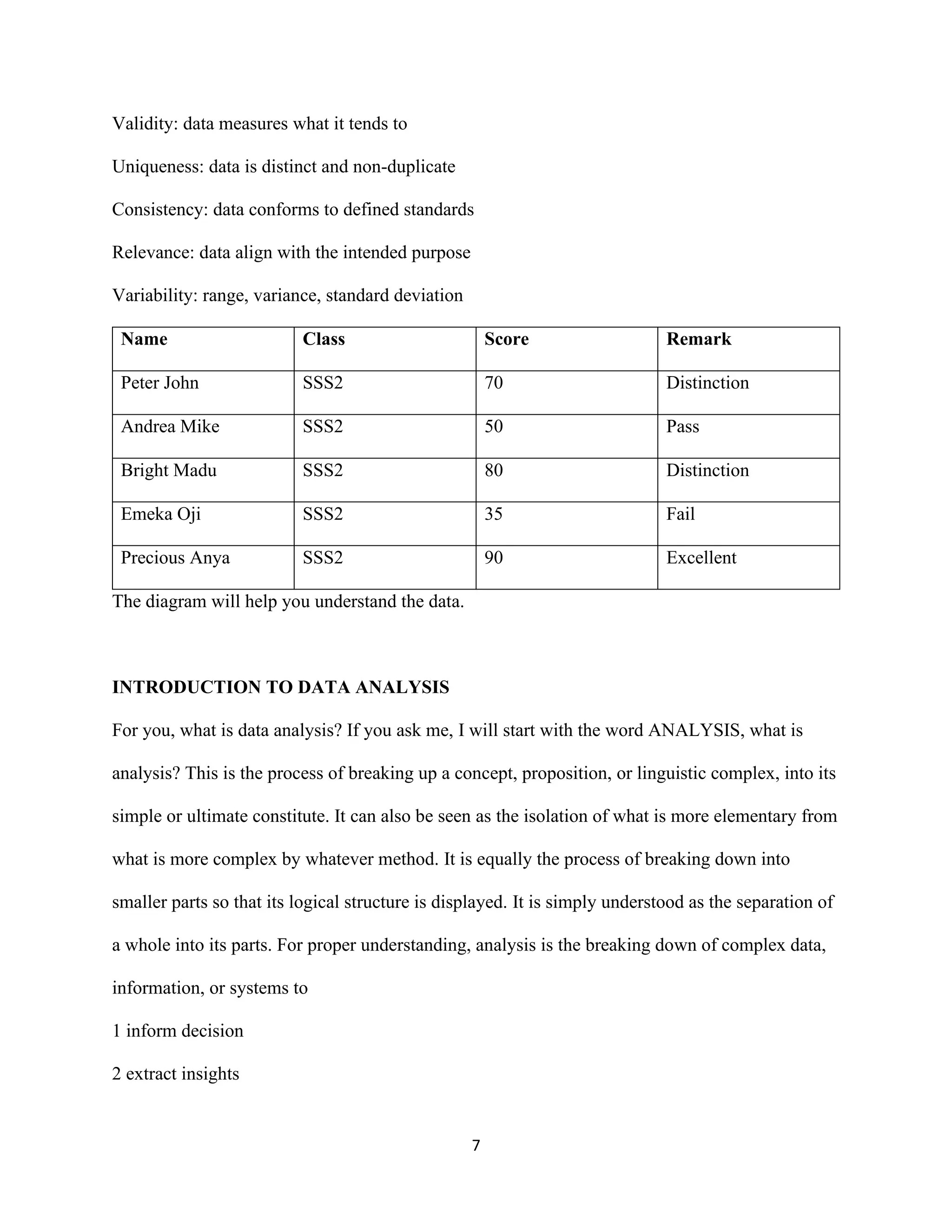
Name Class Score Remark
Peter John SSS2 70 Distinction
Andrea Mike SSS2 50 Pass
Bright Madu SSS2 80 Distinction
Emeka Oji SSS2 35 Fail
Precious Anya SSS2 90 Excellent
The diagram will help you understand the data.
INTRODUCTION TO DATA ANALYSIS
For you, what is data analysis? If you ask me, I will start with the word ANALYSIS, what is
analysis? This is the process of breaking up a concept, proposition, or linguistic complex, into its
simple or ultimate constitute. It can also be seen as the isolation of what is more elementary from
what is more complex by whatever method. It is equally the process of breaking down into
smaller parts so that its logical structure is displayed. It is simply understood as the separation of
a whole into its parts. For proper understanding, analysis is the breaking down of complex data,
information, or systems to
1 inform decision
2 extract insights
8
3 solve problems
4 identify pattern
Types of analysis
Qualitative analysis: non-numerical
Quantitative analysis: numerical
mix-methods analysis: numerical and non-numerical.
DATA ANALYSIS
Data analysis is the process of extracting, transforming, and visualizing raw data into actionable
insights for informed decision-making. It is also the process of systematically applying statistical
and logical functions to describe illustrate condense recap and evaluate data. It is the extraction
of insights and meaningful information from data to support informed decisions, solve problems,
and answer questions. Data analysis on the other hand is a subset of data analytics that involves
the process of cleaning, sorting, and manipulating the data to find insights.
DATA ANALYTICS
Data analytics is the process of gathering, organizing, cleaning, analyzing, and mining data,
interpreting results, and reporting the findings to draw meaningful, actionable insights that are
then used to inform and drive smart business decisions. It is equally the process of collecting,
analyzing, and interpreting large sets of data to form patterns, trends, and correlations.
DIFFERENCE BETWEEN DATA ANALYSIS AND DATA ANALYTICS
They are usually used interchangeably, they are not the same, but they have some subtle
differences. Data analysis is the process of examining, exploring, and studying datasets to
understand patterns, relationships, and insight. Data analytics is a broader term that includes not
only data analysis but also predictive modeling, data mining, and advanced techniques to
9
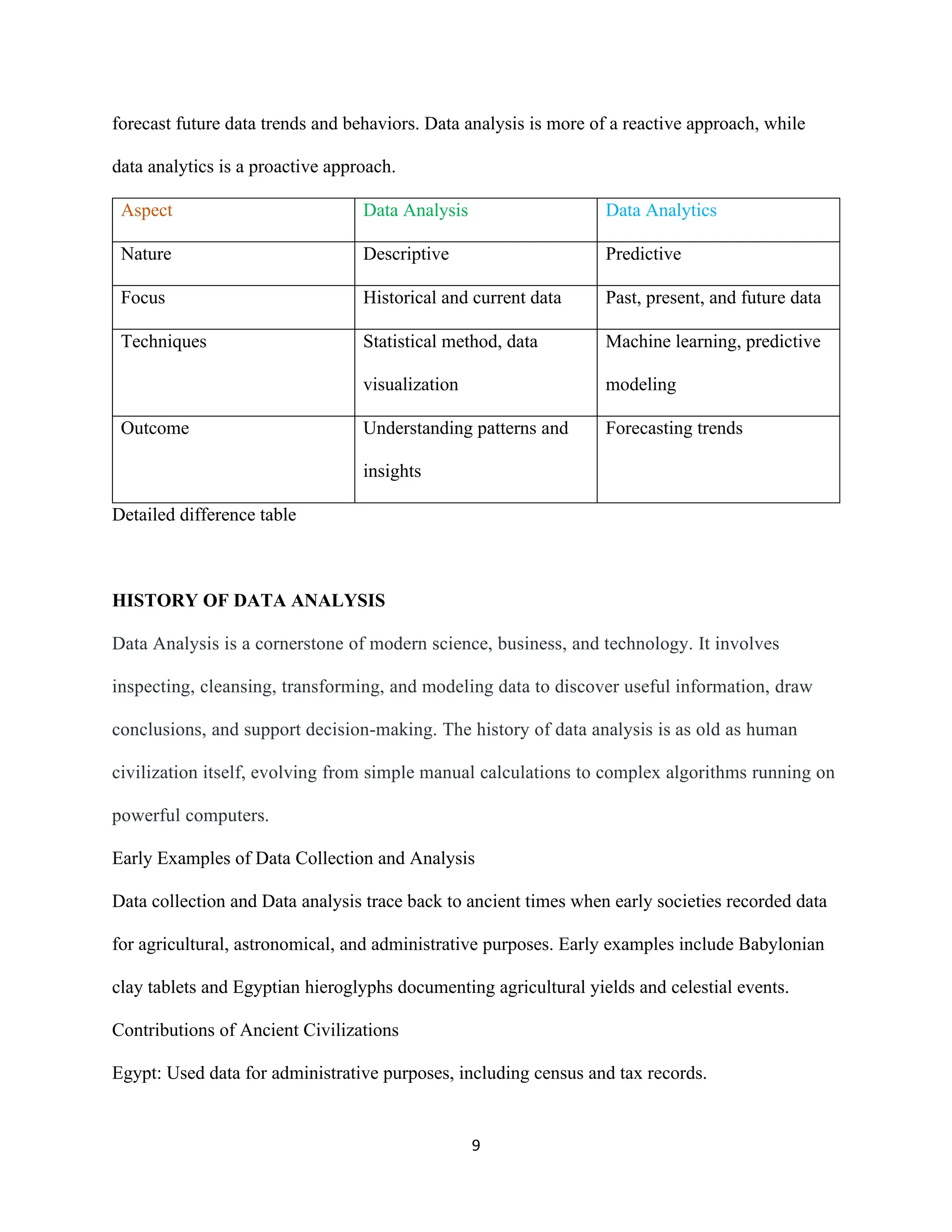
forecast future data trends and behaviors. Data analysis is more of a reactive approach, while
data analytics is a proactive approach.
Aspect Data Analysis Data Analytics
Nature Descriptive Predictive
Focus Historical and current data Past, present, and future data
Techniques Statistical method, data
visualization
Machine learning, predictive
modeling
Outcome Understanding patterns and
insights
Forecasting trends
Detailed difference table
HISTORY OF DATA ANALYSIS
Data Analysis is a cornerstone of modern science, business, and technology. It involves
inspecting, cleansing, transforming, and modeling data to discover useful information, draw
conclusions, and support decision-making. The history of data analysis is as old as human
civilization itself, evolving from simple manual calculations to complex algorithms running on
powerful computers.
Early Examples of Data Collection and Analysis
Data collection and Data analysis trace back to ancient times when early societies recorded data
for agricultural, astronomical, and administrative purposes. Early examples include Babylonian
clay tablets and Egyptian hieroglyphs documenting agricultural yields and celestial events.
Contributions of Ancient Civilizations
Egypt: Used data for administrative purposes, including census and tax records.
10
Greece: Developed early forms of statistical thinking, with philosophers like Aristotle analyzing
social and natural phenomena.
Rome: Implemented data collection systems for public administration and military logistics.
The Middle Ages and Renaissance
Advancements in Statistical Methods
The Middle Ages saw slow progress in data analysis, but the Renaissance sparked renewed
interest and advancements in scientific and mathematical thinking.
Key Figures and Their Contributions
Fibonacci: Introduced the Fibonacci sequence, which has applications in various fields, including
finance and biology.
John Grant: Often called the father of demography, he analyzed mortality data in London, laying
the groundwork for statistical analysis in public health.
The 17th and 18th Centuries
Systematic Approaches to Data Analysis
The 17th and 18th centuries saw the emergence of more systematic approaches to data analysis.
John Napier (1614): Invented the logarithm, revolutionizing mathematical calculations.
John Grant (1662): Published “Natural and Political Observations Made upon the Bills of
Mortality,” one of the first works to apply statistical methods to demographic data.
Pierre-Simon Laplace and Thomas Bayes: Formalized probability theory. Bayes’
theorem, introduced in the 1760s, provided a mathematical framework for updating probabilities
based on new evidence.
Carl Friedrich Gauss and Adrien-Marie Legendre: Developed the method of least squares,
crucial for regression analysis.
11
The 19th Century
Transition from Theoretical Developments to Practical Applications
Florence Nightingale: Pioneered the visual representation of data, using statistical graphics to
advocate for healthcare reforms in the British Army.
Charles Babbage: Designed the Difference Engine and the Analytical Engine, early mechanical
computers capable of performing complex calculations.
Royal Statistical Society (1834): Founded to provide a platform for the dissemination and
advancement of statistical knowledge.
The Early 20th Century
Transition from Theoretical Developments to Practical Applications
Florence Nightingale: Pioneered the visual representation of data, using statistical graphics to
advocate for healthcare reforms in the British Army.
Charles Babbage: Designed the Difference Engine and the Analytical Engine, early
mechanical computers capable of performing complex calculations.
Royal Statistical Society (1834): Founded to provide a platform for the dissemination and
advancement of statistical knowledge.
The Early 20th Century
Rapid Advancements in Data Analysis
Ronald A. Fisher: Introduced maximum likelihood estimation and developed an analysis of
variance (ANOVA), a fundamental tool in statistical analysis.
12
William Sealy Gosset (“Student”): Developed the t-distribution, crucial for small sample
statistical inference.
Experimental Design Principles: Fisher’s work at the Rothamsted Experimental Station led to the
formalization of randomized controlled experiments.
The Mid-20th Century
The advent of Electronic Computers
ENIAC (Electronic Numerical Integrator and Computer): Made it possible to perform complex
calculations at unprecedented speeds.
Operations Research: Applied mathematical and statistical methods to solve practical problems
in logistics, production, and decision-making. Key figures include George Dantzig, who
developed the simplex algorithm for linear programming.
Early Statistical Software: Development of languages such as FORTRAN and COBOL
facilitated the implementation of statistical algorithms on computers.
The Late 20th Century
Proliferation of Personal Computers and User-Friendly Software
Statistical Software Packages: Introduction of SPSS (Statistical Package for the Social
Sciences) and SAS (Statistical Analysis System) democratized data analysis.
Relational Databases and SQL: Allowed for efficient storage, retrieval, and manipulation of
large datasets.
Early Machine Learning Algorithms: The development of decision trees, neural networks, and
clustering techniques laid the groundwork for more sophisticated models.
The Digital Revolution
13
Statistical Software Packages: Introduction of SPSS (Statistical Package for the Social Sciences)
and SAS (Statistical Analysis System) democratized data analysis.
Relational Databases and SQL: Allowed for efficient storage, retrieval, and manipulation of large
datasets.
Early Machine Learning Algorithms: The development of decision trees, neural networks, and
clustering techniques laid the groundwork for more sophisticated models.
The Digital Revolution
Explosion of Big Data
Distributed Computing Frameworks: The creation of Hadoop and Spark enabled the processing
of large datasets across multiple machines.
Cloud Computing: Provided scalable and cost-effective solutions for data analysis.
Rise of Data Science: Brought together statistics, computer science, and domain expertise. Open-
source programming languages like R and Python provided powerful tools for data analysis and
machine learning.
The 21st Century: Big Data and Beyond
Continued Evolution of Data Analysis
Artificial Intelligence (AI) and Machine Learning: Deep learning achieved remarkable success in
tasks such as image recognition, natural language processing, and recommendation systems.
Real-Time Processing and Streaming Data: Enabled applications such as fraud detection,
predictive maintenance, and marketing.
Internet of Things (IoT): Expanded the scope of data analysis with connected devices generating
continuous streams of data.
14
Privacy and Ethics: Regulations like GDPR in Europe established guidelines for the responsible
use of data, ensuring that individuals’ privacy rights are protected.
Explainable AI (XAI): Techniques aimed to make complex models more understandable to
humans, enabling better trust and AI systems.
TYPES OF DATA ANALYSIS
Descriptive analytics looks at what has happened in the past.
As the name suggests, the purpose of analytics is to simply describe what has happened; it
doesn’t try to explain why this might have happened or to establish cause-and-effect
relationships. The aim is solely to provide an easily digestible snapshot.
Google Analytics is a good example of descriptive analytics in action; it provides a simple
overview of what’s been going on with your website, showing you how many people visited in a
given period, for example, or where your visitors came from. Similarly, tools like HubSpot will
show you how many people opened a particular email or engaged with a certain campaign.
There are two main techniques used in descriptive analytics: Data aggregation and data mining.
Data aggregation
Data aggregation is the process of gathering data and presenting it in a summarized format.
15
Let’s imagine an e-commerce company collects all kinds of data relating to its customers and
people who visit its website. The aggregate data, or summarized data, would provide an
overview of this wider dataset—such as the average customer age, for example, or the average
number of purchases made.
Data mining
Data mining is the analysis part. This is when the analyst explores the data in order to uncover
any patterns or trends. The outcome of descriptive analysis is a visual representation of the
data—as a bar graph, for example, or a pie chart.
So: Descriptive analytics condenses large volumes of data into a clear, simple overview of what
has happened. This is often the starting point for more in-depth analysis, as we’ll now explore.
2. Types of data analysis: Diagnostic (Why did it happen?)
Diagnostic analytics seeks to delve deeper to understand why something happened. The main
purpose of diagnostic analytics is to identify and respond to anomalies within your data. For
example: If your descriptive analysis shows that there was a 20% drop in sales for the month of
March, you’ll want to find out why. The next logical step is to perform a diagnostic analysis.
In order to get to the root cause, the analyst will start by identifying any additional data sources
that might offer further insight into why the drop in sales occurred. They might drill down to find
that, despite a healthy volume of website visitors and a good number of “add to cart” actions,
very few customers proceeded to check out and make a purchase.
Upon further inspection, it comes to light that the majority of customers abandoned ship at the
point of filling out their delivery address. Now we’re getting somewhere! It’s starting to look like
there was a problem with the address form; perhaps it wasn’t loading properly on mobile or was
16
simply too long and frustrating. With a little bit of digging, you’re closer to finding an
explanation for your data anomaly.
Diagnostic analytics isn’t just about fixing problems, though; you can also use it to see what’s
driving positive results. Perhaps the data tells you that website traffic was through the roof in
October—a whopping 60% increase compared to the previous month! When you drill down, it
seems that this spike in traffic corresponds to a celebrity mentioning one of your skincare
products in their Instagram story.
This opens your eyes to the power of influencer marketing, giving you something to think
about for your future marketing strategy.
When running diagnostic analytics, there are several different techniques that you might employ,
such as probability theory, regression analysis, filtering, and time-series analysis.
So: While descriptive analytics looks at what happened, diagnostic analytics explores why it
happened.
3. Types of data analysis: Predictive (What is likely to happen in the future?)
Predictive analytics seeks to predict what is likely to happen in the future. Based on past
patterns and trends, data analysts can devise predictive models that estimate the likelihood of a
future event or outcome. This is especially useful as it enables businesses to plan.
Predictive models use the relationship between a set of variables to make predictions; for
example, you might use the correlation between seasonality and sales figures to predict when
sales are likely to drop. If your predictive model tells you that sales are likely to go down in
summer, you might use this information to come up with a summer-related promotional
campaign or to decrease expenditure elsewhere to make up for the seasonal dip.
17
Perhaps you own a restaurant and want to predict how many takeaway orders you’re likely to get
on a typical Saturday night. Based on what your predictive model tells you, you might decide to
get an extra delivery driver on hand.
In addition to forecasting, predictive analytics is also used for classification. A commonly used
classification algorithm is logistic regression, which is used to predict a binary outcome based on
a set of independent variables. For example, A credit card company might use a predictive
model, and specifically logistic regression, to predict whether or not a given customer will
default on their payments—in other words, to classify them in one of two categories: “will
default” or “will not default”.
Based on these predictions of what category the customer will fall into, the company can quickly
assess who might be a good candidate for a credit card.
As you can see, predictive analytics is used to forecast all sorts of future outcomes, and while it
can never be one hundred percent accurate, it does eliminate much of the guesswork. This is
crucial when it comes to making business decisions and determining the most appropriate course
of action.
So: Predictive analytics builds on what happened in the past and why to predict what is likely to
happen in the future.
4. Types of data analysis: Prescriptive (What’s the best course of action?)
Prescriptive analytics looks at what has happened, why it happened, and what might happen in
order to determine what should be done next.
In other words, prescriptive analytics shows you how you can best take advantage of the future
outcomes that have been predicted. What steps can you take to avoid a future problem? What can
you do to capitalize on an emerging trend?
18
Prescriptive analytics is, without doubt, the most complex type of analysis, involving algorithms,
machine learning, statistical methods, and computational modeling procedures. Essentially, a
prescriptive model considers all the possible decision patterns or pathways a company might
take, and their likely outcomes.
This enables you to see how each combination of conditions and decisions might impact the
future and allows you to measure the impact a certain decision might have. Based on all the
possible scenarios and potential outcomes, the company can decide what is the best “route” or
action to take.
An oft-cited example of prescriptive analytics in action is maps and traffic apps. When figuring
out the best way to get you from A to B, Google Maps will consider all the possible modes of
transport (e.g. bus, walking, or driving), the current traffic conditions, and possible roadworks
to calculate the best route. In much the same way, prescriptive models are used to calculate all
the possible “routes” a company might take to reach its goals to determine the best possible
option.
Knowing what actions to take for the best chances of success is a major advantage for any type
of organization, so it’s no wonder that prescriptive analytics has a huge role to play in business.
So: Prescriptive analytics looks at what has happened, why it happened, and what might happen
to determine the best course of action for the future.
In some ways, data analytics is a bit like a treasure hunt; based on clues and insights from the
past, you can work out what your next move should be.
With the right type of analysis, all kinds of businesses and organizations can use their data to
make smarter decisions, invest more wisely, improve internal processes, and ultimately increase
their chances of success.
19
To summarize, there are four main types of data analysis to be aware of:
Descriptive analytics: What happened?
Diagnostic analytics: Why did it happen?
Predictive analytics: What is likely to happen in the future?
Prescriptive analytics: What is the best course of action to take?
IMPORTANCE OF DATA ANALYSIS
Reducing inefficiencies and streamlining operations: Data analysis identifies inefficiencies
and bottlenecks in business processes, providing opportunities to mitigate them. By analyzing
resource and process data, organizations can find ways to reduce costs, boost productivity, and
save time.
Driving revenue growth: Data analysis promotes revenue growth by optimizing marketing
efforts, product development, and customer retention strategies. It enables a focused approach to
maximizing returns on investment (ROI).
20
Mitigating risk: Forecasting potential issues and identifying risk factors before they become
problematic is invaluable for all kinds of organizations. Risk analysis provides the foresight that
enables businesses to implement preventative measures and avoid potential pitfalls.
Enhancing decision-making: Insights from analyzing data empower informed, evidence-based
choices. This shifts decision-making from a reliance on intuition to a strategic, data-informed
approach.
Lowering operational expenses: Data analysis helps identify unnecessary spending and
underperforming assets, facilitating more efficient resource allocation. Organizations can reduce
costs and reallocate budgets to improve productivity and efficiency.
Identifying and capitalizing on new opportunities: By revealing trends and patterns, data
analysis uncovers new market opportunities and avenues for expansion. This insight allows
businesses to innovate and enter new markets with a solid foundation of data.
Improving customer experience: Analyzing customer data helps organizations identify where
to tailor their products, services, and interactions to meet customer needs, enhance satisfaction,
and foster loyalty.
Data analysis is the foundation of strategic planning and operational efficiency, enabling
organizations to navigate and swiftly adapt to market changes and evolving customer demands.
It’s a critical element for gaining a competitive advantage and fostering long-lasting success in
today's data-centric business environment.
Who is a Data Analyst?
A data analyst is a professional who collects, cleans, analyzes, and communicates insights
from data. They work in various industries, helping organizations make informed decisions
based on evidence. Here’s a breakdown of their responsibilities and data analyst skills:
21
1. Data Gathering and Cleaning:
Data analysts collect information from various sources like surveys, website records, financial
data, or scientific experiments.
They then meticulously clean and organize the data, ensuring its accuracy and completeness
before further analysis.
2. Data Analysis and Pattern Identification:
Using statistical methods, programming languages, and data visualization tools, analysts
explore and analyze the data.
They search for patterns, trends, and anomalies, revealing hidden connections and insights
within the information.
3. Insight Communication and Reporting:
A crucial skill for data analysts is translating complex findings into clear, concise, and
actionable insights that stakeholders can understand and use.
This often involves creating reports, presentations, and dashboards that effectively
communicate the data’s story.
4. Problem-Solving and Performance Optimization:
Data analysts go beyond interpreting data; they use it to solve problems and improve processes
in various contexts.
This might involve analyzing customer behavior to optimize marketing campaigns, identifying
fraudulent transactions in financial systems, or predicting equipment failures for better
maintenance schedules.
22
Why Data Analyst?
Being a Data Analyst, you will be working on real-life problem-solving scenarios, and with
this fast-paced, evolving technology, the demand for Data Analysts has grown
enormously. Moving with this pace of advancement, the competition is growing every day and
companies require new methods to compete for their existence and that’s what Data Analysts
do. Let’s understand the
Data Analyst's job in 4 simple ways:
Being a Data Analyst, you’ll be working closely with the raw data and will generate valuable
insights that will help companies decide their future goals.
If you’re someone who likes thinking out of the box then you are the perfect fit for this
domain. Data Analysts help organizations to work with both business and data closely. This
eventually maximizes the output for generating more business values.
Nevertheless, this field gives you a handsome salary for all levels of expertise. Being a Data
Analyst, you can earn more than $80k per annum and around 4LPA in India (for the starting
level).
According to multiple reports, the demand for Data Analysts jobs is high VS the supply to the
market is comparatively less and that’s one of the reasons why people are shifting their careers
to Data Science. Till now, there are more than 28,000 job postings available in India and
414,000+ jobs are available worldwide.
Types of Data Analysts
There are many different types of data analysts, each specializing in a specific area or industry.
Here are some of the most common types:
23
Business Intelligence Analysts: Analyze business data for insights, informed decisions, and
performance improvement.
Financial Analysts: Focus on financial data for budgeting, investments, and market trends
analysis.
Healthcare Data Analysts: Work with healthcare data for patient outcomes, operational
optimization, and medical research.
Marketing Analysts: Analyze marketing data for campaign effectiveness, consumer behavior,
and market trends.
Operations Analysts: Optimize processes by analyzing operational data, enhancing
efficiency, and reducing costs.
Sports Analysts: Analyze sports data for performance evaluation, strategy improvement, and
player/team assessment.
Crime Analysts: Analyze crime data for pattern identification, assisting law enforcement in
prevention and solving.
Environmental Data Analysts: Analyze environmental data for ecological trends, climate
patterns, and human impact assessment.
Social Media Analysts: Analyze social media data for user behavior understanding and
insights for marketing strategies.
Economic Analysts: Study economic data for trend understanding, economic condition
forecasting, and policy insights.
How to Become a Data Analyst: Roadmap – Skills Required
To become a data analyst, it’s essential to develop a strong foundation in mathematics and
statistics, which are fundamental data analyst skills for understanding and interpreting complex
24
datasets. Additionally, proficiency in programming languages like Python, R, or SQL is crucial
for manipulating data and conducting statistical analysis. Practical experience gained through
real-world projects and certifications can further enhance your skills and make you more
competitive in the Japanese market. Continuous learning and staying updated with the latest
trends and technologies in data analysis are also key to success in this dynamic and evolving
field.
WHERE CAN A DATA ANALYST WORK
A data analyst can work in a wide range of industries and environments, and the specific nature
of their work can vary greatly depending on the organization. Such places are:
25
Tech Startups: Imagine a fast-paced office where everyone knows each other by name. A data
analyst here might be surrounded by coffee-fueled developers, brainstorming with marketing
teams to figure out why user engagement is rising or falling, and giving key insights that help
shape the company’s next big product. It's an environment where flexibility and quick decision-
making are key, and the analyst's work can directly impact the company's survival and growth.
Healthcare: In a hospital or healthcare organization, a data analyst’s work might feel especially
meaningful. They're diving into patient data, health outcomes, or operational efficiency, helping
doctors and administrators make life-saving decisions, or ensuring resources are allocated
properly. It’s a job where each insight could improve lives, where numbers are more than just
statistics—they represent people’s health and well-being.
Finance: Picture a skyscraper with a view of the city skyline. Here, data analysts work in finance
departments, tracking the market, analyzing investment portfolios, and making recommendations
that could steer massive financial decisions. They're surrounded by fast-talking traders and
buttoned-up executives who rely on their keen insights to navigate risks and identify
opportunities.
Retail or E-commerce: Whether in a brick-and-mortar giant or a thriving online store, a data
analyst is the unseen force driving sales strategies. They dig into sales numbers, customer
preferences, and shopping trends, helping the business understand what products to stock, how to
price them, and which promotions will attract more buyers. They're the invisible hand guiding
the customer experience, making shopping smoother and more intuitive.
Government: In public offices or government agencies, data analysts work with public records,
policy outcomes, and economic indicators. Their insights help shape policies on transportation,
26
housing, and education. It’s a role where their findings might lead to real-world changes that
affect an entire city, state, or country.
Education: In schools or universities, data analysts work behind the scenes, analyzing student
performance data, funding allocation, or resource usage. Their findings can influence educational
strategies, helping teachers and administrators create environments where students can thrive.
Media & Entertainment: At a media company, the data analyst might be deep in entertainment
metrics—what people are watching, what articles they’re reading, and how they’re engaging
with content. They could be sitting in on creative meetings with producers or journalists,
providing insights on audience behavior that shapes what gets made next.
In any of these environments, the work of a data analyst often blends number-crunching with
collaboration. They’re frequently in meetings, explaining complex insights to people without a
data background, making them a crucial link between data and decision-making.
INTRODUCTION TO MICROSOFT EXCEL
Microsoft Excel is a powerful spreadsheet software application developed by Microsoft. It is
widely used for various tasks such as data analysis, financial calculations, project management,
and more. Excel's strength lies in its ability to perform calculations, organize data, and create
visual representations of information. Microsoft Excel is a powerful spreadsheet program
designed to help you organize, calculate, and analyze data. It’s like a super-organized digital
notebook, where you can make lists, create budgets, track numbers, and even make charts.
Imagine it as a big grid made of rows and columns, where each small box (called a cell) can hold
data—numbers, words, or formulas. You can add up numbers, create tables, and use its features
to spot patterns in data.
27
It's commonly used for things like managing personal finances, organizing work projects,
analyzing business reports, or any task where data needs to be sorted and understood. Excel can
also handle complex tasks with built-in tools like functions, pivot tables, and charts, which make
it easy to visualize data trends and insights.
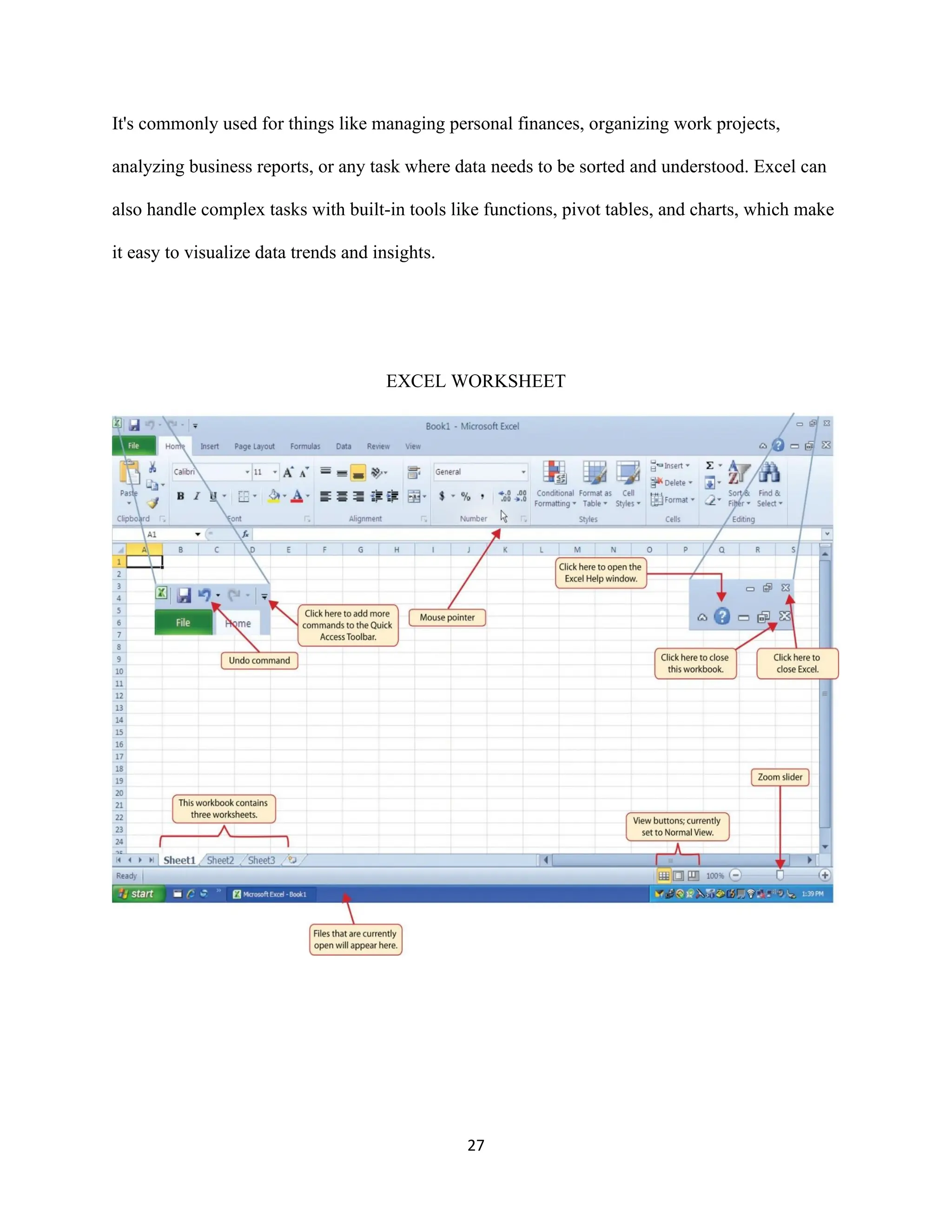
EXCEL WORKSHEET
28
FIVE WAYS OF INSERTING DATA INTO EXCEL
When analyzing data, there are five common ways of inserting basic Excel formulas. Each
strategy comes with its advantages. Below are some of the ways of inserting data into Excel
1. Simple insertion: Typing a formula inside the cell
Typing a formula in a cell or the formula bar is the most straightforward method of inserting
basic Excel formulas. The process usually starts by typing an equal sign, followed by the name
of an Excel function.
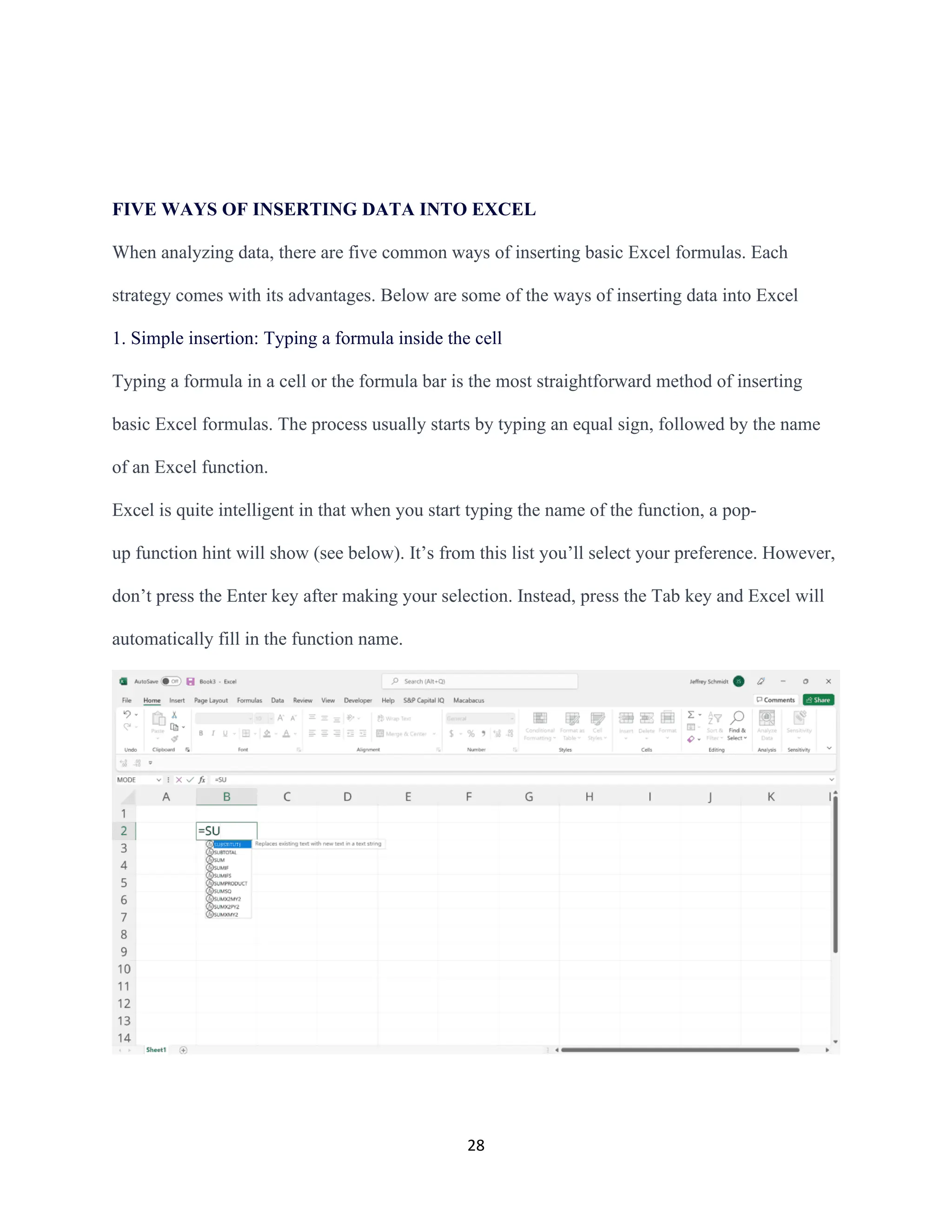
Excel is quite intelligent in that when you start typing the name of the function, a pop-
up function hint will show (see below). It’s from this list you’ll select your preference. However,
don’t press the Enter key after making your selection. Instead, press the Tab key and Excel will
automatically fill in the function name.
29
2. Using Insert Function Option from Formulas Tab
If you want full control of your function’s insertion, using the Excel Insert Function dialogue box
is all you ever need. To achieve this, go to the Formulas tab and select the first menu labeled
Insert Function. The dialogue box will contain all the functions you need to complete your
analysis.
30
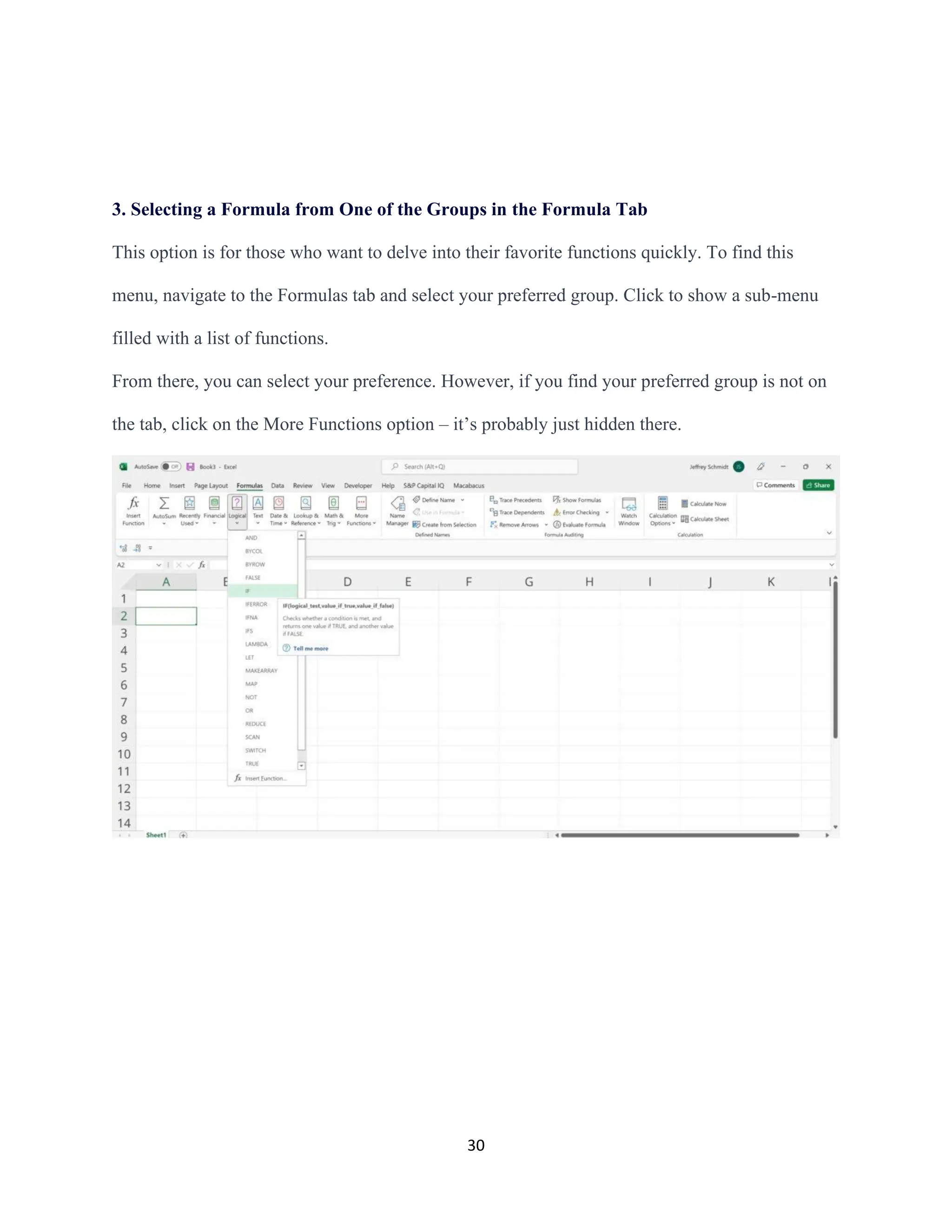
3. Selecting a Formula from One of the Groups in the Formula Tab
This option is for those who want to delve into their favorite functions quickly. To find this
menu, navigate to the Formulas tab and select your preferred group. Click to show a sub-menu
filled with a list of functions.
From there, you can select your preference. However, if you find your preferred group is not on
the tab, click on the More Functions option – it’s probably just hidden there.
31
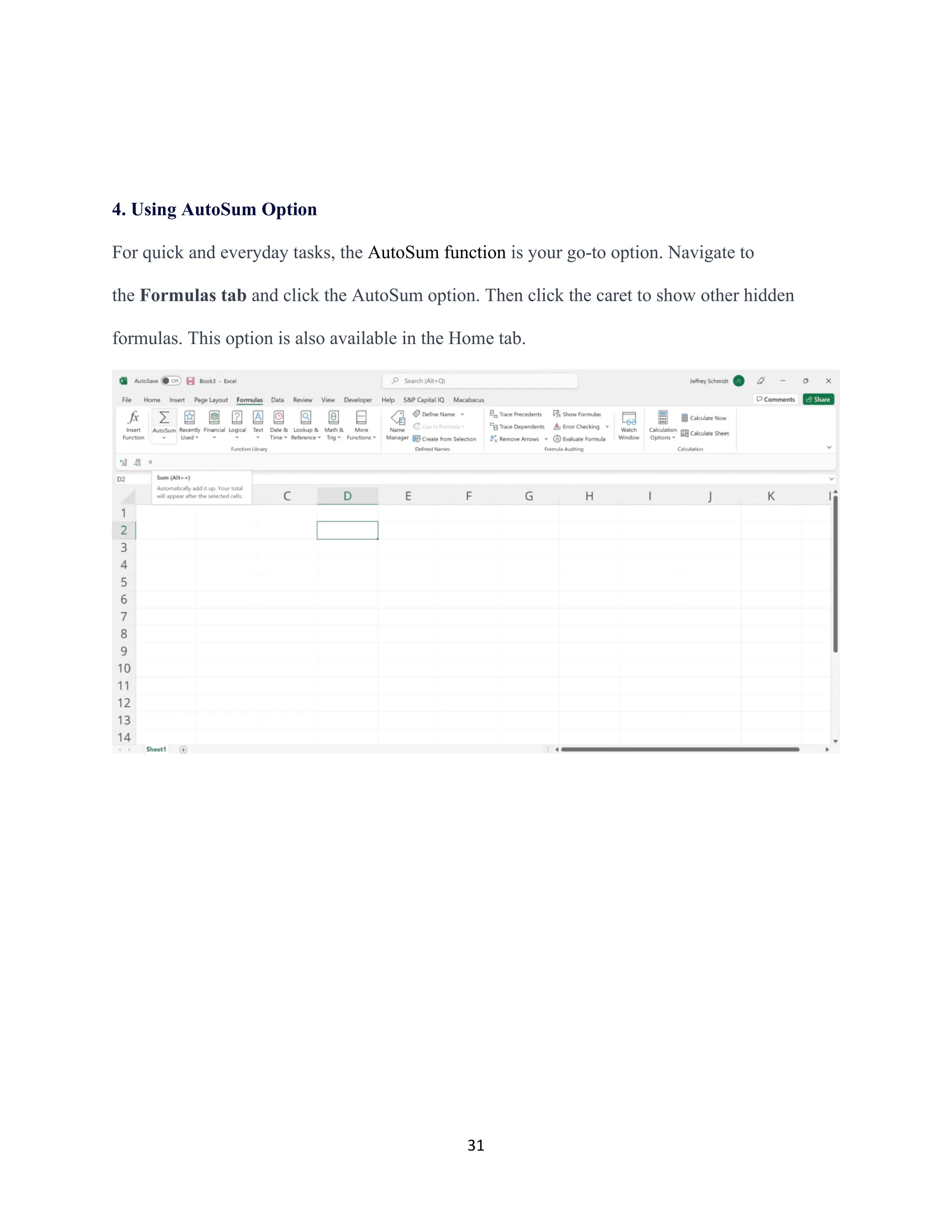
4. Using AutoSum Option
For quick and everyday tasks, the AutoSum function is your go-to option. Navigate to
the Formulas tab and click the AutoSum option. Then click the caret to show other hidden
formulas. This option is also available in the Home tab.
32
5. Quick Insert: Use Recently Used Tabs
If you find re-typing your most recent formula a monotonous task, then use the Recently Used
selection. It’s on the Formulas tab, a third menu option just next to AutoSum.
33
BASIC FUNCTIONS OF EXCEL
1. SUM
The SUM function is the first must-know formula in Excel. It usually aggregates values from a
selection of columns or rows from your selected range.
=SUM (number1, [number2], …)
Example:
=SUM (B2:G2) – A simple selection that sums the values of a row.
=SUM (A2:A8) – A simple selection that sums the values of a column.
=SUM (A2:A7, A9, A12:A15) – A sophisticated collection that sums values from range A2 to
A7, skips A8, adds A9, jumps A10 and A11, then finally adds from A12 to A15.
=SUM (A2:A8)/20 – This shows you can also turn your function into a formula.
34
2. AVERAGE
The AVERAGE function should remind you of simple averages of data, such as the average
number of shareholders in a given shareholding pool.
=AVERAGE (number1, [number2], …)
Example:
=AVERAGE (B2:B11) – Shows a simple average, also similar to (SUM(B2:B11)/10)
35
3. COUNT
The COUNT function counts all cells in a given range that contain only numeric values.
=COUNT (value1, [value2], …)
Example:
COUNT(A: A) – Counts all values that are numerical in the A column. However, you must
adjust the range inside the formula to count rows.
COUNT (A1:C1) – Now it can count rows.
4. COUNTA
Like the COUNT function, COUNTA counts all cells in a given range. However, it counts all
cells regardless of type. That is, unlike COUNT which only counts numerics, it also counts dates,
times, strings, logical values, errors, empty string, or text.
=COUNTA (value1, [value2], …)
36
Example:
COUNTA (C2:C13) – Counts rows 2 to 13 in column C regardless of type. However, like
COUNT, you can’t use the same formula to count rows. You must adjust the selection inside the
brackets – for example, COUNTA (C2:H2) will count columns C to H.
37
5. IF
The IF function is often used when you want to sort your data according to a given logic. The
best part of the IF formula is that you can embed formulas and functions in it.
=IF (logical_test, [value_if_true], [value_if_false])
Example:
=IF (C2<D3, “TRUE”,” FALSE”) – Checks if the value at C3 is less than the value at D3. If
the logic is true, let the cell value be TRUE, otherwise, FALSE
=IF (SUM (C1:C10) > SUM (D1:D10), SUM (C1:C10), SUM (D1:D10)) – An example of a
complex IF statement. First, it sums C1 to C10 and D1 to D10, then it compares the sum. If the
sum of C1 to C10 is greater than the sum of D1 to D10, then it makes the value of a cell equal to
the sum of C1 to C10.
38
6. TRIM
The TRIM function makes sure your functions do not return errors due to extra spaces in your
data. It ensures that all empty spaces are eliminated. Unlike other functions that can operate on a
range of cells, TRIM only operates on a single cell. Therefore, it comes with the downside of
adding duplicated data to your spreadsheet.
=TRIM (text)
Example:
TRIM(A2) – Removes empty spaces in the value in cell A2.
39
7. MAX & MIN
The MAX and MIN functions help in finding the maximum number and the minimum number in
a range of values.
=MIN (number1, [number2], …)
Example:
=MIN (B2:C11) – Finds the minimum number between column B from B2 and column C from
C2 to row 11 in both columns B and C.
=MAX (number1, [number2], …)
Example:
=MAX (B2:C11) – Similarly, it finds the maximum number between column B from B2 and
column C from C2 to row 11 in both columns B and C.
40
41
9 PROPER
The PROPER function in Excel sets the first letter in a text string as the upper case and any
other letters in the text string as the lower case that follows any character other than a letter.
=proper(text)
Let's look at the Excel PROPER function example and explore how to use the PROPER function
as a worksheet function in Microsoft Excel:
1. INDEX MATCH
Formula: =INDEX (C3:E9,MATCH(B13,C3:C9,0),MATCH(B14,C3:E3,0))
This is an advanced alternative to the VLOOKUP or HLOOKUP formulas (which have several
drawbacks and limitations). INDEX MATCH[1]
is a powerful combination of Excel formulas
that will take your financial analysis and financial modeling to the next level.
42
INDEX[2]
returns the value of a cell in a table based on the column and row number.
MATCH[3]
returns the position of a cell in a row or column.
Here is an example of the INDEX and MATCH formulas combined. In this example, we look
up and return a person’s height based on their name. Since name and height are both variables in
the formula, we can change both of them!
2. IF combined with AND / OR
Formula: =IF(AND(C2>=C4,C2<=C5),C6,C7)
Anyone who’s spent a great deal of time doing various types of financial models knows that
nested IF formulas can be a nightmare. Combining IF with the AND or the OR function can be a
great way to keep formulas easier to audit and easier for other users to understand. In the
43
example below, you will see how we used the individual functions in combination to create a
more advanced formula.
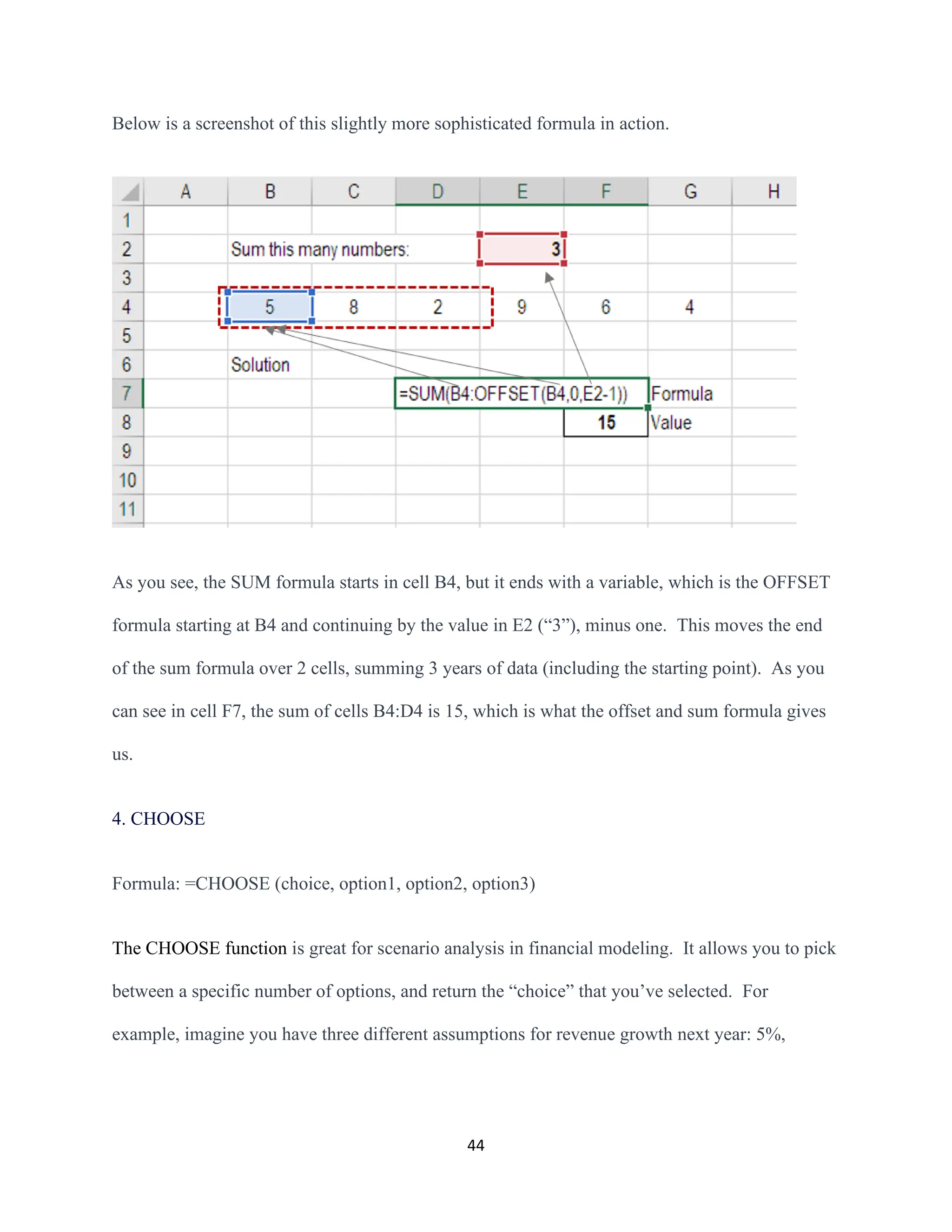
3. OFFSET combined with SUM or AVERAGE
Formula: =SUM (B4:OFFSET (B4,0,E2-1))
The OFFSET function on its own is not particularly advanced, but when we combine it with
other functions like SUM or AVERAGE we can create a pretty sophisticated formula. Suppose
you want to create a dynamic function that can sum a variable number of cells. With the regular
SUM formula, you are limited to a static calculation, but by adding OFFSET you can have the
cell reference move around.
How it works: To make this formula work, we substitute the ending reference cell of the SUM
function with the OFFSET function. This makes the formula dynamic and the cell referenced as
E2 is where you can tell Excel how many consecutive cells you want to add up. Now we’ve got
some advanced Excel formulas!
44
Below is a screenshot of this slightly more sophisticated formula in action.
As you see, the SUM formula starts in cell B4, but it ends with a variable, which is the OFFSET
formula starting at B4 and continuing by the value in E2 (“3”), minus one. This moves the end
of the sum formula over 2 cells, summing 3 years of data (including the starting point). As you
can see in cell F7, the sum of cells B4:D4 is 15, which is what the offset and sum formula gives
us.
4. CHOOSE
Formula: =CHOOSE (choice, option1, option2, option3)
The CHOOSE function is great for scenario analysis in financial modeling. It allows you to pick
between a specific number of options, and return the “choice” that you’ve selected. For
example, imagine you have three different assumptions for revenue growth next year: 5%,
45
12%, and 18%. Using the CHOOSE formula you can return 12% if you tell Excel you want
choice #2.
5. XNPV and XIRR
Formula: =XNPV (discount rate, cash flows, dates)
If you’re an analyst working in investment banking, equity research, financial planning &
analysis or any other area of corporate finance that requires discounting cash flows, then these
formulas are a lifesaver!
Simply put, XNPV and XIRR allow you to apply specific dates to each individual cash flow
that’s being discounted. The problem with Excel’s basic NPV and IRR formulas is that they
assume the time periods between cash flow are equal. Routinely, as an analyst, you’ll have
situations where cash flows are not timed evenly, and this formula is how you fix that.
46
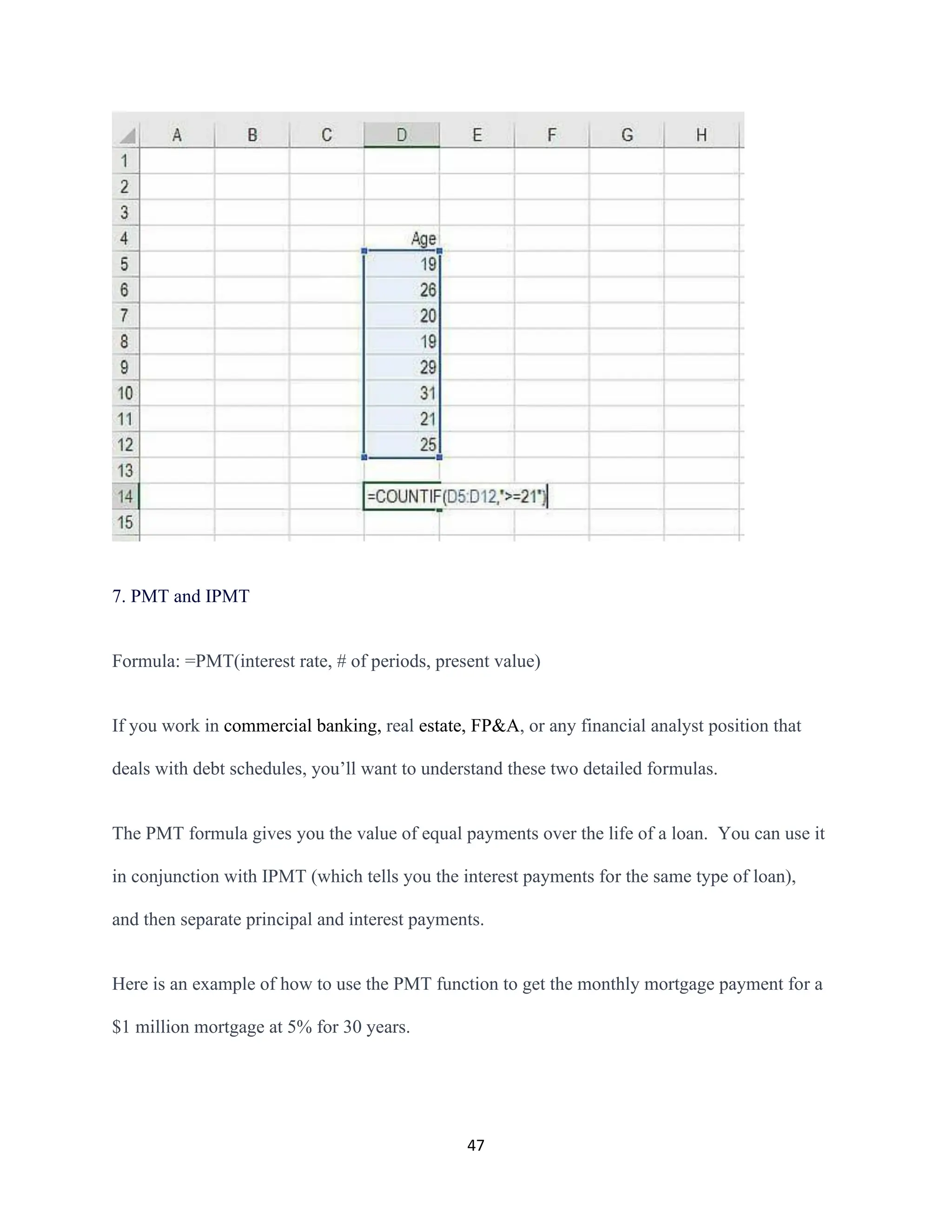
6. SUMIF and COUNTIF
Formula: =COUNTIF (D5:D12,”>=21″)
These two advanced formulas are great uses of conditional functions. SUMIF adds all cells that
meet certain criteria, and COUNTIF counts all cells that meet certain criteria. For example,
imagine you want to count all cells that are greater than or equal to 21 (the legal drinking age in
the U.S.) to find out how many bottles of champagne you need for a client event. You can use
COUNTIF as an advanced solution, as shown in the screenshot below.
47
7. PMT and IPMT
Formula: =PMT(interest rate, # of periods, present value)
If you work in commercial banking, real estate, FP&A, or any financial analyst position that
deals with debt schedules, you’ll want to understand these two detailed formulas.
The PMT formula gives you the value of equal payments over the life of a loan. You can use it
in conjunction with IPMT (which tells you the interest payments for the same type of loan),
and then separate principal and interest payments.
Here is an example of how to use the PMT function to get the monthly mortgage payment for a
$1 million mortgage at 5% for 30 years.
48
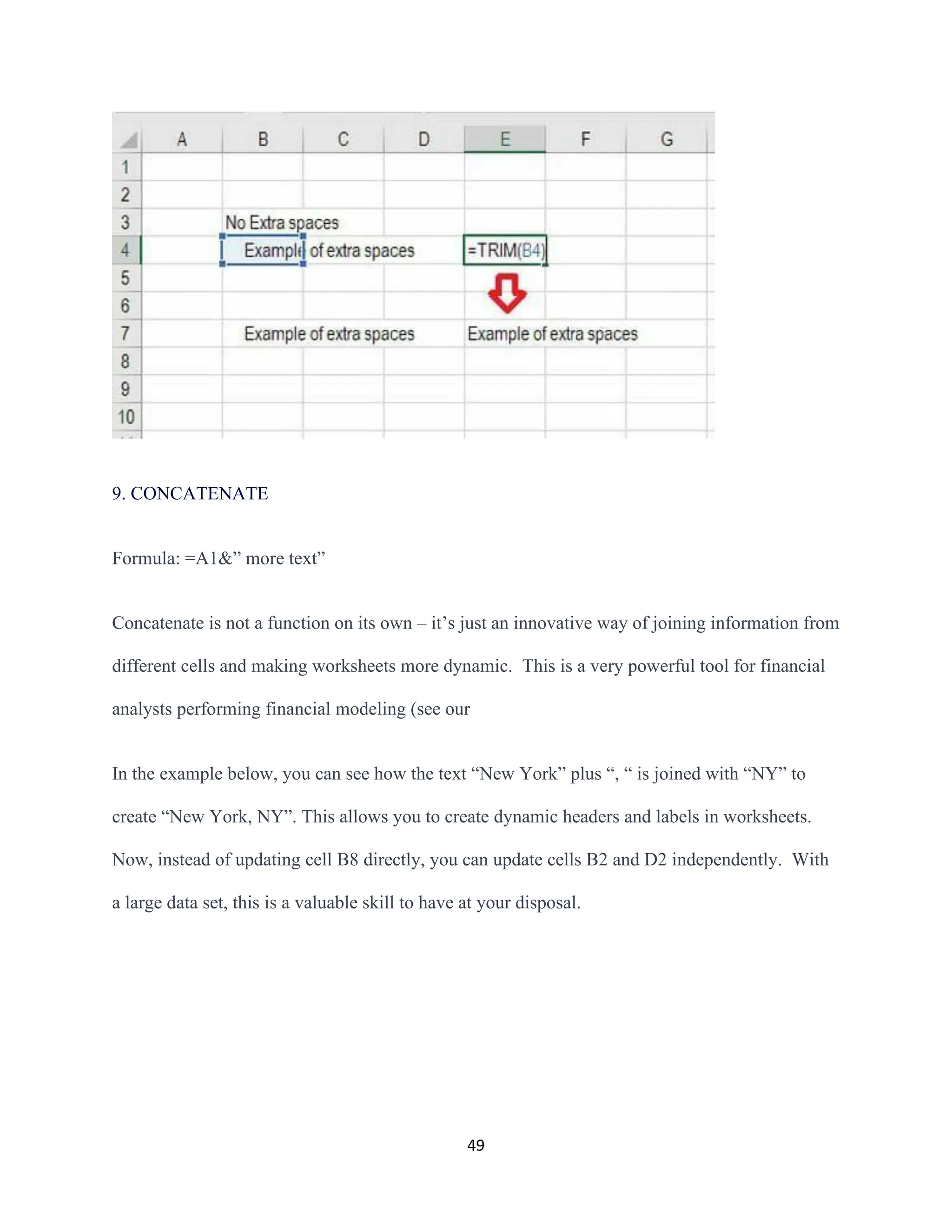
8. LEN and TRIM
Formulas: =LEN (text) and =TRIM (text)
The above formulas are a little less common, but certainly very sophisticated ones. They are
great for financial analysts who need to organize and manipulate large amounts of
data. Unfortunately, the data we get is not always perfectly organized and sometimes, there can
be issues like extra spaces at the beginning or end of cells.
The LEN formula returns a given text string as the number of characters, which is useful when
you want to count how many characters there are in some text.
In the example below, you can see how the TRIM formula cleans up the Excel data.
49
9. CONCATENATE
Formula: =A1&” more text”
Concatenate is not a function on its own – it’s just an innovative way of joining information from
different cells and making worksheets more dynamic. This is a very powerful tool for financial
analysts performing financial modeling (see our
In the example below, you can see how the text “New York” plus “, “ is joined with “NY” to
create “New York, NY”. This allows you to create dynamic headers and labels in worksheets.
Now, instead of updating cell B8 directly, you can update cells B2 and D2 independently. With
a large data set, this is a valuable skill to have at your disposal.
50
10. CELL, LEFT, MID, and RIGHT functions
These advanced Excel functions can be combined to create some very advanced and complex
formulas to use. The CELL function can return a variety of information about the contents of a
cell (such as its name, location, row, column, and more). The LEFT function can return text
from the beginning of a cell (left to right), MID returns text from any start point of the cell (left
to right), and RIGHT returns text from the end of the cell (right to left).
Below is an illustration of the three formulas in action.
51
IF Function in Excel
The IF function is used to test a condition and return one value if the condition is met (TRUE)
and another value if it’s not (FALSE).
Syntax for Excel IF function
=IF (logical_test, value_if_true, value_if_false)
Example of IF function in Excel
Suppose you have a list of test scores, and you want to categorize each score as “Pass” or “Fail”
based on a passing threshold of 70.
52
5 Logical functions in Excel: Examples with step-by-step process 6
In the above image, we can see we use if the average mark is less than 70 then “Fail” or else
“Pass”.
AND Function in Excel
The AND function allows you to test multiple conditions, returning TRUE only if all conditions
are TRUE. It’s often used when you need to check multiple criteria simultaneously.
Syntax for Excel AND function
=AND(condition1, condition2, ...)
Example of AND function in Excel
Imagine you want to identify students who scored above 70 in all Subjects individually then
He/She is passed else Fail.
53
5 Logical functions in Excel: Examples with step-by-step process 7
In the above example, we can see only one student is passing as he has scored more than 70 in all
three subjects.
OR function in Excel
The OR function checks multiple conditions and returns TRUE if at least one condition is TRUE.
It’s helpful for scenarios where you want to identify any instance that meets one of several
criteria.
The syntax for the OR function in Excel
=OR (condition1, condition2, …)
Example of OR function in Excel
Suppose if you wanted to identify students who scored above 70 in any of the Subjects
individually then He/She is passed else Fail.
54
5 Logical functions in Excel: Examples with step-by-step process 8
In the above example, we can see all students have scored more than 70 in any of the subjects
due to this all students passed.
NOT function in Excel:
The NOT function in Excel is a logical function that returns the opposite of a given logical value.
If the argument is TRUE, NOT returns FALSE, and if the argument is FALSE, NOT returns
TRUE. It’s a simple yet valuable function when you need to reverse a logical condition.
Syntax for NOT function in excel:
=NOT(logical value)
Example of NOT function in Excel
In the below example, we are using the NOT function of Excel, where we try to check if
the average Mark is more than 70.
55
5 Logical functions in Excel: Examples with step-by-step process 9
We can see where ever marks are more than 70 it gives us FALSE.
56
PIVOT TABLE IN AN EXCEL
What is a pivot table?
An Excel pivot table is meant to sort and summarize large (very large sets of data).
Once summarized, you can analyze them, make interactive summary reports out of them, and
even manipulate them.
The data is about the sales of many products made throughout the year.
Yes, it’s super huge and it goes across many columns and rows. But it’s hard to understand the
data this way. How about we create a summary of the same?
57
It summarizes the sales for each product for each type of customer.
You can change fields to summarize this data in any way you like. Like summarizing the sales
for any particular product, period, type, etc.
Pivot Tables can help you do the following.
• Cleanly summarize huge datasets.
• Categorize your data into multiple categories and sub-categories.
• Extract a certain portion of your data (if need be) by selecting the relevant fields only.
• Get any part of your data as a row or as a column (called ‘pivoting’).
• Get totals, and subtotals, or drill down any of them to see their details.
How to create a pivot table in Excel
If the images above made you feel like it would be a science to create a Pivot Table in Excel –
that’s just not true.
58
Pivot Tables are super easy to create. Let me show you how we created the one above.
So, here’s the data for sales of different products made throughout the year.
Before we go on making a Pivot Table, here are some tips for you to follow to make your Pivot
Table
• Turn your source data into an Excel table before making a Pivot Table out of it. This
way, whenever you make any changes to the source data (adding or deleting rows or
columns), your Pivot Table will reflect the same.
• Delete any empty rows or columns from the source data.
• Name each column as desired to have the same header as a field title in the Pivot Table.
• Ensure your source data doesn’t have any subtotals or totals.
Let’s concise them into a Pivot Table here.
1. Go to the Insert tab > Pivot Tables.
59
You’ll see the Insert PivotTables dialog box on your screen as follows:
2. Create a reference to the cells containing the relevant data.
60
We have converted our data into an Excel table so Excel automatically recognizes it as Table 1.
Do not forget to include the headers in the selection.
3. Choose the option for New Worksheet or Existing Worksheet.
We will choose a New Worksheet to have the Pivot table created on a new sheet.
4. Click Okay.
There comes the Pivot Table pane to the right of your sheet.
61
It has two parts. The first part (as above) has all the fields (columns) of your source data listed.
And here’s the second part.
62
This part includes four boxes where you can specify how each field is to be shown in the Pivot
Table. You can choose to have any field organized as a row or as a column, as a filter, or as a
value.
5. Drag the filed Products from the list of fields to the box for Rows.
63
Here are the results.
Excel organized all the products as rows.
64
6. Drag the field Amount from the list of fields to the box for Values.
And this is what happens:
Excel adds a column for Values. The column Amount in our source data contained the sales
amount of each transaction.
By adding it as values, Excel has summarized the sales of each product and listed them against
each of the products.
65
But what if you don’t need the sum of sales of each product, but their count?
7. Right-click on any number from the column Sum of Amounts.
8. From the context menu, select Summarize Values By.
9. Click on any operation that you want to be performed. For example, we want the Count
of sales so we select Count
The results change as follows:
66
The column Sum of Amounts becomes Count of Amounts. For each product, we now have the
Count of sales transactions.
No, it doesn’t stop here.
67
10 Drag the field for Customer Type to the box for columns.
And this is what happens:
68
Excel adds columns for each Customer Type. And the sales of each product are now split into
customer types.
Let’s add another field to see how you can further drill down into details using a Pivot Table.
11. Drag and drop the field for Months to the box for Rows.
Excel adds a breakup of months under each product.
69
So now you can see a summary of sales of each product, for each month and by each customer
type. Too convenient and clean
You can make so many more variations to your Pivot Table by pivoting between rows and
columns. No matter how vast your data is, Pivot Tables know how to knit it all together.
VISUALIZATION IN AN EXCEL
Data visualization in Excel represents numerical value in a visual format. It is the way to
organize data in a spreadsheet in a more accessible and organized format. Confidently navigate
through the myriads of chart types and customization options available in Excel to effectively
communicate your data’s story.
Excel templates can be used for data visualization. Excel as a data visualization tool has several
charts, graphs, and maps you can use to visualize your data, like bar graphs, line charts, pivot
tables, etc.
70
This guide will take you step-by-step through creating impactful data visualizations, ensuring
your presentations and reports stand out with professional polish and clarity. Let’s dive in and
bring your data to life!
What is Data Visualization in Excel?
Definition: Data visualization is the graphic representation of data that makes it easier to
interpret. We can create Data visualizations using tools like Data Wrapper, Google Charts, and
others. Additionally, data is organized and visualized using an Excel spreadsheet.
Let’s explore Excel’s data visualization features in many different ways. We can use different
Excel charts and graphs to visualize data. Additionally, data visualization using Excel templates
is possible.
Column charts, bar charts, pie charts, progress bars, line charts, area charts, scatter charts,
surface charts, Sankey diagrams, and many others are available in Excel.
Different Types of Data Visualizations in Excel
Excel can be used for several data visualization techniques, including:
Column Chart
It is a simple type of graph where data is shown as vertical bars. Select the data and the required
option from the Column chart menu to build a column chart. As we can see, several options exist
for the Column chart; the best option must be picked.
The chart can be formatted as required.
Pie Chart
71
Pie charts or diagrams display the percentage share each data type makes up. The pie chart helps
us rapidly understand the proportion contribution. To create a pie chart, pick the required
columns, then pick the relevant pie chart option from the Pie menu.
Bar Graph
Horizontal bars are the only difference between this chart type and a column chart. Select the
suitable bar chart from the Bar option to make a horizontal bar.
Line Graph
A line graph is commonly drawn to show data that changes over time. It consists of two axes: the
x-axis and the y-axis. Each axis represents a different dataset. It is formed by connecting a series
of points using a straight line.
It can be used to check whether the values are increasing or decreasing over time.
Pivot Table
A pivot table is a tabular representation of data used in data visualization that is used to group,
sort, and summarize huge volumes of data.
▪ If you have multiple data series, including a legend in your chart is crucial. The legend
identifies which color or symbol corresponds to each data series.
▪ Enhance the visual appeal of your chart by adjusting fonts, colors, and chart elements as
needed.
72
WHICH CHART WHEN?
1. Bar chart Type of data: Categorical, quantitative When to use it: Use a bar chart to
compare data across categories. What it shows: Bar charts display data using rectangular
bars, with the length of the bar representing the value. The bars can be horizontal or vertical
When to avoid it: Avoid using a bar chart when there are too many categories or if the data is
continuous
2. Line Chart Type of data: Continuous, time-series When to use it: Use a line chart to
show trends over time. What it shows: Line charts plot data points connected by lines. The
X-axis usually represents time, and the Y-axis represents the value. When to avoid it: Only
use a line chart when there is a logical order or relationship between data points.
3. Donut Chart Type of data: Categorical, proportional When to use it: Use a donut chart to
show the proportion of each category. What it shows: Donut charts represent data as slices of
a circle, each representing a percentage of the total. When to avoid it: Avoid using donut
charts when there are too many categories or comparing data across groups
4. Scatter plot Type of data: Continuous, bivariate When to use it: Use a scatterplot to
display the relationship between two variables. What it shows: Scatterplots plot data points
on a two-dimensional plane, with one variable on the X-axis and the other on the Y-axis.
When to avoid it: Don't use a scatterplot when the relationship between variables is irrelevant
or when comparing multiple categories
5. Area Chart Type of data: Continuous, time-series When to use it: Use an area chart to
show the volume or magnitude of data over time. What it shows: Area charts are similar to
line charts, but the area between the line and the X-axis is filled, emphasizing the volume or
73
magnitude. When to avoid it: Avoid using an area chart with multiple data series with
overlapping areas, as it can be confusing.
6. Bubble Chart Type of data: Continuous, multivariate When to use it: Use a bubble chart
to display the relationship between three variables. What it shows: Bubble charts are a
variation of scatterplots, with the size of the bubbles representing the third variable. When to
avoid it: Don't use a bubble chart when the size of the bubbles is not meaningful or when
comparing multiple categories.
7. Histogram Type of data: Continuous, univariate When to use it: Use a histogram to
display the data distribution. What it shows: Histograms are similar to bar charts, but the data
is divided into equal intervals, and the bar's height represents the data frequency in each
interval. When to avoid it: Avoid using histograms when the data is categorical or comparing
data across groups.
8. Heatmap Type of data: Continuous, multivariate When to use it: Use a heatmap to
display the relationship between two variables using color intensity. What it shows:
Heatmaps use a color scale to represent the value of each cell in a matrix, with one variable
on the X-axis and the other on the Y-axis. Darker colors indicate higher values, while lighter
colors represent lower values. When to avoid it: Don't use a heatmap when the relationship
between variables is irrelevant, when the data is categorical, or when comparing multiple
categories. 9.
Treemap Type of data: Categorical, hierarchical When to use it: Use a treemap to display
hierarchical data or to show the proportion of each category as a whole. What it shows:
Treemaps use nested rectangles to represent data, with the size of each rectangle proportional
74
to its value. Color can be used to indicate additional information. When to avoid it: Avoid
using treemaps when there are too many categories or the data is not hierarchical.
10. Radar Chart Type of data: Continuous, multivariate When to use it: Use a radar chart
to display the performance or characteristics of different categories across multiple
dimensions. What it shows: Radar charts use a circular layout with multiple axes, each
representing a dimension. Data points are plotted on each axis and connected to form a
shape. When to avoid it: Don't use a radar chart when there are only a few dimensions or
when comparing data across groups.
CREATING DASHBOARD WITH EXCEL
Excel dashboards are amazing!
What is an Excel dashboard?
An Excel dashboard is a high-level summary of key metrics used in monitoring and
decision-making.
75
It shows you most of what you need to know about a subject without going into specific
detail. A dashboard often has visuals such as pie charts, line graphs, and simple tables.
Think of a car
A car’s dashboard displays speed, temperature, fuel level, etc.
But it doesn’t show everything that’s going on under the hood.
Similarly…
An Excel dashboard primarily shows key performance indicators and metrics.
The data and calculations are tucked “under the hood”. These are usually inside other sheets
or in a separate workbook.
Getting started with Excel dashboards
There are so many possibilities for creating Excel dashboards.
It’s easy to get lost in the process if you do not have a clear idea of what your Excel
dashboard will look like.
So, it’s always a good idea to outline your dashboard structure. By doing so, you are
setting yourself up for success with clear goals and methods.
Here are a few guide questions to help you set up an outline:
• What is your goal or purpose in creating an Excel dashboard?
Are you evaluating business performance? Understand customer trends? Or track your
team’s workload?
76
• What are the available data sets that can be used towards your goal?
Do you have sales data? Is your team tracked using a project management platform? How
easily can you download and use these data sets?
• Who are your Excel dashboard’s target audiences and which key metrics are
important for them?
Do you intend to present it to investors? Or is it for yourself and your managers to
improve work efficiency?
Let’s use the practice Excel workbook for example.
Example Excel dashboard outline
In the practice file, you have the raw sales data of an online store selling personalized gifts.
The data encompasses the entire first half of 2022. It includes orders from several E-
commerce platforms.
Following the guide questions above:
• Your goal is to create a sales dashboard in Excel that can help analyze the store’s sales
performance. Also, it should help improve work management across the different selling
platforms.
• As for the data source, you only have the basic order information. This should be
available for any online store and most stores have a sales/order workbook in hand.
77
• There are two target audiences:
1. Investors – You are growing the business. There is no better way to showcase your
store’s potential than with a well-designed dashboard in Excel.
To win over investors, you have to present sales figures and other key metrics.
2. Management (yourself and/or your team) – Excel dashboards are also a great way to
visualize workload. You can study your team’s performance in terms of how many orders
are being processed each week and how quickly the store delivers its products.
78
Try to bring all the items mentioned above into a neat outline like this:
Now you have a clear outline for your dashboard structure.
Great start!
This is the first step towards your superb Excel dashboard.
79
Get raw data into Excel.
Data sets most often come in the form of spreadsheets like Microsoft Excel or Google Sheets.
Some may also come as CSV files (comma-separated values).
These can all be imported into Excel.
Check the Data tab in the Excel Ribbon.
There are many ways to import your data. Whether it’s from an online platform or a local
file, Excel offers plenty of options.
It is also possible to connect a data source. By doing so, changes in the data source are
reflected in real-time in the Excel dashboard.
80
In the example workbook, the sales data is already available so there is no need to import any
other raw data.
Set up data and file structure
Once the data is in, you need to set up a structure for your workbook.
The dashboard is the summary of key information from the data. So, it is best to place it at
the beginning of the workbook.
Let’s try this in the practice workbook.
1. Insert a new worksheet at the beginning of the workbook and name this “Dashboard”.
2. For the raw data, you can change the worksheet name to “Data”.
Use an Excel table to store and show data.
This next step is optional. But it greatly improves efficiency, especially if will inserts several
charts and graphs.
1. Select the raw data table and go to Home > Format as Table.
81
Excel automatically recognizes the entire table. You can then choose a table style to apply.
In the default Excel table styles, the header row is highlighted, and succeeding rows
are banded. This means their fill color will alternate between light and dark so that it is
easier to read the data.
Filters are also added for each column, allowing you to find and sort specific data points.
After formatting, you can also change the name of the table.
By doing so, you can reference the table directly using its name instead of highlighting its
entire range repeatedly.
Also, you can apply data validation to Excel tables. This ensures the accuracy and structure
of your data before analysis. Learn more about Data Validation here.
82
Try to change the table name of the example data set.
4. Format it as a table then change the table name to “Sales Table “.
Analyze Data with Functions
Now you have your data table set up.
Let’s now add a few dashboard elements to the practice workbook.
Using formulas
You can reference a table’s elements in a formula using its name and an opening
bracket “[“.
For example:
1. In the “Dashboard” worksheet, try this formula to get the monthly average sales.
=SUM(Sales Table[Sub-total])/6
83
2. Then you can add a few more sets of formulas to get the other key metrics listed in the
outline.
Experiment with colors, shapes, and icons to customize your Excel dashboard.
Using Pivot Tables
The most efficient and effective way to analyze and visualize data in Excel is using a Pivot
Table.
Building a pivot table can be quite fidgety. Changing the fields in a pivot table can
unintentionally alter column widths and cell formatting.
84
So, I suggest you create a new worksheet in the practice Excel workbook and name it
“Tables”.
Here you can build a pivot table first before copying it to the “Dashboard” worksheet.
1. Try it out by inserting a pivot table from the Insert Tab.
2. For the source data, enter the name of the data table which in this case would be “Sales
Table”.
3. Then select any cell in the “Tables” worksheet and click OK.
85
4. Drag and drop fields in the Field List window to get your desired pivot table.
For example:
You can set up the fields like below. This will display the top-performing products in the
pivot table.
86
5. Then copy the table into the “Dashboard” worksheet.
Try using formulas to manipulate the values.
For example:
6. Divide the table values by 6 to get the monthly averages.
7. Apply formatting to make it look cleaner.
87
While building your Excel dashboard, always keep your outline in mind. Also, try to group
related elements.
Visualize data and calculations with charts
Tables and functions are great for displaying lists and figures.
But if you want to show trends and/or patterns, charts and graphs are the go-to elements.
You can insert a Pivot Chart from the Insert Tab in the same way as with pivot tables.
1. Create a line chart for the total sales like this:
88
2. Then copy it over to the Dashboard tab and apply your desired formatting.
89
Explore the many different Excel tools!
Don’t limit yourself to a simple line chart or graph. Excel offers so many different visual
elements for use.
You can select from various charts such as pie charts, bar charts, or even a map!
Select dynamic charts that work best with your data.
For example, instead of listing out the top-selling items, you can display this in a colorful pie
chart.
90
You can also create interactive charts like this clustered column chart. It allows you to filter
data by category and date.
Once you have all your Excel dashboard elements in place, you can now move on to
formatting and clean-up.
91
Nice work!
You now have a working Excel dashboard. This particular example is simple compared to
other Excel dashboards.
Quite often, advanced Excel dashboards will have a lot of data and visuals. This can make
navigating them difficult.
To overcome this, you can create an interactive Excel dashboard that allows users to change
views. So that they can focus on specific data points and visuals.
92
That being said, you rarely have to create a new dashboard for your specific needs.
93
General dashboard advice
Here are a few reminders to help you make the most out of your Excel dashboard.
1. Keep your dashboard simple and easy to understand. Avoid cluttering your
dashboard with too many tables and visuals.
2. Group related items together so users can quickly find information.
3. Experiment with different styles and color schemes to get the best presentation for
your data.
4. Use freeze panes and custom view buttons like those shown in the example. This
ensures users can view and navigate your Excel dashboard as intended.
MARKETING DASHBOARD
94

MASTERPIECE TO EXCEL IN DATA ANALYSIS WITH EXCEL.pdf

  • 1.
    1 MASTERPIECE TO EXCELIN DATA ANALYSIS WITH EXCEL WRITTEN BY MICHAEL FRANCIS
  • 2.
    2 TABLE OF CONTENT 1MEANING DATA Types of data Usage of data Component of data Importance of data Characteristics of data 2 MEANING OF ANALYSIS Data analysis Data Analytics History of data analysis Similarities of data analysis and analytics Type of data analysis Importance of data analysis 3 DATA ANALYST Characteristics of data analyst The function of data analyst Workplace of data analyst 4 DATA ANALYSIS WITH MICROSOFT EXCEL What is Excel Importance of Excel Basic functions of Excel Pivot table Creating charts in Excel
  • 3.
    3 GENERAL INTRODUCTION Our worldis recently becoming more digital, and we must be equal to it to be at home with our present world. This is why this course is very vital, this skill is among the top 5 paying jobs in the world today, DATA ANALYSIS. Data analytics is the process of gathering, organizing, cleaning, analyzing, and mining data, interpreting results, and reporting the findings to draw meaningful, actionable insights that are then used to inform and drive smart business decisions. Meanwhile, Data analysis on the other hand is a subset of data analytics that involves the process of cleaning, sorting, and manipulating the data to find insights. This course is about extracting qualitative or quantitative information to track, measure, or very certain activities, events, or outcomes (data) into insights and meaningful information to support informed decision-making, solve problems, or answer questions.
  • 4.
    4 DATA Data refers toqualitative or quantitative information used to track, measure, or verify certain activities, events, or outcomes. The term data encompasses various concepts which are the following: Collected: this includes data collection and its sources. Recorded: this means it is saved in a particular format that can be analyzed later. Processed: this means extracting meaningful data from the data collected. Data can be divided into two, primary and secondary data. Data: This is a collection of facts or concepts such as numbers, words, documents, or instructions collected together for reference or analysis. Data can be structured, semi-structured, and unstructured. TYPES OF DATA Quantitative (numerical): sales figures, temperatures Qualitative (text/images): customer, feedback, product, images, nonnumerical, descriptive. Binary: computer codes, digital signals. Structured(organized) spreadsheet, databases Unstructured (raw): text, audio, video Semi-structured: partially organized with some formatting. Data based on the area they were collected; Based on sources Primary data: collected firsthand through experimenting or observations Secondary data: existing data collected by others Based on time: time series data: sequential data points over time
  • 5.
    5 Cross-sectional data: snapshotof data at a single point in time Panel data: tracking over time. ( customer’s behavior) Big data: large, complex datasets requiring specialized analysis Real-time data: data collected and analyzed in real-time. It must be noted that understanding the type of data is crucial for: Data analysis methods Selecting tools and software DATA USAGE Data usage can be seen as ways data is utilized to extract insights, inform decisions, or drive actions. Personal Social media profiling Online shopping Health and fitness tracking Business Market research and analysis Customer relationship management Supply chain management Educational Student performance analysis Curriculum development Institutional planning Governmental
  • 6.
    6 National security Public policydevelopment Economic development Data usage benefit BENEFITS OF DATA USAGE Improve decision-making. Reduced cost Improved forecasting Increased efficiency CHALLENGES OF DATA USAGE Data overload and complexity Data privacy and security Data quality and accuracy Lack of skilled analyst COMPONENT OF DATA Header (column names) Rows (data records) Index (unique identifier) Data values (observations) DATA COMPONENT INTERACTION Sorting: organization, prioritization Filtering: selection, exclusion CHARACTERISTICS OF DATA
  • 7.
    7 Validity: data measureswhat it tends to Uniqueness: data is distinct and non-duplicate Consistency: data conforms to defined standards Relevance: data align with the intended purpose Variability: range, variance, standard deviation Name Class Score Remark Peter John SSS2 70 Distinction Andrea Mike SSS2 50 Pass Bright Madu SSS2 80 Distinction Emeka Oji SSS2 35 Fail Precious Anya SSS2 90 Excellent The diagram will help you understand the data. INTRODUCTION TO DATA ANALYSIS For you, what is data analysis? If you ask me, I will start with the word ANALYSIS, what is analysis? This is the process of breaking up a concept, proposition, or linguistic complex, into its simple or ultimate constitute. It can also be seen as the isolation of what is more elementary from what is more complex by whatever method. It is equally the process of breaking down into smaller parts so that its logical structure is displayed. It is simply understood as the separation of a whole into its parts. For proper understanding, analysis is the breaking down of complex data, information, or systems to 1 inform decision 2 extract insights
  • 8.
    8 3 solve problems 4identify pattern Types of analysis Qualitative analysis: non-numerical Quantitative analysis: numerical mix-methods analysis: numerical and non-numerical. DATA ANALYSIS Data analysis is the process of extracting, transforming, and visualizing raw data into actionable insights for informed decision-making. It is also the process of systematically applying statistical and logical functions to describe illustrate condense recap and evaluate data. It is the extraction of insights and meaningful information from data to support informed decisions, solve problems, and answer questions. Data analysis on the other hand is a subset of data analytics that involves the process of cleaning, sorting, and manipulating the data to find insights. DATA ANALYTICS Data analytics is the process of gathering, organizing, cleaning, analyzing, and mining data, interpreting results, and reporting the findings to draw meaningful, actionable insights that are then used to inform and drive smart business decisions. It is equally the process of collecting, analyzing, and interpreting large sets of data to form patterns, trends, and correlations. DIFFERENCE BETWEEN DATA ANALYSIS AND DATA ANALYTICS They are usually used interchangeably, they are not the same, but they have some subtle differences. Data analysis is the process of examining, exploring, and studying datasets to understand patterns, relationships, and insight. Data analytics is a broader term that includes not only data analysis but also predictive modeling, data mining, and advanced techniques to
  • 9.
    9 forecast future datatrends and behaviors. Data analysis is more of a reactive approach, while data analytics is a proactive approach. Aspect Data Analysis Data Analytics Nature Descriptive Predictive Focus Historical and current data Past, present, and future data Techniques Statistical method, data visualization Machine learning, predictive modeling Outcome Understanding patterns and insights Forecasting trends Detailed difference table HISTORY OF DATA ANALYSIS Data Analysis is a cornerstone of modern science, business, and technology. It involves inspecting, cleansing, transforming, and modeling data to discover useful information, draw conclusions, and support decision-making. The history of data analysis is as old as human civilization itself, evolving from simple manual calculations to complex algorithms running on powerful computers. Early Examples of Data Collection and Analysis Data collection and Data analysis trace back to ancient times when early societies recorded data for agricultural, astronomical, and administrative purposes. Early examples include Babylonian clay tablets and Egyptian hieroglyphs documenting agricultural yields and celestial events. Contributions of Ancient Civilizations Egypt: Used data for administrative purposes, including census and tax records.
  • 10.
    10 Greece: Developed earlyforms of statistical thinking, with philosophers like Aristotle analyzing social and natural phenomena. Rome: Implemented data collection systems for public administration and military logistics. The Middle Ages and Renaissance Advancements in Statistical Methods The Middle Ages saw slow progress in data analysis, but the Renaissance sparked renewed interest and advancements in scientific and mathematical thinking. Key Figures and Their Contributions Fibonacci: Introduced the Fibonacci sequence, which has applications in various fields, including finance and biology. John Grant: Often called the father of demography, he analyzed mortality data in London, laying the groundwork for statistical analysis in public health. The 17th and 18th Centuries Systematic Approaches to Data Analysis The 17th and 18th centuries saw the emergence of more systematic approaches to data analysis. John Napier (1614): Invented the logarithm, revolutionizing mathematical calculations. John Grant (1662): Published “Natural and Political Observations Made upon the Bills of Mortality,” one of the first works to apply statistical methods to demographic data. Pierre-Simon Laplace and Thomas Bayes: Formalized probability theory. Bayes’ theorem, introduced in the 1760s, provided a mathematical framework for updating probabilities based on new evidence. Carl Friedrich Gauss and Adrien-Marie Legendre: Developed the method of least squares, crucial for regression analysis.
  • 11.
    11 The 19th Century Transitionfrom Theoretical Developments to Practical Applications Florence Nightingale: Pioneered the visual representation of data, using statistical graphics to advocate for healthcare reforms in the British Army. Charles Babbage: Designed the Difference Engine and the Analytical Engine, early mechanical computers capable of performing complex calculations. Royal Statistical Society (1834): Founded to provide a platform for the dissemination and advancement of statistical knowledge. The Early 20th Century Transition from Theoretical Developments to Practical Applications Florence Nightingale: Pioneered the visual representation of data, using statistical graphics to advocate for healthcare reforms in the British Army. Charles Babbage: Designed the Difference Engine and the Analytical Engine, early mechanical computers capable of performing complex calculations. Royal Statistical Society (1834): Founded to provide a platform for the dissemination and advancement of statistical knowledge. The Early 20th Century Rapid Advancements in Data Analysis Ronald A. Fisher: Introduced maximum likelihood estimation and developed an analysis of variance (ANOVA), a fundamental tool in statistical analysis.
  • 12.
    12 William Sealy Gosset(“Student”): Developed the t-distribution, crucial for small sample statistical inference. Experimental Design Principles: Fisher’s work at the Rothamsted Experimental Station led to the formalization of randomized controlled experiments. The Mid-20th Century The advent of Electronic Computers ENIAC (Electronic Numerical Integrator and Computer): Made it possible to perform complex calculations at unprecedented speeds. Operations Research: Applied mathematical and statistical methods to solve practical problems in logistics, production, and decision-making. Key figures include George Dantzig, who developed the simplex algorithm for linear programming. Early Statistical Software: Development of languages such as FORTRAN and COBOL facilitated the implementation of statistical algorithms on computers. The Late 20th Century Proliferation of Personal Computers and User-Friendly Software Statistical Software Packages: Introduction of SPSS (Statistical Package for the Social Sciences) and SAS (Statistical Analysis System) democratized data analysis. Relational Databases and SQL: Allowed for efficient storage, retrieval, and manipulation of large datasets. Early Machine Learning Algorithms: The development of decision trees, neural networks, and clustering techniques laid the groundwork for more sophisticated models. The Digital Revolution
  • 13.
    13 Statistical Software Packages:Introduction of SPSS (Statistical Package for the Social Sciences) and SAS (Statistical Analysis System) democratized data analysis. Relational Databases and SQL: Allowed for efficient storage, retrieval, and manipulation of large datasets. Early Machine Learning Algorithms: The development of decision trees, neural networks, and clustering techniques laid the groundwork for more sophisticated models. The Digital Revolution Explosion of Big Data Distributed Computing Frameworks: The creation of Hadoop and Spark enabled the processing of large datasets across multiple machines. Cloud Computing: Provided scalable and cost-effective solutions for data analysis. Rise of Data Science: Brought together statistics, computer science, and domain expertise. Open- source programming languages like R and Python provided powerful tools for data analysis and machine learning. The 21st Century: Big Data and Beyond Continued Evolution of Data Analysis Artificial Intelligence (AI) and Machine Learning: Deep learning achieved remarkable success in tasks such as image recognition, natural language processing, and recommendation systems. Real-Time Processing and Streaming Data: Enabled applications such as fraud detection, predictive maintenance, and marketing. Internet of Things (IoT): Expanded the scope of data analysis with connected devices generating continuous streams of data.
  • 14.
    14 Privacy and Ethics:Regulations like GDPR in Europe established guidelines for the responsible use of data, ensuring that individuals’ privacy rights are protected. Explainable AI (XAI): Techniques aimed to make complex models more understandable to humans, enabling better trust and AI systems. TYPES OF DATA ANALYSIS Descriptive analytics looks at what has happened in the past. As the name suggests, the purpose of analytics is to simply describe what has happened; it doesn’t try to explain why this might have happened or to establish cause-and-effect relationships. The aim is solely to provide an easily digestible snapshot. Google Analytics is a good example of descriptive analytics in action; it provides a simple overview of what’s been going on with your website, showing you how many people visited in a given period, for example, or where your visitors came from. Similarly, tools like HubSpot will show you how many people opened a particular email or engaged with a certain campaign. There are two main techniques used in descriptive analytics: Data aggregation and data mining. Data aggregation Data aggregation is the process of gathering data and presenting it in a summarized format.
  • 15.
    15 Let’s imagine ane-commerce company collects all kinds of data relating to its customers and people who visit its website. The aggregate data, or summarized data, would provide an overview of this wider dataset—such as the average customer age, for example, or the average number of purchases made. Data mining Data mining is the analysis part. This is when the analyst explores the data in order to uncover any patterns or trends. The outcome of descriptive analysis is a visual representation of the data—as a bar graph, for example, or a pie chart. So: Descriptive analytics condenses large volumes of data into a clear, simple overview of what has happened. This is often the starting point for more in-depth analysis, as we’ll now explore. 2. Types of data analysis: Diagnostic (Why did it happen?) Diagnostic analytics seeks to delve deeper to understand why something happened. The main purpose of diagnostic analytics is to identify and respond to anomalies within your data. For example: If your descriptive analysis shows that there was a 20% drop in sales for the month of March, you’ll want to find out why. The next logical step is to perform a diagnostic analysis. In order to get to the root cause, the analyst will start by identifying any additional data sources that might offer further insight into why the drop in sales occurred. They might drill down to find that, despite a healthy volume of website visitors and a good number of “add to cart” actions, very few customers proceeded to check out and make a purchase. Upon further inspection, it comes to light that the majority of customers abandoned ship at the point of filling out their delivery address. Now we’re getting somewhere! It’s starting to look like there was a problem with the address form; perhaps it wasn’t loading properly on mobile or was
  • 16.
    16 simply too longand frustrating. With a little bit of digging, you’re closer to finding an explanation for your data anomaly. Diagnostic analytics isn’t just about fixing problems, though; you can also use it to see what’s driving positive results. Perhaps the data tells you that website traffic was through the roof in October—a whopping 60% increase compared to the previous month! When you drill down, it seems that this spike in traffic corresponds to a celebrity mentioning one of your skincare products in their Instagram story. This opens your eyes to the power of influencer marketing, giving you something to think about for your future marketing strategy. When running diagnostic analytics, there are several different techniques that you might employ, such as probability theory, regression analysis, filtering, and time-series analysis. So: While descriptive analytics looks at what happened, diagnostic analytics explores why it happened. 3. Types of data analysis: Predictive (What is likely to happen in the future?) Predictive analytics seeks to predict what is likely to happen in the future. Based on past patterns and trends, data analysts can devise predictive models that estimate the likelihood of a future event or outcome. This is especially useful as it enables businesses to plan. Predictive models use the relationship between a set of variables to make predictions; for example, you might use the correlation between seasonality and sales figures to predict when sales are likely to drop. If your predictive model tells you that sales are likely to go down in summer, you might use this information to come up with a summer-related promotional campaign or to decrease expenditure elsewhere to make up for the seasonal dip.
  • 17.
    17 Perhaps you owna restaurant and want to predict how many takeaway orders you’re likely to get on a typical Saturday night. Based on what your predictive model tells you, you might decide to get an extra delivery driver on hand. In addition to forecasting, predictive analytics is also used for classification. A commonly used classification algorithm is logistic regression, which is used to predict a binary outcome based on a set of independent variables. For example, A credit card company might use a predictive model, and specifically logistic regression, to predict whether or not a given customer will default on their payments—in other words, to classify them in one of two categories: “will default” or “will not default”. Based on these predictions of what category the customer will fall into, the company can quickly assess who might be a good candidate for a credit card. As you can see, predictive analytics is used to forecast all sorts of future outcomes, and while it can never be one hundred percent accurate, it does eliminate much of the guesswork. This is crucial when it comes to making business decisions and determining the most appropriate course of action. So: Predictive analytics builds on what happened in the past and why to predict what is likely to happen in the future. 4. Types of data analysis: Prescriptive (What’s the best course of action?) Prescriptive analytics looks at what has happened, why it happened, and what might happen in order to determine what should be done next. In other words, prescriptive analytics shows you how you can best take advantage of the future outcomes that have been predicted. What steps can you take to avoid a future problem? What can you do to capitalize on an emerging trend?
  • 18.
    18 Prescriptive analytics is,without doubt, the most complex type of analysis, involving algorithms, machine learning, statistical methods, and computational modeling procedures. Essentially, a prescriptive model considers all the possible decision patterns or pathways a company might take, and their likely outcomes. This enables you to see how each combination of conditions and decisions might impact the future and allows you to measure the impact a certain decision might have. Based on all the possible scenarios and potential outcomes, the company can decide what is the best “route” or action to take. An oft-cited example of prescriptive analytics in action is maps and traffic apps. When figuring out the best way to get you from A to B, Google Maps will consider all the possible modes of transport (e.g. bus, walking, or driving), the current traffic conditions, and possible roadworks to calculate the best route. In much the same way, prescriptive models are used to calculate all the possible “routes” a company might take to reach its goals to determine the best possible option. Knowing what actions to take for the best chances of success is a major advantage for any type of organization, so it’s no wonder that prescriptive analytics has a huge role to play in business. So: Prescriptive analytics looks at what has happened, why it happened, and what might happen to determine the best course of action for the future. In some ways, data analytics is a bit like a treasure hunt; based on clues and insights from the past, you can work out what your next move should be. With the right type of analysis, all kinds of businesses and organizations can use their data to make smarter decisions, invest more wisely, improve internal processes, and ultimately increase their chances of success.
  • 19.
    19 To summarize, thereare four main types of data analysis to be aware of: Descriptive analytics: What happened? Diagnostic analytics: Why did it happen? Predictive analytics: What is likely to happen in the future? Prescriptive analytics: What is the best course of action to take? IMPORTANCE OF DATA ANALYSIS Reducing inefficiencies and streamlining operations: Data analysis identifies inefficiencies and bottlenecks in business processes, providing opportunities to mitigate them. By analyzing resource and process data, organizations can find ways to reduce costs, boost productivity, and save time. Driving revenue growth: Data analysis promotes revenue growth by optimizing marketing efforts, product development, and customer retention strategies. It enables a focused approach to maximizing returns on investment (ROI).
  • 20.
    20 Mitigating risk: Forecastingpotential issues and identifying risk factors before they become problematic is invaluable for all kinds of organizations. Risk analysis provides the foresight that enables businesses to implement preventative measures and avoid potential pitfalls. Enhancing decision-making: Insights from analyzing data empower informed, evidence-based choices. This shifts decision-making from a reliance on intuition to a strategic, data-informed approach. Lowering operational expenses: Data analysis helps identify unnecessary spending and underperforming assets, facilitating more efficient resource allocation. Organizations can reduce costs and reallocate budgets to improve productivity and efficiency. Identifying and capitalizing on new opportunities: By revealing trends and patterns, data analysis uncovers new market opportunities and avenues for expansion. This insight allows businesses to innovate and enter new markets with a solid foundation of data. Improving customer experience: Analyzing customer data helps organizations identify where to tailor their products, services, and interactions to meet customer needs, enhance satisfaction, and foster loyalty. Data analysis is the foundation of strategic planning and operational efficiency, enabling organizations to navigate and swiftly adapt to market changes and evolving customer demands. It’s a critical element for gaining a competitive advantage and fostering long-lasting success in today's data-centric business environment. Who is a Data Analyst? A data analyst is a professional who collects, cleans, analyzes, and communicates insights from data. They work in various industries, helping organizations make informed decisions based on evidence. Here’s a breakdown of their responsibilities and data analyst skills:
  • 21.
    21 1. Data Gatheringand Cleaning: Data analysts collect information from various sources like surveys, website records, financial data, or scientific experiments. They then meticulously clean and organize the data, ensuring its accuracy and completeness before further analysis. 2. Data Analysis and Pattern Identification: Using statistical methods, programming languages, and data visualization tools, analysts explore and analyze the data. They search for patterns, trends, and anomalies, revealing hidden connections and insights within the information. 3. Insight Communication and Reporting: A crucial skill for data analysts is translating complex findings into clear, concise, and actionable insights that stakeholders can understand and use. This often involves creating reports, presentations, and dashboards that effectively communicate the data’s story. 4. Problem-Solving and Performance Optimization: Data analysts go beyond interpreting data; they use it to solve problems and improve processes in various contexts. This might involve analyzing customer behavior to optimize marketing campaigns, identifying fraudulent transactions in financial systems, or predicting equipment failures for better maintenance schedules.
  • 22.
    22 Why Data Analyst? Beinga Data Analyst, you will be working on real-life problem-solving scenarios, and with this fast-paced, evolving technology, the demand for Data Analysts has grown enormously. Moving with this pace of advancement, the competition is growing every day and companies require new methods to compete for their existence and that’s what Data Analysts do. Let’s understand the Data Analyst's job in 4 simple ways: Being a Data Analyst, you’ll be working closely with the raw data and will generate valuable insights that will help companies decide their future goals. If you’re someone who likes thinking out of the box then you are the perfect fit for this domain. Data Analysts help organizations to work with both business and data closely. This eventually maximizes the output for generating more business values. Nevertheless, this field gives you a handsome salary for all levels of expertise. Being a Data Analyst, you can earn more than $80k per annum and around 4LPA in India (for the starting level). According to multiple reports, the demand for Data Analysts jobs is high VS the supply to the market is comparatively less and that’s one of the reasons why people are shifting their careers to Data Science. Till now, there are more than 28,000 job postings available in India and 414,000+ jobs are available worldwide. Types of Data Analysts There are many different types of data analysts, each specializing in a specific area or industry. Here are some of the most common types:
  • 23.
    23 Business Intelligence Analysts:Analyze business data for insights, informed decisions, and performance improvement. Financial Analysts: Focus on financial data for budgeting, investments, and market trends analysis. Healthcare Data Analysts: Work with healthcare data for patient outcomes, operational optimization, and medical research. Marketing Analysts: Analyze marketing data for campaign effectiveness, consumer behavior, and market trends. Operations Analysts: Optimize processes by analyzing operational data, enhancing efficiency, and reducing costs. Sports Analysts: Analyze sports data for performance evaluation, strategy improvement, and player/team assessment. Crime Analysts: Analyze crime data for pattern identification, assisting law enforcement in prevention and solving. Environmental Data Analysts: Analyze environmental data for ecological trends, climate patterns, and human impact assessment. Social Media Analysts: Analyze social media data for user behavior understanding and insights for marketing strategies. Economic Analysts: Study economic data for trend understanding, economic condition forecasting, and policy insights. How to Become a Data Analyst: Roadmap – Skills Required To become a data analyst, it’s essential to develop a strong foundation in mathematics and statistics, which are fundamental data analyst skills for understanding and interpreting complex
  • 24.
    24 datasets. Additionally, proficiencyin programming languages like Python, R, or SQL is crucial for manipulating data and conducting statistical analysis. Practical experience gained through real-world projects and certifications can further enhance your skills and make you more competitive in the Japanese market. Continuous learning and staying updated with the latest trends and technologies in data analysis are also key to success in this dynamic and evolving field. WHERE CAN A DATA ANALYST WORK A data analyst can work in a wide range of industries and environments, and the specific nature of their work can vary greatly depending on the organization. Such places are:
  • 25.
    25 Tech Startups: Imaginea fast-paced office where everyone knows each other by name. A data analyst here might be surrounded by coffee-fueled developers, brainstorming with marketing teams to figure out why user engagement is rising or falling, and giving key insights that help shape the company’s next big product. It's an environment where flexibility and quick decision- making are key, and the analyst's work can directly impact the company's survival and growth. Healthcare: In a hospital or healthcare organization, a data analyst’s work might feel especially meaningful. They're diving into patient data, health outcomes, or operational efficiency, helping doctors and administrators make life-saving decisions, or ensuring resources are allocated properly. It’s a job where each insight could improve lives, where numbers are more than just statistics—they represent people’s health and well-being. Finance: Picture a skyscraper with a view of the city skyline. Here, data analysts work in finance departments, tracking the market, analyzing investment portfolios, and making recommendations that could steer massive financial decisions. They're surrounded by fast-talking traders and buttoned-up executives who rely on their keen insights to navigate risks and identify opportunities. Retail or E-commerce: Whether in a brick-and-mortar giant or a thriving online store, a data analyst is the unseen force driving sales strategies. They dig into sales numbers, customer preferences, and shopping trends, helping the business understand what products to stock, how to price them, and which promotions will attract more buyers. They're the invisible hand guiding the customer experience, making shopping smoother and more intuitive. Government: In public offices or government agencies, data analysts work with public records, policy outcomes, and economic indicators. Their insights help shape policies on transportation,
  • 26.
    26 housing, and education.It’s a role where their findings might lead to real-world changes that affect an entire city, state, or country. Education: In schools or universities, data analysts work behind the scenes, analyzing student performance data, funding allocation, or resource usage. Their findings can influence educational strategies, helping teachers and administrators create environments where students can thrive. Media & Entertainment: At a media company, the data analyst might be deep in entertainment metrics—what people are watching, what articles they’re reading, and how they’re engaging with content. They could be sitting in on creative meetings with producers or journalists, providing insights on audience behavior that shapes what gets made next. In any of these environments, the work of a data analyst often blends number-crunching with collaboration. They’re frequently in meetings, explaining complex insights to people without a data background, making them a crucial link between data and decision-making. INTRODUCTION TO MICROSOFT EXCEL Microsoft Excel is a powerful spreadsheet software application developed by Microsoft. It is widely used for various tasks such as data analysis, financial calculations, project management, and more. Excel's strength lies in its ability to perform calculations, organize data, and create visual representations of information. Microsoft Excel is a powerful spreadsheet program designed to help you organize, calculate, and analyze data. It’s like a super-organized digital notebook, where you can make lists, create budgets, track numbers, and even make charts. Imagine it as a big grid made of rows and columns, where each small box (called a cell) can hold data—numbers, words, or formulas. You can add up numbers, create tables, and use its features to spot patterns in data.
  • 27.
    27 It's commonly usedfor things like managing personal finances, organizing work projects, analyzing business reports, or any task where data needs to be sorted and understood. Excel can also handle complex tasks with built-in tools like functions, pivot tables, and charts, which make it easy to visualize data trends and insights. EXCEL WORKSHEET
  • 28.
    28 FIVE WAYS OFINSERTING DATA INTO EXCEL When analyzing data, there are five common ways of inserting basic Excel formulas. Each strategy comes with its advantages. Below are some of the ways of inserting data into Excel 1. Simple insertion: Typing a formula inside the cell Typing a formula in a cell or the formula bar is the most straightforward method of inserting basic Excel formulas. The process usually starts by typing an equal sign, followed by the name of an Excel function. Excel is quite intelligent in that when you start typing the name of the function, a pop- up function hint will show (see below). It’s from this list you’ll select your preference. However, don’t press the Enter key after making your selection. Instead, press the Tab key and Excel will automatically fill in the function name.
  • 29.
    29 2. Using InsertFunction Option from Formulas Tab If you want full control of your function’s insertion, using the Excel Insert Function dialogue box is all you ever need. To achieve this, go to the Formulas tab and select the first menu labeled Insert Function. The dialogue box will contain all the functions you need to complete your analysis.
  • 30.
    30 3. Selecting aFormula from One of the Groups in the Formula Tab This option is for those who want to delve into their favorite functions quickly. To find this menu, navigate to the Formulas tab and select your preferred group. Click to show a sub-menu filled with a list of functions. From there, you can select your preference. However, if you find your preferred group is not on the tab, click on the More Functions option – it’s probably just hidden there.
  • 31.
    31 4. Using AutoSumOption For quick and everyday tasks, the AutoSum function is your go-to option. Navigate to the Formulas tab and click the AutoSum option. Then click the caret to show other hidden formulas. This option is also available in the Home tab.
  • 32.
    32 5. Quick Insert:Use Recently Used Tabs If you find re-typing your most recent formula a monotonous task, then use the Recently Used selection. It’s on the Formulas tab, a third menu option just next to AutoSum.
  • 33.
    33 BASIC FUNCTIONS OFEXCEL 1. SUM The SUM function is the first must-know formula in Excel. It usually aggregates values from a selection of columns or rows from your selected range. =SUM (number1, [number2], …) Example: =SUM (B2:G2) – A simple selection that sums the values of a row. =SUM (A2:A8) – A simple selection that sums the values of a column. =SUM (A2:A7, A9, A12:A15) – A sophisticated collection that sums values from range A2 to A7, skips A8, adds A9, jumps A10 and A11, then finally adds from A12 to A15. =SUM (A2:A8)/20 – This shows you can also turn your function into a formula.
  • 34.
    34 2. AVERAGE The AVERAGEfunction should remind you of simple averages of data, such as the average number of shareholders in a given shareholding pool. =AVERAGE (number1, [number2], …) Example: =AVERAGE (B2:B11) – Shows a simple average, also similar to (SUM(B2:B11)/10)
  • 35.
    35 3. COUNT The COUNTfunction counts all cells in a given range that contain only numeric values. =COUNT (value1, [value2], …) Example: COUNT(A: A) – Counts all values that are numerical in the A column. However, you must adjust the range inside the formula to count rows. COUNT (A1:C1) – Now it can count rows. 4. COUNTA Like the COUNT function, COUNTA counts all cells in a given range. However, it counts all cells regardless of type. That is, unlike COUNT which only counts numerics, it also counts dates, times, strings, logical values, errors, empty string, or text. =COUNTA (value1, [value2], …)
  • 36.
    36 Example: COUNTA (C2:C13) –Counts rows 2 to 13 in column C regardless of type. However, like COUNT, you can’t use the same formula to count rows. You must adjust the selection inside the brackets – for example, COUNTA (C2:H2) will count columns C to H.
  • 37.
    37 5. IF The IFfunction is often used when you want to sort your data according to a given logic. The best part of the IF formula is that you can embed formulas and functions in it. =IF (logical_test, [value_if_true], [value_if_false]) Example: =IF (C2<D3, “TRUE”,” FALSE”) – Checks if the value at C3 is less than the value at D3. If the logic is true, let the cell value be TRUE, otherwise, FALSE =IF (SUM (C1:C10) > SUM (D1:D10), SUM (C1:C10), SUM (D1:D10)) – An example of a complex IF statement. First, it sums C1 to C10 and D1 to D10, then it compares the sum. If the sum of C1 to C10 is greater than the sum of D1 to D10, then it makes the value of a cell equal to the sum of C1 to C10.
  • 38.
    38 6. TRIM The TRIMfunction makes sure your functions do not return errors due to extra spaces in your data. It ensures that all empty spaces are eliminated. Unlike other functions that can operate on a range of cells, TRIM only operates on a single cell. Therefore, it comes with the downside of adding duplicated data to your spreadsheet. =TRIM (text) Example: TRIM(A2) – Removes empty spaces in the value in cell A2.
  • 39.
    39 7. MAX &MIN The MAX and MIN functions help in finding the maximum number and the minimum number in a range of values. =MIN (number1, [number2], …) Example: =MIN (B2:C11) – Finds the minimum number between column B from B2 and column C from C2 to row 11 in both columns B and C. =MAX (number1, [number2], …) Example: =MAX (B2:C11) – Similarly, it finds the maximum number between column B from B2 and column C from C2 to row 11 in both columns B and C.
  • 40.
  • 41.
    41 9 PROPER The PROPERfunction in Excel sets the first letter in a text string as the upper case and any other letters in the text string as the lower case that follows any character other than a letter. =proper(text) Let's look at the Excel PROPER function example and explore how to use the PROPER function as a worksheet function in Microsoft Excel: 1. INDEX MATCH Formula: =INDEX (C3:E9,MATCH(B13,C3:C9,0),MATCH(B14,C3:E3,0)) This is an advanced alternative to the VLOOKUP or HLOOKUP formulas (which have several drawbacks and limitations). INDEX MATCH[1] is a powerful combination of Excel formulas that will take your financial analysis and financial modeling to the next level.
  • 42.
    42 INDEX[2] returns the valueof a cell in a table based on the column and row number. MATCH[3] returns the position of a cell in a row or column. Here is an example of the INDEX and MATCH formulas combined. In this example, we look up and return a person’s height based on their name. Since name and height are both variables in the formula, we can change both of them! 2. IF combined with AND / OR Formula: =IF(AND(C2>=C4,C2<=C5),C6,C7) Anyone who’s spent a great deal of time doing various types of financial models knows that nested IF formulas can be a nightmare. Combining IF with the AND or the OR function can be a great way to keep formulas easier to audit and easier for other users to understand. In the
  • 43.
    43 example below, youwill see how we used the individual functions in combination to create a more advanced formula. 3. OFFSET combined with SUM or AVERAGE Formula: =SUM (B4:OFFSET (B4,0,E2-1)) The OFFSET function on its own is not particularly advanced, but when we combine it with other functions like SUM or AVERAGE we can create a pretty sophisticated formula. Suppose you want to create a dynamic function that can sum a variable number of cells. With the regular SUM formula, you are limited to a static calculation, but by adding OFFSET you can have the cell reference move around. How it works: To make this formula work, we substitute the ending reference cell of the SUM function with the OFFSET function. This makes the formula dynamic and the cell referenced as E2 is where you can tell Excel how many consecutive cells you want to add up. Now we’ve got some advanced Excel formulas!
  • 44.
    44 Below is ascreenshot of this slightly more sophisticated formula in action. As you see, the SUM formula starts in cell B4, but it ends with a variable, which is the OFFSET formula starting at B4 and continuing by the value in E2 (“3”), minus one. This moves the end of the sum formula over 2 cells, summing 3 years of data (including the starting point). As you can see in cell F7, the sum of cells B4:D4 is 15, which is what the offset and sum formula gives us. 4. CHOOSE Formula: =CHOOSE (choice, option1, option2, option3) The CHOOSE function is great for scenario analysis in financial modeling. It allows you to pick between a specific number of options, and return the “choice” that you’ve selected. For example, imagine you have three different assumptions for revenue growth next year: 5%,
  • 45.
    45 12%, and 18%.Using the CHOOSE formula you can return 12% if you tell Excel you want choice #2. 5. XNPV and XIRR Formula: =XNPV (discount rate, cash flows, dates) If you’re an analyst working in investment banking, equity research, financial planning & analysis or any other area of corporate finance that requires discounting cash flows, then these formulas are a lifesaver! Simply put, XNPV and XIRR allow you to apply specific dates to each individual cash flow that’s being discounted. The problem with Excel’s basic NPV and IRR formulas is that they assume the time periods between cash flow are equal. Routinely, as an analyst, you’ll have situations where cash flows are not timed evenly, and this formula is how you fix that.
  • 46.
    46 6. SUMIF andCOUNTIF Formula: =COUNTIF (D5:D12,”>=21″) These two advanced formulas are great uses of conditional functions. SUMIF adds all cells that meet certain criteria, and COUNTIF counts all cells that meet certain criteria. For example, imagine you want to count all cells that are greater than or equal to 21 (the legal drinking age in the U.S.) to find out how many bottles of champagne you need for a client event. You can use COUNTIF as an advanced solution, as shown in the screenshot below.
  • 47.
    47 7. PMT andIPMT Formula: =PMT(interest rate, # of periods, present value) If you work in commercial banking, real estate, FP&A, or any financial analyst position that deals with debt schedules, you’ll want to understand these two detailed formulas. The PMT formula gives you the value of equal payments over the life of a loan. You can use it in conjunction with IPMT (which tells you the interest payments for the same type of loan), and then separate principal and interest payments. Here is an example of how to use the PMT function to get the monthly mortgage payment for a $1 million mortgage at 5% for 30 years.
  • 48.
    48 8. LEN andTRIM Formulas: =LEN (text) and =TRIM (text) The above formulas are a little less common, but certainly very sophisticated ones. They are great for financial analysts who need to organize and manipulate large amounts of data. Unfortunately, the data we get is not always perfectly organized and sometimes, there can be issues like extra spaces at the beginning or end of cells. The LEN formula returns a given text string as the number of characters, which is useful when you want to count how many characters there are in some text. In the example below, you can see how the TRIM formula cleans up the Excel data.
  • 49.
    49 9. CONCATENATE Formula: =A1&”more text” Concatenate is not a function on its own – it’s just an innovative way of joining information from different cells and making worksheets more dynamic. This is a very powerful tool for financial analysts performing financial modeling (see our In the example below, you can see how the text “New York” plus “, “ is joined with “NY” to create “New York, NY”. This allows you to create dynamic headers and labels in worksheets. Now, instead of updating cell B8 directly, you can update cells B2 and D2 independently. With a large data set, this is a valuable skill to have at your disposal.
  • 50.
    50 10. CELL, LEFT,MID, and RIGHT functions These advanced Excel functions can be combined to create some very advanced and complex formulas to use. The CELL function can return a variety of information about the contents of a cell (such as its name, location, row, column, and more). The LEFT function can return text from the beginning of a cell (left to right), MID returns text from any start point of the cell (left to right), and RIGHT returns text from the end of the cell (right to left). Below is an illustration of the three formulas in action.
  • 51.
    51 IF Function inExcel The IF function is used to test a condition and return one value if the condition is met (TRUE) and another value if it’s not (FALSE). Syntax for Excel IF function =IF (logical_test, value_if_true, value_if_false) Example of IF function in Excel Suppose you have a list of test scores, and you want to categorize each score as “Pass” or “Fail” based on a passing threshold of 70.
  • 52.
    52 5 Logical functionsin Excel: Examples with step-by-step process 6 In the above image, we can see we use if the average mark is less than 70 then “Fail” or else “Pass”. AND Function in Excel The AND function allows you to test multiple conditions, returning TRUE only if all conditions are TRUE. It’s often used when you need to check multiple criteria simultaneously. Syntax for Excel AND function =AND(condition1, condition2, ...) Example of AND function in Excel Imagine you want to identify students who scored above 70 in all Subjects individually then He/She is passed else Fail.
  • 53.
    53 5 Logical functionsin Excel: Examples with step-by-step process 7 In the above example, we can see only one student is passing as he has scored more than 70 in all three subjects. OR function in Excel The OR function checks multiple conditions and returns TRUE if at least one condition is TRUE. It’s helpful for scenarios where you want to identify any instance that meets one of several criteria. The syntax for the OR function in Excel =OR (condition1, condition2, …) Example of OR function in Excel Suppose if you wanted to identify students who scored above 70 in any of the Subjects individually then He/She is passed else Fail.
  • 54.
    54 5 Logical functionsin Excel: Examples with step-by-step process 8 In the above example, we can see all students have scored more than 70 in any of the subjects due to this all students passed. NOT function in Excel: The NOT function in Excel is a logical function that returns the opposite of a given logical value. If the argument is TRUE, NOT returns FALSE, and if the argument is FALSE, NOT returns TRUE. It’s a simple yet valuable function when you need to reverse a logical condition. Syntax for NOT function in excel: =NOT(logical value) Example of NOT function in Excel In the below example, we are using the NOT function of Excel, where we try to check if the average Mark is more than 70.
  • 55.
    55 5 Logical functionsin Excel: Examples with step-by-step process 9 We can see where ever marks are more than 70 it gives us FALSE.
  • 56.
    56 PIVOT TABLE INAN EXCEL What is a pivot table? An Excel pivot table is meant to sort and summarize large (very large sets of data). Once summarized, you can analyze them, make interactive summary reports out of them, and even manipulate them. The data is about the sales of many products made throughout the year. Yes, it’s super huge and it goes across many columns and rows. But it’s hard to understand the data this way. How about we create a summary of the same?
  • 57.
    57 It summarizes thesales for each product for each type of customer. You can change fields to summarize this data in any way you like. Like summarizing the sales for any particular product, period, type, etc. Pivot Tables can help you do the following. • Cleanly summarize huge datasets. • Categorize your data into multiple categories and sub-categories. • Extract a certain portion of your data (if need be) by selecting the relevant fields only. • Get any part of your data as a row or as a column (called ‘pivoting’). • Get totals, and subtotals, or drill down any of them to see their details. How to create a pivot table in Excel If the images above made you feel like it would be a science to create a Pivot Table in Excel – that’s just not true.
  • 58.
    58 Pivot Tables aresuper easy to create. Let me show you how we created the one above. So, here’s the data for sales of different products made throughout the year. Before we go on making a Pivot Table, here are some tips for you to follow to make your Pivot Table • Turn your source data into an Excel table before making a Pivot Table out of it. This way, whenever you make any changes to the source data (adding or deleting rows or columns), your Pivot Table will reflect the same. • Delete any empty rows or columns from the source data. • Name each column as desired to have the same header as a field title in the Pivot Table. • Ensure your source data doesn’t have any subtotals or totals. Let’s concise them into a Pivot Table here. 1. Go to the Insert tab > Pivot Tables.
  • 59.
    59 You’ll see theInsert PivotTables dialog box on your screen as follows: 2. Create a reference to the cells containing the relevant data.
  • 60.
    60 We have convertedour data into an Excel table so Excel automatically recognizes it as Table 1. Do not forget to include the headers in the selection. 3. Choose the option for New Worksheet or Existing Worksheet. We will choose a New Worksheet to have the Pivot table created on a new sheet. 4. Click Okay. There comes the Pivot Table pane to the right of your sheet.
  • 61.
    61 It has twoparts. The first part (as above) has all the fields (columns) of your source data listed. And here’s the second part.
  • 62.
    62 This part includesfour boxes where you can specify how each field is to be shown in the Pivot Table. You can choose to have any field organized as a row or as a column, as a filter, or as a value. 5. Drag the filed Products from the list of fields to the box for Rows.
  • 63.
    63 Here are theresults. Excel organized all the products as rows.
  • 64.
    64 6. Drag thefield Amount from the list of fields to the box for Values. And this is what happens: Excel adds a column for Values. The column Amount in our source data contained the sales amount of each transaction. By adding it as values, Excel has summarized the sales of each product and listed them against each of the products.
  • 65.
    65 But what ifyou don’t need the sum of sales of each product, but their count? 7. Right-click on any number from the column Sum of Amounts. 8. From the context menu, select Summarize Values By. 9. Click on any operation that you want to be performed. For example, we want the Count of sales so we select Count The results change as follows:
  • 66.
    66 The column Sumof Amounts becomes Count of Amounts. For each product, we now have the Count of sales transactions. No, it doesn’t stop here.
  • 67.
    67 10 Drag thefield for Customer Type to the box for columns. And this is what happens:
  • 68.
    68 Excel adds columnsfor each Customer Type. And the sales of each product are now split into customer types. Let’s add another field to see how you can further drill down into details using a Pivot Table. 11. Drag and drop the field for Months to the box for Rows. Excel adds a breakup of months under each product.
  • 69.
    69 So now youcan see a summary of sales of each product, for each month and by each customer type. Too convenient and clean You can make so many more variations to your Pivot Table by pivoting between rows and columns. No matter how vast your data is, Pivot Tables know how to knit it all together. VISUALIZATION IN AN EXCEL Data visualization in Excel represents numerical value in a visual format. It is the way to organize data in a spreadsheet in a more accessible and organized format. Confidently navigate through the myriads of chart types and customization options available in Excel to effectively communicate your data’s story. Excel templates can be used for data visualization. Excel as a data visualization tool has several charts, graphs, and maps you can use to visualize your data, like bar graphs, line charts, pivot tables, etc.
  • 70.
    70 This guide willtake you step-by-step through creating impactful data visualizations, ensuring your presentations and reports stand out with professional polish and clarity. Let’s dive in and bring your data to life! What is Data Visualization in Excel? Definition: Data visualization is the graphic representation of data that makes it easier to interpret. We can create Data visualizations using tools like Data Wrapper, Google Charts, and others. Additionally, data is organized and visualized using an Excel spreadsheet. Let’s explore Excel’s data visualization features in many different ways. We can use different Excel charts and graphs to visualize data. Additionally, data visualization using Excel templates is possible. Column charts, bar charts, pie charts, progress bars, line charts, area charts, scatter charts, surface charts, Sankey diagrams, and many others are available in Excel. Different Types of Data Visualizations in Excel Excel can be used for several data visualization techniques, including: Column Chart It is a simple type of graph where data is shown as vertical bars. Select the data and the required option from the Column chart menu to build a column chart. As we can see, several options exist for the Column chart; the best option must be picked. The chart can be formatted as required. Pie Chart
  • 71.
    71 Pie charts ordiagrams display the percentage share each data type makes up. The pie chart helps us rapidly understand the proportion contribution. To create a pie chart, pick the required columns, then pick the relevant pie chart option from the Pie menu. Bar Graph Horizontal bars are the only difference between this chart type and a column chart. Select the suitable bar chart from the Bar option to make a horizontal bar. Line Graph A line graph is commonly drawn to show data that changes over time. It consists of two axes: the x-axis and the y-axis. Each axis represents a different dataset. It is formed by connecting a series of points using a straight line. It can be used to check whether the values are increasing or decreasing over time. Pivot Table A pivot table is a tabular representation of data used in data visualization that is used to group, sort, and summarize huge volumes of data. ▪ If you have multiple data series, including a legend in your chart is crucial. The legend identifies which color or symbol corresponds to each data series. ▪ Enhance the visual appeal of your chart by adjusting fonts, colors, and chart elements as needed.
  • 72.
    72 WHICH CHART WHEN? 1.Bar chart Type of data: Categorical, quantitative When to use it: Use a bar chart to compare data across categories. What it shows: Bar charts display data using rectangular bars, with the length of the bar representing the value. The bars can be horizontal or vertical When to avoid it: Avoid using a bar chart when there are too many categories or if the data is continuous 2. Line Chart Type of data: Continuous, time-series When to use it: Use a line chart to show trends over time. What it shows: Line charts plot data points connected by lines. The X-axis usually represents time, and the Y-axis represents the value. When to avoid it: Only use a line chart when there is a logical order or relationship between data points. 3. Donut Chart Type of data: Categorical, proportional When to use it: Use a donut chart to show the proportion of each category. What it shows: Donut charts represent data as slices of a circle, each representing a percentage of the total. When to avoid it: Avoid using donut charts when there are too many categories or comparing data across groups 4. Scatter plot Type of data: Continuous, bivariate When to use it: Use a scatterplot to display the relationship between two variables. What it shows: Scatterplots plot data points on a two-dimensional plane, with one variable on the X-axis and the other on the Y-axis. When to avoid it: Don't use a scatterplot when the relationship between variables is irrelevant or when comparing multiple categories 5. Area Chart Type of data: Continuous, time-series When to use it: Use an area chart to show the volume or magnitude of data over time. What it shows: Area charts are similar to line charts, but the area between the line and the X-axis is filled, emphasizing the volume or
  • 73.
    73 magnitude. When toavoid it: Avoid using an area chart with multiple data series with overlapping areas, as it can be confusing. 6. Bubble Chart Type of data: Continuous, multivariate When to use it: Use a bubble chart to display the relationship between three variables. What it shows: Bubble charts are a variation of scatterplots, with the size of the bubbles representing the third variable. When to avoid it: Don't use a bubble chart when the size of the bubbles is not meaningful or when comparing multiple categories. 7. Histogram Type of data: Continuous, univariate When to use it: Use a histogram to display the data distribution. What it shows: Histograms are similar to bar charts, but the data is divided into equal intervals, and the bar's height represents the data frequency in each interval. When to avoid it: Avoid using histograms when the data is categorical or comparing data across groups. 8. Heatmap Type of data: Continuous, multivariate When to use it: Use a heatmap to display the relationship between two variables using color intensity. What it shows: Heatmaps use a color scale to represent the value of each cell in a matrix, with one variable on the X-axis and the other on the Y-axis. Darker colors indicate higher values, while lighter colors represent lower values. When to avoid it: Don't use a heatmap when the relationship between variables is irrelevant, when the data is categorical, or when comparing multiple categories. 9. Treemap Type of data: Categorical, hierarchical When to use it: Use a treemap to display hierarchical data or to show the proportion of each category as a whole. What it shows: Treemaps use nested rectangles to represent data, with the size of each rectangle proportional
  • 74.
    74 to its value.Color can be used to indicate additional information. When to avoid it: Avoid using treemaps when there are too many categories or the data is not hierarchical. 10. Radar Chart Type of data: Continuous, multivariate When to use it: Use a radar chart to display the performance or characteristics of different categories across multiple dimensions. What it shows: Radar charts use a circular layout with multiple axes, each representing a dimension. Data points are plotted on each axis and connected to form a shape. When to avoid it: Don't use a radar chart when there are only a few dimensions or when comparing data across groups. CREATING DASHBOARD WITH EXCEL Excel dashboards are amazing! What is an Excel dashboard? An Excel dashboard is a high-level summary of key metrics used in monitoring and decision-making.
  • 75.
    75 It shows youmost of what you need to know about a subject without going into specific detail. A dashboard often has visuals such as pie charts, line graphs, and simple tables. Think of a car A car’s dashboard displays speed, temperature, fuel level, etc. But it doesn’t show everything that’s going on under the hood. Similarly… An Excel dashboard primarily shows key performance indicators and metrics. The data and calculations are tucked “under the hood”. These are usually inside other sheets or in a separate workbook. Getting started with Excel dashboards There are so many possibilities for creating Excel dashboards. It’s easy to get lost in the process if you do not have a clear idea of what your Excel dashboard will look like. So, it’s always a good idea to outline your dashboard structure. By doing so, you are setting yourself up for success with clear goals and methods. Here are a few guide questions to help you set up an outline: • What is your goal or purpose in creating an Excel dashboard? Are you evaluating business performance? Understand customer trends? Or track your team’s workload?
  • 76.
    76 • What arethe available data sets that can be used towards your goal? Do you have sales data? Is your team tracked using a project management platform? How easily can you download and use these data sets? • Who are your Excel dashboard’s target audiences and which key metrics are important for them? Do you intend to present it to investors? Or is it for yourself and your managers to improve work efficiency? Let’s use the practice Excel workbook for example. Example Excel dashboard outline In the practice file, you have the raw sales data of an online store selling personalized gifts. The data encompasses the entire first half of 2022. It includes orders from several E- commerce platforms. Following the guide questions above: • Your goal is to create a sales dashboard in Excel that can help analyze the store’s sales performance. Also, it should help improve work management across the different selling platforms. • As for the data source, you only have the basic order information. This should be available for any online store and most stores have a sales/order workbook in hand.
  • 77.
    77 • There aretwo target audiences: 1. Investors – You are growing the business. There is no better way to showcase your store’s potential than with a well-designed dashboard in Excel. To win over investors, you have to present sales figures and other key metrics. 2. Management (yourself and/or your team) – Excel dashboards are also a great way to visualize workload. You can study your team’s performance in terms of how many orders are being processed each week and how quickly the store delivers its products.
  • 78.
    78 Try to bringall the items mentioned above into a neat outline like this: Now you have a clear outline for your dashboard structure. Great start! This is the first step towards your superb Excel dashboard.
  • 79.
    79 Get raw datainto Excel. Data sets most often come in the form of spreadsheets like Microsoft Excel or Google Sheets. Some may also come as CSV files (comma-separated values). These can all be imported into Excel. Check the Data tab in the Excel Ribbon. There are many ways to import your data. Whether it’s from an online platform or a local file, Excel offers plenty of options. It is also possible to connect a data source. By doing so, changes in the data source are reflected in real-time in the Excel dashboard.
  • 80.
    80 In the exampleworkbook, the sales data is already available so there is no need to import any other raw data. Set up data and file structure Once the data is in, you need to set up a structure for your workbook. The dashboard is the summary of key information from the data. So, it is best to place it at the beginning of the workbook. Let’s try this in the practice workbook. 1. Insert a new worksheet at the beginning of the workbook and name this “Dashboard”. 2. For the raw data, you can change the worksheet name to “Data”. Use an Excel table to store and show data. This next step is optional. But it greatly improves efficiency, especially if will inserts several charts and graphs. 1. Select the raw data table and go to Home > Format as Table.
  • 81.
    81 Excel automatically recognizesthe entire table. You can then choose a table style to apply. In the default Excel table styles, the header row is highlighted, and succeeding rows are banded. This means their fill color will alternate between light and dark so that it is easier to read the data. Filters are also added for each column, allowing you to find and sort specific data points. After formatting, you can also change the name of the table. By doing so, you can reference the table directly using its name instead of highlighting its entire range repeatedly. Also, you can apply data validation to Excel tables. This ensures the accuracy and structure of your data before analysis. Learn more about Data Validation here.
  • 82.
    82 Try to changethe table name of the example data set. 4. Format it as a table then change the table name to “Sales Table “. Analyze Data with Functions Now you have your data table set up. Let’s now add a few dashboard elements to the practice workbook. Using formulas You can reference a table’s elements in a formula using its name and an opening bracket “[“. For example: 1. In the “Dashboard” worksheet, try this formula to get the monthly average sales. =SUM(Sales Table[Sub-total])/6
  • 83.
    83 2. Then youcan add a few more sets of formulas to get the other key metrics listed in the outline. Experiment with colors, shapes, and icons to customize your Excel dashboard. Using Pivot Tables The most efficient and effective way to analyze and visualize data in Excel is using a Pivot Table. Building a pivot table can be quite fidgety. Changing the fields in a pivot table can unintentionally alter column widths and cell formatting.
  • 84.
    84 So, I suggestyou create a new worksheet in the practice Excel workbook and name it “Tables”. Here you can build a pivot table first before copying it to the “Dashboard” worksheet. 1. Try it out by inserting a pivot table from the Insert Tab. 2. For the source data, enter the name of the data table which in this case would be “Sales Table”. 3. Then select any cell in the “Tables” worksheet and click OK.
  • 85.
    85 4. Drag anddrop fields in the Field List window to get your desired pivot table. For example: You can set up the fields like below. This will display the top-performing products in the pivot table.
  • 86.
    86 5. Then copythe table into the “Dashboard” worksheet. Try using formulas to manipulate the values. For example: 6. Divide the table values by 6 to get the monthly averages. 7. Apply formatting to make it look cleaner.
  • 87.
    87 While building yourExcel dashboard, always keep your outline in mind. Also, try to group related elements. Visualize data and calculations with charts Tables and functions are great for displaying lists and figures. But if you want to show trends and/or patterns, charts and graphs are the go-to elements. You can insert a Pivot Chart from the Insert Tab in the same way as with pivot tables. 1. Create a line chart for the total sales like this:
  • 88.
    88 2. Then copyit over to the Dashboard tab and apply your desired formatting.
  • 89.
    89 Explore the manydifferent Excel tools! Don’t limit yourself to a simple line chart or graph. Excel offers so many different visual elements for use. You can select from various charts such as pie charts, bar charts, or even a map! Select dynamic charts that work best with your data. For example, instead of listing out the top-selling items, you can display this in a colorful pie chart.
  • 90.
    90 You can alsocreate interactive charts like this clustered column chart. It allows you to filter data by category and date. Once you have all your Excel dashboard elements in place, you can now move on to formatting and clean-up.
  • 91.
    91 Nice work! You nowhave a working Excel dashboard. This particular example is simple compared to other Excel dashboards. Quite often, advanced Excel dashboards will have a lot of data and visuals. This can make navigating them difficult. To overcome this, you can create an interactive Excel dashboard that allows users to change views. So that they can focus on specific data points and visuals.
  • 92.
    92 That being said,you rarely have to create a new dashboard for your specific needs.
  • 93.
    93 General dashboard advice Hereare a few reminders to help you make the most out of your Excel dashboard. 1. Keep your dashboard simple and easy to understand. Avoid cluttering your dashboard with too many tables and visuals. 2. Group related items together so users can quickly find information. 3. Experiment with different styles and color schemes to get the best presentation for your data. 4. Use freeze panes and custom view buttons like those shown in the example. This ensures users can view and navigate your Excel dashboard as intended. MARKETING DASHBOARD
  • 94.