JavaScript
Art
Drawing with
Programming
What is JavaScript
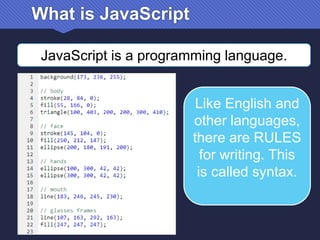
JavaScript is a programming language.
Like English and
other languages,
there are RULES
for writing. This
is called syntax.
What does it mean?
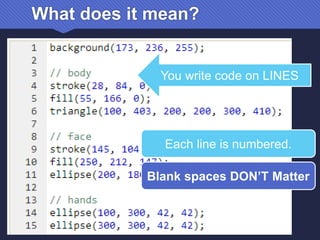
You write code on LINES
Each line is numbered.
Blank spaces DON’T Matter
Some Rules to Know
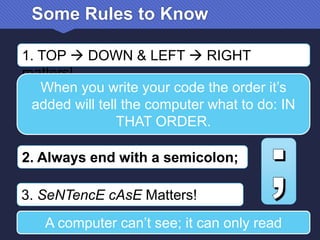
1. TOP  DOWN & LEFT  RIGHT
matters!
When you write your code the order it’s
added will tell the computer what to do: IN
THAT ORDER.
2. Always end with a semicolon;
3. SeNTencE cAsE Matters!
A computer can’t see; it can only read
Some Rules to Know
4. Starting with double slash makes notes
Anything after // will not be code.
It’s just a note to help you keep
track of things.
5. The Equals sign is not really an
“equals” sign. It means Assign.
It’s read as “GETS”. The left is a
variable and the right is a value.
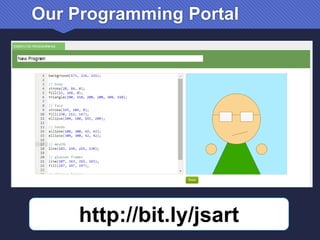
Our Programming Portal
http://bit.ly/jsart
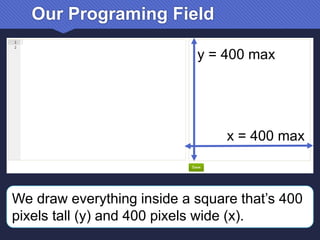
Our Programing Field
y = 400 max
x = 400 max
We draw everything inside a square that’s 400
pixels tall (y) and 400 pixels wide (x).
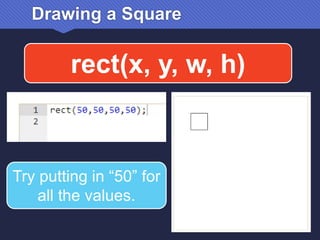
Drawing a Square
rect(x, y, w, h)
Try putting in “50” for
all the values.
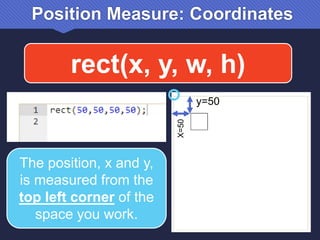
Position Measure: Coordinates
rect(x, y, w, h)
The position, x and y,
is measured from the
top left corner of the
space you work.
y=50
X=50
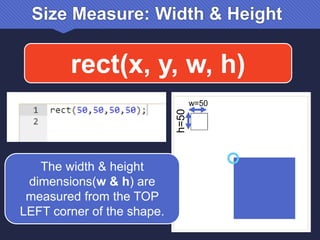
Size Measure: Width & Height
rect(x, y, w, h)
The width & height
dimensions(w & h) are
measured from the TOP
LEFT corner of the shape.
h=50
w=50
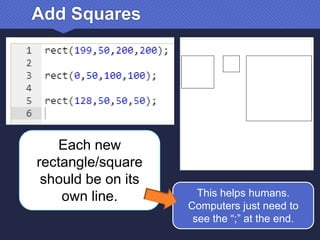
Add Squares
Each new
rectangle/square
should be on its
own line. This helps humans.
Computers just need to
see the “;” at the end.
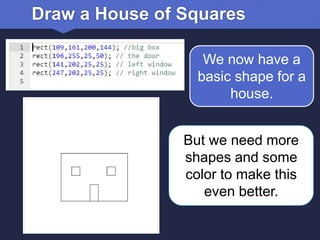
Draw a House of Squares
We now have a
basic shape for a
house.
But we need more
shapes and some
color to make this
even better.
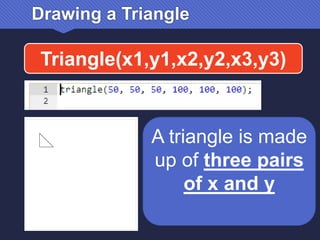
Drawing a Triangle
Triangle(x1,y1,x2,y2,x3,y3)
A triangle is made
up of three pairs
of x and y
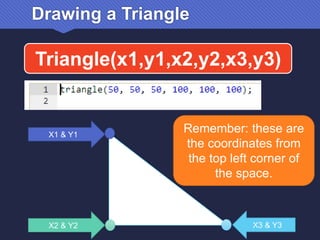
Drawing a Triangle
Triangle(x1,y1,x2,y2,x3,y3)
X1 & Y1
X2 & Y2 X3 & Y3
Remember: these are
the coordinates from
the top left corner of
the space.
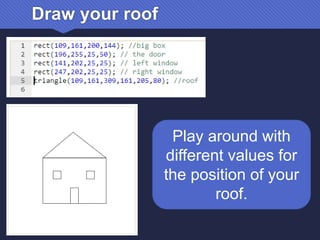
Draw your roof
Play around with
different values for
the position of your
roof.
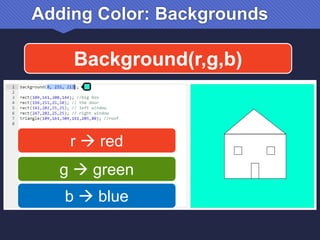
Adding Color: Backgrounds
Background(r,g,b)
r  red
g  green
b  blue
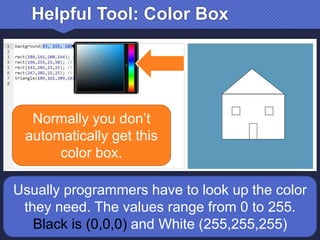
Helpful Tool: Color Box
Normally you don’t
automatically get this
color box.
Usually programmers have to look up the color
they need. The values range from 0 to 255.
Black is (0,0,0) and White (255,255,255)
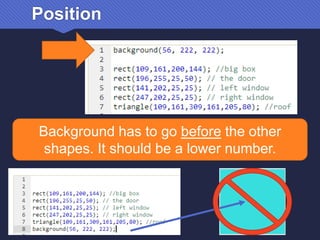
Position
Background has to go before the other
shapes. It should be a lower number.
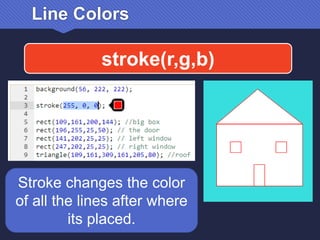
Line Colors
stroke(r,g,b)
Stroke changes the color
of all the lines after where
its placed.
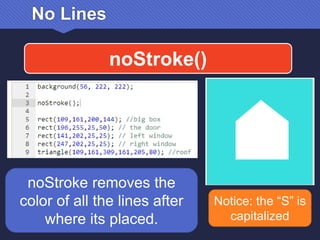
No Lines
noStroke()
noStroke removes the
color of all the lines after
where its placed.
Notice: the “S” is
capitalized
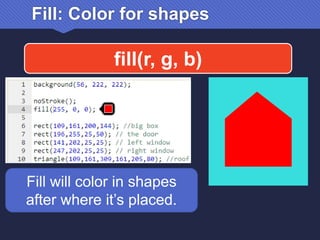
Fill: Color for shapes
fill(r, g, b)
Fill will color in shapes
after where it’s placed.
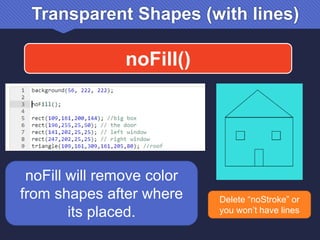
Transparent Shapes (with lines)
noFill()
noFill will remove color
from shapes after where
its placed.
Delete “noStroke” or
you won’t have lines
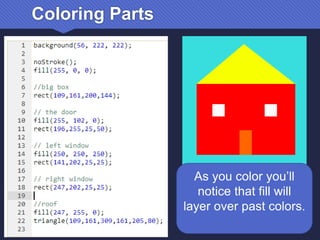
Coloring Parts
As you color you’ll
notice that fill will
layer over past colors.
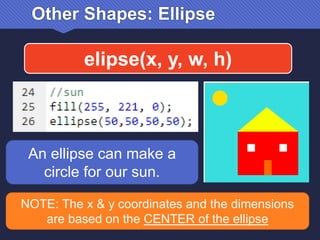
Other Shapes: Ellipse
elipse(x, y, w, h)
An ellipse can make a
circle for our sun.
NOTE: The x & y coordinates and the dimensions
are based on the CENTER of the ellipse
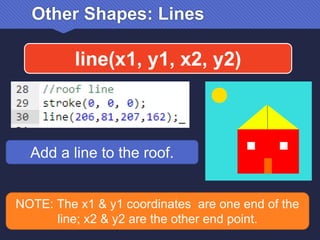
Other Shapes: Lines
line(x1, y1, x2, y2)
Add a line to the roof.
NOTE: The x1 & y1 coordinates are one end of the
line; x2 & y2 are the other end point.
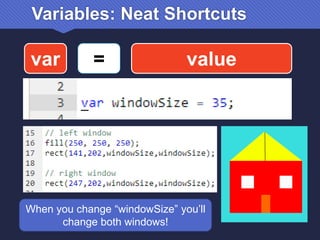
Variables: Neat Shortcuts
var = value
When you change “windowSize” you’ll
change both windows!
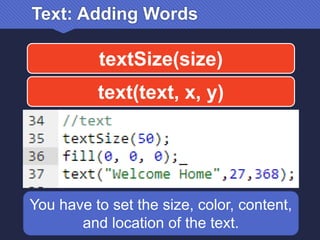
Text: Adding Words
textSize(size)
text(text, x, y)
You have to set the size, color, content,
and location of the text.
Text: “Welcome Home”
You need to include the
parenthesis (“xxx”)
around the text, or the
computer won’t
understand.
NOTE: The x & y coordinates are measured from the
LOWER LEFT corner of the TEXT.
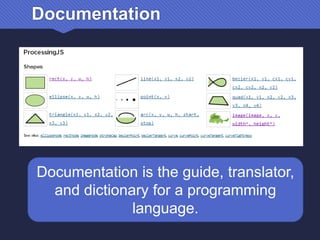
Documentation
Documentation is the guide, translator,
and dictionary for a programming
language.
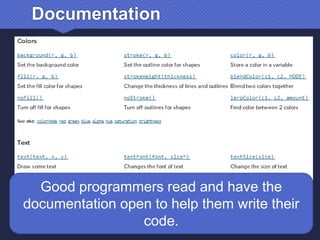
Documentation
Good programmers read and have the
documentation open to help them write their
code.
Original Class Design & Guide by
Rino A. Landa July 26, 2014
FAIR USE NOTICE: This presentation contains copyrighted material the use of which has not
always been specifically authorized by the copyright owner, including but not limited to logos and
product images. Such material is made available in an effort to educate the public through
illustrative examples and to properly identify content.
The use of this presentation for educational purposes is held to constitute a 'fair use' of any such
copyrighted material as provided for in section 107 of the US Copyright Law. In accordance with
Title 17 U.S.C. Section 107, the material on this presentation is distributed without profit to those
who have expressed a prior interest in receiving the included information for research and
educational purposes.
If you wish to use copyrighted material from this presentation for purposes of your own that go
beyond 'fair use', you must obtain permission from the copyright owner.
CC BY-NC-SA 4.0

Javascript Art for Kids - Library Program

  • 1.
  • 2.
    What is JavaScript JavaScriptis a programming language. Like English and other languages, there are RULES for writing. This is called syntax.
  • 3.
    What does itmean? You write code on LINES Each line is numbered. Blank spaces DON’T Matter
  • 4.
    Some Rules toKnow 1. TOP  DOWN & LEFT  RIGHT matters! When you write your code the order it’s added will tell the computer what to do: IN THAT ORDER. 2. Always end with a semicolon; 3. SeNTencE cAsE Matters! A computer can’t see; it can only read
  • 5.
    Some Rules toKnow 4. Starting with double slash makes notes Anything after // will not be code. It’s just a note to help you keep track of things. 5. The Equals sign is not really an “equals” sign. It means Assign. It’s read as “GETS”. The left is a variable and the right is a value.
  • 6.
  • 7.
    Our Programing Field y= 400 max x = 400 max We draw everything inside a square that’s 400 pixels tall (y) and 400 pixels wide (x).
  • 8.
    Drawing a Square rect(x,y, w, h) Try putting in “50” for all the values.
  • 9.
    Position Measure: Coordinates rect(x,y, w, h) The position, x and y, is measured from the top left corner of the space you work. y=50 X=50
  • 10.
    Size Measure: Width& Height rect(x, y, w, h) The width & height dimensions(w & h) are measured from the TOP LEFT corner of the shape. h=50 w=50
  • 11.
    Add Squares Each new rectangle/square shouldbe on its own line. This helps humans. Computers just need to see the “;” at the end.
  • 12.
    Draw a Houseof Squares We now have a basic shape for a house. But we need more shapes and some color to make this even better.
  • 13.
    Drawing a Triangle Triangle(x1,y1,x2,y2,x3,y3) Atriangle is made up of three pairs of x and y
  • 14.
    Drawing a Triangle Triangle(x1,y1,x2,y2,x3,y3) X1& Y1 X2 & Y2 X3 & Y3 Remember: these are the coordinates from the top left corner of the space.
  • 15.
    Draw your roof Playaround with different values for the position of your roof.
  • 16.
    Adding Color: Backgrounds Background(r,g,b) r red g  green b  blue
  • 17.
    Helpful Tool: ColorBox Normally you don’t automatically get this color box. Usually programmers have to look up the color they need. The values range from 0 to 255. Black is (0,0,0) and White (255,255,255)
  • 18.
    Position Background has togo before the other shapes. It should be a lower number.
  • 19.
    Line Colors stroke(r,g,b) Stroke changesthe color of all the lines after where its placed.
  • 20.
    No Lines noStroke() noStroke removesthe color of all the lines after where its placed. Notice: the “S” is capitalized
  • 21.
    Fill: Color forshapes fill(r, g, b) Fill will color in shapes after where it’s placed.
  • 22.
    Transparent Shapes (withlines) noFill() noFill will remove color from shapes after where its placed. Delete “noStroke” or you won’t have lines
  • 23.
    Coloring Parts As youcolor you’ll notice that fill will layer over past colors.
  • 24.
    Other Shapes: Ellipse elipse(x,y, w, h) An ellipse can make a circle for our sun. NOTE: The x & y coordinates and the dimensions are based on the CENTER of the ellipse
  • 25.
    Other Shapes: Lines line(x1,y1, x2, y2) Add a line to the roof. NOTE: The x1 & y1 coordinates are one end of the line; x2 & y2 are the other end point.
  • 26.
    Variables: Neat Shortcuts var= value When you change “windowSize” you’ll change both windows!
  • 27.
    Text: Adding Words textSize(size) text(text,x, y) You have to set the size, color, content, and location of the text.
  • 28.
    Text: “Welcome Home” Youneed to include the parenthesis (“xxx”) around the text, or the computer won’t understand. NOTE: The x & y coordinates are measured from the LOWER LEFT corner of the TEXT.
  • 29.
    Documentation Documentation is theguide, translator, and dictionary for a programming language.
  • 30.
    Documentation Good programmers readand have the documentation open to help them write their code.
  • 31.
    Original Class Design& Guide by Rino A. Landa July 26, 2014 FAIR USE NOTICE: This presentation contains copyrighted material the use of which has not always been specifically authorized by the copyright owner, including but not limited to logos and product images. Such material is made available in an effort to educate the public through illustrative examples and to properly identify content. The use of this presentation for educational purposes is held to constitute a 'fair use' of any such copyrighted material as provided for in section 107 of the US Copyright Law. In accordance with Title 17 U.S.C. Section 107, the material on this presentation is distributed without profit to those who have expressed a prior interest in receiving the included information for research and educational purposes. If you wish to use copyrighted material from this presentation for purposes of your own that go beyond 'fair use', you must obtain permission from the copyright owner. CC BY-NC-SA 4.0