M365 Philly Virtual
July 22, 2020 – Online Conference
Bootcamp Outline
 Session 1
 Getting Started
 O365 Developer Program
 Tenant Setup
 Client Setup
 Intro to SPFx
 Session 2
 Building You First Web Part
 Scaffolding
 Building
 Deployment
 Pulling Data from SharePoint
 Intro to PnP-JS
 Intro to PnP-JS
 Session 3
 Intro to React
 Rebuild Part Using React
 Intro to Office UI Fabric
 Text Box
 Button
 Creating New Items via PnP
 Session 4
 SPFx in Teams
 Building a Package for Teams
 Creating Teams Tab
About Me
 SharePoint Collaboration Director @ SoHo Dragon - NYC
 Branding & Developer for SharePoint / Office 365
 Focused on the UI side of things
 Community Involvement
 Speaker [Branding & Front End Development]
 NJ SharePoint User Group Organizer
 SharePoint Saturday NYC Organizer
 NJ & NYC Global Office 365 Dev Bootcamp Organizer 2017
 NJ Azure Bootcamp Organizer
 SharePoint Saturday NJ Organizer [2013-2014]
 My SharePoint Blog
 Git Hub [corp directory controls / o365 sticky footer / bootstrap navigation]
Twitter: @_tomdaly_
Session 1
Getting Started - Setting up Tenant / Environment
Bootcamp Outline
 Session 1
 Getting Started
 O365 Developer Program
 Tenant Setup
 Client Setup
 Intro to SPFx
 Session 2
 Building You First Web Part
 Scaffolding
 Building
 Deployment
 Pulling Data from SharePoint
 Intro to PnP-JS
 Intro to PnP-JS
 Session 3
 Intro to React
 Rebuild Part Using React
 Intro to Office UI Fabric
 Text Box
 Button
 Creating New Items via PnP
 Session 4
 SPFx in Teams
 Building a Package for Teams
 Creating Teams Tab
Office 365 Developer Subscription
 Sign up – Online, FREE [Required Live Account]
 https://developer.microsoft.com/en-us/office/dev-program
 Starting in April 2019, we offer renewable 90-day subscriptions
 What's included in the developer subscription?
 Office 365 E3 – 25 User License
 SharePoint, Teams …. everything else
Office 365 Tenant Setup
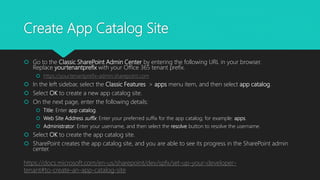
Create App Catalog Site
 Go to the Classic SharePoint Admin Center by entering the following URL in your browser.
Replace yourtenantprefix with your Office 365 tenant prefix.
 https://yourtenantprefix-admin.sharepoint.com
 In the left sidebar, select the Classic Features > apps menu item, and then select app catalog.
 Select OK to create a new app catalog site.
 On the next page, enter the following details:
 Title: Enter app catalog.
 Web Site Address suffix: Enter your preferred suffix for the app catalog; for example: apps.
 Administrator: Enter your username, and then select the resolve button to resolve the username.
 Select OK to create the app catalog site.
 SharePoint creates the app catalog site, and you are able to see its progress in the SharePoint admin
center.
https://docs.microsoft.com/en-us/sharepoint/dev/spfx/set-up-your-developer-
tenant#to-create-an-app-catalog-site
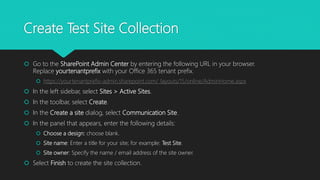
Create Test Site Collection
 Go to the SharePoint Admin Center by entering the following URL in your browser.
Replace yourtenantprefix with your Office 365 tenant prefix.
 https://yourtenantprefix-admin.sharepoint.com/_layouts/15/online/AdminHome.aspx
 In the left sidebar, select Sites > Active Sites.
 In the toolbar, select Create.
 In the Create a site dialog, select Communication Site.
 In the panel that appears, enter the following details:
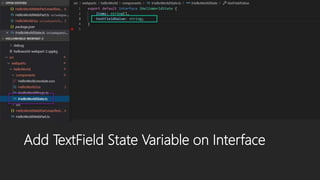
 Choose a design: choose blank.
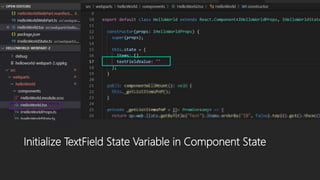
 Site name: Enter a title for your site; for example: Test Site.
 Site owner: Specify the name / email address of the site owner.
 Select Finish to create the site collection.
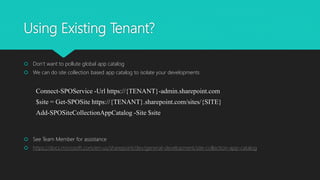
Using Existing Tenant?
 Don’t want to pollute global app catalog
 We can do site collection based app catalog to isolate your developments
Connect-SPOService -Url https://{TENANT}-admin.sharepoint.com
$site = Get-SPOSite https://{TENANT}.sharepoint.com/sites/{SITE}
Add-SPOSiteCollectionAppCatalog -Site $site
 See Team Member for assistance
 https://docs.microsoft.com/en-us/sharepoint/dev/general-development/site-collection-app-catalog
Development Environment
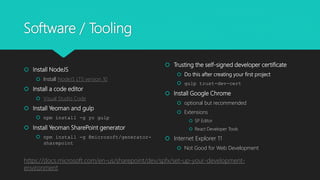
Software / Tooling
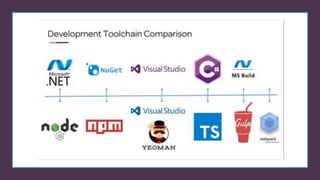
 Install NodeJS
 Install NodeJS LTS version 10
 Install a code editor
 Visual Studio Code
 Install Yeoman and gulp
 npm install -g yo gulp
 Install Yeoman SharePoint generator
 npm install -g @microsoft/generator-
sharepoint
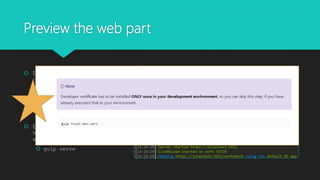
 Trusting the self-signed developer certificate
 Do this after creating your first project
 gulp trust-dev-cert
 Install Google Chrome
 optional but recommended
 Extensions
 SP Editor
 React Developer Tools
 Internet Explorer 11
 Not Good for Web Development
https://docs.microsoft.com/en-us/sharepoint/dev/spfx/set-up-your-development-
environment
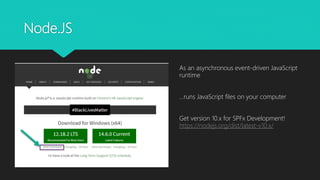
Node.JS
As an asynchronous event-driven JavaScript
runtime
…runs JavaScript files on your computer
Get version 10.x for SPFx Development!
https://nodejs.org/dist/latest-v10.x/
Node Package Manager
 Online repository of packages
 Allows for quick installation into your projects
 Packages developed by 3rd party
individuals/teams on GitHub
 …similar to Android/iOS app store but for
JavaScript.
Yeoman
 ‘yo‘ scaffolds out a new application
 Writing your build configuration (e.g Gulpfile)
 Pulling in relevant build tasks and package
manager dependencies (e.g npm)
 Uses ‘generators’ which define the scaffolding
workflow
 …based on a ‘template’, creates directories,
sets up project files and downloads
dependencies
Gulp
 A toolkit to automate & enhance your
workflow
 Automate slow, repetitive workflows and
compose them into efficient build pipelines.
 …task runner to do very simple tasks in parallel
or series
Webpack
 Used to compile JavaScript modules.
 Handles dependencies between modules
automatically
 Transpiles Code
 …takes all your files + dependencies [npm
packages] and creates 1 JavaScript file
TypeScript
 Open Source language developed
by Microsoft
 Superset of JavaScript
 Compiles to plain JavaScript
 Brings strong type checking /
compile-time error checks
 …makes JavaScript more like C#,
typing, object oriented
programming concepts classes,
interfaces, inheritance
Intro to SPFx
SharePoint Framework (SPFx)
 Page / Web Part model that provides full support for client-side SharePoint development
 Easy integration with SharePoint data
 Support for Open Source tooling
 “The” customization model for Office 365
 Support for SharePoint 2016 Feature Pack 2, SharePoint 2019, & Office 365
Key Features
 It runs in the context of the current user and connection in the browser.
 NO iframes(JavaScript is embedded directly to the page).
 The controls are rendered in the normal page DOM.
 It is framework-agnostic. You can use any JavaScript framework that you like: React, Handlebars,
Knockout, Angular, and more.
 The toolchain is based on common open source client development tools such as npm,
TypeScript, Yeoman, webpack, and gulp.
 End users can use SPFx client-side solutions that are approved by the tenant administrators (or
their delegates) on all sites, including self-service team, group, or personal sites.
 SPFx web parts can be added to both classic and modern pages.
Session 2
First Look at SPFx - Building your first web part, talking to SharePoint via REST & PnP-JS
Bootcamp Outline
 Session 1
 Getting Started
 O365 Developer Program
 Tenant Setup
 Client Setup
 Intro to SPFx
 Session 2
 Building You First Web Part
 Scaffolding
 Building
 Deployment
 Pulling Data from SharePoint
 Intro to PnP-JS
 Intro to PnP-JS
 Part 3
 Intro to React
 Rebuild Part 2 using React
 Intro to Office UI Fabric
 Text Box
 Button
 Creating New Items via PnP
 Part 4
 SPFx in Teams
 Building a Package for Teams
 Creating Teams Tab
Building Your First Web Part
Create Web Part Project
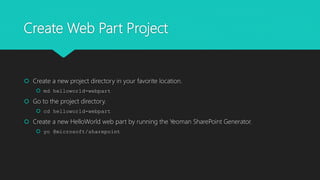
 Create a new project directory in your favorite location.
 md helloworld-webpart
 Go to the project directory.
 cd helloworld-webpart
 Create a new HelloWorld web part by running the Yeoman SharePoint Generator.
 yo @microsoft/sharepoint
Create Web Part Project (cont)
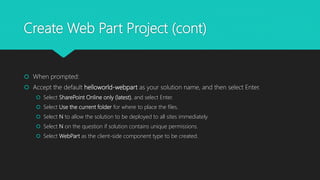
 When prompted:
 Accept the default helloworld-webpart as your solution name, and then select Enter.
 Select SharePoint Online only (latest), and select Enter.
 Select Use the current folder for where to place the files.
 Select N to allow the solution to be deployed to all sites immediately.
 Select N on the question if solution contains unique permissions.
 Select WebPart as the client-side component type to be created.
Create Web Part Project (cont)
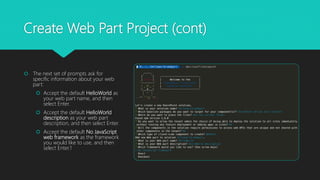
 The next set of prompts ask for
specific information about your web
part:
 Accept the default HelloWorld as
your web part name, and then
select Enter.
 Accept the default HelloWorld
description as your web part
description, and then select Enter.
 Accept the default No JavaScript
web framework as the framework
you would like to use, and then
select Enter.1
Create Web Part Project (cont)
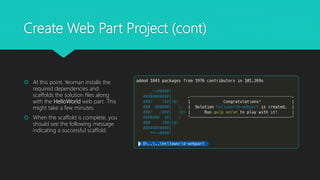
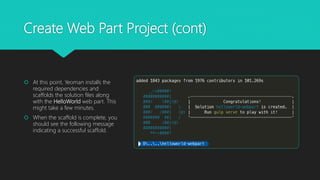
 At this point, Yeoman installs the
required dependencies and
scaffolds the solution files along
with the HelloWorld web part. This
might take a few minutes.
 When the scaffold is complete, you
should see the following message
indicating a successful scaffold.
Preview the web part
 Enter the following command in the
console to open VS Code:
 code .
 Enter the following to open the
Terminal in VS Code
 CTRL + `
 Enter the following command in the
terminal to build and preview your
web part:
 gulp serve
What is Happening?
 SharePoint client-side development tools use gulp as the task runner to handle build process
tasks such as:
 Bundling and minifying JavaScript and CSS files.
 Running tools to call the bundling and minification tasks before each build.
 Compiling SASS files to CSS.
 Compiling TypeScript files to JavaScript.
SharePoint Workbench
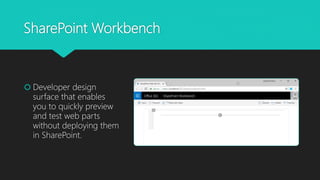
 Developer design
surface that enables
you to quickly preview
and test web parts
without deploying them
in SharePoint.
Add Your Web Part
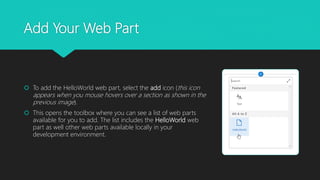
 To add the HelloWorld web part, select the add icon (this icon
appears when you mouse hovers over a section as shown in the
previous image).
 This opens the toolbox where you can see a list of web parts
available for you to add. The list includes the HelloWorld web
part as well other web parts available locally in your
development environment.
Add Your Web Part (cont)
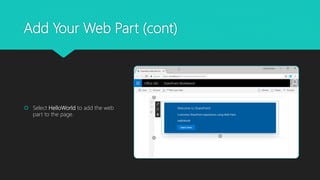
 Select HelloWorld to add the web
part to the page.
Congratulations
You have successfully deployed your first SPFx web part
Deploying to SharePoint
Packaging the Web Part
 If gulp serve is still running, stop it from running by hitting, ctrl + C
 In the console window, enter the following command to package your client-side solution that
contains the web part:
 gulp clean
 gulp build --ship
 gulp bundle --ship
 gulp package-solution –-ship
For dev builds you don’t need the –ship but then you must be running gulp serve
Simple Build Script for the SharePoint Framework
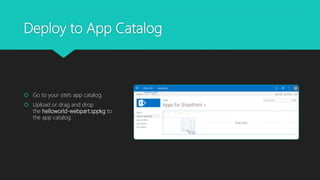
Deploy to App Catalog
 Go to your site's app catalog.
 Upload or drag and drop
the helloworld-webpart.sppkg to
the app catalog.
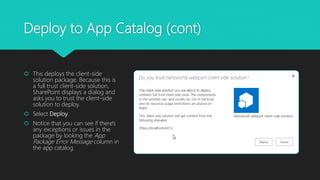
Deploy to App Catalog (cont)
 This deploys the client-side
solution package. Because this is
a full trust client-side solution,
SharePoint displays a dialog and
asks you to trust the client-side
solution to deploy.
 Select Deploy.
 Notice that you can see if there's
any exceptions or issues in the
package by looking the App
Package Error Message column in
the app catalog.
Add to SharePoint Site
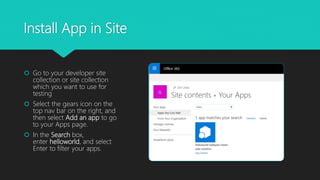
Install App in Site
 Go to your developer site
collection or site collection
which you want to use for
testing
 Select the gears icon on the
top nav bar on the right, and
then select Add an app to go
to your Apps page.
 In the Search box,
enter helloworld, and select
Enter to filter your apps.
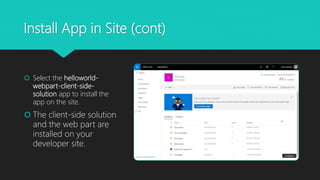
Install App in Site (cont)
 Select the helloworld-
webpart-client-side-
solution app to install the
app on the site.
 The client-side solution
and the web part are
installed on your
developer site.
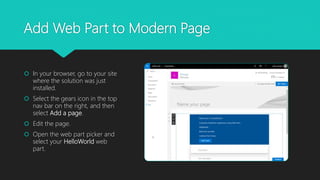
Add Web Part to Modern Page
 In your browser, go to your site
where the solution was just
installed.
 Select the gears icon in the top
nav bar on the right, and then
select Add a page.
 Edit the page.
 Open the web part picker and
select your HelloWorld web
part.
Congratulations
You have successfully deployed your first SPFx web part
Communicating with SharePoint
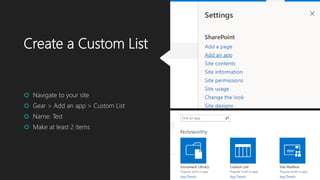
Create a Custom List
 Navigate to your site
 Gear > Add an app > Custom List
 Name: Test
 Make at least 2 items
Live Development
 Enter the following command in the console to build and
preview your web part:
 gulp serve
 On the Page with the webpart add the following to the end of
the url
 ?loadSPFX=true&debugManifestsFile=https://localhost
:4321/temp/manifests.js
 BONUS: use SP-Editor [Chrome Extension] to load debug url
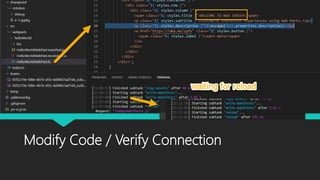
Modify Code / Verify Connection
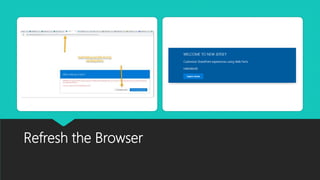
Refresh the Browser
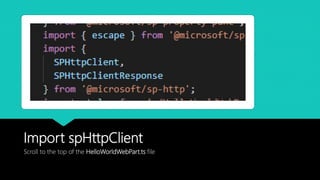
Import spHttpClient
Scroll to the top of the HelloWorldWebPart.ts file
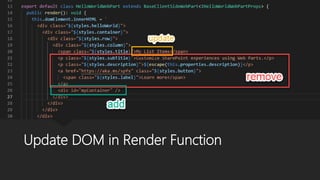
Update DOM in Render Function
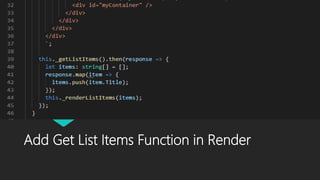
Add Get List Items Function in Render
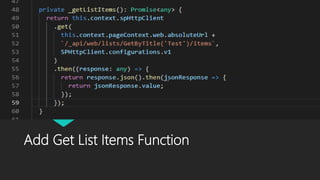
Add Get List Items Function
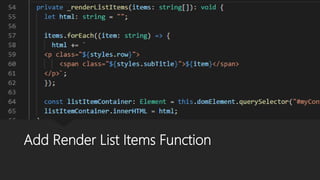
Add Render List Items Function
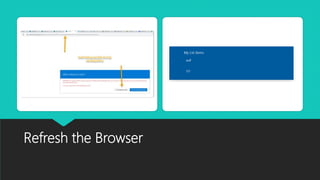
Refresh the Browser
Congratulations
You have successfully communicated with SharePoint list data
Intro to PnP-JS
What is PnP-JS?
 PnP-JS is a collection of fluent
libraries for consuming SharePoint,
Graph, and Office 365 REST APIs in
a type-safe way.
 Benefits:
 Intellisense
 Typing
 Asynchronous
 Caching
 Clear Code Intent
 Abstraction
 Open Source
Getting Started
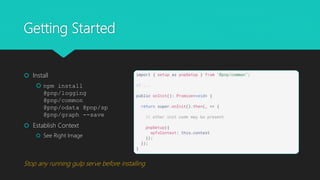
 Install
 npm install
@pnp/logging
@pnp/common
@pnp/odata @pnp/sp
@pnp/graph --save
 Establish Context
 See Right Image
Stop any running gulp serve before installing
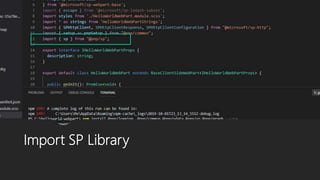
Import SP Library
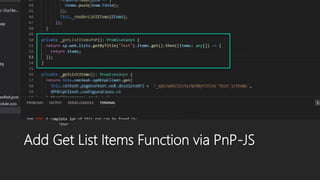
Add Get List Items Function via PnP-JS
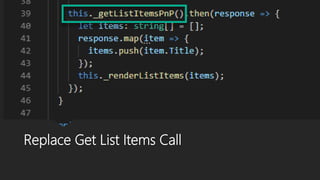
Replace Get List Items Call
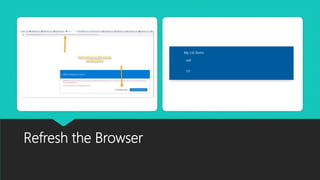
Refresh the Browser
Congratulations
You have successfully communicated with SharePoint list data via PnP-JS
Session 3
Intro to React & Office UI Fabric
Bootcamp Outline
 Session 1
 Getting Started
 O365 Developer Program
 Tenant Setup
 Client Setup
 Intro to SPFx
 Session 2
 Building You First Web Part
 Scaffolding
 Building
 Deployment
 Pulling Data from SharePoint
 Intro to PnP-JS
 Intro to PnP-JS
 Session 3
 Intro to React
 Rebuild Part 2 using React
 Intro to Office UI Fabric
 Text Box
 Button
 Creating New Items via PnP
 Session 4
 SPFx in Teams
 Building a Package for Teams
 Creating Teams Tab
Intro to React
What is React?
 JavaScript library for building user interfaces
 At a minimum, know this:
 Components: These are the building blocks of your app. You want to make them as modular as possible.
 State: internal data, that when changed caused the UI to re-render. You own this data.
 Props: data / functions, passed to a component. You don’t own this data.
 Life Cycle Methods: functions that do things at certain points
Building Your First React
Web Part
Create React Web Part Project
 Create a new project directory in your favorite location.
 md helloworld-webpart-2
 Go to the project directory.
 cd helloworld-webpart-2
 Create a new HelloWorld web part by running the Yeoman SharePoint Generator.
 yo @microsoft/sharepoint
Create Web Part Project (cont)
 When prompted:
 Accept the default helloworld-webpart-2 as your solution name, and then select Enter.
 Select SharePoint Online only (latest), and select Enter.
 Select Use the current folder for where to place the files.
 Select N to allow the solution to be deployed to all sites immediately.
 Select N on the question if solution contains unique permissions.
 Select WebPart as the client-side component type to be created.
Create Web Part Project (cont)
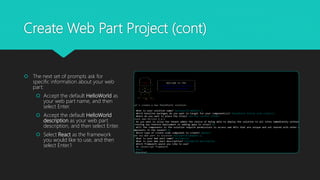
 The next set of prompts ask for
specific information about your web
part:
 Accept the default HelloWorld as
your web part name, and then
select Enter.
 Accept the default HelloWorld
description as your web part
description, and then select Enter.
 Select React as the framework
you would like to use, and then
select Enter.1
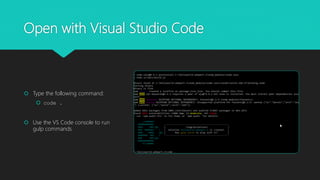
Open with Visual Studio Code
 Type the following command:
 code .
 Use the VS Code console to run
gulp commands
Create Web Part Project (cont)
 At this point, Yeoman installs the
required dependencies and
scaffolds the solution files along
with the HelloWorld web part. This
might take a few minutes.
 When the scaffold is complete, you
should see the following message
indicating a successful scaffold.
Next Steps
 Open VS Code
 Build / Bundle / Package
 Deploy to SharePoint App Catalog
 Add App to SharePoint Site
 Add to Page
Add PnP-JS to Project
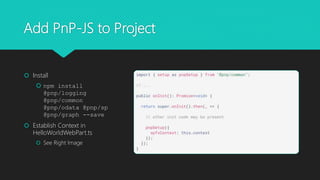
 Install
 npm install
@pnp/logging
@pnp/common
@pnp/odata @pnp/sp
@pnp/graph --save
 Establish Context in
HelloWorldWebPart.ts
 See Right Image
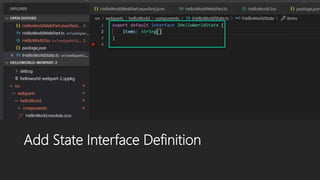
Add State Interface Definition
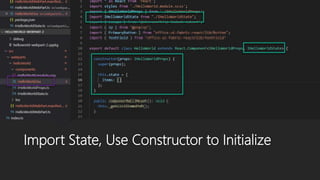
Import State, Use Constructor to Initialize
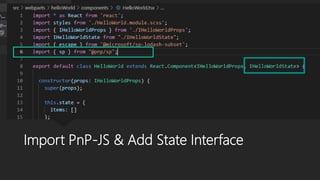
Import PnP-JS & Add State Interface
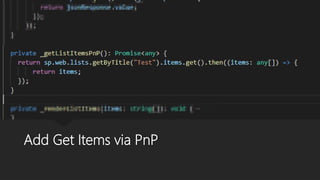
Add Get Items via PnP
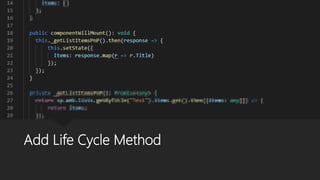
Add Life Cycle Method
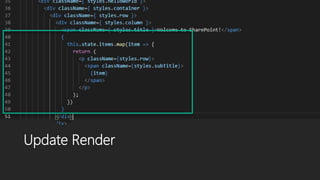
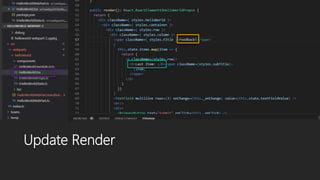
Update Render
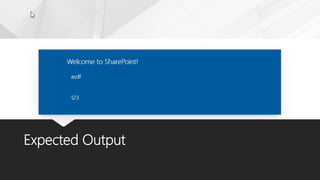
Expected Output
Congratulations
You have successfully created a React Web Part with PnP-JS
Intro to Office UI Fabric
The Design Language of Microsoft Products
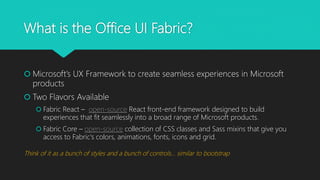
What is the Office UI Fabric?
 Microsoft’s UX Framework to create seamless experiences in Microsoft
products
 Two Flavors Available
 Fabric React – open-source React front-end framework designed to build
experiences that fit seamlessly into a broad range of Microsoft products.
 Fabric Core – open-source collection of CSS classes and Sass mixins that give you
access to Fabric's colors, animations, fonts, icons and grid.
Think of it as a bunch of styles and a bunch of controls… similar to bootstrap
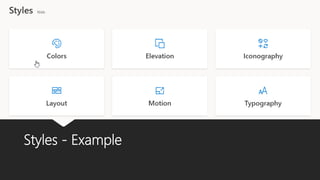
Styles - Example
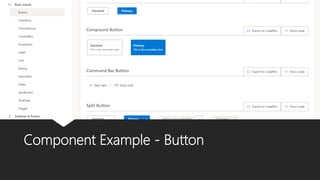
Component Example - Button
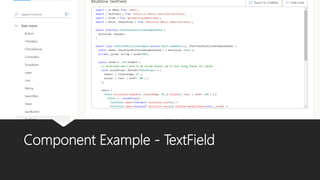
Component Example - TextField
Building a Feedback Web Part
Let’s combine everything we’ve learned!
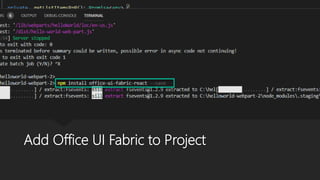
Add Office UI Fabric to Project
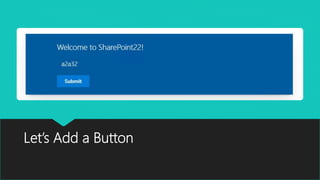
Let’s Add a Button
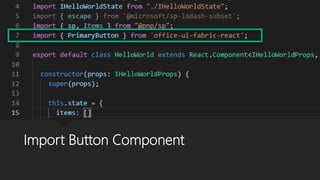
Import Button Component
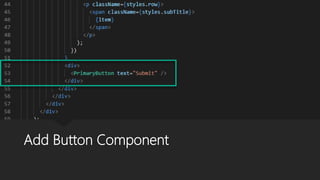
Add Button Component
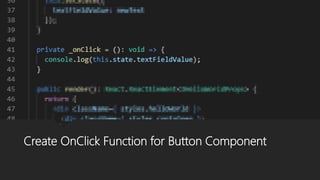
Create OnClick Function for Button Component
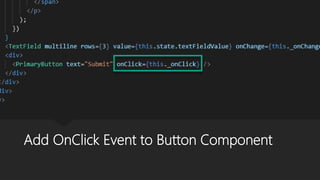
Add OnClick Event to Button Component
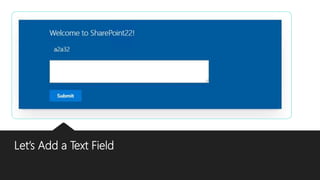
Let’s Add a Text Field
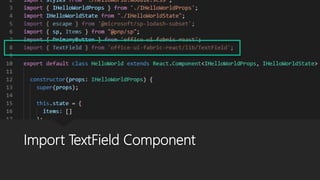
Import TextField Component
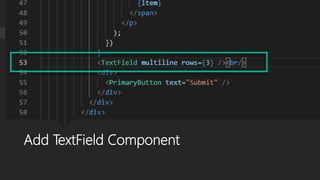
Add TextField Component
Add TextField State Variable on Interface
Initialize TextField State Variable in Component State
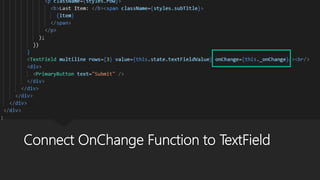
Connect OnChange Function to TextField
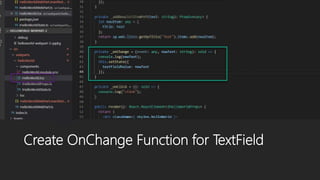
Create OnChange Function for TextField
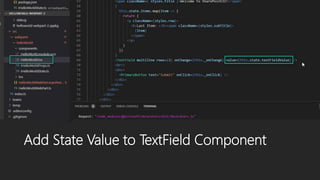
Add State Value to TextField Component
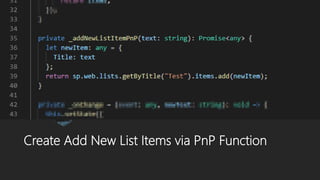
Create Add New List Items via PnP Function
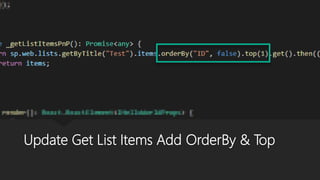
Update Get List Items Add OrderBy & Top
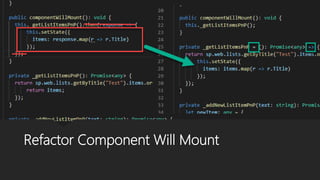
Refactor Component Will Mount
Update Render
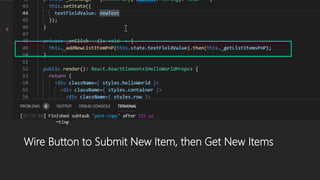
Wire Button to Submit New Item, then Get New Items
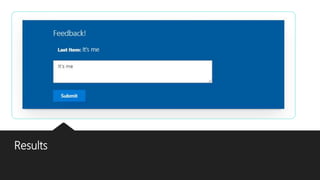
Results
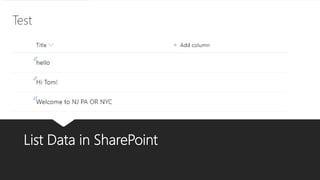
List Data in SharePoint
Congratulations
You have successfully created a Feedback Web using React, Office UI Fabric & PnP-JS
Session 4
Building SPFx Solutions for Tabs within Teams
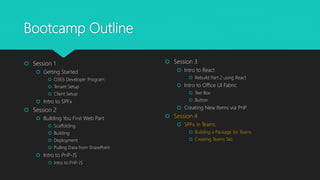
Bootcamp Outline
 Session 1
 Getting Started
 O365 Developer Program
 Tenant Setup
 Client Setup
 Intro to SPFx
 Session 2
 Building You First Web Part
 Scaffolding
 Building
 Deployment
 Pulling Data from SharePoint
 Intro to PnP-JS
 Intro to PnP-JS
 Session 3
 Intro to React
 Rebuild Part 2 using React
 Intro to Office UI Fabric
 Text Box
 Button
 Creating New Items via PnP
 Session 4
 SPFx in Teams
 Building a Package for Teams
 Creating Teams Tab
Project Architecture
Teams Folder
 Starting with the SharePoint Framework v1.8, scaffolding
will also include additional ./teams folder
 Teams folder contains the following two files:
 [componentId]_color.png - Default small picture for a
tab
 [componentId]_outline.png - Default large picture for
a tab
 These images will be used as icons in Microsoft Teams.
 Teams Manifest – Defines the app, by default not there
SharePoint will create it for you!@
 https://docs.microsoft.com/en-
us/sharepoint/dev/spfx/web-parts/get-started/using-
web-part-as-ms-teams-tab
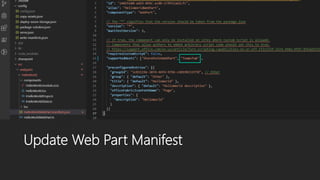
Update Web Part Manifest
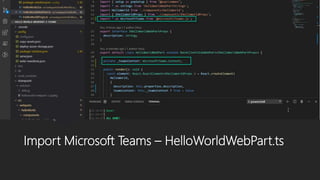
Import Microsoft Teams – HelloWorldWebPart.ts
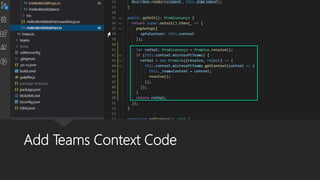
Add Teams Context Code
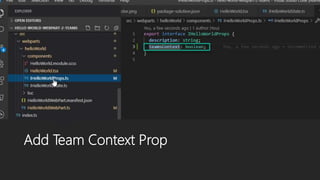
Add Team Context Prop
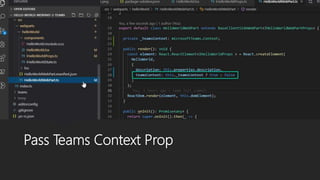
Pass Teams Context Prop
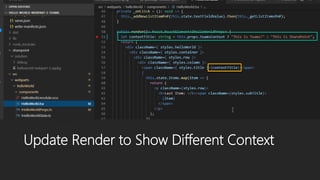
Update Render to Show Different Context
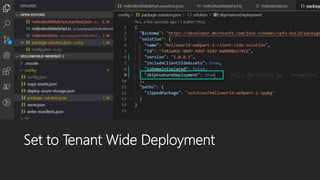
Set to Tenant Wide Deployment
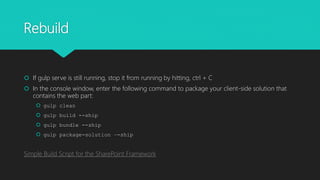
Rebuild
 If gulp serve is still running, stop it from running by hitting, ctrl + C
 In the console window, enter the following command to package your client-side solution that
contains the web part:
 gulp clean
 gulp build --ship
 gulp bundle --ship
 gulp package-solution –-ship
Simple Build Script for the SharePoint Framework
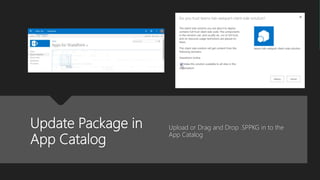
Update Package in
App Catalog
Upload or Drag and Drop .SPPKG in to the
App Catalog
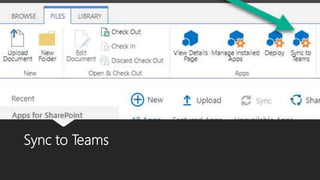
Sync to Teams
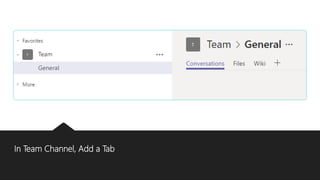
In Team Channel, Add a Tab
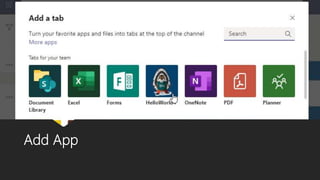
Add App
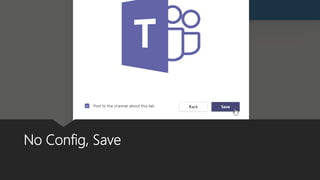
No Config, Save
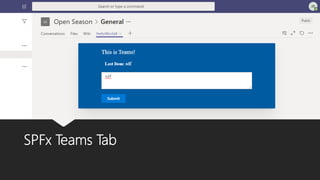
SPFx Teams Tab
Congratulations
You have successfully created a Feedback Web using React, Office UI Fabric & PnP-JS
Resources
All Content comes from the
Official Microsoft Documentation
Code / Cheat Sheets - Part 2, 3
& 4 – all on github
https://github.com/tom-
daly/demos/tree/master/m365-
bootcamp
Slides
https://www.slideshare.net/tomm
daly/m365-global-developer-
bootcamp-2019-194066436
Voitanos On-Demand Training
 The best SPFx training resource – hands down,
always updated, on demand.
 ~$750 for the Ultimate Package. Worth It!
 Taught by Andrew Connell, 15+ year MVP in
SharePoint / Office 365
“Understanding the SPFx Dev Toolchain”
email course [FREE]
Mastering the SharePoint Framework On
Demand
Questions?
 Contact Info
 Email: Thomasd@sohodragon.com
 Twitter: @_tomdaly_
 LinkedIn: https://www.linkedin.com/in/thomas-m-daly/

M365 global developer bootcamp 2019 Intro to SPFx Version

  • 2.
    M365 Philly Virtual July22, 2020 – Online Conference
  • 3.
    Bootcamp Outline  Session1  Getting Started  O365 Developer Program  Tenant Setup  Client Setup  Intro to SPFx  Session 2  Building You First Web Part  Scaffolding  Building  Deployment  Pulling Data from SharePoint  Intro to PnP-JS  Intro to PnP-JS  Session 3  Intro to React  Rebuild Part Using React  Intro to Office UI Fabric  Text Box  Button  Creating New Items via PnP  Session 4  SPFx in Teams  Building a Package for Teams  Creating Teams Tab
  • 4.
    About Me  SharePointCollaboration Director @ SoHo Dragon - NYC  Branding & Developer for SharePoint / Office 365  Focused on the UI side of things  Community Involvement  Speaker [Branding & Front End Development]  NJ SharePoint User Group Organizer  SharePoint Saturday NYC Organizer  NJ & NYC Global Office 365 Dev Bootcamp Organizer 2017  NJ Azure Bootcamp Organizer  SharePoint Saturday NJ Organizer [2013-2014]  My SharePoint Blog  Git Hub [corp directory controls / o365 sticky footer / bootstrap navigation] Twitter: @_tomdaly_
  • 5.
    Session 1 Getting Started- Setting up Tenant / Environment
  • 6.
    Bootcamp Outline  Session1  Getting Started  O365 Developer Program  Tenant Setup  Client Setup  Intro to SPFx  Session 2  Building You First Web Part  Scaffolding  Building  Deployment  Pulling Data from SharePoint  Intro to PnP-JS  Intro to PnP-JS  Session 3  Intro to React  Rebuild Part Using React  Intro to Office UI Fabric  Text Box  Button  Creating New Items via PnP  Session 4  SPFx in Teams  Building a Package for Teams  Creating Teams Tab
  • 7.
    Office 365 DeveloperSubscription  Sign up – Online, FREE [Required Live Account]  https://developer.microsoft.com/en-us/office/dev-program  Starting in April 2019, we offer renewable 90-day subscriptions  What's included in the developer subscription?  Office 365 E3 – 25 User License  SharePoint, Teams …. everything else
  • 8.
  • 9.
    Create App CatalogSite  Go to the Classic SharePoint Admin Center by entering the following URL in your browser. Replace yourtenantprefix with your Office 365 tenant prefix.  https://yourtenantprefix-admin.sharepoint.com  In the left sidebar, select the Classic Features > apps menu item, and then select app catalog.  Select OK to create a new app catalog site.  On the next page, enter the following details:  Title: Enter app catalog.  Web Site Address suffix: Enter your preferred suffix for the app catalog; for example: apps.  Administrator: Enter your username, and then select the resolve button to resolve the username.  Select OK to create the app catalog site.  SharePoint creates the app catalog site, and you are able to see its progress in the SharePoint admin center. https://docs.microsoft.com/en-us/sharepoint/dev/spfx/set-up-your-developer- tenant#to-create-an-app-catalog-site
  • 10.
    Create Test SiteCollection  Go to the SharePoint Admin Center by entering the following URL in your browser. Replace yourtenantprefix with your Office 365 tenant prefix.  https://yourtenantprefix-admin.sharepoint.com/_layouts/15/online/AdminHome.aspx  In the left sidebar, select Sites > Active Sites.  In the toolbar, select Create.  In the Create a site dialog, select Communication Site.  In the panel that appears, enter the following details:  Choose a design: choose blank.  Site name: Enter a title for your site; for example: Test Site.  Site owner: Specify the name / email address of the site owner.  Select Finish to create the site collection.
  • 11.
    Using Existing Tenant? Don’t want to pollute global app catalog  We can do site collection based app catalog to isolate your developments Connect-SPOService -Url https://{TENANT}-admin.sharepoint.com $site = Get-SPOSite https://{TENANT}.sharepoint.com/sites/{SITE} Add-SPOSiteCollectionAppCatalog -Site $site  See Team Member for assistance  https://docs.microsoft.com/en-us/sharepoint/dev/general-development/site-collection-app-catalog
  • 12.
  • 13.
    Software / Tooling Install NodeJS  Install NodeJS LTS version 10  Install a code editor  Visual Studio Code  Install Yeoman and gulp  npm install -g yo gulp  Install Yeoman SharePoint generator  npm install -g @microsoft/generator- sharepoint  Trusting the self-signed developer certificate  Do this after creating your first project  gulp trust-dev-cert  Install Google Chrome  optional but recommended  Extensions  SP Editor  React Developer Tools  Internet Explorer 11  Not Good for Web Development https://docs.microsoft.com/en-us/sharepoint/dev/spfx/set-up-your-development- environment
  • 14.
    Node.JS As an asynchronousevent-driven JavaScript runtime …runs JavaScript files on your computer Get version 10.x for SPFx Development! https://nodejs.org/dist/latest-v10.x/
  • 15.
    Node Package Manager Online repository of packages  Allows for quick installation into your projects  Packages developed by 3rd party individuals/teams on GitHub  …similar to Android/iOS app store but for JavaScript.
  • 16.
    Yeoman  ‘yo‘ scaffoldsout a new application  Writing your build configuration (e.g Gulpfile)  Pulling in relevant build tasks and package manager dependencies (e.g npm)  Uses ‘generators’ which define the scaffolding workflow  …based on a ‘template’, creates directories, sets up project files and downloads dependencies
  • 17.
    Gulp  A toolkitto automate & enhance your workflow  Automate slow, repetitive workflows and compose them into efficient build pipelines.  …task runner to do very simple tasks in parallel or series
  • 18.
    Webpack  Used tocompile JavaScript modules.  Handles dependencies between modules automatically  Transpiles Code  …takes all your files + dependencies [npm packages] and creates 1 JavaScript file
  • 19.
    TypeScript  Open Sourcelanguage developed by Microsoft  Superset of JavaScript  Compiles to plain JavaScript  Brings strong type checking / compile-time error checks  …makes JavaScript more like C#, typing, object oriented programming concepts classes, interfaces, inheritance
  • 20.
  • 21.
    SharePoint Framework (SPFx) Page / Web Part model that provides full support for client-side SharePoint development  Easy integration with SharePoint data  Support for Open Source tooling  “The” customization model for Office 365  Support for SharePoint 2016 Feature Pack 2, SharePoint 2019, & Office 365
  • 22.
    Key Features  Itruns in the context of the current user and connection in the browser.  NO iframes(JavaScript is embedded directly to the page).  The controls are rendered in the normal page DOM.  It is framework-agnostic. You can use any JavaScript framework that you like: React, Handlebars, Knockout, Angular, and more.  The toolchain is based on common open source client development tools such as npm, TypeScript, Yeoman, webpack, and gulp.  End users can use SPFx client-side solutions that are approved by the tenant administrators (or their delegates) on all sites, including self-service team, group, or personal sites.  SPFx web parts can be added to both classic and modern pages.
  • 24.
    Session 2 First Lookat SPFx - Building your first web part, talking to SharePoint via REST & PnP-JS
  • 25.
    Bootcamp Outline  Session1  Getting Started  O365 Developer Program  Tenant Setup  Client Setup  Intro to SPFx  Session 2  Building You First Web Part  Scaffolding  Building  Deployment  Pulling Data from SharePoint  Intro to PnP-JS  Intro to PnP-JS  Part 3  Intro to React  Rebuild Part 2 using React  Intro to Office UI Fabric  Text Box  Button  Creating New Items via PnP  Part 4  SPFx in Teams  Building a Package for Teams  Creating Teams Tab
  • 26.
  • 27.
    Create Web PartProject  Create a new project directory in your favorite location.  md helloworld-webpart  Go to the project directory.  cd helloworld-webpart  Create a new HelloWorld web part by running the Yeoman SharePoint Generator.  yo @microsoft/sharepoint
  • 28.
    Create Web PartProject (cont)  When prompted:  Accept the default helloworld-webpart as your solution name, and then select Enter.  Select SharePoint Online only (latest), and select Enter.  Select Use the current folder for where to place the files.  Select N to allow the solution to be deployed to all sites immediately.  Select N on the question if solution contains unique permissions.  Select WebPart as the client-side component type to be created.
  • 29.
    Create Web PartProject (cont)  The next set of prompts ask for specific information about your web part:  Accept the default HelloWorld as your web part name, and then select Enter.  Accept the default HelloWorld description as your web part description, and then select Enter.  Accept the default No JavaScript web framework as the framework you would like to use, and then select Enter.1
  • 30.
    Create Web PartProject (cont)  At this point, Yeoman installs the required dependencies and scaffolds the solution files along with the HelloWorld web part. This might take a few minutes.  When the scaffold is complete, you should see the following message indicating a successful scaffold.
  • 31.
    Preview the webpart  Enter the following command in the console to open VS Code:  code .  Enter the following to open the Terminal in VS Code  CTRL + `  Enter the following command in the terminal to build and preview your web part:  gulp serve
  • 32.
    What is Happening? SharePoint client-side development tools use gulp as the task runner to handle build process tasks such as:  Bundling and minifying JavaScript and CSS files.  Running tools to call the bundling and minification tasks before each build.  Compiling SASS files to CSS.  Compiling TypeScript files to JavaScript.
  • 33.
    SharePoint Workbench  Developerdesign surface that enables you to quickly preview and test web parts without deploying them in SharePoint.
  • 34.
    Add Your WebPart  To add the HelloWorld web part, select the add icon (this icon appears when you mouse hovers over a section as shown in the previous image).  This opens the toolbox where you can see a list of web parts available for you to add. The list includes the HelloWorld web part as well other web parts available locally in your development environment.
  • 35.
    Add Your WebPart (cont)  Select HelloWorld to add the web part to the page.
  • 36.
    Congratulations You have successfullydeployed your first SPFx web part
  • 37.
  • 38.
    Packaging the WebPart  If gulp serve is still running, stop it from running by hitting, ctrl + C  In the console window, enter the following command to package your client-side solution that contains the web part:  gulp clean  gulp build --ship  gulp bundle --ship  gulp package-solution –-ship For dev builds you don’t need the –ship but then you must be running gulp serve Simple Build Script for the SharePoint Framework
  • 39.
    Deploy to AppCatalog  Go to your site's app catalog.  Upload or drag and drop the helloworld-webpart.sppkg to the app catalog.
  • 40.
    Deploy to AppCatalog (cont)  This deploys the client-side solution package. Because this is a full trust client-side solution, SharePoint displays a dialog and asks you to trust the client-side solution to deploy.  Select Deploy.  Notice that you can see if there's any exceptions or issues in the package by looking the App Package Error Message column in the app catalog.
  • 41.
  • 42.
    Install App inSite  Go to your developer site collection or site collection which you want to use for testing  Select the gears icon on the top nav bar on the right, and then select Add an app to go to your Apps page.  In the Search box, enter helloworld, and select Enter to filter your apps.
  • 43.
    Install App inSite (cont)  Select the helloworld- webpart-client-side- solution app to install the app on the site.  The client-side solution and the web part are installed on your developer site.
  • 44.
    Add Web Partto Modern Page  In your browser, go to your site where the solution was just installed.  Select the gears icon in the top nav bar on the right, and then select Add a page.  Edit the page.  Open the web part picker and select your HelloWorld web part.
  • 45.
    Congratulations You have successfullydeployed your first SPFx web part
  • 46.
  • 47.
    Create a CustomList  Navigate to your site  Gear > Add an app > Custom List  Name: Test  Make at least 2 items
  • 48.
    Live Development  Enterthe following command in the console to build and preview your web part:  gulp serve  On the Page with the webpart add the following to the end of the url  ?loadSPFX=true&debugManifestsFile=https://localhost :4321/temp/manifests.js  BONUS: use SP-Editor [Chrome Extension] to load debug url
  • 49.
    Modify Code /Verify Connection
  • 50.
  • 51.
    Import spHttpClient Scroll tothe top of the HelloWorldWebPart.ts file
  • 52.
    Update DOM inRender Function
  • 53.
    Add Get ListItems Function in Render
  • 54.
    Add Get ListItems Function
  • 55.
    Add Render ListItems Function
  • 56.
  • 57.
    Congratulations You have successfullycommunicated with SharePoint list data
  • 58.
  • 59.
    What is PnP-JS? PnP-JS is a collection of fluent libraries for consuming SharePoint, Graph, and Office 365 REST APIs in a type-safe way.  Benefits:  Intellisense  Typing  Asynchronous  Caching  Clear Code Intent  Abstraction  Open Source
  • 60.
    Getting Started  Install npm install @pnp/logging @pnp/common @pnp/odata @pnp/sp @pnp/graph --save  Establish Context  See Right Image Stop any running gulp serve before installing
  • 61.
  • 62.
    Add Get ListItems Function via PnP-JS
  • 63.
    Replace Get ListItems Call
  • 64.
  • 65.
    Congratulations You have successfullycommunicated with SharePoint list data via PnP-JS
  • 66.
    Session 3 Intro toReact & Office UI Fabric
  • 67.
    Bootcamp Outline  Session1  Getting Started  O365 Developer Program  Tenant Setup  Client Setup  Intro to SPFx  Session 2  Building You First Web Part  Scaffolding  Building  Deployment  Pulling Data from SharePoint  Intro to PnP-JS  Intro to PnP-JS  Session 3  Intro to React  Rebuild Part 2 using React  Intro to Office UI Fabric  Text Box  Button  Creating New Items via PnP  Session 4  SPFx in Teams  Building a Package for Teams  Creating Teams Tab
  • 68.
  • 69.
    What is React? JavaScript library for building user interfaces  At a minimum, know this:  Components: These are the building blocks of your app. You want to make them as modular as possible.  State: internal data, that when changed caused the UI to re-render. You own this data.  Props: data / functions, passed to a component. You don’t own this data.  Life Cycle Methods: functions that do things at certain points
  • 70.
    Building Your FirstReact Web Part
  • 71.
    Create React WebPart Project  Create a new project directory in your favorite location.  md helloworld-webpart-2  Go to the project directory.  cd helloworld-webpart-2  Create a new HelloWorld web part by running the Yeoman SharePoint Generator.  yo @microsoft/sharepoint
  • 72.
    Create Web PartProject (cont)  When prompted:  Accept the default helloworld-webpart-2 as your solution name, and then select Enter.  Select SharePoint Online only (latest), and select Enter.  Select Use the current folder for where to place the files.  Select N to allow the solution to be deployed to all sites immediately.  Select N on the question if solution contains unique permissions.  Select WebPart as the client-side component type to be created.
  • 73.
    Create Web PartProject (cont)  The next set of prompts ask for specific information about your web part:  Accept the default HelloWorld as your web part name, and then select Enter.  Accept the default HelloWorld description as your web part description, and then select Enter.  Select React as the framework you would like to use, and then select Enter.1
  • 74.
    Open with VisualStudio Code  Type the following command:  code .  Use the VS Code console to run gulp commands
  • 75.
    Create Web PartProject (cont)  At this point, Yeoman installs the required dependencies and scaffolds the solution files along with the HelloWorld web part. This might take a few minutes.  When the scaffold is complete, you should see the following message indicating a successful scaffold.
  • 76.
    Next Steps  OpenVS Code  Build / Bundle / Package  Deploy to SharePoint App Catalog  Add App to SharePoint Site  Add to Page
  • 77.
    Add PnP-JS toProject  Install  npm install @pnp/logging @pnp/common @pnp/odata @pnp/sp @pnp/graph --save  Establish Context in HelloWorldWebPart.ts  See Right Image
  • 78.
  • 79.
    Import State, UseConstructor to Initialize
  • 80.
    Import PnP-JS &Add State Interface
  • 81.
  • 82.
  • 83.
  • 84.
  • 85.
    Congratulations You have successfullycreated a React Web Part with PnP-JS
  • 86.
    Intro to OfficeUI Fabric The Design Language of Microsoft Products
  • 87.
    What is theOffice UI Fabric?  Microsoft’s UX Framework to create seamless experiences in Microsoft products  Two Flavors Available  Fabric React – open-source React front-end framework designed to build experiences that fit seamlessly into a broad range of Microsoft products.  Fabric Core – open-source collection of CSS classes and Sass mixins that give you access to Fabric's colors, animations, fonts, icons and grid. Think of it as a bunch of styles and a bunch of controls… similar to bootstrap
  • 88.
  • 89.
  • 90.
  • 91.
    Building a FeedbackWeb Part Let’s combine everything we’ve learned!
  • 92.
    Add Office UIFabric to Project
  • 93.
  • 94.
  • 95.
  • 96.
    Create OnClick Functionfor Button Component
  • 97.
    Add OnClick Eventto Button Component
  • 98.
    Let’s Add aText Field
  • 99.
  • 100.
  • 101.
    Add TextField StateVariable on Interface
  • 102.
    Initialize TextField StateVariable in Component State
  • 103.
  • 104.
  • 105.
    Add State Valueto TextField Component
  • 106.
    Create Add NewList Items via PnP Function
  • 107.
    Update Get ListItems Add OrderBy & Top
  • 108.
  • 109.
  • 110.
    Wire Button toSubmit New Item, then Get New Items
  • 111.
  • 112.
    List Data inSharePoint
  • 113.
    Congratulations You have successfullycreated a Feedback Web using React, Office UI Fabric & PnP-JS
  • 114.
    Session 4 Building SPFxSolutions for Tabs within Teams
  • 115.
    Bootcamp Outline  Session1  Getting Started  O365 Developer Program  Tenant Setup  Client Setup  Intro to SPFx  Session 2  Building You First Web Part  Scaffolding  Building  Deployment  Pulling Data from SharePoint  Intro to PnP-JS  Intro to PnP-JS  Session 3  Intro to React  Rebuild Part 2 using React  Intro to Office UI Fabric  Text Box  Button  Creating New Items via PnP  Session 4  SPFx in Teams  Building a Package for Teams  Creating Teams Tab
  • 116.
  • 117.
    Teams Folder  Startingwith the SharePoint Framework v1.8, scaffolding will also include additional ./teams folder  Teams folder contains the following two files:  [componentId]_color.png - Default small picture for a tab  [componentId]_outline.png - Default large picture for a tab  These images will be used as icons in Microsoft Teams.  Teams Manifest – Defines the app, by default not there SharePoint will create it for you!@  https://docs.microsoft.com/en- us/sharepoint/dev/spfx/web-parts/get-started/using- web-part-as-ms-teams-tab
  • 118.
  • 119.
    Import Microsoft Teams– HelloWorldWebPart.ts
  • 120.
  • 121.
  • 122.
  • 123.
    Update Render toShow Different Context
  • 124.
    Set to TenantWide Deployment
  • 125.
    Rebuild  If gulpserve is still running, stop it from running by hitting, ctrl + C  In the console window, enter the following command to package your client-side solution that contains the web part:  gulp clean  gulp build --ship  gulp bundle --ship  gulp package-solution –-ship Simple Build Script for the SharePoint Framework
  • 126.
    Update Package in AppCatalog Upload or Drag and Drop .SPPKG in to the App Catalog
  • 127.
  • 128.
  • 129.
  • 130.
  • 131.
  • 132.
    Congratulations You have successfullycreated a Feedback Web using React, Office UI Fabric & PnP-JS
  • 133.
    Resources All Content comesfrom the Official Microsoft Documentation Code / Cheat Sheets - Part 2, 3 & 4 – all on github https://github.com/tom- daly/demos/tree/master/m365- bootcamp Slides https://www.slideshare.net/tomm daly/m365-global-developer- bootcamp-2019-194066436
  • 134.
    Voitanos On-Demand Training The best SPFx training resource – hands down, always updated, on demand.  ~$750 for the Ultimate Package. Worth It!  Taught by Andrew Connell, 15+ year MVP in SharePoint / Office 365 “Understanding the SPFx Dev Toolchain” email course [FREE] Mastering the SharePoint Framework On Demand
  • 136.
    Questions?  Contact Info Email: Thomasd@sohodragon.com  Twitter: @_tomdaly_  LinkedIn: https://www.linkedin.com/in/thomas-m-daly/