LoadRunner®
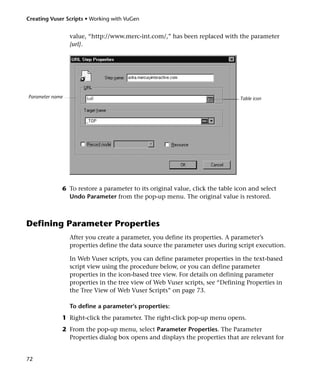
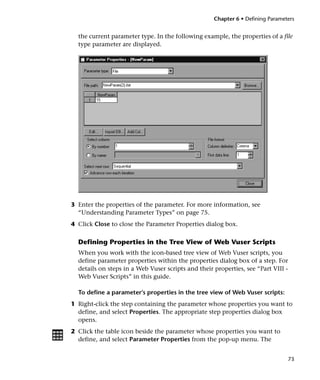
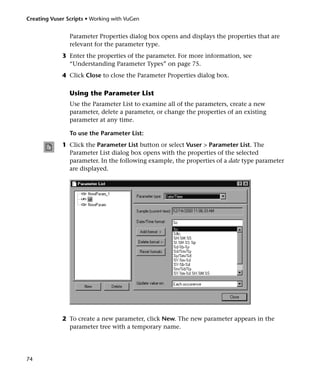
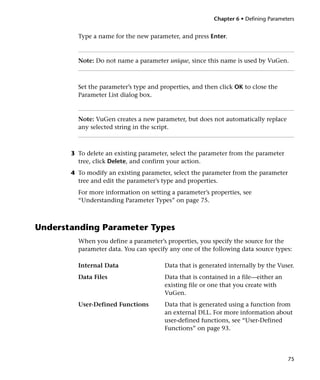
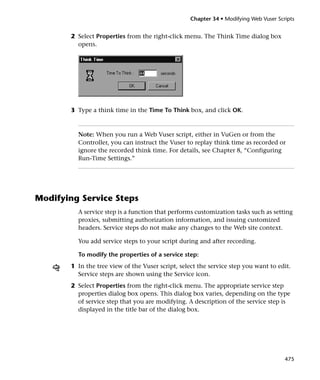
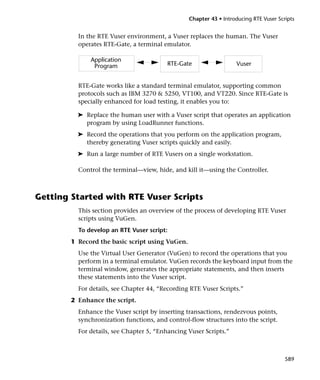
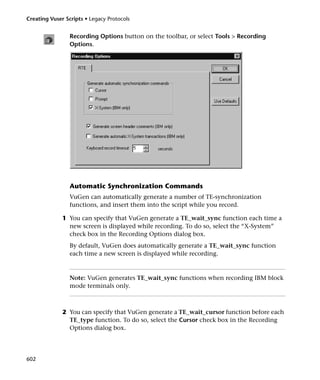
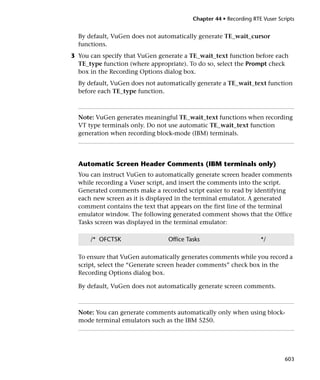
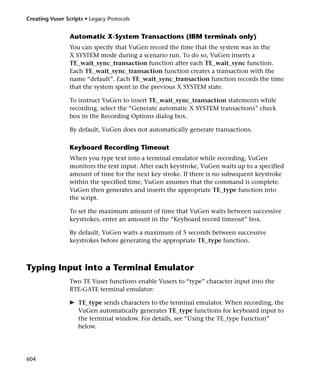
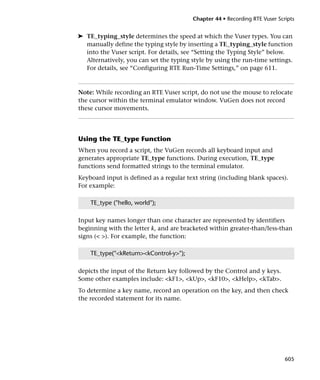
Creating Vuser Scripts
 Windows and UNIX
    Version 7.51
LoadRunner Creating Vuser Scripts (Windows and UNIX), Version 7.51


This manual, and the accompanying software and other documentation, is protected by U.S. and
international copyright laws, and may be used only in accordance with the accompanying license
agreement. Features of the software, and of other products and services of Mercury Interactive
Corporation, may be covered by one or more of the following patents: U.S. Patent Nos. 5,701,139;
5,657,438; 5,511,185; 5,870,559; 5,958,008; 5,974,572; 6,138,157; 6,144,962; 6,205,122; 6,237,006;
6,341,310; and 6,360,332. Other patents are pending in the U.S. and other countries.

The Mercury Interactive logo, Astra, Astra QuickTest, Astra SiteManager, Astra SiteTest, Freshwater
Software, Global SiteReliance, LoadRunner, Open Test Architecture, SiteRunner, Sitescope, SiteSeer,
TestDirector, TestRunner, TestSuite, WebTest, WinRunner and XRunner are registered trademarks in
the United States and select foreign countries.

ActionTracker, ActiveScreen, ActiveTest, ActiveTune, ActiveTest SecureCheck, ActiveWatch, Astra
FastTrack, Astra LoadTest, Change Viewer, Conduct, ContentCheck, Dynamic Scanner, FastTrack,
LinkDoctor, LoadRunner TestCenter, Mercury Interactive, POPS on Demand, ProTune, QuickTest,
SiteReliance, TestCenter, Topaz, Topaz ActiveAgent, Topaz AIMS, Topaz Console, Topaz Delta, Topaz
Diagnostics, Topaz Observer, Topaz Open DataSource, Topaz Prism, Topaz Rent-a-POP, Topaz
Weathermap, Turboload, Twinlook, Visual Testing, Visual Web Display and WebTrace are trademarks
of Mercury Interactive in the United States and/or select foreign countries.

All other company, brand and product names are registered trademarks or trademarks of their
respective holders. Mercury Interactive Corporation disclaims any responsibility for specifying which
marks are owned by which companies or which organizations.

Mercury Interactive Corporation
1325 Borregas Avenue
Sunnyvale, CA 94089 USA
Tel: (408) 822-5200
Toll Free: (800) TEST-911, (866) TOPAZ-4U
Fax: (408) 822-5300

© 2002 Mercury Interactive Corporation, All rights reserved


If you have any comments or suggestions regarding this document, please send them via e-mail to
documentation@merc-int.com.

LRDBUG7.51/01
Table of Contents

                 Welcome to LoadRunner....................................................................xix
                 Online Resources ................................................................................xix
                 LoadRunner Documentation Set.........................................................xx
                 Using the LoadRunner Documentation Set ........................................xx
                 Typographical Conventions............................................................. xxii

P A R T I : I N T R O D UC I N G V US E R S C R I PT S
                 Chapter 1: Developing Vuser Scripts ....................................................3
                 Introducing Vusers ................................................................................3
                 Looking at Vuser Types .........................................................................5
                 Developing Vuser Scripts.......................................................................7
                 Using this Guide....................................................................................8

P A R T II: WO RK IN G WIT H V UG EN
                 Chapter 2: Introducing VuGen............................................................13
                 About VuGen.......................................................................................13
                 Recording Vuser Scripts with VuGen ..................................................14
                 Running Vuser Scripts with VuGen ....................................................15
                 Understanding VuGen Code...............................................................16
                 Using C Vuser Functions .....................................................................18
                 Chapter 3: Recording with VuGen......................................................23
                 About Recording with VuGen .............................................................23
                 Vuser Script Sections ...........................................................................24
                 Recording Vuser Scripts .......................................................................26
                 Ending a Recording Session.................................................................32
                 Importing Actions ...............................................................................35
                 Regenerating a Vuser Script.................................................................36


                                                                                                                         iii
Creating Vuser Scripts


                 Chapter 4: Setting the Script Type Recording Options......................39
                 About Setting the Script Type Recording Options ..............................39
                 Setting the Script Type Options ..........................................................40
                 Configuring the Port Mapping Recording Options ............................44
                 Chapter 5: Enhancing Vuser Scripts....................................................49
                 About Enhancing Vuser Scripts...........................................................50
                 Inserting Transactions into a Vuser Script ..........................................51
                 Inserting Rendezvous Points into a Vuser Script ................................53
                 Inserting Comments into a Vuser Script.............................................54
                 Obtaining Vuser Information .............................................................55
                 Sending Messages to Output ...............................................................56
                 Handling Errors in Vuser Scripts During Execution ...........................59
                 Synchronizing Vuser Scripts................................................................60
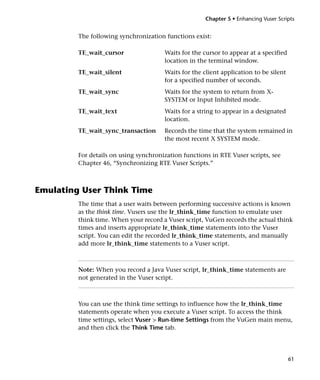
                 Emulating User Think Time ................................................................61
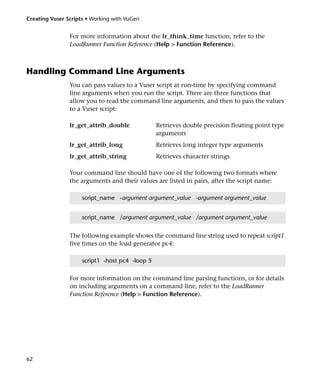
                 Handling Command Line Arguments ................................................62
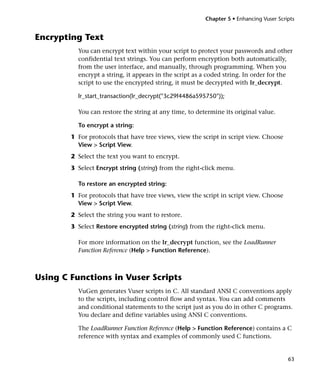
                 Encrypting Text ...................................................................................63
                 Using C Functions in Vuser Scripts.....................................................63
                 Chapter 6: Defining Parameters .........................................................65
                 About Defining Parameters .................................................................66
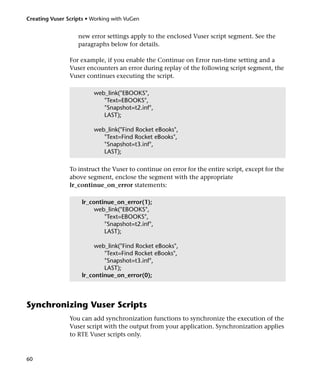
                 Understanding Parameter Limitations................................................67
                 Creating Parameters ............................................................................68
                 Defining Parameter Properties .........................................................72
                 Understanding Parameter Types .........................................................75
                 Setting Parameter Properties for Internal Data Types ........................77
                 Setting Parameter Properties for Data Files ........................................83
                 Importing Data from Existing Databases ............................................89
                 User-Defined Functions.......................................................................93
                 Parameterization Options ...................................................................94
                 Chapter 7: Correlating Statements.....................................................99
                 About Correlating Statements.............................................................99
                 Using Correlation Functions for C Vusers ........................................101
                 Using Correlation Functions for Java Vusers ....................................102
                 Comparing Vuser Scripts using WDiff ..............................................103
                 Modifying Saved Parameters .............................................................104


iv
Table of Contents


                Chapter 8: Configuring Run-Time Settings .....................................107
                About Run-Time Settings ..................................................................107
                Configuring the Pacing Run-Time Settings ......................................109
                Configuring Actions ..........................................................................112
                Configuring the Log Run-Time Settings ...........................................118
                Configuring the Think Time Settings ...............................................122
                Configuring the General Run-Time Settings ....................................124
                Setting the VB Run-Time Settings .....................................................129
                Chapter 9: Running Vuser Scripts in Stand-Alone Mode ................131
                About Running Vuser Scripts in Stand-Alone Mode.........................131
                Running a Vuser Script in VuGen .....................................................132
                Using VuGen’s Debugging Features .................................................135
                Using VuGen’s Debugging Features for Web Vuser Scripts ..............136
                Working with VuGen Windows........................................................139
                Running a Vuser Script from a Command Prompt...........................139
                Running a Vuser Script from a UNIX Command Line .....................140
                Integrating a Vuser Script into a Scenario ........................................142
                Chapter 10: Managing Scripts Using TestDirector...........................145
                About Managing Scripts Using TestDirector ....................................145
                Connecting to and Disconnecting from TestDirector .....................145
                Opening Scripts from a TestDirector Project ...................................148
                Saving Scripts to a TestDirector Project ...........................................150

P A R T I I I : W O R K I N G W I T H J A V A L A N G UA GE P R O T O C O LS
                Chapter 11: Recording Java Language Vuser Scripts .......................155
                About Recording Java Language Vuser Scripts..................................155
                Getting Started with Recording.........................................................156
                Understanding Java Language Vuser Scripts.....................................157
                Running a Script as Part of a Package ...............................................158
                Viewing the Java Methods ................................................................159
                Inserting Java Methods Manually .....................................................160
                Configuring Script Generation Settings ............................................163
                Chapter 12: Setting Java Recording Options ...................................167
                About Setting Java Recording Options..............................................167
                Java Virtual Machine Options ..........................................................168
                Recorder Options ..............................................................................170
                Serialization Options .......................................................................173
                Correlation Options .........................................................................174
                Debug Options .................................................................................175


                                                                                                                     v
Creating Vuser Scripts


                 Chapter 13: Correlating Java Scripts.................................................177
                 About Correlating Java Scripts ..........................................................177
                 Standard Correlation .........................................................................178
                 Advanced Correlation .......................................................................179
                 String Correlation..............................................................................180
                 Using the Serialization Mechanism ..................................................182
                 Chapter 14: Configuring Java Run-Time Settings ............................189
                 About Java Run-Time Settings...........................................................189
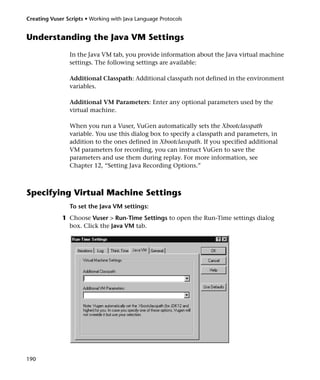
                 Understanding the Java VM Settings ................................................190
                 Specifying Virtual Machine Settings .................................................190

PA RT I V: C U S TO M V US E R S C R IP T S
                 Chapter 15: Creating Custom Vuser Scripts .....................................195
                 About Creating Custom Vuser Scripts...............................................195
                 Getting Help on Functions................................................................196
                 C Vusers .............................................................................................199
                 Java Vusers.........................................................................................201
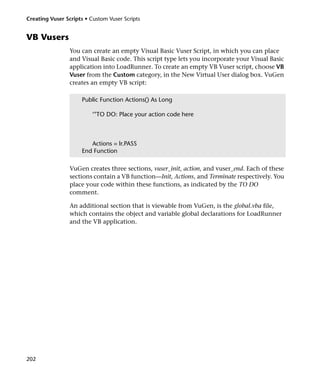
                 VB Vusers...........................................................................................202
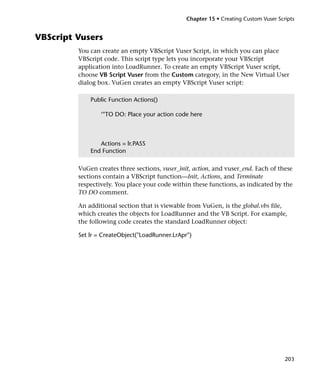
                 VBScript Vusers..................................................................................203
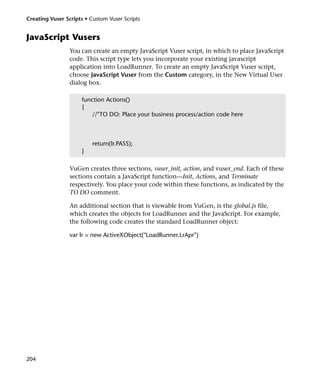
                 JavaScript Vusers ...............................................................................204
                 Chapter 16: Programming Java Scripts.............................................205
                 About Programming Java Scripts ......................................................205
                 Creating a Java Vuser ........................................................................206
                 Editing a Java Vuser Script ................................................................207
                 LoadRunner’s Java API ......................................................................209
                 Working with Java Vuser Functions .................................................212
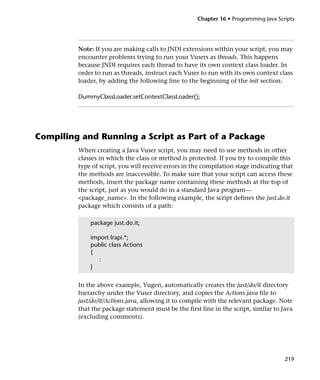
                 Setting your Java Environment .........................................................218
                 Running Java Vuser Scripts ...............................................................218
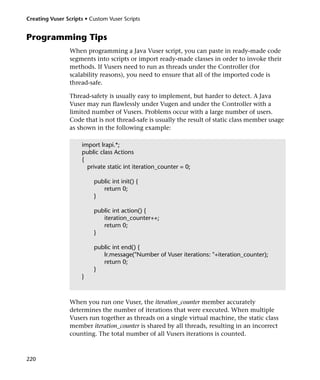
                 Compiling and Running a Script as Part of a Package......................219
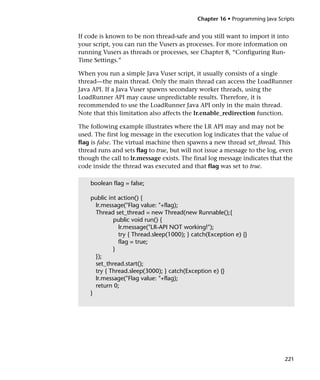
                 Programming Tips .............................................................................220


vi
Table of Contents


P A R T V : C LI E N T S E R VE R P R O T O C O LS
                Chapter 17: Developing Database Vuser Scripts .............................225
                About Recording Database Vuser Scripts ..........................................225
                Introducing Database Vusers.............................................................226
                Understanding Database Vuser Technology .....................................227
                Getting Started with Database Vuser Scripts ....................................228
                Setting LRD Recording Options ........................................................229
                Using LRD Functions.........................................................................233
                Understanding Database Vuser Scripts .............................................237
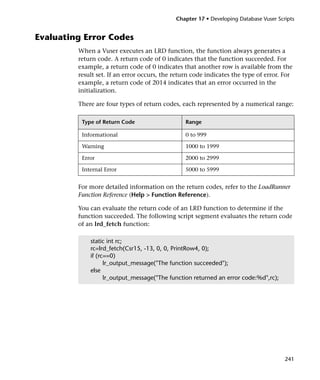
                Evaluating Error Codes......................................................................241
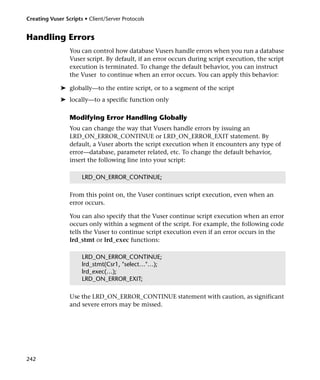
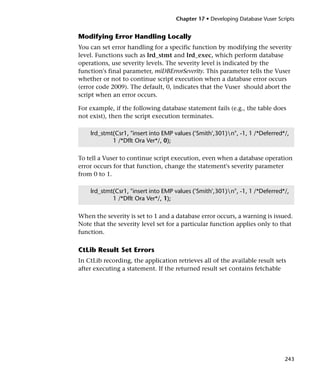
                Handling Errors .................................................................................242
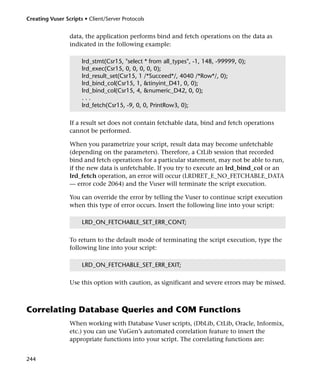
                Correlating Database Queries and COM Functions..........................244
                Automatic Correlation for Database and COM Vuser Scripts...........245
                Chapter 18: Correlating Database Vuser Scripts ..............................251
                About Correlating Database Vuser Scripts ........................................251
                Scanning a Script for Correlations ....................................................252
                Correlating a Known Value...............................................................254
                Database Vuser Correlation Functions..............................................256
                Chapter 19: Developing DNS Vuser Scripts......................................257
                About Developing DNS Vuser Scripts ...............................................257
                Working with DNS Functions ...........................................................258
                Chapter 20: Developing WinSock Vuser Scripts ...............................259
                About Recording Windows Sockets Vuser Scripts.............................259
                Getting Started with Windows Sockets Vuser Scripts .......................260
                Setting the Recording Options ..........................................................261
                Using LRS Functions..........................................................................265
                Switching Between Tree View and Script View.................................268
                Chapter 21: Working with Window Sockets Data............................271
                About Working with Windows Sockets Data....................................271
                Viewing Data in the Snapshot Window ...........................................272
                Navigating Through the Data ...........................................................273
                Modifying Buffer Data.......................................................................277
                Modifying Buffer Names ...................................................................282
                Viewing Windows Sockets Data in Script View ................................282
                Understanding the Data File Format.................................................284
                Viewing Buffer Data in Hexadecimal format ....................................286
                Setting the Display Format................................................................288
                Debugging Tips..................................................................................291
                Manually Correlating WinSock Scripts .............................................292


                                                                                                                       vii
Creating Vuser Scripts


P A RT VI : D I S T R I BU T ED C O M P O N E N T P R O T O C O L S
                 Chapter 22: Recording COM Vuser Scripts.......................................297
                 About Recording COM Vuser Scripts ................................................297
                 COM Overview ..................................................................................298
                 Getting Started with COM Vusers.....................................................299
                 Selecting COM Objects to Record ....................................................301
                 Setting COM Recording Options ......................................................303
                 Chapter 23: Understanding COM Vuser Scripts ..............................313
                 About COM Vuser Scripts .................................................................313
                 Understanding VuGen COM Script Structure...................................314
                 Examining Sample VuGen COM Scripts...........................................316
                 Scanning a Script for Correlations ....................................................322
                 Correlating a Known Value...............................................................324
                 Chapter 24: Understanding COM Vuser Functions ..........................327
                 About COM Vuser Functions ............................................................328
                 Creating Instances .............................................................................328
                 IDispatch Interface Invoke Method ..................................................329
                 Type Assignment Functions ..............................................................329
                 Variant Types.....................................................................................330
                 Assignment from Reference to Variant .............................................331
                 Parameterization Functions ..............................................................332
                 Extraction from Variants...................................................................334
                 Assignment of Arrays to Variants......................................................334
                 Array Types and Functions................................................................334
                 Byte Array Functions .........................................................................336
                 ADO RecordSet Functions .................................................................336
                 Debug Functions ...............................................................................337
                 VB Collection Support.......................................................................337
                 Chapter 25: Developing Corba-Java Vuser Scripts ...........................339
                 About Corba-Java Vuser Scripts.........................................................339
                 Recording a Corba-Java Vuser ...........................................................340
                 Working with Corba-Java Vuser Scripts............................................343
                 Chapter 26: Developing RMI-Java Vuser Scripts ..............................347
                 About Developing RMI-Java Vuser Scripts ........................................347
                 Recording RMI over IIOP ..................................................................348
                 Recording an RMI Vuser....................................................................348
                 Working with RMI Vuser Scripts.......................................................351


viii
Table of Contents


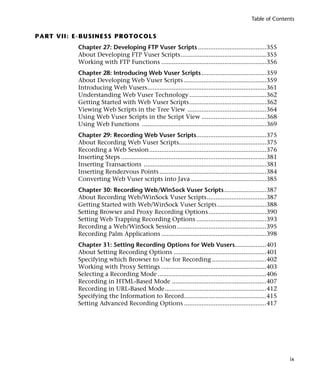
P A R T V II : E - B U S I N E SS P R O T O C O L S
                  Chapter 27: Developing FTP Vuser Scripts .......................................355
                  About Developing FTP Vuser Scripts.................................................355
                  Working with FTP Functions ............................................................356
                  Chapter 28: Introducing Web Vuser Scripts .....................................359
                  About Developing Web Vuser Scripts ...............................................359
                  Introducing Web Vusers....................................................................361
                  Understanding Web Vuser Technology ............................................362
                  Getting Started with Web Vuser Scripts............................................362
                  Viewing Web Scripts in the Tree View .............................................364
                  Using Web Vuser Scripts in the Script View .....................................368
                  Using Web Functions .......................................................................369
                  Chapter 29: Recording Web Vuser Scripts........................................375
                  About Recording Web Vuser Scripts..................................................375
                  Recording a Web Session...................................................................376
                  Inserting Steps ...................................................................................381
                  Inserting Transactions ......................................................................381
                  Inserting Rendezvous Points .............................................................384
                  Converting Web Vuser scripts into Java ...........................................385
                  Chapter 30: Recording Web/WinSock Vuser Scripts ........................387
                  About Recording Web/WinSock Vuser Scripts..................................387
                  Getting Started with Web/WinSock Vuser Scripts ............................388
                  Setting Browser and Proxy Recording Options .................................390
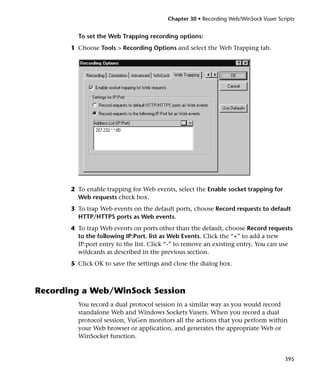
                  Setting Web Trapping Recording Options ........................................393
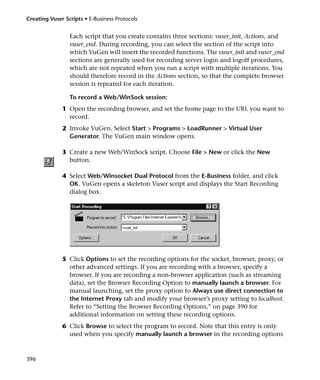
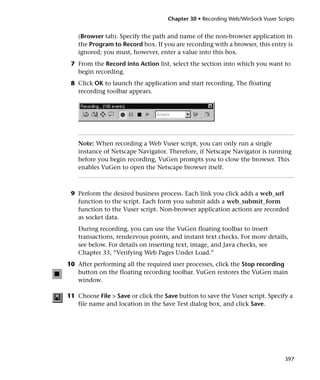
                  Recording a Web/WinSock Session ...................................................395
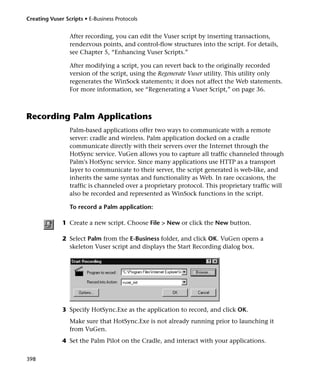
                  Recording Palm Applications ............................................................398
                  Chapter 31: Setting Recording Options for Web Vusers..................401
                  About Setting Recording Options .....................................................401
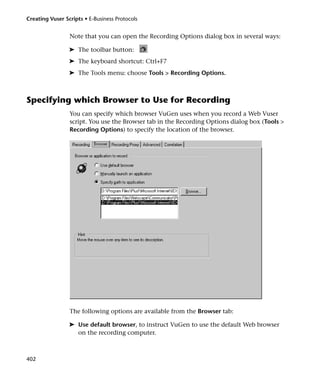
                  Specifying which Browser to Use for Recording ...............................402
                  Working with Proxy Settings ............................................................403
                  Selecting a Recording Mode ..............................................................406
                  Recording in HTML-Based Mode ......................................................407
                  Recording in URL-Based Mode..........................................................412
                  Specifying the Information to Record...............................................415
                  Setting Advanced Recording Options ...............................................417


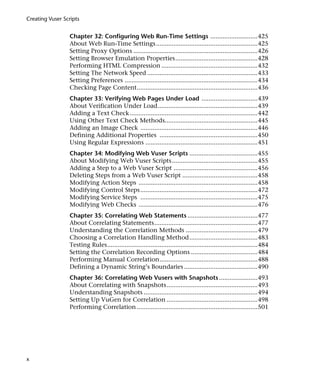
                                                                                                                           ix
Creating Vuser Scripts


                 Chapter 32: Configuring Web Run-Time Settings ...........................425
                 About Web Run-Time Settings ..........................................................425
                 Setting Proxy Options .......................................................................426
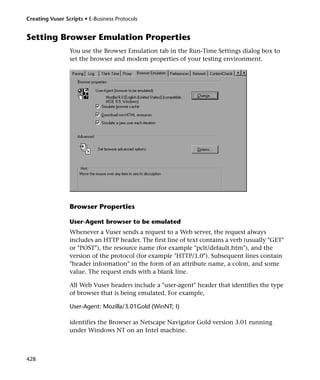
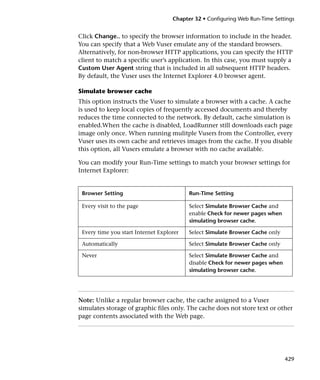
                 Setting Browser Emulation Properties...............................................428
                 Performing HTML Compression .......................................................432
                 Setting The Network Speed ...............................................................433
                 Setting Preferences ............................................................................434
                 Checking Page Content.....................................................................436
                 Chapter 33: Verifying Web Pages Under Load ................................439
                 About Verification Under Load.........................................................439
                 Adding a Text Check .........................................................................442
                 Using Other Text Check Methods.....................................................445
                 Adding an Image Check ...................................................................446
                 Defining Additional Properties ........................................................450
                 Using Regular Expressions ................................................................451
                 Chapter 34: Modifying Web Vuser Scripts .......................................455
                 About Modifying Web Vuser Scripts.................................................455
                 Adding a Step to a Web Vuser Script ................................................456
                 Deleting Steps from a Web Vuser Script ...........................................458
                 Modifying Action Steps ....................................................................458
                 Modifying Control Steps ...................................................................472
                 Modifying Service Steps ...................................................................475
                 Modifying Web Checks ....................................................................476
                 Chapter 35: Correlating Web Statements ........................................477
                 About Correlating Statements...........................................................477
                 Understanding the Correlation Methods .........................................479
                 Choosing a Correlation Handling Method.......................................483
                 Testing Rules......................................................................................484
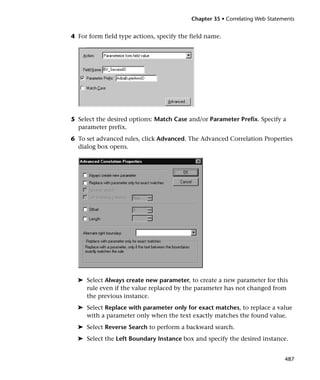
                 Setting the Correlation Recording Options ......................................484
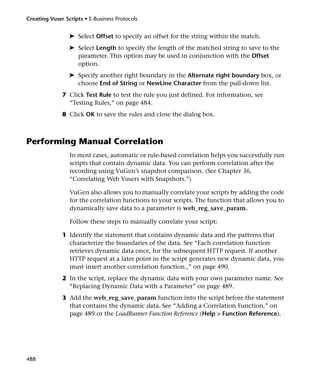
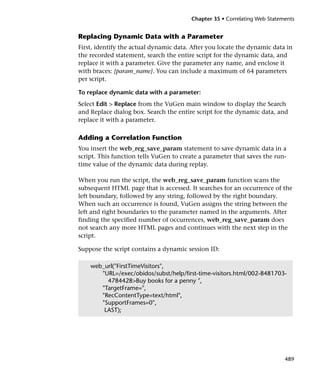
                 Performing Manual Correlation........................................................488
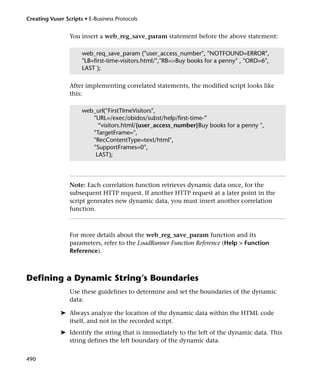
                 Defining a Dynamic String’s Boundaries ..........................................490
                 Chapter 36: Correlating Web Vusers with Snapshots ......................493
                 About Correlating with Snapshots....................................................493
                 Understanding Snapshots .................................................................494
                 Setting Up VuGen for Correlation ....................................................498
                 Performing Correlation .....................................................................501


x
Table of Contents


                 Chapter 37: Testing XML Pages........................................................505
                 About Testing XML Pages..................................................................505
                 Viewing XML as URL steps................................................................506
                 Inserting XML as a Custom Request .................................................507
                 Viewing XML Custom Request Steps ................................................508
                 Chapter 38: Using Reports to Debug Vuser Scripts .........................511
                 About Using Reports to Debug Vuser Scripts ....................................511
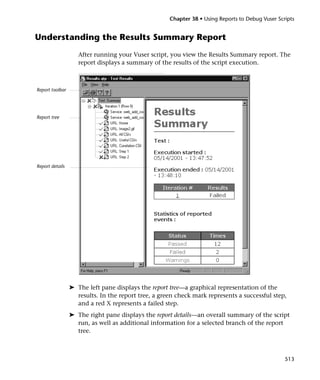
                 Understanding the Results Summary Report ...................................513
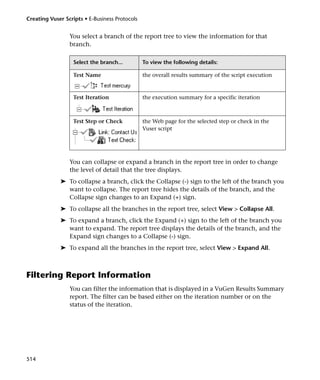
                 Filtering Report Information ............................................................514
                 Managing Execution Results ............................................................515
                 Chapter 39: Power User Tips for Web Vusers...................................519
                 Security Issues....................................................................................519
                 Handling Cookies ..............................................................................522
                 The Run-Time Viewer (Online Browser) ...........................................525
                 Browsers.............................................................................................526
                 Configuration Issues..........................................................................530
                 Compatibility Issues ..........................................................................530

P A R T V II I : E N T E R PR I SE J A VA B E A N PR O T O C O L S
                 Chapter 40: Performing EJB Testing .................................................533
                 About EJB Testing ..............................................................................533
                 Working with the EJB Detector.........................................................534
                 Creating an EJB Testing Vuser...........................................................539
                 Setting EJB Recording Options ..........................................................542
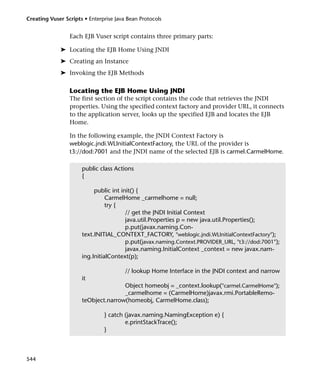
                 Understanding EJB Vuser Scripts.......................................................543
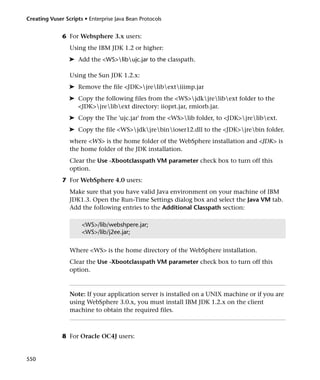
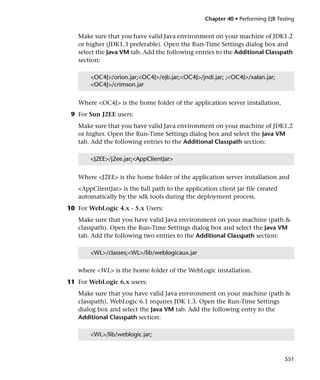
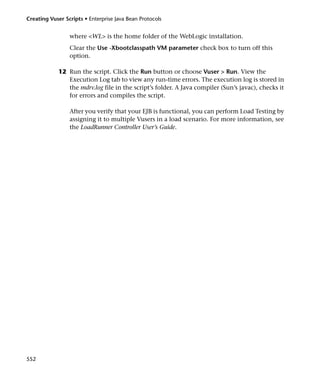
                 Running EJB Vuser Scripts.................................................................549

P A R T I X : E R P P R O T O C O LS
                 Chapter 41: Creating Oracle NCA Vuser Scripts ..............................555
                 About Creating Oracle NCA Vuser Scripts ........................................555
                 Getting Started with Oracle NCA Vusers ..........................................557
                 Recording Guidelines ........................................................................558
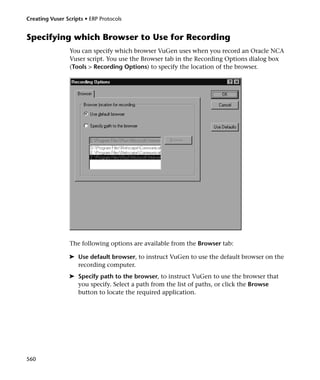
                 Specifying which Browser to Use for Recording ...............................560
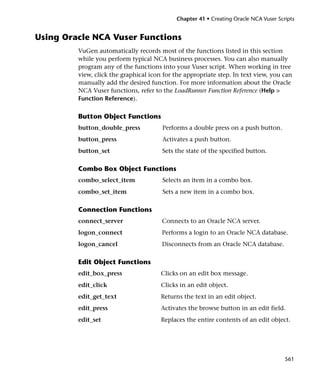
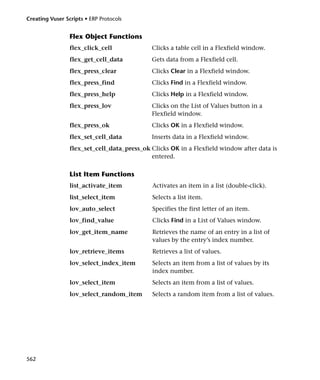
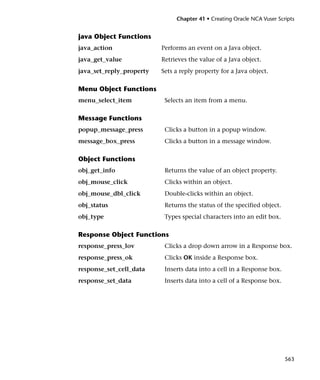
                 Using Oracle NCA Vuser Functions ..................................................561
                 Understanding Oracle NCA Vusers ...................................................565
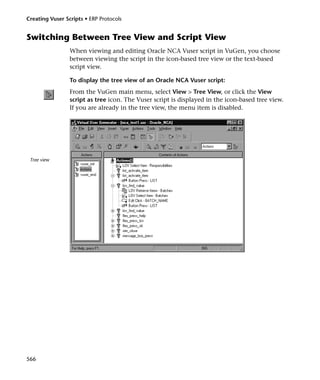
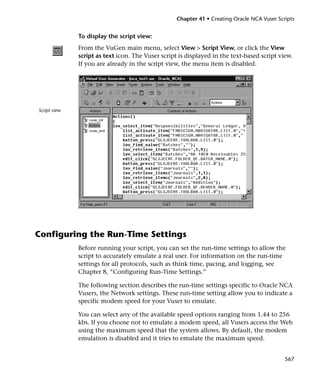
                 Switching Between Tree View and Script View.................................566
                 Configuring the Run-Time Settings ..................................................567
                 Testing Oracle NCA Applications......................................................568
                 Correlating Oracle NCA Statements for Load Balancing ..................572


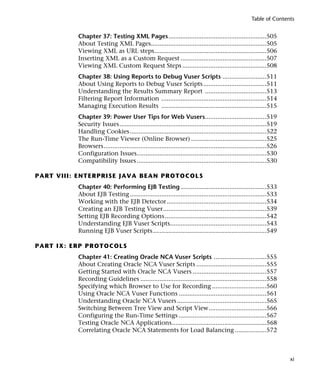
                                                                                                                            xi
Creating Vuser Scripts


                 Chapter 42: Creating Baan Vuser Scripts .........................................575
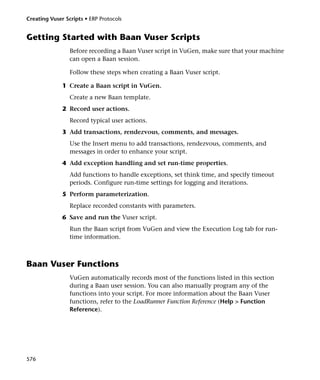
                 About Developing Baan Vuser Scripts...............................................575
                 Getting Started with Baan Vuser Scripts ...........................................576
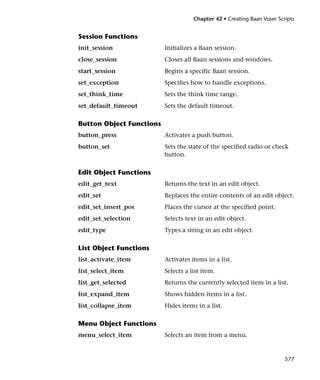
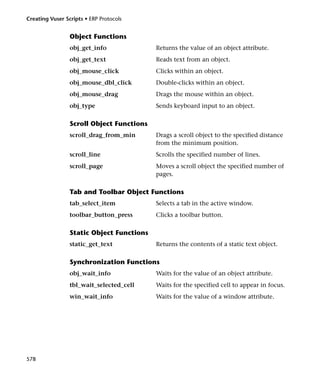
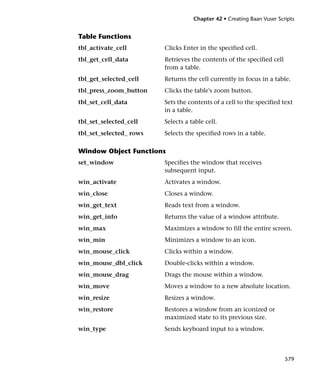
                 Baan Vuser Functions........................................................................576
                 Creating a Baan Vuser Script .............................................................580
                 Understanding Baan Vuser Scripts ....................................................581
                 Customizing Baan Vuser Scripts .......................................................582

P A RT X : L EG A C Y P R O T O C O L S
                 Chapter 43: Introducing RTE Vuser Scripts ......................................587
                 About Developing RTE Vuser Scripts ................................................587
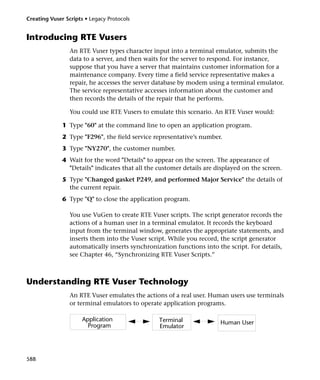
                 Introducing RTE Vusers.....................................................................588
                 Understanding RTE Vuser Technology .............................................588
                 Getting Started with RTE Vuser Scripts.............................................589
                 Using TE Functions ...........................................................................590
                 Mapping Terminal Keys to PC Keyboard Keys..................................592
                 Chapter 44: Recording RTE Vuser Scripts .........................................595
                 About Recording RTE Vuser Scripts...................................................595
                 Creating a New RTE Vuser Script ......................................................596
                 Recording the Terminal Setup and Connection Procedure ..............597
                 Recording Typical User Actions ........................................................600
                 Recording the Log Off Procedure ......................................................601
                 Setting the Recording Options ..........................................................601
                 Typing Input into a Terminal Emulator ...........................................604
                 Generating Unique Device Names ....................................................607
                 Setting the Field Demarcation Characters ........................................608
                 Chapter 45: Configuring RTE Run-Time Settings ............................611
                 About Terminal Emulator Run-Time Settings ..................................611
                 Modifying Connection Attempts......................................................612
                 Specifying an Original Device Name ................................................612
                 Setting the Typing Delay...................................................................613
                 Configuring the X-System Synchronization.....................................613
                 Chapter 46: Synchronizing RTE Vuser Scripts ..................................615
                 About Synchronizing Vuser Scripts...................................................615
                 Synchronizing Block-Mode (IBM) Terminals....................................616
                 Synchronizing Character-Mode (VT) Terminals ...............................620
                 Chapter 47: Reading Text from the Terminal Screen ......................625
                 About Reading Text from the Terminal Screen ................................625
                 Searching for Text on the Screen ......................................................625
                 Reading Text from the Screen ...........................................................626


xii
Table of Contents


P A R T X I : M A I L I N G S ER V I C ES P R O T O C O L S
                 Chapter 48: Developing Vuser Scripts for Mailing Services .............629
                 About Developing Vuser Scripts for Mailing Services .......................629
                 Getting Started with Mailing Services Vuser Scripts .........................630
                 Working with IMAP Functions .........................................................631
                 Working with MAPI Functions .........................................................633
                 Working with POP3 Functions .........................................................634
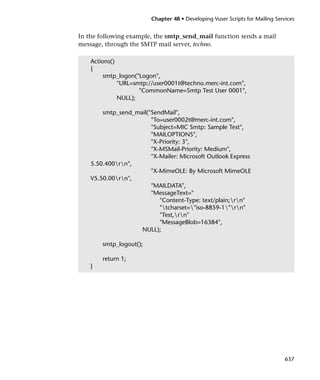
                 Working with SMTP Functions .........................................................636

P A R T X I I : M I D DL E WA R E P RO TO CO LS
                 Chapter 49: Developing Jacada Vuser Scripts ..................................641
                 About Jacada Vuser Scripts ................................................................641
                 Getting Started with Jacada Vusers ...................................................642
                 Recording a Jacada Vuser ..................................................................643
                 Replaying a Jacada Vuser...................................................................646
                 Understanding Jacada Vuser Scripts..................................................646
                 Working with Jacada Vuser Scripts ...................................................647
                 Chapter 50: Developing Tuxedo Vuser Scripts ................................649
                 About Tuxedo Vuser Scripts ..............................................................649
                 Getting Started with Tuxedo Vuser Scripts .......................................650
                 Using LRT Functions .........................................................................651
                 Understanding Tuxedo Vuser Scripts................................................656
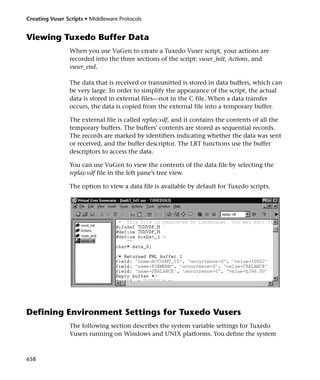
                 Viewing Tuxedo Buffer Data .............................................................658
                 Defining Environment Settings for Tuxedo Vusers ..........................658
                 Debugging Tuxedo Applications .......................................................660
                 Correlating Tuxedo Scripts................................................................660

P A R T X I I I : S TR E A M I N G D A T A P R O T O C O L S
                 Chapter 51: Developing Streaming Data Vuser Scripts ...................669
                 About Recording Streaming Data Virtual User Scripts......................669
                 Getting Started with Streaming Data Vuser Scripts ..........................670
                 Using RealPlayer LREAL Functions ...................................................671
                 Using Media Player MMS Functions .................................................672


                                                                                                                    xiii
Creating Vuser Scripts


P A RT X I V: W I R EL E SS P R O T O C O L S
                 Chapter 52: Introducing Wireless Vusers .........................................677
                 About Wireless Vusers .......................................................................677
                 Understanding the WAP Protocol.....................................................678
                 Understanding the i-mode System....................................................680
                 i-mode versus WAP............................................................................681
                 Understanding VoiceXML.................................................................681
                 Chapter 53: Recording Wireless Vuser Scripts..................................685
                 About Recording Wireless Vuser Scripts ...........................................685
                 Recording a Wireless Script ...............................................................686
                 Viewing Vuser Scripts........................................................................691
                 Displaying Vuser Scripts in Script View ............................................694
                 Enhancing Your Script for Measuring Performance .........................696
                 Using Vuser Functions ......................................................................696
                 Chapter 54: Working with WAP Vuser Scripts..................................705
                 About WAP Vusers ............................................................................705
                 Recording Over a Phone....................................................................706
                 Bearers Support..................................................................................707
                 RADIUS Support ................................................................................708
                 Push Support .....................................................................................708
                 LoadRunner Push Support ................................................................710
                 MMS Support.....................................................................................711
                 Chapter 55: Setting Recording Options for Wireless Vusers ...........713
                 About Setting Recording Options .....................................................713
                 Specifying the Recording Mode (WAP only) ....................................714
                 Specifying the Information to Record (i-mode, VoiceXML).............715
                 Specifying a Toolkit...........................................................................715
                 Specifying the Recording Proxy Settings...........................................717
                 Setting Advanced Recording Options ...............................................719
                 Chapter 56: Configuring Wireless Run-Time Settings......................725
                 About Configuring Wireless Run-Time Settings ...............................725
                 Setting Proxy Options (i-mode, VoiceXML only) .............................726
                 Setting Browser and Modem Options ...............................................727
                 Setting Preferences ............................................................................733
                 Obtaining Debug Information ..........................................................735


xiv
Table of Contents


                Chapter 57: Configuring WAP Run-Time Settings ...........................737
                About WAP Run-Time Settings .........................................................737
                Configuring Gateway Options ..........................................................738
                Configuring Bearer Information .......................................................741
                Configuring RADIUS Connection Data ............................................743
                Obtaining Debug Information ..........................................................745
                Chapter 58: Modifying Wireless Vuser Scripts .................................747
                About Modifying Wireless Vuser Scripts...........................................747
                Adding Steps to Wireless Vuser Scripts ............................................747
                Deleting Steps from Wireless Vuser Scripts.......................................749
                Modifying Action Steps .....................................................................749
                Modifying Control Steps ...................................................................756
                Modifying Service Steps ....................................................................759
                Chapter 59: Correlating Statements in Wireless Scripts ..................761
                About Correlating Statements...........................................................761
                Using Correlation Functions .............................................................762
                Performing Manual Correlation........................................................764
                Defining the Boundaries of Dynamic Data.......................................765
                Correlation Example .........................................................................766

P A R T X V : GU I V US E R S C R IP T S
                Chapter 60: Developing GUI Vuser Scripts.......................................771
                About Developing GUI Vuser Scripts ................................................771
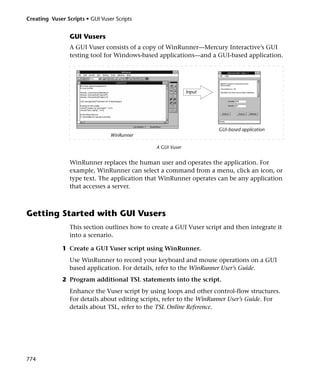
                Introducing GUI Vusers ....................................................................772
                Understanding GUI Vuser Technology.............................................773
                Getting Started with GUI Vusers.......................................................774
                Using WinRunner to Create GUI Vuser Scripts ...............................775
                Measuring Server Performance: Transactions ...................................776
                Generating Heavy User Load: Rendezvous Points ............................777
                Understanding GUI Vuser Scripts .....................................................777
                Using Vuser Functions in GUI Vuser Scripts.....................................779
                Sending Messages to the Controller..................................................779
                Obtaining Information about Vusers and Load Generators .............780

P A R T X V I: IN FO R M A T I O N F O R A D V A N C E D US E R S
                Chapter 61: Creating Vuser Scripts in Visual Studio ........................785
                About Creating Vuser Scripts in Visual Studio..................................785
                Creating a Vuser Script with Visual C ...............................................786
                Creating a Vuser Script with Visual Basic .........................................788
                Configuring Runtime Settings and Parameters.................................789


                                                                                                                   xv
Creating Vuser Scripts


                 Chapter 62: VuGen Debugging Tips.................................................791
                 General Debugging Tip .....................................................................791
                 Using C Functions for Tracing ..........................................................791
                 Examining Replay Output.................................................................792
                 Debugging Database Applications ...................................................792
                 Working with Oracle Applications ...................................................794
                 Solving Common Problems with Oracle Applications .....................794
                 Two-tier Database Scripting Tips.......................................................799
                 Chapter 63: Advanced Topics ...........................................................809
                 Files Generated During Recording ....................................................809
                 Files Generated During Replay..........................................................811
                 Running a Vuser from the Unix Command Line .............................813
                 Specifying the Vuser Behavior ..........................................................814
                 Command Line Parameters...............................................................815
                 Recording OLE Servers.......................................................................816
                 Examining the .dat Files....................................................................818
                 Adding a New Vuser Type .................................................................821

P A RT X VI I : A P P E N D I X ES
                 Appendix A: The Java Environment: A Comprehensive Guide.........827
                 About the Java Environment ............................................................827
                 Terminology ......................................................................................828
                 JDK Versions......................................................................................830
                 Browsers.............................................................................................835
                 Java Plug-In........................................................................................838
                 Other Environments .........................................................................840
                 Frequently Asked Questions..............................................................841
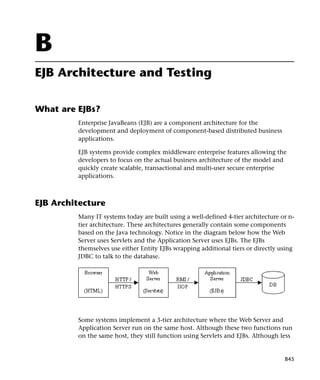
                 Appendix B: EJB Architecture and Testing........................................845
                 What are EJBs?...................................................................................845
                 EJB Architecture.................................................................................845
                 EJB Structure and Mechanism...........................................................846
                 Deployment in Common Application Servers..................................849
                 EJB Unit-Testing ................................................................................849
                 Appendix C: Calling External Functions............................................851
                 Loading a DLL—Locally ....................................................................851
                 Loading a DLL—Globally ..................................................................853


xvi
Table of Contents


Appendix D: Programming Scripts on UNIX Platforms....................855
About Programming Vuser Scripts to Run on UNIX Platforms ........855
Generating Templates ......................................................................856
Programming Vuser Actions into a Script.........................................857
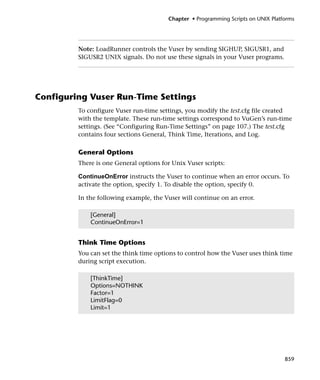
Configuring Vuser Run-Time Settings ..............................................859
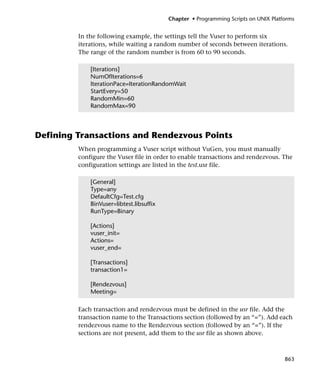
Defining Transactions and Rendezvous Points.................................863
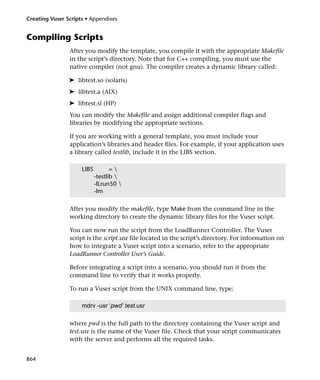
Compiling Scripts ..............................................................................864
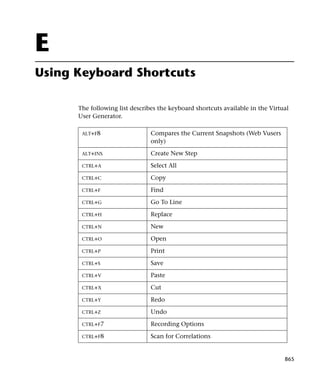
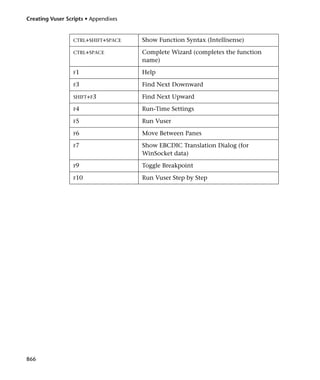
Appendix E: Using Keyboard Shortcuts ............................................865
Index ..................................................................................................867


                                                                                                              xvii
Creating Vuser Scripts


xviii
Welcome to LoadRunner

         Welcome to LoadRunner, Mercury Interactive’s tool for testing the
         performance of applications. LoadRunner stresses your application to isolate
         and identify potential client, network, and server bottlenecks.

         LoadRunner enables you to test your system under controlled and peak load
         conditions. To generate load, LoadRunner runs thousands of Virtual Users,
         or Vusers, that are distributed over a network. Using a minimum of hardware
         resources, these Vusers provide consistent, repeatable, and measurable load
         to exercise your application just as real users would. LoadRunner’s in-depth
         reports and graphs provide the information that you need to evaluate the
         performance of your application.


Online Resources
         LoadRunner includes the following online tools:

         Read Me First provides last-minute news and information about
         LoadRunner.

         Books Online displays the complete documentation set in PDF format.
         Online books can be read and printed using Adobe Acrobat Reader, which is
         included in the installation package. Check Mercury Interactive’s Customer
         Support Web site for updates to LoadRunner online books. The URL for this
         Web site is http://support.mercuryinteractive.com.

         LoadRunner Function Reference gives you online access to all of
         LoadRunner’s functions that you can use when creating scripts for Vusers ,
         including examples of how to use the functions. Check Mercury
         Interactive’s Customer Support Web site http://support.mercuryinteractive.com
         for updates to the LoadRunner Function Reference.


                                                                                    xix
Creating Vuser Scripts


                 LoadRunner Context Sensitive Help provides immediate answers to
                 questions that arise as you work with LoadRunner. It describes dialog boxes,
                 and shows you how to perform LoadRunner tasks. To activate this help,
                 click in a window and press F1. Check Mercury Interactive’s Customer
                 Support Web site http://support.mercuryinteractive.com for updates.

                 Technical Support Online uses your default web browser to open Mercury
                 Interactive’s Customer Support web site. The URL for this Web site is
                 http://support.mercuryinteractive.com.

                 Support Information presents the locations of Mercury Interactive’s
                 Customer Support web site and home page, and a list of Mercury
                 Interactive’s offices around the world.

                 Mercury Interactive on the Web uses your default Web browser to open
                 Mercury Interactive’s home page. The URL for this Web site is
                 http://www.mercuryinteractive.com.


LoadRunner Documentation Set
                 LoadRunner is supplied with a set of documentation that describes how to:

              ➤ install LoadRunner
              ➤ create Vuser scripts
              ➤ use the LoadRunner Controller
              ➤ use the LoadRunner Analysis


Using the LoadRunner Documentation Set
                 The LoadRunner documentation set consists of an installation guide, a
                 Controller user’s guide, an Analysis user’s guide, and two guides for creating
                 Vuser scripts.

                 Installation Guide
                 For instructions on installing LoadRunner, refer to the Installing LoadRunner
                 guide. The installation guide explains how to install:


xx
Welcome to LoadRunner


➤ the LoadRunner Controller—on a Windows-based machine
➤ Virtual User components—for both Windows and UNIX platforms

  Controller User’s Guide
  The LoadRunner documentation pack includes one Controller user’s guide:

  The LoadRunner Controller User’s Guide (Windows) describes how to create and
  run LoadRunner scenarios using the LoadRunner Controller in a Windows
  environment. The Vusers can run on UNIX and Windows-based platforms.
  The Controller user’s guide presents an overview of the LoadRunner testing
  process.

  Analysis User’s Guide
  The LoadRunner documentation pack includes one Analysis user’s guide:

  The LoadRunner Analysis User’s Guide describes how to use the LoadRunner
  Analysis graphs and reports after running a scenario in order to analyze
  system performance.

  Guides for Creating Vuser Scripts
  The LoadRunner documentation pack includes one VuGen user’s guide.

  The Creating Vuser Scripts guide describes how to create Vuser scripts using
  VuGen. When necessary, supplement this document with the online
  LoadRunner Function Reference and the WinRunner User’s Guide for creating
  GUI Vuser scripts


   For information on               Look here...

   Installing LoadRunner            Installing LoadRunner guide

   The LoadRunner testing process   LoadRunner Controller User’s Guide (Windows)

   Creating Vuser scripts           Creating Vuser Scripts guide

   Creating and running scenarios   LoadRunner Controller User’s Guide (Windows)

   Analyzing test results           LoadRunner Analysis User’s Guide


                                                                                   xxi
Creating Vuser Scripts


Typographical Conventions
                 This book uses the following typographical conventions:

                 1, 2, 3             Bold numbers indicate steps in a procedure.
                 ➤                   Bullets indicate options and features.
                 >                   The greater than sign separates menu levels (for
                                     example, File > Open).
                 Stone Sans          The Stone Sans font indicates names of interface
                                     elements on which you perform actions (for example,
                                     “Click the Run button.”).
                 Bold                Bold text indicates method or function names
                 Italics             Italic text indicates method or function arguments, file
                                     names or paths, and book titles.
                 Helvetica           The Helvetica font is used for examples and text that is
                                     to be typed literally.
                 <>                  Angle brackets enclose a part of a file path or URL
                                     address that can vary (for example, <Product installation
                                     folder>/bin).
                 [ ]                 Square brackets enclose optional arguments.
                 {}                  Curly brackets indicate that one of the enclosed values
                                     must be assigned to the current argument.
                 ...                 In a line of syntax, an ellipsis indicates that more items
                                     of the same format may be included.


xxii
Part I
Introducing Vuser Scripts
2
1
Developing Vuser Scripts

         LoadRunner emulates an environment in which thousands of users work
         with a client/server system concurrently. To do this, LoadRunner replaces
         the human user with a virtual user (Vuser). The actions that a Vuser performs
         are described in a Vuser script. LoadRunner supplies a variety of tools to help
         you develop your Vuser scripts.

         This chapter includes:

       ➤ Introducing Vusers
       ➤ Looking at Vuser Types
       ➤ Developing Vuser Scripts
       ➤ Using this Guide


Introducing Vusers
         LoadRunner replaces human users with virtual users or Vusers. Vusers
         emulate the actions of human users by performing typical business
         processes. Each action that a Vusers performs submits input to the
         client/server system. By increasing the number of Vusers, you increase the
         load on the system. While a workstation accommodates only a single
         human user, many Vusers can run concurrently on a single workstation.

         To emulate conditions of heavy user load, you create a large number of
         Vusers that perform a series of tasks. For example, you can observe how a
         server behaves when one hundred Vusers simultaneously withdraw cash
         from a bank’s ATMs.


                                                                                       3
Creating Vuser Scripts • Introducing Vuser Scripts


                 Using LoadRunner, you divide your client/server performance testing
                 requirements into scenarios. A scenario defines the events that occur during
                 each testing session. Thus, for example, a scenario defines and controls the
                 number of users to emulate, the actions that they perform, and the
                 machines on which they run their emulations.

                 LoadRunner has a variety of Vuser types, each type suited to a particular
                 load testing environment. This enables you to use Vusers to accurately
                 model and emulate real world situations. The actions that a Vuser performs
                 during the scenario are described in a Vuser script. The Vuser scripts include
                 functions that measure and record the performance of the server during the
                 scenario. Each Vuser type requires a particular type of Vuser script. Creating
                 the Vuser scripts required for a scenario is part of the LoadRunner testing
                 process.


4
Chapter 1 • Developing Vuser Scripts


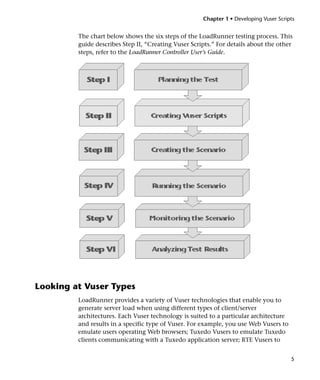
         The chart below shows the six steps of the LoadRunner testing process. This
         guide describes Step II, “Creating Vuser Scripts.” For details about the other
         steps, refer to the LoadRunner Controller User’s Guide.


Looking at Vuser Types
         LoadRunner provides a variety of Vuser technologies that enable you to
         generate server load when using different types of client/server
         architectures. Each Vuser technology is suited to a particular architecture
         and results in a specific type of Vuser. For example, you use Web Vusers to
         emulate users operating Web browsers; Tuxedo Vusers to emulate Tuxedo
         clients communicating with a Tuxedo application server; RTE Vusers to


                                                                                        5
Creating Vuser Scripts • Introducing Vuser Scripts


                 operate terminal emulators. The various Vuser technologies can be used
                 alone or together, to create effective load testing scenarios.

                 The Vuser types are divided into the following categories:

             ➤ Client/Server: For DB2 CLI, DNS, Informix, MS SQL Server, ODBC, Oracle
               (2-tier), Sybase Ctlib, Sybase Dblib, and Windows Sockets protocols.
             ➤ Custom: For C templates, Visual Basic templates, Java templates, Javascript
               and VBScript type scripts.
             ➤ Distributed Components: For COM/DCOM, Corba-Java, and Rmi-Java
               protocols.
             ➤ E-business: For FTP, LDAP, Palm, SOAP, Web (HTTP/HTML), and
               Web/Winsocket Dual Protocol.
             ➤ Enterprise Java Beans: For EJB Testing and Rmi-Java protocols.
             ➤ ERP: For Baan, Oracle NCA, Peoplesoft-Tuxedo, SAP, Siebel-DB2 CLI, Siebel
               MSSQL, and Siebel Oracle protocols.
             ➤ Legacy: For Terminal Emulation (RTE).
             ➤ Mailing Services: Internet Messaging (IMAP), MS Exchange (MAPI), POP3,
               and SMTP.
             ➤ Middleware: Jacada and the Tuxedo (6, 7) protocols.
             ➤ Streaming Data: Media Player (MMS) and Real protocols.
             ➤ Wireless: For i-Mode, VoiceXML, and WAP protocols.

                 To view a list of all supported protocols in alphabetical order, choose File >
                 New and select All Protocols in the Protocol Type list box.


6
Chapter 1 • Developing Vuser Scripts


Developing Vuser Scripts
         The structure and content of a Vuser script differ from one Vuser type to
         another. For example, Database Vuser scripts always have three sections, are
         written in a code that resembles C, and include SQL calls to a database
         server. In contrast, GUI Vuser scripts have only one section, and are written
         in TSL (test script language).

         The following diagram outlines the process of developing a Vuser script.


           Record a basic Vuser script


             Enhance/edit the Vuser
                     script


          Configure Run-Time settings


             Run the Vuser script in
               stand-alone mode


          Incorporate the Vuser script
           into a LoadRunner scenario


         You begin the process of developing a Vuser script by recording a basic
         script. LoadRunner provides you with a number of tools for recording Vuser
         scripts (see the table below for a list of the tools). You enhance the basic
         script by adding control-flow structures, and by inserting transactions and
         rendezvous points into the script. You then configure the run-time settings.
         The run-time settings include iteration, log, and timing information, and
         define how the Vuser will behave when it executes the Vuser script. To verify
         that the script runs correctly, you run it in stand-alone mode. When your
         script runs correctly, you incorporate it into a LoadRunner scenario.


                                                                                       7
Creating Vuser Scripts • Introducing Vuser Scripts


                   You use the following LoadRunner tools to develop Vuser scripts:

                   VuGen                LoadRunner’s primary tool for developing Vuser scripts. The
                                        Vuser Script Generator, also known as VuGen, is a Windows-
                                        based application which enables you to develop a wide
                                        variety of Vuser scripts. VuGen not only records scripts, but
                                        can also run them. Many of the scripts generated by VuGen
                                        can be run on both Windows and UNIX platforms.
                                        The following is a partial list of the protocols supported by
                                        VuGen: Database, Tuxedo, WinSocket, Java, RTE (Windows),
                                        Web, Wireless, Mailing Services, and Streaming Data.

                   WinRunner            Mercury Interactive’s tool for automated testing of Windows-
                                        based GUI applications. You enhance the test scripts that
                                        WinRunner generates to produce GUI Vuser scripts that run
                                        on Windows platforms.

                   Astra LoadTest       Mercury Interactive’s tool for load testing of Web-based
                   Virtual User         applications. A scaled-down version of LoadRunner.
                   Recorder             LoadRunner can run Vuser scripts created using the Astra
                                        LoadTest Virtual User Recorder. This product is included with
                                        LoadRunner. For more information, refer to the Installation
                                        Guide.

                   QuickTest            Mercury Interactive’s icon-based tool for testing complex
                   Professional         Web environments ( Java Applets, Flash, etc.). LoadRunner
                                        can run Vuser scripts created using QuickTest Professional.
                                        Note that this product must be purchased separately.


Using this Guide
                 This guide is divided into several parts:

                 ➤ Part I, “Introducing Vuser Scripts,” is applicable to all types of Vuser
                   scripts.
                 ➤ Part II, “Working with VuGen,” is applicable only to those Vuser scripts
                   that are recorded and/or run using VuGen. Part II is not applicable when
                   developing GUI Vuser scripts.


8
Chapter 1 • Developing Vuser Scripts


➤ Parts III to XV apply to specific Vuser script types. Refer to the Table of
  Contents to locate the part describing your Vuser type.
➤ Part XVI contains information for advanced users. It provides some
  general debugging tips, describes the files generated by VuGen, and
  explains how to program scripts in Visual C and Visual Basic.
➤ Part XVII contains several appendixes with technology overviews. It
  describes the Java enviroment, EJB architecture, Calling External
  Functions, Programming in UNIX, and Keyboard Shortcuts.


Note: To develop GUI Vuser scripts, you need to refer to the WinRunner
User’s Guide.


                                                                                9
Creating Vuser Scripts • Introducing Vuser Scripts


10
Part II
Working with VuGen
12
2
Introducing VuGen

        The Virtual User Generator, also known as VuGen, enables you to develop
        Vuser scripts for a variety of application types and communication
        protocols.

        This chapter describes:

      ➤ Recording Vuser Scripts with VuGen
      ➤ Running Vuser Scripts with VuGen
      ➤ Understanding VuGen Code
      ➤ Using C Vuser Functions

        The following information applies to all types of Vuser scripts except for
        GUI.


About VuGen
        The Vuser Script Generator, also known as VuGen, is LoadRunner’s primary
        tool for developing Vuser scripts.

        VuGen not only records Vuser scripts, but also runs them. Running scripts
        from VuGen is useful when debugging. It enables you to emulate how a
        Vuser script will run when executed as part of a scenario.


        Note: VuGen records sessions on Windows platforms only. However, a
        recorded Vuser script can run on either a Windows or a UNIX platform.


                                                                                     13
Creating Vuser Scripts • Working with VuGen


                When you record a Vuser script, VuGen generates various functions that
                define the actions that you perform during the recording session. VuGen
                inserts these functions into the VuGen editor to create a basic Vuser script.
                The inserted functions include general Vuser functions and protocol-specific
                Vuser functions:

                ➤ The general Vuser functions are also known as LR functions. They can be
                  used in any type of Vuser script. There are separate LoadRunner functions
                  for C and Java.
                ➤ The protocol-specific Vuser functions are specific to the Vuser type. For
                  example, VuGen uses LRT functions in a TUXEDO script, and
                  LRS functions in a Windows Sockets script.
                The general Vuser functions and the protocol-specific functions together form
                the LoadRunner API and enable Vusers to communicate directly with a
                server. VuGen displays a list of all of the supported protocols when you
                create a new script. For syntax information about all of the Vuser functions,
                see the LoadRunner Function Reference (Help > Function Reference).


Recording Vuser Scripts with VuGen
                You use VuGen to develop a Vuser script by recording a user performing
                typical business processes on a client application. VuGen creates the script
                by recording the activity between the client and the server. For example, in
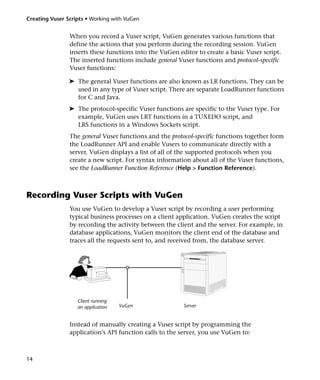
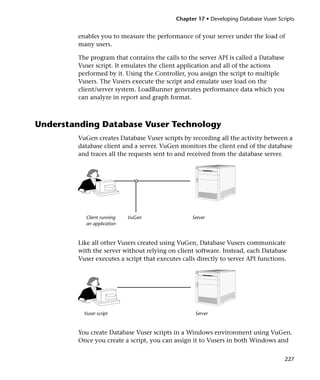
                database applications, VuGen monitors the client end of the database and
                traces all the requests sent to, and received from, the database server.


                                      o


                   Client running
                   an application   VuGen                Server


                Instead of manually creating a Vuser script by programming the
                application’s API function calls to the server, you use VuGen to:


14
Chapter 2 • Introducing VuGen


         ➤ monitor the communication between the application and the server
         ➤ generate the required function calls
         ➤ insert the generated function calls into a Vuser script

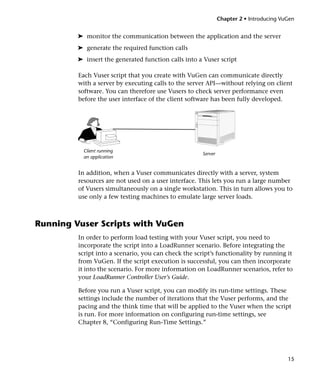
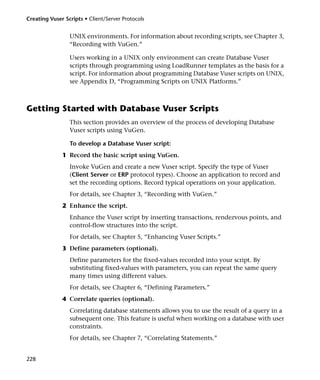
         Each Vuser script that you create with VuGen can communicate directly
         with a server by executing calls to the server API—without relying on client
         software. You can therefore use Vusers to check server performance even
         before the user interface of the client software has been fully developed.


           Client running
                                                      Server
           an application


         In addition, when a Vuser communicates directly with a server, system
         resources are not used on a user interface. This lets you run a large number
         of Vusers simultaneously on a single workstation. This in turn allows you to
         use only a few testing machines to emulate large server loads.


Running Vuser Scripts with VuGen
         In order to perform load testing with your Vuser script, you need to
         incorporate the script into a LoadRunner scenario. Before integrating the
         script into a scenario, you can check the script’s functionality by running it
         from VuGen. If the script execution is successful, you can then incorporate
         it into the scenario. For more information on LoadRunner scenarios, refer to
         your LoadRunner Controller User’s Guide.

         Before you run a Vuser script, you can modify its run-time settings. These
         settings include the number of iterations that the Vuser performs, and the
         pacing and the think time that will be applied to the Vuser when the script
         is run. For more information on configuring run-time settings, see
         Chapter 8, “Configuring Run-Time Settings.”


                                                                                         15
Creating Vuser Scripts • Working with VuGen


                When you run a Vuser script, it is processed by an interpreter and then
                executed. You do not need to compile the script. If you modify a script, any
                syntax errors introduced into the script are noted by the interpreter. You can
                also call external functions from your script that can be recognized and
                executed by the interpreter. For more information, see Appendix C, “Calling
                External Functions.”

                Advanced users can compile a recorded script to create an executable
                program. For more information, see Chapter 5, “Enhancing Vuser Scripts.”


Understanding VuGen Code
                When you record a Vuser script, VuGen generates Vuser functions and
                inserts them into the script. There are two types of Vuser functions:

                ➤ General Vuser Functions
                ➤ Protocol-Specific Vuser Functions

                General Vuser Functions
                The general Vuser functions are also called LR functions because each LR
                function has an lr prefix. The LR functions can be used in any type of Vuser
                script. The LR functions enable you to:

                ➤ Get run-time information about a Vuser, its Vuser Group, and its host.
                ➤ Add transactions and rendezvous points to a Vuser script. For example,
                  the lr_start_transaction (lr.start_transaction in Java) function marks
                  the beginning of a transaction, and the lr_end_transaction
                  (lr.end_transaction in Java) function marks the end of a transaction.
                ➤ Send messages to the output, indicating an error or a warning.
                See “Using C Vuser Functions,” on page 18 for a list of LR functions, and for
                details refer to the LoadRunner Function Reference (Help > Function
                Reference).


16
Chapter 2 • Introducing VuGen


Protocol-Specific Vuser Functions
In addition to the general Vuser functions, VuGen also generates and inserts
protocol-specific functions into the Vuser script while you record.

The protocol-specific functions are particular to the type of Vuser that you
are recording. For example, VuGen inserts LRD functions into a database
script, LRT functions into a TUXEDO script and LRS functions into a
Windows Sockets script.

Refer to the LoadRunner Function Reference (Help > Function Reference) for
details of the protocol-specific functions.

The following segment from a Web Vuser script shows a number of
functions that VuGen generated and inserted into the script:

    #include "as_web.h"


    Action1()
    {

          web_add_cookie("nav=140; DOMAIN=dogbert");

          web_url("dogbert",
             "URL=http://dogbert/",
             "RecContentType=text/html",
             LAST);

          web_image("Library",
             "Alt=Library",
             LAST);

          web_link("1 Book Search:",
             "Text=1 Book Search:",
             LAST);

          lr_start_transaction("Purchase_Order");
    ...


VuGen’s automatic script generator creates Vuser scripts in C (and Java for
CORBA Vusers). All standard conventions apply to the scripts, including


                                                                              17
Creating Vuser Scripts • Working with VuGen


                control flow and syntax. You can add comments and conditional statements
                to the script just as you do in other C or Java programs. For more
                information about using C functions in your Vuser scripts, refer to
                Chapter 5, “Enhancing Vuser Scripts.” For more information about
                modifying a Java script, see Chapter 16, “Programming Java Scripts.”


                Note: The C Interpreter used to run Vuser scripts supports ANSI C language
                only. No Microsoft extensions to ANSI C are supported.


Using C Vuser Functions
                You can add C Vuser functions to any Vuser script in order to enhance the
                script. VuGen generates only a few of the general Vuser functions while you
                record. If required, the remaining functions can be manually programmed
                into a script. For details on the general Vuser functions, see Chapter 5,
                “Enhancing Vuser Scripts.”

                The following list shows the general LoadRunner functions for ANSI C
                scripts. This includes all protocols except for Java and GUI. For a list of the
                Java functions, see Chapter 16, “Programming Java Scripts.”

                Transaction Functions:
                lr_end_transaction                     Marks the end of a LoadRunner
                                                       transaction.
                lr_resume_transaction                  Resumes the collection of transaction
                                                       data.
                lr_start_transaction                   Marks the beginning of a transaction.
                lr_start_sub_transaction               Marks the beginning of a sub-
                                                       transaction.
                lr_stop_transaction                    Stops the collection of transaction
                                                       data.


18
Chapter 2 • Introducing VuGen


lr_start_transaction_instance        Starts a nested transaction specified by
                                     its parent’s handle.
lr_end_sub_transaction               Marks the end of a sub-transaction for
                                     performance analysis.
lr_end_transaction_instance          Marks the end of a transaction
                                     instance for performance analysis.
lr_stop_transaction_instance         Stops collecting data for a transaction
                                     specified by its handle.
lr_resume_transaction                Resumes collecting transaction data
                                     for performance analysis.
lr_resume_transaction_instance       Resumes collecting transaction
                                     instance data for performance
                                     analysis.
lr_wasted_time                       Removes wasted time from all open
                                     transactions.
lr_get_transaction_duration          Gets the duration of a transaction by
                                     its name.
lr_get_trans_instance_duration       Gets the duration of a transaction
                                     instance specified by its handle.
lr_get_transaction_think_time        Gets the think time of a transaction by
                                     its name.
lr_get_transaction_wasted_time       Gets the wasted time of a transaction
                                     by its name.
lr_get_trans_instance_wasted_time Gets the wasted time of a transaction
                                  instance by its handle.
lr_get_trans_instance_wasted_time Gets the wasted time of a transaction
                                  instance by its handle.
lr_set_transaction_status            Sets the status of open transactions.
lr_set_transaction_instance_status Sets the status of a transaction
                                   instance.


                                                                             19
Creating Vuser Scripts • Working with VuGen


                lr_set_transaction_status_by_name Sets the status of a transaction.
                lr_fail_trans_with_error             Sets the status of open transactions to
                                                     LR_FAIL and sends an error message.


                Command Line Parsing Functions
                lr_get_attrib_double          Retrieves a double type variable used on the
                                              script command line.
                lr_get_attrib_long            Retrieves a long type variable used on the
                                              script command line.
                lr_get_attrib_string          Retrieves a string used on the script
                                              command line.

                Informational Functions
                lr_user_data_point            Records a user-defined data sample.
                lr_whoami                     Returns information about a Vuser script to
                                              the Vuser script.
                lr_get_host_name              Returns the name of the host executing the
                                              Vuser script.
                lr_get_master_host_name       Returns the name of the machine running
                                              the LoadRunner Controller.

                String Functions
                lr_eval_string                Replaces a parameter with its current value.
                lr_save_string                Saves a null-terminated string to a parameter.
                lr_save_var                   Saves a variable length string to a parameter.
                lr_save_datetime              Saves the current date and time to a
                                              parameter.
                lr _advance_param             Advances to the next available parameter.
                lr _decrypt                   Decrypts an encoded string.
                lr_eval_string_ext            Retrieves a pointer to a buffer containing
                                              parameter data.


20
Chapter 2 • Introducing VuGen


lr_eval_string_ext_free   Frees the pointer allocated by
                          lr_eval_string_ext.
lr_save_searched_string   Searches for an occurrence of string in a
                          buffer and saves a portion of the buffer,
                          relative to the string occurrence, to a
                          parameter.

Message Functions
lr_debug_message          Sends a debug message to the Output
                          window.
lr_error_message          Sends an error message to the Output
                          window.
lr_get_debug_message      Retrieves the current message class.
lr_log_message            Sends a message to a log file.
lr_output_message         Sends a message to the Output window.
lr_set_debug_message      Sets a debug message class.
lr_vuser_status_message   Generates and prints formatted output to the
                          Controller Vuser status area.
lr_message                Sends a message to the Vuser log and Output
                          window.

Run-Time Functions
lr_load_dll               Loads an external DLL.
lr_peek_events            Indicates where a Vuser script can be paused.
lr_think_time             Pauses script execution to emulate think
                          time—the time a real user pauses to think
                          between actions.
lr_continue_on_error      Specifies an error handling method.
lr_rendezvous             Sets a rendezvous point in a Vuser script.


                                                                       21
Creating Vuser Scripts • Working with VuGen


22
3
Recording with VuGen

         VuGen creates a Vuser script by recording the communication between a
         client application and a server.

         This chapter describes:

      ➤ Vuser Script Sections
      ➤ Recording Vuser Scripts
      ➤ Ending a Recording Session
      ➤ Importing Actions
      ➤ Regenerating a Vuser Script

         The following information applies to all types of Vuser scripts except for
         GUI.


About Recording with VuGen
         VuGen creates a Vuser script by recording the actions that you perform on a
         client application. When you run the recorded script, the resulting Vuser
         emulates the user activity between the client and server.

         Each Vuser script that you create contains at least three sections: vuser_init,
         one or more Actions, and vuser_end. During recording, you can select the
         section of the script into which VuGen will insert the recorded functions. In
         general, you record a login to a server into the vuser_init section, client
         activity into the Actions sections, and the logoff procedure into the vuser_end
         section.


                                                                                      23
Creating Vuser Scripts • Working with VuGen


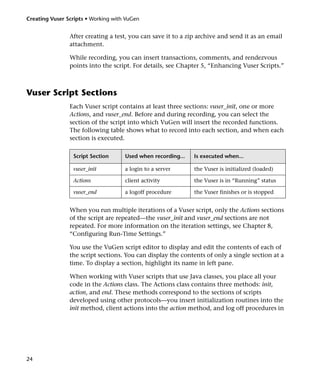
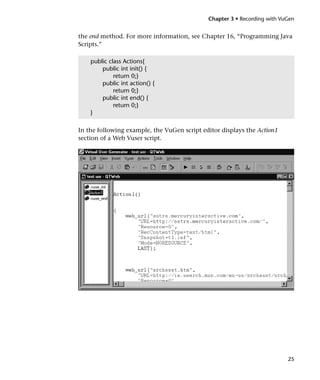
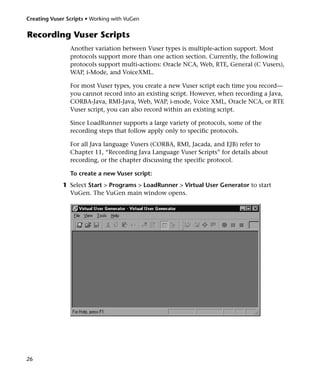
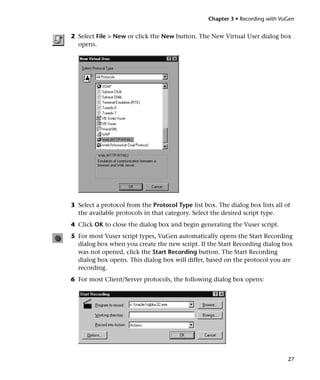
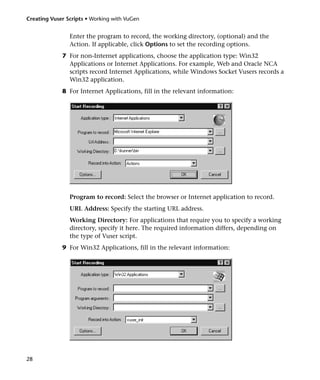
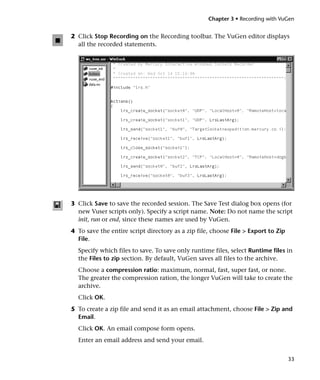
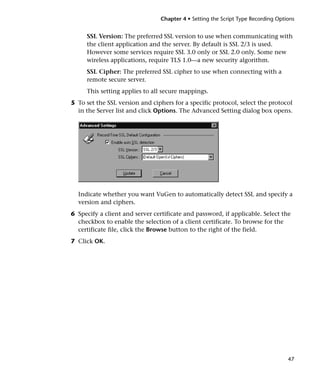
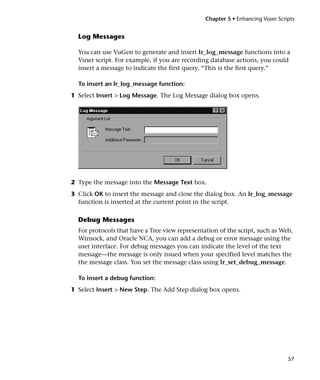
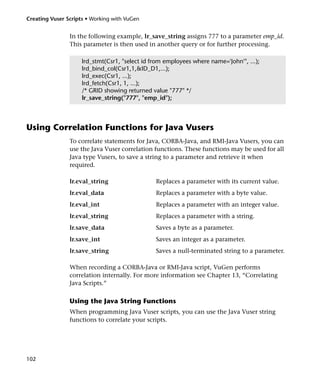
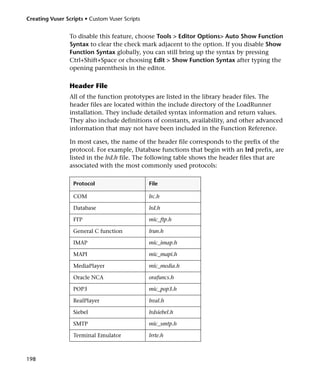
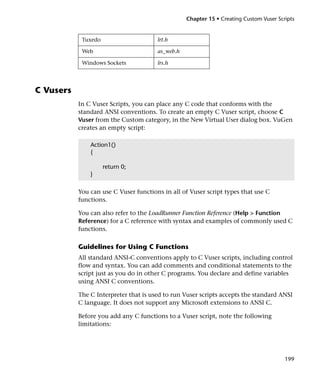
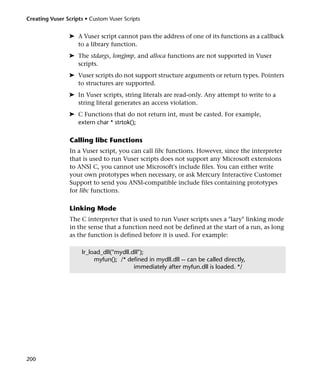
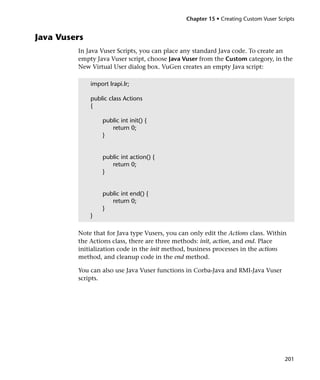
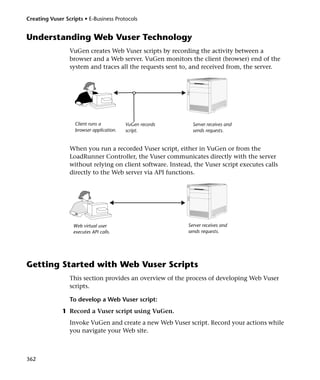
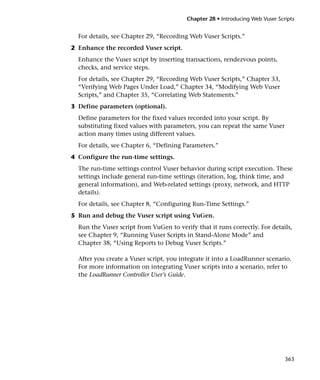
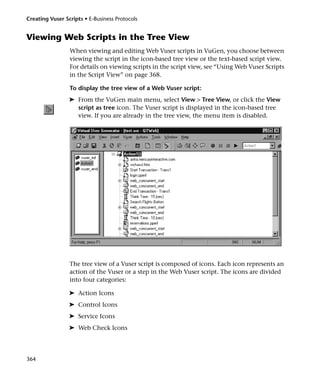
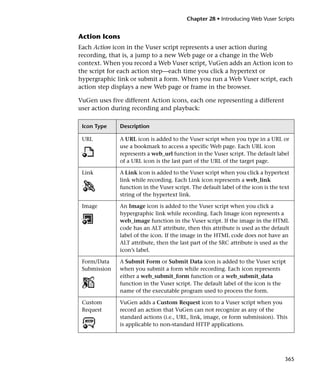
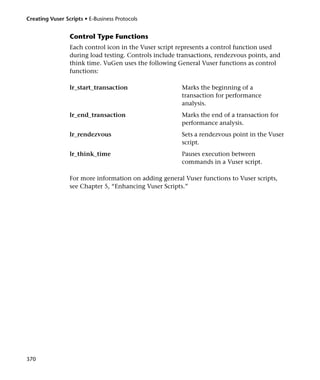
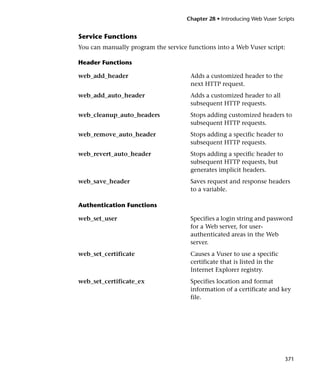
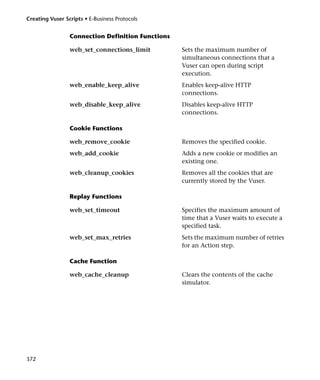
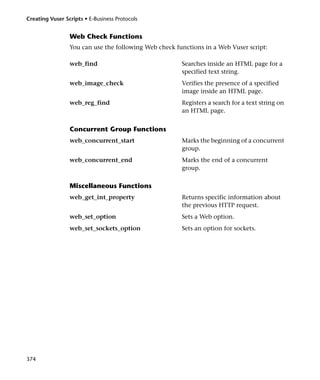
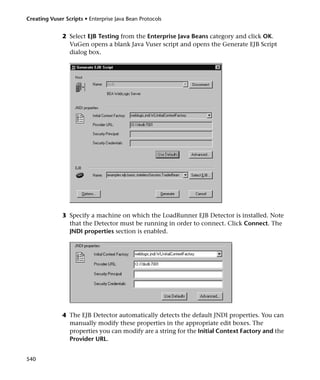
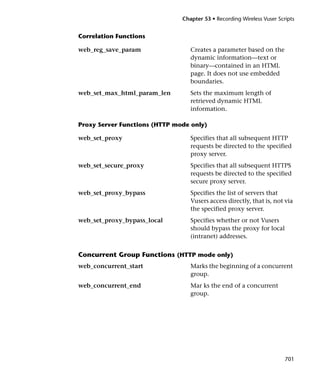
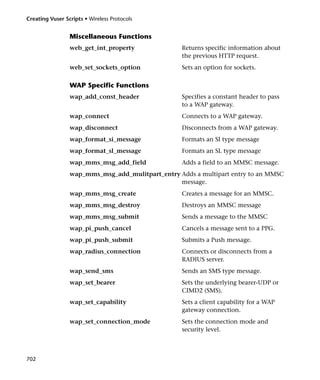
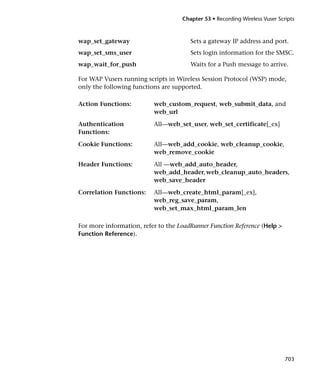
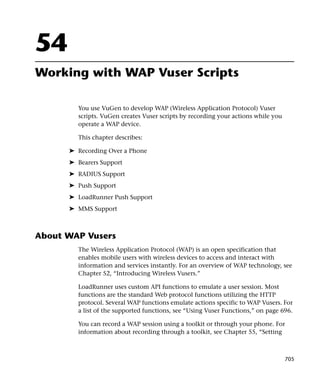
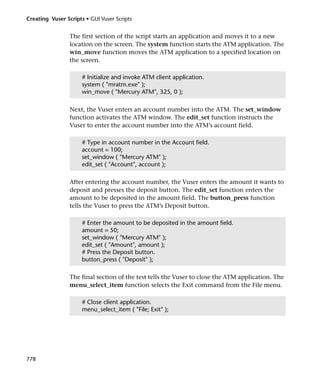
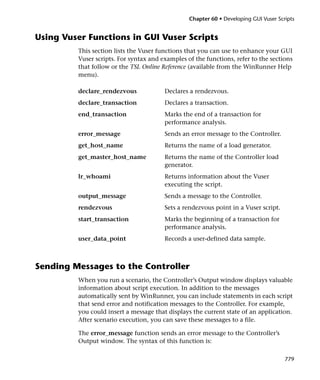
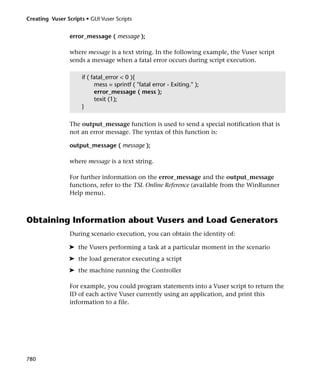
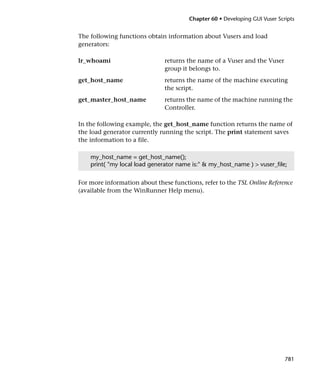
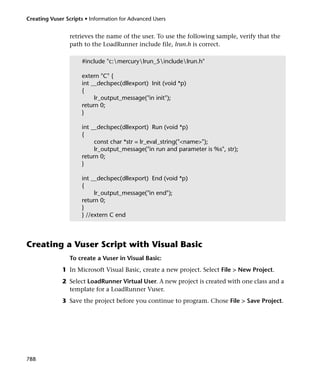
                After creating a test, you can save it to a zip archive and send it as an email
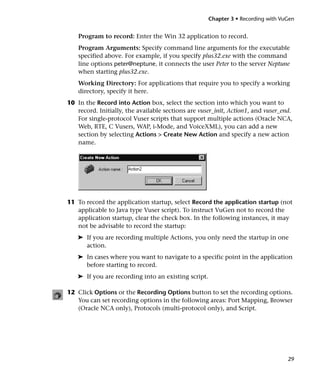
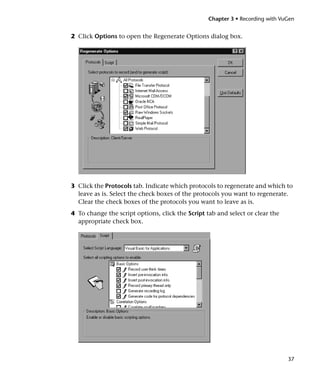
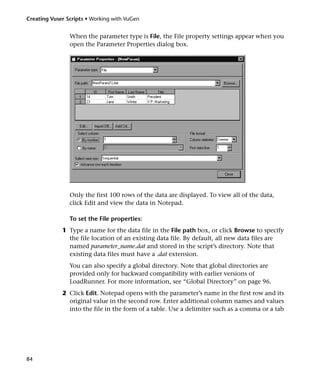
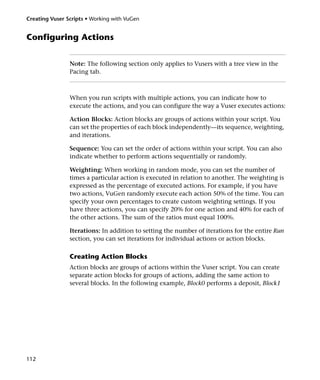
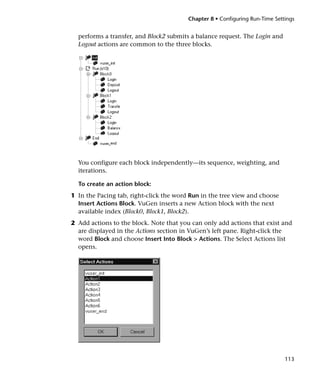
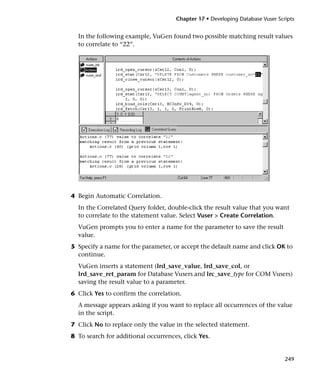
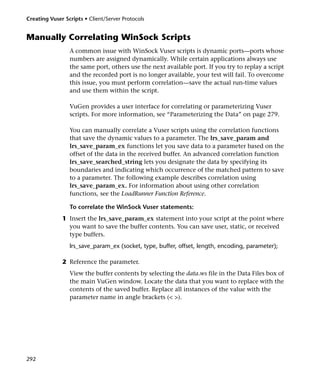
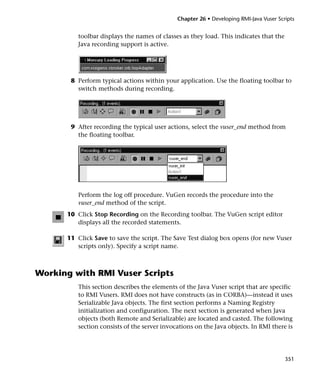
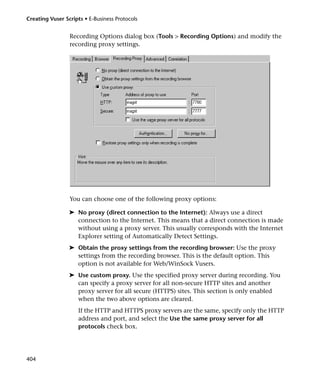
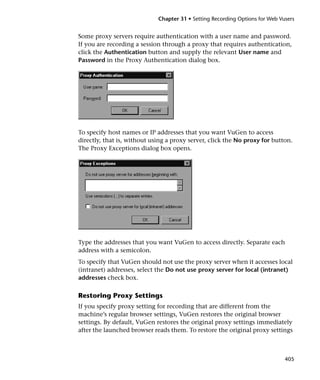
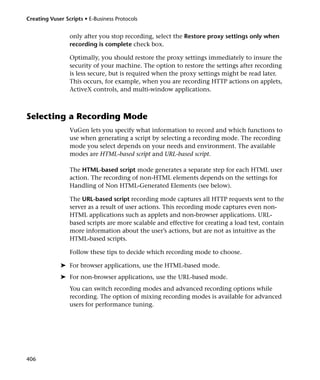
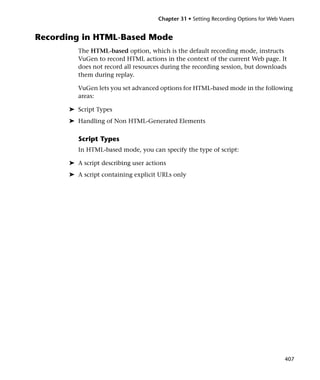
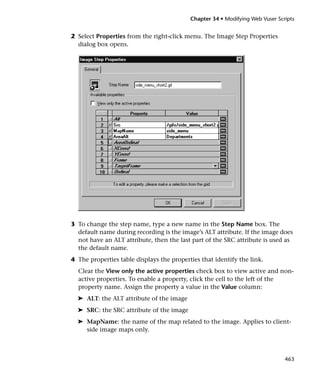
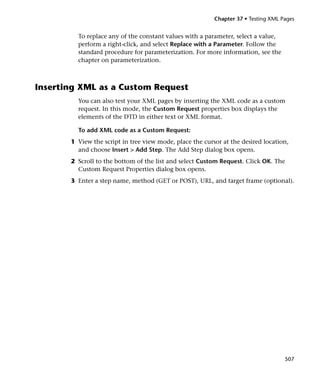
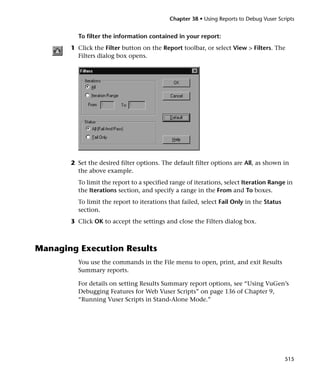
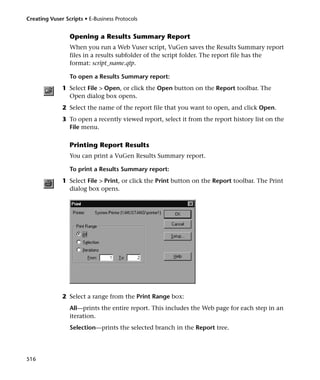
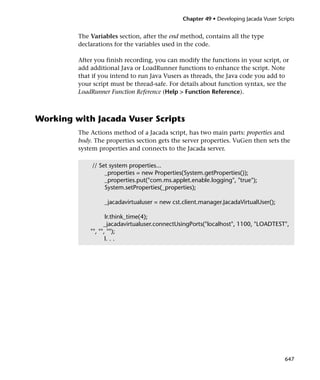
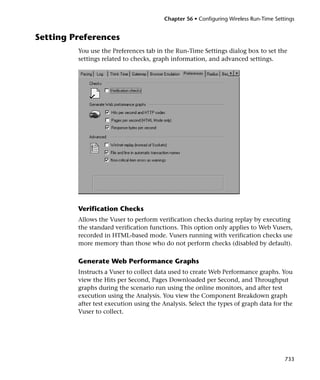
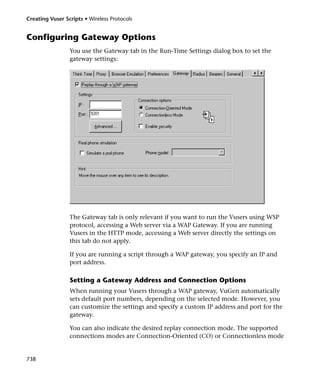
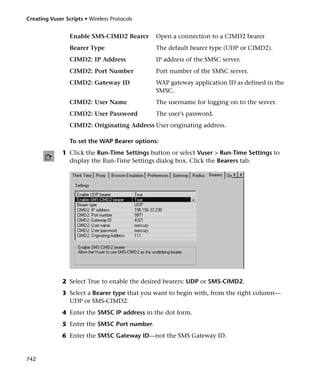
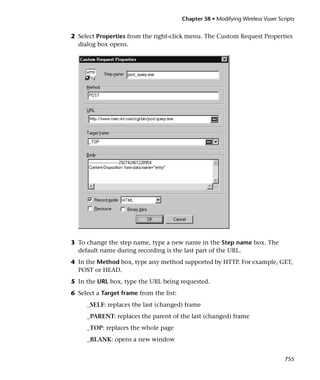
                attachment.

                While recording, you can insert transactions, comments, and rendezvous
                points into the script. For details, see Chapter 5, “Enhancing Vuser Scripts.”


Vuser Script Sections
                Each Vuser script contains at least three sections: vuser_init, one or more
                Actions, and vuser_end. Before and during recording, you can select the
                section of the script into which VuGen will insert the recorded functions.
                The following table shows what to record into each section, and when each
                section is executed.

                 Script Section      Used when recording...   Is executed when...

                 vuser_init          a login to a server      the Vuser is initialized (loaded)

                 Actions             client activity          the Vuser is in “Running” status

                 vuser_end           a logoff procedure       the Vuser finishes or is stopped


                When you run multiple iterations of a Vuser script, only the Actions sections
                of the script are repeated—the vuser_init and vuser_end sections are not
                repeated. For more information on the iteration settings, see Chapter 8,
                “Configuring Run-Time Settings.”

                You use the VuGen script editor to display and edit the contents of each of
                the script sections. You can display the contents of only a single section at a
                time. To display a section, highlight its name in left pane.

                When working with Vuser scripts that use Java classes, you place all your
                code in the Actions class. The Actions class contains three methods: init,
                action, and end. These methods correspond to the sections of scripts
                developed using other protocols—you insert initialization routines into the
                init method, client actions into the action method, and log off procedures in


24
Chapter 3 • Recording with VuGen


the end method. For more information, see Chapter 16, “Programming Java
Scripts.”

    public class Actions{
        public int init() {
             return 0;}
        public int action() {
             return 0;}
        public int end() {
             return 0;}
    }

In the following example, the VuGen script editor displays the Action1
section of a Web Vuser script.


                                                                          25
Creating Vuser Scripts • Working with VuGen


Recording Vuser Scripts
                Another variation between Vuser types is multiple-action support. Most
                protocols support more than one action section. Currently, the following
                protocols support multi-actions: Oracle NCA, Web, RTE, General (C Vusers),
                WAP, i-Mode, and VoiceXML.

                For most Vuser types, you create a new Vuser script each time you record—
                you cannot record into an existing script. However, when recording a Java,
                CORBA-Java, RMI-Java, Web, WAP, i-mode, Voice XML, Oracle NCA, or RTE
                Vuser script, you can also record within an existing script.

                Since LoadRunner supports a large variety of protocols, some of the
                recording steps that follow apply only to specific protocols.

                For all Java language Vusers (CORBA, RMI, Jacada, and EJB) refer to
                Chapter 11, “Recording Java Language Vuser Scripts” for details about
                recording, or the chapter discussing the specific protocol.

                To create a new Vuser script:
             1 Select Start > Programs > LoadRunner > Virtual User Generator to start
               VuGen. The VuGen main window opens.


26
Chapter 3 • Recording with VuGen


2 Select File > New or click the New button. The New Virtual User dialog box
  opens.


3 Select a protocol from the Protocol Type list box. The dialog box lists all of
  the available protocols in that category. Select the desired script type.
4 Click OK to close the dialog box and begin generating the Vuser script.
5 For most Vuser script types, VuGen automatically opens the Start Recording
  dialog box when you create the new script. If the Start Recording dialog box
  was not opened, click the Start Recording button. The Start Recording
  dialog box opens. This dialog box will differ, based on the protocol you are
  recording.
6 For most Client/Server protocols, the following dialog box opens:


                                                                               27
Creating Vuser Scripts • Working with VuGen


                Enter the program to record, the working directory, (optional) and the
                Action. If applicable, click Options to set the recording options.
             7 For non-Internet applications, choose the application type: Win32
               Applications or Internet Applications. For example, Web and Oracle NCA
               scripts record Internet Applications, while Windows Socket Vusers records a
               Win32 application.
             8 For Internet Applications, fill in the relevant information:


                Program to record: Select the browser or Internet application to record.
                URL Address: Specify the starting URL address.
                Working Directory: For applications that require you to specify a working
                directory, specify it here. The required information differs, depending on
                the type of Vuser script.
             9 For Win32 Applications, fill in the relevant information:


28
Chapter 3 • Recording with VuGen


    Program to record: Enter the Win 32 application to record.
    Program Arguments: Specify command line arguments for the executable
    specified above. For example, if you specify plus32.exe with the command
    line options peter@neptune, it connects the user Peter to the server Neptune
    when starting plus32.exe.
    Working Directory: For applications that require you to specify a working
    directory, specify it here.
10 In the Record into Action box, select the section into which you want to
   record. Initially, the available sections are vuser_init, Action1, and vuser_end.
   For single-protocol Vuser scripts that support multiple actions (Oracle NCA,
   Web, RTE, C Vusers, WAP, i-Mode, and VoiceXML), you can add a new
   section by selecting Actions > Create New Action and specify a new action
   name.


11 To record the application startup, select Record the application startup (not
   applicable to Java type Vuser script). To instruct VuGen not to record the
   application startup, clear the check box. In the following instances, it may
   not be advisable to record the startup:
   ➤ If you are recording multiple Actions, you only need the startup in one
     action.
   ➤ In cases where you want to navigate to a specific point in the application
     before starting to record.
   ➤ If you are recording into an existing script.

12 Click Options or the Recording Options button to set the recording options.
   You can set recording options in the following areas: Port Mapping, Browser
   (Oracle NCA only), Protocols (multi-protocol only), and Script.


                                                                                  29
Creating Vuser Scripts • Working with VuGen


            13 Click the Script tab to choose a language for code generation and to set the
               scripting options.


            14 To specify port information, click the Port Mapping tab. This is useful when
               recording SSL applications on a non-standard port. Review the list of ports.
               If the port you are using is not on the list, click New Entry. Enter the port
               number in the Target Port box and choose the applicable type in the


30
Chapter 3 • Recording with VuGen


   Connection Type box (for example SSL). For more information, see the
   Creating Vuser Scripts guide.


15 To enable SSL detection for a secure recording, click Options. The Advanced
   Settings dialog box opens.


   Select the Enable auto SSL detection check box and specify an SSL version
   and SSL cipher.
16 Click Options or the Recording Options button to set the applicable
   recording options. For information about general recording options for see
   Chapter 4, “Setting the Script Type Recording Options.” For other protocol-
   specific recording options, see their respective chapters.
17 Click OK to close the dialog box and begin recording.


                                                                             31
Creating Vuser Scripts • Working with VuGen


            18 If you cleared the Record the application startup check box, the Recording
               Suspended dialog box appears. When you reach the point at which you
               want to start recording, click Record. If you decide not to record, click
               Abort.
            19 VuGen starts your application and the Recording toolbar appears.


                Perform typical actions within your application. VuGen simultaneously fills
                in the selected action section of the Vuser script. Use the floating toolbar to
                switch between sections during recording.


Ending a Recording Session
                After you record a typical business process, you complete the recording
                session by performing the closing steps of your business process and saving
                the Vuser script.

                To complete the recording:

             1 Switch to the vuser_end section in the floating toolbar, and perform the log
               off or cleanup procedure.


32
Chapter 3 • Recording with VuGen


2 Click Stop Recording on the Recording toolbar. The VuGen editor displays
  all the recorded statements.


3 Click Save to save the recorded session. The Save Test dialog box opens (for
  new Vuser scripts only). Specify a script name. Note: Do not name the script
  init, run or end, since these names are used by VuGen.
4 To save the entire script directory as a zip file, choose File > Export to Zip
  File.
  Specify which files to save. To save only runtime files, select Runtime files in
  the Files to zip section. By default, VuGen saves all files to the archive.
  Choose a compression ratio: maximum, normal, fast, super fast, or none.
  The greater the compression ration, the longer VuGen will take to create the
  archive.
  Click OK.
5 To create a zip file and send it as an email attachment, choose File > Zip and
  Email.
  Click OK. An email compose form opens.
  Enter an email address and send your email.


                                                                                   33
Creating Vuser Scripts • Working with VuGen


                After recording, you can view the contents of the vuser_init, Actions, and
                vuser_end sections in the VuGen script editor. To display an action, select the
                action name in the left pane.

                To view a log of the messages that were issued during recording, choose
                View > Output Window and select the Recording Log tab. You can set the
                level of detail for this log in the Advanced tab of the Recording options.


                While you record, VuGen creates a series of configuration, data, and source
                code files. These files contain Vuser run-time and setup information. VuGen
                saves these files together with the script.

                You can manually edit a script in the VuGen editor. For protocols that
                support mulitple actions, you can record additional actions at any time.


34
Chapter 3 • Recording with VuGen


Importing Actions
         For Vuser types that support multiple actions, you can import actions into
         your script from another Vuser script. You can only import actions from
         Vusers of the same type. Note that any parameters associated with the
         imported action, will be merged with the script.

         To import actions into the current script:
       1 Select Actions > Import Action into Vuser. The Import Action dialog box
         opens.


       2 Click Browse to select a Vuser. A list of the script’s actions appears in the
         Actions to Import section.
       3 Highlight an action and click OK. The action appears in your script.
       4 To rearrange the order of actions, you must first enable action reordering.
         Right-click on any action and select Enable Action Reorder. Then drag the
         actions to the desired order.


                                                                                         35
Creating Vuser Scripts • Working with VuGen


Regenerating a Vuser Script
                After recording a script, you can enhance it by adding transactions,
                rendezvous, messages, or comments. For more information, see Chapter 5,
                “Enhancing Vuser Scripts.”

                In addition, you can parameterize the script and correlate variables. For
                more information, see Chapter 6, “Defining Parameters.”

                If you need to revert back to your original script, you regenerate it. This
                feature is ideal for debugging, or fixing a corrupted script.

                When you regenerate a script, it removes all of the manually added
                enhancements. Note that if you added parameters to your script, VuGen
                restores the original values. The parameter list, however, is not deleted; you
                can reinsert parameters that you created earlier.

                To regenerate a Vuser script, choose Tools > Regenerate Vuser. VuGen issues
                a warning indicating that all manual changes will be overwritten.

                When working with multi-protocol scripts, you can control which protocols
                to regenerate.

                To regenerate a multi-protocol Vuser script:
             1 Choose Tools > Regenerate Vuser. VuGen issues a warning indicating that
               all manual changes will be overwritten.


36
Chapter 3 • Recording with VuGen


2 Click Options to open the Regenerate Options dialog box.


3 Click the Protocols tab. Indicate which protocols to regenerate and which to
  leave as is. Select the check boxes of the protocols you want to regenerate.
  Clear the check boxes of the protocols you want to leave as is.
4 To change the script options, click the Script tab and select or clear the
  appropriate check box.


                                                                               37
Creating Vuser Scripts • Working with VuGen


38
4
Setting the Script Type Recording
Options

          Before you record a script with VuGen, you set the recording options. The
          protocol specific recording options are discussed in their respective sections.
          This chapter describes the general recording options that apply to several
          low level protcols.

       ➤ Setting the Script Type Options
       ➤ Configuring the Port Mapping Recording Options

          The following information applies to DCOM, RealPlayer, FTP, SMTP,
          IMAP, and POP3 types of Vuser scripts.


About Setting the Script Type Recording Options
          Before you record a session, you can set several recording options which
          instruct the recorder what to include in the script and how to generate it.

          The recording options discussed in this chapter are the Script and Port
          Mapping options. You configure these options through their respective tabs
          in the Recording Options dialog box.

          The Script recording options apply to the DCOM, RealPlayer, FTP, SMTP,
          IMAP, and POP3 protocols. The Port Mapping options apply to the protocols
          that intercept network level traffic: SMTP, POP3, FTP, and IMAP.


                                                                                        39
Creating Vuser Scripts • Working with VuGen


                Note that you can open the Recording Options dialog box in several ways:

                ➤ The toolbar button:
                ➤ The keyboard shortcut: Ctrl+F7
                ➤ The Tools menu: choose Tools > Recording Options.


Setting the Script Type Options
                Using VuGen, you can record several low level protocols such as FTP, SMTP,
                DCOM and mail protocols (IMAP, POP3, and SMTP). VuGen can generate a
                script with functions that emulate your actions in either C (default) or
                Visual Basic.

                After the recording session, you can modify the script with other C, Visual
                Basic, or JScript functions as well as control flow for each of these languages.

                You can set the Script recording options in the following areas:

            ➤ Basic
            ➤ Correlation
            ➤ DCOM Scripting
            ➤ VBScript and JScript

                Basic Options
                The Basic script options apply to all of the languages and Vuser types. These
                options allow you to control the level of detail in the generated script.

                Record user think times: Insert user think time and delays to simulate real
                user behavior. (enabled by default)

                Insert pre-invocation info: Insert informative logging messages before each
                message invocation. (VB/JS only, enabled by default)

                Insert post-invocation info: Insert informative logging messages after each
                message invocation. (VB/JS only, enabled by default)


40
Chapter 4 • Setting the Script Type Recording Options


Record primary thread only: Record only events running on the
application’s main or primary thread. (disabled by default)

Generate recording log: Generate a log of all events that take place during
recording. (disabled by default)

Generate code for protocol dependencies: Generate code for protocols
that are implicitly loaded by other protocols even though they are not
explicitly selected. For example, NCA which depends on HTTP, generates
both NCA and Web functions. (disabled by default)

Correlation Options
The Correlation options apply to the VBScript and JScript programming
languages. These settings let you configure the extent of automatic
correlation performed by VuGen while recording. All correlation options are
disabled by default.

Correlate small numbers: Correlate short data types such as bytes,
characters, and short integers. (disabled by default)

Correlate large numbers: Correlate long data types such as integers, long
integers, 64-bit characters, float, and double. (disabled by default)

Correlate simple strings: Correlate simple, non-array strings and phrases.
(disabled by default)

Correlate arrays: Track and correlate arrays of all data types, such as string,
structures, numbers, etc. (disabled by default)

Correlate structures: Track and correlate complex structures. (disabled by
default)

DCOM Scripting Options
The DCOM scripting options apply to all programming languages. These
settings let you configure the scripting options for DCOM methods and
interface handling.

ADO Recordset filtering: Condense multiple recordset operations into a
single-line fetch statement. (disabled by default)


                                                                                41
Creating Vuser Scripts • Working with VuGen

                Save recordset content: Stores recordset content as grids during the
                recording session, so that it may be viewed later in VuGen. (enabled by
                default)

                Record COM Exceptions/Errors: Record COM functions and methods that
                generate exceptions and errors during recording. (enabled by default)

                Release COM Objects: Record the release of COM objects when they are no
                longer in use. (disabled by default)

                Limit size of SafeArray log: Limit the number of elements printed in the
                safearray log per COM call, to 16. (disabled by default)

                Generate COM statistics: Generate recording time performance statistics
                and summary information. (enabled by default)

                VBScript and JScript Options
                The VBScript and JScript options allow you to control the use of type helpers
                in scripting environments.

                Use Helpers for objects: Use helper functions to extract object references
                from variants when passed as function arguments. (disabled by default)

                Use Helpers for arrays: Use helper functions to extract components from
                variants arrays. (disabled by default)


42
Chapter 4 • Setting the Script Type Recording Options


  To set the script recording options:
1 Choose Tools > Recording Options from the main menu or click Options...
  in the Start Recording dialog box. The Recording Options dialog box opens.
  Click the Script tab.


2 In the Select Script Language box, select a mode of code generation — C
  Language or Visual Basic Scripting. Use C for recording applications that use
  complex constructs and C++ code. Use Visual Basic Scripting mode to record
  script-based applications.
3 In the Select all scripting options to enable section, choose the desired
  options by selecting the check box adjacent to the option. The Basic,
  Correlation, DCOM, and VBScript/JScript options are described in the
  previous section.
4 Click OK to save your settings and close the dialog box.


                                                                                  43
Creating Vuser Scripts • Working with VuGen


Configuring the Port Mapping Recording Options
                When recording protocols that intercept network level traffic (HTTP, SMTP,
                POP3, FTP, and IMAP), you can set several recording options. You can
                indicate the server and ports whose traffic you want to record, and supply
                custom security information. Using the Port Mapping tab, you can map
                protocols to specific servers and port addresses. Ordinarily, the various
                server types use a standard port. For example, FTP servers use port 21, SMTP
                servers use port 25, and POP3 servers use port 110.

                In most cases, VuGen’s recorder is able to recognize the signatures of these
                protocols. It then automatically assigns the correct ports and processes them
                according to the protocol specifications. In certain instances, however, the
                recorder may be unable to recognize the protocol. For example:

                ➤ The protocol signature closely resembles an existing protocol, resulting
                  in erroneous processing.
                ➤ There is no unique signature for the protocol.
                ➤ The protocol uses SSL encryption, and therefore cannot be recognized on
                  a WinSock level.
                In all of the above cases, you must supply information to uniquely identify
                the server and port hosting the protocol.


44
Chapter 4 • Setting the Script Type Recording Options


  To set the port mapping recording options:
1 Choose Tools > Recording Options from the main menu or click Options...
  in the Start Recording dialog box. The Recording Options dialog box opens.
  Click the Port Mapping tab.


2 In the Network-level server address mappings box, select the protocol
  whose address mappings you want to view. Select All to view all available
  service mappings. To enable recording on for a specific entry, click the
  checkbox adjacent to that item. To disable recording for a specific entry,
  clear the checkbox. Double-click on an existing entry to change the
  connection type and other configuration properties.


                                                                                 45
Creating Vuser Scripts • Working with VuGen


             3 To add a new entry to the list, click New Entry.


             4 Enter the following Server information:
                Service ID: A protocol or service name used by the recorder to identify the
                type of connection (i.e. HTTP, RPC, etc.) The name may not exceed 8
                characters.
                Service Type: The type of service, currently set to TCPIP.
                Target Server: The IP address or hostname of the target server for which this
                entry applies. The default is All Servers.
                Target Port: The port of the target server for which this entry applies. Port 0
                implies all ports.
                Connection Type: The security level of the connection: Plain (non-secure),
                SSL, or Auto. If you select Auto, the recorder checks the first 4 bytes for an
                SSL signature. If it detects the SSL signature, it assumes that SSL is being
                used. If you select SSL, specify the SSL information:


46
Chapter 4 • Setting the Script Type Recording Options


     SSL Version: The preferred SSL version to use when communicating with
     the client application and the server. By default is SSL 2/3 is used.
     However some services require SSL 3.0 only or SSL 2.0 only. Some new
     wireless applications, require TLS 1.0—a new security algorithm.
     SSL Cipher: The preferred SSL cipher to use when connecting with a
     remote secure server.
     This setting applies to all secure mappings.
5 To set the SSL version and ciphers for a specific protocol, select the protocol
  in the Server list and click Options. The Advanced Setting dialog box opens.


  Indicate whether you want VuGen to automatically detect SSL and specify a
  version and ciphers.
6 Specify a client and server certificate and password, if applicable. Select the
  checkbox to enable the selection of a client certificate. To browse for the
  certificate file, click the Browse button to the right of the field.
7 Click OK.


                                                                                   47
Creating Vuser Scripts • Working with VuGen


48
5
Enhancing Vuser Scripts

        You can enhance a Vuser script—either during or after recording—by adding
        General Vuser functions, Protocol-Specific Vuser functions, and Standard
        ANSI C functions.

        This chapter describes:

     ➤ Inserting Transactions into a Vuser Script
     ➤ Inserting Rendezvous Points into a Vuser Script
     ➤ Inserting Comments into a Vuser Script
     ➤ Obtaining Vuser Information
     ➤ Sending Messages to Output
     ➤ Handling Errors in Vuser Scripts During Execution
     ➤ Synchronizing Vuser Scripts
     ➤ Emulating User Think Time
     ➤ Handling Command Line Arguments
     ➤ Using C Functions in Vuser Scripts

        The following information applies to all types of Vuser scripts except for
        GUI and Java.


                                                                                     49
Creating Vuser Scripts • Working with VuGen


About Enhancing Vuser Scripts
                While you are recording a Vuser script, or after you record it, you can
                enhance its capabilities by adding the following types of functions:

                ➤ General Vuser Functions
                ➤ Protocol-Specific Vuser Functions
                ➤ Standard ANSI C Functions

                General Vuser Functions
                General Vuser functions greatly enhance the functionality of any Vuser
                script. For example, you can use General Vuser functions to measure server
                performance, control server load, add debugging code, or retrieve run-time
                information about the Vusers participating in the scenario.

                You can use General Vuser functions in any type of Vuser script. All General
                Vuser functions have an LR prefix. VuGen generates some General Vuser
                functions and inserts them into a Vuser script during recording. To use
                additional functions that were not automatically generated, choose Insert >
                New Step from VuGen’s main window and select the desired function.

                This chapter discusses the use of only the most common General Vuser
                functions. For additional information about Vuser functions, refer to the
                LoadRunner Function Reference (Help > Function Reference).

                Protocol-Specific Vuser Functions
                There are several libraries of functions that you can use to enhance a Vuser
                script. Each library is specific to a type of Vuser. For example, you use the
                LRS functions in a Windows Sockets Vuser script and LRT functions in a
                TUXEDO Vuser script. For details on the protocol-specific Vuser functions,
                see the LoadRunner Function Reference (Help > Function Reference).


50
Chapter 5 • Enhancing Vuser Scripts


          Standard ANSI C Functions
          You can enhance your Vuser scripts by adding standard ANSI C functions.
          ANSI C functions allow you to add comments, control flow statements,
          conditional statements, and so forth to your Vuser scripts. You can add
          standard ANSI C functions to any type of Vuser script. For details, see “Using
          C Functions in Vuser Scripts,” on page 63.


Inserting Transactions into a Vuser Script
          You define transactions to measure the performance of the server. Each
          transaction measures the time it takes for the server to respond to specified
          Vuser requests. These requests can be simple tasks such as waiting for a
          response for a single query, or complex tasks, such as submitting several
          queries and generating a report.

          To measure a transaction, you insert Vuser functions to mark the beginning
          and the end of a task. Within a script, you can mark an unlimited number of
          transactions, each transaction with a different name.

          During scenario execution, the Controller measures the time that it takes to
          perform each transaction. After the scenario run, you analyze the server’s
          performance per transaction using LoadRunner’s graphs and reports.

          To mark the start of a transaction:
        1 While recording a Vuser script, click the Start Transaction button on the
          Recording toolbar. The Start Transaction dialog box opens.


        2 Type a transaction name in the Transaction Name box. Transaction names
          must begin with a letter or number and may contain letters, numbers, or the
          following characters !, $, %, &, ', -, [, ^, _, `, <, >, {, }, |, or ~.


                                                                                        51
Creating Vuser Scripts • Working with VuGen


                Click OK to accept the transaction name. VuGen inserts an
                lr_start_transaction statement into the Vuser script. For example, the
                following function indicates the start of the trans1 transaction:

                     lr_start_transaction("trans1");


                Note: You can insert transactions into your script after you complete a
                recording session by selecting Insert > Start Transaction to mark the
                beginning of the transaction, and Insert > End Transaction to mark its end.


                To mark the end of a transaction:
             1 While recording a script, click the End Transaction button on the Recording
               toolbar. The End Transaction dialog box opens.


             2 Click the arrow for a list of open transactions. Select the transaction to close.
                Click OK to accept the transaction name. VuGen inserts an
                lr_end_transaction statement into the Vuser script. For example, the
                following function indicates the end of the trans1 transaction:

                     lr_end_transaction("trans1", LR_AUTO);


52
Chapter 5 • Enhancing Vuser Scripts


Inserting Rendezvous Points into a Vuser Script
          To emulate heavy user load on your client/server system, you synchronize
          Vusers to perform a task at exactly the same moment. You ensure that
          multiple Vusers act simultaneously by creating a rendezvous point. When a
          Vuser arrives at the rendezvous point, it is held by the Controller until all
          Vusers participating in the rendezvous arrive. When the rendezvous
          conditions are met, the Vusers are released by the Controller.

          You designate the meeting place by inserting a rendezvous point into your
          Vuser script. When a Vuser executes a script and encounters the rendezvous
          point, script execution is paused and the Vuser waits for permission from
          the Controller to continue. After the Vuser is released from the rendezvous,
          it performs the next task in the script.


          Note: You cannot add a rendezvous to the init or end actions of your script.


          To insert a rendezvous point:
        1 While recording a Vuser script, click the Rendezvous button on the
          Recording toolbar. The Rendezvous dialog box opens.


        2 Type a name for the rendezvous point in the Rendezvous Name box.
          Click OK to accept the rendezvous name. VuGen inserts an lr_rendezvous
          statement into the Vuser script. For example, the following function defines
          a rendezvous point named rendezvous1:

              lr_rendezvous("rendezvous1");


                                                                                        53
Creating Vuser Scripts • Working with VuGen


                Note: You can insert rendezvous points into your script after you complete a
                recording session, by selecting Insert > Rendezvous from the VuGen menu.


Inserting Comments into a Vuser Script
                VuGen allows you to insert comments between Vuser activities. You can
                insert a comment to describe an activity or to provide information about a
                specific operation. For example, if you are recording database actions, you
                could insert a comment to mark the first query, such as “This is the first
                query.”

                To insert a comment:
             1 While recording a script, click the Comment button on the Recording tool
               bar. The Insert Comment dialog box opens.


             2 Type the comment into the text box.
             3 Click OK to insert the comment and close the dialog box. The text is placed
               at the current point in the script, enclosed by comment markers. The
               following script segment shows how a comment appears in a Vuser script:

                     /*
                     * This is the first query
                     */


54
Chapter 5 • Enhancing Vuser Scripts


         Note: You can insert comments into your script after you complete a
         recording session, by selecting Insert > Comment from the VuGen menu.


Obtaining Vuser Information
         You can add the following functions to your Vuser scripts to retrieve Vuser
         information:

         lr_get_attrib_string          Returns a string containing command line
                                       argument values or run-time information
                                       such as the Vuser ID or the load generator
                                       name (as an alternate to the above functions).
         lr_get_host_name              Returns the name of the load generator for
                                       the Vuser.
         lr_get_master_host_name       Returns the name of the LoadRunner
                                       Controller load generator.
         lr_whoami                     Returns the Vuser ID, Vuser Group, and
                                       scenario ID for a Vuser.

         In the following example, the lr_get_host_name function retrieves the
         name of the computer on which the Vuser is running.

             my_host = lr_get_host_name( );


         For more information about the above functions, refer to the LoadRunner
         Function Reference (Help > Function Reference).


                                                                                      55
Creating Vuser Scripts • Working with VuGen


Sending Messages to Output
                When you run a scenario, the Controller’s Output window displays
                information about script execution. You can include statements in a Vuser
                script to send error and notification messages to the Controller. The
                Controller displays these messages in the Output window. For example, you
                could insert a message that displays the current state of the client
                application. You can also save these messages to a file.


                Note: Do not to send messages from within a transaction. Doing so
                lengthens the transaction execution time and may skew the actual
                transaction results.


                You can use the following message functions in your Vuser scripts:

                lr_debug_message              Sends a debug message to the output window.
                lr_error_message              Sends an error message to the output
                                              window.
                lr_get_debug_message          Retrieves the current message class.
                lr_log_message                Sends an output message directly to a file,
                                              output.txt, located in the Vuser script
                                              directory. This function is useful in
                                              preventing output messages from interfering
                                              with TCP/IP traffic.
                lr_output_message             Sends a message to the Output window.
                lr_set_debug_message          Sets a message class for output messages.
                lr_vuser_status_message       Generates and prints formatted output to the
                                              Controller Vuser status area.
                lr_message                    Sends a message to the Vuser log and Output
                                              window.


56
Chapter 5 • Enhancing Vuser Scripts


  Log Messages

  You can use VuGen to generate and insert lr_log_message functions into a
  Vuser script. For example, if you are recording database actions, you could
  insert a message to indicate the first query, “This is the first query.”

  To insert an lr_log_message function:
1 Select Insert > Log Message. The Log Message dialog box opens.


2 Type the message into the Message Text box.
3 Click OK to insert the message and close the dialog box. An lr_log_message
  function is inserted at the current point in the script.

  Debug Messages
  For protocols that have a Tree view representation of the script, such as Web,
  Winsock, and Oracle NCA, you can add a debug or error message using the
  user interface. For debug messages you can indicate the level of the text
  message—the message is only issued when your specified level matches the
  the message class. You set the message class using lr_set_debug_message.

  To insert a debug function:
1 Select Insert > New Step. The Add Step dialog box opens.


                                                                                57
Creating Vuser Scripts • Working with VuGen


             2 Select the Debug Message step and click OK. The Debug Message dialog box
               opens.


             3 Select a message level, Brief or Extended Log. If you choose Extended Log,
               indicate the type of information to log: Parameter Substitution, Result Data,
               or Full Trace.
             4 Type the message into the Message Text box.
             5 Click OK to insert the message and close the dialog box. An
               lr_debug_message function is inserted at the current point in the script.

                Error and Output Messages
                For protocols with a Tree view representation of the script, such as Web,
                Winsock, and Oracle NCA, you can add an error or output message using
                the user interface. A common usage of this function is to insert a
                conditional statement, and issue a message if the error condition is detected.

                To insert an error or output message function:
             1 Select Insert > New Step. The Add Step dialog box opens.


58
Chapter 5 • Enhancing Vuser Scripts


        2 Select the Error Message or Output Message step and click OK. The Error
          Message or Output Message dialog box opens.


        3 Type the message into the Message Text box.
        4 Click OK to insert the message and close the dialog box. An
          lr_error_message or lr_output_message function is inserted at the current
          point in the script.

          For more information about the message functions, refer to the LoadRunner
          Function Reference (Help > Function Reference).


Handling Errors in Vuser Scripts During Execution
          You can specify how a Vuser handles errors during script execution. By
          default, when a Vuser detects an error, the Vuser stops. You can instruct a
          Vuser to continue executing the script when an error occurs. This can be
          done in the following ways:

          ➤ Using run-time settings. You can specify the Continue on Error run-time
            setting. The Continue on Error run-time setting applies to the entire
            Vuser script. You can use the lr_continue_on_error function to override
            the Continue on Error run-time setting for a portion of a script. For
            details, see “Error Handling,” on page 125.
          ➤ Using the lr_continue_on_error function. The lr_continue_on_error
            function enables you to control error handling for a specific segment of a
            Vuser script. To mark the segment, enclose it with
            lr_continue_on_error(1); and lr_continue_on_error(0); statements. The


                                                                                        59
Creating Vuser Scripts • Working with VuGen


                   new error settings apply to the enclosed Vuser script segment. See the
                   paragraphs below for details.

                For example, if you enable the Continue on Error run-time setting and a
                Vuser encounters an error during replay of the following script segment, the
                Vuser continues executing the script.

                         web_link("EBOOKS",
                            "Text=EBOOKS",
                            "Snapshot=t2.inf",
                            LAST);

                         web_link("Find Rocket eBooks",
                            "Text=Find Rocket eBooks",
                            "Snapshot=t3.inf",
                            LAST);

                To instruct the Vuser to continue on error for the entire script, except for the
                above segment, enclose the segment with the appropriate
                lr_continue_on_error statements:

                     lr_continue_on_error(1);
                          web_link("EBOOKS",
                             "Text=EBOOKS",
                             "Snapshot=t2.inf",
                             LAST);

                          web_link("Find Rocket eBooks",
                             "Text=Find Rocket eBooks",
                             "Snapshot=t3.inf",
                             LAST);
                     lr_continue_on_error(0);


Synchronizing Vuser Scripts
                You can add synchronization functions to synchronize the execution of the
                Vuser script with the output from your application. Synchronization applies
                to RTE Vuser scripts only.


60
Chapter 5 • Enhancing Vuser Scripts


         The following synchronization functions exist:

         TE_wait_cursor                Waits for the cursor to appear at a specified
                                       location in the terminal window.
         TE_wait_silent                Waits for the client application to be silent
                                       for a specified number of seconds.
         TE_wait_sync                  Waits for the system to return from X-
                                       SYSTEM or Input Inhibited mode.
         TE_wait_text                  Waits for a string to appear in a designated
                                       location.
         TE_wait_sync_transaction      Records the time that the system remained in
                                       the most recent X SYSTEM mode.

         For details on using synchronization functions in RTE Vuser scripts, see
         Chapter 46, “Synchronizing RTE Vuser Scripts.”


Emulating User Think Time
         The time that a user waits between performing successive actions is known
         as the think time. Vusers use the lr_think_time function to emulate user
         think time. When your record a Vuser script, VuGen records the actual think
         times and inserts appropriate lr_think_time statements into the Vuser
         script. You can edit the recorded lr_think_time statements, and manually
         add more lr_think_time statements to a Vuser script.


         Note: When you record a Java Vuser script, lr_think_time statements are
         not generated in the Vuser script.


         You can use the think time settings to influence how the lr_think_time
         statements operate when you execute a Vuser script. To access the think
         time settings, select Vuser > Run-time Settings from the VuGen main menu,
         and then click the Think Time tab.


                                                                                       61
Creating Vuser Scripts • Working with VuGen


                For more information about the lr_think_time function, refer to the
                LoadRunner Function Reference (Help > Function Reference).


Handling Command Line Arguments
                You can pass values to a Vuser script at run-time by specifying command
                line arguments when you run the script. There are three functions that
                allow you to read the command line arguments, and then to pass the values
                to a Vuser script:

                lr_get_attrib_double             Retrieves double precision floating point type
                                                 arguments
                lr_get_attrib_long               Retrieves long integer type arguments
                lr_get_attrib_string             Retrieves character strings

                Your command line should have one of the following two formats where
                the arguments and their values are listed in pairs, after the script name:

                     script_name -argument argument_value -argument argument_value


                     script_name /argument argument_value /argument argument_value


                The following example shows the command line string used to repeat script1
                five times on the load generator pc4:

                     script1 -host pc4 -loop 5

                For more information on the command line parsing functions, or for details
                on including arguments on a command line, refer to the LoadRunner
                Function Reference (Help > Function Reference).


62
Chapter 5 • Enhancing Vuser Scripts


Encrypting Text
          You can encrypt text within your script to protect your passwords and other
          confidential text strings. You can perform encryption both automatically,
          from the user interface, and manually, through programming. When you
          encrypt a string, it appears in the script as a coded string. In order for the
          script to use the encrypted string, it must be decrypted with lr_decrypt.

          lr_start_transaction(lr_decrypt("3c29f4486a595750"));

          You can restore the string at any time, to determine its original value.

          To encrypt a string:
        1 For protocols that have tree views, view the script in script view. Choose
          View > Script View.
        2 Select the text you want to encrypt.
        3 Select Encrypt string (string) from the right-click menu.

          To restore an encrypted string:
        1 For protocols that have tree views, view the script in script view. Choose
          View > Script View.
        2 Select the string you want to restore.
        3 Select Restore encrypted string (string) from the right-click menu.
          For more information on the lr_decrypt function, see the LoadRunner
          Function Reference (Help > Function Reference).


Using C Functions in Vuser Scripts
          VuGen generates Vuser scripts in C. All standard ANSI C conventions apply
          to the scripts, including control flow and syntax. You can add comments
          and conditional statements to the script just as you do in other C programs.
          You declare and define variables using ANSI C conventions.

          The LoadRunner Function Reference (Help > Function Reference) contains a C
          reference with syntax and examples of commonly used C functions.


                                                                                        63
Creating Vuser Scripts • Working with VuGen


                The C Interpreter that is used to run Vuser scripts accepts the standard ANSI
                C language. It does not support any Microsoft extensions to ANSI C.

                Before you add any C functions to a Vuser script, note the following
                limitations:

                ➤ A Vuser script cannot pass the address of one of its functions as a callback
                  to a library function.
                ➤ The stdargs, longjmp, and alloca functions are not supported in Vuser
                  scripts.
                ➤ Vuser scripts do not support structure arguments or return types. Pointers
                  to structures are supported.
                ➤ In Vuser scripts, string literals are read-only. Any attempt to write to a
                  string literal generates an access violation.

                Calling libc Functions
                In a Vuser script, you can call libc functions. However, since the interpreter
                that is used to run Vuser scripts does not support any Microsoft extensions
                to ANSI C, you cannot use Microsoft's include files. You can either write
                your own prototypes when necessary, or ask Mercury Interactive Customer
                Support to send you ANSI-compatible include files containing prototypes
                for libc functions.

                Linking Mode
                The C interpreter that is used to run Vuser scripts uses a “lazy” linking mode
                in the sense that a function need not be defined at the start of a run, as long
                as the function is defined before it is used. For example:

                     lr_load_dll("mydll.dll");
                          myfun(); /* defined in mydll.dll -- can be called directly,
                                         immediately after myfun.dll is loaded. */


64
6
Defining Parameters

        When you record a business process, VuGen generates a script that contains
        the actual values used during recording. Suppose you want to perform the
        script’s actions (query, submit, and so forth) using different values from
        those recorded. To do this, you replace the recorded values with parameters.
        This is known as parameterizing the script.

        This chapter describes:

     ➤ Understanding Parameter Limitations
     ➤ Creating Parameters
     ➤ Defining Parameter Properties
     ➤ Understanding Parameter Types
     ➤ Setting Parameter Properties for Internal Data Types
     ➤ Setting Parameter Properties for Data Files
     ➤ Importing Data from Existing Databases
     ➤ User-Defined Functions
     ➤ Parameterization Options

        The following information applies to all types of Vuser scripts except for
        GUI.


                                                                                     65
Creating Vuser Scripts • Working with VuGen


About Defining Parameters
                When you record a business process, VuGen generates a Vuser script
                composed of functions. The values of the arguments in the functions are the
                actual values used during the recording session.

                For example, assume that you recorded a Vuser script while operating a Web
                application. VuGen generated the following statement that searches a
                library’s database for the title “UNIX”:

                         web_submit_form("db2net.exe",
                               ITEMDATA,
                               "name=library.TITLE",
                               "value=UNIX",
                               ENDITEM,
                               "name=library.AUTHOR",
                               "value=",
                               ENDITEM,
                               "name=library.SUBJECT",
                               "value=",
                               ENDITEM,
                               LAST);
                     ;

                When you replay the script using multiple Vusers and iterations, you do not
                want to repeatedly use the same value, UNIX. Instead, you replace the
                constant value with a parameter:

                     web_submit_form("db2net.exe",
                            ITEMDATA,
                            "name=library.TITLE",
                            "value={Book_Title}",
                            ENDITEM,
                            "name=library.AUTHOR",
                            "value=",
                            ENDITEM,
                            "name=library.SUBJECT",
                            "value=",
                            ENDITEM,
                            LAST);


66
Chapter 6 • Defining Parameters


          The resulting Vusers then substitute the parameter with values from a data
          source that you specify. The data source can be either a file, or internally
          generated variables. For more information about data sources, see
          “Understanding Parameter Types” on page 75.

          Parameterizing a Vuser script has two advantages:

       ➤ It reduces the size of the script.
       ➤ It provides the ability to test your script with different values. For example,
         if you want to search a library’s database for several titles, you only need to
         write the submit function once. Instead of instructing your Vuser to search
         for a specific item, use a parameter. During replay, VuGen substitutes
         different values for the parameter.

          Parameterization involves the following two tasks:

       ➤ Replacing the constant values in the Vuser script with parameters
       ➤ Setting the properties and data source for the parameters


Understanding Parameter Limitations
          You can use parameterization only for the arguments within a function. You
          cannot parameterize text strings that are not function arguments. In
          addition, not all function arguments can be parameterized. For details on
          which arguments you can parameterize, see the LoadRunner Function
          Reference (Help > Function Reference).

          For example, consider the lrd_stmt function. The function has the
          following syntax:

              lrd_stmt ( LRD_CURSOR FAR *mptCursor, char FAR *mpcText, long mliTex-
              tLen, LRDOS_INT4 mjOpt1, LRDOS_INT4 mjOpt2, int miDBErrorSeverity );


          The LoadRunner Function Reference indicates that you can parameterize only
          the mpcText argument.


                                                                                       67
Creating Vuser Scripts • Working with VuGen


                A recorded lrd_stmt function could look like this:

                     lrd_stmt( Csr4, "select name from sysobjects where name ="Kim" ", -1,
                     148, -99999, 0);


                You could parameterize the recorded function to look like this:

                     lrd_stmt( Csr4, "select name from sysobjects where name ="<name>" ",
                     -1, 148, -99999, 0);


                Note: You can use the lr_eval_string function to “parameterize” a function
                argument that you cannot parameterize by using standard parameterization.
                In addition, you can use the lr_eval_string function to “parameterize” any
                string in a Vuser script. For more information on the lr_eval_string
                function, see the LoadRunner Function Reference.


Creating Parameters
                You create a parameter by specifying its name and type. There is no limit to
                the number of parameters you can create in a Vuser script.

                In Web Vuser scripts, you can create parameters in the text-based script view
                using the procedure below, or you can create parameters in the icon-based
                tree view. For details on creating parameters in the tree view of Web Vuser
                scripts, see “Creating Parameters in the Tree View of Web Vuser Scripts” on
                page 71.


68
Chapter 6 • Defining Parameters


  To create a parameter:
1 Right-click on the string to parameterize. The right-click pop-up menu
  opens.
2 From the pop-up menu, select Replace with a Parameter. The Select or
  Create Parameter dialog box opens.


3 Type a name for the parameter in the Parameter name box, or select an
  existing parameter name from the list.
4 Select a parameter type from the Parameter type list.
  For information on the parameter types and their properties, see
  “Understanding Parameter Types” on page 75.
5 Click OK to close the Select or Create Parameter dialog box. VuGen replaces
  the selected string in your script with the name of the parameter,
  surrounded by angle brackets.

  Note that when parameterizing CORBA or General-Java Vuser scripts, you
  must parameterize complete strings, not parts of a string.


  Note: The default parameter braces are angle brackets for all types of Vusers,
  except for Web or WAP, where the default is curly braces. You define
  parameter braces from the Parameterization tab in the General Options
  dialog box (select Tools > General Options). For more information, see
  “Parameterization Options” on page 94.


6 To replace additional occurrences of the string with the same parameter,
  right-click on the parameter.


                                                                               69
Creating Vuser Scripts • Working with VuGen


                From the pop-up menu, select Replace More Occurrences. The Search and
                Replace dialog box opens.
                The Find What box displays the value you want to replace. The Replace With
                box displays the parameter name in brackets.
                Select the appropriate check boxes for matching whole words or case. To
                search with regular expressions (., !, ?, etc.) select the Regular Expressions
                check box. For more information, see “Using Regular Expressions,” on
                page 451.
                Click Replace or Replace All.


                Note: Use caution when using Replace All, especially when replacing
                number strings. VuGen changes all occurrences of the string.


             7 To replace a string with a previously defined parameter, right-click on the
               string and select Use Existing Parameter. The Use Existing Parameters
               submenu opens.
                Select a parameter from the Use Existing Parameters submenu, or choose
                Select from Parameter List to open the Parameter List dialog box.


                Note: Using the Parameter List is convenient when you want to replace a
                string with a previously defined parameter and, at the same time, view or
                modify that parameter’s properties. For details on using the Parameter List,
                see “Using the Parameter List” on page 74.


70
Chapter 6 • Defining Parameters


8 To restore a parameter to its original value, right-click on the parameter and
  select Restore Original Value.

  Creating Parameters in the Tree View of Web Vuser Scripts
  When you work with the icon-based tree view of Web Vuser scripts, you
  create parameters within the properties dialog box of a step. For details on
  steps in a Web Vuser scripts and their properties, see “Part VIII - Web Vuser
  Scripts” in this guide.

  To create a parameter in the tree view of a Web Vuser script:
1 Right-click the step you want to parameterize, and select Properties from
  the pop-up menu. The appropriate properties dialog box opens.

2 Click the ABC icon that is beside the argument to be parameterized. The
  Select or Create Parameter dialog box opens.


3 Type a name for the parameter in the Parameter name box, or select an
  existing parameter name from the list.
4 Select a parameter type from the Parameter type list.
  For information on the parameter types and their properties, see
  “Understanding Parameter Types” on page 75.
5 Click OK to close the Select or Create Parameter dialog box.
  VuGen replaces the original string with the parameter name and replaces
  the ABC icon with the table icon. In the example below, the original URL


                                                                               71
Creating Vuser Scripts • Working with VuGen


                 value, “http://www.merc-int.com/,” has been replaced with the parameter
                 {url}.


Parameter name                                                                Table icon


             6 To restore a parameter to its original value, click the table icon and select
               Undo Parameter from the pop-up menu. The original value is restored.


Defining Parameter Properties
                 After you create a parameter, you define its properties. A parameter’s
                 properties define the data source the parameter uses during script execution.

                 In Web Vuser scripts, you can define parameter properties in the text-based
                 script view using the procedure below, or you can define parameter
                 properties in the icon-based tree view. For details on defining parameter
                 properties in the tree view of Web Vuser scripts, see “Defining Properties in
                 the Tree View of Web Vuser Scripts” on page 73.

                 To define a parameter’s properties:
             1 Right-click the parameter. The right-click pop-up menu opens.
             2 From the pop-up menu, select Parameter Properties. The Parameter
               Properties dialog box opens and displays the properties that are relevant for


72
Chapter 6 • Defining Parameters


  the current parameter type. In the following example, the properties of a file
  type parameter are displayed.


3 Enter the properties of the parameter. For more information, see
  “Understanding Parameter Types” on page 75.
4 Click Close to close the Parameter Properties dialog box.

  Defining Properties in the Tree View of Web Vuser Scripts
  When you work with the icon-based tree view of Web Vuser scripts, you
  define parameter properties within the properties dialog box of a step. For
  details on steps in a Web Vuser scripts and their properties, see “Part VIII -
  Web Vuser Scripts” in this guide.

  To define a parameter’s properties in the tree view of Web Vuser scripts:
1 Right-click the step containing the parameter whose properties you want to
  define, and select Properties. The appropriate step properties dialog box
  opens.
2 Click the table icon beside the parameter whose properties you want to
  define, and select Parameter Properties from the pop-up menu. The


                                                                                73
Creating Vuser Scripts • Working with VuGen


                Parameter Properties dialog box opens and displays the properties that are
                relevant for the parameter type.
             3 Enter the properties of the parameter. For more information, see
               “Understanding Parameter Types” on page 75.
             4 Click Close to close the Parameter Properties dialog box.

                Using the Parameter List
                Use the Parameter List to examine all of the parameters, create a new
                parameter, delete a parameter, or change the properties of an existing
                parameter at any time.

                To use the Parameter List:
             1 Click the Parameter List button or select Vuser > Parameter List. The
               Parameter List dialog box opens with the properties of the selected
               parameter. In the following example, the properties of a date type parameter
               are displayed.


             2 To create a new parameter, click New. The new parameter appears in the
               parameter tree with a temporary name.


74
Chapter 6 • Defining Parameters


         Type a name for the new parameter, and press Enter.


         Note: Do not name a parameter unique, since this name is used by VuGen.


         Set the parameter’s type and properties, and then click OK to close the
         Parameter List dialog box.


         Note: VuGen creates a new parameter, but does not automatically replace
         any selected string in the script.


       3 To delete an existing parameter, select the parameter from the parameter
         tree, click Delete, and confirm your action.
       4 To modify an existing parameter, select the parameter from the parameter
         tree and edit the parameter’s type and properties.
         For more information on setting a parameter’s properties, see
         “Understanding Parameter Types” on page 75.


Understanding Parameter Types
         When you define a parameter’s properties, you specify the source for the
         parameter data. You can specify any one of the following data source types:

         Internal Data                 Data that is generated internally by the Vuser.
         Data Files                    Data that is contained in a file—either an
                                       existing file or one that you create with
                                       VuGen.
         User-Defined Functions        Data that is generated using a function from
                                       an external DLL. For more information about
                                       user-defined functions, see “User-Defined
                                       Functions” on page 93.


                                                                                     75
Creating Vuser Scripts • Working with VuGen


                Internal Data
                Internal data is generated automatically while a Vuser runs. The available
                internal data types are:

            ➤ Date/Time
                Date/Time replaces the parameter with the current date and/or time. To
                specify a date/time format, you can select a format from the menu list or
                specify your own format. The format should correspond to the date/time
                format recorded in your script.
            ➤ Group Name
                Group Name replaces the parameter with the name of the Vuser Group. You
                specify the name of the Vuser Group when you create a scenario. When you
                run a script from VuGen, the Group name is always None.

            ➤ Load Generator Name
                Load Generator Name replaces the parameter with the name of the Vuser
                script’s load generator. The load generator is the computer on which the
                Vuser is running.

            ➤ Iteration Number
                Iteration Number replaces the parameter with the current iteration number.

            ➤ Random Number
                Random Number replaces the parameter with a random number. You set a
                range of random numbers by specifying minimum and maximum values.

            ➤ Unique Number
                Unique Number replaces the parameter with a unique number. You specify a
                start number and a block size.
            ➤ Vuser ID
                Vuser ID replaces the parameter with the ID assigned to the Vuser by the
                Controller during a scenario run. When you run a script from VuGen, the
                Vuser ID is always -1.

                For details on setting parameter properties for internal data types, see
                “Setting Parameter Properties for Internal Data Types” on page 77.


76
Chapter 6 • Defining Parameters


          Data Files
          Data files hold data that a Vuser accesses during script execution. Data can
          be stored in local or global files. You can specify an existing ASCII file, use
          VuGen to create a new one, or import a database. Data files are useful if you
          have many known values for your parameter.

          The data in a data file is stored in the form of a table. One file can contain
          values for many parameters. Each column holds the data for one parameter.
          Column breaks are marked by a delimiter, for example, a comma.

          In the following example, the data file contains ID numbers and first names:

               id,first_name
               120,John
               121,Bill
               122,Tom

          For details on setting parameter properties for data files, see “Setting
          Parameter Properties for Data Files” on page 83. For details on setting
          parameter properties for a database, see “Importing Data from Existing
          Databases,” on page 89.


Setting Parameter Properties for Internal Data Types
          For internal data types, you follow the same basic procedure to set the
          properties.

          To set the properties for internal data types:
        1 Select a range (Random Number and Unique Number only).
          You specify a range to define the set of possible parameter values.
          For details, see “Selecting a Range” on page 78.
        2 Select one of the available formats or create a new one (all data types).
          You select a format to specify the length and structure of the parameter
          string.
          For details, see “Specifying a Format” on page 81.


                                                                                         77
Creating Vuser Scripts • Working with VuGen


             3 Select an update method for the values (Date/Time, Random Number and
               Unique Number only).
                You specify an update method to instruct the Vuser when to update
                parameter values—on each occurrence of the parameter in the script, on
                each iteration of a scenario run, or once per scenario run.
                For details, see “Updating Parameter Values” on page 82.
             4 Click Close to accept the settings and close the Parameter Properties dialog
               box.

                Selecting a Range
                When using the Random Number parameter type, you specify a range of
                minimum and maximum values. When using the Unique Number
                parameter type, you specify a start number and a block size.

                Random Number
                When you use a Random Number parameter type, you specify a minimum
                and a maximum value for the parameter.


78
Chapter 6 • Defining Parameters


You can use the Random Number parameter type to sample your system’s
behavior within a possible range of values. For example, to run a query for
50 employees, where employee ID numbers range from 1 through 1000,
create 50 Vusers and set the minimum to 1 and maximum to 1000. Each
Vuser receives a random number, from within the range of 1 to 1000.


Unique Number
When you use a Unique Number parameter type, you specify a start number
and a block size. The block size indicates the size of the block of numbers
assigned to each Vuser. Each Vuser begins at the bottom of its range and
increments the parameter value for each iteration. For example, if you set


                                                                            79
Creating Vuser Scripts • Working with VuGen


                the Start number at 1 with a block of 500, the first Vuser uses the value 1
                and the next Vuser uses the value 501, in their first iterations.


                The number of digits in the unique number string together with the block
                size determine the number of iterations and Vusers. For example, if you are
                limited to five digits using a block size of 500, only 100,000 numbers (0-
                99,999) are available. It is therefore possible to run only 200 Vusers, with
                each Vuser running 500 iterations.

                Make sure to create a large enough block so that all iterations can be
                completed without running out of numbers. If the block is not large
                enough, LoadRunner will return an error during scenario execution.

                You can use the Unique Number parameter type to check your system’s
                behavior for all possible values of the parameter. For example, to perform a
                query for all employees, whose ID numbers range from 1 through 90, create
                90 Vusers and set the start number to 1 and block size to 1. Each Vuser
                receives a unique number, beginning with 1 and ending with 90.


80
Chapter 6 • Defining Parameters


Note: LoadRunner creates only one instance of Unique Number type
parameters. If you define multiple parameters and assign them the Unique
Parameter type, the values will not overlap. For example, if you define two
parameters with blocks of 100 for 5 iterations, the Vusers in the first group
use 1, 101, 201, 301, and 401. The Vusers in the second group use 501, 601,
701, 801, and 901.


Specifying a Format
For all internal data types, you specify a format for the parameter. You can
select an existing format or specify a new one. Note that, in certain cases, if
the format of the parameter differs from the format of the original recorded
value, the script might not run correctly.
The format specifies the length and structure of the resulting parameter
string. The resulting parameter string is the actual parameter value together
with any text that accompanies the parameter. For example, if you specify a
format of “%05s,” a Vuser ID of 5 is displayed as “00005,” padding the single
digit with four zeros. To pad the number with blank spaces, specify the
number of spaces without a “0.” For example, %4s adds blank spaces before
the Vuser ID so that the resulting parameter string is 4 characters long.

You can specify a text string before and after the actual parameter value. For
example, if you specify a format of “Vuser No: %03s,” a Vuser ID of 1 is
displayed as “Vuser No: 001.”


                                                                              81
Creating Vuser Scripts • Working with VuGen


                You can create a format using a combination of text or number formats. For
                example, if you specify a Date/Time format of “Month: %m Day: %d Year:
                %Y,” the date is displayed as “Month: 05 Day: 09 Year: 1999.”


                Tip: Once you create a format, you can save it to the list for future use. You
                can also edit existing formats, or remove formats from the list.


                Updating Parameter Values
                When using the Date/Time, Random, Unique, and User-Defined Function
                parameter types, VuGen lets you specify the update method for the
                parameters. To set the update method, select a method from the Update
                value on list. The available parameter update methods are:

                ➤ Each Occurrence
                ➤ Each Iteration
                ➤ Once


82
Chapter 6 • Defining Parameters


          Each Occurrence
          The Each occurrence method instructs the Vuser to use a new value for each
          occurrence of the parameter. This is useful when the statements using a
          parameter are unrelated. For example, for random data, it may be useful to
          use a new value for each occurrence of the parameter.

          Each Iteration
          The Each iteration method instructs the Vuser to use a new value for each
          script iteration. If a parameter appears in a script several times, the Vuser
          uses the same value for all occurrences of the parameter, for the entire
          iteration. This is useful when the statements using a parameter are related.

          Once
          The Once method instructs the Vuser to update the parameter value only
          once during the scenario run. The Vuser uses the same parameter value for
          all occurrences and all iterations of the parameter. This type may be useful
          when working with dates and times.


Setting Parameter Properties for Data Files
          When you use a file as the source of data for a parameter, you must specify
          the following:

       ➤ the name and location of the file
       ➤ the column containing the data
       ➤ the file format, including column delimiter
       ➤ an update method


                                                                                       83
Creating Vuser Scripts • Working with VuGen


                When the parameter type is File, the File property settings appear when you
                open the Parameter Properties dialog box.


                Only the first 100 rows of the data are displayed. To view all of the data,
                click Edit and view the data in Notepad.

                To set the File properties:
             1 Type a name for the data file in the File path box, or click Browse to specify
               the file location of an existing data file. By default, all new data files are
               named parameter_name.dat and stored in the script’s directory. Note that
               existing data files must have a .dat extension.
                You can also specify a global directory. Note that global directories are
                provided only for backward compatibility with earlier versions of
                LoadRunner. For more information, see “Global Directory” on page 96.
             2 Click Edit. Notepad opens with the parameter’s name in the first row and its
               original value in the second row. Enter additional column names and values
               into the file in the form of a table. Use a delimiter such as a comma or a tab


84
Chapter 6 • Defining Parameters


  to indicate a column break. Begin a new line for each new table row (i.e., for
  each new row of data).


  Note: To add a column to the data file without launching Notepad, click
  Add Col in the Parameter Properties dialog box. The Add new column dialog
  box opens. Type a name for the new column in the Column name box, and
  click OK. VuGen adds a new column to the table with the original value of
  the parameter in row 1.


3 In the Select Column section, specify the column containing the data for
  the current parameter. You can specify a column number or name.
  To specify a column number, select By number and the column number. The
  column number is the index of the column containing your data. For
  example, if the data for the parameter is in the table’s first column, select 1.
  To specify a column name, select By name and choose the column name
  from the list. The column name appears in the first row of each column
  (row 0). If column numbers might change, use the column name to select a
  column.
4 In the Column delimiter box of the File Format section, enter the column
  delimiter—the character used to separate the columns in the table. You can
  specify a comma, tab, or space.
5 In the First data line box of the File Format section, select the first line of
  data to be used during Vuser script execution. The header is line 0. To begin
  with the first line after the header, specify 1. If there is no header, specify 0.


                                                                                  85
Creating Vuser Scripts • Working with VuGen


             6 Select an update method from the Select next row list to instruct the Vuser
               how to select the table data during Vuser script execution. The options are:
               Sequential, Random, Unique, or Same Line As. For more information, see
               “Updating Parameter Values from Files” below.
             7 Select the Advance row each iteration check box to have the Vuser use a
               new row of data for each iteration rather than the same value for all
               iterations.


                Note: You can also set the properties for a File parameter type from the
                Parameter List dialog box. If you are creating a new File parameter, VuGen
                prompts you to create the data file. Click Create. An Edit button replaces the
                Create button. Click Edit to open Notepad and fill in your data, as described
                above.


                Updating Parameter Values from Files
                When using values from a file, VuGen lets you specify the way in which you
                assign values to the parameters. The available methods are:

                ➤ Sequential
                ➤ Random
                ➤ Use Random Sequence with Seed
                ➤ Unique
                ➤ Same Line As <parameter>

                Sequential
                The Sequential method assigns parameter values to a Vuser sequentially. As a
                running Vuser accesses the data table, it takes the next available row of data.

                If the Advance row each iteration option is checked, the Vuser takes a new
                random value from the data table for each iteration.

                If the Advance row each iteration option is cleared, the random value
                assigned in the first iteration is used for all subsequent iterations of the
                Vuser.


86
Chapter 6 • Defining Parameters


                   For example, assume that your table has the values shown
 First Name
                   in the table at left.
 Kim
                   If the Advance row each iteration check box is checked,
 David             all the Vusers use Kim in the first iteration, David in the
                   second iteration, Michael in the third iteration, etc.
 Michael

 Jane              If the Advance row each iteration check box is cleared, all
                   the Vusers take Kim in the first iteration. The value Kim is
 Ron
                   also used for all subsequent iterations.
 Alice
                   Note that if you call a parameter several times within a
 Ken               single iteration, the Vuser uses the same value for all
 Julie             references to that parameter.


Random
The Random method assigns a random value from the data table to each
Vuser at the start of each iteration.

If the Advance row each iteration option is checked, the Vuser takes a new
random value from the data table for each iteration.

If the Advance row each iteration option is cleared, the random value
assigned in the first iteration is used for all subsequent iterations of the
Vuser.

Use Random Sequence with Seed
When running a scenario from the LoadRunner Controller, you can specify
a seed number for random sequencing. Each seed value represents one
sequence of random values used for test execution. Whenever you use this
seed value, the same sequence of values is assigned to the Vusers in the
scenario. You enable this option if you discover a problem in the test
execution and want to repeat the test using the same sequence of random
values.

For more information refer to the LoadRunner Controller User’s Guide
(Windows).


                                                                               87
Creating Vuser Scripts • Working with VuGen


                Unique
                The Unique method assigns a unique sequential value to the parameter for
                each Vuser.

                If the Advance row each iteration option is checked, a new unique value is
                assigned to each Vuser for each iteration.

                If the Advance row each iteration option is cleared, the unique value
                assigned in the first iteration is used for all subsequent iterations of the
                Vuser.

                                    For example, assume that your table has the values
                   First Name
                                    shown in the table at left.
                   Kim
                                    If the Advance row each iteration option is checked, for a
                   David            scenario run of 3 iterations, the first Vuser takes Kim in
                                    the first iteration, David in the second, and Michael in
                   Michael
                                    the third. The second Vuser takes Jane, Ron, and Alice.
                   Jane             The third Vuser, Ken, Julie, and Fred.
                   Ron              Make sure there is enough data in the table for all the
                   Alice            Vusers and their iterations. If you have 20 Vusers and you
                                    want to perform 5 iterations, your table must contain at
                   Ken
                                    least 100 unique values.
                   Julie
                                    If the Advance row each iteration option is cleared, the
                   Fred             first Vuser takes Kim for all iterations, the second Vuser
                                    takes David for all iterations, etc.

                Same Line As <parameter>
                The Same line as <parameter> method assigns data from the same line as a
                previously defined parameter. You must specify the column containing the
                data. A list of all the defined parameters appears in the drop-down list. Note
                that at least one of the parameters must be assigned Sequential, Random, or
                Unique.


88
Chapter 6 • Defining Parameters


          In the following example the data table has three columns, and three
          parameters are defined in the list: id1, name1, and title1.

           ID       Name          Title

           132      Kim           Manager

           187      David         Engineer

           189      Michael       Clerk

           193      Jane          VP

           238      Rina          Sales


          You could instruct the Vuser to assign Random for id1, while specifying that
          the name1 and title1 parameters use a parameter from the Same Line as id1.
          When an ID of 132 is used, the name Kim and the title Manager are also
          used.


Importing Data from Existing Databases
          LoadRunner allows you to import data from a database for use with
          parameterization. You can import the data in one of two ways:

       ➤ Using Microsoft Query (requires the installation of MS Query on your
         system)
       ➤ Specifying a database connection string and an SQL statement.

          VuGen provides a wizard that guides you through the procedure of
          importing data from a database. In the wizard, you specify how to import
          the data—create a new query via MS Query or specifying an SQL statement
          After you import the data, it is saved as a file with a .dat extension and
          stored as a regular parameter file.


                                                                                      89
Creating Vuser Scripts • Working with VuGen


                To begin the procedure of importing a database, click Data Wizard in the
                Parameter Properties dialog box. The Database Query Wizard opens.


                To create a new query:
             1 Select Create new query. If you need instructions for Microsoft Query, select
               Show me how to use Microsoft Query. Click Finish.
                If Microsoft Query is not installed on your machine, LoadRunner issues a
                message indicating that it is not available. Install MS Query from Microsoft
                Office before proceeding.
             2 Follow the instructions in Microsoft Query, importing the desired tables and
               columns.


90
Chapter 6 • Defining Parameters


3 When you complete importing the data, choose Exit and return to Virtual
  User Generator and click Finish. The database records appears in the
  Parameter Properties box as a data file.


  To edit and view the data in MS Query, choose View data or edit in
  Micorosoft Query. When you are finished, choose File > Exit and return to
  Virtual User Generator to return to VuGen.
4 In the Select Column section, specify the column containing the data for
  the current parameter. You can specify a column number or name.
  To specify a column number, select By number and the column number. The
  column number is the index of the column containing your data. For
  example, if the data for the parameter is in the table’s first column, select 1.
  To specify a column name, select By name and choose the column name
  from the list. The column name appears in the first row of each column
  (row 0). If column numbers might change, use the column name to select a
  column.
5 Select an update method from the Select next row list to instruct the Vuser
  how to select the table data during Vuser script execution. The options are:
  Sequential, Random, Unique, or Same Line As. For more information, see
  “Updating Parameter Values from Files,” on page 86.
6 Select the Advance row each iteration check box to have the Vuser use a
  new row of data for each iteration rather than the same value for all
  iterations. (See “Unique,” on page 88)


                                                                                91
Creating Vuser Scripts • Working with VuGen


                To specify a database connection and SQL statement:
             1 Select Specify SQL Statement. Click Next.
             2 Click Create to specify a new connection string. The Select Data Source
               window opens.
             3 Select a data source, or click New to create a new one. The wizard guides you
               through the procedure for creating an ODBC data source. When you are
               finished, the connection string appears in the Connection String box.
             4 In the SQL box, type or paste an SQL statement.


             5 Click Finish to process the SQL statement and import the data. The database
               records appears in the Parameter Properties box as a data file.
             6 In the Select Column section, specify the column containing the data for
               the current parameter. You can specify a column number or name.
                To specify a column number, select By number and the column number. The
                column number is the index of the column containing your data. For
                example, if the data for the parameter is in the table’s first column, select 1.
                To specify a column name, select By name and choose the column name
                from the list. The column name appears in the first row of each column
                (row 0). If column numbers might change, use the column name to select a
                column.


92
Chapter 6 • Defining Parameters


       7 Select an update method from the Select next row list to instruct the Vuser
         how to select the table data during Vuser script execution. The options are:
         Sequential, Random, Unique, or Same Line As. For more information, see
         “Updating Parameter Values from Files,” on page 86.
       8 Select the Advance row each iteration check box to have the Vuser use a
         new row of data for each iteration rather than the same value for all
         iterations. (See “Unique,” on page 88)


User-Defined Functions
         A user-defined function replaces the parameter with a value returned from a
         function located in an external DLL.

         Before you assign a user-defined function as a parameter, you create the
         external library (DLL) with the function. The function should have the
         following format:

             __declspec( dllexport ) char *<functionName>( char *, char * )

         The arguments sent to this function are both NULL.

         When you create the library, it is recommended that you use the default
         dynamic library path. That way, you do not have to enter a full path name
         for the library, but rather, just the library name. The Virtual User Generator
         bin directory is on the default dynamic library path. You can add your
         library to this directory.

         The following are examples of user-defined functions:

             __declspec( dllexport ) char *UF_GetVersion( char *x1, char *x2 ) {return
             "Ver2.0";}

             __declspec( dllexport ) char *UF_GetCurrentTime( char *x1, char *x2 ) {
             time_t x = time( NULL ); static char t[35]; strcpy( t, ctime( &x ) ); t[24] =
             '0'; return t;}


                                                                                             93
Creating Vuser Scripts • Working with VuGen


                When you select the User-Defined Function type, the user-defined function
                properties tab opens:


                To set the properties for user-defined functions:
             1 Specify the function name in the Function Name box. Use the name of the
               function as it appears in the DLL file.
             2 In the Library Names section, specify a library in the relevant Library box. If
               necessary, locate the file using the Browse command.
             3 Select an update method for the values. For more information on update
               methods for user-defined functions, see “Updating Parameter Values” on
               page 82.


Parameterization Options
                You can set the following parameterization options in VuGen:

            ➤ Parameter Braces
            ➤ Global Directory


94
Chapter 6 • Defining Parameters


  Parameter Braces
  When you insert a parameter into a Vuser script, VuGen places the
  parameter braces on either side of the parameter name. The default braces
  for a Web or WAP script are curly brackets, for example,

      web_submit_form("db2net.exe",
             ITEMDATA,
             "name=library.TITLE",
             "value={Book_Title}",
             ENDITEM,
             "name=library.AUTHOR",
             "value=",
             ENDITEM,
             "name=library.SUBJECT",
             "value=",
             ENDITEM,
             LAST);

  You can change the style of parameter braces by specifying a string of one or
  more characters. All characters are valid with the exception of spaces.


  Note: The default parameter braces are angle brackets for all types of Vusers,
  except for Web or WAP, where the default is curly braces.


  To change the parameter brace style:
1 Select Tools > General Options in VuGen. The General Options dialog box
  opens.


                                                                               95
Creating Vuser Scripts • Working with VuGen


             2 Select the Parameterization tab and enter the desired brace.


             3 Click OK to accept the settings and close the dialog box.

                Global Directory
                This option is provided only for backward compatibility with earlier
                versions of LoadRunner. In earlier versions, (4.51 and below), when you
                created a new data table, you specified local or global. A local table is saved
                in the current Vuser script directory and is only available to Vusers running
                that script. A global table is available to all Vuser scripts. The global directory
                can be on a local or network drive. Make sure that the global directory is
                available to all machines running the script. Using the General Options
                dialog box, you can change the location of the global tables at any time.

                In newer versions of LoadRunner, you specify the location of the data table
                in either the Parameter Properties or the Parameter List dialog box.
                LoadRunner is able to retrieve the data from any location that you specify—
                the default script directory or another directory on the network. For more
                information, see “Data Files” on page 77.


96
Chapter 6 • Defining Parameters


  To set the global directory:
1 Select Tools > General Options in VuGen. The General Options dialog box
  opens.
2 Select the Parameterization tab.
3 Select the Define global data tables directory check box, and specify the
  directory containing your global data tables.
4 Click OK to accept the settings and close the dialog box.


                                                                              97
Creating Vuser Scripts • Working with VuGen


98
7
Correlating Statements

          You can optimize Vuser scripts by correlating statements. VuGen’s
          Correlated Query feature allows you to link statements by using the results
          of one statement as input to another.

          This chapter describes:

       ➤ Using Correlation Functions for C Vusers
       ➤ Using Correlation Functions for Java Vusers
       ➤ Comparing Vuser Scripts using WDiff
       ➤ Modifying Saved Parameters

          The following information applies to all types of Vuser scripts except for
          GUI.


About Correlating Statements
          The primary reasons for correlating statements are:

       ➤ to simplify or optimize your code
          For example, if you perform a series of dependent queries one after another,
          your code may become very long. In order to reduce the size of the code,
          you can nest the queries, but then you lose precision and the code becomes
          complex and difficult to understand. Correlating the statements enables you
          to link queries without nesting.
       ➤ for dynamic data
          Many applications and Web sites identify a session by the current date and
          time. If you try to replay a script, it will fail, because the current time is


                                                                                       99
Creating Vuser Scripts • Working with VuGen


                different than the recorded time. Correlating the data enables you to save
                the dynamic data and use it throughout the scenario run.
            ➤ to accommodate unique data records
                Certain database applications require the use of unique values. A value
                which was unique during recording is no longer unique for script execution.
                For example, suppose you record the process of opening a new bank
                account. Each new account is assigned a unique number which is unknown
                to the user. This account number is inserted into a table with a unique key
                constraint during recording. If you try to run the script as recorded, it will
                try to create an account with the recorded number, rather than a new
                unique number. An error will result because the account number already
                exists.
                If you encounter an error when running your script, examine the script at
                the point where the error occurred. In many cases, a correlated query will
                solve the problem, by enabling you to use the results of one statement as
                input to another.

                The main steps in correlating a statements are:

             1 Determine which value to correlate.
                For Database Vuser scripts, VuGen helps you decide what to correlate. You
                can double-click an error message in the execution log to jump to the
                problematic statement in your script and search for possible values to
                correlate.
                Alternatively, you can use the WDiff utility supplied with VuGen to
                determine the inconsistencies within your script. For more information, See
                “Comparing Vuser Scripts using WDiff” on page 103.
             2 Save the results.
                You save the value of a query to a variable using the appropriate function.
                For database scripts, VuGen automatically inserts the functions into your
                script.
             3 Reference the saved values.
                Replace the constants in the query or statement with the saved variables.
                The correlating functions for each protocol are protocol specific. Currently,
                there are correlating functions for Database, COM, TUXEDO, Jolt,


100
Chapter 7 • Correlating Statements


         PeopleSoft-Web, Web, WAP, and Winsock Vuser scripts. Refer to the specific
         protocol sections for an explanation of how to perform correlation.


Using Correlation Functions for C Vusers
         To correlate statements for protocols that do not have specific functions,
         you can use the C Vuser correlation functions. These functions can be used
         for all C type Vusers, to save a string to a parameter and retrieve it when
         required. For similar functions for Java, Corba-Java, or RMI-Java Vusers, see
         “Using Correlation Functions for Java Vusers,” on page 102.

         lr_eval_string                  Replaces all occurrences of a parameter with
                                         its current value.
         lr_save_string                  Saves a null-terminated string to a parameter.
         lr_save_var                     Saves a variable length string to a parameter.

         For additional information about the syntax of these functions, refer to the
         LoadRunner Function Reference.

         Using lr_eval_string
         In the following example, lr_eval_string replaces the parameter row_cnt
         with its current value. This value is sent to the output window using
         lr_output_message.

             lrd_stmt(Csr1, "select count(*) from employee", -1, 1 /*Deferred*/, ...);
             lrd_bind_col(Csr1, 1, &COUNT_D1, 0, 0);
             lrd_exec(Csr1, 0, 0, 0, 0, 0);
             lrd_save_col(Csr1, 1, 1, 0, "row_cnt");
             lrd_fetch(Csr1, 1, 1, 0, PrintRow2, 0);
             lr_output_message("value : %s", lr_eval_string("The row count is:
                                                                      <row_cnt>"));


         Using lr_save_string
         To save a NULL terminated string to a parameter, use lr_save_string. To save
         a variable length string, use lr_save_var and specify the length of the string
         to save.

                                                                                         101
Creating Vuser Scripts • Working with VuGen


                In the following example, lr_save_string assigns 777 to a parameter emp_id.
                This parameter is then used in another query or for further processing.

                     lrd_stmt(Csr1, "select id from employees where name='John'", ...);
                     lrd_bind_col(Csr1,1,&ID_D1,...);
                     lrd_exec(Csr1, ...);
                     lrd_fetch(Csr1, 1, ...);
                     /* GRID showing returned value "777" */
                     lr_save_string("777", "emp_id");


Using Correlation Functions for Java Vusers
                To correlate statements for Java, CORBA-Java, and RMI-Java Vusers, you can
                use the Java Vuser correlation functions. These functions may be used for all
                Java type Vusers, to save a string to a parameter and retrieve it when
                required.

                lr.eval_string                  Replaces a parameter with its current value.
                lr.eval_data                    Replaces a parameter with a byte value.
                lr.eval_int                     Replaces a parameter with an integer value.
                lr.eval_string                  Replaces a parameter with a string.
                lr.save_data                    Saves a byte as a parameter.
                lr.save_int                     Saves an integer as a parameter.
                lr.save_string                  Saves a null-terminated string to a parameter.

                When recording a CORBA-Java or RMI-Java script, VuGen performs
                correlation internally. For more information see Chapter 13, “Correlating
                Java Scripts.”

                Using the Java String Functions
                When programming Java Vuser scripts, you can use the Java Vuser string
                functions to correlate your scripts.


102
Chapter 7 • Correlating Statements


         In the following example, lr.eval_int substitutes the variable ID_num with
         its value, defined at an earlier point in the script.

              lr.message(" Track Stock : " + lr.eval_int(ID_num) );


         In the following example, lr.save_string assigns John Doe to the parameter
         Student. This parameter is then used in an output message.

              lr.save_string("John Doe", "Student" );
              // ...
              lr.message("Get report card for " + lr.eval_string("<Student>") );
              classroom.getReportCard


Comparing Vuser Scripts using WDiff
         A useful tool in determining which values to correlate is WDiff. This utility
         lets you compare recorded scripts and results to determine which values
         need to be correlated.

         When working with database or COM protocols, you can scan the script
         automatically for correlations. For more information, see Chapter 18,
         “Correlating Database Vuser Scripts” or Chapter 23, “Understanding COM
         Vuser Scripts.”

         If you are working with other protocols, you can view the Execution log to
         determine where the script failed and then use the WDiff utility to assist you
         in locating the values that need to be correlated.

         To use WDiff effectively, you record the identical operation twice, and
         compare the scripts (or data files for TUXEDO, WinSock, and Jolt). WDiff
         displays differences in yellow. Note that not all differences indicate a value
         to correlate. For example, certain receive buffers that indicate the time of
         execution do not require correlation.

         To search for correlations using WDiff:
       1 Record a script and save it.
       2 Create a new script and record the identical operations. Save the script.


                                                                                        103
Creating Vuser Scripts • Working with VuGen


              3 Select the section you want to compare (Actions, data.ws, etc.)
              4 Select Tools > Compare with Vuser. The Open Test box opens.
              5 Specify a Vuser script for comparison (other than the one in the current
                VuGen window) and click OK. WDiff opens and the differences between the
                Vuser scripts are highlighted in yellow.


              6 To display the differences only, double-click in the WDiff window.


      PID 1
      PID 2


              7 Determine which values need to be correlated.
                Note that in the above example, WDiff is comparing the data.ws from two
                Winsock Vuser scripts. In this instance, the value to be correlated is the PID
                for the clock processes which differs between the two recordings.
                To continue with correlation, refer to the appropriate section for Database,
                Winsock, TUXEDO, or General Vuser types.


Modifying Saved Parameters
                After you save a value to a parameter, you may need to modify it before
                using it in your script. If you need to perform arithmetical operations on a


104
Chapter 7 • Correlating Statements


parameter, you must change it from a string to an integer using the atoi or
atol C functions. After you modify the value as an integer, you must convert
it back to a string in order to use the new variable in your script.

In the following TUXEDO example, an FML32 buffer is saved to a parameter
called case. Using atol, the string is converted to a long integer. After
increasing the value of case by one, it is converted back to a string using
sprintf and saved as a new string, new_case. The value of the parameter is
displayed using lr_output_message.

    lrt_save32_fld_val((FBFR32 *) data_7, fldid1, (FLDOCC32) 0, "case");
    sprintf(new_case, "value=%ld", atol(lr_eval_string("<case>")) - 1);

    lr_output_message("Case Number:"%s" lr_eval_string("new_case"));

This new parameter, new_case, is used at a later point in the script.

    lrt_Fadd32_fld((FBFR32*)data_8, "id=167772263",
          new_case/*DGD980430"value=24"*/, LRT_END_OF_PARMS);


                                                                             105
Creating Vuser Scripts • Working with VuGen


106
8
Configuring Run-Time Settings

          After you record a Vuser script, you configure the run-time settings for the
          script. These settings specify how the script behaves when it runs.

          This chapter describes:

       ➤ Configuring the Pacing Run-Time Settings
       ➤ Configuring Actions
       ➤ Configuring the Log Run-Time Settings
       ➤ Configuring the Think Time Settings
       ➤ Configuring the General Run-Time Settings
       ➤ Setting the VB Run-Time Settings

          The following information applies to all types of Vuser scripts except for
          GUI.


About Run-Time Settings
          After you record a Vuser script, you can configure its run-time settings. The
          run-time settings define the way that the script runs. These settings are
          stored in the file default.cfg, located in the Vuser script directory. Run-time
          settings are applied to Vusers when you run a script using VuGen or the
          Controller.


                                                                                      107
Creating Vuser Scripts • Working with VuGen


                Configuring run-time settings allows you to emulate different kinds of user
                activity. For example, you could emulate a user who responds immediately
                to output from the server, or a user who stops and thinks before each
                response. You can also configure the run-time settings to specify how many
                times the Vuser should repeat its set of actions.

                You use the Run-Time Settings dialog box to display and configure the run-
                time settings. To display the Run-Time Settings dialog box:

                ➤ Click the Run-Time Settings buttonon the VuGen toolbar.
                ➤ Press the keyboard shortcut key F4.
                ➤ Choose Vuser > Run-Time Settings.
                You can also modify the run-time settings from the LoadRunner Controller.
                Click the Design tab and click the Run-Time Settings button.


                Note: Vuser scripts have individual run-time setting defaults for VuGen and
                the Controller, to support the debugging environment of VuGen and the
                load testing environment of the Controller.

                 These are the default settings for Vuser scripts in VuGen and the Controller:

                 Think Time: Off in VuGen and replay as recorded in the Controller.

                 Log: Standard in VuGen and off in the Controller.

                 Enable: Loading of Web Resources - On in both VuGen and the Controller.


                The run-time settings that you set in the following areas are applicable to all
                types of Vuser scripts:

                ➤ Pacing
                ➤ Log
                ➤ Think Time
                ➤ General


108
Chapter 8 • Configuring Run-Time Settings


         Java, RTE, Web, and WAP protocols have additional run-time settings. For
         information about the specific settings for these protocols, see the
         appropriate sections.


Configuring the Pacing Run-Time Settings
         Every Vuser script contains three sections: vuser_init, Run (Actions), and
         vuser_end. You can instruct a Vuser to repeat the Run section when you run
         the script. Each repetition is known as an iteration.


         Note: The vuser_init and vuser_end sections of a Vuser script are not repeated
         when you run multiple iterations.


         Click the Run-Time Settings buttonon the VuGen toolbar or select Vuser >
         Run-Time Settings. Click the Pacing tab to display the iteration and pacing
         options. The following example shows the Run-Time settings for a Web


                                                                                      109
Creating Vuser Scripts • Working with VuGen


                Vuser. The actual Run-Time setting tabs may differ, depending on the Vuser
                type.


                Specify the number of iterations in the Iteration Count box. LoadRunner
                repeats all of the Actions the specified number of times.


                Note: If you specify a scenario duration in the Controller’s Scheduling
                settings, then the duration setting overrides the Vuser iteration settings.
                This means that if the duration is set to five minutes (the default setting),
                the Vusers will continue to run as many iterations as required in five
                minutes, even if the run-time settings specify only one iteration.


                You can also set an iteration pace for your script. The iteration pace tells the
                Vuser how long to wait between iterations. The pacing options are to start
                each iteration:

                ➤ As soon as the previous iteration ends.
                ➤ After the previous iteration ends with a fixed/random delay of ...


110
Chapter 8 • Configuring Run-Time Settings


➤ At fixed/random intervals, every .../ to ... seconds.

As soon as the previous iteration ends
The new iteration begins as soon as possible after the previous iteration
ends.

After the previous iteration ends with a fixed or random delay of ...
Starts each new iteration a specified amount of time after the end of the
previous iteration. Specify either an exact number of seconds or a range of
time. For example, you can specify to begin a new iteration at any time
between 60 and 90 seconds after the previous iteration ends.

The actual amount of time that the Vuser waits between the end of one
iteration and the start of the next one appears in the Execution Log when
you run the script.

At fixed or random intervals, every ... [to ...] seconds.
You specify the time between iteration—either a fixed number of seconds or
a range of seconds from the beginning of the previous iteration. For
example, you can specify to begin a new iteration every 30 seconds, or at a
random rate ranging from 30 to 45 seconds from the beginning of the
previous iteration. Each scheduled iterations will only begin when the
previous iteration is complete.

The actual amount of time that the Vuser waits between the end of one
iteration and the start of the next one appears in the Execution Log when
you run the script.

Each scheduled iteration will only begin when the previous iteration is
complete. For example, assume that you specify to start a new iteration
every four seconds:

➤ If the first iteration takes three seconds, the Vuser waits one second.
➤ If the first iteration takes two seconds to complete, the Vuser waits two
  seconds.
➤ If the first iteration takes 8 seconds to complete, then the second
  iteration will start 8 seconds after the first iteration began. LoadRunner
  displays a message in the Execution Log to indicate that the iteration
  pacing could not be achieved.


                                                                             111
Creating Vuser Scripts • Working with VuGen


Configuring Actions


                Note: The following section only applies to Vusers with a tree view in the
                Pacing tab.


                When you run scripts with multiple actions, you can indicate how to
                execute the actions, and you can configure the way a Vuser executes actions:

                Action Blocks: Action blocks are groups of actions within your script. You
                can set the properties of each block independently—its sequence, weighting,
                and iterations.

                Sequence: You can set the order of actions within your script. You can also
                indicate whether to perform actions sequentially or randomly.

                Weighting: When working in random mode, you can set the number of
                times a particular action is executed in relation to another. The weighting is
                expressed as the percentage of executed actions. For example, if you have
                two actions, VuGen randomly execute each action 50% of the time. You can
                specify your own percentages to create custom weighting settings. If you
                have three actions, you can specify 20% for one action and 40% for each of
                the other actions. The sum of the ratios must equal 100%.

                Iterations: In addition to setting the number of iterations for the entire Run
                section, you can set iterations for individual actions or action blocks.

                Creating Action Blocks
                Action blocks are groups of actions within the Vuser script. You can create
                separate action blocks for groups of actions, adding the same action to
                several blocks. In the following example, Block0 performs a deposit, Block1


112
Chapter 8 • Configuring Run-Time Settings


  performs a transfer, and Block2 submits a balance request. The Login and
  Logout actions are common to the three blocks.


  You configure each block independently—its sequence, weighting, and
  iterations.

  To create an action block:
1 In the Pacing tab, right-click the word Run in the tree view and choose
  Insert Actions Block. VuGen inserts a new Action block with the next
  available index (Block0, Block1, Block2).
2 Add actions to the block. Note that you can only add actions that exist and
  are displayed in the Actions section in VuGen’s left pane. Right-click the
  word Block and choose Insert Into Block > Actions. The Select Actions list
  opens.


                                                                              113
Creating Vuser Scripts • Working with VuGen


             3 Select an action to add to the block and click OK.
             4 Repeat steps 2-3 for each action you want to add to the block.
             5 To remove an action or an action block, select the item and perform a right-
               click. Choose Remove Item.

                Setting an Action Sequence
                You can instruct VuGen to execute action blocks or individual actions
                sequentially or randomly. In the default sequential mode, the Vuser
                executes the blocks or actions in the order in which they appear in the
                iteration tree view.

                To change the sequential order of blocks or actions:
             1 In the Pacing tree view, select the item you want to move and perform a
               right-click. A menu opens.


             2 Choose Move Item Up or Move Item Down to modify the item’s position.
             3 Repeat the above steps to move another item or to move the same item an
               additional step.

                You can also run blocks or actions randomly. When you set actions to run
                randomly, VuGen assigns an even weighting to all the items—all items are
                given equal execution time. For more information on weighting, see the
                “Setting Action Weighting” section below.

                To run items randomly:
             1 In the Iteration’s tab tree view, right-click the item whose elements you
               want to randomly execute. If you want to set blocks or actions that reside


114
Chapter 8 • Configuring Run-Time Settings


  directly in the Run section, select the word Run. If you want to set random
  mode for actions within a block, select the block number. A menu opens.


2 Choose Properties. The Run Properties dialog opens.


3 Select Random from the Run Logic list.
4 Click OK.


                                                                                115
Creating Vuser Scripts • Working with VuGen


                Setting Action Weighting
                When you run actions randomly, you can indicate the rate at which
                LoadRunner executes each action. By default, LoadRunner assigns an equal
                weighting to all the actions.


                To set the weighting of blocks or actions:
             1 Make sure that the run logic for the item you want to set is Random. If a
               percentage appears next to the item, it is in random mode.
             2 Right click the item whose percentage you want to change, and choose
               Properties. The Action Properties dialog opens.


             3 Specify the desired percent for the selected block or action.
             4 Click OK.
             5 Repeat steps 2 and 3 to adjust the other actions so that the total percentages
               equal 100.

                Specifying Block Iterations
                In addition to setting the number of iterations for the entire Run section,
                you can set iterations for blocks or individual actions.


116
Chapter 8 • Configuring Run-Time Settings


  To set the iterations for an action or block:
1 In the Iteration’s tab tree view, right-click the item whose elements you
  want to randomly execute. If you want to set blocks or actions that reside
  directly in the Run section, select the word Run. If you want to set random
  mode for actions within a block, select a block number. A menu opens.


2 Choose Properties. The Run Properties dialog opens.


3 Specify the number of iterations in the Iterations box.
4 Click OK.
5 Repeat the above procedure for each element whose iterations you want to
  set.


                                                                               117
Creating Vuser Scripts • Working with VuGen


Configuring the Log Run-Time Settings
                During execution, Vusers log information about themselves and their
                communication with the server. In a Windows environment, this
                information is stored in a file called output.txt in the script directory. In
                UNIX environments, the information is directed to the standard output.
                The log information is useful for debugging purposes.

                The Log run-time settings let you determine how much information is
                logged to the output. You can select Standard or Extended log, or you can
                disable logging completely. Disabling the log is useful when working with
                many Vusers. When you create a load test scenario in the Controller, logging
                is automatically disabled. If you have tens or hundreds of Vusers logging
                their run-time information to disk, the system may work slower than
                normal. You should only disable logging after verifying that the script is
                functional.


                Note: You can program a Vuser script to send messages to the output by
                using the lr_error_message and lr_output_message functions.


118
Chapter 8 • Configuring Run-Time Settings


Click the Run-Time Settings buttonor select Vuser > Run-Time Settings to
display the Run-Time Settings dialog box. Click the Log tab to display the
log options.


Enable Logging
To enable logging during replay, you select this checkbox. LoadRunner
incorporates JIT (Just-in-Time) logging that allows you to adjust the logging
level, depending on your development stage. During development, you can
enable all logging. Once you debug your script and verify that it is
functional, you can you can enable logging for errors only.

To disable logging altogether, clear this checkbox. Note that when you add a
script to a scenario, logging is automatically disabled.

Log Options
You can indicate when to send log messages to the log: Send messages only
when an error occurs or Always send messages. If you choose to send
messages only when errors occur , also known as JIT, (Just in Time)
messaging, you can set an additional advanced option, indicating the size of


                                                                            119
Creating Vuser Scripts • Working with VuGen


                the log cache. When the contents of the log file exceed the specified size, it
                deletes the oldest items. The default size is 1KB.

                Log Detail Level
                You can specify the type of information that is logged, or you can disable
                logging altogether.


                Note: If you set Error Handling to “Continue on error” in the General Run-
                Time Settings folder, error messages are still sent to the Output window.


                Standard Log Option
                When you select Standard log, it creates a standard log of functions and
                messages sent during script execution to use for debugging. Disable this
                option for large load testing scenarios. When you copy a script to a scenario,
                logging is automatically disabled.

                Extended Log Options
                Select Extended log to create an extended log, including warnings and other
                messages. Disable this option for large load testing scenarios. When you
                copy a script to a scenario, logging is automatically disabled. You can specify
                which additional information should be added to the extended log using
                the Extended log options:

                ➤ Parameter substitution: Select this option to log all parameters assigned
                  to the script along with their values. For more information on
                  parameters, see Chapter 6, “Defining Parameters.”
                ➤ Data returned by server: Select this option to log all of the data returned
                  by the server.
                ➤ Advanced trace: Select this option to log all of the functions and
                  messages sent by the Vuser during the session. This option is useful when
                  you debug a Vuser script.


120
Chapter 8 • Configuring Run-Time Settings


The degree to which VuGen logs events (Standard, Parameter substitution,
and so forth) is also known as the message class. There are five message
classes: Brief, Extended, Parameters, Result Data, and Full Trace.

You can manually set the message class within your script using the
lr_set_debug_message function. This is useful if you to want to receive
debug information about a small section of the script only.

For example, suppose you set Log run-time settings to Standard log and you
want to get an Extended log for a specific section of the script. You would
then use the lr_set_debug_message function to set the Extended message
class at the desired point in your script. You must call the function again to
specify what type of extended mode (Parameter, Result Data, or Full Trace).
Return to the Standard log mode by calling lr_set_debug_message,
specifying Brief mode. For more information about setting the message
class, refer to the LoadRunner Function Reference (Help > Function Reference).

Logging CtLib Server Messages
When you run a CtLib script, (Sybase CtLib, under the Client Server type
protocols), all messages generated by the CtLib client are logged in the
standard log and in the output file. By default, server messages are not
logged. To enable logging of server messages (for debugging purposes), insert
the following line into your Vuser script:

    LRD_CTLIB_DB_SERVER_MSG_LOG;

VuGen logs all server messages in the Standard log.

To send the server messages to the Controller Output window (in addition
to the Standard log), type:

    LRD_CTLIB_DB_SERVER_MSG_ERR;

To return to the default mode of not logging server errors, type the
following line into your script:

    LRD_CTLIB_DB_SERVER_MSG_NONE;


                                                                             121
Creating Vuser Scripts • Working with VuGen


                Note: Activate server message logging for only a specific block of code
                within your script, since the generated server messages are long and the
                logging can slow down your system.


Configuring the Think Time Settings
                Vuser think time emulates the time that a real user waits between actions. For
                example, when a user receives data from a server, the user may wait several
                seconds to review the data before responding. This delay is known as the
                think time. VuGen uses lr_think_time functions to record think time values
                into your Vuser scripts. The following recorded function indicates that the
                user waited 8 seconds before performing the next action:

                lr_think_time(8);

                When you run the Vuser script and the Vuser encounters the above
                lr_think_time statement, by default, the Vuser waits 8 seconds before
                performing the next action. You can use the Think Time run-time settings to
                influence how the Vuser uses the recorded think time when you run the
                script.

                For more information about the lr_think_time function and how to modify
                it manually, refer to the LoadRunner Function Reference (Help > Function
                Reference).


122
Chapter 8 • Configuring Run-Time Settings


Click the Run-Time Settings buttonon the VuGen toolbar or select Vuser >
Run-Time Settings. Click the Think Time tab to display the Think Time
options:


Think Time Options
By default, when you run a Vuser script, the Vuser uses the think time values
that were recorded into the script during the recording session. VuGen
allows you to use the recorded think time, ignore it, or use a value related to
the recorded time:

Ignore think time: Ignore the recorded think time—replay the script
ignoring all lr_think_time functions.

Replay the think time
The second set of think times options let you use the recorded think time:

As recorded: During replay, use the argument that appears in the
lr_think_time function. For example, lr_think_time(10) waits ten seconds.


                                                                             123
Creating Vuser Scripts • Working with VuGen


                Multiply recorded think time by: During replay, use a multiple of the
                recorded think time. This can increase or decrease the think time applied
                during playback. For example, if a think time of four seconds was recorded,
                you can instruct your Vuser to multiply that value by two, for a total of eight
                seconds. To reduce the think time to two seconds, multiply the recorded
                time by 0.5.

                Use random percentage of the recorded think time: Use a random
                percentage of the recorded think time. You set a range for the think time
                value by specifying a range for the think time. For example, if the think time
                argument is 4, and you specify a minimum of 50% and a maximum of
                150%, the lowest think time can be two (50%) and the highest value six
                (150%).

                Limit think time to: Limit the think time’s maximum value.


Configuring the General Run-Time Settings
                You can set the following general run-time options for a Vuser script:

            ➤ Error Handling
            ➤ Multithreading
            ➤ Automatic Transactions


124
Chapter 8 • Configuring Run-Time Settings


Click the Run-Time Settings buttonor select Vuser > Run-Time Settings to
display the Run-Time Settings dialog box. Click the General tab to display
the general options.


The General settings apply to all Vuser script types.

Error Handling
You can specify how a Vuser handles errors during script execution. By
default, when a Vuser detects an error, it continues with the next iteration.
You can use the run-time settings to instruct a Vuser to continue script
execution when an error occurs. To do so, select the Continue on Error
check box in the General run-time settings tab.

You can also instruct VuGen to mark all transactions in which an
lr_error_message function was issued, as Failed. The lr_error_message
function is issued through a programmed If statement, when a certain
condition is met.

For Web Vusers, you can generate a snapshot whenever an error occurs. You
can view the snapshot in the Controller by showing the Vuser log and
double-clicking on the error.


                                                                             125
Creating Vuser Scripts • Working with VuGen


                Error Handling for Database Vusers
                When working with database protocols (LRD), you can control error
                handling for a specific segment of a script. To mark a segment, enclose it
                with LRD_ON_ERROR_CONTINUE and LRD_ON_ERROR_EXIT statements.
                The Vuser applies the new error setting to the whole segment. If you specify
                Continue on Error, VuGen issues a messages indicating that it encountered
                an error and is ignoring it.

                For example, if you enable the Continue on Error feature and the Vuser
                encounters an error during replay of the following script segment, it
                continues executing the script.

                     lrd_stmt(Csr1, "select…"…);
                     lrd_exec(…);

                To instruct the Vuser to continue on error for the entire script except for a
                specific segment, select the Continue on Error option and enclose the
                segment with LRD_ON_ERROR_EXIT and LRD_ON_ERROR_CONTINUE
                statements:

                     LRD_ON_ERROR_EXIT;
                     lrd_stmt(Csr1, "select…"…);
                     lrd_exec(…);
                     LRD_ON_ERROR_CONTINUE;

                In addition to the LRD_ON_ERROR statements, you can control error
                handling using severity levels. LRD_ON_ERROR statements detect all types of
                errors—database related, invalid parameters, etc. If you want the Vuser to
                terminate only when a database operation error occurs (Error Code 2009),
                you can set a function’s severity level. All functions that perform a database
                operation use severity levels, indicated by the function's final parameter,
                miDBErrorSeverity.


126
Chapter 8 • Configuring Run-Time Settings


VuGen supports the following severity levels:

 Definition                                Meaning                             Value

 LRD_DB_ERROR_SEVERITY_ERROR               Terminate script execution
                                           upon database access errors.          0
                                           (default)

 LRD_DB_ERROR_SEVERITY_WARNING             Continue script execution
                                           upon database access errors,          1
                                           but issue a warning.


For example, if the following database statement fails (e.g. the table does not
exist), the script execution terminates.

    lrd_stmt(Csr1, "insert into EMP values ('Smith',301)n", -1, 1 , 1 , 0);

To instruct VuGen to continue script execution, even when a database
operation error occurs, change the statement's severity level from 0 to 1.

    lrd_stmt(Csr1, "insert into EMP values ('Smith',301)n", -1, 1 , 1 , 1);


Note: When you enable Continue on Error, it overrides the “0” severity
level; script execution continues even when database errors occur. However,
if you disable Continue on Error, but you specify a severity level of “1”,
script execution continues when database errors occur.


Error Handling for RTE Vusers
When working with RTE Vusers, you can control error handling for specific
functions. You insert an lr_continue_on_error(0); statement before the
function whose behavior you want to change. The Vuser uses the new
setting until the end of the script execution or until another
lr_continue_on_error statement is issued.


                                                                                     127
Creating Vuser Scripts • Working with VuGen


                For example, if you enable the Continue on Error feature and the Vuser
                encounters an error during replay of the following script segment, it
                continues executing the script.

                     TE_wait_sync();
                     TE_type(...);

                To instruct the Vuser to continue on error for the entire script, except for the
                following segment, select the Continue on Error option and enclose the
                segment with lr_continue_on_error statements, using 0 to turn off
                Continue on Error and 1 to turn it back on:

                     lr_continue_on_error(0);
                     TE_wait_sync();
                     lr_continue_on_error(1);
                     ....


                Multithreading
                Vusers support multithread environments. The primary advantage of a
                multithread environment is the ability to run more Vusers per load
                generator. Only threadsafe protocols should be run as threads. Refer to the
                ReadMe file for details about running specific threadsafe protocols.

                ➤ To enable multithreading, click Run Vuser as a thread.
                ➤ To disable multithreading and run each Vuser as a separate process, click
                  Run Vuser as a process.

                The Controller uses a driver program (e.g., mdrv.exe, r3vuser.exe) to run
                your Vusers. If you run each Vuser as a process, then the same driver
                program is launched (and loaded) into the memory again and again for
                every instance of the Vuser. Loading the same driver program into memory
                uses up large amounts of RAM (random access memory) and other system
                resources. This limits the numbers of Vusers that can be run on any load
                generator.

                Alternatively, if you run each Vuser as a thread, the Controller launches only
                one instance of the driver program (e.g., mdrv.exe), for every 50 Vusers (by
                default). This driver process/program launches several Vusers, each Vuser


128
Chapter 8 • Configuring Run-Time Settings


         running as a thread. These threaded Vusers share segments of the memory
         of the parent driver process. This eliminates the need for multiple re-loading
         of the driver program/process saves much memory space, thereby enabling
         more Vusers to be run on a single load generator.

         Automatic Transactions
         You can instruct LoadRunner to handle every step or action in a Vuser script
         as a transaction. This is called using automatic transactions. LoadRunner
         assigns the step or action name as the name of the transaction. By default,
         automatic transactions per action are enabled.

         Automatic transactions per action can be defined for all protocols.
         Automatic transactions per step can be defined only for Web Vusers.

         ➤ To enable automatic transactions per step, check the Define each step as
           a transaction check box.
         ➤ To disable automatic transactions per action, clear the Define each action
           as a transaction check box.
         If you disable automatic transactions, you can still insert transactions
         manually during and after recording. For more information on manually
         inserting transactions, see Chapter 29, “Recording Web Vuser Scripts.”


Setting the VB Run-Time Settings
         Before running your Visual Basic script, you indicate which libraries to
         reference during replay.

         You use the Run-Time Settings dialog box to display and configure the run-
         time settings. To display the Run-Time Settings dialog box, click the
         Run-Time Settings button on the VuGen toolbar.

         You can also modify the run-time settings from the LoadRunner Controller.
         Click the Design tab and click the Run-Time Settings button.


                                                                                      129
Creating Vuser Scripts • Working with VuGen


                To set the VBA Run-Time settings:
             1 Open the Run-Time Settings dialog box and select the VBA tab.


             2 In the VBA References section, select the reference library that you want to
               use while running the script. Select a library to display its description and
               version in the bottom of the dialog box.
             3 Select the appropriate compiler options:
                Select Debug script through VBA IDE to enable debugging through the
                Visual Basic IDE (Integrated Development Environment).
                Select On Error keep VBA IDE visible to keep the Visual Basic IDE visible
                during script execution.
             4 Choose OK to apply the run-time settings.


130
9
Running Vuser Scripts in Stand-Alone
Mode

          After you develop a Vuser script and set its run-time settings, you test the
          Vuser script by running it in stand-alone mode.

          This chapter describes:

       ➤ Running a Vuser Script in VuGen
       ➤ Using VuGen’s Debugging Features
       ➤ Using VuGen’s Debugging Features for Web Vuser Scripts
       ➤ Working with VuGen Windows
       ➤ Running a Vuser Script from a Command Prompt
       ➤ Running a Vuser Script from a UNIX Command Line
       ➤ Integrating a Vuser Script into a Scenario

          The following information applies to all types of Vuser scripts except for
          GUI.


About Running Vuser Scripts in Stand-Alone Mode
          In order to perform load testing with a Vuser script, you use the Controller
          to incorporate the script into a scenario. Before integrating the script into a
          scenario, you check its functionality by running the script in stand-alone
          mode.

          Running a script in stand-alone mode means running the script without
          using the Controller. This is done to establish how the script will execute
          when run from the Controller. To run GUI Vusers in stand-alone mode, use

                                                                                      131
Creating Vuser Scripts • Working with VuGen


                WinRunner. For details, see Chapter 60, “Developing GUI Vuser Scripts.” For
                all other Windows-based scripts, you use VuGen to run scripts in stand-
                alone mode. If the script is UNIX-based, you run it from a UNIX command
                line.

                When the stand-alone execution is successful, you incorporate the script
                into a scenario. For more information on scenarios, refer to your LoadRunner
                Controller User’s Guide.

                Before you run a script in stand-alone mode, you can:

                ➤ enhance the script with Vuser functions (see Chapter 5, “Enhancing
                  Vuser Scripts”)
                ➤ parameterize the script (see Chapter 6, “Defining Parameters”)
                ➤ correlate queries in the script (see Chapter 7, “Correlating Statements”)

                The above steps are optional and may not apply to all scripts.


Running a Vuser Script in VuGen
                After developing a Vuser script, run it using VuGen to ensure that it executes
                correctly.


                Note: VuGen runs Vuser scripts on Windows platforms only. To run UNIX-
                based Vuser scripts, see “Running a Vuser Script from a UNIX Command
                Line,” on page 140.


                You can run a Vuser script in animated mode or non-animated mode. When
                you run in animated mode, VuGen highlights the line of the Vuser script
                being executed at the current time. When you run in non-animated mode,
                VuGen executes the Vuser script, but does not indicate the line being
                executed.


132
Chapter 9 • Running Vuser Scripts in Stand-Alone Mode


  To run a script using VuGen:
1 Select View > Animated Run to run in animated mode. VuGen places a check
  mark beside the Animated Run menu option to enable animated mode.
2 To set the delay for the animated run, select Tools > General Options. The
  General Options dialog box opens.


  Select the Replay tab. In the Animated run delay box, specify a time in
  milliseconds indicating the delay between commands, and click OK. The
  default delay value is 0 milliseconds. To animate only the content of the
  Action sections (not in the init or end sections), select the Only animate
  functions in Actions sections check box.
3 If you are running a Web Vuser script, set the Display options
  (Tools > General Options). These options include specifying whether VuGen
  displays the run-time viewer, whether VuGen generates a report during
  script execution, and so forth. For more information, see “Using VuGen’s
  Debugging Features for Web Vuser Scripts” on page 136.
4 Select Vuser > Run.
  The Output window opens at the bottom of the VuGen main window—or
  clears, if already open—and VuGen begins executing the Vuser script.


                                                                               133
Creating Vuser Scripts • Working with VuGen


                   VuGen runs the Vuser script from the first line of the script. The Execution
                   Log displays messages that describe the actions of the Vuser as it runs. This
                   information shows you how the script will run when executed in a scenario.


                   Note: For protocols that support the tree view - When you run a Vuser
                   script in the tree view, VuGen runs the Vuser script from the first icon in the
                   script.


                 5 To hide the Output window during or after a script run, select
                   View > Output Window. VuGen closes the Output window and removes the
                   check mark from next to Output Window on the View menu.
                 6 To interrupt a Vuser script that is running, select Vuser > Pause, to
                   temporarily pause the script run, or Vuser > Stop, to end the script run.

                   When script execution is complete, you examine the messages in the
                   execution log to see whether your script ran without errors. The following
                   example shows Execution Log messages from a Web Vuser script run.


 Execution log
 messages


134
Chapter 9 • Running Vuser Scripts in Stand-Alone Mode


Using VuGen’s Debugging Features
         VuGen contains two options to help debug Vuser scripts—the
         Run Step by Step command and breakpoints. These options are not
         available for VBscript and VB Application type Vusers.

         VuGen contains additional features to help debug Web Vuser scripts. For
         details, see “Using VuGen’s Debugging Features for Web Vuser Scripts” on
         page 136.

         The Run Step by Step Command
         The Run Step by Step Command runs the script one line at a time. This
         enables you to follow the script execution.

         To run the script step by step:
       1 Select Vuser > Run Step by Step, or click the Step button.
         VuGen executes the first line of the script.
       2 Continue script execution by clicking the Step button until the script run
         completes.

         Breakpoints
         Breakpoints pause execution at specific points in the script. This enables you
         to examine the effects of the script on your application at pre-determined
         points during execution.

         To set breakpoints:
       1 Place the cursor on the line in the script at which you want execution to
         stop.
       2 Click the Breakpoint button. The Breakpoint symbol ( ) appears in the left
         margin of the script.
       3 To remove the breakpoint, place the cursor on the line with the breakpoint
         symbol, and click the Breakpoint button.


                                                                                       135
Creating Vuser Scripts • Working with VuGen


                To run the script with breakpoints:
             1 Begin running the script as you normally would.
                VuGen pauses script execution when it reaches a breakpoint. You can
                examine the effects of the script run up to the breakpoint, make any
                necessary changes, and then restart the script from the breakpoint.
             2 To resume execution, select Vuser > Run.
                Once restarted, the script continues until the next breakpoint is
                encountered or until the script is completed.


Using VuGen’s Debugging Features for Web Vuser Scripts
                VuGen provides two additional tools to help you debug Web Vuser scripts—
                the run-time viewer (online browser) and the Results Summary report.

            ➤ You can instruct VuGen to display a run-time viewer when you run a Web
              Vuser script. The run-time viewer is developed by Mercury Interactive
              specifically for use with VuGen—it is unrelated to the browser that you use
              to record your Vuser scripts. The run-time viewer shows each Web page as it
              is accessed by the Vuser. This is useful when you debug Web Vuser scripts
              because it allows you to check that the Vuser accesses the correct Web pages.
              For additional information on the run-time viewer, see Chapter 39, “Power
              User Tips for Web Vusers.”


                Note: To display a run-time viewer you must have Microsoft Internet
                Explorer 4.0 or higher installed.


            ➤ You can specify whether or not a Web Vuser generates a Results Summary
              report during script execution. The Results Summary report summarizes the
              success or failure of each step in the Web Vuser scripts and allows you to
              view the Web page returned by each step. For additional details on working
              with the Results Summary report, see Chapter 38, “Using Reports to Debug
              Vuser Scripts.”


136
Chapter 9 • Running Vuser Scripts in Stand-Alone Mode


  Note: Transaction times may be increased when a Vuser generates a Results
  Summary report.

  Vusers can generate Results Summary reports only when run from VuGen.
  When you use the Controller to run a Web Vuser script, Vusers cannot
  generate reports.


  To enable the Web Vuser script debugging features:
1 Select Tools > General Options from the VuGen menu. The General Options
  dialog box opens. Select the Display tab.


2 Select the Show VuGen during recording or Show browser during replay
  check boxes to view VuGen during recording or enable the run-time viewer.
  Select the Auto arrange window check box to minimize the run-time viewer
  when script execution is complete.
3 Select the Generate report during script execution check box in the Test
  Results section to instruct a Vuser to generate a Results Summary report.


                                                                               137
Creating Vuser Scripts • Working with VuGen


             4 Select the Prompt for result directory check box to display the Select Results
               Directory dialog box before you execute a Vuser script.


                Type a name for the folder where the execution results will be stored, or
                accept the default name and click OK.
                If the Prompt for results directory check box is not selected, VuGen
                automatically names the folder result1. Subsequent script executions will
                automatically overwrite previous ones unless a different result file is
                specified. Note that results are always stored in a subfolder of the script
                folder.
             5 Select the Display report at the end of script execution check box to
               automatically display the Results Summary report at the end of script
               execution. If you do not select this option, you can open the Results
               Summary report after script execution by selecting View > Visual Log.
             6 For using the Snapshot correlation mechanism, select the Save correlation
               information during replay check box. You can compare each snapshot to
               your original recorded script.
             7 Click OK to accept the settings and close the General Options dialog box.


138
Chapter 9 • Running Vuser Scripts in Stand-Alone Mode


Working with VuGen Windows
         When you create Vuser scripts, you may need to view several scripts and
         windows. Use the following VuGen features:

       ➤ Show/Hide the Output Window
         Select View > Output Window to show and hide the Output window below
         the VuGen script editor.
       ➤ Display Grids
         Select View > Data Grids to display or hide the grids containing the results
         data.
       ➤ Close All Windows
         Select Window > Close All to close all of the open windows.


Running a Vuser Script from a Command Prompt
         You can test a Vuser script from a Command Prompt or from the Windows
         Run dialog box—without the Controller or VuGen user interface.

         To run a script from a DOS command line or the Run dialog box:
       1 Select Start > Programs > Command Prompt to open a Command Prompt
         window, or select Start > Run to open the Run dialog box.
       2 Type the following and press Enter:
         loadRunnerVuGen path/bin/mdrv.exe -usr script_name -vugen_win 0
         script_name is the full path to the .usr script file, for example,
         c:tempmytestmytest.usr.
         The mdrv program runs a single instance of the script without the user
         interface. Check the output files for run-time information.


                                                                                        139
Creating Vuser Scripts • Working with VuGen


Running a Vuser Script from a UNIX Command Line
                When using VuGen to develop UNIX-based Vusers, you must check that the
                recorded script runs on the UNIX platform. To ensure that your script runs
                correctly, follow these steps:

             1 Test the recorded script from VuGen.
                Run the recorded script from VuGen to ensure that the script runs correctly
                on a Windows-based system.
             2 Copy the Vuser script files to a UNIX drive.
                Transfer the files to a local UNIX drive.


                Note: If you have not already done so, check the Vuser setup on the UNIX
                machine by using vu_verify. For more information about the UNIX Vuser
                settings, refer to the Installing LoadRunner guide.


             3 Test the script from the UNIX command line.
                Run the script in stand-alone mode from the Vuser script directory, using
                the run_db_vuser shell script:

                     run_db_vuser.sh script_name.usr


                Command Line Options: run_db_vuser Shell Script
                The run_db_vuser shell script has the following command line options:

                --help
                Display the available options. (This option must be preceded by two dashes.)

                -cpp_only
                Run cpp only (pre-processing) on the script.
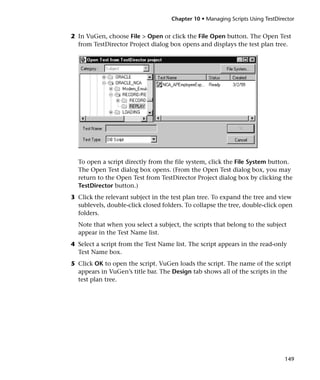
                -cci_only
                Run cci only (pre-compiling) on the script to create a file with a .ci
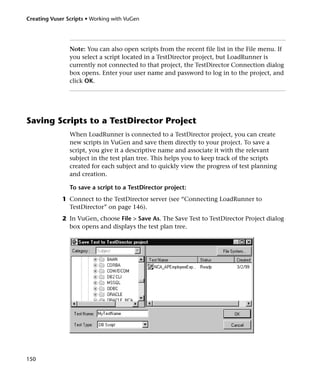
                extension. You can run cci only after a successful cpp.


140
Chapter 9 • Running Vuser Scripts in Stand-Alone Mode


-driver driver_path
Use a specific driver program. Each database has its own driver program
located in the /bin directory. For example, the driver for CtLib located in the
/bin directory, is mdrv. This option lets you specify an external driver.

-exec_only
Execute the Vuser .ci file. This option is available only when a valid .ci file
exists.

-ci ci_file_name
Execute a specific .ci file.

-out output_path
Place the results in a specific directory.

By default, run_db_vuser.sh runs cpp, cci, and execute in verbose mode. It
uses the driver in the LoadRunner installation/bin directory, and saves the
results to an output file in the Vuser script directory. You must always
specify a .usr file. If you are not in the script directory, specify the full path
of the .usr file.

For example, the following command line executes a Vuser script called
test1, and places the output file in a directory called results1. The results
directory must be an existing directory—it will not be created automatically:

    run_db_vuser.sh -out /u/joe/results1 test1.usr


                                                                                141
Creating Vuser Scripts • Working with VuGen


Integrating a Vuser Script into a Scenario
                Once you have successfully run a script in stand-alone mode to verify that it
                is functional, you incorporate the script into a scenario. A scenario contains
                information about the:

            ➤ Vusers that will run the script
            ➤ load generator upon which the script will be executed

                Using the Controller
                Normally, you create a scenario from the LoadRunner Controller. You can
                also create a simple scenario from VuGen that uses the current Vuser script.

                For more information, refer to the LoadRunner Controller User’s Guide
                (Windows).

                To create a scenario from VuGen:
             1 Choose Tools > Create Controller Scenario. The Create Scenario dialog box
               opens.


             2 Choose either a goal oriented or a manual scenario.
                In a goal-oriented scenario, LoadRunner automatically builds a scenario for
                you based on goals you specify. In a manual scenario, you specify the
                number of Vusers to run.


142
Chapter 9 • Running Vuser Scripts in Stand-Alone Mode


 3 For a manual scenario, enter the number of Vusers you want to execute the
   script.
 4 Enter the name of the machine upon which you want the Vusers to run, in
   the Load Generator box.
 5 For a manual scenario, users with common traits are organized into groups.
   Specify a new group name for the Vusers in the Group Name box.
 6 For a goal-oriented scenario, specify a Script Name.
 7 Enter the desired location for the results in the Result Directory box.
 8 If a scenario is currently open in the Controller and you want to add the
   script to this scenario, select the Add script to current scenario check box. If
   you clear the check box, LoadRunner opens a new scenario with the
   specified number of Vusers.
 9 Click OK. VuGen opens the Controller in the Vuser view.
10 If you configured the Controller to save the script on a shared network
   drive, you may need to perform path translation.


                                                                                  143
Creating Vuser Scripts • Working with VuGen


144
10
Managing Scripts Using TestDirector

          LoadRunner’s integration with TestDirector lets you manage LoadRunner
          scripts using TestDirector.

          This chapter describes:

       ➤ Connecting to and Disconnecting from TestDirector
       ➤ Opening Scripts from a TestDirector Project
       ➤ Saving Scripts to a TestDirector Project


About Managing Scripts Using TestDirector
          LoadRunner works together with TestDirector, Mercury Interactive’s Web-
          based test management tool. TestDirector provides an efficient method for
          storing and retrieving Vuser scripts, scenarios, and collecting results. You
          store scripts in a TestDirector project and organize them into unique groups.

          In order for LoadRunner to access a TestDirector project, you must connect
          it to the Web server on which TestDirector is installed. You can connect to
          either a local or remote Web server.

          For more information on working with TestDirector, refer to the TestDirector
          User’s Guide.


Connecting to and Disconnecting from TestDirector
          If you are working with both LoadRunner and TestDirector, LoadRunner can
          communicate with your TestDirector project. You can connect or disconnect


                                                                                   145
Creating Vuser Scripts • Working with VuGen


                LoadRunner from a TestDirector project at any time during the testing
                process.

                Connecting LoadRunner to TestDirector
                The connection process has two stages. First, you connect LoadRunner to a
                local or remote TestDirector Web server. This server handles the connections
                between LoadRunner and the TestDirector project.

                Next, you choose the project you want LoadRunner to access. The project
                stores the scripts for the application you are testing. Note that TestDirector
                projects are password protected, so you must provide a user name and a
                password.

                To connect LoadRunner to TestDirector:
             1 In the Controller, choose Tools > TestDirector Connection. The TestDirector
               Connection dialog box opens.


             2 In the Server box, type the URL address of the Web server on which
               TestDirector is installed.


146
Chapter 10 • Managing Scripts Using TestDirector


   Note: You can choose a Web server accessible via a Local Area Network
   (LAN) or a Wide Area Network (WAN).


 3 Click Connect. Once the connection to the server is established, the server’s
   name is displayed in read-only format in the Server box.
 4 From the Project box in the Project Connection section, select a TestDirector
   project.
 5 In the User Name box, type a user name.
 6 In the Password box, type a password.
 7 Click Connect to connect LoadRunner to the selected project.
   Once the connection to the selected project is established, the project’s
   name is displayed in read-only format in the Project box.
 8 To automatically reconnect to the TestDirector server and the selected
   project on startup, select the Reconnect on startup check box.
 9 If you select Reconnect on startup, you can save the specified password to
   reconnect on startup. Select the Save password for reconnection on startup
   check box.
   If you do not save your password, you will be prompted to enter it when
   LoadRunner connects to TestDirector on startup.
10 Click Close to close the TestDirector Connection dialog box.
   The status bar indicates that LoadRunner is currently connected to a
   TestDirector project.


   Disconnecting LoadRunner from TestDirector
   You can disconnect LoadRunner from a selected TestDirector project and
   Web server.


                                                                                147
Creating Vuser Scripts • Working with VuGen


                To disconnect LoadRunner from TestDirector:
             1 In the Controller, choose Tools > TestDirector Connection. The TestDirector
               Connection dialog box opens.


             2 To disconnect LoadRunner from the selected project, click Disconnect in the
               Project Connection section.
             3 To disconnect LoadRunner from the selected server, click Disconnect in the
               Server Connection section.
             4 Click Close to close the TestDirector Connection dialog box.


Opening Scripts from a TestDirector Project
                When LoadRunner is connected to a TestDirector project, you can open
                your scripts from TestDirector. You locate tests according to their position in
                the test plan tree, rather than by their actual location in the file system.

                To open a script from a TestDirector project:
             1 Connect to the TestDirector server (see “Connecting LoadRunner to
               TestDirector” on page 146).


148
Chapter 10 • Managing Scripts Using TestDirector


2 In VuGen, choose File > Open or click the File Open button. The Open Test
  from TestDirector Project dialog box opens and displays the test plan tree.


  To open a script directly from the file system, click the File System button.
  The Open Test dialog box opens. (From the Open Test dialog box, you may
  return to the Open Test from TestDirector Project dialog box by clicking the
  TestDirector button.)
3 Click the relevant subject in the test plan tree. To expand the tree and view
  sublevels, double-click closed folders. To collapse the tree, double-click open
  folders.
  Note that when you select a subject, the scripts that belong to the subject
  appear in the Test Name list.
4 Select a script from the Test Name list. The script appears in the read-only
  Test Name box.
5 Click OK to open the script. VuGen loads the script. The name of the script
  appears in VuGen’s title bar. The Design tab shows all of the scripts in the
  test plan tree.


                                                                                149
Creating Vuser Scripts • Working with VuGen


                Note: You can also open scripts from the recent file list in the File menu. If
                you select a script located in a TestDirector project, but LoadRunner is
                currently not connected to that project, the TestDirector Connection dialog
                box opens. Enter your user name and password to log in to the project, and
                click OK.


Saving Scripts to a TestDirector Project
                When LoadRunner is connected to a TestDirector project, you can create
                new scripts in VuGen and save them directly to your project. To save a
                script, you give it a descriptive name and associate it with the relevant
                subject in the test plan tree. This helps you to keep track of the scripts
                created for each subject and to quickly view the progress of test planning
                and creation.

                To save a script to a TestDirector project:
             1 Connect to the TestDirector server (see “Connecting LoadRunner to
               TestDirector” on page 146).
             2 In VuGen, choose File > Save As. The Save Test to TestDirector Project dialog
               box opens and displays the test plan tree.


150
Chapter 10 • Managing Scripts Using TestDirector


  To save a script directly in the file system, click the File System button. The
  Save Test dialog box opens. (From the Save Test dialog box, you may return
  to the Save Test to TestDirector Project dialog box by clicking the
  TestDirector button.)
3 Select the relevant subject in the test plan tree. To expand the tree and view
  a sublevel, double-click a closed folder. To collapse a sublevel, double-click
  an open folder.
4 In the Test Name box, enter a name for the script. Use a descriptive name
  that will help you easily identify the script.
5 Click OK to save the script and close the dialog box.
  The next time you start TestDirector, the new script will appear in
  TestDirector’s test plan tree.


                                                                                151
Creating Vuser Scripts • Working with VuGen


152
Part III
Working with Java Language Protocols

   Working with Java Language Protocols refers to RMI-Java, CORBA-Java, EJB,
   and Jacada types. For each of the mentioned protocols, refer to the
   approporiate section. This part contains information that applies to all types
   of Java Vusers.
154
11
Recording Java Language Vuser Scripts

          VuGen allows you to record applications or applets written in Java, in
          protocols such as CORBA, RMI, EJB, or Jacada. You can also use VuGen’s
          navigation tool to add any method to your script.

          This chapter describes:

       ➤ Getting Started with Recording
       ➤ Understanding Java Language Vuser Scripts
       ➤ Running a Script as Part of a Package
       ➤ Viewing the Java Methods
       ➤ Inserting Java Methods Manually
       ➤ Configuring Script Generation Settings

          The following information applies to CORBA-Java, RMI-Java, EJB, and
          Jacada Vuser scripts.


About Recording Java Language Vuser Scripts
          Using VuGen, you can record a Java application or applet. VuGen creates a
          pure Java script enhanced with LoadRunner-specific Java functions. After
          recording, you can enhance or modify the script with standard Java code
          using JDK libraries or custom classes.

          After you prepare your script, you run it in standalone mode from VuGen.
          Sun’s standard Java compiler, javac.exe, checks the script for errors and
          compiles it. Once you verify that the script is functional, you incorporate it
          into a LoadRunner scenario.


                                                                                     155
Creating Vuser Scripts • Working with Java Language Protocols


                When you create a script through recording and manual enhancements, all
                of the guidelines and limitations associated with Java Vuser scripts apply. In
                addition, any specific classes used in the script must be present on the
                machine executing the Vusers and indicated by the classpath environment
                variable. Please refer to Chapter 16, “Programming Java Scripts” for
                important information about function syntax and system configuration.

                Note that when you load an applet or application from VuGen during
                recording, it may take several seconds longer than if you were to load it
                independent of LoadRunner.

                VuGen provides a tool that enables you to convert a Vuser script created for
                Web, into Java. For more information, see Chapter 29, “Recording Web
                Vuser Scripts.”


Getting Started with Recording
                The following procedure outlines how to record Java language Vuser scripts.

              1 Ensure that the recording machine is properly configured.
                Make sure that your machine is configured properly for Java before you
                begin recording. For more information, see Chapter 16, “Programming Java
                Scripts” and the Read Me file.
              2 Create a new Vuser script.
                Select a protocol type (Distributed Components, EJB, or Middleware) and
                choose the desired Vuser type.
              3 Set the recording parameters and options for the script.
                You specify the parameters for your applet or application such as working
                directory and paths. You can also set JVM, serialization, correlation,
                recorder, and debug recording options. For more information, see
                Chapter 12, “Setting Java Recording Options.”
              4 Record typical user actions.
                Begin recording a script. Perform typical actions within your applet or
                application. VuGen records your actions and generates a Vuser script.


156
Chapter 11 • Recording Java Language Vuser Scripts


       5 Enhance the Vuser script.
         Add LoadRunner specific functions to enhance the Vuser script. For details,
         see Chapter 16, “Programming Java Scripts.” You can use the built-in Java
         function Navigator. For more information, see “Viewing the Java Methods”
         on page 159.
       6 Parameterize the Vuser script.
         Replace recorded constants with parameters. You can parameterize complete
         strings or parts of a string. Note that you can define more than one
         parameter for functions with multiple arguments. For details, see Chapter 6,
         “Defining Parameters.”
       7 Configure the run-time setting for the script.
         Configure run-time settings for the Vuser script. The run-time settings
         define the run-time aspects of the script execution. For the specific run-time
         settings for Java, see Chapter 14, “Configuring Java Run-Time Settings.”
       8 Save and run the Vuser script.
         Run the script from VuGen and view the execution log for run-time
         information. For details, see Chapter 9, “Running Vuser Scripts in Stand-
         Alone Mode.”

         Refer to the chapter for each Vuser type, for detailed information on the
         recording procedure.


Understanding Java Language Vuser Scripts
         When you record a session, VuGen logs all calls to the server and generates a
         script with LoadRunner enhancements. These functions describe all of your
         actions within the application or applet. The script also contains
         supplementary code required for proper playback, such as property settings,
         and naming service initialization (JNDI).

         The recorded script is comprised of three sections:

       ➤ Imports
       ➤ Code
       ➤ Variables


                                                                                       157
Creating Vuser Scripts • Working with Java Language Protocols


                The Imports section is at the beginning of the script. It contains a reference
                to all the packages required for compiling the script. The Code section
                contains the Actions class and the recorded code within the init, actions, and
                end methods. The Variables section, after the end method, contains all the
                type declarations for the variables used in the code.

                After you finish recording, you can modify the functions in your script, or
                add additional Java or LoadRunner functions to enhance the script. Note
                that if you intend to run Java Vusers as threads, the Java code you add to
                your script must be thread-safe. For details about function syntax, see the
                LoadRunner Function Reference (Help > Function Reference). In addition, you
                can modify your script to enable it to run as part of another package. For
                more information, see “Compiling and Running a Script as Part of a
                Package,” on page 219.


Running a Script as Part of a Package
                When creating or recording a Java script, you may need to use methods
                from classes in which the method or class is protected. When attempting to
                compile such a script, you receive compilation errors indicating that the
                methods are not accessible.

                To use the protected methods, add the Vuser to the package of required
                methods. At the beginning of your script, add the following line:

                     package a.b.c;

                where a.b.c represents a directory hierarchy. VuGen creates the a/b/c
                directory hierarchy in the user directory and compiles the Actions.java file
                there, thus making it part of the package. Note that the package statement
                is not recorded—you need to insert it manually.

                The above section is not relevant for Jacada type scripts.


158
Chapter 11 • Recording Java Language Vuser Scripts


Viewing the Java Methods
         VuGen provides a navigator that lets you view all of the Java classes and
         methods in your application’s packages.


         To insert a class or method into your script, you select it and paste it into
         your script. For step-by-step instructions, see “Inserting Java Methods
         Manually,” on page 160.

         The lower part of the dialog box displays a description of the Java object, its
         prototype, return values and path. In the following example, the description
         indicates that the deserialize method is a public static method that receives
         two parameters—a string and an integer. It returns a java.lang.object and
         throws an exception.

             public static synchronized java.lang.Object deserialize (java.lang.String,
             int) throws Exception


                                                                                          159
Creating Vuser Scripts • Working with Java Language Protocols


                The following table describes the icons that represent the various Java
                objects:

                  Icon       Item             Example
                             Package          java.util


                             Class            public class Hashtable extends java.util.Dictionary
                                                 implements java.lang.Cloneable,
                                              java.io.Serializable
                             Interface        public interface Enumeration
                             Class
                             (gray icon)
                             Method           public synchronized java.util.Enumeration keys ()


                             Static Method    public static synchronized java.util.TimeZone
                             (yellow icon)    getTimeZone

                             Constructor      public void Hashtable ()
                             Method


Inserting Java Methods Manually
                You use the Java Function navigator to view and add Java functions to your
                script. The following section apply to EJB Testing, RMI-Java, and CORBA-
                Java Vusers. You can customize the function generation settings by
                modifying the configuration file. For more information, see “Configuring
                Script Generation Settings,” on page 163.

                To insert Java functions:
              1 Click within your script at the desired point of insertion. When you paste a
                function, VuGen places it at the location of the cursor.


160
Chapter 11 • Recording Java Language Vuser Scripts


2 Choose Insert > Insert Java Function. The Insert Java Function dialog box
  opens.


                                                                               161
Creating Vuser Scripts • Working with Java Language Protocols


              3 Click Locations. The Locations dialog box opens. By default, VuGen lists the
                paths defined in the CLASSPATH environment variable.


              4 Click Browse to add another path or archive to the list. To add a path,
                choose Browse > Folder. To add an archive (jar or zip), choose Browse > File.
                When you select a folder or a file, VuGen inserts it in the Add Location box.
              5 Click Add to add the item to the list.
              6 Repeat steps 4 and 5 for each path or archive you want to add.
              7 Select or clear the checkboxes to the left of each item in the list. If an item is
                checked, its members will be listed in the Java Class navigator.
              8 Click OK to close the Locations dialog box and view the available packages.
              9 Click the plus and minus signs to the left of each item in the navigator, to
                expand or collapse the trees.
            10 Select an object and click Paste. VuGen places the object at the location of
               the cursor in the script. To paste all the methods of a class into your script,
               select the class and click Paste.
            11 Repeat the previous step for all of the desired methods or classes.


162
Chapter 11 • Recording Java Language Vuser Scripts


       12 Modify the parameters of the methods. If the script generation settings
          DefaultValues is set to true, you can use the default values inserted by
          VuGen. If DefaultValues is set to false, you must add parameters for all
          methods you insert into the script.
          In addition, modify any return values. For example, if your script generated
          the following statement “(String)=LavaVersion.getVersionId();”, replace (String)

          with a string type variable.
       13 Add any necessary statements to your script such as imports or LoadRunner
          Java functions (described in Chapter 16, “Programming Java Scripts.”)
       14 Save the script and run it from VuGen.


Configuring Script Generation Settings
          You can customize the way the navigator adds methods to your script in the
          following areas:

       ➤ Class Name path
       ➤ Automatic Transactions
       ➤ Default Parameter Values
       ➤ Class Pasting
          To view the configuration setting, open the jquery.ini file in LoadRunner’s
          dat directory.

               [Display]
               FullClassName=False

               [Insert]
               AutoTransaction=False
               DefaultValues=True
               CleanClassPaste=False


          Class Name path
          The FullClassName option displays the complete package and class name in
          the Java Function navigator. This option does not affect the way the


                                                                                        163
Creating Vuser Scripts • Working with Java Language Protocols


                functions are added into the script—it only affects the way the classes are
                displayed in the navigator. By default, this option is set to false. If your
                packages have many classes and you are unable to view the package and
                class names at the same time, then you should enable this option.

                  FullClassName enabled                         FullClassName disabled


                Automatic Transactions
                The AutoTransaction setting creates a LoadRunner transaction for all
                methods. When you enable this option, VuGen automatically encloses all
                Java methods with lr.start_transaction and lr.end_transaction functions.
                This allows you to individually track the performance of each method. This
                option is disabled by default.


164
Chapter 11 • Recording Java Language Vuser Scripts


Default Parameter Values
The DefaultValues setting includes default values for all methods you paste
into your script. This option is enabled by default and inserts a null for all
objects. If you disable this option, you must manually insert parameter
values for all functions in the script. The following table illustrates the
DefaultValues flag enabled and disabled.

DefaultValues enabled                     DefaultValues disabled

lr.message((String)"");                    lr.message((String));
lr.think_time((int)0);                     lr.think_time((int));
lr.enable_redirection((boolean)false);     lr.enable_redirection((boolean));
lr.save_data((byte[])null, (String)"");    lr.save_data((byte[]), (String));


Class Pasting
The CleanClassPaste setting pastes a class so that it will compile cleanly:
with an instance returning from the constructor, with default values as
parameters, and without a need for import statements. Using this option,
you will most likely be able to run your script without any further
modifications. If you disable this option (default), you may need to
manually define parameters and include import statements. Note that this
setting is only effective when you paste an entire class into your script—not
when you paste a single method.

The following segment shows the toString method pasted into the script
with the CleanClassPaste option enabled.

    _class.toString();
       // Returns: java.lang.String

The same method with the CleanClassPaste option disabled is pasted as
follows:

    (String) = toString();
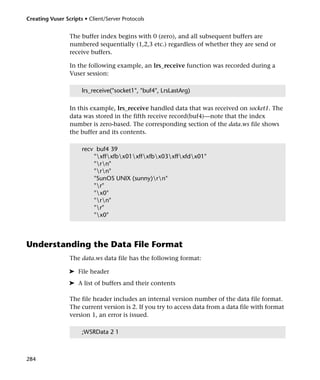


                                                                               165
Creating Vuser Scripts • Working with Java Language Protocols


                The next segment shows the NumInserter Constructor method pasted into
                the script with the CleanClassPaste option enabled.

                     utils.NumInserter _numinserter = new utils.NumInserter
                                ((java.lang.String)"", (java.lang.String)"", (java.lang.String)"". . .
                     );
                     // Returns: void


                The same method with the CleanClassPaste option disabled is pasted as:

                     new utils.NumInserter((String)"", (String)"", (String)"",...);


166
12
Setting Java Recording Options

          VuGen allows you to control the way in which you record your CORBA or
          RMI application. You can use the default recording options, or customize
          them for your specific needs.

          This chapter describes:

       ➤ Java Virtual Machine Options
       ➤ Recorder Options
       ➤ Serialization Options
       ➤ Correlation Options
       ➤ Debug Options

          The following information applies to CORBA-Java and RMI-Java Vuser
          scripts.


About Setting Java Recording Options
          Using VuGen, you record a CORBA (Common Object Request Broker
          Architecture) or RMI (Remote Method Invocation) Java application or
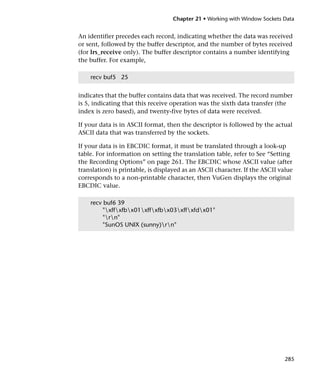
          applet. For recording an EJB test, see Chapter 40, “Performing EJB Testing.”

          Before recording, VuGen lets you set recording options for the Java Virtual
          Machine (JVM) and for the code generation stage. Setting the recording
          options is not mandatory; if you do not set them, VuGen uses the default
          values.

          The options described in this chapter were previously handled by modifying
          the mercury.properties file.


                                                                                   167
Creating Vuser Scripts • Working with Java Language Protocols


                You can set recording options in the following areas:

             ➤ Java Virtual Machine (JVM)
             ➤ Recorder
             ➤ Serialization
             ➤ Correlation
             ➤ Debug


Java Virtual Machine Options
                The Java VM tab indicates additional classpaths and parameters to run Java
                applications and insure proper recording. You can specify additional
                classpath locations, that were not included in the system’s classpath
                environment variable.

                When you record a Vuser, VuGen automatically sets the Xbootclasspath
                variable with default parameters. If you use this dialog box to set the
                Xbootclasspath with different parameters, it will use those command
                parameters—not the default ones.

                You can also instruct VuGen to add the Classpath before the Xbootclasspath
                (prepend the string) to create single Classpath string.
                By default, VuGen uses the classic VM during recording. You can also
                instruct VuGen to use another virtual machine (Sun’s Java Hotspot VM).


168
Chapter 12 • Setting Java Recording Options


  To set the Java Virtual Machine recording options:
1 Click Options in the Start Recording dialog box. Select the Java VM tab.


2 In the Additional Classpath box, list additional classpath locations. This
  dialog box allows you to specify a classpath location without closing VuGen.
  If you already added the class location to the classpath variable, you do not
  need to specify it again in this dialog box.
3 In the Additional VM Parameters box, list the Java command line
  parameters. These parameters may be any Java VM argument. The common
  arguments are the debug flag (-verbose) or memory settings (-ms, -mx). For
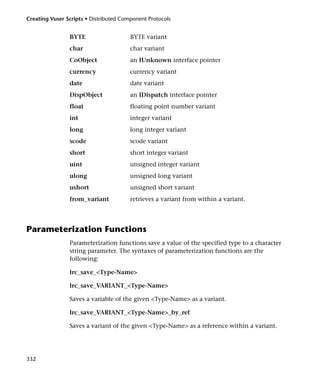
  more information about the Java VM flags, see the JVM documentation. In
  additional, you may also pass properties to Java applications in the form of a
  -D flag.
  VuGen automatically sets the -Xbootclasspath variable ( for JDK 1.2 and
  higher) with default parameters. When you specify -Xbootclasspath with
  parameter values as an additional parameter, VuGen uses this setting instead
  of the default one.
4 To use the same Additional VM parameters in replay, select the Use the
  specified Additional VM Parameters during replay check box.
5 To use the classic VM, select the Use classic Java VM checkbox (default). To
  use another VM, (Sun’s Java HotSpot) clear the checkbox.


                                                                               169
Creating Vuser Scripts • Working with Java Language Protocols


              6 To add the Classpath before the Xbootclasspath (prepend the string), select
                the Prepend CLASSPATH check box.
              7 Click OK to close the dialog box and begin recording.


Recorder Options
                The Recorder tab provides guidelines to VuGen for generating a Vuser script.
                You can set options in the following areas:

                Record Exception Handling: When an exception occurs, wrap the
                invocation with a “try-catch” block. (true by default)

                Record Think Time: Records think times and includes think time function,
                lr.think_time, in the script. (true by default)

                Record Properties: Records system and custom properties related to the
                protocol. For example, if you specified additional Virtual Machine
                parameters in the VM tab, enabling this option instructs VuGen to record
                the parameters in your script. (true by default)

                Record Return Value: Generates a comment in the script indicating the
                return value for each invocation. (false by default)

                Record Progress Messages: Records an lr.log_message function before each
                invocation to allow you to follow the replay progress. (false by default)

                Insert Functional Check: Inserts verification code that compares the return
                value received during replay, to the expected return value generated during
                recording. This option only applies to primitive return values. (false by
                default)

                Use Block Semantics: Places each invocation in a separate scope by
                wrapping it with curled brackets. If this option is disabled, the entire Action
                method is wrapped with curled brackets—not each invocation. (false by
                default)

                Unreadable Strings as Bytes: Represents strings containing unreadable
                characters as byte arrays. This option applies to strings that are passed as
                parameters to invocations. (true by default)


170
Chapter 12 • Setting Java Recording Options


Bytes as Characters: Displays readable characters as characters with the
necessary casting—not in byte or hexadecimal form. (true by default)

Implicit Casting: Instructs VuGen to automatically apply casting to all
invocations. When you enable this option, casting is not added to the
recorded invocations—the compiler handles it implicitly. If you disable this
option, VuGen adds casting to the invocations, resulting in a longer script.
(false by default)

Byte Array Format: The format of byte arrays in a script: regular arrays,
unfolded serialized objects, or folded serialized objects. Use one of the
serilaized object options when recording very long byte arrays. The default is
regular.

Max Line Length: The maximum length of a recorded line. If any recorded
line exceeds this value, it is truncated. VuGen applies a smart truncation, in
order not to break any code consistency such as quotes or function
parameters. The default value is 1000 characters. The maximum length is
25600 characters.

Underscored Variable Names: Precedes all variables generated in the script
with an underscore prefix. This is necessary to prevent conflicts with a
package of the same name. (true by default)

Show IDL Constructs: Displays the Interface Definition Language (IDL)
construct used for passing a parameter to a CORBA invocation. Objects in
the CORBA object environment are defined by an IDL, which describes the
services performed by the object and how the data is to be passed to it. (true
by default)

Comment Lines Containing: Comment out all lines in the script
containing one of the specified strings. To specify multiple strings, separate
the entries with commas. By default, any line with a string containing
<undefined>, will be commented out.

Remove Lines Containing: Remove all lines containing one of the specified
strings from the script. To specify multiple strings, separate the entries with
commas. This feature is useful for customizing the script for a specific
testing goal.


                                                                              171
Creating Vuser Scripts • Working with Java Language Protocols


                Record Callback Connection: Records a connect statement to the ORB for
                each Callback object. (true by default)

                Generate Recording Log: Generates a recording log displayed in the Output
                window’s Recording tab. If you disable this option, your performance may
                improve, but no information will be sent to the Output window during
                recording. (true by default)

                Extensions List: A list of all the supported extensions. Each extension has
                its own hook file. To specify additional extensions, add them to the list of
                default extensions. If you add extensions to the list, make sure its hook file
                is available to the Vuser. The default extensions are JNDI, JMS, and EJB.

                To set the Java Recorder options:
              1 Click Options in the Start Recording dialog box and select the Recorder tab.


              2 Set the options as desired. For the options with boolean values, click in the
                right column to open the list box, and select True or False.
              3 To set all options to their default values, click Use Defaults.
              4 Click OK to close the dialog box and begin recording.


172
Chapter 12 • Setting Java Recording Options


Serialization Options
         The Serialization tab allows you to control how elements are serialized. For
         an overview of serialization, see “Using the Serialization Mechanism,” on
         page 182. The following options are available:

         Serialization Delimiter: Indicates the delimiter separating the elements in
         the ASCII representation of objects. VuGen will only parameterize strings
         contained within these delimiters. The default delimiter is ‘#’.

         Unfold Serialized Objects: Expands serialized objects in ASCII
         representation. This option allows you to view the ASCII values of the
         objects in order to perform parameterization. (true by default)

         Unfold Arrays: Expands array elements of serialized objects in ASCII
         representation. If you disable this option and an object contains an array,
         the object will not be expanded. By default, this option is set to true—all
         deserialized objects are totally unfolded.

         Limit Array Entries: Instructs the recorder not to open arrays with more
         than the specified number of elements. The default value is 200.

         Ignore Serialized Objects: Specifies objects upon which serialization should
         not be performed. This is useful for classes with known problems.


                                                                                      173
Creating Vuser Scripts • Working with Java Language Protocols


                To set the Serialization options:
              1 Click Options in the Start Recording dialog box and select the Serialization
                tab.


              2 Set the options as desired.
              3 To set all options to their default values, click Use Defaults.
              4 Click OK to close the dialog box and begin recording.


Correlation Options
                The Correlation tab lets you indicate whether VuGen should perform
                automatic correlation, and control its depth. For information about
                correlation, see Chapter 13, “Correlating Java Scripts.” The following
                options are available:

                Correlate Strings: Determines whether recorder will correlate strings or
                simply print them in script between quotes. (false by default)

                Correlate String Arrays: Determines whether recorder will try to correlate
                strings within string arrays. (true by default)


174
Chapter 12 • Setting Java Recording Options


         To set the correlation options:
       1 Click Options in the Start Recording dialog box and select the Correlation
         tab.


       2 Set the options as desired.
       3 To set all options to their default values, click Use Defaults.
       4 Click OK to close the dialog box and begin recording.


Debug Options
         The Debug tab lets you determine the level of debug information generate
         during recording. The following options are available:

         Stack Trace: Logs all invocations in a stack trace. This setting provides a Java
         stack trace for every recorded function. Use this option in conjunction with
         Class Dumping, to determine the context for the hooked parts in the
         application. This trace can help you solve cases where a parameter is not
         correlated and to determine where to place additional hooks. Note that
         enabling this option slows down the application. (false by default)


                                                                                        175
Creating Vuser Scripts • Working with Java Language Protocols


                Stack Trace Limit: The maximum number of calls stored in the stack. When
                a stack trace is enabled, and the number of calls exceeds the specified value,
                the stack trace is truncated. The default value is 20 calls.

                To set the debug options:
              1 Click Options in the Start Recording dialog box and select the Debug tab.


              2 Set the options as desired.
              3 To set all options to their default values, click Use Defaults.
              4 Click OK to close the dialog box and begin recording.


176
13
Correlating Java Scripts

          VuGen’s correlation allows you to link Java Vuser functions by using the
          results of one statement as input to another.

          This chapter describes:

       ➤ Standard Correlation
       ➤ Advanced Correlation
       ➤ String Correlation
       ➤ Using the Serialization Mechanism

          The following information only applies to Corba-Java and RMI-Java Vuser
          scripts.


About Correlating Java Scripts
          Vuser scripts containing Java code often contain dynamic data. When you
          record a Corba or RMI Vuser script, the dynamic data is recorded into
          scripts, but cannot be re-used during replay. If you encounter an error when
          running your Vuser, examine the script at the point where the error
          occurred. In many cases, correlation will solve the problem by enabling you
          to use the results of one statement as input to another.

          VuGen’s Corba recorder attempts to automatically correlate statements in
          the generated script. It only performs correlation on Java objects. When it
          encounters a Java primitive (byte, character, boolean, integer, float, double,
          short, and long) during recording, the argument values appear in the script
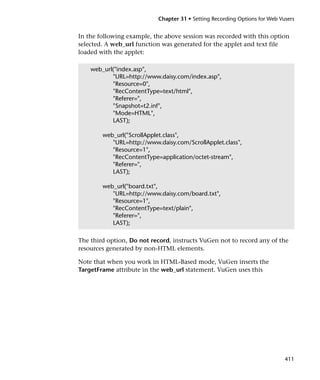
          without association to variables. VuGen automatically correlates all objects,
          arrays of objects, and arrays of primitives. Note that Java arrays and strings
          are also considered objects.


                                                                                     177
Creating Vuser Scripts • Working with Java Language Vuser Scripts


                 VuGen employs several levels of correlation: Standard, Enhanced, Strings.
                 You enable or disable correlation from the Recording options. An additional
                 method of Serialization can be used to handle scripts where none of the
                 former methods can be applied. For more information, see “Using the
                 Serialization Mechanism,” on page 182.


Standard Correlation
                 Standard correlation refers to the automatic correlation performed during
                 recording for simple objects, excluding object arrays, vectors, and container
                 constructs.

                 When the recorded application invokes a method that returns an object,
                 VuGen’s correlation mechanism records these objects. When you run the
                 script, VuGen compares the generated objects to the recorded objects. If the
                 objects match, the same object is used. The following example shows two
                 Corba objects my_bank and my_account. The first object, my_bank, is
                 invoked; the second object, my_account, is correlated and passed as a
                 parameter in final line of the segment:

                      public class Actions {

                          // Public function: init
                             public int init() throws Throwable {
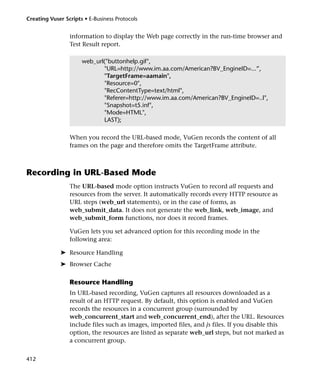
                             Bank my_bank = bankHelper.bind("bank", "shunra");
                             Account my_account = accountHelper.bind("account","shunra");

                             my_bank.remove_account(my_account);
                            }
                      :
                      }


178
Chapter 13 • Correlating Java Scripts


Advanced Correlation
         Advanced or deep correlation refers to the automatic correlation performed
         during recording for complex objects, such as object arrays and Corba
         container constructs.

         The deep correlation mechanism handles Corba constructs (structures,
         unions, sequences, arrays, holders, ‘any’s) as containers. This allows it to
         reference inner members of containers, additional objects, or different
         containers. Whenever an object is invoked or passed as a parameter, it is also
         compared against the inner members of the containers.

         In the following example, VuGen performs deep correlation by referencing
         an element of an array. The remove_account object receives an account object
         as a parameter. During recording, the correlation mechanism searches the
         returned array my_accounts and determines that its sixth element should be
         passed as a parameter.

             public class Actions {

                 // Public function: init
                 public int init() throws Throwable {

                     my_banks[] = bankHelper.bind("banks", "shunra");
                     my_accounts[] = accountHelper.bind("accounts","shunra");

                     my_banks[2].remove_account(my_accounts[6]);
                 }
             :
             }


         The following segment further illustrates enhanced correlation. The script
         invokes the send_letter object that received an address type argument. The


                                                                                          179
Creating Vuser Scripts • Working with Java Language Vuser Scripts


                 correlation mechanism retrieves the inner member, address, in the sixth
                 element of the my_accounts array.

                      public class Actions {

                          // Public function: init
                          public int init() throws Throwable {

                              my_banks = bankHelper.bind("bank", "shunra");
                              my_accounts = accountHelper.bind("account", "shunra");

                              my_banks[2].send_letter(my_accounts[6].address);
                          }
                      :
                      }


String Correlation
                 String correlation refers to the representation of a recorded value as an
                 actual string or a variable. When you disable string correlation (the default
                 setting), the actual recorded value of the string is indicated explicitly within
                 the script. When you enable string correlation, it creates a variable for each
                 string, allowing you to use it at a later point in the script.


180
Chapter 13 • Correlating Java Scripts


In the following segment, string correlation is enabled—you store the value
returned from the get_id method in a string type variable for use later on in
the script.

    public class Actions {

        // Public function: init
        public int init() throws Throwable {

            my_bank = bankHelper.bind("bank", "shunra");
            my_account1 = accountHelper.bind("account1", "shunra");
            my_account2 = accountHelper.bind("account2", "shunra");

            string = my_account1.get_id();
            string2 = my_account2.get_id();
            my_bank.transfer_money(string, string2);
        }
    :
    }


You set the correlation method from the Correlation tab in the recording
options.

Correlate Strings: Correlate strings in script during recording. If you disable
this option, the actual recorded values are included in the script between
quotation marks. If this option is disabled, all other correlation options are
ignored. (disabled by default)

Correlate String Arrays: Correlate strings within string arrays during
recording. If you disable this option, strings within arrays are not correlated
and the actual values are placed in the script. (enabled by default)

Advanced Correlation: Enables correlation on complex objects such as
arrays and Corba container constructs and arrays. This type of correlation is
also known as deep correlation. (enabled by default)

Correlation Level: Determines the level of deep correlation—how many
inner containers to search.

Correlate Collection Type: Correlate objects contained in a Collection class
for JDK 1.2 or higher. (disabled by default)


                                                                                181
Creating Vuser Scripts • Working with Java Language Vuser Scripts


Using the Serialization Mechanism
                 In RMI, and some cases of Corba, the client AUT creates a new instance of a
                 Java object using the java.io.serializable interface. It passes this instance as
                 a parameter for a server invocation. In the following segment, the instance p
                 is created and passed as a parameter.

                      // AUT code:
                      java.awt.Point p = new java.awt.Point(3,7);
                      map.set_point(p);
                      :


                 The automatic correlation mechanism is ineffective here, since the object
                 did not return from any previous call. In this case, VuGen activates the
                 serialization mechanism and stores the object being passed as a parameter. It
                 saves the information to a binary data file under the user directory.
                 Additional parameters are saved as new binary data files, numbered
                 sequentially. VuGen generates the following code:

                      public class Actions {

                          // Public function: init
                             public int init() throws Throwable {
                               java.awt.Point p = (java.awt.Point)lr.deserialize(_string, 0, false );
                               map.set_point(p);
                             }
                      :
                      }


                 The integer passed to lr.deserialize is the number of binary data files in the
                 Vuser directory.

                 To parameterize the recorded value, use the public setLocation method (for
                 information, see the JDK function reference). The following example uses


182
Chapter 13 • Correlating Java Scripts


the setLocation method to set the value of the object, p.

    public class Actions {

        // Public function: init
           public int init() throws Throwable {
             java.awt.Point p = (java.awt.Point)lr.deserialize(_string, 0, false);
             p.setLocation(2,9);
             map.set_point(p);
           }
    :
    :
    }

In certain instances the public method of setLocation is not applicable. As
an alternative, you can use the API of your class that incorporate get or set
accessor methods. If you are working with AUT classes that do not have
get/set methods or use private methods, or if you are unfamiliar with the
classes’ API, you can use VuGen’s built-in serialization mechanism. This
mechanism allows you to expand objects in their ASCII representation and
manually parameterize the script. You enable this mechanism in the
Recording Options dialog box. (see Chapter 12, “Setting Java Recording
Options”)

VuGen generates an lr.deserialize method that deserializes the data or
displays complex data structures as serial strings. Once the structure is
broken down to its components, it is easier to parameterize. The
lr.deserialize method receives two arguments, a string and an integer. The
string is the parameter’s value that is to be substituted during replay. The
integer is the number of binary file to load.

An optional third argument, true or false, lets you control the serialization
mechanism:

 true                Use VuGen’s serialization mechanism.

 false               Use the standard Java serialization
                     mechanism.


                                                                                     183
Creating Vuser Scripts • Working with Java Language Vuser Scripts


                 The following segment shows a generated script in which the serialization
                 mechanism was enabled.

                      public class Actions {

                          // Public function: init
                             public int init() throws Throwable {
                               _string = "java.awt.Point __CURRENT_OBJECT = {" +
                                       "int x = "#5#" +
                                       "int y = "#8#" +
                               "}";
                               java.awt.Point p = (java.awt.Point)lr.deserialize(_string,0);
                               map.set_point(p);
                             }
                      :
                      }


                 The string values are placed between delimiters.The default delimiter is "#".
                 You can change the delimiter in the Serialization tab of the recording
                 options. Delimiters are used to speed up the parsing of the string during
                 replay.

                 When modifying the string, you must maintain the following rules:

             ➤ Order of lines may not be changed. The parser reads the values one-by-
               one—not the member names.
             ➤ Only values between two delimiters may be modified.
             ➤ Object references may not be modified. Object references are indicated only
               to maintain internal consistency.
             ➤ "_NULL_" can appear as a value, representing the Java null constant. You can
               replace it with string type values only.
             ➤ Objects may be deserialized anywhere in the script. For example, you can
               deserialize all objects in the init method and use the values in the Actions
               method.
             ➤ Maintain internal consistency for the objects. For example, if a member of a
               vector is element count and you add an element, you must modify the
               element count.


184
Chapter 13 • Correlating Java Scripts


In the following segment, a vector contains two elements.

    public class Actions {

        // Public function: init
           public int init() throws Throwable {
             _string = "java.util.Vector CURRENTOBJECT = {" +
                     "int capacityIncrement = "#0#" +
                     "int elementCount = #2#" +
                     "java/lang/Object elementData[] = {" +
                           "elementData[0] = #First Element#" +
                           "elementData[1] = #Second Element#" +
                           "elementData[2] = _NULL_" +
                            ....
                           "elementData[9] = _NULL_" +

                     "}" +
              "}";
              _vector = (java.util.Vector)lr.deserialize(_string,0);
              map.set_vector(_vector);
          }
    :
    }


                                                                                      185
Creating Vuser Scripts • Working with Java Language Vuser Scripts


                 In the following example, one of the vector’s elements was changed—a
                 "_NULL_" value was changed to "Third element". In coordination with the
                 addition of the new element, the "elementCount" member was modified to
                 "3".

                      public class Actions {

                          // Public function: init
                             public int init() throws Throwable {
                               _string = "java.util.Vector CURRENTOBJECT = {" +
                                       "int capacityIncrement = "#0#" +
                                       "int elementCount = #3#" +
                                       "java/lang/Object elementData[] = {" +
                                             "elementData[0] = #First Element#" +
                                             "elementData[1] = #Second Element#" +
                                             "elementData[2] = #Third Element#" +
                                               ....
                                             "elementData[9] = _NULL_" +
                                       "}" +
                               "}";
                               _vector = (java.util.Vector)lr.deserialize(_string,0);
                               map.set_vector(_vector);
                             }
                      :
                      }


                 Due to the complexity of the serialization mechanism, which opens up the
                 objects to ASCII representation, opening large objects while recording may
                 increase the time required for script generation. To decrease this time, you
                 can specify flags which will improve the performance of the serialization
                 mechanism.

                 When adding lr.deserialize to your script, it is recommended that you add it
                 to the init method—not the action method. This will improve performance
                 since VuGen will only deserialize the strings once. If it appears in the action
                 method, VuGen would deserialize strings for every iteration.


186
Chapter 13 • Correlating Java Scripts


   The following list shows the available options which you set in Serialization
   tab of the recording options.

➤ Serialization Delimiter
➤ Unfold Serialized Objects
➤ Unfold Arrays
➤ Limit Array Entries
➤ Ignore Serialized Objects

   For complete information on the recording options, see Chapter 12,
   “Setting Java Recording Options.”


                                                                                 187
Creating Vuser Scripts • Working with Java Language Vuser Scripts


188
14
Configuring Java Run-Time Settings

          After you record a Java Vuser script, you configure the run-time settings for
          the Java Virtual Machine.

          This chapter describes:

       ➤ Understanding the Java VM Settings
       ➤ Specifying Virtual Machine Settings

          The following information applies to Java, EJB Testing, Corba-Java, and
          RMI-Java type Vusers.


About Java Run-Time Settings
          After developing a Java Vuser script, you set the run-time settings for the
          Java VM (Virtual Machine). These settings let you set additional paths and
          parameters, and determine the run mode.

          You set the Java related run-time settings through the Java VM tab in the
          Run-Time Settings dialog box.

          To display the Run-Time Settings dialog box, click the Run-Time Settings
          button on the VuGen toolbar. You can also modify the run-time settings
          from the LoadRunner Controller. In the Controller window, select the script
          whose setting you want to modify, and click the Run-Time settings button.

          This chapter only discusses the Run-Time settings for Java type Vusers—Java,
          EJB Testing, Corba-Java, and RMI-Java. For information about run-time
          settings that apply to all Vusers, see Chapter 8, “Configuring Run-Time
          Settings.”


                                                                                      189
Creating Vuser Scripts • Working with Java Language Protocols


Understanding the Java VM Settings
                In the Java VM tab, you provide information about the Java virtual machine
                settings. The following settings are available:

                Additional Classpath: Additional classpath not defined in the environment
                variables.

                Additional VM Parameters: Enter any optional parameters used by the
                virtual machine.

                When you run a Vuser, VuGen automatically sets the Xbootclasspath
                variable. You use this dialog box to specify a classpath and parameters, in
                addition to the ones defined in Xbootclasspath. If you specified additional
                VM parameters for recording, you can instruct VuGen to save the
                parameters and use them during replay. For more information, see
                Chapter 12, “Setting Java Recording Options.”


Specifying Virtual Machine Settings
                To set the Java VM settings:
              1 Choose Vuser > Run-Time Settings to open the Run-Time settings dialog
                box. Click the Java VM tab.


190
Chapter 14 • Configuring Java Run-Time Settings


2 In the Additional Classpath box, enter any additional classpath not defined
  in the environment variables up to 140 characters.
3 In the Additional VM Parameters box, enter any optional parameters used
  by the Load Generator machine.


                                                                              191
Creating Vuser Scripts • Working with Java Language Protocols


192
Part IV
Custom Vuser Scripts
194
15
Creating Custom Vuser Scripts

          In addition to recording a session, you can create a custom Vuser script. You
          can use both LoadRunner API functions and standard C, Java, VB, VBScript,
          or Javascript code.

          This chapter describes:

       ➤ Getting Help on Functions
       ➤ C Vusers
       ➤ Java Vusers
       ➤ VB Vusers
       ➤ VBScript Vusers
       ➤ JavaScript Vusers

          The following information applies to all custom Vuser scripts: C,
          JavaScript, Java, VB and VBScript.


About Creating Custom Vuser Scripts
          VuGen allows you to program your own functions into the script, instead of
          recording an actual session. You can use the LoadRunner API or standard
          programming functions. LoadRunner API functions allow you to gather
          information about Vusers. For example, you can use Vuser functions to
          measure server performance, control server load, add debugging code, or
          retrieve run-time information about the Vusers participating in the scenario.

          This chapter describes how to program a Vuser script from within the
          VuGen editor, incorporating your application’s libraries or classes.


                                                                                    195
Creating Vuser Scripts • Custom Vuser Scripts


                 You can also develop a Vuser script through programming within the Visual
                 C and Visual Basic environments. In these environments, you develop your
                 Vuser script within your development application, while importing the
                 LoadRunner libraries. For more information, see Chapter 61, “Creating
                 Vuser Scripts in Visual Studio.”

                 To create a customized script, you first create a skeleton script. The skeleton
                 script contains the three primary sections of a script: init, actions, and end.
                 These sections are empty and you manually insert functions into them.

                 You can create empty scripts for the following programming languages:

             ➤ C
             ➤ Java
             ➤ Visual Basic
             ➤ VB Script
             ➤ Java Script


Getting Help on Functions
                 You can get help for LoadRunner functions in several ways:

             ➤ LoadRunner Function Reference
             ➤ IntelliSense
             ➤ Header File

                 LoadRunner Function Reference
                 The online LoadRunner Function Reference contains detailed syntax
                 information about all of the LoadRunner functions. It also provides
                 examples for the functions. You can search for a function by its name, or
                 find it through a categorical or alphabetical listing.

                 To open the LoadRunner Function Reference, choose Help > Function
                 Reference from the VuGen interface. Then choose a protocol and select the
                 desired category.


196
Chapter 15 • Creating Custom Vuser Scripts


In addition, to obtain information about a specific function that is already
in your script, place your cursor on the function in the VuGen editor, and
press the F1 key.

IntelliSense
The VuGen editor now incorporates Intellisense, also known as Word
Completion. When you begin typing a function, the Intellisense feature
opens a list box displaying all available matches to the function prefix.


To use a function, select it. VuGen places it at the location of the cursor. To
close the list box, press Esc.

To instruct VuGen to use this feature globally, choose Tools > Editor
Options > Auto Complete Word. The list box opens whenever you type an
underscore. By default, word completion is enabled globally.

To disable word completion, choose Tools > Editor Options> Auto Complete
Word and clear the check mark adjacent to the option. If you disable word
completion globally, you can still bring up the list box of functions by
pressing Ctrl+Space or choosing Edit > Complete Word while typing in the
editor.

An additional feature of the Intellisense, is Show Function Syntax. When
you place your cursor on the completed function, it shows the syntax of the
function with its arguments and prototypes.

To instruct VuGen to use this feature globally, choose Tools > Editor
Options> Auto Show Function Syntax. The syntax box opens whenever you
type the opening parenthesis of a function. By default, Show Function
Syntax is enabled globally.


                                                                              197
Creating Vuser Scripts • Custom Vuser Scripts


                 To disable this feature, choose Tools > Editor Options> Auto Show Function
                 Syntax to clear the check mark adjacent to the option. If you disable Show
                 Function Syntax globally, you can still bring up the syntax by pressing
                 Ctrl+Shift+Space or choosing Edit > Show Function Syntax after typing the
                 opening parenthesis in the editor.

                 Header File
                 All of the function prototypes are listed in the library header files. The
                 header files are located within the include directory of the LoadRunner
                 installation. They include detailed syntax information and return values.
                 They also include definitions of constants, availability, and other advanced
                 information that may not have been included in the Function Reference.

                 In most cases, the name of the header file corresponds to the prefix of the
                 protocol. For example, Database functions that begin with an lrd prefix, are
                 listed in the lrd.h file. The following table shows the header files that are
                 associated with the most commonly used protocols:

                  Protocol                      File

                  COM                           lrc.h

                  Database                      lrd.h

                  FTP                           mic_ftp.h

                  General C function            lrun.h

                  IMAP                          mic_imap.h

                  MAPI                          mic_mapi.h

                  MediaPlayer                   mic_media.h

                  Oracle NCA                    orafuncs.h

                  POP3                          mic_pop3.h

                  RealPlayer                    lreal.h

                  Siebel                        lrdsiebel.h

                  SMTP                          mic_smtp.h

                  Terminal Emulator             lrrte.h


198
Chapter 15 • Creating Custom Vuser Scripts


            Tuxedo                     lrt.h

            Web                        as_web.h

            Windows Sockets            lrs.h


C Vusers
           In C Vuser Scripts, you can place any C code that conforms with the
           standard ANSI conventions. To create an empty C Vuser script, choose C
           Vuser from the Custom category, in the New Virtual User dialog box. VuGen
           creates an empty script:

               Action1()
               {

                     return 0;
               }

           You can use C Vuser functions in all of Vuser script types that use C
           functions.

           You can also refer to the LoadRunner Function Reference (Help > Function
           Reference) for a C reference with syntax and examples of commonly used C
           functions.

           Guidelines for Using C Functions
           All standard ANSI-C conventions apply to C Vuser scripts, including control
           flow and syntax. You can add comments and conditional statements to the
           script just as you do in other C programs. You declare and define variables
           using ANSI C conventions.

           The C Interpreter that is used to run Vuser scripts accepts the standard ANSI
           C language. It does not support any Microsoft extensions to ANSI C.

           Before you add any C functions to a Vuser script, note the following
           limitations:


                                                                                        199
Creating Vuser Scripts • Custom Vuser Scripts


                ➤ A Vuser script cannot pass the address of one of its functions as a callback
                  to a library function.
                ➤ The stdargs, longjmp, and alloca functions are not supported in Vuser
                  scripts.
                ➤ Vuser scripts do not support structure arguments or return types. Pointers
                  to structures are supported.
                ➤ In Vuser scripts, string literals are read-only. Any attempt to write to a
                  string literal generates an access violation.
                ➤ C Functions that do not return int, must be casted. For example,
                  extern char * strtok();

                 Calling libc Functions
                 In a Vuser script, you can call libc functions. However, since the interpreter
                 that is used to run Vuser scripts does not support any Microsoft extensions
                 to ANSI C, you cannot use Microsoft's include files. You can either write
                 your own prototypes when necessary, or ask Mercury Interactive Customer
                 Support to send you ANSI-compatible include files containing prototypes
                 for libc functions.

                 Linking Mode
                 The C interpreter that is used to run Vuser scripts uses a "lazy" linking mode
                 in the sense that a function need not be defined at the start of a run, as long
                 as the function is defined before it is used. For example:

                     lr_load_dll("mydll.dll");
                          myfun(); /* defined in mydll.dll -- can be called directly,
                                         immediately after myfun.dll is loaded. */


200
Chapter 15 • Creating Custom Vuser Scripts


Java Vusers
         In Java Vuser Scripts, you can place any standard Java code. To create an
         empty Java Vuser script, choose Java Vuser from the Custom category, in the
         New Virtual User dialog box. VuGen creates an empty Java script:

              import lrapi.lr;

              public class Actions
              {

                  public int init() {
                     return 0;
                  }


                  public int action() {
                     return 0;
                  }


                  public int end() {
                     return 0;
                  }
              }

         Note that for Java type Vusers, you can only edit the Actions class. Within
         the Actions class, there are three methods: init, action, and end. Place
         initialization code in the init method, business processes in the actions
         method, and cleanup code in the end method.

         You can also use Java Vuser functions in Corba-Java and RMI-Java Vuser
         scripts.


                                                                                     201
Creating Vuser Scripts • Custom Vuser Scripts


VB Vusers
                 You can create an empty Visual Basic Vuser Script, in which you can place
                 and Visual Basic code. This script type lets you incorporate your Visual Basic
                 application into LoadRunner. To create an empty VB Vuser script, choose VB
                 Vuser from the Custom category, in the New Virtual User dialog box. VuGen
                 creates an empty VB script:

                     Public Function Actions() As Long

                          ‘"TO DO: Place your action code here


                        Actions = lr.PASS
                     End Function

                 VuGen creates three sections, vuser_init, action, and vuser_end. Each of these
                 sections contain a VB function—Init, Actions, and Terminate respectively. You
                 place your code within these functions, as indicated by the TO DO
                 comment.

                 An additional section that is viewable from VuGen, is the global.vba file,
                 which contains the object and variable global declarations for LoadRunner
                 and the VB application.


202
Chapter 15 • Creating Custom Vuser Scripts


VBScript Vusers
         You can create an empty VBScript Vuser Script, in which you can place
         VBScript code. This script type lets you incorporate your VBScript
         application into LoadRunner. To create an empty VBScript Vuser script,
         choose VB Script Vuser from the Custom category, in the New Virtual User
         dialog box. VuGen creates an empty VBScript Vuser script:

             Public Function Actions()

                 ‘"TO DO: Place your action code here


                Actions = lr.PASS
             End Function

         VuGen creates three sections, vuser_init, action, and vuser_end. Each of these
         sections contain a VBScript function—Init, Actions, and Terminate
         respectively. You place your code within these functions, as indicated by the
         TO DO comment.

         An additional section that is viewable from VuGen, is the global.vbs file,
         which creates the objects for LoadRunner and the VB Script. For example,
         the following code creates the standard LoadRunner object:

         Set lr = CreateObject("LoadRunner.LrApr")


                                                                                      203
Creating Vuser Scripts • Custom Vuser Scripts


JavaScript Vusers
                 You can create an empty JavaScript Vuser script, in which to place JavaScript
                 code. This script type lets you incorporate your existing javascript
                 application into LoadRunner. To create an empty JavaScript Vuser script,
                 choose JavaScript Vuser from the Custom category, in the New Virtual User
                 dialog box.

                     function Actions()
                     {
                         //"TO DO: Place your business process/action code here


                          return(lr.PASS);
                     }

                 VuGen creates three sections, vuser_init, action, and vuser_end. Each of these
                 sections contain a JavaScript function—Init, Actions, and Terminate
                 respectively. You place your code within these functions, as indicated by the
                 TO DO comment.

                 An additional section that is viewable from VuGen, is the global.js file,
                 which creates the objects for LoadRunner and the JavaScript. For example,
                 the following code creates the standard LoadRunner object:

                 var lr = new ActiveXObject("LoadRunner.LrApr")


204
16
Programming Java Scripts

          VuGen supports Java type users on a protocol level. This chapter explains
          how to create a Java Vuser script by programming. For information on
          creating a Java Vuser script through recording, see the chapter for Corba-Java,
          RMI-Java, EJB, or Jacada type protocols.

          This chapter describes how to work with a Java Vuser to program a Vuser
          script in Java:

       ➤ Creating a Java Vuser
       ➤ Editing a Java Vuser Script
       ➤ LoadRunner’s Java API
       ➤ Working with Java Vuser Functions
       ➤ Setting your Java Environment
       ➤ Running Java Vuser Scripts
       ➤ Compiling and Running a Script as Part of a Package
       ➤ Programming Tips

          The following information applies to Java, EJB Testing, Corba-Java, RMI-
          Java, and Jacada Vuser scripts.


About Programming Java Scripts
          To prepare Vuser scripts using Java code, use the Java, Corba-Java, or RMI-
          Java type Vusers. These Vuser types support Java on a protocol level. The
          Vuser script is compiled by a Java compiler and supports all of the standard


                                                                                      205
Creating Vuser Scripts • Custom Vuser Scripts


                 Java conventions. For example, you can insert a comment by preceding the
                 text with two forward slashes "//".

                 The chapters on Corba, RMI, EJB, and Jacada Vusers explain how to create a
                 script through recording. To prepare a Java coded script through
                 programming, see the following sections.

                 The first step in creating a Java compatible Vuser script, is to create a new
                 Vuser script template of the type: Java Vuser Then, you program or paste the
                 desired Java code into the script template. You can add LoadRunner Java
                 Vuser functions to enhance the script and parameterize the arguments to
                 use different values during iterations.

                 The Java Vuser script runs as a scalable multi-threaded application. If you
                 include a custom class in your script, ensure that the code is thread-safe.
                 Code that is not thread-safe may cause inaccurate results. For code that is
                 not thread-safe, run the Java Vusers as processes. This creates a separate Java
                 Virtual Machine for each process, resulting in a script that is less scalable.

                 After you prepare a script, run it as a standalone test from VuGen. A Java
                 compiler (Sun’s javac), checks it for errors and compiles the script. Once you
                 verify that the script is functional, you incorporate it into a LoadRunner
                 scenario.


Creating a Java Vuser
                 The first step in creating a Java-compatible Vuser script is creating a Java
                 Vuser template.

                 To create a Java Vuser script:
              1 Open VuGen.
              2 Choose File > New or click the New button. The New Virtual User dialog box
                opens.
              3 Select Custom > Java Vuser from the Select Vuser type list, and click OK.
                VuGen displays a blank Java Vuser script.
              4 Click the Actions section in the left frame to display the Actions class.


206
Chapter 16 • Programming Java Scripts


Editing a Java Vuser Script
          After generating an empty template, you can insert the desired Java code.
          When working with this type of Vuser script, you place all your code in the
          Actions class. To view the Actions class, click Actions in the left pane. VuGen
          displays its contents in the right pane.

              import lrapi.*;
              public class Actions
              {
                  public int init() {
                       return 0;
                  }

                    public int action() {
                       return 0;
                    }

                    public int end() {
                       return 0;
                    }
              }

          The Actions class contains three methods: init, action, and end. The
          following table shows what to include in each method and when each
          method is executed.

           Script method        Used to emulate...      Is executed when...

           init                 a login to a server     the Vuser is initialized (loaded)

           action               client activity         the Vuser is in "Running" status

           end                  a log off procedure     the Vuser finishes or is stopped


                                                                                            207
Creating Vuser Scripts • Custom Vuser Scripts


                 Init Method
                 Place all the login procedures and one-time configuration settings in the init
                 method. The init method is only executed once—when the Vuser begins
                 running the script. The following sample init method initializes an applet.

                     import org.omg.CORBA.*;
                     import org.omg.CORBA.ORB.*;
                     import lrapi.lr;

                     // Public function : init
                        public int init() throws Throwable {

                           // Initialize Orb instance...
                           MApplet mapplet = new MApplet("http://chaos/classes/", null);
                           orb = org.omg.CORBA.ORB.init(mapplet, null);
                     ...


                 Action Method
                 Place all Vuser actions in the action method. The action method is executed
                 according to the number of iterations you set in the runtime settings. For
                 more information on the iteration settings, see Chapter 8, “Configuring
                 Run-Time Settings.” The following sample action method retrieves and
                 prints the Vuser ID.

                      public int action() {
                         lr.message("vuser: " + lr.get_vuser_id() + " xxx");
                              return 0;
                       }


                 End Method
                 In the end method, place the code you want LoadRunner to execute at the
                 end of the scenario such as logging off from a server, cleaning up the
                 environment, and so forth. The end method is only executed once—when


208
Chapter 16 • Programming Java Scripts


         the Vuser finishes running the script. In the following example, the end
         method closes and prints the end message to the execution log.

              public int end() {
                  lr.message("End");
                  return 0;
               }


LoadRunner’s Java API
         LoadRunner provides a specific Java API for accessing Vuser functions. These
         functions are all static methods of the lrapi.lr class. The following section
         lists LoadRunner’s Java Vuser functions. For further information about each
         of these functions, see the LoadRunner Function Reference (Help > Function
         Reference). Note that when you create a new Java Vuser script, the import
         lrapi.* is already inserted into script.

         Transaction Functions
         lr.start_transaction           Marks the beginning of a transaction.
         lr.end_transaction             Marks the end of a transaction.

         Command Line Parsing Functions
         lr.get_attrib_double           Retrieves a double type variable used on the
                                        script command line.
         lr.get_attrib_long             Retrieves a long type variable used on the
                                        script command line.
         lr.get_attrib_string           Retrieves a string used on the script
                                        command line.

         Informational Functions
         lr.value_check                 Checks the value of a parameter.
         lr.user_data_point             Records a user-defined data sample.
         lr.get_group_name              Returns the name of the Vuser’s group.


                                                                                     209
Creating Vuser Scripts • Custom Vuser Scripts


                 lr.get_host_name               Returns the name of the load generator
                                                executing the Vuser script.
                 lr.get_master_host_name        Returns the name of the machine running
                                                the LoadRunner Controller.
                 lr.get_object                  Captures a Java object and dumps it to a data
                                                file. (Corba-Java only)
                 lr.get_scenario_id             Returns the id of the current scenario.
                 lr.get_vuser_id                Returns the id of the current Vuser.

                 String Functions
                 lr.deserialize                 Expands an object to represent its ASCII
                                                components.
                 lr.eval_string                 Replaces a parameter with its current value.
                 lr.eval_data                   Replaces a parameter with a byte value.
                 lr.eval_int                    Replaces a parameter with an integer value.
                 lr.eval_string                 Replaces a parameter with a string.
                 lr.next_row                    Indicates to use the next row of data for the
                                                specified parameter.
                 lr.save_data                   Saves a byte as a parameter.
                 lr.save_int                    Saves an integer as a parameter.
                 lr.save_string                 Saves a null-terminated string to a parameter.

                 Message Functions
                 lr.debug_message               Sends a debug message to the Output
                                                window.
                 lr.enable_redirection          Enables the redirection of standard messages
                                                and errors to a log file, as standard output
                                                and standard error.
                 lr.error_message               Sends an error message to the Vuser log file
                                                and Output window with location details.


210
Chapter 16 • Programming Java Scripts


lr.get_debug_message           Retrieves the current message class.
lr.log_message                 Sends a message to the Vuser log file.
lr.message                     Sends a message to a the Output window.
lr.output_message              Sends a message to the log file and Output
                               window with location information.
lr.redirect                    Redirects a string to a file.
lr.set_debug_message           Sets a debug message class.
lr.vuser_status_message        Sends a message to the Vuser Status area in
                               the Controller window.

Run-Time Functions
lr.peek_events                 Indicates where a Vuser script can be paused.
lr.rendezvous                  Sets a rendezvous point in a Vuser script.
lr.think_time                  Pauses script execution to emulate the time a
                               real user pauses to think between actions.

To use additional Java classes, import them at the beginning of the script as
shown below. Remember to add the classes directory or relevant jar file to
the classpath. Make sure that the additional classes are thread-safe and
scalable.

    import java.io.*;
    import lrapi.*;

    public class Actions
    {
    ...
    }


                                                                             211
Creating Vuser Scripts • Custom Vuser Scripts


Working with Java Vuser Functions
                 You can use Java Vuser functions to enhance your scripts by:

             ➤ Inserting Transactions
             ➤ Inserting Rendezvous Points
             ➤ Obtaining Vuser Information
             ➤ Issuing Output Messages
             ➤ Emulating User Think Time
             ➤ Handling Command Line Arguments

                 Inserting Transactions
                 You define transactions to measure the performance of the server. Each
                 transaction measures the time it takes for the server to respond to specified
                 requests. These requests can be simple or complex tasks. During and after
                 the scenario run, you can analyze the performance per transaction using
                 LoadRunner’s online monitor and graphs.

                 You can also specify a transaction status: lr.PASS or lr.FAIL. You can let
                 LoadRunner determine if the transaction was successful, or you can
                 incorporate it into a conditional loop. For example, in your code you can
                 check for a specific return code. If the code is correct, you issue a lr.PASS
                 status. If the code is wrong, you issue an lr.FAIL status.

                 To mark a transaction:
              1 Insert lr.start_transaction into the script, at the point where you want to
                begin measuring the timing of a task.
              2 Insert lr.end_transaction into the script, at the point where you want to
                stop measuring the task. Use the transaction name as it appears in the
                lr.start_transaction function.


212
Chapter 16 • Programming Java Scripts


3 Specify the desired status for the transaction: lr.PASS or lr.FAIL.

       public int action() {

       for(int i=0;i<10;i++)
         {
            lr.message("action()"+i);
            lr.start_transaction("trans1");
            lr.think_time(2);
            lr.end_transaction("trans1",lr.PASS);
         }
            return 0;
       }


  Inserting Rendezvous Points
  To emulate heavy user load on your client/server system, you synchronize
  Vusers to perform a task at exactly the same moment by creating a
  rendezvous point. When a Vuser arrives at the rendezvous point, it is held by
  the Controller until all Vusers participating in the rendezvous arrive.

  You designate the meeting place by inserting a rendezvous function into
  your Vuser script.

  To insert a rendezvous point:
1 Insert an lr.rendezvous function into the script, at the point where you
  want the Vusers to perform a rendezvous.

       public int action() {

           for(int i=0;i<10;i++)
            {
               lr.rendezvous("rendz1");
               lr.message("action()"+i);
               lr.think_time(2);
            }
            return 0;
       }


                                                                                213
Creating Vuser Scripts • Custom Vuser Scripts


                 Obtaining Vuser Information
                 You can add the following functions to your Vuser scripts to retrieve Vuser
                 information:

                 lr.get_attrib_string           Returns a string containing command line
                                                argument values or runtime information
                                                such as the Vuser ID or the load generator
                                                name.
                 lr.get_group_name              Returns the name of the Vuser’s group.
                 lr.get_host_name               Returns the name of the load generator
                                                executing the Vuser script.
                 lr.get_master_host_name        Returns the name of the machine running
                                                the LoadRunner Controller.
                 lr.get_scenario_id             Returns the id of the current scenario.
                 lr.get_vuser_id                Returns the id of the current Vuser.

                 In the following example, the lr.get_host_name function retrieves the
                 name of the computer on which the Vuser is running.

                     String my_host = lr.get_host_name( );


                 For more information about the above functions, refer to the LoadRunner
                 Function Reference (Help > Function Reference).

                 Issuing Output Messages
                 When you run a scenario, the Controller’s Output window displays
                 information about script execution. You can include statements in a Vuser
                 script to send error and notification messages to the Controller. The
                 Controller displays these messages in the Output window. For example, you
                 could insert a message that displays the current state of the client
                 application. You can also save these messages to a file.


214
Chapter 16 • Programming Java Scripts


Note: Do not send messages from within a transaction. Doing so lengthens
the transaction execution time and may skew the actual transaction results.


You can use the following message functions in your Vuser script:

lr.debug_message               Sends a debug message to the Output
                               window.
lr.log_message                 Sends a message to the Vuser log file.
lr.message                     Sends a message to a the Output window.
lr.output_message              Sends a message to the log file and Output
                               window with location information.

In the following example, lr.message sends a message to the output
indicating the loop number.

    for(int i=0;i<10;i++)
      {
         lr.message("action()"+i);
         lr.think_time(2);
      }

For more information about the message functions, see “Message
Functions,” on page 210 or refer to the LoadRunner Function Reference (Help >
Function Reference).

You can instruct LoadRunner to redirect the Java standard output and
standard error streams to the VuGen execution log. This is especially
helpful, when you need to paste existing Java code or use ready-made classes
containing System.out and System.err calls in your Vuser scripts. In the
execution log, standard output messages are colored blue, while standard
errors are shown in red.


                                                                           215
Creating Vuser Scripts • Custom Vuser Scripts


                 The following example shows how to redirect specific messages to the
                 standard output and standard error using lr.enable_redirection.

                     lr.enable_redirection(true);

                     System.out.println("This is an informatory message…"); // Redirected
                     System.err.println("This is an error message…"); // Redirected

                     lr.enable_redirection(false);

                     System.out.println("This is an informatory message…"); // Not redirected
                     System.err.println("This is an error message…"); // Not redirected


                 Note: When you set lr.enable_redirection to true, it overrides all previous
                 redirections. To restore the former redirections, set this function to false.


                 For additional information about this function, refer to the LoadRunner
                 Function Reference (Help > Function Reference).

                 Emulating User Think Time
                 The time that a user waits between performing successive actions is known
                 as the think time. Vusers use the lr.think_time function to emulate user
                 think time. In the following example, the Vuser waits two seconds between
                 loops.

                     for(int i=0;i<10;i++)
                       {
                          lr.message("action()"+i);
                          lr.think_time(2);
                       }

                 You can use the think time settings as they appear in the script, or a factor of
                 these values. To configure how LoadRunner handles think time functions,
                 open the runtime settings dialog box. For more information, see Chapter 8,
                 “Configuring Run-Time Settings.”


216
Chapter 16 • Programming Java Scripts


For more information about the lr.think_time function, refer to the
LoadRunner Function Reference (Help > Function Reference).

Handling Command Line Arguments
You can pass values to a Vuser script at runtime by specifying command line
arguments when you run the script. You can insert command line options
after the script path in the LoadRunner Controller. There are three functions
that allow you to read the command line arguments, and then to pass the
values to a Vuser script:

lr.get_attrib_double            Retrieves double precision floating point type
                                arguments
lr.get_attrib_long              Retrieves long integer type arguments
lr.get_attrib_string            Retrieves character strings

Your command line should have one of the following two formats where
the arguments and their values are listed in pairs, after the script name:

    script_name -argument argument_value -argument argument_value


    script_name /argument argument_value /argument argument_value


The following example shows the command line string used to repeat script1
five times on the machine pc4:

    script1 -host pc4 -loop 5


For more information on the command line parsing functions, refer to the
LoadRunner Function Reference (Help > Function Reference). For additional
details on including arguments on a command line, refer to the LoadRunner
Controller User’s Guide (Windows).


                                                                             217
Creating Vuser Scripts • Custom Vuser Scripts


Setting your Java Environment
                 Before running your Java Vuser script, ensure that the environment
                 variables, PATH and CLASSPATH, are properly set on all machines running
                 Vusers:

                ➤ To compile and replay the scripts, you must have complete JDK
                  installation, either version 1.1 or 1.2, or 1.3. The installation of the JRE
                  alone is not sufficient. It is preferable not to have more than one JDK or
                  JRE installation on a machine. If possible, uninstall all unnecessary
                  versions.
                ➤ The    PATH   environment variable must contain an entry for JDK/bin.
                ➤ For JDK 1.1.x, the CLASSPATH environment variable must include the
                  classes.zip path, (JDK/lib) and all of the LoadRunner classes
                  (loadrunner/classes).
                ➤ All classes used by the Java Vuser must be in the classpath—either set in
                  the machine’s CLASSPATH environment variable or in the Java VM tab in
                  the Run-Time settings.


Running Java Vuser Scripts
                 Java Vuser scripts differ from C Vuser scripts in that they are first compiled
                 and then executed; C Vuser scripts are interpreted. Vugen locates the "javac"
                 compiler from within the JDK installation and compiles the Java code inside
                 the script. This stage is indicated by the Compiling… status message in the
                 bottom of the Vugen window. If errors occur during compilation, they are
                 listed in the execution log. To go to the code in your script that caused the
                 error, double-click on the error message containing the line number of the
                 error. Fix the error and run the script again.

                 If the compilation succeeds, the status message Compiling… changes to
                 Running… and VuGen begins to execute the script. When you run the script
                 again, VuGen runs the script without recompiling it, provided that no
                 changes were made to the script. To debug your script further, you can use
                 breakpoints and animated run type execution using the step option.


218
Chapter 16 • Programming Java Scripts


         Note: If you are making calls to JNDI extensions within your script, you may
         encounter problems trying to run your Vusers as threads. This happens
         because JNDI requires each thread to have its own context class loader. In
         order to run as threads, instruct each Vuser to run with its own context class
         loader, by adding the following line to the beginning of the init section:

         DummyClassLoader.setContextClassLoader();


Compiling and Running a Script as Part of a Package
         When creating a Java Vuser script, you may need to use methods in other
         classes in which the class or method is protected. If you try to compile this
         type of script, you will receive errors in the compilation stage indicating that
         the methods are inaccessible. To make sure that your script can access these
         methods, insert the package name containing these methods at the top of
         the script, just as you would do in a standard Java program—
         <package_name>. In the following example, the script defines the just.do.it
         package which consists of a path:

             package just.do.it;

             import lrapi.*;
             public class Actions
             {
               :
             }


         In the above example, Vugen, automatically creates the just/do/it directory
         hierarchy under the Vuser directory, and copies the Actions.java file to
         just/do/it/Actions.java, allowing it to compile with the relevant package. Note
         that the package statement must be the first line in the script, similar to Java
         (excluding comments).


                                                                                      219
Creating Vuser Scripts • Custom Vuser Scripts


Programming Tips
                 When programming a Java Vuser script, you can paste in ready-made code
                 segments into scripts or import ready-made classes in order to invoke their
                 methods. If Vusers need to run as threads under the Controller (for
                 scalability reasons), you need to ensure that all of the imported code is
                 thread-safe.

                 Thread-safety is usually easy to implement, but harder to detect. A Java
                 Vuser may run flawlessly under Vugen and under the Controller with a
                 limited number of Vusers. Problems occur with a large number of users.
                 Code that is not thread-safe is usually the result of static class member usage
                 as shown in the following example:

                     import lrapi.*;
                     public class Actions
                     {
                       private static int iteration_counter = 0;

                          public int init() {
                             return 0;
                          }

                          public int action() {
                             iteration_counter++;
                             return 0;
                          }

                          public int end() {
                             lr.message("Number of Vuser iterations: "+iteration_counter);
                             return 0;
                          }
                     }


                 When you run one Vuser, the iteration_counter member accurately
                 determines the number of iterations that were executed. When multiple
                 Vusers run together as threads on a single virtual machine, the static class
                 member iteration_counter is shared by all threads, resulting in an incorrect
                 counting. The total number of all Vusers iterations is counted.


220
Chapter 16 • Programming Java Scripts


If code is known to be non thread-safe and you still want to import it into
your script, you can run the Vusers as processes. For more information on
running Vusers as threads or processes, see Chapter 8, “Configuring Run-
Time Settings.”

When you run a simple Java Vuser script, it usually consists of a single
thread—the main thread. Only the main thread can access the LoadRunner
Java API. If a Java Vuser spawns secondary worker threads, using the
LoadRunner API may cause unpredictable results. Therefore, it is
recommended to use the LoadRunner Java API only in the main thread.
Note that this limitation also affects the lr.enable_redirection function.

The following example illustrates where the LR API may and may not be
used. The first log message in the execution log indicates that the value of
flag is false. The virtual machine then spawns a new thread set_thread. This
thread runs and sets flag to true, but will not issue a message to the log, even
though the call to lr.message exists. The final log message indicates that the
code inside the thread was executed and that flag was set to true.

    boolean flag = false;

    public int action() {
      lr.message("Flag value: "+flag);
      Thread set_thread = new Thread(new Runnable();{
             public void run() {
               lr.message("LR-API NOT working!");
               try { Thread.sleep(1000); } catch(Exception e) {}
               flag = true;
             }
      });
      set_thread.start();
      try { Thread.sleep(3000); } catch(Exception e) {}
      lr.message("Flag value: "+flag);
      return 0;
    }


                                                                             221
Creating Vuser Scripts • Custom Vuser Scripts


222
Part V
Client Server Protocols
224
17
Developing Database Vuser Scripts

          You use VuGen to record communication between a database client
          application and a server. The resulting script is called a Database Vuser
          script.

          This chapter describes:

       ➤ Introducing Database Vusers
       ➤ Understanding Database Vuser Technology
       ➤ Getting Started with Database Vuser Scripts
       ➤ Setting LRD Recording Options
       ➤ Using LRD Functions
       ➤ Understanding Database Vuser Scripts
       ➤ Evaluating Error Codes
       ➤ Handling Errors
       ➤ Correlating Database Queries and COM Functions
       ➤ Automatic Correlation for Database and COM Vuser Scripts

          The following information applies to Client Server Database (CtLib,
          DbLib, Informix, MS SQL Server, Oracle, and ODBC, DB2-CLI) and ERP
          Siebel Vuser scripts only.


About Recording Database Vuser Scripts
          When you record a database application communicating with a server,
          VuGen generates a Database Vuser script. VuGen supports the following
          database types: CtLib, DbLib, Informix, Oracle, ODBC, and DB2-CLI. The

                                                                                      225
Creating Vuser Scripts • Client/Server Protocols


                 resulting Vuser script contains LRD functions that describe the database
                 activity. Each LRD function has an lrd prefix, and represents one or more
                 database functions. For example, the lrd_fetch function represents a fetch
                 operation.

                 When you run a recorded session, the Vuser script communicates directly
                 with the database server, performing the same operations as the original
                 user. You can set the Vuser behavior (run-time settings) to indicate the
                 number of times to repeat the operation and the interval between the
                 repetitions. For more information, see Chapter 8, “Configuring Run-Time
                 Settings.”

                 Using VuGen, you can parameterize a script, replacing recorded constants
                 with parameters. For more information, see Chapter 6, “Defining
                 Parameters.”

                 In addition, you can correlate queries or other database statements in a
                 script, linking the results of one query with another. For more information,
                 see Chapter 7, “Correlating Statements.”

                 For troubleshooting information and scripting tips, see Chapter 62, “VuGen
                 Debugging Tips.”


Introducing Database Vusers
                 Suppose that you have a database of customer information that is accessed
                 by customer service personnel located throughout the country. You use
                 Database Vusers to emulate the situation in which the database server
                 services many requests for information. A Database Vuser could:

                 ➤ connect to the server
                 ➤ submit an SQL query
                 ➤ retrieve and process the information
                 ➤ disconnect from the server

                 You distribute several hundred Database Vusers among the available load
                 generators, each Vuser accessing the database by using the server API. This


226
Chapter 17 • Developing Database Vuser Scripts


         enables you to measure the performance of your server under the load of
         many users.

         The program that contains the calls to the server API is called a Database
         Vuser script. It emulates the client application and all of the actions
         performed by it. Using the Controller, you assign the script to multiple
         Vusers. The Vusers execute the script and emulate user load on the
         client/server system. LoadRunner generates performance data which you
         can analyze in report and graph format.


Understanding Database Vuser Technology
         VuGen creates Database Vuser scripts by recording all the activity between a
         database client and a server. VuGen monitors the client end of the database
         and traces all the requests sent to and received from the database server.


                               o


            Client running   VuGen                 Server
            an application


         Like all other Vusers created using VuGen, Database Vusers communicate
         with the server without relying on client software. Instead, each Database
         Vuser executes a script that executes calls directly to server API functions.


           Vuser script                             Server


         You create Database Vuser scripts in a Windows environment using VuGen.
         Once you create a script, you can assign it to Vusers in both Windows and


                                                                                       227
Creating Vuser Scripts • Client/Server Protocols


                 UNIX environments. For information about recording scripts, see Chapter 3,
                 “Recording with VuGen.”

                 Users working in a UNIX only environment can create Database Vuser
                 scripts through programming using LoadRunner templates as the basis for a
                 script. For information about programming Database Vuser scripts on UNIX,
                 see Appendix D, “Programming Scripts on UNIX Platforms.”


Getting Started with Database Vuser Scripts
                 This section provides an overview of the process of developing Database
                 Vuser scripts using VuGen.

                 To develop a Database Vuser script:
              1 Record the basic script using VuGen.
                 Invoke VuGen and create a new Vuser script. Specify the type of Vuser
                 (Client Server or ERP protocol types). Choose an application to record and
                 set the recording options. Record typical operations on your application.
                 For details, see Chapter 3, “Recording with VuGen.”
              2 Enhance the script.
                 Enhance the Vuser script by inserting transactions, rendezvous points, and
                 control-flow structures into the script.
                 For details, see Chapter 5, “Enhancing Vuser Scripts.”
              3 Define parameters (optional).
                 Define parameters for the fixed-values recorded into your script. By
                 substituting fixed-values with parameters, you can repeat the same query
                 many times using different values.
                 For details, see Chapter 6, “Defining Parameters.”
              4 Correlate queries (optional).
                 Correlating database statements allows you to use the result of a query in a
                 subsequent one. This feature is useful when working on a database with user
                 constraints.
                 For details, see Chapter 7, “Correlating Statements.”


228
Chapter 17 • Developing Database Vuser Scripts


       5 Configure the run-time settings.
         The run-time settings control the Vuser script behavior during script
         execution. These settings include loop, log, and timing information.
         For details, see Chapter 8, “Configuring Run-Time Settings.”
       6 Run the script from VuGen.
         Save and run the script from VuGen to verify that it runs correctly.
         For details, see Chapter 9, “Running Vuser Scripts in Stand-Alone Mode.”

         After you create a Database Vuser script, you integrate it into a scenario on
         either a Windows or UNIX platform. For more information on integrating
         Vuser scripts in a scenario, refer to your LoadRunner Controller User’s Guide.


Setting LRD Recording Options
         Before you record a database session, you set the recording options. You can
         set recording options in the following areas:

         Automatic Transactions: You can instruct VuGen to mark every lrd_exec
         and lrd_fetch function as a transaction. When these options are enabled,
         VuGen inserts lr_start_transaction and lr_end_transaction around every
         lrd_exec or lrd_fetch function. By default, automatic transactions are
         disabled.

         Script Options: You can instruct VuGen to generate comments into
         recorded scripts, describing the lrd_stmt option values. In addition, you can
         specify the maximum length of a line in the script. The default length is 80
         characters.

         Think Time: VuGen automatically records the operator’s think time. You
         can set a threshold level, below which the recorded think time will be
         ignored. If the recorded think time exceeds the threshold level, VuGen
         places an lr_think_time statement before LRD functions. If the recorded
         think time is below the threshold level, an lr_think_time statement is not
         generated. The default value is five seconds.

         The Advanced Recording options include:


                                                                                       229
Creating Vuser Scripts • Client/Server Protocols


                 Recording Log Options: You can set the detail level for the trace and ASCII
                 log files. The available levels for the trace file are Off, Error Trace, Brief Trace,
                 or Full Trace. The error trace only logs error messages. The Brief Trace logs
                 errors and lists the functions generated during recording. The Full Trace logs
                 all messages, notifications, and warnings.

                 You can also instruct VuGen to generate ASCII type logs of the recording
                 session. The available levels are Off, Brief Detail and Full Detail. The Brief
                 setting logs all of the functions, and the Full setting logs all of the generated
                 functions and messages in ASCII code.

                 CtLib Function Options: You can instruct VuGen to generate a send data
                 time stamp or to generate an extended result set statement.

                 Time Stamp: By default, VuGen generates lrd_send_data statements with
                 the TotalLen and Log keywords for the mpszReqSpec parameter. The Advanced
                 Recording Options dialog box lets you instruct VuGen to also generate the
                 TimeStamp keyword. If you change this setting on an existing script, you
                 must regenerate the Vuser script by choosing Tools > Regenerate. It is not
                 recommended to generate the Timestamp keyword by default. The
                 timestamp generated during recording is different than that generated
                 during replay and script execution will fail. You should use this option only
                 after a failed attempt in running a script, where an lrd_result_set following
                 an lrd_send_data fails. The generated timestamp can now be correlated
                 with a timestamp generated by an earlier lrd_send_data.

                 Extended Result Set: By default, VuGen generates an lrd_result_set
                 function when preparing the result set. This setting instructs VuGen to
                 generate the extended form of the lrd_result_set function,
                 lrd_result_set_ext. In addition to preparing a result set, this function also
                 issues a return code and type from ct_results.

                 Code Generation Buffer Size: Specify in kilobytes the maximum size of the
                 code generation buffer. The default value is 128 kilobytes. For long database
                 sessions, you can specify a larger size.


230
Chapter 17 • Developing Database Vuser Scripts


  To set the LRD recording options:
1 Choose Tools > Recording Options. The Recording Options dialog box
  opens.


2 Select Generate transactions for all lrd_exec functions to enable automatic
  transactions for lrd_exec statements.
  Select Generate transaction for all lrd_fetch functions to enable automatic
  transactions for lrd_fetch statements.
3 Select Generate script comments to instruct VuGen to insert descriptive
  comments within the script.
4 To change the maximum length of a line in the VuGen editor, specify the
  desired value in the Maximum length of script line box.
5 To change the think-time threshold value from the five second default,
  specify the desired value in the Think-time threshold box.

  You can also set advanced recording options relating to the trace level, Ctlib
  function generation, and the code generation buffer.


                                                                                231
Creating Vuser Scripts • Client/Server Protocols


                 To set advanced recording options:
              1 Click the Advanced button in the Recording Options dialog box. The
                Advanced Recording Options dialog box opens.


              2 To generate a trace file, select the desired detail level from the Trace file
                detail level box.
              3 To generate an ASCII log file, select the desired detail level from the ASCII
                file detail level box.
              4 To instruct VuGen to generate the TimeStamp keyword for lrd_send_data
                functions, select the Generate send data time stamp check box.
              5 To instruct VuGen to generate lrd_result_set_ext instead of lrd_result_set,
                select the Generate extended result set statement check box.
              6 To modify the size of the code generation buffer from the default value of
                128 kilobytes, enter the desired value in the Code generation buffer size
                box.
              7 Click OK to save your settings and close the Advanced Recording Options
                dialog box.


232
Chapter 17 • Developing Database Vuser Scripts


Using LRD Functions
         The functions developed to emulate communication between a database
         client and a server are called LRD Vuser functions. Each LRD Vuser function
         has an lrd prefix. VuGen automatically records most of the LRD functions
         listed in this section during a database session (CtLib, DbLib, Informix,
         Oracle, and ODBC). You can also manually program any of the functions
         into your script. For syntax and examples of the LRD functions, see the
         LoadRunner Function Reference (Help > Function Reference).

         Access Management Functions

         lrd_alloc_connection          Allocates a connection structure.
         lrd_close_all_cursors         Closes all open cursors.
         lrd_close_connection          Disconnects (logs out) from the database.
         lrd_close_context             Closes a context.
         lrd_close_cursor              Closes a database cursor.
         lrd_ctlib_cursor              Specifies a CtLib cursor command.
         lrd_commit                    Commits the current transaction.
         lrd_db_option                 Sets an option for the current database.
         lrd_free_connection           Frees a connection structure.
         lrd_rollback                  Rolls back the current transaction.
         lrd_open_connection           Connects (logs on) to the database.
         lrd_open_context              Opens a context.
         lrd_open_cursor               Opens a database cursor.

         LRD Environment Functions
         lrd_msg                       Issues an output message.
         lrd_option                    Sets an LRD option.
         lrd_end                       Closes the lrd environment.
         lrd_init                      Initializes the lrd environment.


                                                                                     233
Creating Vuser Scripts • Client/Server Protocols


                 Retrieval Handling Functions
                 lrd_col_data                      Sets a pointer indicating the location of data.
                 lrd_fetch                         Fetches the next row in the result set.
                 lrd_fetchx                        Fetches the next row in the result set using an
                                                   extended fetch (ODBC only).
                 lrd_result_set                    Returns a result set (CtLib only).
                 lrd_result_set_ext                Returns a CtLib result code and result type
                                                   (extended).
                 lrd_fetch_adv                     Fetches multiple rows from a result set using
                                                   an extended fetch. (ODBC only)
                 lrd_reset_rows                    Prepares fetched rows for an Update
                                                   operation. (ODBC only)
                 lrd_row_count                     Returns the number of the rows affected by
                                                   an UPDATE, DELETE or INSERT statement.
                                                   (ODBC, DB2)

                 Statement Handling Functions
                 lrd_bind_col                      Binds a host variable to an output column.
                 lrd_bind_cols                     Binds a host variable array to columns.
                 lrd_bind_cursor                   Binds a cursor to a place holder.
                 lrd_bind_placeholder              Binds a host variable or array to a place
                                                   holder.
                 lrd_cancel                        Cancels the previous statement.
                 lrd_data_info                     Gets I/O information. (CtLib only)
                 lrd_dynamic                       Specifies a dynamic SQL statement to be
                                                   processed (CtLib only).
                 lrd_exec                          Executes the previously specified SQL
                                                   statement.
                 lrd_send_data                     Sends data to the server.
                 lrd_stmt                          Specifies an SQL statement to be processed.


234
Chapter 17 • Developing Database Vuser Scripts


Statement Correlating Functions
lrd_save_col                   Saves the value of a table cell to a parameter.
lrd_save_value                 Saves a place holder descriptor value to a
                               parameter.
lrd_save_ret_param             Saves the value of a return-parameter to a
                               parameter (CtLib only).
lrd_save_last_rowid            Saves the last rowid to a parameter. (Oracle)

Variable Handling Functions
lrd_assign                     Assigns a null-terminated string to a variable.
lrd_assign_ext                 Assigns a storage area to a variable.
lrd_assign_literal             Assigns a literal string (containing null-
                               characters) to a variable.
lrd_assign_bind                Assigns a null-terminated string to a variable
                               and binds it to a place holder.
lrd_assign_bind_ext            Assigns a storage area value to a variable and
                               binds it to a place holder.
lrd_assign_bind_literal        Assigns a literal string (containing null-
                               characters) to a variable and binds it to a
                               place holder.
lrd_to_printable               Converts a variable to a printable string.

Oracle 8 Functions
VuGen provides partial support for Oracle 8.x. All database actions that were
recorded in previous versions of Oracle are recorded. In many instances, the
recorded function is specific for Oracle 8.x. For example for a fetch
operation, instead of lrd_fetch, VuGen records lrd_ora8_fetch.

lrd_attr_set                   Sets an attribute for an LRDDBI handle.
lrd_attr_set_from_handle       Sets an attribute using an LRDDBI handle
                               pointer.


                                                                             235
Creating Vuser Scripts • Client/Server Protocols


                     lrd_attr_set_literal          Sets an LRDDBI handle attribute using a
                                                   literal string.
                     lrd_env_init                  Allocates and initializes an LRDDBI handle.
                     lrd_handle_alloc              Explicitly allocates and initializes an LRDDBI
                                                   handle.
                     lrd_handle_free               Explicitly frees an LRDDBI handle.
                     lrd_initialize_db             Initializes the database process environment.
                     lrd_logoff                    Terminates a simple database session.
                     lrd_logon                     Begins a simple database session.
                     lrd_logon_ext                 Begins a simple database session (extended).
                     lrd_ora8_attr_set             Sets an attribute for an LRDDBI handle—
                                                   shorthand.
                     lrd_ora8_attr_set_from_       Sets an attribute using an LRDDBI handle
                     handle                        pointer.
                     lrd_ora8_attr_set_literal     Sets an LRDDBI handle attribute using a
                                                   literal string—shorthand.
                     lrd_ora8_bind_col             Binds a host variable to an output column.
                     lrd_ora8_bind_placeholder Binds a host variable to a placeholder.
                     lrd_ora8_commit               Commits the current transaction for an
                                                   Oracle 8.x client.
                     lrd_ora8_exec                 Executes an SQL statement in Oracle 8.x.
                     lrd_ora8_fetch                Fetches the next row in the result set.
                     lrd_ora8_handle_alloc         Explicitly allocates and initializes an LRDDBI
                                                   handle—shorthand.
                     lrd_ora8_rollback             Rolls back the current transaction for an
                                                   Oracle 8.x client.
                     lrd_ora8_save_col             Saves the value of a table cell to a parameter.
                     lrd_ora8_stmt                 Prepares a null-terminated SQL statement for
                                                   execution.


236
Chapter 17 • Developing Database Vuser Scripts


         lrd_ora8_stmt_ext             Prepares an SQL statement with null
                                       characters for execution.
         lrd_ora8_stmt_literal         Prepares a literal SQL statement string for
                                       execution.
         lrd_server_attach             Creates an access path to a data source for
                                       database operations
         lrd_server_detach             Deletes an access path to a data source for
                                       database operations
         lrd_session_begin             Creates and begins a user session for a server.
         lrd_session_end               Terminates a user session for a server.


Understanding Database Vuser Scripts
         After you record a database session, you can view the recorded code in
         VuGen’s built-in editor. You can scroll through the script, see the SQL
         statements that were generated by your application, and examine the data
         returned by the server. The VuGen window provides you with the following
         information about the recorded database session:

         ➤ the sequence of functions recorded
         ➤ grids displaying the data returned by database queries
         ➤ the number of rows fetched during a query

         Function Sequence
         When you view a Vuser script in the VuGen window, you see the sequence
         in which VuGen recorded your activities. For example, the following
         sequence of functions is recorded during a typical Oracle database session:

         lrd_init                      Initializes the environment.
         lrd_open_connection           Connects to the database server.
         lrd_open_cursor               Opens a database cursor.
         lrd_stmt                      Associates an SQL statement with a cursor.


                                                                                     237
Creating Vuser Scripts • Client/Server Protocols


                 lrd_bind_col                      Binds a host variable to a column.
                 lrd_exec                          Executes an SQL statement.
                 lrd_fetch                         Fetches the next record in the result set.
                 lr_commit                         Commits a database transaction.
                 lr_close_cursor                   Closes a cursor.
                 lrd_close_connection              Disconnects from the database server.
                 lrd_end                           Cleans up the environment.

                 In the following script, VuGen recorded the actions of an operator who
                 opened a connection to an Oracle server and then performed a query
                 requesting the local settings.

                      lrd_init(&InitInfo, DBTypeVersion);
                      lrd_open_connection(&Con1, LRD_DBTYPE_ORACLE, "s1", "tiger", "hp1",
                      "", 0, 0, 0);
                      lrd_open_cursor(&Csr1, Con1, 0);
                      lrd_stmt(Csr1, "select parameter, value from v$nls_parameters "
                           " where (upper(parameter) in ('NLS_SORT','NLS_CURRENCY',"
                           "'NLS_ISO_CURRENCY', 'NLS_DATE_LANGUAGE',"
                           "'NLS_TERRITORY'))", -1, 0 /*Non deferred*/, 1 /*Dflt Ora Ver*/, 0);
                      lrd_bind_col(Csr1, 1, &D1, 0, 0);
                      lrd_bind_col(Csr1, 2, &D2, 0, 0);
                      lrd_exec(Csr1, 0, 0, 0, 0, 0);
                      lrd_fetch(Csr1, 7, 7, 0, PrintRow2, 0);
                      ...
                      lrd_close_cursor(&Csr1, 0);
                      lrd_commit(0, Con1, 0);
                      lrd_close_connection(&Con1, 0, 0);
                      lrd_end(0);


                 Grids
                 The data returned by a database query during a recording session is
                 displayed in a grid. By viewing the grid you can determine how your
                 application generates SQL statements and the efficiency of your
                 client/server system.


238
Chapter 17 • Developing Database Vuser Scripts


In the following example, VuGen displays a grid for a query executed on an
employee database. The query retrieves the name, ID and title for all
employees with the title engineer.


The grid columns are adjustable in width. You can scroll up to 100 rows
using the scroll bar.

To show or hide the grid select View > Data Grids.

Row Information
VuGen generates an lrd_fetch function for each SQL query.

    lrd_fetch(Csr1, -4, 1, 0, PrintRow7, 0);

The second parameter of the function indicates the number of rows fetched.
This number can be positive or negative.


                                                                              239
Creating Vuser Scripts • Client/Server Protocols


                 Positive Row Values
                 A positive value shows the number of rows fetched during recording, and
                 indicates that not all rows were fetched. (For example, if the operator
                 cancelled the query before it was completed.)

                 In the following example, four rows were retrieved during the database
                 query, but not all of the data was fetched.

                       lrd_fetch(Csr1, 4, 1, 0, PrintRow7, 0);

                 During execution, the script always retrieves the number of rows indicated
                 by the positive value (provided the rows exist.)

                 Negative Row Values
                 A negative row value indicates that all available rows were fetched during
                 recording. The absolute value of the negative number is the number of rows
                 fetched.

                 In the following example, all four rows of the result set were retrieved:

                       lrd_fetch(Csr1, -4, 1, 0, PrintRow7, 0);

                 When you execute an lrd_fetch statement containing a negative row value,
                 it retrieves all of the available rows in the table at the time of the run—not
                 necessarily the number at the time of recording. In the above example, all
                 four rows of the table were retrieved during the recording session. However,
                 if more rows are available during script execution, they are all retrieved.

                 For more information about lrd_fetch, refer to the LoadRunner Function
                 Reference (Help > Function Reference).


240
Chapter 17 • Developing Database Vuser Scripts


Evaluating Error Codes
         When a Vuser executes an LRD function, the function always generates a
         return code. A return code of 0 indicates that the function succeeded. For
         example, a return code of 0 indicates that another row is available from the
         result set. If an error occurs, the return code indicates the type of error. For
         example, a return code of 2014 indicates that an error occurred in the
         initialization.

         There are four types of return codes, each represented by a numerical range:

          Type of Return Code                    Range

          Informational                          0 to 999

          Warning                                1000 to 1999

          Error                                  2000 to 2999

          Internal Error                         5000 to 5999


         For more detailed information on the return codes, refer to the LoadRunner
         Function Reference (Help > Function Reference).

         You can evaluate the return code of an LRD function to determine if the
         function succeeded. The following script segment evaluates the return code
         of an lrd_fetch function:

             static int rc;
             rc=lrd_fetch(Csr15, -13, 0, 0, PrintRow4, 0);
             if (rc==0)
                   lr_output_message("The function succeeded");
             else
                   lr_output_message("The function returned an error code:%d",rc);


                                                                                       241
Creating Vuser Scripts • Client/Server Protocols


Handling Errors
                 You can control how database Vusers handle errors when you run a database
                 Vuser script. By default, if an error occurs during script execution, the script
                 execution is terminated. To change the default behavior, you can instruct
                 the Vuser to continue when an error occurs. You can apply this behavior:

             ➤ globally—to the entire script, or to a segment of the script
             ➤ locally—to a specific function only

                 Modifying Error Handling Globally
                 You can change the way that Vusers handle errors by issuing an
                 LRD_ON_ERROR_CONTINUE or LRD_ON_ERROR_EXIT statement. By
                 default, a Vuser aborts the script execution when it encounters any type of
                 error—database, parameter related, etc. To change the default behavior,
                 insert the following line into your script:

                      LRD_ON_ERROR_CONTINUE;

                 From this point on, the Vuser continues script execution, even when an
                 error occurs.

                 You can also specify that the Vuser continue script execution when an error
                 occurs only within a segment of the script. For example, the following code
                 tells the Vuser to continue script execution even if an error occurs in the
                 lrd_stmt or lrd_exec functions:

                      LRD_ON_ERROR_CONTINUE;
                      lrd_stmt(Csr1, "select…"…);
                      lrd_exec(…);
                      LRD_ON_ERROR_EXIT;

                 Use the LRD_ON_ERROR_CONTINUE statement with caution, as significant
                 and severe errors may be missed.


242
Chapter 17 • Developing Database Vuser Scripts


Modifying Error Handling Locally
You can set error handling for a specific function by modifying the severity
level. Functions such as lrd_stmt and lrd_exec, which perform database
operations, use severity levels. The severity level is indicated by the
function's final parameter, miDBErrorSeverity. This parameter tells the Vuser
whether or not to continue script execution when a database error occurs
(error code 2009). The default, 0, indicates that the Vuser should abort the
script when an error occurs.

For example, if the following database statement fails (e.g., the table does
not exist), then the script execution terminates.

    lrd_stmt(Csr1, "insert into EMP values ('Smith',301)n", -1, 1 /*Deferred*/,
            1 /*Dflt Ora Ver*/, 0);

To tell a Vuser to continue script execution, even when a database operation
error occurs for that function, change the statement's severity parameter
from 0 to 1.

    lrd_stmt(Csr1, "insert into EMP values ('Smith',301)n", -1, 1 /*Deferred*/,
            1 /*Dflt Ora Ver*/, 1);

When the severity is set to 1 and a database error occurs, a warning is issued.
Note that the severity level set for a particular function applies only to that
function.

CtLib Result Set Errors
In CtLib recording, the application retrieves all of the available result sets
after executing a statement. If the returned result set contains fetchable


                                                                              243
Creating Vuser Scripts • Client/Server Protocols


                 data, the application performs bind and fetch operations on the data as
                 indicated in the following example:

                      lrd_stmt(Csr15, "select * from all_types", -1, 148, -99999, 0);
                      lrd_exec(Csr15, 0, 0, 0, 0, 0);
                      lrd_result_set(Csr15, 1 /*Succeed*/, 4040 /*Row*/, 0);
                      lrd_bind_col(Csr15, 1, &tinyint_D41, 0, 0);
                      lrd_bind_col(Csr15, 4, &numeric_D42, 0, 0);
                      ...
                      lrd_fetch(Csr15, -9, 0, 0, PrintRow3, 0);

                 If a result set does not contain fetchable data, bind and fetch operations
                 cannot be performed.

                 When you parametrize your script, result data may become unfetchable
                 (depending on the parameters). Therefore, a CtLib session that recorded
                 bind and fetch operations for a particular statement, may not be able to run,
                 if the new data is unfetchable. If you try to execute an lrd_bind_col or an
                 lrd_fetch operation, an error will occur (LRDRET_E_NO_FETCHABLE_DATA
                 — error code 2064) and the Vuser will terminate the script execution.

                 You can override the error by telling the Vuser to continue script execution
                 when this type of error occurs. Insert the following line into your script:

                      LRD_ON_FETCHABLE_SET_ERR_CONT;

                 To return to the default mode of terminating the script execution, type the
                 following line into your script:

                      LRD_ON_FETCHABLE_SET_ERR_EXIT;

                 Use this option with caution, as significant and severe errors may be missed.


Correlating Database Queries and COM Functions
                 When working with Database Vuser scripts, (DbLib, CtLib, Oracle, Informix,
                 etc.) you can use VuGen’s automated correlation feature to insert the
                 appropriate functions into your script. The correlating functions are:


244
Chapter 17 • Developing Database Vuser Scripts


         ➤ lrd_save_col saves a query result appearing in a grid, to a parameter. This
           function is placed before fetching the data. It assigns the value retrieved
           by the subsequent lrd_fetch to the specified parameter.
         ➤ lrd_save_value saves the current value of a placeholder descriptor to a
           parameter. It is used with database functions that set output placeholders
           (such as certain stored procedures under Oracle).
         ➤ lrd_save_ret_param saves a stored procedure’s return value to a
           parameter. It is used primarily with database procedures stored in DbLib
           that generate return values.


         Note: Correlated statements are not supported if the saved value is invalid
         or NULL (no rows are returned).


         For more information about these functions and their arguments, refer to
         the LoadRunner Controller User’s Guide.

         When working with COM Vuser script, you can use VuGen’s automated
         correlation feature to insert the appropriate function into your script. The
         correlating function is:

         ➤ lrc_save_<type> saves a value to a parameter, where type indicates the
           data type such as integer, double, etc. For more information about this
           function, see Chapter 22, “Recording COM Vuser Scripts.”


Automatic Correlation for Database and COM Vuser Scripts
         When you use the automatic correlation process, VuGen:

         ➤ scans for potential correlations
         ➤ inserts the appropriate correlation function to save the results to a
           parameter
         ➤ replaces the statement value with the parameter


                                                                                        245
Creating Vuser Scripts • Client/Server Protocols


                 Correlating a Specific Value
                 This procedure correlates an entire statement or the entire script. If you
                 already know which value you want to correlate, proceed to the next section
                 for instructions on correlating a specific value. If you are uncertain which
                 values need to be correlated, continue with the following procedure.

                 To correlate a statement using the automatic correlation process:
              1 View the execution output to check for errors.
                 Select View > Output to display the output folders at the bottom of the
                 window. Check for errors in the Execution Log folder.
              2 To scan a particular statement, place the cursor on the statement you want
                to correlate.
                 You can double-click an error or output message to jump to the
                 corresponding statement in the script.
              3 Select either Vuser > Scan for Correlations (at cursor) or Vuser > Scan for
                Correlations (entire script).
                 VuGen scans the script and lists all possible values to correlate in the
                 selected statement, or the entire script, along with the matching results
                 from previous statements.
                 The correlation values are listed in the Correlated Query tab.


246
Chapter 17 • Developing Database Vuser Scripts


  In the following example, VuGen found several possible values to correlate
  for the lrd_stmt (Csr6, "UPDATE...) statement.


4 Begin Automatic Correlation.
  In the Correlated Query folder, highlight (double-click) the result you want
  to correlate (the value in the grid) and select Vuser > Create Correlation.
  VuGen prompts you to enter a parameter name for the result value.
5 Specify a name, or accept the default. Click OK to continue.
  VuGen inserts a statement (lrd_save_value, lrd_save_col, or
  lrd_save_ret_param for Database Vusers and lrc_save_type for COM Vusers)
  saving the result value to a parameter.
6 Click Yes to confirm the correlation.
  A message appears asking if you want to search for all occurrences of the
  value in the script.


                                                                               247
Creating Vuser Scripts • Client/Server Protocols


              7 Click No to replace only the value in the selected statement.
              8 To search for additional occurrences, click Yes.
                 A Search and Replace dialog box opens. Confirm any replacements,
                 including your original statement.
                 VuGen replaces the statement value with a reference to the parameter. Note
                 that if you choose to cancel the correlation, VuGen also erases the statement
                 created in the previous step.

                 Correlating a Specific Value
                 If you know which value needs to be correlated, perform the following
                 procedure:

                 To correlate a specific value using the automatic correlation process:
              1 View the Execution Log to check for errors.
                 Select View > Output to display the output folders at the bottom of the
                 window. Check for errors in the Execution Log folder.
              2 In the Vuser script, highlight a specific value to correlate.
                 You can double-click an output message to jump to the corresponding
                 statement in the script.
              3 Select Vuser > Scan for Correlations (at cursor) or select Scan for
                Correlations from the right-click menu.
                 VuGen scans the script and lists all results from previous statements which
                 match this value. The correlation values are listed in the Correlated Query
                 tab.


248
Chapter 17 • Developing Database Vuser Scripts


  In the following example, VuGen found two possible matching result values
  to correlate to “22”.


4 Begin Automatic Correlation.
  In the Correlated Query folder, double-click the result value that you want
  to correlate to the statement value. Select Vuser > Create Correlation.
  VuGen prompts you to enter a name for the parameter to save the result
  value.
5 Specify a name for the parameter, or accept the default name and click OK to
  continue.
  VuGen inserts a statement (lrd_save_value, lrd_save_col, or
  lrd_save_ret_param for Database Vusers and lrc_save_type for COM Vusers)
  saving the result value to a parameter.
6 Click Yes to confirm the correlation.
  A message appears asking if you want to replace all occurrences of the value
  in the script.
7 Click No to replace only the value in the selected statement.
8 To search for additional occurrences, click Yes.


                                                                               249
Creating Vuser Scripts • Client/Server Protocols


                 A Search and Replace dialog box opens. Confirm any replacements,
                 including your original statement.
                 VuGen replaces the statement value with a reference to the parameter. Note
                 that if you choose to cancel the correlation, VuGen also erases the statement
                 created in the previous step.


                 Note: The following data types are not supported for a referenced
                 correlation parameter in an lrd_stmt function: date, time, and binary (RAW,
                 VARRAW).


250
18
Correlating Database Vuser Scripts

          After you record a database session, you may need to correlate one or more
          queries within your script—use a value that was retrieved during the
          database session, at a later point in the session.

          This chapter describes:

       ➤ Scanning a Script for Correlations
       ➤ Correlating a Known Value
       ➤ Database Vuser Correlation Functions

          The following information only applies to Database (CtLib, DbLib,
          Informix, Oracle, and ODBC, DB2-CLI) Vuser scripts.


About Correlating Database Vuser Scripts
          If you encounter an error when running your script, examine the script at
          the point where the error occurred. In many cases, you can overcome the
          problem by correlating the query and using the results of one statement as
          input to another. The two primary reasons for correlating Database Vuser
          scripts are:

       ➤ duplicate values are illegal
          Suppose your script creates a new employee record in your database and
          assigns a unique ID for each employee. The database requires that each
          record be unique and not duplicated. If you try to replay this script, it will
          fail because that employee ID was already created during the recording
          session and it cannot be duplicated.


                                                                                      251
Creating Vuser Scripts • Client/Server Protocols


                 To overcome this problem, you use correlation to capture the ID assigned to
                 the new employee, and use it for the remainder of the database session. In
                 addition, you could use parameterization to retrieve unique data for each
                 employee. (see Chapter 6, “Defining Parameters”).
             ➤ to simplify or optimize your code
                 If you perform a series of dependent queries one after another, your code
                 may become very long. In order to reduce the size of the code, you can nest
                 the queries, but then you lose preciseness and the code becomes complex
                 and difficult to understand. Correlating the statements enables you to link
                 queries without nesting.


Scanning a Script for Correlations
                 VuGen provides a correlation utility to help you repair your script to ensure
                 a successful replay. It performs the following steps:

                 ➤ scans for potential correlations
                 ➤ insert the appropriate correlation function to save the results to a
                   parameter
                 ➤ replace the statement value with the parameter

                 You can perform automatic correlation on the entire script, or at a specific
                 location in your script.

                 This section describes how to determine the statement which needs to be
                 correlated. If you already know which value you want to correlate, proceed
                 to the next section for instructions on correlating a specific value.

                 To scan and correlate a script with automatic correlation:
              1 Open the Output window.
                 Select View > Output to display the output tabs at the bottom of the
                 window. Check for errors in the Execution Log folder. Often, these errors
                 can be corrected by correlation.


252
Chapter 18 • Correlating Database Vuser Scripts


2 Select Vuser > Scan for Correlations.
  VuGen scans the entire script and lists all possible values to correlate in the
  Correlated Query tab.
  In the following example, VuGen found several possible values to correlate
  for the lrd_stmt (Csr6, "UPDATE...) statement.


3 In the Correlated Query tab, double-click on the result you want to
  correlate. This is located on the third line of the message where it says
  grid column x, row x. VuGen sends the cursor to the grid location of the
  value in your script.


                                                                                 253
Creating Vuser Scripts • Client/Server Protocols


              4 In the grid, select the value you want to correlate and choose Vuser > Create
                Correlation. VuGen prompts you to enter a parameter name for the result
                value.


              5 Specify a name, or accept the default. Click OK to continue. VuGen inserts
                the appropriate correlation statement (lrd_save_value, lrd_save_col, or
                lrd_save_ret_param) which saves the result to a parameter.
              6 Click Yes to confirm the correlation.
                 A message appears asking if you want to search for all occurrences of the
                 value in the script.
              7 Click No to replace only the value in the selected statement.
              8 To search for additional occurrences click Yes.
                 A Search and Replace dialog box opens. Confirm any replacements,
                 including your original statement. Close the Search and Replace dialog box
                 VuGen replaces the statement value with a reference to the parameter. Note
                 that if you choose to cancel the correlation, VuGen also erases the statement
                 created in the previous step.


Correlating a Known Value
                 If you know which value needs to be correlated, perform the following
                 procedure.

                 To correlate a specific value:
              1 Locate the value you want to correlate and select the value without the
                quotation marks.
              2 Choose Vuser > Scan for Correlations (at cursor).


254
Chapter 18 • Correlating Database Vuser Scripts


  VuGen scans the value and lists all results within the script that match this
  value. The correlation values are listed in the Correlated Query tab.


3 In the Correlated Query tab, double-click the result you want to correlate.
  This is located on the third line of the message where it says
  grid column x, row x.
  VuGen sends the cursor to the grid location of the value in your script.
  In the following example, VuGen found two possible matching result values
  to correlate to “22”.
4 In the grid, select the value you want to correlate, and choose Vuser > Create
  Correlation. VuGen prompts you to enter a parameter name for the result
  value.
5 Specify a name, or accept the default. Click OK to continue. VuGen inserts
  the appropriate correlation statement (lrd_save_value, lrd_save_col, or
  lrd_save_ret_param) which saves the result to a parameter.
6 Click Yes to confirm the correlation.
  A message appears asking if you want to search for all occurrences of the
  value in the script.
7 Click No to replace only the value in the selected statement.


                                                                                 255
Creating Vuser Scripts • Client/Server Protocols


              8 To search for additional occurrences, click Yes.
                 A Search and Replace dialog box opens. Confirm any replacements,
                 including your original statement. Close the Search and Replace dialog box.
                 VuGen replaces the statement value with a reference to the parameter. Note
                 that if you choose to cancel the correlation, VuGen also erases the statement
                 created in the previous step.


                 Note: If you are correlating a value from an lrd_stmt function, the following
                 data types are not supported: date, time, and binary (RAW, VARRAW).


Database Vuser Correlation Functions
                 When working with Database Vuser scripts, (DbLib, CtLib, Oracle, Informix,
                 etc.) you can use VuGen’s automated correlation feature to insert the
                 appropriate functions into your script. The correlating functions are:

                 ➤ lrd_save_col saves a query result appearing in a grid, to a parameter. This
                   function is placed before fetching the data. It assigns the value retrieved
                   by the subsequent lrd_fetch to the specified parameter.
                 ➤ lrd_save_value saves the current value of a placeholder descriptor to a
                   parameter. It is used with database functions that set output placeholders
                   (such as certain stored procedures under Oracle).
                 ➤ lrd_save_ret_param saves a stored procedure’s return value to a
                   parameter. It is used primarily with database procedures stored in DbLib
                   that generate return values.


                 Note: Correlated statements are not supported if the saved value is invalid
                 or NULL (no rows are returned).


                 For more information about these functions and their arguments, refer to
                 the LoadRunner Function Reference.


256
19
Developing DNS Vuser Scripts

         VuGen allows you to emulate network activity by directly accessing a DNS
         server.

         This chapter describes:

       ➤ Working with DNS Functions

         The following information applies only to DNS Virtual User scripts.


About Developing DNS Vuser Scripts
         The DNS protocol is a low-level protocol that allows you to emulate the
         actions of a user working against a DNS server.

         The DNS protocol emulates a user accessing a Domain Name Server to
         resolve a host name with its IP address. Only replay is supported for this
         protocol—you need to manually add the functions to your script.

         To create a script for the DNS protocol, you choose the Domain Resolution
         (DNS) protocol type in the Client/Server category. Since recording is not
         supported for DNS, you program the script with the appropriate DNS,
         LoadRunner, and C functions. For more information on these functions, see
         the LoadRunner Function Reference (Help > Function Reference).

         After you create a Virtual User script, you integrate it into a scenario on
         either a Windows or UNIX platform. For more information on integrating
         Virtual User scripts in a scenario, refer to your LoadRunner Controller User’s
         Guide.


                                                                                      257
Creating Vuser Scripts • Client/Server Protocols


Working with DNS Functions
                 DNS Vuser script functions record queries to and from a Domain Name
                 Resolution (DNS) server. Each DNS function begins with a dns prefix. For
                 detailed syntax information on these functions, see the LoadRunner Function
                 Reference (Help > Function Reference).

                 Function Name                     Description

                 ms_dns_query                      Resolves the IP address of a host.
                 ms_dns_nextresult                 Advances to the next IP address in the list
                                                   returned by ms_dns_query.

                 In the following example, a query is submitted to the DNS server and the
                 results are printed to the log file.

                      Actions()
                      {
                      int rescnt = 0;
                           char results = NULL;
                           results = (char *) ms_dns_query("transaction",
                                                    "URL=dns://<DnsServer>",
                                                    "QueryHost=<Hostname>",
                                                    LAST);

                           // List all the IP addresses of the the host names...
                           while (*results) {
                                rescnt++;
                                lr_log_message(lr_eval_string("(%d) IP of<Hostname> is %s"),
                                         rescnt, results);
                                results = (char *) ms_dns_nextresult(results);
                           }
                           return 1;
                      }


258
20
Developing WinSock Vuser Scripts

          You use VuGen to record communication between a client application and a
          server that communicate using the Windows Sockets protocol. The resulting
          script is called a Windows Sockets Vuser script.

          This chapter describes:

       ➤ Getting Started with Windows Sockets Vuser Scripts
       ➤ Setting the Recording Options
       ➤ Using LRS Functions
       ➤ Switching Between Tree View and Script View

          The following information applies to all protocols recorded on a Windows
          Sockets level.


About Recording Windows Sockets Vuser Scripts
          The Windows Sockets protocol is ideal for analyzing the low level code of an
          application. For example, to check your network, you can use a Windows
          Sockets (WinSock) script to see the actual data sent and received by the
          buffers. The WinSock type can also be used for recording other low level
          communication sessions such as LDAP. In addition, you can record and
          replay applications that are not supported by any of the other Vuser types.

          When you record an application which uses the Windows Sockets protocol,
          VuGen generates functions that describe the recorded actions. Each
          function begins with an lrs prefix. The LRS functions relate to the sockets,
          data buffers, and the Windows Sockets environment. Using VuGen, you
          record your application’s API calls to the Winsock.dll or Wsock32.dll. For


                                                                                   259
Creating Vuser Scripts • Client/Server Protocols


                 example, you could create a script by recording the actions of a telnet
                 application.

                 In the following example, lrs_send sends data to a specified socket:

                      lrs_send("socket22", "buf44", LrsLastArg);

                 You can view and edit the recorded script from VuGen’s main window. The
                 Windows Sockets API calls that were recorded during the session are
                 displayed in the window, allowing you to track your network activities.

                 VuGen can display a WinSock script in two ways:

                 ➤ As an icon-based representation of the script. This is the default view, and
                   is known as the tree view.
                 ➤ As a text-based representation of the script showing the Windows Sockets
                   API calls. This is known as the script view.

                 You use VuGen to view and edit both the tree view and the script view of the
                 script. You can easily switch between the two views. See “Switching Between
                 Tree View and Script View,” on page 268 for more information.


Getting Started with Windows Sockets Vuser Scripts
                 This section provides an overview of the process of developing Windows
                 Sockets Vuser scripts using VuGen.

                 To develop a Windows Sockets script:
              1 Record the actions using VuGen.
                 Invoke VuGen and create a new Vuser script, specifying Windows Sockets as
                 the type. Choose an application to record and set the recording options.
                 Record typical operations on your application.
                 For details, see Chapter 3, “Recording with VuGen.”
              2 Enhance the Vuser script.
                 Enhance the Vuser script by inserting transactions, rendezvous points, and
                 control-flow structures into the script.


260
Chapter 20 • Developing WinSock Vuser Scripts


          For details, see Chapter 5, “Enhancing Vuser Scripts.”
       3 Define parameters (optional).
          Define parameters for the fixed-values recorded into your Vuser script. By
          substituting fixed-values with parameters, you can repeat the same business
          process many times using different values.
          For details, see Chapter 6, “Defining Parameters.”
       4 Correlate statements (optional).
          Correlating statements enables you to use the result of one business process
          in a subsequent one.
          For details, see Chapter 7, “Correlating Statements.”
       5 Configure the run-time settings.
          The run-time settings control the Vuser behavior during script execution.
          These settings include loop, log, and timing information.
          For details, see Chapter 8, “Configuring Run-Time Settings.”
       6 Run the Vuser script from VuGen.
          Save and run the Vuser script from VuGen to verify that it runs correctly.
          For details, see Chapter 9, “Running Vuser Scripts in Stand-Alone Mode.”

          After you create a Windows Sockets Vuser script, you integrate it into a
          scenario on either a Windows or UNIX platform. For more information on
          integrating Vuser scripts into a scenario, refer to the LoadRunner Controller
          User’s Guide.


Setting the Recording Options
          You can set the following recording options for your WinSock Vuser.

       ➤ Translation Table
       ➤ Socket Exclusion
       ➤ Think Time Threshold


                                                                                       261
Creating Vuser Scripts • Client/Server Protocols


                 To open the Recording Options dialog box, choose Tools > Recording
                 Options or click the Options button in the Start Recording dialog box.
                 VuGen displays the WinSock tab.


                 Note: These options also apply to the multi-protocol Web/Windows Sockets
                 type.


                 Configuring the Translation Table
                 To display data in EDCDIC format, you specify a translation table in the
                 recording options.

                 The Translation Table lets you specify the format for recording sessions. This
                 applies to users running on mainframe machines or AS/400 servers. Both
                 the server and client machines determine the format of the data from


262
Chapter 20 • Developing WinSock Vuser Scripts


translation tables installed on your system. Choose a translation option
from the list box.


The first four digits of the listbox item represent the server format. The last
four digits represent the client format. In the above example, the selected
translation table is 002501b5. The server format is 0025 and the client
format is 01b5 indicating a transfer from the server to the client. In a
transmission from the client to the server, you would choose the item that
reverses the formats—01b50025 indicating that the client’s 01b5 format
needs to be translated to the server’s 0025 format.
The translation tables are located in the ebcdic directory under the
LoadRunner installation directory. If your system uses different translation
tables, copy them to the ebcdic directory.


Note: If your data is in ASCII format, it does not require translation. You
must select the None option, the default value. If you do select a translation
table, VuGen will translate the ASCII data.


When working on Solaris machines, you must set the following
environment variables: on all machines running the Vuser scripts.

setenv LRSDRV_SERVER_FORMAT 0025
setenv LRSDRV_CLIENT_FORMAT 04e4

Excluding Sockets
VuGen supports the Exclude Socket feature, allowing you to exclude a
specific socket from your recording session. To exclude all actions on a
socket from your script, you specify the socket address in the Exclude Socket


                                                                             263
Creating Vuser Scripts • Client/Server Protocols


                 list. To add a socket to the list, click the plus sign in the upper right corner of
                 the box and enter the socket address in one of the following formats:

                   Value                    Meaning

                   host:port                Exclude only the specified port on the specified host.

                   host                     Exclude all ports for the specified host.

                   :port                    Exclude the specified port number on the local host.

                   *:port                   Exclude the specified port number on all hosts.


                 You can exclude multiple hosts and ports by adding them to the list. To
                 remove a socket form the excluded list, select the socket address and click
                 the minus sign in the upper right corner of the box. It is recommended that
                 you exclude hosts and ports that do not influence the server load under test,
                 such as the local host and the DNS port (53), which are excluded by default.

                 By default, VuGen does not log the actions of the excluded sockets in the
                 Excluded Socket List. To instruct VuGen to log the actions of the excluded
                 socket(s) clear the Do not include excluded sockets in log check box. When
                 logging is enabled for the excluded sockets, their actions are preceded by
                 “Exclude” in the log file.

                      Exclude : /* recv(): 15 bytes were received from socket 116 using flags 0 */


                 Setting the Think Time Threshold
                 During recording, VuGen automatically inserts the operator’s think time.
                 You can set a threshold level, below which the recorded think time will be
                 ignored. If the recorded think time exceeds the threshold level, VuGen
                 places an lr_think_time statement before LRS functions. If the recorded
                 think time is below the threshold level, an lr_think_time statement is not
                 generated.

                 To set the think time threshold, enter the desired value (in seconds) in the
                 Think Time Threshold box. The default value is five seconds.


264
Chapter 20 • Developing WinSock Vuser Scripts


Using LRS Functions
         The functions developed to emulate communication between a client and a
         server by using the Windows Sockets protocol are called LRS Vuser
         functions. Each LRS Vuser function has an lrs prefix. VuGen automatically
         records most of the LRS functions listed in this section during a Windows
         Sockets session. You can also manually program any of the functions into
         your Vuser script. For more information about the LRS functions, refer to
         the LoadRunner Function Reference (Help > Function Reference).

         Socket Functions
                  lrs_accept_connection     Accepts a connection on a listening
                                            socket.
                  lrs_close_socket          Closes an open socket.

                  lrs_create_socket         Initializes a socket.

                  lrs_disable_socket        Disables an operation on a socket.

                  lrs_exclude_socket        Excludes a socket during replay.

                  lrs_get_socket_attrib     Gets a socket’s attributes.

                  lrs_get_socket_handler    Gets a socket handler for the specified
                                            socket.
                  lrs_length_receive        Receives data from a buffer of a
                                            specified length.
                  lrs_receive               Receives data from a socket.

                  lrs_receive_ex            Receives data of a specific length from
                                            a datagram or stream socket.
                  lrs_send                  Sends data on a datagram or to a
                                            stream socket.
                  lrs_set_receive_option    Sets a socket receive option.


                                                                                    265
Creating Vuser Scripts • Client/Server Protocols


                            lrs_set_socket_handler      Sets a socket handler for the specified
                                                        socket.
                            lrs_set_socket_options      Sets a socket option.


                 Buffer Functions
                            lrs_free_buffer               Frees the memory allocated for the
                                                          buffer.
                            lrs_get_buffer_by_name        Gets a buffer and its size from the
                                                          data file.
                            lrs_get_last_received_buffer Gets the last buffer received on the
                                                         socket and its size.
                            lrs_get_last_received_buffer Gets the size of the last buffer
                            _size                        received on the socket.
                            lrs_get_received_buffer       Gets the last received buffer or a part
                                                          of it.
                            lrs_get_static_buffer         Gets a static buffer or a part of it.

                            lrs_get_user_buffer           Gets the contents of the user data
                                                          for a socket.
                            lrs_get_user_buffer_size      Gets the size of the user data for a
                                                          socket.
                            lrs_set_send_buffer           Specifies a buffer to send on a
                                                          socket.


                 Environment Functions
                            lrs_cleanup             Terminates the use of the Windows Sockets
                                                    DLL.
                            lrs_startup             Initializes the Windows Sockets DLL.


266
Chapter 20 • Developing WinSock Vuser Scripts


Correlating Statement Functions
          lrs_save_param               Saves a static or received buffer (or
                                       part of it) to a parameter.
          lrs_save_param_ex            Saves a user, static, or received
                                       buffer (or part of it) to a parameter.
          lrs_save_searched_string     Searches for an occurrence of
                                       strings in a static or received buffer
                                       and saves a portion of the buffer,
                                       relative to the string occurrence, to
                                       a parameter.

Conversion Functions
          lrs_ascii_to_ebcdic             Converts buffer data from ASCII
                                          format to EBCDIC format.
          lrs_decimal_to_hex_string       Converts a decimal integer to a
                                          hexadecimal string.
          lrs_ebcdic_to_ascii             Converts buffer data from EBCDIC
                                          format to ASCII format.
          lrs_hex_string_to_int           Converts a hexadecimal string to
                                          an integer.


Timeout Functions
          lrs_set_accept_timeout        Sets a timeout for accepting a socket.

          lrs_set_connect_timeout       Sets a timeout for connecting to a
                                        socket.
          lrs_set_recv_timeout          Sets a timeout for receiving the initial
                                        expected data on a socket.
          lrs_set_recv_timeout2         Sets a timeout for receiving the
                                        expected data on a socket after a
                                        connection was established.
          lrs_set_send_timeout          Sets a timeout for sending data on a
                                        socket.


After you record a session, VuGen’s built-in editor lets you view the recorded
code. You can scroll through the script, view the functions that were


                                                                               267
Creating Vuser Scripts • Client/Server Protocols


                 generated by your application, and examine the transferred data. When you
                 view the script in the main window, you see the sequence in which VuGen
                 recorded your activities. The following function sequence is recorded during
                 a typical session:

                 lrs_startup                       Initializes the WinSock DLL.
                 lrs_create_socket                 Initializes a socket.
                 lrs_send                          Sends data on a datagram or to a stream
                                                   socket.
                 lrs_receive                       Receives data from a datagram or stream
                                                   socket.
                 lrs_disable_socket                Disables an operation on a socket.
                 lrs_close_socket                  Closes an open socket.
                 lrs_cleanup                       Terminates the use of the WinSock DLL.

                 VuGen supports record and replay for applications using the Windows
                 Socket protocol on Windows; on UNIX platforms, only replay is supported.


Switching Between Tree View and Script View
                 When viewing and editing a Windows Sockets Vuser script in VuGen, you
                 choose between viewing the script in the icon-based tree view or the text-
                 based script view.

                 To display the tree view of an Windows Socket Vuser script:
                 From the VuGen main menu, select View > Tree View, or click the View
                 script as tree icon. The Actions section of the Vuser script is displayed in the


268
Chapter 20 • Developing WinSock Vuser Scripts


icon-based tree view. If you are already in the tree view, the menu item is
disabled.


                                                                            269
Creating Vuser Scripts • Client/Server Protocols


                 To display the script view:
                 From the VuGen main menu, select View > Script View, or click the View
                 script as text icon. The Vuser script is displayed in the text-based script view.
                 If you are already in the script view, the menu item is disabled.


                 After creating a script, you can view the data as a snapshot or as a raw data
                 file. For more information, see Chapter 21, “Working with Window Sockets
                 Data.”


270
21
Working with Window Sockets Data

         After you record a session in Windows Sockets protocol you can view and
         manipulate the data.

         This chapter describes:

      ➤ Viewing Data in the Snapshot Window
      ➤ Navigating Through the Data
      ➤ Modifying Buffer Data
      ➤ Modifying Buffer Names
      ➤ Understanding the Data File Format
      ➤ Viewing Buffer Data in Hexadecimal format
      ➤ Setting the Display Format
      ➤ Debugging Tips
      ➤ Manually Correlating WinSock Scripts

         The following information applies to all protocols recorded on a Windows
         Sockets level.


About Working with Windows Sockets Data
         After you record an application using the Windows Socket recorder, you
         have multiple data buffers containing the data.

         When you view the Windows Socket script in tree view, VuGen provides a
         snapshot window which allows you to navigate within the data buffers and
         modify the data.


                                                                                  271
Creating Vuser Scripts • Client/Server Protocols


                 When working in script view, you can view the raw data in the data.ws file.
                 For more information, see See “Viewing Windows Sockets Data in Script
                 View” on page 282.


Viewing Data in the Snapshot Window
                 When viewing a Windows Socket script in tree view, VuGen provides a
                 buffer snapshot window which displays the data in an editable window. You
                 can view a snapshot in either Text view or Binary view.

                 The text view shows a snapshot of the buffer with the contents represented
                 as text.


                 The binary view shows the data in hexadecimal representation. The left
                 column shows the offset of the first character in that row. The middle
                 column displays the hexadecimal values of the data. The right column
                 shows the data in ASCII format.


                     Offset                  Hexadecimal format    Ascii Format


272
Chapter 21 • Working with Window Sockets Data


          The status bar below the buffer snapshot provides information about the
          data and buffer:

       ➤ Buffer number: The buffer number of the selected buffer.
       ➤ Total bytes: the total number of bytes in the buffer.
       ➤ Buffer type: the type of buffer—received or sent.
       ➤ Data: the value of the data at the cursor in decimal and hexadecimal
         formats, in Little Endian order (reverse of how it appears in the buffer).
       ➤ Offset: the offset of the selection (or cursor in text view) from the beginning
         of the buffer. If you select mulitple bytes, it indicates the range of the
         selection.


            Buffer Bytes   Type              Data             Offset Range


          The status bar also indicates whether or not the original data was modified.


                                  Modified


Navigating Through the Data
          In tree view, VuGen provides several tools that allow you to navigate
          through the data in order to identify and analyze a specific value.

       ➤ Buffer Navigator
       ➤ Go To Offset
       ➤ Bookmarks

          Buffer Navigator
          By default, VuGen displays all the steps and buffers in the left pane. The
          Buffer Navigator is a floating window that lets you display only the receive
          and send buffers steps (lrs_send, lrs_receive, lrs_receive_ex, and


                                                                                             273
Creating Vuser Scripts • Client/Server Protocols


                 lrs_length_receive). In addition, you can apply a filter and view either the
                 send or receive buffers.


                 When you select a buffer in the navigator, its contents are displayed in the
                 buffer snapshot window.

                 If you change a buffer’s name after recording, its contents will not appear in
                 the snapshot window when you click on the step. To view the renamed
                 buffer’s data, use the buffer navigator and select the new buffer’s name.
                 VuGen issues a warning message indicating that parameter creation will be
                 disabled for the selected buffer.

                 To open the Buffer Navigator, choose View > Buffer Navigator. To close the
                 navigator, click the X in the top right corner of the navigator dialog box.

                 Note that you can also navigate between buffers by clicking on the buffer
                 step in the left pane’s tree view. The advantages of the buffer navigator are
                 that it is a floating window with filtering capabilities.

                 Go To Offset
                 You can move around within the data buffer by specifying an offset. You can
                 indicate the absolute location of the data, or a location relative to the
                 current position of the cursor within the buffer. This dialog box also lets you
                 select a range of data, by specifying the starting and end offsets.


274
Chapter 21 • Working with Window Sockets Data


  To go to an offset:
1 Click within the snapshot window. Then select Go to offset from the right-
  click menu. The Go to offset dialog box opens.


2 To go to a specific offset within the buffer (absolute), click Go to offset and
  specify an offset value.
3 To jump to a location relative to the cursor, click Advance by and specify the
  number of bytes you want to advance. To advance ahead, enter a positive
  value. To move backwards within the buffer, use a negative value.
4 To select a range of data within the buffer, click Select range from and
  specify the beginning and end offsets.

  BookMarks
  VuGen lets you mark locations within a buffer as bookmarks. You give each
  bookmark an descriptive name and click on it to jump directly to its
  location. The bookmarks are listed in the Output window’s Bookmarks tab
  below the buffer snapshot.


                                                                              275
Creating Vuser Scripts • Client/Server Protocols


                 Bookmarks can be used in both the text and binary views. You can locate
                 the desired data in text view, save the location as a bookmark, and jump
                 directly to that bookmark in binary view.

                 The bookmark can mark a single byte or multiple bytes. When you click on
                 a bookmark in the list, it is indicated in the buffer snapshot window as a
                 selection. Initially, in the text view the data is highlighted in blue, and in
                 the binary view the bookmark block is marked in red. When you place your
                 cursor over the bookmark in the buffer, a popup text box indicates the name
                 of the bookmark.

                 You can create both permanent and simple bookmarks. A permanent
                 bookmark is always marked within the buffer’s binary view—it is enclosed
                 by a blue box. The bookmark always stays selected in blue, even when
                 pointing to another location in the buffer. The cursor location is marked in
                 red. A simple bookmark, however, is not permanently marked. When you
                 jump to a simple bookmark, it is marked in red, but once you move the
                 cursor within the buffer, the bookmark is no longer selected. By default
                 bookmarks are permanent.

                 To work with bookmarks:
              1 To create a bookmark, select one or more bytes in a buffer snapshot (text or
                binary view) and select New Bookmark from the right-click menu.
              2 To view the bookmark list, choose View > Output Window and select the
                Bookmarks tab.
              3 To assign a name to a bookmark, click on it in the bookmark list and edit the
                title.
              4 To change the location of a bookmark, select the bookmark in the
                Bookmarks tab, then select the new data in the buffer snapshot. Click
                Modify in the Bookmarks tab.
              5 To change a bookmark form being Permanent to simple (permanent means
                that it is always marked, even when you move the cursor to a new location),
                select the bookmark, perform a right-click, and clear the check adjacent to
                Permanent Bookmark.
              6 To display only permanent bookmarks in the list, select the Show
                Permanent Bookmarks only check box in the Bookmarks tab.


276
Chapter 21 • Working with Window Sockets Data


       7 To view bookmarks from a specific buffer, select a bookmark from the
         desired buffer and choose Selected buffer only in the Filter box.
       8 To delete a bookmark, select it in the Bookmarks tab and click Delete.


Modifying Buffer Data
         In tree view, VuGen provides several tools that allow you to modify the data
         by deleting, changing or adding to the existing data.

       ➤ Editing Data
       ➤ Parameterizing Data

         Editing Data
         You can perform all of the standard edit operation on buffer data: copy,
         paste, cut, delete, and undo. In the binary view you can specify the actual
         data to insert. VuGen allows you to specify the format of the data—single
         byte, 2-byte, or 4-byte, and hexadecimal or decimal value. You can copy
         binary data and insert it as a number into the buffer. You can see the
         decimal or hexadecimal numbers in the right column of the binary view.

         In the following example, the word OK was selected.


         If you perform simple copy (CTRL+C) and paste (CTRL+V) operations at the
         beginning of the next line of data, it inserts the actual text.


                                                                                   277
Creating Vuser Scripts • Client/Server Protocols


                 If you choose and Advanced Copy as Number > Decimal and then paste the
                 data, it inserts the decimal value of the ASCII code of the selected characters:


                 If you choose and Advanced Copy as Number > Hexadecimal and then paste
                 the data, it inserts the hexadecimal value of the ASCII code of the selected
                 characters:


                 The Undo Buffer retains all of the modifications to the buffer. This
                 information is saved with the file—if you close the file it will still be
                 available. If you want to prevent others from undoing your changes, you
                 can empty the Undo buffer. To empty the Undo buffer, choose Advanced >
                 Empty Undo Buffer in the right-click menu.

                 To edit buffer data in the binary view:
              1 To copy buffer data:
                 ➤ As characters, select one or more bytes and press CTRL+C.
                 ➤ As a decimal number, Advanced > Copy As Number > Decimal in the
                   right-click menu.
                 ➤ As a hexadecimal number, Advanced > Copy As Number > Hexadecimal
                   in the right-click menu.
              2 To paste the data:
                 ➤ As a single byte (assuming the size of the data on the clipboard is a single
                   byte), click at the desired location in the buffer and press CTRL+V.
                 ➤ In short format (2-byte), Advanced >Insert Number >Paste Short (2-byte)
                   in the right-click menu.
                 ➤ In long format (4-byte), Advanced >Insert Number >Paste Long (4-byte)
                   in the right-click menu.
              3 To delete data, select it in either one of the views and choose Delete from
                the right-click menu.


278
Chapter 21 • Working with Window Sockets Data


Parameterizing the Data
In tree view, VuGen lets you parameterize the data directly from the buffer
snapshot view. You can specify a range of what to parameterize and you can
specify borders. If you do not specify borders for the parameterized string,
then VuGen inserts an lrs_save_param function into your script. If you
specify borders, VuGen inserts lrs_save_searched_string into your script
since this function allows you to specify boundary arguments. Note that the
lrs_save_param and lrs_save_searched_string functions correlate the data.
This means that it stores the data that is received, for use in a later point
within the test. Since correlation stores the received data, it only applies to
Receive buffers and not to Send buffers. The recommended procedure is to
select a string of dynamic data within the Receive buffer that you want to
parameterize. Use that same parameter in a subsequent Send buffer.

This type of correlation should not be confused with simple
parameterization. Simple parameterization (Insert > New Parameter) only
applies to data within Send buffers. You set up a parameter and assign it
several values. VuGen uses the different values in each of the test runs or
iterations. For more information, see Chapter 6, “Defining Parameters.” The
next sections only discuss the correlation of data in Receive buffers.

After you create a parameter, VuGen lists all the locations in which it
replaced the string with a parameter. VuGen also provides information
about the creation of the parameter—the buffer in which it was created and
the offset within the buffer. It lists all occurrences of the parameter in the
Output Window’s Parameters tab, below the snapshot view.


VuGen allows you to manipulate the parameters:

Filtering: You can filter the parameter replacements by the parameter name.


                                                                            279
Creating Vuser Scripts • Client/Server Protocols


                 Go to Source: Select a replacement and click Go To Source to jump to the
                 exact location of the of the replaced parameter within the buffer.

                 Deleting: You can delete any one of the parameters. When you delete a
                 parameter, VuGen replaces the data with its original value and removes the
                 parameterization function from the script.

                 Name: You can provide a name to each replacement.

                 Undo Replacement: You can also undo one or more replacements displayed
                 in the list.

                 To parameterize data from the snapshot window:
              1 Select the data you want to parameterize and choose Create Parameter from
                the right-click menu (only available for Receive buffers). A dialog box opens:


              2 Specify a name for the parameter in the Parameter Name box.
              3 Select a range of characters to parameterize. By default, VuGen takes the
                range of data that you selected in the buffer. To select a range other than the
                one that appears in the dialog box, click Select Range. A small dialog box
                opens indicating the selected range.


280
Chapter 21 • Working with Window Sockets Data


   Choose a range in the buffer snapshot window and then click Done.
 4 If the parameter data is not constant but its borders are consistent, you can
   specify a right and left boundary.
 5 To specify boundaries:
   Select the Extract Parameter Data Using Boundaries check box. VuGen
   changes the function in the Script Statement section from lrs_save_param
   to lrs_save_searched_string. Click Done.
   Click the browse button adjacent to the Left box in the Boundaries section.
   A small dialog box opens, indicating your selection within the buffer. Select
   the boundaries within the buffer and click Done. Repeat this step for the
   right boundary.
 6 Make the desired modifications to the arguments in the Script Statement
   section. For example you can add _ex to the lrs_save_param function to
   specify an encoding type. For more information about these functions see
   the LoadRunner Function Reference.
 7 Click OK to create the parameter. VuGen asks you for a confirmation before
   replacing the parameter. Click Yes. You can view all the replacements in the
   Parameters tab.
 8 To jump to the original location of the parameter within its buffer, select it
   and click Go To Source.
 9 To jump to the buffer location of the selected replacement, select it and click
   Go To.
10 To delete an entire parameter, choose the parameter in the Filter box and
   click Delete Parameter.
11 To undo a replacement, select it in the Parameters tab and click Undo. To
   undo all replacements of the displayed parameter, select it in the Parameters
   tab and click Undo All.
12 When you undo specific replacements, the label changes from Replaced to
   Found. To reapply the parameterization rule to those that were undone, click
   Replace or Replace All.
13 To delete an entire parameter and undo all the replacements, select the
   parameter in the Filter box and click Delete Parameters.
14 Choose Vuser > Parameter List to assign data to the parameters.


                                                                               281
Creating Vuser Scripts • Client/Server Protocols


Modifying Buffer Names
                 You can modify the name of a buffer using the Script view of the data.ws file.
                 If you modify a buffer name after recording, this will affect the replay of the
                 Vuser script. You can view the contents of the renamed buffer in the Script
                 view or in Tree view using the Buffer Navigator.

                 If you created bookmarks in the buffer and it is not longer available, VuGen
                 prompts you to delete the bookmarks within the buffer in which they were
                 defined.

                 If you created parameters in the buffer and it is not longer available, VuGen
                 prompts you to delete the parameters from the buffer in which they were
                 defined. When you delete the parameter, all replacements are undone, even
                 those in other buffers.

                 When you view the renamed buffer in the Buffer Navigator, VuGen warns
                 you that parameter creation will be disabled within that buffer.


Viewing Windows Sockets Data in Script View
                 When you use VuGen to create a Windows Sockets Vuser script, your actions
                 are recorded into the three sections of the script: vuser_init, Actions, and
                 vuser_end. In addition to the Vuser script, VuGen also creates a data file,
                 data.ws that contains the data that was transmitted or received during the
                 recording session. You can use VuGen to view the contents of the data file
                 by selecting data.ws in the Data Files box of the main VuGen window.


282
Chapter 21 • Working with Window Sockets Data


The option to view a data file is available by default for WinSock scripts.
Note that you can only view the data in script view.


Several LRS functions, such as lrs_receive and lrs_send, handle the actual
data that is transferred between servers and clients. The data that is received
or transmitted is stored in data buffers, which can be very large. In order to
simplify the appearance of the Vuser script, the actual data is stored in
external files—not in the C file. When a data transfer occurs, the data is
copied from the external file into a temporary buffer.

The external file, data.ws, contains the contents of all the temporary buffers.
The buffers’ contents are stored as sequential records. The records are
marked by identifiers indicating whether the data was sent or received, and
the buffer descriptor. The LRS functions use the buffer descriptors to access
the data.

The descriptors have one of the following formats:

recv bufindex number of bytes received
send bufindex


                                                                              283
Creating Vuser Scripts • Client/Server Protocols


                 The buffer index begins with 0 (zero), and all subsequent buffers are
                 numbered sequentially (1,2,3 etc.) regardless of whether they are send or
                 receive buffers.

                 In the following example, an lrs_receive function was recorded during a
                 Vuser session:

                      lrs_receive("socket1", "buf4", LrsLastArg)
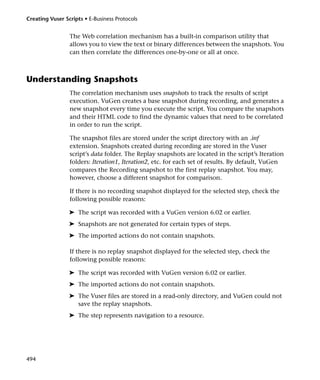
                 In this example, lrs_receive handled data that was received on socket1. The
                 data was stored in the fifth receive record(buf4)—note that the index
                 number is zero-based. The corresponding section of the data.ws file shows
                 the buffer and its contents.

                      recv buf4 39
                          "xffxfbx01xffxfbx03xffxfdx01"
                          "rn"
                          "rn"
                          "SunOS UNIX (sunny)rn"
                          "r"
                          "x0"
                          "rn"
                          "r"
                          "x0"


Understanding the Data File Format
                 The data.ws data file has the following format:

                 ➤ File header
                 ➤ A list of buffers and their contents

                 The file header includes an internal version number of the data file format.
                 The current version is 2. If you try to access data from a data file with format
                 version 1, an error is issued.

                      ;WSRData 2 1


284
Chapter 21 • Working with Window Sockets Data


An identifier precedes each record, indicating whether the data was received
or sent, followed by the buffer descriptor, and the number of bytes received
(for lrs_receive only). The buffer descriptor contains a number identifying
the buffer. For example,

    recv buf5 25


indicates that the buffer contains data that was received. The record number
is 5, indicating that this receive operation was the sixth data transfer (the
index is zero based), and twenty-five bytes of data were received.

If your data is in ASCII format, then the descriptor is followed by the actual
ASCII data that was transferred by the sockets.

If your data is in EBCDIC format, it must be translated through a look-up
table. For information on setting the translation table, refer to See “Setting
the Recording Options” on page 261. The EBCDIC whose ASCII value (after
translation) is printable, is displayed as an ASCII character. If the ASCII value
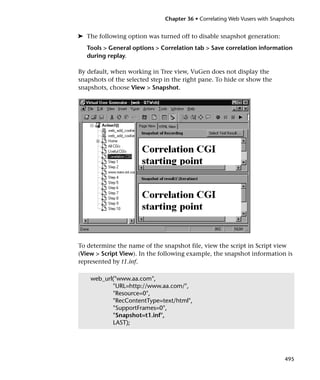
corresponds to a non-printable character, then VuGen displays the original
EBCDIC value.

    recv buf6 39
         "xffxfbx01xffxfbx03xffxfdx01"
         "rn"
         "SunOS UNIX (sunny)rn"


                                                                              285
Creating Vuser Scripts • Client/Server Protocols


                 The following segment shows the header, descriptors, and data in a typical
                 data file:

                      ;WSRData 2 1

                      send buf0
                          "xffxfdx01xffxfdx03xffxfbx03xffxfbx18"

                      recv buf1 15
                          "xffxfdx18xffxfdx1fxffxfd"
                          "#"
                          "xffxfd"
                          "'"
                          "xffxfd"
                          "$"

                      send buf2
                          "xffxfbx18"


Viewing Buffer Data in Hexadecimal format
                 VuGen contains a utility allowing you to view a segment of data, displaying
                 it in hexadecimal and ASCII format, while indicating the offset of the data.

                 To display the data in the viewer window, select the data and press F7. If the
                 selected text is less than four characters, VuGen displays the data in short
                 format, showing the hexadecimal, decimal and octal representations.


                 You can customize the short format in the conv_frm.dat file as described in
                 “Setting the Display Format” on page 288.


286
Chapter 21 • Working with Window Sockets Data


  If the selected text is more than four characters, VuGen displays the data in
  several columns in long format. You can customize the long format by
  modifying the conv_frm.dat file, as described in “Setting the Display Format”
  on page 288.

  In the default format, the first column displays the character offsets from
  the beginning of the marked section. The second column displays the
  hexadecimal representation of the data. The third column shows the data in
  ASCII format. When displaying EBCDIC data, all non-printable ASCII
  characters (such as /n), are represented by dots.


               Offset    Decimal representation                ASCII format


  The F7 viewer utility is especially useful for parameterization. It allows you
  to determine the offset of the data that you want to save to a parameter.

  To determine the offset of a specific character:
1 View data.ws and select the data from the beginning of the buffer.


                                                                                287
Creating Vuser Scripts • Client/Server Protocols


              2 Press F7 to display the data and the character offsets. Since more than four
                characters were selected, the data is displayed in long format.


              3 Locate the value you want to correlate in the ASCII data. In this example, we
                will correlate the number 13546 (a process ID during a UNIX session) which
                begins at the 31st character—the last character in the second line.
              4 Use the offset value in the lrs_save_param_ex function in order to correlate
                the value of the process ID. For more information, see Chapter 7,
                “Correlating Statements.”


Setting the Display Format
                 You can specify how VuGen will display the buffer data in the viewer (F7)
                 window. The conv_frm.dat file in the lrun/dat directory contains the
                 following display parameters:

                 LongBufferFormat: The format used to display five or more characters. Use
                 nn for offset, XX for the hex data, and aa for ASCII data.

                 LongBufferHeader: A header to precede each buffer in Long buffer format.

                 LongBufferFooter: A footer to follow each buffer in Long buffer format.

                 ShortBufferFormat: The format used to display four characters or less. You
                 can use standard escape sequences and conversion characters.


288
Chapter 21 • Working with Window Sockets Data


The supported escape sequence characters are:

a       Bell (alert)
b       Backspace
f       Formfeed
n       New line
r       Carriage return
t       Horizontal tab
v       Vertical tab
'       Single quotation mark
"       Double quotation mark
       Backslash
?       Literal question mark
ooo     ASCII character -octal

The supported conversion characters are:

%a       ASCII representation
%BX      Big Endian (Network Order) Hex
%BO      Big Endian (Network Order) Octal
%BD      Big Endian (Network Order) Decimal
%LX      Little Endian Hex
%LO      Little Endian Octal
%LD      Little Endian Decimal

AnyBufferHeader: A header to precede each buffer.

AnyBufferFooter: A footer to follow each buffer.

NonPrintableChar: The character with which to represent non-printable
ASCII characters.

PrintAllAscii: Set to 1 to force the printing of non-printable ASCII
characters.


                                                                           289
Creating Vuser Scripts • Client/Server Protocols


                 In the default settings, long and short formats are set, and a dot is specified
                 for non-printable characters.

                      [BufferFormats]
                      LongBufferFormat=nnnnnnnn            XX XX XX XX XX XX XX XX XX XX XX
                      XX XX XX XX XX aaaaaaaaaaaaaaaarn
                      LongBufferHeader=
                      LongBufferFooter=
                      ShortBufferFormat=ASCII:ttt%arnttNetwork OrderttLittle
                      Endianrntt (Big Edian)rnHex:tt%BXtt%LXrnOc-
                      tal:tt%BOtt%LOrnDecimal:t%BDtt%LDrn
                      AnyBufferHeader=
                      AnyBufferFooter=----------------------------------------------------------------------
                      rn
                      NonPrintableChar=.
                      PrintAllAscii=0

                 The default LongBufferFormat is displayed as:


                               Offset         Hexadecimal representation              ASCII format


                 The default ShortBufferFormat is displayed as:


290
Chapter 21 • Working with Window Sockets Data


Debugging Tips
        VuGen offers several means which allow you to debug your script. You can
        view the various output logs and windows for detailed messages issued
        during execution.

        Specifically for WinSock Vuser script, Vugen provides additional
        information about buffer mismatches. A buffer mismatch indicates a
        variation in the received buffer size (generated during replay) and the
        expected buffer (generated during record). However, if the received and
        expected buffer are the same size, even though the contents are different, a
        mismatch message is not issued. This information can help you locate a
        problem with your system, or with your script.

        You can view the buffer mismatch information in the Execution log. Choose
        View > Output to display the Execution log if it is not visible.

        Note that a buffer mismatch may not always indicate a problem. For
        example, if a buffer contains insignificant data such as previous login times,
        this type of mismatch can be ignored.

            Mismatch (expected 54 bytes, 58 bytes actually received)
            The expected buffer is:
            =================
            rn Last login: Wed Sep 2 10:30:18 from acme.mercury.crn
            =================
            The received buffer is:
            =================
            rn Last login: Thu Sep 10 11:19:50 from dolphin.mercury.crn

        However, if there is a very large discrepancy between the size of the
        Expected and Received buffers, this could indicate a problem with your
        system. Check the data in the corresponding buffer for discrepancies.

        In order for you to determine whether or not the mismatch is significant,
        you must thoroughly understand your application.


                                                                                   291
Creating Vuser Scripts • Client/Server Protocols


Manually Correlating WinSock Scripts
                 A common issue with WinSock Vuser scripts is dynamic ports—ports whose
                 numbers are assigned dynamically. While certain applications always use
                 the same port, others use the next available port. If you try to replay a script
                 and the recorded port is no longer available, your test will fail. To overcome
                 this issue, you must perform correlation—save the actual run-time values
                 and use them within the script.

                 VuGen provides a user interface for correlating or parameterizing Vuser
                 scripts. For more information, see “Parameterizing the Data” on page 279.

                 You can manually correlate a Vuser scripts using the correlation functions
                 that save the dynamic values to a parameter. The lrs_save_param and
                 lrs_save_param_ex functions let you save data to a parameter based on the
                 offset of the data in the received buffer. An advanced correlation function
                 lrs_save_searched_string lets you designate the data by specifying its
                 boundaries and indicating which occurrence of the matched pattern to save
                 to a parameter. The following example describes correlation using
                 lrs_save_param_ex. For information about using other correlation
                 functions, see the LoadRunner Function Reference.

                 To correlate the WinSock Vuser statements:
              1 Insert the lrs_save_param_ex statement into your script at the point where
                you want to save the buffer contents. You can save user, static, or received
                type buffers.
                 lrs_save_param_ex (socket, type, buffer, offset, length, encoding, parameter);

              2 Reference the parameter.
                 View the buffer contents by selecting the data.ws file in the Data Files box of
                 the main VuGen window. Locate the data that you want to replace with the
                 contents of the saved buffer. Replace all instances of the value with the
                 parameter name in angle brackets (< >).


292
Chapter 21 • Working with Window Sockets Data


  In the following example, a user performed a telnet session. The user used a
  ps command to determine the process ID (PID), and killed an application
  based on that PID.

      frodo:/u/jay>ps
        PID TTY    TIME CMD
      14602 pts/18 0:00 clock
      14569 pts/18 0:03 tcsh

      frodo:/u/jay>kill 14602
      [3] Exit 1            clock
      frodo:/u/jay>

  During execution, the PID of the procedure is different (UNIX assigns
  unique PIDs for every execution), so killing the recorded PID will be
  ineffective. To overcome this problem, use lrs_save_param_ex to save the
  current PID to a parameter. Replace the constant with the parameter.
3 In the data.ws file, determine the buffer in which the data was received,
  buf47.

      recv buf47 98
          "r"
          "x00"
          "rn"
          " PID TTY      TIME CMDrn"
          " 14602 pts/18 0:00 clockrn"
          " 14569 pts/18 0:02 tcshrn"
          "frodo:/u/jay>"
      .
      .
      .
      send buf58
          "kill 14602"

4 In the Actions section, determine the socket used by buf47. In this example
  it is socket1.

      lrs_receive("socket1", "buf47", LrsLastArg);


                                                                              293
Creating Vuser Scripts • Client/Server Protocols


                     5 Determine the offset and length of the data string to save. Highlight the
                       entire buffer and press F7. The offset of the PID is 11 and its length is 5
                       bytes. For additional information about displaying the data, refer to See
                       “Understanding the Data File Format” on page 284.


   offset of first
   character in
   line


                     6 Insert an lrs_save_param_ex function in the Actions section, after the
                       lrs_receive for the relevant buffer. In this instance, the buffer is buf47. The
                       PID is saved to a parameter called param1. Print the parameter to the output
                       using lr_output_message.

                            lrs_receive("socket1", "buf79", LrsLastArg);
                            lrs_save_param("socket1", “user”, buf47, 11, 5, ascii, param1);
                            lr_output_message ("param1: %s", lr_eval_string("<param1>"));
                            lr_think_time(10);
                            lrs_send("socket1", "buf80", LrsLastArg);

                     7 In the data file, data.ws, determine the data that needs to be replaced with a
                       parameter, the PID.

                            send buf58
                                "kill 14602"

                     8 Replace the value with the parameter, enclosed in angle brackets.

                            send buf58
                                "kill <param1>"


294
Part VI
Distributed Component Protocols
296
22
Recording COM Vuser Scripts

         Many Windows applications use COM-based functions either directly, or
         through library calls. You can use VuGen to record a script that emulates a
         COM-based client accessing a COM server. The resulting script is called a
         COM Vuser script. You can also create COM Vuser scripts using the
         LoadRunner Visual Basic add-on. For more information about the Visual
         Basic add-on, refer to Chapter 61, “Creating Vuser Scripts in Visual Studio.”

         Chapter 23, “Understanding COM Vuser Scripts,” explains how VuGen
         COM scripts work and provides a brief function reference.

         This chapter describes:

       ➤ COM Overview
       ➤ Getting Started with COM Vusers
       ➤ Selecting COM Objects to Record
       ➤ Setting COM Recording Options

         The following information applies only to COM Vuser scripts.


About Recording COM Vuser Scripts
         When you record COM client applications, VuGen generates functions that
         describe COM client-server activity. The recorded script contains interface
         declarations, API calls and instance calls to methods. Each COM function
         begins with an lrc prefix.

         You can view and edit the recorded script from the VuGen’s main window.
         The COM API/method calls that were recorded during the session are


                                                                                   297
Creating Vuser Scripts • Distributed Component Protocols


                displayed in the window, allowing you to visually track application
                COM/DCOM calls.

                You can indicate the programming language in which to create a Vuser
                script—either C or Visual Basic scripting. For more information, see
                Chapter 4, “Setting the Script Type Recording Options.”


COM Overview
                This section provides an outline of COM technology. This should be enough
                to get you started with COM Vuser scripts. Refer to Microsoft Developer’s
                Network (MSDN) and other documentation for further details.

                COM (Component Object Model) is a technology for developing reusable
                software components ("plug-ins"). DCOM (Distributed COM) allows use of
                COM components on remote computers. Microsoft transaction servers
                (MTS), Visual Basic and Explorer all use COM/DCOM technology. Thus, the
                application you are testing may use COM technology indirectly, even
                though you don’t know it. You will probably have to include some, but
                certainly not all, of the COM calls made by your application in the load
                testing script.

                Objects, Interfaces and Type Libraries
                COM objects are binary code modules. Each COM object implements one or
                more interfaces that allow client programs to communicate with it. You
                need to know about these interfaces in order to follow the COM calls in the
                LoadRunner scripts. Type libraries, used as a reference for accessing COM
                interface methods and parameters, contain descriptions of COM objects and
                interfaces. Each COM class, interface, and type library is identified by a
                Global Unique Identifier (GUID).

                COM Interfaces
                A COM interface provides a grouped collection of related methods. For
                example, a Clock object may have Clock, Alarm and Timer interfaces. Each
                interface has one or more methods. For example the Alarm interface may
                have AlarmOn and AlarmOff methods.


298
Chapter 22 • Recording COM Vuser Scripts


         An interface may also have one or more properties. Sometimes, the same
         function may be performed by calling a method or by setting or getting the
         value of a property. For example, you can set the Alarm Status property to
         On or call the AlarmOn method.

         A COM object may support many interfaces. The IUnknown interface is
         implemented by all components and is used to find out about other
         interfaces. Many components also implement the IDispatch interface,
         which exposes all other interfaces and methods of the object, allowing
         implementation of COM automation in scripting languages.

         COM Class Context and Location Transparency
         COM objects can run on the same machine as the client application, or on a
         remote server. COM objects that an application creates may be in a local
         library, a local process or a remote machine (“Remote Object Proxy”). The
         location of the COM object, known as the “Context,” can be transparent to
         the application. You are probably using LoadRunner to check load on
         remote servers. Therefore, objects accessed by Remote Object Proxy are
         usually the most interesting for your purposes.

         COM Data Types
         COM also provides several special data types, including safe arrays, BSTR
         strings and variants. You may need to use these data types for debugging,
         parameterization and similar tasks.


Getting Started with COM Vusers
         This section provides an overview of the process of using VuGen to develop
         COM Vuser scripts.

         To develop a COM Vuser script:
       1 Record the basic script using VuGen.
         Start VuGen and create a new Vuser script. Specify COM as the type of Vuser.
         Choose an application to record and set the recording options and object
         filter. Use the filter to include any objects that you know to be relevant.
         Record typical operations using your application.


                                                                                    299
Creating Vuser Scripts • Distributed Component Protocols


                For details about recording, see Chapter 3, “Recording with VuGen.”
             2 Refine the Object Filter.
                Use the log file that was generated to refine your choice of objects to be
                recorded in the filter. See the following section, “Selecting COM objects to
                Record,” for details.
             3 Enhance the script.
                Enhance the Vuser script by inserting transactions, rendezvous points, and
                control-flow structures into the script.
                For details, see Chapter 5, “Enhancing Vuser Scripts.”
             4 Define parameters (optional).
                Define parameters for the fixed-values recorded into your script. By
                substituting fixed-values with parameters, you can repeat the same business
                process many times using different values.
                For details, see Chapter 6, “Defining Parameters.”
             5 Configure the run-time settings.
                The run-time settings control the Vuser behavior during script execution.
                These settings include loop, log, and timing information.
                For details, see Chapter 8, “Configuring Run-Time Settings.”
             6 Run the script from VuGen.
                Save and run the script from VuGen to verify that it runs correctly.
                For details, see Chapter 9, “Running Vuser Scripts in Stand-Alone Mode.”

                After you create a COM Vuser script, you integrate it into a scenario on a
                Windows platform. For more information on integrating Vuser scripts in a
                scenario, refer to your LoadRunner Controller User’s Guide.


300
Chapter 22 • Recording COM Vuser Scripts


Selecting COM Objects to Record
         The application you are testing may use a great many COM objects. Only a
         few may actually create load and may be important for the load test. Thus,
         before you record a COM application, you should select the objects you
         want to record for the load test. VuGen allows you to choose objects from
         type libraries that it can read on the local machine and on other computers
         in the network.

         Deciding Which Objects to Use
         There are several ways to decide which COM objects should be included in
         the test. Try to find out which remote objects are used by the software. If
         you cannot be sure which objects to choose at all, try using the default filter.
         The Environments branch of the filter includes calls to three sets of objects
         (ADO, RDS and Remote) that are likely to generate load on remote servers.

         You can also check the actual calls to refine the filter. After you have
         recorded the test, you can save the file and look in the data directory that
         VuGen creates for a file named lrc_debugtinfo_<nnn>.log, where nnn is the
         process number. This log file contains a listing of each COM object that was
         called by the application being recorded, regardless of whether or not the
         recording filter included that object. Only calls that generate load on the
         server should be included for recording. Note that an additional log file,
         lrc_debugtrace_<nnn>.log provides a complete trace of the recording session.

         For example, the following is a local COM of the Visual Basic library:

             Class JetES {039EA4C0-E696-11D0-878A-00A0C91EC756}
             was loaded from type library "JET Expression Service Type Library"
             ({2358C810-62BA-11D1-B3DB-00600832C573} ver 4.0)

         It should not be added.


                                                                                      301
Creating Vuser Scripts • Distributed Component Protocols


                Likewise, since the OLE DB and Microsoft Windows Common Controls are
                local objects, the following are examples of classes and libraries that are not
                going to place any load on the server and should not be recorded:

                     Class DataLinks {2206CDB2-19C1-11D1-89E0-00C04FD7A829}
                     was loaded from type library "Microsoft OLE DB Service Component 1.0
                     Type Library"
                     ({2206CEB0-19C1-11D1-89E0-00C04FD7A829} ver 1.0)

                     Class DataObject {2334D2B2-713E-11CF-8AE5-00AA00C00905}
                     was loaded from type library "Microsoft Windows Common Controls 6.0
                     (SP3)"
                     ({831FDD16-0C5C-11D2-A9FC-0000F8754DA1} ver 2.0)

                However, for example, a listing such as the following indicates a class that
                should be recorded:

                     Class Order {B4CC7A90-1067-11D4-9939-00105ACECF9A}
                     was loaded from type library "FRS"
                     ({B4CC7A8C-1067-11D4-9939-00105ACECF9A} ver 1.0)

                Calls to classes of the FRS library, used for instance in the flight_sample that
                is installed with VuGen, use server capacity and should be recorded.

                If a COM object itself calls other COM objects, all the calls will be listed in
                the type information log file. For example, every time the application calls
                an FRS class function, the FRS library calls the ActiveX Data Object (ADO)
                library. If several functions in such a chain are listed in a filter, VuGen
                records only the first call that initiates the chain. If you selected both FRS
                and ADO calls, only the FRS calls will be recorded. On the other hand, if
                you select only the ADO library in the filter, then calls to the ADO library
                will be recorded. It is often simplest to record the call to the first remote
                object in the chain. However, in some cases, an application may use
                methods in many different COM objects, but all of them use a single object
                that puts a load on the server, so you could record only that final common
                object.


302
Chapter 22 • Recording COM Vuser Scripts


         Which Objects Can be Selected
         VuGen can only record objects if it can read their type libraries. If the type
         libraries were not installed in the system or VuGen cannot find them, the
         COM objects will not be listed in the Recording Options dialog box. If they
         are used by your application, VuGen will not be able to identify these
         objects and will identify them as INoTypeInfo in the files.

         Which Interfaces Can be Excluded
         For each object, the Recording Options dialog box will show you all
         interfaces that are listed in the Type Library, and allow you to specify
         inclusion or exclusion of each one. However, ADO, RDS and Remote
         Objects can be included in the filter as a group. The filter will not show the
         individual objects of those environments or their interfaces. Objects that
         you included from type libraries may also have interfaces that are not listed
         in the type library and therefore not shown in the Recording Options
         dialog. After generating a VuGen script, you can identify these interfaces in
         the script and get their GUID numbers from the interfaces.h file that VuGen
         generates. Using this information, you can exclude the interfaces as
         explained below.


Setting COM Recording Options
         Use the COM Recording Options dialog box to tell VuGen which COM
         objects to record and to set scripting options.


                                                                                     303
Creating Vuser Scripts • Distributed Component Protocols


                To tell VuGen which COM objects to record:
             1 Choose Tools > Recording Options from the main menu or click Options in
               the Start Recording dialog box. The Recording Options dialog box opens.
               Click the DCom tab.


                If you click the Environments sub-tree, the ADO, RDS and Remote objects
                listings are displayed. The Filter also includes a Type Libraries tree that is
                initially empty. You can add Type Libraries as described in the steps below.
                By default, all Environments are selected and calls to any of their objects are
                included in the filter. You can clear the check box adjacent to ADO, RDS or
                Remote objects to exclude them from the filter.
             2 All COM objects are represented in type libraries. You can add type libraries
               from the registry or file system such as *.tlb or *.dll. You can also add
               components from the Microsoft Transaction Server, if the computer has an
               MTS client installed. Click Add to add another COM type library, and select
               one of the three options described below.


304
Chapter 22 • Recording COM Vuser Scripts


3 Select Browse Registry to display a list of type libraries found in the registry
  of the local computer.


  Select the checkbox next to the desired library or libraries and click OK.
4 To add a type library from the file system, click Add and select Browse file
  system.
  Select the desired file and click OK.
5 Once the type library appears in the list of Type Libraries, you can expand
  the tree to show all of the available classes in the type library. You can
  expand the class tree to show all of the interfaces supported by that class.
  To exclude a type library, clear the check box next to the library name. This
  excludes all of its classes in that type library. By expanding the tree, you can
  exclude individual classes or interfaces by clearing the check box next to the
  item.


                                                                               305
Creating Vuser Scripts • Distributed Component Protocols


                     Note that when you clear a check box adjacent to an interface in the DCom
                     tab, it is equivalent to selecting it in the Excluded Interfaces dialog box.


      Type library
            Class
       Interfaces


                6 An interface can be implemented differently by various classes. When you
                  exclude an interface that is implemented by other classes that have not been
                  excluded, VuGen displays the following warning:


                     If you check Don’t ask me again and close the dialog, then the status of all
                     instances of the interface in all other classes will be changed automatically
                     for this filter, whenever you change the status of the interface in one object.
                     Click Yes to all to change the status of all instances of this interface for all
                     other classes, click No to all to leave the status of all other instances


306
Chapter 22 • Recording COM Vuser Scripts


  unchanged. Click Next Instance to view the next class that uses this
  interface.
7 To add a component from a Microsoft Transaction Server, click Add and
  select Browse MTS. The MTS Components dialog box prompts you to enter
  the name of the MTS server.


  Type the name of the MTS server and click Connect. Remember that to
  record MTS components you need an MTS client installed on your machine.
  Select one or more packages of MTS components from the list of available
  packages and click Add. Once the package appears in the list of Type
  Libraries, you can select specific components from the package.
8 In addition to disabling and enabling recording of interfaces in the tree
  display, you can also click Exclude in the Recording Options dialog to
  include or exclude interfaces in the filter, whatever their origin. Note that


                                                                              307
Creating Vuser Scripts • Distributed Component Protocols


                you can also exclude classes and interfaces by clearing the check box
                adjacent to the item, inside the type library tree hierarchy.


                The checked interface listings are the ones that are excluded. You can also
                add interfaces that are not listed. Click Add Interface... in the Excluded
                Interfaces dialog box and enter the GUID number (interface ID) and name
                of the interface. You can copy the GUID from the interfaces.h file created by
                VuGen and listed in the selection tree in the left-hand column of the VuGen
                screen. Use the Add Interface... feature to exclude interfaces that are called
                needlessly by the script, but are not listed anywhere in the filter.
             9 When you are done making changes to an existing filter, click OK to save
               the filter and exit. Click Save As to save the New filter, or to save an existing
               filter under a new name. You can select saved filters in subsequent
               recordings. Default settings are given initially in the Default filter.


308
Chapter 22 • Recording COM Vuser Scripts


  To set COM script options:
1 Choose Tools > Recording Options from the main menu or click Options...
  in the Start Recording dialog box. The Recording Options dialog box opens.
  Click the Script tab.


2 In the Select Script Language box, select a mode of code generation — C or
  Visual Basic Scripting. Use C for recording applications that use complex
  constructs and C++ code. Use Visual Basic Scripting mode to record script-
  based applications.
3 Select the desired scripting options from the list. The following are the
  available options:

  Basic Options
  The Basic script options apply to all of the languages and Vuser types. These
  options allow you to control the level of detail in the generated script.

  Record User think times: Insert user think time and delays to simulate real
  user behavior. (enabled by default)

  Insert pre-invocation info: Insert informative logging messages before each
  message invocation. (VB/JS only, enabled by default)


                                                                              309
Creating Vuser Scripts • Distributed Component Protocols


                Insert post-invocation info: Insert informative logging messages after each
                message invocation. (VB/JS only, enabled by default)

                Record primary thread only: Record only events running on the
                application’s main or primary thread. (disabled by default)

                Correlation Options
                The Correlation options apply to the VBScript and JScript programming
                languages. These settings let you configure the extent of automatic
                correlation performed by VuGen while recording. All correlation options are
                disabled by default.

                Correlate small numbers: Correlate short data types such as bytes,
                characters, and short integers. (disabled by default)

                Correlate large numbers: Correlate long data types such as integers, long
                integers, 64-bit characters, float, and double. (disabled by default)

                Correlate simple strings: Correlate simple, non-array strings and phrases.
                (disabled by default)

                Correlate arrays: Track and correlate arrays of all data types, such as string,
                structures, numbers, etc. (disabled by default)

                Correlate structures: Track and correlate complex structures. (disabled by
                default)

                DCOM Scripting Options
                The DCOM scripting options apply to all programming languages. These
                settings let you configure the scripting options for DCOM methods and
                interface handling.

                ADO Recordset filtering: Condense multiple recordset operations into a
                single-line fetch statement. (enabled by default)

                Record COM Exceptions/Errors: Record COM functions and methods that
                generate exceptions and errors during recording. (disabled by default)

                Release COM Objects: Record the release of COM objects when they are no
                longer in use. (disabled by default)


310
Chapter 22 • Recording COM Vuser Scripts


Limit size of SafeArray log: Limit the number of elements printed in the
safearray log per COM call, to 16. (enabled by default)

Generate COM statistics: Generate recording time performance statistics
and summary information. (enabled by default)

VBScript and JScript Options
The VBScript and JScript options allow you to control the use of type helpers
in scripting environments.

Use Helpers for objects: Use helper functions to extract object references
from variants when passed as function arguments. (disabled by default)

Use Helpers for arrays: Use helper functions to extract components from
variants arrays. (disabled by
When you are done selecting script options, click OK to save your settings
and exit.


                                                                           311
Creating Vuser Scripts • Distributed Component Protocols


312
23
Understanding COM Vuser Scripts

          This chapter provides details about the scripts VuGen generates for COM
          client communications, including an explanation of the function calls and
          examples. For basic information about getting started with COM Vuser
          scripts, refer to Chapter 22, “Recording COM Vuser Scripts.”

          This chapter describes:

       ➤ Understanding VuGen COM Script Structure
       ➤ Examining Sample VuGen COM Scripts
       ➤ Scanning a Script for Correlations

          The following information applies only to COM Vuser scripts.


About COM Vuser Scripts
          When you record COM client communications, VuGen creates a script with
          calls to COM API functions and interface methods. In addition, you can
          program COM type conversion functions. Each function call has an lrc
          prefix, such as lrc_CoCreateInstance or lrc_long. This chapter provides an
          overview of COM API and type conversion calls. Refer to the LoadRunner
          Function Reference (Help > Function Reference), for syntax and examples of
          each function.

          Calls to interface methods have the following names and syntax
          conventions:

          lrc_<interface name>_<method name>(instance, ...);

          Note that the instance is always the first parameter passed.


                                                                                 313
Creating Vuser Scripts • Distributed Component Protocols


                The vendors of the respective COM components usually supply
                documentation for the interface functions.

                For each COM Vuser script, VuGen creates the following:

             ➤ interface pointer and other variable declarations in file interfaces.h
             ➤ function calls that you can record in the vuser_init, actions or vuser_end
               sections.
             ➤ a user.h file containing the translation of the Vuser script into low level calls
                After you record the script, you can view any of these files by selecting them
                from the tree on the left-hand side of the VuGen screen.


Understanding VuGen COM Script Structure
                VuGen COM scripts are structured in a special way to meet the needs of
                COM interfaces.

                Interface Methods
                Calls to interface methods have the following names and syntax
                conventions:

                lrc_<interface name>_<method name>(instance, ...);

                Note that the instance is always the first parameter passed.

                The vendors of the respective COM components usually supply
                documentation for the interface functions.

                Interface Pointers
                The interfaces.h file defines the interface pointers, as well as other variables,
                that will be used later on in the script. Each interface has an Interface ID
                (IID) which uniquely identifies the interface.

                The format of the interface definition is:

                <interface type>*<interface name> = 0; //”{<IID of the interface type>}”


314
Chapter 23 • Understanding COM Vuser Scripts


In the following example, the interface type is IDispatch, the name of the
interface instance is IDispatch_0, and the IID of IDispatch type is the long
number string:

    IDispatch* IDispatch_0= 0;//"{00020400-0000-0000-C000-
    000000000046}"


Vuser Script Statements
The COM Vuser script consist of code that creates object instances, retrieves
interface pointers and calls the interface methods. Each user action may
generate one or more COM calls. Each COM call is coded by VuGen as a
group of statements. Each such group is contained in a separate scope
enclosed in braces. Several different statements prepare for the main call by
assigning values and performing type conversions. For example, the group
of calls needed to create an object may look like this:

    {
    GUID pClsid = lrc_GUID("student.student.1");
    IUnknown * pUnkOuter = (IUnknown*)NULL;
    unsigned long dwClsContext = lrc_ulong("7");
    GUID riid = IID_IUnknown;
    lrc_CoCreateInstance(&pClsid, pUnkOuter, dwClsContext, &riid,
    (void**)&IUnknown_0, CHECK_HRES);
    }


Error Checking
Each COM method or API call returns an error value. Vugen will set a flag to
check or not to check errors during replay, depending upon whether the call
succeeded during the original recording. The flag appears as the last
argument of the function call and has these values:

CHECK_HRES                     This value is inserted if the function passed
                               during recording and errors should be
                               checked during replay.
DONT_CHECK_HRES                This value is inserted if the function failed
                               during recording and errors should not be
                               checked during replay.


                                                                               315
Creating Vuser Scripts • Distributed Component Protocols


Examining Sample VuGen COM Scripts
                This section shows examples of how VuGen emulates a COM client
                application.

                Basic COM Script Operations
                The basic operations are:

             ➤ Instantiation of the object
             ➤ Retrieving interface pointers
             ➤ Calling interface methods
                Each type of operation is done within a separate scope.

                Instantiation of the Object
                To use a COM object, the application must first instantiate it and get a
                pointer to an interface of that object.

                VuGen does the following to instantiate an object:
             1 VuGen calls lrc_GUID to get a unique ProgID for the object, to be stored in
               pClsid:

                     GUID pClsid = lrc_GUID("student.student.1");


                pClsid is the unique global CLSID of the object, which was converted from
                the ProgID “student.student.1”
             2 If the unknown interface pointer is a pointer to an aggregated object, VuGen
               retrieves the pointer to that object, or else it sets it to NULL:

                     IUnknown * pUnkOuter = (IUnknown*)NULL;

             3 VuGen sets the contexts of the object to be created:

                     unsigned long dwClsContext = lrc_ulong("7");


316
Chapter 23 • Understanding COM Vuser Scripts


  dwClsContext contains the context of the object (in process, local, remote
  or combinations of these.)
4 VuGen sets a variable to hold the requested interface ID, which is
  IUnknown in this case:

       GUID riid = IID_IUnknown;


  riid contains the interface ID of the IUnknown interface.
5 After the input parameters are prepared, a call to lrc_CoCreateInstance
  creates an object using the parameters defined in the preceding statements.
  It returns a pointer to the IUnknown interface needed for the next stage:

       lrc_CoCreateInstance(&pClsid, pUnkOuter, dwClsContext, &riid,
       (void**)&IUnknown_0, CHECK_HRES);


  The input parameters were prepared and explained above. Since the call
  succeeded, VuGen sets error checking on during the user simulation by
  inserting the CHECK_HRES value. The call returns a pointer to the
  IUnknown interface in IUnknown_0, that can be used in subsequent calls.

  Retrieving an Interface
  After creating an object, VuGen has access only to the IUnknown interface.
  VuGen will use the IUnknown interface for communicating with the
  object. This is done using the QueryInterface method of the IUnknown
  standard interface. The first parameter in a VuGen method call is the
  interface instance. In this case it is the IUnknown_0 pointer returned
  previously by CoCreateInstance. The QueryInterface call requires as input
  the ID of the interface to be retrieved, and returns a pointer to the interface
  designated by that ID.

  To get the interface:
1 First, VuGen sets a parameter, riid, equal to the ID of the Istudent interface:

       GUID riid = IID_Istudent;


                                                                              317
Creating Vuser Scripts • Distributed Component Protocols


             2 A call to QueryInterface returns a pointer to the Istudent interface if the
               Istudent object has such an interface:

                     lrc_IUnknown_QueryInterface(IUnknown_0, &riid, (void**)&Istudent_0,
                     CHECK_HRES);


                Using an Interface to Set Data
                Here is an example of using the methods of the interface to set data.
                Suppose that in the application, the user is supposed to input a name. This
                activates a method for setting the name. VuGen records this in two
                statements. One statement is used for setting up the name string and the
                second one sets the name property.

                To set up the entire function call:
             1 First, VuGen sets a variable (Prop Value) equal to the string. The parameter
               is of type BSTR, a string type used in COM files:

                     BSTR PropValue = lrc_BSTR("John Smith");


                In subsequent stages, you will probably parameterize this call, replacing
                “John Smith” with a parameter, so that different names are used each time
                the Vuser script is run.
             2 Next, VuGen calls the Put_Name method of the Istudent interface to enter
               the name:

                     lrc_Istudent_put_name(Istudent_0, PropValue, CHECK_HRES);


                Using an Interface to Return Data
                Returning data from an application is different than entering the data,
                because you might want to store these values and use them as inputs in
                subsequent calls for parameterization.


318
Chapter 23 • Understanding COM Vuser Scripts


  This is an example of what VuGen may do when the application retrieves
  data:
1 Create a variable of the appropriate type (in this case a BSTR) that will
  contain the value of the property:

       BSTR pVal;

2 Get the value of the property, in this case a name, into the pVal variable
  created above, using the get_name method of the Istudent interface in this
  example:

       lrc_Istudent_get_name(Istudent_0, &pVal, CHECK_HRES);

3 VuGen then generates a statement for saving the values:

       //lrc_save_BSTR("param-name",pVal);


  The statement is commented out. You can remove the comments and
  change param-name to a variable with a meaningful name to be used for
  storing this value. Vugen will use the variable to save the value of pVal
  returned by the previous call. You can then use the variable as a
  parameterized input in subsequent calls to other methods.

  The IDispatch Interface
  Most COM objects have specific interfaces. Many of them also implement a
  general-purpose interface called IDispatch, which VuGen translates in a
  special way. IDispatch is a “superinterface” that exposes all of the other
  interfaces and methods of a COM object. Calls to the IDispatch:Invoke
  method from VuGen scripts are implemented using lrc_Disp functions.
  These calls are constructed somewhat differently from calls to other
  interfaces.

  The IDispatch interface Invoke method can execute a method, it can get a
  property value, or it can set a value or reference value for a property. In the
  standard IDispatch:Invoke method these different uses are signalled in a
  wflags parameter. In the VuGen implementation they are implemented in
  different procedure calls that invoke a method or put or get a property.


                                                                              319
Creating Vuser Scripts • Distributed Component Protocols


                For example, a call to IDispatch to activate the GetAgentsArray method
                may look like this:

                     retValue = lrc_DispMethod1((IDispatch*)IDispatch_0, "GetAgentsArray",
                     /*locale*/1033, LAST_ARG, CHECK_HRES);

                The parameters in the above call are:
                IDispatch_0             This is the pointer to the IDispatch interface returned
                                        by a previous call to the IUnknown:Queryinterface
                                        method.
                GetAgentsArray          This is the name of the method to invoke. Behind the
                                        scenes, VuGen will get the ID of the method from the
                                        name.
                1033                    This is the language locale
                LAST_ARG                This is a flag to tell the IDispatch interface that there
                                        are no more arguments.
                CHECK_HRES              This flag turns on checking of HRES, since the call
                                        succeeded when it was recorded.

                In addition, there might be another parameter, OPTIONAL_ARGS. This
                signals that in addition to any standard parameters, VuGen is sending some


320
Chapter 23 • Understanding COM Vuser Scripts


optional arguments. Each optional argument consists of a pair giving the ID
or name of the argument and its value. For example:

    {
             GUID riid = IID_IDispatch;
             lrc_IOptional_QueryInterface(IOptional_0, &riid,
    (void**)&IOptional_0, CHECK_HRES);
         }
         {
             VARIANT P1 = lrc_variant_short("47");
             VARIANT P2 = lrc_variant_short("37");
             VARIANT P3 = lrc_variant_date("3/19/1901");
             VARIANT var3 = lrc_variant_scode("4");
             lrc_DispMethod((IDispatch*)IOptional_0, "in_out_optional_args",
    /*locale*/1024, &P1, &P2, OPTIONAL_ARGS, "#3", &P3, "var3", &var3,
    LAST_ARG, CHECK_HRES);


The different lrc_Disp methods that use the IDispatch interface are detailed
in the “LRC Function Reference” Section.

Type Conversions and Data Extraction
As shown in the above example, many COM parameters are defined as
variants. To extract these values, VuGen uses a number of conversion
functions, derived from the equivalent COM functions. The full list is given
in the “LRC Function Reference” Section below. Here is an example.
Previously, we showed how the lrc_DispMethod1 call was used to retrieve
an array of name strings:

    VARIANT retValue = lrc_variant_empty();
    retValue = lrc_DispMethod1((IDispatch*)IDispatch_0, "GetAgentsArray",
    /*locale*/1033, LAST_ARG, CHECK_HRES);


Now we will show how VuGen gets the strings out of retValue, which is a
variant that will be read as an array of strings.


                                                                            321
Creating Vuser Scripts • Distributed Component Protocols


                First, VuGen extracts the BSTR array from the variant:

                     BstrArray array0 = 0;
                     array0 = lrc_GetBstrArrayFromVariant(&retValue);

                With all the values in array0, VuGen provides you with code that you can
                use to extract the elements from the array for later use in parameterization,
                as in the example below:

                     //GetElementFrom1DBstrArray(array0, 0); // value: Alex
                     //GetElementFrom1DBstrArray(array0, 1); // value: Amanda
                     ....

                VuGen has numerous type conversion functions and functions for
                extracting conventional types from variants. These are detailed in
                Chapter 24, “Understanding COM Vuser Functions” or refer to the
                LoadRunner Function Reference.


Scanning a Script for Correlations
                VuGen provides a correlation utility to help you repair your script to ensure
                a successful replay. It performs the following steps:

                ➤ scans for potential correlations
                ➤ insert the appropriate correlation function to save the results to a
                  parameter
                ➤ replace the statement value with the parameter

                You can perform automatic correlation on the entire script, or at a specific
                location in your script.

                This section describes how to determine the statement which needs to be
                correlated. If you already know which value you want to correlate, proceed
                to the next section for instructions on correlating a specific value.

                To scan and correlate a script with automatic correlation:
             1 Open the Output window.


322
Chapter 23 • Understanding COM Vuser Scripts


  Select View > Output to display the output tabs at the bottom of the
  window. Check for errors in the Execution Log folder. Often, these errors
  can be corrected by correlation.
2 Select Vuser > Scan for Correlations.
  VuGen scans the entire script and lists all possible values to correlate in the
  Correlated Query tab.
  In the following example, VuGen found several possible values to correlate
  in the lrc_variant_BSTR (“SELECT...”) statement.


3 Correlate the value.
  In the Correlated Query tab, double-click on the result you want to
  correlate. This is located on the third line of the message where it says


                                                                              323
Creating Vuser Scripts • Distributed Component Protocols


                grid column x, row x.
                VuGen sends the cursor to the grid location of the value in your script.

             1 In the grid, select the value you want to correlate, and choose Vuser > Create
               Correlation. VuGen prompts you to enter a parameter name for the result
               value.
             2 Specify a name, or accept the default. Click OK to continue. VuGen inserts
               the appropriate correlation statement (lrc_save_<type>) which saves the
               result to a parameter.
             3 Click Yes to confirm the correlation.
                A message appears asking if you want to search for all occurrences of the
                value in the script.
             4 Click No to replace only the value in the selected statement.
             5 To search for additional occurrences click Yes.
                A Search and Replace dialog box opens. Confirm any replacements,
                including your original statement. After you replace all the desired values,
                click Cancel to close the Search and Replace dialog box.
                VuGen replaces the statement value with a reference to the parameter. Note
                that if you choose to cancel the correlation, VuGen also erases the statement
                created in the previous step.


Correlating a Known Value
                If you know which value needs to be correlated, perform the following
                procedure:

                To correlate a specific value:
             1 Locate the value you want to correlate and select the value without the
               quotation marks.
             2 Choose Vuser > Scan for Correlations (at cursor).
                VuGen scans the value and lists all results within the script that match this
                value. The correlation values are listed in the Correlated Query tab.


324
Chapter 23 • Understanding COM Vuser Scripts


  In the following example, VuGen found one matching result value to
  correlate to “Alex”.


  In the Correlated Query tab, double-click on the result you want to
  correlate. This is located on the third line of the message where it says
  grid column x, row x.
  VuGen sends the cursor to the grid location of the value in your script.
3 In the grid, select the value you want to correlate and choose Vuser > Create
  Correlation. VuGen prompts you to enter a parameter name for the result
  value.


                                                                              325
Creating Vuser Scripts • Distributed Component Protocols


             4 Specify a name, or accept the default. Click OK to continue. VuGen inserts
               the appropriate correlation statement (lrc_save_<type>) which saves the
               result to a parameter.

                     lrc_save_rs_param (Recordset20_0, 1, 1, 0, “Saved_AGENT_NAME”);

             5 Click Yes to confirm the correlation.
                A message appears asking if you want to search for all occurrences of the
                value in the script.
             6 Click No to replace only the value in the selected statement.
             7 To search for additional occurrences click Yes.
                A Search and Replace dialog box opens. Confirm any replacements,
                including your original statement. After you replace all the desired values,
                click Cancel to close the Search and Replace dialog box.
                VuGen replaces the statement value with a reference to the parameter. Note
                that if you choose to cancel the correlation, VuGen also erases the statement
                created in the previous step.


326
24
Understanding COM Vuser Functions

        The COM Vuser functions emulate the actions of a user running a COM
        application.

        This chapter describes:

     ➤ Creating Instances
     ➤ IDispatch Interface Invoke Method
     ➤ Type Assignment Functions
     ➤ Variant Types
     ➤ Assignment from Reference to Variant
     ➤ Parameterization Functions
     ➤ Extraction from Variants
     ➤ Assignment of Arrays to Variants
     ➤ Array Types and Functions
     ➤ Byte Array Functions
     ➤ ADO RecordSet Functions
     ➤ Debug Functions
     ➤ VB Collection Support

        The following information applies only to COM Vuser scripts.


                                                                              327
Creating Vuser Scripts • Distributed Component Protocols


About COM Vuser Functions
                Each VuGen COM function has an lrc prefix. VuGen records the COM API
                and method calls listed in this section. You can also manually program lrc
                type conversion calls. For syntax and examples of the lrc functions, refer to
                the LoadRunner Function Reference (Help > Function Reference).

                You can indicate the programming language in which to create a Vuser
                script—either C or Visual Basic scripting. For more information, see
                Chapter 4, “Setting the Script Type Recording Options.” The following
                sections describe the functions that are generated for C language type
                Virtual User scripts.


Creating Instances
                There are several functions for creating and releasing objects, derived from
                the corresponding COM functions:

                lrc_CoCreateInstance              Creates an instance of an object and returns
                                                  the unknown interface.
                lrc_CreateInstanceEx              Creates an instance of an object on a remote
                                                  machine and can return multiple interfaces.
                lrc_CoGetClassObject              Fetches the class factory for the specified
                                                  class. The class factory can then be used to
                                                  create multiple objects of that class.
                lrc_Release_Object                Releases a COM object no longer in use.


328
Chapter 24 • Understanding COM Vuser Functions


IDispatch Interface Invoke Method
         The following calls invoke the IDispatch interface using the Invoke
         method, setting different flag values in the wflags parameter of Invoke:

         lrc_DispMethod                   Invokes a method of an interface using the
                                          IDispatch:Invoke method.
         lrc_DispMethod1                  Invokes a method and gets a property of the
                                          same name using the IDispatch interface.
         lrc_DispPropertyGet              Gets a property using the IDispatch interface.
         lrc_DispPropertyPut              Sets a property using the IDispatch interface.
         lrc_DispPropertyPutRef           Sets a property by reference using the
                                          IDispatch interface.


Type Assignment Functions
         To supplement the functions that VuGen automatically records, you can
         manually program type-assignment functions into your script. The type
         conversion functions assign string data to the specified type. The function
         names are:

         lrc_<Type-Name>

         where <Type-Name> can be one of the following data types:

         ascii_BSTR            ascii BSTR
         bool                  boolean
         BSTR                  BSTR
         BYTE                  byte
         char                  character variable
         currency              currency
         date                  a date
         double                double


                                                                                      329
Creating Vuser Scripts • Distributed Component Protocols


                dword                   double word
                float                   floating point number
                GUID                    Returns the GUID of a named object.
                hyper                   hyper integer
                int                     integer
                long                    long integer
                short                   short integer
                uint                    unsigned integer
                ulong                   unsigned long integer
                uhyper                  unsigned 64-bit hyper integer
                ushort                  unsigned short integer


Variant Types
                A variant can contain any type of information. For example, a variant may
                be an array of strings or a double word. A variant can also be an array of
                variants. VuGen can convert string data to various variant types. The
                functions are named:

                lrc_variant_<Type-Name>

                where <Type-Name> can be any of the following:

                ascii BSTR              ascii BSTR variant
                bool                    boolean variant
                BSTR                    BSTR variant
                BYTE                    unsigned char (BYTE ) variant
                char                    character
                CoObject                an IUnknown interface pointer
                currency                currency variant


330
Chapter 24 • Understanding COM Vuser Functions


         date                 date variant
         DispObject           an IDispatch interface pointer
         float                floating point number variant
         int                  integer variant
         long                 long integer variant
         scode                error code variant
         short                short integer variant
         uint                 unsigned integer variant
         ulong                unsigned long variant
         ushort               unsigned short variant


         In addition to the variant type conversion functions, there are three
         functions that create new variants:
         lrc_variant_empty Creates an empty variant.
         lrc_variant_null     Creates a null variant.
         lrc_variant_variant_by_ref
                              Creates a new variant containing an existing variant.


Assignment from Reference to Variant
         VuGen can assign variables to a reference stored inside a variant. The
         functions are named:

         lrc_variant_<Type-Name>_by_ref

         where <Type-Name> can be any of the following:

         ascii BSTR           ascii BSTR variant
         bool                 boolean variant
         BSTR                 BSTR variant


                                                                                   331
Creating Vuser Scripts • Distributed Component Protocols


                BYTE                    BYTE variant
                char                    char variant
                CoObject                an IUnknown interface pointer
                currency                currency variant
                date                    date variant
                DispObject              an IDispatch interface pointer
                float                   floating point number variant
                int                     integer variant
                long                    long integer variant
                scode                   scode variant
                short                   short integer variant
                uint                    unsigned integer variant
                ulong                   unsigned long variant
                ushort                  unsigned short variant
                from_variant            retrieves a variant from within a variant.


Parameterization Functions
                Parameterization functions save a value of the specified type to a character
                string parameter. The syntaxes of parameterization functions are the
                following:

                lrc_save_<Type-Name>

                lrc_save_VARIANT_<Type-Name>

                Saves a variable of the given <Type-Name> as a variant.

                lrc_save_VARIANT_<Type-Name>_by_ref

                Saves a variant of the given <Type-Name> as a reference within a variant.


332
Chapter 24 • Understanding COM Vuser Functions


The value is converted from the <type-name> to a character string. It is
stored in a parameter. The statements are commented out by VuGen. To use
them, change the name of the parameter to something meaningful and
remove the statement’s comments. You can then use the parameter as an
input to subsequent calls. The <type-name> can be one of the following:

ascii_BSTR          ascii BSTR
bool                boolean
BSTR                BSTR
BYTE                byte
char                char type
currency            currency
date                a date
double              double
dword               double word
float               floating point number
hyper               hyper integer
int                 integer
long                long integer
uint                unsigned integer
ulong               unsigned long integer
short               short integer
uhyper              unsigned hyper integer
ushort              unsigned short integer
VARIANT             variant


VuGen also adds a save statement for parameterization of COM scripts if
you ask for correlation in a grid:


                                                                           333
Creating Vuser Scripts • Distributed Component Protocols


Extraction from Variants
                Several functions allow extraction of data from variants:

                lrc_CoObject_from_variant                  Extracts a pointer to an IUnknown
                                                           interface from a variant.
                lrc_CoObject_by_ref_from_variant           Extracts a pointer to an IUnknown
                                                           interface from a reference within a
                                                           variant.
                lrc_DispObject_from_variant                Extracts a pointer to an IDispatch
                                                           interface from a variant.
                lrc_DispObject_by_ref_from_variant Extracts a pointer to an IDispatch
                                                   interface from reference within a
                                                   variant.


Assignment of Arrays to Variants
                These functions convert arrays to variants:

                lrc_variant_<Type-Name>Array                     Assigns an array of type
                                                                 <Type-Name> to a variant.
                lrc_variant_<Type-Name>Array_by_ref              Assigns an array of type
                                                                 <Type-Name> to a variant,
                                                                 where the array is passed by
                                                                 reference.


Array Types and Functions
                VuGen COM supports the functions for safe arrays:

                Create<n>D<Type-Name>Array                       Create an array of n
                                                                 dimensions of the type
                                                                 specified in Type-Name
                Destroy<Type-Name>Array                          Destroy an array of the type
                                                                 indicated in Type-Name.

334
Chapter 24 • Understanding COM Vuser Functions


GetElementFrom<n>D<Type-Name>Array Retrieves an element of the
                                   specified type from a
                                   SafeArray.
PutElementIn<n>D<Type-Name>Array             Stores an element in an array
                                             of the appropriate type.
lrc_Get<Type-Name>ArrayFromVariant           Extracts an array of Type-
                                             Name from a variant.
lrc_Get<Type-Name>Array_by_refFromVariant
                                             Extracts an array of Type-
                                             Name from a pointer
                                             reference in a variant.
Fill<n>DbyteArray                            Fills the last dimension of a
                                             byte array with a buffer
                                             beginning at the specified n-1
                                             indices.

In the above functions, <Type-Name> can be one of the following data
types:

Bstr                BSTR
Byte                a byte (unsigned char)
Char                a character array
CoObject            an IUnknown interface
Currency            Currency (CY)
Date                a Date variable
DispObject          an IDispatch interface
Double              double
Dword               double word
Error               an scode error
Float               floating point number
Int                 integer


                                                                          335
Creating Vuser Scripts • Distributed Component Protocols


                Long                    long integer
                Short                   short integer
                UInt                    unsigned integer
                ULong                   unsigned long integer
                UShort                  unsigned short integer
                Variant                 a variant type


Byte Array Functions
                Two sets of functions allow filling and retrieving of data from byte arrays
                only.

                Fill<n>DByteArray                          Fills the last dimension of a byte
                                                           array with a buffer beginning at the
                                                           specified n-1 indices.
                GetBufferFrom<n>DByteArray                 Gets a buffer at the specified n-1
                                                           indices from the last dimension of
                                                           an n-dimensional byte array.


                The lrc_CreateVBCollection call provides special support for a Visual Basic
                collection, which is a safearray of variants. VuGen treats this collection as if
                it were an interface. The first time it is encountered, VB creates an
                “interface” using lrc_CreateVBCollection. Thereafter, it can refer to the
                data at the interface address.


ADO RecordSet Functions
                The following are ADO recordset functions

                lrc_FetchRecordset                         Moves a pointer through a
                                                           recordset.
                lrc_FetchRecordsetUntillEOF                Fetches records until the end of the
                                                           recordset.


336
Chapter 24 • Understanding COM Vuser Functions


         lrc_RecordsetWrite                     Updates a field in an ADO recordset.
         lrc_RecordsetAddColumn                 Adds a new column to a recordset.
         lrc_RecordsetDeleteColumn              Deletes a column from a recordset.


Debug Functions
         The lrc_print_variant function prints the contents of a variant.


VB Collection Support
         The lrc_CreateVBCollection function creates a Visual Basic Collection
         object.


                                                                                   337
Creating Vuser Scripts • Distributed Component Protocols


338
25
Developing Corba-Java Vuser Scripts

          VuGen allows you to record applications or applets written in Java that use
          Corba. You can run the recorded script or enhance it using standard Java
          library functions and LoadRunner-specific Java functions.

          This chapter describes:

       ➤ Recording a Corba-Java Vuser
       ➤ Working with Corba-Java Vuser Scripts

          The following information applies to Corba-Java Vuser scripts.


About Corba-Java Vuser Scripts
          Using VuGen, you can record a CORBA (Common Object Request Broker
          Architecture) Java application or applet. VuGen creates a pure Java script
          enhanced with LoadRunner-specific Java functions. After recording, you can
          enhance or modify the script with standard Java code using JDK libraries or
          custom classes.

          After you prepare your script, you run it in standalone mode from VuGen.
          Sun’s standard Java compiler, javac.exe, checks the script for errors and
          compiles it. Once you verify that the script is functional, you incorporate it
          into a LoadRunner scenario.

          When you create a script through recording and manual enhancements, all
          of the guidelines and limitations associated with Java Vuser scripts apply. In
          addition, any specific classes used in the script (for example,
          org.omg.CORBA.ORB) must be present on the machine executing the Vusers
          and indicated by the classpath environment variable. Please refer to


                                                                                     339
Creating Vuser Scripts • Distributed Component Protocols


                Chapter 16, “Programming Java Scripts” for important information about
                function syntax and system configuration.

                The next few chapters discuss the Java recording options, run-time settings,
                and correlation.


Recording a Corba-Java Vuser
                Before recording a Corba Vuser, verify that your application or applet
                functions properly on the recording machine.

                Ensure that you have properly installed a JDK version from Sun on the
                machine running LoadRunner—JRE alone is insufficient. You must
                complete this installation before recording a Vuser script. Verify that the
                classpath and path environment variables are set according to the JDK
                installation instructions.

                Before you record, verify that your environment is configured properly.
                Make sure that the required classes are in the classpath and that you have a
                full installation of JDK. For more information on the required environment
                settings, see Chapter 16, “Programming Java Scripts.”


340
Chapter 25 • Developing Corba-Java Vuser Scripts


  To begin recording:
1 Choose File > New and select Corba-Java from the Distributed Components
  group. The Start Recording dialog box opens.


2 Select a Corba vendor from the Vendor’s list.
3 In the Application Type box, select the appropriate value.
  Java Applet to record a Java applet through Sun’s appletviewer.
  Java Application to record a Java application.
  Netscape or IExplore to record an applet within a browser.
  Executable/Batch to record an applet or application that is launched from
  within a batch file.
  Listener to instruct VuGen to wait for the batch file that initializes the
  configuration and runs an application before recording. This mode requires
  you to define -Xrunjdkhook using jdk1.2.x. (For jdk 1.1.x, define the
  environment variable -classload_hook=JDKhook.)
4 In the Vendor Classes box, select Network if the Corba classes are
  downloaded from the network. Otherwise, when Corba classes are loaded
  locally, (such as JDK 1.2 and higher), only Local is supported.


                                                                               341
Creating Vuser Scripts • Distributed Component Protocols


             5 Specify additional parameters according for the following chart:


                 Application Type        Fields to Set

                 Java Applet             Applet Path, Working Directory
                 Java Application        App. Main Class, Working Directory, App. parameters
                 IExplore                IExplore Path, URL
                 Netscape                Netscape Path, URL
                 Executable/Batch        Executable/Batch, Working Directory
                 Listener                N/A


                Note that a Working Directory is only necessary if your application must
                know the location of the working directory (for example, reading property
                files or writing log files).
             6 To set recording options, such as command line parameters for the JVM,
               click Options. For information about setting recording options, Chapter 12,
               “Setting Java Recording Options.”
             7 In the Record into Action box, select the method into which you want to
               begin recording. The Actions class contains three methods: vuser_init, action,
               and vuser_end. The following table shows what to include into each method,
               and when each method is executed.

                  Script method       Used to emulate...        Is executed when...

                  vuser_init          a login to a server       the Vuser is initialized (loaded)

                  action              client activity           the Vuser is in “Running” status

                  vuser_end           a log off procedure       the Vuser finishes or is stopped


                Note: Make sure to import the org.omg.CORBA.ORB function in the
                vuser_init section, so that it will not be repeated for each iteration.
             8 Click OK to begin recording. VuGen starts your application, minimizes itself
               and opens a progress bar and the floating recording toolbar. The progress


342
Chapter 25 • Developing Corba-Java Vuser Scripts


          toolbar displays the names of classes as they load. This indicates that the
          Java recording support is active.


        9 Perform typical actions within your application. Use the floating toolbar to
          switch methods during recording.


       10 After recording the typical user actions, select the vuser_end method from
          the floating toolbar.


          Perform the log off procedure. VuGen records the procedure into the
          vuser_end method of the script.
       11 Click Stop Recording on the Recording toolbar. The VuGen script editor
          displays all the recorded statements.

       12 Click Save to save the script. The Save Test dialog box opens (for new Vuser
          scripts only). Specify a script name.


Working with Corba-Java Vuser Scripts
          Corba-specific scripts usually have a well-defined pattern. The first section
          contains the ORB initialization and configuration. The next section
          indicates the location of the Corba objects. The following section consists of
          the server invocations on the Corba objects. The final section includes a
          shutdown procedure which closes the ORB. Note that pattern is not
          mandatory and that each one of these sections may appear multiple times
          within a script.


                                                                                        343
Creating Vuser Scripts • Distributed Component Protocols


                In the following segment, the script initializes an ORB instance and
                performs a bind operation to obtain a Corba object. Note how VuGen
                imports all of the necessary classes.

                     import org.omg.CORBA.*;
                     import org.omg.CORBA.ORB.*;
                     import lrapi.lr;

                     public class Actions {

                         // Public function: init
                         public int init() throws Throwable {

                         // Initialize Orb instance...
                         MApplet mapplet = new MApplet("http://chaos/classes/", null);
                         orb = org.omg.CORBA.ORB.init(mapplet, null);

                         // Bind to server...
                         grid = grid_dsi.gridHelper.bind("gridDSI", "chaos");
                         return lr.PASS;
                     }


                The org.omg.CORBA.ORB function makes the connection to ORB. Therefore,
                it should only be called once. When running mulitple iterations, place this
                function in the init section.

                In the following section, VuGen recorded the actions performed upon a grid
                Corba object.

                     // Public function: action
                     public int action() throws Throwable {

                         grid.width();
                         grid.height();
                         grid.set(2, 4, 10);
                         grid.get(2, 4);

                         return lr.PASS;
                     }


344
Chapter 25 • Developing Corba-Java Vuser Scripts


At the end of the session, VuGen recorded the shutdown of the ORB. The
variables used through out the entire recorded code appear after the end
method and before the Actions class closing curly bracket.

    // Public function: end
       public int end() throws Throwable {

         if ( lr.get_vuser_id() == -1 )
             orb.shutdown();

         return lr.PASS;
    }

    // Variable section
       org.omg.CORBA.ORB orb;
       grid_dsi.grid grid;
    }


Note that the ORB shutdown statement was customized for LoadRunner.
This customization prevents a single Vuser’s shutdown from shutting down
all other Vusers.


                                                                                 345
Creating Vuser Scripts • Distributed Component Protocols


346
26
Developing RMI-Java Vuser Scripts

         VuGen allows you to record applications or applets written in Java that use
         RMI. You can run the recorded script or enhance it using standard Java
         library functions and LoadRunner-specific Java functions.

         This chapter describes:

       ➤ Recording RMI over IIOP
       ➤ Recording an RMI Vuser
       ➤ Working with RMI Vuser Scripts

         The following information applies to RMI-Java Vuser scripts.


About Developing RMI-Java Vuser Scripts
         Using VuGen, you can record an RMI (Remote Method Invocation) Java
         application or applet. VuGen creates a pure Java script enhanced with
         LoadRunner-specific Java functions. After recording, you can enhance or
         modify the script with standard Java code using JDK libraries or custom
         classes.

         After you prepare your script, you run it in standalone mode from VuGen.
         Sun’s standard Java compiler, javac.exe, checks the script for errors and
         compiles it. Once you verify that the script is functional, you incorporate it
         into a LoadRunner scenario.

         When you create a script through recording and manual enhancements, all
         of the guidelines and limitations associated with Java Vuser scripts apply. In
         addition, any specific classes used in the script must be present on the
         machine executing the Vusers and indicated by the classpath environment


                                                                                    347
Creating Vuser Scripts • Distributed Component Protocols


                variable. Please refer to Chapter 16, “Programming Java Scripts” for
                important information about function syntax and system configuration.


Recording RMI over IIOP
                The Internet Inter-ORB Protocol (IIOP) technology was developed to allow
                implementation of CORBA solutions over the World Wide Web. IIOP lets
                browsers and servers exchange complex objects such as arrays, unlike HTTP,
                which only supports transmission of text.

                RMI over IIOP technology makes it possible for a single client to access
                services which were only accessible from either RMI or CORBA clients in the
                past. This technology is a hybrid of the JRMP protocol used with RMI and
                IIOP used with CORBA. RMI over IIOP allows CORBA clients to access new
                technologies such as Enterprise Java Beans (EJB) among other J2EE standards.

                VuGen provides full support for recording and replaying Vusers using the
                RMI over IIOP protocol. Depending on what you are recording, you can
                utilize VuGen’s RMI recorder to create a script that will optimally emulate a
                real user:

             ➤ Pure RMI client: recording a client that uses native JRMP protocol for
               remote invocations
             ➤ RMI over IIOP client: recording a client application that was compiled
               using the IIOP protocol instead of JRMP (for compatibility with CORBA
               servers).


Recording an RMI Vuser
                Before recording an RMI Vuser, verify that your application or applet
                functions properly on the recording machine.

                Ensure that you have properly installed a JDK version from Sun on the
                machine running LoadRunner—JRE alone is insufficient. You must
                complete this installation before recording a Vuser script. Verify that the
                classpath and path environment variables are set according to the JDK
                installation instructions.


348
Chapter 26 • Developing RMI-Java Vuser Scripts


  Before you record, verify that your environment is configured properly.
  Make sure that the required classes are in the classpath and that you have a
  full installation of JDK. For more information on the required environment
  settings, see Chapter 16, “Programming Java Scripts.”

  Note that when you load an applet or application from VuGen during
  recording, it may take several seconds longer than if you were to load it
  independent of LoadRunner.

1 To begin recording, choose File > New and select RMI- Java from the
  Distributed Components group. The Start Recording dialog box opens.


2 In the Application Type box, select the appropriate value.
  Java Applet to record a Java applet through Sun’s appletviewer.
  Java Application to record a Java application.
  Netscape or IExplore to record an applet within a browser.
  Executable/Batch to record an applet or application that is launched from
  within a batch file.
  Listener to instruct VuGen to wait for the batch file that initializes the
  configuration and runs an application before recording. This mode requires
  you to define -Xrunjdkhook using jdk1.2.x. (For jdk 1.1.x, define the
  environment variable -classload_hook=JDKhook.)


                                                                               349
Creating Vuser Scripts • Distributed Component Protocols


             3 In the Vendor Classes box select Network or Local.
             4 Specify additional parameters according for the following chart:


                 Application Type        Fields to Set

                 Java Applet             Applet Path, Working Directory
                 Java Application        App. Main Class, Working Directory, App. parameters
                 IExplore                IExplore Path, URL
                 Netscape                Netscape Path, URL
                 Executable/Batch        Executable/Batch, Working Directory
                 Listener                N/A


                Note that a Working Directory is only necessary if your application must
                know the location of the working directory (for example, reading property
                files or writing log files).
             5 To set recording options, such as command line parameters for the JVM,
               click Options. For information about setting recording options, Chapter 12,
               “Setting Java Recording Options.”
             6 In the Record into Action box, select the method into which you want to
               begin recording. The Actions class contains three methods: vuser_init, action,
               and vuser_end. The following table shows what to include into each method,
               and when each method is executed.

                  Script method       Used to emulate...        Is executed when...

                  vuser_init          a login to a server       the Vuser is initialized (loaded)

                  action              client activity           the Vuser is in “Running” status

                  vuser_end           a log off procedure       the Vuser finishes or is stopped


             7 Click OK to begin recording. VuGen starts your application, minimizes itself
               and opens a progress bar and the floating recording toolbar. The progress


350
Chapter 26 • Developing RMI-Java Vuser Scripts


         toolbar displays the names of classes as they load. This indicates that the
         Java recording support is active.


       8 Perform typical actions within your application. Use the floating toolbar to
         switch methods during recording.


       9 After recording the typical user actions, select the vuser_end method from
         the floating toolbar.


         Perform the log off procedure. VuGen records the procedure into the
         vuser_end method of the script.
      10 Click Stop Recording on the Recording toolbar. The VuGen script editor
         displays all the recorded statements.

      11 Click Save to save the script. The Save Test dialog box opens (for new Vuser
         scripts only). Specify a script name.


Working with RMI Vuser Scripts
         This section describes the elements of the Java Vuser script that are specific
         to RMI Vusers. RMI does not have constructs (as in CORBA)—instead it uses
         Serializable Java objects. The first section performs a Naming Registry
         initialization and configuration. The next section is generated when Java
         objects (both Remote and Serializable) are located and casted. The following
         section consists of the server invocations on the Java objects. In RMI there is


                                                                                       351
Creating Vuser Scripts • Distributed Component Protocols


                no specific shutdown section (unlike CORBA). Note that objects might
                appear multiple times within the script.

                In the following segment, a naming registry is located. This is followed by a
                a lookup operation to obtain a specific Java object. We can then work with
                the object and perform invocations like set_sum, increment and get_sum.
                The following segment also shows how VuGen imports all of the necessary
                RMI classes.

                     Import java.rmi.*;
                     Import java.rmi.registry.*;

                     :
                     :

                     // Public function: action
                     public int action() throws Throwable {

                             _registry = LocateRegistry.getRegistry(“localhost”,1099);

                             counter = (Counter)_registry.lookup(“Counter1”);

                             counter.set_sum(0);
                             counter.increment();
                             counter.increment();
                             counter.get_sum();

                             return lr.PASS;
                             }
                         :

                When recording RMI Vusers, your script may contain several calls to
                lr.deserialize, which deserializes all of the relevant objects. The
                lr.deserialize calls are generated because the object being passed to the next
                invocation could not be correlated to a return value from any of the
                previous calls. VuGen therefore records its state and uses lr.deserialize call
                to represent these values during replay. The deserialization is done before
                VuGen passes the objects as parameters to invocations. For more
                information, see “Using the Serialization Mechanism,” on page 182.


352
Part VII
E-Business Protocols
354
27
Developing FTP Vuser Scripts

         VuGen allows you to emulate network activity by directly accessing an FTP
         server.

         This chapter describes:

       ➤ Working with FTP Functions

         The following information applies only to FTP Virtual User scripts.


About Developing FTP Vuser Scripts
         The FTP protocol is a low-level protocol that allows you to emulate the
         actions of a user working against an FTP server.

         For FTP, you emulate users logging into to an FTP server, transferring files,
         and logging out. To create a script, you can record an FTP session or
         manually enter FTP functions.

         To create a script for the FTP protocol, you choose the FTP protocol type in
         the E-Business category. To begin recording, you click the Record button and
         perform typical actions against the FTP server. For more information on
         creating and recording a script, see Chapter 3, “Recording with VuGen.”

         After you create a Virtual User script, you integrate it into a scenario on
         either a Windows or UNIX platform. For more information on integrating
         Virtual User scripts in a scenario, refer to your LoadRunner Controller User’s
         Guide.


                                                                                     355
Creating Vuser Scripts • E-Business Protocols


Working with FTP Functions
                 You can indicate the programming language in which to create a Vuser
                 script —either C or Visual Basic scripting. For more information, see
                 Chapter 4, “Setting the Script Type Recording Options.” The following
                 section describes the functions that are generated for C language type
                 Virtual User scripts.

                 FTP Vuser script functions record the File Transfer Protocol (FTP). Each FTP
                 function begins with an ftp prefix. For detailed syntax information on these
                 functions, see the LoadRunner Function Reference (Help > Function Reference).

                 Most FTP functions come in pairs—one for global sessions and one where
                 you can indicate a specific mail session. To apply the action to all sessions,
                 use the version without the ex suffix. To apply the action to a specific
                 session, use the version with the session identifier with the ex suffix. For
                 example, ftp_logon logs on to the FTP server globally, while ftp_logon_ex
                 logs on to the FTP server for a specific session.

                 Function Name             Description

                 ftp_delete[_ex]           Deletes a file from an FTP server.
                 ftp_dir[_ex]              Runs the dir command on the FTP server.
                 ftp_get[_ex]              Gets a file from an FTP server.
                 ftp_get_last_error        Retrieves the last error received from the FTP server.
                 ftp_get_last_error_id Retrieves the ID of the last error that was received
                                       from the FTP server.
                 ftp_logon[_ex]            Performs a logon to an FTP server.
                 ftp_logout[_ex]           Performs a logout from an FTP server.
                 ftp_mkdir[_ex]            Creates a directory on the FTP server machine.
                 ftp_put[_ex]              Puts a file on an FTP server.
                 ftp_rendir[_ex]           Renames a directory on the FTP server machine.
                 ftp_rmdir[_ex]            Deletes a directory on the FTP server machine.


356
Chapter 27 • Developing FTP Vuser Scripts


In the following example, the ftp_delete function deletes the test.txt file
from the FTP server.

    Actions()
    {
                 ftp_logon("FTP",
                                 "URL=ftp://user:pwd@ftp.merc-int.com",
                                 "LocalAddr=ca_server:21",
                                 LAST);

                 ftp_delete("Ftp_Delete",
                       "PATH=/pub/for_jon/test.txt", ENDITEM ,
                       LAST);

                ftp_logout();
        return 1;
    }


                                                                              357
Creating Vuser Scripts • E-Business Protocols


358
28
Introducing Web Vuser Scripts

          You use VuGen to develop Web Vuser scripts. VuGen creates Vuser scripts by
          recording your actions while you operate a client browser.

          This chapter describes:

       ➤ Introducing Web Vusers
       ➤ Understanding Web Vuser Technology
       ➤ Getting Started with Web Vuser Scripts
       ➤ Viewing Web Scripts in the Tree View
       ➤ Using Web Vuser Scripts in the Script View
       ➤ Using Web Functions

          The following information applies to Web (HTML/HTTP), SOAP, and
          PeopleSoft8 Vuser scripts.


About Developing Web Vuser Scripts
          You use VuGen to develop Web, SOAP, or PeopleSoft8 Vuser scripts. While
          you navigate through a site performing typical user activities, VuGen
          records your actions and generates a Vuser script. When you run the script,
          the resulting Vuser emulates a user accessing the Internet. The PeopleSoft8
          protocol is identical to Web, with the additional capability of supporting
          UTF-8 character encoding.

          VuGen can display a Web Vuser script in two ways:

         ➤ As an icon-based representation of the Vuser script. This is the default
           view, and is known as the tree view.


                                                                                      359
Creating Vuser Scripts • E-Business Protocols


                    ➤ As a text-based representation of the Vuser script. This is known as the
                      script view.

                    You use VuGen to view and edit both the tree view and the script view of the
                    Vuser script. You can easily switch between the two views.


 Tree view of a
 Web Vuser script


 Script view of a
 Web Vuser script


360
Chapter 28 • Introducing Web Vuser Scripts


         After you create a Vuser script, you run the script in stand-alone mode using
         VuGen. When the execution is successful, you are ready to integrate the
         Vuser script into a scenario. For details on how to integrate a Vuser script
         into a scenario, refer to the LoadRunner Controller User’s Guide.


Introducing Web Vusers
         Suppose you have a Web site that displays product information for your
         company. The site is accessed by potential customers. You want to ensure
         that the response time for any customer query is less than a specified value
         (say 20 seconds)—even when a large number of users (say 200) access the
         site simultaneously. You use Vusers to emulate this scenario, in which the
         Web server services the simultaneous requests for information. Each Vuser
         could:

         ➤ load your home page
         ➤ navigate to the page containing the product information
         ➤ submit a query
         ➤ wait for a response from the server

         You can distribute several hundred Vusers among the available testing
         machines, each Vuser accessing the server by using its API. This enables you
         to measure the performance of the server under the load of many users.

         The program that contains the calls to the server API is called a Vuser script.
         It emulates a browser application and all of the actions performed by the
         browser. Using the Controller, you assign the script to multiple Vusers. The
         Vusers execute the script and emulate user load on the Web server.


                                                                                       361
Creating Vuser Scripts • E-Business Protocols


Understanding Web Vuser Technology
                 VuGen creates Web Vuser scripts by recording the activity between a
                 browser and a Web server. VuGen monitors the client (browser) end of the
                 system and traces all the requests sent to, and received from, the server.


                                             o


                   Client runs a          VuGen records       Server receives and
                   browser application.   script.             sends requests.


                 When you run a recorded Vuser script, either in VuGen or from the
                 LoadRunner Controller, the Vuser communicates directly with the server
                 without relying on client software. Instead, the Vuser script executes calls
                 directly to the Web server via API functions.


                   Web virtual user                         Server receives and
                   executes API calls.                      sends requests.


Getting Started with Web Vuser Scripts
                 This section provides an overview of the process of developing Web Vuser
                 scripts.

                 To develop a Web Vuser script:
              1 Record a Vuser script using VuGen.
                 Invoke VuGen and create a new Web Vuser script. Record your actions while
                 you navigate your Web site.


362
Chapter 28 • Introducing Web Vuser Scripts


  For details, see Chapter 29, “Recording Web Vuser Scripts.”
2 Enhance the recorded Vuser script.
  Enhance the Vuser script by inserting transactions, rendezvous points,
  checks, and service steps.
  For details, see Chapter 29, “Recording Web Vuser Scripts,” Chapter 33,
  “Verifying Web Pages Under Load,” Chapter 34, “Modifying Web Vuser
  Scripts,” and Chapter 35, “Correlating Web Statements.”
3 Define parameters (optional).
  Define parameters for the fixed values recorded into your script. By
  substituting fixed values with parameters, you can repeat the same Vuser
  action many times using different values.
  For details, see Chapter 6, “Defining Parameters.”
4 Configure the run-time settings.
  The run-time settings control Vuser behavior during script execution. These
  settings include general run-time settings (iteration, log, think time, and
  general information), and Web-related settings (proxy, network, and HTTP
  details).
  For details, see Chapter 8, “Configuring Run-Time Settings.”
5 Run and debug the Vuser script using VuGen.
  Run the Vuser script from VuGen to verify that it runs correctly. For details,
  see Chapter 9, “Running Vuser Scripts in Stand-Alone Mode” and
  Chapter 38, “Using Reports to Debug Vuser Scripts.”

  After you create a Vuser script, you integrate it into a LoadRunner scenario.
  For more information on integrating Vuser scripts into a scenario, refer to
  the LoadRunner Controller User’s Guide.


                                                                               363
Creating Vuser Scripts • E-Business Protocols


Viewing Web Scripts in the Tree View
                 When viewing and editing Web Vuser scripts in VuGen, you choose between
                 viewing the script in the icon-based tree view or the text-based script view.
                 For details on viewing scripts in the script view, see “Using Web Vuser Scripts
                 in the Script View” on page 368.

                 To display the tree view of a Web Vuser script:
                 ➤ From the VuGen main menu, select View > Tree View, or click the View
                   script as tree icon. The Vuser script is displayed in the icon-based tree
                   view. If you are already in the tree view, the menu item is disabled.


                 The tree view of a Vuser script is composed of icons. Each icon represents an
                 action of the Vuser or a step in the Web Vuser script. The icons are divided
                 into four categories:

                 ➤ Action Icons
                 ➤ Control Icons
                 ➤ Service Icons
                 ➤ Web Check Icons


364
Chapter 28 • Introducing Web Vuser Scripts


Action Icons
Each Action icon in the Vuser script represents a user action during
recording, that is, a jump to a new Web page or a change in the Web
context. When you record a Web Vuser script, VuGen adds an Action icon to
the script for each action step—each time you click a hypertext or
hypergraphic link or submit a form. When you run a Web Vuser script, each
action step displays a new Web page or frame in the browser.

VuGen uses five different Action icons, each one representing a different
user action during recording and playback:

 Icon Type    Description

 URL          A URL icon is added to the Vuser script when you type in a URL or
              use a bookmark to access a specific Web page. Each URL icon
              represents a web_url function in the Vuser script. The default label
              of a URL icon is the last part of the URL of the target page.

 Link         A Link icon is added to the Vuser script when you click a hypertext
              link while recording. Each Link icon represents a web_link
              function in the Vuser script. The default label of the icon is the text
              string of the hypertext link.

 Image        An Image icon is added to the Vuser script when you click a
              hypergraphic link while recording. Each Image icon represents a
              web_image function in the Vuser script. If the image in the HTML
              code has an ALT attribute, then this attribute is used as the default
              label of the icon. If the image in the HTML code does not have an
              ALT attribute, then the last part of the SRC attribute is used as the
              icon’s label.

 Form/Data    A Submit Form or Submit Data icon is added to the Vuser script
 Submission   when you submit a form while recording. Each icon represents
              either a web_submit_form function or a web_submit_data
              function in the Vuser script. The default label of the icon is the
              name of the executable program used to process the form.

 Custom       VuGen adds a Custom Request icon to a Vuser script when you
 Request      record an action that VuGen can not recognize as any of the
              standard actions (i.e., URL, link, image, or form submission). This
              is applicable to non-standard HTTP applications.


                                                                                   365
Creating Vuser Scripts • E-Business Protocols


                 Note: The Link, Image and Form Submission steps are only recorded when
                 you select the option to record in HTML-based mode. For more information,
                 refer to Chapter 31, “Setting Recording Options for Web Vusers.”


                 Control Icons
                 Each Control icon in the Vuser script represents a control used during load
                 testing. Control steps include transactions, rendezvous points, and think
                 time. You can add control steps either while recording, or after recording.
                 VuGen uses these Control icons:

                   Icon Type            Description

                   Start Transaction    A Start Transaction icon is added when you click the Start
                                        Transaction button while recording. Each Start Transaction
                                        icon represents an lr_start_transaction function in the Vuser
                                        script.

                   End Transaction      An End Transaction icon is added when you click the End
                                        Transaction button while recording. Each End Transaction
                                        icon represents an lr_end_transaction function in the Vuser
                                        script.

                   Rendezvous           A Rendezvous icon is added when you click the Rendezvous
                                        button while recording. Each Rendezvous icon represents an
                                        r_rendezvous function in the Vuser script.

                   Think Time           A Think Time icon is automatically added while recording if
                                        the think time between steps exceeds a predefined threshold
                                        of about four seconds. Think Time icons are always indented
                                        under the associated step. Each Think Time icon represents
                                        an lr_think_time function in the Vuser script.


                 Service Icons
                 A Service icon represents a step that does not make any changes in the Web
                 application context. Rather, service steps perform customization tasks such
                 as setting proxies, providing authorization information, and issuing
                 customized headers. Service steps in a Vuser script override any run-time


366
Chapter 28 • Introducing Web Vuser Scripts


settings that are set for the script. For details on the run-time settings, see
Chapter 8, “Configuring Run-Time Settings.”

All service steps are represented by a variation of the Service icon. Each
Service icon represents a service function. VuGen records only a subset of
the service functions. In addition, you can manually program service
functions into a Vuser script after recording. For a list of service functions,
see “Service Functions” on page 371.

Web Check Icons
When you add a Web check during or after recording, VuGen adds a Web
Check icon to the current step in the Vuser script. Web Check icons are
always indented under the associated step.


When you run the Vuser script, VuGen conducts the check on the Web page
that is displayed after the associated step is executed. For details on adding
Web checks to a Web Vuser script, see Chapter 33, “Verifying Web Pages
Under Load.”

VuGen uses three different Web Check icons, each one representing a
different check type:

 Web Check Icon     Description

 Text               A text check is a search for a specified text string on a Web
                    page.


 Image              An image check is a search for a specified image on a Web
                    page.


                                                                                    367
Creating Vuser Scripts • E-Business Protocols


Using Web Vuser Scripts in the Script View
                 To view and edit the text-based representation of a Web Vuser script, you
                 select the script view.

                 To display the script view of a Web Vuser script:
                 From the VuGen main menu, select View > Script View, or click the View
                 script as text icon. The Vuser script is displayed in the text-based script view.
                 If you are already in the script view, the menu item is disabled.


                 In the script view, you can see the functions that were generated by your
                 browser application, and you can make changes to the script as required.


                 Note: If you make changes to a Vuser script while in the script view, VuGen
                 makes the corresponding changes in the tree view of the Vuser script. If
                 VuGen is unable to comprehend the text-based changes that were made,
                 VuGen will be unable to convert the script view into the tree view.


368
Chapter 28 • Introducing Web Vuser Scripts


Using Web Functions
         The functions developed to emulate communication between a browser and
         a Web server are called WEB Vuser functions. Each WEB Vuser function has
         a web prefix. Some WEB functions are generated when you record a script;
         others you must manually insert into the script. For syntax and examples of
         the WEB functions, refer to the LoadRunner Function Reference (Help >
         Function Reference).

         You can also add LoadRunner message functions and custom C functions to
         your Web Vuser scripts after recording. For details, see Chapter 5,
         “Enhancing Vuser Scripts.”

         Action Functions
         When you record a Web Vuser script, VuGen generates the following action
         functions, and inserts them into the script:

         web_custom_request                     Allows you to create a custom HTTP
                                                request with any method supported
                                                by HTTP.
         web_image                              Emulates a mouse click on the
                                                defined image.
         web_link                               Emulates a mouse click on the
                                                defined text link.
         web_submit_data                        Performs an "unconditional" or
                                                "contextless" form submission.
         web_submit_form                        Emulates the submission of a form.
         web_url                                Loads the URL specified by the
                                                "URL" attribute.


                                                                                    369
Creating Vuser Scripts • E-Business Protocols


                 Control Type Functions
                 Each control icon in the Vuser script represents a control function used
                 during load testing. Controls include transactions, rendezvous points, and
                 think time. VuGen uses the following General Vuser functions as control
                 functions:

                 lr_start_transaction                   Marks the beginning of a
                                                        transaction for performance
                                                        analysis.
                 lr_end_transaction                     Marks the end of a transaction for
                                                        performance analysis.
                 lr_rendezvous                          Sets a rendezvous point in the Vuser
                                                        script.
                 lr_think_time                          Pauses execution between
                                                        commands in a Vuser script.

                 For more information on adding general Vuser functions to Vuser scripts,
                 see Chapter 5, “Enhancing Vuser Scripts.”


370
Chapter 28 • Introducing Web Vuser Scripts


Service Functions
You can manually program the service functions into a Web Vuser script:

Header Functions

web_add_header                        Adds a customized header to the
                                      next HTTP request.
web_add_auto_header                   Adds a customized header to all
                                      subsequent HTTP requests.
web_cleanup_auto_headers              Stops adding customized headers to
                                      subsequent HTTP requests.
web_remove_auto_header                Stops adding a specific header to
                                      subsequent HTTP requests.
web_revert_auto_header                Stops adding a specific header to
                                      subsequent HTTP requests, but
                                      generates implicit headers.
web_save_header                       Saves request and response headers
                                      to a variable.

Authentication Functions

web_set_user                          Specifies a login string and password
                                      for a Web server, for user-
                                      authenticated areas in the Web
                                      server.
web_set_certificate                   Causes a Vuser to use a specific
                                      certificate that is listed in the
                                      Internet Explorer registry.
web_set_certificate_ex                Specifies location and format
                                      information of a certificate and key
                                      file.


                                                                           371
Creating Vuser Scripts • E-Business Protocols


                 Connection Definition Functions

                 web_set_connections_limit         Sets the maximum number of
                                                   simultaneous connections that a
                                                   Vuser can open during script
                                                   execution.
                 web_enable_keep_alive             Enables keep-alive HTTP
                                                   connections.
                 web_disable_keep_alive            Disables keep-alive HTTP
                                                   connections.

                 Cookie Functions

                 web_remove_cookie                 Removes the specified cookie.
                 web_add_cookie                    Adds a new cookie or modifies an
                                                   existing one.
                 web_cleanup_cookies               Removes all the cookies that are
                                                   currently stored by the Vuser.

                 Replay Functions

                 web_set_timeout                   Specifies the maximum amount of
                                                   time that a Vuser waits to execute a
                                                   specified task.
                 web_set_max_retries               Sets the maximum number of retries
                                                   for an Action step.

                 Cache Function

                 web_cache_cleanup                 Clears the contents of the cache
                                                   simulator.


372
Chapter 28 • Introducing Web Vuser Scripts


Correlation Functions

web_create_html_param         Saves dynamic information on an
                              HTML page to a parameter.
web_create_html_param[_ex]    Creates a parameter based on the
                              dynamic information contained in
                              an HTML page - uses embedded
                              boundaries.
web_reg_save_param            Creates a parameter based on the
                              dynamic information contained in
                              an HTML page - does not use
                              embedded boundaries.
web_set_max_html_param_len    Sets the maximum length of
                              retrieved dynamic HTML
                              information.

Proxy Server Functions

web_set_proxy                 Specifies that all subsequent HTTP
                              requests be directed to the specified
                              proxy server.
web_set_secure_proxy          Specifies that all subsequent HTTPS
                              requests be directed to the specified
                              secure proxy server.
web_set_proxy_bypass          Specifies the list of servers that
                              Vusers access directly, that is, not via
                              the specified proxy server.
web_set_proxy_bypass_local    Specifies whether or not Vusers
                              should bypass the proxy for local
                              (intranet) addresses.


                                                                   373
Creating Vuser Scripts • E-Business Protocols


                 Web Check Functions
                 You can use the following Web check functions in a Web Vuser script:

                 web_find                              Searches inside an HTML page for a
                                                       specified text string.
                 web_image_check                       Verifies the presence of a specified
                                                       image inside an HTML page.
                 web_reg_find                          Registers a search for a text string on
                                                       an HTML page.


                 Concurrent Group Functions
                 web_concurrent_start                  Marks the beginning of a concurrent
                                                       group.
                 web_concurrent_end                    Marks the end of a concurrent
                                                       group.

                 Miscellaneous Functions
                 web_get_int_property                  Returns specific information about
                                                       the previous HTTP request.
                 web_set_option                        Sets a Web option.
                 web_set_sockets_option                Sets an option for sockets.


374
29
Recording Web Vuser Scripts

          You use VuGen to create a Web Vuser script by recording a Web browser
          session.

          This chapter describes:

       ➤ Recording a Web Session
       ➤ Inserting Transactions
       ➤ Inserting Rendezvous Points
       ➤ Converting Web Vuser scripts into Java

          The following information only applies to Web Vuser scripts.


About Recording Web Vuser Scripts
          VuGen enables you to generate Web Vuser scripts by recording typical
          processes that users perform on your Web site. When you run a Web Vuser
          script, the resulting Vuser emulates activity between a Web browser and
          your Web server.

          After you record a Web Vuser script, you can edit it—either by making
          changes directly in the icon-based tree view, or by modifying the text of the
          script in the script view. For more information on the Web Vuser script
          viewing modes, see Chapter 28, “Introducing Web Vuser Scripts.”

          VuGen’s multiple action support allows you to record into an existing Web
          Vuser script. You can add an unlimited number of Action sections to your
          script in any number or Web browser recording sessions. For more
          information on VuGen’s multiple action support, see Chapter 3, “Recording
          with VuGen.”


                                                                                    375
Creating Vuser Scripts • E-Business Protocols


                 If you intend to correlate your Web Vuser script, set the Correlation
                 recording options. For details, see Chapter 35, “Correlating Web
                 Statements.”

                 For advanced information about Vuser scripts, see Chapter 39, “Power User
                 Tips for Web Vusers.”


Recording a Web Session
                 When you record a Web session, VuGen monitors all the actions that you
                 perform in your Web browser. Your activities can include hyperlink jumps
                 (both hypertext and hypergraphic) and form submissions. While recording,
                 VuGen saves the recorded actions in a Web Vuser script.

                 Each Vuser script that you create contains at least three sections: vuser_init,
                 one or more Actions, and vuser_end. During recording, you can select the
                 section of the script into which VuGen will insert the recorded functions.
                 The vuser_init and vuser_end sections are generally used for recording server
                 login and logoff procedures, which are not repeated when you run a Vuser
                 script with multiple iterations. You should therefore record a Web session
                 into the Actions sections so that the complete browser session is repeated for
                 each iteration.

                 During recording, VuGen places functions and their resources in Concurrent
                 Groups. A concurrent group represents links and resources that are loaded on
                 a page at the same time. For example, it is common for browsers to begin
                 loading a second or third image while the first image is being loaded.
                 Statements in a concurrent group are enclosed with web_concurrent_start
                 and web_concurrent_end functions. During replay, when LoadRunner
                 encounters a web_concurrent_start statement, it registers the functions,
                 but does not execute them until the group is closed with
                 web_concurrent_end. For more information about the concurrent group
                 functions, see the LoadRunner Function Reference (Help > Function Reference).


376
Chapter 29 • Recording Web Vuser Scripts


  To record a Web session:
1 Select Start > Programs > LoadRunner > Virtual User Generator. The VuGen
  main window opens.


2 Select File > New or click the New button . The New Virtual User dialog box
  opens.


                                                                             377
Creating Vuser Scripts • E-Business Protocols


              3 Select Web (HTTP/HTML) from the All Protocols list or from the E-Business
                folder, and click OK. VuGen opens a skeleton Vuser script.


              4 Select Vuser > Start Recording, or click the Start recording button on the
                VuGen recording toolbar. The Start Recording dialog box opens.


              5 Click Options to set the recording mode, browser, proxy, and additional
                recording options. For details on setting the recording options, see
                Chapter 31, “Setting Recording Options for Web Vusers.”

              6 Type a Web site address (URL) in the URL box, or select one from the list.
                This is where you will start recording the script.
              7 From the Record into Action list, select the action into which you want to
                begin recording, or create a new action.


378
Chapter 29 • Recording Web Vuser Scripts


  To create a new action, click the New button. The Create new action dialog
  box opens.


  Type a name for the new action in the Action name box, or accept the
  default name, and click OK.
  When you create a new action, VuGen adds it to the Actions list in the
  skeleton Web Vuser script.
8 By default the Record the application startup check box is selected,
  indicating that VuGen should begin recording the browser session
  immediately. If you prefer to begin recording after the startup, clear the
  check box.
  ➤ If you are recording a new script, you will want to include this step.
  ➤ If you are recording into an existing script, you may want to skip this
    step if the application startup was already recorded.
9 Click OK to launch the Web browser and start recording. The floating
  recording toolbar appears.


  VuGen launches the Web browser and opens the specified Web page.


  Note: When recording a Web Vuser script, you may only run a single
  instance of Netscape Navigator. Therefore, if Netscape Navigator is running
  before you begin recording, VuGen prompts you to close the browser. This
  enables VuGen to open the Netscape browser itself.


                                                                               379
Creating Vuser Scripts • E-Business Protocols


            10 Navigate through your Web site by clicking hypertext and hypergraphic
               links, and submitting forms. Each link you click adds an Action icon to the
               Web Vuser script. Each form you submit adds a Submit Form icon to the
               Vuser script.
            11 Insert a text check. Mark text on the Web page and click the Insert text
               check icon on the recording toolbar.For more details, see Chapter 33,
               “Verifying Web Pages Under Load.”
                 While recording, use the VuGen floating toolbar to insert transactions,
                 rendezvous points, and instant text checks. For details on inserting
                 transactions and rendezvous points, see below.
            12 After performing all the required user processes, click the Stop Recording
               button on the floating recording toolbar. VuGen closes the browser and
               restores the VuGen main window.
                 By default, your recorded script appears in the tree view. If your script
                 appears in the text-based script view, select View > Tree View to switch to
                 the tree view.


            13 Select File > Save, or click the Save button to save the Vuser script. Specify a
               file name and location in the Save Test dialog box, and click Save.

                 After recording, you can edit the Vuser script. You can do so in either the
                 tree view or the script view. For details on the two modes, see Chapter 28,
                 “Introducing Web Vuser Scripts.”


380
Chapter 29 • Recording Web Vuser Scripts


Inserting Steps
          You can manually add steps to your Web Vuser script. You can insert
          functions specific to the Web or Wireless protocols, or generic functions.

        1 Select Insert > New Step to insert a step after the selected step, or select
          Insert After or Insert Before from the right-click menu. The Add Step dialog
          box opens.


        2 Select the function to add to the Vuser script, or expand the branch for
          Service or Web Check functions. Click OK.
        3 To find a function, type it in the Find Function box. The Step Type window
          expands the relevant branch and displays the functions that correpsond to
          the letters that you typed.


Inserting Transactions
          You insert transactions into a Web Vuser script to enable the Controller to
          measure the performance of your Web server under various load conditions.
          Each transaction measures the time that it takes for the server to respond to
          one or more tasks submitted by Vusers. You can create transactions to
          measure simple tasks, such as accessing a URL, or complex processes, such as
          submitting several queries and waiting for a response.


                                                                                       381
Creating Vuser Scripts • E-Business Protocols


                    To define a transaction, you insert a Start Transaction and End Transaction
                    icon into the Vuser script.


Start Transaction
icon


End Transaction
icon


                    Within a Vuser script, you can mark an unlimited number of transactions.
                    You insert transaction statements into your script either while recording or
                    after the recording session.

                    During a scenario execution, the Controller measures the time it takes to
                    perform each transaction. After a scenario run, you use LoadRunner’s graphs
                    and reports to analyze the server’s performance.

                    During load testing, you can instruct the Controller to handle every step in
                    a Web Vuser script as a transaction. This is called using automatic
                    transactions. The steps that the Controller includes in transactions are URLs,
                    hypertext links, hypergraphic links, and form submissions. The Controller
                    assigns the step name as the name of the transaction. By default, automatic
                    transactions are enabled. For details on automatic transactions, see
                    Chapter 8, “Configuring Run-Time Settings.”

                    To mark the start of a transaction while recording:
                  1 Click the Start Transaction button on the VuGen toolbar. The Start
                    Transaction dialog box opens.


382
Chapter 29 • Recording Web Vuser Scripts


2 Type a transaction name in the Transaction Name box.
3 Click OK to accept the transaction name. VuGen inserts a Start Transaction
  icon into the Vuser script.

  To mark the end of a transaction while recording:
1 Click the End Transaction button on the VuGen toolbar. The End
  Transaction dialog box opens.


2 Click the arrow in the Transaction Name box to display a list of open
  transactions. Select the transaction to close.
3 Select the transaction status from the Transaction Status list. You can
  manually set the status of the transaction, or you can allow LoadRunner to
  detect it automatically.
  ➤ To manually set the status, you perform a manual check within the code
    of your script, evaluating the return code of a function. For the "succeed"
    return code, set the status to LR_PASS. For the "fail" return code, set the
    status to LR_FAIL.
  ➤ To instruct LoadRunner to automatically detect the status, specify
    LR_AUTO. LoadRunner returns the detected status to the Controller.
  For more information, see the LoadRunner Function Reference (Help >
  Function Reference).
4 Click OK to accept the transaction name and status. VuGen inserts an End
  Transaction icon into the Vuser script.


                                                                              383
Creating Vuser Scripts • E-Business Protocols


                  Note: You can insert transactions into your script after you complete the
                  recording session. To do so, right-click a step and then select Insert After or
                  Insert Before from the pop-up menu. In the Add Step dialog box, select Start
                  Transaction from the Step Type tree. For details, see Chapter 34, “Modifying
                  Web Vuser Scripts.”


Inserting Rendezvous Points
                  In order to emulate a specific user load while measuring server performance,
                  you synchronize Vusers to perform a task at exactly the same moment. You
                  ensure that multiple Vusers act simultaneously by creating a meeting place,
                  known as a rendezvous point. When a Vuser arrives at the rendezvous point, it
                  is held by the Controller until all the Vusers participating in the rendezvous
                  arrive. When the rendezvous conditions are met, the Vusers are released by
                  the Controller.

                  You designate the meeting place by inserting a Rendezvous icon into your
                  Web Vuser script.


Rendezvous icon


                  When a Vuser executes a Web Vuser script and encounters the Rendezvous
                  icon, execution is paused and the Vuser waits for permission from the
                  Controller to continue. After the Vuser is released from the rendezvous, it
                  performs the next task in the Vuser script.


384
Chapter 29 • Recording Web Vuser Scripts


          A rendezvous point in a Web Vuser script is functional only when the script
          is run by the Controller—as part of a scenario. When you run a script in
          stand-alone mode, VuGen ignores all rendezvous points.

          To insert a rendezvous point while recording:
        1 Click the Rendezvous button on the VuGen toolbar. The Rendezvous dialog
          box opens.


        2 Type a rendezvous name in the Rendezvous Name box.
        3 Click OK to accept the rendezvous name. VuGen inserts a Rendezvous icon
          into the Vuser script.


          Note: You can insert a rendezvous point into your script after you complete
          the recording session. To do so, right-click a step and then select Insert After
          or Insert Before from the pop-up menu. In the Add Step dialog box, select
          Rendezvous from the Step Type tree. For details, see Chapter 34, “Modifying
          Web Vuser Scripts.”


Converting Web Vuser scripts into Java
          VuGen provides a utility that enables you to convert a script created for a
          Web Vuser into a script for Java Vusers. This also allows you to create a
          hybrid Vuser script for both Web and Java.

          To convert a Web Vuser script into a Java Vuser script:
        1 Create an empty Java Vuser script and save it.
        2 Create an empty Web Vuser script and save it.


                                                                                       385
Creating Vuser Scripts • E-Business Protocols


              3 Record a web session using standard HTML/HTTP recording.
              4 Replay the Web Vuser script. When it replays correctly, cut and paste the
                entire script into a text document and save it as a text .txt file. In the text file
                modify any parameter braces from the Web type, “{ }” to the Java type, “<
                >”.
              5 Open a DOS command window and go to the <LOADRUNNER>/dat
                directory.
              6 Type the following command:
                 <LOADRUNNER>/bin/sed -f web_to_java.sed filename > outputfilename
                 where filename is the full path and file name of the text file you saved earlier
                 and outputfilename is the full path and filename of the output file.
              7 Open the output file, and copy its contents into your Java Vuser script
                action section at the desired location. If you are pasting the contents into
                an empty custom Java template (Java Vuser type), modify the line
                containing public int action() as follows:
                 public int action() throws Throwable
                 This change is done automatically for recorded Java users (RMI and Corba).
              8 Parameterize and correlate the Vuser script as you would with an ordinary
                Java script and run it.


386
30
Recording Web/WinSock Vuser Scripts

         VuGen lets you create a Web/WinSock dual protocol Vuser script that
         emulates applications accessing the Web and Windows Sockets. A popular
         use for this protocol is the Palm HotSync process.

         This chapter describes:

       ➤ Getting Started with Web/WinSock Vuser Scripts
       ➤ Setting Browser and Proxy Recording Options
       ➤ Setting Web Trapping Recording Options
       ➤ Recording a Web/WinSock Session
       ➤ Recording Palm Applications

         The following information only applies to the Web/Windows Sockets Dual
         Protocol and Palm Vuser scripts.


About Recording Web/WinSock Vuser Scripts
         VuGen’s Web/WinSock dual protocol type, lets you successfully record non-
         HTML Web applications. VuGen records these applications using both Web
         and Windows Sockets protocol functions and creates a script that emulates
         access to Web pages and socket activity. A common application for this
         protocol is the recording of a HotSync process of a handheld organizers
         using the Palm OS protocol. VuGen records the transfer of data and
         generates the relevant functions. Note that wireless data transfers for the
         Palm, are not recorded.

         When you run the dual protocol script, the Vuser emulates activity between
         a Web browser, the non-HTML application, and the Web Server. The dual


                                                                                 387
Creating Vuser Scripts • E-Business Protocols


                 protocol capabilities allow you to record only once for both the Web and
                 WinSock protocols, thus avoiding any duplicate calls. VuGen synchronizes
                 the recordings of the two protocols and creates a single script containing
                 both Web and WinSock Vuser functions.

                 The WinSock functions represent in low level code the socket activity
                 during the recorded session. Each WinSock function begins with an lrs
                 prefix and relates to the sockets, data buffers, and environment. You can
                 also view the actual data that was sent and received during the session by
                 selecting data.ws in VuGen’s left pane. Note that recording of UDP types
                 sockets is not supported in this mode.

                 The Web functions begins with a web prefix. These functions relate to
                 standard Web actions such as going to a URL (web_url), submitting data
                 (web_submit_data), and adding cookies (web_add_cookie).

                 For more information about the WinSock and Web functions, see the
                 LoadRunner Function Reference (Help > Function Reference).

                 After you record the dual protocol script, you can edit it by modifying the
                 text of the script in the script view. Note that tree view and Snapshot
                 window, which are available for standard Web Vuser scripts, are not
                 supported for Web/WinSock scripts.

                 You correlate values in your Web/WinSock Vuser script just as you would in
                 a single protocol script. You must, however, correlate Web functions
                 according to the Web correlation procedure, and the WinSock functions
                 according to their procedure. For information on correlating Web functions,
                 see Chapter 35, “Correlating Web Statements.” For details on correlating
                 WinSock functions, see Chapter 7, “Correlating Statements.”


Getting Started with Web/WinSock Vuser Scripts
                 This section provides an overview of the process of developing a dual
                 protocol Web/WinSock Vuser script using VuGen.

                 To develop a Web/WinSock Vuser script:
              1 Record the basic script using VuGen.


388
Chapter 30 • Recording Web/WinSock Vuser Scripts


  Invoke VuGen and create a new Vuser script. Specify Web/Winsocket Dual
  Protocol as the type of Vuser. Choose an application to record and set the
  Web and WinSock recording options. Record typical operations on your
  application.
  For details, see “Setting Browser and Proxy Recording Options,” on page 390
2 Enhance the script.
  Enhance the Vuser script by inserting transactions, rendezvous points, and
  control-flow structures into the script.
  For details, see Chapter 5, “Enhancing Vuser Scripts.”
3 Define parameters (optional).
  Define parameters for the fixed values recorded into your script. By
  substituting fixed values with parameters, you can repeat the same business
  process many times using different values.
  For details, see Chapter 6, “Defining Parameters.”
4 Correlate statements (optional).
  Correlating statements enables you to use the result of one business process
  in a subsequent one.
  For details, see Chapter 7, “Correlating Statements” or Chapter 35,
  “Correlating Web Statements.”
5 Configure the run-time settings.
  The run-time settings control the Vuser behavior during script execution.
  These settings include loop, log, and timing information.
  For details, see Chapter 8, “Configuring Run-Time Settings.”
6 Run the script from VuGen.
  Save and run the script from VuGen to verify that it runs correctly.
  For details, see Chapter 9, “Running Vuser Scripts in Stand-Alone Mode.”

  After you create a Vuser script, you integrate it into a scenario. For more
  information on integrating Vuser scripts in a scenario, refer to the
  LoadRunner Controller User’s Guide.


                                                                                389
Creating Vuser Scripts • E-Business Protocols


Setting Browser and Proxy Recording Options
                 Before recording a script, you set the Web and WinSock recording options.
                 You set the Web recording options in the following areas: Browser, Proxy,
                 Recording Information, and Correlation. You set the WinSock recording
                 options to exclude sockets, set a think time threshold value and specify a
                 translation table. This section describes the Browser and Proxy recording
                 options. For information on additional Web recording options, see
                 Chapter 31, “Setting Recording Options for Web Vusers.” For information
                 on WinSock recording options, see Chapter 20, “Developing WinSock Vuser
                 Scripts.”

                 To view the recording options, choose Tools > Recording Options or click
                 the Options button in the Start Recording dialog box. The Recording
                 Options dialog box opens.

                 Setting the Browser Recording Options
                 The Browser recording options let you specify which browser VuGen uses
                 when you record a Vuser script.


390
Chapter 30 • Recording Web/WinSock Vuser Scripts


Select one of the following three options on the Browser tab. Note that
these options are only relevant when Web trapping is disabled (see “Setting
Web Trapping Recording Options” on page 393). If you enable Web
trapping, the application in the Program to Record field is always launched.

➤ Use default browser, to instruct VuGen to use the default Web browser
  on the recording computer. The application in the Program to Record
  field of the Start Recording dialog box is ignored. You must, however,
  enter a value into this field, even though it is not used. Use this option to
  record Active-X applications or Java templates.
➤ Manually launch an application, to instruct VuGen not to automatically
  launch an application (in this case a browser) when you start recording.
  You specify the browser’s path in the Program to Record field of the Start
  Recording dialog box, and VuGen launches it when it begins recording.
  and prompts you to modify the proxy settings (see page 392). Use this
  option for a standalone application or for an application that invokes a
  browser.
➤ Specify path to application, to instruct VuGen to automatically start a
  specific application. Select an application and its path from the list, or
  click the Browse button to locate the desired one. The application in the
  Program to Record field of the Start Recording dialog box is ignored. You
  must, however, enter a value into this field, even though it is not used.
  Use this option to use an non-browser application or a browser other
  than the default one.


                                                                             391
Creating Vuser Scripts • E-Business Protocols


                 Specifying the Recording Proxy Settings
                 If you set the recording option to manually launch the browser (see previous
                 section), you may need to adjust the proxy setting. Since you are not
                 automatically invoking a browser, you cannot instruct VuGen to obtain the
                 proxy settings from the recording browser. Instead, select the Always use
                 direct connection to the Internet option.


                 After you begin recording, VuGen issues a message indicating that you
                 should change your browser’s proxy settings and what those settings should
                 be.


392
Chapter 30 • Recording Web/WinSock Vuser Scripts


          If you click OK without modifying your browser’s settings, VuGen will only
          record the application and not the browser actions. To set the proxy
          settings, abort the recording and set the browser settings.

          To modify the proxy settings:
       ➤ For Netscape, choose Edit > Preferences > Advanced > Proxies > Manual
         Proxy Configuration and enter localhost (lower case) for the host name and
         the port number provided in the above dialog box.
       ➤ For Internet Explorer, choose Tools > Internet Options > Connections > LAN
         Settings and select Use a Proxy Server. Enter localhost (lower case) for the
         host name and the port number provided in the above dialog box.

          For information on additional Web recording options, see Chapter 31,
          “Setting Recording Options for Web Vusers.” For information on WinSock
          recording options, see Chapter 20, “Developing WinSock Vuser Scripts.”


Setting Web Trapping Recording Options
          When VuGen records a script for a Web/WinSock Vuser, it modifies your
          browser’s proxy settings. VuGen directs all HTTP and HTTPS requests
          through the reconfigured proxy ports. After directing Web requests through
          the proxy ports, it directs them to the ports specified in the Recording Proxy
          tab. All requests that are not sent or received via the specified proxy ports,
          are recorded as WinSock functions and not HTTP Web requests. After
          recording, VuGen restores all of the original proxy settings.

          Certain applications issue Web events, but do not support proxy
          configuration, such as certain Java applets. VuGen cannot set the required
          internal proxy settings for these applications. As a result, these applications
          are not recorded as Web events and the events are recorded as WinSock
          requests, making them less readable and less intuitive. For information on
          how to record the applications and their startups, see “Setting the Browser
          Recording Options” on page 390.

          The Web Trapping settings allow you to trap or save an event that would
          normally be recorded as a WinSock function, as a Web function. When you
          enable the trapping option, VuGen waits for events at a specific port, marks


                                                                                       393
Creating Vuser Scripts • E-Business Protocols


                 them as Web events, and generates the appropriate Web functions. This
                 results in a more readable and intuitive script.

                 You need to specify the port at which VuGen should listen for Web events.
                 All communications on that port are handled as Web events, represented by
                 Web Vuser functions. You can use the default ports-80 for HTTP and 443 for
                 HTTPS, or you can specify any IP:port combination. VuGen supports
                 wildcard combinations, to include all ports on a particular host.

                 For example 207.232.15.30:* indicates all ports on the host machine
                 207.232.15.30. The entry 207.232.*.*:80 indicates standard port 80 on all
                 machines in the domain of 207.232. Note that you cannot mix digits and
                 wildcards within the sections of an IP address. For example, 207.2*.32.9 is
                 an invalid entry.

                 To determine whether or not to enable Web trapping, first perform a
                 recording session. View the data file, data.ws. If you see HTTP or HTTPS data
                 that was recorded as WinSock buffer data, this may indicate that the request
                 was made over a different port. In this instance, you should enable Web
                 trapping to allow VuGen to generate Web functions for those requests.

                 This option is especially useful when you manually launch the application
                 to record, instead of recording through a browser. For information about
                 manually launching an application, see “Setting the Browser Recording
                 Options,” on page 390.

                 Note that when you enable Web trapping, all Windows Sockets
                 communication on the specified ports is ignored.


394
Chapter 30 • Recording Web/WinSock Vuser Scripts


         To set the Web Trapping recording options:
       1 Choose Tools > Recording Options and select the Web Trapping tab.


       2 To enable trapping for Web events, select the Enable socket trapping for
         Web requests check box.
       3 To trap Web events on the default ports, choose Record requests to default
         HTTP/HTTPS ports as Web events.
       4 To trap Web events on ports other than the default, choose Record requests
         to the following IP:Port. list as Web Events. Click the “+” to add a new
         IP:port entry to the list. Click “-” to remove an existing entry. You can use
         wildcards as described in the previous section.
       5 Click OK to save the settings and close the dialog box.


Recording a Web/WinSock Session
         You record a dual protocol session in a similar way as you would record
         standalone Web and Windows Sockets Vusers. When you record a dual
         protocol session, VuGen monitors all the actions that you perform within
         your Web browser or application, and generates the appropriate Web or
         WinSocket function.


                                                                                     395
Creating Vuser Scripts • E-Business Protocols


                 Each script that you create contains three sections: vuser_init, Actions, and
                 vuser_end. During recording, you can select the section of the script into
                 which VuGen will insert the recorded functions. The vuser_init and vuser_end
                 sections are generally used for recording server login and logoff procedures,
                 which are not repeated when you run a script with multiple iterations. You
                 should therefore record in the Actions section, so that the complete browser
                 session is repeated for each iteration.

                 To record a Web/WinSock session:
              1 Open the recording browser, and set the home page to the URL you want to
                record.
              2 Invoke VuGen. Select Start > Programs > LoadRunner > Virtual User
                Generator. The VuGen main window opens.

              3 Create a new Web/WinSock script. Choose File > New or click the New
                button.

              4 Select Web/Winsocket Dual Protocol from the E-Business folder, and click
                OK. VuGen opens a skeleton Vuser script and displays the Start Recording
                dialog box.


              5 Click Options to set the recording options for the socket, browser, proxy, or
                other advanced settings. If you are recording with a browser, specify a
                browser. If you are recording a non-browser application (such as streaming
                data), set the Browser Recording Option to manually launch a browser. For
                manual launching, set the proxy option to Always use direct connection to
                the Internet Proxy tab and modify your browser’s proxy setting to localhost.
                Refer to “Setting the Browser Recording Options,” on page 390 for
                additional information on setting these recording options.
              6 Click Browse to select the program to record. Note that this entry is only
                used when you specify manually launch a browser in the recording options


396
Chapter 30 • Recording Web/WinSock Vuser Scripts


    (Browser tab). Specify the path and name of the non-browser application in
    the Program to Record box. If you are recording with a browser, this entry is
    ignored; you must, however, enter a value into this box.
 7 From the Record into Action list, select the section into which you want to
   begin recording.
 8 Click OK to launch the application and start recording. The floating
   recording toolbar appears.


    Note: When recording a Web Vuser script, you can only run a single
    instance of Netscape Navigator. Therefore, if Netscape Navigator is running
    before you begin recording, VuGen prompts you to close the browser. This
    enables VuGen to open the Netscape browser itself.


 9 Perform the desired business process. Each link you click adds a web_url
   function to the script. Each form you submit adds a web_submit_form
   function to the Vuser script. Non-browser application actions are recorded
   as socket data.
    During recording, you can use the VuGen floating toolbar to insert
    transactions, rendezvous points, and instant text checks. For more details,
    see below. For details on inserting text, image, and Java checks, see
    Chapter 33, “Verifying Web Pages Under Load.”
10 After performing all the required user processes, click the Stop recording
   button on the floating recording toolbar. VuGen restores the VuGen main
   window.

11 Choose File > Save or click the Save button to save the Vuser script. Specify a
   file name and location in the Save Test dialog box, and click Save.


                                                                                397
Creating Vuser Scripts • E-Business Protocols


                 After recording, you can edit the Vuser script by inserting transactions,
                 rendezvous points, and control-flow structures into the script. For details,
                 see Chapter 5, “Enhancing Vuser Scripts.”

                 After modifying a script, you can revert back to the originally recorded
                 version of the script, using the Regenerate Vuser utility. This utility only
                 regenerates the WinSock statements; it does not affect the Web statements.
                 For more information, see “Regenerating a Vuser Script,” on page 36.


Recording Palm Applications
                 Palm-based applications offer two ways to communicate with a remote
                 server: cradle and wireless. Palm application docked on a cradle
                 communicate directly with their servers over the Internet through the
                 HotSync service. VuGen allows you to capture all traffic channeled through
                 Palm's HotSync service. Since many applications use HTTP as a transport
                 layer to communicate to their server, the script generated is web-like, and
                 inherits the same syntax and functionality as Web. In rare occasions, the
                 traffic is channeled over a proprietary protocol. This proprietary traffic will
                 also be recorded and represented as WinSock functions in the script.

                 To record a Palm application:

              1 Create a new script. Choose File > New or click the New button.

              2 Select Palm from the E-Business folder, and click OK. VuGen opens a
                skeleton Vuser script and displays the Start Recording dialog box.


              3 Specify HotSync.Exe as the application to record, and click OK.
                 Make sure that HotSync.Exe is not already running prior to launching it
                 from VuGen.
              4 Set the Palm Pilot on the Cradle, and interact with your applications.

398
Chapter 30 • Recording Web/WinSock Vuser Scripts


  Note that you may need to press the HotSync button on your Palm Pilot to
  initiate the communication between the Palm and the server.
5 After performing all the required user processes, click the Stop recording
  buttonon the floating recording toolbar. VuGen restores the VuGen main
  window.

6 Choose File > Save or click the Save button to save the Vuser script. Specify a
  file name and location in the Save Test dialog box, and click Save.

  After recording, you can edit the Vuser script by inserting transactions,
  rendezvous points, and control-flow structures into the script. For details,
  see Chapter 5, “Enhancing Vuser Scripts.”

  The script is represented as a combination of Web and WinSock protocols.
  All Palm traffic that was carried over Http will be represented as web_url
  statements and web_submit_data requests. Proprietary protocols will be
  represented as calls to WinSock functions.


                                                                               399
Creating Vuser Scripts • E-Business Protocols


400
31
Setting Recording Options for Web
Vusers

          Before recording a Web session, you can customize the recording options.

          This chapter describes:

       ➤ Specifying which Browser to Use for Recording
       ➤ Working with Proxy Settings
       ➤ Selecting a Recording Mode
       ➤ Recording in HTML-Based Mode
       ➤ Recording in URL-Based Mode
       ➤ Specifying the Information to Record
       ➤ Setting Advanced Recording Options

          The following information only applies to Web Vuser scripts.


About Setting Recording Options
          VuGen enables you to generate Web Vuser scripts by recording typical
          processes that users perform on your Web site.

          Before recording, you can configure the Recording Options and specify the
          information to record, the browser or client with which to record, set the
          global proxy settings, and designate the content for your scripts.

          You can also set Correlation recording options for Web Vuser scripts. For
          more information, see Chapter 35, “Correlating Web Statements.”


                                                                                      401
Creating Vuser Scripts • E-Business Protocols


                 Note that you can open the Recording Options dialog box in several ways:

                 ➤ The toolbar button:
                 ➤ The keyboard shortcut: Ctrl+F7
                 ➤ The Tools menu: choose Tools > Recording Options.


Specifying which Browser to Use for Recording
                 You can specify which browser VuGen uses when you record a Web Vuser
                 script. You use the Browser tab in the Recording Options dialog box (Tools >
                 Recording Options) to specify the location of the browser.


                 The following options are available from the Browser tab:

                 ➤ Use default browser, to instruct VuGen to use the default Web browser
                   on the recording computer.


402
Chapter 31 • Setting Recording Options for Web Vusers


         ➤ Manually launch an application, to instruct VuGen not to launch a
           browser when you start recording. You must manually launch a browser
           or application after you start the recording session.
         ➤ Specify path to the application, to instruct VuGen to use the browser or
           application that you specify. Select a path from the list of paths, or click
           the Browse button to locate the required application.


Working with Proxy Settings
         A proxy server is a server that resides between a client (such as a Web
         browser) and a Web server. It intercepts all requests sent to the server and
         attempts to fulfill these requests. Proxy servers are used for two primary
         reasons—to improve performance and filter requests. To improve
         performance, it stores Web pages accessed by one user and makes them
         available to another user without accessing the server a second time. A
         proxy server also lets an administrator filter the content that can be viewed
         in browsers.

         To use a proxy server, you specify its name or IP address in your browser’s
         preferences. In typical cases, Internet Service Providers recommend that
         their users connect through a proxy server, and companies require their
         employees to access the Internet through a proxy server.

         By default, VuGen uses the proxy settings from the recording browser.
         VuGen also lets you customize the proxy settings for the recording session.
         If you know in advance that your users access the Internet directly without
         going through a proxy server, or that users will be using a specific proxy
         server, other than your browser’s default, you can customize the proxy
         settings. To customize the settings, select the Recording Proxy tab in the


                                                                                       403
Creating Vuser Scripts • E-Business Protocols


                 Recording Options dialog box (Tools > Recording Options) and modify the
                 recording proxy settings.


                 You can choose one of the following proxy options:

                 ➤ No proxy (direct connection to the Internet): Always use a direct
                   connection to the Internet. This means that a direct connection is made
                   without using a proxy server. This usually corresponds with the Internet
                   Explorer setting of Automatically Detect Settings.
                 ➤ Obtain the proxy settings from the recording browser: Use the proxy
                   settings from the recording browser. This is the default option. This
                   option is not available for Web/WinSock Vusers.
                 ➤ Use custom proxy. Use the specified proxy server during recording. You
                   can specify a proxy server for all non-secure HTTP sites and another
                   proxy server for all secure (HTTPS) sites. This section is only enabled
                   when the two above options are cleared.
                     If the HTTP and HTTPS proxy servers are the same, specify only the HTTP
                     address and port, and select the Use the same proxy server for all
                     protocols check box.


404
Chapter 31 • Setting Recording Options for Web Vusers


Some proxy servers require authentication with a user name and password.
If you are recording a session through a proxy that requires authentication,
click the Authentication button and supply the relevant User name and
Password in the Proxy Authentication dialog box.


To specify host names or IP addresses that you want VuGen to access
directly, that is, without using a proxy server, click the No proxy for button.
The Proxy Exceptions dialog box opens.


Type the addresses that you want VuGen to access directly. Separate each
address with a semicolon.
To specify that VuGen should not use the proxy server when it accesses local
(intranet) addresses, select the Do not use proxy server for local (intranet)
addresses check box.

Restoring Proxy Settings
If you specify proxy setting for recording that are different from the
machine’s regular browser settings, VuGen restores the original browser
settings. By default, VuGen restores the original proxy settings immediately
after the launched browser reads them. To restore the original proxy settings


                                                                              405
Creating Vuser Scripts • E-Business Protocols


                 only after you stop recording, select the Restore proxy settings only when
                 recording is complete check box.

                 Optimally, you should restore the proxy settings immediately to insure the
                 security of your machine. The option to restore the settings after recording
                 is less secure, but is required when the proxy settings might be read later.
                 This occurs, for example, when you are recording HTTP actions on applets,
                 ActiveX controls, and multi-window applications.


Selecting a Recording Mode
                 VuGen lets you specify what information to record and which functions to
                 use when generating a script by selecting a recording mode. The recording
                 mode you select depends on your needs and environment. The available
                 modes are HTML-based script and URL-based script.

                 The HTML-based script mode generates a separate step for each HTML user
                 action. The recording of non-HTML elements depends on the settings for
                 Handling of Non HTML-Generated Elements (see below).

                 The URL-based script recording mode captures all HTTP requests sent to the
                 server as a result of user actions. This recording mode captures even non-
                 HTML applications such as applets and non-browser applications. URL-
                 based scripts are more scalable and effective for creating a load test, contain
                 more information about the user’s actions, but are not as intuitive as the
                 HTML-based scripts.

                 Follow these tips to decide which recording mode to choose.

             ➤ For browser applications, use the HTML-based mode.
             ➤ For non-browser applications, use the URL-based mode.
                 You can switch recording modes and advanced recording options while
                 recording. The option of mixing recording modes is available for advanced
                 users for performance tuning.


406
Chapter 31 • Setting Recording Options for Web Vusers


Recording in HTML-Based Mode
         The HTML-based option, which is the default recording mode, instructs
         VuGen to record HTML actions in the context of the current Web page. It
         does not record all resources during the recording session, but downloads
         them during replay.

         VuGen lets you set advanced options for HTML-based mode in the following
         areas:

      ➤ Script Types
      ➤ Handling of Non HTML-Generated Elements

         Script Types
         In HTML-based mode, you can specify the type of script:

      ➤ A script describing user actions
      ➤ A script containing explicit URLs only


                                                                                      407
Creating Vuser Scripts • E-Business Protocols


                 The first option, a script describing user actions, is the default option. It
                 generates functions that correspond directly to the action taken. It creates
                 URL (web_url), link (web_link), image (web_image), and form submission
                 (web_submit_form) functions. The resulting script is very intuitive and
                 resembles a context sensitive recording.

                      /* HTML-based mode - a script describing user actions*//
                      ...
                      web_url("Click Here For Additional Restrictions",
                             "URL=http://www.im.aa.com/American...restrictions.html",
                             "TargetFrame=",
                             "Resource=0",
                             "RecContentType=text/html",
                             "Referer=http://www.im.aa.com/American?. . . ,
                             "Snapshot=t4.inf",
                             "Mode=HTML",
                             LAST);

                      web_link("Click Here For Additional Restrictions",
                              "Text=Click Here For Additional Restrictions",
                              "Snapshot=t4.inf",
                              LAST);

                      web_image("buttonhelp.gif",
                            "Src=/images/buttonhelp.gif",
                            "Snapshot=t5.inf",
                            LAST);
                      ...

                 The second option, a script containing explicit URLs only, records all links,
                 images and URLs as web_url statements, or in the case of forms, as
                 web_submit_data. It does not generate the web_link, web_image, and
                 web_submit_form functions. The resulting script is less intuitive. This
                 mode is useful for instances where many links within your site have the
                 same link text. If you record the site using the first option, it records an
                 ordinal (instance) for the link, but if you record using the second option,
                 each link is listed by its URL. This facilitates parameterization and
                 correlation for that step.


408
Chapter 31 • Setting Recording Options for Web Vusers


   The following segment illustrates a session recorded with a script containing
   explicit URLs only selected:

       /* HTML-based- a script containing explicit URLs only*//
       ...
       web_url("Click Here For Additional Restrictions",
              "URL=http://www.im.aa.com/American...restrictions.html",
              "TargetFrame=",
              "Resource=0",
              "RecContentType=text/html",
              "Referer=http://www.im.aa.com/American?. . . ,
              "Snapshot=t4.inf",
              "Mode=HTML",
              LAST);

       web_url("buttonhelp.gif",
              "URL=http://www.im.aa.com/American?BV_EngineID...,
              "TargetFrame=aamain",
              "Resource=0",
              "RecContentType=text/html",
              "Referer=http://www.im.aa.com/American?. . . ,
              "Snapshot=t5.inf",
              "Mode=HTML",
              LAST);
       ...


   Handling of Non HTML-Generated Elements
   Many Web pages contain non-HTML elements, such as applets, XML,
   ActiveX elements, or javascript. These non-HTML elements usually contain
   or retrieve their own resources. For example, a javascript js file, called from
   the recorded web page, may load several images. An applet may load an
   external text file. Using the following options, you can control how VuGen
   records non HTML-generated elements. The following options are available:

➤ Record within the current script step (default)
➤ Record in separate steps using concurrent groups
➤ Do not record


                                                                                 409
Creating Vuser Scripts • E-Business Protocols


                 The first option, Record within the current script step, does not generate a
                 new function for each of the non HTML-generated resources. It lists all
                 resources as arguments of the web_url statement that was generated for the
                 non-HTML element. The resources, arguments of web_url, are indicated by
                 the EXTRARES flag. In the following example, the web_url function lists all
                 of the non HTML-generated resources loaded on the page:

                      web_url("index.asp",
                         "URL=http://www.daisy.com/index.asp",
                         "TargetFrame=",
                         "Resource=0",
                         "RecContentType=text/html",
                         "Referer=",
                         "Snapshot=t2.inf",
                         "Mode=HTML",
                         EXTRARES,
                         "Url=http://www.daisy.com/ScrollApplet.class", "Referer=", ENDITEM,
                         "Url=http://www.daisy.com/board.txt", "Referer=", ENDITEM,
                         "Url=http://www.daisy.com/nav_login1.gif", ENDITEM,
                         ...
                         LAST);

                 The second option, Record in separate steps using concurrent groups,
                 creates a new function for each one of the non HTML-generated resources—
                 it does not include them as items in the page’s web_url function. All of the
                 web_url functions generated for a resource, are placed in a concurrent group
                 (surrounded by web_concurrent_start and web_concurrent_end).


410
Chapter 31 • Setting Recording Options for Web Vusers


In the following example, the above session was recorded with this option
selected. A web_url function was generated for the applet and text file
loaded with the applet:

    web_url("index.asp",
           "URL=http://www.daisy.com/index.asp",
           "Resource=0",
           "RecContentType=text/html",
           "Referer=",
           "Snapshot=t2.inf",
           "Mode=HTML",
           LAST);

        web_url("ScrollApplet.class",
           "URL=http://www.daisy.com/ScrollApplet.class",
           "Resource=1",
           "RecContentType=application/octet-stream",
           "Referer=",
           LAST);

        web_url("board.txt",
           "URL=http://www.daisy.com/board.txt",
           "Resource=1",
           "RecContentType=text/plain",
           "Referer=",
           LAST);

The third option, Do not record, instructs VuGen not to record any of the
resources generated by non-HTML elements.

Note that when you work in HTML-Based mode, VuGen inserts the
TargetFrame attribute in the web_url statement. VuGen uses this


                                                                            411
Creating Vuser Scripts • E-Business Protocols


                 information to display the Web page correctly in the run-time browser and
                 Test Result report.

                      web_url("buttonhelp.gif",
                             "URL=http://www.im.aa.com/American?BV_EngineID=...”,
                             "TargetFrame=aamain",
                             "Resource=0",
                             "RecContentType=text/html",
                             "Referer=http://www.im.aa.com/American?BV_EngineID=..l",
                             "Snapshot=t5.inf",
                             "Mode=HTML",
                             LAST);

                 When you record the URL-based mode, VuGen records the content of all
                 frames on the page and therefore omits the TargetFrame attribute.


Recording in URL-Based Mode
                 The URL-based mode option instructs VuGen to record all requests and
                 resources from the server. It automatically records every HTTP resource as
                 URL steps (web_url statements), or in the case of forms, as
                 web_submit_data. It does not generate the web_link, web_image, and
                 web_submit_form functions, nor does it record frames.

                 VuGen lets you set advanced option for this recording mode in the
                 following area:

             ➤ Resource Handling
             ➤ Browser Cache

                 Resource Handling
                 In URL-based recording, VuGen captures all resources downloaded as a
                 result of an HTTP request. By default, this option is enabled and VuGen
                 records the resources in a concurrent group (surrounded by
                 web_concurrent_start and web_concurrent_end), after the URL. Resources
                 include files such as images, imported files, and js files. If you disable this
                 option, the resources are listed as separate web_url steps, but not marked as
                 a concurrent group.


412
Chapter 31 • Setting Recording Options for Web Vusers


The following segment illustrates a session recorded with the Create
concurrent groups for resources after their source HTML page option
disabled.

    web_concurrent_start (NULL);
    ...
    web_url("spacer.gif",
           "URL=http://graphics.aa.com/images/spacer.gif",
           "Resource=1",
           "RecContentType=image/gif",
           "Referer=http://www.im.aa.com/American?BV_EngineID...",
           "Mode=HTTP",
           LAST);

    web_url("calendar_functions.js",
           "URL=http://www.im.aa.com/travelp/calendar_functions.js",
           "Resource=1",
           "RecContentType=application/x-javascript",
           "Referer=http://www.im.aa.com/American?BV_Operation=...l",
           "Mode=HTTP",
           LAST);
    ...
    web_concurrent_end (NULL);


Note that the script includes gif, and js files. This mode also includes other
graphic files and imported file such as imp, txt, or cascading style sheet (css)
files.

Browser Cache
A browser cache stores recently viewed pages in the machine’s memory, in
order to reduce the time required to access the Web page. By default, the
Enable cache option is disabled—VuGen retrieves all pages directly from the
server and does not use the browser cache during recording.

Certain applications, however, will not be able to run without cache. To use
the cache and only retrieve the newly-modified pages directly from the
server, select the Enable cache option.

The If-Modified-Since HTTP header is a request by which the client checks
whether a cached resource was modified on the server-side since the last


                                                                              413
Creating Vuser Scripts • E-Business Protocols


                 download. If the resource was modified, the client downloads it again to the
                 cache. Otherwise, the server returns an HTTP status code of 304 —Not
                 Modified. When cache is disabled, the If-Modified-Since header is
                 suppressed. Note that you can manually control this header using the
                 Advanced Header options (see “Recording Custom Headers” on page 418.)

                 Clearing the Browser Cache
                 By default, when the browser cache is enabled, VuGen clears the cache
                 before recording. This means that it makes all of the items in the cache
                 expired, so the browser must retrieve them directly from the server.

                 Clearing the cache requires VuGen to access all pages directly from their
                 Web sites, even if the page had been recently accessed. If you are recording a
                 Vuser that accesses a site repeatedly, you may choose not to clear the
                 browser cache before recording.

                 To instruct VuGen not to clear the browser cache before recording, clear the
                 Clear cache before recording check box. Note that this option only applies
                 when recording with Internet Explorer.

                 Generating Custom Requests
                 When recording non-browser applications, you can instruct VuGen to
                 record all HTTP requests as custom requests. VuGen generates a
                 web_custom_request function for all requests, regardless of their content:

                      web_custom_request("www.aa.com",
                             "URL=http://www.aa.com/",
                             "Method=GET",
                             "Resource=0",
                             "RecContentType=text/html",
                             "Referer=",
                             "Snapshot=t1.inf",
                             "Mode=HTTP",
                             LAST);


414
Chapter 31 • Setting Recording Options for Web Vusers


Specifying the Information to Record
         The previous section described the recording levels and their advanced
         options. This section describes the procedure for setting the options. Note
         that you can switch recording levels and advanced recording options while
         recording.

         To set the recording options:
       1 Choose Tools > Recording Options to open the Recording Options. Select
         the Recording tab.


       2 Select a recording mode: HTML-based or URL-based.


                                                                                      415
Creating Vuser Scripts • E-Business Protocols


              3 For HTML-based recording, click HTML Advanced to set additional options
                for script types and the handling of non-HTML elements.


                 Select a script type.
                 Select a method for handling non-HTML resources. (see “Recording in
                 HTML-Based Mode,” on page 407).
              4 For URL-based recording, click URL Advanced to set additional script
                options for resource handling and cache enabling.


416
Chapter 31 • Setting Recording Options for Web Vusers


         Select Create concurrent groups for resources after their source HTML page
         to enable the recording of resources and marking them as a concurrent
         group (surrounded by web_concurrent_start and web_concurrent_end).
         Select Enable cache to use the browser cache during recording. If you
         enable this option, clear the Clear cache before recording check box to
         instruct VuGen not to clear the cache and use previously accessed pages.
         For more information about these options, see “Recording in URL-Based
         Mode,” on page 412.


Setting Advanced Recording Options
         Use the Advanced tab to record custom headers, apply a content type filter,
         specify non-resources, and set the think-time threshold.


         Recording Think Time
         Think time emulates the time that a real user waits between actions. To
         record user think time, select Record think time. You can specify the
         minimum amount of time that a user waits that should be recorded as think


                                                                                      417
Creating Vuser Scripts • E-Business Protocols


                 time by defining a Think time threshold. For example, you can set the think
                 time threshold to 5, so if a user waits for less than five seconds, think time is
                 not recorded.

                 Use the Think Time run-time settings to influence how the Vuser uses the
                 recorded think time when you run the script.

                 Reset Context for Each Action
                 You can instruct VuGen to reset all HTTP contexts between actions. This
                 setting allows the Vuser to more accurately emulate a new user beginning a
                 browsing session. It resets all cookies, closes all keep-alive connections,
                 clears the cache, and resets the user-names and passwords. (enabled by
                 default)

                 Creating a Trace Log
                 Select Full trace recording log to create a trace log during recording. This log
                 is used internally by Mercury Interactive Customer Support. (disabled by
                 default)

                 Recording Custom Headers
                 Web Vusers automatically send several standard HTTP headers with every
                 HTTP request submitted to the server. Click Headers to instruct VuGen to
                 record additional HTTP headers. You can work in three modes: Do not
                 Record Headers, Record Headers in list, or Record Headers not in list. When
                 you work in the first mode, VuGen does not record any headers. In the
                 second mode, VuGen only records the checked custom headers. If you
                 specify Record headers not in list, VuGen records all custom headers except
                 for those that are checked and other risky headers.

                 The following standard headers are known as risky headers: Authorization,
                 Connection, Content-Length, Cookie, Host, If-Modified-Since, Proxy-
                 Authenticate, Proxy-Authorization, Proxy-Connection, Referer, and WWW-


418
Chapter 31 • Setting Recording Options for Web Vusers


  Authenticate. They are not recorded unless selected in the Header list. The
  default option is Do not Record Headers.


  In the Record Headers in List mode, VuGen inserts a web_add_auto_header
  function into your script for each of the checked headers that it detects. This
  mode is ideal for recording risky headers that are not recorded unless
  explicitly stated. In the Record Headers not in List mode, VuGen inserts a
  web_add_auto_header function into your script for each of the unchecked
  headers that it detects during recording.

  To determine which custom headers to record, you can perform a recording
  session indicating to VuGen to record all headers (see procedure below).
  Afterwards, you can decide which headers to record and which to exclude.

  In this example, the Content-type header was specified in the Record Headers
  in List mode. VuGen detected the header and added the following statement
  to the script:

  web_add_auto_header("Content-Type","application/x-www-form-urlencoded");

  indicating to the server that the Content-type of the application is x-www-
  form-urlencode.

  To control the recording of custom headers:
1 In the Recording Options, click the Advanced tab.


                                                                                419
Creating Vuser Scripts • E-Business Protocols


              2 Click Headers. The Headers dialog box opens.
              3 Use one of the following methods:
                 ➤ To instruct VuGen not to record any Headers, choose Do not Record
                   Headers.
                 ➤ To record only specific headers, select Record Headers in list and select
                   the desired custom headers in the header list. Note that standard headers
                   (such as Accept), are selected by default.
                 ➤ To record all headers, select Record Headers not in list and do not select
                   any items in the list.
                 ➤ To exclude only specific headers, select Record Headers not in list and
                   select the headers you want to exclude.
              4 Click Restore List to restore the list to the corresponding default list. The
                Record Headers in list and Record Headers not in list each have a
                corresponding default list.
              5 Click OK to accept the settings and close the Headers dialog box.

                 Filtering Content Type
                 VuGen allows you to filter the content type for your recorded script. You
                 specify the type of the content you wish to record or exclude from your
                 script. You can work in three modes: Do not Filter Content Types, Exclude
                 content types in list, or Exclude content types not in list. When you work in
                 the first mode, VuGen does not filter any content type. In the second mode,
                 VuGen only excludes the selected content types. If you specify Exclude
                 content types not in list, VuGen filters all content type except for the ones
                 that are checked. By default, no filters are active.

                 For example, if you are only interested in the text and images on your Web
                 site, you select Exclude content types not in list and specify the types
                 text/html, image/gif, and image/jpeg. VuGen will record all HTML pages and


420
Chapter 31 • Setting Recording Options for Web Vusers


  images, and exclude resources such as text/css, application/x-javascript or
  other resources that appear on the site.


  To filter content during recording:
1 In the Recording Options, click the Advanced tab.
2 Click Content Types. The Content Type Filters dialog box opens.
3 Use one of the following methods:
  ➤ To instruct VuGen not to filter any content, choose Do not Filter Content
    Types.
  ➤ To exclude only specific content types, select Exclude content types in list
    and select the desired content types from the list.
  ➤ To include only specific content types, select Exclude content types not
    in list and select the content types you want to include.
4 Click Restore List to restore the list to the corresponding default list. The
  Exclude content types in list and Exclude content types not in list each have
  a corresponding default list.
5 Click OK to accept the settings and close the Content Type Filters dialog
  box.


                                                                                421
Creating Vuser Scripts • E-Business Protocols


                 Specifying Non-Resource Content Types
                 When you record a script, VuGen indicates whether or not it will retrieve
                 the resource during replay using the Resource attribute in the web_url
                 function. If the Resource attribute is set to 0, the resource is retrieved during
                 script execution. If the Resource attribute is set to 1, the Vuser skips the
                 resource type.

                      web_url("nav_tpo.gif",
                             "URL=http://graphics.aa.com/images/navimg/nav_tpo.gif",
                             "Resource=1",
                             "RecContentType=image/gif",
                             "Referer=http://www.im.aa.com/American?BV_EngineID=..",
                             "Mode=HTML",
                             LAST);


                 You can exclude specific content types from being handled as resources. For
                 example, you can indicate to VuGen that gif type resources should not be
                 handled as a resource and therefore be downloaded unconditionally. When
                 VuGen encounters a gif type resource, it sets the Resource attribute to 0,
                 indicating to VuGen to download gifs unconditionally during replay.

                 To specify which content should not be recorded as resources:
              1 In the Recording Options, click the Advanced tab.


422
Chapter 31 • Setting Recording Options for Web Vusers


2 Click Non-Resources to open the dialog box and display the list of content
  types which should not be recorded as resources.


3 Click the “+” sign to add a content type to the list. Click the “-” sign to
  remove an existing entry.
4 Select the check boxes adjacent to the items you want to enable.
5 Click Restore List to restore the list to the default list.
6 Click OK to accept the settings and close the Non-Resources list.


                                                                                  423
Creating Vuser Scripts • E-Business Protocols


424
32
Configuring Web Run-Time Settings

          After you record a Web Vuser script, you configure its run-time settings.

          This chapter describes the following Web Vuser run-time settings:

       ➤ Setting Proxy Options
       ➤ Setting Browser Emulation Properties
       ➤ Setting The Network Speed
       ➤ Setting Preferences
       ➤ Checking Page Content

          The following information only applies to Web Vuser types.

          For information about the run-time settings that apply to all Vusers, see
          Chapter 8, “Configuring Run-Time Settings.”


About Web Run-Time Settings
          After developing a Web Vuser script, you set the run-time settings. These
          settings let you control the behavior of the Vuser when running the script.
          Web run-time settings allow you to configure your Web Vusers so that they
          accurately emulate real users accessing your Web site. You can set Web run-
          time settings for HTTP, Proxy, and Network related areas.

          You set the Web-related run-time settings from the Run-Time Settings dialog
          box. You click the appropriate tab to view and specify the desired settings.

          To display the Run-Time Settings dialog box:
         ➤ Click the Run-Time Settings button on the VuGen toolbar.


                                                                                      425
Creating Vuser Scripts • E-Business Protocols


                 ➤ Press the keyboard shortcut key F4.
                 ➤ Choose Vuser > Run-Time Settings.
                 Note that you can also modify the run-time settings from the LoadRunner
                 Controller. In the Controller window, click the Design tab and click the
                 Runtime Settings button.


                 Note: A run-time setting that is set by using Vuser functions overrides the
                 corresponding setting set via the Run-Time Settings dialog box. For more
                 information on using Vuser functions, see “Using Web Vuser Scripts in the
                 Script View,” on page 368.


Setting Proxy Options
                 You use the Proxy tab in the Run-Time Settings dialog box to set the proxy-
                 related settings:


426
Chapter 32 • Configuring Web Run-Time Settings


By default, the Vuser uses the proxy settings of the browser used for
recording in the Web recording options. It is recommended that you use the
same settings for record and replay. For information about the Proxy
Recording options, Chapter 31, “Setting Recording Options for Web Vusers.”

The following proxy options are available in the Run-Time settings.

➤ All Vusers always use direct connections to the Internet. This means that
  the connection is made without using a proxy server.
➤ All Vusers use the proxy settings of the default browser on the machine
  upon which they are running.
➤ All Vusers use a custom proxy server. You supply the details of the
  server—its IP address or name and port. You can specify one proxy server
  for all HTTP sites, and another proxy server for all HTTPS (secure) sites.
  For URLs that you want Vusers to access directly, that is, without using
  the proxy server, click Exceptions and then supply the list of these URLs.
  In the Exceptions dialog box, you can also specify that the Vusers should
  not use a proxy server for local (intranet) addresses.
➤ If the proxy server requires authentication, click Authentication, and
  then supply the relevant password and user name.

Select the Use the HTTP proxy server for HTTPS check box to instruct
LoadRunner to use the HTTP proxy server for HTTPS sites, rather than
specifying a specific server for secure sites.


                                                                           427
Creating Vuser Scripts • E-Business Protocols


Setting Browser Emulation Properties
                 You use the Browser Emulation tab in the Run-Time Settings dialog box to
                 set the browser and modem properties of your testing environment.


                 Browser Properties

                 User-Agent browser to be emulated
                 Whenever a Vuser sends a request to a Web server, the request always
                 includes an HTTP header. The first line of text contains a verb (usually "GET"
                 or "POST"), the resource name (for example "pclt/default.htm"), and the
                 version of the protocol (for example "HTTP/1.0"). Subsequent lines contain
                 "header information" in the form of an attribute name, a colon, and some
                 value. The request ends with a blank line.

                 All Web Vuser headers include a "user-agent" header that identifies the type
                 of browser that is being emulated. For example,

                 User-Agent: Mozilla/3.01Gold (WinNT; I)

                 identifies the Browser as Netscape Navigator Gold version 3.01 running
                 under Windows NT on an Intel machine.


428
Chapter 32 • Configuring Web Run-Time Settings


Click Change.. to specify the browser information to include in the header.
You can specify that a Web Vuser emulate any of the standard browsers.
Alternatively, for non-browser HTTP applications, you can specify the HTTP
client to match a specific user’s application. In this case, you must supply a
Custom User Agent string that is included in all subsequent HTTP headers.
By default, the Vuser uses the Internet Explorer 4.0 browser agent.

Simulate browser cache
This option instructs the Vuser to simulate a browser with a cache. A cache
is used to keep local copies of frequently accessed documents and thereby
reduces the time connected to the network. By default, cache simulation is
enabled.When the cache is disabled, LoadRunner still downloads each page
image only once. When running mulitple Vusers from the Controller, every
Vuser uses its own cache and retrieves images from the cache. If you disable
this option, all Vusers emulate a browser with no cache available.

You can modify your Run-Time settings to match your browser settings for
Internet Explorer:


 Browser Setting                          Run-Time Setting

 Every visit to the page                  Select Simulate Browser Cache and
                                          enable Check for newer pages when
                                          simulating browser cache.

 Every time you start Internet Explorer   Select Simulate Browser Cache only

 Automatically                            Select Simulate Browser Cache only

 Never                                    Select Simulate Browser Cache and
                                          disable Check for newer pages when
                                          simulating browser cache.


Note: Unlike a regular browser cache, the cache assigned to a Vuser
simulates storage of graphic files only. The cache does not store text or other
page contents associated with the Web page.


                                                                               429
Creating Vuser Scripts • E-Business Protocols


                 Download non-HTML resources
                 This option instructs Vusers to load graphic images when accessing a Web
                 page during replay. This includes both graphic images that were recorded
                 with the page, and those which were not explicitly recorded (URL-based
                 mode with Record Web Resource Requests disabled) along with the page.
                 When real users access a Web page, they wait for the images to load.
                 Therefore, enable this option if you are trying to test the entire system,
                 including end-user time (enabled by default). To increase performance and
                 not emulate real users, disable this option.


                 Note: Disable this option if you experience discrepancies in image checks,
                 since some images vary each time you access a Web page (for example,
                 advertiser banners).


                 Simulate a new user each iteration
                 Instructs VuGen to reset all HTTP contexts between iterations to their states
                 at the end of the init section. This setting allows the Vuser to more
                 accurately emulate a new user beginning a browsing session. It deletes all
                 cookies, closes all TCP connections (including keep-alive), clears the
                 emulated browser’s cache, resets the HTML frame hierarchy (frame
                 numbering will begin from 1) and clears the user-names and passwords. This
                 option is enabled by default.

                 Advanced Browser Emulation Options
                 You can set the following advanced options for browser emulation: DNS
                 caching, HTTP version, Keep-Alive HTTP connections, HTTP-request
                 connect timeout, HTTP-request receive timeout, Network buffer size, Check
                 for newer pages when simulating browser cache and Step download
                 timeout.

                 DNS caching
                 Instructs the Vuser to save a host’s IP addresses to a cache after resolving its
                 value from the Domain Name Server. This saves time in subsequent calls to
                 the same server. In situations where the IP address changes, as with certain


430
Chapter 32 • Configuring Web Run-Time Settings


  load balancing techniques, be sure to disable this option to prevent Vusers
  from using the value in the cache. (enabled by default)

  HTTP version
  Specifies which version HTTP to use: version 1.0 or 1.1. This information is
  included in the HTTP request header whenever a Vuser sends a request to a
  Web server. The default is HTTP 1.1. HTTP 1.1 supports the following
  features:

➤ Persistent Connections—see “Keep-Alive HTTP connections” on page 431.
➤ HTML compression—see “Performing HTML Compression” on page 432.
➤ Virtual Hosting—multiple domain names sharing the same IP address.

  Keep-Alive HTTP connections
  Keep-alive is a term used for an HTTP extension that allows persistent or
  continuous connections. These long-lived HTTP sessions allow multiple
  requests to be sent over the same TCP connection. This improves the
  performance of the Web server and clients.

  The keep-alive option works only with Web servers that support keep-alive
  connections. This setting specifies that all Vusers that run the Vuser script
  have keep-alive HTTP connections enabled. (enabled by default)

  HTTP-request Connect Timeout (seconds)
  The time, in seconds, that a Vuser will wait for the connection of a specific
  HTTP request within a step before aborting. Timeouts provide an
  opportunity for the server to stabilize and respond to the user. The default
  value is 120 seconds.

  HTTP-request Receive Timeout (seconds)
  The time, in seconds, that a Vuser will wait to receive the response of a
  specific HTTP request within a step before aborting. Timeouts provide an
  opportunity for the server to stabilize and respond to the user. The default
  value is 120 seconds.

  The timeout settings are primarily for advanced users who have determined
  that acceptable timeout values should be different for their environment.
  The default settings should be sufficient in most cases. If the server does not


                                                                              431
Creating Vuser Scripts • E-Business Protocols


                 respond in a reasonable amount of time, check for other connection-related
                 issues, rather than setting a very long timeout which could cause the scripts
                 wait unnecessarily.

                 Network Buffer Size
                 Sets the maximum size of the buffer used to receive the HTTP response. The
                 default is 12K bytes. If the size of the data is larger than the specified size,
                 the server will send the data in chunks, increasing the overhead of the
                 system. When running mulitple Vusers from the Controller, every Vuser
                 uses its own network buffer. This setting is primarily for advanced users who
                 have determined that the network buffer size may affect their script’s
                 performance.

                 Check for newer pages when simulating browser cache
                 Use the “If-modified-since” HTTP header to conditionally download pages
                 that have been modified since they have been cached. This option
                 guarantees that the most recent version of the page always appears, but it
                 generates more traffic during scenario execution. Configure this option to
                 match the settings in the browser that you wish to emulate.

                 Step download timeout (seconds)
                 The time that the Vuser will wait before aborting a step in the script. This
                 option can be used to emulate a user behavior of not waiting for more than
                 x seconds for a page.


Performing HTML Compression
                 Browsers that support HTTP 1.1 can decompress HTML files. The server
                 compresses the files for transport, substantially reducing the bandwidth
                 required for the data transfer.

                 To enable compression in VuGen, add the function

                 web_add_auto_header(“Accept-Encoding”, “gzip”);

                 at the beginning of the script. To verify that the server sent compressed data,
                 search for the string Content -Encoding: gzip in the section of the server’s


432
Chapter 32 • Configuring Web Run-Time Settings


         responses of the Execution log. The log also shows the data size before and
         after decompression.

         Compression has a greater effect on large data transfers—the larger the data,
         the greater effect the compression will have. When working with larger data,
         you can also increase the network buffer size (see “Network Buffer Size” on
         page 432) to get the data in single chunks.


Setting The Network Speed
         You use the Network tab in the Run-Time Settings dialog box to set the
         modem emulation for your testing environment.


         Network Speed
         Select a bandwidth that best emulates the environment under test.

         Use maximum bandwidth
         By default, bandwidth emulation is disabled and the Vusers run at the
         maximum bandwidth that is available over the network.


                                                                                    433
Creating Vuser Scripts • E-Business Protocols


                 Use bandwidth ...
                 Indicate a specific bandwidth level for your Vuser to emulate. You can select
                 a speed ranging from 1.44 to 512 kbs, emulating analog modems, ISDN, or
                 DSL.

                 Use custom bandwidth ...
                 Indicate a bandwidth limit for your Vuser to emulate. Specify the bandwidth
                 in bits, where 1 Kilobit=1024 bits.


Setting Preferences
                 You use the Preferences tab in the Run-Time Settings dialog box to set the
                 settings related to checks, graph information, and advanced settings.


                 Checks
                 The Enable image and text checks check box allows the Vuser to perform
                 verification checks during replay, by executing the verification functions:
                 web_find or web_image_check. This option only applies to statements


434
Chapter 32 • Configuring Web Run-Time Settings


recorded in HTML-based mode. Vusers running with verification checks use
more memory than Vusers who do not perform checks (disabled by default).

Generate Web Performance Graphs
Instructs a Vuser to collect data used to create Web Performance graphs. You
view the Hits per Second, Pages per Second and Response Bytes per Second
graphs during the scenario run using the online monitors and after test
execution using the Analysis. You view the Component Breakdown graph
after test execution using the Analysis. Select the types of graph data for the
Vuser to collect.


Note: If you do not use the Web performance graphs, disable these options
to save memory.


Advanced

WinInet Replay (instead of Sockets)
Instructs VuGen to use the WinInet replay engine. VuGen has two HTTP
replay engines: Sockets-based (default) or WinInet based. The WinInet is the
engine used by Internet Explorer and it supports all of the features
incorporated into the IE browser. The limitations of the WinInet replay
engine are that it is not scalable, nor does it support UNIX. In addition,
when working with threads, the WinInet engine does not accurately
emulate the modem speed and number of connections.

VuGen’s proprietary sockets-based replay is a lighter engine that is scalable
for load testing. It is also accurate when working with threads. The
limitations of the sockets-based engine are that it does not support SOCKS
proxy, or proxy automatic configuration. If you are recording in one of these
environments, you need to use the WinInet replay engine.

File and line in automatic transaction names
Creates unique transaction names for automatic transactions by adding file
name and line number to the transaction name (enabled by default).


                                                                            435
Creating Vuser Scripts • E-Business Protocols


                 Note: This option places additional information in the log file, and
                 therefore requires more memory.


                 Non-critical item errors as warnings
                 Returns a warning status for a function which failed on an item that is not
                 critical for load testing, such as an automatically downloaded image that
                 failed to load, or a Java applet that failed to start. This setting is primarily for
                 advanced users who have determined that a non-critical error should fail in
                 their environment (warning enabled by default). You can set a content-type
                 to be critical by adding it to the list of Non-Resources. For more
                 information, see the “Specifying Non-Resource Content Types,” on
                 page 422.


Checking Page Content
                 VuGen’s Content Check mechanism allows you to check the contents of a
                 page for a specific string. This is useful for detecting non-standard errors. In
                 normal operations, when your application server fails, the browser displays
                 a generic HTTP error page indicating the nature of the error. The standard
                 error pages are recognized by VuGen and treated as errors, causing the script
                 to fail. Some application servers, however, issue their own error pages that
                 are not detected by VuGen as error pages. The page is sent by the server and
                 it contains a formatted text string, stating that an error occurred.

                 For example, suppose that your application issues a custom page when an
                 error occurs, containing the text ASP Error. You instruct VuGen to look for
                 this text on all returned pages. When VuGen detects this string, it fails the
                 replay. Note that VuGen searches the body of the pages—not the headers.


436
Chapter 32 • Configuring Web Run-Time Settings


You use the Run-Time Settings ContentCheck tab to define the string for
which to search.


Click the New Application button to add a new application to the list of
applications whose content to check. Note that even after you define
applications, you can instruct VuGen to disable them for a specific test run,
by clearing the Enable ContentCheck during replay check box. You can also
disable a specific rule by clearing the check box adjacent to it.

Use the New Rule button to add rules for existing applications. You specify
text, a prefix and suffix, and case sensitivity. Each application server may
have one or more rules.

VuGen lets you export and import Content Check to and from XML files.
This capability lets you apply the rules from one script, to another one.

There are three types of rules for Content Checks: Installation, Default, and
per script. Installation rules are provided automatically during installation of
the product. Default rules, apply to all scripts executed on your machine.
The per script rules are the ones defined for the current script. When you
modify or add rules, these changes only apply to the current script. To
instruct VuGen to add a rule to the list of Default rules so that it will apply
to all scripts on that machine, click Set as Default.


                                                                             437
Creating Vuser Scripts • E-Business Protocols


                 When working on multiple scripts, or when performing a product upgrade,
                 a conflict may arise between the default rules and the script rules. VuGen
                 asks you if you want to merge the rules. When you merge the rules
                 (recommended), the rule is added to the list of rules for the application.

                 The rules are stored in standard xml files. You can export your rule files and
                 share them with other users or import them to other machines.

                 To use the default settings for all of your applications, click Use Defaults
                 which imports the definitions from the Defaults file. It opens a dialog box
                 with a list of the applications and their default settings. You can choose to
                 import these definitions or modify them. If this conflicts with one of the
                 rules, VuGen issues a warning indicating that it is a Conflicting Rule. You
                 can merge or overwrite the rules defined in the Defaults file with the active
                 ones.

                 To define a Content Check rule:
              1 Open the Run-Time settings dialog box and select the ContentCheck tab.
              2 Enable or disable the relevant applications and rules, by clearing or selecting
                the check boxes adjacent to the rule or application in the left pane.
              3 To search for the actual text string, select Search for Text and specify the text
                for which you want to search. It is recommended that you be as specific as
                possible. For example, do not use the term Error, rather ASP Error or text
                specific to the application.
              4 To search for the text preceding and following your string, select Search by
                Prefix and specify the prefix and suffix.
              5 To indicate a case sensitive search, select the Match case check box.
              6 To set a rule as a default, indicating that it should apply to all scripts on that
                machine, select the rule or application and click Set as Default.
              7 To export the rule file click Export and specify a save location.
              8 To import a rule file, click Import and locate the file.
              9 To remove an application or rule, select it and click Delete.
            10 To use the default settings for all of your applications, click Use Defaults. A
               dialog box opens with a list of the applications and their default settings.
               You can choose to overwrite or merge the rules if there are conflicts.


438
33
Verifying Web Pages Under Load

          You can add Web checks to your Web Vuser scripts to determine whether or
          not the correct Web pages are returned by the server when you run the
          Vuser script.

          This chapter describes:

       ➤ Adding a Text Check
       ➤ Using Other Text Check Methods
       ➤ Adding an Image Check
       ➤ Defining Additional Properties
       ➤ Using Regular Expressions

          The following information only applies to Web Vuser scripts.


About Verification Under Load
          VuGen enables you to add Web checks to your Web Vuser scripts. A Web
          check verifies the presence of a specific object on a Web page. The object can
          be a text string, an image, or a Java applet.
          Web checks enable you to determine whether or not your Web site is
          functioning correctly while it is being accessed by numerous Vusers—that is,
          does the server return the correct Web pages? This is particularly important
          while your site is under the load of many users, when the server is more
          likely to return incorrect pages.


                                                                                     439
Creating Vuser Scripts • E-Business Protocols


                 For example, assume that your Web site displays information on the
                 temperatures in major cities around the world. You use VuGen to create a
                 Vuser script that accesses your Web site. In the script segment below, the
                 Vuser accesses the hypertext link on the site www.aa.com.


                 The browser displays the page associated with this URL. The Vuser then
                 executes a text check on this Web page. For example, if the word Specials
                 appears on the page, the check passes. If Specials does not appear because,
                 for example, the correct page was not returned by the server, the check fails.

                 Although the server may display the correct page when you record the script
                 and when a single Vuser executes the script, it is possible that the correct
                 page will not be returned when the server is under the load of many Vusers.
                 The server may be overloaded and may therefore return meaningless or
                 incorrect HTML code. Alternatively, in some instances when a server is
                 overloaded, the server may return a 500 Server Error page. In both of these
                 scenarios, you can insert a check to determine whether or not the correct
                 page is returned by the server.


                 Note: Web checks increase the work of a Vuser, and therefore you may need
                 to run fewer Vusers per load generator. You should use Web checks only
                 where experience has shown that the server sometimes returns an incorrect
                 page.


                 You can define Web checks during or after recording a Vuser script. It is
                 generally more convenient to define checks while recording—when the Web
                 page that you want to check is visible.


440
Chapter 33 • Verifying Web Pages Under Load


When you add a Web check, VuGen adds a Web check icon to the current
step in the tree view of the Vuser script. Web check icons are always
indented under the associated step. When you run the Vuser script, VuGen
conducts the check on the Web page that is displayed after the step is
executed.


Note: A Vuser conducts Web checks during script execution only if checks
are enabled, and if the script runs in HTML mode. To enable checks, select
the Enable image and text check option in the Preferences tab in the Run-
Time Settings dialog box. For details, see Chapter 8, “Configuring Run-Time
Settings.”


VuGen uses several different Web check icons, each one representing a
different check type:

 Web Check Icon    Description

 Text              A text check is a search for a specified text string on a Web
                   page.


 Image             An image check is a search for a specified image on a Web
                   page.


This chapter describes how to use VuGen to add Web checks in the tree
view. For information about adding checks to the script in the text-based
script view, see the LoadRunner Function Reference (Help > Function
Reference).


                                                                                   441
Creating Vuser Scripts • E-Business Protocols


Adding a Text Check
                 VuGen allows you to add a check that searches for a text string on a Web
                 page. You can add the text check either during or after recording.

                 When you create a text check, you define the name of the check, the scope
                 of the check, the text you want to check for, and the search conditions.

                 To add a text check after recording:
              1 In the VuGen main window, right-click the step corresponding to the Web
                page on which you want to perform a check. Select Insert After from the
                pop-up menu. The Add Step dialog box opens.


                 Note: During a Web browser recording session, the VuGen main window
                 may be minimized. To add a text check during recording, restore the VuGen
                 main window.


              2 Expand Web Checks in the Step Type tree.


442
Chapter 33 • Verifying Web Pages Under Load


3 Select Text Check, and click OK. The Text Check Properties dialog box opens.
  Ensure that the Specification tab is visible.


4 In the Search for box, type the string whose presence you want to verify. An
  ABC icon indicates that the string in the Search for box has not been
  assigned a parameter. For details on assigning parameters, see Chapter 6,
  “Defining Parameters.”
5 To specify the position of the search string relative to adjacent text, select
  the Right of or Left of check box. Then type the text in the appropriate field.
  For example, to verify that the string “support@mercuryinteractive.com”
  appears to the right of the word “e-mail:,” select Right of and then type “e-
  mail:” in the Right of box.
  An ABC icon indicates that the string in the Right of or Left of box has not
  been assigned a parameter. For details on assigning parameters, see
  Chapter 6, “Defining Parameters.”


                                                                               443
Creating Vuser Scripts • E-Business Protocols


              6 Name the text check. Click the General tab and type a name for the text
                check in the Step Name box. Use a name that will make the check easy to
                identify later on.


              7 The properties table displays additional properties that define the check.
                 Clear the View only the active properties check box to view active and non-
                 active properties. To enable a property, click the cell to the left of the
                 property name. Assign the property a value in the Value column.
                 For details on assigning property values, see “Defining Additional
                 Properties” on page 450.
              8 Click OK to accept the settings. An icon representing the new text check is
                added to the associated step in the Vuser script. In script view, the, Text
                Check icon appears as a web_find funcction.


444
Chapter 33 • Verifying Web Pages Under Load


         To add a text check during recording:
       1 Using the mouse, mark the desired text.
       2 Click the Insert text check icon on the recording toolbar.


Using Other Text Check Methods
         In addition to the web_find function, you can use two other enhanced
         functions to search for text within an HTML page:

       ➤ web_reg_find
       ➤ web_global_verification
         The web_reg_find function is a registration type function. It registers a
         request to find a text string within the Web page that was retrieved. It
         performs the check only after executing the next Action function, such as
         web_url. Note that if you are working with a concurrent functions group,
         the web_reg_find function is only executed at the end of the grouping.

         This function differs from the web_find function, in that it is not limited to
         an HTML-based script (see Recording Options > Recording tab). This
         function also has additional attributes such as instance, allowing you to
         determine the number of times the text appeared. When performing a
         standard text search, web_reg_find is the preferred function.

         The follwing attributes are available for web_reg_find:

         ➤ Text: The text string to search for. This attribute must be a non-empty,
           null-terminated character string. The search mechanism is case sensitive;
           to ignore the case, add "/IC" after the boundary. Specify "/BIN" after the
           text to specify binary data. Use the format "Text=string".

         Instead of specifying Text, you can specify the following two attributes:

         ➤ TextPfx: The prefix of the text string for which you are searching. To
           ignore the case, add "/IC" after the boundary. Specify "/BIN" after the text
           to specify binary data. Use the format "TextPfx=string".


                                                                                     445
Creating Vuser Scripts • E-Business Protocols


                 ➤ TextSfx: The suffix of the text string for which you are searching. To
                   ignore the case, add "/IC" after the boundary. Specify "/BIN" after the text
                   to specify binary data. Use the format "TextSfx=string".
                 ➤ Search: Where to search for the text. The available values are Headers,
                   Body, Noresource, or All. The default is Body. Use the format
                   "Search=value". (optional)
                 ➤ SaveCount: The number of matches that were found. To use this
                   attribute, Specify SaveCount=param_name where param_name is the
                   variable to which a null-terminated ASCII value is stored. (optional)
                 ➤ Fail: The handling method when the string is not found. The available
                   values are Found, NotFound, and None. Found indicates that a failure
                   occurs when the text is found (e.g. "Error"). Not Found indicates that a
                   failure occurs when the text is not found. When the SaveCount attribute
                   is specified, the default is None-no failure. When the SaveCount attribute
                   is omitted, the default is NotFound. Note that you cannot explicitly
                   assign the value None to the Fail attribute.
                 In the following example, web_reg_find function searches for the text
                 string "Welcome". If the string is not found, it fails and the script execution
                 stops.

                 web_reg_find("Text=Welcome", "Fail=Found", LAST);
                 web_url("Step", "URL=...", LAST);

                 The web_global_verification function allows you to search the data of an
                 entire business process. In contrast to web_reg_find, which only applies to
                 the next Action function, this function applies to all subsequent Action
                 functions such web_url. The web_global_verification function is ideal for
                 detecting application level errors that are not included the HTTP status
                 codes. This function is not limited to an HTML-Based script (see Recording
                 Options > Recording tab).


Adding an Image Check
                 VuGen allows you to add a user-defined check that searches for an image on
                 a Web page. The image can be identified by the ALT attribute, the SRC
                 attribute, or both.


446
Chapter 33 • Verifying Web Pages Under Load


  You can add user-defined image checks either during or after recording.
  After recording, you can edit any existing image checks in your scritp.

  To add an image check:
1 In the VuGen main window, right-click the step corresponding to the Web
  page on which you want to perform a check. Select Insert After from the
  pop-up menu. The Add Step dialog box opens.


  Note: During a Web browser recording session, the VuGen main window
  may be minimized. To add an image check during recording, restore the
  VuGen main window.


2 Expand Web Checks in the Step Type tree.


                                                                            447
Creating Vuser Scripts • E-Business Protocols


              3 Select Image Check, and click OK. The Image Check Properties dialog box
                opens. Ensure that the Specification tab is visible.


              4 Select a method to identify the image:
                 ➤ To identify the image using its ALT attribute, select the Alternative image
                   name (ALT attribute) check box, and type the ALT attribute. When you
                   run the Vuser script, the Vuser searches for an image that has the
                   specified ALT attribute.
                 ➤ To identify the image using the SRC attribute, select the Image server file
                   name (SRC attribute) check box, and type the SRC attribute. When you
                   run the Vuser script, the Vuser searches for an image that has the
                   specified SRC attribute.
                 An ABC icon indicates that the ALT or SRC attribute has not been assigned a
                 parameter. For details on assigning parameters, see Chapter 6, “Defining
                 Parameters.”


448
Chapter 33 • Verifying Web Pages Under Load


  Note: If you select both the ALT attribute and SRC attribute check boxes, the
  Vuser searches for an image that has both the specified ALT attribute and the
  specified SRC attribute.


5 To name the image check, click the General tab. In the Step Name box, type
  a name for the image check. Use a name that will make the check easy to
  identify later on.


6 The properties table displays additional properties that define the check.
  Clear the View only the active properties check box to view active and non-
  active properties. To enable a property, click the cell to the left of the
  property name. Assign the property a value in the Value column.
  For details on assigning property values, see “Defining Additional
  Properties” on page 450.


                                                                               449
Creating Vuser Scripts • E-Business Protocols


              7 Click OK to accept the settings. An icon representing the new image check is
                added to the associated step in the Vuser script.


                                                                 I     h k


Defining Additional Properties
                 You can specify additional properties for each Web check that you insert
                 into a Vuser script. You set additional options in the properties table on the
                 General tab of the check properties dialog boxes.
                 To set additional properties:
              1 Right-click the Web check whose properties you want to edit, and select
                Properties from the pop-up menu. The appropriate check properties dialog
                box opens. Ensure that the General tab is visible.
              2 Clear the View only the active properties check box to view all the available
                properties.
              3 To enable a property, click the cell to the left of the property name. A red
                check mark appears beside the property.
              4 Assign the property a value in the Value column:
                 ➤ Frame: Type the name of the frame where the check object is located.
                 ➤ MatchCase: Select YES to conduct a case-sensitive search. Select NO to
                   conduct a non-case-sensitive search. The default value is NO.
                 ➤ OnFailure: Select Abort to abort the entire Vuser script if the check fails.
                   VuGen aborts the Vuser script regardless of the error-handling method
                   that has been set in the run-time settings. Select Continue to have the
                   error-handling method defined in the run-time settings determine
                   whether or not the script is aborted if the check fails. The default value is
                   Continue. For details on defining the error handling method, see
                   Chapter 8, “Configuring Run-Time Settings.”
                 ➤ Expect: Select NotFound to indicate that the check is successful if the
                   Vuser does not find the specified check object. Select Found to indicate


450
Chapter 33 • Verifying Web Pages Under Load


            that the check is successful if the Vuser finds the specified check object.
            The default value is Found.
         ➤ Repeat: Select YES to search for multiple occurrences of the specified
           check object. Select NO to end the check as soon as one occurrence of the
           specified check object is found. The Vuser script continues with the next
           step. This option is useful when searching through a Web page that may
           have multiple occurrences of the check object. The default value is YES.
         ➤ Report: Select Always to always view a detailed description of the check
           results in the Execution Log. Select Failure to view detailed check results
           only when the check fails. Select Success to view detailed check results
           only when the check succeeds. The default value is Always.
         ➤ Inside: The scope within the HTML page in which to perform a search:
           list (inside a list or combo box) or link (the text of a link).

         An ABC icon indicates that the property value has not been assigned a
         parameter. Click the icon to assign a parameter. For more information, see
         Chapter 6, “Defining Parameters.”


Using Regular Expressions
         When adding a text check, you can specify the value type as a regular
         expression. Using a regular expression increases the flexibility and
         adaptability of a check.

         In a regular expression, any character that is not one of the special
         characters described below is searched for literally. When a special character
         is preceded by a backslash (), the Vuser searches for the literal character.

         The following options can be used to create regular expressions:

         ➤ Matching Any Single Character
         ➤ Matching Any Single Character within a Range
         ➤ Matching One or More Specific Characters


                                                                                     451
Creating Vuser Scripts • E-Business Protocols


                 Matching Any Single Character
                 A question mark (?) instructs VuGen to search for any single character. For
                 example,

                 welcome?

                 matches welcomes, welcomed, or welcome followed by a space or any other
                 single character. A series of question marks indicates a sequence of
                 unspecified characters. The length of the sequence is equal to the number of
                 periods.

                 Matching Any Single Character within a Range
                 In order to match a single character within a range, you can use square
                 brackets ([ ]). For example, to search for a date that is either 1968 or 1969,
                 write:

                 196[89]

                 You can use a hyphen (-) to indicate an actual range. For instance, to match
                 any year in the 1960s, write:

                 196[0-9]

                 A hyphen does not signify a range if it appears as the first or last character
                 within brackets, or after a caret (^).

                 A caret (^) instructs VuGen to match any character except for the ones
                 specified in the string. For example:

                 [^A-Za-z]

                 matches any non-alphabetic character. The caret has this special meaning
                 only when it appears first within the brackets.

                 Note that within brackets, the following characters are literal:

                   period (.)

                   asterisk (*)


452
Chapter 33 • Verifying Web Pages Under Load


 left bracket ([)

 backslash ()

If the right bracket is the first character in the range, it is also literal. For
example:

[]g-m]

matches the right bracket, and g through m.

Matching One or More Specific Characters
An asterisk (*) instructs VuGen to match zero or more occurrences of the
preceding character. For example:

Q*

causes VuGen to match Q, QQ, QQQ, and so forth.


                                                                                    453
Creating Vuser Scripts • E-Business Protocols


454
34
Modifying Web Vuser Scripts

          After recording a Web Vuser script, you use VuGen to modify the recorded
          script. You can add new steps, and edit, rename, and delete existing steps.

          This chapter describes:

       ➤ Adding a Step to a Web Vuser Script
       ➤ Deleting Steps from a Web Vuser Script
       ➤ Modifying Action Steps
       ➤ Modifying Control Steps
       ➤ Modifying Service Steps
       ➤ Modifying Web Checks

          The following information only applies to Web Vuser scripts.


About Modifying Web Vuser Scripts
          After recording a browser session, you can modify the recorded script in
          VuGen by editing a step’s properties or adding and deleting steps.

          You can do the modifications either in the icon-based tree view or in the
          text-based script view. For details on the two viewing modes, see Chapter 28,
          “Introducing Web Vuser Scripts.”

          This chapter describes how to use VuGen to modify the script in the tree
          view. For information about modifying the script in the text-based script
          view, see the LoadRunner Function Reference.


                                                                                      455
Creating Vuser Scripts • E-Business Protocols


                 Adding Binary Data
                 To include binary coded data in the body of a Web request, use the
                 following format:

                 x[char1][char2]

                 This represents the hexadecimal value that is represented by [char1][char2].

                 For example, x24 is 16*2+4=36, is a $ sign, and x2B is a + sign.

                 Do not use single-character hexadecimal sequences. For example, x2 is not
                 a valid sequence but x02 is.


Adding a Step to a Web Vuser Script
                 In addition to the steps that VuGen records during the Web browser
                 recording session, you can add steps to a recorded script.

                 To add a step to a Web Vuser script:
              1 In the tree view of the Vuser script, select the step before or after which you
                want to add the new step.


456
Chapter 34 • Modifying Web Vuser Scripts


2 Select Insert > New Step to insert a step after the selected step, or select
  Insert After or Insert Before from the right-click menu. The Add Step dialog
  box opens.


3 Select the type of step you want to add from the Step Type tree or from the
  Find Function list.
4 Click OK. An additional dialog box opens, prompting for information about
  the step to add. This dialog box varies, depending on the type of step that
  you are adding.
  For details on using these dialog boxes, see the appropriate section, as listed
  below:

   To add a(n)...           See...

   LoadRunner function      Chapter 5, “Enhancing Vuser Scripts”

   Service step             “Modifying Service Steps” on page 475

   Web Check                “Modifying Web Checks” on page 476

   Transaction              “Modifying a Transaction” on page 472

   Rendezvous point         “Modifying a Rendezvous Point” on page 474

   Think time step          “Modifying Think Time” on page 474


                                                                               457
Creating Vuser Scripts • E-Business Protocols


                   To add a(n)...               See...

                   URL step                     “Modifying a URL Step” on page 459

                   Link step                    “Modifying a Hypertext Link Step” on page 461

                   Image step                   “Modifying an Image Step” on page 462

                   Submit form step             “Modifying a Submit Form Step” on page 464

                   Submit data step             “Modifying a Submit Data Step” on page 467

                   Custom request step          “Modifying a Custom Request Step” on page 470

                   User-defined step            Chapter 5, “Enhancing Vuser Scripts”


Deleting Steps from a Web Vuser Script
                 After recording a browser session, you can use VuGen to delete any step
                 from the Vuser script.

                 To delete a step from a Web Vuser script:
              1 In the tree view of the Vuser script, right-click the step you want to delete,
                and select Delete from the pop-up menu.
              2 Click OK to confirm that you want to delete the step.
                 The step is deleted from the script.


Modifying Action Steps
                 An action step represents a user action during recording, that is, a jump to a
                 new Web page or a change in the Web context.

                 Action steps, represented in the tree view of the Vuser script by Action icons,
                 are added to your script automatically during recording. After recording,
                 you can modify the recorded action steps.

                 This section includes:

             ➤ Modifying a URL Step


458
Chapter 34 • Modifying Web Vuser Scripts


➤ Modifying a Hypertext Link Step
➤ Modifying an Image Step
➤ Modifying a Submit Form Step
➤ Modifying a Submit Data Step
➤ Modifying a Custom Request Step

  Modifying a URL Step
  A URL step is added to the Vuser script when you type in a URL or use a
  bookmark to access a specific Web page.

  The properties that you can modify are the name of the step, the address of
  the URL, target frame, and record mode.

  By default, VuGen runs the URL step, based on the mode in which it was
  recorded: HTML, or HTTP (without resources). For information on the
  recording modes, see “Selecting a Recording Mode,” on page 406.

  Setting the Replay Mode
  In the URL step’s Properties dialog box, you can modify the mode settings to
  instruct LoadRunner to execute the Vuser in a mode other than the recorded
  mode. To customize the replay mode, select the Record mode check box.
  The available replay modes are:

  HTML: Automatically download all resources and images and store the
  required HTTP information for the steps that follow. This is ideal for scripts
  with Web links.

  HTTP: Do not download any resources for this step during replay.
  Download only resources that are explicitly represented by functions.

  You can also indicate that a certain step should not be counted as a resource.
  For example, if you have a step that represents a specific image that you
  want to skip, you can instruct VuGen to exclude that resource type. For
  more information, see the “Resource Handling,” on page 412.

  To modify the properties of a URL step:
1 In the tree view of the Vuser script, select the URL step you want to edit.
  URL steps are shown using the URL icon.


                                                                                459
Creating Vuser Scripts • E-Business Protocols


              2 Click the Properties button on the VuGen toolbar. The URL Step Properties
                dialog box opens.


              3 To change the step name, type a new name in the Step name box. The
                default name during recording is the last part of the URL.
              4 In the URL box, type the Web address (URL) of the Web page that is accessed
                by the URL step. An ABC icon indicates that the URL has not been assigned
                a parameter. For details on assigning parameters, see Chapter 6, “Defining
                Parameters.”
              5 In the Target frame list, select one of the following values:
                 ➤ _PARENT: replaces the parent of the last (changed) frame
                 ➤ _TOP: replaces the whole page
                 ➤ _BLANK: opens a new window
              6 To customize the replay mode, select the Record mode check box.
                 Choose the desired mode: HTML or HTTP.
              7 To exclude an item from being downloaded as a resource, clear the Resource
                check box.
              8 Click OK to close the URL Step Properties dialog box.


460
Chapter 34 • Modifying Web Vuser Scripts


  Modifying a Hypertext Link Step
  A hypertext link step is added to the Web Vuser script when you click a
  hypertext link. This step is only recorded when you select the option to
  record in HTML based script mode. For more information, refer to
  Chapter 29, “Recording Web Vuser Scripts.”

  The properties that you can modify are the name of the step, how the
  hypertext link is identified, and where it is located.

  To modify the properties of a hypertext link step:
1 In the tree view of the Vuser script, select the hypertext link step you want
  to edit. Hypertext link steps are shown using the Hypertext Link icon.
2 Select Properties from the right-click menu. The Link Step Properties dialog
  box opens.


3 To change the step name, type a new name in the Step Name box. The
  default name during recording is the text string of the hypertext link.
4 The properties table displays the properties that identify the link.


                                                                               461
Creating Vuser Scripts • E-Business Protocols


                 Clear the View only the active properties check box to view active and non-
                 active properties. To enable a property, click the cell to the left of the
                 property name. Assign the property a value in the Value column:
                 ➤ Text: the exact string of the hypertext link
                 ➤ Frame: the name of the frame where the link is located
                 ➤ TargetFrame: the target frame:
                     _TOP: replaces the whole page
                     _BLANK: opens a new window
                     _PARENT: replaces the parent of the last (changed) frame
                 ➤ Ordinal: a number that uniquely identifies the link when all the other
                   property attributes are identical to one or more other links on the Web
                   page. See the LoadRunner Function Reference for details.
                 An ABC icon indicates that the link property value has not been assigned a
                 parameter. For details on assigning parameters, see Chapter 6, “Defining
                 Parameters.”
              5 Click OK to close the Link Step Properties dialog box.

                 Modifying an Image Step
                 An image step is added to the Vuser script when you click a hypergraphic
                 link. This step is only recorded when you select the option to record in
                 HTML (context-sensitive) mode. For more information, refer to Chapter 29,
                 “Recording Web Vuser Scripts.”

                 The properties that you can modify are the name of the step, how the
                 hypergraphic link is identified, and where it is located.

                 To modify the properties of an image step:
              1 In the tree view of the Vuser script, select the image step you want to edit.
                Image steps are shown using the Image icon.


462
Chapter 34 • Modifying Web Vuser Scripts


2 Select Properties from the right-click menu. The Image Step Properties
  dialog box opens.


3 To change the step name, type a new name in the Step Name box. The
  default name during recording is the image’s ALT attribute. If the image does
  not have an ALT attribute, then the last part of the SRC attribute is used as
  the default name.
4 The properties table displays the properties that identify the link.
  Clear the View only the active properties check box to view active and non-
  active properties. To enable a property, click the cell to the left of the
  property name. Assign the property a value in the Value column:
  ➤ ALT: the ALT attribute of the image
  ➤ SRC: the SRC attribute of the image
  ➤ MapName: the name of the map related to the image. Applies to client-
    side image maps only.


                                                                               463
Creating Vuser Scripts • E-Business Protocols


                 ➤ AreaAlt: the ALT attribute of the area to click. Applies to client-side
                   image maps only.
                 ➤ AreaOrdinal: the serial number of the area to click. Applies to client-side
                   image maps only.
                 ➤ Frame: the name of the frame where the image is located
                 ➤ TargetFrame: the target frame:
                     _TOP: replaces the whole page
                     _BLANK: opens a new window
                     _PARENT: replaces the parent of the last (changed) frame
                     _SELF: replaces the last (changed) frame
                 ➤ Ordinal: a number that uniquely identifies the image when all other
                   property attributes are identical to one or more other images on the Web
                   page. See the LoadRunner Function Reference for details.
                 ➤ XCoord, YCoord: the coordinates of the mouse-click on the image

                 An ABC icon indicates that the link property value has not been assigned a
                 parameter. For details on assigning parameters, see Chapter 6, “Defining
                 Parameters.”
              5 Click OK to close the Image Step Properties dialog box.

                 Modifying a Submit Form Step
                 A submit form step is added to the Vuser script when you submit a form.
                 This step is only recorded when you select the option to record in HTML
                 (context-sensitive) mode. For more information, refer to Chapter 29,
                 “Recording Web Vuser Scripts.”

                 The properties that you can modify are the name of the step, the form
                 location, how the form submission is identified, and the form data.

                 To modify the properties of a submit form step:
              1 In the tree view of the Vuser script, select the submit form step you want to
                edit. Submit form steps are shown using the Submit Form icon.


464
Chapter 34 • Modifying Web Vuser Scripts


2 Select Properties from the right-click menu. The Submit Form Step
  Properties dialog box opens. Ensure that the Data tab is selected.


  ➤ The Name column lists all the data arguments on the form.
  ➤ The Value column displays the corresponding value input for a data
    argument.
  ➤ The type column contains an icon. Initially, all values are constants or
    non-parameterized values and have an ABC icon. If you assign a
    parameter to the data value, as described in Chapter 6, “Defining
    Parameters,” the ABC icon changes to a table icon.
3 To edit a data argument, double-click on it to activate the cursor within the
  cell. Then type the new value.


                                                                              465
Creating Vuser Scripts • E-Business Protocols


              4 To add a new data argument to the form submission, click the Add button.
                The Add Data dialog box opens.


              5 Type a Name and Value for the data argument, and click OK.
              6 To delete an argument, select it and click the Delete button.
              7 To change the name of the submit form step, click the General tab.


466
Chapter 34 • Modifying Web Vuser Scripts


 8 To change the step name, type a new name in the Step Name box. The
   default name during recording is the name of the executable program used
   to process the form.
 9 The properties table displays the properties that identify the form
   submission.
   Clear the View only the active properties check box to view active and non-
   active properties. To enable a property, click the cell to the left of the
   property name. Assign the property a value in the Value column:
   ➤ Action: the address to be used to carry out the action of the form
   ➤ Frame: the name of the frame where the form submission is located
   ➤ TargetFrame: the target frame:
      _TOP: replaces the whole page
      _BLANK: opens a new window
      _PARENT: replaces the parent of the last (changed) frame
      _SELF: replaces the last (changed) frame
   ➤ Ordinal: a number that uniquely identifies the form when all other
     property attributes are identical to one or more other forms on the same
     Web page. See the LoadRunner Function Reference for details (Help >
     Function Reference).

   An ABC icon indicates that the submit form step property value has not
   been assigned a parameter. For details on assigning parameters, see
   Chapter 6, “Defining Parameters.”
10 Click OK to close the Submit Form Step Properties dialog box.

   Modifying a Submit Data Step
   A submit data step represents the submission of a form of data to your Web
   site for processing. This is different from a Submit Form step because you
   don’t need to have a form context to execute this request.

   The properties that you can modify are the name of the step, the method,
   the action, the target frame, and the data items on the form.


                                                                               467
Creating Vuser Scripts • E-Business Protocols


                 To modify the properties of a submit data step:
              1 In the tree view of the Vuser script, select the submit data step you want to
                edit. Submit data steps are shown using the Submit Data icon.
              2 Select Properties from the right-click menu. The Submit Data Step Properties
                dialog box opens. Ensure that Data tab is visible.


                 ➤ The Name column lists all the data arguments on the form. This includes
                   all hidden fields.
                 ➤ The Value column displays the corresponding value input for a data
                   argument.
                 ➤ The type column contains an icon. Initially, all values are constants or
                   non-parameterized values and have an ABC icon. If you assign a
                   parameter to the data value, as described in Chapter 6, “Defining
                   Parameters,” the ABC icon changes to a table icon.
              3 To edit a data argument, double-click on it to activate the cursor within the
                cell. Then type the new value.


468
Chapter 34 • Modifying Web Vuser Scripts


 4 To add new data, click Add. The Add Data dialog box opens.


 5 Type a Name and Value for the data argument, and click OK.
 6 To delete an argument, select it and click the Delete button.
 7 To change the name of the submit data step, click the General tab.


 8 To change the step name, type a new name in the Step name box.
 9 Under Method, click POST or GET. The default method is POST.
10 In the Action box, type the address to be used to carry out the action of the
   data submission. An ABC icon indicates that the action has not been


                                                                               469
Creating Vuser Scripts • E-Business Protocols


                 assigned a parameter. For details on assigning parameters, see Chapter 6,
                 “Defining Parameters.”
            11 Select a Target frame from the list:
                     _SELF: replaces the last (changed) frame
                     _PARENT: replaces the parent of the last (changed) frame
                     _TOP: replaces the whole page
                     _BLANK: opens a new window
            12 The Support frames check box is selected by default when you record a Web
               Vuser script in HTML based mode. The Support frames check box is cleared
               by default when you record a Vuser script in URL mode. You can select or
               clear the Support frames check box if you want to override the default
               setting during script execution.
            13 Click OK to close the Submit Data Step Properties dialog box.

                 Modifying a Custom Request Step
                 A custom request represents a custom HTTP request for a URL, with any
                 method supported by HTTP. A custom request step is contextless.

                 The properties that you can modify are the name of the step, method, URL,
                 target frame, and body.

                 To modify the properties of a custom request step:
              1 In the tree view of the Vuser script, select the custom request step you want
                to edit. Custom request steps are shown using the Custom Request icon.


470
Chapter 34 • Modifying Web Vuser Scripts


2 Select Properties from the right-click menu. The Custom Request Properties
  dialog box opens.


3 To change the step name, type a new name in the Step name box. The
  default name during recording is the last part of the URL.
4 In the Method box, type any method supported by HTTP. For example, GET,
  POST or HEAD.
5 In the URL box, type the URL being requested.
6 Select a Target frame from the list:
     _SELF: replaces the last (changed) frame
     _PARENT: replaces the parent of the last (changed) frame
     _TOP: replaces the whole page
     _BLANK: opens a new window


                                                                             471
Creating Vuser Scripts • E-Business Protocols


              7 In the Body box, type the body of the request. If you select the Binary data
                check box, the text is treated as binary and not as ASCII. For details on using
                binary data, see the LoadRunner Function Reference.
              8 To customize the replay mode, select the Record mode check box.
                 Choose the desired mode: HTML, or HTTP. For more information, see
                 “Setting the Replay Mode,” on page 459.
              9 To exclude an item from being downloaded as a resource, clear the Resource
                check box.
            10 Click OK to close the Custom Request Properties dialog box.


Modifying Control Steps
                 A control step represents a control used during load testing. Control steps
                 include transactions, rendezvous points, and think time.

                 You add control steps, represented in the tree view of the Vuser script by
                 Control icons, to your script during and after recording.

                 This section includes:

             ➤ Modifying a Transaction
             ➤ Modifying a Rendezvous Point
             ➤ Modifying Think Time

                 Modifying a Transaction
                 A transaction is a task or set of actions whose server response time you want
                 to measure.

                 The properties that you can modify are the name of the transaction (start
                 transaction and end transaction) and its status (end transaction only).

                 To modify a start transaction control step:
              1 In the tree view of the Vuser script, select the start transaction control step
                you want to edit. Start transaction control steps are shown using the Start
                Transaction icon.


472
Chapter 34 • Modifying Web Vuser Scripts


2 Select Properties from the right-click menu. The Start Transaction dialog
  box opens.


3 To change the transaction name, type a new name in the Transaction Name
  box, and click OK.

  To modify an end transaction control step:
1 In the tree view of the Vuser script, select the end transaction control step
  you want to edit. End transaction control steps are shown using the End
  Transaction icon.
2 Select Properties from the right-click menu. The End Transaction dialog box
  opens.


3 Select the name of the transaction you want to end from the Transaction
  Name list.
4 Select a transaction status from the Transaction Status list:
     LR_PASS: returns a "succeed" return code
     LR_FAIL: returns a "fail" return code
     LR_STOP: returns a "stop" return code
     LR_AUTO: automatically returns the detected status
  For more information, see the LoadRunner Function Reference.


                                                                                 473
Creating Vuser Scripts • E-Business Protocols


              5 Click OK to close the End Transaction dialog box.

                 Modifying a Rendezvous Point
                 Rendezvous points enable you to synchronize Vusers to perform a task at
                 exactly the same moment.

                 The property that you can modify is the name of the rendezvous point.

                 To modify a rendezvous point:
              1 In the tree view of the Vuser script, select the rendezvous point you want to
                edit. Rendezvous points are shown using the Rendezvous icon .
              2 Select Properties from the right-click menu. The Rendezvous dialog box
                opens.


              3 To change the rendezvous name, type a new name in the Rendezvous Name
                box, and click OK.

                 Modifying Think Time
                 Think time emulates the time that a real user waits between actions. During
                 recording, VuGen automatically adds think time to the Vuser script after
                 each user action—if the time between that action and the subsequent action
                 exceeds a predefined threshold of about four seconds.

                 The property that you can modify is the think time, in seconds.

                 To modify the think time:
              1 In the tree view of the Vuser script, select the think time step you want to
                edit. Think time steps are shown using the Think Time icon.


474
Chapter 34 • Modifying Web Vuser Scripts


       2 Select Properties from the right-click menu. The Think Time dialog box
         opens.


       3 Type a think time in the Time To Think box, and click OK.


         Note: When you run a Web Vuser script, either in VuGen or from the
         Controller, you can instruct the Vuser to replay think time as recorded or
         ignore the recorded think time. For details, see Chapter 8, “Configuring
         Run-Time Settings.”


Modifying Service Steps
         A service step is a function that performs customization tasks such as setting
         proxies, submitting authorization information, and issuing customized
         headers. Service steps do not make any changes to the Web site context.

         You add service steps to your script during and after recording.

         To modify the properties of a service step:
       1 In the tree view of the Vuser script, select the service step you want to edit.
         Service steps are shown using the Service icon.
       2 Select Properties from the right-click menu. The appropriate service step
         properties dialog box opens. This dialog box varies, depending on the type
         of service step that you are modifying. A description of the service step is
         displayed in the title bar of the dialog box.


                                                                                       475
Creating Vuser Scripts • E-Business Protocols


                 Note: Some service step functions have no arguments. In these cases, the
                 Properties menu item is disabled.


              3 Type or select the arguments required for the service step. See the
                LoadRunner Function Reference (Help > Function Reference) for details of each
                function.
              4 Click OK to close the service step properties dialog box.


Modifying Web Checks
                 A Web check is a function that verifies the presence of a specific object on a
                 Web page. The object can be a text string or an image.

                 You add Web checks to your script during and after recording.

                 To modify the properties of a Web check:
              1 In the tree view of the Vuser script, select the Web check you want to edit.
                Web checks are shown using Web Check icons.

                             Image Check icon
                             Text Check icon


              2 Select Properties from the right-click menu. The appropriate Web check
                properties dialog box opens. This dialog box varies, depending on the type
                of check that you are modifying.
              3 Type or select the properties required for the check. For details, see
                Chapter 33, “Verifying Web Pages Under Load.”
              4 Click OK to close the check properties dialog box.


476
35
Correlating Web Statements

          VuGen’s correlation feature allows you to link Web statements by using the
          results of one statement as input to another.

          This chapter describes how to correlate statements during recording. It
          discusses:

       ➤ Understanding the Correlation Methods
       ➤ Choosing a Correlation Handling Method
       ➤ Testing Rules
       ➤ Setting the Correlation Recording Options
       ➤ Performing Manual Correlation
       ➤ Defining a Dynamic String’s Boundaries

          The following information only applies to Web Vuser scripts.


About Correlating Statements
          HTML pages often contain dynamic data, which is data that changes each
          time you access a site. For example, certain Web servers use links comprised
          of the current date and time.

          When you record a Web Vuser script, dynamic data may be recorded into
          the script. Your script tries to present the recorded variables to the Web
          server, but they are no longer valid. The Web server rejects them and issues
          an error. These errors are not always obvious, and you may only detect them
          by carefully examining Vuser log files.


                                                                                    477
Creating Vuser Scripts • E-Business Protocols


                 If you encounter an error when running your Vuser, examine the script at
                 the point where the error occurred. In many cases, correlation will solve the
                 problem by enabling you to use the results of one statement as input to
                 another.

                 The dynamic data in an HTML page can be in the form of:

             ➤ a URL that changes each time you access the associated Web page
             ➤ a field (sometimes hidden) recorded during a form submission
             ➤ javascript cookies

                 Case 1
                 Suppose a Web page contains a hypertext link with text: "Buy me now!"
                 When you record a Vuser script with HTTP data, the URL is recorded by
                 VuGen as:

                 "http://host//cgi-bin/purchase.cgi?date=170397&ID=1234"

                 Since the date “170397” and ID “1234” are created dynamically during
                 recording, each new browser session recreates the date and ID. When you
                 run the script, the link "Buy me now!" is no longer associated with the same
                 URL that was recorded—but with a new one. The Web server is therefore
                 unable to retrieve the URL.

                 Case 2
                 Consider a case where a user fills in his name and account ID into a form,
                 and then submits the form.

                 When the form is submitted, a unique serial number is also sent to the
                 server together with the user’s data. Although this serial number is
                 contained in a hidden field in the HTML code, it is recorded by VuGen into
                 the script. Because the serial number changes with each browser session,
                 LoadRunner is unable to successfully replay the recorded script.

                 You can use correlated statements to resolve the difficulties in both of the
                 above cases. Replace the dynamic data in the recorded script with one or
                 more parameters. When the Vuser script runs, LoadRunner assigns
                 parameter values.


478
Chapter 35 • Correlating Web Statements


Understanding the Correlation Methods
          When recording a browser session, you should first try recording in HTML
          mode. This mode decreases the need for correlation. For more information
          about the various recording modes, see “Selecting a Recording Mode,” on
          page 406.

          You can instruct LoadRunner to correlate the statements in your script
          either during or after recording. The recording-time solutions described in
          this chapter automatically correlate the statements in your script. You can
          also use VuGen’s correlation mechanism to correlate scripts after recording.
          For more information, see Chapter 36, “Correlating Web Vusers with
          Snapshots.”

          This chapter discusses recording-time correlation.

          The LoadRunner correlation engine provides automatic recording-time
          solutions for correlating dynamic data using:

       ➤ Built-In Correlation
       ➤ User-Defined Rule Correlation

          If you are recording a session on an unsupported application server whose
          context is not known, and you cannot determine any correlation rules, you
          can use VuGen’s snapshot comparison method. This method guides you
          through the correlation procedure, after you finish recording. For more
          information, see Chapter 36, “Correlating Web Vusers with Snapshots.”

          Built-In Correlation

          The Built-In correlation detects and correlates dynamic data for supported
          application servers. Most servers have clear syntax rules, or contexts, that
          they use when creating links and referrals. For example, BroadVision servers
          create session IDs that are always placed between the same delimiters:
          ”BV_SessionID=” on the left, and ”&” on the right.

              BV_SessionID=@@@@1303778278.0969956817@@@@&


                                                                                     479
Creating Vuser Scripts • E-Business Protocols


                 If you are recording a session with a supported application server, you can
                 use one of the existing rules built-in to VuGen. An application server may
                 have more than one rule. You can enable or disable a specific rule by
                 selecting or clearing the check box adjacent to the rule. VuGen displays the
                 rule definitions in the right pane.


                 User-Defined Rule Correlation
                 If your application has unique rules, and you are able to determine them
                 clearly, you can define new rules using the Recording Options tab.

                 User-defined rule correlation requires you to define correlation rules before
                 you record a session. You create the correlation rules in the Recording
                 Options dialog box. The rules include information such as the boundaries of
                 the dynamic data you want to correlate and other specifications about the
                 match such as binary, case matching, and the instance number. You instruct
                 VuGen where to search for the criteria:

             ➤ All Body Text
             ➤ Link/Form Actions
             ➤ Cookie Headers
             ➤ Form Field Value

                 All Body Text
                 The Search for Parameters in all of the Body Text option instructs the
                 recorder to search the entire body for a match—not just links, form actions
                 or cookies. It searches for text, using the borders that you specify.


480
Chapter 35 • Correlating Web Statements


Link/Form Actions
The Search for parameters in links and form actions method instructs
VuGen to search within links and form type actions for the text to
parameterize. This method is for application servers where you know the
context rules. You define a left boundary, a right boundary, an alternate
right boundary, and an instance (occurrence) of the left boundary within
the current link.

For example, suppose you want to replace any text between the second
occurrence of the string “sessionid=” and “@” with a parameter. Specify
sessionid= as a left boundary in the Left Boundary box, and @ as a right
boundary in the Right Boundary box. Since you are looking for the second
occurrence, choose second in the Instance box.

If the right boundary is not consistent, you can specify an alternate right
boundary in the Alternate right boundary box. It uses this value when it
cannot uniquely determine the specified right boundary.

For example, suppose the Web page contains links in the following formats:

"SessionID=122@page.htm"
"Page.htm@SessionID=122&test.htm"

Specifying right boundary alone is not sufficient, since it is not consistent—
sometimes it is "@" and other times it is "&". In this case, you specify "&" as
the alternate right boundary.

The left and right boundaries should uniquely identify the string. Do not
include dynamic data in the boundaries. You can also specify End of String
or Newline Character as a right boundary, available as options in the pull-
down list. If none of the right boundaries are found, the text from the left
boundary to the end of source string is saved to the parameter.

Note that for this option, the left and right boundaries must appear in the
string which appears in the script—it is not sufficient for the boundaries to
be returned by the server. This limitation does not apply to the other action
types.


                                                                            481
Creating Vuser Scripts • E-Business Protocols


                 Cookie Headers
                 The Search for Parameters from Cookie Header method is similar to the
                 previous rule, except that the value is extracted from cookie text (exactly as
                 it appears in the recording log) instead of from a link or form action.
                 In addition, the link/ form action rule parameterizes only the part of URL
                 which matches the rule boundaries. The cookie rule looks for the extracted
                 value in links and action form fields and replaces it with a parameter
                 without having to specify any boundaries.

                 Form Field Value
                 The Parameterize form field value method instructs the recorder to save all
                 form fields that have names to a parameter. It creates a parameter and places
                 it in the script before the form’s action step. This method is ideal for
                 recording sites with many forms. For this options, you need to specify either
                 the left and right boundaries or the field name (for the Form Field option).

                 Adding Match Criteria
                 In addition to the above rules, you can further define the type of match for
                 your correlation by specifying the following items for the string:

                 Match Case: Matches the case when looking for boundaries.
                 Parameter Prefix: Uses a prefix in all automatically generated parameters
                 based on this rule. Prefixes prevent you from overwriting existing user
                 parameters. In addition, prefixes allow you to recognize the parameter in
                 your script more easily.

                 VuGen lets you specify several advanced options too:

                 Always create new parameter: Creates a new parameter for this rule even if
                 the value replaced by the parameter has not changed from the previous
                 instance. This option should be set if the Web server assigns a different value
                 for each page. For example, NetDynamics servers may change the session ID
                 from page to page to minimize fraud.
                 Replace with parameter only for exact matches: Replace the recorded value
                 with a parameter only when the text between the boundaries exactly
                 matches the found value (from the first snapshot). If there are additional
                 characters either before or after the string, it will not replace the parameter.


482
Chapter 35 • Correlating Web Statements


         For example, in a form submission, VuGen recorded the characters 1234
         between the boundaries aaa and bbb. The Name argument of the
         web_submit_data is Name=aaa1234bbb. In subsequent submissions of this
         form, VuGen only replaces the recorded value with a parameter if it finds
         the characters 1234, Name=1234. If another value is entered, even if it
         contains the first string, for example, Name=12345, VuGen will not replace
         the value with a parameter—instead it will use the value 12345.

         Reverse Search: Searches for left boundary from the end of the string
         backwards.
         Left boundary Instance: The number of occurrence of the left boundary
         within the string (not the body) in order for it to be considered a match.
         Offset: The offset of a sub-string of the found value to save to the parameter.
         The default is the beginning of the matched string. Note that you must
         specify a non-negative value.

         Length: The length of a sub-string of the matched string, to save to the
         parameter, from its offset. If you disable this option, it uses the default and
         saves the string from the specified offset until the end of the match.

         Alternate Right Boundary: An alternative criteria for the right boundary if
         the previously specified boundary is not found. You can specify text, End of
         String or Newline Character.


Choosing a Correlation Handling Method
         When you enable correlation, checks to see if the rule exists for you r
         application. If the dynamic data conforms to an existing rule, VuGen
         prepares to perform correlation, based on the following settings:

         ➤ Issue a popup message and let me decide online: Issue a message
           during the recording when detecting dynamic data, before performing
           correlation.
         ➤ Perform correlation in script: Automatically correlate the statement
           within the script.


                                                                                      483
Creating Vuser Scripts • E-Business Protocols


Testing Rules
                 This section applies to user-defined rules that you created for a server with a
                 known context. After you define a new rule in the Correlation Rule dialog
                 box, you can test it before recording your session by applying the rules to a
                 sample string.

                 To use the testpad:
              1 Select a rule from the left pane and click Test. The Token Substitution
                Testpad dialog box opens.


              2 Enter text in the Source String for Substitution box.
              3 Click Test.

                 If substitution occurred, you will see the parameterized source text in the
                 Substitution Result box, and a list of rules that were applied to it in the
                 Applied Rules box.


Setting the Correlation Recording Options
                 To instruct LoadRunner to correlate your statements during recording, you
                 set the Correlation recording options. You set these options after opening a
                 Web Vuser script but before you begin recording the session.


484
Chapter 35 • Correlating Web Statements


  To set the correlation recording options:
1 After you create a script, but before you begin recording, select Tools >
  Recording Options and select the Correlation tab.


2 Select the Enable correlation during recording check box.
3 Indicate the servers to which you want to apply the correlation rules. Select
  the check boxes adjacent to the server names to enable the rules for that
  server. To enable specific rules within a server group, click the plus sign to
  expand the tree and select the desired rules.
4 To add a new rule to an existing server, select one of the existing entries and
  click New Rule. Set the properties for the rule in the right pane. For more
  information, see “Setting Correlation Rules,” on page 486.
5 To add a set of rules for a new application, click New Application. Then click
  New Rule to create a rule for the application.
6 To modify the properties of an existing rule, select the rule in the left pane
  and modify the rules in the right pane.


                                                                               485
Creating Vuser Scripts • E-Business Protocols


              7 Indicate what VuGen should do when it detects a value that needs to be
                correlated: Issue a popup message or Perform correlation in script. By
                default, LoadRunner issues a popup message.
              8 To delete an application or rule, select it and click Delete. VuGen prompts
                you with a warning before deleting the selection.
              9 To export a set of correlation rules, click Export and save the cor file to the
                desired location. To import a set of correlation rules created during an earlier
                session, click Import and open the file from its location.
            10 Click OK.

                 Setting Correlation Rules
                 You can add, modify, or remove rules from the Correlation tab. Note that
                 you can also edit rules that were created automatically for application server
                 environments.

                 To define correlation rules:
              1 Click on an existing rule or click New Rule in the left pane. The Correlation
                Rules are displayed in the right pane.


              2 Select a type of action: link or form action, cookie, all body, or form field.
              3 For the first three types, specify boundaries of the data in Left Boundary and
                Right Boundary boxes.


486
Chapter 35 • Correlating Web Statements


4 For form field type actions, specify the field name.


5 Select the desired options: Match Case and/or Parameter Prefix. Specify a
  parameter prefix.
6 To set advanced rules, click Advanced. The Advanced Correlation Properties
  dialog box opens.


  ➤ Select Always create new parameter, to create a new parameter for this
    rule even if the value replaced by the parameter has not changed from
    the previous instance.
  ➤ Select Replace with parameter only for exact matches, to replace a value
    with a parameter only when the text exactly matches the found value.
  ➤ Select Reverse Search to perform a backward search.
  ➤ Select the Left Boundary Instance box and specify the desired instance.


                                                                              487
Creating Vuser Scripts • E-Business Protocols


                 ➤ Select Offset to specify an offset for the string within the match.
                 ➤ Select Length to specify the length of the matched string to save to the
                   parameter. This option may be used in conjunction with the Offset
                   option.
                 ➤ Specify another right boundary in the Alternate right boundary box, or
                   choose End of String or NewLine Character from the pull-down list.
              7 Click Test Rule to test the rule you just defined. For information, see
                “Testing Rules,” on page 484.
              8 Click OK to save the rules and close the dialog box.


Performing Manual Correlation
                 In most cases, automatic or rule-based correlation helps you successfully run
                 scripts that contain dynamic data. You can perform correlation after the
                 recording using VuGen’s snapshot comparison. (See Chapter 36,
                 “Correlating Web Vusers with Snapshots.”)

                 VuGen also allows you to manually correlate your scripts by adding the code
                 for the correlation functions to your scripts. The function that allows you to
                 dynamically save data to a parameter is web_reg_save_param.

                 Follow these steps to manually correlate your script:

              1 Identify the statement that contains dynamic data and the patterns that
                characterize the boundaries of the data. See “Each correlation function
                retrieves dynamic data once, for the subsequent HTTP request. If another
                HTTP request at a later point in the script generates new dynamic data, you
                must insert another correlation function.,” on page 490.
              2 In the script, replace the dynamic data with your own parameter name. See
                “Replacing Dynamic Data with a Parameter” on page 489.
              3 Add the web_reg_save_param function into the script before the statement
                that contains the dynamic data. See “Adding a Correlation Function,” on
                page 489 or the LoadRunner Function Reference (Help > Function Reference).


488
Chapter 35 • Correlating Web Statements


Replacing Dynamic Data with a Parameter
First, identify the actual dynamic data. After you locate the dynamic data in
the recorded statement, search the entire script for the dynamic data, and
replace it with a parameter. Give the parameter any name, and enclose it
with braces: {param_name}. You can include a maximum of 64 parameters
per script.

To replace dynamic data with a parameter:
Select Edit > Replace from the VuGen main window to display the Search
and Replace dialog box. Search the entire script for the dynamic data, and
replace it with a parameter.

Adding a Correlation Function
You insert the web_reg_save_param statement to save dynamic data in a
script. This function tells VuGen to create a parameter that saves the run-
time value of the dynamic data during replay.

When you run the script, the web_reg_save_param function scans the
subsequent HTML page that is accessed. It searches for an occurrence of the
left boundary, followed by any string, followed by the right boundary.
When such an occurrence is found, VuGen assigns the string between the
left and right boundaries to the parameter named in the arguments. After
finding the specified number of occurrences, web_reg_save_param does
not search any more HTML pages and continues with the next step in the
script.

Suppose the script contains a dynamic session ID:

    web_url("FirstTimeVisitors",
       "URL=/exec/obidos/subst/help/first-time-visitors.html/002-8481703-
         4784428>Buy books for a penny ",
       "TargetFrame=",
       "RecContentType=text/html",
       "SupportFrames=0",
        LAST);


                                                                           489
Creating Vuser Scripts • E-Business Protocols


                 You insert a web_reg_save_param statement before the above statement:

                      web_req_save_param ("user_access_number", "NOTFOUND=ERROR",
                      "LB=first-time-visitors.html/","RB=>Buy books for a penny" , "ORD=6",
                      LAST );

                 After implementing correlated statements, the modified script looks like
                 this:

                      web_url("FirstTImeVisitors",
                         "URL=/exec/obidos/subst/help/first-time-”
                           “visitors.html/{user_access_number}Buy books for a penny ",
                         "TargetFrame=",
                         "RecContentType=text/html",
                         "SupportFrames=0",
                          LAST);


                 Note: Each correlation function retrieves dynamic data once, for the
                 subsequent HTTP request. If another HTTP request at a later point in the
                 script generates new dynamic data, you must insert another correlation
                 function.


                 For more details about the web_reg_save_param function and its
                 parameters, refer to the LoadRunner Function Reference (Help > Function
                 Reference).


Defining a Dynamic String’s Boundaries
                 Use these guidelines to determine and set the boundaries of the dynamic
                 data:

             ➤ Always analyze the location of the dynamic data within the HTML code
               itself, and not in the recorded script.
             ➤ Identify the string that is immediately to the left of the dynamic data. This
               string defines the left boundary of the dynamic data.


490
Chapter 35 • Correlating Web Statements


➤ Identify the string that is immediately to the right of the dynamic data. This
  string defines the right boundary of the dynamic data.
➤ web_reg_save_param looks for the characters between (but not including)

  the specified boundaries and saves the information beginning one byte after
  the left boundary and ending one byte before the right boundary.
  web_reg_save_param does not support embedded boundary characters. For
  example, if the input buffer is {a{b{c} and "{" is specified as a left boundary,
  and "}" as a right border, the first instance is c and there are no further
  instances—it found the right and left boundaries but it does not allow
  embedded boundaries, so "c" is the only valid match.
➤ By default, the maximum length of any boundary string is 256 characters.
  Include a web_set_max_html_param_len function in your script to
  increase the maximum permitted length. For example, the following
  function increases the maximum length to 1024 characters:
  web_set_max_html_param_len(“1024”);


                                                                               491
Creating Vuser Scripts • E-Business Protocols


492
36
Correlating Web Vusers with Snapshots

         When correlation was not performed during recording, VuGen’s built-in
         Web Correlation mechanism allows you to correlate Vuser scripts after a
         recording session.

         This chapter describes:

       ➤ Understanding Snapshots
       ➤ Setting Up VuGen for Correlation
       ➤ Performing Correlation

         The following information only applies to Web Vuser scripts.


About Correlating with Snapshots
         VuGen provides several correlation mechanisms for Web Vuser scripts. The
         automatic method discussed in Chapter 35, “Correlating Web Statements”,
         detects dynamic values during recording and allows you to correlate them
         immediately. If you disabled automatic correlation, or if the automatic
         method did not detect all of the differences, you can use VuGen’s built-in
         correlation mechanism, described in this chapter, to find differences and
         correlate the values. You can also use this mechanism for scripts that were
         only partially correlated.

         The correlation mechanism uses snapshots to track the results of script
         execution. Snapshots are graphical representations of Web pages. VuGen
         creates a base snapshot during recording, and generates a new snapshot
         every time you execute the script. You compare the recorded snapshot to
         any one of the replay snapshots to determine which values you need to
         correlate in order to insure a successful execution of the script.


                                                                                   493
Creating Vuser Scripts • E-Business Protocols


                 The Web correlation mechanism has a built-in comparison utility that
                 allows you to view the text or binary differences between the snapshots. You
                 can then correlate the differences one-by-one or all at once.


Understanding Snapshots
                 The correlation mechanism uses snapshots to track the results of script
                 execution. VuGen creates a base snapshot during recording, and generates a
                 new snapshot every time you execute the script. You compare the snapshots
                 and their HTML code to find the dynamic values that need to be correlated
                 in order to run the script.

                 The snapshot files are stored under the script directory with an .inf
                 extension. Snapshots created during recording are stored in the Vuser
                 script’s data folder. The Replay snapshots are located in the script’s Iteration
                 folders: Iteration1, Iteration2, etc. for each set of results. By default, VuGen
                 compares the Recording snapshot to the first replay snapshot. You may,
                 however, choose a different snapshot for comparison.

                 If there is no recording snapshot displayed for the selected step, check the
                 following possible reasons:

                 ➤ The script was recorded with a VuGen version 6.02 or earlier.
                 ➤ Snapshots are not generated for certain types of steps.
                 ➤ The imported actions do not contain snapshots.

                 If there is no replay snapshot displayed for the selected step, check the
                 following possible reasons:

                 ➤ The script was recorded with VuGen version 6.02 or earlier.
                 ➤ The imported actions do not contain snapshots.
                 ➤ The Vuser files are stored in a read-only directory, and VuGen could not
                   save the replay snapshots.
                 ➤ The step represents navigation to a resource.


494
Chapter 36 • Correlating Web Vusers with Snapshots


➤ The following option was turned off to disable snapshot generation:
   Tools > General options > Correlation tab > Save correlation information
   during replay.

By default, when working in Tree view, VuGen does not display the
snapshots of the selected step in the right pane. To hide or show the
snapshots, choose View > Snapshot.


To determine the name of the snapshot file, view the script in Script view
(View > Script View). In the following example, the snapshot information is
represented by t1.inf.

    web_url("www.aa.com",
           "URL=http://www.aa.com/",
           "Resource=0",
           "RecContentType=text/html",
           "SupportFrames=0",
           "Snapshot=t1.inf",
           LAST);


                                                                            495
Creating Vuser Scripts • E-Business Protocols


                 In the Snapshot windows, the following tabs are available:

                 Page View: Display the snapshot in HTML as it would appear in a browser.
                 This button is available for both the Recording and Replay snapshots. Use
                 this view to make sure you are viewing the correct snapshot. In this view,
                 however, you do not see the values that need to be correlated.

                 HTML View: Display the HTML code of the snapshot. This button is
                 available for both the Recording and Replay snapshots. Use this view to view
                 the actual HTML code of the recorded pages. The HTML view also shows a
                 tree hierarchy of the script, with a breakdown of the document’s
                 components: title, links, forms, etc.


                 Select Test Result: Lets you select a Replay snapshot to compare with the
                 recording snapshot. This button opens a dialog box which lists the results
                 folders for the active script. The Replay snapshots are located in the script’s
                 Iteration folders: Iteration1, Iteration2, etc. for each set of results.

                 When you instruct VuGen to scan the script for correlations, it opens the
                 Output window and displays the Correlation Results tab. In the Correlation
                 Results tab it displays the differences between the Record and Replay
                 snapshots.


496
Chapter 36 • Correlating Web Vusers with Snapshots


You can display all the differences in the script or only those for the current
step by selecting the desired option from the Show Differences In list box.

Differences that were correlated are indicated by a check mark in the
leftmost column. The next two columns show the HTML differences
between the snapshots. The rightmost column, count, indicates the number
of occurrences of that difference between the recorded snapshots.


After you detect the differences between the snapshots, you correlate them
either one at a time (Correlate), or all at once (Correlate All). VuGen also
allows you to undo a specific correlation (Undo) or all correlations (Undo
All).

When you correlate a value using the this mechanism, VuGen inserts a
web_reg_save_param function and a comment into your script indicating


                                                                              497
Creating Vuser Scripts • E-Business Protocols


                 that a correlation was done for the parameter. It also indicates the original
                 value.

                      // Correlation Studio created parameter {WCSParam_Diff1}; replaced
                      value:falillgidgkbfdlcflmcfkgdgff.0
                      web_reg_save_param( "WCSParam_Diff1", "LB=BV_EngineID=", "RB=&",
                      "Ord=1", "Search=body", LAST );
                      web_url("American2",
                               "URL=http://www.im.aa.com/Ameri-
                      can?BV_EngineID={WCSParam_Diff1}&BV_Operation=Dyn_Frame&form
                      %25framespacing=0&BV_SessionID=%40%40%40%401303778278.096
                      9956817%40%40%40%40&form%25destination=%2fnavguest.tmpl&fo
                      rm%25destination_type=tem-
                      plate&form%25border=0&BV_ServiceName=Ameri-
                      can&form%25frameborder=no",
                               "TargetFrame=",
                               "Resource=0",
                               "RecContentType=text/html",
                               "SupportFrames=0",
                               "Referer=http://www.im.aa.com/Ameri
                               can?BV_Operation=Dyn_AAPage&ref
                               erer=index.html&form%25referrer_site=None",
                               "Snapshot=t3.inf",
                               LAST);


Setting Up VuGen for Correlation
                 Before Recording you set up the general correlation options. These options
                 instruct the Vusers to save correlation information during recording, to be
                 used at a later stage. You can specify the type of comparison to perform
                 when comparing snapshots: HTML or text. In the Correlation tab, you can
                 also indicate which characters should be treated as delimiters.


                 Note: In most cases, it is recommended that you work with the default
                 HTML comparison method. If your script contains non-HTML tags, you can
                 use the Text comparison method.


498
Chapter 36 • Correlating Web Vusers with Snapshots


  To set the correlation preferences:
1 To open the correlation options dialog box, choose Options > General and
  select the Correlation tab.


2 To save the replay information as snapshots, select the Save correlation
  information during replay check box. You can compare any of the replay
  snapshots to the recording snapshot.
3 To instruct VuGen to prompt you before scanning the script for correlations,
  select the Show Scan for correlations popup after replay of Vuser. VuGen
  prompts you after replay, before scanning the script.
4 The statements that appear in the current action are the statements that
  generate calls to HTML pages but not the HTML data returned from server.
  In most cases this information is enough for correlation. Any dynamic data
  that is later used in a statement and requires correlation appears in the
  current action. To display the differences that appear in the current action,
  choose Show only differences that appear in action. In rare cases where you
  want to create a parameter from data that does not appear in the action,
  disable this option.
5 Select Enable Scripting and Java applets on Snapshots viewer to allow
  VuGen to run applets and javascript in the snapshot window. This is
  disabled by default since it requires more resources.


                                                                               499
Creating Vuser Scripts • E-Business Protocols


              6 To instruct VuGen to display graphics in the Snapshot view, select the
                Download images on Snapshots viewer check box. You can disable this
                option if, for example, you know that no graphics require correlation.
                Disabling the option saves resources. This option is enabled by default.
              7 Choose the comparison method: HTML comparison or Text Comparison (for
                non-HTML elements only).
              8 To set the delimiter characters, click Advanced to open the Advanced
                Correlation dialog box.


              9 Specify all characters that are to be treated as delimiters.
            10 Select the desired checkboxes in the Additional delimiters section, to specify
               one or more standard delimiters.
            11 Specify a threshold for the correlation in the Ignore differences shorter than
               box. When VuGen compares the recorded script with the executed script
               during the scanning process, it detects differences. It will not correlate the
               differences unless the number of different characters is greater than or equal
               to the threshold value.
            12 Click OK to accept the settings and close the dialog box.
            13 Click OK in the General Options dialog box to accept the Correlation setting
               and close the dialog box.


500
Chapter 36 • Correlating Web Vusers with Snapshots


Performing Correlation
         You can use VuGen’s snapshot window to determine which values within
         your script are dynamic and require correlation. The following section
         describes how to automatically scan the script for differences and use VuGen
         to perform the necessary correlations.

         To scan your script for correlations:
       1 Open a script and view it in Tree view (View > Tree View). Display the
         snapshots (View > Snapshot).
       2 Select a script step in the Tree view from the left pane. The Recording
         snapshot and the first replay snapshot open in the right pane.


                                                                                      501
Creating Vuser Scripts • E-Business Protocols


              3 To use a snapshot other than the first, click Select Test Result. A dialog box
                opens, displaying the folders that contain snapshot files. These are usually
                the result and Iteration folders below the script’s folder.


              4 To select a snapshot file in a folder other than the one in the subfolders of
                the script, click Select Folder. Browse to the desired location, and click OK.
              5 To view the HTML code, click the HTML View tab. To return to the page
                view, click the Page View tab.


502
Chapter 36 • Correlating Web Vusers with Snapshots


 6 Choose Vuser > Scan for Correlations or click the Scan for Correlations
   button. VuGen scans the script for dynamic values that need to be
   correlated and displays them in the Correlation Results window.


 7 To view the differences in a specific step of the Vuser script, select the step in
   VuGen’s tree view and select the Current Step in the Show Differences In list
   box. To view all differences, choose Entire Script in the Show Differences In
   list box.
 8 To correlate all differences, click Correlate All. To correlate a specific
   difference, select it and click Correlate. VuGen places a green check mark
   next to differences that were correlated and inserts web_reg_save_param
   functions into the Vuser script.


 9 To undo a correlation, select the difference and click Undo. To undo all
   correlations, click Undo All.
10 Choose File > Save to save the changes.


                                                                                  503
Creating Vuser Scripts • E-Business Protocols


504
37
Testing XML Pages

         VuGen’s Web Vusers support Web pages containing XML code.

         This chapter describes:

       ➤ Viewing XML as URL steps
       ➤ Inserting XML as a Custom Request
       ➤ Viewing XML Custom Request Steps

         The following information only applies to Web Vuser scripts.


About Testing XML Pages
         VuGen supports record and replay for XML code within Web pages.

         The XML code can appear in the script as a regular URL step or as a custom
         request. VuGen detects the HTML and allows you to view each document
         type definition (DTD), its entities, and its attributes. The DTD is color coded,
         allowing you to easily identify the elements. You can also expand and
         collapse the tree view of the DTD. Note that VuGen can detect the XML
         even when the MIME type displayed in the RecContentType attribute is not
         set to text/xml.

         When you expand the DTD, you can parameterize the attribute values. You
         can also save the values in order to perform correlation using the standard
         correlation functions. For more information about the correlation
         functions, see the LoadRunner Function Reference (Help > Function Reference).


                                                                                      505
Creating Vuser Scripts • E-Business Protocols


Viewing XML as URL steps
                 One way to test a page with XML code, is to record it with VuGen. You
                 record the XML pages as you would record a standard Web page. VuGen
                 records the DTD and all of the XML elements. It does not create a snapshot
                 for the XML page. Instead, for each XML step it displays the XML code in
                 the snapshot frame.


                 VuGen creates a color-coded expandable hierarchy of the DTD in the
                 snapshot frame. Click on the "+" to expand an item, and click on the "-" to
                 collapse it. VuGen displays all XML tags in brown, and values in black.


506
Chapter 37 • Testing XML Pages


         To replace any of the constant values with a parameter, select a value,
         perform a right-click, and select Replace with a Parameter. Follow the
         standard procedure for parameterization. For more information, see the
         chapter on parameterization.


Inserting XML as a Custom Request
         You can also test your XML pages by inserting the XML code as a custom
         request. In this mode, the Custom Request properties box displays the
         elements of the DTD in either text or XML format.

         To add XML code as a Custom Request:
       1 View the script in tree view mode, place the cursor at the desired location,
         and choose Insert > Add Step. The Add Step dialog box opens.
       2 Scroll to the bottom of the list and select Custom Request. Click OK. The
         Custom Request Properties dialog box opens.
       3 Enter a step name, method (GET or POST), URL, and target frame (optional).


                                                                                    507
Creating Vuser Scripts • E-Business Protocols


              4 Copy the XML code from your browser or editor and paste it into the Body
                section of the Custom Request Properties box.


              5 Select the applicable replay options: Record mode, Resource, or Binary data.
                For more information, see Chapter 34, “Modifying Web Vuser Scripts”.
              6 Click OK. VuGen places the custom request step into your script.


Viewing XML Custom Request Steps
                 You can view or modify the XML code implemented as a custom request
                 step, at any time. VuGen provides a viewer that allows you to view the
                 hierarchy of the DTD, and expand and collapse the elements as needed.

                 To view the XML code of a custom request step:
              1 View the script in tree view mode, and select the desired step.


508
Chapter 37 • Testing XML Pages


2 Choose Properties from the right-click menu. The Custom Request
  Properties dialog box appears.


  The bottom section of the dialog box displays the XML code. If the
  RecContentType attribute is set to text/xml, by default VuGen displays the
  code in an XML format hierarchy. In this mode, the XML code is not
  editable.


                                                                            509
Creating Vuser Scripts • E-Business Protocols


                 If the RecContentType attribute is set to any type other than text/xml,
                 VuGen displays the code in plain text format. In this mode, the XML code is
                 editable.


              3 To switch between the text and XML views, choose XML view or Text view
                from the right-click menu.
              4 When you are in XML view, you can view the code in a larger window.
                Choose Extended view from the right-click menu. To switch back to the
                dialog box view, choose Normal view from the right-click menu.


510
38
Using Reports to Debug Vuser Scripts

          To assist with debugging a Web Vuser script, you can view a report that
          summarizes the results of your script run. VuGen generates the report
          during the Web Vuser script execution, and you view the report when script
          execution is complete.

          This chapter describes:

       ➤ Understanding the Results Summary Report
       ➤ Filtering Report Information
       ➤ Managing Execution Results


          Note: To enable all the VuGen Web report features, it is recommended that
          you install Microsoft Internet Explorer 4.0 or higher.


          The following information only applies to Web Vuser scripts.


About Using Reports to Debug Vuser Scripts
          When you debug a Web Vuser script using VuGen, you specify whether or
          not to generate a Results Summary report during script execution. The Results
          Summary report contains details of all the Web pages that the Vuser visited
          as well as any checks that the Vuser performed. Examining this information
          is useful when debugging the Web Vuser script. For details on running Vuser
          scripts using VuGen, see Chapter 9, “Running Vuser Scripts in Stand-Alone
          Mode.”


                                                                                    511
Creating Vuser Scripts • E-Business Protocols


                 After you run a Vuser script using VuGen, you view the Results Summary
                 report.

                 If Microsoft Internet Explorer 4.0 or higher is installed on your machine,
                 VuGen generates the results in VuGen report format—with a .qtp
                 extension—and you view the results in the Virtual User Generator Report
                 window. This is the recommended option because VuGen’s Report window
                 provides you with a more sophisticated interface and additional features.

                 You set the Visual Log options (Tools > General Options) to specify whether
                 or not VuGen should generate a Results Summary report, and if so, whether
                 the report opens automatically after script execution. For details on setting
                 the Visual Log options, see Chapter 9, “Running Vuser Scripts in Stand-
                 Alone Mode.”


512
Chapter 38 • Using Reports to Debug Vuser Scripts


Understanding the Results Summary Report
                    After running your Vuser script, you view the Results Summary report. The
                    report displays a summary of the results of the script execution.


Report toolbar


Report tree


Report details


                 ➤ The left pane displays the report tree—a graphical representation of the
                   results. In the report tree, a green check mark represents a successful step,
                   and a red X represents a failed step.
                 ➤ The right pane displays the report details—an overall summary of the script
                   run, as well as additional information for a selected branch of the report
                   tree.


                                                                                                  513
Creating Vuser Scripts • E-Business Protocols


                 You select a branch of the report tree to view the information for that
                 branch.

                   Select the branch...         To view the following details:

                   Test Name                    the overall results summary of the script execution


                   Test Iteration               the execution summary for a specific iteration


                   Test Step or Check           the Web page for the selected step or check in the
                                                Vuser script


                 You can collapse or expand a branch in the report tree in order to change
                 the level of detail that the tree displays.
             ➤ To collapse a branch, click the Collapse (-) sign to the left of the branch you
               want to collapse. The report tree hides the details of the branch, and the
               Collapse sign changes to an Expand (+) sign.
             ➤ To collapse all the branches in the report tree, select View > Collapse All.
             ➤ To expand a branch, click the Expand (+) sign to the left of the branch you
               want to expand. The report tree displays the details of the branch, and the
               Expand sign changes to a Collapse (-) sign.
             ➤ To expand all the branches in the report tree, select View > Expand All.


Filtering Report Information
                 You can filter the information that is displayed in a VuGen Results Summary
                 report. The filter can be based either on the iteration number or on the
                 status of the iteration.


514
Chapter 38 • Using Reports to Debug Vuser Scripts


         To filter the information contained in your report:
       1 Click the Filter button on the Report toolbar, or select View > Filters. The
         Filters dialog box opens.


       2 Set the desired filter options. The default filter options are All, as shown in
         the above example.
         To limit the report to a specified range of iterations, select Iteration Range in
         the Iterations section, and specify a range in the From and To boxes.
         To limit the report to iterations that failed, select Fail Only in the Status
         section.
       3 Click OK to accept the settings and close the Filters dialog box.


Managing Execution Results
         You use the commands in the File menu to open, print, and exit Results
         Summary reports.

         For details on setting Results Summary report options, see “Using VuGen’s
         Debugging Features for Web Vuser Scripts” on page 136 of Chapter 9,
         “Running Vuser Scripts in Stand-Alone Mode.”


                                                                                         515
Creating Vuser Scripts • E-Business Protocols


                 Opening a Results Summary Report
                 When you run a Web Vuser script, VuGen saves the Results Summary report
                 files in a results subfolder of the script folder. The report file has the
                 format: script_name.qtp.

                 To open a Results Summary report:
              1 Select File > Open, or click the Open button on the Report toolbar. The
                Open dialog box opens.
              2 Select the name of the report file that you want to open, and click Open.
              3 To open a recently viewed report, select it from the report history list on the
                File menu.

                 Printing Report Results
                 You can print a VuGen Results Summary report.

                 To print a Results Summary report:
              1 Select File > Print, or click the Print button on the Report toolbar. The Print
                dialog box opens.


              2 Select a range from the Print Range box:
                 All—prints the entire report. This includes the Web page for each step in an
                 iteration.
                 Selection—prints the selected branch in the Report tree.


516
Chapter 38 • Using Reports to Debug Vuser Scripts


  Iterations—prints the specified range of iterations. Specify the range in the
  From and To boxes.
3 Click OK to print.
4 To change your printer’s setup options, select File > Print Setup, and change
  the settings in the Print Setup dialog box.

  Closing a Results Summary Report

  To close a Results Summary report, select File > Exit. The report window
  closes.


                                                                                517
Creating Vuser Scripts • E-Business Protocols


518
39
Power User Tips for Web Vusers

           This chapter answers some of the questions that are asked most frequently
           by advanced users of Web Vusers. The questions and answers are divided into
           the following sections:

        ➤ Security Issues
        ➤ Handling Cookies
        ➤ The Run-Time Viewer (Online Browser)
        ➤ Browsers
        ➤ Configuration Issues
        ➤ Compatibility Issues

           The following information applies to Web Vuser scripts.


Security Issues

           Question 1: Do Web Vusers support both secure (HTTPS) and unsecure
           (HTTP) transactions?
           Answer: Yes, Web Vusers do support both secure (HTTPS) and unsecure
           (HTTP) transactions.


           Question 2: Do Web Vusers support digital certificates?
           Answer: Yes, Web Vusers support client-side digital certificates. A digital
           certificate is an attachment to an electronic message used for security
           purposes. The most common use of a digital certificate is to verify that a user


                                                                                       519
Creating Vuser Scripts • E-Business Protocols


                 sending a message is who he or she claims to be, and to provide the receiver
                 with the means to encode a reply.

                 VUGen supports client-side certificates with the following limitations:

                 ➤ Recording: The client certificates are always taken from the IE database,
                   regardless of the actual browser used during the recording. Therefore, if
                   you record using a browser or application other than IE, you must first
                   export the certificate from the recording browser and import it into IE.
                   When importing a certificate into IE, be sure to make its private key
                   exportable:
                 ➤ Recording: In versions prior to LoadRunner 7.0, web_set_certificate was
                   generated whenever a client certificate was used. This function has only
                   one argument: the ordinal number of the certificate in the certificate list.
                   This function can be only be replayed in WinInet mode.
                     In versions 7.0and higher, web_set_certificate_ex is generated. This
                     function has an additional parameter—the path of the file containing the
                     certificate. The certificate file is generated automatically during recording
                     and is saved with the Vuser script. Whenever using WinInet replay mode,
                     the first parameter is used. For socket replay (default), the second
                     parameter is used (certificate file). Note, that if the particular certificate
                     cannot be dumped, for example, if its private key is not exportable,
                     web_set_certificate_ex is generated without a file name. In this case,
                     only WinInet replay mode should be used.
                     Replay: If web_set_certificate_ex is used and it has filename argument,
                     it can be used only with socket replay and does not require any custom
                     configuration on the load machines. If web_set_certificate is used, or
                     web_set_certificate_ex without file name, it can be used only with
                     WinInet based replay. In this case, you need to install all the certificates
                     you have on the recording machine in the same order as they appear in
                     its certificate list. This is done through export/import.


                 Question 3: When I record a Vuser script that accesses an SSL-enabled site, a
                 number of pop-up warning messages appear. Should these messages appear?
                 If so, what do I do with them?
                 Answer: In order to be able to record access to SSL-enabled sites, VuGen
                 provides its own server certificate instead of the original server certificate.
                 This causes two security violations:


520
Chapter 39 • Power User Tips for Web Vusers


➤ The certificate that is issued is not for the site to which the user is
  connecting.
➤ The certificate is issued by an unknown authority.
These security violations cause the recording browser to display the pop-up
warnings messages.

If you are using Netscape 3.0 or higher, or Internet Explorer 4.0 or higher,
then you have the option of ignoring these warnings. You can safely ignore
the messages.


Note: The pop-up messages appear only when you record the script, not
when you execute it.

You can suppress some of the pop-up messages—not all of them.


Question 4: I am using a Web application other than IE and Netscape.
When I access a secure site without a recognized certificate, the application
automatically aborts. Can I record this application?
Answer: When you access a secure site without a recognized certificate, IE
and Netscape issue a warning. Certain browsers and applications do not
issue a warning for unrecognized certificates—they simply exit the secure
site. To record these sites you must obtain the pem file(s) of the certificate
and key, and add it to the certs directory under LoadRunner/bin. List the pem
files to the index.txt file in a format similar to the existing entries: a section
name with the hostname and port followed by the name of the pem file(s).
[demoserver:443]
Certfile=xxx.pem
Keyfile=yyy.pem


Question 5: Does VuGen support 128-bit encryption?
Answer: Yes, but you must install a US-only version of Internet Explorer on
the recording machine and on any load generators that run the Vuser
scripts. Both Netscape and Internet Explorer use 40-bit encryption keys in
the international versions of their browsers.


                                                                               521
Creating Vuser Scripts • E-Business Protocols


                 Question 6: Does VuGen support client-side certificates for Internet
                 Explorer?
                 Answer: Yes, VuGen supports client-side certificates for Internet Explorer.


                 Question 7: Does VuGen support client-side certificates for Netscape?
                 Answer: No, VuGen supports client-side certificates only for Internet
                 Explorer. If you have only Netscape certificates, first export the required
                 certificates from Netscape, and then import them into Internet Explorer.
                 Make sure to export and import the certificates in the same order. You must
                 repeat this process on every computer that will record or run a Web Vuser
                 script that requires a certificate.


                 Question 8: If I look at a Web Vuser script, can I tell whether the Vuser
                 accesses a regular (HTTP) server or an SSL-enabled (HTTPS) server?
                 Answer: Sometimes. Web Vuser scripts do not distinguish between secure
                 requests and non-secure requests: Graphical Vuser scripts use the same icons
                 for secure requests and non-secure requests; text-based Vuser scripts use the
                 same functions for secure requests and non-secure requests. However, if a
                 step in a Vuser script contains a URL, then you may be able to distinguish
                 from the URL whether the step accesses a regular (HTTP) server or an SSL-
                 enabled (HTTPS) server.


                 Question 9: What types of authentication do Web Vusers support?
                 Answer: Web Vusers support Basic authentication and NTLM
                 authentication (NT challenge response authentication).


Handling Cookies

                 Question 10: Does VuGen handle cookies when I record a Vuser script?
                 Answer: VuGen automatically handles all cookies that are set via HTTP
                 headers. However, VuGen is unable to always correctly handle cookies that
                 are set by JavaScripts or <meta- > tags. See Question 14 for details.


522
Chapter 39 • Power User Tips for Web Vusers


Question 11: When I run a Web Vuser script, does the Vuser reuse the same
cookies that were used when I recorded the Vuser script?
Answer: Yes and No, depending on the type of cookie. Cookies can be
divided into two categories: persistent cookies and session cookies:
persistent cookies   Text-only strings that identify you to a Web server, and
                     are valid for a limited time period. Persistent cookies
                     are stored on your hard disk.
session cookies      Text-only strings that identify you to a Web server only
                     during your current visit (session). Session cookies are
                     not stored on your hard disk.


When you record a Web Vuser script, VuGen detects all cookies that are sent
to your browser. VuGen distinguishes between persistent cookies and
session cookies as follows:

persistent cookies   VuGen records the details of persistent cookies directly
                     into the Vuser script. VuGen uses web_add_cookie to
                     include a persistent cookie in a Vuser script. When you
                     run the Vuser script, the Vuser uses these persistent
                     cookies when required.
session cookies      VuGen does not save the session cookies that are used
                     during the recording session. Instead, the session
                     cookies are cached while you record, and are then
                     discarded when you stop recording.
                     When you run the Vuser script, the Vuser uses new
                     session cookies that it receives from the Web server.
                     That is, Vusers do not re-use the same session cookies
                     that were generated when the script was recorded. The
                     session cookies are stored in the Vusers cookie cache,
                     and are then discarded when the Vuser stops. The
                     Vuser does not save these session cookies.


Question 12: Does each Vuser have its own unique cookie cache?
Answer: Yes, each Vuser has its own unique cookie cache—session cookies
are not shared, even if the Vusers are running on the same load generator.


                                                                            523
Creating Vuser Scripts • E-Business Protocols


                 Question 13: Must I parameterize the cookies in my recorded Vuser script
                 before I can run the script?
                 Answer: Sometimes. As described in Question 11, VuGen copies persistent
                 cookies into the Vuser script when you record the script. When you run the
                 Vuser script, the Vuser uses the recorded persistent cookies. If each Vuser
                 requires a unique persistent cookie, then you need to parameterize the
                 cookies in your Vuser script.


                 Question 14: Do Web Vusers handle cookies that are set inside JavaScripts?
                 Answer: VuGen automatically handles all cookies that are set via HTTP
                 headers. However, VuGen is unable to always correctly handle cookies that
                 are set by a JavaScript contained in an HTML page. Cookies that are set via
                 JavaScripts create unique problems during recording and replay:

                 Recording                VuGen should record persistent cookies—not session
                                          cookies—into a Vuser script (via web_add_cookie
                                          statements). However, due to technological
                                          constraints, all cookies that are set by JavaScripts are
                                          recorded by VuGen as persistent cookies—even if the
                                          cookies are session cookies.
                                          Workaround: After recording a Vuser script, insert
                                          correlation statements to correlate all
                                          web_add_cookie statements that set session cookies.
                                          Do not delete web_add_cookie statements that set
                                          persistent cookies.
                 Replay                   Web Vusers do not run JavaScripts that are embedded
                                          inside HTML pages. Therefore any session cookies that
                                          are created by such JavaScripts are not created when
                                          the Vuser runs.
                                          Workaround: After recording a Vuser script, insert
                                          correlation statements into the script to determine the
                                          appropriate cookies. Then insert web_add_cookie
                                          statements into the Vuser script to set the appropriate
                                          cookies.


524
Chapter 39 • Power User Tips for Web Vusers


         Question 15: Can a Vuser manipulate cookies during run-time?
         Answer: Yes, while a Vuser is running, the Vuser can manipulate the cookies
         that are stored in its cookie cache. You can use the following functions in a
         Vuser script to manipulate the cookie cache:

         ➤ web_add_cookie()
         ➤ web_remove_cookie()
         ➤ web_cleanup_cookies()

         Refer to the LoadRunner Function Reference (Help > Function Reference) for
         details on the above functions.


The Run-Time Viewer (Online Browser)

         Question 16: How does the run-time viewer display Web pages?
         Answer: When you run a Web Vuser script, the Web servers accessed by the
         Vuser download information to the Vuser. This information is usually in
         HTML format. The Vuser saves this information to the Vuser’s results
         directory. Each Web page is saved in HTML format as a separate .htm file.
         While the Vuser runs, the run-time viewer loads the .htm files that are saved
         in the Vuser results directory, and displays the resulting Web pages.


         Question 17: JavaScript errors frequently appear when I use the run-time
         viewer. What causes this, and what can I do to prevent it?
         Answer: When you use the run-time viewer, make sure that the Enable
         Scripting option from the Runtime Browser’s Options menu is not checked.
         This instructs the run-time viewer not to run any JavaScripts and ensures
         that JavaScript errors no longer appear in your run-time viewer.

         As described in the answer to Question 16, when you run a Vuser script,
         VuGen saves the information that is returned by the server. The run-time
         viewer displays this saved information—not the information that is
         returned directly by the server.


                                                                                     525
Creating Vuser Scripts • E-Business Protocols


                 Question 18: What types of data can the run-time viewer display?
                 Answer: The run-time viewer can display HTML pages only. It cannot
                 display any other information types.


                 Question 19: What should I install on my load generator so that I will be
                 able to display a run-time viewer?
                 Answer: Since the run-time viewer uses an Internet Explorer ActiveX
                 control, you must have Microsoft Internet Explorer 4.0 or higher installed in
                 order to use the run-time viewer.


                 Question 20: When I run a Vuser script, why does the run-time viewer not
                 display the data that the Vuser submits to the Web server?
                 Answer: The run-time viewer shows only the HTML page that is returned by
                 the server to the Vuser. The run-time viewer does not show any data that the
                 Vuser submits to the Web server. For further details, see the answer to
                 Question 16.


                 Question 21: Does the run-time viewer correctly display multi-window
                 applications?
                 Answer: No, the run-time viewer currently does not correctly display multi-
                 window applications.


Browsers

                 Question 22: Why is it recommended that I have Internet Explorer 4.0 or
                 higher installed on my computer—even if I always use Netscape to record
                 my scripts?
                 Answer: VuGen relies heavily on WinInet, the Microsoft Internet API. This
                 applies to both recording and replaying Web Vuser scripts. The WinInet.dll
                 is the Microsoft infrastructure for Internet connections.

                 LoadRunner installs version 3.0 of the WinInet.dll—unless a newer version
                 is already installed on the computer. Version 3.0 has many limitations.
                 Version 4.0 is far superior, so we recommend that you install version 4.0 for


526
Chapter 39 • Power User Tips for Web Vusers


  best results with Web Vusers. The simplest legal way to install WinInet.dll
  version 4.0 is to install Internet Explorer 4.0 or higher.


  Question 23: If I install Internet Explorer 3.0 and not Internet Explorer 4.0
  or higher, what features will I not be able to use?
  Answer: Internet Explorer includes the WinInet.dll. You require the version
  4 of the WinInet.dll file to enable the following features:

  ➤ Proxy authentication
  ➤ NTLM authentication (NT challenge response authentication)
  ➤ Digital certificates
  ➤ Run-Time Browser
  ➤ Reports
  ➤ WAP recording


  Question 24: Must I use a standard browser—such as Netscape or Internet
  Explorer—when I record?
  Answer: No, you can use any browser of your choice when you record a
  Web Vuser script. In fact, you do not need to use a browser. Instead you can
  use any application that generates HTTP(S) requests. The only requirement
  of the application is that you must be able to set the proxy settings to
  localhost:7777 so that VuGen can record the HTTP(S) requests.


  Question 25: How do I record a non-standard HTTP(S) application?
  Answer: Perform the following procedure:

1 Choose Tools > Recording Options > and click the Browser tab. Select
  Manually launch a browser.
2 Click the Recording Proxy tab and clear the Obtain the proxy settings from
  the recording browser check box. Specify the proxy settings (if applicable).
3 Click the Start Recording button. VuGen prompts you for the proxy settings
  required for the recorded application.
4 Perform the required changes in the application being recorded.
5 Begin recording the session.


                                                                               527
Creating Vuser Scripts • E-Business Protocols


              6 Close the application when you are finished recording and restore the
                original proxy settings (failure to do so may prevent it from working).


                 Question 26: Does VuGen ever modify any of the proxy settings in my
                 recording browser?
                 Answer: Yes. When you start to record a Web Vuser script, VuGen launches
                 the browser that you specified. VuGen then directs the browser to go
                 through the VuGen proxy server. To do this, VuGen modifies the proxy
                 settings on the recording browser. VuGen changes the proxy setting to
                 localhost:7777 immediately, by default. After recording, VuGen restores the
                 original proxy settings to the recording browser. You must not change the
                 proxy settings while VuGen is recording.


                 Question 27: My browser crashed while I was recording. I can now not
                 access any sites with my browser—even if I do not record. Why not?
                 Answer: The answer to Question 26 describes how VuGen changes the
                 proxy settings in your browser during recording. If your browser crashes
                 while you record, VuGen may not be able to restore your original proxy
                 settings for your browser. Your browser will then still have the localhost:7777
                 setting—which prevents it from accessing any sites. You must manually
                 restore the original proxy settings for your browser.


                 Question 28: Does support Socks proxies?
                 Answer: Yes, VuGen does support Socks proxies. To use a Socks proxy you
                 must use Internet Explorer—not Netscape—as the recording browser. In
                 addition:

                 ➤ Use Internet Explorer 4.0 or higher to define the Socks proxy.
                     In Internet Explorer, select View > Internet Options. Click the
                     Connection tab, and then click Advanced in the Proxy Server group. In
                     the Proxy Settings dialog box, enter the appropriate Socks proxy server
                     settings.
                     This step applies to the computer that you use to record the Vuser scripts,
                     as well as to all the computers that will run Vusers that access the Socks
                     proxy server.
                 ➤ Define Internet Explorer as the default browser.


528
Chapter 39 • Power User Tips for Web Vusers


   You can do this by associating all files that have a .htm extension with
   Internet Explorer.
   This step applies to the computer that you use to record the Vuser scripts,
   as well as to all the computers that will run Vusers that access the Socks
   proxy server.
➤ Instruct VuGen to take the proxy settings from the recording browser
  when you record a Vuser script.
   In VuGen, select Tools > Recording Options. Click the Recording Proxy
   tab. Select the Obtain the proxy setting from the recording browser
   check box.
   This step applies only to the computer that you use to record the Vuser
   script—not to the computers that will run the Vusers.
➤ Instruct all Vusers that run the script to obtain the proxy setting from the
  default browser.
   In VuGen, select Vuser > Run Time Settings. Click the Proxy tab, and
   then select the Obtain the proxy setting from the default browser check
   box.
   This setting applies to all Vusers that run the Vuser script.


Question 29: If I have Netscape installed—and not Internet Explorer—can I
display execution reports?
Answer: In order for VuGen to display execution reports, you need Internet
Explorer, Version 4.0 or higher.


Question 30: I noticed that the Number of Concurrent Connections Run-
Time setting is no longer available. Can I still modify this setting?
Answer: Yes. You modify this setting using the web_set_sockets_options
function. To set the maximum number of connections per host, use the
MAX_CONNECTIONS_PER_HOST flag and assign it the desired value. To set
a global number of connections, the maximum number of simultaneous
connections per Vuser, use the MAX_TOTAL_CONNECTIONS flag and set it
to the desired number. The default number of concurrent connections when
using Internet Explorer is four for HTTP 1.0 and two for HTTP 1.1. For more
information, see the web_set_sockets_options in the function reference.


                                                                              529
Creating Vuser Scripts • E-Business Protocols


Configuration Issues

                 Question 31: I performed a snapshot comparison and the results were very
                 inaccurate.
                 Answer: Check the Correlation tab in the General Options dialog box
                 (Options > General). Make sure the Comparison mode is set to HTML—not
                 Text. The Text comparison mode is only applicable to non-HTMelements of
                 the snapshot.


Compatibility Issues

                 Question 32: I used VuGen to record a Web Vuser script. Can I replay the
                 script on a UNIX system?
                 Answer: Yes.

                 Client-side digital certificates and NTLM authentication are not supported.


530
Part VIII
Enterprise Java Bean Protocols
532
40
Performing EJB Testing

          The Enterprise Java Beans (EJB) testing tool generates scripts for testing EJB
          objects.

          This chapter describes:

       ➤ Working with the EJB Detector
       ➤ Understanding EJB Vuser Scripts
       ➤ Creating an EJB Testing Vuser
       ➤ Setting EJB Recording Options
       ➤ Running EJB Vuser Scripts
          Refer to Appendix B, “EJB Architecture and Testing” for additional
          information about EJB testing.

          The following information only applies to EJB Testing Vuser scripts.


About EJB Testing
          VuGen provides several tools for developing a script that tests Java
          applications. For generating a Vuser script through recording, use the
          Jacada, CORBA or RMI Vusers. For creating a script through programming,
          use the custom Java Vusers.

          EJB Testing Vusers differ from the standard Java Vusers in that VuGen
          automatically creates a script to test EJB functionality without recording or
          programming. Before you generate a script, you specify the JNDI properties
          and other information about your application server. LoadRunner’s EJB
          Detector scans the application server and determines which EJBs are
          available. You select the EJB that you want to test, and LoadRunner


                                                                                     533
Creating Vuser Scripts • Enterprise Java Bean Protocols


                 generates a script that tests each of the EJB’s methods. It creates transactions
                 for each method so that you can measure its performance and locate
                 problems. In addition, each method is wrapped in a try and catch block for
                 exception handling.

                 Note that in order to create EJB testing scripts, the LoadRunner EJB Detector
                 must be installed and active on the application server host. The Detector is
                 described in the following sections.

                 VuGen also has a built-in utility for inserting methods into your script.
                 Using this utility, you display all of the available packages, select the desired
                 methods, and insert them into your script. For more information, see
                 “Running EJB Vuser Scripts,” on page 549.


Working with the EJB Detector
                 The EJB Detector is a separate agent that must be installed on each machine
                 that is being scanned for EJBs. This agent detects the EJBs on the machine.
                 Before installing the EJB Detector, verify that you have valid JDK
                 environment on the machine.

                 Installing the EJB Detector
                 The EJB Detector can be installed and run on the application server's
                 machine or alternatively, on the client machine. To run the EJB Detector on
                 the client machine you must have a mounted drive to the application server
                 machine.

                 To install the EJB detector agent:
              1 Create a home directory for the EJB Detector on the application server
                machine, or on the client machine (and mount the file systems as
                mentioned).
              2 Unzip the <LR_root>ejbcomponentejbdetector.jar file into the EJB Detector
                directory.

                 Running the EJB Detector
                 The EJB Detector must be running before you start the EJB script generation
                 process in VuGen. You can either run the EJB detector on the application


534
Chapter 40 • Performing EJB Testing


  server or on the client machine (in this case, make sure to mount to the
  application server from the EJB Detector (client) machine, specify the
  mount directory in the search root directory, and change the generated
  script to connect to the mounted machine, instead of the local machine).

  The EJB Detector can run from the command-line, or from a batch file.

  To run the EJB Detector from the command line:
1 Before running the EJB Detector from the command line, add the
  DETECTOR_HOMEclasses and the DETECTOR_HOMEclassesxerces.jar to
  the CLASSPATH environment variable.
2 If you are working with EJB1.0 (Weblogic 4.x, WebSphere 3.x), add the
  classes of EJBs that are being tested as well as the following vendor EJB
  classes to the CLASSPATH:
  For WebLogic 4.x: <WebLogic directory>libweblogicaux.jar
  For WebSphere 3.x: <WebSphere directory>libujc.jar
3 If your EJBs use additional classes directory or .jar files, add them to the
  CLASSPATH.
4 To run the EJB Detector from the command-line, use the following string:
  java EJBDetector [search root dir] [listen port]


                                                                                    535
Creating Vuser Scripts • Enterprise Java Bean Protocols


                 search root dir          one or more directories or files in which to search for
                                          EJBs (separated by semicolons). Follow these
                                          guidelines:
                                          BEA WebLogic Servers 4.x and 5.x: Specify the
                                          application server root directory.
                                          BEA WebLogic Servers 6.x: Specify full path of the
                                          domain folder.
                                          WebSphere Servers 3.x: Specify the full path of the
                                          deployed EJBs folder.
                                          WebSphere Servers 4.0: Specify the application server
                                          root directory.
                                          Oracle OC4J: Specify the application server root
                                          directory.
                                          Sun J2EE Server: Specify the full path to the
                                          deployable .ear file or directory containing a number
                                          of .ear files.


                                          If unspecified, the classpath will be searched.
                 listen port              The listening port of the EJB Detector.The default port
                                          is 2001. If you change this port number, you must also
                                          specify it in the Host name box of the Generate EJB
                                          Test dialog box.


                                          For example, if your host is metal, if you are using the
                                          default port, you can specify metal. If you are using a
                                          different port, for example, port 2002, enter
                                          metal:2002.


536
Chapter 40 • Performing EJB Testing


  To run the EJB Detector from a batch file:
  You can launch the EJB detector using a batch file, EJB_Detector.cmd. This file
  resides in the root directory of the EJB Detector installation, after you unzip
  ejbdetector.jar.

1 Open env.cmd in the EJB Detector root directory, and modify the following
  variables according to your environment:
  JAVA_HOME               the root directory of JDK installation
  DETECTOR_INS_DIR        the root directory of the Detector installation
  APP_SERVER_DRIVE        the drive hosting the application server installation
  APP_SERVER_ROOT         Follow these guidelines:
                          BEA WebLogic Servers 4.x and 5.x: Specify the
                          application server root directory.
                          BEA WebLogic Servers 6.x: Specify full path of the
                          domain folder.
                          WebSphere Servers 3.x: Specify the full path of the
                          deployed EJBs folder.
                          WebSphere Servers 4.0: Specify the application
                          server root directory.
                          Oracle OC4J: Specify the application server root
                          directory.
                          Sun J2EE Server: Specify the full path to the
                          deployable .ear file or directory containing a number
                          of .ear files.
  EJB_DIR_LIST (optional) list of directories/files, separated by ‘;’ and
                          containing deployable .ear/.jar files, and any
                          additional classes directory or .jar files or used by
                          your EJBs under test.

2 Save env.cmd.
3 If you are working with EJB1.0 (Weblogic 4.x, WebSphere 3.x), add the
  classes of EJBs that are being tested, as well as the following vendor EJB
  classes, to the CLASSPATH in the env file:
  For WebLogic 4.x: <WebLogic directory>libweblogicaux.jar
  For WebSphere 3.x: <WebSphere directory>libujc.jar


                                                                                  537
Creating Vuser Scripts • Enterprise Java Bean Protocols


              4 Run the EJB_Detector.cmd or EJB_Detector.sh (Unix platforms) batch file to
                collect information about the deployable applications containing EJBs, for
                example:
                 C:>EJB_Detector [listen_port]

                 where listen_port is an optional argument specifying a port number on
                 which the EJB Detector will listen for incoming requests (default is 2001).

                 EJB Detector Output and Log Files
                 You can examine the output of the EJB Detector to see if it has detected all
                 the active EJBs. The output log shows the paths being checked for EJBs. At
                 the end of the scan, it displays a list of the EJBs that were found, their names
                 and locations.

                 For Example:

                     Checking EJB Entry: f:/weblogic/myserver/ejb_basic_beanManaged.jar .....
                     Checking EJB Entry: f:/weblogic/myserver/ejb_basic_statefulSession.jar .....
                     Checking EJB Entry: f:/weblogic/myserver/ejb_basic_statelessSession.jar .....
                     ------------------------- Found 3 EJBs ---------------------------
                      ** PATH: f:/weblogic/myserver/ejb_basic_beanManaged.jar
                              - BEAN: examples.ejb.basic.beanManaged.AccountBean
                      ** PATH: f:/weblogic/myserver/ejb_basic_statefulSession.jar
                              - BEAN: examples.ejb.basic.statefulSession.TraderBean
                      ** PATH: f:/weblogic/myserver/ejb_basic_statelessSession.jar
                              - BEAN: examples.ejb.basic.statelessSession.TraderBean

                 If no EJBs were detected (that is, "Found 0 EJBs"), check that the EJB jar files
                 are listed in the "Checking EJB Entry: ..." lines. If they are not listed, check
                 that the search root dir path is correct. If they are being inspected but still no
                 EJBs are detected, check that these EJB jar files are deployable (can be
                 successfully deployed into an application server). A deployable jar file
                 should contain the Home Interface, Remote Interface, Bean
                 implementation, the Deployment Descriptor files (xml files, or .ser files),
                 and additional vendor-specific files.

                 If you still encounter problems, set the debug properties in the
                 detector.properties file, located in the DETECTOR_HOMEclasses directory, to
                 retrieve additional debug information.


538
Chapter 40 • Performing EJB Testing


          After the EJBs are detected, the HTTP Server is initialized and waits for
          requests from the VuGen EJB-Testing Vuser. If there are problems in this
          communication process, enable the property webserver.enableLog in the
          webserver.properties file located in the DETECTOR_HOMEclasses directory.

          This enables printouts of additional debug information, and other
          potentially important error messages in the webserver.log file.


Creating an EJB Testing Vuser
          To create an EJB Vuser script:
        1 Choose File > New or click the New button. The New Virtual User dialog box
          opens.


                                                                                     539
Creating Vuser Scripts • Enterprise Java Bean Protocols


              2 Select EJB Testing from the Enterprise Java Beans category and click OK.
                VuGen opens a blank Java Vuser script and opens the Generate EJB Script
                dialog box.


              3 Specify a machine on which the LoadRunner EJB Detector is installed. Note
                that the Detector must be running in order to connect. Click Connect. The
                JNDI properties section is enabled.


              4 The EJB Detector automatically detects the default JNDI properties. You can
                manually modify these properties in the appropriate edit boxes. The
                properties you can modify are a string for the Initial Context Factory and the
                Provider URL.


540
Chapter 40 • Performing EJB Testing


  If your application server requires authentication, enter the user name in
  the Security Principal box and a password in the Security Credentials box.
  Here are the default values of the two JNDI mandatory properties:

      Type               Initial Context Factory                 Provider URL

   WebLogic    weblogic.jndi.WLInitialContextFactory      t3://<appserver_host>:7001
   WebSphere   com.ibm.ejs.ns.jndi.CNInitialContextFac-
   3.x         tory                                       iiop://<appserver_host>:900
   WebSphere com.ibm.websphere.naming.WsnInitial
   4.0       ContextFactory
   Oracle      com.evermind.server.AppplicationClient     ormi://<appserver_host>/
               InitialContextFactory                      <oracle_application_name>


5 To set advanced properties for the JNDI, click Advanced to open the JNDI
  Advanced Properties dialog box.


  Specify the desired properties: Object Factory, State Factory, URL Package
  Prefixes, Security Protocol, and Security Authentication. Click OK.


                                                                                  541
Creating Vuser Scripts • Enterprise Java Bean Protocols


              6 In the EJB section of the dialog box, click Select to choose the EJB for which
                you want to create a test. A dialog box opens with a list of all the EJBs
                currently available to you from the application server.


              7 Highlight the EJB you want to test and click Select.
              8 In the Generate EJB Script dialog box, click Generate. VuGen creates a script
                with LoadRunner Java Vuser functions. The script contains code that
                connects to the application server and executes the EJB’s methods.
              9 Save the script.
                 Note that you cannot generate test code for an additional EJB, within an
                 existing script. To create a test for another EJB, open a new script and repeat
                 steps 2-9.


Setting EJB Recording Options
                 The EJB Code Generation tab allows you to set the code generation
                 properties for the script generation. You can set properties in the area of
                 automatic transactions and value checks. You can also indicate where to
                 store the initialization method.


542
Chapter 40 • Performing EJB Testing


         To set the EJB Code Generation recording options:
       1 Click Options in the Start Recording dialog box. Select the Code Generation
         tab.


       2 Enable the Auto Transaction option to automatically mark all EJB methods
         as transactions. This encloses all methods with lr.start_transaction and
         lr.end_transaction functions. By default, this option is enabled (true).

       3 Enable the Insert Value Check option to automatically insert an
         lr.value_check function after each EJB method. This function checks for the
         expected return value for primitive values and strings.

       4 Choose an EJB Initialization Method. This is the method to which the
         EJB/JNDI initialization properties are written. The available methods are init
         (default) and action.


Understanding EJB Vuser Scripts
         VuGen generates a script that tests your EJB, based on the JNDI (Java
         Naming and Directory Interface) properties you specified when creating the
         Vuser script. JNDI is Sun’s programming interface used for connecting Java
         programs to naming and directory services such as DNS and LDAP.


                                                                                      543
Creating Vuser Scripts • Enterprise Java Bean Protocols


                 Each EJB Vuser script contains three primary parts:

             ➤ Locating the EJB Home Using JNDI
             ➤ Creating an Instance
             ➤ Invoking the EJB Methods

                 Locating the EJB Home Using JNDI
                 The first section of the script contains the code that retrieves the JNDI
                 properties. Using the specified context factory and provider URL, it connects
                 to the application server, looks up the specified EJB and locates the EJB
                 Home.

                 In the following example, the JNDI Context Factory is
                 weblogic.jndi.WLInitialContextFactory, the URL of the provider is
                 t3://dod:7001 and the JNDI name of the selected EJB is carmel.CarmelHome.

                      public class Actions
                      {

                           public int init() {
                                CarmelHome _carmelhome = null;
                                try {
                                        // get the JNDI Initial Context
                                        java.util.Properties p = new java.util.Properties();
                                        p.put(javax.naming.Con-
                      text.INITIAL_CONTEXT_FACTORY, "weblogic.jndi.WLInitialContextFactory");
                                        p.put(javax.naming.Context.PROVIDER_URL, "t3://dod:7001");
                                        javax.naming.InitialContext _context = new javax.nam-
                      ing.InitialContext(p);

                                        // lookup Home Interface in the JNDI context and narrow
                      it
                                     Object homeobj = _context.lookup("carmel.CarmelHome");
                                     _carmelhome = (CarmelHome)javax.rmi.PortableRemo-
                      teObject.narrow(homeobj, CarmelHome.class);

                               } catch (javax.naming.NamingException e) {
                                       e.printStackTrace();
                               }


544
Chapter 40 • Performing EJB Testing


Note: If the script is generated with an EJB Detector running on the client
rather than an application server, you must manually modify the URL of the
provider. For example, in the following line, the provider specifies dod as
the EJB detector host name:
p.put(javax.naming.Context.PROVIDER_URL, "t3://dod:7001")
Replace the recorded host name with the application server name, for
example:
p.put(javax.naming.Context.PROVIDER_URL, "t3://bealogic:7001")
You can specify the provider URL before recording, so you don’t have to
modify it manually, in the JDNI Properties section of the Generate EJB Script
dialog.


Creating an Instance
Before executing the EJB methods, the script creates a Bean instance for the
EJB. The creation of the instance is marked as a transaction to allow it to be
analyzed after the script is executed. In addition, the process of creating an
instance is wrapped in a try and catch block providing exception handling.

For Session Beans - use the EJB home 'create' method to get a new EJB
instance.

In the following example, the script creates an instance for the Carmel EJB.

            // create Bean instance
            Carmel _carmel = null;
            try {
                    lr.start_transaction("create");
                    _carmel = _carmelhome.create();
                    lr.end_transaction("create", lr.AUTO);
            } catch (Throwable t) {
                    lr.end_transaction("create", lr.FAIL);
                    t.printStackTrace();
            }


                                                                              545
Creating Vuser Scripts • Enterprise Java Bean Protocols


                 For Entity Beans - use the findByPrimaryKey method to locate the EJB
                 instance in an existing database, and if not found, then use the create
                 method, to create it there.

                 In the following example, the script attempts to locate an instance for the
                 account EJB, and if it fails then creates it.

                      // find Bean instance
                      try {
                            com.ibm.ejs.doc.account.AccountKey _accountkey = new
                      com.ibm.ejs.doc.account.AccountKey();
                            _accountkey.accountId = (long)0;

                           lr.start_transaction("findByPrimaryKey");
                           _account = _accounthome.findByPrimaryKey(_accountkey);
                           lr.end_transaction("findByPrimaryKey", lr.AUTO);
                      } catch (Throwable thr) {

                          lr.end_transaction("findByPrimaryKey", lr.FAIL);
                          lr.message("Couldn't locate the EJB object using a primary key.
                      Attempting to manually create the object... ["+thr+"]");

                           // create Bean instance
                           try {
                                lr.start_transaction("create");
                                _account = _accounthome.cre-
                      ate((com.ibm.ejs.doc.account.AccountKey)null);
                                lr.end_transaction("create", lr.AUTO);
                           } catch (Throwable t) {
                                lr.end_transaction("create", lr.FAIL);
                                t.printStackTrace();
                           }

                      }


546
Chapter 40 • Performing EJB Testing


You may choose to use other find… methods supplied by your Entity Bean,
to locate the EJB instance. For example:

    // get an enumeration list of all Email EJB instances that represents
    // the name 'John' in the database.
    Enumeration enum = home.findByName( "John" );
         while ( enum.hasMoreElements() ) {
            Email addr = (Email)enum.nextElement();
             ...
    }


Invoking the EJB Methods
The final part of the script contains the actual methods of the EJB. Each
method is marked as a transaction to allow it to be analyzed after running
the script. In addition, each method is wrapped in a try and catch block
providing exception handling. When there is an exception, the transaction
is marked as failed, and the script continues with the next method. VuGen
creates a separate block for each of the EJB methods.

    // ------- Methods ------------

             int _int1 = 0;
             try {
                      lr.start_transaction("buyTomatoes");
                      _int1 = _carmel.buyTomatoes((int)0);
                      //lr.value_check(_int1, 0, lr.EQUALS);
                      lr.end_transaction("buyTomatoes", lr.AUTO);
             } catch (Throwable t) {
                      lr.end_transaction("buyTomatoes", lr.FAIL);
                      t.printStackTrace();
             }

VuGen inserts default values for the methods, for example, 0 for an integer,
empty strings ("") for Strings, and NULL for complex Java objects. If
necessary, modify the default values within the generated script.

                      _int1 = _carmel.buyTomatoes((int)0);


                                                                               547
Creating Vuser Scripts • Enterprise Java Bean Protocols


                 The following example shows how to change the default value of a non-
                 primitive type using parameterization:

                      Detail details = new Details(<city>,<street>,<zip>,<phone>);
                      JobProfile job = new JobProfile(<department>,<position>,<job_type>);
                      Employee employee=new Employee(<first>,<last>, details, job, <salary>);
                      _int1 = _empbook.addEmployee((Employee)employee);


                 For methods that return a primitive, non-complex value or string, VuGen
                 inserts a commented method lr.value_check. This LoadRunner method
                 allows you to specify an expected value for the EJB method. To use this
                 verification method, remove the comment marks (//) and specify the
                 expected value. For example, the carmel.buyTomatoes method returns an
                 integer.

                                        _int1 = _carmel.buyTomatoes((int)0);
                                        //lr.value_check(_int1, 0, lr.EQUALS);

                 If you expect the method to return a value of 500, modify the code as
                 follows

                                        _int1 = _carmel.buyTomatoes((int)0);
                                        lr.value_check(_int1, 500, lr.EQUALS);

                 If you want to check if the method does not return a certain value, modify
                 the code as follows:

                                        _int1 = _carmel.buyTomatoes((int)0);
                                        lr.value_check(_int1, 10, lr.NOT_EQUALS);

                 If the expected value is not detected, an exception occurs and the
                 information is logged in the output window.

                      System.err: java.lang.Exception: lr.value_check failed.[Expected:500 Actual:5000]


548
Chapter 40 • Performing EJB Testing


          EJB Vuser scripts support all of the standard Java conventions. For example,
          you can insert a comment by preceding the text with two forward slashes
          “//”.

          The Java Vuser script runs as a scalable multi-threaded application. If you
          include a custom class in your script, ensure that the code is thread-safe.
          Code that is not thread-safe may cause inaccurate results. For code that is
          not thread-safe, run the Java Vusers as processes. (see Run-Time settings)
          This creates a separate Java Virtual Machine for each process, resulting in a
          script that is less scalable.


Running EJB Vuser Scripts
          After you generate a script for your EJB testing, and make the necessary
          modifications, you are ready to run your script. The EJB script allows you to
          perform two types of testing: functional and load. The functional testing
          verifies that the EJB, functions properly within your environment. The load
          testing allows you to evaluate the performance of the EJB when executing
          many users at one time.
          To run a functional test:
        1 Modify the default values that were automatically generated.
        2 Insert value checks using the lr.value_check method. These methods were
          generated as comments in the script (see “Invoking the EJB Methods,” on
          page 547).
        3 Insert additional methods, and modify their default values. (refer to the
          section on inserting Java functions in Chapter 11, “Recording Java Language
          Vuser Scripts.”).
        4 Set the general run-time settings for the script. For more information, see
          Chapter 8, “Configuring Run-Time Settings.”
        5 Set the Java VM run-time settings: Specify all additional classpaths and
          additional VM parameters. Make sure to include your application server EJB
          classes. The actual classes of the EJB under test are saved in the Vuser
          directory and retrieved automatically during replay. For information about
          specifying additional classpaths and setting the Java VM run-time settings,
          see Chapter 14, “Configuring Java Run-Time Settings.”


                                                                                       549
Creating Vuser Scripts • Enterprise Java Bean Protocols


              6 For Websphere 3.x users:
                 Using the IBM JDK 1.2 or higher:
                 ➤ Add the <WS>libujc.jar to the classpath.

                 Using the Sun JDK 1.2.x:
                 ➤ Remove the file <JDK>jrelibextiiimp.jar
                 ➤ Copy the following files from the <WS>jdkjrelibext folder to the
                   <JDK>jrelibext directory: iioprt.jar, rmiorb.jar.
                 ➤ Copy the The 'ujc.jar' from the <WS>lib folder, to <JDK>jrelibext.
                 ➤ Copy the file <WS>jdkjrebinioser12.dll to the <JDK>jrebin folder.
                 where <WS> is the home folder of the WebSphere installation and <JDK> is
                 the home folder of the JDK installation.
                 Clear the Use -Xbootclasspath VM parameter check box to turn off this
                 option.
              7 For WebSphere 4.0 users:
                 Make sure that you have valid Java environment on your machine of IBM
                 JDK1.3. Open the Run-Time Settings dialog box and select the Java VM tab.
                 Add the following entries to the Additional Classpath section:

                      <WS>/lib/webshpere.jar;
                      <WS>/lib/j2ee.jar;


                 Where <WS> is the home directory of the WebSphere installation.
                 Clear the Use -Xbootclasspath VM parameter check box to turn off this
                 option.


                 Note: If your application server is installed on a UNIX machine or if you are
                 using WebSphere 3.0.x, you must install IBM JDK 1.2.x on the client
                 machine to obtain the required files.


              8 For Oracle OC4J users:


550
Chapter 40 • Performing EJB Testing


   Make sure that you have valid Java environment on your machine of JDK1.2
   or higher (JDK1.3 preferable). Open the Run-Time Settings dialog box and
   select the Java VM tab. Add the following entries to the Additional Classpath
   section:

       <OC4J>/orion.jar;<OC4J>/ejb.jar;<OC4J>/jndi.jar; ;<OC4J>/xalan.jar;
       <OC4J>/crimson.jar


   Where <OC4J> is the home folder of the application server installation.
 9 For Sun J2EE users:
   Make sure that you have valid Java environment on your machine of JDK1.2
   or higher. Open the Run-Time Settings dialog box and select the Java VM
   tab. Add the following entries to the Additional Classpath section:

       <J2EE>/j2ee.jar;<AppClientJar>


   Where <J2EE> is the home folder of the application server installation and
   <AppClientJar> is the full path to the application client jar file created
   automatically by the sdk tools during the deployment process.
10 For WebLogic 4.x - 5.x Users:
   Make sure that you have valid Java environment on your machine (path &
   classpath). Open the Run-Time Settings dialog box and select the Java VM
   tab. Add the following two entries to the Additional Classpath section:

       <WL>/classes;<WL>/lib/weblogicaux.jar

   where <WL> is the home folder of the WebLogic installation.
11 For WebLogic 6.x users:
   Make sure that you have valid Java environment on your machine (path &
   classpath). WebLogic 6.1 requires JDK 1.3. Open the Run-Time Settings
   dialog box and select the Java VM tab. Add the following entry to the
   Additional Classpath section:

       <WL>/lib/weblogic.jar;


                                                                                 551
Creating Vuser Scripts • Enterprise Java Bean Protocols


                 where <WL> is the home folder of the WebLogic installation.
                 Clear the Use -Xbootclasspath VM parameter check box to turn off this
                 option.

             12 Run the script. Click the Run button or choose Vuser > Run. View the
                Execution Log tab to view any run-time errors. The execution log is stored in
                the mdrv.log file in the script’s folder. A Java compiler (Sun’s javac), checks it
                for errors and compiles the script.

                 After you verify that your EJB is functional, you can perform Load Testing by
                 assigning it to multiple Vusers in a load scenario. For more information, see
                 the LoadRunner Controller User’s Guide.


552
Part IX
ERP Protocols
554
41
Creating Oracle NCA Vuser Scripts

          You can use VuGen to create scripts that emulate an Oracle NCA user. You
          record typical NCA business processes with VuGen. You then run the script
          to emulate your system.

          This chapter describes:

       ➤ Getting Started with Oracle NCA Vusers
       ➤ Recording Guidelines
       ➤ Specifying which Browser to Use for Recording
       ➤ Using Oracle NCA Vuser Functions
       ➤ Understanding Oracle NCA Vusers
       ➤ Switching Between Tree View and Script View
       ➤ Configuring the Run-Time Settings
       ➤ Testing Oracle NCA Applications
       ➤ Correlating Oracle NCA Statements for Load Balancing

          The following information applies only to the Oracle NCA protocol.


About Creating Oracle NCA Vuser Scripts
          Oracle NCA is a Java-based database protocol. Using your browser, you
          launch the database client, an applet viewer. You perform actions on the
          NCA database through its applet viewer. This eliminates the need for client
          software and allows you to perform database actions from all platforms that
          support the applet viewer. There is a Vuser type specifically designed to
          emulate an Oracle NCA client.


                                                                                  555
Creating Vuser Scripts • ERP Protocols


                 The NCA environment is a three-tier environment. The user first sends an
                 http call from his browser to a Web server. This call accesses the startup
                 HTML page which invokes the Oracle Applications applet. The applet runs
                 locally on the client machine—all subsequent calls are communicated
                 between the client and the Forms server through the proprietary NCA
                 protocol.

                 The client (applet viewer) communicates with the application server (Oracle
                 Forms server) which then submits information to the database server
                 (Oracle 8.x).

                 VuGen records and replays the NCA communication between the client and
                 the Forms server (application server).


                                     NCA protocol                  database calls


                                         VuGen
                 client: applet viewer              Forms server                    Oracle database


                 VuGen can display an Oracle NCA script in two ways:

                 ➤ As an icon-based representation of the script. This is the default view, and
                   is known as the tree view.
                 ➤ As a text-based representation of the script. This is known as the script
                   view.

                 You use VuGen to view and edit both the tree view and the script view of the
                 script. You can easily switch between the two views. See “Switching Between
                 Tree View and Script View,” on page 566 for more information.


                 Note: Due to a Netscape limitation, you cannot launch NCA using Netscape
                 when another Netscape browser is already running on the machine.


556
Chapter 41 • Creating Oracle NCA Vuser Scripts


Getting Started with Oracle NCA Vusers
         The following procedure outlines how to create an Oracle NCA Vuser script.

       1 Ensure that the recording machine is properly configured.
         Make sure that your machine is configured to run the Oracle NCA applet
         viewer, before you start VuGen. You must also make sure your version of
         Oracle Forms is supported by LoadRunner. For more information, see
         “Recording Guidelines,” on page 558 and the Readme file.
       2 Create a skeleton Oracle NCA Vuser script.
         Use VuGen to create a skeleton Oracle NCA Vuser script. For details, see
         “Vuser Script Sections,” on page 24.
       3 Record typical user actions.
         Begin recording, and perform typical actions and business processes from
         the applet viewer. VuGen records your actions and generates a Vuser script.
         For details, see “Specifying which Browser to Use for Recording,” on
         page 560 and “Recording Vuser Scripts,” on page 26.
       4 Enhance the Vuser script.
         Use the Insert menu to add transactions, rendezvous points, comments, and
         messages in order to enhance the Vuser script. For details, see Chapter 5,
         “Enhancing Vuser Scripts.”
       5 Parameterize the script.
         Replace recorded constants with parameters. For details, see Chapter 6,
         “Defining Parameters.”
       6 Set the run-time properties for the script.
         Configure run-time settings for the Vuser script. The run-time settings
         define certain aspects of the script execution. For details, see Chapter 8,
         “Configuring Run-Time Settings.”
       7 Save and run the Vuser script.
         Run the script from VuGen and view the execution log for run-time
         information. For details, see Chapter 9, “Running Vuser Scripts in Stand-
         Alone Mode.”


                                                                                       557
Creating Vuser Scripts • ERP Protocols


Recording Guidelines
                 When you record an Oracle NCA Vuser script, follow these guidelines:

             ➤ To enable VuGen to record the names of NCA objects, you must configure
               the application server to provide additional data. Edit the startup.html file
               that is called when the applet viewer begins. Locate the code:
                 <PARAM “Vuser Script Sections,” on page 24serverArgs ............
               fndnam=APPS”>
                 and add the Oracle key “record=names”:
                   <PARAM name="serverArgs ............ fndnam=APPS record=names">

                 If you do not have access to the startup.html file, or on servers that run CGI
                 scripts with NCA objects, add "?record=names" at the end of the URL. For
                 example, replace the original URL,

                 <http://OracleApps>

                 with

                 <http://OracleApps?record=names>.


                 Note: This only works if the startup HTML file doe not reference another file
                 while loading.


             ➤ By default, LoadRunner uses forms 6 support for Oracle NCA replay. To
               change the replay to forms 4.5 support, set the following in the mdrv.dat file:
                 [Oracle_NCA]

                 ExtPriorityType=protocol

                 WINNT_EXT_LIBS=ncarp110.dll

                 WIN95_EXT_LIBS=ncarp110.dll

                 LINUX_EXT_LIBS=liboranca.so

                 SOLARIS_EXT_LIBS=liboranca.so


558
Chapter 41 • Creating Oracle NCA Vuser Scripts


   HPUX_EXT_LIBS=liboranca.sl

   AIX_EXT_LIBS=liboranca.so

   LibCfgFunc=oracle_gui_configure

   UtilityExt=lrun_api

   To restore forms 6 support, restore the original settings.

➤ Close your browser before you begin recording.
➤ Record the login procedure in the vuser_init section. Record a typical
  business process in the Actions section. When you run the script, you can
  then specify multiple iterations for a specific business process. For more
  information about recording, see “Recording Vuser Scripts,” on page 26.

       vuser_init()
       {
       #include "orafuncs.h"
       connect_server("199.203.78.170", "9000"/*version=107*/,"
            module=e:appsncafnd7.5formsusfndscsgn
            userid=applsyspub/pub@vision fndnam=apps");
       edit_set("FNDSCSGN.SIGNON.USERNAME.0","VISION");
       edit_set("FNDSCSGN.SIGNON.PASSWORD.0","WELCOME");
       button_press("FNDSCSGN.SIGNON.CONNECT_BUTTON.0");
       lov_retrieve_items("Responsibilities",1,17);

           return 0;
       }


                                                                                 559
Creating Vuser Scripts • ERP Protocols


Specifying which Browser to Use for Recording
                 You can specify which browser VuGen uses when you record an Oracle NCA
                 Vuser script. You use the Browser tab in the Recording Options dialog box
                 (Tools > Recording Options) to specify the location of the browser.


                 The following options are available from the Browser tab:

                 ➤ Use default browser, to instruct VuGen to use the default browser on the
                   recording computer.
                 ➤ Specify path to the browser, to instruct VuGen to use the browser that
                   you specify. Select a path from the list of paths, or click the Browse
                   button to locate the required application.


560
Chapter 41 • Creating Oracle NCA Vuser Scripts


Using Oracle NCA Vuser Functions
         VuGen automatically records most of the functions listed in this section
         while you perform typical NCA business processes. You can also manually
         program any of the functions into your Vuser script. When working in tree
         view, click the graphical icon for the appropriate step. In text view, you can
         manually add the desired function. For more information about the Oracle
         NCA Vuser functions, refer to the LoadRunner Function Reference (Help >
         Function Reference).

         Button Object Functions
         button_double_press           Performs a double press on a push button.
         button_press                  Activates a push button.
         button_set                    Sets the state of the specified button.

         Combo Box Object Functions
         combo_select_item             Selects an item in a combo box.
         combo_set_item                Sets a new item in a combo box.

         Connection Functions
         connect_server                Connects to an Oracle NCA server.
         logon_connect                 Performs a login to an Oracle NCA database.
         logon_cancel                  Disconnects from an Oracle NCA database.

         Edit Object Functions
         edit_box_press                Clicks on an edit box message.
         edit_click                    Clicks in an edit object.
         edit_get_text                 Returns the text in an edit object.
         edit_press                    Activates the browse button in an edit field.
         edit_set                      Replaces the entire contents of an edit object.


                                                                                      561
Creating Vuser Scripts • ERP Protocols


                 Flex Object Functions
                 flex_click_cell             Clicks a table cell in a Flexfield window.
                 flex_get_cell_data          Gets data from a Flexfield cell.
                 flex_press_clear            Clicks Clear in a Flexfield window.
                 flex_press_find             Clicks Find in a Flexfield window.
                 flex_press_help             Clicks Help in a Flexfield window.
                 flex_press_lov              Clicks on the List of Values button in a
                                             Flexfield window.
                 flex_press_ok               Clicks OK in a Flexfield window.
                 flex_set_cell_data          Inserts data in a Flexfield window.
                 flex_set_cell_data_press_ok Clicks OK in a Flexfield window after data is
                                             entered.

                 List Item Functions
                 list_activate_item           Activates an item in a list (double-click).
                 list_select_item             Selects a list item.
                 lov_auto_select              Specifies the first letter of an item.
                 lov_find_value               Clicks Find in a List of Values window.
                 lov_get_item_name            Retrieves the name of an entry in a list of
                                              values by the entry’s index number.
                 lov_retrieve_items           Retrieves a list of values.
                 lov_select_index_item        Selects an item from a list of values by its
                                              index number.
                 lov_select_item              Selects an item from a list of values.
                 lov_select_random_item       Selects a random item from a list of values.


562
Chapter 41 • Creating Oracle NCA Vuser Scripts


java Object Functions
java_action               Performs an event on a Java object.
java_get_value            Retrieves the value of a Java object.
java_set_reply_property   Sets a reply property for a Java object.

Menu Object Functions
menu_select_item           Selects an item from a menu.

Message Functions
popup_message_press        Clicks a button in a popup window.
message_box_press          Clicks a button in a message window.

Object Functions
obj_get_info               Returns the value of an object property.
obj_mouse_click            Clicks within an object.
obj_mouse_dbl_click        Double-clicks within an object.
obj_status                 Returns the status of the specified object.
obj_type                   Types special characters into an edit box.

Response Object Functions
response_press_lov         Clicks a drop down arrow in a Response box.
response_press_ok          Clicks OK inside a Response box.
response_set_cell_data     Inserts data into a cell in a Response box.
response_set_data          Inserts data into a cell of a Response box.


                                                                         563
Creating Vuser Scripts • ERP Protocols


                 Scroll Object Functions
                 scroll_drag_from_min        Drags the scroll the specified distance from
                                             the minimum position.
                 scroll_line                 Moves the scroll the specified number of
                                             lines.
                 scroll_page                 Moves the scroll the specified number of
                                             pages.

                 Session Functions
                 console_get_text            Retrieves the console message
                 set_iteration_offset        Sets an offset value for an object ID.
                 set_server_response_time    Sets the server response time.
                 set_exception               Specifies how to handle exceptions.
                 set_think_time              Sets the think time range.

                 Tree Object Functions
                 tree_activate_item          Activates an item in an NCA tree.
                 tree_collapse_item          Collapses a tree item.
                 tree_expand_item            Expands a tree item.
                 tree_select_item            Selects an item in an NCA tree.

                 Window Object Functions
                 win_get_info                Returns the value of an window property.
                 win_close                   Closes a window.
                 set_window                  Indicates the name of the current window.

                 You can further enhance your script with C Vuser functions such as
                 lr_output_message and lr_rendezvous. For information on using these
                 functions, see Chapter 5, “Enhancing Vuser Scripts.”


564
Chapter 41 • Creating Oracle NCA Vuser Scripts


Understanding Oracle NCA Vusers
         When you create an Oracle NCA Vuser script, VuGen records all of the NCA
         communication between the client and the application server. While you
         record, VuGen generates context sensitive functions. These functions describe
         your actions on the database in terms of GUI objects (such as windows, lists,
         and buttons). As you record, VuGen inserts the context sensitive functions
         into the Vuser script.

         After you finish recording, you can modify the functions in your script, or
         add additional functions to enhance it. For information about enhancing
         Vuser script, see Chapter 5, “Enhancing Vuser Scripts.” For a list of the
         available Oracle NCA Vuser functions, see “Using Oracle NCA Vuser
         Functions,” on page 561. For details of these functions, see the LoadRunner
         Function Reference (Help > Function Reference).

         In the following segment, the user selected an item from a list
         (list_activate_item), pressed a button (button_press), retrieved a list value
         (lov_retrieve_items), and performed a click in an edit field (edit_click). The
         logical names of the objects are the parameters of these functions.

             ...
             lov_select_item("Responsibilities","General Ledger, Vision Operations");
             list_activate_item("FNDSCSGN.NAVIGATOR.LIST.0","+ Journals");
             list_activate_item("FNDSCSGN.NAVIGATOR.LIST.0","           Enter");
             button_press("GLXJEENT.TOOLBAR.LIST.0");
             lov_find_value("Batches","");
             lov_retrieve_items("Batches",1,9);
             lov_select_item("Batches","AR 1020 Receivables 2537: A 1020");
             edit_click("GLXJEENT.FOLDER_QF.BATCH_NAME.0");
             ...


                                                                                        565
Creating Vuser Scripts • ERP Protocols


Switching Between Tree View and Script View
                 When viewing and editing Oracle NCA Vuser script in VuGen, you choose
                 between viewing the script in the icon-based tree view or the text-based
                 script view.

                 To display the tree view of an Oracle NCA Vuser script:
                 From the VuGen main menu, select View > Tree View, or click the View
                 script as tree icon. The Vuser script is displayed in the icon-based tree view.
                 If you are already in the tree view, the menu item is disabled.


 Tree view


566
Chapter 41 • Creating Oracle NCA Vuser Scripts


              To display the script view:
              From the VuGen main menu, select View > Script View, or click the View
              script as text icon. The Vuser script is displayed in the text-based script view.
              If you are already in the script view, the menu item is disabled.


Script view


Configuring the Run-Time Settings
              Before running your script, you can set the run-time settings to allow the
              script to accurately emulate a real user. For information on the run-time
              settings for all protocols, such as think time, pacing, and logging, see
              Chapter 8, “Configuring Run-Time Settings.”

              The following section describes the run-time settings specific to Oracle NCA
              Vusers, the Network settings. These run-time setting allow you to indicate a
              specific modem speed for your Vuser to emulate.

              You can select any of the available speed options ranging from 1.44 to 256
              kbs. If you choose not to emulate a modem speed, all Vusers access the Web
              using the maximum speed that the system allows. By default, the modem
              emulation is disabled and it tries to emulate the maximum speed.


                                                                                             567
Creating Vuser Scripts • ERP Protocols


                 To set the modem emulation settings:
              1 Open the Run-Time Settings dialog box. Choose Vuser > Run-Time Settings
                or click the Run-Time Settings button on the VuGen toolbar. To open the
                Run-Time Settings dialog box from the LoadRunner Controller, click the
                Runtime Settings button.
              2 Click the Network tab.


              3 To enable emulation, click in the right column and select True.
              4 Select a modem speed in the right column of the second row.
              5 Click OK to accept the settings and run the script.


Testing Oracle NCA Applications
                 VuGen has a multi-protocol recording capabilities builtin to the product. In
                 this mode, VuGen generates functions from multiple protocols during the
                 recording session. This capability is useful for testing several Oracle NCA
                 applications such as:
             ➤ Testing Secure Oracle NCA Applications
             ➤ Testing Servlets and other Oracle NCA Applications


568
Chapter 41 • Creating Oracle NCA Vuser Scripts


To enable multi-protocol recording, locate the vugen.ini file in the Windows
folder. Add the following line to the General section:

[GENERAL]
EnableMulti=1

Testing Secure Oracle NCA Applications
For testing secure sites that use HTTPS with Oracle NCA, you must work
with the multi-protocol mode.

When selecting the protocols to record, only select Oracle NCA—not Web
Protocol from the protocol list. VuGen records the security information
internally and therefore does not need the explicit Web functions.

If you encounter problems when replaying an NCA HTTPS script during the
connect_server command, insert the following function at the beginning of
the script.

web_set_sockets_option(“SSL_VERSION”,”3”);


Before recording HTTPS, you must disable the protocol dependency option.
This instructs VuGen not to record Web functions that are implicitly called
by Oracle NCA actions.


                                                                            569
Creating Vuser Scripts • ERP Protocols


                 To disable the generation of protocol-dependent functions:
              1 Open the recording options CTRL+F7 or Tools > Recording Options and click
                the Script tab.


              2 In the scripting options, locate the Basic Options. Clear the check box
                adjacent to the Generate code for protocol dependencies option.

                 Testing Servlets and other Oracle NCA Applications
                 You can also use VuGen to test other types of Oracle NCA sessions such as:

                 ➤ the Forms Listener servlet
                 ➤ applications or modules that use both NCA and HTTP communications,
                   such as the Oracle Configurator
                 ➤ the initializing of the NCA application (downloading the applet, jar, and
                   gif files)

                 VuGen supports the recording of Oracle Forms applications using the Forms
                 Listener Servlet. In Oracle Forms, the application server uses the Forms
                 Listener Servlet to create a runtime process for each client. The runtime
                 process, known as the Forms Server Runtime process, maintains a persistent
                 connection with the client and sends information to and from the server.


570
Chapter 41 • Creating Oracle NCA Vuser Scripts


  In certain tests, such as those performed on Oracle Configurator
  applications, information returned by one function is required throughout
  the session. VuGen automatically saves the dynamic information to a
  parameter, by inserting a web_reg_save_param function into the script. In
  the following example, the connection information is saves to a parameter
  called NCAJServSessionID.

  web_url("f60servlet",
  "URL=http://usscifforms05.sfb.na.abnamro.com/servlet/f60servlet?config=mult",
       LAST);
  web_reg_save_param ("NCAJServSessionId", "LB=rnrn", "RB=r",
       LAST);

  Before recording, make sure to servlet recording in VuGen. Locate the
  vugen.ini file in the Windows folder and make the following change:

  [HttpConnectMode]
  RelativeURL=<NCAJServSessionId>
  UseServletMode=1

  For testing servlets (and all testing objectives, except HTTPS) you need to
  enable the generation of Web functions. You can enable the generation of
  Web functions in one of the following ways:

  Multi-protocol: When selecting Create virtual user script to record multiple
  protocols in the New Virtual User dialog box, choosing both Oracle NCA
  and Web.

  Single protocol: When selecting Create virtual user script to record single
  protocol or Create virtual user script to record multiple protocols in the
  New Virtual User dialog box, choosing only Oracle NCA. When recording in
  this mode, you must enable the scripting option that allows the generation
  of protocol dependent functions.

  To enable the generation of protocol dependent functions:
1 Open the recording options CTRL+F7 or Tools > Recording Options and select
  the Script tab.
2 In the scripting options, locate the Basic Options. Select the check box
  adjacent to the Generate code for protocol dependencies option.


                                                                               571
Creating Vuser Scripts • ERP Protocols


Correlating Oracle NCA Statements for Load Balancing
                 LoadRunner supports load balancing for multiple application servers, for
                 multi-protocol Web and Oracle NCA virtual users. You correlate the HTTP
                 return values with the connect_server parameters. LoadRunner then
                 connects to the relevant server during test execution, applying load
                 balancing.

                 To correlate statements for load balancing:

              1 Record a multi-protocol script.
                 Record a multi-protocol script for Oracle NCA and Web Protocols. Perform
                 the desired actions and save the script. To enable multi-protocol, see the
                 above section.

              2 Define parameters for host and host arguments.
                 Define two variables, serverHost and serverArgs, for parameterization:
                      web_set_max_html_param_len("512");
                      web_reg_save_param("serverHost", "NOTFOUND=ERROR",
                               "LB=<PARAM name="serverHost" value="","RB=">" , LAST );
                      web_reg_save_param("serverArgs", "NOTFOUND=ERROR",
                               "LB=<PARAM name="serverArgs" value="","RB=">" , LAST );
              3 Call the web_url function to assign values to serverHost and serverArgs:
                    web_url("step_name", "URL=http://server1.merc-int.com/test.htm", LAST);
              4 Modify the connect_server statement from:
                      connect_server("199.203.78.170",
                               9000"/*version=107*/, "module=e:appsnca…fndnam=apps ");

                    to:
                      connect_server("< serverHost >", "9000"/*version=107*/, "< serverArgs >");

                 The script should now look like this:

                      web_set_max_html_param_len("512");
                      web_reg_save_param("serverHost", "NOTFOUND=ERROR",
                               "LB=<PARAM name="serverHost" value="","RB=">" , LAST );


572
Chapter 41 • Creating Oracle NCA Vuser Scripts


web_reg_save_param("serverArgs", "NOTFOUND=ERROR",
          "LB=<PARAM name="serverArgs" value="","RB=">" , LAST );
web_url("step_name", "URL=http://server1.merc-int.com/test.htm", LAST);
connect_server("< serverHost >","9000"/*version=107*/,"< serverArgs >");


                                                                        573
Creating Vuser Scripts • ERP Protocols


574
42
Creating Baan Vuser Scripts

          You use VuGen to develop Baan Vuser scripts. You record typical Baan
          sessions with VuGen and you enhance the scripts with Baan Vuser
          functions.

          This chapter describes:

       ➤ Getting Started with Baan Vuser Scripts
       ➤ Baan Vuser Functions
       ➤ Creating a Baan Vuser Script
       ➤ Understanding Baan Vuser Scripts
       ➤ Customizing Baan Vuser Scripts

          The following information applies only to Baan Vuser scripts.


About Developing Baan Vuser Scripts
          The Baan type Vuser script lets you test your Baan application and test your
          system under load. VuGen records your entire Baan session, including the
          login information to the Baan server.

          When you record actions, VuGen creates a script using Context Sensitive
          functions. Context Sensitive functions depict actions in the application
          under test in terms of GUI objects (such as windows, lists, and buttons).
          Each time you record an operation, a function is generated which describes
          the object selected and the action performed.


                                                                                   575
Creating Vuser Scripts • ERP Protocols


Getting Started with Baan Vuser Scripts
                 Before recording a Baan Vuser script in VuGen, make sure that your machine
                 can open a Baan session.

                 Follow these steps when creating a Baan Vuser script.

              1 Create a Baan script in VuGen.
                 Create a new Baan template.
              2 Record user actions.
                 Record typical user actions.
              3 Add transactions, rendezvous, comments, and messages.
                 Use the Insert menu to add transactions, rendezvous, comments, and
                 messages in order to enhance your script.
              4 Add exception handling and set run-time properties.
                 Add functions to handle exceptions, set think time, and specify timeout
                 periods. Configure run-time settings for logging and iterations.
              5 Perform parameterization.
                 Replace recorded constants with parameters.
              6 Save and run the Vuser script.
                 Run the Baan script from VuGen and view the Execution Log tab for run-
                 time information.


Baan Vuser Functions
                 VuGen automatically records most of the functions listed in this section
                 during a Baan user session. You can also manually program any of the
                 functions into your script. For more information about the Baan Vuser
                 functions, refer to the LoadRunner Function Reference (Help > Function
                 Reference).


576
Chapter 42 • Creating Baan Vuser Scripts


Session Functions
init_session              Initializes a Baan session.
close_session             Closes all Baan sessions and windows.
start_session             Begins a specific Baan session.
set_exception             Specifies how to handle exceptions.
set_think_time            Sets the think time range.
set_default_timeout       Sets the default timeout.

Button Object Functions
button_press              Activates a push button.
button_set                Sets the state of the specified radio or check
                          button.

Edit Object Functions
edit_get_text             Returns the text in an edit object.
edit_set                  Replaces the entire contents of an edit object.
edit_set_insert_pos       Places the cursor at the specified point.
edit_set_selection        Selects text in an edit object.
edit_type                 Types a string in an edit object.

List Object Functions
list_activate_item        Activates items in a list.
list_select_item          Selects a list item.
list_get_selected         Returns the currently selected item in a list.
list_expand_item          Shows hidden items in a list.
list_collapse_item        Hides items in a list.

Menu Object Functions
menu_select_item          Selects an item from a menu.


                                                                         577
Creating Vuser Scripts • ERP Protocols


                 Object Functions
                 obj_get_info              Returns the value of an object attribute.
                 obj_get_text              Reads text from an object.
                 obj_mouse_click           Clicks within an object.
                 obj_mouse_dbl_click       Double-clicks within an object.
                 obj_mouse_drag            Drags the mouse within an object.
                 obj_type                  Sends keyboard input to an object.

                 Scroll Object Functions
                 scroll_drag_from_min      Drags a scroll object to the specified distance
                                           from the minimum position.
                 scroll_line               Scrolls the specified number of lines.
                 scroll_page               Moves a scroll object the specified number of
                                           pages.

                 Tab and Toolbar Object Functions
                 tab_select_item           Selects a tab in the active window.
                 toolbar_button_press      Clicks a toolbar button.

                 Static Object Functions
                 static_get_text           Returns the contents of a static text object.

                 Synchronization Functions
                 obj_wait_info             Waits for the value of an object attribute.
                 tbl_wait_selected_cell    Waits for the specified cell to appear in focus.
                 win_wait_info             Waits for the value of a window attribute.


578
Chapter 42 • Creating Baan Vuser Scripts


Table Functions
tbl_activate_cell        Clicks Enter in the specified cell.
tbl_get_cell_data        Retrieves the contents of the specified cell
                         from a table.
tbl_get_selected_cell    Returns the cell currently in focus in a table.
tbl_press_zoom_button    Clicks the table's zoom button.
tbl_set_cell_data        Sets the contents of a cell to the specified text
                         in a table.
tbl_set_selected_cell    Selects a table cell.
tbl_set_selected_ rows   Selects the specified rows in a table.

Window Object Functions
set_window               Specifies the window that receives
                         subsequent input.
win_activate             Activates a window.
win_close                Closes a window.
win_get_text             Reads text from a window.
win_get_info             Returns the value of a window attribute.
win_max                  Maximizes a window to fill the entire screen.
win_min                  Minimizes a window to an icon.
win_mouse_click          Clicks within a window.
win_mouse_dbl_click      Double-clicks within a window.
win_mouse_drag           Drags the mouse within a window.
win_move                 Moves a window to a new absolute location.
win_resize               Resizes a window.
win_restore              Restores a window from an iconized or
                         maximized state to its previous size.
win_type                 Sends keyboard input to a window.


                                                                        579
Creating Vuser Scripts • ERP Protocols


                 Miscellaneous Functions
                 wait                           Causes test execution to pause for a specified
                                                amount of time.

                 You can further enhance your script with general Vuser functions such as
                 lr_output_message and lr_rendezvous. For information on the Vuser
                 functions, refer to the LoadRunner Function Reference.


Creating a Baan Vuser Script
                 After you create a Baan template, you begin recording user actions.

                 To create a new Baan Vuser script:
              1 Select the vuser_init section, in order to record the login procedure into that
                section.
              2 Click the Record button and specify the location of the Baan application in
                the Start Recording dialog box.
              3 Switch to the Actions section and record typical user actions.
              4 Insert Baan Vuser functions for think time, handling exceptions, and setting
                timeouts.

                      set_think_time(MINTHINK,MAXTHINK);
                      set_window ("Menu browser [User: bsp ] [812]", 10);
                      menu_select_item ("File;Run Program...");
                      ...

              5 Add transactions to the script. Choose Insert > Start Transaction to specify
                the beginning of a transaction, and Insert > End Transaction to specify the
                end of a transaction.

                      lr_start_transaction("all_str_ses");
                        button_press0 ("F1_OK");
                        set_window ("tdpur4101m000 : Maintain Purchase Orders [812]", 300);
                      lr_end_transaction("all_str_ses", LR_PASS);


580
Chapter 42 • Creating Baan Vuser Scripts


       6 Use the Insert menu to add rendezvous points, comments or messages to the
         script.
       7 Parameterize your script. Click the string (in quotation marks) that you
         want to replace with a parameter, perform a right-click and choose Replace
         with Parameter. For more information see Chapter 6, “Defining
         Parameters.”
       8 Set the appropriate run-time settings for iterations and logging.
       9 Save the script and run it from VuGen.


Understanding Baan Vuser Scripts
         The recorded script shows all the actions performed by the user during
         recording. The Context Sensitive functions show all the actions performed on
         the application’s objects. In the following example, VuGen recorded the
         focus to a window, the selection of a menu item, and the clicking of a
         button. In addition, a transaction was marked to analyze the time it takes
         for the object Form1 to become in focus.

              set_window ("tccom1501m000 : Display Customers [550]", 30);
              menu_select_item ("Edit;Find... Ctrl+F");
              set_window ("Display Customers - Find", 300);
              type ("100004");
              lr_start_transaction("rses_find");
              button_press0 ("F1_OK");
              set_window ("tccom1501m000 : Display Customers [550]", 30);
              obj_wait_info("Form 1","focused","1",100);
              lr_end_transaction("rses_find", LR_PASS);


                                                                                      581
Creating Vuser Scripts • ERP Protocols


                 You can add control flow logic to create loops within your script, instead of
                 performing an iteration on the entire script.

                      for (loop = 0 ; loop < READLOOP; loop++)
                      {
                        set_window ("tccom1501m000 : Display Customers [550]", 30);
                        menu_select_item ("Edit;Find... Ctrl+F");
                        set_window ("Display Customers - Find", 300);
                        type ("100004");
                        lr_start_transaction("rses_find");
                        button_press0 ("F1_OK");
                        set_window ("tccom1501m000 : Display Customers [550]", 30);
                        obj_wait_info("Form 1","focused","1",100);
                        lr_end_transaction("rses_find", LR_PASS);
                      ....

                 Note that you may need to parameterize statements, in order to avoid
                 duplicating data to a database. For more information, see Chapter 6,
                 “Defining Parameters.”


Customizing Baan Vuser Scripts
                 You can view and edit your script from within VuGen at any time. You can
                 use the Baan-specific functions to customize the script execution in the
                 following areas:

                 ➤ Think Time
                 ➤ Handling Exceptions
                 ➤ Setting Timeouts

                 Think Time
                 You can set the think time range for script execution. The think time
                 emulates the work pattern of an actual user—the time the user pauses
                 between actions. You set the beginning and end of a think time range using
                 the set_think_time function. After each statement the Vuser pauses for the
                 duration of the think time, a random value within the specified range.


582
Chapter 42 • Creating Baan Vuser Scripts


If your desired think time range is constant throughout the script, you can
define the beginning and end ranges as constants as shown in the example
below.

In the following example, the think time range was set from 500 to 1000
milliseconds:

    #define MINTHINK 500
    #define MAXTHINK 1000

    int LR_FUNC Actions(LR_PARAM p)
    {
         set_think_time(MINTHINK,MAXTHINK);
         set_window ("Menu browser [User: bsp ] [812]", 10);
    ...


Handling Exceptions
You can instruct a Baan Vuser how to handle exceptions that occur during
replay, such as a message or error windows.

Using the set_exception function, you specify a function to be executed
when the exception is encountered.

In the following example, the set_exception function instructs the Vuser to
execute the close function when the Print Sales Invoices window opens. The
close function is defined earlier in the script.

    int close(char title[])
    {
         win_close(title);
    }
    Actions( )
    {
         set_exception("ttstps0014 : Print Sales Invoices",close);
         set_window ("Menu browser [User: bsp ] [812]", 10);
         menu_select_item ("File;Run Program...");
         set_window ("ttdsk2080m000 : Run Program [812]", 10);
         type ("tdsls4101m000");
         ...;


                                                                             583
Creating Vuser Scripts • ERP Protocols


                 Setting Timeouts
                 You can set the default timeout period for your functions. This timeout is
                 applied to all functions using synchronization, such as obj_wait_info,
                 win_wait_info, etc.

                 In functions containing a parameter specifying a timeout period (such as
                 set_window), the specified timeout overrides the default timeout.

                      button_press ("F3_Continue");
                      win_wait_info("ttstpsplopen : Select Device [000]","displayed","0",10);


584
Part X
Legacy Protocols
586
43
Introducing RTE Vuser Scripts

          RTE Vusers operate terminal emulators in Windows environments. This
          chapter describes the development of Windows-based RTE Vuser scripts.

          This chapter describes:

       ➤ Introducing RTE Vusers
       ➤ Understanding RTE Vuser Technology
       ➤ Getting Started with RTE Vuser Scripts
       ➤ Using TE Functions
       ➤ Mapping Terminal Keys to PC Keyboard Keys

          The following information applies only to RTE (Windows) Vuser scripts.


About Developing RTE Vuser Scripts
          RTE Vusers operate terminal emulators in order to load client/server
          systems.

          You record a terminal emulator session with VuGen to represent a true user’s
          actions. You can then enhance your recorded script with transaction and
          synchronization functions.

          This chapter describes the development of Windows-based RTE Vuser
          scripts.


                                                                                   587
Creating Vuser Scripts • Legacy Protocols


Introducing RTE Vusers
                 An RTE Vuser types character input into a terminal emulator, submits the
                 data to a server, and then waits for the server to respond. For instance,
                 suppose that you have a server that maintains customer information for a
                 maintenance company. Every time a field service representative makes a
                 repair, he accesses the server database by modem using a terminal emulator.
                 The service representative accesses information about the customer and
                 then records the details of the repair that he performs.

                 You could use RTE Vusers to emulate this scenario. An RTE Vuser would:

              1 Type "60" at the command line to open an application program.
              2 Type "F296", the field service representative’s number.
              3 Type "NY270", the customer number.
              4 Wait for the word "Details" to appear on the screen. The appearance of
                "Details" indicates that all the customer details are displayed on the screen.
              5 Type "Changed gasket P249, and performed Major Service" the details of
                the current repair.
              6 Type "Q" to close the application program.

                 You use VuGen to create RTE Vuser scripts. The script generator records the
                 actions of a human user in a terminal emulator. It records the keyboard
                 input from the terminal window, generates the appropriate statements, and
                 inserts them into the Vuser script. While you record, the script generator
                 automatically inserts synchronization functions into the script. For details,
                 see Chapter 46, “Synchronizing RTE Vuser Scripts.”


Understanding RTE Vuser Technology
                 An RTE Vuser emulates the actions of a real user. Human users use terminals
                 or terminal emulators to operate application programs.

                      Application                Terminal              Human User
                        Program                  Emulator


588
Chapter 43 • Introducing RTE Vuser Scripts


          In the RTE Vuser environment, a Vuser replaces the human. The Vuser
          operates RTE-Gate, a terminal emulator.

              Application
               Program                   RTE-Gate                  Vuser


          RTE-Gate works like a standard terminal emulator, supporting common
          protocols such as IBM 3270 & 5250, VT100, and VT220. Since RTE-Gate is
          specially enhanced for load testing, it enables you to:

          ➤ Replace the human user with a Vuser script that operates an application
            program by using LoadRunner functions.
          ➤ Record the operations that you perform on the application program,
            thereby generating Vuser scripts quickly and easily.
          ➤ Run a large number of RTE Vusers on a single workstation.

          Control the terminal—view, hide, and kill it—using the Controller.


Getting Started with RTE Vuser Scripts
          This section provides an overview of the process of developing RTE Vuser
          scripts using VuGen.
          To develop an RTE Vuser script:
        1 Record the basic script using VuGen.
          Use the Virtual User Generator (VuGen) to record the operations that you
          perform in a terminal emulator. VuGen records the keyboard input from the
          terminal window, generates the appropriate statements, and then inserts
          these statements into the Vuser script.
          For details, see Chapter 44, “Recording RTE Vuser Scripts.”
        2 Enhance the script.
          Enhance the Vuser script by inserting transactions, rendezvous points,
          synchronization functions, and control-flow structures into the script.
          For details, see Chapter 5, “Enhancing Vuser Scripts.”


                                                                                       589
Creating Vuser Scripts • Legacy Protocols


              3 Define parameters (optional).
                 Define parameters for the fixed-values recorded into your script. By
                 substituting fixed-values with parameters, you can repeat the same business
                 process many times using different values.
                 For details, see Chapter 6, “Defining Parameters.”
              4 Configure the run-time settings.
                 The run-time settings control the Vuser behavior during script execution.
                 These settings include loop, log, and timing information.
                 For details, see Chapter 8, “Configuring Run-Time Settings.”
              5 Run the script from VuGen.
                 Run the script from VuGen to verify that it runs correctly. View the standard
                 output to verify that the program is communicating properly with the
                 server.
                 For details, see Chapter 9, “Running Vuser Scripts in Stand-Alone Mode.”

                 After you successfully create an RTE script, you integrate it into a scenario.
                 For more information on integrating scripts in a scenario, refer to your
                 LoadRunner Controller User’s Guide.


Using TE Functions
                 The functions developed to emulate a terminal communicating with a
                 server are called TE Vuser functions. Each TE Vuser function has a TE prefix.
                 VuGen automatically records most of the TE functions listed in this section
                 during an RTE session. You can also manually program any of the functions
                 into your script. For syntax and examples of the TE functions, refer to the
                 LoadRunner Function Reference (Help > Function Reference).

                 Terminal Emulator Connection Function
                 TE_connect                     Connects the terminal emulator to the
                                                specified host.


590
Chapter 43 • Introducing RTE Vuser Scripts


Text Retrieval Functions
TE_find_text               Searches for text in a designated area of the
                           screen.
TE_get_text_line           Reads text from a designated line on the
                           screen.
TE_get_cursor_pos          Returns the current location of the cursor.
TE_get_line_attribute      Returns information about text formatting.

System Variable Functions
TE_getvar                  Returns the value of an RTE system variable.
TE_setvar                  Sets the value of an RTE system variable.

Error Code Functions
TE_perror                  Prints an error code to the Output window.
TE_sperror                 Translates an error code into a string.

Typing Functions
TE_type                    Sends a formatted string to the client
                           application.
TE_typing_style            Determines the way text is typed into the
                           terminal emulator.

Synchronization Functions
TE_wait_cursor             Waits for the cursor to appear at a specified
                           location in the terminal window.
TE_wait_silent             Waits for the client application to be silent
                           for a specified number of seconds.
TE_wait_sync               Waits for the system to return from
                           X-SYSTEM or Input Inhibited mode.


                                                                          591
Creating Vuser Scripts • Legacy Protocols


                 TE_wait_text                  Waits for a string to appear in a designated
                                               location.
                 TE_wait_sync_transaction      Records the time that the system remained in
                                               the most recent X SYSTEM mode.

                 The following TE functions can be parameterized: TE_connect,
                 TE_find_text, TE_get_text_line, and TE_type. For details on
                 parameterizing function in Vuser scripts, see Chapter 6, “Defining
                 Parameters.”


Mapping Terminal Keys to PC Keyboard Keys
                 Because you are using a terminal emulator, you will be using a PC keyboard
                 in place of a terminal keyboard. Many keys that are found on the terminal
                 keyboard are not available on a PC keyboard. Examples of such keys are
                 HELP, AUTOR, and PUSH, which are found on the IBM 5250 keyboard. To
                 successfully operate the terminal emulator and any associated application
                 programs, you may have to map certain terminal keys to keys on the PC
                 keyboard.


592
Chapter 43 • Introducing RTE Vuser Scripts


  To map a terminal key to a key on the PC keyboard:
1 In the terminal emulator, select Options > Keyboard Map, or click the
  Keyboard Mapping button. The Keyboard Mapping dialog box opens.


2 Click the Keyboard Mapping button on the toolbar. To map a terminal key
  to a PC key, drag a key from the upper terminal keyboard to a PC key on the
  lower keyboard.
  You can click the Shift and/or Control keys on the upper keyboard to display
  additional key functions that can be viewed only by first selecting either of
  these keys. You can then drag the required key from the upper terminal
  keyboard to a key on the lower PC keyboard.
  To cancel a definition, drag the PC key definition to the wastebasket. This
  restores the default function of the PC key.
  To restore the default mappings, click Defaults.


                                                                               593
Creating Vuser Scripts • Legacy Protocols


594
44
Recording RTE Vuser Scripts

          You use VuGen to record Windows-based Remote Terminal Emulation (RTE)
          Vuser scripts.

          This chapter describes:

       ➤ Creating a New RTE Vuser Script
       ➤ Recording the Terminal Setup and Connection Procedure
       ➤ Recording Typical User Actions
       ➤ Recording the Log Off Procedure
       ➤ Setting the Recording Options
       ➤ Typing Input into a Terminal Emulator
       ➤ Generating Unique Device Names
       ➤ Setting the Field Demarcation Characters

          The following information applies only to Terminal Emulation (RTE)
          Vuser scripts.


About Recording RTE Vuser Scripts
          You use VuGen to record Windows-based RTE Vuser scripts. VuGen uses the
          PowerTerm terminal emulator to emulate a wide variety of terminal types.
          You use PowerTerm to perform a typical terminal connection, followed by
          typical business processes. Thereafter, you perform the log off procedure.
          While you perform typical user actions in the terminal emulator, VuGen
          generates the appropriate statements, and inserts them into a Vuser script.
          You can view and edit the script while recording.


                                                                                  595
Creating Vuser Scripts • Legacy Protocols


                 Before recording an RTE Vuser script, ensure that the recording options are
                 set correctly. The recording options allow you to control how VuGen
                 generates certain functions while you record a Vuser script. VuGen applies
                 the recording options during all subsequent recording sessions.


Creating a New RTE Vuser Script
                 Before recording a user’s actions into a Vuser script, you must open one. You
                 can open an existing script, or create a new one. You use VuGen to create a
                 new Vuser script.

                 To create a new RTE Vuser script:
              1 Select Start > Programs > LoadRunner > Virtual User Generator to start
                VuGen. The VuGen window opens.
              2 Click the New button. The New Virtual User dialog box opens:


              3 Select the Legacy protocol type, and choose Terminal Emulator (RTE). Click
                OK. VuGen generates and displays an empty RTE script, with the cursor
                positioned to begin recording in the vuser_init section.


596
Chapter 44 • Recording RTE Vuser Scripts


Recording the Terminal Setup and Connection Procedure
         After you create a skeleton Vuser script, you record the terminal setup and
         connection procedure into the script. VuGen uses the PowerTerm terminal
         emulator when you record an RTE Vuser script.

         To record the terminal setup and connection procedure:
       1 Open an existing RTE Vuser script, or create a new one.
       2 In the Sections box, select the section into which you want VuGen to insert
         the recorded statements. The available sections are vuser_init, Actions, and
         vuser_end.


         Note: Always record the terminal setup and connection procedure into the
         vuser_init section. The vuser_init section is not repeated when you run
         multiple iterations of a Vuser script—only the Actions section is repeated. For
         more information on the iteration settings, see Chapter 8, “Configuring
         Run-Time Settings.”


       3 In the Vuser script, place the cursor at the location where you want to begin
         recording.


                                                                                       597
Creating Vuser Scripts • Legacy Protocols


              4 Click the Record button. The PowerTerm main window opens.
              5 From the PowerTerm menu bar, select Terminal > Setup to display the
                Terminal Setup dialog box.


              6 Select the type of emulation from the VT Terminal and IBM Terminal types,
                and then click OK.


                 Note: Select an IBM terminal type to connect to an AS400 machine or an
                 IBM mainframe; select a VT terminal type to connect to a UNIX
                 workstation.


598
Chapter 44 • Recording RTE Vuser Scripts


7 Select Communication > Connect to display the Connect dialog box.


8 Under Session Type, select the type of communication to use.
9 Under Parameters, specify the required options. The available parameters
  vary depending on the type of session that you select. For details on the
  parameters, click Help.


  Note: You can save the parameters that you define for re-use in the future.
  To save the parameters, click Save As. The parameter-sets that you save are
  displayed in the Sessions List box.


                                                                              599
Creating Vuser Scripts • Legacy Protocols


            10 Click Connect. PowerTerm connects to the specified system, and VuGen
               inserts a TE_connect function into the script, at the insertion point.
                 The inserted TE_connect statement looks something like the following:
                 /* *** The terminal type is VT220-7. */
                     TE_connect("comm-type = telnet;host-name = frodo;
                                    terminal-type = vt220-7;terminal-model = vt320;", 60000);
                     if (TE_errno != TE_SUCCESS)
                         return -1;
                 The inserted TE_connect statement is always followed by an if statement
                 that checks whether or not the TE_connect function succeeds during
                 replay.


                 Note: Do not record more than one connection to a server (TE_connect) in
                 a Vuser script.


                 The terminal setup and connection procedure is complete. You are now
                 ready to begin recording typical user actions into the Vuser script, as
                 described below.


Recording Typical User Actions
                 After recording the setup procedure, you perform typical user actions or
                 business processes. You record these processes into the Actions section of the
                 Vuser script. Only the Actions section of a Vuser script is repeated when you
                 run multiple iterations of the script. For details on setting iterations, see
                 Chapter 8, “Configuring Run-Time Settings.”

                 To record user actions:
              1 Open an existing RTE Vuser script, and then click Actions in the Section box.
              2 Proceed to perform typical user actions in the terminal emulator. VuGen
                generates the appropriate statements, and inserts them into the Vuser script
                while you type. If necessary, you can edit the recorded statements while you
                record the script.


600
Chapter 44 • Recording RTE Vuser Scripts


         Note: By default, VuGen waits a maximum of 5 seconds between successive
         keystrokes before generating the appropriate TE_type function. To change
         the waiting time, see “Setting the Recording Options,” on page 601.


         When you finish recording the typical user actions, proceed to record the
         log off procedure, as described in the next section.


Recording the Log Off Procedure
         You record the Vuser log off process into the vuser_end section of the Vuser
         script. The vuser_end section is not repeated when you run many iterations
         of the script. For details on setting iterations, see Chapter 8, “Configuring
         Run-Time Settings.”

         To record the log off procedure:
       1 Ensure that you have performed and recorded the typical user actions as
         described in the previous section.
       2 In the VuGen main window, click vuser_end in the Section box.
       3 Perform the log off procedure. VuGen records the procedure into the
         vuser_end section of the script.
       4 Click Stop Recording on the Recording toolbar. The main VuGen window
         displays all the recorded statements.
       5 Click Save to save the recorded session. The Save As dialog box opens (for
         new Vuser scripts only). Specify a script name. After recording a script, you
         can manually edit it in VuGen’s main window.


Setting the Recording Options
         By setting the recording options, you can customize the code that VuGen
         generates for RTE functions. You use the Recording Options dialog box to set
         the recording options. To open the Recording Options dialog box, click the


                                                                                      601
Creating Vuser Scripts • Legacy Protocols


                 Recording Options button on the toolbar, or select Tools > Recording
                 Options.


                 Automatic Synchronization Commands
                 VuGen can automatically generate a number of TE-synchronization
                 functions, and insert them into the script while you record.

              1 You can specify that VuGen generate a TE_wait_sync function each time a
                new screen is displayed while recording. To do so, select the “X-System”
                check box in the Recording Options dialog box.
                 By default, VuGen does automatically generate a TE_wait_sync function
                 each time a new screen is displayed while recording.


                 Note: VuGen generates TE_wait_sync functions when recording IBM block
                 mode terminals only.


              2 You can specify that VuGen generate a TE_wait_cursor function before each
                TE_type function. To do so, select the Cursor check box in the Recording
                Options dialog box.


602
Chapter 44 • Recording RTE Vuser Scripts


  By default, VuGen does not automatically generate TE_wait_cursor
  functions.
3 You can specify that VuGen generate a TE_wait_text function before each
  TE_type function (where appropriate). To do so, select the Prompt check
  box in the Recording Options dialog box.
  By default, VuGen does not automatically generate a TE_wait_text function
  before each TE_type function.


  Note: VuGen generates meaningful TE_wait_text functions when recording
  VT type terminals only. Do not use automatic TE_wait_text function
  generation when recording block-mode (IBM) terminals.


  Automatic Screen Header Comments (IBM terminals only)
  You can instruct VuGen to automatically generate screen header comments
  while recording a Vuser script, and insert the comments into the script.
  Generated comments make a recorded script easier to read by identifying
  each new screen as it is displayed in the terminal emulator. A generated
  comment contains the text that appears on the first line of the terminal
  emulator window. The following generated comment shows that the Office
  Tasks screen was displayed in the terminal emulator:

      /* OFCTSK                 Office Tasks                       */

  To ensure that VuGen automatically generates comments while you record a
  script, select the “Generate screen header comments” check box in the
  Recording Options dialog box.

  By default, VuGen does not automatically generate screen comments.


  Note: You can generate comments automatically only when using block-
  mode terminal emulators such as the IBM 5250.


                                                                             603
Creating Vuser Scripts • Legacy Protocols


                 Automatic X-System Transactions (IBM terminals only)
                 You can specify that VuGen record the time that the system was in the
                 X SYSTEM mode during a scenario run. To do so, VuGen inserts a
                 TE_wait_sync_transaction function after each TE_wait_sync function.
                 Each TE_wait_sync_transaction function creates a transaction with the
                 name “default”. Each TE_wait_sync_transaction function records the time
                 that the system spent in the previous X SYSTEM state.

                 To instruct VuGen to insert TE_wait_sync_transaction statements while
                 recording, select the “Generate automatic X SYSTEM transactions” check
                 box in the Recording Options dialog box.

                 By default, VuGen does not automatically generate transactions.

                 Keyboard Recording Timeout
                 When you type text into a terminal emulator while recording, VuGen
                 monitors the text input. After each keystroke, VuGen waits up to a specified
                 amount of time for the next key stroke. If there is no subsequent keystroke
                 within the specified time, VuGen assumes that the command is complete.
                 VuGen then generates and inserts the appropriate TE_type function into
                 the script.

                 To set the maximum amount of time that VuGen waits between successive
                 keystrokes, enter an amount in the “Keyboard record timeout” box.

                 By default, VuGen waits a maximum of 5 seconds between successive
                 keystrokes before generating the appropriate TE_type function.


Typing Input into a Terminal Emulator
                 Two TE Vuser functions enable Vusers to “type” character input into the
                 RTE-GATE terminal emulator:

                ➤ TE_type sends characters to the terminal emulator. When recording, the
                  VuGen automatically generates TE_type functions for keyboard input to
                  the terminal window. For details, see “Using the TE_type Function”
                  below.


604
Chapter 44 • Recording RTE Vuser Scripts


➤ TE_typing_style determines the speed at which the Vuser types. You can
  manually define the typing style by inserting a TE_typing_style function
  into the Vuser script. For details, see “Setting the Typing Style” below.
  Alternatively, you can set the typing style by using the run-time settings.
  For details, see “Configuring RTE Run-Time Settings,” on page 611.


Note: While recording an RTE Vuser script, do not use the mouse to relocate
the cursor within the terminal emulator window. VuGen does not record
these cursor movements.


Using the TE_type Function
When you record a script, the VuGen records all keyboard input and
generates appropriate TE_type functions. During execution, TE_type
functions send formatted strings to the terminal emulator.
Keyboard input is defined as a regular text string (including blank spaces).
For example:

    TE_type ("hello, world");

Input key names longer than one character are represented by identifiers
beginning with the letter k, and are bracketed within greater-than/less-than
signs (< >). For example, the function:

    TE_type("<kReturn><kControl-y>");

depicts the input of the Return key followed by the Control and y keys.
Some other examples include: <kF1>, <kUp>, <kF10>, <kHelp>, <kTab>.
To determine a key name, record an operation on the key, and then check
the recorded statement for its name.


                                                                             605
Creating Vuser Scripts • Legacy Protocols


                 Note: When you program a TE_type statement (rather than recording it),
                 use the key definitions provided in the LoadRunner Function Reference (Help >
                 Function Reference).


                 Setting the Timeout Value for TE_type
                 If a Vuser attempts to submit a TE_type statement while the system is in
                 X SYSTEM (or input inhibited) mode, the Vuser will wait until the
                 X SYSTEM mode ends before typing. If the system stays in X SYSTEM mode
                 for more than TE_XSYSTEM_TIMEOUT milliseconds, then the TE_type
                 function returns a TE_TIMEOUT error. You can set the value of
                 TE_XSYSTEM_TIMEOUT by using TE_setvar. The default value for
                 TE_XSYSTEM_TIMEOUT is 30 seconds.

                 Allowing a Vuser to Type Ahead
                 Under certain circumstances you may want a Vuser to submit a keystroke
                 even though the system is in X SYSTEM (or input inhibited) mode. For
                 example, you may want the Vuser to press the Break key. You use the
                 TE_ALLOW_TYPEAHEAD variable to enable the Vuser to submit a keystroke
                 even though the system is in X SYSTEM mode.

                 Set TE_ALLOW_TYPEAHEAD to zero to disable typing ahead, and to any
                 non-zero number to permit typing ahead. You use TE_setvar to set the value
                 of TE_ALLOW_TYPEAHEAD. By default, TE_ALLOW_TYPEAHEAD is set to
                 zero, preventing keystrokes from being sent during X SYSTEM mode.

                 For more information about the TE_type function and its conventions, refer
                 to the LoadRunner Function Reference (Help > Function Reference).

                 Setting the Typing Style
                 You can set two typing styles for RTE Vusers: FAST and HUMAN. In the FAST
                 style, the Vuser types input into the terminal emulator as quickly as
                 possible. In the HUMAN style, the Vuser pauses after typing each character.
                 In this way, the Vuser more closely emulates a human user typing at the
                 keyboard.


606
Chapter 44 • Recording RTE Vuser Scripts


        You set the typing style using the TE_typing_style function. The syntax of
        the TE_typing_style function is:

        int TE_typing_style (char *style );

        where style can be FAST or HUMAN. The default typing style is HUMAN. If
        you select the HUMAN typing style, the format is:

        HUMAN, delay [,first_delay]

        The delay indicates the interval (in milliseconds) between keystrokes. The
        optional parameter first_delay indicates the wait (in milliseconds) before
        typing the first character in the string. For example,

            TE_typing_style ("HUMAN, 100, 500");
            TE_type ("ABC");


        means that the Vuser will wait 0.5 seconds before typing the letter A; it will
        then wait 0.1 seconds before typing “B” and then a further 0.1 seconds
        before typing “C”.

        For more information about the TE_typing_style function and its
        conventions, refer to the LoadRunner Function Reference (Help > Function
        Reference).

        In addition to setting the typing style by using the TE_typing_style
        function, you can also use the run-time settings. For details, see
        “Configuring RTE Run-Time Settings,” on page 611.


Generating Unique Device Names
        Some protocols, such as APPC, require a unique device name for each
        terminal that logs on to the system. Using the run-time settings, you can
        specify that the TE_connect function generate a unique 8-character device
        name for each Vuser, and connect using this name. Although this solves the
        requirement for uniqueness, some systems have an additional requirement:
        The device names must conform to a specific format. For details about the
        run-time settings, see Chapter 8, “Configuring Run-Time Settings.”


                                                                                     607
Creating Vuser Scripts • Legacy Protocols


                 To define the format of the device names that the TE_connect function uses
                 to connect a Vuser to the system, add an RteGenerateDeviceName function
                 to the Vuser script. The function has the following prototype:

                 void RteGenerateDeviceName(char buf[32])

                 The device name should be written into buf.

                 If an RteGenerateDeviceName function exists in a Vuser script, the Vuser
                 calls the function each time a new device name is needed. If no
                 RteGenerateDeviceName function is defined in the script—and unique
                 device names are required—the TE_connect function generates the required
                 names.

                 In the following example, the RteGenerateDeviceName function generates
                 unique device names with the format “TERMx”. The first name is TERM0,
                 followed by TERM1, TERM2 etc.

                      RteGenerateDeviceName(char buf[32])
                      {
                          static int n=0;
                          sprintf(buf, "TERM%d", n);
                          n=n+1;
                      }


Setting the Field Demarcation Characters
                 Some terminal emulators use demarcation characters to mark the beginning
                 and the end of each field. These demarcation characters are not visible—
                 appearing on the screen as spaces. In the terminal emulator shown below,
                 the colors in the middle section of the screen have been inverted to display


608
Chapter 44 • Recording RTE Vuser Scripts


the field demarcation characters. These characters are surrounded by
ellipses.


The TE_wait_text, TE_get_text, and TE_find_text functions operate by
identifying the characters in a specified portion of the screen. If a field
demarcation character is located within the specified section, you can
choose to identify the character either as a space, or as an ASCII character.
You use the TE_FIELD_CHARS system variable to specify the method of
identification. You can set TE_FIELD_CHARS to 0 or 1:

➤ 0 specifies that the character in the position of the field demarcation
  characters is returned as a space.
➤ 1 specifies that the character in the position of the field demarcation
  characters is returned as an ascii code (ascii 0 or ascii 1).
By default, TE_FIELD_CHARS is set to 0.

You retrieve and set the value of TE_FIELD_CHARS by using the TE_getvar
and TE_setvar functions.


                                                                              609
Creating Vuser Scripts • Legacy Protocols


610
45
Configuring RTE Run-Time Settings

         After you record a Terminal Emulator script, you configure its run-time
         settings. This chapter describes the following Terminal Emulator Vuser run-
         time settings:

       ➤ Modifying Connection Attempts
       ➤ Specifying an Original Device Name
       ➤ Setting the Typing Delay
       ➤ Configuring the X-System Synchronization

         The following information only applies to Terminal Emulator (TE) type
         Vusers.


About Terminal Emulator Run-Time Settings
         After developing a Terminal Emulator Vuser script, you set the run-time
         settings. These settings let you control the behavior of the Vuser when
         running the script. Terminal Emulator run-time settings allow you to
         configure your TE Vusers so that they accurately emulate real users
         performing remote terminal emulation. You can configure settings for
         connection attempts, typing delay, and X-System synchronization.

         You set the Terminal Emulator related run-time settings through the RTE tab
         in the Run-Time Settings dialog box.

         To display the Run-Time Settings dialog box, click the Run-Time Settings
         button on the VuGen toolbar. You can also modify the run-time settings
         from the LoadRunner Controller. In the Controller window, click the
         Runtime Settings button.


                                                                                    611
Creating Vuser Scripts • Legacy Protocols


                 This chapter only discusses the Run-Time settings for Terminal Emulator
                 Vusers. For information about run-time settings that apply to all Vusers, see
                 Chapter 8, “Configuring Run-Time Settings.”


Modifying Connection Attempts
                 The TE_connect function is generated by VuGen when you record a
                 connection to a host. When you replay an RTE Vuser script, the TE_connect
                 function connects the terminal emulator to the specified host. If the first
                 attempt to connect is not successful, the Vuser retries a number of times to
                 connect successfully. Details of each connection are recorded in the report
                 file output.txt.

                 To set the maximum number of times that a Vuser will try to connect, enter
                 a number in the Maximum number of connection attempts box on the RTE
                 tab of the Run-Time settings dialog box.

                 By default, a Vuser will try to connect 5 times.

                 For details about the TE_connect function, see the LoadRunner Function
                 Reference (Help > Function Reference).


Specifying an Original Device Name
                 In certain environments, each session (Vuser) requires a unique device
                 name. The TE_connect function generates a unique 8-character device
                 name for each Vuser, and connects using this name. To connect using the
                 device name (that is contained within the com_string parameter of the
                 TE_connect function), select the Use original device name check box on the
                 RTE tab of the Run-Time settings dialog box.


                 Note: The original device name setting applies to IBM block-mode terminals
                 only.


                 By default, Vusers use original device names to connect.


612
Chapter 45 • Configuring RTE Run-Time Settings


         For details about the TE_connect function, see the LoadRunner Function
         Reference (Help > Function Reference).


Setting the Typing Delay
         The delay setting determines how Vusers execute TE_type functions:

         To specify the amount of time that a Vuser waits before entering the first
         character in a string, enter a value in the First key box, in milliseconds.

         To specify the amount of time that a Vuser waits between submitting
         successive characters, enter a value in the Subsequent keys box, in
         milliseconds.

         If you enter zero for both the first key and the subsequent key delays, the
         Vuser will send characters as a single string, with no delay between
         characters.

         You can use the TE_typing_style function to override the Delay settings for
         a portion of a Vuser script.

         For details about the TE_type and TE_typing_style functions, see the
         LoadRunner Function Reference (Help > Function Reference).


Configuring the X-System Synchronization
         RTE Vuser scripts use the TE_wait_sync function for synchronization. You
         can set a timeout value and a stable-time value that VuGen applies to all
         TE_wait_sync functions. For details about the TE_wait_sync function, see
         the LoadRunner Function Reference (Help > Function Reference).

         Timeout
         When you replay a TE_wait_sync function, if the system does not stabilize
         before the synchronization timeout expires, the TE_wait_sync function
         returns an error code. To set the synchronization timeout, enter a value (in
         seconds) in the Timeout box of the RTE Run-Time settings tab.

         The default timeout value is 60 seconds.


                                                                                       613
Creating Vuser Scripts • Legacy Protocols


                 Stable Time
                 After a Vuser executes a TE_wait_sync function, the Vuser waits until the
                 terminal is no longer in the X-SYSTEM mode. After the terminal returns
                 from the X-SYSTEM mode, the Vuser still monitors the system for a short
                 time. This ensures that the terminal has become stable, that is, that the
                 system has not returned to the X-SYSTEM mode. Only then does the
                 TE_wait_sync function terminate.

                 To set the time that a Vuser continues to monitor the system after the
                 system has returned from the X-SYSTEM mode, enter a value (in
                 milliseconds) in the Stable time box of the RTE Run-Time settings tab.

                 The default stable time is 1000 milliseconds.


614
46
Synchronizing RTE Vuser Scripts

         Synchronization functions in an RTE Vuser script ensure that the input that
         a Vuser submits to a terminal emulator is synchronized with the responses
         from the server.

         This chapter describes:

       ➤ Synchronizing Block-Mode (IBM) Terminals
       ➤ Synchronizing Character-Mode (VT) Terminals

         The following information applies only to RTE (Windows) Vuser scripts.


About Synchronizing Vuser Scripts
         Depending on the system you are testing, you may need to synchronize the
         input that a Vuser sends to a terminal emulator with the subsequent
         responses from the server. When you synchronize input, you instruct the
         Vuser to suspend script execution and wait for a cue from the system, before
         the Vuser performs its next action. For instance, suppose that a human user
         wants to submit the following sequence of key strokes to a bank application:

       1 Type 1 to select “Financial Information” from the menu of a bank
         application.
       2 When the message “What information do you require?” appears, type 3 to
         select “Dow Jones Industrial Average” from the menu.
       3 When the full report has been written to the screen, type 5 to exit the bank
         application.

         In this example, the input to the bank application is synchronized because
         at each step, the human user waits for a visual cue before typing. This cue


                                                                                  615
Creating Vuser Scripts • Legacy Protocols


                 can be either the appearance of a particular message on the screen, or
                 stability of all the information on the screen.

                 You can synchronize the input of a Vuser in the same way by using the TE-
                 synchronization functions, TE_wait_sync, TE_wait_text, TE_wait_silent,
                 and TE_wait_cursor. These functions effectively emulate a human user who
                 types into a terminal window and then waits for the server to respond,
                 before typing in the next command.

                 The TE_wait_sync function is used to synchronize block-mode (IBM)
                 terminals only. The other TE-synchronization functions are used to
                 synchronize character-mode (VT) terminals.

                 When you record an RTE Vuser script, VuGen can automatically generate
                 and insert TE_wait_sync, TE_wait_text, and TE_wait_cursor statements
                 into the script. You use VuGen’s recording options to specify which
                 synchronization functions VuGen should insert.


                 Note: Do not include any synchronization statements in the Vuser_end
                 section of a Vuser script. Since a Vuser can be aborted at any time, you
                 cannot predict when the Vuser_end section will be executed.


Synchronizing Block-Mode (IBM) Terminals
                 The TE_wait_sync function is used for synchronization RTE Vusers
                 operating block-mode (IBM) terminals. Block-mode terminals display the
                 “X SYSTEM” message to indicate that the system is in Input Inhibited mode.
                 When a system is in the Input Inhibited mode no typing can take place
                 because the terminal emulator is waiting for a transfer of data from the
                 server.

                 When you record a script on a block-mode terminal, by default, VuGen
                 generates and inserts a TE_wait_sync function into the script each time the
                 “X SYSTEM” message appears. You use VuGen’s recording options to specify
                 whether or not VuGen should automatically insert TE_wait_sync functions.


616
Chapter 46 • Synchronizing RTE Vuser Scripts


When you run a Vuser script, the TE_wait_sync function checks if the
system is in the X SYSTEM mode. If the system is in the X SYSTEM mode,
the TE_wait_sync function suspends script execution. When the “X
SYSTEM” message is removed from the screen, script execution continues.


Note: You can use the TE_wait_sync function only with IBM block-mode
terminals emulators (5250 and 3270).


In general, the TE_wait_sync function provides adequate synchronization
for all block-mode terminal emulators. However, if the TE_wait_sync
function is ineffective in a particular situation, you can enhance the
synchronization by including a TE_wait_text function. For more
information on the TE_wait_text function, see “Waiting for Text to Appear
on the Screen,” on page 621, and the LoadRunner Function Reference (Help >
Function Reference).

The syntax of the TE_wait_sync function is:

TE_wait_sync ( );

In the following script segment, the Vuser logs on with the user name
“QUSER” and the password “MERCURY“. The Vuser then presses Enter to
submit the login details to the server. The terminal emulator displays the
X SYSTEM message while the system waits for the server to respond. The
TE_wait_sync statement causes the Vuser to wait until the server has
responded to the login request, that is, for the X SYSTEM message to be
removed—before executing the next line of the script.

    TE_type("QUSER");
    lr_think_time(2);
    TE_type("<kTab>MERCURY");
    lr_think_time(3);
    TE_type("<kEnter>");
    TE_wait_sync();
    ....


                                                                             617
Creating Vuser Scripts • Legacy Protocols


                 When a TE_wait_sync function suspends the execution of a script while an
                 X SYSTEM message is displayed, the Vuser continues to monitor the
                 system—waiting for the X SYSTEM message to disappear. If the X SYSTEM
                 message does not disappear before the synchronization timeout expires, the
                 TE_wait_sync function returns an error code. The default timeout is 60
                 seconds.

                 To set the TE_wait_sync synchronization timeout:
              1 Select Vuser > Run-Time Settings. The Run-Time Settings dialog box appears.
              2 Ensure that the RTE tab is visible.
              3 Under X SYSTEM Synchronization, enter a value (in seconds) in the Timeout
                box.
              4 Click OK to close the Run-Time Settings dialog box.

                 After a Vuser executes a TE_wait_sync function, the Vuser waits until the
                 terminal is no longer in the X SYSTEM mode. When the terminal returns
                 from the X SYSTEM mode, the Vuser continues to monitor the system for a
                 short period to ensure that the terminal is fully stable, that is, that the
                 system does not return to the X SYSTEM mode. Only then does the
                 TE_wait_sync function terminate and allow the Vuser to continue
                 executing its script. The period that the Vuser continues to monitor the
                 system, after the system has returned from the X SYSTEM mode, is known as
                 the stable time. The default stable time is 1000 milliseconds.

                 You may need to increase the stable time if your system exhibits the
                 following behavior:

                 When a system returns from the X SYSTEM mode, some systems “flickers”
                 to and from the X SYSTEM for a short period of time until the system
                 stabilizes. If the system remains out of the X SYSTEM mode for more than
                 one second, and then returns to the X SYSTEM mode, the TE_wait_sync
                 function will assume that the system is stable. If a Vuser then tries to type
                 information to the system, the system will shift into keyboard-locked mode.

                 Alternatively, if your system never flickers when it returns from the
                 X SYSTEM mode, you can reduce the stable time to less than the default
                 value of one second.


618
Chapter 46 • Synchronizing RTE Vuser Scripts


  To change the stable time for TE_wait_sync functions:
1 Choose Vuser > Run-Time Settings. The Run-Time Settings dialog box
  appears.
2 Select the RTE tab.
3 Under X SYSTEM Synchronization, enter a value (in milliseconds) in the
  Stable Time box.
4 Click OK to close the Run-Time Settings dialog box.

  For more information on the TE_wait_sync function, refer to the
  LoadRunner Function Reference (Help > Function Reference).

  You can instruct VuGen to record the time that the system remains in the
  X SYSTEM mode each time that the X SYSTEM mode is entered. To do so,
  VuGen inserts a TE_wait_sync_transaction function after each
  TE_wait_sync function, as shown in the following script segment:

      TE_wait_sync();
      TE_wait_sync_transaction("default");

  Each TE_wait_sync_transaction function creates a transaction with the
  name “default.” This allows you to analyze how long the terminal emulator
  waits for responses from the server during a scenario run. You use the
  recording options to specify whether VuGen should generate and insert
  TE_wait_sync_transaction statements.

  To instruct VuGen to insert TE_wait_sync_transaction statements:
1 Choose Vuser > Recording Options. The Recording Settings dialog box
  appears.
2 Select the Generate Automatic X SYSTEM transactions check box, and then
  click OK.


                                                                                619
Creating Vuser Scripts • Legacy Protocols


Synchronizing Character-Mode (VT) Terminals
                 There are three types of synchronization that you can use for character-
                 mode (VT) terminals. The type of synchronization that you select depends
                 on:

                ➤ the design of the application that is running in the terminal emulator
                ➤ the specific action to be synchronized

                 Waiting for the Cursor to Appear at a Specific Location
                 The preferred method of synchronization for VT type terminals is cursor
                 synchronization. Cursor synchronization is particularly useful with full-
                 screen or form-type applications, as opposed to scrolling or TTY-type
                 applications.

                 Cursor synchronization uses the TE_wait_cursor function. When you run
                 an RTE Vuser script, the TE_wait_cursor function instructs a Vuser to
                 suspend script execution until the cursor appears at a specified location on
                 the screen. The appearance of the cursor at the specified location means that
                 the application is ready to accept the next input from the terminal emulator.

                 The syntax of the TE_wait_cursor function is:

                 int TE_wait_cursor ( int col, int row, int stable, int timeout );

                 During script execution, the TE_wait_cursor function waits for the cursor to
                 reach the location specified by col, row.

                 The stable parameter specifies the time (in milliseconds) that the cursor
                 must remain at the specified location. If you record a script using VuGen,
                 stable is set to 100 milliseconds by default. If the client application does not
                 become stable in the time specified by the timeout parameter, the function
                 returns TIMEOUT. If you record a script using VuGen, timeout is set by
                 default to the value of TIMEOUT, which is 90 seconds. You can change the
                 value of both the stable and timeout parameters by directly editing the
                 recorded script.


620
Chapter 46 • Synchronizing RTE Vuser Scripts


  The following statement waits for the cursor to remain stable for three
  seconds. If the cursor doesn’t stabilize within 10 seconds, the function
  returns TIMEOUT.

      TE_wait_cursor (10, 24, 3000, 10);

  For more information on the TE_wait_cursor function, refer to the
  LoadRunner Function Reference (Help > Function Reference).

  You can instruct VuGen to automatically generate TE_wait_cursor
  statements, and insert them into a script, while you record the script. The
  following is an example of a TE_wait_cursor statement that was
  automatically generated by VuGen:

      TE_wait_cursor(7, 20, 100, 90);

  To instruct VuGen to automatically generate TE_wait_cursor statements,
  and insert them into a script while recording:
1 Select Vuser > Recording Options. The Recording Settings dialog box
  appears.
2 Under Generate Automatic Synchronization Commands select the Cursor
  check box, and then click OK.

  Waiting for Text to Appear on the Screen
  You can use text synchronization to synchronize an RTE Vuser script
  running on a VT terminal emulator. Text synchronization uses the
  TE_wait_text function. During script execution, the TE_wait_text function
  suspends script execution and waits for a specific string to appear in the
  terminal window before continuing with script execution. Text
  synchronization is useful with those applications in which the cursor does
  not consistently appear in a predefined area on the screen.


                                                                                621
Creating Vuser Scripts • Legacy Protocols


                 Note: Although text synchronization is designed to be used with character
                 mode (VT) terminals, it can also be used with IBM block-mode terminals. Do
                 not use automatic text synchronization with block-mode terminals.


                 The syntax of the TE_wait_text function is:

                 int TE_wait_text ( char *pattern, int timeout, int col1, int row1, int col2, int row2,
                                int *retcol, int *retrow, char *match );

                 This function waits for text matching pattern to appear within the rectangle
                 defined by col1, row1, col2, row2. Text matching the pattern is returned to
                 match, and the actual row and column position is returned to retcol and
                 retrow. If the pattern does not appear before the timeout expires, the function
                 returns an error code. The pattern can include a regular expression. Refer to
                 the Online Function Reference for details on using regular expressions. Besides
                 the pattern and timeout parameters, all the other parameters are optional.

                 If pattern is passed as an empty string, the function will wait for timeout if it
                 finds any text at all within the rectangle. If there is no text, it returns
                 immediately.

                 If the pattern does appear, then the function waits for the emulator to be
                 stable (finish redrawing, and not display any new characters) for the interval
                 defined by the TE_SILENT_SEC and TE_SILENT_MILLI system variables.
                 This, in effect, allows the terminal to become stable and emulates a human
                 user.

                 If the terminal does not become stable within the interval defined by
                 TE_SILENT_TIMEOUT, script execution continues. The function returns 0
                 for success, but sets the TE_errno variable to indicate that the terminal was
                 not silent after the text appeared.

                 To modify or retrieve the value of any of the TE_SILENT system variables,
                 use the TE_getvar and TE_setvar functions. For more information, refer to
                 the LoadRunner Function Reference (Help > Function Reference).


622
Chapter 46 • Synchronizing RTE Vuser Scripts


  In the following example, the Vuser types in its name, and then waits for
  the application to respond.

      /* Declare variables for TE_wait_text */
      int ret_row;
      int ret_col;
      char ret_text [80];

      /* Type in user name. */
      TE_type ( "John" );

      /* Wait for teller to respond. */
      TE_wait_text ( "Enter secret code:", 30, 29, 13, 1, 13, &ret_col, &ret_row,
                         ret_text );


  You can instruct VuGen to automatically generate TE_wait_text statements,
  and insert them into a script, while you record the script.

  To instruct VuGen to automatically generate TE_wait_text statements, and
  insert them into a script while recording:
1 Select Vuser > Recording Options. The Recording Settings dialog box
  appears.
2 Under Generate Automatic Synchronization Commands, select the Prompt
  check box, and then click OK.

  The following is an example of a TE_wait_text statement that was
  automatically generated by VuGen. The function waits up to 20 seconds for
  the string “keys” to appear anywhere on the screen. Note that VuGen omits
  all the optional parameters when it generates a TE_wait_text function.

      TE_wait_text("keys", 20);


  Waiting for the Terminal to be Silent
  In instances when neither cursor synchronization nor text synchronization
  are effective, you can use “silent synchronization” to synchronize the script.
  With “silent synchronization,” the Vuser waits for the terminal emulator to
  be silent for a specified period of time. The emulator is considered to be


                                                                                 623
Creating Vuser Scripts • Legacy Protocols


                 silent when it does not receive any input from the server for a specified
                 period of time.


                 Note: Use silent synchronization only when neither cursor synchronization
                 nor text synchronization are effective.


                 You use the TE_wait_silent function to instruct a script to wait for the
                 terminal to be silent. You specify the period for which the terminal must be
                 silent. If the terminal is silent for the specified period, then the
                 TE_wait_silent function assumes that the application has stopped printing
                 text to the terminal screen, and that the screen has stabilized.

                 The syntax of the function is:

                 int TE_wait_silent ( int sec, int milli, int timeout );

                 The TE_wait_silent function waits for the terminal emulator to be silent for
                 the time specified by sec (seconds) and milli (milliseconds). The emulator is
                 considered silent when it does not receive any input from the server. If the
                 emulator does not become silent (i.e. stop receiving characters) during the
                 time specified by the time timeout variable, then the function returns an
                 error.

                 For example, the following statement waits for the screen to be stable for
                 three seconds. If after ten seconds, the screen has not become stable, the
                 function returns an error.

                      TE_wait_silent (3, 0, 10);

                 For more information, refer to the LoadRunner Function Reference (Help >
                 Function Reference).


624
47
Reading Text from the Terminal Screen

          RTE Vusers can read text from the user interface of a terminal emulator, and
          then perform various tasks with that text.

          This chapter describes:

       ➤ Searching for Text on the Screen
       ➤ Reading Text from the Screen

          The following information applies only to RTE (Windows) Vuser scripts.


About Reading Text from the Terminal Screen
          There are several Vuser functions that RTE Vusers can use to read text from
          the terminal screen. You can use these functions, TE_find_text and
          TE_get_text_line, to check that the terminal emulator is responding
          correctly, or to enhance the logic in your scripts.

          After recording, you can manually insert TE_find_text and
          TE_get_text_line statements directly into your RTE Vuser scripts.


Searching for Text on the Screen
          The TE_find_text function searches for a line of text on the screen. The
          syntax of the function is:

          int TE_find_text ( char *pattern, int col1, int row1, int col2, int row2,
                         int *retcol, int *retrow, char *match );


                                                                                      625
Creating Vuser Scripts • Legacy Protocols


                 This function searches for text matching pattern within the rectangle
                 defined by col1, row1, col2, row2. Text matching the pattern is returned to
                 match, and the actual row and column position is returned to retcol and
                 retrow. The search begins in the top-left corner. If more than one string
                 matches pattern, the one closest to the top-left corner is returned.

                 The pattern can include a regular expression. Refer to the Online Function
                 Reference for details on using regular expressions.

                 You must manually type TE_find_text statements into your Vuser scripts.
                 For details on the syntax of the TE_find_text function, refer to the
                 LoadRunner Function Reference (Help > Function Reference).


Reading Text from the Screen
                 The TE_get_text_line function reads a line of text from the area of the
                 screen that you designate. The syntax of the function is:

                 char *TE_get_text_line ( int col, int row, int width, char *text );

                 This function copies a line of text from the terminal screen to a buffer text.
                 The first character in the line is defined by col, row. The column coordinate
                 of the last character in the line is indicated by width. The text from the
                 screen is returned to the buffer text. If the line contains tabs or spaces, the
                 equivalent number of spaces is returned.

                 In addition, the TE_get_cursor_position function can be used to retrieve
                 the current position of the cursor on the terminal screen. The
                 TE_get_line_attribute function returns the character formatting (for
                 instance, bold or underline) of a line of text.

                 You must manually type TE_get_text_line statements into your Vuser
                 scripts. For details on the syntax of the TE_get_text_line function, refer to
                 the LoadRunner Function Reference (Help > Function Reference).


626
Part XI
Mailing Services Protocols
628
48
Developing Vuser Scripts for Mailing
Services

          VuGen allows you to test several mailing services on a protocol level. It
          emulates the sending of mail, and most of the standard operations
          performed against a mail server.

          This chapter describes:

       ➤ Getting Started with Mailing Services Vuser Scripts
       ➤ Working with IMAP Functions
       ➤ Working with MAPI Functions
       ➤ Working with POP3 Functions
       ➤ Working with SMTP Functions

          The following information applies only to IMAP, MAPI, POP3, and SMTP
          Virtual User scripts.


About Developing Vuser Scripts for Mailing Services
          The Mailing Service protocols emulate a user working with an email client,
          viewing and sending emails. The following mailing services are supported:

       ➤ Internet Messaging (IMAP)
       ➤ MS Exchange (MAPI)
       ➤ Post Office Protocol (POP3)
       ➤ Simple Mail Transfer Protocol (SMTP)


                                                                                      629
Creating Vuser Scripts • Mailing Services Protocols


                 The mail protocols support both record and replay, with the exception of
                 MAPI that only supports replay.

                 When you record an application using one of the mail protocols, VuGen
                 generates functions that emulate the mail client’s actions. You can indicate
                 the programming language in which to create a Vuser script —either C or
                 Visual Basic scripting. For more information, see Chapter 4, “Setting the
                 Script Type Recording Options.”

                 All Mailing Service functions come in pairs—one for global sessions and one
                 where you can indicate a specific mail session. For example, imap_logon
                 logs on to the IMAP server globally, while imap_logon_ex logs on to the
                 IMAP server for a specific session.


Getting Started with Mailing Services Vuser Scripts
                 This section provides an overview of the process of developing Vuser scripts
                 for Mailing Services using VuGen.

                 To develop a Mailing Service Vuser script:
              1 Create a basic script using VuGen.
                 Invoke VuGen and create a new Vuser script for either a single mail protocol
                 or multiple protocols.
              2 Record the basic script using VuGen. (Except MAPI)
                 Choose an application to record. Perform typical operations in your
                 application. For details, see Chapter 3, “Recording with VuGen.”
                 For MAPI, recording is not supported. Instead, you create an empty MAPI
                 script and manually insert mapi functions into it. For examples, see the
                 LoadRunner Function Reference (Help > Function Reference).
              3 Enhance the script.
                 Enhance the script by inserting transactions, rendezvous points, and
                 control-flow structures into the script.
                 For details, see Chapter 5, “Enhancing Vuser Scripts.”
              4 Define parameters (optional).


630
Chapter 48 • Developing Vuser Scripts for Mailing Services


         Define parameters for the fixed-values recorded into your script. By
         substituting fixed-values with parameters, you can repeat the same business
         process many times using different values.
         For details, see Chapter 6, “Defining Parameters.”
       5 Correlate statements (optional).
         Correlating statements enables you to use the result of one business process
         in a subsequent one.
         For details, see Chapter 7, “Correlating Statements.”
       6 Configure the run-time settings.
         The run-time settings control the Vuser behavior during script execution.
         These settings include loop, log, and timing information.
         For details, see Chapter 8, “Configuring Run-Time Settings.”
       7 Run the script from VuGen.
         Save and run the script from VuGen to verify that it runs correctly.
         For details, see Chapter 9, “Running Vuser Scripts in Stand-Alone Mode.”

         After you create a Virtual User script, you integrate it into a scenario on
         either a Windows or UNIX platform. For more information on integrating
         Virtual User scripts in a scenario, refer to your LoadRunner Controller User’s
         Guide.


Working with IMAP Functions
         IMAP Vuser script functions record the Internet Mail Application Protocol.
         Each IMAP function begins with an imap prefix. For detailed syntax
         information on these functions, see the LoadRunner Function Reference
         (Help > Function Reference).

         Function Name                   Description

         imap_append[_ex]                Appends a message to the end of a mailbox.
         imap_check[_ex]                 Requests a checkpoint for the current
                                         mailbox.


                                                                                          631
Creating Vuser Scripts • Mailing Services Protocols


                 imap_close[_ex]                      Closes the current mailbox.
                 imap_copy[_ex]                       Copies mail messages to another mailbox.
                 imap_create[_ex]                     Creates a mailbox.
                 imap_custom_request[_ex]             Executes a custom IMAP request.
                 imap_delete[_ex]                     Deletes the specified mailbox.
                 imap_examine[_ex]                    Examines a mailbox.
                 imap_expunge[_ex]                    Removes all messages that are marked to be
                                                      deleted.
                 imap_fetch[_ex]                      Retrieves data associated with a mailbox
                                                      message.
                 imap_free_ex                         Frees an IMAP session descriptor.
                 imap_get_attribute_int[_ex] Returns a mailbox attribute.
                 imap_get_attribute_sz[_ex]           Returns a mailbox attribute as a string.
                 imap_get_result[_ex]                 Gets an IMAP server return code.
                 imap_list_mailboxes[_ex]             Lists the available mailboxes.
                 imap_list_subscriptions[_ex] Lists the mailboxes that are subscribed or
                                              active.
                 imap_logon[_ex]                      Logs in to an IMAP server.
                 imap_logout[_ex]                     Logs off from an IMAP server.
                 imap_noop[_ex]                       Performs a noop operation.
                 imap_search[_ex]                     Searches a mailbox by keywords.
                 imap_select[_ex]                     Selects a mailbox.
                 imap_status[_ex]                     Requests the status of a mailbox.
                 imap_store[_ex]                      Alters data associated with a mailbox
                                                      message.
                 imap_subscribe[_ex]                  Subscribes to or activates a mailbox.
                 imap_unsubscribe[_ex]                Unsubscribes from or deactivates a mailbox.


632
Chapter 48 • Developing Vuser Scripts for Mailing Services


        In the following example, the imap_create function creates several new
        mailboxes: Products, Solutions, and FAQs.

            Actions()
            {
                 imap_logon( "ImapLogon",
                           "URL=imap://johnd:letmein@exchange.mycom-
            pany.com",
                           LAST);

                imap_create("CreateMailboxes",
                          "Mailbox=Products",
                          "Mailbox=Solutions",
                          "Mailbox=FAQs",
                          LAST);

                imap_logout( );

                return 1;
            }


Working with MAPI Functions
        MAPI Vuser script functions record activity to and from an MS Exchange
        server. Each MAPI function begins with an mapi prefix For detailed syntax
        information on these functions, see the LoadRunner Function Reference
        (Help > Function Reference).

        Function Name                Description

        mapi_delete_mail[_ex]        Deletes the current or selected email entries.
        mapi_get_property_sz[_ex] Obtain a property value from the MAPI
                                  sessions.
        mapi_logon[_ex]              Logs on to MS Exchange.
        mapi_logout[_ex]             Logs out of MS Exchange.
        mapi_read_next_mail[_ex] Reads the next mail in the mailbox.


                                                                                        633
Creating Vuser Scripts • Mailing Services Protocols


                 mapi_send_mail[_ex]                  Sends an email to recipients.
                 mapi_set_property_sz[_ex] Sets a MAPI attribute.

                 In the following example, the mapi_send_mail function sends a sticky note
                 through an MS Exchange server.

                      Actions()
                      {
                           mapi_logon("Logon",
                                     "ProfileName=John Smith",
                                     "ProfilePass=Tiger",
                                     LAST);

                           //Send a Sticky Note message
                           mapi_send_mail("SendMail",
                                       "To=user1@techno.merc-int.com",
                                       "Cc=user0002t@techno.merc-int.com",
                                       "Subject=<GROUP>:<VUID> @ <DATE>",
                                       "Type=Ipm.StickyNote",
                                       "Body=Please update your profile today.",
                                       LAST);

                           mapi_logout( );

                           return 1;
                      }


Working with POP3 Functions
                 POP3 Vuser script functions emulate actions using the Post Office Protocol,
                 POP3. Each function begins with a POP3 prefix. For detailed syntax
                 information on these functions, see the LoadRunner Function Reference
                 (Help > Function Reference).

                 Function Name              Description

                 pop3_command[_ex] Sends a command to a POP3 server.
                 pop3_delete[_ex]           Deletes a message on the server.


634
Chapter 48 • Developing Vuser Scripts for Mailing Services


pop3_free[_ex]           Frees the POP3 server from its commands.
pop3_list[_ex]           Lists the messages on the POP3 server.
pop3_logoff[_ex]         Logs off from a POP3 server.
pop3_logon[_ex]          Logs on to a POP3 server.
pop3_retrieve[_ex]       Retrieves messages from the POP3 server.

In the following example, the pop3_retrieve function retrieves five
messages from the POP3 server.

    Actions()
    {
    pop3_logon( "Login", "
            URL=pop3://user0004t:my_pwd@techno.merc-int.com",
            LAST);

    // List all messages on the server and receive that value
    totalMessages = pop3_list("POP3", LAST);

    // Display the received value (It is also displayed by the pop3_list function)
    lr_log_message("There are %d total messages on the server.rnrn",
    totalMessages);

    // Retrieve 5 messages on the server without deleting them
    pop3_retrieve("POP3", "RetrieveList=1:5", "DeleteMail=false", LAST);

    pop3_logoff();

        return 1;
    }


                                                                                 635
Creating Vuser Scripts • Mailing Services Protocols


Working with SMTP Functions
                 SMTP Vuser script functions emulates the Single Mail Transfer Protocol
                 traffic. Each SMTP function begins with an smtp prefix. For detailed syntax
                 information on these functions, see the LoadRunner Function Reference
                 (Help > Function Reference).

                 Function Name              Description

                 smtp_abort_mail[_ex] Aborts the transmission of an SMTP message.
                 smtp_free[_ex]             Frees the SMTP server from its commands.
                 smtp_logon[_ex]            Logs on to an SMTP server.
                 smtp_logout[_ex]           Logs off from an SMTP server.
                 smtp_send_mail[_ex] Sends an SMTP message.
                 smtp_translate[_ex]        Translates an SMTP message.


636
Chapter 48 • Developing Vuser Scripts for Mailing Services


In the following example, the smtp_send_mail function sends a mail
message, through the SMTP mail server, techno.

    Actions()
    {
         smtp_logon("Logon",
              "URL=smtp://user0001t@techno.merc-int.com",
                     "CommonName=Smtp Test User 0001",
              NULL);

        smtp_send_mail("SendMail",
                        "To=user0002t@merc-int.com",
                        "Subject=MIC Smtp: Sample Test",
                        "MAILOPTIONS",
                        "X-Priority: 3",
                        "X-MSMail-Priority: Medium",
                        "X-Mailer: Microsoft Outlook Express
    5.50.400rn",
                        "X-MimeOLE: By Microsoft MimeOLE
    V5.50.00rn",
                        "MAILDATA",
                        "MessageText="
                           "Content-Type: text/plain;rn"
                           "tcharset="iso-8859-1"rn"
                           "Test,rn"
                           "MessageBlob=16384",
                    NULL);

        smtp_logout();

        return 1;
    }


                                                                               637
Creating Vuser Scripts • Mailing Services Protocols


638
Part XII
Middleware Protocols
640
49
Developing Jacada Vuser Scripts

          VuGen allows you to record your communication with the Jacada Interface
          Server. You can run the recorded script or enhance it using standard Java
          library functions and LoadRunner-specific Java functions.

          This chapter describes:

       ➤ Getting Started with Jacada Vusers
       ➤ Recording a Jacada Vuser
       ➤ Replaying a Jacada Vuser
       ➤ Understanding Jacada Vuser Scripts
       ➤ Working with Jacada Vuser Scripts

          The following information only applies to Jacada Vuser scripts.


About Jacada Vuser Scripts
          The Jacada Interface Server provides an interface layer for mainframe
          applications. This layer separates the user interface from the application
          logic in order to insulate the organization from changes in standards and
          technologies. Instead of working with green-screen applications, the Jacada
          server converts the environment to a user friendly interface.

          VuGen records Jacada’s Java thin-client. To record communication with the
          Jacada server through the HTML thin-client, use the Web HTTP/HTML type
          Vuser. For more information, see Chapter 29, “Recording Web Vuser
          Scripts.”


                                                                                  641
Creating Vuser Scripts • Middleware Protocols


                To create a script, you invoke VuGen and you record typical actions and
                business processes. VuGen generates a script that represents all of your
                actions. This script is java compatible.

                After you prepare your script, you run it in standalone mode from VuGen.
                Sun’s standard Java compiler, javac.exe, checks the script for errors and
                compiles it. Once you verify that the script is functional, you incorporate it
                into a LoadRunner scenario.

                When you create a script through recording and manual enhancements, all
                of the guidelines and limitations associated with Java Vuser scripts apply.
                Refer to Chapter 16, “Programming Java Scripts” for important information
                about function syntax and system configuration.

                The next few sections discuss the recording options, run-time settings, and
                correlation.


Getting Started with Jacada Vusers
                The following procedure outlines how to create Jacada Vuser scripts.

              1 Ensure that the recording machine is properly configured.
                Make sure that your machine is configured properly for Java before you
                begin recording. For more information, see Chapter 16, “Programming Java
                Scripts” and the Read Me file.
              2 Create a new Jacada Vuser script.
                Select a Jacada type Vuser from the Middleware group.
              3 Set the recording parameters and options for the script.
                You specify the parameters for your applet or application such as working
                directory and paths. You can also set JVM, correlation, recorder, and debug
                recording options. For more information, see Chapter 12, “Setting Java
                Recording Options.”
              4 Record typical user actions.
                Begin recording a script. Perform typical actions against your Jacada server.
                VuGen records your actions and generates a Vuser script.


642
Chapter 49 • Developing Jacada Vuser Scripts


       5 Enhance the Vuser script.
         Add LoadRunner specific functions to enhance the Vuser script. For details,
         see Chapter 16, “Programming Java Scripts.” To select classes or methods to
         include, you can use the built-in Java function Navigator. (see Chapter 40,
         “Performing EJB Testing.”)
       6 Parameterize the Vuser script.
         Replace recorded constants with parameters. You can parameterize complete
         strings or parts of a string. For details, see Chapter 6, “Defining Parameters.”
       7 Configure the run-time setting for the script.
         Configure run-time settings for the Vuser script. The run-time settings
         define the run-time aspects of the script execution. For the specific run-time
         settings for Java, see Chapter 14, “Configuring Java Run-Time Settings.”
       8 Save and run the Vuser script.
         Run the script from VuGen and view the execution log for run-time
         information. For details, see Chapter 9, “Running Vuser Scripts in Stand-
         Alone Mode.”


Recording a Jacada Vuser
         You record a Jacada script to create a fully compatible Java program.


                                                                                       643
Creating Vuser Scripts • Middleware Protocols


                To record a Jacada script:

              1 To begin recording, choose File > New and select Jacada from the
                Middleware Vuser type. The Start Recording dialog box opens.


              2 Select an application type Internet Explorer of Netscape.
              3 In the Vendor Classes box, the default is Network class. If clbase.jar is in your
                classpath, choose Local vendor classes.
              4 Specify the browser path and the URL of the Jacada server start page.
                Note that a Working Directory is only necessary for applications that accesses
                a working directory (for example, reading property files or writing log files).
              5 To set recording options, such as command line parameters for the JVM,
                click Options. For information about setting recording options, Chapter 12,
                “Setting Java Recording Options.”
              6 In the Record into Action box, select the method into which you want to
                begin recording. The Actions class contains three methods: vuser_init, action,


644
Chapter 49 • Developing Jacada Vuser Scripts


   and vuser_end. The following table shows what to include into each method,
   and when each method is executed.

     Script method     Used to emulate...           Is executed when...

     vuser_init        a login to a server          the Vuser is initialized (loaded)

     action            client activity              the Vuser is in “Running” status

     vuser_end         a log off procedure          the Vuser finishes or is stopped


 7 Click OK to begin recording. VuGen starts your application, minimizes itself
   and opens a progress bar and the floating recording toolbar. The progress
   toolbar displays the names of classes as they load. This indicates that the
   Java recording support is active.


 8 Perform typical actions within your application. Use the floating toolbar to
   switch methods during recording.


 9 After recording the typical user actions, select the vuser_end method from
   the floating toolbar.


   Perform the log off procedure. VuGen records the procedure into the
   vuser_end method of the script.
10 Click Stop Recordingon the Recording toolbar. The VuGen editor displays
   all the recorded statements.

11 Click Save to save the script. The Save Test dialog box opens (for new Vuser
   scripts only). Specify a script name.

                                                                                        645
Creating Vuser Scripts • Middleware Protocols


Replaying a Jacada Vuser
                Ensure that you have properly installed a JDK version from Sun on the
                machine running LoadRunner—JRE alone is insufficient.Verify that the
                classpath and path environment variables are set according to the JDK
                installation instructions. Before you replay a Vuser script, verify that your
                environment is configured properly for the JDK and relevant Java classes.

                Before replay, you must also download the clbase.jar file from the Jacada
                server. Add its location to the system classpath or to the Additional
                Classpath box in the Java VM tab of the Run-time Settings.

                The Jacada server may return screens from the legacy system, in a different
                order than they appear in the recorded script. This may cause an exception
                in the replay. For information on how to handle these exceptions, please
                contact Mercury Interactive support.

                For more information on the required environment settings, see Chapter 16,
                “Programming Java Scripts.”


Understanding Jacada Vuser Scripts
                When you record a Jacada session, VuGen logs all calls to the server and
                generates a script with LoadRunner enhancements. These functions describe
                all of your actions within the application or applet. The script also contains
                exception handling for proper playback.

                The recorded script is comprised of three sections:

             ➤ Imports
                The Imports section is at the beginning of the script. It contains a reference
                to all the packages required for compiling the script.
             ➤ Code
                The Code section contains the Actions class and the recorded code within
                the init, actions, and end methods. The code section also contains the
                exceptions handler try-catch blocks for each command sent to the server.
             ➤ Variables


646
Chapter 49 • Developing Jacada Vuser Scripts


         The Variables section, after the end method, contains all the type
         declarations for the variables used in the code.

         After you finish recording, you can modify the functions in your script, or
         add additional Java or LoadRunner functions to enhance the script. Note
         that if you intend to run Java Vusers as threads, the Java code you add to
         your script must be thread-safe. For details about function syntax, see the
         LoadRunner Function Reference (Help > Function Reference).


Working with Jacada Vuser Scripts
         The Actions method of a Jacada script, has two main parts: properties and
         body. The properties section gets the server properties. VuGen then sets the
         system properties and connects to the Jacada server.

              // Set system properties...
                   _properties = new Properties(System.getProperties());
                   _properties.put("com.ms.applet.enable.logging", "true");
                   System.setProperties(_properties);

                  _jacadavirtualuser = new cst.client.manager.JacadaVirtualUser();

                    lr.think_time(4);
                   _jacadavirtualuser.connectUsingPorts("localhost", 1100, "LOADTEST",
             "", "", "");
                    l. . .


                                                                                       647
Creating Vuser Scripts • Middleware Protocols


                The body of the script contains the user actions along with the exception
                handling blocks for the checkFieldValue and checkTableCell methods.

                             l. . .
                     /*
                     try {
                             _jacadavirtualuser.checkFieldValue(23, "S44452BA");
                             }catch( java.lang.Exception e ) {
                              lr.log_message(e.getMessage());
                             }
                     */      l. . .
                     /*
                     try {
                             _jacadavirtualuser.checkTableCell(41, 0, 0, "");
                              }catch( java.lang.Exception e ) {
                               lr.log_message(e.getMessage());
                              }
                     */       l. . .

                The checkField method has two arguments: field ID number and expected
                value. The checkTableCell method has four arguments: table ID, row,
                column, and expected value. If there is a mismatch between the expected
                value and the received value, an exception is generated.

                By default, the try-catch wrapper blocks are commented out. To use them in
                your script, remove the comment markers.

                In addition to the recorded script, you can add any of the LoadRunner Java
                functions. For a list of these functions and information on how to add them
                to your script, see Chapter 16, “Programming Java Scripts.”


648
50
Developing Tuxedo Vuser Scripts

          You use VuGen to record communication between a Tuxedo client
          application and a Tuxedo application server. The resulting script is called a
          Tuxedo Vuser script.

          This chapter describes:

       ➤ Getting Started with Tuxedo Vuser Scripts
       ➤ Using LRT Functions
       ➤ Understanding Tuxedo Vuser Scripts
       ➤ Viewing Tuxedo Buffer Data
       ➤ Defining Environment Settings for Tuxedo Vusers
       ➤ Debugging Tuxedo Applications
       ➤ Correlating Tuxedo Scripts

          The following information applies only to PeopleSoft-Tuxedo and Tuxedo
          6 and Tuxedo 7 Vuser scripts.


About Tuxedo Vuser Scripts
          When you record a Tuxedo application, VuGen generates LRT functions that
          describe the recorded actions. These functions emulate communication
          between a Tuxedo client and a server. Each LRT function begins with an lrt
          prefix.

          In addition to the lrt prefix, certain functions use an additional prefix of tp,
          tx or F. These sub-prefixes indicate the function type, similar to the actual
          Tuxedo functions. The tp sub-prefix indicates a Tuxedo client tp session. For


                                                                                       649
Creating Vuser Scripts • Middleware Protocols


                example, lrt_tpcall sends a service request and awaits its reply. The tx sub-
                prefix indicates a global tx session. For example, lrt_tx_begin begins a
                global transaction. The F sub-prefix indicates an FML buffer related
                function. For example, lrt_Finitialize initializes an existing buffer.

                Functions without an additional prefix emulate standard C functions. For
                example, lrt_strcpy copies a string, similar to the C function strcpy.

                You can view and edit the recorded script from VuGen’s main window. The
                LRT functions that are recorded during the session are displayed in the
                VuGen window, allowing you to visually track your network activities.

                Before You Record
                Before you record, verify that the Tuxedo directory, %TUXDIR%bin is in
                the path.

                If the environment variables have changed since the last time you restarted
                VuGen, VuGen may record the original variable value rather than the
                current value.

                To avoid any inconsistencies, you should restart VuGen before recording
                Tuxedo applications.


Getting Started with Tuxedo Vuser Scripts
                This section provides an overview of the process of developing Tuxedo Vuser
                scripts using VuGen.

                To develop a Tuxedo Vuser script:
              1 Record the basic script using VuGen.
                Invoke VuGen and create a new Vuser script. Specify Tuxedo6 (for recording
                Tuxedo Version 6.x) or Tuxedo7 (for recording Tuxedo Version 7.x) as the
                type of Vuser. Choose an application to record. Record typical operations on
                your application.
                For details, see Chapter 3, “Recording with VuGen.”
              2 Enhance the script.


650
Chapter 50 • Developing Tuxedo Vuser Scripts


         Enhance the Vuser script by inserting transactions, rendezvous points, and
         control-flow structures into the script.
         For details, see Chapter 5, “Enhancing Vuser Scripts.”
       3 Define parameters (optional).
         Define parameters for the fixed-values recorded into your script. By
         substituting fixed-values with parameters, you can repeat the same business
         process many times using different values.
         For details, see Chapter 6, “Defining Parameters.”
       4 Correlate statements (optional).
         Correlating statements enables you to use the result of one business process
         in a subsequent one.
         For details, see Chapter 7, “Correlating Statements.”
       5 Configure the run-time settings.
         The run-time settings control the Vuser behavior during script execution.
         These settings include loop, log, and timing information.
         For details, see Chapter 8, “Configuring Run-Time Settings.”
       6 Run the script from VuGen.
         Save and run the script from VuGen to verify that it runs correctly.
         For details, see Chapter 9, “Running Vuser Scripts in Stand-Alone Mode.”

         After you create a Tuxedo Vuser script, you integrate it into a scenario on
         either a Windows or UNIX platform. For more information on integrating
         Vuser scripts in a scenario, refer to your LoadRunner Controller User’s Guide.


Using LRT Functions
         The functions developed to emulate a Tuxedo client communications with a
         server are called LRT functions. Each LRT Vuser function has an lrt prefix.
         VuGen automatically records most of the LRT functions listed in this section
         during a Tuxedo session. You can also manually program any of the
         functions into your script. For syntax and examples of the LRT functions,
         refer to the LoadRunner Function Reference (Help > Function Reference).


                                                                                       651
Creating Vuser Scripts • Middleware Protocols


                Note: Some of the FML buffer functions indicate an optional “32” in the
                function name. These are the FML32 versions of the functions.


                Buffer Manipulation Functions
                lrt_Fadd[32]_fld                Adds a new field to an FML buffer.
                lrt_Finitialize[32]             Initializes an existing FML buffer fbfr.
                lrt_Fldid[32]                   Maps a field name to a field identifier.
                lrt_Fname[32]                   Provides a map field identifier to field name.
                lrt_memcpy                      Copies the specified amount of bytes from
                                                the source to the destination.
                lrt_strcpy                      Copies a string like the C function strcpy.
                lrt_tpalloc                     Returns a pointer to a buffer of type type.
                lrt_tprealloc                   Changes the size of a typed buffer.
                lrt_tpfree                      Frees a typed buffer.
                lrt_tptypes                     Determines information about a typed buffer.

                Client/Server Session Functions
                lrt_tpchkauth                   Checks if authentication is required by the
                                                application.
                lrt_tpinitialize                Enables a client to join a System/T
                                                application.
                lrt_tpterm                      Removes a client from a System/T
                                                application.

                Communication Functions
                lrt_tpacall                     Sends a service request.
                lrt_tpbroadcast                 Broadcasts notification by name.
                lrt_tpcall                      Sends a service request and awaits its reply.


652
Chapter 50 • Developing Tuxedo Vuser Scripts


lrt_tpcancel           Cancels a call descriptor.
lrt_tpchkunsol         Checks for an unsolicited message.
lrt_tpconnect          Establishes a conversational service
                       connection.
lrt_tpdequeue          Dequeues a message from a queue.
lrt_tpdiscon           Terminates a conversational service
                       connection.
lrt_tpenqueue          Stores a message in the queue.
lrt_tpgetrply          Returns a reply from a previously sent
                       request.
lrt_tpgprio            Returns the priority for the last request sent
                       or received.
lrt_tpnotify           Sends notification to a client.
lrt_tppost             Posts an event.
lrt_tprecv             Receives a message in a conversational
                       connection.
lrt_tpsend             Sends a message in a conversational
                       connection.
lrt_tpsetunsol         Sets the method for handling unsolicited
                       messages.
lrt_tpsprio            Sets the priority for the next request sent or
                       forwarded.
lrt_tpsubscribe        Subscribes to an event.
lrt_tpunsubscribe      Unsubscribes to an event.

Environment Variable Functions
lrt_set_env_list         Sets a list of environment variables.
lrt_tuxgetenv            Returns a value corresponding to an
                         environment name.


                                                                    653
Creating Vuser Scripts • Middleware Protocols


                lrt_tuxputenv                   Modifies an existing environment value or
                                                adds a value to the environment.
                lrt_tuxreadenv                  Adds variables to the environment from a
                                                file.

                Error Processing Functions
                lrt_abort_on_error              Aborts the current transaction, if the
                                                previous Tuxedo function call resulted in
                                                an error.
                lrt_Fstrerror[32]               Retrieves error message string for FML
                                                error.
                lrt_getFerror[32]               Retrieves the error status code for the last
                                                FML operation that failed.
                lrt_gettperrno                  Retrieves the error status code for the last
                                                Tuxedo transaction monitor function.
                lrt_gettpurcode                 Retrieves the application return code.
                lrt_tpstrerror                  Retrieves error message string for System/T
                                                error.

                Transaction Handling Functions
                lrt_tpabort                     Aborts the current transaction.
                lrt_tpbegin                     Begins a transaction.
                lrt_tpcommit                    Commits the current transaction.
                lrt_tpgetlev                    Checks if a transaction is in progress.
                lrt_tpresume                    Resumes a global transaction.
                lrt_tpscmt                      Sets when lrt_tpcommit should return.
                lrt_tpsuspend                   Suspends a global transaction.
                lrt_tx_begin                    Begins a global transaction.
                lrt_tx_close                    Closes a set of resource managers.
                lrt_tx_commit                   Commits a global transaction.


654
Chapter 50 • Developing Tuxedo Vuser Scripts


lrt_tx_info                      Returns global transaction information.
lrt_tx_open                      Opens a set of resource managers.
lrt_tx_rollback                  Rolls back a global transaction.
lrt_tx_set_commit_return         Sets the commit_return characteristic to the
                                 value specified in when_return.
lrt_tx_set_transaction_control Sets the transaction_control characteristic to
                               the value specified in control.
lrt_tx_set_transaction_timeout Sets the transaction_timeout characteristic
                               to the value specified in timeout.

Correlating Statement Functions
lrt_display_buffer               Stores buffer information in a file.
lrt_save[32]_fld_val             Saves the current value of an FML buffer to
                                 a parameter.
lrt_save_parm                    Saves a portion of a character array (such as
                                 a STRING or CARRAY buffer) to a
                                 parameter.
lrt_save_searched_string         Searches for an occurrence of a string in a
                                 buffer and saves a portion of the buffer,
                                 relative to the string occurrence, to a
                                 parameter.


Note: In general, it is recommended to use lrt_save_parm to save a portion
of a character array to a parameter. Use lrt_save_searched_string when you
want to save information, relative to the position of a particular string in a
character array. For PeopleSoft Vusers, it is recommended to use
lrt_save_searched_string, since the reply buffers returned from the
PeopleSoft server often differ in size during replay from what was seen
during recording.


                                                                             655
Creating Vuser Scripts • Middleware Protocols


Understanding Tuxedo Vuser Scripts
                After you record a session, VuGen’s built-in editor lets you view the recorded
                code. You can scroll through the script, see Tuxedo statements that were
                generated by your application, and examine the data that was returned by
                the server. The VuGen window provides you with valuable information
                about the recorded Tuxedo session. When you view the script in the main
                window, you see the sequence in which VuGen recorded your activities.

                In the following example, VuGen recorded a client’s actions in a Tuxedo
                bank application. The client performed an action of opening a bank account
                and specifying all the necessary details. The session was aborted when the
                client specified a zero opening balance.

                     lrt_abort_on_error();
                     lr_think_time(65);
                     tpresult_int = lrt_tpbegin(30, 0);
                     data_0 = lrt_tpalloc("FML", "", 512);
                     lrt_Finitialize((FBFR*)data_0);

                     /* Fill the data buffer data_0 with new account information */
                     lrt_Fadd_fld((FBFR*)data_0, "name=BRANCH_ID", "value=8",
                     LRT_END_OF_PARMS);
                     lrt_Fadd_fld((FBFR*)data_0, "name=ACCT_TYPE", "value=C",
                     LRT_END_OF_PARMS);
                     lrt_Fadd_fld((FBFR*)data_0, "name=MID_INIT", "value=Q",
                     LRT_END_OF_PARMS);
                     lrt_Fadd_fld((FBFR*)data_0,"name=PHONE","value=123-456-7890",
                                   LRT_END_OF_PARMS);

                     lrt_Fadd_fld((FBFR*)data_0, "name=ADDRESS", "value=1 Broadway
                                  New York, NY 10000", LRT_END_OF_PARMS);
                     lrt_Fadd_fld((FBFR*)data_0,"name=SSN","value=111111111",
                     LRT_END_OF_PARMS);

                     lrt_Fadd_fld((FBFR*)data_0,"name=LAST_NAME",
                     "value=Doe",LRT_END_OF_PARMS);

                     lrt_Fadd_fld((FBFR*)data_0,"name=FIRST_NAME",
                     "value=BJ",LRT_END_OF_PARMS);

                     lrt_Fadd_fld((FBFR*)data_0, "name=SAMOUNT",
                     "value=0.00",LRT_END_OF_PARMS);


656
Chapter 50 • Developing Tuxedo Vuser Scripts


    /* Open a new account */
    tpresult_int = lrt_tpcall("OPEN_ACCT", data_0, 0, &data_0, &olen_2, 0);
    lrt_tpabort(0);
    lrt_tpcommit(0);
    lrt_tpfree(data_0);
    lrt_tpterm();


Using Parameters in Tuxedo Scripts
You can define parameters in Tuxedo scripts, as described in Chapter 6,
“Defining Parameters.” Note that Tuxedo scripts contain strings of type
“name=...” or “value=...”. You can only define parameters for the portion of
the string following the equal sign (=). For example:

    lrt_Fadd_fld((FBFR*)data_0,"name=PHONE","value=<parameter_1>",
                 LRT_END_OF_PARMS);


Running Tuxedo Scripts
If you encounter problems recording or running Tuxedo applications, check
that the Tuxedo application runs without VuGen, and that the environment
variables have been defined correctly. For more information, see “Viewing
Tuxedo Buffer Data,” on page 658. Note that after you set or modify the
Tuxedo variables, you should restart VuGen and your application, in order
for the changes to take effect. If your application is 16-bit, then you also
need to kill the NTVDM process.

If you experience problems during execution, check the Tuxedo log file on
the side of the server for error messages. By default, this file is found in the
directory indicated by the environment variable APPDIR. The file name has
the form ULOG.mmddyy, where mmddyy indicates the current month, day,
and year. The file for March 12, 1999 would be ULOG.031299. The default
location of this file can be changed by setting the environment variable
ULOGPFX on the server. A log file can also be found on the client side, in
the current directory, unless the ULOGPFX variable changes its location.


                                                                              657
Creating Vuser Scripts • Middleware Protocols


Viewing Tuxedo Buffer Data
                When you use VuGen to create a Tuxedo Vuser script, your actions are
                recorded into the three sections of the script: vuser_init, Actions, and
                vuser_end.

                The data that is received or transmitted is stored in data buffers, which can
                be very large. In order to simplify the appearance of the script, the actual
                data is stored in external files—not in the C file. When a data transfer
                occurs, the data is copied from the external file into a temporary buffer.

                The external file is called replay.vdf, and it contains the contents of all the
                temporary buffers. The buffers’ contents are stored as sequential records.
                The records are marked by identifiers indicating whether the data was sent
                or received, and the buffer descriptor. The LRT functions use the buffer
                descriptors to access the data.

                You can use VuGen to view the contents of the data file by selecting the
                replay.vdf file in the left pane’s tree view.

                The option to view a data file is available by default for Tuxedo scripts.


Defining Environment Settings for Tuxedo Vusers
                The following section describes the system variable settings for Tuxedo
                Vusers running on Windows and UNIX platforms. You define the system


658
Chapter 50 • Developing Tuxedo Vuser Scripts


variables in your Control Panel/System dialog box (NT) or .cshrc or .login
file (UNIX).
TUXDIR               the root directory for Tuxedo sources.
FLDTBLDIR            list of directories containing FML buffer information.
                     In Windows, separate the names of directories with
                     semi-colons. On UNIX platforms, separate the names
                     of the directories with a colon.
FIELDTBLS            list of files containing FML buffer information. On
                     both Windows and UNIX platforms, separate the file
                     names with commas.

For example:

    SET FLDTBLDIR=%TUXDIR%udataobj;%TUXDIR%APPSWS (PC)
    SET FIELDTBLS=bankflds,usysflds (PC)
    setenv FLDTBLDIR $TUXDIR/udataobj:$TUXDIR/apps/bankapp (Unix)
    setenv FIELDTBLS bank.flds,Usysflds (Unix)


You must define the following system variables for Tuxedo clients using
Tuxedo/WS workstation extensions during execution:
WSNADDR              specifies the network address of the workstation
                     listener process. This enables the client application to
                     access Tuxedo. Note that to define multiple addresses
                     in a WSNADDR statement, each address must be
                     separated by a comma.
WSDEVICE             specifies the device that accesses the network. Note
                     that you do not need to define this variable for some
                     network protocols.


For example:

    SET WSNADDR=0x0002ffffc7cb4e4a (PC)
    setenv WSNADDR 0x0002ffffc7cb4e4a (Unix)
    setenv WSDEVICE /dev/tcp (Unix)


                                                                            659
Creating Vuser Scripts • Middleware Protocols


Debugging Tuxedo Applications
                In general, use Tuxedo 6 to record applications using Tuxedo 6.x or earlier,
                and use Tuxedo 7 to record applications using Tuxedo 7.1.

                If you encounter problems recording or replaying Tuxedo applications, or
                the script is missing a call to lrt_tpinitialize, contact Customer Support to
                check which DLLs are used with the application:

                If the application uses wtuxws32.dll, instead of libwsc.dll,contact Customer
                Support to obtain a patch to enable the recording.


Correlating Tuxedo Scripts
                VuGen supports correlation for Vuser scripts recorded with Tuxedo
                applications. Correlated statements enable you to link statements by saving
                a portion of a buffer and use it in subsequent statements.

                To correlate statements, you modify your recorded script within the VuGen
                editor using one of the following LRT functions:

                ➤ lrt_save[32]_fld_val saves the current value of an FML or FML32 buffer
                  (a string in the form “name=<NAME>” or “id=<ID>”) to a parameter.
                ➤ lrt_save_parm saves a portion of a character array (such as a STRING or
                  CARRAY buffer) to a parameter.
                ➤ lrt_save_searched_string searches for an occurrence of a string in a
                  buffer and saves a portion of the buffer, relative to the string occurrence,
                  to a parameter.

                For additional information about the syntax of these functions, refer to the
                LoadRunner Function Reference.

                Correlating FML and FML32 Buffers
                Use lrt_save_fld_val or lrt_save32_fld_val to save the contents of the FML
                or FML32 buffer.


660
Chapter 50 • Developing Tuxedo Vuser Scripts


  To correlate statements using lrt_save_fld_val:
1 Insert the lrt_save_fld_val statement in your script where you want to save
  the contents of the current FML (or FML32) buffer.
  lrt_save_fld_val (fbfr, "name", occurrence, "param_name");
2 Reference the parameter.
  Locate the lrt statements with the recorded values that you want to replace
  with the contents of the saved buffer. Replace all instances of the recorded
  values with the parameter name in angle brackets.
  In the following example, a bank account was opened and the account
  number was stored to a parameter, account_id.

      /* Fill the data_0 buffer with new account information*/
      data_0 = lrt_tpalloc("FML", "", 512);
      lrt_Finitialize((FBFR*)data_0);
      lrt_Fadd_fld((FBFR*)data_0, "name=BRANCH_ID", "value=1",
      LRT_END_OF_PARMS);
      lrt_Fadd_fld((FBFR*)data_0, "name=ACCT_TYPE", "value=S",
      LRT_END_OF_PARMS);
      ...

      LRT_END_OF_PARMS);
      lrt_Fadd_fld((FBFR*)data_0, "name=LAST_NAME", "value=Doe", ...);
      lrt_Fadd_fld((FBFR*)data_0, "name=FIRST_NAME", "value=John", ...);
      lrt_Fadd_fld((FBFR*)data_0, "name=SAMOUNT", "value=234.12", ...);

      /* Open a new account and save the new account number*/
      tpresult_int = lrt_tpcall("OPEN_ACCT", data_0, 0,&data_0, &olen_2, 0);
      lrt_abort_on_error();
      lrt_save_fld_val((FBFR*)data_0, "name=ACCOUNT_ID", 0, "account_id");

      /* Use result from first query to fill buffer for the deposit*/
      lrt_Finitialize((FBFR*)data_0);
      lrt_Fadd_fld((FBFR*)data_0, "name=ACCOUNT_ID",
      "value=<account_id>", LRT_END_OF_PARMS);
      lrt_Fadd_fld((FBFR*)data_0, "name=SAMOUNT", "value=200.11", ...);


  In the above example, the account id was represented by a field name,
  ACCOUNT_ID. Some systems represent a field by an ID number rather than
  a field name during recording.


                                                                               661
Creating Vuser Scripts • Middleware Protocols


                You can correlate by field id as follows:

                lrt_save_fld_val((FBFR*)data_0, "id=8302", 0, "account_id");

                Correlating Character Strings
                Use lrt_save_parm or lrt_save_searched_string to correlate character
                strings.

             ➤ In general, it is recommended to use lrt_save_parm to save a portion of a
               character array to a parameter.
             ➤ Use lrt_save_searched_string when you want to save information, relative
               to the position of a particular string in a character array. If the Vuser is for
               PeopleSoft, it is recommended to use lrt_save_searched_string, since the
               reply buffers returned from the PeopleSoft server often differ in size during
               replay from what was seen during recording.

                Determining Which Values to Correlate
                When working with CARRAY buffers, VuGen generates log files during
                recording (with the .rec extension) and during replay (with the .out
                extension) which you can compare using the wdiff utility. You can look at
                the differences between the recording and replay logs to determine which
                portions of CARRAY buffers require correlation.

                To compare the log files:
              1 Select View > Output to display the execution log and recording log for your
                script.
              2 Examine the execution log.


662
Chapter 50 • Developing Tuxedo Vuser Scripts


  The error message should be followed by a statement beginning with the
  phrase: Use wdiff to compare..


3 Double-click on the statement in the execution log to start the wdiff utility.
  WDiff opens and the differences between the record and replay files are
  highlighted in yellow. For more details about the Wdiff utility, see
  Chapter 7, “Correlating Statements.”.

  To correlate statements using lrt_save_parm:
  Once you decide which value to correlate, you can use lrt_save_parm to
  save a portion of a character array (such as a STRING or CARRAY buffer) to a
  parameter.

1 Insert the lrt_save_parm statement in your script at the point where you
  want to save the contents of the current buffer.
  lrt_save_parm (buffer, offset, length, "param_name");
2 In the replay.vdf file, locate the buffer data that you want to replace with the
  contents of the saved buffer.
  View the buffer contents by selecting the replay.vdf file in the Data Files box
  of the main VuGen window.
3 Replace all instances of the value with the parameter name in angle
  brackets.


                                                                                663
Creating Vuser Scripts • Middleware Protocols


                In the following example, an employee ID from a CARRAY buffer must be
                saved for later use. The recorded value was “G001” as shown in the output.

                     lrt_tpcall:227, PprLoad, 1782
                     Reply Buffer received.
                     …
                     123 “G001”
                     126 “…”
                     134 “Claudia”

                Insert lrt_save_parm using the offset, 123, immediately after the request
                buffer that sends “PprLoad” and 227 bytes.

                     /* Request CARRAY buffer 57 */
                          lrt_memcpy(data_0, buf_143, 227);
                          tpresult_int = lrt_tpcall("PprLoad",
                              data_0, 227, &data_1, &olen, TPSIGRSTRT);
                          lrt_save_parm(data_1, 123, 9, "empid");

                In the replay.vdf file, replace the recorded value, “G001”, with the parameter,
                empid.

                     char buf_143[] =
                     "xf5x0x0x0x4x3x2x1x1x0x0x0xbcx2x0x0x0x0x0
                     x0"
                         "X"
                     "x89x0x0x0xbx0"
                         "SPprLoadReq"
                         "xffx0x10x0x0x4x3x6"
                         ”<empid>” // G001
                         "x7"
                         ”Claudia”
                         "xe"
                         "LAST_NAME_SRCH"
                     ...

                This function can also be used to save a portion of a character array within
                an FML buffer. In the following example, the phone number is a character
                array, and the area code is the first three characters. First, the


664
Chapter 50 • Developing Tuxedo Vuser Scripts


  lrt_save_fld_val statement saves the phone number to a parameter,
  phone_num. The lrt_save_parm statement uses lr_eval_string to turn the
  phone number into a character array and then saves the area code into a
  parameter called area_code.

       lrt_save_fld_val((FBFR*)data_0, "name=PHONE", 0, "phone_num");
       lrt_save_parm(lr_eval_string("<phone_num>"), 0, 3, "area_code");
       lr_log_message("The area code is %sn", lr_eval_string("<area_code>"));


  To correlate statements using lrt_save_searched_string:
  Use lrt_save_searched_string to search for a string in a buffer, and save a
  portion of the buffer, relative to the string occurrence, to a parameter.

1 Insert the lrt_save_searched_string statement in your script where you
  want to save a portion of the current buffer.
  lrt_save_searched_string (buffer, buf_size, occurrence, string, offset,
                               length, "param_name");
  Note that offset is the offset from the beginning of the string.
2 In the replay.vdf file, locate the buffer data that you want to replace with the
  contents of the saved buffer.
  View the buffer contents by selecting the replay.vdf file in the Data Files box
  of the main VuGen window.
3 Replace all instances of the value with the parameter name in angle
  brackets.

  In the following example, a Certificate is saved to a parameter for a later use.
  The lrt_save_searched_string function saves 16 bytes from the specified
  olen buffer, to the parameter cert1. The saved string location in the buffer, is
  9 bytes past the first occurrence of the string “SCertRep”.

  This application is useful when the buffer’s header information is different
  depending on the recording environment.


                                                                                 665
Creating Vuser Scripts • Middleware Protocols


                The certificate will always come 9 bytes past the first occurrence of
                “SCertRep”, but the length of the information before this string varies.

                     /* Request CARRAY buffer 1 */
                     lrt_memcpy(data_0, sbuf_1, 41);
                     lrt_display_buffer("sbuf_1", data_0, 41, 41);
                     data_1 = lrt_tpalloc("CARRAY", "", 8192);
                     tpresult_int = lrt_tpcall("GetCertificate",
                          data_0,
                          41,
                          &data_1,
                          &olen,
                          TPSIGRSTRT);

                     /* Reply CARRAY buffer 1 */
                     lrt_display_buffer("rbuf_1", data_1, olen, 51);
                     lrt_abort_on_error();

                     lrt_save_searched_string(data_1, olen, 0, "SCertRep", 9, 16, "cert1");


666
Part XIII
Streaming Data Protocols
668
51
Developing Streaming Data Vuser Scripts

          Streaming media is a rapidly growing market that allows for the delivery of
          audio/visual content over the Internet. The idea behind streaming is that
          the audio/video content can be transmitted to the end user without having
          to first download the file in its entirety. Streaming works by having the
          server continuously stream the content to the client as it displays it.

          RealPlayer and Media Player are applications that display streaming content.

          You use VuGen to record communication between a client application and a
          server that communicate using the RealPlayer or Media Player protocol. The
          resulting script is called a RealPlayer or Media Player Vuser script.

          This chapter describes:

       ➤ Getting Started with Streaming Data Vuser Scripts
       ➤ Using RealPlayer LREAL Functions
       ➤ Using Media Player MMS Functions

          The following information applies only to RealPlayer and Media Player
          Virtual User scripts.


About Recording Streaming Data Virtual User Scripts
          The Streaming Data protocols allows you to emulate a user playing media or
          streaming data files.

          When you record an application using a streaming data protocol, VuGen
          generates functions that describe your actions. For RealPlayer sessions,
          VuGen generates functions with an lreal prefix. For Media Player sessions,


                                                                                  669
Creating Vuser Scripts • E-Business Protocols


                 VuGen uses functions with an mms prefix. Note that recording is not
                 supported for Media Player mms functions—only replay.


Getting Started with Streaming Data Vuser Scripts
                 This section provides an overview of the process of developing RealPlayer
                 and Media Player streaming data Vuser scripts using VuGen.

                 To develop a RealPlayer or Media Player Vuser script:
              1 Record the basic script using VuGen. (RealPlayer only)
                 For RealPlayer, invoke VuGen and create a new Virtual Player script. Choose
                 an application to record. Record typical operations on your application. For
                 details, see Chapter 3, “Recording with VuGen.”
                 For Media Player, recording is not supported. Instead, you create an empty
                 Media Player script and manually insert mms functions into it. For
                 examples, see the LoadRunner Function Reference (Help > Function Reference).
              2 Enhance the script.
                 Enhance the script by inserting transactions, rendezvous points, and
                 control-flow structures into the script.
                 For details, see Chapter 5, “Enhancing Vuser Scripts.”
              3 Define parameters (optional).
                 Define parameters for the fixed-values recorded into your script. By
                 substituting fixed-values with parameters, you can repeat the same business
                 process many times using different values.
                 For details, see Chapter 6, “Defining Parameters.”
              4 Correlate statements (optional).
                 Correlating statements enables you to use the result of one business process
                 in a subsequent one.
                 For details, see Chapter 7, “Correlating Statements.”
              5 Configure the run-time settings.
                 The run-time settings control the Virtual Player/User behavior during script
                 execution. These settings include loop, log, and timing information.


670
Chapter 51 • Developing Streaming Data Vuser Scripts


         For details, see Chapter 8, “Configuring Run-Time Settings.”
       6 Run the script from VuGen.
         Save and run the script from VuGen to verify that it runs correctly.
         For details, see Chapter 9, “Running Vuser Scripts in Stand-Alone Mode.”

         After you create a Virtual User script, you integrate it into a scenario on
         either a Windows or UNIX platform. For more information on integrating
         Virtual User scripts in a scenario, refer to the LoadRunner Controller User’s
         Guide.


Using RealPlayer LREAL Functions
         The functions developed to emulate communication between a client and a
         server by using the RealPlayer protocol are called Real Player functions. Each
         Real Player function has an lreal prefix. VuGen automatically records most
         of the LREAL functions listed in this section during a Real Player session.
         You can also manually program any of the functions into your script. For
         more information about the LREAL functions, refer to the Online Function
         Reference (Help > Function Reference).

         lreal_clip_size           Returns the size of the current clip.
         lreal_close_player        Closes a RealPlayer instance.
         lreal_open_player         Creates a new RealPlayer instance.
         lreal_open_url            Opens a URL.
         lreal_pause               Pauses the playing of a RealPlayer clip.
         lreal_play                Plays a RealPlayer clip.
         lreal_seek                Seeks a position in a RealPlayer clip.
         lreal_stop                Stops playing a RealPlayer clip.

         For example, the lreal_play function takes the form

         int lreal_play ( int miplayerID, long mulTimeToPlay );


                                                                                       671
Creating Vuser Scripts • E-Business Protocols


                 To play the clip until the end, use any negative value for mulTimeToPlay. To
                 play the clip for a specific duration number of milliseconds, specify the
                 number of milliseconds. miplayerID represents a unique ID of a RealPlayer
                 instance.


Using Media Player MMS Functions
                 The functions developed to emulate client/server communication for Media
                 Player’s MMS protocol, are called MMS Virtual User functions—each
                 function has an mms prefix.

                 All MMS functions come in pairs—one for global sessions and one for a
                 specific session. For example, mms_close closes the Media Player globally,
                 while mms_close_ex closes the Media Player for a specific session.

                 For detailed syntax information on these functions, see the LoadRunner
                 Function Reference (Help > Function Reference).

                 Function Name                  Description

                 mms_close[_ex]                 Closes the Media Player.
                 mms_get_property[_ex] Retrieves a property of a Media Player clip.
                 mms_isactive[_ex]              Verifies that the Media Player is active.
                 mms_pause[_ex]                 Pauses the playing of a Media Player clip.
                 mms_play[_ex]                  Plays a Media Player clip.
                 mms_resume[_ex]                Resumes playing a Media Player clip.
                 mms_sampling[_ex]              Samples a Media Player clip.
                 mms_set_property[_ex] Sets a Media Player clip property.
                 mms_set_timeout[_ex] Sets a timeout value for a Media Player clip.
                 mms_stop[_ex]                  Stops playing a Media Player clip.

                 For example, the mms_play function takes the form:

                 int mms_play (char message, <List of Attributes>, LAST);


672
Chapter 51 • Developing Streaming Data Vuser Scripts


In the following example, the mms_play function plays an asf file for
different durations:

    //Play for a duration of 10 seconds.
    mms_play("Welcome","URL=mms://server/welcome.asf","
    duration=10",
    LAST);

    //Play the clip until its completion, after waiting 5 seconds.
    mms_play ("Welcome","URL=mms://server/welcome.asf",
    "duration=-1",
    "starttime=5",
    LAST);


                                                                               673
Creating Vuser Scripts • E-Business Protocols


674
Part XIV
Wireless Protocols
676
52
Introducing Wireless Vusers

          You use VuGen to develop scripts for wireless applications using the WAP, i-
          mode, or VoiceXML protocols. VuGen creates Vuser scripts by recording
          your actions over a wireless network.

          This chapter describes:

       ➤ Understanding the WAP Protocol
       ➤ Understanding the i-mode System
       ➤ i-mode versus WAP
       ➤ Understanding VoiceXML


About Wireless Vusers
          VuGen supports two wireless protocols:

       ➤ WAP (Wireless Application Protocol)
       ➤ i-mode
       ➤ VoiceXML

          Each protocol has specific characteristics, differing in both the
          implementation and development of user content.

          Developers use toolkits that serve as a development environment for
          creating content and applications for the wireless protocols.


                                                                                   677
Creating Vuser Scripts • Wireless Protocols


Understanding the WAP Protocol
                 The Wireless Application Protocol (WAP) is an open, global specification
                 that enables mobile users with wireless devices to instantly access and
                 interact with information and services.

                 The WAP protocol specifies a microbrowser thin-client using a new standard
                 called WML that is optimized for wireless handheld mobile terminals. WML
                 is a stripped-down version of XML.

                 WAP also specifies a proxy server that:

             ➤ acts as a gateway between the wireless network and the wire-line Internet
             ➤ provides protocol translation
             ➤ optimizes data transfer for the wireless handset
                 WAP architecture closely resembles the WWW model. All content is
                 specified in formats that are similar to the standard Internet formats.
                 Content is transported using standard protocols in the WWW domain and
                 an optimized HTTP-like protocol in the wireless domain (Wireless Session
                 Protocol). You locate all WAP content using WWW standard URLs.

                 WAP uses many WWW standards, including authoring and publishing
                 methods. WAP enhances some of the WWW standards in ways that reflect
                 the device and network characteristics. WAP extensions are added to support
                 Mobile Network Services such as Call Control and Messaging. It accounts for
                 the memory and CPU processing constraints that are found in mobile
                 terminals. WAP also supports low bandwidth and high latency networks.

                 WAP assumes the existence of a gateway that is responsible for encoding and
                 decoding data transferred to and from the mobile client. The purpose of
                 encoding content delivered to the client is to minimize the size of data sent
                 to the client over-the-air, as well as to minimize the computational energy


678
Chapter 52 • Introducing Wireless Vusers


required by the client to process that data. The gateway functionality can be
added to origin servers, or placed in dedicated gateways as illustrated below.


WAP Toolkits
To assist developers in producing WAP applications and services, the leading
companies such as Nokia, Ericsson, and Phone.com, have developed toolkits.
The WAP Toolkit provides an environment for developers who want to
provide Internet services and content for mobile terminals. It allows
developers to write, test, debug, and run applications on a PC-based
simulator phone. The toolkit allows users to browse WAP sites through an
HTTP connection or a WAP gateway.

A mobile phone communicates with a gateway in WSP protocol; a toolkit
can communicate with the gateway, or directly with the server. VuGen lets
your record in two modes: WSP and HTTP. If you are interested in the traffic
to the gateway, you record in WSP mode. If you want to check the server
and the content providers, you can record your toolkit session in HTTP
mode, and bypass the gateway.

LoadRunner uses custom API functions to emulate a user session. Most
functions are the standard Web protocol functions utilizing the HTTP
protocol. Several WAP functions emulate actions specific to WAP Vusers. For
a list of the supported functions, see “Using Vuser Functions,” on page 696.


                                                                              679
Creating Vuser Scripts • Wireless Protocols


Understanding the i-mode System
                 The i-mode protocol is NTT DoCoMo's mobile Internet access system.
                 Technically, i-mode is an overlay over ordinary mobile voice systems. While
                 the voice systems are circuit-switched (that is, you need to dial-up) i-mode is
                 packet-switched. This means that i-mode is in principle always connected,
                 provided the i-mode signal can reach you. When you select an i-mode item
                 on the handset menu, the data is usually downloaded immediately, without
                 the usual dial-up delay. However, there may be a delay in receiving the data,
                 depending on the size of the data and network bandwidth.

                 Working with i-mode is similar to accessing the Internet with a browser. For
                 example, they send e-mail, look at the weather forecasts, sports results, play
                 games, execute online stock trades, purchase air tickets, and search for
                 restaurants.

                 The i-mode protocol uses cHTML (compact HTML), a subset of ordinary
                 HTML. In addition to standard HTML tags, there are several i-mode specific
                 tags. For example, one i-mode tag sets up a link, which dials up to a
                 telephone number. Another i-mode-specific tag informs search engines that
                 a particular web page is an i-mode page.

                 In addition, there are many DoCoMo special characters which serve as
                 symbols. For example, there are special characters that represent joy, love,
                 sadness, telephone, trains, encircled numbers, and so forth.

                 Since cHTML is a subset of HTML, you can use your Netscape or IE browser
                 to view i-mode pages, such as http://www.eurotechnology.com/i/ or
                 http://www.eu-japan.com/i/. However, since nearly all i-mode users are
                 Japanese, almost all i-mode content is in the Japanese language. Therefore,
                 you will need Japanese Text Display support in your browser. When you
                 view i-mode content in a regular browser, you will not be able to see i-mode-
                 specific tags. In addition, you cannot display the special DoCoMo-i-mode
                 symbols.

                 i-mode Toolkits
                 To assist developers in producing i-mode services, several toolkits are
                 available and supported by LoadRunner. The i-mode toolkits provide an
                 environment for developers who want to provide Internet services and
                 content for mobile terminals. Toolkits allow developers to write, test, debug,


680
Chapter 52 • Introducing Wireless Vusers


        and run applications on a PC-based simulator phone. The toolkit allows
        users to browse i-mode sites through a standard HTTP connection. A partial
        list of the supported toolkits are CompactViewer, and Pixo versions 2.0 and
        2.1.


i-mode versus WAP
        There are several important differences in the way i-mode and WAP based
        services are presently implemented. i-mode uses cHTML, a subset of HTML
        which is relatively easier to master than WAP's markup language WML.
        Currently, i-mode is implemented with a packet-switched system, which is
        in principle "always on" while WAP systems use a circuit-switched model,
        that is, dial-up. Note that packet-switching or circuit-switching is a technical
        difference of the telecommunication system on which the services are
        based. In principle, i-mode and WAP encoded web pages can be delivered
        over packet or circuit switched systems.

        An additional difference is in the pricing methods: an i-mode user is charged
        for the amount of information downloaded, plus various premium service
        charges. WAP users are charged by the connection time.


Understanding VoiceXML
        VoiceXML or VXML, is a technology that allows you to interact with the
        Internet using voice-recognition technology through a voice browser or a
        telephone. Using VoiceXML, you interact with voice browser by listening to
        pre-recorded or computer-synthesized audio and submitting input through
        a natural speaking voice or a keypad, such as a telephone.

        A VoiceXML consists of a VoiceXML gateway that accesses static or dynamic
        VoiceXML content on the Web. The gateway has a VoiceXML browser, Text-
        To-Speech, Automatic Speech Recognition (ASR), and the telephony
        hardware that connects to a Public Switched Telephone Network (PSTN). It
        connects to the phone network through one of the following lines: T1,
        POTS, or ISDN. A Plain Old Telephone Server (POTS) line, similar to the ones
        used in residential locations, only handles a single connection; a T1 line has
        24 individual phone lines.


                                                                                       681
Creating Vuser Scripts • Wireless Protocols


                 A typical voice dialog consists of:
              1 You dial up the system by phone (wireless or fixed). The telephony hardware
                picks it up and passes the call to the VoiceXML browser.
              2 The VoiceXML gateway retrieves a VoiceXML document with a vxml
                extension from the specified Web server, and plays a prompt tone.
              3 You speak into the telephone or press a key on the phone keypad.
              4 The telephony equipment passes the recorded sound to the speech
                recognition engine (if it's speech), using a predefined dictionary contained
                in the VoiceXML document.
              5 The VoiceXML browser executes the commands in the document based
                upon the results of the speech analysis, and plays another pre-recorded or
                synthesized prompt.


682
Chapter 52 • Introducing Wireless Vusers


VuGen supports recording for VoiceXML sessions. The recorded script
contains web_url functions that emulate your actions. In the following
example, a user requests the a page with stock information.

    Action1()
    {
         web_add_auto_header("Accept",
            "text/x-vxml, */*");

        web_add_auto_header("Content-Type",
           "application/x-www-form-urlencoded");

        web_add_auto_header("User-Agent",
           "Motorola VoxGateway/2.0");

        web_url("top.vxml",
           "URL=http://testserver1/Vxmlexample/top.vxml?DNIS=-",
           "Resource=0",
           "RecContentType=application/octet-stream",
           "Referer=",
           "Mode=HTTP",
           LAST);

         web_url("stock.vxml",
            "URL=http://testserver1/Vxmlexample/stock.vxml",
            "Resource=0",
            "RecContentType=application/octet-stream",
            "Referer=",
            "Mode=HTTP",
            LAST);
    return 0;
    }


                                                                             683
Creating Vuser Scripts • Wireless Protocols


684
53
Recording Wireless Vuser Scripts

          You use VuGen to create a Wireless Vuser script by recording a WAP, i-mode,
          or VoiceXML session.

          This chapter describes:

       ➤ Recording a Wireless Script
       ➤ Viewing Vuser Scripts
       ➤ Displaying Vuser Scripts in Script View
       ➤ Enhancing Your Script for Measuring Performance
       ➤ Using Vuser Functions

          The following information only applies to all Wireless protocols, WAP,
          i-mode, and VoiceXML.


About Recording Wireless Vuser Scripts
          Suppose you have a Web site that displays purchase request status by
          customers. You want to ensure that the response time for any customer
          query is less than a specified value (for example, 20 seconds)—even when a
          large number of users (for example 200) access the site simultaneously. You
          use Vusers to emulate this scenario, in which the Web or WAP server services
          the simultaneous requests for information. Each Vuser could:

         ➤ load an opening page
         ➤ submit a request
         ➤ wait for a response from the server


                                                                                   685
Creating Vuser Scripts • Wireless Protocols


                 You can distribute several hundred Vusers among the available testing
                 machines, each Vuser accessing the server by using its API. This enables you
                 to measure the performance of the server under the load of many users.

                 The program that contains the calls to the server API is called a Vuser script.
                 It emulates a toolkit application and all of the actions performed by the
                 toolkit. Using the LoadRunner Controller, you assign the script to many
                 Vusers. The Vusers execute the script and emulate user load on the Web
                 server.

                 VuGen enables you to generate Wireless Vuser scripts by recording typical
                 Wireless sessions. When you run a script, the resulting Vuser emulates
                 activity between your toolkit or phone and Web server (or gateway for
                 WAP).

                 After you record a Vuser script, you can edit it—either by making changes
                 directly in the icon-based tree view, or by modifying the text of the script in
                 the script view.

                 VuGen’s multiple action support allows you to record into an existing Vuser
                 script. When working in HTTP mode, you can add an unlimited number of
                 Action sections to your script in any number of recording sessions. For more
                 information on VuGen’s multiple action support, see Chapter 3, “Recording
                 with VuGen.”

                 For advanced information about recording, see Chapter 39, “Power User
                 Tips for Web Vusers.”


Recording a Wireless Script
                 When you record a Wireless script, VuGen monitors all the actions that you
                 perform in your toolkit. Your activities can include hyperlink jumps and
                 form submissions. While recording, VuGen saves the recorded actions in a
                 WAP or i-mode Vuser script.

                 Each Vuser script that you create contains at least three sections: vuser_init,
                 one or more Actions, and vuser_end. During recording, you can select the
                 section of the script into which VuGen will insert the recorded functions.
                 The vuser_init and vuser_end sections are generally used for recording server
                 login and logoff procedures, which are not repeated when you run a


686
Chapter 53 • Recording Wireless Vuser Scripts


  Wireless Vuser script with multiple iterations. You should therefore record a
  scripts into the Actions sections so that the complete toolkit session is
  repeated for each iteration.

  To record a Wireless script:
1 Select Start > Programs > LoadRunner > Virtual User Generator. The VuGen
  main window opens.


                                                                                687
Creating Vuser Scripts • Wireless Protocols


              2 Select File > New or click the New button. The New Virtual User dialog box
                opens.


              3 Select WAP, i-mode, or VoiceXML from the Wireless fol
Load runner generator

Load runner generator

  • 1.
    LoadRunner® Creating Vuser Scripts Windows and UNIX Version 7.51
  • 2.
    LoadRunner Creating VuserScripts (Windows and UNIX), Version 7.51 This manual, and the accompanying software and other documentation, is protected by U.S. and international copyright laws, and may be used only in accordance with the accompanying license agreement. Features of the software, and of other products and services of Mercury Interactive Corporation, may be covered by one or more of the following patents: U.S. Patent Nos. 5,701,139; 5,657,438; 5,511,185; 5,870,559; 5,958,008; 5,974,572; 6,138,157; 6,144,962; 6,205,122; 6,237,006; 6,341,310; and 6,360,332. Other patents are pending in the U.S. and other countries. The Mercury Interactive logo, Astra, Astra QuickTest, Astra SiteManager, Astra SiteTest, Freshwater Software, Global SiteReliance, LoadRunner, Open Test Architecture, SiteRunner, Sitescope, SiteSeer, TestDirector, TestRunner, TestSuite, WebTest, WinRunner and XRunner are registered trademarks in the United States and select foreign countries. ActionTracker, ActiveScreen, ActiveTest, ActiveTune, ActiveTest SecureCheck, ActiveWatch, Astra FastTrack, Astra LoadTest, Change Viewer, Conduct, ContentCheck, Dynamic Scanner, FastTrack, LinkDoctor, LoadRunner TestCenter, Mercury Interactive, POPS on Demand, ProTune, QuickTest, SiteReliance, TestCenter, Topaz, Topaz ActiveAgent, Topaz AIMS, Topaz Console, Topaz Delta, Topaz Diagnostics, Topaz Observer, Topaz Open DataSource, Topaz Prism, Topaz Rent-a-POP, Topaz Weathermap, Turboload, Twinlook, Visual Testing, Visual Web Display and WebTrace are trademarks of Mercury Interactive in the United States and/or select foreign countries. All other company, brand and product names are registered trademarks or trademarks of their respective holders. Mercury Interactive Corporation disclaims any responsibility for specifying which marks are owned by which companies or which organizations. Mercury Interactive Corporation 1325 Borregas Avenue Sunnyvale, CA 94089 USA Tel: (408) 822-5200 Toll Free: (800) TEST-911, (866) TOPAZ-4U Fax: (408) 822-5300 © 2002 Mercury Interactive Corporation, All rights reserved If you have any comments or suggestions regarding this document, please send them via e-mail to documentation@merc-int.com. LRDBUG7.51/01
  • 3.
    Table of Contents Welcome to LoadRunner....................................................................xix Online Resources ................................................................................xix LoadRunner Documentation Set.........................................................xx Using the LoadRunner Documentation Set ........................................xx Typographical Conventions............................................................. xxii P A R T I : I N T R O D UC I N G V US E R S C R I PT S Chapter 1: Developing Vuser Scripts ....................................................3 Introducing Vusers ................................................................................3 Looking at Vuser Types .........................................................................5 Developing Vuser Scripts.......................................................................7 Using this Guide....................................................................................8 P A R T II: WO RK IN G WIT H V UG EN Chapter 2: Introducing VuGen............................................................13 About VuGen.......................................................................................13 Recording Vuser Scripts with VuGen ..................................................14 Running Vuser Scripts with VuGen ....................................................15 Understanding VuGen Code...............................................................16 Using C Vuser Functions .....................................................................18 Chapter 3: Recording with VuGen......................................................23 About Recording with VuGen .............................................................23 Vuser Script Sections ...........................................................................24 Recording Vuser Scripts .......................................................................26 Ending a Recording Session.................................................................32 Importing Actions ...............................................................................35 Regenerating a Vuser Script.................................................................36 iii
  • 4.
    Creating Vuser Scripts Chapter 4: Setting the Script Type Recording Options......................39 About Setting the Script Type Recording Options ..............................39 Setting the Script Type Options ..........................................................40 Configuring the Port Mapping Recording Options ............................44 Chapter 5: Enhancing Vuser Scripts....................................................49 About Enhancing Vuser Scripts...........................................................50 Inserting Transactions into a Vuser Script ..........................................51 Inserting Rendezvous Points into a Vuser Script ................................53 Inserting Comments into a Vuser Script.............................................54 Obtaining Vuser Information .............................................................55 Sending Messages to Output ...............................................................56 Handling Errors in Vuser Scripts During Execution ...........................59 Synchronizing Vuser Scripts................................................................60 Emulating User Think Time ................................................................61 Handling Command Line Arguments ................................................62 Encrypting Text ...................................................................................63 Using C Functions in Vuser Scripts.....................................................63 Chapter 6: Defining Parameters .........................................................65 About Defining Parameters .................................................................66 Understanding Parameter Limitations................................................67 Creating Parameters ............................................................................68 Defining Parameter Properties .........................................................72 Understanding Parameter Types .........................................................75 Setting Parameter Properties for Internal Data Types ........................77 Setting Parameter Properties for Data Files ........................................83 Importing Data from Existing Databases ............................................89 User-Defined Functions.......................................................................93 Parameterization Options ...................................................................94 Chapter 7: Correlating Statements.....................................................99 About Correlating Statements.............................................................99 Using Correlation Functions for C Vusers ........................................101 Using Correlation Functions for Java Vusers ....................................102 Comparing Vuser Scripts using WDiff ..............................................103 Modifying Saved Parameters .............................................................104 iv
  • 5.
    Table of Contents Chapter 8: Configuring Run-Time Settings .....................................107 About Run-Time Settings ..................................................................107 Configuring the Pacing Run-Time Settings ......................................109 Configuring Actions ..........................................................................112 Configuring the Log Run-Time Settings ...........................................118 Configuring the Think Time Settings ...............................................122 Configuring the General Run-Time Settings ....................................124 Setting the VB Run-Time Settings .....................................................129 Chapter 9: Running Vuser Scripts in Stand-Alone Mode ................131 About Running Vuser Scripts in Stand-Alone Mode.........................131 Running a Vuser Script in VuGen .....................................................132 Using VuGen’s Debugging Features .................................................135 Using VuGen’s Debugging Features for Web Vuser Scripts ..............136 Working with VuGen Windows........................................................139 Running a Vuser Script from a Command Prompt...........................139 Running a Vuser Script from a UNIX Command Line .....................140 Integrating a Vuser Script into a Scenario ........................................142 Chapter 10: Managing Scripts Using TestDirector...........................145 About Managing Scripts Using TestDirector ....................................145 Connecting to and Disconnecting from TestDirector .....................145 Opening Scripts from a TestDirector Project ...................................148 Saving Scripts to a TestDirector Project ...........................................150 P A R T I I I : W O R K I N G W I T H J A V A L A N G UA GE P R O T O C O LS Chapter 11: Recording Java Language Vuser Scripts .......................155 About Recording Java Language Vuser Scripts..................................155 Getting Started with Recording.........................................................156 Understanding Java Language Vuser Scripts.....................................157 Running a Script as Part of a Package ...............................................158 Viewing the Java Methods ................................................................159 Inserting Java Methods Manually .....................................................160 Configuring Script Generation Settings ............................................163 Chapter 12: Setting Java Recording Options ...................................167 About Setting Java Recording Options..............................................167 Java Virtual Machine Options ..........................................................168 Recorder Options ..............................................................................170 Serialization Options .......................................................................173 Correlation Options .........................................................................174 Debug Options .................................................................................175 v
  • 6.
    Creating Vuser Scripts Chapter 13: Correlating Java Scripts.................................................177 About Correlating Java Scripts ..........................................................177 Standard Correlation .........................................................................178 Advanced Correlation .......................................................................179 String Correlation..............................................................................180 Using the Serialization Mechanism ..................................................182 Chapter 14: Configuring Java Run-Time Settings ............................189 About Java Run-Time Settings...........................................................189 Understanding the Java VM Settings ................................................190 Specifying Virtual Machine Settings .................................................190 PA RT I V: C U S TO M V US E R S C R IP T S Chapter 15: Creating Custom Vuser Scripts .....................................195 About Creating Custom Vuser Scripts...............................................195 Getting Help on Functions................................................................196 C Vusers .............................................................................................199 Java Vusers.........................................................................................201 VB Vusers...........................................................................................202 VBScript Vusers..................................................................................203 JavaScript Vusers ...............................................................................204 Chapter 16: Programming Java Scripts.............................................205 About Programming Java Scripts ......................................................205 Creating a Java Vuser ........................................................................206 Editing a Java Vuser Script ................................................................207 LoadRunner’s Java API ......................................................................209 Working with Java Vuser Functions .................................................212 Setting your Java Environment .........................................................218 Running Java Vuser Scripts ...............................................................218 Compiling and Running a Script as Part of a Package......................219 Programming Tips .............................................................................220 vi
  • 7.
    Table of Contents PA R T V : C LI E N T S E R VE R P R O T O C O LS Chapter 17: Developing Database Vuser Scripts .............................225 About Recording Database Vuser Scripts ..........................................225 Introducing Database Vusers.............................................................226 Understanding Database Vuser Technology .....................................227 Getting Started with Database Vuser Scripts ....................................228 Setting LRD Recording Options ........................................................229 Using LRD Functions.........................................................................233 Understanding Database Vuser Scripts .............................................237 Evaluating Error Codes......................................................................241 Handling Errors .................................................................................242 Correlating Database Queries and COM Functions..........................244 Automatic Correlation for Database and COM Vuser Scripts...........245 Chapter 18: Correlating Database Vuser Scripts ..............................251 About Correlating Database Vuser Scripts ........................................251 Scanning a Script for Correlations ....................................................252 Correlating a Known Value...............................................................254 Database Vuser Correlation Functions..............................................256 Chapter 19: Developing DNS Vuser Scripts......................................257 About Developing DNS Vuser Scripts ...............................................257 Working with DNS Functions ...........................................................258 Chapter 20: Developing WinSock Vuser Scripts ...............................259 About Recording Windows Sockets Vuser Scripts.............................259 Getting Started with Windows Sockets Vuser Scripts .......................260 Setting the Recording Options ..........................................................261 Using LRS Functions..........................................................................265 Switching Between Tree View and Script View.................................268 Chapter 21: Working with Window Sockets Data............................271 About Working with Windows Sockets Data....................................271 Viewing Data in the Snapshot Window ...........................................272 Navigating Through the Data ...........................................................273 Modifying Buffer Data.......................................................................277 Modifying Buffer Names ...................................................................282 Viewing Windows Sockets Data in Script View ................................282 Understanding the Data File Format.................................................284 Viewing Buffer Data in Hexadecimal format ....................................286 Setting the Display Format................................................................288 Debugging Tips..................................................................................291 Manually Correlating WinSock Scripts .............................................292 vii
  • 8.
    Creating Vuser Scripts PA RT VI : D I S T R I BU T ED C O M P O N E N T P R O T O C O L S Chapter 22: Recording COM Vuser Scripts.......................................297 About Recording COM Vuser Scripts ................................................297 COM Overview ..................................................................................298 Getting Started with COM Vusers.....................................................299 Selecting COM Objects to Record ....................................................301 Setting COM Recording Options ......................................................303 Chapter 23: Understanding COM Vuser Scripts ..............................313 About COM Vuser Scripts .................................................................313 Understanding VuGen COM Script Structure...................................314 Examining Sample VuGen COM Scripts...........................................316 Scanning a Script for Correlations ....................................................322 Correlating a Known Value...............................................................324 Chapter 24: Understanding COM Vuser Functions ..........................327 About COM Vuser Functions ............................................................328 Creating Instances .............................................................................328 IDispatch Interface Invoke Method ..................................................329 Type Assignment Functions ..............................................................329 Variant Types.....................................................................................330 Assignment from Reference to Variant .............................................331 Parameterization Functions ..............................................................332 Extraction from Variants...................................................................334 Assignment of Arrays to Variants......................................................334 Array Types and Functions................................................................334 Byte Array Functions .........................................................................336 ADO RecordSet Functions .................................................................336 Debug Functions ...............................................................................337 VB Collection Support.......................................................................337 Chapter 25: Developing Corba-Java Vuser Scripts ...........................339 About Corba-Java Vuser Scripts.........................................................339 Recording a Corba-Java Vuser ...........................................................340 Working with Corba-Java Vuser Scripts............................................343 Chapter 26: Developing RMI-Java Vuser Scripts ..............................347 About Developing RMI-Java Vuser Scripts ........................................347 Recording RMI over IIOP ..................................................................348 Recording an RMI Vuser....................................................................348 Working with RMI Vuser Scripts.......................................................351 viii
  • 9.
    Table of Contents PA R T V II : E - B U S I N E SS P R O T O C O L S Chapter 27: Developing FTP Vuser Scripts .......................................355 About Developing FTP Vuser Scripts.................................................355 Working with FTP Functions ............................................................356 Chapter 28: Introducing Web Vuser Scripts .....................................359 About Developing Web Vuser Scripts ...............................................359 Introducing Web Vusers....................................................................361 Understanding Web Vuser Technology ............................................362 Getting Started with Web Vuser Scripts............................................362 Viewing Web Scripts in the Tree View .............................................364 Using Web Vuser Scripts in the Script View .....................................368 Using Web Functions .......................................................................369 Chapter 29: Recording Web Vuser Scripts........................................375 About Recording Web Vuser Scripts..................................................375 Recording a Web Session...................................................................376 Inserting Steps ...................................................................................381 Inserting Transactions ......................................................................381 Inserting Rendezvous Points .............................................................384 Converting Web Vuser scripts into Java ...........................................385 Chapter 30: Recording Web/WinSock Vuser Scripts ........................387 About Recording Web/WinSock Vuser Scripts..................................387 Getting Started with Web/WinSock Vuser Scripts ............................388 Setting Browser and Proxy Recording Options .................................390 Setting Web Trapping Recording Options ........................................393 Recording a Web/WinSock Session ...................................................395 Recording Palm Applications ............................................................398 Chapter 31: Setting Recording Options for Web Vusers..................401 About Setting Recording Options .....................................................401 Specifying which Browser to Use for Recording ...............................402 Working with Proxy Settings ............................................................403 Selecting a Recording Mode ..............................................................406 Recording in HTML-Based Mode ......................................................407 Recording in URL-Based Mode..........................................................412 Specifying the Information to Record...............................................415 Setting Advanced Recording Options ...............................................417 ix
  • 10.
    Creating Vuser Scripts Chapter 32: Configuring Web Run-Time Settings ...........................425 About Web Run-Time Settings ..........................................................425 Setting Proxy Options .......................................................................426 Setting Browser Emulation Properties...............................................428 Performing HTML Compression .......................................................432 Setting The Network Speed ...............................................................433 Setting Preferences ............................................................................434 Checking Page Content.....................................................................436 Chapter 33: Verifying Web Pages Under Load ................................439 About Verification Under Load.........................................................439 Adding a Text Check .........................................................................442 Using Other Text Check Methods.....................................................445 Adding an Image Check ...................................................................446 Defining Additional Properties ........................................................450 Using Regular Expressions ................................................................451 Chapter 34: Modifying Web Vuser Scripts .......................................455 About Modifying Web Vuser Scripts.................................................455 Adding a Step to a Web Vuser Script ................................................456 Deleting Steps from a Web Vuser Script ...........................................458 Modifying Action Steps ....................................................................458 Modifying Control Steps ...................................................................472 Modifying Service Steps ...................................................................475 Modifying Web Checks ....................................................................476 Chapter 35: Correlating Web Statements ........................................477 About Correlating Statements...........................................................477 Understanding the Correlation Methods .........................................479 Choosing a Correlation Handling Method.......................................483 Testing Rules......................................................................................484 Setting the Correlation Recording Options ......................................484 Performing Manual Correlation........................................................488 Defining a Dynamic String’s Boundaries ..........................................490 Chapter 36: Correlating Web Vusers with Snapshots ......................493 About Correlating with Snapshots....................................................493 Understanding Snapshots .................................................................494 Setting Up VuGen for Correlation ....................................................498 Performing Correlation .....................................................................501 x
  • 11.
    Table of Contents Chapter 37: Testing XML Pages........................................................505 About Testing XML Pages..................................................................505 Viewing XML as URL steps................................................................506 Inserting XML as a Custom Request .................................................507 Viewing XML Custom Request Steps ................................................508 Chapter 38: Using Reports to Debug Vuser Scripts .........................511 About Using Reports to Debug Vuser Scripts ....................................511 Understanding the Results Summary Report ...................................513 Filtering Report Information ............................................................514 Managing Execution Results ............................................................515 Chapter 39: Power User Tips for Web Vusers...................................519 Security Issues....................................................................................519 Handling Cookies ..............................................................................522 The Run-Time Viewer (Online Browser) ...........................................525 Browsers.............................................................................................526 Configuration Issues..........................................................................530 Compatibility Issues ..........................................................................530 P A R T V II I : E N T E R PR I SE J A VA B E A N PR O T O C O L S Chapter 40: Performing EJB Testing .................................................533 About EJB Testing ..............................................................................533 Working with the EJB Detector.........................................................534 Creating an EJB Testing Vuser...........................................................539 Setting EJB Recording Options ..........................................................542 Understanding EJB Vuser Scripts.......................................................543 Running EJB Vuser Scripts.................................................................549 P A R T I X : E R P P R O T O C O LS Chapter 41: Creating Oracle NCA Vuser Scripts ..............................555 About Creating Oracle NCA Vuser Scripts ........................................555 Getting Started with Oracle NCA Vusers ..........................................557 Recording Guidelines ........................................................................558 Specifying which Browser to Use for Recording ...............................560 Using Oracle NCA Vuser Functions ..................................................561 Understanding Oracle NCA Vusers ...................................................565 Switching Between Tree View and Script View.................................566 Configuring the Run-Time Settings ..................................................567 Testing Oracle NCA Applications......................................................568 Correlating Oracle NCA Statements for Load Balancing ..................572 xi
  • 12.
    Creating Vuser Scripts Chapter 42: Creating Baan Vuser Scripts .........................................575 About Developing Baan Vuser Scripts...............................................575 Getting Started with Baan Vuser Scripts ...........................................576 Baan Vuser Functions........................................................................576 Creating a Baan Vuser Script .............................................................580 Understanding Baan Vuser Scripts ....................................................581 Customizing Baan Vuser Scripts .......................................................582 P A RT X : L EG A C Y P R O T O C O L S Chapter 43: Introducing RTE Vuser Scripts ......................................587 About Developing RTE Vuser Scripts ................................................587 Introducing RTE Vusers.....................................................................588 Understanding RTE Vuser Technology .............................................588 Getting Started with RTE Vuser Scripts.............................................589 Using TE Functions ...........................................................................590 Mapping Terminal Keys to PC Keyboard Keys..................................592 Chapter 44: Recording RTE Vuser Scripts .........................................595 About Recording RTE Vuser Scripts...................................................595 Creating a New RTE Vuser Script ......................................................596 Recording the Terminal Setup and Connection Procedure ..............597 Recording Typical User Actions ........................................................600 Recording the Log Off Procedure ......................................................601 Setting the Recording Options ..........................................................601 Typing Input into a Terminal Emulator ...........................................604 Generating Unique Device Names ....................................................607 Setting the Field Demarcation Characters ........................................608 Chapter 45: Configuring RTE Run-Time Settings ............................611 About Terminal Emulator Run-Time Settings ..................................611 Modifying Connection Attempts......................................................612 Specifying an Original Device Name ................................................612 Setting the Typing Delay...................................................................613 Configuring the X-System Synchronization.....................................613 Chapter 46: Synchronizing RTE Vuser Scripts ..................................615 About Synchronizing Vuser Scripts...................................................615 Synchronizing Block-Mode (IBM) Terminals....................................616 Synchronizing Character-Mode (VT) Terminals ...............................620 Chapter 47: Reading Text from the Terminal Screen ......................625 About Reading Text from the Terminal Screen ................................625 Searching for Text on the Screen ......................................................625 Reading Text from the Screen ...........................................................626 xii
  • 13.
    Table of Contents PA R T X I : M A I L I N G S ER V I C ES P R O T O C O L S Chapter 48: Developing Vuser Scripts for Mailing Services .............629 About Developing Vuser Scripts for Mailing Services .......................629 Getting Started with Mailing Services Vuser Scripts .........................630 Working with IMAP Functions .........................................................631 Working with MAPI Functions .........................................................633 Working with POP3 Functions .........................................................634 Working with SMTP Functions .........................................................636 P A R T X I I : M I D DL E WA R E P RO TO CO LS Chapter 49: Developing Jacada Vuser Scripts ..................................641 About Jacada Vuser Scripts ................................................................641 Getting Started with Jacada Vusers ...................................................642 Recording a Jacada Vuser ..................................................................643 Replaying a Jacada Vuser...................................................................646 Understanding Jacada Vuser Scripts..................................................646 Working with Jacada Vuser Scripts ...................................................647 Chapter 50: Developing Tuxedo Vuser Scripts ................................649 About Tuxedo Vuser Scripts ..............................................................649 Getting Started with Tuxedo Vuser Scripts .......................................650 Using LRT Functions .........................................................................651 Understanding Tuxedo Vuser Scripts................................................656 Viewing Tuxedo Buffer Data .............................................................658 Defining Environment Settings for Tuxedo Vusers ..........................658 Debugging Tuxedo Applications .......................................................660 Correlating Tuxedo Scripts................................................................660 P A R T X I I I : S TR E A M I N G D A T A P R O T O C O L S Chapter 51: Developing Streaming Data Vuser Scripts ...................669 About Recording Streaming Data Virtual User Scripts......................669 Getting Started with Streaming Data Vuser Scripts ..........................670 Using RealPlayer LREAL Functions ...................................................671 Using Media Player MMS Functions .................................................672 xiii
  • 14.
    Creating Vuser Scripts PA RT X I V: W I R EL E SS P R O T O C O L S Chapter 52: Introducing Wireless Vusers .........................................677 About Wireless Vusers .......................................................................677 Understanding the WAP Protocol.....................................................678 Understanding the i-mode System....................................................680 i-mode versus WAP............................................................................681 Understanding VoiceXML.................................................................681 Chapter 53: Recording Wireless Vuser Scripts..................................685 About Recording Wireless Vuser Scripts ...........................................685 Recording a Wireless Script ...............................................................686 Viewing Vuser Scripts........................................................................691 Displaying Vuser Scripts in Script View ............................................694 Enhancing Your Script for Measuring Performance .........................696 Using Vuser Functions ......................................................................696 Chapter 54: Working with WAP Vuser Scripts..................................705 About WAP Vusers ............................................................................705 Recording Over a Phone....................................................................706 Bearers Support..................................................................................707 RADIUS Support ................................................................................708 Push Support .....................................................................................708 LoadRunner Push Support ................................................................710 MMS Support.....................................................................................711 Chapter 55: Setting Recording Options for Wireless Vusers ...........713 About Setting Recording Options .....................................................713 Specifying the Recording Mode (WAP only) ....................................714 Specifying the Information to Record (i-mode, VoiceXML).............715 Specifying a Toolkit...........................................................................715 Specifying the Recording Proxy Settings...........................................717 Setting Advanced Recording Options ...............................................719 Chapter 56: Configuring Wireless Run-Time Settings......................725 About Configuring Wireless Run-Time Settings ...............................725 Setting Proxy Options (i-mode, VoiceXML only) .............................726 Setting Browser and Modem Options ...............................................727 Setting Preferences ............................................................................733 Obtaining Debug Information ..........................................................735 xiv
  • 15.
    Table of Contents Chapter 57: Configuring WAP Run-Time Settings ...........................737 About WAP Run-Time Settings .........................................................737 Configuring Gateway Options ..........................................................738 Configuring Bearer Information .......................................................741 Configuring RADIUS Connection Data ............................................743 Obtaining Debug Information ..........................................................745 Chapter 58: Modifying Wireless Vuser Scripts .................................747 About Modifying Wireless Vuser Scripts...........................................747 Adding Steps to Wireless Vuser Scripts ............................................747 Deleting Steps from Wireless Vuser Scripts.......................................749 Modifying Action Steps .....................................................................749 Modifying Control Steps ...................................................................756 Modifying Service Steps ....................................................................759 Chapter 59: Correlating Statements in Wireless Scripts ..................761 About Correlating Statements...........................................................761 Using Correlation Functions .............................................................762 Performing Manual Correlation........................................................764 Defining the Boundaries of Dynamic Data.......................................765 Correlation Example .........................................................................766 P A R T X V : GU I V US E R S C R IP T S Chapter 60: Developing GUI Vuser Scripts.......................................771 About Developing GUI Vuser Scripts ................................................771 Introducing GUI Vusers ....................................................................772 Understanding GUI Vuser Technology.............................................773 Getting Started with GUI Vusers.......................................................774 Using WinRunner to Create GUI Vuser Scripts ...............................775 Measuring Server Performance: Transactions ...................................776 Generating Heavy User Load: Rendezvous Points ............................777 Understanding GUI Vuser Scripts .....................................................777 Using Vuser Functions in GUI Vuser Scripts.....................................779 Sending Messages to the Controller..................................................779 Obtaining Information about Vusers and Load Generators .............780 P A R T X V I: IN FO R M A T I O N F O R A D V A N C E D US E R S Chapter 61: Creating Vuser Scripts in Visual Studio ........................785 About Creating Vuser Scripts in Visual Studio..................................785 Creating a Vuser Script with Visual C ...............................................786 Creating a Vuser Script with Visual Basic .........................................788 Configuring Runtime Settings and Parameters.................................789 xv
  • 16.
    Creating Vuser Scripts Chapter 62: VuGen Debugging Tips.................................................791 General Debugging Tip .....................................................................791 Using C Functions for Tracing ..........................................................791 Examining Replay Output.................................................................792 Debugging Database Applications ...................................................792 Working with Oracle Applications ...................................................794 Solving Common Problems with Oracle Applications .....................794 Two-tier Database Scripting Tips.......................................................799 Chapter 63: Advanced Topics ...........................................................809 Files Generated During Recording ....................................................809 Files Generated During Replay..........................................................811 Running a Vuser from the Unix Command Line .............................813 Specifying the Vuser Behavior ..........................................................814 Command Line Parameters...............................................................815 Recording OLE Servers.......................................................................816 Examining the .dat Files....................................................................818 Adding a New Vuser Type .................................................................821 P A RT X VI I : A P P E N D I X ES Appendix A: The Java Environment: A Comprehensive Guide.........827 About the Java Environment ............................................................827 Terminology ......................................................................................828 JDK Versions......................................................................................830 Browsers.............................................................................................835 Java Plug-In........................................................................................838 Other Environments .........................................................................840 Frequently Asked Questions..............................................................841 Appendix B: EJB Architecture and Testing........................................845 What are EJBs?...................................................................................845 EJB Architecture.................................................................................845 EJB Structure and Mechanism...........................................................846 Deployment in Common Application Servers..................................849 EJB Unit-Testing ................................................................................849 Appendix C: Calling External Functions............................................851 Loading a DLL—Locally ....................................................................851 Loading a DLL—Globally ..................................................................853 xvi
  • 17.
    Table of Contents AppendixD: Programming Scripts on UNIX Platforms....................855 About Programming Vuser Scripts to Run on UNIX Platforms ........855 Generating Templates ......................................................................856 Programming Vuser Actions into a Script.........................................857 Configuring Vuser Run-Time Settings ..............................................859 Defining Transactions and Rendezvous Points.................................863 Compiling Scripts ..............................................................................864 Appendix E: Using Keyboard Shortcuts ............................................865 Index ..................................................................................................867 xvii
  • 18.
  • 19.
    Welcome to LoadRunner Welcome to LoadRunner, Mercury Interactive’s tool for testing the performance of applications. LoadRunner stresses your application to isolate and identify potential client, network, and server bottlenecks. LoadRunner enables you to test your system under controlled and peak load conditions. To generate load, LoadRunner runs thousands of Virtual Users, or Vusers, that are distributed over a network. Using a minimum of hardware resources, these Vusers provide consistent, repeatable, and measurable load to exercise your application just as real users would. LoadRunner’s in-depth reports and graphs provide the information that you need to evaluate the performance of your application. Online Resources LoadRunner includes the following online tools: Read Me First provides last-minute news and information about LoadRunner. Books Online displays the complete documentation set in PDF format. Online books can be read and printed using Adobe Acrobat Reader, which is included in the installation package. Check Mercury Interactive’s Customer Support Web site for updates to LoadRunner online books. The URL for this Web site is http://support.mercuryinteractive.com. LoadRunner Function Reference gives you online access to all of LoadRunner’s functions that you can use when creating scripts for Vusers , including examples of how to use the functions. Check Mercury Interactive’s Customer Support Web site http://support.mercuryinteractive.com for updates to the LoadRunner Function Reference. xix
  • 20.
    Creating Vuser Scripts LoadRunner Context Sensitive Help provides immediate answers to questions that arise as you work with LoadRunner. It describes dialog boxes, and shows you how to perform LoadRunner tasks. To activate this help, click in a window and press F1. Check Mercury Interactive’s Customer Support Web site http://support.mercuryinteractive.com for updates. Technical Support Online uses your default web browser to open Mercury Interactive’s Customer Support web site. The URL for this Web site is http://support.mercuryinteractive.com. Support Information presents the locations of Mercury Interactive’s Customer Support web site and home page, and a list of Mercury Interactive’s offices around the world. Mercury Interactive on the Web uses your default Web browser to open Mercury Interactive’s home page. The URL for this Web site is http://www.mercuryinteractive.com. LoadRunner Documentation Set LoadRunner is supplied with a set of documentation that describes how to: ➤ install LoadRunner ➤ create Vuser scripts ➤ use the LoadRunner Controller ➤ use the LoadRunner Analysis Using the LoadRunner Documentation Set The LoadRunner documentation set consists of an installation guide, a Controller user’s guide, an Analysis user’s guide, and two guides for creating Vuser scripts. Installation Guide For instructions on installing LoadRunner, refer to the Installing LoadRunner guide. The installation guide explains how to install: xx
  • 21.
    Welcome to LoadRunner ➤the LoadRunner Controller—on a Windows-based machine ➤ Virtual User components—for both Windows and UNIX platforms Controller User’s Guide The LoadRunner documentation pack includes one Controller user’s guide: The LoadRunner Controller User’s Guide (Windows) describes how to create and run LoadRunner scenarios using the LoadRunner Controller in a Windows environment. The Vusers can run on UNIX and Windows-based platforms. The Controller user’s guide presents an overview of the LoadRunner testing process. Analysis User’s Guide The LoadRunner documentation pack includes one Analysis user’s guide: The LoadRunner Analysis User’s Guide describes how to use the LoadRunner Analysis graphs and reports after running a scenario in order to analyze system performance. Guides for Creating Vuser Scripts The LoadRunner documentation pack includes one VuGen user’s guide. The Creating Vuser Scripts guide describes how to create Vuser scripts using VuGen. When necessary, supplement this document with the online LoadRunner Function Reference and the WinRunner User’s Guide for creating GUI Vuser scripts For information on Look here... Installing LoadRunner Installing LoadRunner guide The LoadRunner testing process LoadRunner Controller User’s Guide (Windows) Creating Vuser scripts Creating Vuser Scripts guide Creating and running scenarios LoadRunner Controller User’s Guide (Windows) Analyzing test results LoadRunner Analysis User’s Guide xxi
  • 22.
    Creating Vuser Scripts TypographicalConventions This book uses the following typographical conventions: 1, 2, 3 Bold numbers indicate steps in a procedure. ➤ Bullets indicate options and features. > The greater than sign separates menu levels (for example, File > Open). Stone Sans The Stone Sans font indicates names of interface elements on which you perform actions (for example, “Click the Run button.”). Bold Bold text indicates method or function names Italics Italic text indicates method or function arguments, file names or paths, and book titles. Helvetica The Helvetica font is used for examples and text that is to be typed literally. <> Angle brackets enclose a part of a file path or URL address that can vary (for example, <Product installation folder>/bin). [ ] Square brackets enclose optional arguments. {} Curly brackets indicate that one of the enclosed values must be assigned to the current argument. ... In a line of syntax, an ellipsis indicates that more items of the same format may be included. xxii
  • 23.
  • 24.
  • 25.
    1 Developing Vuser Scripts LoadRunner emulates an environment in which thousands of users work with a client/server system concurrently. To do this, LoadRunner replaces the human user with a virtual user (Vuser). The actions that a Vuser performs are described in a Vuser script. LoadRunner supplies a variety of tools to help you develop your Vuser scripts. This chapter includes: ➤ Introducing Vusers ➤ Looking at Vuser Types ➤ Developing Vuser Scripts ➤ Using this Guide Introducing Vusers LoadRunner replaces human users with virtual users or Vusers. Vusers emulate the actions of human users by performing typical business processes. Each action that a Vusers performs submits input to the client/server system. By increasing the number of Vusers, you increase the load on the system. While a workstation accommodates only a single human user, many Vusers can run concurrently on a single workstation. To emulate conditions of heavy user load, you create a large number of Vusers that perform a series of tasks. For example, you can observe how a server behaves when one hundred Vusers simultaneously withdraw cash from a bank’s ATMs. 3
  • 26.
    Creating Vuser Scripts• Introducing Vuser Scripts Using LoadRunner, you divide your client/server performance testing requirements into scenarios. A scenario defines the events that occur during each testing session. Thus, for example, a scenario defines and controls the number of users to emulate, the actions that they perform, and the machines on which they run their emulations. LoadRunner has a variety of Vuser types, each type suited to a particular load testing environment. This enables you to use Vusers to accurately model and emulate real world situations. The actions that a Vuser performs during the scenario are described in a Vuser script. The Vuser scripts include functions that measure and record the performance of the server during the scenario. Each Vuser type requires a particular type of Vuser script. Creating the Vuser scripts required for a scenario is part of the LoadRunner testing process. 4
  • 27.
    Chapter 1 •Developing Vuser Scripts The chart below shows the six steps of the LoadRunner testing process. This guide describes Step II, “Creating Vuser Scripts.” For details about the other steps, refer to the LoadRunner Controller User’s Guide. Looking at Vuser Types LoadRunner provides a variety of Vuser technologies that enable you to generate server load when using different types of client/server architectures. Each Vuser technology is suited to a particular architecture and results in a specific type of Vuser. For example, you use Web Vusers to emulate users operating Web browsers; Tuxedo Vusers to emulate Tuxedo clients communicating with a Tuxedo application server; RTE Vusers to 5
  • 28.
    Creating Vuser Scripts• Introducing Vuser Scripts operate terminal emulators. The various Vuser technologies can be used alone or together, to create effective load testing scenarios. The Vuser types are divided into the following categories: ➤ Client/Server: For DB2 CLI, DNS, Informix, MS SQL Server, ODBC, Oracle (2-tier), Sybase Ctlib, Sybase Dblib, and Windows Sockets protocols. ➤ Custom: For C templates, Visual Basic templates, Java templates, Javascript and VBScript type scripts. ➤ Distributed Components: For COM/DCOM, Corba-Java, and Rmi-Java protocols. ➤ E-business: For FTP, LDAP, Palm, SOAP, Web (HTTP/HTML), and Web/Winsocket Dual Protocol. ➤ Enterprise Java Beans: For EJB Testing and Rmi-Java protocols. ➤ ERP: For Baan, Oracle NCA, Peoplesoft-Tuxedo, SAP, Siebel-DB2 CLI, Siebel MSSQL, and Siebel Oracle protocols. ➤ Legacy: For Terminal Emulation (RTE). ➤ Mailing Services: Internet Messaging (IMAP), MS Exchange (MAPI), POP3, and SMTP. ➤ Middleware: Jacada and the Tuxedo (6, 7) protocols. ➤ Streaming Data: Media Player (MMS) and Real protocols. ➤ Wireless: For i-Mode, VoiceXML, and WAP protocols. To view a list of all supported protocols in alphabetical order, choose File > New and select All Protocols in the Protocol Type list box. 6
  • 29.
    Chapter 1 •Developing Vuser Scripts Developing Vuser Scripts The structure and content of a Vuser script differ from one Vuser type to another. For example, Database Vuser scripts always have three sections, are written in a code that resembles C, and include SQL calls to a database server. In contrast, GUI Vuser scripts have only one section, and are written in TSL (test script language). The following diagram outlines the process of developing a Vuser script. Record a basic Vuser script Enhance/edit the Vuser script Configure Run-Time settings Run the Vuser script in stand-alone mode Incorporate the Vuser script into a LoadRunner scenario You begin the process of developing a Vuser script by recording a basic script. LoadRunner provides you with a number of tools for recording Vuser scripts (see the table below for a list of the tools). You enhance the basic script by adding control-flow structures, and by inserting transactions and rendezvous points into the script. You then configure the run-time settings. The run-time settings include iteration, log, and timing information, and define how the Vuser will behave when it executes the Vuser script. To verify that the script runs correctly, you run it in stand-alone mode. When your script runs correctly, you incorporate it into a LoadRunner scenario. 7
  • 30.
    Creating Vuser Scripts• Introducing Vuser Scripts You use the following LoadRunner tools to develop Vuser scripts: VuGen LoadRunner’s primary tool for developing Vuser scripts. The Vuser Script Generator, also known as VuGen, is a Windows- based application which enables you to develop a wide variety of Vuser scripts. VuGen not only records scripts, but can also run them. Many of the scripts generated by VuGen can be run on both Windows and UNIX platforms. The following is a partial list of the protocols supported by VuGen: Database, Tuxedo, WinSocket, Java, RTE (Windows), Web, Wireless, Mailing Services, and Streaming Data. WinRunner Mercury Interactive’s tool for automated testing of Windows- based GUI applications. You enhance the test scripts that WinRunner generates to produce GUI Vuser scripts that run on Windows platforms. Astra LoadTest Mercury Interactive’s tool for load testing of Web-based Virtual User applications. A scaled-down version of LoadRunner. Recorder LoadRunner can run Vuser scripts created using the Astra LoadTest Virtual User Recorder. This product is included with LoadRunner. For more information, refer to the Installation Guide. QuickTest Mercury Interactive’s icon-based tool for testing complex Professional Web environments ( Java Applets, Flash, etc.). LoadRunner can run Vuser scripts created using QuickTest Professional. Note that this product must be purchased separately. Using this Guide This guide is divided into several parts: ➤ Part I, “Introducing Vuser Scripts,” is applicable to all types of Vuser scripts. ➤ Part II, “Working with VuGen,” is applicable only to those Vuser scripts that are recorded and/or run using VuGen. Part II is not applicable when developing GUI Vuser scripts. 8
  • 31.
    Chapter 1 •Developing Vuser Scripts ➤ Parts III to XV apply to specific Vuser script types. Refer to the Table of Contents to locate the part describing your Vuser type. ➤ Part XVI contains information for advanced users. It provides some general debugging tips, describes the files generated by VuGen, and explains how to program scripts in Visual C and Visual Basic. ➤ Part XVII contains several appendixes with technology overviews. It describes the Java enviroment, EJB architecture, Calling External Functions, Programming in UNIX, and Keyboard Shortcuts. Note: To develop GUI Vuser scripts, you need to refer to the WinRunner User’s Guide. 9
  • 32.
    Creating Vuser Scripts• Introducing Vuser Scripts 10
  • 33.
  • 34.
  • 35.
    2 Introducing VuGen The Virtual User Generator, also known as VuGen, enables you to develop Vuser scripts for a variety of application types and communication protocols. This chapter describes: ➤ Recording Vuser Scripts with VuGen ➤ Running Vuser Scripts with VuGen ➤ Understanding VuGen Code ➤ Using C Vuser Functions The following information applies to all types of Vuser scripts except for GUI. About VuGen The Vuser Script Generator, also known as VuGen, is LoadRunner’s primary tool for developing Vuser scripts. VuGen not only records Vuser scripts, but also runs them. Running scripts from VuGen is useful when debugging. It enables you to emulate how a Vuser script will run when executed as part of a scenario. Note: VuGen records sessions on Windows platforms only. However, a recorded Vuser script can run on either a Windows or a UNIX platform. 13
  • 36.
    Creating Vuser Scripts• Working with VuGen When you record a Vuser script, VuGen generates various functions that define the actions that you perform during the recording session. VuGen inserts these functions into the VuGen editor to create a basic Vuser script. The inserted functions include general Vuser functions and protocol-specific Vuser functions: ➤ The general Vuser functions are also known as LR functions. They can be used in any type of Vuser script. There are separate LoadRunner functions for C and Java. ➤ The protocol-specific Vuser functions are specific to the Vuser type. For example, VuGen uses LRT functions in a TUXEDO script, and LRS functions in a Windows Sockets script. The general Vuser functions and the protocol-specific functions together form the LoadRunner API and enable Vusers to communicate directly with a server. VuGen displays a list of all of the supported protocols when you create a new script. For syntax information about all of the Vuser functions, see the LoadRunner Function Reference (Help > Function Reference). Recording Vuser Scripts with VuGen You use VuGen to develop a Vuser script by recording a user performing typical business processes on a client application. VuGen creates the script by recording the activity between the client and the server. For example, in database applications, VuGen monitors the client end of the database and traces all the requests sent to, and received from, the database server. o Client running an application VuGen Server Instead of manually creating a Vuser script by programming the application’s API function calls to the server, you use VuGen to: 14
  • 37.
    Chapter 2 •Introducing VuGen ➤ monitor the communication between the application and the server ➤ generate the required function calls ➤ insert the generated function calls into a Vuser script Each Vuser script that you create with VuGen can communicate directly with a server by executing calls to the server API—without relying on client software. You can therefore use Vusers to check server performance even before the user interface of the client software has been fully developed. Client running Server an application In addition, when a Vuser communicates directly with a server, system resources are not used on a user interface. This lets you run a large number of Vusers simultaneously on a single workstation. This in turn allows you to use only a few testing machines to emulate large server loads. Running Vuser Scripts with VuGen In order to perform load testing with your Vuser script, you need to incorporate the script into a LoadRunner scenario. Before integrating the script into a scenario, you can check the script’s functionality by running it from VuGen. If the script execution is successful, you can then incorporate it into the scenario. For more information on LoadRunner scenarios, refer to your LoadRunner Controller User’s Guide. Before you run a Vuser script, you can modify its run-time settings. These settings include the number of iterations that the Vuser performs, and the pacing and the think time that will be applied to the Vuser when the script is run. For more information on configuring run-time settings, see Chapter 8, “Configuring Run-Time Settings.” 15
  • 38.
    Creating Vuser Scripts• Working with VuGen When you run a Vuser script, it is processed by an interpreter and then executed. You do not need to compile the script. If you modify a script, any syntax errors introduced into the script are noted by the interpreter. You can also call external functions from your script that can be recognized and executed by the interpreter. For more information, see Appendix C, “Calling External Functions.” Advanced users can compile a recorded script to create an executable program. For more information, see Chapter 5, “Enhancing Vuser Scripts.” Understanding VuGen Code When you record a Vuser script, VuGen generates Vuser functions and inserts them into the script. There are two types of Vuser functions: ➤ General Vuser Functions ➤ Protocol-Specific Vuser Functions General Vuser Functions The general Vuser functions are also called LR functions because each LR function has an lr prefix. The LR functions can be used in any type of Vuser script. The LR functions enable you to: ➤ Get run-time information about a Vuser, its Vuser Group, and its host. ➤ Add transactions and rendezvous points to a Vuser script. For example, the lr_start_transaction (lr.start_transaction in Java) function marks the beginning of a transaction, and the lr_end_transaction (lr.end_transaction in Java) function marks the end of a transaction. ➤ Send messages to the output, indicating an error or a warning. See “Using C Vuser Functions,” on page 18 for a list of LR functions, and for details refer to the LoadRunner Function Reference (Help > Function Reference). 16
  • 39.
    Chapter 2 •Introducing VuGen Protocol-Specific Vuser Functions In addition to the general Vuser functions, VuGen also generates and inserts protocol-specific functions into the Vuser script while you record. The protocol-specific functions are particular to the type of Vuser that you are recording. For example, VuGen inserts LRD functions into a database script, LRT functions into a TUXEDO script and LRS functions into a Windows Sockets script. Refer to the LoadRunner Function Reference (Help > Function Reference) for details of the protocol-specific functions. The following segment from a Web Vuser script shows a number of functions that VuGen generated and inserted into the script: #include "as_web.h" Action1() { web_add_cookie("nav=140; DOMAIN=dogbert"); web_url("dogbert", "URL=http://dogbert/", "RecContentType=text/html", LAST); web_image("Library", "Alt=Library", LAST); web_link("1 Book Search:", "Text=1 Book Search:", LAST); lr_start_transaction("Purchase_Order"); ... VuGen’s automatic script generator creates Vuser scripts in C (and Java for CORBA Vusers). All standard conventions apply to the scripts, including 17
  • 40.
    Creating Vuser Scripts• Working with VuGen control flow and syntax. You can add comments and conditional statements to the script just as you do in other C or Java programs. For more information about using C functions in your Vuser scripts, refer to Chapter 5, “Enhancing Vuser Scripts.” For more information about modifying a Java script, see Chapter 16, “Programming Java Scripts.” Note: The C Interpreter used to run Vuser scripts supports ANSI C language only. No Microsoft extensions to ANSI C are supported. Using C Vuser Functions You can add C Vuser functions to any Vuser script in order to enhance the script. VuGen generates only a few of the general Vuser functions while you record. If required, the remaining functions can be manually programmed into a script. For details on the general Vuser functions, see Chapter 5, “Enhancing Vuser Scripts.” The following list shows the general LoadRunner functions for ANSI C scripts. This includes all protocols except for Java and GUI. For a list of the Java functions, see Chapter 16, “Programming Java Scripts.” Transaction Functions: lr_end_transaction Marks the end of a LoadRunner transaction. lr_resume_transaction Resumes the collection of transaction data. lr_start_transaction Marks the beginning of a transaction. lr_start_sub_transaction Marks the beginning of a sub- transaction. lr_stop_transaction Stops the collection of transaction data. 18
  • 41.
    Chapter 2 •Introducing VuGen lr_start_transaction_instance Starts a nested transaction specified by its parent’s handle. lr_end_sub_transaction Marks the end of a sub-transaction for performance analysis. lr_end_transaction_instance Marks the end of a transaction instance for performance analysis. lr_stop_transaction_instance Stops collecting data for a transaction specified by its handle. lr_resume_transaction Resumes collecting transaction data for performance analysis. lr_resume_transaction_instance Resumes collecting transaction instance data for performance analysis. lr_wasted_time Removes wasted time from all open transactions. lr_get_transaction_duration Gets the duration of a transaction by its name. lr_get_trans_instance_duration Gets the duration of a transaction instance specified by its handle. lr_get_transaction_think_time Gets the think time of a transaction by its name. lr_get_transaction_wasted_time Gets the wasted time of a transaction by its name. lr_get_trans_instance_wasted_time Gets the wasted time of a transaction instance by its handle. lr_get_trans_instance_wasted_time Gets the wasted time of a transaction instance by its handle. lr_set_transaction_status Sets the status of open transactions. lr_set_transaction_instance_status Sets the status of a transaction instance. 19
  • 42.
    Creating Vuser Scripts• Working with VuGen lr_set_transaction_status_by_name Sets the status of a transaction. lr_fail_trans_with_error Sets the status of open transactions to LR_FAIL and sends an error message. Command Line Parsing Functions lr_get_attrib_double Retrieves a double type variable used on the script command line. lr_get_attrib_long Retrieves a long type variable used on the script command line. lr_get_attrib_string Retrieves a string used on the script command line. Informational Functions lr_user_data_point Records a user-defined data sample. lr_whoami Returns information about a Vuser script to the Vuser script. lr_get_host_name Returns the name of the host executing the Vuser script. lr_get_master_host_name Returns the name of the machine running the LoadRunner Controller. String Functions lr_eval_string Replaces a parameter with its current value. lr_save_string Saves a null-terminated string to a parameter. lr_save_var Saves a variable length string to a parameter. lr_save_datetime Saves the current date and time to a parameter. lr _advance_param Advances to the next available parameter. lr _decrypt Decrypts an encoded string. lr_eval_string_ext Retrieves a pointer to a buffer containing parameter data. 20
  • 43.
    Chapter 2 •Introducing VuGen lr_eval_string_ext_free Frees the pointer allocated by lr_eval_string_ext. lr_save_searched_string Searches for an occurrence of string in a buffer and saves a portion of the buffer, relative to the string occurrence, to a parameter. Message Functions lr_debug_message Sends a debug message to the Output window. lr_error_message Sends an error message to the Output window. lr_get_debug_message Retrieves the current message class. lr_log_message Sends a message to a log file. lr_output_message Sends a message to the Output window. lr_set_debug_message Sets a debug message class. lr_vuser_status_message Generates and prints formatted output to the Controller Vuser status area. lr_message Sends a message to the Vuser log and Output window. Run-Time Functions lr_load_dll Loads an external DLL. lr_peek_events Indicates where a Vuser script can be paused. lr_think_time Pauses script execution to emulate think time—the time a real user pauses to think between actions. lr_continue_on_error Specifies an error handling method. lr_rendezvous Sets a rendezvous point in a Vuser script. 21
  • 44.
    Creating Vuser Scripts• Working with VuGen 22
  • 45.
    3 Recording with VuGen VuGen creates a Vuser script by recording the communication between a client application and a server. This chapter describes: ➤ Vuser Script Sections ➤ Recording Vuser Scripts ➤ Ending a Recording Session ➤ Importing Actions ➤ Regenerating a Vuser Script The following information applies to all types of Vuser scripts except for GUI. About Recording with VuGen VuGen creates a Vuser script by recording the actions that you perform on a client application. When you run the recorded script, the resulting Vuser emulates the user activity between the client and server. Each Vuser script that you create contains at least three sections: vuser_init, one or more Actions, and vuser_end. During recording, you can select the section of the script into which VuGen will insert the recorded functions. In general, you record a login to a server into the vuser_init section, client activity into the Actions sections, and the logoff procedure into the vuser_end section. 23
  • 46.
    Creating Vuser Scripts• Working with VuGen After creating a test, you can save it to a zip archive and send it as an email attachment. While recording, you can insert transactions, comments, and rendezvous points into the script. For details, see Chapter 5, “Enhancing Vuser Scripts.” Vuser Script Sections Each Vuser script contains at least three sections: vuser_init, one or more Actions, and vuser_end. Before and during recording, you can select the section of the script into which VuGen will insert the recorded functions. The following table shows what to record into each section, and when each section is executed. Script Section Used when recording... Is executed when... vuser_init a login to a server the Vuser is initialized (loaded) Actions client activity the Vuser is in “Running” status vuser_end a logoff procedure the Vuser finishes or is stopped When you run multiple iterations of a Vuser script, only the Actions sections of the script are repeated—the vuser_init and vuser_end sections are not repeated. For more information on the iteration settings, see Chapter 8, “Configuring Run-Time Settings.” You use the VuGen script editor to display and edit the contents of each of the script sections. You can display the contents of only a single section at a time. To display a section, highlight its name in left pane. When working with Vuser scripts that use Java classes, you place all your code in the Actions class. The Actions class contains three methods: init, action, and end. These methods correspond to the sections of scripts developed using other protocols—you insert initialization routines into the init method, client actions into the action method, and log off procedures in 24
  • 47.
    Chapter 3 •Recording with VuGen the end method. For more information, see Chapter 16, “Programming Java Scripts.” public class Actions{ public int init() { return 0;} public int action() { return 0;} public int end() { return 0;} } In the following example, the VuGen script editor displays the Action1 section of a Web Vuser script. 25
  • 48.
    Creating Vuser Scripts• Working with VuGen Recording Vuser Scripts Another variation between Vuser types is multiple-action support. Most protocols support more than one action section. Currently, the following protocols support multi-actions: Oracle NCA, Web, RTE, General (C Vusers), WAP, i-Mode, and VoiceXML. For most Vuser types, you create a new Vuser script each time you record— you cannot record into an existing script. However, when recording a Java, CORBA-Java, RMI-Java, Web, WAP, i-mode, Voice XML, Oracle NCA, or RTE Vuser script, you can also record within an existing script. Since LoadRunner supports a large variety of protocols, some of the recording steps that follow apply only to specific protocols. For all Java language Vusers (CORBA, RMI, Jacada, and EJB) refer to Chapter 11, “Recording Java Language Vuser Scripts” for details about recording, or the chapter discussing the specific protocol. To create a new Vuser script: 1 Select Start > Programs > LoadRunner > Virtual User Generator to start VuGen. The VuGen main window opens. 26
  • 49.
    Chapter 3 •Recording with VuGen 2 Select File > New or click the New button. The New Virtual User dialog box opens. 3 Select a protocol from the Protocol Type list box. The dialog box lists all of the available protocols in that category. Select the desired script type. 4 Click OK to close the dialog box and begin generating the Vuser script. 5 For most Vuser script types, VuGen automatically opens the Start Recording dialog box when you create the new script. If the Start Recording dialog box was not opened, click the Start Recording button. The Start Recording dialog box opens. This dialog box will differ, based on the protocol you are recording. 6 For most Client/Server protocols, the following dialog box opens: 27
  • 50.
    Creating Vuser Scripts• Working with VuGen Enter the program to record, the working directory, (optional) and the Action. If applicable, click Options to set the recording options. 7 For non-Internet applications, choose the application type: Win32 Applications or Internet Applications. For example, Web and Oracle NCA scripts record Internet Applications, while Windows Socket Vusers records a Win32 application. 8 For Internet Applications, fill in the relevant information: Program to record: Select the browser or Internet application to record. URL Address: Specify the starting URL address. Working Directory: For applications that require you to specify a working directory, specify it here. The required information differs, depending on the type of Vuser script. 9 For Win32 Applications, fill in the relevant information: 28
  • 51.
    Chapter 3 •Recording with VuGen Program to record: Enter the Win 32 application to record. Program Arguments: Specify command line arguments for the executable specified above. For example, if you specify plus32.exe with the command line options peter@neptune, it connects the user Peter to the server Neptune when starting plus32.exe. Working Directory: For applications that require you to specify a working directory, specify it here. 10 In the Record into Action box, select the section into which you want to record. Initially, the available sections are vuser_init, Action1, and vuser_end. For single-protocol Vuser scripts that support multiple actions (Oracle NCA, Web, RTE, C Vusers, WAP, i-Mode, and VoiceXML), you can add a new section by selecting Actions > Create New Action and specify a new action name. 11 To record the application startup, select Record the application startup (not applicable to Java type Vuser script). To instruct VuGen not to record the application startup, clear the check box. In the following instances, it may not be advisable to record the startup: ➤ If you are recording multiple Actions, you only need the startup in one action. ➤ In cases where you want to navigate to a specific point in the application before starting to record. ➤ If you are recording into an existing script. 12 Click Options or the Recording Options button to set the recording options. You can set recording options in the following areas: Port Mapping, Browser (Oracle NCA only), Protocols (multi-protocol only), and Script. 29
  • 52.
    Creating Vuser Scripts• Working with VuGen 13 Click the Script tab to choose a language for code generation and to set the scripting options. 14 To specify port information, click the Port Mapping tab. This is useful when recording SSL applications on a non-standard port. Review the list of ports. If the port you are using is not on the list, click New Entry. Enter the port number in the Target Port box and choose the applicable type in the 30
  • 53.
    Chapter 3 •Recording with VuGen Connection Type box (for example SSL). For more information, see the Creating Vuser Scripts guide. 15 To enable SSL detection for a secure recording, click Options. The Advanced Settings dialog box opens. Select the Enable auto SSL detection check box and specify an SSL version and SSL cipher. 16 Click Options or the Recording Options button to set the applicable recording options. For information about general recording options for see Chapter 4, “Setting the Script Type Recording Options.” For other protocol- specific recording options, see their respective chapters. 17 Click OK to close the dialog box and begin recording. 31
  • 54.
    Creating Vuser Scripts• Working with VuGen 18 If you cleared the Record the application startup check box, the Recording Suspended dialog box appears. When you reach the point at which you want to start recording, click Record. If you decide not to record, click Abort. 19 VuGen starts your application and the Recording toolbar appears. Perform typical actions within your application. VuGen simultaneously fills in the selected action section of the Vuser script. Use the floating toolbar to switch between sections during recording. Ending a Recording Session After you record a typical business process, you complete the recording session by performing the closing steps of your business process and saving the Vuser script. To complete the recording: 1 Switch to the vuser_end section in the floating toolbar, and perform the log off or cleanup procedure. 32
  • 55.
    Chapter 3 •Recording with VuGen 2 Click Stop Recording on the Recording toolbar. The VuGen editor displays all the recorded statements. 3 Click Save to save the recorded session. The Save Test dialog box opens (for new Vuser scripts only). Specify a script name. Note: Do not name the script init, run or end, since these names are used by VuGen. 4 To save the entire script directory as a zip file, choose File > Export to Zip File. Specify which files to save. To save only runtime files, select Runtime files in the Files to zip section. By default, VuGen saves all files to the archive. Choose a compression ratio: maximum, normal, fast, super fast, or none. The greater the compression ration, the longer VuGen will take to create the archive. Click OK. 5 To create a zip file and send it as an email attachment, choose File > Zip and Email. Click OK. An email compose form opens. Enter an email address and send your email. 33
  • 56.
    Creating Vuser Scripts• Working with VuGen After recording, you can view the contents of the vuser_init, Actions, and vuser_end sections in the VuGen script editor. To display an action, select the action name in the left pane. To view a log of the messages that were issued during recording, choose View > Output Window and select the Recording Log tab. You can set the level of detail for this log in the Advanced tab of the Recording options. While you record, VuGen creates a series of configuration, data, and source code files. These files contain Vuser run-time and setup information. VuGen saves these files together with the script. You can manually edit a script in the VuGen editor. For protocols that support mulitple actions, you can record additional actions at any time. 34
  • 57.
    Chapter 3 •Recording with VuGen Importing Actions For Vuser types that support multiple actions, you can import actions into your script from another Vuser script. You can only import actions from Vusers of the same type. Note that any parameters associated with the imported action, will be merged with the script. To import actions into the current script: 1 Select Actions > Import Action into Vuser. The Import Action dialog box opens. 2 Click Browse to select a Vuser. A list of the script’s actions appears in the Actions to Import section. 3 Highlight an action and click OK. The action appears in your script. 4 To rearrange the order of actions, you must first enable action reordering. Right-click on any action and select Enable Action Reorder. Then drag the actions to the desired order. 35
  • 58.
    Creating Vuser Scripts• Working with VuGen Regenerating a Vuser Script After recording a script, you can enhance it by adding transactions, rendezvous, messages, or comments. For more information, see Chapter 5, “Enhancing Vuser Scripts.” In addition, you can parameterize the script and correlate variables. For more information, see Chapter 6, “Defining Parameters.” If you need to revert back to your original script, you regenerate it. This feature is ideal for debugging, or fixing a corrupted script. When you regenerate a script, it removes all of the manually added enhancements. Note that if you added parameters to your script, VuGen restores the original values. The parameter list, however, is not deleted; you can reinsert parameters that you created earlier. To regenerate a Vuser script, choose Tools > Regenerate Vuser. VuGen issues a warning indicating that all manual changes will be overwritten. When working with multi-protocol scripts, you can control which protocols to regenerate. To regenerate a multi-protocol Vuser script: 1 Choose Tools > Regenerate Vuser. VuGen issues a warning indicating that all manual changes will be overwritten. 36
  • 59.
    Chapter 3 •Recording with VuGen 2 Click Options to open the Regenerate Options dialog box. 3 Click the Protocols tab. Indicate which protocols to regenerate and which to leave as is. Select the check boxes of the protocols you want to regenerate. Clear the check boxes of the protocols you want to leave as is. 4 To change the script options, click the Script tab and select or clear the appropriate check box. 37
  • 60.
    Creating Vuser Scripts• Working with VuGen 38
  • 61.
    4 Setting the ScriptType Recording Options Before you record a script with VuGen, you set the recording options. The protocol specific recording options are discussed in their respective sections. This chapter describes the general recording options that apply to several low level protcols. ➤ Setting the Script Type Options ➤ Configuring the Port Mapping Recording Options The following information applies to DCOM, RealPlayer, FTP, SMTP, IMAP, and POP3 types of Vuser scripts. About Setting the Script Type Recording Options Before you record a session, you can set several recording options which instruct the recorder what to include in the script and how to generate it. The recording options discussed in this chapter are the Script and Port Mapping options. You configure these options through their respective tabs in the Recording Options dialog box. The Script recording options apply to the DCOM, RealPlayer, FTP, SMTP, IMAP, and POP3 protocols. The Port Mapping options apply to the protocols that intercept network level traffic: SMTP, POP3, FTP, and IMAP. 39
  • 62.
    Creating Vuser Scripts• Working with VuGen Note that you can open the Recording Options dialog box in several ways: ➤ The toolbar button: ➤ The keyboard shortcut: Ctrl+F7 ➤ The Tools menu: choose Tools > Recording Options. Setting the Script Type Options Using VuGen, you can record several low level protocols such as FTP, SMTP, DCOM and mail protocols (IMAP, POP3, and SMTP). VuGen can generate a script with functions that emulate your actions in either C (default) or Visual Basic. After the recording session, you can modify the script with other C, Visual Basic, or JScript functions as well as control flow for each of these languages. You can set the Script recording options in the following areas: ➤ Basic ➤ Correlation ➤ DCOM Scripting ➤ VBScript and JScript Basic Options The Basic script options apply to all of the languages and Vuser types. These options allow you to control the level of detail in the generated script. Record user think times: Insert user think time and delays to simulate real user behavior. (enabled by default) Insert pre-invocation info: Insert informative logging messages before each message invocation. (VB/JS only, enabled by default) Insert post-invocation info: Insert informative logging messages after each message invocation. (VB/JS only, enabled by default) 40
  • 63.
    Chapter 4 •Setting the Script Type Recording Options Record primary thread only: Record only events running on the application’s main or primary thread. (disabled by default) Generate recording log: Generate a log of all events that take place during recording. (disabled by default) Generate code for protocol dependencies: Generate code for protocols that are implicitly loaded by other protocols even though they are not explicitly selected. For example, NCA which depends on HTTP, generates both NCA and Web functions. (disabled by default) Correlation Options The Correlation options apply to the VBScript and JScript programming languages. These settings let you configure the extent of automatic correlation performed by VuGen while recording. All correlation options are disabled by default. Correlate small numbers: Correlate short data types such as bytes, characters, and short integers. (disabled by default) Correlate large numbers: Correlate long data types such as integers, long integers, 64-bit characters, float, and double. (disabled by default) Correlate simple strings: Correlate simple, non-array strings and phrases. (disabled by default) Correlate arrays: Track and correlate arrays of all data types, such as string, structures, numbers, etc. (disabled by default) Correlate structures: Track and correlate complex structures. (disabled by default) DCOM Scripting Options The DCOM scripting options apply to all programming languages. These settings let you configure the scripting options for DCOM methods and interface handling. ADO Recordset filtering: Condense multiple recordset operations into a single-line fetch statement. (disabled by default) 41
  • 64.
    Creating Vuser Scripts• Working with VuGen Save recordset content: Stores recordset content as grids during the recording session, so that it may be viewed later in VuGen. (enabled by default) Record COM Exceptions/Errors: Record COM functions and methods that generate exceptions and errors during recording. (enabled by default) Release COM Objects: Record the release of COM objects when they are no longer in use. (disabled by default) Limit size of SafeArray log: Limit the number of elements printed in the safearray log per COM call, to 16. (disabled by default) Generate COM statistics: Generate recording time performance statistics and summary information. (enabled by default) VBScript and JScript Options The VBScript and JScript options allow you to control the use of type helpers in scripting environments. Use Helpers for objects: Use helper functions to extract object references from variants when passed as function arguments. (disabled by default) Use Helpers for arrays: Use helper functions to extract components from variants arrays. (disabled by default) 42
  • 65.
    Chapter 4 •Setting the Script Type Recording Options To set the script recording options: 1 Choose Tools > Recording Options from the main menu or click Options... in the Start Recording dialog box. The Recording Options dialog box opens. Click the Script tab. 2 In the Select Script Language box, select a mode of code generation — C Language or Visual Basic Scripting. Use C for recording applications that use complex constructs and C++ code. Use Visual Basic Scripting mode to record script-based applications. 3 In the Select all scripting options to enable section, choose the desired options by selecting the check box adjacent to the option. The Basic, Correlation, DCOM, and VBScript/JScript options are described in the previous section. 4 Click OK to save your settings and close the dialog box. 43
  • 66.
    Creating Vuser Scripts• Working with VuGen Configuring the Port Mapping Recording Options When recording protocols that intercept network level traffic (HTTP, SMTP, POP3, FTP, and IMAP), you can set several recording options. You can indicate the server and ports whose traffic you want to record, and supply custom security information. Using the Port Mapping tab, you can map protocols to specific servers and port addresses. Ordinarily, the various server types use a standard port. For example, FTP servers use port 21, SMTP servers use port 25, and POP3 servers use port 110. In most cases, VuGen’s recorder is able to recognize the signatures of these protocols. It then automatically assigns the correct ports and processes them according to the protocol specifications. In certain instances, however, the recorder may be unable to recognize the protocol. For example: ➤ The protocol signature closely resembles an existing protocol, resulting in erroneous processing. ➤ There is no unique signature for the protocol. ➤ The protocol uses SSL encryption, and therefore cannot be recognized on a WinSock level. In all of the above cases, you must supply information to uniquely identify the server and port hosting the protocol. 44
  • 67.
    Chapter 4 •Setting the Script Type Recording Options To set the port mapping recording options: 1 Choose Tools > Recording Options from the main menu or click Options... in the Start Recording dialog box. The Recording Options dialog box opens. Click the Port Mapping tab. 2 In the Network-level server address mappings box, select the protocol whose address mappings you want to view. Select All to view all available service mappings. To enable recording on for a specific entry, click the checkbox adjacent to that item. To disable recording for a specific entry, clear the checkbox. Double-click on an existing entry to change the connection type and other configuration properties. 45
  • 68.
    Creating Vuser Scripts• Working with VuGen 3 To add a new entry to the list, click New Entry. 4 Enter the following Server information: Service ID: A protocol or service name used by the recorder to identify the type of connection (i.e. HTTP, RPC, etc.) The name may not exceed 8 characters. Service Type: The type of service, currently set to TCPIP. Target Server: The IP address or hostname of the target server for which this entry applies. The default is All Servers. Target Port: The port of the target server for which this entry applies. Port 0 implies all ports. Connection Type: The security level of the connection: Plain (non-secure), SSL, or Auto. If you select Auto, the recorder checks the first 4 bytes for an SSL signature. If it detects the SSL signature, it assumes that SSL is being used. If you select SSL, specify the SSL information: 46
  • 69.
    Chapter 4 •Setting the Script Type Recording Options SSL Version: The preferred SSL version to use when communicating with the client application and the server. By default is SSL 2/3 is used. However some services require SSL 3.0 only or SSL 2.0 only. Some new wireless applications, require TLS 1.0—a new security algorithm. SSL Cipher: The preferred SSL cipher to use when connecting with a remote secure server. This setting applies to all secure mappings. 5 To set the SSL version and ciphers for a specific protocol, select the protocol in the Server list and click Options. The Advanced Setting dialog box opens. Indicate whether you want VuGen to automatically detect SSL and specify a version and ciphers. 6 Specify a client and server certificate and password, if applicable. Select the checkbox to enable the selection of a client certificate. To browse for the certificate file, click the Browse button to the right of the field. 7 Click OK. 47
  • 70.
    Creating Vuser Scripts• Working with VuGen 48
  • 71.
    5 Enhancing Vuser Scripts You can enhance a Vuser script—either during or after recording—by adding General Vuser functions, Protocol-Specific Vuser functions, and Standard ANSI C functions. This chapter describes: ➤ Inserting Transactions into a Vuser Script ➤ Inserting Rendezvous Points into a Vuser Script ➤ Inserting Comments into a Vuser Script ➤ Obtaining Vuser Information ➤ Sending Messages to Output ➤ Handling Errors in Vuser Scripts During Execution ➤ Synchronizing Vuser Scripts ➤ Emulating User Think Time ➤ Handling Command Line Arguments ➤ Using C Functions in Vuser Scripts The following information applies to all types of Vuser scripts except for GUI and Java. 49
  • 72.
    Creating Vuser Scripts• Working with VuGen About Enhancing Vuser Scripts While you are recording a Vuser script, or after you record it, you can enhance its capabilities by adding the following types of functions: ➤ General Vuser Functions ➤ Protocol-Specific Vuser Functions ➤ Standard ANSI C Functions General Vuser Functions General Vuser functions greatly enhance the functionality of any Vuser script. For example, you can use General Vuser functions to measure server performance, control server load, add debugging code, or retrieve run-time information about the Vusers participating in the scenario. You can use General Vuser functions in any type of Vuser script. All General Vuser functions have an LR prefix. VuGen generates some General Vuser functions and inserts them into a Vuser script during recording. To use additional functions that were not automatically generated, choose Insert > New Step from VuGen’s main window and select the desired function. This chapter discusses the use of only the most common General Vuser functions. For additional information about Vuser functions, refer to the LoadRunner Function Reference (Help > Function Reference). Protocol-Specific Vuser Functions There are several libraries of functions that you can use to enhance a Vuser script. Each library is specific to a type of Vuser. For example, you use the LRS functions in a Windows Sockets Vuser script and LRT functions in a TUXEDO Vuser script. For details on the protocol-specific Vuser functions, see the LoadRunner Function Reference (Help > Function Reference). 50
  • 73.
    Chapter 5 •Enhancing Vuser Scripts Standard ANSI C Functions You can enhance your Vuser scripts by adding standard ANSI C functions. ANSI C functions allow you to add comments, control flow statements, conditional statements, and so forth to your Vuser scripts. You can add standard ANSI C functions to any type of Vuser script. For details, see “Using C Functions in Vuser Scripts,” on page 63. Inserting Transactions into a Vuser Script You define transactions to measure the performance of the server. Each transaction measures the time it takes for the server to respond to specified Vuser requests. These requests can be simple tasks such as waiting for a response for a single query, or complex tasks, such as submitting several queries and generating a report. To measure a transaction, you insert Vuser functions to mark the beginning and the end of a task. Within a script, you can mark an unlimited number of transactions, each transaction with a different name. During scenario execution, the Controller measures the time that it takes to perform each transaction. After the scenario run, you analyze the server’s performance per transaction using LoadRunner’s graphs and reports. To mark the start of a transaction: 1 While recording a Vuser script, click the Start Transaction button on the Recording toolbar. The Start Transaction dialog box opens. 2 Type a transaction name in the Transaction Name box. Transaction names must begin with a letter or number and may contain letters, numbers, or the following characters !, $, %, &, ', -, [, ^, _, `, <, >, {, }, |, or ~. 51
  • 74.
    Creating Vuser Scripts• Working with VuGen Click OK to accept the transaction name. VuGen inserts an lr_start_transaction statement into the Vuser script. For example, the following function indicates the start of the trans1 transaction: lr_start_transaction("trans1"); Note: You can insert transactions into your script after you complete a recording session by selecting Insert > Start Transaction to mark the beginning of the transaction, and Insert > End Transaction to mark its end. To mark the end of a transaction: 1 While recording a script, click the End Transaction button on the Recording toolbar. The End Transaction dialog box opens. 2 Click the arrow for a list of open transactions. Select the transaction to close. Click OK to accept the transaction name. VuGen inserts an lr_end_transaction statement into the Vuser script. For example, the following function indicates the end of the trans1 transaction: lr_end_transaction("trans1", LR_AUTO); 52
  • 75.
    Chapter 5 •Enhancing Vuser Scripts Inserting Rendezvous Points into a Vuser Script To emulate heavy user load on your client/server system, you synchronize Vusers to perform a task at exactly the same moment. You ensure that multiple Vusers act simultaneously by creating a rendezvous point. When a Vuser arrives at the rendezvous point, it is held by the Controller until all Vusers participating in the rendezvous arrive. When the rendezvous conditions are met, the Vusers are released by the Controller. You designate the meeting place by inserting a rendezvous point into your Vuser script. When a Vuser executes a script and encounters the rendezvous point, script execution is paused and the Vuser waits for permission from the Controller to continue. After the Vuser is released from the rendezvous, it performs the next task in the script. Note: You cannot add a rendezvous to the init or end actions of your script. To insert a rendezvous point: 1 While recording a Vuser script, click the Rendezvous button on the Recording toolbar. The Rendezvous dialog box opens. 2 Type a name for the rendezvous point in the Rendezvous Name box. Click OK to accept the rendezvous name. VuGen inserts an lr_rendezvous statement into the Vuser script. For example, the following function defines a rendezvous point named rendezvous1: lr_rendezvous("rendezvous1"); 53
  • 76.
    Creating Vuser Scripts• Working with VuGen Note: You can insert rendezvous points into your script after you complete a recording session, by selecting Insert > Rendezvous from the VuGen menu. Inserting Comments into a Vuser Script VuGen allows you to insert comments between Vuser activities. You can insert a comment to describe an activity or to provide information about a specific operation. For example, if you are recording database actions, you could insert a comment to mark the first query, such as “This is the first query.” To insert a comment: 1 While recording a script, click the Comment button on the Recording tool bar. The Insert Comment dialog box opens. 2 Type the comment into the text box. 3 Click OK to insert the comment and close the dialog box. The text is placed at the current point in the script, enclosed by comment markers. The following script segment shows how a comment appears in a Vuser script: /* * This is the first query */ 54
  • 77.
    Chapter 5 •Enhancing Vuser Scripts Note: You can insert comments into your script after you complete a recording session, by selecting Insert > Comment from the VuGen menu. Obtaining Vuser Information You can add the following functions to your Vuser scripts to retrieve Vuser information: lr_get_attrib_string Returns a string containing command line argument values or run-time information such as the Vuser ID or the load generator name (as an alternate to the above functions). lr_get_host_name Returns the name of the load generator for the Vuser. lr_get_master_host_name Returns the name of the LoadRunner Controller load generator. lr_whoami Returns the Vuser ID, Vuser Group, and scenario ID for a Vuser. In the following example, the lr_get_host_name function retrieves the name of the computer on which the Vuser is running. my_host = lr_get_host_name( ); For more information about the above functions, refer to the LoadRunner Function Reference (Help > Function Reference). 55
  • 78.
    Creating Vuser Scripts• Working with VuGen Sending Messages to Output When you run a scenario, the Controller’s Output window displays information about script execution. You can include statements in a Vuser script to send error and notification messages to the Controller. The Controller displays these messages in the Output window. For example, you could insert a message that displays the current state of the client application. You can also save these messages to a file. Note: Do not to send messages from within a transaction. Doing so lengthens the transaction execution time and may skew the actual transaction results. You can use the following message functions in your Vuser scripts: lr_debug_message Sends a debug message to the output window. lr_error_message Sends an error message to the output window. lr_get_debug_message Retrieves the current message class. lr_log_message Sends an output message directly to a file, output.txt, located in the Vuser script directory. This function is useful in preventing output messages from interfering with TCP/IP traffic. lr_output_message Sends a message to the Output window. lr_set_debug_message Sets a message class for output messages. lr_vuser_status_message Generates and prints formatted output to the Controller Vuser status area. lr_message Sends a message to the Vuser log and Output window. 56
  • 79.
    Chapter 5 •Enhancing Vuser Scripts Log Messages You can use VuGen to generate and insert lr_log_message functions into a Vuser script. For example, if you are recording database actions, you could insert a message to indicate the first query, “This is the first query.” To insert an lr_log_message function: 1 Select Insert > Log Message. The Log Message dialog box opens. 2 Type the message into the Message Text box. 3 Click OK to insert the message and close the dialog box. An lr_log_message function is inserted at the current point in the script. Debug Messages For protocols that have a Tree view representation of the script, such as Web, Winsock, and Oracle NCA, you can add a debug or error message using the user interface. For debug messages you can indicate the level of the text message—the message is only issued when your specified level matches the the message class. You set the message class using lr_set_debug_message. To insert a debug function: 1 Select Insert > New Step. The Add Step dialog box opens. 57
  • 80.
    Creating Vuser Scripts• Working with VuGen 2 Select the Debug Message step and click OK. The Debug Message dialog box opens. 3 Select a message level, Brief or Extended Log. If you choose Extended Log, indicate the type of information to log: Parameter Substitution, Result Data, or Full Trace. 4 Type the message into the Message Text box. 5 Click OK to insert the message and close the dialog box. An lr_debug_message function is inserted at the current point in the script. Error and Output Messages For protocols with a Tree view representation of the script, such as Web, Winsock, and Oracle NCA, you can add an error or output message using the user interface. A common usage of this function is to insert a conditional statement, and issue a message if the error condition is detected. To insert an error or output message function: 1 Select Insert > New Step. The Add Step dialog box opens. 58
  • 81.
    Chapter 5 •Enhancing Vuser Scripts 2 Select the Error Message or Output Message step and click OK. The Error Message or Output Message dialog box opens. 3 Type the message into the Message Text box. 4 Click OK to insert the message and close the dialog box. An lr_error_message or lr_output_message function is inserted at the current point in the script. For more information about the message functions, refer to the LoadRunner Function Reference (Help > Function Reference). Handling Errors in Vuser Scripts During Execution You can specify how a Vuser handles errors during script execution. By default, when a Vuser detects an error, the Vuser stops. You can instruct a Vuser to continue executing the script when an error occurs. This can be done in the following ways: ➤ Using run-time settings. You can specify the Continue on Error run-time setting. The Continue on Error run-time setting applies to the entire Vuser script. You can use the lr_continue_on_error function to override the Continue on Error run-time setting for a portion of a script. For details, see “Error Handling,” on page 125. ➤ Using the lr_continue_on_error function. The lr_continue_on_error function enables you to control error handling for a specific segment of a Vuser script. To mark the segment, enclose it with lr_continue_on_error(1); and lr_continue_on_error(0); statements. The 59
  • 82.
    Creating Vuser Scripts• Working with VuGen new error settings apply to the enclosed Vuser script segment. See the paragraphs below for details. For example, if you enable the Continue on Error run-time setting and a Vuser encounters an error during replay of the following script segment, the Vuser continues executing the script. web_link("EBOOKS", "Text=EBOOKS", "Snapshot=t2.inf", LAST); web_link("Find Rocket eBooks", "Text=Find Rocket eBooks", "Snapshot=t3.inf", LAST); To instruct the Vuser to continue on error for the entire script, except for the above segment, enclose the segment with the appropriate lr_continue_on_error statements: lr_continue_on_error(1); web_link("EBOOKS", "Text=EBOOKS", "Snapshot=t2.inf", LAST); web_link("Find Rocket eBooks", "Text=Find Rocket eBooks", "Snapshot=t3.inf", LAST); lr_continue_on_error(0); Synchronizing Vuser Scripts You can add synchronization functions to synchronize the execution of the Vuser script with the output from your application. Synchronization applies to RTE Vuser scripts only. 60
  • 83.
    Chapter 5 •Enhancing Vuser Scripts The following synchronization functions exist: TE_wait_cursor Waits for the cursor to appear at a specified location in the terminal window. TE_wait_silent Waits for the client application to be silent for a specified number of seconds. TE_wait_sync Waits for the system to return from X- SYSTEM or Input Inhibited mode. TE_wait_text Waits for a string to appear in a designated location. TE_wait_sync_transaction Records the time that the system remained in the most recent X SYSTEM mode. For details on using synchronization functions in RTE Vuser scripts, see Chapter 46, “Synchronizing RTE Vuser Scripts.” Emulating User Think Time The time that a user waits between performing successive actions is known as the think time. Vusers use the lr_think_time function to emulate user think time. When your record a Vuser script, VuGen records the actual think times and inserts appropriate lr_think_time statements into the Vuser script. You can edit the recorded lr_think_time statements, and manually add more lr_think_time statements to a Vuser script. Note: When you record a Java Vuser script, lr_think_time statements are not generated in the Vuser script. You can use the think time settings to influence how the lr_think_time statements operate when you execute a Vuser script. To access the think time settings, select Vuser > Run-time Settings from the VuGen main menu, and then click the Think Time tab. 61
  • 84.
    Creating Vuser Scripts• Working with VuGen For more information about the lr_think_time function, refer to the LoadRunner Function Reference (Help > Function Reference). Handling Command Line Arguments You can pass values to a Vuser script at run-time by specifying command line arguments when you run the script. There are three functions that allow you to read the command line arguments, and then to pass the values to a Vuser script: lr_get_attrib_double Retrieves double precision floating point type arguments lr_get_attrib_long Retrieves long integer type arguments lr_get_attrib_string Retrieves character strings Your command line should have one of the following two formats where the arguments and their values are listed in pairs, after the script name: script_name -argument argument_value -argument argument_value script_name /argument argument_value /argument argument_value The following example shows the command line string used to repeat script1 five times on the load generator pc4: script1 -host pc4 -loop 5 For more information on the command line parsing functions, or for details on including arguments on a command line, refer to the LoadRunner Function Reference (Help > Function Reference). 62
  • 85.
    Chapter 5 •Enhancing Vuser Scripts Encrypting Text You can encrypt text within your script to protect your passwords and other confidential text strings. You can perform encryption both automatically, from the user interface, and manually, through programming. When you encrypt a string, it appears in the script as a coded string. In order for the script to use the encrypted string, it must be decrypted with lr_decrypt. lr_start_transaction(lr_decrypt("3c29f4486a595750")); You can restore the string at any time, to determine its original value. To encrypt a string: 1 For protocols that have tree views, view the script in script view. Choose View > Script View. 2 Select the text you want to encrypt. 3 Select Encrypt string (string) from the right-click menu. To restore an encrypted string: 1 For protocols that have tree views, view the script in script view. Choose View > Script View. 2 Select the string you want to restore. 3 Select Restore encrypted string (string) from the right-click menu. For more information on the lr_decrypt function, see the LoadRunner Function Reference (Help > Function Reference). Using C Functions in Vuser Scripts VuGen generates Vuser scripts in C. All standard ANSI C conventions apply to the scripts, including control flow and syntax. You can add comments and conditional statements to the script just as you do in other C programs. You declare and define variables using ANSI C conventions. The LoadRunner Function Reference (Help > Function Reference) contains a C reference with syntax and examples of commonly used C functions. 63
  • 86.
    Creating Vuser Scripts• Working with VuGen The C Interpreter that is used to run Vuser scripts accepts the standard ANSI C language. It does not support any Microsoft extensions to ANSI C. Before you add any C functions to a Vuser script, note the following limitations: ➤ A Vuser script cannot pass the address of one of its functions as a callback to a library function. ➤ The stdargs, longjmp, and alloca functions are not supported in Vuser scripts. ➤ Vuser scripts do not support structure arguments or return types. Pointers to structures are supported. ➤ In Vuser scripts, string literals are read-only. Any attempt to write to a string literal generates an access violation. Calling libc Functions In a Vuser script, you can call libc functions. However, since the interpreter that is used to run Vuser scripts does not support any Microsoft extensions to ANSI C, you cannot use Microsoft's include files. You can either write your own prototypes when necessary, or ask Mercury Interactive Customer Support to send you ANSI-compatible include files containing prototypes for libc functions. Linking Mode The C interpreter that is used to run Vuser scripts uses a “lazy” linking mode in the sense that a function need not be defined at the start of a run, as long as the function is defined before it is used. For example: lr_load_dll("mydll.dll"); myfun(); /* defined in mydll.dll -- can be called directly, immediately after myfun.dll is loaded. */ 64
  • 87.
    6 Defining Parameters When you record a business process, VuGen generates a script that contains the actual values used during recording. Suppose you want to perform the script’s actions (query, submit, and so forth) using different values from those recorded. To do this, you replace the recorded values with parameters. This is known as parameterizing the script. This chapter describes: ➤ Understanding Parameter Limitations ➤ Creating Parameters ➤ Defining Parameter Properties ➤ Understanding Parameter Types ➤ Setting Parameter Properties for Internal Data Types ➤ Setting Parameter Properties for Data Files ➤ Importing Data from Existing Databases ➤ User-Defined Functions ➤ Parameterization Options The following information applies to all types of Vuser scripts except for GUI. 65
  • 88.
    Creating Vuser Scripts• Working with VuGen About Defining Parameters When you record a business process, VuGen generates a Vuser script composed of functions. The values of the arguments in the functions are the actual values used during the recording session. For example, assume that you recorded a Vuser script while operating a Web application. VuGen generated the following statement that searches a library’s database for the title “UNIX”: web_submit_form("db2net.exe", ITEMDATA, "name=library.TITLE", "value=UNIX", ENDITEM, "name=library.AUTHOR", "value=", ENDITEM, "name=library.SUBJECT", "value=", ENDITEM, LAST); ; When you replay the script using multiple Vusers and iterations, you do not want to repeatedly use the same value, UNIX. Instead, you replace the constant value with a parameter: web_submit_form("db2net.exe", ITEMDATA, "name=library.TITLE", "value={Book_Title}", ENDITEM, "name=library.AUTHOR", "value=", ENDITEM, "name=library.SUBJECT", "value=", ENDITEM, LAST); 66
  • 89.
    Chapter 6 •Defining Parameters The resulting Vusers then substitute the parameter with values from a data source that you specify. The data source can be either a file, or internally generated variables. For more information about data sources, see “Understanding Parameter Types” on page 75. Parameterizing a Vuser script has two advantages: ➤ It reduces the size of the script. ➤ It provides the ability to test your script with different values. For example, if you want to search a library’s database for several titles, you only need to write the submit function once. Instead of instructing your Vuser to search for a specific item, use a parameter. During replay, VuGen substitutes different values for the parameter. Parameterization involves the following two tasks: ➤ Replacing the constant values in the Vuser script with parameters ➤ Setting the properties and data source for the parameters Understanding Parameter Limitations You can use parameterization only for the arguments within a function. You cannot parameterize text strings that are not function arguments. In addition, not all function arguments can be parameterized. For details on which arguments you can parameterize, see the LoadRunner Function Reference (Help > Function Reference). For example, consider the lrd_stmt function. The function has the following syntax: lrd_stmt ( LRD_CURSOR FAR *mptCursor, char FAR *mpcText, long mliTex- tLen, LRDOS_INT4 mjOpt1, LRDOS_INT4 mjOpt2, int miDBErrorSeverity ); The LoadRunner Function Reference indicates that you can parameterize only the mpcText argument. 67
  • 90.
    Creating Vuser Scripts• Working with VuGen A recorded lrd_stmt function could look like this: lrd_stmt( Csr4, "select name from sysobjects where name ="Kim" ", -1, 148, -99999, 0); You could parameterize the recorded function to look like this: lrd_stmt( Csr4, "select name from sysobjects where name ="<name>" ", -1, 148, -99999, 0); Note: You can use the lr_eval_string function to “parameterize” a function argument that you cannot parameterize by using standard parameterization. In addition, you can use the lr_eval_string function to “parameterize” any string in a Vuser script. For more information on the lr_eval_string function, see the LoadRunner Function Reference. Creating Parameters You create a parameter by specifying its name and type. There is no limit to the number of parameters you can create in a Vuser script. In Web Vuser scripts, you can create parameters in the text-based script view using the procedure below, or you can create parameters in the icon-based tree view. For details on creating parameters in the tree view of Web Vuser scripts, see “Creating Parameters in the Tree View of Web Vuser Scripts” on page 71. 68
  • 91.
    Chapter 6 •Defining Parameters To create a parameter: 1 Right-click on the string to parameterize. The right-click pop-up menu opens. 2 From the pop-up menu, select Replace with a Parameter. The Select or Create Parameter dialog box opens. 3 Type a name for the parameter in the Parameter name box, or select an existing parameter name from the list. 4 Select a parameter type from the Parameter type list. For information on the parameter types and their properties, see “Understanding Parameter Types” on page 75. 5 Click OK to close the Select or Create Parameter dialog box. VuGen replaces the selected string in your script with the name of the parameter, surrounded by angle brackets. Note that when parameterizing CORBA or General-Java Vuser scripts, you must parameterize complete strings, not parts of a string. Note: The default parameter braces are angle brackets for all types of Vusers, except for Web or WAP, where the default is curly braces. You define parameter braces from the Parameterization tab in the General Options dialog box (select Tools > General Options). For more information, see “Parameterization Options” on page 94. 6 To replace additional occurrences of the string with the same parameter, right-click on the parameter. 69
  • 92.
    Creating Vuser Scripts• Working with VuGen From the pop-up menu, select Replace More Occurrences. The Search and Replace dialog box opens. The Find What box displays the value you want to replace. The Replace With box displays the parameter name in brackets. Select the appropriate check boxes for matching whole words or case. To search with regular expressions (., !, ?, etc.) select the Regular Expressions check box. For more information, see “Using Regular Expressions,” on page 451. Click Replace or Replace All. Note: Use caution when using Replace All, especially when replacing number strings. VuGen changes all occurrences of the string. 7 To replace a string with a previously defined parameter, right-click on the string and select Use Existing Parameter. The Use Existing Parameters submenu opens. Select a parameter from the Use Existing Parameters submenu, or choose Select from Parameter List to open the Parameter List dialog box. Note: Using the Parameter List is convenient when you want to replace a string with a previously defined parameter and, at the same time, view or modify that parameter’s properties. For details on using the Parameter List, see “Using the Parameter List” on page 74. 70
  • 93.
    Chapter 6 •Defining Parameters 8 To restore a parameter to its original value, right-click on the parameter and select Restore Original Value. Creating Parameters in the Tree View of Web Vuser Scripts When you work with the icon-based tree view of Web Vuser scripts, you create parameters within the properties dialog box of a step. For details on steps in a Web Vuser scripts and their properties, see “Part VIII - Web Vuser Scripts” in this guide. To create a parameter in the tree view of a Web Vuser script: 1 Right-click the step you want to parameterize, and select Properties from the pop-up menu. The appropriate properties dialog box opens. 2 Click the ABC icon that is beside the argument to be parameterized. The Select or Create Parameter dialog box opens. 3 Type a name for the parameter in the Parameter name box, or select an existing parameter name from the list. 4 Select a parameter type from the Parameter type list. For information on the parameter types and their properties, see “Understanding Parameter Types” on page 75. 5 Click OK to close the Select or Create Parameter dialog box. VuGen replaces the original string with the parameter name and replaces the ABC icon with the table icon. In the example below, the original URL 71
  • 94.
    Creating Vuser Scripts• Working with VuGen value, “http://www.merc-int.com/,” has been replaced with the parameter {url}. Parameter name Table icon 6 To restore a parameter to its original value, click the table icon and select Undo Parameter from the pop-up menu. The original value is restored. Defining Parameter Properties After you create a parameter, you define its properties. A parameter’s properties define the data source the parameter uses during script execution. In Web Vuser scripts, you can define parameter properties in the text-based script view using the procedure below, or you can define parameter properties in the icon-based tree view. For details on defining parameter properties in the tree view of Web Vuser scripts, see “Defining Properties in the Tree View of Web Vuser Scripts” on page 73. To define a parameter’s properties: 1 Right-click the parameter. The right-click pop-up menu opens. 2 From the pop-up menu, select Parameter Properties. The Parameter Properties dialog box opens and displays the properties that are relevant for 72
  • 95.
    Chapter 6 •Defining Parameters the current parameter type. In the following example, the properties of a file type parameter are displayed. 3 Enter the properties of the parameter. For more information, see “Understanding Parameter Types” on page 75. 4 Click Close to close the Parameter Properties dialog box. Defining Properties in the Tree View of Web Vuser Scripts When you work with the icon-based tree view of Web Vuser scripts, you define parameter properties within the properties dialog box of a step. For details on steps in a Web Vuser scripts and their properties, see “Part VIII - Web Vuser Scripts” in this guide. To define a parameter’s properties in the tree view of Web Vuser scripts: 1 Right-click the step containing the parameter whose properties you want to define, and select Properties. The appropriate step properties dialog box opens. 2 Click the table icon beside the parameter whose properties you want to define, and select Parameter Properties from the pop-up menu. The 73
  • 96.
    Creating Vuser Scripts• Working with VuGen Parameter Properties dialog box opens and displays the properties that are relevant for the parameter type. 3 Enter the properties of the parameter. For more information, see “Understanding Parameter Types” on page 75. 4 Click Close to close the Parameter Properties dialog box. Using the Parameter List Use the Parameter List to examine all of the parameters, create a new parameter, delete a parameter, or change the properties of an existing parameter at any time. To use the Parameter List: 1 Click the Parameter List button or select Vuser > Parameter List. The Parameter List dialog box opens with the properties of the selected parameter. In the following example, the properties of a date type parameter are displayed. 2 To create a new parameter, click New. The new parameter appears in the parameter tree with a temporary name. 74
  • 97.
    Chapter 6 •Defining Parameters Type a name for the new parameter, and press Enter. Note: Do not name a parameter unique, since this name is used by VuGen. Set the parameter’s type and properties, and then click OK to close the Parameter List dialog box. Note: VuGen creates a new parameter, but does not automatically replace any selected string in the script. 3 To delete an existing parameter, select the parameter from the parameter tree, click Delete, and confirm your action. 4 To modify an existing parameter, select the parameter from the parameter tree and edit the parameter’s type and properties. For more information on setting a parameter’s properties, see “Understanding Parameter Types” on page 75. Understanding Parameter Types When you define a parameter’s properties, you specify the source for the parameter data. You can specify any one of the following data source types: Internal Data Data that is generated internally by the Vuser. Data Files Data that is contained in a file—either an existing file or one that you create with VuGen. User-Defined Functions Data that is generated using a function from an external DLL. For more information about user-defined functions, see “User-Defined Functions” on page 93. 75
  • 98.
    Creating Vuser Scripts• Working with VuGen Internal Data Internal data is generated automatically while a Vuser runs. The available internal data types are: ➤ Date/Time Date/Time replaces the parameter with the current date and/or time. To specify a date/time format, you can select a format from the menu list or specify your own format. The format should correspond to the date/time format recorded in your script. ➤ Group Name Group Name replaces the parameter with the name of the Vuser Group. You specify the name of the Vuser Group when you create a scenario. When you run a script from VuGen, the Group name is always None. ➤ Load Generator Name Load Generator Name replaces the parameter with the name of the Vuser script’s load generator. The load generator is the computer on which the Vuser is running. ➤ Iteration Number Iteration Number replaces the parameter with the current iteration number. ➤ Random Number Random Number replaces the parameter with a random number. You set a range of random numbers by specifying minimum and maximum values. ➤ Unique Number Unique Number replaces the parameter with a unique number. You specify a start number and a block size. ➤ Vuser ID Vuser ID replaces the parameter with the ID assigned to the Vuser by the Controller during a scenario run. When you run a script from VuGen, the Vuser ID is always -1. For details on setting parameter properties for internal data types, see “Setting Parameter Properties for Internal Data Types” on page 77. 76
  • 99.
    Chapter 6 •Defining Parameters Data Files Data files hold data that a Vuser accesses during script execution. Data can be stored in local or global files. You can specify an existing ASCII file, use VuGen to create a new one, or import a database. Data files are useful if you have many known values for your parameter. The data in a data file is stored in the form of a table. One file can contain values for many parameters. Each column holds the data for one parameter. Column breaks are marked by a delimiter, for example, a comma. In the following example, the data file contains ID numbers and first names: id,first_name 120,John 121,Bill 122,Tom For details on setting parameter properties for data files, see “Setting Parameter Properties for Data Files” on page 83. For details on setting parameter properties for a database, see “Importing Data from Existing Databases,” on page 89. Setting Parameter Properties for Internal Data Types For internal data types, you follow the same basic procedure to set the properties. To set the properties for internal data types: 1 Select a range (Random Number and Unique Number only). You specify a range to define the set of possible parameter values. For details, see “Selecting a Range” on page 78. 2 Select one of the available formats or create a new one (all data types). You select a format to specify the length and structure of the parameter string. For details, see “Specifying a Format” on page 81. 77
  • 100.
    Creating Vuser Scripts• Working with VuGen 3 Select an update method for the values (Date/Time, Random Number and Unique Number only). You specify an update method to instruct the Vuser when to update parameter values—on each occurrence of the parameter in the script, on each iteration of a scenario run, or once per scenario run. For details, see “Updating Parameter Values” on page 82. 4 Click Close to accept the settings and close the Parameter Properties dialog box. Selecting a Range When using the Random Number parameter type, you specify a range of minimum and maximum values. When using the Unique Number parameter type, you specify a start number and a block size. Random Number When you use a Random Number parameter type, you specify a minimum and a maximum value for the parameter. 78
  • 101.
    Chapter 6 •Defining Parameters You can use the Random Number parameter type to sample your system’s behavior within a possible range of values. For example, to run a query for 50 employees, where employee ID numbers range from 1 through 1000, create 50 Vusers and set the minimum to 1 and maximum to 1000. Each Vuser receives a random number, from within the range of 1 to 1000. Unique Number When you use a Unique Number parameter type, you specify a start number and a block size. The block size indicates the size of the block of numbers assigned to each Vuser. Each Vuser begins at the bottom of its range and increments the parameter value for each iteration. For example, if you set 79
  • 102.
    Creating Vuser Scripts• Working with VuGen the Start number at 1 with a block of 500, the first Vuser uses the value 1 and the next Vuser uses the value 501, in their first iterations. The number of digits in the unique number string together with the block size determine the number of iterations and Vusers. For example, if you are limited to five digits using a block size of 500, only 100,000 numbers (0- 99,999) are available. It is therefore possible to run only 200 Vusers, with each Vuser running 500 iterations. Make sure to create a large enough block so that all iterations can be completed without running out of numbers. If the block is not large enough, LoadRunner will return an error during scenario execution. You can use the Unique Number parameter type to check your system’s behavior for all possible values of the parameter. For example, to perform a query for all employees, whose ID numbers range from 1 through 90, create 90 Vusers and set the start number to 1 and block size to 1. Each Vuser receives a unique number, beginning with 1 and ending with 90. 80
  • 103.
    Chapter 6 •Defining Parameters Note: LoadRunner creates only one instance of Unique Number type parameters. If you define multiple parameters and assign them the Unique Parameter type, the values will not overlap. For example, if you define two parameters with blocks of 100 for 5 iterations, the Vusers in the first group use 1, 101, 201, 301, and 401. The Vusers in the second group use 501, 601, 701, 801, and 901. Specifying a Format For all internal data types, you specify a format for the parameter. You can select an existing format or specify a new one. Note that, in certain cases, if the format of the parameter differs from the format of the original recorded value, the script might not run correctly. The format specifies the length and structure of the resulting parameter string. The resulting parameter string is the actual parameter value together with any text that accompanies the parameter. For example, if you specify a format of “%05s,” a Vuser ID of 5 is displayed as “00005,” padding the single digit with four zeros. To pad the number with blank spaces, specify the number of spaces without a “0.” For example, %4s adds blank spaces before the Vuser ID so that the resulting parameter string is 4 characters long. You can specify a text string before and after the actual parameter value. For example, if you specify a format of “Vuser No: %03s,” a Vuser ID of 1 is displayed as “Vuser No: 001.” 81
  • 104.
    Creating Vuser Scripts• Working with VuGen You can create a format using a combination of text or number formats. For example, if you specify a Date/Time format of “Month: %m Day: %d Year: %Y,” the date is displayed as “Month: 05 Day: 09 Year: 1999.” Tip: Once you create a format, you can save it to the list for future use. You can also edit existing formats, or remove formats from the list. Updating Parameter Values When using the Date/Time, Random, Unique, and User-Defined Function parameter types, VuGen lets you specify the update method for the parameters. To set the update method, select a method from the Update value on list. The available parameter update methods are: ➤ Each Occurrence ➤ Each Iteration ➤ Once 82
  • 105.
    Chapter 6 •Defining Parameters Each Occurrence The Each occurrence method instructs the Vuser to use a new value for each occurrence of the parameter. This is useful when the statements using a parameter are unrelated. For example, for random data, it may be useful to use a new value for each occurrence of the parameter. Each Iteration The Each iteration method instructs the Vuser to use a new value for each script iteration. If a parameter appears in a script several times, the Vuser uses the same value for all occurrences of the parameter, for the entire iteration. This is useful when the statements using a parameter are related. Once The Once method instructs the Vuser to update the parameter value only once during the scenario run. The Vuser uses the same parameter value for all occurrences and all iterations of the parameter. This type may be useful when working with dates and times. Setting Parameter Properties for Data Files When you use a file as the source of data for a parameter, you must specify the following: ➤ the name and location of the file ➤ the column containing the data ➤ the file format, including column delimiter ➤ an update method 83
  • 106.
    Creating Vuser Scripts• Working with VuGen When the parameter type is File, the File property settings appear when you open the Parameter Properties dialog box. Only the first 100 rows of the data are displayed. To view all of the data, click Edit and view the data in Notepad. To set the File properties: 1 Type a name for the data file in the File path box, or click Browse to specify the file location of an existing data file. By default, all new data files are named parameter_name.dat and stored in the script’s directory. Note that existing data files must have a .dat extension. You can also specify a global directory. Note that global directories are provided only for backward compatibility with earlier versions of LoadRunner. For more information, see “Global Directory” on page 96. 2 Click Edit. Notepad opens with the parameter’s name in the first row and its original value in the second row. Enter additional column names and values into the file in the form of a table. Use a delimiter such as a comma or a tab 84
  • 107.
    Chapter 6 •Defining Parameters to indicate a column break. Begin a new line for each new table row (i.e., for each new row of data). Note: To add a column to the data file without launching Notepad, click Add Col in the Parameter Properties dialog box. The Add new column dialog box opens. Type a name for the new column in the Column name box, and click OK. VuGen adds a new column to the table with the original value of the parameter in row 1. 3 In the Select Column section, specify the column containing the data for the current parameter. You can specify a column number or name. To specify a column number, select By number and the column number. The column number is the index of the column containing your data. For example, if the data for the parameter is in the table’s first column, select 1. To specify a column name, select By name and choose the column name from the list. The column name appears in the first row of each column (row 0). If column numbers might change, use the column name to select a column. 4 In the Column delimiter box of the File Format section, enter the column delimiter—the character used to separate the columns in the table. You can specify a comma, tab, or space. 5 In the First data line box of the File Format section, select the first line of data to be used during Vuser script execution. The header is line 0. To begin with the first line after the header, specify 1. If there is no header, specify 0. 85
  • 108.
    Creating Vuser Scripts• Working with VuGen 6 Select an update method from the Select next row list to instruct the Vuser how to select the table data during Vuser script execution. The options are: Sequential, Random, Unique, or Same Line As. For more information, see “Updating Parameter Values from Files” below. 7 Select the Advance row each iteration check box to have the Vuser use a new row of data for each iteration rather than the same value for all iterations. Note: You can also set the properties for a File parameter type from the Parameter List dialog box. If you are creating a new File parameter, VuGen prompts you to create the data file. Click Create. An Edit button replaces the Create button. Click Edit to open Notepad and fill in your data, as described above. Updating Parameter Values from Files When using values from a file, VuGen lets you specify the way in which you assign values to the parameters. The available methods are: ➤ Sequential ➤ Random ➤ Use Random Sequence with Seed ➤ Unique ➤ Same Line As <parameter> Sequential The Sequential method assigns parameter values to a Vuser sequentially. As a running Vuser accesses the data table, it takes the next available row of data. If the Advance row each iteration option is checked, the Vuser takes a new random value from the data table for each iteration. If the Advance row each iteration option is cleared, the random value assigned in the first iteration is used for all subsequent iterations of the Vuser. 86
  • 109.
    Chapter 6 •Defining Parameters For example, assume that your table has the values shown First Name in the table at left. Kim If the Advance row each iteration check box is checked, David all the Vusers use Kim in the first iteration, David in the second iteration, Michael in the third iteration, etc. Michael Jane If the Advance row each iteration check box is cleared, all the Vusers take Kim in the first iteration. The value Kim is Ron also used for all subsequent iterations. Alice Note that if you call a parameter several times within a Ken single iteration, the Vuser uses the same value for all Julie references to that parameter. Random The Random method assigns a random value from the data table to each Vuser at the start of each iteration. If the Advance row each iteration option is checked, the Vuser takes a new random value from the data table for each iteration. If the Advance row each iteration option is cleared, the random value assigned in the first iteration is used for all subsequent iterations of the Vuser. Use Random Sequence with Seed When running a scenario from the LoadRunner Controller, you can specify a seed number for random sequencing. Each seed value represents one sequence of random values used for test execution. Whenever you use this seed value, the same sequence of values is assigned to the Vusers in the scenario. You enable this option if you discover a problem in the test execution and want to repeat the test using the same sequence of random values. For more information refer to the LoadRunner Controller User’s Guide (Windows). 87
  • 110.
    Creating Vuser Scripts• Working with VuGen Unique The Unique method assigns a unique sequential value to the parameter for each Vuser. If the Advance row each iteration option is checked, a new unique value is assigned to each Vuser for each iteration. If the Advance row each iteration option is cleared, the unique value assigned in the first iteration is used for all subsequent iterations of the Vuser. For example, assume that your table has the values First Name shown in the table at left. Kim If the Advance row each iteration option is checked, for a David scenario run of 3 iterations, the first Vuser takes Kim in the first iteration, David in the second, and Michael in Michael the third. The second Vuser takes Jane, Ron, and Alice. Jane The third Vuser, Ken, Julie, and Fred. Ron Make sure there is enough data in the table for all the Alice Vusers and their iterations. If you have 20 Vusers and you want to perform 5 iterations, your table must contain at Ken least 100 unique values. Julie If the Advance row each iteration option is cleared, the Fred first Vuser takes Kim for all iterations, the second Vuser takes David for all iterations, etc. Same Line As <parameter> The Same line as <parameter> method assigns data from the same line as a previously defined parameter. You must specify the column containing the data. A list of all the defined parameters appears in the drop-down list. Note that at least one of the parameters must be assigned Sequential, Random, or Unique. 88
  • 111.
    Chapter 6 •Defining Parameters In the following example the data table has three columns, and three parameters are defined in the list: id1, name1, and title1. ID Name Title 132 Kim Manager 187 David Engineer 189 Michael Clerk 193 Jane VP 238 Rina Sales You could instruct the Vuser to assign Random for id1, while specifying that the name1 and title1 parameters use a parameter from the Same Line as id1. When an ID of 132 is used, the name Kim and the title Manager are also used. Importing Data from Existing Databases LoadRunner allows you to import data from a database for use with parameterization. You can import the data in one of two ways: ➤ Using Microsoft Query (requires the installation of MS Query on your system) ➤ Specifying a database connection string and an SQL statement. VuGen provides a wizard that guides you through the procedure of importing data from a database. In the wizard, you specify how to import the data—create a new query via MS Query or specifying an SQL statement After you import the data, it is saved as a file with a .dat extension and stored as a regular parameter file. 89
  • 112.
    Creating Vuser Scripts• Working with VuGen To begin the procedure of importing a database, click Data Wizard in the Parameter Properties dialog box. The Database Query Wizard opens. To create a new query: 1 Select Create new query. If you need instructions for Microsoft Query, select Show me how to use Microsoft Query. Click Finish. If Microsoft Query is not installed on your machine, LoadRunner issues a message indicating that it is not available. Install MS Query from Microsoft Office before proceeding. 2 Follow the instructions in Microsoft Query, importing the desired tables and columns. 90
  • 113.
    Chapter 6 •Defining Parameters 3 When you complete importing the data, choose Exit and return to Virtual User Generator and click Finish. The database records appears in the Parameter Properties box as a data file. To edit and view the data in MS Query, choose View data or edit in Micorosoft Query. When you are finished, choose File > Exit and return to Virtual User Generator to return to VuGen. 4 In the Select Column section, specify the column containing the data for the current parameter. You can specify a column number or name. To specify a column number, select By number and the column number. The column number is the index of the column containing your data. For example, if the data for the parameter is in the table’s first column, select 1. To specify a column name, select By name and choose the column name from the list. The column name appears in the first row of each column (row 0). If column numbers might change, use the column name to select a column. 5 Select an update method from the Select next row list to instruct the Vuser how to select the table data during Vuser script execution. The options are: Sequential, Random, Unique, or Same Line As. For more information, see “Updating Parameter Values from Files,” on page 86. 6 Select the Advance row each iteration check box to have the Vuser use a new row of data for each iteration rather than the same value for all iterations. (See “Unique,” on page 88) 91
  • 114.
    Creating Vuser Scripts• Working with VuGen To specify a database connection and SQL statement: 1 Select Specify SQL Statement. Click Next. 2 Click Create to specify a new connection string. The Select Data Source window opens. 3 Select a data source, or click New to create a new one. The wizard guides you through the procedure for creating an ODBC data source. When you are finished, the connection string appears in the Connection String box. 4 In the SQL box, type or paste an SQL statement. 5 Click Finish to process the SQL statement and import the data. The database records appears in the Parameter Properties box as a data file. 6 In the Select Column section, specify the column containing the data for the current parameter. You can specify a column number or name. To specify a column number, select By number and the column number. The column number is the index of the column containing your data. For example, if the data for the parameter is in the table’s first column, select 1. To specify a column name, select By name and choose the column name from the list. The column name appears in the first row of each column (row 0). If column numbers might change, use the column name to select a column. 92
  • 115.
    Chapter 6 •Defining Parameters 7 Select an update method from the Select next row list to instruct the Vuser how to select the table data during Vuser script execution. The options are: Sequential, Random, Unique, or Same Line As. For more information, see “Updating Parameter Values from Files,” on page 86. 8 Select the Advance row each iteration check box to have the Vuser use a new row of data for each iteration rather than the same value for all iterations. (See “Unique,” on page 88) User-Defined Functions A user-defined function replaces the parameter with a value returned from a function located in an external DLL. Before you assign a user-defined function as a parameter, you create the external library (DLL) with the function. The function should have the following format: __declspec( dllexport ) char *<functionName>( char *, char * ) The arguments sent to this function are both NULL. When you create the library, it is recommended that you use the default dynamic library path. That way, you do not have to enter a full path name for the library, but rather, just the library name. The Virtual User Generator bin directory is on the default dynamic library path. You can add your library to this directory. The following are examples of user-defined functions: __declspec( dllexport ) char *UF_GetVersion( char *x1, char *x2 ) {return "Ver2.0";} __declspec( dllexport ) char *UF_GetCurrentTime( char *x1, char *x2 ) { time_t x = time( NULL ); static char t[35]; strcpy( t, ctime( &x ) ); t[24] = '0'; return t;} 93
  • 116.
    Creating Vuser Scripts• Working with VuGen When you select the User-Defined Function type, the user-defined function properties tab opens: To set the properties for user-defined functions: 1 Specify the function name in the Function Name box. Use the name of the function as it appears in the DLL file. 2 In the Library Names section, specify a library in the relevant Library box. If necessary, locate the file using the Browse command. 3 Select an update method for the values. For more information on update methods for user-defined functions, see “Updating Parameter Values” on page 82. Parameterization Options You can set the following parameterization options in VuGen: ➤ Parameter Braces ➤ Global Directory 94
  • 117.
    Chapter 6 •Defining Parameters Parameter Braces When you insert a parameter into a Vuser script, VuGen places the parameter braces on either side of the parameter name. The default braces for a Web or WAP script are curly brackets, for example, web_submit_form("db2net.exe", ITEMDATA, "name=library.TITLE", "value={Book_Title}", ENDITEM, "name=library.AUTHOR", "value=", ENDITEM, "name=library.SUBJECT", "value=", ENDITEM, LAST); You can change the style of parameter braces by specifying a string of one or more characters. All characters are valid with the exception of spaces. Note: The default parameter braces are angle brackets for all types of Vusers, except for Web or WAP, where the default is curly braces. To change the parameter brace style: 1 Select Tools > General Options in VuGen. The General Options dialog box opens. 95
  • 118.
    Creating Vuser Scripts• Working with VuGen 2 Select the Parameterization tab and enter the desired brace. 3 Click OK to accept the settings and close the dialog box. Global Directory This option is provided only for backward compatibility with earlier versions of LoadRunner. In earlier versions, (4.51 and below), when you created a new data table, you specified local or global. A local table is saved in the current Vuser script directory and is only available to Vusers running that script. A global table is available to all Vuser scripts. The global directory can be on a local or network drive. Make sure that the global directory is available to all machines running the script. Using the General Options dialog box, you can change the location of the global tables at any time. In newer versions of LoadRunner, you specify the location of the data table in either the Parameter Properties or the Parameter List dialog box. LoadRunner is able to retrieve the data from any location that you specify— the default script directory or another directory on the network. For more information, see “Data Files” on page 77. 96
  • 119.
    Chapter 6 •Defining Parameters To set the global directory: 1 Select Tools > General Options in VuGen. The General Options dialog box opens. 2 Select the Parameterization tab. 3 Select the Define global data tables directory check box, and specify the directory containing your global data tables. 4 Click OK to accept the settings and close the dialog box. 97
  • 120.
    Creating Vuser Scripts• Working with VuGen 98
  • 121.
    7 Correlating Statements You can optimize Vuser scripts by correlating statements. VuGen’s Correlated Query feature allows you to link statements by using the results of one statement as input to another. This chapter describes: ➤ Using Correlation Functions for C Vusers ➤ Using Correlation Functions for Java Vusers ➤ Comparing Vuser Scripts using WDiff ➤ Modifying Saved Parameters The following information applies to all types of Vuser scripts except for GUI. About Correlating Statements The primary reasons for correlating statements are: ➤ to simplify or optimize your code For example, if you perform a series of dependent queries one after another, your code may become very long. In order to reduce the size of the code, you can nest the queries, but then you lose precision and the code becomes complex and difficult to understand. Correlating the statements enables you to link queries without nesting. ➤ for dynamic data Many applications and Web sites identify a session by the current date and time. If you try to replay a script, it will fail, because the current time is 99
  • 122.
    Creating Vuser Scripts• Working with VuGen different than the recorded time. Correlating the data enables you to save the dynamic data and use it throughout the scenario run. ➤ to accommodate unique data records Certain database applications require the use of unique values. A value which was unique during recording is no longer unique for script execution. For example, suppose you record the process of opening a new bank account. Each new account is assigned a unique number which is unknown to the user. This account number is inserted into a table with a unique key constraint during recording. If you try to run the script as recorded, it will try to create an account with the recorded number, rather than a new unique number. An error will result because the account number already exists. If you encounter an error when running your script, examine the script at the point where the error occurred. In many cases, a correlated query will solve the problem, by enabling you to use the results of one statement as input to another. The main steps in correlating a statements are: 1 Determine which value to correlate. For Database Vuser scripts, VuGen helps you decide what to correlate. You can double-click an error message in the execution log to jump to the problematic statement in your script and search for possible values to correlate. Alternatively, you can use the WDiff utility supplied with VuGen to determine the inconsistencies within your script. For more information, See “Comparing Vuser Scripts using WDiff” on page 103. 2 Save the results. You save the value of a query to a variable using the appropriate function. For database scripts, VuGen automatically inserts the functions into your script. 3 Reference the saved values. Replace the constants in the query or statement with the saved variables. The correlating functions for each protocol are protocol specific. Currently, there are correlating functions for Database, COM, TUXEDO, Jolt, 100
  • 123.
    Chapter 7 •Correlating Statements PeopleSoft-Web, Web, WAP, and Winsock Vuser scripts. Refer to the specific protocol sections for an explanation of how to perform correlation. Using Correlation Functions for C Vusers To correlate statements for protocols that do not have specific functions, you can use the C Vuser correlation functions. These functions can be used for all C type Vusers, to save a string to a parameter and retrieve it when required. For similar functions for Java, Corba-Java, or RMI-Java Vusers, see “Using Correlation Functions for Java Vusers,” on page 102. lr_eval_string Replaces all occurrences of a parameter with its current value. lr_save_string Saves a null-terminated string to a parameter. lr_save_var Saves a variable length string to a parameter. For additional information about the syntax of these functions, refer to the LoadRunner Function Reference. Using lr_eval_string In the following example, lr_eval_string replaces the parameter row_cnt with its current value. This value is sent to the output window using lr_output_message. lrd_stmt(Csr1, "select count(*) from employee", -1, 1 /*Deferred*/, ...); lrd_bind_col(Csr1, 1, &COUNT_D1, 0, 0); lrd_exec(Csr1, 0, 0, 0, 0, 0); lrd_save_col(Csr1, 1, 1, 0, "row_cnt"); lrd_fetch(Csr1, 1, 1, 0, PrintRow2, 0); lr_output_message("value : %s", lr_eval_string("The row count is: <row_cnt>")); Using lr_save_string To save a NULL terminated string to a parameter, use lr_save_string. To save a variable length string, use lr_save_var and specify the length of the string to save. 101
  • 124.
    Creating Vuser Scripts• Working with VuGen In the following example, lr_save_string assigns 777 to a parameter emp_id. This parameter is then used in another query or for further processing. lrd_stmt(Csr1, "select id from employees where name='John'", ...); lrd_bind_col(Csr1,1,&ID_D1,...); lrd_exec(Csr1, ...); lrd_fetch(Csr1, 1, ...); /* GRID showing returned value "777" */ lr_save_string("777", "emp_id"); Using Correlation Functions for Java Vusers To correlate statements for Java, CORBA-Java, and RMI-Java Vusers, you can use the Java Vuser correlation functions. These functions may be used for all Java type Vusers, to save a string to a parameter and retrieve it when required. lr.eval_string Replaces a parameter with its current value. lr.eval_data Replaces a parameter with a byte value. lr.eval_int Replaces a parameter with an integer value. lr.eval_string Replaces a parameter with a string. lr.save_data Saves a byte as a parameter. lr.save_int Saves an integer as a parameter. lr.save_string Saves a null-terminated string to a parameter. When recording a CORBA-Java or RMI-Java script, VuGen performs correlation internally. For more information see Chapter 13, “Correlating Java Scripts.” Using the Java String Functions When programming Java Vuser scripts, you can use the Java Vuser string functions to correlate your scripts. 102
  • 125.
    Chapter 7 •Correlating Statements In the following example, lr.eval_int substitutes the variable ID_num with its value, defined at an earlier point in the script. lr.message(" Track Stock : " + lr.eval_int(ID_num) ); In the following example, lr.save_string assigns John Doe to the parameter Student. This parameter is then used in an output message. lr.save_string("John Doe", "Student" ); // ... lr.message("Get report card for " + lr.eval_string("<Student>") ); classroom.getReportCard Comparing Vuser Scripts using WDiff A useful tool in determining which values to correlate is WDiff. This utility lets you compare recorded scripts and results to determine which values need to be correlated. When working with database or COM protocols, you can scan the script automatically for correlations. For more information, see Chapter 18, “Correlating Database Vuser Scripts” or Chapter 23, “Understanding COM Vuser Scripts.” If you are working with other protocols, you can view the Execution log to determine where the script failed and then use the WDiff utility to assist you in locating the values that need to be correlated. To use WDiff effectively, you record the identical operation twice, and compare the scripts (or data files for TUXEDO, WinSock, and Jolt). WDiff displays differences in yellow. Note that not all differences indicate a value to correlate. For example, certain receive buffers that indicate the time of execution do not require correlation. To search for correlations using WDiff: 1 Record a script and save it. 2 Create a new script and record the identical operations. Save the script. 103
  • 126.
    Creating Vuser Scripts• Working with VuGen 3 Select the section you want to compare (Actions, data.ws, etc.) 4 Select Tools > Compare with Vuser. The Open Test box opens. 5 Specify a Vuser script for comparison (other than the one in the current VuGen window) and click OK. WDiff opens and the differences between the Vuser scripts are highlighted in yellow. 6 To display the differences only, double-click in the WDiff window. PID 1 PID 2 7 Determine which values need to be correlated. Note that in the above example, WDiff is comparing the data.ws from two Winsock Vuser scripts. In this instance, the value to be correlated is the PID for the clock processes which differs between the two recordings. To continue with correlation, refer to the appropriate section for Database, Winsock, TUXEDO, or General Vuser types. Modifying Saved Parameters After you save a value to a parameter, you may need to modify it before using it in your script. If you need to perform arithmetical operations on a 104
  • 127.
    Chapter 7 •Correlating Statements parameter, you must change it from a string to an integer using the atoi or atol C functions. After you modify the value as an integer, you must convert it back to a string in order to use the new variable in your script. In the following TUXEDO example, an FML32 buffer is saved to a parameter called case. Using atol, the string is converted to a long integer. After increasing the value of case by one, it is converted back to a string using sprintf and saved as a new string, new_case. The value of the parameter is displayed using lr_output_message. lrt_save32_fld_val((FBFR32 *) data_7, fldid1, (FLDOCC32) 0, "case"); sprintf(new_case, "value=%ld", atol(lr_eval_string("<case>")) - 1); lr_output_message("Case Number:"%s" lr_eval_string("new_case")); This new parameter, new_case, is used at a later point in the script. lrt_Fadd32_fld((FBFR32*)data_8, "id=167772263", new_case/*DGD980430"value=24"*/, LRT_END_OF_PARMS); 105
  • 128.
    Creating Vuser Scripts• Working with VuGen 106
  • 129.
    8 Configuring Run-Time Settings After you record a Vuser script, you configure the run-time settings for the script. These settings specify how the script behaves when it runs. This chapter describes: ➤ Configuring the Pacing Run-Time Settings ➤ Configuring Actions ➤ Configuring the Log Run-Time Settings ➤ Configuring the Think Time Settings ➤ Configuring the General Run-Time Settings ➤ Setting the VB Run-Time Settings The following information applies to all types of Vuser scripts except for GUI. About Run-Time Settings After you record a Vuser script, you can configure its run-time settings. The run-time settings define the way that the script runs. These settings are stored in the file default.cfg, located in the Vuser script directory. Run-time settings are applied to Vusers when you run a script using VuGen or the Controller. 107
  • 130.
    Creating Vuser Scripts• Working with VuGen Configuring run-time settings allows you to emulate different kinds of user activity. For example, you could emulate a user who responds immediately to output from the server, or a user who stops and thinks before each response. You can also configure the run-time settings to specify how many times the Vuser should repeat its set of actions. You use the Run-Time Settings dialog box to display and configure the run- time settings. To display the Run-Time Settings dialog box: ➤ Click the Run-Time Settings buttonon the VuGen toolbar. ➤ Press the keyboard shortcut key F4. ➤ Choose Vuser > Run-Time Settings. You can also modify the run-time settings from the LoadRunner Controller. Click the Design tab and click the Run-Time Settings button. Note: Vuser scripts have individual run-time setting defaults for VuGen and the Controller, to support the debugging environment of VuGen and the load testing environment of the Controller. These are the default settings for Vuser scripts in VuGen and the Controller: Think Time: Off in VuGen and replay as recorded in the Controller. Log: Standard in VuGen and off in the Controller. Enable: Loading of Web Resources - On in both VuGen and the Controller. The run-time settings that you set in the following areas are applicable to all types of Vuser scripts: ➤ Pacing ➤ Log ➤ Think Time ➤ General 108
  • 131.
    Chapter 8 •Configuring Run-Time Settings Java, RTE, Web, and WAP protocols have additional run-time settings. For information about the specific settings for these protocols, see the appropriate sections. Configuring the Pacing Run-Time Settings Every Vuser script contains three sections: vuser_init, Run (Actions), and vuser_end. You can instruct a Vuser to repeat the Run section when you run the script. Each repetition is known as an iteration. Note: The vuser_init and vuser_end sections of a Vuser script are not repeated when you run multiple iterations. Click the Run-Time Settings buttonon the VuGen toolbar or select Vuser > Run-Time Settings. Click the Pacing tab to display the iteration and pacing options. The following example shows the Run-Time settings for a Web 109
  • 132.
    Creating Vuser Scripts• Working with VuGen Vuser. The actual Run-Time setting tabs may differ, depending on the Vuser type. Specify the number of iterations in the Iteration Count box. LoadRunner repeats all of the Actions the specified number of times. Note: If you specify a scenario duration in the Controller’s Scheduling settings, then the duration setting overrides the Vuser iteration settings. This means that if the duration is set to five minutes (the default setting), the Vusers will continue to run as many iterations as required in five minutes, even if the run-time settings specify only one iteration. You can also set an iteration pace for your script. The iteration pace tells the Vuser how long to wait between iterations. The pacing options are to start each iteration: ➤ As soon as the previous iteration ends. ➤ After the previous iteration ends with a fixed/random delay of ... 110
  • 133.
    Chapter 8 •Configuring Run-Time Settings ➤ At fixed/random intervals, every .../ to ... seconds. As soon as the previous iteration ends The new iteration begins as soon as possible after the previous iteration ends. After the previous iteration ends with a fixed or random delay of ... Starts each new iteration a specified amount of time after the end of the previous iteration. Specify either an exact number of seconds or a range of time. For example, you can specify to begin a new iteration at any time between 60 and 90 seconds after the previous iteration ends. The actual amount of time that the Vuser waits between the end of one iteration and the start of the next one appears in the Execution Log when you run the script. At fixed or random intervals, every ... [to ...] seconds. You specify the time between iteration—either a fixed number of seconds or a range of seconds from the beginning of the previous iteration. For example, you can specify to begin a new iteration every 30 seconds, or at a random rate ranging from 30 to 45 seconds from the beginning of the previous iteration. Each scheduled iterations will only begin when the previous iteration is complete. The actual amount of time that the Vuser waits between the end of one iteration and the start of the next one appears in the Execution Log when you run the script. Each scheduled iteration will only begin when the previous iteration is complete. For example, assume that you specify to start a new iteration every four seconds: ➤ If the first iteration takes three seconds, the Vuser waits one second. ➤ If the first iteration takes two seconds to complete, the Vuser waits two seconds. ➤ If the first iteration takes 8 seconds to complete, then the second iteration will start 8 seconds after the first iteration began. LoadRunner displays a message in the Execution Log to indicate that the iteration pacing could not be achieved. 111
  • 134.
    Creating Vuser Scripts• Working with VuGen Configuring Actions Note: The following section only applies to Vusers with a tree view in the Pacing tab. When you run scripts with multiple actions, you can indicate how to execute the actions, and you can configure the way a Vuser executes actions: Action Blocks: Action blocks are groups of actions within your script. You can set the properties of each block independently—its sequence, weighting, and iterations. Sequence: You can set the order of actions within your script. You can also indicate whether to perform actions sequentially or randomly. Weighting: When working in random mode, you can set the number of times a particular action is executed in relation to another. The weighting is expressed as the percentage of executed actions. For example, if you have two actions, VuGen randomly execute each action 50% of the time. You can specify your own percentages to create custom weighting settings. If you have three actions, you can specify 20% for one action and 40% for each of the other actions. The sum of the ratios must equal 100%. Iterations: In addition to setting the number of iterations for the entire Run section, you can set iterations for individual actions or action blocks. Creating Action Blocks Action blocks are groups of actions within the Vuser script. You can create separate action blocks for groups of actions, adding the same action to several blocks. In the following example, Block0 performs a deposit, Block1 112
  • 135.
    Chapter 8 •Configuring Run-Time Settings performs a transfer, and Block2 submits a balance request. The Login and Logout actions are common to the three blocks. You configure each block independently—its sequence, weighting, and iterations. To create an action block: 1 In the Pacing tab, right-click the word Run in the tree view and choose Insert Actions Block. VuGen inserts a new Action block with the next available index (Block0, Block1, Block2). 2 Add actions to the block. Note that you can only add actions that exist and are displayed in the Actions section in VuGen’s left pane. Right-click the word Block and choose Insert Into Block > Actions. The Select Actions list opens. 113
  • 136.
    Creating Vuser Scripts• Working with VuGen 3 Select an action to add to the block and click OK. 4 Repeat steps 2-3 for each action you want to add to the block. 5 To remove an action or an action block, select the item and perform a right- click. Choose Remove Item. Setting an Action Sequence You can instruct VuGen to execute action blocks or individual actions sequentially or randomly. In the default sequential mode, the Vuser executes the blocks or actions in the order in which they appear in the iteration tree view. To change the sequential order of blocks or actions: 1 In the Pacing tree view, select the item you want to move and perform a right-click. A menu opens. 2 Choose Move Item Up or Move Item Down to modify the item’s position. 3 Repeat the above steps to move another item or to move the same item an additional step. You can also run blocks or actions randomly. When you set actions to run randomly, VuGen assigns an even weighting to all the items—all items are given equal execution time. For more information on weighting, see the “Setting Action Weighting” section below. To run items randomly: 1 In the Iteration’s tab tree view, right-click the item whose elements you want to randomly execute. If you want to set blocks or actions that reside 114
  • 137.
    Chapter 8 •Configuring Run-Time Settings directly in the Run section, select the word Run. If you want to set random mode for actions within a block, select the block number. A menu opens. 2 Choose Properties. The Run Properties dialog opens. 3 Select Random from the Run Logic list. 4 Click OK. 115
  • 138.
    Creating Vuser Scripts• Working with VuGen Setting Action Weighting When you run actions randomly, you can indicate the rate at which LoadRunner executes each action. By default, LoadRunner assigns an equal weighting to all the actions. To set the weighting of blocks or actions: 1 Make sure that the run logic for the item you want to set is Random. If a percentage appears next to the item, it is in random mode. 2 Right click the item whose percentage you want to change, and choose Properties. The Action Properties dialog opens. 3 Specify the desired percent for the selected block or action. 4 Click OK. 5 Repeat steps 2 and 3 to adjust the other actions so that the total percentages equal 100. Specifying Block Iterations In addition to setting the number of iterations for the entire Run section, you can set iterations for blocks or individual actions. 116
  • 139.
    Chapter 8 •Configuring Run-Time Settings To set the iterations for an action or block: 1 In the Iteration’s tab tree view, right-click the item whose elements you want to randomly execute. If you want to set blocks or actions that reside directly in the Run section, select the word Run. If you want to set random mode for actions within a block, select a block number. A menu opens. 2 Choose Properties. The Run Properties dialog opens. 3 Specify the number of iterations in the Iterations box. 4 Click OK. 5 Repeat the above procedure for each element whose iterations you want to set. 117
  • 140.
    Creating Vuser Scripts• Working with VuGen Configuring the Log Run-Time Settings During execution, Vusers log information about themselves and their communication with the server. In a Windows environment, this information is stored in a file called output.txt in the script directory. In UNIX environments, the information is directed to the standard output. The log information is useful for debugging purposes. The Log run-time settings let you determine how much information is logged to the output. You can select Standard or Extended log, or you can disable logging completely. Disabling the log is useful when working with many Vusers. When you create a load test scenario in the Controller, logging is automatically disabled. If you have tens or hundreds of Vusers logging their run-time information to disk, the system may work slower than normal. You should only disable logging after verifying that the script is functional. Note: You can program a Vuser script to send messages to the output by using the lr_error_message and lr_output_message functions. 118
  • 141.
    Chapter 8 •Configuring Run-Time Settings Click the Run-Time Settings buttonor select Vuser > Run-Time Settings to display the Run-Time Settings dialog box. Click the Log tab to display the log options. Enable Logging To enable logging during replay, you select this checkbox. LoadRunner incorporates JIT (Just-in-Time) logging that allows you to adjust the logging level, depending on your development stage. During development, you can enable all logging. Once you debug your script and verify that it is functional, you can you can enable logging for errors only. To disable logging altogether, clear this checkbox. Note that when you add a script to a scenario, logging is automatically disabled. Log Options You can indicate when to send log messages to the log: Send messages only when an error occurs or Always send messages. If you choose to send messages only when errors occur , also known as JIT, (Just in Time) messaging, you can set an additional advanced option, indicating the size of 119
  • 142.
    Creating Vuser Scripts• Working with VuGen the log cache. When the contents of the log file exceed the specified size, it deletes the oldest items. The default size is 1KB. Log Detail Level You can specify the type of information that is logged, or you can disable logging altogether. Note: If you set Error Handling to “Continue on error” in the General Run- Time Settings folder, error messages are still sent to the Output window. Standard Log Option When you select Standard log, it creates a standard log of functions and messages sent during script execution to use for debugging. Disable this option for large load testing scenarios. When you copy a script to a scenario, logging is automatically disabled. Extended Log Options Select Extended log to create an extended log, including warnings and other messages. Disable this option for large load testing scenarios. When you copy a script to a scenario, logging is automatically disabled. You can specify which additional information should be added to the extended log using the Extended log options: ➤ Parameter substitution: Select this option to log all parameters assigned to the script along with their values. For more information on parameters, see Chapter 6, “Defining Parameters.” ➤ Data returned by server: Select this option to log all of the data returned by the server. ➤ Advanced trace: Select this option to log all of the functions and messages sent by the Vuser during the session. This option is useful when you debug a Vuser script. 120
  • 143.
    Chapter 8 •Configuring Run-Time Settings The degree to which VuGen logs events (Standard, Parameter substitution, and so forth) is also known as the message class. There are five message classes: Brief, Extended, Parameters, Result Data, and Full Trace. You can manually set the message class within your script using the lr_set_debug_message function. This is useful if you to want to receive debug information about a small section of the script only. For example, suppose you set Log run-time settings to Standard log and you want to get an Extended log for a specific section of the script. You would then use the lr_set_debug_message function to set the Extended message class at the desired point in your script. You must call the function again to specify what type of extended mode (Parameter, Result Data, or Full Trace). Return to the Standard log mode by calling lr_set_debug_message, specifying Brief mode. For more information about setting the message class, refer to the LoadRunner Function Reference (Help > Function Reference). Logging CtLib Server Messages When you run a CtLib script, (Sybase CtLib, under the Client Server type protocols), all messages generated by the CtLib client are logged in the standard log and in the output file. By default, server messages are not logged. To enable logging of server messages (for debugging purposes), insert the following line into your Vuser script: LRD_CTLIB_DB_SERVER_MSG_LOG; VuGen logs all server messages in the Standard log. To send the server messages to the Controller Output window (in addition to the Standard log), type: LRD_CTLIB_DB_SERVER_MSG_ERR; To return to the default mode of not logging server errors, type the following line into your script: LRD_CTLIB_DB_SERVER_MSG_NONE; 121
  • 144.
    Creating Vuser Scripts• Working with VuGen Note: Activate server message logging for only a specific block of code within your script, since the generated server messages are long and the logging can slow down your system. Configuring the Think Time Settings Vuser think time emulates the time that a real user waits between actions. For example, when a user receives data from a server, the user may wait several seconds to review the data before responding. This delay is known as the think time. VuGen uses lr_think_time functions to record think time values into your Vuser scripts. The following recorded function indicates that the user waited 8 seconds before performing the next action: lr_think_time(8); When you run the Vuser script and the Vuser encounters the above lr_think_time statement, by default, the Vuser waits 8 seconds before performing the next action. You can use the Think Time run-time settings to influence how the Vuser uses the recorded think time when you run the script. For more information about the lr_think_time function and how to modify it manually, refer to the LoadRunner Function Reference (Help > Function Reference). 122
  • 145.
    Chapter 8 •Configuring Run-Time Settings Click the Run-Time Settings buttonon the VuGen toolbar or select Vuser > Run-Time Settings. Click the Think Time tab to display the Think Time options: Think Time Options By default, when you run a Vuser script, the Vuser uses the think time values that were recorded into the script during the recording session. VuGen allows you to use the recorded think time, ignore it, or use a value related to the recorded time: Ignore think time: Ignore the recorded think time—replay the script ignoring all lr_think_time functions. Replay the think time The second set of think times options let you use the recorded think time: As recorded: During replay, use the argument that appears in the lr_think_time function. For example, lr_think_time(10) waits ten seconds. 123
  • 146.
    Creating Vuser Scripts• Working with VuGen Multiply recorded think time by: During replay, use a multiple of the recorded think time. This can increase or decrease the think time applied during playback. For example, if a think time of four seconds was recorded, you can instruct your Vuser to multiply that value by two, for a total of eight seconds. To reduce the think time to two seconds, multiply the recorded time by 0.5. Use random percentage of the recorded think time: Use a random percentage of the recorded think time. You set a range for the think time value by specifying a range for the think time. For example, if the think time argument is 4, and you specify a minimum of 50% and a maximum of 150%, the lowest think time can be two (50%) and the highest value six (150%). Limit think time to: Limit the think time’s maximum value. Configuring the General Run-Time Settings You can set the following general run-time options for a Vuser script: ➤ Error Handling ➤ Multithreading ➤ Automatic Transactions 124
  • 147.
    Chapter 8 •Configuring Run-Time Settings Click the Run-Time Settings buttonor select Vuser > Run-Time Settings to display the Run-Time Settings dialog box. Click the General tab to display the general options. The General settings apply to all Vuser script types. Error Handling You can specify how a Vuser handles errors during script execution. By default, when a Vuser detects an error, it continues with the next iteration. You can use the run-time settings to instruct a Vuser to continue script execution when an error occurs. To do so, select the Continue on Error check box in the General run-time settings tab. You can also instruct VuGen to mark all transactions in which an lr_error_message function was issued, as Failed. The lr_error_message function is issued through a programmed If statement, when a certain condition is met. For Web Vusers, you can generate a snapshot whenever an error occurs. You can view the snapshot in the Controller by showing the Vuser log and double-clicking on the error. 125
  • 148.
    Creating Vuser Scripts• Working with VuGen Error Handling for Database Vusers When working with database protocols (LRD), you can control error handling for a specific segment of a script. To mark a segment, enclose it with LRD_ON_ERROR_CONTINUE and LRD_ON_ERROR_EXIT statements. The Vuser applies the new error setting to the whole segment. If you specify Continue on Error, VuGen issues a messages indicating that it encountered an error and is ignoring it. For example, if you enable the Continue on Error feature and the Vuser encounters an error during replay of the following script segment, it continues executing the script. lrd_stmt(Csr1, "select…"…); lrd_exec(…); To instruct the Vuser to continue on error for the entire script except for a specific segment, select the Continue on Error option and enclose the segment with LRD_ON_ERROR_EXIT and LRD_ON_ERROR_CONTINUE statements: LRD_ON_ERROR_EXIT; lrd_stmt(Csr1, "select…"…); lrd_exec(…); LRD_ON_ERROR_CONTINUE; In addition to the LRD_ON_ERROR statements, you can control error handling using severity levels. LRD_ON_ERROR statements detect all types of errors—database related, invalid parameters, etc. If you want the Vuser to terminate only when a database operation error occurs (Error Code 2009), you can set a function’s severity level. All functions that perform a database operation use severity levels, indicated by the function's final parameter, miDBErrorSeverity. 126
  • 149.
    Chapter 8 •Configuring Run-Time Settings VuGen supports the following severity levels: Definition Meaning Value LRD_DB_ERROR_SEVERITY_ERROR Terminate script execution upon database access errors. 0 (default) LRD_DB_ERROR_SEVERITY_WARNING Continue script execution upon database access errors, 1 but issue a warning. For example, if the following database statement fails (e.g. the table does not exist), the script execution terminates. lrd_stmt(Csr1, "insert into EMP values ('Smith',301)n", -1, 1 , 1 , 0); To instruct VuGen to continue script execution, even when a database operation error occurs, change the statement's severity level from 0 to 1. lrd_stmt(Csr1, "insert into EMP values ('Smith',301)n", -1, 1 , 1 , 1); Note: When you enable Continue on Error, it overrides the “0” severity level; script execution continues even when database errors occur. However, if you disable Continue on Error, but you specify a severity level of “1”, script execution continues when database errors occur. Error Handling for RTE Vusers When working with RTE Vusers, you can control error handling for specific functions. You insert an lr_continue_on_error(0); statement before the function whose behavior you want to change. The Vuser uses the new setting until the end of the script execution or until another lr_continue_on_error statement is issued. 127
  • 150.
    Creating Vuser Scripts• Working with VuGen For example, if you enable the Continue on Error feature and the Vuser encounters an error during replay of the following script segment, it continues executing the script. TE_wait_sync(); TE_type(...); To instruct the Vuser to continue on error for the entire script, except for the following segment, select the Continue on Error option and enclose the segment with lr_continue_on_error statements, using 0 to turn off Continue on Error and 1 to turn it back on: lr_continue_on_error(0); TE_wait_sync(); lr_continue_on_error(1); .... Multithreading Vusers support multithread environments. The primary advantage of a multithread environment is the ability to run more Vusers per load generator. Only threadsafe protocols should be run as threads. Refer to the ReadMe file for details about running specific threadsafe protocols. ➤ To enable multithreading, click Run Vuser as a thread. ➤ To disable multithreading and run each Vuser as a separate process, click Run Vuser as a process. The Controller uses a driver program (e.g., mdrv.exe, r3vuser.exe) to run your Vusers. If you run each Vuser as a process, then the same driver program is launched (and loaded) into the memory again and again for every instance of the Vuser. Loading the same driver program into memory uses up large amounts of RAM (random access memory) and other system resources. This limits the numbers of Vusers that can be run on any load generator. Alternatively, if you run each Vuser as a thread, the Controller launches only one instance of the driver program (e.g., mdrv.exe), for every 50 Vusers (by default). This driver process/program launches several Vusers, each Vuser 128
  • 151.
    Chapter 8 •Configuring Run-Time Settings running as a thread. These threaded Vusers share segments of the memory of the parent driver process. This eliminates the need for multiple re-loading of the driver program/process saves much memory space, thereby enabling more Vusers to be run on a single load generator. Automatic Transactions You can instruct LoadRunner to handle every step or action in a Vuser script as a transaction. This is called using automatic transactions. LoadRunner assigns the step or action name as the name of the transaction. By default, automatic transactions per action are enabled. Automatic transactions per action can be defined for all protocols. Automatic transactions per step can be defined only for Web Vusers. ➤ To enable automatic transactions per step, check the Define each step as a transaction check box. ➤ To disable automatic transactions per action, clear the Define each action as a transaction check box. If you disable automatic transactions, you can still insert transactions manually during and after recording. For more information on manually inserting transactions, see Chapter 29, “Recording Web Vuser Scripts.” Setting the VB Run-Time Settings Before running your Visual Basic script, you indicate which libraries to reference during replay. You use the Run-Time Settings dialog box to display and configure the run- time settings. To display the Run-Time Settings dialog box, click the Run-Time Settings button on the VuGen toolbar. You can also modify the run-time settings from the LoadRunner Controller. Click the Design tab and click the Run-Time Settings button. 129
  • 152.
    Creating Vuser Scripts• Working with VuGen To set the VBA Run-Time settings: 1 Open the Run-Time Settings dialog box and select the VBA tab. 2 In the VBA References section, select the reference library that you want to use while running the script. Select a library to display its description and version in the bottom of the dialog box. 3 Select the appropriate compiler options: Select Debug script through VBA IDE to enable debugging through the Visual Basic IDE (Integrated Development Environment). Select On Error keep VBA IDE visible to keep the Visual Basic IDE visible during script execution. 4 Choose OK to apply the run-time settings. 130
  • 153.
    9 Running Vuser Scriptsin Stand-Alone Mode After you develop a Vuser script and set its run-time settings, you test the Vuser script by running it in stand-alone mode. This chapter describes: ➤ Running a Vuser Script in VuGen ➤ Using VuGen’s Debugging Features ➤ Using VuGen’s Debugging Features for Web Vuser Scripts ➤ Working with VuGen Windows ➤ Running a Vuser Script from a Command Prompt ➤ Running a Vuser Script from a UNIX Command Line ➤ Integrating a Vuser Script into a Scenario The following information applies to all types of Vuser scripts except for GUI. About Running Vuser Scripts in Stand-Alone Mode In order to perform load testing with a Vuser script, you use the Controller to incorporate the script into a scenario. Before integrating the script into a scenario, you check its functionality by running the script in stand-alone mode. Running a script in stand-alone mode means running the script without using the Controller. This is done to establish how the script will execute when run from the Controller. To run GUI Vusers in stand-alone mode, use 131
  • 154.
    Creating Vuser Scripts• Working with VuGen WinRunner. For details, see Chapter 60, “Developing GUI Vuser Scripts.” For all other Windows-based scripts, you use VuGen to run scripts in stand- alone mode. If the script is UNIX-based, you run it from a UNIX command line. When the stand-alone execution is successful, you incorporate the script into a scenario. For more information on scenarios, refer to your LoadRunner Controller User’s Guide. Before you run a script in stand-alone mode, you can: ➤ enhance the script with Vuser functions (see Chapter 5, “Enhancing Vuser Scripts”) ➤ parameterize the script (see Chapter 6, “Defining Parameters”) ➤ correlate queries in the script (see Chapter 7, “Correlating Statements”) The above steps are optional and may not apply to all scripts. Running a Vuser Script in VuGen After developing a Vuser script, run it using VuGen to ensure that it executes correctly. Note: VuGen runs Vuser scripts on Windows platforms only. To run UNIX- based Vuser scripts, see “Running a Vuser Script from a UNIX Command Line,” on page 140. You can run a Vuser script in animated mode or non-animated mode. When you run in animated mode, VuGen highlights the line of the Vuser script being executed at the current time. When you run in non-animated mode, VuGen executes the Vuser script, but does not indicate the line being executed. 132
  • 155.
    Chapter 9 •Running Vuser Scripts in Stand-Alone Mode To run a script using VuGen: 1 Select View > Animated Run to run in animated mode. VuGen places a check mark beside the Animated Run menu option to enable animated mode. 2 To set the delay for the animated run, select Tools > General Options. The General Options dialog box opens. Select the Replay tab. In the Animated run delay box, specify a time in milliseconds indicating the delay between commands, and click OK. The default delay value is 0 milliseconds. To animate only the content of the Action sections (not in the init or end sections), select the Only animate functions in Actions sections check box. 3 If you are running a Web Vuser script, set the Display options (Tools > General Options). These options include specifying whether VuGen displays the run-time viewer, whether VuGen generates a report during script execution, and so forth. For more information, see “Using VuGen’s Debugging Features for Web Vuser Scripts” on page 136. 4 Select Vuser > Run. The Output window opens at the bottom of the VuGen main window—or clears, if already open—and VuGen begins executing the Vuser script. 133
  • 156.
    Creating Vuser Scripts• Working with VuGen VuGen runs the Vuser script from the first line of the script. The Execution Log displays messages that describe the actions of the Vuser as it runs. This information shows you how the script will run when executed in a scenario. Note: For protocols that support the tree view - When you run a Vuser script in the tree view, VuGen runs the Vuser script from the first icon in the script. 5 To hide the Output window during or after a script run, select View > Output Window. VuGen closes the Output window and removes the check mark from next to Output Window on the View menu. 6 To interrupt a Vuser script that is running, select Vuser > Pause, to temporarily pause the script run, or Vuser > Stop, to end the script run. When script execution is complete, you examine the messages in the execution log to see whether your script ran without errors. The following example shows Execution Log messages from a Web Vuser script run. Execution log messages 134
  • 157.
    Chapter 9 •Running Vuser Scripts in Stand-Alone Mode Using VuGen’s Debugging Features VuGen contains two options to help debug Vuser scripts—the Run Step by Step command and breakpoints. These options are not available for VBscript and VB Application type Vusers. VuGen contains additional features to help debug Web Vuser scripts. For details, see “Using VuGen’s Debugging Features for Web Vuser Scripts” on page 136. The Run Step by Step Command The Run Step by Step Command runs the script one line at a time. This enables you to follow the script execution. To run the script step by step: 1 Select Vuser > Run Step by Step, or click the Step button. VuGen executes the first line of the script. 2 Continue script execution by clicking the Step button until the script run completes. Breakpoints Breakpoints pause execution at specific points in the script. This enables you to examine the effects of the script on your application at pre-determined points during execution. To set breakpoints: 1 Place the cursor on the line in the script at which you want execution to stop. 2 Click the Breakpoint button. The Breakpoint symbol ( ) appears in the left margin of the script. 3 To remove the breakpoint, place the cursor on the line with the breakpoint symbol, and click the Breakpoint button. 135
  • 158.
    Creating Vuser Scripts• Working with VuGen To run the script with breakpoints: 1 Begin running the script as you normally would. VuGen pauses script execution when it reaches a breakpoint. You can examine the effects of the script run up to the breakpoint, make any necessary changes, and then restart the script from the breakpoint. 2 To resume execution, select Vuser > Run. Once restarted, the script continues until the next breakpoint is encountered or until the script is completed. Using VuGen’s Debugging Features for Web Vuser Scripts VuGen provides two additional tools to help you debug Web Vuser scripts— the run-time viewer (online browser) and the Results Summary report. ➤ You can instruct VuGen to display a run-time viewer when you run a Web Vuser script. The run-time viewer is developed by Mercury Interactive specifically for use with VuGen—it is unrelated to the browser that you use to record your Vuser scripts. The run-time viewer shows each Web page as it is accessed by the Vuser. This is useful when you debug Web Vuser scripts because it allows you to check that the Vuser accesses the correct Web pages. For additional information on the run-time viewer, see Chapter 39, “Power User Tips for Web Vusers.” Note: To display a run-time viewer you must have Microsoft Internet Explorer 4.0 or higher installed. ➤ You can specify whether or not a Web Vuser generates a Results Summary report during script execution. The Results Summary report summarizes the success or failure of each step in the Web Vuser scripts and allows you to view the Web page returned by each step. For additional details on working with the Results Summary report, see Chapter 38, “Using Reports to Debug Vuser Scripts.” 136
  • 159.
    Chapter 9 •Running Vuser Scripts in Stand-Alone Mode Note: Transaction times may be increased when a Vuser generates a Results Summary report. Vusers can generate Results Summary reports only when run from VuGen. When you use the Controller to run a Web Vuser script, Vusers cannot generate reports. To enable the Web Vuser script debugging features: 1 Select Tools > General Options from the VuGen menu. The General Options dialog box opens. Select the Display tab. 2 Select the Show VuGen during recording or Show browser during replay check boxes to view VuGen during recording or enable the run-time viewer. Select the Auto arrange window check box to minimize the run-time viewer when script execution is complete. 3 Select the Generate report during script execution check box in the Test Results section to instruct a Vuser to generate a Results Summary report. 137
  • 160.
    Creating Vuser Scripts• Working with VuGen 4 Select the Prompt for result directory check box to display the Select Results Directory dialog box before you execute a Vuser script. Type a name for the folder where the execution results will be stored, or accept the default name and click OK. If the Prompt for results directory check box is not selected, VuGen automatically names the folder result1. Subsequent script executions will automatically overwrite previous ones unless a different result file is specified. Note that results are always stored in a subfolder of the script folder. 5 Select the Display report at the end of script execution check box to automatically display the Results Summary report at the end of script execution. If you do not select this option, you can open the Results Summary report after script execution by selecting View > Visual Log. 6 For using the Snapshot correlation mechanism, select the Save correlation information during replay check box. You can compare each snapshot to your original recorded script. 7 Click OK to accept the settings and close the General Options dialog box. 138
  • 161.
    Chapter 9 •Running Vuser Scripts in Stand-Alone Mode Working with VuGen Windows When you create Vuser scripts, you may need to view several scripts and windows. Use the following VuGen features: ➤ Show/Hide the Output Window Select View > Output Window to show and hide the Output window below the VuGen script editor. ➤ Display Grids Select View > Data Grids to display or hide the grids containing the results data. ➤ Close All Windows Select Window > Close All to close all of the open windows. Running a Vuser Script from a Command Prompt You can test a Vuser script from a Command Prompt or from the Windows Run dialog box—without the Controller or VuGen user interface. To run a script from a DOS command line or the Run dialog box: 1 Select Start > Programs > Command Prompt to open a Command Prompt window, or select Start > Run to open the Run dialog box. 2 Type the following and press Enter: loadRunnerVuGen path/bin/mdrv.exe -usr script_name -vugen_win 0 script_name is the full path to the .usr script file, for example, c:tempmytestmytest.usr. The mdrv program runs a single instance of the script without the user interface. Check the output files for run-time information. 139
  • 162.
    Creating Vuser Scripts• Working with VuGen Running a Vuser Script from a UNIX Command Line When using VuGen to develop UNIX-based Vusers, you must check that the recorded script runs on the UNIX platform. To ensure that your script runs correctly, follow these steps: 1 Test the recorded script from VuGen. Run the recorded script from VuGen to ensure that the script runs correctly on a Windows-based system. 2 Copy the Vuser script files to a UNIX drive. Transfer the files to a local UNIX drive. Note: If you have not already done so, check the Vuser setup on the UNIX machine by using vu_verify. For more information about the UNIX Vuser settings, refer to the Installing LoadRunner guide. 3 Test the script from the UNIX command line. Run the script in stand-alone mode from the Vuser script directory, using the run_db_vuser shell script: run_db_vuser.sh script_name.usr Command Line Options: run_db_vuser Shell Script The run_db_vuser shell script has the following command line options: --help Display the available options. (This option must be preceded by two dashes.) -cpp_only Run cpp only (pre-processing) on the script. -cci_only Run cci only (pre-compiling) on the script to create a file with a .ci extension. You can run cci only after a successful cpp. 140
  • 163.
    Chapter 9 •Running Vuser Scripts in Stand-Alone Mode -driver driver_path Use a specific driver program. Each database has its own driver program located in the /bin directory. For example, the driver for CtLib located in the /bin directory, is mdrv. This option lets you specify an external driver. -exec_only Execute the Vuser .ci file. This option is available only when a valid .ci file exists. -ci ci_file_name Execute a specific .ci file. -out output_path Place the results in a specific directory. By default, run_db_vuser.sh runs cpp, cci, and execute in verbose mode. It uses the driver in the LoadRunner installation/bin directory, and saves the results to an output file in the Vuser script directory. You must always specify a .usr file. If you are not in the script directory, specify the full path of the .usr file. For example, the following command line executes a Vuser script called test1, and places the output file in a directory called results1. The results directory must be an existing directory—it will not be created automatically: run_db_vuser.sh -out /u/joe/results1 test1.usr 141
  • 164.
    Creating Vuser Scripts• Working with VuGen Integrating a Vuser Script into a Scenario Once you have successfully run a script in stand-alone mode to verify that it is functional, you incorporate the script into a scenario. A scenario contains information about the: ➤ Vusers that will run the script ➤ load generator upon which the script will be executed Using the Controller Normally, you create a scenario from the LoadRunner Controller. You can also create a simple scenario from VuGen that uses the current Vuser script. For more information, refer to the LoadRunner Controller User’s Guide (Windows). To create a scenario from VuGen: 1 Choose Tools > Create Controller Scenario. The Create Scenario dialog box opens. 2 Choose either a goal oriented or a manual scenario. In a goal-oriented scenario, LoadRunner automatically builds a scenario for you based on goals you specify. In a manual scenario, you specify the number of Vusers to run. 142
  • 165.
    Chapter 9 •Running Vuser Scripts in Stand-Alone Mode 3 For a manual scenario, enter the number of Vusers you want to execute the script. 4 Enter the name of the machine upon which you want the Vusers to run, in the Load Generator box. 5 For a manual scenario, users with common traits are organized into groups. Specify a new group name for the Vusers in the Group Name box. 6 For a goal-oriented scenario, specify a Script Name. 7 Enter the desired location for the results in the Result Directory box. 8 If a scenario is currently open in the Controller and you want to add the script to this scenario, select the Add script to current scenario check box. If you clear the check box, LoadRunner opens a new scenario with the specified number of Vusers. 9 Click OK. VuGen opens the Controller in the Vuser view. 10 If you configured the Controller to save the script on a shared network drive, you may need to perform path translation. 143
  • 166.
    Creating Vuser Scripts• Working with VuGen 144
  • 167.
    10 Managing Scripts UsingTestDirector LoadRunner’s integration with TestDirector lets you manage LoadRunner scripts using TestDirector. This chapter describes: ➤ Connecting to and Disconnecting from TestDirector ➤ Opening Scripts from a TestDirector Project ➤ Saving Scripts to a TestDirector Project About Managing Scripts Using TestDirector LoadRunner works together with TestDirector, Mercury Interactive’s Web- based test management tool. TestDirector provides an efficient method for storing and retrieving Vuser scripts, scenarios, and collecting results. You store scripts in a TestDirector project and organize them into unique groups. In order for LoadRunner to access a TestDirector project, you must connect it to the Web server on which TestDirector is installed. You can connect to either a local or remote Web server. For more information on working with TestDirector, refer to the TestDirector User’s Guide. Connecting to and Disconnecting from TestDirector If you are working with both LoadRunner and TestDirector, LoadRunner can communicate with your TestDirector project. You can connect or disconnect 145
  • 168.
    Creating Vuser Scripts• Working with VuGen LoadRunner from a TestDirector project at any time during the testing process. Connecting LoadRunner to TestDirector The connection process has two stages. First, you connect LoadRunner to a local or remote TestDirector Web server. This server handles the connections between LoadRunner and the TestDirector project. Next, you choose the project you want LoadRunner to access. The project stores the scripts for the application you are testing. Note that TestDirector projects are password protected, so you must provide a user name and a password. To connect LoadRunner to TestDirector: 1 In the Controller, choose Tools > TestDirector Connection. The TestDirector Connection dialog box opens. 2 In the Server box, type the URL address of the Web server on which TestDirector is installed. 146
  • 169.
    Chapter 10 •Managing Scripts Using TestDirector Note: You can choose a Web server accessible via a Local Area Network (LAN) or a Wide Area Network (WAN). 3 Click Connect. Once the connection to the server is established, the server’s name is displayed in read-only format in the Server box. 4 From the Project box in the Project Connection section, select a TestDirector project. 5 In the User Name box, type a user name. 6 In the Password box, type a password. 7 Click Connect to connect LoadRunner to the selected project. Once the connection to the selected project is established, the project’s name is displayed in read-only format in the Project box. 8 To automatically reconnect to the TestDirector server and the selected project on startup, select the Reconnect on startup check box. 9 If you select Reconnect on startup, you can save the specified password to reconnect on startup. Select the Save password for reconnection on startup check box. If you do not save your password, you will be prompted to enter it when LoadRunner connects to TestDirector on startup. 10 Click Close to close the TestDirector Connection dialog box. The status bar indicates that LoadRunner is currently connected to a TestDirector project. Disconnecting LoadRunner from TestDirector You can disconnect LoadRunner from a selected TestDirector project and Web server. 147
  • 170.
    Creating Vuser Scripts• Working with VuGen To disconnect LoadRunner from TestDirector: 1 In the Controller, choose Tools > TestDirector Connection. The TestDirector Connection dialog box opens. 2 To disconnect LoadRunner from the selected project, click Disconnect in the Project Connection section. 3 To disconnect LoadRunner from the selected server, click Disconnect in the Server Connection section. 4 Click Close to close the TestDirector Connection dialog box. Opening Scripts from a TestDirector Project When LoadRunner is connected to a TestDirector project, you can open your scripts from TestDirector. You locate tests according to their position in the test plan tree, rather than by their actual location in the file system. To open a script from a TestDirector project: 1 Connect to the TestDirector server (see “Connecting LoadRunner to TestDirector” on page 146). 148
  • 171.
    Chapter 10 •Managing Scripts Using TestDirector 2 In VuGen, choose File > Open or click the File Open button. The Open Test from TestDirector Project dialog box opens and displays the test plan tree. To open a script directly from the file system, click the File System button. The Open Test dialog box opens. (From the Open Test dialog box, you may return to the Open Test from TestDirector Project dialog box by clicking the TestDirector button.) 3 Click the relevant subject in the test plan tree. To expand the tree and view sublevels, double-click closed folders. To collapse the tree, double-click open folders. Note that when you select a subject, the scripts that belong to the subject appear in the Test Name list. 4 Select a script from the Test Name list. The script appears in the read-only Test Name box. 5 Click OK to open the script. VuGen loads the script. The name of the script appears in VuGen’s title bar. The Design tab shows all of the scripts in the test plan tree. 149
  • 172.
    Creating Vuser Scripts• Working with VuGen Note: You can also open scripts from the recent file list in the File menu. If you select a script located in a TestDirector project, but LoadRunner is currently not connected to that project, the TestDirector Connection dialog box opens. Enter your user name and password to log in to the project, and click OK. Saving Scripts to a TestDirector Project When LoadRunner is connected to a TestDirector project, you can create new scripts in VuGen and save them directly to your project. To save a script, you give it a descriptive name and associate it with the relevant subject in the test plan tree. This helps you to keep track of the scripts created for each subject and to quickly view the progress of test planning and creation. To save a script to a TestDirector project: 1 Connect to the TestDirector server (see “Connecting LoadRunner to TestDirector” on page 146). 2 In VuGen, choose File > Save As. The Save Test to TestDirector Project dialog box opens and displays the test plan tree. 150
  • 173.
    Chapter 10 •Managing Scripts Using TestDirector To save a script directly in the file system, click the File System button. The Save Test dialog box opens. (From the Save Test dialog box, you may return to the Save Test to TestDirector Project dialog box by clicking the TestDirector button.) 3 Select the relevant subject in the test plan tree. To expand the tree and view a sublevel, double-click a closed folder. To collapse a sublevel, double-click an open folder. 4 In the Test Name box, enter a name for the script. Use a descriptive name that will help you easily identify the script. 5 Click OK to save the script and close the dialog box. The next time you start TestDirector, the new script will appear in TestDirector’s test plan tree. 151
  • 174.
    Creating Vuser Scripts• Working with VuGen 152
  • 175.
    Part III Working withJava Language Protocols Working with Java Language Protocols refers to RMI-Java, CORBA-Java, EJB, and Jacada types. For each of the mentioned protocols, refer to the approporiate section. This part contains information that applies to all types of Java Vusers.
  • 176.
  • 177.
    11 Recording Java LanguageVuser Scripts VuGen allows you to record applications or applets written in Java, in protocols such as CORBA, RMI, EJB, or Jacada. You can also use VuGen’s navigation tool to add any method to your script. This chapter describes: ➤ Getting Started with Recording ➤ Understanding Java Language Vuser Scripts ➤ Running a Script as Part of a Package ➤ Viewing the Java Methods ➤ Inserting Java Methods Manually ➤ Configuring Script Generation Settings The following information applies to CORBA-Java, RMI-Java, EJB, and Jacada Vuser scripts. About Recording Java Language Vuser Scripts Using VuGen, you can record a Java application or applet. VuGen creates a pure Java script enhanced with LoadRunner-specific Java functions. After recording, you can enhance or modify the script with standard Java code using JDK libraries or custom classes. After you prepare your script, you run it in standalone mode from VuGen. Sun’s standard Java compiler, javac.exe, checks the script for errors and compiles it. Once you verify that the script is functional, you incorporate it into a LoadRunner scenario. 155
  • 178.
    Creating Vuser Scripts• Working with Java Language Protocols When you create a script through recording and manual enhancements, all of the guidelines and limitations associated with Java Vuser scripts apply. In addition, any specific classes used in the script must be present on the machine executing the Vusers and indicated by the classpath environment variable. Please refer to Chapter 16, “Programming Java Scripts” for important information about function syntax and system configuration. Note that when you load an applet or application from VuGen during recording, it may take several seconds longer than if you were to load it independent of LoadRunner. VuGen provides a tool that enables you to convert a Vuser script created for Web, into Java. For more information, see Chapter 29, “Recording Web Vuser Scripts.” Getting Started with Recording The following procedure outlines how to record Java language Vuser scripts. 1 Ensure that the recording machine is properly configured. Make sure that your machine is configured properly for Java before you begin recording. For more information, see Chapter 16, “Programming Java Scripts” and the Read Me file. 2 Create a new Vuser script. Select a protocol type (Distributed Components, EJB, or Middleware) and choose the desired Vuser type. 3 Set the recording parameters and options for the script. You specify the parameters for your applet or application such as working directory and paths. You can also set JVM, serialization, correlation, recorder, and debug recording options. For more information, see Chapter 12, “Setting Java Recording Options.” 4 Record typical user actions. Begin recording a script. Perform typical actions within your applet or application. VuGen records your actions and generates a Vuser script. 156
  • 179.
    Chapter 11 •Recording Java Language Vuser Scripts 5 Enhance the Vuser script. Add LoadRunner specific functions to enhance the Vuser script. For details, see Chapter 16, “Programming Java Scripts.” You can use the built-in Java function Navigator. For more information, see “Viewing the Java Methods” on page 159. 6 Parameterize the Vuser script. Replace recorded constants with parameters. You can parameterize complete strings or parts of a string. Note that you can define more than one parameter for functions with multiple arguments. For details, see Chapter 6, “Defining Parameters.” 7 Configure the run-time setting for the script. Configure run-time settings for the Vuser script. The run-time settings define the run-time aspects of the script execution. For the specific run-time settings for Java, see Chapter 14, “Configuring Java Run-Time Settings.” 8 Save and run the Vuser script. Run the script from VuGen and view the execution log for run-time information. For details, see Chapter 9, “Running Vuser Scripts in Stand- Alone Mode.” Refer to the chapter for each Vuser type, for detailed information on the recording procedure. Understanding Java Language Vuser Scripts When you record a session, VuGen logs all calls to the server and generates a script with LoadRunner enhancements. These functions describe all of your actions within the application or applet. The script also contains supplementary code required for proper playback, such as property settings, and naming service initialization (JNDI). The recorded script is comprised of three sections: ➤ Imports ➤ Code ➤ Variables 157
  • 180.
    Creating Vuser Scripts• Working with Java Language Protocols The Imports section is at the beginning of the script. It contains a reference to all the packages required for compiling the script. The Code section contains the Actions class and the recorded code within the init, actions, and end methods. The Variables section, after the end method, contains all the type declarations for the variables used in the code. After you finish recording, you can modify the functions in your script, or add additional Java or LoadRunner functions to enhance the script. Note that if you intend to run Java Vusers as threads, the Java code you add to your script must be thread-safe. For details about function syntax, see the LoadRunner Function Reference (Help > Function Reference). In addition, you can modify your script to enable it to run as part of another package. For more information, see “Compiling and Running a Script as Part of a Package,” on page 219. Running a Script as Part of a Package When creating or recording a Java script, you may need to use methods from classes in which the method or class is protected. When attempting to compile such a script, you receive compilation errors indicating that the methods are not accessible. To use the protected methods, add the Vuser to the package of required methods. At the beginning of your script, add the following line: package a.b.c; where a.b.c represents a directory hierarchy. VuGen creates the a/b/c directory hierarchy in the user directory and compiles the Actions.java file there, thus making it part of the package. Note that the package statement is not recorded—you need to insert it manually. The above section is not relevant for Jacada type scripts. 158
  • 181.
    Chapter 11 •Recording Java Language Vuser Scripts Viewing the Java Methods VuGen provides a navigator that lets you view all of the Java classes and methods in your application’s packages. To insert a class or method into your script, you select it and paste it into your script. For step-by-step instructions, see “Inserting Java Methods Manually,” on page 160. The lower part of the dialog box displays a description of the Java object, its prototype, return values and path. In the following example, the description indicates that the deserialize method is a public static method that receives two parameters—a string and an integer. It returns a java.lang.object and throws an exception. public static synchronized java.lang.Object deserialize (java.lang.String, int) throws Exception 159
  • 182.
    Creating Vuser Scripts• Working with Java Language Protocols The following table describes the icons that represent the various Java objects: Icon Item Example Package java.util Class public class Hashtable extends java.util.Dictionary implements java.lang.Cloneable, java.io.Serializable Interface public interface Enumeration Class (gray icon) Method public synchronized java.util.Enumeration keys () Static Method public static synchronized java.util.TimeZone (yellow icon) getTimeZone Constructor public void Hashtable () Method Inserting Java Methods Manually You use the Java Function navigator to view and add Java functions to your script. The following section apply to EJB Testing, RMI-Java, and CORBA- Java Vusers. You can customize the function generation settings by modifying the configuration file. For more information, see “Configuring Script Generation Settings,” on page 163. To insert Java functions: 1 Click within your script at the desired point of insertion. When you paste a function, VuGen places it at the location of the cursor. 160
  • 183.
    Chapter 11 •Recording Java Language Vuser Scripts 2 Choose Insert > Insert Java Function. The Insert Java Function dialog box opens. 161
  • 184.
    Creating Vuser Scripts• Working with Java Language Protocols 3 Click Locations. The Locations dialog box opens. By default, VuGen lists the paths defined in the CLASSPATH environment variable. 4 Click Browse to add another path or archive to the list. To add a path, choose Browse > Folder. To add an archive (jar or zip), choose Browse > File. When you select a folder or a file, VuGen inserts it in the Add Location box. 5 Click Add to add the item to the list. 6 Repeat steps 4 and 5 for each path or archive you want to add. 7 Select or clear the checkboxes to the left of each item in the list. If an item is checked, its members will be listed in the Java Class navigator. 8 Click OK to close the Locations dialog box and view the available packages. 9 Click the plus and minus signs to the left of each item in the navigator, to expand or collapse the trees. 10 Select an object and click Paste. VuGen places the object at the location of the cursor in the script. To paste all the methods of a class into your script, select the class and click Paste. 11 Repeat the previous step for all of the desired methods or classes. 162
  • 185.
    Chapter 11 •Recording Java Language Vuser Scripts 12 Modify the parameters of the methods. If the script generation settings DefaultValues is set to true, you can use the default values inserted by VuGen. If DefaultValues is set to false, you must add parameters for all methods you insert into the script. In addition, modify any return values. For example, if your script generated the following statement “(String)=LavaVersion.getVersionId();”, replace (String) with a string type variable. 13 Add any necessary statements to your script such as imports or LoadRunner Java functions (described in Chapter 16, “Programming Java Scripts.”) 14 Save the script and run it from VuGen. Configuring Script Generation Settings You can customize the way the navigator adds methods to your script in the following areas: ➤ Class Name path ➤ Automatic Transactions ➤ Default Parameter Values ➤ Class Pasting To view the configuration setting, open the jquery.ini file in LoadRunner’s dat directory. [Display] FullClassName=False [Insert] AutoTransaction=False DefaultValues=True CleanClassPaste=False Class Name path The FullClassName option displays the complete package and class name in the Java Function navigator. This option does not affect the way the 163
  • 186.
    Creating Vuser Scripts• Working with Java Language Protocols functions are added into the script—it only affects the way the classes are displayed in the navigator. By default, this option is set to false. If your packages have many classes and you are unable to view the package and class names at the same time, then you should enable this option. FullClassName enabled FullClassName disabled Automatic Transactions The AutoTransaction setting creates a LoadRunner transaction for all methods. When you enable this option, VuGen automatically encloses all Java methods with lr.start_transaction and lr.end_transaction functions. This allows you to individually track the performance of each method. This option is disabled by default. 164
  • 187.
    Chapter 11 •Recording Java Language Vuser Scripts Default Parameter Values The DefaultValues setting includes default values for all methods you paste into your script. This option is enabled by default and inserts a null for all objects. If you disable this option, you must manually insert parameter values for all functions in the script. The following table illustrates the DefaultValues flag enabled and disabled. DefaultValues enabled DefaultValues disabled lr.message((String)""); lr.message((String)); lr.think_time((int)0); lr.think_time((int)); lr.enable_redirection((boolean)false); lr.enable_redirection((boolean)); lr.save_data((byte[])null, (String)""); lr.save_data((byte[]), (String)); Class Pasting The CleanClassPaste setting pastes a class so that it will compile cleanly: with an instance returning from the constructor, with default values as parameters, and without a need for import statements. Using this option, you will most likely be able to run your script without any further modifications. If you disable this option (default), you may need to manually define parameters and include import statements. Note that this setting is only effective when you paste an entire class into your script—not when you paste a single method. The following segment shows the toString method pasted into the script with the CleanClassPaste option enabled. _class.toString(); // Returns: java.lang.String The same method with the CleanClassPaste option disabled is pasted as follows: (String) = toString(); 165
  • 188.
    Creating Vuser Scripts• Working with Java Language Protocols The next segment shows the NumInserter Constructor method pasted into the script with the CleanClassPaste option enabled. utils.NumInserter _numinserter = new utils.NumInserter ((java.lang.String)"", (java.lang.String)"", (java.lang.String)"". . . ); // Returns: void The same method with the CleanClassPaste option disabled is pasted as: new utils.NumInserter((String)"", (String)"", (String)"",...); 166
  • 189.
    12 Setting Java RecordingOptions VuGen allows you to control the way in which you record your CORBA or RMI application. You can use the default recording options, or customize them for your specific needs. This chapter describes: ➤ Java Virtual Machine Options ➤ Recorder Options ➤ Serialization Options ➤ Correlation Options ➤ Debug Options The following information applies to CORBA-Java and RMI-Java Vuser scripts. About Setting Java Recording Options Using VuGen, you record a CORBA (Common Object Request Broker Architecture) or RMI (Remote Method Invocation) Java application or applet. For recording an EJB test, see Chapter 40, “Performing EJB Testing.” Before recording, VuGen lets you set recording options for the Java Virtual Machine (JVM) and for the code generation stage. Setting the recording options is not mandatory; if you do not set them, VuGen uses the default values. The options described in this chapter were previously handled by modifying the mercury.properties file. 167
  • 190.
    Creating Vuser Scripts• Working with Java Language Protocols You can set recording options in the following areas: ➤ Java Virtual Machine (JVM) ➤ Recorder ➤ Serialization ➤ Correlation ➤ Debug Java Virtual Machine Options The Java VM tab indicates additional classpaths and parameters to run Java applications and insure proper recording. You can specify additional classpath locations, that were not included in the system’s classpath environment variable. When you record a Vuser, VuGen automatically sets the Xbootclasspath variable with default parameters. If you use this dialog box to set the Xbootclasspath with different parameters, it will use those command parameters—not the default ones. You can also instruct VuGen to add the Classpath before the Xbootclasspath (prepend the string) to create single Classpath string. By default, VuGen uses the classic VM during recording. You can also instruct VuGen to use another virtual machine (Sun’s Java Hotspot VM). 168
  • 191.
    Chapter 12 •Setting Java Recording Options To set the Java Virtual Machine recording options: 1 Click Options in the Start Recording dialog box. Select the Java VM tab. 2 In the Additional Classpath box, list additional classpath locations. This dialog box allows you to specify a classpath location without closing VuGen. If you already added the class location to the classpath variable, you do not need to specify it again in this dialog box. 3 In the Additional VM Parameters box, list the Java command line parameters. These parameters may be any Java VM argument. The common arguments are the debug flag (-verbose) or memory settings (-ms, -mx). For more information about the Java VM flags, see the JVM documentation. In additional, you may also pass properties to Java applications in the form of a -D flag. VuGen automatically sets the -Xbootclasspath variable ( for JDK 1.2 and higher) with default parameters. When you specify -Xbootclasspath with parameter values as an additional parameter, VuGen uses this setting instead of the default one. 4 To use the same Additional VM parameters in replay, select the Use the specified Additional VM Parameters during replay check box. 5 To use the classic VM, select the Use classic Java VM checkbox (default). To use another VM, (Sun’s Java HotSpot) clear the checkbox. 169
  • 192.
    Creating Vuser Scripts• Working with Java Language Protocols 6 To add the Classpath before the Xbootclasspath (prepend the string), select the Prepend CLASSPATH check box. 7 Click OK to close the dialog box and begin recording. Recorder Options The Recorder tab provides guidelines to VuGen for generating a Vuser script. You can set options in the following areas: Record Exception Handling: When an exception occurs, wrap the invocation with a “try-catch” block. (true by default) Record Think Time: Records think times and includes think time function, lr.think_time, in the script. (true by default) Record Properties: Records system and custom properties related to the protocol. For example, if you specified additional Virtual Machine parameters in the VM tab, enabling this option instructs VuGen to record the parameters in your script. (true by default) Record Return Value: Generates a comment in the script indicating the return value for each invocation. (false by default) Record Progress Messages: Records an lr.log_message function before each invocation to allow you to follow the replay progress. (false by default) Insert Functional Check: Inserts verification code that compares the return value received during replay, to the expected return value generated during recording. This option only applies to primitive return values. (false by default) Use Block Semantics: Places each invocation in a separate scope by wrapping it with curled brackets. If this option is disabled, the entire Action method is wrapped with curled brackets—not each invocation. (false by default) Unreadable Strings as Bytes: Represents strings containing unreadable characters as byte arrays. This option applies to strings that are passed as parameters to invocations. (true by default) 170
  • 193.
    Chapter 12 •Setting Java Recording Options Bytes as Characters: Displays readable characters as characters with the necessary casting—not in byte or hexadecimal form. (true by default) Implicit Casting: Instructs VuGen to automatically apply casting to all invocations. When you enable this option, casting is not added to the recorded invocations—the compiler handles it implicitly. If you disable this option, VuGen adds casting to the invocations, resulting in a longer script. (false by default) Byte Array Format: The format of byte arrays in a script: regular arrays, unfolded serialized objects, or folded serialized objects. Use one of the serilaized object options when recording very long byte arrays. The default is regular. Max Line Length: The maximum length of a recorded line. If any recorded line exceeds this value, it is truncated. VuGen applies a smart truncation, in order not to break any code consistency such as quotes or function parameters. The default value is 1000 characters. The maximum length is 25600 characters. Underscored Variable Names: Precedes all variables generated in the script with an underscore prefix. This is necessary to prevent conflicts with a package of the same name. (true by default) Show IDL Constructs: Displays the Interface Definition Language (IDL) construct used for passing a parameter to a CORBA invocation. Objects in the CORBA object environment are defined by an IDL, which describes the services performed by the object and how the data is to be passed to it. (true by default) Comment Lines Containing: Comment out all lines in the script containing one of the specified strings. To specify multiple strings, separate the entries with commas. By default, any line with a string containing <undefined>, will be commented out. Remove Lines Containing: Remove all lines containing one of the specified strings from the script. To specify multiple strings, separate the entries with commas. This feature is useful for customizing the script for a specific testing goal. 171
  • 194.
    Creating Vuser Scripts• Working with Java Language Protocols Record Callback Connection: Records a connect statement to the ORB for each Callback object. (true by default) Generate Recording Log: Generates a recording log displayed in the Output window’s Recording tab. If you disable this option, your performance may improve, but no information will be sent to the Output window during recording. (true by default) Extensions List: A list of all the supported extensions. Each extension has its own hook file. To specify additional extensions, add them to the list of default extensions. If you add extensions to the list, make sure its hook file is available to the Vuser. The default extensions are JNDI, JMS, and EJB. To set the Java Recorder options: 1 Click Options in the Start Recording dialog box and select the Recorder tab. 2 Set the options as desired. For the options with boolean values, click in the right column to open the list box, and select True or False. 3 To set all options to their default values, click Use Defaults. 4 Click OK to close the dialog box and begin recording. 172
  • 195.
    Chapter 12 •Setting Java Recording Options Serialization Options The Serialization tab allows you to control how elements are serialized. For an overview of serialization, see “Using the Serialization Mechanism,” on page 182. The following options are available: Serialization Delimiter: Indicates the delimiter separating the elements in the ASCII representation of objects. VuGen will only parameterize strings contained within these delimiters. The default delimiter is ‘#’. Unfold Serialized Objects: Expands serialized objects in ASCII representation. This option allows you to view the ASCII values of the objects in order to perform parameterization. (true by default) Unfold Arrays: Expands array elements of serialized objects in ASCII representation. If you disable this option and an object contains an array, the object will not be expanded. By default, this option is set to true—all deserialized objects are totally unfolded. Limit Array Entries: Instructs the recorder not to open arrays with more than the specified number of elements. The default value is 200. Ignore Serialized Objects: Specifies objects upon which serialization should not be performed. This is useful for classes with known problems. 173
  • 196.
    Creating Vuser Scripts• Working with Java Language Protocols To set the Serialization options: 1 Click Options in the Start Recording dialog box and select the Serialization tab. 2 Set the options as desired. 3 To set all options to their default values, click Use Defaults. 4 Click OK to close the dialog box and begin recording. Correlation Options The Correlation tab lets you indicate whether VuGen should perform automatic correlation, and control its depth. For information about correlation, see Chapter 13, “Correlating Java Scripts.” The following options are available: Correlate Strings: Determines whether recorder will correlate strings or simply print them in script between quotes. (false by default) Correlate String Arrays: Determines whether recorder will try to correlate strings within string arrays. (true by default) 174
  • 197.
    Chapter 12 •Setting Java Recording Options To set the correlation options: 1 Click Options in the Start Recording dialog box and select the Correlation tab. 2 Set the options as desired. 3 To set all options to their default values, click Use Defaults. 4 Click OK to close the dialog box and begin recording. Debug Options The Debug tab lets you determine the level of debug information generate during recording. The following options are available: Stack Trace: Logs all invocations in a stack trace. This setting provides a Java stack trace for every recorded function. Use this option in conjunction with Class Dumping, to determine the context for the hooked parts in the application. This trace can help you solve cases where a parameter is not correlated and to determine where to place additional hooks. Note that enabling this option slows down the application. (false by default) 175
  • 198.
    Creating Vuser Scripts• Working with Java Language Protocols Stack Trace Limit: The maximum number of calls stored in the stack. When a stack trace is enabled, and the number of calls exceeds the specified value, the stack trace is truncated. The default value is 20 calls. To set the debug options: 1 Click Options in the Start Recording dialog box and select the Debug tab. 2 Set the options as desired. 3 To set all options to their default values, click Use Defaults. 4 Click OK to close the dialog box and begin recording. 176
  • 199.
    13 Correlating Java Scripts VuGen’s correlation allows you to link Java Vuser functions by using the results of one statement as input to another. This chapter describes: ➤ Standard Correlation ➤ Advanced Correlation ➤ String Correlation ➤ Using the Serialization Mechanism The following information only applies to Corba-Java and RMI-Java Vuser scripts. About Correlating Java Scripts Vuser scripts containing Java code often contain dynamic data. When you record a Corba or RMI Vuser script, the dynamic data is recorded into scripts, but cannot be re-used during replay. If you encounter an error when running your Vuser, examine the script at the point where the error occurred. In many cases, correlation will solve the problem by enabling you to use the results of one statement as input to another. VuGen’s Corba recorder attempts to automatically correlate statements in the generated script. It only performs correlation on Java objects. When it encounters a Java primitive (byte, character, boolean, integer, float, double, short, and long) during recording, the argument values appear in the script without association to variables. VuGen automatically correlates all objects, arrays of objects, and arrays of primitives. Note that Java arrays and strings are also considered objects. 177
  • 200.
    Creating Vuser Scripts• Working with Java Language Vuser Scripts VuGen employs several levels of correlation: Standard, Enhanced, Strings. You enable or disable correlation from the Recording options. An additional method of Serialization can be used to handle scripts where none of the former methods can be applied. For more information, see “Using the Serialization Mechanism,” on page 182. Standard Correlation Standard correlation refers to the automatic correlation performed during recording for simple objects, excluding object arrays, vectors, and container constructs. When the recorded application invokes a method that returns an object, VuGen’s correlation mechanism records these objects. When you run the script, VuGen compares the generated objects to the recorded objects. If the objects match, the same object is used. The following example shows two Corba objects my_bank and my_account. The first object, my_bank, is invoked; the second object, my_account, is correlated and passed as a parameter in final line of the segment: public class Actions { // Public function: init public int init() throws Throwable { Bank my_bank = bankHelper.bind("bank", "shunra"); Account my_account = accountHelper.bind("account","shunra"); my_bank.remove_account(my_account); } : } 178
  • 201.
    Chapter 13 •Correlating Java Scripts Advanced Correlation Advanced or deep correlation refers to the automatic correlation performed during recording for complex objects, such as object arrays and Corba container constructs. The deep correlation mechanism handles Corba constructs (structures, unions, sequences, arrays, holders, ‘any’s) as containers. This allows it to reference inner members of containers, additional objects, or different containers. Whenever an object is invoked or passed as a parameter, it is also compared against the inner members of the containers. In the following example, VuGen performs deep correlation by referencing an element of an array. The remove_account object receives an account object as a parameter. During recording, the correlation mechanism searches the returned array my_accounts and determines that its sixth element should be passed as a parameter. public class Actions { // Public function: init public int init() throws Throwable { my_banks[] = bankHelper.bind("banks", "shunra"); my_accounts[] = accountHelper.bind("accounts","shunra"); my_banks[2].remove_account(my_accounts[6]); } : } The following segment further illustrates enhanced correlation. The script invokes the send_letter object that received an address type argument. The 179
  • 202.
    Creating Vuser Scripts• Working with Java Language Vuser Scripts correlation mechanism retrieves the inner member, address, in the sixth element of the my_accounts array. public class Actions { // Public function: init public int init() throws Throwable { my_banks = bankHelper.bind("bank", "shunra"); my_accounts = accountHelper.bind("account", "shunra"); my_banks[2].send_letter(my_accounts[6].address); } : } String Correlation String correlation refers to the representation of a recorded value as an actual string or a variable. When you disable string correlation (the default setting), the actual recorded value of the string is indicated explicitly within the script. When you enable string correlation, it creates a variable for each string, allowing you to use it at a later point in the script. 180
  • 203.
    Chapter 13 •Correlating Java Scripts In the following segment, string correlation is enabled—you store the value returned from the get_id method in a string type variable for use later on in the script. public class Actions { // Public function: init public int init() throws Throwable { my_bank = bankHelper.bind("bank", "shunra"); my_account1 = accountHelper.bind("account1", "shunra"); my_account2 = accountHelper.bind("account2", "shunra"); string = my_account1.get_id(); string2 = my_account2.get_id(); my_bank.transfer_money(string, string2); } : } You set the correlation method from the Correlation tab in the recording options. Correlate Strings: Correlate strings in script during recording. If you disable this option, the actual recorded values are included in the script between quotation marks. If this option is disabled, all other correlation options are ignored. (disabled by default) Correlate String Arrays: Correlate strings within string arrays during recording. If you disable this option, strings within arrays are not correlated and the actual values are placed in the script. (enabled by default) Advanced Correlation: Enables correlation on complex objects such as arrays and Corba container constructs and arrays. This type of correlation is also known as deep correlation. (enabled by default) Correlation Level: Determines the level of deep correlation—how many inner containers to search. Correlate Collection Type: Correlate objects contained in a Collection class for JDK 1.2 or higher. (disabled by default) 181
  • 204.
    Creating Vuser Scripts• Working with Java Language Vuser Scripts Using the Serialization Mechanism In RMI, and some cases of Corba, the client AUT creates a new instance of a Java object using the java.io.serializable interface. It passes this instance as a parameter for a server invocation. In the following segment, the instance p is created and passed as a parameter. // AUT code: java.awt.Point p = new java.awt.Point(3,7); map.set_point(p); : The automatic correlation mechanism is ineffective here, since the object did not return from any previous call. In this case, VuGen activates the serialization mechanism and stores the object being passed as a parameter. It saves the information to a binary data file under the user directory. Additional parameters are saved as new binary data files, numbered sequentially. VuGen generates the following code: public class Actions { // Public function: init public int init() throws Throwable { java.awt.Point p = (java.awt.Point)lr.deserialize(_string, 0, false ); map.set_point(p); } : } The integer passed to lr.deserialize is the number of binary data files in the Vuser directory. To parameterize the recorded value, use the public setLocation method (for information, see the JDK function reference). The following example uses 182
  • 205.
    Chapter 13 •Correlating Java Scripts the setLocation method to set the value of the object, p. public class Actions { // Public function: init public int init() throws Throwable { java.awt.Point p = (java.awt.Point)lr.deserialize(_string, 0, false); p.setLocation(2,9); map.set_point(p); } : : } In certain instances the public method of setLocation is not applicable. As an alternative, you can use the API of your class that incorporate get or set accessor methods. If you are working with AUT classes that do not have get/set methods or use private methods, or if you are unfamiliar with the classes’ API, you can use VuGen’s built-in serialization mechanism. This mechanism allows you to expand objects in their ASCII representation and manually parameterize the script. You enable this mechanism in the Recording Options dialog box. (see Chapter 12, “Setting Java Recording Options”) VuGen generates an lr.deserialize method that deserializes the data or displays complex data structures as serial strings. Once the structure is broken down to its components, it is easier to parameterize. The lr.deserialize method receives two arguments, a string and an integer. The string is the parameter’s value that is to be substituted during replay. The integer is the number of binary file to load. An optional third argument, true or false, lets you control the serialization mechanism: true Use VuGen’s serialization mechanism. false Use the standard Java serialization mechanism. 183
  • 206.
    Creating Vuser Scripts• Working with Java Language Vuser Scripts The following segment shows a generated script in which the serialization mechanism was enabled. public class Actions { // Public function: init public int init() throws Throwable { _string = "java.awt.Point __CURRENT_OBJECT = {" + "int x = "#5#" + "int y = "#8#" + "}"; java.awt.Point p = (java.awt.Point)lr.deserialize(_string,0); map.set_point(p); } : } The string values are placed between delimiters.The default delimiter is "#". You can change the delimiter in the Serialization tab of the recording options. Delimiters are used to speed up the parsing of the string during replay. When modifying the string, you must maintain the following rules: ➤ Order of lines may not be changed. The parser reads the values one-by- one—not the member names. ➤ Only values between two delimiters may be modified. ➤ Object references may not be modified. Object references are indicated only to maintain internal consistency. ➤ "_NULL_" can appear as a value, representing the Java null constant. You can replace it with string type values only. ➤ Objects may be deserialized anywhere in the script. For example, you can deserialize all objects in the init method and use the values in the Actions method. ➤ Maintain internal consistency for the objects. For example, if a member of a vector is element count and you add an element, you must modify the element count. 184
  • 207.
    Chapter 13 •Correlating Java Scripts In the following segment, a vector contains two elements. public class Actions { // Public function: init public int init() throws Throwable { _string = "java.util.Vector CURRENTOBJECT = {" + "int capacityIncrement = "#0#" + "int elementCount = #2#" + "java/lang/Object elementData[] = {" + "elementData[0] = #First Element#" + "elementData[1] = #Second Element#" + "elementData[2] = _NULL_" + .... "elementData[9] = _NULL_" + "}" + "}"; _vector = (java.util.Vector)lr.deserialize(_string,0); map.set_vector(_vector); } : } 185
  • 208.
    Creating Vuser Scripts• Working with Java Language Vuser Scripts In the following example, one of the vector’s elements was changed—a "_NULL_" value was changed to "Third element". In coordination with the addition of the new element, the "elementCount" member was modified to "3". public class Actions { // Public function: init public int init() throws Throwable { _string = "java.util.Vector CURRENTOBJECT = {" + "int capacityIncrement = "#0#" + "int elementCount = #3#" + "java/lang/Object elementData[] = {" + "elementData[0] = #First Element#" + "elementData[1] = #Second Element#" + "elementData[2] = #Third Element#" + .... "elementData[9] = _NULL_" + "}" + "}"; _vector = (java.util.Vector)lr.deserialize(_string,0); map.set_vector(_vector); } : } Due to the complexity of the serialization mechanism, which opens up the objects to ASCII representation, opening large objects while recording may increase the time required for script generation. To decrease this time, you can specify flags which will improve the performance of the serialization mechanism. When adding lr.deserialize to your script, it is recommended that you add it to the init method—not the action method. This will improve performance since VuGen will only deserialize the strings once. If it appears in the action method, VuGen would deserialize strings for every iteration. 186
  • 209.
    Chapter 13 •Correlating Java Scripts The following list shows the available options which you set in Serialization tab of the recording options. ➤ Serialization Delimiter ➤ Unfold Serialized Objects ➤ Unfold Arrays ➤ Limit Array Entries ➤ Ignore Serialized Objects For complete information on the recording options, see Chapter 12, “Setting Java Recording Options.” 187
  • 210.
    Creating Vuser Scripts• Working with Java Language Vuser Scripts 188
  • 211.
    14 Configuring Java Run-TimeSettings After you record a Java Vuser script, you configure the run-time settings for the Java Virtual Machine. This chapter describes: ➤ Understanding the Java VM Settings ➤ Specifying Virtual Machine Settings The following information applies to Java, EJB Testing, Corba-Java, and RMI-Java type Vusers. About Java Run-Time Settings After developing a Java Vuser script, you set the run-time settings for the Java VM (Virtual Machine). These settings let you set additional paths and parameters, and determine the run mode. You set the Java related run-time settings through the Java VM tab in the Run-Time Settings dialog box. To display the Run-Time Settings dialog box, click the Run-Time Settings button on the VuGen toolbar. You can also modify the run-time settings from the LoadRunner Controller. In the Controller window, select the script whose setting you want to modify, and click the Run-Time settings button. This chapter only discusses the Run-Time settings for Java type Vusers—Java, EJB Testing, Corba-Java, and RMI-Java. For information about run-time settings that apply to all Vusers, see Chapter 8, “Configuring Run-Time Settings.” 189
  • 212.
    Creating Vuser Scripts• Working with Java Language Protocols Understanding the Java VM Settings In the Java VM tab, you provide information about the Java virtual machine settings. The following settings are available: Additional Classpath: Additional classpath not defined in the environment variables. Additional VM Parameters: Enter any optional parameters used by the virtual machine. When you run a Vuser, VuGen automatically sets the Xbootclasspath variable. You use this dialog box to specify a classpath and parameters, in addition to the ones defined in Xbootclasspath. If you specified additional VM parameters for recording, you can instruct VuGen to save the parameters and use them during replay. For more information, see Chapter 12, “Setting Java Recording Options.” Specifying Virtual Machine Settings To set the Java VM settings: 1 Choose Vuser > Run-Time Settings to open the Run-Time settings dialog box. Click the Java VM tab. 190
  • 213.
    Chapter 14 •Configuring Java Run-Time Settings 2 In the Additional Classpath box, enter any additional classpath not defined in the environment variables up to 140 characters. 3 In the Additional VM Parameters box, enter any optional parameters used by the Load Generator machine. 191
  • 214.
    Creating Vuser Scripts• Working with Java Language Protocols 192
  • 215.
  • 216.
  • 217.
    15 Creating Custom VuserScripts In addition to recording a session, you can create a custom Vuser script. You can use both LoadRunner API functions and standard C, Java, VB, VBScript, or Javascript code. This chapter describes: ➤ Getting Help on Functions ➤ C Vusers ➤ Java Vusers ➤ VB Vusers ➤ VBScript Vusers ➤ JavaScript Vusers The following information applies to all custom Vuser scripts: C, JavaScript, Java, VB and VBScript. About Creating Custom Vuser Scripts VuGen allows you to program your own functions into the script, instead of recording an actual session. You can use the LoadRunner API or standard programming functions. LoadRunner API functions allow you to gather information about Vusers. For example, you can use Vuser functions to measure server performance, control server load, add debugging code, or retrieve run-time information about the Vusers participating in the scenario. This chapter describes how to program a Vuser script from within the VuGen editor, incorporating your application’s libraries or classes. 195
  • 218.
    Creating Vuser Scripts• Custom Vuser Scripts You can also develop a Vuser script through programming within the Visual C and Visual Basic environments. In these environments, you develop your Vuser script within your development application, while importing the LoadRunner libraries. For more information, see Chapter 61, “Creating Vuser Scripts in Visual Studio.” To create a customized script, you first create a skeleton script. The skeleton script contains the three primary sections of a script: init, actions, and end. These sections are empty and you manually insert functions into them. You can create empty scripts for the following programming languages: ➤ C ➤ Java ➤ Visual Basic ➤ VB Script ➤ Java Script Getting Help on Functions You can get help for LoadRunner functions in several ways: ➤ LoadRunner Function Reference ➤ IntelliSense ➤ Header File LoadRunner Function Reference The online LoadRunner Function Reference contains detailed syntax information about all of the LoadRunner functions. It also provides examples for the functions. You can search for a function by its name, or find it through a categorical or alphabetical listing. To open the LoadRunner Function Reference, choose Help > Function Reference from the VuGen interface. Then choose a protocol and select the desired category. 196
  • 219.
    Chapter 15 •Creating Custom Vuser Scripts In addition, to obtain information about a specific function that is already in your script, place your cursor on the function in the VuGen editor, and press the F1 key. IntelliSense The VuGen editor now incorporates Intellisense, also known as Word Completion. When you begin typing a function, the Intellisense feature opens a list box displaying all available matches to the function prefix. To use a function, select it. VuGen places it at the location of the cursor. To close the list box, press Esc. To instruct VuGen to use this feature globally, choose Tools > Editor Options > Auto Complete Word. The list box opens whenever you type an underscore. By default, word completion is enabled globally. To disable word completion, choose Tools > Editor Options> Auto Complete Word and clear the check mark adjacent to the option. If you disable word completion globally, you can still bring up the list box of functions by pressing Ctrl+Space or choosing Edit > Complete Word while typing in the editor. An additional feature of the Intellisense, is Show Function Syntax. When you place your cursor on the completed function, it shows the syntax of the function with its arguments and prototypes. To instruct VuGen to use this feature globally, choose Tools > Editor Options> Auto Show Function Syntax. The syntax box opens whenever you type the opening parenthesis of a function. By default, Show Function Syntax is enabled globally. 197
  • 220.
    Creating Vuser Scripts• Custom Vuser Scripts To disable this feature, choose Tools > Editor Options> Auto Show Function Syntax to clear the check mark adjacent to the option. If you disable Show Function Syntax globally, you can still bring up the syntax by pressing Ctrl+Shift+Space or choosing Edit > Show Function Syntax after typing the opening parenthesis in the editor. Header File All of the function prototypes are listed in the library header files. The header files are located within the include directory of the LoadRunner installation. They include detailed syntax information and return values. They also include definitions of constants, availability, and other advanced information that may not have been included in the Function Reference. In most cases, the name of the header file corresponds to the prefix of the protocol. For example, Database functions that begin with an lrd prefix, are listed in the lrd.h file. The following table shows the header files that are associated with the most commonly used protocols: Protocol File COM lrc.h Database lrd.h FTP mic_ftp.h General C function lrun.h IMAP mic_imap.h MAPI mic_mapi.h MediaPlayer mic_media.h Oracle NCA orafuncs.h POP3 mic_pop3.h RealPlayer lreal.h Siebel lrdsiebel.h SMTP mic_smtp.h Terminal Emulator lrrte.h 198
  • 221.
    Chapter 15 •Creating Custom Vuser Scripts Tuxedo lrt.h Web as_web.h Windows Sockets lrs.h C Vusers In C Vuser Scripts, you can place any C code that conforms with the standard ANSI conventions. To create an empty C Vuser script, choose C Vuser from the Custom category, in the New Virtual User dialog box. VuGen creates an empty script: Action1() { return 0; } You can use C Vuser functions in all of Vuser script types that use C functions. You can also refer to the LoadRunner Function Reference (Help > Function Reference) for a C reference with syntax and examples of commonly used C functions. Guidelines for Using C Functions All standard ANSI-C conventions apply to C Vuser scripts, including control flow and syntax. You can add comments and conditional statements to the script just as you do in other C programs. You declare and define variables using ANSI C conventions. The C Interpreter that is used to run Vuser scripts accepts the standard ANSI C language. It does not support any Microsoft extensions to ANSI C. Before you add any C functions to a Vuser script, note the following limitations: 199
  • 222.
    Creating Vuser Scripts• Custom Vuser Scripts ➤ A Vuser script cannot pass the address of one of its functions as a callback to a library function. ➤ The stdargs, longjmp, and alloca functions are not supported in Vuser scripts. ➤ Vuser scripts do not support structure arguments or return types. Pointers to structures are supported. ➤ In Vuser scripts, string literals are read-only. Any attempt to write to a string literal generates an access violation. ➤ C Functions that do not return int, must be casted. For example, extern char * strtok(); Calling libc Functions In a Vuser script, you can call libc functions. However, since the interpreter that is used to run Vuser scripts does not support any Microsoft extensions to ANSI C, you cannot use Microsoft's include files. You can either write your own prototypes when necessary, or ask Mercury Interactive Customer Support to send you ANSI-compatible include files containing prototypes for libc functions. Linking Mode The C interpreter that is used to run Vuser scripts uses a "lazy" linking mode in the sense that a function need not be defined at the start of a run, as long as the function is defined before it is used. For example: lr_load_dll("mydll.dll"); myfun(); /* defined in mydll.dll -- can be called directly, immediately after myfun.dll is loaded. */ 200
  • 223.
    Chapter 15 •Creating Custom Vuser Scripts Java Vusers In Java Vuser Scripts, you can place any standard Java code. To create an empty Java Vuser script, choose Java Vuser from the Custom category, in the New Virtual User dialog box. VuGen creates an empty Java script: import lrapi.lr; public class Actions { public int init() { return 0; } public int action() { return 0; } public int end() { return 0; } } Note that for Java type Vusers, you can only edit the Actions class. Within the Actions class, there are three methods: init, action, and end. Place initialization code in the init method, business processes in the actions method, and cleanup code in the end method. You can also use Java Vuser functions in Corba-Java and RMI-Java Vuser scripts. 201
  • 224.
    Creating Vuser Scripts• Custom Vuser Scripts VB Vusers You can create an empty Visual Basic Vuser Script, in which you can place and Visual Basic code. This script type lets you incorporate your Visual Basic application into LoadRunner. To create an empty VB Vuser script, choose VB Vuser from the Custom category, in the New Virtual User dialog box. VuGen creates an empty VB script: Public Function Actions() As Long ‘"TO DO: Place your action code here Actions = lr.PASS End Function VuGen creates three sections, vuser_init, action, and vuser_end. Each of these sections contain a VB function—Init, Actions, and Terminate respectively. You place your code within these functions, as indicated by the TO DO comment. An additional section that is viewable from VuGen, is the global.vba file, which contains the object and variable global declarations for LoadRunner and the VB application. 202
  • 225.
    Chapter 15 •Creating Custom Vuser Scripts VBScript Vusers You can create an empty VBScript Vuser Script, in which you can place VBScript code. This script type lets you incorporate your VBScript application into LoadRunner. To create an empty VBScript Vuser script, choose VB Script Vuser from the Custom category, in the New Virtual User dialog box. VuGen creates an empty VBScript Vuser script: Public Function Actions() ‘"TO DO: Place your action code here Actions = lr.PASS End Function VuGen creates three sections, vuser_init, action, and vuser_end. Each of these sections contain a VBScript function—Init, Actions, and Terminate respectively. You place your code within these functions, as indicated by the TO DO comment. An additional section that is viewable from VuGen, is the global.vbs file, which creates the objects for LoadRunner and the VB Script. For example, the following code creates the standard LoadRunner object: Set lr = CreateObject("LoadRunner.LrApr") 203
  • 226.
    Creating Vuser Scripts• Custom Vuser Scripts JavaScript Vusers You can create an empty JavaScript Vuser script, in which to place JavaScript code. This script type lets you incorporate your existing javascript application into LoadRunner. To create an empty JavaScript Vuser script, choose JavaScript Vuser from the Custom category, in the New Virtual User dialog box. function Actions() { //"TO DO: Place your business process/action code here return(lr.PASS); } VuGen creates three sections, vuser_init, action, and vuser_end. Each of these sections contain a JavaScript function—Init, Actions, and Terminate respectively. You place your code within these functions, as indicated by the TO DO comment. An additional section that is viewable from VuGen, is the global.js file, which creates the objects for LoadRunner and the JavaScript. For example, the following code creates the standard LoadRunner object: var lr = new ActiveXObject("LoadRunner.LrApr") 204
  • 227.
    16 Programming Java Scripts VuGen supports Java type users on a protocol level. This chapter explains how to create a Java Vuser script by programming. For information on creating a Java Vuser script through recording, see the chapter for Corba-Java, RMI-Java, EJB, or Jacada type protocols. This chapter describes how to work with a Java Vuser to program a Vuser script in Java: ➤ Creating a Java Vuser ➤ Editing a Java Vuser Script ➤ LoadRunner’s Java API ➤ Working with Java Vuser Functions ➤ Setting your Java Environment ➤ Running Java Vuser Scripts ➤ Compiling and Running a Script as Part of a Package ➤ Programming Tips The following information applies to Java, EJB Testing, Corba-Java, RMI- Java, and Jacada Vuser scripts. About Programming Java Scripts To prepare Vuser scripts using Java code, use the Java, Corba-Java, or RMI- Java type Vusers. These Vuser types support Java on a protocol level. The Vuser script is compiled by a Java compiler and supports all of the standard 205
  • 228.
    Creating Vuser Scripts• Custom Vuser Scripts Java conventions. For example, you can insert a comment by preceding the text with two forward slashes "//". The chapters on Corba, RMI, EJB, and Jacada Vusers explain how to create a script through recording. To prepare a Java coded script through programming, see the following sections. The first step in creating a Java compatible Vuser script, is to create a new Vuser script template of the type: Java Vuser Then, you program or paste the desired Java code into the script template. You can add LoadRunner Java Vuser functions to enhance the script and parameterize the arguments to use different values during iterations. The Java Vuser script runs as a scalable multi-threaded application. If you include a custom class in your script, ensure that the code is thread-safe. Code that is not thread-safe may cause inaccurate results. For code that is not thread-safe, run the Java Vusers as processes. This creates a separate Java Virtual Machine for each process, resulting in a script that is less scalable. After you prepare a script, run it as a standalone test from VuGen. A Java compiler (Sun’s javac), checks it for errors and compiles the script. Once you verify that the script is functional, you incorporate it into a LoadRunner scenario. Creating a Java Vuser The first step in creating a Java-compatible Vuser script is creating a Java Vuser template. To create a Java Vuser script: 1 Open VuGen. 2 Choose File > New or click the New button. The New Virtual User dialog box opens. 3 Select Custom > Java Vuser from the Select Vuser type list, and click OK. VuGen displays a blank Java Vuser script. 4 Click the Actions section in the left frame to display the Actions class. 206
  • 229.
    Chapter 16 •Programming Java Scripts Editing a Java Vuser Script After generating an empty template, you can insert the desired Java code. When working with this type of Vuser script, you place all your code in the Actions class. To view the Actions class, click Actions in the left pane. VuGen displays its contents in the right pane. import lrapi.*; public class Actions { public int init() { return 0; } public int action() { return 0; } public int end() { return 0; } } The Actions class contains three methods: init, action, and end. The following table shows what to include in each method and when each method is executed. Script method Used to emulate... Is executed when... init a login to a server the Vuser is initialized (loaded) action client activity the Vuser is in "Running" status end a log off procedure the Vuser finishes or is stopped 207
  • 230.
    Creating Vuser Scripts• Custom Vuser Scripts Init Method Place all the login procedures and one-time configuration settings in the init method. The init method is only executed once—when the Vuser begins running the script. The following sample init method initializes an applet. import org.omg.CORBA.*; import org.omg.CORBA.ORB.*; import lrapi.lr; // Public function : init public int init() throws Throwable { // Initialize Orb instance... MApplet mapplet = new MApplet("http://chaos/classes/", null); orb = org.omg.CORBA.ORB.init(mapplet, null); ... Action Method Place all Vuser actions in the action method. The action method is executed according to the number of iterations you set in the runtime settings. For more information on the iteration settings, see Chapter 8, “Configuring Run-Time Settings.” The following sample action method retrieves and prints the Vuser ID. public int action() { lr.message("vuser: " + lr.get_vuser_id() + " xxx"); return 0; } End Method In the end method, place the code you want LoadRunner to execute at the end of the scenario such as logging off from a server, cleaning up the environment, and so forth. The end method is only executed once—when 208
  • 231.
    Chapter 16 •Programming Java Scripts the Vuser finishes running the script. In the following example, the end method closes and prints the end message to the execution log. public int end() { lr.message("End"); return 0; } LoadRunner’s Java API LoadRunner provides a specific Java API for accessing Vuser functions. These functions are all static methods of the lrapi.lr class. The following section lists LoadRunner’s Java Vuser functions. For further information about each of these functions, see the LoadRunner Function Reference (Help > Function Reference). Note that when you create a new Java Vuser script, the import lrapi.* is already inserted into script. Transaction Functions lr.start_transaction Marks the beginning of a transaction. lr.end_transaction Marks the end of a transaction. Command Line Parsing Functions lr.get_attrib_double Retrieves a double type variable used on the script command line. lr.get_attrib_long Retrieves a long type variable used on the script command line. lr.get_attrib_string Retrieves a string used on the script command line. Informational Functions lr.value_check Checks the value of a parameter. lr.user_data_point Records a user-defined data sample. lr.get_group_name Returns the name of the Vuser’s group. 209
  • 232.
    Creating Vuser Scripts• Custom Vuser Scripts lr.get_host_name Returns the name of the load generator executing the Vuser script. lr.get_master_host_name Returns the name of the machine running the LoadRunner Controller. lr.get_object Captures a Java object and dumps it to a data file. (Corba-Java only) lr.get_scenario_id Returns the id of the current scenario. lr.get_vuser_id Returns the id of the current Vuser. String Functions lr.deserialize Expands an object to represent its ASCII components. lr.eval_string Replaces a parameter with its current value. lr.eval_data Replaces a parameter with a byte value. lr.eval_int Replaces a parameter with an integer value. lr.eval_string Replaces a parameter with a string. lr.next_row Indicates to use the next row of data for the specified parameter. lr.save_data Saves a byte as a parameter. lr.save_int Saves an integer as a parameter. lr.save_string Saves a null-terminated string to a parameter. Message Functions lr.debug_message Sends a debug message to the Output window. lr.enable_redirection Enables the redirection of standard messages and errors to a log file, as standard output and standard error. lr.error_message Sends an error message to the Vuser log file and Output window with location details. 210
  • 233.
    Chapter 16 •Programming Java Scripts lr.get_debug_message Retrieves the current message class. lr.log_message Sends a message to the Vuser log file. lr.message Sends a message to a the Output window. lr.output_message Sends a message to the log file and Output window with location information. lr.redirect Redirects a string to a file. lr.set_debug_message Sets a debug message class. lr.vuser_status_message Sends a message to the Vuser Status area in the Controller window. Run-Time Functions lr.peek_events Indicates where a Vuser script can be paused. lr.rendezvous Sets a rendezvous point in a Vuser script. lr.think_time Pauses script execution to emulate the time a real user pauses to think between actions. To use additional Java classes, import them at the beginning of the script as shown below. Remember to add the classes directory or relevant jar file to the classpath. Make sure that the additional classes are thread-safe and scalable. import java.io.*; import lrapi.*; public class Actions { ... } 211
  • 234.
    Creating Vuser Scripts• Custom Vuser Scripts Working with Java Vuser Functions You can use Java Vuser functions to enhance your scripts by: ➤ Inserting Transactions ➤ Inserting Rendezvous Points ➤ Obtaining Vuser Information ➤ Issuing Output Messages ➤ Emulating User Think Time ➤ Handling Command Line Arguments Inserting Transactions You define transactions to measure the performance of the server. Each transaction measures the time it takes for the server to respond to specified requests. These requests can be simple or complex tasks. During and after the scenario run, you can analyze the performance per transaction using LoadRunner’s online monitor and graphs. You can also specify a transaction status: lr.PASS or lr.FAIL. You can let LoadRunner determine if the transaction was successful, or you can incorporate it into a conditional loop. For example, in your code you can check for a specific return code. If the code is correct, you issue a lr.PASS status. If the code is wrong, you issue an lr.FAIL status. To mark a transaction: 1 Insert lr.start_transaction into the script, at the point where you want to begin measuring the timing of a task. 2 Insert lr.end_transaction into the script, at the point where you want to stop measuring the task. Use the transaction name as it appears in the lr.start_transaction function. 212
  • 235.
    Chapter 16 •Programming Java Scripts 3 Specify the desired status for the transaction: lr.PASS or lr.FAIL. public int action() { for(int i=0;i<10;i++) { lr.message("action()"+i); lr.start_transaction("trans1"); lr.think_time(2); lr.end_transaction("trans1",lr.PASS); } return 0; } Inserting Rendezvous Points To emulate heavy user load on your client/server system, you synchronize Vusers to perform a task at exactly the same moment by creating a rendezvous point. When a Vuser arrives at the rendezvous point, it is held by the Controller until all Vusers participating in the rendezvous arrive. You designate the meeting place by inserting a rendezvous function into your Vuser script. To insert a rendezvous point: 1 Insert an lr.rendezvous function into the script, at the point where you want the Vusers to perform a rendezvous. public int action() { for(int i=0;i<10;i++) { lr.rendezvous("rendz1"); lr.message("action()"+i); lr.think_time(2); } return 0; } 213
  • 236.
    Creating Vuser Scripts• Custom Vuser Scripts Obtaining Vuser Information You can add the following functions to your Vuser scripts to retrieve Vuser information: lr.get_attrib_string Returns a string containing command line argument values or runtime information such as the Vuser ID or the load generator name. lr.get_group_name Returns the name of the Vuser’s group. lr.get_host_name Returns the name of the load generator executing the Vuser script. lr.get_master_host_name Returns the name of the machine running the LoadRunner Controller. lr.get_scenario_id Returns the id of the current scenario. lr.get_vuser_id Returns the id of the current Vuser. In the following example, the lr.get_host_name function retrieves the name of the computer on which the Vuser is running. String my_host = lr.get_host_name( ); For more information about the above functions, refer to the LoadRunner Function Reference (Help > Function Reference). Issuing Output Messages When you run a scenario, the Controller’s Output window displays information about script execution. You can include statements in a Vuser script to send error and notification messages to the Controller. The Controller displays these messages in the Output window. For example, you could insert a message that displays the current state of the client application. You can also save these messages to a file. 214
  • 237.
    Chapter 16 •Programming Java Scripts Note: Do not send messages from within a transaction. Doing so lengthens the transaction execution time and may skew the actual transaction results. You can use the following message functions in your Vuser script: lr.debug_message Sends a debug message to the Output window. lr.log_message Sends a message to the Vuser log file. lr.message Sends a message to a the Output window. lr.output_message Sends a message to the log file and Output window with location information. In the following example, lr.message sends a message to the output indicating the loop number. for(int i=0;i<10;i++) { lr.message("action()"+i); lr.think_time(2); } For more information about the message functions, see “Message Functions,” on page 210 or refer to the LoadRunner Function Reference (Help > Function Reference). You can instruct LoadRunner to redirect the Java standard output and standard error streams to the VuGen execution log. This is especially helpful, when you need to paste existing Java code or use ready-made classes containing System.out and System.err calls in your Vuser scripts. In the execution log, standard output messages are colored blue, while standard errors are shown in red. 215
  • 238.
    Creating Vuser Scripts• Custom Vuser Scripts The following example shows how to redirect specific messages to the standard output and standard error using lr.enable_redirection. lr.enable_redirection(true); System.out.println("This is an informatory message…"); // Redirected System.err.println("This is an error message…"); // Redirected lr.enable_redirection(false); System.out.println("This is an informatory message…"); // Not redirected System.err.println("This is an error message…"); // Not redirected Note: When you set lr.enable_redirection to true, it overrides all previous redirections. To restore the former redirections, set this function to false. For additional information about this function, refer to the LoadRunner Function Reference (Help > Function Reference). Emulating User Think Time The time that a user waits between performing successive actions is known as the think time. Vusers use the lr.think_time function to emulate user think time. In the following example, the Vuser waits two seconds between loops. for(int i=0;i<10;i++) { lr.message("action()"+i); lr.think_time(2); } You can use the think time settings as they appear in the script, or a factor of these values. To configure how LoadRunner handles think time functions, open the runtime settings dialog box. For more information, see Chapter 8, “Configuring Run-Time Settings.” 216
  • 239.
    Chapter 16 •Programming Java Scripts For more information about the lr.think_time function, refer to the LoadRunner Function Reference (Help > Function Reference). Handling Command Line Arguments You can pass values to a Vuser script at runtime by specifying command line arguments when you run the script. You can insert command line options after the script path in the LoadRunner Controller. There are three functions that allow you to read the command line arguments, and then to pass the values to a Vuser script: lr.get_attrib_double Retrieves double precision floating point type arguments lr.get_attrib_long Retrieves long integer type arguments lr.get_attrib_string Retrieves character strings Your command line should have one of the following two formats where the arguments and their values are listed in pairs, after the script name: script_name -argument argument_value -argument argument_value script_name /argument argument_value /argument argument_value The following example shows the command line string used to repeat script1 five times on the machine pc4: script1 -host pc4 -loop 5 For more information on the command line parsing functions, refer to the LoadRunner Function Reference (Help > Function Reference). For additional details on including arguments on a command line, refer to the LoadRunner Controller User’s Guide (Windows). 217
  • 240.
    Creating Vuser Scripts• Custom Vuser Scripts Setting your Java Environment Before running your Java Vuser script, ensure that the environment variables, PATH and CLASSPATH, are properly set on all machines running Vusers: ➤ To compile and replay the scripts, you must have complete JDK installation, either version 1.1 or 1.2, or 1.3. The installation of the JRE alone is not sufficient. It is preferable not to have more than one JDK or JRE installation on a machine. If possible, uninstall all unnecessary versions. ➤ The PATH environment variable must contain an entry for JDK/bin. ➤ For JDK 1.1.x, the CLASSPATH environment variable must include the classes.zip path, (JDK/lib) and all of the LoadRunner classes (loadrunner/classes). ➤ All classes used by the Java Vuser must be in the classpath—either set in the machine’s CLASSPATH environment variable or in the Java VM tab in the Run-Time settings. Running Java Vuser Scripts Java Vuser scripts differ from C Vuser scripts in that they are first compiled and then executed; C Vuser scripts are interpreted. Vugen locates the "javac" compiler from within the JDK installation and compiles the Java code inside the script. This stage is indicated by the Compiling… status message in the bottom of the Vugen window. If errors occur during compilation, they are listed in the execution log. To go to the code in your script that caused the error, double-click on the error message containing the line number of the error. Fix the error and run the script again. If the compilation succeeds, the status message Compiling… changes to Running… and VuGen begins to execute the script. When you run the script again, VuGen runs the script without recompiling it, provided that no changes were made to the script. To debug your script further, you can use breakpoints and animated run type execution using the step option. 218
  • 241.
    Chapter 16 •Programming Java Scripts Note: If you are making calls to JNDI extensions within your script, you may encounter problems trying to run your Vusers as threads. This happens because JNDI requires each thread to have its own context class loader. In order to run as threads, instruct each Vuser to run with its own context class loader, by adding the following line to the beginning of the init section: DummyClassLoader.setContextClassLoader(); Compiling and Running a Script as Part of a Package When creating a Java Vuser script, you may need to use methods in other classes in which the class or method is protected. If you try to compile this type of script, you will receive errors in the compilation stage indicating that the methods are inaccessible. To make sure that your script can access these methods, insert the package name containing these methods at the top of the script, just as you would do in a standard Java program— <package_name>. In the following example, the script defines the just.do.it package which consists of a path: package just.do.it; import lrapi.*; public class Actions { : } In the above example, Vugen, automatically creates the just/do/it directory hierarchy under the Vuser directory, and copies the Actions.java file to just/do/it/Actions.java, allowing it to compile with the relevant package. Note that the package statement must be the first line in the script, similar to Java (excluding comments). 219
  • 242.
    Creating Vuser Scripts• Custom Vuser Scripts Programming Tips When programming a Java Vuser script, you can paste in ready-made code segments into scripts or import ready-made classes in order to invoke their methods. If Vusers need to run as threads under the Controller (for scalability reasons), you need to ensure that all of the imported code is thread-safe. Thread-safety is usually easy to implement, but harder to detect. A Java Vuser may run flawlessly under Vugen and under the Controller with a limited number of Vusers. Problems occur with a large number of users. Code that is not thread-safe is usually the result of static class member usage as shown in the following example: import lrapi.*; public class Actions { private static int iteration_counter = 0; public int init() { return 0; } public int action() { iteration_counter++; return 0; } public int end() { lr.message("Number of Vuser iterations: "+iteration_counter); return 0; } } When you run one Vuser, the iteration_counter member accurately determines the number of iterations that were executed. When multiple Vusers run together as threads on a single virtual machine, the static class member iteration_counter is shared by all threads, resulting in an incorrect counting. The total number of all Vusers iterations is counted. 220
  • 243.
    Chapter 16 •Programming Java Scripts If code is known to be non thread-safe and you still want to import it into your script, you can run the Vusers as processes. For more information on running Vusers as threads or processes, see Chapter 8, “Configuring Run- Time Settings.” When you run a simple Java Vuser script, it usually consists of a single thread—the main thread. Only the main thread can access the LoadRunner Java API. If a Java Vuser spawns secondary worker threads, using the LoadRunner API may cause unpredictable results. Therefore, it is recommended to use the LoadRunner Java API only in the main thread. Note that this limitation also affects the lr.enable_redirection function. The following example illustrates where the LR API may and may not be used. The first log message in the execution log indicates that the value of flag is false. The virtual machine then spawns a new thread set_thread. This thread runs and sets flag to true, but will not issue a message to the log, even though the call to lr.message exists. The final log message indicates that the code inside the thread was executed and that flag was set to true. boolean flag = false; public int action() { lr.message("Flag value: "+flag); Thread set_thread = new Thread(new Runnable();{ public void run() { lr.message("LR-API NOT working!"); try { Thread.sleep(1000); } catch(Exception e) {} flag = true; } }); set_thread.start(); try { Thread.sleep(3000); } catch(Exception e) {} lr.message("Flag value: "+flag); return 0; } 221
  • 244.
    Creating Vuser Scripts• Custom Vuser Scripts 222
  • 245.
  • 246.
  • 247.
    17 Developing Database VuserScripts You use VuGen to record communication between a database client application and a server. The resulting script is called a Database Vuser script. This chapter describes: ➤ Introducing Database Vusers ➤ Understanding Database Vuser Technology ➤ Getting Started with Database Vuser Scripts ➤ Setting LRD Recording Options ➤ Using LRD Functions ➤ Understanding Database Vuser Scripts ➤ Evaluating Error Codes ➤ Handling Errors ➤ Correlating Database Queries and COM Functions ➤ Automatic Correlation for Database and COM Vuser Scripts The following information applies to Client Server Database (CtLib, DbLib, Informix, MS SQL Server, Oracle, and ODBC, DB2-CLI) and ERP Siebel Vuser scripts only. About Recording Database Vuser Scripts When you record a database application communicating with a server, VuGen generates a Database Vuser script. VuGen supports the following database types: CtLib, DbLib, Informix, Oracle, ODBC, and DB2-CLI. The 225
  • 248.
    Creating Vuser Scripts• Client/Server Protocols resulting Vuser script contains LRD functions that describe the database activity. Each LRD function has an lrd prefix, and represents one or more database functions. For example, the lrd_fetch function represents a fetch operation. When you run a recorded session, the Vuser script communicates directly with the database server, performing the same operations as the original user. You can set the Vuser behavior (run-time settings) to indicate the number of times to repeat the operation and the interval between the repetitions. For more information, see Chapter 8, “Configuring Run-Time Settings.” Using VuGen, you can parameterize a script, replacing recorded constants with parameters. For more information, see Chapter 6, “Defining Parameters.” In addition, you can correlate queries or other database statements in a script, linking the results of one query with another. For more information, see Chapter 7, “Correlating Statements.” For troubleshooting information and scripting tips, see Chapter 62, “VuGen Debugging Tips.” Introducing Database Vusers Suppose that you have a database of customer information that is accessed by customer service personnel located throughout the country. You use Database Vusers to emulate the situation in which the database server services many requests for information. A Database Vuser could: ➤ connect to the server ➤ submit an SQL query ➤ retrieve and process the information ➤ disconnect from the server You distribute several hundred Database Vusers among the available load generators, each Vuser accessing the database by using the server API. This 226
  • 249.
    Chapter 17 •Developing Database Vuser Scripts enables you to measure the performance of your server under the load of many users. The program that contains the calls to the server API is called a Database Vuser script. It emulates the client application and all of the actions performed by it. Using the Controller, you assign the script to multiple Vusers. The Vusers execute the script and emulate user load on the client/server system. LoadRunner generates performance data which you can analyze in report and graph format. Understanding Database Vuser Technology VuGen creates Database Vuser scripts by recording all the activity between a database client and a server. VuGen monitors the client end of the database and traces all the requests sent to and received from the database server. o Client running VuGen Server an application Like all other Vusers created using VuGen, Database Vusers communicate with the server without relying on client software. Instead, each Database Vuser executes a script that executes calls directly to server API functions. Vuser script Server You create Database Vuser scripts in a Windows environment using VuGen. Once you create a script, you can assign it to Vusers in both Windows and 227
  • 250.
    Creating Vuser Scripts• Client/Server Protocols UNIX environments. For information about recording scripts, see Chapter 3, “Recording with VuGen.” Users working in a UNIX only environment can create Database Vuser scripts through programming using LoadRunner templates as the basis for a script. For information about programming Database Vuser scripts on UNIX, see Appendix D, “Programming Scripts on UNIX Platforms.” Getting Started with Database Vuser Scripts This section provides an overview of the process of developing Database Vuser scripts using VuGen. To develop a Database Vuser script: 1 Record the basic script using VuGen. Invoke VuGen and create a new Vuser script. Specify the type of Vuser (Client Server or ERP protocol types). Choose an application to record and set the recording options. Record typical operations on your application. For details, see Chapter 3, “Recording with VuGen.” 2 Enhance the script. Enhance the Vuser script by inserting transactions, rendezvous points, and control-flow structures into the script. For details, see Chapter 5, “Enhancing Vuser Scripts.” 3 Define parameters (optional). Define parameters for the fixed-values recorded into your script. By substituting fixed-values with parameters, you can repeat the same query many times using different values. For details, see Chapter 6, “Defining Parameters.” 4 Correlate queries (optional). Correlating database statements allows you to use the result of a query in a subsequent one. This feature is useful when working on a database with user constraints. For details, see Chapter 7, “Correlating Statements.” 228
  • 251.
    Chapter 17 •Developing Database Vuser Scripts 5 Configure the run-time settings. The run-time settings control the Vuser script behavior during script execution. These settings include loop, log, and timing information. For details, see Chapter 8, “Configuring Run-Time Settings.” 6 Run the script from VuGen. Save and run the script from VuGen to verify that it runs correctly. For details, see Chapter 9, “Running Vuser Scripts in Stand-Alone Mode.” After you create a Database Vuser script, you integrate it into a scenario on either a Windows or UNIX platform. For more information on integrating Vuser scripts in a scenario, refer to your LoadRunner Controller User’s Guide. Setting LRD Recording Options Before you record a database session, you set the recording options. You can set recording options in the following areas: Automatic Transactions: You can instruct VuGen to mark every lrd_exec and lrd_fetch function as a transaction. When these options are enabled, VuGen inserts lr_start_transaction and lr_end_transaction around every lrd_exec or lrd_fetch function. By default, automatic transactions are disabled. Script Options: You can instruct VuGen to generate comments into recorded scripts, describing the lrd_stmt option values. In addition, you can specify the maximum length of a line in the script. The default length is 80 characters. Think Time: VuGen automatically records the operator’s think time. You can set a threshold level, below which the recorded think time will be ignored. If the recorded think time exceeds the threshold level, VuGen places an lr_think_time statement before LRD functions. If the recorded think time is below the threshold level, an lr_think_time statement is not generated. The default value is five seconds. The Advanced Recording options include: 229
  • 252.
    Creating Vuser Scripts• Client/Server Protocols Recording Log Options: You can set the detail level for the trace and ASCII log files. The available levels for the trace file are Off, Error Trace, Brief Trace, or Full Trace. The error trace only logs error messages. The Brief Trace logs errors and lists the functions generated during recording. The Full Trace logs all messages, notifications, and warnings. You can also instruct VuGen to generate ASCII type logs of the recording session. The available levels are Off, Brief Detail and Full Detail. The Brief setting logs all of the functions, and the Full setting logs all of the generated functions and messages in ASCII code. CtLib Function Options: You can instruct VuGen to generate a send data time stamp or to generate an extended result set statement. Time Stamp: By default, VuGen generates lrd_send_data statements with the TotalLen and Log keywords for the mpszReqSpec parameter. The Advanced Recording Options dialog box lets you instruct VuGen to also generate the TimeStamp keyword. If you change this setting on an existing script, you must regenerate the Vuser script by choosing Tools > Regenerate. It is not recommended to generate the Timestamp keyword by default. The timestamp generated during recording is different than that generated during replay and script execution will fail. You should use this option only after a failed attempt in running a script, where an lrd_result_set following an lrd_send_data fails. The generated timestamp can now be correlated with a timestamp generated by an earlier lrd_send_data. Extended Result Set: By default, VuGen generates an lrd_result_set function when preparing the result set. This setting instructs VuGen to generate the extended form of the lrd_result_set function, lrd_result_set_ext. In addition to preparing a result set, this function also issues a return code and type from ct_results. Code Generation Buffer Size: Specify in kilobytes the maximum size of the code generation buffer. The default value is 128 kilobytes. For long database sessions, you can specify a larger size. 230
  • 253.
    Chapter 17 •Developing Database Vuser Scripts To set the LRD recording options: 1 Choose Tools > Recording Options. The Recording Options dialog box opens. 2 Select Generate transactions for all lrd_exec functions to enable automatic transactions for lrd_exec statements. Select Generate transaction for all lrd_fetch functions to enable automatic transactions for lrd_fetch statements. 3 Select Generate script comments to instruct VuGen to insert descriptive comments within the script. 4 To change the maximum length of a line in the VuGen editor, specify the desired value in the Maximum length of script line box. 5 To change the think-time threshold value from the five second default, specify the desired value in the Think-time threshold box. You can also set advanced recording options relating to the trace level, Ctlib function generation, and the code generation buffer. 231
  • 254.
    Creating Vuser Scripts• Client/Server Protocols To set advanced recording options: 1 Click the Advanced button in the Recording Options dialog box. The Advanced Recording Options dialog box opens. 2 To generate a trace file, select the desired detail level from the Trace file detail level box. 3 To generate an ASCII log file, select the desired detail level from the ASCII file detail level box. 4 To instruct VuGen to generate the TimeStamp keyword for lrd_send_data functions, select the Generate send data time stamp check box. 5 To instruct VuGen to generate lrd_result_set_ext instead of lrd_result_set, select the Generate extended result set statement check box. 6 To modify the size of the code generation buffer from the default value of 128 kilobytes, enter the desired value in the Code generation buffer size box. 7 Click OK to save your settings and close the Advanced Recording Options dialog box. 232
  • 255.
    Chapter 17 •Developing Database Vuser Scripts Using LRD Functions The functions developed to emulate communication between a database client and a server are called LRD Vuser functions. Each LRD Vuser function has an lrd prefix. VuGen automatically records most of the LRD functions listed in this section during a database session (CtLib, DbLib, Informix, Oracle, and ODBC). You can also manually program any of the functions into your script. For syntax and examples of the LRD functions, see the LoadRunner Function Reference (Help > Function Reference). Access Management Functions lrd_alloc_connection Allocates a connection structure. lrd_close_all_cursors Closes all open cursors. lrd_close_connection Disconnects (logs out) from the database. lrd_close_context Closes a context. lrd_close_cursor Closes a database cursor. lrd_ctlib_cursor Specifies a CtLib cursor command. lrd_commit Commits the current transaction. lrd_db_option Sets an option for the current database. lrd_free_connection Frees a connection structure. lrd_rollback Rolls back the current transaction. lrd_open_connection Connects (logs on) to the database. lrd_open_context Opens a context. lrd_open_cursor Opens a database cursor. LRD Environment Functions lrd_msg Issues an output message. lrd_option Sets an LRD option. lrd_end Closes the lrd environment. lrd_init Initializes the lrd environment. 233
  • 256.
    Creating Vuser Scripts• Client/Server Protocols Retrieval Handling Functions lrd_col_data Sets a pointer indicating the location of data. lrd_fetch Fetches the next row in the result set. lrd_fetchx Fetches the next row in the result set using an extended fetch (ODBC only). lrd_result_set Returns a result set (CtLib only). lrd_result_set_ext Returns a CtLib result code and result type (extended). lrd_fetch_adv Fetches multiple rows from a result set using an extended fetch. (ODBC only) lrd_reset_rows Prepares fetched rows for an Update operation. (ODBC only) lrd_row_count Returns the number of the rows affected by an UPDATE, DELETE or INSERT statement. (ODBC, DB2) Statement Handling Functions lrd_bind_col Binds a host variable to an output column. lrd_bind_cols Binds a host variable array to columns. lrd_bind_cursor Binds a cursor to a place holder. lrd_bind_placeholder Binds a host variable or array to a place holder. lrd_cancel Cancels the previous statement. lrd_data_info Gets I/O information. (CtLib only) lrd_dynamic Specifies a dynamic SQL statement to be processed (CtLib only). lrd_exec Executes the previously specified SQL statement. lrd_send_data Sends data to the server. lrd_stmt Specifies an SQL statement to be processed. 234
  • 257.
    Chapter 17 •Developing Database Vuser Scripts Statement Correlating Functions lrd_save_col Saves the value of a table cell to a parameter. lrd_save_value Saves a place holder descriptor value to a parameter. lrd_save_ret_param Saves the value of a return-parameter to a parameter (CtLib only). lrd_save_last_rowid Saves the last rowid to a parameter. (Oracle) Variable Handling Functions lrd_assign Assigns a null-terminated string to a variable. lrd_assign_ext Assigns a storage area to a variable. lrd_assign_literal Assigns a literal string (containing null- characters) to a variable. lrd_assign_bind Assigns a null-terminated string to a variable and binds it to a place holder. lrd_assign_bind_ext Assigns a storage area value to a variable and binds it to a place holder. lrd_assign_bind_literal Assigns a literal string (containing null- characters) to a variable and binds it to a place holder. lrd_to_printable Converts a variable to a printable string. Oracle 8 Functions VuGen provides partial support for Oracle 8.x. All database actions that were recorded in previous versions of Oracle are recorded. In many instances, the recorded function is specific for Oracle 8.x. For example for a fetch operation, instead of lrd_fetch, VuGen records lrd_ora8_fetch. lrd_attr_set Sets an attribute for an LRDDBI handle. lrd_attr_set_from_handle Sets an attribute using an LRDDBI handle pointer. 235
  • 258.
    Creating Vuser Scripts• Client/Server Protocols lrd_attr_set_literal Sets an LRDDBI handle attribute using a literal string. lrd_env_init Allocates and initializes an LRDDBI handle. lrd_handle_alloc Explicitly allocates and initializes an LRDDBI handle. lrd_handle_free Explicitly frees an LRDDBI handle. lrd_initialize_db Initializes the database process environment. lrd_logoff Terminates a simple database session. lrd_logon Begins a simple database session. lrd_logon_ext Begins a simple database session (extended). lrd_ora8_attr_set Sets an attribute for an LRDDBI handle— shorthand. lrd_ora8_attr_set_from_ Sets an attribute using an LRDDBI handle handle pointer. lrd_ora8_attr_set_literal Sets an LRDDBI handle attribute using a literal string—shorthand. lrd_ora8_bind_col Binds a host variable to an output column. lrd_ora8_bind_placeholder Binds a host variable to a placeholder. lrd_ora8_commit Commits the current transaction for an Oracle 8.x client. lrd_ora8_exec Executes an SQL statement in Oracle 8.x. lrd_ora8_fetch Fetches the next row in the result set. lrd_ora8_handle_alloc Explicitly allocates and initializes an LRDDBI handle—shorthand. lrd_ora8_rollback Rolls back the current transaction for an Oracle 8.x client. lrd_ora8_save_col Saves the value of a table cell to a parameter. lrd_ora8_stmt Prepares a null-terminated SQL statement for execution. 236
  • 259.
    Chapter 17 •Developing Database Vuser Scripts lrd_ora8_stmt_ext Prepares an SQL statement with null characters for execution. lrd_ora8_stmt_literal Prepares a literal SQL statement string for execution. lrd_server_attach Creates an access path to a data source for database operations lrd_server_detach Deletes an access path to a data source for database operations lrd_session_begin Creates and begins a user session for a server. lrd_session_end Terminates a user session for a server. Understanding Database Vuser Scripts After you record a database session, you can view the recorded code in VuGen’s built-in editor. You can scroll through the script, see the SQL statements that were generated by your application, and examine the data returned by the server. The VuGen window provides you with the following information about the recorded database session: ➤ the sequence of functions recorded ➤ grids displaying the data returned by database queries ➤ the number of rows fetched during a query Function Sequence When you view a Vuser script in the VuGen window, you see the sequence in which VuGen recorded your activities. For example, the following sequence of functions is recorded during a typical Oracle database session: lrd_init Initializes the environment. lrd_open_connection Connects to the database server. lrd_open_cursor Opens a database cursor. lrd_stmt Associates an SQL statement with a cursor. 237
  • 260.
    Creating Vuser Scripts• Client/Server Protocols lrd_bind_col Binds a host variable to a column. lrd_exec Executes an SQL statement. lrd_fetch Fetches the next record in the result set. lr_commit Commits a database transaction. lr_close_cursor Closes a cursor. lrd_close_connection Disconnects from the database server. lrd_end Cleans up the environment. In the following script, VuGen recorded the actions of an operator who opened a connection to an Oracle server and then performed a query requesting the local settings. lrd_init(&InitInfo, DBTypeVersion); lrd_open_connection(&Con1, LRD_DBTYPE_ORACLE, "s1", "tiger", "hp1", "", 0, 0, 0); lrd_open_cursor(&Csr1, Con1, 0); lrd_stmt(Csr1, "select parameter, value from v$nls_parameters " " where (upper(parameter) in ('NLS_SORT','NLS_CURRENCY'," "'NLS_ISO_CURRENCY', 'NLS_DATE_LANGUAGE'," "'NLS_TERRITORY'))", -1, 0 /*Non deferred*/, 1 /*Dflt Ora Ver*/, 0); lrd_bind_col(Csr1, 1, &D1, 0, 0); lrd_bind_col(Csr1, 2, &D2, 0, 0); lrd_exec(Csr1, 0, 0, 0, 0, 0); lrd_fetch(Csr1, 7, 7, 0, PrintRow2, 0); ... lrd_close_cursor(&Csr1, 0); lrd_commit(0, Con1, 0); lrd_close_connection(&Con1, 0, 0); lrd_end(0); Grids The data returned by a database query during a recording session is displayed in a grid. By viewing the grid you can determine how your application generates SQL statements and the efficiency of your client/server system. 238
  • 261.
    Chapter 17 •Developing Database Vuser Scripts In the following example, VuGen displays a grid for a query executed on an employee database. The query retrieves the name, ID and title for all employees with the title engineer. The grid columns are adjustable in width. You can scroll up to 100 rows using the scroll bar. To show or hide the grid select View > Data Grids. Row Information VuGen generates an lrd_fetch function for each SQL query. lrd_fetch(Csr1, -4, 1, 0, PrintRow7, 0); The second parameter of the function indicates the number of rows fetched. This number can be positive or negative. 239
  • 262.
    Creating Vuser Scripts• Client/Server Protocols Positive Row Values A positive value shows the number of rows fetched during recording, and indicates that not all rows were fetched. (For example, if the operator cancelled the query before it was completed.) In the following example, four rows were retrieved during the database query, but not all of the data was fetched. lrd_fetch(Csr1, 4, 1, 0, PrintRow7, 0); During execution, the script always retrieves the number of rows indicated by the positive value (provided the rows exist.) Negative Row Values A negative row value indicates that all available rows were fetched during recording. The absolute value of the negative number is the number of rows fetched. In the following example, all four rows of the result set were retrieved: lrd_fetch(Csr1, -4, 1, 0, PrintRow7, 0); When you execute an lrd_fetch statement containing a negative row value, it retrieves all of the available rows in the table at the time of the run—not necessarily the number at the time of recording. In the above example, all four rows of the table were retrieved during the recording session. However, if more rows are available during script execution, they are all retrieved. For more information about lrd_fetch, refer to the LoadRunner Function Reference (Help > Function Reference). 240
  • 263.
    Chapter 17 •Developing Database Vuser Scripts Evaluating Error Codes When a Vuser executes an LRD function, the function always generates a return code. A return code of 0 indicates that the function succeeded. For example, a return code of 0 indicates that another row is available from the result set. If an error occurs, the return code indicates the type of error. For example, a return code of 2014 indicates that an error occurred in the initialization. There are four types of return codes, each represented by a numerical range: Type of Return Code Range Informational 0 to 999 Warning 1000 to 1999 Error 2000 to 2999 Internal Error 5000 to 5999 For more detailed information on the return codes, refer to the LoadRunner Function Reference (Help > Function Reference). You can evaluate the return code of an LRD function to determine if the function succeeded. The following script segment evaluates the return code of an lrd_fetch function: static int rc; rc=lrd_fetch(Csr15, -13, 0, 0, PrintRow4, 0); if (rc==0) lr_output_message("The function succeeded"); else lr_output_message("The function returned an error code:%d",rc); 241
  • 264.
    Creating Vuser Scripts• Client/Server Protocols Handling Errors You can control how database Vusers handle errors when you run a database Vuser script. By default, if an error occurs during script execution, the script execution is terminated. To change the default behavior, you can instruct the Vuser to continue when an error occurs. You can apply this behavior: ➤ globally—to the entire script, or to a segment of the script ➤ locally—to a specific function only Modifying Error Handling Globally You can change the way that Vusers handle errors by issuing an LRD_ON_ERROR_CONTINUE or LRD_ON_ERROR_EXIT statement. By default, a Vuser aborts the script execution when it encounters any type of error—database, parameter related, etc. To change the default behavior, insert the following line into your script: LRD_ON_ERROR_CONTINUE; From this point on, the Vuser continues script execution, even when an error occurs. You can also specify that the Vuser continue script execution when an error occurs only within a segment of the script. For example, the following code tells the Vuser to continue script execution even if an error occurs in the lrd_stmt or lrd_exec functions: LRD_ON_ERROR_CONTINUE; lrd_stmt(Csr1, "select…"…); lrd_exec(…); LRD_ON_ERROR_EXIT; Use the LRD_ON_ERROR_CONTINUE statement with caution, as significant and severe errors may be missed. 242
  • 265.
    Chapter 17 •Developing Database Vuser Scripts Modifying Error Handling Locally You can set error handling for a specific function by modifying the severity level. Functions such as lrd_stmt and lrd_exec, which perform database operations, use severity levels. The severity level is indicated by the function's final parameter, miDBErrorSeverity. This parameter tells the Vuser whether or not to continue script execution when a database error occurs (error code 2009). The default, 0, indicates that the Vuser should abort the script when an error occurs. For example, if the following database statement fails (e.g., the table does not exist), then the script execution terminates. lrd_stmt(Csr1, "insert into EMP values ('Smith',301)n", -1, 1 /*Deferred*/, 1 /*Dflt Ora Ver*/, 0); To tell a Vuser to continue script execution, even when a database operation error occurs for that function, change the statement's severity parameter from 0 to 1. lrd_stmt(Csr1, "insert into EMP values ('Smith',301)n", -1, 1 /*Deferred*/, 1 /*Dflt Ora Ver*/, 1); When the severity is set to 1 and a database error occurs, a warning is issued. Note that the severity level set for a particular function applies only to that function. CtLib Result Set Errors In CtLib recording, the application retrieves all of the available result sets after executing a statement. If the returned result set contains fetchable 243
  • 266.
    Creating Vuser Scripts• Client/Server Protocols data, the application performs bind and fetch operations on the data as indicated in the following example: lrd_stmt(Csr15, "select * from all_types", -1, 148, -99999, 0); lrd_exec(Csr15, 0, 0, 0, 0, 0); lrd_result_set(Csr15, 1 /*Succeed*/, 4040 /*Row*/, 0); lrd_bind_col(Csr15, 1, &tinyint_D41, 0, 0); lrd_bind_col(Csr15, 4, &numeric_D42, 0, 0); ... lrd_fetch(Csr15, -9, 0, 0, PrintRow3, 0); If a result set does not contain fetchable data, bind and fetch operations cannot be performed. When you parametrize your script, result data may become unfetchable (depending on the parameters). Therefore, a CtLib session that recorded bind and fetch operations for a particular statement, may not be able to run, if the new data is unfetchable. If you try to execute an lrd_bind_col or an lrd_fetch operation, an error will occur (LRDRET_E_NO_FETCHABLE_DATA — error code 2064) and the Vuser will terminate the script execution. You can override the error by telling the Vuser to continue script execution when this type of error occurs. Insert the following line into your script: LRD_ON_FETCHABLE_SET_ERR_CONT; To return to the default mode of terminating the script execution, type the following line into your script: LRD_ON_FETCHABLE_SET_ERR_EXIT; Use this option with caution, as significant and severe errors may be missed. Correlating Database Queries and COM Functions When working with Database Vuser scripts, (DbLib, CtLib, Oracle, Informix, etc.) you can use VuGen’s automated correlation feature to insert the appropriate functions into your script. The correlating functions are: 244
  • 267.
    Chapter 17 •Developing Database Vuser Scripts ➤ lrd_save_col saves a query result appearing in a grid, to a parameter. This function is placed before fetching the data. It assigns the value retrieved by the subsequent lrd_fetch to the specified parameter. ➤ lrd_save_value saves the current value of a placeholder descriptor to a parameter. It is used with database functions that set output placeholders (such as certain stored procedures under Oracle). ➤ lrd_save_ret_param saves a stored procedure’s return value to a parameter. It is used primarily with database procedures stored in DbLib that generate return values. Note: Correlated statements are not supported if the saved value is invalid or NULL (no rows are returned). For more information about these functions and their arguments, refer to the LoadRunner Controller User’s Guide. When working with COM Vuser script, you can use VuGen’s automated correlation feature to insert the appropriate function into your script. The correlating function is: ➤ lrc_save_<type> saves a value to a parameter, where type indicates the data type such as integer, double, etc. For more information about this function, see Chapter 22, “Recording COM Vuser Scripts.” Automatic Correlation for Database and COM Vuser Scripts When you use the automatic correlation process, VuGen: ➤ scans for potential correlations ➤ inserts the appropriate correlation function to save the results to a parameter ➤ replaces the statement value with the parameter 245
  • 268.
    Creating Vuser Scripts• Client/Server Protocols Correlating a Specific Value This procedure correlates an entire statement or the entire script. If you already know which value you want to correlate, proceed to the next section for instructions on correlating a specific value. If you are uncertain which values need to be correlated, continue with the following procedure. To correlate a statement using the automatic correlation process: 1 View the execution output to check for errors. Select View > Output to display the output folders at the bottom of the window. Check for errors in the Execution Log folder. 2 To scan a particular statement, place the cursor on the statement you want to correlate. You can double-click an error or output message to jump to the corresponding statement in the script. 3 Select either Vuser > Scan for Correlations (at cursor) or Vuser > Scan for Correlations (entire script). VuGen scans the script and lists all possible values to correlate in the selected statement, or the entire script, along with the matching results from previous statements. The correlation values are listed in the Correlated Query tab. 246
  • 269.
    Chapter 17 •Developing Database Vuser Scripts In the following example, VuGen found several possible values to correlate for the lrd_stmt (Csr6, "UPDATE...) statement. 4 Begin Automatic Correlation. In the Correlated Query folder, highlight (double-click) the result you want to correlate (the value in the grid) and select Vuser > Create Correlation. VuGen prompts you to enter a parameter name for the result value. 5 Specify a name, or accept the default. Click OK to continue. VuGen inserts a statement (lrd_save_value, lrd_save_col, or lrd_save_ret_param for Database Vusers and lrc_save_type for COM Vusers) saving the result value to a parameter. 6 Click Yes to confirm the correlation. A message appears asking if you want to search for all occurrences of the value in the script. 247
  • 270.
    Creating Vuser Scripts• Client/Server Protocols 7 Click No to replace only the value in the selected statement. 8 To search for additional occurrences, click Yes. A Search and Replace dialog box opens. Confirm any replacements, including your original statement. VuGen replaces the statement value with a reference to the parameter. Note that if you choose to cancel the correlation, VuGen also erases the statement created in the previous step. Correlating a Specific Value If you know which value needs to be correlated, perform the following procedure: To correlate a specific value using the automatic correlation process: 1 View the Execution Log to check for errors. Select View > Output to display the output folders at the bottom of the window. Check for errors in the Execution Log folder. 2 In the Vuser script, highlight a specific value to correlate. You can double-click an output message to jump to the corresponding statement in the script. 3 Select Vuser > Scan for Correlations (at cursor) or select Scan for Correlations from the right-click menu. VuGen scans the script and lists all results from previous statements which match this value. The correlation values are listed in the Correlated Query tab. 248
  • 271.
    Chapter 17 •Developing Database Vuser Scripts In the following example, VuGen found two possible matching result values to correlate to “22”. 4 Begin Automatic Correlation. In the Correlated Query folder, double-click the result value that you want to correlate to the statement value. Select Vuser > Create Correlation. VuGen prompts you to enter a name for the parameter to save the result value. 5 Specify a name for the parameter, or accept the default name and click OK to continue. VuGen inserts a statement (lrd_save_value, lrd_save_col, or lrd_save_ret_param for Database Vusers and lrc_save_type for COM Vusers) saving the result value to a parameter. 6 Click Yes to confirm the correlation. A message appears asking if you want to replace all occurrences of the value in the script. 7 Click No to replace only the value in the selected statement. 8 To search for additional occurrences, click Yes. 249
  • 272.
    Creating Vuser Scripts• Client/Server Protocols A Search and Replace dialog box opens. Confirm any replacements, including your original statement. VuGen replaces the statement value with a reference to the parameter. Note that if you choose to cancel the correlation, VuGen also erases the statement created in the previous step. Note: The following data types are not supported for a referenced correlation parameter in an lrd_stmt function: date, time, and binary (RAW, VARRAW). 250
  • 273.
    18 Correlating Database VuserScripts After you record a database session, you may need to correlate one or more queries within your script—use a value that was retrieved during the database session, at a later point in the session. This chapter describes: ➤ Scanning a Script for Correlations ➤ Correlating a Known Value ➤ Database Vuser Correlation Functions The following information only applies to Database (CtLib, DbLib, Informix, Oracle, and ODBC, DB2-CLI) Vuser scripts. About Correlating Database Vuser Scripts If you encounter an error when running your script, examine the script at the point where the error occurred. In many cases, you can overcome the problem by correlating the query and using the results of one statement as input to another. The two primary reasons for correlating Database Vuser scripts are: ➤ duplicate values are illegal Suppose your script creates a new employee record in your database and assigns a unique ID for each employee. The database requires that each record be unique and not duplicated. If you try to replay this script, it will fail because that employee ID was already created during the recording session and it cannot be duplicated. 251
  • 274.
    Creating Vuser Scripts• Client/Server Protocols To overcome this problem, you use correlation to capture the ID assigned to the new employee, and use it for the remainder of the database session. In addition, you could use parameterization to retrieve unique data for each employee. (see Chapter 6, “Defining Parameters”). ➤ to simplify or optimize your code If you perform a series of dependent queries one after another, your code may become very long. In order to reduce the size of the code, you can nest the queries, but then you lose preciseness and the code becomes complex and difficult to understand. Correlating the statements enables you to link queries without nesting. Scanning a Script for Correlations VuGen provides a correlation utility to help you repair your script to ensure a successful replay. It performs the following steps: ➤ scans for potential correlations ➤ insert the appropriate correlation function to save the results to a parameter ➤ replace the statement value with the parameter You can perform automatic correlation on the entire script, or at a specific location in your script. This section describes how to determine the statement which needs to be correlated. If you already know which value you want to correlate, proceed to the next section for instructions on correlating a specific value. To scan and correlate a script with automatic correlation: 1 Open the Output window. Select View > Output to display the output tabs at the bottom of the window. Check for errors in the Execution Log folder. Often, these errors can be corrected by correlation. 252
  • 275.
    Chapter 18 •Correlating Database Vuser Scripts 2 Select Vuser > Scan for Correlations. VuGen scans the entire script and lists all possible values to correlate in the Correlated Query tab. In the following example, VuGen found several possible values to correlate for the lrd_stmt (Csr6, "UPDATE...) statement. 3 In the Correlated Query tab, double-click on the result you want to correlate. This is located on the third line of the message where it says grid column x, row x. VuGen sends the cursor to the grid location of the value in your script. 253
  • 276.
    Creating Vuser Scripts• Client/Server Protocols 4 In the grid, select the value you want to correlate and choose Vuser > Create Correlation. VuGen prompts you to enter a parameter name for the result value. 5 Specify a name, or accept the default. Click OK to continue. VuGen inserts the appropriate correlation statement (lrd_save_value, lrd_save_col, or lrd_save_ret_param) which saves the result to a parameter. 6 Click Yes to confirm the correlation. A message appears asking if you want to search for all occurrences of the value in the script. 7 Click No to replace only the value in the selected statement. 8 To search for additional occurrences click Yes. A Search and Replace dialog box opens. Confirm any replacements, including your original statement. Close the Search and Replace dialog box VuGen replaces the statement value with a reference to the parameter. Note that if you choose to cancel the correlation, VuGen also erases the statement created in the previous step. Correlating a Known Value If you know which value needs to be correlated, perform the following procedure. To correlate a specific value: 1 Locate the value you want to correlate and select the value without the quotation marks. 2 Choose Vuser > Scan for Correlations (at cursor). 254
  • 277.
    Chapter 18 •Correlating Database Vuser Scripts VuGen scans the value and lists all results within the script that match this value. The correlation values are listed in the Correlated Query tab. 3 In the Correlated Query tab, double-click the result you want to correlate. This is located on the third line of the message where it says grid column x, row x. VuGen sends the cursor to the grid location of the value in your script. In the following example, VuGen found two possible matching result values to correlate to “22”. 4 In the grid, select the value you want to correlate, and choose Vuser > Create Correlation. VuGen prompts you to enter a parameter name for the result value. 5 Specify a name, or accept the default. Click OK to continue. VuGen inserts the appropriate correlation statement (lrd_save_value, lrd_save_col, or lrd_save_ret_param) which saves the result to a parameter. 6 Click Yes to confirm the correlation. A message appears asking if you want to search for all occurrences of the value in the script. 7 Click No to replace only the value in the selected statement. 255
  • 278.
    Creating Vuser Scripts• Client/Server Protocols 8 To search for additional occurrences, click Yes. A Search and Replace dialog box opens. Confirm any replacements, including your original statement. Close the Search and Replace dialog box. VuGen replaces the statement value with a reference to the parameter. Note that if you choose to cancel the correlation, VuGen also erases the statement created in the previous step. Note: If you are correlating a value from an lrd_stmt function, the following data types are not supported: date, time, and binary (RAW, VARRAW). Database Vuser Correlation Functions When working with Database Vuser scripts, (DbLib, CtLib, Oracle, Informix, etc.) you can use VuGen’s automated correlation feature to insert the appropriate functions into your script. The correlating functions are: ➤ lrd_save_col saves a query result appearing in a grid, to a parameter. This function is placed before fetching the data. It assigns the value retrieved by the subsequent lrd_fetch to the specified parameter. ➤ lrd_save_value saves the current value of a placeholder descriptor to a parameter. It is used with database functions that set output placeholders (such as certain stored procedures under Oracle). ➤ lrd_save_ret_param saves a stored procedure’s return value to a parameter. It is used primarily with database procedures stored in DbLib that generate return values. Note: Correlated statements are not supported if the saved value is invalid or NULL (no rows are returned). For more information about these functions and their arguments, refer to the LoadRunner Function Reference. 256
  • 279.
    19 Developing DNS VuserScripts VuGen allows you to emulate network activity by directly accessing a DNS server. This chapter describes: ➤ Working with DNS Functions The following information applies only to DNS Virtual User scripts. About Developing DNS Vuser Scripts The DNS protocol is a low-level protocol that allows you to emulate the actions of a user working against a DNS server. The DNS protocol emulates a user accessing a Domain Name Server to resolve a host name with its IP address. Only replay is supported for this protocol—you need to manually add the functions to your script. To create a script for the DNS protocol, you choose the Domain Resolution (DNS) protocol type in the Client/Server category. Since recording is not supported for DNS, you program the script with the appropriate DNS, LoadRunner, and C functions. For more information on these functions, see the LoadRunner Function Reference (Help > Function Reference). After you create a Virtual User script, you integrate it into a scenario on either a Windows or UNIX platform. For more information on integrating Virtual User scripts in a scenario, refer to your LoadRunner Controller User’s Guide. 257
  • 280.
    Creating Vuser Scripts• Client/Server Protocols Working with DNS Functions DNS Vuser script functions record queries to and from a Domain Name Resolution (DNS) server. Each DNS function begins with a dns prefix. For detailed syntax information on these functions, see the LoadRunner Function Reference (Help > Function Reference). Function Name Description ms_dns_query Resolves the IP address of a host. ms_dns_nextresult Advances to the next IP address in the list returned by ms_dns_query. In the following example, a query is submitted to the DNS server and the results are printed to the log file. Actions() { int rescnt = 0; char results = NULL; results = (char *) ms_dns_query("transaction", "URL=dns://<DnsServer>", "QueryHost=<Hostname>", LAST); // List all the IP addresses of the the host names... while (*results) { rescnt++; lr_log_message(lr_eval_string("(%d) IP of<Hostname> is %s"), rescnt, results); results = (char *) ms_dns_nextresult(results); } return 1; } 258
  • 281.
    20 Developing WinSock VuserScripts You use VuGen to record communication between a client application and a server that communicate using the Windows Sockets protocol. The resulting script is called a Windows Sockets Vuser script. This chapter describes: ➤ Getting Started with Windows Sockets Vuser Scripts ➤ Setting the Recording Options ➤ Using LRS Functions ➤ Switching Between Tree View and Script View The following information applies to all protocols recorded on a Windows Sockets level. About Recording Windows Sockets Vuser Scripts The Windows Sockets protocol is ideal for analyzing the low level code of an application. For example, to check your network, you can use a Windows Sockets (WinSock) script to see the actual data sent and received by the buffers. The WinSock type can also be used for recording other low level communication sessions such as LDAP. In addition, you can record and replay applications that are not supported by any of the other Vuser types. When you record an application which uses the Windows Sockets protocol, VuGen generates functions that describe the recorded actions. Each function begins with an lrs prefix. The LRS functions relate to the sockets, data buffers, and the Windows Sockets environment. Using VuGen, you record your application’s API calls to the Winsock.dll or Wsock32.dll. For 259
  • 282.
    Creating Vuser Scripts• Client/Server Protocols example, you could create a script by recording the actions of a telnet application. In the following example, lrs_send sends data to a specified socket: lrs_send("socket22", "buf44", LrsLastArg); You can view and edit the recorded script from VuGen’s main window. The Windows Sockets API calls that were recorded during the session are displayed in the window, allowing you to track your network activities. VuGen can display a WinSock script in two ways: ➤ As an icon-based representation of the script. This is the default view, and is known as the tree view. ➤ As a text-based representation of the script showing the Windows Sockets API calls. This is known as the script view. You use VuGen to view and edit both the tree view and the script view of the script. You can easily switch between the two views. See “Switching Between Tree View and Script View,” on page 268 for more information. Getting Started with Windows Sockets Vuser Scripts This section provides an overview of the process of developing Windows Sockets Vuser scripts using VuGen. To develop a Windows Sockets script: 1 Record the actions using VuGen. Invoke VuGen and create a new Vuser script, specifying Windows Sockets as the type. Choose an application to record and set the recording options. Record typical operations on your application. For details, see Chapter 3, “Recording with VuGen.” 2 Enhance the Vuser script. Enhance the Vuser script by inserting transactions, rendezvous points, and control-flow structures into the script. 260
  • 283.
    Chapter 20 •Developing WinSock Vuser Scripts For details, see Chapter 5, “Enhancing Vuser Scripts.” 3 Define parameters (optional). Define parameters for the fixed-values recorded into your Vuser script. By substituting fixed-values with parameters, you can repeat the same business process many times using different values. For details, see Chapter 6, “Defining Parameters.” 4 Correlate statements (optional). Correlating statements enables you to use the result of one business process in a subsequent one. For details, see Chapter 7, “Correlating Statements.” 5 Configure the run-time settings. The run-time settings control the Vuser behavior during script execution. These settings include loop, log, and timing information. For details, see Chapter 8, “Configuring Run-Time Settings.” 6 Run the Vuser script from VuGen. Save and run the Vuser script from VuGen to verify that it runs correctly. For details, see Chapter 9, “Running Vuser Scripts in Stand-Alone Mode.” After you create a Windows Sockets Vuser script, you integrate it into a scenario on either a Windows or UNIX platform. For more information on integrating Vuser scripts into a scenario, refer to the LoadRunner Controller User’s Guide. Setting the Recording Options You can set the following recording options for your WinSock Vuser. ➤ Translation Table ➤ Socket Exclusion ➤ Think Time Threshold 261
  • 284.
    Creating Vuser Scripts• Client/Server Protocols To open the Recording Options dialog box, choose Tools > Recording Options or click the Options button in the Start Recording dialog box. VuGen displays the WinSock tab. Note: These options also apply to the multi-protocol Web/Windows Sockets type. Configuring the Translation Table To display data in EDCDIC format, you specify a translation table in the recording options. The Translation Table lets you specify the format for recording sessions. This applies to users running on mainframe machines or AS/400 servers. Both the server and client machines determine the format of the data from 262
  • 285.
    Chapter 20 •Developing WinSock Vuser Scripts translation tables installed on your system. Choose a translation option from the list box. The first four digits of the listbox item represent the server format. The last four digits represent the client format. In the above example, the selected translation table is 002501b5. The server format is 0025 and the client format is 01b5 indicating a transfer from the server to the client. In a transmission from the client to the server, you would choose the item that reverses the formats—01b50025 indicating that the client’s 01b5 format needs to be translated to the server’s 0025 format. The translation tables are located in the ebcdic directory under the LoadRunner installation directory. If your system uses different translation tables, copy them to the ebcdic directory. Note: If your data is in ASCII format, it does not require translation. You must select the None option, the default value. If you do select a translation table, VuGen will translate the ASCII data. When working on Solaris machines, you must set the following environment variables: on all machines running the Vuser scripts. setenv LRSDRV_SERVER_FORMAT 0025 setenv LRSDRV_CLIENT_FORMAT 04e4 Excluding Sockets VuGen supports the Exclude Socket feature, allowing you to exclude a specific socket from your recording session. To exclude all actions on a socket from your script, you specify the socket address in the Exclude Socket 263
  • 286.
    Creating Vuser Scripts• Client/Server Protocols list. To add a socket to the list, click the plus sign in the upper right corner of the box and enter the socket address in one of the following formats: Value Meaning host:port Exclude only the specified port on the specified host. host Exclude all ports for the specified host. :port Exclude the specified port number on the local host. *:port Exclude the specified port number on all hosts. You can exclude multiple hosts and ports by adding them to the list. To remove a socket form the excluded list, select the socket address and click the minus sign in the upper right corner of the box. It is recommended that you exclude hosts and ports that do not influence the server load under test, such as the local host and the DNS port (53), which are excluded by default. By default, VuGen does not log the actions of the excluded sockets in the Excluded Socket List. To instruct VuGen to log the actions of the excluded socket(s) clear the Do not include excluded sockets in log check box. When logging is enabled for the excluded sockets, their actions are preceded by “Exclude” in the log file. Exclude : /* recv(): 15 bytes were received from socket 116 using flags 0 */ Setting the Think Time Threshold During recording, VuGen automatically inserts the operator’s think time. You can set a threshold level, below which the recorded think time will be ignored. If the recorded think time exceeds the threshold level, VuGen places an lr_think_time statement before LRS functions. If the recorded think time is below the threshold level, an lr_think_time statement is not generated. To set the think time threshold, enter the desired value (in seconds) in the Think Time Threshold box. The default value is five seconds. 264
  • 287.
    Chapter 20 •Developing WinSock Vuser Scripts Using LRS Functions The functions developed to emulate communication between a client and a server by using the Windows Sockets protocol are called LRS Vuser functions. Each LRS Vuser function has an lrs prefix. VuGen automatically records most of the LRS functions listed in this section during a Windows Sockets session. You can also manually program any of the functions into your Vuser script. For more information about the LRS functions, refer to the LoadRunner Function Reference (Help > Function Reference). Socket Functions lrs_accept_connection Accepts a connection on a listening socket. lrs_close_socket Closes an open socket. lrs_create_socket Initializes a socket. lrs_disable_socket Disables an operation on a socket. lrs_exclude_socket Excludes a socket during replay. lrs_get_socket_attrib Gets a socket’s attributes. lrs_get_socket_handler Gets a socket handler for the specified socket. lrs_length_receive Receives data from a buffer of a specified length. lrs_receive Receives data from a socket. lrs_receive_ex Receives data of a specific length from a datagram or stream socket. lrs_send Sends data on a datagram or to a stream socket. lrs_set_receive_option Sets a socket receive option. 265
  • 288.
    Creating Vuser Scripts• Client/Server Protocols lrs_set_socket_handler Sets a socket handler for the specified socket. lrs_set_socket_options Sets a socket option. Buffer Functions lrs_free_buffer Frees the memory allocated for the buffer. lrs_get_buffer_by_name Gets a buffer and its size from the data file. lrs_get_last_received_buffer Gets the last buffer received on the socket and its size. lrs_get_last_received_buffer Gets the size of the last buffer _size received on the socket. lrs_get_received_buffer Gets the last received buffer or a part of it. lrs_get_static_buffer Gets a static buffer or a part of it. lrs_get_user_buffer Gets the contents of the user data for a socket. lrs_get_user_buffer_size Gets the size of the user data for a socket. lrs_set_send_buffer Specifies a buffer to send on a socket. Environment Functions lrs_cleanup Terminates the use of the Windows Sockets DLL. lrs_startup Initializes the Windows Sockets DLL. 266
  • 289.
    Chapter 20 •Developing WinSock Vuser Scripts Correlating Statement Functions lrs_save_param Saves a static or received buffer (or part of it) to a parameter. lrs_save_param_ex Saves a user, static, or received buffer (or part of it) to a parameter. lrs_save_searched_string Searches for an occurrence of strings in a static or received buffer and saves a portion of the buffer, relative to the string occurrence, to a parameter. Conversion Functions lrs_ascii_to_ebcdic Converts buffer data from ASCII format to EBCDIC format. lrs_decimal_to_hex_string Converts a decimal integer to a hexadecimal string. lrs_ebcdic_to_ascii Converts buffer data from EBCDIC format to ASCII format. lrs_hex_string_to_int Converts a hexadecimal string to an integer. Timeout Functions lrs_set_accept_timeout Sets a timeout for accepting a socket. lrs_set_connect_timeout Sets a timeout for connecting to a socket. lrs_set_recv_timeout Sets a timeout for receiving the initial expected data on a socket. lrs_set_recv_timeout2 Sets a timeout for receiving the expected data on a socket after a connection was established. lrs_set_send_timeout Sets a timeout for sending data on a socket. After you record a session, VuGen’s built-in editor lets you view the recorded code. You can scroll through the script, view the functions that were 267
  • 290.
    Creating Vuser Scripts• Client/Server Protocols generated by your application, and examine the transferred data. When you view the script in the main window, you see the sequence in which VuGen recorded your activities. The following function sequence is recorded during a typical session: lrs_startup Initializes the WinSock DLL. lrs_create_socket Initializes a socket. lrs_send Sends data on a datagram or to a stream socket. lrs_receive Receives data from a datagram or stream socket. lrs_disable_socket Disables an operation on a socket. lrs_close_socket Closes an open socket. lrs_cleanup Terminates the use of the WinSock DLL. VuGen supports record and replay for applications using the Windows Socket protocol on Windows; on UNIX platforms, only replay is supported. Switching Between Tree View and Script View When viewing and editing a Windows Sockets Vuser script in VuGen, you choose between viewing the script in the icon-based tree view or the text- based script view. To display the tree view of an Windows Socket Vuser script: From the VuGen main menu, select View > Tree View, or click the View script as tree icon. The Actions section of the Vuser script is displayed in the 268
  • 291.
    Chapter 20 •Developing WinSock Vuser Scripts icon-based tree view. If you are already in the tree view, the menu item is disabled. 269
  • 292.
    Creating Vuser Scripts• Client/Server Protocols To display the script view: From the VuGen main menu, select View > Script View, or click the View script as text icon. The Vuser script is displayed in the text-based script view. If you are already in the script view, the menu item is disabled. After creating a script, you can view the data as a snapshot or as a raw data file. For more information, see Chapter 21, “Working with Window Sockets Data.” 270
  • 293.
    21 Working with WindowSockets Data After you record a session in Windows Sockets protocol you can view and manipulate the data. This chapter describes: ➤ Viewing Data in the Snapshot Window ➤ Navigating Through the Data ➤ Modifying Buffer Data ➤ Modifying Buffer Names ➤ Understanding the Data File Format ➤ Viewing Buffer Data in Hexadecimal format ➤ Setting the Display Format ➤ Debugging Tips ➤ Manually Correlating WinSock Scripts The following information applies to all protocols recorded on a Windows Sockets level. About Working with Windows Sockets Data After you record an application using the Windows Socket recorder, you have multiple data buffers containing the data. When you view the Windows Socket script in tree view, VuGen provides a snapshot window which allows you to navigate within the data buffers and modify the data. 271
  • 294.
    Creating Vuser Scripts• Client/Server Protocols When working in script view, you can view the raw data in the data.ws file. For more information, see See “Viewing Windows Sockets Data in Script View” on page 282. Viewing Data in the Snapshot Window When viewing a Windows Socket script in tree view, VuGen provides a buffer snapshot window which displays the data in an editable window. You can view a snapshot in either Text view or Binary view. The text view shows a snapshot of the buffer with the contents represented as text. The binary view shows the data in hexadecimal representation. The left column shows the offset of the first character in that row. The middle column displays the hexadecimal values of the data. The right column shows the data in ASCII format. Offset Hexadecimal format Ascii Format 272
  • 295.
    Chapter 21 •Working with Window Sockets Data The status bar below the buffer snapshot provides information about the data and buffer: ➤ Buffer number: The buffer number of the selected buffer. ➤ Total bytes: the total number of bytes in the buffer. ➤ Buffer type: the type of buffer—received or sent. ➤ Data: the value of the data at the cursor in decimal and hexadecimal formats, in Little Endian order (reverse of how it appears in the buffer). ➤ Offset: the offset of the selection (or cursor in text view) from the beginning of the buffer. If you select mulitple bytes, it indicates the range of the selection. Buffer Bytes Type Data Offset Range The status bar also indicates whether or not the original data was modified. Modified Navigating Through the Data In tree view, VuGen provides several tools that allow you to navigate through the data in order to identify and analyze a specific value. ➤ Buffer Navigator ➤ Go To Offset ➤ Bookmarks Buffer Navigator By default, VuGen displays all the steps and buffers in the left pane. The Buffer Navigator is a floating window that lets you display only the receive and send buffers steps (lrs_send, lrs_receive, lrs_receive_ex, and 273
  • 296.
    Creating Vuser Scripts• Client/Server Protocols lrs_length_receive). In addition, you can apply a filter and view either the send or receive buffers. When you select a buffer in the navigator, its contents are displayed in the buffer snapshot window. If you change a buffer’s name after recording, its contents will not appear in the snapshot window when you click on the step. To view the renamed buffer’s data, use the buffer navigator and select the new buffer’s name. VuGen issues a warning message indicating that parameter creation will be disabled for the selected buffer. To open the Buffer Navigator, choose View > Buffer Navigator. To close the navigator, click the X in the top right corner of the navigator dialog box. Note that you can also navigate between buffers by clicking on the buffer step in the left pane’s tree view. The advantages of the buffer navigator are that it is a floating window with filtering capabilities. Go To Offset You can move around within the data buffer by specifying an offset. You can indicate the absolute location of the data, or a location relative to the current position of the cursor within the buffer. This dialog box also lets you select a range of data, by specifying the starting and end offsets. 274
  • 297.
    Chapter 21 •Working with Window Sockets Data To go to an offset: 1 Click within the snapshot window. Then select Go to offset from the right- click menu. The Go to offset dialog box opens. 2 To go to a specific offset within the buffer (absolute), click Go to offset and specify an offset value. 3 To jump to a location relative to the cursor, click Advance by and specify the number of bytes you want to advance. To advance ahead, enter a positive value. To move backwards within the buffer, use a negative value. 4 To select a range of data within the buffer, click Select range from and specify the beginning and end offsets. BookMarks VuGen lets you mark locations within a buffer as bookmarks. You give each bookmark an descriptive name and click on it to jump directly to its location. The bookmarks are listed in the Output window’s Bookmarks tab below the buffer snapshot. 275
  • 298.
    Creating Vuser Scripts• Client/Server Protocols Bookmarks can be used in both the text and binary views. You can locate the desired data in text view, save the location as a bookmark, and jump directly to that bookmark in binary view. The bookmark can mark a single byte or multiple bytes. When you click on a bookmark in the list, it is indicated in the buffer snapshot window as a selection. Initially, in the text view the data is highlighted in blue, and in the binary view the bookmark block is marked in red. When you place your cursor over the bookmark in the buffer, a popup text box indicates the name of the bookmark. You can create both permanent and simple bookmarks. A permanent bookmark is always marked within the buffer’s binary view—it is enclosed by a blue box. The bookmark always stays selected in blue, even when pointing to another location in the buffer. The cursor location is marked in red. A simple bookmark, however, is not permanently marked. When you jump to a simple bookmark, it is marked in red, but once you move the cursor within the buffer, the bookmark is no longer selected. By default bookmarks are permanent. To work with bookmarks: 1 To create a bookmark, select one or more bytes in a buffer snapshot (text or binary view) and select New Bookmark from the right-click menu. 2 To view the bookmark list, choose View > Output Window and select the Bookmarks tab. 3 To assign a name to a bookmark, click on it in the bookmark list and edit the title. 4 To change the location of a bookmark, select the bookmark in the Bookmarks tab, then select the new data in the buffer snapshot. Click Modify in the Bookmarks tab. 5 To change a bookmark form being Permanent to simple (permanent means that it is always marked, even when you move the cursor to a new location), select the bookmark, perform a right-click, and clear the check adjacent to Permanent Bookmark. 6 To display only permanent bookmarks in the list, select the Show Permanent Bookmarks only check box in the Bookmarks tab. 276
  • 299.
    Chapter 21 •Working with Window Sockets Data 7 To view bookmarks from a specific buffer, select a bookmark from the desired buffer and choose Selected buffer only in the Filter box. 8 To delete a bookmark, select it in the Bookmarks tab and click Delete. Modifying Buffer Data In tree view, VuGen provides several tools that allow you to modify the data by deleting, changing or adding to the existing data. ➤ Editing Data ➤ Parameterizing Data Editing Data You can perform all of the standard edit operation on buffer data: copy, paste, cut, delete, and undo. In the binary view you can specify the actual data to insert. VuGen allows you to specify the format of the data—single byte, 2-byte, or 4-byte, and hexadecimal or decimal value. You can copy binary data and insert it as a number into the buffer. You can see the decimal or hexadecimal numbers in the right column of the binary view. In the following example, the word OK was selected. If you perform simple copy (CTRL+C) and paste (CTRL+V) operations at the beginning of the next line of data, it inserts the actual text. 277
  • 300.
    Creating Vuser Scripts• Client/Server Protocols If you choose and Advanced Copy as Number > Decimal and then paste the data, it inserts the decimal value of the ASCII code of the selected characters: If you choose and Advanced Copy as Number > Hexadecimal and then paste the data, it inserts the hexadecimal value of the ASCII code of the selected characters: The Undo Buffer retains all of the modifications to the buffer. This information is saved with the file—if you close the file it will still be available. If you want to prevent others from undoing your changes, you can empty the Undo buffer. To empty the Undo buffer, choose Advanced > Empty Undo Buffer in the right-click menu. To edit buffer data in the binary view: 1 To copy buffer data: ➤ As characters, select one or more bytes and press CTRL+C. ➤ As a decimal number, Advanced > Copy As Number > Decimal in the right-click menu. ➤ As a hexadecimal number, Advanced > Copy As Number > Hexadecimal in the right-click menu. 2 To paste the data: ➤ As a single byte (assuming the size of the data on the clipboard is a single byte), click at the desired location in the buffer and press CTRL+V. ➤ In short format (2-byte), Advanced >Insert Number >Paste Short (2-byte) in the right-click menu. ➤ In long format (4-byte), Advanced >Insert Number >Paste Long (4-byte) in the right-click menu. 3 To delete data, select it in either one of the views and choose Delete from the right-click menu. 278
  • 301.
    Chapter 21 •Working with Window Sockets Data Parameterizing the Data In tree view, VuGen lets you parameterize the data directly from the buffer snapshot view. You can specify a range of what to parameterize and you can specify borders. If you do not specify borders for the parameterized string, then VuGen inserts an lrs_save_param function into your script. If you specify borders, VuGen inserts lrs_save_searched_string into your script since this function allows you to specify boundary arguments. Note that the lrs_save_param and lrs_save_searched_string functions correlate the data. This means that it stores the data that is received, for use in a later point within the test. Since correlation stores the received data, it only applies to Receive buffers and not to Send buffers. The recommended procedure is to select a string of dynamic data within the Receive buffer that you want to parameterize. Use that same parameter in a subsequent Send buffer. This type of correlation should not be confused with simple parameterization. Simple parameterization (Insert > New Parameter) only applies to data within Send buffers. You set up a parameter and assign it several values. VuGen uses the different values in each of the test runs or iterations. For more information, see Chapter 6, “Defining Parameters.” The next sections only discuss the correlation of data in Receive buffers. After you create a parameter, VuGen lists all the locations in which it replaced the string with a parameter. VuGen also provides information about the creation of the parameter—the buffer in which it was created and the offset within the buffer. It lists all occurrences of the parameter in the Output Window’s Parameters tab, below the snapshot view. VuGen allows you to manipulate the parameters: Filtering: You can filter the parameter replacements by the parameter name. 279
  • 302.
    Creating Vuser Scripts• Client/Server Protocols Go to Source: Select a replacement and click Go To Source to jump to the exact location of the of the replaced parameter within the buffer. Deleting: You can delete any one of the parameters. When you delete a parameter, VuGen replaces the data with its original value and removes the parameterization function from the script. Name: You can provide a name to each replacement. Undo Replacement: You can also undo one or more replacements displayed in the list. To parameterize data from the snapshot window: 1 Select the data you want to parameterize and choose Create Parameter from the right-click menu (only available for Receive buffers). A dialog box opens: 2 Specify a name for the parameter in the Parameter Name box. 3 Select a range of characters to parameterize. By default, VuGen takes the range of data that you selected in the buffer. To select a range other than the one that appears in the dialog box, click Select Range. A small dialog box opens indicating the selected range. 280
  • 303.
    Chapter 21 •Working with Window Sockets Data Choose a range in the buffer snapshot window and then click Done. 4 If the parameter data is not constant but its borders are consistent, you can specify a right and left boundary. 5 To specify boundaries: Select the Extract Parameter Data Using Boundaries check box. VuGen changes the function in the Script Statement section from lrs_save_param to lrs_save_searched_string. Click Done. Click the browse button adjacent to the Left box in the Boundaries section. A small dialog box opens, indicating your selection within the buffer. Select the boundaries within the buffer and click Done. Repeat this step for the right boundary. 6 Make the desired modifications to the arguments in the Script Statement section. For example you can add _ex to the lrs_save_param function to specify an encoding type. For more information about these functions see the LoadRunner Function Reference. 7 Click OK to create the parameter. VuGen asks you for a confirmation before replacing the parameter. Click Yes. You can view all the replacements in the Parameters tab. 8 To jump to the original location of the parameter within its buffer, select it and click Go To Source. 9 To jump to the buffer location of the selected replacement, select it and click Go To. 10 To delete an entire parameter, choose the parameter in the Filter box and click Delete Parameter. 11 To undo a replacement, select it in the Parameters tab and click Undo. To undo all replacements of the displayed parameter, select it in the Parameters tab and click Undo All. 12 When you undo specific replacements, the label changes from Replaced to Found. To reapply the parameterization rule to those that were undone, click Replace or Replace All. 13 To delete an entire parameter and undo all the replacements, select the parameter in the Filter box and click Delete Parameters. 14 Choose Vuser > Parameter List to assign data to the parameters. 281
  • 304.
    Creating Vuser Scripts• Client/Server Protocols Modifying Buffer Names You can modify the name of a buffer using the Script view of the data.ws file. If you modify a buffer name after recording, this will affect the replay of the Vuser script. You can view the contents of the renamed buffer in the Script view or in Tree view using the Buffer Navigator. If you created bookmarks in the buffer and it is not longer available, VuGen prompts you to delete the bookmarks within the buffer in which they were defined. If you created parameters in the buffer and it is not longer available, VuGen prompts you to delete the parameters from the buffer in which they were defined. When you delete the parameter, all replacements are undone, even those in other buffers. When you view the renamed buffer in the Buffer Navigator, VuGen warns you that parameter creation will be disabled within that buffer. Viewing Windows Sockets Data in Script View When you use VuGen to create a Windows Sockets Vuser script, your actions are recorded into the three sections of the script: vuser_init, Actions, and vuser_end. In addition to the Vuser script, VuGen also creates a data file, data.ws that contains the data that was transmitted or received during the recording session. You can use VuGen to view the contents of the data file by selecting data.ws in the Data Files box of the main VuGen window. 282
  • 305.
    Chapter 21 •Working with Window Sockets Data The option to view a data file is available by default for WinSock scripts. Note that you can only view the data in script view. Several LRS functions, such as lrs_receive and lrs_send, handle the actual data that is transferred between servers and clients. The data that is received or transmitted is stored in data buffers, which can be very large. In order to simplify the appearance of the Vuser script, the actual data is stored in external files—not in the C file. When a data transfer occurs, the data is copied from the external file into a temporary buffer. The external file, data.ws, contains the contents of all the temporary buffers. The buffers’ contents are stored as sequential records. The records are marked by identifiers indicating whether the data was sent or received, and the buffer descriptor. The LRS functions use the buffer descriptors to access the data. The descriptors have one of the following formats: recv bufindex number of bytes received send bufindex 283
  • 306.
    Creating Vuser Scripts• Client/Server Protocols The buffer index begins with 0 (zero), and all subsequent buffers are numbered sequentially (1,2,3 etc.) regardless of whether they are send or receive buffers. In the following example, an lrs_receive function was recorded during a Vuser session: lrs_receive("socket1", "buf4", LrsLastArg) In this example, lrs_receive handled data that was received on socket1. The data was stored in the fifth receive record(buf4)—note that the index number is zero-based. The corresponding section of the data.ws file shows the buffer and its contents. recv buf4 39 "xffxfbx01xffxfbx03xffxfdx01" "rn" "rn" "SunOS UNIX (sunny)rn" "r" "x0" "rn" "r" "x0" Understanding the Data File Format The data.ws data file has the following format: ➤ File header ➤ A list of buffers and their contents The file header includes an internal version number of the data file format. The current version is 2. If you try to access data from a data file with format version 1, an error is issued. ;WSRData 2 1 284
  • 307.
    Chapter 21 •Working with Window Sockets Data An identifier precedes each record, indicating whether the data was received or sent, followed by the buffer descriptor, and the number of bytes received (for lrs_receive only). The buffer descriptor contains a number identifying the buffer. For example, recv buf5 25 indicates that the buffer contains data that was received. The record number is 5, indicating that this receive operation was the sixth data transfer (the index is zero based), and twenty-five bytes of data were received. If your data is in ASCII format, then the descriptor is followed by the actual ASCII data that was transferred by the sockets. If your data is in EBCDIC format, it must be translated through a look-up table. For information on setting the translation table, refer to See “Setting the Recording Options” on page 261. The EBCDIC whose ASCII value (after translation) is printable, is displayed as an ASCII character. If the ASCII value corresponds to a non-printable character, then VuGen displays the original EBCDIC value. recv buf6 39 "xffxfbx01xffxfbx03xffxfdx01" "rn" "SunOS UNIX (sunny)rn" 285
  • 308.
    Creating Vuser Scripts• Client/Server Protocols The following segment shows the header, descriptors, and data in a typical data file: ;WSRData 2 1 send buf0 "xffxfdx01xffxfdx03xffxfbx03xffxfbx18" recv buf1 15 "xffxfdx18xffxfdx1fxffxfd" "#" "xffxfd" "'" "xffxfd" "$" send buf2 "xffxfbx18" Viewing Buffer Data in Hexadecimal format VuGen contains a utility allowing you to view a segment of data, displaying it in hexadecimal and ASCII format, while indicating the offset of the data. To display the data in the viewer window, select the data and press F7. If the selected text is less than four characters, VuGen displays the data in short format, showing the hexadecimal, decimal and octal representations. You can customize the short format in the conv_frm.dat file as described in “Setting the Display Format” on page 288. 286
  • 309.
    Chapter 21 •Working with Window Sockets Data If the selected text is more than four characters, VuGen displays the data in several columns in long format. You can customize the long format by modifying the conv_frm.dat file, as described in “Setting the Display Format” on page 288. In the default format, the first column displays the character offsets from the beginning of the marked section. The second column displays the hexadecimal representation of the data. The third column shows the data in ASCII format. When displaying EBCDIC data, all non-printable ASCII characters (such as /n), are represented by dots. Offset Decimal representation ASCII format The F7 viewer utility is especially useful for parameterization. It allows you to determine the offset of the data that you want to save to a parameter. To determine the offset of a specific character: 1 View data.ws and select the data from the beginning of the buffer. 287
  • 310.
    Creating Vuser Scripts• Client/Server Protocols 2 Press F7 to display the data and the character offsets. Since more than four characters were selected, the data is displayed in long format. 3 Locate the value you want to correlate in the ASCII data. In this example, we will correlate the number 13546 (a process ID during a UNIX session) which begins at the 31st character—the last character in the second line. 4 Use the offset value in the lrs_save_param_ex function in order to correlate the value of the process ID. For more information, see Chapter 7, “Correlating Statements.” Setting the Display Format You can specify how VuGen will display the buffer data in the viewer (F7) window. The conv_frm.dat file in the lrun/dat directory contains the following display parameters: LongBufferFormat: The format used to display five or more characters. Use nn for offset, XX for the hex data, and aa for ASCII data. LongBufferHeader: A header to precede each buffer in Long buffer format. LongBufferFooter: A footer to follow each buffer in Long buffer format. ShortBufferFormat: The format used to display four characters or less. You can use standard escape sequences and conversion characters. 288
  • 311.
    Chapter 21 •Working with Window Sockets Data The supported escape sequence characters are: a Bell (alert) b Backspace f Formfeed n New line r Carriage return t Horizontal tab v Vertical tab ' Single quotation mark " Double quotation mark Backslash ? Literal question mark ooo ASCII character -octal The supported conversion characters are: %a ASCII representation %BX Big Endian (Network Order) Hex %BO Big Endian (Network Order) Octal %BD Big Endian (Network Order) Decimal %LX Little Endian Hex %LO Little Endian Octal %LD Little Endian Decimal AnyBufferHeader: A header to precede each buffer. AnyBufferFooter: A footer to follow each buffer. NonPrintableChar: The character with which to represent non-printable ASCII characters. PrintAllAscii: Set to 1 to force the printing of non-printable ASCII characters. 289
  • 312.
    Creating Vuser Scripts• Client/Server Protocols In the default settings, long and short formats are set, and a dot is specified for non-printable characters. [BufferFormats] LongBufferFormat=nnnnnnnn XX XX XX XX XX XX XX XX XX XX XX XX XX XX XX XX aaaaaaaaaaaaaaaarn LongBufferHeader= LongBufferFooter= ShortBufferFormat=ASCII:ttt%arnttNetwork OrderttLittle Endianrntt (Big Edian)rnHex:tt%BXtt%LXrnOc- tal:tt%BOtt%LOrnDecimal:t%BDtt%LDrn AnyBufferHeader= AnyBufferFooter=---------------------------------------------------------------------- rn NonPrintableChar=. PrintAllAscii=0 The default LongBufferFormat is displayed as: Offset Hexadecimal representation ASCII format The default ShortBufferFormat is displayed as: 290
  • 313.
    Chapter 21 •Working with Window Sockets Data Debugging Tips VuGen offers several means which allow you to debug your script. You can view the various output logs and windows for detailed messages issued during execution. Specifically for WinSock Vuser script, Vugen provides additional information about buffer mismatches. A buffer mismatch indicates a variation in the received buffer size (generated during replay) and the expected buffer (generated during record). However, if the received and expected buffer are the same size, even though the contents are different, a mismatch message is not issued. This information can help you locate a problem with your system, or with your script. You can view the buffer mismatch information in the Execution log. Choose View > Output to display the Execution log if it is not visible. Note that a buffer mismatch may not always indicate a problem. For example, if a buffer contains insignificant data such as previous login times, this type of mismatch can be ignored. Mismatch (expected 54 bytes, 58 bytes actually received) The expected buffer is: ================= rn Last login: Wed Sep 2 10:30:18 from acme.mercury.crn ================= The received buffer is: ================= rn Last login: Thu Sep 10 11:19:50 from dolphin.mercury.crn However, if there is a very large discrepancy between the size of the Expected and Received buffers, this could indicate a problem with your system. Check the data in the corresponding buffer for discrepancies. In order for you to determine whether or not the mismatch is significant, you must thoroughly understand your application. 291
  • 314.
    Creating Vuser Scripts• Client/Server Protocols Manually Correlating WinSock Scripts A common issue with WinSock Vuser scripts is dynamic ports—ports whose numbers are assigned dynamically. While certain applications always use the same port, others use the next available port. If you try to replay a script and the recorded port is no longer available, your test will fail. To overcome this issue, you must perform correlation—save the actual run-time values and use them within the script. VuGen provides a user interface for correlating or parameterizing Vuser scripts. For more information, see “Parameterizing the Data” on page 279. You can manually correlate a Vuser scripts using the correlation functions that save the dynamic values to a parameter. The lrs_save_param and lrs_save_param_ex functions let you save data to a parameter based on the offset of the data in the received buffer. An advanced correlation function lrs_save_searched_string lets you designate the data by specifying its boundaries and indicating which occurrence of the matched pattern to save to a parameter. The following example describes correlation using lrs_save_param_ex. For information about using other correlation functions, see the LoadRunner Function Reference. To correlate the WinSock Vuser statements: 1 Insert the lrs_save_param_ex statement into your script at the point where you want to save the buffer contents. You can save user, static, or received type buffers. lrs_save_param_ex (socket, type, buffer, offset, length, encoding, parameter); 2 Reference the parameter. View the buffer contents by selecting the data.ws file in the Data Files box of the main VuGen window. Locate the data that you want to replace with the contents of the saved buffer. Replace all instances of the value with the parameter name in angle brackets (< >). 292
  • 315.
    Chapter 21 •Working with Window Sockets Data In the following example, a user performed a telnet session. The user used a ps command to determine the process ID (PID), and killed an application based on that PID. frodo:/u/jay>ps PID TTY TIME CMD 14602 pts/18 0:00 clock 14569 pts/18 0:03 tcsh frodo:/u/jay>kill 14602 [3] Exit 1 clock frodo:/u/jay> During execution, the PID of the procedure is different (UNIX assigns unique PIDs for every execution), so killing the recorded PID will be ineffective. To overcome this problem, use lrs_save_param_ex to save the current PID to a parameter. Replace the constant with the parameter. 3 In the data.ws file, determine the buffer in which the data was received, buf47. recv buf47 98 "r" "x00" "rn" " PID TTY TIME CMDrn" " 14602 pts/18 0:00 clockrn" " 14569 pts/18 0:02 tcshrn" "frodo:/u/jay>" . . . send buf58 "kill 14602" 4 In the Actions section, determine the socket used by buf47. In this example it is socket1. lrs_receive("socket1", "buf47", LrsLastArg); 293
  • 316.
    Creating Vuser Scripts• Client/Server Protocols 5 Determine the offset and length of the data string to save. Highlight the entire buffer and press F7. The offset of the PID is 11 and its length is 5 bytes. For additional information about displaying the data, refer to See “Understanding the Data File Format” on page 284. offset of first character in line 6 Insert an lrs_save_param_ex function in the Actions section, after the lrs_receive for the relevant buffer. In this instance, the buffer is buf47. The PID is saved to a parameter called param1. Print the parameter to the output using lr_output_message. lrs_receive("socket1", "buf79", LrsLastArg); lrs_save_param("socket1", “user”, buf47, 11, 5, ascii, param1); lr_output_message ("param1: %s", lr_eval_string("<param1>")); lr_think_time(10); lrs_send("socket1", "buf80", LrsLastArg); 7 In the data file, data.ws, determine the data that needs to be replaced with a parameter, the PID. send buf58 "kill 14602" 8 Replace the value with the parameter, enclosed in angle brackets. send buf58 "kill <param1>" 294
  • 317.
  • 318.
  • 319.
    22 Recording COM VuserScripts Many Windows applications use COM-based functions either directly, or through library calls. You can use VuGen to record a script that emulates a COM-based client accessing a COM server. The resulting script is called a COM Vuser script. You can also create COM Vuser scripts using the LoadRunner Visual Basic add-on. For more information about the Visual Basic add-on, refer to Chapter 61, “Creating Vuser Scripts in Visual Studio.” Chapter 23, “Understanding COM Vuser Scripts,” explains how VuGen COM scripts work and provides a brief function reference. This chapter describes: ➤ COM Overview ➤ Getting Started with COM Vusers ➤ Selecting COM Objects to Record ➤ Setting COM Recording Options The following information applies only to COM Vuser scripts. About Recording COM Vuser Scripts When you record COM client applications, VuGen generates functions that describe COM client-server activity. The recorded script contains interface declarations, API calls and instance calls to methods. Each COM function begins with an lrc prefix. You can view and edit the recorded script from the VuGen’s main window. The COM API/method calls that were recorded during the session are 297
  • 320.
    Creating Vuser Scripts• Distributed Component Protocols displayed in the window, allowing you to visually track application COM/DCOM calls. You can indicate the programming language in which to create a Vuser script—either C or Visual Basic scripting. For more information, see Chapter 4, “Setting the Script Type Recording Options.” COM Overview This section provides an outline of COM technology. This should be enough to get you started with COM Vuser scripts. Refer to Microsoft Developer’s Network (MSDN) and other documentation for further details. COM (Component Object Model) is a technology for developing reusable software components ("plug-ins"). DCOM (Distributed COM) allows use of COM components on remote computers. Microsoft transaction servers (MTS), Visual Basic and Explorer all use COM/DCOM technology. Thus, the application you are testing may use COM technology indirectly, even though you don’t know it. You will probably have to include some, but certainly not all, of the COM calls made by your application in the load testing script. Objects, Interfaces and Type Libraries COM objects are binary code modules. Each COM object implements one or more interfaces that allow client programs to communicate with it. You need to know about these interfaces in order to follow the COM calls in the LoadRunner scripts. Type libraries, used as a reference for accessing COM interface methods and parameters, contain descriptions of COM objects and interfaces. Each COM class, interface, and type library is identified by a Global Unique Identifier (GUID). COM Interfaces A COM interface provides a grouped collection of related methods. For example, a Clock object may have Clock, Alarm and Timer interfaces. Each interface has one or more methods. For example the Alarm interface may have AlarmOn and AlarmOff methods. 298
  • 321.
    Chapter 22 •Recording COM Vuser Scripts An interface may also have one or more properties. Sometimes, the same function may be performed by calling a method or by setting or getting the value of a property. For example, you can set the Alarm Status property to On or call the AlarmOn method. A COM object may support many interfaces. The IUnknown interface is implemented by all components and is used to find out about other interfaces. Many components also implement the IDispatch interface, which exposes all other interfaces and methods of the object, allowing implementation of COM automation in scripting languages. COM Class Context and Location Transparency COM objects can run on the same machine as the client application, or on a remote server. COM objects that an application creates may be in a local library, a local process or a remote machine (“Remote Object Proxy”). The location of the COM object, known as the “Context,” can be transparent to the application. You are probably using LoadRunner to check load on remote servers. Therefore, objects accessed by Remote Object Proxy are usually the most interesting for your purposes. COM Data Types COM also provides several special data types, including safe arrays, BSTR strings and variants. You may need to use these data types for debugging, parameterization and similar tasks. Getting Started with COM Vusers This section provides an overview of the process of using VuGen to develop COM Vuser scripts. To develop a COM Vuser script: 1 Record the basic script using VuGen. Start VuGen and create a new Vuser script. Specify COM as the type of Vuser. Choose an application to record and set the recording options and object filter. Use the filter to include any objects that you know to be relevant. Record typical operations using your application. 299
  • 322.
    Creating Vuser Scripts• Distributed Component Protocols For details about recording, see Chapter 3, “Recording with VuGen.” 2 Refine the Object Filter. Use the log file that was generated to refine your choice of objects to be recorded in the filter. See the following section, “Selecting COM objects to Record,” for details. 3 Enhance the script. Enhance the Vuser script by inserting transactions, rendezvous points, and control-flow structures into the script. For details, see Chapter 5, “Enhancing Vuser Scripts.” 4 Define parameters (optional). Define parameters for the fixed-values recorded into your script. By substituting fixed-values with parameters, you can repeat the same business process many times using different values. For details, see Chapter 6, “Defining Parameters.” 5 Configure the run-time settings. The run-time settings control the Vuser behavior during script execution. These settings include loop, log, and timing information. For details, see Chapter 8, “Configuring Run-Time Settings.” 6 Run the script from VuGen. Save and run the script from VuGen to verify that it runs correctly. For details, see Chapter 9, “Running Vuser Scripts in Stand-Alone Mode.” After you create a COM Vuser script, you integrate it into a scenario on a Windows platform. For more information on integrating Vuser scripts in a scenario, refer to your LoadRunner Controller User’s Guide. 300
  • 323.
    Chapter 22 •Recording COM Vuser Scripts Selecting COM Objects to Record The application you are testing may use a great many COM objects. Only a few may actually create load and may be important for the load test. Thus, before you record a COM application, you should select the objects you want to record for the load test. VuGen allows you to choose objects from type libraries that it can read on the local machine and on other computers in the network. Deciding Which Objects to Use There are several ways to decide which COM objects should be included in the test. Try to find out which remote objects are used by the software. If you cannot be sure which objects to choose at all, try using the default filter. The Environments branch of the filter includes calls to three sets of objects (ADO, RDS and Remote) that are likely to generate load on remote servers. You can also check the actual calls to refine the filter. After you have recorded the test, you can save the file and look in the data directory that VuGen creates for a file named lrc_debugtinfo_<nnn>.log, where nnn is the process number. This log file contains a listing of each COM object that was called by the application being recorded, regardless of whether or not the recording filter included that object. Only calls that generate load on the server should be included for recording. Note that an additional log file, lrc_debugtrace_<nnn>.log provides a complete trace of the recording session. For example, the following is a local COM of the Visual Basic library: Class JetES {039EA4C0-E696-11D0-878A-00A0C91EC756} was loaded from type library "JET Expression Service Type Library" ({2358C810-62BA-11D1-B3DB-00600832C573} ver 4.0) It should not be added. 301
  • 324.
    Creating Vuser Scripts• Distributed Component Protocols Likewise, since the OLE DB and Microsoft Windows Common Controls are local objects, the following are examples of classes and libraries that are not going to place any load on the server and should not be recorded: Class DataLinks {2206CDB2-19C1-11D1-89E0-00C04FD7A829} was loaded from type library "Microsoft OLE DB Service Component 1.0 Type Library" ({2206CEB0-19C1-11D1-89E0-00C04FD7A829} ver 1.0) Class DataObject {2334D2B2-713E-11CF-8AE5-00AA00C00905} was loaded from type library "Microsoft Windows Common Controls 6.0 (SP3)" ({831FDD16-0C5C-11D2-A9FC-0000F8754DA1} ver 2.0) However, for example, a listing such as the following indicates a class that should be recorded: Class Order {B4CC7A90-1067-11D4-9939-00105ACECF9A} was loaded from type library "FRS" ({B4CC7A8C-1067-11D4-9939-00105ACECF9A} ver 1.0) Calls to classes of the FRS library, used for instance in the flight_sample that is installed with VuGen, use server capacity and should be recorded. If a COM object itself calls other COM objects, all the calls will be listed in the type information log file. For example, every time the application calls an FRS class function, the FRS library calls the ActiveX Data Object (ADO) library. If several functions in such a chain are listed in a filter, VuGen records only the first call that initiates the chain. If you selected both FRS and ADO calls, only the FRS calls will be recorded. On the other hand, if you select only the ADO library in the filter, then calls to the ADO library will be recorded. It is often simplest to record the call to the first remote object in the chain. However, in some cases, an application may use methods in many different COM objects, but all of them use a single object that puts a load on the server, so you could record only that final common object. 302
  • 325.
    Chapter 22 •Recording COM Vuser Scripts Which Objects Can be Selected VuGen can only record objects if it can read their type libraries. If the type libraries were not installed in the system or VuGen cannot find them, the COM objects will not be listed in the Recording Options dialog box. If they are used by your application, VuGen will not be able to identify these objects and will identify them as INoTypeInfo in the files. Which Interfaces Can be Excluded For each object, the Recording Options dialog box will show you all interfaces that are listed in the Type Library, and allow you to specify inclusion or exclusion of each one. However, ADO, RDS and Remote Objects can be included in the filter as a group. The filter will not show the individual objects of those environments or their interfaces. Objects that you included from type libraries may also have interfaces that are not listed in the type library and therefore not shown in the Recording Options dialog. After generating a VuGen script, you can identify these interfaces in the script and get their GUID numbers from the interfaces.h file that VuGen generates. Using this information, you can exclude the interfaces as explained below. Setting COM Recording Options Use the COM Recording Options dialog box to tell VuGen which COM objects to record and to set scripting options. 303
  • 326.
    Creating Vuser Scripts• Distributed Component Protocols To tell VuGen which COM objects to record: 1 Choose Tools > Recording Options from the main menu or click Options in the Start Recording dialog box. The Recording Options dialog box opens. Click the DCom tab. If you click the Environments sub-tree, the ADO, RDS and Remote objects listings are displayed. The Filter also includes a Type Libraries tree that is initially empty. You can add Type Libraries as described in the steps below. By default, all Environments are selected and calls to any of their objects are included in the filter. You can clear the check box adjacent to ADO, RDS or Remote objects to exclude them from the filter. 2 All COM objects are represented in type libraries. You can add type libraries from the registry or file system such as *.tlb or *.dll. You can also add components from the Microsoft Transaction Server, if the computer has an MTS client installed. Click Add to add another COM type library, and select one of the three options described below. 304
  • 327.
    Chapter 22 •Recording COM Vuser Scripts 3 Select Browse Registry to display a list of type libraries found in the registry of the local computer. Select the checkbox next to the desired library or libraries and click OK. 4 To add a type library from the file system, click Add and select Browse file system. Select the desired file and click OK. 5 Once the type library appears in the list of Type Libraries, you can expand the tree to show all of the available classes in the type library. You can expand the class tree to show all of the interfaces supported by that class. To exclude a type library, clear the check box next to the library name. This excludes all of its classes in that type library. By expanding the tree, you can exclude individual classes or interfaces by clearing the check box next to the item. 305
  • 328.
    Creating Vuser Scripts• Distributed Component Protocols Note that when you clear a check box adjacent to an interface in the DCom tab, it is equivalent to selecting it in the Excluded Interfaces dialog box. Type library Class Interfaces 6 An interface can be implemented differently by various classes. When you exclude an interface that is implemented by other classes that have not been excluded, VuGen displays the following warning: If you check Don’t ask me again and close the dialog, then the status of all instances of the interface in all other classes will be changed automatically for this filter, whenever you change the status of the interface in one object. Click Yes to all to change the status of all instances of this interface for all other classes, click No to all to leave the status of all other instances 306
  • 329.
    Chapter 22 •Recording COM Vuser Scripts unchanged. Click Next Instance to view the next class that uses this interface. 7 To add a component from a Microsoft Transaction Server, click Add and select Browse MTS. The MTS Components dialog box prompts you to enter the name of the MTS server. Type the name of the MTS server and click Connect. Remember that to record MTS components you need an MTS client installed on your machine. Select one or more packages of MTS components from the list of available packages and click Add. Once the package appears in the list of Type Libraries, you can select specific components from the package. 8 In addition to disabling and enabling recording of interfaces in the tree display, you can also click Exclude in the Recording Options dialog to include or exclude interfaces in the filter, whatever their origin. Note that 307
  • 330.
    Creating Vuser Scripts• Distributed Component Protocols you can also exclude classes and interfaces by clearing the check box adjacent to the item, inside the type library tree hierarchy. The checked interface listings are the ones that are excluded. You can also add interfaces that are not listed. Click Add Interface... in the Excluded Interfaces dialog box and enter the GUID number (interface ID) and name of the interface. You can copy the GUID from the interfaces.h file created by VuGen and listed in the selection tree in the left-hand column of the VuGen screen. Use the Add Interface... feature to exclude interfaces that are called needlessly by the script, but are not listed anywhere in the filter. 9 When you are done making changes to an existing filter, click OK to save the filter and exit. Click Save As to save the New filter, or to save an existing filter under a new name. You can select saved filters in subsequent recordings. Default settings are given initially in the Default filter. 308
  • 331.
    Chapter 22 •Recording COM Vuser Scripts To set COM script options: 1 Choose Tools > Recording Options from the main menu or click Options... in the Start Recording dialog box. The Recording Options dialog box opens. Click the Script tab. 2 In the Select Script Language box, select a mode of code generation — C or Visual Basic Scripting. Use C for recording applications that use complex constructs and C++ code. Use Visual Basic Scripting mode to record script- based applications. 3 Select the desired scripting options from the list. The following are the available options: Basic Options The Basic script options apply to all of the languages and Vuser types. These options allow you to control the level of detail in the generated script. Record User think times: Insert user think time and delays to simulate real user behavior. (enabled by default) Insert pre-invocation info: Insert informative logging messages before each message invocation. (VB/JS only, enabled by default) 309
  • 332.
    Creating Vuser Scripts• Distributed Component Protocols Insert post-invocation info: Insert informative logging messages after each message invocation. (VB/JS only, enabled by default) Record primary thread only: Record only events running on the application’s main or primary thread. (disabled by default) Correlation Options The Correlation options apply to the VBScript and JScript programming languages. These settings let you configure the extent of automatic correlation performed by VuGen while recording. All correlation options are disabled by default. Correlate small numbers: Correlate short data types such as bytes, characters, and short integers. (disabled by default) Correlate large numbers: Correlate long data types such as integers, long integers, 64-bit characters, float, and double. (disabled by default) Correlate simple strings: Correlate simple, non-array strings and phrases. (disabled by default) Correlate arrays: Track and correlate arrays of all data types, such as string, structures, numbers, etc. (disabled by default) Correlate structures: Track and correlate complex structures. (disabled by default) DCOM Scripting Options The DCOM scripting options apply to all programming languages. These settings let you configure the scripting options for DCOM methods and interface handling. ADO Recordset filtering: Condense multiple recordset operations into a single-line fetch statement. (enabled by default) Record COM Exceptions/Errors: Record COM functions and methods that generate exceptions and errors during recording. (disabled by default) Release COM Objects: Record the release of COM objects when they are no longer in use. (disabled by default) 310
  • 333.
    Chapter 22 •Recording COM Vuser Scripts Limit size of SafeArray log: Limit the number of elements printed in the safearray log per COM call, to 16. (enabled by default) Generate COM statistics: Generate recording time performance statistics and summary information. (enabled by default) VBScript and JScript Options The VBScript and JScript options allow you to control the use of type helpers in scripting environments. Use Helpers for objects: Use helper functions to extract object references from variants when passed as function arguments. (disabled by default) Use Helpers for arrays: Use helper functions to extract components from variants arrays. (disabled by When you are done selecting script options, click OK to save your settings and exit. 311
  • 334.
    Creating Vuser Scripts• Distributed Component Protocols 312
  • 335.
    23 Understanding COM VuserScripts This chapter provides details about the scripts VuGen generates for COM client communications, including an explanation of the function calls and examples. For basic information about getting started with COM Vuser scripts, refer to Chapter 22, “Recording COM Vuser Scripts.” This chapter describes: ➤ Understanding VuGen COM Script Structure ➤ Examining Sample VuGen COM Scripts ➤ Scanning a Script for Correlations The following information applies only to COM Vuser scripts. About COM Vuser Scripts When you record COM client communications, VuGen creates a script with calls to COM API functions and interface methods. In addition, you can program COM type conversion functions. Each function call has an lrc prefix, such as lrc_CoCreateInstance or lrc_long. This chapter provides an overview of COM API and type conversion calls. Refer to the LoadRunner Function Reference (Help > Function Reference), for syntax and examples of each function. Calls to interface methods have the following names and syntax conventions: lrc_<interface name>_<method name>(instance, ...); Note that the instance is always the first parameter passed. 313
  • 336.
    Creating Vuser Scripts• Distributed Component Protocols The vendors of the respective COM components usually supply documentation for the interface functions. For each COM Vuser script, VuGen creates the following: ➤ interface pointer and other variable declarations in file interfaces.h ➤ function calls that you can record in the vuser_init, actions or vuser_end sections. ➤ a user.h file containing the translation of the Vuser script into low level calls After you record the script, you can view any of these files by selecting them from the tree on the left-hand side of the VuGen screen. Understanding VuGen COM Script Structure VuGen COM scripts are structured in a special way to meet the needs of COM interfaces. Interface Methods Calls to interface methods have the following names and syntax conventions: lrc_<interface name>_<method name>(instance, ...); Note that the instance is always the first parameter passed. The vendors of the respective COM components usually supply documentation for the interface functions. Interface Pointers The interfaces.h file defines the interface pointers, as well as other variables, that will be used later on in the script. Each interface has an Interface ID (IID) which uniquely identifies the interface. The format of the interface definition is: <interface type>*<interface name> = 0; //”{<IID of the interface type>}” 314
  • 337.
    Chapter 23 •Understanding COM Vuser Scripts In the following example, the interface type is IDispatch, the name of the interface instance is IDispatch_0, and the IID of IDispatch type is the long number string: IDispatch* IDispatch_0= 0;//"{00020400-0000-0000-C000- 000000000046}" Vuser Script Statements The COM Vuser script consist of code that creates object instances, retrieves interface pointers and calls the interface methods. Each user action may generate one or more COM calls. Each COM call is coded by VuGen as a group of statements. Each such group is contained in a separate scope enclosed in braces. Several different statements prepare for the main call by assigning values and performing type conversions. For example, the group of calls needed to create an object may look like this: { GUID pClsid = lrc_GUID("student.student.1"); IUnknown * pUnkOuter = (IUnknown*)NULL; unsigned long dwClsContext = lrc_ulong("7"); GUID riid = IID_IUnknown; lrc_CoCreateInstance(&pClsid, pUnkOuter, dwClsContext, &riid, (void**)&IUnknown_0, CHECK_HRES); } Error Checking Each COM method or API call returns an error value. Vugen will set a flag to check or not to check errors during replay, depending upon whether the call succeeded during the original recording. The flag appears as the last argument of the function call and has these values: CHECK_HRES This value is inserted if the function passed during recording and errors should be checked during replay. DONT_CHECK_HRES This value is inserted if the function failed during recording and errors should not be checked during replay. 315
  • 338.
    Creating Vuser Scripts• Distributed Component Protocols Examining Sample VuGen COM Scripts This section shows examples of how VuGen emulates a COM client application. Basic COM Script Operations The basic operations are: ➤ Instantiation of the object ➤ Retrieving interface pointers ➤ Calling interface methods Each type of operation is done within a separate scope. Instantiation of the Object To use a COM object, the application must first instantiate it and get a pointer to an interface of that object. VuGen does the following to instantiate an object: 1 VuGen calls lrc_GUID to get a unique ProgID for the object, to be stored in pClsid: GUID pClsid = lrc_GUID("student.student.1"); pClsid is the unique global CLSID of the object, which was converted from the ProgID “student.student.1” 2 If the unknown interface pointer is a pointer to an aggregated object, VuGen retrieves the pointer to that object, or else it sets it to NULL: IUnknown * pUnkOuter = (IUnknown*)NULL; 3 VuGen sets the contexts of the object to be created: unsigned long dwClsContext = lrc_ulong("7"); 316
  • 339.
    Chapter 23 •Understanding COM Vuser Scripts dwClsContext contains the context of the object (in process, local, remote or combinations of these.) 4 VuGen sets a variable to hold the requested interface ID, which is IUnknown in this case: GUID riid = IID_IUnknown; riid contains the interface ID of the IUnknown interface. 5 After the input parameters are prepared, a call to lrc_CoCreateInstance creates an object using the parameters defined in the preceding statements. It returns a pointer to the IUnknown interface needed for the next stage: lrc_CoCreateInstance(&pClsid, pUnkOuter, dwClsContext, &riid, (void**)&IUnknown_0, CHECK_HRES); The input parameters were prepared and explained above. Since the call succeeded, VuGen sets error checking on during the user simulation by inserting the CHECK_HRES value. The call returns a pointer to the IUnknown interface in IUnknown_0, that can be used in subsequent calls. Retrieving an Interface After creating an object, VuGen has access only to the IUnknown interface. VuGen will use the IUnknown interface for communicating with the object. This is done using the QueryInterface method of the IUnknown standard interface. The first parameter in a VuGen method call is the interface instance. In this case it is the IUnknown_0 pointer returned previously by CoCreateInstance. The QueryInterface call requires as input the ID of the interface to be retrieved, and returns a pointer to the interface designated by that ID. To get the interface: 1 First, VuGen sets a parameter, riid, equal to the ID of the Istudent interface: GUID riid = IID_Istudent; 317
  • 340.
    Creating Vuser Scripts• Distributed Component Protocols 2 A call to QueryInterface returns a pointer to the Istudent interface if the Istudent object has such an interface: lrc_IUnknown_QueryInterface(IUnknown_0, &riid, (void**)&Istudent_0, CHECK_HRES); Using an Interface to Set Data Here is an example of using the methods of the interface to set data. Suppose that in the application, the user is supposed to input a name. This activates a method for setting the name. VuGen records this in two statements. One statement is used for setting up the name string and the second one sets the name property. To set up the entire function call: 1 First, VuGen sets a variable (Prop Value) equal to the string. The parameter is of type BSTR, a string type used in COM files: BSTR PropValue = lrc_BSTR("John Smith"); In subsequent stages, you will probably parameterize this call, replacing “John Smith” with a parameter, so that different names are used each time the Vuser script is run. 2 Next, VuGen calls the Put_Name method of the Istudent interface to enter the name: lrc_Istudent_put_name(Istudent_0, PropValue, CHECK_HRES); Using an Interface to Return Data Returning data from an application is different than entering the data, because you might want to store these values and use them as inputs in subsequent calls for parameterization. 318
  • 341.
    Chapter 23 •Understanding COM Vuser Scripts This is an example of what VuGen may do when the application retrieves data: 1 Create a variable of the appropriate type (in this case a BSTR) that will contain the value of the property: BSTR pVal; 2 Get the value of the property, in this case a name, into the pVal variable created above, using the get_name method of the Istudent interface in this example: lrc_Istudent_get_name(Istudent_0, &pVal, CHECK_HRES); 3 VuGen then generates a statement for saving the values: //lrc_save_BSTR("param-name",pVal); The statement is commented out. You can remove the comments and change param-name to a variable with a meaningful name to be used for storing this value. Vugen will use the variable to save the value of pVal returned by the previous call. You can then use the variable as a parameterized input in subsequent calls to other methods. The IDispatch Interface Most COM objects have specific interfaces. Many of them also implement a general-purpose interface called IDispatch, which VuGen translates in a special way. IDispatch is a “superinterface” that exposes all of the other interfaces and methods of a COM object. Calls to the IDispatch:Invoke method from VuGen scripts are implemented using lrc_Disp functions. These calls are constructed somewhat differently from calls to other interfaces. The IDispatch interface Invoke method can execute a method, it can get a property value, or it can set a value or reference value for a property. In the standard IDispatch:Invoke method these different uses are signalled in a wflags parameter. In the VuGen implementation they are implemented in different procedure calls that invoke a method or put or get a property. 319
  • 342.
    Creating Vuser Scripts• Distributed Component Protocols For example, a call to IDispatch to activate the GetAgentsArray method may look like this: retValue = lrc_DispMethod1((IDispatch*)IDispatch_0, "GetAgentsArray", /*locale*/1033, LAST_ARG, CHECK_HRES); The parameters in the above call are: IDispatch_0 This is the pointer to the IDispatch interface returned by a previous call to the IUnknown:Queryinterface method. GetAgentsArray This is the name of the method to invoke. Behind the scenes, VuGen will get the ID of the method from the name. 1033 This is the language locale LAST_ARG This is a flag to tell the IDispatch interface that there are no more arguments. CHECK_HRES This flag turns on checking of HRES, since the call succeeded when it was recorded. In addition, there might be another parameter, OPTIONAL_ARGS. This signals that in addition to any standard parameters, VuGen is sending some 320
  • 343.
    Chapter 23 •Understanding COM Vuser Scripts optional arguments. Each optional argument consists of a pair giving the ID or name of the argument and its value. For example: { GUID riid = IID_IDispatch; lrc_IOptional_QueryInterface(IOptional_0, &riid, (void**)&IOptional_0, CHECK_HRES); } { VARIANT P1 = lrc_variant_short("47"); VARIANT P2 = lrc_variant_short("37"); VARIANT P3 = lrc_variant_date("3/19/1901"); VARIANT var3 = lrc_variant_scode("4"); lrc_DispMethod((IDispatch*)IOptional_0, "in_out_optional_args", /*locale*/1024, &P1, &P2, OPTIONAL_ARGS, "#3", &P3, "var3", &var3, LAST_ARG, CHECK_HRES); The different lrc_Disp methods that use the IDispatch interface are detailed in the “LRC Function Reference” Section. Type Conversions and Data Extraction As shown in the above example, many COM parameters are defined as variants. To extract these values, VuGen uses a number of conversion functions, derived from the equivalent COM functions. The full list is given in the “LRC Function Reference” Section below. Here is an example. Previously, we showed how the lrc_DispMethod1 call was used to retrieve an array of name strings: VARIANT retValue = lrc_variant_empty(); retValue = lrc_DispMethod1((IDispatch*)IDispatch_0, "GetAgentsArray", /*locale*/1033, LAST_ARG, CHECK_HRES); Now we will show how VuGen gets the strings out of retValue, which is a variant that will be read as an array of strings. 321
  • 344.
    Creating Vuser Scripts• Distributed Component Protocols First, VuGen extracts the BSTR array from the variant: BstrArray array0 = 0; array0 = lrc_GetBstrArrayFromVariant(&retValue); With all the values in array0, VuGen provides you with code that you can use to extract the elements from the array for later use in parameterization, as in the example below: //GetElementFrom1DBstrArray(array0, 0); // value: Alex //GetElementFrom1DBstrArray(array0, 1); // value: Amanda .... VuGen has numerous type conversion functions and functions for extracting conventional types from variants. These are detailed in Chapter 24, “Understanding COM Vuser Functions” or refer to the LoadRunner Function Reference. Scanning a Script for Correlations VuGen provides a correlation utility to help you repair your script to ensure a successful replay. It performs the following steps: ➤ scans for potential correlations ➤ insert the appropriate correlation function to save the results to a parameter ➤ replace the statement value with the parameter You can perform automatic correlation on the entire script, or at a specific location in your script. This section describes how to determine the statement which needs to be correlated. If you already know which value you want to correlate, proceed to the next section for instructions on correlating a specific value. To scan and correlate a script with automatic correlation: 1 Open the Output window. 322
  • 345.
    Chapter 23 •Understanding COM Vuser Scripts Select View > Output to display the output tabs at the bottom of the window. Check for errors in the Execution Log folder. Often, these errors can be corrected by correlation. 2 Select Vuser > Scan for Correlations. VuGen scans the entire script and lists all possible values to correlate in the Correlated Query tab. In the following example, VuGen found several possible values to correlate in the lrc_variant_BSTR (“SELECT...”) statement. 3 Correlate the value. In the Correlated Query tab, double-click on the result you want to correlate. This is located on the third line of the message where it says 323
  • 346.
    Creating Vuser Scripts• Distributed Component Protocols grid column x, row x. VuGen sends the cursor to the grid location of the value in your script. 1 In the grid, select the value you want to correlate, and choose Vuser > Create Correlation. VuGen prompts you to enter a parameter name for the result value. 2 Specify a name, or accept the default. Click OK to continue. VuGen inserts the appropriate correlation statement (lrc_save_<type>) which saves the result to a parameter. 3 Click Yes to confirm the correlation. A message appears asking if you want to search for all occurrences of the value in the script. 4 Click No to replace only the value in the selected statement. 5 To search for additional occurrences click Yes. A Search and Replace dialog box opens. Confirm any replacements, including your original statement. After you replace all the desired values, click Cancel to close the Search and Replace dialog box. VuGen replaces the statement value with a reference to the parameter. Note that if you choose to cancel the correlation, VuGen also erases the statement created in the previous step. Correlating a Known Value If you know which value needs to be correlated, perform the following procedure: To correlate a specific value: 1 Locate the value you want to correlate and select the value without the quotation marks. 2 Choose Vuser > Scan for Correlations (at cursor). VuGen scans the value and lists all results within the script that match this value. The correlation values are listed in the Correlated Query tab. 324
  • 347.
    Chapter 23 •Understanding COM Vuser Scripts In the following example, VuGen found one matching result value to correlate to “Alex”. In the Correlated Query tab, double-click on the result you want to correlate. This is located on the third line of the message where it says grid column x, row x. VuGen sends the cursor to the grid location of the value in your script. 3 In the grid, select the value you want to correlate and choose Vuser > Create Correlation. VuGen prompts you to enter a parameter name for the result value. 325
  • 348.
    Creating Vuser Scripts• Distributed Component Protocols 4 Specify a name, or accept the default. Click OK to continue. VuGen inserts the appropriate correlation statement (lrc_save_<type>) which saves the result to a parameter. lrc_save_rs_param (Recordset20_0, 1, 1, 0, “Saved_AGENT_NAME”); 5 Click Yes to confirm the correlation. A message appears asking if you want to search for all occurrences of the value in the script. 6 Click No to replace only the value in the selected statement. 7 To search for additional occurrences click Yes. A Search and Replace dialog box opens. Confirm any replacements, including your original statement. After you replace all the desired values, click Cancel to close the Search and Replace dialog box. VuGen replaces the statement value with a reference to the parameter. Note that if you choose to cancel the correlation, VuGen also erases the statement created in the previous step. 326
  • 349.
    24 Understanding COM VuserFunctions The COM Vuser functions emulate the actions of a user running a COM application. This chapter describes: ➤ Creating Instances ➤ IDispatch Interface Invoke Method ➤ Type Assignment Functions ➤ Variant Types ➤ Assignment from Reference to Variant ➤ Parameterization Functions ➤ Extraction from Variants ➤ Assignment of Arrays to Variants ➤ Array Types and Functions ➤ Byte Array Functions ➤ ADO RecordSet Functions ➤ Debug Functions ➤ VB Collection Support The following information applies only to COM Vuser scripts. 327
  • 350.
    Creating Vuser Scripts• Distributed Component Protocols About COM Vuser Functions Each VuGen COM function has an lrc prefix. VuGen records the COM API and method calls listed in this section. You can also manually program lrc type conversion calls. For syntax and examples of the lrc functions, refer to the LoadRunner Function Reference (Help > Function Reference). You can indicate the programming language in which to create a Vuser script—either C or Visual Basic scripting. For more information, see Chapter 4, “Setting the Script Type Recording Options.” The following sections describe the functions that are generated for C language type Virtual User scripts. Creating Instances There are several functions for creating and releasing objects, derived from the corresponding COM functions: lrc_CoCreateInstance Creates an instance of an object and returns the unknown interface. lrc_CreateInstanceEx Creates an instance of an object on a remote machine and can return multiple interfaces. lrc_CoGetClassObject Fetches the class factory for the specified class. The class factory can then be used to create multiple objects of that class. lrc_Release_Object Releases a COM object no longer in use. 328
  • 351.
    Chapter 24 •Understanding COM Vuser Functions IDispatch Interface Invoke Method The following calls invoke the IDispatch interface using the Invoke method, setting different flag values in the wflags parameter of Invoke: lrc_DispMethod Invokes a method of an interface using the IDispatch:Invoke method. lrc_DispMethod1 Invokes a method and gets a property of the same name using the IDispatch interface. lrc_DispPropertyGet Gets a property using the IDispatch interface. lrc_DispPropertyPut Sets a property using the IDispatch interface. lrc_DispPropertyPutRef Sets a property by reference using the IDispatch interface. Type Assignment Functions To supplement the functions that VuGen automatically records, you can manually program type-assignment functions into your script. The type conversion functions assign string data to the specified type. The function names are: lrc_<Type-Name> where <Type-Name> can be one of the following data types: ascii_BSTR ascii BSTR bool boolean BSTR BSTR BYTE byte char character variable currency currency date a date double double 329
  • 352.
    Creating Vuser Scripts• Distributed Component Protocols dword double word float floating point number GUID Returns the GUID of a named object. hyper hyper integer int integer long long integer short short integer uint unsigned integer ulong unsigned long integer uhyper unsigned 64-bit hyper integer ushort unsigned short integer Variant Types A variant can contain any type of information. For example, a variant may be an array of strings or a double word. A variant can also be an array of variants. VuGen can convert string data to various variant types. The functions are named: lrc_variant_<Type-Name> where <Type-Name> can be any of the following: ascii BSTR ascii BSTR variant bool boolean variant BSTR BSTR variant BYTE unsigned char (BYTE ) variant char character CoObject an IUnknown interface pointer currency currency variant 330
  • 353.
    Chapter 24 •Understanding COM Vuser Functions date date variant DispObject an IDispatch interface pointer float floating point number variant int integer variant long long integer variant scode error code variant short short integer variant uint unsigned integer variant ulong unsigned long variant ushort unsigned short variant In addition to the variant type conversion functions, there are three functions that create new variants: lrc_variant_empty Creates an empty variant. lrc_variant_null Creates a null variant. lrc_variant_variant_by_ref Creates a new variant containing an existing variant. Assignment from Reference to Variant VuGen can assign variables to a reference stored inside a variant. The functions are named: lrc_variant_<Type-Name>_by_ref where <Type-Name> can be any of the following: ascii BSTR ascii BSTR variant bool boolean variant BSTR BSTR variant 331
  • 354.
    Creating Vuser Scripts• Distributed Component Protocols BYTE BYTE variant char char variant CoObject an IUnknown interface pointer currency currency variant date date variant DispObject an IDispatch interface pointer float floating point number variant int integer variant long long integer variant scode scode variant short short integer variant uint unsigned integer variant ulong unsigned long variant ushort unsigned short variant from_variant retrieves a variant from within a variant. Parameterization Functions Parameterization functions save a value of the specified type to a character string parameter. The syntaxes of parameterization functions are the following: lrc_save_<Type-Name> lrc_save_VARIANT_<Type-Name> Saves a variable of the given <Type-Name> as a variant. lrc_save_VARIANT_<Type-Name>_by_ref Saves a variant of the given <Type-Name> as a reference within a variant. 332
  • 355.
    Chapter 24 •Understanding COM Vuser Functions The value is converted from the <type-name> to a character string. It is stored in a parameter. The statements are commented out by VuGen. To use them, change the name of the parameter to something meaningful and remove the statement’s comments. You can then use the parameter as an input to subsequent calls. The <type-name> can be one of the following: ascii_BSTR ascii BSTR bool boolean BSTR BSTR BYTE byte char char type currency currency date a date double double dword double word float floating point number hyper hyper integer int integer long long integer uint unsigned integer ulong unsigned long integer short short integer uhyper unsigned hyper integer ushort unsigned short integer VARIANT variant VuGen also adds a save statement for parameterization of COM scripts if you ask for correlation in a grid: 333
  • 356.
    Creating Vuser Scripts• Distributed Component Protocols Extraction from Variants Several functions allow extraction of data from variants: lrc_CoObject_from_variant Extracts a pointer to an IUnknown interface from a variant. lrc_CoObject_by_ref_from_variant Extracts a pointer to an IUnknown interface from a reference within a variant. lrc_DispObject_from_variant Extracts a pointer to an IDispatch interface from a variant. lrc_DispObject_by_ref_from_variant Extracts a pointer to an IDispatch interface from reference within a variant. Assignment of Arrays to Variants These functions convert arrays to variants: lrc_variant_<Type-Name>Array Assigns an array of type <Type-Name> to a variant. lrc_variant_<Type-Name>Array_by_ref Assigns an array of type <Type-Name> to a variant, where the array is passed by reference. Array Types and Functions VuGen COM supports the functions for safe arrays: Create<n>D<Type-Name>Array Create an array of n dimensions of the type specified in Type-Name Destroy<Type-Name>Array Destroy an array of the type indicated in Type-Name. 334
  • 357.
    Chapter 24 •Understanding COM Vuser Functions GetElementFrom<n>D<Type-Name>Array Retrieves an element of the specified type from a SafeArray. PutElementIn<n>D<Type-Name>Array Stores an element in an array of the appropriate type. lrc_Get<Type-Name>ArrayFromVariant Extracts an array of Type- Name from a variant. lrc_Get<Type-Name>Array_by_refFromVariant Extracts an array of Type- Name from a pointer reference in a variant. Fill<n>DbyteArray Fills the last dimension of a byte array with a buffer beginning at the specified n-1 indices. In the above functions, <Type-Name> can be one of the following data types: Bstr BSTR Byte a byte (unsigned char) Char a character array CoObject an IUnknown interface Currency Currency (CY) Date a Date variable DispObject an IDispatch interface Double double Dword double word Error an scode error Float floating point number Int integer 335
  • 358.
    Creating Vuser Scripts• Distributed Component Protocols Long long integer Short short integer UInt unsigned integer ULong unsigned long integer UShort unsigned short integer Variant a variant type Byte Array Functions Two sets of functions allow filling and retrieving of data from byte arrays only. Fill<n>DByteArray Fills the last dimension of a byte array with a buffer beginning at the specified n-1 indices. GetBufferFrom<n>DByteArray Gets a buffer at the specified n-1 indices from the last dimension of an n-dimensional byte array. The lrc_CreateVBCollection call provides special support for a Visual Basic collection, which is a safearray of variants. VuGen treats this collection as if it were an interface. The first time it is encountered, VB creates an “interface” using lrc_CreateVBCollection. Thereafter, it can refer to the data at the interface address. ADO RecordSet Functions The following are ADO recordset functions lrc_FetchRecordset Moves a pointer through a recordset. lrc_FetchRecordsetUntillEOF Fetches records until the end of the recordset. 336
  • 359.
    Chapter 24 •Understanding COM Vuser Functions lrc_RecordsetWrite Updates a field in an ADO recordset. lrc_RecordsetAddColumn Adds a new column to a recordset. lrc_RecordsetDeleteColumn Deletes a column from a recordset. Debug Functions The lrc_print_variant function prints the contents of a variant. VB Collection Support The lrc_CreateVBCollection function creates a Visual Basic Collection object. 337
  • 360.
    Creating Vuser Scripts• Distributed Component Protocols 338
  • 361.
    25 Developing Corba-Java VuserScripts VuGen allows you to record applications or applets written in Java that use Corba. You can run the recorded script or enhance it using standard Java library functions and LoadRunner-specific Java functions. This chapter describes: ➤ Recording a Corba-Java Vuser ➤ Working with Corba-Java Vuser Scripts The following information applies to Corba-Java Vuser scripts. About Corba-Java Vuser Scripts Using VuGen, you can record a CORBA (Common Object Request Broker Architecture) Java application or applet. VuGen creates a pure Java script enhanced with LoadRunner-specific Java functions. After recording, you can enhance or modify the script with standard Java code using JDK libraries or custom classes. After you prepare your script, you run it in standalone mode from VuGen. Sun’s standard Java compiler, javac.exe, checks the script for errors and compiles it. Once you verify that the script is functional, you incorporate it into a LoadRunner scenario. When you create a script through recording and manual enhancements, all of the guidelines and limitations associated with Java Vuser scripts apply. In addition, any specific classes used in the script (for example, org.omg.CORBA.ORB) must be present on the machine executing the Vusers and indicated by the classpath environment variable. Please refer to 339
  • 362.
    Creating Vuser Scripts• Distributed Component Protocols Chapter 16, “Programming Java Scripts” for important information about function syntax and system configuration. The next few chapters discuss the Java recording options, run-time settings, and correlation. Recording a Corba-Java Vuser Before recording a Corba Vuser, verify that your application or applet functions properly on the recording machine. Ensure that you have properly installed a JDK version from Sun on the machine running LoadRunner—JRE alone is insufficient. You must complete this installation before recording a Vuser script. Verify that the classpath and path environment variables are set according to the JDK installation instructions. Before you record, verify that your environment is configured properly. Make sure that the required classes are in the classpath and that you have a full installation of JDK. For more information on the required environment settings, see Chapter 16, “Programming Java Scripts.” 340
  • 363.
    Chapter 25 •Developing Corba-Java Vuser Scripts To begin recording: 1 Choose File > New and select Corba-Java from the Distributed Components group. The Start Recording dialog box opens. 2 Select a Corba vendor from the Vendor’s list. 3 In the Application Type box, select the appropriate value. Java Applet to record a Java applet through Sun’s appletviewer. Java Application to record a Java application. Netscape or IExplore to record an applet within a browser. Executable/Batch to record an applet or application that is launched from within a batch file. Listener to instruct VuGen to wait for the batch file that initializes the configuration and runs an application before recording. This mode requires you to define -Xrunjdkhook using jdk1.2.x. (For jdk 1.1.x, define the environment variable -classload_hook=JDKhook.) 4 In the Vendor Classes box, select Network if the Corba classes are downloaded from the network. Otherwise, when Corba classes are loaded locally, (such as JDK 1.2 and higher), only Local is supported. 341
  • 364.
    Creating Vuser Scripts• Distributed Component Protocols 5 Specify additional parameters according for the following chart: Application Type Fields to Set Java Applet Applet Path, Working Directory Java Application App. Main Class, Working Directory, App. parameters IExplore IExplore Path, URL Netscape Netscape Path, URL Executable/Batch Executable/Batch, Working Directory Listener N/A Note that a Working Directory is only necessary if your application must know the location of the working directory (for example, reading property files or writing log files). 6 To set recording options, such as command line parameters for the JVM, click Options. For information about setting recording options, Chapter 12, “Setting Java Recording Options.” 7 In the Record into Action box, select the method into which you want to begin recording. The Actions class contains three methods: vuser_init, action, and vuser_end. The following table shows what to include into each method, and when each method is executed. Script method Used to emulate... Is executed when... vuser_init a login to a server the Vuser is initialized (loaded) action client activity the Vuser is in “Running” status vuser_end a log off procedure the Vuser finishes or is stopped Note: Make sure to import the org.omg.CORBA.ORB function in the vuser_init section, so that it will not be repeated for each iteration. 8 Click OK to begin recording. VuGen starts your application, minimizes itself and opens a progress bar and the floating recording toolbar. The progress 342
  • 365.
    Chapter 25 •Developing Corba-Java Vuser Scripts toolbar displays the names of classes as they load. This indicates that the Java recording support is active. 9 Perform typical actions within your application. Use the floating toolbar to switch methods during recording. 10 After recording the typical user actions, select the vuser_end method from the floating toolbar. Perform the log off procedure. VuGen records the procedure into the vuser_end method of the script. 11 Click Stop Recording on the Recording toolbar. The VuGen script editor displays all the recorded statements. 12 Click Save to save the script. The Save Test dialog box opens (for new Vuser scripts only). Specify a script name. Working with Corba-Java Vuser Scripts Corba-specific scripts usually have a well-defined pattern. The first section contains the ORB initialization and configuration. The next section indicates the location of the Corba objects. The following section consists of the server invocations on the Corba objects. The final section includes a shutdown procedure which closes the ORB. Note that pattern is not mandatory and that each one of these sections may appear multiple times within a script. 343
  • 366.
    Creating Vuser Scripts• Distributed Component Protocols In the following segment, the script initializes an ORB instance and performs a bind operation to obtain a Corba object. Note how VuGen imports all of the necessary classes. import org.omg.CORBA.*; import org.omg.CORBA.ORB.*; import lrapi.lr; public class Actions { // Public function: init public int init() throws Throwable { // Initialize Orb instance... MApplet mapplet = new MApplet("http://chaos/classes/", null); orb = org.omg.CORBA.ORB.init(mapplet, null); // Bind to server... grid = grid_dsi.gridHelper.bind("gridDSI", "chaos"); return lr.PASS; } The org.omg.CORBA.ORB function makes the connection to ORB. Therefore, it should only be called once. When running mulitple iterations, place this function in the init section. In the following section, VuGen recorded the actions performed upon a grid Corba object. // Public function: action public int action() throws Throwable { grid.width(); grid.height(); grid.set(2, 4, 10); grid.get(2, 4); return lr.PASS; } 344
  • 367.
    Chapter 25 •Developing Corba-Java Vuser Scripts At the end of the session, VuGen recorded the shutdown of the ORB. The variables used through out the entire recorded code appear after the end method and before the Actions class closing curly bracket. // Public function: end public int end() throws Throwable { if ( lr.get_vuser_id() == -1 ) orb.shutdown(); return lr.PASS; } // Variable section org.omg.CORBA.ORB orb; grid_dsi.grid grid; } Note that the ORB shutdown statement was customized for LoadRunner. This customization prevents a single Vuser’s shutdown from shutting down all other Vusers. 345
  • 368.
    Creating Vuser Scripts• Distributed Component Protocols 346
  • 369.
    26 Developing RMI-Java VuserScripts VuGen allows you to record applications or applets written in Java that use RMI. You can run the recorded script or enhance it using standard Java library functions and LoadRunner-specific Java functions. This chapter describes: ➤ Recording RMI over IIOP ➤ Recording an RMI Vuser ➤ Working with RMI Vuser Scripts The following information applies to RMI-Java Vuser scripts. About Developing RMI-Java Vuser Scripts Using VuGen, you can record an RMI (Remote Method Invocation) Java application or applet. VuGen creates a pure Java script enhanced with LoadRunner-specific Java functions. After recording, you can enhance or modify the script with standard Java code using JDK libraries or custom classes. After you prepare your script, you run it in standalone mode from VuGen. Sun’s standard Java compiler, javac.exe, checks the script for errors and compiles it. Once you verify that the script is functional, you incorporate it into a LoadRunner scenario. When you create a script through recording and manual enhancements, all of the guidelines and limitations associated with Java Vuser scripts apply. In addition, any specific classes used in the script must be present on the machine executing the Vusers and indicated by the classpath environment 347
  • 370.
    Creating Vuser Scripts• Distributed Component Protocols variable. Please refer to Chapter 16, “Programming Java Scripts” for important information about function syntax and system configuration. Recording RMI over IIOP The Internet Inter-ORB Protocol (IIOP) technology was developed to allow implementation of CORBA solutions over the World Wide Web. IIOP lets browsers and servers exchange complex objects such as arrays, unlike HTTP, which only supports transmission of text. RMI over IIOP technology makes it possible for a single client to access services which were only accessible from either RMI or CORBA clients in the past. This technology is a hybrid of the JRMP protocol used with RMI and IIOP used with CORBA. RMI over IIOP allows CORBA clients to access new technologies such as Enterprise Java Beans (EJB) among other J2EE standards. VuGen provides full support for recording and replaying Vusers using the RMI over IIOP protocol. Depending on what you are recording, you can utilize VuGen’s RMI recorder to create a script that will optimally emulate a real user: ➤ Pure RMI client: recording a client that uses native JRMP protocol for remote invocations ➤ RMI over IIOP client: recording a client application that was compiled using the IIOP protocol instead of JRMP (for compatibility with CORBA servers). Recording an RMI Vuser Before recording an RMI Vuser, verify that your application or applet functions properly on the recording machine. Ensure that you have properly installed a JDK version from Sun on the machine running LoadRunner—JRE alone is insufficient. You must complete this installation before recording a Vuser script. Verify that the classpath and path environment variables are set according to the JDK installation instructions. 348
  • 371.
    Chapter 26 •Developing RMI-Java Vuser Scripts Before you record, verify that your environment is configured properly. Make sure that the required classes are in the classpath and that you have a full installation of JDK. For more information on the required environment settings, see Chapter 16, “Programming Java Scripts.” Note that when you load an applet or application from VuGen during recording, it may take several seconds longer than if you were to load it independent of LoadRunner. 1 To begin recording, choose File > New and select RMI- Java from the Distributed Components group. The Start Recording dialog box opens. 2 In the Application Type box, select the appropriate value. Java Applet to record a Java applet through Sun’s appletviewer. Java Application to record a Java application. Netscape or IExplore to record an applet within a browser. Executable/Batch to record an applet or application that is launched from within a batch file. Listener to instruct VuGen to wait for the batch file that initializes the configuration and runs an application before recording. This mode requires you to define -Xrunjdkhook using jdk1.2.x. (For jdk 1.1.x, define the environment variable -classload_hook=JDKhook.) 349
  • 372.
    Creating Vuser Scripts• Distributed Component Protocols 3 In the Vendor Classes box select Network or Local. 4 Specify additional parameters according for the following chart: Application Type Fields to Set Java Applet Applet Path, Working Directory Java Application App. Main Class, Working Directory, App. parameters IExplore IExplore Path, URL Netscape Netscape Path, URL Executable/Batch Executable/Batch, Working Directory Listener N/A Note that a Working Directory is only necessary if your application must know the location of the working directory (for example, reading property files or writing log files). 5 To set recording options, such as command line parameters for the JVM, click Options. For information about setting recording options, Chapter 12, “Setting Java Recording Options.” 6 In the Record into Action box, select the method into which you want to begin recording. The Actions class contains three methods: vuser_init, action, and vuser_end. The following table shows what to include into each method, and when each method is executed. Script method Used to emulate... Is executed when... vuser_init a login to a server the Vuser is initialized (loaded) action client activity the Vuser is in “Running” status vuser_end a log off procedure the Vuser finishes or is stopped 7 Click OK to begin recording. VuGen starts your application, minimizes itself and opens a progress bar and the floating recording toolbar. The progress 350
  • 373.
    Chapter 26 •Developing RMI-Java Vuser Scripts toolbar displays the names of classes as they load. This indicates that the Java recording support is active. 8 Perform typical actions within your application. Use the floating toolbar to switch methods during recording. 9 After recording the typical user actions, select the vuser_end method from the floating toolbar. Perform the log off procedure. VuGen records the procedure into the vuser_end method of the script. 10 Click Stop Recording on the Recording toolbar. The VuGen script editor displays all the recorded statements. 11 Click Save to save the script. The Save Test dialog box opens (for new Vuser scripts only). Specify a script name. Working with RMI Vuser Scripts This section describes the elements of the Java Vuser script that are specific to RMI Vusers. RMI does not have constructs (as in CORBA)—instead it uses Serializable Java objects. The first section performs a Naming Registry initialization and configuration. The next section is generated when Java objects (both Remote and Serializable) are located and casted. The following section consists of the server invocations on the Java objects. In RMI there is 351
  • 374.
    Creating Vuser Scripts• Distributed Component Protocols no specific shutdown section (unlike CORBA). Note that objects might appear multiple times within the script. In the following segment, a naming registry is located. This is followed by a a lookup operation to obtain a specific Java object. We can then work with the object and perform invocations like set_sum, increment and get_sum. The following segment also shows how VuGen imports all of the necessary RMI classes. Import java.rmi.*; Import java.rmi.registry.*; : : // Public function: action public int action() throws Throwable { _registry = LocateRegistry.getRegistry(“localhost”,1099); counter = (Counter)_registry.lookup(“Counter1”); counter.set_sum(0); counter.increment(); counter.increment(); counter.get_sum(); return lr.PASS; } : When recording RMI Vusers, your script may contain several calls to lr.deserialize, which deserializes all of the relevant objects. The lr.deserialize calls are generated because the object being passed to the next invocation could not be correlated to a return value from any of the previous calls. VuGen therefore records its state and uses lr.deserialize call to represent these values during replay. The deserialization is done before VuGen passes the objects as parameters to invocations. For more information, see “Using the Serialization Mechanism,” on page 182. 352
  • 375.
  • 376.
  • 377.
    27 Developing FTP VuserScripts VuGen allows you to emulate network activity by directly accessing an FTP server. This chapter describes: ➤ Working with FTP Functions The following information applies only to FTP Virtual User scripts. About Developing FTP Vuser Scripts The FTP protocol is a low-level protocol that allows you to emulate the actions of a user working against an FTP server. For FTP, you emulate users logging into to an FTP server, transferring files, and logging out. To create a script, you can record an FTP session or manually enter FTP functions. To create a script for the FTP protocol, you choose the FTP protocol type in the E-Business category. To begin recording, you click the Record button and perform typical actions against the FTP server. For more information on creating and recording a script, see Chapter 3, “Recording with VuGen.” After you create a Virtual User script, you integrate it into a scenario on either a Windows or UNIX platform. For more information on integrating Virtual User scripts in a scenario, refer to your LoadRunner Controller User’s Guide. 355
  • 378.
    Creating Vuser Scripts• E-Business Protocols Working with FTP Functions You can indicate the programming language in which to create a Vuser script —either C or Visual Basic scripting. For more information, see Chapter 4, “Setting the Script Type Recording Options.” The following section describes the functions that are generated for C language type Virtual User scripts. FTP Vuser script functions record the File Transfer Protocol (FTP). Each FTP function begins with an ftp prefix. For detailed syntax information on these functions, see the LoadRunner Function Reference (Help > Function Reference). Most FTP functions come in pairs—one for global sessions and one where you can indicate a specific mail session. To apply the action to all sessions, use the version without the ex suffix. To apply the action to a specific session, use the version with the session identifier with the ex suffix. For example, ftp_logon logs on to the FTP server globally, while ftp_logon_ex logs on to the FTP server for a specific session. Function Name Description ftp_delete[_ex] Deletes a file from an FTP server. ftp_dir[_ex] Runs the dir command on the FTP server. ftp_get[_ex] Gets a file from an FTP server. ftp_get_last_error Retrieves the last error received from the FTP server. ftp_get_last_error_id Retrieves the ID of the last error that was received from the FTP server. ftp_logon[_ex] Performs a logon to an FTP server. ftp_logout[_ex] Performs a logout from an FTP server. ftp_mkdir[_ex] Creates a directory on the FTP server machine. ftp_put[_ex] Puts a file on an FTP server. ftp_rendir[_ex] Renames a directory on the FTP server machine. ftp_rmdir[_ex] Deletes a directory on the FTP server machine. 356
  • 379.
    Chapter 27 •Developing FTP Vuser Scripts In the following example, the ftp_delete function deletes the test.txt file from the FTP server. Actions() { ftp_logon("FTP", "URL=ftp://user:pwd@ftp.merc-int.com", "LocalAddr=ca_server:21", LAST); ftp_delete("Ftp_Delete", "PATH=/pub/for_jon/test.txt", ENDITEM , LAST); ftp_logout(); return 1; } 357
  • 380.
    Creating Vuser Scripts• E-Business Protocols 358
  • 381.
    28 Introducing Web VuserScripts You use VuGen to develop Web Vuser scripts. VuGen creates Vuser scripts by recording your actions while you operate a client browser. This chapter describes: ➤ Introducing Web Vusers ➤ Understanding Web Vuser Technology ➤ Getting Started with Web Vuser Scripts ➤ Viewing Web Scripts in the Tree View ➤ Using Web Vuser Scripts in the Script View ➤ Using Web Functions The following information applies to Web (HTML/HTTP), SOAP, and PeopleSoft8 Vuser scripts. About Developing Web Vuser Scripts You use VuGen to develop Web, SOAP, or PeopleSoft8 Vuser scripts. While you navigate through a site performing typical user activities, VuGen records your actions and generates a Vuser script. When you run the script, the resulting Vuser emulates a user accessing the Internet. The PeopleSoft8 protocol is identical to Web, with the additional capability of supporting UTF-8 character encoding. VuGen can display a Web Vuser script in two ways: ➤ As an icon-based representation of the Vuser script. This is the default view, and is known as the tree view. 359
  • 382.
    Creating Vuser Scripts• E-Business Protocols ➤ As a text-based representation of the Vuser script. This is known as the script view. You use VuGen to view and edit both the tree view and the script view of the Vuser script. You can easily switch between the two views. Tree view of a Web Vuser script Script view of a Web Vuser script 360
  • 383.
    Chapter 28 •Introducing Web Vuser Scripts After you create a Vuser script, you run the script in stand-alone mode using VuGen. When the execution is successful, you are ready to integrate the Vuser script into a scenario. For details on how to integrate a Vuser script into a scenario, refer to the LoadRunner Controller User’s Guide. Introducing Web Vusers Suppose you have a Web site that displays product information for your company. The site is accessed by potential customers. You want to ensure that the response time for any customer query is less than a specified value (say 20 seconds)—even when a large number of users (say 200) access the site simultaneously. You use Vusers to emulate this scenario, in which the Web server services the simultaneous requests for information. Each Vuser could: ➤ load your home page ➤ navigate to the page containing the product information ➤ submit a query ➤ wait for a response from the server You can distribute several hundred Vusers among the available testing machines, each Vuser accessing the server by using its API. This enables you to measure the performance of the server under the load of many users. The program that contains the calls to the server API is called a Vuser script. It emulates a browser application and all of the actions performed by the browser. Using the Controller, you assign the script to multiple Vusers. The Vusers execute the script and emulate user load on the Web server. 361
  • 384.
    Creating Vuser Scripts• E-Business Protocols Understanding Web Vuser Technology VuGen creates Web Vuser scripts by recording the activity between a browser and a Web server. VuGen monitors the client (browser) end of the system and traces all the requests sent to, and received from, the server. o Client runs a VuGen records Server receives and browser application. script. sends requests. When you run a recorded Vuser script, either in VuGen or from the LoadRunner Controller, the Vuser communicates directly with the server without relying on client software. Instead, the Vuser script executes calls directly to the Web server via API functions. Web virtual user Server receives and executes API calls. sends requests. Getting Started with Web Vuser Scripts This section provides an overview of the process of developing Web Vuser scripts. To develop a Web Vuser script: 1 Record a Vuser script using VuGen. Invoke VuGen and create a new Web Vuser script. Record your actions while you navigate your Web site. 362
  • 385.
    Chapter 28 •Introducing Web Vuser Scripts For details, see Chapter 29, “Recording Web Vuser Scripts.” 2 Enhance the recorded Vuser script. Enhance the Vuser script by inserting transactions, rendezvous points, checks, and service steps. For details, see Chapter 29, “Recording Web Vuser Scripts,” Chapter 33, “Verifying Web Pages Under Load,” Chapter 34, “Modifying Web Vuser Scripts,” and Chapter 35, “Correlating Web Statements.” 3 Define parameters (optional). Define parameters for the fixed values recorded into your script. By substituting fixed values with parameters, you can repeat the same Vuser action many times using different values. For details, see Chapter 6, “Defining Parameters.” 4 Configure the run-time settings. The run-time settings control Vuser behavior during script execution. These settings include general run-time settings (iteration, log, think time, and general information), and Web-related settings (proxy, network, and HTTP details). For details, see Chapter 8, “Configuring Run-Time Settings.” 5 Run and debug the Vuser script using VuGen. Run the Vuser script from VuGen to verify that it runs correctly. For details, see Chapter 9, “Running Vuser Scripts in Stand-Alone Mode” and Chapter 38, “Using Reports to Debug Vuser Scripts.” After you create a Vuser script, you integrate it into a LoadRunner scenario. For more information on integrating Vuser scripts into a scenario, refer to the LoadRunner Controller User’s Guide. 363
  • 386.
    Creating Vuser Scripts• E-Business Protocols Viewing Web Scripts in the Tree View When viewing and editing Web Vuser scripts in VuGen, you choose between viewing the script in the icon-based tree view or the text-based script view. For details on viewing scripts in the script view, see “Using Web Vuser Scripts in the Script View” on page 368. To display the tree view of a Web Vuser script: ➤ From the VuGen main menu, select View > Tree View, or click the View script as tree icon. The Vuser script is displayed in the icon-based tree view. If you are already in the tree view, the menu item is disabled. The tree view of a Vuser script is composed of icons. Each icon represents an action of the Vuser or a step in the Web Vuser script. The icons are divided into four categories: ➤ Action Icons ➤ Control Icons ➤ Service Icons ➤ Web Check Icons 364
  • 387.
    Chapter 28 •Introducing Web Vuser Scripts Action Icons Each Action icon in the Vuser script represents a user action during recording, that is, a jump to a new Web page or a change in the Web context. When you record a Web Vuser script, VuGen adds an Action icon to the script for each action step—each time you click a hypertext or hypergraphic link or submit a form. When you run a Web Vuser script, each action step displays a new Web page or frame in the browser. VuGen uses five different Action icons, each one representing a different user action during recording and playback: Icon Type Description URL A URL icon is added to the Vuser script when you type in a URL or use a bookmark to access a specific Web page. Each URL icon represents a web_url function in the Vuser script. The default label of a URL icon is the last part of the URL of the target page. Link A Link icon is added to the Vuser script when you click a hypertext link while recording. Each Link icon represents a web_link function in the Vuser script. The default label of the icon is the text string of the hypertext link. Image An Image icon is added to the Vuser script when you click a hypergraphic link while recording. Each Image icon represents a web_image function in the Vuser script. If the image in the HTML code has an ALT attribute, then this attribute is used as the default label of the icon. If the image in the HTML code does not have an ALT attribute, then the last part of the SRC attribute is used as the icon’s label. Form/Data A Submit Form or Submit Data icon is added to the Vuser script Submission when you submit a form while recording. Each icon represents either a web_submit_form function or a web_submit_data function in the Vuser script. The default label of the icon is the name of the executable program used to process the form. Custom VuGen adds a Custom Request icon to a Vuser script when you Request record an action that VuGen can not recognize as any of the standard actions (i.e., URL, link, image, or form submission). This is applicable to non-standard HTTP applications. 365
  • 388.
    Creating Vuser Scripts• E-Business Protocols Note: The Link, Image and Form Submission steps are only recorded when you select the option to record in HTML-based mode. For more information, refer to Chapter 31, “Setting Recording Options for Web Vusers.” Control Icons Each Control icon in the Vuser script represents a control used during load testing. Control steps include transactions, rendezvous points, and think time. You can add control steps either while recording, or after recording. VuGen uses these Control icons: Icon Type Description Start Transaction A Start Transaction icon is added when you click the Start Transaction button while recording. Each Start Transaction icon represents an lr_start_transaction function in the Vuser script. End Transaction An End Transaction icon is added when you click the End Transaction button while recording. Each End Transaction icon represents an lr_end_transaction function in the Vuser script. Rendezvous A Rendezvous icon is added when you click the Rendezvous button while recording. Each Rendezvous icon represents an r_rendezvous function in the Vuser script. Think Time A Think Time icon is automatically added while recording if the think time between steps exceeds a predefined threshold of about four seconds. Think Time icons are always indented under the associated step. Each Think Time icon represents an lr_think_time function in the Vuser script. Service Icons A Service icon represents a step that does not make any changes in the Web application context. Rather, service steps perform customization tasks such as setting proxies, providing authorization information, and issuing customized headers. Service steps in a Vuser script override any run-time 366
  • 389.
    Chapter 28 •Introducing Web Vuser Scripts settings that are set for the script. For details on the run-time settings, see Chapter 8, “Configuring Run-Time Settings.” All service steps are represented by a variation of the Service icon. Each Service icon represents a service function. VuGen records only a subset of the service functions. In addition, you can manually program service functions into a Vuser script after recording. For a list of service functions, see “Service Functions” on page 371. Web Check Icons When you add a Web check during or after recording, VuGen adds a Web Check icon to the current step in the Vuser script. Web Check icons are always indented under the associated step. When you run the Vuser script, VuGen conducts the check on the Web page that is displayed after the associated step is executed. For details on adding Web checks to a Web Vuser script, see Chapter 33, “Verifying Web Pages Under Load.” VuGen uses three different Web Check icons, each one representing a different check type: Web Check Icon Description Text A text check is a search for a specified text string on a Web page. Image An image check is a search for a specified image on a Web page. 367
  • 390.
    Creating Vuser Scripts• E-Business Protocols Using Web Vuser Scripts in the Script View To view and edit the text-based representation of a Web Vuser script, you select the script view. To display the script view of a Web Vuser script: From the VuGen main menu, select View > Script View, or click the View script as text icon. The Vuser script is displayed in the text-based script view. If you are already in the script view, the menu item is disabled. In the script view, you can see the functions that were generated by your browser application, and you can make changes to the script as required. Note: If you make changes to a Vuser script while in the script view, VuGen makes the corresponding changes in the tree view of the Vuser script. If VuGen is unable to comprehend the text-based changes that were made, VuGen will be unable to convert the script view into the tree view. 368
  • 391.
    Chapter 28 •Introducing Web Vuser Scripts Using Web Functions The functions developed to emulate communication between a browser and a Web server are called WEB Vuser functions. Each WEB Vuser function has a web prefix. Some WEB functions are generated when you record a script; others you must manually insert into the script. For syntax and examples of the WEB functions, refer to the LoadRunner Function Reference (Help > Function Reference). You can also add LoadRunner message functions and custom C functions to your Web Vuser scripts after recording. For details, see Chapter 5, “Enhancing Vuser Scripts.” Action Functions When you record a Web Vuser script, VuGen generates the following action functions, and inserts them into the script: web_custom_request Allows you to create a custom HTTP request with any method supported by HTTP. web_image Emulates a mouse click on the defined image. web_link Emulates a mouse click on the defined text link. web_submit_data Performs an "unconditional" or "contextless" form submission. web_submit_form Emulates the submission of a form. web_url Loads the URL specified by the "URL" attribute. 369
  • 392.
    Creating Vuser Scripts• E-Business Protocols Control Type Functions Each control icon in the Vuser script represents a control function used during load testing. Controls include transactions, rendezvous points, and think time. VuGen uses the following General Vuser functions as control functions: lr_start_transaction Marks the beginning of a transaction for performance analysis. lr_end_transaction Marks the end of a transaction for performance analysis. lr_rendezvous Sets a rendezvous point in the Vuser script. lr_think_time Pauses execution between commands in a Vuser script. For more information on adding general Vuser functions to Vuser scripts, see Chapter 5, “Enhancing Vuser Scripts.” 370
  • 393.
    Chapter 28 •Introducing Web Vuser Scripts Service Functions You can manually program the service functions into a Web Vuser script: Header Functions web_add_header Adds a customized header to the next HTTP request. web_add_auto_header Adds a customized header to all subsequent HTTP requests. web_cleanup_auto_headers Stops adding customized headers to subsequent HTTP requests. web_remove_auto_header Stops adding a specific header to subsequent HTTP requests. web_revert_auto_header Stops adding a specific header to subsequent HTTP requests, but generates implicit headers. web_save_header Saves request and response headers to a variable. Authentication Functions web_set_user Specifies a login string and password for a Web server, for user- authenticated areas in the Web server. web_set_certificate Causes a Vuser to use a specific certificate that is listed in the Internet Explorer registry. web_set_certificate_ex Specifies location and format information of a certificate and key file. 371
  • 394.
    Creating Vuser Scripts• E-Business Protocols Connection Definition Functions web_set_connections_limit Sets the maximum number of simultaneous connections that a Vuser can open during script execution. web_enable_keep_alive Enables keep-alive HTTP connections. web_disable_keep_alive Disables keep-alive HTTP connections. Cookie Functions web_remove_cookie Removes the specified cookie. web_add_cookie Adds a new cookie or modifies an existing one. web_cleanup_cookies Removes all the cookies that are currently stored by the Vuser. Replay Functions web_set_timeout Specifies the maximum amount of time that a Vuser waits to execute a specified task. web_set_max_retries Sets the maximum number of retries for an Action step. Cache Function web_cache_cleanup Clears the contents of the cache simulator. 372
  • 395.
    Chapter 28 •Introducing Web Vuser Scripts Correlation Functions web_create_html_param Saves dynamic information on an HTML page to a parameter. web_create_html_param[_ex] Creates a parameter based on the dynamic information contained in an HTML page - uses embedded boundaries. web_reg_save_param Creates a parameter based on the dynamic information contained in an HTML page - does not use embedded boundaries. web_set_max_html_param_len Sets the maximum length of retrieved dynamic HTML information. Proxy Server Functions web_set_proxy Specifies that all subsequent HTTP requests be directed to the specified proxy server. web_set_secure_proxy Specifies that all subsequent HTTPS requests be directed to the specified secure proxy server. web_set_proxy_bypass Specifies the list of servers that Vusers access directly, that is, not via the specified proxy server. web_set_proxy_bypass_local Specifies whether or not Vusers should bypass the proxy for local (intranet) addresses. 373
  • 396.
    Creating Vuser Scripts• E-Business Protocols Web Check Functions You can use the following Web check functions in a Web Vuser script: web_find Searches inside an HTML page for a specified text string. web_image_check Verifies the presence of a specified image inside an HTML page. web_reg_find Registers a search for a text string on an HTML page. Concurrent Group Functions web_concurrent_start Marks the beginning of a concurrent group. web_concurrent_end Marks the end of a concurrent group. Miscellaneous Functions web_get_int_property Returns specific information about the previous HTTP request. web_set_option Sets a Web option. web_set_sockets_option Sets an option for sockets. 374
  • 397.
    29 Recording Web VuserScripts You use VuGen to create a Web Vuser script by recording a Web browser session. This chapter describes: ➤ Recording a Web Session ➤ Inserting Transactions ➤ Inserting Rendezvous Points ➤ Converting Web Vuser scripts into Java The following information only applies to Web Vuser scripts. About Recording Web Vuser Scripts VuGen enables you to generate Web Vuser scripts by recording typical processes that users perform on your Web site. When you run a Web Vuser script, the resulting Vuser emulates activity between a Web browser and your Web server. After you record a Web Vuser script, you can edit it—either by making changes directly in the icon-based tree view, or by modifying the text of the script in the script view. For more information on the Web Vuser script viewing modes, see Chapter 28, “Introducing Web Vuser Scripts.” VuGen’s multiple action support allows you to record into an existing Web Vuser script. You can add an unlimited number of Action sections to your script in any number or Web browser recording sessions. For more information on VuGen’s multiple action support, see Chapter 3, “Recording with VuGen.” 375
  • 398.
    Creating Vuser Scripts• E-Business Protocols If you intend to correlate your Web Vuser script, set the Correlation recording options. For details, see Chapter 35, “Correlating Web Statements.” For advanced information about Vuser scripts, see Chapter 39, “Power User Tips for Web Vusers.” Recording a Web Session When you record a Web session, VuGen monitors all the actions that you perform in your Web browser. Your activities can include hyperlink jumps (both hypertext and hypergraphic) and form submissions. While recording, VuGen saves the recorded actions in a Web Vuser script. Each Vuser script that you create contains at least three sections: vuser_init, one or more Actions, and vuser_end. During recording, you can select the section of the script into which VuGen will insert the recorded functions. The vuser_init and vuser_end sections are generally used for recording server login and logoff procedures, which are not repeated when you run a Vuser script with multiple iterations. You should therefore record a Web session into the Actions sections so that the complete browser session is repeated for each iteration. During recording, VuGen places functions and their resources in Concurrent Groups. A concurrent group represents links and resources that are loaded on a page at the same time. For example, it is common for browsers to begin loading a second or third image while the first image is being loaded. Statements in a concurrent group are enclosed with web_concurrent_start and web_concurrent_end functions. During replay, when LoadRunner encounters a web_concurrent_start statement, it registers the functions, but does not execute them until the group is closed with web_concurrent_end. For more information about the concurrent group functions, see the LoadRunner Function Reference (Help > Function Reference). 376
  • 399.
    Chapter 29 •Recording Web Vuser Scripts To record a Web session: 1 Select Start > Programs > LoadRunner > Virtual User Generator. The VuGen main window opens. 2 Select File > New or click the New button . The New Virtual User dialog box opens. 377
  • 400.
    Creating Vuser Scripts• E-Business Protocols 3 Select Web (HTTP/HTML) from the All Protocols list or from the E-Business folder, and click OK. VuGen opens a skeleton Vuser script. 4 Select Vuser > Start Recording, or click the Start recording button on the VuGen recording toolbar. The Start Recording dialog box opens. 5 Click Options to set the recording mode, browser, proxy, and additional recording options. For details on setting the recording options, see Chapter 31, “Setting Recording Options for Web Vusers.” 6 Type a Web site address (URL) in the URL box, or select one from the list. This is where you will start recording the script. 7 From the Record into Action list, select the action into which you want to begin recording, or create a new action. 378
  • 401.
    Chapter 29 •Recording Web Vuser Scripts To create a new action, click the New button. The Create new action dialog box opens. Type a name for the new action in the Action name box, or accept the default name, and click OK. When you create a new action, VuGen adds it to the Actions list in the skeleton Web Vuser script. 8 By default the Record the application startup check box is selected, indicating that VuGen should begin recording the browser session immediately. If you prefer to begin recording after the startup, clear the check box. ➤ If you are recording a new script, you will want to include this step. ➤ If you are recording into an existing script, you may want to skip this step if the application startup was already recorded. 9 Click OK to launch the Web browser and start recording. The floating recording toolbar appears. VuGen launches the Web browser and opens the specified Web page. Note: When recording a Web Vuser script, you may only run a single instance of Netscape Navigator. Therefore, if Netscape Navigator is running before you begin recording, VuGen prompts you to close the browser. This enables VuGen to open the Netscape browser itself. 379
  • 402.
    Creating Vuser Scripts• E-Business Protocols 10 Navigate through your Web site by clicking hypertext and hypergraphic links, and submitting forms. Each link you click adds an Action icon to the Web Vuser script. Each form you submit adds a Submit Form icon to the Vuser script. 11 Insert a text check. Mark text on the Web page and click the Insert text check icon on the recording toolbar.For more details, see Chapter 33, “Verifying Web Pages Under Load.” While recording, use the VuGen floating toolbar to insert transactions, rendezvous points, and instant text checks. For details on inserting transactions and rendezvous points, see below. 12 After performing all the required user processes, click the Stop Recording button on the floating recording toolbar. VuGen closes the browser and restores the VuGen main window. By default, your recorded script appears in the tree view. If your script appears in the text-based script view, select View > Tree View to switch to the tree view. 13 Select File > Save, or click the Save button to save the Vuser script. Specify a file name and location in the Save Test dialog box, and click Save. After recording, you can edit the Vuser script. You can do so in either the tree view or the script view. For details on the two modes, see Chapter 28, “Introducing Web Vuser Scripts.” 380
  • 403.
    Chapter 29 •Recording Web Vuser Scripts Inserting Steps You can manually add steps to your Web Vuser script. You can insert functions specific to the Web or Wireless protocols, or generic functions. 1 Select Insert > New Step to insert a step after the selected step, or select Insert After or Insert Before from the right-click menu. The Add Step dialog box opens. 2 Select the function to add to the Vuser script, or expand the branch for Service or Web Check functions. Click OK. 3 To find a function, type it in the Find Function box. The Step Type window expands the relevant branch and displays the functions that correpsond to the letters that you typed. Inserting Transactions You insert transactions into a Web Vuser script to enable the Controller to measure the performance of your Web server under various load conditions. Each transaction measures the time that it takes for the server to respond to one or more tasks submitted by Vusers. You can create transactions to measure simple tasks, such as accessing a URL, or complex processes, such as submitting several queries and waiting for a response. 381
  • 404.
    Creating Vuser Scripts• E-Business Protocols To define a transaction, you insert a Start Transaction and End Transaction icon into the Vuser script. Start Transaction icon End Transaction icon Within a Vuser script, you can mark an unlimited number of transactions. You insert transaction statements into your script either while recording or after the recording session. During a scenario execution, the Controller measures the time it takes to perform each transaction. After a scenario run, you use LoadRunner’s graphs and reports to analyze the server’s performance. During load testing, you can instruct the Controller to handle every step in a Web Vuser script as a transaction. This is called using automatic transactions. The steps that the Controller includes in transactions are URLs, hypertext links, hypergraphic links, and form submissions. The Controller assigns the step name as the name of the transaction. By default, automatic transactions are enabled. For details on automatic transactions, see Chapter 8, “Configuring Run-Time Settings.” To mark the start of a transaction while recording: 1 Click the Start Transaction button on the VuGen toolbar. The Start Transaction dialog box opens. 382
  • 405.
    Chapter 29 •Recording Web Vuser Scripts 2 Type a transaction name in the Transaction Name box. 3 Click OK to accept the transaction name. VuGen inserts a Start Transaction icon into the Vuser script. To mark the end of a transaction while recording: 1 Click the End Transaction button on the VuGen toolbar. The End Transaction dialog box opens. 2 Click the arrow in the Transaction Name box to display a list of open transactions. Select the transaction to close. 3 Select the transaction status from the Transaction Status list. You can manually set the status of the transaction, or you can allow LoadRunner to detect it automatically. ➤ To manually set the status, you perform a manual check within the code of your script, evaluating the return code of a function. For the "succeed" return code, set the status to LR_PASS. For the "fail" return code, set the status to LR_FAIL. ➤ To instruct LoadRunner to automatically detect the status, specify LR_AUTO. LoadRunner returns the detected status to the Controller. For more information, see the LoadRunner Function Reference (Help > Function Reference). 4 Click OK to accept the transaction name and status. VuGen inserts an End Transaction icon into the Vuser script. 383
  • 406.
    Creating Vuser Scripts• E-Business Protocols Note: You can insert transactions into your script after you complete the recording session. To do so, right-click a step and then select Insert After or Insert Before from the pop-up menu. In the Add Step dialog box, select Start Transaction from the Step Type tree. For details, see Chapter 34, “Modifying Web Vuser Scripts.” Inserting Rendezvous Points In order to emulate a specific user load while measuring server performance, you synchronize Vusers to perform a task at exactly the same moment. You ensure that multiple Vusers act simultaneously by creating a meeting place, known as a rendezvous point. When a Vuser arrives at the rendezvous point, it is held by the Controller until all the Vusers participating in the rendezvous arrive. When the rendezvous conditions are met, the Vusers are released by the Controller. You designate the meeting place by inserting a Rendezvous icon into your Web Vuser script. Rendezvous icon When a Vuser executes a Web Vuser script and encounters the Rendezvous icon, execution is paused and the Vuser waits for permission from the Controller to continue. After the Vuser is released from the rendezvous, it performs the next task in the Vuser script. 384
  • 407.
    Chapter 29 •Recording Web Vuser Scripts A rendezvous point in a Web Vuser script is functional only when the script is run by the Controller—as part of a scenario. When you run a script in stand-alone mode, VuGen ignores all rendezvous points. To insert a rendezvous point while recording: 1 Click the Rendezvous button on the VuGen toolbar. The Rendezvous dialog box opens. 2 Type a rendezvous name in the Rendezvous Name box. 3 Click OK to accept the rendezvous name. VuGen inserts a Rendezvous icon into the Vuser script. Note: You can insert a rendezvous point into your script after you complete the recording session. To do so, right-click a step and then select Insert After or Insert Before from the pop-up menu. In the Add Step dialog box, select Rendezvous from the Step Type tree. For details, see Chapter 34, “Modifying Web Vuser Scripts.” Converting Web Vuser scripts into Java VuGen provides a utility that enables you to convert a script created for a Web Vuser into a script for Java Vusers. This also allows you to create a hybrid Vuser script for both Web and Java. To convert a Web Vuser script into a Java Vuser script: 1 Create an empty Java Vuser script and save it. 2 Create an empty Web Vuser script and save it. 385
  • 408.
    Creating Vuser Scripts• E-Business Protocols 3 Record a web session using standard HTML/HTTP recording. 4 Replay the Web Vuser script. When it replays correctly, cut and paste the entire script into a text document and save it as a text .txt file. In the text file modify any parameter braces from the Web type, “{ }” to the Java type, “< >”. 5 Open a DOS command window and go to the <LOADRUNNER>/dat directory. 6 Type the following command: <LOADRUNNER>/bin/sed -f web_to_java.sed filename > outputfilename where filename is the full path and file name of the text file you saved earlier and outputfilename is the full path and filename of the output file. 7 Open the output file, and copy its contents into your Java Vuser script action section at the desired location. If you are pasting the contents into an empty custom Java template (Java Vuser type), modify the line containing public int action() as follows: public int action() throws Throwable This change is done automatically for recorded Java users (RMI and Corba). 8 Parameterize and correlate the Vuser script as you would with an ordinary Java script and run it. 386
  • 409.
    30 Recording Web/WinSock VuserScripts VuGen lets you create a Web/WinSock dual protocol Vuser script that emulates applications accessing the Web and Windows Sockets. A popular use for this protocol is the Palm HotSync process. This chapter describes: ➤ Getting Started with Web/WinSock Vuser Scripts ➤ Setting Browser and Proxy Recording Options ➤ Setting Web Trapping Recording Options ➤ Recording a Web/WinSock Session ➤ Recording Palm Applications The following information only applies to the Web/Windows Sockets Dual Protocol and Palm Vuser scripts. About Recording Web/WinSock Vuser Scripts VuGen’s Web/WinSock dual protocol type, lets you successfully record non- HTML Web applications. VuGen records these applications using both Web and Windows Sockets protocol functions and creates a script that emulates access to Web pages and socket activity. A common application for this protocol is the recording of a HotSync process of a handheld organizers using the Palm OS protocol. VuGen records the transfer of data and generates the relevant functions. Note that wireless data transfers for the Palm, are not recorded. When you run the dual protocol script, the Vuser emulates activity between a Web browser, the non-HTML application, and the Web Server. The dual 387
  • 410.
    Creating Vuser Scripts• E-Business Protocols protocol capabilities allow you to record only once for both the Web and WinSock protocols, thus avoiding any duplicate calls. VuGen synchronizes the recordings of the two protocols and creates a single script containing both Web and WinSock Vuser functions. The WinSock functions represent in low level code the socket activity during the recorded session. Each WinSock function begins with an lrs prefix and relates to the sockets, data buffers, and environment. You can also view the actual data that was sent and received during the session by selecting data.ws in VuGen’s left pane. Note that recording of UDP types sockets is not supported in this mode. The Web functions begins with a web prefix. These functions relate to standard Web actions such as going to a URL (web_url), submitting data (web_submit_data), and adding cookies (web_add_cookie). For more information about the WinSock and Web functions, see the LoadRunner Function Reference (Help > Function Reference). After you record the dual protocol script, you can edit it by modifying the text of the script in the script view. Note that tree view and Snapshot window, which are available for standard Web Vuser scripts, are not supported for Web/WinSock scripts. You correlate values in your Web/WinSock Vuser script just as you would in a single protocol script. You must, however, correlate Web functions according to the Web correlation procedure, and the WinSock functions according to their procedure. For information on correlating Web functions, see Chapter 35, “Correlating Web Statements.” For details on correlating WinSock functions, see Chapter 7, “Correlating Statements.” Getting Started with Web/WinSock Vuser Scripts This section provides an overview of the process of developing a dual protocol Web/WinSock Vuser script using VuGen. To develop a Web/WinSock Vuser script: 1 Record the basic script using VuGen. 388
  • 411.
    Chapter 30 •Recording Web/WinSock Vuser Scripts Invoke VuGen and create a new Vuser script. Specify Web/Winsocket Dual Protocol as the type of Vuser. Choose an application to record and set the Web and WinSock recording options. Record typical operations on your application. For details, see “Setting Browser and Proxy Recording Options,” on page 390 2 Enhance the script. Enhance the Vuser script by inserting transactions, rendezvous points, and control-flow structures into the script. For details, see Chapter 5, “Enhancing Vuser Scripts.” 3 Define parameters (optional). Define parameters for the fixed values recorded into your script. By substituting fixed values with parameters, you can repeat the same business process many times using different values. For details, see Chapter 6, “Defining Parameters.” 4 Correlate statements (optional). Correlating statements enables you to use the result of one business process in a subsequent one. For details, see Chapter 7, “Correlating Statements” or Chapter 35, “Correlating Web Statements.” 5 Configure the run-time settings. The run-time settings control the Vuser behavior during script execution. These settings include loop, log, and timing information. For details, see Chapter 8, “Configuring Run-Time Settings.” 6 Run the script from VuGen. Save and run the script from VuGen to verify that it runs correctly. For details, see Chapter 9, “Running Vuser Scripts in Stand-Alone Mode.” After you create a Vuser script, you integrate it into a scenario. For more information on integrating Vuser scripts in a scenario, refer to the LoadRunner Controller User’s Guide. 389
  • 412.
    Creating Vuser Scripts• E-Business Protocols Setting Browser and Proxy Recording Options Before recording a script, you set the Web and WinSock recording options. You set the Web recording options in the following areas: Browser, Proxy, Recording Information, and Correlation. You set the WinSock recording options to exclude sockets, set a think time threshold value and specify a translation table. This section describes the Browser and Proxy recording options. For information on additional Web recording options, see Chapter 31, “Setting Recording Options for Web Vusers.” For information on WinSock recording options, see Chapter 20, “Developing WinSock Vuser Scripts.” To view the recording options, choose Tools > Recording Options or click the Options button in the Start Recording dialog box. The Recording Options dialog box opens. Setting the Browser Recording Options The Browser recording options let you specify which browser VuGen uses when you record a Vuser script. 390
  • 413.
    Chapter 30 •Recording Web/WinSock Vuser Scripts Select one of the following three options on the Browser tab. Note that these options are only relevant when Web trapping is disabled (see “Setting Web Trapping Recording Options” on page 393). If you enable Web trapping, the application in the Program to Record field is always launched. ➤ Use default browser, to instruct VuGen to use the default Web browser on the recording computer. The application in the Program to Record field of the Start Recording dialog box is ignored. You must, however, enter a value into this field, even though it is not used. Use this option to record Active-X applications or Java templates. ➤ Manually launch an application, to instruct VuGen not to automatically launch an application (in this case a browser) when you start recording. You specify the browser’s path in the Program to Record field of the Start Recording dialog box, and VuGen launches it when it begins recording. and prompts you to modify the proxy settings (see page 392). Use this option for a standalone application or for an application that invokes a browser. ➤ Specify path to application, to instruct VuGen to automatically start a specific application. Select an application and its path from the list, or click the Browse button to locate the desired one. The application in the Program to Record field of the Start Recording dialog box is ignored. You must, however, enter a value into this field, even though it is not used. Use this option to use an non-browser application or a browser other than the default one. 391
  • 414.
    Creating Vuser Scripts• E-Business Protocols Specifying the Recording Proxy Settings If you set the recording option to manually launch the browser (see previous section), you may need to adjust the proxy setting. Since you are not automatically invoking a browser, you cannot instruct VuGen to obtain the proxy settings from the recording browser. Instead, select the Always use direct connection to the Internet option. After you begin recording, VuGen issues a message indicating that you should change your browser’s proxy settings and what those settings should be. 392
  • 415.
    Chapter 30 •Recording Web/WinSock Vuser Scripts If you click OK without modifying your browser’s settings, VuGen will only record the application and not the browser actions. To set the proxy settings, abort the recording and set the browser settings. To modify the proxy settings: ➤ For Netscape, choose Edit > Preferences > Advanced > Proxies > Manual Proxy Configuration and enter localhost (lower case) for the host name and the port number provided in the above dialog box. ➤ For Internet Explorer, choose Tools > Internet Options > Connections > LAN Settings and select Use a Proxy Server. Enter localhost (lower case) for the host name and the port number provided in the above dialog box. For information on additional Web recording options, see Chapter 31, “Setting Recording Options for Web Vusers.” For information on WinSock recording options, see Chapter 20, “Developing WinSock Vuser Scripts.” Setting Web Trapping Recording Options When VuGen records a script for a Web/WinSock Vuser, it modifies your browser’s proxy settings. VuGen directs all HTTP and HTTPS requests through the reconfigured proxy ports. After directing Web requests through the proxy ports, it directs them to the ports specified in the Recording Proxy tab. All requests that are not sent or received via the specified proxy ports, are recorded as WinSock functions and not HTTP Web requests. After recording, VuGen restores all of the original proxy settings. Certain applications issue Web events, but do not support proxy configuration, such as certain Java applets. VuGen cannot set the required internal proxy settings for these applications. As a result, these applications are not recorded as Web events and the events are recorded as WinSock requests, making them less readable and less intuitive. For information on how to record the applications and their startups, see “Setting the Browser Recording Options” on page 390. The Web Trapping settings allow you to trap or save an event that would normally be recorded as a WinSock function, as a Web function. When you enable the trapping option, VuGen waits for events at a specific port, marks 393
  • 416.
    Creating Vuser Scripts• E-Business Protocols them as Web events, and generates the appropriate Web functions. This results in a more readable and intuitive script. You need to specify the port at which VuGen should listen for Web events. All communications on that port are handled as Web events, represented by Web Vuser functions. You can use the default ports-80 for HTTP and 443 for HTTPS, or you can specify any IP:port combination. VuGen supports wildcard combinations, to include all ports on a particular host. For example 207.232.15.30:* indicates all ports on the host machine 207.232.15.30. The entry 207.232.*.*:80 indicates standard port 80 on all machines in the domain of 207.232. Note that you cannot mix digits and wildcards within the sections of an IP address. For example, 207.2*.32.9 is an invalid entry. To determine whether or not to enable Web trapping, first perform a recording session. View the data file, data.ws. If you see HTTP or HTTPS data that was recorded as WinSock buffer data, this may indicate that the request was made over a different port. In this instance, you should enable Web trapping to allow VuGen to generate Web functions for those requests. This option is especially useful when you manually launch the application to record, instead of recording through a browser. For information about manually launching an application, see “Setting the Browser Recording Options,” on page 390. Note that when you enable Web trapping, all Windows Sockets communication on the specified ports is ignored. 394
  • 417.
    Chapter 30 •Recording Web/WinSock Vuser Scripts To set the Web Trapping recording options: 1 Choose Tools > Recording Options and select the Web Trapping tab. 2 To enable trapping for Web events, select the Enable socket trapping for Web requests check box. 3 To trap Web events on the default ports, choose Record requests to default HTTP/HTTPS ports as Web events. 4 To trap Web events on ports other than the default, choose Record requests to the following IP:Port. list as Web Events. Click the “+” to add a new IP:port entry to the list. Click “-” to remove an existing entry. You can use wildcards as described in the previous section. 5 Click OK to save the settings and close the dialog box. Recording a Web/WinSock Session You record a dual protocol session in a similar way as you would record standalone Web and Windows Sockets Vusers. When you record a dual protocol session, VuGen monitors all the actions that you perform within your Web browser or application, and generates the appropriate Web or WinSocket function. 395
  • 418.
    Creating Vuser Scripts• E-Business Protocols Each script that you create contains three sections: vuser_init, Actions, and vuser_end. During recording, you can select the section of the script into which VuGen will insert the recorded functions. The vuser_init and vuser_end sections are generally used for recording server login and logoff procedures, which are not repeated when you run a script with multiple iterations. You should therefore record in the Actions section, so that the complete browser session is repeated for each iteration. To record a Web/WinSock session: 1 Open the recording browser, and set the home page to the URL you want to record. 2 Invoke VuGen. Select Start > Programs > LoadRunner > Virtual User Generator. The VuGen main window opens. 3 Create a new Web/WinSock script. Choose File > New or click the New button. 4 Select Web/Winsocket Dual Protocol from the E-Business folder, and click OK. VuGen opens a skeleton Vuser script and displays the Start Recording dialog box. 5 Click Options to set the recording options for the socket, browser, proxy, or other advanced settings. If you are recording with a browser, specify a browser. If you are recording a non-browser application (such as streaming data), set the Browser Recording Option to manually launch a browser. For manual launching, set the proxy option to Always use direct connection to the Internet Proxy tab and modify your browser’s proxy setting to localhost. Refer to “Setting the Browser Recording Options,” on page 390 for additional information on setting these recording options. 6 Click Browse to select the program to record. Note that this entry is only used when you specify manually launch a browser in the recording options 396
  • 419.
    Chapter 30 •Recording Web/WinSock Vuser Scripts (Browser tab). Specify the path and name of the non-browser application in the Program to Record box. If you are recording with a browser, this entry is ignored; you must, however, enter a value into this box. 7 From the Record into Action list, select the section into which you want to begin recording. 8 Click OK to launch the application and start recording. The floating recording toolbar appears. Note: When recording a Web Vuser script, you can only run a single instance of Netscape Navigator. Therefore, if Netscape Navigator is running before you begin recording, VuGen prompts you to close the browser. This enables VuGen to open the Netscape browser itself. 9 Perform the desired business process. Each link you click adds a web_url function to the script. Each form you submit adds a web_submit_form function to the Vuser script. Non-browser application actions are recorded as socket data. During recording, you can use the VuGen floating toolbar to insert transactions, rendezvous points, and instant text checks. For more details, see below. For details on inserting text, image, and Java checks, see Chapter 33, “Verifying Web Pages Under Load.” 10 After performing all the required user processes, click the Stop recording button on the floating recording toolbar. VuGen restores the VuGen main window. 11 Choose File > Save or click the Save button to save the Vuser script. Specify a file name and location in the Save Test dialog box, and click Save. 397
  • 420.
    Creating Vuser Scripts• E-Business Protocols After recording, you can edit the Vuser script by inserting transactions, rendezvous points, and control-flow structures into the script. For details, see Chapter 5, “Enhancing Vuser Scripts.” After modifying a script, you can revert back to the originally recorded version of the script, using the Regenerate Vuser utility. This utility only regenerates the WinSock statements; it does not affect the Web statements. For more information, see “Regenerating a Vuser Script,” on page 36. Recording Palm Applications Palm-based applications offer two ways to communicate with a remote server: cradle and wireless. Palm application docked on a cradle communicate directly with their servers over the Internet through the HotSync service. VuGen allows you to capture all traffic channeled through Palm's HotSync service. Since many applications use HTTP as a transport layer to communicate to their server, the script generated is web-like, and inherits the same syntax and functionality as Web. In rare occasions, the traffic is channeled over a proprietary protocol. This proprietary traffic will also be recorded and represented as WinSock functions in the script. To record a Palm application: 1 Create a new script. Choose File > New or click the New button. 2 Select Palm from the E-Business folder, and click OK. VuGen opens a skeleton Vuser script and displays the Start Recording dialog box. 3 Specify HotSync.Exe as the application to record, and click OK. Make sure that HotSync.Exe is not already running prior to launching it from VuGen. 4 Set the Palm Pilot on the Cradle, and interact with your applications. 398
  • 421.
    Chapter 30 •Recording Web/WinSock Vuser Scripts Note that you may need to press the HotSync button on your Palm Pilot to initiate the communication between the Palm and the server. 5 After performing all the required user processes, click the Stop recording buttonon the floating recording toolbar. VuGen restores the VuGen main window. 6 Choose File > Save or click the Save button to save the Vuser script. Specify a file name and location in the Save Test dialog box, and click Save. After recording, you can edit the Vuser script by inserting transactions, rendezvous points, and control-flow structures into the script. For details, see Chapter 5, “Enhancing Vuser Scripts.” The script is represented as a combination of Web and WinSock protocols. All Palm traffic that was carried over Http will be represented as web_url statements and web_submit_data requests. Proprietary protocols will be represented as calls to WinSock functions. 399
  • 422.
    Creating Vuser Scripts• E-Business Protocols 400
  • 423.
    31 Setting Recording Optionsfor Web Vusers Before recording a Web session, you can customize the recording options. This chapter describes: ➤ Specifying which Browser to Use for Recording ➤ Working with Proxy Settings ➤ Selecting a Recording Mode ➤ Recording in HTML-Based Mode ➤ Recording in URL-Based Mode ➤ Specifying the Information to Record ➤ Setting Advanced Recording Options The following information only applies to Web Vuser scripts. About Setting Recording Options VuGen enables you to generate Web Vuser scripts by recording typical processes that users perform on your Web site. Before recording, you can configure the Recording Options and specify the information to record, the browser or client with which to record, set the global proxy settings, and designate the content for your scripts. You can also set Correlation recording options for Web Vuser scripts. For more information, see Chapter 35, “Correlating Web Statements.” 401
  • 424.
    Creating Vuser Scripts• E-Business Protocols Note that you can open the Recording Options dialog box in several ways: ➤ The toolbar button: ➤ The keyboard shortcut: Ctrl+F7 ➤ The Tools menu: choose Tools > Recording Options. Specifying which Browser to Use for Recording You can specify which browser VuGen uses when you record a Web Vuser script. You use the Browser tab in the Recording Options dialog box (Tools > Recording Options) to specify the location of the browser. The following options are available from the Browser tab: ➤ Use default browser, to instruct VuGen to use the default Web browser on the recording computer. 402
  • 425.
    Chapter 31 •Setting Recording Options for Web Vusers ➤ Manually launch an application, to instruct VuGen not to launch a browser when you start recording. You must manually launch a browser or application after you start the recording session. ➤ Specify path to the application, to instruct VuGen to use the browser or application that you specify. Select a path from the list of paths, or click the Browse button to locate the required application. Working with Proxy Settings A proxy server is a server that resides between a client (such as a Web browser) and a Web server. It intercepts all requests sent to the server and attempts to fulfill these requests. Proxy servers are used for two primary reasons—to improve performance and filter requests. To improve performance, it stores Web pages accessed by one user and makes them available to another user without accessing the server a second time. A proxy server also lets an administrator filter the content that can be viewed in browsers. To use a proxy server, you specify its name or IP address in your browser’s preferences. In typical cases, Internet Service Providers recommend that their users connect through a proxy server, and companies require their employees to access the Internet through a proxy server. By default, VuGen uses the proxy settings from the recording browser. VuGen also lets you customize the proxy settings for the recording session. If you know in advance that your users access the Internet directly without going through a proxy server, or that users will be using a specific proxy server, other than your browser’s default, you can customize the proxy settings. To customize the settings, select the Recording Proxy tab in the 403
  • 426.
    Creating Vuser Scripts• E-Business Protocols Recording Options dialog box (Tools > Recording Options) and modify the recording proxy settings. You can choose one of the following proxy options: ➤ No proxy (direct connection to the Internet): Always use a direct connection to the Internet. This means that a direct connection is made without using a proxy server. This usually corresponds with the Internet Explorer setting of Automatically Detect Settings. ➤ Obtain the proxy settings from the recording browser: Use the proxy settings from the recording browser. This is the default option. This option is not available for Web/WinSock Vusers. ➤ Use custom proxy. Use the specified proxy server during recording. You can specify a proxy server for all non-secure HTTP sites and another proxy server for all secure (HTTPS) sites. This section is only enabled when the two above options are cleared. If the HTTP and HTTPS proxy servers are the same, specify only the HTTP address and port, and select the Use the same proxy server for all protocols check box. 404
  • 427.
    Chapter 31 •Setting Recording Options for Web Vusers Some proxy servers require authentication with a user name and password. If you are recording a session through a proxy that requires authentication, click the Authentication button and supply the relevant User name and Password in the Proxy Authentication dialog box. To specify host names or IP addresses that you want VuGen to access directly, that is, without using a proxy server, click the No proxy for button. The Proxy Exceptions dialog box opens. Type the addresses that you want VuGen to access directly. Separate each address with a semicolon. To specify that VuGen should not use the proxy server when it accesses local (intranet) addresses, select the Do not use proxy server for local (intranet) addresses check box. Restoring Proxy Settings If you specify proxy setting for recording that are different from the machine’s regular browser settings, VuGen restores the original browser settings. By default, VuGen restores the original proxy settings immediately after the launched browser reads them. To restore the original proxy settings 405
  • 428.
    Creating Vuser Scripts• E-Business Protocols only after you stop recording, select the Restore proxy settings only when recording is complete check box. Optimally, you should restore the proxy settings immediately to insure the security of your machine. The option to restore the settings after recording is less secure, but is required when the proxy settings might be read later. This occurs, for example, when you are recording HTTP actions on applets, ActiveX controls, and multi-window applications. Selecting a Recording Mode VuGen lets you specify what information to record and which functions to use when generating a script by selecting a recording mode. The recording mode you select depends on your needs and environment. The available modes are HTML-based script and URL-based script. The HTML-based script mode generates a separate step for each HTML user action. The recording of non-HTML elements depends on the settings for Handling of Non HTML-Generated Elements (see below). The URL-based script recording mode captures all HTTP requests sent to the server as a result of user actions. This recording mode captures even non- HTML applications such as applets and non-browser applications. URL- based scripts are more scalable and effective for creating a load test, contain more information about the user’s actions, but are not as intuitive as the HTML-based scripts. Follow these tips to decide which recording mode to choose. ➤ For browser applications, use the HTML-based mode. ➤ For non-browser applications, use the URL-based mode. You can switch recording modes and advanced recording options while recording. The option of mixing recording modes is available for advanced users for performance tuning. 406
  • 429.
    Chapter 31 •Setting Recording Options for Web Vusers Recording in HTML-Based Mode The HTML-based option, which is the default recording mode, instructs VuGen to record HTML actions in the context of the current Web page. It does not record all resources during the recording session, but downloads them during replay. VuGen lets you set advanced options for HTML-based mode in the following areas: ➤ Script Types ➤ Handling of Non HTML-Generated Elements Script Types In HTML-based mode, you can specify the type of script: ➤ A script describing user actions ➤ A script containing explicit URLs only 407
  • 430.
    Creating Vuser Scripts• E-Business Protocols The first option, a script describing user actions, is the default option. It generates functions that correspond directly to the action taken. It creates URL (web_url), link (web_link), image (web_image), and form submission (web_submit_form) functions. The resulting script is very intuitive and resembles a context sensitive recording. /* HTML-based mode - a script describing user actions*// ... web_url("Click Here For Additional Restrictions", "URL=http://www.im.aa.com/American...restrictions.html", "TargetFrame=", "Resource=0", "RecContentType=text/html", "Referer=http://www.im.aa.com/American?. . . , "Snapshot=t4.inf", "Mode=HTML", LAST); web_link("Click Here For Additional Restrictions", "Text=Click Here For Additional Restrictions", "Snapshot=t4.inf", LAST); web_image("buttonhelp.gif", "Src=/images/buttonhelp.gif", "Snapshot=t5.inf", LAST); ... The second option, a script containing explicit URLs only, records all links, images and URLs as web_url statements, or in the case of forms, as web_submit_data. It does not generate the web_link, web_image, and web_submit_form functions. The resulting script is less intuitive. This mode is useful for instances where many links within your site have the same link text. If you record the site using the first option, it records an ordinal (instance) for the link, but if you record using the second option, each link is listed by its URL. This facilitates parameterization and correlation for that step. 408
  • 431.
    Chapter 31 •Setting Recording Options for Web Vusers The following segment illustrates a session recorded with a script containing explicit URLs only selected: /* HTML-based- a script containing explicit URLs only*// ... web_url("Click Here For Additional Restrictions", "URL=http://www.im.aa.com/American...restrictions.html", "TargetFrame=", "Resource=0", "RecContentType=text/html", "Referer=http://www.im.aa.com/American?. . . , "Snapshot=t4.inf", "Mode=HTML", LAST); web_url("buttonhelp.gif", "URL=http://www.im.aa.com/American?BV_EngineID..., "TargetFrame=aamain", "Resource=0", "RecContentType=text/html", "Referer=http://www.im.aa.com/American?. . . , "Snapshot=t5.inf", "Mode=HTML", LAST); ... Handling of Non HTML-Generated Elements Many Web pages contain non-HTML elements, such as applets, XML, ActiveX elements, or javascript. These non-HTML elements usually contain or retrieve their own resources. For example, a javascript js file, called from the recorded web page, may load several images. An applet may load an external text file. Using the following options, you can control how VuGen records non HTML-generated elements. The following options are available: ➤ Record within the current script step (default) ➤ Record in separate steps using concurrent groups ➤ Do not record 409
  • 432.
    Creating Vuser Scripts• E-Business Protocols The first option, Record within the current script step, does not generate a new function for each of the non HTML-generated resources. It lists all resources as arguments of the web_url statement that was generated for the non-HTML element. The resources, arguments of web_url, are indicated by the EXTRARES flag. In the following example, the web_url function lists all of the non HTML-generated resources loaded on the page: web_url("index.asp", "URL=http://www.daisy.com/index.asp", "TargetFrame=", "Resource=0", "RecContentType=text/html", "Referer=", "Snapshot=t2.inf", "Mode=HTML", EXTRARES, "Url=http://www.daisy.com/ScrollApplet.class", "Referer=", ENDITEM, "Url=http://www.daisy.com/board.txt", "Referer=", ENDITEM, "Url=http://www.daisy.com/nav_login1.gif", ENDITEM, ... LAST); The second option, Record in separate steps using concurrent groups, creates a new function for each one of the non HTML-generated resources— it does not include them as items in the page’s web_url function. All of the web_url functions generated for a resource, are placed in a concurrent group (surrounded by web_concurrent_start and web_concurrent_end). 410
  • 433.
    Chapter 31 •Setting Recording Options for Web Vusers In the following example, the above session was recorded with this option selected. A web_url function was generated for the applet and text file loaded with the applet: web_url("index.asp", "URL=http://www.daisy.com/index.asp", "Resource=0", "RecContentType=text/html", "Referer=", "Snapshot=t2.inf", "Mode=HTML", LAST); web_url("ScrollApplet.class", "URL=http://www.daisy.com/ScrollApplet.class", "Resource=1", "RecContentType=application/octet-stream", "Referer=", LAST); web_url("board.txt", "URL=http://www.daisy.com/board.txt", "Resource=1", "RecContentType=text/plain", "Referer=", LAST); The third option, Do not record, instructs VuGen not to record any of the resources generated by non-HTML elements. Note that when you work in HTML-Based mode, VuGen inserts the TargetFrame attribute in the web_url statement. VuGen uses this 411
  • 434.
    Creating Vuser Scripts• E-Business Protocols information to display the Web page correctly in the run-time browser and Test Result report. web_url("buttonhelp.gif", "URL=http://www.im.aa.com/American?BV_EngineID=...”, "TargetFrame=aamain", "Resource=0", "RecContentType=text/html", "Referer=http://www.im.aa.com/American?BV_EngineID=..l", "Snapshot=t5.inf", "Mode=HTML", LAST); When you record the URL-based mode, VuGen records the content of all frames on the page and therefore omits the TargetFrame attribute. Recording in URL-Based Mode The URL-based mode option instructs VuGen to record all requests and resources from the server. It automatically records every HTTP resource as URL steps (web_url statements), or in the case of forms, as web_submit_data. It does not generate the web_link, web_image, and web_submit_form functions, nor does it record frames. VuGen lets you set advanced option for this recording mode in the following area: ➤ Resource Handling ➤ Browser Cache Resource Handling In URL-based recording, VuGen captures all resources downloaded as a result of an HTTP request. By default, this option is enabled and VuGen records the resources in a concurrent group (surrounded by web_concurrent_start and web_concurrent_end), after the URL. Resources include files such as images, imported files, and js files. If you disable this option, the resources are listed as separate web_url steps, but not marked as a concurrent group. 412
  • 435.
    Chapter 31 •Setting Recording Options for Web Vusers The following segment illustrates a session recorded with the Create concurrent groups for resources after their source HTML page option disabled. web_concurrent_start (NULL); ... web_url("spacer.gif", "URL=http://graphics.aa.com/images/spacer.gif", "Resource=1", "RecContentType=image/gif", "Referer=http://www.im.aa.com/American?BV_EngineID...", "Mode=HTTP", LAST); web_url("calendar_functions.js", "URL=http://www.im.aa.com/travelp/calendar_functions.js", "Resource=1", "RecContentType=application/x-javascript", "Referer=http://www.im.aa.com/American?BV_Operation=...l", "Mode=HTTP", LAST); ... web_concurrent_end (NULL); Note that the script includes gif, and js files. This mode also includes other graphic files and imported file such as imp, txt, or cascading style sheet (css) files. Browser Cache A browser cache stores recently viewed pages in the machine’s memory, in order to reduce the time required to access the Web page. By default, the Enable cache option is disabled—VuGen retrieves all pages directly from the server and does not use the browser cache during recording. Certain applications, however, will not be able to run without cache. To use the cache and only retrieve the newly-modified pages directly from the server, select the Enable cache option. The If-Modified-Since HTTP header is a request by which the client checks whether a cached resource was modified on the server-side since the last 413
  • 436.
    Creating Vuser Scripts• E-Business Protocols download. If the resource was modified, the client downloads it again to the cache. Otherwise, the server returns an HTTP status code of 304 —Not Modified. When cache is disabled, the If-Modified-Since header is suppressed. Note that you can manually control this header using the Advanced Header options (see “Recording Custom Headers” on page 418.) Clearing the Browser Cache By default, when the browser cache is enabled, VuGen clears the cache before recording. This means that it makes all of the items in the cache expired, so the browser must retrieve them directly from the server. Clearing the cache requires VuGen to access all pages directly from their Web sites, even if the page had been recently accessed. If you are recording a Vuser that accesses a site repeatedly, you may choose not to clear the browser cache before recording. To instruct VuGen not to clear the browser cache before recording, clear the Clear cache before recording check box. Note that this option only applies when recording with Internet Explorer. Generating Custom Requests When recording non-browser applications, you can instruct VuGen to record all HTTP requests as custom requests. VuGen generates a web_custom_request function for all requests, regardless of their content: web_custom_request("www.aa.com", "URL=http://www.aa.com/", "Method=GET", "Resource=0", "RecContentType=text/html", "Referer=", "Snapshot=t1.inf", "Mode=HTTP", LAST); 414
  • 437.
    Chapter 31 •Setting Recording Options for Web Vusers Specifying the Information to Record The previous section described the recording levels and their advanced options. This section describes the procedure for setting the options. Note that you can switch recording levels and advanced recording options while recording. To set the recording options: 1 Choose Tools > Recording Options to open the Recording Options. Select the Recording tab. 2 Select a recording mode: HTML-based or URL-based. 415
  • 438.
    Creating Vuser Scripts• E-Business Protocols 3 For HTML-based recording, click HTML Advanced to set additional options for script types and the handling of non-HTML elements. Select a script type. Select a method for handling non-HTML resources. (see “Recording in HTML-Based Mode,” on page 407). 4 For URL-based recording, click URL Advanced to set additional script options for resource handling and cache enabling. 416
  • 439.
    Chapter 31 •Setting Recording Options for Web Vusers Select Create concurrent groups for resources after their source HTML page to enable the recording of resources and marking them as a concurrent group (surrounded by web_concurrent_start and web_concurrent_end). Select Enable cache to use the browser cache during recording. If you enable this option, clear the Clear cache before recording check box to instruct VuGen not to clear the cache and use previously accessed pages. For more information about these options, see “Recording in URL-Based Mode,” on page 412. Setting Advanced Recording Options Use the Advanced tab to record custom headers, apply a content type filter, specify non-resources, and set the think-time threshold. Recording Think Time Think time emulates the time that a real user waits between actions. To record user think time, select Record think time. You can specify the minimum amount of time that a user waits that should be recorded as think 417
  • 440.
    Creating Vuser Scripts• E-Business Protocols time by defining a Think time threshold. For example, you can set the think time threshold to 5, so if a user waits for less than five seconds, think time is not recorded. Use the Think Time run-time settings to influence how the Vuser uses the recorded think time when you run the script. Reset Context for Each Action You can instruct VuGen to reset all HTTP contexts between actions. This setting allows the Vuser to more accurately emulate a new user beginning a browsing session. It resets all cookies, closes all keep-alive connections, clears the cache, and resets the user-names and passwords. (enabled by default) Creating a Trace Log Select Full trace recording log to create a trace log during recording. This log is used internally by Mercury Interactive Customer Support. (disabled by default) Recording Custom Headers Web Vusers automatically send several standard HTTP headers with every HTTP request submitted to the server. Click Headers to instruct VuGen to record additional HTTP headers. You can work in three modes: Do not Record Headers, Record Headers in list, or Record Headers not in list. When you work in the first mode, VuGen does not record any headers. In the second mode, VuGen only records the checked custom headers. If you specify Record headers not in list, VuGen records all custom headers except for those that are checked and other risky headers. The following standard headers are known as risky headers: Authorization, Connection, Content-Length, Cookie, Host, If-Modified-Since, Proxy- Authenticate, Proxy-Authorization, Proxy-Connection, Referer, and WWW- 418
  • 441.
    Chapter 31 •Setting Recording Options for Web Vusers Authenticate. They are not recorded unless selected in the Header list. The default option is Do not Record Headers. In the Record Headers in List mode, VuGen inserts a web_add_auto_header function into your script for each of the checked headers that it detects. This mode is ideal for recording risky headers that are not recorded unless explicitly stated. In the Record Headers not in List mode, VuGen inserts a web_add_auto_header function into your script for each of the unchecked headers that it detects during recording. To determine which custom headers to record, you can perform a recording session indicating to VuGen to record all headers (see procedure below). Afterwards, you can decide which headers to record and which to exclude. In this example, the Content-type header was specified in the Record Headers in List mode. VuGen detected the header and added the following statement to the script: web_add_auto_header("Content-Type","application/x-www-form-urlencoded"); indicating to the server that the Content-type of the application is x-www- form-urlencode. To control the recording of custom headers: 1 In the Recording Options, click the Advanced tab. 419
  • 442.
    Creating Vuser Scripts• E-Business Protocols 2 Click Headers. The Headers dialog box opens. 3 Use one of the following methods: ➤ To instruct VuGen not to record any Headers, choose Do not Record Headers. ➤ To record only specific headers, select Record Headers in list and select the desired custom headers in the header list. Note that standard headers (such as Accept), are selected by default. ➤ To record all headers, select Record Headers not in list and do not select any items in the list. ➤ To exclude only specific headers, select Record Headers not in list and select the headers you want to exclude. 4 Click Restore List to restore the list to the corresponding default list. The Record Headers in list and Record Headers not in list each have a corresponding default list. 5 Click OK to accept the settings and close the Headers dialog box. Filtering Content Type VuGen allows you to filter the content type for your recorded script. You specify the type of the content you wish to record or exclude from your script. You can work in three modes: Do not Filter Content Types, Exclude content types in list, or Exclude content types not in list. When you work in the first mode, VuGen does not filter any content type. In the second mode, VuGen only excludes the selected content types. If you specify Exclude content types not in list, VuGen filters all content type except for the ones that are checked. By default, no filters are active. For example, if you are only interested in the text and images on your Web site, you select Exclude content types not in list and specify the types text/html, image/gif, and image/jpeg. VuGen will record all HTML pages and 420
  • 443.
    Chapter 31 •Setting Recording Options for Web Vusers images, and exclude resources such as text/css, application/x-javascript or other resources that appear on the site. To filter content during recording: 1 In the Recording Options, click the Advanced tab. 2 Click Content Types. The Content Type Filters dialog box opens. 3 Use one of the following methods: ➤ To instruct VuGen not to filter any content, choose Do not Filter Content Types. ➤ To exclude only specific content types, select Exclude content types in list and select the desired content types from the list. ➤ To include only specific content types, select Exclude content types not in list and select the content types you want to include. 4 Click Restore List to restore the list to the corresponding default list. The Exclude content types in list and Exclude content types not in list each have a corresponding default list. 5 Click OK to accept the settings and close the Content Type Filters dialog box. 421
  • 444.
    Creating Vuser Scripts• E-Business Protocols Specifying Non-Resource Content Types When you record a script, VuGen indicates whether or not it will retrieve the resource during replay using the Resource attribute in the web_url function. If the Resource attribute is set to 0, the resource is retrieved during script execution. If the Resource attribute is set to 1, the Vuser skips the resource type. web_url("nav_tpo.gif", "URL=http://graphics.aa.com/images/navimg/nav_tpo.gif", "Resource=1", "RecContentType=image/gif", "Referer=http://www.im.aa.com/American?BV_EngineID=..", "Mode=HTML", LAST); You can exclude specific content types from being handled as resources. For example, you can indicate to VuGen that gif type resources should not be handled as a resource and therefore be downloaded unconditionally. When VuGen encounters a gif type resource, it sets the Resource attribute to 0, indicating to VuGen to download gifs unconditionally during replay. To specify which content should not be recorded as resources: 1 In the Recording Options, click the Advanced tab. 422
  • 445.
    Chapter 31 •Setting Recording Options for Web Vusers 2 Click Non-Resources to open the dialog box and display the list of content types which should not be recorded as resources. 3 Click the “+” sign to add a content type to the list. Click the “-” sign to remove an existing entry. 4 Select the check boxes adjacent to the items you want to enable. 5 Click Restore List to restore the list to the default list. 6 Click OK to accept the settings and close the Non-Resources list. 423
  • 446.
    Creating Vuser Scripts• E-Business Protocols 424
  • 447.
    32 Configuring Web Run-TimeSettings After you record a Web Vuser script, you configure its run-time settings. This chapter describes the following Web Vuser run-time settings: ➤ Setting Proxy Options ➤ Setting Browser Emulation Properties ➤ Setting The Network Speed ➤ Setting Preferences ➤ Checking Page Content The following information only applies to Web Vuser types. For information about the run-time settings that apply to all Vusers, see Chapter 8, “Configuring Run-Time Settings.” About Web Run-Time Settings After developing a Web Vuser script, you set the run-time settings. These settings let you control the behavior of the Vuser when running the script. Web run-time settings allow you to configure your Web Vusers so that they accurately emulate real users accessing your Web site. You can set Web run- time settings for HTTP, Proxy, and Network related areas. You set the Web-related run-time settings from the Run-Time Settings dialog box. You click the appropriate tab to view and specify the desired settings. To display the Run-Time Settings dialog box: ➤ Click the Run-Time Settings button on the VuGen toolbar. 425
  • 448.
    Creating Vuser Scripts• E-Business Protocols ➤ Press the keyboard shortcut key F4. ➤ Choose Vuser > Run-Time Settings. Note that you can also modify the run-time settings from the LoadRunner Controller. In the Controller window, click the Design tab and click the Runtime Settings button. Note: A run-time setting that is set by using Vuser functions overrides the corresponding setting set via the Run-Time Settings dialog box. For more information on using Vuser functions, see “Using Web Vuser Scripts in the Script View,” on page 368. Setting Proxy Options You use the Proxy tab in the Run-Time Settings dialog box to set the proxy- related settings: 426
  • 449.
    Chapter 32 •Configuring Web Run-Time Settings By default, the Vuser uses the proxy settings of the browser used for recording in the Web recording options. It is recommended that you use the same settings for record and replay. For information about the Proxy Recording options, Chapter 31, “Setting Recording Options for Web Vusers.” The following proxy options are available in the Run-Time settings. ➤ All Vusers always use direct connections to the Internet. This means that the connection is made without using a proxy server. ➤ All Vusers use the proxy settings of the default browser on the machine upon which they are running. ➤ All Vusers use a custom proxy server. You supply the details of the server—its IP address or name and port. You can specify one proxy server for all HTTP sites, and another proxy server for all HTTPS (secure) sites. For URLs that you want Vusers to access directly, that is, without using the proxy server, click Exceptions and then supply the list of these URLs. In the Exceptions dialog box, you can also specify that the Vusers should not use a proxy server for local (intranet) addresses. ➤ If the proxy server requires authentication, click Authentication, and then supply the relevant password and user name. Select the Use the HTTP proxy server for HTTPS check box to instruct LoadRunner to use the HTTP proxy server for HTTPS sites, rather than specifying a specific server for secure sites. 427
  • 450.
    Creating Vuser Scripts• E-Business Protocols Setting Browser Emulation Properties You use the Browser Emulation tab in the Run-Time Settings dialog box to set the browser and modem properties of your testing environment. Browser Properties User-Agent browser to be emulated Whenever a Vuser sends a request to a Web server, the request always includes an HTTP header. The first line of text contains a verb (usually "GET" or "POST"), the resource name (for example "pclt/default.htm"), and the version of the protocol (for example "HTTP/1.0"). Subsequent lines contain "header information" in the form of an attribute name, a colon, and some value. The request ends with a blank line. All Web Vuser headers include a "user-agent" header that identifies the type of browser that is being emulated. For example, User-Agent: Mozilla/3.01Gold (WinNT; I) identifies the Browser as Netscape Navigator Gold version 3.01 running under Windows NT on an Intel machine. 428
  • 451.
    Chapter 32 •Configuring Web Run-Time Settings Click Change.. to specify the browser information to include in the header. You can specify that a Web Vuser emulate any of the standard browsers. Alternatively, for non-browser HTTP applications, you can specify the HTTP client to match a specific user’s application. In this case, you must supply a Custom User Agent string that is included in all subsequent HTTP headers. By default, the Vuser uses the Internet Explorer 4.0 browser agent. Simulate browser cache This option instructs the Vuser to simulate a browser with a cache. A cache is used to keep local copies of frequently accessed documents and thereby reduces the time connected to the network. By default, cache simulation is enabled.When the cache is disabled, LoadRunner still downloads each page image only once. When running mulitple Vusers from the Controller, every Vuser uses its own cache and retrieves images from the cache. If you disable this option, all Vusers emulate a browser with no cache available. You can modify your Run-Time settings to match your browser settings for Internet Explorer: Browser Setting Run-Time Setting Every visit to the page Select Simulate Browser Cache and enable Check for newer pages when simulating browser cache. Every time you start Internet Explorer Select Simulate Browser Cache only Automatically Select Simulate Browser Cache only Never Select Simulate Browser Cache and disable Check for newer pages when simulating browser cache. Note: Unlike a regular browser cache, the cache assigned to a Vuser simulates storage of graphic files only. The cache does not store text or other page contents associated with the Web page. 429
  • 452.
    Creating Vuser Scripts• E-Business Protocols Download non-HTML resources This option instructs Vusers to load graphic images when accessing a Web page during replay. This includes both graphic images that were recorded with the page, and those which were not explicitly recorded (URL-based mode with Record Web Resource Requests disabled) along with the page. When real users access a Web page, they wait for the images to load. Therefore, enable this option if you are trying to test the entire system, including end-user time (enabled by default). To increase performance and not emulate real users, disable this option. Note: Disable this option if you experience discrepancies in image checks, since some images vary each time you access a Web page (for example, advertiser banners). Simulate a new user each iteration Instructs VuGen to reset all HTTP contexts between iterations to their states at the end of the init section. This setting allows the Vuser to more accurately emulate a new user beginning a browsing session. It deletes all cookies, closes all TCP connections (including keep-alive), clears the emulated browser’s cache, resets the HTML frame hierarchy (frame numbering will begin from 1) and clears the user-names and passwords. This option is enabled by default. Advanced Browser Emulation Options You can set the following advanced options for browser emulation: DNS caching, HTTP version, Keep-Alive HTTP connections, HTTP-request connect timeout, HTTP-request receive timeout, Network buffer size, Check for newer pages when simulating browser cache and Step download timeout. DNS caching Instructs the Vuser to save a host’s IP addresses to a cache after resolving its value from the Domain Name Server. This saves time in subsequent calls to the same server. In situations where the IP address changes, as with certain 430
  • 453.
    Chapter 32 •Configuring Web Run-Time Settings load balancing techniques, be sure to disable this option to prevent Vusers from using the value in the cache. (enabled by default) HTTP version Specifies which version HTTP to use: version 1.0 or 1.1. This information is included in the HTTP request header whenever a Vuser sends a request to a Web server. The default is HTTP 1.1. HTTP 1.1 supports the following features: ➤ Persistent Connections—see “Keep-Alive HTTP connections” on page 431. ➤ HTML compression—see “Performing HTML Compression” on page 432. ➤ Virtual Hosting—multiple domain names sharing the same IP address. Keep-Alive HTTP connections Keep-alive is a term used for an HTTP extension that allows persistent or continuous connections. These long-lived HTTP sessions allow multiple requests to be sent over the same TCP connection. This improves the performance of the Web server and clients. The keep-alive option works only with Web servers that support keep-alive connections. This setting specifies that all Vusers that run the Vuser script have keep-alive HTTP connections enabled. (enabled by default) HTTP-request Connect Timeout (seconds) The time, in seconds, that a Vuser will wait for the connection of a specific HTTP request within a step before aborting. Timeouts provide an opportunity for the server to stabilize and respond to the user. The default value is 120 seconds. HTTP-request Receive Timeout (seconds) The time, in seconds, that a Vuser will wait to receive the response of a specific HTTP request within a step before aborting. Timeouts provide an opportunity for the server to stabilize and respond to the user. The default value is 120 seconds. The timeout settings are primarily for advanced users who have determined that acceptable timeout values should be different for their environment. The default settings should be sufficient in most cases. If the server does not 431
  • 454.
    Creating Vuser Scripts• E-Business Protocols respond in a reasonable amount of time, check for other connection-related issues, rather than setting a very long timeout which could cause the scripts wait unnecessarily. Network Buffer Size Sets the maximum size of the buffer used to receive the HTTP response. The default is 12K bytes. If the size of the data is larger than the specified size, the server will send the data in chunks, increasing the overhead of the system. When running mulitple Vusers from the Controller, every Vuser uses its own network buffer. This setting is primarily for advanced users who have determined that the network buffer size may affect their script’s performance. Check for newer pages when simulating browser cache Use the “If-modified-since” HTTP header to conditionally download pages that have been modified since they have been cached. This option guarantees that the most recent version of the page always appears, but it generates more traffic during scenario execution. Configure this option to match the settings in the browser that you wish to emulate. Step download timeout (seconds) The time that the Vuser will wait before aborting a step in the script. This option can be used to emulate a user behavior of not waiting for more than x seconds for a page. Performing HTML Compression Browsers that support HTTP 1.1 can decompress HTML files. The server compresses the files for transport, substantially reducing the bandwidth required for the data transfer. To enable compression in VuGen, add the function web_add_auto_header(“Accept-Encoding”, “gzip”); at the beginning of the script. To verify that the server sent compressed data, search for the string Content -Encoding: gzip in the section of the server’s 432
  • 455.
    Chapter 32 •Configuring Web Run-Time Settings responses of the Execution log. The log also shows the data size before and after decompression. Compression has a greater effect on large data transfers—the larger the data, the greater effect the compression will have. When working with larger data, you can also increase the network buffer size (see “Network Buffer Size” on page 432) to get the data in single chunks. Setting The Network Speed You use the Network tab in the Run-Time Settings dialog box to set the modem emulation for your testing environment. Network Speed Select a bandwidth that best emulates the environment under test. Use maximum bandwidth By default, bandwidth emulation is disabled and the Vusers run at the maximum bandwidth that is available over the network. 433
  • 456.
    Creating Vuser Scripts• E-Business Protocols Use bandwidth ... Indicate a specific bandwidth level for your Vuser to emulate. You can select a speed ranging from 1.44 to 512 kbs, emulating analog modems, ISDN, or DSL. Use custom bandwidth ... Indicate a bandwidth limit for your Vuser to emulate. Specify the bandwidth in bits, where 1 Kilobit=1024 bits. Setting Preferences You use the Preferences tab in the Run-Time Settings dialog box to set the settings related to checks, graph information, and advanced settings. Checks The Enable image and text checks check box allows the Vuser to perform verification checks during replay, by executing the verification functions: web_find or web_image_check. This option only applies to statements 434
  • 457.
    Chapter 32 •Configuring Web Run-Time Settings recorded in HTML-based mode. Vusers running with verification checks use more memory than Vusers who do not perform checks (disabled by default). Generate Web Performance Graphs Instructs a Vuser to collect data used to create Web Performance graphs. You view the Hits per Second, Pages per Second and Response Bytes per Second graphs during the scenario run using the online monitors and after test execution using the Analysis. You view the Component Breakdown graph after test execution using the Analysis. Select the types of graph data for the Vuser to collect. Note: If you do not use the Web performance graphs, disable these options to save memory. Advanced WinInet Replay (instead of Sockets) Instructs VuGen to use the WinInet replay engine. VuGen has two HTTP replay engines: Sockets-based (default) or WinInet based. The WinInet is the engine used by Internet Explorer and it supports all of the features incorporated into the IE browser. The limitations of the WinInet replay engine are that it is not scalable, nor does it support UNIX. In addition, when working with threads, the WinInet engine does not accurately emulate the modem speed and number of connections. VuGen’s proprietary sockets-based replay is a lighter engine that is scalable for load testing. It is also accurate when working with threads. The limitations of the sockets-based engine are that it does not support SOCKS proxy, or proxy automatic configuration. If you are recording in one of these environments, you need to use the WinInet replay engine. File and line in automatic transaction names Creates unique transaction names for automatic transactions by adding file name and line number to the transaction name (enabled by default). 435
  • 458.
    Creating Vuser Scripts• E-Business Protocols Note: This option places additional information in the log file, and therefore requires more memory. Non-critical item errors as warnings Returns a warning status for a function which failed on an item that is not critical for load testing, such as an automatically downloaded image that failed to load, or a Java applet that failed to start. This setting is primarily for advanced users who have determined that a non-critical error should fail in their environment (warning enabled by default). You can set a content-type to be critical by adding it to the list of Non-Resources. For more information, see the “Specifying Non-Resource Content Types,” on page 422. Checking Page Content VuGen’s Content Check mechanism allows you to check the contents of a page for a specific string. This is useful for detecting non-standard errors. In normal operations, when your application server fails, the browser displays a generic HTTP error page indicating the nature of the error. The standard error pages are recognized by VuGen and treated as errors, causing the script to fail. Some application servers, however, issue their own error pages that are not detected by VuGen as error pages. The page is sent by the server and it contains a formatted text string, stating that an error occurred. For example, suppose that your application issues a custom page when an error occurs, containing the text ASP Error. You instruct VuGen to look for this text on all returned pages. When VuGen detects this string, it fails the replay. Note that VuGen searches the body of the pages—not the headers. 436
  • 459.
    Chapter 32 •Configuring Web Run-Time Settings You use the Run-Time Settings ContentCheck tab to define the string for which to search. Click the New Application button to add a new application to the list of applications whose content to check. Note that even after you define applications, you can instruct VuGen to disable them for a specific test run, by clearing the Enable ContentCheck during replay check box. You can also disable a specific rule by clearing the check box adjacent to it. Use the New Rule button to add rules for existing applications. You specify text, a prefix and suffix, and case sensitivity. Each application server may have one or more rules. VuGen lets you export and import Content Check to and from XML files. This capability lets you apply the rules from one script, to another one. There are three types of rules for Content Checks: Installation, Default, and per script. Installation rules are provided automatically during installation of the product. Default rules, apply to all scripts executed on your machine. The per script rules are the ones defined for the current script. When you modify or add rules, these changes only apply to the current script. To instruct VuGen to add a rule to the list of Default rules so that it will apply to all scripts on that machine, click Set as Default. 437
  • 460.
    Creating Vuser Scripts• E-Business Protocols When working on multiple scripts, or when performing a product upgrade, a conflict may arise between the default rules and the script rules. VuGen asks you if you want to merge the rules. When you merge the rules (recommended), the rule is added to the list of rules for the application. The rules are stored in standard xml files. You can export your rule files and share them with other users or import them to other machines. To use the default settings for all of your applications, click Use Defaults which imports the definitions from the Defaults file. It opens a dialog box with a list of the applications and their default settings. You can choose to import these definitions or modify them. If this conflicts with one of the rules, VuGen issues a warning indicating that it is a Conflicting Rule. You can merge or overwrite the rules defined in the Defaults file with the active ones. To define a Content Check rule: 1 Open the Run-Time settings dialog box and select the ContentCheck tab. 2 Enable or disable the relevant applications and rules, by clearing or selecting the check boxes adjacent to the rule or application in the left pane. 3 To search for the actual text string, select Search for Text and specify the text for which you want to search. It is recommended that you be as specific as possible. For example, do not use the term Error, rather ASP Error or text specific to the application. 4 To search for the text preceding and following your string, select Search by Prefix and specify the prefix and suffix. 5 To indicate a case sensitive search, select the Match case check box. 6 To set a rule as a default, indicating that it should apply to all scripts on that machine, select the rule or application and click Set as Default. 7 To export the rule file click Export and specify a save location. 8 To import a rule file, click Import and locate the file. 9 To remove an application or rule, select it and click Delete. 10 To use the default settings for all of your applications, click Use Defaults. A dialog box opens with a list of the applications and their default settings. You can choose to overwrite or merge the rules if there are conflicts. 438
  • 461.
    33 Verifying Web PagesUnder Load You can add Web checks to your Web Vuser scripts to determine whether or not the correct Web pages are returned by the server when you run the Vuser script. This chapter describes: ➤ Adding a Text Check ➤ Using Other Text Check Methods ➤ Adding an Image Check ➤ Defining Additional Properties ➤ Using Regular Expressions The following information only applies to Web Vuser scripts. About Verification Under Load VuGen enables you to add Web checks to your Web Vuser scripts. A Web check verifies the presence of a specific object on a Web page. The object can be a text string, an image, or a Java applet. Web checks enable you to determine whether or not your Web site is functioning correctly while it is being accessed by numerous Vusers—that is, does the server return the correct Web pages? This is particularly important while your site is under the load of many users, when the server is more likely to return incorrect pages. 439
  • 462.
    Creating Vuser Scripts• E-Business Protocols For example, assume that your Web site displays information on the temperatures in major cities around the world. You use VuGen to create a Vuser script that accesses your Web site. In the script segment below, the Vuser accesses the hypertext link on the site www.aa.com. The browser displays the page associated with this URL. The Vuser then executes a text check on this Web page. For example, if the word Specials appears on the page, the check passes. If Specials does not appear because, for example, the correct page was not returned by the server, the check fails. Although the server may display the correct page when you record the script and when a single Vuser executes the script, it is possible that the correct page will not be returned when the server is under the load of many Vusers. The server may be overloaded and may therefore return meaningless or incorrect HTML code. Alternatively, in some instances when a server is overloaded, the server may return a 500 Server Error page. In both of these scenarios, you can insert a check to determine whether or not the correct page is returned by the server. Note: Web checks increase the work of a Vuser, and therefore you may need to run fewer Vusers per load generator. You should use Web checks only where experience has shown that the server sometimes returns an incorrect page. You can define Web checks during or after recording a Vuser script. It is generally more convenient to define checks while recording—when the Web page that you want to check is visible. 440
  • 463.
    Chapter 33 •Verifying Web Pages Under Load When you add a Web check, VuGen adds a Web check icon to the current step in the tree view of the Vuser script. Web check icons are always indented under the associated step. When you run the Vuser script, VuGen conducts the check on the Web page that is displayed after the step is executed. Note: A Vuser conducts Web checks during script execution only if checks are enabled, and if the script runs in HTML mode. To enable checks, select the Enable image and text check option in the Preferences tab in the Run- Time Settings dialog box. For details, see Chapter 8, “Configuring Run-Time Settings.” VuGen uses several different Web check icons, each one representing a different check type: Web Check Icon Description Text A text check is a search for a specified text string on a Web page. Image An image check is a search for a specified image on a Web page. This chapter describes how to use VuGen to add Web checks in the tree view. For information about adding checks to the script in the text-based script view, see the LoadRunner Function Reference (Help > Function Reference). 441
  • 464.
    Creating Vuser Scripts• E-Business Protocols Adding a Text Check VuGen allows you to add a check that searches for a text string on a Web page. You can add the text check either during or after recording. When you create a text check, you define the name of the check, the scope of the check, the text you want to check for, and the search conditions. To add a text check after recording: 1 In the VuGen main window, right-click the step corresponding to the Web page on which you want to perform a check. Select Insert After from the pop-up menu. The Add Step dialog box opens. Note: During a Web browser recording session, the VuGen main window may be minimized. To add a text check during recording, restore the VuGen main window. 2 Expand Web Checks in the Step Type tree. 442
  • 465.
    Chapter 33 •Verifying Web Pages Under Load 3 Select Text Check, and click OK. The Text Check Properties dialog box opens. Ensure that the Specification tab is visible. 4 In the Search for box, type the string whose presence you want to verify. An ABC icon indicates that the string in the Search for box has not been assigned a parameter. For details on assigning parameters, see Chapter 6, “Defining Parameters.” 5 To specify the position of the search string relative to adjacent text, select the Right of or Left of check box. Then type the text in the appropriate field. For example, to verify that the string “support@mercuryinteractive.com” appears to the right of the word “e-mail:,” select Right of and then type “e- mail:” in the Right of box. An ABC icon indicates that the string in the Right of or Left of box has not been assigned a parameter. For details on assigning parameters, see Chapter 6, “Defining Parameters.” 443
  • 466.
    Creating Vuser Scripts• E-Business Protocols 6 Name the text check. Click the General tab and type a name for the text check in the Step Name box. Use a name that will make the check easy to identify later on. 7 The properties table displays additional properties that define the check. Clear the View only the active properties check box to view active and non- active properties. To enable a property, click the cell to the left of the property name. Assign the property a value in the Value column. For details on assigning property values, see “Defining Additional Properties” on page 450. 8 Click OK to accept the settings. An icon representing the new text check is added to the associated step in the Vuser script. In script view, the, Text Check icon appears as a web_find funcction. 444
  • 467.
    Chapter 33 •Verifying Web Pages Under Load To add a text check during recording: 1 Using the mouse, mark the desired text. 2 Click the Insert text check icon on the recording toolbar. Using Other Text Check Methods In addition to the web_find function, you can use two other enhanced functions to search for text within an HTML page: ➤ web_reg_find ➤ web_global_verification The web_reg_find function is a registration type function. It registers a request to find a text string within the Web page that was retrieved. It performs the check only after executing the next Action function, such as web_url. Note that if you are working with a concurrent functions group, the web_reg_find function is only executed at the end of the grouping. This function differs from the web_find function, in that it is not limited to an HTML-based script (see Recording Options > Recording tab). This function also has additional attributes such as instance, allowing you to determine the number of times the text appeared. When performing a standard text search, web_reg_find is the preferred function. The follwing attributes are available for web_reg_find: ➤ Text: The text string to search for. This attribute must be a non-empty, null-terminated character string. The search mechanism is case sensitive; to ignore the case, add "/IC" after the boundary. Specify "/BIN" after the text to specify binary data. Use the format "Text=string". Instead of specifying Text, you can specify the following two attributes: ➤ TextPfx: The prefix of the text string for which you are searching. To ignore the case, add "/IC" after the boundary. Specify "/BIN" after the text to specify binary data. Use the format "TextPfx=string". 445
  • 468.
    Creating Vuser Scripts• E-Business Protocols ➤ TextSfx: The suffix of the text string for which you are searching. To ignore the case, add "/IC" after the boundary. Specify "/BIN" after the text to specify binary data. Use the format "TextSfx=string". ➤ Search: Where to search for the text. The available values are Headers, Body, Noresource, or All. The default is Body. Use the format "Search=value". (optional) ➤ SaveCount: The number of matches that were found. To use this attribute, Specify SaveCount=param_name where param_name is the variable to which a null-terminated ASCII value is stored. (optional) ➤ Fail: The handling method when the string is not found. The available values are Found, NotFound, and None. Found indicates that a failure occurs when the text is found (e.g. "Error"). Not Found indicates that a failure occurs when the text is not found. When the SaveCount attribute is specified, the default is None-no failure. When the SaveCount attribute is omitted, the default is NotFound. Note that you cannot explicitly assign the value None to the Fail attribute. In the following example, web_reg_find function searches for the text string "Welcome". If the string is not found, it fails and the script execution stops. web_reg_find("Text=Welcome", "Fail=Found", LAST); web_url("Step", "URL=...", LAST); The web_global_verification function allows you to search the data of an entire business process. In contrast to web_reg_find, which only applies to the next Action function, this function applies to all subsequent Action functions such web_url. The web_global_verification function is ideal for detecting application level errors that are not included the HTTP status codes. This function is not limited to an HTML-Based script (see Recording Options > Recording tab). Adding an Image Check VuGen allows you to add a user-defined check that searches for an image on a Web page. The image can be identified by the ALT attribute, the SRC attribute, or both. 446
  • 469.
    Chapter 33 •Verifying Web Pages Under Load You can add user-defined image checks either during or after recording. After recording, you can edit any existing image checks in your scritp. To add an image check: 1 In the VuGen main window, right-click the step corresponding to the Web page on which you want to perform a check. Select Insert After from the pop-up menu. The Add Step dialog box opens. Note: During a Web browser recording session, the VuGen main window may be minimized. To add an image check during recording, restore the VuGen main window. 2 Expand Web Checks in the Step Type tree. 447
  • 470.
    Creating Vuser Scripts• E-Business Protocols 3 Select Image Check, and click OK. The Image Check Properties dialog box opens. Ensure that the Specification tab is visible. 4 Select a method to identify the image: ➤ To identify the image using its ALT attribute, select the Alternative image name (ALT attribute) check box, and type the ALT attribute. When you run the Vuser script, the Vuser searches for an image that has the specified ALT attribute. ➤ To identify the image using the SRC attribute, select the Image server file name (SRC attribute) check box, and type the SRC attribute. When you run the Vuser script, the Vuser searches for an image that has the specified SRC attribute. An ABC icon indicates that the ALT or SRC attribute has not been assigned a parameter. For details on assigning parameters, see Chapter 6, “Defining Parameters.” 448
  • 471.
    Chapter 33 •Verifying Web Pages Under Load Note: If you select both the ALT attribute and SRC attribute check boxes, the Vuser searches for an image that has both the specified ALT attribute and the specified SRC attribute. 5 To name the image check, click the General tab. In the Step Name box, type a name for the image check. Use a name that will make the check easy to identify later on. 6 The properties table displays additional properties that define the check. Clear the View only the active properties check box to view active and non- active properties. To enable a property, click the cell to the left of the property name. Assign the property a value in the Value column. For details on assigning property values, see “Defining Additional Properties” on page 450. 449
  • 472.
    Creating Vuser Scripts• E-Business Protocols 7 Click OK to accept the settings. An icon representing the new image check is added to the associated step in the Vuser script. I h k Defining Additional Properties You can specify additional properties for each Web check that you insert into a Vuser script. You set additional options in the properties table on the General tab of the check properties dialog boxes. To set additional properties: 1 Right-click the Web check whose properties you want to edit, and select Properties from the pop-up menu. The appropriate check properties dialog box opens. Ensure that the General tab is visible. 2 Clear the View only the active properties check box to view all the available properties. 3 To enable a property, click the cell to the left of the property name. A red check mark appears beside the property. 4 Assign the property a value in the Value column: ➤ Frame: Type the name of the frame where the check object is located. ➤ MatchCase: Select YES to conduct a case-sensitive search. Select NO to conduct a non-case-sensitive search. The default value is NO. ➤ OnFailure: Select Abort to abort the entire Vuser script if the check fails. VuGen aborts the Vuser script regardless of the error-handling method that has been set in the run-time settings. Select Continue to have the error-handling method defined in the run-time settings determine whether or not the script is aborted if the check fails. The default value is Continue. For details on defining the error handling method, see Chapter 8, “Configuring Run-Time Settings.” ➤ Expect: Select NotFound to indicate that the check is successful if the Vuser does not find the specified check object. Select Found to indicate 450
  • 473.
    Chapter 33 •Verifying Web Pages Under Load that the check is successful if the Vuser finds the specified check object. The default value is Found. ➤ Repeat: Select YES to search for multiple occurrences of the specified check object. Select NO to end the check as soon as one occurrence of the specified check object is found. The Vuser script continues with the next step. This option is useful when searching through a Web page that may have multiple occurrences of the check object. The default value is YES. ➤ Report: Select Always to always view a detailed description of the check results in the Execution Log. Select Failure to view detailed check results only when the check fails. Select Success to view detailed check results only when the check succeeds. The default value is Always. ➤ Inside: The scope within the HTML page in which to perform a search: list (inside a list or combo box) or link (the text of a link). An ABC icon indicates that the property value has not been assigned a parameter. Click the icon to assign a parameter. For more information, see Chapter 6, “Defining Parameters.” Using Regular Expressions When adding a text check, you can specify the value type as a regular expression. Using a regular expression increases the flexibility and adaptability of a check. In a regular expression, any character that is not one of the special characters described below is searched for literally. When a special character is preceded by a backslash (), the Vuser searches for the literal character. The following options can be used to create regular expressions: ➤ Matching Any Single Character ➤ Matching Any Single Character within a Range ➤ Matching One or More Specific Characters 451
  • 474.
    Creating Vuser Scripts• E-Business Protocols Matching Any Single Character A question mark (?) instructs VuGen to search for any single character. For example, welcome? matches welcomes, welcomed, or welcome followed by a space or any other single character. A series of question marks indicates a sequence of unspecified characters. The length of the sequence is equal to the number of periods. Matching Any Single Character within a Range In order to match a single character within a range, you can use square brackets ([ ]). For example, to search for a date that is either 1968 or 1969, write: 196[89] You can use a hyphen (-) to indicate an actual range. For instance, to match any year in the 1960s, write: 196[0-9] A hyphen does not signify a range if it appears as the first or last character within brackets, or after a caret (^). A caret (^) instructs VuGen to match any character except for the ones specified in the string. For example: [^A-Za-z] matches any non-alphabetic character. The caret has this special meaning only when it appears first within the brackets. Note that within brackets, the following characters are literal: period (.) asterisk (*) 452
  • 475.
    Chapter 33 •Verifying Web Pages Under Load left bracket ([) backslash () If the right bracket is the first character in the range, it is also literal. For example: []g-m] matches the right bracket, and g through m. Matching One or More Specific Characters An asterisk (*) instructs VuGen to match zero or more occurrences of the preceding character. For example: Q* causes VuGen to match Q, QQ, QQQ, and so forth. 453
  • 476.
    Creating Vuser Scripts• E-Business Protocols 454
  • 477.
    34 Modifying Web VuserScripts After recording a Web Vuser script, you use VuGen to modify the recorded script. You can add new steps, and edit, rename, and delete existing steps. This chapter describes: ➤ Adding a Step to a Web Vuser Script ➤ Deleting Steps from a Web Vuser Script ➤ Modifying Action Steps ➤ Modifying Control Steps ➤ Modifying Service Steps ➤ Modifying Web Checks The following information only applies to Web Vuser scripts. About Modifying Web Vuser Scripts After recording a browser session, you can modify the recorded script in VuGen by editing a step’s properties or adding and deleting steps. You can do the modifications either in the icon-based tree view or in the text-based script view. For details on the two viewing modes, see Chapter 28, “Introducing Web Vuser Scripts.” This chapter describes how to use VuGen to modify the script in the tree view. For information about modifying the script in the text-based script view, see the LoadRunner Function Reference. 455
  • 478.
    Creating Vuser Scripts• E-Business Protocols Adding Binary Data To include binary coded data in the body of a Web request, use the following format: x[char1][char2] This represents the hexadecimal value that is represented by [char1][char2]. For example, x24 is 16*2+4=36, is a $ sign, and x2B is a + sign. Do not use single-character hexadecimal sequences. For example, x2 is not a valid sequence but x02 is. Adding a Step to a Web Vuser Script In addition to the steps that VuGen records during the Web browser recording session, you can add steps to a recorded script. To add a step to a Web Vuser script: 1 In the tree view of the Vuser script, select the step before or after which you want to add the new step. 456
  • 479.
    Chapter 34 •Modifying Web Vuser Scripts 2 Select Insert > New Step to insert a step after the selected step, or select Insert After or Insert Before from the right-click menu. The Add Step dialog box opens. 3 Select the type of step you want to add from the Step Type tree or from the Find Function list. 4 Click OK. An additional dialog box opens, prompting for information about the step to add. This dialog box varies, depending on the type of step that you are adding. For details on using these dialog boxes, see the appropriate section, as listed below: To add a(n)... See... LoadRunner function Chapter 5, “Enhancing Vuser Scripts” Service step “Modifying Service Steps” on page 475 Web Check “Modifying Web Checks” on page 476 Transaction “Modifying a Transaction” on page 472 Rendezvous point “Modifying a Rendezvous Point” on page 474 Think time step “Modifying Think Time” on page 474 457
  • 480.
    Creating Vuser Scripts• E-Business Protocols To add a(n)... See... URL step “Modifying a URL Step” on page 459 Link step “Modifying a Hypertext Link Step” on page 461 Image step “Modifying an Image Step” on page 462 Submit form step “Modifying a Submit Form Step” on page 464 Submit data step “Modifying a Submit Data Step” on page 467 Custom request step “Modifying a Custom Request Step” on page 470 User-defined step Chapter 5, “Enhancing Vuser Scripts” Deleting Steps from a Web Vuser Script After recording a browser session, you can use VuGen to delete any step from the Vuser script. To delete a step from a Web Vuser script: 1 In the tree view of the Vuser script, right-click the step you want to delete, and select Delete from the pop-up menu. 2 Click OK to confirm that you want to delete the step. The step is deleted from the script. Modifying Action Steps An action step represents a user action during recording, that is, a jump to a new Web page or a change in the Web context. Action steps, represented in the tree view of the Vuser script by Action icons, are added to your script automatically during recording. After recording, you can modify the recorded action steps. This section includes: ➤ Modifying a URL Step 458
  • 481.
    Chapter 34 •Modifying Web Vuser Scripts ➤ Modifying a Hypertext Link Step ➤ Modifying an Image Step ➤ Modifying a Submit Form Step ➤ Modifying a Submit Data Step ➤ Modifying a Custom Request Step Modifying a URL Step A URL step is added to the Vuser script when you type in a URL or use a bookmark to access a specific Web page. The properties that you can modify are the name of the step, the address of the URL, target frame, and record mode. By default, VuGen runs the URL step, based on the mode in which it was recorded: HTML, or HTTP (without resources). For information on the recording modes, see “Selecting a Recording Mode,” on page 406. Setting the Replay Mode In the URL step’s Properties dialog box, you can modify the mode settings to instruct LoadRunner to execute the Vuser in a mode other than the recorded mode. To customize the replay mode, select the Record mode check box. The available replay modes are: HTML: Automatically download all resources and images and store the required HTTP information for the steps that follow. This is ideal for scripts with Web links. HTTP: Do not download any resources for this step during replay. Download only resources that are explicitly represented by functions. You can also indicate that a certain step should not be counted as a resource. For example, if you have a step that represents a specific image that you want to skip, you can instruct VuGen to exclude that resource type. For more information, see the “Resource Handling,” on page 412. To modify the properties of a URL step: 1 In the tree view of the Vuser script, select the URL step you want to edit. URL steps are shown using the URL icon. 459
  • 482.
    Creating Vuser Scripts• E-Business Protocols 2 Click the Properties button on the VuGen toolbar. The URL Step Properties dialog box opens. 3 To change the step name, type a new name in the Step name box. The default name during recording is the last part of the URL. 4 In the URL box, type the Web address (URL) of the Web page that is accessed by the URL step. An ABC icon indicates that the URL has not been assigned a parameter. For details on assigning parameters, see Chapter 6, “Defining Parameters.” 5 In the Target frame list, select one of the following values: ➤ _PARENT: replaces the parent of the last (changed) frame ➤ _TOP: replaces the whole page ➤ _BLANK: opens a new window 6 To customize the replay mode, select the Record mode check box. Choose the desired mode: HTML or HTTP. 7 To exclude an item from being downloaded as a resource, clear the Resource check box. 8 Click OK to close the URL Step Properties dialog box. 460
  • 483.
    Chapter 34 •Modifying Web Vuser Scripts Modifying a Hypertext Link Step A hypertext link step is added to the Web Vuser script when you click a hypertext link. This step is only recorded when you select the option to record in HTML based script mode. For more information, refer to Chapter 29, “Recording Web Vuser Scripts.” The properties that you can modify are the name of the step, how the hypertext link is identified, and where it is located. To modify the properties of a hypertext link step: 1 In the tree view of the Vuser script, select the hypertext link step you want to edit. Hypertext link steps are shown using the Hypertext Link icon. 2 Select Properties from the right-click menu. The Link Step Properties dialog box opens. 3 To change the step name, type a new name in the Step Name box. The default name during recording is the text string of the hypertext link. 4 The properties table displays the properties that identify the link. 461
  • 484.
    Creating Vuser Scripts• E-Business Protocols Clear the View only the active properties check box to view active and non- active properties. To enable a property, click the cell to the left of the property name. Assign the property a value in the Value column: ➤ Text: the exact string of the hypertext link ➤ Frame: the name of the frame where the link is located ➤ TargetFrame: the target frame: _TOP: replaces the whole page _BLANK: opens a new window _PARENT: replaces the parent of the last (changed) frame ➤ Ordinal: a number that uniquely identifies the link when all the other property attributes are identical to one or more other links on the Web page. See the LoadRunner Function Reference for details. An ABC icon indicates that the link property value has not been assigned a parameter. For details on assigning parameters, see Chapter 6, “Defining Parameters.” 5 Click OK to close the Link Step Properties dialog box. Modifying an Image Step An image step is added to the Vuser script when you click a hypergraphic link. This step is only recorded when you select the option to record in HTML (context-sensitive) mode. For more information, refer to Chapter 29, “Recording Web Vuser Scripts.” The properties that you can modify are the name of the step, how the hypergraphic link is identified, and where it is located. To modify the properties of an image step: 1 In the tree view of the Vuser script, select the image step you want to edit. Image steps are shown using the Image icon. 462
  • 485.
    Chapter 34 •Modifying Web Vuser Scripts 2 Select Properties from the right-click menu. The Image Step Properties dialog box opens. 3 To change the step name, type a new name in the Step Name box. The default name during recording is the image’s ALT attribute. If the image does not have an ALT attribute, then the last part of the SRC attribute is used as the default name. 4 The properties table displays the properties that identify the link. Clear the View only the active properties check box to view active and non- active properties. To enable a property, click the cell to the left of the property name. Assign the property a value in the Value column: ➤ ALT: the ALT attribute of the image ➤ SRC: the SRC attribute of the image ➤ MapName: the name of the map related to the image. Applies to client- side image maps only. 463
  • 486.
    Creating Vuser Scripts• E-Business Protocols ➤ AreaAlt: the ALT attribute of the area to click. Applies to client-side image maps only. ➤ AreaOrdinal: the serial number of the area to click. Applies to client-side image maps only. ➤ Frame: the name of the frame where the image is located ➤ TargetFrame: the target frame: _TOP: replaces the whole page _BLANK: opens a new window _PARENT: replaces the parent of the last (changed) frame _SELF: replaces the last (changed) frame ➤ Ordinal: a number that uniquely identifies the image when all other property attributes are identical to one or more other images on the Web page. See the LoadRunner Function Reference for details. ➤ XCoord, YCoord: the coordinates of the mouse-click on the image An ABC icon indicates that the link property value has not been assigned a parameter. For details on assigning parameters, see Chapter 6, “Defining Parameters.” 5 Click OK to close the Image Step Properties dialog box. Modifying a Submit Form Step A submit form step is added to the Vuser script when you submit a form. This step is only recorded when you select the option to record in HTML (context-sensitive) mode. For more information, refer to Chapter 29, “Recording Web Vuser Scripts.” The properties that you can modify are the name of the step, the form location, how the form submission is identified, and the form data. To modify the properties of a submit form step: 1 In the tree view of the Vuser script, select the submit form step you want to edit. Submit form steps are shown using the Submit Form icon. 464
  • 487.
    Chapter 34 •Modifying Web Vuser Scripts 2 Select Properties from the right-click menu. The Submit Form Step Properties dialog box opens. Ensure that the Data tab is selected. ➤ The Name column lists all the data arguments on the form. ➤ The Value column displays the corresponding value input for a data argument. ➤ The type column contains an icon. Initially, all values are constants or non-parameterized values and have an ABC icon. If you assign a parameter to the data value, as described in Chapter 6, “Defining Parameters,” the ABC icon changes to a table icon. 3 To edit a data argument, double-click on it to activate the cursor within the cell. Then type the new value. 465
  • 488.
    Creating Vuser Scripts• E-Business Protocols 4 To add a new data argument to the form submission, click the Add button. The Add Data dialog box opens. 5 Type a Name and Value for the data argument, and click OK. 6 To delete an argument, select it and click the Delete button. 7 To change the name of the submit form step, click the General tab. 466
  • 489.
    Chapter 34 •Modifying Web Vuser Scripts 8 To change the step name, type a new name in the Step Name box. The default name during recording is the name of the executable program used to process the form. 9 The properties table displays the properties that identify the form submission. Clear the View only the active properties check box to view active and non- active properties. To enable a property, click the cell to the left of the property name. Assign the property a value in the Value column: ➤ Action: the address to be used to carry out the action of the form ➤ Frame: the name of the frame where the form submission is located ➤ TargetFrame: the target frame: _TOP: replaces the whole page _BLANK: opens a new window _PARENT: replaces the parent of the last (changed) frame _SELF: replaces the last (changed) frame ➤ Ordinal: a number that uniquely identifies the form when all other property attributes are identical to one or more other forms on the same Web page. See the LoadRunner Function Reference for details (Help > Function Reference). An ABC icon indicates that the submit form step property value has not been assigned a parameter. For details on assigning parameters, see Chapter 6, “Defining Parameters.” 10 Click OK to close the Submit Form Step Properties dialog box. Modifying a Submit Data Step A submit data step represents the submission of a form of data to your Web site for processing. This is different from a Submit Form step because you don’t need to have a form context to execute this request. The properties that you can modify are the name of the step, the method, the action, the target frame, and the data items on the form. 467
  • 490.
    Creating Vuser Scripts• E-Business Protocols To modify the properties of a submit data step: 1 In the tree view of the Vuser script, select the submit data step you want to edit. Submit data steps are shown using the Submit Data icon. 2 Select Properties from the right-click menu. The Submit Data Step Properties dialog box opens. Ensure that Data tab is visible. ➤ The Name column lists all the data arguments on the form. This includes all hidden fields. ➤ The Value column displays the corresponding value input for a data argument. ➤ The type column contains an icon. Initially, all values are constants or non-parameterized values and have an ABC icon. If you assign a parameter to the data value, as described in Chapter 6, “Defining Parameters,” the ABC icon changes to a table icon. 3 To edit a data argument, double-click on it to activate the cursor within the cell. Then type the new value. 468
  • 491.
    Chapter 34 •Modifying Web Vuser Scripts 4 To add new data, click Add. The Add Data dialog box opens. 5 Type a Name and Value for the data argument, and click OK. 6 To delete an argument, select it and click the Delete button. 7 To change the name of the submit data step, click the General tab. 8 To change the step name, type a new name in the Step name box. 9 Under Method, click POST or GET. The default method is POST. 10 In the Action box, type the address to be used to carry out the action of the data submission. An ABC icon indicates that the action has not been 469
  • 492.
    Creating Vuser Scripts• E-Business Protocols assigned a parameter. For details on assigning parameters, see Chapter 6, “Defining Parameters.” 11 Select a Target frame from the list: _SELF: replaces the last (changed) frame _PARENT: replaces the parent of the last (changed) frame _TOP: replaces the whole page _BLANK: opens a new window 12 The Support frames check box is selected by default when you record a Web Vuser script in HTML based mode. The Support frames check box is cleared by default when you record a Vuser script in URL mode. You can select or clear the Support frames check box if you want to override the default setting during script execution. 13 Click OK to close the Submit Data Step Properties dialog box. Modifying a Custom Request Step A custom request represents a custom HTTP request for a URL, with any method supported by HTTP. A custom request step is contextless. The properties that you can modify are the name of the step, method, URL, target frame, and body. To modify the properties of a custom request step: 1 In the tree view of the Vuser script, select the custom request step you want to edit. Custom request steps are shown using the Custom Request icon. 470
  • 493.
    Chapter 34 •Modifying Web Vuser Scripts 2 Select Properties from the right-click menu. The Custom Request Properties dialog box opens. 3 To change the step name, type a new name in the Step name box. The default name during recording is the last part of the URL. 4 In the Method box, type any method supported by HTTP. For example, GET, POST or HEAD. 5 In the URL box, type the URL being requested. 6 Select a Target frame from the list: _SELF: replaces the last (changed) frame _PARENT: replaces the parent of the last (changed) frame _TOP: replaces the whole page _BLANK: opens a new window 471
  • 494.
    Creating Vuser Scripts• E-Business Protocols 7 In the Body box, type the body of the request. If you select the Binary data check box, the text is treated as binary and not as ASCII. For details on using binary data, see the LoadRunner Function Reference. 8 To customize the replay mode, select the Record mode check box. Choose the desired mode: HTML, or HTTP. For more information, see “Setting the Replay Mode,” on page 459. 9 To exclude an item from being downloaded as a resource, clear the Resource check box. 10 Click OK to close the Custom Request Properties dialog box. Modifying Control Steps A control step represents a control used during load testing. Control steps include transactions, rendezvous points, and think time. You add control steps, represented in the tree view of the Vuser script by Control icons, to your script during and after recording. This section includes: ➤ Modifying a Transaction ➤ Modifying a Rendezvous Point ➤ Modifying Think Time Modifying a Transaction A transaction is a task or set of actions whose server response time you want to measure. The properties that you can modify are the name of the transaction (start transaction and end transaction) and its status (end transaction only). To modify a start transaction control step: 1 In the tree view of the Vuser script, select the start transaction control step you want to edit. Start transaction control steps are shown using the Start Transaction icon. 472
  • 495.
    Chapter 34 •Modifying Web Vuser Scripts 2 Select Properties from the right-click menu. The Start Transaction dialog box opens. 3 To change the transaction name, type a new name in the Transaction Name box, and click OK. To modify an end transaction control step: 1 In the tree view of the Vuser script, select the end transaction control step you want to edit. End transaction control steps are shown using the End Transaction icon. 2 Select Properties from the right-click menu. The End Transaction dialog box opens. 3 Select the name of the transaction you want to end from the Transaction Name list. 4 Select a transaction status from the Transaction Status list: LR_PASS: returns a "succeed" return code LR_FAIL: returns a "fail" return code LR_STOP: returns a "stop" return code LR_AUTO: automatically returns the detected status For more information, see the LoadRunner Function Reference. 473
  • 496.
    Creating Vuser Scripts• E-Business Protocols 5 Click OK to close the End Transaction dialog box. Modifying a Rendezvous Point Rendezvous points enable you to synchronize Vusers to perform a task at exactly the same moment. The property that you can modify is the name of the rendezvous point. To modify a rendezvous point: 1 In the tree view of the Vuser script, select the rendezvous point you want to edit. Rendezvous points are shown using the Rendezvous icon . 2 Select Properties from the right-click menu. The Rendezvous dialog box opens. 3 To change the rendezvous name, type a new name in the Rendezvous Name box, and click OK. Modifying Think Time Think time emulates the time that a real user waits between actions. During recording, VuGen automatically adds think time to the Vuser script after each user action—if the time between that action and the subsequent action exceeds a predefined threshold of about four seconds. The property that you can modify is the think time, in seconds. To modify the think time: 1 In the tree view of the Vuser script, select the think time step you want to edit. Think time steps are shown using the Think Time icon. 474
  • 497.
    Chapter 34 •Modifying Web Vuser Scripts 2 Select Properties from the right-click menu. The Think Time dialog box opens. 3 Type a think time in the Time To Think box, and click OK. Note: When you run a Web Vuser script, either in VuGen or from the Controller, you can instruct the Vuser to replay think time as recorded or ignore the recorded think time. For details, see Chapter 8, “Configuring Run-Time Settings.” Modifying Service Steps A service step is a function that performs customization tasks such as setting proxies, submitting authorization information, and issuing customized headers. Service steps do not make any changes to the Web site context. You add service steps to your script during and after recording. To modify the properties of a service step: 1 In the tree view of the Vuser script, select the service step you want to edit. Service steps are shown using the Service icon. 2 Select Properties from the right-click menu. The appropriate service step properties dialog box opens. This dialog box varies, depending on the type of service step that you are modifying. A description of the service step is displayed in the title bar of the dialog box. 475
  • 498.
    Creating Vuser Scripts• E-Business Protocols Note: Some service step functions have no arguments. In these cases, the Properties menu item is disabled. 3 Type or select the arguments required for the service step. See the LoadRunner Function Reference (Help > Function Reference) for details of each function. 4 Click OK to close the service step properties dialog box. Modifying Web Checks A Web check is a function that verifies the presence of a specific object on a Web page. The object can be a text string or an image. You add Web checks to your script during and after recording. To modify the properties of a Web check: 1 In the tree view of the Vuser script, select the Web check you want to edit. Web checks are shown using Web Check icons. Image Check icon Text Check icon 2 Select Properties from the right-click menu. The appropriate Web check properties dialog box opens. This dialog box varies, depending on the type of check that you are modifying. 3 Type or select the properties required for the check. For details, see Chapter 33, “Verifying Web Pages Under Load.” 4 Click OK to close the check properties dialog box. 476
  • 499.
    35 Correlating Web Statements VuGen’s correlation feature allows you to link Web statements by using the results of one statement as input to another. This chapter describes how to correlate statements during recording. It discusses: ➤ Understanding the Correlation Methods ➤ Choosing a Correlation Handling Method ➤ Testing Rules ➤ Setting the Correlation Recording Options ➤ Performing Manual Correlation ➤ Defining a Dynamic String’s Boundaries The following information only applies to Web Vuser scripts. About Correlating Statements HTML pages often contain dynamic data, which is data that changes each time you access a site. For example, certain Web servers use links comprised of the current date and time. When you record a Web Vuser script, dynamic data may be recorded into the script. Your script tries to present the recorded variables to the Web server, but they are no longer valid. The Web server rejects them and issues an error. These errors are not always obvious, and you may only detect them by carefully examining Vuser log files. 477
  • 500.
    Creating Vuser Scripts• E-Business Protocols If you encounter an error when running your Vuser, examine the script at the point where the error occurred. In many cases, correlation will solve the problem by enabling you to use the results of one statement as input to another. The dynamic data in an HTML page can be in the form of: ➤ a URL that changes each time you access the associated Web page ➤ a field (sometimes hidden) recorded during a form submission ➤ javascript cookies Case 1 Suppose a Web page contains a hypertext link with text: "Buy me now!" When you record a Vuser script with HTTP data, the URL is recorded by VuGen as: "http://host//cgi-bin/purchase.cgi?date=170397&ID=1234" Since the date “170397” and ID “1234” are created dynamically during recording, each new browser session recreates the date and ID. When you run the script, the link "Buy me now!" is no longer associated with the same URL that was recorded—but with a new one. The Web server is therefore unable to retrieve the URL. Case 2 Consider a case where a user fills in his name and account ID into a form, and then submits the form. When the form is submitted, a unique serial number is also sent to the server together with the user’s data. Although this serial number is contained in a hidden field in the HTML code, it is recorded by VuGen into the script. Because the serial number changes with each browser session, LoadRunner is unable to successfully replay the recorded script. You can use correlated statements to resolve the difficulties in both of the above cases. Replace the dynamic data in the recorded script with one or more parameters. When the Vuser script runs, LoadRunner assigns parameter values. 478
  • 501.
    Chapter 35 •Correlating Web Statements Understanding the Correlation Methods When recording a browser session, you should first try recording in HTML mode. This mode decreases the need for correlation. For more information about the various recording modes, see “Selecting a Recording Mode,” on page 406. You can instruct LoadRunner to correlate the statements in your script either during or after recording. The recording-time solutions described in this chapter automatically correlate the statements in your script. You can also use VuGen’s correlation mechanism to correlate scripts after recording. For more information, see Chapter 36, “Correlating Web Vusers with Snapshots.” This chapter discusses recording-time correlation. The LoadRunner correlation engine provides automatic recording-time solutions for correlating dynamic data using: ➤ Built-In Correlation ➤ User-Defined Rule Correlation If you are recording a session on an unsupported application server whose context is not known, and you cannot determine any correlation rules, you can use VuGen’s snapshot comparison method. This method guides you through the correlation procedure, after you finish recording. For more information, see Chapter 36, “Correlating Web Vusers with Snapshots.” Built-In Correlation The Built-In correlation detects and correlates dynamic data for supported application servers. Most servers have clear syntax rules, or contexts, that they use when creating links and referrals. For example, BroadVision servers create session IDs that are always placed between the same delimiters: ”BV_SessionID=” on the left, and ”&” on the right. BV_SessionID=@@@@1303778278.0969956817@@@@& 479
  • 502.
    Creating Vuser Scripts• E-Business Protocols If you are recording a session with a supported application server, you can use one of the existing rules built-in to VuGen. An application server may have more than one rule. You can enable or disable a specific rule by selecting or clearing the check box adjacent to the rule. VuGen displays the rule definitions in the right pane. User-Defined Rule Correlation If your application has unique rules, and you are able to determine them clearly, you can define new rules using the Recording Options tab. User-defined rule correlation requires you to define correlation rules before you record a session. You create the correlation rules in the Recording Options dialog box. The rules include information such as the boundaries of the dynamic data you want to correlate and other specifications about the match such as binary, case matching, and the instance number. You instruct VuGen where to search for the criteria: ➤ All Body Text ➤ Link/Form Actions ➤ Cookie Headers ➤ Form Field Value All Body Text The Search for Parameters in all of the Body Text option instructs the recorder to search the entire body for a match—not just links, form actions or cookies. It searches for text, using the borders that you specify. 480
  • 503.
    Chapter 35 •Correlating Web Statements Link/Form Actions The Search for parameters in links and form actions method instructs VuGen to search within links and form type actions for the text to parameterize. This method is for application servers where you know the context rules. You define a left boundary, a right boundary, an alternate right boundary, and an instance (occurrence) of the left boundary within the current link. For example, suppose you want to replace any text between the second occurrence of the string “sessionid=” and “@” with a parameter. Specify sessionid= as a left boundary in the Left Boundary box, and @ as a right boundary in the Right Boundary box. Since you are looking for the second occurrence, choose second in the Instance box. If the right boundary is not consistent, you can specify an alternate right boundary in the Alternate right boundary box. It uses this value when it cannot uniquely determine the specified right boundary. For example, suppose the Web page contains links in the following formats: "SessionID=122@page.htm" "Page.htm@SessionID=122&test.htm" Specifying right boundary alone is not sufficient, since it is not consistent— sometimes it is "@" and other times it is "&". In this case, you specify "&" as the alternate right boundary. The left and right boundaries should uniquely identify the string. Do not include dynamic data in the boundaries. You can also specify End of String or Newline Character as a right boundary, available as options in the pull- down list. If none of the right boundaries are found, the text from the left boundary to the end of source string is saved to the parameter. Note that for this option, the left and right boundaries must appear in the string which appears in the script—it is not sufficient for the boundaries to be returned by the server. This limitation does not apply to the other action types. 481
  • 504.
    Creating Vuser Scripts• E-Business Protocols Cookie Headers The Search for Parameters from Cookie Header method is similar to the previous rule, except that the value is extracted from cookie text (exactly as it appears in the recording log) instead of from a link or form action. In addition, the link/ form action rule parameterizes only the part of URL which matches the rule boundaries. The cookie rule looks for the extracted value in links and action form fields and replaces it with a parameter without having to specify any boundaries. Form Field Value The Parameterize form field value method instructs the recorder to save all form fields that have names to a parameter. It creates a parameter and places it in the script before the form’s action step. This method is ideal for recording sites with many forms. For this options, you need to specify either the left and right boundaries or the field name (for the Form Field option). Adding Match Criteria In addition to the above rules, you can further define the type of match for your correlation by specifying the following items for the string: Match Case: Matches the case when looking for boundaries. Parameter Prefix: Uses a prefix in all automatically generated parameters based on this rule. Prefixes prevent you from overwriting existing user parameters. In addition, prefixes allow you to recognize the parameter in your script more easily. VuGen lets you specify several advanced options too: Always create new parameter: Creates a new parameter for this rule even if the value replaced by the parameter has not changed from the previous instance. This option should be set if the Web server assigns a different value for each page. For example, NetDynamics servers may change the session ID from page to page to minimize fraud. Replace with parameter only for exact matches: Replace the recorded value with a parameter only when the text between the boundaries exactly matches the found value (from the first snapshot). If there are additional characters either before or after the string, it will not replace the parameter. 482
  • 505.
    Chapter 35 •Correlating Web Statements For example, in a form submission, VuGen recorded the characters 1234 between the boundaries aaa and bbb. The Name argument of the web_submit_data is Name=aaa1234bbb. In subsequent submissions of this form, VuGen only replaces the recorded value with a parameter if it finds the characters 1234, Name=1234. If another value is entered, even if it contains the first string, for example, Name=12345, VuGen will not replace the value with a parameter—instead it will use the value 12345. Reverse Search: Searches for left boundary from the end of the string backwards. Left boundary Instance: The number of occurrence of the left boundary within the string (not the body) in order for it to be considered a match. Offset: The offset of a sub-string of the found value to save to the parameter. The default is the beginning of the matched string. Note that you must specify a non-negative value. Length: The length of a sub-string of the matched string, to save to the parameter, from its offset. If you disable this option, it uses the default and saves the string from the specified offset until the end of the match. Alternate Right Boundary: An alternative criteria for the right boundary if the previously specified boundary is not found. You can specify text, End of String or Newline Character. Choosing a Correlation Handling Method When you enable correlation, checks to see if the rule exists for you r application. If the dynamic data conforms to an existing rule, VuGen prepares to perform correlation, based on the following settings: ➤ Issue a popup message and let me decide online: Issue a message during the recording when detecting dynamic data, before performing correlation. ➤ Perform correlation in script: Automatically correlate the statement within the script. 483
  • 506.
    Creating Vuser Scripts• E-Business Protocols Testing Rules This section applies to user-defined rules that you created for a server with a known context. After you define a new rule in the Correlation Rule dialog box, you can test it before recording your session by applying the rules to a sample string. To use the testpad: 1 Select a rule from the left pane and click Test. The Token Substitution Testpad dialog box opens. 2 Enter text in the Source String for Substitution box. 3 Click Test. If substitution occurred, you will see the parameterized source text in the Substitution Result box, and a list of rules that were applied to it in the Applied Rules box. Setting the Correlation Recording Options To instruct LoadRunner to correlate your statements during recording, you set the Correlation recording options. You set these options after opening a Web Vuser script but before you begin recording the session. 484
  • 507.
    Chapter 35 •Correlating Web Statements To set the correlation recording options: 1 After you create a script, but before you begin recording, select Tools > Recording Options and select the Correlation tab. 2 Select the Enable correlation during recording check box. 3 Indicate the servers to which you want to apply the correlation rules. Select the check boxes adjacent to the server names to enable the rules for that server. To enable specific rules within a server group, click the plus sign to expand the tree and select the desired rules. 4 To add a new rule to an existing server, select one of the existing entries and click New Rule. Set the properties for the rule in the right pane. For more information, see “Setting Correlation Rules,” on page 486. 5 To add a set of rules for a new application, click New Application. Then click New Rule to create a rule for the application. 6 To modify the properties of an existing rule, select the rule in the left pane and modify the rules in the right pane. 485
  • 508.
    Creating Vuser Scripts• E-Business Protocols 7 Indicate what VuGen should do when it detects a value that needs to be correlated: Issue a popup message or Perform correlation in script. By default, LoadRunner issues a popup message. 8 To delete an application or rule, select it and click Delete. VuGen prompts you with a warning before deleting the selection. 9 To export a set of correlation rules, click Export and save the cor file to the desired location. To import a set of correlation rules created during an earlier session, click Import and open the file from its location. 10 Click OK. Setting Correlation Rules You can add, modify, or remove rules from the Correlation tab. Note that you can also edit rules that were created automatically for application server environments. To define correlation rules: 1 Click on an existing rule or click New Rule in the left pane. The Correlation Rules are displayed in the right pane. 2 Select a type of action: link or form action, cookie, all body, or form field. 3 For the first three types, specify boundaries of the data in Left Boundary and Right Boundary boxes. 486
  • 509.
    Chapter 35 •Correlating Web Statements 4 For form field type actions, specify the field name. 5 Select the desired options: Match Case and/or Parameter Prefix. Specify a parameter prefix. 6 To set advanced rules, click Advanced. The Advanced Correlation Properties dialog box opens. ➤ Select Always create new parameter, to create a new parameter for this rule even if the value replaced by the parameter has not changed from the previous instance. ➤ Select Replace with parameter only for exact matches, to replace a value with a parameter only when the text exactly matches the found value. ➤ Select Reverse Search to perform a backward search. ➤ Select the Left Boundary Instance box and specify the desired instance. 487
  • 510.
    Creating Vuser Scripts• E-Business Protocols ➤ Select Offset to specify an offset for the string within the match. ➤ Select Length to specify the length of the matched string to save to the parameter. This option may be used in conjunction with the Offset option. ➤ Specify another right boundary in the Alternate right boundary box, or choose End of String or NewLine Character from the pull-down list. 7 Click Test Rule to test the rule you just defined. For information, see “Testing Rules,” on page 484. 8 Click OK to save the rules and close the dialog box. Performing Manual Correlation In most cases, automatic or rule-based correlation helps you successfully run scripts that contain dynamic data. You can perform correlation after the recording using VuGen’s snapshot comparison. (See Chapter 36, “Correlating Web Vusers with Snapshots.”) VuGen also allows you to manually correlate your scripts by adding the code for the correlation functions to your scripts. The function that allows you to dynamically save data to a parameter is web_reg_save_param. Follow these steps to manually correlate your script: 1 Identify the statement that contains dynamic data and the patterns that characterize the boundaries of the data. See “Each correlation function retrieves dynamic data once, for the subsequent HTTP request. If another HTTP request at a later point in the script generates new dynamic data, you must insert another correlation function.,” on page 490. 2 In the script, replace the dynamic data with your own parameter name. See “Replacing Dynamic Data with a Parameter” on page 489. 3 Add the web_reg_save_param function into the script before the statement that contains the dynamic data. See “Adding a Correlation Function,” on page 489 or the LoadRunner Function Reference (Help > Function Reference). 488
  • 511.
    Chapter 35 •Correlating Web Statements Replacing Dynamic Data with a Parameter First, identify the actual dynamic data. After you locate the dynamic data in the recorded statement, search the entire script for the dynamic data, and replace it with a parameter. Give the parameter any name, and enclose it with braces: {param_name}. You can include a maximum of 64 parameters per script. To replace dynamic data with a parameter: Select Edit > Replace from the VuGen main window to display the Search and Replace dialog box. Search the entire script for the dynamic data, and replace it with a parameter. Adding a Correlation Function You insert the web_reg_save_param statement to save dynamic data in a script. This function tells VuGen to create a parameter that saves the run- time value of the dynamic data during replay. When you run the script, the web_reg_save_param function scans the subsequent HTML page that is accessed. It searches for an occurrence of the left boundary, followed by any string, followed by the right boundary. When such an occurrence is found, VuGen assigns the string between the left and right boundaries to the parameter named in the arguments. After finding the specified number of occurrences, web_reg_save_param does not search any more HTML pages and continues with the next step in the script. Suppose the script contains a dynamic session ID: web_url("FirstTimeVisitors", "URL=/exec/obidos/subst/help/first-time-visitors.html/002-8481703- 4784428>Buy books for a penny ", "TargetFrame=", "RecContentType=text/html", "SupportFrames=0", LAST); 489
  • 512.
    Creating Vuser Scripts• E-Business Protocols You insert a web_reg_save_param statement before the above statement: web_req_save_param ("user_access_number", "NOTFOUND=ERROR", "LB=first-time-visitors.html/","RB=>Buy books for a penny" , "ORD=6", LAST ); After implementing correlated statements, the modified script looks like this: web_url("FirstTImeVisitors", "URL=/exec/obidos/subst/help/first-time-” “visitors.html/{user_access_number}Buy books for a penny ", "TargetFrame=", "RecContentType=text/html", "SupportFrames=0", LAST); Note: Each correlation function retrieves dynamic data once, for the subsequent HTTP request. If another HTTP request at a later point in the script generates new dynamic data, you must insert another correlation function. For more details about the web_reg_save_param function and its parameters, refer to the LoadRunner Function Reference (Help > Function Reference). Defining a Dynamic String’s Boundaries Use these guidelines to determine and set the boundaries of the dynamic data: ➤ Always analyze the location of the dynamic data within the HTML code itself, and not in the recorded script. ➤ Identify the string that is immediately to the left of the dynamic data. This string defines the left boundary of the dynamic data. 490
  • 513.
    Chapter 35 •Correlating Web Statements ➤ Identify the string that is immediately to the right of the dynamic data. This string defines the right boundary of the dynamic data. ➤ web_reg_save_param looks for the characters between (but not including) the specified boundaries and saves the information beginning one byte after the left boundary and ending one byte before the right boundary. web_reg_save_param does not support embedded boundary characters. For example, if the input buffer is {a{b{c} and "{" is specified as a left boundary, and "}" as a right border, the first instance is c and there are no further instances—it found the right and left boundaries but it does not allow embedded boundaries, so "c" is the only valid match. ➤ By default, the maximum length of any boundary string is 256 characters. Include a web_set_max_html_param_len function in your script to increase the maximum permitted length. For example, the following function increases the maximum length to 1024 characters: web_set_max_html_param_len(“1024”); 491
  • 514.
    Creating Vuser Scripts• E-Business Protocols 492
  • 515.
    36 Correlating Web Vuserswith Snapshots When correlation was not performed during recording, VuGen’s built-in Web Correlation mechanism allows you to correlate Vuser scripts after a recording session. This chapter describes: ➤ Understanding Snapshots ➤ Setting Up VuGen for Correlation ➤ Performing Correlation The following information only applies to Web Vuser scripts. About Correlating with Snapshots VuGen provides several correlation mechanisms for Web Vuser scripts. The automatic method discussed in Chapter 35, “Correlating Web Statements”, detects dynamic values during recording and allows you to correlate them immediately. If you disabled automatic correlation, or if the automatic method did not detect all of the differences, you can use VuGen’s built-in correlation mechanism, described in this chapter, to find differences and correlate the values. You can also use this mechanism for scripts that were only partially correlated. The correlation mechanism uses snapshots to track the results of script execution. Snapshots are graphical representations of Web pages. VuGen creates a base snapshot during recording, and generates a new snapshot every time you execute the script. You compare the recorded snapshot to any one of the replay snapshots to determine which values you need to correlate in order to insure a successful execution of the script. 493
  • 516.
    Creating Vuser Scripts• E-Business Protocols The Web correlation mechanism has a built-in comparison utility that allows you to view the text or binary differences between the snapshots. You can then correlate the differences one-by-one or all at once. Understanding Snapshots The correlation mechanism uses snapshots to track the results of script execution. VuGen creates a base snapshot during recording, and generates a new snapshot every time you execute the script. You compare the snapshots and their HTML code to find the dynamic values that need to be correlated in order to run the script. The snapshot files are stored under the script directory with an .inf extension. Snapshots created during recording are stored in the Vuser script’s data folder. The Replay snapshots are located in the script’s Iteration folders: Iteration1, Iteration2, etc. for each set of results. By default, VuGen compares the Recording snapshot to the first replay snapshot. You may, however, choose a different snapshot for comparison. If there is no recording snapshot displayed for the selected step, check the following possible reasons: ➤ The script was recorded with a VuGen version 6.02 or earlier. ➤ Snapshots are not generated for certain types of steps. ➤ The imported actions do not contain snapshots. If there is no replay snapshot displayed for the selected step, check the following possible reasons: ➤ The script was recorded with VuGen version 6.02 or earlier. ➤ The imported actions do not contain snapshots. ➤ The Vuser files are stored in a read-only directory, and VuGen could not save the replay snapshots. ➤ The step represents navigation to a resource. 494
  • 517.
    Chapter 36 •Correlating Web Vusers with Snapshots ➤ The following option was turned off to disable snapshot generation: Tools > General options > Correlation tab > Save correlation information during replay. By default, when working in Tree view, VuGen does not display the snapshots of the selected step in the right pane. To hide or show the snapshots, choose View > Snapshot. To determine the name of the snapshot file, view the script in Script view (View > Script View). In the following example, the snapshot information is represented by t1.inf. web_url("www.aa.com", "URL=http://www.aa.com/", "Resource=0", "RecContentType=text/html", "SupportFrames=0", "Snapshot=t1.inf", LAST); 495
  • 518.
    Creating Vuser Scripts• E-Business Protocols In the Snapshot windows, the following tabs are available: Page View: Display the snapshot in HTML as it would appear in a browser. This button is available for both the Recording and Replay snapshots. Use this view to make sure you are viewing the correct snapshot. In this view, however, you do not see the values that need to be correlated. HTML View: Display the HTML code of the snapshot. This button is available for both the Recording and Replay snapshots. Use this view to view the actual HTML code of the recorded pages. The HTML view also shows a tree hierarchy of the script, with a breakdown of the document’s components: title, links, forms, etc. Select Test Result: Lets you select a Replay snapshot to compare with the recording snapshot. This button opens a dialog box which lists the results folders for the active script. The Replay snapshots are located in the script’s Iteration folders: Iteration1, Iteration2, etc. for each set of results. When you instruct VuGen to scan the script for correlations, it opens the Output window and displays the Correlation Results tab. In the Correlation Results tab it displays the differences between the Record and Replay snapshots. 496
  • 519.
    Chapter 36 •Correlating Web Vusers with Snapshots You can display all the differences in the script or only those for the current step by selecting the desired option from the Show Differences In list box. Differences that were correlated are indicated by a check mark in the leftmost column. The next two columns show the HTML differences between the snapshots. The rightmost column, count, indicates the number of occurrences of that difference between the recorded snapshots. After you detect the differences between the snapshots, you correlate them either one at a time (Correlate), or all at once (Correlate All). VuGen also allows you to undo a specific correlation (Undo) or all correlations (Undo All). When you correlate a value using the this mechanism, VuGen inserts a web_reg_save_param function and a comment into your script indicating 497
  • 520.
    Creating Vuser Scripts• E-Business Protocols that a correlation was done for the parameter. It also indicates the original value. // Correlation Studio created parameter {WCSParam_Diff1}; replaced value:falillgidgkbfdlcflmcfkgdgff.0 web_reg_save_param( "WCSParam_Diff1", "LB=BV_EngineID=", "RB=&", "Ord=1", "Search=body", LAST ); web_url("American2", "URL=http://www.im.aa.com/Ameri- can?BV_EngineID={WCSParam_Diff1}&BV_Operation=Dyn_Frame&form %25framespacing=0&BV_SessionID=%40%40%40%401303778278.096 9956817%40%40%40%40&form%25destination=%2fnavguest.tmpl&fo rm%25destination_type=tem- plate&form%25border=0&BV_ServiceName=Ameri- can&form%25frameborder=no", "TargetFrame=", "Resource=0", "RecContentType=text/html", "SupportFrames=0", "Referer=http://www.im.aa.com/Ameri can?BV_Operation=Dyn_AAPage&ref erer=index.html&form%25referrer_site=None", "Snapshot=t3.inf", LAST); Setting Up VuGen for Correlation Before Recording you set up the general correlation options. These options instruct the Vusers to save correlation information during recording, to be used at a later stage. You can specify the type of comparison to perform when comparing snapshots: HTML or text. In the Correlation tab, you can also indicate which characters should be treated as delimiters. Note: In most cases, it is recommended that you work with the default HTML comparison method. If your script contains non-HTML tags, you can use the Text comparison method. 498
  • 521.
    Chapter 36 •Correlating Web Vusers with Snapshots To set the correlation preferences: 1 To open the correlation options dialog box, choose Options > General and select the Correlation tab. 2 To save the replay information as snapshots, select the Save correlation information during replay check box. You can compare any of the replay snapshots to the recording snapshot. 3 To instruct VuGen to prompt you before scanning the script for correlations, select the Show Scan for correlations popup after replay of Vuser. VuGen prompts you after replay, before scanning the script. 4 The statements that appear in the current action are the statements that generate calls to HTML pages but not the HTML data returned from server. In most cases this information is enough for correlation. Any dynamic data that is later used in a statement and requires correlation appears in the current action. To display the differences that appear in the current action, choose Show only differences that appear in action. In rare cases where you want to create a parameter from data that does not appear in the action, disable this option. 5 Select Enable Scripting and Java applets on Snapshots viewer to allow VuGen to run applets and javascript in the snapshot window. This is disabled by default since it requires more resources. 499
  • 522.
    Creating Vuser Scripts• E-Business Protocols 6 To instruct VuGen to display graphics in the Snapshot view, select the Download images on Snapshots viewer check box. You can disable this option if, for example, you know that no graphics require correlation. Disabling the option saves resources. This option is enabled by default. 7 Choose the comparison method: HTML comparison or Text Comparison (for non-HTML elements only). 8 To set the delimiter characters, click Advanced to open the Advanced Correlation dialog box. 9 Specify all characters that are to be treated as delimiters. 10 Select the desired checkboxes in the Additional delimiters section, to specify one or more standard delimiters. 11 Specify a threshold for the correlation in the Ignore differences shorter than box. When VuGen compares the recorded script with the executed script during the scanning process, it detects differences. It will not correlate the differences unless the number of different characters is greater than or equal to the threshold value. 12 Click OK to accept the settings and close the dialog box. 13 Click OK in the General Options dialog box to accept the Correlation setting and close the dialog box. 500
  • 523.
    Chapter 36 •Correlating Web Vusers with Snapshots Performing Correlation You can use VuGen’s snapshot window to determine which values within your script are dynamic and require correlation. The following section describes how to automatically scan the script for differences and use VuGen to perform the necessary correlations. To scan your script for correlations: 1 Open a script and view it in Tree view (View > Tree View). Display the snapshots (View > Snapshot). 2 Select a script step in the Tree view from the left pane. The Recording snapshot and the first replay snapshot open in the right pane. 501
  • 524.
    Creating Vuser Scripts• E-Business Protocols 3 To use a snapshot other than the first, click Select Test Result. A dialog box opens, displaying the folders that contain snapshot files. These are usually the result and Iteration folders below the script’s folder. 4 To select a snapshot file in a folder other than the one in the subfolders of the script, click Select Folder. Browse to the desired location, and click OK. 5 To view the HTML code, click the HTML View tab. To return to the page view, click the Page View tab. 502
  • 525.
    Chapter 36 •Correlating Web Vusers with Snapshots 6 Choose Vuser > Scan for Correlations or click the Scan for Correlations button. VuGen scans the script for dynamic values that need to be correlated and displays them in the Correlation Results window. 7 To view the differences in a specific step of the Vuser script, select the step in VuGen’s tree view and select the Current Step in the Show Differences In list box. To view all differences, choose Entire Script in the Show Differences In list box. 8 To correlate all differences, click Correlate All. To correlate a specific difference, select it and click Correlate. VuGen places a green check mark next to differences that were correlated and inserts web_reg_save_param functions into the Vuser script. 9 To undo a correlation, select the difference and click Undo. To undo all correlations, click Undo All. 10 Choose File > Save to save the changes. 503
  • 526.
    Creating Vuser Scripts• E-Business Protocols 504
  • 527.
    37 Testing XML Pages VuGen’s Web Vusers support Web pages containing XML code. This chapter describes: ➤ Viewing XML as URL steps ➤ Inserting XML as a Custom Request ➤ Viewing XML Custom Request Steps The following information only applies to Web Vuser scripts. About Testing XML Pages VuGen supports record and replay for XML code within Web pages. The XML code can appear in the script as a regular URL step or as a custom request. VuGen detects the HTML and allows you to view each document type definition (DTD), its entities, and its attributes. The DTD is color coded, allowing you to easily identify the elements. You can also expand and collapse the tree view of the DTD. Note that VuGen can detect the XML even when the MIME type displayed in the RecContentType attribute is not set to text/xml. When you expand the DTD, you can parameterize the attribute values. You can also save the values in order to perform correlation using the standard correlation functions. For more information about the correlation functions, see the LoadRunner Function Reference (Help > Function Reference). 505
  • 528.
    Creating Vuser Scripts• E-Business Protocols Viewing XML as URL steps One way to test a page with XML code, is to record it with VuGen. You record the XML pages as you would record a standard Web page. VuGen records the DTD and all of the XML elements. It does not create a snapshot for the XML page. Instead, for each XML step it displays the XML code in the snapshot frame. VuGen creates a color-coded expandable hierarchy of the DTD in the snapshot frame. Click on the "+" to expand an item, and click on the "-" to collapse it. VuGen displays all XML tags in brown, and values in black. 506
  • 529.
    Chapter 37 •Testing XML Pages To replace any of the constant values with a parameter, select a value, perform a right-click, and select Replace with a Parameter. Follow the standard procedure for parameterization. For more information, see the chapter on parameterization. Inserting XML as a Custom Request You can also test your XML pages by inserting the XML code as a custom request. In this mode, the Custom Request properties box displays the elements of the DTD in either text or XML format. To add XML code as a Custom Request: 1 View the script in tree view mode, place the cursor at the desired location, and choose Insert > Add Step. The Add Step dialog box opens. 2 Scroll to the bottom of the list and select Custom Request. Click OK. The Custom Request Properties dialog box opens. 3 Enter a step name, method (GET or POST), URL, and target frame (optional). 507
  • 530.
    Creating Vuser Scripts• E-Business Protocols 4 Copy the XML code from your browser or editor and paste it into the Body section of the Custom Request Properties box. 5 Select the applicable replay options: Record mode, Resource, or Binary data. For more information, see Chapter 34, “Modifying Web Vuser Scripts”. 6 Click OK. VuGen places the custom request step into your script. Viewing XML Custom Request Steps You can view or modify the XML code implemented as a custom request step, at any time. VuGen provides a viewer that allows you to view the hierarchy of the DTD, and expand and collapse the elements as needed. To view the XML code of a custom request step: 1 View the script in tree view mode, and select the desired step. 508
  • 531.
    Chapter 37 •Testing XML Pages 2 Choose Properties from the right-click menu. The Custom Request Properties dialog box appears. The bottom section of the dialog box displays the XML code. If the RecContentType attribute is set to text/xml, by default VuGen displays the code in an XML format hierarchy. In this mode, the XML code is not editable. 509
  • 532.
    Creating Vuser Scripts• E-Business Protocols If the RecContentType attribute is set to any type other than text/xml, VuGen displays the code in plain text format. In this mode, the XML code is editable. 3 To switch between the text and XML views, choose XML view or Text view from the right-click menu. 4 When you are in XML view, you can view the code in a larger window. Choose Extended view from the right-click menu. To switch back to the dialog box view, choose Normal view from the right-click menu. 510
  • 533.
    38 Using Reports toDebug Vuser Scripts To assist with debugging a Web Vuser script, you can view a report that summarizes the results of your script run. VuGen generates the report during the Web Vuser script execution, and you view the report when script execution is complete. This chapter describes: ➤ Understanding the Results Summary Report ➤ Filtering Report Information ➤ Managing Execution Results Note: To enable all the VuGen Web report features, it is recommended that you install Microsoft Internet Explorer 4.0 or higher. The following information only applies to Web Vuser scripts. About Using Reports to Debug Vuser Scripts When you debug a Web Vuser script using VuGen, you specify whether or not to generate a Results Summary report during script execution. The Results Summary report contains details of all the Web pages that the Vuser visited as well as any checks that the Vuser performed. Examining this information is useful when debugging the Web Vuser script. For details on running Vuser scripts using VuGen, see Chapter 9, “Running Vuser Scripts in Stand-Alone Mode.” 511
  • 534.
    Creating Vuser Scripts• E-Business Protocols After you run a Vuser script using VuGen, you view the Results Summary report. If Microsoft Internet Explorer 4.0 or higher is installed on your machine, VuGen generates the results in VuGen report format—with a .qtp extension—and you view the results in the Virtual User Generator Report window. This is the recommended option because VuGen’s Report window provides you with a more sophisticated interface and additional features. You set the Visual Log options (Tools > General Options) to specify whether or not VuGen should generate a Results Summary report, and if so, whether the report opens automatically after script execution. For details on setting the Visual Log options, see Chapter 9, “Running Vuser Scripts in Stand- Alone Mode.” 512
  • 535.
    Chapter 38 •Using Reports to Debug Vuser Scripts Understanding the Results Summary Report After running your Vuser script, you view the Results Summary report. The report displays a summary of the results of the script execution. Report toolbar Report tree Report details ➤ The left pane displays the report tree—a graphical representation of the results. In the report tree, a green check mark represents a successful step, and a red X represents a failed step. ➤ The right pane displays the report details—an overall summary of the script run, as well as additional information for a selected branch of the report tree. 513
  • 536.
    Creating Vuser Scripts• E-Business Protocols You select a branch of the report tree to view the information for that branch. Select the branch... To view the following details: Test Name the overall results summary of the script execution Test Iteration the execution summary for a specific iteration Test Step or Check the Web page for the selected step or check in the Vuser script You can collapse or expand a branch in the report tree in order to change the level of detail that the tree displays. ➤ To collapse a branch, click the Collapse (-) sign to the left of the branch you want to collapse. The report tree hides the details of the branch, and the Collapse sign changes to an Expand (+) sign. ➤ To collapse all the branches in the report tree, select View > Collapse All. ➤ To expand a branch, click the Expand (+) sign to the left of the branch you want to expand. The report tree displays the details of the branch, and the Expand sign changes to a Collapse (-) sign. ➤ To expand all the branches in the report tree, select View > Expand All. Filtering Report Information You can filter the information that is displayed in a VuGen Results Summary report. The filter can be based either on the iteration number or on the status of the iteration. 514
  • 537.
    Chapter 38 •Using Reports to Debug Vuser Scripts To filter the information contained in your report: 1 Click the Filter button on the Report toolbar, or select View > Filters. The Filters dialog box opens. 2 Set the desired filter options. The default filter options are All, as shown in the above example. To limit the report to a specified range of iterations, select Iteration Range in the Iterations section, and specify a range in the From and To boxes. To limit the report to iterations that failed, select Fail Only in the Status section. 3 Click OK to accept the settings and close the Filters dialog box. Managing Execution Results You use the commands in the File menu to open, print, and exit Results Summary reports. For details on setting Results Summary report options, see “Using VuGen’s Debugging Features for Web Vuser Scripts” on page 136 of Chapter 9, “Running Vuser Scripts in Stand-Alone Mode.” 515
  • 538.
    Creating Vuser Scripts• E-Business Protocols Opening a Results Summary Report When you run a Web Vuser script, VuGen saves the Results Summary report files in a results subfolder of the script folder. The report file has the format: script_name.qtp. To open a Results Summary report: 1 Select File > Open, or click the Open button on the Report toolbar. The Open dialog box opens. 2 Select the name of the report file that you want to open, and click Open. 3 To open a recently viewed report, select it from the report history list on the File menu. Printing Report Results You can print a VuGen Results Summary report. To print a Results Summary report: 1 Select File > Print, or click the Print button on the Report toolbar. The Print dialog box opens. 2 Select a range from the Print Range box: All—prints the entire report. This includes the Web page for each step in an iteration. Selection—prints the selected branch in the Report tree. 516
  • 539.
    Chapter 38 •Using Reports to Debug Vuser Scripts Iterations—prints the specified range of iterations. Specify the range in the From and To boxes. 3 Click OK to print. 4 To change your printer’s setup options, select File > Print Setup, and change the settings in the Print Setup dialog box. Closing a Results Summary Report To close a Results Summary report, select File > Exit. The report window closes. 517
  • 540.
    Creating Vuser Scripts• E-Business Protocols 518
  • 541.
    39 Power User Tipsfor Web Vusers This chapter answers some of the questions that are asked most frequently by advanced users of Web Vusers. The questions and answers are divided into the following sections: ➤ Security Issues ➤ Handling Cookies ➤ The Run-Time Viewer (Online Browser) ➤ Browsers ➤ Configuration Issues ➤ Compatibility Issues The following information applies to Web Vuser scripts. Security Issues Question 1: Do Web Vusers support both secure (HTTPS) and unsecure (HTTP) transactions? Answer: Yes, Web Vusers do support both secure (HTTPS) and unsecure (HTTP) transactions. Question 2: Do Web Vusers support digital certificates? Answer: Yes, Web Vusers support client-side digital certificates. A digital certificate is an attachment to an electronic message used for security purposes. The most common use of a digital certificate is to verify that a user 519
  • 542.
    Creating Vuser Scripts• E-Business Protocols sending a message is who he or she claims to be, and to provide the receiver with the means to encode a reply. VUGen supports client-side certificates with the following limitations: ➤ Recording: The client certificates are always taken from the IE database, regardless of the actual browser used during the recording. Therefore, if you record using a browser or application other than IE, you must first export the certificate from the recording browser and import it into IE. When importing a certificate into IE, be sure to make its private key exportable: ➤ Recording: In versions prior to LoadRunner 7.0, web_set_certificate was generated whenever a client certificate was used. This function has only one argument: the ordinal number of the certificate in the certificate list. This function can be only be replayed in WinInet mode. In versions 7.0and higher, web_set_certificate_ex is generated. This function has an additional parameter—the path of the file containing the certificate. The certificate file is generated automatically during recording and is saved with the Vuser script. Whenever using WinInet replay mode, the first parameter is used. For socket replay (default), the second parameter is used (certificate file). Note, that if the particular certificate cannot be dumped, for example, if its private key is not exportable, web_set_certificate_ex is generated without a file name. In this case, only WinInet replay mode should be used. Replay: If web_set_certificate_ex is used and it has filename argument, it can be used only with socket replay and does not require any custom configuration on the load machines. If web_set_certificate is used, or web_set_certificate_ex without file name, it can be used only with WinInet based replay. In this case, you need to install all the certificates you have on the recording machine in the same order as they appear in its certificate list. This is done through export/import. Question 3: When I record a Vuser script that accesses an SSL-enabled site, a number of pop-up warning messages appear. Should these messages appear? If so, what do I do with them? Answer: In order to be able to record access to SSL-enabled sites, VuGen provides its own server certificate instead of the original server certificate. This causes two security violations: 520
  • 543.
    Chapter 39 •Power User Tips for Web Vusers ➤ The certificate that is issued is not for the site to which the user is connecting. ➤ The certificate is issued by an unknown authority. These security violations cause the recording browser to display the pop-up warnings messages. If you are using Netscape 3.0 or higher, or Internet Explorer 4.0 or higher, then you have the option of ignoring these warnings. You can safely ignore the messages. Note: The pop-up messages appear only when you record the script, not when you execute it. You can suppress some of the pop-up messages—not all of them. Question 4: I am using a Web application other than IE and Netscape. When I access a secure site without a recognized certificate, the application automatically aborts. Can I record this application? Answer: When you access a secure site without a recognized certificate, IE and Netscape issue a warning. Certain browsers and applications do not issue a warning for unrecognized certificates—they simply exit the secure site. To record these sites you must obtain the pem file(s) of the certificate and key, and add it to the certs directory under LoadRunner/bin. List the pem files to the index.txt file in a format similar to the existing entries: a section name with the hostname and port followed by the name of the pem file(s). [demoserver:443] Certfile=xxx.pem Keyfile=yyy.pem Question 5: Does VuGen support 128-bit encryption? Answer: Yes, but you must install a US-only version of Internet Explorer on the recording machine and on any load generators that run the Vuser scripts. Both Netscape and Internet Explorer use 40-bit encryption keys in the international versions of their browsers. 521
  • 544.
    Creating Vuser Scripts• E-Business Protocols Question 6: Does VuGen support client-side certificates for Internet Explorer? Answer: Yes, VuGen supports client-side certificates for Internet Explorer. Question 7: Does VuGen support client-side certificates for Netscape? Answer: No, VuGen supports client-side certificates only for Internet Explorer. If you have only Netscape certificates, first export the required certificates from Netscape, and then import them into Internet Explorer. Make sure to export and import the certificates in the same order. You must repeat this process on every computer that will record or run a Web Vuser script that requires a certificate. Question 8: If I look at a Web Vuser script, can I tell whether the Vuser accesses a regular (HTTP) server or an SSL-enabled (HTTPS) server? Answer: Sometimes. Web Vuser scripts do not distinguish between secure requests and non-secure requests: Graphical Vuser scripts use the same icons for secure requests and non-secure requests; text-based Vuser scripts use the same functions for secure requests and non-secure requests. However, if a step in a Vuser script contains a URL, then you may be able to distinguish from the URL whether the step accesses a regular (HTTP) server or an SSL- enabled (HTTPS) server. Question 9: What types of authentication do Web Vusers support? Answer: Web Vusers support Basic authentication and NTLM authentication (NT challenge response authentication). Handling Cookies Question 10: Does VuGen handle cookies when I record a Vuser script? Answer: VuGen automatically handles all cookies that are set via HTTP headers. However, VuGen is unable to always correctly handle cookies that are set by JavaScripts or <meta- > tags. See Question 14 for details. 522
  • 545.
    Chapter 39 •Power User Tips for Web Vusers Question 11: When I run a Web Vuser script, does the Vuser reuse the same cookies that were used when I recorded the Vuser script? Answer: Yes and No, depending on the type of cookie. Cookies can be divided into two categories: persistent cookies and session cookies: persistent cookies Text-only strings that identify you to a Web server, and are valid for a limited time period. Persistent cookies are stored on your hard disk. session cookies Text-only strings that identify you to a Web server only during your current visit (session). Session cookies are not stored on your hard disk. When you record a Web Vuser script, VuGen detects all cookies that are sent to your browser. VuGen distinguishes between persistent cookies and session cookies as follows: persistent cookies VuGen records the details of persistent cookies directly into the Vuser script. VuGen uses web_add_cookie to include a persistent cookie in a Vuser script. When you run the Vuser script, the Vuser uses these persistent cookies when required. session cookies VuGen does not save the session cookies that are used during the recording session. Instead, the session cookies are cached while you record, and are then discarded when you stop recording. When you run the Vuser script, the Vuser uses new session cookies that it receives from the Web server. That is, Vusers do not re-use the same session cookies that were generated when the script was recorded. The session cookies are stored in the Vusers cookie cache, and are then discarded when the Vuser stops. The Vuser does not save these session cookies. Question 12: Does each Vuser have its own unique cookie cache? Answer: Yes, each Vuser has its own unique cookie cache—session cookies are not shared, even if the Vusers are running on the same load generator. 523
  • 546.
    Creating Vuser Scripts• E-Business Protocols Question 13: Must I parameterize the cookies in my recorded Vuser script before I can run the script? Answer: Sometimes. As described in Question 11, VuGen copies persistent cookies into the Vuser script when you record the script. When you run the Vuser script, the Vuser uses the recorded persistent cookies. If each Vuser requires a unique persistent cookie, then you need to parameterize the cookies in your Vuser script. Question 14: Do Web Vusers handle cookies that are set inside JavaScripts? Answer: VuGen automatically handles all cookies that are set via HTTP headers. However, VuGen is unable to always correctly handle cookies that are set by a JavaScript contained in an HTML page. Cookies that are set via JavaScripts create unique problems during recording and replay: Recording VuGen should record persistent cookies—not session cookies—into a Vuser script (via web_add_cookie statements). However, due to technological constraints, all cookies that are set by JavaScripts are recorded by VuGen as persistent cookies—even if the cookies are session cookies. Workaround: After recording a Vuser script, insert correlation statements to correlate all web_add_cookie statements that set session cookies. Do not delete web_add_cookie statements that set persistent cookies. Replay Web Vusers do not run JavaScripts that are embedded inside HTML pages. Therefore any session cookies that are created by such JavaScripts are not created when the Vuser runs. Workaround: After recording a Vuser script, insert correlation statements into the script to determine the appropriate cookies. Then insert web_add_cookie statements into the Vuser script to set the appropriate cookies. 524
  • 547.
    Chapter 39 •Power User Tips for Web Vusers Question 15: Can a Vuser manipulate cookies during run-time? Answer: Yes, while a Vuser is running, the Vuser can manipulate the cookies that are stored in its cookie cache. You can use the following functions in a Vuser script to manipulate the cookie cache: ➤ web_add_cookie() ➤ web_remove_cookie() ➤ web_cleanup_cookies() Refer to the LoadRunner Function Reference (Help > Function Reference) for details on the above functions. The Run-Time Viewer (Online Browser) Question 16: How does the run-time viewer display Web pages? Answer: When you run a Web Vuser script, the Web servers accessed by the Vuser download information to the Vuser. This information is usually in HTML format. The Vuser saves this information to the Vuser’s results directory. Each Web page is saved in HTML format as a separate .htm file. While the Vuser runs, the run-time viewer loads the .htm files that are saved in the Vuser results directory, and displays the resulting Web pages. Question 17: JavaScript errors frequently appear when I use the run-time viewer. What causes this, and what can I do to prevent it? Answer: When you use the run-time viewer, make sure that the Enable Scripting option from the Runtime Browser’s Options menu is not checked. This instructs the run-time viewer not to run any JavaScripts and ensures that JavaScript errors no longer appear in your run-time viewer. As described in the answer to Question 16, when you run a Vuser script, VuGen saves the information that is returned by the server. The run-time viewer displays this saved information—not the information that is returned directly by the server. 525
  • 548.
    Creating Vuser Scripts• E-Business Protocols Question 18: What types of data can the run-time viewer display? Answer: The run-time viewer can display HTML pages only. It cannot display any other information types. Question 19: What should I install on my load generator so that I will be able to display a run-time viewer? Answer: Since the run-time viewer uses an Internet Explorer ActiveX control, you must have Microsoft Internet Explorer 4.0 or higher installed in order to use the run-time viewer. Question 20: When I run a Vuser script, why does the run-time viewer not display the data that the Vuser submits to the Web server? Answer: The run-time viewer shows only the HTML page that is returned by the server to the Vuser. The run-time viewer does not show any data that the Vuser submits to the Web server. For further details, see the answer to Question 16. Question 21: Does the run-time viewer correctly display multi-window applications? Answer: No, the run-time viewer currently does not correctly display multi- window applications. Browsers Question 22: Why is it recommended that I have Internet Explorer 4.0 or higher installed on my computer—even if I always use Netscape to record my scripts? Answer: VuGen relies heavily on WinInet, the Microsoft Internet API. This applies to both recording and replaying Web Vuser scripts. The WinInet.dll is the Microsoft infrastructure for Internet connections. LoadRunner installs version 3.0 of the WinInet.dll—unless a newer version is already installed on the computer. Version 3.0 has many limitations. Version 4.0 is far superior, so we recommend that you install version 4.0 for 526
  • 549.
    Chapter 39 •Power User Tips for Web Vusers best results with Web Vusers. The simplest legal way to install WinInet.dll version 4.0 is to install Internet Explorer 4.0 or higher. Question 23: If I install Internet Explorer 3.0 and not Internet Explorer 4.0 or higher, what features will I not be able to use? Answer: Internet Explorer includes the WinInet.dll. You require the version 4 of the WinInet.dll file to enable the following features: ➤ Proxy authentication ➤ NTLM authentication (NT challenge response authentication) ➤ Digital certificates ➤ Run-Time Browser ➤ Reports ➤ WAP recording Question 24: Must I use a standard browser—such as Netscape or Internet Explorer—when I record? Answer: No, you can use any browser of your choice when you record a Web Vuser script. In fact, you do not need to use a browser. Instead you can use any application that generates HTTP(S) requests. The only requirement of the application is that you must be able to set the proxy settings to localhost:7777 so that VuGen can record the HTTP(S) requests. Question 25: How do I record a non-standard HTTP(S) application? Answer: Perform the following procedure: 1 Choose Tools > Recording Options > and click the Browser tab. Select Manually launch a browser. 2 Click the Recording Proxy tab and clear the Obtain the proxy settings from the recording browser check box. Specify the proxy settings (if applicable). 3 Click the Start Recording button. VuGen prompts you for the proxy settings required for the recorded application. 4 Perform the required changes in the application being recorded. 5 Begin recording the session. 527
  • 550.
    Creating Vuser Scripts• E-Business Protocols 6 Close the application when you are finished recording and restore the original proxy settings (failure to do so may prevent it from working). Question 26: Does VuGen ever modify any of the proxy settings in my recording browser? Answer: Yes. When you start to record a Web Vuser script, VuGen launches the browser that you specified. VuGen then directs the browser to go through the VuGen proxy server. To do this, VuGen modifies the proxy settings on the recording browser. VuGen changes the proxy setting to localhost:7777 immediately, by default. After recording, VuGen restores the original proxy settings to the recording browser. You must not change the proxy settings while VuGen is recording. Question 27: My browser crashed while I was recording. I can now not access any sites with my browser—even if I do not record. Why not? Answer: The answer to Question 26 describes how VuGen changes the proxy settings in your browser during recording. If your browser crashes while you record, VuGen may not be able to restore your original proxy settings for your browser. Your browser will then still have the localhost:7777 setting—which prevents it from accessing any sites. You must manually restore the original proxy settings for your browser. Question 28: Does support Socks proxies? Answer: Yes, VuGen does support Socks proxies. To use a Socks proxy you must use Internet Explorer—not Netscape—as the recording browser. In addition: ➤ Use Internet Explorer 4.0 or higher to define the Socks proxy. In Internet Explorer, select View > Internet Options. Click the Connection tab, and then click Advanced in the Proxy Server group. In the Proxy Settings dialog box, enter the appropriate Socks proxy server settings. This step applies to the computer that you use to record the Vuser scripts, as well as to all the computers that will run Vusers that access the Socks proxy server. ➤ Define Internet Explorer as the default browser. 528
  • 551.
    Chapter 39 •Power User Tips for Web Vusers You can do this by associating all files that have a .htm extension with Internet Explorer. This step applies to the computer that you use to record the Vuser scripts, as well as to all the computers that will run Vusers that access the Socks proxy server. ➤ Instruct VuGen to take the proxy settings from the recording browser when you record a Vuser script. In VuGen, select Tools > Recording Options. Click the Recording Proxy tab. Select the Obtain the proxy setting from the recording browser check box. This step applies only to the computer that you use to record the Vuser script—not to the computers that will run the Vusers. ➤ Instruct all Vusers that run the script to obtain the proxy setting from the default browser. In VuGen, select Vuser > Run Time Settings. Click the Proxy tab, and then select the Obtain the proxy setting from the default browser check box. This setting applies to all Vusers that run the Vuser script. Question 29: If I have Netscape installed—and not Internet Explorer—can I display execution reports? Answer: In order for VuGen to display execution reports, you need Internet Explorer, Version 4.0 or higher. Question 30: I noticed that the Number of Concurrent Connections Run- Time setting is no longer available. Can I still modify this setting? Answer: Yes. You modify this setting using the web_set_sockets_options function. To set the maximum number of connections per host, use the MAX_CONNECTIONS_PER_HOST flag and assign it the desired value. To set a global number of connections, the maximum number of simultaneous connections per Vuser, use the MAX_TOTAL_CONNECTIONS flag and set it to the desired number. The default number of concurrent connections when using Internet Explorer is four for HTTP 1.0 and two for HTTP 1.1. For more information, see the web_set_sockets_options in the function reference. 529
  • 552.
    Creating Vuser Scripts• E-Business Protocols Configuration Issues Question 31: I performed a snapshot comparison and the results were very inaccurate. Answer: Check the Correlation tab in the General Options dialog box (Options > General). Make sure the Comparison mode is set to HTML—not Text. The Text comparison mode is only applicable to non-HTMelements of the snapshot. Compatibility Issues Question 32: I used VuGen to record a Web Vuser script. Can I replay the script on a UNIX system? Answer: Yes. Client-side digital certificates and NTLM authentication are not supported. 530
  • 553.
  • 554.
  • 555.
    40 Performing EJB Testing The Enterprise Java Beans (EJB) testing tool generates scripts for testing EJB objects. This chapter describes: ➤ Working with the EJB Detector ➤ Understanding EJB Vuser Scripts ➤ Creating an EJB Testing Vuser ➤ Setting EJB Recording Options ➤ Running EJB Vuser Scripts Refer to Appendix B, “EJB Architecture and Testing” for additional information about EJB testing. The following information only applies to EJB Testing Vuser scripts. About EJB Testing VuGen provides several tools for developing a script that tests Java applications. For generating a Vuser script through recording, use the Jacada, CORBA or RMI Vusers. For creating a script through programming, use the custom Java Vusers. EJB Testing Vusers differ from the standard Java Vusers in that VuGen automatically creates a script to test EJB functionality without recording or programming. Before you generate a script, you specify the JNDI properties and other information about your application server. LoadRunner’s EJB Detector scans the application server and determines which EJBs are available. You select the EJB that you want to test, and LoadRunner 533
  • 556.
    Creating Vuser Scripts• Enterprise Java Bean Protocols generates a script that tests each of the EJB’s methods. It creates transactions for each method so that you can measure its performance and locate problems. In addition, each method is wrapped in a try and catch block for exception handling. Note that in order to create EJB testing scripts, the LoadRunner EJB Detector must be installed and active on the application server host. The Detector is described in the following sections. VuGen also has a built-in utility for inserting methods into your script. Using this utility, you display all of the available packages, select the desired methods, and insert them into your script. For more information, see “Running EJB Vuser Scripts,” on page 549. Working with the EJB Detector The EJB Detector is a separate agent that must be installed on each machine that is being scanned for EJBs. This agent detects the EJBs on the machine. Before installing the EJB Detector, verify that you have valid JDK environment on the machine. Installing the EJB Detector The EJB Detector can be installed and run on the application server's machine or alternatively, on the client machine. To run the EJB Detector on the client machine you must have a mounted drive to the application server machine. To install the EJB detector agent: 1 Create a home directory for the EJB Detector on the application server machine, or on the client machine (and mount the file systems as mentioned). 2 Unzip the <LR_root>ejbcomponentejbdetector.jar file into the EJB Detector directory. Running the EJB Detector The EJB Detector must be running before you start the EJB script generation process in VuGen. You can either run the EJB detector on the application 534
  • 557.
    Chapter 40 •Performing EJB Testing server or on the client machine (in this case, make sure to mount to the application server from the EJB Detector (client) machine, specify the mount directory in the search root directory, and change the generated script to connect to the mounted machine, instead of the local machine). The EJB Detector can run from the command-line, or from a batch file. To run the EJB Detector from the command line: 1 Before running the EJB Detector from the command line, add the DETECTOR_HOMEclasses and the DETECTOR_HOMEclassesxerces.jar to the CLASSPATH environment variable. 2 If you are working with EJB1.0 (Weblogic 4.x, WebSphere 3.x), add the classes of EJBs that are being tested as well as the following vendor EJB classes to the CLASSPATH: For WebLogic 4.x: <WebLogic directory>libweblogicaux.jar For WebSphere 3.x: <WebSphere directory>libujc.jar 3 If your EJBs use additional classes directory or .jar files, add them to the CLASSPATH. 4 To run the EJB Detector from the command-line, use the following string: java EJBDetector [search root dir] [listen port] 535
  • 558.
    Creating Vuser Scripts• Enterprise Java Bean Protocols search root dir one or more directories or files in which to search for EJBs (separated by semicolons). Follow these guidelines: BEA WebLogic Servers 4.x and 5.x: Specify the application server root directory. BEA WebLogic Servers 6.x: Specify full path of the domain folder. WebSphere Servers 3.x: Specify the full path of the deployed EJBs folder. WebSphere Servers 4.0: Specify the application server root directory. Oracle OC4J: Specify the application server root directory. Sun J2EE Server: Specify the full path to the deployable .ear file or directory containing a number of .ear files. If unspecified, the classpath will be searched. listen port The listening port of the EJB Detector.The default port is 2001. If you change this port number, you must also specify it in the Host name box of the Generate EJB Test dialog box. For example, if your host is metal, if you are using the default port, you can specify metal. If you are using a different port, for example, port 2002, enter metal:2002. 536
  • 559.
    Chapter 40 •Performing EJB Testing To run the EJB Detector from a batch file: You can launch the EJB detector using a batch file, EJB_Detector.cmd. This file resides in the root directory of the EJB Detector installation, after you unzip ejbdetector.jar. 1 Open env.cmd in the EJB Detector root directory, and modify the following variables according to your environment: JAVA_HOME the root directory of JDK installation DETECTOR_INS_DIR the root directory of the Detector installation APP_SERVER_DRIVE the drive hosting the application server installation APP_SERVER_ROOT Follow these guidelines: BEA WebLogic Servers 4.x and 5.x: Specify the application server root directory. BEA WebLogic Servers 6.x: Specify full path of the domain folder. WebSphere Servers 3.x: Specify the full path of the deployed EJBs folder. WebSphere Servers 4.0: Specify the application server root directory. Oracle OC4J: Specify the application server root directory. Sun J2EE Server: Specify the full path to the deployable .ear file or directory containing a number of .ear files. EJB_DIR_LIST (optional) list of directories/files, separated by ‘;’ and containing deployable .ear/.jar files, and any additional classes directory or .jar files or used by your EJBs under test. 2 Save env.cmd. 3 If you are working with EJB1.0 (Weblogic 4.x, WebSphere 3.x), add the classes of EJBs that are being tested, as well as the following vendor EJB classes, to the CLASSPATH in the env file: For WebLogic 4.x: <WebLogic directory>libweblogicaux.jar For WebSphere 3.x: <WebSphere directory>libujc.jar 537
  • 560.
    Creating Vuser Scripts• Enterprise Java Bean Protocols 4 Run the EJB_Detector.cmd or EJB_Detector.sh (Unix platforms) batch file to collect information about the deployable applications containing EJBs, for example: C:>EJB_Detector [listen_port] where listen_port is an optional argument specifying a port number on which the EJB Detector will listen for incoming requests (default is 2001). EJB Detector Output and Log Files You can examine the output of the EJB Detector to see if it has detected all the active EJBs. The output log shows the paths being checked for EJBs. At the end of the scan, it displays a list of the EJBs that were found, their names and locations. For Example: Checking EJB Entry: f:/weblogic/myserver/ejb_basic_beanManaged.jar ..... Checking EJB Entry: f:/weblogic/myserver/ejb_basic_statefulSession.jar ..... Checking EJB Entry: f:/weblogic/myserver/ejb_basic_statelessSession.jar ..... ------------------------- Found 3 EJBs --------------------------- ** PATH: f:/weblogic/myserver/ejb_basic_beanManaged.jar - BEAN: examples.ejb.basic.beanManaged.AccountBean ** PATH: f:/weblogic/myserver/ejb_basic_statefulSession.jar - BEAN: examples.ejb.basic.statefulSession.TraderBean ** PATH: f:/weblogic/myserver/ejb_basic_statelessSession.jar - BEAN: examples.ejb.basic.statelessSession.TraderBean If no EJBs were detected (that is, "Found 0 EJBs"), check that the EJB jar files are listed in the "Checking EJB Entry: ..." lines. If they are not listed, check that the search root dir path is correct. If they are being inspected but still no EJBs are detected, check that these EJB jar files are deployable (can be successfully deployed into an application server). A deployable jar file should contain the Home Interface, Remote Interface, Bean implementation, the Deployment Descriptor files (xml files, or .ser files), and additional vendor-specific files. If you still encounter problems, set the debug properties in the detector.properties file, located in the DETECTOR_HOMEclasses directory, to retrieve additional debug information. 538
  • 561.
    Chapter 40 •Performing EJB Testing After the EJBs are detected, the HTTP Server is initialized and waits for requests from the VuGen EJB-Testing Vuser. If there are problems in this communication process, enable the property webserver.enableLog in the webserver.properties file located in the DETECTOR_HOMEclasses directory. This enables printouts of additional debug information, and other potentially important error messages in the webserver.log file. Creating an EJB Testing Vuser To create an EJB Vuser script: 1 Choose File > New or click the New button. The New Virtual User dialog box opens. 539
  • 562.
    Creating Vuser Scripts• Enterprise Java Bean Protocols 2 Select EJB Testing from the Enterprise Java Beans category and click OK. VuGen opens a blank Java Vuser script and opens the Generate EJB Script dialog box. 3 Specify a machine on which the LoadRunner EJB Detector is installed. Note that the Detector must be running in order to connect. Click Connect. The JNDI properties section is enabled. 4 The EJB Detector automatically detects the default JNDI properties. You can manually modify these properties in the appropriate edit boxes. The properties you can modify are a string for the Initial Context Factory and the Provider URL. 540
  • 563.
    Chapter 40 •Performing EJB Testing If your application server requires authentication, enter the user name in the Security Principal box and a password in the Security Credentials box. Here are the default values of the two JNDI mandatory properties: Type Initial Context Factory Provider URL WebLogic weblogic.jndi.WLInitialContextFactory t3://<appserver_host>:7001 WebSphere com.ibm.ejs.ns.jndi.CNInitialContextFac- 3.x tory iiop://<appserver_host>:900 WebSphere com.ibm.websphere.naming.WsnInitial 4.0 ContextFactory Oracle com.evermind.server.AppplicationClient ormi://<appserver_host>/ InitialContextFactory <oracle_application_name> 5 To set advanced properties for the JNDI, click Advanced to open the JNDI Advanced Properties dialog box. Specify the desired properties: Object Factory, State Factory, URL Package Prefixes, Security Protocol, and Security Authentication. Click OK. 541
  • 564.
    Creating Vuser Scripts• Enterprise Java Bean Protocols 6 In the EJB section of the dialog box, click Select to choose the EJB for which you want to create a test. A dialog box opens with a list of all the EJBs currently available to you from the application server. 7 Highlight the EJB you want to test and click Select. 8 In the Generate EJB Script dialog box, click Generate. VuGen creates a script with LoadRunner Java Vuser functions. The script contains code that connects to the application server and executes the EJB’s methods. 9 Save the script. Note that you cannot generate test code for an additional EJB, within an existing script. To create a test for another EJB, open a new script and repeat steps 2-9. Setting EJB Recording Options The EJB Code Generation tab allows you to set the code generation properties for the script generation. You can set properties in the area of automatic transactions and value checks. You can also indicate where to store the initialization method. 542
  • 565.
    Chapter 40 •Performing EJB Testing To set the EJB Code Generation recording options: 1 Click Options in the Start Recording dialog box. Select the Code Generation tab. 2 Enable the Auto Transaction option to automatically mark all EJB methods as transactions. This encloses all methods with lr.start_transaction and lr.end_transaction functions. By default, this option is enabled (true). 3 Enable the Insert Value Check option to automatically insert an lr.value_check function after each EJB method. This function checks for the expected return value for primitive values and strings. 4 Choose an EJB Initialization Method. This is the method to which the EJB/JNDI initialization properties are written. The available methods are init (default) and action. Understanding EJB Vuser Scripts VuGen generates a script that tests your EJB, based on the JNDI (Java Naming and Directory Interface) properties you specified when creating the Vuser script. JNDI is Sun’s programming interface used for connecting Java programs to naming and directory services such as DNS and LDAP. 543
  • 566.
    Creating Vuser Scripts• Enterprise Java Bean Protocols Each EJB Vuser script contains three primary parts: ➤ Locating the EJB Home Using JNDI ➤ Creating an Instance ➤ Invoking the EJB Methods Locating the EJB Home Using JNDI The first section of the script contains the code that retrieves the JNDI properties. Using the specified context factory and provider URL, it connects to the application server, looks up the specified EJB and locates the EJB Home. In the following example, the JNDI Context Factory is weblogic.jndi.WLInitialContextFactory, the URL of the provider is t3://dod:7001 and the JNDI name of the selected EJB is carmel.CarmelHome. public class Actions { public int init() { CarmelHome _carmelhome = null; try { // get the JNDI Initial Context java.util.Properties p = new java.util.Properties(); p.put(javax.naming.Con- text.INITIAL_CONTEXT_FACTORY, "weblogic.jndi.WLInitialContextFactory"); p.put(javax.naming.Context.PROVIDER_URL, "t3://dod:7001"); javax.naming.InitialContext _context = new javax.nam- ing.InitialContext(p); // lookup Home Interface in the JNDI context and narrow it Object homeobj = _context.lookup("carmel.CarmelHome"); _carmelhome = (CarmelHome)javax.rmi.PortableRemo- teObject.narrow(homeobj, CarmelHome.class); } catch (javax.naming.NamingException e) { e.printStackTrace(); } 544
  • 567.
    Chapter 40 •Performing EJB Testing Note: If the script is generated with an EJB Detector running on the client rather than an application server, you must manually modify the URL of the provider. For example, in the following line, the provider specifies dod as the EJB detector host name: p.put(javax.naming.Context.PROVIDER_URL, "t3://dod:7001") Replace the recorded host name with the application server name, for example: p.put(javax.naming.Context.PROVIDER_URL, "t3://bealogic:7001") You can specify the provider URL before recording, so you don’t have to modify it manually, in the JDNI Properties section of the Generate EJB Script dialog. Creating an Instance Before executing the EJB methods, the script creates a Bean instance for the EJB. The creation of the instance is marked as a transaction to allow it to be analyzed after the script is executed. In addition, the process of creating an instance is wrapped in a try and catch block providing exception handling. For Session Beans - use the EJB home 'create' method to get a new EJB instance. In the following example, the script creates an instance for the Carmel EJB. // create Bean instance Carmel _carmel = null; try { lr.start_transaction("create"); _carmel = _carmelhome.create(); lr.end_transaction("create", lr.AUTO); } catch (Throwable t) { lr.end_transaction("create", lr.FAIL); t.printStackTrace(); } 545
  • 568.
    Creating Vuser Scripts• Enterprise Java Bean Protocols For Entity Beans - use the findByPrimaryKey method to locate the EJB instance in an existing database, and if not found, then use the create method, to create it there. In the following example, the script attempts to locate an instance for the account EJB, and if it fails then creates it. // find Bean instance try { com.ibm.ejs.doc.account.AccountKey _accountkey = new com.ibm.ejs.doc.account.AccountKey(); _accountkey.accountId = (long)0; lr.start_transaction("findByPrimaryKey"); _account = _accounthome.findByPrimaryKey(_accountkey); lr.end_transaction("findByPrimaryKey", lr.AUTO); } catch (Throwable thr) { lr.end_transaction("findByPrimaryKey", lr.FAIL); lr.message("Couldn't locate the EJB object using a primary key. Attempting to manually create the object... ["+thr+"]"); // create Bean instance try { lr.start_transaction("create"); _account = _accounthome.cre- ate((com.ibm.ejs.doc.account.AccountKey)null); lr.end_transaction("create", lr.AUTO); } catch (Throwable t) { lr.end_transaction("create", lr.FAIL); t.printStackTrace(); } } 546
  • 569.
    Chapter 40 •Performing EJB Testing You may choose to use other find… methods supplied by your Entity Bean, to locate the EJB instance. For example: // get an enumeration list of all Email EJB instances that represents // the name 'John' in the database. Enumeration enum = home.findByName( "John" ); while ( enum.hasMoreElements() ) { Email addr = (Email)enum.nextElement(); ... } Invoking the EJB Methods The final part of the script contains the actual methods of the EJB. Each method is marked as a transaction to allow it to be analyzed after running the script. In addition, each method is wrapped in a try and catch block providing exception handling. When there is an exception, the transaction is marked as failed, and the script continues with the next method. VuGen creates a separate block for each of the EJB methods. // ------- Methods ------------ int _int1 = 0; try { lr.start_transaction("buyTomatoes"); _int1 = _carmel.buyTomatoes((int)0); //lr.value_check(_int1, 0, lr.EQUALS); lr.end_transaction("buyTomatoes", lr.AUTO); } catch (Throwable t) { lr.end_transaction("buyTomatoes", lr.FAIL); t.printStackTrace(); } VuGen inserts default values for the methods, for example, 0 for an integer, empty strings ("") for Strings, and NULL for complex Java objects. If necessary, modify the default values within the generated script. _int1 = _carmel.buyTomatoes((int)0); 547
  • 570.
    Creating Vuser Scripts• Enterprise Java Bean Protocols The following example shows how to change the default value of a non- primitive type using parameterization: Detail details = new Details(<city>,<street>,<zip>,<phone>); JobProfile job = new JobProfile(<department>,<position>,<job_type>); Employee employee=new Employee(<first>,<last>, details, job, <salary>); _int1 = _empbook.addEmployee((Employee)employee); For methods that return a primitive, non-complex value or string, VuGen inserts a commented method lr.value_check. This LoadRunner method allows you to specify an expected value for the EJB method. To use this verification method, remove the comment marks (//) and specify the expected value. For example, the carmel.buyTomatoes method returns an integer. _int1 = _carmel.buyTomatoes((int)0); //lr.value_check(_int1, 0, lr.EQUALS); If you expect the method to return a value of 500, modify the code as follows _int1 = _carmel.buyTomatoes((int)0); lr.value_check(_int1, 500, lr.EQUALS); If you want to check if the method does not return a certain value, modify the code as follows: _int1 = _carmel.buyTomatoes((int)0); lr.value_check(_int1, 10, lr.NOT_EQUALS); If the expected value is not detected, an exception occurs and the information is logged in the output window. System.err: java.lang.Exception: lr.value_check failed.[Expected:500 Actual:5000] 548
  • 571.
    Chapter 40 •Performing EJB Testing EJB Vuser scripts support all of the standard Java conventions. For example, you can insert a comment by preceding the text with two forward slashes “//”. The Java Vuser script runs as a scalable multi-threaded application. If you include a custom class in your script, ensure that the code is thread-safe. Code that is not thread-safe may cause inaccurate results. For code that is not thread-safe, run the Java Vusers as processes. (see Run-Time settings) This creates a separate Java Virtual Machine for each process, resulting in a script that is less scalable. Running EJB Vuser Scripts After you generate a script for your EJB testing, and make the necessary modifications, you are ready to run your script. The EJB script allows you to perform two types of testing: functional and load. The functional testing verifies that the EJB, functions properly within your environment. The load testing allows you to evaluate the performance of the EJB when executing many users at one time. To run a functional test: 1 Modify the default values that were automatically generated. 2 Insert value checks using the lr.value_check method. These methods were generated as comments in the script (see “Invoking the EJB Methods,” on page 547). 3 Insert additional methods, and modify their default values. (refer to the section on inserting Java functions in Chapter 11, “Recording Java Language Vuser Scripts.”). 4 Set the general run-time settings for the script. For more information, see Chapter 8, “Configuring Run-Time Settings.” 5 Set the Java VM run-time settings: Specify all additional classpaths and additional VM parameters. Make sure to include your application server EJB classes. The actual classes of the EJB under test are saved in the Vuser directory and retrieved automatically during replay. For information about specifying additional classpaths and setting the Java VM run-time settings, see Chapter 14, “Configuring Java Run-Time Settings.” 549
  • 572.
    Creating Vuser Scripts• Enterprise Java Bean Protocols 6 For Websphere 3.x users: Using the IBM JDK 1.2 or higher: ➤ Add the <WS>libujc.jar to the classpath. Using the Sun JDK 1.2.x: ➤ Remove the file <JDK>jrelibextiiimp.jar ➤ Copy the following files from the <WS>jdkjrelibext folder to the <JDK>jrelibext directory: iioprt.jar, rmiorb.jar. ➤ Copy the The 'ujc.jar' from the <WS>lib folder, to <JDK>jrelibext. ➤ Copy the file <WS>jdkjrebinioser12.dll to the <JDK>jrebin folder. where <WS> is the home folder of the WebSphere installation and <JDK> is the home folder of the JDK installation. Clear the Use -Xbootclasspath VM parameter check box to turn off this option. 7 For WebSphere 4.0 users: Make sure that you have valid Java environment on your machine of IBM JDK1.3. Open the Run-Time Settings dialog box and select the Java VM tab. Add the following entries to the Additional Classpath section: <WS>/lib/webshpere.jar; <WS>/lib/j2ee.jar; Where <WS> is the home directory of the WebSphere installation. Clear the Use -Xbootclasspath VM parameter check box to turn off this option. Note: If your application server is installed on a UNIX machine or if you are using WebSphere 3.0.x, you must install IBM JDK 1.2.x on the client machine to obtain the required files. 8 For Oracle OC4J users: 550
  • 573.
    Chapter 40 •Performing EJB Testing Make sure that you have valid Java environment on your machine of JDK1.2 or higher (JDK1.3 preferable). Open the Run-Time Settings dialog box and select the Java VM tab. Add the following entries to the Additional Classpath section: <OC4J>/orion.jar;<OC4J>/ejb.jar;<OC4J>/jndi.jar; ;<OC4J>/xalan.jar; <OC4J>/crimson.jar Where <OC4J> is the home folder of the application server installation. 9 For Sun J2EE users: Make sure that you have valid Java environment on your machine of JDK1.2 or higher. Open the Run-Time Settings dialog box and select the Java VM tab. Add the following entries to the Additional Classpath section: <J2EE>/j2ee.jar;<AppClientJar> Where <J2EE> is the home folder of the application server installation and <AppClientJar> is the full path to the application client jar file created automatically by the sdk tools during the deployment process. 10 For WebLogic 4.x - 5.x Users: Make sure that you have valid Java environment on your machine (path & classpath). Open the Run-Time Settings dialog box and select the Java VM tab. Add the following two entries to the Additional Classpath section: <WL>/classes;<WL>/lib/weblogicaux.jar where <WL> is the home folder of the WebLogic installation. 11 For WebLogic 6.x users: Make sure that you have valid Java environment on your machine (path & classpath). WebLogic 6.1 requires JDK 1.3. Open the Run-Time Settings dialog box and select the Java VM tab. Add the following entry to the Additional Classpath section: <WL>/lib/weblogic.jar; 551
  • 574.
    Creating Vuser Scripts• Enterprise Java Bean Protocols where <WL> is the home folder of the WebLogic installation. Clear the Use -Xbootclasspath VM parameter check box to turn off this option. 12 Run the script. Click the Run button or choose Vuser > Run. View the Execution Log tab to view any run-time errors. The execution log is stored in the mdrv.log file in the script’s folder. A Java compiler (Sun’s javac), checks it for errors and compiles the script. After you verify that your EJB is functional, you can perform Load Testing by assigning it to multiple Vusers in a load scenario. For more information, see the LoadRunner Controller User’s Guide. 552
  • 575.
  • 576.
  • 577.
    41 Creating Oracle NCAVuser Scripts You can use VuGen to create scripts that emulate an Oracle NCA user. You record typical NCA business processes with VuGen. You then run the script to emulate your system. This chapter describes: ➤ Getting Started with Oracle NCA Vusers ➤ Recording Guidelines ➤ Specifying which Browser to Use for Recording ➤ Using Oracle NCA Vuser Functions ➤ Understanding Oracle NCA Vusers ➤ Switching Between Tree View and Script View ➤ Configuring the Run-Time Settings ➤ Testing Oracle NCA Applications ➤ Correlating Oracle NCA Statements for Load Balancing The following information applies only to the Oracle NCA protocol. About Creating Oracle NCA Vuser Scripts Oracle NCA is a Java-based database protocol. Using your browser, you launch the database client, an applet viewer. You perform actions on the NCA database through its applet viewer. This eliminates the need for client software and allows you to perform database actions from all platforms that support the applet viewer. There is a Vuser type specifically designed to emulate an Oracle NCA client. 555
  • 578.
    Creating Vuser Scripts• ERP Protocols The NCA environment is a three-tier environment. The user first sends an http call from his browser to a Web server. This call accesses the startup HTML page which invokes the Oracle Applications applet. The applet runs locally on the client machine—all subsequent calls are communicated between the client and the Forms server through the proprietary NCA protocol. The client (applet viewer) communicates with the application server (Oracle Forms server) which then submits information to the database server (Oracle 8.x). VuGen records and replays the NCA communication between the client and the Forms server (application server). NCA protocol database calls VuGen client: applet viewer Forms server Oracle database VuGen can display an Oracle NCA script in two ways: ➤ As an icon-based representation of the script. This is the default view, and is known as the tree view. ➤ As a text-based representation of the script. This is known as the script view. You use VuGen to view and edit both the tree view and the script view of the script. You can easily switch between the two views. See “Switching Between Tree View and Script View,” on page 566 for more information. Note: Due to a Netscape limitation, you cannot launch NCA using Netscape when another Netscape browser is already running on the machine. 556
  • 579.
    Chapter 41 •Creating Oracle NCA Vuser Scripts Getting Started with Oracle NCA Vusers The following procedure outlines how to create an Oracle NCA Vuser script. 1 Ensure that the recording machine is properly configured. Make sure that your machine is configured to run the Oracle NCA applet viewer, before you start VuGen. You must also make sure your version of Oracle Forms is supported by LoadRunner. For more information, see “Recording Guidelines,” on page 558 and the Readme file. 2 Create a skeleton Oracle NCA Vuser script. Use VuGen to create a skeleton Oracle NCA Vuser script. For details, see “Vuser Script Sections,” on page 24. 3 Record typical user actions. Begin recording, and perform typical actions and business processes from the applet viewer. VuGen records your actions and generates a Vuser script. For details, see “Specifying which Browser to Use for Recording,” on page 560 and “Recording Vuser Scripts,” on page 26. 4 Enhance the Vuser script. Use the Insert menu to add transactions, rendezvous points, comments, and messages in order to enhance the Vuser script. For details, see Chapter 5, “Enhancing Vuser Scripts.” 5 Parameterize the script. Replace recorded constants with parameters. For details, see Chapter 6, “Defining Parameters.” 6 Set the run-time properties for the script. Configure run-time settings for the Vuser script. The run-time settings define certain aspects of the script execution. For details, see Chapter 8, “Configuring Run-Time Settings.” 7 Save and run the Vuser script. Run the script from VuGen and view the execution log for run-time information. For details, see Chapter 9, “Running Vuser Scripts in Stand- Alone Mode.” 557
  • 580.
    Creating Vuser Scripts• ERP Protocols Recording Guidelines When you record an Oracle NCA Vuser script, follow these guidelines: ➤ To enable VuGen to record the names of NCA objects, you must configure the application server to provide additional data. Edit the startup.html file that is called when the applet viewer begins. Locate the code: <PARAM “Vuser Script Sections,” on page 24serverArgs ............ fndnam=APPS”> and add the Oracle key “record=names”: <PARAM name="serverArgs ............ fndnam=APPS record=names"> If you do not have access to the startup.html file, or on servers that run CGI scripts with NCA objects, add "?record=names" at the end of the URL. For example, replace the original URL, <http://OracleApps> with <http://OracleApps?record=names>. Note: This only works if the startup HTML file doe not reference another file while loading. ➤ By default, LoadRunner uses forms 6 support for Oracle NCA replay. To change the replay to forms 4.5 support, set the following in the mdrv.dat file: [Oracle_NCA] ExtPriorityType=protocol WINNT_EXT_LIBS=ncarp110.dll WIN95_EXT_LIBS=ncarp110.dll LINUX_EXT_LIBS=liboranca.so SOLARIS_EXT_LIBS=liboranca.so 558
  • 581.
    Chapter 41 •Creating Oracle NCA Vuser Scripts HPUX_EXT_LIBS=liboranca.sl AIX_EXT_LIBS=liboranca.so LibCfgFunc=oracle_gui_configure UtilityExt=lrun_api To restore forms 6 support, restore the original settings. ➤ Close your browser before you begin recording. ➤ Record the login procedure in the vuser_init section. Record a typical business process in the Actions section. When you run the script, you can then specify multiple iterations for a specific business process. For more information about recording, see “Recording Vuser Scripts,” on page 26. vuser_init() { #include "orafuncs.h" connect_server("199.203.78.170", "9000"/*version=107*/," module=e:appsncafnd7.5formsusfndscsgn userid=applsyspub/pub@vision fndnam=apps"); edit_set("FNDSCSGN.SIGNON.USERNAME.0","VISION"); edit_set("FNDSCSGN.SIGNON.PASSWORD.0","WELCOME"); button_press("FNDSCSGN.SIGNON.CONNECT_BUTTON.0"); lov_retrieve_items("Responsibilities",1,17); return 0; } 559
  • 582.
    Creating Vuser Scripts• ERP Protocols Specifying which Browser to Use for Recording You can specify which browser VuGen uses when you record an Oracle NCA Vuser script. You use the Browser tab in the Recording Options dialog box (Tools > Recording Options) to specify the location of the browser. The following options are available from the Browser tab: ➤ Use default browser, to instruct VuGen to use the default browser on the recording computer. ➤ Specify path to the browser, to instruct VuGen to use the browser that you specify. Select a path from the list of paths, or click the Browse button to locate the required application. 560
  • 583.
    Chapter 41 •Creating Oracle NCA Vuser Scripts Using Oracle NCA Vuser Functions VuGen automatically records most of the functions listed in this section while you perform typical NCA business processes. You can also manually program any of the functions into your Vuser script. When working in tree view, click the graphical icon for the appropriate step. In text view, you can manually add the desired function. For more information about the Oracle NCA Vuser functions, refer to the LoadRunner Function Reference (Help > Function Reference). Button Object Functions button_double_press Performs a double press on a push button. button_press Activates a push button. button_set Sets the state of the specified button. Combo Box Object Functions combo_select_item Selects an item in a combo box. combo_set_item Sets a new item in a combo box. Connection Functions connect_server Connects to an Oracle NCA server. logon_connect Performs a login to an Oracle NCA database. logon_cancel Disconnects from an Oracle NCA database. Edit Object Functions edit_box_press Clicks on an edit box message. edit_click Clicks in an edit object. edit_get_text Returns the text in an edit object. edit_press Activates the browse button in an edit field. edit_set Replaces the entire contents of an edit object. 561
  • 584.
    Creating Vuser Scripts• ERP Protocols Flex Object Functions flex_click_cell Clicks a table cell in a Flexfield window. flex_get_cell_data Gets data from a Flexfield cell. flex_press_clear Clicks Clear in a Flexfield window. flex_press_find Clicks Find in a Flexfield window. flex_press_help Clicks Help in a Flexfield window. flex_press_lov Clicks on the List of Values button in a Flexfield window. flex_press_ok Clicks OK in a Flexfield window. flex_set_cell_data Inserts data in a Flexfield window. flex_set_cell_data_press_ok Clicks OK in a Flexfield window after data is entered. List Item Functions list_activate_item Activates an item in a list (double-click). list_select_item Selects a list item. lov_auto_select Specifies the first letter of an item. lov_find_value Clicks Find in a List of Values window. lov_get_item_name Retrieves the name of an entry in a list of values by the entry’s index number. lov_retrieve_items Retrieves a list of values. lov_select_index_item Selects an item from a list of values by its index number. lov_select_item Selects an item from a list of values. lov_select_random_item Selects a random item from a list of values. 562
  • 585.
    Chapter 41 •Creating Oracle NCA Vuser Scripts java Object Functions java_action Performs an event on a Java object. java_get_value Retrieves the value of a Java object. java_set_reply_property Sets a reply property for a Java object. Menu Object Functions menu_select_item Selects an item from a menu. Message Functions popup_message_press Clicks a button in a popup window. message_box_press Clicks a button in a message window. Object Functions obj_get_info Returns the value of an object property. obj_mouse_click Clicks within an object. obj_mouse_dbl_click Double-clicks within an object. obj_status Returns the status of the specified object. obj_type Types special characters into an edit box. Response Object Functions response_press_lov Clicks a drop down arrow in a Response box. response_press_ok Clicks OK inside a Response box. response_set_cell_data Inserts data into a cell in a Response box. response_set_data Inserts data into a cell of a Response box. 563
  • 586.
    Creating Vuser Scripts• ERP Protocols Scroll Object Functions scroll_drag_from_min Drags the scroll the specified distance from the minimum position. scroll_line Moves the scroll the specified number of lines. scroll_page Moves the scroll the specified number of pages. Session Functions console_get_text Retrieves the console message set_iteration_offset Sets an offset value for an object ID. set_server_response_time Sets the server response time. set_exception Specifies how to handle exceptions. set_think_time Sets the think time range. Tree Object Functions tree_activate_item Activates an item in an NCA tree. tree_collapse_item Collapses a tree item. tree_expand_item Expands a tree item. tree_select_item Selects an item in an NCA tree. Window Object Functions win_get_info Returns the value of an window property. win_close Closes a window. set_window Indicates the name of the current window. You can further enhance your script with C Vuser functions such as lr_output_message and lr_rendezvous. For information on using these functions, see Chapter 5, “Enhancing Vuser Scripts.” 564
  • 587.
    Chapter 41 •Creating Oracle NCA Vuser Scripts Understanding Oracle NCA Vusers When you create an Oracle NCA Vuser script, VuGen records all of the NCA communication between the client and the application server. While you record, VuGen generates context sensitive functions. These functions describe your actions on the database in terms of GUI objects (such as windows, lists, and buttons). As you record, VuGen inserts the context sensitive functions into the Vuser script. After you finish recording, you can modify the functions in your script, or add additional functions to enhance it. For information about enhancing Vuser script, see Chapter 5, “Enhancing Vuser Scripts.” For a list of the available Oracle NCA Vuser functions, see “Using Oracle NCA Vuser Functions,” on page 561. For details of these functions, see the LoadRunner Function Reference (Help > Function Reference). In the following segment, the user selected an item from a list (list_activate_item), pressed a button (button_press), retrieved a list value (lov_retrieve_items), and performed a click in an edit field (edit_click). The logical names of the objects are the parameters of these functions. ... lov_select_item("Responsibilities","General Ledger, Vision Operations"); list_activate_item("FNDSCSGN.NAVIGATOR.LIST.0","+ Journals"); list_activate_item("FNDSCSGN.NAVIGATOR.LIST.0"," Enter"); button_press("GLXJEENT.TOOLBAR.LIST.0"); lov_find_value("Batches",""); lov_retrieve_items("Batches",1,9); lov_select_item("Batches","AR 1020 Receivables 2537: A 1020"); edit_click("GLXJEENT.FOLDER_QF.BATCH_NAME.0"); ... 565
  • 588.
    Creating Vuser Scripts• ERP Protocols Switching Between Tree View and Script View When viewing and editing Oracle NCA Vuser script in VuGen, you choose between viewing the script in the icon-based tree view or the text-based script view. To display the tree view of an Oracle NCA Vuser script: From the VuGen main menu, select View > Tree View, or click the View script as tree icon. The Vuser script is displayed in the icon-based tree view. If you are already in the tree view, the menu item is disabled. Tree view 566
  • 589.
    Chapter 41 •Creating Oracle NCA Vuser Scripts To display the script view: From the VuGen main menu, select View > Script View, or click the View script as text icon. The Vuser script is displayed in the text-based script view. If you are already in the script view, the menu item is disabled. Script view Configuring the Run-Time Settings Before running your script, you can set the run-time settings to allow the script to accurately emulate a real user. For information on the run-time settings for all protocols, such as think time, pacing, and logging, see Chapter 8, “Configuring Run-Time Settings.” The following section describes the run-time settings specific to Oracle NCA Vusers, the Network settings. These run-time setting allow you to indicate a specific modem speed for your Vuser to emulate. You can select any of the available speed options ranging from 1.44 to 256 kbs. If you choose not to emulate a modem speed, all Vusers access the Web using the maximum speed that the system allows. By default, the modem emulation is disabled and it tries to emulate the maximum speed. 567
  • 590.
    Creating Vuser Scripts• ERP Protocols To set the modem emulation settings: 1 Open the Run-Time Settings dialog box. Choose Vuser > Run-Time Settings or click the Run-Time Settings button on the VuGen toolbar. To open the Run-Time Settings dialog box from the LoadRunner Controller, click the Runtime Settings button. 2 Click the Network tab. 3 To enable emulation, click in the right column and select True. 4 Select a modem speed in the right column of the second row. 5 Click OK to accept the settings and run the script. Testing Oracle NCA Applications VuGen has a multi-protocol recording capabilities builtin to the product. In this mode, VuGen generates functions from multiple protocols during the recording session. This capability is useful for testing several Oracle NCA applications such as: ➤ Testing Secure Oracle NCA Applications ➤ Testing Servlets and other Oracle NCA Applications 568
  • 591.
    Chapter 41 •Creating Oracle NCA Vuser Scripts To enable multi-protocol recording, locate the vugen.ini file in the Windows folder. Add the following line to the General section: [GENERAL] EnableMulti=1 Testing Secure Oracle NCA Applications For testing secure sites that use HTTPS with Oracle NCA, you must work with the multi-protocol mode. When selecting the protocols to record, only select Oracle NCA—not Web Protocol from the protocol list. VuGen records the security information internally and therefore does not need the explicit Web functions. If you encounter problems when replaying an NCA HTTPS script during the connect_server command, insert the following function at the beginning of the script. web_set_sockets_option(“SSL_VERSION”,”3”); Before recording HTTPS, you must disable the protocol dependency option. This instructs VuGen not to record Web functions that are implicitly called by Oracle NCA actions. 569
  • 592.
    Creating Vuser Scripts• ERP Protocols To disable the generation of protocol-dependent functions: 1 Open the recording options CTRL+F7 or Tools > Recording Options and click the Script tab. 2 In the scripting options, locate the Basic Options. Clear the check box adjacent to the Generate code for protocol dependencies option. Testing Servlets and other Oracle NCA Applications You can also use VuGen to test other types of Oracle NCA sessions such as: ➤ the Forms Listener servlet ➤ applications or modules that use both NCA and HTTP communications, such as the Oracle Configurator ➤ the initializing of the NCA application (downloading the applet, jar, and gif files) VuGen supports the recording of Oracle Forms applications using the Forms Listener Servlet. In Oracle Forms, the application server uses the Forms Listener Servlet to create a runtime process for each client. The runtime process, known as the Forms Server Runtime process, maintains a persistent connection with the client and sends information to and from the server. 570
  • 593.
    Chapter 41 •Creating Oracle NCA Vuser Scripts In certain tests, such as those performed on Oracle Configurator applications, information returned by one function is required throughout the session. VuGen automatically saves the dynamic information to a parameter, by inserting a web_reg_save_param function into the script. In the following example, the connection information is saves to a parameter called NCAJServSessionID. web_url("f60servlet", "URL=http://usscifforms05.sfb.na.abnamro.com/servlet/f60servlet?config=mult", LAST); web_reg_save_param ("NCAJServSessionId", "LB=rnrn", "RB=r", LAST); Before recording, make sure to servlet recording in VuGen. Locate the vugen.ini file in the Windows folder and make the following change: [HttpConnectMode] RelativeURL=<NCAJServSessionId> UseServletMode=1 For testing servlets (and all testing objectives, except HTTPS) you need to enable the generation of Web functions. You can enable the generation of Web functions in one of the following ways: Multi-protocol: When selecting Create virtual user script to record multiple protocols in the New Virtual User dialog box, choosing both Oracle NCA and Web. Single protocol: When selecting Create virtual user script to record single protocol or Create virtual user script to record multiple protocols in the New Virtual User dialog box, choosing only Oracle NCA. When recording in this mode, you must enable the scripting option that allows the generation of protocol dependent functions. To enable the generation of protocol dependent functions: 1 Open the recording options CTRL+F7 or Tools > Recording Options and select the Script tab. 2 In the scripting options, locate the Basic Options. Select the check box adjacent to the Generate code for protocol dependencies option. 571
  • 594.
    Creating Vuser Scripts• ERP Protocols Correlating Oracle NCA Statements for Load Balancing LoadRunner supports load balancing for multiple application servers, for multi-protocol Web and Oracle NCA virtual users. You correlate the HTTP return values with the connect_server parameters. LoadRunner then connects to the relevant server during test execution, applying load balancing. To correlate statements for load balancing: 1 Record a multi-protocol script. Record a multi-protocol script for Oracle NCA and Web Protocols. Perform the desired actions and save the script. To enable multi-protocol, see the above section. 2 Define parameters for host and host arguments. Define two variables, serverHost and serverArgs, for parameterization: web_set_max_html_param_len("512"); web_reg_save_param("serverHost", "NOTFOUND=ERROR", "LB=<PARAM name="serverHost" value="","RB=">" , LAST ); web_reg_save_param("serverArgs", "NOTFOUND=ERROR", "LB=<PARAM name="serverArgs" value="","RB=">" , LAST ); 3 Call the web_url function to assign values to serverHost and serverArgs: web_url("step_name", "URL=http://server1.merc-int.com/test.htm", LAST); 4 Modify the connect_server statement from: connect_server("199.203.78.170", 9000"/*version=107*/, "module=e:appsnca…fndnam=apps "); to: connect_server("< serverHost >", "9000"/*version=107*/, "< serverArgs >"); The script should now look like this: web_set_max_html_param_len("512"); web_reg_save_param("serverHost", "NOTFOUND=ERROR", "LB=<PARAM name="serverHost" value="","RB=">" , LAST ); 572
  • 595.
    Chapter 41 •Creating Oracle NCA Vuser Scripts web_reg_save_param("serverArgs", "NOTFOUND=ERROR", "LB=<PARAM name="serverArgs" value="","RB=">" , LAST ); web_url("step_name", "URL=http://server1.merc-int.com/test.htm", LAST); connect_server("< serverHost >","9000"/*version=107*/,"< serverArgs >"); 573
  • 596.
    Creating Vuser Scripts• ERP Protocols 574
  • 597.
    42 Creating Baan VuserScripts You use VuGen to develop Baan Vuser scripts. You record typical Baan sessions with VuGen and you enhance the scripts with Baan Vuser functions. This chapter describes: ➤ Getting Started with Baan Vuser Scripts ➤ Baan Vuser Functions ➤ Creating a Baan Vuser Script ➤ Understanding Baan Vuser Scripts ➤ Customizing Baan Vuser Scripts The following information applies only to Baan Vuser scripts. About Developing Baan Vuser Scripts The Baan type Vuser script lets you test your Baan application and test your system under load. VuGen records your entire Baan session, including the login information to the Baan server. When you record actions, VuGen creates a script using Context Sensitive functions. Context Sensitive functions depict actions in the application under test in terms of GUI objects (such as windows, lists, and buttons). Each time you record an operation, a function is generated which describes the object selected and the action performed. 575
  • 598.
    Creating Vuser Scripts• ERP Protocols Getting Started with Baan Vuser Scripts Before recording a Baan Vuser script in VuGen, make sure that your machine can open a Baan session. Follow these steps when creating a Baan Vuser script. 1 Create a Baan script in VuGen. Create a new Baan template. 2 Record user actions. Record typical user actions. 3 Add transactions, rendezvous, comments, and messages. Use the Insert menu to add transactions, rendezvous, comments, and messages in order to enhance your script. 4 Add exception handling and set run-time properties. Add functions to handle exceptions, set think time, and specify timeout periods. Configure run-time settings for logging and iterations. 5 Perform parameterization. Replace recorded constants with parameters. 6 Save and run the Vuser script. Run the Baan script from VuGen and view the Execution Log tab for run- time information. Baan Vuser Functions VuGen automatically records most of the functions listed in this section during a Baan user session. You can also manually program any of the functions into your script. For more information about the Baan Vuser functions, refer to the LoadRunner Function Reference (Help > Function Reference). 576
  • 599.
    Chapter 42 •Creating Baan Vuser Scripts Session Functions init_session Initializes a Baan session. close_session Closes all Baan sessions and windows. start_session Begins a specific Baan session. set_exception Specifies how to handle exceptions. set_think_time Sets the think time range. set_default_timeout Sets the default timeout. Button Object Functions button_press Activates a push button. button_set Sets the state of the specified radio or check button. Edit Object Functions edit_get_text Returns the text in an edit object. edit_set Replaces the entire contents of an edit object. edit_set_insert_pos Places the cursor at the specified point. edit_set_selection Selects text in an edit object. edit_type Types a string in an edit object. List Object Functions list_activate_item Activates items in a list. list_select_item Selects a list item. list_get_selected Returns the currently selected item in a list. list_expand_item Shows hidden items in a list. list_collapse_item Hides items in a list. Menu Object Functions menu_select_item Selects an item from a menu. 577
  • 600.
    Creating Vuser Scripts• ERP Protocols Object Functions obj_get_info Returns the value of an object attribute. obj_get_text Reads text from an object. obj_mouse_click Clicks within an object. obj_mouse_dbl_click Double-clicks within an object. obj_mouse_drag Drags the mouse within an object. obj_type Sends keyboard input to an object. Scroll Object Functions scroll_drag_from_min Drags a scroll object to the specified distance from the minimum position. scroll_line Scrolls the specified number of lines. scroll_page Moves a scroll object the specified number of pages. Tab and Toolbar Object Functions tab_select_item Selects a tab in the active window. toolbar_button_press Clicks a toolbar button. Static Object Functions static_get_text Returns the contents of a static text object. Synchronization Functions obj_wait_info Waits for the value of an object attribute. tbl_wait_selected_cell Waits for the specified cell to appear in focus. win_wait_info Waits for the value of a window attribute. 578
  • 601.
    Chapter 42 •Creating Baan Vuser Scripts Table Functions tbl_activate_cell Clicks Enter in the specified cell. tbl_get_cell_data Retrieves the contents of the specified cell from a table. tbl_get_selected_cell Returns the cell currently in focus in a table. tbl_press_zoom_button Clicks the table's zoom button. tbl_set_cell_data Sets the contents of a cell to the specified text in a table. tbl_set_selected_cell Selects a table cell. tbl_set_selected_ rows Selects the specified rows in a table. Window Object Functions set_window Specifies the window that receives subsequent input. win_activate Activates a window. win_close Closes a window. win_get_text Reads text from a window. win_get_info Returns the value of a window attribute. win_max Maximizes a window to fill the entire screen. win_min Minimizes a window to an icon. win_mouse_click Clicks within a window. win_mouse_dbl_click Double-clicks within a window. win_mouse_drag Drags the mouse within a window. win_move Moves a window to a new absolute location. win_resize Resizes a window. win_restore Restores a window from an iconized or maximized state to its previous size. win_type Sends keyboard input to a window. 579
  • 602.
    Creating Vuser Scripts• ERP Protocols Miscellaneous Functions wait Causes test execution to pause for a specified amount of time. You can further enhance your script with general Vuser functions such as lr_output_message and lr_rendezvous. For information on the Vuser functions, refer to the LoadRunner Function Reference. Creating a Baan Vuser Script After you create a Baan template, you begin recording user actions. To create a new Baan Vuser script: 1 Select the vuser_init section, in order to record the login procedure into that section. 2 Click the Record button and specify the location of the Baan application in the Start Recording dialog box. 3 Switch to the Actions section and record typical user actions. 4 Insert Baan Vuser functions for think time, handling exceptions, and setting timeouts. set_think_time(MINTHINK,MAXTHINK); set_window ("Menu browser [User: bsp ] [812]", 10); menu_select_item ("File;Run Program..."); ... 5 Add transactions to the script. Choose Insert > Start Transaction to specify the beginning of a transaction, and Insert > End Transaction to specify the end of a transaction. lr_start_transaction("all_str_ses"); button_press0 ("F1_OK"); set_window ("tdpur4101m000 : Maintain Purchase Orders [812]", 300); lr_end_transaction("all_str_ses", LR_PASS); 580
  • 603.
    Chapter 42 •Creating Baan Vuser Scripts 6 Use the Insert menu to add rendezvous points, comments or messages to the script. 7 Parameterize your script. Click the string (in quotation marks) that you want to replace with a parameter, perform a right-click and choose Replace with Parameter. For more information see Chapter 6, “Defining Parameters.” 8 Set the appropriate run-time settings for iterations and logging. 9 Save the script and run it from VuGen. Understanding Baan Vuser Scripts The recorded script shows all the actions performed by the user during recording. The Context Sensitive functions show all the actions performed on the application’s objects. In the following example, VuGen recorded the focus to a window, the selection of a menu item, and the clicking of a button. In addition, a transaction was marked to analyze the time it takes for the object Form1 to become in focus. set_window ("tccom1501m000 : Display Customers [550]", 30); menu_select_item ("Edit;Find... Ctrl+F"); set_window ("Display Customers - Find", 300); type ("100004"); lr_start_transaction("rses_find"); button_press0 ("F1_OK"); set_window ("tccom1501m000 : Display Customers [550]", 30); obj_wait_info("Form 1","focused","1",100); lr_end_transaction("rses_find", LR_PASS); 581
  • 604.
    Creating Vuser Scripts• ERP Protocols You can add control flow logic to create loops within your script, instead of performing an iteration on the entire script. for (loop = 0 ; loop < READLOOP; loop++) { set_window ("tccom1501m000 : Display Customers [550]", 30); menu_select_item ("Edit;Find... Ctrl+F"); set_window ("Display Customers - Find", 300); type ("100004"); lr_start_transaction("rses_find"); button_press0 ("F1_OK"); set_window ("tccom1501m000 : Display Customers [550]", 30); obj_wait_info("Form 1","focused","1",100); lr_end_transaction("rses_find", LR_PASS); .... Note that you may need to parameterize statements, in order to avoid duplicating data to a database. For more information, see Chapter 6, “Defining Parameters.” Customizing Baan Vuser Scripts You can view and edit your script from within VuGen at any time. You can use the Baan-specific functions to customize the script execution in the following areas: ➤ Think Time ➤ Handling Exceptions ➤ Setting Timeouts Think Time You can set the think time range for script execution. The think time emulates the work pattern of an actual user—the time the user pauses between actions. You set the beginning and end of a think time range using the set_think_time function. After each statement the Vuser pauses for the duration of the think time, a random value within the specified range. 582
  • 605.
    Chapter 42 •Creating Baan Vuser Scripts If your desired think time range is constant throughout the script, you can define the beginning and end ranges as constants as shown in the example below. In the following example, the think time range was set from 500 to 1000 milliseconds: #define MINTHINK 500 #define MAXTHINK 1000 int LR_FUNC Actions(LR_PARAM p) { set_think_time(MINTHINK,MAXTHINK); set_window ("Menu browser [User: bsp ] [812]", 10); ... Handling Exceptions You can instruct a Baan Vuser how to handle exceptions that occur during replay, such as a message or error windows. Using the set_exception function, you specify a function to be executed when the exception is encountered. In the following example, the set_exception function instructs the Vuser to execute the close function when the Print Sales Invoices window opens. The close function is defined earlier in the script. int close(char title[]) { win_close(title); } Actions( ) { set_exception("ttstps0014 : Print Sales Invoices",close); set_window ("Menu browser [User: bsp ] [812]", 10); menu_select_item ("File;Run Program..."); set_window ("ttdsk2080m000 : Run Program [812]", 10); type ("tdsls4101m000"); ...; 583
  • 606.
    Creating Vuser Scripts• ERP Protocols Setting Timeouts You can set the default timeout period for your functions. This timeout is applied to all functions using synchronization, such as obj_wait_info, win_wait_info, etc. In functions containing a parameter specifying a timeout period (such as set_window), the specified timeout overrides the default timeout. button_press ("F3_Continue"); win_wait_info("ttstpsplopen : Select Device [000]","displayed","0",10); 584
  • 607.
  • 608.
  • 609.
    43 Introducing RTE VuserScripts RTE Vusers operate terminal emulators in Windows environments. This chapter describes the development of Windows-based RTE Vuser scripts. This chapter describes: ➤ Introducing RTE Vusers ➤ Understanding RTE Vuser Technology ➤ Getting Started with RTE Vuser Scripts ➤ Using TE Functions ➤ Mapping Terminal Keys to PC Keyboard Keys The following information applies only to RTE (Windows) Vuser scripts. About Developing RTE Vuser Scripts RTE Vusers operate terminal emulators in order to load client/server systems. You record a terminal emulator session with VuGen to represent a true user’s actions. You can then enhance your recorded script with transaction and synchronization functions. This chapter describes the development of Windows-based RTE Vuser scripts. 587
  • 610.
    Creating Vuser Scripts• Legacy Protocols Introducing RTE Vusers An RTE Vuser types character input into a terminal emulator, submits the data to a server, and then waits for the server to respond. For instance, suppose that you have a server that maintains customer information for a maintenance company. Every time a field service representative makes a repair, he accesses the server database by modem using a terminal emulator. The service representative accesses information about the customer and then records the details of the repair that he performs. You could use RTE Vusers to emulate this scenario. An RTE Vuser would: 1 Type "60" at the command line to open an application program. 2 Type "F296", the field service representative’s number. 3 Type "NY270", the customer number. 4 Wait for the word "Details" to appear on the screen. The appearance of "Details" indicates that all the customer details are displayed on the screen. 5 Type "Changed gasket P249, and performed Major Service" the details of the current repair. 6 Type "Q" to close the application program. You use VuGen to create RTE Vuser scripts. The script generator records the actions of a human user in a terminal emulator. It records the keyboard input from the terminal window, generates the appropriate statements, and inserts them into the Vuser script. While you record, the script generator automatically inserts synchronization functions into the script. For details, see Chapter 46, “Synchronizing RTE Vuser Scripts.” Understanding RTE Vuser Technology An RTE Vuser emulates the actions of a real user. Human users use terminals or terminal emulators to operate application programs. Application Terminal Human User Program Emulator 588
  • 611.
    Chapter 43 •Introducing RTE Vuser Scripts In the RTE Vuser environment, a Vuser replaces the human. The Vuser operates RTE-Gate, a terminal emulator. Application Program RTE-Gate Vuser RTE-Gate works like a standard terminal emulator, supporting common protocols such as IBM 3270 & 5250, VT100, and VT220. Since RTE-Gate is specially enhanced for load testing, it enables you to: ➤ Replace the human user with a Vuser script that operates an application program by using LoadRunner functions. ➤ Record the operations that you perform on the application program, thereby generating Vuser scripts quickly and easily. ➤ Run a large number of RTE Vusers on a single workstation. Control the terminal—view, hide, and kill it—using the Controller. Getting Started with RTE Vuser Scripts This section provides an overview of the process of developing RTE Vuser scripts using VuGen. To develop an RTE Vuser script: 1 Record the basic script using VuGen. Use the Virtual User Generator (VuGen) to record the operations that you perform in a terminal emulator. VuGen records the keyboard input from the terminal window, generates the appropriate statements, and then inserts these statements into the Vuser script. For details, see Chapter 44, “Recording RTE Vuser Scripts.” 2 Enhance the script. Enhance the Vuser script by inserting transactions, rendezvous points, synchronization functions, and control-flow structures into the script. For details, see Chapter 5, “Enhancing Vuser Scripts.” 589
  • 612.
    Creating Vuser Scripts• Legacy Protocols 3 Define parameters (optional). Define parameters for the fixed-values recorded into your script. By substituting fixed-values with parameters, you can repeat the same business process many times using different values. For details, see Chapter 6, “Defining Parameters.” 4 Configure the run-time settings. The run-time settings control the Vuser behavior during script execution. These settings include loop, log, and timing information. For details, see Chapter 8, “Configuring Run-Time Settings.” 5 Run the script from VuGen. Run the script from VuGen to verify that it runs correctly. View the standard output to verify that the program is communicating properly with the server. For details, see Chapter 9, “Running Vuser Scripts in Stand-Alone Mode.” After you successfully create an RTE script, you integrate it into a scenario. For more information on integrating scripts in a scenario, refer to your LoadRunner Controller User’s Guide. Using TE Functions The functions developed to emulate a terminal communicating with a server are called TE Vuser functions. Each TE Vuser function has a TE prefix. VuGen automatically records most of the TE functions listed in this section during an RTE session. You can also manually program any of the functions into your script. For syntax and examples of the TE functions, refer to the LoadRunner Function Reference (Help > Function Reference). Terminal Emulator Connection Function TE_connect Connects the terminal emulator to the specified host. 590
  • 613.
    Chapter 43 •Introducing RTE Vuser Scripts Text Retrieval Functions TE_find_text Searches for text in a designated area of the screen. TE_get_text_line Reads text from a designated line on the screen. TE_get_cursor_pos Returns the current location of the cursor. TE_get_line_attribute Returns information about text formatting. System Variable Functions TE_getvar Returns the value of an RTE system variable. TE_setvar Sets the value of an RTE system variable. Error Code Functions TE_perror Prints an error code to the Output window. TE_sperror Translates an error code into a string. Typing Functions TE_type Sends a formatted string to the client application. TE_typing_style Determines the way text is typed into the terminal emulator. Synchronization Functions TE_wait_cursor Waits for the cursor to appear at a specified location in the terminal window. TE_wait_silent Waits for the client application to be silent for a specified number of seconds. TE_wait_sync Waits for the system to return from X-SYSTEM or Input Inhibited mode. 591
  • 614.
    Creating Vuser Scripts• Legacy Protocols TE_wait_text Waits for a string to appear in a designated location. TE_wait_sync_transaction Records the time that the system remained in the most recent X SYSTEM mode. The following TE functions can be parameterized: TE_connect, TE_find_text, TE_get_text_line, and TE_type. For details on parameterizing function in Vuser scripts, see Chapter 6, “Defining Parameters.” Mapping Terminal Keys to PC Keyboard Keys Because you are using a terminal emulator, you will be using a PC keyboard in place of a terminal keyboard. Many keys that are found on the terminal keyboard are not available on a PC keyboard. Examples of such keys are HELP, AUTOR, and PUSH, which are found on the IBM 5250 keyboard. To successfully operate the terminal emulator and any associated application programs, you may have to map certain terminal keys to keys on the PC keyboard. 592
  • 615.
    Chapter 43 •Introducing RTE Vuser Scripts To map a terminal key to a key on the PC keyboard: 1 In the terminal emulator, select Options > Keyboard Map, or click the Keyboard Mapping button. The Keyboard Mapping dialog box opens. 2 Click the Keyboard Mapping button on the toolbar. To map a terminal key to a PC key, drag a key from the upper terminal keyboard to a PC key on the lower keyboard. You can click the Shift and/or Control keys on the upper keyboard to display additional key functions that can be viewed only by first selecting either of these keys. You can then drag the required key from the upper terminal keyboard to a key on the lower PC keyboard. To cancel a definition, drag the PC key definition to the wastebasket. This restores the default function of the PC key. To restore the default mappings, click Defaults. 593
  • 616.
    Creating Vuser Scripts• Legacy Protocols 594
  • 617.
    44 Recording RTE VuserScripts You use VuGen to record Windows-based Remote Terminal Emulation (RTE) Vuser scripts. This chapter describes: ➤ Creating a New RTE Vuser Script ➤ Recording the Terminal Setup and Connection Procedure ➤ Recording Typical User Actions ➤ Recording the Log Off Procedure ➤ Setting the Recording Options ➤ Typing Input into a Terminal Emulator ➤ Generating Unique Device Names ➤ Setting the Field Demarcation Characters The following information applies only to Terminal Emulation (RTE) Vuser scripts. About Recording RTE Vuser Scripts You use VuGen to record Windows-based RTE Vuser scripts. VuGen uses the PowerTerm terminal emulator to emulate a wide variety of terminal types. You use PowerTerm to perform a typical terminal connection, followed by typical business processes. Thereafter, you perform the log off procedure. While you perform typical user actions in the terminal emulator, VuGen generates the appropriate statements, and inserts them into a Vuser script. You can view and edit the script while recording. 595
  • 618.
    Creating Vuser Scripts• Legacy Protocols Before recording an RTE Vuser script, ensure that the recording options are set correctly. The recording options allow you to control how VuGen generates certain functions while you record a Vuser script. VuGen applies the recording options during all subsequent recording sessions. Creating a New RTE Vuser Script Before recording a user’s actions into a Vuser script, you must open one. You can open an existing script, or create a new one. You use VuGen to create a new Vuser script. To create a new RTE Vuser script: 1 Select Start > Programs > LoadRunner > Virtual User Generator to start VuGen. The VuGen window opens. 2 Click the New button. The New Virtual User dialog box opens: 3 Select the Legacy protocol type, and choose Terminal Emulator (RTE). Click OK. VuGen generates and displays an empty RTE script, with the cursor positioned to begin recording in the vuser_init section. 596
  • 619.
    Chapter 44 •Recording RTE Vuser Scripts Recording the Terminal Setup and Connection Procedure After you create a skeleton Vuser script, you record the terminal setup and connection procedure into the script. VuGen uses the PowerTerm terminal emulator when you record an RTE Vuser script. To record the terminal setup and connection procedure: 1 Open an existing RTE Vuser script, or create a new one. 2 In the Sections box, select the section into which you want VuGen to insert the recorded statements. The available sections are vuser_init, Actions, and vuser_end. Note: Always record the terminal setup and connection procedure into the vuser_init section. The vuser_init section is not repeated when you run multiple iterations of a Vuser script—only the Actions section is repeated. For more information on the iteration settings, see Chapter 8, “Configuring Run-Time Settings.” 3 In the Vuser script, place the cursor at the location where you want to begin recording. 597
  • 620.
    Creating Vuser Scripts• Legacy Protocols 4 Click the Record button. The PowerTerm main window opens. 5 From the PowerTerm menu bar, select Terminal > Setup to display the Terminal Setup dialog box. 6 Select the type of emulation from the VT Terminal and IBM Terminal types, and then click OK. Note: Select an IBM terminal type to connect to an AS400 machine or an IBM mainframe; select a VT terminal type to connect to a UNIX workstation. 598
  • 621.
    Chapter 44 •Recording RTE Vuser Scripts 7 Select Communication > Connect to display the Connect dialog box. 8 Under Session Type, select the type of communication to use. 9 Under Parameters, specify the required options. The available parameters vary depending on the type of session that you select. For details on the parameters, click Help. Note: You can save the parameters that you define for re-use in the future. To save the parameters, click Save As. The parameter-sets that you save are displayed in the Sessions List box. 599
  • 622.
    Creating Vuser Scripts• Legacy Protocols 10 Click Connect. PowerTerm connects to the specified system, and VuGen inserts a TE_connect function into the script, at the insertion point. The inserted TE_connect statement looks something like the following: /* *** The terminal type is VT220-7. */ TE_connect("comm-type = telnet;host-name = frodo; terminal-type = vt220-7;terminal-model = vt320;", 60000); if (TE_errno != TE_SUCCESS) return -1; The inserted TE_connect statement is always followed by an if statement that checks whether or not the TE_connect function succeeds during replay. Note: Do not record more than one connection to a server (TE_connect) in a Vuser script. The terminal setup and connection procedure is complete. You are now ready to begin recording typical user actions into the Vuser script, as described below. Recording Typical User Actions After recording the setup procedure, you perform typical user actions or business processes. You record these processes into the Actions section of the Vuser script. Only the Actions section of a Vuser script is repeated when you run multiple iterations of the script. For details on setting iterations, see Chapter 8, “Configuring Run-Time Settings.” To record user actions: 1 Open an existing RTE Vuser script, and then click Actions in the Section box. 2 Proceed to perform typical user actions in the terminal emulator. VuGen generates the appropriate statements, and inserts them into the Vuser script while you type. If necessary, you can edit the recorded statements while you record the script. 600
  • 623.
    Chapter 44 •Recording RTE Vuser Scripts Note: By default, VuGen waits a maximum of 5 seconds between successive keystrokes before generating the appropriate TE_type function. To change the waiting time, see “Setting the Recording Options,” on page 601. When you finish recording the typical user actions, proceed to record the log off procedure, as described in the next section. Recording the Log Off Procedure You record the Vuser log off process into the vuser_end section of the Vuser script. The vuser_end section is not repeated when you run many iterations of the script. For details on setting iterations, see Chapter 8, “Configuring Run-Time Settings.” To record the log off procedure: 1 Ensure that you have performed and recorded the typical user actions as described in the previous section. 2 In the VuGen main window, click vuser_end in the Section box. 3 Perform the log off procedure. VuGen records the procedure into the vuser_end section of the script. 4 Click Stop Recording on the Recording toolbar. The main VuGen window displays all the recorded statements. 5 Click Save to save the recorded session. The Save As dialog box opens (for new Vuser scripts only). Specify a script name. After recording a script, you can manually edit it in VuGen’s main window. Setting the Recording Options By setting the recording options, you can customize the code that VuGen generates for RTE functions. You use the Recording Options dialog box to set the recording options. To open the Recording Options dialog box, click the 601
  • 624.
    Creating Vuser Scripts• Legacy Protocols Recording Options button on the toolbar, or select Tools > Recording Options. Automatic Synchronization Commands VuGen can automatically generate a number of TE-synchronization functions, and insert them into the script while you record. 1 You can specify that VuGen generate a TE_wait_sync function each time a new screen is displayed while recording. To do so, select the “X-System” check box in the Recording Options dialog box. By default, VuGen does automatically generate a TE_wait_sync function each time a new screen is displayed while recording. Note: VuGen generates TE_wait_sync functions when recording IBM block mode terminals only. 2 You can specify that VuGen generate a TE_wait_cursor function before each TE_type function. To do so, select the Cursor check box in the Recording Options dialog box. 602
  • 625.
    Chapter 44 •Recording RTE Vuser Scripts By default, VuGen does not automatically generate TE_wait_cursor functions. 3 You can specify that VuGen generate a TE_wait_text function before each TE_type function (where appropriate). To do so, select the Prompt check box in the Recording Options dialog box. By default, VuGen does not automatically generate a TE_wait_text function before each TE_type function. Note: VuGen generates meaningful TE_wait_text functions when recording VT type terminals only. Do not use automatic TE_wait_text function generation when recording block-mode (IBM) terminals. Automatic Screen Header Comments (IBM terminals only) You can instruct VuGen to automatically generate screen header comments while recording a Vuser script, and insert the comments into the script. Generated comments make a recorded script easier to read by identifying each new screen as it is displayed in the terminal emulator. A generated comment contains the text that appears on the first line of the terminal emulator window. The following generated comment shows that the Office Tasks screen was displayed in the terminal emulator: /* OFCTSK Office Tasks */ To ensure that VuGen automatically generates comments while you record a script, select the “Generate screen header comments” check box in the Recording Options dialog box. By default, VuGen does not automatically generate screen comments. Note: You can generate comments automatically only when using block- mode terminal emulators such as the IBM 5250. 603
  • 626.
    Creating Vuser Scripts• Legacy Protocols Automatic X-System Transactions (IBM terminals only) You can specify that VuGen record the time that the system was in the X SYSTEM mode during a scenario run. To do so, VuGen inserts a TE_wait_sync_transaction function after each TE_wait_sync function. Each TE_wait_sync_transaction function creates a transaction with the name “default”. Each TE_wait_sync_transaction function records the time that the system spent in the previous X SYSTEM state. To instruct VuGen to insert TE_wait_sync_transaction statements while recording, select the “Generate automatic X SYSTEM transactions” check box in the Recording Options dialog box. By default, VuGen does not automatically generate transactions. Keyboard Recording Timeout When you type text into a terminal emulator while recording, VuGen monitors the text input. After each keystroke, VuGen waits up to a specified amount of time for the next key stroke. If there is no subsequent keystroke within the specified time, VuGen assumes that the command is complete. VuGen then generates and inserts the appropriate TE_type function into the script. To set the maximum amount of time that VuGen waits between successive keystrokes, enter an amount in the “Keyboard record timeout” box. By default, VuGen waits a maximum of 5 seconds between successive keystrokes before generating the appropriate TE_type function. Typing Input into a Terminal Emulator Two TE Vuser functions enable Vusers to “type” character input into the RTE-GATE terminal emulator: ➤ TE_type sends characters to the terminal emulator. When recording, the VuGen automatically generates TE_type functions for keyboard input to the terminal window. For details, see “Using the TE_type Function” below. 604
  • 627.
    Chapter 44 •Recording RTE Vuser Scripts ➤ TE_typing_style determines the speed at which the Vuser types. You can manually define the typing style by inserting a TE_typing_style function into the Vuser script. For details, see “Setting the Typing Style” below. Alternatively, you can set the typing style by using the run-time settings. For details, see “Configuring RTE Run-Time Settings,” on page 611. Note: While recording an RTE Vuser script, do not use the mouse to relocate the cursor within the terminal emulator window. VuGen does not record these cursor movements. Using the TE_type Function When you record a script, the VuGen records all keyboard input and generates appropriate TE_type functions. During execution, TE_type functions send formatted strings to the terminal emulator. Keyboard input is defined as a regular text string (including blank spaces). For example: TE_type ("hello, world"); Input key names longer than one character are represented by identifiers beginning with the letter k, and are bracketed within greater-than/less-than signs (< >). For example, the function: TE_type("<kReturn><kControl-y>"); depicts the input of the Return key followed by the Control and y keys. Some other examples include: <kF1>, <kUp>, <kF10>, <kHelp>, <kTab>. To determine a key name, record an operation on the key, and then check the recorded statement for its name. 605
  • 628.
    Creating Vuser Scripts• Legacy Protocols Note: When you program a TE_type statement (rather than recording it), use the key definitions provided in the LoadRunner Function Reference (Help > Function Reference). Setting the Timeout Value for TE_type If a Vuser attempts to submit a TE_type statement while the system is in X SYSTEM (or input inhibited) mode, the Vuser will wait until the X SYSTEM mode ends before typing. If the system stays in X SYSTEM mode for more than TE_XSYSTEM_TIMEOUT milliseconds, then the TE_type function returns a TE_TIMEOUT error. You can set the value of TE_XSYSTEM_TIMEOUT by using TE_setvar. The default value for TE_XSYSTEM_TIMEOUT is 30 seconds. Allowing a Vuser to Type Ahead Under certain circumstances you may want a Vuser to submit a keystroke even though the system is in X SYSTEM (or input inhibited) mode. For example, you may want the Vuser to press the Break key. You use the TE_ALLOW_TYPEAHEAD variable to enable the Vuser to submit a keystroke even though the system is in X SYSTEM mode. Set TE_ALLOW_TYPEAHEAD to zero to disable typing ahead, and to any non-zero number to permit typing ahead. You use TE_setvar to set the value of TE_ALLOW_TYPEAHEAD. By default, TE_ALLOW_TYPEAHEAD is set to zero, preventing keystrokes from being sent during X SYSTEM mode. For more information about the TE_type function and its conventions, refer to the LoadRunner Function Reference (Help > Function Reference). Setting the Typing Style You can set two typing styles for RTE Vusers: FAST and HUMAN. In the FAST style, the Vuser types input into the terminal emulator as quickly as possible. In the HUMAN style, the Vuser pauses after typing each character. In this way, the Vuser more closely emulates a human user typing at the keyboard. 606
  • 629.
    Chapter 44 •Recording RTE Vuser Scripts You set the typing style using the TE_typing_style function. The syntax of the TE_typing_style function is: int TE_typing_style (char *style ); where style can be FAST or HUMAN. The default typing style is HUMAN. If you select the HUMAN typing style, the format is: HUMAN, delay [,first_delay] The delay indicates the interval (in milliseconds) between keystrokes. The optional parameter first_delay indicates the wait (in milliseconds) before typing the first character in the string. For example, TE_typing_style ("HUMAN, 100, 500"); TE_type ("ABC"); means that the Vuser will wait 0.5 seconds before typing the letter A; it will then wait 0.1 seconds before typing “B” and then a further 0.1 seconds before typing “C”. For more information about the TE_typing_style function and its conventions, refer to the LoadRunner Function Reference (Help > Function Reference). In addition to setting the typing style by using the TE_typing_style function, you can also use the run-time settings. For details, see “Configuring RTE Run-Time Settings,” on page 611. Generating Unique Device Names Some protocols, such as APPC, require a unique device name for each terminal that logs on to the system. Using the run-time settings, you can specify that the TE_connect function generate a unique 8-character device name for each Vuser, and connect using this name. Although this solves the requirement for uniqueness, some systems have an additional requirement: The device names must conform to a specific format. For details about the run-time settings, see Chapter 8, “Configuring Run-Time Settings.” 607
  • 630.
    Creating Vuser Scripts• Legacy Protocols To define the format of the device names that the TE_connect function uses to connect a Vuser to the system, add an RteGenerateDeviceName function to the Vuser script. The function has the following prototype: void RteGenerateDeviceName(char buf[32]) The device name should be written into buf. If an RteGenerateDeviceName function exists in a Vuser script, the Vuser calls the function each time a new device name is needed. If no RteGenerateDeviceName function is defined in the script—and unique device names are required—the TE_connect function generates the required names. In the following example, the RteGenerateDeviceName function generates unique device names with the format “TERMx”. The first name is TERM0, followed by TERM1, TERM2 etc. RteGenerateDeviceName(char buf[32]) { static int n=0; sprintf(buf, "TERM%d", n); n=n+1; } Setting the Field Demarcation Characters Some terminal emulators use demarcation characters to mark the beginning and the end of each field. These demarcation characters are not visible— appearing on the screen as spaces. In the terminal emulator shown below, the colors in the middle section of the screen have been inverted to display 608
  • 631.
    Chapter 44 •Recording RTE Vuser Scripts the field demarcation characters. These characters are surrounded by ellipses. The TE_wait_text, TE_get_text, and TE_find_text functions operate by identifying the characters in a specified portion of the screen. If a field demarcation character is located within the specified section, you can choose to identify the character either as a space, or as an ASCII character. You use the TE_FIELD_CHARS system variable to specify the method of identification. You can set TE_FIELD_CHARS to 0 or 1: ➤ 0 specifies that the character in the position of the field demarcation characters is returned as a space. ➤ 1 specifies that the character in the position of the field demarcation characters is returned as an ascii code (ascii 0 or ascii 1). By default, TE_FIELD_CHARS is set to 0. You retrieve and set the value of TE_FIELD_CHARS by using the TE_getvar and TE_setvar functions. 609
  • 632.
    Creating Vuser Scripts• Legacy Protocols 610
  • 633.
    45 Configuring RTE Run-TimeSettings After you record a Terminal Emulator script, you configure its run-time settings. This chapter describes the following Terminal Emulator Vuser run- time settings: ➤ Modifying Connection Attempts ➤ Specifying an Original Device Name ➤ Setting the Typing Delay ➤ Configuring the X-System Synchronization The following information only applies to Terminal Emulator (TE) type Vusers. About Terminal Emulator Run-Time Settings After developing a Terminal Emulator Vuser script, you set the run-time settings. These settings let you control the behavior of the Vuser when running the script. Terminal Emulator run-time settings allow you to configure your TE Vusers so that they accurately emulate real users performing remote terminal emulation. You can configure settings for connection attempts, typing delay, and X-System synchronization. You set the Terminal Emulator related run-time settings through the RTE tab in the Run-Time Settings dialog box. To display the Run-Time Settings dialog box, click the Run-Time Settings button on the VuGen toolbar. You can also modify the run-time settings from the LoadRunner Controller. In the Controller window, click the Runtime Settings button. 611
  • 634.
    Creating Vuser Scripts• Legacy Protocols This chapter only discusses the Run-Time settings for Terminal Emulator Vusers. For information about run-time settings that apply to all Vusers, see Chapter 8, “Configuring Run-Time Settings.” Modifying Connection Attempts The TE_connect function is generated by VuGen when you record a connection to a host. When you replay an RTE Vuser script, the TE_connect function connects the terminal emulator to the specified host. If the first attempt to connect is not successful, the Vuser retries a number of times to connect successfully. Details of each connection are recorded in the report file output.txt. To set the maximum number of times that a Vuser will try to connect, enter a number in the Maximum number of connection attempts box on the RTE tab of the Run-Time settings dialog box. By default, a Vuser will try to connect 5 times. For details about the TE_connect function, see the LoadRunner Function Reference (Help > Function Reference). Specifying an Original Device Name In certain environments, each session (Vuser) requires a unique device name. The TE_connect function generates a unique 8-character device name for each Vuser, and connects using this name. To connect using the device name (that is contained within the com_string parameter of the TE_connect function), select the Use original device name check box on the RTE tab of the Run-Time settings dialog box. Note: The original device name setting applies to IBM block-mode terminals only. By default, Vusers use original device names to connect. 612
  • 635.
    Chapter 45 •Configuring RTE Run-Time Settings For details about the TE_connect function, see the LoadRunner Function Reference (Help > Function Reference). Setting the Typing Delay The delay setting determines how Vusers execute TE_type functions: To specify the amount of time that a Vuser waits before entering the first character in a string, enter a value in the First key box, in milliseconds. To specify the amount of time that a Vuser waits between submitting successive characters, enter a value in the Subsequent keys box, in milliseconds. If you enter zero for both the first key and the subsequent key delays, the Vuser will send characters as a single string, with no delay between characters. You can use the TE_typing_style function to override the Delay settings for a portion of a Vuser script. For details about the TE_type and TE_typing_style functions, see the LoadRunner Function Reference (Help > Function Reference). Configuring the X-System Synchronization RTE Vuser scripts use the TE_wait_sync function for synchronization. You can set a timeout value and a stable-time value that VuGen applies to all TE_wait_sync functions. For details about the TE_wait_sync function, see the LoadRunner Function Reference (Help > Function Reference). Timeout When you replay a TE_wait_sync function, if the system does not stabilize before the synchronization timeout expires, the TE_wait_sync function returns an error code. To set the synchronization timeout, enter a value (in seconds) in the Timeout box of the RTE Run-Time settings tab. The default timeout value is 60 seconds. 613
  • 636.
    Creating Vuser Scripts• Legacy Protocols Stable Time After a Vuser executes a TE_wait_sync function, the Vuser waits until the terminal is no longer in the X-SYSTEM mode. After the terminal returns from the X-SYSTEM mode, the Vuser still monitors the system for a short time. This ensures that the terminal has become stable, that is, that the system has not returned to the X-SYSTEM mode. Only then does the TE_wait_sync function terminate. To set the time that a Vuser continues to monitor the system after the system has returned from the X-SYSTEM mode, enter a value (in milliseconds) in the Stable time box of the RTE Run-Time settings tab. The default stable time is 1000 milliseconds. 614
  • 637.
    46 Synchronizing RTE VuserScripts Synchronization functions in an RTE Vuser script ensure that the input that a Vuser submits to a terminal emulator is synchronized with the responses from the server. This chapter describes: ➤ Synchronizing Block-Mode (IBM) Terminals ➤ Synchronizing Character-Mode (VT) Terminals The following information applies only to RTE (Windows) Vuser scripts. About Synchronizing Vuser Scripts Depending on the system you are testing, you may need to synchronize the input that a Vuser sends to a terminal emulator with the subsequent responses from the server. When you synchronize input, you instruct the Vuser to suspend script execution and wait for a cue from the system, before the Vuser performs its next action. For instance, suppose that a human user wants to submit the following sequence of key strokes to a bank application: 1 Type 1 to select “Financial Information” from the menu of a bank application. 2 When the message “What information do you require?” appears, type 3 to select “Dow Jones Industrial Average” from the menu. 3 When the full report has been written to the screen, type 5 to exit the bank application. In this example, the input to the bank application is synchronized because at each step, the human user waits for a visual cue before typing. This cue 615
  • 638.
    Creating Vuser Scripts• Legacy Protocols can be either the appearance of a particular message on the screen, or stability of all the information on the screen. You can synchronize the input of a Vuser in the same way by using the TE- synchronization functions, TE_wait_sync, TE_wait_text, TE_wait_silent, and TE_wait_cursor. These functions effectively emulate a human user who types into a terminal window and then waits for the server to respond, before typing in the next command. The TE_wait_sync function is used to synchronize block-mode (IBM) terminals only. The other TE-synchronization functions are used to synchronize character-mode (VT) terminals. When you record an RTE Vuser script, VuGen can automatically generate and insert TE_wait_sync, TE_wait_text, and TE_wait_cursor statements into the script. You use VuGen’s recording options to specify which synchronization functions VuGen should insert. Note: Do not include any synchronization statements in the Vuser_end section of a Vuser script. Since a Vuser can be aborted at any time, you cannot predict when the Vuser_end section will be executed. Synchronizing Block-Mode (IBM) Terminals The TE_wait_sync function is used for synchronization RTE Vusers operating block-mode (IBM) terminals. Block-mode terminals display the “X SYSTEM” message to indicate that the system is in Input Inhibited mode. When a system is in the Input Inhibited mode no typing can take place because the terminal emulator is waiting for a transfer of data from the server. When you record a script on a block-mode terminal, by default, VuGen generates and inserts a TE_wait_sync function into the script each time the “X SYSTEM” message appears. You use VuGen’s recording options to specify whether or not VuGen should automatically insert TE_wait_sync functions. 616
  • 639.
    Chapter 46 •Synchronizing RTE Vuser Scripts When you run a Vuser script, the TE_wait_sync function checks if the system is in the X SYSTEM mode. If the system is in the X SYSTEM mode, the TE_wait_sync function suspends script execution. When the “X SYSTEM” message is removed from the screen, script execution continues. Note: You can use the TE_wait_sync function only with IBM block-mode terminals emulators (5250 and 3270). In general, the TE_wait_sync function provides adequate synchronization for all block-mode terminal emulators. However, if the TE_wait_sync function is ineffective in a particular situation, you can enhance the synchronization by including a TE_wait_text function. For more information on the TE_wait_text function, see “Waiting for Text to Appear on the Screen,” on page 621, and the LoadRunner Function Reference (Help > Function Reference). The syntax of the TE_wait_sync function is: TE_wait_sync ( ); In the following script segment, the Vuser logs on with the user name “QUSER” and the password “MERCURY“. The Vuser then presses Enter to submit the login details to the server. The terminal emulator displays the X SYSTEM message while the system waits for the server to respond. The TE_wait_sync statement causes the Vuser to wait until the server has responded to the login request, that is, for the X SYSTEM message to be removed—before executing the next line of the script. TE_type("QUSER"); lr_think_time(2); TE_type("<kTab>MERCURY"); lr_think_time(3); TE_type("<kEnter>"); TE_wait_sync(); .... 617
  • 640.
    Creating Vuser Scripts• Legacy Protocols When a TE_wait_sync function suspends the execution of a script while an X SYSTEM message is displayed, the Vuser continues to monitor the system—waiting for the X SYSTEM message to disappear. If the X SYSTEM message does not disappear before the synchronization timeout expires, the TE_wait_sync function returns an error code. The default timeout is 60 seconds. To set the TE_wait_sync synchronization timeout: 1 Select Vuser > Run-Time Settings. The Run-Time Settings dialog box appears. 2 Ensure that the RTE tab is visible. 3 Under X SYSTEM Synchronization, enter a value (in seconds) in the Timeout box. 4 Click OK to close the Run-Time Settings dialog box. After a Vuser executes a TE_wait_sync function, the Vuser waits until the terminal is no longer in the X SYSTEM mode. When the terminal returns from the X SYSTEM mode, the Vuser continues to monitor the system for a short period to ensure that the terminal is fully stable, that is, that the system does not return to the X SYSTEM mode. Only then does the TE_wait_sync function terminate and allow the Vuser to continue executing its script. The period that the Vuser continues to monitor the system, after the system has returned from the X SYSTEM mode, is known as the stable time. The default stable time is 1000 milliseconds. You may need to increase the stable time if your system exhibits the following behavior: When a system returns from the X SYSTEM mode, some systems “flickers” to and from the X SYSTEM for a short period of time until the system stabilizes. If the system remains out of the X SYSTEM mode for more than one second, and then returns to the X SYSTEM mode, the TE_wait_sync function will assume that the system is stable. If a Vuser then tries to type information to the system, the system will shift into keyboard-locked mode. Alternatively, if your system never flickers when it returns from the X SYSTEM mode, you can reduce the stable time to less than the default value of one second. 618
  • 641.
    Chapter 46 •Synchronizing RTE Vuser Scripts To change the stable time for TE_wait_sync functions: 1 Choose Vuser > Run-Time Settings. The Run-Time Settings dialog box appears. 2 Select the RTE tab. 3 Under X SYSTEM Synchronization, enter a value (in milliseconds) in the Stable Time box. 4 Click OK to close the Run-Time Settings dialog box. For more information on the TE_wait_sync function, refer to the LoadRunner Function Reference (Help > Function Reference). You can instruct VuGen to record the time that the system remains in the X SYSTEM mode each time that the X SYSTEM mode is entered. To do so, VuGen inserts a TE_wait_sync_transaction function after each TE_wait_sync function, as shown in the following script segment: TE_wait_sync(); TE_wait_sync_transaction("default"); Each TE_wait_sync_transaction function creates a transaction with the name “default.” This allows you to analyze how long the terminal emulator waits for responses from the server during a scenario run. You use the recording options to specify whether VuGen should generate and insert TE_wait_sync_transaction statements. To instruct VuGen to insert TE_wait_sync_transaction statements: 1 Choose Vuser > Recording Options. The Recording Settings dialog box appears. 2 Select the Generate Automatic X SYSTEM transactions check box, and then click OK. 619
  • 642.
    Creating Vuser Scripts• Legacy Protocols Synchronizing Character-Mode (VT) Terminals There are three types of synchronization that you can use for character- mode (VT) terminals. The type of synchronization that you select depends on: ➤ the design of the application that is running in the terminal emulator ➤ the specific action to be synchronized Waiting for the Cursor to Appear at a Specific Location The preferred method of synchronization for VT type terminals is cursor synchronization. Cursor synchronization is particularly useful with full- screen or form-type applications, as opposed to scrolling or TTY-type applications. Cursor synchronization uses the TE_wait_cursor function. When you run an RTE Vuser script, the TE_wait_cursor function instructs a Vuser to suspend script execution until the cursor appears at a specified location on the screen. The appearance of the cursor at the specified location means that the application is ready to accept the next input from the terminal emulator. The syntax of the TE_wait_cursor function is: int TE_wait_cursor ( int col, int row, int stable, int timeout ); During script execution, the TE_wait_cursor function waits for the cursor to reach the location specified by col, row. The stable parameter specifies the time (in milliseconds) that the cursor must remain at the specified location. If you record a script using VuGen, stable is set to 100 milliseconds by default. If the client application does not become stable in the time specified by the timeout parameter, the function returns TIMEOUT. If you record a script using VuGen, timeout is set by default to the value of TIMEOUT, which is 90 seconds. You can change the value of both the stable and timeout parameters by directly editing the recorded script. 620
  • 643.
    Chapter 46 •Synchronizing RTE Vuser Scripts The following statement waits for the cursor to remain stable for three seconds. If the cursor doesn’t stabilize within 10 seconds, the function returns TIMEOUT. TE_wait_cursor (10, 24, 3000, 10); For more information on the TE_wait_cursor function, refer to the LoadRunner Function Reference (Help > Function Reference). You can instruct VuGen to automatically generate TE_wait_cursor statements, and insert them into a script, while you record the script. The following is an example of a TE_wait_cursor statement that was automatically generated by VuGen: TE_wait_cursor(7, 20, 100, 90); To instruct VuGen to automatically generate TE_wait_cursor statements, and insert them into a script while recording: 1 Select Vuser > Recording Options. The Recording Settings dialog box appears. 2 Under Generate Automatic Synchronization Commands select the Cursor check box, and then click OK. Waiting for Text to Appear on the Screen You can use text synchronization to synchronize an RTE Vuser script running on a VT terminal emulator. Text synchronization uses the TE_wait_text function. During script execution, the TE_wait_text function suspends script execution and waits for a specific string to appear in the terminal window before continuing with script execution. Text synchronization is useful with those applications in which the cursor does not consistently appear in a predefined area on the screen. 621
  • 644.
    Creating Vuser Scripts• Legacy Protocols Note: Although text synchronization is designed to be used with character mode (VT) terminals, it can also be used with IBM block-mode terminals. Do not use automatic text synchronization with block-mode terminals. The syntax of the TE_wait_text function is: int TE_wait_text ( char *pattern, int timeout, int col1, int row1, int col2, int row2, int *retcol, int *retrow, char *match ); This function waits for text matching pattern to appear within the rectangle defined by col1, row1, col2, row2. Text matching the pattern is returned to match, and the actual row and column position is returned to retcol and retrow. If the pattern does not appear before the timeout expires, the function returns an error code. The pattern can include a regular expression. Refer to the Online Function Reference for details on using regular expressions. Besides the pattern and timeout parameters, all the other parameters are optional. If pattern is passed as an empty string, the function will wait for timeout if it finds any text at all within the rectangle. If there is no text, it returns immediately. If the pattern does appear, then the function waits for the emulator to be stable (finish redrawing, and not display any new characters) for the interval defined by the TE_SILENT_SEC and TE_SILENT_MILLI system variables. This, in effect, allows the terminal to become stable and emulates a human user. If the terminal does not become stable within the interval defined by TE_SILENT_TIMEOUT, script execution continues. The function returns 0 for success, but sets the TE_errno variable to indicate that the terminal was not silent after the text appeared. To modify or retrieve the value of any of the TE_SILENT system variables, use the TE_getvar and TE_setvar functions. For more information, refer to the LoadRunner Function Reference (Help > Function Reference). 622
  • 645.
    Chapter 46 •Synchronizing RTE Vuser Scripts In the following example, the Vuser types in its name, and then waits for the application to respond. /* Declare variables for TE_wait_text */ int ret_row; int ret_col; char ret_text [80]; /* Type in user name. */ TE_type ( "John" ); /* Wait for teller to respond. */ TE_wait_text ( "Enter secret code:", 30, 29, 13, 1, 13, &ret_col, &ret_row, ret_text ); You can instruct VuGen to automatically generate TE_wait_text statements, and insert them into a script, while you record the script. To instruct VuGen to automatically generate TE_wait_text statements, and insert them into a script while recording: 1 Select Vuser > Recording Options. The Recording Settings dialog box appears. 2 Under Generate Automatic Synchronization Commands, select the Prompt check box, and then click OK. The following is an example of a TE_wait_text statement that was automatically generated by VuGen. The function waits up to 20 seconds for the string “keys” to appear anywhere on the screen. Note that VuGen omits all the optional parameters when it generates a TE_wait_text function. TE_wait_text("keys", 20); Waiting for the Terminal to be Silent In instances when neither cursor synchronization nor text synchronization are effective, you can use “silent synchronization” to synchronize the script. With “silent synchronization,” the Vuser waits for the terminal emulator to be silent for a specified period of time. The emulator is considered to be 623
  • 646.
    Creating Vuser Scripts• Legacy Protocols silent when it does not receive any input from the server for a specified period of time. Note: Use silent synchronization only when neither cursor synchronization nor text synchronization are effective. You use the TE_wait_silent function to instruct a script to wait for the terminal to be silent. You specify the period for which the terminal must be silent. If the terminal is silent for the specified period, then the TE_wait_silent function assumes that the application has stopped printing text to the terminal screen, and that the screen has stabilized. The syntax of the function is: int TE_wait_silent ( int sec, int milli, int timeout ); The TE_wait_silent function waits for the terminal emulator to be silent for the time specified by sec (seconds) and milli (milliseconds). The emulator is considered silent when it does not receive any input from the server. If the emulator does not become silent (i.e. stop receiving characters) during the time specified by the time timeout variable, then the function returns an error. For example, the following statement waits for the screen to be stable for three seconds. If after ten seconds, the screen has not become stable, the function returns an error. TE_wait_silent (3, 0, 10); For more information, refer to the LoadRunner Function Reference (Help > Function Reference). 624
  • 647.
    47 Reading Text fromthe Terminal Screen RTE Vusers can read text from the user interface of a terminal emulator, and then perform various tasks with that text. This chapter describes: ➤ Searching for Text on the Screen ➤ Reading Text from the Screen The following information applies only to RTE (Windows) Vuser scripts. About Reading Text from the Terminal Screen There are several Vuser functions that RTE Vusers can use to read text from the terminal screen. You can use these functions, TE_find_text and TE_get_text_line, to check that the terminal emulator is responding correctly, or to enhance the logic in your scripts. After recording, you can manually insert TE_find_text and TE_get_text_line statements directly into your RTE Vuser scripts. Searching for Text on the Screen The TE_find_text function searches for a line of text on the screen. The syntax of the function is: int TE_find_text ( char *pattern, int col1, int row1, int col2, int row2, int *retcol, int *retrow, char *match ); 625
  • 648.
    Creating Vuser Scripts• Legacy Protocols This function searches for text matching pattern within the rectangle defined by col1, row1, col2, row2. Text matching the pattern is returned to match, and the actual row and column position is returned to retcol and retrow. The search begins in the top-left corner. If more than one string matches pattern, the one closest to the top-left corner is returned. The pattern can include a regular expression. Refer to the Online Function Reference for details on using regular expressions. You must manually type TE_find_text statements into your Vuser scripts. For details on the syntax of the TE_find_text function, refer to the LoadRunner Function Reference (Help > Function Reference). Reading Text from the Screen The TE_get_text_line function reads a line of text from the area of the screen that you designate. The syntax of the function is: char *TE_get_text_line ( int col, int row, int width, char *text ); This function copies a line of text from the terminal screen to a buffer text. The first character in the line is defined by col, row. The column coordinate of the last character in the line is indicated by width. The text from the screen is returned to the buffer text. If the line contains tabs or spaces, the equivalent number of spaces is returned. In addition, the TE_get_cursor_position function can be used to retrieve the current position of the cursor on the terminal screen. The TE_get_line_attribute function returns the character formatting (for instance, bold or underline) of a line of text. You must manually type TE_get_text_line statements into your Vuser scripts. For details on the syntax of the TE_get_text_line function, refer to the LoadRunner Function Reference (Help > Function Reference). 626
  • 649.
  • 650.
  • 651.
    48 Developing Vuser Scriptsfor Mailing Services VuGen allows you to test several mailing services on a protocol level. It emulates the sending of mail, and most of the standard operations performed against a mail server. This chapter describes: ➤ Getting Started with Mailing Services Vuser Scripts ➤ Working with IMAP Functions ➤ Working with MAPI Functions ➤ Working with POP3 Functions ➤ Working with SMTP Functions The following information applies only to IMAP, MAPI, POP3, and SMTP Virtual User scripts. About Developing Vuser Scripts for Mailing Services The Mailing Service protocols emulate a user working with an email client, viewing and sending emails. The following mailing services are supported: ➤ Internet Messaging (IMAP) ➤ MS Exchange (MAPI) ➤ Post Office Protocol (POP3) ➤ Simple Mail Transfer Protocol (SMTP) 629
  • 652.
    Creating Vuser Scripts• Mailing Services Protocols The mail protocols support both record and replay, with the exception of MAPI that only supports replay. When you record an application using one of the mail protocols, VuGen generates functions that emulate the mail client’s actions. You can indicate the programming language in which to create a Vuser script —either C or Visual Basic scripting. For more information, see Chapter 4, “Setting the Script Type Recording Options.” All Mailing Service functions come in pairs—one for global sessions and one where you can indicate a specific mail session. For example, imap_logon logs on to the IMAP server globally, while imap_logon_ex logs on to the IMAP server for a specific session. Getting Started with Mailing Services Vuser Scripts This section provides an overview of the process of developing Vuser scripts for Mailing Services using VuGen. To develop a Mailing Service Vuser script: 1 Create a basic script using VuGen. Invoke VuGen and create a new Vuser script for either a single mail protocol or multiple protocols. 2 Record the basic script using VuGen. (Except MAPI) Choose an application to record. Perform typical operations in your application. For details, see Chapter 3, “Recording with VuGen.” For MAPI, recording is not supported. Instead, you create an empty MAPI script and manually insert mapi functions into it. For examples, see the LoadRunner Function Reference (Help > Function Reference). 3 Enhance the script. Enhance the script by inserting transactions, rendezvous points, and control-flow structures into the script. For details, see Chapter 5, “Enhancing Vuser Scripts.” 4 Define parameters (optional). 630
  • 653.
    Chapter 48 •Developing Vuser Scripts for Mailing Services Define parameters for the fixed-values recorded into your script. By substituting fixed-values with parameters, you can repeat the same business process many times using different values. For details, see Chapter 6, “Defining Parameters.” 5 Correlate statements (optional). Correlating statements enables you to use the result of one business process in a subsequent one. For details, see Chapter 7, “Correlating Statements.” 6 Configure the run-time settings. The run-time settings control the Vuser behavior during script execution. These settings include loop, log, and timing information. For details, see Chapter 8, “Configuring Run-Time Settings.” 7 Run the script from VuGen. Save and run the script from VuGen to verify that it runs correctly. For details, see Chapter 9, “Running Vuser Scripts in Stand-Alone Mode.” After you create a Virtual User script, you integrate it into a scenario on either a Windows or UNIX platform. For more information on integrating Virtual User scripts in a scenario, refer to your LoadRunner Controller User’s Guide. Working with IMAP Functions IMAP Vuser script functions record the Internet Mail Application Protocol. Each IMAP function begins with an imap prefix. For detailed syntax information on these functions, see the LoadRunner Function Reference (Help > Function Reference). Function Name Description imap_append[_ex] Appends a message to the end of a mailbox. imap_check[_ex] Requests a checkpoint for the current mailbox. 631
  • 654.
    Creating Vuser Scripts• Mailing Services Protocols imap_close[_ex] Closes the current mailbox. imap_copy[_ex] Copies mail messages to another mailbox. imap_create[_ex] Creates a mailbox. imap_custom_request[_ex] Executes a custom IMAP request. imap_delete[_ex] Deletes the specified mailbox. imap_examine[_ex] Examines a mailbox. imap_expunge[_ex] Removes all messages that are marked to be deleted. imap_fetch[_ex] Retrieves data associated with a mailbox message. imap_free_ex Frees an IMAP session descriptor. imap_get_attribute_int[_ex] Returns a mailbox attribute. imap_get_attribute_sz[_ex] Returns a mailbox attribute as a string. imap_get_result[_ex] Gets an IMAP server return code. imap_list_mailboxes[_ex] Lists the available mailboxes. imap_list_subscriptions[_ex] Lists the mailboxes that are subscribed or active. imap_logon[_ex] Logs in to an IMAP server. imap_logout[_ex] Logs off from an IMAP server. imap_noop[_ex] Performs a noop operation. imap_search[_ex] Searches a mailbox by keywords. imap_select[_ex] Selects a mailbox. imap_status[_ex] Requests the status of a mailbox. imap_store[_ex] Alters data associated with a mailbox message. imap_subscribe[_ex] Subscribes to or activates a mailbox. imap_unsubscribe[_ex] Unsubscribes from or deactivates a mailbox. 632
  • 655.
    Chapter 48 •Developing Vuser Scripts for Mailing Services In the following example, the imap_create function creates several new mailboxes: Products, Solutions, and FAQs. Actions() { imap_logon( "ImapLogon", "URL=imap://johnd:letmein@exchange.mycom- pany.com", LAST); imap_create("CreateMailboxes", "Mailbox=Products", "Mailbox=Solutions", "Mailbox=FAQs", LAST); imap_logout( ); return 1; } Working with MAPI Functions MAPI Vuser script functions record activity to and from an MS Exchange server. Each MAPI function begins with an mapi prefix For detailed syntax information on these functions, see the LoadRunner Function Reference (Help > Function Reference). Function Name Description mapi_delete_mail[_ex] Deletes the current or selected email entries. mapi_get_property_sz[_ex] Obtain a property value from the MAPI sessions. mapi_logon[_ex] Logs on to MS Exchange. mapi_logout[_ex] Logs out of MS Exchange. mapi_read_next_mail[_ex] Reads the next mail in the mailbox. 633
  • 656.
    Creating Vuser Scripts• Mailing Services Protocols mapi_send_mail[_ex] Sends an email to recipients. mapi_set_property_sz[_ex] Sets a MAPI attribute. In the following example, the mapi_send_mail function sends a sticky note through an MS Exchange server. Actions() { mapi_logon("Logon", "ProfileName=John Smith", "ProfilePass=Tiger", LAST); //Send a Sticky Note message mapi_send_mail("SendMail", "To=user1@techno.merc-int.com", "Cc=user0002t@techno.merc-int.com", "Subject=<GROUP>:<VUID> @ <DATE>", "Type=Ipm.StickyNote", "Body=Please update your profile today.", LAST); mapi_logout( ); return 1; } Working with POP3 Functions POP3 Vuser script functions emulate actions using the Post Office Protocol, POP3. Each function begins with a POP3 prefix. For detailed syntax information on these functions, see the LoadRunner Function Reference (Help > Function Reference). Function Name Description pop3_command[_ex] Sends a command to a POP3 server. pop3_delete[_ex] Deletes a message on the server. 634
  • 657.
    Chapter 48 •Developing Vuser Scripts for Mailing Services pop3_free[_ex] Frees the POP3 server from its commands. pop3_list[_ex] Lists the messages on the POP3 server. pop3_logoff[_ex] Logs off from a POP3 server. pop3_logon[_ex] Logs on to a POP3 server. pop3_retrieve[_ex] Retrieves messages from the POP3 server. In the following example, the pop3_retrieve function retrieves five messages from the POP3 server. Actions() { pop3_logon( "Login", " URL=pop3://user0004t:my_pwd@techno.merc-int.com", LAST); // List all messages on the server and receive that value totalMessages = pop3_list("POP3", LAST); // Display the received value (It is also displayed by the pop3_list function) lr_log_message("There are %d total messages on the server.rnrn", totalMessages); // Retrieve 5 messages on the server without deleting them pop3_retrieve("POP3", "RetrieveList=1:5", "DeleteMail=false", LAST); pop3_logoff(); return 1; } 635
  • 658.
    Creating Vuser Scripts• Mailing Services Protocols Working with SMTP Functions SMTP Vuser script functions emulates the Single Mail Transfer Protocol traffic. Each SMTP function begins with an smtp prefix. For detailed syntax information on these functions, see the LoadRunner Function Reference (Help > Function Reference). Function Name Description smtp_abort_mail[_ex] Aborts the transmission of an SMTP message. smtp_free[_ex] Frees the SMTP server from its commands. smtp_logon[_ex] Logs on to an SMTP server. smtp_logout[_ex] Logs off from an SMTP server. smtp_send_mail[_ex] Sends an SMTP message. smtp_translate[_ex] Translates an SMTP message. 636
  • 659.
    Chapter 48 •Developing Vuser Scripts for Mailing Services In the following example, the smtp_send_mail function sends a mail message, through the SMTP mail server, techno. Actions() { smtp_logon("Logon", "URL=smtp://user0001t@techno.merc-int.com", "CommonName=Smtp Test User 0001", NULL); smtp_send_mail("SendMail", "To=user0002t@merc-int.com", "Subject=MIC Smtp: Sample Test", "MAILOPTIONS", "X-Priority: 3", "X-MSMail-Priority: Medium", "X-Mailer: Microsoft Outlook Express 5.50.400rn", "X-MimeOLE: By Microsoft MimeOLE V5.50.00rn", "MAILDATA", "MessageText=" "Content-Type: text/plain;rn" "tcharset="iso-8859-1"rn" "Test,rn" "MessageBlob=16384", NULL); smtp_logout(); return 1; } 637
  • 660.
    Creating Vuser Scripts• Mailing Services Protocols 638
  • 661.
  • 662.
  • 663.
    49 Developing Jacada VuserScripts VuGen allows you to record your communication with the Jacada Interface Server. You can run the recorded script or enhance it using standard Java library functions and LoadRunner-specific Java functions. This chapter describes: ➤ Getting Started with Jacada Vusers ➤ Recording a Jacada Vuser ➤ Replaying a Jacada Vuser ➤ Understanding Jacada Vuser Scripts ➤ Working with Jacada Vuser Scripts The following information only applies to Jacada Vuser scripts. About Jacada Vuser Scripts The Jacada Interface Server provides an interface layer for mainframe applications. This layer separates the user interface from the application logic in order to insulate the organization from changes in standards and technologies. Instead of working with green-screen applications, the Jacada server converts the environment to a user friendly interface. VuGen records Jacada’s Java thin-client. To record communication with the Jacada server through the HTML thin-client, use the Web HTTP/HTML type Vuser. For more information, see Chapter 29, “Recording Web Vuser Scripts.” 641
  • 664.
    Creating Vuser Scripts• Middleware Protocols To create a script, you invoke VuGen and you record typical actions and business processes. VuGen generates a script that represents all of your actions. This script is java compatible. After you prepare your script, you run it in standalone mode from VuGen. Sun’s standard Java compiler, javac.exe, checks the script for errors and compiles it. Once you verify that the script is functional, you incorporate it into a LoadRunner scenario. When you create a script through recording and manual enhancements, all of the guidelines and limitations associated with Java Vuser scripts apply. Refer to Chapter 16, “Programming Java Scripts” for important information about function syntax and system configuration. The next few sections discuss the recording options, run-time settings, and correlation. Getting Started with Jacada Vusers The following procedure outlines how to create Jacada Vuser scripts. 1 Ensure that the recording machine is properly configured. Make sure that your machine is configured properly for Java before you begin recording. For more information, see Chapter 16, “Programming Java Scripts” and the Read Me file. 2 Create a new Jacada Vuser script. Select a Jacada type Vuser from the Middleware group. 3 Set the recording parameters and options for the script. You specify the parameters for your applet or application such as working directory and paths. You can also set JVM, correlation, recorder, and debug recording options. For more information, see Chapter 12, “Setting Java Recording Options.” 4 Record typical user actions. Begin recording a script. Perform typical actions against your Jacada server. VuGen records your actions and generates a Vuser script. 642
  • 665.
    Chapter 49 •Developing Jacada Vuser Scripts 5 Enhance the Vuser script. Add LoadRunner specific functions to enhance the Vuser script. For details, see Chapter 16, “Programming Java Scripts.” To select classes or methods to include, you can use the built-in Java function Navigator. (see Chapter 40, “Performing EJB Testing.”) 6 Parameterize the Vuser script. Replace recorded constants with parameters. You can parameterize complete strings or parts of a string. For details, see Chapter 6, “Defining Parameters.” 7 Configure the run-time setting for the script. Configure run-time settings for the Vuser script. The run-time settings define the run-time aspects of the script execution. For the specific run-time settings for Java, see Chapter 14, “Configuring Java Run-Time Settings.” 8 Save and run the Vuser script. Run the script from VuGen and view the execution log for run-time information. For details, see Chapter 9, “Running Vuser Scripts in Stand- Alone Mode.” Recording a Jacada Vuser You record a Jacada script to create a fully compatible Java program. 643
  • 666.
    Creating Vuser Scripts• Middleware Protocols To record a Jacada script: 1 To begin recording, choose File > New and select Jacada from the Middleware Vuser type. The Start Recording dialog box opens. 2 Select an application type Internet Explorer of Netscape. 3 In the Vendor Classes box, the default is Network class. If clbase.jar is in your classpath, choose Local vendor classes. 4 Specify the browser path and the URL of the Jacada server start page. Note that a Working Directory is only necessary for applications that accesses a working directory (for example, reading property files or writing log files). 5 To set recording options, such as command line parameters for the JVM, click Options. For information about setting recording options, Chapter 12, “Setting Java Recording Options.” 6 In the Record into Action box, select the method into which you want to begin recording. The Actions class contains three methods: vuser_init, action, 644
  • 667.
    Chapter 49 •Developing Jacada Vuser Scripts and vuser_end. The following table shows what to include into each method, and when each method is executed. Script method Used to emulate... Is executed when... vuser_init a login to a server the Vuser is initialized (loaded) action client activity the Vuser is in “Running” status vuser_end a log off procedure the Vuser finishes or is stopped 7 Click OK to begin recording. VuGen starts your application, minimizes itself and opens a progress bar and the floating recording toolbar. The progress toolbar displays the names of classes as they load. This indicates that the Java recording support is active. 8 Perform typical actions within your application. Use the floating toolbar to switch methods during recording. 9 After recording the typical user actions, select the vuser_end method from the floating toolbar. Perform the log off procedure. VuGen records the procedure into the vuser_end method of the script. 10 Click Stop Recordingon the Recording toolbar. The VuGen editor displays all the recorded statements. 11 Click Save to save the script. The Save Test dialog box opens (for new Vuser scripts only). Specify a script name. 645
  • 668.
    Creating Vuser Scripts• Middleware Protocols Replaying a Jacada Vuser Ensure that you have properly installed a JDK version from Sun on the machine running LoadRunner—JRE alone is insufficient.Verify that the classpath and path environment variables are set according to the JDK installation instructions. Before you replay a Vuser script, verify that your environment is configured properly for the JDK and relevant Java classes. Before replay, you must also download the clbase.jar file from the Jacada server. Add its location to the system classpath or to the Additional Classpath box in the Java VM tab of the Run-time Settings. The Jacada server may return screens from the legacy system, in a different order than they appear in the recorded script. This may cause an exception in the replay. For information on how to handle these exceptions, please contact Mercury Interactive support. For more information on the required environment settings, see Chapter 16, “Programming Java Scripts.” Understanding Jacada Vuser Scripts When you record a Jacada session, VuGen logs all calls to the server and generates a script with LoadRunner enhancements. These functions describe all of your actions within the application or applet. The script also contains exception handling for proper playback. The recorded script is comprised of three sections: ➤ Imports The Imports section is at the beginning of the script. It contains a reference to all the packages required for compiling the script. ➤ Code The Code section contains the Actions class and the recorded code within the init, actions, and end methods. The code section also contains the exceptions handler try-catch blocks for each command sent to the server. ➤ Variables 646
  • 669.
    Chapter 49 •Developing Jacada Vuser Scripts The Variables section, after the end method, contains all the type declarations for the variables used in the code. After you finish recording, you can modify the functions in your script, or add additional Java or LoadRunner functions to enhance the script. Note that if you intend to run Java Vusers as threads, the Java code you add to your script must be thread-safe. For details about function syntax, see the LoadRunner Function Reference (Help > Function Reference). Working with Jacada Vuser Scripts The Actions method of a Jacada script, has two main parts: properties and body. The properties section gets the server properties. VuGen then sets the system properties and connects to the Jacada server. // Set system properties... _properties = new Properties(System.getProperties()); _properties.put("com.ms.applet.enable.logging", "true"); System.setProperties(_properties); _jacadavirtualuser = new cst.client.manager.JacadaVirtualUser(); lr.think_time(4); _jacadavirtualuser.connectUsingPorts("localhost", 1100, "LOADTEST", "", "", ""); l. . . 647
  • 670.
    Creating Vuser Scripts• Middleware Protocols The body of the script contains the user actions along with the exception handling blocks for the checkFieldValue and checkTableCell methods. l. . . /* try { _jacadavirtualuser.checkFieldValue(23, "S44452BA"); }catch( java.lang.Exception e ) { lr.log_message(e.getMessage()); } */ l. . . /* try { _jacadavirtualuser.checkTableCell(41, 0, 0, ""); }catch( java.lang.Exception e ) { lr.log_message(e.getMessage()); } */ l. . . The checkField method has two arguments: field ID number and expected value. The checkTableCell method has four arguments: table ID, row, column, and expected value. If there is a mismatch between the expected value and the received value, an exception is generated. By default, the try-catch wrapper blocks are commented out. To use them in your script, remove the comment markers. In addition to the recorded script, you can add any of the LoadRunner Java functions. For a list of these functions and information on how to add them to your script, see Chapter 16, “Programming Java Scripts.” 648
  • 671.
    50 Developing Tuxedo VuserScripts You use VuGen to record communication between a Tuxedo client application and a Tuxedo application server. The resulting script is called a Tuxedo Vuser script. This chapter describes: ➤ Getting Started with Tuxedo Vuser Scripts ➤ Using LRT Functions ➤ Understanding Tuxedo Vuser Scripts ➤ Viewing Tuxedo Buffer Data ➤ Defining Environment Settings for Tuxedo Vusers ➤ Debugging Tuxedo Applications ➤ Correlating Tuxedo Scripts The following information applies only to PeopleSoft-Tuxedo and Tuxedo 6 and Tuxedo 7 Vuser scripts. About Tuxedo Vuser Scripts When you record a Tuxedo application, VuGen generates LRT functions that describe the recorded actions. These functions emulate communication between a Tuxedo client and a server. Each LRT function begins with an lrt prefix. In addition to the lrt prefix, certain functions use an additional prefix of tp, tx or F. These sub-prefixes indicate the function type, similar to the actual Tuxedo functions. The tp sub-prefix indicates a Tuxedo client tp session. For 649
  • 672.
    Creating Vuser Scripts• Middleware Protocols example, lrt_tpcall sends a service request and awaits its reply. The tx sub- prefix indicates a global tx session. For example, lrt_tx_begin begins a global transaction. The F sub-prefix indicates an FML buffer related function. For example, lrt_Finitialize initializes an existing buffer. Functions without an additional prefix emulate standard C functions. For example, lrt_strcpy copies a string, similar to the C function strcpy. You can view and edit the recorded script from VuGen’s main window. The LRT functions that are recorded during the session are displayed in the VuGen window, allowing you to visually track your network activities. Before You Record Before you record, verify that the Tuxedo directory, %TUXDIR%bin is in the path. If the environment variables have changed since the last time you restarted VuGen, VuGen may record the original variable value rather than the current value. To avoid any inconsistencies, you should restart VuGen before recording Tuxedo applications. Getting Started with Tuxedo Vuser Scripts This section provides an overview of the process of developing Tuxedo Vuser scripts using VuGen. To develop a Tuxedo Vuser script: 1 Record the basic script using VuGen. Invoke VuGen and create a new Vuser script. Specify Tuxedo6 (for recording Tuxedo Version 6.x) or Tuxedo7 (for recording Tuxedo Version 7.x) as the type of Vuser. Choose an application to record. Record typical operations on your application. For details, see Chapter 3, “Recording with VuGen.” 2 Enhance the script. 650
  • 673.
    Chapter 50 •Developing Tuxedo Vuser Scripts Enhance the Vuser script by inserting transactions, rendezvous points, and control-flow structures into the script. For details, see Chapter 5, “Enhancing Vuser Scripts.” 3 Define parameters (optional). Define parameters for the fixed-values recorded into your script. By substituting fixed-values with parameters, you can repeat the same business process many times using different values. For details, see Chapter 6, “Defining Parameters.” 4 Correlate statements (optional). Correlating statements enables you to use the result of one business process in a subsequent one. For details, see Chapter 7, “Correlating Statements.” 5 Configure the run-time settings. The run-time settings control the Vuser behavior during script execution. These settings include loop, log, and timing information. For details, see Chapter 8, “Configuring Run-Time Settings.” 6 Run the script from VuGen. Save and run the script from VuGen to verify that it runs correctly. For details, see Chapter 9, “Running Vuser Scripts in Stand-Alone Mode.” After you create a Tuxedo Vuser script, you integrate it into a scenario on either a Windows or UNIX platform. For more information on integrating Vuser scripts in a scenario, refer to your LoadRunner Controller User’s Guide. Using LRT Functions The functions developed to emulate a Tuxedo client communications with a server are called LRT functions. Each LRT Vuser function has an lrt prefix. VuGen automatically records most of the LRT functions listed in this section during a Tuxedo session. You can also manually program any of the functions into your script. For syntax and examples of the LRT functions, refer to the LoadRunner Function Reference (Help > Function Reference). 651
  • 674.
    Creating Vuser Scripts• Middleware Protocols Note: Some of the FML buffer functions indicate an optional “32” in the function name. These are the FML32 versions of the functions. Buffer Manipulation Functions lrt_Fadd[32]_fld Adds a new field to an FML buffer. lrt_Finitialize[32] Initializes an existing FML buffer fbfr. lrt_Fldid[32] Maps a field name to a field identifier. lrt_Fname[32] Provides a map field identifier to field name. lrt_memcpy Copies the specified amount of bytes from the source to the destination. lrt_strcpy Copies a string like the C function strcpy. lrt_tpalloc Returns a pointer to a buffer of type type. lrt_tprealloc Changes the size of a typed buffer. lrt_tpfree Frees a typed buffer. lrt_tptypes Determines information about a typed buffer. Client/Server Session Functions lrt_tpchkauth Checks if authentication is required by the application. lrt_tpinitialize Enables a client to join a System/T application. lrt_tpterm Removes a client from a System/T application. Communication Functions lrt_tpacall Sends a service request. lrt_tpbroadcast Broadcasts notification by name. lrt_tpcall Sends a service request and awaits its reply. 652
  • 675.
    Chapter 50 •Developing Tuxedo Vuser Scripts lrt_tpcancel Cancels a call descriptor. lrt_tpchkunsol Checks for an unsolicited message. lrt_tpconnect Establishes a conversational service connection. lrt_tpdequeue Dequeues a message from a queue. lrt_tpdiscon Terminates a conversational service connection. lrt_tpenqueue Stores a message in the queue. lrt_tpgetrply Returns a reply from a previously sent request. lrt_tpgprio Returns the priority for the last request sent or received. lrt_tpnotify Sends notification to a client. lrt_tppost Posts an event. lrt_tprecv Receives a message in a conversational connection. lrt_tpsend Sends a message in a conversational connection. lrt_tpsetunsol Sets the method for handling unsolicited messages. lrt_tpsprio Sets the priority for the next request sent or forwarded. lrt_tpsubscribe Subscribes to an event. lrt_tpunsubscribe Unsubscribes to an event. Environment Variable Functions lrt_set_env_list Sets a list of environment variables. lrt_tuxgetenv Returns a value corresponding to an environment name. 653
  • 676.
    Creating Vuser Scripts• Middleware Protocols lrt_tuxputenv Modifies an existing environment value or adds a value to the environment. lrt_tuxreadenv Adds variables to the environment from a file. Error Processing Functions lrt_abort_on_error Aborts the current transaction, if the previous Tuxedo function call resulted in an error. lrt_Fstrerror[32] Retrieves error message string for FML error. lrt_getFerror[32] Retrieves the error status code for the last FML operation that failed. lrt_gettperrno Retrieves the error status code for the last Tuxedo transaction monitor function. lrt_gettpurcode Retrieves the application return code. lrt_tpstrerror Retrieves error message string for System/T error. Transaction Handling Functions lrt_tpabort Aborts the current transaction. lrt_tpbegin Begins a transaction. lrt_tpcommit Commits the current transaction. lrt_tpgetlev Checks if a transaction is in progress. lrt_tpresume Resumes a global transaction. lrt_tpscmt Sets when lrt_tpcommit should return. lrt_tpsuspend Suspends a global transaction. lrt_tx_begin Begins a global transaction. lrt_tx_close Closes a set of resource managers. lrt_tx_commit Commits a global transaction. 654
  • 677.
    Chapter 50 •Developing Tuxedo Vuser Scripts lrt_tx_info Returns global transaction information. lrt_tx_open Opens a set of resource managers. lrt_tx_rollback Rolls back a global transaction. lrt_tx_set_commit_return Sets the commit_return characteristic to the value specified in when_return. lrt_tx_set_transaction_control Sets the transaction_control characteristic to the value specified in control. lrt_tx_set_transaction_timeout Sets the transaction_timeout characteristic to the value specified in timeout. Correlating Statement Functions lrt_display_buffer Stores buffer information in a file. lrt_save[32]_fld_val Saves the current value of an FML buffer to a parameter. lrt_save_parm Saves a portion of a character array (such as a STRING or CARRAY buffer) to a parameter. lrt_save_searched_string Searches for an occurrence of a string in a buffer and saves a portion of the buffer, relative to the string occurrence, to a parameter. Note: In general, it is recommended to use lrt_save_parm to save a portion of a character array to a parameter. Use lrt_save_searched_string when you want to save information, relative to the position of a particular string in a character array. For PeopleSoft Vusers, it is recommended to use lrt_save_searched_string, since the reply buffers returned from the PeopleSoft server often differ in size during replay from what was seen during recording. 655
  • 678.
    Creating Vuser Scripts• Middleware Protocols Understanding Tuxedo Vuser Scripts After you record a session, VuGen’s built-in editor lets you view the recorded code. You can scroll through the script, see Tuxedo statements that were generated by your application, and examine the data that was returned by the server. The VuGen window provides you with valuable information about the recorded Tuxedo session. When you view the script in the main window, you see the sequence in which VuGen recorded your activities. In the following example, VuGen recorded a client’s actions in a Tuxedo bank application. The client performed an action of opening a bank account and specifying all the necessary details. The session was aborted when the client specified a zero opening balance. lrt_abort_on_error(); lr_think_time(65); tpresult_int = lrt_tpbegin(30, 0); data_0 = lrt_tpalloc("FML", "", 512); lrt_Finitialize((FBFR*)data_0); /* Fill the data buffer data_0 with new account information */ lrt_Fadd_fld((FBFR*)data_0, "name=BRANCH_ID", "value=8", LRT_END_OF_PARMS); lrt_Fadd_fld((FBFR*)data_0, "name=ACCT_TYPE", "value=C", LRT_END_OF_PARMS); lrt_Fadd_fld((FBFR*)data_0, "name=MID_INIT", "value=Q", LRT_END_OF_PARMS); lrt_Fadd_fld((FBFR*)data_0,"name=PHONE","value=123-456-7890", LRT_END_OF_PARMS); lrt_Fadd_fld((FBFR*)data_0, "name=ADDRESS", "value=1 Broadway New York, NY 10000", LRT_END_OF_PARMS); lrt_Fadd_fld((FBFR*)data_0,"name=SSN","value=111111111", LRT_END_OF_PARMS); lrt_Fadd_fld((FBFR*)data_0,"name=LAST_NAME", "value=Doe",LRT_END_OF_PARMS); lrt_Fadd_fld((FBFR*)data_0,"name=FIRST_NAME", "value=BJ",LRT_END_OF_PARMS); lrt_Fadd_fld((FBFR*)data_0, "name=SAMOUNT", "value=0.00",LRT_END_OF_PARMS); 656
  • 679.
    Chapter 50 •Developing Tuxedo Vuser Scripts /* Open a new account */ tpresult_int = lrt_tpcall("OPEN_ACCT", data_0, 0, &data_0, &olen_2, 0); lrt_tpabort(0); lrt_tpcommit(0); lrt_tpfree(data_0); lrt_tpterm(); Using Parameters in Tuxedo Scripts You can define parameters in Tuxedo scripts, as described in Chapter 6, “Defining Parameters.” Note that Tuxedo scripts contain strings of type “name=...” or “value=...”. You can only define parameters for the portion of the string following the equal sign (=). For example: lrt_Fadd_fld((FBFR*)data_0,"name=PHONE","value=<parameter_1>", LRT_END_OF_PARMS); Running Tuxedo Scripts If you encounter problems recording or running Tuxedo applications, check that the Tuxedo application runs without VuGen, and that the environment variables have been defined correctly. For more information, see “Viewing Tuxedo Buffer Data,” on page 658. Note that after you set or modify the Tuxedo variables, you should restart VuGen and your application, in order for the changes to take effect. If your application is 16-bit, then you also need to kill the NTVDM process. If you experience problems during execution, check the Tuxedo log file on the side of the server for error messages. By default, this file is found in the directory indicated by the environment variable APPDIR. The file name has the form ULOG.mmddyy, where mmddyy indicates the current month, day, and year. The file for March 12, 1999 would be ULOG.031299. The default location of this file can be changed by setting the environment variable ULOGPFX on the server. A log file can also be found on the client side, in the current directory, unless the ULOGPFX variable changes its location. 657
  • 680.
    Creating Vuser Scripts• Middleware Protocols Viewing Tuxedo Buffer Data When you use VuGen to create a Tuxedo Vuser script, your actions are recorded into the three sections of the script: vuser_init, Actions, and vuser_end. The data that is received or transmitted is stored in data buffers, which can be very large. In order to simplify the appearance of the script, the actual data is stored in external files—not in the C file. When a data transfer occurs, the data is copied from the external file into a temporary buffer. The external file is called replay.vdf, and it contains the contents of all the temporary buffers. The buffers’ contents are stored as sequential records. The records are marked by identifiers indicating whether the data was sent or received, and the buffer descriptor. The LRT functions use the buffer descriptors to access the data. You can use VuGen to view the contents of the data file by selecting the replay.vdf file in the left pane’s tree view. The option to view a data file is available by default for Tuxedo scripts. Defining Environment Settings for Tuxedo Vusers The following section describes the system variable settings for Tuxedo Vusers running on Windows and UNIX platforms. You define the system 658
  • 681.
    Chapter 50 •Developing Tuxedo Vuser Scripts variables in your Control Panel/System dialog box (NT) or .cshrc or .login file (UNIX). TUXDIR the root directory for Tuxedo sources. FLDTBLDIR list of directories containing FML buffer information. In Windows, separate the names of directories with semi-colons. On UNIX platforms, separate the names of the directories with a colon. FIELDTBLS list of files containing FML buffer information. On both Windows and UNIX platforms, separate the file names with commas. For example: SET FLDTBLDIR=%TUXDIR%udataobj;%TUXDIR%APPSWS (PC) SET FIELDTBLS=bankflds,usysflds (PC) setenv FLDTBLDIR $TUXDIR/udataobj:$TUXDIR/apps/bankapp (Unix) setenv FIELDTBLS bank.flds,Usysflds (Unix) You must define the following system variables for Tuxedo clients using Tuxedo/WS workstation extensions during execution: WSNADDR specifies the network address of the workstation listener process. This enables the client application to access Tuxedo. Note that to define multiple addresses in a WSNADDR statement, each address must be separated by a comma. WSDEVICE specifies the device that accesses the network. Note that you do not need to define this variable for some network protocols. For example: SET WSNADDR=0x0002ffffc7cb4e4a (PC) setenv WSNADDR 0x0002ffffc7cb4e4a (Unix) setenv WSDEVICE /dev/tcp (Unix) 659
  • 682.
    Creating Vuser Scripts• Middleware Protocols Debugging Tuxedo Applications In general, use Tuxedo 6 to record applications using Tuxedo 6.x or earlier, and use Tuxedo 7 to record applications using Tuxedo 7.1. If you encounter problems recording or replaying Tuxedo applications, or the script is missing a call to lrt_tpinitialize, contact Customer Support to check which DLLs are used with the application: If the application uses wtuxws32.dll, instead of libwsc.dll,contact Customer Support to obtain a patch to enable the recording. Correlating Tuxedo Scripts VuGen supports correlation for Vuser scripts recorded with Tuxedo applications. Correlated statements enable you to link statements by saving a portion of a buffer and use it in subsequent statements. To correlate statements, you modify your recorded script within the VuGen editor using one of the following LRT functions: ➤ lrt_save[32]_fld_val saves the current value of an FML or FML32 buffer (a string in the form “name=<NAME>” or “id=<ID>”) to a parameter. ➤ lrt_save_parm saves a portion of a character array (such as a STRING or CARRAY buffer) to a parameter. ➤ lrt_save_searched_string searches for an occurrence of a string in a buffer and saves a portion of the buffer, relative to the string occurrence, to a parameter. For additional information about the syntax of these functions, refer to the LoadRunner Function Reference. Correlating FML and FML32 Buffers Use lrt_save_fld_val or lrt_save32_fld_val to save the contents of the FML or FML32 buffer. 660
  • 683.
    Chapter 50 •Developing Tuxedo Vuser Scripts To correlate statements using lrt_save_fld_val: 1 Insert the lrt_save_fld_val statement in your script where you want to save the contents of the current FML (or FML32) buffer. lrt_save_fld_val (fbfr, "name", occurrence, "param_name"); 2 Reference the parameter. Locate the lrt statements with the recorded values that you want to replace with the contents of the saved buffer. Replace all instances of the recorded values with the parameter name in angle brackets. In the following example, a bank account was opened and the account number was stored to a parameter, account_id. /* Fill the data_0 buffer with new account information*/ data_0 = lrt_tpalloc("FML", "", 512); lrt_Finitialize((FBFR*)data_0); lrt_Fadd_fld((FBFR*)data_0, "name=BRANCH_ID", "value=1", LRT_END_OF_PARMS); lrt_Fadd_fld((FBFR*)data_0, "name=ACCT_TYPE", "value=S", LRT_END_OF_PARMS); ... LRT_END_OF_PARMS); lrt_Fadd_fld((FBFR*)data_0, "name=LAST_NAME", "value=Doe", ...); lrt_Fadd_fld((FBFR*)data_0, "name=FIRST_NAME", "value=John", ...); lrt_Fadd_fld((FBFR*)data_0, "name=SAMOUNT", "value=234.12", ...); /* Open a new account and save the new account number*/ tpresult_int = lrt_tpcall("OPEN_ACCT", data_0, 0,&data_0, &olen_2, 0); lrt_abort_on_error(); lrt_save_fld_val((FBFR*)data_0, "name=ACCOUNT_ID", 0, "account_id"); /* Use result from first query to fill buffer for the deposit*/ lrt_Finitialize((FBFR*)data_0); lrt_Fadd_fld((FBFR*)data_0, "name=ACCOUNT_ID", "value=<account_id>", LRT_END_OF_PARMS); lrt_Fadd_fld((FBFR*)data_0, "name=SAMOUNT", "value=200.11", ...); In the above example, the account id was represented by a field name, ACCOUNT_ID. Some systems represent a field by an ID number rather than a field name during recording. 661
  • 684.
    Creating Vuser Scripts• Middleware Protocols You can correlate by field id as follows: lrt_save_fld_val((FBFR*)data_0, "id=8302", 0, "account_id"); Correlating Character Strings Use lrt_save_parm or lrt_save_searched_string to correlate character strings. ➤ In general, it is recommended to use lrt_save_parm to save a portion of a character array to a parameter. ➤ Use lrt_save_searched_string when you want to save information, relative to the position of a particular string in a character array. If the Vuser is for PeopleSoft, it is recommended to use lrt_save_searched_string, since the reply buffers returned from the PeopleSoft server often differ in size during replay from what was seen during recording. Determining Which Values to Correlate When working with CARRAY buffers, VuGen generates log files during recording (with the .rec extension) and during replay (with the .out extension) which you can compare using the wdiff utility. You can look at the differences between the recording and replay logs to determine which portions of CARRAY buffers require correlation. To compare the log files: 1 Select View > Output to display the execution log and recording log for your script. 2 Examine the execution log. 662
  • 685.
    Chapter 50 •Developing Tuxedo Vuser Scripts The error message should be followed by a statement beginning with the phrase: Use wdiff to compare.. 3 Double-click on the statement in the execution log to start the wdiff utility. WDiff opens and the differences between the record and replay files are highlighted in yellow. For more details about the Wdiff utility, see Chapter 7, “Correlating Statements.”. To correlate statements using lrt_save_parm: Once you decide which value to correlate, you can use lrt_save_parm to save a portion of a character array (such as a STRING or CARRAY buffer) to a parameter. 1 Insert the lrt_save_parm statement in your script at the point where you want to save the contents of the current buffer. lrt_save_parm (buffer, offset, length, "param_name"); 2 In the replay.vdf file, locate the buffer data that you want to replace with the contents of the saved buffer. View the buffer contents by selecting the replay.vdf file in the Data Files box of the main VuGen window. 3 Replace all instances of the value with the parameter name in angle brackets. 663
  • 686.
    Creating Vuser Scripts• Middleware Protocols In the following example, an employee ID from a CARRAY buffer must be saved for later use. The recorded value was “G001” as shown in the output. lrt_tpcall:227, PprLoad, 1782 Reply Buffer received. … 123 “G001” 126 “…” 134 “Claudia” Insert lrt_save_parm using the offset, 123, immediately after the request buffer that sends “PprLoad” and 227 bytes. /* Request CARRAY buffer 57 */ lrt_memcpy(data_0, buf_143, 227); tpresult_int = lrt_tpcall("PprLoad", data_0, 227, &data_1, &olen, TPSIGRSTRT); lrt_save_parm(data_1, 123, 9, "empid"); In the replay.vdf file, replace the recorded value, “G001”, with the parameter, empid. char buf_143[] = "xf5x0x0x0x4x3x2x1x1x0x0x0xbcx2x0x0x0x0x0 x0" "X" "x89x0x0x0xbx0" "SPprLoadReq" "xffx0x10x0x0x4x3x6" ”<empid>” // G001 "x7" ”Claudia” "xe" "LAST_NAME_SRCH" ... This function can also be used to save a portion of a character array within an FML buffer. In the following example, the phone number is a character array, and the area code is the first three characters. First, the 664
  • 687.
    Chapter 50 •Developing Tuxedo Vuser Scripts lrt_save_fld_val statement saves the phone number to a parameter, phone_num. The lrt_save_parm statement uses lr_eval_string to turn the phone number into a character array and then saves the area code into a parameter called area_code. lrt_save_fld_val((FBFR*)data_0, "name=PHONE", 0, "phone_num"); lrt_save_parm(lr_eval_string("<phone_num>"), 0, 3, "area_code"); lr_log_message("The area code is %sn", lr_eval_string("<area_code>")); To correlate statements using lrt_save_searched_string: Use lrt_save_searched_string to search for a string in a buffer, and save a portion of the buffer, relative to the string occurrence, to a parameter. 1 Insert the lrt_save_searched_string statement in your script where you want to save a portion of the current buffer. lrt_save_searched_string (buffer, buf_size, occurrence, string, offset, length, "param_name"); Note that offset is the offset from the beginning of the string. 2 In the replay.vdf file, locate the buffer data that you want to replace with the contents of the saved buffer. View the buffer contents by selecting the replay.vdf file in the Data Files box of the main VuGen window. 3 Replace all instances of the value with the parameter name in angle brackets. In the following example, a Certificate is saved to a parameter for a later use. The lrt_save_searched_string function saves 16 bytes from the specified olen buffer, to the parameter cert1. The saved string location in the buffer, is 9 bytes past the first occurrence of the string “SCertRep”. This application is useful when the buffer’s header information is different depending on the recording environment. 665
  • 688.
    Creating Vuser Scripts• Middleware Protocols The certificate will always come 9 bytes past the first occurrence of “SCertRep”, but the length of the information before this string varies. /* Request CARRAY buffer 1 */ lrt_memcpy(data_0, sbuf_1, 41); lrt_display_buffer("sbuf_1", data_0, 41, 41); data_1 = lrt_tpalloc("CARRAY", "", 8192); tpresult_int = lrt_tpcall("GetCertificate", data_0, 41, &data_1, &olen, TPSIGRSTRT); /* Reply CARRAY buffer 1 */ lrt_display_buffer("rbuf_1", data_1, olen, 51); lrt_abort_on_error(); lrt_save_searched_string(data_1, olen, 0, "SCertRep", 9, 16, "cert1"); 666
  • 689.
  • 690.
  • 691.
    51 Developing Streaming DataVuser Scripts Streaming media is a rapidly growing market that allows for the delivery of audio/visual content over the Internet. The idea behind streaming is that the audio/video content can be transmitted to the end user without having to first download the file in its entirety. Streaming works by having the server continuously stream the content to the client as it displays it. RealPlayer and Media Player are applications that display streaming content. You use VuGen to record communication between a client application and a server that communicate using the RealPlayer or Media Player protocol. The resulting script is called a RealPlayer or Media Player Vuser script. This chapter describes: ➤ Getting Started with Streaming Data Vuser Scripts ➤ Using RealPlayer LREAL Functions ➤ Using Media Player MMS Functions The following information applies only to RealPlayer and Media Player Virtual User scripts. About Recording Streaming Data Virtual User Scripts The Streaming Data protocols allows you to emulate a user playing media or streaming data files. When you record an application using a streaming data protocol, VuGen generates functions that describe your actions. For RealPlayer sessions, VuGen generates functions with an lreal prefix. For Media Player sessions, 669
  • 692.
    Creating Vuser Scripts• E-Business Protocols VuGen uses functions with an mms prefix. Note that recording is not supported for Media Player mms functions—only replay. Getting Started with Streaming Data Vuser Scripts This section provides an overview of the process of developing RealPlayer and Media Player streaming data Vuser scripts using VuGen. To develop a RealPlayer or Media Player Vuser script: 1 Record the basic script using VuGen. (RealPlayer only) For RealPlayer, invoke VuGen and create a new Virtual Player script. Choose an application to record. Record typical operations on your application. For details, see Chapter 3, “Recording with VuGen.” For Media Player, recording is not supported. Instead, you create an empty Media Player script and manually insert mms functions into it. For examples, see the LoadRunner Function Reference (Help > Function Reference). 2 Enhance the script. Enhance the script by inserting transactions, rendezvous points, and control-flow structures into the script. For details, see Chapter 5, “Enhancing Vuser Scripts.” 3 Define parameters (optional). Define parameters for the fixed-values recorded into your script. By substituting fixed-values with parameters, you can repeat the same business process many times using different values. For details, see Chapter 6, “Defining Parameters.” 4 Correlate statements (optional). Correlating statements enables you to use the result of one business process in a subsequent one. For details, see Chapter 7, “Correlating Statements.” 5 Configure the run-time settings. The run-time settings control the Virtual Player/User behavior during script execution. These settings include loop, log, and timing information. 670
  • 693.
    Chapter 51 •Developing Streaming Data Vuser Scripts For details, see Chapter 8, “Configuring Run-Time Settings.” 6 Run the script from VuGen. Save and run the script from VuGen to verify that it runs correctly. For details, see Chapter 9, “Running Vuser Scripts in Stand-Alone Mode.” After you create a Virtual User script, you integrate it into a scenario on either a Windows or UNIX platform. For more information on integrating Virtual User scripts in a scenario, refer to the LoadRunner Controller User’s Guide. Using RealPlayer LREAL Functions The functions developed to emulate communication between a client and a server by using the RealPlayer protocol are called Real Player functions. Each Real Player function has an lreal prefix. VuGen automatically records most of the LREAL functions listed in this section during a Real Player session. You can also manually program any of the functions into your script. For more information about the LREAL functions, refer to the Online Function Reference (Help > Function Reference). lreal_clip_size Returns the size of the current clip. lreal_close_player Closes a RealPlayer instance. lreal_open_player Creates a new RealPlayer instance. lreal_open_url Opens a URL. lreal_pause Pauses the playing of a RealPlayer clip. lreal_play Plays a RealPlayer clip. lreal_seek Seeks a position in a RealPlayer clip. lreal_stop Stops playing a RealPlayer clip. For example, the lreal_play function takes the form int lreal_play ( int miplayerID, long mulTimeToPlay ); 671
  • 694.
    Creating Vuser Scripts• E-Business Protocols To play the clip until the end, use any negative value for mulTimeToPlay. To play the clip for a specific duration number of milliseconds, specify the number of milliseconds. miplayerID represents a unique ID of a RealPlayer instance. Using Media Player MMS Functions The functions developed to emulate client/server communication for Media Player’s MMS protocol, are called MMS Virtual User functions—each function has an mms prefix. All MMS functions come in pairs—one for global sessions and one for a specific session. For example, mms_close closes the Media Player globally, while mms_close_ex closes the Media Player for a specific session. For detailed syntax information on these functions, see the LoadRunner Function Reference (Help > Function Reference). Function Name Description mms_close[_ex] Closes the Media Player. mms_get_property[_ex] Retrieves a property of a Media Player clip. mms_isactive[_ex] Verifies that the Media Player is active. mms_pause[_ex] Pauses the playing of a Media Player clip. mms_play[_ex] Plays a Media Player clip. mms_resume[_ex] Resumes playing a Media Player clip. mms_sampling[_ex] Samples a Media Player clip. mms_set_property[_ex] Sets a Media Player clip property. mms_set_timeout[_ex] Sets a timeout value for a Media Player clip. mms_stop[_ex] Stops playing a Media Player clip. For example, the mms_play function takes the form: int mms_play (char message, <List of Attributes>, LAST); 672
  • 695.
    Chapter 51 •Developing Streaming Data Vuser Scripts In the following example, the mms_play function plays an asf file for different durations: //Play for a duration of 10 seconds. mms_play("Welcome","URL=mms://server/welcome.asf"," duration=10", LAST); //Play the clip until its completion, after waiting 5 seconds. mms_play ("Welcome","URL=mms://server/welcome.asf", "duration=-1", "starttime=5", LAST); 673
  • 696.
    Creating Vuser Scripts• E-Business Protocols 674
  • 697.
  • 698.
  • 699.
    52 Introducing Wireless Vusers You use VuGen to develop scripts for wireless applications using the WAP, i- mode, or VoiceXML protocols. VuGen creates Vuser scripts by recording your actions over a wireless network. This chapter describes: ➤ Understanding the WAP Protocol ➤ Understanding the i-mode System ➤ i-mode versus WAP ➤ Understanding VoiceXML About Wireless Vusers VuGen supports two wireless protocols: ➤ WAP (Wireless Application Protocol) ➤ i-mode ➤ VoiceXML Each protocol has specific characteristics, differing in both the implementation and development of user content. Developers use toolkits that serve as a development environment for creating content and applications for the wireless protocols. 677
  • 700.
    Creating Vuser Scripts• Wireless Protocols Understanding the WAP Protocol The Wireless Application Protocol (WAP) is an open, global specification that enables mobile users with wireless devices to instantly access and interact with information and services. The WAP protocol specifies a microbrowser thin-client using a new standard called WML that is optimized for wireless handheld mobile terminals. WML is a stripped-down version of XML. WAP also specifies a proxy server that: ➤ acts as a gateway between the wireless network and the wire-line Internet ➤ provides protocol translation ➤ optimizes data transfer for the wireless handset WAP architecture closely resembles the WWW model. All content is specified in formats that are similar to the standard Internet formats. Content is transported using standard protocols in the WWW domain and an optimized HTTP-like protocol in the wireless domain (Wireless Session Protocol). You locate all WAP content using WWW standard URLs. WAP uses many WWW standards, including authoring and publishing methods. WAP enhances some of the WWW standards in ways that reflect the device and network characteristics. WAP extensions are added to support Mobile Network Services such as Call Control and Messaging. It accounts for the memory and CPU processing constraints that are found in mobile terminals. WAP also supports low bandwidth and high latency networks. WAP assumes the existence of a gateway that is responsible for encoding and decoding data transferred to and from the mobile client. The purpose of encoding content delivered to the client is to minimize the size of data sent to the client over-the-air, as well as to minimize the computational energy 678
  • 701.
    Chapter 52 •Introducing Wireless Vusers required by the client to process that data. The gateway functionality can be added to origin servers, or placed in dedicated gateways as illustrated below. WAP Toolkits To assist developers in producing WAP applications and services, the leading companies such as Nokia, Ericsson, and Phone.com, have developed toolkits. The WAP Toolkit provides an environment for developers who want to provide Internet services and content for mobile terminals. It allows developers to write, test, debug, and run applications on a PC-based simulator phone. The toolkit allows users to browse WAP sites through an HTTP connection or a WAP gateway. A mobile phone communicates with a gateway in WSP protocol; a toolkit can communicate with the gateway, or directly with the server. VuGen lets your record in two modes: WSP and HTTP. If you are interested in the traffic to the gateway, you record in WSP mode. If you want to check the server and the content providers, you can record your toolkit session in HTTP mode, and bypass the gateway. LoadRunner uses custom API functions to emulate a user session. Most functions are the standard Web protocol functions utilizing the HTTP protocol. Several WAP functions emulate actions specific to WAP Vusers. For a list of the supported functions, see “Using Vuser Functions,” on page 696. 679
  • 702.
    Creating Vuser Scripts• Wireless Protocols Understanding the i-mode System The i-mode protocol is NTT DoCoMo's mobile Internet access system. Technically, i-mode is an overlay over ordinary mobile voice systems. While the voice systems are circuit-switched (that is, you need to dial-up) i-mode is packet-switched. This means that i-mode is in principle always connected, provided the i-mode signal can reach you. When you select an i-mode item on the handset menu, the data is usually downloaded immediately, without the usual dial-up delay. However, there may be a delay in receiving the data, depending on the size of the data and network bandwidth. Working with i-mode is similar to accessing the Internet with a browser. For example, they send e-mail, look at the weather forecasts, sports results, play games, execute online stock trades, purchase air tickets, and search for restaurants. The i-mode protocol uses cHTML (compact HTML), a subset of ordinary HTML. In addition to standard HTML tags, there are several i-mode specific tags. For example, one i-mode tag sets up a link, which dials up to a telephone number. Another i-mode-specific tag informs search engines that a particular web page is an i-mode page. In addition, there are many DoCoMo special characters which serve as symbols. For example, there are special characters that represent joy, love, sadness, telephone, trains, encircled numbers, and so forth. Since cHTML is a subset of HTML, you can use your Netscape or IE browser to view i-mode pages, such as http://www.eurotechnology.com/i/ or http://www.eu-japan.com/i/. However, since nearly all i-mode users are Japanese, almost all i-mode content is in the Japanese language. Therefore, you will need Japanese Text Display support in your browser. When you view i-mode content in a regular browser, you will not be able to see i-mode- specific tags. In addition, you cannot display the special DoCoMo-i-mode symbols. i-mode Toolkits To assist developers in producing i-mode services, several toolkits are available and supported by LoadRunner. The i-mode toolkits provide an environment for developers who want to provide Internet services and content for mobile terminals. Toolkits allow developers to write, test, debug, 680
  • 703.
    Chapter 52 •Introducing Wireless Vusers and run applications on a PC-based simulator phone. The toolkit allows users to browse i-mode sites through a standard HTTP connection. A partial list of the supported toolkits are CompactViewer, and Pixo versions 2.0 and 2.1. i-mode versus WAP There are several important differences in the way i-mode and WAP based services are presently implemented. i-mode uses cHTML, a subset of HTML which is relatively easier to master than WAP's markup language WML. Currently, i-mode is implemented with a packet-switched system, which is in principle "always on" while WAP systems use a circuit-switched model, that is, dial-up. Note that packet-switching or circuit-switching is a technical difference of the telecommunication system on which the services are based. In principle, i-mode and WAP encoded web pages can be delivered over packet or circuit switched systems. An additional difference is in the pricing methods: an i-mode user is charged for the amount of information downloaded, plus various premium service charges. WAP users are charged by the connection time. Understanding VoiceXML VoiceXML or VXML, is a technology that allows you to interact with the Internet using voice-recognition technology through a voice browser or a telephone. Using VoiceXML, you interact with voice browser by listening to pre-recorded or computer-synthesized audio and submitting input through a natural speaking voice or a keypad, such as a telephone. A VoiceXML consists of a VoiceXML gateway that accesses static or dynamic VoiceXML content on the Web. The gateway has a VoiceXML browser, Text- To-Speech, Automatic Speech Recognition (ASR), and the telephony hardware that connects to a Public Switched Telephone Network (PSTN). It connects to the phone network through one of the following lines: T1, POTS, or ISDN. A Plain Old Telephone Server (POTS) line, similar to the ones used in residential locations, only handles a single connection; a T1 line has 24 individual phone lines. 681
  • 704.
    Creating Vuser Scripts• Wireless Protocols A typical voice dialog consists of: 1 You dial up the system by phone (wireless or fixed). The telephony hardware picks it up and passes the call to the VoiceXML browser. 2 The VoiceXML gateway retrieves a VoiceXML document with a vxml extension from the specified Web server, and plays a prompt tone. 3 You speak into the telephone or press a key on the phone keypad. 4 The telephony equipment passes the recorded sound to the speech recognition engine (if it's speech), using a predefined dictionary contained in the VoiceXML document. 5 The VoiceXML browser executes the commands in the document based upon the results of the speech analysis, and plays another pre-recorded or synthesized prompt. 682
  • 705.
    Chapter 52 •Introducing Wireless Vusers VuGen supports recording for VoiceXML sessions. The recorded script contains web_url functions that emulate your actions. In the following example, a user requests the a page with stock information. Action1() { web_add_auto_header("Accept", "text/x-vxml, */*"); web_add_auto_header("Content-Type", "application/x-www-form-urlencoded"); web_add_auto_header("User-Agent", "Motorola VoxGateway/2.0"); web_url("top.vxml", "URL=http://testserver1/Vxmlexample/top.vxml?DNIS=-", "Resource=0", "RecContentType=application/octet-stream", "Referer=", "Mode=HTTP", LAST); web_url("stock.vxml", "URL=http://testserver1/Vxmlexample/stock.vxml", "Resource=0", "RecContentType=application/octet-stream", "Referer=", "Mode=HTTP", LAST); return 0; } 683
  • 706.
    Creating Vuser Scripts• Wireless Protocols 684
  • 707.
    53 Recording Wireless VuserScripts You use VuGen to create a Wireless Vuser script by recording a WAP, i-mode, or VoiceXML session. This chapter describes: ➤ Recording a Wireless Script ➤ Viewing Vuser Scripts ➤ Displaying Vuser Scripts in Script View ➤ Enhancing Your Script for Measuring Performance ➤ Using Vuser Functions The following information only applies to all Wireless protocols, WAP, i-mode, and VoiceXML. About Recording Wireless Vuser Scripts Suppose you have a Web site that displays purchase request status by customers. You want to ensure that the response time for any customer query is less than a specified value (for example, 20 seconds)—even when a large number of users (for example 200) access the site simultaneously. You use Vusers to emulate this scenario, in which the Web or WAP server services the simultaneous requests for information. Each Vuser could: ➤ load an opening page ➤ submit a request ➤ wait for a response from the server 685
  • 708.
    Creating Vuser Scripts• Wireless Protocols You can distribute several hundred Vusers among the available testing machines, each Vuser accessing the server by using its API. This enables you to measure the performance of the server under the load of many users. The program that contains the calls to the server API is called a Vuser script. It emulates a toolkit application and all of the actions performed by the toolkit. Using the LoadRunner Controller, you assign the script to many Vusers. The Vusers execute the script and emulate user load on the Web server. VuGen enables you to generate Wireless Vuser scripts by recording typical Wireless sessions. When you run a script, the resulting Vuser emulates activity between your toolkit or phone and Web server (or gateway for WAP). After you record a Vuser script, you can edit it—either by making changes directly in the icon-based tree view, or by modifying the text of the script in the script view. VuGen’s multiple action support allows you to record into an existing Vuser script. When working in HTTP mode, you can add an unlimited number of Action sections to your script in any number of recording sessions. For more information on VuGen’s multiple action support, see Chapter 3, “Recording with VuGen.” For advanced information about recording, see Chapter 39, “Power User Tips for Web Vusers.” Recording a Wireless Script When you record a Wireless script, VuGen monitors all the actions that you perform in your toolkit. Your activities can include hyperlink jumps and form submissions. While recording, VuGen saves the recorded actions in a WAP or i-mode Vuser script. Each Vuser script that you create contains at least three sections: vuser_init, one or more Actions, and vuser_end. During recording, you can select the section of the script into which VuGen will insert the recorded functions. The vuser_init and vuser_end sections are generally used for recording server login and logoff procedures, which are not repeated when you run a 686
  • 709.
    Chapter 53 •Recording Wireless Vuser Scripts Wireless Vuser script with multiple iterations. You should therefore record a scripts into the Actions sections so that the complete toolkit session is repeated for each iteration. To record a Wireless script: 1 Select Start > Programs > LoadRunner > Virtual User Generator. The VuGen main window opens. 687
  • 710.
    Creating Vuser Scripts• Wireless Protocols 2 Select File > New or click the New button. The New Virtual User dialog box opens. 3 Select WAP, i-mode, or VoiceXML from the Wireless fol