By Jordan Sparks
Wesley Chan
And Justin Macri
3 Column Liquid layout in CSS
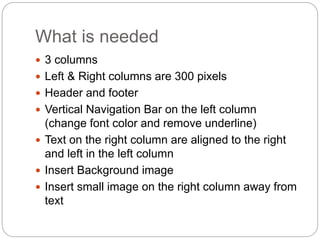
What is needed
 3 columns
 Left & Right columns are 300 pixels
 Header and footer
 Vertical Navigation Bar on the left column
(change font color and remove underline)
 Text on the right column are aligned to the right
and left in the left column
 Insert Background image
 Insert small image on the right column away from
text
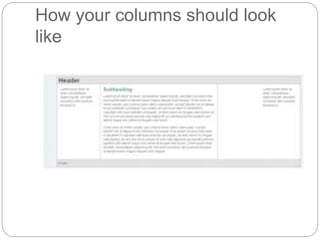
How your columns should look
like
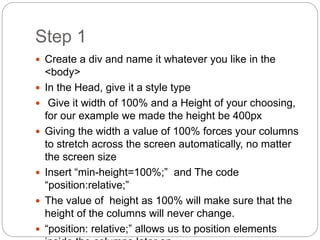
Step 1
 Create a div and name it whatever you like in the
<body>
 In the Head, give it a style type
 Give it width of 100% and a Height of your choosing,
for our example we made the height be 400px
 Giving the width a value of 100% forces your columns
to stretch across the screen automatically, no matter
the screen size
 Insert “min-height=100%;” and The code
“position:relative;”
 The value of height as 100% will make sure that the
height of the columns will never change.
 “position: relative;” allows us to position elements
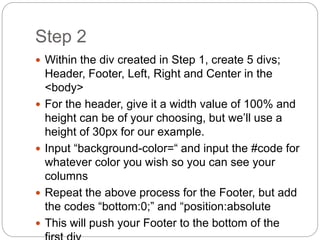
Step 2
 Within the div created in Step 1, create 5 divs;
Header, Footer, Left, Right and Center in the
<body>
 For the header, give it a width value of 100% and
height can be of your choosing, but we’ll use a
height of 30px for our example.
 Input “background-color=“ and input the #code for
whatever color you wish so you can see your
columns
 Repeat the above process for the Footer, but add
the codes “bottom:0;” and “position:absolute
 This will push your Footer to the bottom of the
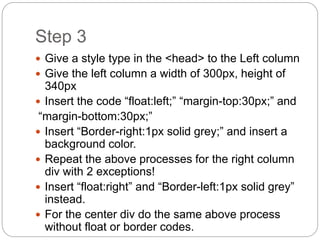
Step 3
 Give a style type in the <head> to the Left column
 Give the left column a width of 300px, height of
340px
 Insert the code “float:left;” “margin-top:30px;” and
“margin-bottom:30px;”
 Insert “Border-right:1px solid grey;” and insert a
background color.
 Repeat the above processes for the right column
div with 2 exceptions!
 Insert “float:right” and “Border-left:1px solid grey”
instead.
 For the center div do the same above process
without float or border codes.
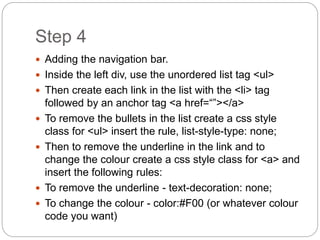
Step 4
 Adding the navigation bar.
 Inside the left div, use the unordered list tag <ul>
 Then create each link in the list with the <li> tag
followed by an anchor tag <a href=“”></a>
 To remove the bullets in the list create a css style
class for <ul> insert the rule, list-style-type: none;
 Then to remove the underline in the link and to
change the colour create a css style class for <a> and
insert the following rules:
 To remove the underline - text-decoration: none;
 To change the colour - color:#F00 (or whatever colour
code you want)
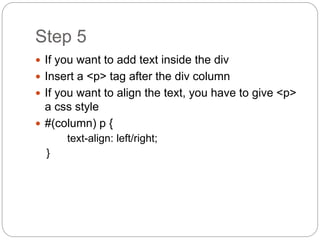
Step 5
 If you want to add text inside the div
 Insert a <p> tag after the div column
 If you want to align the text, you have to give <p>
a css style
 #(column) p {
text-align: left/right;
}
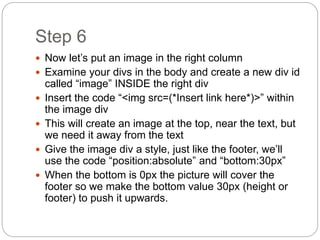
Step 6
 Now let’s put an image in the right column
 Examine your divs in the body and create a new div id
called “image” INSIDE the right div
 Insert the code “<img src=(*Insert link here*)>” within
the image div
 This will create an image at the top, near the text, but
we need it away from the text
 Give the image div a style, just like the footer, we’ll
use the code “position:absolute” and “bottom:30px”
 When the bottom is 0px the picture will cover the
footer so we make the bottom value 30px (height or
footer) to push it upwards.
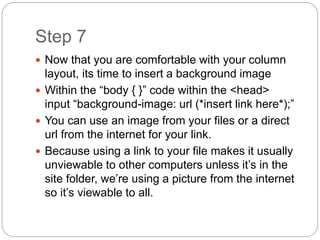
Step 7
 Now that you are comfortable with your column
layout, its time to insert a background image
 Within the “body { }” code within the <head>
input “background-image: url (*insert link here*);”
 You can use an image from your files or a direct
url from the internet for your link.
 Because using a link to your file makes it usually
unviewable to other computers unless it’s in the
site folder, we’re using a picture from the internet
so it’s viewable to all.

Liquid column layout final

  • 1.
    By Jordan Sparks WesleyChan And Justin Macri 3 Column Liquid layout in CSS
  • 2.
    What is needed 3 columns  Left & Right columns are 300 pixels  Header and footer  Vertical Navigation Bar on the left column (change font color and remove underline)  Text on the right column are aligned to the right and left in the left column  Insert Background image  Insert small image on the right column away from text
  • 3.
    How your columnsshould look like
  • 4.
    Step 1  Createa div and name it whatever you like in the <body>  In the Head, give it a style type  Give it width of 100% and a Height of your choosing, for our example we made the height be 400px  Giving the width a value of 100% forces your columns to stretch across the screen automatically, no matter the screen size  Insert “min-height=100%;” and The code “position:relative;”  The value of height as 100% will make sure that the height of the columns will never change.  “position: relative;” allows us to position elements
  • 5.
    Step 2  Withinthe div created in Step 1, create 5 divs; Header, Footer, Left, Right and Center in the <body>  For the header, give it a width value of 100% and height can be of your choosing, but we’ll use a height of 30px for our example.  Input “background-color=“ and input the #code for whatever color you wish so you can see your columns  Repeat the above process for the Footer, but add the codes “bottom:0;” and “position:absolute  This will push your Footer to the bottom of the
  • 6.
    Step 3  Givea style type in the <head> to the Left column  Give the left column a width of 300px, height of 340px  Insert the code “float:left;” “margin-top:30px;” and “margin-bottom:30px;”  Insert “Border-right:1px solid grey;” and insert a background color.  Repeat the above processes for the right column div with 2 exceptions!  Insert “float:right” and “Border-left:1px solid grey” instead.  For the center div do the same above process without float or border codes.
  • 7.
    Step 4  Addingthe navigation bar.  Inside the left div, use the unordered list tag <ul>  Then create each link in the list with the <li> tag followed by an anchor tag <a href=“”></a>  To remove the bullets in the list create a css style class for <ul> insert the rule, list-style-type: none;  Then to remove the underline in the link and to change the colour create a css style class for <a> and insert the following rules:  To remove the underline - text-decoration: none;  To change the colour - color:#F00 (or whatever colour code you want)
  • 8.
    Step 5  Ifyou want to add text inside the div  Insert a <p> tag after the div column  If you want to align the text, you have to give <p> a css style  #(column) p { text-align: left/right; }
  • 9.
    Step 6  Nowlet’s put an image in the right column  Examine your divs in the body and create a new div id called “image” INSIDE the right div  Insert the code “<img src=(*Insert link here*)>” within the image div  This will create an image at the top, near the text, but we need it away from the text  Give the image div a style, just like the footer, we’ll use the code “position:absolute” and “bottom:30px”  When the bottom is 0px the picture will cover the footer so we make the bottom value 30px (height or footer) to push it upwards.
  • 10.
    Step 7  Nowthat you are comfortable with your column layout, its time to insert a background image  Within the “body { }” code within the <head> input “background-image: url (*insert link here*);”  You can use an image from your files or a direct url from the internet for your link.  Because using a link to your file makes it usually unviewable to other computers unless it’s in the site folder, we’re using a picture from the internet so it’s viewable to all.