



Linux System Administrator's Guide
Deployment, Configuration and Administration of Linux
Jaromfr Hradflek Douglas Silas Martin Prpic
Stephen Wadeley Tomas Capek Petr Kovar
Miroslav Svoboda Petr Bokoc Peter Ondrejka
Eliska Slobodova Eva Kopalova John Ha
David O'Brien Michael Hideo Don Domingo
Linux System Administrator's Guide
Deployment, Configuration and Administration of Linux
Jaromfr Hradflek
Red Hat Engineering Content Services
jhradilek@redhat.com
Douglas Silas
Red Hat Engineering Content Services
silas@redhat.com
Martin Prpic
Red Hat Engineering Content Services
mprpic@redhat.com
Stephen Wadeley
Red Hat Engineering Content Services
swadeley@redhat.com
Tomas Capek
Red Hat Engineering Content Services
tcapek@redhat.com
Petr Kovar
Red Hat Engineering Content Services
pkovar@redhat.com
Miroslav Svoboda
Red Hat Engineering Content Services
msvoboda@redhat.com
Petr Bokoc
Red Hat Engineering Content Services
pbokoc@redhat.com
Peter Ondrejka
Red Hat Engineering Content Services
pondrejk@redhat.com
Eliska Slobodova
Red Hat Engineering Content Services
eslobodo@redhat.com
Eva Kopalova
Red Hat Engineering Content Services
John Ha
Red Hat Engineering Content Services
Linux System Administrator's Guide
David O'Brien
Red Hat Engineering Content Services
Michael Hideo
Red Hat Engineering Content Services
Don Domingo
Red Hat Engineering Content Services
Linux System Administrator's Guide
Legal Notice
Copyright © 2015 One Course Source
This document was created by modifying the file: https://access.redhat.com/documentation/en-
US/Red_Hat_Enterprise_Linux/7/pdf/System_Administrators_Guide/Red_Hat_Enterprise_Linux-7-
System_Administrators_Guide-en-US.pdf.
According to the Creative Commons Attributions ShareAlike 3.0 Unported License,
http://creativecommons.org/licenses/by-sa/3.0/, and the legal terms below, the above link to the
original document has been provided, and all Red Hat ™ trademarks and logos have been removed
except as contained within this Legal Notice.
Copyright © 2014 Red Hat, Inc.
This document is licensed by Red Hat under the Creative Commons Attribution-ShareAlike 3.0
Unported License. If you distribute this document, or a modified version of it, you must provide
attribution to Red Hat, Inc. and provide a link to the original. If the document is modified, all Red
Hat trademarks must be removed.
Red Hat, as the licensor of this document, waives the right to enforce, and agrees not to assert,
Section 4d of CC-BY-SA to the fullest extent permitted by applicable law.
Red Hat, Red Hat Enterprise Linux, the Shadowman logo, JBoss, MetaMatrix, Fedora, the Infinity
Logo, and RHCE are trademarks of Red Hat, Inc., registered in the United States and other
countries.
Linux ® is the registered trademark of Linus Torvalds in the United States and other countries.
Java ® is a registered trademark of Oracle and/or its affiliates.
XFS ® is a trademark of Silicon Graphics International Corp. or its subsidiaries in the United
States and/or other countries.
MySQL ® is a registered trademark of MySQL AB in the United States, the European Union and
other countries.
Node.js ® is an official trademark of Joyent. Red Hat Software Collections is not formally
related to or endorsed by the official Joyent Node.js open source or commercial project.
The OpenStack ® Word Mark and OpenStack Logo are either registered trademarks/service marks
or trademarks/service marks of the OpenStack Foundation, in the United States and other countries
and are used with the OpenStack Foundation's permission. We are not affiliated with, endorsed or
sponsored by the OpenStack Foundation, or the OpenStack community.
All other trademarks are the property of their respective owners.
Linux System Administrator's Guide
Abstract
The System Administrator's Guide documents relevant information regarding the deployment,
configuration and administration of Linux. It is oriented towards system administrators with a
basic understanding of the system.
Linux System Administrator's Guide Table of Contents
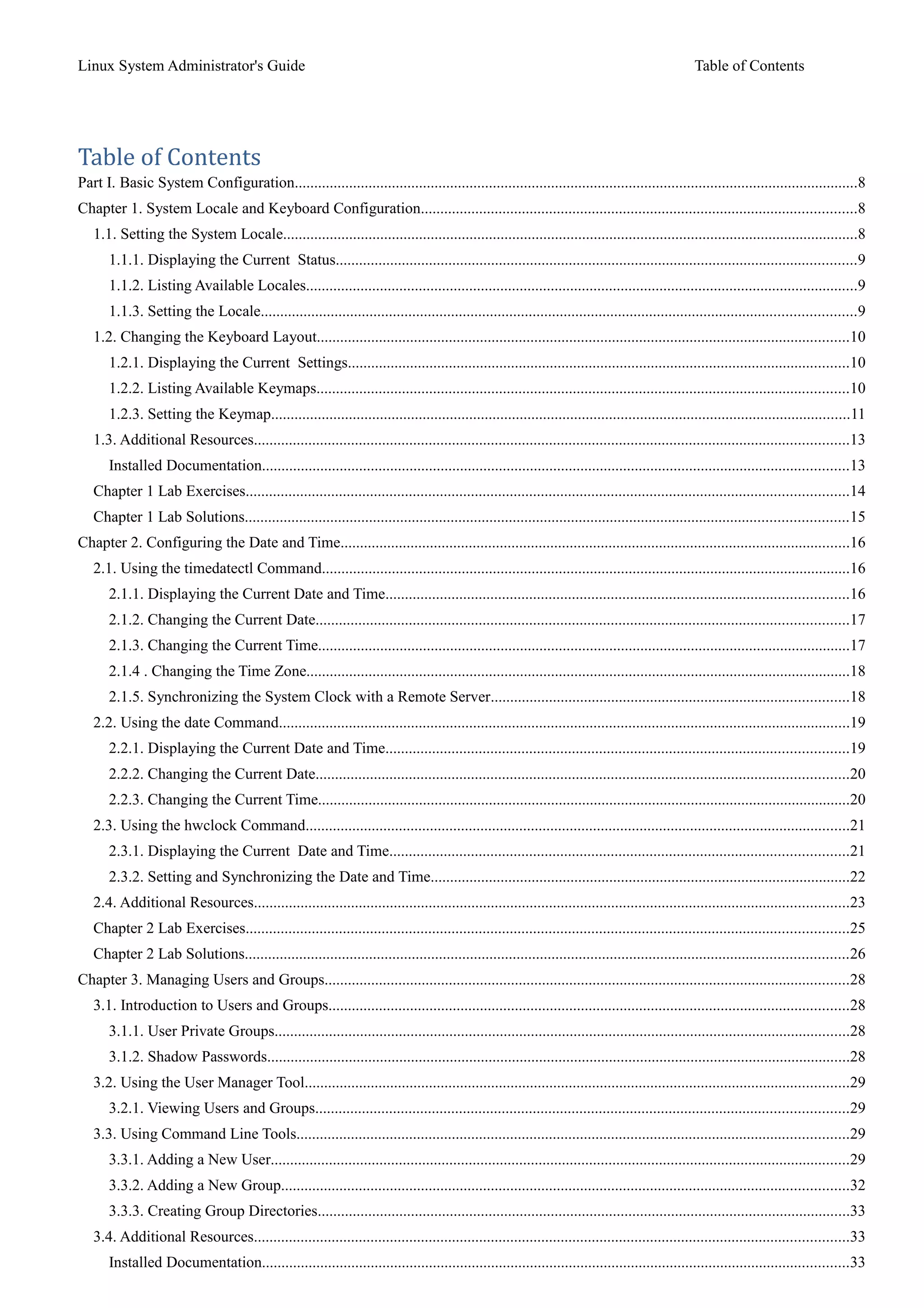
Table of Contents
Part I. Basic System Configuration.................................................................................................................................................8
Chapter 1. System Locale and Keyboard Configuration................................................................................................................8
1.1. Setting the System Locale....................................................................................................................................................8
1.1.1. Displaying the Current Status......................................................................................................................................9
1.1.2. Listing Available Locales..............................................................................................................................................9
1.1.3. Setting the Locale.........................................................................................................................................................9
1.2. Changing the Keyboard Layout.........................................................................................................................................10
1.2.1. Displaying the Current Settings.................................................................................................................................10
1.2.2. Listing Available Keymaps.........................................................................................................................................10
1.2.3. Setting the Keymap.....................................................................................................................................................11
1.3. Additional Resources.........................................................................................................................................................13
Installed Documentation.......................................................................................................................................................13
Chapter 1 Lab Exercises...........................................................................................................................................................14
Chapter 1 Lab Solutions...........................................................................................................................................................15
Chapter 2. Configuring the Date and Time...................................................................................................................................16
2.1. Using the timedatectl Command........................................................................................................................................16
2.1.1. Displaying the Current Date and Time.......................................................................................................................16
2.1.2. Changing the Current Date.........................................................................................................................................17
2.1.3. Changing the Current Time.........................................................................................................................................17
2.1.4 . Changing the Time Zone............................................................................................................................................18
2.1.5. Synchronizing the System Clock with a Remote Server............................................................................................18
2.2. Using the date Command...................................................................................................................................................19
2.2.1. Displaying the Current Date and Time.......................................................................................................................19
2.2.2. Changing the Current Date.........................................................................................................................................20
2.2.3. Changing the Current Time.........................................................................................................................................20
2.3. Using the hwclock Command............................................................................................................................................21
2.3.1. Displaying the Current Date and Time......................................................................................................................21
2.3.2. Setting and Synchronizing the Date and Time............................................................................................................22
2.4. Additional Resources.........................................................................................................................................................23
Chapter 2 Lab Exercises...........................................................................................................................................................25
Chapter 2 Lab Solutions...........................................................................................................................................................26
Chapter 3. Managing Users and Groups.......................................................................................................................................28
3.1. Introduction to Users and Groups......................................................................................................................................28
3.1.1. User Private Groups....................................................................................................................................................28
3.1.2. Shadow Passwords......................................................................................................................................................28
3.2. Using the User Manager Tool............................................................................................................................................29
3.2.1. Viewing Users and Groups.........................................................................................................................................29
3.3. Using Command Line Tools..............................................................................................................................................29
3.3.1. Adding a New User.....................................................................................................................................................29
3.3.2. Adding a New Group..................................................................................................................................................32
3.3.3. Creating Group Directories.........................................................................................................................................33
3.4. Additional Resources.........................................................................................................................................................33
Installed Documentation.......................................................................................................................................................33
Linux System Administrator's Guide Table of Contents
Chapter 3 Lab Exercises...........................................................................................................................................................35
Chapter 3 Lab Solutions...........................................................................................................................................................36
Chapter 4. Gaining Privileges.......................................................................................................................................................38
4.1. The su Command...............................................................................................................................................................38
4.2. The sudo Command...........................................................................................................................................................39
4.3. Additional Resources.........................................................................................................................................................40
Installed Documentation.......................................................................................................................................................41
Chapter 4 Lab Exercises...........................................................................................................................................................42
Chapter 4 Lab Solutions...........................................................................................................................................................43
Part II. Package Management.......................................................................................................................................................44
Chapter 5. Yum.............................................................................................................................................................................44
5.1. Checking For and Updating Packages...............................................................................................................................44
5.1.1. Checking For Updates................................................................................................................................................45
5.1.2. Updating Packages......................................................................................................................................................46
5.1.3. Preserving Configuration File Changes......................................................................................................................48
5.2. Working with Packages......................................................................................................................................................48
5.2.1. Searching Packages.....................................................................................................................................................48
5.2.2. Listing Packages.........................................................................................................................................................49
5.2.3. Displaying Package Information................................................................................................................................51
5.5.4. Viewing the Current Configuration............................................................................................................................76
5.5.5. Adding, Enabling, and Disabling a Yum Repository..................................................................................................77
5.5.6. Creating a Yum Repository.........................................................................................................................................78
5.6. Yum Plug-ins......................................................................................................................................................................78
5.6.1. Enabling, Configuring, and Disabling Yum Plug-ins.................................................................................................79
5.6.2. Installing Additional Yum Plug-ins.............................................................................................................................80
5.6.3. Working with Yum Plug-ins........................................................................................................................................80
5.7. Additional Resources.........................................................................................................................................................81
Installed Documentation.......................................................................................................................................................81
Chapter 5 Lab Exercises...........................................................................................................................................................82
Chapter 5 Lab Solutions...........................................................................................................................................................83
Linux System Administrator's Guide Basic System Configuration
Part I. Basic System Configuration
This part covers basic system administration tasks such as keyboard configuration, date and time
configuration, managing users and groups, and gaining privileges.
Chapter 1. System Locale and Keyboard Configuration
The system locale specifies the language settings of system services and user interfaces. The
keyboard layout settings control the layout used on the text console and graphical user interfaces.
These settings can be made by modifying the /etc/locale.conf configuration file or by using the
localectl utility. Also, you can use the graphical user interface to perform the task; for a description of this
method, see Linux Installation Guide.
1.1. Setting the System Locale
System-wide locale settings are stored in the /etc/locale.conf file, which is read at early boot by the
systemd daemon. The locale settings configured in /etc/locale.conf are inherited by every service or
user, unless individual programs or individual users override them.
The basic file format of /etc/locale.conf is a newline-separated list of variable assignments. For
example, German locale with English messages in /etc/locale.conf looks as follows:
LANG=de_DE.UTF-8
LC_MESSAGES=C
Here, the LC_MESSAGES option determines the locale used for diagnostic messages written to the
standard error output. To further specify locale settings in /etc/locale.conf, you can use several other
options, the most relevant are summarized in Table 1.1, "Options configurable in
/etc/locale.conf". See the locale(7) manual page for detailed information on these options. Note that the
LC_ALL option, which represents all possible options, should not be configured in
/etc/locale.conf.
Table 1.1. Options configurable in /etc/locale.conf
Option Description
LANG Provides a default value for the system locale.
LC_COLLATE Changes the behavior of functions which
compare strings in the local alphabet.
LC_CTYPE Changes the behavior of the character handling and
classification functions and the multibyte character
functions.
LC_NUMERIC Describes the way numbers are usually printed,
with details such as decimal point versus decimal
comma.
LC_TIME Changes the display of the current time, 24-hour
versus 12-hour clock.
© One Course Source Page 8 of 84
Linux System Administrator's Guide Basic System Configuration
LC_MESSAGES Determines the locale used for diagnostic
messages written to the standard error output.
1.1.1. Displaying the Current Status
The localectl command can be used to query and change the system locale and keyboard layout
settings. To show the current settings, use the status option:
localectl status
Example 1.1. Displaying the Current Status
The output of the previous command lists the currently set locale, keyboard layout configured for the
console and for the Xll window system.
~] $ localectl status
System Locale: LANG=en_US.UTF-8
VC Keymap: us
X11 Layout: n/a
1.1.2. Listing Available Locales
To list all locales available for your system, type:
localectl list-locales
Example 1.2. Listing Locales
Imagine you want to select a specific English locale, but you are not sure if it is available on the system.
You can check that by listing all English locales with the following command:
~] $ localectl list-locales I grep en_
en_AG en_AG.utf8
en_AU
en_AU.iso88591
en_AU.utf8 en_BW
en_BW.iso88591
en_BW.utf8
output truncated
1.1.3. Setting the Locale
To set the default system locale, use the following command as root:
localectl set-locale LANG=1oca1e
© One Course Source Page 9 of 84
Linux System Administrator's Guide Basic System Configuration
Replace locale with the locale name, found with the localectl list-locales command. The above
syntax can also be used to configure parameters from Table l.l, "Options configurable in
/etc/locale.conf".
Example 1.3. Changing the Default Locale
For example, if you want to set British English as your default locale, first find the name of this locale by
using list-locales. Then, as root, type the command in the following form:
-]# localectl set-locale LANG=en_GB.utf8
1.2. Changing the Keyboard Layout
The keyboard layout settings enable the user to control the layout used on the text console and
graphical user interfaces.
1.2.1. Displaying the Current Settings
As mentioned before, you can check your current keyboard layout configuration with the following
command:
localectl status
Example 1.4 . Displaying the Keyboard Settings
In the following output, you can see the keyboard layout configured for the virtual console and for the Xll
window system.
~] $ localectl status
System Locale: LANG=en_US.utf8
VC Keymap: us
X11 Layout: us
1.2.2. Listing Available Keymaps
To list all available keyboard layouts that can be configured on your system, type:
localectl list-keymaps
Example 1.5. Searching for a Particular Keymap
You can use grep to search the output of the previous command for a specific keymap name. There
are often multiple keymaps compatible with your currently set locale. For example, to find available
Czech keyboard layouts, type:
~] $ localectl list-keymaps I grep cz
cz
© One Course Source Page 10 of 84
Linux System Administrator's Guide Basic System Configuration
cz-cp1250
cz-lat2
cz-lat2-prog
cz-qwerty
cz-us-qwertz
sunt5-cz-us
sunt5-us-cz
1.2.3. Setting the Keymap
To set the default keyboard layout for your system, use the following command as root:
localectl set-keymap map
Replace map with the name of the keymap taken from the output of the localectl list-keymaps
command. Unless the --no-convertoption is passed, the selected setting is also applied to the default
keyboard mapping of the Xll window system, after converting it to the closest matching Xll keyboard mapping.
This also applies in reverse, you can specify both keymaps with the following command as root:
localectl set-x11-keymap map
If you want your Xll layout to differ from the console layout, use the --no-convertoption.
localectl --no-convert set-x11-keymap map
With this option, the Xll keymap is specified without changing the previous console layout setting.
Example 1.6 . Setting the X11 Keymap Separately
Imagine you want to use German keyboard layout in the graphical interface, but for console
operations you want to retain the US keymap. To do so, type as root:
-]# localectl --no-convert set-x11-keymap de
Then you can verify if your setting was successful by checking the current status:
~] $ localectl status
System Locale: LANG=de_DE.UTF-8
VC Keymap: us
X11 Layout: de
Apart from keyboard layout (map), three other options can be specified:
localectl set-x11-keymap map model variant options
Replace model with the keyboard model name, variant and options with keyboard variant and option
components, which can be used to enhance the keyboard behavior. These options are not set by default. For
more information on Xll Model, Xll Variant, and Xll Options see the kbd(4) man page.
© One Course Source Page 11 of 84
Linux System Administrator's Guide Basic System Configuration
© One Course Source Page 12 of 84
Linux System Administrator's Guide Basic System Configuration
1.3. Additional Resources
For more information on how to configure the keyboard layout on Linux, see the resources listed below:
Installed Documentation
localectl(l) - The manual page for the localectl command line utility documents how to use this
tool to configure the system locale and keyboard layout.
loadkeys(l) - The manual page for the loadkeys command provides more information on how to
use this tool to change the keyboard layout in a virtual console.
© One Course Source Page 13 of 84
Linux System Administrator's Guide Basic System Configuration
Chapter 1 Lab Exercises
1. View the locale settings for your system.
2. List the locales available for the English language.
3. Set the locale language to "en_US.utf8" (or, what's appropriate for you).
4. Verify the locale settings for your system.
5. List the keymaps available for "us".
6. Set the keymap to "us" (or, what's appropriate for you).
7. Verify the locale settings for your system.
© One Course Source Page 14 of 84
Linux System Administrator's Guide Basic System Configuration
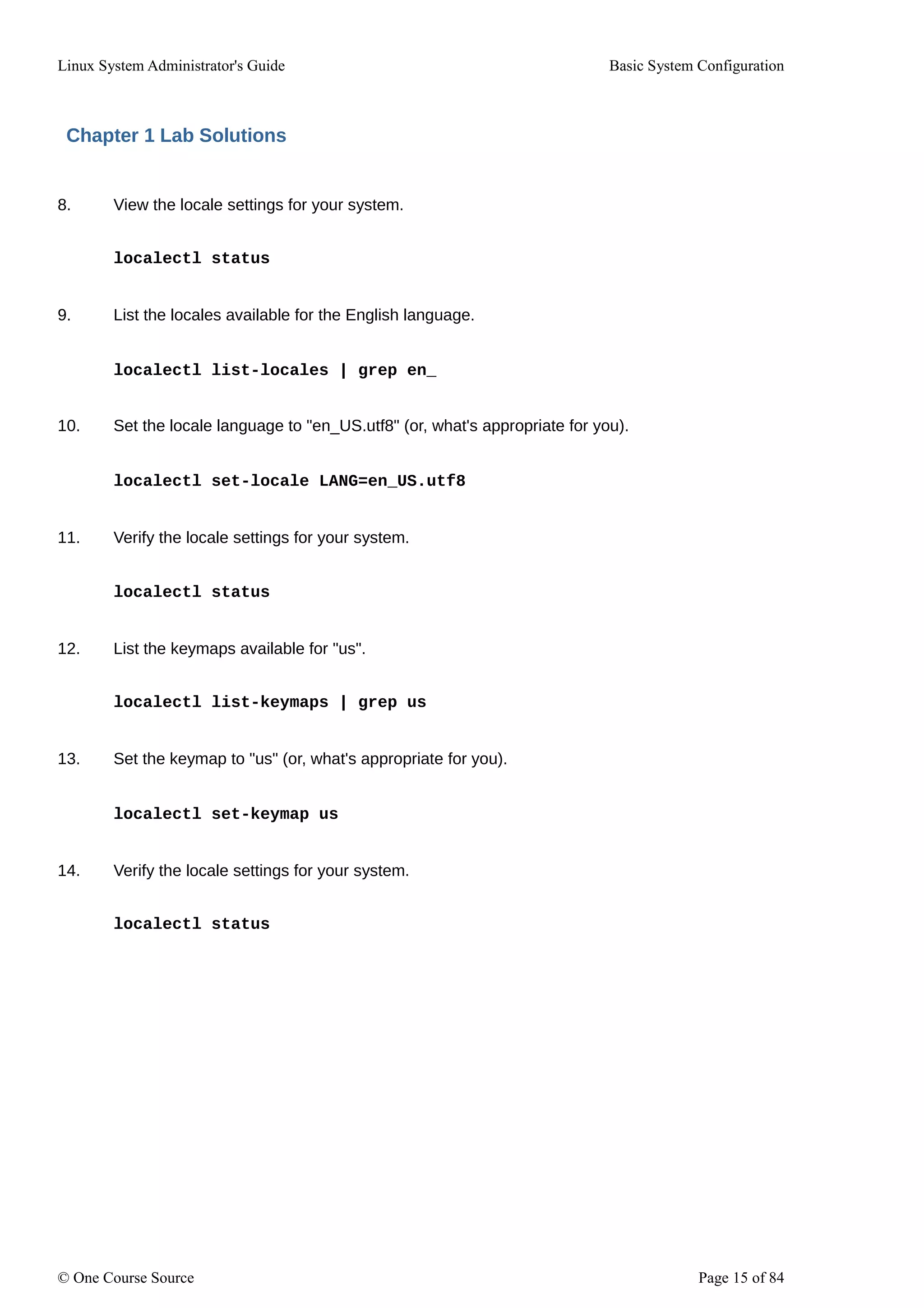
Chapter 1 Lab Solutions
8. View the locale settings for your system.
localectl status
9. List the locales available for the English language.
localectl list-locales | grep en_
10. Set the locale language to "en_US.utf8" (or, what's appropriate for you).
localectl set-locale LANG=en_US.utf8
11. Verify the locale settings for your system.
localectl status
12. List the keymaps available for "us".
localectl list-keymaps | grep us
13. Set the keymap to "us" (or, what's appropriate for you).
localectl set-keymap us
14. Verify the locale settings for your system.
localectl status
© One Course Source Page 15 of 84
Linux System Administrator's Guide Basic System Configuration
Chapter 2. Configuring the Date and Time
Modern operating systems distinguish between the following two types of clocks:
A real-time clock (RTC), commonly referred to as a hardware clock, (typically an integrated circuit on the
system board) that is completely independent of the current state of the operating system and runs even
when the computer is shut down.
A system clock, also known as a software clock, that is maintained by the kernel and its initial value
is based on the real-time clock. Once the system is booted and the system clock is initialized, the
system clock is completely independent of the real-time clock.
The real-time clock can use either local time or Coordinated Universal Time (UTC). If you configure the real-
time clock to use UTC, the system time is calculated by applying the offset for your time zone and if
applicable, also daylight saving time (DST). In comparison, local time represents the actual time in your
current time zone. In most cases, it is recommended that you use UTC.
Linux offers three command line tools that can be used to configure and display information about the system
date and time: the timedatectl utility, which is new in Linux and is part of systemd; the traditional date
command; and the hwclock utility for accessing the hardware clock.
2.1. Using the timedatectl Command
The timedatectl utility is distributed as part of the systemd system and service manager and allows
you to review and change the configuration of the system clock. You can use this tool to change the
current date and time, set the time zone, or enable automatic synchronization of the system clock with
a remote server.
For information on how to display the current date and time in a custom format, see also Section 2.2, "Using
the date Command".
2.1.1. Displaying the Current Date and Time
To display the current date and time along with detailed information about the configuration of the system
and hardware clock, run the timedatectl command with no additional command line options:
timedatectl
This displays the local and universal time, the currently used time zone, the status of the Network
Time Protocol (NTP) configuration, and additional information related to DST.
Example 2.1. Displaying the Current Date and Time
The following is an example output of the timedatectl command on a system that does not use
NTP to synchronize the system clock with a remote server:
~] $ timedatectl
Local time: Mon 2013-09-16 19:30:24 CEST
Universal time: Mon 2013-09-16 17:30:24 UTC
Timezone: Europe/Prague (CEST, +0200)
NTP enabled: no
© One Course Source Page 16 of 84
Linux System Administrator's Guide Basic System Configuration
NTP synchronized: no
RTC in local TZ: no
DST active: yes
Last DST change: DST began at
Sun 2013-03-31 01:59:59 CET
Sun 2013-03-31 03:00:00 CEST
Next DST change: DST ends (the clock jumps one hour backwards) at
Sun 2013-10-27 02:59:59 CEST
Sun 2013-10-27 02:00:00 CET
2.1.2. Changing the Current Date
To change the current date, type the following at a shell prompt as root:
timedatectl set-time YYYY-MM-DD
Replace YYYY with a four-digit year, MM with a two-digit month, and DD with a two-digit day of the
month.
Example 2.2. Changing the Current Date
To change the current date to 2 June 2013, run the following command as root:
-]# timedatectl set-time 2013-06-02
2.1.3. Changing the Current Time
To change the current time, type the following at a shell prompt as root:
timedatectl set-time HH:MM:SS
Replace HH with an hour, MM with a minute, and SS with a second, all typed in a two-digit form.
By default, the system is configured to use UTC. To configure your system to maintain the clock in the local
time, run the timedatectl command with the set-local-rtc option as root:
timedatectl set-local-rtc boolean
To configure your system to maintain the clock in the local time, replace boolean with yes. To
configure the system to use UTC, replace boolean with no (the default option).
Example 2.3. Changing the Current Time
To change the current time to 11:26 p.m., run the following command as root:
-]# timedatectl set-time 23:26:00
© One Course Source Page 17 of 84
Linux System Administrator's Guide Basic System Configuration
2.1.4 . Changing the Time Zone
To list all available time zones, type the following at a shell prompt:
timedatectl list-timezones
To change the currently used time zone, type as root:
timedatectl set-timezone time_zone
Replace time_zone with any of the values listed by the timedatectl list-timezones command.
Example 2.4 . Changing the Time Zone
To identify which time zone is closest to your present location, use the timedatectl command with
the list-timezones command line option. For example, to list all available time zones in Europe,
type:
-]# timedatectl list-timezones | grep Europe
Europe/Amsterdam
Europe/Andorra
Europe/Athens
Europe/Belgrade
Europe/Berlin
Europe/Bratislava
…
To change the time zone to Europe/Prague, type as root:
-]# timedatectl set-timezone Europe/Prague
2.1.5. Synchronizing the System Clock with a Remote Server
As opposed to the manual setup described in the previous sections, the timedatectl command also
allows you to enable automatic synchronization of your system clock with a remote server using NTP. To
enable or disable this feature, type the following at a shell prompt as root:
timedatectl set-ntp boolean
To configure your system to synchronize the system clock with a remote NTP server, replace boolean
with yes (the default option). To disable this feature, replace boolean with no.
Example 2.5. Synchroniz ing the System Clock with a Remote Server
To enable automatic synchronization of the system clock with a remote server, type:
© One Course Source Page 18 of 84
Linux System Administrator's Guide Basic System Configuration
-]# timedatectl set-ntp yes
2.2. Using the date Command
The date utility is available on all Linux systems and allows you to display and configure the current
date and time. It is frequently used in scripts to display detailed information about the system clock in a
custom format.
For information on how to change the time zone or enable automatic synchronization of the system clock
with a remote server, see Section 2.1, "Using the timedatectl Command".
2.2.1. Displaying the Current Date and Time
To display the current date and time, run the date command with no additional command line
options:
date
This displays the day of the week followed by the current date, local time, abbreviated time zone, and year.
By default, the date command displays the local time. To display the time in UTC, run the command with
the --utc or -u command line option:
date --utc
You can also customize the format of the displayed information by providing the +"format"option on the
command line:
date +"format"
Replace format with one or more supported control sequences as illustrated in Example 2.6, "Displaying the
Current Date and Time". See Table 2.1, "Commonly Used Control Sequences" for a list of the most
frequently used formatting options, or the date(1) manual page for a complete list of these options.
Table 2.1. Commonly Used Control Sequences
Control Sequence Description
%H The hour in the HH format (for example, 17).
%M The minute in the MM format (for example, 30).
%5 The second in the SS format (for example, 24).
%d The day of the month in the DD format (for example, 16).
%m The month in the MM format (for example, 09).
%Y The year in the YYYY format (for example, 2013).
%Z The time zone abbreviation (for example, CE5T).
%F The full date in the YYYY-MM-DD format (for example, 2013-09-16). This
option is equal to %Y-%m-%d.
%T The full time in the HH:MM:SS format (for example, 17:30:24). This option is
equal to %H:%M:%5
© One Course Source Page 19 of 84
Linux System Administrator's Guide Basic System Configuration
Example 2.6 . Displaying the Current Date and Time
To display the current date and time in UTC, type the following at a shell prompt:
~] $ date --utc
Mon Sep 16 17:30:24 CEST 2013
To customize the output of the date command, type:
~] $ date +"%Y-%m-%d %H:%M"
2013-09-16 17:30
2.2.2. Changing the Current Date
To change the current date, type the following at a shell prompt as root:
date +%F -s YYYY-MM-DD
Replace YYYY with a four-digit year, MM with a two-digit month, and DD with a two-digit day of the month.
Example 2.7. Changing the Current Date
To change the current date to 2 June 2013, run the following command as root:
-]# date +%F -s 2013-06-02
2.2.3. Changing the Current Time
To change the current time, run the date command with the –set or -s option as root:
date +%T -s HH:MM:SS
Replace HH with an hour, MM with a minute, and SS with a second, all typed in a two-digit form.
By default, the date command sets the system clock in the local time. To set the system clock in UTC
instead, run the command with the --utc or -u command line option:
date +%T --set HH:MM:SS --utc
Example 2.8. Changing the Current Time
To change the current time to 11:26 p.m., run the following command as root:
© One Course Source Page 20 of 84
Linux System Administrator's Guide Basic System Configuration
-]# date +%T --set 23:26:00
2.3. Using the hwclock Command
hwclock is a utility for accessing the hardware clock. Hardware clock is independent of the operation
system you use and works even when the machine is shut down. This program is used to find out the time
from the hardware clock and set the system time at boot time. hwclock also contains facilities for
compensating for systematic drift in the hardware clock.
hwclock stores the values of: year, month, day, hour, minute, and seconds. It is not able to store the time
standard, localtime or Coordinated Universal Time (UTC), nor set the Daylight Saving Time (DST).
Note:
In earlier versions of Linux, the hwclock command was run automatically on every system
shutdown or reboot, but it is not in the current version of Linux.
2.3.1. Displaying the Current Date and Time
Running hwclock with no command line options as root returns a string of current date and time
information:
hwclock
Example 2.9 . Displaying the Current Date and Time
The hwclock command returns the time on standard output. Even if you keep you hardware clock in
UTC, the displayed time is by default the local time. You can check the default setting by
opening the /etc/adjtime file.
-]# hwclock
Tue 15 Apr 2014 04:23:46 PM CEST -0.329272 seconds
CEST is a time zone abbreviation and stands for Central European Summer Time.
In order to get UTC string with date and time information of the machine, execute:
hwclock --utc
Example 2.10. Using the --utc Option
The output of the hwclock --utc command shows exactly the same as in Example 2.9,
"Displaying the Current Date and Time" as it displays the current UTC specification.
-]# hwclock --utc
© One Course Source Page 21 of 84
Linux System Administrator's Guide Basic System Configuration
Tue 15 Apr 2014 04:23:46 PM CEST -0.329272 seconds
To display the local date and time, make use of the --localtime option.
hwclock --localtime
Example 2.11. Using the --localtime option
To display the local date and time type the hwclock --localtime command:
Linux System Administrator's Guide
-]# hwclock --localtime
Tue 15 Apr 2014 02:23:46 PM CEST -0.329272 seconds
Note:
The decision whether to keep your clock in UTC or local time is up to you. Just remember that if you run
hwclock --localtime and your hardware clock is set to UTC, hwclock returns a time shift
comprising the difference between UTC and local time. The original setting or RTC time will not change.
2.3.2. Setting and Synchronizing the Date and Time
Besides viewing the date and time, you can manually set the hwclock utility to a specific time or to
synchronize the system time to hardware clock or vice versa.
When you need to change the hardware clock date and time, you can do so by appending --set
and --date options along with your specification:
hwclock --set --date "dd mmm yyyy HH:MM"
Replace dd with a day (a two-digit number), mmm with a month (a three-letter abbreviation), yyyy with a year
(a four-digit number), HH with an hour (a two-digit number), MM with a minute (a two-digit number).
Example 2.12. Setting the Hardware Clock to a Specific Date and Time
If you want to set the date and time to a specific value, for example, to "21:17, October 21, 2014", run the
command in the following format:
-]# hwclock --set --date "21 Oct 2014 21:17"
You can also set the hardware clock to the current system time making use of synchronization. The following
command synchronizes the system time to hardware clock:
hwclock --systohc
© One Course Source Page 22 of 84
Linux System Administrator's Guide Basic System Configuration
There are two directions of readjustment:
You can readjust the hardware clock to the system time to point to the local time:
hwclock --systohc --localtime
Or, you can readjust the hardware clock to the system time to point to UTC:
hwclock --systohc --utc
This command updates the rtc utility, which saves the new setting and displays it when you run
hwclock --localtime or hwclock --utc respectively. The same function is provided by the
hwclock --adjust command.
This setting is particularly useful if you are booting multiple Linux distributions on the same machine and you
face the problem of inconsistent time zone settings across the distributions.
Example 2.13. Synchroniz ing System Time to Hardware Clock
To synchronize the system time to hardware clock, run the following command as root:
-]# hwclock --systohc --localtime
For the changes to take effect, reboot your system.
In addition, you can carry out the inverse operation, to set the system time from the hardware clock, by
executing:
hwclock --hctosys
Example 2.14 . Synchroniz ing Hardware Clock to System Time
To synchronize hardware clock to system time, run the following command as root:
-]# hwclock --hctosys --localtime
For the changes to take effect, reboot your system.
2.4. Additional Resources
For more information on how to configure the date and time in Linux, see the resources listed below.
Installed Documentation
timedatectl(l) - The manual page for the timedatectl command line utility documents how to use
this tool to query and change the system clock and its settings.
© One Course Source Page 23 of 84
Linux System Administrator's Guide Basic System Configuration
date(l) - The manual page for the date command provides a complete list of supported
command line options.
hwclock(8) - The manual page for the hwclock command provides a complete list of
supported command line options.
© One Course Source Page 24 of 84
Linux System Administrator's Guide Basic System Configuration
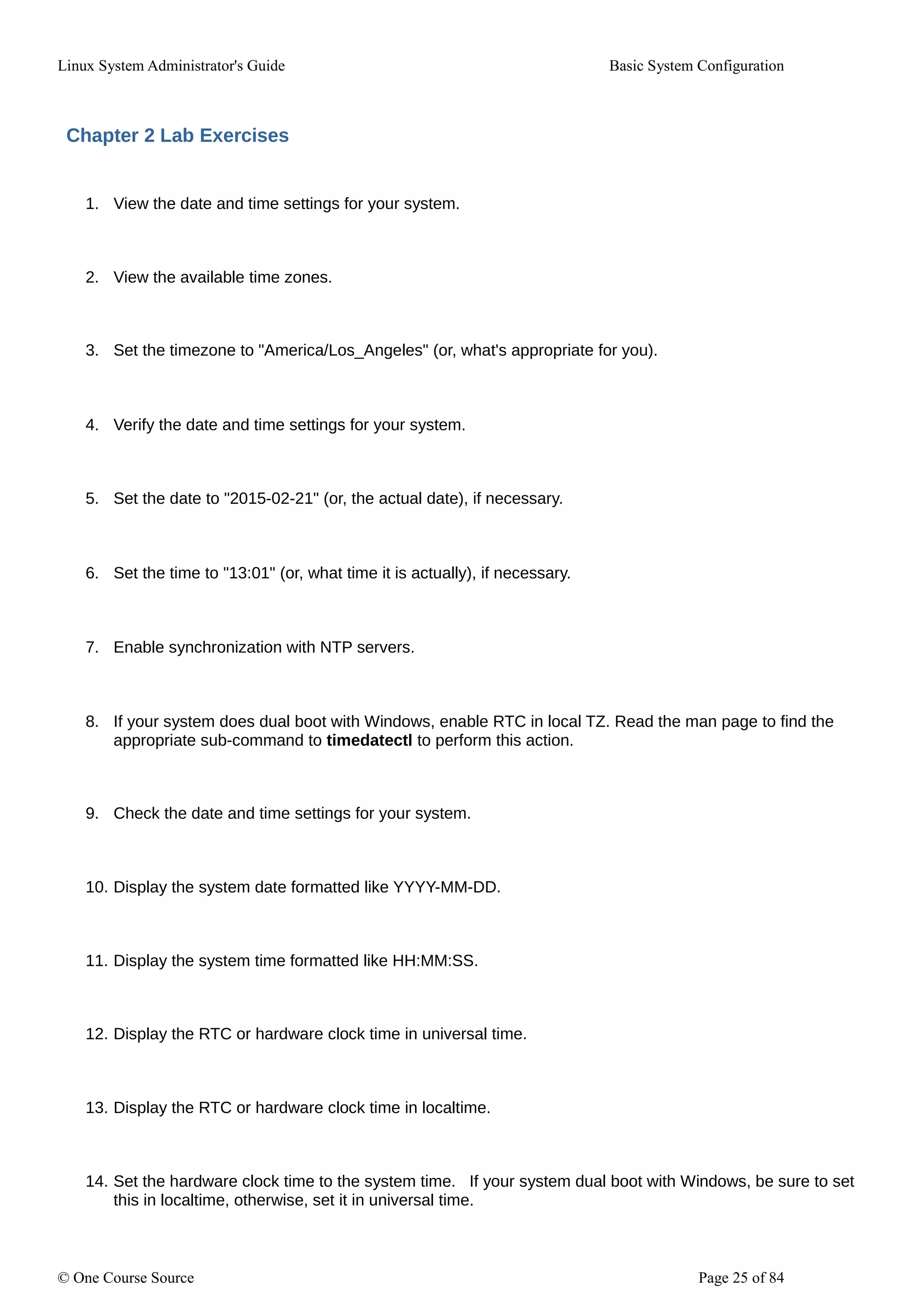
Chapter 2 Lab Exercises
1. View the date and time settings for your system.
2. View the available time zones.
3. Set the timezone to "America/Los_Angeles" (or, what's appropriate for you).
4. Verify the date and time settings for your system.
5. Set the date to "2015-02-21" (or, the actual date), if necessary.
6. Set the time to "13:01" (or, what time it is actually), if necessary.
7. Enable synchronization with NTP servers.
8. If your system does dual boot with Windows, enable RTC in local TZ. Read the man page to find the
appropriate sub-command to timedatectl to perform this action.
9. Check the date and time settings for your system.
10. Display the system date formatted like YYYY-MM-DD.
11. Display the system time formatted like HH:MM:SS.
12. Display the RTC or hardware clock time in universal time.
13. Display the RTC or hardware clock time in localtime.
14. Set the hardware clock time to the system time. If your system dual boot with Windows, be sure to set
this in localtime, otherwise, set it in universal time.
© One Course Source Page 25 of 84
Linux System Administrator's Guide Basic System Configuration
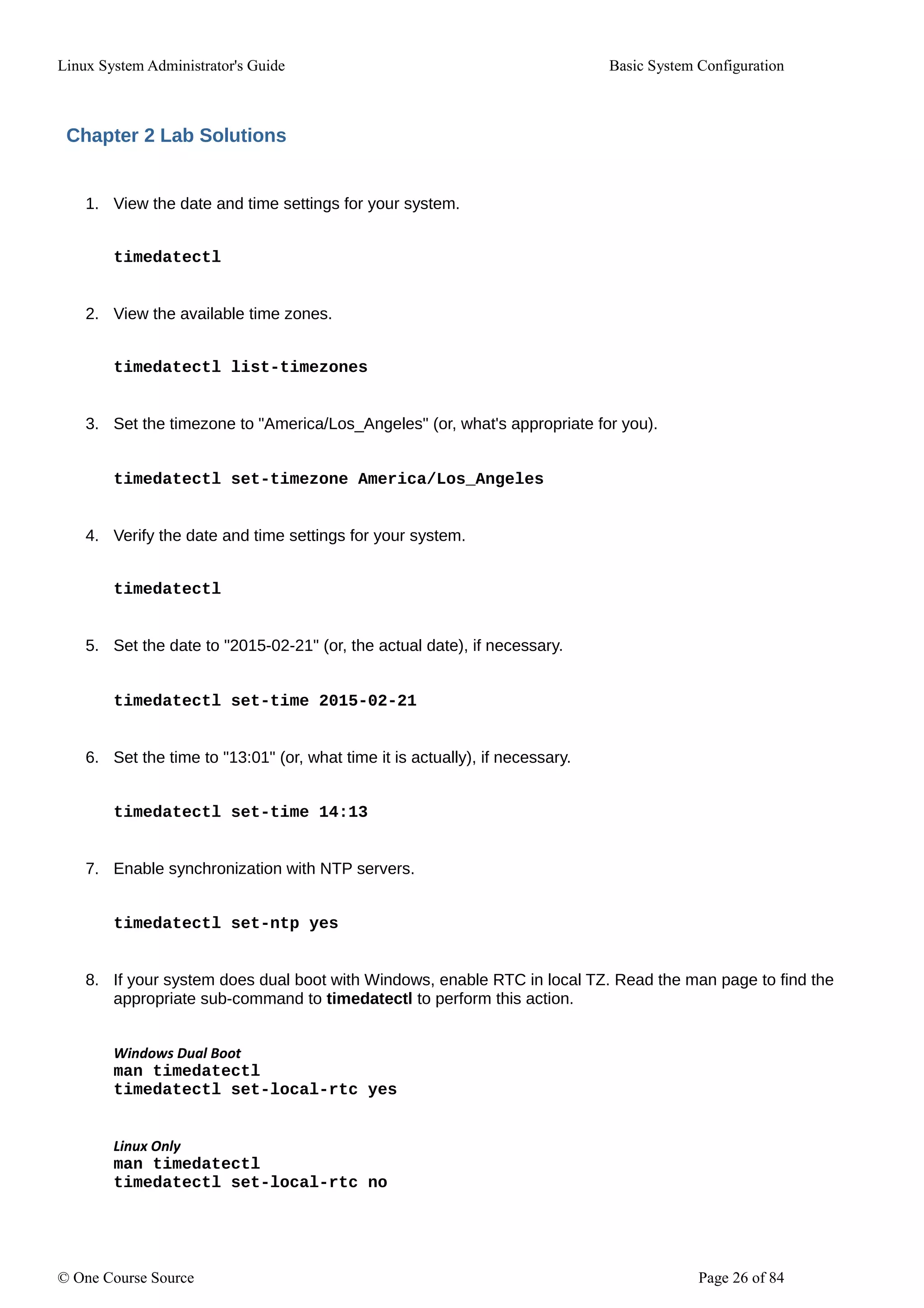
Chapter 2 Lab Solutions
1. View the date and time settings for your system.
timedatectl
2. View the available time zones.
timedatectl list-timezones
3. Set the timezone to "America/Los_Angeles" (or, what's appropriate for you).
timedatectl set-timezone America/Los_Angeles
4. Verify the date and time settings for your system.
timedatectl
5. Set the date to "2015-02-21" (or, the actual date), if necessary.
timedatectl set-time 2015-02-21
6. Set the time to "13:01" (or, what time it is actually), if necessary.
timedatectl set-time 14:13
7. Enable synchronization with NTP servers.
timedatectl set-ntp yes
8. If your system does dual boot with Windows, enable RTC in local TZ. Read the man page to find the
appropriate sub-command to timedatectl to perform this action.
Windows Dual Boot
man timedatectl
timedatectl set-local-rtc yes
Linux Only
man timedatectl
timedatectl set-local-rtc no
© One Course Source Page 26 of 84
Linux System Administrator's Guide Basic System Configuration
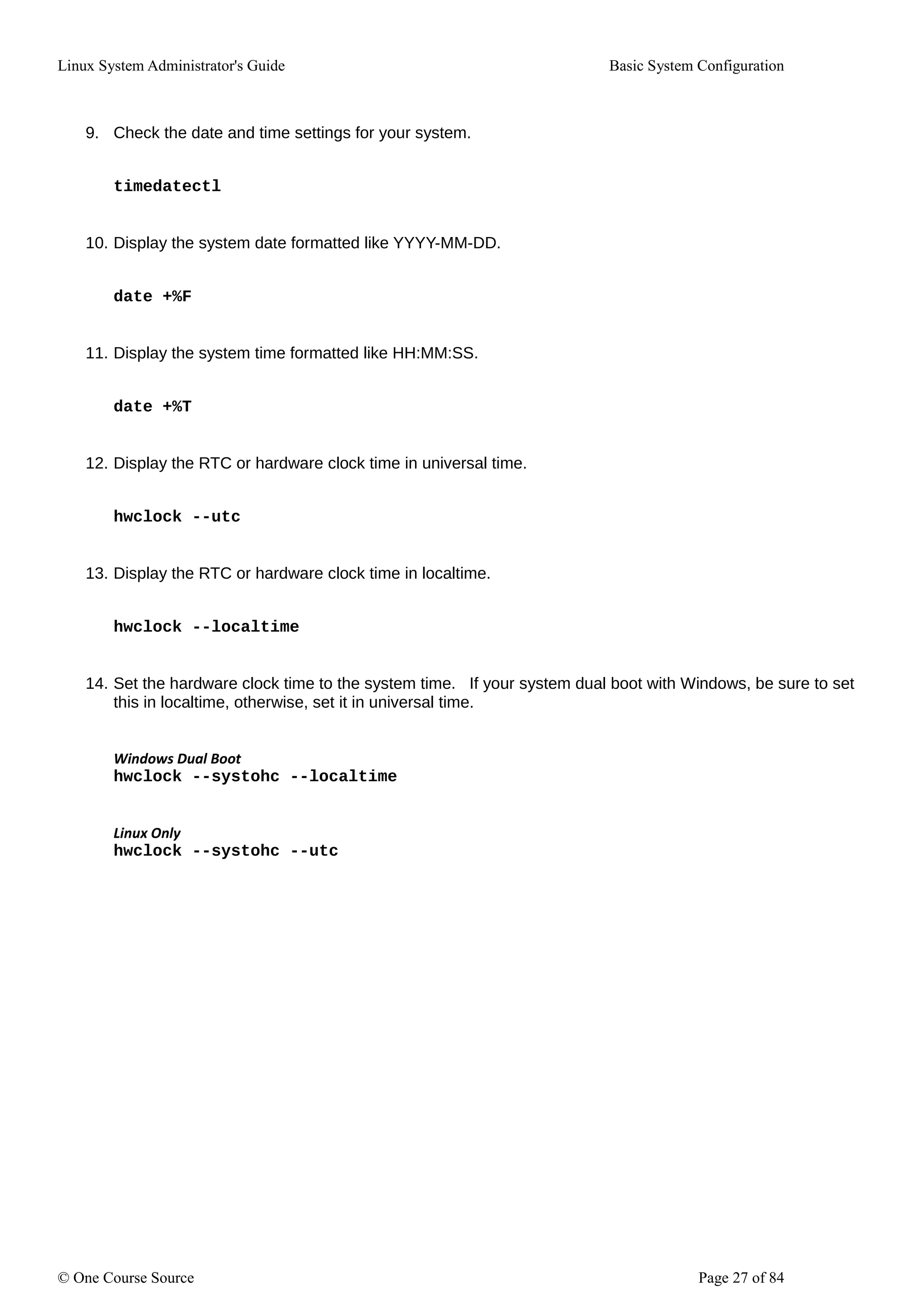
9. Check the date and time settings for your system.
timedatectl
10. Display the system date formatted like YYYY-MM-DD.
date +%F
11. Display the system time formatted like HH:MM:SS.
date +%T
12. Display the RTC or hardware clock time in universal time.
hwclock --utc
13. Display the RTC or hardware clock time in localtime.
hwclock --localtime
14. Set the hardware clock time to the system time. If your system dual boot with Windows, be sure to set
this in localtime, otherwise, set it in universal time.
Windows Dual Boot
hwclock --systohc --localtime
Linux Only
hwclock --systohc --utc
© One Course Source Page 27 of 84
Linux System Administrator's Guide Basic System Configuration
Chapter 3. Managing Users and Groups
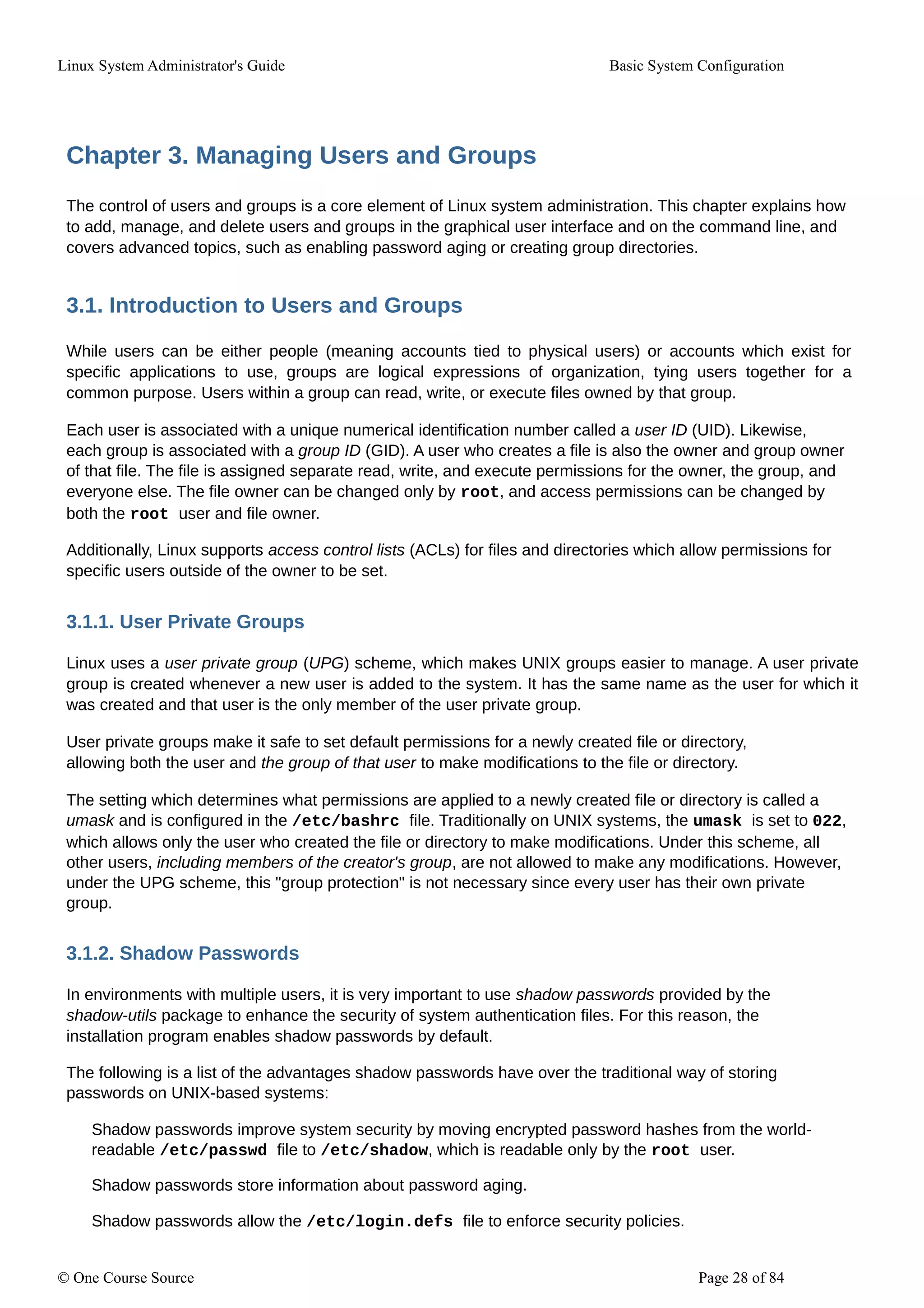
The control of users and groups is a core element of Linux system administration. This chapter explains how
to add, manage, and delete users and groups in the graphical user interface and on the command line, and
covers advanced topics, such as enabling password aging or creating group directories.
3.1. Introduction to Users and Groups
While users can be either people (meaning accounts tied to physical users) or accounts which exist for
specific applications to use, groups are logical expressions of organization, tying users together for a
common purpose. Users within a group can read, write, or execute files owned by that group.
Each user is associated with a unique numerical identification number called a user ID (UID). Likewise,
each group is associated with a group ID (GID). A user who creates a file is also the owner and group owner
of that file. The file is assigned separate read, write, and execute permissions for the owner, the group, and
everyone else. The file owner can be changed only by root, and access permissions can be changed by
both the root user and file owner.
Additionally, Linux supports access control lists (ACLs) for files and directories which allow permissions for
specific users outside of the owner to be set.
3.1.1. User Private Groups
Linux uses a user private group (UPG) scheme, which makes UNIX groups easier to manage. A user private
group is created whenever a new user is added to the system. It has the same name as the user for which it
was created and that user is the only member of the user private group.
User private groups make it safe to set default permissions for a newly created file or directory,
allowing both the user and the group of that user to make modifications to the file or directory.
The setting which determines what permissions are applied to a newly created file or directory is called a
umask and is configured in the /etc/bashrc file. Traditionally on UNIX systems, the umask is set to 022,
which allows only the user who created the file or directory to make modifications. Under this scheme, all
other users, including members of the creator's group, are not allowed to make any modifications. However,
under the UPG scheme, this "group protection" is not necessary since every user has their own private
group.
3.1.2. Shadow Passwords
In environments with multiple users, it is very important to use shadow passwords provided by the
shadow-utils package to enhance the security of system authentication files. For this reason, the
installation program enables shadow passwords by default.
The following is a list of the advantages shadow passwords have over the traditional way of storing
passwords on UNIX-based systems:
Shadow passwords improve system security by moving encrypted password hashes from the world-
readable /etc/passwd file to /etc/shadow, which is readable only by the root user.
Shadow passwords store information about password aging.
Shadow passwords allow the /etc/login.defs file to enforce security policies.
© One Course Source Page 28 of 84
Linux System Administrator's Guide Basic System Configuration
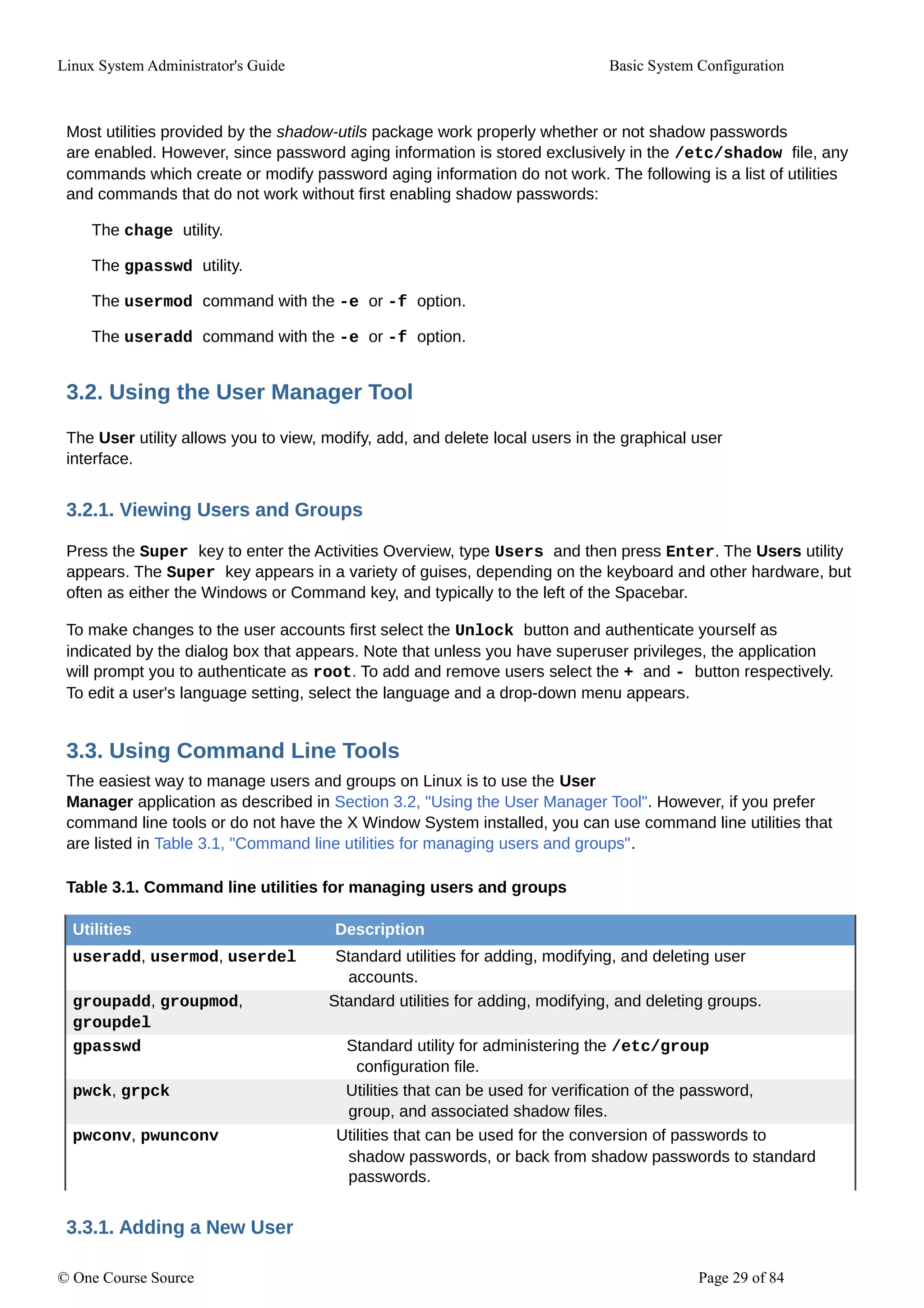
Most utilities provided by the shadow-utils package work properly whether or not shadow passwords
are enabled. However, since password aging information is stored exclusively in the /etc/shadow file, any
commands which create or modify password aging information do not work. The following is a list of utilities
and commands that do not work without first enabling shadow passwords:
The chage utility.
The gpasswd utility.
The usermod command with the -e or -f option.
The useradd command with the -e or -f option.
3.2. Using the User Manager Tool
The User utility allows you to view, modify, add, and delete local users in the graphical user
interface.
3.2.1. Viewing Users and Groups
Press the Super key to enter the Activities Overview, type Users and then press Enter. The Users utility
appears. The Super key appears in a variety of guises, depending on the keyboard and other hardware, but
often as either the Windows or Command key, and typically to the left of the Spacebar.
To make changes to the user accounts first select the Unlock button and authenticate yourself as
indicated by the dialog box that appears. Note that unless you have superuser privileges, the application
will prompt you to authenticate as root. To add and remove users select the + and - button respectively.
To edit a user's language setting, select the language and a drop-down menu appears.
3.3. Using Command Line Tools
The easiest way to manage users and groups on Linux is to use the User
Manager application as described in Section 3.2, "Using the User Manager Tool". However, if you prefer
command line tools or do not have the X Window System installed, you can use command line utilities that
are listed in Table 3.1, "Command line utilities for managing users and groups".
Table 3.1. Command line utilities for managing users and groups
Utilities Description
useradd, usermod, userdel Standard utilities for adding, modifying, and deleting user
accounts.
groupadd, groupmod, Standard utilities for adding, modifying, and deleting groups.
groupdel
gpasswd Standard utility for administering the /etc/group
configuration file.
pwck, grpck Utilities that can be used for verification of the password,
group, and associated shadow files.
pwconv, pwunconv Utilities that can be used for the conversion of passwords to
shadow passwords, or back from shadow passwords to standard
passwords.
3.3.1. Adding a New User
© One Course Source Page 29 of 84
Linux System Administrator's Guide Basic System Configuration
To add a new user to the system, typing the following at a shell prompt as root:
useradd [options] username
…where options are command line options as described in Table 3.2, "useradd command line
options".
By default, the useradd command creates a locked user account. To unlock the account, run the
following command as root to assign a password:
passwd username
Optionally, you can set password aging policy. See Linux Security Guide for information on how to
enable password aging.
Table 3.2. useradd command line options
Option Description
-c 'comment' comment can be replaced with any string. This option is generally used
to specify the full name of a user.
-d home_directory Home directory to be used instead of default /home/username/.
-e date Date for the account to be disabled in the format YYYY-MM-DD.
-f days Number of days after the password expires until the account is disabled.
If 0 is specified, the account is disabled immediately after the password
expires. If -1 is specified, the account is not be disabled after the
password expires.
-g group_name Group name or group number for the user's default group. The
group must exist prior to being specified here.
-G group_list List of additional (other than default) group names or group numbers,
separated by commas, of which the user is a member. The groups must
exist prior to being specified here.
-m Create the home directory if it does not exist.
-M Do not create the home directory.
-N Do not create a user private group for the user.
-p password The password encrypted with crypt.
-r Create a system account with a UID less than 1000 and without a
home directory.
-s User's login shell, which defaults to /bin/bash.
-u uid User ID for the user, which must be unique and greater than 999.
Explaining the Process
The following steps illustrate what happens if the command useradd juan is issued on a system that
has shadow passwords enabled:
1. A new line for juan is created in /etc/passwd:
juan:x:1ee1:1ee1::/home/juan:/bin/bash
The line has the following characteristics:
© One Course Source Page 30 of 84
Linux System Administrator's Guide Basic System Configuration
It begins with the user name juan.
There is an x for the password field indicating that the system is using shadow
passwords.
A UID greater than 999 is created. Under Linux, UIDs below 1000 are reserved for system use
and should not be assigned to users.
A GID greater than 999 is created. Under Linux, GIDs below 1000 are reserved for system use
and should not be assigned to users.
The optional GECOS information is left blank. The GECOS field can be used to provide
additional information about the user, such as their full name or phone number.
The home directory for juan is set to /home/juan/.
The default shell is set to /bin/bash.
2. A new line for juan is created in /etc/shadow:
juan:!!:14798:e:99999:7:::
The line has the following characteristics:
It begins with the username juan.
Two exclamation marks (!!) appear in the password field of the /etc/shadow file, which locks
the account.
Note:
If an encrypted password is passed using the -p flag, it is placed in the
/etc/shadow file on the new line for the user.
The password is set to never expire.
3. A new line for a group named juan is created in /etc/group:
juan:x:1ee1:
A group with the same name as a user is called a user private group. For more information on user
private groups, see Section 3.1.1, "User Private Groups".
The line created in /etc/group has the following characteristics:
It begins with the group name juan.
An x appears in the password field indicating that the system is using shadow group
passwords.
The GID matches the one listed for user juan in /etc/passwd.
4. A new line for a group named juan is created in /etc/gshadow:
© One Course Source Page 31 of 84
Linux System Administrator's Guide Basic System Configuration
juan:!::
The line has the following characteristics:
It begins with the group name juan.
An exclamation mark (!) appears in the password field of the /etc/gshadow file, which locks
the group.
All other fields are blank.
5. A directory for user juan is created in the /home/ directory:
-]# ls -l /home
total 4
drwx------. 4 juan juan 4096 Mar 3 18:23 juan
This directory is owned by user juan and group juan. It has read, write, and execute
privileges only for the user juan. All other permissions are denied.
6. The files within the /etc/skel/ directory (which contain default user settings) are copied into
the new /home/juan/ directory:
-]# ls -la /home/juan
total 28
drwx------. 4 juan juan 4096 Mar 3 18:23 .
drwxr-xr-x. 5 root root 4096 Mar 3 18:23 ..
-rw-r--r--. 1 juan juan 18 Jun 22 2010 .bash_logout
-rw-r--r--. 1 juan juan 176 Jun 22 2010 .bash_profile
-rw-r--r--. 1 juan juan 124 Jun 22 2010 .bashrc
drwxr-xr-x. 2 juan juan 4096 Jul 14 2010 .gnome2
drwxr-xr-x. 4 juan juan 4096 Nov 23 15:09 .mozilla
At this point, a locked account called juan exists on the system. To activate it, the administrator must next
assign a password to the account using the passwd command and, optionally, set password aging
guidelines.
3.3.2. Adding a New Group
To add a new group to the system, type the following at a shell prompt as root:
groupadd [options] group_name
…where options are command line options as described in Table 3.3, "groupadd command line
options".
Table 3.3. groupadd command line options
Option Description
-f, --force When used with -g gid and gid already exists, groupadd will
choose another unique gid for the group.
-g gid Group ID for the group, which must be unique and greater than 999.
-K, --key key=value Override /etc/login.defs defaults.
© One Course Source Page 32 of 84
Linux System Administrator's Guide Basic System Configuration
-o, --non-unique Allow to create groups with duplicate.
-p, --password password Use this encrypted password for the new group.
-r Create a system group with a GID less than 1000.
3.3.3. Creating Group Directories
System administrators usually like to create a group for each major project and assign people to the group
when they need to access that project's files. With this traditional scheme, file managing is difficult; when
someone creates a file, it is associated with the primary group to which they belong. When a single person
works on multiple projects, it becomes difficult to associate the right files with the right group. However, with
the UPG scheme, groups are automatically assigned to files created within a directory with the setgid bit set.
The setgid bit makes managing group projects that share a common directory very simple because any files
a user creates within the directory are owned by the group which owns the directory.
For example, a group of people need to work on files in the /opt/myproject/ directory. Some
people are trusted to modify the contents of this directory, but not everyone.
1. As root, create the /opt/myproject/ directory by typing the following at a shell prompt:
mkdir /opt/myproject
2. Add the myprojectgroup to the system:
groupadd myproject
3. Associate the contents of the /opt/myproject/ directory with the myprojectgroup:
chown root:myproject /opt/myproject
4. Allow users to create files within the directory, and set the setgid bit:
chmod 2775 /opt/myproject
At this point, all members of the myproject group can create and edit files in the /opt/myproject/
directory without the administrator having to change file permissions every time users write new files. To verify
that the permissions have been set correctly, run the following command:
-]# ls -l /opt
total 4
drwxrwsr-x. 3 root myproject 4096 Mar 3 18:31 myproject
3.4. Additional Resources
For more information on how to manage users and groups on Linux, see the resources listed below.
Installed Documentation
For information about various utilities for managing users and groups, see the following manual pages:
© One Course Source Page 33 of 84
Linux System Administrator's Guide Basic System Configuration
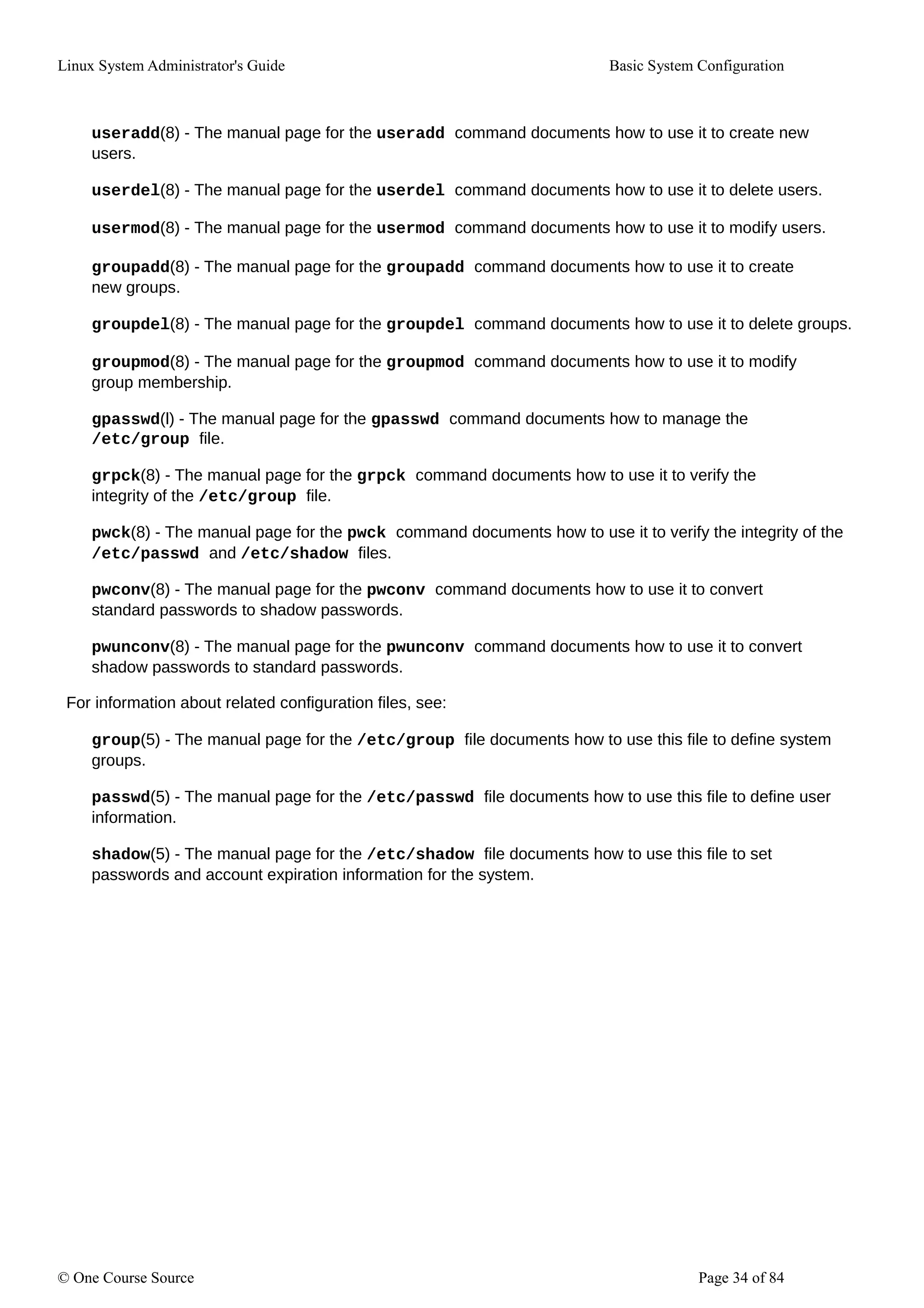
useradd(8) - The manual page for the useradd command documents how to use it to create new
users.
userdel(8) - The manual page for the userdel command documents how to use it to delete users.
usermod(8) - The manual page for the usermod command documents how to use it to modify users.
groupadd(8) - The manual page for the groupadd command documents how to use it to create
new groups.
groupdel(8) - The manual page for the groupdel command documents how to use it to delete groups.
groupmod(8) - The manual page for the groupmod command documents how to use it to modify
group membership.
gpasswd(l) - The manual page for the gpasswd command documents how to manage the
/etc/group file.
grpck(8) - The manual page for the grpck command documents how to use it to verify the
integrity of the /etc/group file.
pwck(8) - The manual page for the pwck command documents how to use it to verify the integrity of the
/etc/passwd and /etc/shadow files.
pwconv(8) - The manual page for the pwconv command documents how to use it to convert
standard passwords to shadow passwords.
pwunconv(8) - The manual page for the pwunconv command documents how to use it to convert
shadow passwords to standard passwords.
For information about related configuration files, see:
group(5) - The manual page for the /etc/group file documents how to use this file to define system
groups.
passwd(5) - The manual page for the /etc/passwd file documents how to use this file to define user
information.
shadow(5) - The manual page for the /etc/shadow file documents how to use this file to set
passwords and account expiration information for the system.
© One Course Source Page 34 of 84
Linux System Administrator's Guide Basic System Configuration
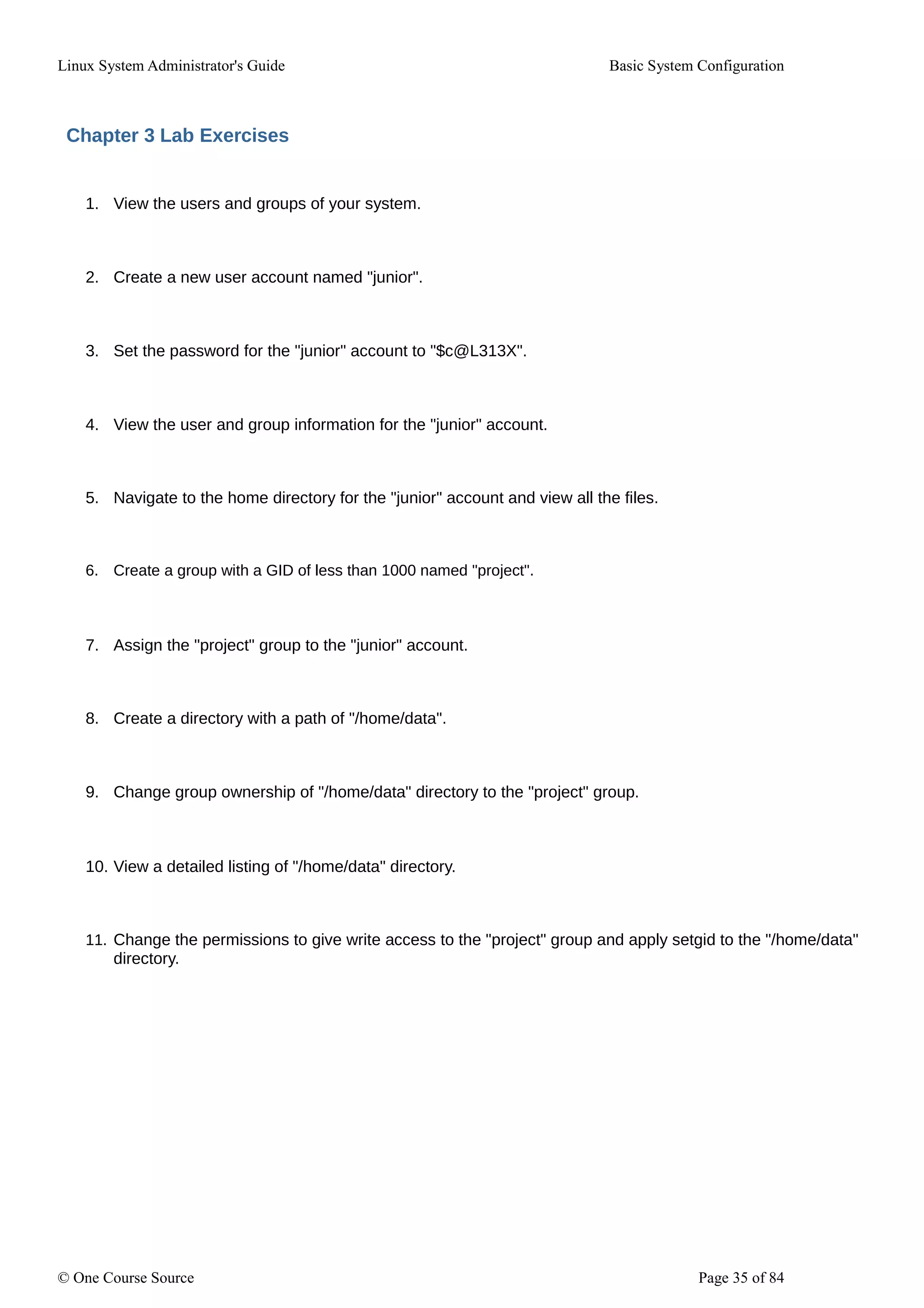
Chapter 3 Lab Exercises
1. View the users and groups of your system.
2. Create a new user account named "junior".
3. Set the password for the "junior" account to "$c@L313X".
4. View the user and group information for the "junior" account.
5. Navigate to the home directory for the "junior" account and view all the files.
6. Create a group with a GID of less than 1000 named "project".
7. Assign the "project" group to the "junior" account.
8. Create a directory with a path of "/home/data".
9. Change group ownership of "/home/data" directory to the "project" group.
10. View a detailed listing of "/home/data" directory.
11. Change the permissions to give write access to the "project" group and apply setgid to the "/home/data"
directory.
© One Course Source Page 35 of 84
Linux System Administrator's Guide Basic System Configuration
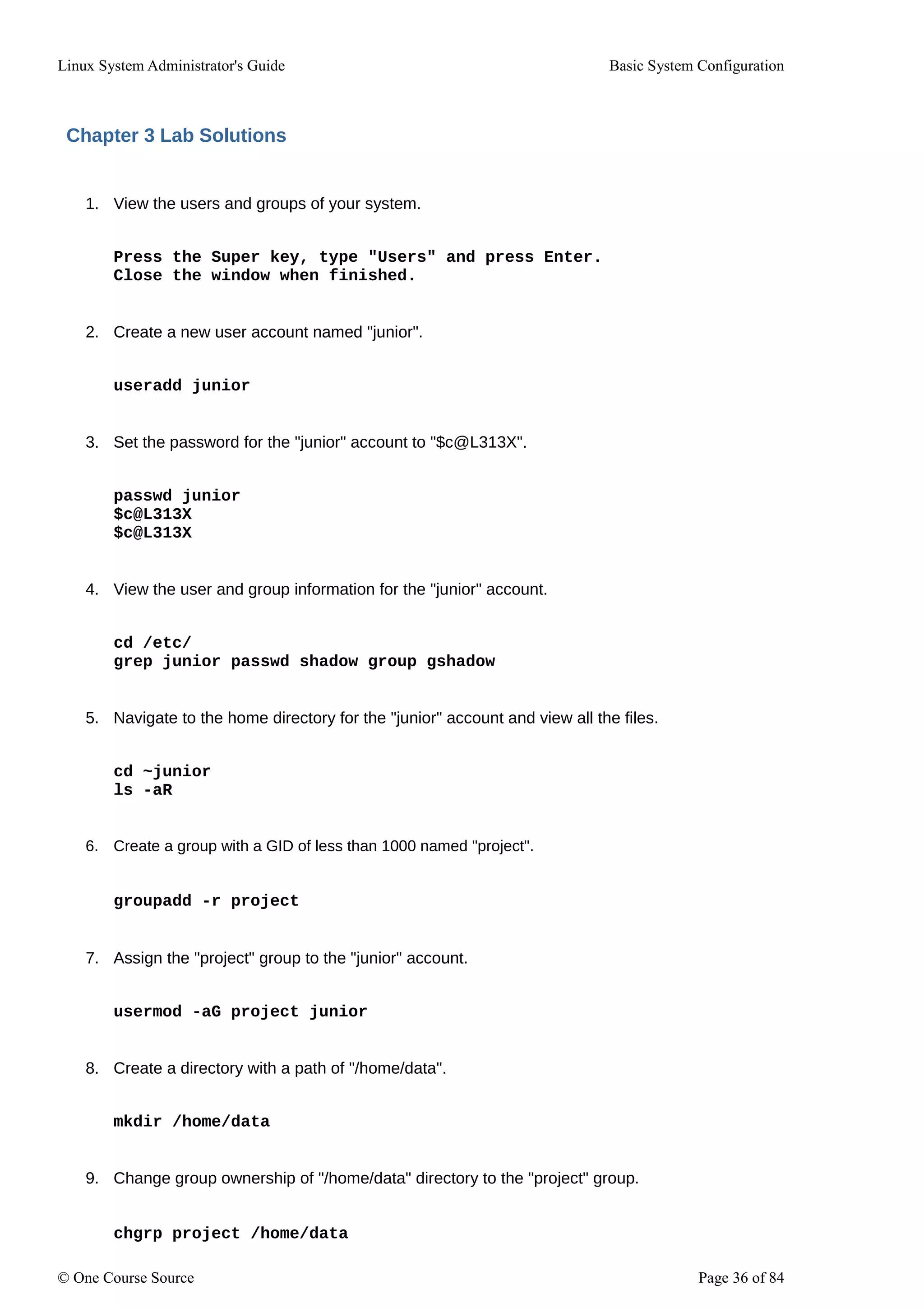
Chapter 3 Lab Solutions
1. View the users and groups of your system.
Press the Super key, type "Users" and press Enter.
Close the window when finished.
2. Create a new user account named "junior".
useradd junior
3. Set the password for the "junior" account to "$c@L313X".
passwd junior
$c@L313X
$c@L313X
4. View the user and group information for the "junior" account.
cd /etc/
grep junior passwd shadow group gshadow
5. Navigate to the home directory for the "junior" account and view all the files.
cd ~junior
ls -aR
6. Create a group with a GID of less than 1000 named "project".
groupadd -r project
7. Assign the "project" group to the "junior" account.
usermod -aG project junior
8. Create a directory with a path of "/home/data".
mkdir /home/data
9. Change group ownership of "/home/data" directory to the "project" group.
chgrp project /home/data
© One Course Source Page 36 of 84
Linux System Administrator's Guide Basic System Configuration
10. View a detailed listing of "/home/data" directory.
ls -ld /home/data
11. Change the permissions to give write access to the "project" group and apply setgid to the "/home/data"
directory.
chmod g+ws /home/data
or
chmod 2775 /home/data
© One Course Source Page 37 of 84
Linux System Administrator's Guide Basic System Configuration
Chapter 4. Gaining Privileges
System administrators, and in some cases users, need to perform certain tasks with administrative access.
Accessing the system as the root user is potentially dangerous and can lead to widespread damage to the
system and data. This chapter covers ways to gain administrative privileges using setuid programs such as
su and sudo. These programs allow specific users to perform tasks which would normally be available only
to the root user while maintaining a higher level of control and system security.
See the Linux Security Guide for more information on administrative controls, potential dangers and ways
to prevent data loss resulting from improper use of privileged access.
4.1. The su Command
When a user executes the su command, they are prompted for the root password and, after
authentication, are given a root shell prompt.
Once logged in using the su command, the user is the root user and has absolute administrative access
to the system. Note that this access is still subject to the restrictions imposed by SELinux, if it is enabled. In
addition, once a user has become root, it is possible for them to use the su command to change to any
other user on the system without being prompted for a password.
Because this program is so powerful, administrators within an organization may want to limit who has
access to the command.
One of the simplest ways to do this is to add users to the special administrative group called wheel. To do
this, type the following command as root:
usermod -aG wheel username
In the previous command, replace username with the user name you want to add to the wheel group. You
can also use the User settings tool to modify group memberships, as follows. Note that you
need administrator privileges to perform this procedure.
1. Press the Super key to enter the Activities Overview, type Users and then press Enter. The
Users settings tool appears. The Super key appears in a variety of guises, depending on the
keyboard and other hardware, but often as either the Windows or Command key, and
typically to the left of the Spacebar.
2. To enable making changes, click the Unlock button, and enter a valid administrator
password.
3. Click a user icon in the left column to display the user's properties in the right-hand pane.
4. Click any property to change that property.
See Section 3.2, "Using the User Manager Tool" for more information about the User tool.
After you add the desired users to the wheel group, it is advisable to only allow these specific users to use
the su command. To do this, edit the PAM configuration file for su, /etc/pam.d/su. Open this file in a text
editor and uncomment the following line by removing the # character:
#auth required pam_wheel.so use_uid
© One Course Source Page 38 of 84
Linux System Administrator's Guide Basic System Configuration
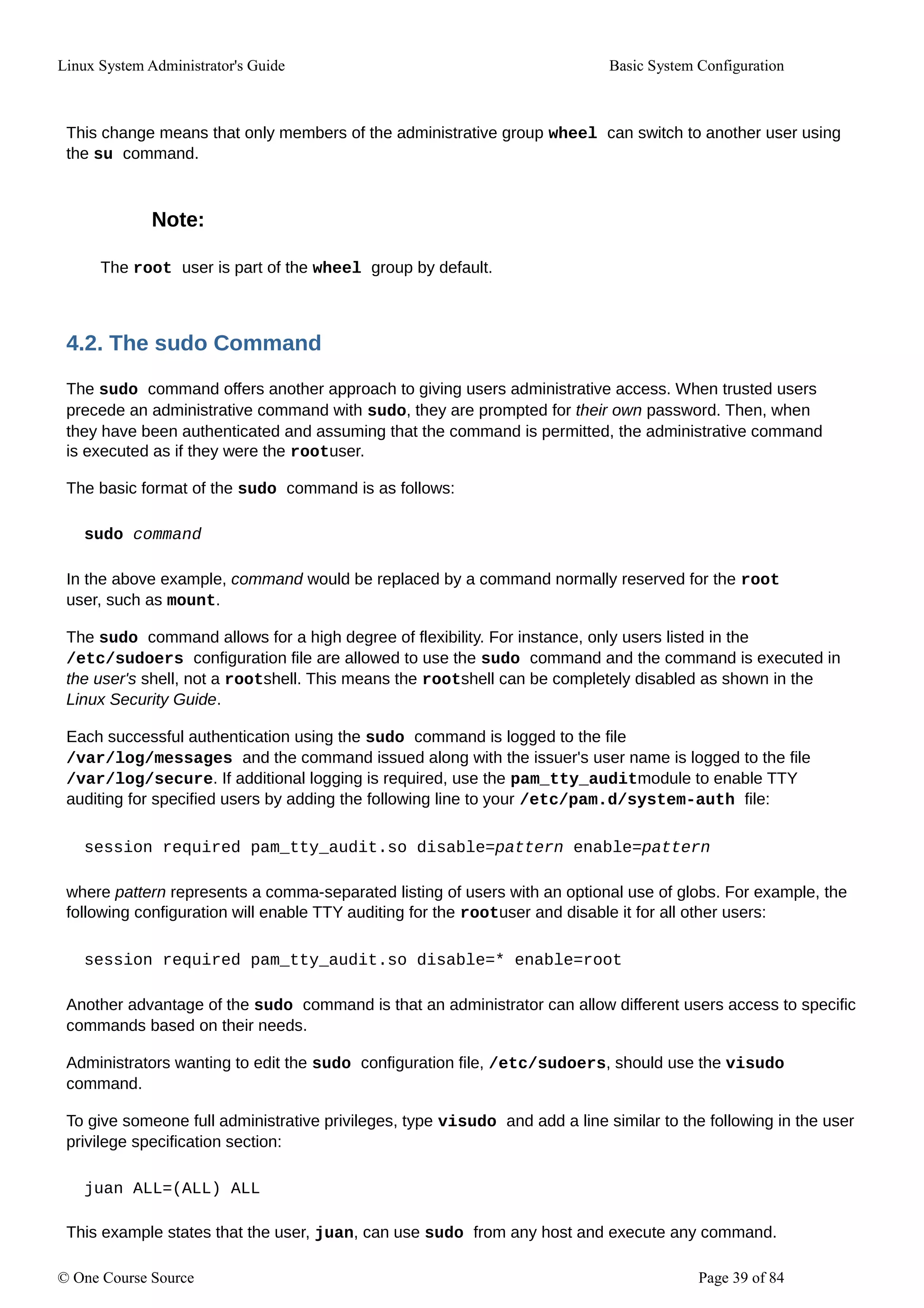
This change means that only members of the administrative group wheel can switch to another user using
the su command.
Note:
The root user is part of the wheel group by default.
4.2. The sudo Command
The sudo command offers another approach to giving users administrative access. When trusted users
precede an administrative command with sudo, they are prompted for their own password. Then, when
they have been authenticated and assuming that the command is permitted, the administrative command
is executed as if they were the rootuser.
The basic format of the sudo command is as follows:
sudo command
In the above example, command would be replaced by a command normally reserved for the root
user, such as mount.
The sudo command allows for a high degree of flexibility. For instance, only users listed in the
/etc/sudoers configuration file are allowed to use the sudo command and the command is executed in
the user's shell, not a rootshell. This means the rootshell can be completely disabled as shown in the
Linux Security Guide.
Each successful authentication using the sudo command is logged to the file
/var/log/messages and the command issued along with the issuer's user name is logged to the file
/var/log/secure. If additional logging is required, use the pam_tty_auditmodule to enable TTY
auditing for specified users by adding the following line to your /etc/pam.d/system-auth file:
session required pam_tty_audit.so disable=pattern enable=pattern
where pattern represents a comma-separated listing of users with an optional use of globs. For example, the
following configuration will enable TTY auditing for the rootuser and disable it for all other users:
session required pam_tty_audit.so disable=* enable=root
Another advantage of the sudo command is that an administrator can allow different users access to specific
commands based on their needs.
Administrators wanting to edit the sudo configuration file, /etc/sudoers, should use the visudo
command.
To give someone full administrative privileges, type visudo and add a line similar to the following in the user
privilege specification section:
juan ALL=(ALL) ALL
This example states that the user, juan, can use sudo from any host and execute any command.
© One Course Source Page 39 of 84
Linux System Administrator's Guide Basic System Configuration
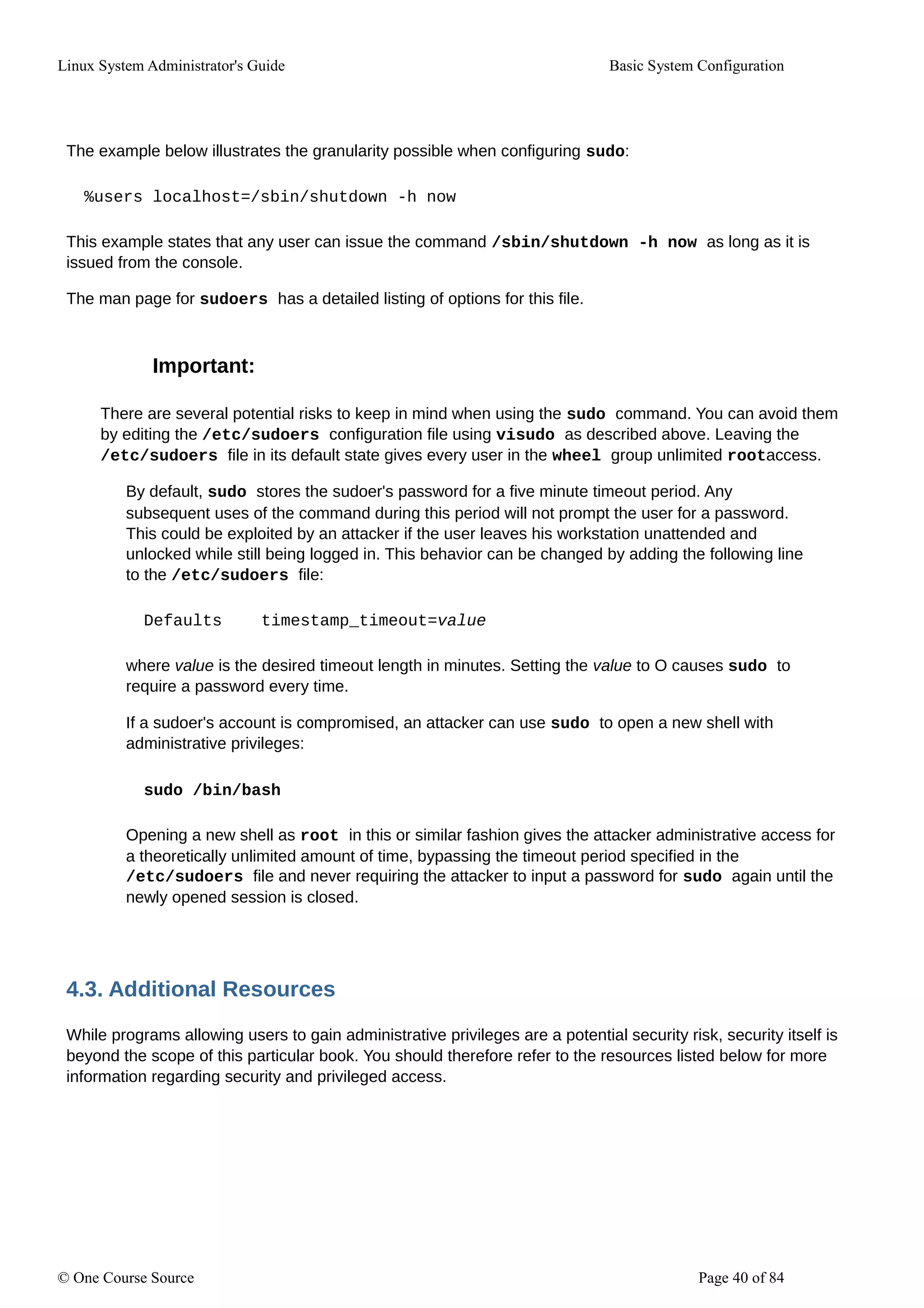
The example below illustrates the granularity possible when configuring sudo:
%users localhost=/sbin/shutdown -h now
This example states that any user can issue the command /sbin/shutdown -h now as long as it is
issued from the console.
The man page for sudoers has a detailed listing of options for this file.
Important:
There are several potential risks to keep in mind when using the sudo command. You can avoid them
by editing the /etc/sudoers configuration file using visudo as described above. Leaving the
/etc/sudoers file in its default state gives every user in the wheel group unlimited rootaccess.
By default, sudo stores the sudoer's password for a five minute timeout period. Any
subsequent uses of the command during this period will not prompt the user for a password.
This could be exploited by an attacker if the user leaves his workstation unattended and
unlocked while still being logged in. This behavior can be changed by adding the following line
to the /etc/sudoers file:
Defaults timestamp_timeout=value
where value is the desired timeout length in minutes. Setting the value to O causes sudo to
require a password every time.
If a sudoer's account is compromised, an attacker can use sudo to open a new shell with
administrative privileges:
sudo /bin/bash
Opening a new shell as root in this or similar fashion gives the attacker administrative access for
a theoretically unlimited amount of time, bypassing the timeout period specified in the
/etc/sudoers file and never requiring the attacker to input a password for sudo again until the
newly opened session is closed.
4.3. Additional Resources
While programs allowing users to gain administrative privileges are a potential security risk, security itself is
beyond the scope of this particular book. You should therefore refer to the resources listed below for more
information regarding security and privileged access.
© One Course Source Page 40 of 84
Linux System Administrator's Guide Basic System Configuration
Installed Documentation
su(l) - The manual page for su provides information regarding the options available with this command.
sudo(8) - The manual page for sudo includes a detailed description of this command and lists options
available for customizing its behavior.
pam(8) - The manual page describing the use of Pluggable Authentication Modules (PAM) for
Linux.
© One Course Source Page 41 of 84
Linux System Administrator's Guide Basic System Configuration
Chapter 4 Lab Exercises
1. Grant access to the "junior" account to use the commands sudo and su. Modify the "junior" account to
add membership in the "wheel" group.
2. Restrict access to the su command by modifying the "/etc/pam.d/su" file.
3. Switch to the user "junior" account for testing purposes.
4. Use the sudo command to view the last ten lines of the /var/log/messages file.
5. Exit back to the root account.
© One Course Source Page 42 of 84
Linux System Administrator's Guide Basic System Configuration
Chapter 4 Lab Solutions
1. Grant access to the "junior" account to use the commands sudo and su. Modify the "junior" account to
add membership in the "wheel" group.
usermod -aG wheel junior
2. Restrict access to the su command by modifying the "/etc/pam.d/su" file and
Uncomment the following line by removing the # character:
#auth required pam_wheel.so use_uid
3. Switch to the user "junior" account for testing purposes.
su - junior
4. Use the sudo command to view the last ten lines of the /var/log/messages file.
sudo tail -f /var/log/messages
5. Exit back to the root account.
exit
© One Course Source Page 43 of 84
Linux System Administrator's Guide Basic System Configuration
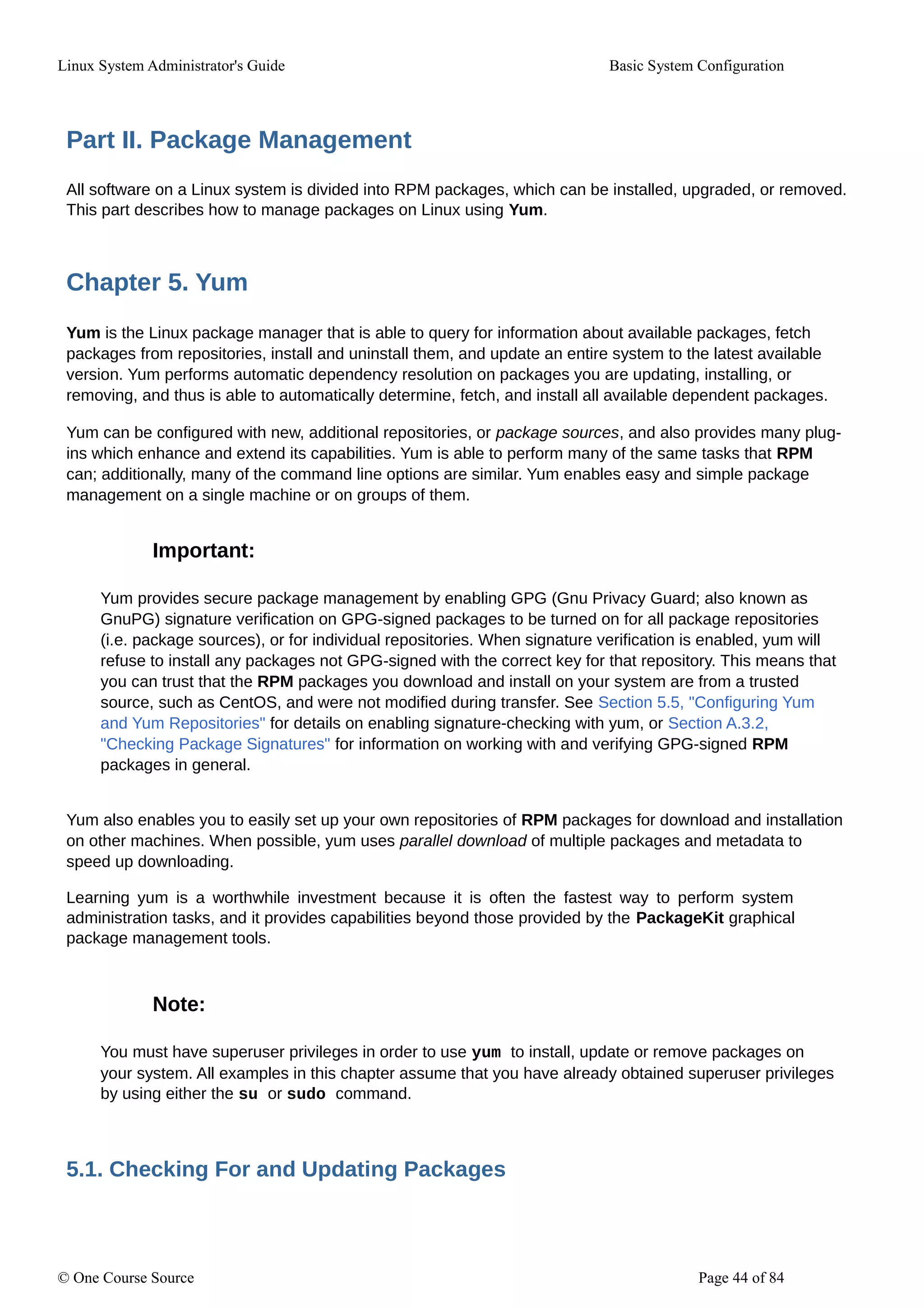
Part II. Package Management
All software on a Linux system is divided into RPM packages, which can be installed, upgraded, or removed.
This part describes how to manage packages on Linux using Yum.
Chapter 5. Yum
Yum is the Linux package manager that is able to query for information about available packages, fetch
packages from repositories, install and uninstall them, and update an entire system to the latest available
version. Yum performs automatic dependency resolution on packages you are updating, installing, or
removing, and thus is able to automatically determine, fetch, and install all available dependent packages.
Yum can be configured with new, additional repositories, or package sources, and also provides many plug-
ins which enhance and extend its capabilities. Yum is able to perform many of the same tasks that RPM
can; additionally, many of the command line options are similar. Yum enables easy and simple package
management on a single machine or on groups of them.
Important:
Yum provides secure package management by enabling GPG (Gnu Privacy Guard; also known as
GnuPG) signature verification on GPG-signed packages to be turned on for all package repositories
(i.e. package sources), or for individual repositories. When signature verification is enabled, yum will
refuse to install any packages not GPG-signed with the correct key for that repository. This means that
you can trust that the RPM packages you download and install on your system are from a trusted
source, such as CentOS, and were not modified during transfer. See Section 5.5, "Configuring Yum
and Yum Repositories" for details on enabling signature-checking with yum, or Section A.3.2,
"Checking Package Signatures" for information on working with and verifying GPG-signed RPM
packages in general.
Yum also enables you to easily set up your own repositories of RPM packages for download and installation
on other machines. When possible, yum uses parallel download of multiple packages and metadata to
speed up downloading.
Learning yum is a worthwhile investment because it is often the fastest way to perform system
administration tasks, and it provides capabilities beyond those provided by the PackageKit graphical
package management tools.
Note:
You must have superuser privileges in order to use yum to install, update or remove packages on
your system. All examples in this chapter assume that you have already obtained superuser privileges
by using either the su or sudo command.
5.1. Checking For and Updating Packages
© One Course Source Page 44 of 84
Linux System Administrator's Guide Basic System Configuration
Yum allows you to check if your system has any updates that wait to be applied. You can list
packages that need to be updated and update them as a whole, or you can update a selected
individual package.
5.1.1. Checking For Updates
To see which installed packages on your system have updates available, use the following
command:
yum check-update
Example 5.1. Example output of the yum check-update command
The output of yum check-update can look as follows:
-]# yum check-update
Loaded plugins: langpacks, product-id, subscription-manager
Updating Linux repositories. INFO:rhsm-
app.repolib:repos updated: e
PackageKit.x86_64 e.5.8-2.el6 rhel
PackageKit-glib.x86_64 e.5.8-2.el6 rhel
PackageKit-yum.x86_64 e.5.8-2.el6 rhel
PackageKit-yum-plugin.x86_64 e.5.8-2.el6 rhel
glibc.x86_64 2.11.9e-2e.el6 rhel
glibc-common.x86_64 2.1e.9e-22 rhel
kernel.x86_64 2.6.31-14.el6 rhel
rpm.x86_64 4.7.1-5.el6 rhel
rpm-libs.x86_64 4.7.1-5.el6 rhel
rpm-python.x86_64 4.7.1-5.el6 rhel
yum.noarch 3.2.24-4.el6 rhel
The packages in the above output are listed as having updates available. The first package in the list is
PackageKit, the graphical package manager. The line in the example output tells us:
PackageKit- the name of the package
x86_64 - the CPU architecture the package was built for
0.5.8 - the version of the updated package to be installed
rhel - the repository in which the updated package is located
The output also shows us that we can update the kernel (the kernel package), yum and RPM themselves
(the yum and rpm packages), as well as their dependencies (such as the rpm-libs, and rpm-python
packages), all using yum.
© One Course Source Page 45 of 84
Linux System Administrator's Guide Basic System Configuration
5.1.2. Updating Packages
You can choose to update a single package, multiple packages, or all packages at once. If any
dependencies of the package (or packages) you update have updates available themselves, then they are
updated too.
Updating a Single Package
To update a single package, run the following command as root:
yum update package_name
Example 5.2. Updating the rpm package
To update the rpm package, type:
-]# yum update rpm
Loaded plugins: langpacks, product-id, subscription-manager
Updating Linux repositories. INFO:rhsm-
app.repolib:repos updated: 0
Setting up Update Process
Resolving Dependencies
--> Running transaction check
---> Package rpm.x86_64 0:4.11.1-3.el7 will be updated
--> Processing Dependency: rpm - 4.11.1-3.el7 for package: rpm-libs-
4.11.1-3.el7.x86_64
--> Processing Dependency: rpm - 4.11.1-3.el7 for package: rpm-python-
4.11.1-3.el7.x86_64
--> Processing Dependency: rpm - 4.11.1-3.el7 for package: rpm-build-
4.11.1-3.el7.x86_64
---> Package rpm.x86_64 0:4.11.2-2.el7 will be an update
--> Running transaction check
...
--> Finished Dependency Resolution
Dependencies Resolved
----------------------------------------------------------------------
-------
Package Arch Version Repository
Size
----------------------------------------------------------------------
-------
Updating:
rpm x86_64 4.11.2-2.el7 centos
1.1 M
Updating for dependencies:
rpm-build x86_64 4.11.2-2.el7 centos
139 k
rpm-build-libs x86_64 4.11.2-2.el7 centos
98 k
rpm-libs x86_64 4.11.2-2.el7 centos
261 k
© One Course Source Page 46 of 84
Linux System Administrator's Guide Basic System Configuration
rpm-python x86_64 4.11.2-2.el7 centos
74 k
Transaction Summary
----------------------------------------------------------------------
-------
Upgrade 1 Package (+4 Dependent packages)
Total size: 1.7 M
Is this ok [y/d/N]:
This output contains several items of interest:
1. Loaded plugins: langpacks, product-id, subscription-manager- yum always
informs you which yum plug-ins are installed and enabled. See Section 5.6, "Yum Plug-ins" for
general information on yum plug-ins, or to Section 5.6.3, "Working with Yum Plug-ins" for
descriptions of specific plug-ins.
2. rpm.x86_64 - you can download and install new rpm package as well as its
dependencies. Transaction check is performed for each of these packages.
3. yum presents the update information and then prompts you as to whether you want it to perform
the update; yum runs interactively by default. If you already know which transactions the yum
command plans to perform, you can use the -y option to automatically answer yes to any
questions that yum asks (in which case it runs non- interactively). However, you should always
examine which changes yum plans to make to the system so that you can easily troubleshoot
any problems that might arise. You can
also choose to download the package without installing it. To do so, select the d option at the
download prompt. This launches a background download of the selected package.
If a transaction does go awry, you can view yum transaction history by using the yum
history command as described in Section 5.4, "Working with Transaction History".
Important:
yum always installs a new kernel in the same sense that RPM installs a new kernel when you use the
command rpm -i kernel. Therefore, you do not need to worry about the distinction between
installing and upgrading a kernel package when you use yum: it will do the right thing, regardless of
whether you are using the yum update or yum install command.
When using RPM, on the other hand, it is important to use the rpm -i kernel command (which
installs a new kernel) instead of rpm -u kernel (which replaces the current kernel). See Section
A.2.1, "Installing and Upgrading Packages" for more information on installing/upgrading kernels with
RPM.
Similarly, it is possible to update a package group. Type as root:
yum group update group_name
© One Course Source Page 47 of 84
Linux System Administrator's Guide Basic System Configuration
Here, replace group_name with a name of the package group you want to update. For more
information on package groups, see Section 5.3, "Working with Package Groups".
Yum also offers the upgrade command that is equal to update with enabled obsoletes configuration
option (see Section 5.5.1, "Setting [main] Options"). By default, obsoletes is turned on in
/etc/yum.conf, which makes these two commands equivalent.
Updating All Packages and Their Dependencies
To update all packages and their dependencies, simply enter yum update (without any arguments):
yum update
Updating Security-Related Packages
Discovering which packages have security updates available and then updating those packages quickly and
easily is important. Yum provides the plug-in for this purpose. The security plug-in extends the yum
command with a set of highly-useful security-centric commands, subcommands and options. See Section
5.6.3, "Working with Yum Plug-ins" for specific information.
5.1.3. Preserving Configuration File Changes
You will inevitably make changes to the configuration files installed by packages as you use your Linux
system. RPM, which yum uses to perform changes to the system, provides a mechanism for ensuring their
integrity. See Section A.2.1, "Installing and Upgrading Packages" for details on how to manage changes to
configuration files across package upgrades.
5.2. Working with Packages
Yum allows you to preform a complete set of operations with software packages, including searching for
packages, viewing information about them, installing and removing.
5.2.1. Searching Packages
You can search all RPM package names, descriptions and summaries by using the following
command:
yum search term…
This command displays the list of matches for each term.
Example 5.3. Searching for packages matching a specific string
To list all packages that match "meld" or "kompare", type:
~] $ yum search meld kompare
Loaded plugins: langpacks, langpacks, product-id, subscription-manager
Updating Linux repositories. INFO:rhsm-
app.repolib:repos updated: e
© One Course Source Page 48 of 84
Linux System Administrator's Guide Basic System Configuration
---------------------------- N/S matched: kompare
-----------------------------
kompare.x86_64 : Diff tool
...
Name and summary matches mostly, use "search all" for everything.
Warning: No matches found for: meld
The yum search command is useful for searching for packages you do not know the name of, but for
which you know a related term. Note that by default, yum search returns matches in package name and
summary, which makes the search faster. Use the yum search all command for more exhaustive but
slower search.
Filtering the Results
All of yum's list commands allow you to filter the results by appending one or more glob expressions as
arguments. Glob expressions are normal strings of characters which contain one or more of the wildcard
characters * (which expands to match any character subset) and ?(which expands to match any single
character).
Be careful to escape the glob expressions when passing them as arguments to a yum command,
otherwise the Bash shell will interpret these expressions as pathname expansions, and potentially
pass all files in the current directory that match the global expressions to yum. To make sure the glob
expressions are passed to yum as intended, either:
escape the wildcard characters by preceding them with a backslash character
double-quote or single-quote the entire glob expression.
Examples in the following section demonstrate usage of both these methods.
5.2.2. Listing Packages
To list information on all installed and available packages type the following at a shell prompt:
yum list all
To list installed and available packages that match inserted glob expressions use the following
command:
yum list glob_expression…
Example 5.4 . Listing ABRT-related packages
Packages with various ABRT add-ons and plug-ins either begin with "abrt-addon-", or "abrt- plugin-".
To list these packages, type the following command at a shell prompt. Note how the wildcard
characters are escaped with a backslash character:
~] $ yum list abrt-addon* abrt-plugin*
Loaded plugins: langpacks, product-id, subscription-manager
Updating Linux repositories.
© One Course Source Page 49 of 84
Linux System Administrator's Guide Basic System Configuration
INFO:rhsm-app.repolib:repos updated: 0
Installed Packages
abrt-addon-ccpp.x86_64 1.0.7-5.el6
@centos
abrt-addon-kerneloops.x86_64 1.0.7-5.el6
@centos
abrt-addon-python.x86_64 1.0.7-5.el6
@centos
abrt-plugin-bugzilla.x86_64 1.0.7-5.el6
@centos
abrt-plugin-logger.x86_64 1.0.7-5.el6
@centos
abrt-plugin-sosreport.x86_64 1.0.7-5.el6
@centos
abrt-plugin-ticketuploader.x86_64 1.0.7-5.el6
@centos
To list all packages installed on your system use the installed keyword. The rightmost column in
the output lists the repository from which the package was retrieved.
yum list installed glob_expression…
Example 5.5. Listing all installed versions of the krb package
The following example shows how to list all installed packages that begin with "krb" followed by exactly one
character and a hyphen. This is useful when you want to list all versions of certain component as these are
distinguished by numbers. The entire glob expression is quoted to ensure proper processing.
~] $ yum list installed "krb?-*"
Loaded plugins: langpacks, product-id, subscription-manager
Updating Linux repositories. INFO:rhsm-
app.repolib:repos updated: e Installed
Packages
krb5-libs.x86_64 1.8.1-3.el6
@centos
krb5-workstation.x86_64 1.8.1-3.el6
@centos
To list all packages in all enabled repositories that are available to install, use the command in the following
form:
yum list available glob_expression…
Example 5.6 . Listing available gstreamer plug-ins
For instance, to list all available packages with names that contain "gstreamer" and then "plugin", run the
following command:
© One Course Source Page 50 of 84
Linux System Administrator's Guide Basic System Configuration
~] $ yum list available gstreamer*plugin*
Loaded plugins: langpacks, product-id, subscription-manager
Updating Linux repositories. INFO:rhsm-
app.repolib:repos updated: e Available
Packages
gstreamer-plugins-bad-free.i686 e.1e.17-4.el6
centos
gstreamer-plugins-base.i686 e.1e.26-1.el6
centos
gstreamer-plugins-base-devel.i686 e.1e.26-1.el6
centos
gstreamer-plugins-base-devel.x86_64 e.1e.26-1.el6
centos
gstreamer-plugins-good.i686 e.1e.18-1.el6
centos
Listing Repositories
To list the repository ID, name, and number of packages for each enabled repository on your system, use the
following command:
yum repolist
To list more information about these repositories, add the -v option. With this option enabled, information
including the file name, overall size, date of the last update, and base URL are displayed for each listed
repository. As an alternative, you can use the repoinfo command that produces the same output.
yum repolist -v
yum repoinfo
To list both enabled and disabled repositories use the following command. A status column is added to the
output list to show which of the repositories are enabled.
yum repolist all
By passing disabled as a first argument, you can reduce the command output to disabled repositories.
For further specification you can pass the ID or name of repositories or related glob_expressions as
arguments. Note that if there is an exact match between the repository ID or name and the inserted
argument, this repository is listed even if it does not pass the enabled or disabled filter.
5.2.3. Displaying Package Information
To display information about one or more packages, use the following command (glob expressions are valid
here as well):
yum info package_name…
Replace package_name with the name of the package.
© One Course Source Page 51 of 84
Linux System Administrator's Guide Basic System Configuration
Example 5.7. Displaying information on the abrt package
To display information about the abrt package, type:
~] $ yum info abrt
Loaded plugins: langpacks, product-id, subscription-manager
Updating Linux repositories. INFO:rhsm-
app.repolib:repos updated: e Installed
Packages
Name : abrt
Arch : x86_64
Version : i.e.1
Release : 5.el6
Size : 518 k
Repo : installed
From repo : centos
Summary : Automatic bug detection and reporting tool
URL : https://fedorahosted.org/abrt/
License : GPLv2+
Description: abrt is a tool to help users to detect defects in
applications
: and to create a bug report with all informations needed by
: maintainer to fix it. It uses plugin system to extend its
: functionality.
The yum info package_name command is similar to the rpm -q --info package_name
command, but provides as additional information the ID of the yum repository the RPM package is found in
(look for the From repo: line in the output).
Using yumdb
You can also query the yum database for alternative and useful information about a package by using
the following command:
yumdb info package_name
This command provides additional information about a package, including the checksum of the package (and
algorithm used to produce it, such as SHA-256), the command given on the command line that was invoked
to install the package (if any), and the reason that the package is installed on the system (where
userindicates it was installed by the user, and dep means it was brought in as a dependency).
Example 5.8. Querying yumdb for information on the yum package
To display additional information about the yum package, type:
~] $ yumdb info yum
Loaded plugins: langpacks, product-id, subscription-manager
yum-3.2.27-4.el6.noarch
checksum_data -
© One Course Source Page 52 of 84
Linux System Administrator's Guide Basic System Configuration
23d337ed51a9757bbfbdceb82c4eaca9808ff1009b51e9626d540f44fe95f771
checksum_type - sha256
from_repo - centos
from_repo_revision - 1298613159
from_repo_timestamp - 1298614288
installed_by - 4294967295
reason - user
releasever - 6.1
For more information on the yumdb command, see the yumdb(8) manual page.
5.2.4 . Installing Packages
To install a single package and all of its non-installed dependencies, enter a command in the following
form (as root):
yum install package_name
You can also install multiple packages simultaneously by appending their names as arguments. To do so,
type as root:
yum install package_name package_name…
If you are installing packages on a multilib system, such as an AMD64 or Intel64 machine, you can specify
the architecture of the package (as long as it is available in an enabled repository) by appending .arch to
the package name:
yum install package_name.arch
Example 5.9 . Installing packages on multilib system
To install the sqlite package for the i686 architecture, type:
-]# yum install sqlite.i686
You can use glob expressions to quickly install multiple similarly-named packages. As root:
yum install glob_expression…
Example 5.10. Installing all audacious plugins
Global expressions are useful when you want to install several packages with similar names. To install all
audacious plug-ins, use the command in the following form:
-]# yum install audacious-plugins-*
© One Course Source Page 53 of 84
Linux System Administrator's Guide Basic System Configuration
In addition to package names and glob expressions, you can also provide file names to yum install. If you
know the name of the binary you want to install, but not its package name, you can give yum install the
path name. As root, type:
yum install /usr/sbin/named
yum then searches through its package lists, finds the package which provides /usr/sbin/named, if any,
and prompts you as to whether you want to install it.
As you can see in the above examples, the yum install command does not require strictly defined
arguments. It can process various formats of package names and glob expressions, which makes installation
easier for users. On the other hand, it takes some time till yum parses the input correctly, especially if you
specify a large number of packages. To optimize the package search, you can use the following commands to
explicitly define how to parse the arguments:
yum install-n name
yum install-na name.architecture
yum install-nevra name-epoch:version-release.architecture
With install-n, yum interprets name as exact name of the package. The install-na command tells
yum that the subsequent argument contains the package name and architecture divided by the dot
character. With install-nevra, yum will expect argument in the form name-epoch:version-
release.architecture. Similarly, you can use yum remove-n, yum remove-na, and yum remove- nevra
when searching for packages to be removed.
Note:
If you know you want to install the package that contains the named binary, but you do not know in
which bin or sbin directory is the file installed, use the yum provides command with a glob
expression:
-]# yum provides *bin/named1
Loaded plugins: langpacks, product-id, subscription-manager
Updating Linux repositories. INFO:rhsm-
app.repolib:repos updated: 0
32:bind-9.7.0-4.P1.el6.x86_64 : The Berkeley Internet Name Domain
(BIND)
Repo : centos
Matched from:
Filename : /usr/sbin/named
: DNS (Domain Name System) server
yum provides 1*/file_name_1is a common and useful trick to find the package(s) that
contain file_name.
© One Course Source Page 54 of 84
Linux System Administrator's Guide Basic System Configuration
Example 5.11. Installation Process
The following example provides an overview of installation with use of yum. Imagine you want to
download and install the latest version of the httpd package. To do so, execute as root:
-]# yum install httpd
Loaded plugins: langpacks, product-id, subscription-manager
Resolving Dependencies
--> Running transaction check
---> Package httpd.x86_64 0:2.4.6-12.el7 will be updated
---> Package httpd.x86_64 0:2.4.6-13.el7 will be an update
--> Processing Dependency: 2.4.6-13.el7 for package: httpd-2.4.6-
13.el7.x86_64
--> Running transaction check
---> Package httpd-tools.x86_64 0:2.4.6-12.el7 will be updated
---> Package httpd-tools.x86_64 0:2.4.6-13.el7 will be an update
--> Finished Dependency Resolution
Dependencies Resolved
After executing the above command, yum loads the necessary plug-ins and runs the transaction check.
In this case, httpd is already installed. Since the installed package is older than the latest currently
available version, it will be updated. The same applies to the httpd-tools package that httpd depends on.
Then, a transaction summary is displayed:
----------------------------------------------------------------------
----------
Package Arch Version Repository
Size
----------------------------------------------------------------------
----------
Updating:
httpd x86_64 2.4.6-13.el7 centos-x86_64-server-7
1.2 M
Updating for dependencies:
httpd-tools x86_64 2.4.6-13.el7 centos-x86_64-server-7
77 k
Transaction Summary
----------------------------------------------------------------------
----------
Upgrade 1 Package (+1 Dependent package)
Total size: 1.2 M Is
this ok [y/d/N]:
In this step yum prompts you to confirm the installation. Apart from y (yes) and N (no) options, you can
choose d (download only) to download the packages but not to install them directly. If you choose y, the
installation proceeds with the following messages until it is finished successfully.
Downloading packages:
Running transaction check
© One Course Source Page 55 of 84
Linux System Administrator's Guide Basic System Configuration
Running transaction test
Transaction test succeeded
Running transaction
Updating : httpd-tools-2.4.6-13.el7.x86_64
1/4
Updating : httpd-2.4.6-13.el7.x86_64
2/4
Cleanup : httpd-2.4.6-12.el7.x86_64
3/4
Cleanup : httpd-tools-2.4.6-12.el7.x86_64
4/4
Verifying : httpd-2.4.6-13.el7.x86_64
1/4
Verifying : httpd-tools-2.4.6-13.el7.x86_64
2/4
Verifying : httpd-tools-2.4.6-12.el7.x86_64
3/4
Verifying : httpd-2.4.6-12.el7.x86_64
4/4
Updated:
httpd.x86_64 0:2.4.6-13.el7
Dependency Updated:
httpd-tools.x86_64 0:2.4.6-13.el7
Complete!
To install a previously-downloaded package from the local directory on your system, use the
following command:
yum localinstall path
Replace path with a path to the package you want to install.
5.2.5. Downloading Packages
As shown in Example 5.11, "Installation Process", at certain point of installation process you are
prompted to confirm the installation with the following message:
...
Total size: 1.2 M
Is this ok [y/d/N]:
...
By choosing the d option, you tell yum to download the packages without installing them immediately. You
can install these packages later in off-line mode with the yum localinstall command or you can share
© One Course Source Page 56 of 84
Linux System Administrator's Guide Basic System Configuration
them with a different device. Downloaded packages are saved in one of the subdirectories of the cache
directory, by default
/var/cache/yum/$basearch/$releasever/packages/ directory. The downloading
proceeds in background mode so that you can use yum for other operations in parallel.
5.2.6. Removing Packages
Similarly to package installation, yum allows you to uninstall (remove in RPM and yum terminology) them. To
uninstall a particular package, as well as any packages that depend on it, run the following command as
root:
yum remove package_name…
As when you install multiple packages, you can remove several at once by adding more package names
to the command.
Example 5.12. Removing several packages
To remove totem, type the following at a shell prompt:
-]# yum remove totem
Similar to install, remove can take these arguments:
package names
glob expressions
file lists
package provides
Warning:
Yum is not able to remove a package without also removing packages which depend on it. This
type of operation can only be performed by RPM, is not advised, and can potentially leave your
system in a non-functioning state or cause applications to misbehave and/or
crash. For further information, see Section A.2.2, "Uninstalling Packages" in the RPM chapter.
5.3. Working with Package Groups
A package group is a collection of packages that serve a common purpose, for instance System Tools or
Sound and Video. Installing a package group pulls a set of dependent packages, saving time considerably.
The yum groups command is a top-level command that covers all the operations that act on package
groups in yum.
5.3.1. Listing Package Groups
© One Course Source Page 57 of 84
Linux System Administrator's Guide Basic System Configuration
The summary option is used to view the number of installed groups, available groups, available
environment groups, and both installed and available language groups:
yum groups summary
Example 5.13. Example output of yum groups summary
~] $ yum groups summary
Loaded plugins: langpacks, product-id, subscription-manager
Available Environment Groups: 12
Installed Groups: 10
Available Groups: 12
To list all package groups from yum repositories add the listoption. You can filter the command output by
group names.
yum group list glob_expression…
Several optional arguments can be passed to this command, including hidden to list also groups not
marked as user visible, and ids to list group IDs. You can add language, environment, installed, or
available options to reduce the command output to specific group type.
To list mandatory and optional packages contained in a particular group, use the following
command:
yum group info glob_expression…
Example 5.14 . Viewing information on the LibreOffice package group
~] $ yum group info LibreOffice
Loaded plugins: langpacks, product-id, subscription-manager
Group: LibreOffice
Group-Id: libreoffice
Description: LibreOffice Productivity Suite
Mandatory Packages:
=libreoffice-calc
libreoffice-draw
-libreoffice-emailmerge
libreoffice-graphicfilter
=libreoffice-impress
=libreoffice-math
=libreoffice-writer
+libreoffice-xsltfilter
Optional Packages:
libreoffice-base
libreoffice-pyuno
© One Course Source Page 58 of 84
Linux System Administrator's Guide Basic System Configuration
As you can see in the above example, the packages included in the package group can have
different states that are marked with the following symbols:
" - " - Package is not installed and it will not be installed as a part of the package group.
" + " - Package is not installed but it will be installed on next yum upgrade or yum group
upgrade.
" = " - Package is installed and it was installed as a part of the package group.
no symbol - Package is installed but it was installed outside of the package group. This means that the
yum group remove will not remove these packages.
These distinctions take place only when the group_command configuration parameter is set to objects,
which is the default setting. Set this parameter to a different value if you do not want yum to track if a package
was installed as a part of the group or separately, which will make "no symbol" packages equivalent to "="
packages.
You can alter the above package states with use of the yum group mark command. For example, yum
group mark packages marks any given installed packages as members of a specified group. To avoid
installation of new packages on group update, use yum group mark blacklist. See yum man page
for more information on capabilities of yum group mark.
Note:
You can identify an environmental group with use of the @A prefix and a package group can be
marked with @. When using yum group list, info, install, or remove, pass
@group_name to specify a package group, @Agroup_name to specify an environmental group,
or group_name to include both.
5.3.2. Installing a Package Group
Each package group has a name and a groupid. To list the names of all package groups, and their
groupids, which are displayed in parentheses, type:
yum group list ids
Example 5.15. Finding name and groupid of a package group
Imagine you want to install a package group related to the KDE desktop environment, but you cannot
remember the exact name or id of the package group. To find the information, type:
~] $ yum group list ids kde*
Loaded plugins: langpacks, product-id, subscription-manager
Available Groups:
KDE Desktop (kde-desktop)
Done
© One Course Source Page 59 of 84
Linux System Administrator's Guide Basic System Configuration
You can install a package group by passing its full group name (without the groupid part) to the
group install command. As root, type:
yum group install group_name
You can also install by groupid. As root, execute the following command:
yum group install groupid
You can pass the groupid or quoted name to the install command if you prepend it with an @- symbol,
which tells yum that you want to perform group install. As root, type:
yum install @group
Replace group with the groupid or quoted group name. Similar logic applies to environmental groups:
yum install @Agroup
Example 5.16 . Four equivalent ways of installing the KDE Desktop group
As mentioned before, you can use four alternative, but equivalent ways to install a package group. For
KDE Desktop, the commands look as follows:
-]# yum group install "KDE Desktop"
-]# yum group install kde-desktop
-]# yum install @"KDE Desktop"
-]# yum install @kde-desktop
5.3.3. Removing a Package Group
You can remove a package group using syntax congruent with the install syntax, with use of either
name of the package group or its id. As root, type:
yum group remove group_name
yum group remove groupid
Also, you can pass the groupid or quoted name to the remove command if you prepend it with an @-
symbol, which tells yum that you want to perform group remove. As root, type:
yum remove @group
Replace group with the groupid or quoted group name. Similarly, you can replace an environmental group:
yum remove @Agroup
© One Course Source Page 60 of 84
Linux System Administrator's Guide Basic System Configuration
Example 5.17. Four equivalent ways of removing the KDE Desktop group
Similarly to install, you can use four alternative, but equivalent ways to remove a package group. For
KDE Desktop, the commands look as follows:
-]# yum group remove "KDE Desktop"
-]# yum group remove kde-desktop
-]# yum remove @"KDE Desktop"
-]# yum remove @kde-desktop
5.4. Working wit h Transaction History
The yum history command allows users to review information about a timeline of yum
transactions, the dates and times they occurred, the number of packages affected, whether
transactions succeeded or were aborted, and if the RPM database was changed between
transactions. Additionally, this command can be used to undo or redo certain transactions. All history
data is stored in the history DB in the /var/lib/yum/history/ directory.
5.4 .1. Listing Transactions
To display a list of twenty most recent transactions, as root, either run yum history with no
additional arguments, or type the following at a shell prompt:
yum history list
To display all transactions, add the all keyword:
yum history list all
To display only transactions in a given range, use the command in the following form:
yum history list start_id..end_id
You can also list only transactions regarding a particular package or packages. To do so, use the command
with a package name or a glob expression:
yum history list glob_expression…
Example 5.18. Listing the five oldest transactions
In the output of yum history list, the most recent transaction is displayed at the top of the list. To
display information about the five oldest transactions stored in the history data base, type:
-]# yum history list 1..5
Loaded plugins: langpacks, product-id, subscription-manager
© One Course Source Page 61 of 84
Linux System Administrator's Guide Basic System Configuration
ID I Login user I Date and time I Action(s) I
Altered
----------------------------------------------------------------------
---------
5 I Jaromir ... <jhradilek> I 2013-07-29 15:33 I Install I
1
1
73
1
1106
4 I Jaromir ... <jhradilek> I 2013-07-21 15:10 I Install I
3 I Jaromir ... <jhradilek> I 2013-07-16 15:27 I I, U I
2 I System <unset> I 2013-07-16 15:19 I Update I
1 I System <unset> I 2013-07-16 14:38 I Install I
history list
All forms of the yum history listcommand produce tabular output with each row consisting of the
following columns:
ID - an integer value that identifies a particular transaction.
Login user- the name of the user whose login session was used to initiate a transaction. This
information is typically presented in the Full Name <username> form. For transactions that were not
issued by a user (such as an automatic system update), System <unset> is used instead.
Date and time - the date and time when a transaction was issued.
Action(s) - a list of actions that were performed during a transaction as described in
Table 5.1, "Possible values of the Action(s) field".
Altered - the number of packages that were affected by a transaction, possibly followed by
additional information as described in Table 5.2, "Possible values of the Altered field".
Table 5.1. Possible values of the Action(s) field
Action Abbreviati Description on
Downgrade D At least one package has been downgraded to an older
version.
Erase E At least one package has been removed.
Install I At least one new package has been installed.
Obsoleting O At least one package has been marked as obsolete.
Reinstall R At least one package has been reinstalled.
Update U At least one package has been updated to a newer version.
© One Course Source Page 62 of 84
Linux System Administrator's Guide Basic System Configuration
Table 5.2. Possible values of the Altered field
Symbol Description
< Before the transaction finished, the rpmdb database was changed outside yum.
> After the transaction finished, the rpmdb database was changed outside yum.
* The transaction failed to finish.
# The transaction finished successfully, but yum returned a non-zero exit code.
E The transaction finished successfully, but an error or a warning was
displayed.
p The transaction finished successfully, but problems already existed in the
rpmdb database.
s The transaction finished successfully, but the --skip-broken command line option
was used and certain packages were skipped.
To synchronize the rpmdb or yumdb database contents for any installed package with the currently used
rpmdb or yumdb database, type the following:
yum history sync
To display some overall statistics about the currently used history DB use the following command:
yum history stats
Example 5.19 . Example output of yum history stats
-]# yum history stats
Loaded plugins: langpacks, product-id, subscription-manager File
: //var/lib/yum/history/history-2012-08-15.sqlite Size :
2,766,848
Transactions: 41
Begin time : Wed Aug 15 16:18:25 2012
End time : Wed Feb 27 14:52:30 2013
Counts :
NEVRAC : 2,204
NEVRA : 2,204
NA : 1,759
NEVR : 2,204
rpm DB : 2,204
yum DB : 2,204
history stats
Yum also allows you to display a summary of all past transactions. To do so, run the command in the
following form as root:
yum history summary
© One Course Source Page 63 of 84
Linux System Administrator's Guide Basic System Configuration
To display only transactions in a given range, type:
yum history summary start_id..end_id
Similarly to the yum history list command, you can also display a summary of transactions
regarding a certain package or packages by supplying a package name or a glob expression:
yum history summary glob_expression…
Example 5.20. Summary of the five latest transactions
-]# yum history summary 1..5
Loaded plugins: langpacks, product-id, subscription-manager
Login user I Time I Action(s) I
Altered
----------------------------------------------------------------------
---------
Jaromir ... <jhradilek> I Last day I Install I
1
Jaromir ... <jhradilek> I Last week I Install I
1
Jaromir ... <jhradilek> I Last 2 weeks I I, U I
73
System <unset> I Last 2 weeks I I, U I
1107
history summary
All forms of the yum history summary command produce simplified tabular output similar to the output
of yum history list.
As shown above, both yum history list and yum history summary are oriented towards
transactions, and although they allow you to display only transactions related to a given package or packages,
they lack important details, such as package versions. To list transactions from the perspective of a package,
run the following command as root:
yum history package-list glob_expression…
Example 5.21. Tracing the history of a package
For example, to trace the history of subscription-manager and related packages, type the following at a
shell prompt:
-]# yum history package-list subscription-manager*
Loaded plugins: langpacks, product-id, subscription-manager
ID I Action(s) I Package
----------------------------------------------------------------------
---------
© One Course Source Page 64 of 84
Linux System Administrator's Guide Basic System Configuration
3 I Updated I subscription-manager-1.10.11-1.el6.x86_64
3 I Update I 1.10.17-1.el6_1.x86_64
3 I Updated I subscription-manager-firstboot-1.10.11-
1.el6.x86_64
3 I Update I 1.10.17-
1.el6_1.x86_64
3 I Updated I subscription-manager-gui-1.10.11-1.el6.x86_64
3 I Update I 1.10.17-
1.el6_1.x86_64
1 I Install I subscription-manager-1.10.11-1.el6.x86_64
1 I Install I subscription-manager-firstboot-1.10.11-
1.el6.x86_64
1 I Install I subscription-manager-gui-1.10.11-1.el6.x86_64
history package-list
In this example, three packages were installed during the initial system installation: subscription-
manager, subscription-manager-firstboot, and subscription-manager-gui. In the third transaction, all
these packages were updated from version 1.10.11 to version 1.10.17.
5.4 .2. Examining Transactions
To display the summary of a single transaction, as root, use the yum history summary command in the
following form:
yum history summary id
To examine a particular transaction or transactions in more detail, run the following command as
root:
yum history info id…
The id argument is optional and when you omit it, yum automatically uses the last transaction. Note that
when specifying more than one transaction, you can also use a range:
yum history info start_id..end_id
Example 5.22. Example output of yum history info
The following is sample output for two transactions, each installing one new package:
-]# yum history info 4..5
Loaded plugins: langpacks, product-id, subscription-manager
Transaction ID : 4..5
Begin time : Thu Jul 21 15:10:46 2011
Begin rpmdb : 1107:0c67c32219c199f92ed8da7572b4c6df64eacd3a
End time : 15:33:15 2011 (22 minutes)
End rpmdb : 1109:1171025bd9b6b5f8db30d063598f590f1c1f3242
User : Jaromir Hradilek <jhradilek>
Return-Code : success
© One Course Source Page 65 of 84
Linux System Administrator's Guide Basic System Configuration
Command Line : install screen
Command Line : install yum-plugin-aliases
Transaction performed with:
Installed rpm-4.8.0-16.el6.x86_64
Installed yum-3.2.29-17.el6.noarch
Installed yum-metadata-parser-1.1.2-16.el6.x86_64
Packages Altered:
Install screen-4.0.3-16.el6.x86_64
Install yum-plugin-aliases-1.1.30-6.el6.noarch
history info
You can also view additional information, such as what configuration options were used at the time of the
transaction, or from what repository and why were certain packages installed. To determine what additional
information is available for a certain transaction, type the following at a shell prompt as root:
yum history addon-info id
Similarly to yum history info, when no id is provided, yum automatically uses the latest
transaction. Another way to refer to the latest transaction is to use the lastkeyword:
yum history addon-info last
Example 5.23. Example output of yum history addon-info
For the fourth transaction in the history, the yum history addon-info command provides the
following output:
-]# yum history addon-info 4
Loaded plugins: langpacks, product-id, subscription-manager
Transaction ID: 4
Available additional history information:
config-main
config-repos
saved_tx
history addon-info
In the output of the yum history addon-info command, three types of information are available:
config-main - global yum options that were in use during the transaction. See Section 5.5.1, "Setting
[main] Options" for information on how to change global options.
config-repos - options for individual yum repositories. See Section 5.5.2, "Setting
[repository] Options" for information on how to change options for individual repositories.
saved_tx - the data that can be used by the yum load-transaction command in order to repeat
the transaction on another machine (see below).
To display selected type of additional information, run the following command as root:
© One Course Source Page 66 of 84
Linux System Administrator's Guide Basic System Configuration
yum history addon-info id information
5.4 .3. Reverting and Repeating Transactions
Apart from reviewing the transaction history, the yum history command provides means to revert or repeat
a selected transaction. To revert a transaction, type the following at a shell prompt as root:
yum history undo id
To repeat a particular transaction, as root, run the following command:
yum history redo id
Both commands also accept the last keyword to undo or repeat the latest transaction.
Note that both yum history undo and yum history redo commands only revert or repeat the steps
that were performed during a transaction. If the transaction installed a new package, the yum history
undo command will uninstall it, and if the transaction uninstalled a package the command will again install
it. This command also attempts to downgrade all updated packages to their previous version, if these older
packages are still available.
When managing several identical systems, yum also allows you to perform a transaction on one of them,
store the transaction details in a file, and after a period of testing, repeat the same transaction on the
remaining systems as well. To store the transaction details to a file, type the following at a shell prompt as
root:
yum -q history addon-info id saved_tx > file_name
Once you copy this file to the target system, you can repeat the transaction by using the following
command as root:
yum load-transaction file_name
You can configure load-transaction to ignore missing packages or rpmdb version. For more
information on these configuration options see the yum.conf man page.
5.4 .4 . Starting New Transaction History
Yum stores the transaction history in a single SQLite database file. To start new transaction history, run the
following command as root:
yum history new
This will create a new, empty database file in the /var/lib/yum/history/ directory. The old transaction
history will be kept, but will not be accessible as long as a newer database file is present in the directory.
© One Course Source Page 67 of 84
Linux System Administrator's Guide Basic System Configuration
5.5. Configuring Yum and Yum Reposit ories
The configuration file for yum and related utilities is located at /etc/yum.conf. This file contains one
mandatory [main] section, which allows you to set yum options that have global effect, and can also
contain one or more [repository] sections, which allow you to set repository-specific options. However,
it is recommended to define individual repositories in new or existing .repo files in the
/etc/yum.repos.d/directory. The values you define in the [main] section of the
/etc/yum.conf file can override values set in individual [repository] sections.
This section shows you how to:
set global yum options by editing the [main] section of the /etc/yum.conf configuration file;
set options for individual repositories by editing the [repository] sections in /etc/yum.conf
and .repo files in the /etc/yum.repos.d/ directory;
use yum variables in /etc/yum.conf and files in the /etc/yum.repos.d/ directory so that
dynamic version and architecture values are handled correctly;
add, enable, and disable yum repositories on the command line; and,
set up your own custom yum repository.
5.5.1. Setting [main] Options
The /etc/yum.conf configuration file contains exactly one [main] section, and while some of the key-
value pairs in this section affect how yum operates, others affect how yum treats repositories. You can add
many additional options under the [main] section heading in /etc/yum.conf.
A sample /etc/yum.conf configuration file can look like this:
[main] cachedir=/var/cache/yum/$basearch/
$releasever keepcache=e
debuglevel=2
logfile=/var/log/yum.log
exactarch=l
obsoletes=l
gpgcheck=l
plugins=l
installonly_limit=3
[comments abridged]
# PUT YOUR REPOS HERE OR IN separate files named file.repo
# in /etc/yum.repos.d
The following are the most commonly-used options in the [main] section:
assumeyes= value
The assumeyes option determines whether or not yum prompts for confirmation of critical
actions. Replace value with one of:
0 - (default). yum should prompt for confirmation of critical actions it performs.
1 - Do not prompt for confirmation of critical yum actions. If assumeyes=1 is set, yum
© One Course Source Page 68 of 84
Linux System Administrator's Guide Basic System Configuration
behaves in the same way as the command line options -y and --assumeyes
cachedir= directory
Use this option to set the directory where yum should store its cache and database files. Replace
directory with an absolute path to the directory By default, yum's cache directory is
/var/cache/yum/$basearch/$releasever.
See Section 5.5.3, "Using Yum Variables" for descriptions of the $basearch and
$releaseveryum variables.
debuglevel= value
This option specifies the detail of debugging output produced by yum. Here, value is an integer
between 1 and 10. Setting a higher debuglevel value causes yum to display more detailed
debugging output. debuglevel=0 disables debugging output, while debuglevel=2 is the
default.
exactarch= value
With this option, you can set yum to consider exact architecture when updating already
installed packages. Replace value with:
0 - Do not take into account the exact architecture when updating packages.
1 - (default). Consider the exact architecture when updating packages. With this setting, yum does not
install an i686 package to update an i386 package already installed on the system.
exclude= package_name [more_package_names]
The exclude option allows you to exclude packages by keyword during installation or updating.
Listing multiple packages for exclusion can be accomplished by quoting a space-delimited list of
packages. Shell glob expressions using wildcards (for example, * and ?) are allowed.
gpgcheck= value
Use the gpgcheck option to specify if yum should perform a GPG signature check on packages.
Replace value with:
0 - Disable GPG signature-checking on packages in all repositories, including local package
installation.
1 - (default). Enable GPG signature-checking on all packages in all repositories, including local package
installation. With gpgcheck enabled, all packages' signatures are checked.
If this option is set in the [main] section of the /etc/yum.conf file, it sets the GPG- checking rule
for all repositories. However, you can also set gpgcheck=value for individual repositories instead;
that is, you can enable GPG-checking on one repository while disabling it on another. Setting
gpgcheck=value for an individual repository in its corresponding .repo file overrides the default if it
is present in /etc/yum.conf.
For more information on GPG signature-checking, see Section A.3.2, "Checking Package
Signatures".
group_command= value
© One Course Source Page 69 of 84
Linux System Administrator's Guide Basic System Configuration
Use the group_command option to specify how the yum group install, yum group upgrade,
and yum group remove commands handle a package group. Replace value with:
simple - Install all members of a package group. Upgrade only previously installed packages, but
do not install packages that were added to the group in the meantime.
compat- Similar to simple but yum upgrade also installs packages that were added to the group
since the previous upgrade.
objects - (default.) With this option, yum keeps track of the previously-installed groups and
distinguishes between packages installed as a part of the group and packages installed separately.
See Example 5.14, "Viewing information on the LibreOffice package group"
group_package_types= package_type [more_package_types]
Here you can specify which type of packages (optional, default or mandatory) is installed when the
yum group install command is called. The default and mandatory package types are chosen
by default.
history_record= value
With this option, you can setyum to record transaction history. Replace value with one of:
0 - yum should not record history entries for transactions.
1 - (default). yum should record history entries for transactions. This operation takes certain
amount of disk space, and some extra time in the transactions, but it provides a lot of information
about past operations, which can be displayed with the yum history command.
history_record=1 is the default.
For more information on the yum history command, see Section 5.4, "Working with
Transaction History".
Note:
yum uses history records to detect modifications to the rpmdb that have been done outside
of yum. In such case, yum displays a warning and automatically searches for possible
problems caused by altering rpmdb. With history_record turned off,
yum is not able to detect these changes and no automatic checks are performed.
installonlypkgs= space separated list of packages
Here you can provide a space-separated list of packages which yum can install, but will never
update. See the yum.conf(5) manual page for the list of packages which are install- only by
default.
If you add the installonlypkgs directive to /etc/yum.conf, you should ensure that you list
all of the packages that should be install-only, including any of those listed under the
installonlypkgs section of yum.conf(5). In particular, kernel packages should always be
listed in installonlypkgs (as they are by default), and installonly_limitshould always
be set to a value greater than 2 so that a backup kernel is always available in case the default
one fails to boot.
© One Course Source Page 70 of 84
Linux System Administrator's Guide Basic System Configuration
installonly_limit= value
This option sets how many packages listed in the installonlypkgs directive can be installed
at the same time. Replace value with an integer representing the maximum number of versions
that can be installed simultaneously for any single package listed in installonlypkgs.
The defaults for the installonlypkgs directive include several different kernel packages, so
be aware that changing the value of installonly_limitalso affects the maximum number of
installed versions of any single kernel package. The default value listed in /etc/yum.conf is
installonly_limit=3, and it is not recommended to decrease this value, particularly below 2.
keepcache= value
The keepcache option determines whether yum keeps the cache of headers and packages after
successful installation. Here, value is one of:
0 - (default). Do not retain the cache of headers and packages after a successful
installation.
1 - Retain the cache after a successful installation.
logfile= file_name
To specify the location for logging output, replace file_name with an absolute path to the file in
which yum should write its logging output. By default, yum logs to /var/log/yum.log.
max_connenctions= number
Here value stands for the maximum number of simultaneous connections, default is 5.
multilib_policy= value
The multilib_policy option sets the installation behavior if several architecture versions are
available for package install. Here, value stands for:
best- install the best-choice architecture for this system. For example, setting
multilib_policy=beston an AMD64 system causes yum to install 64-bit versions of all packages.
all - always install every possible architecture for every package. For example, with
multilib_policy set to all on an AMD64 system, yum would install both the i686 and AMD64
versions of a package, if both were available.
obsoletes= value
The obsoletes option enables the obsoletes process logic during updates.When one package
declares in its spec file that it obsoletes another package, the latter package is replaced by the
former package when the former package is installed. Obsoletes are declared, for example, when a
package is renamed. Replace value with one of:
0 - Disable yum's obsoletes processing logic when performing updates.
1 - (default). Enable yum's obsoletes processing logic when performing updates.
plugins= value
This is a global switch to enable or disable yum plug-ins, value is one of:
© One Course Source Page 71 of 84
Linux System Administrator's Guide Basic System Configuration
0 - Disable all yum plug-ins globally.
Important:
Disabling all plug-ins is not advised because certain plug-ins provide important yum services. In
particular, product-id and subscription-manager plug-ins provide support for the certificate-
based Content Delivery Network (CDN). Disabling plug-ins globally is provided as a
convenience option, and is generally only recommended when diagnosing a potential problem
with yum.
1 - (default). Enable all yum plug-ins globally. With plugins=1, you can still disable a specific yum
plug-in by setting enabled=0 in that plug-in's configuration file.
For more information about various yum plug-ins, see Section 5.6, "Yum Plug-ins". For further
information on controlling plug-ins, see Section 5.6.1, "Enabling, Configuring, and Disabling Yum Plug-
ins".
reposdir= directory
Here, directory is an absolute path to the directory where .repo files are located. All .repo
files contain repository information (similar to the [repository] sections of
/etc/yum.conf). yum collects all repository information from .repo files and the [repository]
section of the /etc/yum.conf file to create a master list of repositories to use for transactions. If
reposdiris not set, yum uses the default directory
/etc/yum.repos.d/.
retries= value
This option sets the number of times yum should attempt to retrieve a file before returning an error.
value is an integer 0 or greater. Setting value to 0 makes yum retry forever. The default value is
10.
For a complete list of available [main] options, see the [main] OPTIONS section of the
yum.conf(5) manual page.
5.5.2. Setting [repository] Options
The [repository] sections, where repository is a unique repository ID such as
my_personal_repo (spaces are not permitted), allow you to define individual yum repositories. The
following is a bare-minimum example of the form a [repository] section takes:
[repository]
name=repository_name
baseurl=repository_url
Every [repository] section must contain the following directives:
name= repository_name
Here, repository_name is a human-readable string describing the repository.
© One Course Source Page 72 of 84
Linux System Administrator's Guide Basic System Configuration
baseurl= repository_url
Replace repository_url with a URL to the directory where the repodata directory of a
repository is located:
If the repository is available over HTTP, use: http://path/to/repo
If the repository is available over FTP, use: ftp://path/to/repo
If the repository is local to the machine, use: file:///path/to/local/repo
If a specific online repository requires basic HTTP authentication, you can specify your
username and password by prepending it to the URL as username:password@link. For
example, if a repository on http://www.example.com/repo/ requires a username of "user" and a
password of "password", then the baseurl link could be specified as
http://user:password@www.example.com/repo/.
Usually this URL is an HTTP link, such as:
baseurl=http://path/to/repo/releases/$releasever/server/$basearch/
os/
Note that yum always expands the $releasever, $arch, and $basearch variables in
URLs. For more information about yum variables, see Section 5.5.3, "Using Yum Variables". Other
useful [repository] directive are:
enabled= value
This is a simple way to tell yum to use or ignore a particular repository, value is one of:
Chapter 5. Yum
0 - Do not include this repository as a package source when performing updates and installs. This
is an easy way of quickly turning repositories on and off, which is useful when you desire a single
package from a repository that you do not want to enable for updates or installs.
1 - Include this repository as a package source.
Turning repositories on and off can also be performed by passing either the --
enablerepo=repo_name or --disablerepo=repo_name option to yum, or through the
Add/Remove Software window of the PackageKit utility.
async= value
Controls parallel downloading of repository packages. Here, value is one of:
auto - (default) parallel downloading is used if possible, which means that yum
automatically disables it for repositories created by plug-ins to avoid failures.
on - parallel downloading is enabled for the repository.
off - parallel downloading is disabled for the repository.
Many more [repository] options exist, part of them has the same form and function as certain [main]
options. For a complete list, see the [repository] OPTIONS section of the yum.conf(5) manual page.
© One Course Source Page 73 of 84
Linux System Administrator's Guide Basic System Configuration
Example 5.24 . A sample /etc/yum.repos.d/centos.repo file
The following is a sample /etc/yum.repos.d/centos.repo file:
#
# Linux Repositories
# Managed by (rhsm) subscription-manager
#
[linux-scalable-file-system-for-rhel-6-entitlement- rpms]
name - Linux Scalable File System (for RHEL 6
Entitlement) (RPMs)
baseurl - https://cdn.centos.com/content/dist/rhel/entitlement-
6/releases/$releasever/$basearch/scalablefilesystem/os
enabled - 1
gpgcheck - 1
gpgkey - file:///etc/pki/rpm-gpg/RPM-GPG-KEY-centos-release
sslverify - 1
sslcacert - /etc/rhsm/ca/centos-uep.pem
sslclientkey - /etc/pki/entitlement/key.pem
sslclientcert - /etc/pki/entitlement/11300387955690106.pem
[red-hat-enterprise-linux-scalable-file-system-for-rhel-6-entitlement-
source-rpms]
name - Linux Scalable File System (for RHEL 6
Entitlement) (Source RPMs)
baseurl - https://cdn.centos.com/content/dist/rhel/entitlement-
6/releases/$releasever/$basearch/scalablefilesystem/source/SRPMS
enabled - 0
gpgcheck - 1
gpgkey - file:///etc/pki/rpm-gpg/RPM-GPG-KEY-centos-release
sslverify - 1
sslcacert - /etc/rhsm/ca/centos-uep.pem
sslclientkey - /etc/pki/entitlement/key.pem
sslclientcert - /etc/pki/entitlement/11300387955690106.pem
[linux-scalable-file-system-for-rhel-6-entitlement- debug-rpms]
name - Linux Scalable File System (for RHEL 6
Entitlement) (Debug RPMs)
baseurl - https://cdn.centos.com/content/dist/rhel/entitlement-
6/releases/$releasever/$basearch/scalablefilesystem/debug
enabled - 0
gpgcheck - 1
gpgkey - file:///etc/pki/rpm-gpg/RPM-GPG-KEY-centos-release
sslverify - 1
sslcacert - /etc/rhsm/ca/centos-uep.pem
sslclientkey - /etc/pki/entitlement/key.pem
sslclientcert - /etc/pki/entitlement/11300387955690106.pem
© One Course Source Page 74 of 84
Linux System Administrator's Guide Basic System Configuration
5.5.3. Using Yum Variables
You can use and reference the following built-in variables in yum commands and in all yum
configuration files (that is, /etc/yum.conf and all .repo files in the /etc/yum.repos.d/
directory):
$releasever
You can use this variable to reference the release version of Linux. Yum obtains the value of
$releaseverfrom the distroverpkg=value line in the
/etc/yum.conf configuration file. If there is no such line in /etc/yum.conf, then yum
infers the correct value by deriving the version number from the centos-release package.
$arch
You can use this variable to refer to the system's CPU architecture as returned when calling
Python's os.uname() function. Valid values for $arch include: i586, i686 and x86_64.
$basearch
You can use $basearch to reference the base architecture of the system. For example, i686 and
i586 machines both have a base architecture of i386, and AMD64 and Intel64 machines have a
base architecture of x86_64.
$YUM0-9
These ten variables are each replaced with the value of any shell environment variables with
the same name. If one of these variables is referenced (in /etc/yum.conf for example) and
a shell environment variable with the same name does not exist, then the configuration file
variable is not replaced.
To define a custom variable or to override the value of an existing one, create a file with the same name as
the variable (without the "$" sign) in the /etc/yum/vars/ directory, and add the desired value on its first
line.
For example, repository descriptions often include the operating system name. To define a new variable
called $osname, create a new file with "Linux" on the first line and save it as /etc/yum/vars/osname:
-]# echo "Linux" > /etc/yum/vars/osname
Instead of "Linux", you can now use the following in the .repo files:
name-$osname $releasever
Note:
Creating custom variables is currently impacted by an issue with variables substitution
(BZ#1102585).
© One Course Source Page 75 of 84
Linux System Administrator's Guide Basic System Configuration
5.5.4. Viewing the Current Configuration
To display the current values of global yum options (that is, the options specified in the [main]
section of the /etc/yum.conf file), run the yum-config-managerwith no command line options:
yum-config-manager
To list the content of a different configuration section or sections, use the command in the following form:
yum-config-manager section…
You can also use a glob expression to display the configuration of all matching sections:
yum-config-manager glob_expression…
Example 5.25. Viewing configuration of the main section
To list all configuration options and their corresponding values for the main section, type the following
at a shell prompt:
~] $ yum-config-manager main *
Loaded plugins: langpacks, product-id, subscription-manager
---------------------------------- main
-----------------------------------
[main]
alwaysprompt - True
assumeyes - False
bandwith - 0
bugtracker_url - https://bugzilla.centos.com/enter_bug.cgi?
product-Red%20Hat%20Enterprise%20Linux%206&component-yum cache
- 0
[output truncated]
© One Course Source Page 76 of 84
Linux System Administrator's Guide Basic System Configuration
5.5.5. Adding, Enabling, and Disabling a Yum Repository
Section 5.5.2, "Setting [repository] Options" described various options you can use to define a yum
repository. This section explains how to add, enable, and disable a repository by using the yum-config-
manager command.
Adding a Yum Repository
To define a new repository, you can either add a [repository] section to the /etc/yum.conf file, or to a
.repo file in the /etc/yum.repos.d/ directory. All files with the .repo file extension in this directory are
read by yum, and it is recommended to define your repositories here instead of in
/etc/yum.conf.
Yum repositories commonly provide their own .repo file. To add such a repository to your system and
enable it, run the following command as root:
yum-config-manager --add-repo repository_url
…where repository_url is a link to the .repo file.
Example 5.26 . Adding example.repo
To add a repository located at http://www.example.com/example.repo, type the following at a shell prompt:
-]# yum-config-manager --add-repo http://www.example.com/example.repo
Loaded plugins: langpacks, product-id, subscription-manager
adding repo from: http://www.example.com/example.repo grabbing
file http://www.example.com/example.repo to
/etc/yum.repos.d/example.repo
example.repo I 413 B
ee:ee
repo saved to /etc/yum.repos.d/example.repo
Enabling a Yum Repository
To enable a particular repository or repositories, type the following at a shell prompt as root:
yum-config-manager --enable repository…
…where repository is the unique repository ID (use yum repolist all to list available repository
IDs). Alternatively, you can use a glob expression to enable all matching repositories:
yum-config-manager --enable glob_expression…
Example 5.27. Enabling repositories defined in custom sections of /etc/yum.conf.
To enable repositories defined in the [example], [example-debuginfo], and [example-
source]sections, type:
© One Course Source Page 77 of 84
Linux System Administrator's Guide Basic System Configuration
-]# yum-config-manager --enable example*
Loaded plugins: langpacks, product-id, subscription-manager
------------------------------ repo: example
------------------------------
[example]
bandwidth - e
base_persistdir - /var/lib/yum/repos/x86_64/6Server
baseurl - http://www.example.com/repo/6Server/x86_64/
cache - e
cachedir - /var/cache/yum/x86_64/6Server/example
[output truncated]
When successful, the yum-config-manager --enable command displays the current repository
configuration.
Disabling a Yum Repository
To disable a yum repository, run the following command as root:
yum-config-manager --disable repository…
…where repository is the unique repository ID (use yum repolist all to list available repository IDs).
Similarly to yum-config-manager --enable, you can use a glob expression to disable all matching
repositories at the same time:
yum-config-manager --disable glob_expression…
When successful, the yum-config-manager --disable command displays the current
configuration.
5.5.6. Creating a Yum Repository
To set up a yum repository, follow these steps:
1. Install the createrepo package. To do so, type the following at a shell prompt as root:
yum install createrepo
2. Copy all packages that you want to have in your repository into one directory, such as
/mnt/local_repo/.
3. Change to this directory and run the following command:
createrepo --database /mnt/local_repo
This creates the necessary metadata for your yum repository, as well as the sqlite database for
speeding up yum operations.
5.6. Yum Plug-ins
© One Course Source Page 78 of 84
Linux System Administrator's Guide Basic System Configuration
Yum provides plug-ins that extend and enhance its operations. Certain plug-ins are installed by default. Yum
always informs you which plug-ins, if any, are loaded and active whenever you call any yum command. For
example:
-]# yum info yum
Loaded plugins: langpacks, product-id, subscription-manager
[output truncated]
Note that the plug-in names which follow Loaded plugins are the names you can provide to the -
-disableplugin=plugin_name option.
5.6.1. Enabling, Configuring, and Disabling Yum Plug-ins
To enable yum plug-ins, ensure that a line beginning with plugins= is present in the [main]
section of /etc/yum.conf, and that its value is 1:
plugins=l
You can disable all plug-ins by changing this line to plugins=0.
Important:
Disabling all plug-ins is not advised because certain plug-ins provide important yum services. In
particular, product-id and subscription-manager plug-ins provide support for the certificate-based
Content Delivery Network (CDN). Disabling plug-ins globally is provided as a convenience
option, and is generally only recommended when diagnosing a potential problem with yum.
Every installed plug-in has its own configuration file in the /etc/yum/pluginconf.d/ directory. You can
set plug-in specific options in these files. For example, here is the aliases plug-in's aliases.conf
configuration file:
[main]
enabled=l
Plug-in configuration files always contain a [main] section (similar to yum's /etc/yum.conf file) in
which there is (or you can place if it is missing) an enabled= option that controls whether the plug-in is
enabled when you run yum commands.
If you disable all plug-ins by setting enabled=0 in /etc/yum.conf, then all plug-ins are disabled
regardless of whether they are enabled in their individual configuration files.
If you merely want to disable all yum plug-ins for a single yum command, use the --noplugins
option.
If you want to disable one or more yum plug-ins for a single yum command, add the --
disableplugin=plugin_name option to the command. For example, to disable the aliases plug- in while
updating a system, type:
-]# yum update --disableplugin=aliases
© One Course Source Page 79 of 84
Linux System Administrator's Guide Basic System Configuration
The plug-in names you provide to the --disableplugin= option are the same names listed after the
Loaded plugins line in the output of any yum command. You can disable multiple plug-ins by separating
their names with commas. In addition, you can match multiple plug-in names or shorten long ones by using
glob expressions:
-]# yum update --disableplugin=aliases, lang*
5.6.2. Installing Additional Yum Plug-ins
Yum plug-ins usually adhere to the yum-plugin-plugin_name package-naming convention, but not
always: the package which provides the kabi plug-in is named kabi-yum-plugins, for example. You can
install a yum plug-in in the same way you install other packages. For instance, to install the yum-aliases
plug-in, type the following at a shell prompt:
-]# yum install yum-plugin-aliases
5.6.3. Working with Yum Plug-ins
The following list provides descriptions and usage instructions for several useful yum plug-ins. Plug- ins are
listed by names, brackets contain the name of package.
langpacks (yum-langpacks)
The langpacks plug-in is used to search for locale packages of a selected language for every
package that is installed. The langpacks plug-in is installed by default.
aliases (yum-plugin-aliases)
The aliases plug-in adds the alias command-line option which allows to configure and use
aliases for yum commands.
yum-changelog (yum-plugin-changelog)
The yum-changelog plug-in adds the --changelog command-line option that allows for
viewing package change logs before and after updating.
yum-tmprepo (yum-plugin-tmprepo)
The yum-tmprepo plug-in adds the --tmprepo command-line option that takes the URL of a
repository file, downloads and enables it for only one transaction. This plug-in tries to ensure the
safe temporary usage of repositories, by default, it does not allow to disable the gpg check.
yum-verify (yum-plugin-verify)
The yum-verify plug-in adds the verify, verify-rpm, and verify-all command-line
options for viewing verification data on the system.
yum-versionlock (yum-plugin-versionlock)
The yum-versionlock plug-in excludes other versions of selected packages, which allows for
protecting packages from being updated by newer versions. With the versionlock command-
line option, you can view and edit the list of locked packages.
© One Course Source Page 80 of 84
Linux System Administrator's Guide Basic System Configuration
5.7. Additional Resources
For more information on how to manage software packages on Linux, see the resources listed below.
Installed Documentation
yum(8) - The manual page for the yum command line utility provides a complete list of supported options
and commands.
yumdb(8) - The manual page for the yumdb command line utility documents how to use this tool to query
and, if necessary, alter the yum database.
yum.conf(5) - The manual page named yum.conf documents available yum configuration options.
yum-utils(l) - The manual page named yum-utils lists and briefly describes additional utilities
for managing yum configuration, manipulating repositories, and working with yum database.
Online Documentation
Yum Guides - The Yum Guides page on the project home page provides links to further
documentation.
© One Course Source Page 81 of 84
Linux System Administrator's Guide Basic System Configuration
Chapter 5 Lab Exercises
1. Check to see if there are any updates available for the installed software packages.
2. Attempt to update the “rpm” software package.
3. Attempt to install a newer “kernel” software package.
4. Install the “development” software group.
5. Search for packages with “festival” as the keyword.
6. List installed packages that start with with “abrt”.
7. List all enabled repositories.
8. List all repositories even if they are disabled.
9. Display information about the “rpm” package.
10. Install the software package named “mutt”.
11. Install the software package which provides “/bin/screen”.
12. Discover the name of the software package which provides the gpk-application command.
13. Remove the “mutt” software package.
14. Remove the “development” software group.
© One Course Source Page 82 of 84
Linux System Administrator's Guide Basic System Configuration
Chapter 5 Lab Solutions
1. Check to see if there are any updates available for the installed software packages.
yum check-update
2. Attempt to update the “rpm” software package.
yum update rpm
3. Attempt to install a newer “kernel” software package.
yum update kernel
4. Install the “development” software group.
yum group install development
5. Search for packages with “festival” as the keyword.
yum search festival
6. List installed packages that start with with “abrt”.
yum list installed “abrt*”
7. List all enabled repositories.
yum repolist
8. List all repositories even if they are disabled.
yum repolist all
9. Display information about the “rpm” package.
yum info rpm
10. Install the software package named “mutt”.
yum install mutt
11. Install the software package which provides “/bin/screen”.
© One Course Source Page 83 of 84
Linux System Administrator's Guide Basic System Configuration
yum install /bin/screen
12. Discover the name of the software package which provides the gpk-application command.
yum provides */gpk-application
13. Remove the “mutt” software package.
yum remove mutt
14. Remove the “development” software group.
yum group remove mutt
© One Course Source Page 84 of 84

Linux system administrators-guide

  • 1.
    Linux System Administrator'sGuide Deployment, Configuration and Administration of Linux Jaromfr Hradflek Douglas Silas Martin Prpic Stephen Wadeley Tomas Capek Petr Kovar Miroslav Svoboda Petr Bokoc Peter Ondrejka Eliska Slobodova Eva Kopalova John Ha David O'Brien Michael Hideo Don Domingo
  • 2.
    Linux System Administrator'sGuide Linux System Administrator's Guide Deployment, Configuration and Administration of Linux Jaromfr Hradflek Red Hat Engineering Content Services jhradilek@redhat.com Douglas Silas Red Hat Engineering Content Services silas@redhat.com Martin Prpic Red Hat Engineering Content Services mprpic@redhat.com Stephen Wadeley Red Hat Engineering Content Services swadeley@redhat.com Tomas Capek Red Hat Engineering Content Services tcapek@redhat.com Petr Kovar Red Hat Engineering Content Services pkovar@redhat.com Miroslav Svoboda Red Hat Engineering Content Services msvoboda@redhat.com Petr Bokoc Red Hat Engineering Content Services pbokoc@redhat.com Peter Ondrejka Red Hat Engineering Content Services pondrejk@redhat.com Eliska Slobodova Red Hat Engineering Content Services eslobodo@redhat.com Eva Kopalova Red Hat Engineering Content Services John Ha Red Hat Engineering Content Services
  • 3.
    Linux System Administrator'sGuide David O'Brien Red Hat Engineering Content Services Michael Hideo Red Hat Engineering Content Services Don Domingo Red Hat Engineering Content Services
  • 4.
    Linux System Administrator'sGuide Legal Notice Copyright © 2015 One Course Source This document was created by modifying the file: https://access.redhat.com/documentation/en- US/Red_Hat_Enterprise_Linux/7/pdf/System_Administrators_Guide/Red_Hat_Enterprise_Linux-7- System_Administrators_Guide-en-US.pdf. According to the Creative Commons Attributions ShareAlike 3.0 Unported License, http://creativecommons.org/licenses/by-sa/3.0/, and the legal terms below, the above link to the original document has been provided, and all Red Hat ™ trademarks and logos have been removed except as contained within this Legal Notice. Copyright © 2014 Red Hat, Inc. This document is licensed by Red Hat under the Creative Commons Attribution-ShareAlike 3.0 Unported License. If you distribute this document, or a modified version of it, you must provide attribution to Red Hat, Inc. and provide a link to the original. If the document is modified, all Red Hat trademarks must be removed. Red Hat, as the licensor of this document, waives the right to enforce, and agrees not to assert, Section 4d of CC-BY-SA to the fullest extent permitted by applicable law. Red Hat, Red Hat Enterprise Linux, the Shadowman logo, JBoss, MetaMatrix, Fedora, the Infinity Logo, and RHCE are trademarks of Red Hat, Inc., registered in the United States and other countries. Linux ® is the registered trademark of Linus Torvalds in the United States and other countries. Java ® is a registered trademark of Oracle and/or its affiliates. XFS ® is a trademark of Silicon Graphics International Corp. or its subsidiaries in the United States and/or other countries. MySQL ® is a registered trademark of MySQL AB in the United States, the European Union and other countries. Node.js ® is an official trademark of Joyent. Red Hat Software Collections is not formally related to or endorsed by the official Joyent Node.js open source or commercial project. The OpenStack ® Word Mark and OpenStack Logo are either registered trademarks/service marks or trademarks/service marks of the OpenStack Foundation, in the United States and other countries and are used with the OpenStack Foundation's permission. We are not affiliated with, endorsed or sponsored by the OpenStack Foundation, or the OpenStack community. All other trademarks are the property of their respective owners.
  • 5.
    Linux System Administrator'sGuide Abstract The System Administrator's Guide documents relevant information regarding the deployment, configuration and administration of Linux. It is oriented towards system administrators with a basic understanding of the system.
  • 6.
    Linux System Administrator'sGuide Table of Contents Table of Contents Part I. Basic System Configuration.................................................................................................................................................8 Chapter 1. System Locale and Keyboard Configuration................................................................................................................8 1.1. Setting the System Locale....................................................................................................................................................8 1.1.1. Displaying the Current Status......................................................................................................................................9 1.1.2. Listing Available Locales..............................................................................................................................................9 1.1.3. Setting the Locale.........................................................................................................................................................9 1.2. Changing the Keyboard Layout.........................................................................................................................................10 1.2.1. Displaying the Current Settings.................................................................................................................................10 1.2.2. Listing Available Keymaps.........................................................................................................................................10 1.2.3. Setting the Keymap.....................................................................................................................................................11 1.3. Additional Resources.........................................................................................................................................................13 Installed Documentation.......................................................................................................................................................13 Chapter 1 Lab Exercises...........................................................................................................................................................14 Chapter 1 Lab Solutions...........................................................................................................................................................15 Chapter 2. Configuring the Date and Time...................................................................................................................................16 2.1. Using the timedatectl Command........................................................................................................................................16 2.1.1. Displaying the Current Date and Time.......................................................................................................................16 2.1.2. Changing the Current Date.........................................................................................................................................17 2.1.3. Changing the Current Time.........................................................................................................................................17 2.1.4 . Changing the Time Zone............................................................................................................................................18 2.1.5. Synchronizing the System Clock with a Remote Server............................................................................................18 2.2. Using the date Command...................................................................................................................................................19 2.2.1. Displaying the Current Date and Time.......................................................................................................................19 2.2.2. Changing the Current Date.........................................................................................................................................20 2.2.3. Changing the Current Time.........................................................................................................................................20 2.3. Using the hwclock Command............................................................................................................................................21 2.3.1. Displaying the Current Date and Time......................................................................................................................21 2.3.2. Setting and Synchronizing the Date and Time............................................................................................................22 2.4. Additional Resources.........................................................................................................................................................23 Chapter 2 Lab Exercises...........................................................................................................................................................25 Chapter 2 Lab Solutions...........................................................................................................................................................26 Chapter 3. Managing Users and Groups.......................................................................................................................................28 3.1. Introduction to Users and Groups......................................................................................................................................28 3.1.1. User Private Groups....................................................................................................................................................28 3.1.2. Shadow Passwords......................................................................................................................................................28 3.2. Using the User Manager Tool............................................................................................................................................29 3.2.1. Viewing Users and Groups.........................................................................................................................................29 3.3. Using Command Line Tools..............................................................................................................................................29 3.3.1. Adding a New User.....................................................................................................................................................29 3.3.2. Adding a New Group..................................................................................................................................................32 3.3.3. Creating Group Directories.........................................................................................................................................33 3.4. Additional Resources.........................................................................................................................................................33 Installed Documentation.......................................................................................................................................................33
  • 7.
    Linux System Administrator'sGuide Table of Contents Chapter 3 Lab Exercises...........................................................................................................................................................35 Chapter 3 Lab Solutions...........................................................................................................................................................36 Chapter 4. Gaining Privileges.......................................................................................................................................................38 4.1. The su Command...............................................................................................................................................................38 4.2. The sudo Command...........................................................................................................................................................39 4.3. Additional Resources.........................................................................................................................................................40 Installed Documentation.......................................................................................................................................................41 Chapter 4 Lab Exercises...........................................................................................................................................................42 Chapter 4 Lab Solutions...........................................................................................................................................................43 Part II. Package Management.......................................................................................................................................................44 Chapter 5. Yum.............................................................................................................................................................................44 5.1. Checking For and Updating Packages...............................................................................................................................44 5.1.1. Checking For Updates................................................................................................................................................45 5.1.2. Updating Packages......................................................................................................................................................46 5.1.3. Preserving Configuration File Changes......................................................................................................................48 5.2. Working with Packages......................................................................................................................................................48 5.2.1. Searching Packages.....................................................................................................................................................48 5.2.2. Listing Packages.........................................................................................................................................................49 5.2.3. Displaying Package Information................................................................................................................................51 5.5.4. Viewing the Current Configuration............................................................................................................................76 5.5.5. Adding, Enabling, and Disabling a Yum Repository..................................................................................................77 5.5.6. Creating a Yum Repository.........................................................................................................................................78 5.6. Yum Plug-ins......................................................................................................................................................................78 5.6.1. Enabling, Configuring, and Disabling Yum Plug-ins.................................................................................................79 5.6.2. Installing Additional Yum Plug-ins.............................................................................................................................80 5.6.3. Working with Yum Plug-ins........................................................................................................................................80 5.7. Additional Resources.........................................................................................................................................................81 Installed Documentation.......................................................................................................................................................81 Chapter 5 Lab Exercises...........................................................................................................................................................82 Chapter 5 Lab Solutions...........................................................................................................................................................83
  • 8.
    Linux System Administrator'sGuide Basic System Configuration Part I. Basic System Configuration This part covers basic system administration tasks such as keyboard configuration, date and time configuration, managing users and groups, and gaining privileges. Chapter 1. System Locale and Keyboard Configuration The system locale specifies the language settings of system services and user interfaces. The keyboard layout settings control the layout used on the text console and graphical user interfaces. These settings can be made by modifying the /etc/locale.conf configuration file or by using the localectl utility. Also, you can use the graphical user interface to perform the task; for a description of this method, see Linux Installation Guide. 1.1. Setting the System Locale System-wide locale settings are stored in the /etc/locale.conf file, which is read at early boot by the systemd daemon. The locale settings configured in /etc/locale.conf are inherited by every service or user, unless individual programs or individual users override them. The basic file format of /etc/locale.conf is a newline-separated list of variable assignments. For example, German locale with English messages in /etc/locale.conf looks as follows: LANG=de_DE.UTF-8 LC_MESSAGES=C Here, the LC_MESSAGES option determines the locale used for diagnostic messages written to the standard error output. To further specify locale settings in /etc/locale.conf, you can use several other options, the most relevant are summarized in Table 1.1, "Options configurable in /etc/locale.conf". See the locale(7) manual page for detailed information on these options. Note that the LC_ALL option, which represents all possible options, should not be configured in /etc/locale.conf. Table 1.1. Options configurable in /etc/locale.conf Option Description LANG Provides a default value for the system locale. LC_COLLATE Changes the behavior of functions which compare strings in the local alphabet. LC_CTYPE Changes the behavior of the character handling and classification functions and the multibyte character functions. LC_NUMERIC Describes the way numbers are usually printed, with details such as decimal point versus decimal comma. LC_TIME Changes the display of the current time, 24-hour versus 12-hour clock. © One Course Source Page 8 of 84
  • 9.
    Linux System Administrator'sGuide Basic System Configuration LC_MESSAGES Determines the locale used for diagnostic messages written to the standard error output. 1.1.1. Displaying the Current Status The localectl command can be used to query and change the system locale and keyboard layout settings. To show the current settings, use the status option: localectl status Example 1.1. Displaying the Current Status The output of the previous command lists the currently set locale, keyboard layout configured for the console and for the Xll window system. ~] $ localectl status System Locale: LANG=en_US.UTF-8 VC Keymap: us X11 Layout: n/a 1.1.2. Listing Available Locales To list all locales available for your system, type: localectl list-locales Example 1.2. Listing Locales Imagine you want to select a specific English locale, but you are not sure if it is available on the system. You can check that by listing all English locales with the following command: ~] $ localectl list-locales I grep en_ en_AG en_AG.utf8 en_AU en_AU.iso88591 en_AU.utf8 en_BW en_BW.iso88591 en_BW.utf8 output truncated 1.1.3. Setting the Locale To set the default system locale, use the following command as root: localectl set-locale LANG=1oca1e © One Course Source Page 9 of 84
  • 10.
    Linux System Administrator'sGuide Basic System Configuration Replace locale with the locale name, found with the localectl list-locales command. The above syntax can also be used to configure parameters from Table l.l, "Options configurable in /etc/locale.conf". Example 1.3. Changing the Default Locale For example, if you want to set British English as your default locale, first find the name of this locale by using list-locales. Then, as root, type the command in the following form: -]# localectl set-locale LANG=en_GB.utf8 1.2. Changing the Keyboard Layout The keyboard layout settings enable the user to control the layout used on the text console and graphical user interfaces. 1.2.1. Displaying the Current Settings As mentioned before, you can check your current keyboard layout configuration with the following command: localectl status Example 1.4 . Displaying the Keyboard Settings In the following output, you can see the keyboard layout configured for the virtual console and for the Xll window system. ~] $ localectl status System Locale: LANG=en_US.utf8 VC Keymap: us X11 Layout: us 1.2.2. Listing Available Keymaps To list all available keyboard layouts that can be configured on your system, type: localectl list-keymaps Example 1.5. Searching for a Particular Keymap You can use grep to search the output of the previous command for a specific keymap name. There are often multiple keymaps compatible with your currently set locale. For example, to find available Czech keyboard layouts, type: ~] $ localectl list-keymaps I grep cz cz © One Course Source Page 10 of 84
  • 11.
    Linux System Administrator'sGuide Basic System Configuration cz-cp1250 cz-lat2 cz-lat2-prog cz-qwerty cz-us-qwertz sunt5-cz-us sunt5-us-cz 1.2.3. Setting the Keymap To set the default keyboard layout for your system, use the following command as root: localectl set-keymap map Replace map with the name of the keymap taken from the output of the localectl list-keymaps command. Unless the --no-convertoption is passed, the selected setting is also applied to the default keyboard mapping of the Xll window system, after converting it to the closest matching Xll keyboard mapping. This also applies in reverse, you can specify both keymaps with the following command as root: localectl set-x11-keymap map If you want your Xll layout to differ from the console layout, use the --no-convertoption. localectl --no-convert set-x11-keymap map With this option, the Xll keymap is specified without changing the previous console layout setting. Example 1.6 . Setting the X11 Keymap Separately Imagine you want to use German keyboard layout in the graphical interface, but for console operations you want to retain the US keymap. To do so, type as root: -]# localectl --no-convert set-x11-keymap de Then you can verify if your setting was successful by checking the current status: ~] $ localectl status System Locale: LANG=de_DE.UTF-8 VC Keymap: us X11 Layout: de Apart from keyboard layout (map), three other options can be specified: localectl set-x11-keymap map model variant options Replace model with the keyboard model name, variant and options with keyboard variant and option components, which can be used to enhance the keyboard behavior. These options are not set by default. For more information on Xll Model, Xll Variant, and Xll Options see the kbd(4) man page. © One Course Source Page 11 of 84
  • 12.
    Linux System Administrator'sGuide Basic System Configuration © One Course Source Page 12 of 84
  • 13.
    Linux System Administrator'sGuide Basic System Configuration 1.3. Additional Resources For more information on how to configure the keyboard layout on Linux, see the resources listed below: Installed Documentation localectl(l) - The manual page for the localectl command line utility documents how to use this tool to configure the system locale and keyboard layout. loadkeys(l) - The manual page for the loadkeys command provides more information on how to use this tool to change the keyboard layout in a virtual console. © One Course Source Page 13 of 84
  • 14.
    Linux System Administrator'sGuide Basic System Configuration Chapter 1 Lab Exercises 1. View the locale settings for your system. 2. List the locales available for the English language. 3. Set the locale language to "en_US.utf8" (or, what's appropriate for you). 4. Verify the locale settings for your system. 5. List the keymaps available for "us". 6. Set the keymap to "us" (or, what's appropriate for you). 7. Verify the locale settings for your system. © One Course Source Page 14 of 84
  • 15.
    Linux System Administrator'sGuide Basic System Configuration Chapter 1 Lab Solutions 8. View the locale settings for your system. localectl status 9. List the locales available for the English language. localectl list-locales | grep en_ 10. Set the locale language to "en_US.utf8" (or, what's appropriate for you). localectl set-locale LANG=en_US.utf8 11. Verify the locale settings for your system. localectl status 12. List the keymaps available for "us". localectl list-keymaps | grep us 13. Set the keymap to "us" (or, what's appropriate for you). localectl set-keymap us 14. Verify the locale settings for your system. localectl status © One Course Source Page 15 of 84
  • 16.
    Linux System Administrator'sGuide Basic System Configuration Chapter 2. Configuring the Date and Time Modern operating systems distinguish between the following two types of clocks: A real-time clock (RTC), commonly referred to as a hardware clock, (typically an integrated circuit on the system board) that is completely independent of the current state of the operating system and runs even when the computer is shut down. A system clock, also known as a software clock, that is maintained by the kernel and its initial value is based on the real-time clock. Once the system is booted and the system clock is initialized, the system clock is completely independent of the real-time clock. The real-time clock can use either local time or Coordinated Universal Time (UTC). If you configure the real- time clock to use UTC, the system time is calculated by applying the offset for your time zone and if applicable, also daylight saving time (DST). In comparison, local time represents the actual time in your current time zone. In most cases, it is recommended that you use UTC. Linux offers three command line tools that can be used to configure and display information about the system date and time: the timedatectl utility, which is new in Linux and is part of systemd; the traditional date command; and the hwclock utility for accessing the hardware clock. 2.1. Using the timedatectl Command The timedatectl utility is distributed as part of the systemd system and service manager and allows you to review and change the configuration of the system clock. You can use this tool to change the current date and time, set the time zone, or enable automatic synchronization of the system clock with a remote server. For information on how to display the current date and time in a custom format, see also Section 2.2, "Using the date Command". 2.1.1. Displaying the Current Date and Time To display the current date and time along with detailed information about the configuration of the system and hardware clock, run the timedatectl command with no additional command line options: timedatectl This displays the local and universal time, the currently used time zone, the status of the Network Time Protocol (NTP) configuration, and additional information related to DST. Example 2.1. Displaying the Current Date and Time The following is an example output of the timedatectl command on a system that does not use NTP to synchronize the system clock with a remote server: ~] $ timedatectl Local time: Mon 2013-09-16 19:30:24 CEST Universal time: Mon 2013-09-16 17:30:24 UTC Timezone: Europe/Prague (CEST, +0200) NTP enabled: no © One Course Source Page 16 of 84
  • 17.
    Linux System Administrator'sGuide Basic System Configuration NTP synchronized: no RTC in local TZ: no DST active: yes Last DST change: DST began at Sun 2013-03-31 01:59:59 CET Sun 2013-03-31 03:00:00 CEST Next DST change: DST ends (the clock jumps one hour backwards) at Sun 2013-10-27 02:59:59 CEST Sun 2013-10-27 02:00:00 CET 2.1.2. Changing the Current Date To change the current date, type the following at a shell prompt as root: timedatectl set-time YYYY-MM-DD Replace YYYY with a four-digit year, MM with a two-digit month, and DD with a two-digit day of the month. Example 2.2. Changing the Current Date To change the current date to 2 June 2013, run the following command as root: -]# timedatectl set-time 2013-06-02 2.1.3. Changing the Current Time To change the current time, type the following at a shell prompt as root: timedatectl set-time HH:MM:SS Replace HH with an hour, MM with a minute, and SS with a second, all typed in a two-digit form. By default, the system is configured to use UTC. To configure your system to maintain the clock in the local time, run the timedatectl command with the set-local-rtc option as root: timedatectl set-local-rtc boolean To configure your system to maintain the clock in the local time, replace boolean with yes. To configure the system to use UTC, replace boolean with no (the default option). Example 2.3. Changing the Current Time To change the current time to 11:26 p.m., run the following command as root: -]# timedatectl set-time 23:26:00 © One Course Source Page 17 of 84
  • 18.
    Linux System Administrator'sGuide Basic System Configuration 2.1.4 . Changing the Time Zone To list all available time zones, type the following at a shell prompt: timedatectl list-timezones To change the currently used time zone, type as root: timedatectl set-timezone time_zone Replace time_zone with any of the values listed by the timedatectl list-timezones command. Example 2.4 . Changing the Time Zone To identify which time zone is closest to your present location, use the timedatectl command with the list-timezones command line option. For example, to list all available time zones in Europe, type: -]# timedatectl list-timezones | grep Europe Europe/Amsterdam Europe/Andorra Europe/Athens Europe/Belgrade Europe/Berlin Europe/Bratislava … To change the time zone to Europe/Prague, type as root: -]# timedatectl set-timezone Europe/Prague 2.1.5. Synchronizing the System Clock with a Remote Server As opposed to the manual setup described in the previous sections, the timedatectl command also allows you to enable automatic synchronization of your system clock with a remote server using NTP. To enable or disable this feature, type the following at a shell prompt as root: timedatectl set-ntp boolean To configure your system to synchronize the system clock with a remote NTP server, replace boolean with yes (the default option). To disable this feature, replace boolean with no. Example 2.5. Synchroniz ing the System Clock with a Remote Server To enable automatic synchronization of the system clock with a remote server, type: © One Course Source Page 18 of 84
  • 19.
    Linux System Administrator'sGuide Basic System Configuration -]# timedatectl set-ntp yes 2.2. Using the date Command The date utility is available on all Linux systems and allows you to display and configure the current date and time. It is frequently used in scripts to display detailed information about the system clock in a custom format. For information on how to change the time zone or enable automatic synchronization of the system clock with a remote server, see Section 2.1, "Using the timedatectl Command". 2.2.1. Displaying the Current Date and Time To display the current date and time, run the date command with no additional command line options: date This displays the day of the week followed by the current date, local time, abbreviated time zone, and year. By default, the date command displays the local time. To display the time in UTC, run the command with the --utc or -u command line option: date --utc You can also customize the format of the displayed information by providing the +"format"option on the command line: date +"format" Replace format with one or more supported control sequences as illustrated in Example 2.6, "Displaying the Current Date and Time". See Table 2.1, "Commonly Used Control Sequences" for a list of the most frequently used formatting options, or the date(1) manual page for a complete list of these options. Table 2.1. Commonly Used Control Sequences Control Sequence Description %H The hour in the HH format (for example, 17). %M The minute in the MM format (for example, 30). %5 The second in the SS format (for example, 24). %d The day of the month in the DD format (for example, 16). %m The month in the MM format (for example, 09). %Y The year in the YYYY format (for example, 2013). %Z The time zone abbreviation (for example, CE5T). %F The full date in the YYYY-MM-DD format (for example, 2013-09-16). This option is equal to %Y-%m-%d. %T The full time in the HH:MM:SS format (for example, 17:30:24). This option is equal to %H:%M:%5 © One Course Source Page 19 of 84
  • 20.
    Linux System Administrator'sGuide Basic System Configuration Example 2.6 . Displaying the Current Date and Time To display the current date and time in UTC, type the following at a shell prompt: ~] $ date --utc Mon Sep 16 17:30:24 CEST 2013 To customize the output of the date command, type: ~] $ date +"%Y-%m-%d %H:%M" 2013-09-16 17:30 2.2.2. Changing the Current Date To change the current date, type the following at a shell prompt as root: date +%F -s YYYY-MM-DD Replace YYYY with a four-digit year, MM with a two-digit month, and DD with a two-digit day of the month. Example 2.7. Changing the Current Date To change the current date to 2 June 2013, run the following command as root: -]# date +%F -s 2013-06-02 2.2.3. Changing the Current Time To change the current time, run the date command with the –set or -s option as root: date +%T -s HH:MM:SS Replace HH with an hour, MM with a minute, and SS with a second, all typed in a two-digit form. By default, the date command sets the system clock in the local time. To set the system clock in UTC instead, run the command with the --utc or -u command line option: date +%T --set HH:MM:SS --utc Example 2.8. Changing the Current Time To change the current time to 11:26 p.m., run the following command as root: © One Course Source Page 20 of 84
  • 21.
    Linux System Administrator'sGuide Basic System Configuration -]# date +%T --set 23:26:00 2.3. Using the hwclock Command hwclock is a utility for accessing the hardware clock. Hardware clock is independent of the operation system you use and works even when the machine is shut down. This program is used to find out the time from the hardware clock and set the system time at boot time. hwclock also contains facilities for compensating for systematic drift in the hardware clock. hwclock stores the values of: year, month, day, hour, minute, and seconds. It is not able to store the time standard, localtime or Coordinated Universal Time (UTC), nor set the Daylight Saving Time (DST). Note: In earlier versions of Linux, the hwclock command was run automatically on every system shutdown or reboot, but it is not in the current version of Linux. 2.3.1. Displaying the Current Date and Time Running hwclock with no command line options as root returns a string of current date and time information: hwclock Example 2.9 . Displaying the Current Date and Time The hwclock command returns the time on standard output. Even if you keep you hardware clock in UTC, the displayed time is by default the local time. You can check the default setting by opening the /etc/adjtime file. -]# hwclock Tue 15 Apr 2014 04:23:46 PM CEST -0.329272 seconds CEST is a time zone abbreviation and stands for Central European Summer Time. In order to get UTC string with date and time information of the machine, execute: hwclock --utc Example 2.10. Using the --utc Option The output of the hwclock --utc command shows exactly the same as in Example 2.9, "Displaying the Current Date and Time" as it displays the current UTC specification. -]# hwclock --utc © One Course Source Page 21 of 84
  • 22.
    Linux System Administrator'sGuide Basic System Configuration Tue 15 Apr 2014 04:23:46 PM CEST -0.329272 seconds To display the local date and time, make use of the --localtime option. hwclock --localtime Example 2.11. Using the --localtime option To display the local date and time type the hwclock --localtime command: Linux System Administrator's Guide -]# hwclock --localtime Tue 15 Apr 2014 02:23:46 PM CEST -0.329272 seconds Note: The decision whether to keep your clock in UTC or local time is up to you. Just remember that if you run hwclock --localtime and your hardware clock is set to UTC, hwclock returns a time shift comprising the difference between UTC and local time. The original setting or RTC time will not change. 2.3.2. Setting and Synchronizing the Date and Time Besides viewing the date and time, you can manually set the hwclock utility to a specific time or to synchronize the system time to hardware clock or vice versa. When you need to change the hardware clock date and time, you can do so by appending --set and --date options along with your specification: hwclock --set --date "dd mmm yyyy HH:MM" Replace dd with a day (a two-digit number), mmm with a month (a three-letter abbreviation), yyyy with a year (a four-digit number), HH with an hour (a two-digit number), MM with a minute (a two-digit number). Example 2.12. Setting the Hardware Clock to a Specific Date and Time If you want to set the date and time to a specific value, for example, to "21:17, October 21, 2014", run the command in the following format: -]# hwclock --set --date "21 Oct 2014 21:17" You can also set the hardware clock to the current system time making use of synchronization. The following command synchronizes the system time to hardware clock: hwclock --systohc © One Course Source Page 22 of 84
  • 23.
    Linux System Administrator'sGuide Basic System Configuration There are two directions of readjustment: You can readjust the hardware clock to the system time to point to the local time: hwclock --systohc --localtime Or, you can readjust the hardware clock to the system time to point to UTC: hwclock --systohc --utc This command updates the rtc utility, which saves the new setting and displays it when you run hwclock --localtime or hwclock --utc respectively. The same function is provided by the hwclock --adjust command. This setting is particularly useful if you are booting multiple Linux distributions on the same machine and you face the problem of inconsistent time zone settings across the distributions. Example 2.13. Synchroniz ing System Time to Hardware Clock To synchronize the system time to hardware clock, run the following command as root: -]# hwclock --systohc --localtime For the changes to take effect, reboot your system. In addition, you can carry out the inverse operation, to set the system time from the hardware clock, by executing: hwclock --hctosys Example 2.14 . Synchroniz ing Hardware Clock to System Time To synchronize hardware clock to system time, run the following command as root: -]# hwclock --hctosys --localtime For the changes to take effect, reboot your system. 2.4. Additional Resources For more information on how to configure the date and time in Linux, see the resources listed below. Installed Documentation timedatectl(l) - The manual page for the timedatectl command line utility documents how to use this tool to query and change the system clock and its settings. © One Course Source Page 23 of 84
  • 24.
    Linux System Administrator'sGuide Basic System Configuration date(l) - The manual page for the date command provides a complete list of supported command line options. hwclock(8) - The manual page for the hwclock command provides a complete list of supported command line options. © One Course Source Page 24 of 84
  • 25.
    Linux System Administrator'sGuide Basic System Configuration Chapter 2 Lab Exercises 1. View the date and time settings for your system. 2. View the available time zones. 3. Set the timezone to "America/Los_Angeles" (or, what's appropriate for you). 4. Verify the date and time settings for your system. 5. Set the date to "2015-02-21" (or, the actual date), if necessary. 6. Set the time to "13:01" (or, what time it is actually), if necessary. 7. Enable synchronization with NTP servers. 8. If your system does dual boot with Windows, enable RTC in local TZ. Read the man page to find the appropriate sub-command to timedatectl to perform this action. 9. Check the date and time settings for your system. 10. Display the system date formatted like YYYY-MM-DD. 11. Display the system time formatted like HH:MM:SS. 12. Display the RTC or hardware clock time in universal time. 13. Display the RTC or hardware clock time in localtime. 14. Set the hardware clock time to the system time. If your system dual boot with Windows, be sure to set this in localtime, otherwise, set it in universal time. © One Course Source Page 25 of 84
  • 26.
    Linux System Administrator'sGuide Basic System Configuration Chapter 2 Lab Solutions 1. View the date and time settings for your system. timedatectl 2. View the available time zones. timedatectl list-timezones 3. Set the timezone to "America/Los_Angeles" (or, what's appropriate for you). timedatectl set-timezone America/Los_Angeles 4. Verify the date and time settings for your system. timedatectl 5. Set the date to "2015-02-21" (or, the actual date), if necessary. timedatectl set-time 2015-02-21 6. Set the time to "13:01" (or, what time it is actually), if necessary. timedatectl set-time 14:13 7. Enable synchronization with NTP servers. timedatectl set-ntp yes 8. If your system does dual boot with Windows, enable RTC in local TZ. Read the man page to find the appropriate sub-command to timedatectl to perform this action. Windows Dual Boot man timedatectl timedatectl set-local-rtc yes Linux Only man timedatectl timedatectl set-local-rtc no © One Course Source Page 26 of 84
  • 27.
    Linux System Administrator'sGuide Basic System Configuration 9. Check the date and time settings for your system. timedatectl 10. Display the system date formatted like YYYY-MM-DD. date +%F 11. Display the system time formatted like HH:MM:SS. date +%T 12. Display the RTC or hardware clock time in universal time. hwclock --utc 13. Display the RTC or hardware clock time in localtime. hwclock --localtime 14. Set the hardware clock time to the system time. If your system dual boot with Windows, be sure to set this in localtime, otherwise, set it in universal time. Windows Dual Boot hwclock --systohc --localtime Linux Only hwclock --systohc --utc © One Course Source Page 27 of 84
  • 28.
    Linux System Administrator'sGuide Basic System Configuration Chapter 3. Managing Users and Groups The control of users and groups is a core element of Linux system administration. This chapter explains how to add, manage, and delete users and groups in the graphical user interface and on the command line, and covers advanced topics, such as enabling password aging or creating group directories. 3.1. Introduction to Users and Groups While users can be either people (meaning accounts tied to physical users) or accounts which exist for specific applications to use, groups are logical expressions of organization, tying users together for a common purpose. Users within a group can read, write, or execute files owned by that group. Each user is associated with a unique numerical identification number called a user ID (UID). Likewise, each group is associated with a group ID (GID). A user who creates a file is also the owner and group owner of that file. The file is assigned separate read, write, and execute permissions for the owner, the group, and everyone else. The file owner can be changed only by root, and access permissions can be changed by both the root user and file owner. Additionally, Linux supports access control lists (ACLs) for files and directories which allow permissions for specific users outside of the owner to be set. 3.1.1. User Private Groups Linux uses a user private group (UPG) scheme, which makes UNIX groups easier to manage. A user private group is created whenever a new user is added to the system. It has the same name as the user for which it was created and that user is the only member of the user private group. User private groups make it safe to set default permissions for a newly created file or directory, allowing both the user and the group of that user to make modifications to the file or directory. The setting which determines what permissions are applied to a newly created file or directory is called a umask and is configured in the /etc/bashrc file. Traditionally on UNIX systems, the umask is set to 022, which allows only the user who created the file or directory to make modifications. Under this scheme, all other users, including members of the creator's group, are not allowed to make any modifications. However, under the UPG scheme, this "group protection" is not necessary since every user has their own private group. 3.1.2. Shadow Passwords In environments with multiple users, it is very important to use shadow passwords provided by the shadow-utils package to enhance the security of system authentication files. For this reason, the installation program enables shadow passwords by default. The following is a list of the advantages shadow passwords have over the traditional way of storing passwords on UNIX-based systems: Shadow passwords improve system security by moving encrypted password hashes from the world- readable /etc/passwd file to /etc/shadow, which is readable only by the root user. Shadow passwords store information about password aging. Shadow passwords allow the /etc/login.defs file to enforce security policies. © One Course Source Page 28 of 84
  • 29.
    Linux System Administrator'sGuide Basic System Configuration Most utilities provided by the shadow-utils package work properly whether or not shadow passwords are enabled. However, since password aging information is stored exclusively in the /etc/shadow file, any commands which create or modify password aging information do not work. The following is a list of utilities and commands that do not work without first enabling shadow passwords: The chage utility. The gpasswd utility. The usermod command with the -e or -f option. The useradd command with the -e or -f option. 3.2. Using the User Manager Tool The User utility allows you to view, modify, add, and delete local users in the graphical user interface. 3.2.1. Viewing Users and Groups Press the Super key to enter the Activities Overview, type Users and then press Enter. The Users utility appears. The Super key appears in a variety of guises, depending on the keyboard and other hardware, but often as either the Windows or Command key, and typically to the left of the Spacebar. To make changes to the user accounts first select the Unlock button and authenticate yourself as indicated by the dialog box that appears. Note that unless you have superuser privileges, the application will prompt you to authenticate as root. To add and remove users select the + and - button respectively. To edit a user's language setting, select the language and a drop-down menu appears. 3.3. Using Command Line Tools The easiest way to manage users and groups on Linux is to use the User Manager application as described in Section 3.2, "Using the User Manager Tool". However, if you prefer command line tools or do not have the X Window System installed, you can use command line utilities that are listed in Table 3.1, "Command line utilities for managing users and groups". Table 3.1. Command line utilities for managing users and groups Utilities Description useradd, usermod, userdel Standard utilities for adding, modifying, and deleting user accounts. groupadd, groupmod, Standard utilities for adding, modifying, and deleting groups. groupdel gpasswd Standard utility for administering the /etc/group configuration file. pwck, grpck Utilities that can be used for verification of the password, group, and associated shadow files. pwconv, pwunconv Utilities that can be used for the conversion of passwords to shadow passwords, or back from shadow passwords to standard passwords. 3.3.1. Adding a New User © One Course Source Page 29 of 84
  • 30.
    Linux System Administrator'sGuide Basic System Configuration To add a new user to the system, typing the following at a shell prompt as root: useradd [options] username …where options are command line options as described in Table 3.2, "useradd command line options". By default, the useradd command creates a locked user account. To unlock the account, run the following command as root to assign a password: passwd username Optionally, you can set password aging policy. See Linux Security Guide for information on how to enable password aging. Table 3.2. useradd command line options Option Description -c 'comment' comment can be replaced with any string. This option is generally used to specify the full name of a user. -d home_directory Home directory to be used instead of default /home/username/. -e date Date for the account to be disabled in the format YYYY-MM-DD. -f days Number of days after the password expires until the account is disabled. If 0 is specified, the account is disabled immediately after the password expires. If -1 is specified, the account is not be disabled after the password expires. -g group_name Group name or group number for the user's default group. The group must exist prior to being specified here. -G group_list List of additional (other than default) group names or group numbers, separated by commas, of which the user is a member. The groups must exist prior to being specified here. -m Create the home directory if it does not exist. -M Do not create the home directory. -N Do not create a user private group for the user. -p password The password encrypted with crypt. -r Create a system account with a UID less than 1000 and without a home directory. -s User's login shell, which defaults to /bin/bash. -u uid User ID for the user, which must be unique and greater than 999. Explaining the Process The following steps illustrate what happens if the command useradd juan is issued on a system that has shadow passwords enabled: 1. A new line for juan is created in /etc/passwd: juan:x:1ee1:1ee1::/home/juan:/bin/bash The line has the following characteristics: © One Course Source Page 30 of 84
  • 31.
    Linux System Administrator'sGuide Basic System Configuration It begins with the user name juan. There is an x for the password field indicating that the system is using shadow passwords. A UID greater than 999 is created. Under Linux, UIDs below 1000 are reserved for system use and should not be assigned to users. A GID greater than 999 is created. Under Linux, GIDs below 1000 are reserved for system use and should not be assigned to users. The optional GECOS information is left blank. The GECOS field can be used to provide additional information about the user, such as their full name or phone number. The home directory for juan is set to /home/juan/. The default shell is set to /bin/bash. 2. A new line for juan is created in /etc/shadow: juan:!!:14798:e:99999:7::: The line has the following characteristics: It begins with the username juan. Two exclamation marks (!!) appear in the password field of the /etc/shadow file, which locks the account. Note: If an encrypted password is passed using the -p flag, it is placed in the /etc/shadow file on the new line for the user. The password is set to never expire. 3. A new line for a group named juan is created in /etc/group: juan:x:1ee1: A group with the same name as a user is called a user private group. For more information on user private groups, see Section 3.1.1, "User Private Groups". The line created in /etc/group has the following characteristics: It begins with the group name juan. An x appears in the password field indicating that the system is using shadow group passwords. The GID matches the one listed for user juan in /etc/passwd. 4. A new line for a group named juan is created in /etc/gshadow: © One Course Source Page 31 of 84
  • 32.
    Linux System Administrator'sGuide Basic System Configuration juan:!:: The line has the following characteristics: It begins with the group name juan. An exclamation mark (!) appears in the password field of the /etc/gshadow file, which locks the group. All other fields are blank. 5. A directory for user juan is created in the /home/ directory: -]# ls -l /home total 4 drwx------. 4 juan juan 4096 Mar 3 18:23 juan This directory is owned by user juan and group juan. It has read, write, and execute privileges only for the user juan. All other permissions are denied. 6. The files within the /etc/skel/ directory (which contain default user settings) are copied into the new /home/juan/ directory: -]# ls -la /home/juan total 28 drwx------. 4 juan juan 4096 Mar 3 18:23 . drwxr-xr-x. 5 root root 4096 Mar 3 18:23 .. -rw-r--r--. 1 juan juan 18 Jun 22 2010 .bash_logout -rw-r--r--. 1 juan juan 176 Jun 22 2010 .bash_profile -rw-r--r--. 1 juan juan 124 Jun 22 2010 .bashrc drwxr-xr-x. 2 juan juan 4096 Jul 14 2010 .gnome2 drwxr-xr-x. 4 juan juan 4096 Nov 23 15:09 .mozilla At this point, a locked account called juan exists on the system. To activate it, the administrator must next assign a password to the account using the passwd command and, optionally, set password aging guidelines. 3.3.2. Adding a New Group To add a new group to the system, type the following at a shell prompt as root: groupadd [options] group_name …where options are command line options as described in Table 3.3, "groupadd command line options". Table 3.3. groupadd command line options Option Description -f, --force When used with -g gid and gid already exists, groupadd will choose another unique gid for the group. -g gid Group ID for the group, which must be unique and greater than 999. -K, --key key=value Override /etc/login.defs defaults. © One Course Source Page 32 of 84
  • 33.
    Linux System Administrator'sGuide Basic System Configuration -o, --non-unique Allow to create groups with duplicate. -p, --password password Use this encrypted password for the new group. -r Create a system group with a GID less than 1000. 3.3.3. Creating Group Directories System administrators usually like to create a group for each major project and assign people to the group when they need to access that project's files. With this traditional scheme, file managing is difficult; when someone creates a file, it is associated with the primary group to which they belong. When a single person works on multiple projects, it becomes difficult to associate the right files with the right group. However, with the UPG scheme, groups are automatically assigned to files created within a directory with the setgid bit set. The setgid bit makes managing group projects that share a common directory very simple because any files a user creates within the directory are owned by the group which owns the directory. For example, a group of people need to work on files in the /opt/myproject/ directory. Some people are trusted to modify the contents of this directory, but not everyone. 1. As root, create the /opt/myproject/ directory by typing the following at a shell prompt: mkdir /opt/myproject 2. Add the myprojectgroup to the system: groupadd myproject 3. Associate the contents of the /opt/myproject/ directory with the myprojectgroup: chown root:myproject /opt/myproject 4. Allow users to create files within the directory, and set the setgid bit: chmod 2775 /opt/myproject At this point, all members of the myproject group can create and edit files in the /opt/myproject/ directory without the administrator having to change file permissions every time users write new files. To verify that the permissions have been set correctly, run the following command: -]# ls -l /opt total 4 drwxrwsr-x. 3 root myproject 4096 Mar 3 18:31 myproject 3.4. Additional Resources For more information on how to manage users and groups on Linux, see the resources listed below. Installed Documentation For information about various utilities for managing users and groups, see the following manual pages: © One Course Source Page 33 of 84
  • 34.
    Linux System Administrator'sGuide Basic System Configuration useradd(8) - The manual page for the useradd command documents how to use it to create new users. userdel(8) - The manual page for the userdel command documents how to use it to delete users. usermod(8) - The manual page for the usermod command documents how to use it to modify users. groupadd(8) - The manual page for the groupadd command documents how to use it to create new groups. groupdel(8) - The manual page for the groupdel command documents how to use it to delete groups. groupmod(8) - The manual page for the groupmod command documents how to use it to modify group membership. gpasswd(l) - The manual page for the gpasswd command documents how to manage the /etc/group file. grpck(8) - The manual page for the grpck command documents how to use it to verify the integrity of the /etc/group file. pwck(8) - The manual page for the pwck command documents how to use it to verify the integrity of the /etc/passwd and /etc/shadow files. pwconv(8) - The manual page for the pwconv command documents how to use it to convert standard passwords to shadow passwords. pwunconv(8) - The manual page for the pwunconv command documents how to use it to convert shadow passwords to standard passwords. For information about related configuration files, see: group(5) - The manual page for the /etc/group file documents how to use this file to define system groups. passwd(5) - The manual page for the /etc/passwd file documents how to use this file to define user information. shadow(5) - The manual page for the /etc/shadow file documents how to use this file to set passwords and account expiration information for the system. © One Course Source Page 34 of 84
  • 35.
    Linux System Administrator'sGuide Basic System Configuration Chapter 3 Lab Exercises 1. View the users and groups of your system. 2. Create a new user account named "junior". 3. Set the password for the "junior" account to "$c@L313X". 4. View the user and group information for the "junior" account. 5. Navigate to the home directory for the "junior" account and view all the files. 6. Create a group with a GID of less than 1000 named "project". 7. Assign the "project" group to the "junior" account. 8. Create a directory with a path of "/home/data". 9. Change group ownership of "/home/data" directory to the "project" group. 10. View a detailed listing of "/home/data" directory. 11. Change the permissions to give write access to the "project" group and apply setgid to the "/home/data" directory. © One Course Source Page 35 of 84
  • 36.
    Linux System Administrator'sGuide Basic System Configuration Chapter 3 Lab Solutions 1. View the users and groups of your system. Press the Super key, type "Users" and press Enter. Close the window when finished. 2. Create a new user account named "junior". useradd junior 3. Set the password for the "junior" account to "$c@L313X". passwd junior $c@L313X $c@L313X 4. View the user and group information for the "junior" account. cd /etc/ grep junior passwd shadow group gshadow 5. Navigate to the home directory for the "junior" account and view all the files. cd ~junior ls -aR 6. Create a group with a GID of less than 1000 named "project". groupadd -r project 7. Assign the "project" group to the "junior" account. usermod -aG project junior 8. Create a directory with a path of "/home/data". mkdir /home/data 9. Change group ownership of "/home/data" directory to the "project" group. chgrp project /home/data © One Course Source Page 36 of 84
  • 37.
    Linux System Administrator'sGuide Basic System Configuration 10. View a detailed listing of "/home/data" directory. ls -ld /home/data 11. Change the permissions to give write access to the "project" group and apply setgid to the "/home/data" directory. chmod g+ws /home/data or chmod 2775 /home/data © One Course Source Page 37 of 84
  • 38.
    Linux System Administrator'sGuide Basic System Configuration Chapter 4. Gaining Privileges System administrators, and in some cases users, need to perform certain tasks with administrative access. Accessing the system as the root user is potentially dangerous and can lead to widespread damage to the system and data. This chapter covers ways to gain administrative privileges using setuid programs such as su and sudo. These programs allow specific users to perform tasks which would normally be available only to the root user while maintaining a higher level of control and system security. See the Linux Security Guide for more information on administrative controls, potential dangers and ways to prevent data loss resulting from improper use of privileged access. 4.1. The su Command When a user executes the su command, they are prompted for the root password and, after authentication, are given a root shell prompt. Once logged in using the su command, the user is the root user and has absolute administrative access to the system. Note that this access is still subject to the restrictions imposed by SELinux, if it is enabled. In addition, once a user has become root, it is possible for them to use the su command to change to any other user on the system without being prompted for a password. Because this program is so powerful, administrators within an organization may want to limit who has access to the command. One of the simplest ways to do this is to add users to the special administrative group called wheel. To do this, type the following command as root: usermod -aG wheel username In the previous command, replace username with the user name you want to add to the wheel group. You can also use the User settings tool to modify group memberships, as follows. Note that you need administrator privileges to perform this procedure. 1. Press the Super key to enter the Activities Overview, type Users and then press Enter. The Users settings tool appears. The Super key appears in a variety of guises, depending on the keyboard and other hardware, but often as either the Windows or Command key, and typically to the left of the Spacebar. 2. To enable making changes, click the Unlock button, and enter a valid administrator password. 3. Click a user icon in the left column to display the user's properties in the right-hand pane. 4. Click any property to change that property. See Section 3.2, "Using the User Manager Tool" for more information about the User tool. After you add the desired users to the wheel group, it is advisable to only allow these specific users to use the su command. To do this, edit the PAM configuration file for su, /etc/pam.d/su. Open this file in a text editor and uncomment the following line by removing the # character: #auth required pam_wheel.so use_uid © One Course Source Page 38 of 84
  • 39.
    Linux System Administrator'sGuide Basic System Configuration This change means that only members of the administrative group wheel can switch to another user using the su command. Note: The root user is part of the wheel group by default. 4.2. The sudo Command The sudo command offers another approach to giving users administrative access. When trusted users precede an administrative command with sudo, they are prompted for their own password. Then, when they have been authenticated and assuming that the command is permitted, the administrative command is executed as if they were the rootuser. The basic format of the sudo command is as follows: sudo command In the above example, command would be replaced by a command normally reserved for the root user, such as mount. The sudo command allows for a high degree of flexibility. For instance, only users listed in the /etc/sudoers configuration file are allowed to use the sudo command and the command is executed in the user's shell, not a rootshell. This means the rootshell can be completely disabled as shown in the Linux Security Guide. Each successful authentication using the sudo command is logged to the file /var/log/messages and the command issued along with the issuer's user name is logged to the file /var/log/secure. If additional logging is required, use the pam_tty_auditmodule to enable TTY auditing for specified users by adding the following line to your /etc/pam.d/system-auth file: session required pam_tty_audit.so disable=pattern enable=pattern where pattern represents a comma-separated listing of users with an optional use of globs. For example, the following configuration will enable TTY auditing for the rootuser and disable it for all other users: session required pam_tty_audit.so disable=* enable=root Another advantage of the sudo command is that an administrator can allow different users access to specific commands based on their needs. Administrators wanting to edit the sudo configuration file, /etc/sudoers, should use the visudo command. To give someone full administrative privileges, type visudo and add a line similar to the following in the user privilege specification section: juan ALL=(ALL) ALL This example states that the user, juan, can use sudo from any host and execute any command. © One Course Source Page 39 of 84
  • 40.
    Linux System Administrator'sGuide Basic System Configuration The example below illustrates the granularity possible when configuring sudo: %users localhost=/sbin/shutdown -h now This example states that any user can issue the command /sbin/shutdown -h now as long as it is issued from the console. The man page for sudoers has a detailed listing of options for this file. Important: There are several potential risks to keep in mind when using the sudo command. You can avoid them by editing the /etc/sudoers configuration file using visudo as described above. Leaving the /etc/sudoers file in its default state gives every user in the wheel group unlimited rootaccess. By default, sudo stores the sudoer's password for a five minute timeout period. Any subsequent uses of the command during this period will not prompt the user for a password. This could be exploited by an attacker if the user leaves his workstation unattended and unlocked while still being logged in. This behavior can be changed by adding the following line to the /etc/sudoers file: Defaults timestamp_timeout=value where value is the desired timeout length in minutes. Setting the value to O causes sudo to require a password every time. If a sudoer's account is compromised, an attacker can use sudo to open a new shell with administrative privileges: sudo /bin/bash Opening a new shell as root in this or similar fashion gives the attacker administrative access for a theoretically unlimited amount of time, bypassing the timeout period specified in the /etc/sudoers file and never requiring the attacker to input a password for sudo again until the newly opened session is closed. 4.3. Additional Resources While programs allowing users to gain administrative privileges are a potential security risk, security itself is beyond the scope of this particular book. You should therefore refer to the resources listed below for more information regarding security and privileged access. © One Course Source Page 40 of 84
  • 41.
    Linux System Administrator'sGuide Basic System Configuration Installed Documentation su(l) - The manual page for su provides information regarding the options available with this command. sudo(8) - The manual page for sudo includes a detailed description of this command and lists options available for customizing its behavior. pam(8) - The manual page describing the use of Pluggable Authentication Modules (PAM) for Linux. © One Course Source Page 41 of 84
  • 42.
    Linux System Administrator'sGuide Basic System Configuration Chapter 4 Lab Exercises 1. Grant access to the "junior" account to use the commands sudo and su. Modify the "junior" account to add membership in the "wheel" group. 2. Restrict access to the su command by modifying the "/etc/pam.d/su" file. 3. Switch to the user "junior" account for testing purposes. 4. Use the sudo command to view the last ten lines of the /var/log/messages file. 5. Exit back to the root account. © One Course Source Page 42 of 84
  • 43.
    Linux System Administrator'sGuide Basic System Configuration Chapter 4 Lab Solutions 1. Grant access to the "junior" account to use the commands sudo and su. Modify the "junior" account to add membership in the "wheel" group. usermod -aG wheel junior 2. Restrict access to the su command by modifying the "/etc/pam.d/su" file and Uncomment the following line by removing the # character: #auth required pam_wheel.so use_uid 3. Switch to the user "junior" account for testing purposes. su - junior 4. Use the sudo command to view the last ten lines of the /var/log/messages file. sudo tail -f /var/log/messages 5. Exit back to the root account. exit © One Course Source Page 43 of 84
  • 44.
    Linux System Administrator'sGuide Basic System Configuration Part II. Package Management All software on a Linux system is divided into RPM packages, which can be installed, upgraded, or removed. This part describes how to manage packages on Linux using Yum. Chapter 5. Yum Yum is the Linux package manager that is able to query for information about available packages, fetch packages from repositories, install and uninstall them, and update an entire system to the latest available version. Yum performs automatic dependency resolution on packages you are updating, installing, or removing, and thus is able to automatically determine, fetch, and install all available dependent packages. Yum can be configured with new, additional repositories, or package sources, and also provides many plug- ins which enhance and extend its capabilities. Yum is able to perform many of the same tasks that RPM can; additionally, many of the command line options are similar. Yum enables easy and simple package management on a single machine or on groups of them. Important: Yum provides secure package management by enabling GPG (Gnu Privacy Guard; also known as GnuPG) signature verification on GPG-signed packages to be turned on for all package repositories (i.e. package sources), or for individual repositories. When signature verification is enabled, yum will refuse to install any packages not GPG-signed with the correct key for that repository. This means that you can trust that the RPM packages you download and install on your system are from a trusted source, such as CentOS, and were not modified during transfer. See Section 5.5, "Configuring Yum and Yum Repositories" for details on enabling signature-checking with yum, or Section A.3.2, "Checking Package Signatures" for information on working with and verifying GPG-signed RPM packages in general. Yum also enables you to easily set up your own repositories of RPM packages for download and installation on other machines. When possible, yum uses parallel download of multiple packages and metadata to speed up downloading. Learning yum is a worthwhile investment because it is often the fastest way to perform system administration tasks, and it provides capabilities beyond those provided by the PackageKit graphical package management tools. Note: You must have superuser privileges in order to use yum to install, update or remove packages on your system. All examples in this chapter assume that you have already obtained superuser privileges by using either the su or sudo command. 5.1. Checking For and Updating Packages © One Course Source Page 44 of 84
  • 45.
    Linux System Administrator'sGuide Basic System Configuration Yum allows you to check if your system has any updates that wait to be applied. You can list packages that need to be updated and update them as a whole, or you can update a selected individual package. 5.1.1. Checking For Updates To see which installed packages on your system have updates available, use the following command: yum check-update Example 5.1. Example output of the yum check-update command The output of yum check-update can look as follows: -]# yum check-update Loaded plugins: langpacks, product-id, subscription-manager Updating Linux repositories. INFO:rhsm- app.repolib:repos updated: e PackageKit.x86_64 e.5.8-2.el6 rhel PackageKit-glib.x86_64 e.5.8-2.el6 rhel PackageKit-yum.x86_64 e.5.8-2.el6 rhel PackageKit-yum-plugin.x86_64 e.5.8-2.el6 rhel glibc.x86_64 2.11.9e-2e.el6 rhel glibc-common.x86_64 2.1e.9e-22 rhel kernel.x86_64 2.6.31-14.el6 rhel rpm.x86_64 4.7.1-5.el6 rhel rpm-libs.x86_64 4.7.1-5.el6 rhel rpm-python.x86_64 4.7.1-5.el6 rhel yum.noarch 3.2.24-4.el6 rhel The packages in the above output are listed as having updates available. The first package in the list is PackageKit, the graphical package manager. The line in the example output tells us: PackageKit- the name of the package x86_64 - the CPU architecture the package was built for 0.5.8 - the version of the updated package to be installed rhel - the repository in which the updated package is located The output also shows us that we can update the kernel (the kernel package), yum and RPM themselves (the yum and rpm packages), as well as their dependencies (such as the rpm-libs, and rpm-python packages), all using yum. © One Course Source Page 45 of 84
  • 46.
    Linux System Administrator'sGuide Basic System Configuration 5.1.2. Updating Packages You can choose to update a single package, multiple packages, or all packages at once. If any dependencies of the package (or packages) you update have updates available themselves, then they are updated too. Updating a Single Package To update a single package, run the following command as root: yum update package_name Example 5.2. Updating the rpm package To update the rpm package, type: -]# yum update rpm Loaded plugins: langpacks, product-id, subscription-manager Updating Linux repositories. INFO:rhsm- app.repolib:repos updated: 0 Setting up Update Process Resolving Dependencies --> Running transaction check ---> Package rpm.x86_64 0:4.11.1-3.el7 will be updated --> Processing Dependency: rpm - 4.11.1-3.el7 for package: rpm-libs- 4.11.1-3.el7.x86_64 --> Processing Dependency: rpm - 4.11.1-3.el7 for package: rpm-python- 4.11.1-3.el7.x86_64 --> Processing Dependency: rpm - 4.11.1-3.el7 for package: rpm-build- 4.11.1-3.el7.x86_64 ---> Package rpm.x86_64 0:4.11.2-2.el7 will be an update --> Running transaction check ... --> Finished Dependency Resolution Dependencies Resolved ---------------------------------------------------------------------- ------- Package Arch Version Repository Size ---------------------------------------------------------------------- ------- Updating: rpm x86_64 4.11.2-2.el7 centos 1.1 M Updating for dependencies: rpm-build x86_64 4.11.2-2.el7 centos 139 k rpm-build-libs x86_64 4.11.2-2.el7 centos 98 k rpm-libs x86_64 4.11.2-2.el7 centos 261 k © One Course Source Page 46 of 84
  • 47.
    Linux System Administrator'sGuide Basic System Configuration rpm-python x86_64 4.11.2-2.el7 centos 74 k Transaction Summary ---------------------------------------------------------------------- ------- Upgrade 1 Package (+4 Dependent packages) Total size: 1.7 M Is this ok [y/d/N]: This output contains several items of interest: 1. Loaded plugins: langpacks, product-id, subscription-manager- yum always informs you which yum plug-ins are installed and enabled. See Section 5.6, "Yum Plug-ins" for general information on yum plug-ins, or to Section 5.6.3, "Working with Yum Plug-ins" for descriptions of specific plug-ins. 2. rpm.x86_64 - you can download and install new rpm package as well as its dependencies. Transaction check is performed for each of these packages. 3. yum presents the update information and then prompts you as to whether you want it to perform the update; yum runs interactively by default. If you already know which transactions the yum command plans to perform, you can use the -y option to automatically answer yes to any questions that yum asks (in which case it runs non- interactively). However, you should always examine which changes yum plans to make to the system so that you can easily troubleshoot any problems that might arise. You can also choose to download the package without installing it. To do so, select the d option at the download prompt. This launches a background download of the selected package. If a transaction does go awry, you can view yum transaction history by using the yum history command as described in Section 5.4, "Working with Transaction History". Important: yum always installs a new kernel in the same sense that RPM installs a new kernel when you use the command rpm -i kernel. Therefore, you do not need to worry about the distinction between installing and upgrading a kernel package when you use yum: it will do the right thing, regardless of whether you are using the yum update or yum install command. When using RPM, on the other hand, it is important to use the rpm -i kernel command (which installs a new kernel) instead of rpm -u kernel (which replaces the current kernel). See Section A.2.1, "Installing and Upgrading Packages" for more information on installing/upgrading kernels with RPM. Similarly, it is possible to update a package group. Type as root: yum group update group_name © One Course Source Page 47 of 84
  • 48.
    Linux System Administrator'sGuide Basic System Configuration Here, replace group_name with a name of the package group you want to update. For more information on package groups, see Section 5.3, "Working with Package Groups". Yum also offers the upgrade command that is equal to update with enabled obsoletes configuration option (see Section 5.5.1, "Setting [main] Options"). By default, obsoletes is turned on in /etc/yum.conf, which makes these two commands equivalent. Updating All Packages and Their Dependencies To update all packages and their dependencies, simply enter yum update (without any arguments): yum update Updating Security-Related Packages Discovering which packages have security updates available and then updating those packages quickly and easily is important. Yum provides the plug-in for this purpose. The security plug-in extends the yum command with a set of highly-useful security-centric commands, subcommands and options. See Section 5.6.3, "Working with Yum Plug-ins" for specific information. 5.1.3. Preserving Configuration File Changes You will inevitably make changes to the configuration files installed by packages as you use your Linux system. RPM, which yum uses to perform changes to the system, provides a mechanism for ensuring their integrity. See Section A.2.1, "Installing and Upgrading Packages" for details on how to manage changes to configuration files across package upgrades. 5.2. Working with Packages Yum allows you to preform a complete set of operations with software packages, including searching for packages, viewing information about them, installing and removing. 5.2.1. Searching Packages You can search all RPM package names, descriptions and summaries by using the following command: yum search term… This command displays the list of matches for each term. Example 5.3. Searching for packages matching a specific string To list all packages that match "meld" or "kompare", type: ~] $ yum search meld kompare Loaded plugins: langpacks, langpacks, product-id, subscription-manager Updating Linux repositories. INFO:rhsm- app.repolib:repos updated: e © One Course Source Page 48 of 84
  • 49.
    Linux System Administrator'sGuide Basic System Configuration ---------------------------- N/S matched: kompare ----------------------------- kompare.x86_64 : Diff tool ... Name and summary matches mostly, use "search all" for everything. Warning: No matches found for: meld The yum search command is useful for searching for packages you do not know the name of, but for which you know a related term. Note that by default, yum search returns matches in package name and summary, which makes the search faster. Use the yum search all command for more exhaustive but slower search. Filtering the Results All of yum's list commands allow you to filter the results by appending one or more glob expressions as arguments. Glob expressions are normal strings of characters which contain one or more of the wildcard characters * (which expands to match any character subset) and ?(which expands to match any single character). Be careful to escape the glob expressions when passing them as arguments to a yum command, otherwise the Bash shell will interpret these expressions as pathname expansions, and potentially pass all files in the current directory that match the global expressions to yum. To make sure the glob expressions are passed to yum as intended, either: escape the wildcard characters by preceding them with a backslash character double-quote or single-quote the entire glob expression. Examples in the following section demonstrate usage of both these methods. 5.2.2. Listing Packages To list information on all installed and available packages type the following at a shell prompt: yum list all To list installed and available packages that match inserted glob expressions use the following command: yum list glob_expression… Example 5.4 . Listing ABRT-related packages Packages with various ABRT add-ons and plug-ins either begin with "abrt-addon-", or "abrt- plugin-". To list these packages, type the following command at a shell prompt. Note how the wildcard characters are escaped with a backslash character: ~] $ yum list abrt-addon* abrt-plugin* Loaded plugins: langpacks, product-id, subscription-manager Updating Linux repositories. © One Course Source Page 49 of 84
  • 50.
    Linux System Administrator'sGuide Basic System Configuration INFO:rhsm-app.repolib:repos updated: 0 Installed Packages abrt-addon-ccpp.x86_64 1.0.7-5.el6 @centos abrt-addon-kerneloops.x86_64 1.0.7-5.el6 @centos abrt-addon-python.x86_64 1.0.7-5.el6 @centos abrt-plugin-bugzilla.x86_64 1.0.7-5.el6 @centos abrt-plugin-logger.x86_64 1.0.7-5.el6 @centos abrt-plugin-sosreport.x86_64 1.0.7-5.el6 @centos abrt-plugin-ticketuploader.x86_64 1.0.7-5.el6 @centos To list all packages installed on your system use the installed keyword. The rightmost column in the output lists the repository from which the package was retrieved. yum list installed glob_expression… Example 5.5. Listing all installed versions of the krb package The following example shows how to list all installed packages that begin with "krb" followed by exactly one character and a hyphen. This is useful when you want to list all versions of certain component as these are distinguished by numbers. The entire glob expression is quoted to ensure proper processing. ~] $ yum list installed "krb?-*" Loaded plugins: langpacks, product-id, subscription-manager Updating Linux repositories. INFO:rhsm- app.repolib:repos updated: e Installed Packages krb5-libs.x86_64 1.8.1-3.el6 @centos krb5-workstation.x86_64 1.8.1-3.el6 @centos To list all packages in all enabled repositories that are available to install, use the command in the following form: yum list available glob_expression… Example 5.6 . Listing available gstreamer plug-ins For instance, to list all available packages with names that contain "gstreamer" and then "plugin", run the following command: © One Course Source Page 50 of 84
  • 51.
    Linux System Administrator'sGuide Basic System Configuration ~] $ yum list available gstreamer*plugin* Loaded plugins: langpacks, product-id, subscription-manager Updating Linux repositories. INFO:rhsm- app.repolib:repos updated: e Available Packages gstreamer-plugins-bad-free.i686 e.1e.17-4.el6 centos gstreamer-plugins-base.i686 e.1e.26-1.el6 centos gstreamer-plugins-base-devel.i686 e.1e.26-1.el6 centos gstreamer-plugins-base-devel.x86_64 e.1e.26-1.el6 centos gstreamer-plugins-good.i686 e.1e.18-1.el6 centos Listing Repositories To list the repository ID, name, and number of packages for each enabled repository on your system, use the following command: yum repolist To list more information about these repositories, add the -v option. With this option enabled, information including the file name, overall size, date of the last update, and base URL are displayed for each listed repository. As an alternative, you can use the repoinfo command that produces the same output. yum repolist -v yum repoinfo To list both enabled and disabled repositories use the following command. A status column is added to the output list to show which of the repositories are enabled. yum repolist all By passing disabled as a first argument, you can reduce the command output to disabled repositories. For further specification you can pass the ID or name of repositories or related glob_expressions as arguments. Note that if there is an exact match between the repository ID or name and the inserted argument, this repository is listed even if it does not pass the enabled or disabled filter. 5.2.3. Displaying Package Information To display information about one or more packages, use the following command (glob expressions are valid here as well): yum info package_name… Replace package_name with the name of the package. © One Course Source Page 51 of 84
  • 52.
    Linux System Administrator'sGuide Basic System Configuration Example 5.7. Displaying information on the abrt package To display information about the abrt package, type: ~] $ yum info abrt Loaded plugins: langpacks, product-id, subscription-manager Updating Linux repositories. INFO:rhsm- app.repolib:repos updated: e Installed Packages Name : abrt Arch : x86_64 Version : i.e.1 Release : 5.el6 Size : 518 k Repo : installed From repo : centos Summary : Automatic bug detection and reporting tool URL : https://fedorahosted.org/abrt/ License : GPLv2+ Description: abrt is a tool to help users to detect defects in applications : and to create a bug report with all informations needed by : maintainer to fix it. It uses plugin system to extend its : functionality. The yum info package_name command is similar to the rpm -q --info package_name command, but provides as additional information the ID of the yum repository the RPM package is found in (look for the From repo: line in the output). Using yumdb You can also query the yum database for alternative and useful information about a package by using the following command: yumdb info package_name This command provides additional information about a package, including the checksum of the package (and algorithm used to produce it, such as SHA-256), the command given on the command line that was invoked to install the package (if any), and the reason that the package is installed on the system (where userindicates it was installed by the user, and dep means it was brought in as a dependency). Example 5.8. Querying yumdb for information on the yum package To display additional information about the yum package, type: ~] $ yumdb info yum Loaded plugins: langpacks, product-id, subscription-manager yum-3.2.27-4.el6.noarch checksum_data - © One Course Source Page 52 of 84
  • 53.
    Linux System Administrator'sGuide Basic System Configuration 23d337ed51a9757bbfbdceb82c4eaca9808ff1009b51e9626d540f44fe95f771 checksum_type - sha256 from_repo - centos from_repo_revision - 1298613159 from_repo_timestamp - 1298614288 installed_by - 4294967295 reason - user releasever - 6.1 For more information on the yumdb command, see the yumdb(8) manual page. 5.2.4 . Installing Packages To install a single package and all of its non-installed dependencies, enter a command in the following form (as root): yum install package_name You can also install multiple packages simultaneously by appending their names as arguments. To do so, type as root: yum install package_name package_name… If you are installing packages on a multilib system, such as an AMD64 or Intel64 machine, you can specify the architecture of the package (as long as it is available in an enabled repository) by appending .arch to the package name: yum install package_name.arch Example 5.9 . Installing packages on multilib system To install the sqlite package for the i686 architecture, type: -]# yum install sqlite.i686 You can use glob expressions to quickly install multiple similarly-named packages. As root: yum install glob_expression… Example 5.10. Installing all audacious plugins Global expressions are useful when you want to install several packages with similar names. To install all audacious plug-ins, use the command in the following form: -]# yum install audacious-plugins-* © One Course Source Page 53 of 84
  • 54.
    Linux System Administrator'sGuide Basic System Configuration In addition to package names and glob expressions, you can also provide file names to yum install. If you know the name of the binary you want to install, but not its package name, you can give yum install the path name. As root, type: yum install /usr/sbin/named yum then searches through its package lists, finds the package which provides /usr/sbin/named, if any, and prompts you as to whether you want to install it. As you can see in the above examples, the yum install command does not require strictly defined arguments. It can process various formats of package names and glob expressions, which makes installation easier for users. On the other hand, it takes some time till yum parses the input correctly, especially if you specify a large number of packages. To optimize the package search, you can use the following commands to explicitly define how to parse the arguments: yum install-n name yum install-na name.architecture yum install-nevra name-epoch:version-release.architecture With install-n, yum interprets name as exact name of the package. The install-na command tells yum that the subsequent argument contains the package name and architecture divided by the dot character. With install-nevra, yum will expect argument in the form name-epoch:version- release.architecture. Similarly, you can use yum remove-n, yum remove-na, and yum remove- nevra when searching for packages to be removed. Note: If you know you want to install the package that contains the named binary, but you do not know in which bin or sbin directory is the file installed, use the yum provides command with a glob expression: -]# yum provides *bin/named1 Loaded plugins: langpacks, product-id, subscription-manager Updating Linux repositories. INFO:rhsm- app.repolib:repos updated: 0 32:bind-9.7.0-4.P1.el6.x86_64 : The Berkeley Internet Name Domain (BIND) Repo : centos Matched from: Filename : /usr/sbin/named : DNS (Domain Name System) server yum provides 1*/file_name_1is a common and useful trick to find the package(s) that contain file_name. © One Course Source Page 54 of 84
  • 55.
    Linux System Administrator'sGuide Basic System Configuration Example 5.11. Installation Process The following example provides an overview of installation with use of yum. Imagine you want to download and install the latest version of the httpd package. To do so, execute as root: -]# yum install httpd Loaded plugins: langpacks, product-id, subscription-manager Resolving Dependencies --> Running transaction check ---> Package httpd.x86_64 0:2.4.6-12.el7 will be updated ---> Package httpd.x86_64 0:2.4.6-13.el7 will be an update --> Processing Dependency: 2.4.6-13.el7 for package: httpd-2.4.6- 13.el7.x86_64 --> Running transaction check ---> Package httpd-tools.x86_64 0:2.4.6-12.el7 will be updated ---> Package httpd-tools.x86_64 0:2.4.6-13.el7 will be an update --> Finished Dependency Resolution Dependencies Resolved After executing the above command, yum loads the necessary plug-ins and runs the transaction check. In this case, httpd is already installed. Since the installed package is older than the latest currently available version, it will be updated. The same applies to the httpd-tools package that httpd depends on. Then, a transaction summary is displayed: ---------------------------------------------------------------------- ---------- Package Arch Version Repository Size ---------------------------------------------------------------------- ---------- Updating: httpd x86_64 2.4.6-13.el7 centos-x86_64-server-7 1.2 M Updating for dependencies: httpd-tools x86_64 2.4.6-13.el7 centos-x86_64-server-7 77 k Transaction Summary ---------------------------------------------------------------------- ---------- Upgrade 1 Package (+1 Dependent package) Total size: 1.2 M Is this ok [y/d/N]: In this step yum prompts you to confirm the installation. Apart from y (yes) and N (no) options, you can choose d (download only) to download the packages but not to install them directly. If you choose y, the installation proceeds with the following messages until it is finished successfully. Downloading packages: Running transaction check © One Course Source Page 55 of 84
  • 56.
    Linux System Administrator'sGuide Basic System Configuration Running transaction test Transaction test succeeded Running transaction Updating : httpd-tools-2.4.6-13.el7.x86_64 1/4 Updating : httpd-2.4.6-13.el7.x86_64 2/4 Cleanup : httpd-2.4.6-12.el7.x86_64 3/4 Cleanup : httpd-tools-2.4.6-12.el7.x86_64 4/4 Verifying : httpd-2.4.6-13.el7.x86_64 1/4 Verifying : httpd-tools-2.4.6-13.el7.x86_64 2/4 Verifying : httpd-tools-2.4.6-12.el7.x86_64 3/4 Verifying : httpd-2.4.6-12.el7.x86_64 4/4 Updated: httpd.x86_64 0:2.4.6-13.el7 Dependency Updated: httpd-tools.x86_64 0:2.4.6-13.el7 Complete! To install a previously-downloaded package from the local directory on your system, use the following command: yum localinstall path Replace path with a path to the package you want to install. 5.2.5. Downloading Packages As shown in Example 5.11, "Installation Process", at certain point of installation process you are prompted to confirm the installation with the following message: ... Total size: 1.2 M Is this ok [y/d/N]: ... By choosing the d option, you tell yum to download the packages without installing them immediately. You can install these packages later in off-line mode with the yum localinstall command or you can share © One Course Source Page 56 of 84
  • 57.
    Linux System Administrator'sGuide Basic System Configuration them with a different device. Downloaded packages are saved in one of the subdirectories of the cache directory, by default /var/cache/yum/$basearch/$releasever/packages/ directory. The downloading proceeds in background mode so that you can use yum for other operations in parallel. 5.2.6. Removing Packages Similarly to package installation, yum allows you to uninstall (remove in RPM and yum terminology) them. To uninstall a particular package, as well as any packages that depend on it, run the following command as root: yum remove package_name… As when you install multiple packages, you can remove several at once by adding more package names to the command. Example 5.12. Removing several packages To remove totem, type the following at a shell prompt: -]# yum remove totem Similar to install, remove can take these arguments: package names glob expressions file lists package provides Warning: Yum is not able to remove a package without also removing packages which depend on it. This type of operation can only be performed by RPM, is not advised, and can potentially leave your system in a non-functioning state or cause applications to misbehave and/or crash. For further information, see Section A.2.2, "Uninstalling Packages" in the RPM chapter. 5.3. Working with Package Groups A package group is a collection of packages that serve a common purpose, for instance System Tools or Sound and Video. Installing a package group pulls a set of dependent packages, saving time considerably. The yum groups command is a top-level command that covers all the operations that act on package groups in yum. 5.3.1. Listing Package Groups © One Course Source Page 57 of 84
  • 58.
    Linux System Administrator'sGuide Basic System Configuration The summary option is used to view the number of installed groups, available groups, available environment groups, and both installed and available language groups: yum groups summary Example 5.13. Example output of yum groups summary ~] $ yum groups summary Loaded plugins: langpacks, product-id, subscription-manager Available Environment Groups: 12 Installed Groups: 10 Available Groups: 12 To list all package groups from yum repositories add the listoption. You can filter the command output by group names. yum group list glob_expression… Several optional arguments can be passed to this command, including hidden to list also groups not marked as user visible, and ids to list group IDs. You can add language, environment, installed, or available options to reduce the command output to specific group type. To list mandatory and optional packages contained in a particular group, use the following command: yum group info glob_expression… Example 5.14 . Viewing information on the LibreOffice package group ~] $ yum group info LibreOffice Loaded plugins: langpacks, product-id, subscription-manager Group: LibreOffice Group-Id: libreoffice Description: LibreOffice Productivity Suite Mandatory Packages: =libreoffice-calc libreoffice-draw -libreoffice-emailmerge libreoffice-graphicfilter =libreoffice-impress =libreoffice-math =libreoffice-writer +libreoffice-xsltfilter Optional Packages: libreoffice-base libreoffice-pyuno © One Course Source Page 58 of 84
  • 59.
    Linux System Administrator'sGuide Basic System Configuration As you can see in the above example, the packages included in the package group can have different states that are marked with the following symbols: " - " - Package is not installed and it will not be installed as a part of the package group. " + " - Package is not installed but it will be installed on next yum upgrade or yum group upgrade. " = " - Package is installed and it was installed as a part of the package group. no symbol - Package is installed but it was installed outside of the package group. This means that the yum group remove will not remove these packages. These distinctions take place only when the group_command configuration parameter is set to objects, which is the default setting. Set this parameter to a different value if you do not want yum to track if a package was installed as a part of the group or separately, which will make "no symbol" packages equivalent to "=" packages. You can alter the above package states with use of the yum group mark command. For example, yum group mark packages marks any given installed packages as members of a specified group. To avoid installation of new packages on group update, use yum group mark blacklist. See yum man page for more information on capabilities of yum group mark. Note: You can identify an environmental group with use of the @A prefix and a package group can be marked with @. When using yum group list, info, install, or remove, pass @group_name to specify a package group, @Agroup_name to specify an environmental group, or group_name to include both. 5.3.2. Installing a Package Group Each package group has a name and a groupid. To list the names of all package groups, and their groupids, which are displayed in parentheses, type: yum group list ids Example 5.15. Finding name and groupid of a package group Imagine you want to install a package group related to the KDE desktop environment, but you cannot remember the exact name or id of the package group. To find the information, type: ~] $ yum group list ids kde* Loaded plugins: langpacks, product-id, subscription-manager Available Groups: KDE Desktop (kde-desktop) Done © One Course Source Page 59 of 84
  • 60.
    Linux System Administrator'sGuide Basic System Configuration You can install a package group by passing its full group name (without the groupid part) to the group install command. As root, type: yum group install group_name You can also install by groupid. As root, execute the following command: yum group install groupid You can pass the groupid or quoted name to the install command if you prepend it with an @- symbol, which tells yum that you want to perform group install. As root, type: yum install @group Replace group with the groupid or quoted group name. Similar logic applies to environmental groups: yum install @Agroup Example 5.16 . Four equivalent ways of installing the KDE Desktop group As mentioned before, you can use four alternative, but equivalent ways to install a package group. For KDE Desktop, the commands look as follows: -]# yum group install "KDE Desktop" -]# yum group install kde-desktop -]# yum install @"KDE Desktop" -]# yum install @kde-desktop 5.3.3. Removing a Package Group You can remove a package group using syntax congruent with the install syntax, with use of either name of the package group or its id. As root, type: yum group remove group_name yum group remove groupid Also, you can pass the groupid or quoted name to the remove command if you prepend it with an @- symbol, which tells yum that you want to perform group remove. As root, type: yum remove @group Replace group with the groupid or quoted group name. Similarly, you can replace an environmental group: yum remove @Agroup © One Course Source Page 60 of 84
  • 61.
    Linux System Administrator'sGuide Basic System Configuration Example 5.17. Four equivalent ways of removing the KDE Desktop group Similarly to install, you can use four alternative, but equivalent ways to remove a package group. For KDE Desktop, the commands look as follows: -]# yum group remove "KDE Desktop" -]# yum group remove kde-desktop -]# yum remove @"KDE Desktop" -]# yum remove @kde-desktop 5.4. Working wit h Transaction History The yum history command allows users to review information about a timeline of yum transactions, the dates and times they occurred, the number of packages affected, whether transactions succeeded or were aborted, and if the RPM database was changed between transactions. Additionally, this command can be used to undo or redo certain transactions. All history data is stored in the history DB in the /var/lib/yum/history/ directory. 5.4 .1. Listing Transactions To display a list of twenty most recent transactions, as root, either run yum history with no additional arguments, or type the following at a shell prompt: yum history list To display all transactions, add the all keyword: yum history list all To display only transactions in a given range, use the command in the following form: yum history list start_id..end_id You can also list only transactions regarding a particular package or packages. To do so, use the command with a package name or a glob expression: yum history list glob_expression… Example 5.18. Listing the five oldest transactions In the output of yum history list, the most recent transaction is displayed at the top of the list. To display information about the five oldest transactions stored in the history data base, type: -]# yum history list 1..5 Loaded plugins: langpacks, product-id, subscription-manager © One Course Source Page 61 of 84
  • 62.
    Linux System Administrator'sGuide Basic System Configuration ID I Login user I Date and time I Action(s) I Altered ---------------------------------------------------------------------- --------- 5 I Jaromir ... <jhradilek> I 2013-07-29 15:33 I Install I 1 1 73 1 1106 4 I Jaromir ... <jhradilek> I 2013-07-21 15:10 I Install I 3 I Jaromir ... <jhradilek> I 2013-07-16 15:27 I I, U I 2 I System <unset> I 2013-07-16 15:19 I Update I 1 I System <unset> I 2013-07-16 14:38 I Install I history list All forms of the yum history listcommand produce tabular output with each row consisting of the following columns: ID - an integer value that identifies a particular transaction. Login user- the name of the user whose login session was used to initiate a transaction. This information is typically presented in the Full Name <username> form. For transactions that were not issued by a user (such as an automatic system update), System <unset> is used instead. Date and time - the date and time when a transaction was issued. Action(s) - a list of actions that were performed during a transaction as described in Table 5.1, "Possible values of the Action(s) field". Altered - the number of packages that were affected by a transaction, possibly followed by additional information as described in Table 5.2, "Possible values of the Altered field". Table 5.1. Possible values of the Action(s) field Action Abbreviati Description on Downgrade D At least one package has been downgraded to an older version. Erase E At least one package has been removed. Install I At least one new package has been installed. Obsoleting O At least one package has been marked as obsolete. Reinstall R At least one package has been reinstalled. Update U At least one package has been updated to a newer version. © One Course Source Page 62 of 84
  • 63.
    Linux System Administrator'sGuide Basic System Configuration Table 5.2. Possible values of the Altered field Symbol Description < Before the transaction finished, the rpmdb database was changed outside yum. > After the transaction finished, the rpmdb database was changed outside yum. * The transaction failed to finish. # The transaction finished successfully, but yum returned a non-zero exit code. E The transaction finished successfully, but an error or a warning was displayed. p The transaction finished successfully, but problems already existed in the rpmdb database. s The transaction finished successfully, but the --skip-broken command line option was used and certain packages were skipped. To synchronize the rpmdb or yumdb database contents for any installed package with the currently used rpmdb or yumdb database, type the following: yum history sync To display some overall statistics about the currently used history DB use the following command: yum history stats Example 5.19 . Example output of yum history stats -]# yum history stats Loaded plugins: langpacks, product-id, subscription-manager File : //var/lib/yum/history/history-2012-08-15.sqlite Size : 2,766,848 Transactions: 41 Begin time : Wed Aug 15 16:18:25 2012 End time : Wed Feb 27 14:52:30 2013 Counts : NEVRAC : 2,204 NEVRA : 2,204 NA : 1,759 NEVR : 2,204 rpm DB : 2,204 yum DB : 2,204 history stats Yum also allows you to display a summary of all past transactions. To do so, run the command in the following form as root: yum history summary © One Course Source Page 63 of 84
  • 64.
    Linux System Administrator'sGuide Basic System Configuration To display only transactions in a given range, type: yum history summary start_id..end_id Similarly to the yum history list command, you can also display a summary of transactions regarding a certain package or packages by supplying a package name or a glob expression: yum history summary glob_expression… Example 5.20. Summary of the five latest transactions -]# yum history summary 1..5 Loaded plugins: langpacks, product-id, subscription-manager Login user I Time I Action(s) I Altered ---------------------------------------------------------------------- --------- Jaromir ... <jhradilek> I Last day I Install I 1 Jaromir ... <jhradilek> I Last week I Install I 1 Jaromir ... <jhradilek> I Last 2 weeks I I, U I 73 System <unset> I Last 2 weeks I I, U I 1107 history summary All forms of the yum history summary command produce simplified tabular output similar to the output of yum history list. As shown above, both yum history list and yum history summary are oriented towards transactions, and although they allow you to display only transactions related to a given package or packages, they lack important details, such as package versions. To list transactions from the perspective of a package, run the following command as root: yum history package-list glob_expression… Example 5.21. Tracing the history of a package For example, to trace the history of subscription-manager and related packages, type the following at a shell prompt: -]# yum history package-list subscription-manager* Loaded plugins: langpacks, product-id, subscription-manager ID I Action(s) I Package ---------------------------------------------------------------------- --------- © One Course Source Page 64 of 84
  • 65.
    Linux System Administrator'sGuide Basic System Configuration 3 I Updated I subscription-manager-1.10.11-1.el6.x86_64 3 I Update I 1.10.17-1.el6_1.x86_64 3 I Updated I subscription-manager-firstboot-1.10.11- 1.el6.x86_64 3 I Update I 1.10.17- 1.el6_1.x86_64 3 I Updated I subscription-manager-gui-1.10.11-1.el6.x86_64 3 I Update I 1.10.17- 1.el6_1.x86_64 1 I Install I subscription-manager-1.10.11-1.el6.x86_64 1 I Install I subscription-manager-firstboot-1.10.11- 1.el6.x86_64 1 I Install I subscription-manager-gui-1.10.11-1.el6.x86_64 history package-list In this example, three packages were installed during the initial system installation: subscription- manager, subscription-manager-firstboot, and subscription-manager-gui. In the third transaction, all these packages were updated from version 1.10.11 to version 1.10.17. 5.4 .2. Examining Transactions To display the summary of a single transaction, as root, use the yum history summary command in the following form: yum history summary id To examine a particular transaction or transactions in more detail, run the following command as root: yum history info id… The id argument is optional and when you omit it, yum automatically uses the last transaction. Note that when specifying more than one transaction, you can also use a range: yum history info start_id..end_id Example 5.22. Example output of yum history info The following is sample output for two transactions, each installing one new package: -]# yum history info 4..5 Loaded plugins: langpacks, product-id, subscription-manager Transaction ID : 4..5 Begin time : Thu Jul 21 15:10:46 2011 Begin rpmdb : 1107:0c67c32219c199f92ed8da7572b4c6df64eacd3a End time : 15:33:15 2011 (22 minutes) End rpmdb : 1109:1171025bd9b6b5f8db30d063598f590f1c1f3242 User : Jaromir Hradilek <jhradilek> Return-Code : success © One Course Source Page 65 of 84
  • 66.
    Linux System Administrator'sGuide Basic System Configuration Command Line : install screen Command Line : install yum-plugin-aliases Transaction performed with: Installed rpm-4.8.0-16.el6.x86_64 Installed yum-3.2.29-17.el6.noarch Installed yum-metadata-parser-1.1.2-16.el6.x86_64 Packages Altered: Install screen-4.0.3-16.el6.x86_64 Install yum-plugin-aliases-1.1.30-6.el6.noarch history info You can also view additional information, such as what configuration options were used at the time of the transaction, or from what repository and why were certain packages installed. To determine what additional information is available for a certain transaction, type the following at a shell prompt as root: yum history addon-info id Similarly to yum history info, when no id is provided, yum automatically uses the latest transaction. Another way to refer to the latest transaction is to use the lastkeyword: yum history addon-info last Example 5.23. Example output of yum history addon-info For the fourth transaction in the history, the yum history addon-info command provides the following output: -]# yum history addon-info 4 Loaded plugins: langpacks, product-id, subscription-manager Transaction ID: 4 Available additional history information: config-main config-repos saved_tx history addon-info In the output of the yum history addon-info command, three types of information are available: config-main - global yum options that were in use during the transaction. See Section 5.5.1, "Setting [main] Options" for information on how to change global options. config-repos - options for individual yum repositories. See Section 5.5.2, "Setting [repository] Options" for information on how to change options for individual repositories. saved_tx - the data that can be used by the yum load-transaction command in order to repeat the transaction on another machine (see below). To display selected type of additional information, run the following command as root: © One Course Source Page 66 of 84
  • 67.
    Linux System Administrator'sGuide Basic System Configuration yum history addon-info id information 5.4 .3. Reverting and Repeating Transactions Apart from reviewing the transaction history, the yum history command provides means to revert or repeat a selected transaction. To revert a transaction, type the following at a shell prompt as root: yum history undo id To repeat a particular transaction, as root, run the following command: yum history redo id Both commands also accept the last keyword to undo or repeat the latest transaction. Note that both yum history undo and yum history redo commands only revert or repeat the steps that were performed during a transaction. If the transaction installed a new package, the yum history undo command will uninstall it, and if the transaction uninstalled a package the command will again install it. This command also attempts to downgrade all updated packages to their previous version, if these older packages are still available. When managing several identical systems, yum also allows you to perform a transaction on one of them, store the transaction details in a file, and after a period of testing, repeat the same transaction on the remaining systems as well. To store the transaction details to a file, type the following at a shell prompt as root: yum -q history addon-info id saved_tx > file_name Once you copy this file to the target system, you can repeat the transaction by using the following command as root: yum load-transaction file_name You can configure load-transaction to ignore missing packages or rpmdb version. For more information on these configuration options see the yum.conf man page. 5.4 .4 . Starting New Transaction History Yum stores the transaction history in a single SQLite database file. To start new transaction history, run the following command as root: yum history new This will create a new, empty database file in the /var/lib/yum/history/ directory. The old transaction history will be kept, but will not be accessible as long as a newer database file is present in the directory. © One Course Source Page 67 of 84
  • 68.
    Linux System Administrator'sGuide Basic System Configuration 5.5. Configuring Yum and Yum Reposit ories The configuration file for yum and related utilities is located at /etc/yum.conf. This file contains one mandatory [main] section, which allows you to set yum options that have global effect, and can also contain one or more [repository] sections, which allow you to set repository-specific options. However, it is recommended to define individual repositories in new or existing .repo files in the /etc/yum.repos.d/directory. The values you define in the [main] section of the /etc/yum.conf file can override values set in individual [repository] sections. This section shows you how to: set global yum options by editing the [main] section of the /etc/yum.conf configuration file; set options for individual repositories by editing the [repository] sections in /etc/yum.conf and .repo files in the /etc/yum.repos.d/ directory; use yum variables in /etc/yum.conf and files in the /etc/yum.repos.d/ directory so that dynamic version and architecture values are handled correctly; add, enable, and disable yum repositories on the command line; and, set up your own custom yum repository. 5.5.1. Setting [main] Options The /etc/yum.conf configuration file contains exactly one [main] section, and while some of the key- value pairs in this section affect how yum operates, others affect how yum treats repositories. You can add many additional options under the [main] section heading in /etc/yum.conf. A sample /etc/yum.conf configuration file can look like this: [main] cachedir=/var/cache/yum/$basearch/ $releasever keepcache=e debuglevel=2 logfile=/var/log/yum.log exactarch=l obsoletes=l gpgcheck=l plugins=l installonly_limit=3 [comments abridged] # PUT YOUR REPOS HERE OR IN separate files named file.repo # in /etc/yum.repos.d The following are the most commonly-used options in the [main] section: assumeyes= value The assumeyes option determines whether or not yum prompts for confirmation of critical actions. Replace value with one of: 0 - (default). yum should prompt for confirmation of critical actions it performs. 1 - Do not prompt for confirmation of critical yum actions. If assumeyes=1 is set, yum © One Course Source Page 68 of 84
  • 69.
    Linux System Administrator'sGuide Basic System Configuration behaves in the same way as the command line options -y and --assumeyes cachedir= directory Use this option to set the directory where yum should store its cache and database files. Replace directory with an absolute path to the directory By default, yum's cache directory is /var/cache/yum/$basearch/$releasever. See Section 5.5.3, "Using Yum Variables" for descriptions of the $basearch and $releaseveryum variables. debuglevel= value This option specifies the detail of debugging output produced by yum. Here, value is an integer between 1 and 10. Setting a higher debuglevel value causes yum to display more detailed debugging output. debuglevel=0 disables debugging output, while debuglevel=2 is the default. exactarch= value With this option, you can set yum to consider exact architecture when updating already installed packages. Replace value with: 0 - Do not take into account the exact architecture when updating packages. 1 - (default). Consider the exact architecture when updating packages. With this setting, yum does not install an i686 package to update an i386 package already installed on the system. exclude= package_name [more_package_names] The exclude option allows you to exclude packages by keyword during installation or updating. Listing multiple packages for exclusion can be accomplished by quoting a space-delimited list of packages. Shell glob expressions using wildcards (for example, * and ?) are allowed. gpgcheck= value Use the gpgcheck option to specify if yum should perform a GPG signature check on packages. Replace value with: 0 - Disable GPG signature-checking on packages in all repositories, including local package installation. 1 - (default). Enable GPG signature-checking on all packages in all repositories, including local package installation. With gpgcheck enabled, all packages' signatures are checked. If this option is set in the [main] section of the /etc/yum.conf file, it sets the GPG- checking rule for all repositories. However, you can also set gpgcheck=value for individual repositories instead; that is, you can enable GPG-checking on one repository while disabling it on another. Setting gpgcheck=value for an individual repository in its corresponding .repo file overrides the default if it is present in /etc/yum.conf. For more information on GPG signature-checking, see Section A.3.2, "Checking Package Signatures". group_command= value © One Course Source Page 69 of 84
  • 70.
    Linux System Administrator'sGuide Basic System Configuration Use the group_command option to specify how the yum group install, yum group upgrade, and yum group remove commands handle a package group. Replace value with: simple - Install all members of a package group. Upgrade only previously installed packages, but do not install packages that were added to the group in the meantime. compat- Similar to simple but yum upgrade also installs packages that were added to the group since the previous upgrade. objects - (default.) With this option, yum keeps track of the previously-installed groups and distinguishes between packages installed as a part of the group and packages installed separately. See Example 5.14, "Viewing information on the LibreOffice package group" group_package_types= package_type [more_package_types] Here you can specify which type of packages (optional, default or mandatory) is installed when the yum group install command is called. The default and mandatory package types are chosen by default. history_record= value With this option, you can setyum to record transaction history. Replace value with one of: 0 - yum should not record history entries for transactions. 1 - (default). yum should record history entries for transactions. This operation takes certain amount of disk space, and some extra time in the transactions, but it provides a lot of information about past operations, which can be displayed with the yum history command. history_record=1 is the default. For more information on the yum history command, see Section 5.4, "Working with Transaction History". Note: yum uses history records to detect modifications to the rpmdb that have been done outside of yum. In such case, yum displays a warning and automatically searches for possible problems caused by altering rpmdb. With history_record turned off, yum is not able to detect these changes and no automatic checks are performed. installonlypkgs= space separated list of packages Here you can provide a space-separated list of packages which yum can install, but will never update. See the yum.conf(5) manual page for the list of packages which are install- only by default. If you add the installonlypkgs directive to /etc/yum.conf, you should ensure that you list all of the packages that should be install-only, including any of those listed under the installonlypkgs section of yum.conf(5). In particular, kernel packages should always be listed in installonlypkgs (as they are by default), and installonly_limitshould always be set to a value greater than 2 so that a backup kernel is always available in case the default one fails to boot. © One Course Source Page 70 of 84
  • 71.
    Linux System Administrator'sGuide Basic System Configuration installonly_limit= value This option sets how many packages listed in the installonlypkgs directive can be installed at the same time. Replace value with an integer representing the maximum number of versions that can be installed simultaneously for any single package listed in installonlypkgs. The defaults for the installonlypkgs directive include several different kernel packages, so be aware that changing the value of installonly_limitalso affects the maximum number of installed versions of any single kernel package. The default value listed in /etc/yum.conf is installonly_limit=3, and it is not recommended to decrease this value, particularly below 2. keepcache= value The keepcache option determines whether yum keeps the cache of headers and packages after successful installation. Here, value is one of: 0 - (default). Do not retain the cache of headers and packages after a successful installation. 1 - Retain the cache after a successful installation. logfile= file_name To specify the location for logging output, replace file_name with an absolute path to the file in which yum should write its logging output. By default, yum logs to /var/log/yum.log. max_connenctions= number Here value stands for the maximum number of simultaneous connections, default is 5. multilib_policy= value The multilib_policy option sets the installation behavior if several architecture versions are available for package install. Here, value stands for: best- install the best-choice architecture for this system. For example, setting multilib_policy=beston an AMD64 system causes yum to install 64-bit versions of all packages. all - always install every possible architecture for every package. For example, with multilib_policy set to all on an AMD64 system, yum would install both the i686 and AMD64 versions of a package, if both were available. obsoletes= value The obsoletes option enables the obsoletes process logic during updates.When one package declares in its spec file that it obsoletes another package, the latter package is replaced by the former package when the former package is installed. Obsoletes are declared, for example, when a package is renamed. Replace value with one of: 0 - Disable yum's obsoletes processing logic when performing updates. 1 - (default). Enable yum's obsoletes processing logic when performing updates. plugins= value This is a global switch to enable or disable yum plug-ins, value is one of: © One Course Source Page 71 of 84
  • 72.
    Linux System Administrator'sGuide Basic System Configuration 0 - Disable all yum plug-ins globally. Important: Disabling all plug-ins is not advised because certain plug-ins provide important yum services. In particular, product-id and subscription-manager plug-ins provide support for the certificate- based Content Delivery Network (CDN). Disabling plug-ins globally is provided as a convenience option, and is generally only recommended when diagnosing a potential problem with yum. 1 - (default). Enable all yum plug-ins globally. With plugins=1, you can still disable a specific yum plug-in by setting enabled=0 in that plug-in's configuration file. For more information about various yum plug-ins, see Section 5.6, "Yum Plug-ins". For further information on controlling plug-ins, see Section 5.6.1, "Enabling, Configuring, and Disabling Yum Plug- ins". reposdir= directory Here, directory is an absolute path to the directory where .repo files are located. All .repo files contain repository information (similar to the [repository] sections of /etc/yum.conf). yum collects all repository information from .repo files and the [repository] section of the /etc/yum.conf file to create a master list of repositories to use for transactions. If reposdiris not set, yum uses the default directory /etc/yum.repos.d/. retries= value This option sets the number of times yum should attempt to retrieve a file before returning an error. value is an integer 0 or greater. Setting value to 0 makes yum retry forever. The default value is 10. For a complete list of available [main] options, see the [main] OPTIONS section of the yum.conf(5) manual page. 5.5.2. Setting [repository] Options The [repository] sections, where repository is a unique repository ID such as my_personal_repo (spaces are not permitted), allow you to define individual yum repositories. The following is a bare-minimum example of the form a [repository] section takes: [repository] name=repository_name baseurl=repository_url Every [repository] section must contain the following directives: name= repository_name Here, repository_name is a human-readable string describing the repository. © One Course Source Page 72 of 84
  • 73.
    Linux System Administrator'sGuide Basic System Configuration baseurl= repository_url Replace repository_url with a URL to the directory where the repodata directory of a repository is located: If the repository is available over HTTP, use: http://path/to/repo If the repository is available over FTP, use: ftp://path/to/repo If the repository is local to the machine, use: file:///path/to/local/repo If a specific online repository requires basic HTTP authentication, you can specify your username and password by prepending it to the URL as username:password@link. For example, if a repository on http://www.example.com/repo/ requires a username of "user" and a password of "password", then the baseurl link could be specified as http://user:password@www.example.com/repo/. Usually this URL is an HTTP link, such as: baseurl=http://path/to/repo/releases/$releasever/server/$basearch/ os/ Note that yum always expands the $releasever, $arch, and $basearch variables in URLs. For more information about yum variables, see Section 5.5.3, "Using Yum Variables". Other useful [repository] directive are: enabled= value This is a simple way to tell yum to use or ignore a particular repository, value is one of: Chapter 5. Yum 0 - Do not include this repository as a package source when performing updates and installs. This is an easy way of quickly turning repositories on and off, which is useful when you desire a single package from a repository that you do not want to enable for updates or installs. 1 - Include this repository as a package source. Turning repositories on and off can also be performed by passing either the -- enablerepo=repo_name or --disablerepo=repo_name option to yum, or through the Add/Remove Software window of the PackageKit utility. async= value Controls parallel downloading of repository packages. Here, value is one of: auto - (default) parallel downloading is used if possible, which means that yum automatically disables it for repositories created by plug-ins to avoid failures. on - parallel downloading is enabled for the repository. off - parallel downloading is disabled for the repository. Many more [repository] options exist, part of them has the same form and function as certain [main] options. For a complete list, see the [repository] OPTIONS section of the yum.conf(5) manual page. © One Course Source Page 73 of 84
  • 74.
    Linux System Administrator'sGuide Basic System Configuration Example 5.24 . A sample /etc/yum.repos.d/centos.repo file The following is a sample /etc/yum.repos.d/centos.repo file: # # Linux Repositories # Managed by (rhsm) subscription-manager # [linux-scalable-file-system-for-rhel-6-entitlement- rpms] name - Linux Scalable File System (for RHEL 6 Entitlement) (RPMs) baseurl - https://cdn.centos.com/content/dist/rhel/entitlement- 6/releases/$releasever/$basearch/scalablefilesystem/os enabled - 1 gpgcheck - 1 gpgkey - file:///etc/pki/rpm-gpg/RPM-GPG-KEY-centos-release sslverify - 1 sslcacert - /etc/rhsm/ca/centos-uep.pem sslclientkey - /etc/pki/entitlement/key.pem sslclientcert - /etc/pki/entitlement/11300387955690106.pem [red-hat-enterprise-linux-scalable-file-system-for-rhel-6-entitlement- source-rpms] name - Linux Scalable File System (for RHEL 6 Entitlement) (Source RPMs) baseurl - https://cdn.centos.com/content/dist/rhel/entitlement- 6/releases/$releasever/$basearch/scalablefilesystem/source/SRPMS enabled - 0 gpgcheck - 1 gpgkey - file:///etc/pki/rpm-gpg/RPM-GPG-KEY-centos-release sslverify - 1 sslcacert - /etc/rhsm/ca/centos-uep.pem sslclientkey - /etc/pki/entitlement/key.pem sslclientcert - /etc/pki/entitlement/11300387955690106.pem [linux-scalable-file-system-for-rhel-6-entitlement- debug-rpms] name - Linux Scalable File System (for RHEL 6 Entitlement) (Debug RPMs) baseurl - https://cdn.centos.com/content/dist/rhel/entitlement- 6/releases/$releasever/$basearch/scalablefilesystem/debug enabled - 0 gpgcheck - 1 gpgkey - file:///etc/pki/rpm-gpg/RPM-GPG-KEY-centos-release sslverify - 1 sslcacert - /etc/rhsm/ca/centos-uep.pem sslclientkey - /etc/pki/entitlement/key.pem sslclientcert - /etc/pki/entitlement/11300387955690106.pem © One Course Source Page 74 of 84
  • 75.
    Linux System Administrator'sGuide Basic System Configuration 5.5.3. Using Yum Variables You can use and reference the following built-in variables in yum commands and in all yum configuration files (that is, /etc/yum.conf and all .repo files in the /etc/yum.repos.d/ directory): $releasever You can use this variable to reference the release version of Linux. Yum obtains the value of $releaseverfrom the distroverpkg=value line in the /etc/yum.conf configuration file. If there is no such line in /etc/yum.conf, then yum infers the correct value by deriving the version number from the centos-release package. $arch You can use this variable to refer to the system's CPU architecture as returned when calling Python's os.uname() function. Valid values for $arch include: i586, i686 and x86_64. $basearch You can use $basearch to reference the base architecture of the system. For example, i686 and i586 machines both have a base architecture of i386, and AMD64 and Intel64 machines have a base architecture of x86_64. $YUM0-9 These ten variables are each replaced with the value of any shell environment variables with the same name. If one of these variables is referenced (in /etc/yum.conf for example) and a shell environment variable with the same name does not exist, then the configuration file variable is not replaced. To define a custom variable or to override the value of an existing one, create a file with the same name as the variable (without the "$" sign) in the /etc/yum/vars/ directory, and add the desired value on its first line. For example, repository descriptions often include the operating system name. To define a new variable called $osname, create a new file with "Linux" on the first line and save it as /etc/yum/vars/osname: -]# echo "Linux" > /etc/yum/vars/osname Instead of "Linux", you can now use the following in the .repo files: name-$osname $releasever Note: Creating custom variables is currently impacted by an issue with variables substitution (BZ#1102585). © One Course Source Page 75 of 84
  • 76.
    Linux System Administrator'sGuide Basic System Configuration 5.5.4. Viewing the Current Configuration To display the current values of global yum options (that is, the options specified in the [main] section of the /etc/yum.conf file), run the yum-config-managerwith no command line options: yum-config-manager To list the content of a different configuration section or sections, use the command in the following form: yum-config-manager section… You can also use a glob expression to display the configuration of all matching sections: yum-config-manager glob_expression… Example 5.25. Viewing configuration of the main section To list all configuration options and their corresponding values for the main section, type the following at a shell prompt: ~] $ yum-config-manager main * Loaded plugins: langpacks, product-id, subscription-manager ---------------------------------- main ----------------------------------- [main] alwaysprompt - True assumeyes - False bandwith - 0 bugtracker_url - https://bugzilla.centos.com/enter_bug.cgi? product-Red%20Hat%20Enterprise%20Linux%206&component-yum cache - 0 [output truncated] © One Course Source Page 76 of 84
  • 77.
    Linux System Administrator'sGuide Basic System Configuration 5.5.5. Adding, Enabling, and Disabling a Yum Repository Section 5.5.2, "Setting [repository] Options" described various options you can use to define a yum repository. This section explains how to add, enable, and disable a repository by using the yum-config- manager command. Adding a Yum Repository To define a new repository, you can either add a [repository] section to the /etc/yum.conf file, or to a .repo file in the /etc/yum.repos.d/ directory. All files with the .repo file extension in this directory are read by yum, and it is recommended to define your repositories here instead of in /etc/yum.conf. Yum repositories commonly provide their own .repo file. To add such a repository to your system and enable it, run the following command as root: yum-config-manager --add-repo repository_url …where repository_url is a link to the .repo file. Example 5.26 . Adding example.repo To add a repository located at http://www.example.com/example.repo, type the following at a shell prompt: -]# yum-config-manager --add-repo http://www.example.com/example.repo Loaded plugins: langpacks, product-id, subscription-manager adding repo from: http://www.example.com/example.repo grabbing file http://www.example.com/example.repo to /etc/yum.repos.d/example.repo example.repo I 413 B ee:ee repo saved to /etc/yum.repos.d/example.repo Enabling a Yum Repository To enable a particular repository or repositories, type the following at a shell prompt as root: yum-config-manager --enable repository… …where repository is the unique repository ID (use yum repolist all to list available repository IDs). Alternatively, you can use a glob expression to enable all matching repositories: yum-config-manager --enable glob_expression… Example 5.27. Enabling repositories defined in custom sections of /etc/yum.conf. To enable repositories defined in the [example], [example-debuginfo], and [example- source]sections, type: © One Course Source Page 77 of 84
  • 78.
    Linux System Administrator'sGuide Basic System Configuration -]# yum-config-manager --enable example* Loaded plugins: langpacks, product-id, subscription-manager ------------------------------ repo: example ------------------------------ [example] bandwidth - e base_persistdir - /var/lib/yum/repos/x86_64/6Server baseurl - http://www.example.com/repo/6Server/x86_64/ cache - e cachedir - /var/cache/yum/x86_64/6Server/example [output truncated] When successful, the yum-config-manager --enable command displays the current repository configuration. Disabling a Yum Repository To disable a yum repository, run the following command as root: yum-config-manager --disable repository… …where repository is the unique repository ID (use yum repolist all to list available repository IDs). Similarly to yum-config-manager --enable, you can use a glob expression to disable all matching repositories at the same time: yum-config-manager --disable glob_expression… When successful, the yum-config-manager --disable command displays the current configuration. 5.5.6. Creating a Yum Repository To set up a yum repository, follow these steps: 1. Install the createrepo package. To do so, type the following at a shell prompt as root: yum install createrepo 2. Copy all packages that you want to have in your repository into one directory, such as /mnt/local_repo/. 3. Change to this directory and run the following command: createrepo --database /mnt/local_repo This creates the necessary metadata for your yum repository, as well as the sqlite database for speeding up yum operations. 5.6. Yum Plug-ins © One Course Source Page 78 of 84
  • 79.
    Linux System Administrator'sGuide Basic System Configuration Yum provides plug-ins that extend and enhance its operations. Certain plug-ins are installed by default. Yum always informs you which plug-ins, if any, are loaded and active whenever you call any yum command. For example: -]# yum info yum Loaded plugins: langpacks, product-id, subscription-manager [output truncated] Note that the plug-in names which follow Loaded plugins are the names you can provide to the - -disableplugin=plugin_name option. 5.6.1. Enabling, Configuring, and Disabling Yum Plug-ins To enable yum plug-ins, ensure that a line beginning with plugins= is present in the [main] section of /etc/yum.conf, and that its value is 1: plugins=l You can disable all plug-ins by changing this line to plugins=0. Important: Disabling all plug-ins is not advised because certain plug-ins provide important yum services. In particular, product-id and subscription-manager plug-ins provide support for the certificate-based Content Delivery Network (CDN). Disabling plug-ins globally is provided as a convenience option, and is generally only recommended when diagnosing a potential problem with yum. Every installed plug-in has its own configuration file in the /etc/yum/pluginconf.d/ directory. You can set plug-in specific options in these files. For example, here is the aliases plug-in's aliases.conf configuration file: [main] enabled=l Plug-in configuration files always contain a [main] section (similar to yum's /etc/yum.conf file) in which there is (or you can place if it is missing) an enabled= option that controls whether the plug-in is enabled when you run yum commands. If you disable all plug-ins by setting enabled=0 in /etc/yum.conf, then all plug-ins are disabled regardless of whether they are enabled in their individual configuration files. If you merely want to disable all yum plug-ins for a single yum command, use the --noplugins option. If you want to disable one or more yum plug-ins for a single yum command, add the -- disableplugin=plugin_name option to the command. For example, to disable the aliases plug- in while updating a system, type: -]# yum update --disableplugin=aliases © One Course Source Page 79 of 84
  • 80.
    Linux System Administrator'sGuide Basic System Configuration The plug-in names you provide to the --disableplugin= option are the same names listed after the Loaded plugins line in the output of any yum command. You can disable multiple plug-ins by separating their names with commas. In addition, you can match multiple plug-in names or shorten long ones by using glob expressions: -]# yum update --disableplugin=aliases, lang* 5.6.2. Installing Additional Yum Plug-ins Yum plug-ins usually adhere to the yum-plugin-plugin_name package-naming convention, but not always: the package which provides the kabi plug-in is named kabi-yum-plugins, for example. You can install a yum plug-in in the same way you install other packages. For instance, to install the yum-aliases plug-in, type the following at a shell prompt: -]# yum install yum-plugin-aliases 5.6.3. Working with Yum Plug-ins The following list provides descriptions and usage instructions for several useful yum plug-ins. Plug- ins are listed by names, brackets contain the name of package. langpacks (yum-langpacks) The langpacks plug-in is used to search for locale packages of a selected language for every package that is installed. The langpacks plug-in is installed by default. aliases (yum-plugin-aliases) The aliases plug-in adds the alias command-line option which allows to configure and use aliases for yum commands. yum-changelog (yum-plugin-changelog) The yum-changelog plug-in adds the --changelog command-line option that allows for viewing package change logs before and after updating. yum-tmprepo (yum-plugin-tmprepo) The yum-tmprepo plug-in adds the --tmprepo command-line option that takes the URL of a repository file, downloads and enables it for only one transaction. This plug-in tries to ensure the safe temporary usage of repositories, by default, it does not allow to disable the gpg check. yum-verify (yum-plugin-verify) The yum-verify plug-in adds the verify, verify-rpm, and verify-all command-line options for viewing verification data on the system. yum-versionlock (yum-plugin-versionlock) The yum-versionlock plug-in excludes other versions of selected packages, which allows for protecting packages from being updated by newer versions. With the versionlock command- line option, you can view and edit the list of locked packages. © One Course Source Page 80 of 84
  • 81.
    Linux System Administrator'sGuide Basic System Configuration 5.7. Additional Resources For more information on how to manage software packages on Linux, see the resources listed below. Installed Documentation yum(8) - The manual page for the yum command line utility provides a complete list of supported options and commands. yumdb(8) - The manual page for the yumdb command line utility documents how to use this tool to query and, if necessary, alter the yum database. yum.conf(5) - The manual page named yum.conf documents available yum configuration options. yum-utils(l) - The manual page named yum-utils lists and briefly describes additional utilities for managing yum configuration, manipulating repositories, and working with yum database. Online Documentation Yum Guides - The Yum Guides page on the project home page provides links to further documentation. © One Course Source Page 81 of 84
  • 82.
    Linux System Administrator'sGuide Basic System Configuration Chapter 5 Lab Exercises 1. Check to see if there are any updates available for the installed software packages. 2. Attempt to update the “rpm” software package. 3. Attempt to install a newer “kernel” software package. 4. Install the “development” software group. 5. Search for packages with “festival” as the keyword. 6. List installed packages that start with with “abrt”. 7. List all enabled repositories. 8. List all repositories even if they are disabled. 9. Display information about the “rpm” package. 10. Install the software package named “mutt”. 11. Install the software package which provides “/bin/screen”. 12. Discover the name of the software package which provides the gpk-application command. 13. Remove the “mutt” software package. 14. Remove the “development” software group. © One Course Source Page 82 of 84
  • 83.
    Linux System Administrator'sGuide Basic System Configuration Chapter 5 Lab Solutions 1. Check to see if there are any updates available for the installed software packages. yum check-update 2. Attempt to update the “rpm” software package. yum update rpm 3. Attempt to install a newer “kernel” software package. yum update kernel 4. Install the “development” software group. yum group install development 5. Search for packages with “festival” as the keyword. yum search festival 6. List installed packages that start with with “abrt”. yum list installed “abrt*” 7. List all enabled repositories. yum repolist 8. List all repositories even if they are disabled. yum repolist all 9. Display information about the “rpm” package. yum info rpm 10. Install the software package named “mutt”. yum install mutt 11. Install the software package which provides “/bin/screen”. © One Course Source Page 83 of 84
  • 84.
    Linux System Administrator'sGuide Basic System Configuration yum install /bin/screen 12. Discover the name of the software package which provides the gpk-application command. yum provides */gpk-application 13. Remove the “mutt” software package. yum remove mutt 14. Remove the “development” software group. yum group remove mutt © One Course Source Page 84 of 84